Tag Archives: AWS

AWS Managed Services by Anchor 2021-01-13 03:31:09

Post Syndicated from Douglas Chang original https://www.anchor.com.au/blog/2021/01/25624/

If you’re an IT Manager or Operations Manager who has considered moving your company’s online assets into the AWS cloud, you may have started by wondering, what is it truly going to involve?

One of the first decisions you will need to make is whether you are going to approach the cloud with the assistance of an AWS managed service provider (AWS MSP), or whether you intend to fully self-manage.

Whether or not a fully managed service is the right option for you comes down to two pivotal questions;

  1. Do you have the technical expertise required to properly deploy and maintain AWS cloud services?
  2. Do you, or your team, have the time/capacity to take this on – not just right now, but in an ongoing capacity too?

Below, we’ll briefly cover some of the considerations you’ll need to make when choosing between fully managed AWS Cloud Services and Self-Managed AWS Cloud Services.

Self-Managed AWS Services

Why outsource the management of your AWS when you can train your own in-house staff to do it?

With self-managed AWS Services, this means you’re responsible for every aspect of the service from start to finish. Managing your own services allows for the benefit of ultimate control, which may be beneficial if you require very specific deployment conditions or software versions to run your applications. It can also allow you to very gradually test your applications within their new infrastructure, and learn as you go.

This will result in knowing how to manage and control your own services on a closer level, but it comes with the downside of a very heavy learning curve and time investment if you have never entered the cloud environment before. In the context of a business or corporate environment, you’d also need to ensure that multiple staff members go through this process to ensure redundancy for staff availability and turnover. You’d also need in either case to invest in continuous development to keep up with the latest best practices and security protocols, because the cloud, like any technical landscape, is fast-paced and ever-changing.

This can end up being a significant investment in training and staff development. As employees are never guaranteed to stay, there is the risk of that investment, or at least substantial portions of it, disappearing at some point.

At the time of writing, there are 450 items in the AWS learning library, for those looking to self-learn. In terms of taking exams to obtain official accreditation, AWS offers 3 levels of certification at present, starting with Foundational, through to Associate, and finally, Professional. To reach the Professional level, AWS requires “Two years of comprehensive experience designing, operating, and troubleshooting solutions using the AWS Cloud”.

Fully Managed AWS Services

Hand the reins over to accredited professionals.

Fully-managed AWS services mean you’ll reap all of the extensive benefits of moving your online infrastructure into the cloud, without taking on the responsibility of setting up or maintaining those services.

You will hand over the stress of managing backups, high availability, software versions, patches, fixes, dependencies, cost optimisation, network infrastructure, security, and various other aspects of keeping your cloud services secure and cost-effective. You won’t need to spend anything on staff training or development, and there is no risk of losing control of your services when internal staff come and go. Essentially, you will be handing the reins over to a team of experts who have already obtained their AWS certifications at the highest level, with collective decades of experience in all manner of business operations and requirements.

The main risk here is choosing where the right place to outsource your AWS management is. When choosing to outsource AWS cloud management, you’ll want to be sure the AWS partner you choose offers the level of support you are going to require, as well as hold all relevant certifications. When partnered with the right AWS MSP team, you’ll also often find that the management fees pay for themselves due to the greater level of AWS cost optimisation that can be achieved by seasoned professionals.

If you’re interested in finding out an estimation of professional AWS cloud management costs for your business or discussing how your business operations could be improved or revolutionised through the AWS cloud platform, please don’t hesitate to get in touch with our expert team for a free consultation. Our expert team can conduct a thorough assessment of your current infrastructure and business, and provide you with a report on how your business can specifically benefit from a migration to the AWS cloud platform.

The post appeared first on AWS Managed Services by Anchor.

Strategies for list management with Amazon Pinpoint and Amazon Simple Email Service

Post Syndicated from Heidi Gloudemans original https://aws.amazon.com/blogs/messaging-and-targeting/strategies-for-list-management-with-amazon-pinpoint-and-amazon-simple-email-service/

Managing customer lists is a large part of any outbound customer communication program. From customer acquisition to ongoing engagement, locating the best sources for subscribers and respecting their contact preferences is key to maintaining healthy customer lists. This article will discuss recommendations for list building using Amazon Pinpoint and Amazon Simple Email Service (SES). We will provide recommendations for a subscription process, what information to ask for, how to manage opt-outs, and optimize lists over time.

Customer acquisition

Customer acquisition is the first part of any list activity. There are a few guidelines that all outbound marketers should follow during the list building process. First, do not use 3rd party, leased, or purchased lists. The use of 3rd party lists for email risks complaints, impact to sender reputation, and inclusion in monitoring functions like spam traps. Email service providers like Amazon Pinpoint and Amazon SES will discontinue service for accounts with poor sending behavior that results from use of 3rd party lists.

Second, if you plan on contacting customers across channels, make sure you acquire permission to contact users on each channel. There are many places you can acquire customer contacts, ranging from your website, social media presence, or a QR code on a physical sign. Amazon Pinpoint also has a solution called the Amazon Pinpoint Preference Center that you can deploy to gather and manage customer contact preferences across channels.

There are a few items that you want to include in any customer acquisition form. First, tell the customer how often they can expect communication from you. Is it a weekly newsletter? Monthly? Even better if you give them the option to select how often you communicate with them. Next, tell them what value they can expect from registration. For example, special deals, early access to sales, or even just product and industry news. While you can provide some incentives, avoid providing high-value incentives for registration. Over-the-top enticements like free products will always cause low-quality registrations and resulting low-quality lists.

In addition, make your sign-up forms as concise as possible. Only put high-value content behind registration, and minimize the amount of information customers must provide to register. Having a full profile makes your life as a marketer trying to segment your customers easier. However, it potentially adds friction to the sign-up process which can result in lost customers.

If you can, allow the customer to indicate their content preferences later or during onboarding communications. If you use Amazon SES, you can support up to 20 list topics per account in the Amazon SES list management. For example, if you are a sportswear company, interests could include topics like hiking, biking, or running. You should then send customers emails only about the specific topics that the recipient is interested in receiving. Make sure you retain preference data. All countries are different, but some require you to prove that you received permission to contact a customer.

Managing your customer contacts

Onboarding communication is an essential first step once a customer has submitted their initial registration. Some organizations use the first communication as a registration confirmation step, called a “double opt-in.” In addition to driving engagement and initial calls-to-action (“Confirm your email”), double opt-in emails have the added benefit of verifying that a bot did not submit your customer email.

From the first message you send to a new customer to the last, you should always include the unsubscribe option. Every country has different requirements, of which you should research and educate your organization. Amazon SES now supports subscription management for custom URLs in the footers of your emails. Amazon SES also now supports contact preferences in a custom landing page, where customers can adjust their contact list preferences.

Removing unengaged users

Both Amazon Pinpoint and Amazon SES enable visibility to the success of outbound communications through open rates and click-through rates at the account or campaign level. If time passes with limited engagement from an individual customer, (i.e., they do not open your mails or engage with the content) there is a risk the recipient mailbox provider will start marking your messages as spam. Work with your business to determine the period of time after which you should automatically remove unengaged users from your contact list. Many organizations will remove customers from their contact lists after 60 to 90 days of non-engagement.  If you need the ability to quickly query customers that are not engaging with your communications from your data store of choice, enable event stream data in Amazon Pinpoint or Amazon SES using Amazon Kinesis. Amazon Pinpoint also has a solution, the Digital User Engagement Events Stream Database that creates a data store for that purpose.

Amazon SES and Amazon Pinpoint both also have the concept of global and account suppression lists. Global suppression lists are managed across AWS accounts, while account-based suppression lists are associated to your AWS account. If a customer explicitly unsubscribes from your list using Amazon SES list management, or complains through their inbox provider, they will automatically be added to the respective account suppression list. Customers that are part of suppression lists are no longer sent messages from your account. Respecting contact preferences like unsubscribe is an opportunity to earn trust with that specific customer, the market, and the recipient mailbox provider.

Conclusion

There are a number of additional best practices to drive customer engagement across communications channels. They can include message headlines, copy, graphics/images, and adaptive design across various endpoints and clients. However, nothing is as important as maintaining the trust of end customers with their contact information. Sourcing contact information with the customer permission, respecting contact preferences, and maintaining list hygiene is the cornerstone to a successful customer communications program. Learn more today about Amazon Pinpoint and Amazon SES and customer communications.

How Amazon Simple Email Service supported the growth of email in 2020

Post Syndicated from Simon Poile original https://aws.amazon.com/blogs/messaging-and-targeting/how-amazon-simple-email-service-supported-the-growth-of-email-in-2020/

Over the last 12 months, organizations of all types have increasingly needed to stay connected to their customers. With the move to virtual interactions accelerating across industries, email has remained a trusted channel for customer communications. Amazon Simple Email Service (SES) has seen record outbound email traffic in 2020, supporting critical customer communications during COVID and commercial moments like Black Friday and Cyber Monday.

The importance of email during COVID

Unlike real-time communications like voice or live chat, email is asynchronous. It can be read and consumed at the customer’s leisure. In some geographies like North America, email also represents an individual’s unique identity, persisting longer than mobile phone numbers or social networking accounts. Even with the importance of email established before 2020, it was important to most organizations to send only the right messages during the COVID crisis.

Many organizations chose to decrease promotional or marketing emails during the pandemic voluntarily. This decrease in sending was to recognize the increased stress most individuals were facing in their personal lives. However, even with the drop in marketing emails across organizational types, there was an increased need to communicate and maintain customer engagement. Most organizations went through three distinct customer communication phases with email in 2020: React, Respond, and Reimagine.

  • React – These were the initial emails sent to acknowledge the COVID crisis, occurring early in 2020. These emails included messages reinforcing commitment to customer health, employee safety, or communicating new cleaning protocols.
  • Respond – These messages often included communication on the status of the business or event. Most businesses needed to communicate their transition to remote work, temporary closures, and many in-person events canceled.
  • Reimagine – Throughout the crisis, organizations were reimagining how to do business. Healthcare started operating video consultations, and restaurants shifted to pick up/take out only. Email communication was vital to take customers on the journey into this “new normal,” even as some businesses started to reopen.

To send these customer communications at scale, many organizations worked with Amazon SES.

How Amazon SES scaled and supported customers in 2020

Amazon SES saw several sending spikes that aligned with organizations working to communicate with their customers during COVID. Nine times in 2020, transactions per second (TPS) in Amazon SES exceeding 150% of the previous record held by 2019 Black Friday. This over 150% TPS spike also occurred on 2020 Black Friday and Cyber Monday.

In addition to supporting those upsurges in throughput, the Amazon SES team also responded to customer feedback on increasing the global footprint of Amazon SES. Since January, Amazon SES increased the total number of regions supported from 7 to 14, including the US government cloud. These additional regions were deployed during 2020 as the team worked remotely. This regional expansion enabled customers to adhere to local data sovereignty requirements for email sending while also improving performance.

Customers also told us they needed tools to help them manage compliance with important governance laws like CAN-SPAM and GDPR. Amazon SES released list management to help organizations manage their customer’s contact information and preferences.

Looking forward

As we move into 2021, email will remain at the forefront of customer communication channels. Enterprise customers like Netflix and Duolingo rely on Amazon SES to deliver their email at scale. For more information on how you can use Amazon SES, visit our website.

Automate phone number validation with Amazon Pinpoint

Post Syndicated from Ilya Pupko original https://aws.amazon.com/blogs/messaging-and-targeting/automate-phone-number-validation-with-amazon-pinpoint/

Amazon Pinpoint allows you to engage with your customers across multiple messaging channels like SMS text, email, and voice messages. While planning and executing standard text (SMS) and voice-based campaigns, one of the challenges developers often run into is the need to verify if the phone numbers in their internal database are valid and conform to the standard E.164 format. You can attempt to verify the phone numbers manually one at a time, but it’s tedious. To overcome this issue, Amazon Pinpoint provides a phone number validation service that you can use to determine if a phone number is valid, have it automatically formatted, and obtain additional information about the phone number itself. For example, when you use the phone number validation service, it returns the following information:

  • The phone number in E.164 format.
  • The phone number type (such as mobile, landline, or VoIP).
  • The city and country where the phone number is based.
  • The service provider that is associated with the phone number.

This blog post aims to provide a step-by-step implementation guide and the necessary code to enable an integrated solution for number verification.

Process flows and architecture


This solution uses Amazon Simple Storage Service (Amazon S3), Amazon Pinpoint, AWS Step Functions, Amazon Simple Notification Service (SNS) and AWS Lambda. To initiate the process, you upload your source contact file in the CSV format to the dedicated Amazon S3 bucket. When the CSV file is uploaded, S3 triggers the associated tasks. Based on the optional configuration rules, the application code either runs the Phone Validate logic first or imports the contact information as-is into Amazon Pinpoint as a new imported segment and updates overall Amazon Pinpoint audience information. If Phone Validation is enabled, the system will first generate and save the new output file to Amazon S3 with the valid phone number, metadata, etc. and use this updated contact information during import. Additionally, the system will kick-off a scheduled campaign to all imported contacts.

This CloudFormation template will automatically create the following new resources on your first deploy:

  • AWS Lambda function: These functions contains the application code which validate the phone numbers. It also creates the segment for the uploaded contacts.
  • S3 event notification: When the CSV file is uploaded to the S3 bucket, the S3 Event Notification triggers the AWS Lambda function which initiate the AWS Step Functions State Machine. To learn more about the S3 Event Notification, check the documentation.
  • AWS Step Functions: This solution will set up an infrastructure to automatically trigger when a new file is placed in an S3 bucket. The process, managed by an AWS Step Functions state machine, will start a Pinpoint import process, wait for it to complete, and send notifications that the job started, successfully finished, or failed.
  • IAM role: The IAM role is used to make Amazon Pinpoint calls, to access S3, and interact with AWS Step Functions and Amazon SNS. You can check the IAM documentation to learn more about IAM roles.

Prerequisites and deployment steps

Step 1: Set up the Amazon Pinpoint project and the S3 bucket

In Amazon Pinpoint, a project (also sometimes referred to as “application”) is a collection of settings, customer information, segments, and campaigns. Setting up a Pinpoint project is the first step to deploy our solution. It holds the segment we will use in the later steps.

  1. Navigate to the Amazon Pinpoint from the services tab in the AWS Management Console and create a new Amazon Pinpoint project.
  2. Copy the Project ID from the Amazon Pinpoint console and save it in notepad. You will need it later.

In Amazon S3, create a new bucket to upload the files to. Make sure it is setup according to your company’s security practices. If you have an existing bucket you want to use instead, note that this solution will require a source bucket in the same region as the solution itself and it will override any triggers already in place on the bucket.

Step 2: Deploy code and services

AWS CloudFormation is a service that gives developers and businesses an easy way to create a collection of related AWS and third-party resources. You can provision them in an orderly and predictable fashion.

  1. Download the latest version of the solution from https://github.com/aws-samples/digital-user-engagement-reference-architectures/blob/master/cloudformation/S3_triggered_import.yaml
  2. Log in to your AWS account and navigate to the Amazon CloudFormation from the services tab in the AWS Management Console: https://console.aws.amazon.com/cloudformation/home
  3. Click on the Create Stack button and choose to provision New Resources. Then select Upload a template file and choose the file you just downloaded in the first step.
  4. On the Specify stack details screen all the information is pre-populated as shown in the screenshot below. Parameters:
    · Replace the PinpointProjectID field with the value you saved in Step 1
    · ValidatePhone: Choose true if you wish to validate the numbers via the Pinpoint API before importing the segment.
    · AssumeUS: Choose true if you want to assume US (+1) phone number for any phone 10 digits long or false if you want to import as-is.
    · AutoCreateCampaign: Choose true if you want to automatically create a campaign based on the imported file or false if you want to just import into the system without automatically scheduling any campaigns. This setting will be saved as an ImportSegment Lambda environment variable so you can adjust it later.
    · CampaignDelay: Number of minutes from the time of import to start of the campaign (if AutoCreateCampaign is set to true). Allows for the last-minute double check and/or pause as needed. Will be saved as CreateCampaign Lambda environment variable.
    · FileDropS3Bucket: Name of the existing Amazon S3 Bucket where new import files will be placed. Note that it has to be in the same region as you are running this template and the bucket should not have any existing notification configurations or they will be overwritten.
    · FileDropS3Prefix: Prefix (sub-folder name) of the Amazon S3 Bucket where you will be uploading new files to be imported.
  5. Settings on the configure stack options page are optional, click Next.

Select all acknowledgment boxes and click Create Stack. It takes a couple of minutes for the AWS CloudFormation to deploy all the resources.

The solution is now deployed and you can test it by uploading the sample CSV file to the Amazon S3 bucket. You will notice that the output CSV file is created in the “results” folder of the same S3 bucket, if you have validation enabled. You can also navigate to the Amazon Pinpoint console to check the Amazon Pinpoint segment. Once the deployment is complete and the segment is created, you can leverage Amazon Pinpoint campaigns to reach out to your customers.

Conclusion and Next Steps

Enabling solutions such as this provides an efficient and integrated mechanism to validate phone numbers and import customer contacts into Amazon Pinpoint. It saves time so that you can focus on creating effective campaigns to engage with your customers.

As the potential next steps, you can look into further expanding the solution by:

  1. Adjusting the default security of the Amazon S3 bucket by limiting who has access to new files. You can also adjust its encryption and the expiration of the files.
  2. Build out the lookup AWS Lambda to additionally fetch other information about the contact using your other systems of records and/or even 3rd party tools. You can also add business logic such as blocking numbers from certain countries (or vice versa, only allow certain countries).
  3. Add more dynamic segments and new endpoint (or user) attributes to more easily track the contacts based on their upload dates, type of phone number, etc.

Create a nice interface your users can use to interact with when needing to upload instead of using the S3 console directly. This “interface” may even be just a backend flow that simply integrates your system of records. This is so they don’t have to deal with any interface and uploads in the first place.

For this, and some other reference architectures you could consider, see https://github.com/aws-samples/digital-user-engagement-reference-architectures.

References

Amazon Pinpoint

https://aws.amazon.com/pinpoint/

Validating phone numbers in Amazon Pinpoint

https://docs.aws.amazon.com/pinpoint/latest/developerguide/validate-phone-numbers.html

Amazon Pinpoint Campaigns

https://docs.aws.amazon.com/pinpoint/latest/userguide/campaigns.html

Pinpoint Segment

https://docs.aws.amazon.com/pinpoint/latest/userguide/tutorials-create-a-segment.html


Send voice appointment reminders using Amazon Pinpoint custom channels and Amazon Connect

Post Syndicated from Ryan Lowe original https://aws.amazon.com/blogs/messaging-and-targeting/send-voice-appointment-reminders-using-amazon-pinpoint-custom-channels-and-amazon-connect/

Introduction

In this post, we will walk through setting up an always-on appointment reminder campaign in Amazon Pinpoint. No-show rates are a constant challenge for service providers. Industries such as hospitality estimate 20% of diners miss reservations in big cities,1 while salons average five missed appointments per week.2 Professional services such as financial institutions and sales teams have similar challenges to ensure clients do not miss meetings. To these businesses, an appointment missed represents lost revenue. As a result, the no-show rate is a key metric to improve. An outbound voice message provides another way to reach customers versus emails or SMS, and voice reminders give customers the choice of channels based on personal preferences.

Overview

Amazon Pinpoint is a multichannel communications service enabling customers to send both promotional and transactional messages across email, SMS, push notifications, voice, and custom channels. Amazon Connect is an easy to use omnichannel cloud contact center that helps companies provide superior customer service at a lower cost.

There are benefits of using these services together. Amazon Pinpoint allows you to build a segment of users which can be used within a campaign. Amazon Connect can enable customers to send outbound voice messages at scale should your user audience be large and require a high number of transactions per second (TPS).

To use these services together, you setup custom channels in Amazon Pinpoint, which can be created via an AWS Lambda function. These functions enable you to call APIs to trigger message sends as part of Amazon Pinpoint campaigns. Amazon Pinpoint has developed a new AWS Lambda function which can be used to send outbound voice messages via Amazon Connect. This configuration allows you to define the voice message to be sent, define the segment of users you would like to target, and send voice messages at scale through Amazon Connect via the Amazon Pinpoint custom channel.

The audience for this solution are technical customers who are used to working with multiple AWS services and are familiar with AWS Lambda functions. The solution built relies on the Amazon Pinpoint custom channel feature and targeting, along with the Amazon Connect outbound voice API called via a prepared AWS Lambda function. Once completed, you will be able to create an evergreen campaign which will send outbound voice messages to your patients who have an appointment the following day.

The costs associated with this solution will be:

  1. Amazon Connect outbound voice calls per minute
  2. Amazon Connect claimed phone number(s)
  3. Amazon Pinpoint Monthly Targeted Audience (MTA) costs.

The costs for a outbound voice reminder system that sends 10k messages per day, with an average length of 20 seconds per call, to an total monthly audience of 300k, in the US are as follows. Note that prices with vary for other countries. Complete Amazon Connect outbound call pricing can be found here.

Solution

Prerequisites:

For this walkthrough the article assumes:

  • An AWS account
  • Basic understanding of IAM and privileges required to create the following; IAM identity provider, roles, policies, and users
  • Basic understanding of Amazon Pinpoint and how to create a project
  • Basic understanding of Amazon Connect and experience in creating contact flows. More information on setup of Amazon Connect can be found here.

Step 1: Create an Appointment Reminder custom event

The first step in setting up this solution is to create and report a custom event to Amazon Pinpoint. There are multiple ways to report events in your application. Ffor demonstration purposes, below are two example event calls using the AWS SDK for Python (Boto3) from inside an AWS Lambda Function.

It is important to note that the Amazon Pinpoint events API can also be used to update endpoints when the event gets registered. In the below example, the first API call will update the endpoint attributes AppointmentDate and AppointmentTime with the details of the upcoming appointment. These attributes will be used in the outgoing message to the end-user

Sample Event: Appointment Coming Up

import boto3

client = boto3.client('pinpoint')
app_id = '[PINPOINT_PROJECT_ID]'
endpoint_id = '[ENDPOINT_ID]'
address = '[PHONE_NUMBER]'

def lambda_handler(event, context):

client.put_events(
ApplicationId = applicationId,
EventsRequest={
'BatchItem': {
endpoint_id: {
'Endpoint': {
'ChannelType': 'CUSTOM',
'Address': address,
'Attributes': {
'AppointmentDate': ['December 15th, 2020'],
'AppointmentTime': ['2:15pm']
}
},
'Events':{
'appointment-event': {
'Attributes':{},
'EventType': 'AppointmentReminder',
'Timestamp': datetime.datetime.fromtimestamp(time.time()).isoformat()
}
}
}
}
}
)

NOTE: The following steps assume that the AppointmentReminder event is being reported to Amazon Pinpoint. If you are unable to integrate the above API call into your application, you can manually create an AWS Lambda function using a Python runtime with the above code to trigger sample events.

Step 2: Create an Amazon Connect contact flow for outbound calls

This article assumes that you have an Amazon Connect contact center already setup and working. In this step, we will set up our Amazon Connect contact flow to dial our recipients and play read the message before hanging up.

  1. Log in to your Amazon Connect instance using your access URL (https://<alias>.awsapps.com/connect/login).
    Note: Replace alias with your instance’s alias.
  2. In the left navigation bar, pause on Routing, and then choose Contact flows.
  3. Under Contact flows, choose a template, or choose Create contact flow to design a contact flow from scratch. For more information, see Create a New Contact Flow.
  4. Download the sample JSON contact flow configuration file Outbound_calling.json.
  5. Choose the dropdown menu under Save and choose Import flow (beta).
  6. Select the Outbound_calling.json file in the Import flow (beta) dialog and choose Save.
  7. Choose Save to open the Save flow dialog. Then choose Save to close the dialog.
  8. Choose Publish to open the Publish dialog. Then choose Publish to close the dialog.
  9. In the contact flow designer, expand Show additional flow information.
  10. Under ARN, copy the Amazon Resource Name (ARN) contact flow. It looks like the following:
    arn:aws:connect:region:123456789012:instance/[ConnectInstanceId]/contact-flow/[ConnectContactFlowId]Note the ConnectInstanceId and ConnectContactFlowId from the ARN, they will be used in the next step.
  11. In the left navigation bar, pause on Routing and then choose Queues.
  12. Choose the queue you wish to use for the outbound calls.
  13. In the Edit queue screen, expand Show additional queue information.
  14. Under ARN, copy the Amazon Resource Name (ARN) for the queue. It looks like the following:
    arn:aws:connect:region:123456789012:instance/[ConnectInstanceId]/contact-flow/[ConnectQueueId]Note the ConnectQueueId from the ARN. It will be used in the next step.

Step 3: Deploy and modify the Amazon Pinpoint to the Amazon Connect custom channel with AWS Lambda function

Next, we will need to deploy an Amazon Pinpoint custom channel. Custom channels in Amazon Pinpoint allow you to send messages through any service with an API, including Amazon Connect. The AWS Serverless Application Repository contains an open-sourced AWS Lambda function that we will use for our custom channel. After deploying the AWS Lambda function, we will customize it to match our requirements.

  1. Navigate to the AWS Lambda Console, then choose Create function.
  2. Under Create function, Choose Browser serverless app repository.
  3. Under Public applications, choose the checkbox next to Show apps that create custom IAM roles or resource policies and enter amazon-pinpoint-connect-channel in the search box.
  4. Choose the amazon-pinpoint-connect-channel card from the list and review the Application details.
  5. Under Application settings enter the details for ConnectContactFlowId, ConnectInstanceId, and ConnectQueueId from the previous step.
  6. After reviewing all the details, choose the checkbox next to I acknowledge that this app creates custom IAM roles and resource policies and choose Deploy.
  7. Wait a couple minutes for the application to deploy two AWS Lambda functions and an AWS Simple Queue Service queue.
  8. Under Resources, choose the PinpointConnectQueuerFunction resource to open the AWS Lambda function configuration. This is the AWS Lambda function that Amazon Pinpoint will call when the message is crafted.
  9. Under Function code, scroll down to line 31 and replace
    message = "Hello World! -Pinpoint Connect Channel"
    with
    message = "This is a reminder of your upcoming appointment on {0} at {1}".format(endpoint_profile["Attributes"]["AppointmentDate"][0], endpoint_profile["Attributes"]["AppointmentTime"][0])
  10. Choose Deploy.

Step 4: (Optional) Modify the custom channel AWS Lambda function to meet change the rate of outgoing calls

By default, the custom channel we deployed in the previous step will place outbound calls through Amazon Connect at a rate of 1 call every 3 seconds. This allows you to configure how many active outbound calls to avoid running into service limits. Review your current service limits in Amazon Connect for more details.

  1. Navigate to the AWS Lambda Console, then choose AmazonPinpointConnectChannel-backgroundprocessor function.
  2. Under Function code, scroll down to line 73 and replace the sleep timer, currently set with 3 seconds, with your requirements.
  3. Choose Deploy.

Step 5: Create a Pinpoint custom campaign with your lambda function and segment

  1. Create a CSV file to import endpoints with the attributes of AppointmentDate and AppointmentTime.
    Example:
    Id,Address,ChannelType,Attributes.AppointmentDate,Attributes.AppointmentTime
    1,+1[PHONE_NUMBER],SMS,November 30 2020,9:00am
    2,+1[PHONE_NUMBER2],SMS,November 30 2020,10:00am
  2. Navigate to the Amazon Pinpoint console.
  3. In the All Projects list, select your project.
  4. In the navigation pane, choose Segments.
  5. Choose Create a Segment.
  6. Choose Import a segment and upload your CSV file and choose Create segment.
  7. In the navigation pane, choose Campaigns.
  8. Choose Create campaign.
  9. In the Create a campaign wizard, enter a name for campaign name.
  10. Under Channel choose Custom.
  11. Choose Next.
  12. On the Choose a segment screen, choose the segment created above, and choose Next.
  13. On the Create your message screen, do the following:
    a) For Lambda function choose AmazonPinpointConnectChannel that we deployed in Step 3 above.
    b) For endpoint Options choose SMS.
    c) Choose Next.
  14. On the Choose when to send the campaign screen, do the following:
    a) Choose When an event occurs.
    b) Under Events, choose the AppointmentReminder event.
    c) Under campaign dates, choose a Start date and time and an End date and time to be used as the campaign’s duration.
  15. Choose Next.
  16. Review the campaign details and choose Launch campaign.

Cleanup:

To remove the two AWS Lambda functions and the Amazon Simple Queue Service queue provisioned in the steps above in order not to incur further charges, please follow these steps below.

  1. Navigate to the Amazon CloudFormation Console.
  2. Choose severlessrepo-amazon-pinpoint-connect-channel and choose Delete.
  3. Choose Delete stack in the delete confirmation window.


Next Steps:

You can continue to iterate on this experience using Amazon Pinpoint and Amazon Connect to create a custom user experience.

To learn more about these services, please visit the Amazon Pinpoint or Amazon Connect web pages.

(1) https://www.scisolutions.com/uploads/news/Missed-Appts-Cost-HMT-Article-042617.pdf

(2) https://blog.carbonfreedining.org/the-ultimate-guide-to-restaurant-no-shows

Auto-reply to incoming emails using Amazon Simple Email Service (SES)

Post Syndicated from Ilya Pupko original https://aws.amazon.com/blogs/messaging-and-targeting/auto-reply-to-incoming-emails-using-amazon-simple-email-service-ses/

Both Amazon Pinpoint and Amazon Simple Email Service (SES) are known for their ability to send out transactional and promotional emails at scale and with ease. However, both are often not set up to receive email replies. Owners often assume that the “no-reply” addresses they are using do not require much consideration. This means that if a customer does reply, they would get an unhelpful server rejection indicating that the address is invalid. They would also not be able to unsubscribe via the simple reply, which is an otherwise established common practice. Automated guidance that the address is not monitored and who and how to reach for assistance would never be provided. In summary, a very unprofessional experience.

If you do have full control over the DNS and are not already receiving emails at the subdomain used for these emails, you can follow this short guide. It walks you through all the setup needed to have automated and templated responses to any address at the domain. This includes the address you use to send emails. Follow this post to ensure that your Amazon SES and Amazon Pinpoint are set up in accordance with common configuration and best business practices to have professional auto-reply to emails sent to the configured sending email addresses.

Solution overview

The proposed solution does not rely on any additional services. It does not add any additional charges beyond the cost directly associated with receiving and sending the emails and the minimal AWS Lambda function for the automated logic. It relies on SES built-in capability to receive emails, Amazon Pinpoint native templates, and uses Lambda for basic orchestration.

lambda diagram for response

Note, in this walkthrough and related code, we are using Amazon Pinpoint templates as they can be managed and maintained directly via the console, but you can choose to use SES templates (via the CreateTemplate API) or, if it makes better sense in your scenario, even just hardcode the template into the AWS Lambda function itself.

To complete the setup, all you must do is follow these steps:

      1. Confirm (Sub-) Domain setup in SES (even if you use Amazon Pinpoint to send your emails out, the SES portion of the console should show the validated domain as well). See SES Developer Guide.
      2. Ensure that your SES domain is verified and you are out of the sandbox. If still in the sandbox, you can only send emails to the Amazon SES mailbox simulator addresses and email addresses/domains that you have pre-verified. See Moving out of the Amazon SES sandbox.
      3. Configure SES to receive incoming emails. Please note that this must be done on the whole subdomain you use, not just a single email address. See Setting up Amazon SES email receiving.
      4. Create/add a new template you want to use via Amazon Pinpoint. Simply switch the console over to Amazon Pinpoint, select Message templates, click Create, select Email, and fill out the rest of the self-explanatory field.
        1. Plaintext portion is optional – you can either skip it or fill it out and enable in the Lambda function we are deploying in the next step.
        2. Similarly, if you prefer to use the SES template, you can instead. Just use the associated line in that same code.
        3. Same with a hardcoded template, if you prefer that for some reason.
      5. Have this pre-defined CloudFormation create the required SES receive rule, and Lambda function. This processes the incoming email and sends back the response, all using the code shared in the dedicated portion of our GitHub, AWS Digital User Engagement Reference Architectures repository. Specifically:
          1. Download the YAML from SES_Auto_Reply.yaml.
          2. Go to CloudFormation in AWS Management Console. (Remember to choose the region you want it deployed on)
          3. Click Create Stack and then choose With new resources
          4. Leave the default “Template is ready“, but switch to ”Upload a template file“ and choose the file you just downloaded
          5. Follow the wizard to give the “stack” a new name and enter the name of the template you created in step 4.
          6. Optionally you can also set the default response address, the addresses and/or domains you want to limit the auto-response to, and adjust the incoming email rule-set it should be stored under (the default should be fine, unless you have manually adjusted it in the past)
      6. Once deployed, the behavior is immediately active and you can further adjust any of these elements.


Conclusion and what’s next?

This architecture, once deployed, sends out the templated auto-response using the SES/Pinpoint domain/email address it received the original email on.

The new rule is added to the SES email receiving rule set to allow further customization:

  1. The rule can be limited to specific email address, specific domain, or just be set to be across all domains.
  2. It can also have the default response address set or reuse the address that the original rejected email was sent to.
  3. It can be moved down on the priority with other rules taking precedence and possibly even overriding it.
  4. It can have other actions added to it, like notifying SNS for additional tracking.

The Lambda function looks up the chosen Amazon Pinpoint template and uses it to reply. Here are some of the customizations you may want to consider within this function and the template:

  1. When sending the automated reply, by default, the template’s configured subject is appended with the original incoming email subject. You can adjust this to fit your company’s brand better.
  2. By default, the function supports an optional template tag %%NAME%% and %%ID%%. If the first appears in the template, it is automatically replaced with the original email’s FROM address. And if %%ID%% appears in the template, it is replaced with the SES’s original email message id, to help with any required audits.
  3. It is assumed that no additional tracking and actions are needed on such rejected and auto-replied emails, but you can further modify the flow by moving the rule around and adding more actions (as mentioned above), and even specify a particular/different SES Configuration Set for the outgoing emails.

Are you using this flow as a baseline for a more complex business flow or have other questions about it? We want to hear back – please comment here or file an issue in the GitHub repository. If you want to file a pull request to make it even more useful for others, please do so, we do appreciate community participation.

If you liked this article, we are continually expanding our Amazon Pinpoint and SES Architecture References and publish new solutions for these and other services. For most recent SES documentation, please see official SES documentation site, and for Amazon Pinpoint, please see Amazon Pinpoint documentation site.


Why AWS Dominates The Cloud Services Marketplace

Post Syndicated from Laurent Harvey original https://www.anchor.com.au/blog/2020/11/why-aws-dominates-the-cloud-services-marketplace/

Year after year, AWS maintains a very significant lead in the cloud marketplace over its closest competitors, including Microsoft Azure, Google Cloud Platform, as well as a number of other smaller cloud providers.

According to recent research published by Synergy Research Group, Amazon has 33% of the cloud infrastructure market share, with Microsoft trailing behind at 18%, and Google sitting at 9%.

So why has Amazon always been the leader of the pack when it comes to the major cloud service providers? The reasons for AWS’ significant lead may be more simple than you would first think. Below, we will go into just a few of the many reasons AWS has maintained such a dominant lead since its conception.

It’s Been Around The Longest

In any race, one of the most valuable things you can have is a head start. Amazon launched Amazon Web Services (AWS) back in 2006 and began offering their initial cloud computing service offerings to, primarily, developers. Their initial service offerings included Amazon S3 cloud storage, SQS, and EC2.

Google and Microsoft had dabbled in their own Cloud offerings at the time, but didn’t put the same resources into it that Amazon did. Google launched their Cloud Platform in 2008, and Microsoft Azure later followed them and launched in 2010. However, neither Google nor Microsoft invested the same amount of resources early on. As a result, Amazon was able to establish a firm lead in the cloud services market. Other providers have been playing a never-ending battle of catch-up ever since.

Constant Innovation

Although we can attribute a lot of AWS’ success to their early foothold, they wouldn’t be able to maintain such a significant market share on that alone. Since the beginning, Amazon has continually innovated year after year.

Since 2006, Amazon have greatly increased their service offerings and created many innovative services. In fact, at the time of writing, AWS offers an astounding 175 individual products and services to consumers. Many of these services are original Amazon innovations. You would be hard-pressed to find a task you can’t accomplish with one of Amazon’s many services, and they’re only adding more and more to their catalogue each year. We expect to see a specific focus on Artificial Intelligence Services from Amazon in the next few years, as it’s one of the fastest-growing areas of cloud computing.

Price Cuts

One of the greatest reasons AWS stays not only incredibly competitive, while still leading the market, is their constant efforts to reduce consumer costs. In fact, research published in 2018 by TSO Logic found that AWS costs get lower every year. AWS has no problem maintaining their existing customer base with increasingly diminishing prices, while also attracting new customers. Plus, the larger AWS gets, the more ability they have to achieve even higher economies of scale, thus passing more price cuts onto their customers.

In Amazon’s own words, they state the following on their website:

“Benefit from massive economies of scale – By using cloud computing, you can achieve a lower variable cost than you can get on your own. Because usage from hundreds of thousands of customers is aggregated in the cloud, providers such as AWS can achieve higher economies of scale, which translates into lower pay as-you-go prices.”

Backed by Amazon

With the full long-term backing of Amazon, which comes in at #3 worldwide of all public corporations by market capitalization, AWS is quite simply a juggernaut of resources and capability. At the time of writing, Amazon has an estimated net value of $1.14 trillion. Amazon’s founder, Jeff Bezos, has an estimated worth of $190 billion.

With these kinds of numbers, Amazon are of course a formidable opponent for any newcomers to the cloud services marketplace. They also don’t look to be slowing down anytime soon in terms of their vision for the future and upcoming technological innovations.

Conclusion

AWS provides a platform which is ever-evolving and constantly becoming more financially accessible for businesses of all sizes. With new offerings, technology, features and opportunities for performance improvements every year, AWS provides a solid and proven platform for businesses who are looking to bring their business into the cloud.

If you think your business may benefit from taking advantage of AWS’ huge range of services, get in touch with us today for an expert consultation on how we can assist you in your journey to the cloud.

The post Why AWS Dominates The Cloud Services Marketplace appeared first on AWS Managed Services by Anchor.

3 Common Problems Businesses Face Which Can Be Solved By AWS Cloud.

Post Syndicated from Andy Haine original https://www.anchor.com.au/blog/2020/11/3-common-problems-businesses-face-which-can-be-solved-by-aws-cloud/

Business leaders know all too well the long list of challenges involved in taking any business to the next level. Cash flow, human resources, infrastructure, growing marketing spend, refining or expanding on processes, and company culture are just a few of the many considerations. One particularly important challenge is choosing the right software and tools early on, to allow your business to provide its products or services efficiently and cost-effectively.

One of the greatest ways to achieve reliable and harmonious business practices is to ensure the technological infrastructure that your business is built upon is carefully planned to not only cater to your immediate business needs but also to be flexible for future growth.

Cloud computing services are more popular than ever before, and even in the face of the COVID-19 pandemic, have continued to grow just as steadily. Below, we’ve outlined 5 common business problems that are solved by migration to AWS cloud. If you’ve been considering the potential advantages of AWS for your business, read on!

Common problem: Convoluted/expensive/unnecessary services within pre-packaged traditional hosting plans.

With traditional hosting services, products tend to be pre-packaged with a selection of commonly required services as well as tiered/set resources. As a business grows larger and requires more heavy-duty online infrastructure, the cost of pre-packaged services can become much more expensive than it needs to be. That is because you may not be using some of the inclusions provided with these services, or require less of one resource or more of another. Pre-packaged service pricing also generally has factored in the cost of software licences needed to deliver all of the inclusions offered. If you’re not using these services, why should you be paying for them?

How AWS cloud computing services solves this: With AWS cloud hosting, each individual service is billed separately, and charges are based on different metrics such as the number of hours or seconds a service is online, or how much data transfer takes place. This allows a business to have very granular control over where they are directing their spend, as well as offering the ability to avoid paying for service inclusions that they are simply not using.

Common problem: Cost creep over time.

Cost creep is a common problem both in traditional hosting services and cloud computing services. As your business grows and evolves, your online infrastructure may need access to more services, features or integrations, as well as more computing resources. Each of these things almost always comes with an additional cost.

How AWS cloud computing services solves this: Between traditional hosting services and cloud computing, cloud is the only one that offers a plethora of ways to prevent, monitor and even reverse cost creep over time. Cost creep is a common occurrence for many businesses, especially in the early deployment stages when traffic is the least predictable and resource requirements are difficult to allocate in advance. This is something that can be greatly improved over time as usage data becomes available, along with traffic and resource usage patterns of your website or application. With proper maintenance and the utilisation of AWS reserved instances (which can provide the same resources at a greatly lower cost), there are many opportunities to minimise, and even reverse cost creep over time with cloud services.

Common problem: Infrastructure that offers a lack of horizontal scaling.

Horizontal scaling can translate to cost efficiencies, by adding or removing computing resources, and only paying for them while you are actually using them. For example, say you were running a food delivery application where you required a lot of computing resources to handle traffic during the lunch and dinner rush. If you were to purchase a computing instance with enough power to handle the rush hour, that might become an expensive waste of resources to still be running when business is quiet at 4 am. This is where horizontal scaling can come in to maximise efficiency through the addition and reduction of additional computing power, as needed.

Traditional hosting services rarely offer horizontal scalability, meaning you will be overpaying for resources or services that you aren’t utilising a lot of the time.

How AWS cloud computing services solves this: AWS offers powerful options when it comes to horizontally scaling computing power on demand. Scaling horizontally means adding additional computing instances to support an application running on an existing instance, as needed.

One of the greatest advantages of cloud computing services such as AWS is that their range of services are billed by the amount of time you are using them. So horizontal scaling can translate to cost efficiencies, by adding or removing computing resources, and only paying for them while you are actually using them.

The post 3 Common Problems Businesses Face Which Can Be Solved By AWS Cloud. appeared first on AWS Managed Services by Anchor.

Why is it vital for businesses to outsource AWS management?

Post Syndicated from Andy Haine original https://www.anchor.com.au/blog/2020/10/why-is-it-vital-for-businesses-to-outsource-aws-management/

Some of us may have learnt during 2020 that there are simply some things that one cannot DIY without proper skills and expertise. Perhaps during the pandemic lockdown, your local hairdresser was closed, and you turned to a DIY YouTube tutorial and learnt this the hardest way of all. But, even if you survived 2020 without a fringe 2 inches too short, managing AWS services is a whole other ball game that requires years of training and dedicated skill to properly deploy, manage and keep expenses under control.

As powerful as AWS is, and as much as it can do for your business, it can be all-but impossible to do it right if you have never set foot in the AWS Management console before. AWS is complex, and requires expertise to truly get the most from it. While you may be able to perform basic provisioning tasks and perhaps get a service up and running, ensuring that that service is performing optimally and cost-efficiently is where professional AWS management can truly revolutionise your infrastructure strategy and budget.

Managed AWS services is one of the largest outsourced areas of the IT industry. According to a recent Gartner forecast, almost 19% of cloud budgets are spent on cloud management-related services, such as cloud consulting, implementation, migration and managed services – with this percentage expected to increase in the next few years (and for good reason). In this article we will delve into just a few of the reasons why you’re far better off putting your AWS management in the hands of experts.

Cost Savings

Wasted cloud spend is a very common occurrence within the cloud services industry, with many cloud users not optimising costs where they can. In a 2019 report from Flexera, they measured the actual waste of cloud spending at 35 percent.

One of the most beneficial things an AWS management service provider can offer your business is ensuring that you’re only paying for what your business needs. It may save your business significantly more money in the long run, even when factoring in management fees.

Free Up Your Time

You should focus on what you and your business do best. Sure, you could put in many hours to understand as much as possible and get up and running yourself, but many businesses find that time is much better spent on focussing on your core service offerings and leaving management to your managed service provider.

On top of the initial learning curve, there is also the time investment needed for ongoing training as new AWS cloud services are released and new management tools are developed. Best practice changes very frequently, and it can be a significant undertaking to try and keep your finger on the pulse while simultaneously trying to handle every other area of your business.

Proactive Management

Ensuring that your business leverages AWS’ ability to scale and adjust depending on your current needs is essential. An AWS partner and managed service provider can help you understand your businesses needs, and adjust course as necessary to meet each new scenario.

A good example of scaling to meet current needs is the COVID-19 pandemic. The cloud services industry has seen significant growth during 2020 due to its ability to rapidly scale and support sudden growth. For example, web traffic and bandwidth requirements skyrocketed in 2020 with more people turning to eCommerce to acquire their everyday household items as well as remotely attend school and work.

Avoiding Downtime and Increasing Stability

Any number of things can happen to your hosted services, and when they do, it’s crucial that you have an experienced team on hand to tackle whatever comes your way. There’s nothing worse than hosting your mission-critical services on AWS and not having the experience to get services up and running as soon as possible when things go wrong.

A qualified AWS management team will also put best practice measures into place to improve the resilience of your configuration, and minimise the chance of anything going wrong in the first place.

Conclusion

When deciding what is the best course of action for your business, it’s imperative to ensure that your mission-critical cloud services are in good hands. It can be shown that in many cases, having AWS experts handle your businesses cloud needs can more than repay the associated management fees, leaving you better off both in terms of support and costs.

If you’re looking for advice on AWS cloud migration best practices, don’t hesitate to get in touch with one of our expert cloud architects today.

The post Why is it vital for businesses to outsource AWS management? appeared first on AWS Managed Services by Anchor.

Anchor Joins AWS Service Delivery Program: Amazon EC2 for Windows Server

Post Syndicated from Andy Haine original https://www.anchor.com.au/blog/2020/10/anchor-joins-aws-service-delivery-program-amazon-ec2-for-windows-server/

We are excited to announce that Anchor has joined the Amazon EC2 for Windows Service Delivery Program (SPD). This new SDP classification complements an expanding portfolio of AWS certifications, substantiating our commitment to both our AWS partnership and enabling the cloud for Australian businesses.

The AWS Service Delivery Program acknowledges select partners within the AWS Partner Network (APN) who have demonstrated technical proficiency across specialised solution areas. Achieving SDP status involves a stringent validation process to certify a deep understanding of, and adherence to, AWS architectural best practices. 

Amazon EC2 for Windows Server Partners are certified for delivering Windows Server environments on Amazon Elastic Compute Cloud (Amazon EC2). They are recommended by AWS for managing secure, reliable, and high-performance environments for deploying Windows-based applications and workloads. 

As part of the validation process for this competency, Anchor was required to demonstrate proven customer success through real customer engagement to validate that we had the technical proficiency and resources to help customers migrate, manage, or deploy Microsoft Workloads to AWS.

This AWS SDP reinforces Anchors expertise in helping businesses both modernise and future-proof legacy windows applications by replatforming onto AWS Cloud. 

“Our new SDP status for Amazon EC2 for Windows provides our customers with the highest level of confidence in our technical aptitude and alignment to AWS best practices.” – Josh Chiswell, Director of Architecture and Professional Services, APAC, Anchor Systems.

The proficiency also provides exclusive access to service-specific funding programs which partners can pass on to customers. If your business is looking to modernise or replatform old windows workloads, contact our cloud consultants for a complimentary cloud assessment.


Why Anchor? We exist to help SMBs and emerging enterprises who need managed AWS and cloud engineering services. Anchor enables the cloud by deeply engaging with your business. We architect, deploy, run and optimise cloud workloads and advocate for cloud best practices. Anchor’s team of certified engineers can support your workloads in three different time zones with 24x7x365 coverage from Sydney.

The post Anchor Joins AWS Service Delivery Program: Amazon EC2 for Windows Server appeared first on AWS Managed Services by Anchor.

Analyze and improve email campaigns with Amazon Simple Email Service and Amazon QuickSight

Post Syndicated from Apoorv Gakhar original https://aws.amazon.com/blogs/messaging-and-targeting/analyze-and-improve-email-campaigns-with-amazon-simple-email-service-and-amazon-quicksight/

Email is a popular channel for applications, used in both marketing campaigns and other outbound customer communications. The challenge with email is that it can become increasingly complex to manage for companies that must send large quantities of messages per month. This complexity is especially true when companies need to measure detailed email engagement metrics to track campaign success.

As a marketer, you want to monitor several metrics, including open rates, click-through rates, bounce rates, and delivery rates. If you do not track your email results, you could potentially be wasting your campaign resources. Monitoring and interpreting your sending results can help you deliver the best content possible to your subscribers’ inboxes, and it can also ensure that your IP reputation stays high. Mailbox providers prioritize inbox placement for senders that deliver relevant content. As a business professional, tracking your emails can also help you stay on top of hot leads and important clients. For example, if someone has opened your email multiple times in one day, it might be a good idea to send out another follow-up email to touch base.

Building a large-scale email solution is a complex and expensive challenge for any business. You would need to build infrastructure, assemble your network, and warm up your IP addresses. Alternatively, working with some third-party email solutions require contract negotiations and upfront costs.

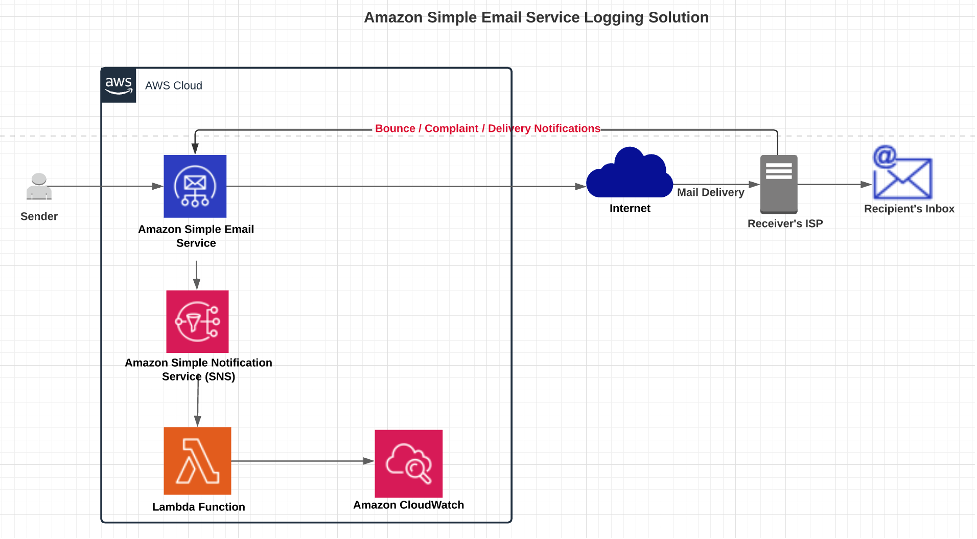
Fortunately, Amazon Simple Email Service (SES) has a highly scalable and reliable backend infrastructure to reduce the preceding challenges. It has improved content filtering techniques, reputation management features, and a vast array of analytics and reporting functions. These features help email senders reach their audiences and make it easier to manage email channels across applications. Amazon SES also provides API operations to monitor your sending activities through simple API calls. You can publish these events to Amazon CloudWatch, Amazon Kinesis Data Firehose, or by using Amazon Simple Notification Service (SNS).

In this post, you learn how to build and automate a serverless architecture that analyzes email events. We explore how to track important metrics such as open and click rate of the emails.

Solution overview


The metrics that you can measure using Amazon SES are referred to as email sending events. You can use Amazon CloudWatch to retrieve Amazon SES event data. You can also use Amazon SNS to interpret Amazon SES event data. However, in this post, we are going to use Amazon Kinesis Data Firehose to monitor our user sending activity.

Enable Amazon SES configuration sets with open and click metrics and publish email sending events to Amazon Kinesis Data Firehose as JSON records. A Lambda function is used to parse the JSON records and publish the content in the Amazon S3 bucket.

Ingested data lands in an Amazon S3 bucket that we refer to as the raw zone. To make that data available, you have to catalog its schema in the AWS Glue data catalog. You create and run the AWS Glue crawler that crawls your data sources and construct your Data Catalog. The Data Catalog uses pre-built classifiers for many popular source formats and data types, including JSON, CSV, and Parquet.

When the crawler is finished creating the table definition and schema, you analyze the data using Amazon Athena. It is an interactive query service that makes it easy to analyze data in Amazon S3 using SQL. Point to your data in Amazon S3, define the schema, and start querying using standard SQL, with most results delivered in seconds.

Now you can build visualizations, perform ad hoc analysis, and quickly get business insights from the Amazon SES event data using Amazon QuickSight. You can easily run SQL queries using Amazon Athena on data stored in Amazon S3, and build business dashboards within Amazon QuickSight.


Deploying the architecture:

Configuring Amazon Kinesis Data Firehose to write to Amazon S3:

  1. Navigate to the Amazon Kinesis in the AWS Management Console. Choose Kinesis Data Firehose and create a delivery stream.
  2. Enter delivery stream name as “SES_Firehose_Demo”.
  3. Under the source category, select “Direct Put or other sources”.
  4. On the next page, make sure to enable Data Transformation of source records with AWS Lambda. We use AWS Lambda to parse the notification contents that we only process the required information as per the use case.
  5. Click the “Create New” Lambda function.
  6. Click on “General Kinesis Data FirehoseProcessing” Lambda blueprint and this opens up the Lambda console. Enter following values in Lambda
    • Name: SES-Firehose-Json-Parser
    • Execution role: Create a new role with basic Lambda permissions.
  7. Click “Create Function”. Now replace the Lambda code with the following provided code and save the function.
    • 'use strict';
      console.log('Loading function');
      exports.handler = (event, context, callback) => {
         /* Process the list of records and transform them */
          const output = event.records.map((record) => {
              console.log(record.recordId);
              const payload =JSON.parse((Buffer.from(record.data, 'base64').toString()))
              console.log("payload : " + payload);
              
              if (payload.eventType == "Click") {
              const resultPayLoadClick = {
                      eventType : payload.eventType,
                      destinationEmailId : payload.mail.destination[0],
                      sourceIp : payload.click.ipAddress,
                  };
              console.log("resultPayLoad : " + resultPayLoadClick.eventType + resultPayLoadClick.destinationEmailId + resultPayLoadClick.sourceIp);
              
              //const parsed = resultPayLoad[0];
              //console.log("parsed : " + (Buffer.from(JSON.stringify(resultPayLoad))).toString('base64'));
              
              
              return{
                  recordId: record.recordId,
                  result: 'Ok',
                  data: (Buffer.from(JSON.stringify(resultPayLoadClick))).toString('base64'),
              };
              }
              else {
                  const resultPayLoadOpen = {
                      eventType : payload.eventType,
                      destinationEmailId : payload.mail.destination[0],
                      sourceIp : payload.open.ipAddress,
                  };
              console.log("resultPayLoad : " + resultPayLoadOpen.eventType + resultPayLoadOpen.destinationEmailId + resultPayLoadOpen.sourceIp);
              
              //const parsed = resultPayLoad[0];
              //console.log("parsed : " + (Buffer.from(JSON.stringify(resultPayLoad))).toString('base64'));
              
              
              return{
                  recordId: record.recordId,
                  result: 'Ok',
                  data: (Buffer.from(JSON.stringify(resultPayLoadOpen))).toString('base64'),
              };
              }
          });
          console.log("Output : " + output.data);
          console.log(`Processing completed.  Successful records ${output.length}.`);
          callback(null, { records: output });
      };

      Please note:

      For this blog, we are only filtering out three fields i.e. Eventname, destination_Email, and SourceIP. If you want to store other parameters you can modify your code accordingly. For the list of information that we receive in notifications, you may check out the following document.

      https://docs.aws.amazon.com/ses/latest/DeveloperGuide/event-publishing-retrieving-firehose-examples.html

  8. Now, navigate back to your Amazon Kinesis Data Firehose console and choose the newly created Lambda function.
  9. Keep the convert record format disabled and click “Next”.
  10. In the destination, choose Amazon S3 and select a target Amazon S3 bucket. Create a new bucket if you do not want to use the existing bucket.
  11. Enter the following values for Amazon S3 Prefix and Error Prefix. When event data is published.
    • Prefix:
      fhbase/year=!{timestamp:yyyy}/month=!{timestamp:MM}/day=!{timestamp:dd}/hour=!{timestamp:HH}/
    • Error Prefix:
      fherroroutputbase/!{firehose:random-string}/!{firehose:error-output-type}/!{timestamp:yyyy/MM/dd}/
  12. You may utilize the above values in the Amazon S3 prefix and error prefix. If you use your own prefixes make sure to accordingly update the target values in AWS Glue which you will see in further process.
  13. Keep the Amazon S3 backup option disabled and click “Next”.
  14. On the next page, under the Permissions section, select create a new role. This opens up a new tab and then click “Allow” to create the role.
  15. Navigate back to the Amazon Kinesis Data Firehose console and click “Next”.
  16. Review the changes and click on “Create delivery stream”.

Configure Amazon SES to publish event data to Kinesis Data Firehose:

  1. Navigate to Amazon SES console and select “Email Addresses” from the left side.
  2. Click on “Verify a New Email Address” on the top. Enter your email address to which you send a test email.
  3. Go to your email inbox and click on the verify link. Navigate back to the Amazon SES console and you will see verified status on the email address provided.
  4. Open the Amazon SES console and select Configuration set from the left side.
  5. Create a new configuration set. Enter “SES_Firehose_Demo”  as the configuration set name and click “Create”.
  6. Choose Kinesis Data Firehose as the destination and provide the following details.
    • Name: OpenClick
    • Event Types: Open and Click
  7. In the IAM Role field, select ‘Let SES make a new role’. This allows SES to create a new role and add sufficient permissions for this use case in that role.
  8. Click “Save”.

Sending a Test email:

  1. Navigate to Amazon SES console, click on “Email Addresses” on the left side.
  2. Select your verified email address and click on “Send a Test email”.
  3. Make sure you select the raw email format. You may use the following format to send out a test email from the console. Make sure you send out this email to a recipient inbox to which you have the access.
    • X-SES-CONFIGURATION-SET: SES_Firehose_Demo
      X-SES-MESSAGE-TAGS: Email=NULL
      From: [email protected]
      To: [email protected]
      Subject: Test email
      Content-Type: multipart/alternative;
          		boundary="----=_boundary"
      
      ------=_boundary
      Content-Type: text/html; charset=UTF-8
      Content-Transfer-Encoding: 7bit
      This is a test email.
      
      <a href="https://aws.amazon.com/">Amazon Web Services</a>
      ------=_boundary
  4. Once the email is received in the recipient’s inbox, open the email and click the link present in the same. This generates a click and open event and send the response back to SES.

Creating Glue Crawler:

  1. Navigate to the AWS Glue console, select “crawler” from the left side, and then click on “Add crawler” on the top.
  2. Enter the crawler name as “SES_Firehose_Crawler” and click “Next”.
  3. Under Crawler source type, select “Data stores” and click “Next”.
  4. Select Amazon S3 as the data source and prove the required path. Include the path until the “fhbase” folder.
  5. Select “no” under Add another data source section.
  6. In the IAM role, select the option to ‘Create an IAM role’. Enter the name as “SES_Firehose-Crawler”. This provides the necessary permissions automatically to the newly created role.
  7. In the frequency section, select run on demand and click “Next”. You may choose this value as per your use case.
  8. Click on add Database and provide the name as “ses_firehose_glue_db”. Click on create and then click “Next”.
  9. Review your Glue crawler setting and click on “Finish”.
  10. Run the above-created crawler. This crawls the data from the specified Amazon S3 bucket and create a catalog and table definition.
  11. Now navigate to “tables” on the left, and verify a “fhbase” table is created after you run the crawler.

If you want to analyze the data stored until now, you can use Amazon Athena and test the queries. If not, you can move to the Amazon Quicksight directly.

Analyzing the data using Amazon Athena:

  1. Open Athena console and select the database, which is created using AWS Glue
  2. Click on “setup a query result location in Amazon S3” as shown in the following screenshot.
  3. Navigate to the Amazon S3 bucket created in earlier steps and create a folder called “AthenaQueryResult”. We store our Athena query result in this bucket.
  4. Now navigate back to Amazon Athena and select the Amazon S3 bucket with the folder location as shown in the following screenshot and click “Save”.
  5. Run the following query to test the sample output and accordingly modify your SQL query to get the desired output.
    • Select * from “ses_firehose_glue_db”.”fhbase”

Note: If you want to track the opened emails by unique Ip addresses then you can modify your SQL query accordingly. This is because every time an email gets opened, you will receive a notification even if the same email was previously opened.


Visualizing the data in Amazon QuickSight dashboards:

  1. Now, let’s analyze this data using Amazon Athena via Amazon Quicksight.
  2. Log into Amazon Quicksight and choose Manage data, New dataset. Choose Amazon Athena as a new data source.
  3. Enter the data source name as “SES-Demo” and click on “Create the data source”.
  4. Select your database from the drop-down as “ses_firehose_glue_db” and table “fhbase” that you have created in AWS Glue.
  5. And add a custom SQL based on your use case and click on “Confirm query”. Refer to the example below.
  6. You can perform ad hoc analysis and modify your query according to your business needs as shown in the following image. Click “Save & Visualize”.
  7. You can now visualize your event data on Amazon Quicksight dashboard. You can use various graphs to represent your data. For this demo, the default graph is used and two fields are selected to populate on the graph, as shown below.


Conclusion:

This architecture shows how to track your email sending activity at a granular level. You set up Amazon SES to publish event data to Amazon Kinesis Data Firehose based on fine-grained email characteristics that you define. You can also track several types of email sending events, including sends, deliveries, bounces, complaints, rejections, rendering failures, and delivery delays. This information can be useful for operational and analytical purposes.

To get started with Amazon SES, follow this quick start guide and you can learn more about monitoring sending activity here.

About the Authors

Chirag Oswal is a solutions architect and AR/VR specialist working with the public sector India. He works with AWS customers to help them adopt the cloud operating model on a large scale.

Apoorv Gakhar is a Cloud Support Engineer and an Amazon SES Expert. He is working with AWS to help the customers integrate their applications with various AWS Services.


Additional Resources:

Amazon SES Dedicated IP Pools

Amazon Personalize optimizer using Amazon Pinpoint events

Template Personalization using Amazon Pinpoint


Complete CI/CD with AWS CodeCommit, AWS CodeBuild, AWS CodeDeploy, and AWS CodePipeline

Post Syndicated from Nitin Verma original https://aws.amazon.com/blogs/devops/complete-ci-cd-with-aws-codecommit-aws-codebuild-aws-codedeploy-and-aws-codepipeline/

Many organizations have been shifting to DevOps practices, which is the combination of cultural philosophies, practices, and tools that increases your organization’s ability to deliver applications and services at high velocity; for example, evolving and improving products at a faster pace than organizations using traditional software development and infrastructure management processes.

DevOps-Feedback-Flow

An integral part of DevOps is adopting the culture of continuous integration and continuous delivery/deployment (CI/CD), where a commit or change to code passes through various automated stage gates, all the way from building and testing to deploying applications, from development to production environments.

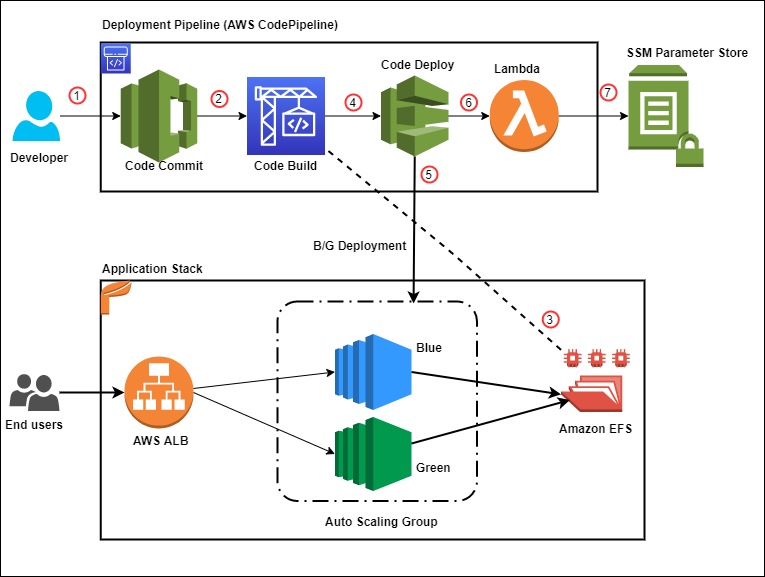
This post uses the AWS suite of CI/CD services to compile, build, and install a version-controlled Java application onto a set of Amazon Elastic Compute Cloud (Amazon EC2) Linux instances via a fully automated and secure pipeline. The goal is to promote a code commit or change to pass through various automated stage gates all the way from development to production environments, across AWS accounts.

AWS services

This solution uses the following AWS services:

  • AWS CodeCommit – A fully-managed source control service that hosts secure Git-based repositories. CodeCommit makes it easy for teams to collaborate on code in a secure and highly scalable ecosystem. This solution uses CodeCommit to create a repository to store the application and deployment codes.
  • AWS CodeBuild – A fully managed continuous integration service that compiles source code, runs tests, and produces software packages that are ready to deploy, on a dynamically created build server. This solution uses CodeBuild to build and test the code, which we deploy later.
  • AWS CodeDeploy – A fully managed deployment service that automates software deployments to a variety of compute services such as Amazon EC2, AWS Fargate, AWS Lambda, and your on-premises servers. This solution uses CodeDeploy to deploy the code or application onto a set of EC2 instances running CodeDeploy agents.
  • AWS CodePipeline – A fully managed continuous delivery service that helps you automate your release pipelines for fast and reliable application and infrastructure updates. This solution uses CodePipeline to create an end-to-end pipeline that fetches the application code from CodeCommit, builds and tests using CodeBuild, and finally deploys using CodeDeploy.
  • AWS CloudWatch Events – An AWS CloudWatch Events rule is created to trigger the CodePipeline on a Git commit to the CodeCommit repository.
  • Amazon Simple Storage Service (Amazon S3) – An object storage service that offers industry-leading scalability, data availability, security, and performance. This solution uses an S3 bucket to store the build and deployment artifacts created during the pipeline run.
  • AWS Key Management Service (AWS KMS) – AWS KMS makes it easy for you to create and manage cryptographic keys and control their use across a wide range of AWS services and in your applications. This solution uses AWS KMS to make sure that the build and deployment artifacts stored on the S3 bucket are encrypted at rest.

Overview of solution

This solution uses two separate AWS accounts: a dev account (111111111111) and a prod account (222222222222) in Region us-east-1.

We use the dev account to deploy and set up the CI/CD pipeline, along with the source code repo. It also builds and tests the code locally and performs a test deploy.

The prod account is any other account where the application is required to be deployed from the pipeline in the dev account.

In summary, the solution has the following workflow:

  • A change or commit to the code in the CodeCommit application repository triggers CodePipeline with the help of a CloudWatch event.
  • The pipeline downloads the code from the CodeCommit repository, initiates the Build and Test action using CodeBuild, and securely saves the built artifact on the S3 bucket.
  • If the preceding step is successful, the pipeline triggers the Deploy in Dev action using CodeDeploy and deploys the app in dev account.
  • If successful, the pipeline triggers the Deploy in Prod action using CodeDeploy and deploys the app in the prod account.

The following diagram illustrates the workflow:

cicd-overall-flow


Failsafe deployments

This example of CodeDeploy uses the IN_PLACE type of deployment. However, to minimize the downtime, CodeDeploy inherently supports multiple deployment strategies. This example makes use of following features: rolling deployments and automatic rollback.

CodeDeploy provides the following three predefined deployment configurations, to minimize the impact during application upgrades:

  • CodeDeployDefault.OneAtATime – Deploys the application revision to only one instance at a time
  • CodeDeployDefault.HalfAtATime – Deploys to up to half of the instances at a time (with fractions rounded down)
  • CodeDeployDefault.AllAtOnce – Attempts to deploy an application revision to as many instances as possible at once

For OneAtATime and HalfAtATime, CodeDeploy monitors and evaluates instance health during the deployment and only proceeds to the next instance or next half if the previous deployment is healthy. For more information, see Working with deployment configurations in CodeDeploy.

You can also configure a deployment group or deployment to automatically roll back when a deployment fails or when a monitoring threshold you specify is met. In this case, the last known good version of an application revision is automatically redeployed after a failure with the new application version.

How CodePipeline in the dev account deploys apps in the prod account

In this post, the deployment pipeline using CodePipeline is set up in the dev account, but it has permissions to deploy the application in the prod account. We create a special cross-account role in the prod account, which has the following:

  • Permission to use fetch artifacts (app) rom Amazon S3 and deploy it locally in the account using CodeDeploy
  • Trust with the dev account where the pipeline runs

CodePipeline in the dev account assumes this cross-account role in the prod account to deploy the app.

Do I need multiple accounts?
If you answer “yes” to any of the following questions you should consider creating more AWS accounts:

  • Does your business require administrative isolation between workloads? Administrative isolation by account is the most straightforward way to grant independent administrative groups different levels of administrative control over AWS resources based on workload, development lifecycle, business unit (BU), or data sensitivity.
  • Does your business require limited visibility and discoverability of workloads? Accounts provide a natural boundary for visibility and discoverability. Workloads cannot be accessed or viewed unless an administrator of the account enables access to users managed in another account.
  • Does your business require isolation to minimize blast radius? Separate accounts help define boundaries and provide natural blast-radius isolation to limit the impact of a critical event such as a security breach, an unavailable AWS Region or Availability Zone, account suspensions, and so on.
  • Does your business require a particular workload to operate within AWS service limits without impacting the limits of another workload? You can use AWS account service limits to impose restrictions on a business unit, development team, or project. For example, if you create an AWS account for a project group, you can limit the number of Amazon Elastic Compute Cloud (Amazon EC2) or high performance computing (HPC) instances that can be launched by the account.
  • Does your business require strong isolation of recovery or auditing data? If regulatory requirements require you to control access and visibility to auditing data, you can isolate the data in an account separate from the one where you run your workloads (for example, by writing AWS CloudTrail logs to a different account).

Prerequisites

For this walkthrough, you should complete the following prerequisites:

  1. Have access to at least two AWS accounts. For this post, the dev and prod accounts are in us-east-1. You can search and replace the Region and account IDs in all the steps and sample AWS Identity and Access Management (IAM) policies in this post.
  2. Ensure you have EC2 Linux instances with the CodeDeploy agent installed in all the accounts or VPCs where the sample Java application is to be installed (dev and prod accounts).
    • To manually create EC2 instances with CodeDeploy agent, refer Create an Amazon EC2 instance for CodeDeploy (AWS CLI or Amazon EC2 console). Keep in mind the following:
      • CodeDeploy uses EC2 instance tags to identify instances to use to deploy the application, so it’s important to set tags appropriately. For this post, we use the tag name Application with the value MyWebApp to identify instances where the sample app is installed.
      • Make sure to use an EC2 instance profile (AWS Service Role for EC2 instance) with permissions to read the S3 bucket containing artifacts built by CodeBuild. Refer to the IAM role cicd_ec2_instance_profile in the table Roles-1 below for the set of permissions required. You must update this role later with the actual KMS key and S3 bucket name created as part of the deployment process.
    • To create EC2 Linux instances via AWS Cloudformation, download and launch the AWS CloudFormation template from the GitHub repo: cicd-ec2-instance-with-codedeploy.json
      • This deploys an EC2 instance with AWS CodeDeploy agent.
      • Inputs required:
        • AMI : Enter name of the Linux AMI in your region. (This template has been tested with latest Amazon Linux 2 AMI)
        • Ec2SshKeyPairName: Name of an existing SSH KeyPair
        • Ec2IamInstanceProfile: Name of an existing EC2 instance profile. Note: Use the permissions in the template cicd_ec2_instance_profile_policy.json to create the policy for this EC2 Instance Profile role. You must update this role later with the actual KMS key and S3 bucket name created as part of the deployment process.
        • Update the EC2 instance Tags per your need.
  3. Ensure required IAM permissions. Have an IAM user with an IAM Group or Role that has the following access levels or permissions:

    AWS Service / Components  Access Level Accounts Comments
    AWS CodeCommit Full (admin) Dev Use AWS managed policy AWSCodeCommitFullAccess.
    AWS CodePipeline Full (admin) Dev Use AWS managed policy AWSCodePipelineFullAccess.
    AWS CodeBuild Full (admin) Dev Use AWS managed policy AWSCodeBuildAdminAccess.
    AWS CodeDeploy Full (admin) All

    Use AWS managed policy

    AWSCodeDeployFullAccess.

    Create S3 bucket and bucket policies Full (admin) Dev IAM policies can be restricted to specific bucket.
    Create KMS key and policies Full (admin) Dev IAM policies can be restricted to specific KMS key.
    AWS CloudFormation Full (admin) Dev

    Use AWS managed policy

    AWSCloudFormationFullAccess.

    Create and pass IAM roles Full (admin) All Ability to create IAM roles and policies can be restricted to specific IAM roles or actions. Also, an admin team with IAM privileges could create all the required roles. Refer to the IAM table Roles-1 below.
    AWS Management Console and AWS CLI As per IAM User permissions All To access suite of Code services.


  4. Create Git credentials for CodeCommit in the pipeline account (dev account). AWS allows you to either use Git credentials or associate SSH public keys with your IAM user. For this post, use Git credentials associated with your IAM user (created in the previous step). For instructions on creating a Git user, see Create Git credentials for HTTPS connections to CodeCommit. Download and save the Git credentials to use later for deploying the application.
  5. Create all AWS IAM roles as per the following tables (Roles-1). Make sure to update the following references in all the given IAM roles and policies:
    • Replace the sample dev account (111111111111) and prod account (222222222222) with actual account IDs
    • Replace the S3 bucket mywebapp-codepipeline-bucket-us-east-1-111111111111 with your preferred bucket name.
    • Replace the KMS key ID key/82215457-e360-47fc-87dc-a04681c91ce1 with your KMS key ID.

Table: Roles-1

Service IAM Role Type Account IAM Role Name (used for this post) IAM Role Policy (required for this post) IAM Role Permissions
AWS CodePipeline Service role Dev (111111111111)

cicd_codepipeline_service_role

Select Another AWS Account and use this account as the account ID to create the role.

Later update the trust as follows:
“Principal”: {“Service”: “codepipeline.amazonaws.com”},

Use the permissions in the template cicd_codepipeline_service_policy.json to create the policy for this role. This CodePipeline service role has appropriate permissions to the following services in a local account:

  • Manage CodeCommit repos
  • Initiate build via CodeBuild
  • Create deployments via CodeDeploy
  • Assume cross-account CodeDeploy role in prod account to deploy the application
AWS CodePipeline IAM role Dev (111111111111)

cicd_codepipeline_trigger_cwe_role

Select Another AWS Account and use this account as the account ID to create the role.

Later update the trust as follows:
“Principal”: {“Service”: “events.amazonaws.com”},

Use the permissions in the template cicd_codepipeline_trigger_cwe_policy.json to create the policy for this role. CodePipeline uses this role to set a CloudWatch event to trigger the pipeline when there is a change or commit made to the code repository.
AWS CodePipeline IAM role Prod (222222222222)

cicd_codepipeline_cross_ac_role

Choose Another AWS Account and use the dev account as the trusted account ID to create the role.

Use the permissions in the template cicd_codepipeline_cross_ac_policy.json to create the policy for this role. This role is created in the prod account and has permissions to use CodeDeploy and fetch from Amazon S3. The role is assumed by CodePipeline from the dev account to deploy the app in the prod account. Make sure to set up trust with the dev account for this IAM role on the Trust relationships tab.
AWS CodeBuild Service role Dev (111111111111)

cicd_codebuild_service_role

Choose CodeBuild as the use case to create the role.

Use the permissions in the template cicd_codebuild_service_policy.json to create the policy for this role. This CodeBuild service role has appropriate permissions to:

  • The S3 bucket to store artefacts
  • Stream logs to CloudWatch Logs
  • Pull code from CodeCommit
  • Get the SSM parameter for CodeBuild
  • Miscellaneous Amazon EC2 permissions
AWS CodeDeploy Service role Dev (111111111111) and Prod (222222222222)

cicd_codedeploy_service_role

Choose CodeDeploy as the use case to create the role.

Use the built-in AWS managed policy AWSCodeDeployRole for this role. This CodeDeploy service role has appropriate permissions to:

  • Miscellaneous Amazon EC2 Auto Scaling
  • Miscellaneous Amazon EC2
  • Publish Amazon SNS topic
  • AWS CloudWatch metrics
  • Elastic Load Balancing
EC2 Instance Service role for EC2 instance profile Dev (111111111111) and Prod (222222222222)

cicd_ec2_instance_profile

Choose EC2 as the use case to create the role.

Use the permissions in the template cicd_ec2_instance_profile_policy.json to create the policy for this role.

This is set as the EC2 instance profile for the EC2 instances where the app is deployed. It has appropriate permissions to fetch artefacts from Amazon S3 and decrypt contents using the KMS key.


You must update this role later with the actual KMS key and S3 bucket name created as part of the deployment process.


Setting up the prod account

To set up the prod account, complete the following steps:

  1. Download and launch the AWS CloudFormation template from the GitHub repo: cicd-codedeploy-prod.json
    • This deploys the CodeDeploy app and deployment group.
    • Make sure that you already have a set of EC2 Linux instances with the CodeDeploy agent installed in all the accounts where the sample Java application is to be installed (dev and prod accounts). If not, refer back to the Prerequisites section.
  2. Update the existing EC2 IAM instance profile (cicd_ec2_instance_profile):
    • Replace the S3 bucket name mywebapp-codepipeline-bucket-us-east-1-111111111111 with your S3 bucket name (the one used for the CodePipelineArtifactS3Bucket variable when you launched the CloudFormation template in the dev account).
    • Replace the KMS key ARN arn:aws:kms:us-east-1:111111111111:key/82215457-e360-47fc-87dc-a04681c91ce1 with your KMS key ARN (the one created as part of the CloudFormation template launch in the dev account).

Setting up the dev account

To set up your dev account, complete the following steps:

  1. Download and launch the CloudFormation template from the GitHub repo: cicd-aws-code-suite-dev.json
    The stack deploys the following services in the dev account:

    • CodeCommit repository
    • CodePipeline
    • CodeBuild environment
    • CodeDeploy app and deployment group
    • CloudWatch event rule
    • KMS key (used to encrypt the S3 bucket)
    • S3 bucket and bucket policy
  2. Use following values as inputs to the CloudFormation template. You should have created all the existing resources and roles beforehand as part of the prerequisites.

    Key Example Value Comments
    CodeCommitWebAppRepo MyWebAppRepo Name of the new CodeCommit repository for your web app.
    CodeCommitMainBranchName master Main branch name on your CodeCommit repository. Default is master (which is pushed to the prod environment).
    CodeBuildProjectName MyCBWebAppProject Name of the new CodeBuild environment.
    CodeBuildServiceRole arn:aws:iam::111111111111:role/cicd_codebuild_service_role ARN of an existing IAM service role to be associated with CodeBuild to build web app code.
    CodeDeployApp MyCDWebApp Name of the new CodeDeploy app to be created for your web app. We assume that the CodeDeploy app name is the same in all accounts where deployment needs to occur (in this case, the prod account).
    CodeDeployGroupDev MyCICD-Deployment-Group-Dev Name of the new CodeDeploy deployment group to be created in the dev account.
    CodeDeployGroupProd MyCICD-Deployment-Group-Prod Name of the existing CodeDeploy deployment group in prod account. Created as part of the prod account setup.

    CodeDeployGroupTagKey


    Application Name of the tag key that CodeDeploy uses to identify the existing EC2 fleet for the deployment group to use.

    CodeDeployGroupTagValue


    MyWebApp Value of the tag that CodeDeploy uses to identify the existing EC2 fleet for the deployment group to use.
    CodeDeployConfigName CodeDeployDefault.OneAtATime

    Desired Code Deploy config name. Valid options are:

    CodeDeployDefault.OneAtATime

    CodeDeployDefault.HalfAtATime

    CodeDeployDefault.AllAtOnce

    For more information, see Deployment configurations on an EC2/on-premises compute platform.

    CodeDeployServiceRole arn:aws:iam::111111111111:role/cicd_codedeploy_service_role

    ARN of an existing IAM service role to be associated with CodeDeploy to deploy web app.


    CodePipelineName MyWebAppPipeline Name of the new CodePipeline to be created for your web app.
    CodePipelineArtifactS3Bucket mywebapp-codepipeline-bucket-us-east-1-111111111111 Name of the new S3 bucket to be created where artifacts for the pipeline are stored for this web app.
    CodePipelineServiceRole arn:aws:iam::111111111111:role/cicd_codepipeline_service_role ARN of an existing IAM service role to be associated with CodePipeline to deploy web app.
    CodePipelineCWEventTriggerRole arn:aws:iam::111111111111:role/cicd_codepipeline_trigger_cwe_role ARN of an existing IAM role used to trigger the pipeline you named earlier upon a code push to the CodeCommit repository.
    CodeDeployRoleXAProd arn:aws:iam::222222222222:role/cicd_codepipeline_cross_ac_role ARN of an existing IAM role in the cross-account for CodePipeline to assume to deploy the app.

    It should take 5–10 minutes for the CloudFormation stack to complete. When the stack is complete, you can see that CodePipeline has built the pipeline (MyWebAppPipeline) with the CodeCommit repository and CodeBuild environment, along with actions for CodeDeploy in local (dev) and cross-account (prod). CodePipeline should be in a failed state because your CodeCommit repository is empty initially.

  3. Update the existing Amazon EC2 IAM instance profile (cicd_ec2_instance_profile):
    • Replace the S3 bucket name mywebapp-codepipeline-bucket-us-east-1-111111111111 with your S3 bucket name (the one used for the CodePipelineArtifactS3Bucket parameter when launching the CloudFormation template in the dev account).
    • Replace the KMS key ARN arn:aws:kms:us-east-1:111111111111:key/82215457-e360-47fc-87dc-a04681c91ce1 with your KMS key ARN (the one created as part of the CloudFormation template launch in the dev account).

Deploying the application

You’re now ready to deploy the application via your desktop or PC.

  1. Assuming you have the required HTTPS Git credentials for CodeCommit as part of the prerequisites, clone the CodeCommit repo that was created earlier as part of the dev account setup. Obtain the name of the CodeCommit repo to clone, from the CodeCommit console. Enter the Git user name and password when prompted. For example:
    $ git clone https://git-codecommit.us-east-1.amazonaws.com/v1/repos/MyWebAppRepo my-web-app-repo
    Cloning into 'my-web-app-repo'...
    Username for 'https://git-codecommit.us-east-1.amazonaws.com/v1/repos/MyWebAppRepo': xxxx
    Password for 'https://[email protected]/v1/repos/MyWebAppRepo': xxxx

  2. Download the MyWebAppRepo.zip file containing a sample Java application, CodeBuild configuration to build the app, and CodeDeploy config file to deploy the app.
  3. Copy and unzip the file into the my-web-app-repo Git repository folder created earlier.
  4. Assuming this is the sample app to be deployed, commit these changes to the Git repo. For example:
    $ cd my-web-app-repo 
    $ git add -A 
    $ git commit -m "initial commit" 
    $ git push

For more information, see Tutorial: Create a simple pipeline (CodeCommit repository).

After you commit the code, the CodePipeline will be triggered and all the stages and your application should be built, tested, and deployed all the way to the production environment!

The following screenshot shows the entire pipeline and its latest run:


Troubleshooting

To troubleshoot any service-related issues, see the following:

Cleaning up

To avoid incurring future charges or to remove any unwanted resources, delete the following:

  • EC2 instance used to deploy the application
  • CloudFormation template to remove all AWS resources created through this post
  •  IAM users or roles

Conclusion

Using this solution, you can easily set up and manage an entire CI/CD pipeline in AWS accounts using the native AWS suite of CI/CD services, where a commit or change to code passes through various automated stage gates all the way from building and testing to deploying applications, from development to production environments.

FAQs

In this section, we answer some frequently asked questions:

  1. Can I expand this deployment to more than two accounts?
    • Yes. You can deploy a pipeline in a tooling account and use dev, non-prod, and prod accounts to deploy code on EC2 instances via CodeDeploy. Changes are required to the templates and policies accordingly.
  2. Can I ensure the application isn’t automatically deployed in the prod account via CodePipeline and needs manual approval?
  3. Can I use a CodeDeploy group with an Auto Scaling group?
    • Yes. Minor changes required to the CodeDeploy group creation process. Refer to the following Solution Variations section for more information.
  4. Can I use this pattern for EC2 Windows instances?

Solution variations

In this section, we provide a few variations to our solution:

Author bio

author-pic

 Nitin Verma

Nitin is currently a Sr. Cloud Architect in the AWS Managed Services(AMS). He has many years of experience with DevOps-related tools and technologies. Speak to your AWS Managed Services representative to deploy this solution in AMS!