Tag Archives: Featured-Cloud Storage

NAS vs. Cloud Storage: Which Remote Storage Option Is Best?

Post Syndicated from Vinodh Subramanian original https://www.backblaze.com/blog/nas-vs-cloud-storage-which-solution-fits-your-business-needs/

A decorative image showing a cloud and a NAS device.

If you’re leading IT strategy for a growing enterprise and still weighing network attached storage (NAS) and cloud storage, you’re not alone. And you’re not behind. Even the most seasoned infrastructure pros find themselves re-evaluating their stack as data volumes explode and budgets tighten. Both offer unique benefits, but with overlapping features, it’s easy to see why the choice can be confusing. 

Are you looking for greater control with physical access, as in a local NAS setup? Or is off-site backup, flexibility, and scalability through a cloud service provider more aligned with your needs? With plenty of discussions and debates outlining the pros and cons of one or the other, it can be difficult to determine the best storage solution for your specific needs. 

This guide walks through clear, actionable insights into NAS and cloud storage, addressing your most pressing questions about storage costs, dedicated machines, data sharing, and performance. Whether the focus is cost, scalability, security, or accessibility, this guide will help identify the ideal storage solution for your business.

What is NAS?

NAS, or network attached storage, is a file-level storage system designed specifically to provide centralized and shared disk storage for users on a local area network (LAN). 

Essentially, NAS is a purpose-built computer that operates its own dedicated operating system (OS). It contains one or more storage devices that are configured to create a single shared volume. These storage devices are arranged in a RAID configuration to ensure data redundancy and performance. 

These configurations make NAS ideal for file sharing, data backups, and accessing large files within an organization, making it a cost-effective solution for enterprises that need local storage with physical access.

Many NAS devices, such as Synology NAS or QNAP NAS, come with built-in software for additional functionalities like file syncing, data backups, and offsite backup options to integrate with cloud services.

How does NAS work?

NAS provides access to files using standard network file sharing protocols such as Network File System (NFS) and Server Message Block (SMB). By connecting directly to the local network, NAS allows users to easily store, access, and collaborate on files without overburdening other servers within the network. This separation of file-serving responsibilities helps optimize overall network performance, particularly for high-traffic environments. 

NAS systems are generally managed through a web-based utility accessible over the network, offering an intuitive interface for configuration and maintenance. This interface allows administrators to handle tasks such as user permissions, storage allocation, and data redundancy settings—making it simpler to secure and organize shared files across the network.

Advantages of NAS

NAS offers several advantages including faster data access, easier administration, simplified management, and many others. Here’s a breakdown: 

  • Cost effective: NAS devices typically involve an upfront purchase cost that includes access to applications from the NAS provider, like Synology Hyper Backup or QNAP Hybrid Backup Sync. This greatly reduces ongoing subscription fees, though you may incur costs if you want to expand your storage capacity with high-capacity storage drives or increase its performance with updates like more powerful processors, etc. 
  • Data control and security: NAS systems offer extensive control over data storage and security protocols. NAS systems are only accessible on the local network and to user accounts that can be controlled and managed.
  • Performance: NAS provides high-speed access to data over a local network, ensuring quick file retrieval and sharing. NAS generally work as fast as the local network speeds.
  • Scalable storage: Many NAS systems allow additional drives to be added, providing flexible storage expansion, albeit with the cost of additional drives or device upgrades. Modern NAS devices today offer large storage capacities and advanced features for virtualization and application hosting.
  • Data redundancy: When equipped with RAID configurations, NAS provides redundancy, ensuring data remains accessible even if one or more hard drives fail.
  • Better data management tools: Features such as fully automated backups, deduplication, compression, and encryption enhance data storage efficiency and security. NAS systems also support sync workflows for team collaboration, directory services for user and group management, and services like photo or media management.
  • Compatibility: NAS systems are designed to support different OS environments and are compatible with Windows, Mac, and Linux operating systems. They offer a seamless cross-platform access.
  • Remote access options: While primarily local, most NAS devices offer secure remote access through VPN or encrypted connections, allowing authorized users to access files from outside the office network when needed.

Limitations of NAS

While NAS offers numerous advantages for centralized file storage, there are some notable limitations to consider:

  • Initial setup and maintenance:. The configuration process can be complex at enterprise scale, and ongoing maintenance may demand external IT support, adding to operational costs.
  • Remote access vulnerabilities: NAS systems can be accessed remotely over the internet, creating a private cloud or hybrid cloud solution. While this offers a significant advantage in using your device, just like anything connected to the internet, it also poses security risks. Bad actors can exploit vulnerabilities and gain remote access to the device. To minimize risk, businesses must ensure proper security configurations, use encrypted connections, regularly update firmware, and restrict access to trusted IPs.
  • Scalability constraints: Although NAS systems allow for storage expansion, they are still limited by the physical capacity of the hardware.  Adding storage often involves purchasing high-capacity drives, which can be costly, and for larger expansions, migrating to more powerful NAS devices might be necessary.
  • Data vulnerability: Data stored on a NAS is susceptible to various threats, including hardware failures, natural disasters, theft, and cyber attacks such as ransomware. While RAID configurations offer some level of data redundancy, they do not protect against all forms of data loss. Regular backups and additional security measures are essential to mitigate these risks.
  • Performance overheads: As more users and devices access the NAS, network bandwidth and device performance can become bottlenecks. High demand may reduce access speeds, impact data throughput, and reduce efficiency, especially in larger organizations with extensive data needs.
  • Data recovery challenges: If a NAS drive fails or becomes corrupted, data recovery processes may be complex and require specialized services, which can be costly and time-intensive.

What is cloud storage?

Cloud storage is a model of data storage where data is stored on servers located in off-site locations and accessed via the internet. This setup enables users to store, retrieve, and manage data without requiring local storage infrastructure. There are two main types of cloud: public and private. 

  • Public cloud storage: Hyperscale providers like AWS, Google Cloud, and Azure and specialized cloud providers like Backblaze maintain servers and are responsible for hosting, managing, and securing data. The public cloud is cost-effective and offers scalable storage for multiple users and businesses.
  • Private cloud storage: Typically managed in-house or by a dedicated third-party provider, private cloud storage is reserved for a single organization. For example, a university may maintain data centers for its community. Private clouds offer enhanced control and security, though they often require more complex management.

What’s the diff: Public vs. private cloud

Public cloud storage services are provided by third-party vendors over the public internet, making them accessible to anyone who wants to purchase or lease storage capacity. These services are designed to offer scalability and reliability, often on a pay-as–you-go basis.

Private cloud storage is dedicated to a single organization where an organization utilizes its own servers and data centers to store data within their own network. It can be hosted on-premises or by a third-party provider, but it’s always behind the organization’s firewall. This model is ideal for businesses that require more control over their data and have stringent security and compliance requirements.

Advantages of public cloud

One of the key benefits of public cloud storage is that it eliminates the need for businesses to buy, manage, and operate their own data center infrastructure. This shift allows companies to move from capital expenditure (CapEx) to operational expenditure (OpEx) model, focusing on paying only for the storage they need when they need it. 

Additionally, cloud storage is elastic, enabling businesses to scale their storage capacity up or down more efficiently and strategically than through tactical hardware investments.

Advantages of private cloud

Private cloud storage allows for customized control and security measures, as organizations have full authority over their data environment. This setup can be highly beneficial for industries with strict data regulations, like finance and healthcare, as it enables better compliance with data privacy laws. 

Additionally, private clouds provide reliable performance since resources are not shared with external users, reducing latency issues and enabling faster data access for internal teams.

Types of cloud storage architecture 

In addition to the  elasticity and scalability benefits of cloud storage, you can also combine on-premises storage and different types of public or private cloud storage to uniquely support your business needs. The primary models of cloud storage are:

  • Hybrid cloud storage: A hybrid model combines both public and private cloud storage. This allows an organization to decide which data it wants to store in which cloud. Sensitive data and data that must meet strict compliance requirements may be stored in a private cloud or on-premises while less sensitive data is stored in the public cloud. You could also use hybrid cloud to leverage on-premises storage for performance-sensitive tasks, such as using NAS to edit large media files locally, which are later synced to the cloud. 
  • Multi-cloud storage: A multi-cloud model involves using two or more public cloud storage services from different service providers. This model helps businesses leverage the best features of each cloud service while enhancing data availability and redundancy. For example, some companies use multiple cloud providers to host mirrored copies of their active production data. If one of their public clouds suffers an outage, they have mechanisms in place to direct their applications or websites to failover to a second public cloud.

This flexibility in cloud storage architecture allows businesses to balance performance, cost, and security—ensuring critical data is stored securely while remaining accessible and resilient across multiple environments.

How does cloud storage work?

Cloud storage works by allowing users to upload data, such as files, documents, videos, or images to remote servers via the internet. 

Public cloud storage providers like Amazon, Google, Microsoft, and Backblaze maintain servers in large data centers. The uploaded data can be accessed and managed through web interfaces or APIs, making it highly accessible and flexible. 

Cloud storage offers numerous benefits that can greatly enhance business operations, such as storage space scalability, flexible data sharing options, and built-in data protection through regular backups and client-side encryption. However, there are also a few considerations like data security and storage costs to keep in mind. Next, we’ll look at the advantages and some of the key limitations of cloud-based storage solutions.

Advantages of cloud storage

Cloud storage enables businesses to scale with ease, reduce IT burdens, and access data remotely—offering a reliable, cost-efficient way to manage critical information. Here are some of the advantages of cloud storage:

  • Off-site protection: Cloud storage provides convenient off-site protection for data, ensuring that in the event of a physical disaster (such as fire or flood), data remains safe and accessible from any location. This supports in data redundancy and business continuity. 
  • Enhanced security: Leading cloud providers invest heavily in advanced security measures—including encryption, multi-factor authentication, Object Lock for immutability, and regular security audits—to protect stored data from unauthorized access and breaches.
  • Scalability: Cloud storage services offer virtually unlimited storage capacity. Businesses can easily scale their storage needs up or down based on demand without needing to invest in physical hardware. 
  • Accessibility: Data stored in the cloud can be accessed from anywhere with an internet connection, facilitating remote work and data sharing across teams and locations. 
  • Lower maintenance: Cloud providers handle all hardware maintenance, software updates, and security patches, reducing the IT burden of managing storage systems on businesses. 
  • Cost efficiency: Many cloud storage solutions operate on a pay-as-you-go model, allowing businesses to pay only for the storage they use, which can be more cost-effective than local NAS or investing in on-premises hardware.

Limitations of cloud storage

While cloud storage offers flexibility and scalability, it also has some limitations that impose additional considerations like ongoing costs and internet dependence that businesses should evaluate carefully. 

  • Ongoing costs: Unlike on-premises storage solutions such as NAS, cloud storage operates on a subscription-based pricing model. When evaluating cloud storage, businesses should consider the total cost of ownership, including ongoing fees, and weigh these against the benefits of cloud storage. 
  • Dependence on the internet: Cloud storage relies on a stable internet connection for access and data transfer. Any disruptions in internet connectivity can hinder access to critical files and services, potentially impacting business operations. Ensuring reliable internet service and having contingency plans are crucial for minimizing downtime.

NAS vs cloud storage: A side-by-side comparison

The following table provides a side-by-side comparison of NAS and cloud storage, highlighting key aspects such as cost, scalability, security, and performance. This comparison will help you determine which storage solution best aligns with your business requirements and operational workflows.

Aspect NAS Cloud Storage
Storage model File-level storage within a local network Data stored on remote servers accessed via the internet
Performance High speed access over a local network; optimal for on-premises work Dependent on internet speed and latency; suitable for global access and remote teams
Scalability Limited by physical hardware capacity; requires purchasing new devices for expansion Virtually unlimited scalability; allowing storage to expand without additional hardware
Cost Upfront hardware purchase, ongoing investment to expand capacity Subscription-based, pay-as-you-go model, often with no upfront hardware investment
Maintenance Requires in-house IT maintenance, updates and troubleshooting Maintenance handled by cloud provider, reducing IT burden
Security Controlled in-house, local network security; ideal for high-sensitive data Enhanced by provider with encryption, multi-factor authentication, and security
Data redundancy RAID configurations for local redundancy Built-in data redundancy and disaster recovery options
Accessibility Limited to local network access or VPN for remote connections Accessible from anywhere with an internet connection, supporting remote work and collaboration
Compliance Greater control for compliance in regulated industries; depends on in-house protocols Many providers offer compliance with standards like GDPR, HIPAA, and SOC 2, ideal for regulated industries

Hybrid cloud: The best of both worlds

A hybrid cloud solution combines the strengths of both NAS and cloud storage. While NAS offers a centralized location to store and access files, the data stored on the NAS is still vulnerable to data disasters such as floods, fires, or hardware failures. 

By integrating cloud storage with NAS, you create an off-site backup of your NAS data that securely protects your critical data from virtually any data threat. This approach not only mitigates the risk associated with physical damage to your on-premises NAS equipment but also offers the scalability, flexibility and remote accessibility benefits of cloud storage. 

Additionally, this helps you implement 3-2-1 backup protection where three copies of your data are stored in two different storage media (NAS and cloud) with one copy stored off-site in the cloud, protecting against ransomware, hardware failures, natural disasters, and other data threats.

NAS vs. cloud: Which is best for your business?

Choosing between NAS and cloud storage for your business largely depends on your specific use cases and operational needs. NAS provides fast local access, control, and cost efficiency for businesses with stable storage needs and on-premises operations. In contrast, cloud storage offers unparalleled scalability, remote access, and maintenance-free operation, making it ideal for organizations with dynamic storage needs and remote workforces. 

However, many businesses find that a combination of both, known as a hybrid cloud solution, offers the best of both worlds by combining the control of NAS with the scalability of cloud storage. 

Ultimately, the right choice will depend on a thorough evaluation of your business needs and operational workflows. By understanding the strengths and limitations of both NAS and cloud storage, you can make an informed decision that ensures your data is secure, accessible, and available when you need it.

FAQs about NAS and cloud storage

Is cloud storage better than NAS?

The answer depends on your specific business needs. Cloud storage offers scalability, remote access, and minimal maintenance requirements. NAS, on the other hand, provides fast local access and higher control over data management and security settings. Each solution has its strengths, and the best choice will depend on your priorities regarding data security, access, and cost.

Can I use a NAS as a cloud?

Yes, many modern NAS devices come with built-in features that allow them to function similarly to cloud storage, or to connect to a cloud storage provider of your choice. These NAS systems can be accessed remotely over the internet, creating a private cloud or hybrid cloud solution. However, it requires proper configuration, secure settings and a reliable internet connection to ensure seamless remote access.

Why use NAS instead of a server?

NAS devices are purpose-built for storage, offering simplicity, ease of management, and lower costs compared to traditional servers. While servers are multifunctional and can handle a variety of tasks, they are more complex to set up and maintain. NAS provides a straightforward solution for file sharing, backups, and media streaming without the need for extensive IT infrastructure. This makes NAS an excellent choice for small to medium-sized businesses that primarily need a dedicated storage solution.

Can NAS work without the internet?

Yes, NAS devices are designed to operate within a local area network (LAN) and do not require an internet connection for local access and file sharing. Users can store, access, and collaborate on files within local networks without internet access. However, for remote access or to leverage additional features such as cloud backups, an internet connection is necessary.

The post NAS vs. Cloud Storage: Which Remote Storage Option Is Best? appeared first on Backblaze Blog | Cloud Storage & Cloud Backup

Backblaze Live Read: The Game Changer for Live Media Cloud Workflows

Post Syndicated from Elton Carneiro original https://backblaze.com/blog/announcing-b2-live-read/

A decorative image with the title Live Read.

Every sports fan knows that when something incredible happens on the field/ice/court, we want to see the replay right now. But many of us don’t know the impressive efforts that live media teams undertake to deliver clips in real time to all of us on whatever viewing platform we might prefer. Today, Backblaze is excited to make the work of live media production (and the end results) a lot easier with our latest innovation.

Announcing Backblaze B2 Live Read

Backblaze B2 Live Read is a patent-pending service that gives media production teams working on live events the ability to access, edit, and transform media content while it is being uploaded into Backblaze B2 Cloud Storage. This means that teams can start working on content far faster than they could before, without having to drastically change their workflows and tools, massively speeding up their time to engagement and revenue. 

This is a game changer for live media teams, who are passionate about bringing content to their audience as soon as possible. It means they don’t need to worry as screen resolutions continue to expand, ranging from 4K to 8K and beyond. It also reduces the need for having production teams on-site to minimize latency, which could be extremely costly depending on the venue. 

Previously, producers had to wait hours or days before they could access uploaded data, or they had to rely on cost-prohibitive and complicated options that often required on-premises storage. That’s no longer necessary. This innovation will make it faster and less expensive to:

  • Create near real-time highlight clips for news segments, in-app replays, and much more.
  • Tap into talent where they are versus trying to find local talent to produce events.
  • Promote content for on-demand sales within minutes of presentations at live events.
  • Distribute teasers for buzz on social media before talent has even left the venue.

For our customers, turnaround time is essential, and Live Read promises to speed up workflows and operations for producers across the industry. We’re incredibly excited to offer this innovative feature to boost performance and accelerate our customers’ business engagements.”

Richard Andes, VP, Product Management, Telestream

Coming soon inside your favorite tools

We designed Live Read to be easily accessible directly via the Backblaze S3 Compatible API and/or seamlessly within the user interface of launch partners including Telestream, Glookast, and Mimir. These platforms, along with CineDeck, Alteon, Hedge, Hiscale, MoovIT, and many others to come, are enabling Live Read within their platforms soon.   

If you want to use Live Read, you can join our private preview.  

How does it work?

Previously, media teams were forced to either wait for uploads to complete or use on-premises storage. Now, Live Read uniquely supports accessing parts of each growing file or growing object as it is uploaded so there’s no need to wait for the full file upload to complete. And, when the full upload is complete, it’s accessible like any other file in a Backblaze B2 Cloud Storage Bucket, with no middleware or proprietary software needed. 

Here’s a short video showing both how Live Read works on a conceptual level, as well as a live demo showing how one app can upload video data to Backblaze B2 using Live Read while a second app reads the uploaded video data:

For those of you who want to dig deeper into the code samples you saw in the video, here is some example code that uses the Amazon SDK for Python, Boto3, to start uploading data with Live Read. If you’re familiar with Amazon S3, you’ll recognize that this is a standard multipart upload apart from the add_custom_header handler function and the call to register it with Boto3’s event system:

def add_custom_header(params, **_kwargs):
    """
    Add the Live Read custom headers to the outgoing request.
    See https://boto3.amazonaws.com/v1/documentation/api/latest/guide/events.html
    """
    params['headers']['x-backblaze-live-read-enabled'] = 'true'

client = boto3.client('s3')
client.meta.events.register('before-call.s3.CreateMultipartUpload', add_custom_header)

response = client.create_multipart_upload(Bucket='my-video-files', Key='liveread.mp4')

upload_id = response['UploadId']

# Now upload data as usual with repeated calls to client.upload_part()

As it processes the call to create_multipart_upload(), Boto3 calls the add_custom_header() handler function, which adds a custom HTTP header, x-backblaze-live-read-enabled, with the value true, to the S3 API request. The custom HTTP header signals to Backblaze B2 that this is a Live Read upload. As with standard multipart uploads, the data is uploaded in parts between 5MB and 5GB in size. To facilitate reading data efficiently, all parts except the last one must have the same size.

Since this is a Live Read upload, as soon as a part is uploaded, it is accessible for downloading.

An app that downloads the file needs to send the same custom HTTP header when it retrieves data. For example:

def add_custom_header(params, **_kwargs):
    """
    Add the Live Read custom headers to the outgoing request.
    See https://boto3.amazonaws.com/v1/documentation/api/latest/guide/events.html
    """
    params['headers']['x-backblaze-live-read-enabled'] = 'true'

client = boto3.client('s3')
client.meta.events.register('before-call.s3.GetObject', add_custom_header)

# Read the first 1 KiB of the file
response = client.get_object(
    Bucket='my-video-files',
    Key='liveread.mp4',
    Range='bytes=0-1023'
)

Note that you must supply either Range or PartNumber to specify a portion of the file when you download data using Live Read. If you request a range or part that does not exist, then Backblaze B2 responds with a 416 Range Not Satisfiable error, just as you might expect. On receiving this error, an app reading the file might repeatedly retry the request, waiting for a short interval after each unsuccessful request.

The source code for the applications is available as open source at https://github.com/backblaze-b2-samples/live-read-demo/.

How much does it cost?

Live Read upload capacity is offered in $15/TB increments—and the capacity is only consumed when an upload is marked for Live Read. Standard uploads are free, as usual. After uploading is complete, the data stored in Backblaze B2 is billed as normal. From a cost perspective, this represents significant savings versus the workflows that production teams must currently follow to achieve anything close to the functionality delivered by Live Read.

And it’s not just for live media

Beyond media, the Live Read API can support breakthroughs across development and IT workloads. For example, organizations maintaining large data logs or surveillance footage backups have often had to parse them into hundreds or thousands of small files each day in order to have quick access when needed—but with Live Read, they can now move to far more manageable single files per day or hour while preserving ability to access parts immediately after they are written.

What’s next

For those interested in Live Read, you can sign up for the private preview here. We’ll continue to report as we add more integrations and we’ll share stories as customers succeed with the new feature. Until then, feel free to ask any question you have in the comments below. 

Want to see more?

Join Pat Patterson, Chief Technical Evangelist, and Elton Carneiro, Senior Director of Partnerships, on January 26, 2024 at 10:00 a.m. PT to learn more in real time. Can’t make it live? Sign up anyway and we’ll send a recording straight to your inbox.

Join the Webinar 

The post Backblaze Live Read: The Game Changer for Live Media Cloud Workflows appeared first on Backblaze Blog | Cloud Storage & Cloud Backup

Video Surveillance Data Storage: Cloud vs. On-Prem vs. Hybrid

Post Syndicated from Tonya Comer original https://backblaze.com/blog/video-surveillance-data-storage-cloud-vs-on-prem-vs-hybrid/

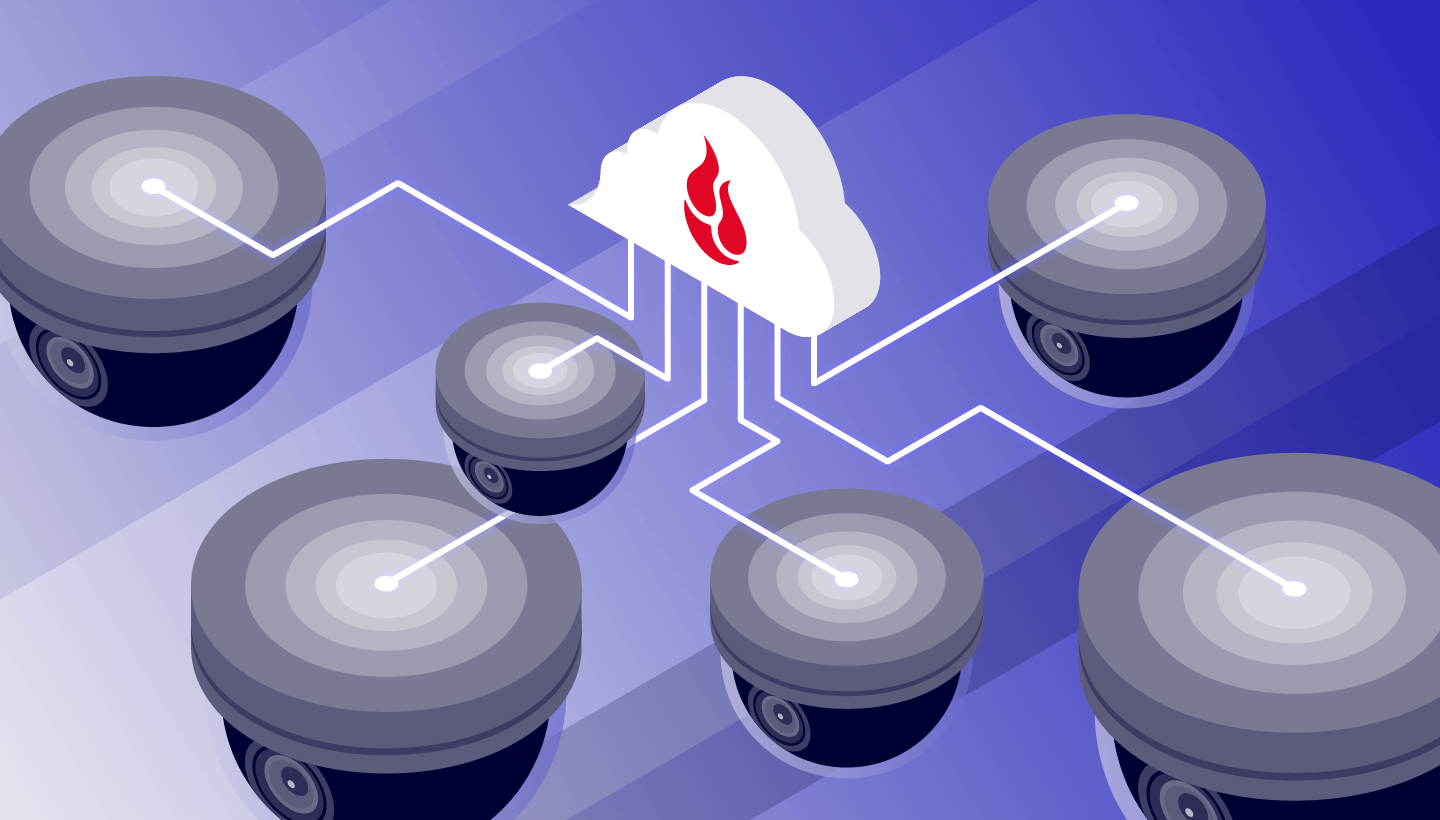
A decorative image showing several video surveillance cameras connected to a cloud with the Backblaze logo on it.

Depending on your industry, you may need to install and run video surveillance. And once you have footage, you might be required to store it for a set period of days, months, or even years. This leads to the question: Where are you supposed to keep it all?

Not all storage systems are created equal, so it’s important to weigh the benefits and drawbacks of each option before making a decision. In some cases, government and industry regulations will require you to use a certain type of storage system. Ultimately, you will benefit from knowing how the system functions, what risks are involved, and how to select a technology provider.

This article will help you consider the pros and cons of on-premises, cloud, and hybrid storage systems. As you read, keep in mind that the amount of storage you need for your enterprise will depend on the number of cameras you have, the quality of the video footage, the length of time you are required to retain the footage, and various other factors. 

First Things First: Your Backup Strategy

No matter how or where you store your video surveillance footage, the most important thing you should do is establish a backup strategy that follows the 3-2-1 backup approach. That means you should have three copies of your data on two different media with one stored off-site. In this post, we’ll weigh the pros and cons of whether you keep that off-site copy stored at an off-site location like, say, an Iron Mountain storage facility, a remote office, or data center, or whether you keep that off-site copy in the cloud. 

You might think we’re biased as a cloud provider. Of course, we’d love it if you choose to keep your backups with Backblaze! But the main thing we want to emphasize is that you should have a backup plan for your video surveillance footage (or any data, really!) whether it includes Backblaze or not. And, because you have to store one of those copies off-site, it’s miles easier (pun intended) to store in the cloud than to physically drive or mail hard drives to a secondary location.  

What Is On-Premises Storage?

Storing video footage on-premises means your data is stored on physical media—that is, servers, network attached storage (NAS), storage area network (SAN), LTO tape (linear tape open), etc.—in a physical location on your premises. We’ll talk about two forms of on-premises storage as they pertain to video footage: NAS and SAN.

Are NAS Devices Good for Storing Video Footage?

NAS devices have a large data storage capacity that provides file-based data storage services to other devices on a network. Usually, they also have a client or web portal interface, as well as services like QNAP’s Hybrid Backup Sync or Synology’s Hyper Backup to help manage your files.

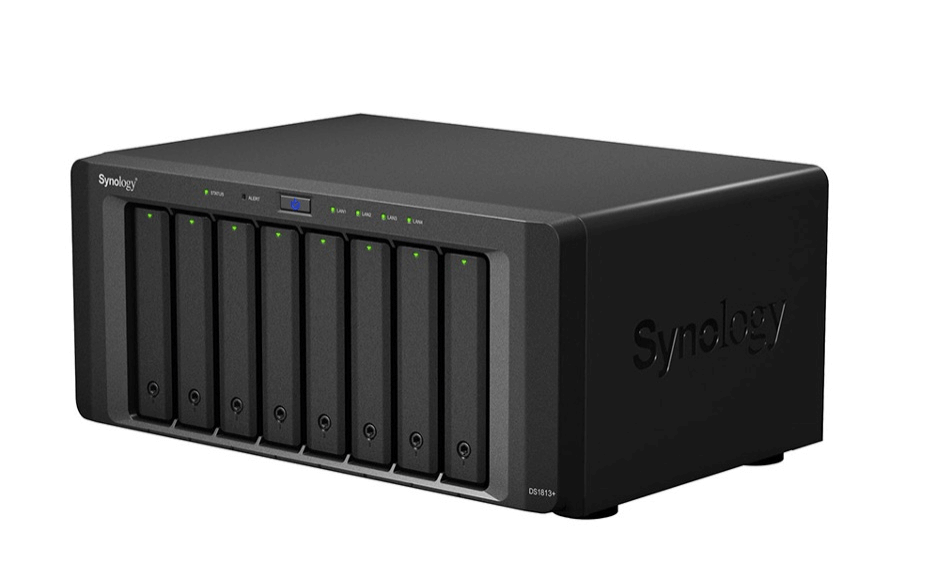
A photo of a Synology NAS.

One of the benefits of NAS is that it’s easy to set up and use, and you can upgrade internal drives over time. The main drawback when it comes to storing video surveillance footage is that its storage capacity is limited. Even if you buy a bigger device than you need right now, eventually you’ll run out of space and need to buy more, especially if you’re storing large amounts of video surveillance footage.

Is a SAN Good for Storing Video Footage?

On the other end of the spectrum, SANs are engineered for high-performance and mission-critical applications. They function by connecting multiple storage devices, such as disk arrays or tape libraries, to a dedicated network that is separate from the main local area network (LAN).

SANs offer high-speed data access, critical for handling large video streams from multiple cameras and allow for seamless scalability. As video surveillance systems grow, SANs can accommodate additional cameras and storage without disrupting ongoing operations. They also provide enhanced data security by isolating block-level storage within the operating system layer, to protect against failures and unauthorized access. Managing SANs can be a bit complex, necessitating skilled administrators familiar with SAN architecture. Additionally, implementing SANs incurs upfront expenses for hardware, software, and expertise, while their reliance on centralized controllers poses a risk of impacting multiple cameras in case of failure.

What Is Cloud Storage?

Cloud storage enables you to securely store data and files in an off-site location. You can access this data through the public internet.

When you transfer data off-site for storage, the cloud storage provider (CSP) hosts, secures, manages, and maintains the servers and associated infrastructure, ensuring that you have seamless access to your data whenever you need it.

What Are the Benefits of Cloud Storage for Video Surveillance Footage?

  1. Scalability: Cloud storage services allow you to dynamically adjust capacity as your video surveillance data volumes fluctuate. 
  2. Avoid capital expenses (CapEx): By leveraging cloud storage for video surveillance, your organization benefits from paying for storage technology and capacity as a service, rather than incurring the capital expenses associated with constructing and upkeeping in-house storage networks. As data volumes grow over time, your costs may increase, but there’s no need to overprovision storage networks in anticipation of future data expansion. 
  3. Security: Cloud surveillance systems enhance data security with unique user accounts and data encryption ensure that only authorized personnel can access the footage. This controlled access minimizes the risk of unauthorized viewing or tampering.
  4. Accessibility: Cloud storage relies on an internet or network connection so authorized users can access surveillance footage remotely from anywhere using smart devices or web browsers. Whether you’re at the office, traveling, or even at home, you can review camera feeds without being physically present on-site. Keep in mind if the connection is lost or disrupted, access to video footage becomes challenging. This dependency can impact real-time monitoring and retrieval of critical data.

Just like our other storage strategies, there are drawbacks to cloud storage. For example, it relies on a stable internet connection. Video surveillance files are large, even when you apply compression techniques, which means that they take time and proper network connections to upload. So, if your internet connection goes down, it takes longer to get data properly stored or backed up than it would with other file types. That means you may not have real-time access to your data, or (in the worst cases) that you potentially risk file corruption if you don’t have a robust enough local storage infrastructure. 

Similarly, businesses should evaluate the privacy and data ownership concerns. Storing video footage in the cloud means entrusting sensitive data to a third-party service provider. Make sure that your CSP meets or exceeds all regulatory or compliance requirements, like SOC 2 or ISO 27001, before you store data on their platforms. 

All things considered, cloud storage offers scalability, ease of access, fine–tuned file control, and minimal maintenance, which are essential when dealing with the complexities of storing video surveillance footage.

Direct-to-Cloud Video Surveillance

Some companies choose to transfer video surveillance off-site to the cloud for backup purposes, while others push video footage directly to the cloud as a primary storage location, especially as there are several camera models and video surveillance solutions that are designed to easily push footage directly to cloud storage. When you’re choosing video surveillance hardware, it’s worth looking into whether they have this functionality, and if so, how much control you have over setting your storage destination to optimize costs. 

And, if you’re using cloud storage as the primary storage for video footage, a multi-cloud setup can be used to ensure the primary copy in the cloud is backed up. A multi-cloud setup involves using multiple cloud service providers simultaneously—so, if your video surveillance platform stores footage in their own cloud, you can still set up a workflow that backs up to a different CSP. For backup and archive purposes, organizations can distribute their data across different clouds to enhance reliability, reduce risk, create geographic diversity in storage locations for disaster recovery purposes, and to comply with data retention policies. This approach ensures data availability even if one cloud provider experiences issues.

What Is Hybrid Cloud Storage?

Hybrid cloud storage combines elements from both public clouds and private clouds (typically on-premises systems). It’s essentially a unified management approach where an integrated infrastructure enables seamless movement of workloads and data between the private and public clouds.

Using a hybrid cloud for video surveillance makes sense for lots of use cases, including backup and archive. Let’s talk about how. 

Backup: To deploy a hybrid approach for a video surveillance backup use case, you’d store all of your video surveillance footage in your on-premises systems, then store your backups in the cloud. Many NAS devices, for example, come with on-board backup utilities that allow you to store backups of your video surveillance footage directly in the cloud. You could also use third-party backup software to automatically back up your systems to the cloud. This hybrid approach gives you fast access to your footage via your on-premises storage, while protecting it with cloud backups.

Archive: To deploy a hybrid approach for a video surveillance archive use case, you’d store recent live recordings of your video surveillance footage on-premises. After a recurring cutoff date—whether in days or months—you then move old footage to a public cloud. This hybrid system allows you to access recent footage quickly while archiving older footage, particularly if you have retention requirements for compliance or cyber insurance purposes. If done right, this system can help your company comply with both short- and long-term industry requirements.

For a more in-depth look at hybrid cloud storage, check out our blog on hybrid cloud

Is Hybrid Cloud Good for Video Surveillance Footage?

Leveraging hybrid cloud storage provides a dual advantage for video surveillance: swift local access to your video surveillance footage while simultaneously safeguarding it through off-site backups or off-loading it through a cloud archive. This strategic approach allows you to harness the strengths of both public and private clouds. Moreover, it offers enhanced scalability and flexibility compared to traditional on-premises solutions.

However, it’s essential to note that implementing a private cloud system can be cost-intensive. It necessitates budgeting for hardware acquisitions and replacements over time. Additionally, you’ll likely need to allocate resources for dedicated staff to maintain servers and backup strategies.

The Verdict: Which Type of Storage Is Best for Video Surveillance?

Choosing the right video surveillance storage solution is a critical decision for any organization. On-premises, cloud, and hybrid cloud each have their merits and drawbacks. While on-premises solutions offer large data storage capacity that is easy to set up and use, they require significant infrastructure investment. Cloud storage provides data accessibility and scales seamlessly while optimizing cost-effectiveness. Hybrid cloud provides both rapid local access to your video surveillance footage and secure off-site backups. 

Ultimately, the choice depends on your specific needs, budget, and long-term strategy. Consider the trade-offs carefully to ensure seamless and reliable video storage for your surveillance system.

The post Video Surveillance Data Storage: Cloud vs. On-Prem vs. Hybrid appeared first on Backblaze Blog | Cloud Storage & Cloud Backup

How Backblaze Scales Our Storage Cloud

Post Syndicated from Andy Klein original https://backblaze.com/blog/how-backblaze-scales-our-storage-cloud/

A decorative image showing a larger cube being compressed into a smaller cube.

Increasing storage density is a fancy way of saying we are replacing one drive with another drive of a larger capacity; for example replacing a 4TB drive with a 16TB drive—same space, four times the storage. You’ve probably copied or cloned a drive or two over the years, so you understand the general process. Now imagine having 270,000 drives that over the next several years will need to be replaced, or migrated as is often the term used. That’s a lot of work. And when you finish—well actually you’ll never finish as the process is continuous for as long as you are in the cloud storage business. So, how does Backblaze manage this ABC (Always Be Copying) process? Let me introduce you to CVT Copy or CVT for short.

CVT Copy is our in-house purpose-built application used to perform drive migrations at scale. CVT stands for Cluster, Vault, Tome, which is engineering vernacular mercifully shortened to CVT. 

Before we jump in, let’s take a minute to define a few terms in the context of how we organize storage.

  • Drive: The basic unit of storage ranging in our case from 4TB to 22TB in size.
  • Storage Server: A collection of drives in a single server. We have servers of 26, 45, and 60 drives. All drives in a storage server are the same logical size.
  • Backblaze Vault: A logical collection of 20 Storage Pods or servers. Each storage server in a Vault will have the same number of drives.
  • Tome: A tome is a logical collection of 20 drives, with each drive being in one of the 20 storage servers in a given Vault. If the storage servers in a Vault have 60 drives each, then there will be 60 unique tomes in that Vault.
  • Cluster: A logical collection of Vaults, grouped together to share other resources such as networking equipment and utility servers.

Based on this, a Vault consisting of 20, 60-drive storage servers will have 1,200 drives, a Vault with 45-drive storage servers will have 900 drives, and a Vault with 26-drive servers will have 520 drives. A cluster can have any combination of Vault sizes.

A Quick Review on How Backblaze Stores Data

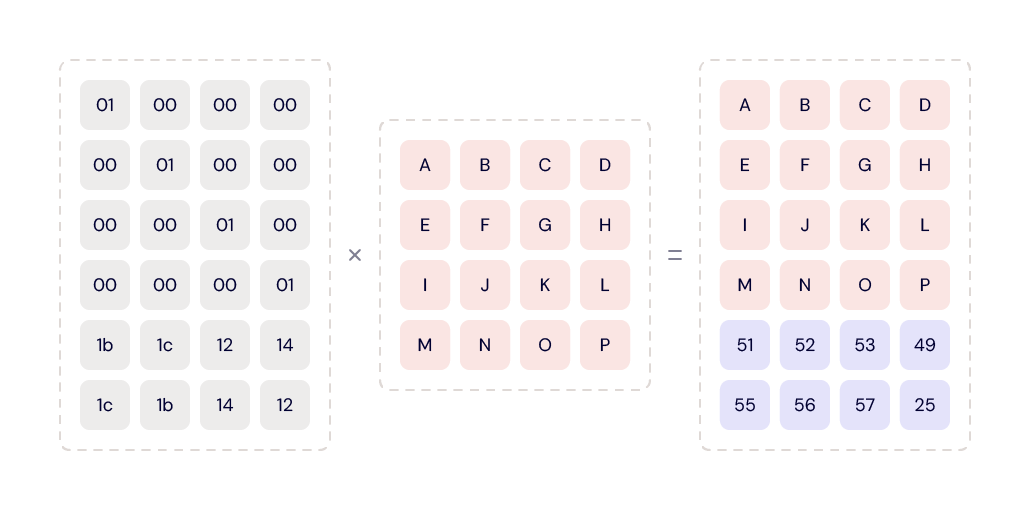
Data is uploaded to one of the 20 drives within a tome. The data is then divided into parts, called data shards. At this point, we use our own Reed-Solomon erasing coding algorithm to compute the parity shards for that data. The number of data shards plus the number of parity shards will equal 20, i.e. the number of drives in a tome. The data and parity shards are written to their assigned drives, one shard per drive. The ratios of data shards to parity shards we currently use are 17/3, 16/4, and 15/5 depending primarily on the size of the drives being used to store the data—the larger the drive, the higher the parity.

Using parity allows us to restore (i.e. read) a file using less than 20 drives. For example, when a tome is 17/3 (data/parity), we only need data from any 17 of the 20 drives in that tome to restore a file. This dramatically increases the durability of the files stored.

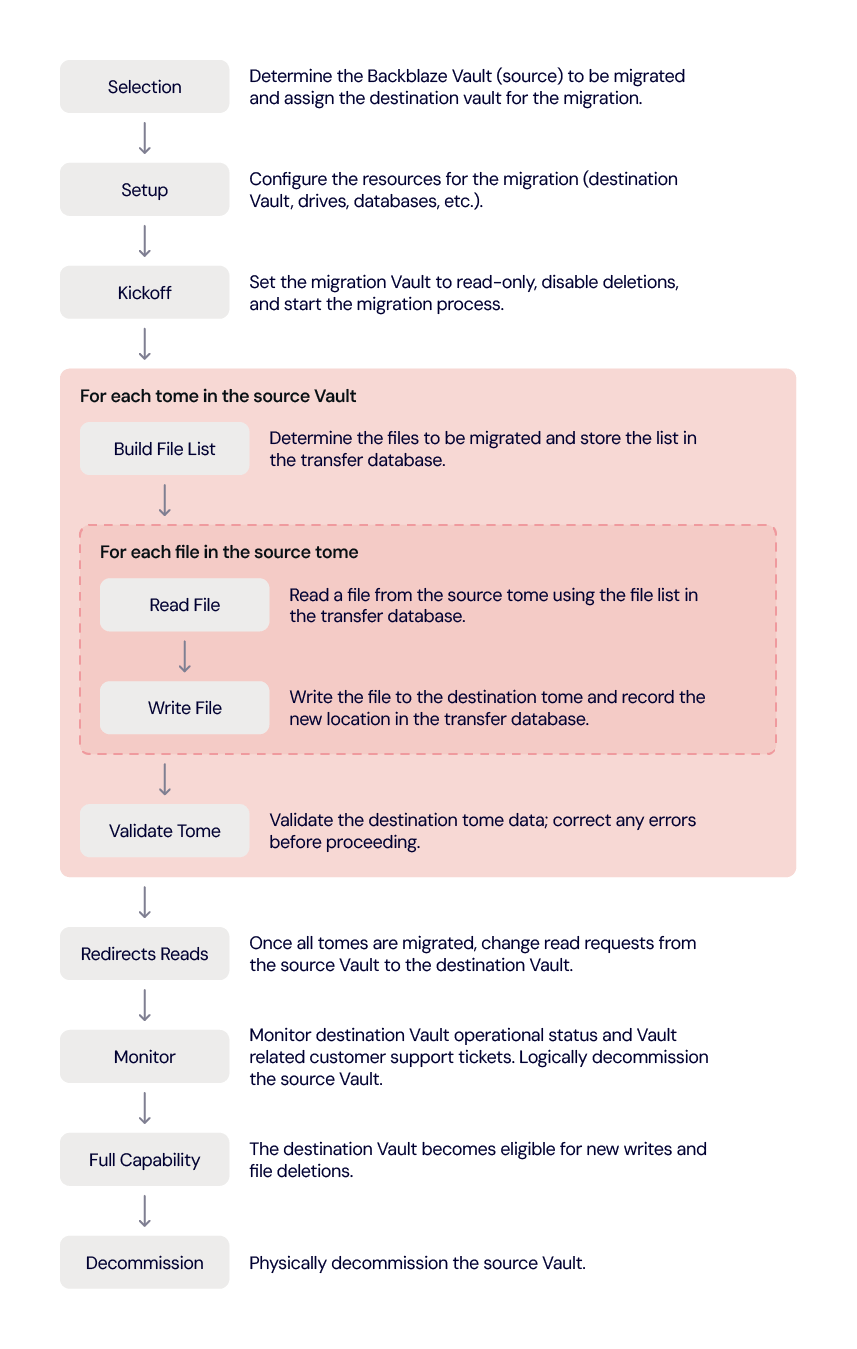
CVT Overview

For CVT, the basic unit of migration is a tome, with all of the tomes in a source Vault being copied simultaneously to a new destination Vault which is typically new hardware. For each tome, the data, in the form of files, is copied file-by-file from the source tome to the destination tome.

The CVT Process

An overview of the CVT process is below, followed by an explanation of each task noted.

Selection

Selecting a Vault to migrate involves considering several factors. We start by reviewing current drive failure rates and predicted drive failure rates over time. We also calculate and consider overall Vault durability; that is, our ability to safeguard data from loss. In addition, we need to consider operational needs. For example, we still have Vaults using 45-drive Storage Pods. Upgrading these to 60-drive storage servers increases drive density in the same rack space. These factors taken together determine the next Vault to migrate.

Currently we are migrating systems with 4TB drives, which means we are migrating up to 3.6 petabytes (PB) of data for a 900 drive Vault or 4.8PB of data for a 1,200 drive Vault. Actually, there are no limitations as to the size of the source system drives, so Vaults with 6TB, 8TB, and larger sized drives can be migrated using CVT with minimal setup and configuration changes.

Once we’ve identified a source Vault to migrate we need to identify the target or destination system. Currently, we are using destination vaults containing 16TB drives. There is no limitation as to the size of the drives of the destination Vault, so long as they are at least as large as those in the source Vault. You can migrate the data from any sized source Vault to any sized destination Vault as long as there is adequate room on the destination Vault.  

Setup

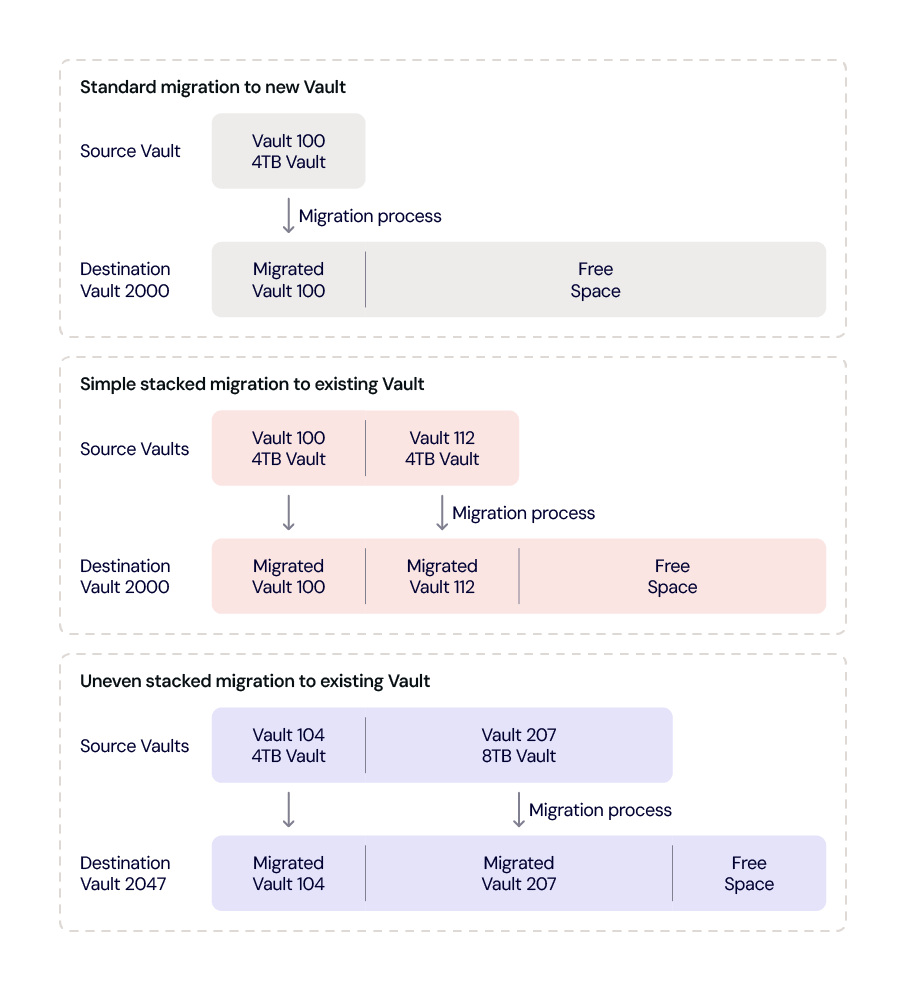
Once the source Vault and destination Vault are selected, the various Technical Operations and Data Center folks get to work on setting things up. If we are not using an existing destination Vault, then a new destination Vault is provisioned. This brings up one of the features of CVT: The migration can be to a new clean Vault or an existing Vault; that is, one with data from a previous migration on it. In the latter case, the new data is just added and does not replace any of the existing data. The chart below are examples of the different ways a destination Vault can be filled from one or more source Vaults.

In any of these scenarios, the free space can be used for another migration destination or for a Vault where new customer data can be written.

Kickoff

With the source and destination Vaults identified and setup, we are now ready to kick-off the CVT process. The first step is to put the source Vault in a read-only state and to disable file deletions on both the source and destination Vaults. It is possible that some older source Vaults may have already been placed in read-only state to reduce their workload. A Vault in a read-only state continues to perform other operations such as running shard integrity checks, reporting Drive Stats statistics and so on. 

CVT and Drive Stats

We record Drive Stats data from the drives in the source Vault until the migration is complete and verified. At that point we begin recording Drive Stats data from the drives in the destination Vault and stop recording Drive Stats data from the drives in the source Vault. The drives in the source Vault are not marked as failed.

Build the File List

This step and the next three steps (read files, write files, and validate) are done as a consecutive group of steps for each tome in a source Vault. For our purpose here, we’ll call this group of steps the tome migration process, although they really don’t have such a name in the internal documentation. The tome migration process is for a single tome, but, in general, all tomes in a Vault are migrated at the same time, although due to their unique contents, they most likely will complete at different times.

For each tome, the source file list is copied to a file transfer database and each entry is mapped to its new location in the destination tome. This process allows us to maintain the same upload path while copying the data as the customer used to initially upload their data. This ensures that from the customer point of view, nothing changes in how they work with their files even though we have migrated them from one Vault to another.

Read Files

For each tome, we use the file location database to read the files. One file at a time. We use the same code in this process that we use when a user requests their data from the Backblaze B2 Storage Cloud. As noted earlier, the data is sharded across multiple drives using the preset data/parity scheme, for example 17/3. That means, in this case we only need data from 17 of the drives to read the file.

When we read a file, one advantage we get by using our standard read process is a pristine copy of the file to migrate. While we regularly run shard integrity checks on the stored data to ensure a given shard of data is good, media degradation, cosmic rays and so on can affect data sitting on a hard drive. By using the standard read process, we get a completely clean version of each file to migrate.

Write Files

The restored file is sent to the destination vault, there is no intermediate location where the file resides. The transfer is done over an encrypted network connection typically within the same data center, preferably on the same network segment. If the transfer is done between data centers, it is done over an encrypted dark fiber connection. 

The file is then written to the destination tome. The write process is the same one used by our customers when they upload a file and given that process has successfully written hundreds of billions of files we didn’t need to invent anything new.

At this point, you could be thinking that’s a lot of work to copy each file one by one.  Why not copy and transfer block by block, for example? The answer lies in the flexibility we get by using the standard file-based read and write processes.

  • We can change the number of tomes. Let’s say we have 45 tomes in the source Vault and 60 tomes in the destination Vault. If we had copied blocks of data the destination Vault would have 15 empty tomes. This creates load balancing and other assorted performance problems when that destination Vault is opened up for new data writes at a later date. By using standard read and write calls for each file, all 60 of the destination Vault’s tomes fill up evenly, just like they do when we receive customer data.
  • We can change parity of the data. The source 4TB drive Vaults have a data/parity ratio of 17/3. By using our standard process to write the files, the data/parity ratio can be set to whatever ratio we want for the destination Vault. Currently, the data/parity ratio for the 16TB destination Vaults is set to 15/5. This ratio ensures that the durability of the destination Vault and therefore the recoverability of the files therein is maintained as a result of migrating the data to larger drives.
  • We can maximize parity economics. Increasing the number of parity drives in a tome from three to five decreases the number of data drives in that tome. That would seem to increase the cost of storage, but the opposite is true in this case. Here’s how:
    • Using 4TB drives for 16TB of data stored
      • Our average cost for a 4TB drive was $120 or $0.03 per GB.
      • Our cost of 16TB of storage, using 4TB drives, was $480 (4 x $120).
      • Using a 17/3 data/parity scheme means:
        • Data storage: We have 13.6TB of data storage at $0.03/GB ($30/TB) which costs us $408. 
        • Parity storage: We have 2.4TB of parity storage at $0.03/GB ($30/TB) which costs us $72.
    • Using 16TB drives for 16TB of data stored
      • Our average cost for a 16TB drive is $232 or $0.0145 per GB.
      • Our cost of 16TB of storage is $232.
      • Using a 15/5 data/parity scheme means:
        • Data storage: We have 12.0TB of data storage at $0.0145/GB ($14.5/TB) which costs us $174.
        • Data parity: We have 4.0TB of parity storage at $0.0145/GB ($14.5/TB) which costs us $58.
    • In summary, increasing the data/parity ratio to 15/5 for the 16TB drives is less expensive ($58) than the cost of parity when using our 4TB drives ($72) to provide the same 16TB of storage. The lower cost per TB of the 16TB drives allows us to increase the number of parity drives in a tome. Therefore, the cost of increasing the parity of the destination tome not only enhances data durability, it is economically sound.
    • Obviously a 16TB drive actually holds a bit less data due to formatting and overhead and four 4TB drives hold even less data. In other words, even with formatting and so on, the math still works out in favor of using the 16TB drives.

Validate Tome

The last step in migrating a tome is to validate the destination tome is the same as the source tome. This is done for each tome as they complete their copy process. If the source and destination tomes are not consistent, shard integrity check data can be reviewed to determine any errors and the system can retransfer individual files, up to and including the entire tome.

Redirect Reads

Once all of the tomes within the Vault have completed their individual migrations and have passed their validation checks, we are ready to redirect customer reads (download requests) to the destination Vault. This process is completely invisible to the customer as they will use the same file handle as before. This redirection or swap process can be done tome by tome, but is usually done once the entire destination Vault is ready.

Monitor

At this point all download requests are handled by the destination Vault. We monitor the operational status of the Vault, as well as any failed download requests. We also review inputs from customer support and sales support to see if there are any customer related issues.

Once we are satisfied that the destination Vault is handling customer requests, we will logically decommission the source Vault. Basically, that means while the source Vault continues to run, it is no longer externally reachable. If a significant problem were to arise with the new destination Vault, we can swap in the source Vault. At this point, both Vaults are read-only, so the swap would be straightforward. We have not had to do this in our production environment. 

Full Capability

Once we are satisfied there are no issues with the destination Vault, we can proceed one or two ways.

  • Another migration: We can prepare for the migration of another source Vault to this destination Vault. If this is the case, we return to the Selection step of the CVT process with the Vault once again being assigned as a destination Vault. 
  • Allow new data: We allow the destination Vault to accept new data from customers. Typically, the contents of multiple source Vaults have been migrated to the destination Vault before this is done. Once new customer writes have been allowed on a destination Vault, we won’t use it as a destination Vault again.

Decommission

After three months the source Vault is eligible to be physically decommissioned. That is, we turn it off, disconnect it from power and networking, and schedule it to be disassembled. This includes wiping the drives and recycling the remaining parts either internally or externally. In practice, we will wait to decommission at least two Vaults at once as it is more economical in dealing with our recycling partners.

Automation

You’re probably wondering how much of this process is automated or uses some type of orchestration to align and accomplish tasks. We currently have monitoring tools, dashboards, scripts, and such, but humans, real ones not AI generated, are in control. That said, we are working on orchestration of the setup and provisioning processes as well as upleveling the automation in the tome migration process. Over time, we expect the entire migration process to be automated, but only when we are sure it works—the “run fast, break things” approach is not appropriate when dealing with customer data.

Not for the Faint of Heart

The basic idea of copying the contents of a drive to another larger drive is straightforward and well understood. As you scale this process, complexity creeps in as you have to consider how the data is organized and stored while keeping it secure and available to the end user. 

If your organization manages your data in-house, the never-ending task of simultaneously migrating hundreds or perhaps thousands of drives falls to you or perhaps the contractor you hired to perform the task if you lack the experience or staffing. And this is just one of the tasks you are faced with in operating, maintaining, and upgrading your own storage infrastructure.

In addition to managing a storage infrastructure, there are the growing environmental concerns of data storage. The amount of data generated and stored each year continues to skyrocket and tools such as CVT allow us to scale and optimize our resources in a cost efficient, yet environmentally sensitive way. 

To do this, we start with data durability. Using our Drive Stats data and other information, we optimize the length of time a Vault should be in operation before the drives need to be replaced, that is before the drive failure rate impacts durability. We then consider data density, how much data can we pack into a given space. Migrating data from 4TB to 16TB drives, for example, not only increases data density, it uses less electricity per stored terabyte of data and reduces the amount of waste if, for example, we had continued to buy and use 4TB drives instead of upgrading to 16TB drives. 

In summary, CVT is more than just a fancy data migration tool: It is part of our overall infrastructure management program addressing scalability, durability, and environmental challenges faced by the ever-increasing amounts of data we are asked to store and protect each day.

Kudos

The CVT program is run by Bryan with the wonderfully descriptive title of Senior Manager, Operations Analysis and Capacity Management. He is assisted by folks from across the organization. They are, in no particular order, Bach, Lorelei (Lo), Madhu, Mitch, Ben, Rodney, Vicky, Ryan, David M., Sudhi, David W., Zoe, Mike, and unnamed others who pitch in as the process rolls along. Each person brings their own expertise to the process which Bryan coordinates. To date, the CVT Team has migrated 24 Vaults containing over 60PB of data—and that’s just the beginning.

The post How Backblaze Scales Our Storage Cloud appeared first on Backblaze Blog | Cloud Storage & Cloud Backup

Backblaze Plugs In to Internet2

Post Syndicated from Brent Nowak original https://www.backblaze.com/blog/backblaze-plugs-into-internet2/

A decorative images showing the Internet2 logo.

Who doesn’t love a sequel? From Star Wars to the Godfather, some of the best moments in storytelling have been part twos. (Let’s not talk about some of those part threes though.) And, if you were to write a sequel to The Internet, you couldn’t look for a better second chapter than a mission to support the technical and networking needs of leading academic and research organizations.  

Well, Internet2 is not actually a sequel, and it’s not a new version of the internet we all use every day. It’s an organization dedicated to delivering technical solutions and dedicated, high speed connectivity to institutions—ranging from the Smithsonian to Harvard and 330 other colleges, universities, regional research and education networks, nonprofit and government organizations, and more—who are working to solve today’s most pressing issues.

And today, Backblaze joined the Internet2 community to help further their mission. Here’s what that means:

  • First and foremost, the Backblaze Storage Cloud now connects to Internet2’s network as part of the Internet2 Peer Exchange (I2PX) program. This means that members of Internet2 can now move data into and out of Backblaze’s US-West and US-East regions at incredibly high speeds.
  • Second, Backblaze also completed the Internet2 Cloud Scorecard to offer research and educational institutions relevant details about Backblaze’s security, compliance, and technology specifications, making it easier to assess and procure our solutions.

Hundreds of institutions in the higher education and research space already use Backblaze for storing and using their data and protecting their endpoints. However, many others require data transmission via Internet2 for new cloud solutions. For these folks, Backblaze’s participation in Internet2’s community and I2PX program provides secure data storage with less latency and a lower cost for their data needs.

What type of data are we talking about? Think genetic sequencing records, billions of vector data points to help model and forecast weather events, or images of particle collisions at the subatomic level! 

The Backblaze team is incredibly excited to take this step forward in serving the different use cases that Internet2 supports. And of course, in addition to being a part of the Internet2 community, we’re always excited to add more high-quality peering relationships to our wider network (and to share some stats about it, too) . 

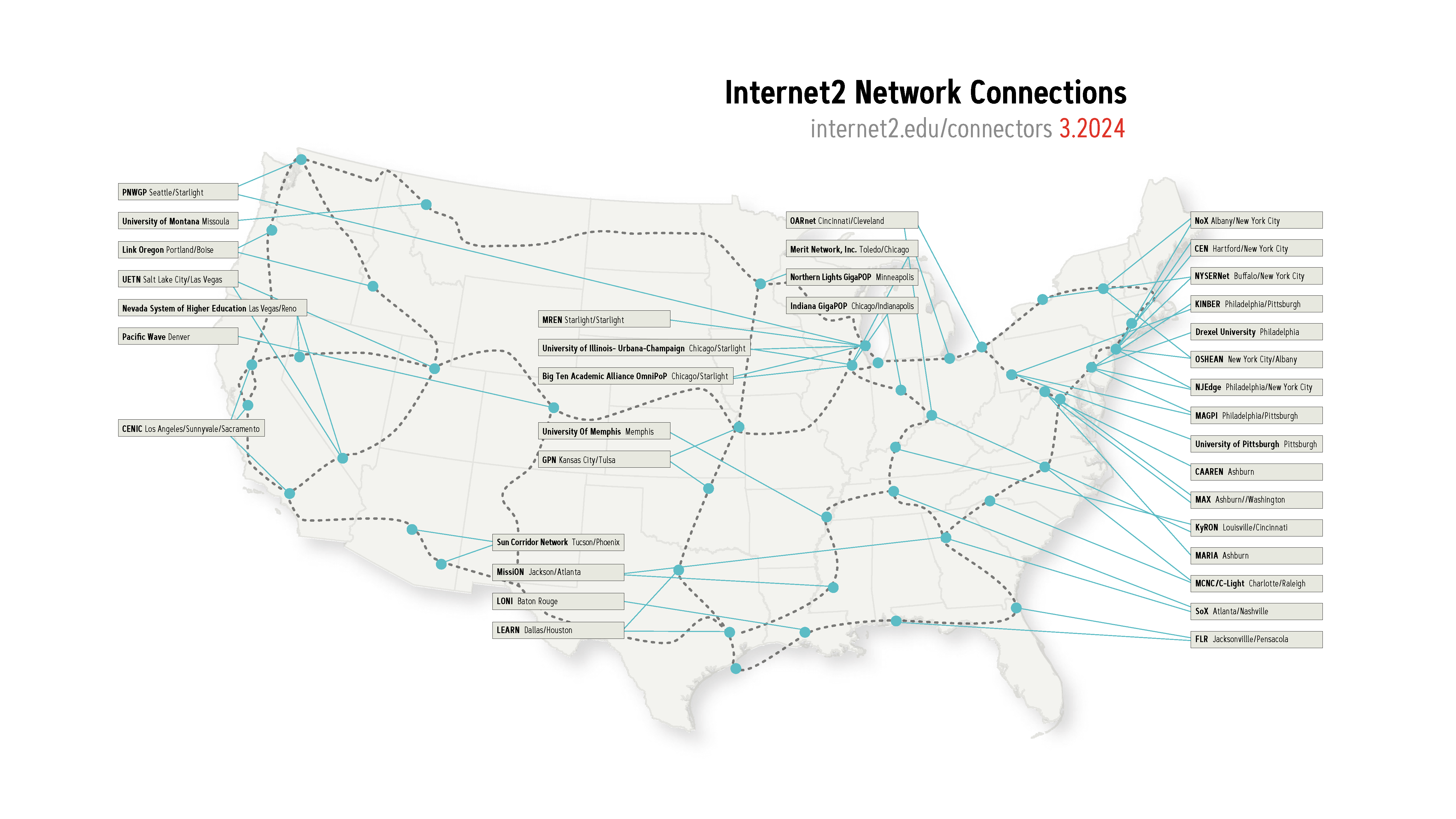
How big is the Internet2 network? Take a look below.

Now, let’s dig into how Internet2 creates high speed data transfer pathways, and how it will impact traffic here at Backblaze.

Our Connection

The diagram below gives you an idea of what the data path looks like for someone on the left with direct connectivity to Internet2 or access via a regional provider reaching the Backblaze US-West or US-East regions.

The entities on the left could exist locally in California or as far as the U.S. East Coast. At any source location, the traffic will transport the Internet2 network and then enter our network in our common peering points in San Jose, CA and Reston, VA.

Turning Up The Peering Session

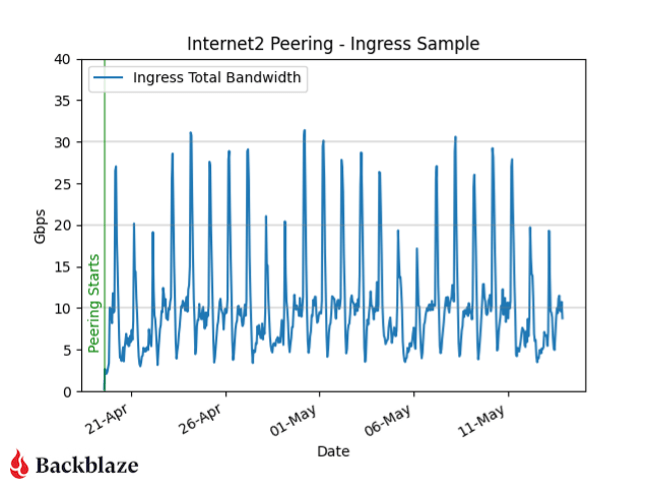
Below is a chart of ingress traffic that was once reaching us over the public internet and is now taking the preferred path over Internet2. As soon as we established peering we started to receive a few gigabits per second of traffic, with large spikes occurring overnight.

Whenever we add a new service or peer, the flow of information in our network changes. This latest addition creates more interesting traffic patterns for our Network Engineering team to profile, monitor, and capacity plan for.

An Example of How that Speed Is Used: Moving Scientific Data

If you’re a scientist in Texas and want to send your 50TB research set quickly and reliably to a partner in California, you might only have a commercial connection to the internet. This could be a 1Gbps or smaller connection, and even that could have data transfer limits on each month—not ideal. Our 50TB example dataset would take over 4.6 days to complete and use 100% of the available bandwidth if we were limited to 1Gbps (assuming perfect conditions and no latency).

The Internet2 network is built with capacity in mind. With backbone links up to 400Gbps, our example dataset would transfer in 16.7 minutes. Now, there are other limitations that will impede you from being able to reach that rate (hard drive read speed, local Internet2 connection speed, and distance/latency factors), but this example gives you an idea of how much faster the Internet2 network can be over vanilla commercial connections that might be available to a local university, college, or other research institution.

Conclusion

We’re very excited to be joining the Internet2 community and network, supporting industry best practices and enabling better connectivity to our storage platform. Hopefully, the next scientific breakthrough is sitting encrypted on our hard drives, and we can be part of the many, many people, tools, and organizations who helped it on its way from research to reality.  

For more information about Backblaze and Internet2, you can read our press release or check out the Internet2 member directory.  

The post Backblaze Plugs In to Internet2 appeared first on Backblaze Blog | Cloud Storage & Cloud Backup

AI Video Understanding in Your Apps with Twelve Labs and Backblaze

Post Syndicated from Pat Patterson original https://backblaze.com/blog/ai-video-understanding-in-your-apps-with-twelve-labs-and-backblaze/

A decorative header depicting several screens with video editing tasks and a cloud with the Backblaze logo on it.

Over the past few years, since long before the recent large language model (LLM) revolution, we’ve benefited not only from the ability of AI models to transcribe audio to text, but also to automatically tag video files according to their content. Media asset management (MAM) software—such as Backlight iconik and Axle.ai (both Backblaze Partners, by the way)—allows media professionals to quickly locate footage by searching for combinations of tags. For example, “red car”, will return not only a list of video files containing red cars, but also the timecodes pinpointing the appearance of the red car in each clip.

San Francisco startup Twelve Labs has created a video understanding platform that allows any developer to build this kind of functionality, and more, into their app via a straightforward RESTful API. 

In preparation for our webinar with Twelve Labs last month, I created a web app to show how to integrate Twelve Labs with Backblaze B2 for storing video. The complete sample app is available as open source at GitHub; in this blog post, I’ll provide a brief description of the Twelve Labs platform, explain how presigned URLs allow temporary access to files in a private bucket, and then share the key elements of the sample app. If you just want a high level understanding of the integration, read on, and feel free to skip the technical details!

The Twelve Labs Video Understanding Platform

The core of the Twelve Labs platform is a foundation model that operates across the visual, audio, and text modes of video content, allowing multimodal video understanding. When you submit a video using the Twelve Labs Task API, the platform generates a compact numerical representation of the video content, termed an embedding, that identifies entities, actions, patterns, movements, objects, scenes, other elements of the video, and their interrelationships. The embedding contains everything the Twelve Labs platform needs to do its work—after the initial scan, the platform no longer needs access to the original video content. As each video is scanned into the platform, its embedding is added to an index, so this scanning process is often referred to as indexing.

As part of the indexing process, the platform extracts a standard set of data from each video: a thumbnail image, a transcript of any spoken content, any text that appears on screen, and a list of brand logos, all annotated with timecodes locating them on the video’s timeline, and all accessible via the Twelve Labs Index API.

You can have the platform create a title and summary, and even prompt the model to describe the video, via Twelve Labs’ Generate API. For example, I indexed an eight-minute video that explains how to back up a Synology NAS to Backblaze B2, then prompted the Generate API, “What are the two Synology applications mentioned in the video?” This was the first sentence of the resulting text:

The two Synology applications mentioned throughout the video are “Synology Hyper Backup” and “Synology Cloud Sync.”

The remainder of the response is a brief summary of the two applications and how they differ; here’s the full text. Although it does have that “AI flavor” as you read it, it’s clear and accurate. I must admit, I was quite impressed!

You can define a taxonomy for your videos via the Classify API. Submit a one- or two-level classification schema and a set of video IDs, and the platform will assign each video to a category.

Rounding up this quick tour of the Twelve Labs platform, the Search API, as its name suggests, allows you to search the indexed videos. As well as a search query, you must specify a set of content sources: any combination of visual, conversation, text in video, or logos. Each search result includes timecodes for its start and end.

Now you understand the basic capabilities of the Twelve Labs platform, let’s look at how you can integrate it with Backblaze B2.

Allowing Temporary Access to Files in a Private Backblaze B2 Bucket

A key feature of the sample app is that it uploads videos to a private Backblaze B2 Bucket, where they are only accessible to authorized users. Twelve Labs’ API allows you to submit a video for indexing by POSTing a JSON payload including the video’s URL to its Task API. This is straightforward for video files in a public bucket, but how do we allow the Twelve Labs platform to read files from a private bucket?

One way would be to create an application key with capabilities to read files from the private bucket and share it with the Twelve Labs platform. The main drawback to this approach is that the platform currently lacks the ability to sign requests for files from a private bucket.

Since Twelve Labs only needs to read the video file when we submit it for indexing, we can send it a presigned URL for the video file. As well as the usual Backblaze B2 endpoint, bucket name, and object key (path and filename), a presigned URL includes query parameters containing data such as the time when the URL was created, its validity period in seconds, an application key ID (or access key ID, in S3 terminology), and a signature created with the corresponding application key (secret access key). Here’s an example, with line breaks added for clarity:

https://s3.us-west-004.backblazeb2.com/mybucket/image.jpeg
?X-Amz-Algorithm=AWS4-HMAC-SHA256
&X-Amz-Credential=00415f935c00000000aa%2F20240423%2Fus-west-004%2Fs3%2Faws4_request
&X-Amz-Date=20240423T222652Z
&X-Amz-Expires=3600
&X-Amz-SignedHeaders=host
&X-Amz-Signature=23ade1...3ca1eb

This URL was created at 22:26:52 UTC on 04/23/2024, and was valid for one hour (3600 seconds). The signature is 64 hex characters. Changing any part of the URL, for example, the X-Amz-Date parameter, invalidates the signature, resulting in an HTTP 403 Forbidden error when you try to use it, with a corresponding message in the response payload:

<?xml version="1.0" encoding="UTF-8" standalone="yes"?>
<Error>
    <Code>SignatureDoesNotMatch</Code>
    <Message>Signature validation failed</Message>
</Error>

Attempting to use the presigned URL after it expires yields HTTP 401 Unauthorized with a message such as:

<?xml version="1.0" encoding="UTF-8" standalone="yes"?>
<Error>
    <Code>UnauthorizedAccess</Code>
    <Message>Request has expired given timestamp: '20240423T222652Z' and expiration: 3600</Message>
</Error>

You can create presigned URLs with any of the AWS SDKs or the AWS CLI. For example, with the CLI:

% aws s3 presign s3://mybucket/image.jpeg --expires-in 600 
https://s3.us-west-004.backblazeb2.com/mybucket/image.jpeg?X-Amz...

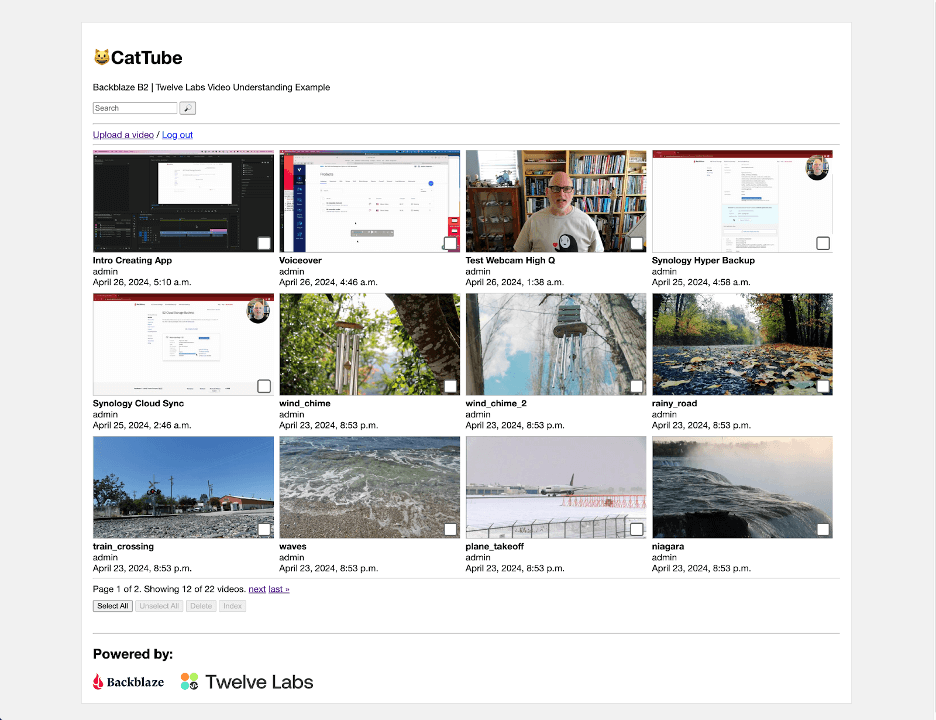
Presigned URLs are useful whenever you want to provide temporary access to a file in a private bucket without having to share an application key for a client app to sign the request itself. The sample app also uses them when rendering HTML web pages. For example, all of the thumbnail images are retrieved by the user’s browser via presigned URLs.

Note that presigned URLs are a feature of Backblaze B2’s S3 Compatible API. Creating a presigned URL is an offline operation and does not consume any API calls. We recommend you use presigned URLs rather than the b2_get_download_authorization B2 Native API operation, since the latter is a class C API call.

Inside the Backblaze B2 + Twelve Labs Media Asset Management Example

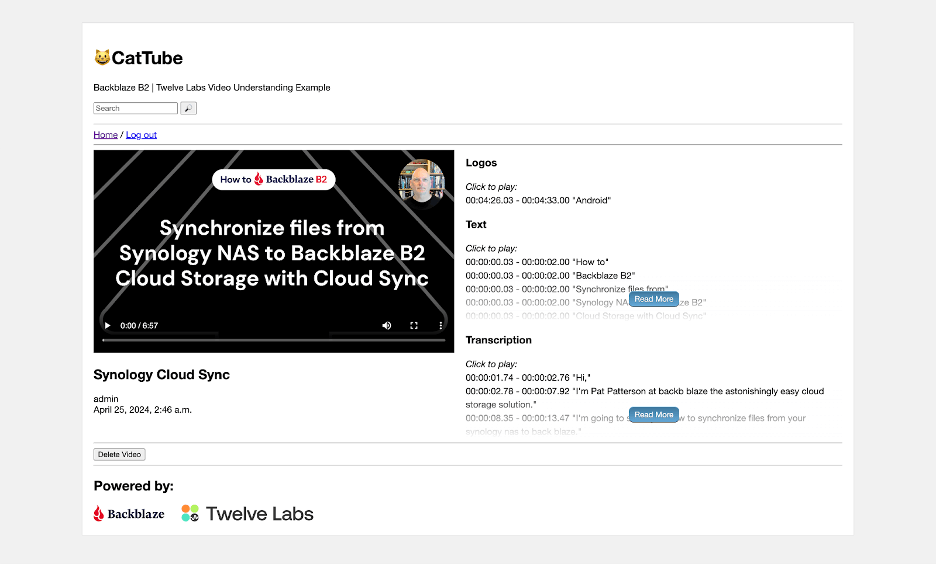
The sample app is written in Python, using JavaScript for its front end, the Django web framework for its backend, the Huey task queue for managing long-running tasks, and the Twelve Labs Python SDK to interact with the Twelve Labs platform. A simple web UI allows the user to upload videos to the private bucket, browse uploaded videos, submit them for indexing, view the resulting transcription, logos, etc., and search the indexed videos.

Most of the application code is concerned with rendering the web UI; very little code is required to interact with Twelve Labs.

Configuration

The Django settings.py file defines a constant for the Twelve Labs index ID and creates an SDK client object using the Twelve Labs API key. Note that the app reads the index ID and API key from environment variables, rather than including the values in the source code. Externalizing the index ID as an environment variable allows more flexibility in deployment while, of course, you should never include secrets such as passwords or API keys in source code!

TWELVE_LABS_INDEX_ID = os.environ['TWELVE_LABS_INDEX_ID']
TWELVE_LABS_CLIENT = TwelveLabs(api_key=os.environ['TWELVE_LABS_API_KEY'])

Startup

When the web application starts, it validates the index ID and API key by retrieving details of the index. This is the relevant code, in apps.py:

index = TWELVE_LABS_CLIENT.index.retrieve(TWELVE_LABS_INDEX_ID)

If this API call fails, then the app prints a suitable diagnostic message identifying the issue.

Indexing

When a web application needs to perform an action that takes more than a few seconds to complete—for example—indexing a set of videos, it typically starts a background task to do the work, and returns an appropriate response to the user. The sample app follows this pattern: when the user selects one or more videos and hits the Index button, the web app starts a Huey task, do_video_indexing(), passing the IDs of the selected videos, and returns the IDs to the JavaScript front end. The front end can then show that the indexing tasks have started, and poll for their current status.

Here’s the code, in tasks.py, for submitting the videos for indexing.

# Create a task for each video we want to index
for video_task in video_tasks:
    task = TWELVE_LABS_CLIENT.task.create(
        TWELVE_LABS_INDEX_ID,
        url=default_storage.url(video_task['video']),
        disable_video_stream=True
    )
    print(f'Created task: {task}')
    video_task['task_id'] = task.id

Notice the call to default_storage.url(). This function, implemented by the django-storages library, takes as its argument the path to the video file, returning the presigned URL. The default expiry period is one hour.

Once the videos have been submitted, do_video_indexing() polls for the status of each indexing task until all are complete. Most of the code is concerned with minimizing the number of calls to the API, and saving status to the app’s database; getting the status of a task is simple:

task = TWELVE_LABS_CLIENT.task.retrieve(video_task['task_id'])

The task object’s status attribute is a string with a value such as validating, indexing, or ready. When the task reaches the ready status, the task object also includes a video_id attribute, uniquely identifying the video within the Twelve Labs platform. At this point, do_video_indexing() calls a helper function that retrieves the thumbnail, transcript, text, and logos and stores them in Backblaze B2.

Retrieving Video Data

Here’s the call to retrieve the thumbnail:

thumbnail_url = TWELVE_LABS_CLIENT.index.video.thumbnail(TWELVE_LABS_INDEX_ID, video.video_id)

The helper function creates a path for the thumbnail file from the video ID and the file extension in the returned URL, and saves the thumbnail to Backblaze B2:

default_storage.save(thumbnail_path, urlopen(thumbnail_url))

Again, django-storages is doing the heavy lifting. We use urlopen(), from the urllib.request module, to open the thumbnail URL, providing default_storage.save() with a file-like object from which it can read the thumbnail data.

The calls to retrieve transcript, text, and logo data have a slightly different form, for example:

video_data = TWELVE_LABS_CLIENT.index.video.transcription(TWELVE_LABS_INDEX_ID, video.video_id)

Each call returns a list of VideoValue objects, each VideoValue object comprising a start and end timecode (in seconds) and a value specific to the type of data; for example, a fragment of the transcription. We serialize each list to JSON and save it as a file in Backblaze B2.

When the user navigates to the detail page for a video, JavaScript reads each dataset from Backblaze B2 and renders it into the page, allowing the user to easily navigate to any of the data items.

Searching the Index

When the user enters a query and hits the search button, the backend calls the Twelve Labs Search API, passing the query text, and requesting results for all four sources of information. We set group_by to video since we want to show the results by video, and set the confidence threshold to medium to improve the relevance of the results. From VideoSearchView in views.py:

results = TWELVE_LABS_CLIENT.search.query(
    TWELVE_LABS_INDEX_ID,
    query,
    ["visual", "conversation", "text_in_video", "logo"],
    group_by="video",
    threshold="medium"
)

By default, the query() call returns a page of 10 results in result.data, so we loop through the pages using next(result) to fetch pages of search results as necessary. Each individual search result includes start and end timecodes, confidence, and the type of match (visual, conversation, text, or logo).

In the web UI, the user can click through to the results for a given video, then click an individual search result to view the matching video clip.

Getting Started with Backblaze B2 and Twelve Labs

Backblaze B2 Cloud Storage is a great choice for storing video to index with Twelve Labs; free egress each month for up to three times the amount of data you’re storing means that you can submit your entire video library to the Twelve Labs platform without worrying about data transfer charges, and unlimited free egress to our CDN partners reduces the costs of distributing video content to end users.

Click here to create a Backblaze B2 account, if you don’t already have one. Your first 10GB of storage is free, no credit card required. If you’re an enterprise that wants to run a larger proof of concept, you can always reach out to our Sales Team. You don’t need to write any code to upload video files or create presigned URLs, and you can use the Backblaze web UI to upload files up to 500MB, or any of a wide variety of tools to upload files up to 10TB, including the AWS CLI, rclone and Cyberduck. Select S3 as the protocol to be able to create presigned URLs.

Similarly, click here to sign up for Twelve Labs’ Free plan. With it, you can index up to 600 minutes of video, again, no credit card required. Python and Node.js developers can use one of the Twelve Labs SDKs, while the Twelve Labs API documentation includes code examples for a wide range of other programming languages.

The post AI Video Understanding in Your Apps with Twelve Labs and Backblaze appeared first on Backblaze Blog | Cloud Storage & Cloud Backup

Backblaze Drive Stats for Q1 2024

Post Syndicated from Andy Klein original https://backblaze.com/blog/backblaze-drive-stats-for-q1-2024/

A decorative image displaying the title Q1 2024 Drive Stats.

As of the end of Q1 2024, Backblaze was monitoring 283,851 hard drives and SSDs in our cloud storage servers located in our data centers around the world. We removed from this analysis 4,279 boot drives, consisting of 3,307 SSDs and 972 hard drives. This leaves us with 279,572 hard drives under management to examine for this report. We’ll review their annualized failure rates (AFRs) as of Q1 2024, and we’ll dig into the average age of drive failure by model, drive size, and more. Along the way, we’ll share our observations and insights on the data presented and, as always, we look forward to you doing the same in the comments section at the end of the post.

Hard Drive Failure Rates for Q1 2024

We analyzed the drive stats data of 279,572 hard drives. In this group we identified 275 individual drives which exceeded their manufacturer’s temperature specification at some point in their operational life. As such, these drives were removed from our AFR calculations.

The remaining 279,297 drives were divided into two groups. The primary group consists of the drive models which had at least 100 drives in operation as of the end of the quarter and accumulated over 10,000 drive days during the same quarter. This group consists of 278,656 drives grouped into 29 drive models. The secondary group contains the remaining 641 drives which did not meet the criteria noted. We will review the secondary group later in this post, but for the moment let’s focus on the primary group.

For Q1 2024, we analyzed 278,656 hard drives grouped into 29 drive models. The table below lists the AFRs of these drive models. The table is sorted by drive size then AFR, and grouped by drive size.

Notes and Observations on the Q1 2024 Drive Stats

  • Downward AFR: The AFR for Q1 2024 was 1.41%. That’s down from Q4 2023 at 1.53%, and also down from one year ago (Q1 2023) at 1.54%. The continuing process of replacing older 4TB drives is a primary driver of this decrease as the Q1 2024 AFR (1.36%) for the 4TB drive cohort is down from a high of 2.33% in Q2 2023.
  • A Few Good Zeroes: In Q1 2024, three drive models had zero failures:
    • 16TB Seagate (model: ST16000NM002J)
      • Q1 2024 drive days: 42,133
      • Lifetime drive days: 216,019
      • Lifetime AFR: 0.68%
      • Lifetime confidence interval: 1.4%
    • 8TB Seagate (model: ST8000NM000A)
      • Q1 2024 drive days: 19,684
      • Lifetime drive days: 106,759
      • Lifetime AFR: 0.00%
      • Lifetime confidence interval: 1.9%
    • 6TB Seagate (model: ST6000DX000)
      • Q1 2024 drive days: 80,262 
      • Lifetime drive days: 4,268,373
      • Lifetime AFR: 0.86%
      • Lifetime confidence interval: 0.3%

All three drives have a lifetime AFR of less than 1%, but in the case of the 8TB and 16TB drive models the confidence interval (95%) is still too high. While it is possible the two drives models will continue to perform well, we’d like to see the confidence interval below 1%, and preferably below 0.5%, before we can trust the lifetime AFR.

With a confidence interval of 0.3% the 6TB Seagate drives delivered another quarter of zero failures. At an average age of nine years, these drives continue to defy their age. They were purchased and installed at the same time back in 2015, and are members of the only 6TB Backblaze Vault still in operation.

  • The End of the Line: The 4TB Toshiba (model: MD04ABA400V) are not in the Q1 2024 Drive Stats tables. This was not an oversight.  The last of these drives became a migration target early in Q1 and their data was securely transferred to pristine 16TB Toshiba drives. They rivaled the 6TB Seagate drives in age and AFR, but their number was up and it was time to go.

The Secondary Group

As noted previously, we divided the drive models into two groups, primary and secondary, with drive count (>100) and drive days (>10,000) being the metrics used to divide the groups. The secondary group has a total of 641 drives spread across 27 drive models. Below is a table of those drive models. 

The secondary group is mostly made up of drive models which are replacement drives or migration candidates. Regardless, the lack of observations (drive days) over the observation period is too low to have any certainty about the calculated AFR.

From time to time, a secondary drive model will move into the primary group. For example, the 14TB Seagate (model: ST14000NM000J) will most likely have over 100 drives and 10,000 drive days in Q2. The reverse is also possible, especially as we continue to migrate our 4TB drive models.

Why Have a Secondary Group?

In practice we’ve always had two groups; we just didn’t name them. Previously, we would eliminate from the quarterly, annual, and lifetime AFR charts drive models which did not have at least 45 drives, then we upped that to 60 drives. This was okay, but we realized that we needed to also set a minimum number of drive days over the analysis period to improve our confidence in the AFRs we calculated. To that end, we have set the following thresholds for drive models to be in the primary group.

Review Period Drive Count per Model Drive Days per Model
Quarterly >100 drives >10,000 drive days
Annual >250 drives >50,000 drives days
Lifetime >500 drives >100,000 drive days

We will evaluate these metrics as we go along and change them if needed. The goal is to continue to provide AFRs that we are confident are an accurate reflection of the drives in our environment.

The Average Age of Drive Failure Redux

In Q1 2023 Drive Stats report, we took a look at the average age in which a drive fails. This review was inspired by the folks at Secure Data Recovery who calculated that based on their analysis of 2,007 failed drives, the average age at which they failed was 1,051 days or roughly 2 years and 10 months. 

We applied the same approach to our 17,155 failed drives and were surprised when our average age of failure was only 2 years and 6 months. Then we realized that many of the drive models that were still in use were older (much older) than the average, and surely when some number of them failed, it would affect the average age of failure for a given drive model. 

To account for this realization, we considered only those drive models that are no longer active in our production environment. We call this collection retired drive models as these are drives that can no longer age or fail. When we reviewed the average age of this retired group of drives, the average age of failure was 2 years and 7 months. Unexpected, yes, but we decided we needed more data before reaching any conclusions.

So, here we are a year later to see if the average age of drive failure we computed in Q1 2023 has changed. Let’s dig in. 

As before we recorded the date, serial_number, model, drive_capacity, failure, and SMART 9 raw value for all of the failed drives we have in the Drive Stats dataset back to April 2013. The SMART 9 raw value gives us the number of hours the drive was in operation. Then we removed boot drives and drives with incomplete data, that is some of the values were missing or wildly inaccurate. This left us with 17,155 failed drives as of Q1 2023.

Over this past year, Q2 2023 through Q1 2024, we recorded an additional 4,406 failed drives. There were 173 drives which were either boot drives or had incomplete data, leaving us with 4,233 drives to add to the 17,155 failed drives previous, totalling 21,388 failed drives to evaluate.

When we compare Q1 2023 to Q1 2024 we get the table below.

The average age of failure for all of the Backblaze drive models (2 years and 10 months) matches the Secure Data Recovery baseline. The question is, does that validate their number? We say, not yet. Why? Two primary reasons. 

First, we only have two data points, so we don’t have much of a trend, that is we don’t know if the alignment is real or just temporary. Second, the average age of failure of the active drive models (that is, those in production) is now already higher (2 years and 11 months) than the Secure Data baseline. If that trend were to continue, then when the active drive models retire, they will likely increase the average age of failure of the drive models that are not in production.

That said, we can compare the numbers by drive size and drive model from Q1 2023 to Q1 2024 to see if we can gain any additional insights. Let’s start with the average age by drive size in the table below.

The most salient observation is that for every drive size that had active drive models (green), the average age of failure increased from Q1 2023 to Q1 2024. Given that the overall average age of failure increased over the last year, it is reasonable to expect that some of the active drive size cohorts would increase. With that in mind, let’s take a look at the changes by drive model over the same period. 

Starting with the retired drive models, there were three drive models totalling 196 drives which moved from active to retired from Q1 2023 to Q1 2024. Still, the average age of failure for the retired drive cohort remained at 2 years 7 months, so we’ll spare you from looking at a chart with 39 drive models where over 90% of the data didn’t change Q1 2023 to Q1 2024.

On the other hand, the active drive models are a little more interesting, as we can see below.

In all but the two drive models (highlighted), the average age of failure for each drive model went up. In other words, active drive models are, on average, older when they fail, than one year ago. Remember, we are testing the average age of the drive failures, not the average age of the drive. 

At this point, let’s review. The Secure Data Recovery folks checked 2,007 failed drives and determined their average age of failure was 2 years and 10 months. We are testing that assertion. At the moment, the average age of failure for the retired drive models (those no longer in operation in our environment) is 2 years and 7 months. This is still less than the Secure Data number. But, the drive models still in operation are now hitting an average of 2 years and 10 months, suggesting that once these drive models are removed from service, the average age of failure for the retired drive models will increase. 

Based on all of this, we think the average age of failure for our retired drive models will eventually exceed 2 years and 10 months. Further, we predict that the average age of failure will reach closer to 4 years for the retired drive models once our 4TB drive models are removed from service. 

Annualized Failures Rates for Manufacturers

As we noted at the beginning of this report, the quarterly AFR for Q1 2024 was 1.41%. Each of the four manufacturers we track contributed to the overall AFR as shown in the chart below.

As you can see, the overall AFR for all drives peaked in Q3 2023 and is dropping. This is mostly due to the retirement of older 4TB drives that are further along the bathtub curve of drive failure. Interestingly, all of the remaining 4TB drives in use today are either Seagate or HGST models. Therefore, we expect the quarterly AFR will most likely continue to decrease for those two manufacturers as over the next year their 4TB drive models will be replaced.

Lifetime Hard Drive Failure Rates

As of the end of Q1 2024, we were tracking 279,572 operational hard drives. As noted earlier, we defined the minimum eligibility criteria of a drive model to be included in our analysis for quarterly, annual and lifetime reviews. To be considered for the lifetime review, a drive model was required to have 500 or more drives as of the end of Q1 2024 and have over 100,000 accumulated drive days during their lifetime. When we removed those drive models which did not meet the lifetime criteria, we had 277,910 drives grouped into 26 models remaining for analysis as shown in the tale below.

With three exceptions, the conference interval for each drive model is 0.5% or less at 95% certainty. For the three exceptions: the 10TB Seagate, the 14TB Seagate, and 14TB Toshiba models, the occurrence of drive failure from quarter to quarter was too variable over their lifetime. This volatility has a negative effect on the confidence interval.

The combination of a low lifetime AFR and a small confidence interval is helpful in identifying the drive models which work well in our environment. These days we are interested mostly in the larger drives as replacements, migration targets, or new installations. Using the table above, let’s see if we can identify our best 12, 14, and 16TB performers. We’ll skip reviewing the 22TB drives as we only have one model.

The drive models are grouped by drive size, then sorted by their Lifetime AFR. Let’s take a look at each of those groups.

  • 12TB drive models: The three 12TB HGST models are great performers, but are hard to find new. Also, Western Digital, who purchased the HGST drive business a while back, has started using their own model numbers of these drives, so it can be confusing. If you do find an original HGST make sure it is new as from our perspective buying a refurbished drive is not the same as buying a new.
  • 14TB drive models: The first three models look to be solid—the WDC (WUH721414ALE6L4), Toshiba (MG07ACA14TA), and Seagate (ST14000NM001G). The remaining two drive models have mediocre lifetime AFRs and undesirable confidence intervals. 
  • 16TB drive models: Lots of choice here, with all six drive models performing well to this point, although the WDC models are the best of the best to date.

The Hard Drive Stats Data

It has now been eleven years since we began recording, storing and reporting the operational statistics of the hard drives and SSDs we use to store data in the Backblaze data storage cloud. We look at the telemetry data of the drives, including their SMART stats and other health related attributes. We do not read or otherwise examine the actual customer data stored. 

Over the years, we have analyzed the data we have gathered and published our findings and insights from our analyses. For transparency, we also publish the data itself, known as the Drive Stats dataset. This dataset is open source and can be downloaded from our Drive Stats webpage.

You can download and use the Drive Stats dataset for free for your own purpose. All we ask are three things: 1) you cite Backblaze as the source if you use the data, 2) you accept that you are solely responsible for how you use the data, and 3) you do not sell this data to anyone; it is free.

Good luck and let us know if you find anything interesting.

The post Backblaze Drive Stats for Q1 2024 appeared first on Backblaze Blog | Cloud Storage & Cloud Backup

How to Back Up Your Synology NAS to the Cloud | Backblaze

Post Syndicated from Vinodh Subramanian original https://www.backblaze.com/blog/synology-cloud-backup-guide/

A decorative image showing a NAS device.
Editor’s note: Editor’s note: This post has been updated since it was last published in 2021.

Synology network attached storage (NAS) devices are great for businesses. They enable easy collaboration, speed up restores, make your files accessible 24/7, and give you a level of data protection you probably didn’t have before. Essentially, a NAS device acts as a private cloud, offering centralized access and storage for everything from large files to ongoing projects.

That’s why it’s important to back up your Synology DiskStation to the cloud. While NAS offers a layer of redundancy on-premises if you happen to lose files, it doesn’t fully protect you from things like a natural disaster, a ransomware attack that infiltrates your backups, or multiple hard drive failures. Cloud backups are important for data redundancy and future data recovery, giving you easy access and fast restores.

To keep your data truly safe, the 3-2-1 backup strategy is the industry baseline. Using a 3-2-1 strategy with your NAS means you keep three copies of your data on two different media (like NAS and cloud storage), with one stored off-site. Backing your DiskStation up to the cloud is a great way to achieve that key off-site element. This setup protects against various risks, and ensures your data is available for recovery.

In this post, we’ll explain how to implement a 3-2-1 backup strategy for your Synology NAS, the benefits of backing up to cloud storage, options for backing up your DiskStation, and some practical examples of what you can do by pairing your NAS with cloud storage.

Synology NAS and a 3-2-1 Backup Strategy

The 3-2-1 backup strategy is simple and time-tested. If you are using your Synology NAS to connect and back up computers on your network, that’s the first step—you have two local copies of your data on different mediums. You’d accomplish this by creating a multi-version local copy. 

While this setup might seem sufficient, your data is still at risk from NAS device failure. It remains co-located with your primary data, making it vulnerable to disasters or theft. To fully protect your data, you need a third, off-site backup copy.

3-2-1 backup strategy diagram

For your third copy, you could back up your Synology to an external desFor your third copy, you could back up your Synology to an external destination—either another Synology NAS, a file server, or a USB device. Each has pros and cons, and we’ll talk through them for argument’s sake. 

  • Back up to another Synology NAS: If you recently upgraded to a new device, you could store the third copy of your data on your old DiskStation. You get to put the old one to use, and you know it’s compatible. 
  • Back up to a file server: Backing your Synology NAS up to a file server is also an option, but it will take up more storage space for caching than backing up to another DiskStation. 
  • Back up to a USB device: Backing up to a USB device has some limited advantages—the format of your data is readable, so you can plug the USB in anywhere and access your data. However, USB backup won’t back up applications or system files, and it’s a manual rather than an automated process.

With any of these options, you’ll need to physically move your backup device—the old Synology, file server, or USB-connected device—to another location, ideally more than a few miles away, to truly achieve a 3-2-1 backup. 

However, backing up your Synology NAS DiskStation to the cloud means you achieve a 3-2-1 strategy without the need to physically separate your backup copies. Backing up your Synology NAS to the cloud means you have both convenience and robust data redundancy.

The Benefits of Backing Up Your Synology DiskStation to the Cloud

In addition to avoiding the lift of a physical move, backing up Synology NAS to the cloud offers a number of other benefits, too, including:

  • Avoiding data loss: A cloud backup protects against physical disasters, such as floods, hurricanes, and fires, that could compromise your NAS and data on individual workstations. Because the NAS is always connected to your machines, it’s also at risk of infection from ransomware attacks. And finally, the hard drives in your NAS can fail. Because your NAS is likely set up in a RAID configuration, one drive failure might not affect your data. But, while one drive is down, your data is at a higher risk. If another drive were to fail, you could lose data. Having an off-site backup in cloud storage significantly reduces this risk.
  • Accessibility: With your data in the cloud, your backups are accessible from anywhere. If you’re away from your desk or office and you need to retrieve a file, you can simply log in to your cloud instance and retrieve it remotely.
  • Security: Cloud vendors typically protect customer data by encrypting it as it travels to its final destination and/or when it’s at rest on the vendors’ storage servers. Encryption protocols differ between cloud vendors, so make sure to understand them as you’re evaluating cloud providers, especially if your organization has specific security requirements.
  • Automation: Your Synology NAS comes with built-in backup utilities, so you can configure a backup schedule for automated cloud backups . This saves time and ensures your data is always up-to-date.
  • Scalability: As your data grows, your cloud backups grow with it. With cloud storage, there’s no need to invest in or maintain additional hardware to ensure your data is properly backed up.
  • Rapid Data Recovery: Cloud storage often offers shorter recovery times than traditional methods, particularly if your NAS device fails or data needs to be restored urgently. Cloud storage solutions can streamline data retrieval, allowing quick access to backed-up files and minimizing downtime.
  • Multi-Cloud Options: Many cloud providers support multi-cloud setups, allowing you to back up your Synology NAS to multiple cloud destinations. This added redundancy can be a valuable safeguard against any single provider outages, helping to ensure continuous data availability.
  • File Versioning: Some cloud storage services support file versioning, which is the ability to keep previous versions of files. This is particularly useful if files are accidentally modified or deleted. It can help you restore earlier versions without losing valuable information.

Options for Backing Up Your Synology NAS

Synology offers various backup utilities and methods to protect your data, each suited to different backup needs and environments.

1. Hyper Backup

Hyper Backup is Synology’s built-in backup utility for backing up to any number of external destinations, including public clouds. It enables you to back up not just data stored on your NAS, but also applications and system configurations.

 It offers incremental backups to help you manage your storage footprint. After your initial backup, using incremental backups means only files that have been changed will be updated. 

It also offers cross-file deduplication to help you further manage your storage footprint. Hyper Backup allows you to back up to external devices as well as cloud services.

2. Cloud Sync

In addition to Hyper Backup, Synology also offers Cloud Sync, which is important for those who need real-time collaboration and file syncing capabilities. Keep in mind that sync is not the same as backup–Cloud Sync does not support application and system configuration file backups, and it only keeps the current version of your files. If someone accidentally deletes that file, it’s gone. If you’re not sure if you’re looking for backup or sync, you can read about the differences between them in this post.

3. Snapshot replication

If your Synology model supports the Btrfs file system, using Snapshot Replication is a bit faster both on the backup side and the restore side than Hyper Backup. Snapshot Replication allows you to back up to the same Synology NAS or another Synology NAS, but not to the cloud.

4. USB copy

USB Copy only copies your data, not applications or system configuration files. It does not support cross-file deduplication, so you might end up with duplicate copies of your files. Additionally, this method is manual, and will require you to be responsible for regular backups as opposed to automating them with Hyper Backup or Snapshot Replication.

Synology NAS box

What You Can Do With Cloud Sync, Hyper Backup, and Cloud Storage

Using Hyper Backup and Cloud Sync together gives you total control over what gets backed up to cloud storage—you can synchronize in the cloud as little or as much as you want. This flexible approach allows you to customize your backup plan and protect your Synology NAS data based on priority and needs.

Here are some practical examples of what you can do with Cloud Sync, Hyper Backup, and cloud storage working together.

1. Sync or Back Up the Entire Contents of Your DiskStation to the Cloud

The DiskStation has excellent fault-tolerance—it can continue operating even when individual drive units fail. However, for comprehensive protection, syncing and backing up the entire DiskStation to cloud storage ensures that your data remains secure during a disaster or system failure.

2. Sync or Back Up Your Most Important Media Files

If you’re storing essential media files—like videos, music, and photos—on your DiskStation, Cloud Sync or Hyper Backup can ensure these valuable files are safely stored in the cloud. Synology NAS offers data redundancy on-premises, but cloud storage provides an additional off-site backup layer for further protection.

3. Back Up Time Machine

For Mac operations, Synology allows the DiskStation to serve as a network-based Time Machine backup. With Hyper Backup, you can synchronize Time Machine files to the cloud so that in the event of a critical failure, your Time Machine backups are securely stored off-site, ready for a seamless restoration.

Ready to Give It a Try?

Hyper Backup allows you to choose from any number of cloud storage providers as a backup destination, and Backblaze B2 Cloud Storage is one of them.If you haven’t given cloud storage a try yet, you can get started now, and make sure your NAS is synced or backed up securely to the cloud.

FAQs About Synology NAS

How do I back up my Synology NAS to the cloud?

Hyper Backup is Synology’s built-in backup utility for backing up to any number of external destinations, including public clouds. It enables you to back up not just data stored on your NAS, but also applications and system configurations. Additionally, It offers cross-file deduplication to help you further manage your storage footprint and avoid duplicates.

What’s the best way to back up my Synology NAS?

Synology offers a lot of options for backing up your device, including to local volumes, external devices, other Synology systems, rsync servers, or public cloud services like Backblaze B2. The best way to back up your Synology NAS depends on many different factors, but the most important thing to remember is that you should follow a 3-2-1 backup strategy. That means keeping three copies of your data on two different media (i.e. devices) with one off-site. Backing up to the cloud is a great option for data redundancy and long-term protection when handling your off-site backups.

Can I schedule automatic cloud backups from my Synology NAS?

Yes, with Hyper Backup, you can set up automatic backups to many public clouds, including Backblaze B2. It offers incremental backups to help you manage your storage footprint. After your initial backup, using incremental backups means only files that have been changed will be updated.

Which cloud storage providers are compatible with Synology NAS for backup?

Synology is compatible with many public cloud providers, including Backblaze B2, Microsoft Azure, Google Cloud Platform, Amazon S3, and Synology C2 Storage.

How much cloud storage space do I need for my Synology NAS backup?

The amount of cloud storage space needed for your Synology NAS backup depends on factors like the total data size, frequency of backups, and retention policies. Calculate your NAS data size, estimate growth, and choose a cloud plan accordingly.  Hyper Backup provides storage estimates, helping you select the right amount of cloud storage space for secure, scalable data backups.

The post How to Back Up Your Synology NAS to the Cloud | Backblaze appeared first on Backblaze Blog | Cloud Storage & Cloud Backup
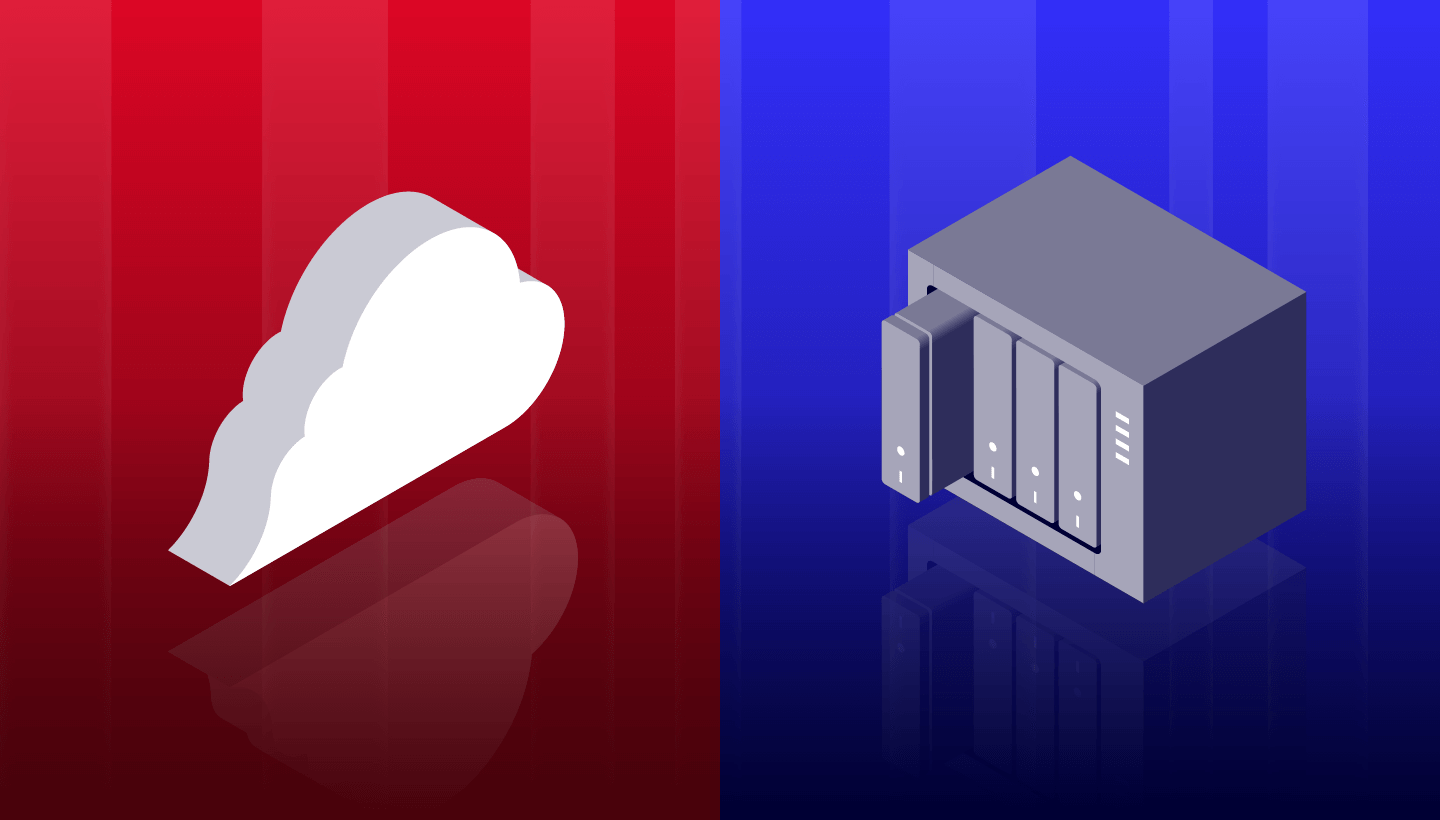
Backblaze and Parablu Team Up to Elevate Security For Microsoft 365 Users

Post Syndicated from Anna Hobbs-Maddox original https://backblaze.com/blog/backblaze-and-parablu-team-up-to-elevate-security-for-microsoft-365-users/

A decorative image showing the Backblaze and Parablu logos.

Microsoft 365 (M365) is used by more than one million companies worldwide. If you’re one of them, you know how important it is to your business. And, like anything that’s important to your business, it’s important to back it up. 

Today, backing up M365 to off-site storage just got easier and more affordable thanks to a new Backblaze Partnership with Parablu. Now, you can back up your Microsoft 365 data to Backblaze, ensuring it’s backed up both inside and/or outside of the Azure ecosystem, adding another layer of protection to your backup and recovery playbook.

What Parablu Does

Parablu specializes in data security and resiliency solutions catered to digital enterprises. Their advanced solutions ensure comprehensive protection for enterprise data while offering complete visibility into all data movement through user-friendly, centrally-managed dashboards. Their product BluVault for M365 elevates data security across Exchange, SharePoint, OneDrive, and Teams.

With Parablu, you can seamlessly control every aspect of your Microsoft 365 data, gain immediate protection against threats with advanced anomaly detection and swift recovery mechanisms for ransomware attacks, streamline administration with intuitive and efficient controls, reduce network congestion, and ensure secure data transmission with robust encryption protocols.

Why Back Up Microsoft 365 to Backblaze?

By integrating Backblaze as a storage tier outside of Azure for tools like M365, OneDrive, or Sharepoint, Parablu is providing its customers with cloud storage that’s easy to use, highly affordable at one-fifth the cost of legacy providers, secured with immutable backups, and high-performing with industry-leading small file uploads.

Key benefits for Backblaze + Parablu customers include:

  • Avoiding a Single Point of Failure: Many businesses that use M365 also back up their instance with the same service. However, backup best practices include keeping a backup copy of your data geographically and virtually separate from your production copy. While backing up your M365 data with Microsoft Azure is a great thing to do, it’s wise to keep a backup copy outside of that ecosystem as well. If Microsoft were to experience a failure, you’d still be able to recover your critical business data. 
  • Protecting Data With Immutability: When you protect your M365 data with immutability via Object Lock, you ensure no one can alter or delete that data until a given date. When you set the lock, you can specify the length of time an object should be locked. Any attempts to manipulate, copy, encrypt, change, or delete the file will fail during that time.
  • Faster Small File Uploads: Small file uploads are common for backup and archive workflows, especially when it comes to backing up the kind of data in M365—email, Word documents, simple Excel spreadsheets, etc. With Backblaze, users can expect to see significantly faster upload speeds for smaller files without any change to durability, availability, or pricing. The faster data upload bolsters security and enhances data protection by securing data with off-site backups faster, limiting the time that the data is vulnerable.

Partnering with Backblaze offers our customers a secure, cost-efficient storage alternative. We’ve witnessed a growing demand for secure, fast, and affordable storage that complements public cloud storage and we look forward to continued innovation with Backblaze.

—Randy De Meno, Chief Strategy Officer/Chief Technology Officer, Parablu

How Backblaze Integrates With Parablu

The Backblaze + Parablu partnership integrates the M365 backup power of Parablu with affordable cloud storage from Backblaze, helping you protect your M365 environment with enhanced security, compliance, and performance. The joint solution is available for customers today.

Interested in getting started? Learn more in our docs or contact Sales.

The post Backblaze and Parablu Team Up to Elevate Security For Microsoft 365 Users appeared first on Backblaze Blog | Cloud Storage & Cloud Backup
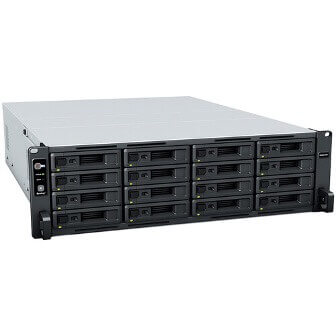
Backblaze Wins NAB Product of the Year

Post Syndicated from Jeremy Milk original https://backblaze.com/blog/backblaze-wins-nab-product-of-the-year/

A decorative image showing a film strip flowing into a cloud with the Backblaze and NAB Show logos displayed.

Last week the Backblaze team connected with the best and brightest of the media and entertainment industry at the National Association of Broadcasters (NAB) conference in Las Vegas. For those who missed out, here is a recap of last week events:

Event Notifications Launches at NAB 2024

Event Notifications gives you the freedom to build automated workflows across the different best-of-breed cloud platforms you use or want to use—saving time, money, and improving your end users’ experiences. After demoing this new service for folks working across media workflows at the NAB show and winning the NAB Product of the Year in the Cloud Computing and Storage category, the Event Notifications private preview list is filling up, but you can still join it today

A photograph of the 2024 Product of the Year trophy. Backblaze won this award for their new feature, Event Notifications.

Backblaze B2 Cloud Storage Event Notifications Wins NAB Best of Show Product of the Year

Join the Waitlist ➔ 

Backblaze Achieves TPN Blue Shield Status

More news for media and entertainment leaders: Backblaze joined the Trusted Partner Network (TPN), receiving Blue Shield status. TPN is the Motion Picture Association’s initiative aimed at advancing trust and security best practices across the media and entertainment industry. This important initiative provides greater transparency and confidence in the procurement process as you advance your workflow with new technology. 

Axle AI Cloud is Powered by Backblaze

A testament to the power of partnerships across the industry, Axel AI announced Axel AI Cloud Powered by Backblaze, a new, highly affordable, AI-powered media storage service that leverages Backblaze’s new Powered by Backblaze program for affordable, seamlessly integrated AI tagging, transcription, and search.

Experts on Stage

For the first time, Backblaze hosted a series of events together with Partners and customers, delivering actionable insights for folks on the show floor to improve their own media workflows. Our Backblaze Tech Talks featured Quantum, CuttingRoom, iconik, ELEMENTS, Axel AI, CloudSoda, Hedge, bunny.net, Suite Studios, and Qencode. Huge thanks to the presenters and everyone who came by.

See You at the Next One

Thank you to all of our customers, partners, and friends who helped make last week a hit. We are already looking forward to NAB–NY, IBC, NAB 2025—and, most of all, to moving the industry forward together. 

The post Backblaze Wins NAB Product of the Year appeared first on Backblaze Blog | Cloud Storage & Cloud Backup
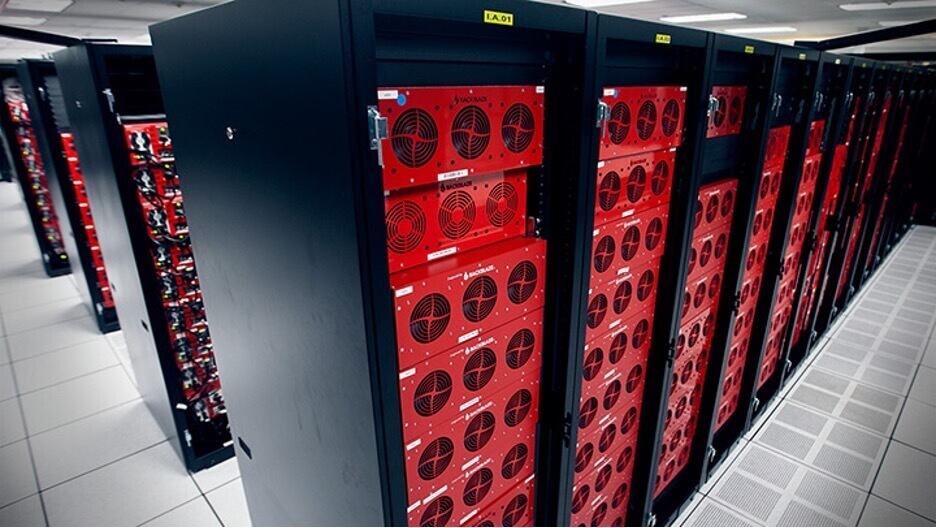
Automate Your Data Workflows with Backblaze B2 Event Notifications

Post Syndicated from Bala Krishna Gangisetty original https://www.backblaze.com/blog/announcing-event-notifications/

A decorative image showing the Backblaze logo on a cloud with an alert notification.

Public Preview Update: July 31, 2024

Backblaze Event Notifications is now in public preview. If you’re interested in joining the waitlist, feel free to sign up here.

Backblaze believes companies should be able to store, use, and protect their data in whatever way is best for their business—and that doing so should be easy. That’s why we’re such fierce advocates for the open cloud and why today’s announcement is so exciting.

Event Notifications—available in public preview—gives businesses the freedom to build automated workloads across the different best-of-breed cloud platforms they use or want to use, saving time and money and improving end user experiences.

Here’s how: With Backblaze Event Notifications, any data changes within Backblaze B2 Cloud Storage—like uploads, updates, or deletions—can automatically trigger actions in a workflow, including transcoding video files, spooling up data analytics, delivering finished assets to end users, and many others. Importantly, unlike many other solutions currently available, Backblaze’s service doesn’t lock you into one platform or require you to use legacy tools from AWS.

So, to businesses that want to create an automated workflow that combines different compute, content delivery networks (CDN), data analytics, and whatever other cloud service: Now you can, with the bonus of cloud storage at a fifth of the rates of other solutions and free egress.

If you’re already a Backblaze customer, you can join the waiting list for the Event Notifications preview by signing up here. Once you’re admitted to the preview, the Event Notifications option will become visible in your Backblaze B2 account.

A screenshot of the where to find Event Notifications in your Backblaze account.

Not a Backblaze customer yet? Sign up for a free Backblaze B2 account and join the waitlist. Read on for more details on how Event Notifications can benefit you.

With Event Notifications, we can eliminate the final AWS component, Simple Queue Service (SQS), from our infrastructure. This completes our transition to a more streamlined and cost-effective tech stack. It’s not just about simplifying operations—it’s about achieving full independence from legacy systems and future-proofing our infrastructure.


— Oleh Aleynik, Senior Software Engineer and Co-Founder at CloudSpot.

A Deeper Dive on Backblaze’s Event Notifications Service

Event Notifications is a service designed to streamline and automate data workflows for Backblaze B2 customers. Whether it’s compressing objects, transcoding videos, or transforming data files, Event Notifications empowers you to orchestrate complex, multistep processes seamlessly.

The top line benefit of Event Notifications is its ability to trigger processing workflows automatically whenever data changes on Backblaze B2. This means that as soon as new data is uploaded, changed, or deleted, the relevant processing steps can be initiated without manual intervention. This automation not only saves time and resources, but it also ensures that workflows are consistently executed with precision, free from human errors.

What sets Event Notifications apart is its flexibility. Unlike some other solutions that are tied to specific target services, Event Notifications allows customers the freedom to choose the target services that best suit their needs. Whether it’s integrating with third-party applications, cloud services, or internal systems, Event Notifications seamlessly integrates into existing workflows, offering unparalleled versatility.

Finally, Event Notifications doesn’t only bring greater ease and efficiency to workflows, it is also designed for very easy enablement. Whether via browser UI or SDKs or APIs or CLI, it is incredibly simple to set up a notification rule and integrate it with your preferred target service. Simply choose your event type, set the criteria, and input your endpoint URL, and a new workflow can be configured in minutes.

Public Preview Update: July 31, 2024

Additional capabilities offered in the public preview include:

  • Retries: Event Notifications are automatically re-sent if the initial delivery attempt fails. This feature increases the reliability of Event Notifications by ensuring that temporary issues do not result in missed events, thus maintaining the integrity of your event-driven workflows.
  • Delivery: Event Notifications are designed for the at-least-once delivery guarantee to ensure Event Notifications are delivered reliably, even in the presence of network or system failures.

What Is Backblaze B2 Event Notifications Good For?

By leveraging Event Notifications, Backblaze B2 customers can simplify their data processing pipelines, reduce manual effort, and increase operational efficiency. With the ability to automate repetitive tasks and handle millions of objects per day, businesses can focus on extracting insights from their data rather than managing the logistics of data processing.

A diagram showing the steps of event notifications.

Automating tasks: Event Notifications allows users to trigger automated actions in response to changes in stored objects like upload, delete, and hide actions, streamlining complex data processing tasks.

Orchestrating workflows: Users can orchestrate multi-step workflows, such as compressing files, transcoding videos, or transforming data formats, based on specific object events.

Integrating with services: The feature offers flexible integration capabilities, enabling seamless interaction with various services and tools to enhance data processing and management.

Monitoring changes: Users can efficiently monitor and track changes to stored objects, ensuring timely responses to evolving data requirements and faster security response to safeguard critical assets.

What Are Some of the Key Capabilities of Backblaze B2 Event Notifications?

  • Flexible Implementation: Event Notifications are sent as HTTP POST requests to the desired service or endpoint within your infrastructure or any other cloud service. This flexibility ensures seamless integration with your existing workflows. For instance, your endpoint could be Fastly Compute, AWS Lambda, Azure Functions, or Google Cloud Functions, etc.
  • Event Categories: Specify the types of events you want to be notified about, such as when files are uploaded and deleted. This allows you to receive notifications tailored to your specific needs. For instance, you have the flexibility to specify different methods of object creation, such as copying, uploading, or multipart replication, to trigger event notifications. You can also manage Event Notification rules through UI or API.
  • Filter by Prefix: Define prefixes to filter events, enabling you to narrow down notifications to specific sets of objects or directories within your storage on Backblaze B2. For instance, if your bucket contains audio, video, and text files organized into separate prefixes, you can specify the prefix for audio files to receive event notifications exclusively for audio files.
  • Custom Headers: Include personalized HTTP headers in your event notifications to provide additional authentication or contextual information when communicating with your target endpoint. For example, you can use these headers to add necessary authentication tokens or API keys for your target endpoint, or include any extra metadata related to the payload to offer contextual information to your webhook endpoint, and more.
  • Signed Notification Messages: You can configure outgoing messages to be signed by the Event Notifications service, allowing you to validate signatures and verify that each message was generated by Backblaze B2 and not tampered with in transit.
  • Test Rule Functionality: Validate the functionality of your target endpoint by testing event notifications before deploying them into action. This allows you to ensure that your integration with your target endpoint is set up correctly and functioning as expected.

Want to Learn More About Event Notifications?

Event Notifications represents a significant advancement in data management and automation for Backblaze B2 users. By providing a flexible and powerful capability for orchestrating data processing workflows, Backblaze continues to empower businesses to unlock the full potential of their data with ease and efficiency.

Join the Waitlist ➔ 

The post Automate Your Data Workflows with Backblaze B2 Event Notifications appeared first on Backblaze Blog | Cloud Storage & Cloud Backup
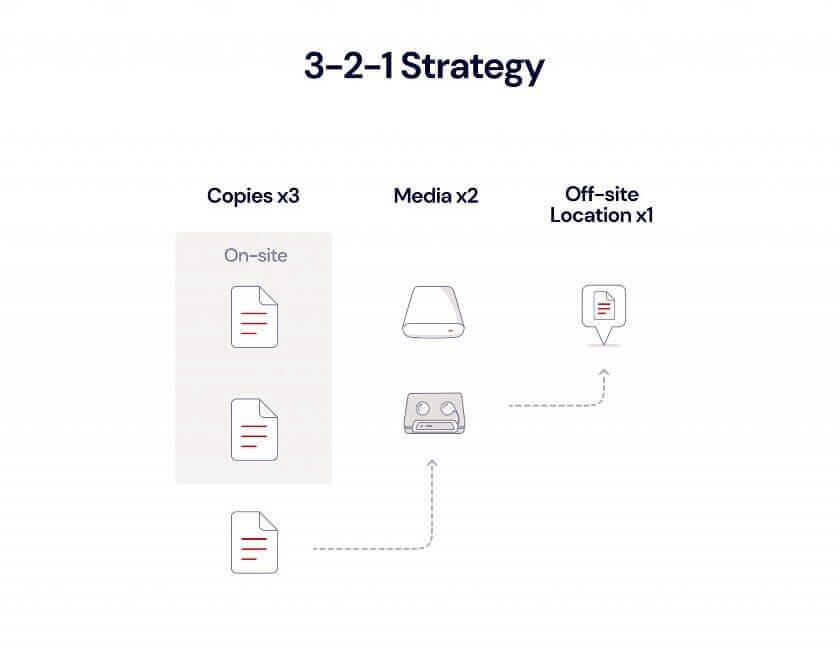
AI 101: What Is Model Serving?

Post Syndicated from Stephanie Doyle original https://backblazeprod.wpenginepowered.com/blog/ai-101-what-is-model-serving/

A decorative image showing a computer, a cloud, and a building.

If you read a blog article that starts with “In today’s fast-paced business landscape…” you can be 99% sure that content is AI generated. While large language models (LLMs) like ChatGPT, Gemini, and Claude may be the shiniest of AI applications from a consumer standpoint, they still have a ways to go from a creativity standpoint

That said, there are exciting possibilities for artificial intelligence and machine learning (AI/ML) algorithms to improve and create products now and in the future, many of which focus on replicated operations, split second database predictions, natural language processing, threat analysis, and more. As you might imagine, deployment of those algorithms comes with its own set of complexities. 

To solve for those complexities, specialized operations platforms have sprung up—specifically, AI/ML model serving platforms. Let’s talk about AI/ML model serving and how it fits into “today’s fast-paced business landscape.” (Don’t worry—we wrote that one.)

What Is AI/ML Model Serving?

AI/ML model serving refers to the process of deploying machine learning models into production environments where they can be used to make predictions or perform tasks based on real-time or batch input data. 

Trained machine learning models are made accessible via APIs or other interfaces, allowing external applications or systems to send real-world data to the models for inference. The served models process the incoming data and return predictions, classifications, or other outputs based on the learned patterns encoded in the model parameters. 

Practically, you can compare building an application that uses an AI/ML algorithm to a car engine. The whole application (the engine) is built to solve a problem; in this case “transport me faster than walking.” There are various subtasks to help you solve that problem well. Let’s take the exhaust system as an example. The exhaust fundamentally does the same thing from car to car—it moves hot air off the engine—but once you upgrade your exhaust system (i.e. add an AI algorithm to your application), you can tell how your engine works differently by comparing your car’s performance to a base-level model of the same one. 

Now let’s plug in our “smart” element, and it’s more like your exhaust has the ability to see that your car has terrible fuel efficiency, identifies that it’s because you’re not removing hot air off the engine well enough, and re-route the pathway it’s using through your pipes, mufflers, and catalytic converters to improve itself. (Saving you money on gas—wins all around.) 

Model serving, in this example, would be a shop that specializes in installing and maintaining exhausts. They’re experts at plugging in your new exhaust and having it work well with the rest of the engine even if it’s a newer type of tech (so, interoperability via API), and they have thought through and created frameworks for how to make sure the exhaust is functioning once you’re driving around (i.e. metrics). They’ve got a ton of ready-made parts and exhaust systems to recommend (that’s your model registry). When they install your new system in your engine, they might have some tweaks that work specifically in your system, too (versioning over time to serve your specific product).  

Ok, back to the technical details. From an architecture standpoint, model serving also lets you separate your production model from the base AI/ML model in addition to creating an accessible endpoint (read: an API or HTTPS access point, etc.). This separation has benefits—making tracking model drift and versioning simpler, for instance. 

Like traditional software engineering, most AI/ML model serving platforms also have code libraries of fully or partially trained models—the model registry in the image above. For example, if you’re running a photo management application, you might grab an image recognition model and plug it into your larger application. 

This is a tad more complex than other types of code deployment because you can’t really tell if an AI/ML model is functioning correctly until it’s working on real-world data. Certainly, that’s somewhat true of all code deployments—you always find more bugs when you’re live—but because AI/ML models are performing complex tasks like making predictions, natural language processing, etc., even a trained model has more room for “error” that becomes evident when it’s in a live environment. And, in many use cases—like fraud detection or network intrusion detection—models need to have very low latency to perform properly. 

Because of that, deciding what kind of code deployment to use can have a high impact on your end users. For example, lots of experts recommend leveraging shadow deployment techniques, where your AI/ML model is ingesting live data, but running on a parallel environment invisible to end users, for phase one of your deployment. 

Machine Learning Operations (MLOps) vs. AI/ML Model Serving

In reading about model serving, you’ll inevitably also come across folks talking about MLOps as well. (An Ops for every occasion, as they say. “They” being me.) You can think of MLOps as being responsible for the entire, end-to-end process, whereas AI/ML model serving focuses on one part of the process. Here’s a handy diagram that outlines the whole MLOps lifecycle:

And, of course, you’ll see one box on there that’s called “model serving”.

How to Choose a Model Serving Platform

AI model serving platforms typically provide features such as scalability to handle varying workloads, low latency for real-time predictions, monitoring capabilities to track model performance and health, versioning to manage multiple model versions, and integration with other software systems or frameworks. 

Choosing the right one is not a one-size-fits-all approach. Model serving platforms give you a whole host of benefits, operationally speaking—they deliver better performance, scale easily with your business, integrate well with other applications, and give you valuable monitoring tools from both a performance and security perspective. But, there are a ton of other factors that can come into play that aren’t immediately apparent, such as preferred code languages (Python is right up there), the processing/hardware platform you’re using, budget, what level of control and fine-tuning you want over APIs, how much management you want to do in-house vs. outsourcing, how much support/engagement there is in the developer community, and so on.

Popular Model Serving Platforms

Now that you know what model serving is, you might be wondering how you can use it yourself. We rounded up some of the more popular platforms so you can get a sense of the diversity in the marketplace: 

  • TensorFlow Serving: An open-source serving system for deploying machine learning models built with TensorFlow. It provides efficient and scalable serving of TensorFlow models for both online and batch predictions. 
  • Amazon SageMaker: A fully managed service provided by Amazon Web Services (AWS) for building, training, and deploying machine learning models at scale. SageMaker includes built-in model serving capabilities for deploying models to production.
  • Google Cloud AI Platform: A suite of cloud-based machine learning services provided by Google Cloud Platform (GCP). It offers tools for training, evaluation, and deployment of machine learning models, including model serving features for deploying models in production environments.
  • Microsoft Azure Machine Learning: A cloud-based service offered by Microsoft Azure for building, training, and deploying machine learning models. Azure Machine Learning includes features for deploying models as web services for real-time scoring and batch inferencing.
  • Kubernetes (K8s): While not a model serving platform in itself, Kubernetes is a popular open-source container orchestration platform that is often used for deploying and managing machine learning models at scale. Several tools and frameworks, such as Kubeflow and KFServing, provide extensions for serving models on Kubernetes clusters.
  • Hugging Face: Known for its open-source libraries for natural language processing (NLP), Hugging Face also provides a model serving platform for deploying and managing natural language processing models in production environments.

The Practical Approach

In short, AI/ML model serving platforms make ML algorithms much more manageable and accessible for all kinds of applications. Choosing the right one (as always) comes down to your particular use case—so, test thoroughly, and let us know what’s working for you in the comments.

The post AI 101: What Is Model Serving? appeared first on Backblaze Blog | Cloud Storage & Cloud Backup.

Join Backblaze Tech Talks at NAB 24

Post Syndicated from James Flores original https://backblazeprod.wpenginepowered.com/blog/join-backblaze-tech-talks-at-nab-24/

A decorative image showing a film strip flowing into a cloud with the Backblaze and NAB Show logos displayed.

For those of you attending NAB 2024 (coming up in Las Vegas from April 14–17), we’re excited to invite you to our Backblaze Tech Talk series in booth SL7077. This series will deliver insights from expert guest speakers from a range of media workflow service providers in conversation with Backblaze solution engineers. Whether you’re an experienced workflow architect or new to the industry, anyone attending will leave with actionable insights to improve their own media workflows. 

All presentations are free, open to attendees, and will be held in the Backblaze booth (SL7077). Bonus: Get scanned while you’re there for exclusive Backblaze swag.

Sunday, April 14:

  • 3:00 p.m.: Leslie Hathaway, Sales Engineer and Brian Scheffler, Pre-Sales Sys. Engineer at Quantum discuss AI tools, CatDV Classic & .io utilizing Backblaze for primary storage.  

Monday, April 15:

  • 10:00 a.m.: Helge Høibraaten, Co-Founder of CuttingRoom presents “Cloud-Powered Remote Production: Collaborative Video Editing on the Back of Backblaze.”
  • 11:00 a.m.: Mattia Varriale, Sales Director EMEA at Backlight presents “Optimizing Media Workflow: Leveraging iconik and Backblaze for Cost-Effective, Searchable Storage.”
  • 1:00 p.m.: Danny Peters, VP of Business Development, Americas at ELEMENTS presents “Bridging On-Premises and Cloud Workflows: The ELEMENTS Media Ecosystem.”
  • 2:00 p.m.: Sam Bogoch, CEO at Axle AI with a new product announcement that is Powered by Backblaze.
  • 3:00 p.m.: Greg Hollick, Chief Product Officer and Co-Founder at CloudSoda presents “Effortless Integration: Automating Media Assets into Backblaze with CloudSoda.”

Tuesday, April 16:

  • 10:00 a.m.: Raul Vecchione, from Product Marketing at bunny.net presents “Edge Computing—Just Smarter.”
  • 11:00 a.m.: Paul Matthijs Lombert, CEO at Hedge presents “Every Cloud Workflow Starts at the (H)edge.”    
  • 1:00 p.m.: Craig Hering, Co-Founder & CEO of Suite Studios presents “Suite Studios and Backblaze Integration Providing Direct Access to Your Data for Real-Time Editing and Archive.”
  • 2:00 p.m.: Murad Mordukhay, CEO of Qencode presents “Building an Efficient Content Repository With Backblaze.”

Don’t miss out on these great tech talks. Elevate your expertise and connect with fellow media  industry leaders. We look forward to seeing you at NAB! And, if you’re ready to sit down and take a deep dive into your storage needs, book a meeting here.

The post Join Backblaze Tech Talks at NAB 24 appeared first on Backblaze Blog | Cloud Storage & Cloud Backup.

What’s the Diff: Bandwidth vs. Throughput

Post Syndicated from Vinodh Subramanian original https://backblazeprod.wpenginepowered.com/blog/whats-the-diff-bandwidth-vs-throughput/

A decorative image showing a pipe with water coming out of one end. In the center, the words "What's the Diff" are in a circle. On the left side of the image, brackets indicate that the pipe represents bandwidth, while on the left, brackets indicate that the amount of water flowing through the pipe indicates throughput.

You probably wouldn’t buy a car without knowing its horsepower. The metric might not matter as much to you as things like fuel efficiency, safety, or spiffy good looks. It might not even matter at all, but it’s still something you want to know before driving off the lot.

Similarly, you probably wouldn’t buy cloud storage without knowing a little bit about how it performs. Whether you need the metaphorical Ferrari of cloud providers, the safety features of a  Volvo, or the towing capacity of a semitruck, understanding how each performs can significantly impact your cloud storage decisions. And to understand cloud performance, you have to understand the difference between bandwidth and throughput.

In this blog, I’ll explain what bandwidth and throughput are and how they differ, as well as other key concepts like threading, multi-threading, and throttling—all of which can add more complexity and potential confusion to a cloud storage decision and the efficiency of data transfers. 

Bandwidth, Throughput, and Latency: A Primer

Three critical components form the cornerstone of cloud performance: bandwidth, throughput, and latency. To easily understand their impact, imagine the flow of data to water moving through a pipe—an analogy that paints a visual picture of how data travels across a network.

  • Bandwidth: The diameter of the pipe represents bandwidth. It’s the maximum width that dictates how much water (data) can flow through it at any given time. In technical terms, bandwidth is the data transfer rate that a network connection can support. It’s usually measured in bits per second (bps). A wider pipe (higher bandwidth) means more data can flow, similar to having a multi-lane road where more vehicles can travel side by side.
  • Throughput: If bandwidth is the pipe’s width, then throughput is the rate at which water moves through the pipe successfully. In the context of data, throughput is the actual data transfer rate that is sent over a network. It is also measured in bits per second (bps). Various factors can affect throughput—such as network traffic, processing power, packet loss, etc. While bandwidth is the potential capacity, throughput is the reality of performance, which is often less than the theoretical maximum due to real-world constraints. 
  • Latency: Now, consider the time it takes for water to start flowing from the pipe’s opening after the tap is turned on. That time delay can be considered as latency. It’s the time it takes for a packet of data to travel from the source to the destination. Latency is crucial in use cases where time is of the essence, and even a slight delay can be detrimental to the user experience.

Understanding how bandwidth, throughput, and latency are interrelated is vital for anyone relying on cloud storage services. Bandwidth sets the stage for potential performance, but it’s the throughput that delivers actual results. Meanwhile, latency is a measure of how long it takes data to be delivered to the end user in real time. 

Threading and Multi-Threading in Cloud Storage

When we talk about moving data in the cloud, two concepts often come up: threading and multi-threading. These might sound very technical, but they’re actually pretty straightforward once broken down into simpler terms. 

First of all, threads go by many different names. Different applications may refer to them as streams, concurrent threads, parallel threads, concurrent uploads, parallelism, etc. But what all these terms refer to when we’re discussing cloud storage is the process of uploading files. To understand threads, think of a big pipe with a bunch of garden hoses running through it. The garden hose is a single thread in our pipe analogy.  The hose carries water (your data) from one point to another—say from your computer to the cloud or vice versa. In simple terms, it’s the pathway your data takes. Each hose represents an individual pathway through which data can move between a storage device and the network. 

Cloud storage systems use sophisticated algorithms to manage and prioritize threads. This ensures that resources are allocated efficiently to optimize data flow. Threads can be prioritized based on various criteria such as the type of data being transferred, network conditions, and overall load on the system.

Multi-Threading

Now, imagine: instead of just one garden hose within a pipe, you have several in parallel to each other. This setup is multi-threading. It lets multiple streams of water (data) flow at the same time, significantly speeding up the entire process. In the context of cloud storage, multi-threading enables the simultaneous transfer of multiple data streams, significantly speeding up data upload and download.

Cloud storage takes advantage of multithreading. It can take pretty much as many threads as you can throw at it and its performance should scale accordingly. But it doesn’t do so automatically—because the effectiveness of multi-threading depends on the underlying network infrastructure and the ability of the software to efficiently manage multiple threads. 

Chances are most devices can’t handle or take advantage of the maximum number of threads cloud storage can handle as it puts additional load on your network and device. Therefore, it often takes a trial-and-error approach to find the sweet spot to get optimal performance without severely affecting the usability of your device.

Managing Thread Count

Certain applications automatically manage threading and adjust the number of threads for optimal performance. When you’re using cloud storage with an integration like backup software or a network attached storage (NAS) device, the multi-threading setting is typically found in the integration’s settings. 

Many backup tools, like Veeam, are already set to multi-thread by default. However, some applications might default to using a single thread unless manually configured otherwise. 

That said, there are limitations associated with managing multiple threads. The gains from increasing the number of threads are limited by the bandwidth, processing power, and memory. Additionally, not all tasks are suitable for multi-threading; some processes need to be executed sequentially to maintain data integrity and dependencies between tasks. 

A diagram showing the differences between single and multi-threading.
Learn more about threads in our deep dive.

In essence, threading is about creating a pathway for your data and multi-threading is about creating multiple pathways to move more data at the same time. This makes storing and accessing files in the cloud much faster and more efficient. 

The Role of Throttling

Throttling is the deliberate slowing down of internet speed by service providers. In the pipe analogy, it’s similar to turning down the water flow from a faucet. Service providers use throttling to manage network traffic and prevent the system from becoming overloaded. By controlling the flow, they ensure that no single user or application monopolizes the bandwidth.

Why Do Cloud Service Providers Throttle?

The primary reason cloud service providers would throttle is to maintain an equitable distribution of network resources. During peak usage times, networks can become congested, much like roads during rush hour. Throttling helps manage these peak loads, ensuring all users have access to the network without significant drops in quality or service. It’s a balancing act, aiming to provide a steady, reliable service to as many users as possible. 

Scenarios Where Throttling Can Be a Hindrance

While throttling aims to manage network traffic for fairness purposes, it can be frustrating in certain situations. For heavy data users, such as businesses that rely on real-time data access and media teams uploading and downloading large files, throttling can slow operations and impact productivity. Additionally, for services not directly causing any congestion, throttling can seem unnecessary and restrictive. 

Do CSPs Have to Throttle?

As a quick plug, Backblaze does not throttle, so customers can take advantage of all their bandwidth while uploading to B2 Cloud Storage. Many other public cloud storage providers do throttle, although they certainly may not make it widely known. If you’re considering a cloud storage provider and your use case demands high throughput or fast transfer times, it’s smart to ask the question upfront.

Optimizing Cloud Storage Performance

Achieving optimal performance in cloud storage involves more than just selecting a service; it requires a clear understanding of how bandwidth, throughput, latency, threading, and throttling interact and affect data transfer. Tailoring these elements to your specific needs can significantly enhance your cloud storage experience.

  • Balancing bandwidth, throughput, and latency: The key to optimizing cloud performance lies in your use case. For real-time applications like video conferencing or gaming, low latency is crucial, whereas, for backup use cases, high throughput might be more important. Assessing the types of files you’re transferring and their size along with content delivery networks (CDN) can help in optimizing and achieving peak performance.
  • Effective use of threading and multi-threading: Utilizing multi-threading effectively means understanding when it can be beneficial and when it might lead to diminishing returns. For large file transfers, multi-threading can significantly reduce transfer times. However, for smaller files, the overhead of managing multiple threads might outweigh the benefits. Using tools that automatically adjust the number of threads based on file size and network conditions can offer the best of both worlds.
  • Navigating throttling for optimal performance: When selecting a cloud storage provider (CSP), it’s crucial to consider their throttling policies. Providers vary in how and when they throttle data transfer speeds, affecting performance. Understanding these policies upfront can help you choose a provider that aligns with your performance needs. 

In essence, optimizing cloud storage performance is an ongoing process of adjustment and adaptation. By carefully considering your specific needs, experimenting with settings, and staying informed about your provider’s policies, you can maximize the efficiency and effectiveness of your cloud storage solutions.

The post What’s the Diff: Bandwidth vs. Throughput appeared first on Backblaze Blog | Cloud Storage & Cloud Backup.

Managing the Media Tidal Wave: Backlight iconik’s 2024 Media Report

Post Syndicated from Jennifer Newman original https://backblazeprod.wpenginepowered.com/blog/managing-the-media-tidal-wave-backlight-iconiks-2024-media-report/

A decorative image showing several types of files falling into the a cloud with the Backblaze logo on it.

Everyone knows we’re living through an exceptional time when it comes to media production: Every day we experience a tidal wave of content—social video, virtual reality (VR) and augmented reality (AR) gaming, 10K sports footage, every streaming option imaginable—crashing down on us.

Two eye popping stats underscore that this perception is real: In December, Netflix shared that its users streamed close to 100 billion hours of content on its platform during the first half of 2023. At the beginning of 2024, YouTube revealed that its users watch one billion hours of video daily. 

It’s hard to make sense of that volume of content, it’s even harder to understand how it’s produced. Imagine the armies of people and types of programs required to capture, ingest, transcode, store, tag, edit, distribute, and archive all of it. Managing that content means touching every stage, start to finish, of the production process through the data lifecycle. 

A photo showing a woman surrounded by glistening raindrops, some of which transform into media icons.

To further complicate things, the modern production person’s workflow is nothing close to linear. They have to deal with:

  • A diversity of inputs: Content is pouring in from various sources. Keeping track of all this content, ensuring its quality, and organizing it effectively can feel like trying to catch a waterfall in a teacup. 
  • A variety of formats and file types: Each platform or device may require a different format or resolution, making it difficult to maintain consistency across the board and adding another layer of complexity.
  • Managing metadata, or indexing and tagging: With so much content flying around, ensuring that each file is properly tagged with relevant information is crucial for easy retrieval and management. However, manually inputting metadata for every piece of media can be time-consuming and prone to errors.
  • Remote and in-person collaboration: With team members spread across different locations, coordinating efforts and maintaining version control can be a headache.
  • Storage and scalability: As the volume of media grows, so does the need for storage space. Finding a solution that can accommodate this growth without breaking the bank can be tough.

While many companies are jumping in to provide tools to manage this tidal wave of content, one company, Backlight iconik, differentiates itself by providing industry-leading tools and offering public media reports on the state of media data today.

Backlight iconik’s 2024 Media Stats Report

Since 2018, iconik has provided a cloud-based media asset management (MAM) tool to help production professionals tame the insanity of modern content development. For the past four years, they’ve also provided an annual Media Stats report to help the industry understand the type of media being developed and distributed, as well as where and how it’s stored. (In 2022, Backlight, a global media technology, acquired iconik, hence the name change.) If you want the full story, please check out Backlight iconik’s 2024 Media Stats Report,

As cloud storage specialists here at Backblaze (and, lovers of stats ourselves), we would like to dig into their stats on storage and offer our own take here for you today.

2024 Media Storage Trend: The Content Tidal Wave Is Not a Mirage

According to Backlight iconik’s Media Stats Report, iconik’s data exploded to 152PB, shooting up by a whopping 57%—that’s 53PB more than in 2023. To put it in perspective, that’s roughly 6TB of fresh data pouring in every hour. This surge in data can be attributed to both new customers integrating their archives with iconik and existing customers ramping up their usage.

2024 Media Storage Trend: Audio on the Rise

An interesting find in their study was the difference between audio and video asset growth. Iconik is now managing 328 years of video (up 41% YoY) and 208 years of audio (up 50% YoY).

A decorative display of media stats from iconik's media report. The title reads Asset Duration. On the left, a blue circle displays the words 328 years of video, which represents 41% growth year on year. On the right, an orange circle contains the words 208 years of audio, which represents 50% growth year on year.
Note that “duration” in this context is measuring the total hours of runtime for each file. Source.

Over the last year, the growth of audio assets managed by Backlight iconik has surged, surpassing that of video, with a staggering 1,700 hours being added daily. They believe this surge is closely tied to the remarkable expansion of both the podcasting and audiobook markets in recent years. The global podcast market ballooned to $17.9 billion in 2023 and is forecasted to soar to $144 billion by 2032. Similarly, the audiobook market is projected to hit $35 billion by 2030, with expected revenue of $35.05 billion in the same year. While audio files are smaller than video files by far, it’s reasonable to anticipate a continued upward trajectory for audio assets across the media and entertainment landscape.

2024 Trend: The Shift to Cloud Storage for Cost-Effective Storage and Collaboration

According to Backlight iconik’s 2024 Media Stats Report, the trend toward cloud storage is definitely on the rise as the increased competition in the market and move away from hyperscalers drive more reasonable pricing. Companies are opting to transition to the cloud at their own speed, and hybrid cloud setups give them the freedom to shift assets as needed to improve things like performance, ease of access, security, and meeting regulatory requirements.

Get Ahead of the Wave: Pair iconik With Modern Cloud Storage Today

The reasons so many media professionals are moving to cloud are relatively simple: Cloud workflows enable enhanced collaboration and flexibility, greater cost predictability, and heightened security and management capabilities. And often, all of the above is possible at a lower total cost than legacy solutions.

Pairing Backlight iconik and Backblaze provides a simple solution for users to manage, collaborate, and store media projects easily. By integrating with iconik, Backblaze boosts workflow effectiveness, delivering a strong cloud-based MAM system that allows thorough management of Backblaze B2 Cloud Storage data right from a web browser.

Customer Story: How One Streaming Company Tackled Remote Content Workflows With Backblaze and Backlight iconik

When Goalcast, the empowering media company, decided to dive into making their own content, they realized their current setup just wasn’t cutting it. With their team spread out all over the place, they needed an easy way to get footage, access videos from anywhere, and keep a stash of finished files ready to jazz up for YouTube, Facebook, Instagram, Snapchat, TikTok, and the Goalcast OTT app. 

Goalcast combined LucidLink’s cloud-based workflows, iconik’s media asset manager and uploader features, and Backblaze B2 Cloud Storage. The integration between iconik, LucidLink, and Backblaze creates a slick media workflow. The content crew uploads raw footage straight into iconik, tossing in key details. Original files zip into Goalcast’s Backblaze B2 Bucket automatically, while edited versions are up for grabs via LucidLink. After the editing magic, final assets kick back into Backblaze B2.

The integration and partnership means endless possibilities for Goalcast. They’re saving around 150 hours a month in grunt work and stress. Now, they don’t have to fret about where footage hides or how to snag it—it’s all securely stored in Backblaze, ready for anyone on the team to grab, no matter where they’re working from.

You can get lost in the weeds of tech companies and storage solutions. It can hurt your brain. The sweet spot is these three—iconik, LucidLink, and Backblaze—and how they work together.

—Dan Schiffmacher, Production Operations Manager, Goalcast

2024 Media Mega Trend

Looking at Backlight iconik’s numbers and forecasts from a 25,000 foot vantage point makes one thing painfully clear: Effective media management and storage are going to be absolutely crucial for media teams to succeed in the future landscape of production. Dive deeper into how Backblaze and Backlight iconik can support you now and down the road, ensuring seamless media management, and affordable storage, that creates easy, stress-free expansion as your data continues to grow. 

Already have iconik and want to get started with Backblaze? Click here. 

The post Managing the Media Tidal Wave: Backlight iconik’s 2024 Media Report appeared first on Backblaze Blog | Cloud Storage & Cloud Backup.

Backblaze Network Stats: Real-World Measurements from the Backblaze US-West Region

Post Syndicated from Brent Nowak original https://backblazeprod.wpenginepowered.com/blog/backblaze-network-stats-real-world-measurements-from-the-backblaze-us-west-region/

A decorative image with a title that says Network Stats: Network Latency Study on US-West.

As you’re sitting down to watch yet another episode of “Mystery Science Theater 3000” (Anyone else? Just me?), you might be thinking about how you’re receiving more than 16 billion signals over your home internet connection that need to be interpreted and sent to decoding software in order to be viewed on a screen as images. (Anyone else? Just me?)

In telecommunications, we study how signals (electrical and optical) propagate in a medium (copper wires, optical fiber, or through the air). Signals bounce off objects, degrade as they travel, and arrive at the receiving end (hopefully) intact enough to be interpreted as a binary 0 or 1, eventually to be decoded to form images that we see on our screens.

Today in the latest installment of Network Stats, I’m going to talk about one of the most important things that I’ve learned about the application of telecommunication to computer networks: the study of how long operations take. It’s a complicated process, but that doesn’t make buffering any less annoying, am I right? And if you’re using cloud storage in any way, you rely on signals to run applications, back up your data, and maybe even stream out those movies yourself. 

So, let’s get into how we measure data transmission, what things we can do to improve transmission time, and some real-world measurements from the Backblaze US-West region.

Networking and Nanoseconds: A Primer

At the risk of being too basic, when we study network communication, we’re measuring how long signals take to get from point A to point B, which implies that there is some amount of distance between them. This is also known as latency. As networks have evolved, the time it takes to get from point A to point B has gone from being measured in hours to being measured in fractions of a second. Since we live in more human relatable terms like minutes, hours, and days, it can be hard for us to understand concepts like nanoseconds (a billionth of a second). 

Here’s a breakdown of how many milli, micro, and nanoseconds are in one second.

Time Symbol Number in 1 Second
1 second 1
1 millisecond ms 1,000
1 microsecond μs 1,000,000
1 nanosecond ns 1,000,000,000

For reference, taking a deep breath takes approximately one second. When you’re watching TV, you start to notice audio delays at approximately 10–20ms, and if your cat pushes your pen off your desk, it will hit the ground in approximately 400ms.

Nanosecond Wire: Making Nanoseconds Real

In the 1960s, Grace Murray Hopper (1906–1992) explained computer operations and what a nanosecond means in a succinct, tangible fashion. An early computer scientist who also served in the U.S. Navy, Hopper was often asked by folks like generals and admirals why it took so long for signals to reach satellites. So, Hopper had pieces of wire cut to 30cm (11.8in) in length, which is the distance that it takes light to travel in perfect conditions—that is, a vacuum—in one nanosecond. (Remember: we humans express speed as distance over time.) 

You could touch the wire, feel the distance from point A to point B, and see what a nanosecond in light-time meant. Put a bunch of them together, and you’d see what that looks like on a human scale. In literal terms, she was forcing people to measure the distance to a satellite (anywhere between 160–35,786 km) in terms of the long side of a piece of printer paper. (Rough math: it’s about 741,058,823 to 1,657,529,411,764 pieces of paper end-to-end.) That’ll definitely make you realize that there are a lot of nanoseconds between you and the next city over or a satellite in space.

A fun side note: if we go up a factor from a nanosecond to a microsecond, the wire would be almost 300 meters (984 feet)—which is the height of the Eiffel Tower, minus the broadcast antennae. It gets even more fun to think about because we still have to scale up to two more orders of magnitude to get to a millisecond, and then again to get a second. 

I love when a difficult topic can be grasped with an elegant explanation. It’s one of the skills that I strive to develop as an engineer—how can I relate a complicated concept to a larger audience that doesn’t have years of study in my field, and make it easily digestible and memorable?

Added Application Time

We don’t live in an ideal, perfect vacuum where signals can propagate in a line-of-sight fashion and travel in an optimal path. We have wires in buildings and in the ground that wind around metro regions, follow long-haul railroad tracks as they curve, and have to pass over hills and along mountainous terrain that add elevation to the wire length, all adding light-time. 

These physical factors are not the only component in the way of receiving your data. There are computer operations that add time to our transactions. We have to send a “hello” message to the server and wait for an acknowledgement, negotiate our security protocols so that we can transmit data without anyone snooping in on the conversation, spend time receiving the bytes that make up our file, and acknowledge chunks of information as received so the server can send more.

How much do geography and software operations add to the time it takes to get a file? That’s what we’re going to explore here. So, if we’re requesting a file that’s stored on Backblaze’s servers in the US-West region, what does that look like if we are delivering the file to different locations across the continental U.S.? How long does it take?

Building a Latency Test

Today we’re going to focus on network statistics for our US-West location and how the performance profile looks as we travel east and the various components that contribute to the change in translation time.

Below we’re going to compare theoretical best case numbers to the real world. There are three categories in our analysis that contribute to the total time it takes to get a request from a person in Los Angeles, Chicago, or New York, to our servers in the US-West region. Let’s take a look at each one:

  1. Ideal Line: Let’s draw an imaginary line between our US-West location and each major city in our testing sample. Then we can calculate the time it takes light to be sent and received as RTT (Round Trip Time) one time between the two points. This number gives us the Ideal Line time, or the time it takes for a light signal to travel between two points in a perfect line, in vacuum conditions, with no obstructions. Hardly how we live, so we have to add a few other data points!
  2. Fiber: Fiber optics in the real world have to pass through optical equipment, connect to aerial fiber on telephone poles where ground access is limited, route around pesky obstructions like mountains or municipal services, and sometimes travel along non-ideal paths to reach major connection points where long-haul fiber providers have offices to improve and reamplify the signal. This RTT number is taken from testing services that we have running across the country.
  3. Software: This measurement shows the time spent in Software tasks (as opposed to Setup or Download tasks, as defined by Google) that are required to initiate network connections, negotiate mutual settings between sender and receiver, wait for data to start to be received, and encrypt/decrypt messages. We’re also getting this number from our testing services and will explore all the inner workings of the Software components a little later on.
  4. Total: The interesting part! Real world RTT for retrieving a sample file from various locations.

Fun fact: You don’t need any monitoring infrastructure in order to take a deeper dive—every Chrome web browser has the ability to show load times for all the elements that are needed to present a website.

Do note that test results may vary based on your ISP connectivity, hardware capabilities, software stack, or improvements Backblaze makes over time.

To show more detailed information, open Chrome:

  • Go to Chrome Options > More Tools > Developer Tools 
  • Select Network Tab
  • Browse to a website to see results sourced from your machine

A deeper dive into this can be found on Google’s developer.chrome.com website.

If you wish to run agent based tests, you can start with Google’s Chromium Project, as it offers a free and open source method to simulate and perform profiling.

Here are the results from just one test we ran:

A chart showing round trip trip time from US-West.
Round Trip Times (RTT) for various categories to our US-West location.

It’s important, at this stage, to caveat these numbers with a few things. First, they include a decent amount of overhead from being within our (or any) infrastructure, which can be affected by things like your browser, security, and lookup time needed to connect to a server infrastructure. And, if a user is running a different browser, has different layers of security, and so on, those things can affect RTT results. 

Second, they don’t accurately talk about performance without context. Every type of application has its own requirements for what is a “good” or “bad” RTT time, and these numbers can change based on how you store your data; where you store, access, and serve your data; if you use a content delivery network (CDN); and more. As with anything related to performance in cloud storage, your use case determines your cloud storage strategy, not the other way around.

Unpacking the Software Measurement

In addition to the Chrome tools we talk about above, we have access to agents running in various geographical locations across the world that run periodic tests to our services. These agents can simulate client activity and record metrics for us that we use for alerting and trend analysis. Simulating client operations helps alert our operations teams to potential issues, helping us to better support our clients and be more proactive.

With this type of agent based testing, we have greater insight into the network that lets us break down the Software step and observe if any one step in the transfer pipeline is underperforming. We’re not only looking at the entire round trip time of downloading a file, but also including all the browser, security, and lookup time needed to connect to our server infrastructure. And, as always, the biggest addition in time it takes to deliver files is often distance-based latency, or the fact that even with ideal conditions, the further away an end user is, the longer it takes to transport data across networks. 

Unpacking Software Results

The below chart shows how long in milliseconds it takes to get a sample file from our US-West cluster from agents running in different locations across the U.S. and all the Software steps involved.

Test transaction times for a 78kb test file.
Chromium application profile of loading a sample 78kb test file from various locations.

You can find definitions for all these terms in the Chromium dev docs, but here’s a cheat sheet for our purposes: 

  • Queueing: Browser queues up connection.
  • DNS Lookup: Resolving the request’s IP address.
  • SSL: Time spent negotiating a secure session.
  • Initial Connection: TCP handshake.
  • Request Sent: This is pretty self explanatory—the request is sent to the server. 
  • TTFB (Time to First Byte): Waiting for the first byte of a response. Includes one round trip of latency and the time the server took to prepare the response.
  • Content Download: Total amount of time receiving the requested file.

Pie Slices

Let’s zoom in on the Los Angeles and New York tests and group just the Download (Content Download) and all the other Setup items (Queueing, DNS Lookup, SSL, Initial Connection, TTFB) and see if they differ drastically. 

A pie a chart comparing download and setup times while sending a file from an origin point to Los Angeles.
A pie a chart comparing download and setup times while sending a file from origin to New York.

In the Los Angeles test, which is the closest geographical test to the US-West cluster, the total transaction time is 71ms. It takes our storage system 23.8ms to start to send the file, and we’re spending 47ms (66%) of the total time in setup. 

If we go further east to New York, we can see how much more time it takes to retrieve our test file from the West (71ms vs 470ms), but the ratio between download and setup doesn’t differ all that drastically. This is because all of our operations are the same, but we’re spending more sending each file over the network, so it all scales up.

Note that no matter where the client request is coming from, the data center is doing the same amount of work to serve up the file.

Customer Considerations: The Importance of Location in Data Storage

Latency is certainly a factor to consider when you choose where to store your data, especially if you are running extremely time sensitive processes like content delivery—as we’ve noted here and elsewhere, the closer you are to your end user, the greater the speed of delivery. Content delivery networks (CDNs) can offer one way to layer your network capabilities for greater speed of delivery, and Backblaze offers completely free egress through many CDN partners. (This is in addition to our normal amount of free egress, which is up to 3x the data stored and includes the vast majority of use cases.) 

There are other reasons to consider different regions for storage as well, such as compliance and disaster resilience. Our EU datacenter, for instance, helps to support GDPR compliance. Also, if you’re storing data in only one location, you’re more vulnerable to natural disasters. Redundancy is key to a good disaster recovery or business continuity plan, and you want to make sure to consider power regions in that analysis. In short, as with all things in storage optimization, considering your use case is key to balancing performance and cost.

Milliseconds Matter

I started this article talking about Grace Murray Hopper demonstrating nanoseconds with pieces of wire, and we’re concluding what can be considered light years (ha) away from that point. The biggest thing to remember, as a network engineering team, is that even though approximately 600ms from the US-West to the US-East regions seems miniscule, the amount of times we travel that distance very quickly takes us up those orders of magnitude from milliseconds to seconds. And, when you, the user, are choosing where to store your data—knowing that we register audio lag at as little as 10ms—those inconsequential numbers start to get to human relative terms very, very quickly. 

So, when we find that peering shaves a few milliseconds off of a file delivery time, that’s a big, human-sized win. You can see some of the ways we’re optimizing our network in the first article of this series, and the types of tests we’re running above give us good insights—and inspiration—for more, better, and ongoing improvements. We’ll keep sharing what we’re measuring and how we’re improving, and we’re looking forward to seeing you all in the comments.

The post Backblaze Network Stats: Real-World Measurements from the Backblaze US-West Region appeared first on Backblaze Blog | Cloud Storage & Cloud Backup.

Backblaze Now Available via Carahsoft’s NASPO Contract

Post Syndicated from Mary Ellen Cavanagh original https://backblazeprod.wpenginepowered.com/blog/backblaze-now-available-via-carahsofts-naspo-contract/

A decorative image showing three logos: Backblaze, carahsoft, and NASPO ValuePoint.

If you’re an IT professional for a state, local government, or educational institution or you’re a reseller serving those entities, you know firsthand how complex and time consuming procurement can truly be. Onboarding a cloud storage provider that meets both your needs and your organization’s procurement requirements is a challenge. And the need for affordable and secure data storage has never been greater—an incredible 79% of educational institutions reported being hit with ransomware in the past year. 

Today, choosing Backblaze as your preferred cloud storage provider just got a lot easier. Backblaze is now available to purchase via Carahsoft’s National Association of State Procurement Officials (NASPO) ValuePoint contract. 

The contract addition enables Carahsoft, The Trusted Government IT Solutions Provider®, and Backblaze to provide cloud storage solutions to participating states, local governments, and educational institutions. The contract also comes on the heels of Backblaze’s inclusion on Carahsoft’s NYOGS- and OMNIA-approved vendor lists.

What Is the NASPO ValuePoint Contract?

NASPO ValuePoint is a cooperative purchasing program that facilitates public procurement solicitations and agreements using a lead-state model, which means one state or organization takes the lead on soliciting proposals on behalf of others and working with a sourcing team to evaluate responses and choose a vendor. By leveraging the leadership and expertise of all states and the collective purchasing power of their public entities, NASPO ValuePoint delivers the highest valued, reliable, and competitively sourced contracts, offering public entities outstanding pricing.

Benefits to Customers

As a state, local government, or educational institution, you get a number of benefits by purchasing Backblaze through Carahsoft’s ValuePoint contract, including:

  • Simplified Procurement: You don’t have to go through the hassle of setting up your own contracts or negotiating prices. You can just use the NASPO ValuePoint contract, and that hard work is already taken care of.
  • Cost Savings: Because the ValuePoint contract covers lots of states and organizations, services are purchased in bulk, which usually means cheaper prices.
  • Time Savings: You save time researching suppliers or going through a long bidding process. You can just choose from the options already approved under the contract.
  • Quality Assurance: The contract usually has strict standards for its offerings, ensuring that you as a customer get access to quality products and services.

Benefits for Resellers

Resellers who are not currently listed on the NASPO ValuePoint Contract can still reap the benefits as well (and if you’re already listed, even better). By purchasing Backblaze through Carahsoft, you will gain:

  • Access to a Larger Market: Resellers can sell Backblaze to multiple states or organizations without having to negotiate separate contracts each time. This means more potential cloud customers.
  • Streamlined Sales Process: You don’t have to spend as much time and effort trying to win individual contracts. Now that Backblaze is on the NASPO ValuePoint Contract, you’re pre-approved to sell B2 Cloud Storage and Computer Backup to all participating entities.
  • Increased Credibility: With Backblaze being part of a trusted contract like NASPO ValuePoint, you can enhance your reputation and credibility in the cloud market, potentially attracting more customers.
  • Stable Revenue Stream: Having a contract with multiple states or organizations provides a more stable and predictable revenue stream for you as a reseller, as you have access to a broader customer base.

Making It Easier to Provision Backblaze

As a public sector agency, you face some of the greatest challenges when it comes to affordably protecting and using your data given ransomware attacks and budget constraints. Carahsoft’s NASPO program cuts through this complexity with cooperative purchasing, resulting in more favorable terms and conditions and competitive pricing. 

Previously, it was hard for many state, local, educational and government institutions to benefit from the affordability and reliability that Backblaze provides. Now, Backblaze’s addition to Carahsoft’s NASPO contract streamlines procurement of B2 Cloud Storage and Backblaze Computer Backup—speeding up your acquisition timeline.

The availability of the Backblaze portfolio to NASPO members strengthens our partnership by aligning with Government procurement processes and expanding Backblaze’s reach in the Public Sector market. It is critical we support the Government as they work to modernize their cloud data storage systems to meet the demands of an increasingly digital era. By collaborating with Backblaze and our reseller partners, we can continue to expand and improve agency access to the affordable, cutting-edge solutions they need to achieve mission success.

—John Rentz, MultiCloud Team Lead, Carahsoft

How to Purchase Backblaze via Carahsoft

Backblaze’s offerings are available through Carahsoft’s NASPO ValuePoint Master Agreement #AR2472 and OMNIA Partners Contract #R191902. To purchase, reach out to your preferred reseller or contact the Backblaze team. For more information about the NASPO ValuePoint Master Agreement, contact the Carahsoft team at [email protected].

More About Carahsoft

Carahsoft Technology Corp. is The Trusted Government IT Solutions Provider®, supporting public sector organizations across federal, state and local government agencies and education and healthcare markets. As the Master Government Aggregator® for our vendor partners, Carahsoft delivers solutions for multicloud, cybersecurity, DevSecOps, big data, artificial intelligence, open source, customer experience and engagement, and more.

The post Backblaze Now Available via Carahsoft’s NASPO Contract appeared first on Backblaze Blog | Cloud Storage & Cloud Backup.

A Disaster Recovery Game Plan for Media Teams

Post Syndicated from James Flores original https://www.backblaze.com/blog/a-disaster-recovery-game-plan-for-media-teams/

A decorative image showing icons representing file types surrounding a cloud. The background has sports imagery incorporated.

When it comes to content creation, every second you can spend honing your craft counts. Which means things like disaster recovery planning are often overlooked—they’re tasks that easily get bumped to the bottom of every to-do list. Yet, the consequences of data loss or downtime can be huge, affecting everything from marketing strategy to viewer engagement. 

For years, LTO tape has been a staple in disaster recovery (DR) plans for media teams that focus on everything from sports teams to broadcast news to TV and film production. Using an on-premises network attached storage (NAS) backed up to LTO tapes stored on-site, occasionally with a second copy off-site, is the de facto DR strategy for many. And while your off-site backup may be in a different physical location, more often than not, it’s the same city and still vulnerable to some of the same threats.  

As in all areas of business, the key to a successful DR plan is preparation. Having a solid DR plan in place can be the difference between bouncing back swiftly or facing downtime. Today, I’ll lay out some of the challenges media teams face with disaster recovery and share some of the most cost-effective and time-efficient solutions.

Disaster Recovery Challenges

Let’s dive into some potential issues media teams face when it comes to disaster recovery.

Insufficient Resources

It’s easy to deprioritize disaster recovery when you’re facing budgetary constraints. You’re often faced with a trade-off: protect your data assets or invest in creating more. You might have limited NAS or LTO capacity, so you’re constantly evaluating what is worthy of protecting. Beyond cost, you might also be facing space limitations where investing in more infrastructure means not just shouldering the price of new tapes or drives, but also building out space to house them.

Simplicity vs. Comprehensive Coverage: Keeping Up With Scale

We’ve all heard the saying “keep it simple, stupid.” But sometimes you sacrifice adequate coverage for the sake of simplicity. Maybe you established a disaster recovery plan early on, but haven’t revisited it as your team scaled. Broadcasting and media management can quickly become complex, involving multiple departments, facilities, and stakeholders. If you haven’t revisited your plan, you may have gaps in your readiness to respond to threats. 

As media teams grow and evolve, their disaster recovery needs may also change, meaning disaster recovery backups should be easy, automated, and geographically distanced. 

The LTO Fallacy

No matter how well documented your processes may be, it’s inevitable that any process that requires a physical component is subject to human error. And managing LTO tapes is nothing if not a physical process. You’re manually inserting LTO tapes into an LTO deck to perform a backup. You’re then physically placing that tape and its replicas in the correct location in your library. These processes have a considerable margin of error; any deviation from an established procedure compromises the recovery process.

Additionally, LTO components—the decks and the tapes themselves—age like any other piece of equipment. And ensuring that all appropriate staff members are adequately trained and aware of any nuances of the LTO system becomes crucial in understanding the recovery process. Achieving consistent training across all levels of the organization and maintaining hardware can be challenging, leading to gaps in preparedness.

Embracing Cloud Readiness

As a media team faced with the challenges outlined above, you need solutions. Enter cloud readiness. Cloud-based storage offers unparalleled scalability, flexibility, and reliability, making it ideal for safeguarding media for teams large and small. By leveraging the power of the cloud, media teams can ensure seamless access to vital information from any location, at any time. Whether it’s raw footage, game footage, or final assets, cloud storage enables rapid recovery and minimal disruption in the event of a disaster.

Cloud Storage Considerations for Media Teams

Migrating to a cloud-based disaster recovery model requires careful planning and consideration. Here are some key factors for sports teams to keep in mind:

  1. Data Security: Content security is becoming more and more of a top priority with many in the media space concerned about footage leakage and the growing monetization of archival content. Ensure your cloud provider employs robust security measures like encryption, and verify compliance with industry standards to maintain data privacy, especially if your media content involves sensitive or confidential information. 
  2. Cost Efficiency: Given the cost of NAS servers, LTO tapes, and external hard drives, scaling on-premises solutions indefinitely is not always the best solution. Extending your storage to the cloud makes scaling easy, but it’s not without its own set of considerations. Evaluate the cost structure of different cloud providers, considering factors like storage capacity, data transfer costs, and retention minimums.  
  3. Geospatial Redundancy: Driving LTO tapes to different locations or even shipping them to secure sites can become a logistical nightmare. When data is stored in the cloud, it not only can be accessed from anywhere but the replication of that data across geographic locations can be automated. Consider the geographical locations of the cloud servers to ensure optimal accessibility for your team, minimizing latency and providing a smooth user experience.
  4. Interoperability: With data securely stored in the cloud it becomes instantly accessible to not only users but across different systems, platforms, and applications. This facilitates interoperability with applications like cloud media asset managers (MAMs) or cloud editing solutions and even simplifies media distribution. When choosing a cloud provider, consider APIs and third-party integrations that might enhance the functionality of your media production environment. 
  5. Testing and Training: Testing and training are paramount in disaster recovery to ensure a swift and effective response when crises strike. Rigorous testing identifies vulnerabilities, fine-tunes procedures, and validates recovery strategies. Simulated scenarios enable teams to practice and refine their roles, enhancing coordination and readiness. Regular training instills confidence and competence, reducing downtime during actual disasters. By prioritizing testing and training, your media team can bolster resilience, safeguard critical data, and increase the likelihood of a seamless recovery in the face of unforeseen disasters.

Cloud Backup in Action
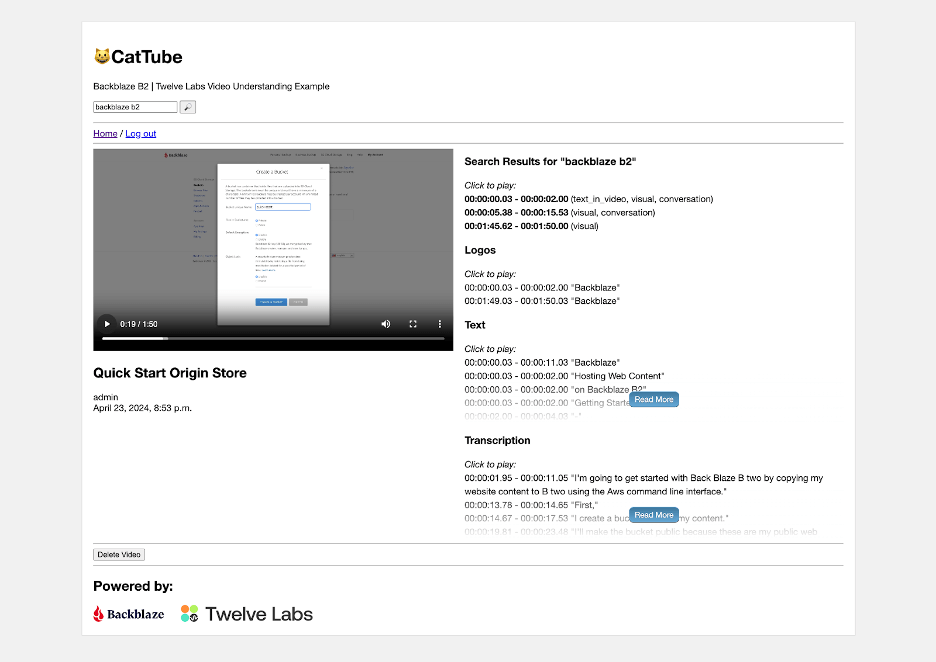
For Trailblazer Studios, a leading media production company, satisfying internal and external backup requirements led to a complex and costly manual system of LTO tape and spinning disk drive redundancies. They utilized Backblaze’s cloud storage to streamline their data recovery processes and enhance their overall workflow efficiency.

Backblaze is our off-site production backup. The hope is that we never need to use it, but it gives us peace of mind.

—Kevin Shattuck, Systems Administrator, Trailblazer Studios

The Road Ahead

As media continues to embrace digital transformation, the need for robust disaster recovery solutions has never been greater. By transitioning away from on-premises solutions like LTO tape and embracing cloud readiness, organizations can future-proof their operations and ensure uninterrupted production. And, while cloud readiness creates a more secure foundation for disaster recovery, having data in the cloud creates a pathway into the future teams can take advantage of a wave of cloud tools designed to foster productivity and efficiency. 

With the right strategy in place, media teams can turn potential disasters into mere setbacks, while taking advantage of their new cloud centric posterity maintaining their competitive edge. 

The post A Disaster Recovery Game Plan for Media Teams appeared first on Backblaze Blog | Cloud Storage & Cloud Backup.

Data Centers, Temperature, and Power

Post Syndicated from Stephanie Doyle original https://www.backblaze.com/blog/data-centers-temperature-and-power/

A decorative image showing a thermometer, a cost symbol, and servers in a stair step pattern with an upwards trendline.

It’s easy to open a data center, right? All you have to do is connect a bunch of hard drives to power and the internet, find a building, and you’re off to the races.  

Well, not exactly. Building and using one Storage Pod is quite a bit different than managing exabytes of data. As the world has grown more connected, the demand for data centers has grown—and then along comes artificial intelligence (AI), with processing and storage demands that amp up the need even more. 

That, of course, has real-world impacts, and we’re here to chat about why. Today we’re going to talk about power, one of the single biggest costs to running a data center, how it has impacts far beyond a simple utility bill, and what role temperature plays in things.

How Much Power Does a Data Center Use?

There’s no “normal” when it comes to the total amount of power a data center will need, as data centers vary in size. Here are a few figures that can help us get us on the same page about scale: 

The goal of a data center is to be always online. That means that there are redundant systems of power—so, what comes in from the grid as well as generators and high-tech battery systems like uninterruptible power supplies (UPS)—running 24 hours a day to keep servers storing and processing data and connected to networks. In order to keep all that equipment running well, they need to stay in a healthy temperature (and humidity) range, which sounds much, much simpler than it is.  

Measuring Power Usage

One of the most popular metrics for tracking power efficiency in data centers is power usage effectiveness (PUE), which is the ratio of the total amount of energy used by a data center to the energy delivered to computing equipment. 

Note that this metric divides power usage into two main categories: what you spend keeping devices online (which we’ll call “IT load” for shorthand purposes), and “overhead”, which is largely comprised of the power dedicated to cooling your data center down. 

There are valid criticisms of the metric, including that improvements to IT load will actually make your metric worse: You’re being more efficient about IT power, but your overhead stays the same—so less efficiency even though you’re using less power overall. Still, it gives companies a repeatable way to measure against themselves and others over time, including directly comparing seasons year to year, so it’s a widely adopted metric. 

Calculating your IT load is a relatively predictable number. Manufacturers tell you the wattage of your device (or you can calculate it based on your device’s specs), then you take that number and plan for it being always online. The sum of all your devices running 24 hours a day is your IT power spend. 

Comparatively, doing the same for cooling is a bit more complicated—and it accounts for approximately 40% of power usage

What Increases Temperature in a Data Center?

Any time you’re using power, you’re creating heat. So the first thing you consider is always your IT load. You don’t want your servers overtaxed—most folks agree that you want to run at about 80% of capacity to keep things kosher—but you also don’t want to have a bunch of servers sitting around idle when you return to off-peak usage. Even at rest, they’re still consuming power. 

So, the methodology around temperature mitigation always starts at power reduction—which means that growth, IT efficiencies, right-sizing for your capacity, and even device provisioning are an inextricable part of the conversation. And, you create more heat when you’re asking an electrical component to work harder—so, more processing for things like AI tasks means more power and more heat. 

And, there are a number of other things that can compound or create heat: the types of drives or processors in the servers, the layout of the servers within the data center, people, lights, and the ambient temperature just on the other side of the data center walls. 

Brief reminder that servers look like this: 

A photograph of Backblaze servers, called Storage Vaults.
Only most of them aren’t as beautifully red as ours.

When you’re building a server, fundamentally what you’re doing is shoving a bunch of electrical components in a box. Yes, there are design choices about those boxes that help mitigate temperature, but just like a smaller room heating up more quickly than a warehouse, you are containing and concentrating a heat source.

We humans generate heat and need lights to see, so the folks who work in data centers have to be taken into account when considering the overall temperature of the data center. Check out these formulas or this nifty calculator for rough numbers (with the caveat that you should always consult an expert and monitor your systems when you’re talking about real data centers):

  • Heat produced by people = maximum number of people in the facility at one time x 100 
  • Heat output of lighting = 2.0 x floor area in square feet or 21.53 x floor area in square meters

Also, your data center exists in the real world, and we haven’t (yet) learned to control the weather—so you also have to factor in fighting the external temperature when you’re bringing things back to ideal conditions. That’s led to a movement towards building data centers in new locations. It’s important to note that there are other reasons you might not want to move, however, including network infrastructure.

Accounting for people and the real world also means that there will be peak usage times, which is to say that even in a global economy, there are times when more people are asking to use their data (and their dryers, so if you’re reliant on a consumer power grid, you’ll also see the price of power spike). Aside from the cost, more people using their data = more processing = more power.

How Is Temperature Mitigated in Data Centers?

Cooling down your data center with fans, air conditioners, and water also uses power (and generates heat). Different methods of cooling use different amounts of power—water cooling in server doors vs. traditional high-capacity air conditioners, for example. 

Talking about real numbers here gets a bit tricky. Data centers aren’t a standard size. As data centers get larger, the environment gets more complex, expanding the potential types of problems, while also increasing the net benefit of changes that might not have a visible impact in smaller data centers. It’s like any economy of scale: The field of “what is possible” is wider; rewards are bigger, and the relationship between change vs. impact is not linear. Studies have shown that creating larger data centers creates all sorts of benefits (which is an article in and of itself), and one of those specific benefits is greater power efficiency

Most folks talk about the impact of different cooling technologies in a comparative way, i.e., we saw a 30% reduction in heat. And, many of the methods of mitigating temperature are about preventing the need to use power in the first place. For that reason, it’s arguably more useful to think about the total power usage of the system. In that context, it’s useful to know that a single fan takes x amount of power and produces x amount of heat, but it’s more useful to think of them in relation to the net change on the overall temperature bottom line. With that in mind, let’s talk about some tactics data centers use to reduce temperature. 

Customizing and Monitoring the Facility 

One of the best ways to keep temperature regulated in your data center is to never let it get hotter than it needs to be in the first place, and every choice you make contributes to that overall total. For example, when you’re talking about adding or removing servers from your pool, that reduces your IT power consumption and affects temperature. 

There are a whole host of things that come down to data centers being a purpose-built space, and most of them have to do with ensuring healthy airflow based on the system you’ve designed to move hot air out and cold air in. 

No matter what tactics you’re using, monitoring your data center environment is essential to keeping your system healthy. Some devices in your environment will come with internal indicators, like SMART stats on drives, and, of course, folks also set up sensors that connect to a central monitoring system. Even if you’ve designed a “perfect” system in theory, things change over time, whether you’re accounting for adding new capacity or just dealing with good old entropy. 

Here’s a non-inclusive list of some of ways data centers customize their environments: 

  • Raised Floors: This allows airflow or liquid cooling under the server rack in addition to the top, bottom, and sides. 
  • Containment, or Hot and Cold Rows: The strategy here is to keep the hot side of your servers facing each other and the cold parts facing outward. That means that you can create a cyclical air flow with the exhaust strategically pulling hot air out of hot space, cooling it, then pushing the cold air over the servers.  
  • Calibrated Vector Cooling: Basically, concentrated active cooling measures in areas you know are going to be hotter. This allows you to use fewer resources by cooling at the source of the heat instead of generally cooling the room. 
  • Cable Management: Keeping cords organized isn’t just pretty, it also makes sure you’re not restricting airflow.  
  • Blanking Panels: This is a fancy way of saying that you should plug up the holes between devices.
A photo of a server stack without blanking panels. There are large empty gaps between the servers.
A photo of a server stack with blanking panels.

Source.

Air vs. Liquid-Based Cooling

Why not both? Most data centers end up using a combination of air and water based cooling at different points in the overall environment. And, other liquids have led to some very exciting innovations. Let’s go into a bit more detail. 

Air-Based Cooling

Air based cooling is all about understanding air flow and using that knowledge to extract hot air and move cold air over your servers.  

Air-based cooling is good up to a certain temperature threshold—about 20 kilowatts (kW) per rack. Newer hardware can easily reach 30kw or higher, and high processing workloads can take that even higher. That said, air-based cooling has benefitted by becoming more targeted, and people talk about building strategies based on room, row, or rack. 

Water-Based Cooling

From here, it’s actually a pretty easy jump into water-based cooling. Water and other liquids are much better at transferring heat than air, about 50 to 1,000 times more, depending on the liquid you’re talking about. And, lots of traditional “air” cooling methods run warm air through a compressor (like in an air conditioner), which stores cold water and cools off the air, recirculating it into the data center. So, one fairly direct combination of this is the evaporative cooling tower: 

Obviously water and electricity don’t naturally blend well, and one of the main concerns of using this method is leakage. Over time, folks have come up with some good, safe methods, designed around effectively containing the liquid. This increases the up-front cost, but has big payoffs for temperature mitigation. You find this methodology in rear door heat exchangers, which create a heat exchanger in—you guessed it—the rear door of a server, and direct-to-chip cooling, which contains the liquid into a plate, then embeds that plate directly in the hardware component. 

So, we’ve got a piece of hardware, a server rack—the next step is the full data center turning itself into a heat exchange, and that’s when you get Nautilus—a data center built over a body of water. 

(Other) Liquid-Based Cooling, or Immersion Cooling

With the same sort of daring thought process of the people who said, “I bet we can fly if we jump off this cliff with some wings,” somewhere along the way, someone said, “It would cool down a lot faster if we just dunked it in liquid.” Liquid-based cooling utilizes dielectric liquids, which can safely come in contact with electrical components. Single phase immersion uses fluids that don’t boil or undergo a phase change (think: similar to an oil), while two phase immersion uses liquids that boil at low temperatures, which releases heat by converting to a gas. 

You’ll see components being cooled this way either in enclosed chassis, which can be used in rack-style environments, in open baths, which require specialized equipment, or a hybrid approach. 

How Necessary Is This?

Let’s bring it back: we’re talking about all those technologies efficiently removing heat from a system because hotter environments break devices, which leads to downtime. And, we want to use efficient methods to remove heat because it means we can ask our devices to work harder without having to spend electricity to do it. 

Recently, folks have started to question exactly how cool data centers need to be. Even allowing a few more degrees of tolerance can make a huge difference to how much time and money you spend on cooling. Whether it has longer term effects on the device performance is questionable—manufacturers are fairly opaque about data around how these standards are set, though exceeding recommended temperatures can have other impacts, like voiding device warranties.

Power, Infrastructure, Growth, and Sustainability

But the simple question of “Is it necessary?” is definitely answered “yes,” because power isn’t infinite. And, all this matters because improving power usage has a direct impact on both cost and long-term sustainability. According to a recent MIT article, the data centers now have a greater carbon footprint than the airline industry, and a single data center can consume the same amount of energy as 50,000 homes. 

Let’s contextualize that last number, because it’s a tad controversial. The MIT research paper in question was published in 2022, and that last number is cited from “A Prehistory of the Cloud” by Tung-Hui Hu, published in 2006. Beyond just the sheer growth in the industry since 2006, data centers are notoriously reticent about publishing specific numbers when it comes to these metrics—Google didn’t release numbers until 2011, and they were founded in 1998. 

Based on our 1MW = 200 homes metric the number from the MIT article number represents 250MW. One of the largest data centers in the world has a 650MW capacity. So, while you can take that MIT number with a grain of salt, you should also pay attention to market reports like this one—the aggregate numbers clearly show that power availability and consumption is one of the biggest concerns for future growth. 

So, we have less-than-ideal reporting and numbers, and well-understood environmental impacts of creating electricity, and that brings us to the complicated relationship between the two factors. Costs of power have gone up significantly, and are fairly volatile when you’re talking about non-renewable energy sources. International agencies report that renewable energy sources are now the cheapest form of energy worldwide, but the challenge is integrating renewables into existing grids. While the U.S. power grid is reliable (and the U.S. accounts for half of the world’s hyperscale data center capacity), the Energy Department recently announced that the network of transmission lines may need to expand by more than two-thirds to carry that data nationwide—and invested $1.3 billion to make that happen.

What’s Next?

It’s easy to say, “It’s important that data centers stay online,” as we sort of glossed over above, but the true importance becomes clear when you consider what that data does—it keeps planes in the air, hospitals online, and so many other vital functions. Downtime is not an option, which leads us full circle to our introduction.   

We (that is, we, humans) are only going to build more data centers. Incremental savings in power have high impact—just take a look at Google’s demand response initiative, which “shift[s] compute tasks and their associated energy consumption to the times and places where carbon-free energy is available on the grid.” 

It’s definitely out of scope for this article to talk about the efficiencies of different types of energy sources. That kind of inefficiency doesn’t directly impact a data center, but it certainly has downstream effects in power availability—and it’s probably one reason why Microsoft, considering both its growth in power need and those realities, decided to set up a team dedicated to building nuclear power plants to directly power some of their data centers and then dropped $650 million to acquire a nuclear-powered data center campus

Which is all to say: this is an exciting time for innovation in the cloud, and many of the opportunities are happening below the surface, so to speak. Understanding how the fundamental principles of physics and compute work—now more than ever—is a great place to start thinking about what the future holds and how it will impact our world, technologically, environmentally, and otherwise. And, data centers sit at the center of that “hot” debate. 

The post Data Centers, Temperature, and Power appeared first on Backblaze Blog | Cloud Storage & Cloud Backup.

How Much Storage Do I Need to Back Up My Video Surveillance Footage?

Post Syndicated from Tonya Comer original https://www.backblaze.com/blog/how-much-storage-do-i-need-to-backup-my-video-surveillance-footage/

A decorative image showing a surveillance camera connected to the cloud.

We all have things we want to protect, and if you’re responsible for physically or virtually protecting a business from all types of threats, you probably have some kind of system in place to monitor your physical space. If you’ve ever dealt with video surveillance footage, you know managing it can be a monumental task. Ensuring the safety and security of monitored spaces relies on collecting, storing, and analyzing large amounts of data from cameras, sensors, and other devices. The requirements to back up and retain footage to support investigations are only getting more stringent. Anyone dealing with surveillance data, whether in business or security, needs to ensure that surveillance data is not only backed up, but also protected and accessible. 

In this post, we’ll talk through why you should back up surveillance footage, the factors you should consider to understand how much storage you need, and how you can use cloud storage in your video surveillance backup strategy. 

The Importance of Backing Up Video Surveillance Footage

Backup storage plays a critical part in maintaining the security of video surveillance footage. Here’s why it’s so important:

  1. Risk Reduction: Without backup storage, surveillance system data stored on a single hard drive or storage device is susceptible to crashes, corruption, or theft. Having a redundant copy ensures that critical footage is not lost in case of system failures or data corruption.
  2. Fast Recovery: Video surveillance systems rely on continuous recording to monitor and record all activities. In the event of system failures, backup storage enables swift recovery, minimizing downtime and ensuring uninterrupted surveillance.
  3. Compliance and Legal Requirements: Many industries, including security, have legal obligations to retain surveillance footage for a specified duration. Backup storage ensures compliance with these requirements and provides evidence when needed.
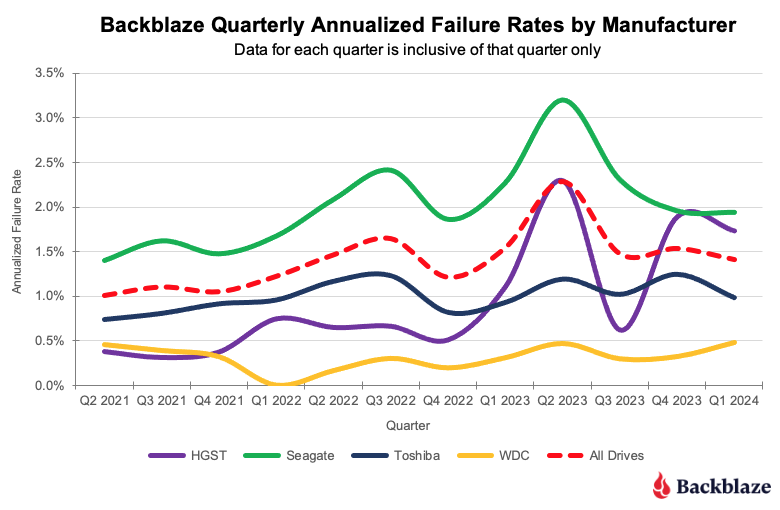
  4. Verification and Recall: Backup recordings allow you to verify actions, recall events, and keep track of activities. Having access to historical footage is valuable for potential investigations and future decision making.

Each piece of information about video surveillance requirements will affect how much space your video files take up and, consequently, your storage requirements. Let’s walk through each of these general requirements so you don’t end up underestimating how much backup storage you’ll need.

Video Surveillance Storage Considerations

When you’re implementing a backup strategy for video surveillance, there are several factors that can impact your choices. The number and resolution of cameras, frame rates, retention periods, and more can influence how you design your backup storage system. Consider the following factors when thinking about how much storage you’ll need for your video surveillance footage:
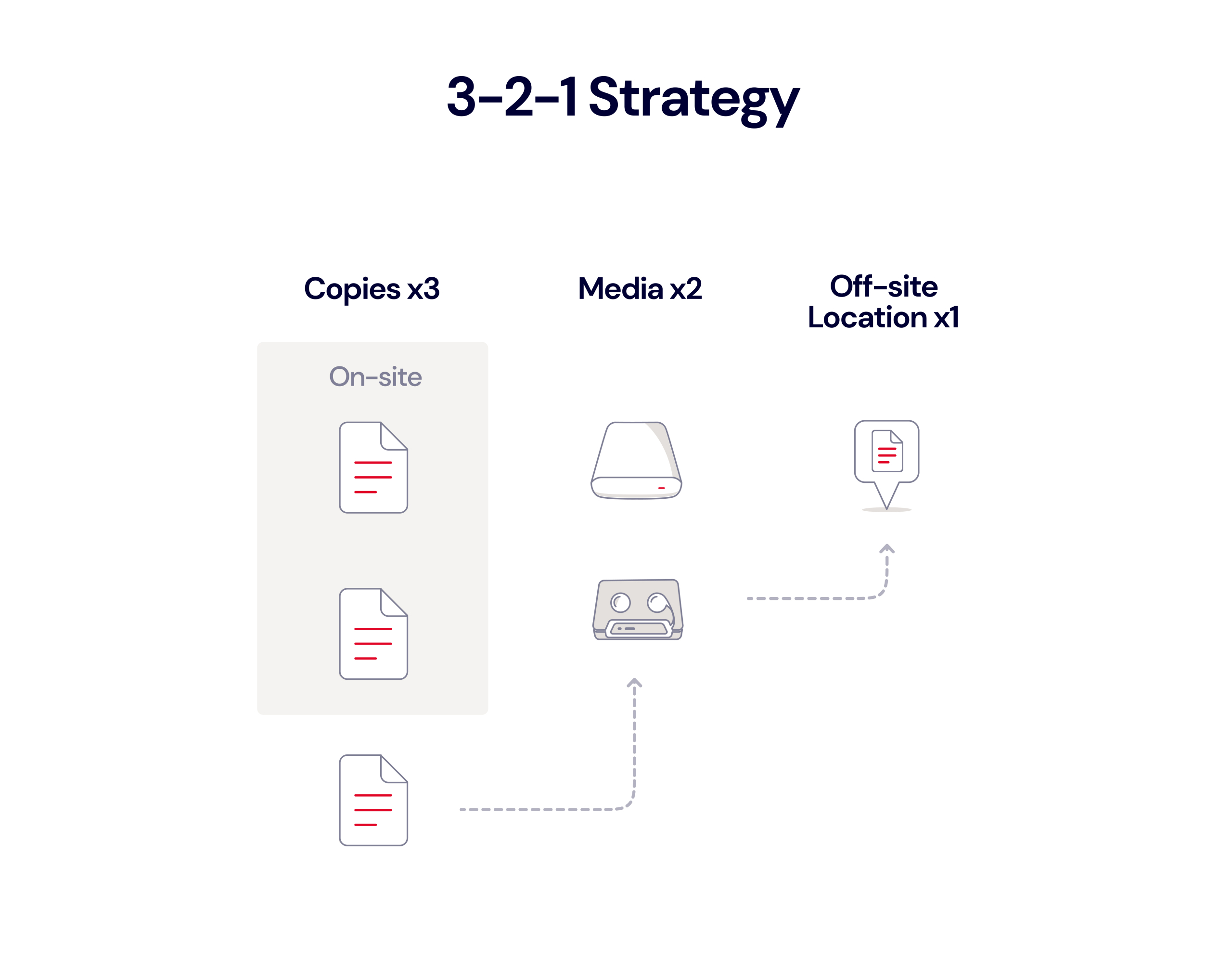
  • Placement and Coverage: When it comes to video surveillance camera placement, strategic positioning is crucial for optimal security and regulatory compliance. Consider ground floor doors and windows, main stairs or hallways, common areas, and driveways. Install cameras both inside and outside entry points. Generally, the wider the field of view, the fewer cameras you’ll likely need overall. The FBI provides extensive recommendations for setting up your surveillance system properly.
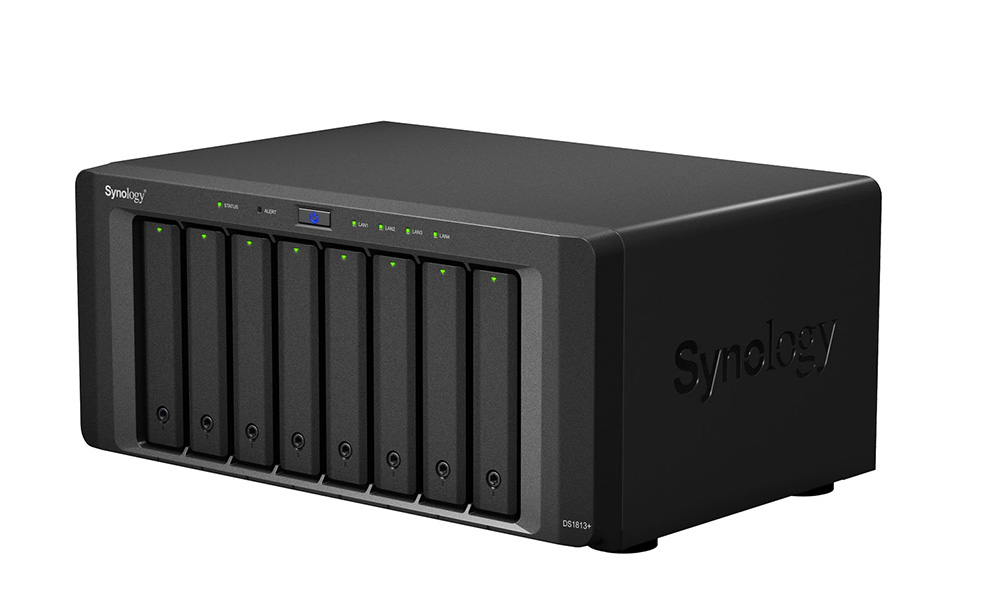
  • Resolution: The resolution determines the clarity of the video footage, which is measured in the number of pixels (px). A higher resolution means more pixels and a sharper image. While there’s no universal minimum for admissible surveillance footage, a resolution of 480 x 640 px is recommended. However, mandated minimums can differ based on local regulations and specific use cases. Note that some regulations may not provide a minimum resolution requirement, and some minimum requirements may not meet the intended purpose of surveillance. Often, it’s better to go with a camera that can record at a higher resolution than the mandated minimum.
  • Frame Rate: All videos are made up of individual frames. A higher frame rate—measured in frames per second (FPS)—means a smoother, less clunky image. This is because there are more frames being packed into each second. Like your cameras’ resolution, there are no universal requirements specified by regulations. However, it’s better to go with a camera that can record at a higher FPS so that you have more images to choose from if there’s ever an open investigation.
  • Recording Length: Surveillance cameras are required to run all day, every day, which requires a lot of storage. To help reduce the instance of storing videos that aren’t of interest, some cameras can come with artificial intelligence (AI) tools that will only record footage when it identifies something of interest, such as movement or a vehicle. But if you’re protecting a business with heavy activity, this use of AI may be moot. 
  • Retention Length: Video surveillance retention requirements can vary significantly based on local, state, and federal regulations. These laws dictate how long companies must store their video surveillance footage. For example, medical marijuana dispensaries in Ohio require 24/7 security video to be retained for a minimum of six months, and the footage must be made available to the licensing board upon request. The required length can be prolonged even further if a piece of footage is required for an ongoing investigation. Additionally, backing up your video footage (i.e., saving a copy of it in another area) is different from archiving it for long-term use. You’ll want to be sure that you select a storage system that helps you meet those requirements—more on that later.

Each point on this list affects how much storage capacity you need. More cameras mean more footage being generated, which means more video files. Additionally, a higher resolution and frame rate mean larger file sizes. Multiply this by the round-the-clock operation of surveillance cameras and the required retention length, and you’ll likely have more video data than you know what to do with.

Scoping Video Surveillance Storage: An Example

To illustrate how much footage you can expect to collect, it can be helpful to see an example of how a given business’s video surveillance may operate. Note that this example may not apply to you specifically. You should review your local area’s regulations and consult with an industry professional to make sure you are compliant. 

Let’s say that you need to install surveillance cameras for a bank. Customers enter through the lobby and wait for the next available bank teller to assist them at a teller station. No items are put on display, only the exchange of paper and cash between the teller and the customer. Only authorized employees are allowed within the teller area. After customers complete their transactions, they walk back through the lobby area and exit via the building’s front entry.

As an estimate, let’s say you need at least 10 cameras around your building: one for the entrance; another for the lobby; eight more to cover the general back area, including the door to the teller terminals, the teller terminals themselves, the door to the safe, and inside of the safe; and, of course, one for the room where the surveillance equipment is housed. You may need more than 10 to cover the exterior of your building plus your ATM and drive through banking, but for the sake of an example, we’ll leave it at 10.

Now, suppose all your cameras record at 1080p resolution (1920 x 1080 px), 15 FPS, and a color depth of 14 bits (basically, how many colors the camera captures). For one 24 hour recording on one camera, you’re looking at 4.703 terabytes (TB). Over 30 days of storage, this can grow to 141.1TB. In other words, if the average person today needs a 2TB hard disk for their PC, it will take more than 70 PCs to hold all the information from just one camera.  

How Cloud Storage Can Help Back Up Surveillance Footage

Backing up surveillance footage is essential for ensuring data security and accountability. It provides a reliable record of events, aids in investigations, and helps prevent wrongdoing by acting as a deterrent. But the right backup strategy is key to preserving your footage.

The 3-2-1 backup strategy is an accepted foundational structure that recommends keeping three copies of all important data (one primary copy and two backup copies) on two different media types (to diversify risk) and storing at least one copy off-site. With surveillance data utilizing high-capacity data storage systems, adhering to the 3-2-1 rule is important in order to access footage in case of an investigation. The 3-2-1 rule mitigates single points of failure, enhances data availability, and protects against corruption. By adhering to this rule, you increase the resilience of your surveillance footage, making it easier to recover even in unexpected events or disasters.

Having an on-site backup copy is a great start for the 3-2-1 backup strategy, but having an off-site backup is a key component in having a complete backup strategy. Having a backup copy in the cloud provides an easy to maintain, reliable off-site copy, safeguarding against a host of potential data losses including:

  • Natural Disasters: If your business is harmed by a natural disaster, the devices you use for your primary storage or on-site backup may be damaged, resulting in a loss of data.
  • Tampering and Theft: Even if someone doesn’t try to steal or manipulate your surveillance footage, an employee can still move, change, or delete files accidentally. You’ll need to safeguard footage with proper security protocols, such as authorization codes, data immutability, and encryption keys. These protocols may require constant, professional, and IT administration and maintenance that are often automatically built into the cloud.
  • Lack of Backup and Archive Protocols: Unless your primary storage source uses   specialized software to automatically save copies of your footage or move them to long-term storage, any of your data may be lost.

The cloud has transformed backup strategies and made it easy to ensure the integrity of large data sets, like surveillance footage. Here’s how the cloud helps achieve the 3-2-1 back strategy affordably:

  •  Scalability: With the cloud, your backup storage space is no longer limited to what servers you can afford. The cloud provider will continue to build and deploy new servers to keep up with customer demand, meaning you can simply rent out the storage space and pay for more as needed.
  • Reliability: Most cloud providers share information on their durability and reliability and are heavily invested in building systems and processes to mitigate the impact of failures. Their systems are built to be fault-tolerant. 
  • Security: Cloud providers protect data you store with them with enterprise-grade security measures and offer features like access controls and encryption to allow users the ability to better protect their data.
  • Affordability: Cloud storage helps you use your storage budgets effectively by not paying to provision and maintain physical off-site backup locations yourself.
  • Disaster Recovery: If unexpected disasters occur, such as natural disasters, theft, or hardware failure, you’ll know exactly where your data lives in the cloud and how to restore it so you can get back up and running quickly.
  • Compliance: By adhering to a set of standards and regulations cloud solutions meet compliance requirements to ensure data stored and managed in the cloud is protected and used responsibly.

Protect The Footage You Invested In to Protect Yourself

No matter the size, operation, or location of your business, it’s critical to remain compliant with all industry laws and regulations—especially when it comes to surveillance. Protect your business by partnering with a cloud provider that understands your unique business requirements, offering scalable, reliable, and secure services at a fraction of the cost compared with other platforms.

As a leading specialized cloud provider, Backblaze B2 Cloud Storage can secure your surveillance footage for both primary backup and long-term protection. B2 offers a range of security options—from encryption to Object Lock to Cloud Replication and access management controls—to help you protect your data and achieve industry compliance. Learn more about Backblaze B2 for surveillance data or contact our Sales Team today.

The post How Much Storage Do I Need to Back Up My Video Surveillance Footage? appeared first on Backblaze Blog | Cloud Storage & Cloud Backup.