Post Syndicated from BeardedTinker original https://www.youtube.com/watch?v=2ukyRb_x5Ts
Yearly Archives: 2024
Deploying an EMR cluster on AWS Outposts to process data from an on-premises database
Post Syndicated from Macey Neff original https://aws.amazon.com/blogs/compute/deploying-an-emr-cluster-on-aws-outposts-to-process-data-from-an-on-premises-database/
seThis post is written by Eder de Mattos, Sr. Cloud Security Consultant, AWS and Fernando Galves, Outpost Solutions Architect, AWS.
In this post, you will learn how to deploy an Amazon EMR cluster on AWS Outposts and use it to process data from an on-premises database. Many organizations have regulatory, contractual, or corporate policy requirements to process and store data in a specific geographical location. These strict requirements become a challenge for organizations to find flexible solutions that balance regulatory compliance with the agility of cloud services. Amazon EMR is the industry-leading cloud big data platform for data processing, interactive analysis, and machine learning (ML) that uses open-source frameworks. With Amazon EMR on Outposts, you can seamlessly use data analytics solutions to process data locally in your on-premises environment without moving data to the cloud. This post focuses on creating and configuring an Amazon EMR cluster on AWS Outposts rack using Amazon Virtual Private Cloud (Amazon VPC) endpoints and keeping the networking traffic in the on-premises environment.
Architecture overview
In this architecture, there is an Amazon EMR cluster created in an AWS Outposts subnet. The cluster retrieves data from an on-premises PostgreSQL database, employs a PySpark Step for data processing, and then stores the result in a new table within the same database. The following diagram shows this architecture.

Figure 1 Architecture overview
Networking traffic on premises: The communication between the EMR cluster and the on-premises PostgreSQL database is through the Local Gateway. The core Amazon Elastic Compute Cloud (Amazon EC2) instances of the EMR cluster are associated with Customer-owned IP addresses (CoIP), and each instance has two IP addresses: an internal IP and a CoIP IP. The internal IP is used to communicate locally in the subnet, and the CoIP IP is used to communicate with the on-premises network.
Amazon VPC endpoints: Amazon EMR establishes communication with the VPC through an interface VPC endpoint. This communication is private and conducted entirely within the AWS network instead of connecting over the internet. In this architecture, VPC endpoints are created on a subnet in the AWS Region.
The support files used to create the EMR cluster are stored in an Amazon Simple Storage Service (Amazon S3) bucket. The communication between the VPC and Amazon S3 stays within the AWS network. The following files are stored in this S3 bucket:
get-postgresql-driver.sh: This is a bootstrap script to download the PostgreSQL driver to allow the Spark step to communicate to the PostgreSQL database through JDBC. You can download it through the GitHub repository for this Amazon EMR on Outposts blog post.postgresql-42.6.0.jar: PostgreSQL binary JAR file for the JDBC driver.spark-step-example.py: Example of a Step application in PySpark to simulate the connection to the PostgreSQL database.
AWS Systems Manager is configured to manage the EC2 instances that belong to the EMR cluster. It uses an interface VPC endpoint to allow the VPC to communicate privately with the Systems Manager.
The database credentials to connect to the PostgreSQL database are stored in AWS Secrets Manager. Amazon EMR integrates with Secrets Manager. This allows the secret to be stored in the Secrets Manager and be used through its ARN in the cluster configuration. During the creation of the EMR cluster, the secret is accessed privately through an interface VPC endpoint and stored in the variable DBCONNECTION in the EMR cluster.
In this solution, we are creating a small EMR cluster with one primary and one core node. For the correct sizing of your cluster, see Estimating Amazon EMR cluster capacity.
There is additional information to improve the security posture for organizations that use AWS Control Tower landing zone and AWS Organizations. The post Architecting for data residency with AWS Outposts rack and landing zone guardrails is a great place to start.
Prerequisites
Before deploying the EMR cluster on Outposts, you must make sure the following resources are created and configured in your AWS account:
- Outposts rack are installed, up and running.
- Amazon EC2 key pair is created. To create it, you can follow the instructions in Create a key pair using Amazon EC2 in the Amazon EC2 user guide.
Deploying the EMR cluster on Outposts
1. Deploy the CloudFormation template to create the infrastructure for the EMR cluster
You can use this AWS CloudFormation template to create the infrastructure for the EMR cluster. To create a stack, you can follow the instructions in Creating a stack on the AWS CloudFormation console in the AWS CloudFormation user guide.
2. Create an EMR cluster
To launch a cluster with Spark installed using the console:
Step 1: Configure Name and Applications
- Sign in to the AWS Management Console, and open the Amazon EMR console.
- Under EMR on EC2, in the left navigation pane, select Clusters, and then choose Create Cluster.
- On the Create cluster page, enter a unique cluster name for the Name
- For Amazon EMR release, choose
emr-6.13.0. - In the Application bundle field, select
Spark 3.4.1andZeppelin 0.10.1, and unselect all the other options. - For the Operating system options, select Amazon Linux release.
 Figure 2: Create Cluster
Step 2: Choose Cluster configuration method
- Under the Cluster configuration, select Uniform instance groups.
- For the Primary and the Core, select the EC2 instance type available in the Outposts rack that is supported by the EMR cluster.
- Remove the instance group Task 1 of 1.

Figure 3: Remove the instance group Task 1 of 1
Step 3: Set up Cluster scaling and provisioning, Networking and Cluster termination
- In the Cluster scaling and provisioning option, choose Set cluster size manually and type the value 1 for the Core
- On the Networking, select the VPC and the Outposts subnet.
- For Cluster termination, choose Manually terminate cluster.
Step 4: Configure the Bootstrap actions
A. In the Bootstrap actions, add an action with the following information:
-
- Name: copy-postgresql-driver.sh
- Script location: s3://<bucket-name>/copy-postgresql-driver.sh. Modify the <bucket-name> variable to the bucket name you specified as a parameter in Step 1.

Figure 4: Add bootstrap action
Step 5: Configure Cluster logs and Tags
a. Under Cluster logs, choose Publish cluster-specific logs to Amazon S3 and enter s3://<bucket-name>/logs for the field Amazon S3 location. Modify the <bucket-name> variable to the bucket name you specified as a parameter in Step 1.

Figure 5: Amazon S3 location for cluster logs
b. In Tags, add new tag. You must enter for-use-with-amazon-emr-managed-policies for the Key field and true for Value.

Figure 6: Add tags
Step 6: Set up Software settings and Security configuration and EC2 key pair
a. In the Software settings, enter the following configuration replacing the Secret ARN created in Step 1:
This is an example of the Secret ARN replaced:

Figure 7: Example of the Secret ARN replaced
b. For the Security configuration and EC2 key pair, choose the SSH key pair.
Step 7: Choose Identity and Access Management (IAM) roles
a. Under Identity and Access Management (IAM) roles:
-
- In the Amazon EMR service role:
- Choose
AmazonEMR-outposts-cluster-rolefor the Service role.
- Choose
- In EC2 instance profile for Amazon EMR
- Choose
AmazonEMR-outposts-EC2-role.
- Choose
- In the Amazon EMR service role:

Figure 8: Choose the service role and instance profile
Step 8: Create cluster
- Choose Create cluster to launch the cluster and open the cluster details page.
Now, the EMR cluster is starting. When your cluster is ready to process tasks, its status changes to Waiting. This means the cluster is up, running, and ready to accept work.

Figure 9: Result of the cluster creation
3. Add CoIPs to EMR core nodes
You need to allocate an Elastic IP from the CoIP pool and associate it with the EC2 instance of the EMR core nodes. This is necessary to allow the core nodes to access the on-premises environment. To allocate an Elastic IP, follow the instructions in Allocate an Elastic IP address in Amazon EC2 User Guide for Linux Instances. In Step 5, choose the Customer-owned pool of IPV4 addresses.
Once the CoIP IP is allocated, associate it with each EC2 instance of the EMR core node. Follow the instructions in Associate an Elastic IP address with an instance or network interface in Amazon EC2 User Guide for Linux Instances.
Checking the configuration
- Make sure the EC2 instance of the core nodes can ping the IP of the PostgreSQL database.
Connect to the Core node EC2 instance using Systems Manager and ping the IP address of the PostgreSQL database.

Figure 10: Connectivity test
- Make sure the Status of the EMR cluster is Waiting.

Figure 11: Cluster is ready and waiting
Adding a step to the Amazon EMR cluster
You can use the following Spark application to simulate the data processing from the PostgreSQL database.
spark-step-example.py:
You must upload the file spark-step-example.py to the bucket created in Step 1 of this post before submitting the Spark application to the EMR cluster. You can get the file at this GitHub repository for a Spark step example.
Submitting the Spark application step using the Console
To submit the Spark application to the EMR cluster, follow the instructions in To submit a Spark step using the console in the Amazon EMR Release Guide. In Step 4 of this Amazon EMR guide, provide the following parameters to add a step:
- choose Cluster mode for the Deploy mode
- type a name for your step (such as Step 1)
- for the Application location, choose s3://<bucket-name>/spark-step-example.py and replace the <bucket-name> variable to the bucket name you specified as a parameter in Step 1
- leave the Spark-submit options field blank

Figure 12: Add a step to the EMR cluster
The Step is created with the Status Pending. When it is done, the Status changes to Completed.

Figure 13: Step executed successfully
Cleaning up
When the EMR cluster is no longer needed, you can delete the resources created to avoid incurring future costs by following these steps:
- Follow the instructions in Terminate a cluster with the console in the Amazon EMR Documentation Management Guide. Remember to turn off the Termination protection.
- Dissociate and release the CoIP IPs allocated to the EC2 instances of the EMR core nodes.
- Delete the stack in the AWS CloudFormation using the instructions in Deleting a Stack on the AWS CloudFormation console in the AWS CloudFormation User Guide
Conclusion
Amazon EMR on Outposts allows you to use the managed services offered by AWS to perform big data processing close to your data that needs to remain on-premises. This architecture eliminates the need to transfer on-premises data to the cloud, providing a robust solution for organizations with regulatory, contractual, or corporate policy requirements to store and process data in a specific location. With the EMR cluster accessing the on-premises database directly through local networking, you can expect faster and more efficient data processing without compromising on compliance or agility. To learn more, visit the Amazon EMR on AWS Outposts product overview page.
[$] A proposal for shared memory in BPF programs
Post Syndicated from daroc original https://lwn.net/Articles/961941/
Alexei Starovoitov introduced
a patch series for the Linux kernel on February 6 to add bpf_arena, a new type
of shared memory between
BPF
programs and user space.
Starovitov expects arenas to be useful both for bidirectional communication
between user space and BPF programs, and for use as an additional heap for BPF
programs. This will likely be useful to BPF programs that implement
complex data structures directly, instead of relying on the kernel to supply them.
Starovoitov cited Google’s
ghOSt project
as an example and inspiration for the work.
RawTherapee 5.10 released
Post Syndicated from corbet original https://lwn.net/Articles/963036/
Version 5.10 of the
RawTherapee raw photo editor is out. The list of changes is long, and
includes improved support for many camera-specific formats. (LWN looked at RawTherapee in 2022).
Security updates for Wednesday
Post Syndicated from corbet original https://lwn.net/Articles/963035/
Security updates have been issued by CentOS (linux-firmware and python-reportlab), Debian (unbound), Fedora (freeglut and syncthing), Red Hat (edk2, go-toolset:rhel8, java-1.8.0-ibm, kernel, kernel-rt, mysql:8.0, oniguruma, and python-pillow), Slackware (libuv and mozilla), SUSE (abseil-cpp, grpc, opencensus-proto, protobuf, python- abseil, python-grpcio, re2, bind, dpdk, firefox, hdf5, libssh, libssh2_org, libxml2, mozilla-nss, openssl-1_1, openvswitch, postgresql12, postgresql13, postgresql14, postgresql15, postgresql16, python-aiohttp, python-time-machine, python-pycryptodomex, runc, and webkit2gtk3), and Ubuntu (kernel, libspf2, linux, linux-aws, linux-aws-hwe, linux-azure, linux-azure-4.15, linux-gcp,
linux-gcp-4.15, linux-hwe, linux-kvm, linux-oracle, and linux, linux-aws, linux-kvm, linux-lts-xenial).
Reolink Duo 3 Panoramic 180 Degree Camera w/ Motion Track
Post Syndicated from digiblurDIY original https://www.youtube.com/watch?v=47Wfoy08bFA
B-47 Nuclear Accidents 1956
Post Syndicated from The History Guy: History Deserves to Be Remembered original https://www.youtube.com/watch?v=UZntgTUYafg
Details of a Phone Scam
Post Syndicated from Bruce Schneier original https://www.schneier.com/blog/archives/2024/02/details-of-a-phone-scam.html
First-person account of someone who fell for a scam, that started as a fake Amazon service rep and ended with a fake CIA agent, and lost $50,000 cash. And this is not a naive or stupid person.
The details are fascinating. And if you think it couldn’t happen to you, think again. Given the right set of circumstances, it can.
It happened to Cory Doctorow.
EDITED TO ADD (2/23): More scams, these involving timeshares.
if hamlet were a programmer
Post Syndicated from turnoff.us original http://turnoff.us/geek/hamlet-programmer/
Кога ще ги стигнем гърците, или как Гърция узакони еднополовите бракове
Post Syndicated from Светла Енчева original https://www.toest.bg/koga-shte-gi-stignem-gurtsite/

Гърция узакони еднополовите бракове на 15 февруари 2024 г. Така тя стана първата страна с преобладаващо православно население, в която хора от един и същи пол могат да се женят. В меда на радостта на ЛГБТИ общността в южната ни съседка има и капка катран – новоприетите хомосексуални бракове не гарантират съвсем равни права. При тях например не е разрешена асистираната репродукция, която е достъпна, ако една жена е неомъжена или е в хетеросексуален брак. Но съпрузите от един и същи пол вече могат да осиновяват деца, да се наследяват, да си ходят на свиждане в болницата, да вземат решения, в случай че съпругът/съпругата не е в съзнание или почине. Всъщност с някои права еднополовите двойки в Гърция разполагаха и преди, защото партньорството между тях беше легализирано още през 2015 г.
Възниква обаче въпросът: защо Гърция? Как тя стана първата православна държава, предприела подобна стъпка? Дали гръцката държава е по-светска например от българската, дали по-малка част от населението ѝ е православно и дали връзките между религия и национална идентичност не са толкова силни? Или съществуват други предпоставки?
Православието в Гърция и България в наши дни – статистика и законодателство
Към 2022 г. между 81 и 90% от населението на Гърция (по данни от различни изследвания) се определя като принадлежащо към православното християнство. За сравнение, според последното преброяване от 2021 г. близо 70% от представителите на българското население са православни християни.
Според Конституцията на България православието е традиционната религия в страната, но религиозните институции са отделени от държавата и религията не може да се използва за политически цели. Освен това само гражданският брак е законен.
Конституцията на Гърция определя православната религия като επικρατούσα, което може да се преведе като „преобладаваща“ или „доминираща“, но и като „господстваща“. В нея не само липсва разделението между църква и държава, налично в българската, ами са синтезирани основите на православната доктрина и официалният превод на Библията се поставя под особена защита. Оскърблението на религията присъства преди обиждането на президента като основание за конфискуване на печатни издания – нещо, което се прилага само в изключителни случаи.
За разлика от българския Основен закон, в гръцкия липсва текстът, че бракът е само между мъж и жена, но го няма и ограничението, че само гражданският е законен. Затова религиозните бракове имат правна стойност, каквато и гражданските. Разбира се, еднополовите двойки могат да сключат единствено граждански брак – Гръцката православна църква е твърдо против еднополовите бракове.
Православие и национална идентичност в Гърция
За три четвърти от гърците (76%) според резултатите от изследване от 2017 г. религията е от решаващо значение за националната им идентичност – за тях е важно да са православни, за да се чувстват гърци. По данни от същото изследване, така смятат 66% от българите и 57% от руснаците. За седем години ситуацията може да се е променила, но дълбоката връзка на гръцката идентичност с православието – едва ли.
Доминиращият гръцки исторически разказ, както впрочем и българският, търси корените на националната идентичност в далечното минало, когато не са съществували нито национални държави, нито разбирането за национална идентичност, родено някъде около Ренесанса. В този смисъл съвременна Гърция се възприема като наследница на Древна Елада и на Византийската империя. Гордее се, че по нейните земи християнството се е появило в самото начало, донесено от апостолите Павел и Андрей. Към края на II век християнската религия вече има седалища в редица градове, като Солун, Коринт, Никополис, Филипи и Атина.
Гърция се смята и за център на православното християнство. Още преди схизмата от 1054 г., когато християнството се разделя на римокатолицизъм и източно православие, съществува разделение между източното (с център Константинопол) и западното (с център Рим) християнство. Именно в този период България приема християнството от Константинопол.
Въпреки че някогашният Константинопол днес се намира в Турция и се нарича Истанбул, в духа на традицията и приемствеността седалището на вселенския патриарх (наричан още цариградски или константинополски) се намира именно там, а езикът на Вселенската патриаршия е гръцкият. Това са все основания, поради които голяма част от гърците се гордеят с православието си.
Тогава защо?
Дотук отговорите на първоначалните въпроси не дават яснота защо Гърция е първата православна държава, узаконила еднополовите бракове. Там повече хора са православни, отколкото например в България, източното православие е същностна част от националната идентичност и може да се намерят предостатъчно основания в историята, които да подкрепят връзката между идентичност и религия. Освен това гръцката Конституция, за разлика от българската, не разделя църквата от държавата.
Тогава поради каква причина България (в лицето на Конституционния съд и Върховния касационен съд) се позовава на традициите и религията, за да обоснове защо бракът трябва да е само между мъж и жена, а Гърция – не? Защо тя, за разлика от други православни държави, не превърна борбата срещу Истанбулската конвенция и „джендъра“ в свое политическо верую, обосновано с религиозни аргументи?
Наследството на социализма
Между Гърция и всички останали държави, в които източното православие е преобладаваща религия, има една съществена разлика – тя не е била част от социалистическия вариант на тоталитаризма. По време на управлението на Общогръцкото социалистическо движение (ПАСОК) през 80-те се провеждат свободни избори и има религиозна свобода. Повечето страни от бившия Източен блок, в които преди установяването на социализма доминиращо е било християнството (независимо от конкретната деноминация), претърпяват интересна трансформация в религиозно отношение след падането на режима.
В повечето варианти на социализма и особено в СССР и Източна Европа атеизмът е официалната идеология, а религията се отрича и дори се преследва. На нея се гледа като на част от „буржоазния морал“, който по дефиниция е „гнил“. Широко популярният по онова време израз „Религията е опиум за народите“ е ленинистко перифразиране на думи на Карл Маркс. В предговора на „Към критиката на Хегеловата философия на правото“ той нарича религията „опиумът на народа“ (das Opium des Volkes).
През тоталитарния период както комунизмът, така и атеизмът имат претенции за научност. Водят се студентски курсове по научен атеизъм – с учебници, пълни с цитати от Маркс, Енгелс и особено от Ленин.
След падането на желязната завеса религията вече не е забранена. Източноевропейските общества трябва да изградят идентичността си отново и за много от тях (с някои изключения като Чехия, а до неотдавна и Унгария) религията играе съществена роля в този процес. Връщането към нея е важна част от реабилитирането на миналото, което е било забранено. А с реабилитирането на миналото се придава особена ценност на традициите.
Използването на религията за пропаганда в постсоциалистическите страни
Разпадането на социалистическия лагер не слага край на претенциите на Русия, която възприема себе си като легитимния наследник на СССР, за влияние върху страните от бившия Източен блок. Самата Русия също има нужда от вътрешна консолидация. И така, до неотдавна отричаната религия се превръща в инструмент за консолидиране на националната идентичност, и то по начин, който я противопоставя на Запада и неговите либерални ценности.
Хомосексуалността е декриминализирана в Русия през 1993 г. В началото на новото хилядолетие се появява руският дует „Тату“. Двете 14–15 годишни певици приемат имиджа на лесбийки, а критиките в някои западни страни, че момичетата от „Тату“ са експлоатирани и чрез тях се насърчава педофилията, са широко осмивани в Русия. Само няколко години по-късно, когато властта на Путин става все по-авторитарна и се обръща срещу Запада, Русия вече громи „Гейропа“ и „еврогейските ценности“, които погазват изконните християнски традиции. Тези послания бързо се пренасят в бившите социалистически страни.
Така каналите на влияние на тоталитарния режим намират път към посттоталитарните национални идентичности, а хомофобията става важна част от тях. Затова и кампанията срещу Истанбулската конвенция, един от чиито двигатели е руската пропагандна машина, постига такъв успех в бившите социалистически страни, а в някои от тях, между които и България, връща борбата за равни права десетилетия назад. Най-тежка е ситуацията в самата Русия, в която принадлежността към ЛГБТИ общността вече е обявена за екстремизъм.
Православие, бракове и геополитика
Да се върнем на Гърция. Въпреки значимата роля на православието в страната, чиято традиция не е прекъсвана от атеистичен тоталитарен режим, хомофобската пропаганда не постига надмощие. Защото отхвърлянето на равния брак от една държава не е въпрос единствено на религиозна традиция. Едни или други елементи от дадена религия започват да се възприемат като доминиращи в контекста на определени социални процеси, които са извън самата религия. А и една държава може да преценява в каква степен да дава приоритет на религията и в каква – на светската власт. Разбира се, доколкото не става въпрос за теократично управление, каквото гръцкото не е.
Даването на приоритет на едни или други елементи от религията важи с не по-малка сила и за традициите – реални или фабрикувани (като мъжкото хоро на Йордановден). Така нареченото „традиционно семейство“, в чието име се отричат равните права, впрочем изобщо не е традиционно. Нуклеарното семейство, състоящо се от мъж, жена и децата им, което днес се представя за традиционно, възниква след разпадането на истинските традиционни семейства, които представляват цели родове, споделящи общо домакинство.
Узаконяването на еднополовите бракове е знак за принадлежността на дадена страна към либералната демокрация. За Русия Гърция не е такава зона на влияние, каквато са бившите социалистически страни. Съответно тя не е изложена на толкова агресивни опити за отклоняване от европейската ѝ ориентация.
И ако погледне към традициите си, Гърция може да види в тях не само православие, а и наследството на древногръцката култура, в която (по Платон) еднополовата любов е по-висша, понеже е за душата и ума, докато хетеросексуалната – единствено за продължаване на рода.
Ако се освободим от пропагандните клишета и официализираните интерпретации, и ние бихме могли да намерим примери в традициите си, чрез които да обосновем, примерно, не строг морал, а сексуална свобода, както е направил Найден Шейтанов в статията си „Сексуалната философия на българина. Увод в нашия неофициален фолклор“. Но докато националната ни идентичност се използва за отклоняване от европейската либерална демокрация, това няма как да стане.
This Bonkers F1.4 Fisheye lens can see 180° 😲
Post Syndicated from Matt Granger original https://www.youtube.com/watch?v=zYVKaOI_99E
Comic for 2024.02.21 – Government Guy 2
Post Syndicated from Explosm.net original https://explosm.net/comics/government-guy-2
New Cyanide and Happiness Comic
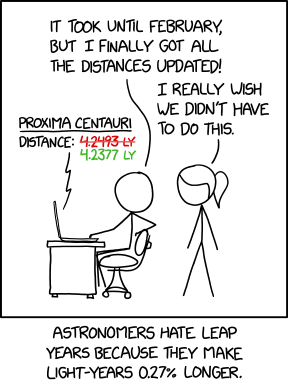
Light Leap Years
Post Syndicated from xkcd.com original https://xkcd.com/2897/
Comic for 2024.02.20 – Outline
Post Syndicated from Explosm.net original https://explosm.net/comics/outline
New Cyanide and Happiness Comic
High-Risk Vulnerabilities in ConnectWise ScreenConnect
Post Syndicated from Rapid7 original https://blog.rapid7.com/2024/02/20/etr-high-risk-vulnerabilities-in-connectwise-screenconnect/

On February 19, 2024 ConnectWise disclosed two vulnerabilities in their ScreenConnect remote access software. Both vulnerabilities affect ScreenConnect 23.9.7 and earlier. While neither vulnerability has a CVE assigned as of February 20, the two issues mentioned in ConnectWise’s advisory are:
- An authentication bypass using an alternate path or channel (CVSS 10)
- A path traversal issue (CVSS 8.4)
ScreenConnect is popular remote access software used by many organizations globally; it has also been abused by adversaries in the past. There appear to be some 7,500+ instances of ScreenConnect exposed to the public internet. The vulnerabilities are not known to be exploited in the wild as of February 20.
Security news media and security vendors are raising strong alarms about the ScreenConnect vulnerabilities, largely because of the potential for attackers to exploit vulnerable ScreenConnect instances to then push ransomware to downstream clients. This may be a particular concern for managed service providers (MSPs) or managed security services providers (MSSPs) who use ScreenConnect to remotely manage client environments.
Mitigation guidance
All versions of ConnectWise ScreenConnect before 23.9.8 are vulnerable to these (CVE-less) issues. Customers who have on-premise ScreenConnect instances in their environments should apply the 23.9.8 update immediately, per ConnectWise’s guidance.
Rapid7 customers
Our engineering team is researching new vulnerability checks for these issues. We hope to release vulnerability checks for InsightVM and Nexpose customers in tomorrow’s (February 21) content release. We will update this blog with further information and ETAs as our investigation continues.
InsightIDR and Managed Detection and Response customers have existing detection coverage through Rapid7’s expansive library of detection rules. Rapid7 recommends installing the Insight Agent on all applicable hosts to ensure visibility into suspicious processes and proper detection coverage. Below is a non-exhaustive list of detections that are deployed and will alert on post-exploitation behavior related to these vulnerabilities:
- Attacker Technique – Remote Access Via ScreenConnect
- Attacker Technique – Command Execution Via ScreenConnect
- Suspicious Process – ScreenConnect with RunRole Argument
The “KeyTrap” DNS vulnerability
Post Syndicated from corbet original https://lwn.net/Articles/962924/
DNS resolvers (those that handle DNSSEC, at least) are almost uniformly
vulnerable to an exploit
that has been named “KeyTrap”. In short, the right type of packet can
send a DNS system into something close to an infinite loop, taking it out
of service indefinitely.
With just a single DNS packet, hackers could paralyze all common
DNS implementations and public DNS providers. Exploiting this
attack would have serious consequences for any application that
uses the internet, including the unavailability of technologies
such as web browsers, email and instant messaging. This devastating
effect prompted major DNS vendors to call KeyTrap “The worst attack
on DNS ever discovered”
Some more information and pointers to updates can be found on the
CVE-2023-50387 page; some distributors have been faster to get updates
out than others.
(Thanks to Dave Täht).
[$] A modest update to Qubes OS
Post Syndicated from jzb original https://lwn.net/Articles/962787/
Qubes OS is a security-focused desktop Linux distribution built on Fedora Linux and the Xen hypervisor. Qubes uses virtualization to run applications, system services, and devices access via virtual machines called “qubes” that have varying levels of trust and persistence to provide an open-source “reasonably secure
” operating system with “serious privacy
“. The Qubes 4.2.0 release, from December 2023, brings a number of refinements to make Qubes OS easier to manage and use.
Build an analytics pipeline that is resilient to schema changes using Amazon Redshift Spectrum
Post Syndicated from Swapna Bandla original https://aws.amazon.com/blogs/big-data/build-an-analytics-pipeline-that-is-resilient-to-schema-changes-using-amazon-redshift-spectrum/
You can ingest and integrate data from multiple Internet of Things (IoT) sensors to get insights. However, you may have to integrate data from multiple IoT sensor devices to derive analytics like equipment health information from all the sensors based on common data elements. Each of these sensor devices could be transmitting data with unique schemas and different attributes.
You can ingest data from all your IoT sensors to a central location on Amazon Simple Storage Service (Amazon S3). Schema evolution is a feature where a database table’s schema can evolve to accommodate for changes in the attributes of the files getting ingested. With the schema evolution functionality available in AWS Glue, Amazon Redshift Spectrum can automatically handle schema changes when new attributes get added or existing attributes get dropped. This is achieved with an AWS Glue crawler by reading schema changes based on the S3 file structures. The crawler creates a hybrid schema that works with both old and new datasets. You can read from all the ingested data files at a specified Amazon S3 location with different schemas through a single Amazon Redshift Spectrum table by referring to the AWS Glue metadata catalog.
In this post, we demonstrate how to use the AWS Glue schema evolution feature to read from multiple JSON formatted files with various schemas that are stored in a single Amazon S3 location. We also show how to query this data in Amazon S3 with Redshift Spectrum without redefining the schema or loading the data into Redshift tables.
Solution overview
The solution consists of the following steps:
- Create an Amazon Data Firehose delivery stream with Amazon S3 as its destination.
- Generate sample stream data from the Amazon Kinesis Data Generator (KDG) with the Firehose delivery stream as the destination.
- Upload the initial data files to the Amazon S3 location.
- Create and run an AWS Glue crawler to populate the Data Catalog with external table definition by reading the data files from Amazon S3.
- Create the external schema called
iotdb_extin Amazon Redshift and query the Data Catalog table. - Query the external table from Redshift Spectrum to read data from the initial schema.
- Add additional data elements to the KDG template and send the data to the Firehose delivery stream.
- Validate that the additional data files are loaded to Amazon S3 with additional data elements.
- Run an AWS Glue crawler to update the external table definitions.
- Query the external table from Redshift Spectrum again to read the combined dataset from two different schemas.
- Delete a data element from the template and send the data to the Firehose delivery stream.
- Validate that the additional data files are loaded to Amazon S3 with one less data element.
- Run an AWS Glue crawler to update the external table definitions.
- Query the external table from Redshift Spectrum to read the combined dataset from three different schemas.
This solution is depicted in the following architecture diagram.

Prerequisites
This solution requires the following prerequisites:
- A Redshift cluster. For instructions, see Create a sample Amazon Redshift cluster.
- An S3 bucket.
- Familiarity with the AWS Management Console.
- An AWS account and access to the following AWS services:
- AWS Glue
- AWS Identity and Access Management (IAM)
- Amazon Redshift
- Amazon S3
- Amazon Data Firehose
- Kinesis Data Generator setup:
- For Kinesis Data Generator setup instructions, refer to this blog.
Implement the solution
Complete the following steps to build the solution:
- On the Kinesis console, create a Firehose delivery stream with the following parameters:
- For Source, choose Direct PUT.
- For Destination, choose Amazon S3.
- For S3 bucket, enter your S3 bucket.
- For Dynamic partitioning, select Enabled.

-
- Add the following dynamic partitioning keys:
- Key year with expression
.connectionTime | strptime("%d/%m/%Y:%H:%M:%S") | strftime("%Y") - Key month with expression
.connectionTime | strptime("%d/%m/%Y:%H:%M:%S") | strftime("%m") - Key day with expression
.connectionTime | strptime("%d/%m/%Y:%H:%M:%S") | strftime("%d") - Key hour with expression
.connectionTime | strptime("%d/%m/%Y:%H:%M:%S") | strftime("%H")
- Key year with expression
- Add the following dynamic partitioning keys:
-
- For S3 bucket prefix, enter
year=!{partitionKeyFromQuery:year}/month=!{partitionKeyFromQuery:month}/day=!{partitionKeyFromQuery:day}/hour=!{partitionKeyFromQuery:hour}/
- For S3 bucket prefix, enter

You can review your delivery stream details on the Kinesis Data Firehose console.

Your delivery stream configuration details should be similar to the following screenshot.

- Generate sample stream data from the KDG with the Firehose delivery stream as the destination with the following template:

- On the Amazon S3 console, validate that the initial set of files got loaded into the S3 bucket.

- On the AWS Glue console, create and run an AWS Glue Crawler with the data source as the S3 bucket that you used in the earlier step.


When the crawler is complete, you can validate that the table was created on the AWS Glue console.

- In Amazon Redshift Query Editor v2, connect to the Redshift instance and create an external schema pointing to the AWS Glue Data Catalog database. In the following code, use the Amazon Resource Name (ARN) for the IAM role that your cluster uses for authentication and authorization. As a minimum, the IAM role must have permission to perform a LIST operation on the S3 bucket to be accessed and a GET operation on the S3 objects the bucket contains.
- Query the table defined in the Data Catalog from the Redshift external schema and note the columns defined in the KDG template:

- Add an additional data element in the KDG template and send the data to the Firehose delivery stream:

- Validate that the new data was added to the S3 bucket.

- Rerun the AWS Glue crawler.

- Query the table again from the Redshift external schema and note the newly populated dataset vs. the previous dataset for the
servicerecommendeddatecolumn:

- Delete the data element status from the KDG template and resend the data to the Firehose delivery stream.

- Validate that new data was added to the S3 bucket.

- Rerun the AWS Glue crawler.

- Query the table again from the Redshift external schema and note the newly populated dataset vs. previous datasets with values for the status column:


Troubleshooting
If data is not loaded into Amazon S3 after sending it from the KDG template to the Firehose delivery stream, refresh and make sure you are logged in to the KDG.
Clean up
You may want to delete your S3 data and Redshift cluster if you are not planning to use it further to avoid unnecessary cost to your AWS account.
Conclusion
With the emergence of requirements for predictive and prescriptive analytics based on big data, there is a growing demand for data solutions that integrate data from multiple heterogeneous data models with minimal effort. In this post, we showcased how you can derive metrics from common atomic data elements from different data sources with unique schemas. You can store data from all the data sources in a common S3 location, either in the same folder or multiple subfolders by each data source. You can define and schedule an AWS Glue crawler to run at the same frequency as the data refresh requirements for your data consumption. With this solution, you can create a Redshift Spectrum table to read from an S3 location with varying file structures using the AWS Glue Data Catalog and schema evolution functionality.
If you have any questions or suggestions, please leave your feedback in the comment section. If you need further assistance with building analytics solutions with data from various IoT sensors, please contact your AWS account team.
About the Authors
 Swapna Bandla is a Senior Solutions Architect in the AWS Analytics Specialist SA Team. Swapna has a passion towards understanding customers data and analytics needs and empowering them to develop cloud-based well-architected solutions. Outside of work, she enjoys spending time with her family.
 Indira Balakrishnan is a Principal Solutions Architect in the AWS Analytics Specialist SA Team. She is passionate about helping customers build cloud-based analytics solutions to solve their business problems using data-driven decisions. Outside of work, she volunteers at her kids’ activities and spends time with her family.
Simplify authentication with native LDAP integration on Amazon EMR
Post Syndicated from Stefano Sandona original https://aws.amazon.com/blogs/big-data/simplify-authentication-with-native-ldap-integration-on-amazon-emr/
Many companies have corporate identities stored inside identity providers (IdPs) like Active Directory (AD) or OpenLDAP. Previously, customers using Amazon EMR could integrate their clusters with Active Directory by configuring a one-way realm trust between their AD domain and the EMR cluster Kerberos realm. For more details, refer to Tutorial: Configure a cross-realm trust with an Active Directory domain.
This setup has been a key enabler to make corporate users and groups available inside EMR clusters and define access control policies to control their data access (for example, through the Amazon EMR native Apache Ranger integration).
Although this option is still available, Amazon EMR has released support for native LDAP authentication, a new security feature that simplifies the integration with OpenLDAP and Active Directory.
This feature enables the following:
- automatic configuration of security for the supported applications (HiveServer2, Trino, Presto and Livy) to use the Kerberos protocol under the hood and LDAP as external authentication. This allows a more straightforward integration from external tools that, to connect with cluster endpoints, do not have anymore to setup kerberos authentication but, instead, can simply be configured to provide an LDAP username and password
- fine-grained access control (FGAC) over who can access your EMR clusters through SSH
- fine-grained authorization policies on top of Hive Metastore database and tables if used in combination with the native Amazon EMR Apache Ranger integration.
In this post, we dive deep into the Amazon EMR LDAP authentication, showing how the authentication flow works, how to retrieve and test the needed LDAP configurations, and how to confirm an EMR cluster is properly LDAP integrated.
Using the information on this blog:
- Teams managing EMR clusters can enhance coordination with their LDAP IdP administrators in order to request the proper information and properly perform pre-configuration tests
- EMR cluster end-users can understand how straightforward it is to connect from external tools to LDAP-enabled EMR clusters compared to the previous Kerberos-based authentication
How Amazon EMR LDAP integration works
When talking about authentication in the context of EMR frameworks, we can distinguish between two levels:
- External authentication – Used by users and external components to interact with the installed frameworks
- Internal authentication – Used within the frameworks to authenticate the communications of internal components
With this new feature, internal framework authentication is still managed through Kerberos, but this is transparent to the end-users or external services that, on the other side, use a user name and password to authenticate.
The supported EMR installed frameworks implement an LDAP-based authentication method that, given a set of user name and password credentials, validates them against the LDAP endpoint and, in the case of success, enables the use of the framework.
The following diagram summarizes how the authentication flow works.

The workflow includes the following steps:
- A user connects with one of the supported endpoints (such as HiveServer2, Trino/Presto Coordinator, or Hue WebUI) and provides their corporate credentials (user name and password).
- The contacted framework uses a custom authenticator that performs the authentication using the EMR Secret Agent service running inside the cluster instances.
- The EMR Secret Agent service validates the provided credentials against the LDAP endpoint.
- In the case of success, the following occurs:
- A Kerberos principal is created for the specific user on the cluster MIT key distribution center (MIT KDC) running inside the primary node.
- The Kerberos principal keytab is created inside the home directory of the user on the primary node.
After the authentication is complete, the user can start using the framework.
Inside all the cluster instances, the SSSD service is configured to retrieve users and groups from the LDAP endpoint and make them available as system users.
The authentication flow when connecting with SSH is a bit different, and is summarized in the following diagram.

The workflow includes the following steps:
- A user connects with SSH to the EMR primary instance, providing the corporate credentials (user name and password).
- The contacted SSHD service uses the SSSD service to validate the provided credentials.
- The SSSD service validates the provided credentials against the LDAP endpoint. In the case of success, the user lands on the related home directory. At this point, the user can use the different CLIs (
beeline,trino-cli,presto-cli,curl) to access Hive, Trino/Presto, or Livy. - To use the Spark CLIs (
spark-submit,pyspark,spark-shell), the user has to invoke theldap-kinitscript and provide the requested user name and password. - The authentication is performed using the EMR Secret Agent service running inside the cluster instances.
- The EMR Secret Agent service validates the provided credentials against the LDAP endpoint.
- In the case of success, the following occurs:
- A Kerberos principal is created for the specific user on the cluster MIT KDC running inside the primary node.
- The Kerberos principal keytab is created inside the home directory of the user on the primary node.
- A kerberos ticket is obtained and stored on the user Kerberos ticket cache on the primary node.
After the ldap-kinit script completes, the user can start using the Spark CLIs.
In the following sections, we show how to retrieve the required LDAP setting values and investigate how to launch a cluster with EMR LDAP authentication and test it.
Find the proper LDAP parameters
To configure LDAP authentication for Amazon EMR, the first step is to retrieve the LDAP properties to be used to set up your cluster. You need the following information:
- The LDAP server DNS name
- A certificate in PEM format to be used to interact over Secure LDAP (LDAPS) with the LDAP endpoint
- The LDAP user search base, which is a path (or branch) on the LDAP tree from where to search users (only users belonging to this branch will be retrieved)
- The LDAP groups search base, which is a path (or branch) on the LDAP tree from where to search groups (only groups belonging to this branch will be retrieved)
- The LDAP server bind user credentials, which are the user name and password for a service user (usually called a bind user) to be used to trigger LDAP queries and retrieve user information such as user name and group membership.
With Active Directory, an AD admin can retrieve this information directly from the Active Directory Users and Computers tool. When you choose a user in this tool, you can see the related attributes (for example, distinguishedName). The following screenshot shows an example.

From the screenshot, we can see that the distinguishedName for the user john is CN=john,OU=users,OU=italy,OU=emr,DC=awsemr,DC=com, which means that john belongs to the following search bases, ordered from the most narrow to the most wide:
OU=users,OU=italy,OU=emr,DC=awsemr,DC=comOU=italy,OU=emr,DC=awsemr,DC=comOU=emr,DC=awsemr,DC=comDC=awsemr,DC=com
Depending on the amount of entries inside a company LDAP directory, using a wide search base may lead to long retrieval times and timeouts. It’s a good practice to configure the search base to be as narrow as possible in order to include all the needed users. In the preceding example, OU=users,OU=italy,OU=emr,DC=awsemr,DC=com may be a good search base if all the users you want to provide access to the EMR cluster are part of that Organizational Unit.
Another way to retrieve user attributes is by using the ldapsearch tool. You can use this method for Active Directory as well as OpenLDAP, and it’s extremely useful to test the connectivity with the LDAP endpoint.
The following is an example with Active Directory (OpenLDAP is similar).
The LDAP endpoint should be resolvable and reachable by Amazon Elastic Compute Cloud (Amazon EC2) EMR cluster instances via TCP on port 636. It’s suggested to run the test from an Amazon Linux 2 EC2 instance belonging to the same subnet as the EMR cluster and having the same EMR security group associated as the EMR cluster instances.
After you launch an EC2 instance, install the nc tool and test the DNS resolution and connectivity. Assuming that DC1.awsemr.com is the DNS name for the LDAP endpoint, run the following commands:
If the DNS resolution isn’t working properly, you should receive an error like the following:
If the endpoint is not reachable, you should receive an error like the following:
In either of these cases, the networking and DNS team should be involved in order to troubleshot and solve the issues.
In case of success, the output should look like the following:
If everything works, proceed with the testing and install the openldap clients as follows:
Then run ldapsearch commands to retrieve information about users and groups from the LDAP endpoint. The following are sample ldapsearch commands:
We use the following parameters:
- -x – This enables simple authentication.
- -D – This indicates the user to perform the search.
- -w – This indicates the user password.
- -H – This indicates the URL of the LDAP server.
- -b – This is the base search.
- LDAPTLS_CACERT – This indicates the LDAPS endpoint SSL PEM public certificate or the LDAPS endpoint root certificate authority SSL PEM public certificate. This can be obtained from an AD or OpenLDAP admin user.
The following is a sample output of the preceding command:
As we can see from the sample output, the user john is identified by the distinguished name CN=john,OU=users,OU=italy,OU=emr,DC=awsemr,DC=com, and the data-engineers group to which the user belongs (memberOf value) is identified by the distinguished name CN=data-engineers,OU=groups,OU=italy,OU=emr,DC=awsemr,DC=com.
We can run our ldapsearch queries to retrieve the user and group information using a narrowed search base:
You can also apply other filters while searching. For more information about how to create LDAP filters, refer to LDAP Filters.
By running ldapsearch commands, you can test the LDAP connectivity and LDAP properties, and determine the needed setup.
Test the solution
After you have verified that the connectivity to the LDAP endpoint is open and the LDAP configurations are correct, proceed with setting up the environment to launch an EMR LDAP-enabled cluster.
Create AWS Secret Manager secrets
Before you create the EMR security configuration, you need to create two AWS Secret Manager secrets. You use these credentials to interact with the LDAP endpoint and retrieve user details such as user name and group membership.
- On the Secrets Manager console, choose Secrets in the navigation pane.
- Choose Store a new secret.
- For Secret type, select Other type of secret.
- Create a new secret specifying the
binduserdistinguished name as the key and thebinduserpassword as the value.

- Create a second secret specifying in plaintext the LDAPS endpoint SSL public certificate or the LDAPS root certificate authority public certificate.
This certificate is trusted, allowing a secure communication between the EMR cluster and the LDAPS endpoint.


Create the EMR security configuration
Complete the following steps to create the EMR security configuration:
- On the Amazon EMR console, choose Security configurations under EMR on EC2 in the navigation pane.
- Choose Create.

- For Security configuration name, enter a name.
- For Security configuration setup options, select Choose custom settings.
- For Encryption, select Turn on in-transit encryption.
- For Certificate provider type¸ select PEM.
- For Choose PEM certificate location, enter either a PEM bundle located in Amazon Simple Storage Service (Amazon S3) or a Java custom certificate provider.
Note that in-transit encryption is mandatory in order to use the LDAP authentication feature. For more information about in-transit encryption, refer to Providing certificates for encrypting data in transit with Amazon EMR encryption. - Choose Next.

- Select LDAP for Authentication protocol.
- For LDAP server location, enter the LDAPS endpoint (
ldaps://<ldap_endpoint_DNS_name>). - For LDAP SSL certificate, enter the second secret you created in Secrets Manager.
- For LDAP access filter, enter an LDAP filter that is applied in order to restrict access to a subset of users retrieved from the LDAP user search base. If the field is left empty, no filters are applied and all users belonging to the LDAP user search base can access the EMR LDAP-protected endpoints with their corporate credentials. The following are example filters and their functions:
- (objectClass=person) – Filter users with the attribute
objectClassset asperson - (memberOf=CN=admins,OU=groups,OU=italy,OU=emr,DC=awsemr,DC=com) – Filter users belonging to the
adminsgroup - (|(memberof=CN=data-engineers,OU=groups,OU=italy,OU=emr,DC=awsemr,DC=com)(memberof=CN=admins,OU=groups,OU=italy,OU=emr,DC=awsemr,DC=com)) – Filter users belonging either to the
data-engineersor theadminsgroup (which we use for this post)
- (objectClass=person) – Filter users with the attribute
- Enter values for LDAP user search base and LDAP group search base. Note that the two search bases do not support inline filters (for example, the following is not supported:
OU=users,OU=italy,OU=emr,DC=awsemr,DC=com?subtree?(|(memberof=CN=data-engineers,OU=groups,OU=italy,OU=emr,DC=awsemr,DC=com)(memberof=CN=admins,OU=groups,OU=italy,OU=emr,DC=awsemr,DC=com))). - Select Turn on SSH login. This is needed only if you want your LDAP users to be able to SSH inside cluster instances with their corporate credentials. If SSH login is enabled, the LDAP access filter is needed—otherwise, SSH authentication will fail.
- For LDAP server bind credentials, enter the first secret you created in Secrets Manager.
- In the Authorization section, keep the defaults selected:
- For IAM role for applications, select Instance profile.
- For Fine-grained access control method, select None.
- Choose Next.

- Review the configuration summary and choose Create.


Launch the EMR cluster
You can launch the EMR cluster using the AWS Management Console, the AWS Command Line Interface (AWS CLI), or any AWS SDK.
When you’re creating the EMR on EC2 cluster, be sure to specify the following configurations:
- EMR version – Use Amazon EMR 6.12.0 or above.
- Applications – Select Hadoop, Spark, Hive, Hue, Livy and Presto/Trino.
- Security configuration – Specify the security configuration you created in the previous step.
- EC2 key pair – Use an existing key pair.
- Network and security groups – Use a configuration that allows the EMR EC2 instances to interact with the LDAPS endpoint. In the Find the proper LDAP parameters section, you should have confirmed a valid setup.
Confirm the LDAP authentication is working
When the cluster is up and running, you can check the LDAP authentication is working properly.
If SSH login was enabled as part of LDAP authentication inside the EMR SecurityConfiguration, you can SSH into your cluster by specifying an LDAP user, prompting the related password when requested:
If SSH login was disabled, you can SSH inside the cluster by using the EC2 key pair specified during cluster creation:
An alternative way to access the primary instance, if you prefer, is to use Session Manager, a capability of AWS Systems Manager. For more information, refer to Connect to your Linux instance with AWS Systems Manager Session Manager.
When you’re inside the primary instance, you can test that the LDAP users and groups are properly retrieved by using the id command. The following is a sample command to check if the user john is properly retrieved with the related groups:
You can then test authentication on the different installed frameworks.
First, let’s retrieve the frameworks’ public certificate and store it inside a truststore. All the frameworks share the same public certificate (the one we used to set up in-transit encryption), so you can use any of the SSL protected endpoints (Hive port 10000, Presto/Trino port 8446, Livy port 8998) to retrieve it. Take the certificate from the HiveServer2 endpoint (port 10000):
Then use this truststore to securely communicate with the different frameworks.
Use the following code to test HiveServer2 authentication with beeline:
If using Presto, test Presto authentication with the presto CLI (provide the user password when requested):
If using Trino, test Trino authentication with the trino CLI (provide the user password when requested):
Test Livy authentication with curl:
Test Spark commands with pyspark:
Note that here we tested the authentication from within the cluster, but we can interact with Trino, Hive, Presto and Livy even from outside the cluster as far as connectivity and DNS resolution are properly configured. Spark CLIs are the only ones which can be used only from inside the cluster.
To test Hue authentication, complete the following steps:
- Navigate to the Hue web UI hosted on
http://<emr_primary_node>:8888/and provide an LDAP user name and password.

- Test SQL queries inside the Hive and Trino/Presto editors.


To test with an external SQL tool (such as DBeaver connecting to Trino), complete the following steps. Be sure to configure the EMR primary node security group so that it allows TCP traffic from the DBeaver IP to the desired framework endpoint port (for example, 10000 for HiveServer2, 8446 for Trino/Presto) and to properly configure DNS resolution on the DBeaver client machine to properly resolve the EMR primary node hostname.
- From your EMR cluster primary instance, copy to an S3 bucket the files
truststore.jks(previously created) and/usr/lib/trino/trino-jdbc/trino-jdbc-XXX-amzn-0.jar(change the versionXXXdepending on the EMR version). - Download on your DBeaver client machine the
truststore.jksandtrino-jdbc-XXX-amzn-0.jarfiles. - Open DBeaver and choose Database, then choose Driver Manager.

- Choose New to create a new driver.

- On the Settings tab, provide the following information:
- For Driver Name, enter
EMR Trino. - For Class Name, enter
io.trino.jdbc.TrinoDriver. - For URL Template, enter
jdbc:trino://{host}:{port}.

- For Driver Name, enter
- On the Libraries tab, complete the following steps:
- Choose Add File.
- Choose the Trino JDBC driver JAR file from the local file system (
trino-jdbc-XXX-amzn-0.jar).

- Choose OK to create the driver.
- Choose Database and New Database Connection.

- On the Main tab, specify the following:
- For Connect by, select Host.
- For Host, enter the EMR primary node.
- For Port, enter the Trino port (8446 by default).

- On the Driver properties tab, add the following properties:
- Add
SSLwithTrueas the value. - Add
SSLTrustStorePathwith thetruststore.jksfile location as the value. - Add
SSLTrustStorePasswordwith thetruststore.jkspassword that you used to create it as the value.

- Add
- Choose Finish.
- Choose the created connection and choose the Connect icon.

- Enter your LDAP user name and password, then choose OK.


If everything is working, you should be able to browse the Trino catalogs, databases, and tables in the navigation pane. To run queries, choose SQL Editor, then choose Open SQL Editor.

From the SQL Editor, you can query your tables.

Next steps
The new Amazon EMR LDAP authentication feature simplifies the way users can gain access to EMR installed frameworks. When users are using a framework, you may want to govern the data they can access. For this specific topic, you can use LDAP authentication in combination with the native EMR Apache Ranger integration. For more information, refer to Integrate Amazon EMR with Apache Ranger.
Clean up
Complete the following cleanup actions to remove the resources you created following this post and avoid incurring additional costs. For this post, we clean up using the AWS CLI. You can also clean up using similar actions via the console.
- If you launched an EC2 instance to check the LDAP connectivity and don’t need it anymore, delete it with the following command (specify your instance ID):
- If you launched an EC2 instance to test DBeaver and don’t need it anymore, you can use the preceding command to delete it.
- Delete the EMR cluster with the following command (specify your EMR cluster ID):
Note that if the EMR cluster has Termination Protection enabled, before you run the preceding
terminate-clusterscommand, you have to disable it. You can do so with the following command (specify your EMR cluster ID): - Delete the EMR security configuration with the following command:
- Delete the Secrets Manager secrets with the following commands:
Conclusion
In this post, we discussed how you can configure and test LDAP authentication on EMR on EC2 clusters. We discussed how to retrieve the needed LDAP settings, test connectivity with the LDAP endpoint, configure your EMR security configuration, and test that the LDAP authentication is properly working. This post also highlighted how the authentication flow is simplified compared to the standard Active Directory cross-realm trust configuration. To learn more about this feature, refer to Use Active Directory or LDAP servers for authentication with Amazon EMR.
About the Authors
 Stefano Sandona is a Senior Big Data Solution Architect at AWS. He loves data, distributed systems and security. He helps customers around the world architecting secure, scalable and reliable big data platforms.
 Adnan Hemani is a Software Development Engineer at AWS working with the EMR team. He focuses on the security posture of applications running on EMR clusters. He is interested in modern Big Data applications and how customers interact with them.
Reference guide to analyze transactional data in near-real time on AWS
Post Syndicated from Jason Dalba original https://aws.amazon.com/blogs/big-data/reference-guide-to-analyze-transactional-data-in-near-real-time-on-aws/
Business leaders and data analysts use near-real-time transaction data to understand buyer behavior to help evolve products. The primary challenge businesses face with near-real-time analytics is getting the data prepared for analytics in a timely manner, which can often take days. Companies commonly maintain entire teams to facilitate the flow of data from ingestion to analysis.
The consequence of delays in your organization’s analytics workflow can be costly. As online transactions have gained popularity with consumers, the volume and velocity of data ingestion has led to challenges in data processing. Consumers expect more fluid changes to service and products. Organizations that can’t quickly adapt their business strategy to align with consumer behavior may experience loss of opportunity and revenue in competitive markets.
To overcome these challenges, businesses need a solution that can provide near-real-time analytics on transactional data with services that don’t lead to latent processing and bloat from managing the pipeline. With a properly deployed architecture using the latest technologies in artificial intelligence (AI), data storage, streaming ingestions, and cloud computing, data will become more accurate, timely, and actionable. With such a solution, businesses can make actionable decisions in near-real time, allowing leaders to change strategic direction as soon as the market changes.
In this post, we discuss how to architect a near-real-time analytics solution with AWS managed analytics, AI and machine learning (ML), and database services.
Solution overview
The most common workloads, agnostic of industry, involve transactional data. Transactional data volumes and velocity have continued to rapidly expand as workloads have been pushed online. Near-real-time data is data stored, processed, and analyzed on a continual basis. It generates information that is available for use almost immediately after being generated. With the power of near-real-time analytics, business units across an organization, including sales, marketing, and operations, can make agile, strategic decisions. Without the proper architecture to support near real-time analytics, organizations will be dependent on delayed data and will not be able to capitalize on emerging opportunities. Missed opportunities could impact operational efficiency, customer satisfaction, or product innovation.
Managed AWS Analytics and Database services allow for each component of the solution, from ingestion to analysis, to be optimized for speed, with little management overhead. It is crucial for critical business solutions to follow the six pillars of the AWS Well-Architected Framework. The framework helps cloud architects build the most secure, high performing, resilient, and efficient infrastructure for critical workloads.
The following diagram illustrates the solution architecture.

By combining the appropriate AWS services, your organization can run near-real-time analytics off a transactional data store. In the following sections, we discuss the key components of the solution.
Transactional data storage
In this solution, we use Amazon DynamoDB as our transactional data store. DynamoDB is a managed NoSQL database solution that acts as a key-value store for transactional data. As a NoSQL solution, DynamoDB is optimized for compute (as opposed to storage) and therefore the data needs to be modeled and served up to the application based on how the application needs it. This makes DynamoDB good for applications with known access patterns, which is a property of many transactional workloads.
In DynamoDB, you can create, read, update, or delete items in a table through a partition key. For example, if you want to keep track of how many fitness quests a user has completed in your application, you can query the partition key of the user ID to find the item with an attribute that holds data related to completed quests, then update the relevant attribute to reflect a specific quests completion. There are also some added benefits of DynamoDB by design, such as the ability to scale to support massive global internet-scale applications while maintaining consistent single-digit millisecond latency performance, because the date will be horizontally partitioned across the underlying storage nodes by the service itself through the partition keys. Modeling your data here is very important so DynamoDB can horizontally scale based on a partition key, which is again why it’s a good fit for a transactional store. In transactional workloads, when you know what the access patterns are, it will be easier to optimize a data model around those patterns as opposed to creating a data model to accept ad hoc requests. All that being said, DynamoDB doesn’t perform scans across many items as efficiently, so for this solution, we integrate DynamoDB with other services to help meet the data analysis requirements.
Data streaming
Now that we have stored our workload’s transactional data in DynamoDB, we need to move that data to another service that will be better suited for analysis of said data. The time to insights on this data matters, so rather than send data off in batches, we stream the data into an analytics service, which helps us get the near-real time aspect of this solution.
We use Amazon Kinesis Data Streams to stream the data from DynamoDB to Amazon Redshift for this specific solution. Kinesis Data Streams captures item-level modifications in DynamoDB tables and replicates them to a Kinesis data stream. Your applications can access this stream and view item-level changes in near-real time. You can continuously capture and store terabytes of data per hour. Additionally, with the enhanced fan-out capability, you can simultaneously reach two or more downstream applications. Kinesis Data Streams also provides durability and elasticity. The delay between the time a record is put into the stream and the time it can be retrieved (put-to-get delay) is typically less than 1 second. In other words, a Kinesis Data Streams application can start consuming the data from the stream almost immediately after the data is added. The managed service aspect of Kinesis Data Streams relieves you of the operational burden of creating and running a data intake pipeline. The elasticity of Kinesis Data Streams enables you to scale the stream up or down, so you never lose data records before they expire.
Analytical data storage
The next service in this solution is Amazon Redshift, a fully managed, petabyte-scale data warehouse service in the cloud. As opposed to DynamoDB, which is meant to update, delete, or read more specific pieces of data, Amazon Redshift is better suited for analytic queries where you are retrieving, comparing, and evaluating large amounts of data in multi-stage operations to produce a final result. Amazon Redshift achieves efficient storage and optimum query performance through a combination of massively parallel processing, columnar data storage, and very efficient, targeted data compression encoding schemes.
Beyond just the fact that Amazon Redshift is built for analytical queries, it can natively integrate with Amazon streaming engines. Amazon Redshift Streaming Ingestion ingests hundreds of megabytes of data per second, so you can query data in near-real time and drive your business forward with analytics. With this zero-ETL approach, Amazon Redshift Streaming Ingestion enables you to connect to multiple Kinesis data streams or Amazon Managed Streaming for Apache Kafka (Amazon MSK) data streams and pull data directly to Amazon Redshift without staging data in Amazon Simple Storage Service (Amazon S3). You can define a schema or choose to ingest semi-structured data with the SUPER data type. With streaming ingestion, a materialized view is the landing area for the data read from the Kinesis data stream, and the data is processed as it arrives. When the view is refreshed, Redshift compute nodes allocate each data shard to a compute slice. We recommend you enable auto refresh for this materialized view so that your data is continuously updated.
Data analysis and visualization
After the data pipeline is set up, the last piece is data analysis with Amazon QuickSight to visualize the changes in consumer behavior. QuickSight is a cloud-scale business intelligence (BI) service that you can use to deliver easy-to-understand insights to the people who you work with, wherever they are.
QuickSight connects to your data in the cloud and combines data from many different sources. In a single data dashboard, QuickSight can include AWS data, third-party data, big data, spreadsheet data, SaaS data, B2B data, and more. As a fully managed cloud-based service, QuickSight provides enterprise-grade security, global availability, and built-in redundancy. It also provides the user-management tools that you need to scale from 10 users to 10,000, all with no infrastructure to deploy or manage.
QuickSight gives decision-makers the opportunity to explore and interpret information in an interactive visual environment. They have secure access to dashboards from any device on your network and from mobile devices. Connecting QuickSight to the rest of our solution will complete the flow of data from being initially ingested into DynamoDB to being streamed into Amazon Redshift. QuickSight can create a visual analysis of the data in near-real time because that data is relatively up to date, so this solution can support use cases for making quick decisions on transactional data.
Using AWS for data services allows for each component of the solution, from ingestion to storage to analysis, to be optimized for speed and with little management overhead. With these AWS services, business leaders and analysts can get near-real-time insights to drive immediate change based on customer behavior, enabling organizational agility and ultimately leading to customer satisfaction.
Next steps
The next step to building a solution to analyze transactional data in near-real time on AWS would be to go through the workshop Enable near real-time analytics on data stored in Amazon DynamoDB using Amazon Redshift. In the workshop, you will get hands-on with AWS managed analytics, AI/ML, and database services to dive deep into an end-to-end solution delivering near-real-time analytics on transactional data. By the end of the workshop, you will have gone through the configuration and deployment of the critical pieces that will enable users to perform analytics on transactional workloads.
Conclusion
Developing an architecture that can serve transactional data to near-real-time analytics on AWS can help business become more agile in critical decisions. By ingesting and processing transactional data delivered directly from the application on AWS, businesses can optimize their inventory levels, reduce holding costs, increase revenue, and enhance customer satisfaction.
The end-to-end solution is designed for individuals in various roles, such as business users, data engineers, data scientists, and data analysts, who are responsible for comprehending, creating, and overseeing processes related to retail inventory forecasting. Overall, being able to analyze near-real time transactional data on AWS can provide businesses timely insight, allowing for quicker decision making in fast paced industries.
About the Authors
 Jason D’Alba is an AWS Solutions Architect leader focused on database and enterprise applications, helping customers architect highly available and scalable database solutions.
 Veerendra Nayak is a Principal Database Solutions Architect based in the Bay Area, California. He works with customers to share best practices on database migrations, resiliency, and integrating operational data with analytics and AI services.
 Evan Day is a Database Solutions Architect at AWS, where he helps customers define technical solutions for business problems using the breadth of managed database services on AWS. He also focuses on building solutions that are reliable, performant, and cost efficient.