Post Syndicated from The History Guy: History Deserves to Be Remembered original https://www.youtube.com/watch?v=zKj6SXa1w6I
Comic for 2024.05.17 – Killing Time
Post Syndicated from Explosm.net original https://explosm.net/comics/killing-time
New Cyanide and Happiness Comic
The self-inflated life preserver called the "Mae West"
Post Syndicated from The History Guy: History Deserves to Be Remembered original https://www.youtube.com/watch?v=ytiVWBh1JK0
Bloom Filter
Post Syndicated from xkcd.com original https://xkcd.com/2934/

Amazon DocumentDB zero-ETL integration with Amazon OpenSearch Service is now available
Post Syndicated from Kaarthiik Thota original https://aws.amazon.com/blogs/big-data/amazon-documentdb-zero-etl-integration-with-amazon-opensearch-service-is-now-available/
Today, we are announcing the general availability of Amazon DocumentDB (with MongoDB compatibility) zero-ETL integration with Amazon OpenSearch Service.
Amazon DocumentDB provides native text search and vector search capabilities. With Amazon OpenSearch Service, you can perform advanced search analytics, such as fuzzy search, synonym search, cross-collection search, and multilingual search, on Amazon DocumentDB data.
Zero-ETL integration simplifies your architecture for advanced search analytics. It frees you from performing undifferentiated heavy lifting tasks and the costs associated with building and managing data pipeline architecture and data synchronization between the two services.
In this post, we show you how to configure zero-ETL integration of Amazon DocumentDB with OpenSearch Service using Amazon OpenSearch Ingestion. It involves performing a full load of Amazon DocumentDB data and continuously streaming the latest data to Amazon OpenSearch Service using change streams. For other ingestion methods, see documentation.
Solution overview
At a high level, this solution involves the following steps:
- Enable change streams on the Amazon DocumentDB collections.
- Create the OpenSearch Ingestion pipeline.
- Load sample data on the Amazon DocumentDB cluster.
- Verify the data in OpenSearch Service.
Prerequisites
To implement this solution, you need the following prerequisites:
- An Amazon DocumentDB instance-based cluster. You can use an existing cluster or create a new one.
- An active OpenSearch Service domain. You can use an existing domain or create a new domain.
- A secret for the Amazon DocumentDB cluster stored in AWS Secrets Manager.
- An Amazon Simple Storage Service (Amazon S3) bucket.
Zero-ETL will perform an initial full load of your collection by doing a collection scan on the primary instance of your Amazon DocumentDB cluster, which may take several minutes to complete depending on the size of the data, and you may notice elevated resource consumption on your cluster.
Enable change streams on the Amazon DocumentDB collections
Amazon DocumentDB change stream events comprise a time-ordered sequence of data changes due to inserts, updates, and deletes on your data. We use these change stream events to transmit data changes from the Amazon DocumentDB cluster to the OpenSearch Service domain.
Change streams are disabled by default; you can enable them at the individual collection level, database level, or cluster level. To enable change streams on your collections, complete the following steps:
- Connect to Amazon DocumentDB using mongo shell.
- Enable change streams on your collection with the following code. For this post, we use the Amazon DocumentDB database
inventoryand collectionproduct:
If you have more than one collection for which you want to stream data into OpenSearch Service, enable change streams for each collection. If you want to enable it at the database or cluster level, see Enabling Change Streams.
It’s recommended to enable change streams for only the required collections.
Create an OpenSearch Ingestion pipeline
OpenSearch Ingestion is a fully managed data collector that delivers real-time log and trace data to OpenSearch Service domains. OpenSearch Ingestion is powered by the open source data collector Data Prepper. Data Prepper is part of the open source OpenSearch project.
With OpenSearch Ingestion, you can filter, enrich, transform, and deliver your data for downstream analysis and visualization. OpenSearch Ingestion is serverless, so you don’t need to worry about scaling your infrastructure, operating your ingestion fleet, and patching or updating the software.
For a comprehensive overview of OpenSearch Ingestion, visit Amazon OpenSearch Ingestion, and for more information about the Data Prepper open source project, visit Data Prepper.
To create an OpenSearch Ingestion pipeline, complete the following steps:
- On the OpenSearch Service console, choose Pipelines in the navigation pane.
- Choose Create pipeline.
- For Pipeline name, enter a name (for example,
zeroetl-docdb-to-opensearch).

- Set up pipeline capacity for compute resources to automatically scale your pipeline based on the current ingestion workload.
- Input the minimum and maximum Ingestion OpenSearch Compute Units (OCUs). In this example, we use the default pipeline capacity settings of minimum 1 Ingestion OCU and maximum 4 Ingestion OCUs.

Each OCU is a combination of approximately 8 GB of memory and 2 vCPUs that can handle an estimated 8 GiB per hour. OpenSearch Ingestion supports up to 96 OCUs, and it automatically scales up and down based on your ingest workload demand.

- Choose the configuration blueprint and under Use case in the navigation pane, choose ZeroETL.
- Select Zero-ETL with DocumentDB to build the pipeline configuration.
This pipeline is a combination of a source part from the Amazon DocumentDB settings and a sink part for OpenSearch Service.

You must set multiple AWS Identity and Access Management (IAM) roles (sts_role_arn) with the necessary permissions to read data from the Amazon DocumentDB database and collection and write to an OpenSearch Service domain. This role is then assumed by OpenSearch Ingestion pipelines to make sure the right security posture is always maintained when moving the data from source to destination. To learn more, see Setting up roles and users in Amazon OpenSearch Ingestion.
You need one OpenSearch Ingestion pipeline per Amazon DocumentDB collection.
Provide the following parameters from the blueprint:
- Amazon DocumentDB endpoint – Provide your Amazon DocumentDB cluster endpoint.
- Amazon DocumentDB collection – Provide your Amazon DocumentDB database name and collection name in the format
dbname.collectionwithin thecollectionssection. For example,inventory.product. - s3_bucket – Provide your S3 bucket name along with the AWS Region and S3 prefix. This will be used temporarily to hold the data from Amazon DocumentDB for data synchronization.
- OpenSearch hosts – Provide the OpenSearch Service domain endpoint for the host and provide the preferred index name to store the data.
- secret_id – Provide the ARN for the secret for the Amazon DocumentDB cluster along with its Region.
- sts_role_arn – Provide the ARN for the IAM role that has permissions for the Amazon Document DB cluster, S3 bucket, and OpenSearch Service domain.
To learn more, see Creating Amazon OpenSearch Ingestion pipelines.
- After entering all the required values, validate the pipeline configuration for any errors.

- When designing a production workload, deploy your pipeline within a VPC. Choose your VPC, subnets, and security groups. Also select Attach to VPC and choose the corresponding VPC CIDR range.

The security group inbound rule should have access to the Amazon DocumentDB port. For more information, refer to Securing Amazon OpenSearch Ingestion pipelines within a VPC.

Load sample data on the Amazon DocumentDB cluster
Complete the following steps to load the sample data:
- Connect to your Amazon DocumentDB cluster.
- Insert some documents into the collection product in the inventory database by running the following commands. For creating and updating documents on Amazon DocumentDB, refer to Working with Documents.
Verify the data in OpenSearch Service
You can use the OpenSearch Dashboards dev console to search for the synchronized items within a few seconds. For more information, see Creating and searching for documents in Amazon OpenSearch Service.

To verify the change data capture (CDC), run the following command to update the OnHand and MinOnHand fields for the existing document item Ultra GelPen in the product collection:
Verify the CDC for the update to the document for the item Ultra GelPen on the OpenSearch Service index.

Monitor the CDC pipeline
You can monitor the state of the pipelines by checking the status of the pipeline on the OpenSearch Service console. Additionally, you can use Amazon CloudWatch to provide real-time metrics and logs, which lets you set up alerts in case of a breach of user-defined thresholds.
Clean up
Make sure you clean up unwanted AWS resources created during this post in order to prevent additional billing for these resources. Follow these steps to clean up your AWS account:
- On the OpenSearch Service console, choose Domains under Managed clusters in the navigation pane.
- Select the domain you want to delete and choose Delete.
- Choose Pipelines under Ingestion in the navigation pane.
- Select the pipeline you want to delete and on the Actions menu, choose Delete.
- On the Amazon S3 console, select the S3 bucket and choose Delete.
Conclusion
In this post, you learned how to enable zero-ETL integration between Amazon DocumentDB change data streams and OpenSearch Service. To learn more about zero-ETL integrations available with other data sources, see Working with Amazon OpenSearch Ingestion pipeline integrations.
About the Authors
 Praveen Kadipikonda is a Senior Analytics Specialist Solutions Architect at AWS based out of Dallas. He helps customers build efficient, performant, and scalable analytic solutions. He has worked with building databases and data warehouse solutions for over 15 years.
 Kaarthiik Thota is a Senior Amazon DocumentDB Specialist Solutions Architect at AWS based out of London. He is passionate about database technologies and enjoys helping customers solve problems and modernize applications using NoSQL databases. Before joining AWS, he worked extensively with relational databases, NoSQL databases, and business intelligence technologies for over 15 years.
 Muthu Pitchaimani is a Search Specialist with Amazon OpenSearch Service. He builds large-scale search applications and solutions. Muthu is interested in the topics o f networking and security, and is based out of Austin, Texas.
Safely remove Kafka brokers from Amazon MSK provisioned clusters
Post Syndicated from Vidhi Taneja original https://aws.amazon.com/blogs/big-data/safely-remove-kafka-brokers-from-amazon-msk-provisioned-clusters/
Today, we are announcing broker removal capability for Amazon Managed Streaming for Apache Kafka (Amazon MSK) provisioned clusters, which lets you remove multiple brokers from your provisioned clusters. You can now reduce your cluster’s storage and compute capacity by removing sets of brokers, with no availability impact, data durability risk, or disruption to your data streaming applications. Amazon MSK is a fully managed Apache Kafka service that makes it easy for developers to build and run highly available, secure, and scalable streaming applications. Administrators can optimize the costs of their Amazon MSK clusters by reducing broker count and adapting the cluster capacity to the changes in the streaming data demand, without affecting their clusters’ performance, availability, or data durability.
You can use Amazon MSK as a core foundation to build a variety of real-time streaming applications and high-performance event-driven architectures. As business needs and traffic patterns change, cluster capacity is often adjusted to optimize costs. Amazon MSK provides flexibility and elasticity for administrators to right-size MSK clusters. You can increase broker count or the broker size to manage the surge in traffic during peak events or decrease the instance size of brokers of the cluster to reduce capacity. However, to reduce the broker count, earlier you had to undertake effort-intensive migration to another cluster.
With the broker removal capability, you can now remove multiple brokers from your provisioned clusters to meet the varying needs of your streaming workloads. During and post broker removal, the cluster continues to handle read and write requests from the client applications. MSK performs the necessary validations to safeguard against data durability risks and gracefully removes the brokers from the cluster. By using broker removal capability, you can precisely adjust MSK cluster capacity, eliminating the need to change the instance size of every broker in the cluster or having to migrate to another cluster to reduce broker count.
How the broker removal feature works
Before you execute the broker removal operation, you must make some brokers eligible for removal by moving all partitions off of them. You can use Kafka admin APIs or Cruise Control to move partitions to other brokers that you intend to retain in the cluster.
You choose which brokers to remove and move the partitions from those brokers to other brokers using Kafka tools. Alternatively, you may have brokers that are not hosting any partitions. Then use Edit number of brokers feature using the AWS Management Console, or the Amazon MSK API UpdateBrokerCount. Here are details on how you can use this new feature:
- You can remove a maximum of one broker per Availability Zone (AZ) in a single broker removal operation. To remove more brokers, you can call multiple broker removal operations consecutively after the prior operation has been completed. You must retain at least one broker per AZ in your MSK cluster.
- The target number of broker nodes in the cluster must be a multiple of the number of availability zones (AZs) in the client subnets parameter. For example, a cluster with subnets in two AZs must have a target number of nodes that is a multiple of two.
- If the brokers you removed were present in the bootstrap broker string, MSK will perform the necessary routing so that the client’s connectivity to the cluster is not disrupted. You don’t need to make any client changes to change your bootstrap strings.
- You can add brokers back to your cluster anytime using AWS Console, or the
UpdateBrokerCountAPI. - Broker removal is supported on Kafka versions 2.8.1 and above. If you have clusters in lower versions, you must first upgrade to version 2.8.1 or above and then remove brokers.
- Broker removal doesn’t support the t3.small instance type.
- You will stop incurring costs for the removed brokers once the broker removal operation is completed successfully.
- When brokers are removed from a cluster, their associated local storage is removed as well.
Considerations before removing brokers
Removing brokers from an existing Apache Kafka cluster is a critical operation that needs careful planning to avoid service disruption. When deciding how many brokers you should remove from the cluster, determine your cluster’s minimum broker count by considering your requirements around availability, durability, local data retention, and partition count. Here are a few things you should consider:
- Check Amazon CloudWatch
BytesInPerSecandBytesOutPerSecmetrics for your cluster. Look for the peak load over a period of 1 month. Use this data with MSK sizing Excel file to identify how many brokers you need to handle your peak load. If the number of brokers listed in the Excel file is higher than the number of brokers that would remain after removing brokers, do not proceed with this operation. This indicates that removing brokers would result in too few brokers for the cluster, which can lead to availability impact for your cluster or applications. - Check
UserPartitionExistsmetrics to verify that you have at least 1 empty broker per AZ in your cluster. If not, make sure to remove partitions from at least one broker per AZ before invoking the operation. - If you have more than one broker per AZ with no user partitions on them, MSK will randomly pick one of those during the removal operation.
- Check the PartitionCount metrics to know the number of partitions that exist on your cluster. Check per broker partition limit. The broker removal feature will not allow the removal of brokers if the service detects that any brokers in the cluster have breached the partition limit. In that case, check if any unused topics could be removed instead to free up broker resources.
- Check if the estimated storage in the Excel file exceeds the currently provisioned storage for the cluster. In that case, first provision additional storage on that cluster. If you are hitting per-broker storage limits, consider approaches like using MSK tiered storage or removing unused topics. Otherwise, avoid moving partitions to just a few brokers as that may lead to a disk full issue.
- If the brokers you are planning to remove host partitions, make sure those partitions are reassigned to other brokers in the cluster. Use the kafka-reassign-partitions.sh tool or Cruise Control to initiate partition reassignment. Monitor the progress of reassignment to completion. Disregard the
__amazon_msk_canary,__amazon_msk_canary_stateinternal topics, because they are managed by the service and will be automatically removed by MSK while executing the operation. - Verify the cluster status is
Active, before starting the removal process. - Check the performance of the workload on your production environment after you move those partitions. We recommend monitoring this for a week before you remove the brokers to make sure that the other brokers in your cluster can safely handle your traffic patterns.
- If you experience any impact on your applications or cluster availability after removing brokers, you can add the same number of brokers that you removed earlier by using the
UpdateBrokerCountAPI, and then reassign partitions to the newly added brokers. - We recommend you test the entire process in a non-production environment, to identify and resolve any issues before making changes in the production environment.
Conclusion
Amazon MSK’s new broker removal capability provides a safe way to reduce the capacity of your provisioned Apache Kafka clusters. By allowing you to remove brokers without impacting availability, data durability, or disrupting your streaming applications, this feature enables you to optimize costs and right-size your MSK clusters based on changing business needs and traffic patterns. With careful planning and by following the recommended best practices, you can confidently use this capability to manage your MSK resources more efficiently.
Start taking advantage of the broker removal feature in Amazon MSK today. Review the documentation and follow the step-by-step guide to test the process in a non-production environment. Once you are comfortable with the workflow, plan and execute broker removal in your production MSK clusters to optimize costs and align your streaming infrastructure with your evolving workload requirements.
About the Authors

Vidhi Taneja is a Principal Product Manager for Amazon Managed Streaming for Apache Kafka (Amazon MSK) at AWS. She is passionate about helping customers build streaming applications at scale and derive value from real-time data. Before joining AWS, Vidhi worked at Apple, Goldman Sachs and Nutanix in product management and engineering roles. She holds an MS degree from Carnegie Mellon University.

Anusha Dasarakothapalli is a Principal Software Engineer for Amazon Managed Streaming for Apache Kafka (Amazon MSK) at AWS. She started her software engineering career with Amazon in 2015 and worked on products such as S3-Glacier and S3 Glacier Deep Archive, before transitioning to MSK in 2022. Her primary areas of focus lie in streaming technology, distributed systems, and storage.

Masudur Rahaman Sayem is a Streaming Data Architect at AWS. He works with AWS customers globally to design and build data streaming architectures to solve real-world business problems. He specializes in optimizing solutions that use streaming data services and NoSQL. Sayem is very passionate about distributed computing.
Introducing Amazon MWAA support for the Airflow REST API and web server auto scaling
Post Syndicated from Mansi Bhutada original https://aws.amazon.com/blogs/big-data/introducing-amazon-mwaa-support-for-the-airflow-rest-api-and-web-server-auto-scaling/
Apache Airflow is a popular platform for enterprises looking to orchestrate complex data pipelines and workflows. Amazon Managed Workflows for Apache Airflow (Amazon MWAA) is a managed service that streamlines the setup and operation of secure and highly available Airflow environments in the cloud.
In this post, we’re excited to introduce two new features that address common customer challenges and unlock new possibilities for building robust, scalable, and flexible data orchestration solutions using Amazon MWAA. First, the Airflow REST API support enables programmatic interaction with Airflow resources like connections, Directed Acyclic Graphs (DAGs), DAGRuns, and Task instances. Second, the option to horizontally scale web server capacity helps you handle increased demand, whether from REST API requests, command line interface (CLI) usage, or more concurrent Airflow UI users. Both features are available for all actively supported Amazon MWAA versions, including version 2.4.3 and newer.
Airflow REST API support
A frequently requested feature from Amazon MWAA customers has been the ability to interact with their workflows programmatically using Airflow’s APIs. The introduction of REST API support in Amazon MWAA addresses this need, providing a standardized way to access and manage your Airflow environment. With the new REST API, you can now invoke DAG runs, manage datasets, or get the status of Airflow’s metadata database, trigger, and scheduler—all without relying on the Airflow web UI or CLI.
Another example is building monitoring dashboards that aggregate the status of your DAGs across multiple Amazon MWAA environments, or invoke workflows in response to events from external systems, such as completed database jobs or new user signups.
This feature opens up a world of possibilities for integrating your Amazon MWAA environments with other systems and building custom solutions that use the power of your data orchestration pipelines.
To demonstrate this new capability, we use the REST API to invoke a new DAG run. Follow the process detailed in the following sections.
Authenticate with the Airflow REST API
For a user to authenticate with the REST API, they need the necessary permissions to create a web login token, similar to how it works with the Airflow UI. Refer to Creating an Apache Airflow web login token for more details. The user’s AWS Identity and Access Management (IAM) role or policy must include the CreateWebLoginToken permission to generate a token for authenticating. Furthermore, the user’s permissions for interacting with the REST API are determined by the Airflow role assigned to them within Amazon MWAA. The Airflow roles govern the user’s ability to perform various operations, such as invoking DAG runs, checking statuses, or modifying configurations, through the REST API endpoints.
The following is an example of the authentication process:
The get_session_info function uses the AWS SDK for Python (Boto3) and the python request library for the initial steps required for authentication, retrieving a web token and a session cookie, which is valid for 12 hours. These will be used for subsequent REST API requests.
Invoke the Airflow REST API endpoint
When authentication is complete, you have the credentials to start sending requests to the API endpoints. In the following example, we use the endpoint /dags/{dag_id}/dagRuns to initiate a DAG run:
The following is the complete code of trigger_dag.py:
Run the request script
Run the request script with the following code, providing your AWS Region, Amazon MWAA environment name, and DAG name:
Validate the API result
The following screenshot shows the result in the CLI.

Check the DAG run in the Airflow UI
The following screenshot shows the DAG run status in the Airflow UI.

You can use any other endpoint in the REST API to enable programmatic control, automation, integration, and management of Airflow workflows and resources. To learn more about the Airflow REST API and its various endpoints, refer to the Airflow documentation.
Web server auto scaling
Another key request from Amazon MWAA customers has been the ability to dynamically scale their web servers to handle fluctuating workloads. Previously, you were constrained by two web servers provided with an Airflow environment on Amazon MWAA and had no way to horizontally scale web server capacity, which could lead to performance issues during peak loads. The new web server auto scaling feature in Amazon MWAA solves this problem. By automatically scaling the number of web servers based on CPU utilization and active connection count, Amazon MWAA makes sure your Airflow environment can seamlessly accommodate increased demand, whether from REST API requests, CLI usage, or more concurrent Airflow UI users.
Set up web server auto scaling
To set up auto scaling for your Amazon MWAA environment web servers, follow these steps:
- On the Amazon MWAA console, navigate to the environment you want to configure auto scaling for.
- Choose Edit.
- Choose Next.
- On the Configure advanced settings page, in the Environment class section, add the maximum and minimum web server count. For this example, we set the upper limit to 5 and lower limit to 2.

These settings allow Amazon MWAA to automatically scale up the Airflow web server when demand increases and scale down conservatively when demand decreases, optimizing resource usage and cost.
Trigger auto scaling programmatically
After you configure auto scaling, you might want to test how it behaves under simulated conditions. Using the Python code structure we discussed earlier for invoking a DAG, you can also use the Airflow REST API to simulate a load test and see how well your auto scaling setup responds. For the purpose of load testing, we have configured our Amazon MWAA environment with an mw1.small instance class. The following is an example implementation using load_test.py:
The Python code uses thread pooling and concurrency concepts to help test the auto scaling performance of your web server by simulating traffic. This script automates the process of sending a specific number of requests per second to your web server, enabling you to trigger an auto scaling event.
You can use the following command to run the script. You have to provide the Region, Amazon MWAA environment name, how many queries per seconds you want to run against the web server, and the duration for which you want the load test to run.
For example:
The preceding command will run 10 queries per second for 18 minutes.
When the script is running, you will start seeing rows that show how long (in seconds) it took for the web server to process the request.

This time will gradually start to increase. As active connection count or CPU usage increase, Amazon MWAA will dynamically scale the web servers to accommodate the load.

As new web servers come online, your environment will be able to handle increased load, and the response time will drop. Amazon MWAA provides web server container metrics in the AWS/MWAA service namespace in Amazon CloudWatch, allowing you to monitor the web server performance. The following screenshots show an example of the auto scaling event.


Recommendation
Determining the appropriate minimum and maximum web server count involves carefully considering your typical workload patterns, performance requirements, and cost constrains. To set these values, consider metrics like the required REST API throughput at peak times and the maximum number of concurrent UI users you expect to have. It’s important to note that Amazon MWAA can support up to 10 queries per second (QPS) for the Airflow REST API at full scale for any environment size, provided you follow the recommended number of DAGs.
Amazon MWAA integration with CloudWatch provides granular metrics and monitoring capabilities to help you find the optimal configuration for your specific use case. If you anticipate periods of consistently high demand or increased workloads for an extended duration, you can configure your Amazon MWAA environment to maintain a higher minimum number of web servers. By setting the minimum web server setting to 2 or more, you can make sure your environment always has sufficient capacity to handle load peaks without needing to wait for auto scaling to provision additional resources. This comes at the cost of running more web server instances, which is a trade-off between cost-optimization and responsiveness.
Conclusion
Today, we are announcing the availability of the Airflow REST API and web server auto scaling in Amazon MWAA. The REST API provides a standardized way to programmatically interact with and manage resources in your Amazon MWAA environments. This enables seamless integration, automation, and extensibility of Amazon MWAA within your organization’s existing data and application landscape. With web server auto scaling, you can automatically increase the number of web server instances based on resource utilization, and Amazon MWAA makes sure your Airflow workflows can handle fluctuating workloads without manual intervention.
These features lay the foundation for you to build more robust, scalable, and flexible data orchestration pipelines. We encourage you to use them to streamline your data engineering operations and unlock new possibilities for your business.
To start building with Amazon MWAA, see Get started with Amazon Managed Workflows for Apache Airflow.
Stay tuned for future updates and enhancements to Amazon MWAA that will continue to enhance the developer experience and unlock new opportunities for data-driven organizations.
About the Authors
 Mansi Bhutada is an ISV Solutions Architect based in the Netherlands. She helps customers design and implement well-architected solutions in AWS that address their business problems. She is passionate about data analytics and networking. Beyond work, she enjoys experimenting with food, playing pickleball, and diving into fun board games.
 Kartikay Khator is a Solutions Architect within the Global Life Sciences at AWS, where he dedicates his efforts to developing innovative and scalable solutions that cater to the evolving needs of customers. His expertise lies in harnessing the capabilities of AWS Analytics services. Extending beyond his professional pursuits, he finds joy and fulfillment in the world of running and hiking. Having already completed two marathons, he is currently preparing for his next marathon challenge.
 Kamen Sharlandjiev is a Sr. Big Data and ETL Solutions Architect, MWAA and AWS Glue ETL expert. He’s on a mission to make life easier for customers who are facing complex data integration and orchestration challenges. His secret weapon? Fully managed AWS services that can get the job done with minimal effort. Follow Kamen on LinkedIn to keep up to date with the latest MWAA and AWS Glue features and news!
A sneak peek at the data protection sessions for re:Inforce 2024
Post Syndicated from Katie Collins original https://aws.amazon.com/blogs/security/a-sneak-peek-at-the-data-protection-sessions-for-reinforce-2024/

Join us in Philadelphia, Pennsylvania on June 10–12, 2024 for AWS re:Inforce, a security learning conference where you can gain skills and confidence in cloud security, compliance, identity, and privacy. As an attendee, you have access to hundreds of technical and non-technical sessions, an Expo featuring Amazon Web Services (AWS) experts and AWS Security Competency Partners, and keynote and leadership sessions featuring Security leadership.
AWS re:Inforce features content in the following six areas:
- Data Protection
- Governance, Risk, and Compliance
- Identity and Access Management
- Network and Infrastructure Security
- Threat Detection and Incident Response
- Application Security
This post will highlight some of the Data Protection sessions that you can add to your agenda. The data protection content showcases best practices for data in transit, at rest, and in use. Learn how AWS, customers, and AWS Partners work together to protect data across industries like financial services, healthcare, and the public sector. You will learn from AWS leaders about how customers innovate in the cloud, use the latest generative AI tools, and raise the bar on data security, resilience, and privacy.
Breakout sessions, chalk talks, and lightning talks
DAP221: Secure your healthcare generative AI workloads on Amazon EKS
Many healthcare organizations have been modernizing their applications using containers on Amazon EKS. Today, they are increasingly adopting generative AI models to innovate in areas like patient care, drug discovery, and medical imaging analysis. In addition, these organizations must comply with healthcare security and privacy regulations. In this lightning talk, learn how you can work backwards from expected healthcare data protection outcomes. This talk offers guidance on extending healthcare organizations’ standardization of containerized applications on Amazon EKS to build more secure and resilient generative AI workloads.
DAP232: Innovate responsibly: Deep dive into data protection for generative AI
AWS solutions such as Amazon Bedrock and Amazon Q are helping organizations across industries boost productivity and create new ways of operating. Despite all of the excitement, organizations often pause to ask, “How do these new services handle and manage our data?” AWS has designed these services with data privacy in mind and many security controls enabled by default, such as encryption of data at rest and in transit. In this chalk talk, dive into the data flows of these new generative AI services to learn how AWS prioritizes security and privacy for your sensitive data requirements.
DAP301: Building resilient event-driven architectures, feat. United Airlines
United Airlines plans to accept a delivery of 700 new planes by 2032. With this growing fleet comes more destinations, passengers, employees, and baggage—and a big increase in data, the lifeblood of airline operations. United Airlines is using event-driven architecture (EDA) to build a system that scales with their operations and evolves with their hybrid cloud throughout this journey. In this session, learn how United Airlines built a hybrid operations management system by modernizing from mainframes to AWS. Using Amazon MSK, Amazon DynamoDB, AWS KMS, and event mesh AWS ISV Partner Solace, they were able to design a well-crafted EDA to address their needs.
DAP302: Capital One’s approach for secure and resilient applications
Join this session to learn about Capital One’s strategic AWS Secrets Manager implementation that has helped ensure unified security across environments. Discover the key principles that can guide consistent use, with real-world examples to showcase the benefits and challenges faced. Gain insights into achieving reliability and resilience in financial services applications on AWS, including methods for maintaining system functionality amidst failures and scaling operations safely. Find out how you can implement chaos engineering and site reliability engineering using multi-Region services such as Amazon Route 53, AWS Auto Scaling, and Amazon DynamoDB.
DAP321: Securing workloads using data protection services, feat. Fannie Mae
Join this lightning talk to discover how Fannie Mae employs a comprehensive suite of AWS data protection services to securely manage their own keys, certificates, and application secrets. Fannie Mae demonstrates how they utilized services such as AWS Secrets Manager, AWS KMS, and AWS Private Certificate Authority to empower application teams to build securely and align with their organizational and compliance expectations.
DAP331: Encrypt everything: How different AWS services help you protect data
Encryption is supported by every AWS service that stores data. However, not every service implements encryption and key management identically. In this chalk talk, learn in detail how different AWS services such as Amazon S3 or Amazon Bedrock use encryption and manage keys. These insights can help you model threats to your applications and be better prepared to respond to questions about adherence to security standards and compliance requirements. Also, find out about some of the methodologies AWS uses when designing for encryption and key management at scale in a diverse set of services.
Hands-on sessions (builders’ sessions, code talks, and workshops)
DAP251: Build a privacy-enhancing healthcare data collaboration solution
In this builders’ session, learn how to build a privacy-enhanced environment to analyze datasets from multiple sources using AWS Clean Rooms. Build a solution for a fictional life sciences company that is researching a new drug and needs to perform analyses with a hospital system. Find out how you can help protect sensitive data using SQL query controls to limit how the data can be queried, Cryptographic Computing for Clean Rooms (C3R) to keep the data encrypted at all times, and differential privacy to quantifiably safeguard patients’ personal information in the datasets. You must bring your laptop to participate.
DAP341: Data protection controls for your generative AI applications on AWS
Generative AI is one of the most disruptive technologies of our generation and has the potential to revolutionize all industries. Cloud security data protection strategies need to evolve to meet the changing needs of businesses as they adopt generative AI. In this code talk, learn how you can implement various data protection security controls for your generative AI applications using Amazon Bedrock and AWS data protection services. Discover best practices and reference architectures that can help you enforce fine-grained data protection controls to scale your generative AI applications on AWS.
DAP342: Leveraging developer platforms to improve secrets management at scale
In this code talk, learn how you can leverage AWS Secrets Manager and Backstage.io to give developers the freedom to deploy secrets close to their applications while maintaining organizational standards. Explore how using a developer portal can remove the undifferentiated heavy lifting of creating secrets that have consistent naming, tagging, access controls, and encryption. This talk touches on cross-Region replication, cross-account IAM permissions and policies, and access controls and integration with AWS KMS. Also find out about secrets rotation as well as new AWS Secrets Manager features such as BatchGetSecretValue and managed rotation.
DAP371: Encryption in transit
Encryption in transit is a fundamental aspect of data protection. In this workshop, walk through multiple ways to accomplish encryption in transit on AWS. Find out how to enable HTTPS connections between microservices on Amazon ECS and AWS Lambda via Amazon VPC Lattice, enforce end-to-end encryption in Amazon EKS, and use AWS Private Certificate Authority to issue TLS certificates for private applications. You must bring your laptop to participate.
If these sessions look interesting to you, join us in Philadelphia by registering for re:Inforce 2024. We look forward to seeing you there!
If you have feedback about this post, submit comments in the Comments section below. If you have questions about this post, contact AWS Support.
Want more AWS Security news? Follow us on X.
See a Sneak Peak of Tuesday’s Take Command Summit
Post Syndicated from Rapid7 original https://blog.rapid7.com/2024/05/16/see-a-sneak-peak-of-tuesdays-take-command-summit/

In just a few short days, some of the best minds in cybersecurity will come together at Take Command to discuss the most pressing challenges and opportunities we face as an industry. The sessions include in-depth discussions on attacker trends and behaviors, a look into the Rapid7 SOC, top guest speakers with unique insights into the cybersecurity landscape, and, of course, a healthy helping of Rapid7’s own expert team.
To whet the whistle ahead of Tuesday’s discussion, we’ve reached out to some of our speakers for insights around what the Take Command Summit will offer.
For the security practitioners:
We asked our team members what they think security practitioners will take away from the summit. Jeffrey Gardner, Field CTO for the Americas talked about bringing best practices to the forefront and acting as a guide with years of experience to share.
“They will learn proven strategies on how to address issues all practitioners and security leaders face as well as insights that were learned through years of experience.”
Devin Krugly, a Strategic Security Advisor at Rapid7 echoed this sentiment with a more in-the-thick-of-it approach.
“Security pros will learn how to better prepare for the inevitable and learn from a SoC team that sees a far greater variety of threats and bad actors than any one company’s team of analysts.”
For the team leaders and decision makers:
Understanding how to lead a team of security practitioners during an era of almost constant change is no small feat. CISOs and other leaders face a constantly shifting security landscape and the need to create cohesive strategies to combat often nebulous adversaries.
Eddy Bobritsky, a Senior Director of Product Management talked about building those strategies by focusing efforts where they are most effective.
“These sessions will help CISOs to build an adaptive strategy focusing on some key elements and approaches at before, during and after the attack phases. They will learn that it is not always about faster detection but rather about reducing attack surface and investing in prevention and it will give them an idea on how to leverage MDR to help them to execute on this strategy.”
There is more than one critical component to leading a team and Sophia Dozier, Director of Diversity, Equity, and Inclusion at Rapid7 explained the benefits of having diverse viewpoints and experiences on the team.
“They [leaders] will understand how weaving principles of DEI into your company’s processes provides a unique advantage over those that do not prioritize building multi-dimensional organizations. Actively embracing diversity and working to reflect the global markets that leverage your product, affords companies access to a wealth of knowledge and insight that contributes to their resilience and therefore long-term success.”
For the researchers and the security community:
There is a sentiment in the security community that rings true regardless of where in the chain of command one sits: know your adversary. For this, research and a community of thoughtful security professionals sharing information is absolutely essential.
Jeffrey Gardner, our Field CTO from earlier summed it up well by pointing out how understanding how your adversary is operating right now will help teams determine the most effective places to put their resources.
“Security researchers will learn the newest attack trends and statistics, thus enabling them to better prioritize their research efforts and spread understanding throughout the communities they are involved with.”
Devin Krugly shared a similar thought but couldn’t help but throw in some love for how Rapid7 is constantly and consistently using our world-class research teams to stay ahead of our adversaries.
“They will get a new perspective on attack trends, threat actor group tactics, and information on how Rapid7 is innovating to meet these challenges head on!”
These are just a few of the insights and perspectives you will receive from the Rapid7 Take Command Summit. If you haven’t registered yet, you can do so here. We hope you will join us on May 21 but if you miss it, have no fear, you can view the entire day’s programming on-demand after the fact.
[$] The first half of the 6.10 merge window
Post Syndicated from corbet original https://lwn.net/Articles/973687/
The merge window for the 6.10 kernel release opened on May 12; between
then and the time of this writing, 6,819 non-merge commits were pulled into
the mainline kernel for that release. Your editor has taken some time out
from LSFMM+BPF in an attempt to keep
up with the commit flood. Read on for an overview of the most significant
changes that were pulled in the early part of the 6.10 merge window.
How to set up SAML federation in Amazon Cognito using IdP-initiated single sign-on, request signing, and encrypted assertions
Post Syndicated from Vishal Jakharia original https://aws.amazon.com/blogs/security/how-to-set-up-saml-federation-in-amazon-cognito-using-idp-initiated-single-sign-on-request-signing-and-encrypted-assertions/
When an identity provider (IdP) serves multiple service providers (SPs), IdP-initiated single sign-on provides a consistent sign-in experience that allows users to start the authentication process from one centralized portal or dashboard. It helps administrators have more control over the authentication process and simplifies the management.
However, when you support IdP-initiated authentication, the SP (Amazon Cognito in this case) can’t verify that it has solicited the SAML response that it receives from IdP because there is no SAML request initiated from the SP. To accept unsolicited SAML assertions in your user pool, you must consider its effect on your app security. Although your user pool can’t verify an IdP-initiated sign-in session, Amazon Cognito validates your request parameters and SAML assertions.
Amazon Cognito has recently enhanced support for the SAML 2.0 protocol by adding support to IdP-initiated single sign-on (SSO), SAML request signing and accepting encrypted SAML responses.
Amazon Cognito acts as the SP representing your application and generates a token after federation that can be used by the application to access protected backends. The SAML provider acts as an IdP, where the user identities and credentials are stored, and is responsible for authenticating the user.
This post describes the steps to integrate a SAML IdP, Microsoft Entra ID, with an Amazon Cognito user pool and use SAML IdP-initiated SSO flow. It also describes steps to enable signing authentication requests and accepting encrypted SAML responses.
IdP-initiated authentication flow using SAML federation
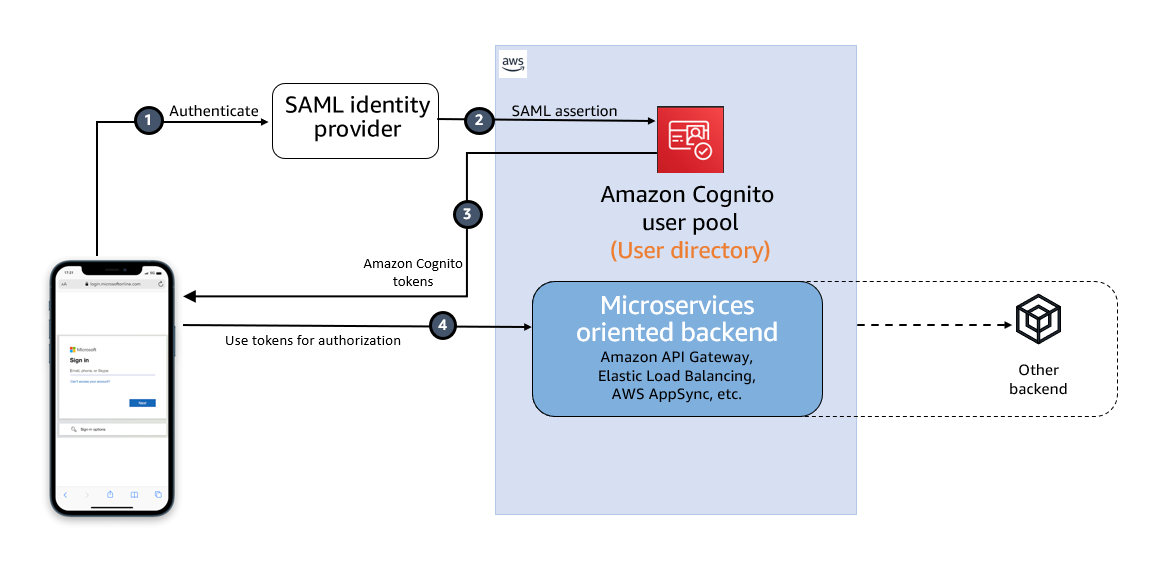
Figure 1: High-level diagram for SAML IdP-initiated authentication flow in a web or mobile app
As shown in Figure 1, the high-level flow diagram of an application with federated authentication typically involves the following steps:
- An enterprise user opens their SSO portal and signs in. This usually opens a portal with several applications that the user has access to. When the user selects an Amazon Cognito protected application from their SSO portal, an IdP-initiated SSO flow is initiated.
- When the user launches an application from the SSO portal, Entra ID sends a SAML assertion to the Cognito endpoint to federate the user.
- Amazon Cognito validates the SAML assertion and creates the user in Cognito if this is first-time federation for the user or updates the user’s record if user has signed in before from this IdP. Cognito then generates an authorization code and redirects the user to the application URL with this authorization code. The application exchanges the authorization code for tokens from the Cognito token endpoint.
- After the application has tokens, it uses them to authorize access within the application stack as needed.
The SAML response contains claims or assertions that contain user-specific data. The SAML response is transferred over HTTPS to protect confidentiality of the data, but you can also enable encryption to further protect the confidentiality of transferred user information. This enables trusted parties who have the decryption key to decrypt the data. It protects the confidentiality of the data after it’s received by the SP.
Setting up SAML federation between Amazon Cognito and Entra ID
To set up SAML federation and use IdP-initiated SSO, you will complete the following steps:
- Create an Amazon Cognito user pool.
- Create an app client in the Cognito user pool.
- Add Cognito as an enterprise application in Entra ID.
- Add Entra ID as the SAML IdP and enable IdP-initiated SSO in Cognito.
- Add the newly created SAML IdP to your user pool app client.
- Enable encrypting the SAML response.
- Add RelayState in Entra ID SAML SSO.
Prerequisites
To implement the solution, you must have the necessary permissions to perform these tasks in Azure portal and in your AWS account.
Step 1: Create an Amazon Cognito user pool
Create a new user pool in Amazon Cognito with the default settings. Make a note of the user pool ID, for example, us-east-1_abcd1234. You will need this value for the next steps.
Add a domain name to user pool
The Cognito user pool’s hosted UI can be used as the OAuth 2.0 authorization server with a customizable web interface for sign-up and sign-in. Cognito OAuth 2.0 endpoints are accessible from a domain name that must be added to the user pool. There are two options for adding a domain name to a user pool. You can either use a Cognito domain or a domain name that you own. This solution uses a Cognito domain, which will look like the following:
https://<yourDomainPrefix>.auth.<aws-region>.amazoncognito.com
To add a domain name to a user pool:
- In the AWS Management Console for Amazon Cognito, navigate to the App integration tab for your user pool.
- On the right side of the pane, choose Actions and select Create Cognito domain.

Figure 2: Create a Cognito domain
- Enter an available domain prefix (for example example-corp-prd) to use with the Cognito domain.
Figure 3: Add a domain prefix
- Choose Create Cognito domain.


Step 2: Create an app client in the Cognito user pool
Before you can use Amazon Cognito in your web application, you must register your app with Amazon Cognito as an app client. The IdP-initiated SAML flow can’t be enabled on one app client with the other SP-initiated authentication SAML IdPs or social IdPs. IdP-initiated SAML introduces additional risks that other SSO providers aren’t subject to. For example, it’s not possible to add a state parameter, which is usually used for cross-site request forgery (CSRF) mitigation. Because of this, you can’t add IdPs that aren’t SAML, including the user pool itself, to an app client that uses a SAML provider with IdP-initiated SSO.
To create an app client:
- In the Amazon Cognito console, navigate to the App integration tab for the same user pool and locate App clients. Choose Create an app client.
- Select an Application type. For this example, create a public client.
- Enter an App client name.
- Choose Don’t generate client secret.
- Keep the rest of the settings as default.
- Under Hosted UI settings, add Allowed callback URLs for your app client. This is where you will be directed after authentication.
- Choose Authorization code grant for OAuth 2.0 grant types.
- You can keep the remaining configuration as default and choose Create app client.
After the app client is successfully created, capture the app client ID from the App integration tab of the user pool.
Prepare information for the Entra ID setup
Prepare the Identifier (Entity ID) and Reply URL, which are required to add Amazon Cognito as an enterprise application in Entra ID (Step 3).
Create values for Identifier (Entity ID) and Reply URL according to the following formats:
For Identifier (Entity ID), the format is:
urn:amazon:cognito:sp:<yourUserPoolID>
For example: urn:amazon:cognito:sp:us-east-1_abcd1234
For Reply URL, the format is:
https://<yourDomainPrefix>.auth.<aws-region>.amazoncognito.com/saml2/idpresponse
For example: https://example-corp-prd.auth.us-east-1.amazoncognito.com/saml2/idpresponse
The reply URL is the endpoint where Entra ID will send the SAML assertion to Amazon Cognito during user authentication.
For more information, see Adding SAML identity providers to a user pool.
Step 3: Add Amazon Cognito as an enterprise application in Entra ID
With the user pool and app client created and the information for Entra ID prepared, you can add Amazon Cognito as an application in Entra ID. To complete this step, you will add Cognito as an enterprise application and set up SSO.
To add Cognito as an enterprise application
- Sign in to the Azure portal.
- In the search box, search for the service Microsoft Entra ID.
- In the left sidebar, select Enterprise applications.
- Choose New application.
- On the Browse Microsoft Entra Gallery page, choose Create your own application.

Figure 4: Create an application in Entra ID
- Under What’s the name of your app?, enter a name for your application and select Integrate any other application you don’t find in the gallery (Non-gallery), as shown in Figure 4. Choose Create.
- It will take few seconds for the application to be created in Entra ID, and then you should be redirected to the Overview page for the newly added application.

To set up SSO using SAML:
- On the Getting started page, in the Set up single sign on tile, choose Get started, as shown in Figure 5.

Figure 5: Choose Set up single sign-on in Getting Started
- On the next screen, select SAML.
- In the middle pane under Set up Single Sign-On with SAML, in the Basic SAML Configuration section, choose the edit icon.
- In the right pane under Basic SAML Configuration, replace the default Identifier ID (Entity ID) with the identifier (entity ID) you created in Step 2. Replace Reply URL (Assertion Consumer Service URL) with the reply URL you created in Step 2.
Figure 6: Add the identifier (entity ID) and reply URL
- Now go to Attributes & Claims and note the claims, as shown in Figure 7. You’ll need these when creating attribute mapping in Amazon Cognito.
Figure 7: Entra ID Attributes & Claims
- Scroll down to the SAML Certificates section and copy the App Federation Metadata Url by choosing the copy into clipboard icon. Make a note of this URL to use in the next step.
Figure 8: Copy SAML metadata URL from Entra ID


Step 4: Add Entra ID as SAML IdP in Amazon Cognito
In this step, you’ll add Entra ID as a SAML IdP to your user pool and download the signing and encryption certificates.
To add the SAML IdP:
- In the Amazon Cognito console, navigate to the Sign-in experience tab of the same user pool. Locate Federated identity provider sign-in and choose Add an Identity provider.
- Choose a SAML IdP.
- Enter a Provider name, for example, EntraID.
- Under IdP-initiated SAML sign-in, choose Accept SP-initiated and IdP-initiated SAML assertions.
- Under Metadata document source, enter the metadata document endpoint URL you captured in Step 3.
- (Optional) Under SAML signing and encryption, select Require encrypted SAML assertion from this provider.
Enable Required encrypted SAML assertion from this provider only if you can turn on token encryption in the Entra ID application. See Step 6.
- Under Map attributes between your SAML provider and your user pool to map SAML provider attributes to the user profile in your user pool. Include your user pool required attributes in your attribute map.
For example, when you choose User pool attribute email, enter the SAML attribute name as it appears in the SAML assertion from your IdP. In our case it will be http://schemas.xmlsoap.org/ws/2005/05/identity/claims/emailaddress.
Figure 9: Enter the SAML attribute name
- Choose Add identity provider.

After the IdP has been created, you can navigate to the recently added EntraID IdP in the user pool for downloading the SAML signing and encryption certificate. These certificates must be imported into the Entra ID enterprise application.
To download the certificates
- To download the SAML signing certificate, Choose View signing certificate and Download as .crt
- To download the SAML encryption certificate, Choose View encryption certificate and Download as .crt.
Step 5: Add the newly created SAML IdP to your user pool app client
Before you can use Amazon Cognito in your web application, you must add the SAML IdP created in Step 4 to your app client.
To add the SAML IdP:
- In the Amazon Cognito console, navigate to the App integration tab for the same user pool and locate App clients.
- Choose the app client you created in Step 2.
- Locate the Hosted UI section and choose Edit.
- Under Identity providers, select the identity provider you created in Step 4 and choose Save changes.

Figure 10: Enabling the Entra ID SAML identity provider in the Cognito app client

At this stage, the Amazon Cognito OAuth 2.0 server is up and running and the web interface is accessible and ready to use. You can access the Cognito hosted UI from your app client using the Cognito console to test it further.
Step 6: Enable encrypting the SAML response in EntraID
For additional security and privacy of user data, enable encrypting the SAML response. Amazon Cognito and your IdP can establish confidentiality in SAML responses when users sign in and sign out. Cognito assigns a public-private RSA key pair and a certificate to each external SAML provider that you configure in your user pool. You will use the SAML encryption certificate downloaded in step 4.
To enable encrypting the SAML response:
- Navigate to your Enterprise application in Entra ID and in the left menu, under Security, select Token encryption.
- Import the SAML encryption certificate you have already downloaded in step 4.
Figure 11: Import the Cognito encryption certificate to Entra ID
- After the certificate is imported, it’s inactive by default. To activate it, right-click on the certificate and select Activate token encryption certificate. This enables the encrypted SAML response.
Figure 12: Activate the token encryption certificate in Entra ID


Step 7: Add RelayState in Entra ID SAML SSO
A RelayState parameter is required when using SAML IdP-initiated authentication flow. Set this up in Entra ID for the Amazon Cognito user pool and the enabled app client ID.
To add RelayState in Entra ID SAML SSO:
- Sign in to the Azure portal and open the enterprise application created in Step 3.
- In the left sidebar, choose Single sign-on.
- In the middle pane under Set up Single Sign-On with SAML, in the Basic SAML Configuration section, choose the edit icon.
- In the right pane under Basic SAML Configuration, apply the value as the format below to the Relay State (Optional) field.
- Replace <IDProviderName> with the name you previously used for ID provider.
- Replace <ClientId> with the app client’s ClientID created in Step 2.
- Replace <ecallbackURL> with the URL of your web application that will receive the authorization code. It must be an HTTPS endpoint, except for in a local development environment where you can use http://localhost:PORT_NUMBER.
For example:
Figure 13: Set RelayState in Entra ID single sign-on

Test the IdP-initiated flow
Next, do a quick test to check if everything is configured properly.
- Sign in to the Azure portal and open the Enterprise application created in Step 3.
- In the left sidebar, choose Users and groups.
- On the right side, choose Add user/group. This will show the Add Assignment page.
- From the left side of the page, choose None Selected .
- Select a user from the right of the screen and follow the prompt to assign the user for this application.
- Once the user is assigned successfully, open https://www.microsoft365.com/apps and sign in as the assigned user.
- After you are signed in, choose the application icon registered as the IdP-initiated SSO.

Figure 14: Testing IdP-initiated SSO from an Office 365 application
- The application will start the IdP-initiated authentication flow and the user will be redirected to the application as a signed-in user.

Signing an authentication request in case of SP-initiated flow
The preceding authentication flow that you tested uses IdP-initiated SSO. If you’re using an SP-initiated flow, you can enable signing of the SAML request that is sent from the SP (Amazon Cognito) to the IdP (Entra ID) for additional security and integrity of communication between them.
You can enable the authentication request signing in Cognito while creating the IdP or by updating your existing IdP.
To enable signing of the SAML request:
- In the Amazon Cognito console, when you create or edit your SAML identity provider, under SAML signing and encryption, select the box Sign SAML requests to this provider and choose Save changes.

Figure 15: Enabling signing SAML request
- Sign in to the Azure portal and access your Entra ID enterprise application. Go to Set up single sign on and edit Verification certificates (optional).
- Select the checkbox Require verification certificates and upload the Cognito user pool SAML signing certificate already downloaded in Step 4 with a .cer file extension. You must convert the .crt file to a .cer file because Entra ID requires a verification certificate in a .cer extension.

To convert the .crt certificate extension to .cer:
- Right-click the .crt file and choose Open.
- Navigate to the Details tab.
- Select Copy to File… and choose Next.
- Select Base-64 encoded X.509 (.CER) and choose Next.
- Give your export file a name (for example, Entra ID.cer) and choose Save.
- Choose Next.
- Confirm the details and choose Finish.
Test the SP-initiated flow
Next, do a quick test to check if everything is configured properly.
- In the Amazon Cognito console, navigate to the App integration tab for the same user pool and locate App clients.
- Choose the app client you created in Step 2.
- Locate the Hosted UI section and choose View Hosted UI.
- From the hosted UI, authenticate yourself using Entra ID as the identity provider.
- After authentication is completed successfully, you will be redirected to the callback URL you configured in your app client with the authorization code.
If you capture the SAML request, you will see that Amazon Cognito is sending a cryptographic signature with the signing certificate in the SAML request to the IdP, and the IdP will match the cryptographic signature with the uploaded certificate to ensure the integrity of the request.
Conclusion
In this post, you learned the benefits of using IdP-initiated single sign-on. It helps centralize administration and lowers dependency on service provider applications. Also, you learned how to integrate an Amazon Cognito user pool with Microsoft Entra ID as an external SAML IdP using IdP-initiated SSO so your users can use their corporate ID to sign in to web or mobile applications. Also, you learned about how to enable signed authentication requests when using an SP-initiated flow and encrypting SAML responses for additional security between Cognito and the SAML IdP.
If you have feedback about this post, submit comments in the Comments section below. If you have questions about this post, contact AWS Support.
Want more AWS Security news? Follow us on Twitter.
Using the circuit-breaker pattern with AWS Lambda extensions and Amazon DynamoDB
Post Syndicated from James Beswick original https://aws.amazon.com/blogs/compute/using-the-circuit-breaker-pattern-with-aws-lambda-extensions-and-amazon-dynamodb/
This post is written by Alan Oberto Jimenez, Senior Cloud Application Architect, and Tobias Drees, Cloud Application Architect.
Modern software systems frequently rely on remote calls to other systems across networks. When failures occur, they can cascade across multiple services causing service disruptions. One technique for mitigating this risk is the circuit breaker pattern, which can detect and isolate failures in a distributed system. The circuit breaker pattern can help prevent cascading failures and improve overall system stability.
The pattern isolates the failing service and thus prevents cascading failures. It improves the overall responsiveness by preventing long waiting times for timeout periods. Furthermore, it also increases the fault tolerance of the system since it lets the system interact with the affected service again once it is available again.
This blog post presents an example application, showing how AWS Lambda extensions integrate with Amazon DynamoDB to implement the circuit breaker pattern.
Using Lambda extensions to implement the circuit breaker pattern
AWS Lambda extensions provide a way to integrate monitoring, observability, security, and governance tools into the Lambda execution environment without complex installation or configuration management. You can run extensions both as part of the runtime process with an internal extension or as a separate process in the execution environment with an external extension.
Lambda extensions enable the circuit breaker pattern without modifying the core function code. An external extension checks in a separate runtime whether a certain service is reachable or not. This approach decouples the business logic in the Lambda function from failure detection, allowing for the reuse of this Lambda extension across different Lambda functions. Both decoupling of code with different purposes and code reuse is in line with the best practices for building Lambda functions.
Pinging a microservice at each Lambda invocation increases network traffic and latency. Circuit breaker implementations benefit from a caching layer to store the state of the microservices. The Lambda extension fetches the status of a microservice from a database and stores the result in memory for a specified time avoiding a disk write. The Lambda function checks the extension cache before pinging the microservice reducing network traffic. Lambda extensions are an ideal tool to build a caching layer for Lambda functions since its in-memory cache makes it more secure, easier to manage, and more performant due to higher availability compared to calling a network resource instead.
Overview

- The main function process handles the event after every AWS Lambda invocation. Before performing any external call against the external components, it listens for HTTP POST events from the Lambda extension process to fetch the last status of the circuits.
- The extension process provides the circuit state to the main process via HTTP POST.
- The extension checks its internal cache and returns a valid value if available, otherwise reads the state of the circuits from the DynamoDB table and updates the cache.
- Finally, the extension process returns the state of the circuits to the main function via an API call response.
- Because of the Lambda extensions lifecycle, this process occurs periodically to keep the local cache updated until the execution environment is terminated.
- If the circuit is in the OPEN state, the main function process executes calls against the external microservices, otherwise the process returns a local response.
- An Amazon EventBridge event periodically invokes a Lambda responsible for updating the circuit states.
- This Lambda function performs the validations needed to determine the status of the different remote microservices (circuits) with an Amazon API Gateway entrypoint.
- The Lambda function writes the result of the verification process to the DynamoDB table.
Walkthrough
The following prerequisites are required to complete the walkthrough:
- An active AWS account
- AWS CLI 2.15.17 or later
- AWS SAM CLI 1.116.0 or later
- Git 2.39.3 or later
- Python 3.12
Initial setup
- Clone the code from GitHub onto a local machine:
git clone https://github.com/aws-samples/implementing-the-circuit-breaker-pattern-with-lambda-extensions-and-dynamodb.git - To install the packages, utilize a virtual environment:
python -m venv circuit_breaker_venv && source circuit_breaker_venv/bin/activate - To prepare the services for deployment, execute the following AWS Serverless Application Model (SAM) command:
sam build - To deploy the services, use this command specifying the AWS CLI profile (in the config file in the .aws folder) for the AWS account to deploy the services in:
sam deploy --guided --profile <AWSProfile>Answer the question prompts as appropriate.
- You can deploy subsequent local changes in the code with:
sam build
sam deploy
Testing and adjusting the solution
The Lambda function updating the state in DynamoDB runs every minute as specified by the template. After the function has run for the first time after 1 minute, the DynamoDB entry containing the status (“OPEN” or “CLOSED”) is ready. Since the mock API is part of the stack, the status is “OPEN”.
You can invoke the My Microservice Lambda function manually to see:

The Lambda function updating the state in DynamoDB is invoked with an EventBridge rule that specifies the URL and the ID of the service to be monitored. By creating a new EventBridge rule with the correct URL and a new ID, you can use the AWS SAM template for monitoring multiple services.
To add a new EventBridge rule, add this to the template:
  NewEventRule:
    Type: AWS::Events::Rule
    Properties:
      Description: Event rule to trigger the Lambda function with a JSON payload
      ScheduleExpression: rate(1 minute)
      State: ENABLED
      Targets:
        - Arn: !GetAtt UpdatingStateLambda.Arn
          Id: TargetFunction
          Input: '{ "URL": "https://aws.amazon.com/", "ID": "NewMicroservice"}'  # Add the JSON payload here

  MyPermissionForNewEventRule:
    Type: AWS::Lambda::Permission
    Properties:
      FunctionName: !Ref UpdatingStateLambda
      Action: lambda:InvokeFunction
      Principal: events.amazonaws.com
      SourceArn: !GetAtt NewEventRule.Arn
In the Lambda function that contains the business logic, add the following environment variables. However, for more complex cases with multiple microservices to be monitored, it’s recommended to use AWS Config. Using AWS Config, configurations for Lambda functions can be stored to enable more granular control than with environment variables.
Environment:
        Variables:
          service_name: "NewMicroservice"
You can adjust the logic of this Lambda function by changing the code in my-microservice/lambda-handler.py or directly in the Lambda section of the AWS Management Console.
If you end up using your own Lambda function to use the circuit breaker Lambda extension, include the circuit breaker extension as a layer:
BusinessLogicMicroservice:
    Type: AWS::Serverless::Function
    Properties:
      CodeUri: business-logic-microservice/
      Handler: lambda_function.lambda_handler
      MemorySize: 128
      Policies:
      - DynamoDBCrudPolicy:
          TableName: !Ref CircuitBreakerStateTable
      Timeout: 100
      Runtime: python3.8
      Layers:
      - !Ref CircuitBreakerExtensionLayer
Circuit breaker in closed state
So far, the sample application only features an open circuit breaker state signaling a functioning microservice. This section simulates an unresponsive microservice to test the behavior of the system with a closed-circuit breaker state.
- Edit the environment variables of the MyMicroservice Lambda function in line 47 of the template.yaml file and the URL of the input to the Lambda updating the state in the event rule in line 107 to a domain that times out such as ”https://aws.amazon.com:81/“.
API_URL: "https://aws.amazon.com:81/" Input: '{ "URL": "https://aws.amazon.com:81/", "ID": "MyMicroservice"}' - Deploy these changes:
sam build
sam deploy
The event rule invokes the Lambda function, updating the state every minute. To see the output of this Lambda function, invoke it manually:

This Lambda function changes the DynamoDB entry for this URL to:

The MyMicroservice Lambda function receives the DynamoDB entries for the status over HTTP from the Circuit Breaker Lambda extension and proceeds with the logic following a closed state. The output of invoking the Lambda manually is:

This shows the circuit breaker pattern working as intended. In the Lambda updating state, the time it takes for the Lambda function to throw a timeout exception is defined as 4 seconds and can be adjusted to the use case.
requests.get(API_URL, headers=headers, timeout=4)Clean-up
To delete all resources from this stack, run:
sam delete --stack-name new-circuit-breaker-sam-stackSecurity
The provided AWS SAM template does not provide an Amazon Virtual Private Cloud (VPC) in which to host the resources. Integrate the resources into an appropriate networking configuration if you are using it in production applications.
The solution has auditability characteristics, as calls to the circuit breaker and to the microservices are logged to the Amazon CloudWatch log group. The audit log is encrypted using AWS Key Management Service.
To monitor the security of your account with the solution, use Amazon GuardDuty, AWS CloudTrail, AWS Config, and AWS WAF for API Gateway.
Conclusion
The circuit breaker pattern is a powerful tool for helping to ensure the resiliency and stability of serverless applications. Lambda extensions are a good fit for its implementation, as demonstrated in this example. With the provided Lambda extension and code, you can incorporate the circuit breaker pattern into your applications and customize it to suit your specific requirements, helping to ensure a robust and reliable system.
For more serverless learning resources, visit Serverless Land.
Breaking barriers in geospatial: Amazon Redshift, CARTO, and H3
Post Syndicated from Ravi Animi original https://aws.amazon.com/blogs/big-data/breaking-barriers-in-geospatial-amazon-redshift-carto-and-h3/
This post is co-written with Javier de la Torre from CARTO.
In this post, we discuss how Amazon Redshift spatial index functions such as Hexagonal hierarchical geospatial indexing system (or H3) can be used to represent spatial data using H3 indexing for fast spatial lookups at scale. Navigating the vast landscape of data-driven insights has always been an exciting endeavor. As technology continues to evolve, one specific facet of this journey is reaching unprecedented proportions: geospatial data. In our increasingly interconnected world, where every step we take, every location we visit, and every event we encounter leaves a digital footprint, the volume and complexity of geospatial data are expanding at an astonishing pace. From GPS-enabled smartphones to remote sensing satellites, the sources of geospatial information are multiplying, generating an immense gold mine of location-based insights.
However, visualizing and analyzing large-scale geospatial data presents a formidable challenge due to the sheer volume and intricacy of information. This often overwhelms traditional visualization tools and methods. The need to balance detail and context while maintaining real-time interactivity can lead to issues of scalability and rendering complexity.
Because of this, many organizations are turning to novel ways of approaching geospatial data, such as spatial indexes such as H3.

Figure 1 – Map built with CARTO Builder and the native support to visualize H3 indexes
What are spatial indexes?
Spatial indexes are global grid systems that exist at multiple resolutions. But what makes them special? Traditionally, spatial data is represented through a geography or geometry in which features are geolocated on the earth by a long reference string describing the coordinates of every vertex. Unlike geometries, spatial indexes are georeferenced by a short ID string. This makes them far smaller to store and lightning fast to process! Because of this, many organizations are utilizing them as a support geography, aggregating their data to these grids to optimize both their storage and analysis.
Figure 2 shows some of the possible types of savings with spatial indexes. To learn more details about their benefits, see Introduction to Spatial Indexes.

Figure 2 – Comparison of performance between geometries and spatial indexes. Learn more about these differences in CARTO’s free ebook Spatial Indexes
Benefits of H3
One of the flagship examples of spatial indexes is H3, which is a hexagonal spatial index. Originally developed by Uber, it is now used far beyond the ridesharing industry. Unlike square-based grids, H3’s well-structured hexagons accurately represent intricate geographic features like rivers and roads, enabling precise depiction of nonperpendicular shapes. The hexagonal geometry excels at capturing gradual spatial changes and movement, and its consistent distance between one centroid and neighboring centroids eliminates outliers. This ensures robust data representation in all directions. Learn more about the benefits of using hexagons for location intelligence at Hexagons for Location Intelligence.

Figure 3 – H3: the relationships between different resolutions
H3 available now in Amazon Redshift
Given the immense benefits of H3 for spatial analysis, we’re very excited to announce the availability of H3 in Amazon Redshift. Seamlessly accessible through the powerful infrastructure of Amazon Redshift, H3 unlocks a new realm of possibilities for visualizing, analyzing, and deriving insights from geospatial data.
Amazon Redshift support for H3 offers an easy way to index spatial coordinates into a hexagonal grid, down to a square meter resolution. Indexed data can be quickly joined across different datasets and aggregated at different levels of precision. H3 enables several spatial algorithms and optimizations based on the hexagonal grid, including nearest neighbors, shortest path, gradient smoothing, and more. H3 indexes refer to cells that can be either hexagons or pentagons. The space is subdivided hierarchically, and given a resolution. H3 supports 16 resolutions from 0–15, inclusive, with 0 being the coarsest and 15 being the finest. H3 indexing and related H3 spatial functions are now available for Amazon Redshift spatial analytics.
Support for the three new H3 indexing related spatial functions, H3_FromLongLat, H3_FromPoint, and H3_PolyFill spatial functions, is now available in all commercial AWS Regions. For more information or to get started with Amazon Redshift spatial analytics, see the documentation for querying spatial data, spatial functions, and the spatial tutorial.
Examples of H3 functions in Amazon Redshift:
To create or access the indexed values of the hexagonal tiles, you use one of the three H3 indexing functions Amazon Redshift has released for the particular spatial GEOMETRY object you want to index. For example, a polygon (a series of Cartesian X Y points that makes a closed 2D object), a point (a single Cartesian X Y value) or a point as a latitude, longitude value (a single latitude, longitude value). For example, if you have a spatial polygon already, you would use the H3_PolyFill function to get the index values of the hexagonal tiles that cover or fit the polygon vertices. Imagine you have a polygon with the following Cartesian (X Y) coordinates:
(0 0, 0 1, 1 1, 1 0, 0 0) , which is just a 1 x 1 unit square. You would then invoke the H3_PolyFill() function by converting the text values of the Cartesian coordinates to a GEOMETRY data type and then use the POLYGON() function to convert those coordinates to a polygon object of GEOMETRY data type. This is what you would call:
The return values from the this function are the actual index values to the individual hexagonal tiles that cover the 1 x 1 polygon. Of course, you could define arbitrary polygons of any shape just by using vertices of the enclosing 2D polygon of GEOMETRY data type. The actual H3 tile index values that are returned as Amazon Redshift SUPER data type arrays for the preceding example are:
So there are eight hexagonal tiles when the resolution of four is used when you call the H3_PolyFill function.
Similarly, the following SQL returns the H3 cell ID from longitude 0, latitude 0, and resolution 10.
As does this SQL that returns the H3 cell ID from point 0,0 with resolution 10.
Data visualization and analysis made easy with H3 and CARTO
To illustrate how H3 can be used in action, let’s turn to CARTO. As an AWS Partner, CARTO offers a software solution on the curated digital catalog AWS Marketplace that seamlessly integrates distinctive capabilities for spatial visualization, analysis, and app development directly within the AWS data warehouse environment. Notably setting CARTO apart from certain GIS platforms is its strategy of query optimization by using the data warehouse and conducting analytical tasks and computations within Amazon Redshift through the use of user-defined functions (UDFs).

Figure 4 – Basic workflow build with CARTO to polyfill a set of polygons into H3 indexes
Amazon Redshift comes equipped with a variety of preexisting spatial functions, and CARTO enhances this foundation by providing additional spatial functions within its Analytics Toolbox for Amazon Redshift, thereby expanding the range of analytical possibilities even further. Let’s dive into a use case to see how this can be used to solve an example spatial analysis problem.
Unveiling H3 spatial indexes in logistics
Logistics, particularly in last-mile delivery, harness substantial benefits from utilizing H3 spatial indexes in operational analytics. This framework has revolutionized geospatial analysis, particularly in efficiently managing extensive datasets.
H3 divides earth’s surface into varying-sized hexagons, precisely representing different geographic areas across multiple hierarchy levels. This precision allows detailed location representation at various scales, offering versatility in analyses and optimizations—from micro to macro, spanning neighborhoods to cities—efficiently managing vast datasets.
H3-based analytics empower the processing and understanding of delivery data patterns, such as peak times, popular destinations, and high-demand areas. This insight aids in predicting future demand and facilitates operations-related decisions. H3 can also help create location-based profiling features for predictive machine learning (ML) models such as risk-mitigation models. Further use cases can include adjustments to inventory, strategic placement of permanent or temporary distribution centers, or even refining pricing strategies to become more effective and adaptive.
The uniform scalability and size consistency of H3 make it an ideal structure for organizing data, effectively replacing traditional zip codes in day-to-day operations.
In essence, insights derived from H3-based analytics empower businesses to make informed decisions, swiftly adapt to market changes, and elevate customer satisfaction through efficient deliveries.
The feature is eagerly anticipated by Amazon Redshift and CARTO customers. “The prospect of leveraging H3’s advanced spatial capabilities within the robust framework of Amazon Redshift has us excited about the new insights and efficiencies we can unlock for our geospatial analysis. This partnership truly aligns with our vision for smarter, data-driven decision-making,” says the Data Science Team at Aramex.

Figure 5 – Diagram illustrating the process of using H3-powered analytics for strategic decision-making
Let’s talk about your use case
You can experience the future of location intelligence firsthand by requesting a demo from CARTO today. Discover how H3’s hexagonal spatial index, seamlessly integrated with Amazon Redshift, can empower your organization with efficiency in handling large-scale geospatial data.
About Amazon Redshift
Thousands of customers rely on Amazon Redshift to analyze data from terabytes to petabytes and run complex analytical queries.
With Amazon Redshift, you can get real-time insights and predictive analytics on all of your data across your operational databases, data lake, data warehouse, and third-party datasets. It delivers this at a price performance that’s up to three times better than other cloud data warehouses out of the box, helping you keep your costs predictable.
Amazon Redshift provides capabilities likeAmazon Redshift spatial analytics, Amazon Redshift streaming analytics, Amazon Redshift ML and Amazon Redshift Serverless to further simplify application building and make it easier, simpler, and faster for independent software vendors (ISVs) to embed rich data analytics capabilities within their applications.
With Amazon Redshift serverless, ISVs can run and scale analytics quickly without the need to set up and manage data warehouse infrastructure. Developers, data analysts, business professionals, and data scientists can go from data to insights in seconds by simply loading and querying in the data warehouse.
To request a demo of Amazon Redshift, visit Amazon Redshift free trial or to get started on your own, visit Getting started with Amazon Redshift.
About CARTO
From smartphones to connected cars, location data is changing the way we live and the way we run businesses. Everything happens somewhere, but visualizing data to see where things are isn’t the same as understanding why they happen there. CARTO is the world’s leading cloud-based location intelligence platform, enabling organizations to use spatial data and analysis for more efficient delivery routes, better behavioral marketing, strategic store placements, and much more.
Data scientists, developers, and analysts use CARTO to optimize business processes and predict future outcomes through the power of spatial data science. To learn more, visit CARTO.
About the authors
 Ravi Animi is a senior product leader in the Amazon Redshift team and manages several functional areas of the Amazon Redshift cloud data warehouse service, including spatial analytics, streaming analytics, query performance, Spark integration, and analytics business strategy. He has experience with relational databases, multidimensional databases, IoT technologies, storage and compute infrastructure services, and more recently, as a startup founder in the areas of artificial intelligence (AI) and deep learning, computer vision, and robotics.
 Ioanna Tsalouchidou is a software development engineer in the Amazon Redshift team focusing on spatial analytics and query processing. She holds a PhD in graph algorithms from UPF Spain and a Masters in distributed systems and computing from KTH Sweden and UPC Spain.
 Hinnerk Gildhoff is a senior engineering leader in the Amazon Redshift team leading query processing, spatial analytics, materialized views, autonomics, query languages and more. Prior to joining Amazon, Hinnerk spent over a decade as both an engineer and a manager in the field of in-memory and cluster computing, specializing in building databases and distributed systems.
 Javier de la Torre is founder and Chief Strategy Officer of CARTO, has been instrumental in advancing the geospatial industry. At CARTO, he’s led innovations in location intelligence. He also serves on the Open Geospatial Consortium board, aiding in the development of standards like geoparquet. Javier’s commitment extends to environmental causes through his work with Tierra Pura, focusing on climate change and conservation, demonstrating his dedication to using data for global betterment.
Neovim 0.10 released
Post Syndicated from jzb original https://lwn.net/Articles/973917/
Version
0.10 of the Vim-based text editor Neovim is now available. This release
includes a new default color scheme, enhanced support for rendering
multibyte characters, support for hyperlinks, system clipboard
synchronization, and more. Many features have been deprecated
in 0.10 and will be removed in future release. Neovim core contributor
Gregory Anders has written a summary
of some of the highlights and thoughts on upcoming releases:
We follow a “fun driven development” paradigm: for the most part,
contributors and maintainers work on things that are personally
interesting to them. Because of this, it can be difficult to predict
what will happen in future releases. If there is a feature you want
to see implemented, the best way to do it is to take a crack at it
yourself: many of the features mentioned in this very blog post were
contributed by users that are not part of the “core” maintenance
team!
Claudia de Rham | The Beauty of Falling: A Life in Pursuit of Gravity | Talks at Google
Post Syndicated from Talks at Google original https://www.youtube.com/watch?v=d1KCyxaTE6w
Deploy Stable Diffusion ComfyUI on AWS elastically and efficiently
Post Syndicated from Wang Rui original https://aws.amazon.com/blogs/architecture/deploy-stable-diffusion-comfyui-on-aws-elastically-and-efficiently/
Introduction
ComfyUI is an open-source node-based workflow solution for Stable Diffusion. It offers the following advantages:
- Significant performance optimization for SDXL model inference
- High customizability, allowing users granular control
- Portable workflows that can be shared easily
- Developer-friendly
Due to these advantages, ComfyUI is increasingly being used by artistic creators. In this post, we will introduce how to deploy ComfyUI on AWS elastically and efficiently.
Overview of solution
The solution is characterized by the following features:
- Infrastructure as Code (IaC) deployment: We employ a minimalist approach to operations and maintenance. Using AWS Cloud Development Kit (AWS CDK) and Amazon Elastic Kubernetes Service (Amazon EKS) Blueprints, we manage the Amazon EKS clusters that host and run ComfyUI.
- Dynamic scaling with Karpenter: Leveraging the capabilities of Karpenter, we customize node scaling strategies to meet business needs.
- Cost savings with Amazon Spot Instances: We use Amazon Spot Instances to reduce the costs of GPU instances.
- Optimized use of GPU instance store: By fully utilizing the instance store of GPU instances, we maximize performance for model loading and switching while minimizing the costs associated with model storage and transfer.
- Direct image writing with Amazon Simple Storage Service (Amazon S3) CSI driver: Images generated are directly written to Amazon S3 using the S3 CSI driver, reducing storage costs.
- Accelerated dynamic requests with Amazon CloudFront: To facilitate the use of the platform by art studios across different regions, we use Amazon CloudFront for faster dynamic request processing.
- Serverless event-initiated model synchronization: When models are uploaded to or deleted from Amazon S3, serverless event initiations activate, syncing the model directory data across worker nodes.
Walkthrough
The solution’s architecture is structured into two distinct phases: the deployment phase and the user interaction phase.

Figure 1. Architecture for deploying stable diffusion on ComfyUI
Deployment phase
- Model storage in Amazon S3: ComfyUI’s models are stored in Amazon S3 for models, following the same directory structure as the native
ComfyUI/modelsdirectory. - GPU node initialization in Amazon EKS cluster: When GPU nodes in the EKS cluster are initiated, they format the local instance store and synchronize the models from Amazon S3 to the local instance store using user data scripts.
- Running ComfyUI pods in EKS: Pods operating ComfyUI effectively link the instance store directory on the node to the pod’s internal models directory, facilitating seamless model access and loading.
- Model sync with AWS Lambda: When models are uploaded to or deleted from Amazon S3, an AWS Lambda function synchronizes the models from S3 to the local instance store on all GPU nodes by using SSM commands.
- Output mapping to Amazon S3: Pods running ComfyUI map the
ComfyUI/outputdirectory to S3 for outputs with Persistent Volume Claim (PVC) methods.
User interaction phase
- Request routing: When a user request reaches the Amazon EKS pod through CloudFront t0 ALB, the pod first loads the model from the instance store.
- Post-inference image storage: After inference, the pod stores the image in the
ComfyUI/outputdirectory, which is directly written to Amazon S3 using the S3 CSI driver. - Performance advantages of instance store: Thanks to the performance benefits of the instance store, the time taken for initial model loading and model switching is significantly reduced.
You can find the deployment code and detailed instructions in our GitHub samples library.
Image Generation
Once deployed, you can access and use the ComfyUI frontend directly through a browser by visiting the domain name of CloudFront or the domain name of Kubernetes Ingress.

Figure 2. Accessing ComfyUI through a browser
You can also interact with ComfyUI by saving its workflow as an API-callable JSON file.

Figure 3. Accessing ComfyUI through an API
Deployment Instructions
Prerequisites
This solution assumes that you have already installed, deployed, and are familiar with the following tools:
Make sure that you have enough vCPU quota for G instances (at least 8 vCPU for a g5.2xl/g4dn.2x used in this guidance).
- Download the code, check out the branch, install rpm packages, and check the environment:
git clone https://github.com/aws-samples/comfyui-on-eks ~/comfyui-on-eks cd ~/comfyui-on-eks && git checkout v0.2.0 npm install npm list cdk list - Run
npmlist to ensure following packages are installed:git clone https://github.com/aws-samples/comfyui-on-eks ~/comfyui-on-eks cd ~/comfyui-on-eks && git checkout v0.2.0 npm install npm list cdk list - Run
cdk listto ensure the environment is all set, you will have following AWS CloudFormation stack to deploy:Comfyui-Cluster CloudFrontEntry LambdaModelsSync S3OutputsStorage ComfyuiEcrRepo
Deploy EKS Cluster
- Run the following command:
cd ~/comfyui-on-eks && cdk deploy Comfyui-Cluster - CloudFormation will create a stack named
Comfyui-Clusterto deploy all the resources required for the EKS cluster. This process typically takes around 20 to 30 minutes to complete. - Upon successful deployment, the CDK outputs will present a
ConfigCommand. This command is used to update the configuration, enabling access to the EKS cluster via kubectl.
Figure 4. ConfigCommand output screenshot
- Execute the
ConfigCommandto authorize kubectl to access the EKS cluster. - To verify that kubectl has been granted access to the EKS cluster, execute the following command:
kubectl get svc

The deployment of the EKS cluster is complete. Note that EKS Blueprints has output KarpenterInstanceNodeRole, which is the role for the nodes managed by Karpenter. Record this role; it will be configured later.
Deploy an Amazon S3 bucket for storing models and set up AWS Lambda for dynamic model synchronization
- Run the following command:
cd ~/comfyui-on-eks && cdk deploy LambdaModelsSync - The
LambdaModelsSyncstack primarily creates the following resources:- S3 bucket: The S3 bucket is named following the format
comfyui-models-{account_id}-{region}; it’s used to store ComfyUI models. - Lambda function, along with its associated role and event source: The Lambda function, named
comfy-models-sync, is designed to initiate the synchronization of models from the S3 bucket to local storage on GPU instances whenever models are uploaded to or deleted from S3.
- S3 bucket: The S3 bucket is named following the format
- Once the S3 for models and Lambda function are deployed, the S3 bucket will initially be empty. Execute the following command to initialize the S3 bucket and download the SDXL model for testing purposes.
region="us-west-2" # Modify the region to your current region.
cd ~/comfyui-on-eks/test/ && bash init_s3_for_models.sh $region
There’s no need to wait for the model to finish downloading and uploading to S3. You can proceed with the following steps once you ensure the model is uploaded to S3 before starting the GPU nodes.
Deploy S3 bucket for storing images generated by ComfyUI.
Run the following command:
cd ~/comfyui-on-eks && cdk deploy S3OutputsStorage
The S3OutputsStorage stack creates an S3 bucket, named following the pattern comfyui-outputs-{account_id}-{region}, which is used to store images generated by ComfyUI.
Deploy ComfyUI workload
The ComfyUI workload is deployed through Kubernetes.
Build and push ComfyUI Docker image
- Run the following command, create an ECR repo for ComfyUI image:
cd ~/comfyui-on-eks && cdk deploy ComfyuiEcrRepo - Run the
build_and_push.shscript on a machine where Docker has been successfully installed:region="us-west-2" # Modify the region to your current region. cd ~/comfyui-on-eks/comfyui_image/ && bash build_and_push.sh $regionNote:
- The Dockerfile uses a combination of git clone and git checkout to pin a specific version of ComfyUI. Modify this as needed.
- The Dockerfile does not install customer nodes, these can be added as needed using the RUN command.
- You only need to rebuild the image and replace it with the new version to update ComfyUI.
Deploy Karpenter for managing GPU instance scaling
Get the KarpenterInstanceNodeRole in previous section, run the following command to deploy Karpenter Provisioner:
KarpenterInstanceNodeRole="Comfyui-Cluster-ComfyuiClusterkarpenternoderole" # Modify the role to your own.
sed -i "s/role: KarpenterInstanceNodeRole.*/role: $KarpenterInstanceNodeRole/g" comfyui-on-eks/manifests/Karpenter/karpenter_v1beta1.yaml
kubectl apply -f comfyui-on-eks/manifests/Karpenter/karpenter_v1beta1.yaml
The KarpenterInstanceNodeRole acquired in previous section needs an additional S3 access permission to allow GPU nodes to sync files from S3. Run the following command:
KarpenterInstanceNodeRole="Comfyui-Cluster-ComfyuiClusterkarpenternoderole" # Modify the role to your own.
aws iam attach-role-policy --policy-arn arn:aws:iam::aws:policy/AmazonS3FullAccess --role-name $KarpenterInstanceNodeRole
Deploy S3 PV and PVC to store generated images
Execute the following command to deploy the PV and PVC for S3 CSI:
region="us-west-2" # Modify the region to your current region.
account=$(aws sts get-caller-identity --query Account --output text)
sed -i "s/region .*/region $region/g" comfyui-on-eks/manifests/PersistentVolume/sd-outputs-s3.yaml
sed -i "s/bucketName: .*/bucketName: comfyui-outputs-$account-$region/g" comfyui-on-eks/manifests/PersistentVolume/sd-outputs-s3.yaml
kubectl apply -f comfyui-on-eks/manifests/PersistentVolume/sd-outputs-s3.yaml
Deploy EKS S3 CSI Driver
- Run the following command to add your AWS Identity and Access Management (IAM) principal to the EKS cluster:
identity=$(aws sts get-caller-identity --query 'Arn' --output text --no-cli-pager) if [[ $identity == *"assumed-role"* ]]; then role_name=$(echo $identity | cut -d'/' -f2) account_id=$(echo $identity | cut -d':' -f5) identity="arn:aws:iam::$account_id:role/$role_name" fi aws eks update-cluster-config --name Comfyui-Cluster --access-config authenticationMode=API_AND_CONFIG_MAP aws eks create-access-entry --cluster-name Comfyui-Cluster --principal-arn $identity --type STANDARD --username comfyui-user aws eks associate-access-policy --cluster-name Comfyui-Cluster --principal-arn $identity --access-scope type=cluster --policy-arn arn:aws:eks:: - Execute the following command to create a role and service account for the S3 CSI driver, enabling it to read and write to S3:
region="us-west-2" # Modify the region to your current region. account=$(aws sts get-caller-identity --query Account --output text) ROLE_NAME=EKS-S3-CSI-DriverRole-$account-$region POLICY_ARN=arn:aws:iam::aws:policy/AmazonS3FullAccess eksctl create iamserviceaccount \ --name s3-csi-driver-sa \ --namespace kube-system \ --cluster Comfyui-Cluster \ --attach-policy-arn $POLICY_ARN \ --approve \ --role-name $ROLE_NAME \ --region $region - Run the following command to install aws-mountpoint-s3-csi-driver Addon:
region="us-west-2" # Modify the region to your current region.
account=$(aws sts get-caller-identity --query Account --output text)
eksctl create addon --name aws-mountpoint-s3-csi-driver --version v1.0.0-eksbuild.1 --cluster Comfyui-Cluster --service-account-role-arn "arn:aws:iam::${account}:role/EKS-S3-CSI-DriverRole-${account}-${region}" --force
Deploy ComfyUI deployment and service
- Run the following command to replace docker image:
region="us-west-2" # Modify the region to your current region. account=$(aws sts get-caller-identity --query Account --output text) sed -i "s/image: .*/image: ${account}.dkr.ecr.${region}.amazonaws.com\/comfyui-images:latest/g" comfyui-on-eks/manifests/ComfyUI/comfyui_deployment.yaml - Run the following command to deploy ComfyUI Deployment and Service:
kubectl apply -f comfyui-on-eks/manifests/ComfyUI
Test ComfyUI on EKS
API Test
To test with an API, run the following command in the comfyui-on-eks/test directory:
ingress_address=$(kubectl get ingress|grep comfyui-ingress|awk '{print $4}')
sed -i "s/SERVER_ADDRESS = .*/SERVER_ADDRESS = \"${ingress_address}\"/g" invoke_comfyui_api.py
sed -i "s/HTTPS = .*/HTTPS = False/g" invoke_comfyui_api.py
sed -i "s/SHOW_IMAGES = .*/SHOW_IMAGES = False/g" invoke_comfyui_api.py
./invoke_comfyui_api.py
Test with browser
- Run the following command to get the K8S ingress address:
kubectl get ingress - Access the ingress address through a web browser.
The deployment and testing of ComfyUI on EKS is now complete. Next we will connect the EKS cluster to CloudFront for edge acceleration.
Deploy CloudFront for edge acceleration (Optional)
Execute the following command in the comfyui-on-eks directory to connect the Kubernetes ingress to CloudFront:
cdk deploy CloudFrontEntry
After deployment completes, outputs will be printed, including the CloudFront URL CloudFrontEntry.cloudFrontEntryUrl. Refer to previous section for testing via the API or browser.
Cleaning up
Run the following command to delete all Kubernetes resources:
kubectl delete -f comfyui-on-eks/manifests/ComfyUI/
kubectl delete -f comfyui-on-eks/manifests/PersistentVolume/
kubectl delete -f comfyui-on-eks/manifests/Karpenter/
Run the following command to delete all deployed resources:
cdk destroy ComfyuiEcrRepo
cdk destroy CloudFrontEntry
cdk destroy S3OutputsStorage
cdk destroy LambdaModelsSync
cdk destroy Comfyui-Cluster
Conclusion
This article introduces a solution for deploying ComfyUI on EKS. By combining instance store and S3, it maximizes model loading and switching performance while reducing storage costs. It also automatically syncs models in a serverless way, leverages spot instances to lower GPU instance costs, and accelerates globally via CloudFront to meet the needs of geographically distributed art studios. The entire solution manages underlying infrastructure as code to minimize operational overhead.
Tiny USB switch & Zigbee router by Sonoff
Post Syndicated from BeardedTinker original https://www.youtube.com/watch?v=T1C6EIxW4BQ
Ampere AmpereOne Update 256 Core 12-Channel Arm CPU Coming
Post Syndicated from Patrick Kennedy original https://www.servethehome.com/ampere-ampereone-update-256-core-12-channel-arm-cpu-coming/
In its annual update Ampere announced that it is readying a 256 core 3nm Arm chip with 12-channels of DDR5 memory
The post Ampere AmpereOne Update 256 Core 12-Channel Arm CPU Coming appeared first on ServeTheHome.
Security updates for Thursday
Post Syndicated from jzb original https://lwn.net/Articles/973908/
Security updates have been issued by AlmaLinux (.NET 7.0, .NET 8.0, and nodejs:20), Debian (chromium, firefox-esr, ghostscript, and libreoffice), Fedora (djvulibre, mingw-glib2, mingw-python-jinja2, and mingw-python-werkzeug), Oracle (.NET 7.0, .NET 8.0, kernel, and nodejs:18), Red Hat (nodejs:20), Slackware (gdk and git), SUSE (python), and Ubuntu (linux-hwe-5.15, linux-raspi).
Backblaze Plugs In to Internet2
Post Syndicated from Brent Nowak original https://www.backblaze.com/blog/backblaze-plugs-into-internet2/

Who doesn’t love a sequel? From Star Wars to the Godfather, some of the best moments in storytelling have been part twos. (Let’s not talk about some of those part threes though.) And, if you were to write a sequel to The Internet, you couldn’t look for a better second chapter than a mission to support the technical and networking needs of leading academic and research organizations.
Well, Internet2 is not actually a sequel, and it’s not a new version of the internet we all use every day. It’s an organization dedicated to delivering technical solutions and dedicated, high speed connectivity to institutions—ranging from the Smithsonian to Harvard and 330 other colleges, universities, regional research and education networks, nonprofit and government organizations, and more—who are working to solve today’s most pressing issues.
And today, Backblaze joined the Internet2 community to help further their mission. Here’s what that means:
- First and foremost, the Backblaze Storage Cloud now connects to Internet2’s network as part of the Internet2 Peer Exchange (I2PX) program. This means that members of Internet2 can now move data into and out of Backblaze’s US-West and US-East regions at incredibly high speeds.
- Second, Backblaze also completed the Internet2 Cloud Scorecard to offer research and educational institutions relevant details about Backblaze’s security, compliance, and technology specifications, making it easier to assess and procure our solutions.
Hundreds of institutions in the higher education and research space already use Backblaze for storing and using their data and protecting their endpoints. However, many others require data transmission via Internet2 for new cloud solutions. For these folks, Backblaze’s participation in Internet2’s community and I2PX program provides secure data storage with less latency and a lower cost for their data needs.
What type of data are we talking about? Think genetic sequencing records, billions of vector data points to help model and forecast weather events, or images of particle collisions at the subatomic level!
The Backblaze team is incredibly excited to take this step forward in serving the different use cases that Internet2 supports. And of course, in addition to being a part of the Internet2 community, we’re always excited to add more high-quality peering relationships to our wider network (and to share some stats about it, too) .
How big is the Internet2 network? Take a look below.
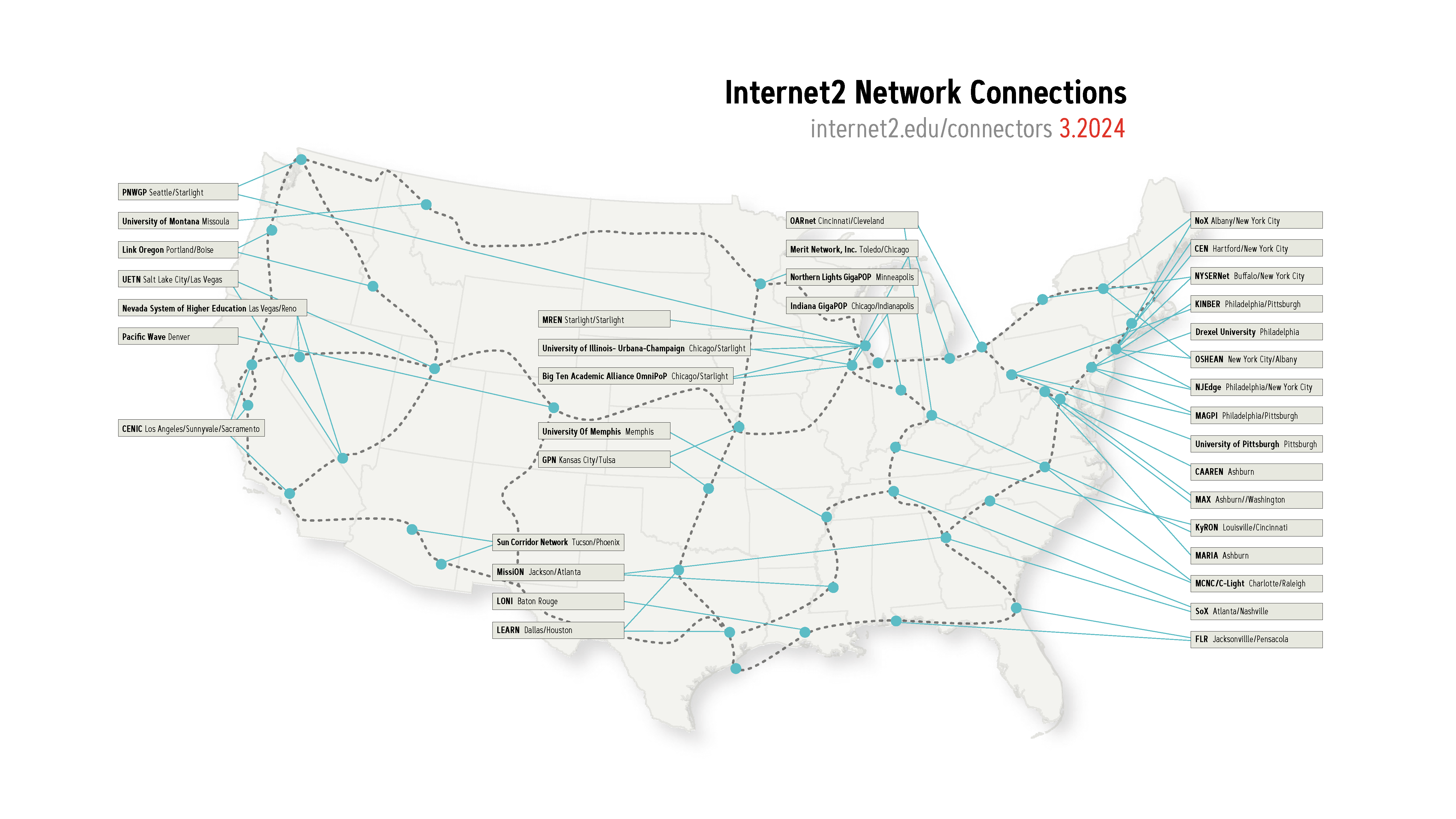
Now, let’s dig into how Internet2 creates high speed data transfer pathways, and how it will impact traffic here at Backblaze.
Our Connection
The diagram below gives you an idea of what the data path looks like for someone on the left with direct connectivity to Internet2 or access via a regional provider reaching the Backblaze US-West or US-East regions.

The entities on the left could exist locally in California or as far as the U.S. East Coast. At any source location, the traffic will transport the Internet2 network and then enter our network in our common peering points in San Jose, CA and Reston, VA.
Turning Up The Peering Session
Below is a chart of ingress traffic that was once reaching us over the public internet and is now taking the preferred path over Internet2. As soon as we established peering we started to receive a few gigabits per second of traffic, with large spikes occurring overnight.
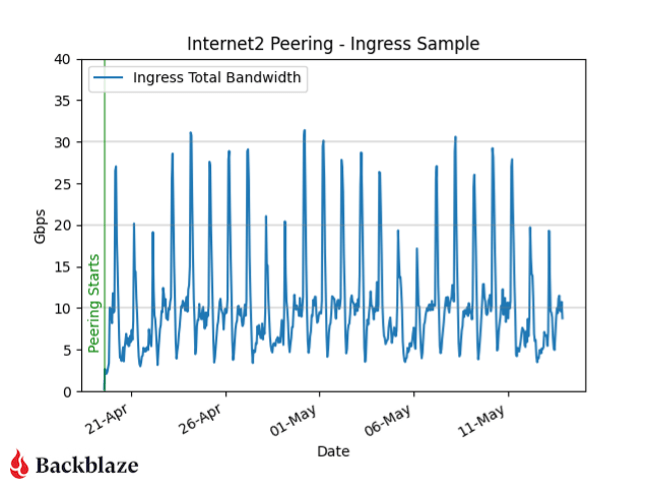
Whenever we add a new service or peer, the flow of information in our network changes. This latest addition creates more interesting traffic patterns for our Network Engineering team to profile, monitor, and capacity plan for.
An Example of How that Speed Is Used: Moving Scientific Data
If you’re a scientist in Texas and want to send your 50TB research set quickly and reliably to a partner in California, you might only have a commercial connection to the internet. This could be a 1Gbps or smaller connection, and even that could have data transfer limits on each month—not ideal. Our 50TB example dataset would take over 4.6 days to complete and use 100% of the available bandwidth if we were limited to 1Gbps (assuming perfect conditions and no latency).
The Internet2 network is built with capacity in mind. With backbone links up to 400Gbps, our example dataset would transfer in 16.7 minutes. Now, there are other limitations that will impede you from being able to reach that rate (hard drive read speed, local Internet2 connection speed, and distance/latency factors), but this example gives you an idea of how much faster the Internet2 network can be over vanilla commercial connections that might be available to a local university, college, or other research institution.
Conclusion
We’re very excited to be joining the Internet2 community and network, supporting industry best practices and enabling better connectivity to our storage platform. Hopefully, the next scientific breakthrough is sitting encrypted on our hard drives, and we can be part of the many, many people, tools, and organizations who helped it on its way from research to reality.
For more information about Backblaze and Internet2, you can read our press release or check out the Internet2 member directory.
The post Backblaze Plugs In to Internet2 appeared first on Backblaze Blog | Cloud Storage & Cloud Backup