Creating clear goals is inevitably part of any business strategy. You’ve likely heard of the acronym SMART—specific, measurable, actionable, realistic, and time-bound—when it comes to goal setting. As a business leader in information technology or a related business unit, you’re responsible for developing sound goals for business technology, data protection, and disaster recovery.
Two key metrics that feed into those strategies are your recovery time objective (RTO) and recovery point objective (RPO). Like all the other goals your business sets, the RTO and RPO should also be SMART goals.
So, how can you set meaningful RTO and RPO objectives for your business? And how can the cloud help you achieve or improve on those objectives? Today I’ll talk about how to smarten up these objectives to lead to better business continuity (BC) and a more effective disaster recovery (DR) plan.
The Essential Guide to Disaster Recovery Planning
Read more about how to build a disaster recovery plan for your organization.
Why do RTO and RPO matter?
RTO and RPO are two fundamental inputs to a comprehensive disaster recovery plan. They also very much guide how you’ll structure your backup strategy and engineer your backup architecture.
RTO is a business metric that states the maximum length of time a business can tolerate for recovery. It’s important to note the difference between recovery and restoration of data here. Restoring data is just one part of a recovery.
Recovery means systems are back up and running—fully functional—with users (employees, customers, etc.) able to utilize them in the same manner as before the data incident occurred.
RPO measures the maximum amount of data a company can afford to lose (or is willing to lose), measured in units of time. For instance, an RPO of 12 hours means that the company can accept the risk (financial risk, risk to the brand, etc.) of having lost 12 hours worth of data. So, if you run backups every 11 hours, you will be able to meet your RPO.
How to set RTO and RPO
Creating these objectives is a business decision—not an IT decision. If you’re an IT leader, your job is to work with your internal stakeholders to fully understand the business and the criticality of various applications and services in order to help define the RTO and RPO.
Put another way: The decision about what standard to meet is a shared responsibility. And those standards (recovery time, file durability, etc.) are the targets that IT and infrastructure providers teams must meet.
RTO and RPO may be different from one system to another. Some applications are more important than others.
Keep in mind that it’s likely that department heads will all say their services are the most important to immediately recover. But if everything is deemed critical, then nothing is.
Discuss how data loss and time to recovery impact the business in quantifiable details—revenue lost, number of customers affected, etc.—in order to truly prioritize systems and set appropriate RTOs and RPOs.
Making your RTOs and RPOs SMART
Remember that your objectives should be SMART:
Specific: Think through how granular your RTOs and RPOs should be. In addition to different RTOs and RPOs per application, you may also need different RTOs and RPOs per scenario. For example, the RTO for a ransomware attack is much different than that for hardware failure.
Measurable: One good way of measuring the efficacy of your RTOs and RPOs is by conducting DR testing. Run fire drills and conduct tabletop exercises. Practice restoring data. These inputs will help you understand if your objectives are meaningful and obtainable.
Actionable: Document your RTO and RPO in your DR plans and ensure they align with any business continuity risk management plans or goals around maximum allowable risk tolerance. You may also want to document the assumptions and inputs that formed the RTO and RPO. For instance, how much revenue is lost when a given system is down? Explain how that factor drives your RTO.
Realistic: Don’t let your stakeholders set unachievable objectives. If there is an ask for a very low RTO and/or RPO, help your stakeholder understand exactly what it will take—and how much it will cost—to implement that objective.
Time-bound: The RTO can be defined in seconds up to weeks. The shorter the RTO, the more expensive the investment will be to meet it.
Remember that you’re always balancing RTO and RPO against an unachievable “perfect” state. For instance, you would likely need multiple failover hot sites with replicated data to meet an RTO of seconds of downtime.
RTO is a forward-looking measurement; RPO is a backward-looking measurement that essentially represents the frequency of your backups.
A short RPO means more recent backup data is needed, and, yes, that also means greater investment. RPOs measured in seconds may require high-speed backup technology like continuous replication.
How to discuss RTO and RPO with business leaders
Discussing technical concepts with internal stakeholders can be challenging. To guide the objective-setting discussion with stakeholders, use the following questions as a guide:
Where and how do you store data?
How often does your data change?
What would a minute of downtime cost your department, in terms of revenue, risk, loss of productivity, impact to customers, etc.?
What are the compliance or industry requirements for maintaining sensitive data?
Do you have a way of manually transacting business if service is down?
Your IT department may already be well aware of many of these goals, but it’s good to do a fresh and full inventory of data and data management procedures. For example, even with the rise of shared drives, many employees still save important data locally. Or, there may be business-critical data being saved in services like Microsoft 365 or Kubernetes—and those services are often not adequately backed up.
How do RTO and RPO affect backup strategy?
Your RPO is often more directly related to backup strategy, although RTO certainly informs backup strategy. If you need a very low RPO (i.e., the business can tolerate very little data loss), you must plan to run backups more frequently. This ensures you always have very recent data to recover.
RTO, however, relates more to systems and infrastructure—again, because the objective is about recovery and not just restoring data. RTO will drive investment decisions around backup and DR architecture.
Your backup strategy or tech stack should not dictate either your RTO or your RPO.
First, you should define your RTO and RPO, and then you must determine if changes in backup policy are needed or if you need to update any backup systems in order to reach desired RTOs and RPOs.
Your RTO will drive decisions around backup and DR infrastructure; your RPO will drive decisions around frequency of backup and type of backup.
How does the cloud help companies meet RTO and RPO goals?
Using a public cloud for backup and archive can help you achieve your desired RTO and/or RPO. An obvious example is using cloud to replace LTO tape backup. Tape backup has some of the worst (maybe the worst) RTOs and RPOs. It takes an extraordinarily long time to recover from tape, and backups are likely not as frequent as they should be because tape is often not properly maintained. Migrating your tape backups to a public cloud like Backblaze B2 Cloud Storage is still cost-effective and it will drastically improve RTO and RPO.
If you’re using a hyperscaler like AWS, you may have had to cut back on frequency of backup or needed retention periods due to exorbitant fees. Shifting your backups to Backblaze B2 can help you achieve your goals: Backblaze B2 is one-fifth the cost of AWS S3, you can afford to run and save more frequent backups, thus lowering your overall RPO.
Replication is another technology that can help reduce RTOs. Many enterprise businesses will already have a failover site, but keeping an extra copy of your data in the cloud ensures you can still meet your desired RTO in the case of a DR site or production facility takeout. This is exactly what brought SaaS platform Centerbase to Backblaze.
More commonly, if it’s inordinately expensive to own your own DR site, you can store your backups in Backblaze B2 and utilize Cloud Replication for added redundancy.
RTO and RPO and your business
Ultimately, you should frame your RTO and RPO in terms of business impact. Then, reverse engineer your backup and DR infrastructure to support those objectives. Next, identify the storage systems for your data based on its business criticality and desired RTO and RPO.
Depending on your business goals, you’ll likely use cloud storage services, on-premises storage, or some combination of the two. Regardless of the type of business you run, demonstrating that you have an airtight DR plan with SMART RTO and RPO goals will instill confidence in your business partners, help with cyber insurance eligibility, and shore up your organization’s ability to withstand data disasters.
A well-defined disaster recovery (DR) plan relies heavily on a coordinated incident response team. Think of your incident response team like a pit crew. It’s easy to assume you’ll have a good race when everything is performing smoothly, but the real test comes when something goes wrong—maybe a tire blows or the engine overheats. In those moments, success isn’t about having the best tools in the garage; it’s about having the right team, working together, to quickly solve problems and get back on track.
When your team is facing a disaster recovery scenario, whether it’s a cyber attack, natural disaster, outage, or data breach, the speed and coordination of your team determines how quickly and how well you can move forward. In this post, I’m breaking down how to assemble a team that can respond with precision, minimize downtime, and keep your organization running smoothly when unexpected issues arise.
Establishing key team members, roles, and hierarchy
The incident response team (IRT) is the backbone of your DR response and is responsible for leading the recovery efforts during a disaster. Here’s a breakdown of possible key IRT roles:
Incident commander: Oversees the entire incident response process, making critical decisions and delegating tasks to team members.
Communications lead: Handles external and internal communication, ensuring timely updates for stakeholders and mitigating potential reputational damage.
Documentation lead: Maintains the DR runbook, ensuring its accuracy and updating it with post-incident findings.
Legal counsel: Provides legal guidance and ensures compliance with relevant regulations during the response and recovery process.
Building redundancy
Building redundancy in your IRT allows you to account for team member absences. This includes IT leadership; don’t assume you’ll be in the office when a disaster happens. Assign backup personnel for critical roles within the team to ensure continuity in the event of unforeseen circumstances.
Establish a clear succession plan for leadership roles within the IRT. This ensures a smooth transition if the primary incident commander or other key personnel become unavailable during a disaster.
Establishing a reporting hierarchy
Clearly define a reporting hierarchy within the IRT, outlining who reports to whom and the escalation process for making critical decisions. A clear chain of command during a crisis prevents confusion and delays that could result in prolonged downtime and increased risks.
The importance of clear communication
A critical component of any DR plan is clear communication to employees and executives regarding their specific roles during a security incident. This ensures that the assigned team leader can coordinate a unified response. Remember to include guidelines about incident escalation, as well as agreed-upon methods of communication (e.g., email, direct messaging, video calls, etc.).
Executive sponsorship: Beyond awareness
Executive buy-in is paramount for a successful DR strategy. While awareness of the impact of ransomware attacks has grown over the years, contextualizing DR plans with historical financial impacts, downtime implications, and reputational risk associated with such attacks can help to communicate why DR is a top-line priority.
Tip: Educating executives
Framing the DR plan in terms of cost avoidance, user downtime minimization, and reputational risk mitigation can resonate better with executives. Quantify the potential financial losses from data breaches and system outages to garner executive support for DR initiatives.
Beyond cell phones: Communication channels
Disasters can disrupt traditional communication methods like cell phone service. Develop alternative communication channels for the IRT, such as designated email threads, satellite phones, or pre-arranged conference call bridges. It is imperative to include this information and contact details in your DR runbook for immediate accessibility during crises.
By establishing a well-defined team structure with clear roles, communication protocols, and redundancy measures, enterprise businesses can ensure a coordinated and efficient response to data disasters.
A well-prepared team leads to a resilient recovery
Your DR strategy is only as effective as the team behind it. By defining clear roles, building in redundancy, and establishing a reporting hierarchy, IT leaders can eliminate confusion and accelerate recovery efforts. Moreover, securing executive sponsorship and ensuring clear communication strengthens your ability to respond effectively. DR isn’t just about the plan on paper. It’s about how you execute that plan and set your team up for success.
Media workflows have always been complex, requiring seamless collaboration, robust storage, and advanced systems integration. Today, with the explosion of content demands and rapid technological advancements, media organizations need solutions that can scale, innovate, and empower teams to deliver faster and better.
Backblaze and CHESA, long-standing partners and leaders in media workflow solutions, are doubling down on their relationship with CHESA to elevate creative workflows with a joint go-to-market partnership. This enhanced partnership builds on years of success, combining Backblaze’s high-performance, secure cloud storage with CHESA’s expertise in media technology systems integration to provide even more impactful solutions tailored to the needs of modern media-driven organizations.
Together, we’re continuing to make it easier than ever for organizations to streamline content production, enhance accessibility, and achieve business objectives with greater efficiency. In this blog, I’ll explain the key benefits of this expanded collaboration and highlight how it’s already driving transformative results for clients like the Philadelphia Eagles.
The media workflow challenge
From production studios and broadcasters to professional sports teams and creative agencies, media organizations face a growing list of challenges:
Massive data volumes: Video, audio, and other rich media assets require scalable and secure storage solutions to handle terabytes or even petabytes of data.
Fragmented workflows: Teams often juggle multiple tools and platforms, leading to inefficiencies and bottlenecks.
Budget constraints: Organizations need cost-effective solutions that don’t compromise performance or security.
The expanded partnership between Backblaze and CHESA continues to address these pain points head-on by combining best-in-class cloud storage with tailored workflow solutions.
The Backblaze + CHESA solution
Real-world success: The Philadelphia Eagles
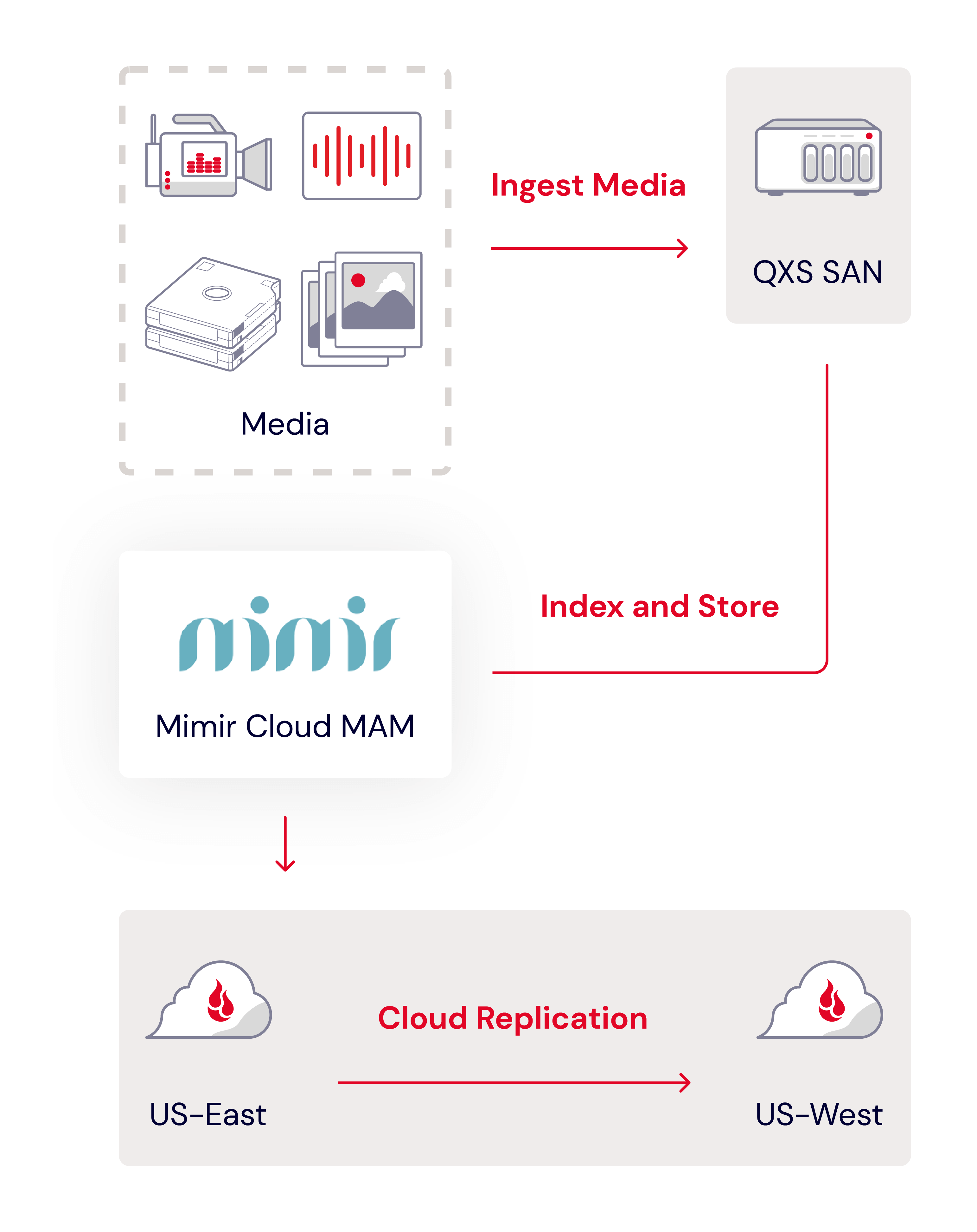
One of the most compelling examples of the Backblaze + CHESA partnership is the Philadelphia Eagles’ transition from traditional LTO tape storage to a cloud-based media workflow. With over 800TB under management, switching to cloud storage meant that the team instantly made their data more agile, scoring immediate access to faster content creation and remote workflows.
“Now I can easily share entire broadcasts by copying and sharing a link from our MAM. No need for FTP downloads or uploading to other platforms. It’s fast, seamless, and ensures everyone can view the content without issues.” —Stacy Kelleher, Director of Production, Philadelphia Eagles
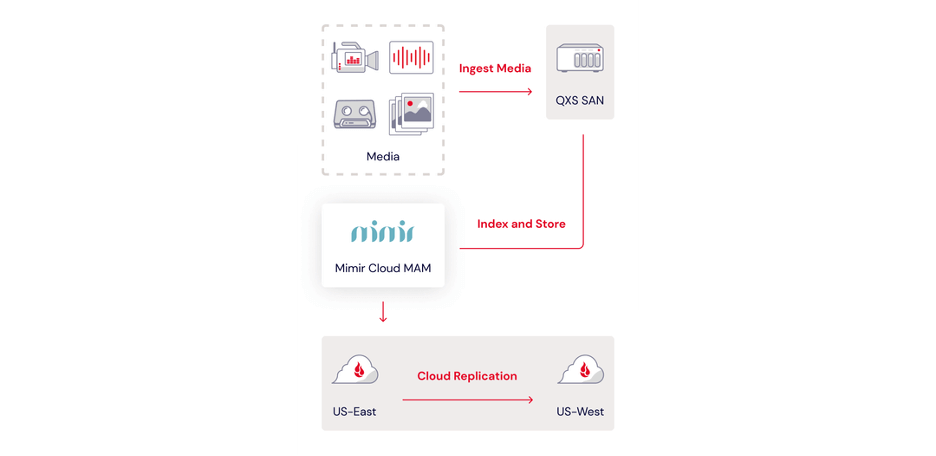
Backblaze B2 integrated seamlessly with the Eagles’ preferred tech stack, which leverages a Quantum QXS storage area network (SAN) and Mimir, a cloud-based video production platform.
The challenge
The Eagles faced significant challenges with their legacy storage system:
Limited accessibility: LTO tape storage made it difficult to access archived footage, which hindered content production timelines quickly.
Time-consuming processes: Retrieving footage from physical tapes was manual and slow.
Scaling limitations: As the team’s content library grew, so did the complexity and cost of managing tape storage.
The solution
By leveraging the expanded capabilities of Backblaze and CHESA’s partnership, the Eagles:
Transitioned their extensive media library to Backblaze B2 Cloud Storage.
Integrated CHESA’s tailored media workflow solutions for seamless access and collaboration.
Gained immediate access to decades of archived footage, enabling faster content creation and improved fan engagement.
The results
The Eagles’ media team now enjoys:
Accelerated content production: Instant access to archived footage has streamlined workflows, allowing the team to create engaging content more efficiently.
Enhanced scalability: With Backblaze B2, the Eagles can easily scale their storage as their content library grows.
Improved fan engagement: Faster production timelines enable the team to deliver high-quality content that keeps fans connected and engaged.
Peripheral content drives revenue through monetized clicks like highlights and select moments. Quick sharing and streamlined proof-of-performance delivery keep sponsors satisfied.” —Ryan Lakey, Principal Lead, Solutions, CHESA
Accelerated media workflows
Integrating Backblaze B2 Cloud Storage with CHESA’s media workflow expertise has long been a cornerstone of success for media teams. By enhancing this integration, media teams can experience even faster workflows, immediate asset access, and seamless collaboration across tools and teams. By eliminating the delays associated with traditional storage methods, teams can:
Share assets effortlessly with collaborators anywhere in the world.
Spend less time managing infrastructure and more time creating impactful content.
Backblaze + CHESA benefits
Scalable and cost-effective storage
Backblaze B2 Cloud Storage offers always-hot, S3 compatible object storage at a fraction of the cost of traditional providers like Amazon S3. This cost-effectiveness, combined with CHESA’s expertise in designing and integrating scalable systems, ensures organizations can:
Scale their storage needs as projects grow or shrink.
Optimize budgets without compromising on performance.
Rely on predictable pricing that avoids surprise costs.
Enhanced data security and accessibility
In the media world, accessibility and security are paramount. Backblaze and CHESA provide solutions that keep media assets safe while ensuring real-time access for production teams. Key benefits include:
Secure, encrypted storage to protect sensitive media.
High availability for instant access to files when needed.
Resiliency and redundancy to ensure data integrity, even in the face of unexpected disruptions.
These capabilities have been critical for clients like professional sports teams, broadcasters, and creative agencies that manage vast libraries of high-value media content.
Comprehensive support and maintenance
CHESA’s dedicated support services and Backblaze’s reliable cloud infrastructure ensure organizations experience minimal downtime and sustained operational efficiency. This comprehensive support includes:
Proactive monitoring and maintenance.
Remote and onsite assistance for hardware, software, and workflows.
Consistent communication to address issues before they impact production.
Why this partnership matters
The expanded Backblaze and CHESA partnership is more than just a collaboration—it’s a commitment to empowering media organizations with innovative, efficient, and secure solutions. Here’s why it stands out:
Deeply customized solutions: Every organization’s needs are unique. Backblaze Solution Engineers and CHESA Workflow Engineers dive deep into clients’ specific workflows and objectives to design and implement solutions specifically tailored to their needs.
Unrivaled expertise, built over decades: Rely on the combined power of Backblaze and CHESA’s deep-rooted experience in cloud storage and media technology.
Your future-proof media strategy: Navigate the changing media landscape with confidence, leveraging our scalable and cutting-edge solutions.
Take the next step
Whether you’re a professional sports team looking to enhance fan engagement, a broadcaster aiming to streamline production, or a creative agency seeking cost-effective storage, Backblaze and CHESA are here to help.
Discover how our expanded solutions can revolutionize your media workflows. Visitour dedicated solution page to learn more and to schedule a consultation tailored to your organization’s needs.
Over the past few years, Backblaze has expanded our regional footprint, adding capacity in the US-West region, growing in our EU-Central locale, opening a new US-East presence, and, most recently, moving into Canada with CA-East with an initial storage capacity of just under 60PB.
We approached our most recent expansion into Canada a bit differently, and today, I want to cover some of the new processes and efficiencies that we adopted for this project and how we’re well positioned to serve the Canadian market based on our network connections.
Backblaze deployment team lands in Toronto.
Scaling infrastructure and calling in the reinforcements
The CA-East data region deployment was our fastest to date, cutting the deployment life cycle (“the ink is signed” to a live production system) down in time by 50%. In this deployment cycle we worked with a third party integrator to help us streamline the process and also leveled up our automation procedures for installing operating systems and our storage software stack.
Historically we’ve drop-shipped all our equipment such as the networking gear, servers, hard drives, cables, and tools to the destination site for our deployment team to inventory, unbox, and physically install. It’s fun. It’s controlled chaos (if you like that sort of thing)—but for this build cycle we wanted to iterate our process further to ease and enable future growth in a more predictable and scalable fashion by working with a third party to assist with the initial physical build of the racked equipment.
On our end, there’s up-front engineering time documenting how all the fiber, copper, and power cables are organized. We have a cable map for every device, every cable, and every location as well as how it should be connected. It’s heavy on the paperwork side, but it’s time well spent. It allows us to template and stamp out future cabinets with ease. When we need more storage-focused cabinets to deploy additional storage, that’s a cabinet standard. If we need more compute, that’s also a cabinet that can be easily built out from a template.
The workload on the third party integrator side consists of taking our directions and performing all the physical racking and wiring. Handling all of these tasks takes time. You wouldn’t believe the amount of cardboard and packaging material that you need to process! Unboxing over a hundred servers, thousands of hard drives, and hundreds of fiber and copper cables is no small feat. (Apologies in hindsight for not giving you a marathon unboxing video.) They received all our packaging, then racked and cabled up everything according to our specifications. After inspection and quality control, everything was securely sealed in crates and shipped off to Canada.
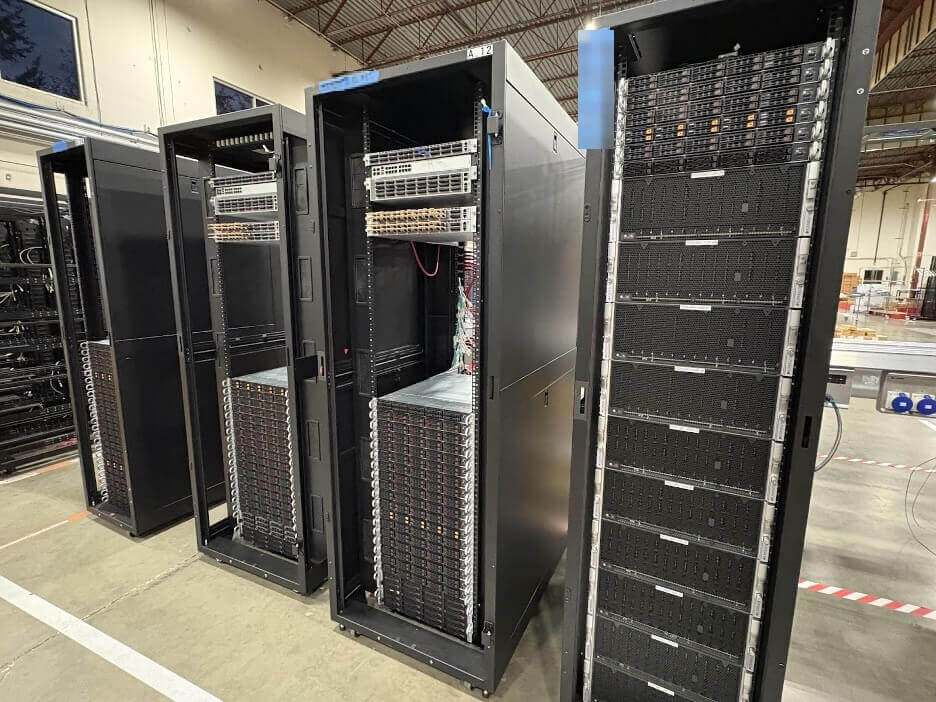
Initial setup and bootstrapping of CA-East cluster at the integrator site.
Almost ready for QA and final inspection before shipping to the data center.
Automate all the things
Perform a process once? Sure. Have to do it more than twice? Automate it!
Before shipment out to the data center location, we sent a small team to the integrator site to perform a physical quality assessment of the build and set up remote access, which allowed us to bootstrap the platform as we had access to power and an internet connection.
Internally, we have a system that has a record of machine serial numbers and their roles (e.g., storage, api, database, etc). When a new machine boots up for the first time on our network, it gets a vanilla operating system installed via our PXE services. This is all parallelized, meaning that we were able to have systems to log in to within a few hours for the entire server set.
It’s a lot of fun toggling the power buttons one-by-one on over 90 servers, the PXE server network link running hot, and having an entire fleet of servers automatically install an operating system and be ready for further administration within minutes. Quite different from my days of performing floppy disk installs of Windows 95!
With a final inspection and software pass, everything was approved for shipment. The integrators securely boxed up our cabinets and they were on their way to Canada.
CA-East setup
Arriving at the destination site, everything was brought to the data center floor, bolted down, grounded, and energized. Within four hours we had network connectivity with our internet carriers and had set up our secure connections back to our production network to start our Backblaze software installation with our various internal teams. Within a few days, we had around 90 servers running and ready for our Quality Assurance team to start running tests to simulate client activity.
We partnered with Cologix, a leading network-neutral interconnection and hyperscale edge data center provider in North America, as our Canadian data center facility operator for this deployment. Cologix’s digital edge data center is a 20,000-square-foot, Tier III facility with two megawatts of power. It is a highly secure and efficient colocation and interconnection hub that features industry leading cooling designs, robust 24/7 security with biometric dual authentication access, and compliance with SOC 1, SOC 2, HIPAA and PCI-DSS as well as ISO 27001 certification by Schellman.
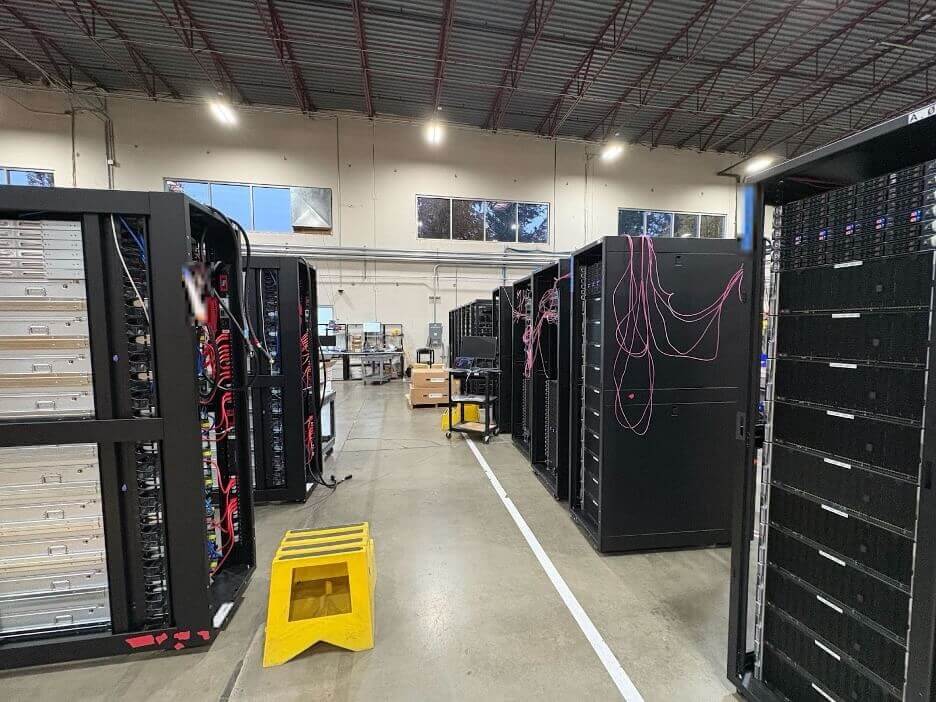
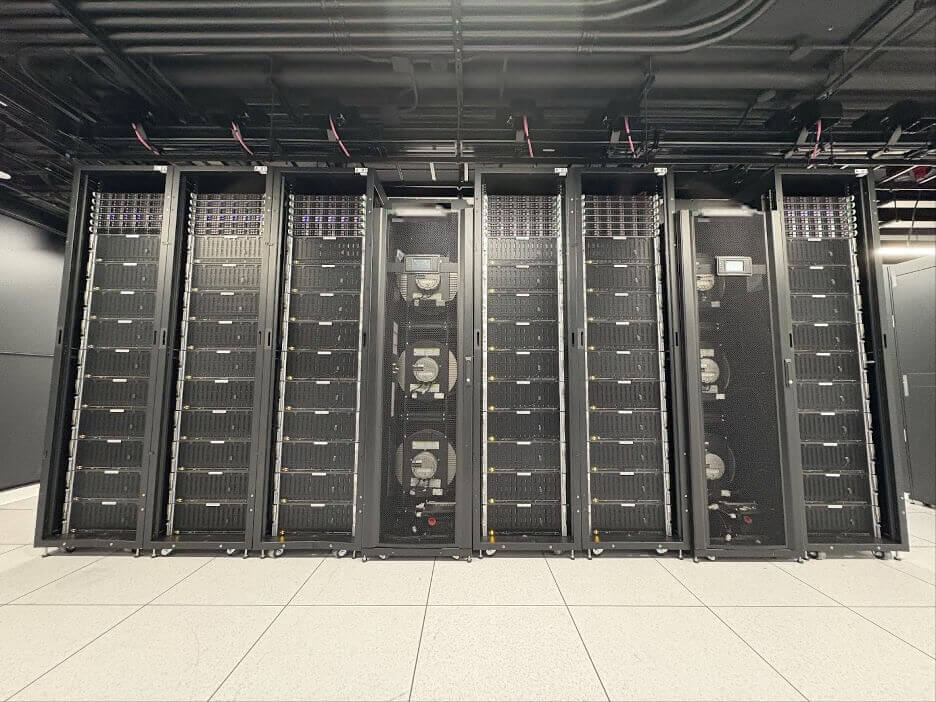
Storage Pods with a few compute servers at the top of each cabinet.
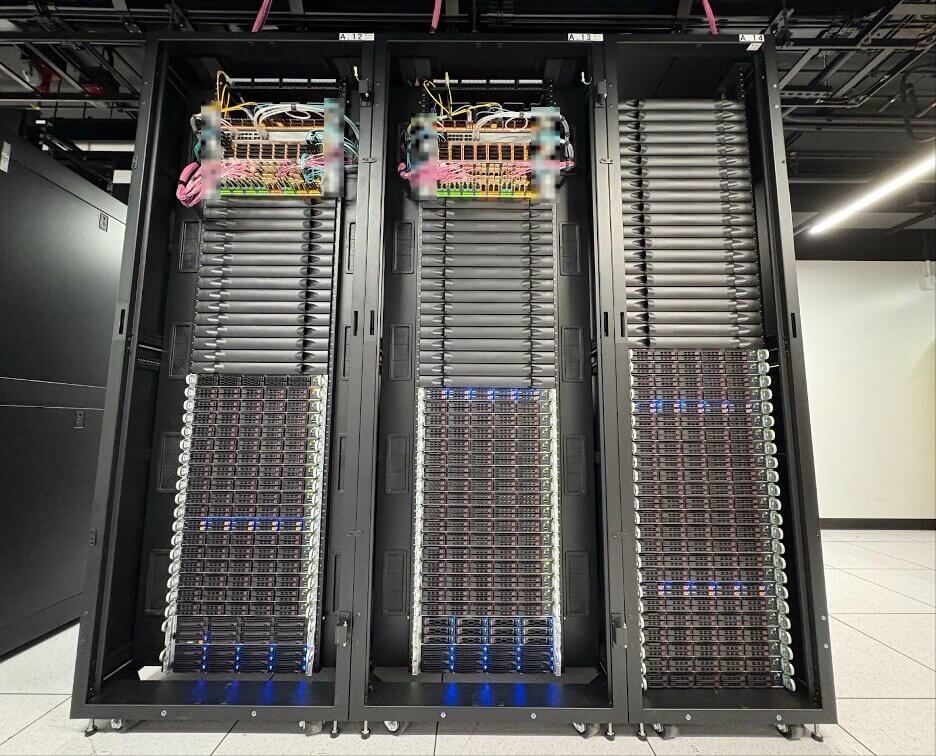
CA-East: Network and compute cabinets with room to grow.
Connectivity
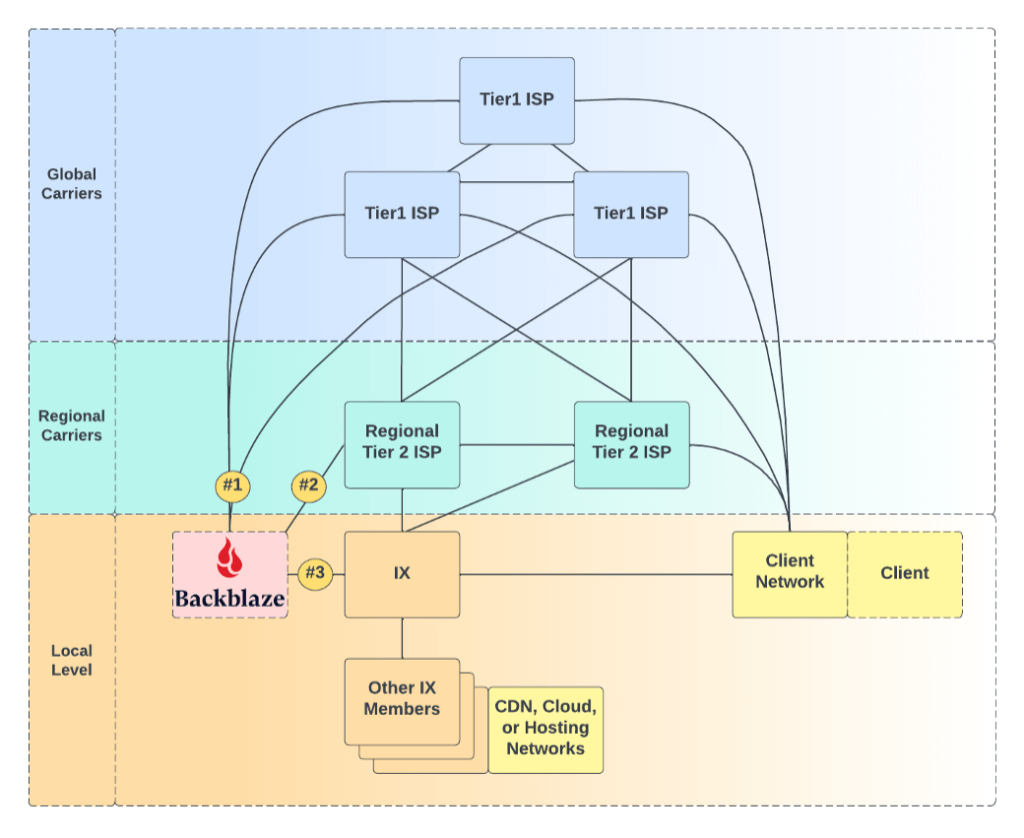
Our standard connectivity posture is to connect to three global carriers for the most expansive reach to every network possible, and also to join a local internet exchange (IX) for exchanging traffic between other IX members locally within the same data center or metro region for low-latency efficiency. Additionally, for this site, we also are connected to a large Canadian regional carrier to bring us in close proximity to Canadian-sourced traffic.
With low-latency and diverse dark fiber connectivity between Cologix’s data centers, including Canada’s largest and most important carrier hotel, the facility offers access to 160+ networks, TORIX, and 50+ cloud providers.
Overall that makes our CA-East connectivity map look like this.
Option 1: Global Carriers. Option 2: Regional ISP. Option 3: IX Traffic.
Joining TorIX
The local internet exchange for this site is Toronto Internet Exchange (TorIX), the leading Canadian internet exchange point (IXP) and one of the largest in the world. At the time of this post, more than 250 organizations exchange on average over 1.3 Terabits per second (Tbit/s) of traffic every day between each other locally.
Connecting to TorIX allows low latency transit between us and internet service providers (ISPs), other clouds, partner content delivery networks (CDNs), other enterprise networks, and hosting providers that provide compute services.
Go live
I’ve been at Backblaze for four years now and have been able to participate on builds to expand our US-West, US-East, and now CA-East regions. Turning on the metaphoric “switch” to make the site live is a little anticlimactic—from a network point of view, the only traffic we see at the start of a new region is our monitoring, internal jobs, and some soft-launched testing or proof of concept (PoC) accounts.
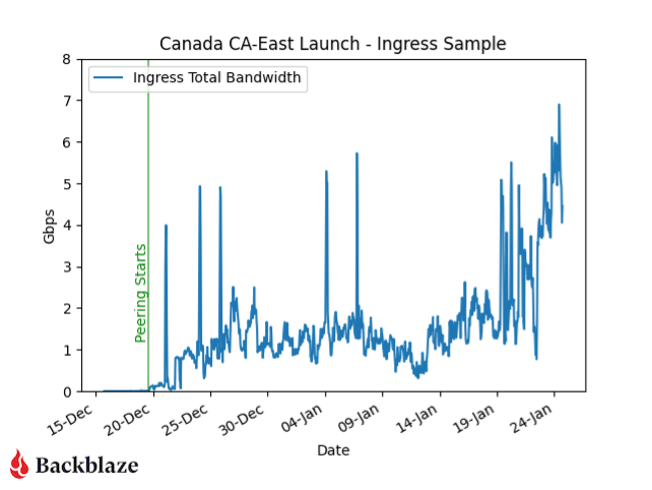
Here’s a sample of the network traffic from when we brought up peering with our carriers and soft launched the data region for our internal QA teams.
Initial traffic into CA-East at time of launch.
Where is the initial network traffic coming from? With our network telemetry monitoring, we’re able to see the flows in traffic in and out of our network. That network traffic information is enriched with data that adds context to allow us to see how much traffic is coming to or from a particular upstream provider or geographical region.
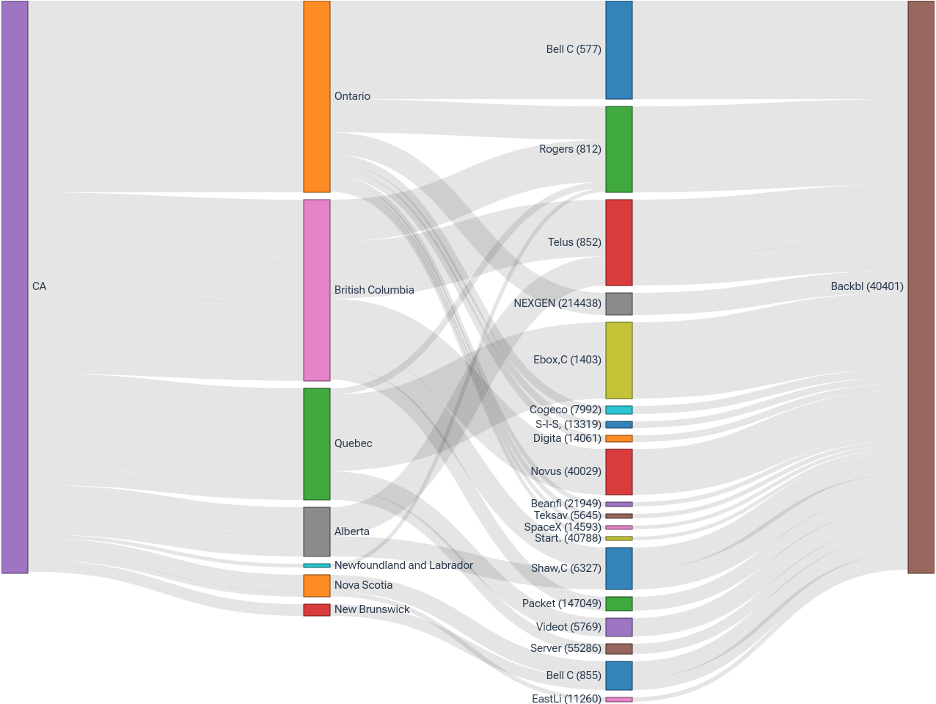
Here’s a Sankey diagram that shows a snapshot of current traffic from Canadian provinces over different service providers to the Backblaze network, where the larger lines mean more traffic is seen from that particular province or network. Expectedly, Ontario and British Columbia are the two largest sources of traffic.
Ingress traffic by province and carrier networks to Backblaze network (BGP AS40401).
Canada is open for business
As the months progress, and as more customers create their accounts in this new data region and point their workloads at this location, we’ll see more traffic. We’ll be excited to see what fun insights we can glean, which we’ll keep you updated on in our Network Stats series.
As Backblaze continues to grow its network, we’re excited to continue to iterate on our buildouts to make them more efficient. Ultimately, it lets us be more responsive to customer needs quickly. Same great network—just more locations.
We’re excited to have a footprint in Canada and welcome your storage needs! If you’re interested in learning more about storing your data in Canada, you can read the go-live announcement here.
Ready to store data in CA East?
The new data region is available to customers now, and you can create an account there by selecting “CA East” in the region drop-down when creating a Backblaze account. Already storing data with Backblaze and want to keep a Canadian copy? Leverage our Cloud Replication feature and diversify your storage.
As we explained in our recent blog post, AI Reasoning Models: OpenAI o3-mini, o1-mini, and DeepSeek R1, Chinese startup DeepSeek caused a stir when it released its R1 reasoning model in January of this year. Interestingly, DeepSeek R1 has an OpenAI-compatible API, so applications written for OpenAI should work with DeepSeek R1 with just a configuration change. Since I had a suitable sample app all ready to go, I decided to put their claim to the test.
Why, and why not, use DeepSeek?
A major difference between DeepSeek and OpenAI is cost. At the time of writing, DeepSeek charges $0.55 per million input tokens and $2.19 per million output tokens for its R1 model. That’s about 3.6% of OpenAI’s $15.00 per million input tokens and $60.00 per million output tokens for its flagship o1 reasoning model, and about half of o3-mini’s $1.10 per million input tokens and $4.40 per million output tokens.
Set against this is the fact that, in using the DeepSeek platform’s API, you are sending your data to a startup located in China that has been accused by OpenAI of “inappropriately” basing its work on the output of OpenAI’s models. It’s up to you, and your organizations’ data governance policy, whether the trade-off is worthwhile.
Another consideration is the ability to run DeepSeek’s models locally, on your own infrastructure, or, more likely, your chosen provider’s infrastructure, rather than sending requests to the DeepSeek platform. Spinning up my own DeepSeek instance was out of scope for this blog post, but I’ll likely return to it in a future blog post.
Swapping OpenAI for DeepSeek
Last month, I explained how you can build an AI agent with Backblaze B2, LangChain, and Drive Stats, walking you through a simple chatbot that can answer questions based on our Drive Stats data set—11 years of metrics gathered from the Backblaze B2 Cloud Storage platform’s fleet of hard drives. In that example, the chatbot accepted a natural language question, used OpenAI’s GPT‑4o mini large language model (LLM) to generate a SQL query that might help provide an answer, executed the query against the Drive Stats data set via the Trino SQL engine, and then used OpenAI again to interpret the result set and either repeat the query-interpret cycle, or generate a natural language answer.
I copied the Jupyter notebook from that example and used it as the basis for investigating the feasibility of swapping out OpenAI for DeepSeek. The DeepSeek version of the notebook contains the full source code of my experiments; I’ll include relevant extracts here, edited for clarity.
Since I used the LangChain AI framework, which provides a layer above a range of AI models, the only place that OpenAI surfaced in my code was in creating an instance of LangChain’s ChatOpenAI wrapper:
# OPENAI_API_KEY must be defined in the .env file
load_dotenv()
llm = ChatOpenAI(model="gpt-4o-mini")
The ChatOpenAI class contains all the code required to communicate with OpenAI via its API.
Provide your DeepSeek API key in the same OPENAI_API_KEY environment variable.
Set the API base URL to https://api.deepseek.com.
Provide a DeepSeek model name in place of the OpenAI one.
If this reminds you of the steps for using Backblaze B2’s S3-compatible API, you’re not alone. The OpenAI API has become a de facto standard for integrating with LLMs in much the same way as Amazon’s S3 API allows an ecosystem of apps and tools to interoperate with object storage systems from a variety of vendors.
Looking at the DeepSeek documentation, you can use one of two models, deepseek-reasoner (aka DeepSeek R1) or deepseek-chat. Let’s see what the much-talked-about DeepSeek R1 came up with.
Using DeepSeek R1 in the AI agent
To make it easy to use both the OpenAI and DeepSeek notebooks, I created a second entry in the .env file for the DeepSeek API key, and copied it to the OpenAI environment variable in the notebook code:
# The .env file needs at least DEEPSEEK_API_KEY, and may also contain # OPENAI_API_KEY. Move the DeepSeek API key to the OpenAI environment # variable load_dotenv()
As I set about repeating the steps from the Jupyter notebook that supported my previous blog post, I was disappointed to see DeepSeek fall at the very first hurdle: generating a SQL query for a simple natural language question. Here is the code:
question = {"question": "How many drives are there?"}

write_query(question)
Looking back at the original notebook, OpenAI’s response was valid SQL, although it didn’t have enough information to construct the correct query:
{'query': 'SELECT COUNT(*) AS drive_count FROM drivestats'}
DeepSeek, on the other hand, responded with a Python stack trace and this error:
openai.UnprocessableEntityError: Failed to deserialize the JSON body into the target type: response_format: response_format.type `json_schema` is unavailable now at line 1 column 13827
What went wrong? Searching for the error turns up a comment from a LangChain engineer explaining that we should use BaseChatOpenAI rather than ChatOpenAI since it “[…] accommodates many APIs that are similar to OpenAI. It uses tool calling for structured output by default.”
So, we can redefine llm accordingly, and try generating a query again:
BadRequestError: Error code: 400 - {'error': {'message': 'The last message of deepseek-reasoner must be a user message, or an assistant message with prefix mode on (refer to https://api-docs.deepseek.com/guides/chat_prefix_completion).', 'type': 'invalid_request_error', 'param': None, 'code': 'invalid_request_error'}}
Looking back at the AI agent code, we can see that we used an off-the-shelf prompt from the LangChain Prompt Hub that provides the model with a single, system, message:
================================ System Message ================================

Given an input question, create a syntactically correct {dialect} query to run to help find the answer. Unless the user specifies in his question a specific number of examples they wish to obtain, always limit your query to at most {top_k} results. You can order the results by a relevant column to return the most interesting examples in the database.

Never query for all the columns from a specific table, only ask for a few relevant columns given the question.

Pay attention to use only the column names that you can see in the schema description. Be careful to not query for columns that do not exist. Also, pay attention to which column is in which table.

Only use the following tables:
{table_info}

Question: {input}
Does this mean that DeepSeek is not, in fact, API-compatible with OpenAI? I would argue that it does not. DeepSeek implements the same API request/response syntax as OpenAI, but it is a different platform. Some variation in semantics is to be expected. We see similar variations between Backblaze B2 and Amazon S3; for example, the S3 PutObjectAcl operation sets the access control list (ACL) for an object in a bucket. Amazon S3’s access management model allows you to manipulate an object’s ACL independently of its bucket—for example, you can put a private object in a public bucket, and vice versa.
This flexibility comes with a cost: It becomes difficult to reason about the visibility of data. In fact, AWS now recommends “that you keep ACLs disabled, except in unusual circumstances where you need to control access for each object individually.”
Backblaze B2’s model is much simpler: You control access at the bucket level, and all objects have the same ACL as their bucket. Backblaze B2 implements the PutObjectAcl operation, but, if you try to set an object’s ACL to any other value than its bucket’s ACL, the service responds with an error.
Returning to the AI agent code, we can replace the single-system-message prompt with one that combines a system message with a user message:
import textwrap
from langchain_core.prompts import ChatPromptTemplate

query_prompt_template = ChatPromptTemplate([
    ("system", textwrap.dedent("""Given an input question, create a
    syntactically correct {dialect} query to run to help find the answer.
    Unless the user specifies in his question a specific number of examples
    they wish to obtain, always limit your query to at most {top_k} results.
    You can order the results by a relevant column to return the most
    interesting examples in the database.

    Never query for all the columns from a specific table, only ask for a the
    few relevant columns given the question.

    Pay attention to use only the column names that you can see in the schema
    description. Be careful to not query for columns that do not exist. Also,
    pay attention to which column is in which table.

    Only use the following tables:
    {table_info}""")),
    ("human", "Question: {input}"),
])
Trying the write_query() call for a third time, this is the response:
BadRequestError: Error code: 400 - {'error': {'message': 'deepseek-reasoner does not support Function Calling', 'type': 'invalid_request_error', 'param': None, 'code': 'invalid_request_error'}}
Function calling is a powerful capability that enables Large Language Models (LLMs) to interact with your code and external systems in a structured way. Instead of just generating text responses, LLMs can understand when to call specific functions and provide the necessary parameters to execute real-world actions.
Unfortunately, that is exactly our use case. It’s becoming clear that DeepSeek R1 is not the correct tool for implementing an AI agent—we’ve been trying to use a chisel as a screwdriver!
DeepSeek-V3: A better fit
As its name suggests, the deepseek-chat model is more appropriate for this application. The DeepSeek documentation tells us that it is based on DeepSeek-V3, released in December 2024. DeepSeek-V3 is priced at $0.27 per million input tokens and $1.10 per million output tokens; this is actually more expensive than the GPT-4o mini model I used for the OpenAI agent example ($0.15 per million input tokens, $0.600 per million output tokens), but how does it compare? Let’s take a look.
First, we need to edit the LLM creation code again to set the model name:
Now we can run write_query() again. It’s immediately clear that it’s a better fit than its “big brother:”
{'query': 'SELECT COUNT(*) AS total_drives FROM drivestats LIMIT 10'}
As with the OpenAI agent, this query is well-formed SQL, but it’s not answering the question we set—it’s giving us the total number of rows in the dataset, rather than the number of drives. Also, it’s a little odd to have a LIMIT clause in a SELECT COUNT(*) query, but it’s legal SQL, and the agent is following its instructions very literally: always limit your query to at most {top_k} results, where we set top_k to 10.
question = {"question": "Each drive has its own serial number. How many drives are there?"}

query = write_query(question)

{'query': 'SELECT COUNT(DISTINCT serial_number) AS total_drives FROM drivestats'}
So far, so good!
I’ll skip some intermediate steps here—they are all in the Jupyter notebook if you want to review them, or run them for yourself—and look at how a simple LangChain graph, built on the DeepSeek LLM, answered the question: “Each drive has its own serial number. How many drives did each data center have on 9/1/2024?”
The OpenAI version generated an invalid query, comparing the date column with the string ’2024-09-01’ without using the required DATE type identifier, but DeepSeek generates a correct SQL query and provides a useful natural language response:
/SELECT datacenter, COUNT(DISTINCT serial_number) AS drive_count FROM drivestats WHERE date = DATE ‘2024-09-01’ GROUP BY datacenter ORDER BY drive_count DESC LIMIT 10
On September 1, 2024, the data centers had the following number of drives:
phx1: 89,477 drives
sac0: 78,444 drives
sac2: 60,775 drives
(empty datacenter): 24,080 drives
iad1: 22,800 drives
ams5: 16,139 drives
These are the top data centers with the highest drive counts on that date.
DeepSeek scores a point!
Moving on to the ReAct AI Agent, which allows the LLM to perform multiple SQL queries in generating an answer to a question, DeepSeek performs similarly to OpenAI. Given the question, “Each drive has its own serial number. What is the annualized failure rate of the ST4000DM000 drive model?”, the DeepSeek agent provides the overall failure rate rather than the annualized failure rate (AFR).
When we provide explicit instructions for calculating AFR in its prompt, the DeepSeek agent provides the correct result, identical, in fact, to the OpenAI agent’s response:
The annual failure rate (AFR) for the ST4000DM000 drive model is approximately 2.63%.
However, when given the question, “What was the annual failure rate of the ST8000NM000A drive model in Q3 2024?”, the DeepSeek agent gives us:
[(1.6100573445081607,)]
While OpenAI responds:
The annual failure rate (AFR) of the ST8000NM000A drive model in Q3 2024 is approximately 1.61%.
Wrapping up the investigation, the final question from the OpenAI notebook is more complex:
Considering only drive models which had at least 100 drives in service at the end of the quarter and which accumulated 10,000 or more drive days during the quarter, which drive had the most failures in Q3 2024, and what was its failure rate?
Impressively, the OpenAI agent constructed a well-formed SQL query and provided the correct response:
The drive model with the most failures in Q3 2024 is the TOSHIBA MG08ACA16TA, which had 181 failures. Its failure rate during this period was approximately 1.84%.
BadRequestError: Error code: 400 - {'error': {'message': "An assistant message with 'tool_calls' must be followed by tool messages responding to each 'tool_call_id'. (insufficient tool messages following tool_calls message)", 'type': 'invalid_request_error', 'param': None, 'code': 'invalid_request_error'}}
During task with name 'agent' and id '0aa26ba6-a3ee-ced1-de4d-b60ed7fbca99'
The phrase “insufficient tool messages” suggested that the DeepSeek LLM might need to be reconfigured to allow more tokens. According to the documentation on models and pricing, the deepseek-chat model supports a maximum of 8K output tokens, but defaults to 4K if max_tokens is not specified.
Recreating the DeepSeek wrapper object and agent accordingly, I gave it the last question again:
response = agent_executor.invoke( {"messages": [{"role": "user", "content": "Considering only drive models which had at least 100 drives in service at the end of the quarter and which accumulated 10,000 or more drive days during the quarter, which drive had the most failures in Q3 2024, and what was its failure rate?"}]} )
# Show the SQL query sent to the database print(response['messages'][-3].tool_calls[0]['args']['query'])
# Show the final response message display_markdown(response['messages'][-1].content, raw=True)
This time, DeepSeek was able to generate a similar SQL query to OpenAI:
WITH drive_counts AS (
    SELECT model, COUNT(DISTINCT serial_number) AS drive_count
    FROM drivestats
    WHERE date >= DATE '2024-07-01' AND date <= DATE '2024-09-30'
    GROUP BY model
    HAVING COUNT(DISTINCT serial_number) >= 100
), drive_days AS (
    SELECT model, COUNT(*) AS total_drive_days
    FROM drivestats
    WHERE date >= DATE '2024-07-01' AND date <= DATE '2024-09-30'
    GROUP BY model
    HAVING COUNT(*) >= 10000
), failures AS (
    SELECT model, COUNT(*) AS failure_count
    FROM drivestats
    WHERE date >= DATE '2024-07-01' AND date <= DATE '2024-09-30' AND failure = 1
    GROUP BY model
)
SELECT d.model,
       f.failure_count,
       100 * (CAST(f.failure_count AS DOUBLE) / (CAST(d.total_drive_days AS DOUBLE) / 365)) AS annual_failure_rate
FROM drive_days d
JOIN failures f ON d.model = f.model
JOIN drive_counts dc ON d.model = dc.model
ORDER BY f.failure_count DESC
LIMIT 1
With a correct response:
To answer the question:
The drive model with the most failures in Q3 2024 is TOSHIBA MG08ACA16TA, which had 181 failures. The annualized failure rate (AFR) for this model during that quarter was 1.84%.
Success! But, unfortunately, this isn’t the whole story.
DeepSeek Reliability
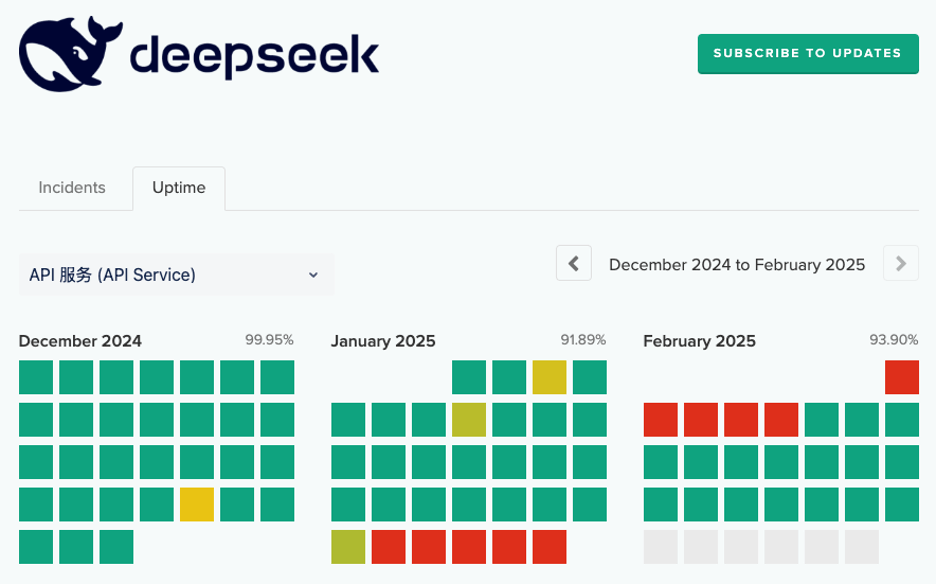
I originally set out to write this blog post at the end of January, but the DeepSeek platform website had gone offline by January 30, so I couldn’t even start until I was able to sign up for an API key on February 5.
Given my shiny new API key, and DeepSeek’s claims of OpenAI API compatibility, I naïvely expected to be able to work through my earlier OpenAI notebook and write up the results in a couple of days. The reality was more like two weeks.
In this blog post I’ve detailed some of the error messages I encountered along the way, but I saw many more that pointed to the DeepSeek API simply being overwhelmed with traffic. For example, for over a day, when the status page reported no issues, most API requests to DeepSeek terminated after a minute with the error message:
json.decoder.JSONDecodeError: Expecting value: line 1 column 1 (char 0)
A time-consuming investigation revealed that this was caused by the DeepSeek API returning the 200 status code and headers as if the request was successful, then hanging for a minute before terminating the connection without returning any actual data. The calling code saw the 200 as success and tried to decode the non-existent API response body, resulting in the error.
I saw several more instances of intermittent errors that all seemed to point in the same direction: DeepSeek needs to add capacity to its API platform. Notably, the platform seemed faster and more stable on a Saturday morning, U.S. Pacific time, the early hours of Sunday morning in China.
Final thoughts
At present, I would have to classify the DeepSeek-V3 API as “promising, but somewhat flaky.” An agent invocation that succeeds one minute could fail the next with any of a range of error messages. That’s a shame, since when it does work, for instance, in creating the SQL query for the final question above, it tends to work very well.
One final caveat: This is a dynamic field; frameworks and services are literally being updated on a daily basis. For example, since yesterday, as I write this, four of the notebook’s module dependencies have been updated. I encourage you to experiment for yourself as your mileage will almost certainly vary, hopefully in a positive direction.
I’ve heard the horror stories, and I’m sure you have too. A company thinks they’re covered because they have replication running, only to realize too late that replication doesn’t protect against data corruption or ransomware. In a disaster scenario, every copy of their critical data is compromised. And then comes the dreaded question: Do we have a backup?
Many teams—even those with seasoned IT professionals—misunderstand the fundamental difference between backup and replication for disaster recovery (DR). Replication is about availability, or keeping systems running with minimal downtime. Backup is about recoverability, or ensuring you can go back to a known good state.
This post breaks down replication, backup, and their respective roles in disaster recovery in a way that’s easy to share with your team, helping to prevent costly misunderstandings.
What is data replication?
Data replication involves copying and synchronizing data between your primary site and the DR destination in real-time or near real-time. It offers fast failover capabilities as the replicated data at the DR site is constantly updated. However, if malware infects your primary site, it might also replicate to the DR site, rendering the backup compromised.
What is data backup?
Data backup involves creating full and incremental copies of your data and storing them in a separate location from your primary system, typically on a scheduled basis, to prevent loss, corruption, or disasters. A couple key points:
Incremental backups capture changes in data, thus offering a point-in-time recovery option.
Ideally, backups are immutable, meaning they can’t be altered, in order to protect against malware and ransomware by making files and images read-only for safe recovery.
Air-gapped and offline backups can further help resist malware and ransomware attacks by creating a virtual or physical separation from the production network.
Cloud-based backups are a great option for addressing these requirements while offering affordable scaling options as the environment grows.
Replicating backups
A hybrid approach involves replicating your backups to a secondary location, offering a balance between data protection and recovery time. This can be between on-premises and cloud environments, or across multiple cloud targets.
While replicating backups offers additional protection and accessibility for online recovery, the backup images are still subject to ransomware infection. Using immutable backups helps prevent the spread of the infection to recovery sites and backup repositories.
Data backups paired with replication can be an ideal strategy. Full and incremental backups with point-in-time snapshots can provide regular recovery points with replicated copies for remote recovery and additional protection.
Cloud Replication
Backblaze B2 Cloud Replication enables your data to be automatically copied from one location to another for redundancy, compliance, and fast local access. Create 2x backups for a stronger disaster recovery posture. Replicating your Backblaze data is easy and free—no service or egress fees—just the standard Backblaze B2 Cloud Storage rates.
Disaster recovery and backups: Factors to consider when choosing the right approach
The optimal approach to disaster recovery backup and when and how you use replication depends on your specific needs.
For frequently accessed data requiring near-instantaneous recovery, consider a combination of a hot site methodology and real-time data replication. This offers the fastest failover, but can come at a higher cost.
For critical data with acceptable downtime, a warm site with replicated immutable backups at a secondary location (either on-premises or in the cloud) provides a good balance between cost and recovery time. While requiring some manual intervention, it offers protection against malware replicating to the DR site.
For less critical data or archival purposes, cold storage with periodic backups is a cost-effective option. Backups offer a historical record and are less susceptible to malware infection compared to replicated data, particularly if Object Lock is enabled for immutability.
Data replication is important, but it should not be seen as a substitute for backups. Backups offer a required safety net, providing a point-in-time recovery option even if the replicated data is compromised. Selecting the right disaster recovery backup strategy depends on a careful evaluation of your company’s specific needs, budget, and risk tolerance.
By understanding the pros and cons of each option, you can make an informed decision that ensures optimal protection for your critical data in the face of unforeseen disruptions.
Media asset management systems (MAM) have become a standard tool in the tech stack of many media organizations. MAM systems have evolved from basic file storage to sophisticated platforms with advanced organization features, increasing efficiency, collaboration, and distribution speeds.
In this post, I’ll explain some media asset management basics and introduce five key plays you can put into practice to get the most out of your assets, including how to move them into a MAM system or migrate from an older system to a new one.
Why do you need a MAM system?
As a media professional, I’ve come across some, let’s say, creative file naming conventions in my day. While it’s hilarious, “Episode6-Final-final-v2.3_OH_YEAH_THIS_IS_DEFINITELY_THE_FINAL_ONE_2_LOL.mp4” isn’t going to be the easiest thing to find years later when you’re searching through hundreds of files for the (for real) final one.
Whether you make videos, images, or music, the more you produce, the more difficult those assets become to manage, organize, find, and protect. Managing files by carefully placing them in specific folders and implementing more logical naming conventions can only get you so far. At some point, as the scale of your business grows, you’ll find your current way of organizing and searching for assets can’t keep up. That’s where media asset management systems come in.
MAM systems explained: Key concepts
Before you start building a playbook to get the most from your creative assets, let’s review a few key concepts.
Assets and metadata
Asset: A rich media file with intrinsic metadata.
An asset is simply a file that is the result of your creative operation. Most often, it is a rich media file like an image or a video. Typically, these files are captured or created in a raw state, then your creative team adds value to that raw asset by editing it and creating a finished story that in turn, becomes another asset to manage.
Metadata: Information about a file, either embedded within the file itself or associated with the file by another system, typically a MAM application.
Any given file carries information about itself that can be understood by your laptop or workstation’s operating system. Some of these seem obvious, like the name of the file, how much storage space it occupies, when it was first created, and when it was last modified. These would all be helpful ways to try to find one particular file you are looking for among thousands just using the tools available in your OS’s file manager.
File metadata: Information about a file specifically pertaining to the technical attributes of the file.
There’s usually another level of metadata embedded in media files that is not so obvious but potentially enormously useful: Metadata embedded in the file when it’s created by a camera, film scanner, or output by a program.
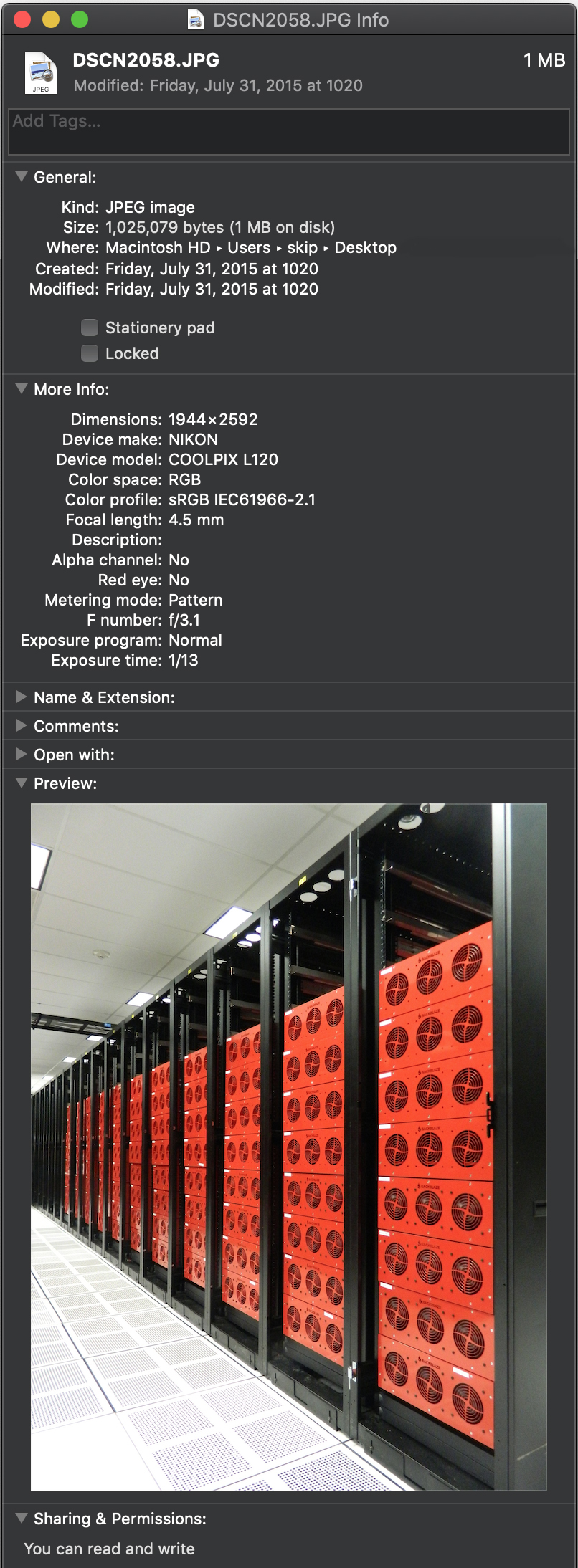
An example of metadata embedded in a rich media file.
For example, this image taken in Backblaze’s data center carries all kinds of interesting information. When I inspect the file, I can see a wealth of information. I now know the image’s dimensions and when the image was taken, as well as exactly what kind of camera took this picture and the lens settings that were used.
As you can see, this metadata could be very useful if you want to find all images taken on that day, or even images taken with that same camera, focal length, F-stop, or exposure.
Going through files one at a time to find the one you need is incredibly inefficient. Yet that’s how things still work in many creative environments—an ad hoc system of folders plus the memory of whoever’s been with the team longest. Files are often kept on the same storage used for production or even on an external hard drive.
Teams quickly outgrow that system when they find themselves juggling multiple hard drives or they run out of space on production storage. Worst of all, assets kept on a single hard drive are vulnerable to disk damage or to being accidentally copied or overwritten. Even if standard protocol is a redundant backup process, natural disasters can become a serious threat depending on the location of the physical tapes or drives.
Why your assets need to be managed
To meet this challenge, creative teams have often turned to MAMs. A MAM automatically extracts all of the assets’ inherent metadata, helps move files to protected storage, and makes them instantly available to MAM users. As time has gone on, we’ve seen MAM systems be powerfully enhanced by AI. In a way, these MAMs become a private media search engine where any file attribute can be a search query to instantly uncover the needed files in even the largest media asset libraries.
Beyond that, asset management systems are rapidly becoming highly effective collaboration and workflow tools. For example, tagging a series of files as Field Interviews — April 2019, or flagging an edited piece of content as HOLD — do not show customer can be very useful indeed.
Inner workings of a media asset manager
When you add files into an asset management system, the application inspects each file, extracting every available bit of information about the file, noting the file’s location on storage, and often creating a proxy version of the file that is easier to present to users.
To keep track of this information, asset manager applications employ a database and keep information about your files in it. This way, when you’re searching for a particular set of files among your entire asset library, you can simply make a query of your asset manager’s database in an instant rather than rifling through your entire asset library storage system. The application takes the results of that database query and retrieves the files you need.
A MAM Case Study: Complex Networks
Complex Networks was running out of space. Whenever local shared storage filled up, they had to pull assets off to give everybody enough room to continue working. They moved all of their assets to iconik media asset management software and backed them all up to the Backblaze B2 Cloud Storage. They’re now free to focus on what they do best—making culture-defining content—rather than spending time searching for assets.
Asset migration playbook
Whether you need to move from a file and folder based system to a new asset manager, or have been using an older system and want to move to a new one without losing all of the metadata that you have painstakingly developed, a sound playbook for migrating your assets can help guide you. Below we’ll explain five plays you can use to approach your asset management journey:
Play 1: Protecting assets saved in a folder hierarchy without an asset management system
In this scenario, your assets are in a set of files and folders, and you aren’t ready to implement your asset management system yet.
The first consideration is for the safety of the assets—backup and archive. Files on a single hard drive are vulnerable, so if you are not ready to choose an asset manager your first priority should be to get those files into a secure cloud storage service like Backblaze B2.
Then, when you have chosen an asset management system, you can simply point the system at your cloud-based asset storage to extract the metadata out of the files and populate the asset information in your asset manager.
How to run it:
Get assets archived or moved to cloud storage.
Choose your asset management system.
Ingest assets directly from your cloud storage.
Play 2: Moving assets saved in a folder hierarchy into your asset management system and archiving in cloud storage
In this scenario, you’ve chosen your asset management system, and need to get your local assets in files and folders ingested and protected in the most efficient way possible.
You’ll ingest all of your files into your asset manager from local storage, then back them up to cloud storage. Once your asset manager has been configured with your cloud storage credentials, it can automatically move a copy of local files to the cloud for you. Later, when you have confirmed that the file has been copied to the cloud, you can safely delete the local copy.
How to run it:
Ingest assets from local storage directly into your asset manager system.
From within your asset manager system archive a copy of files to your cloud storage.
Once safely archived, the local copy can be deleted.
Play 3: Getting a lot of assets on local storage into your asset management system and backing up to cloud storage
If you have a lot of content, more than say, 20TB, you will want to use a rapid ingest service similar to the Backblaze Fireball system. You copy the files to the Backblaze Fireball, Backblaze puts them directly into your asset management bucket, and the asset manager is then updated with the file’s new location in your Backblaze B2 account.
This can be a manual process, or can be done with scripting to make the process faster.
How to run it:
Ingest assets from local storage directly into your asset manager system.
Archive your local assets to Fireball (up to 90TB at a time).
Once the files have been uploaded by Backblaze, relink the new location of the cloud copy in your asset management system.
Play 4: Moving from one asset manager system to another without losing metadata
In this scenario you have an existing asset management system and need to move to a new one as efficiently as possible. You want to take advantage of your new system’s features and safeguard in cloud storage in a way that does not impact your existing production.
Some asset management systems will allow you to export the database contents in a format that can be imported by a new system. Some older systems may not have that feature and will require the expertise of a database expert to manually extract the metadata. Either way, you can expect to need to map the fields from the old system to the fields in the new system.
Making a copy of your old database is a must. Don’t work on the primary copy, and be sure to conduct tests on small groups of files as you’re migrating from the older system to the new. You need to ensure that the metadata is correct in the new system, with special attention that the actual file location is mapped properly. It’s wise to keep the old system up and running for a while before completely phasing it out.
How to run it:
Export the database from the old system.
Import the records into the new system.
Ensure that the metadata is correct in the new system and file locations are working properly.
Make archive copies of your files to cloud storage.
Once the new system has been running through a few production cycles, it’s safe to power down the old system.
Play 5: Moving quickly from a MAM on local storage to a cloud-based system
In this variation of Play 4, you can move content to object storage with a rapid ingest service like Backblaze Fireball at the same time that you migrate to a cloud-based system. This step will benefit from scripting to create records in your new system with all of your metadata, then relink with the actual file location in your cloud storage all in one pass.
You should test that your asset management system can recognize a file already in the system without creating a duplicate copy of the file. This is done differently by each asset management system.
How to run it:
Export the database from the old system.
Import the records into the new system while creating placeholder records with the metadata only.
Archive your local assets to the Backblaze Fireball (up to 90TB at a time).
Once the files have been uploaded by Backblaze, relink the cloud based location to the asset record.
Bonus play: Using cloud storage to scale a media heavy workload
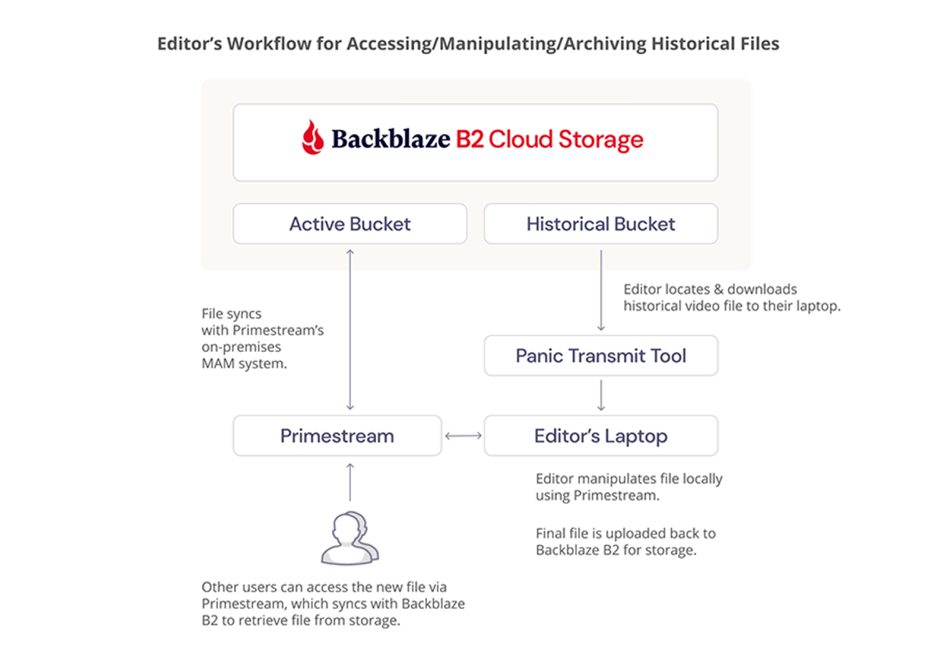
Fortune Media’s tech stack was expensive, difficult to use, and not 100% reliable. They migrated over 300TB of data, mainly video files, to Backblaze B2 Cloud Storage, which integrated with their preferred MAM system, Primestream Xchange, removing the need for archiving middleware and simplifying the tech stack.
Wrapping up
Every creative environment is different, but all need the same thing: to be able to find assets fast and organize content to enhance productivity and rest easy knowing that content is safe.
With these plays, you can take that step and be ready for any future production challenges and opportunities.
Not many companies run exabyte scale data platforms, and not many companies open source their drive data—at Backblaze, we do both. From that perch, I’m sharing how I think about buying hard drives at exabyte scale, including the intentional design decisions and trade-offs I make as an expert in the field, and what you can apply to your own operations whether you’re running a couple hundred terabytes or petabytes on-premises.
TL/DR: Bigger drives aren’t always better
You’d think, as a cloud platform managing massive amounts of data, we’d be delighted that drive density continues to grow. But it’s not as simple as that. While we do run cohorts of 20TB+ drives in our environment, there are a few reasons it doesn’t always make sense to fill our servers up with the densest drives we can buy.
Drive size and IOPS starvation
Drives have a finite amount of capacity to perform input/output operations per second (IOPS). The larger the drive, the more those IOPS become a contentious consumable—creating a triangle of tension between storage capacity, reading, and writing. You can store more data on a 20TB drive, but you can only read and write as fast as that one drive allows. Conversely, you can store the same amount of data on five 4TB drives and 5x your IOPS capacity through concurrency.
For high demand workloads with high concurrency requirements for reading and writing files—like AI inferencing, for example—you’ll want to carefully consider the balance point between the right drive size and the performance you need to get out of the system. The ability to read, write, or delete content has to peacefully coexist with the ability for your storage infrastructure to service any of those three needs. Now, you might be thinking: If that’s a constraint, what about SSDs? I’ll get to that down below.
Drive size and rebuilds
When managing large data at scale we employ Reed-Solomon erasure coding to rebuild drives upon failure to maintain data durability. The larger the drive, the more painful and slow the rebuild when that drive eventually fails. The rebuild process can take hours or even days, depending on the size of the drive and the workload on the system. That can impact performance, especially if the storage system is already under heavy use, and increases the risk of another failure while the rebuild is in progress. While we mitigate that risk in a variety of ways, it may not be feasible for smaller shops to do so.
If you’re in a business that relies on real-time data access—financial institutions, healthcare providers, e-commerce platforms, for example—you need drives that balance capacity and rebuild speed. Higher-capacity drives may offer better storage density but smaller or enterprise-grade drives with faster rebuild times and higher endurance may be a better choice for businesses where continuous uptime and/or durability is critical.
HDD vs. SSD: Unit economics
The moral of the story is that the way you invest in drives, and how much you take things like drive size, drive type, and the failure rates we publish into consideration absolutely depends on your use case. It’s not as simple as looking at our Drive Stats and picking the drive with the lowest annualized failure rate.
In Backblaze’s early days, when we were focused on consumer backup, drive density and durability were the most important part of the equipment for us. We didn’t care about speed. As our customers increasingly bring us newer and more demanding use cases, our calculus for the kinds of drives we fill our data centers with will change with them.
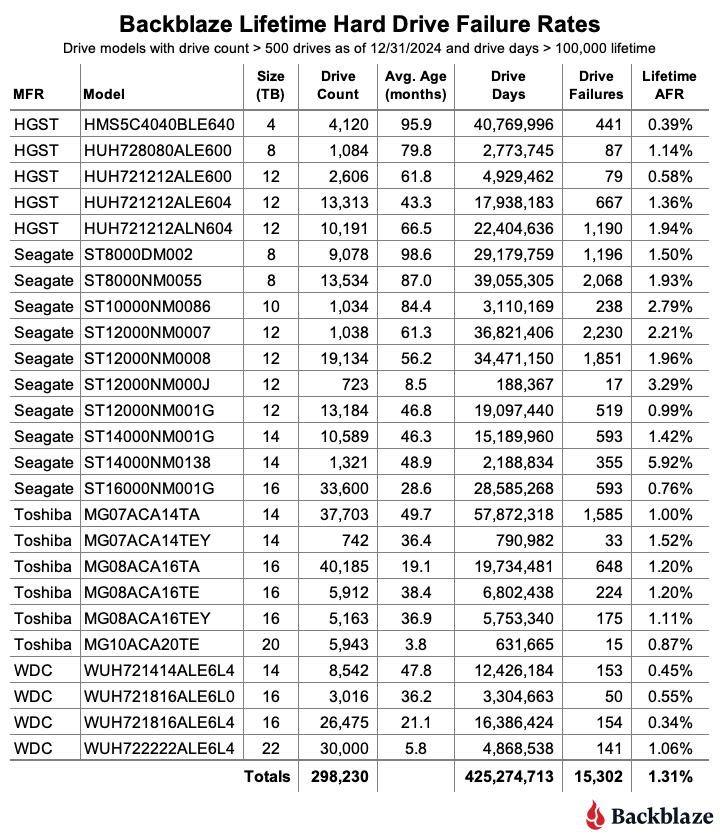
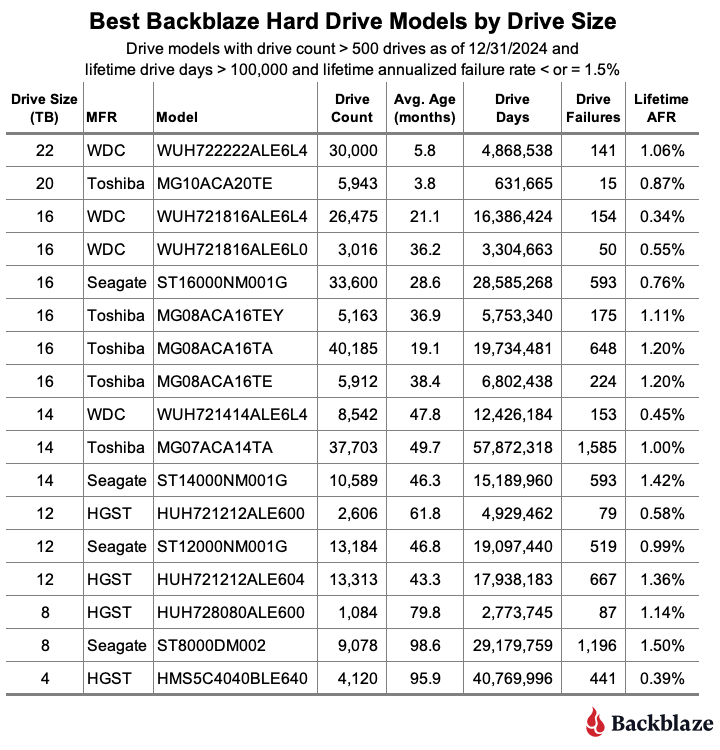
As of December 31, 2024, we had 305,180 drives under management. Of that number, there were 4,060 boot drives and 301,120 data drives. This report will focus on those data drives as we review the Q4 2024 annualized failure rates (AFR), the 2024 failure rates, and the lifetime failure rates for the drive models in service as of the end of 2024. Along the way, we’ll share our observations and insights on the data presented, and, as always, we look forward to you doing the same in the comments section at the end of the post.
Sign up for the Drive Stats webinar
Tune in to ask those questions you’ve had spinning ‘round your head like so many drives, and meet the new Drive Stats team—Stephanie Doyle and David Johnson of Backblaze Blog fame. Yes, you heard that right: It’s my last Drive Stats before I head off to retirement (but more on that later in the report). Read on, and sign up, for analysis and insights from the 2024 report.
Q4 2024 hard drive failure rates
As of the end of 2024, Backblaze was monitoring 301,120 hard drives used to store data. For our evaluation, we removed from consideration 487 drives, as they did not meet the criteria to be included. We’ll discuss the criteria we used in the next section of this report. Removing these drives leaves us with 300,633 hard drives to analyze. The table below shows the annualized failure rates for Q4 2024 for this collection of drives.
Notes and observations
24TB drives are here. Seagate 24TB drives (model: ST24000NM002H) arrived in early December. The 1,200 drives filled one Backblaze Vault with no failed drives through the end of Q4. The 24TB Seagate drives join the 20TB Toshiba and 22TB WDC drive models in the 20-plus capacity club as we continue to dramatically increase storage capacity while optimizing existing storage server space.
Zero failures for the quarter. Five drive models had zero failures for the quarter starting with the 24TB Seagate drive model noted above. The others are the 4TB HGST (model: HMS5C4040ALE640), the 8TB Seagate (model: ST8000NM000A), the 14TB Seagate (model: ST14000NM000J), and the 16TB Seagate (model: ST16000NM002J). All of the zeroes come with the caveat of having a relatively small number of drives and drive days, but zero failures in a quarter is always a good thing.
The 4TB drives are nearly extinct. The 4TB drive count decreased by another 1,774 drives in Q4. (I discussed exactly how we migrate them in more detail if you want to dig in.) The remaining ~4,000 drives should be gone by the end of Q1 2025. They will be replaced by the incoming 20TB, 22TB, and 24TB drives. It should be noted that out of the 4TB drives in operation in Q4, only one failed, so those 20-plus TB drives have a lot to live up to from a failure perspective.
The quarterly failure rate is down. The AFR for Q4 dropped from 1.89% in Q3 to 1.35% in Q4. While all drive sizes delivered some improvement from Q3 to Q4, one of the primary drivers is the addition of over 14,000 new 20-plus TB drives. As a group, these drives delivered an AFR of 0.77% for the quarter.
Drive model criteria
We noted earlier we removed 487 drives from consideration when we produced the table above covering Q4 2024. There are two primary reasons we did not consider these drive models.
Testing. These are drives of a given model that we monitor and collect Drive Stats data on, but are not considered production drives at this time. For example, drives undergoing certification testing to determine if they are performant enough for our environment are not included in our Drive Stats calculations.
Insufficient data points. When we calculate the annualized failure rate for a drive model for a given period of time (quarterly, annual, or lifetime), we want to ensure we have enough data to reliably do so. Therefore we have defined criteria for a drive model to be included in the tables and charts for the specified period of time. Models that do not meet these criteria are not included in the tables and charts for the period in question.
Period
Drive Count
Drive Days
Quarterly
> 100
> 10,000
Annual
> 250
> 50,000
Lifetime
> 500
>100,000
Regardless of whether or not a given drive model is included in the charts and tables, all of the data for all of the drives we use is included in our Drive Stats dataset which you can download by visiting our Drive Stats page.
As with the Q4 quarterly results, we will apply these criteria to the annual and lifetime charts that follow in this report.
2024 annual hard drive failure rates
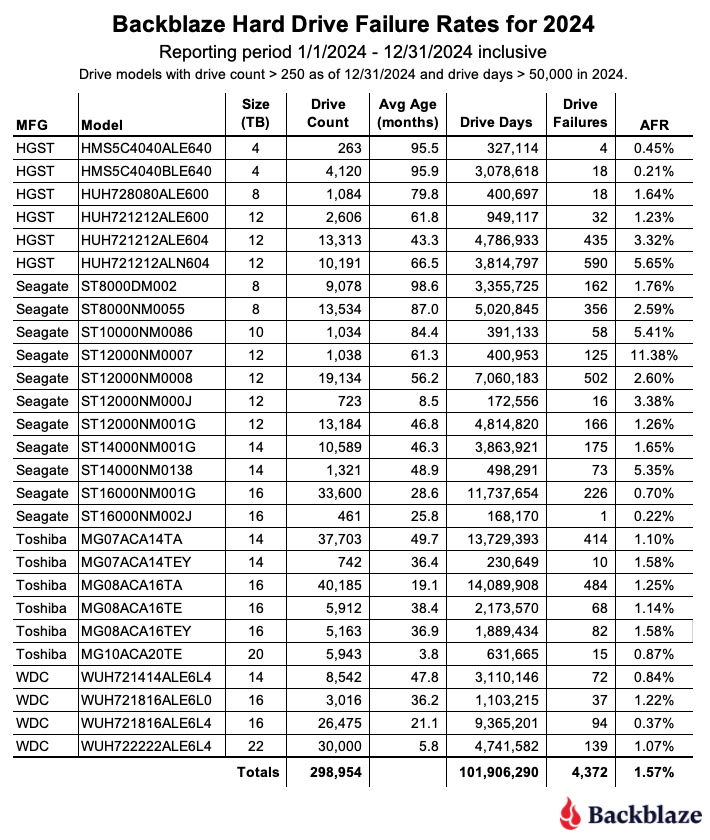
As of the end of 2024, Backblaze was monitoring 301,120 hard drives used to store data. We removed nine drive models consisting of 2,012 drives from consideration as they did not meet the annual criteria we have defined. This leaves us with 298,954 drives divided across 27 different drive models. The table below shows the AFRs for 2024 for this collection of drives.
Notes and observations
No zeros for the year. There were no qualifying drive models with zero failures in 2024. That said, the 16TB Seagate (model: ST16000NM002J) got close by recording just one drive failure back in Q3, giving the drive an AFR of 0.22% for 2024.
Busy data center techs. During 2024, our data center techs installed 53,337 drives. If we assume there are 2,080 work hours a year (52 weeks times 40 hours), that math is 53,337/2,080, and that means our intrepid DC techs installed 26 drives per hour. Busy, busy, busy!
The 24TB Seagate drives? While there were 1,200 new 24TB Seagate drives added in 2024, they were installed in early December and did not accumulate enough drive days to make the cut for the annual, or lifetime, tables. Including the 24TB Seagate drive, there were three models that missed out on being included in the 2024 annual tables, these drive models are listed below.
MFG
Model
Drive Count
Drive Days
2024 AFR
Seagate
ST8000NM000A
247
22,684
0.84%
Seagate
ST14000NM000J
232
19,696
1.32%
Seagate
ST24000NM002H
1,200
18,000
0.00%
As a reminder, a drive model needs to have over 250 drives by the end of Q4 and accumulate at least 50,000 drive days during 2024 to be included in the annual tables.
Comparing Drive Stats for 2022, 2023, and 2024
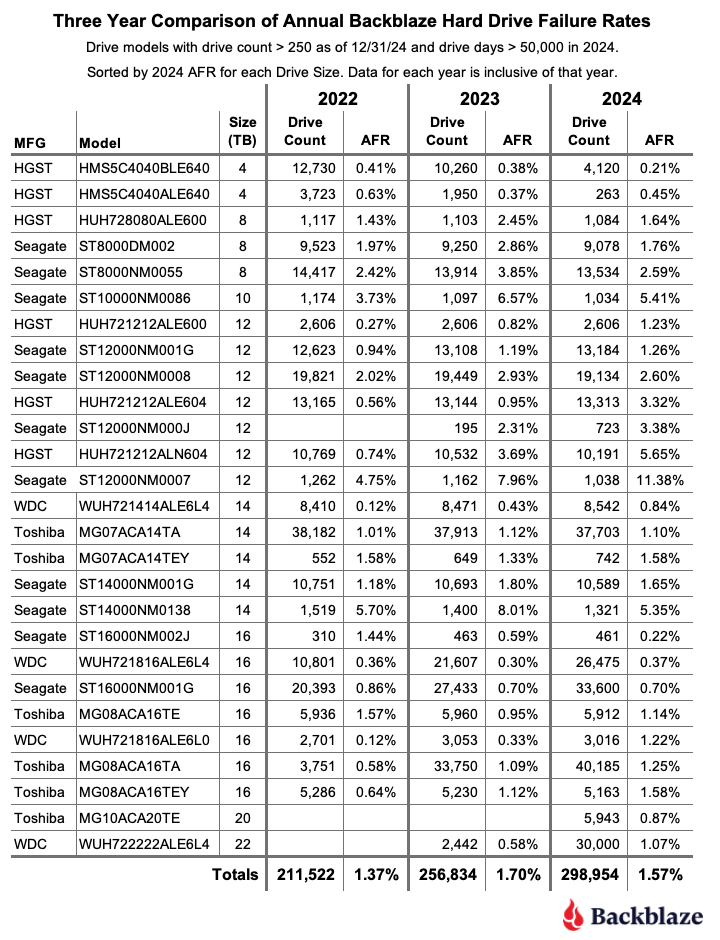
The table below compares the annual failure rates by drive model for each of the last three years. The table includes just those drive models which met the annual criteria as of the end of 2024. The data for each year is inclusive of that year only for the operational drive models present at the end of each year. The table is sorted by drive size and then AFR.
Notes and observations
The annual AFR is down. The 2024 AFR for all drives listed was 1.57%, this is down from 1.70% in 2023. We expect the overall failure rates to continue to fall in 2025, but we will be watching the following for indicators.
The failure rates of the 8TB and 12TB drive models. All of the models will exceed their five years of service. In general, the failure rate will noticeably increase as the drives exceed five years of service. And, while there are outliers like the current HGST 4TB drives, you can’t assume that will happen.
The failure rates of the 14TB and 16TB drive models. These models are approaching middle age—three to five years in operation. This is where, according to the bathtub curve, their failure rates could gradually increase—but not as severely as when they exceed five years.
The failure rates for the 20TB, 22TB, and 24TB drives models. These drives will enter the flat portion of the bathtub curve, that is where their failure rate should be the lowest.
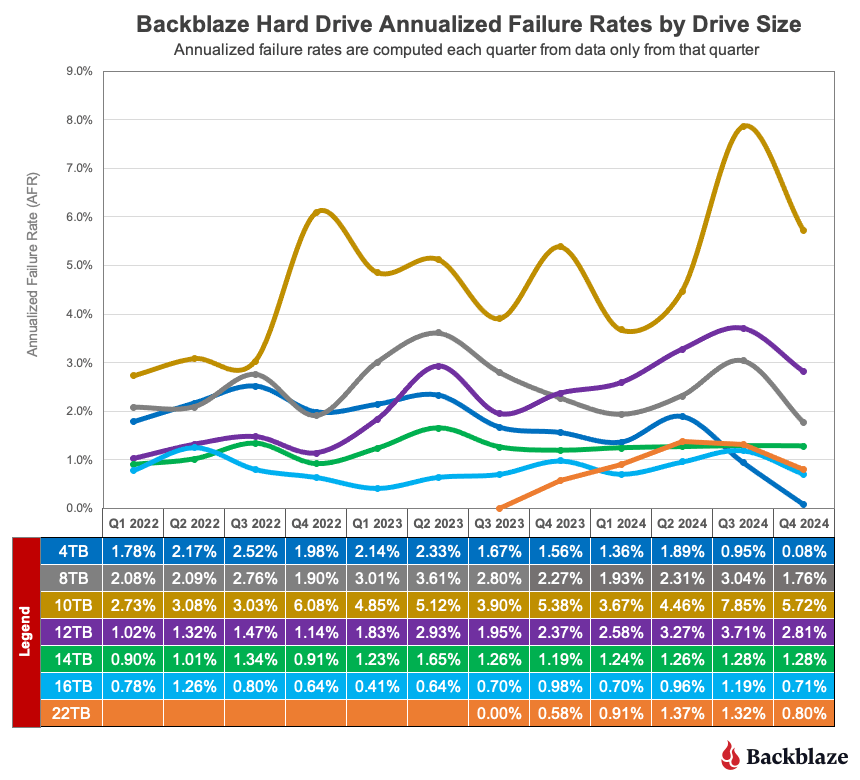
Annualized failure rates vs. drive size
Now, we can dig into the numbers to see what else we can learn. We’ll start by looking at the quarterly annualized failure rate by drive size over the last three years.
Let’s take a look at the different drive sizes and how they affect the overall annualized failure rate over time.
Minimal impact. The 4TB (blue line) drives and 10TB (gold line) drives have had little impact over the last year on the overall failure rate as each finished the year with a relatively small number of drives. Still, the wild ride delivered by the 10TB drives keeps our DC techs on their toes.
Older drives. The 8TB (gray line) drives and 12TB (purple line) drives range in age from five to eight years and as such their overall failure rates should be increasing over time. The 12TB drives are following that pattern moving up from about 1% AFR back in 2021 to just about 3% in 2024. The failure rates of the 8TB drives, while erratic from quarter-to-quarter, have a nearly flat trendline over the same period.
Workhorse drives. The 14TB (green line) and 16TB (azure* line) drives comprise 57% of the drives in service and on average they range in age from two to four years. They are in the prime of their working lives. As such, they should have low and stable failure rates, and as you can see, they do.
* Maybe azure isn’t quite right, but robin’s egg blue seemed a bit pretentious.
New drives on the block. The 22TB (orange line) drives are in their early days as we continue to add more drives on a regular basis. Once the drive population settles down, we’ll have a better sense of the AFR direction. Still, the early results are solid with a lifetime AFR of 1.06%.
Annualized failure rates vs. manufacturer
One of the more popular ways we can look at this data is by the drive manufacturer as we’ve done below.
To complete the picture, the chart below uses the same data, but displays just the linear trendlines for each of the manufacturers over the same three-year period.
HGST. While the HGST trendline is not pretty, it doesn’t tell the entire story. Looking at the first chart, until Q4 2023, the HGST drives were at or below the average for all of the drives, that is all manufacturers. At that point, HGST has exceeded the average, and then some. The table below contains results for just the HGST drives for 2024. We’ve sorted them, high to low, by the 2024 AFR.
As you can see, there are two 12TB drive models driving the high AFR for the HGST drives. The HUH721212ALN604 model began showing signs of an increased quarterly AFR in Q1 2023 and the HUH721212ALE604 model followed suit in Q3 2024. Without these drive models, the 2024 AFR for HGST drive would be 0.55%.
Seagate. The quarterly AFR trendline decreased for the Seagate drives from 2022 through 2024. While the decrease was slight, from 2.25% to 2.0%, Seagate was the only manufacturer to do so. The decrease appears, at least in part, to be due to the removal of the Seagate 4TB drives during that period.
Toshiba. Over the 2022 to 2024 period, the quarterly AFR for the Toshiba drive models varied within a fairly narrow range between 0.80% and 1.52%, with most quarters hovering slightly around 1.2%. Most importantly, none of the individual drive models were outliers, as the highest quarterly AFR for any Toshiba drive model was 1.58%. We like consistency.
WDC. While WDC drive models delivered a similar level of consistency as the Toshiba models, they did so with a lower AFR each quarter. From 2022 through 2024, the range of quarterly AFR values for the WDC models was 0.0% to 0.85%. The 0.0% AFR was in Q1 2022 when none of the 12,207 WDC drives in operation failed during that quarter.
Lifetime hard drive stats
As of the end of 2024, Backblaze was monitoring 301,120 hard drives used to store data. Applying our drive criteria noted above for the lifetime period, we removed 11 drive models consisting of 2,736 drives from consideration as they did not meet the lifetime criteria we defined. This leaves us with 298,230 drives divided across 25 different drive models. The table below shows the lifetime AFRs for this collection of drives.
The current lifetime AFR for all of the drives is 1.31%. This is down from 1.46% in 2023. The drop is primarily due to the completion of the migration of the 4TB Seagate drives in 2024, which left us with only two of these drives still in operation as of the end of 2024. As a consequence, the 79 million drive days and over 5,600 drive failures racked up by the 4TB Seagate drives by the end of 2023 are not included in the data presented in the 2024 lifetime table above.
In the final table below, we’ve taken the lifetime table and sorted out the drive models that have a lifetime AFR of 1.50% or less by drive size.
A couple of caveats as you review the table.
There is enough data for each model to say the AFR values are solid. That said, everything could change tomorrow. In general, the hard drive failure rate follows the bathtub curve as the drives age—unless it doesn’t. Some drives refuse to fail as they age, like the 4TB HGST drives. Other drives are great, and then “hit the wall” and bend the failure curve upward, fast.
A drive model with a 1% annualized failure rate means that you can expect one drive out of 100 to fail in a year. If you’re a personal drive user, that one drive could be yours. If you have exactly one drive, your personal annualized failure rate is 100%. In other words, always have a backup, and don’t forget to test it.
Migration time
I have been authoring the various Drive Stats reports for the past ten years and this will be my last one. I am retiring, or perhaps in Drive Stats vernacular, it would be “migrating.” Either way, after 10 years in the U.S. Air Force and 30+ years in Silicon Valley Tech, it is time. Drive Stats will continue with Stephanie Doyle and David Johnson as the replacement drive models beginning with the Q1 2025 report. I wish them well.
I want to say thank you to each of you who have taken your time to peruse and engage with the Drive Stats reports and data over the last 10 years. And, thank you as well for the comments, questions, and discussions that raced and raged across the various communities that care about something as mundane and awesome as a hard drive. It has been quite the ride—thanks again.
The Hard Drive Stats data
The complete data set used to create the tables and charts in this report is available on our Hard Drive Test Data page. You can download and use this data for free for your own purpose. All we ask are three things: 1) you cite Backblaze as the source if you use the data, 2) you accept that you are solely responsible for how you use the data, and 3) you do not sell this data itself to anyone; it is free.
Good luck, and let us know if you find anything interesting.
Media and entertainment professionals have long debated how and where cloud services best fit in their workflows. Archive was initially seen as the most natural fit. But end-to-end cloud workflows and cloud-based production were viewed with skepticism due to the network bandwidth required to edit full resolution content. Now, as more organizations lean into REMI workflows, and new cloud-oriented creative tools enable real-time content production, the cloud is playing a role at every step of creative workflows.
Of course, it’s one thing to talk about real-time production in the cloud and it’s another thing to show how the cloud has transformed an actual workflow from end-to-end. But that’s exactly what the Philadelphia Eagles media team did by building a streamlined work-from-anywhere solution with cloud storage and cloud-delivered asset management. The best part was that rolling out the new cloud workflow was just as painless as it was transformative for their business.
We went from frequent LTO crashes and long restore times to near-instant access for every stored clip.
—Stacy Kelleher, Director of Production, Philadelphia Eagles
Archive availability sidelines production efforts
The Eagles were using a portfolio of different storage systems to store petabytes of content with different availability for each tier. The best they could hope for when restoring clips from LTO, for example, was half real-time. So, a three hour clip might take an hour and half to restore—and that’s if the LTO system was working at all. It became so problematic that they stopped archiving content to LTO altogether, opting to max out their SAN to ensure fast access.
The desire for faster file-sharing led the business requirements for overhauling their storage infrastructure. They needed to:
Consolidate their storage infrastructure.
Improve remote access faster for sharing content internally or even monetizing it outside the organization.
Improve the reliability of their backup and archive solution.
But migrating data and setting up a new system is no small feat.
Migration can’t run down the clock
Anyone who’s ever done a legacy migration knows moving to a new system is a quagmire. You can’t tell IT: You need to stop syncs and backups for three weeks while we do a migration.
There’s a reason folks in the media and entertainment space dread a migration. It’s slow. It’s semi-painful. And, everything has to port over correctly.
The Eagles approached their migration in the off season. They needed some flexibility to consolidate their multiple SANs, stadium production operations, and LTO system into something that helped them fly higher.
They consolidated the data into one single tier with a Quantum QSX on site for nearline storage and shifted hundreds of terabytes from their SAN and LTO system to Backblaze as their off-site storage for backup and archive.
Cloud MAM for the win
With storage sorted, the Eagles then integrated Mimir, a video collaboration and production platform that includes production asset management, archive, and object-store integration, to keep everything organized and on time. Whenever a file is uploaded to Mimir, it’s automatically stored in Backblaze B2 via Mimir’s file indexer system Kelda. This covered the game day action—their production team had fast access to recently recorded content, providing flexibility to work from home after those late night games.
Getting our sponsored, highest-performing content out quickly drives more views and boosts revenue, so efficiency on game day is critical. Our newly streamlined workflows ensure our editors can deliver while the content is still relevant and engaging.
—Stacy Kelleher, Director of Production, Philadelphia Eagles
The final score
The new system empowers their production team by giving them instant access and fast workflows so they can work without slowdowns. Kelleher noted that restoring a clip is nearly instant.
They have the ability to share links directly from Mimir to users outside the organization for things like pre-season broadcasts, which comes in handy especially when those users don’t want, need, or have the equipment to download the entire broadcast file. Stacy can just copy and paste a Mimir link into an email, and outside agencies or users can watch entire games at speed.
Finally, they freed up IT staff time spent managing all that tape and old hardware, not to mention physical space. It all added up to a big win for the IT team, the franchise, and the fans.
Now I can easily share entire broadcasts by copying and sharing a link from our MAM. No need for FTP downloads or uploading to other platforms. It’s fast, seamless, and ensures everyone can view the content without issues.
—Stacy Kelleher, Director of Production, Philadelphia Eagles
If you haven’t been able to keep pace with the AI news cycle, you’d be forgiven. I work at a tech company, and it’s felt like bailing water with a teacup over the past few weeks. But the term that keeps rising to the top of the flotsam in the boat is this: reasoning models. The regular ol’ models that power ChatGPT, Gemini, and Claude are cool and all, but reasoning models are what you should keep an eye on as an enterprise tech leader, specifically DeepSeek and OpenAI.
In the spirit of our AI 101 series, I’ll do my level best to recap the finer points and decode some of the more esoteric terms you’re likely to encounter (Like: WTH is a “mixture of experts”? That sounds like a party I want to be invited to, but will definitely skip at the last minute.)
The reasoning model releases: OpenAI o1-mini, DeepSeek R1, and OpenAI o3-mini
The last few weeks and months have seen a flurry of activity in the AI space, with reasoning models taking center stage. The TL/DR is that reasoning models are LLMs that can self-correct before delivering a response to a prompt, though their turn time is a little longer than your standard LLM.
Here are the releases that you should know about.
OpenAI o1-mini: September 12, 2024
It seems like a lifetime ago, but OpenAI released its o1-mini model back in September. o1-mini wasn’t the first reasoning model to go to market (models from Google, DeepMind, Anthropic, and Meta dabbled in reasoning for specific tasks). But, it was more cost-efficient at inference—80% cheaper than the o1-preview model. What you need to know:
Yes, o1-preview and o1-mini were released at the same time—it’s confusing. Without getting into the weeds, here’s the difference: pricing. o1-preview was the most expensive OpenAI model on offer at $15/1M input tokens and $60/1M output tokens versus mini’s $3/1M input and $12/1M output. (You can think of tokens as units of data, like a prompt or a response, that are processed by the ML model.)
o1-preview (the expensive one) was purported at the time to perform “similarly to PhD students on challenging benchmark tasks in physics, chemistry, and biology.”
o1-mini (the 80% cheaper one) was designed to be particularly well-suited for coding tasks.
DeepSeek R1: January 20, 2025
Unless you’ve been under a rock, you’ve heard about this one. DeepSeek rattled the AI industry and financial markets with its release of R1, challenging OpenAI’s models on performance, pricing, and open-source availability. (We love a good open-source release.) What you need to know:
DeepSeek R1 delivers comparable results to OpenAI’s o1 models, both preview and mini, on math and coding benchmarks, while being trained on fewer GPUs—orders of magnitude fewer. Best guess estimates put it at around 60,000 GPUs, while industry leaders like OpenAI and Anthropic exceed 500k each.
This makes R1 much cheaper at $0.14/1M input tokens and $2.19/1M output tokens.
These efficiency claims could have far-reaching impacts for enterprises looking to build AI at a fraction of the cost. (The DeepSeek platform page has been down since we tasked one of our favorite tech evangelists with testing it, but stay tuned for a deep dive on how it works.)
OpenAI o3-mini: January 31, 2025
OpenAI previewed o3 in December, and brought it to GA just 11 days after DeepSeek joined the party. What you need to know:
o3-mini is intended for programming and STEM use cases.
I’m admittedly cherry picking these releases a bit to keep things simple. Suffice it to say, there are a lot of models, even within OpenAI’s o-series, but these are the ones of note at least as it pertains to recent events.
What is reasoning anyway?
You might see reasoning described as “thinking” before it delivers an answer, but do not be fooled. AI cannot yet “think” or, to be fair, “reason” in the ways that we apply those terms to humans. To describe what they actually do, I need to use a word salad of jargon. I’m sorry—definitions follow. Reasoning models leverage chain-of-thought prompting to guide decision-making, incorporating self-improvement mechanisms and using test-time thinking to make real-time adjustments.
Chain-of-thought (CoT) prompting: Models break problems into logical steps (e.g., solving math problems via intermediate equations)
Self-improvement mechanisms: Techniques like the Self-Taught Reasoner (STaR) enable iterative refinement of reasoning through automated feedback loops.
Test-time thinking: Models can make decisions during deployment based on real-time inputs, rather than relying solely on pre-trained models or fixed strategies.
Here are a few more terms you might come across for good measure:
Inference compute: The computational power needed to run a reasoning model and generate predictions or outputs based on new data after the model has been trained.
Mixture of experts approach: Using multiple specialized models (“experts”) that handle different tasks, and applying a gating mechanism to select the most relevant expert to use to make predictions based on the input data. Of note: DeepSeek used this approach to create efficiencies.
Distillation: Using inputs and outputs from one model to train another model. Of note: OpenAI alleges this is how DeepSeek “stole” its IP.
This is all pretty cool, if linguistically painful, stuff, and it means that reasoning models are shifting perceptions of model capabilities. But they’re not without persistent challenges. Like other LLMs, they still struggle with complex reasoning failures, lack of training transparency, and cognitive biases.
Why should you care?
If the past two weeks (and, really, the past two years) are any indication, AI innovation will continue its blistering pace. Reasoning models, and LLMs in general, will become diverse and specialized for narrower tasks as the core technology is increasingly commoditized and cheapened. And, it’s worth noting that this is a totally normal—and expected—lifecycle when it comes to new technology.
What does it all mean for enterprises looking to build AI into their operations? Two key takeaways:
Don’t overcommit on any one toolset or investment: Test out OpenAI, DeepSeek, Gemini, Alibaba’s Qwen, and others. And, stay ahead of the changing landscape and new models—stay nimble, and keep experimenting.
Take care of your data: What makes these models valuable for your company isn’t so much their capabilities, but your data. You need to retain it in storage that’s reliable, easy to access, and doesn’t lock you out of AI experimentation with exorbitant egress fees.
Even as AI models get better, having those fundamentals in place can only help your business and set you up to better leverage AI when it’s right for your operations.
In this post, I’ll look at another AI technology, agents, and show you how I built an AI agent that answers questions about hard drive reliability based on over 11 years of raw data from our Drive Stats franchise.
The Drive Stats dataset is ideal for this kind of work. It’s a real-world dataset, but, it only weighs in at around 500 million records consuming about 20GB of storage in Parquet format (“only” being a relative term), so you can use it with big data and AI tools on a laptop in a reasonable amount of time rather than spinning up an expensive virtual machine (VM) and/or spending days waiting for an operation to complete. As an example, converting the entire Drive Stats data set from CSV to Parquet using a Python app on my MacBook Pro takes a couple of hours. On the same hardware, converting a terabyte-scale data set would take about four days.
Speaking of Drive Stats
The Drive Stats 2024 report comes out February 11, and we’re hosting a LinkedIn Live event where Andy Klein, resident Drive Stats guru, will share highlights. Register today to save your spot.
You can use these same techniques with any large dataset, from healthcare to ecommerce to financial services. In this example, we’re working with a single table, but you could adapt the sample code to a data lake comprising any number of tables.
What is an AI agent?
In the spirit of the times, I posed this question to ChatGPT. Its answer:
An AI agent is a software system designed to autonomously perform tasks or make decisions based on its environment and goals. It leverages artificial intelligence techniques—such as machine learning, reasoning, and natural language processing—to process information, make decisions, and take actions to achieve specific objectives.
Key components of an AI agent include:
Perception: The ability to sense and understand its environment. This could be through sensors, input data, or other means of gathering information.
Reasoning/decision-making: The core processing mechanism that helps the agent interpret its environment, make decisions, and plan actions. It could use various algorithms, such as decision trees, reinforcement learning, or neural networks.
Action: Once the agent has analyzed the environment and made a decision, it takes action to achieve its goal, whether it’s performing an operation, giving a recommendation, or interacting with another system.
Learning: Some AI agents can adapt over time, improving their decision-making and actions based on experience (via reinforcement learning, supervised learning, etc.).
AI agents can range from simple systems, like chatbots or virtual assistants, to more complex systems like autonomous vehicles, robots, or financial trading algorithms.
In general, the term “agent” emphasizes the idea of autonomy—the agent operates independently, often with the ability to learn, adapt, and make decisions based on changing conditions without direct human intervention.
In this example, the agent’s environment is a database containing the Drive Stats data (more on that below), and I want it to perform the following tasks:
Based on a natural language question, such as “Which drive has the lowest annual failure rate?”, generate a SQL query that retrieves data that will help answer the question.
Execute that query against the Drive Stats dataset.
Based on the query results, either create a new query that better answers the question, or generate a natural language answer.
Now I’ve established that my agent will be writing a SQL query, the next question is, “What will it be querying?” I’ve written about querying the Drive Stats dataset before; in that blog post I explained how I wrote a Python script to convert the Drive Stats data from the CSV format in which we publish it to Apache Parquet, a column-oriented file format particularly well-suited for storing tabular data for use in analytical queries, and upload it to a Backblaze B2 Bucket using the Apache Hive table format. There’s a broad ecosystem of tools and platforms that can manipulate Parquet data in object storage (for example, Apache Spark and Snowflake) and I chose Trino, the open source distributed SQL engine that forms the basis for Amazon Athena, to execute queries against the data.
I could have used the same technologies for this exercise, but I decided to add Apache Iceberg to the mix. While Parquet is a file format that specifies how tabular data is stored in files, Iceberg is a table format that governs how those files can be combined and interpreted as a database table. Iceberg provides a number of advantages over Hive as a table format, including better performance and much more flexible data partitioning.
What is partitioning?
Partitioning splits a dataset on one or more column values, easing data management and improving performance when a query includes a partition column.
Partitioning by year and month makes sense for the Drive Stats dataset—the resulting Parquet files are in the hundreds of megabytes, the sweet spot for Parquet data. To apply this partitioning to the Drive Stats data using the Hive table format, I had to create otherwise redundant month and year columns from the existing date column, complicating the schema.
Iceberg, by contrast, supports hidden partitioning, allowing you to apply a transformation to a column value to produce a partition value without adding any new columns. With the Drive Stats data, that meant I could simply define the partitioning as month(date) (the resulting value being the number of months since 1/1/1970, rather than an integer between 1 and 12), with no need to create any additional columns.
LangChain’s SQLDatabase class provides access to databases via the SQLAlchemy open-source Python library. The demo code obtains a SQLDatabase instance by providing a URI containing the trino scheme, a username and the location of the database node:
db = SQLDatabase.from_uri('trino://admin@localhost:8080/iceberg/drivestats')
Note: In this and other code excerpts in this blog post, I’ve omitted extraneous “boilerplate” code. As mentioned above, the full source code is available in the ai-agent-demo repository.
As you can infer from the localhost domain name, I’m running Trino on my laptop. I’m actually running it in Docker, using the Iceberg/Hive Docker Compose script from the trino-getting-started-b2 repository. I’ll dive into that example in a future blog post.
A simple query confirms that we have a successful database connection:
db.run("SELECT COUNT(*) FROM drivestats")

'[(537220724,)]'
As the result conveys, there are over 537 million rows in the Drive Stats dataset.
Each row contains the metrics collected from a single drive in the Backblaze fleet on a specific day. The schema has evolved over time, but, currently, the following columns are included:
date: The date of collection.
serial_number: The unique serial number of the drive.
model: The manufacturer’s model number of the drive.
capacity_bytes: The drive’s capacity in bytes.
failure: 1 if this was the last day that the drive was operational before failing, 0 if all is well.
pod_slot_num: The physical location of a drive within a storage server, as an integer from 0 to 59. The specific slot differs based on the storage server type and capacity: Backblaze (45 or 60 drives), Dell (26 drives), or Supermicro (60 drives).
pod_id: There are 20 storage servers in each Backblaze Vault. The pod_id is a numeric field with values from 0 to 19 assigned to each of the 20 storage servers.
vault_id: All data drives are members of a Backblaze Vault. Each Vault consists of either 900 or 1,200 hard drives divided evenly across 20 storage servers. The Vault is a numeric value starting at 1,000.
cluster_id: The name of a given collection of storage servers logically grouped together to optimize system performance, formatted as a numeric field with up to two digits. Note: At this time the cluster_id is not always correct; we are working on fixing that.
datacenter: The Backblaze data center where the drive is installed, currently one of ams5 (Amsterdam, Netherlands), iad1 (Reston, Virginia), phx1 (Phoenix, Arizona), sac0 (Sacramento, California), sac2 (Stockton, California) or, now live, yyz1, our new Toronto, Ontario, data center.
is_legacy_format: Currently 0, but may change in future as more fields are added.
A collection of SMART attributes. The number of attributes collected has risen over time; currently we store 93 SMART attributes in each record, each one in both raw and normalized form, with field names of the form smart_n_normalized and smart_n_raw, where n is between 1 and 255.
# OPENAI_API_KEY must be defined in the .env file
load_dotenv()
llm = ChatOpenAI(model="gpt-4o-mini")
Now we need a system prompt template. We’ll combine this with the database schema and a natural language question to form the prompt that we send to OpenAI. As in the LangChain tutorial, I’m using a prompt from the LangChain Prompt Hub:
This is the prompt template text, with the placeholders shown in {braces}:
================================ System Message ================================

Given an input question, create a syntactically correct {dialect} query to run to help find the answer. Unless the user specifies in his question a specific number of examples they wish to obtain, always limit your query to at most {top_k} results. You can order the results by a relevant column to return the most interesting examples in the database.

Never query for all the columns from a specific table, only ask for a few relevant columns given the question.

Pay attention to use only the column names that you can see in the schema description. Be careful to not query for columns that do not exist. Also, pay attention to which column is in which table.

Only use the following tables:
{table_info}

Question: {input}
Notice how the template requires you to specify the correct SQL dialect, constrains the number of results returned, and encourages the model to not hallucinate column names that do not exist in the schema.
A helper function populates the prompt template, sends it to the model, and returns the generated SQL query:
We can test the helper function by calling it directly with a Python dictionary containing a simple question:
question = {"question": "How many drives are there?"}
query = write_query(question)
The resulting query dictionary does indeed contain a valid SQL query, but it won’t give us the answer we are looking for.
{'query': 'SELECT COUNT(*) AS drive_count FROM drivestats'}
That query will tell us how many rows there are in the dataset, rather than how many drives. We supplied the database schema to the model, but we haven’t given it any information on the semantics of the columns in the drivestats table. We can provide a bit more detail to obtain the correct query:
question = {"question": "Each drive has its own serial number. How many drives are there?"}
query = write_query(question)
This time, the generated SQL query is correct:
{'query': 'SELECT COUNT(DISTINCT serial_number) AS total_drives FROM drivestats'}
As you can see, it’s important to check the output of AI models—they can and do generate unexpected results.
A second helper function executes the query against the database:
We can test it using the (correct) generated query:
result = execute_query(query)

{'result': '[(430464,)]'}
We need one more helper function, to pass the result set to the model and have it generate a natural language response. This time, we define our own prompt:
def generate_answer(state: State):
    prompt = (
        "Given the following user question, corresponding SQL query, "
        "and SQL result, answer the user question.\n\n"
        f'Question: {state["question"]}\n'
        f'SQL Query: {state["query"]}\n'
        f'SQL Result: {state["result"]}'
    )
    response = llm.invoke(prompt)
    return {"answer": response.content}
Again, we can test it in isolation. Notice that we have to provide the question and query, as well as the result so that the model has the context it needs:
We’ve combined the write_query and execute_query steps into a graph object that can run agent-generated queries. I’ll quote the security note from the LangChain tutorial on the inherent risks in doing so:
Building Q&A systems of SQL databases requires executing model-generated SQL queries. There are inherent risks in doing this. Make sure that your database connection permissions are always scoped as narrowly as possible for your chain/agent’s needs. This will mitigate though not eliminate the risks of building a model-driven system. For more on general security best practices, see here.
In this example, we are querying a public dataset, and I followed best practice by configuring Trino’s Iceberg connector with a read-only application key scoped to the bucket containing the Drive Stats Iceberg tables.
Now let’s stream a new question through the flow. This mode of operation displays the output of each step as it is executed, essential for understanding the flow’s behavior, particularly when it is behaving unexpectedly. The model returns structured text in Markdown format. With a couple of lines of code to extract the message from the step variable, we can use the display_markdown function to render each step’s output:
for step in graph.stream(
    {"question": "Each drive has its own serial number. How many drives did each data center have on 9/1/2024"}, stream_mode="updates"
):
    # unwrap the step value to get the markdown message
    state = one(step.values())
    message = one(state.values())
    display_markdown(message, raw=True)
This is the model’s output, and it gives us three different messages. I’ve separated them with a horizontal line for clarity:
SELECT datacenter, COUNT(DISTINCT serial_number) AS drive_count FROM drivestats WHERE date = ‘2024-09-01’ GROUP BY datacenter ORDER BY drive_count DESC LIMIT 10
Error: (trino.exceptions.TrinoUserError) TrinoUserError(type=USER_ERROR, name=TYPE_MISMATCH, message=”line 3:12: Cannot apply operator: date = varchar(10)”, query_id=20250113_221649_00214_bsut5) [SQL: SELECT datacenter, COUNT(DISTINCT serial_number) AS drive_count FROM drivestats WHERE date = ‘2024-09-01’ GROUP BY datacenter ORDER BY drive_count DESC LIMIT 10] (Background on this error at: https://sqlalche.me/e/20/f405)
The SQL query encountered an error because it attempted to compare a date column with a string in the format ‘YYYY-MM-DD’. Specifically, the error message indicates that the date column is of a different type (likely not a string), which is causing the type mismatch.
To answer the user question about how many drives each data center had on 9/1/2024, the SQL query needs to be corrected. Here’s the revised query:
SELECT datacenter, COUNT(DISTINCT serial_number) AS drive_count
FROM drivestats
WHERE date = DATE '2024-09-01'
GROUP BY datacenter
ORDER BY drive_count DESC
LIMIT 10
This corrected query uses the DATE keyword to ensure that the date string is properly interpreted as a date type, which should resolve the type mismatch error. If executed successfully, this query will provide the count of distinct drives in each data center for the specified date. However, without executing the corrected query against the database, we cannot provide the exact counts.
As you can see in the output from the first step, the model generated an invalid query, comparing a date to a string, despite the database schema being included in the prompt. The output of the second step contains the resulting error message from the database, while the third step contains the model’s diagnosis of the error.
This exchange highlights a limitation of a flow that is simply a linear series of steps, such as write_query, execute_query, and generate_answer. We cannot rely on the model to generate a valid SQL query, although it is able to point the way towards resolving its error.
Creating a ReAct AI agent with LangGraph
The LangGraph framework gives you the capability to create AI agents based on arbitrarily complex logic. In this article, I’ve used its prebuilt ReAct (Reason+Act) agent, since it neatly demonstrates the agent concept, rewriting the SQL query repeatedly in response to database errors.
There are three steps to creating the agent. The first is to create an instance of LangChain’s SQLDatabaseToolkit, passing it the database and model, and obtain its list of tools:
================================ System Message ================================

You are an agent designed to interact with a SQL database.
Given an input question, create a syntactically correct {dialect} query to run, then look at the results of the query and return the answer.
Unless the user specifies a specific number of examples they wish to obtain, always limit your query to at most {top_k} results.
You can order the results by a relevant column to return the most interesting examples in the database.
Never query for all the columns from a specific table, only ask for the relevant columns given the question.
You have access to tools for interacting with the database.
Only use the below tools. Only use the information returned by the below tools to construct your final answer.
You MUST double check your query before executing it. If you get an error while executing a query, rewrite the query and try again.

DO NOT make any DML statements (INSERT, UPDATE, DELETE, DROP etc.) to the database.

To start you should ALWAYS look at the tables in the database to see what you can query.
Do NOT skip this step.
Then you should query the schema of the most relevant tables.
Now we can create an instance of the prebuilt agent:
Again, we can stream the agent’s execution to show us each step of its operation.
for step in agent_executor.stream(
    {"messages": [{"role": "user", "content": "Each drive has its own serial number. How many drives did each data center have on 9/1/2024?"}]},
    stream_mode="values",
):
    step["messages"][-1].pretty_print()
The output from this flow is over 300 lines long; I posted it in its entirety as a Gist, but I’ll summarize the steps here:
Question: Each drive has its own serial number. How many drives did each data center have on 9/1/2024?
The model calls the “list tables” tool.
The list tables tool responds with a single table name, drivestats.
The model calls the “get schema” tool, passing it the table name.
The get schema tool responds with the schema and three sample rows from the drivestats table.
The model submits a query to the “query checker” tool: SELECT datacenter, COUNT(serial_number) AS drive_count FROM drivestats WHERE date = '2024-09-01' GROUP BY datacenter ORDER BY drive_count DESC LIMIT 10;
The query checker responds with the checked query, which is the same as its input. Note that the query checker only checks the SQL query’s syntax. The query contains the same data type mismatch as the query we generated earlier, as well as another error, as we’re about to discover.
The model submits the query to the “query executor” tool.
The query executor responds with a syntax error—Trino does not allow a trailing semi-colon on the query.
The model submits a modified query to the query checker tool: SELECT datacenter, COUNT(serial_number) AS drive_count FROM drivestats WHERE date = '2024-09-01' GROUP BY datacenter ORDER BY drive_count DESC LIMIT 10
The query checker responds with the checked query, which is the same as its input.
The model submits the query to the “query executor” tool.
The query executor responds with a type mismatch error since the query tries to compare a string value with a date column.
The model submits a query with the necessary DATE type identifier to the query checker tool: SELECT datacenter, COUNT(serial_number) AS drive_count FROM drivestats WHERE date = DATE '2024-09-01' GROUP BY datacenter ORDER BY drive_count DESC LIMIT 10
The query checker responds with the checked query, which is the same as its input.
The model submits the query to the “query executor” tool.
The query executor responds with a result set: [ ('phx1', 89477), ('sac0', 78444), ('sac2', 60775), ('', 24080), ('iad1', 22800), ('ams5', 16139) ]
The model returns a message containing the answer:
On September 1, 2024, the following datacenters had the specified number of drives:
These results show the datacenters with their respective drive counts.
Now let’s see if the model can calculate the annualized failure rate of a drive model. We’ll use the Seagate ST4000DM000, just because that is the drive model with the most days of operation in the dataset.
for step in agent_executor.stream(
        {"messages": [{"role": "user", "content": "Each drive has its own serial number. What is the annualized failure rate of the ST4000DM000 drive model?"}]},
        stream_mode="values",
):
    step["messages"][-1].pretty_print()
The annualized failure rate (AFR) for the ST4000DM000 drive model can be calculated using the following information:
– Total failures: 5,791
– Total drives: 37,040
– Time period: from May 10, 2013, to September 30, 2024, which is approximately 11.35 years.
The formula for calculating the annualized failure rate is:
Plugging in the numbers:
Therefore, the annualized failure rate (AFR) of the ST4000DM000 drive model is approximately 13.77%.
It’s impressive that the agent shows its working so comprehensively, but, unfortunately, it arrives at the wrong answer. Those drives were not all running for the entire span of the Drive Stats dataset. The correct calculation involves determining the number of days with data for those drives and dividing it by 365 to get the correct number of years’ operation.
It’s clear that the model is not able to answer questions on drive reliability given the data available to it so far. The solution lies in prompt engineering—providing more context on the semantics of the data in the system prompt.
We can extend the default AI agent system prompt template to include specific instructions on working with the Drive Stats dataset:
prompt_template.messages[0].prompt.template += """
Each row of the drivestats table records one day of a drive’s operation, and contains the serial number of a drive, its model name, capacity in bytes, whether it failed on that day, SMART attributes and identifiers for the slot, pod, vault, cluster and data center in which it is located.

Use this calculation for the annualized failure rate (AFR) for a drive model over a given time period:

1. **drive_days** is the number of rows for that model during the time period.
2. **failures** is the number of rows for that model during the time period where **failure** is equal to 1.
3. **annual failure rate** is 100 * (**failures** / (**drive_days** / 365)).

Use double precision arithmetic in the calculation to avoid truncation errors. To convert an integer **i** to a double, use CAST(**i** AS DOUBLE)

Note that the date column is a DATE type, not a string. Use the DATE type identifier when comparing the date column to a string.

Do not add a semi-colon suffix to SQL queries."""
Now, when we ask the same question on the annual failure rate of the ST4000DM000 drive model, the AI agent generates a correct SQL query and a more concise, and correct, final response (you can inspect the full output here).
SELECT 100 * (CAST(COUNT(CASE WHEN failure = 1 THEN 1 END) AS DOUBLE) / (COUNT(*) / 365)) AS annual_failure_rate
FROM drivestats
WHERE model = 'ST4000DM000'
The annual failure rate (AFR) for the ST4000DM000 drive model is approximately 2.63%.
response = agent_executor.invoke(
    {"messages": [{"role": "user", "content": "What was the annual failure rate of the ST8000NM000A drive model in Q3 2024?"}]}
)
response['messages'][-3].pretty_print()
display_markdown(response['messages'][-1].content, raw=True)
The query makes sense, and the response agrees with the table in the blog post:
SELECT 100 * (CAST(SUM(failure) AS DOUBLE) / (COUNT(*) / 365)) AS annual_failure_rate
FROM drivestats
WHERE model = 'ST8000NM000A' AND date >= DATE '2024-07-01' AND date < DATE '2024-10-01'
The annual failure rate (AFR) of the ST8000NM000A drive model in Q3 2024 is approximately 1.61%.
Interestingly, this time the SQL query used SUM(failure) to count the number of failures, rather than the equivalent, but rather long-winded COUNT(CASE WHEN failure = 1 THEN 1 END) it used in the previous query. Also, looking at the full response, we can see that, as directed by the custom prompt, the agent generated the correct syntax for comparing dates, so it didn’t need to correct and retry any queries.
Finally, let’s ask a more convoluted question, including the constraints given in the blog post:
response = agent_executor.invoke(
    {"messages": [{"role": "user", "content": "Considering only drive models which had at least 100 drives in service at the end of the quarter and which accumulated 10,000 or more drive days during the quarter, which drive had the most failures in Q3 2024, and what was its failure rate?"}]}
)
response['messages'][-3].pretty_print()
display_markdown(response['messages'][-1].content, raw=True)
Again, the AI agent is able to generate a valid SQL query, this time including a subquery, and its response matches the data from the blog post exactly:
WITH drive_stats AS (
    SELECT model,
           COUNT(DISTINCT serial_number) AS drive_count,
           COUNT(*) AS drive_days,
           COUNT(CASE WHEN failure = 1 THEN 1 END) AS failures
    FROM drivestats
    WHERE date >= DATE '2024-07-01' AND date < DATE '2024-10-01'
    GROUP BY model
    HAVING COUNT(DISTINCT serial_number) >= 100 AND COUNT(*) >= 10000
)
SELECT model,
       failures,
       100 * (CAST(failures AS DOUBLE) / (CAST(drive_days AS DOUBLE) / 365)) AS failure_rate
FROM drive_stats
ORDER BY failures DESC
LIMIT 10
The drive model with the most failures in Q3 2024 is the TOSHIBA MG08ACA16TA, which had 181 failures. Its failure rate during this period was approximately 1.84%.
Closing thoughts
My experience building an AI agent was astonishment at its ability to correctly generate quite complex SQL queries based on natural language instructions, tempered with frustration at its limitations, particularly the way that it would confidently generate an incorrect response, rather than saying “I’m sorry, but I don’t know how to do that.” Your AI agent development process should include generous testing time, as well as ongoing monitoring to ensure that it is coming up with the right answers.
If you manage a video surveillance platform, storage is either the unsung hero of your infrastructure or your biggest headache. Maybe what started as a neat and functional setup for your video surveillance storage has turned into a complex system that demands far more maintenance than you expected.
As your storage volume grows and costs climb, the initial solutions begin to show their cracks, demanding more resources and attention. And, higher resolution cameras lead to even more storage demand, not to mention the increase in the number of cameras your customers want to install.
Today, I’m outlining some of the obstacles I’ve seen companies encounter in video surveillance storage as well as the benefits cloud storage offers to help you streamline operations, rein in costs, and regain control over your architecture, without sacrificing performance or flexibility.
Video surveillance storage challenges
Storage infrastructure is the backbone of your service—but it can also be one of the most demanding aspects to manage whether your data is stored in on-premises NVR/DVR systems, in the cloud, or in a hybrid model. Some of the key challenges include explosive data growth in the industry, balancing cost and performance, regulatory and compliance hurdles, latency and accessibility, and data security and redundancy. I’ll dig into each, and talk about some of the pitfalls you might face.
Explosive data growth: The sheer volume of video data generated by modern surveillance systems is staggering. With cameras capturing high-definition footage 24/7, even modest setups can produce terabytes of data per day. Scaling storage to keep up with this growth without compromising performance or breaking the bank is no small feat.
Balancing cost and performance: As storage needs grow, so do bandwidth requirements, data egress, and ongoing maintenance costs. Striking the right balance between affordability and the high availability your customers expect is a constant juggling act.
Regulatory and compliance hurdles: Platforms must manage varying retention policies, ensure data privacy, and provide secure access controls to adhere to all relevant standards and requirements, such as GDPR and local video retention regulations—all while keeping everything running smoothly.
Latency and accessibility: Your customers demand quick access to their video footage, whether it’s for live viewing or playback. High latency or sluggish retrieval times can lead to frustration and impact trust in your platform. Designing storage that ensures fast, reliable access to data across geographies is critical, but challenging.
Data security and redundancy: Video footage isn’t just data—it’s sensitive, often mission-critical information that cybercriminals are increasingly targeting. Protecting it from ransomware, accidental loss, or corruption requires robust encryption, multiple backups, and careful management of access rights. Achieving this level of security without overcomplicating your architecture is a balancing act.
Integrating AI: AI-powered analytics can enhance video surveillance capabilities (e.g., object detection, behavior analysis), but integrating AI is not without its challenges, and it’s something you need to consider carefully.
Advantages of the cloud for video surveillance platforms
Picking the right cloud storage platform can help you meet these challenges. Cloud storage offers a host of advantages that can transform how video surveillance platforms manage and scale their operations. Here’s why it’s worth considering:
1. Scalability and flexibility
Need to add storage for hundreds—or thousands—of new cameras per month? On-site storage solutions, such as physical servers, hard drives, or NAS systems have fixed capacities. Cloud storage scales with your platform, whether you’re serving small businesses or sprawling enterprise deployments. And, it adapts whether your customers are integrating additional cameras or extending their retention periods.
2. Cost optimization
Traditional on-prem solutions demand upfront investments in hardware and then ongoing maintenance. Cloud storage eliminates the need for those upfront hardware purchases. And the right cloud storage provider with pricing models built for your use case can help you get an edge in a competitive market.
The unique challenge of PUT requests
The video surveillance use case involves uploading a metric ton of data. In cloud terms, when you upload data, you typically use a PUT request. Many cloud providers charge for these API calls for hot and cold storage tiers. For example, it might be tempting to use a cold storage class to save on the base cost to store your video surveillance data, but a cold storage class like Amazon’s Glacier Instant Retrieval (GIR) charges $0.00002 per PUT request. When you’re making thousands or tens of thousands of PUT requests per day, even when the charges are tiny, costs can quickly escalate into the six figure range.
3. Accessibility
Whether your users are in the same city or halfway around the world, cloud storage makes video footage instantly accessible. Low-latency retrieval options and distributed cloud infrastructure mean faster access to the right data, regardless of location.
4. Reduced risk of data loss
Using the cloud for your data storage infrastructure mitigates the risks associated with physical vulnerabilities in the devices used by your customers. By automatically storing video footage in the cloud, even if the devices suffer damage, malfunction, or failure, the footage remains accessible thanks to the backup in the cloud. Replicate data across multiple geographically dispersed data centers, further reducing the risk of data loss due to hardware failures or natural disasters.
5. Enhanced security
Modern cloud storage solutions come with enterprise-grade security baked in, from end-to-end encryption to role-based access controls to scalable application keys. With built-in redundancy and regular backups, the cloud offers peace of mind that on-prem systems can’t always match—no more worrying about a single failed drive wiping out critical footage.
6. Minimized maintenance and IT overhead
Maintaining on-premises NVR/DVR systems requires substantial hardware and IT resources. In contrast, cloud systems are easier to manage. Updates, patches, and maintenance are handled by the cloud service provider. Your IT teams can focus on strategic tasks rather than routine server upkeep. This shift reduces your operational costs and streamlines management.
7. Ease of integration with AI and analytics
Storing your footage in the cloud makes it easier to integrate advanced features like AI-powered analytics, motion detection, and real-time alerts. You have a centralized repository of data that’s easy to analyze at scale. And, as opposed to on-prem systems, cloud platforms offer instant access from anywhere, making it more viable to train AI models on your own data.
Backblaze for video surveillance storage
Unlike some cloud providers and classes, Backblaze makes it affordable to secure, grow, and use your surveillance data. Backblaze’s straightforward pricing with zero PUT fees means you don’t have to worry about fees adding up, allowing you to store, manage, and access your data anywhere, anytime. And with 3x free egress for all plus unlimited free egress via many compute and CDN partners, you can more easily integrate with AI tools, sending your footage where the right GPUs are available without breaking the bank.
The future of video surveillance is in the cloud
Beyond the obvious scalability and operational gains of cloud storage, its biggest advantage in the coming years will be its AI readiness. AI innovations are poised to revolutionize security and video surveillance systems. By leveraging the cloud for AI and analytics, video surveillance platforms can move beyond mere storage to deliver actionable insights and real-time intelligence. This not only enhances the value you provide to customers but also differentiates your platform in an increasingly competitive market.
Cloud storage isn’t a one-size-fits-all solution, but for video surveillance platforms looking to streamline operations and future-proof their offerings, it’s hard to ignore the shift towards the cloud.
It goes without saying (but I will say it anyway) that having a disaster recovery (DR) site is essential to protecting business continuity (BC) in the face of disasters both big and small. However, even for large enterprises, building and maintaining a separate physical facility to store data copies can be cost prohibitive, and it may not make sense operationally.
DR sites differ according to the availability of data for retrieval and by type of ownership (e.g., fully owned or colocated). In recent years, public cloud has also emerged as a viable DR “site”—meaning that backups, production data, and/or virtualized infrastructure can be effectively housed in the cloud.
In this blog, I’ll examine the primary differences and pros and cons between various types of DR sites, and I’ll outline the most important criteria for deciding on the right DR setup for your business.
Proprietary ownership vs. colocation
If your business is able to fully invest in owning a DR site, the obvious upsides are greater control over security and infrastructure. But owning and operating your own site may still not be the most ideal option, given the staffing and expertise required. For many businesses, it doesn’t make sense to invest in owning and operating a data center when that’s not your area of expertise.
That’s why many businesses opt for colocation. It can be a great option for adhering to your DR strategy and your expense limits. However, you must be careful to thoroughly vet the location and provider. Here are a few important points to consider:
Performance: You should understand what kind of equipment is used at the DR site, as well as what kind of durability and availability you can expect. Ensure that the available infrastructure can meet your required recovery time objectives (RTO) and recovery point objectives (RPO)—that is, the maximum amount of downtime your business can withstand and the maximum amount of data your organization can tolerate losing, respectively.
Security: A trustworthy provider should be staffed 24/7/365. Learn how the data center is protected. Are there cameras? Biometric security? How does the data center protect against things like fire and power loss?
Proximity: A data center that’s down the street from your primary location will offer no protection in the case of a regional disaster like wildfire or tornado—events that are unfortunately becoming more and more common. Ideally, you should choose a location that is far from your production facility. This is where the public cloud naturally fits in—but more on that in a bit.
Scalability: Gauge how much data you currently need to store as well as how much you expect to grow in the near future. Find out how much capacity the DR site can support and choose a site that can accommodate your planned growth.
Costs: Get a complete view of your total cost of ownership. This not only includes one time costs to get started and ongoing monthly or yearly expenses, but also potential costs for things like additional support or any capacity you may need to add in the middle of a contract period.
Compliance: Consider what compliance requirements your business must support. Some data centers are SOC 2 compliant; some are not. It’s also important to check your cyber insurance policy requirements. Many policies may require that you keep data backups in a facility that is far from your own. This is exactly the requirement that brought telco AcenTek to Backblaze.
Meeting cyber insurance requirements with the cloud
In order to satisfy cyber insurance policy requirements, AcenTek’s backups needed to be off-site and geographically distant from their own data centers. Backblaze offered a critical feature—immutability and certification as a Veeam Ready Object partner—as well as geographic distance from AcenTek’s own data centers to meet the requirements and protect AcenTek’s business.
Hot, warm, and cold DR sites: Choosing the right strategy
Recovery sites are often referred to by temperature (hot, warm, cold) to describe the speed and importance of applications and data in those protected sites. The ideal DR site temperature depends on your organization’s budget, risk tolerance, and RTOs. Businesses with critical systems requiring near-instantaneous recovery might opt for a hot site. Others might find a warm site or even a cold site a more cost-effective option for less time-sensitive systems.
Hot, warm, and cold: Choosing the right DR site temperature
Hot site
Warm site
Cold site
Description
A fully functional replica of your primary production resources, constantly maintained and ready for immediate failover in the cloud or to a secondary on-premises site.
A pre-configured cloud recovery site or hybrid recovery with hardware and software infrastructure. Requires some manual intervention (e.g., software installation) before becoming operational.
A basic physical facility with essential infrastructure (power, cooling, and network connectivity) requiring significant configuration and installation before use. May also include cold cloud storage.
Pros
Fastest recovery times due to the site’s constant readiness.
A balance between cost and recovery time. Faster than cold sites, but slower than hot sites.
Most cost-effective option, requiring minimal ongoing maintenance.
Cons
This is the most expensive option due to the need for complete infrastructure replication.
Still requires some manual setup, potentially delaying recovery time.
Longest recovery times due to the extensive configuration and installation needed. Or, in the case of cold cloud storage—the time required to retrieve your data.
Example RTO goal times
RTO <15 minutes
RTO <24 hours
RTO >24 hours
Public cloud as virtual DR site
Traditionally, DR for large enterprises would involve building a physical site to support RTO objectives. It’s important to note that building or buying a dedicated DR site might not be the most cost-effective option for all backups. Instead, cloud storage offers a compelling solution specifically for backups, even if you have your own physical DR site.
Why Backblaze works for DR
Cloud storage from a specialized provider like Backblaze is generally more affordable and scalable than on-premises storage solutions or off-site DR facilities, making it a great fit for this purpose. Backblaze offers always hot storage with 3x free egress, meaning data can be immediately recovered when needed without surprise egress bills. In this way, Backblaze B2 Cloud Storage constitutes a virtualized hot DR site.
Cold cloud storage considerations
While some consider cold cloud storage to be the most cost-effective solution, the cost savings of cold storage are often entirely negated by its long retrieval time and egress charges—so much so that it no longer becomes a viable disaster recovery option.
Evaluating cloud storage providers
In a way, you can consider the public cloud very similarly to a colocated DR site. All the same questions apply when choosing between cloud storage providers (CSPs):
Performance: What durability, reliability, and availability does the CSP offer? What kind of throughput do you get on a proof of concept?
Security: Does the CSP staff their data centers 24/7/365? What security processes and procedures are in place?
Proximity: Where are the CSP’s data centers located? Choose one that offers good geographic separation from your production facility while ensuring you can still meet your RTO with latency considered.
Scalability: Cloud storage naturally offers infinite scalability, but it’s vitally important to ask your CSP how they handle things like capacity overages or the need to purchase additional capacity. Some CSPs will charge you excessive fees when you go over capacity, or they may require you to switch to a different pricing model if you need additional storage space in the middle of a contract period.
Costs: Again, you need a complete view of your TCO. Watch out for things like minimum retention periods, egress charges, and other hidden fees.
Compliance: Be careful of CSPs that claim they’re SOC 2 compliant. Sometimes the CSP operates in SOC 2 compliant data centers but the company is not SOC 2 compliant itself. That difference may be meaningful to your company or your own compliance requirements.
Ultimately, you must carefully balance business requirements for RTO and RPO with DR investment costs. Businesses located in likely disaster areas like tornado alley, earthquake-prone zones, or coastal areas are well served by the additional investment in DR infrastructure. But even if your company has its own DR site, public cloud can be a beneficial supplement to your own DR infrastructure.
AI is here to stay, and the question on everyone’s mind is how to implement it successfully. If you’re ready to implement AI in your business, consider this article a good jumping off point. I’ll talk about different options for integrating it into your operations and how to make it truly custom, based on your own data, and useful for your business.
More from AI 101
Want to read more about AI? We’ve got you covered in our AI 101 series. And, here’s a sampling that might be useful when you’re thinking about building AI into your business.
How many businesses are using AI, you ask? Well, let’s ask Google. According to their AI overview (yes, we appreciate the irony), anywhere between 55% and 83% of companies are using or exploring AI in some way.
It’s not lost on me that the above results illustrate some of the big limitations of AI—namely that it’s only as good as the data it’s trained on, it’s far from infallible, and it can’t replace humans wholesale especially when someone needs to fact check those results. Google’s AI overviews have been criticized for providing inaccurate information, hallucinating (with sometimes hilarious results), providing a neat answer to complicated questions, providing information from unreliable sources, potential for bias, and so on. Nevertheless, the feature has had several updates since it was first released (which at least means it’s no longer telling us to put glue on pizza).
But, setting all that aside, this is actually a great example to consider before we dig into options for incorporating AI into your business. AI Overviews have improved enough—for example, by adding things like source transparency—that we can easily add enough human oversight to consider the above directionally accurate. The landscape of technology is changing, and, ready or not, businesses are being forced to figure out how AI should fit into their strategies.
What we’ll talk about today
Today we’ll talk about some foundational topics you need to understand when deciding how to incorporate AI into your business. We’ll define the following:
Software as a service (SaaS) AI add-ons
AI as a service (AIaaS)
Foundation models
Retrieval augmented generation (RAG)
Those definitions will lead us quickly to some practical examples that illustrate how businesses are using AI.
Software as a service (SaaS) applications, aka, AI as a feature
You may have noticed that many of the web-based applications you are using are suddenly AI-powered or have AI capabilities. While some of that is marketing hype, this could be a way to get started with AI in your organization—by simply turning on a feature in a SaaS product you’re already using. There are lots of ways to do this—Slack, for example, offers AI tools for summarizing and answering questions to help teams work faster.
Example AI use case: AI in customer support
Generative AI capabilities such as chatbots are often added to customer-facing applications like your customer support service. The chatbot is trained using your product support materials or actual questions your staff previously answered.
By providing a cache of human-based questions and answers, the chatbot can be trained to respond in your unique company voice.
Oh hey, there’s ours!
Before you activate and use a built-in AI feature of an existing service, you’ll want to determine how you can measure any changes in overall productivity and user satisfaction. In the customer service example above, that could be capturing metrics such as a customer satisfaction rating, time to first contact, time-to-resolution, escalation ratio, and so on. Then establish a baseline for the existing system before engaging the AI assistant and set specific points where you will compare that baseline to the AI powered system.
Using an AI powered service has many benefits, but there are a number of considerations to contemplate:
You are limited in functionality by what the vendor provides.
What is the expertise of the software vendor in developing, training, and implementing an AI model?
What happens when the model data changes? For example, you’ve employed AI to respond to customer queries. What happens when you add a new product to your lineup or a new feature to an existing product? Is the model retrained? What are the costs? Does it still make economic sense given any new cost?
During the model creation and operational phases, ancillary files such as checkpoints, prompts, responses, and so on are created. Do you have visibility into these files and what analysis can you perform?
Given these ancillary files are derived in part from your original data, can you download these files to your central repository or is the data locked in the vendor’s application?
Artificial intelligence as a service (AIaaS)
AIaaS is one of the many areas of AI where definitions and capabilities are a moving target. That said, we’ll offer that AIaaS is an outsourced service that a cloud-based company provides to other organizations that gives that organization access to different AI models, algorithms, and other resources directly through the vendor’s cloud computing platform via a user interface (UI), API, or SDK connection. The aim is to make a user-friendly interface that simplifies the process of training and deploying AI models accessible to non-AI experts.
AIaaS is worth considering if you’re interested in working with artificial intelligence but you don’t have the in-house resources or expertise to build and manage your own AI technology. There are a broad range of solutions offered in this space which vary by the services provided, let’s categorize the services as follows.
Walled gardens:
What they offer: In my experience, AIaaS providers in this group usually host most or all of the model training data, checkpoints, inferences, and prompts.
Pros and cons: This is the most straight-forward option, but in practice, this method can be cost prohibitive and lacks transparency. There are few if any options to reduce the cost or economically transfer the model, its work products, or its data elsewhere.
Who are they: The obvious ones that come to mind for me are companies like AWS, Google, and IBM Watson.
Mix-and-match:
What they offer: Solutions in this group vary by the services they provide as well as add-on options and support services. They typically provide hosting services which are used to train, deploy, and use the model. They can also provide data analysis and cleansing for the model input, model testing, engineering support, and general support services as you might require.
Pros and cons: As with the walled garden approach, once data is ingested or ancillary data is created within the system it may be difficult to access and if available expensive to retrieve. Often, they also represent companies that provide specialized services—for instance, companies that solve a type of problem, like a computer vision specialist vs. a natural language processing model, or, alternatively, a company that focuses on AI in IT operations, call center operations, cybersecurity, etc.
Who are they: This group includes companies like Twelve Labs, Proofpoint, or Amplify. Note that there’s a bit of a porous line between some of the providers in this category and the following—think of it like a gradient.
Open cloud:
What they offer: Providers in this group offer a variety of tools and services that, when combined, allow an organization to construct, test, operate, and maintain an AI-based solution.
Pros and cons: The open cloud approach allows you to select the best of breed providers for the various stages of your AI project. It also allows you to have control over the model and its byproducts such as checkpoint data, inferences, and prompts key to ensuring the model is performing as expected. In summary, while your level of effort for this approach will be higher, you will have more control over your model and more importantly the data, your data.
Who are they: This includes platforms like Hugging Face and vendors like OpenAI of ChatGPT fame. Hugging Face is intentionally open source, whereas OpenAI is under pressure to monetize models—one of the bigger evolving conversations in the AI landscape. Today, anyone can purchase an API access subscription from OpenAI to access the GPT-4 Chat from their application. Such subscriptions offer quick access to organizations that want a mature model but aren’t able to or interested in building one themselves.
The AIaaS approach is a good choice for organizations that lack expertise in building and operating AI systems. The approach you take, walled garden, mix-and-match, or open cloud, will affect how much access and flexibility you have with the data used and produced by the system. This may not be of interest today, but as your organization becomes more AI savvy, being able to access and share the data within the system could become important.
Foundation models
The term “foundation model” originated with the Stanford Institute for Human-Centered Artificial Intelligence’s (HAI) Center for Research on Foundation Models (CRFM) which defines it as “any model that is trained on broad data that can be adapted (e.g., fine-tuned) to a wide range of downstream tasks.” Most, but not all, foundation models are generative AI in form and perform tasks such as language processing, visual comprehension, code generation, and human-centered engagement.
Although foundation models are pre-trained, they can continue to learn from prompts during inference. An organization can develop tailored outputs using techniques such as prompt engineering, fine-tuning, and pipeline engineering. For example, prompt engineering requires you to enter a series of carefully curated prompts to the model such that over time the model infers more precise answers related to the subject matter of the prompts. This makes the model less generic and more specific to your organization.
When using a foundation model, you will need to capture and store all data used to fine-tune the model, for example the prompts and responses used for the prompt engineering process. This will allow you to analyze how the inference process is shifting over time.
Utilizing a foundation model as a starting point is a good choice, but techniques such as prompt engineering are far from being an exact science. Often such training can exacerbate a subtle bias in the existing model or introduce a new bias. This is especially true if the model is public facing.
Retrieval augmented generation (RAG)
Retrieval augmented generation (RAG) is a relatively new technique that allows AI models to link to external sources. These models are, in most cases, a generative AI model, such as a large language model (LLM). By using RAG techniques, external resources, often rich in technical content, can be leveraged as part of the model during inference to be part of the response to the user. One commonly cited example is having medical journals indexed via this technique so their content is reviewed when the model is generating a response. The same could be done with financial data, legal case law, and so on.
RAG works by adding code to the original generative AI model to continuously review defined external resources and convert them into machine-readable indices (vector databases) so they are available for inference. This means the core generative model does not have to be retrained, instead it can use new or updated sources on the fly. This allows you to use your data to make the model your own and lets you update the data sources to keep the model current.
This technique is extremely powerful, but it does require you to store the original model, the testing or validation data used, the external resources you are using to augment the model, their vector databases, and any prompts and inferred responses. Given the tools and utilities you will use to monitor and analyze how your RAG infused AI model is performing, a central cloud storage repository is a good choice for storing this data.
It’s all about the data—Your data
AI, at least in its current form, is not deus ex machina. Yes, ChatGPT and its ilk can create wonderful stories of fact or fiction and amazing, never before seen imagery, but without your data, they are marvelously generic. In other words, you and more precisely your data are the key to the value your organization will achieve in using AI.
As we have seen, there are a multitude of options. On one hand, we can hand off our data to a company, pay them handsomely, and let them build and run our AI models—the walled garden approach. While this is enticing, the reality is that AI is still a moving target with few rules and regulations in place and your visibility to what is happening to your data is limited as is your ability to do something if there is a problem.
At the other end is the open cloud approach. This allows you to choose the best-of-breed cloud based applications and cloud compute services to create and run your model. These applications and services can interact freely with your cloud storage platform to leverage your organization’s data while providing you complete visibility and control. Yes, it will require more investment on your part, but given the maturity of AI in general, it makes sense for you to keep a watchful eye on how AI is used in your organization and more importantly how well it is performing.
In short, AI requires your data to be truly useful to your organization. AI in its current form is still a young science, one that requires watching to ensure it does what is expected. That’s not paranoia, that’s just good business. To do this you will need unfettered affordable access to your data, the AI model, and its work products.
Customers that have data governance, compliance, and performance at top of mind have more options for achieving all three with the opening of our new data region, known as Canada East (or CA East). The region is now available for current and future Backblaze customers.
This new region builds on our mission to deliver high-performance, compliant, and cost-effective cloud storage solutions to businesses around the world and further expands our footprint in the North American market.
Meeting the needs of Canadian businesses
Our new CA East region is located in Toronto, Ontario, and has been designed to address the specific needs of Canadian businesses and organizations, many of which are subject to laws and regulations requiring data to be stored within the country. With this expansion, customers are able to ensure compliance with local regulations while taking advantage of a robust cloud solution that prioritizes data sovereignty.
A local region also delivers performance benefits for Canadian customers. By reducing the distance that data needs to travel, Backblaze can offer lower latency and improved speeds for Canadian customers, making it ideal for real-time applications and large-scale data transfers.
Strengthening our partnership with Opti9
In collaboration with Opti9, an international leader in hybrid cloud solutions and a Veeam Cloud Storage Provider (VCSP), this expansion marks a significant opportunity for us to deliver robust managed services to Canadian businesses. Opti9, as the exclusive Canadian channel partner for Backblaze B2 Reserve and the Powered by Backblaze program, is uniquely positioned to bring this enhanced offering to market.
Opti9 and Backblaze share a unified vision of providing Canadian businesses and organizations with cutting-edge cloud solutions that are both affordable and high performing. Cloud data storage is evolving rapidly to meet changing customer needs. We are excited to launch this Canadian storage region in collaboration with Backblaze, which expands our overall cloud storage footprint in Canada. This partnership equips our Canadian partners and end-user organizations with the tools they need to thrive in today’s fast-evolving digital landscape.
—Cory Mac Donell, Vice President of Sales & Business Development, Opti9
Protecting data within borders
Canada’s cloud services market is expanding rapidly, driven by increased demand from industries such as healthcare, finance, and government—all of which often require data to remain within national borders. The new data region gives Canadian and international businesses more choice for storing their data while maintaining data sovereignty.
Competitive edge through open cloud solutions
Multi-cloud and hybrid cloud strategies are becoming all the more common. Businesses increasingly seek open, interoperable solutions that avoid vendor lock-in and allow them to integrate the best services from multiple providers and our offerings provide the flexibility and control businesses need, while still benefiting from the security, compliance, data governance requirements, and performance of a local data center. The new region enables companies doing business in Canada to tap into multi-cloud and hybrid cloud strategies as they look to strengthen their cloud infrastructure.
Security and compliance details for the Canadian region
The Toronto data center has been assessed and maintains a security program that addresses the requirements of SOC 1 Type 2, SOC 2 Type 2, ISO 27001, PCI DSS, and HIPAA. These certifications ensure the highest levels of security and compliance for businesses in regulated industries.
Ready to store data in CA East?
The new data region is available to customers now, and you can create an account there by selecting CA East in the region drop-down when creating a Backblaze account. Already storying data with Backblaze and want to keep a Canadian copy? Leverage our Cloud Replication feature and diversify your storage.
We’ll have more stories to tell about bringing up the data center and some of the interesting networking there, so stay tuned to the blog!
It’s time once again for our annual book guide, where Backblaze authors give you the inside scoop on what they’ve been reading. So, whether the weather outside is frightful, or, like at our home office in San Mateo, weird and drizzly, we hope you enjoy!
I love a good book about music, and when I saw autographed copies of “Never Understood” on sale at the merchandise stand at the Jesus and Mary Chain’s San Francisco gig earlier this year, I could not walk away without buying one. The book is co-authored by William and Jim Reid, the Scottish brothers who have been the only consistent band members since they started making music in the early ‘80s, and alternates between their accounts from early life in a Glasgow tenement through growing up listening to the Velvet Underground, Iggy Pop, and Bowie in the nearby post-war new town of East Kilbride, to realizing that the band each of them wanted to form on their own was actually the same band, and the subsequent rollercoaster ride of recording, touring, breaking up, and getting back together.
There’s a lot of humor amongst the rock and roll excess—one of my favorite moments was the contrasting explanations of how they assigned roles as they were getting started. From William: “It wasn’t like it was Jim’s dream to be the singer—we basically had a big fight about who was gonna sing and he lost.” Jim writes: “We actually tossed a coin for it, but the outcome was the same: William won. I was the singer.” Comedy soon turns to tragedy, however, as Jim explains how he turned to heavy drinking to overcome his shyness of singing on stage, setting the scene for a lifelong battle with alcohol.
Lee Brackstone, the book’s editor, deserves credit for the excellent job he’s done stitching this all together. Even though the viewpoint bounces between the two brothers, it reads as a single narrative. William’s passages are set in a serif font, while Jim’s are sans, so you quickly develop a feel for who you’re reading. It’s a riveting tale, whether you love or hate the band’s music—I envy you listening to their debut album Psychocandy for the first time if you don’t fall into either of those camps—and the brothers’ love/hate relationship brings a poignant dimension to what is already a classic story of early success, record label indifference and shenanigans, figuring out how to play the music you hear in your head, and being shocked that other people actually want to hear it too.
A comet strikes the earth and blocks out the sun. Bad news for people, good news for vampires. If you like the concept of 30 Days of Night and enjoy great world building and story telling with a bloody twist, this is a fantastic addition to your schedule. Bonus: It’s an audio drama, so perfect for your commute.
I stumbled upon this book right around the time one big thing in my life was proceeding nicely and another was not. Why? This book didn’t give me all the answers—sorry, there are no silver bullets—yet it provided a digestible, pragmatic framework for successfully managing big projects and initiatives, with situational awareness for the psychology of the many stakeholders who will be key to the success. As an impatient person who also likes to plan, I took away new nuance from the authors’ Think Slow, Act Fast model. And, as a student of Eric Ries’ The Lean Startup model, I appreciate the authors of this book adding their own flavor of MVP with the Maximum Virtual Product concept when you simply cannot lean-test something as big as you envision and yet you can develop virtual proxies to test underlying assumptions and elements. Now I’m ready to tackle far more big things.
I love historical fiction and The Women is the first book I’ve read about the Vietnam War. As a big Kristin Hannah fan, I love how she weaves different stories about the historical event into her own. We were immersed into the world of how women were treated in the Vietnam War and I’ll never forget their stories. This one is a must read!
I’d suggest “The Coming Wave” by Mustafa Suleyman. It offers an insightful perspective on the evolving world of artificial intelligence and its impact on society. It’s about a year old now, but still great in my opinion.
This book changed how I see things and perceive challenges or setbacks fundamentally. Growing up, I was wired to strive for perfection in everything I did, and this book shifted my focus from being perfect to continuous improvement. It helped me see opportunities for learning and growth when things don’t go as planned. The best part is that the ideas in this book work for all parts of life, not just work.
Teresa Dodson, Sr. Director, Partner Marketing and Alliances
From the official summary: Leadership is not about titles, status, and wielding power. A leader is anyone who takes responsibility for recognizing the potential in people and ideas, and has the courage to develop that potential. Check it out!
I suppose it’s cheating a bit to recommend a whole series, but the story arc in this series by fantasy heavyweight Brandon Sanderson is great! Full disclosure: I’m hit or miss on Brandon Sanderson’s wider works. (I hate Mistborn and love The Way of Kings. Feel free to get mad at me in the comments.) That said, this series starts with a plucky young heroine on a dystopian planet (don’t worry folks: no love triangle in this one—if you know, you know) and extends into a fascinating view of space travel, AI, and what it means to have a soul.
Happy Reading from Backblaze
We hope this list piques your interest—we may be a tech company, but nothing beats a good, old fashioned book (or audiobook) to help you unwind, disconnect, and lose yourself in someone else’s story for a while.
Any reading recommendations to give us? Let us know in the comments.
If you’re responsible for backup operations, you’ve probably heard this question more times than you can count. While the answer should be a simple “yes,” staying on top of backup activities often involves checking multiple systems, reviewing logs, and maintaining manual tracking processes.
Today, I’m sharing five ways you can implement Backblaze Event Notifications into your data protection strategy to keep you and your team informed. If you’re interested in Event Notifications for other use cases, check out our posts for media production and application workflows.
Event Notifications for IT backup: Simplified automation
Event Notifications monitors your B2 Cloud Storage buckets for data changes that you designate—like completed backups, file deletions, or policy violations—and delivers real-time alerts where you want them. These alerts can trigger automated actions in any system that accepts webhooks, from PagerDuty to Zendesk to Slack channels and more.
Think of it as your storage system’s notification service: instead of discovering changes during routine recovery verification checks, you get instant awareness when something happens to the data in your buckets.
What are webhooks?
Webhooks, if you’re not familiar, are a way for applications to communicate with each other by sending data automatically based on specific events, e.g., HTTP POST requests with a JSON payload. What sets Backblaze Event Notifications apart is that it works with any service that accepts webhooks. This means you can integrate backup monitoring into your existing tools and processes, rather than being locked into specific vendors’ ecosystems.
5 ways to stay in the know with your backup strategy
Here are specific, practical ways you can take advantage of Event Notifications for immediate benefits to your backup and archive workflows.
1. Backup verification and reporting
When your backup software writes files to B2 Cloud Storage, Event Notifications helps verify successful completion of backup jobs. Each time a backup file lands in a bucket, you’ll receive a notification with key details like file size, timestamp, and backup job name. By feeding this data directly into communication tools like Slack, you can maintain comprehensive logs of backup activity without manual checks.
Backup monitoring workflow
Gone are the days of discovering backup issues hours or days later during routine reviews—you’ll know exactly when backups are uploaded. Teams can configure custom alerts for backup size thresholds, receive immediate confirmation of successful backups, and, with the help of Zapier, you can enable an alert when Event Notifications did not trigger, indicating a backup was not uploaded during a specified window.
2. Security and compliance monitoring
Event Notifications can help protect your backup data from unauthorized changes. Security teams can establish automated alerts for suspicious activities like mass deletions or modifications. These alerts integrate with your existing security information and event management (SIEM) systems to provide unified threat monitoring.
Security alert workflow
Beyond threat detection, Event Notifications enables preemptive policy enforcement. Teams can configure automatic notifications that guide employees when their actions might conflict with backup policies—like modifying file names, moving files, or even deletion. For persistent policy conflicts, managers can receive automated escalation alerts to address potential training needs or process gaps. This systematic approach helps maintain backup integrity through education and awareness before issues occur, rather than just detecting violations after the fact.
3. Storage management automation
Storage management becomes more efficient when Event Notifications feeds activity data directly to your management tools. As files are uploaded to and removed from your buckets over time, Event Notifications provides valuable data that helps you analyze storage utilization trends and backup data growth patterns.
Data usage monitoring workflow
This constant flow of information empowers teams to anticipate capacity needs and optimize resource allocation. Moving from reactive to proactive storage management helps control costs by notifying you when backups become larger on average.
4. Cross-bucket backup monitoring
Organizations using Cloud Replication or managing backups across multiple buckets gain valuable oversight through Event Notifications. This capability tracks file replication between regions and monitors backup activity across your entire footprint, giving you a comprehensive view of your distributed backup strategy. Teams can spot replication delays or issues immediately, rather than waiting for scheduled status checks.
Cloud Replication notification workflow
Understanding how data moves and grows across different locations ensures your distributed backup strategy performs as designed. Event Notifications makes it possible to track successful replications, monitor consistency between primary and replica buckets, and receive immediate alerts about any issues. This visibility is especially valuable for organizations maintaining geographic redundancy or managing complex multi-site backup strategies.
5. Integration with IT workflows
Event Notifications connects seamlessly with existing IT tools and processes through standard webhooks. Backup events can automatically flow into ticketing systems like Jira Service Management, monitoring dashboards like Grafana, or team communication channels like Microsoft Teams and Mattermost. This integration means teams can manage backup operations through familiar tools and processes, without needing to constantly switch between different interfaces or learn new systems.
Data integration workflow
The result is streamlined operations without the need for separate backup monitoring systems, ensuring backup activities receive proper attention within normal IT procedures. Teams can create ServiceNow tickets for failed backups, update Jira boards with backup status, or send notifications to Teams channels—all automatically and in real-time.
Why Event Notifications makes sense for backup teams
Managing backup operations has traditionally meant juggling multiple monitoring tools and hoping you catch issues before they impact recovery capabilities. Event Notifications transforms this approach by providing:
Automated awareness: Replace manual checks with instant visibility into bucket changes.
Enhanced security: Track backup data access and modifications as they happen.
Simplified monitoring: Feed backup activity data directly to your management tools.
Better operations: Free up time to focus on improving backup strategies rather than monitoring them.
Flexible integration: Adapt backup monitoring to fit your existing processes, not the other way around.
How it works with your environment
Unlike traditional backup monitoring solutions that often require specific software for notification handling, Event Notifications works with any service that accepts webhooks. This fundamental difference means you aren’t locked into specific vendors’ ecosystems or forced to use particular monitoring tools.
Event Notifications is designed for reliability with at-least-once delivery, ensuring critical backup events are never missed. This reliability is especially important for teams building automated workflows that require consistency and transparency in their backup monitoring.
The pricing model is straightforward and predictable: Backblaze B2 Reserve customers receive unlimited notifications at no additional cost, while pay-as-you-go customers get 2,500 notifications free each day and pay just $0.004 per 10,000 additional calls. This transparent pricing applies regardless of which services you’re connecting to, enabling teams to build comprehensive backup monitoring without worrying about unpredictable costs.
Ready to automate your backup monitoring?
If you’re working with a Backblaze account manager, Event Notifications are already enabled—just ask them for setup guidance. Other existing customers can contact our Support team to request access.
New to Backblaze? Contact our Sales team to learn how Event Notifications can strengthen your backup operations. Once enabled, visit the Event Notifications section in your B2 Cloud Storage buckets to configure your alerts. For detailed setup instructions and best practices, check out our Event Notifications documentation.
Aging infrastructure, strained budgets, and exponential data growth create unique challenges for disaster recovery (DR) planning. When assessing your backup and archive infrastructure, you’re probably balancing data governance, data sovereignty requirements, compliance requirements, and the needs of your end users. Many legacy data storage systems can create gaps in an otherwise airtight DR plan.
Today, I’m talking through how to approach infrastructure decisions for your cyber resilience posture. You have a lot of options. On-premises? Cloud services? Hot? Warm? Cold? What combination works best for your needs? Understanding the nuances can help you sharpen your strategy.
Disaster recovery challenges
1. Relying on on-premises backup and archive infrastructure
Traditionally, businesses have relied heavily on on-premises backup solutions. Robust storage systems hold critical data, often backed up to secondary storage within the same physical location. While this approach offers a sense of control, it also presents vulnerabilities.
On-premises backups are at risk of localized events like loss of power, fire, flooding, or other natural disasters. A geographically separate DR site or other far off-site backup is essential for complete protection and compliance. Without this, the organization risks losing critical data in cases of a regional outage or loss of access.
The shift to public cloud and SaaS options opened the door to more secure and reliable data backup and disaster recovery solutions. By utilizing cloud-based storage and backup services, organizations can ensure that their data is protected in multiple locations, reducing the risk of data loss due to localized disasters. Additionally, cloud-based solutions offer scalability and flexibility, allowing organizations to easily expand their storage capacity as needed.
2. Falling into the replication trap
Many businesses have established alternate data centers as a secondary backup layer. However, these sites frequently only use replication technology. This situation can result in a scenario known as the “replication trap.” There is a risk that data compromised by malware is replicated to the DR site, leading to potential data loss.
Off-site, immutable backups, independent of the primary site’s data, are a key component of a robust DR strategy. In cases of malware attacks or accidental data deletion by users, off-site immutable backups allow for data retrieval from a backup saved prior to the incident and reduce possible interruptions.
3. Underestimating LTO limitations
Despite being viewed as a legacy technology, tape backups continue to be used in many organizations due to their reliability and cost-effectiveness. It is common to store tapes in a separate location to diversify data storage geographically, which helps reduce the impact of local disasters on data access and enhances overall data resilience.
Off-site tape backups may increase recoverability but create challenges with recovery time objectives (RTO) because of the increased time it takes to retrieve data from a separate location and restore it using tape technology. Hardware issues can happen often and unexpectedly. Cloud-based data storage and archiving has gained popularity because of higher availability and cost savings over traditional tape backups.
The cost and time required to operate multiple data centers and meet recovery times should also be considered in the requirements for your production and DR infrastructure. Never underestimate the risk to a successful recovery when facing time-consuming tasks like physical site recovery and data restoration from tape.
Cloud-based collaboration and communication tools like Google Drive and Microsoft 365 are commonly used by businesses and yet are often left vulnerable to data loss. Cloud services do not provide sufficient protection and recovery options that organizations likely need.
Businesses often find that the responsibility for backing up this data falls on their own IT, as these services typically operate under a shared responsibility model that doesn’t offer comprehensive backup solutions.
To ensure a reliable DR plan that includes cloud services, you should:
Evaluate granular recovery requirements for productivity platforms like Google Workspace and Microsoft 365.
Evaluate adherence to your long-term backup retention policy keeping in mind the regulations that your business might be subject to.
Determine if data stored in cloud platforms needs to be backed up with immutability due to cyber insurance requirements or other security policies.
Examine best practices for comprehensive, secure data protection for shared cloud drive services and SaaS productivity tools to address the lack of built-in recovery features.
Plan to store true backups of your SaaS data just as you would for any other data. It may seem redundant to back up cloud platforms to the public cloud, but doing so ensures that you have the right point-in-time backups you need and you can recover on your timeline—not Google or Microsoft’s.
Cloud costs will need to factor into decisions for where to store your data. Cloud storage costs should be included as a non-functional requirement to make sure you can achieve your secure recovery goals without sacrificing affordability.
Best practices for cloud-based disaster recovery
Many enterprises rely on cloud-based DR solutions to ensure uninterrupted operations, protect critical data, and maintain customer trust. Unlike traditional DR methods, cloud-based solutions offer scalability, cost-effectiveness, and rapid recovery capabilities. To truly leverage the potential of these systems, it’s important to be aware of some key strategies and considerations to optimize your cloud-based disaster recovery plan, ensuring resilience in the face of unexpected disruptions.
Consider diversifying your cloud portfolio: Using the same cloud service provider for your backups as for your production data may not be necessary, as you don’t need the same level of performance for backup data. You could consider a tiered recovery approach based on the criticality of your applications and data.
Investigate existing tools for cloud compatibility: Many on-premises data protection tools like Synology or QNAP NAS devices also support cloud targets for backup storage. It’s important to match the capabilities of your current backup vendors to your recovery requirements and cloud storage budgets.
Avoid paying for storage you’re not using: Carefully read the fine print when considering cloud storage costs. Hidden fees, minimum retention requirements, and complicated pricing tiers make accurate forecasting difficult and could leave you paying for unused storage just to reach certain discount tiers.
Balance your budget with RTO and RPO targets: Using cloud data storage for production, backups, and archive can lead to some price shock as your environment scales. And moving data to lower cost storage tiers or cold storage may achieve attractive price reductions, but it often comes at the cost of recovery speed and added complexity. Look for a cloud storage provider with transparent pricing that makes it easier to plan your costs.
Finally, you should weigh your cloud-based options to evaluate platform compatibility, ongoing costs, and whether your CSP locks you in or out of specific ecosystems due to high storage costs, data transfer costs, and proprietary features.
Leveraging cloud-based backup and archive infrastructure
Adopting cloud-based disaster recovery best practices is a key consideration for building a resilient and reliable business infrastructure. By developing a well-structured disaster recovery plan, determining the right mix of storage solutions, and optimizing costs with tiered recovery, businesses can minimize downtime and data loss during unexpected events. A proactive approach not only safeguards your organization’s operations but also strengthens customer trust and competitive advantage. In a world where disruptions are inevitable, being prepared is the key to bouncing back stronger and faster.
Digital clutter isn’t just inefficient, it can be costly. And if cleaning up digital clutter in your business operations is one of your New Year’s resolutions for 2025, this post is for you. We’re talking about managing unfinished large file uploads.
One big culprit of digital clutter when it comes to cloud storage is unfinished large files. Managing unfinished large file uploads can be a complex task. If they are not managed well, they can consume space and incur costs without any benefit.
To address this, we’ve introduced a feature in Backblaze B2 Cloud Storage that automatically cancels unfinished large file uploads, saving you both time and money.
The challenge: Unfinished large file uploads
To upload a large file, you break it into smaller parts. You initiate the start notification. Each part is uploaded in parallel, and once all parts are received, a finish notification is sent. Only after the final step does the file become consumable. Sometimes, things don’t go as planned—network hiccups, API timeouts, or user interruptions can leave large file uploads unfinished. The process then likely restarts and completes successfully, but this leaves you with both a complete file and a partially completed file in your cloud storage instance. These unfinished uploads still take up storage space, leading to unnecessary costs.
Previously, users had to manually track down and delete these unfinished uploads. It’s error prone and time-consuming, and not an easy task especially with a large volume of files.
The solution: Canceling unfinished uploads through lifecycle rules
To streamline the process, we’ve added a feature that allows users to automatically cancel these incomplete uploads after a set number of days. By setting lifecycle rules through the B2 Native API, users can now specify how many days an unfinished large file can remain before it’s automatically deleted.
Network failures: If a network interruption prevents the final completion step, the unfinished upload will no longer remain indefinitely. Instead, it will be automatically cleared after the defined period, ensuring you aren’t paying for useless storage.
User interruptions: If an upload is manually paused or forgotten before completion, lifecycle rules will take care of these fragments, preventing forgotten uploads from lingering in storage.
Script failures: If your script fails or times out during the upload process, any incomplete files won’t go unnoticed. They’ll be cleared as per your rules, ensuring efficient storage management.
Cost-saving benefits
Unfinished uploads can quickly add up, both in storage usage and costs. By automatically canceling incomplete uploads, users can significantly reduce unnecessary expenses, keeping storage budgets under control. This is especially important for businesses with large-scale data transfers, where managing storage efficiency can have a direct impact on the bottom line.
What’s next?
Most users configure lifecycle rules through the console or Backblaze B2 command line tool (CLI), so we introduced this feature for the B2 Native API to address immediate customer needs while also laying the groundwork for integrating it into the B2 Cloud Storage web console. You can now use this feature via the CLI or B2 Native API. We’re working on adding UI support to make configuration even more accessible. Let us know in the comments if you’re looking for access to this feature via a different user interface.
In the meantime, here are a few steps you can take:
Implement lifecycle rules: Set rules that fit your upload behavior. Choose a reasonable timeframe to cancel unfinished large file uploads that balances with your cost-management goals.
Test the feature: Try configuring the lifecycle rule for a few test uploads to make sure it behaves as expected. Monitor how it handles interruptions or failures to ensure it aligns with your needs.
Monitor storage costs: Check your storage usage and billing before and after setting these rules to understand the impact on costs. Use the feedback to fine-tune your settings.
Stay tuned for UI updates: Keep an eye out for announcements regarding UI support for this feature. We’re committed to making it as intuitive and accessible as possible.
By leveraging lifecycle rules for unfinished large file uploads, you can maintain a cleaner, more efficient storage environment while saving money. For more details on configuring lifecycle rules, visit our API documentation.
To provide the best experiences, we use technologies like cookies to store and/or access device information. Consenting to these technologies will allow us to process data such as browsing behavior or unique IDs on this site. Not consenting or withdrawing consent, may adversely affect certain features and functions.
Functional
Always active
The technical storage or access is strictly necessary for the legitimate purpose of enabling the use of a specific service explicitly requested by the subscriber or user, or for the sole purpose of carrying out the transmission of a communication over an electronic communications network.
Preferences
The technical storage or access is necessary for the legitimate purpose of storing preferences that are not requested by the subscriber or user.
Statistics
The technical storage or access that is used exclusively for statistical purposes.The technical storage or access that is used exclusively for anonymous statistical purposes. Without a subpoena, voluntary compliance on the part of your Internet Service Provider, or additional records from a third party, information stored or retrieved for this purpose alone cannot usually be used to identify you.
Marketing
The technical storage or access is required to create user profiles to send advertising, or to track the user on a website or across several websites for similar marketing purposes.