All posts by Chris McPeek

Enriching and customizing notifications with Amazon EventBridge Pipes

Post Syndicated from Chris McPeek original https://aws.amazon.com/blogs/compute/enriching-and-customizing-notifications-with-amazon-eventbridge-pipes/

This blog post authored by Elie Elmalem, Associate Scale Solutions Architect

When implementing event-driven architectures, customers frequently need to enrich their incoming events with additional information to make them more valuable for downstream consumers. Traditionally, customers using Amazon EventBridge would accomplish this by writing AWS Lambda functions to augment their events with supplementary data. However, this approach requires writing and maintaining custom code, adding complexity to their event processing pipeline.

Amazon EventBridge Pipes simplifies this process by providing a streamlined, managed service for event enrichment without the need to write and manage custom Lambda functions. This blog post demonstrates how you can use EventBridge Pipes’ built-in data enrichment capabilities to dynamically enhance your events with additional context and customer-specific details, making event processing more efficient and easier to maintain.

Amazon EventBridge Pipes

Amazon EventBridge creates a direct connection between sources and targets. Using an EventBridge bus helps you route and fan-out events to services in a pub/sub pattern. EventBridge Pipes on the other hand help you with point-to-point service integrations patterns. What sets it apart from the traditional event bus/rule pattern is its data transformation and enrichment support.

When defining an EventBridge Pipes, you specify the source and the target of the pipe. Pipes support a variety of sources and targets. Between the source and target, EventBridge Pipes supports filtering and enrichment. The filtering enables you to select and process a targeted subset of events. Enrichment allows you to enhance data by adding missing information before sending it to a target. For instance, if an event lacks necessary information, it ensures the target can properly consume the event. Enriching data can be very powerful, as it makes it possible to enhance a generic event and transform it. EventBridge Pipes support enrichment using Lambda functions, AWS Step Functions, Amazon API Gateway and EventBridge API destinations. More details about these concepts can be found in the Amazon EventBridge Pipes concepts documentation.

Representation of EventBridge Pipes showing filter and enrichment steps.

Figure 1: Representation of EventBridge Pipes showing filter and enrichment steps

This blog post will use the enrichment step of the pipe to create custom notifications.

Overview

To illustrate the functionality, this post uses a use case from a clothing retailer. Businesses such as this retailer want to keep their loyal customers engaged. Often, they rely on bulk promotional emails which lack personalization. In this use case, the retailer wants to send targeted promotion codes. As soon as the 10th order is placed, the code is sent via email or SMS to their customer.

Without EventBridge Pipes, this would be implemented using EventBridge to respond to the order event. All the events are sent to a custom Lambda function to process it. If the order meets the right conditions, the Lambda function sends a notification with the discount code to the customer using Amazon Simple Notification Service (Amazon SNS).

Traditional approach using EventBridge.

Figure 2: Traditional approach using EventBridge

While this architecture works, it requires you to maintain the integration code as well as the data enriching logic within the Lambda function as the function needs to extract the necessary information from the events and manage routing to SNS. As more microservices follow the same pattern, the code becomes more complex. This can lead to longer execution times along with higher cost and greater maintenance effort.

Simplifying using Amazon EventBridge Pipes

Amazon EventBridge Pipes can be used to simplify the previous implementation by handling the enrichment and integration between services. Amazon EventBridge Pipes take care of sending the event to your configured enrichment step and then routes the enriched event to the target. If the chosen method is a Lambda function, it leaves the function code to only focus on enrichment logic. It eliminates the need for code to extract the necessary fields from the event and to send notifications.

Solution architecture using EventBridge Pipes

Figure 3: Solution architecture using EventBridge Pipes

As the event comes into the pipe, the enrichment step triggers a Lambda function, which will check eligibility and returns the message to route to SNS. If the customer is not eligible for a discount code, it returns an order confirmed message with the data retrieved from the original order event. If the customer is eligible for a discount, the message also contains the discount code.

This is the architecture for the updated flow:

  1. A customer orders a new item. The order is sent to a Simple Queue Service (SQS) Orders queue.
  2. The new message on the Orders queue triggers the EventBridge Pipes.
  3. The pipe triggers an AWS Lambda function to enrich the data.
  4. The functions checks if the customer is eligible for a discount code against an Amazon DynamoDB table. The table contains the number of times each customer has ordered.
  5. The Lambda function returns the custom message that will be sent to the customer, either with or without the discount code.
  6. The message is routed to an SNS topic by the EventBridge Pipe
  7. Customer receives the notification via its preferred subscription method.

Building the updated flow

To build the updated flow, I have chosen to use the AWS Cloud Development Kit (CDK) in Python. You can use the code given here to deploy it into your account. The code can also be found on GitHub.

Note: This sample code is for testing purposes only and is not intended to be used in a production account.

For this solution, you need the following prerequisites:

  1. The AWS Command Line Interface (CLI) installed and configured for use.
  2. An Identity and Access Management (IAM) role or user with enough permissions to create an IAM policy, DynamoDB table, SQS queue, SNS topic, Lambda Function and EventBridge Pipes.
  3. AWS CDK
  4. Python version 3.9 or above, with pip and virtual virtualenv.

Once the prerequisites are met, set up a new Python CDK project in an empty directory:

mkdir blog_code
cd blog_code
cdk init app –-language python

Then, activate the virtual environment and install the CDK’s dependencies:

source .venv/bin/activate
python -m pip install -r requirements.txt

The cdk init command creates a blog_code folder. The GitHub repository contains the code for the blog_code_stack.py file inside the blog_code folder.

Then, within the blog_code folder, create a new folder called lambda. Inside this new folder, create a file called index.py. This file will contain the code for the enrichment lambda function. Once again, this code can be found in the GitHub repository. Here is a section of the Lambda code:

def lambda_handler(event, context):

    message = json.loads(event[0]['body'])

    id = message['id']
    order_content = message['order_content']
    
    nmb_orders = get_number_of_orders(id)
    
    # Calculate orders left
    orders_left = MAX_ORDERS - nmb_orders
    
    # Update the DynamoDB table with the new number of orders
    if nmb_orders == MAX_ORDERS:
        update_table(id, 0)
    else:
        update_table(id, nmb_orders)
    
    if orders_left == 0:
        return [f"Thank you for your order of {order_content}. You have earned a 10% discount code on your next order: XA5GT2SF"]
    else:  
        # Return the confirmation message
        return [f"Thank you for your order of {order_content}. This is your confirmation message! Only {orders_left} orders left until a 10% discount!"]

The Lambda function works in the following way:

  1. It receives an event from the EventBridge Pipe which consists of the order and the ID of the user who made the order
  2. It gets the number of orders that the user has already placed by calling a GetItem command on the DynamoDB table.
  3. It calculates how many orders are left before the user gets the discount code.
  4. It updates the DynamoDB table with the new number of orders to account for the one that was just placed.
  5. If the user has placed the right number of orders, it returns a confirmation message with the discount code. Otherwise, it notifies the user of the number of orders that still need to be placed to get the discount.

Now, deploy the CDK stack into your account. Make sure that you are in the root directory of your project:

cdk bootstrap
cdk deploy

Once the stack has finished deploying, you will find an EventBridge pipe visible on the console by going to the EventBridge service page and clicking on Pipes in the left panel.

Testing the solution

To test the solution, you must first set up a subscription to the SNS topic to receive notifications. It is recommended to set up email notifications for simplicity and testing purposes. To do so, follow the instructions on the Amazon SNS documentation for the topic with name TargetTopic. When the subscription is set up, don’t forget to check your email inbox and confirm the subscription.

Once notifications are set up, visit the DynamoDB console page. You need to manually add an entry to the eligibility table to mimic a real environment:

  1. Click on Tables in the left panel
  2. Select the EligibilityTable table.
  3. Click Explore table items then Create item
  4. Enter an id with a value of 01.
  5. Click Add new attribute and select String.
  6. Under attribute name, enter orders, and under value enter 8.
  7. Click Create item.

The Items returned table should look like the following. This assumes that the customer has already place 8 orders.

Items returned table after adding a new item.

Figure 4: Items returned table after adding a new item

Now, visit the SQS console page. You will need to send a message to the queue to mimic new orders being placed.

  1. Click on the queue called SourceQueue.
  2. Click Send and receive messages.
  3. Under message body, paste in the following message and click Send message:
{
    "order_content": "large shirt",
    "id": "01",
    "username": "johndoe01",
    "transaction_time": "10:04:00"
  }

After a few minutes, you should receive an email confirming your order, as your order message is considered to be the 9th order. Send the message again to place a 10th order and you should receive your discount code!

Email received with a discount code.

Figure 5: Email received with a discount code

Cleanup

To delete the resources in your account, run the following command in the root directory of your project:

cdk destroy

Conclusion

This blog post showed how Amazon EventBridge Pipes and its enrichment feature can help you create tailored notifications. First, it discussed how it could be implemented using EventBridge and then presented a simplified implementation using EventBridge Pipes.

For more information on common patterns for EventBridge Pipes, you can check out Implementing architectural patterns with Amazon EventBridge Pipes.

For more serverless learning resources, visit Serverless Land. To find more patterns, go directly to the Serverless Patterns Collection.

Optimizing network footprint in serverless applications

Post Syndicated from Chris McPeek original https://aws.amazon.com/blogs/compute/optimizing-network-footprint-in-serverless-applications/

This post is authored by Anton Aleksandrov, Principal Solution Architect, AWS Serverless and Daniel Abib, Senior Specialist Solutions Architect, AWS

Serverless application developers may commonly encounter scenarios where they need to transport large payloads, especially when building modern cloud applications that need rich data. Examples include analytics services with detailed reports, e-commerce platforms with extensive product catalogs, healthcare applications transmitting patient records, or financial services aggregating transactional data.

Many serverless services have a well-defined maximum payload size. For example, AWS Lambda maximum request/response payload size is 6 MB, and Amazon Simple Queue Service (Amazon SQS) and Amazon EventBridge maximum message size is 256 KB. In this post, you will learn how to use data compression techniques to reduce your network footprint and transport larger payloads under existing constraints.

Overview

Cloud applications evolve continuously and need to be adjusted frequently for new requirements, such as new business features or new Service Level Objectives (SLO) for higher throughput and lower latency. As new use cases and data patterns are added, it is common to see request and response payload sizes increase. At some point, you might hit the maximum service payload size limits, such as 6 MB for synchronous Lambda function invokes, 10 MB for Amazon API Gateway, and 256 KB for Amazon SQS, EventBridge, and asynchronous Lambda invokes.

There are several techniques you can apply when dealing with large payloads. If your payloads are tens of MBs or more, or you need to transport large binary objects with API Gateway, you can store the payload on Amazon Simple Storage Service (Amazon S3) and use pre-signed URLs for clients to directly upload and download from S3.

A sample of architecture for handling large payloads.

Figure 1. A sample of architecture for handling large payloads

Lambda function URLs response streaming supports up to 20 MB responses. For handling large messages with services such as SQS or EventBridge, you can store the message in S3 and pass a reference. The downstream consumer will use the reference to download the message directly from S3. One common characteristic of these techniques is that they introduce architectural complexity and may necessitate modifications to your existing solution architecture and data flow patterns.

Furthermore, as your payloads grow in size, you will see increased data transfer costs, especially if your solution is transporting data through Amazon Virtual Private Cloud (VPC) NAT Gateways, VPC endpoints, or sending data across AWS Regions. For example, it is common for VPC-based solutions to have Lambda functions in their architecture. A container running on Amazon Elastic Kubernetes Service (Amazon EKS) might need to invoke a Lambda function, or a VPC-attached Lambda function might need to reach out to the public internet.

Examples of using virtual network appliances with serverless applications.

Figure 2. Examples of using virtual network appliances with serverless applications

Both NAT Gateway and VPC Endpoint are billed per GB of data processed, which makes data compression a valuable optimization technique. Go to NAT Gateway pricing and VPC Endpoint pricing for details.

The following sections explore data compression techniques and demonstrate how to apply them in your serverless applications. You can learn how to send larger payloads within the existing payload size boundaries and reduce your network footprint without significant architectural changes. This post discusses compression techniques in the context of Lambda and API Gateway, but the same principles can be applied to other services, such as SQS, EventBridge, and AWS AppSync. Understanding compression concepts better equips you to optimize your application’s data-handling capabilities.

What is data compression?

Compression is a widely used approach to reduce data size in order to improve cost-effectiveness and performance for data storage and transmission. Many tools and frameworks incorporate data compression techniques, such as gzip or zstd. It is thoroughly documented in the official IANA specification and IETF RFC 9110. Browsers such as Chrome and Firefox, HTTP toolkits such as curl and Postman, and runtimes such as Node.js and Python natively handle compression, often without user involvement.

Consider HTTP protocol. When a client wants to send a compressed payload, it specifies it in the Content-Type header. To receive a compressed response, the client specifies supported compression methods in the Accept-Encoding request header.

Accept-Encoding request header specifying supported compression methods.

Figure 3. Accept-Encoding request header specifying supported compression methods

The server compresses the response payload using one of the supported methods and uses the Content-Encoding response header to indicate the method to the client.

Content-Encoding response header specifying compression method.

Figure 4. Content-Encoding response header specifying compression method

This mechanism can accelerate client-server communications by reducing the number of bytes transmitted over the network. Compression efficiency depends on the data type. Text-based formats like JSON, XML, HTML, and YAML compress well, while binary data such as PDF and JPEG generally compress less effectively.

Data compression with API Gateway

API Gateway provides built-in compression support. Use the minimumCompressionSize configuration to set the smallest payload size to compress automatically. The value can be between 0 bytes to 10 MB. Compressing very small payloads might actually increase the final payload size, and you should always test with your real payload patterns to determine the optimal threshold.

Handling data compression in API Gateway.

Figure 5. Handling data compression in API Gateway

API Gateway enables clients to interact with your API using compressed payloads through supported content encodings. The compression mechanism works bi-directionally. For JSON payloads, API Gateway seamlessly handles compression and decompression, maintaining compatibility with mapping templates. It decompresses incoming payloads before applying request mapping templates and compresses outgoing responses after applying response mapping templates. This automated compression optimizes data transfer:

  • When sending compressed data, clients supply the appropriate Content-Encoding header. API Gateway handles the decompression and applies configured mapping templates before forwarding the request to the integration.
  • When API Gateway receives an integration response and compression is enabled, it compresses the response payload and returns it to the client, provided that the client has included a matching Accept-Encoding header.

A sample test using the compression technique with API Gateway and JSON payload yielded the following results.

  • Compression disabled. Response size = 1 MB, response latency = 660 ms
  • Compression enabled. Response size = 220 KB, response latency = 550 ms

Compressing data resulted in 78% network footprint reduction and improved latency by 110 ms.

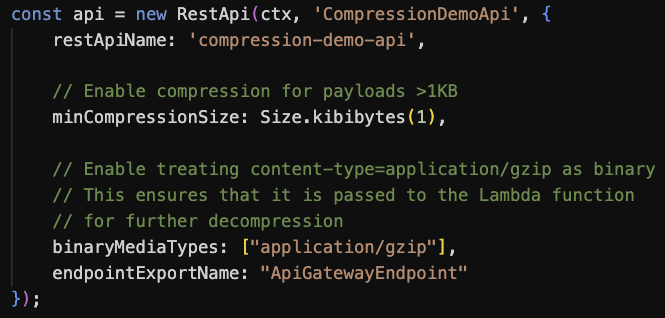
This configuration-based technique uses the API Gateway native compression. However, payloads are decompressed before being delivered to downstream integrations, thus they still remain subject to Lambda’s 6 MB max payload size. To address this, you can configure binaryMediaTypes in the API Gateway to pass compressed payloads to Lambda directly, enabling the function to handle decompression.

CDK code to configure API Gateway for data compression and binary data passthrough.

Figure 6. CDK code to configure API Gateway for data compression and binary data passthrough

Handling compressed data in Lambda functions

The Lambda Invoke API supports payloads in plain-text formats, such as JSON. The maximum payload size is 6 MB for synchronous invocations and 256 KB for asynchronous. Although the Invoke API supports uncompressed text-based payloads, you can introduce data compression in your function code and use API Gateway or Function URLs to facilitate content conversion, as illustrated in the following figure.

Transporting compressed payloads in a serverless applications.

Figure 7. Transporting compressed payloads in a serverless applications

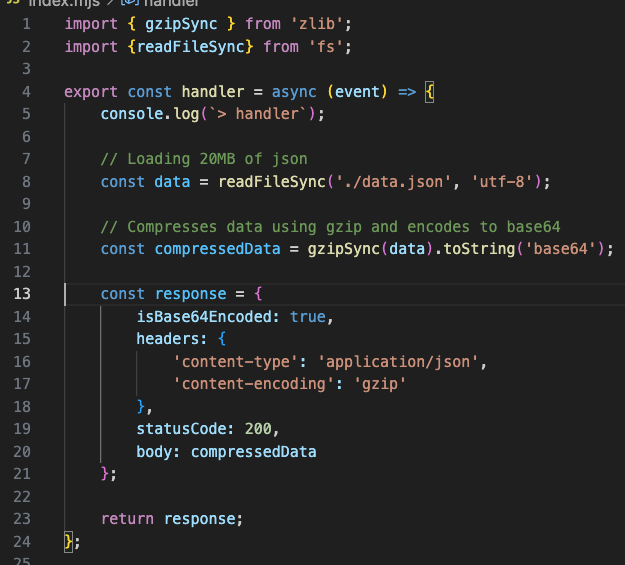
Handling data compression in your Lambda function code can be done through libraries commonly embedded in the runtime. The following code snippet shows the compressing response payload using Node.js. Similar techniques can be applied to other runtimes.

Sample code implementing response payload compression in a Lambda function.

Figure 8. Sample code implementing response payload compression in a Lambda function

  • Line 1: Import gzip functionality from the zlib module.
  • Lines 11: Compress and Base64-encode data. Gzip compression, similar to many other compression methods, produces a binary stream. Base64 encoding converts it to the text-based format expected by the Lambda service
  • Lines 13-21: Response object is created with isBase64Encoded=true and response headers telling the client that the response is a gzip-encoded JSON object.

The following screenshot shows the result: 20 MB uncompressed JSON returned from a Lambda function as a 2.5 MB compressed response body. Network footprint reduced by over 80%.

A screenshot from Postman showing the original and compressed payload size.

Figure 9. A screenshot from Postman showing the original and compressed payload size

Using this technique, you can reduce your network footprint and transport payload sizes several times higher than the Lambda maximum payload size.

Using Function URLs with compressed payloads

Transporting compressed payloads through Lambda Function URLs doesn’t necessitate any extra configuration. For handler responses, your code needs to compress and Base64-encode the data as shown in the preceding figure. For invocation requests, the Function URL endpoint recognizes the incoming compressed payload as binary and passes it to your handler as a Base64 encoded string in the event body.

Sample code implementing request payload decompression in a Lambda function.

Figure 10. Sample code implementing request payload decompression in a Lambda function

Trade-offs and testing results

Compressing data in function code is a CPU-intensive activity, potentially increasing invocation duration and, as a result, function cost. This, however, can be balanced by the benefits of data compression. As you’ve seen in previous sections, while compressing data adds compute latency, transporting smaller payloads over the network reduces network latency. The following section summarizes a series of tests performed to estimate the impact of data compression on Lambda function invocation duration, Lambda function invocation cost, and data transfer savings with both NAT Gateway and VPC Endpoint. The tests were performed with several assumptions and randomly generated JSON data. You can see full testing results in the sample GitHub.com repo.

Test results demonstrated that the impact on function latency and cost primarily depends on two key factors: payload size and allocated memory (which determines vCPU capacity). Using a Node.js runtime with ARM architecture as an example, compressing a 1 MB JSON object in a function with 1 GB of allocated memory resulted in 124 ms of added processing time on average. For 10 million invocations, this extra processing time adds approximately $16. At the same time, the compression yielded a 70% reduction in payload size. With the same number of invocations, this translates to approximately $300 in savings when using NAT Gateway and $70 in savings when using VPC Endpoints (depending on the number of Availability Zones (AZs)).

AWS Service pricing is updated regularly, you should always consult the respective pricing pages for the latest information. Moreover, you should conduct your own performance and cost estimates using payloads that represent your workloads. Compression effectiveness varies significantly depending on the data type: payloads with low compression rates might not benefit from this technique.

Sample application

Follow the instructions in this GitHub repository to provision the sample in your AWS account. The project creates two Lambda functions to demonstrate receiving and returning compressed JSON using Function URLs and API Gateway.

The sample shows how to GET and POST JSON payloads using gzip compression to reduce the network footprint by over 80%.

A screenshot from Postman showing the original and compressed payload size.

Figure 11. A screenshot from Postman showing the original and compressed payload size

Conclusion

Data compression enables larger payload transfers and reduces network footprint. It can help to lower network latencies and optimize data transfer costs. When implementing compression within Lambda functions, it is important to consider its CPU-bound nature, which may increase function duration and costs. You should always evaluate the added compute cost against potential data transfer savings to make sure the technique benefits your use case.

Compression is most effective for handling large text-based payloads and when a slight increase in compute latency balanced by reduced network latency is acceptable.

To learn more about Serverless architectures and asynchronous Lambda invocation patterns, see Serverless Land.

Handling billions of invocations – best practices from AWS Lambda

Post Syndicated from Chris McPeek original https://aws.amazon.com/blogs/compute/handling-billions-of-invocations-best-practices-from-aws-lambda/

This post is written by Anton Aleksandrov, Principal Solution Architect, AWS Serverless and Rajesh Kumar Pandey, Principal Engineer, AWS Lambda

AWS Lambda is a highly scalable and resilient serverless compute service. With over 1.5 million monthly active customers and tens of trillions of invocations processed, scalability and reliability are two of the most important service tenets. This post provides recommendations and insights for implementing highly distributed applications based on the Lambda service team’s experience building its robust asynchronous event processing system. It dives into challenges you might face, solution techniques, and best practices for handling noisy neighbors.

Overview

Developers building serverless applications create Lambda functions to run their code in the cloud. After uploading the code, the functions are invoked using synchronous or asynchronous mode.

Synchronous invocations are commonly used for interactive applications that expect immediate responses, such as web APIs. The Lambda service receives the invocation request, invokes the function handler, waits for the handler response, and returns it in response to the original request. With synchronous invocations, the client waits for the function handler to return, and is responsible for managing timeouts and retries for failed invocations.

Synchronous invocation sequence diagram.

Figure 1. Synchronous invocation sequence diagram

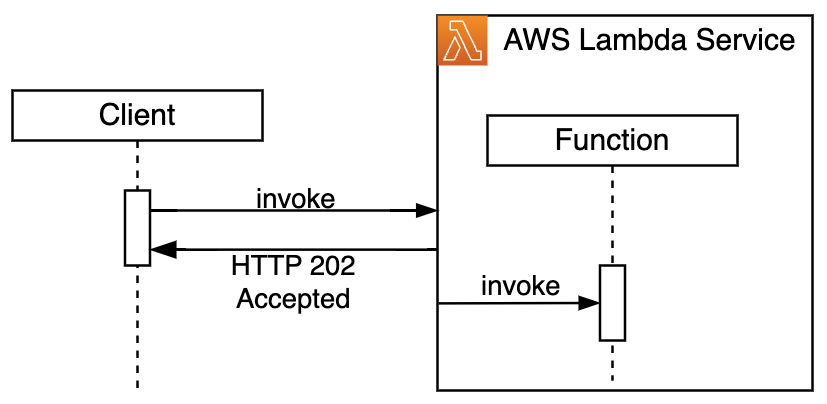
Asynchronous invocations enable decoupled function executions. Clients submit payloads for processing without expecting immediate responses. This is used for scenarios like asynchronous data processing or order/job submissions. The Lambda service immediately returns a confirmation for accepted invocation and proceeds to manage further handler invocation, timeouts, and retries asynchronously.

Asynchronous invocation sequence diagram.

Figure 2. Asynchronous invocation sequence diagram

Asynchronous invocations under-the-hood

To accommodate asynchronous invocations, the Lambda service places requests into its internal queue and immediately returns HTTP 202 back to the client. After that, a separate internal poller component reads messages from the queue and synchronously invokes the function.

Asynchronous invocations workflow high-level topology.

Figure 3. Asynchronous invocations workflow high-level topology

The same system also takes care of timeouts and retries in case of handler exceptions. When code execution completes, the system sends handler response to either onSuccess or onFailure destination, if configured.

Asynchronous invocations workflow detailed sequence diagram.

Figure 4. Asynchronous invocations workflow detailed sequence diagram

Scaling highly distributed systems for billions of asynchronous requests presents unique challenges, such as managing noisy neighbors and potential traffic spikes to prevent system overload. Solutions vary by scale – what works for millions of requests may not suite billions. As workload size increases, solutions typically become more complex and costly, so right-sizing the approach is critical and should evolve with changing needs.

Simple queueing

A simple implementation of an asynchronous architecture can start with a single shared queue. This is a common approach for many asynchronous systems, particularly in early stages. It is effective when you’re not concerned about tenant isolation and when capacity planning indicates that a single queue can handle estimated incoming traffic efficiently.

Asynchronous workflow with a single queue.

Figure 5. Asynchronous workflow with a single queue

Even with this simple setup, it is critical to instrument your solution for observability to detect potential issues as soon as possible. You should monitor key metrics like queue backlog size, processing time, and errors, to indicate insufficient processing capacity early. Periods of unexpected traffic spikes and degraded performance may be a signal you have noisy neighbors impacting other tenants.Top of FormBottom of Form

To address this, you can scale your solution horizontally. You can implement random request placement across multiple queues to spread the load. Using a serverless service like Amazon SQS allows you to easily add and remove queues on-demand. One notable benefit of this approach is its simplicity – you do not need to introduce any complex routing mechanisms; requests are evenly spread across the queues. The downside is that you still do not have tenant boundaries. As your system grows, high-volume tenants and noisy neighbors can potentially affect all queues, thus impacting all tenants.

Asynchronous workflow with multiple queues and random request placement.

Figure 6. Asynchronous workflow with multiple queues and random request placement

Intelligent partitioning with consistent hashing

In order to further reduce potential impact, you can partition your tenants using sticky tenant-to-partition assignment with a hashing technique such as consistent hashing. This method uses a hash function to assign each tenant to a queue on a consistent hash ring.

Asynchronous workflow with multiple queues and consistent hashing placement.

Figure 7. Asynchronous workflow with multiple queues and consistent hashing placement

This technique ensures individual tenants stay in their queue partitions without the risk of disturbing the whole system. It helps to solve the problem where a few noisy neighbors have the potential to overflow all queues and as such impact all other tenants.

The consistent hashing approach proved to be efficient and enabled Lambda to offer robust asynchronous invocation performance to customers. As the volume of traffic and number of customers continued to grow, the Lambda service team came up with an innovative shuffle-sharding technique to further optimize the experience, and proactively eliminate any potential noisy-neighbor issues.

Shuffle-sharding

Drawing inspiration from the “The Power of Two Random Choices” paper, the Lambda team explored the shuffle-sharding technique for its asynchronous invocations processing. Using this technique, you shuffle-shard tenants into several randomly assigned queues. Upon receiving an asynchronous invocation, you place the message in the queue with the smallest backlog to optimize load distribution. This approach helps to minimize the likelihood of assigning tenants to a busy queue.

Asynchronous workflow with multiple queues and shuffle-sharding placement.

Figure 8. Asynchronous workflow with multiple queues and shuffle-sharding placement

To illustrate the benefit of this approach, consider a scenario where you’re using а 100 queues. The following formula helps to calculate the number of unique queue shards (combinations), where n is the total number of queues and r is the shard size (the number of queues you’re assigning per tenant).

Formula to show queue shard calculation.

With n=100, r=2 (each tenant is assigned randomly to 2 out of 100 queues), you get 4,950 unique combinations (shards). The probability of two tenants assigned to exactly the same shard is 0.02%. In case of r=3, the number of combinations spikes to 161,700. The probability of two tenants assigned to exactly the same shard drops to 0.0006%.

The shuffle-sharding technique proved remarkably effective. By distributing tenants across shards, the approach ensures that only a very small subset of tenants could be affected by a noisy neighbor. The potential impact is also minimized since each affected tenant maintains access to unaffected queues. As your workloads grow, increasing the number of queues enhances resilience and further reduces the probability of multiple tenants being assigned to the same shard. This significantly lowers the risk of a single point of failure, making shuffle sharding a robust strategy for workload isolation and fault tolerance.

Proactive detection, automated isolation, sidelining

Many distributed services will have a cohort of tenants with legitimate spiky asynchronous invocation traffic. This can be driven by seasonal factors, such as holiday shopping, or periodical batch processing. Recognizing these as real business needs, not malicious actions, you want to improve service quality for these tenants as well, while maintaining the overall system stability. For example, you can further improve solution performance by continuously monitoring queue depth to detect traffic spikes and route traffic to dynamically allocated dedicated queues. When you use Lambda asynchronous invocations, this internal complexity is managed for you by the service, ensuring seamless consumption experience.

Tenant D is automatically reallocated to a dedicated queue.

Figure 9. Tenant D is automatically reallocated to a dedicated queue

Resilience and failure handling

“Everything fails, all the time” is a famous quote from Amazon’s Chief Technology Officer Werner Vogels. Lambda’s distributed and resilient architecture is built to withstand potential outages of its dependencies and internal components to limit the fallout for customers. Specifically for asynchronous invocation processing, the frontend service builds a processing backlog during an outage, allowing the backend to gradually recover without losing any in-flight messages.

Lambda service maintains resilience during component outage.

Figure 10. Lambda service maintains resilience during component outage

Upon recovery, the service gradually ramps up the traffic to process the accumulated backlog. During this time, automated mechanisms are in place to coordinate between system components, preventing inadvertently DDoSing itself.

To further improve the recovery ramp-up process and provide a smooth restoration of normal operations, the Lambda service uses load-shedding technique to ensure fair resource allocation during recovery. While trying to drain the backlog as fast as possible, the service ensures that no single customer ends up consuming an outsized share of the available resources. Adopting such techniques can help you to improve your mean-time-to-recovery (MTTR).

Observability for asynchronous invocations processing

When using the Lambda service for asynchronous processing, you want to monitor your invocations for situational awareness and potential slowdowns. Use metrics such as AsyncEventReceived, AsyncEventAge, and AsyncEventDropped to get insights about internal processing.

AsyncEventReceived tracks the number of async invocations the Lambda service was able to successfully queue for processing. A drop in this metric indicates that invocations are not being delivered to the Lambda service and you should check your invocation source. Potential issues include misconfigurations, invalid access permissions, or throttling. Check your invocation source configuration, logs, and the function resource policy for further analysis.

AsyncEventAge tracks how long has a message spent in the internal queue before being processed by a function. This metric increases when async invocations processing is delayed due to insufficient concurrency, execution failures, or throttles. Increase your function concurrency to process more asynchronous invocations at a time and optimize function performance for better throughput, i.e. by increasing memory allocation to add more vCPU capacity. Experiment with adjusting batch size to enable functions to process more messages at a time. Use invocation logs to identify whether the problem is caused by function code throwing exceptions. Check Throttles and Errors metrics for further analysis.

AsyncEventDropped tracks the number of messages in the internal queue that were dropped because Lambda could not process them. This can be due to throttling, exceeding number of retries, exceeding maximum message age, or function code throwing an exception. Configure OnFailure destination or a dead-letter queue to avoid losing data and save dropped messages for re-processing. Use function logs and metrics described above to investigate whether you can address the issue by increasing function concurrency or allocating more memory.

By monitoring these metrics and addressing the underlying issues, you can ensure that your Lambda functions run smoothly, with minimal event processing delays and failures. You can also enable AWS X-Ray tracing to capture Lambda service traces. The AWS::Lambda trace segment captures the breakdown of the time that Lambda service spends routing requests to internal queues, the time a message spends in a queue, and the time before a function is invoked. This is a powerful tool to get insights into Lambda’s internal processing.

Conclusion

AWS Lambda processes tens of trillions of monthly invocations across more than 1.5 million active customers, demonstrating its exceptional scalability and resilience. Gaining an understanding of the underlying mechanisms of AWS services like Lambda enables you to proactively address potential challenges in your own applications. By learning how these services handle traffic, manage resources, and recover from failures, you can incorporate similar capabilities into your own solutions. For instance, leveraging Lambda’s asynchronous invocation metrics allows you to optimize workflow performance. This knowledge empowers you to implement strategies such as automated scaling, proactive monitoring, and graceful recovery during outages.

See below resources to learn about using queues and shuffle sharding at scale at Amazon

To learn more about Serverless architectures and asynchronous Lambda invocation patterns, see Serverless Land.

Introducing an enhanced local IDE experience for AWS Step Functions

Post Syndicated from Chris McPeek original https://aws.amazon.com/blogs/compute/introducing-an-enhanced-local-ide-experience-for-aws-step-functions/

This post written by Ben Freiberg, Senior Solutions Architect.

AWS Step Functions introduces an enhanced local IDE experience to simplify building state machines. Workflow Studio is now available within Visual Studio Code (VS Code) through the AWS Toolkit extension. With this integration, developers can author and edit state machines in their local IDE using the same powerful visual authoring experience found in the AWS Console.

Step Functions is a visual workflow service that helps developers use AWS services to build distributed applications, automate processes, orchestrate microservices, and create data and machine learning (ML) pipelines.

Customers choose Step Functions to build workflows that involve multiple services such as AWS Lambda, AWS Fargate, Amazon Bedrock, and HTTP API integrations. Developers create these workflows as state machines through the AWS Console using Workflow Studio or as code using Amazon States Language (ASL), a JSON-based domain specific language. Developers maintain their workflows definitions alongside the application and Infrastructure as code (IaC) code. Now, builders have even more capabilities to build and test their workflow in VS Code that matches the same experience as in AWS console.

Simplifying local workflow development

The integrated Workflow Studio provides developers with a seamless experience for building Step Functions workflows within their local IDE. You’ll use the same canvas used in the AWS Console to drag and drop states to build your workflows. As you modify the workflow visually, the ASL definition updates automatically, so you can focus on business logic rather than syntax. The Workflow Studio integration offers the same intuitive and visual approach to designing state machines as the AWS Console, without switching context.

Getting started

To use the updated IDE experience, verify that you have the AWS Toolkit with at least version 3.49.0 installed as a VS Code Extension.

AWS Toolkit extension in VS Code which can be updated.

Figure 1: AWS Toolkit update available

After installing the AWS Toolkit extension, you can start building with Workflow Studio by opening a state machine definition. You can use a definition file from your local workspace or use AWS Explorer to download an existing state machine definition from the cloud. VS Code integration supports ASL definitions in JSON and YAML formats. (Note: Files must end in .asl.json, asl.yml or .asl.yaml for Workflow Studio to automatically open the file.) While working with YAML files, Workflow Studio converts the definition to JSON for editing, then converts back to YAML before saving.

A sample state machine in Workflow Studio with Design mode open.

Figure 2: Design mode in Workflow Studio

Workflow Studio in VS Code supports both the Design and Code mode. Design mode provides a graphical interface to build and inspect your workflows. In Code mode, you can use an integrated code editor to view and edit the Amazon States Language (ASL) definition of your workflows. You can always switch back to text-based editing by selecting the Return to Default Editor link at the top right of Workflow Studio, as shown in the following screen.

A sample state machine in Workflow Studio with Code mode open.

Figure 3: Code mode in Workflow Studio

To open Workflow Studio in VS Code manually, you can use the “Open with Workflow Studio” action at the top of a workflow definition file or the icon in the top right of the editor pane. Both options are highlighted in the following screen. Additionally, you can use the file context-menu to open Workflow Studio from the file explorer pane.

A asl file in the default editor showing the different ways to open Workflow Studio.

Figure 4: Integrations of Workflow Studio into the editor

Edits you make in Workflow Studio are automatically synced to the underlying file as unsaved changes. To persist your changes, you must either save the changes from Workflow Studio or the file editor. Similarly, any changes you make to the local file are synced to Workflow Studio on save.

Workflow Studio is aware of Definition Substitutions, so you can even edit workflows which have been integrated with your IaC tooling like AWS CloudFormation or the AWS Cloud Development Kit (CDK). Definition Substitutions is a feature of CloudFormation that lets you add dynamic references in your workflow definition to a value that you provide in your IaC template.

AWSTemplateFormatVersion: "2010-09-09"
Description: "State machine with Definition Substitutions"
Resources:
  MyStateMachine:
    Type: AWS::StepFunctions::StateMachine
    Properties:
      StateMachineName: HelloWorld-StateMachine
      DefinitionS3Location:
        Bucket: amzn-s3-demo-bucket
        Key: state-machine-definition.json
      DefinitionSubstitutions:
        TableName: DemoTable

You can then use the Definition Substitutions in the definition of your state machine.

"Write message to DynamoDB": {
  "Type": "Task",
  "Resource": "arn:aws:states:::dynamodb:putItem",
  "Next": "Remove message from SQS queue",
  "Arguments": {
    "TableName": "${TableName}",
    "Item": {
      ... omitted for brevity ...
     }
  },
  "Output": "{% $states.input %}"
}

The code defines a Step Functions task state that writes a message to DynamoDB using the putItem operation. The ${TableName} substitution syntax allows for a dynamic DynamoDB table name that can be passed as a parameter when the state machine is executed.

Testing and Deployment

Workflow Studio integration supports testing a single state through Step Functions TestState API. With the TestState API, you can test a state in the cloud from your local IDE without creating a state machine or updating an existing state machine. With the power of localized granular testing, you can build and debug changes for individual states without needing to invoking the entire state machine. For example, you can refine the input or output processing, or update the conditional logic in a choice state without ever leaving your IDE.

Testing a state

  1. Open any state machine definition file in Workflow Studio
  2. Select a state from the canvas or the code tab
  3. Open the Inspector panel on the right side if not already openA DynamoDB PutItem opened in the Workflow Studio inspector panel with the Arguments showing a Definition Substitution..
    Figure 5: Arguments of an Individual state
  4. Select Test state button at the top
  5. Select your IAM role and add the input. Make sure that the role has the necessary permissions for using TestState API
  6. If your state contains any Definition Substitutions, you’ll see an additional section where you can replace them with your specific values.
  7. Select Start Test

Modal popup of the TestState with a role selected and showing the entered value of a Definition Substitution.

Figure 6: TestState configuration with a Definition Substitution

After the test succeeds, you can publish your workflow from the IDE using the AWS Toolkit. You can also use IaC tools such as AWS Serverless Application Model, AWS CDK, or CloudFormation to deploy your state machine.

Conclusion

Step Functions is introducing an enhanced local IDE experience to simplify the development of workflows using the VS Code IDE and AWS Toolkit. This streamlines the code-test-deploy-debug cycle and offers developers a seamless integration of Workflow Studio. By combining visual workflow design with the power of a full-featured IDE, developers can now build Step Functions workflows more efficiently.

To get started, install the AWS Toolkit for Visual Studio Code and visit the user guide on Workflow Studio integration. Find hands-on examples, best practices, and useful resources for AWS serverless at Serverless Land.

Introducing cross-account targets for Amazon EventBridge Event Buses

Post Syndicated from Chris McPeek original https://aws.amazon.com/blogs/compute/introducing-cross-account-targets-for-amazon-eventbridge-event-buses/

This post is written by Anton Aleksandrov, Principal Solutions Architect, Serverless and Alexander Vladimirov, Senior Solutions Architect, Serverless

Today, Amazon EventBridge is announcing support for cross-account targets for Event Buses. This new capability allows you to send events directly to targets, such as Amazon Simple Queue Service (Amazon SQS), AWS Lambda, and Amazon Simple Notification Service (Amazon SNS), located in other accounts.

Previously, EventBridge supported cross-account event delivery from an event bus in one account to an event bus in another account. This launch extends that capability and allows you to configure the source event bus to deliver events directly to all EventBridge supported targets in other accounts, not just event buses. This removes the need for an additional event bus in the target account.

Overview

Event-driven architectures built with EventBridge allow you to create solutions spanning many company departments and business domains, while remaining asynchronous and loosely coupled. As solutions grow, you may need to send events across account boundaries.

For example, you may have a set of event buses hosted in multiple accounts that are dispatching security-related events to an Amazon SQS queue hosted in a centralized account for further asynchronous processing and analysis.

Previously, EventBridge rules allowed you to define targets in the same account. The only target type that supported cross-account event delivery was another event bus. If you wanted to send events across account boundaries, you had to create event buses in both source and target accounts. After, you would configure a rule on the source event bus to send events to the target bus, and another rule on the target event bus to deliver the event to a desired target in the target account. Alternatively, a Lambda function or SNS topic could be used as a bridging mechanism to send events across accounts.

The following diagram illustrates what an architecture of cross-account event delivery looked like before the new capability. A “bridging” component, like another event bus, SNS topic, or Lambda function, was required to send events from one account to another.

Delivering cross-account events from source bus to target bus.

Figure 1: Delivering cross-account events from source bus to target bus

With this new EventBridge feature, you can deliver events from the source event bus to the desired targets in different accounts directly. This simplifies the architecture and persmission model. It also reduces latency in your event-driven solutions by having fewer components processing events along the path from source to targets.

Delivering cross-account events to target directly.

Figure 2: Delivering cross-account events to target directly

Configuring EventBridge delivery rule targets for cross-account event delivery

Enabling cross-account event delivery should be done with security in mind. You must establish mutual trust between the source and the target. Source event bus rules must have an AWS Identity and Access Management (IAM) role that allows them to send events to specific targets. This is achieved by attaching an execution role to the delivery rule targets.

Event delivery targets hosted in different accounts must have a resource access policy attached that explicitly allows receiving events from the execution role used in the source account. Due to this requirement, you can enable cross-account event delivery only for targets that support resource access policies, such as Amazon SQS queues, Amazon SNS topics, and AWS Lambda functions.

Having both an IAM role in the source account and resource policy in the target account allows you to have fine-grained control over which principals are allowed to use the PutEvents action and under which conditions. You can define service control policies (SCPs) to set organizational boundaries determining who can send and receive events in your organization.

As illustrated in the following diagram, consider Team A owns the source account (Account A). Team A is responsible for setting up the source event bus, its execution role, rules, and targets. Teams B and C own the target accounts (Account B and Account C, accordingly). Both teams manage their respective target accounts. For example, creating delivery targets, such as SQS queues, and granting permissions to accept events from the event bus in the source account. This approach enables Team A to manage the centralized source event bus for other teams, and Teams B and C to control who can send events to their targets. It provides high degree of overall control and governance.

A cross-team collaboration sending events from source account to target account targets.

Figure 3: A cross-team collaboration sending events from source account to target account targets

The following example describes setting up cross-account event delivery to an SQS queue. You can apply the same technique to other target types as well, such as Lambda functions or SNS topics.

See the following diagram for a conceptual architectural layout and resource creation order.

Permissions required for cross-account event delivery.

Figure 4: Permissions required for cross-account event delivery

Assuming the source event bus already exists, there are three general steps in setting up cross-account event delivery:

  1. Target account – create the delivery target, such as an SQS queue.
  2. Source account – configure a rule for cross-account event delivery. Set the target SQS queue ARN as rule target, and attach an execution role with permissions to send messages to the target SQS Queue.
  3. Target account – apply a resource policy to the target SQS queue allowing the source event bus execution role to send events.

Showing cross-account delivery in action

Follow the instructions in this GitHub repository for provisioning the sample in your AWS accounts using AWS Serverless Application Model (AWS SAM). An event bus rule in the source account sends events directly to an SQS queue, a Lambda function, and an SNS topic in a target account. You must have two accounts for the sample to work.

The sample project architecture, delivering events cross-account to Lambda, SQS, and SNS.

Figure 5: The sample project architecture, delivering events cross-account to Lambda, SQS, and SNS.

Make sure you enter a valid email address as SnsSubscriptionEmail value and confirm your email subscription once target stack is deployed.

After deployment, open the EventBridge console in the source account. Navigate to the newly created event bus, which has “SourceEventBus” in its name. Use the Send Events functionality to publish sample events, as shown in the following screenshot. Make sure that the Source of your events is set to “test”.

Sending test event.

Figure 6: Sending test event

Validate that the events are successfully delivered to all three cross-account targets. Open the target account in a different browser or an incognito window:

  1. Navigate to the SQS console. Open the newly created queue, which has “TargetSqsQueue” in its name.
  2. Choose Send and Receive messages then choose Poll for messages. You can see the events sent in the previous step.Receiving test event with SQS.Figure 7: Receiving test event with SQS
  3. Navigate to Amazon CloudWatch Logs. Open the Log Group for the newly created Lambda function, which has “TargetLambdaFunction” in its name. It shows events sent in the previous step.
    Receiving test event with Lambda.Figure 8: Receiving test event with Lambda
  4. Check your email. If you have confirmed the SNS topic subscription during the sample code deployment, it shows the events sent in the previous step.Receiving test event with SNS.Figure 9: Receiving test event with SNS

Conclusion

The new EventBridge capability allows you to deliver events directly to targets across account boundaries. This capability helps to simplify your event-driven architectures, as well as improve latency by reducing the number of components processing your events as they travel from event buses to their destinations.

Refer to the EventBridge pricing page to learn more about cross-account events delivery costs.

For additional documentation, refer to Amazon EventBridge documentation. Get the sample code used in this blog from this GitHub repository.

For more serverless learning resources, visit Serverless Land.

Introducing Provisioned Mode for Kafka Event Source Mappings with AWS Lambda

Post Syndicated from Chris McPeek original https://aws.amazon.com/blogs/compute/introducing-provisioned-mode-for-kafka-event-source-mappings-with-aws-lambda/

This post is written by Tarun Rai Madan, Principal Product Manager, Serverless Compute and Rajesh Kumar Pandey, Principal Software Engineer, Serverless Compute

AWS is announcing the general availability of Provisioned Mode for AWS Lambda Event Source Mappings (ESMs) that subscribe to Apache Kafka event sources including Amazon MSK and self-managed Kafka. Provisioned Mode allows you to optimize the throughput of your Kafka ESM by provisioning event polling resources that remain ready to handle sudden spikes in traffic. Controlling the throughput of your ESM helps you build highly responsive and scalable event-driven Kafka applications with stringent performance requirements.

Overview

When you build modern applications using Event-Driven Architectures (EDAs), your event producers publish events, which are then processed by event source connectors like an ESM, and routed to serverless compute consumers like Lambda functions. Apache Kafka is a popular open-source platform for building real-time streaming data applications using Lambda functions as consumers. AWS Lambda’s fully-managed MSK ESM or self-managed Kafka ESM reads events from Kafka as an event source, performs operations like filtering and batching, and invokes Lambda functions. Both ESMs offer built-in integrations with event sources, auto-scaling, and features like batching and filtering. When a Kafka ESM is created, Lambda ESM allocates one event poller to start polling for messages in a Kafka topic. The ESM then evaluates the message backlog – using the OffsetLag metric – for all partitions in the topic, and auto-scales event pollers to process messages efficiently.

Many real-time applications using Kafka are sensitive to sudden spikes in traffic, which could lead to noticeable delays in your end users’ experience. Previously, there were no controls to optimize the throughput for performance-sensitive workloads when using Kafka ESMs. This forced you to explore alternative solutions for workloads with strict performance requirements, which added architectural complexity. To harness the power of Lambda for such performance-sensitive applications, you need to be able to control your Kafka ESM’s throughput and ensure responsive auto-scaling behavior.

What’s new

Provisioned Mode for ESM is a feature that helps you control the throughput of your ESM, and achieve an enhanced performance profile for performance-sensitive applications, particularly ones that see sudden spikes in traffic. You can use Provisioned Mode for Kafka ESM with a range of Kafka or Kafka-compatible streaming data platform providers like Amazon MSK, Confluent, Redpanda, and self-managed Kafka. Key benefits include:

  1. Controls to optimize throughput: You can now fine-tune the throughput of your ESM by configuring a minimum and maximum number of resources called “event pollers”. An event poller (or a “poller”) represents a compute resource that underpins an ESM in the Provisioned Mode, and allocates up to 5 MB/s throughput.
  2. Responsive auto-scaling: With Provisioned Mode, your Kafka ESM detects the increase in OffsetLag metric for all partitions in your Kafka topic, and auto-scales event pollers in a responsive manner. During idle periods, your ESM automatically scales down to the minimum event pollers set by you.
  3. Simplified networking experience and charges: Previously, you were required to configure AWS PrivateLink or NAT Gateway to enable Lambda to poll messages from Kafka clusters in your VPC and invoke Lambda functions. With Provisioned Mode, you are no longer required to configure PrivateLink or NAT Gateway. This approach reduces overhead and improves the developer experience, allowing you to focus on building applications rather than managing networking setup. Consequently, you are not charged for PrivateLink VPC endpoints when using Kafka as an event source with Lambda in the Provisioned Mode for ESM, which reduces your networking charges.

Activating Provisioned Mode for ESM

To activate Provisioned Mode for a new or existing Kafka ESM, you can configure the minimum event pollers, the maximum event pollers, or both for your ESM. The allowed values range from 1 to 200 for minimum event pollers, and from 1 to 2000 for maximum event pollers.

Note that you must configure at least one of minimum or maximum event pollers to activate Provisioned Mode. When you configure only the minimum number of event pollers (‘Min-only’), your ESM allocates this minimum quantity and can dynamically scale up to a maximum. This maximum is determined by the OffsetLag and is limited by either the number of partitions or the default maximum event pollers, whichever is lower. When you configure only the maximum number of event pollers (“Max-only”), your ESM starts with one minimum poller by default, and can scale up to the maximum event pollers or number of partitions, whichever is lower. When you configure both the minimum and maximum number of event pollers (“Min and Max”), your ESM can auto-scale between this range of minimum and maximum event pollers configured.

Activating using AWS CLI

You can activate Provisioned Mode for ESM during creation of a new ESM, or by updating an existing ESM. Specify the –provisioned-poller-config parameter.

aws lambda create-event-source-mapping \
    --region <region-name> \
    --function-name <function-name> \
    --event-source-arn <event-source-arn> \
    --provisioned-poller-config '{"MinimumPollers":<number>, "MaximumPollers":<number>}'

Activating using AWS Lambda Console

Select Configure provisioned mode to activate Provisioned Mode when creating a new ESM, or updating an existing one.

Image of Activating Provisioned Mode for ESM in Console.Figure 1: Activating Provisioned Mode for ESM in Console

Provisioned Mode for Kafka ESM in action

To see the performance profile with Provisioned Mode for Kafka ESM, deploy a Lambda function that subscribes to an Amazon MSK topic. Use the reference pattern on Serverless Land and see this blog post outlining steps to configure MSK ESM for a Lambda function. In this case, a producer writes 20 million messages, each with 1KB payload size to an MSK topic – distributed evenly across 100 partitions. Use a batch size of 100, with function duration at 100ms, and set the StartingPosition to TRIM_HORIZON to process from the beginning of the stream.

Note the baseline performance profile observed with the default On-Demand mode. Then analyze two configurations with the Provisioned Mode activated.

  • Scenario 1 uses different configurations for minimum event pollers
  • Scenario 2 uses the default minimum event pollers and lets Lambda manage the event pollers through autoscaling.

Baseline performance profile for Kafka ESM On-demand

With Provisioned Mode disabled, Lambda takes approximately 20 minutes to drain the backlog of 20 million messages. It takes 4 minutes to reach the maximum concurrent executions. Use this result as a baseline to compare against Provisioned Mode for ESM.

Image of Baseline performance without Provisioned Mode for ESM.

Figure 2: Baseline performance without Provisioned Mode for ESM

Scenario 1: Configuring minimum event pollers, and auto-scaling

To optimize the ESM throughput for this workload and reduce the time to drain the message backlog, configure the minimum event pollers. Select values of 10 and 100 for minimum event pollers, and observe the results.

Configuring 10 minimum event pollers

Lambda drains the backlog of 20 million messages in approximately 11 minutes with minimum pollers set to 10. This is 45% faster than the baseline without Provisioned Mode. It takes approximately 6 minutes to reach maximum concurrent executions.

Image of Performance profile with minimum event pollers set to 10.

Figure 3: Performance profile with minimum event pollers set to 10

Configuring 100 minimum event pollers

To further improve the processing performance, configure the minimum event pollers to 100. Lambda now takes 6 minutes to drain the backlog of 20 million messages, which is 70% faster than the baseline. It instantly reaches the maximum concurrent executions.

Image of Performance profile with minimum event pollers set to 100.

Figure 4: Performance profile with minimum event pollers set to 100

Scenario 2: Default minimum event pollers, and auto-scaling

In some cases, the workload may not be as performance-sensitive. With the same volume of 20M messages in your Kafka topic, activate Provisioned Mode for ESM. Start with the default minimum event pollers (set to 1) and let Lambda auto-scale the event pollers based on incoming traffic.

Lambda automatically scales up your event pollers to process the incoming messages, and scales them down as the backlog is cleared. With the default minimum and maximum event pollers, Lambda takes approximately 12 minutes to clear the backlog of 20 million messages, which is 40% faster than the baseline. Lambda takes 7 minutes to reach maximum concurrent executions.

Image of Performance profile with minimum event pollers set to 1.

Figure 5: Performance profile with minimum event pollers set to 1

The following table summarizes the performance improvement for the analyzed workload using Provisioned Mode for ESM.

ESM Mode Time to drain message backlog Percentage improvement
On-demand Mode 20 minutes Baseline
Provisioned Mode: Scenario 1 (fine-tuned minimum event pollers)
Minimum event pollers = 10 11 minutes 45%
Minimum event pollers = 100 6 minutes 70%
Provisioned Mode: Scenario 2 (default minimum event pollers)
Minimum event pollers = 1 12 minutes 40%

Table: Performance profile for reference test case before and after activating Provisioned Mode for ESM

Observability and Pricing

You can observe the usage of event pollers by monitoring the ProvisionedPollers Amazon CloudWatch metric, which measures the number of event pollers that actively processed at least one event in the last 5-minute window.

Pricing is based on the provisioned minimum event pollers and the number of event pollers consumed during automatic scaling. Provisioned Mode introduces a billing unit called Event Poller Unit (EPU). Each EPU supports up to 20 MB/s of throughput for event polling. The number of event pollers allocated on an EPU depends on the throughput consumed by each event poller. You pay for the number of EPUs used and the duration they run for, measured in Event Poller Unit hours. For details, refer to AWS Lambda pricing.

Best practices and considerations

The optimal configuration of minimum and maximum event pollers for your Kafka Event Source Mapping (ESM) depends on your application’s performance requirements. Start with the default minimum event pollers to baseline the performance profile, and adjust event pollers based on observed message processing patterns and your application’s performance requirements. For workloads with spiky traffic and strict performance needs, increase the minimum event pollers to handle sudden surges. You can fine-tune the minimum required event pollers by evaluating your desired throughput, your observed throughput – which depends on factors like the ingested messages per second and average payload size, and using the throughput capacity of one event poller (up to 5 MB/s) as reference. Note that to maintain ordered processing within a partition, Lambda caps the maximum event pollers at the number of partitions in the topic.

Update your network settings to remove PrivateLink VPC endpoints and associated permissions for existing ESMs when you activate Provisioned Mode.

Conclusion

Provisioned Mode for Lambda ESM allows you to fine-tune the throughput for your Kafka ESMs by configuring a minimum and maximum number of event pollers. This provides a responsive auto-scaling behavior for Kafka applications that have stringent performance requirements and see unpredictable and spiky traffic. You can fine-tune your configured event pollers based on your requirements and monitor usage via CloudWatch metrics. Provisioned Mode also simplifies network configuration by removing the requirement to configure PrivateLink.

For more serverless learning resources, visit Serverless Land.

Implementing transactions using JMS2.0 in Amazon MQ for ActiveMQ

Post Syndicated from Chris McPeek original https://aws.amazon.com/blogs/compute/implementing-transactions-using-jms2-0-in-amazon-mq-for-activemq/

This post is written by Paras Jain, Senior Technical Account Manager and Vinodh Kannan Sadayamuthu, Senior Specialist Solutions Architect

This post describes the transactional capabilities of the ActiveMQ broker in Amazon MQ by using a producer client application written using the Java Messaging System(JMS) 2.0 API. The JMS 2.0 APIs are easier to use and have fewer interfaces than the previous version. To learn about ActiveMQ’s JMS 2.0 support, refer to the ActiveMQ documentation on JMS2.0. Also check out What’s New in JMS 2.0 to learn more about features in JMS2.0.

Amazon MQ now supports ActiveMQ 5.18. Amazon MQ also introduces a new semantic versioning system that displays the minor version (e.g., 5.18) and keeps your broker up-to-date with new patches (e.g., 5.18.4) within the same minor version. ActiveMQ 5.18 adds support for JMS 2.0, Spring 5.3.x, and several dependency updates and bug fixes. For the complete details, see release notes for the Active MQ 5.18.x release series.

Overview

Messaging Patterns in Distributed Systems

Implementing messaging in a message-broker based distributed messaging often involves a fire-and-forget mechanism. Message producers send the messages to the broker and it is message broker’s responsibility to ensure that the messages are delivered to the consumers. In non-transactional use cases, the messages are independent of each other. However, in some situations, a group of messages needs to be delivered to consumers as part of a single transaction. This means either all the messages in the group are to be delivered to the consumer or none of those messages are delivered.

ActiveMQ 5.18 provides two levels of transaction support — JMS transactions and XA transactions.

JMS transactions are used when multiple messages need to be sent to the ActiveMQ broker as a single atomic unit. This transactional behavior is enabled by invoking the commit() and rollback() methods on a Session (for JMS 1.x) or JMSContext (for JMS 2.0) object. If all the messages are successfully sent, the transaction can be committed, ensuring that the messages are processed as a unit. If any issues occur during the sending process, the transaction can be rolled back, preventing the partial delivery of messages. This transactional capability is crucial when maintaining data integrity and ensuring that complex messaging operations are executed reliably. See ActiveMQ FAQ – How Do Transactions work FAQ for more details on how transactions work in ActiveMQ.

XA transactions are used when two or more messages need to be sent to ActiveMQ brokers and other distributed resources in a transactional manner. This is achieved by using an XA Session, which acts as an XA resource. See ActiveMQ FAQ – Should I use XA transactions FAQ for more details on XA transactions.

Transactional use case in an Order Management System

The example in this blog post shows the transactional capabilities in an Order Management System (OMS) application, using ActiveMQ as the message broker. Upon receiving an order, the OMS application sends a message (message 1) to the warehouse queue to start the packing process. Then the application runs an internal business process. If this process is successful, the application sends another message (message 2) to the shipping queue to start the package pickup process. In the event of internal business process failure, it is necessary to prevent message 2 from being sent to the shipping queue and rollback message 1 from the warehouse queue.

The flowchart below illustrates the logic behind the transactional use case featured in this example.

Flowchart illustrating the logic behind the transactional use case in the code example. Demonstrates flow for successful as-well-as failed transaction.

Flowchart describing transactional use case.

The JMS client stores both messages in-memory until the transaction is committed or rolled back. The client achieves this by maintaining a Transacted Session between the message producer client and the broker. A transacted session is a session that uses transactions to ensure message delivery. In our example, transacted session is created using the following statement.

JMSContext jmsContext = connectionFactory.createContext(adminUsername, adminPassword, Session.SESSION_TRANSACTED);

In the example for this post, we have shown a transacted session between the message producer and the broker. We are not showing transactions between the broker and the message consumer. You can implement it using the similar pattern.

Creating ActiveMQ broker

The following prerequisites are required to create and configure ActiveMQ broker in Amazon MQ.

Prerequisites:

To create a broker (AWS CLI):

  1. Run the following command to create the broker. This creates a publicly accessible broker for testing only. When creating brokers for production use, adhere to the Security best practices for Amazon MQ.
    aws mq create-broker \
        --broker-name <broker-name> \
        --engine-type activemq \
        --engine-version 5.18 \
        --deployment-mode SINGLE_INSTANCE \
        --host-instance-type mq.t3.micro \
        --auto-minor-version-upgrade \
        --publicly-accessible \
        --users Username=<username>,Password=<password>,ConsoleAccess=true
    

    Replace <broker-name> with the name you want to give to the broker. Replace <username> and <password> as per the create-broker CLI documentation. After the successful execution of the command the BrokerArn and the BrokerId is displayed on the command line. Note down these values.Creation of the broker takes about 15 minutes.

  2. Run the following command to get the status
    aws mq describe-broker --broker-id <BrokerId> --query 'BrokerState'

    Proceed to next step once the broker state is Running.

  3. Get the console URL and other broker endpoints by running the following command
    aws mq describe-broker --broker-id <BrokerId> --query 'BrokerInstances[0]’

    Note the ConsoleURL and ssl endpoint from the output.

Configuring the message producer client

The sample code in this post uses a sample message producer client written using JMS 2.0 API to send messages to the ActiveMQ broker.

  • In case of a successful transaction, the producer client sends a message to the first queue and waits for 15 seconds. Then it sends the message to the second queue and waits for another 15 seconds. Finally, it commits the transaction.
  • In case of a failed transaction, the producer client sends the first message and waits for 15 seconds. Then the code introduces an artificial failure, causing the transaction rollback.The 15 seconds wait time provides you the opportunity to verify the number of messages at broker side as the program progresses through the transaction flow. Until the producer client commits the transaction, none of the messages are sent to the broker, even for a successful transaction.

To download and configure the sample client:

  1. Get the Amazon MQ Transactions Sample Jar from the GitHub repository.
  2. To run the sample client, use the java command with -jar option which runs the program encapsulated in a jar file. The syntax for running the sample client is:
    java -jar <path-to-jar-file>/<jar-filename> <username> <password> <ssl-endpoint> <first-queue> <second-queue> <message> <is-transaction-successful> 

    Usage:
    <path-to-jar-file> – path in your local machine where you have downloaded the jar file.
    <jar-filename> – name of the jar file.
    <username> – username you selected while creating the broker.
    <password> – password you selected while creating the broker.
    <ssl-endpoint> – ssl endpoint you noted down in the step above.
    <first-queue> – name of the first queue in the transaction.
    <second-queue> – name of the second queue in the transaction.
    <message> – message text.
    <is-transaction-successful> – flag to tell the producer client if the transaction has to be successful or not.

Testing successful transactions

Following are the steps to test successful transactions with ActiveMQ:

  1. List queues and message counts in ActiveMQ console
    1. Navigate to the Amazon MQ console and choose your ActiveMQ broker.
    2. Login to ActiveMQ Web Console from URLs in Connections panel.
    3. Click on Manage ActiveMQ broker.
    4. Provide username and password used for the user created when you created the broker.
    5. Click on Queues on the top navigation bar.
    6. Check warehouse-queue and shipping-queue are not listed.
  2. Run the following command to send messages for order1 to both the queues successfully:
    java -jar <path-to-jar-file>/<jar-filename> <username> <password> <ssl-endpoint> warehouse-queue shipping-queue order1 true

    Replace the placeholders as mentioned in the command instructions above.With this command, the example producer client sends the first message to the warehouse-queue and prints the following message to the console and waits for 15 seconds.

    Sending message: order1 to the warehouse-queue
    Message: order1 is sent to the queue: warehouse-queue but not yet committed.

    During the 15 seconds wait, refresh the browser and verify that the warehouse-queue is now listed but has no pending or enqueued messages.

    After 15 seconds, the producer client sends the second message to the shipping-queue and prints the following message to the console and waits for 15 more seconds.

    Sending message: order1 to the shipping-queue
    Message: order1 is sent to the queue: shipping-queue but not yet committed.
    

    During this 15-second wait, refresh the browser window again and verify that the shipping-queue is now listed, but like the warehouse-queue, it has no pending or enqueued messages.

    Finally, the producer client commits both the messages and prints:

    Committing
    Transaction for Message: order1 is now completely committed.
    

  3. Refresh the browser and verify warehouse-queue and shipping-queue have 1 pending and enqueued message each. The list will look like below:Image shows example of queues with message count.Image showing the shipping and warehouse queues

Repeat this process for testing more successful transactions.

Testing failed transactions

  1. Note down the beginning number of pending and enqueued messages in each of the queues.
  2. Run the following command and pass false for <is-transaction-successful> to introduce an artificial failure.
    java -jar <path-to-jar-file>/<jar-filename> <username> <password> <ssl-endpoint> warehouse-queue shipping-queue failedorder1 false

    Replace the placeholders as mentioned in the initial command instructions above.With this command, the example producer client sends the first message to the warehouse-queue and prints the following message to the console and waits for 15 seconds.

    Sending message: failedorder1 to the warehouse-queue
    Message: failedorder1 is sent to the queue: warehouse-queue but not yet committed.
    

    During the 15 seconds wait, refresh the browser and verify that the counts in the warehouse-queue and shipping-queue are unchanged.

    Finally, the client artificially introduces a failure and rolls back the transaction and prints:

    Message: failedorder1 cannot be delivered because of an unknown error. Hence the transaction is rolled back.

  3. Refresh the browser to confirm that the counts for both the queues are unchanged. This example starts with 1 message each in each queue which remained unchanged after the failed transaction.Image shows example of shopping and warehouse queues with failed messages.Image showing shipping and warehouse queues with unchanged counts.

Note that for both the successful and unsuccessful scenarios, the messages that are sent to the queues as part of a transaction are stored in-memory at the client side. These messages are sent to the broker only when the transaction is committed.

Cleanup

  1. Delete the broker by running the following command
    aws mq delete-broker --broker-id <BrokerId>

Conclusion

In this post, you created an Amazon MQ broker for ActiveMQ for version 5.18. You also learned about the new semantic versioning introduced by Amazon MQ. ActiveMQ 5.18.x brings support for JMS 2.0, Spring 5.3.x and dependency updates. Finally, you created a sample application using JMS 2.0 API showing transactional capabilities of the ActiveMQ 5.18.x broker.

To learn more about Amazon MQ, visit https://aws.amazon.com/amazon-mq/.

Automating event validation with Amazon EventBridge Schema Discovery

Post Syndicated from Chris McPeek original https://aws.amazon.com/blogs/compute/automating-event-validation-with-amazon-eventbridge-schema-discovery/

This post is written by Kurt Tometich, Senior Solutions Architect, and Giedrius Praspaliauskas, Senior Solutions Architect, Serverless

Event-driven architectures face challenges with event validation due to unique domains, varying event formats, frequencies, and governance levels. Events are constantly evolving, requiring a balanced approach between speed and governance. This blog post describes approaches to consumer and producer event validation, focusing on automated solutions for producer validation using Amazon EventBridge and Amazon API Gateway.

Consumer and Producer Event Validation

In an event-driven system, events should be validated by both producers and consumers to maintain data integrity. The producers’ job is to create and send valid events before they are routed to consumers. Failing to do so can lead to data inconsistencies, downstream errors in processing and unnecessary costs. As a consumer, even if events come from a trusted source, validation should still be applied. Producers may change data format over time, data may become corrupt, or interfaces between the producer and consumer may alter it.

A common way to manage and route events is through an event bus. EventBridge is a serverless event bus that can perform discovery, versioning and consumption of event schemas. When schema discovery is enabled on an event bus, new schema versions are generated when the event structure changes. These schemas can be used to perform validation on events.

The EventBridge Schema registry stores schemas in OpenAPI or JSONSchema formats. Schemas can be added to the registry automatically through schema discovery or by manually uploading your schema to the registry through the AWS console or programmatically. Schema discovery automates the process of finding schemas and adding them to your registry. Schemas for AWS events are automatically added to the registry.

Once a schema is added to the registry, you can generate a code binding for the schema. This allows you to represent the event as a strongly typed object in your code. Code bindings are available for Golang, Java, Python, or TypeScript programming languages. If preferred language-specific bindings are not available, schemas can be downloaded and validated using third-party schema validation libraries. For example, Ajv for JavaScript or the jsonschema library for Python.

If using code bindings, you can download them using the console, API, or within a supported IDE using the AWS Toolkit. Code bindings can be used like other code artifacts. If an AWS Lambda function is used as a consumer, add the code binding as a layer dependency. Bindings are not automatically synced to any artifact repositories, such as AWS CodeArtifact. The Lambda function code in this solution can be extended to automate binding uploads to your artifact repository.

The following diagram depicts a common producer (left) and consumer (right) event architecture on AWS. Producers send events through API Gateway or directly to an EventBridge event bus. It’s common to use API Gateway as a front door to provide authorization, validation and pre-processing of incoming events. Events going directly to EventBridge may also come from SaaS Partner Integrations (Salesforce, Jira, ServiceNow, etc.) or an application running in a private subnet using the AWS private network to connect to EventBridge. For these events, you can use third-party libraries to validate events prior to them arriving on EventBridge.

Image of Common Architecture for Producer and Consumer Event Validation.

Common Architecture for Producer and Consumer Event Validation

Workflow steps:

  1. Producers send events through API Gateway or directly to EventBridge. API Gateway provides request validation, parses and sends events to EventBridge if they pass validation. Invalid events that do not match the schema in API Gateway will be rejected before reaching EventBridge. Events going directly to EventBridge are validated using third party schema validation libraries (e.g. Ajv for JavaScript and jsonschema library for Python).
  2. With schema discovery enabled on a custom event bus, that bus will receive the event from an application and generate a new schema version in the registry. New schema versions are only created when the event structure changes. When new schema versions are created, a schema version created event is automatically emitted on the default EventBridge event bus. The default bus automatically receives AWS events. EventBridge rules can be configured to match all schema version changes or by filtering on schema name, type and other fields available on the event.
  3. Consumers define EventBridge rules to react to schema version change events. Consumers download the schema or code bindings from EventBridge and perform validation and parsing.
  4. Producers define EventBridge rules to react to schema version change events. The new schema is retrieved from the registry and either used in local development with third-party schema validation libraries, or a model in API Gateway is updated with the new schema directly. This step doesn’t exist as a native feature of EventBridge. The solution later in this post will demonstrate how to automate this step.

To scale this architecture to multiple event sources and API endpoints, you can create different models in API Gateway for each event schema. A model in API Gateway is a data schema that defines the structure and format of data for request and response payloads. Those models are then applied to different resources and methods defined on your APIs. The solutions below will demonstrate how event schemas can be automatically synced to models in API Gateway.

Solution Walkthrough

The following solutions use API Gateway to perform request validation and EventBridge schema discovery to automatically generate up-to-date schema versions. Both can be extended or modified to fit unique use cases. These solutions build upon the general producer and consumer validation architecture covered previously by incorporating automated solutions to downloading, processing and applying new schemas to API Gateway. Refer to the README.md file in the AWS Samples GitHub repository for pre-requisites, deployment instructions and testing.

Lambda Driven Schema Updater

The following architecture uses EventBridge schema discovery to generate new schema versions, download, process and post the schema to an API Gateway model for request validation. The Lambda schema updater function will trigger on schema version changes. The function trigger can be enabled or disabled by updating the rule in EventBridge console.

This solution is a good fit for quick updates with minimal processing. If complex testing and validation is required before updating a new schema, see the CI/CD driven schema updater solution covered later in this post. The rule in this solution triggers when a new schema version is added to the registry. To filter further, the rule can be modified or additional processing can be applied to the Lambda function. This provides flexibility in handling multiple domains or event types.

Image of Architecture for Lambda Driven Schema Updater.

Architecture for Lambda Driven Schema Updater

Workflow Steps:

  1. Producers send events to API Gateway endpoint or directly to EventBridge.
  2. API Gateway performs request validation on the body, modifies the event format and sends to EventBridge. If the event does not match the schema, API Gateway will reject the request.
  3. A custom event bus will receive the event and an optional rule based on source can log all events for tracking and troubleshooting.
  4. With schema discovery enabled on custom event bus, new event structures generate schema versions that are stored in the registry. If a new schema version is generated, consumers can download latest schema and code bindings from the registry.
  5. The schema version creation rule will invoke the Lambda function.
  6. The function will download, process and update the API Gateway model with the new schema. A new schema version is only generated if the structure of the event changes.

CI/CD Driven Schema Updater

The alternative approach uses a CI/CD pipeline to control schema changes. Instead of the Lambda function directly applying the new schema to the API Gateway model, it downloads, processes, and stores the schema in a repository. The CI/CD pipeline references the stored schema, performing additional tests and checks before the schema is promoted and enforced. This provides more control over the schema update process, though it introduces some additional complexity. The following diagram describes the CI/CD driven update process. The solution can be adapted to other artifact repositories and CI/CD systems.

Image of Architecture for CI/CD Driven Schema Updater

Architecture for CI/CD Driven Schema Updater

Workflow steps:

  1. Producers send events to API Gateway endpoint or directly to EventBridge.
  2. API Gateway will perform request validation against the body, modify the event format and send to EventBridge.
  3. A custom event bus will receive event and an optional rule based on source can log all events for tracking and troubleshooting.
  4. With discovery enabled on the custom event bus, schema versions are produced and stored in the registry.
  5. The schema version creation rule will invoke the Lambda function.
  6. The function will download, process and store the new schema in a repository of choice (i.e. S3, Git, Artifact Repository).
  7. The CI/CD pipeline updates the model in API Gateway and runs any necessary tests.
  8. The consumer downloads schema and code bindings from appropriate repositories.

Conclusion

Event validation can be challenging, but leveraging schema discovery and request validation minimizes custom logic and overhead. EventBridge can discover new schemas from events, while API Gateway validates incoming requests. This approach streamlines validation, improves data quality, and reduces the maintenance burden of manual validation.

For more information on event driven architectures, you can view additional resources on AWS Samples and Serverless Land.

Simplifying developer experience with variables and JSONata in AWS Step Functions

Post Syndicated from Chris McPeek original https://aws.amazon.com/blogs/compute/simplifying-developer-experience-with-variables-and-jsonata-in-aws-step-functions/

This post is written by Uma Ramadoss, Principal Specialist SA, Serverless and Dhiraj Mahapatro, Principal Specialist SA, Amazon Bedrock

AWS Step Functions is introducing variables and JSONata data transformations. Variables allow developers to assign data in one state and reference it in any subsequent steps, simplifying state payload management without the need to pass data through multiple intermediate states. With JSONata, an open source query and transformation language, you now perform advanced data manipulation and transformation, such as date and time formatting and mathematical operations.

This blog post explores the powerful capabilities of these new features, delving deep into simplifying data sharing across states using variables and reducing data manipulation complexity through advanced JSONata expressions.

Overview

Customers choose Step Functions to build complex workflows that involve multiple services such as AWS Lambda, AWS Fargate, Amazon Bedrock, and HTTP API integrations. Within these workflows, you build states to interface with these various services, passing input data and receiving responses as output. While you can use Lambda functions for date, time, and number manipulations beyond Step Functions’ intrinsic capabilities, these methods struggle with increasing complexity, leading to payload restrictions, data conversion burdens, and more state changes. This affects the overall cost of the solution. You use variables and JSONata to address this.

To illustrate these new features, consider the same business use case from the JSONPath blog, a customer onboarding process in the insurance industry. A potential customer provides basic information, including names, addresses, and insurance interests, while signing up. This Know-Your-Customer (KYC) process starts a Step Functions workflow with a payload containing these details. The workflow decides the customer’s approval or denial, followed by sending a notification.

{
  "data": {
    "firstname": "Jane",
    "lastname": "Doe",
    "identity": {
      "email": "[email protected]",
      "ssn": "123-45-6789"
    },
    "address": {
      "street": "123 Main St",
      "city": "Columbus",
      "state": "OH",
      "zip": "43219"
    },
    "interests": [
      {"category": "home", "type": "own", "yearBuilt": 2004, "estimatedValue": 800000},
      {"category": "auto", "type": "car", "yearBuilt": 2012, "estimatedValue": 8000},
      {"category": "boat", "type": "snowmobile", "yearBuilt": 2020, "estimatedValue": 15000},
      {"category": "auto", "type": "motorcycle", "yearBuilt": 2018, "estimatedValue": 25000},
      {"category": "auto", "type": "RV", "yearBuilt": 2015, "estimatedValue": 102000},
      {"category": "home", "type": "business", "yearBuilt": 2009, "estimatedValue": 500000}
    ]
  }
}

The original workflow diagram illustrates the workflow without new features, while the new workflow diagram shows the workflow built by applying variables and JSONata. Access the workflows in the GitHub repository from the main (original workflow) and jsonata-variables (new workflow) branches.

Image of Original Workflow.

Figure 1: Original Workflow

Image of New Workflow.

Figure 2: New Workflow

Setup

Follow the steps in the README to create this state machine and cleanup once testing is complete.

Simplifying data sharing with variables

Variables allow you to instantiate or assign state results to a variable that is referenced in future states. In a single state, you assign multiple variables with different values, including static data, results of a state, JSONPath or JSONata expressions, and intrinsic functions. The following diagram illustrates how variables are assigned and used inside a state machine:

Image of Variable assignment and scope.

Figure 3: Variable assignment and scope

Variable scope

In Step Functions, variables have a scope similar to programming languages. You define variables at different levels, with inner scope and outer scope. Inner scope variables are defined inside map, parallel, or nested workflows and these variables are only accessible within their specific scope. Alternatively, you set outer scope variables at the top level. Once assigned, these variables can be accessed from any downstream state irrespective of their order of execution in the future. However, as of the release of this blog, distributed map state cannot reference variables in outer scopes. The user guide on variable scope elaborates on these edge cases.

Variable assignment and usage
To set a variable’s value, use the special field Assign. The JSONata part of this blog post further down explains the purpose of {%%}.

"Assign": {
  "inputPayload": "{% $states.context.Execution.Input %}",
  "isCustomerValid": "{% $states.result.isIdentityValid and $states.result.isAddressValid %}"
} 

Use a variable by writing a dollar sign ($) before its name.

{
  "TableName": "AccountTable",
  "Item": {
    "email": {
      "S": "{% $inputPayload.data.email %}"
    },
    "firstname": {
      "S": "{% $inputPayload.data.firstname %}"
    },....
} 

Simplifying data manipulations with JSONata

JSONata is a lightweight query and transformation language for Json data. JSONata offers more capabilities compared to JSONPath within Step Functions.

Setting QueryLanguage to “JSONata” and using {%%} tags for JSONata expressions allows you to leverage JSONata within a state machine. Apply this configuration at the top level of the state machine or at each task level. JSONata at the task level gives you fine-grained control of choosing JSONata vs JSONPath. This approach is valuable for complex workflows where you want to simplify a subset of states with JSONata and continue to use JSONPath for the rest. JSONata provides you with more functions and operators than JSONPath and intrinsic functions in Step Functions. Activating the QueryLanguage attribute as JSONata at the state machine level disables JSONPath, therefore, restricting the use of InputPath, ParametersResultPath, ResultSelector, and OutputPath. Instead of these JSONPath parameters, JSONata uses Arguments and Output.

Optimizing simple states

One of the first things to notice in the new state machine is that the Verification process does not use Lambda functions anymore as seen in the following comparison:

Image of Lambda functions replaced with Pass states.

Figure 4: Lambda functions replaced with Pass states

In the previous approach, a Lambda function is used to validate email and SSN using regular expressions:

const ssnRegex = /^\d{3}-?\d{2}-?\d{4}$/;
const emailRegex = /^[a-zA-Z0-9._-]+@[a-zA-Z0-9.-]+\.[a-zA-Z]{2,4}$/;

exports.lambdaHandler = async event => {
  const { ssn, email } = event;
  const approved = ssnRegex.test(ssn) && emailRegex.test(email);

  return {
    statusCode: 200,
    body: JSON.stringify({ 
      approved,
      message: `identity validation ${approved ? 'passed' : 'failed'}`
    })
  }
};

With JSONata, you define regular expressions directly in the state machine’s Amazon States Language (ASL). You use a Pass state and $match() from JSONata to validate the email and the SSN.

{
  "StartAt": "Check Identity",
   "States": {
    "Check Identity": {
      "Type": "Pass",
      "QueryLanguage": "JSONata",
      "End": true,
      "Output": {
        "isIdentityValid": "{% $match($states.input.data.identity.email, /^[a-zA-Z0-9._%+-]+@[a-zA-Z0-9.-]+\\.[a-zA-Z]{2,}$/) and $match($states.input.data.identity.ssn, /^(\\d{3}-?\\d{2}-?\\d{4}|XXX-XX-XXXX)$/) %}"
      }
    }
   }
}

The same applies to validate the address inside a Pass state using sophisticated JSONata string functions like $length, $trim, $each, and $not from JSONata:

{
  "StartAt": "Check Address",
  "States": {
    "Check Address": {
      "Type": "Pass",
      "QueryLanguage": "JSONata",
      "End": true,
      "Output": {
        "isAddressValid": "{% $not(null in $each($states.input.data.address, function($v) { $length($trim($v)) > 0 ? $v : null })) %}"
      }
    }
  }
}

When using JSONata, $states becomes a reserved variable.

Result aggregation

Previously with JSONPath, using an expression outside of a Choice state was not available. That is not the case anymore with JSONata. The parallel state, in the example, gathers identity and address verification results from each sub-step. You merge the results into a boolean variable isCustomerValid.

"Verification": {
  "Type": "Parallel",
  "QueryLanguage": "JSONata",
  ...
  "Assign": {
    "inputPayload": "{% $states.context.Execution.Input %}",
    "isCustomerValid": "{% $states.result.isIdentityValid and $states.result.isAddressValid %}"
  },
  "Next": "Approve or Deny?"
}

The crucial part to note here is the access to results via $states.result and use of AND boolean-operator inside {%%}. This ultimately makes the downstream Choice state, which uses this variable, simpler. Operators in JSONata give you flexibility to write expressions like these wherever possible, which reduces the need of a compute layer to process simple data transformations.

Additionally, the Choice state becomes simpler to use with flexible JSONata operators and expressions, as long as the expressions within {%%} result in a true or false value.

"Approve or Deny?": {
  "Type": "Choice",
  "QueryLanguage": "JSONata",
  "Choices": [
    {
      "Next": "Add Account",
      "Condition": "{% $isCustomerValid %}"
    }
  ],
  "Default": "Deny Message"
}

Intrinsic functions as JSONata functions

Step Functions provides built-in JSONata functions to enable parity with Step Functions’ intrinsic functions. The DynamoDB putItem step shows how you use $uuid() that has the same functionality as States.UUID() intrinsic function. You also get JSONata specific functions on date and time. The following state shows the use of $now() to get the current timestamp as ISO-8601 as a string before inserting this item to the DynamoDB table.

"Add Account": {
  "Type": "Task",
  "QueryLanguage": "JSONata",
  "Resource": "arn:aws:states:::dynamodb:putItem",
  "Arguments": {
    "TableName": "AccountTable",
    "Item": {
      "PK": {
        "S": "{% $uuid() %}"
      },
      "email": {
        "S": "{% $inputPayload.data.identity.email %}"
      },
      "name": {
        "S": "{% $inputPayload.data.firstname & ' ' & $inputPayload.data.lastname  %}"
      },
      "address": {
        "S": "{% $join($each($inputPayload.data.address, function($v) { $v }), ', ') %}"
      },
      "timestamp": {
        "S": "{% $now() %}"
      }
    }
  },
  "Next": "Interests"
}

Notice that you don’t apply the .$ notation in S.$ anymore as JSONata expressions reduces developer pain while building state machine ASL. Explore the additional JSONata functions accessible within Step Functions.

Advanced JSONata

JSONata’s flexibility stems from its pre-built functions, higher-order functions support, and functional programming constructs. With JSONPath, you used the advanced expressions "InputPath": "$..interests[?(@.category==home)]" to filter Home insurance related interests from the interests array. JSONata does much more than filtering. For example, you look for home insurance interests, totalAssetValue of the category type as home, and refer to existing fields like name and email as JSONata variables:

(
    $e := data.identity.email;
    $n := data.firstname & ' ' & data.lastname;
    
    data.interests[category = 'home']{
      'customer': $n,
      'email': $e,
      'totalAssetValue': $sum(estimatedValue),
      category: {type: yearBuilt}
    }
)

The result JSON will be:

{
  "customer": "Jane Doe",
  "email": "[email protected]",
  "totalAssetValue": 1400000,
  "home": {
    "own": 2004,
    "business": 2009
  }
}

By following these steps, you ascend one level by collecting all of the insurance interests and their aggregated results. Notice that the category filter is no longer present.

(
    $e := data.identity.email;
    $n := data.firstname & ' ' & data.lastname;
    
    data.interests{
      'customer': $n,
      'email': $e,
      'totalAssetValue': $sum(estimatedValue),
      category: {type: yearBuilt}
    }
)

which results in:

{
  "customer": "Jane Doe",
  "email": "[email protected]",
  "totalAssetValue": 1549000,
  "home": {
    "own": 2004,
    "business": 2009
  },
  "auto": {
    "car": 2012,
    "motorcycle": 2018,
    "RV": 2015
  },
  "boat": {
    "snowmobile": 2020
  }
}

Discovering complex expressions

Use the JSONata playground with your sample data to discover detailed and complex expressions that fit your requirements. The following is an example of using the JSONata playground:

Image of JSONata playground.

Figure 5: JSONata playground

Considerations

Variable Size

The maximum size of a single variable is 256Kib. This limit helps you bypass the Step Functions payload size restriction by letting you store state outputs in separate variables. While each individual variable can be up to 256Kib in size, the total size of all variables within a single Assign field cannot exceed 256Kib. Use Pass states to workaround this limitation, however, the total size of all stored variables cannot exceed 10MiB per execution.

Variable visibility

Variables are a powerful mechanism to simplify the data sharing across states. Prefer them over ResultPath, OutputPath or JSONata’s Output fields because of their ease of use and flexibility. There are two situations where you might still use Output. First, you can’t access inner-scoped variables in the outer scope. In these cases, fields in Output can help share data between different workflow levels. Second, when sending a response from the final state of the workflow, you may need to use fields in Output fields. The following transition diagram from JSONPath to JSONata provides additional details:

Image of Transition from JSONPath to JSONata.

Figure 6: Transition from JSONPath to JSONata

Additionally, variables assigned to a specific state are not accessible in that same state:

"Assign Variables": {
  "Type": "Pass",
  "Next": "Reassign Variables",
  "Assign": {
    "x": 1,
    "y": 2
  }
},
"Reassign Variables": {
  "Type": "Pass",
  "Assign": {
    "x": 5,
    "y": 10,
      ## The assignment will fail unless you define x and y in a prior state.
      ## otherwise, the value of z will be 3 instead of 15.
    "z": "{% $x+$y %}"
  },
  "Next": "Pass"
}

Best practices

Step Functions’ validation API provides semantic checks for workflows, allowing for early problem identification. To ensure safe workflow updates, it’s best to combine the validation API with versioning and aliases for incremental deployment.

Multi-line expressions in JSONata are not valid JSON. Therefore, use a single line as string delimited by a semicolon “;” where the last line returns the expression.

Mutually exclusive

Use of QueryLanguage type is mutually exclusive. Do not mix JSONPath/intrinsic functions and JSONata during variable assignments. For example, the below task fails because the variable b uses JSONata, whereas c uses an intrinsic function.

"Store Inputs": {
  "Type": "Pass",
  "QueryLanguage": "JSONata"
  "Assign": {
    "inputs": {
      "a": 123,
      "b": "{% $states.input.randomInput %}",
      "c.$": "States.MathRandom($.start, $.end)"
    }
  },
  "Next": "Average"
}

To use variables with JSONPath, set the QueryLanguage to JSONPath or remove this attribute from the task definition.

Conclusion

With variables and JSONata, AWS Step Functions now elevates the developer’s experience to write elegant workflows with simpler code in Amazon States Language (ASL) that matches with the normal programming paradigm. Developers can now build faster and write cleaner code by cutting out extra data transformation steps. These capabilities can be used in both new and existing workflows, giving you the flexibility to upgrade from JSONPath to JSONata and variables.

Variables and JSONata are available at no additional cost to customers in all the AWS regions where AWS Step Functions is available. For more information, refer to the user guide for JSONata and variables, as well as the sample application in the jsonata-variables branch.

To expand your serverless knowledge, visit Serverless Land.

Introducing new Event Source Mapping (ESM) metrics for AWS Lambda

Post Syndicated from Chris McPeek original https://aws.amazon.com/blogs/compute/introducing-new-event-source-mapping-esm-metrics-for-aws-lambda/

This post is written by Tarun Rai Madan, Principal Product Manager –  Serverless, and Rajesh Kumar Pandey, Principal Software Engineer, Serverless

Today, AWS is announcing new opt-in Amazon CloudWatch metrics for AWS Lambda Event Source Mappings that subscribe to Amazon Simple Queue Service (Amazon SQS), Amazon Kinesis, and Amazon DynamoDB event sources. These metrics include PolledEventCount, InvokedEventCount, FilteredOutEventCount, FailedInvokeEventCount, DeletedEventCount, DroppedEventCount, and OnFailureDestinationDeliveredEventCount. The new metrics enable customers to monitor the processing state of events read by Event Source Mappings (ESMs), and helps them diagnose processing issues.

Previously, customers found it challenging to monitor the processing state of events read by an ESM. An ESM is a resource that polls events from an event source and invokes a Lambda function. With the new metrics for ESMs, you can count events by their processing state, which includes events that were polled, invoked, filtered out, deleted, dropped, failed, or sent to on-failure destination.

Overview

Customers building modern event-driven applications use services like SQS, Kinesis, and DynamoDB as fundamental building blocks for developing decoupled architectures, and use a Lambda function as a consumer to benefit from its simplicity, auto-scaling and cost effectiveness. To subscribe to an event source, customers configure a Lambda Event Source Mapping (ESM). An ESM is a fully-managed Lambda resource that runs an event poller which polls, processes (e.g., filters and batches), and delivers the events to a Lambda function. Due to the processing that happens on an ESM, for example, filtering, batching, and delivery to on-failure destinations, events can end up in varying terminal states. As a result, some polled events may not invoke a Lambda function. Previously, the count of polled, filtered, invoked, deleted or dropped events was not visible to customers. This made it challenging for customers to diagnose processing issues with their ESM, resulting from faulty permissions, misconfiguration, or function errors.

What’s new

With today’s announcement, customers can opt-in to CloudWatch metrics to monitor the processing state of events that are read by an ESM configured with SQS, Kinesis and DynamoDB as event sources.

PolledEventCount metric counts the number of events read by an ESM from the event source.

InvokedEventCount metric counts the number of events that invoked your Lambda function. For an event that experiences function errors, this metric may increase the count multiple times for the same polled event, due to retries.

FilteredOutEventCount metric counts the number of events filtered out by your ESM, based on the Filter Criteria defined by you.

FailedInvokeEventCount metric counts the number of events that attempted to invoke a Lambda function, but encountered partial or complete failure.

DeletedEventCount metric counts the events that have been deleted from the SQS queue by Lambda upon successful processing.

DroppedEventCount metric counts the number of events dropped due to event expiry or exhaustion of retry attempts, for Kinesis and DynamoDB ESMs configured with MaximumRecordAgeInSeconds or MaximumRetryAttempts.

OnFailureDestinationDeliveredEventCount metric counts the events sent to an on-failure destination upon reaching the MaximumRecordAgeInSeconds or MaximumRetryAttempts, for ESMs configured with DestinationConfig.

How to use the new ESM metrics

Once an ESM is created and reaches enabled state, it continuously polls the event source for new events. You can monitor the PolledEventCount metric to catch issues with polling due to misconfigured or deleted event source, misconfigured or deleted Lambda function execution role, incorrect permissions, or throttles from the event source. This metric typically increases when there is an increase in traffic in the event source. You can observe the InvokedEventCount metric to catch issues with the Lambda function, and whether the events are properly invoking your Lambda function. In case of Lambda function errors, InvokedEventCount could be more than PolledEventCount due to retries. This metric would also increase when there is an increase in events processed by an ESM. For ESMs that have filter criteria configured, you can monitor the FilteredOutEventCount to count events that were not sent to a Lambda function because they were filtered out per the defined filter criteria.

You can monitor the FailedInvokeEventCount metric to observe the number of events that failed processing when Lambda service tried to invoke your Lambda function. Invocations can fail due to network configuration issues, incorrect permissions, or a deleted Lambda function, version, or alias. If your event source mapping has partial batch responses enabled, this metric includes any event with a non-empty BatchItemFailures in the response. If all events in a batch are successfully processed by your Lambda function, Lambda service emits a 0 value for this metric. You can use the DeletedEventCount metric to ensure that processed events have been successfully deleted from your SQS queue after being processed by the Lambda function. You can use the DroppedEventCount metric to identify issues with message backlogs or misconfigured event expiry rules. You can use the OnFailureDestinationDeliveredEventCount metric to monitor issues such as failed events caused by Lambda function invocation errors.

The classification for available Lambda ESM metrics by event source is presented below:

CloudWatch metric SQS DynamoDB Kinesis Data Stream
PolledEventCount
InvokedEventCount
FilteredOutEventCount
FailedInvokeEventCount
DeletedEventCount
DroppedEventCount
OnFailureDestinationDeliveredEventCount

Activating and testing the new ESM metrics

You can enable the new ESM metrics using AWS Lambda Console, AWS Command Line Interface (CLI), Lambda ESM API, AWS SDK, AWS CloudFormation, and AWS Serverless Application Model (SAM). The metrics will be published under the AWS/Lambda namespace and EventSourceMappingUUID dimension in the CloudWatch console. To learn more, see CloudWatch metrics for Lambda.

Using AWS CLI

To turn on the new metrics using AWS CLI, use the –metrics-config parameter.

aws lambda create-event-source-mapping \
    --region <region-name> \
    --function-name <function-name> \
    --event-source-arn <event-source-arn> \
    --metrics-config '{"Metrics": ["EventCount"]}'

Using AWS Lambda Console

To turn on the new metrics using AWS Lambda Console, click on “Enable metrics” while adding the trigger for your function.

Enabling ESM metrics in AWS Console.

Figure 1: Enabling ESM metrics in AWS Console

A typical scenario where the new ESM metrics can help with better observability is an ESM that uses event filtering. To test the ESM metrics, you can deploy a sample Lambda application with Kinesis as an event source using this serverless pattern, which uses event filtering with a certain criteria to control which events are sent to Lambda. Use this pattern for both the example scenarios; please follow the setup guidelines for this pattern and continue with testing for the scenarios. Running this sample project in your account may incur charges. See AWS Lambda pricing and Amazon Kinesis pricing.

Configuring Lambda function with Kinesis event source.

Figure 2: Configuring Lambda function with Kinesis event source

Example scenario 1: ESM metrics with event filtering configured

The following diagram shows the results for the test scenario with Kinesis ESM, where the total polled events, filtered events, invoked events, and failed events are represented by PolledEventCount, FilteredOutEventCount, InvokedEventCount and FailedInvokeEventCount.

Image of ESM metrics for scenario 1.

Figure 3: ESM metrics for scenario 1

Example Scenario 2: ESM metrics with event filtering and On-Failure Destination configured

Another common scenario is where you want to have visibility around the number of events delivered to Lambda function, events filtered, and additionally, the count of events routed to on-failure destination upon failure. To test this scenario, follow a setup similar to the one in scenario 1. Create or update the ESM with an on-failure destination, and set MaximumRetryCount to 1, as shown below.

aws lambda update-event-source-mapping \
    --uuid <event-source-mapping-uuid> \
    --maximum-retry-attempts 1 \
    --filter-criteria '{"Filters": [{"Pattern": "{\"data\": { \"tire_pressure\": [ { \"numeric\": [ \"<\", 32 ] } ] } }"}]}' \
    --destination-config '{"OnFailure": {"Destination": "<your_SQS_queue_ARN>"}}' \
    --function-name <lambda-function-name>

Publish a sample payload which matches the FilterCriteria defined above. Also generate sample data with different “tire_pressure” < 32 to match the event and invoke the Lambda function.

Sample Data:

{
    "time": "2021-11-09 13:32:04",
    "fleet_id": "fleet-452",
    "vehicle_id": "a42bb15c-43eb-11ec-81d3-0242ac130003",
    "lat": 47.616226213162406,
    "lon": -122.33989110734133,
    "speed": 43,
    "odometer": 43519,
    "tire_pressure": [41, 40, 31, 41],
    "weather_temp": 76,
    "weather_pressure": 1013,
    "weather_humidity": 66,
    "weather_wind_speed": 8,
    "weather_wind_dir": "ne"
}

Once you have published these records to the stream, you should be able to see the CloudWatch metrics under AWS/Lambda namespace with the EventSourceMappingUUID dimension, as shown below. Note that if an event experiences a function error, InvokedEventCount may increase multiple times for the same polled event due to automatic retries.

Image of ESM metrics for scenario 2.

Figure 4: ESM metrics for scenario 2

Available Now

The new ESM metrics are generally available in all commercial regions that Lambda service is available in. Support is also available through AWS Lambda partners like Datadog, Elastic, and Lumigo. The Lambda service sends these new metrics to CloudWatch at no additional cost to you. However, charges apply for CloudWatch metrics at standard CloudWatch metrics pricing for these opt-in metrics, in addition to your AWS Lambda pricing and event source pricing.

Conclusion

With these new CloudWatch metrics, you can gain visibility into the processing state of your events that are polled by Lambda Event Source Mapping (ESM) for queue-based or stream-based applications. The blog explains the new metrics PolledEventCount, InvokedEventCount, FilteredOutEventCount, FailedInvokeEventCount, DeletedEventCount, DroppedEventCount, and OnFailureDestinationDeliveredEventCount, and how to use them to troubleshoot event processing issues for Lambda functions. These metrics help you track the invocation requests sent to Lambda via an ESM, monitor any delays or issues in processing, and take corrective actions if required. To learn more about these metrics, visit Lambda developer guide.

For more serverless learning resources, visit Serverless Land.

Implementing custom domain names for private endpoints with Amazon API Gateway

Post Syndicated from Chris McPeek original https://aws.amazon.com/blogs/compute/implementing-custom-domain-names-for-private-endpoints-with-amazon-api-gateway/

This post is written by Heeki Park, Principal Solutions Architect

Amazon API Gateway is introducing custom domain name support for private REST API endpoints. Customers choose private REST API endpoints when they want endpoints that are only callable from within their Amazon VPC. Custom domain names are simpler and more intuitive URLs that you can use with your applications and were previously only supported with public REST API endpoints. Now you can use custom domain names to map to private REST APIs and share those custom domain names across accounts using AWS Resource Access Manager (AWS RAM).

Overview of API Gateway connectivity

When considering network connectivity with API Gateway, two aspects are important to keep in mind: the integration type and the connectivity type. The following diagram shows examples of those considerations.

Overall architecture diagram showing custom domains for private endpoints.

Figure 1: Overall architecture

The first aspect is the distinction between frontend integrations and backend integrations. Frontend integrations are how API clients like mobile devices, web browsers, or client applications connect to the API endpoint. Backend integrations are the API services to which your API Gateway endpoint proxies requests, like applications running on Amazon Elastic Compute Cloud (EC2) instances, Amazon Elastic Kubernetes Service (EKS) or Amazon Elastic Container Service (ECS) containers, or as AWS Lambda functions. The second aspect is whether that connectivity is via the public internet or via your private VPC.

Calling private REST API endpoints

In order to send requests to a private REST API endpoint, clients must operate within a VPC that is configured with a VPC endpoint. Once a VPC endpoint is configured, a client has three different options within the VPC for connecting to the API endpoint, depending on how the VPC and the VPC endpoint are configured.

If the VPC endpoint has private DNS enabled, the client can send requests to the standard endpoint URL: https://{api-id}.execute-api.{region}.amazonaws.com/{stage}. These requests resolve to the VPC endpoint, which then get routed to the appropriate API Gateway endpoint.

VPC endpoint configured with private DNS names enabled.

Figure 2: VPC endpoint configured with private DNS names enabled

Alternatively, if the VPC endpoint has private DNS disabled, the client can send requests to the VPC endpoint URL: https://{vpce-id}.execute-api.{region}.amazonaws.com/{stage}. One of the following headers also needs to be sent along with that request.

Host: {api-id}.execute-api.us-east-1.amazonaws.com
x-apigw-api-id: {api-id}

Finally, if the VPC endpoint has private DNS disabled and the private REST API endpoint is associated with the VPC endpoint, the client can send requests to the following URL: https://{api-id}-{vpce-id}.execute-api.{region}.amazonaws.com/{stage}. To associate a VPC endpoint with a private API, the following property configures that association.

      EndpointConfiguration:
        Type: PRIVATE
        VPCEndpointIds:
          - !Ref vpcEndpointId

You can see that configuration in the console, as follows.

Optional VPC endpoint configuration with private REST API endpoints.

Figure 3: Optional VPC endpoint configuration with private REST API endpoints

To simplify access to your private REST API endpoints, you can now also configure custom domain names, which functions as a stable vanity URL for your private APIs.

Implementing custom domain names for private endpoints

Before setting up a custom domain name for your private REST API endpoints, a VPC endpoint for API Gateway, an AWS Certificate Manager (ACM) certificate, an Amazon Route 53 private hosted zone, and one or more private REST API endpoints need to be configured.

Once those pre-requisites are set up, a custom domain name can be setup with the following steps:

  1. In the API provider account, create a custom domain name and base path mapping.
  2. In the provider account, use AWS RAM to create a resource share for the custom domain name. In the consumer account, accept the resource share request. This step is only required if the provider and consumer are in different AWS accounts.
  3. In the consumer account, associate the custom domain name to a VPC endpoint.
  4. In the consumer account, create a Route 53 alias to map the custom domain to the VPC endpoint.

Components for configuring a custom domain name.

Figure 4: Components for configuring a custom domain name

Step 1: Creating a private custom domain name

When configuring a custom domain name, two policies are used to manage permissions to the private custom domain name resource. Management policies specify which principals are allowed to associate a private custom domain name to a VPC endpoint. Resource-based policies specify which API consumers are allowed to invoke your private custom domain name.

Creating a private custom domain name.
Figure 5: Creating a private custom domain name

This is an example CloudFormation definition for a private custom domain name.

  DomainName:
    DependsOn: Certificate
    Type: AWS::ApiGateway::DomainNameV2
    Properties:
      CertificateArn: !Ref certificateArn
      DomainName: api.internal.example.com
      EndpointConfiguration:
        Types:
          - PRIVATE
      ManagementPolicy:
        Fn::ToJsonString:
          Statement:
            - Effect: Allow
              Principal:
                AWS:
                  - '123456789012'
              Action: apigateway:CreateAccessAssociation
              Resource: 'arn:aws:apigateway:us-east-1::/domainnames/*'
      Policy:
        Fn::ToJsonString:
          Statement:
            - Effect: Deny
              Principal: '*'
              Action: execute-api:Inovke
              Resource:
                - execute-api:/*
              Condition:
                StringNotEquals:
                  aws:SourceVpce: !Ref vpceEndpointId
            - Effect: Allow
              Principal:
                AWS:
                  - '123456789012'
              Action: execute-api:Invoke
              Resource:
                - execute-api:/*
      SecurityPolicy: TLS_1_2

In this example, the management policy specifies that the account 123456789012 is allowed to associate a private custom domain name with a VPC endpoint. The resource-based policy then denies any request that does not come from a particular VPC endpoint and only allows invoke requests that come from that same account 123456789012.

The private custom domain name then needs to be mapped to a private REST API.

  Mapping:
    DependsOn: DomainName
    Type: AWS::ApiGateway::BasePathMappingV2
    Properties:
      BasePath: app1
      DomainName: api.internal.example.com
      DomainNameId: abcde12345
      RestApiId: !Ref apiId
      Stage: !Ref stageName

In this example, the BasePath is set to app1. If the Stage is set as dev, then the private endpoint can be accessed via https://api.internal.example.com/app1/dev. The domain id is the identifier for the private custom domain name.

Note that with public custom domain names, the domain name has to be unique in the region, since they are resolved publicly. With private custom domain names, since they are resolved within a VPC, a private custom domain name with the same name can be created in different accounts. The private custom domain name is then resolved to the VPC endpoint in that account’s VPC.

Step 2: Sharing the private custom domain name using AWS RAM

In order for API consumers to access the private custom domain name from another account, the custom domain name needs to be shared with the consumer accounts using RAM. If the API provider and API consumer are in the same account, this step with RAM can be skipped.

Sharing the private custom domain name.
Figure 6: Sharing the private custom domain name

The following CloudFormation definition creates a resource share in the provider account.

  Share:
    Type: AWS::RAM::ResourceShare
    Properties:
      Name: private-custom-domain-name
      Principals: 
        - '123456789012'
      ResourceArns: 
        - 'arn:aws:apigateway:us-east-1::/domainnames/api.internal.example.com+abcde12345'

The allowed Principals for the resource share specifies the consumer account ids. The ResourceArns specify the ARN of the private custom domain name.

In the consumer account, an administrator receives a notification to accept the resource share. This request must be accepted to allow the consumer account to see the private custom domain name. This handshake acts as a mutual agreement between the accounts to allow the private custom domain name to be exposed from the provider account to the consumer account. If the provider and consumer accounts are in the same AWS Organization, the share is automatically accepted on behalf of consumers.

Step 3: Associating the private custom domain name to a VPC endpoint

The private custom domain name is now visible in the consumer account. Next, associate the private custom domain name with a VPC endpoint in the consumer account and in the VPC where the client applications reside.

Associating the private custom domain name to a VPC endpoint.
Figure 7: Associating the private custom domain name to a VPC endpoint

  Association:
    DependsOn: DomainName
    Type: AWS::ApiGateway::DomainNameAccessAssociation
    Properties:
      AccessAssociationSource: vpce-abcdefgh123456789
      AccessAssociationSourceType: VPCE
      DomainNameArn: 'arn:aws:apigateway:us-east-1::/domainnames/api.internal.example.com+abcde12345'

The AccessAssociationSource is the VPC endpoint id, and the DomainNameArn is the same ARN that is used in the RAM resource share.

Step 4: Creating a Route 53 alias for the custom domain name

The final step before being able to test the custom domain name in the consumer account is setting up a Route 53 alias. That alias is configured in a private hosted zone that is associated with the VPC where the VPC endpoint and client applications reside. The alias resolves the fully qualified domain name (FQDN) to the VPC endpoint DNS name.

Creating a Route 53 alias.
Figure 8: Creating a Route 53 alias

The following CloudFormation definition creates that alias.

  Alias:
    Type: AWS::Route53::RecordSet
    Properties:
      HostedZoneId: !Ref privateZoneId
      Name: api.internal.example.com
      ResourceRecords:
        - vpce-abcdefgh123456789-abcd1234.execute-api.us-east-1.vpce.amazonaws.com
      TTL: 300
      Type: CNAME

The ResourceRecords point to the FQDN of the VPC endpoint to which our private custom domain name is associated. Once this alias is created, your client applications can test if it can successfully send requests to the private custom domain name.

Optional: Cleaning up the resources

If you’ve configured a test environment with these resources, you can clean up the deployment by following the steps in reverse order.

  1. In the consumer account, delete the Route 53 alias.
  2. In the consumer account, delete the association.
  3. In both the consumer and provider account, remove the RAM resource share.
  4. In the provider account, delete the custom domain name and base path mapping.

Conclusion

In this post, you learned about how clients can connect to private REST API endpoints with API Gateway. With custom domain names, your applications connect to stable URLs that can forward requests to many different private API backends. Furthermore, your application teams can deploy resources in separate line of business AWS accounts and access the private custom domain name as a central shared resource, using AWS RAM resource sharing. This allows your application teams to build secure, private API applications and expose them to API consumers securely and across multiple AWS accounts.

For more details, refer to the API Gateway documentation and check out patterns with API Gateway on Serverless Land.

Simplifying Lambda function development using CloudWatch Logs Live Tail and Metrics Insights

Post Syndicated from Chris McPeek original https://aws.amazon.com/blogs/compute/simplifying-lambda-function-development-using-cloudwatch-logs-live-tail-and-metrics-insights/

This post is written by Shridhar Pandey, Senior Product Manager, AWS Lambda

Today, AWS is announcing two new features which make it easier for developers and operators to build and operate serverless applications using AWS Lambda. First, the Lambda console now natively supports Amazon CloudWatch Logs Live Tail which provides you real-time visibility into Lambda function logs, making it easier to develop and troubleshoot Lambda functions. Second, the Lambda console now offers Amazon CloudWatch Metrics Insights dashboard for key Lambda function metrics, enabling you to easily identify and troubleshoot the source of errors or performance issues.

This blog post dives into the new capabilities enabled by these launches, how these capabilities simplify the developer and operator experience for building serverless applications with Lambda, and how you can get started with them.

Native CloudWatch Live Tail logs in Lambda console

Customers building serverless applications using Lambda want visibility into the behavior of their Lambda functions in real time, such as when an error occurs or a code change causes unexpected behavior. For example, developers want to instantly see the result of their code or configuration changes on the behavior of the function, and operators want to quickly troubleshoot any critical issues which would prevent the function from operating smoothly.

To help you monitor and troubleshoot the behavior of your function, the Lambda service automatically captures and sends logs to CloudWatch Logs. However, previously, you had to wait for Lambda function logs to be ingested, processed, and stored by CloudWatch Logs before you could view them. Then, you had to navigate to the CloudWatch console to view, search, and query logs using tools like CloudWatch Logs Insights. This caused frequent context switching between the Lambda and CloudWatch consoles in order to access logs, which introduced friction in the process of rapidly developing and troubleshooting Lambda functions.

The Lambda console now natively supports CloudWatch Logs Live Tail, an interactive log streaming and analytics capability which enables developers and operators to view and analyze their Lambda function logs in real time. This capability provides a built-in, real-time view of function logs as they become available in the Lambda console, as seen in the following image. Developers can now easily start a Live Tail session with one click and view the latest log entries as their function is executing. So, they can now edit the function code, deploy changes, invoke the function, and view the result of their code change in real time, without navigating away from the Lambda console. This streamlines and accelerates the author-test-deploy cycle (also known as the “inner dev loop”) when building serverless applications using Lambda.

New Live Tail view in Lambda console

Figure 1 CloudWatch Logs Live Tail in Lambda console

The Live Tail experience in Lambda console also offers fine-grained log analysis capabilities to filter logs, making it easier for operators and DevOps teams to debug and troubleshoot issues and critical errors in their Lambda functions. For example, while investigating errors in the Lambda function, operators can apply filter patterns to only display log events containing keywords of interest e.g., ERROR, exception, etc. This helps narrow down the search to relevant log events and cut out the noise, reducing the mean time to recovery (MTTR) when troubleshooting Lambda function errors. Thus, Live Tail enables operators to proactively monitor the health of their serverless applications built using Lambda and react faster to resolve errors or unexpected behavior.

Live Tail in action

To use Live Tail capabilities on any CloudWatch log group, you must have logs:StartLiveTail, logs:StopLiveTail, and logs:DescribeLogGroups AWS Identity and Access Management (IAM) permissions for that CloudWatch log group. Alternatively, you can add CloudWatchLogsReadOnlyAccess managed IAM policy (which contains these IAM permissions) to your IAM role. See Overview of managing access permissions to your CloudWatch Logs resources to learn more.

To get started with Live Tail in the Lambda console:

  1. Navigate to the Lambda console at https://console.aws.amazon.com/lambda/
  2. In the Functions page, select the Lambda function for which you want to view Live Tail logs.
  3. In the Code tab, select Run and Debug icon in the Activity Bar on the left-hand side of the code editor. This opens the Run and Debug view.
  4. Select Open CloudWatch Live Tail. This opens the CloudWatch Logs Live Tail bottom drawer.The new Code editor experience in the Lambda console showing how to start a CloudWatch Live Tail sessionFigure 2: Starting Live Tail from code editor in Lambda console
  5. Select Start to start a Live Tail session and view your Lambda function logs stream in real time. Alternatively, visit Test tab and select CloudWatch Logs Live Tail to start a Live Tail session.

Active Live Tail session showing logs for the CloudWatch log group associated with the Lambda function.

Figure 3: Active Live Tail session

The CloudWatch Logs Live Tail bottom drawer features a Filter panel on the left-hand side, which contains useful controls such as CloudWatch log group selection, option to filter logs, and the Start and Stop buttons. You can collapse this panel if you want to utilize the entire width of your screen to view logs (without horizontal scrolling) in the Live Tail session, as shown in the following image.

Active Live Tail session showing collapsed Filter panel.

Figure 4: Active Live Tail session with collapsed Filter Panel

The Filter panel has the CloudWatch log group corresponding to your Lambda function selected by default, but you can select other log groups. You can select up to 5 log groups at a time. You can also stop the Live Tail session at any time by selecting Stop in the Filter panel.

To filter logs based on specific terms or keywords, apply patterns using the “Add filter pattern” option in the Filter panel. The filters field is case sensitive. You can specify keywords, phrases, numeric values, or regular expressions in the filter pattern. See Filter pattern syntax for metric filters, subscription filters, filter log events, and Live Tail to learn more about how to use filter patterns to display only log events of interest. For example, you can filter log events containing specific keywords or phrases (e.g., ERROR, FATAL, exception, etc.) as shown in the following image.

Live Tail session showing multiple log groups selected and filter pattern applied for “ERROR” keyword.

Figure 5: Active Live Tail session with multiple log groups selected and filter patterns applied

The Live Tail session automatically stops after 15 minutes (i.e., 900 seconds) of inactivity or when the Lambda console session times out. However, when you restart the Live Tail session, the previously applied filtering criteria will be retained. This means, you can pick up where you left off with just one click.

You get 1,800 minutes of Live Tail session usage per month for free with the AWS Free Tier, after which you pay $0.01 per minute of usage. See CloudWatch pricing page for Live Tail pricing details.

The Live Tail experience in Lambda console is available in all commercial AWS Regions where AWS Lambda and Amazon CloudWatch Logs are available. See Lambda documentation and this introductory video to learn more about native Live Tail support for Lambda.

CloudWatch Metrics Insights dashboard in Lambda console

In order to effectively operate distributed applications, easily identifying the source of errors or performance issues is critical. For example, when you notice a spike in critical metrics like errors or invocation duration in your Lambda dashboard, you want to quickly find out which Lambda functions are causing these spikes. Previously, you had to navigate to the CloudWatch console and query metrics or create custom dashboards.

Now, the Lambda console features a new built-in CloudWatch Metrics Insights dashboard which provides you instant visibility into critical insights for Lambda functions in your account, such as “most invoked Lambda functions”, “functions with highest number of errors”, and “functions taking the longest to run”. The dashboard leverages CloudWatch Metrics Insights capability to enable you to easily identify functions driving the highest usage, errors, and performance issues. Thus, the Metrics Insights dashboard surfaces key insights right where you need them, reducing friction due to context switching and making it easy for your operator team(s) to identify and fix errors and performance anomalies for your serverless applications built using Lambda.

Metrics Insights dashboard in action

You can easily get started with Metrics Insights dashboard without making any code changes or creating custom dashboards. Simply navigate to the Dashboard page in the Lambda console to start accessing the insights surfaced in the Metrics Insights dashboard. The following image shows the Metric Insights dashboard in the Lambda console.

Dashboard page in Lambda console showing Metrics Insights dashboard.

Figure 6: Lambda Dashboard page with Metrics Insights dashboard

The dashboard shows the top 10 Lambda functions in your AWS account with highest number of invocations, errors, and longest invocation duration. In the example shown in the following image, the Lambda function named 1-LambdaConsoleStack-er4D14B2288-VulWZHExuSFp shows the highest error rate among all functions experiencing errors. This could be a signal to the operator team to prioritize identifying the root cause behind the high error rate for this function.

Metrics Insights dashboard with graphs populated with metrics data for Lambda functions.

Figure 7: Metrics Insights dashboard showing top 10 functions with highest errors, invocations, and concurrent executions

The Metrics Insights dashboard displays data for the most recent 3 hours. You can view and query metrics in the CloudWatch console if you require metrics for longer than 3 hours.

Metrics Insights dashboard in Lambda console is now available in all commercial AWS Regions where AWS Lambda and Amazon CloudWatch are available, including the AWS GovCloud (US) Regions, at no additional cost.

Conclusion

This post introduces and illustrates two new Lambda features — native support for CloudWatch Logs Live Tail and Metrics Insights dashboard in the Lambda console. These features simplify the developer and operator experience for serverless applications built using Lambda. Live Tail enables you to view and analyze Lambda logs in real time, which simplifies and accelerates the author-test-deploy cycle and makes it easy to troubleshoot errors in Lambda functions. On the other hand, Metrics Insights dashboard shows key Lambda metrics like errors, invocations, and duration to reduce the mean time to recover (MTTR) from errors and performance issues for Lambda functions.

For more serverless learning resources, visit Serverless Land.

Designing Serverless Integration Patterns for Large Language Models (LLMs)

Post Syndicated from Chris McPeek original https://aws.amazon.com/blogs/compute/designing-serverless-integration-patterns-for-large-language-models-llms/

This post is written by Josh Hart, Principal Solutions Architect and Thomas Moore, Senior Solutions Architect

This post explores best practice integration patterns for using large language models (LLMs) in serverless applications. These approaches optimize performance, resource utilization, and resilience when incorporating generative AI capabilities into your serverless architecture.

Overview of serverless, LLMs and example use case

Organizations of all shapes and sizes are harnessing LLMs to build generative AI applications to deliver new customer experiences. Serverless technologies such as AWS Lambda, AWS Step Functions and Amazon API Gateway enable you to move from idea to market faster without thinking about servers. The pay-for-use billing model also allows for increased agility at an optimal cost.

The examples in this post leverage Amazon Bedrock, a fully managed service to access foundation models (FMs). The same principles apply to LLMs hosted on other platforms such as Amazon SageMaker. Amazon Bedrock allows developers to consume LLMs via an API without the complexities of infrastructure management. Amazon SageMaker is a fully managed service to build, train and deploy machine learning models.

The example use-case in this post is leveraging LLMs to create compelling marketing content for the launch of a new family SUV. Images of the vehicle were pre-generated using Amazon Titan Image Generator in Amazon Bedrock, which are shown below.

Three different images of a new family SUV generated by Amazon Titan Image Generator.

Example use case images generated using Titan Image Generator

As organizations adopt LLMs to power generative AI applications, serverless architectures offer an attractive approach for rapid development and cost-effective scaling. The following sections explore several serverless integration patterns to build cost-effective, performant, and fault-tolerant generative AI applications.

Direct AWS Lambda call

Architecture diagram showing AWS Lambda invoking Amazon Bedrock using the InvokeModel API call.

Direct call to Amazon Bedrock from AWS Lambda

The simplest serverless integration pattern is directly calling Bedrock in Lambda using the AWS SDK. Below is an example Lambda function using the Python SDK (boto3), calling the Bedrock InvokeModel API.

import json
import boto3
brt = boto3.client(service_name='bedrock-runtime')

def lambda_handler(event, context):
    body = json.dumps({
        "anthropic_version": "bedrock-2023-05-31",
        "max_tokens": 1000,
        "messages": [{
            "role": "user",
            "content": [{
                "type": "text",
                "text":"Create a 500 word car advert given these images and the following specification: \n {}".format(event['spec'])
            },
            {
                "type": "image",
                "source": {
                    "type": "base64",
                    "media_type": "image/jpeg",
                    "data": event['image']
                }
            }]
        }]
    })

    modelId = 'anthropic.claude-3-sonnet-20240229-v1:0'
    accept = 'application/json'
    contentType = 'application/json'
    response = brt.invoke_model(body=body, modelId=modelId, accept=accept, contentType=contentType)
    response_body = json.loads(response.get('body').read())

    return {
        'statusCode': 200,
        'body': response_body["content"][0]["text"]
    }

The above code requires the Lambda function execution role to have the correct AWS Identity and Access Management (IAM) permissions to Amazon Bedrock, specifically the bedrock:InvokeModel action.

The example uses the Anthropic Claude 3 Sonnet LLM and the Anthropic Claude Messages API for the payload. The InvokeModel call is synchronous and will therefore wait for a response from the LLM. Depending on the model and prompt, the call can take several seconds. Ensure your Lambda function timeout is set appropriately. In most cases it will need to be increased from the default of 3 seconds.

The boto3 client has a default timeout of 60 seconds. Depending on the use case, you may need to increase the boto3 client timeout as shown in the sample code below.

from botocore.config import Config
# Set the read timeout to 600 seconds (10 minutes)
config = Config(read_timeout=600)

# Create the Bedrock client with the custom read timeout configuration
boto3_bedrock = boto3.client(service_name='bedrock-runtime', config=config)

When working with LLMs, the generated text is often substantial, leading to increased response times or even timeouts. Amazon Bedrock provides the ability to stream responses using InvokeModelWithResponseStream which allows you to process and consume the generated text in chunks as it becomes available. This enables a faster response to the client and allows at least a partial response even if a timeout occurs.

When using response streaming with Lambda functions you should set the boto3 read_timeout to a lower value than the function execution timeout, meaning you will have the option to return at least some content. In some situations this is preferred to no response at all. For example, you might set your Lambda function timeout to 2 minutes and your boto3 read timeout to 90 seconds. This gives you 30 seconds to take additional action. Depending on the failure scenario, you might take various actions:

  • Transient errors such as rate limiting or service quotas: Consider backing off and retrying the request or load-balancing requests to another region with cross-region inference.
  • Timeout errors when the boto3 read timeout is hit: Decide whether to retry the request with a simplified prompt (or a shorter response length) or return a partial response.

Prompt chaining with AWS Step Functions    

The direct Lambda pattern works well for simple single-prompt inference. Accomplishing complex tasks with LLMs requires a technique called prompt chaining, where tasks are broken down into smaller well-defined subtask prompts and each prompt is fed to the LLM in a defined order.

Prompt chaining inside a single Lambda function can be time consuming, and may exceed the maximum Lambda timeout of 15 minutes in some cases. AWS Step Functions can be used to solve this issue by orchestrating calls to LLMs. Bedrock has an optimized integration for Step Functions which allows you to use Run as Job (.sync). This integration pattern means Step Functions will wait for the InvokeModel request to complete before progressing to the next state. With Step Functions Standard Workflows you only pay for state transitions, which reduces the cost for Lambda idle wait time.

The below example shows prompt chaining with Step Functions using direct integrations only. The example eliminates the need of custom Lambda code.

Workflow diagram for AWS Step Functions showing an example prompt chain to generate different text content for showroom vehicles.

Prompt chaining using AWS Step Functions

  1. The user input (vehicle description) is passed to Amazon Bedrock via the Step Functions optimized integration.
  2. The generated output of the InvokeModel API call is passed via the ResultPath to the next step.
  3. The state machine sets the input of the next step based on the output of the previous step using the Pass state.
  4. The output of each inference request continues to be passed between each step in the workflow.
  5. The last step runs an inference request and the final result is returned as the output of the state machine.

Another advantage to using AWS Step Functions to invoke the LLM is the built-in error handling. Step Functions can be setup to automatically retry on error and allows you to configure a backoff rate and add jitter to help control throttling. No custom coding is required.

View of the different error handling options in AWS Step Functions for a particular action. Including internal, max attempts, backoff rate, max delay and jitter.

Built-in error handling options for an action in an AWS Step Functions workflow

Handling throttling is particularly important when you are approaching the Bedrock service quota limits, such as the number of requests processed per minute for a particular model. Be aware that some limits are hard limits and cannot be adjusted. See the Bedrock service quotas documentation for the latest information.

Parallel prompts with AWS Step Functions

The performance of the application can be improved by breaking down tasks into smaller sub-tasks and running them in parallel. This can dramatically decrease the overall response time, especially for larger models and complex prompts. In the following example, parallel processing reduced the total execution time of the state machine from 30.8 seconds to 19.2 seconds, an improvement of 37.7% when compared to the same steps run in sequence.

The below example uses the Step Functions parallel state to perform Bedrock InvokeModel actions in parallel.

Example workflow showing prompt chaining using the AWS Step Functions parallel state.

Prompt chaining example using parallel state in AWS Step Functions

  1. The user input (vehicle description) is passed to Amazon Bedrock via the Step Functions optimized integration.
  2. The Step Functions parallel state allows branching logic to perform multiple steps in parallel.
  3. Complex inference tasks are run in parallel to reduce end-to-end execution time.
  4. Shorter tasks can be combined to balance branch execution time with longer running tasks.
  5. The generated output is combined and the final response returned.

In addition to the parallel state, the Step Functions map state can be used to run the same action multiple times in parallel with different inputs. For example if you wanted to generate marketing materials for 100 vehicles with data stored in Amazon S3 you could run the above workflow nested in a distributed map state.

Result caching

Generating text using LLMs can be a computationally intensive and a time-consuming process, especially for complex prompts or long content generation. To improve performance and reduce latency, caching should be used where possible by storing and reusing previously generated responses. This concept is explored in detail in Mastering LLM Caching for Next-Generation AI.

Caching can be implemented at different levels within your application architecture, each with its own advantages and trade-offs. Here are some examples:

  1. Caching inside the Lambda execution environment: if your Lambda function receives repeated prompts or inputs, you can store these results inside memory or the /tmp directory of a warmed execution environment.
  2. External caching services: to overcome the limitations of in-memory caching and leverage more robust caching solutions, you can integrate with external services to store previous results like Amazon ElastiCache (for Redis or Memcached) or Amazon DynamoDB.

The example below uses a Step Functions workflow to check for a cached response in DynamoDB before invoking the model. The cache key in this case could be the LLM prompt. This helps to reduce costs whilst improving performance. The example generates custom vehicle descriptions based on a particular persona, for example to focus on safety features and luggage space for a family, or performance specifications for a motorsport enthusiast.

Example AWS Step Functions workflow that uses Amazon DynamoDB to store and retrieve previously generated LLM responses.

Example AWS Step Functions that uses Amazon DynamoDB to cache LLM responses

When implementing caching, it is crucial to consider factors such as cache invalidation strategies, cache size limitations, and data consistency requirements. For example, if your LLM generates dynamic or personalized content, caching may not be suitable, as the responses could be stale or incorrect for different users or contexts.

Conclusion

This post explored integration patterns for consuming LLMs in serverless applications, enabling an efficient and reliable next generation experience for customers. Single-prompt inference can be achieved with AWS Lambda using the AWS SDK.

Responses from LLMs can be large and often leads to manipulating large text responses in memory, especially for Retrieval-Augmented Generation (RAG) use cases. It’s therefore important to select an optimal memory configuration for your function, and the recommended way to do this is using the AWS Lambda Power Tuning.

When more complex prompt chaining is required it’s best practice to explore Step Functions as a way to reduce idle wait time and avoid being limited by the Lambda 15 minute timeout. Step Functions also bring the benefits of an optimized integration for Bedrock, as well as the ability to handle errors and run tasks in parallel.

Remember that model choice is also an important consideration to balance cost, performance and output capabilities. This is discussed further in Choose the best foundational model for your AI applications.

To find more serverless patterns using Amazon Bedrock take a look at Serverless Land.

Monitoring best practices for event delivery with Amazon EventBridge

Post Syndicated from Chris McPeek original https://aws.amazon.com/blogs/compute/monitoring-best-practices-for-event-delivery-with-amazon-eventbridge/

This post is written by Maximilian Schellhorn, Senior Solutions Architect and Michael Gasch, Senior Product Manager, EventBridge

Amazon EventBridge is a serverless event router that allows you to decouple your applications, using events to communicate important changes between event producers and consumers (targets). With EventBridge, producers publish events through an event bus, where you can configure rules to filter, transform, and route your events to a variety of targets such as AWS Lambda functions, Amazon Kinesis Data Streams, and public HTTPS endpoints (API destinations).

In event-driven architectures, the flow of sending and receiving events is asynchronous. There is no direct feedback to the producer when targets are invoked or if the invocation was successful. Therefore, to make sure business logic executes reliably in event-driven applications, it’s essential to get an understanding of your event delivery behavior with metrics, such as the number of delivery retries, failed delivery attempts, and the time it takes to deliver events. These metrics allow you to monitor the health of your event-driven architectures, and understand and mitigate event delivery issues caused by underperforming, undersized or unresponsive targets.

This post discusses how to monitor event delivery with EventBridge metrics to detect common event delivery issues and increase the reliability of your event-driven architectures on AWS.

Background

EventBridge is a multi-tenant system that handles more than 2.6 trillion events per month as of February 2024. EventBridge maintains fairness and availability under high load using mechanisms to detect and isolate noisy neighbors. As part of the AWS shared responsibility model, you are responsible to monitor and respond to target-related issues for reliable event delivery. For example, an underprovisioned Kinesis data stream or throttled API destination as a target will lead to delivery retries, delays, and failures.

Solution overview

EventBridge provides a variety of metrics to observe, troubleshoot, and optimize event delivery. For example, counter-based metrics such as InvocationAttempts, SuccessfulInvocationAttempts, RetryInvocationAttempts, and FailedInvocations allow you to observe throttling and calculate error rates. Latency-based metrics such as IngestionToInvocationSuccessLatency provide insights into event delivery and delays.

In the following sections, we demonstrate the behavior of these metrics through an example application and discuss best practices for reliable event delivery. The example is composed of three key components, as numbered in the following architecture:

  1. An HTTP load generator to simulate different load patterns through Amazon API Gateway.
  2. An EventBridge event bus and a rule with an API destination target, throttled at 50 requests per second to simulate an under-scaled resource.
  3. A dead-letter queue (DLQ) that makes sure events are retained in case of invocations that fail permanently.

Example application architecture.

Example application architecture

The load generator creates varying load over multiple phases. To observe the number of incoming events, use the EventBridge metrics MatchedEvents or TriggeredRules on the rule name dimension, as illustrated in the following graph.

Number of incoming events visualized in CloudWatch Metrics.

Number of incoming events visualized in CloudWatch Metrics

The following use cases focus on monitoring event delivery. Therefore, cases where event producers are not able to publish events due to permission errors or are experiencing throttling quotas on PutEvents are not covered.

Use case 1: Detecting event delivery issues due to target rate limiting

In this use case, event delivery will experience retries due to an under-scaled API destination target. The API processes all requests successfully. The load generator runs in three phases:

  • First, it warms up with a low number of requests and slowly increases the load while staying below the API destination rate limit of 50 requests per second
  • In the second phase, the load generator increases to 100 requests per second, exceeding the configured invocation rate on the API destination
  • Finally, the load generator slows to 50 requests per second, and eventually finishes

The following graph was created via CloudWatch Metrics and illustrates this scenario.

Load pattern of the example application.

Load pattern of the example application

EventBridge supports new rule name dimensions for selected metrics, making it straightforward to observe invocations (event delivery) per rule. The following metrics are recommended:

  • InvocationAttempts – The overall number of times EventBridge attempts to invoke the target, including retries
  • SuccessfulInvocationAttempts – The number of invocation attempts that were successful
  • RetryInvocationAttempts – The number attempts that originated from retries

The following graph visualizes the metrics within the first phase of the example scenario. In this phase, the load stays below the configured rate limit of the target. When events are delivered successfully without throttling or errors, InvocationAttempts and SuccessfulInvocationAttempts are equivalent and RetryInvocationAttempts is 0 (the metric is only emitted if there are retries).

EventBridge metrics during the first phase without throttling or errors.

EventBridge Metrics during the first phase without throttling or errors

In the second phase (06:55), the load generator creates more events than the target can handle, exceeding the API destination invocation rate limit. This is reflected in the graph by InvocationAttempts and MatchedEvents increasing, while SuccessfulInvocationAttempts stays at the configured API destination rate limit. At the beginning of the phase, RetryInvocationAttempts is 0 because retries due to rate limiting from API destinations are not immediately executed, but delayed with exponential backoff. After the delay, RetryInvocationAttempts starts increasing (06:58), as shown in the following graph.

EventBridge metrics during the ramp-up phase of the load generator.

EventBridge Metrics during the ramp-up phase of the load generator

Because InvocationAttempts also includes retries, the overall number of InvocationAttempts is higher than the incoming MatchedEvents.

Lastly, during the cool down period, when the number of incoming events is decreasing significantly (7:03), more retry attempts succeed, and therefore InvocationAttempts and RetryAttempts reduce. Even though there are no more new incoming events (07:05), there are still events being retried that will eventually finish (07:14).

EventBridge metrics during the cool down phase of the load generator.

EventBridge Metrics during the cool-down phase of the load generator

Based on the observations during this scenario, we can calculate the overall custom metric SuccessfulInvocationRate. If you consider retries as a first sign of degraded system state, you can calculate this rate as SuccessfulInvocationAttempts/InvocationAttempts. For example, in Amazon CloudWatch, you can use metric math. Depending on your requirements, you can set up CloudWatch alarms to create notifications when a certain threshold is hit.

Custom SuccessfulInvocationRate metric generated with CloudWatch metric math.

Custom SuccessfulInvocationRate metric generated with CloudWatch metric math

Although an occasional decrease of SuccessfulInvocationRate due to temporary traffic spikes or invocation errors can be considered normal, a constant mismatch is an indication of a misconfigured target and needs to be addressed as part of the shared responsibility model.

Use case 2: Detecting and handling event delivery failures

By default, EventBridge retries delivering an event for 24 hours and up to 185 times. After all retry attempts are exhausted, the event is dropped or sent to a DLQ. See Using dead-letter queues to process undelivered events in EventBridge for more information on how to configure a DLQ with EventBridge. These events can be visualized through the FailedInvocations or InvocationsSentToDlq metrics. Because FailedInvocations doesn’t consider retries that eventually succeed as failed invocations, this metric wasn’t visible in the previous example.

The following graph represents the same application and load pattern, but the EventBridge rule is configured with a maximum of three retries. During the first phase, there are no failed attempts because the load stays below the throttling limit.

EventBridge metrics with FailedInovations after maximum retries exceed.

EventBridge Metrics with FailedInvocations after maximum retries exceed

In the second phase, you can observe FailedInvocations starting after the initial retries (three) have been exceeded. Because the example application has a DLQ configured, InvocationsSentToDlq can provide the same insight, and can be used for alerting.

If you’re experiencing a large amount of FailedInvocations or InvocationsSentToDlq, it’s recommended to investigate if the target is properly scaled and able to receive the given traffic. For cases where retries are expected, the retry policy should be configured accordingly.

Use case 3: Detecting event delivery delays

The metrics outlined in the previous scenarios provided an overview of how to monitor your event delivery by the total number of retries or failures during a given time period. However, EventBridge also provides a metric that lets you observe the end-to-end latency (the time it takes from event ingestion to successful delivery to the target).

This can be achieved with the new IngestionToInvocationSuccessLatency metric. This metric surfaces effects from retries and delayed delivery, for example due to timeouts and slow responses from targets. In the following graph, you can observe 50th and 99th percentiles (p50 and p99) for IngestionToInvocationSuccessLatency on the right Y axis. During the second phase of the load generator, where invocations exceed the number of events the target can process, retries occur. Therefore, the overall time until events are delivered successfully to the target increases to almost 10 minutes (597,621ms, p99).

Combination of counter based metrics and latency based metrics.

Combination of counter based metrics and latency based metrics

IngestionToInvocationSuccessLatency includes the time the target takes to successfully respond to event delivery. This allows you to monitor the end-to-end latency between EventBridge and your target, and detect performance variations and degradations of targets, even when there is no target throttling or errors. For example, the following graph displays constant successful invocations while the latency increases due to longer response times of the target over a 5-minute period (starting at 09:07).

Visualization of increased target latency without errors or retries.

Visualization of increased target latency without errors or retries

Conclusion

In this post, we explored best practices for observing event delivery with EventBridge. By using key metrics like SuccessfulInvocationAttempts, RetryInvocationAttempts, and FailedInvocations, you can gain visibility and identify issues early. With CloudWatch metric math, you can calculate a SuccessfulInvocationRate metric, allowing you to define thresholds and alerts on a single key metric.

Furthermore, the new IngestionToInvocationSuccessLatency metric provides insights into the end-to-end event delivery latency between EventBridge and your targets, enabling you to detect and respond to performance degradation. It’s recommended to combine these key metrics into a holistic overview, such as using CloudWatch dashboards. By setting up appropriate alarms and taking a proactive approach to observability, you can mitigate event delivery problems and build resilient, scalable, event-driven applications on AWS with EventBridge. Navigate to Monitoring Amazon EventBridge to get an overview of the available metrics and how to get started.

Try these metrics out with your own use case!

To find more serverless patterns, check out Serverless Land.

Building a Serverless Streaming Pipeline to Deliver Reliable Messaging

Post Syndicated from Chris McPeek original https://aws.amazon.com/blogs/compute/building-a-serverless-streaming-pipeline-to-deliver-reliable-messaging/

This post is written by Jeff Harman, Senior Prototyping Architect, Vaibhav Shah, Senior Solutions Architect and Erik Olsen, Senior Technical Account Manager.

Many industries are required to provide audit trails for decision and transactional systems. AI assisted decision making requires monitoring the full inputs to the decision system in near real time to prevent fraud, detect model drift, and discrimination. Modern systems often use a much wider array of inputs for decision making, including images, unstructured text, historical values, and other large data elements. These large data elements pose a challenge to traditional audit systems that deal with relatively small text messages in structured formats. This blog shows the use of serverless technology to create a reliable, performant, traceable, and durable streaming pipeline for audit processing.

Overview

Consider the following four requirements to develop an architecture for audit record ingestion:

  1. Audit record size: Store and manage large payloads (256k – 6 MB in size) that may be heterogeneous, including text, binary data, and references to other storage systems.
  2. Audit traceability: The data stored has full traceability of the payload and external processes to monitor the process via subscription-based events.
  3. High Performance: The time required for blocking writes to the system is limited to the time it takes to transmit the audit record over the network.
  4. High data durability: Once the system sends a payload receipt, the payload is at very low risk of loss because of system failures.

The following diagram shows an architecture that meets these requirements and models the flow of the audit record through the system.

The primary source of latency is the time it takes for an audit record to be transmitted across the network. Applications sending audit records make an API call to an Amazon API Gateway endpoint. An AWS Lambda function receives the message and an Amazon ElastiCache for Redis cluster provides a low latency initial storage mechanism for the audit record. Once the data is stored in ElastiCache, the AWS Step Functions workflow then orchestrates the communication and persistence functions.

Subscribers receive four Amazon Simple Notification Service (Amazon SNS) notifications pertaining to arrival and storage of the audit record payload, storage of the audit record metadata, and audit record archive completion. Users can subscribe an Amazon Simple Queue Service (SQS) queue to the SNS topic and use fan out mechanisms to achieve high reliability.

  1. The Ingest Message Lambda function sends an initial receipt notification
  2. The Message Archive Handler Lambda function notifies on storage of the audit record from ElastiCache to Amazon Simple Storage Service (Amazon S3)
  3. The Message Metadata Handler Lambda function notifies on storage of the message metadata into Amazon DynamoDB
  4. The Final State Aggregation Lambda function notifies that the audit record has been archived.

Any failure by the three fundamental processing steps: Ingestion, Data Archive, and Metadata Archive triggers a message in an SQS Dead Letter Queue (DLQ) which contains the original request and an explanation of the failure reason. Any failure in the Ingest Message function invokes the Ingest Message Failure function, which stores the original parameters to the S3 Failed Message Storage bucket for later analysis.

The Step Functions workflow provides orchestration and parallel path execution for the system. The detailed workflow below shows the execution flow and notification actions. The transformer steps convert the internal data structures into the format required for consumers.

Data structures

There are types three events and messages managed by this system:

  1. Incoming message: This is the message the producer sends to an API Gateway endpoint.
  2. Internal message: This event contains the message metadata allowing subsequent systems to understand the originating message producer context.
  3. Notification message: Messages that allow downstream subscribers to act based on the message.

Solution walkthrough

The message producer calls the API Gateway endpoint, which enforces the security requirements defined by the business. In this implementation, API Gateway uses an API key for providing more robust security. API Gateway also creates a security header for consumption by the Ingest Message Lambda function. API Gateway can be configured to enforce message format standards, see Use request validation in API Gateway for more information.

The Ingest Message Lambda function generates a message ID that tracks the message payload throughout its lifecycle. Then it stores the full message in the ElastiCache for Redis cache. The Ingest Message Lambda function generates an internal message with all the elements necessary as described above. Finally, the Lambda function handler code starts the Step Functions workflow with the internal message payload.

If the Ingest Message Lambda function fails for any reason, the Lambda function invokes the Ingestion Failure Handler Lambda function. This Lambda function writes any recoverable incoming message data to an S3 bucket and sends a notification on the Ingest Message dead letter queue.

The Step Functions workflow then runs three processes in parallel.

  • The Step Functions workflow triggers the Message Archive Data Handler Lambda function to persist message data from the ElastiCache cache to an S3 bucket. Once stored, the Lambda function returns the S3 bucket reference and state information. There are two options to remove the internal message from the cache. Remove the message from cache immediately before sending the internal message and updating the ElastiCache cache flag or wait for the ElastiCache lifecycle to remove a stale message from cache. This solution waits for the ElastiCache lifecycle to remove the message.
  • The workflow triggers the Message Metadata Handler Lambda function to write all message metadata and security information to DynamoDB. The Lambda function replies with the DynamoDB reference information.
  • Finally, the Step Functions workflow sends a message to the SNS topic to inform subscribers that the message has arrived and the data persistence processes have started.

After each of the Lambda functions’ processes complete, the Lambda function sends a notification to the SNS notification topic to alert subscribers that each action is complete. When both Message Metadata and Message Archive Lambda functions are done, the Final Aggregation function makes a final update to the metadata in DynamoDB to include S3 reference information and to remove the ElastiCache Redis reference.

Deploying the solution

Prerequisites:

  1. AWS Serverless Application Model (AWS SAM) is installed (see Getting started with AWS SAM)
  2. AWS User/Credentials with appropriate permissions to run AWS CloudFormation templates in the target AWS account
  3. Python 3.8 – 3.10
  4. The AWS SDK for Python (Boto3) is installed
  5. The requests python library is installed

The source code for this implementation can be found at  https://github.com/aws-samples/blog-serverless-reliable-messaging

Installing the Solution:

  1. Clone the git repository to a local directory
  2. git clone https://github.com/aws-samples/blog-serverless-reliable-messaging.git
  3. Change into the directory that was created by the clone operation, usually blog_serverless_reliable_messaging
  4. Execute the command: sam build
  5. Execute the command: sam deploy –-guided. You are asked to supply the following parameters:
    1. Stack Name: Name given to this deployment (example: serverless-streaming)
    2. AWS Region: Where to deploy (example: us-east-1)
    3. ElasticacheInstanceClass: EC2 cache instance type to use with (example: cache.t3.small)
    4. ElasticReplicaCount: How many replicas should be used with ElastiCache (recommended minimum: 2)
    5. ProjectName: Used for naming resources in account (example: serverless-streaming)
    6. MultiAZ: True/False if multiple Availability Zones should be used (recommend: True)
    7. The default parameters can be selected for the remainder of questions

Testing:

Once you have deployed the stack, you can test it through the API gateway endpoint with the API key that is referenced in the deployment output. There are two methods for retrieving the API key either via the AWS console (from the link provided in the output – ApiKeyConsole) or via the AWS CLI (from the AWS CLI reference in the output – APIKeyCLI).

You can test directly in the Lambda service console by invoking the ingest message function.

A test message is available at the root of the project test_message.json for direct Lambda function testing of the Ingest function.

  1. In the console navigate to the Lambda service
  2. From the list of available functions, select the “<project name> -IngestMessageFunction-xxxxx” function
  3. Under the “Function overview” select the “Test” tab
  4. Enter an event name of your choosing
  5. Copy and paste the contents of test_message.json into the “Event JSON” box
  6. Click “Save” then after it has saved, click the “Test”
  7. If successful, you should see something similar to the below in the details:
    {
    "isBase64Encoded": false,
    "statusCode": 200,
    "headers": {
    "Access-Control-Allow-Headers": "Content-Type",
    "Access-Control-Allow-Origin": "*",
    "Access-Control-Allow-Methods": "OPTIONS,POST"
    },
    "body": "{\"messageID\": \"XXXXXXXXXXXXXX\"}"
    }
  8. In the S3 bucket “<project name>-s3messagearchive-xxxxxx“, find the payload of the original json with a key based on the date and time of the script execution, e.g.: YEAR/MONTH/DAY/HOUR/MINUTE with a file name of the messageID
  9. In a DynamoDB table named metaDataTable, you should find a record with a messageID equal to the messageID from above that contains all of the metadata related to the payload

A python script is included with the code in the test_client folder

  1. Replace the <Your API key key here> and the <Your API Gateway URL here (IngestMessageApi)> values with the correct ones for your environment in the test_client.py file
  2. Execute the test script with Python 3.8 or higher with the requests package installed
    Example execution (from main directory of git clone):
    python3 -m pip install -r ./test_client/requirements.txt
    python3 ./test_client/test_client.py
  3. Successful output shows the messageID and the header JSON payload:
    {
    "messageID": " XXXXXXXXXXXXXX"
    }
  4. In the S3 bucket “<project name>-s3messagearchive-xxxxxx“, you should be able to find the payload of the original json with a key based on the date and time of the script execution, e.g.: YEAR/MONTH/DAY/HOUR/MINUTE with a file name of the messageID
  5. In a DynamoDB table named metaDataTable, you should find a record with a messageID equal to the messageID from above that contains all of the meta data related to the payload

Conclusion

This blog describes architectural patterns, messaging patterns, and data structures that support a highly reliable messaging system for large messages. The use of serverless services including Lambda functions, Step Functions, ElastiCache, DynamoDB, and S3 meet the requirements of modern audit systems to be scalable and reliable. The architecture shared in this blog post is suitable for a highly regulated environment to store and track messages that are larger than typical logging systems, records sized between 256k and 6MB. The architecture serves as a blueprint that can be extended and adapted to fit further serverless use cases.

For serverless learning resources, visit Serverless Land.