Post Syndicated from digiblurDIY original https://www.youtube.com/watch?v=LcdCvSFHQE4
2022-12-24 нов лаптоп
Post Syndicated from original https://vasil.ludost.net/blog/?p=3460
Аз май не съм писал от известно време, та преди стандартния равносметъчен post да пробвам нещо по-малко скучно.
Преди има-няма 4 години си взех едно ново дъно от китайски оптимисти за T60. Машинката, в която го пъхнах ми случи вярно доста години, но вече взе да и идва много, да не мога да и намирам батерия и самата и пластмаса да сдава багажа. Като добавим и проблемите, които винаги съм имал с видео картата, си стана време за ново желязо.
Един друг оптимист беше тръгнал да прави ново дъно и да може да сглобява цели машини, ама lockdown-а му се отрази бая зле и в крайна сметка май нищо няма да излезе.
Та, реших да намеря нещо, което да е максимално поносимо, и стигах до thinkpad t14 gen3. Има средно поносима клавиатура, не е 16:9, а 16:10 (което е малко по-поносимо), и твърди, че батерията му държи над няколко часа. Взех го в петък, и сравнително лесно го инсталирах.
След няколко часа точене (да живее гигабитовата мрежа и nvme/ssd-тата, че правеха по 120MB/s) си пренесох данните, и с още половин ден ръчкане си пренесох работната среда (в момента пиша от него и не може да се познае, че е нещо друго). compiz-а си работи като слънце, след един BIOS update и външните монитори почнаха да се виждат, и определено е по-тих от старото желязо.
Най-голямото забавление беше един бъг на xfce. В началото, като го закачах тестово на docking станцията, то я разпозна като 52″ монитор, и нещо в xfce-то запомни, че дисплея е невероятно широк, съответно всичките кутийки на workspace switcher-а бяха станали ужасно широки, дотолкова, че на екрана се събираха само 3-4. Рових, рових, не намерих някой друг със същия проблем (или това, дето намерих се твърдеше, че е оправено), та накрая свалих source на xfce4-panel, намерих къде смята съотношението на височина към ширина и го hardcode-нах на 1 (тъкмо ще пасва на квадратния монитор). Та 20 минути работа по кода (с компилирането) реши проблем, на който бях отделил поне два часа ровене и четене. После как чукчата да не е писател…
Остана да видим как ще се разбере с носенето м/у вкъщи и офиса и смяната на монитори, но това вероятно няма да е голяма болка (famous last words)…
ArtNude Portraits in Public!
Post Syndicated from Matt Granger original https://www.youtube.com/watch?v=Sa1wZWrpDjo
Дарове без край

Friday Squid Blogging: Injured Giant Squid and Paddleboarder
Post Syndicated from Bruce Schneier original https://www.schneier.com/blog/archives/2022/12/friday-squid-blogging-injured-giant-squid-and-paddleboarder.html
Here’s a video—I don’t know where it’s from—of an injured juvenile male giant squid grabbing on to a paddleboard.
As usual, you can also use this squid post to talk about the security stories in the news that I haven’t covered.
Read my blog posting guidelines here.
2022 PiTuKri ISAE 3000 Type II attestation report available with 154 services in scope
Post Syndicated from Daniel Fuertes original https://aws.amazon.com/blogs/security/2022-pitukri-isae-3000-type-ii-attestation-report-available-with-154-services-in-scope/
Amazon Web Services (AWS) is pleased to announce the second issuance of the Criteria to Assess the Information Security of Cloud Services (PiTuKri) International Standard on Assurance Engagements (ISAE) 3000 Type II attestation report. The scope of the report covers a total of 154 services and 24 global AWS Regions.
The Finnish Transport and Communications Agency (Traficom) Cyber Security Centre published PiTuKri, which consists of 52 criteria that provide guidance when assessing the security of cloud service providers. The criteria are organized into the following 11 subdivisions:
- Framework conditions
- Security management
- Personnel security
- Physical security
- Communications security
- Identity and access management
- Information system security
- Encryption
- Operations security
- Transferability and compatibility
- Change management and system development
It is our pleasure to announce the addition of 16 new services and two new Regions to our PiTuKri attestation scope. A few examples of the new security services included are:
- AWS CloudShell – A browser-based shell that makes it simple to manage, explore, and interact with your AWS resources. With CloudShell, you can quickly run scripts with the AWS Command Line Interface (AWS CLI), experiment with AWS service APIs by using the AWS SDKs, or use a range of other tools to be productive.
- Amazon HealthLake – A HIPAA-eligible service that offers healthcare and life sciences companies a chronological view of individual or patient population health data for query and analytics at scale.
- AWS IoT SiteWise – A managed service that simplifies collecting, organizing, and analyzing industrial equipment data.
- Amazon DevOps Guru – A service that uses machine learning to detect abnormal operating patterns to help you identify operational issues before they impact your customers.
The latest report covers the period from October 1, 2021 to September 30, 2022. It was issued by an independent third-party audit firm to assure customers that the AWS control environment is appropriately designed and implemented in accordance with PiTuKri requirements. This attestation demonstrates the AWS commitment to meet security expectations for cloud service providers set by Traficom.
Customers can find the full PiTuKri ISAE 3000 report on AWS Artifact. To learn more about the complete list of certified services and Regions, customers can also refer to AWS Compliance Programs and AWS Services in Scope for PiTuKri.
AWS strives to continuously bring new services into scope of its compliance programs to help customers meet their architectural and regulatory needs. Please reach out to your AWS account team for any questions about the PiTuKri report.
If you have feedback about this post, please submit them in the Comments section below.
Want more AWS Security news? Follow us on Twitter.
2022 FINMA ISAE 3000 Type II attestation report now available with 154 services in scope
Post Syndicated from Daniel Fuertes original https://aws.amazon.com/blogs/security/2022-finma-isae-3000-type-ii-attestation-report-now-available-with-154-services-in-scope/
Amazon Web Services (AWS) is pleased to announce the third issuance of the Swiss Financial Market Supervisory Authority (FINMA) International Standard on Assurance Engagements (ISAE) 3000 Type II attestation report. The scope of the report covers a total of 154 services and 24 global AWS Regions.
The latest FINMA ISAE 3000 Type II report covers the period from October 1, 2021, to September 30, 2022. AWS continues to assure Swiss financial industry customers that our control environment is capable of effectively addressing key operational, outsourcing, and business continuity management risks.
FINMA circulars
The report covers the five core FINMA circulars regarding outsourcing arrangements to the cloud. FINMA circulars help Swiss-regulated financial institutions to understand the approaches FINMA takes when implementing due diligence, third-party management, and key technical and organizational controls for cloud outsourcing arrangements, particularly for material workloads.
The scope of the report covers the following requirements of the FINMA circulars:
- 2018/03 Outsourcing – Banks, insurance companies and selected financial institutions under FinIA
- 2008/21 Operational Risks – Banks – Principle 4 Technology Infrastructure (31.10.2019)
- 2008/21 Operational Risks – Banks – Appendix 3 Handling of Electronic Client Identifying Data (31.10.2019)
- 2013/03 Auditing – Information Technology (04.11.2020)
- 2008/10 Self-regulation as a minimum standard – Minimum Business Continuity Management (BCM) minimum standards proposed by the Swiss Insurance Association (01.06.2015) and Swiss Bankers Association (29.08.2013)
It is our pleasure to announce the addition of 16 services and two Regions to the FINMA ISAE 3000 Type II attestation scope. The following are a few examples of the additional security services in scope:
- AWS CloudShell – A browser-based shell that makes it simple to manage, explore, and interact with your AWS resources. With CloudShell, you can quickly run scripts with the AWS Command Line Interface (AWS CLI), experiment with AWS service APIs by using the AWS SDKs, or use a range of other tools to be productive.
- Amazon HealthLake – A HIPAA-eligible service that offers healthcare and life sciences companies a chronological view of individual or patient population health data for query and analytics at scale.
- AWS IoT SiteWise – A managed service that simplifies collecting, organizing, and analyzing industrial equipment data.
- Amazon DevOps Guru – A service that uses machine learning to detect abnormal operating patterns to help you identify operational issues before they impact your customers.
Customers can continue to reference the FINMA workbooks, which include detailed control mappings for each FINMA circular covered under this audit report, through AWS Artifact. Customers can also find the entire FINMA report on AWS Artifact. To learn more about the list of certified services and Regions, see AWS Compliance Programs and AWS Services in Scope for FINMA.
As always, AWS is committed to adding new services into our future FINMA program scope based on your architectural and regulatory needs. If you have questions about the FINMA report, contact your AWS account team.
If you have feedback about this post, please submit them in the Comments section below.
Want more AWS Security news? Follow us on Twitter.
Clickedu uses Amazon QuickSight Embedded to empower school administrators with key educational institution health insights
Post Syndicated from Ignasi Nogués original https://aws.amazon.com/blogs/big-data/clickedu-uses-amazon-quicksight-embedded-to-empower-school-administrators-with-key-educational-institution-health-insights/
This is a guest post by Ignasi Nogués and Georgina Valls from Clickedu.
 With more than 1.5 million unique users across 700 schools and core values that include connectivity, reliability, and innovation, Clickedu is the leading educational platform in Spain. Offering both a school administration system and a digital learning environment, Clickedu is one of the most comprehensive education tools in the European market for K–12 schools. Founded in 2000, Clickedu was acquired by Finland-based Sanoma Learning Group, a leading European learning and media company, in 2019.
Having originally started as an IT company, Clickedu has always been focused on providing products and services designed specifically for the education sector. Through continuous partnership with school administrators and education professionals, our development process is firmly rooted in listening to feedback and making prioritization decisions based on what customers tell us is most important to them. Because schools are the central focus of our research and development efforts, our service and product quality standards remain high.
Our mission is to help schools invest their time in educational objectives, with as little time as possible dedicated to bureaucratic tasks. To help administrators in human resources (HR), finance, and academic departments make more strategic, data-driven decisions across networks of educational centers, we launched Clickedu Analytics. This product provides data analysis and presents insights in easy-to-understand dashboards with insightful visualizations. When researching business intelligence (BI) tools that would meet our needs for what we wanted Clickedu Analytics to do, we needed look no further than Amazon QuickSight.
In this post, we discuss why we chose QuickSight and will cover some of the post-implementation outcomes.
Connecting the dots with data
Clickedu provides a cloud-based school platform that includes academic, administrative, and economic management tools and a virtual learning management system (LMS) with a connection to digital books and free content. For administrators, Clickedu’s software provides an interface to manage teachers, tutors, and heads of studies, as well as a communication environment for messaging families.
With so many data points spanning the full scope of the platform’s centralized capabilities across HR, finance, and academics, the untapped potential in that data presented a huge opportunity. We set out with the goal of building a BI experience that would enable us to quickly and efficiently analyze that data, visualize the results, and use those insights to better serve our customers.
The following screenshot shows a dashboard visualization of student distribution based on several different factors.
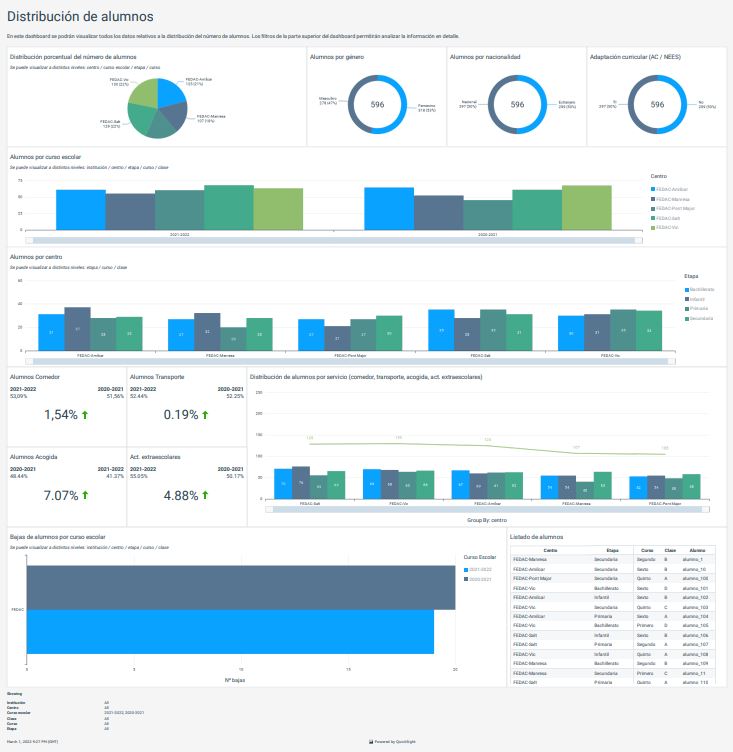
With dashboards built specifically to surface helpful information, school administrators are better able to make informed decisions based on clear, easy-to-understand insights. Reports can be generated to show academic results, pre-registrations, absences, etc., and all of it can be filtered by school year, institution, center, stage, courses, and classes.
Thanks to the information QuickSight delivers via Clickedu Analytics, our HR teams can see how many teachers in a group are likely to retire soon, or academic teams can see how language qualifications are progressing. Having fast, easy access to key insights like these help us be more proactive in identifying areas that might need attention before they become issues that demand a reaction.
Visibility to spot trends
The biggest challenge our customers were facing was a lack of visibility into aggregate data points that impacted several schools within a group. Speed, agility, and responsiveness are crucial when it comes to spotting trends in data points that signal issues in need of attention or wins deserving of celebration. Prior to implementing QuickSight, it would take time and resources to research whether something identified at one school was also showing up in the data points for the others. Now, administrators have full visibility to all relevant data across an entire network of schools with just a few clicks on their Clickedu Analytics dashboards.
Simple, serverless, scalable
After reviewing several other BI vendor products and evaluating the pros and cons of each, Amazon QuickSight was chosen as our Clickedu Analytics BI tool for these reasons.
- Simple integration – We use Amazon Redshift as our data warehouse. We also work with AWS Glue as an extract, transform, and load (ETL) tool and Amazon SageMaker as a development environment. Adding Quicksight to our established mix of AWS services was a fast, simple, seamless process.
- Serverless – Because our AWS services are in the cloud, we don’t have to download or maintain any software; there’s no heavy lifting on our end.
- Scalable – QuickSight automatically scales resources based on usage and consumption, which takes one more task off the list of things we’d otherwise need to monitor and adjust.
- User-friendly – QuickSight’s intuitive interface means anyone can access insights, regardless of their tech background or aptitude.
- Embeddability – Being able to embed QuickSight directly into our existing product interfaces has enabled us to create valuable data products that allow both Clickedu and our customers to create visualizations of economic, academic, and HR data in an aggregate model.
Being able to export reports into PDFs, add new datasets, and the ease of combining with third-party data all contributed to swaying our decision to QuickSight.
Coming soon to Clickedu Analytics
QuickSight has empowered us to bring our Clickedu Analytics platform to the next level in providing the visibility and scalability we need to best serve our customers. We’re very excited to continue to iterate on what we’ve built with plans to expand access from the school groups and institutions who are currently using Clickedu Analytics to have it available to all schools that are in need of data management solutions.
Looking to the future, we see potential to do more with QuickSight in the learning management system (LMS) space. We are considering Amazon QuickSight Q, a machine learning-powered natural language capability that gives anyone in an organization the ability to ask business questions in natural language and receive accurate answers with relevant visualizations instantly without needing to go back to the dashboard author. There is ample potential to implement QuickSight Q as a means of querying and receiving information on our digital content.
To learn more about how you can embed customized data visuals, interactive dashboards, and natural language querying into any application, visit Amazon QuickSight Embedded.
To learn more about Clickedu, Spain’s leading platform for school administration, visit www.clickedu.net.
About the Authors
 Ignasi Nogués is the founder and the CTO of Clickedu. He is, by definition, a big entrepreneur and a dreamer. He drove the company since 2000 to success due to hard work. He always wants to take the next step.
 Georgina Valls is the Marketing Manager of Clickedu. She is a hardworker, dedicated to letting others know about Clickedu and its capabilities. As the daughter of teachers, she is very passionate about creating a brighter future in education.
[$] SLOB nears the end of the road
Post Syndicated from original https://lwn.net/Articles/918344/
The kernel project tries hard to avoid duplicating functionality within its
code base; whenever possible, a single subsystem is made to serve all use
cases. There is one notable exception to this rule, though: there are
three object-level memory allocators (“slab allocators”) in the kernel.
The desire to reduce the count has been growing stronger over the years,
and some steps have been taken in 6.2 to eliminate the least-loved
allocator — SLOB — in the relatively near future.
Do This RIGHT NOW If You Use LastPass! Your Passwords are at Risk!
Post Syndicated from Crosstalk Solutions original https://www.youtube.com/watch?v=OgC-4KlKFYU
What’s with all the ducks?
Post Syndicated from Michelle Mannering original https://github.blog/2022-12-23-whats-with-all-the-ducks/
Black eyes.
Orange beak.
Large yellow body.
Rubbery texture…
…often seen floating in baths.
What are we talking about? Rubber ducks, of course. Now the question you might be asking, “Why is everyone obsessed with rubber ducks?” You may have seen our new “What is GitHub?” video making its way around the internet. Outside of the famous comedian, whom you may recognize, you saw a new character floating around (literally). And if you were at GitHub Universe this year or tuned into the livestream, you probably saw lots of physical rubber ducks dispersed throughout.
So, what in the world do rubber ducks have to do with programming? And why were they everywhere? A lot of you asked, so I’m here to help explain.
Rubber ducks + programming 

Our story starts back in 1999, when a book was released, The Pragmatic Programmer by Andrew Hunt. The story describes a computer programmer who sat a rubber duck down one fine day, and explained his code to the duck—line by line!
The process of speaking the code out loud helped the developer understand the code and gain greater insight into his work. After all, rubber ducks don’t talk back!
The technique stuck. It’s now called rubber duck debugging or rubberducking. Of course, it doesn’t need to be only rubber ducks, but the term stuck and is part of developer lingo. So, in our effort to explain all the things GitHub can do for developers and businesses, we used this same technique, with our own special rubber duck. Our duck takes a journey through all the elements of GitHub that make it the most complete developer platform to build, scale, and deliver secure software.
If anyone missed the significance of rubber ducks, @film_girl and @anjuan explained it during the live stream at #GitHubUniverse
Sound (or subs) on! pic.twitter.com/p7G3eZwqBc
— Mish

 Michelle Mannering (@MishManners)
 Your turn

If rubber duck debugging is new to you, try it out! It doesn’t just work with code, either. If you’re ever stuck, try talking through your problem or challenge out loud, whether it’s to that plant on your desk, a roommate, your family, or even your dog. In the meantime, your code on GitHub is waiting to be explained to your new yellow friend.
Revolutionize Your PC Control with Home Assistant: A Step-by-Step Guide
Post Syndicated from BeardedTinker original https://www.youtube.com/watch?v=S8nGS9nrQC0
Eric Barker | Plays Well with Others | Talks at Google
Post Syndicated from Talks at Google original https://www.youtube.com/watch?v=1lJm-Rfh3sk
An elastic deployment of Stable Diffusion with Discord on AWS
Post Syndicated from Steven Warren original https://aws.amazon.com/blogs/architecture/an-elastic-deployment-of-stable-diffusion-with-discord-on-aws/
Stable Diffusion is a state-of-the-art text-to-image model that generates images from text. Deploying text-to-image models such as Stable Diffusion can be difficult. Currently, Stable Diffusion requires specific computer hardware known as graphical processing units (GPUs). You can lower the bar to entry by offloading the text-to-image generation onto Amazon Web Services (AWS).
Discord is a popular voice, video, and text communication service. It provides a user interface that people can use to make text-to-image requests. When deployed, all members of a Discord server can create images by using Discord Slash Commands.
In this post, we discuss how to deploy a highly available solution on AWS. This solution will perform text-to-image generation with Stable Diffusion and use Discord as the user interface.
Solution architecture
Many of the services selected are serverless, which will offer many benefits. At the time of writing, Stable Diffusion requires a GPU for inference. Amazon Elastic Compute Cloud (Amazon EC2) was selected because it provides GPUs. The solution architecture is shown in the Figure 1.

Figure 1. Solution architecture diagram
Let us walk through the architecture of this solution.
Auto scaling with custom metrics
To properly scale the system, a custom Amazon CloudWatch metric is created. This custom CloudWatch metric calculates the number of Amazon Elastic Container Service (Amazon ECS) tasks required to adequately handle the amount of Amazon Simple Queue Service (Amazon SQS) messages. You should have a high-resolution CloudWatch metric to scale up quickly. For this use case, a high-resolution CloudWatch metric of every 10 seconds was implemented.
Next, let’s create the custom CW metric. Amazon EventBridge rules provide a serverless solution for starting actions on a schedule. Here we use an Amazon EventBridge rule, which initiates an AWS Step Function Express Workflow every minute. With the Express Workflow, we can create serverless workflows that take less than five minutes, which helps us avoid long running AWS Lambda functions. The Express Workflow runs a Lambda function every 10 seconds over a one-minute period, which generates the custom CloudWatch metric.
Two high-resolution CloudWatch alarms scale the system up and down, and are initiated by the custom CloudWatch metric. One CloudWatch alarm increases the ECS tasks and EC2 machines. The other alarm decreases the ECS tasks and EC2 machines.
Handling Discord requests
Someone on Discord sends a request. The Amazon API Gateway HTTP API receives the request and passes the information to an AWS Lambda function. The HTTP API provides a cost-effective option compared to REST APIs and provides tools for authentication and authorization. The HTTP API uses cross-origin resource sharing (CORS), which provides security because it only allows discord.com as an origin.
The AWS Lambda function provides a serverless solution for responding to the HTTP API requests. It transforms the HTTP API request and sends a message to the SQS First-In-First-Out (FIFO) queue. SQS seamelessly decouples the architecture between user requests and backend processing. A FIFO queue ensures that user requests are processed in the order they were requested. The AWS Lambda function sends a response back to the HTTP API within three seconds, which is a requirement of Discord Slash Commands.
When scaling up, an EC2 instance is registered with the ECS cluster. The EC2 instance type was selected because it provides GPU instances. ECS provides a repeatable solution to deploy the container across a variety of instance types. This solution currently only uses the g4dn.xlarge instance type. The ECS service will then place an ECS task onto the eligible EC2 instance. The ECS task will use the Amazon Elastic Container Registry (Amazon ECR) private registry to pull the image, perform text-to-image processing, and respond to the Discord request. The ECR private registry is a managed container registry that manages the image.
Once there is an ECS task running on an Amazon EC2 instance, the ECS task will consume messages from the queue using long polling. This reduces the amount of ReceiveMessage requests the ECS task needs to send. When the ECS task receives a message from the queue, it will then processes the request.
Estimated monthly cost
The example assumes 1,000 requests per month and each request takes 16 seconds to complete. Extra EC2 time was added for the time to begin processing messages (seven minutes) and auto scaling cooldown time (30 minutes). You can adjust the pricing calculations with the AWS Pricing Calculator to reflect your usage and estimated cost.
Prerequisites
This blog assumes familiarity with Terraform, Docker, Discord, Amazon EC2, Amazon Elastic Block Store (Amazon EBS), Amazon Virtual Private Cloud (Amazon VPC), AWS Identity and Access Management (IAM), Amazon API Gateway, AWS Lambda, Amazon SQS, Amazon Elastic Container Registry (Amazon ECR), Amazon ECS, Amazon EventBridge, AWS Step Functions, and Amazon CloudWatch.
For this walkthrough, you should have the following prerequisites:
- Access to an AWS account, with permissions to create the resources described in the installation steps section
- A virtual private cloud (VPC) with public subnets that is associated with an internet gateway in the region you are deploying into
We suggest using the default VPC. The subnets will need the tag of key: Tier and value: Public and be attached to the VPC. If you decided to create your own VPC with subnets, make sure that auto-assign IP settings is enabled. - An IAM user with the required permissions to deploy the infrastructure
- A new Discord application that is registered to a Discord server you own with the scope applications.command. Use this tutorial if you need a starting point on creating a Discord application.
- Discord Bot token
- Discord Application ID
- Discord Public Key
- A Hugging Face account
- A computer with the following packages installed:
Walkthrough
Complete the following steps to deploy this solution on AWS.
Increase EC2 limits
This solution uses the g4dn.xlarge instance type, which might require you to request an EC2 limit increase. Check your current limit of Running On-Demand All G and VT instances. Make sure you have more than 4 vCPU; a single g4dn.xlarge requires 4 vCPU. We suggest requesting 8 vCPU so that you can access 2 g4dn.xlarge instances.
Deploy the infrastructure
- Ensure you have at least 60 GB of storage available and you’re running on a 64-bit x86 architecture system.
- Open a command line on the machine you will be deploying from.
- Log in as your AWS user through the AWS CLI with the command
aws configure. If you are using an EC2 instance, create and use an instance profile rather than using the AWS CLI.
The region you select will be the one you will deploy into. - Clone the Terraform repository:
git clone https://github.com/aws-samples/amazon-scalable-infra-discord-diffusion.git - Navigate into the Terraform repository:
cd amazon-scalable-infra-discord-diffusion - Customize the variables in
terraform.tfvarsto match your deployment. - Export the following secrets to the command line:
export TF_VAR_discord_bot_secret='DISCORD_BOT_SECRET_HERE'export TF_VAR_huggingface_password='HUGGINGFACE_PASSWORD_HERE'
- Initialize the repository:
terraform init - Apply the infrastructure (this takes about 2 minutes):
terraform apply - Save the outputs for future use.
Set up Discord
This setup adds the Discord interactions URL to your Discord application. After terraform apply comes back successfully, move onto these steps.
- Open Discord Application Page -> General Information.
- Copy and paste the value from
discord_interactions_endpoint_urlinto the Interactions Endpoint URL, and then save the changes.
If successful, there should be a green box with All your edits have been carefully recorded.
Docker image and Amazon Elastic Container Registry
In this section, you will create a docker image with the Stable Diffusion model.
- Exit the terraform repository:
cd .. - Clone the Docker build repository:
git clone https://github.com/aws-samples/amazon-scalable-discord-diffusion.git - Navigate to the Docker repository:
cd amazon-scalable-discord-diffusion - Build and push the docker image to ECR. This requires docker to be installed on the machine and actively running.
You can find the commands for your deployment from the Amazon ECR repository.
Figure 2. View push commands for Amazon ECR

This is a large image (10GB) and can take over 20 minutes to push depending on your machine’s internet connection.
Request an image with Discord Slash Commands
This section will describe how to request a text to image response with Discord.
- Log in to Discord and navigate to the server with your Discord application deployed.
- Navigate to a text channel.
- Type the command
/sparkle.
A box withCOMMANDS MATCHING /sparklewill appear. Select the/sparklecommand box.
Depending on how you customized your Discord Application, the avatar image shown in Figure 3 might be different from what you have.
Figure 3. Writing a Discord Slash Command
- Type in a prompt such as
a corgi, style of monet.
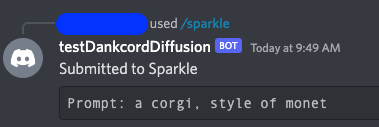
A response fromYourBotNameshould appear with the responseSubmitted to Sparkle: YourPromptHere, as shown in Figure 4.
Figure 4. First response from AWS Lambda function
It will take 10 minutes for an EC2 instance to start with an ECS Task running on the instance. Once an ECS Task is running on the instance, inference times should reduce to under 30 seconds, depending on the request.
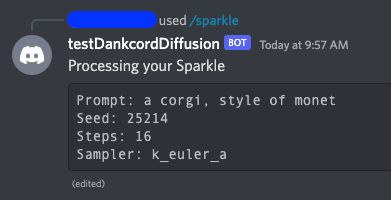
When an ECS Task is running your request, you will see aProcessing your Sparklemessage, as shown in Figure 5.
Figure 5. Amazon ECS task processing a request
The message is complete when it says
Completed your Sparkle!as shown in Figure 6.
Figure 6. Amazon ECS task returning the final response


Cleaning up
To avoid incurring future charges, delete the resources created by the Terraform script.
- Return to the directory where you deployed your terraform script.
- To destroy the infrastructure in AWS, run the command
terraform destroy. - When prompted to confirm that you want to destroy the infrastructure, type
yesand press Enter.
Conclusion
In summary, we created a solution that allows members of a Discord server to create images from text with a Stable Diffusion model. With this implementation, the deployment can scale to many Discord Servers and handle over one hundred requests per second.
Create projects on AWS that lower the bar to entry for people wanting to try text to image models.
Security updates for Friday
Post Syndicated from original https://lwn.net/Articles/918486/
Security updates have been issued by Debian (node-hawk and node-trim-newlines), Fedora (insight, ntfs-3g, and suricata), and SUSE (conmon, helm, kernel, and mbedtls).
Intel posts a new “Xe” graphics driver
Post Syndicated from original https://lwn.net/Articles/918469/
Intel’s graphical processors have been well supported in the mainline for
years, but it seems that the i915 driver may be approaching the end of its
development life. Matthew Brost has just posted a new
driver called “Xe” that looks to be (eventually) a replacement for
i915:
The intention of this new driver is to have a fresh base to work
from that is unencumbered by older platforms, whilst also taking
the opportunity to rearchitect our driver to increase sharing
across the drm subsystem, both leveraging and allowing us to
contribute more towards other shared components like TTM and
drm/scheduler.
Winston Churchill’s Christmas at the White House
Post Syndicated from The History Guy: History Deserves to Be Remembered original https://www.youtube.com/watch?v=wxzYgO2p6PQ
Hacking the JFK Airport Taxi Dispatch System
Post Syndicated from Bruce Schneier original https://www.schneier.com/blog/archives/2022/12/hacking-the-jfk-airport-taxi-dispatch-system.html
Two men have been convicted of hacking the taxi dispatch system at the JFK airport. This enabled them to reorder the taxis on the list; they charged taxi drivers $10 to cut the line.
Pando
Post Syndicated from original https://xkcd.com/2715/

Unlock the power of EC2 Graviton with GitLab CI/CD and EKS Runners
Post Syndicated from Michael Fischer original https://aws.amazon.com/blogs/devops/unlock-the-power-of-ec2-graviton-with-gitlab-ci-cd-and-eks-runners/
Many AWS customers are using GitLab for their DevOps needs, including source control, and continuous integration and continuous delivery (CI/CD). Many of our customers are using GitLab SaaS (the hosted edition), while others are using GitLab Self-managed to meet their security and compliance requirements.
Customers can easily add runners to their GitLab instance to perform various CI/CD jobs. These jobs include compiling source code, building software packages or container images, performing unit and integration testing, etc.—even all the way to production deployment. For the SaaS edition, GitLab offers hosted runners, and customers can provide their own runners as well. Customers who run GitLab Self-managed must provide their own runners.
In this post, we’ll discuss how customers can maximize their CI/CD capabilities by managing their GitLab runner and executor fleet with Amazon Elastic Kubernetes Service (Amazon EKS). We’ll leverage both x86 and Graviton runners, allowing customers for the first time to build and test their applications both on x86 and on AWS Graviton, our most powerful, cost-effective, and sustainable instance family. In keeping with AWS’s philosophy of “pay only for what you use,” we’ll keep our Amazon Elastic Compute Cloud (Amazon EC2) instances as small as possible, and launch ephemeral runners on Spot instances. We’ll demonstrate building and testing a simple demo application on both architectures. Finally, we’ll build and deliver a multi-architecture container image that can run on Amazon EC2 instances or AWS Fargate, both on x86 and Graviton.
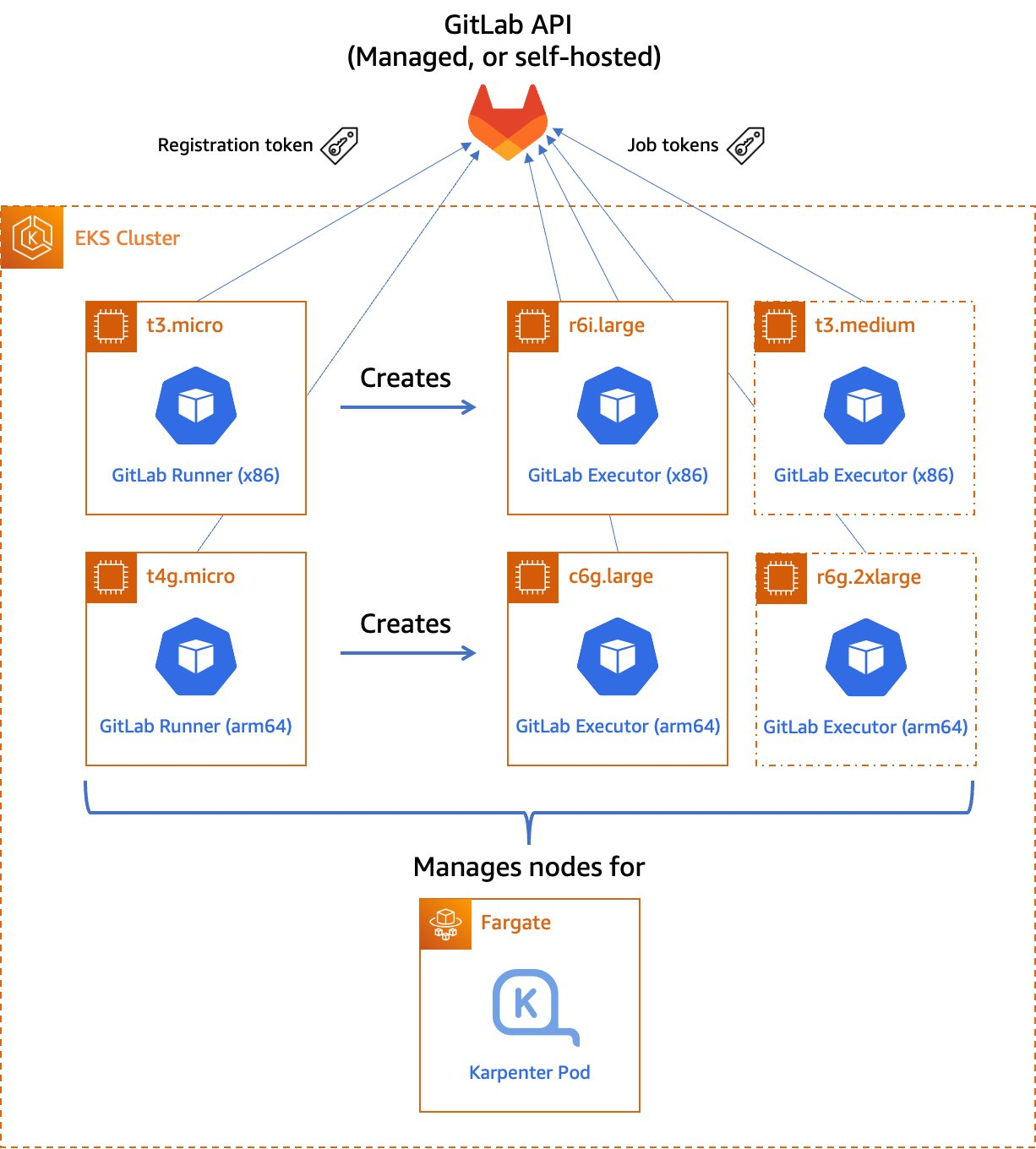
Figure 1. Managed GitLab runner architecture overview.
Let’s go through the components:
Runners
A runner is an application to which GitLab sends jobs that are defined in a CI/CD pipeline. The runner receives jobs from GitLab and executes them—either by itself, or by passing it to an executor (we’ll visit the executor in the next section).
In our design, we’ll be using a pair of self-hosted runners. One runner will accept jobs for the x86 CPU architecture, and the other will accept jobs for the arm64 (Graviton) CPU architecture. To help us route our jobs to the proper runner, we’ll apply some tags to each runner indicating the architecture for which it will be responsible. We’ll tag the x86 runner with x86, x86-64, and amd64, thereby reflecting the most common nicknames for the architecture, and we’ll tag the arm64 runner with arm64.
Currently, these runners must always be running so that they can receive jobs as they are created. Our runners only require a small amount of memory and CPU, so that we can run them on small EC2 instances to minimize cost. These include t4g.micro for Graviton builds, or t3.micro or t3a.micro for x86 builds.
To save money on these runners, consider purchasing a Savings Plan or Reserved Instances for them. Savings Plans and Reserved Instances can save you up to 72% over on-demand pricing, and there’s no minimum spend required to use them.
Kubernetes executors
In GitLab CI/CD, the executor’s job is to perform the actual build. The runner can create hundreds or thousands of executors as needed to meet current demand, subject to the concurrency limits that you specify. Executors are created only when needed, and they are ephemeral: once a job has finished running on an executor, the runner will terminate it.
In our design, we’ll use the Kubernetes executor that’s built into the GitLab runner. The Kubernetes executor simply schedules a new pod to run each job. Once the job completes, the pod terminates, thereby freeing the node to run other jobs.
The Kubernetes executor is highly customizable. We’ll configure each runner with a nodeSelector that makes sure that the jobs are scheduled only onto nodes that are running the specified CPU architecture. Other possible customizations include CPU and memory reservations, node and pod tolerations, service accounts, volume mounts, and much more.
Scaling worker nodes
For most customers, CI/CD jobs aren’t likely to be running all of the time. To save cost, we only want to run worker nodes when there’s a job to run.
To make this happen, we’ll turn to Karpenter. Karpenter provisions EC2 instances as soon as needed to fit newly-scheduled pods. If a new executor pod is scheduled, and there isn’t a qualified instance with enough capacity remaining on it, then Karpenter will quickly and automatically launch a new instance to fit the pod. Karpenter will also periodically scan the cluster and terminate idle nodes, thereby saving on costs. Karpenter can terminate a vacant node in as little as 30 seconds.
Karpenter can launch either Amazon EC2 on-demand or Spot instances depending on your needs. With Spot instances, you can save up to 90% over on-demand instance prices. Since CI/CD jobs often aren’t time-sensitive, Spot instances can be an excellent choice for GitLab execution pods. Karpenter will even automatically find the best Spot instance type to speed up the time it takes to launch an instance and minimize the likelihood of job interruption.
Deploying our solution
To deploy our solution, we’ll write a small application using the AWS Cloud Development Kit (AWS CDK) and the EKS Blueprints library. AWS CDK is an open-source software development framework to define your cloud application resources using familiar programming languages. EKS Blueprints is a library designed to make it simple to deploy complex Kubernetes resources to an Amazon EKS cluster with minimum coding.
The high-level infrastructure code – which can be found in our GitLab repo – is very simple. I’ve included comments to explain how it works.
For security reasons, we store the GitLab registration token in a Kubernetes Secret – never in our source code. For additional security, we recommend encrypting Secrets using an AWS Key Management Service (AWS KMS) key that you supply by specifying the encryption configuration when you create your Amazon EKS cluster. It’s a good practice to restrict access to this Secret via Kubernetes RBAC rules.
To create the Secret, run the following command:
Building a multi-architecture container image
Now that we’ve launched our GitLab runners and configured the executors, we can build and test a simple multi-architecture container image. If the tests pass, we can then upload it to our project’s GitLab container registry. Our application will be pretty simple: we’ll create a web server in Go that simply prints out “Hello World” and prints out the current architecture.
Find the source code of our sample app in our GitLab repo.
In GitLab, the CI/CD configuration lives in the .gitlab-ci.yml file at the root of the source repository. In this file, we declare a list of ordered build stages, and then we declare the specific jobs associated with each stage.
Our stages are:
- The build stage, in which we compile our code, produce our architecture-specific images, and upload these images to the GitLab container registry. These uploaded images are tagged with a suffix indicating the architecture on which they were built. This job uses a matrix variable to run it in parallel against two different runners – one for each supported architecture. Furthermore, rather than using
docker buildto produce our images, we use Kaniko to build them. This lets us build our images in an unprivileged container environment and improve the security posture considerably. - The test stage, in which we test the code. As with the build stage, we use a matrix variable to run the tests in parallel in separate pods on each supported architecture.
The assembly stage, in which we create a multi-architecture image manifest from the two architecture-specific images. Then, we push the manifest into the image registry so that we can refer to it in future deployments.
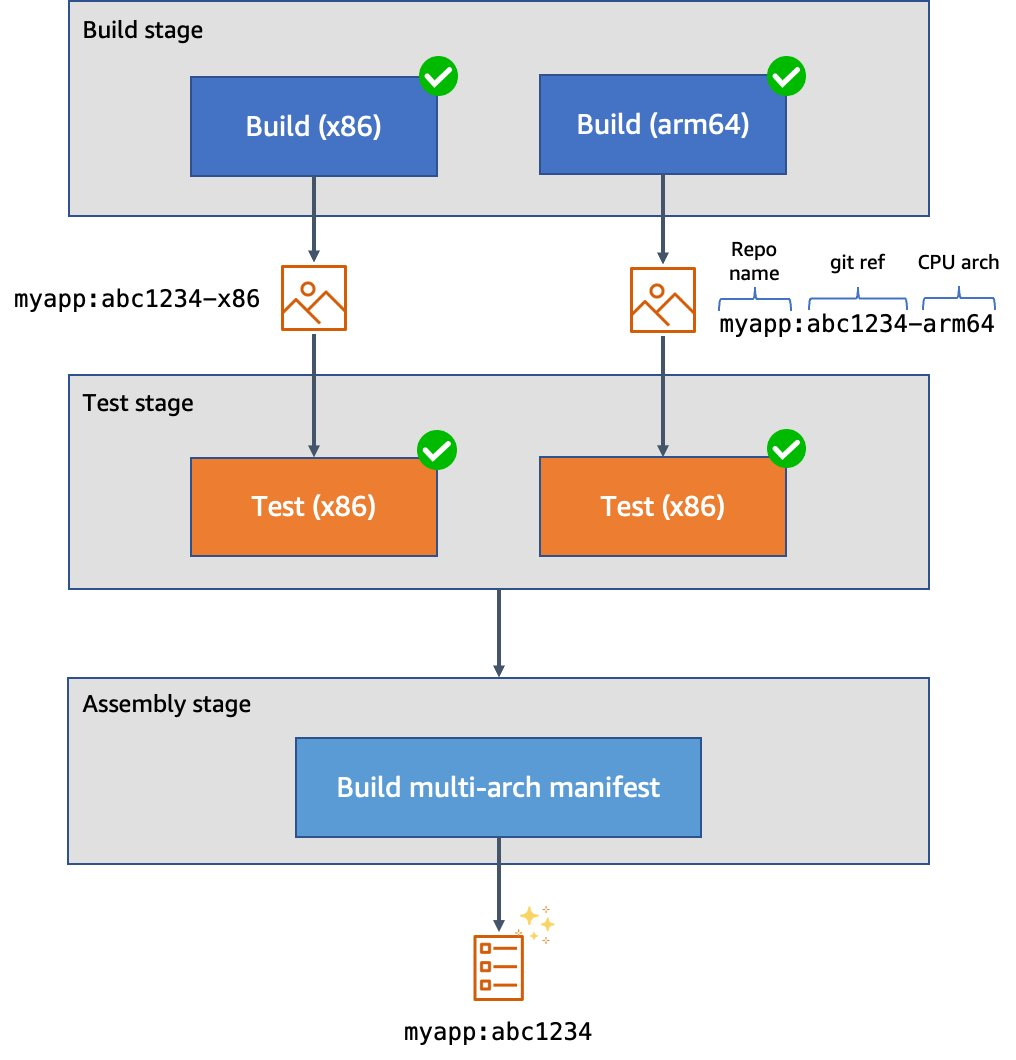
Figure 2. Example CI/CD pipeline for multi-architecture images.
Here’s what our top-level configuration looks like:
Here’s what our test stage job looks like. This time we use the image that we just produced. Our source code is copied into the application container. Then, we can run make test-api to execute the server test suite.
Finally, here’s what our assembly stage looks like. We use Podman to build the multi-architecture manifest and push it into the image registry. Traditionally we might have used docker buildx to do this, but using Podman lets us do this work in an unprivileged container for additional security.
Trying it out
I’ve created a public test GitLab project containing the sample source code, and attached the runners to the project. We can see them at Settings > CI/CD > Runners:
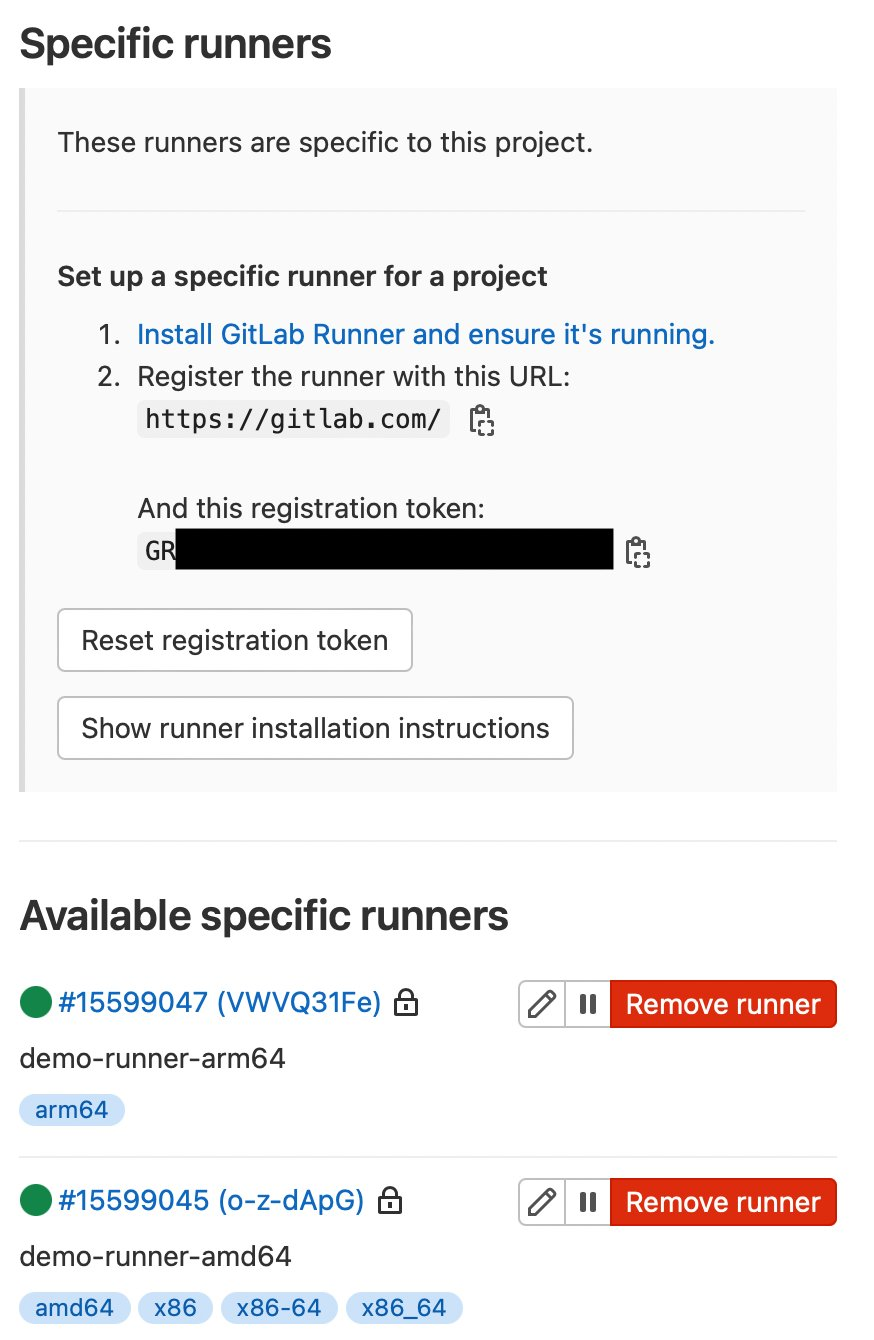
Figure 3. GitLab runner configurations.
Here we can also see some pipeline executions, where some have succeeded, and others have failed.
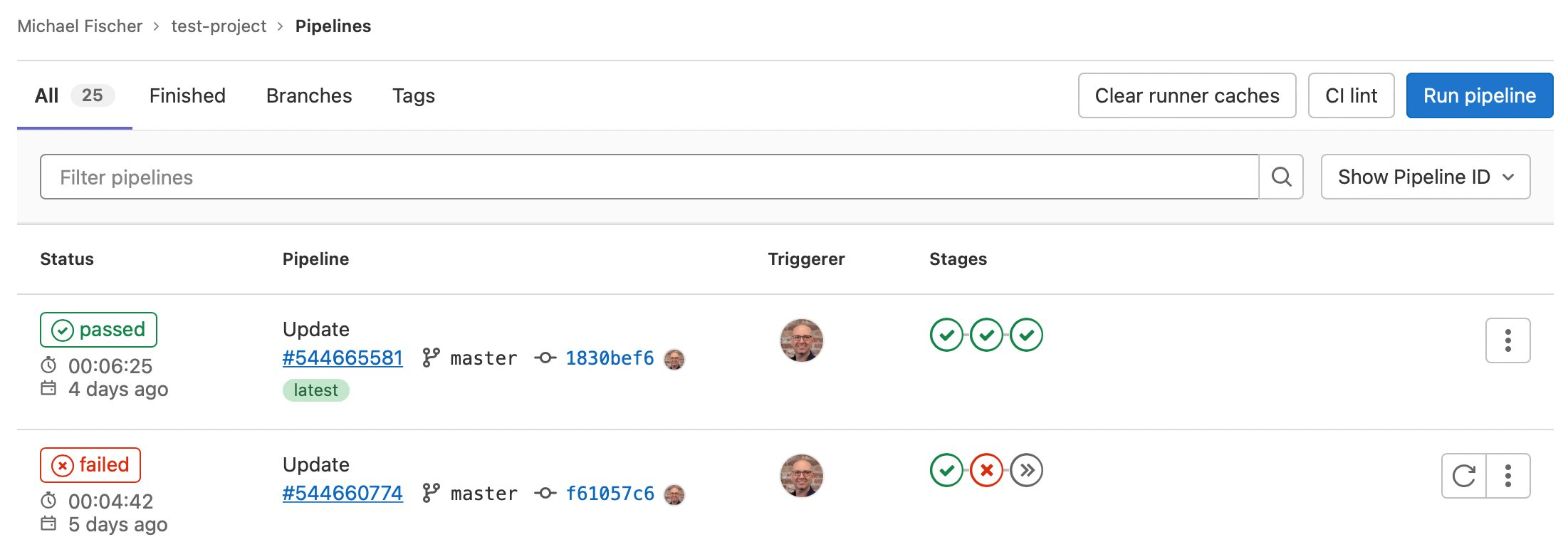
Figure 4. GitLab sample pipeline executions.
We can also see the specific jobs associated with a pipeline execution:
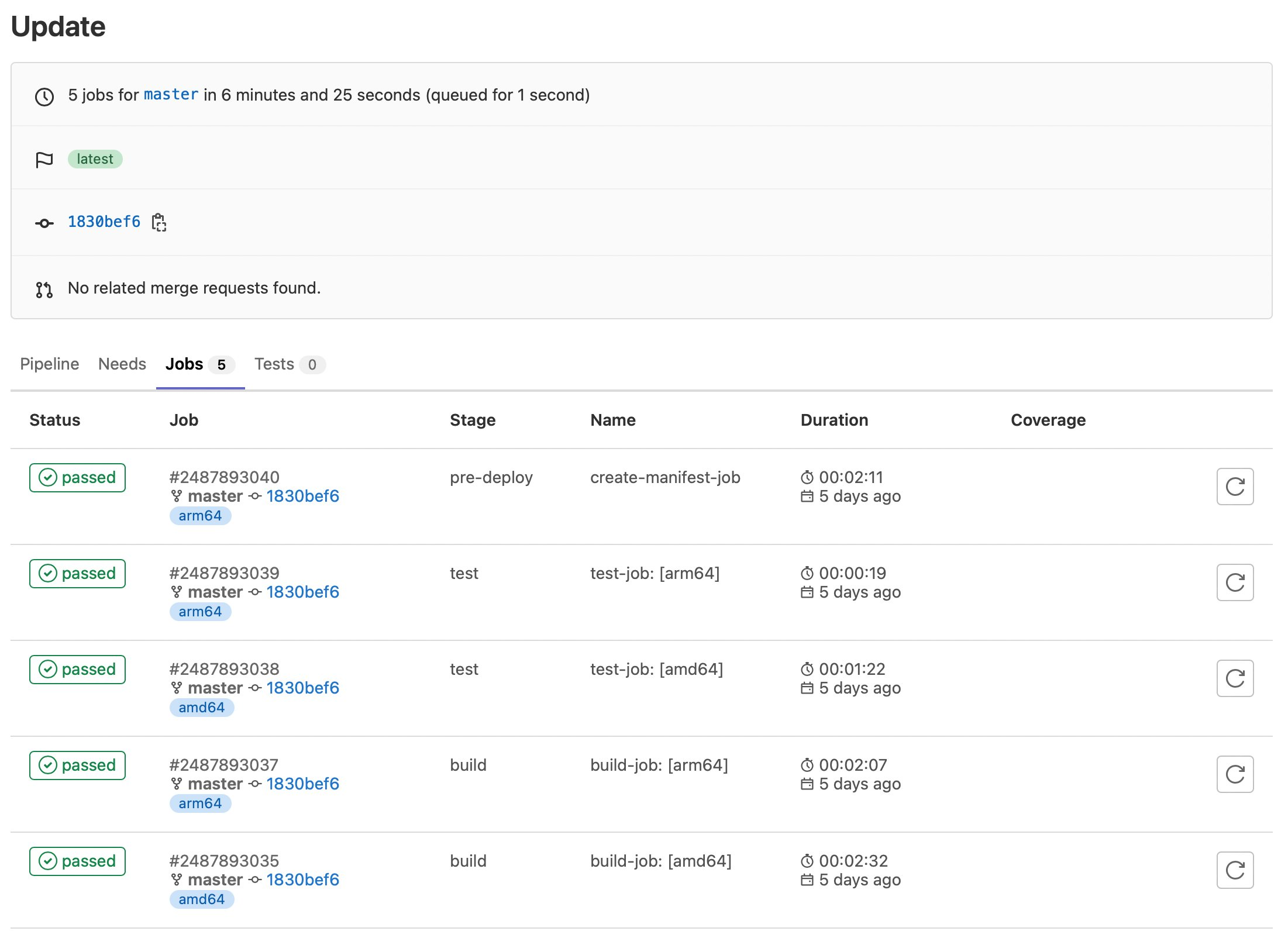
Figure 5. GitLab sample job executions.
Finally, here are our container images:
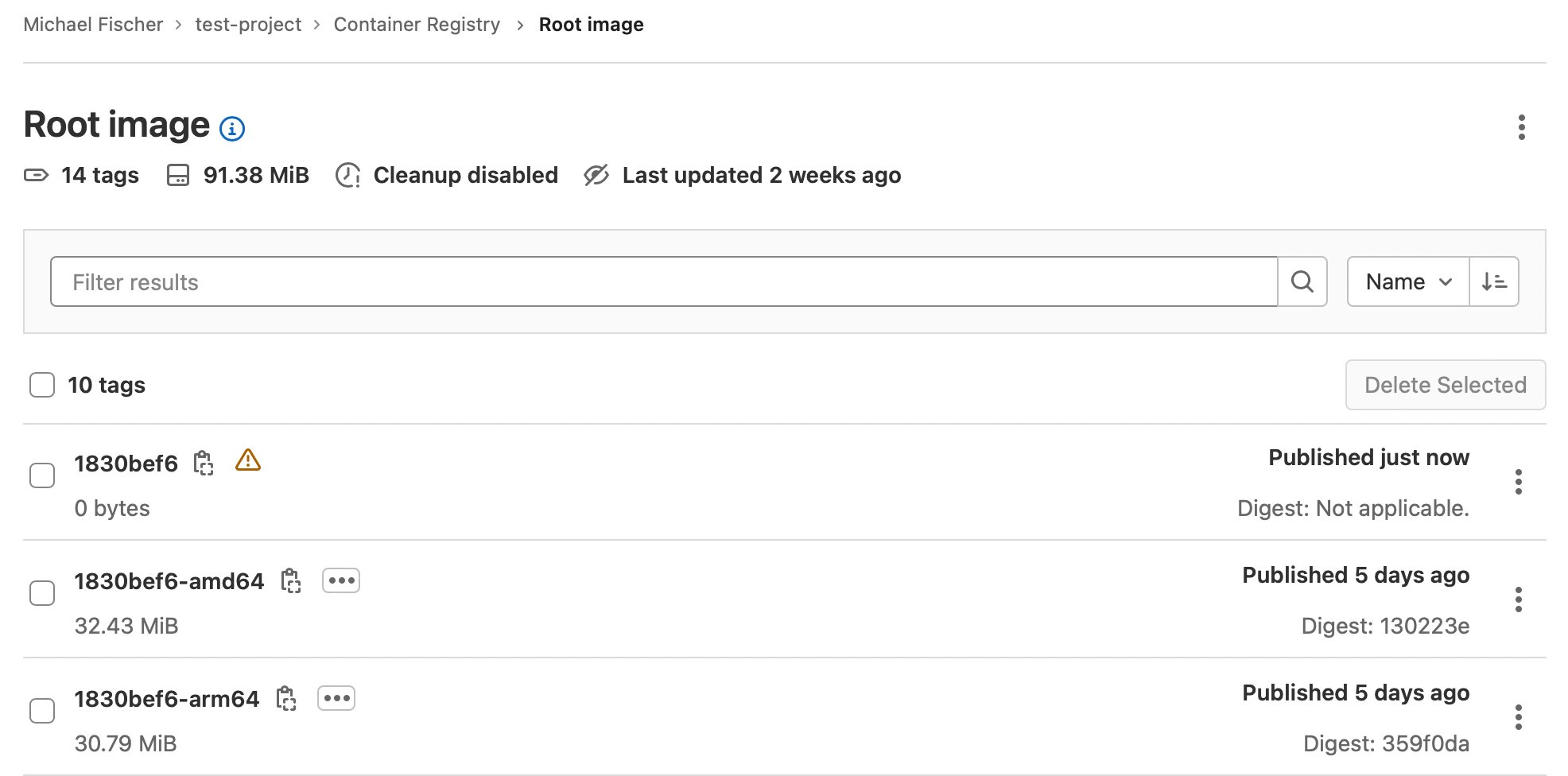
Figure 6. GitLab sample container registry.
Conclusion
In this post, we’ve illustrated how you can quickly and easily construct multi-architecture container images with GitLab, Amazon EKS, Karpenter, and Amazon EC2, using both x86 and Graviton instance families. We indexed on using as many managed services as possible, maximizing security, and minimizing complexity and TCO. We dove deep on multiple facets of the process, and discussed how to save up to 90% of the solution’s cost by using Spot instances for CI/CD executions.
Find the sample code, including everything shown here today, in our GitLab repository.
Building multi-architecture images will unlock the value and performance of running your applications on AWS Graviton and give you increased flexibility over compute choice. We encourage you to get started today.
About the author: