This post was written with Avinash Erupaka from Bayer (IT PH, Drug Innovation platform)
How can pharmaceutical companies unlock the full potential of their data to drive breakthrough innovations? Bayer, a global leader in health and nutrition, is dedicated to tackling the pressing challenges of our time, including a growing and aging population and the strain on our planet’s ecosystems. Its mission of “Health for All, Hunger for None” drives its commitment to addressing societal and environmental needs through groundbreaking research. Bayer is focused on developing innovative solutions that make a tangible difference in the world and value for its customers, employees, and stakeholders. Headquartered in Leverkusen, Germany, Bayer operates across 80 countries and is pioneering a data science ecosystem that transforms how research teams access, analyze, and derive insights from complex scientific data.
By harnessing the power of data, analytics, artificial intelligence and machine learning (AI/ML), and generative AI, Bayer is creating a cloud-based Pharma R&D Data Science Ecosystem (DSE) on AWS that powers cutting-edge technologies and concepts with robust data management. In doing so, R&D teams can fully realize the potential of unified data and analytics.
In this post, we discuss how Bayer used the next generation of SageMaker to build a solution that unified data ingestion, storage, analytics, and AI/ML workflows. Built on data mesh principles, Bayer’s DSE integrates advanced data ingestion, storage, analytics, and ML workflows to enable agile experimentation and scalable insight generation. It democratizes access to analytics, fosters cross-Region collaboration, and provides flexible integration of structured, semi-structured, and unstructured data.
Challenges in pharmaceutical research
In pharmaceutical research, data has become the most critical asset for driving innovation. However, managing this data effectively presents unprecedented challenges and traditional data management approaches are becoming increasingly inadequate for complex, global research initiatives. Many pharma R&D organization face a complex ecosystem of data and analytics related obstacles that hinder scientific discovery and operational efficiency:
Siloed datasets – Research datasets are siloed across domains, limiting reuse and slowing discovery.
Multiple data modalities – Clinical trial data (structured), real-world evidence (semi-structured), and genomic files (unstructured) existed in isolation, complicating integration and analysis.
Inflexible ingestion capabilities – Systems that support batch processing (such as trial data), real-time data streams (for example, from lab equipment), and event-driven ingestion (such as regulatory updates).
Rising R&D costs – Disparate technologies and disconnected systems create operational inefficiencies and increased licensing and maintenance costs.
Inconsistent landscape to fully use ML – The absence of a unified data architecture and standardized, domain-agnostic MLOps workflows mean that data and analytics innovation is often ad hoc and non-repeatable. Teams lack a streamlined way to scale successful patterns, resulting in redundant efforts, longer development cycles, and missed opportunities for cross-domain synergy.
Disconnected architectures – Software solutions are not integrated into the wider unified ecosystem, resulting in silos, redundancies, and inefficiencies.
Recognizing these systemic challenges, Bayer embarked on a transformative journey. DSE is not just a technological solution, but a strategic reimagining of how research data and analytics could be used across a global organization. By bringing together cutting-edge technologies, standardized frameworks, a collaborative data mesh, and lakehouse architecture, Bayer set out to help researchers and engineers accelerate pharmaceutical innovation.
Finding a solution with the next generation of SageMaker
Bayer envisioned a unified data science ecosystem that would provide the following:
A unified collaborative development experience for all data scientists regardless of their location or specialization
Seamless access to both structured and unstructured data through a consistent interface
Built-in governance and compliance controls appropriate for pharmaceutical research
Scalable compute resources to handle the most complex analytical workloads
Bayer conducted a comprehensive evaluation of various solutions before selecting the next generation of SageMaker as the cornerstone of their new data science ecosystem. Although other options had merits, Bayer prioritized the following capabilities:
Access to multimodal data – Essential for genomics, proteomics, and advanced biomarker research
Centralized asset marketplace – Central hub to discover and reuse data, features, models, and other enterprise assets
Integrated tooling ecosystem – Streamlined access to key tools like Git, ETL, MLflow, and generative AI application builders in one place
Multi-domain and cross-Region support – Critical for global research collaboration
Price-performance – Necessary for sustainable, long-term scaling
The capabilities of Amazon SageMaker Unified Studio and Amazon SageMaker Catalog aligned with Bayer’s vision of decentralized mesh execution combined with centralized discovery and governance. They enabled teams to work with their preferred tools, such as Jupyter Notebooks or workflow builders, while maintaining discoverability and reusability of assets.
Solution overview
This section describes the key features and architecture of Bayer’s DSE built on SageMaker. The DSE solution addresses the identified challenges through a multi-layered architecture:
Breaking down data silos – Multimodal data ingestion capabilities of the solution break down data silos by enabling unified storage, processing of structured, semi-structured, and unstructured data through batch, streaming, and event-driven pipelines.
Reducing costs through standardization – To address rising R&D costs and operational inefficiencies, pre-wired analytical workbenches offer standardized templates and integrated development environments (IDEs) that reduce redundancy and accelerate workflow development.
Unlocking AI/ML with Amazon SageMaker AI and Amazon Bedrock – Advanced AI/ML capabilities, powered by Amazon SageMaker AI and Amazon Bedrock, create a standardized, domain-agnostic MLOps environment that enables repeatable innovation and cross-domain synergy.
Managing tools ecosystem with end-to-end observability – Robust governance and observability features provide compliance and system reliability while integrating previously disconnected tools into a unified, well-monitored ecosystem that breaks down architectural silos and promotes efficient resource utilization.
The DSE architecture implements data mesh principles where data domains (omics, regulatory, clinical trials) are treated as products, with ownership and management responsibilities assigned to domain experts. These domains are decentralized for execution but remain discoverable and reusable through SageMaker Catalog. At the core of the architecture is a hybrid mesh lakehouse architecture that combines Amazon S3 and Iceberg, providing the flexibility to handle both structured and unstructured data efficiently. SageMaker Unified Studio provides an analytical layer where researchers can access the full suite of tools needed for their work. The following diagram illustrates this architecture.
Impact
The first phase of Bayer’s DSE confirmed the next generation of SageMaker as a powerful foundation for their R&D DSE—designed to balance decentralized innovation with centralized governance through a scalable data mesh architecture. With this solution, Bayer can catalog and manage multimodal data assets—including structured and unstructured data, ML features, models, and custom scientific assets—with context-rich metadata across diverse Pharma R&D domains. Bayer is now positioned to onboard over 300 TB of biomarker data and integrate siloed omics, clinical, and chemistry data repositories into a cohesive environment. With integrated tools like JupyterLab Spaces, MLflow, and SageMaker AI Studio, the DSE platform is laying the groundwork for a comprehensive, GxP-aware ML workbench—paving the way to operationalize over 25 high-value ML use cases and support more than 100 data scientists across the organization.
“The Data Science Ecosystem is vital for developing our medicines,” says Daniel Gusenleitner, Mission Lead for the R&D Data Science Ecosystem. “It enhances our business workflows with advanced analytics, helping us accelerate the search for new treatments. By integrating data from the entire research and development process, we improve the chances of technical success and ensure our efforts are efficient. Unlocking our data also facilitates target discovery, leading to groundbreaking advancements in patient care.”
Next steps
Bayer has successfully begun their Data Science Ecosystem on the next generation of Amazon SageMaker and is working to onboard the first use case of advanced biomarker research. Building on the strong foundation, Bayer is also accelerating the evolution of the DSE solution with the following key enhancements:
Federated catalogs and cross-domain integration – Enabling search and reuse of data assets across therapeutic areas and business units
Advanced ontology and semantic layer – Enriching metadata with domain knowledge to support AI-based search, discovery, and reasoning
Adoption of generative and agentic AI workflows – Driving novel drug discovery and accelerating hypothesis generation
Conclusion
By leveraging the next generation of Amazon SageMaker to build their cloud-based Data Science Ecosystem, Bayer is creating a foundation for faster, more efficient research and discovery. Amazon SageMaker is unifying diverse data types, enabling global collaboration, and standardizing ML workflows to help position Bayer at the forefront of data-driven innovation.
To learn more and get started with the next generation of SageMaker, refer to Amazon SageMaker or the AWS console.
Since we announced Amazon SageMaker AI with MLflow in June 2024, our customers have been using MLflow tracking servers to manage their machine learning (ML) and AI experimentation workflows. Building on this foundation, we’re continuing to evolve the MLflow experience to make experimentation even more accessible.
Today, I’m excited to announce that Amazon SageMaker AI with MLflow now includes a serverless capability that eliminates infrastructure management. This new MLflow capability transforms experiment tracking into an immediate, on-demand experience with automatic scaling that removes the need for capacity planning.
The shift to zero-infrastructure management fundamentally changes how teams approach AI experimentation—ideas can be tested immediately without infrastructure planning, enabling more iterative and exploratory development workflows.
Getting started with Amazon SageMaker AI and MLflow Let me walk you through creating your first serverless MLflow instance.
I navigate to Amazon SageMaker AI Studio console and select the MLflow application. The term MLflow Apps replaces the previous MLflow tracking servers terminology, reflecting the simplified, application-focused approach.
Here, I can see there’s already a default MLflow App created. This simplified MLflow experience makes it more straightforward for me to start doing experiments.
Here’s where the first major improvement becomes apparent—the creation process completes in approximately 2 minutes. This immediate availability enables rapid experimentation without infrastructure planning delays, eliminating the wait time that previously interrupted experimentation workflows.
After it’s created, I receive an MLflow Amazon Resource Name (ARN) for connecting from notebooks. The simplified management means no server sizing decisions or capacity planning required. I no longer need to choose between different configurations or manage infrastructure capacity, which means I can focus entirely on experimentation. You can learn how to use MLflow SDK at Integrate MLflow with your environment in the Amazon SageMaker Developer Guide.
With MLflow 3.4 support, I can now access new capabilities for generative AI development. MLflow Tracing captures detailed execution paths, inputs, outputs, and metadata throughout the development lifecycle, enabling efficient debugging across distributed AI systems.
This new capability also introduces cross-domain access and cross-account access through AWS Resource Access Manager (AWS RAM) share. This enhanced collaboration means that teams across different AWS domains and accounts can share MLflow instances securely, breaking down organizational silos.
Better together: Pipelines integration Amazon SageMaker Pipelines is integrated with MLflow. SageMaker Pipelines is a serverless workflow orchestration service purpose-built for machine learning operations (MLOps) and large language model operations (LLMOps) automation—the practices of deploying, monitoring, and managing ML and LLM models in production. You can easily build, execute, and monitor repeatable end-to-end AI workflows with an intuitive drag-and-drop UI or the Python SDK.
From a pipeline, a default MLflow App will be created if one doesn’t already exist. The experiment name can be defined and metrics, parameters, and artifacts are logged to the MLflow App as defined in your code. SageMaker AI with MLflow is also integrated with familiar SageMaker AI model development capabilities like SageMaker AI JumpStart and Model Registry, enabling end-to-end workflow automation from data preparation through model fine-tuning.
Things to know Here are key points to note:
Pricing – The new serverless MLflow capability is offered at no additional cost. Note there are service limits that apply.
Availability – This capability is available in the following AWS Regions: US East (N. Virginia, Ohio), US West (N.California, Oregon), Asia Pacific (Mumbai, Seoul, Singapore, Sydney, Tokyo), Canada (Central), Europe (Frankfurt, Ireland, London, Paris, Stockholm), South America (São Paulo).
Automatic upgrades: MLflow in-place version upgrades happen automatically, providing access to the latest features without manual migration work or compatibility concerns. The service currently supports MLflow 3.4, providing access to the latest capabilities including enhanced tracing features.
Migration support – You can use the open source MLflow export-import tool available at mlflow-export-import to help migrate from existing Tracking Servers, whether they’re from SageMaker AI, self-hosted, or otherwise to serverless MLflow (MLflow Apps).
Get started with serverless MLflow by visiting Amazon SageMaker AI Studio and creating your first MLflow App. Serverless MLflow is also supported in SageMaker Unified Studio for additional workflow flexibility.
Automation of data processing and data integration tasks is essential for data engineers and analysts to maintain up-to-date data pipelines and reports. Amazon SageMaker Unified Studio is a single data and AI development environment where you can find and access the data in your organization and act on it using the ideal tools for your use case. SageMaker Unified Studio offers multiple ways to integrate with data through its editorial tools, including Visual ETL, Query Editor, and JupyterLab builders.
Recently, AWS launched the visual workflow experience in SageMaker Unified Studio IAM-based domains. With visual workflows, you don’t need to code Python DAGs manually or have deep expertise in Apache Airflow. Instead, you can visually define orchestration workflows through an intuitive drag-and-drop interface in SageMaker Unified Studio. The visual definition is automatically converted to workflow definitions that leverage Amazon Managed Workflows for Apache Airflow (Amazon MWAA) Serverless, providing enterprise-grade orchestration capabilities with a simplified user experience.
In this post, we show how to use the new visual workflow experience in SageMaker Unified Studio IAM-based domains to orchestrate an end-to-end machine learning workflow. The workflow ingests weather data, applies transformations, and generates predictions—all through a single, intuitive interface, without writing any orchestration code.
To demonstrate how SageMaker Unified Studio simplifies end-to-end workflow orchestration, let’s walk through a real-world scenario from agricultural analytics. The following diagram shows a weather data processing workflow that we will orchestrate using the visual workflow experience in SageMaker Unified Studio.
A regional agricultural extension office collects hourly weather data from multiple stations across farming communities. Their goal is to analyze this data and provide farmers with actionable insights into weather patterns and their impact on crop conditions. To achieve this, the team built a ML–powered analytics workflow using SageMaker Unified Studio to automate the processing of incoming weather data and predict irrigation needs.
In this walkthrough, we demonstrate how the visual workflow experience in Unified Studio can orchestrate an end-to-end data pipeline that:
Transforms raw weather measurements using Visual ETL jobs (type casting, SQL operations, and data cleansing)
Generates seasonal irrigation predictions and crop impact insights using JupyterLab notebooks
Whenever new weather data arrives, the workflow automatically routes it through a series of transformation steps, and produces ready-to-use insights—all visually orchestrated in SageMaker Unified Studio with no custom orchestration code required.
Prerequisites
Before you begin, complete the following steps:
Signup for an AWS account and create a user with administrative access using the setup guide.
Setup your SageMaker Unified Studio IAM-based domain:
Navigate to the Amazon SageMaker console and use the Region selector in the top navigation bar to choose the appropriate AWS Region.
On the Amazon SageMaker home page, choose Get started.
For Project data access, choose to Auto-create a new role with admin permissions.
Select the checkbox for S3 table integration with AWS Analytics services, for Data encryption choose Use AWS owned key, and then Set up.
Go back to the Amazon SageMaker home page and choose Open to access the SageMaker Unified Studio experience.
From the SageMaker Studio UI you can access the project in the SageMaker Unified Studio IAM-based domain. This project curates all assets accessible through the designated Execution IAM role.
Workflow implementation steps
In this section, we use Amazon SageMaker Studio to create an end-to-end visual workflow in IAM-based domain.
Step 1: Set up data storage and import weather dataset
First, we’ll prepare the Amazon S3 storage locations for raw and processed data:
From the left menu of the project, choose Files. Under Shared, create two new folders raw_data and processed_data.
Upload the weather dataset file downloaded locally into raw_data folder.
Step 2: Create the weather data transformation job using Visual ETL
Next, create a Visual ETL job to transform the raw weather data through type casting, SQL transformations, and data cleansing:
From the left menu, under Data Analytics, choose Visual ETL and Create Visual Job.
Choose the + sign, and under Data sources, choose Amazon S3.
For the Amazon S3 node settings, choose the following:
S3 URI: Choose Browse S3 and Select
Delimiter: ,
Multiline: Disabled
Header: Enabled
Infer schema: Disabled
Recursive file lookup: Disabled
Choose the + sign next to the Amazon S3 box to add another node, under Transforms select Change columns.
Connect the Amazon S3 node to the change columns node.
Select the Change columns node to open the configuration window.
Choose Add type cast. Select temperature_2m (°C) as the source column and add temperature_celsius as the target column. Select float as the Type.
Select precipitation (mm) as the source column and add Precipitation_mm as the target column. Select float as the Type.
Select rain (mm) as the source column and add Rain_mm as the target column. Select float as the Type.
Select windspeed_10m (km/h) as the source column and add windspeed as the target column. Select float as the Type.
Close the configuration window.
Choose the + sign to add another node, under Transforms select SQL query . In the configuration window, paste in the following SQL statement:
SELECT
    MAKE_TIMESTAMP(2016, 1, day_of_year, hour, 0, 0) as timestamp,
    (temperature_celsius * 9 / 5) + 32 as temp_f,
    rain_mm * 25.4 as rain_inches,
    windspeed
FROM {myDataSource}
Choose the + sign to add another node, under Data targets, choose Amazon S3 and provide the following options:
S3 URI: Choose Browse S3 and select the processed_data folder created in Step 1.
Format: CSV
Update catalog: true
Database: sagemaker_sample_db
Table: weather_data
Include header: true
Ouput to a single file: false
Connect the nodes to create a complete job.
Save the Visual ETL and name it DataProcessing.
Step 3: Create the analysis and prediction notebook using JupyterLab
Now, we’ll set up the JupyterLab notebook that performs seasonal irrigation analysis and crop impact predictions based on temperature, rainfall, and wind speed patterns.Complete the following steps:
In the SageMaker Unified Studio, from the left menu, choose JupyterLab. Wait for a few seconds for JupyterLab to be set up if you are trying for the first time.
Upload CropIrrigationPrediction.ipynb using the upload files option.
Review the notebook code to understand how it processes the weather data and generates irrigation predictions.
Step 4: Orchestrate the workflow
Finally, we will use the visual workflow to orchestrate tasks. With visual workflows, you can define a collection of tasks organized as a directed acyclic graph (DAG) that can run on a user-defined schedule.
Choose Workflows from the left menu.
Choose Create new Workflow.
Rename the workflow to WeatherDataProcessingOrchestration.
Create S3 task for monitoring and ingesting raw weather data:
Choose the + sign, then choose S3 Key Sensor.
Select S3-task to open the configuration window.
For Bucket key choose Browse S3 and choose the synthetic_weather_hourly_data.csv file from the shared/raw_data S3 folder.
Create a Glue task to transform the weather data:
Choose the + Sign and add Data Processing Job / Glue Job Operator.
Select Glue-task node to open the configuration window. For Operation type select Choose an existing Glue job.
For Job name, choose Browse Jobs and select DataProcessing (this is the visual ETL job we created in the previous step.
Choose the + sign and add SageMaker Unified Studio Jupyter Notebook Operator.
Select the Notebook-task to open the configuration window. For Source, choose Browse Files and choose CropIrrigationPrediction.ipynb.
Connect the tasks to create the complete workflow.
Review the Workflow settings and choose Save.
Provide a workflow description, “Workflow for Weather Data Processing”
For Trigger, choose Manual only, because in this example you will trigger the workflow manually. You can also configure the workflow to trigger automatically on a schedule or disable it from running
Step 5: Execute and monitor the workflow
To run your workflow, complete the following steps:
Choose Run to trigger workflow execution.
Choose View runs to see the running workflow.
Choose the Run ID for detailed logs on the execution.
When the run is complete, you can review the task logs by choosing the Task ID.
The model’s output is written to the S3 processed data output folder. You can review the crop irrigation prediction results to verify they reflect realistic weather patterns and field conditions. If any results appear unexpected or unclear, examine the upstream transformation steps or adjust the notebook logic to refine the outputs.
Clean up
To avoid incurring future charges, clean up the resources you created during this walkthrough. Leaving these resources running may result in ongoing costs for storage and compute.To clean up your resources:
On the workflows page, select your workflow, and under Actions, choose Delete workflow.
In Visual ETL, select your weather data transformation flow, and under Actions, choose Delete job.
In Query Editor, use the three dots next to the name of the table weather_data and choose Drop table.
In JupyterLab, in the File Browser sidebar, choose (right-click) your notebook and choose Delete.
In Files, choose the folder raw_data and under Actions, choose Delete. Repeat the steps for the folders processed_data and output.
Conclusion
In this post, you learned how you can use the visual workflow experience in Amazon SageMaker Unified Studio to build end-to-end data processing pipelines through an intuitive, no-code interface. This experience removes the need to write orchestration logic manually while still offering production-grade reliability and scalability powered by Amazon MWAA Serverless. Whether you’re processing weather data for agricultural insights or building more complex machine learning pipelines, the visual workflow experience accelerates development and makes workflow automation accessible to data engineers, analysts, and data scientists alike.As organizations increasingly rely on automated data pipelines to drive business decisions, the visual workflow experience provides the perfect balance of simplicity and power. We encourage you to explore this new capability in Amazon SageMaker Unified Studio and discover how it can transform your data processing workflows.
Today we’re announcing a faster way to get started with your existing AWS datasets in Amazon SageMaker Unified Studio. You can now start working with any data you have access to in a new serverless notebook with a built-in AI agent, using your existing AWS Identity and Access Management (IAM) roles and permissions.
Notebooks with a built-in AI agent – You can use a new serverless notebook with a built-in AI agent, which supports SQL, Python, Spark, or natural language and gives data engineers, analysts, and data scientists one place to develop and run both SQL queries and code.
Choose Set up. It takes a few minutes to complete your environment. After this role is granted access, you’ll be taken to the SageMaker Unified Studio landing page where you will see the datasets that you have access to in AWS Glue Data Catalog as well as a variety of analytics and AI tools to work with.
This environment automatically creates the following serverless compute: Amazon Athena Spark, Amazon Athena SQL, AWS Glue Spark, and Amazon Managed Workflows for Apache Airflow (MWAA) serverless. This means you completely skip provisioning and can start working immediately with just-in-time compute resources, and it automatically scales back down when you finish, helping to save on costs.
You can also get started working on specific tables in Amazon Athena, Amazon Redshift, and Amazon S3 Tables. For example, you can select Query your data in Amazon SageMaker Unified Studio and then choose Get started in Amazon Athena console.
If you start from these consoles, you’ll connect directly to the Query Editor with the data that you were looking at already accessible, and your previous query context preserved. By using this context-aware routing, you can run queries immediately once inside the SageMaker Unified Studio without unnecessary navigation.
Getting started with notebooks with a built-in AI agent Amazon SageMaker is introducing a new notebook experience that provides data and AI teams with a high-performance, serverless programming environment for analytics and ML jobs. The new notebook experience includes Amazon SageMaker Data Agent, a built-in AI agent that accelerates development by generating code and SQL statements from natural language prompts while guiding users through their tasks.
To start a new notebook, choose the Notebooks menu in the left navigation pane to run SQL queries, Python code, and natural language, and to discover, transform, analyze, visualize, and share insights on data. You can get started with sample data such as customer analytics and retail sales forecasting.
When you choose a sample project for customer usage analysis, you can open sample notebook to explore customer usage patterns and behaviors in a telecom dataset.
As I noted, the notebook includes a built-in AI agent that helps you interact with your data through natural language prompts. For example, you can start with data discovery using prompts like:
Show me some insights and visualizations on the customer churn dataset.
After you identify relevant tables, you can request specific analysis to generate Spark SQL. The AI agent creates step-by-step plans with initial code for data transformations and Python code for visualizations. If you see an error message while running the generated code, choose Fix with AI to get help resolving it. Here is a sample result:
For ML workflows, use specific prompts like:
Build an XGBoost classification model for churn prediction using the churn table, with purchase frequency, average transaction value, and days since last purchase as features.
This prompt receives structured responses including a step-by-step plan, data loading, feature engineering, and model training code using the SageMaker AI capabilities, and evaluation metrics. SageMaker Data Agent works best with specific prompts and is optimized for AWS data processing services including Athena for Apache Spark and SageMaker AI.
Now available One-click onboarding and the new notebook experience in Amazon SageMaker Unified Studio are now available in US East (Ohio), US East (N. Virginia), US West (Oregon), Asia Pacific (Mumbai), Asia Pacific (Singapore), and Asia Pacific (Sydney), Asia Pacific (Tokyo), Europe (Frankfurt), Europe (Ireland) Regions. To learn more, visit the SageMaker Unified Studio product page.
Modern data teams face a critical challenge: their analytical datasets are scattered across multiple storage systems and formats, creating operational complexity that slows down insights and hampers collaboration. Data scientists waste valuable time navigating between different tools to access data stored in various locations, while data engineers struggle to maintain consistent performance and governance across disparate storage solutions. Teams often find themselves locked into specific query engines or analytics tools based on where their data resides, limiting their ability to choose the best tool for each analytical task.
Amazon SageMaker Unified Studio addresses this fragmentation by providing a single environment where teams can access and analyze organizational data using AWS analytics and AI/ML services. The new Amazon S3 Tables integration solves a fundamental problem: it enables teams to store their data in a unified, high-performance table format while maintaining the flexibility to query that same data seamlessly across multiple analytics engines—whether through JupyterLab notebooks, Amazon Redshift, Amazon Athena, or other integrated services. This eliminates the need to duplicate data or compromise on tool choice, allowing teams to focus on generating insights rather than managing data infrastructure complexity.
Table buckets are the third type of S3 bucket, taking place alongside the existing general purpose buckets, directory buckets, and now the fourth type – vector buckets. You can think of a table bucket as an analytics warehouse that can store Apache Iceberg tables with various schemas. Additionally, S3 Tables deliver the same durability, availability, scalability, and performance characteristics as S3 itself, and automatically optimize your storage to maximize query performance and to minimize cost.
In this post, you learn how to integrate SageMaker Unified Studio with S3 tables and query your data using Athena, Redshift, or Apache Spark in EMR and Glue.
Before you get started with SageMaker Unified Studio, your administrator must first create a domain in the SageMaker Unified Studio and provide you with the URL. For more information, see the SageMaker Unified Studio Administrator Guide.
If you’ve never used S3 Tables in SageMaker Studio, you can allow it to enable the S3 Tables analytics integration when you create a new S3 Tables catalog in SageMaker Unified Studio.
Note: This integration needs to be configured individually in each AWS Region.
When you integrate using SageMaker Unified Studio, it takes the following actions in your account:
Creates a new AWS Identity and Access Management (IAM) service role that gives AWS Lake Formation access to all your tables and table buckets in the same AWS Region where you are going to provision the resources. This allows Lake Formation to manage access, permissions, and governance for all current and future table buckets.
Creates a catalog from an S3 table bucket in the AWS Glue Data Catalog.
Creating catalogs from S3 table buckets in SageMaker Unified Studio
To get started using S3 Tables in SageMaker Unified Studio you create a new Lakehouse catalog with S3 table bucket source using the following steps.
Open the SageMaker console and use the region selector in the top navigation bar to choose the appropriate AWS Region.
Select your SageMaker domain.
Select or create a new project you want to create a table bucket in.
In the navigation menu select Data, then select + to add a new data source.
Choose Create Lakehouse catalog.
In the add catalog menu, choose S3 Tables as the source.
Enter a name for the catalog blogcatalog.
Enter database name taxidata.
Choose Create catalog.
The following steps will help you create these resources in your AWS account:
A new S3 table bucket and the corresponding Glue child catalog under the parent Catalog s3tablescatalog.
Go to Glue console, expand Data Catalog, Click databases, a new database within that Glue child catalog. The database name will match the database name you provided.
Wait for the catalog provisioning to finish.
Create tables in your database, then use the Query Editor or a Jupyter notebook to run queries against them.
Creating and querying S3 table buckets
After adding an S3 Tables catalog, it can be queried using the format s3tablescatalog/blogcatalog. You can begin creating tables within the catalog and query them in SageMaker Studio using the Query Editor or JupyterLab. For more information, see Querying S3 Tables in SageMaker Studio.
Note: In SageMaker Unified Studio, you can create S3 tables only using the Athena engine. However, once the tables are created, they can be queried using Athena, Redshift, or through Spark in EMR and Glue.
Using the query editor
Creating a table in the query editor
Navigate to the project you created in the top center menu of the SageMaker Unified Studio home page.
Expand the Build menu in the top navigation bar, then choose Query editor.
Launch a new Query Editor tab. This tool functions as a SQL notebook, enabling you to query across multiple engines and build visual data analytics solutions.
Select a data source for your queries by using the menu in the upper-right corner of the Query Editor.
Under Connections, choose Lakehouse (Athena) to connect to your Lakehouse resources.
Under Catalogs, choose S3tablescatalog/blogcatalog.
Under Databases, choose the name of the database for your S3 tables.
Select Choose to connect to the database and query engine.
Run the following SQL query to create a new table in the catalog.
To create tables using the Spark engine via a Spark connection, you must grant the S3TableFullAccess permission to the Project Role ARN.
Locate the Project Role ARN in SageMaker Unified Studio Project Overview.
Go to the IAM console then select Roles.
Search for and select the Project Role.
Attach the S3TableFullAccess policy to the role, so that the project has full access to interact with S3 Tables.
Using JupyterLab
Navigate to the project you created in the top center menu of the SageMaker Unified Studio home page.
Expand the Build menu in the top navigation bar, then choose JupyterLab.
Create a new notebook.
Select Python3 Kernel.
Choose PySpark as the connection type.
Select your table bucket and namespace as the data source for your queries:
For Spark engine, execute query USE s3tablescatalog_blogdata
Querying data using Redshift:
In this section, we walk through how to query the data using Redshift within SageMaker Unified Studio.
From the SageMaker Studio home page, choose your project name in the top center navigation bar.
In the navigation panel, expand the Redshift project folder.
Open the blogdata@s3tablescatalog database.
Expand the taxidata schema.
Under the Tables section, locate and expand taxi_trip_data_iceberg.
Review the table metadata to view all columns and their corresponding data types.
Open the Sample data tab to preview a small, representative subset of records.
Choose Actions.
Select Preview data from the dropdown to open and view the full dataset in the data viewer.
When you select your table, the Query Editor automatically opens with a pre-populated SQL query. This default query retrieves the top 10 records from the table, giving you an instant preview of your data. It uses standard SQL naming conventions, referencing the table by its fully qualified name in the format database_schema.table_name. This approach ensures the query accurately targets the intended table, even in environments with multiple databases or schemas.
Best practices and considerations
The following are some considerations you should take note of.
When you create an S3 table bucket using the S3 console, integration with AWS analytics services is enabled automatically by default. You can also choose to set up the integration manually through a guided process in the console. Also, when you create S3 Table bucket programmatically using the AWS SDK, or AWS CLI, or REST APIs, the integration with AWS analytics services is not automatically configured. You need to manually perform the steps required to integrate the S3 Table bucket with AWS Glue Data Catalog and Lake Formation, allowing these services to discover and access the table data.
When creating an S3 table bucket for use with AWS analytics services like Athena, we recommend using all lowercase letters for the table bucket name. This requirement ensures proper integration and visibility within the AWS analytics ecosystem. Learn more about it from getting started with S3 tables.
S3 Tables offer automatic table maintenance features like compaction, snapshot management, and unreferenced file removal to optimize data for analytics workloads. However, there are some limitations to consider. Please read more on it from considerations and limitations for maintenance jobs.
Conclusion
In this post, we discussed how to use SageMaker Unified Studio’s integration with S3 Tables to enhance your data analytics workflows. The post explained the setup process, including creating a Lakehouse catalog with S3 table bucket source, configuring necessary IAM roles, and establishing integration with AWS Glue Data Catalog and Lake Formation. We walked you through practical implementation steps, from creating and managing Apache Iceberg based S3 tables to executing queries through both the Query Editor and JupyterLab with PySpark, as well as accessing and analyzing data using Redshift.
With only a few clicks, you can curate data inventory assets with the required business metadata by adding or updating business names (asset and schema), descriptions (asset and schema), read me, glossary terms (asset and schema), and metadata forms. You can also create AI-generated suggestions, review and refine descriptions, and publish enriched asset metadata directly to the catalog. This helps reduce manual documentation effort, improves metadata consistency, and accelerates asset discoverability across organizations.
Starting today, you can use new capabilities in Amazon SageMaker Catalog metadata to improve business metadata and search:
Column-level metadata forms and rich descriptions – You can create custom metadata forms to capture business-specific information directly in individual columns. Columns also support markdown-enabled rich text descriptions for comprehensive data documentation and business context.
Enforce metadata rules for glossary terms for asset publishing – You can use metadata enforcement rules for glossary terms, meaning data producers must use approved business vocabulary when publishing assets. By standardizing metadata practices, your organization can improve compliance, enhance audit readiness, and streamline access workflows for greater efficiency and control.
These new SageMaker Catalog metadata capabilities help address consistent data classification and improve discoverability across your organizational catalogs. Let’s take a closer look at each capability.
Column-level metadata forms and rich descriptions You can now use custom metadata forms and rich text descriptions at the column level, extending existing curation capabilities for business names, descriptions, and glossary term classifications. Custom metadata form field values and rich text content are indexed in real time and become immediately discoverable through search.
To edit column-level metadata, select the schema of your catalog asset used in your project and choose the View/Edit action for each column.
When you choose one of the columns as an asset owner, you can define custom key-value metadata forms and markdown descriptions to provide detailed column documentation.
Now data analysts in your organization can search using custom form field values and rich text content, alongside existing column names, descriptions, and glossary terms.
Enforce metadata rules for glossary terms for asset publishing You can define mandatory glossary term requirements for data assets during the publishing workflow. Your data producers must now classify their assets with approved business terms from organizational glossaries before publication, promoting consistent metadata standards and improving data discoverability. The enforcement rules validate that required glossary terms are applied, preventing assets from being published without proper business context.
To enable a new metadata rule for glossary terms, choose Add in your domain units under the Domain Management section in the Govern menu.
Now you can select either Metadata forms or Glossary association as a type of requirement for the rule. When you select Glossary association, you can choose up to 5 required glossary terms per rule.
If you attempt to publish assets without adding the required glossary terms, the error message prompting you to enforce the glossary rule appears.
Standardizing metadata and aligning data schemas with business language enhances data governance and improves search relevance, helping your organization better understand and trust published data.
Organizations increasingly face challenges when analyzing data stored across multiple AWS accounts and storage formats. Data teams often need to query both traditional Amazon Simple Storage Service (Amazon S3) objects and Apache Iceberg tables, leading to costly data duplication, potential inconsistencies, and complex permission management across accounts.
To address these challenges, you can combine Amazon S3 Tables, which provides native Apache Iceberg support within S3, with Amazon SageMaker Catalog for unified data governance. This solution supports secure cross-account data access without duplicating datasets or compromising security controls.
In this post, we walk you through a practical solution for secure, efficient cross-account data sharing and analysis. You’ll learn how to set up cross-account access to S3 Tables using federated catalogs in Amazon SageMaker, perform unified queries across accounts with Amazon Athena in Amazon SageMaker Unified Studio, and implement fine-grained access controls at the column level using AWS Lake Formation.
This post helps you establish proper governance and security controls for S3 Tables in a multi-account environment, enabling secure and efficient cross-account data access.
Solution overview
We walk you through implementing a three-account lakehouse governance architecture where you can securely share data. As shown in the following diagram, Account A serves as your data producer with S3 Tables, Account B acts as your central governance hub with SageMaker Catalog, and Account C represents your data consumers. We’ll demonstrate step-by-step how to configure cross-account access and implement governance controls so consumers can discover and query data from both S3 tables and traditional S3 buckets.
Prerequisite and Set up
In this post, we focus on how to do the cross account set up and how to onboard S3 Tables. All three accounts are in the same AWS Region. To implement this solution, you will need three individual accounts (A, B, C). The setup in the accounts should look like the following:
Account B (Central governance and producer): This is another account where you have data in Amazon S3 buckets catalog via Glue Catalog. You would onboard these into domain portal.
Account C (Consumer account): Identify an account where you have consumers query data using Athena to follow along.
The following are the high-level implementation steps for this solution:
Step 1: Configure cross-account association for governance. Step 2: Create three Project Profiles in Account B pointing to tables in Account A, B, and C. Step 3: Create three Projects. Step 4: Set up permissions for Projects in AWS Lake Formation. Step 5: In Account B, create Datasource to connect S3 Table from Account A and Glue Catalog Tables from Account B. Step 6: Publish and Subscribe to asset. Step 7: Query S3 table (Account A) and S3 (Account B) data together in SQL editor (Account C).
Step 1
A. Configure cross-account association for governance
In this section, we associate Account A and C in the Governance account B.
Navigate to Domains, select your domain, then choose the Account associations tab.
Choose Request association and enter the Account IDs for Account A and Account C.
Submit the association request and verify the accounts appear with “Requested” status.
B. Enable Blueprints for your domain in Accounts A, B, and C
The LakeHouseDatabase blueprint enables SageMaker Unified Studio to securely manage, query, and share data from S3, Redshift, and other sources using open standards—so in this step, you enable it in Accounts A, B, and C to support unified data access and collaboration.
In Account A, in the SageMaker console, navigate to your domain and select the Blueprints tab.
Select the LakeHouseDatabase blueprint and choose Enable.
Keeping the Permissions and resources section at the default settings, choose Enable Blueprint.
Back on the blueprints screen, select the Tooling blueprint and choose Enable.
Keeping the Permissions and resources section at the default settings, configure the Networking section with the desired VPC and subnet configurations.
Choose Enable Blueprint.
Repeat Step1.B and enable the same blueprints in Account B to make S3 data publishable and Account C so consumers can query the data using Athena.
Step 2: Create Project Profiles in Account B
Use the documentation to create three project profiles in Account B using the ‘LakeHouseDatabase’ Blueprint, with each profile configured for Accounts A, B, and C respectively. For this post, we use the following naming convention:
datalake-project-profile-s3tables (for Account A)
datalake-project-profile (for Account B)
datalake-project-profile-consumer (for Account C)
Step 3: Create three Projects for accounts A, B, and C
Using the documentation, create one Project in each account. For this post, we use the following naming convention:
‘producer-s3tables’ – This is configured for Account A
‘producer-s3’ – This is configured for Account B
‘consumer’ – This is configured for Account C
After creating the Project, locate and make note of the Project role ARN listed under Project details on the project overview page.
Step 4: Set up permissions for Projects in AWS Lake Formation
In Account A, onboard the S3 table in SageMaker Lakehouse and grant permissions to the project role:
In the AWS Lake Formation console, choose Permissions, choose Data permissions, and then choose Grant.
Choose Principals, select IAM users and roles, then select the role generated by the project producer-s3tables in Step 3.
In LF-Tags or catalog resources, choose Named data catalog resources, select the S3 table catalog from the Catalogs list.
In Catalog permissions, configure the Catalog permissions and grantable permissions. Choose Grant to apply the following permissions.
In Account A, we repeat these steps for grant permissions to the database:
In the AWS Lake Formation console, choose Permissions, choose Data permissions, and then choose Grant.
Choose Principals, select IAM users and roles, then select the role generated by the project producer-s3tables in Step 3.
In LF-Tags or catalog resources, choose Named data catalog resources, choose both the S3 table catalog and database from their respective dropdown lists.
Configure database permissions and grantable permissions. Choose Grant to apply the following permissions.
In Account A, repeat these steps for grant permissions to the table in the database:
In the AWS Lake Formation console, choose Permissions, choose Data permissions, and then choose Grant.
Choose Principals, select IAM users and roles, then select the role generated by the project producer-s3tables in Step 3.
In LF-Tags or catalog resources, choose Named data catalog resources, choose both the S3 table catalog, database, and S3 table from their respective dropdown lists.
Configure table permissions and grantable permissions. Choose Grant to apply the following permissions.
Repeat Step 4 in Accounts B to onboard S3 to SageMaker Lakehouse and grant the necessary permissions to the role created by your project for Account B.
Step 5: Create Datasource and onboard S3 Table from Account A and Glue Catalog Tables from Account B
To enable unified access and cross-account analytics with data lineage tracking, you’ll connect your SageMaker Unified Studio project to S3 tables from both accounts:
Navigate to your project in SageMaker Unified Studio, select Data sources under the Project catalog section and choose Create data source.
Enter a name, description, and select AWS Glue as the Data source type. Under Data selection, specify the S3 table catalog name.
In this post, we will keep the Publishing setting and Metadata settings as the default configuration.
Choose the run preference as Run on demand to manually initiate data source runs.
Once created, run the data source to import the Glue assets into your project’s inventory.
Add asset filter to restrict consumer access, On the Asset filters tab, choose Add asset filter.
Select Column as the filter type, choose the columns for consumer access, and create the asset filter.
Select the assets created and choose Publish assets to the SageMaker Unified Studio catalog to make them discoverable by other users.
Use the documentation to add Glue catalog as data source for S3.
Step 6: Subscribe to the asset from Consumer account in Account C
In Account C, enable the consumer teams to discover, request, and subscribe to those assets for secure, governed data sharing and collaboration across projects.
In SageMaker Unified Studio, select the consumer project.
Use the Discover menu (top navigation) and go to Catalog.
Browse or search for the published asset (S3 tables from Account A).
Select the desired asset (S3 tables from Account A) and choose Subscribe.
In the subscription pop-up:
Choose the target project for asset access.
Provide a short justification for the access request.
Submit the subscription request.
Repeat step 6 to enable the consumer (Account C) teams to discover assets in Account B.
Approve or reject a subscription request
In Account A, open the SageMaker Unified Studio portal.
Under Project catalog, Subscription requests, Incoming requests tab locate and view the subscription request.
Review the requester and justification.
Choose the option to approve with row and column filters. For this post, we use the filter that we created earlier.
Repeat step 6 to enable the consumer (Account C) teams to discover assets in Account B.
Step 7: Analyze S3 table and S3 data together in query editor
Account C (consumer) now has full access to the customer data in S3 from Account B, and the daily_sales_by_customer data in S3 tables from Account A with restricted columns. Both datasets contain a common column Customer_id.
To generate combined insights, assets from Account A and Account B can be queried and joined on Customer_id.
In SageMaker Unified Studio (consumer project in Account C), go to the Build section and select Query Editor.
Run the following SQL query to join the assets from Account B and Account A on the common column Customer_id, enabling unified cross-account analytics.
SELECT
    c.c_last_name,
    c.c_first_name,
    d.*
FROM "awsdatacatalog"."glue_db_cqmfkub9co3rqh"."customer" c
JOIN "awsdatacatalog"."glue_db_cqmfkub9co3rqh"."daily_sales_by_customer" d
    ON c.c_customer_id = d.customer_id
LIMIT 10;
This approach allows combining filtered, governed data from multiple accounts into a single query for comprehensive insights.
Clean up
To avoid ongoing charges, clean up the resources created during this walkthrough. Complete these steps in the specified order to facilitate proper resource deletion. You might need to add respective delete permissions for databases, table buckets, and tables if your IAM user or role doesn’t already have them.
Delete the SageMaker Unified Studio domain you created.
Conclusion
In this post, we explored how Amazon SageMaker Catalog integrates with S3 Tables to provide comprehensive data governance in cross-account environments. We demonstrated how data publishers can onboard S3 Tables to SageMaker Lakehouse while data consumers can efficiently search, request access, and leverage approved datasets for analytics and AI development.
The integration between SageMaker Catalog, S3 Tables, and AWS AWS Lake Formation creates a unified governance framework that eliminates data silos while maintaining robust security controls. Through automated subscription workflows and fine-grained access permissions, organizations can implement self-service data access without compromising compliance or data quality.
Amazon SageMaker now enhances search results in Amazon SageMaker Unified Studio with additional context that improves transparency and interpretability. Users can see which metadata fields matched their query and understand why each result appears, increasing clarity and trust in data discovery. The capability introduces inline highlighting for matched terms and an explanation panel that details where and how each match occurred across metadata fields such as name, description, glossary, and schema. Enhanced search results reduces time spent evaluating irrelevant assets by presenting match evidence directly in search results. Users can quickly validate relevance without analyzing individual assets.
In this post, we demonstrate how to use enhanced search in Amazon SageMaker.
Search results with context
Text matches include keyword match, begins with, synonyms, and semantically related text. Enhanced search displays search result text matches in these locations:
Search result: Text matches in each search result’s name, description, and glossary terms are highlighted.
About this result panel: A new About this result panel is displayed to the right of the highlighted search result. The panel displays the text matches for the result item’s searchable content including name, description, glossary terms, metadata, business names, and table schema. The list of unique text match values is displayed at the top of the panel for quick reference.
Data catalogs contain thousands of datasets, models, and projects. Without transparency, users can’t tell why certain results appear or trust the ordering. Users need evidence for search relevance and understandability.
Enhanced search with match explanations improves catalog search in four key ways: 1) transparency is increased because users can see why a result appeared and gain trust, 2) efficiency improves since highlights and explanations reduce time spent opening irrelevant assets, 3) governance is supported by showing where and how terms matched, aiding audit and compliance processes, and 4) consistency is reinforced by revealing glossary and semantic relationships, which reduces misunderstanding and improves collaboration across teams.
How enhanced search works
When a user enters a query, the system searches across multiple fields like name, description, glossary terms, metadata, business names and table schema. With enhanced search transparency, each search result includes the list of text matches that were the basis for including the result, including the field that contained the text match, and a portion of the field’s text value before and after the text match, to provide context. The UI uses this information to display the returned text with the text match highlighted.
For example, a steward searches for “revenue forecasting,” and an asset is returned with the name “Sales Forecasting Dataset Q2” and a description that contains “projected sales figures.” The word sales is highlighted in the name and description, in both the search result and the text matches panel, because sales is a synonym for revenue. The About this result panel also shows that forecast was matched in the schema field name sales_forecast_q2.
Solution overview
In this section we demonstrate how to use the enhanced search features. In this example, we will be demonstrating the use in a marketing campaign where we need user preference data. While we have multiple datasets on users, we will demonstrate how enhanced search simplifies the discovery experience.
Prerequisites
To test this solution you should have an Amazon SageMaker Unified Studio domain set up with a domain owner or domain unit owner privileges. You should also have an existing project to publish assets and catalog assets. For instructions to create these assets, see the Getting started guide.
Enter the search text user-data. While we get the search results in this view, we want to get further details on each of these datasets. Press enter to go to full search.
In full search, search results are returned when there are text matches based on keyword search, starts with, synonym, and semantic search. Text matches are highlighted within the searchable content that is shown for each result: in the name, description, and glossary terms.
To further enhance the discovery experience and find the right asset, you can look at the About this result panel on the right and see the other text matches, for example, in the summary, table name, data source database name, or column business name, to better understand why the result was included.
After examining the search results and text match explanations, we identified the asset named Media Audience Preferences and Engagement as the right asset for the campaign and selected it for analysis.
Conclusion
Enhanced search transparency in Amazon SageMaker Unified Studio transforms data discovery by providing clear visibility into why assets appear in search results. The inline highlighting and detailed match explanations help users quickly identify relevant datasets while building trust in the data catalog. By showing exactly which metadata fields matched their queries, users spend less time evaluating irrelevant assets and more time analyzing the right data for their projects.
Enhanced search is now available in AWS Regions where Amazon SageMaker is supported.
To learn more about Amazon SageMaker, see the Amazon SageMaker documentation.
Administrators of AWS services can use trusted identity propagation in IAM Identity Center to grant permissions based on user attributes, such as user ID or group associations. With trusted identity propagation, identity context is added to an IAM role to identify the user requesting access to AWS resources and is further propagated to other AWS services when requests are made. Until now, Spark sessions in SageMaker Unified Studio used the project IAM role for managing data access permissions for all members of the project. This provided fine-grained access control at the project IAM role level and not at the user level. Now, with the trusted identity propagation enabled in the SageMaker Unified Studio domain, the data access can be fine-grained at the user or group level.
The trusted identity propagation support for Spark interactive sessions makes the SageMaker Unified Studio a holistic offering for enterprise data users. Enabling trusted identity propagation in SageMaker Unified Studio saves time by avoiding the repeated permission grants to new project IAM roles and enhances security auditing with the IAM Identity Center user or group ID in the AWS CloudTrail logs.
The following are some of the use cases for trusted identity propagation in Spark sessions for SageMaker Unified Studio:
Single sign-on experience with AWS analytics – For customers using enterprise data mesh built using AWS Lake Formation, single sign-on experience with trusted identity propagation is available for Spark applications through EMR Studio attached with Amazon EMR on EC2 and SQL experience through Amazon Athena query editor inside EMR Studio. With the addition of EMR Serverless, Amazon EMR on EC2, and AWS Glue for Spark sessions with trusted identity propagation enabled in SageMaker Unified Studio, the single sign-on experience is expanded to provide easier options for the data scientists and developers.
Fine-grained access control based on user identity or group membership– Use a single project within the SageMaker Unified Studio domain across multiple data scientists, with the fine-grained permissions of AWS Lake Formation. When a data scientist accesses the AWS Glue Data Catalog table, the session is now enabled by their IAM Identity Center user or group permissions. Further, each can use their preferred tool, such as EMR Serverless, AWS Glue, or Amazon EMR on Amazon Elastic Compute Cloud (Amazon EC2), for the Spark sessions inside SageMaker Unified Studio.
Isolated user sessions – The Spark interactive sessions in SageMaker Unified Studio are securely isolated for each IAM Identity Center user. With secure sessions, data teams can focus more on business data exploration and faster development cycles, rather than building guardrails.
Auditing and reporting – Customers in regulated industries need strict compliance reports showing fine-grained details of their data access. CloudTrail logs provide the additionalContext field with the details of IAM Identity Center user ID or group ID and the analytics engine that accessed the Data Catalog tables from SageMaker Unified Studio.
Expand and scale with unified governance model – Customers who are already using Amazon Redshift, Amazon QuickSight and AWS Lake Formation permissions integrated with IAM Identity Center can now expand their ML and data analytics platform to include Spark sessions with EMR Serverless and AWS Glue options in SageMaker Unified Studio. They don’t have to maintain IAM role-based policy permissions. Trusted identity propagation for Spark sessions in SageMaker Unified Studio scales the existing permissions mechanism to a wider community of data scientists and developers.
In this post, we provide step-by-step instructions to set up Amazon EMR on EC2, EMR Serverless, and AWS Glue within SageMaker Unified Studio, enabled with trusted identity propagation. We use the setup to illustrate how different IAM Identity Center users can run their Spark sessions, using each compute setup, within the same project in SageMaker Unified Studio. We show how each user will see only tables or part of tables that they’re granted access to in Lake Formation.
Solution overview
A financial services company processes data from millions of retail banking transactions per day, pooled into their centralized data lake and accessed by traditional corporate identities. Their machine learning (ML) platform team would like to enable thousands of their data scientists, working across different teams, with the right dataset and tools in a secure, scalable and auditable fashion. The platform team chooses to use SageMaker Unified Studio, integrate their IdP with IAM Identity Center, and manage access for their data scientists on the data lake tables using fine-grained Lake Formation permissions.
In our sample implementation, we show how to enable three different data scientists—Arnav, Maria, and Wei—belonging to two different teams, to access the same datasets, but with different levels of access. We use Lake Formation tags to grant column restricted access and have the three data scientists run their Spark sessions within the same SageMaker Unified Studio project. When the individual users sign in to the SageMaker Unified Studio project, their IDC user or group identity context is added to the SageMaker Unified Studio project execution role, and their fine-grained permissions from Lake Formation on the catalog tables are effective. We show how their data exploration is isolated and unique.
The following diagram shows an instance of how an enterprise workforce IdP, integrated with IAM Identity Center, would make the users and groups available for use by AWS services. Here, Lake Formation and SageMaker Unified Studio domain are integrated with IAM Identity Center and trusted identity propagation is enabled. In this setup, (a) data permissions are granted to the IDC user or group identities directly instead of IAM roles (b) the user identity context is available end-to-end (c) data access control is centralized in Lake Formation no matter which analytics service the user uses.
Prerequisites
Working with IAM Identity Center and the AWS services that integrate with IAM Identity Center requires several steps. In this post we use one AWS account with IAM Identity Center enabled and a SageMaker Unified Studio domain created. We recommend that you use a test account to follow along the blog.
You need the following prerequisites:
An AWS account setup with an IAM administrator role that has permissions to work with IAM Identity Center, Lake Formation, Amazon Simple Storage Service (Amazon S3), CloudTrail, SageMaker Unified Studio, Amazon EMR on EC2, EMR Serverless, and AWS Glue.
Add Arnav and Maria to the DataScientists group and add Wei to the MarketAnalytics group. For instructions on adding users to groups, refer to Add users to groups.
The following screenshot shows users Maria and Arnav in the DataScientists group. following screenshot shows user Wei in the MarketAnalytics group.
We have shown the sample LF-Tags and permissions for the IAM Identity Center users in Appendix B.
A SageMaker Unified Studio domain domain-tip-smus-blog. For instructions to create a SageMaker Unified Studio domain, refer to the quick setup guide in the SageMaker Unified Studio documentation.
The domain should be enabled with trusted identity propagation, following the instructions in Trusted identity propagation.
The domain’s project profile should be enabled with Amazon EMR on EC2. You can choose either General purpose or Memory-Optimized profile. You will have to provide a value for certificateLocation, as shown in the following screenshot. For detailed instructions, refer to Specify PEM certificate for EmrOnEc2 blueprint. For this post, you can use OpenSSL to generate a self-signed X.509 certificate with a 2048-bit RSA private key. Detailed instructions for creating one are at the bottom of Create keys and certificates for data encryption with Amazon EMR.
Now that DataScientists and MarketAnalytics groups are granted access to the domain, IAM Identity Center users belonging to those two groups can sign in to the SageMaker Unified Studio portal for the next steps. Follow these steps:
Sign in to the SageMaker Unified Studio portal as single sign-on user Arnav.
Create a project blogproject_tip_enabled under the domain, as shown in the following screenshot. For details, follow the instructions in Create a project.
Select All capabilities for Project profile, as shown in the following screenshot. Leave the other parameters to default values.
Arnav would like to collaborate with other team members. After creating the project, he grants access on the project to additional IAM Identity Center groups. He adds the two IAM Identity Center groups, DataScientists and MarketAnalytics, as Members of type Contributor to the project, as shown in the following screenshot.
So far, you’ve set up IAM Identity Center, created users and groups, created a SageMaker Unified Studio domain and project, and added the IAM Identity Center groups as users to the domain and the project. In the rest of the sections, we set up the three types of computes for Spark interactive session and enter a query on the Lake Formation managed tables as individual IAM Identity Center users Arnav, Maria, and Wei.
Set up EMR Serverless
In this section, we set up an EMR Serverless compute and run a Spark interactive session as Arnav.
Sign in to the SageMaker Unified Studio domain as the single sign-on user Arnav. Refer to the domain’s detail page to get the URL.
After signing in as Arnav, select the project blogproject_tip_enabled. From the left navigation pane, choose Compute. On the Data processing tab, choose Add compute.
Under Add compute, choose Create new compute resources, as shown in the following screenshot.
Choose EMR Serverless.
Under Release label, choose minimum version 7.8.0 and choose Fine-grained.
After the EMR Serverless compute is in Created status, on the Actions dropdown list, choose Open JupyterLab IDE. This will open a Jupyter Notebook session.
When the Jupyter notebook opens, you will see a banner to update the SageMaker Distribution image to version 2.9. Follow the instructions in Editing a space and update the space to use version 2.9. Save the space and restart after update.
Open the space after it finishes updating. This will open the Jupyter notebook. Now, your environment is ready, and you can run Spark queries and test your access to the table bankdata_icebergtbl.
On the Launcher window, under Notebook, choose Python 3(ipykernel).
On the top part of the notebook cell, choose PySpark from the kernel dropdown list and emr-s.blog_tipspark_emrserverless from the Compute dropdown list.
Run the following query:
spark.sql(“select * from bankdata_db.bankdata_icebergtbl limit 10”).show()
Because Arnav is part of the DataScientists group, he should see all columns of the table, as shown in the following screenshot.
This verifies LF-Tags based access for Arnav on the bankdata_db.bankdata_icebergtbl using a Spark session in EMR Serverless compute.
Set up AWS Glue 5.0
In this section, we set up AWS Glue compute and run a Spark interactive session as Maria.
Sign in to the SageMaker Unified Studio domain as the single sign-on user Maria.
Choose the project blogproject_tip_enabled. From the left navigation pane, choose Compute. On Data processing tab, you should see two computes created by default in Active status (project.spark.compatibility and project.spark.fineGrained) with Type Glue ETL. For additional details on these compute types, refer to AWS Glue ETL in Amazon SageMaker Unified Studio.
Select the project.spark.fineGrained and launch the Jupyter notebook with the PySpark kernel.
For the notebook cell, choose pySpark for kernel and project.spark.fineGrained for compute. Enter the following query:
sspark.sql(“select * from bankdata_db.bankdata_icebergtbl limit 10”).show()
Because Maria is part of the DataScientists group, she should see all columns of the table, as shown in the following screenshot.
This verifies LF-Tags based access to Maria on the bankdata_db.bankdata_icebergtbl using Spark session in AWS Glue fine-grained access control (FGAC) compute.
To verify what access Wei has using EMR Serverless and AWS Glue, you can sign out and sign in as user Wei. Enter the Spark SELECT queries on the same table. Wei shouldn’t see the three personally identifiable information (PII) columns transaction_id, bank_account_number, and initiator_name, which were tagged as transactions=secured.
The following screenshot shows the same table for Wei using EMR Serverless.
The following screenshot shows the same table for Wei using AWS Glue FGAC mode.
Set up Amazon EMR on EC2
In this section, we set up an Amazon EMR on EC2 compute and run a Spark interactive session as Wei.
Sign in to the SageMaker Unified Studio domain as the single sign-on user Wei.
Create Amazon EMR on EC2 compute using the steps for EMR Serverless in Setup EMR serverless but choose EMR on EC2 cluster instead of EMR Serverless. For the EMR configuration, choose the MemoryOptimized or GeneralPurpose configuration, depending on which one you chose to upload your PEM certificates to in the project profiles blueprint in the Prerequisites section. Choose an Amazon EMR release label greater than or equal to 7.8.0.
After the cluster is provisioned, locate the instance profile role name in the compute details page, as shown in the following screenshot.
As an admin user who can edit IAM policies in your account, add the following inline policy to the instance profile role. A manual intervention outside SageMaker Unified Studio is required currently to perform this step. This will be addressed in the future.
After updating the role’s policy, you can use the Amazon EMR on EC2 connection to initiate an interactive Spark session. Similar to how you launched a notebook as Arnav and Maria, do the same steps to launch the notebook as user Wei.
On the Build tab, choose JupyterNotebook from the project home page. Choose Python3(ipykernel) to launch the notebook. Choose Configure space to update to version 2.9. Refresh the notebook browser.
Inside the notebook, on top of the cell, choose PySpark for kernel and emr.blog_tip_emronec2 that you launched for the compute.
Enter a select query on the table as follows:
spark.sql(“select * from bankdata_db.bankdata_icebergtbl limit 10”).show()
This verifies that Wei, as part of the MarketAnalytics group, sees all columns of the table with LF-Tags transactions=accessible but doesn’t have access to the three columns that were overwritten with LF-Tags transactions=secured (transaction_id, bank_account_number, and initiator_name).
You can trace the user access of the table in the CloudTrail logs for EventName=GetDataAccess. In the relevant CloudTrail log shown below, we notice that the UserID for Wei is provided under additionalEventData field, whereas requestParameters has the tableARN.
The user ID for Wei is available in the IAM Identity Center console under General information.
Thus, we were able to sign in as an individual IAM Identity Center user to the SageMaker Unified Studio domain and query the Data Catalog tables using Amazon EMR and AWS Glue compute. These IAM Identity Center users were able to query the tables that they were granted access to, instead of the SageMaker Unified Studio project’s IAM role.
Cleanup
To avoid incurring costs, it’s important to delete the resources launched for this walkthrough. Clean up the resources as follows:
SageMaker Unified Studio by default shuts down idle resources such as JupyterLab after 1 hour. If you’ve created a SageMaker Unified Studio domain for this post, remember to delete the domain.
Delete the database bankdata_db from Lake Formation. This will also delete the tables and all associated permissions. Delete the LF-Tag transactions and its values.
Delete the table’s corresponding data from your S3 bucket two subfolders bankdata-csv and bankdata-iceberg.
Conclusion
In this post, we walked through how to enable a SageMaker Unified Studio domain with IAM Identity Center trusted identity propagation and query Lake Formation managed tables in Data Catalog using Apache Spark interactive sessions with EMR Serverless, AWS Glue, and Amazon EMR on EC2. We also verified in CloudTrail logs the IAM Identity Center user ID accessing the table.
Amazon SageMaker Unified Studio with trusted identity propagation provides the following benefits.
Business benefits
Enhanced data security
Improved workforce data access and insights
Technical capabilities
Enables data access based on workforce identity
Provides unified governance through Lake Formation for Data Catalog tables when accessed through SMUS
Ensures isolated and secure sessions for each IAM Identity Center user
Supports multiple analytics options:
Spark sessions via EMR Serverless, EMR on EC2, and AWS Glue
SQL analytics through Athena and Redshift Spectrum
Organizational advantages
Direct use of corporate identities for enterprise data access
Simplified access to data platforms and meshes built on Data Catalog and Lake Formation
Enables various user roles to work with their preferred AWS analytics services
Reduces data exploration time for Spark-familiar data scientists
We encourage you to check out the new trusted identity propagation enabled SageMaker Unified Studio for Spark sessions. Reach out to us through your AWS account teams or using the comments section.
Acknowledgment: A special thanks to everyone who contributed to the development and launch of this feature: Palani Nagarajan, Karthik Seshadri, Vikrant Kumar, Yijie Yan, Radhika Ravirala and Jerica Nicholls.
APPENDIX A – Table creation in Data Catalog
We’ve created a synthetic bank transactions dataset with 100 rows in CSV format. Download the dataset dummy_bank_transaction_data.csv
In your S3 bucket, create two subfolders: bankdata-csv and bankdata-iceberg and upload the dataset to bankdata-csv.
Open the Athena console, navigate to query editor, and enter the following statements in sequence:
-- Create database for the blog
CREATE DATABASE bankdata_db;

-- Create external table from the CSV file. Provide your S3 bucket name for the table location

CREATE EXTERNAL TABLE bankdata_db.bankdata_csvtbl(
 `transaction_id` string,
  `transaction_date` date,
  `transaction_type` string,
  `bank_account_number` string,
  `initiator_name` string,
  `transaction_country` string,
  `transaction_amount` double,
  `merchant_name` string)
ROW FORMAT DELIMITED FIELDS TERMINATED BY ','
STORED AS INPUTFORMAT 'org.apache.hadoop.mapred.TextInputFormat'
OUTPUTFORMAT 'org.apache.hadoop.hive.ql.io.HiveIgnoreKeyTextOutputFormat'
LOCATION 's3://<your-bucket-name>/bankdata-csv/'
TBLPROPERTIES (
  'areColumnsQuoted'='false',
  'classification'='csv',
  'skip.header.line.count'='1',
  'columnsOrdered'='true',
  'compressionType'='none',
  'delimiter'=',',
  'typeOfData'='file');

-- Create Iceberg table for the blog use. Provide your S3 bucket name for the table location

CREATE TABLE bankdata_db.bankdata_icebergtbl WITH (
  table_type='ICEBERG',
  format='parquet',
  write_compression = 'SNAPPY',
  is_external = false,
  partitioning=ARRAY['transaction_type'],
  location='s3://<your-bucket-name>/bankdata-iceberg/'
) AS SELECT * FROM bankdata_db.bankdata_csvtbl;
Enter a preview and verify the table data:
SELECT * FROM bankdata_db.bankdata_icebergtbl limit 10;
APPENDIX B – Creating LF-Tags, attaching tags to the table from Appendix A, and granting permissions to IAM Identity Center users.
We create a Lake Formation tag with Keyname = transactions and Values = secured, accessible. We associate the tag to the table and overwrite a few columns as summarized in the table.
Resource
LF-Tag association
Database
bankdata_db
transactions = accessible
Table
bankdata_icebergtbl
transactions = accessible
Columns
transaction_id
transactions = secured
bank_account_number
transactions = secured
initiator_name
transactions = secured
We then grant Lake Formation permissions to the two IAM Identity Center groups using these LF-Tags as follows:
IAM Identity Center group
LF-Tags
Permission
DataScientists
transactions = accessible AND transactions = secured
Database DESCRIBE, Table SELECT
MarketAnalytics
transactions = accessible
Database DESCRIBE, Table SELECT
Sign in to the Lake Formation console and navigate to LF-Tags and permissions. Create an LF-Tag with Keyname = transactions and Values = secured, accessible.
Select the database bankdata_db and associate the LF-Tag transactions=accessible.
Select bankdata_icebergtbl and verify that the LF-Tag transactions=accessible is inherited by the table.
Edit the schema of the table and change the LF-Tag value on the columns transaction_id, bank_account_number, and initiator_name to transactions=secured. After changing, choose Save as new version.
Navigate to the Data permissions page on the Lake Formation console. Choose Grant to grant permissions.
Select the IAM Identity Center group DataScientists for Principals. Select LF-Tagstransactions and both the values accessible, secured. Choose Database DESCRIBE and Tables SELECT permissions. Choose Grant.
On the Data permissions page on the Lake Formation console, choose Grant again.
Select the IAM Identity Center group MarketAnalytics for Principals. Select LF-Tags transactions and only one of the values, accessible. Select Database DESCRIBE and Tables SELECT permissions. Choose Grant.
Also grant DESCRIBE permission on the default database to both the IDC groups.
Verify the granted permissions in the Data permissions page, by filtering with expression Principal type = IAM Identity Center group.
Thus, we’ve granted all column access on the table bankdata_icebergtbl to the DataScientists group while securing three PII columns from the MarketAnalytics group.
Many organizations are using an external identity provider to manage user identities. With an identity provider (IdP), you can manage your user identities outside of AWS and give these external user identities permissions to use AWS resources in your AWS accounts. External identity providers (IdP), such as Okta Universal Directory, can integrate with AWS IAM Identity Center to be the source of truth for Amazon SageMaker Unified Studio.
Amazon SageMaker Unified Studio supports a single sign-on (SSO) experience with AWS IAM Identity Center authentication. Users can access Amazon SageMaker Unified Studio with their existing corporate credentials. AWS IAM Identity Center enables administrators to connect their existing external identity providers and allows them to manage users and groups in their existing identity systems such as Okta which can then be synchronized with AWS IAM Identity Center using SCIM (System for Cross-domain Identity Management).
This post shows step-by-step guidance to setup workforce access to Amazon SageMaker Unified Studio using Okta as an external Identity provider with AWS IAM Identity Center.
Prerequisites
Before you start , make sure you have:
An AWS account with AWS IAM Identity Center enabled . It is recommended to use an organization-level AWS IAM Identity Center instance for best practices and centralized identity management across your AWS organization.
Okta account with users and a group
A browser with network connectivity to Okta and Amazon SageMaker Unified Studio
Solution Overview
The steps in this post are structured into the following sections:
Enable AWS IAM Identity Center
Create an Amazon SageMaker domain
Setup Okta users and groups
Configure SAML in Okta for AWS IAM Identity Center
Configure Okta as an identity provider in AWS IAM Identity Center
Connect AWS IAM Identity Center to Okta
Set up automatic provisioning of users and groups in AWS IAM Identity Center
Complete Okta Configuration
Configure Amazon SageMaker Unified Studio for SSO
Test the setup
Cleanup
Enable AWS IAM Identity Center
To enable AWS IAM Identity Center, follow the instructions in Enable IAM Identity Center in the AWS IAM Identity Center User Guide.
Choose Directory in the left menu and choose Groups to proceed.
Click on Add Group and enter name as unifiedstudio. Then choose the Save button.
Figure 2. Creating a group in Okta
Step 3: Create users in Okta
Choose People in left menu under Directory section and choose +Add Person.
Provide First name, Last name, username (email ID), and primary email. Then select I will set password and choose first time password. Use the Save button to create your user.
Add more users as needed.
Step 4: Assign Groups to users
Choose Groups from the left menu, then choose the unifiedstudiogroup created in Step 2.
Use Assign People to add users to the sagemaker group. Next, use + for each user you want to add.
Configure SAML In Okta
Login to your okta domain and choose Applications from the left menu. Choose Applications, then choose Browse App Catalog
In the search box, enter AWS IAM Identity Center, then choose the app to add the AWSIAM Identity Center app and then, choose + Add Integration button. The following image shows the SAML app integration setup: Figure 3. Creating a SAML app integration in Okta
For this example, we are creating an application called “unifiedstudio”. Under General Settings:Required enter the following
Application label = Replace IAM Identity Center with unifiedstudio and then, choose Save
Under Sign on menu. Copy Metadata URL under SAML 2.0 section and then, open Metadata URL in a new browser window to download the Okta identity provider metadata and save it as metadata.xml. You will use this for the SAML configuration in AWS IAM Identity Center to setup Okta as an Identity Provider.The following image shows where to find the metadata URL:
Figure 4: Downloading Okta identity provider metadata for SAML configuration
Choose More details and copy Sign on URL into text file; you will use this for the SAML configuration in Amazon SageMaker Unified Studio.
You are now ready to move to the AWS IAM Identity Center console to create an identity provider integration for your Okta instance.
Configure Okta as an identity provider in AWS IAM Identity Center
In the left navigation menu, choose Settings and then, open the Identity source tab, choose Change Identity source from Actions dropdown as shown in Figure 5 Figure 5: Selecting identity source in AWS IAM Identity Center
From Under Identity source, choose External Identity provider as shown in Figure 6 Figure 6: Choosing External Identity provider in AWS IAM Identity Center
You’ll need these configuration parameters for the next step. In Configure external identity provider section, under Service Provider metadata, do the following:
Choose Download metadata file to download the AWS IAM Identity Center metadata file and save it on your system
Copy these Service Provider metadata into a text file
IAM Identity Center Assertion Consumer Service (ACS) URL
IAM Identity Center issuer URL
In Identity provider metadata section, under Idp SAML metadata, click on choose file and upload the metadata.xml file which you downloaded from okta in the previous step and then, choose Next as shown in Figure 7
Figure 7. Configuring okta as Identity Provider in AWS IAM Identity Center
After you read the disclaimer and are ready to proceed, enter ACCEPT and then choose Change identity source to complete Okta as an Identity Provider in IAM Identity Center.
Connect AWS IAM Identity Center to Okta
Sign into Okta and go to the admin console.
In the left navigation pane, choose Applications, and then choose the Okta application called unifiedstudio which you created in the previous section
In Sign On, choose Edit to complete SAML configuration. Under Advanced Sign-on Settings enter the following and then, choose Save to complete configuration as shown Figure 8.
For the AWS SSO ACS URL, enter IAM Identity Center Assertion Consumer Service (ACS) URL
For the AWS SSO issuer URL, enter IAM Identity Center issuer URL
For the Application username format, choose Okta username from dropdown
Figure 8. Configuring okta sign-on settings
Set up automatic provisioning of users and groups
In the AWS IAM Identity Center console, on the Settings page, locate the Automatic provisioning information box, and then choose Enable as shown in Figure 9. Copy these values to enable automatic provisioning.
Figure 9. Enabling automatic provisioning in AWS IAM Identity Center
In the Inbound automatic provisioning dialog box, copy each of the values for the following options as shown in Figure 10 and then, choose Close
SCIM endpoint
Access token
You will use these values to configure provisioning in Okta in the next step.
Figure 10. Automatic provisioning configuration parameters in AWS IAM Identity Center
Complete the Okta integration
Sign into Okta and go to the admin console.
In the left navigation pane, choose Applications, and then choose the Okta application called unifiedstudio which you created earlier.
In Provisioning tab, choose Edit to complete auto provisioning between okta and AWS IAM Identity Center.
Under Settings, choose Integration and then, choose Configure API integration and then, select Enable API integration to enable provisioning and enter the following using the SCIM provisioning values from AWS IAM Identity Center that you copied from the previous step as shown in Figure 11
For the Base URL, enter SCIM endpoint from IAM Identity Center For the API Token, enter Access token from IAM Identity Center For Import Groups, select Import groups option
And then, choose Test API Credentials to validate the SCIM provision and then, choose Save.
Figure 11: Automatic provisioning configuration in Okta
In the Provisioning tab, in the navigation pane under Settings, choose To App in the left navigation. Choose Edit, to Enable all options such as Create Users , Update User Attributes , Deactivate Users as shown in Figure 12 and then, choose Save.
Figure 12: Enabling Automatic provisioning configuration in Okta
In the Assignments tab, choose Assign, and then Assign to Groups.
Select the unifiedstudio group, choose Assign, and then, leave it to defaults on popup and then, choose Done to complete the Group assignment, as shown in Figure 13.
Figure 13: Assigning unifiedstudio group to SAML application called unifiedstudio
In the Push Groups tab, under Push Groups drop-down list, select Find groups by name as shown in Figure 14.
Figure 14: Choosing okta groups to push them to AWS IAM Identity Center
Select the unifiedstudio group, leave Push group memberships immediately default option and then, choose Save as shown in Figure 15.
Figure 15: Pushing okta groups to AWS IAM Identity Center
Return to AWS IAM Identity Center, and you should be able to see Okta group and Okta users in AWS IAM Identity Center groups and users as shown In Figure 16.
Figure 16: Okta user groups in AWS IAM Identity Center
Configure SageMaker Unified Studio for SSO
In this step, you will configure SSO user access to Amazon SageMaker Unified Studio for your Amazon SageMaker platform domain.
Navigate to the Amazon SageMaker management console.
In the left navigation menu, select Domains.
Choose the Domain from the list for which you want to configure SAML user access.
On the domain’s details page, choose Configure next to the Configure SSO user access. Figure 17: Amazon SageMaker Unified Studio SSO configuration
On the Choose user authentication method page, choose IAM Identity Center. With IAM Identity Center, users configured through external Identity Providers (IdPs) get to access the domain’s Amazon SageMaker Unified Studio. Choose Next. Figure 18: Choosing authentication
You can choose either Require assignments – which means you explicitly select users/groups that can access the domain or Do not require assignments – which allows all authorized Okta users and groups access to this domain.
You have two options to configure how your users will access to Amazon SageMaker Unified studio with AWS IAM Identity Center federation with Okta
Do not required Assignments – The access will be provided to Amazon SageMaker Unified Studio based on your Okta SAML application assignments either through Group assignments or Individual user assignments. For this example, when you choose Do not required assignments option, all the users within unifiedstudio Okta group will have access to Amazon SageMaker Unified Studio as we have assigned unifiedstudio Okta user group to unifiedstudio SAML application in Okta.
Require Assignments – You need to add either Okta users or Okta group to Amazon SageMaker domain as shown in step 8. In step 8, you’ll add unifiedstudio Okta group into Amazon SageMaker domain so that all unifiedstudio Okta group users will get access to Amazon SageMaker Unified Studio. You can also provide an Individual Okta group users access to Amazon SageMaker unified studio through Amazon SageMaker domain console by adding SSO (okta user) user into the domain.
Note that either an Individual user or group within Okta must be assigned to the AWS Identity center application (AWS IAM Identity Center from Okta application catalog. We renamed application label as unifiedstudio for this example) for both Do not require Assignments and Require Assignments options.
Figure 19. Amazon SageMaker Unified Studio SAML configuration
On the Review and save page, review your choices and then choose Save. Note that these settings are permanent once saved.
Figure 20. Review and confirm SAML configuration
If you’ve chosen to require assignments, use the Add users and groups to add SAML users and groups to your domain.
Figure 21. Adding okta group into Amazon Sagemaker domain
Now, users will be able to access the Amazon SageMaker Unified Studio using the Domain URL with their SSO credentials.
You can explore different projects for your users and assign those projects based on your SAML user groups for fine-grained access controls. For example, you can create different SAML user groups based on their job function in Okta, assign those Okta groups to AWS IAM Identity Center app in Okta and then, assign those Okta SAML groups to respective project profiles in Amazon SageMaker Unified Studio. To perform project profiles assignments to respective groups, choose project profiles tab, click on respective project profiles like SQL analytics, choose Authorized users and groups tab and then, choose Add and pick SSO groups from drop down as shown in Figure 22. Finally choose Add users and groups to complete project profile assignment.
Figure 22. Assigning a project profile to okta group
Test the setup
The Amazon SageMaker Unified Studio URL can be found on the domain details page as shown in Figure 23. The first access to Amazon SageMaker Unified Studio URL redirects you to the Okta login screen.
Figure 23. Validating Okta user access with Amazon SageMaker Unified Studio
Copy and paste the Amazon SageMaker Unified Studio URL in your browser and enter the user credentials.
After successful login, you will be redirected to the Amazon SageMaker Unified Studio home page.
Figure 24. SAML authenticated Amazon SageMaker Unified Studio
Once logged into Amazon SageMaker Unified Studio, you can assign authorization policies based on your requirements. Choose Govern and then choose, Domain units and choose your SageMaker domain to select suitable authorization policies. For this example, we are choosing project creation policy as shown in Figure 25.
Figure 25. Amazon SageMaker unified studio authorization policies
Choose Project membership policy and then choose ADD POLICY GRANT option to assign user groups or users to respective project. For this example, we are choosing project membership policy as shown in Figure 26.
Figure 26. Amazon SageMaker unified studio authorization policies assignment
You’ve now successfully configured single sign-on for Amazon SageMaker Unified Studio using Okta credentials through AWS IAM Identity Center.
Clean up
To avoid ongoing charges, delete the resources you created:
In this post, we showed you how to set up Okta as an identity provider using SAML authentication for Amazon SageMaker Unified Studio access through AWS IAM Identity Center federation. This setup allows your users to access SageMaker Unified Studio with their existing corporate credentials, eliminating the need for separate AWS accounts.
Amazon SageMaker provides a single data and AI development environment to discover and build with your data. This unified platform integrates functionality from existing AWS Analytics and Artificial Intelligence and Machine Learning (AI/ML) services, including Amazon EMR, AWS Glue, Amazon Athena, Amazon Redshift, and Amazon Bedrock.
Organizations need to efficiently manage data assets while maintaining governance controls in their data marketplaces. Although manual approval workflows remain important for sensitive datasets and production systems, there’s an increasing need for automated approval processes with less sensitive datasets. In this post, we show you how to automate subscription request approvals within SageMaker, accelerating data access for data consumers.
Prerequisites
For this walkthrough, you must have the following prerequisites:
An AWS account – If you don’t have an account, you can create one. The account should have permission to do the following:
A demo project – Create a demo project in your SageMaker domain. For instructions, see Create a project. For this example, we choose All capabilities in the project profile section.
SageMaker domain ID, project ID, and project role ARN – These will be used in later steps to provide permissions for existing datasets and resources, and automatic subscription approval code. To retrieve this information, go to the Project details tab on the project details page on the SageMaker console.
Python installed – You must have Python version 3.8 or later.
IAM permissions – Sign in as the user with administrative access
Lambda permissions – Configure the appropriate IAM permissions for the Lambda execution role. The following code is a sample role used for testing this solution. Before implementing this IAM policy in your environment, provide the values for your specific AWS Region and account ID. Adjust them based on the principle of least privilege. To learn more about creating Lambda execution roles, refer to Defining Lambda function permissions with an execution role.
Understanding the subscription and approval workflow in Amazon SageMaker is important before diving deep into custom workflow solution. After an asset is published to the SageMaker catalog, data consumers can discover assets. When a data consumer discovers assets in SageMaker catalog, they request access to the asset, by submitting a subscription request with business justification and intended use case. The request enters a pending state and notifies the data producer or asset owner for review. The data producer evaluates the request based on governance policies, consumer credentials, and business context. The data producer can accept, reject, or request additional information from the data consumer. Upon acceptance, SageMaker triggers the AcceptSubscriptionRequest event and begins automated access provisioning. After a subscription is accepted, a subscription fulfilment process gets kicked off to facilitate access to the asset, for the data producer. SageMaker integrates deeply with AWS Lake Formation to manage fine-grained permissions. When a subscription is approved, SageMaker automatically calls Lake Formation APIs to grant specific database, table, and column-level permissions to the subscriber’s IAM role. Lake Formation acts as the central permission engine, translating subscription approvals into actual data access rights without manual intervention. The system provisions and updates resource-based policies on data sources. Once the provisioning completes, the data consumer can immediately access subscribed data through query engines like Athena, Redshift, or EMR, with Lake Formation enforcing permissions at query time.
By default, subscription requests to a published asset require manual approval by a data owner. However, Amazon SageMaker supports automatic approval of subscription requests at asset level: when publishing a data asset, you can choose to not require subscription approval. In this case, all incoming subscription requests to that asset are automatically approved. Let’s first outline the step-by-step process for disabling automatic approval at the asset level.
Configure automatic approval at asset level:
To configure automatic approval, data producers can follow the steps below.
Log in to SageMaker Unified Studio portal as data producer. Navigate to Assets and select the target asset
Choose Assets → Pick the asset, which you would like to configure for automatic approval.
On the asset details page, locate Edit Subscription settings in the right pane.
Choose Edit next to Subscription Required
Select Not Required in the dialogue box
Confirm your selection
Customize SageMaker’s subscription workflow:
While manual approval workflow remains essential for production environments and sensitive data handling, organizations seek to streamline and automate approvals for lower-risk environments and non-sensitive datasets. To achieve this project-level automation, we can enhance SageMaker’s native approval workflow through a custom event-driven solution. This solution leverages AWS’s serverless architecture, combining using AWS Lambda, Amazon EventBridge rules, and Amazon Simple Notification Service (Amazon SNS) to create an automated approval workflow. This customization allows organizations to maintain governance while reducing administrative overhead and accelerating the development cycle in non-critical environments. The event-driven approach ensures real-time processing of approval requests, maintains audit trails, and can be configured to apply different approval rules based on project characteristics and data sensitivity levels.
The custom workflow consists of the following steps:
The data consumer submits a subscription request for a published data asset.
SageMaker detects the request and generates a subscription event, which is automatically sent to EventBridge.
EventBridge triggers the designated Lambda function.
The Lambda function sends an AcceptSubscriptionRequest API call to SageMaker.
The function also sends a notification through Amazon SNS.
AWS Lake Formation processes the approved subscription and updates the relevant access control lists (ACLs) and permission sets.
The data consumer now has authorized access to the requested data asset and can begin working with the subscribed data.
The following diagram illustrates the high-level architecture of the solution.
Key benefits
This solution uses AWS Lambda and Amazon EventBridge to automate SageMaker subscription requests approvals, delivering the following benefits for organizations and end-users:
Scalability – Automatically handles high volumes of subscription requests
Cost-efficiency – Pay-as-you-go approach with no idle resource costs
Minimal maintenance – Serverless components require no infrastructure management
Flexible triggering – Supports event-driven, scheduled, and manual invocation modes
Audit compliance – Comprehensive logging and traceability through AWS CloudTrail
Step-by-step procedure
This section outlines the detailed process for implementing a custom subscription request approval workflow in Amazon SageMaker
Create Lambda function
Complete the following steps to create your Lambda function:
On the Lambda console, choose Functions in the navigation pane.
Choose Create function.
Select Author from scratch.
For Function name, enter a name for the function.
For Runtime, choose your runtime (for this post, we use Python version 3.9 or later).
Choose Create function.
On the Lambda function page, choose the Configuration tab and then choose Permissions.
Note the execution role to use when configuring the SageMaker project.
Create SNS topic
For this solution, we create SNS topic. Complete the following steps to create the SNS topic for automatic approvals:
On the Amazon SNS console, choose Topics in the navigation pane.
Choose Create topic.
For Type, select Standard.
For Name, enter a name for the topic.
Choose Create topic.
On the SNS topic details page, note the SNS topic Amazon Resource Name (ARN) to use later in the Lambda function.
On Subscription tab, choose Create Subscription.
For Protocol, choose Email.
For Endpoint, enter email address of Data consumers.
Create EventBridge rule
Complete the following steps to create an EventBridge rule to capture subscription request events:
On the EventBridge console, choose Rules in the navigation pane.
Choose Create rule.
For Name, enter a name for the rule.
For Rule type, select Rule with event pattern. This option enables the automatic subscription approval workflow to be triggered when a subscription request is initiated. Alternatively, you can select Schedule to schedule the rule to trigger on a regular basis. Refer to Creating a rule that runs on a schedule in Amazon EventBridge to learn more.
Choose Next.
For Event source, select AWS events or EventBridge partner events.
For Creation method, select Use pattern form
For Event source, select AWS services
For AWS service, select DataZone.
For Event type, select Subscription Request Created.
Configure your target to route events to both the Lambda function and SNS topic.
Choose Next.
For this post, skip configuring tags and choose Next.
Review the settings and choose Create rule.
Configure automation workflow
Complete the following steps to configure the automation workflow:
On the Lambda console, go to the function you created.
Configure the EventBridge rule to trigger the Lambda function
Configure the destination as SNS topic for event notification.
Configure code in Lambda function
Complete the following steps to configure your Lambda function:
On the Lambda console, go to the function you created.
Add the following code to your function. Provide the domain ID, project ID, and SNS topic ARN that you noted earlier.
import boto3
import json
import logging
import os
from botocore.exceptions import ClientError

# Configure logging
logger = logging.getLogger()
logger.setLevel(logging.INFO)

def lambda_handler(event, context):
    """Lambda function to auto-approve subscription requests in Amazon SageMaker"""
    try:
        # Initialize clients
        datazone_client = boto3.client('datazone')
        sns_client = boto3.client('sns')

        # Get configuration from environment variables or use hardcoded values
        domain_id = os.environ.get('DOMAIN_ID', '<domain_id>')
        project_id = os.environ.get('PROJECT_ID', '<project_id>')
        sns_topic_arn = os.environ.get('SNS_TOPIC_ARN', '<sns_topic_arn>')

        # Get pending subscription requests
        pending_requests = get_pending_requests(datazone_client, domain_id, project_id)

        if not pending_requests:
            logger.info("No pending subscription requests found")
            return

        # Process requests
        for request in pending_requests:
            approve_request(datazone_client, sns_client, domain_id, request, sns_topic_arn)

    except Exception as e:
        logger.error(f"Error: {str(e)}")

def get_pending_requests(client, domain_id, project_id):
    """Get all pending subscription requests"""
    requests = []
    next_token = None

    try:
        while True:
            params = {
                'domainIdentifier': domain_id,
                'status': 'PENDING',
                'approverProjectId': project_id
            }

            if next_token:
                params['nextToken'] = next_token

            response = client.list_subscription_requests(**params)

            if 'items' in response:
                requests.extend(response['items'])

            next_token = response.get('nextToken')
            if not next_token:
                break

        logger.info(f"Found {len(requests)} pending requests")
        return requests

    except ClientError as e:
        logger.error(f"Error listing requests: {e}")
        return []

def approve_request(datazone_client, sns_client, domain_id, request, sns_topic_arn):
    """Approve a subscription request and send notification"""
    request_id = request.get('id')
    if not request_id:
        return

    try:
        # Approve the request
        datazone_client.accept_subscription_request(
            domainIdentifier=domain_id,
            identifier=request_id,
            decisionComment="Subscription request is auto-approved by Lambda"
        )

        # Send notification
        asset_name = request.get('assetName', 'Unknown asset')

        message = f"Your subscription request has been auto-approved by Lambda. You can now access this asset."

        sns_client.publish(
            TopicArn=sns_topic_arn,
            Subject=f"Subscription Request is auto-approved by Lambda",
            Message=message
        )

        logger.info(f"Approved request {request_id} for {asset_name}")

    except Exception as e:
        logger.error(f"Error processing request {request_id}: {e}")
Configure Lambda and project execution roles in SageMaker
Complete the following steps:
In SageMaker Unified Studio, go to your publishing project.
Choose Members in the navigation pane.
Choose Add members.
Add the Lambda execution role and project execution roles as Contributor.
Test the solution
Complete the following steps to test the solution:
In SageMaker Unified Studio, navigate to the data catalog and choose Subscribe on the configured asset to initiate a subscription request.
Choose Subscription requests in the navigation pane to view the outgoing requests and choose the Approved tab to verify automatic approval.
Choose View subscription to confirm the approver appears as the Lambda execution role with “Auto-approved by Lambda” as the reason.
On the CloudTrail console, choose Event history to view the event you created and review the automated approval audit trail.
Clean up
To avoid incurring future charges, clean up the resources you created during this walkthrough. The following steps use the AWS Management Console, but you can also use the AWS CLI.
aws lambda delete-function --function-name <Lambda function name>
Conclusion
Combining an event-driven architecture with SageMaker creates an automated, cost-effective solution for data governance challenges. This serverless approach automatically handles data access requests while maintaining compliance, so organizations can scale efficiently as their data grows. The solution discussed in this post can help data teams access insights faster with minimal operational costs, making it an excellent choice for businesses that need quick, compliant data access while keeping their systems lean and efficient.
Amazon SageMaker Catalog simplifies the discovery, governance, and collaboration for data and AI across Data Lakehouse, AI models, and applications. With Amazon SageMaker Catalog, you can securely discover and access approved data and models using semantic search with generative AI–created metadata or could just ask Amazon Q Developer with natural language to find their data.
Large enterprise customers have multiple lines of businesses who produce and consume data using a central SageMaker Data Catalog. Many customers have a central data governance team that is responsible for creating, publishing, and maintaining data governance standards and best practices across the firm. As the customer’s data platform scales, it becomes challenging for the central governance team to maintain the standards across all data producers and consumers. Because of this, many governance teams need to monitor user activity in Amazon SageMaker Catalog to ensure data assets are published according to established organizational governance standards and best practices. In this scenario, there is a need for automation where the central governance teams can be notified when critical events happen in Amazon SageMaker Catalog.
In this post, we show you how to create custom notifications for events occurring in SageMaker Catalog using Amazon EventBridge, AWS Lambda, and Amazon Simple Notification Service (Amazon SNS). You can expand this solution to automatically integrate SageMaker Catalog with in-house enterprise workflow tools like ServiceNow and Helix.
Solution overview
The following solution architecture shows how SageMaker Catalog integrates with other AWS services like AWS IAM Identity Center, Amazon EventBridge, Amazon SQS, AWS Lambda, and Amazon SNS to generate automated notifications to capture critical events in the enterprise catalog.
A SageMaker Catalog user logs into Amazon SageMaker Unified Studio using IAM Identity center. This could be a data scientist, machine learning engineer, or analyst looking for published data sets in the firm. AWS IAM Identity center ensures that only authorized personnel can access the cataloged assets and ML resources.
User performs an activity within SageMaker Catalog. Example user creates a new project or user searches for a data asset and creates a subscription request to access the asset.
User events from SageMaker Catalog are captured in Amazon EventBridge. Amazon EventBridge is a fully managed, serverless event bus service designed to help you build scalable, event-driven applications across AWS, SaaS, and custom applications. Amazon EventBridge provides the ability to filter events and allow users to take action on specific events.The following example event pattern in EventBridge filters DataZone create project events.
Amazon EventBridge sends the filtered events to Amazon SQS. Routing events to an SQS queue improves reliability and durability. Amazon SQS acts as a buffer between Amazon EventBridge and AWS Lambda, decoupling event producers from consumers. This allows your Lambda functions to process messages at their own pace, preventing overload during traffic spikes or when downstream resources are temporarily slow or unavailable. Amazon SQS provides durable, persistent storage for events. If Lambda service is unavailable or throttled, messages remain in the queue until they can be successfully processed, reducing the risk of data loss. There is a Dead Letter Queue (DLQ) attached to the main SQS queue. Attaching a DLQ to SQS ensures that any messages that can’t be processed after multiple attempts are safely captured for inspection and troubleshooting, preventing them from blocking or endlessly circulating in the main queue.
AWS Lambda function reads the messages from SQS queue. Lambda function formats the notification based on your needs.
AWS Lambda publishes the message to Amazon SNS. End users and Central Governance team can subscribe to the SNS topic to receive email alerts when an event happens in SageMaker catalog.
Amazon CloudWatch integrates with AWS Lambda to monitor performance, logs events, and can trigger alarms if anything goes awry, ensuring your workflows run smoothly.
Prerequisites
You need to setup the following prerequisite resources:
Grant Lambda Access in SageMaker Unified Studio (required for Publishing the assets)
Add the Lambda execution role as an IAM role in SageMaker Unified Studio.
Assign the Lambda execution role to your project within the SageMaker Unified Studio portal.
This configuration ensures that Lambda function has the required authorization to access Data Zone resources and successfully publish assets from your SageMaker Unified Studio projects.
Code Deployment
Review the instructions on our GitHub repository to deploy the framework in your AWS account using AWS CDK. The CDK provisions an event-driven notification architecture for Amazon SageMaker Unified Studio, focusing on project creation and asset publishing events.
Core AWS Resources Deployed – The following are the core AWS resourced deployed:
DataZonePublishAssetRule: Captures DataZone asset publishing events (CreateListingChangeSet with PUBLISH action for ASSET entity type).
SQS Queue
DataZoneEventQueue: Buffers DataZone events from EventBridge before processing.
Queue Policy: Allows EventBridge to send messages to the SQS queue.
Lambda Function
ProjectNotificationLambda: Processes messages from the SQS queue, retrieves event details from DataZone, and sends notifications to an SNS topic.
IAM Role: Grants permissions to access SQS, SNS, CloudWatch Logs, and DataZone services.
Event Source Mapping: Triggers the Lambda function for each SQS message.
SNS Topic
LambdaSNSTopic: Receives notifications from the Lambda function.
Email Subscriptions: Two email endpoints are subscribed to receive notifications.
Add your email ID to the SNS topic. You’ll receive an email to request for subscription, click on ‘Confirm Subscription’
Permissions
Amazon EventBridge sends events to SQS (requiring SQS permissions), Lambda poll reads messages from Amazon SQS (requiring Lambda role in SQS permissions), and Lambda publishes to Amazon SNS (requiring SNS permissions).
IAM Policies: Lambda execution role has necessary permissions for SQS, SNS, logging, and Data Zone operations.
Outputs Provided (CloudFormation Output)
Amazon SNS Topic ARN: For notification publishing.
Amazon SQS Queue ARN: For event buffering.
AWS Lambda Function ARN: For event processing.
Amazon EventBridge Rule ARNs: For both asset publishing and project creation events.
Project Creation Notification
Execute the following steps to login to SageMaker Unified Studio and create a project.
Login to SageMaker Unified Studio Console. This takes you to Amazon SageMaker Unified Studio domain login screen (SSO and IAM sign-in options).
Choose Create Project on SageMaker Unified Studio login page.
Choose a project name of your choice, such as ‘My_Demo_Project’. In Project profile, select ‘All-Capabilities’.
Choose Continue. Keep everything as default.
Choose Continue. On next page, create on ‘Create project’.
Project creation final screen
Email Notification. Once project creation is successful, you should see an email notification sent by the above deployed automation.
Asset Publish Notification
To publish a sample asset in SageMaker Unified Studio.
Lambda Permissions After the CDK Stack creates the Lambda execution role ‘DatazoneStack-LambdaExecutionRole’, use the following procedure to integrate this role into your SageMaker Studio project. This integration enables Lambda functions to interact with DataZone API in SageMaker Unified Studio project.
Login to SageMaker Unified studio using SSO, click on Members, Add members.
Find the role ‘DatazoneStack-LambdaExecutionRole’ and add as a ‘Contributor’
The LambdaExecutionRole (<cf-stack-name>-LambdaExecutionRole) has been added as a member to a project in SageMaker Unified Studio.
Create Asset
In your project ‘My_Demo_Project’, click on Data. Choose the plus sign to add a data set.
Upload your CSV file using the sample ‘Product_v6.csv’ found in the checkout folder of the ‘sample-sagemaker-unified-studio-governance-notifications’ GitHub repository.
Use table type as S3/external table.
Review and confirm that the column/attribute names in the uploaded CSV file.
Check the Glue database(glue_db_<unique_id>) to confirm that the table has been created and properly imported
Publish Asset
Select the asset, choose Actions and Publish to Catalog.
View the published asset below.
In the Project Catalog’s Assets section, locate the highlighted entry and verify the published table’s name
Choose the asset name to display additional details and properties about the table/asset.
Email Alerts
Once the asset is published to SageMaker Unified studio, you’ll receive an email alert sent with details of the published asset. Central governance teams can use this alert to review the published asset to ensure it aligns with the enterprise standards.
Email alerts are sent to notify users when assets have been published
Cleanup
To clean up your resources, complete the following steps:
cdk destroy --profile <PIPELINE-PROFILE>
Conclusion
In this post, you learned how to build an automated notification system for Amazon SageMaker Unified Studio using AWS services. Specifically, we covered:
How to set up event-driven notifications from Amazon SageMaker Unified Studio leveraging Amazon EventBridge, AWS Lambda, and Amazon SNS
The step-by-step process of deploying the solution using AWS CDK
Practical examples of monitoring critical events like project creation and asset publishing
How to integrate AWS Lambda permissions with SageMaker Unified Studio for secure operations
Best practices for implementing governance controls through automated notifications
Amazon SageMaker Catalog helps governance teams stay informed of catalog activities in real-time, enabling them to maintain organizational standards as their Data and ML platforms scale. The architecture is flexible and can be extended to integrate with enterprise workflow tools like ServiceNow or to monitor additional event types based on your organization’s needs.
We look forward to hearing how you adapt this solution for your organization’s governance needs. Fork the CDK code from our repository and share your implementation experience in the comments below
Amazon SageMaker Unified Studio provides a unified experience for using data, analytics, and AI capabilities. SageMaker Unified Studio now supports trusted identity propagation (TIP) for SQL workloads, enabling fine-grained data access control based on individual user identities. Organizations can use this integration to manage data permissions through AWS Lake Formation while using their existing single sign-on (SSO) infrastructure.
Organizations already using Amazon Redshift with TIP can extend their existing Lake Formation permissions to SageMaker Unified Studio. Users simply log in through SSO and access their authorized data using the SQL editor, maintaining consistent security controls across their analytics environment.
This post demonstrates how to configure SageMaker Unified Studio with SSO, set up projects and user onboarding, and access data securely using integrated analytics tools.
Solution overview
For our use case, a retail corporation is planning to implement sales analytics to identify sales patterns and product categories that are doing well. This will help the sales team improve on sales planning with targeted promotions and help the finance team plan budgeting with better inventory management. The corporation stores a customer table in an Amazon Simple Storage Service (Amazon S3) data lake and a store_sales table in a Redshift cluster.
The corporation uses SageMaker Unified Studio as the UI, with users onboarded from their identity provider (IdP) to AWS IAM Identity Center with TIP. Amazon SageMaker Lakehouse centralizes data from Amazon S3 and Amazon Redshift, and Lake Formation provides fine-grained access control based on user identity. For our example use case, we explore two different users. The following table summarizes their roles, the tools they use, and their data access.
User
Group
Tool
Data Access
Ethan (Data Analyst)
Sales
Amazon Athena for interactive SQL analysis
Non-sensitive customer data (id, c_country, birth_year) and store_sales full table access
Frank (BI Analyst)
Finance
Amazon Redshift for reports and visualization
US customer data (c_country='US')
The following diagram illustrates the solution architecture.
SageMaker Unified Studio with IAM Identity Center simplifies the user journey from authentication to data analysis. The workflow consists of the following steps:
Users sign in with organizational SSO credentials through their IdP and are redirected to SageMaker Unified Studio.
Users configure IAM Identity Center authentication for Amazon Redshift, linking identity management with data access.
Users access the query editor for Amazon Redshift or SageMaker Lakehouse, triggering IAM Identity Center federation to generate session and access tokens.
SageMaker Unified Studio retrieves user authorization details and group membership using the session token.
Users are authenticated as IAM Identity Center users, ready to explore and analyze data using Amazon Redshift and Amazon Athena.
To implement our solution, we walk through the following high-level steps:
Set up SageMaker Lakehouse resources.
Create a SageMaker Unified Studio domain with SSO and TIP enabled.
Configure Amazon Redshift for TIP and validate access.
Validate data access using Amazon Athena.
Prerequisites
Before you begin implementing the solution, you must have the following in place:
If you don’t have an AWS account, you can sign up for one.
We provide utility scripts to help set up various sections of the post. To use them:
Right-click this link and save the utility scripts zip file.
Run the scripts only when prompted in the relevant sections.
Note: The utility scripts are configured for us-east-1 region. If you prefer another region, edit the region in the scripts before running them.
To deploy the infrastructure, right-click this link and select ‘Save Link As’ to save it as sagemaker-unified-studio-infrastructure.yaml. Then upload the file when creating a new stack in the AWS CloudFormation console, which will create the following resources:
An S3 bucket to hold the customer data used in this post.
If you don’t have a Lake Formation user, you can create one. For this post, we use an admin user. For instructions, see Create a data lake administrator.
If you need to migrate existing Redshift users and groups, use the IAM Identity Center Redshift migration utility.
For a quick way to test the feature and familiarize yourself with the process, we provide a script to generate mock users and groups. Run the setup-idc.sh script, which is provided in Step 2, to create test users and groups in IAM Identity Center for demonstration purposes.
On the Lake Formation console, choose Data lake locations in the navigation pane.
Choose Register location.
For the role, use LakeFormationRegistrationRole.
Create an IAM Identity Center Redshift application, as detailed in our previous post:
On the Amazon Redshift console, choose IAM Identity Center connections in the navigation pane and choose Create application.
For both the display name and application name, enter redshift-idc-app.
Set the IdP namespace to awsidc.
Choose IAMIDCRedshiftRole as the IAM role.
Choose Next to create the application.
Take note of the application Amazon Resource Name (ARN) to use in subsequent steps. The ARN format is arn:aws:sso::<ACCOUNT_NUMBER>:application/ssoins-<RANDOM_STRING>/apl-<RANDOM_STRING>.
If you don’t have existing Redshift tables to work with, run the script setup-producer-redshift.sh, which is provided in Step 2, to create a producer namespace and workgroup, set up a sample sales database, and generate necessary tables with test data.
The post also uses simulated customer data stored in the AWS Glue Data Catalog. To set up this data and configure the necessary Lake Formation permissions, run the setup-glue-tables-and-access.sh script provided in Step 2.
Set up SageMaker Lakehouse resources
In this section, we configure the foundational lakehouse resources required for SageMaker to access and analyze data across multiple storage systems. We’ll register the Redshift instance to the AWS Glue Data Catalog to make warehouse data discoverable and establish Lake Formation permissions on lakehouse resources for user identities to ensure secure, governed access to both data lake and data warehouse resources from within SageMaker environments.
Register Redshift instance to the Data Catalog
In this step, we use the store_sales data, which we created earlier using the setup-producer-redshift.sh script. You can register entire clusters to the Data Catalog and create catalogs managed by AWS Glue. To register a cluster to the Data Catalog, complete the following steps:
On the Lake Formation console, choose Administrative roles and tasks in the navigation pane.
Under Data lake administrators, choose Add.
Choose Read-only administrator, then choose AWSServiceRoleForRedshift.
On the Amazon Redshift console, open your namespace.
On the Actions dropdown menu, chose Register with AWS Glue Data Catalog, then choose Register.
Sign in to the Lake Formation console as the data lake administrator and choose Catalogs in the navigation pane.
Under Pending catalog invitations, select the namespace and accept the invitation by choosing Approve and create catalog.
Provide the name for the catalog as salescatalog.
Select Access this catalog from Apache Iceberg compatible engines, choose DataTransferRole for the IAM role, then choose Next.
Choose Add permissions and choose the admin IAM role under IAM users and roles.
Select Super user for catalog permissions and choose Add.
Choose Next.
Choose Create catalog.
Set up Lake Formation permission on lakehouse resources for user identities
In this section, we configure Lake Formation permissions to enable secure access to lakehouse resources for federated user identities. Lake Formation provides fine-grained access control that works seamlessly with IAM Identity Center, allowing you to manage permissions centrally while maintaining security boundaries.
We’ll focus on granting database access to IAM Identity Center groups in Lake Formation and setting table-level permissions for federated Redshift catalog tables. These permissions form the security foundation for our federated query architecture, enabling users to seamlessly access both S3 data lake and Redshift data warehouse resources through a unified interface.
Grant database access to IAM Identity Center groups in Lake Formation
After you share your Redshift catalog with the Data Catalog and integrate with Lake Formation, you must grant appropriate database access. Follow these steps to set up permissions on your data lake resources for corporate identities:
On the Lake Formation console, under Permissions in the navigation pane, choose Data permissions.
Choose Grant.
Select Principals for Principal type.
Under Principals, select IAM Identity Center and choose Add.
In the pop-up window, if this is your first time assigning users and groups, choose Get started.
Search for and select the IAM Identity Center groups awssso-sales and awssso-finance.
Choose Assign.
Under LF-Tags or catalog resources, choose Named Data Catalog resources.
Choose <accountid>:salescatalog/dev for Catalogs.
Choose sales_schema for Database.
Under Database permissions, select Describe.
Choose Grant to apply the permissions.
Grant table-level permissions for federated Redshift catalog tables
Complete the following steps to grant table permissions to the IAM Identity Center groups:
On the Lake Formation console, under Permissions in the navigation pane, choose Data permissions.
Choose Grant.
Select Principals for Principal type.
Under Principals, select IAM Identity Center and choose Add.
In the pop-up window, if this is your first time assigning users and groups, choose Get started.
Search for and select the IAM Identity Center group awssso-sales.
Choose Assign.
Under LF-Tags or catalog resources, choose Named Data Catalog resources.
Choose <accountid>:salescatalog/dev for Catalogs.
Choose sales_schema for Database.
Choose store_sales for Table.
Select Select and Describe for Table permissions.
Choose Grant to apply the permissions.
Create a SageMaker Unified Studio domain with SSO and TIP enabled
For instructions to create a SageMaker Unified Studio domain, refer to Create an Amazon SageMaker Unified Studio domain – quick setup. Because your IAM Identity Center integration is already complete, you can specify an IAM Identity Center user in the domain configuration settings.
Enable TIP in SageMaker Unified Studio
Complete the following steps to enable TIP in SageMaker Unified Studio:
On the SageMaker console, use the AWS Region selector in the top navigation bar to choose the appropriate Region.
Choose View domains and choose the domain’s name from the list.
On the domain’s details page, on the Project profiles tab, choose a project profile, for example, SQL analytics.
Select SQL analytics and choose Edit.
In the Blueprint parameters section, select enableTrustedIdentityPropagationPermissions and choose Edit.
Update the value as true.
To enforce authorization-based on TIP, the SageMaker Unified Studio admin can make this parameter non-editable.
Choose Save.
Enable user access for SageMaker Unified Studio domain
Complete the following steps to enable user access for the SageMaker Unified Studio domain:
Open the SageMaker console in the appropriate Region and choose Domains in the navigation pane.
Choose an existing SageMaker Unified Studio domain where you want to add SSO user access.
On the domain’s details page, on the User management tab, in the Users section, choose Add and Add SSO users and groups.
Choose the user (for this post, we add the user Frank) from the dropdown list and choose Add users and groups.
Add project members
SageMaker Unified Studio projects facilitate team collaboration for different business initiatives. As the project owner, Ethan now can add Frank as a team member to enable their collaboration. To add members to an existing project, complete the following steps:
Sign in to the SageMaker Unified Studio console using the SSO credentials of who owns the project (for this post, Ethan).
Choose Select a project.
Choose the project you want to edit.
On the Project overview page, expand Actions and choose Manage members.
Choose Add members.
Enter the name of the user or group you want to add (for this post, we add Frank).
Select Contributor if you want to add the project member as a contributor.
(Optional) Repeat these steps to add more project members. You can add up to eight project members at a time.
Choose Add members.
Create a SQL analytics project in Unified Studio
In this step, we federate into SageMaker Unified Studio and create a project using SQL analytics. Complete the following steps:
Federate into SageMaker Unified Studio using your IAM Identity Center credentials:
On the SageMaker console, choose Domains in the navigation pane.
Copy the SageMaker Unified Studio URL for your domain and enter it into a new browser window.
Choose Sign in with SSO.
A browser pop-up will redirect you to your preferred IdP login page, where you enter your IdP credentials.
If authentication if successful, you will be redirected to SageMaker Unified Studio.
After logging in, choose Create project.
Enter a name for your project. This project name is final and can’t be changed later.
(Optional) Enter a description for your project. You can edit this later.
Choose a project profile. For this demo, we choose the SQL analytics profile from the available templates.
Leave the default values as they are or modify them according to your use case, then choose Continue.
Choose Create project to finalize the project and initialize your SQL analytics workspace.
For more detailed information and advanced configurations, refer to Create a project.
Configure Amazon Redshift for TIP and validate access
Run the setup-consumer-redshift.sh script (provided in the prerequisites). This script will create a new namespace and workgroup and add the required tags, which you will use later to integrate with SageMaker Unified Studio compute.
If you are creating the cluster manually, add one of the following tags to the Redshift cluster or workgroup that you want to add to SageMaker Unified Studio:
Option 1 – Add a tag to allow only a specific SageMaker Unified Studio project to access it: AmazonDataZoneProject=<projectID>
Option 2 – Add a tag to allow all SageMaker Unified Studio projects in this account to access it: for-use-with-all-datazone-projects=true
Create compute using IAM Identity Center authentication
After you set up your project, the next step is to establish a compute resource connection on the SageMaker Unified Studio console. Follow these steps to add either Amazon Redshift Serverless or a provisioned cluster to your project environment:
Go to the Compute section of your project in SageMaker Unified Studio.
On the Data warehouse tab, choose Add compute.
You can create a new compute resource or choose an existing one. For this post, we choose Connect to existing compute resources, then choose Next.
Choose the type of compute resource you want to add, then choose Next. For this post, we choose Redshift Serverless.
Under Connection properties, provide the JDBC URL or the compute you want to add, which is integrated with IAM Identity Center. If the compute resource is in the same account as your SageMaker Unified Studio project, you can select the compute resource from the dropdown menu. In our example, we use the consumer account that was just provisioned.
Under Authentication, select IAM Identity Center.
For Name, enter the name of the Redshift Serverless or provisioned cluster you want to add.
For Description, enter a description of the compute resource.
Choose Add compute.
The SageMaker Unified Studio Project Compute and Data pages will now display information for that resource.
If everything is configured correctly, your compute will be created using IAM Identity Center. Because your IdP credentials are already cached while you’re logged in to SageMaker Unified Studio, it uses the same credentials and creates the compute.
Test data access using Amazon Redshift
When Ethan logs in to SageMaker Unified Studio using IAM Identity Center authentication, he successfully federates and can access customer data from all countries but only for non-sensitive columns. Let’s connect to Amazon Redshift in SageMaker Unified Studio by following these steps:
Choose Actions and choose Open Query editor.
Choose Redshift in the Data explorer pane.
Run the customer sales calculation query to observe that user Ethan (a data analyst) can access customer data from all countries but only non-sensitive columns (id, birth_country, product_id):
select current_user, c.*, sum(s.sales_amount) as total_sales
from "awsdatacatalog"."customerdb"."customer" c
join "dev@salescatalog"."sales_schema"."store_sales" s
on c.id=s.id
group by all;
You have successfully configured Redshift to use IAM Identity Center authentication in SageMaker Unified Studio.
Validate data access using Amazon Athena
When Frank logs in to SageMaker Unified Studio using IAM Identity Center authentication, he successfully federates and can access customer data only for the United States. To query with Athena, complete the following steps:
Choose Actions and choose Open Query editor.
Choose Lakehouse in the Data explorer pane.
Explore AwsDataCatalog, expand the database, choose the respective table, and on the options menu (three dots), choose Preview data.
The following demonstration illustrates how user Frank, a BI analyst, can perform SQL analysis using Athena. Due to row-level filtering implemented through Lake Formation, Frank’s access is restricted to customer data from the United States only. Additionally, you can observe that in the Data explorer pane, Frank can only view the customerdb database. The dev@salescatalog database is not visible to Frank because no access has been granted to his respective group from Lake Formation.
The IAM Identity Center authentication integration is complete; you can use both Amazon Redshift and Athena through SageMaker Unified Studio in a simplified, all-in-one interface.Note that, at the time of writing, Athena doesn’t work with Redshift Managed Storage (RMS).
Clean up
Complete the following steps to clean up the resources you created as part of this post:
Delete the data from the S3 bucket.
Delete the Data Catalog objects.
Delete the Lake Formation resources and Athena account.
Delete the SageMaker Unified Studio project and associated domain.
If you created new Redshift cluster for testing this solution, delete the cluster.
Conclusion
In this post, we provided a comprehensive guide to enabling trusted identity propagation within SageMaker Unified Studio. We covered the setup of a SageMaker Unified Studio domain with SSO, the creation of tailored projects, efficient user onboarding with appropriate permissions, and the management of AWS Glue and Amazon Redshift managed catalog permissions using Lake Formation. Through practical examples, we demonstrated how to use both Amazon Redshift and Athena within SageMaker Unified Studio, showcasing secure data access and analysis capabilities. This approach helps organizations maintain strict identity controls while helping data scientists and analysts derive valuable insights from both data lake and data warehouse environments, supporting both security and productivity in machine learning workflows.
Amazon SageMaker offers a comprehensive hub that integrates data, analytics, and AI capabilities, providing a unified experience for users to access and work with their data. Through Amazon SageMaker Unified Studio, a single and unified environment, you can use a wide range of tools and features to support your data and AI development needs, including data processing, SQL analytics, model development, training, inference, and generative AI development. This offering is further enhanced by the integration of Amazon Q and Amazon SageMaker Catalog, which provide an embedded generative AI and governance experience, helping users work efficiently and effectively across the entire data and AI lifecycle, from data preparation to model deployment and monitoring.
With the SageMaker Catalog data lineage feature, you can visually track and understand the flow of your data across different systems and teams, gaining a complete picture of your data assets and how they’re connected. As an OpenLineage-compatible feature, it helps you trace data origins, track transformations, and view cross-organizational data consumption, giving you insights into cataloged assets, subscribers, and external activities. By capturing lineage events from OpenLineage-enabled systems or through APIs, you can gain a deeper understanding of your data’s journey, including activities within SageMaker Catalog and beyond, ultimately driving better data governance, quality, and collaboration across your organization.
Additionally, the SageMaker Catalog data lineage feature versions each event, so you can track changes, visualize historical lineage, and compare transformations over time. This provides valuable insights into data evolution, facilitating troubleshooting, auditing, and data integrity by showing exactly how data assets have evolved, and generates trust in data.
In this post, we discuss the visualization of data lineage in SageMaker Catalog and how capture lineage from different AWS analytics services such as AWS Glue, Amazon Redshift, and Amazon EMR Serverless automatically, and visualize it with SageMaker Unified Studio.
Solution overview
The generation of data lineage in SageMaker Catalog operates through an automated system that captures metadata and relationships between different data artifacts for AWS Glue, Amazon EMR, and Amazon Redshift. When data moves through various AWS services, SageMaker automatically tracks these movements, transformations, and dependencies, creating a detailed map of the data’s journey. This tracking includes information about data sources, transformations, processing steps, and final outputs, providing a complete audit trail of data movement and transformation.
The implementation of data lineage in SageMaker Catalog offers several key benefits:
Compliance and audit support – Organizations can demonstrate compliance with regulatory requirements by showing complete data provenance and transformation history
Impact analysis – Teams can assess the potential impact of changes to data sources or transformations by understanding dependencies and relationships in the data pipeline
Troubleshooting and debugging – When issues arise, the lineage system helps identify the root cause by showing the complete path of data transformation and processing
Data quality management – By tracking transformations and dependencies, organizations can better maintain data quality and understand how data quality issues might propagate through their systems
Lineage capture is automated using several tools in SageMaker Unified Studio. To learn more, refer to Data lineage support matrix.
In the following sections, we show you how to configure your resources and implement the solution. For this post, we create the solution resources in the us-west-2 AWS Region using an AWS CloudFormation template.
Prerequisites
Before getting started, make sure you have the following:
An active AWS account with billing enabled.
An AWS Identity and Access Management (IAM) user with administrator access (AdministratorAccess policy) or specific permissions to create and manage resources such as a virtual private cloud (VPC), subnet, security group, IAM roles, NAT gateway, internet gateway, SageMaker Unified Studio, and Amazon Simple Storage Service (Amazon S3) buckets.
An S3 bucket (for this post, datazone-{account_id}).
Launch the stack vpc-analytics-lineage-sus using the CloudFormation template:
Provide the parameter values as listed in the following table.
Parameters
Sample value
DatazoneS3Bucket
s3://datazone-{account_id}/
DomainName
dz-studio
EnvironmentName
sm-unifiedstudio
PrivateSubnet1CIDR
10.192.20.0/24
PrivateSubnet2CIDR
10.192.21.0/24
PrivateSubnet3CIDR
10.192.22.0/24
ProjectName
sidproject
PublicSubnet1CIDR
10.192.10.0/24
PublicSubnet2CIDR
10.192.11.0/24
PublicSubnet3CIDR
10.192.12.0/24
UsersList
analyst
VpcCIDR
10.192.0.0/16
The stack creation process can take approximately 20 minutes to complete. You can check the Outputs tab for the stack after the stack is created.
Next, we prepare source data, setup the AWS Glue ETL Job, Amazon EMR Serverless Spark Job and Amazon Redshift Job to generate the lineage and capture lineage from Amazon SageMaker Unified Studio
EmployeeID,Name,Department,Role,HireDate,Salary,PerformanceRating,Shift,Location
E1000,Employee_0,Quality Control,Operator,2021-08-08,33002.0,1,Night,Plant C
E1001,Employee_1,Maintenance,Supervisor,2015-12-31,69813.76,5,Evening,Plant B
E1002,Employee_2,Production,Technician,2015-06-18,46753.32,1,Evening,Plant A
E1003,Employee_3,Admin,Supervisor,2020-10-13,52853.4,5,Night,Plant A
E1004,Employee_4,Quality Control,Manager,2023-09-21,55645.27,5,Evening,Plant A
Upload the sample data from attendance.csv and employees.csv to the S3 bucket specified in the previous CloudFormation stack (s3://datazone-{account_id}/csv/).
Ingest employee data in Amazon Relational Database Dervice (Amazon RDS) for MySQL table
On the CloudFormation console, open the stack vpc-analytics-lineage-sus and collect the Amazon RDS for MySQL database endpoint to use in the following commands to create a default employeedb database.
Capture lineage from AWS Glue ETL job and notebook
To demonstrate the lineage, we set up an AWS Glue extract, transform, and load (ETL) job to read the employee data from an Amazon RDS for MySQL table and the employee attendance data from Amazon S3, and join both datasets. Finally, we write the data to Amazon S3 and create the attendance_with_emp1 table in the AWS Glue Data Catalog.
Create and configure AWS Glue job for lineage generation
Complete the following steps to create your AWS Glue ETL job:
On the AWS Glue console, create a new ETL job with AWS Glue version 5.0.
Enable Generate lineage events and provide the domain ID (retrieve from the CloudFormation template output for DataZoneDomainid; it will have the format dzd_xxxxxxxx)
Use the following code snippet in the AWS Glue ETL job script. Provide the S3 bucket (bucketname-{account_id}) used in the preceding CloudFormation stack.
from pyspark.sql import SparkSession
from pyspark.sql import SparkSession, DataFrame
from pyspark.sql.functions import *
from pyspark.sql.types import *
from pyspark import SparkContext
from pyspark.sql import SparkSession
import sys
import logging


spark = SparkSession.builder.appName("lineageglue").enableHiveSupport().getOrCreate()

connection_details = glueContext.extract_jdbc_conf(connection_name="connectionname")

employee_df = spark.read.format("jdbc").option("url", "jdbc:MySQL://dbhost:3306/database_name").option("dbtable", "employee").option("user", connection_details['user']).option("password", connection_details['password']).load()

s3_paths = {
'absent_data': 's3://bucketname-{account_id}/csv/attendance.csv'
}
absent_df = spark.read.csv(s3_paths['absent_data'], header=True, inferSchema=True)

joined_df = employee_df.join(absent_df, on="EmployeeID", how="inner")

joined_df.write.mode("overwrite").format("parquet").option("path", "s3://datazone-{account_id}/attendanceparquet/").saveAsTable("gluedbname.tablename")
Choose Run to start the job.
On the Runs tab, confirm the job ran without failure.
After the job has executed successfully, navigate to the SageMaker Unified Studio domain.
Choose Project and under Overview, choose Data Sources.
Select the Data Catalog source (accountid-AwsDataCatalog-glue_db_suffix-default-datasource).
On the Actions dropdown menu, choose Edit.
Under Connection, enable Import data lineage.
In the Data Selectionsection, under Table Selection Criteria, provide a table name or use * to generate lineage.
Update the data source and choose Run to create an asset called attendance_with_emp1 in SageMaker Catalog.
Navigate to Assets, choose the attendance_with_emp1 asset, and navigate to the LINEAGE section.
The following lineage diagram shows an AWS Glue job that integrates data from two sources: employee information stored in Amazon RDS for MySQL and employee absence records stored in Amazon S3. The AWS Glue job combines these datasets through a join operation, then creates a table in the Data Catalog and registers it as an asset in SageMaker Catalog, making the unified data available for further analysis or machine learning purposes.
Create and configure AWS Glue notebook for lineage generation
Complete the following steps to create the AWS Glue notebook:
On the AWS Glue console, choose Author using an interactive code notebook.
Under Options, choose Start fresh and choose Create notebook.
In the notebook, use the following code to generate lineage.
In the following code, we add the required Spark configuration to generate lineage and then read CSV data from Amazon S3 and write in Parquet format to the Data Catalog table. The Spark configuration includes the following parameters:
spark.extraListeners=io.openlineage.spark.agent.OpenLineageSparkListener – Registers the OpenLineage listener to capture Spark job execution events and metadata for lineage tracking
spark.openlineage.transport.type=amazon_datazone_api – Specifies Amazon DataZone as the destination service where the lineage data will be sent and stored
spark.openlineage.transport.domainId=dzd_xxxxxxx – Defines the unique identifier of your Amazon DataZone domain where the lineage data will be associated
spark.glue.accountId={account_id} – Specifies the AWS account ID where the AWS Glue job is running for proper resource identification and access
spark.openlineage.facets.custom_environment_variables – Lists the specific environment variables to capture in the lineage data for context about the AWS and AWS Glue environment
spark.glue.JOB_NAME=lineagenotebook – Sets a unique identifier name for the AWS Glue job that will appear in lineage tracking and logs
After the notebook has executed successfully, navigate to the SageMaker Unified Studio domain.
Choose Project and under Overview, choose Data Sources.
Choose the Data Catalog source ({account_id}-AwsDataCatalog-glue_db_suffix-default-datasource).
Choose Run to create the asset attendance_with_empnote in SageMaker Catalog.
Navigate to Assets, choose the attendance_with_empnote asset, and navigate to the LINEAGE section.
The following lineage diagram shows an AWS Glue job that reads data from the employee absence records stored in Amazon S3. The AWS Glue job transform CSV data into Parquet format, then creates a table in the Data Catalog and registers it as an asset in SageMaker Catalog.
Capture lineage from Amazon Redshift
To demonstrate the lineage, we are creating an employee table and an attendance table and join both datasets. Finally, we create a new table called employeewithabsent in Amazon Redshift. Complete the following steps to create and configure lineage for Amazon Redshift tables:
In SageMaker Unified Studio, open your domain.
Under Compute, choose Data warehouse.
Open project.redshift and copy the endpoint name (redshift-serverless-workgroup-xxxxxxx).
On the Amazon Redshift console, open the Query Editor v2, and connect to the Redshift Serverless workgroup with a secret. Use the AWS Secrets Manager option and choose the secret redshift-serverless-namespace-xxxxxxxx.
Use the following code to create tables in Amazon Redshift and load data from Amazon S3 using the COPY command. Make sure the IAM role has GetObject permission on the S3 files attendance.csv and employees.csv.
Create Redshift table absent
CREATE TABLE public.absent (
    employeeid character varying(65535),
    date date,
    shiftstart timestamp without time zone ,
    shiftend timestamp without time zone,
    absent boolean,
    overtimehours integer
);
Load data into absent table.
COPY absent
FROM 's3://datazone-{account_id}/csv/attendance.csv'
IAM_ROLE 'arn:aws:iam::accountid:role/RedshiftAdmin'
csv
IGNOREHEADER 1;
Create Redshift table employee
CREATE TABLE public.employee (
    employeeid character varying(65535),
    name character varying(65535),
    department character varying(65535),
    role character varying(65535),
    hiredate date,
    salary double precision,
    performancerating integer,
    shift character varying(65535),
    location character varying(65535)
);
Load data into employee table.
COPY employee
FROM 's3://datazone-{account_id}/csv/employees.csv'
IAM_ROLE 'arn:aws:iam::account-id:role/RedshiftAdmin'
csv
IGNOREHEADER 1;
After the tables are created and the data is loaded, perform the join between the tables and create a new table with a CTAS query:
CREATE TABLE public.employeewithabsent AS
SELECT
  e.*,
  a.absent,
  a.overtimehours
FROM public.employee e
INNER JOIN public.absent a
ON e.EmployeeID = a.EmployeeID;
Navigate to the SageMaker Unified Studio domain.
Choose Project and under Overview, choose Data Sources.
Select the Amazon Redshift source (RedshiftServerless-default-redshift-datasource).
On the Actions dropdown menu, choose Edit.
Under Connection, Enable Import data lineage.
In the Data Selection section, under Table Selection Criteria, provide a table name or use * to generate lineage.
Update the data source and choose Run to create an asset called employeewithabsent in SageMaker Catalog.
Navigate to Assets, choose the employeewithabsent asset, and navigate to the LINEAGE section.
The following lineage diagram shows joining two redshift tables and creating a new redshift table and registers it as an asset in SageMaker Catalog.
Capture lineage from EMR Serverless job
To demonstrate the lineage, we read employee data from an RDS for MySQL table and an attendance dataset from Amazon Redshift, and join both datasets. Finally, we write the data to Amazon S3 and create the attendance_with_employee table in the Data Catalog. Complete the following steps:
On the Amazon EMR console, choose EMR Serverless in the navigation pane.
To create or manage EMR Serverless applications, you need the EMR Studio UI.
If you already have an EMR Studio in the Region where you want to create an application, choose Manage applications to navigate to your EMR Studio, or select the EMR Studio that you want to use.
If you don’t have an EMR Studio in the Region where you want to create an application, choose Get started and then choose Create and launch Studio. EMR Serverless creates an EMR Studio for you so you can create and manage applications.
In the Create studio UI that opens in a new tab, enter the name, type, and release version for your application.
Choose Create application.
Create an EMR Spark serverless application with the following configuration:
For Type, choose Spark.
For Release version, choose emr-7.8.0.
For Architecture, choose x86_64.
For Application setup options, select Use custom settings.
For Interactive endpoint, enable the endpoint for EMR Studio.
For Application configuration, use the following configuration:
After application has started, submit the Spark application to generate lineage events. Copy the following script and upload it to the S3 bucket (s3://datazone-{account_id}/script/). Upload the MySQL-connector-java JAR file to the S3 bucket (s3://datazone-{account_id}/jars/) to read the data from MySQL.
from pyspark.sql import SparkSession
from pyspark.sql import SparkSession, DataFrame
from pyspark.sql.functions import *
from pyspark.sql.types import *
from pyspark import SparkContext
from pyspark.sql import SparkSession
import sys
import logging


spark = SparkSession.builder.appName("lineageglue").enableHiveSupport().getOrCreate()

employee_df = spark.read.format("jdbc").option("driver","com.MySQL.cj.jdbc.Driver").option("url", "jdbc:MySQL://dbhostname:3306/databasename").option("dbtable", "employee").option("user", "admin").option("password", "xxxxxxx").load()

absent_df = spark.read.format("jdbc").option("url", "jdbc:redshift://redshiftserverlessendpoint:5439/dev").option("dbtable", "public.absent").option("user", "admin").option("password", "xxxxxxxxxx").load()

joined_df = employee_df.join(absent_df, on="EmployeeID", how="inner")

joined_df.write.mode("overwrite").format("parquet").option("path", "s3://datazone-{account_id}/emrparquetnew/").saveAsTable("gluedname.tablename")
After you upload the script, use the following command to submit the Spark application. Change the following parameters according to your environment details:
application-id: Provide the Spark application ID you generated.
execution-role-arn: Provide the EMR execution role.
entryPoint: Provide the Spark script S3 path.
domainID: Provide the domain ID (from the CloudFormation template output for DataZoneDomainid: dzd_xxxxxxxx).
After the job has executed successfully, navigate to the SageMaker Unified Studio domain.
Choose Project and under Overview, choose Data Sources.
Select the Data Catalog source ({account_id}-AwsDataCatalog-glue_db_xxxxxxxxxx-default-datasource).
On the Actions dropdown menu, choose Edit.
Under Connection, enable Import data lineage.
In the Data Selection section, under Table Selection Criteria, provide a table name or use * to generate lineage.
Update the data source and choose Run to create an asset called attendancewithempnew in SageMaker Catalog.
Navigate to Assets, choose the attendancewithempnew asset, and navigate to the LINEAGE section.
The following lineage diagram shows an AWS Glue job that integrates employee information stored in Amazon RDS for MySQL and employee absence records stored in Amazon Redshift. The AWS Glue job combines these datasets through a join operation, then creates a table in the Data Catalog and registers it as an asset in SageMaker Catalog.
Clean up
To clean up your resources, complete the following steps:
On the AWS CloudFormation console, delete the CloudFormation stack vpc-analytics-lineage-sus.
Conclusion
In this post, we showed how data lineage in SageMaker Catalog helps you track and understand the complete lifecycle of your data across various AWS analytics services. This comprehensive tracking system provides visibility into how data flows through different processing stages, transformations, and analytical workflows, making it an essential tool for data governance, compliance, and operational efficiency.
Try out these lineage visualization methods for your own use cases, and share your questions and feedback in the comments section.
Orchestrating machine learning pipelines is complex, especially when data processing, training, and deployment span multiple services and tools. In this post, we walk through a hands-on, end-to-end example of developing, testing, and running a machine learning (ML) pipeline using workflow capabilities in Amazon SageMaker, accessed through the Amazon SageMaker Unified Studio experience. These workflows are powered by Amazon Managed Workflows for Apache Airflow (Amazon MWAA).
While SageMaker Unified Studio includes a visual builder for low-code workflow creation, this guide focuses on the code-first experience: authoring and managing workflows as Python-based Apache Airflow DAGs (Directed Acyclic Graphs). A DAG is a set of tasks with defined dependencies, where each task runs only after its upstream dependencies are complete, promoting correct execution order and making your ML pipeline more reproducible and resilient.We’ll walk through an example pipeline that ingests weather and taxi data, transforms and joins datasets, and uses ML to predict taxi fares—all orchestrated using SageMaker Unified Studio workflows.
This solution demonstrates how SageMaker Unified Studio workflows can be used to orchestrate a complete data-to-ML pipeline in a centralized environment. The pipeline runs through the following sequential tasks, as shown in the preceding diagram.
Task 1: Ingest and transform weather data: This task uses a Jupyter notebook in SageMaker Unified Studio to ingest and preprocess synthetic weather data. The synthetic weather dataset includes hourly observations with attributes such as time, temperature, precipitation, and cloud cover. For this task, the focus is on time, temperature, rain, precipitation, and wind speed.
Task 2: Ingest, transform and join taxi data: A second Jupyter notebook in SageMaker Unified Studio ingests the raw New York City taxi ride dataset. This dataset includes attributes such as pickup time, drop-off time, trip distance, passenger count, and fare amount. The relevant fields for this task include pickup and drop-off time, trip distance, number of passengers, and total fare amount. The notebook transforms the taxi dataset in preparation for joining it with the weather data. After transformation, the taxi and weather datasets are joined to create a unified dataset, which is then written to Amazon S3 for downstream use.
Task 3: Train and predict using ML: A third Jupyter notebook in SageMaker Unified Studio applies regression techniques to the joined dataset to create a model to determine how attributes of the weather and taxi data such as rain and trip distance impact taxi fares and create a fare prediction model. The trained model is then used to generate fare predictions for new trip data.
This unified approach enables orchestration of extract, transform, and load (ETL) and ML steps with full visibility into the data lifecycle and reproducibility through governed workflows in SageMaker Unified Studio.
Sign in to your SageMaker Unified Studio domain: Use the domain you created in Step 1 sign in. For more information, see Access Amazon SageMaker Unified Studio.
Create a SageMaker Unified Studio project: Create a new project in your domain by following the project creation guide. For Project profile, select All capabilities.
Set up workflows
You can use workflows in SageMaker Unified Studio to set up and run a series of tasks using Apache Airflow to design data processing procedures and orchestrate your querybooks, notebooks, and jobs. You can create workflows in Python code, test and share them with your team, and access the Airflow UI directly from SageMaker Unified Studio. It provides features to view workflow details, including run results, task completions, and parameters. You can run workflows with default or custom parameters and monitor their progress. Now that you have your SageMaker Unified Studio project set up, you can build your workflows.
In your SageMaker Unified Studio project, navigate to the Compute section and select Workflow environment.
Choose Create environment to set up a new workflow environment.
Review the options and choose Create environment. By default, SageMaker Unified Studio creates an mw1.micro class environment, which is suitable for testing and small-scale workflows. To update the environment class before project creation, navigate to Domain and select Project Profiles and then All Capabilities and go to OnDemand Workflows blueprint deployment settings. By using these settings, you can override default parameters and tailor the environment to your specific project requirements.
Develop workflows
You can use workflows to orchestrate notebooks, querybooks, and more in your project repositories. With workflows, you can define a collection of tasks organized as a DAG that can run on a user-defined schedule.To get started:
Go to Build and select JupyterLab; choose Upload files and import the three notebooks you downloaded in the previous step.
Configure your SageMaker Unified Studio space: Spaces are used to manage the storage and resource needs of the relevant application. For this demo, configure the space with an ml.m5.8xlarge instance
Choose Configure Space in the right-hand corner and stop the space.
Update instance type to ml.m5.8xlarge and start the space. Any active processes will be paused during the restart, and any unsaved changes will be lost. Updating the workspace might take a take few minutes.
Go to Build and select Orchestration and then Workflows.
Select the down arrow (▼) next to Create new workflow. From the dropdown menu that appears, select Create in code editor.
In the editor, create a new Python file named multinotebook_dag.py under src/workflows/dags. Copy the following DAG code, which implements a sequential ML pipeline that orchestrates multiple notebooks in SageMaker Unified Studio. Replace <REPLACE-OWNER> with your username. Update NOTEBOOK_PATHS to match your actual notebook locations.
from airflow.decorators import dag
from airflow.utils.dates import days_ago
from workflows.airflow.providers.amazon.aws.operators.sagemaker_workflows import NotebookOperator

WORKFLOW_SCHEDULE = '@daily'

NOTEBOOK_PATHS = [
'<REPLACE FULL PATH FOR Weather_Data_Ingestion.ipynb>',
'<REPLACE FULL PATH FOR Taxi_Weather_Data_Collection.ipynb>',
'<REPLACE FULL PATH FOR Prediction.ipynb>'
]

default_args = {
    'owner': '<REPLACE-OWNER>',
}

@dag(
    dag_id='workflow-multinotebooks',
    default_args=default_args,
    schedule_interval=WORKFLOW_SCHEDULE,
    start_date=days_ago(2),
    is_paused_upon_creation=False,
    tags=['MLPipeline'],
    catchup=False
)
def multi_notebook():
    previous_task = None

    for idx, notebook_path in enumerate(NOTEBOOK_PATHS, 1):
        current_task = NotebookOperator(
            task_id=f"Notebook{idx}task",
            input_config={'input_path': notebook_path, 'input_params': {}},
            output_config={'output_formats': ['NOTEBOOK']},
            wait_for_completion=True,
            poll_interval=5
        )

        # Ensure tasks run sequentially
        if previous_task:
            previous_task >> current_task

        previous_task = current_task  # Update previous task

multi_notebook()
The code uses the NotebookOperator to execute three notebooks in order: data ingestion for weather data, data ingestion for taxi data, and the trained model created by combining the weather and taxi data. Each notebook runs as a separate task, with dependencies to help ensure that they execute in sequence. You can customize with your own notebooks. You can modify the NOTEBOOK_PATHS list to orchestrate any number of notebooks in their workflow while maintaining sequential execution order.
The workflow schedule can be customized by updating WORKFLOW_SCHEDULE (for example: '@hourly', '@weekly', or cron expressions like ‘13 2 1 * *’) to match your specific business needs.
To validate your DAG, Go to Build > Orchestration > Workflows. You should now see the workflow running in Local Space based on the Schedule.
Once the execution completes, workflow would change to success start as shown below.
For each execution, you can zoom in to get a detailed workflow run details and task logs
Access the airflow UI from actions for more information on the dag and execution.
Results
The model’s output is written to the Amazon Simple Storage Service (Amazon S3) output folder as shown the following figure. These results should be evaluated for correctness of fit, prediction accuracy, and the consistency of relationships between variables. If any results appear unexpected or unclear, it is important to review the data, engineering steps, and model assumptions to verify that they align with the intended use case.
Clean up
To avoid incurring additional charges associated with resources created as part of this post, make sure you delete the items created in the AWS account for this post.
The SageMaker domain
The S3 bucket associated with the SageMaker domain
Conclusion
In this post, we demonstrated how you can use Amazon SageMaker to build powerful, integrated ML workflows that span the full data and AI/ML lifecycle. You learned how to create an Amazon SageMaker Unified Studio project, use a multi-compute notebook to process data, and use the built-in SQL editor to explore and visualize results. Finally, we showed you how to orchestrate the entire workflow within the SageMaker Unified Studio interface.
SageMaker offers a comprehensive set of capabilities for data practitioners to perform end-to-end tasks, including data preparation, model training, and generative AI application development. When accessed through SageMaker Unified Studio, these capabilities come together in a single, centralized workspace that helps eliminate the friction of siloed tools, services, and artifacts.
As organizations build increasingly complex, data-driven applications, teams can use SageMaker, together with SageMaker Unified Studio, to collaborate more effectively and operationalize their AI/ML assets with confidence. You can discover your data, build models, and orchestrate workflows in a single, governed environment.
Amazon SageMaker Unified Studio is a single data and AI development environment that brings together data preparation, analytics, machine learning (ML), and generative AI development in one place. By unifying these workflows, it saves teams from managing multiple tools and makes it straightforward for data scientists, analysts, and developers to build, train, and deploy ML models and AI applications while collaborating seamlessly.
In SageMaker Unified Studio, a project is a boundary where you can collaborate with other users to work on a business use case. A blueprint defines what AWS tools and services members of a project can use as they work with their data. Blueprints are defined by an administrator and are powered by AWS CloudFormation. Instead of manually piecing together project structures or workflow configurations, teams can rapidly spin up secure, compliant, and consistent analytics and AI environments. This streamlined approach significantly reduces setup time and provides standardized workspaces across the organization. Out of the box, SageMaker Unified Studio comes with several default blueprints.
We recently launched the custom blueprints feature in SageMaker Unified Studio. Organizations can now incorporate their specific dependencies, security controls using their own managed AWS Identity and Access Management (IAM) policies, and best practices, making it straightforward for them to align with internal standards. Because they’re defined through infrastructure as code (IaC), blueprints are straightforward to version control, share across teams, and evolve over time. This speeds up onboarding and keeps projects consistent and governed, no matter how big or distributed your data organization becomes.
For enterprises, this means more time focusing on insights, models, and innovation. The custom blueprints feature is designed to help teams move faster and stay consistent while maintaining their organization’s security controls and best practices. In this post, we show how to get started with custom blueprints in SageMaker Unified Studio.
Solution overview
We provide a CloudFormation template to implement a custom blueprint in SageMaker Unified Studio. The template deploys the following resources in the project environment:
The CloudFormation template uses parameters that are reserved to your SageMaker environment, such as datazoneEnvironmentEnvironmentId, datazoneEnvironmentProjectId, s3BucketArn, and privateSubnets. These parameters are automatically populated by SageMaker when creating the project. The parameters also help in retrieving other environment variables, such as SecurityGroupIds, as shown in the following snippets.
The following code illustrates defining reserved environment parameters:
"Parameters": {
        "datazoneEnvironmentEnvironmentId": {
            "Type": "String",
            "Description": "EnvironmentId for which the resource will be created for."
        },
        "datazoneEnvironmentProjectId": {
            "Type": "String",
            "Description": "DZ projectId for which project the resource will be created for."
        },
        "s3BucketArn": {
            "Type": "String",
            "Description": "Project S3 Bucket ARN"
        },
        "privateSubnets": {
            "Type": "String",
            "Description": "Project Private Subnets"
        }
}
The following code illustrates using reserved environment parameters to import other necessary values:
By default, SageMaker Unified Studio creates a project role and attaches several managed policies to the role. These managed policies are defined in the tooling blueprint. With custom blueprints, you can configure and attach your own IAM policies, in addition to the default policies, to the project role. To do this, include the IAM policies in your CloudFormation template and use the Export feature in the Outputs section, as shown in the following code. SageMaker Unified Studio gathers the policy information and adds it to the project role.
"GlueAccessManagedPolicy": {
            "Description": "ARN of the created managed policy",
            "Value": {
                "Ref": "GlueAccessManagedPolicy"
            },
            "Export": {
                "Name": {
                    "Fn::Sub": "datazone-managed-policy-glue-${glueDbName}-${datazoneEnvironmentEnvironmentId}"
                }
            }
        },
"RedshiftAccessManagedPolicy": {
            "Description": "ARN of the created Redshift managed policy",
            "Value": {
                "Ref": "RedshiftAccessManagedPolicy"
            },
            "Export": {
                "Name": {
                    "Fn::Sub": "datazone-managed-policy-redshift-${redshiftWorkgroupName}-${datazoneEnvironmentEnvironmentId}"
                }
            }
        }
Create custom blueprint
Complete the following steps to create a custom blueprint using the CloudFormation template:
On the Amazon SageMaker console, open the domain where you want to create a custom blueprint.
On the Blueprints tab, choose Create.
Under Name and description, enter a name and optional description.
Under Upload CloudFormation template, select Upload a template file and upload the provided template.
Choose Next. SageMaker will automatically detect the reserved parameters defined in the template, as shown in the following screenshot.
For Editable parameters, edit the Value column if necessary, and specify whether the values can be editable at the time of project creation.
Choose Next. As shown in the following screenshot, the reserved parameters described earlier are not shown on this page.
Select Enable blueprint.
Choose the provisioning role to be used by SageMaker to provision the environment resources.
Choose the domain units authorized to use the blueprint.
Choose Next.
Review the blueprint information and choose Create blueprint.
Create project profile
Complete the following steps to create a custom project profile that includes the custom blueprint created in the previous section:
On the SageMaker console, open your domain.
On the Project profiles tab, choose Create.
Enter the project profile name and optional description.
Select Custom create.
Choose the blueprints to be included in the project profile, including the custom blueprint you created in the previous section.
Choose the account and AWS Region to be used.
Choose the authorized users.
Select Enable project profile on creation.
Choose Create project profile.
Create project
Complete the following steps to create a new project that is based on the custom project profile and custom blueprint created in the previous sections:
In the SageMaker Unified Studio environment, choose Create project.
Enter a project name and optional description.
For Project profile, choose the profile created in the previous section.
Choose Continue.
On the Customize blueprint parameters page, review the parameters, modify as necessary, and choose Continue.
Review your selections and choose Create project.
SageMaker Unified Studio will create the project environments with the resources defined in your custom blueprint.
It will also attach the custom IAM policies defined and add them to the project role, as shown in the following screenshot.
Clean up
To avoid incurring additional costs, complete the following steps:
In this post, we discussed custom blueprints, a new option during administrator setup in SageMaker Unified Studio. We showed how to create new custom blueprints and create custom project profiles that include the newly created custom blueprints. We also demonstrated how to create projects that implement custom blueprints.
Custom blueprints in SageMaker Unified Studio are intended to streamline and standardize data, analytics and AI workflows. By helping organizations create templated environments with preconfigured resources, security controls, and best practices, custom blueprints can reduce setup time while providing consistency and compliance across projects.
Organizations can now enforce their specific security standards and access controls at the project level using the ability to incorporate custom IAM policies directly into these blueprints. This granular control over permissions helps organizations create projects that adhere to corporate security policies right from inception. Custom blueprints can help you scale analytics and AI/ML operations securely, by including tooling designed to version control these templates, share them across teams, and automatically apply custom IAM policies.
To learn more about custom blueprints in SageMaker Unified Studio, refer to Custom blueprints.
AWS recently announced that Amazon SageMaker now offers Amazon Simple Storage Service (Amazon S3) based shared storage as the default project file storage option for new Amazon SageMaker Unified Studio projects. This feature addresses the deprecation of AWS CodeCommit while providing teams with a straightforward and consistent way to collaborate on project files across the integrated development tools in SageMaker.
This new Amazon S3 storage option provides the following benefits:
Simplified collaboration – File sharing between project members directly without Git operations
Clear workspace separation – Built-in personal storage separation with Amazon Elastic Block Store (Amazon EBS) volumes
Global availability – Available in AWS Regions where SageMaker is supported
Although Amazon S3 is the default option for file storage, you can also use Git version control for more robust source control capabilities.
In this post, we discuss this new feature and how to get started using Amazon S3 shared storage in SageMaker Unified Studio.
Solution overview
When you create a new SageMaker Unified Studio domain, the service automatically configures Amazon S3 storage as your default project storage option. Each project receives a dedicated shared location in Amazon S3, accessible to project members, following the structure [bucket]/[domain-id]/[project-id]/shared/.
SageMaker tools JupyterLab and Code Editor provide the following to users:
A personal EBS volume for individual work in JupyterLab and Code Editor tools
A mounted shared folder containing the project’s Amazon S3 shared storage
Clear separation between personal and shared spaces
The shared storage is accessible across SageMaker integrated development tools:
JupyterLab and Code Editor show shared files along with personal files
Query Editor filters for relevant SQL notebooks
Visual ETL provides direct access to shared extract, transform, and load (ETL) workflows
Files saved to the shared location are immediately visible and available to project members. Users can continue working with personal files in their EBS volumes in tools like JupyterLab and Code Editor and explicitly move files to shared storage when ready to collaborate.If you want to use Git for collaboration, you can continue to do so by integrating projects with your GitHub version control, GitLab version control, or managed Bitbucket repositories.
Migration and version control options
For teams currently using Amazon CodeCommit, existing projects will remain fully functional. New projects will default to Amazon S3 storage. If you want to have version control for Amazon S3 based projects, you can enable versioning in Amazon S3 directly.
Prerequisites
You will need to complete the following prerequisites before you can follow the instructions in the next section:
To begin using Amazon S3 shared storage, complete the following steps:
Create a new SageMaker Unified Studio domain.
Create a new project (Amazon S3 storage is the default file storage option).
Open the new project and choose JupyterLab from the Build menu.
Save the new notebook you just created.
Rename the file.
After the project is saved, project users can view the saved notebook in the Project files section under the S3 path [bucket]/[domain-id]/[project-id]/shared/.
Enable version control using Git
To enable version control using Git, complete the following steps:
On the SageMaker console, create a new project profile.
Provide the necessary details for your project profile.
In the Project files storage section, the Amazon S3 option is selected by default. To enable version control for the project, you can use existing Git repository connections by selecting Git repository.
Use shared storage in Query Editor
To use the shared storage feature in Query Editor, complete the following steps:
Choose Query Editor from the Build menu.
Compose your query, and on the Actions menu, choose Save to save the query to shared storage.
Navigate back to the Project files section, where you can view the query notebook files under the S3 path [bucket]/[domain-id]/[project-id]/shared/.
Use shared storage in Visual ETL flows
To use the shared storage feature in Visual ETL flows, complete the following steps:
Choose Visual ETL flows from the Build menu.
Develop your ETL workflow and save the code to the project.
Navigate back to the Project files section, where you can view the files under the S3 path [bucket]/[domain-id]/[project-id]/shared/jobs/uploads/<ETL name>.
Clean up
Make sure you remove the SageMaker Unified Studio resources to mitigate any unexpected costs. This involves a few steps:
Delete the projects.
Delete the domain.
Delete the S3 bucket named amazon-datazone-AWSACCOUNTID-AWSREGION-DOMAINID
Conclusion
The launch of Amazon S3 shared storage in SageMaker represents another step in simplifying the analytics and machine learning (ML) development experience for our customers. By reducing the complexity of Git operations while maintaining robust collaboration capabilities, teams can now focus on building and deploying analytics and ML solutions faster. The feature is now available in Regions where SageMaker is available.
For detailed information about this feature, including setup instructions and best practices, refer to Unified storage in Amazon SageMaker Unified Studio. Share your feedback on this feature in the comments section.
Developers and machine learning (ML) engineers can now connect directly to Amazon SageMaker Unified Studio from their local Visual Studio Code (VS Code) editor. With this capability, you can maintain your existing development workflows and personalized integrated development environment (IDE) configurations while accessing Amazon Web Services (AWS) analytics and artificial intelligence and machine learning (AI/ML) services in a unified data and AI development environment. This integration provides seamless access from your local development environment to scalable infrastructure for running data processing, SQL analytics, and ML workflows. By connecting your local IDE to SageMaker Unified Studio, you can optimize your data and AI development workflows without disrupting your established development practices.
In this post, we demonstrate how to connect your local VS Code to SageMaker Unified Studio so you can build complete end-to-end data and AI workflows while working in your preferred development environment.
Solution overview
The solution architecture consists of three main components:
Local computer – Your development machine running VS Code with AWS Toolkit for Visual Studio Code and Microsoft Remote SSH installed. You can connect through the Toolkit for Visual Studio Code extension in VS Code by browsing available SageMaker Unified Studio spaces and selecting their target environment.
SageMaker Unified Studio – Part of the next generation of Amazon SageMaker, SageMaker Unified Studio is a single data and AI development where you can find and access your data and act on it using familiar AWS tools for SQL analytics, data processing, model development, and generative AI application development.
AWS Systems Manager – A secure, scalable remote access and management service that enables seamless connectivity between your local VS Code and SageMaker Unified Studio spaces to streamline data and AI development workflows.
The following diagram shows the interaction between your local IDE and SageMaker Unified Studio spaces.
Prerequisites
To try the remote IDE connection, you must have the following prerequisites:
Access to a SageMaker Unified Studio domain with connectivity to the internet. For domains set up in virtual private cloud (VPC)-only mode, your domain should have a route out to the internet through a proxy or a NAT gateway. If your domain is completely isolated from the internet, refer to the documentation for setting up the remote connection. If you don’t have a SageMaker Unified Studio domain, you can create one using the quick setup or manual setup option.
Access to or can create a SageMaker Unified Studio project.
A JupyterLab or Code Editor compute space with a minimum instance type requirement of 8 GB of memory. In this post, we use an ml.t3.large instance. SageMaker Distribution image version 2.8 or later is supported.
You have the latest stable VS Code with Microsoft Remote SSH (version 0.74.0 or later), and AWS Toolkit (version 3.74.0) extension installed on your local machine.
Solution implementation
To enable remote connectivity and connect to the space from VS Code, complete the following steps. To connect to a SageMaker Unified Studio space remotely, the space must have remote access enabled.
Navigate to your JupyterLab or Code Editor space. If it’s running, stop the space and choose Configure space to enable remote access, as shown in the following screenshot.
Turn on Remote access to enable the feature and choose Save and restart, as shown in the following screenshot.
Navigate to AWS Toolkit in your local VS Code installation.
On the SageMaker Unified Studio tab, choose Sign in to get started and provide your SageMaker Unified Studio domain URL, that is, https://<domain-id>.sagemaker.<region>.on.aws.
You will be prompted to be redirected to your web browser to allow access to AWS IDE extensions. Choose Open to open a new web browser tab.
Choose Allow access to connect to the project through VS Code.
You’ll receive a Request approved notification, indicating that you now have permissions to access the domain remotely.
You can now navigate back to your local VS Code to access your project to continue building ETL jobs and data pipelines, training and deploying ML models, or building generative AI applications. To connect to the project for data processing and ML development, follow these steps:
Choose Select a project to view your data and compute resources. All projects in the domain are listed, but you’re only allowed access to projects where you’re a project member.
You can only view one domain and one project at a time. To switch projects or sign out of a domain, choose the ellipsis icon.
You can also view compute and data resources that you created previously.
Connect your JupyterLab or Code Editor space by selecting the connectivity icon, as shown in the following image. Note: If this option does not show as available, then you may have remote access disabled in the space. If the space is in “Stopped” state, hover over the space and choose the connect button. This should enable remote access, start the space and connect to it. If the space is in “Running” state, the space must be restarted with remote access enabled. You can do this by stopping the space and connecting to it as shown below from the toolkit.
Another VS Code window will open that is connected to your SageMaker Unified Studio space using remote SSH.
Navigate to the Explorer to view your space’s notebooks, files, and scripts. From the AWS Toolkit, you can also view your data sources.
Use your custom VS Code setup with SageMaker Unified Studio resources
When you connect VS Code to SageMaker Unified Studio, you keep all your personal shortcuts and customizations. For example, if you use code snippets to quickly insert common analytics and ML code patterns, these continue to work with SageMaker Unified Studio managed infrastructure.
In the following graphic, we demonstrate using analytics workflow shortcuts. The “show-databases” code snippet queries Athena to show available databases, “show-glue-tables” lists tables in AWS Glue Data Catalog, and “query-ecommerce” retrieves data using Spark SQL for analysis.
You can also use shortcuts to automate building and training an ML model on SageMaker AI. In the below graphic, the code snippets show data processing, configuring, and launching a SageMaker AI training job. This approach demonstrates how data practitioners can maintain their familiar development setup while using managed data and AI resources in SageMaker Unified Studio.
Disabling remote access in SageMaker Unified Studio
As an administrator, if you want to disable this feature for your users, you can enforce it by adding the following policy to your project’s IAM role:
SageMaker Unified Studio by default shuts down idle resources such as JupyterLab and Code Editor spaces after 1 hour. If you’ve created a SageMaker Unified Studio domain for the purposes of this post, remember to delete the domain.
Conclusion
Connecting directly to Amazon SageMaker Unified Studio from your local IDE reduces the friction of moving between local development and scalable data and AI infrastructure. By maintaining your personalized IDE configurations, this reduces the need to adapt between different development environments. Whether you’re processing large datasets, training foundation models (FMs), or building generative AI applications, you can now work from your local setup while accessing the capabilities of SageMaker Unified Studio. Get started today by connecting your local IDE to SageMaker Unified Studio to streamline your data processing workflows and accelerate your ML model development.
Amazon DataZone and Amazon SageMaker announced a new feature that allows an Amazon DataZone domain to be upgraded to the next generation of SageMaker, making the investment customers put into developing Amazon DataZone transferable to SageMaker. All content created and curated through Amazon DataZone such as assets, metadata forms, glossaries, subscriptions, and so on are available to users through Amazon SageMaker Unified Studio after the upgrade.
As an Amazon DataZone administrator, you can choose which of your domains to upgrade to SageMaker through a user interface driven experience. You can use the upgraded domain to use your existing Amazon DataZone implementation in the new SageMaker environment and expand to new SQL analytics, data processing and AI uses cases. Additionally, after the upgrade, both Amazon DataZone and SageMaker portals remain accessible. This provides administrators flexibility with user rollout of SageMaker while providing business continuity for users operating within Amazon DataZone. By upgrading to SageMaker, users can build on their investment from Amazon DataZone by using the SageMaker unified platform, which serves as a central hub for all data, analytics, and AI needs.
SageMaker delivers an integrated experience for analytics and AI with unified access to all your data. Collaborate and build faster from a unified studio using familiar Amazon Web Services (AWS) tools for model development, generative AI, data processing, and SQL analytics, accelerated by Amazon Q Developer, the most capable generative AI assistant for software development. Access all your data whether it’s stored in data lakes, data warehouses, or third-party or federated data sources, with governance built in to meet enterprise security needs.
What we hear from customers
Customers have successfully used Amazon DataZone, enabling data analysts, data engineers, and machine learning teams to collaborate around a shared data catalog. With generative AI moving to center stage, these organizations now aim to address a wider range of use cases, from interactive notebook exploration to prompt engineering for generative-AI projects. Upgrading their Amazon DataZone domains to SageMaker Unified Studio brings everyone together in one place. Data analysts, data engineers, machine learning (ML) specialists, and AI innovators can create integrated solutions on the same governed data while using the tools that best match their work. For example, one of our customers, HEMA, uses Amazon DataZone as a single solution for cataloging, discovery, sharing, and governance of their enterprise data across business domains. They are moving to SageMaker to enable more machine learning and generative AI use cases.
“The launch of the domain upgrade feature allows us to take the investment from our production Amazon DataZone deployment and utilize it in Amazon SageMaker. Organizationally, we are doing more in the generative AI space and with Amazon SageMaker we can accomplish new use cases that leverage the assets curated through Amazon DataZone. With this feature we also love that both portals remain open at the same time so that we can thoughtfully transition user populations to Amazon SageMaker.”
– Tommaso Paracciani, Head of Data & Cloud Platforms at HEMA.
“We’ve invested a lot in building our data management platform for production and logistics, using Amazon DataZone, to accelerate our digital transformation. Evolving our data management solution to use Amazon SageMaker Unified Studio means Data Analysis, Data Engineering, Machine Learning & Generative AI features can now be done from the same place. With the domain upgrade feature, it allows us to onboard to Amazon SageMaker faster by utilizing the work done from Amazon DataZone“
– Volkswagen AG
Upgrade your Amazon DataZone domain to SageMaker Unified Studio
On your Amazon DataZone domain home page, a banner appears at the top announcing the new domain upgrade feature. Choose Get started on this banner to open the upgrade wizard.
A summary page explains the actions the upgrade wizard will perform and what to expect while it runs. Read the information carefully, then choose Start to begin the upgrade.
Domain execution role – The runtime role the domain assumes for SageMaker operations.
Domain service role – Authorizes the service to create and manage domain resources.
Root domain owner (optional) – Designates the administrators of the upgraded root domain. IAM roles cannot sign in to the SageMaker Unified Studio UI. It is helpful to have a root domain owner who can sign in to the UI to modify authorization policies for the root domain.
After selecting the appropriate roles—and, if applicable, a root owner—choose Upgrade domain to launch the upgrade.
When the upgrade finishes, a confirmation banner appears at the top of the domain detail page with two items:
The Amazon DataZone portal URL
The Manage Amazon DataZone upgrade button. Here you can see the Amazon DataZone URL, information about the upgrade, and an option to roll back the upgrade to Amazon DataZone.
Scroll to the Users section of the SageMaker Unified Studio console. All identities that belonged to your original Amazon DataZone domain—along with the root domain owner you assigned in Step 3—now appear in the new domain automatically. No additional setup is required.
Use the URL provided in Step 4 to open SageMaker Unified Studio, then sign in with your existing credentials. You’ll land on the SageMaker Unified Studio home page, confirming that you’re now working in your upgraded domain.
In the Projects list, choose a project that existed in your original Amazon DataZone domain and that the current user can access. Select its name to open it and confirm that every asset and permission transferred correctly to SageMaker Unified Studio.
Inside the project, you can view two key areas:
Project Environments – Verify that every environment linked to the project has been migrated.
Overview – Confirm the project’s general information, including owner, description, and status.
Checking both sections helps ensure that the project moved to SageMaker Unified Studio as expected.
Conclusion
In this post, we discussed the new capability in Amazon DataZone that allows a domain to be upgraded to the next generation of Amazon SageMaker. The investment customers put into developing Amazon DataZone is now transferable to SageMaker. All content created and curated through Amazon DataZone such as assets, metadata forms, glossaries, subscriptions, and so on are available to users through SageMaker Unified Studio after the upgrade. By upgrading to SageMaker, customers build on their investment from Amazon DataZone by using the SageMaker unified platform.
David Victoria is a Senior Technical Product Manager with Amazon SageMaker at AWS. He focuses on improving administration and governance capabilities needed for customers to support their analytics systems. He is passionate about helping customers realize the most value from their data in a secure, governed manner.
Leonardo David Gomez Virahonda is a Principal Analytics Specialist Solutions Architect at AWS, with a strong focus on data governance. He helps organizations across industries implement effective governance strategies using AWS services like Amazon DataZone, AWS Glue, Lake Formation, and SageMaker Catalog. Leonardo’s work spans metadata management, data lineage, access control, and compliance—empowering customers to make their data secure, discoverable, and ready for analytics and AI. He regularly shares best practices through technical blogs, enablement content, and sessions at AWS events like re:Invent and regional Summits.
Amazon Q Developer provides generative AI assistance within Amazon SageMaker Unified Studio for data discovery, data processing, SQL analytics, and machine learning workflows. Today, we are announcing improvements to the Amazon Q Developer chat experience in SageMaker Unified Studio JupyterLab integrated development environment (IDE) and adding Amazon Q Developer in the command line in JupyterLab and Code Editor IDEs. By integrating with Model Context Protocol (MCP) servers, Amazon Q Developer is aware of your SageMaker Unified Studio project resources, including data, compute, and code, and provides personalized, relevant responses for data engineering and machine learning development. You can use this improved AI assistance to setup your development environment more quickly, and for tasks like code refactoring, file modification, and troubleshooting while maintaining transparency into how the AI assistant is acting on your behalf.
Solution implementation
In this post, we will walk through how you can use the improved Amazon Q Developer chat and the new built-in Amazon Q Developer CLI in SageMaker Unified Studio for coding ETL tasks, to fix code errors, and generate ML development workflows. Both interfaces use MCP to read files, run commands, and interact with AWS services directly from the IDE. You can also configure additional MCP servers to extend Amazon Q Developer’s capabilities with custom tools and integrations specific to your workflow.
Prerequisites
Before starting this tutorial, you must have the following prerequisites:
Access to a SageMaker Unified Studio domain. If you don’t have a Unified Studio domain, you can create one using the quick setup or manual setup option.
Access to or can create a JupyterLab or Code Editor compute space. We will walk through a JupyterLab IDE example. There is no minimum instance type requirement to use the new features. In this post, we use an ml.t3.medium instance. At launch, SageMaker Distribution images 2.9 (contains Amazon Q Developer chat and Amazon Q Developer CLI) or 3.4 (contains Amazon Q Developer CLI) are required.
Uploading the dataset to an Amazon S3 bucket
Download the Diabetes 130-US hospitals dataset. This dataset contains 10 years (1999–2008) of clinical care data from 130 US hospitals and integrated delivery networks.
On the Data section in the middle of your project page, choose + on the top. This opens Add data on the right.
On Add data, choose Create table.
Select Choose file or drag and drop the diabetic_data CSV file.
Select S3/external table and complete the information in the form.
Select Next to upload the dataset.
Amazon Q Developer chat
Amazon Q Developer chat in SageMaker Unified Studio is an agentic AI assistant that automatically understands your project, including data, compute resources, and code to provide highly relevant suggestions and insights. It helps you answer questions about your project, understand complex datasets, write code, and create notebooks, making it a powerful coding companion for creating ETL workflows, building ML models, or developing generative AI applications. We will walk through user personas, data engineer and ML engineer, to show how to use the Amazon Q Developer chat to do exploratory data analysis, troubleshoot code, and perform predictive analysis. Note: Amazon Q Developer code security scanning will auto-scan the code as it is being written in the IDE and provide recommendations for remediation and in some cases a code fix as well. This helps you proactively identify and remove security vulnerabilities in your codebase, both in existing codebase and in new code as you write it in the IDE.
To launch Amazon Q Developer chat:
Navigate to your project. Access the JupyterLab IDE. At the time of launch, Amazon Q Developer chat is only available in the JupyterLab IDE.
Choose the icon on the left for Amazon Q Developer chat. If this is the first time opening, a message displays for you to acknowledge the AWS policies for responsible AI.
Enter the questions to interact with Amazon Q Developer chat. Enter over the Ask a question… line.
The following are the steps to configure additional MCP servers:
Navigate to Amazon Q Developer chat and select the Configure MCP servers tools icon in the upper right. You also have the option edit the configuration file located at /home/sagemaker-user/.aws/amazonq/agents/default.json to add an MCP sever in Amazon Q Developer chat. You can also navigate to /home/sagemaker-user/.aws/amazonq/mcp.json in the terminal and edit the configuration file to add an MCP server in Amazon Q Developer CLI.
Select the + symbol to Add new MCP server.
Add the following information in the form:
Select the scope: Global
Name: Enter awsdp-mcp
Transport: Select stdio
Command: Enteruvx
Arguments-optional: Enter awslabs.aws-dataprocessing-mcp-server@latest
Choose Save.
Data engineer
As a data engineer, you might build ETL jobs and data pipelines. Amazon Q Developer chat helps reduce setup time and improves workflow efficiency by refactoring code, implementing best practices, and troubleshooting errors. Amazon Q Developer uses AI to provide code recommendations, and this is non-deterministic. The results you get might be different from the ones shown in the following examples. Example prompt:
You are a data engineer. Your responsibility is to perform descriptive and exploratory data analysis.
* Use the diabetic_data dataset in SageMaker Lakehouse.
* Find list of connections and note down their names
* Create a notebook. Use getting_started.ipynb for best practices and as an example notebook.
* Make sure to use correct connection names in cell magic commands
* Make sure to handle missing values, perform descriptive analysis, and feature analysis.
* Create a comprehensive README.md file.
* Create a new working directory under the /src directory.
Run the following steps, after the solution is created.
Go to the notebook.
Run the created notebook and review each section:
Data loading
Descriptive analysis
Correlation matrix
Data preprocessing such as handling missing values
Analyze importance of features
Review the README.md file.
You can make changes on the created files.
You can prompt the Amazon Q Developer chat to make additional changes for you.
Fix errors without specifying the error
You can give instructions in a conversational way to Amazon Q Developer chat. Without the need to specify the error, Amazon Q Developer chat will access your notebook and fix the error.
Open your notebook.
Prompt The notebook isn’t running, can you fix it? Amazon Q Developer chat will identify the error from the notebook.
Review the issue and the solution. Run the notebook again.
ML engineer
As an ML engineer, you might analyze complex datasets and run ML experiments. You can ask Amazon Q Developer chat to take on an ML engineer role and perform a predictive ML model on the dataset. Also, you can ask to take the output from the data engineer into account. Example prompt:
You are a machine learning engineer. Your responsibility is to perform predictive machine learning model on the data. The data engineer performed exploratory analysis. Use the output from the data engineer in your notebook.
- Create a notebook to build a diabetes prediction model using Amazon SageMaker.
- Make sure to have model evaluation.
- Explain your choice for features and model selection.
- Create a comprehensive README.md file
- Do this in the working directory you created
Run the following steps, after the solution is created:
Run the created notebook and review each section:
Note that the notebook is running successfully.
Amazon Q chat incorporated feature engineering section based on data engineer’s output.
Four ML models (Logistic Regression, Random Forest, Gradient Boosting, and XGBoost) were identified for diabetes readmission prediction.
Models were evaluated using a comprehensive metrics suite including accuracy, precision, recall, F1 score, and ROC AUC to help ensure balanced performance.
Feature engineering produced critical predictors such as previous inpatient visits and medication changes, while hyperparameter tuning optimized model performance.
The final implementation balances predictive power with clinical interpretability, enabling effective identification of high-risk patients.
Amazon Q Developer CLI
The Amazon Q Developer CLI also understands your code, data, and compute resources, but is optimized for users who prefer working in the terminal. It helps you execute and automate data processing, model training, and generative AI tasks through natural language prompts.To launch the Amazon Q Developer CLI:
On the top menu of your SageMaker Unified Studio project page, choose Build, and under IDE & APPLICATIONS, choose JupyterLab.
Wait for the space to be ready.
From the Launcher tab, open a new terminal. Or navigate to File > New > Terminal.
Enter q chat
At launch, Anthropic’s Claude Sonnet 4 in Amazon Bedrock is the default large language model (LLM). You can choose other LLMs, depending on your AWS Region. To view the available models or change the models enter /model. MCP tools are executable functions that MCP servers expose to the Amazon Q Developer CLI. They enable Amazon Q Developer to perform actions, process data, and interact with external systems on your behalf. To view the available tools, enter /tools.
Example prompt:
Explore the datasets available in the project’s data catalog and do exploratory analysis.
Clean up
SageMaker Unified Studio by default shuts down idle resources such as JupyterLab and Code Editor spaces after 1 hour. However, you need to delete the Amazon Simple Storage Service (Amazon S3) bucket to stop incurring additional charges. You can delete any real-time endpoints you created using the SageMaker console. For instructions, see Delete Endpoints and Resources.
Conclusion
The improved AI assistance available in JupyterLab and Code Editor IDEs in SageMaker Unified Studio helps streamline data engineering and machine learning workflows by providing answers relevant to your project files, notebooks, data, and compute. Whether you’re a data engineer building ETL pipelines, a data scientist conducting exploratory analysis, or an ML engineer developing predictive models, these features now understand what you’re working on and help you do it more efficiently. This is just the start of our agentic journey in SageMaker Unified Studio. To learn more, review the SageMaker Unified Studio User Guide. We encourage you to explore the MCP capabilities and the AWS MCP Servers repository on GitHub.
About the authors
Lauren Mullennex is a Senior GenAI/ML Specialist Solutions Architect at AWS. She has over a decade of experience in ML, DevOps, and infrastructure. She is a published author of a book on computer vision. Outside of work, you can find her traveling and hiking with her two dogs.
Siddharth Gupta is heading Generative AI within SageMaker’s Unified Experiences. His focus is on driving agentic experiences, where AI systems act autonomously on behalf of users to accomplish complex tasks. Previously, he led edge machine learning solutions at AWS. This cutting-edge work aims to revolutionize how developers and data scientists interact with AI, creating more intuitive data integrations and powerful tools for building and deploying machine learning models. An alumnus of the University of Illinois at Urbana-Champaign, he brings extensive experience from his roles at Yahoo, Glassdoor, and Twitch. You can reach out to him on LinkedIn.
Ishneet Kaur is a Software Development Manager on the Amazon SageMaker Unified Studio team. She leads the engineering team to design and build GenAI capabilities in SageMaker Unified Studio
Mohan Gandhi is a Senior Software Engineer at AWS. He has been with AWS for the last 10 years and has worked on various AWS services like Amazon EMR, Amazon EFA, and Amazon RDS. Currently, he is focused on improving the SageMaker inference experience. In his spare time, he enjoys hiking and marathons.
Mukul Prasad is a Senior Applied Science Manager in the AWS Agentic AI organization. He leads the Data Processing Agents Science team developing DevOps agents to simplify and optimize the customer journey in using AWS Big Data processing services including Amazon EMR, AWS Glue, and Amazon SageMaker Unified Studio. Outside of work, Mukul enjoys food, travel, photography, and Cricket.
Murali Narayanaswamy is a Principal Machine Learning Scientist in the Agentic AI organization in AWS working on products including Amazon Bedrock, Amazon SageMaker Unified Studio, Amazon Redshift and Amazon RDS. His research interests lie at the intersection of AI, optimization, learning and inference particularly using them to understand, model and combat noise and uncertainty in real world applications and Reinforcement Learning in practice and at scale. Broadly, he works on using ideas from online algorithms, optimization under uncertainty, control theory, game theory, artificial intelligence, graphical models and estimation theory to solve important problems at Amazon scale.
Necibe Ahat is a Senior AI/ML Specialist Solutions Architect at AWS, working with Healthcare and Life Sciences customers. Necibe helps customers to advance their generative AI and machine learning journey. She has a background in computer science with 15 years of industry experience helping customers ideate, design, build and deploy solutions at scale. She is a passionate inclusion and diversity advocate.
Vipin Mohan is a Principal Product Manager at Amazon Web Services, where he leads generative AI product strategy. He specializes in building AI/ML products, container platforms, and search technologies that serve thousands of customers. Outside of work, he mentors aspiring product managers, enjoys reading about financial investing and entrepreneurship, and loves exploring the world through the eyes of his two kids.
The collective thoughts of the interwebz
Manage Consent
To provide the best experiences, we use technologies like cookies to store and/or access device information. Consenting to these technologies will allow us to process data such as browsing behavior or unique IDs on this site. Not consenting or withdrawing consent, may adversely affect certain features and functions.
Functional
Always active
The technical storage or access is strictly necessary for the legitimate purpose of enabling the use of a specific service explicitly requested by the subscriber or user, or for the sole purpose of carrying out the transmission of a communication over an electronic communications network.
Preferences
The technical storage or access is necessary for the legitimate purpose of storing preferences that are not requested by the subscriber or user.
Statistics
The technical storage or access that is used exclusively for statistical purposes.The technical storage or access that is used exclusively for anonymous statistical purposes. Without a subpoena, voluntary compliance on the part of your Internet Service Provider, or additional records from a third party, information stored or retrieved for this purpose alone cannot usually be used to identify you.
Marketing
The technical storage or access is required to create user profiles to send advertising, or to track the user on a website or across several websites for similar marketing purposes.
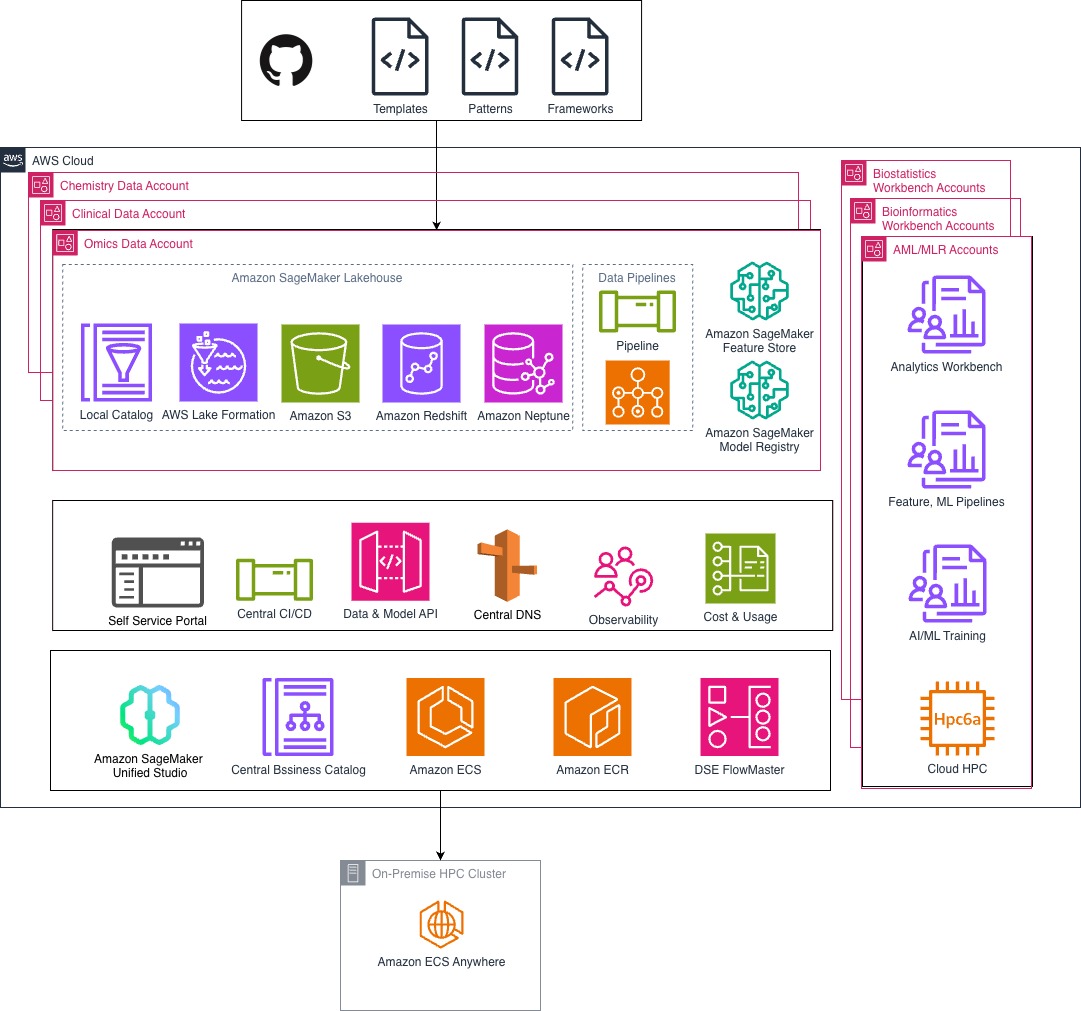
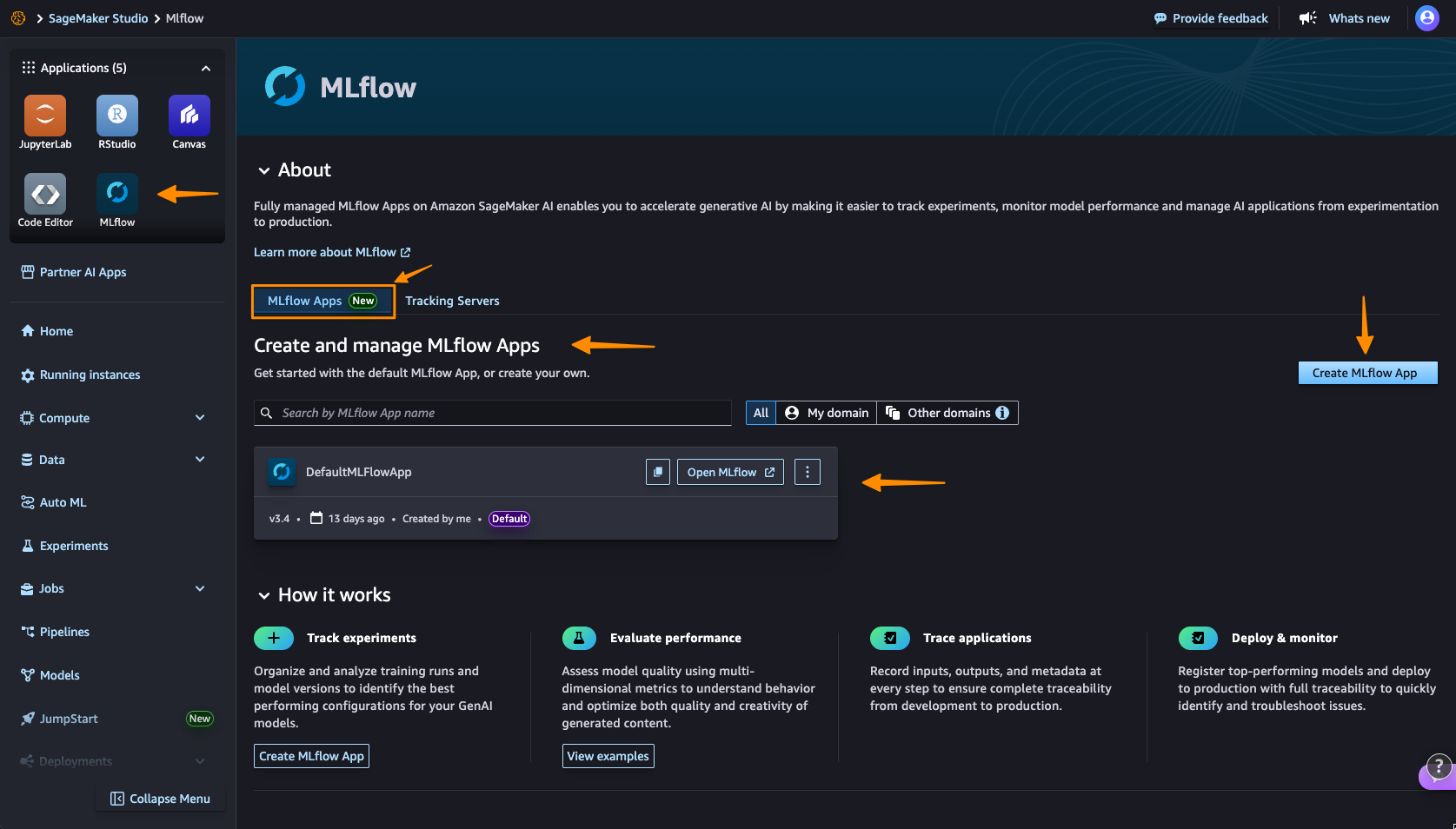


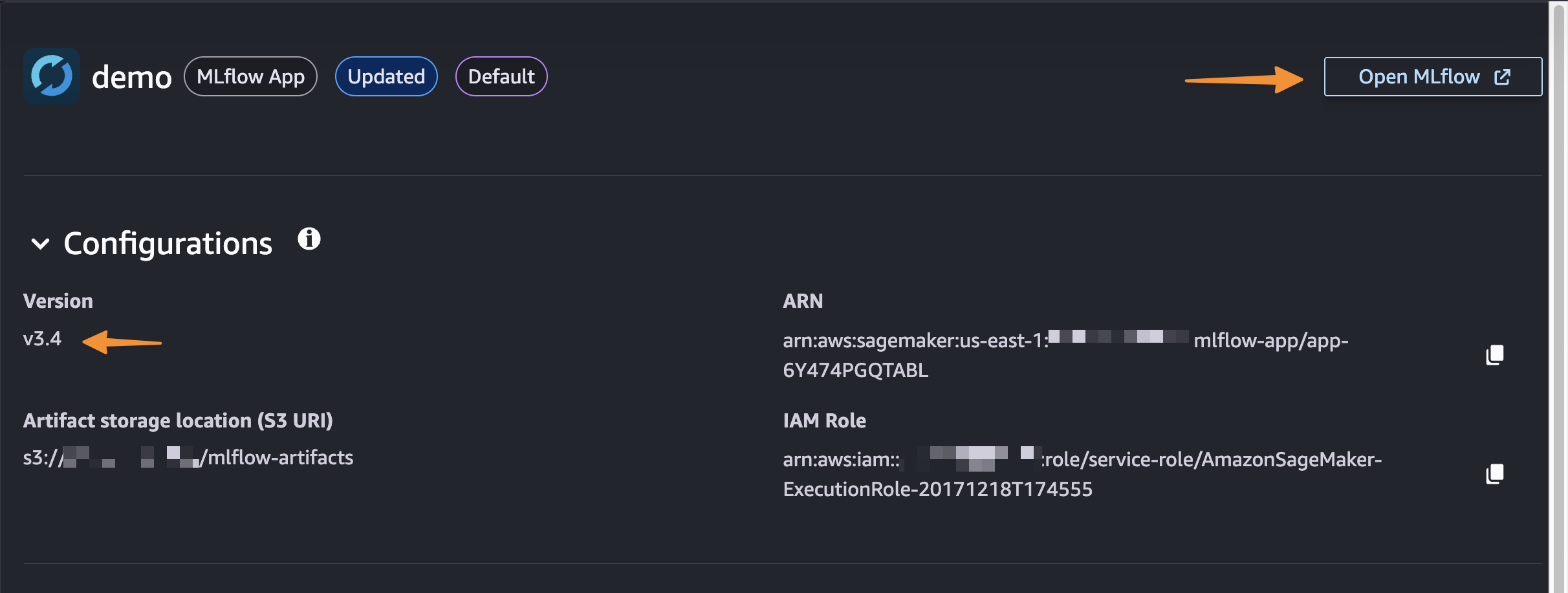
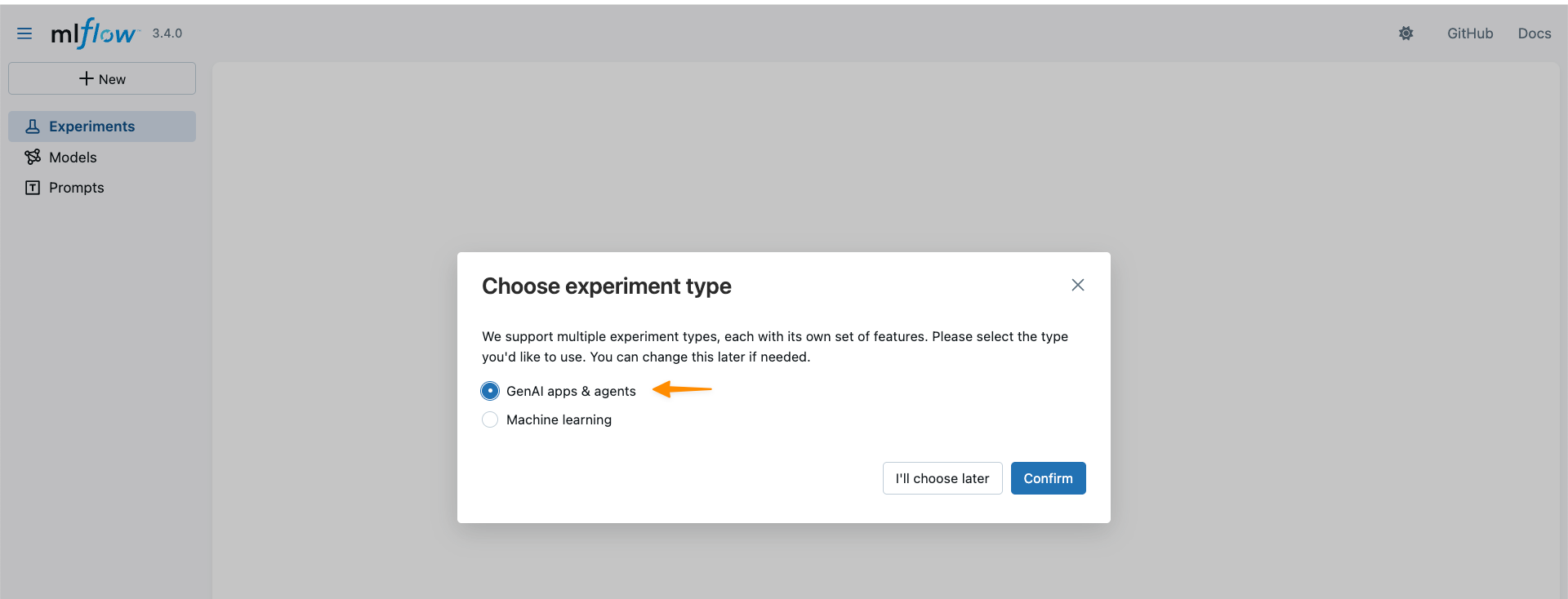
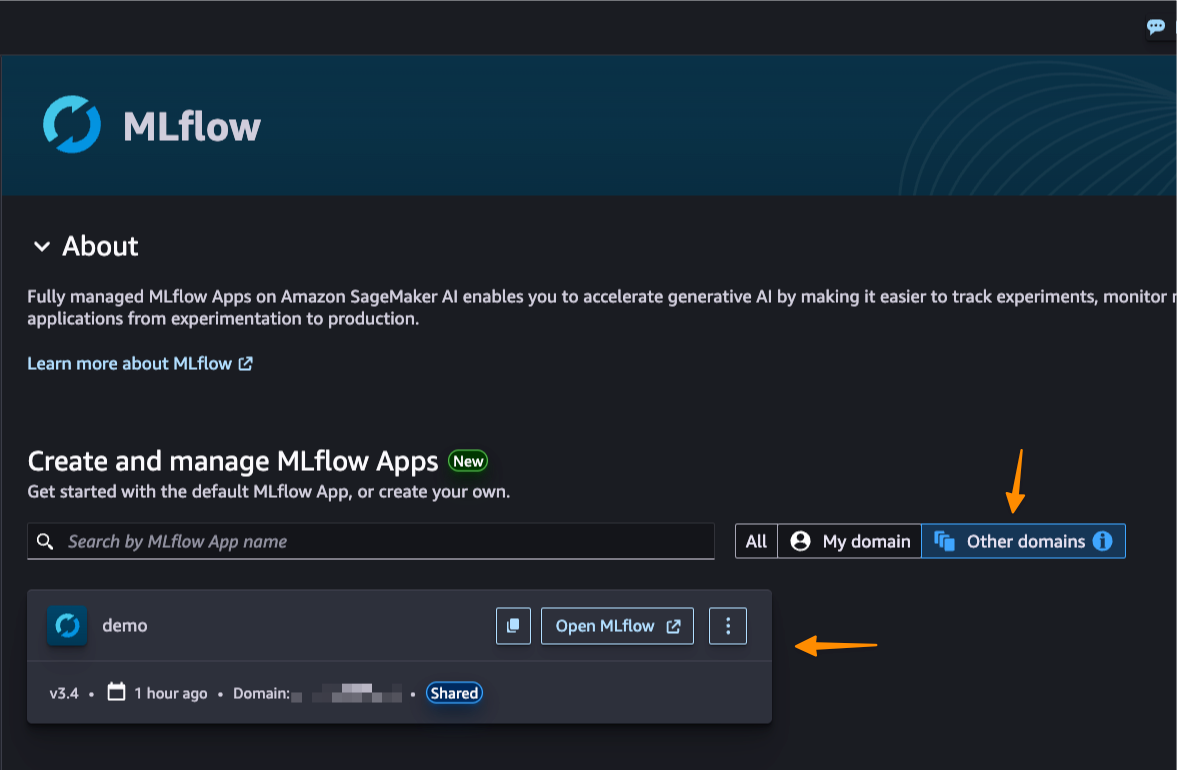

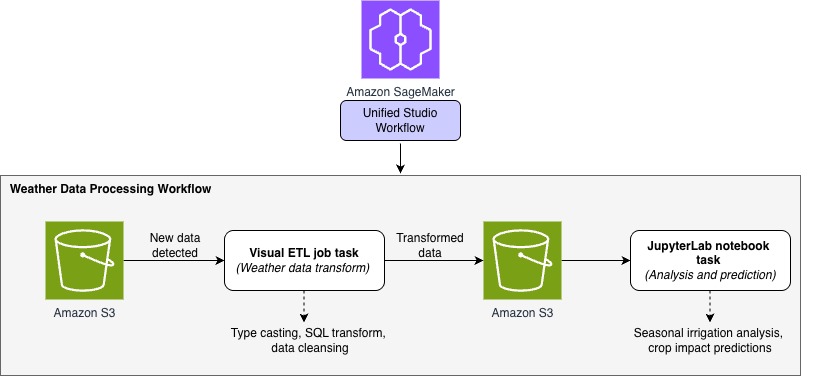
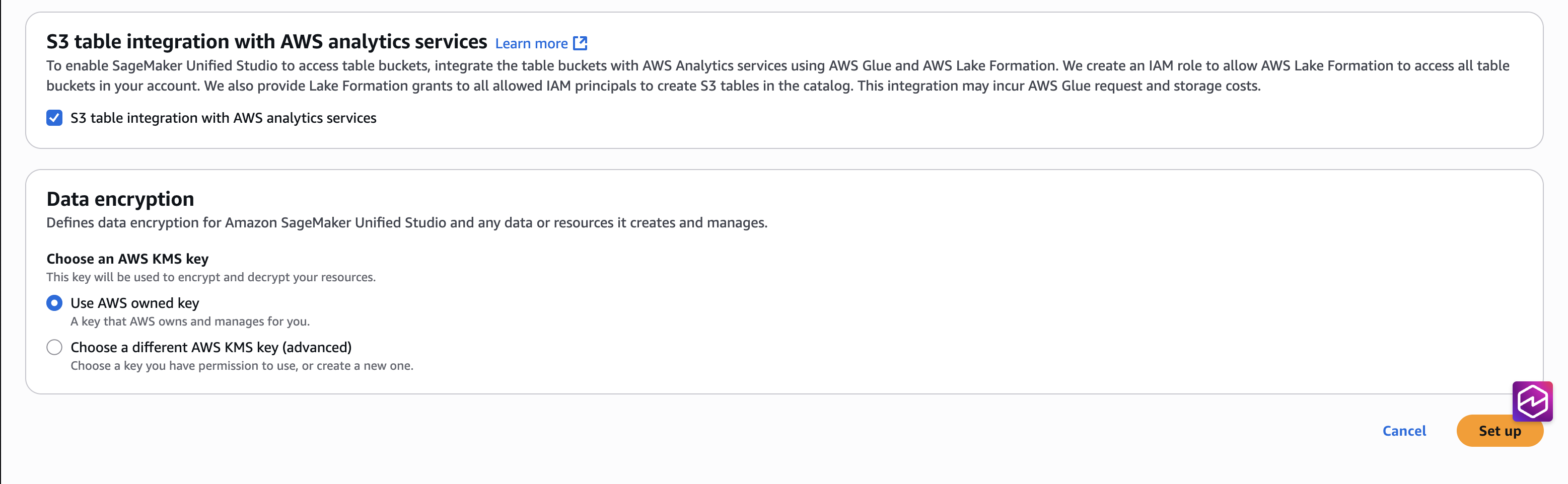

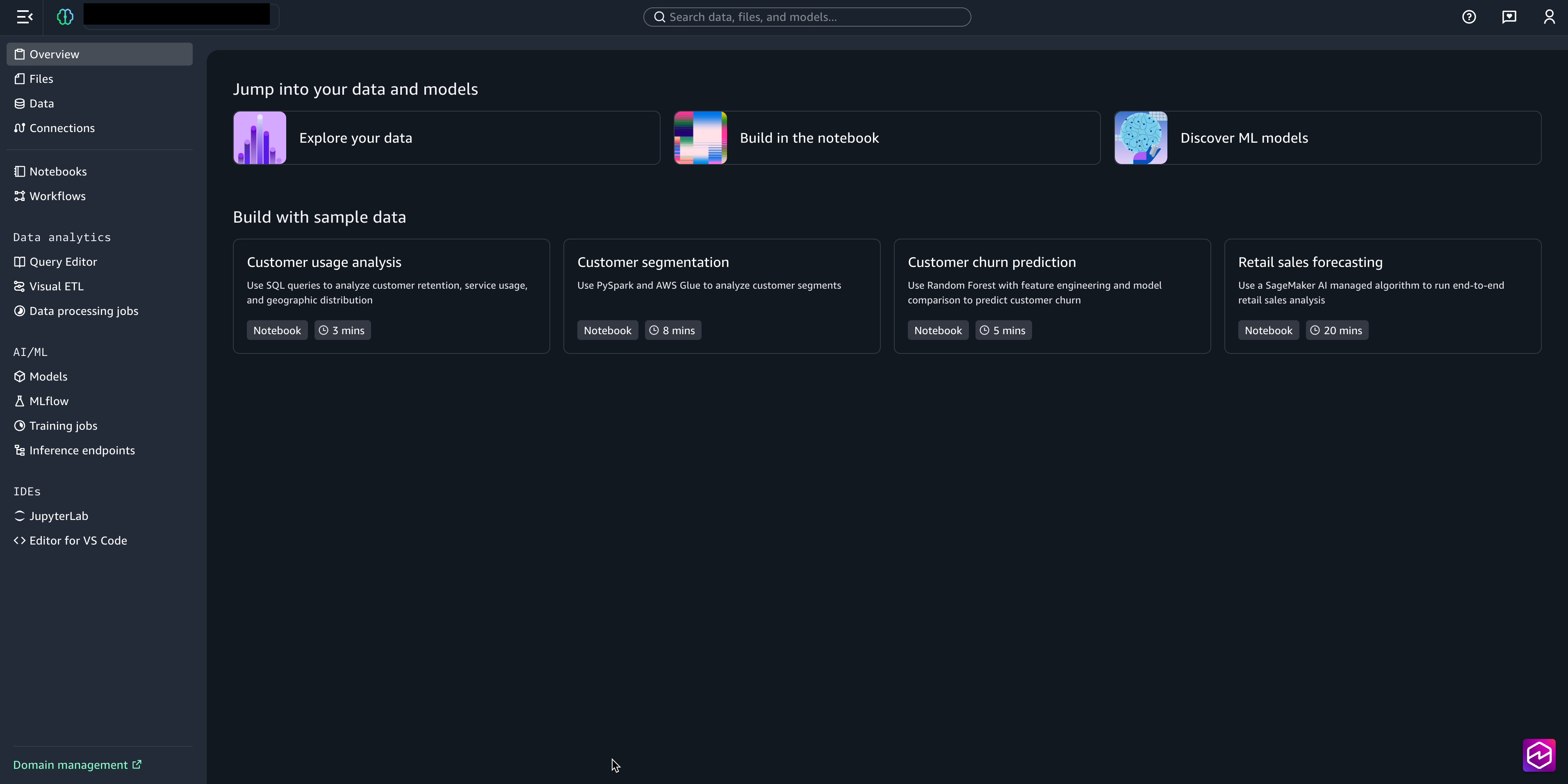
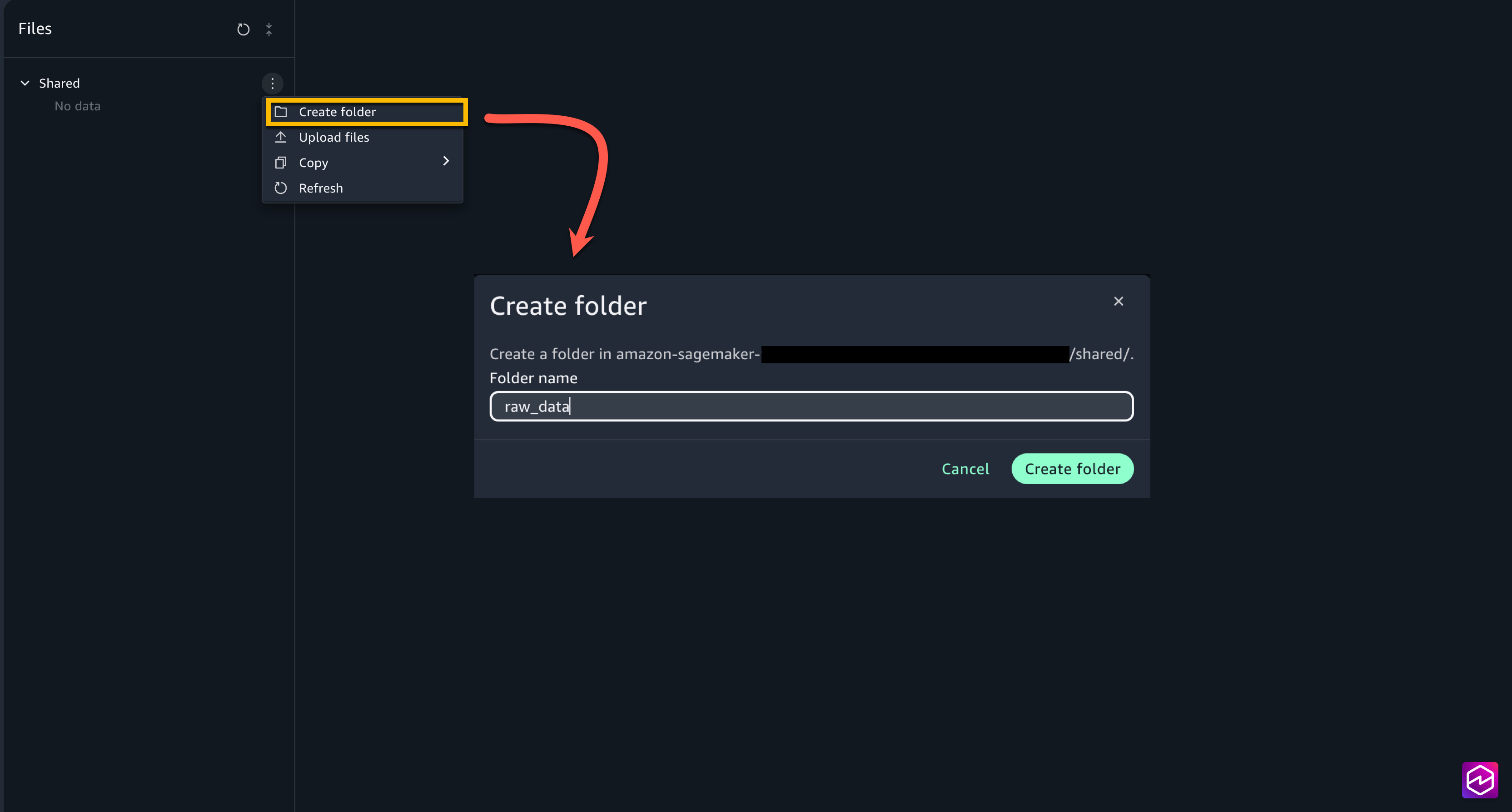

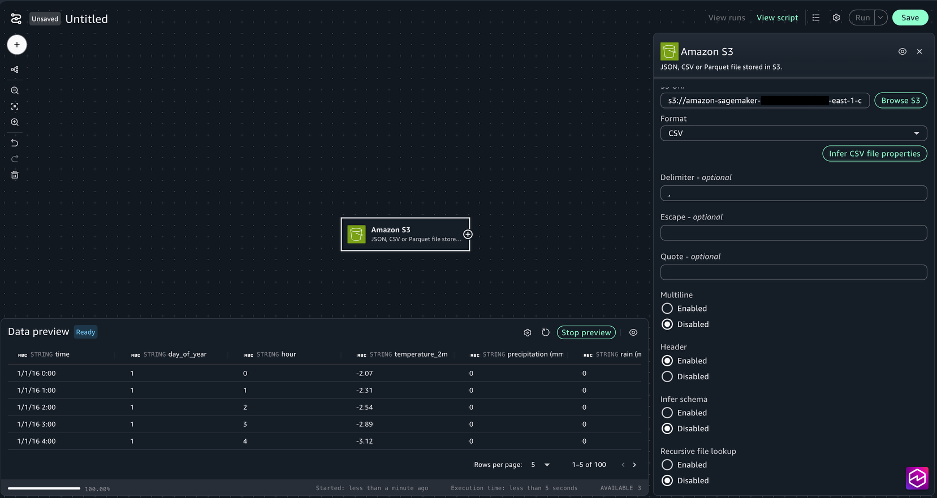
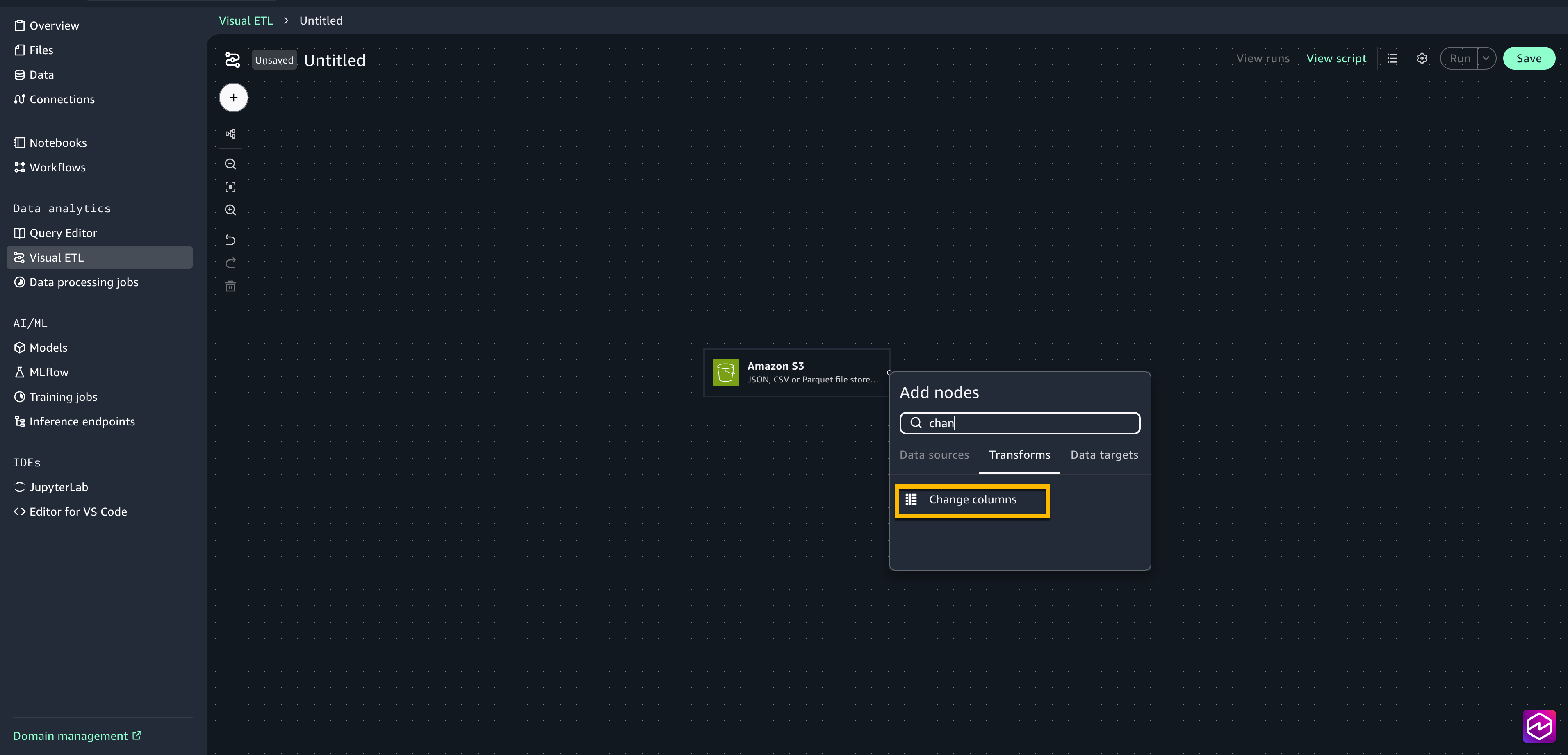
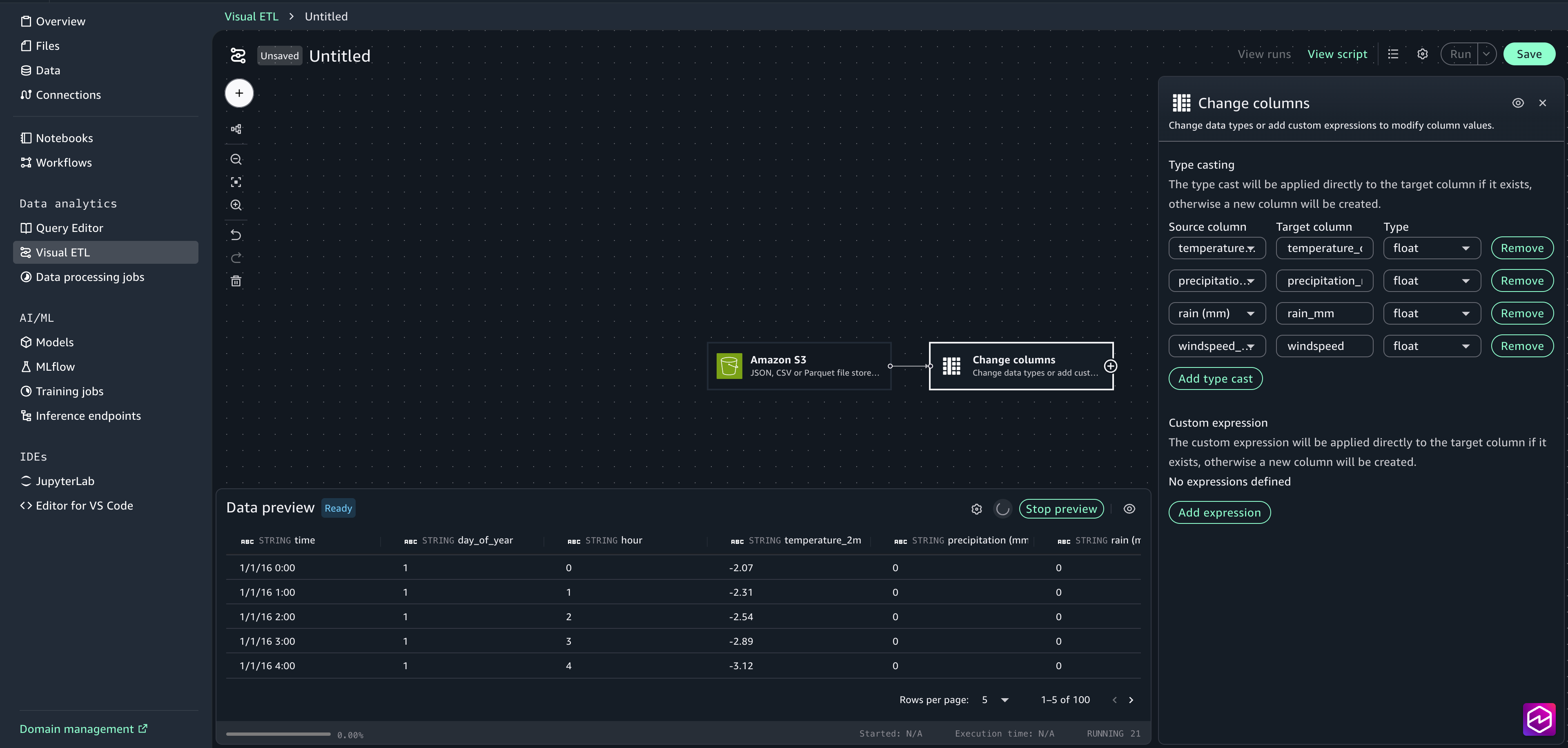
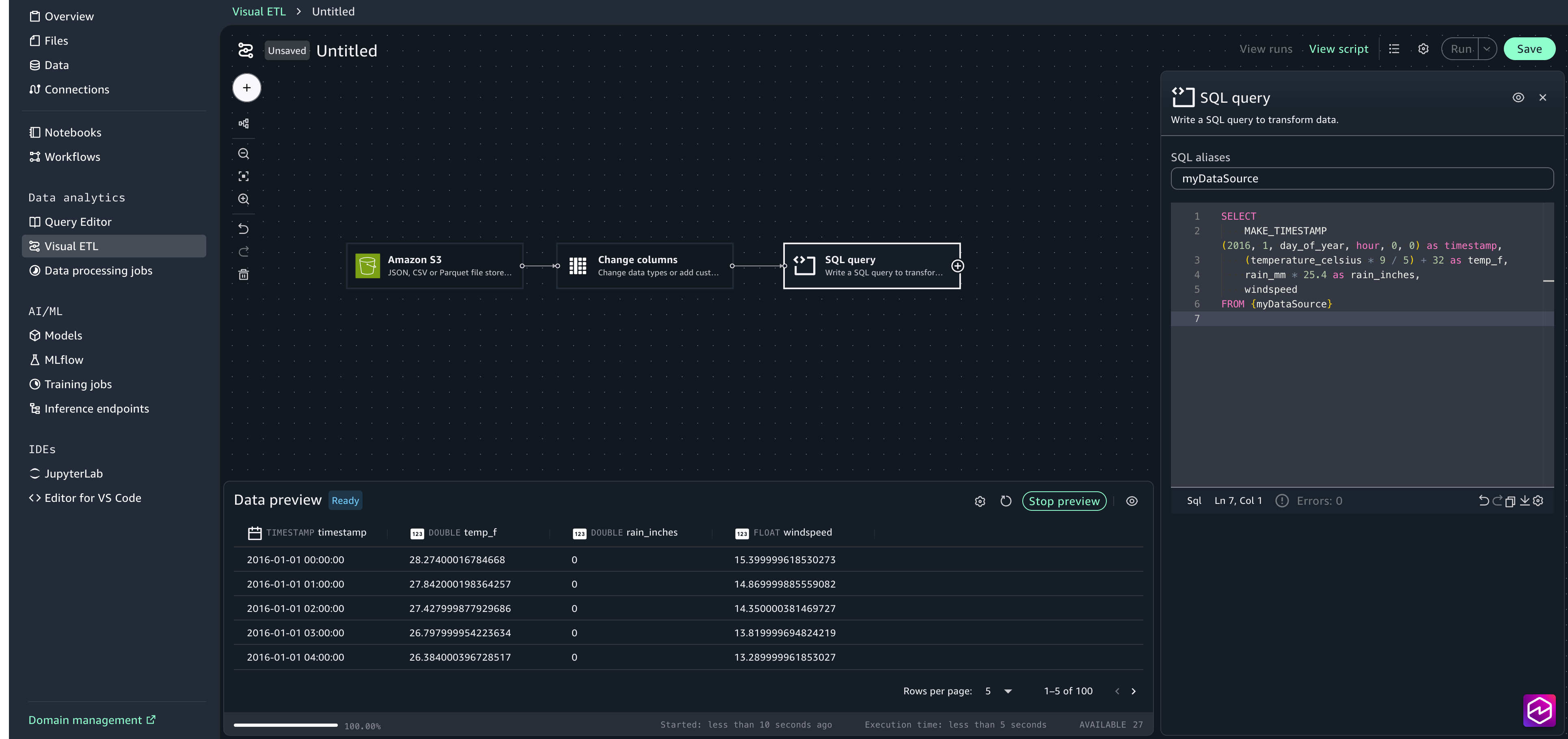
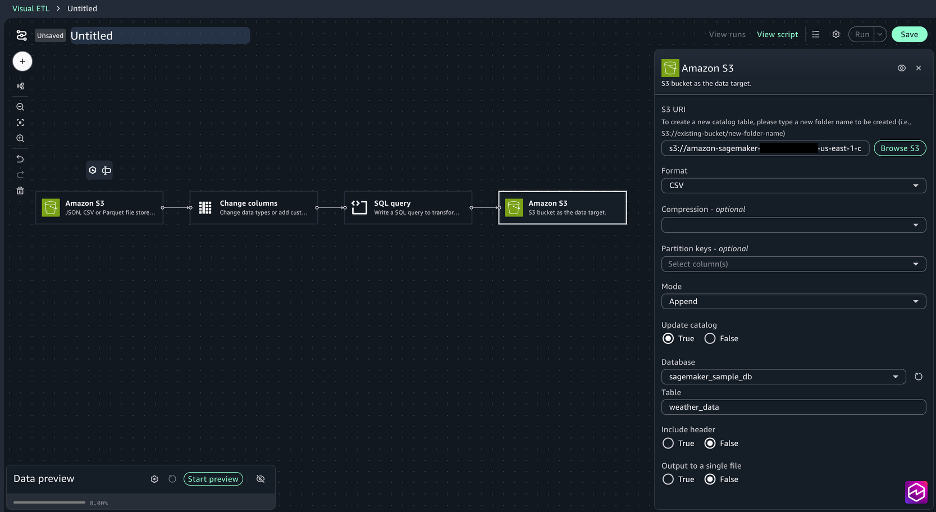
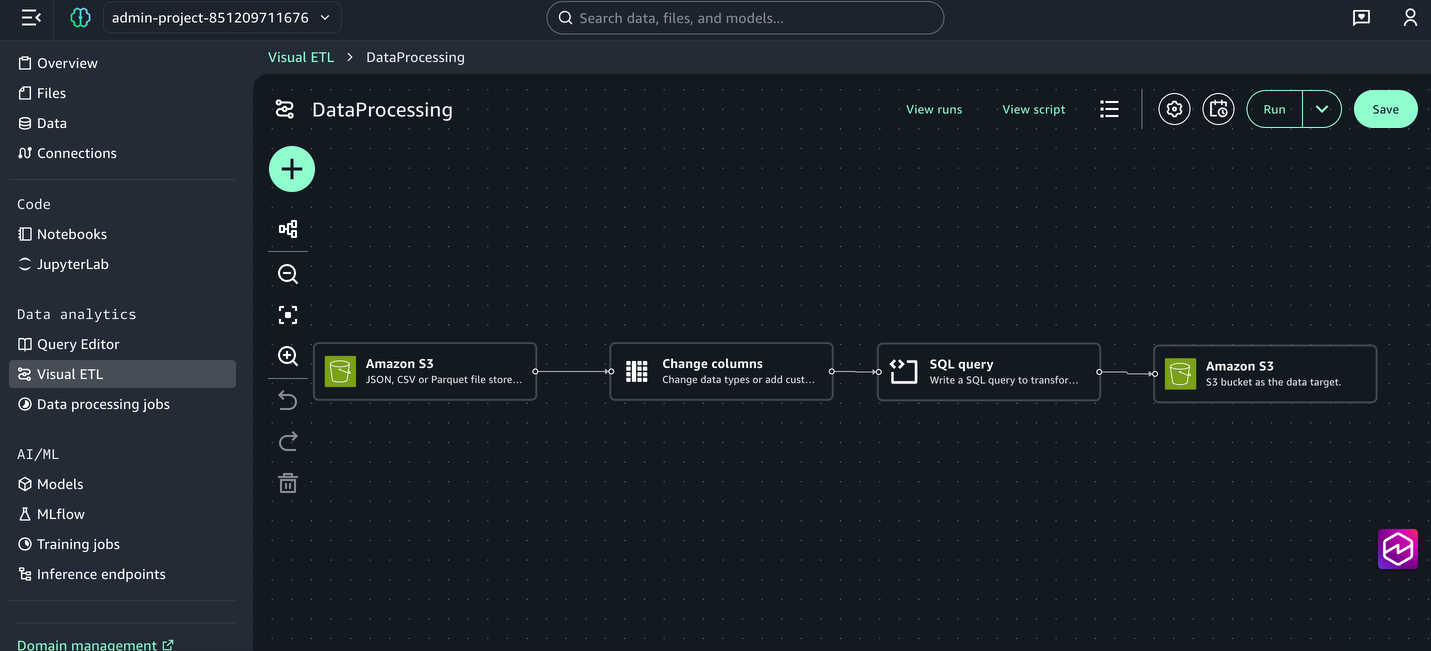

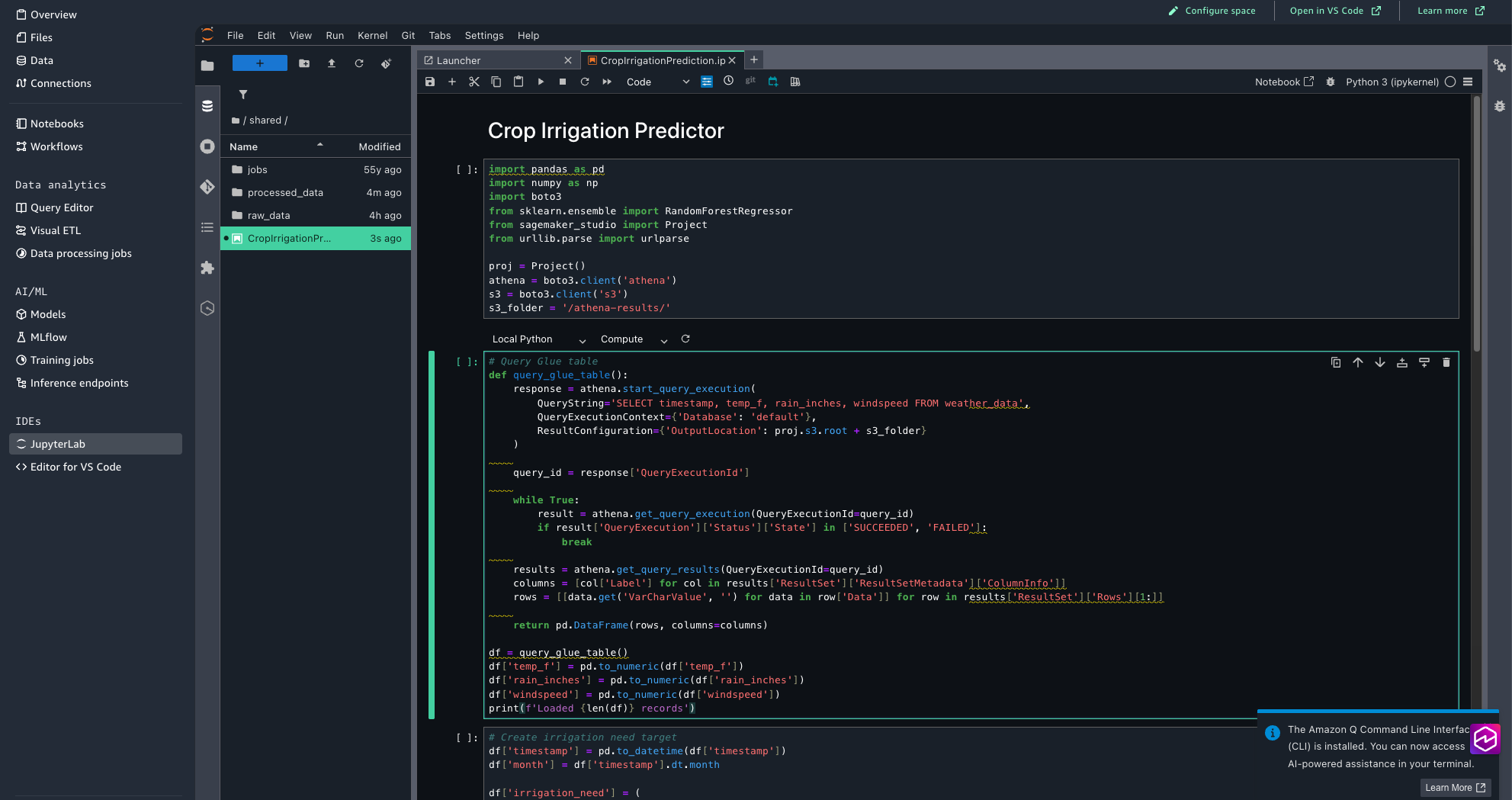

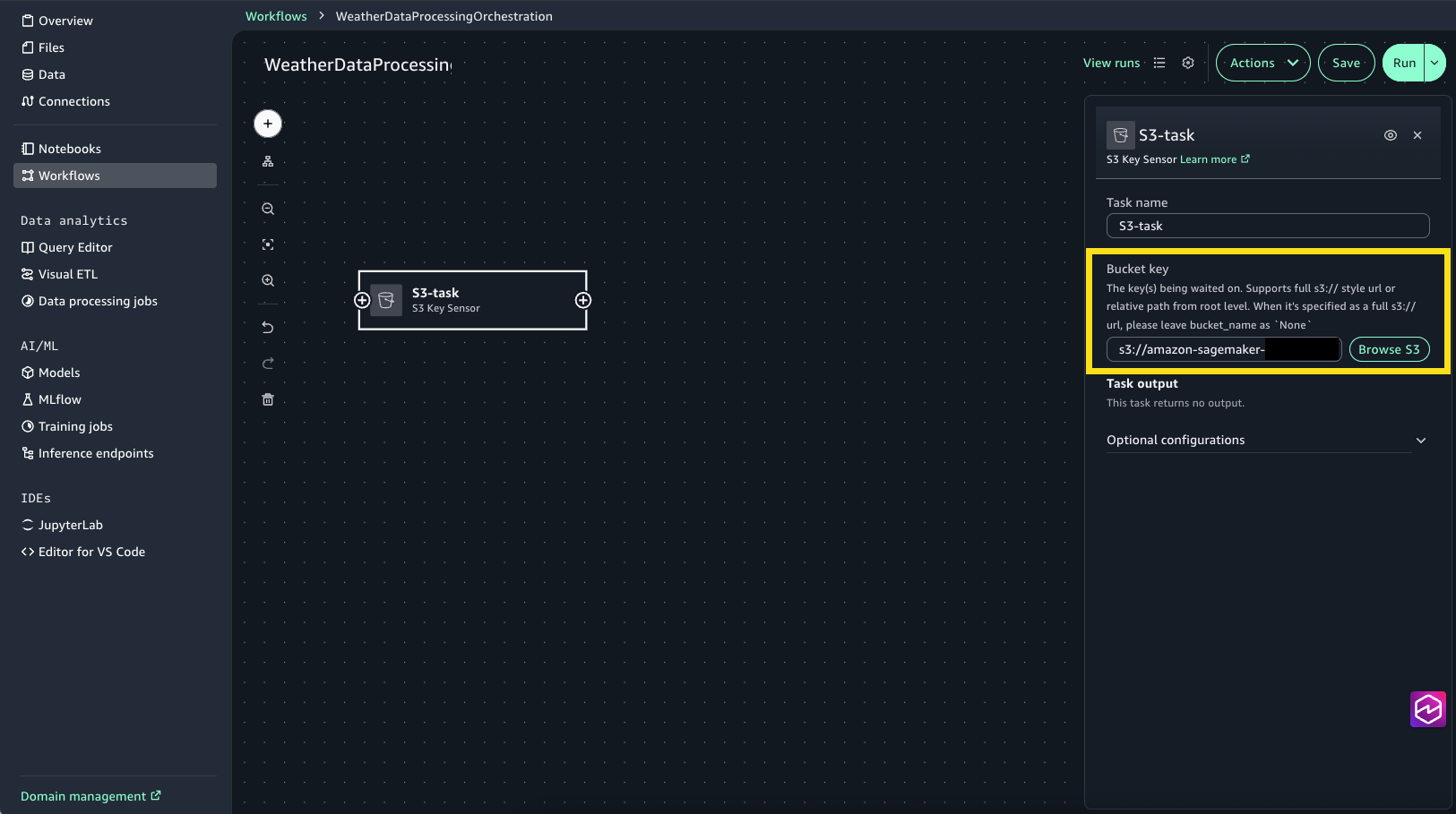
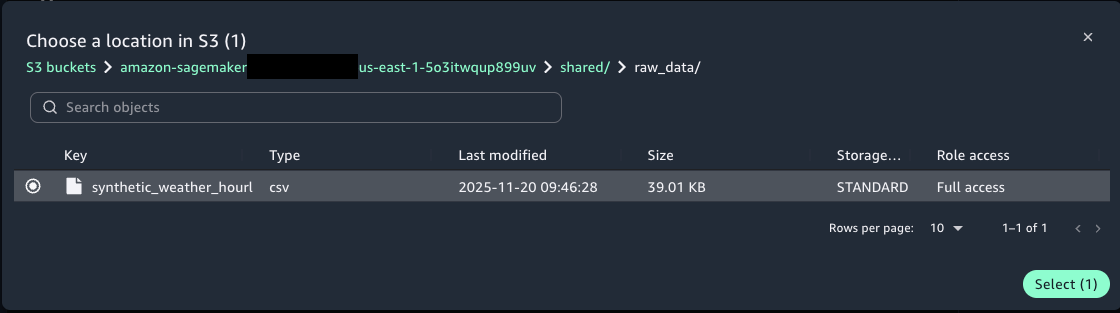
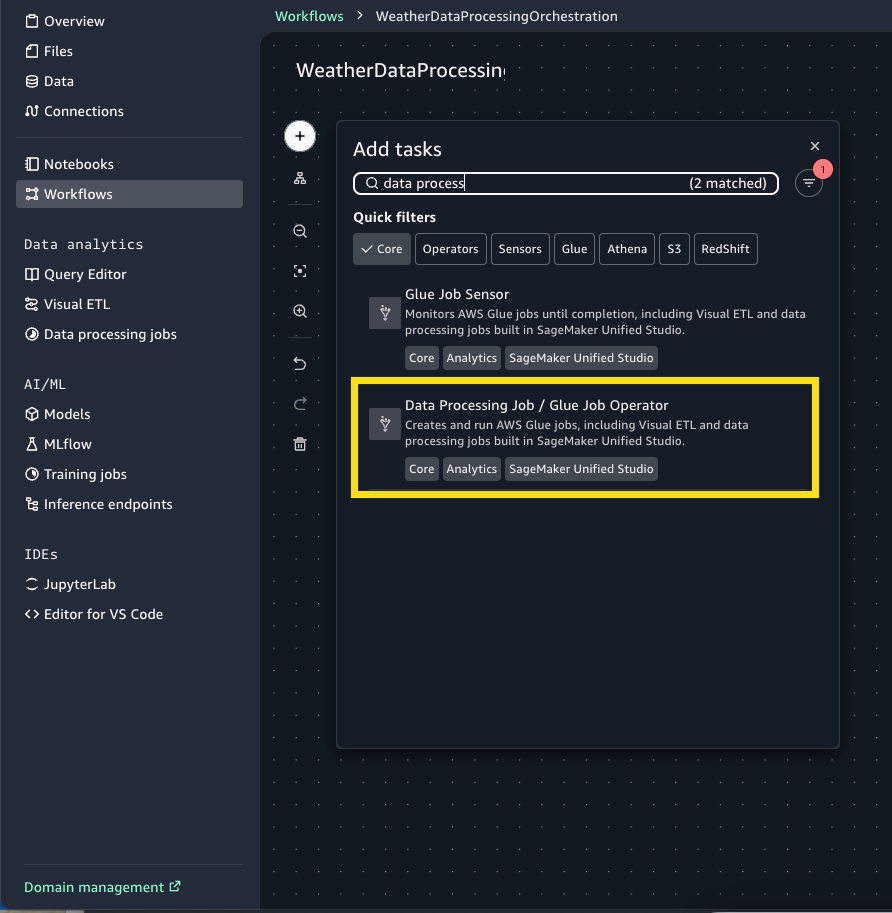
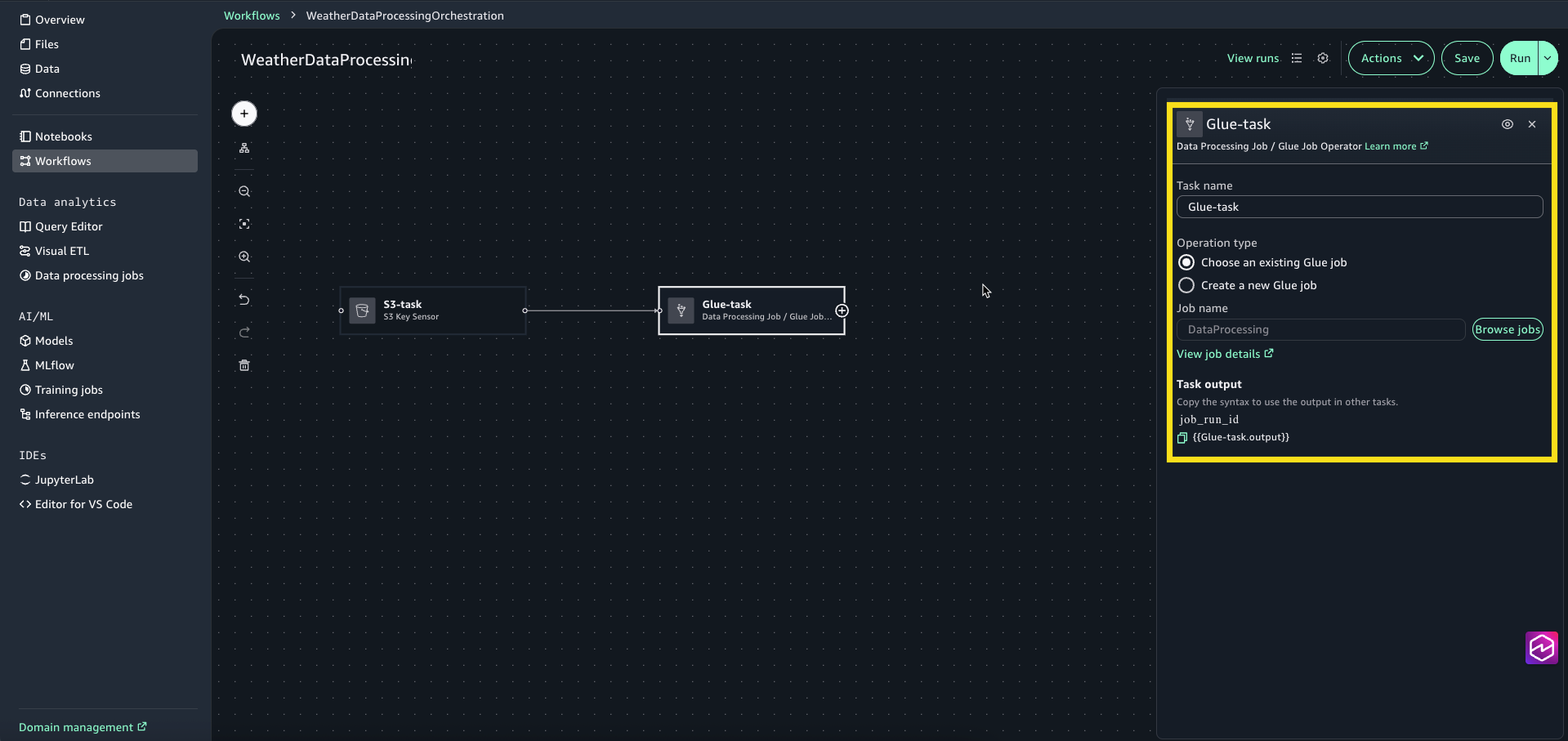

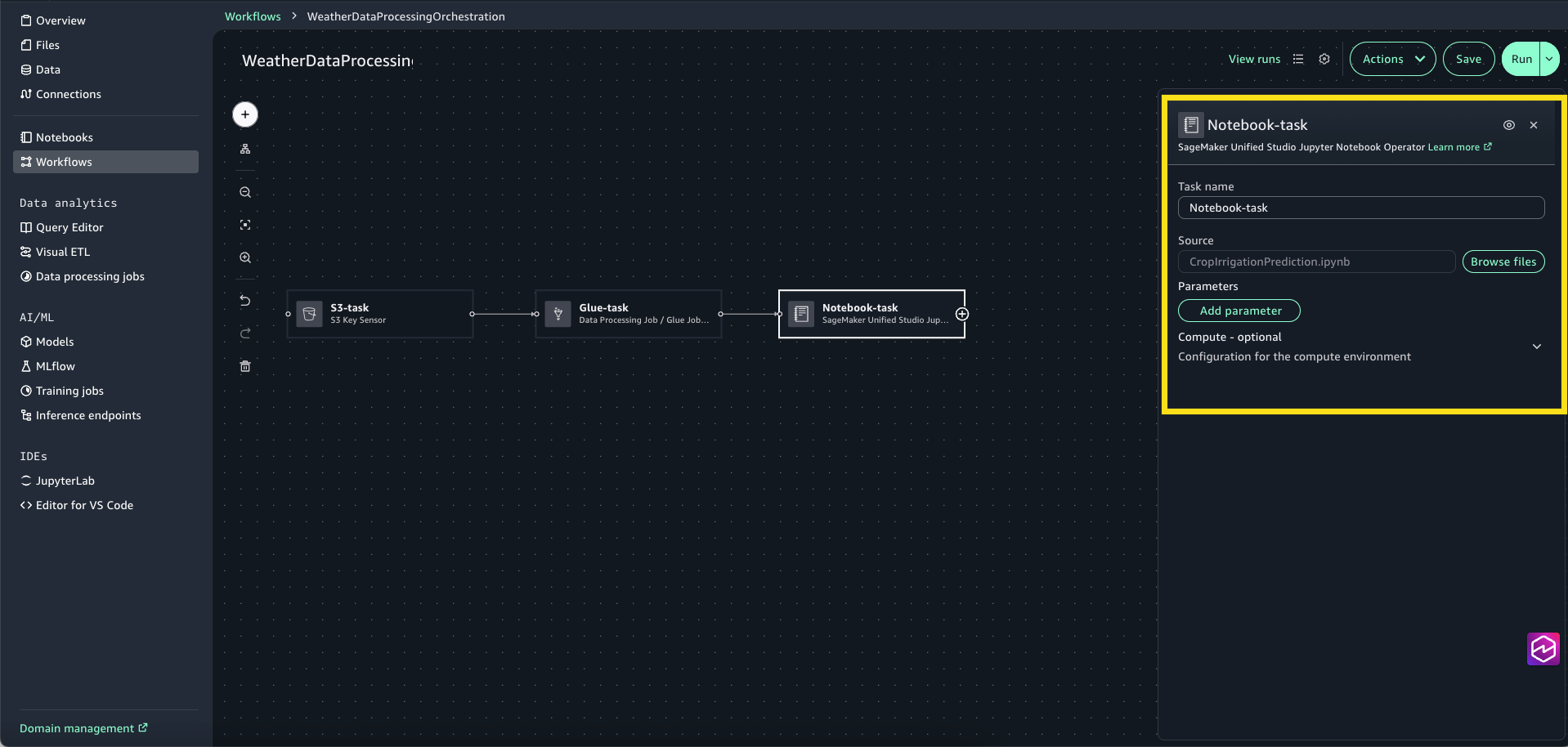

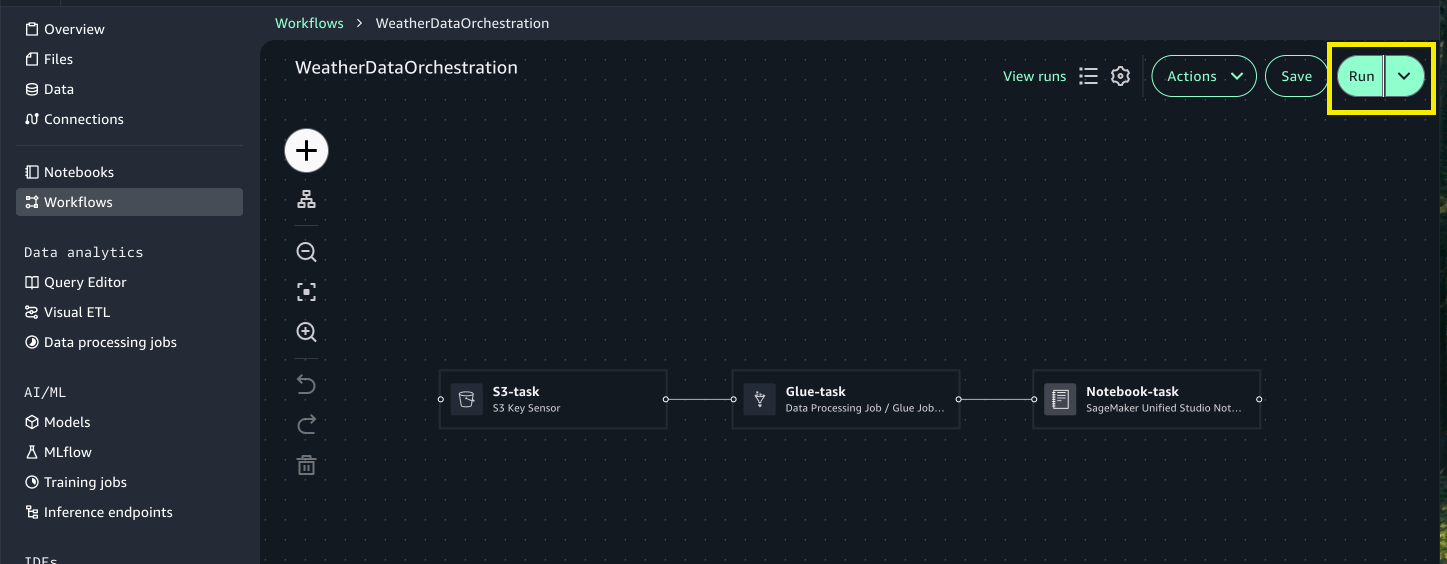

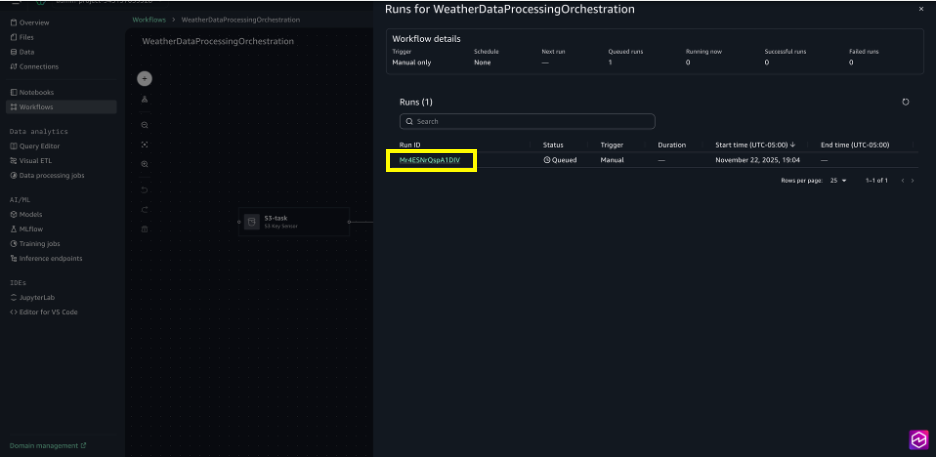
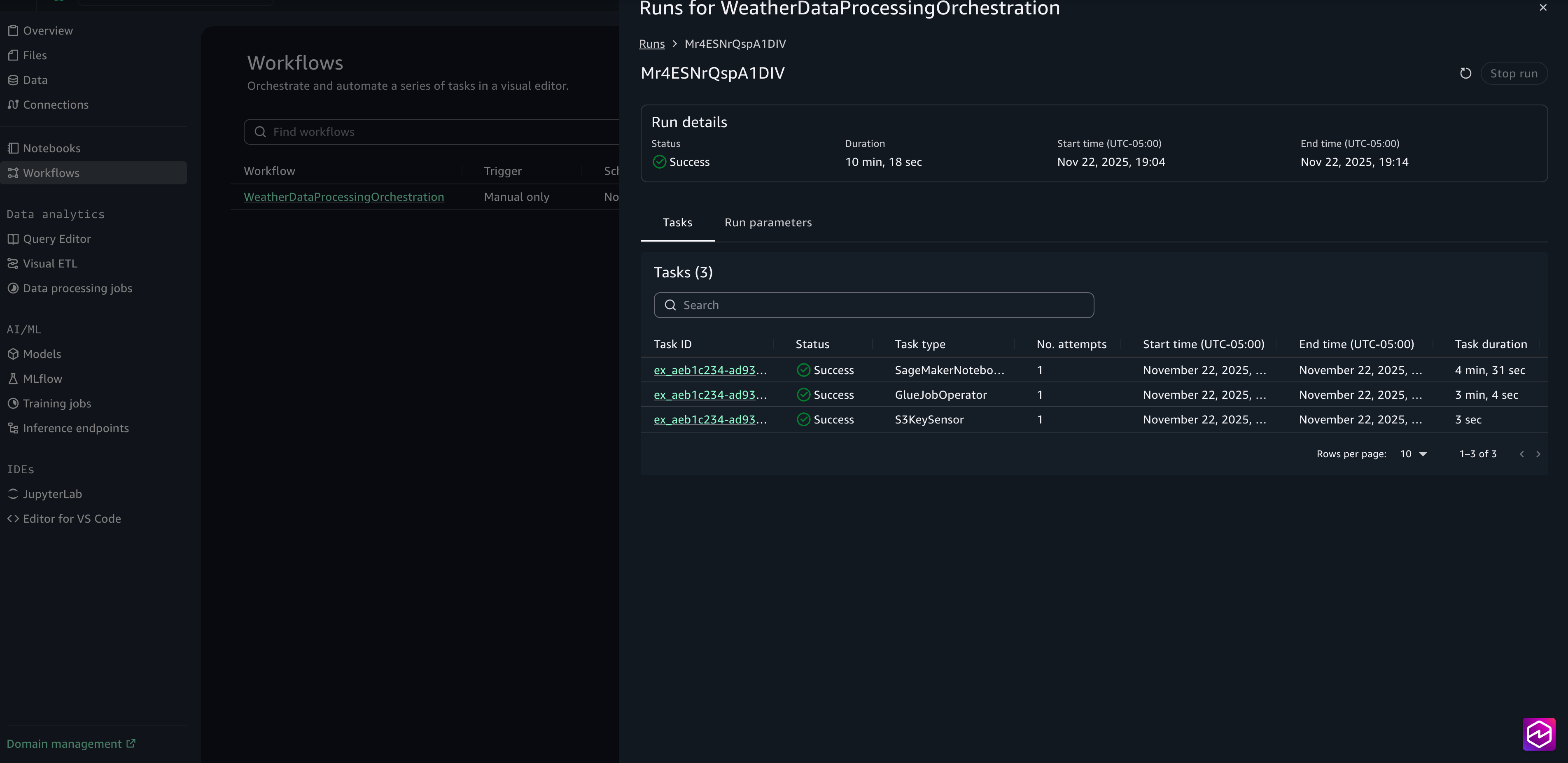

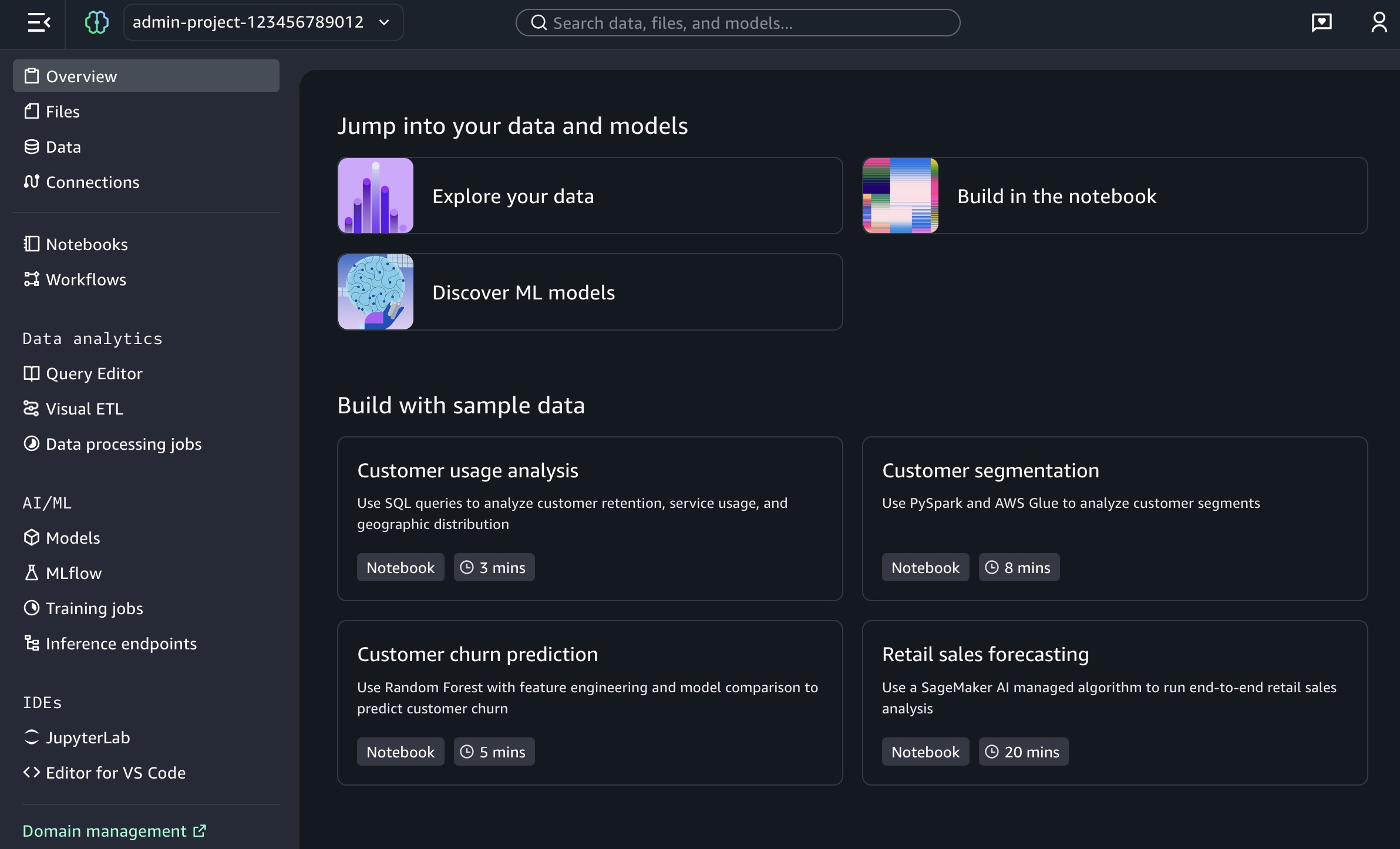
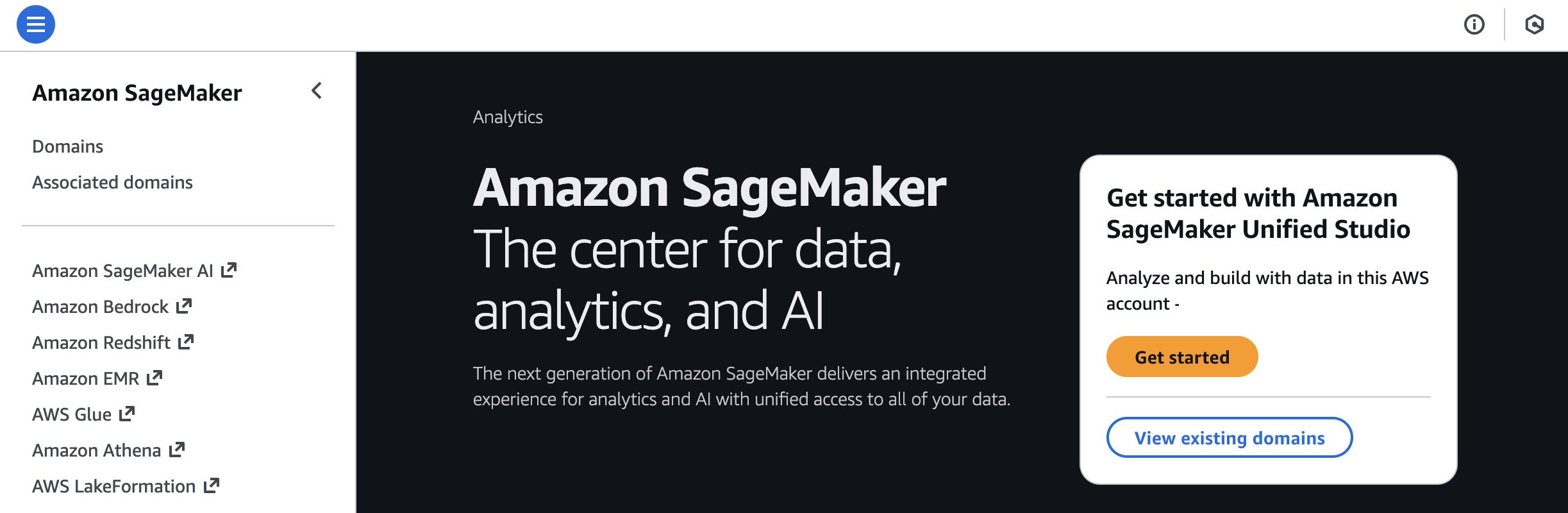
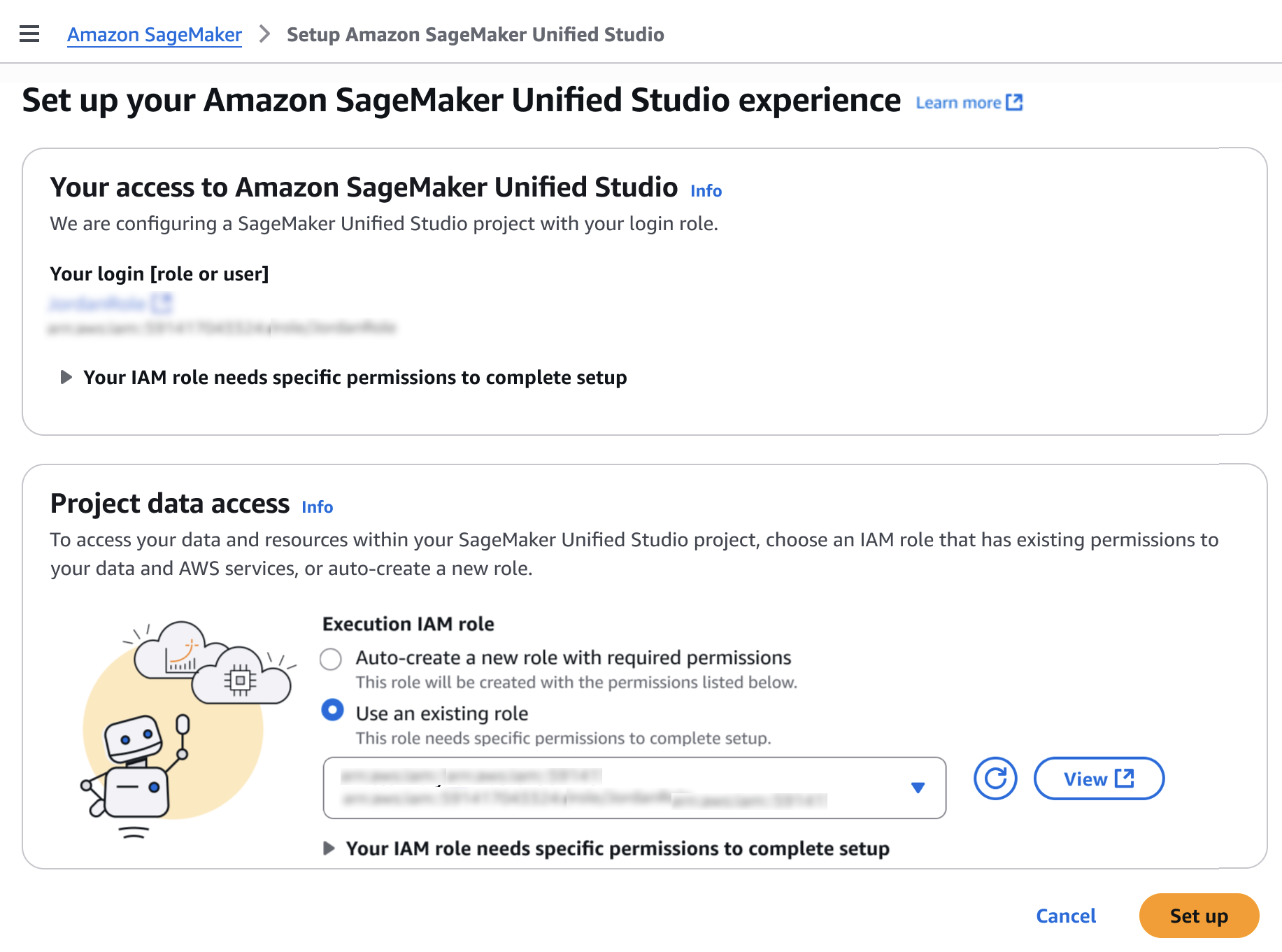
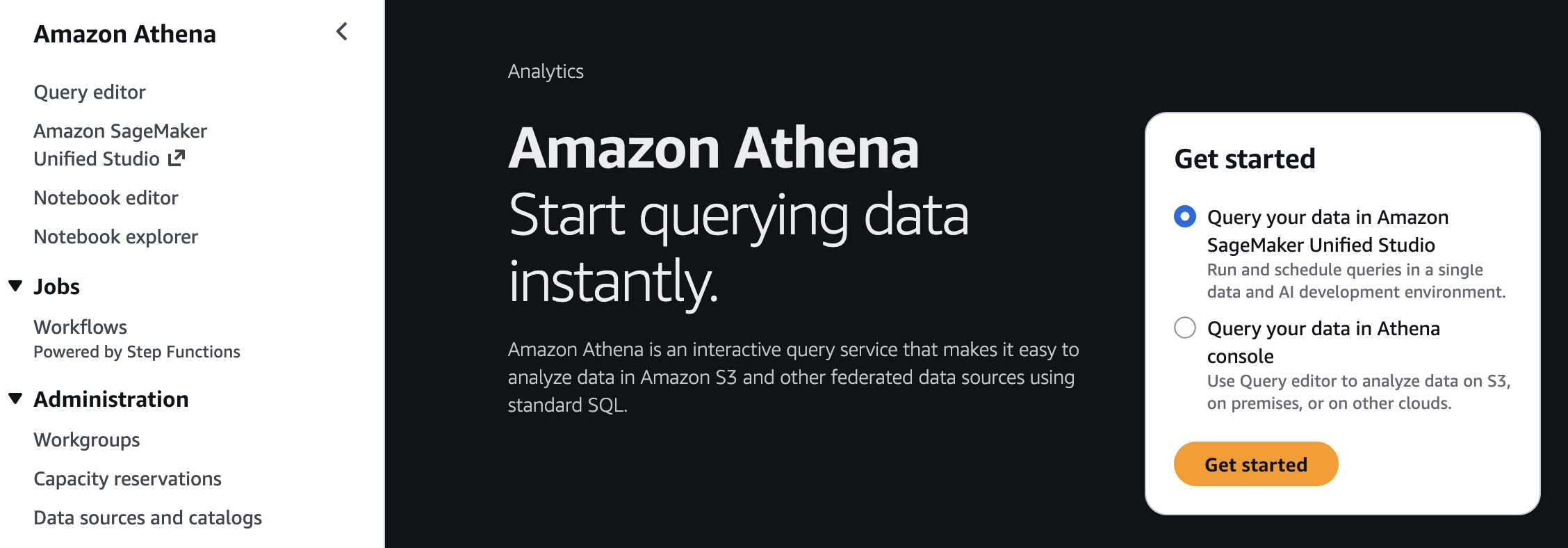
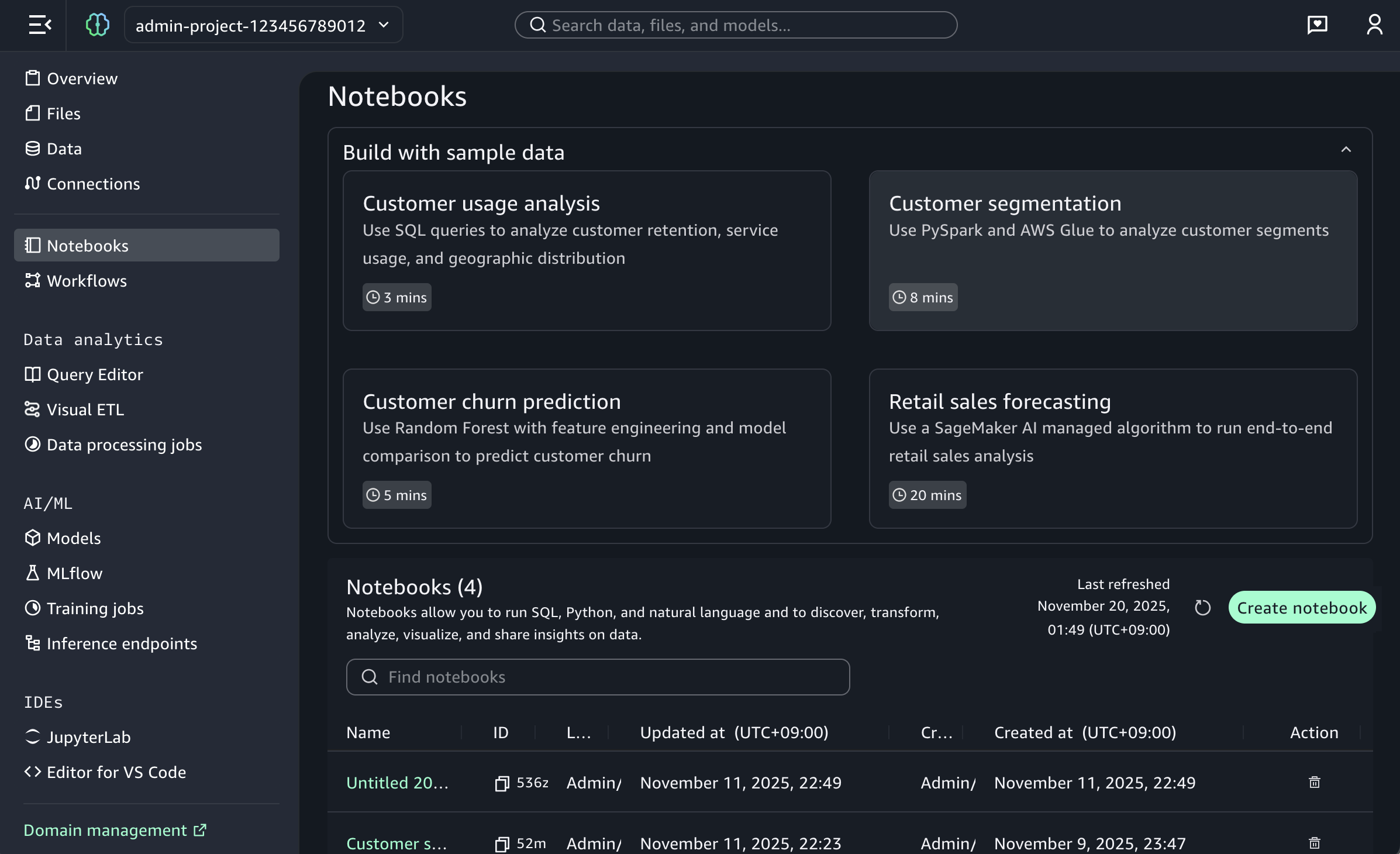
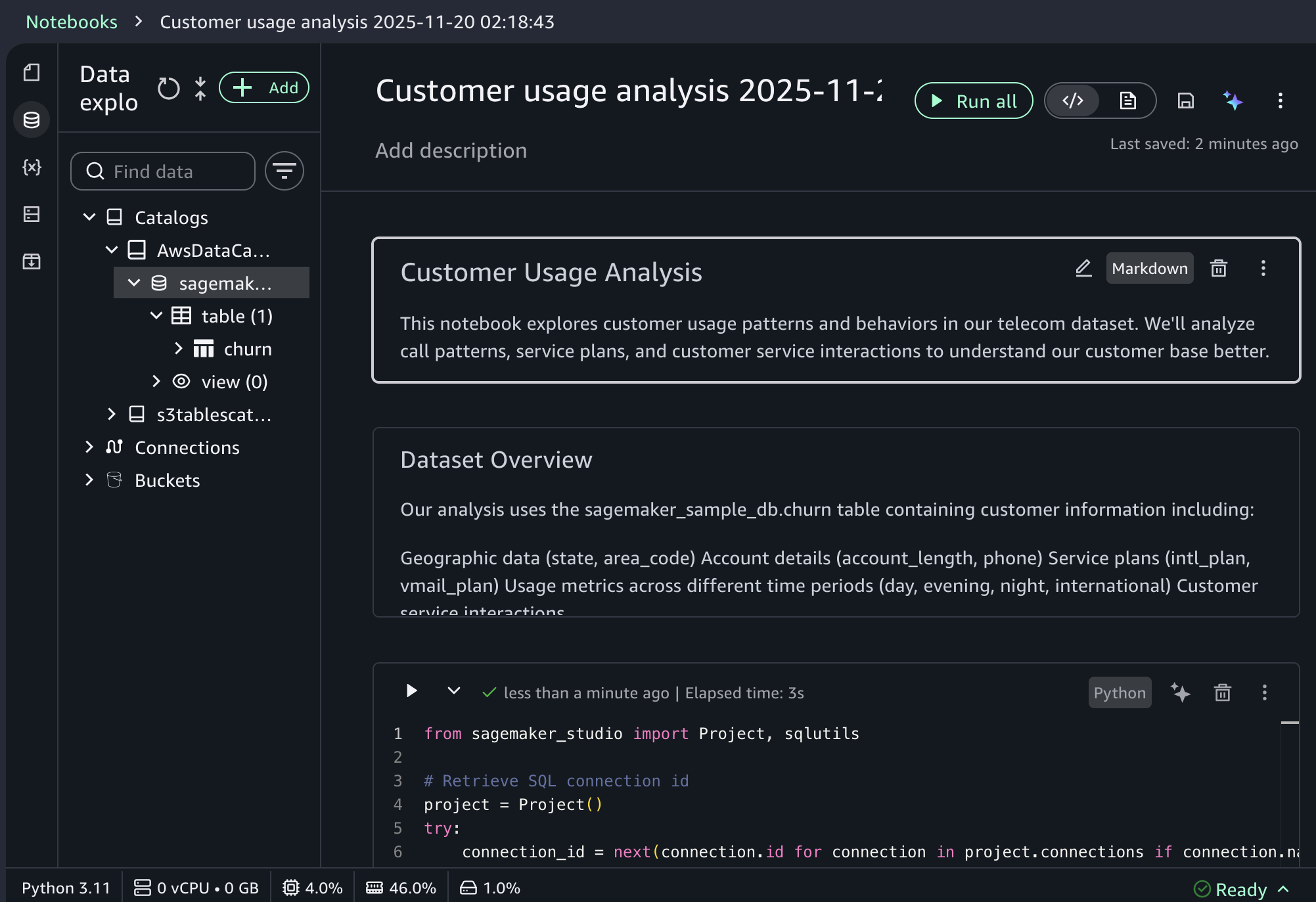
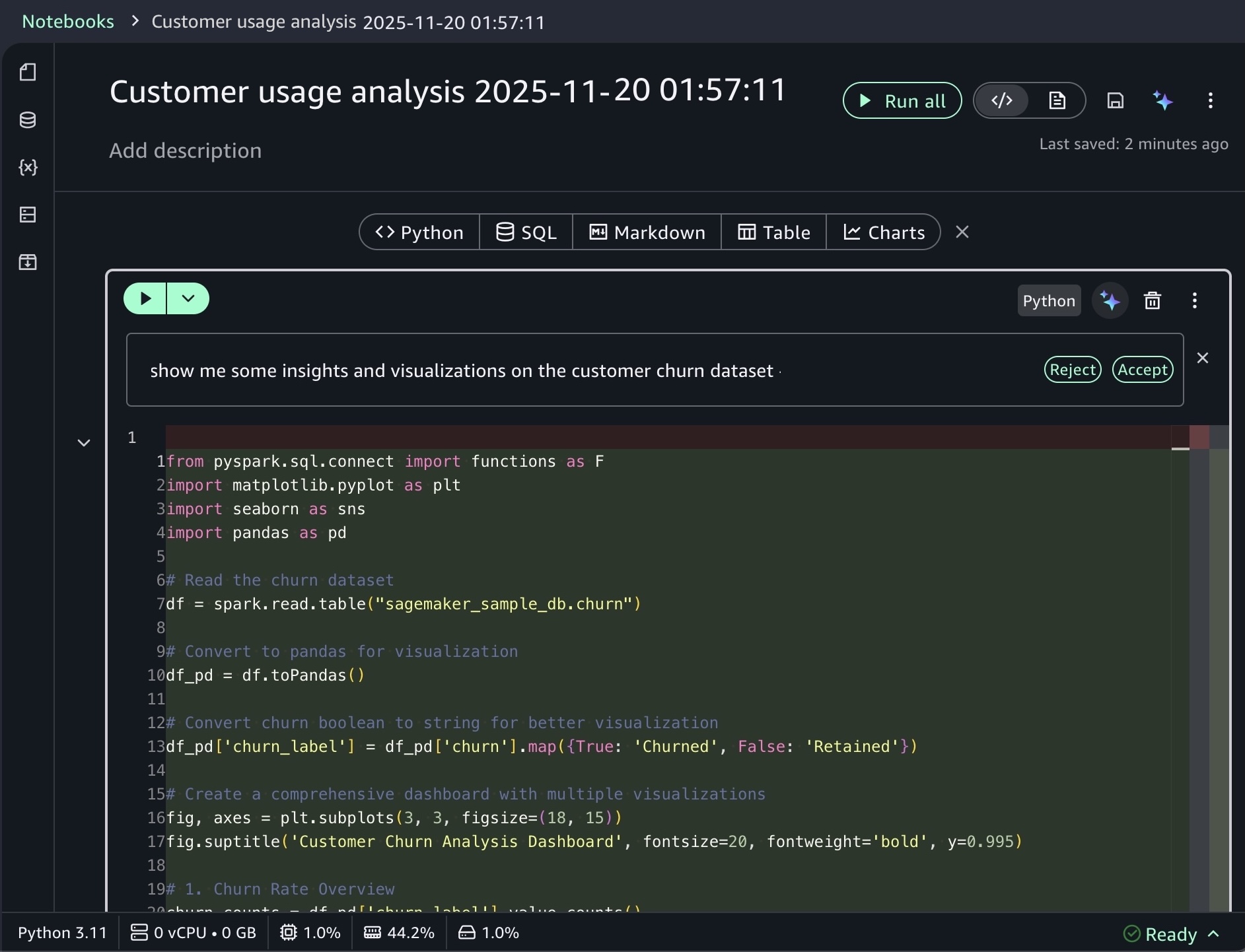
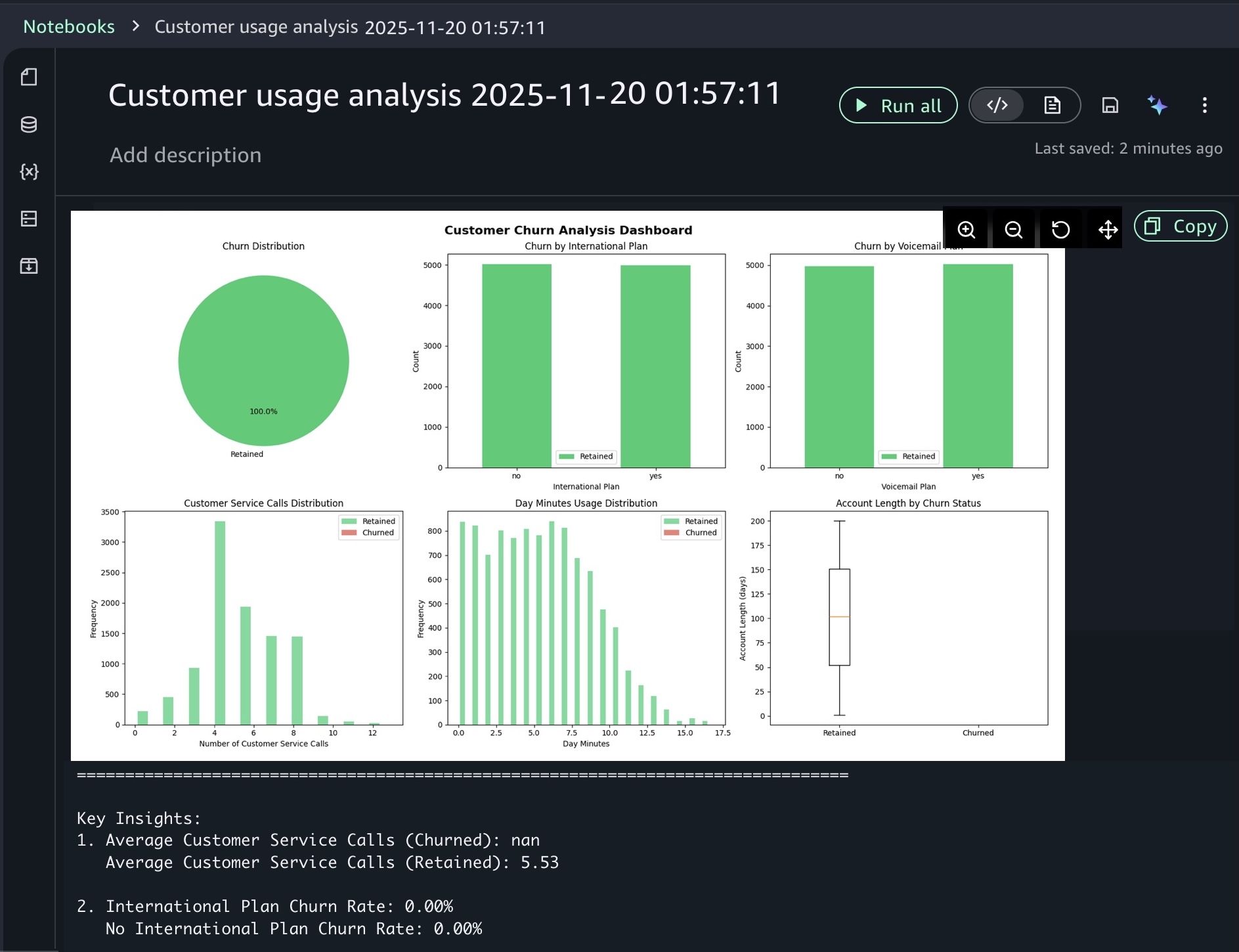
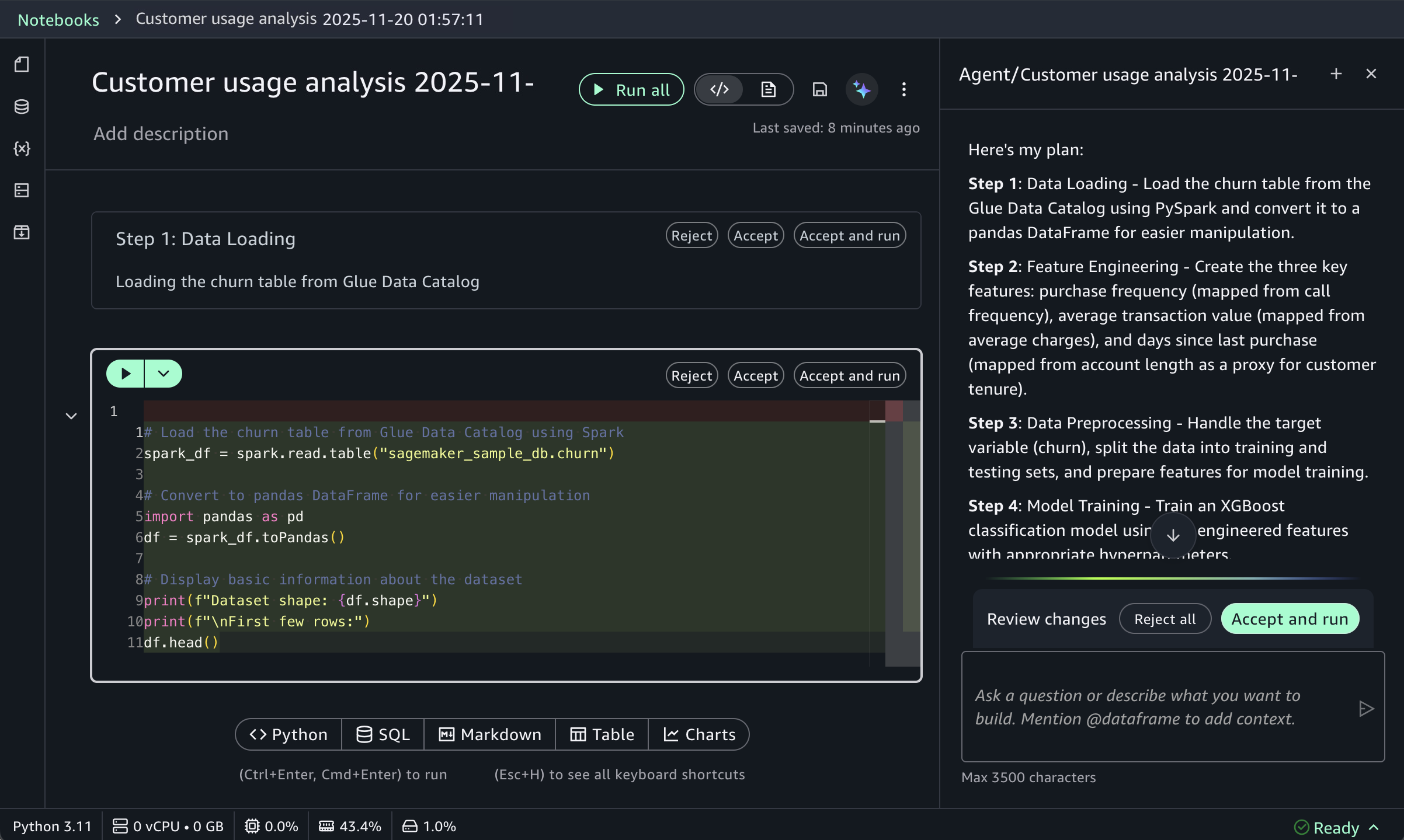


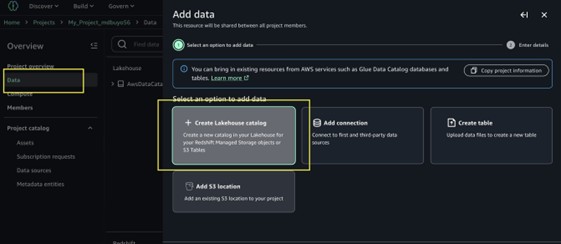
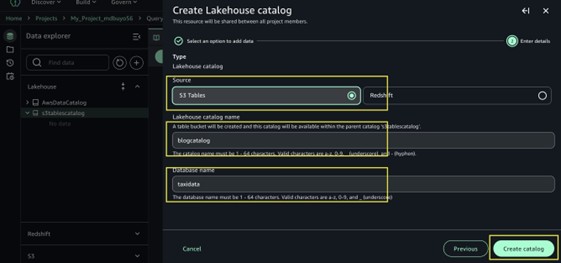
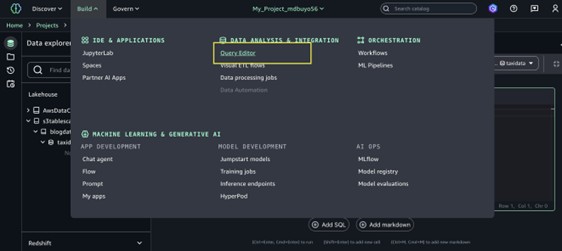
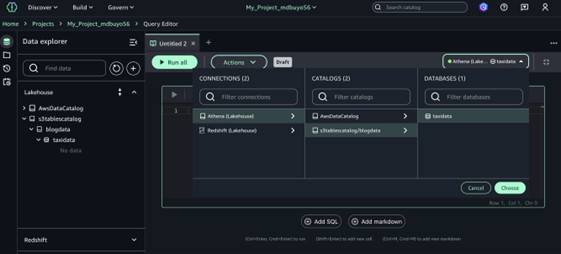
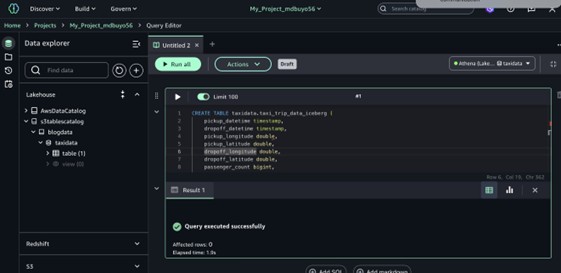
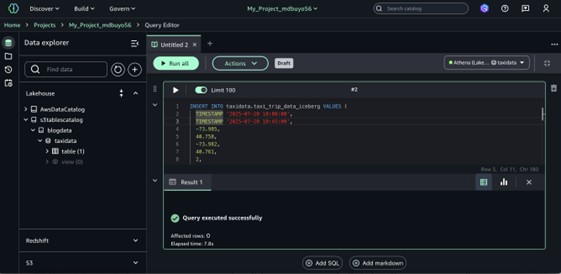
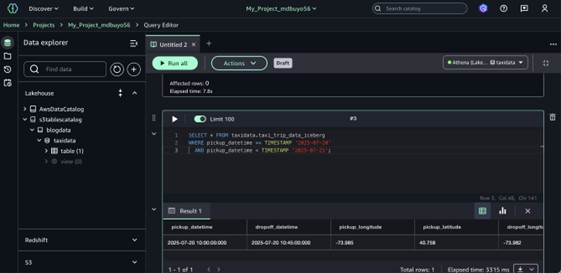
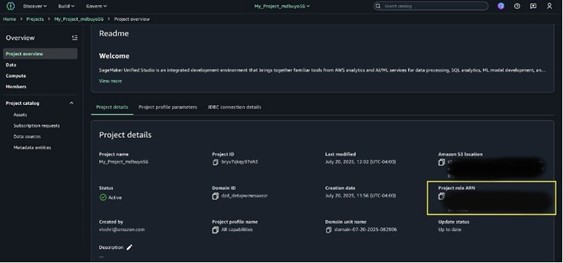
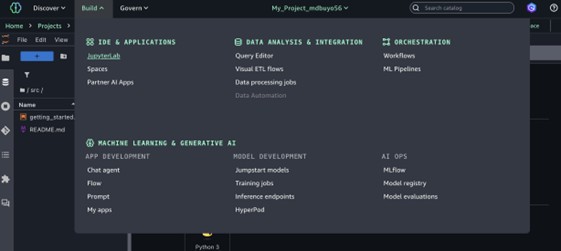

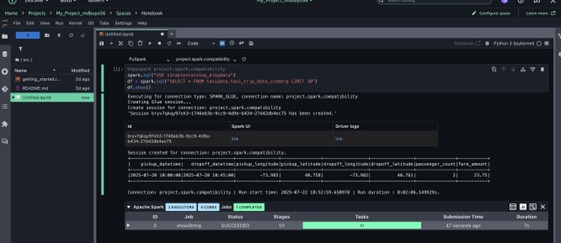
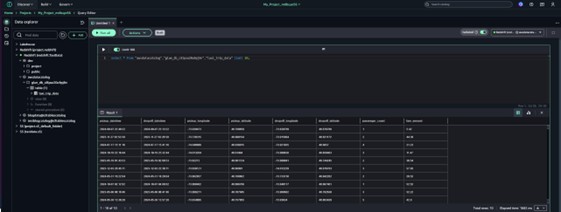
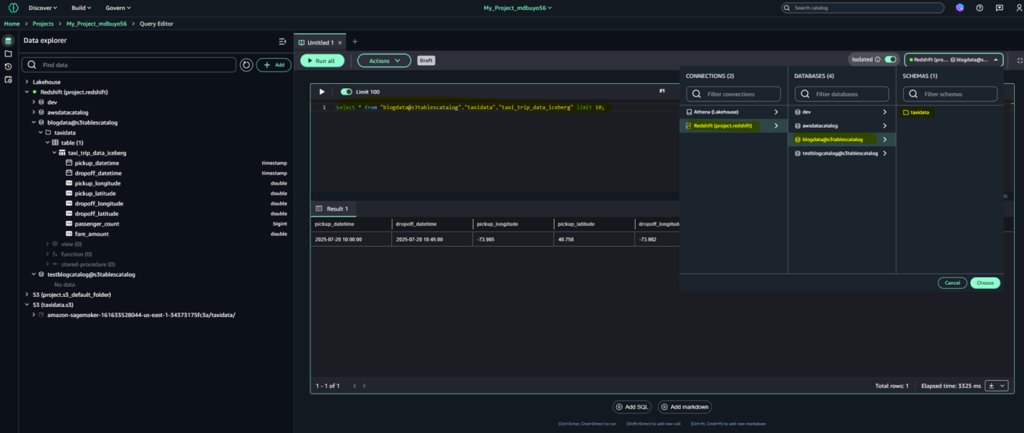
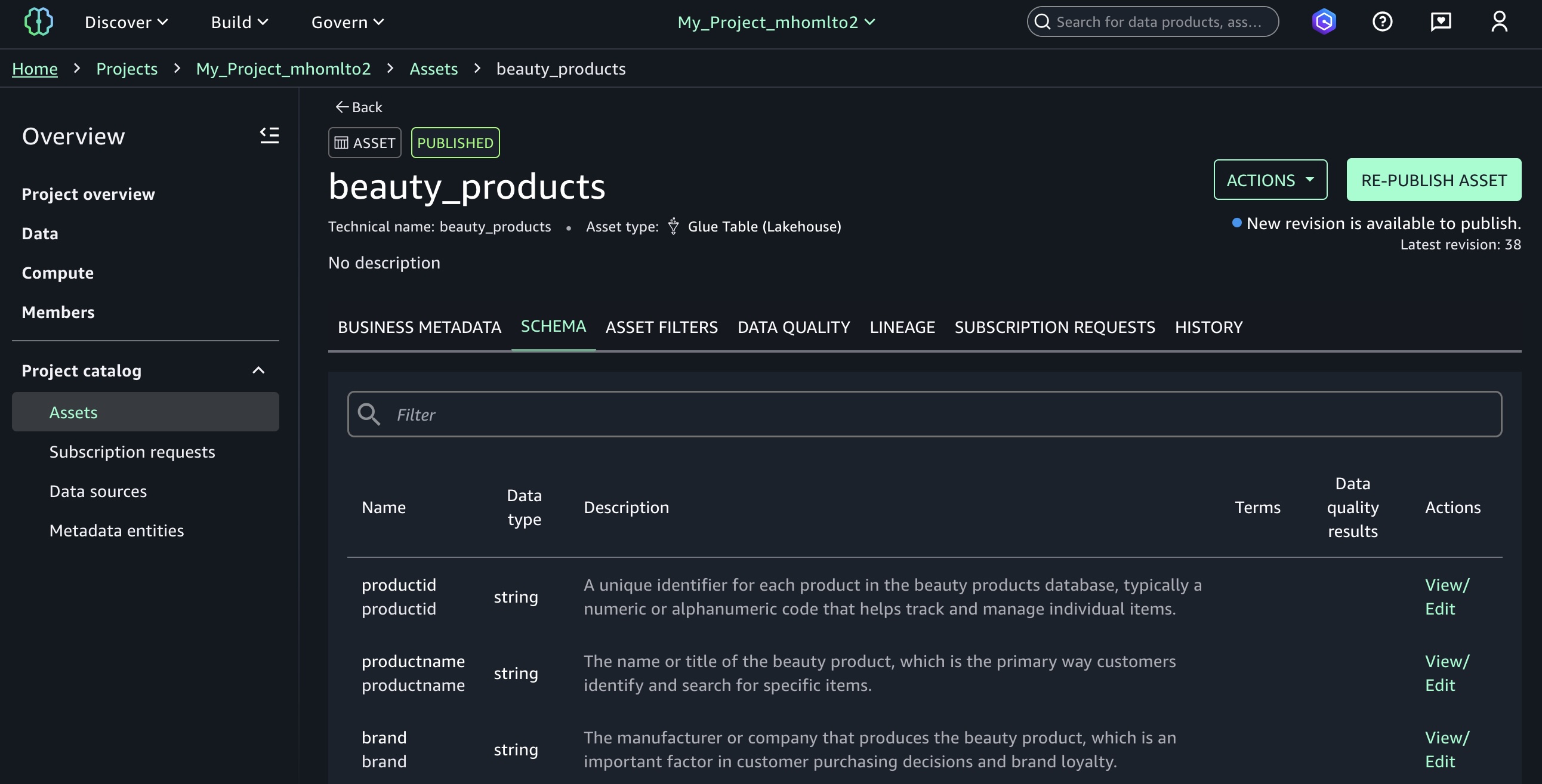
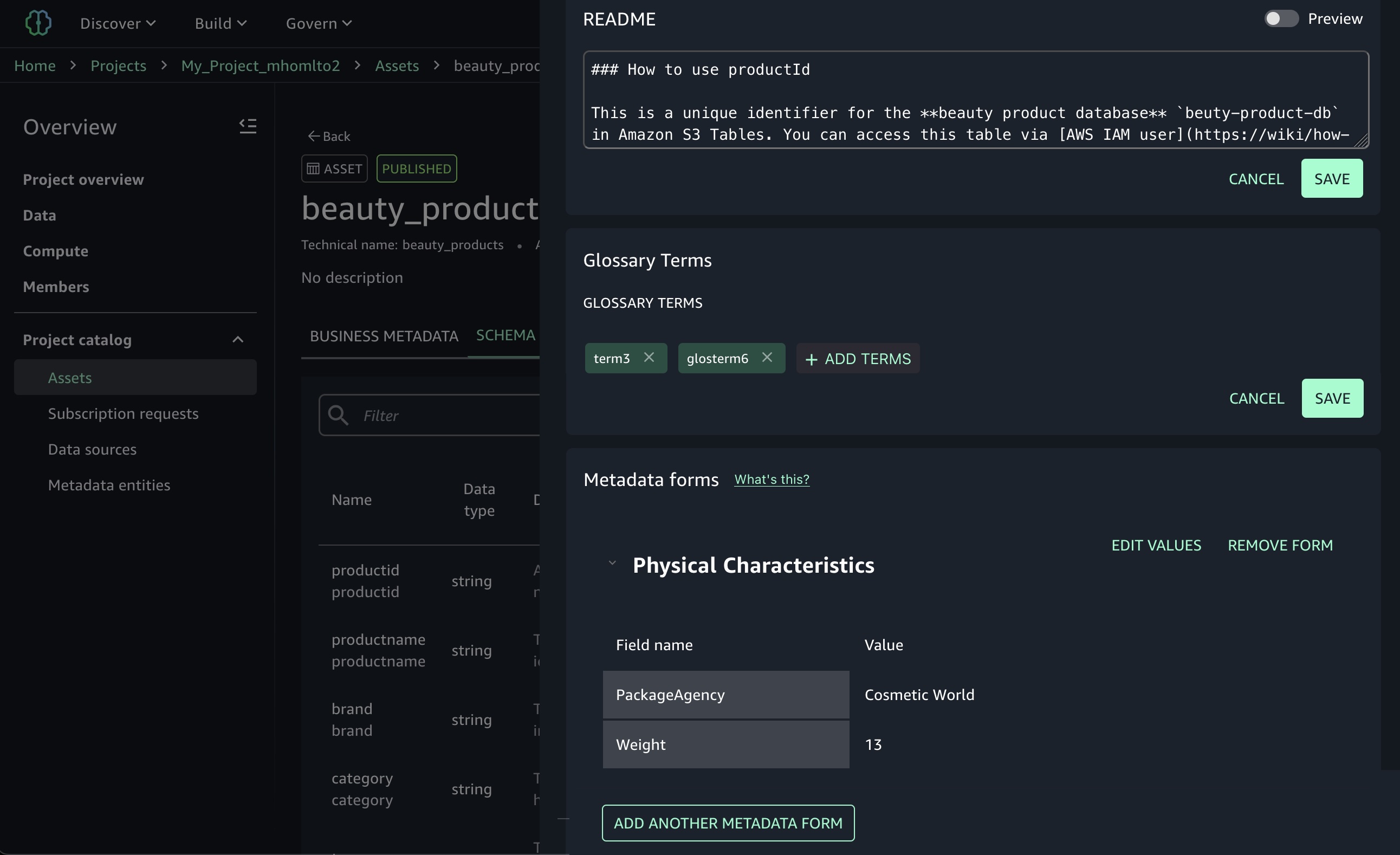
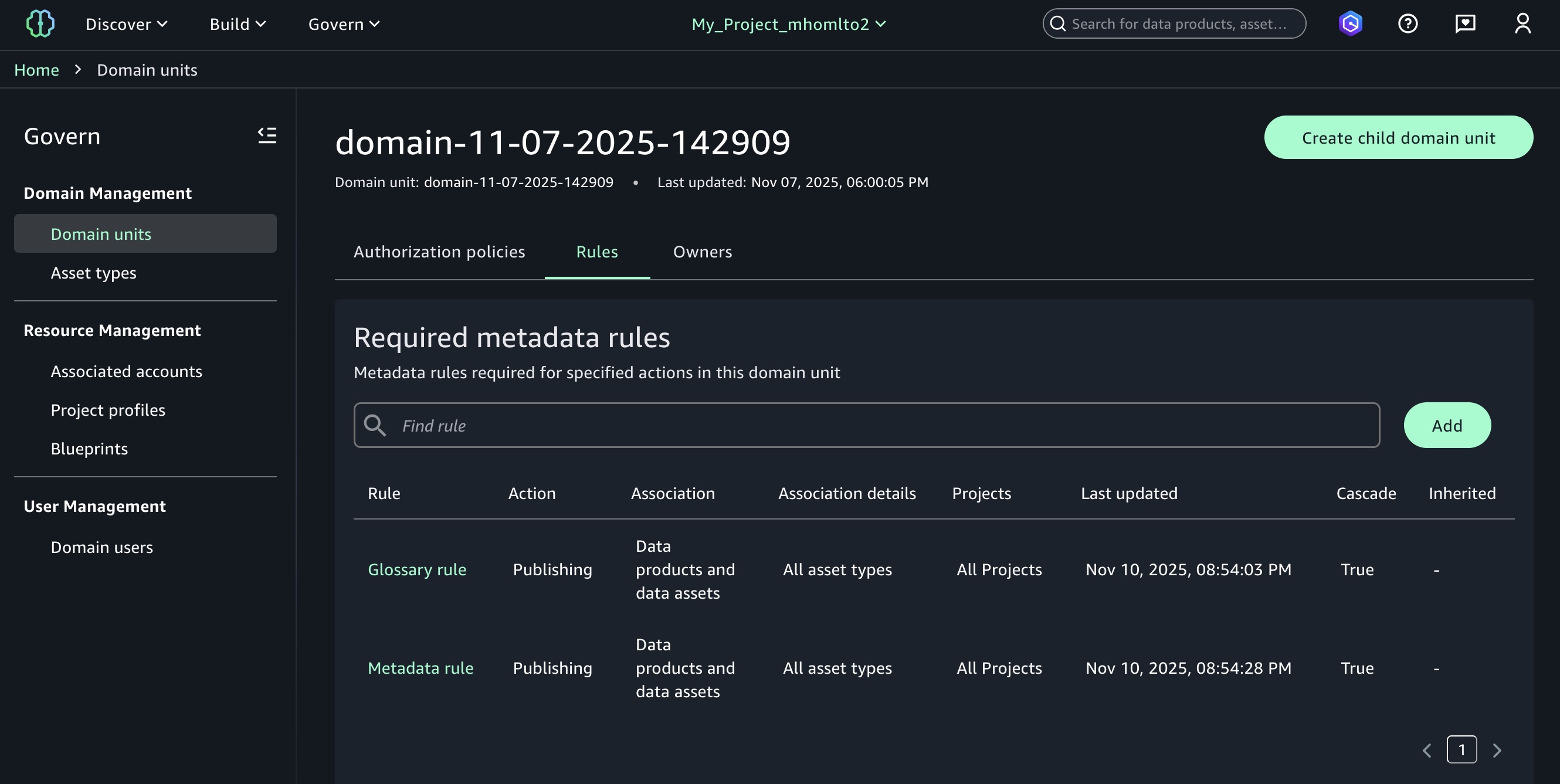
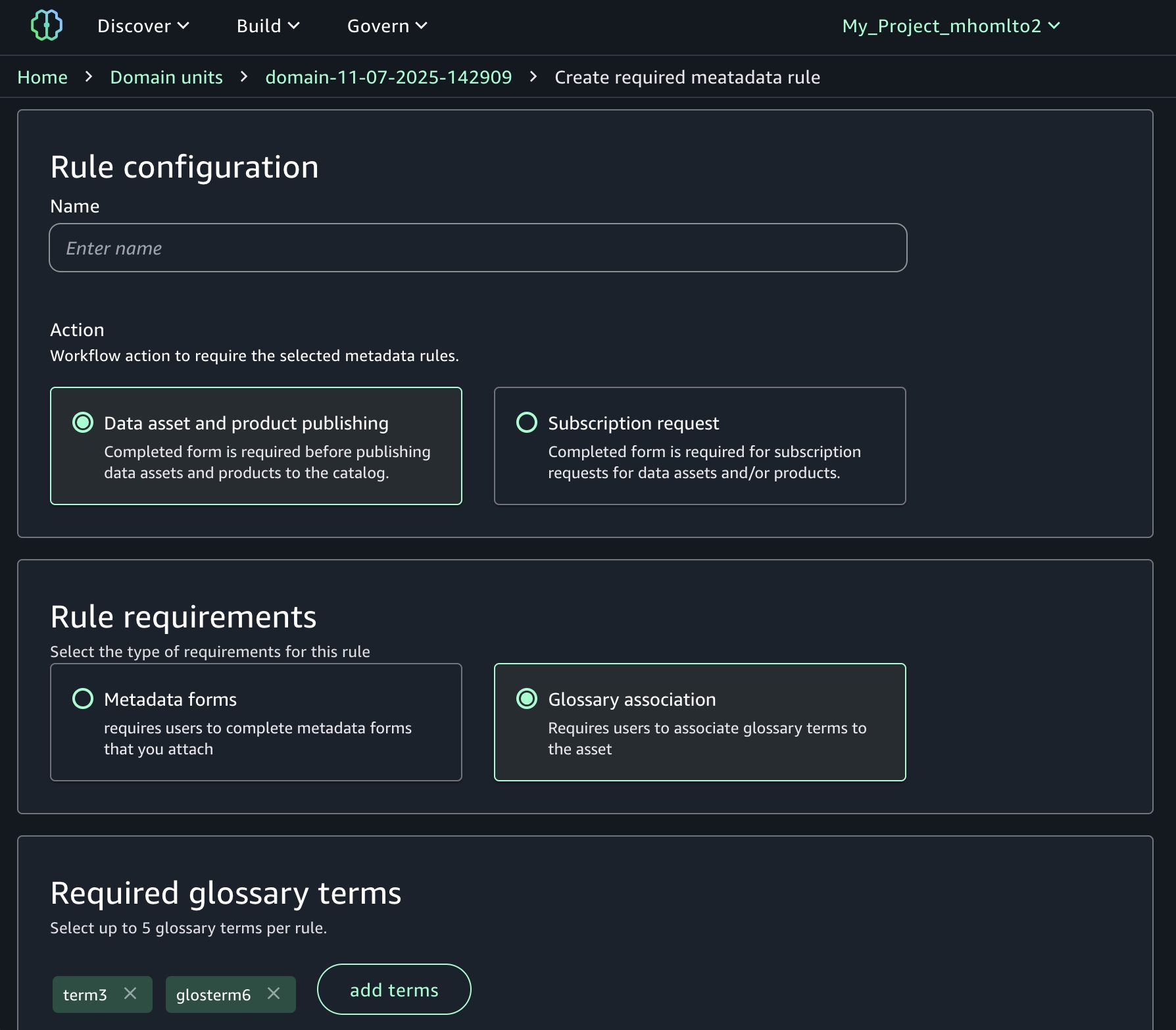
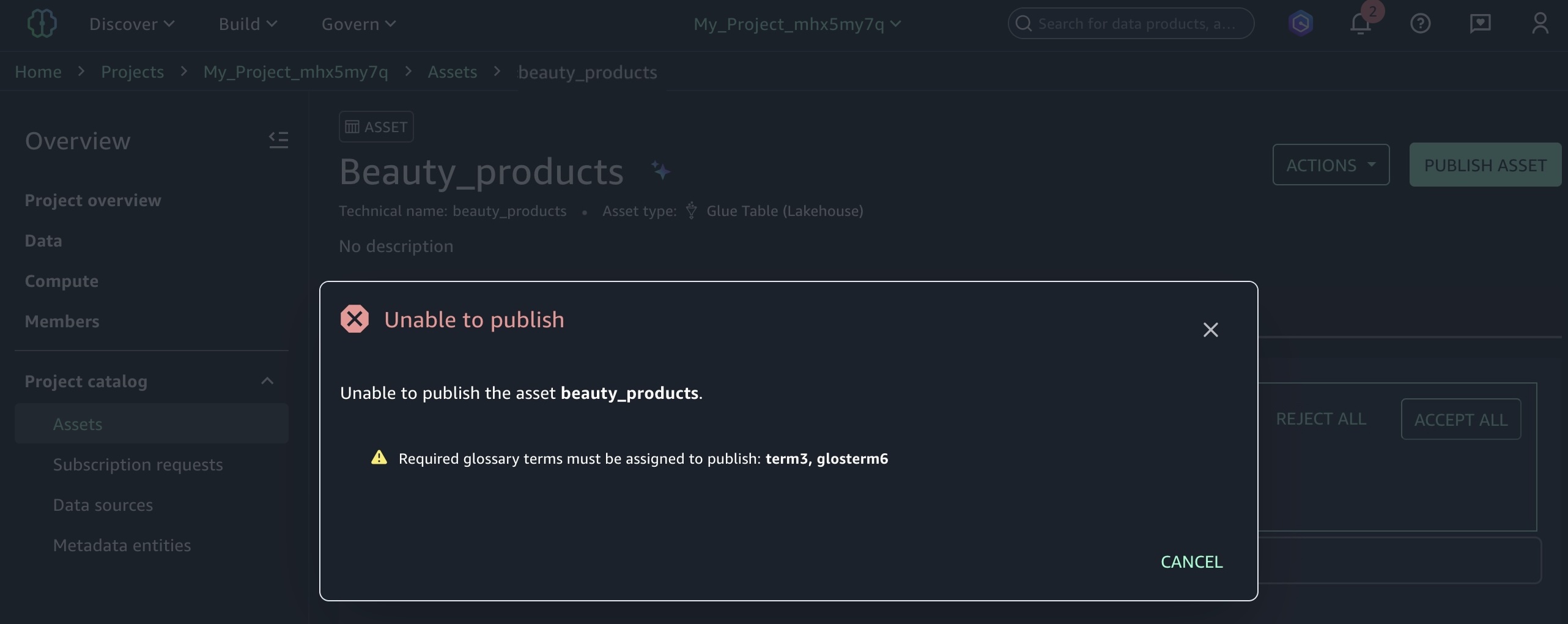
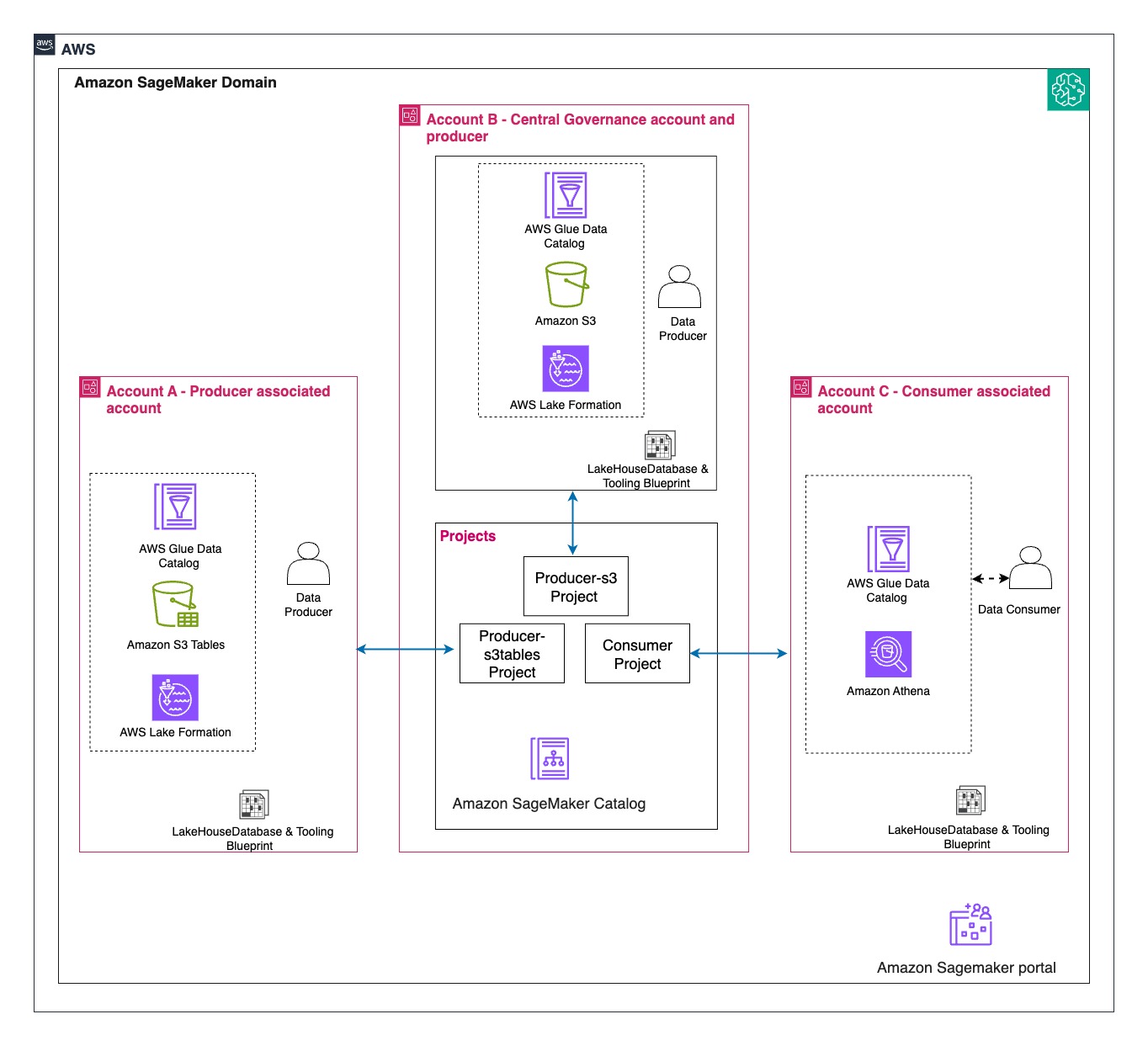
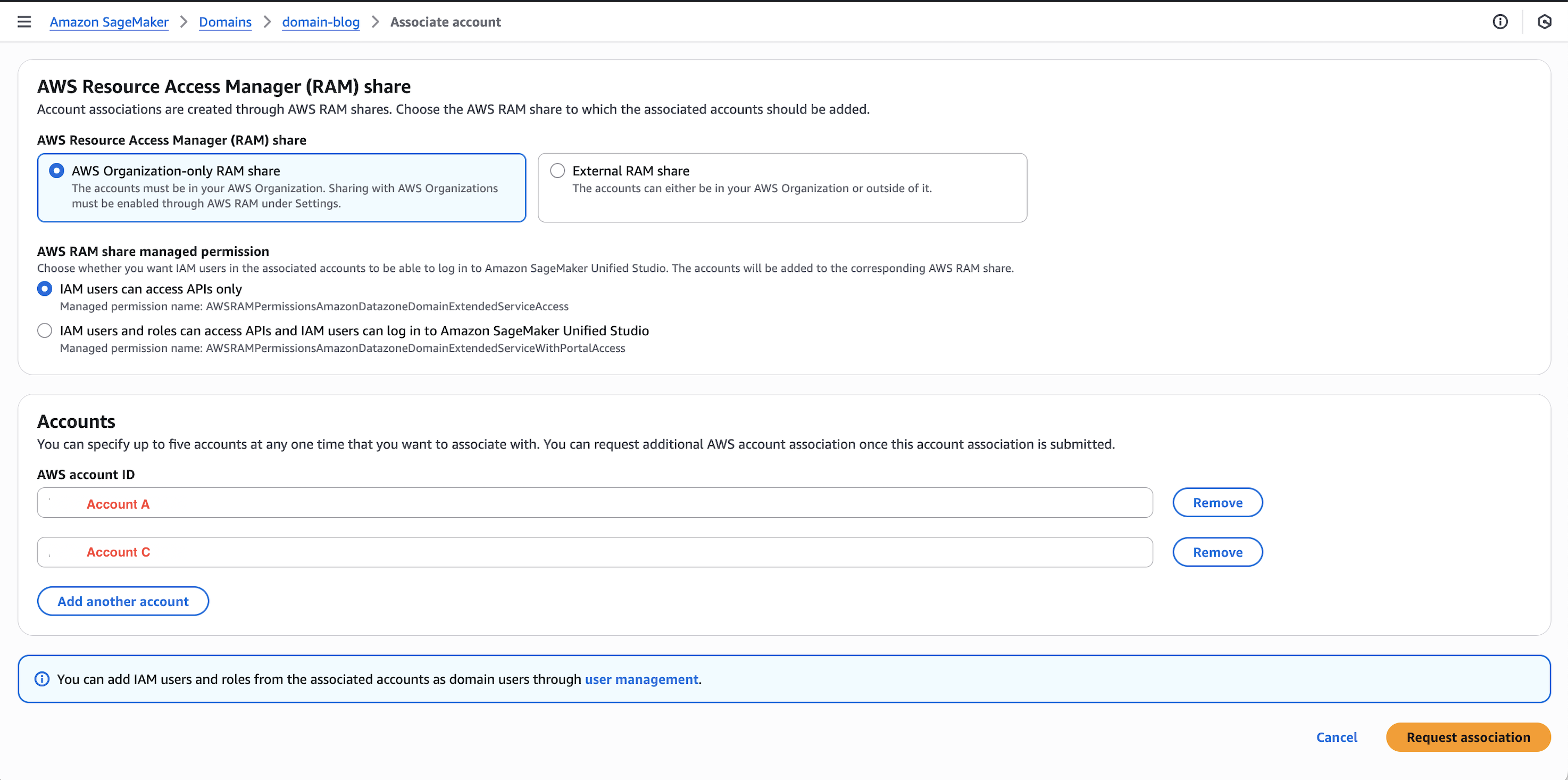
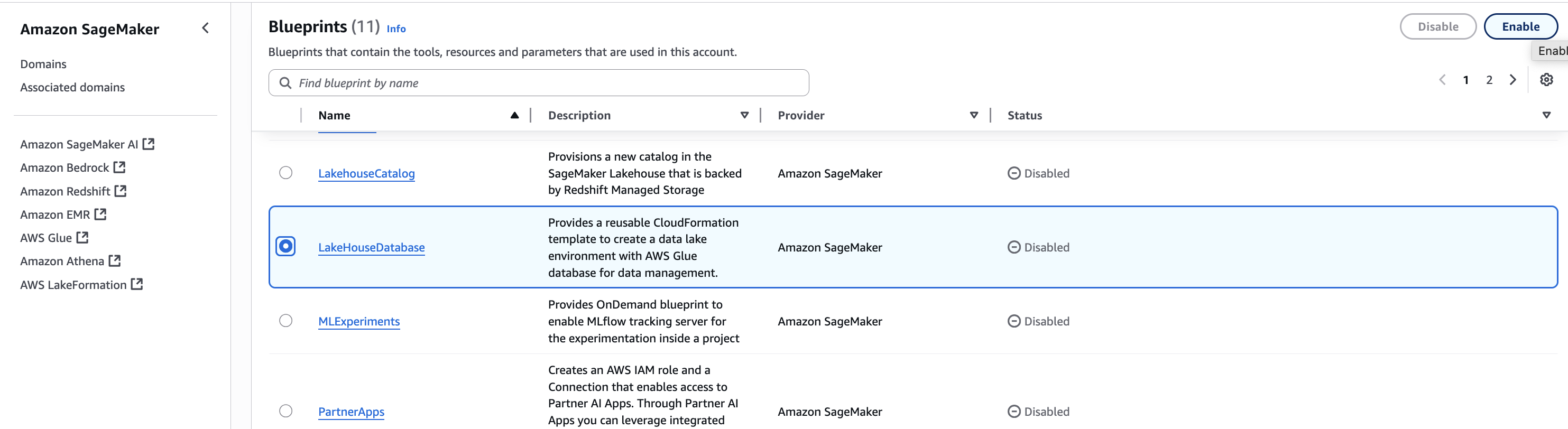
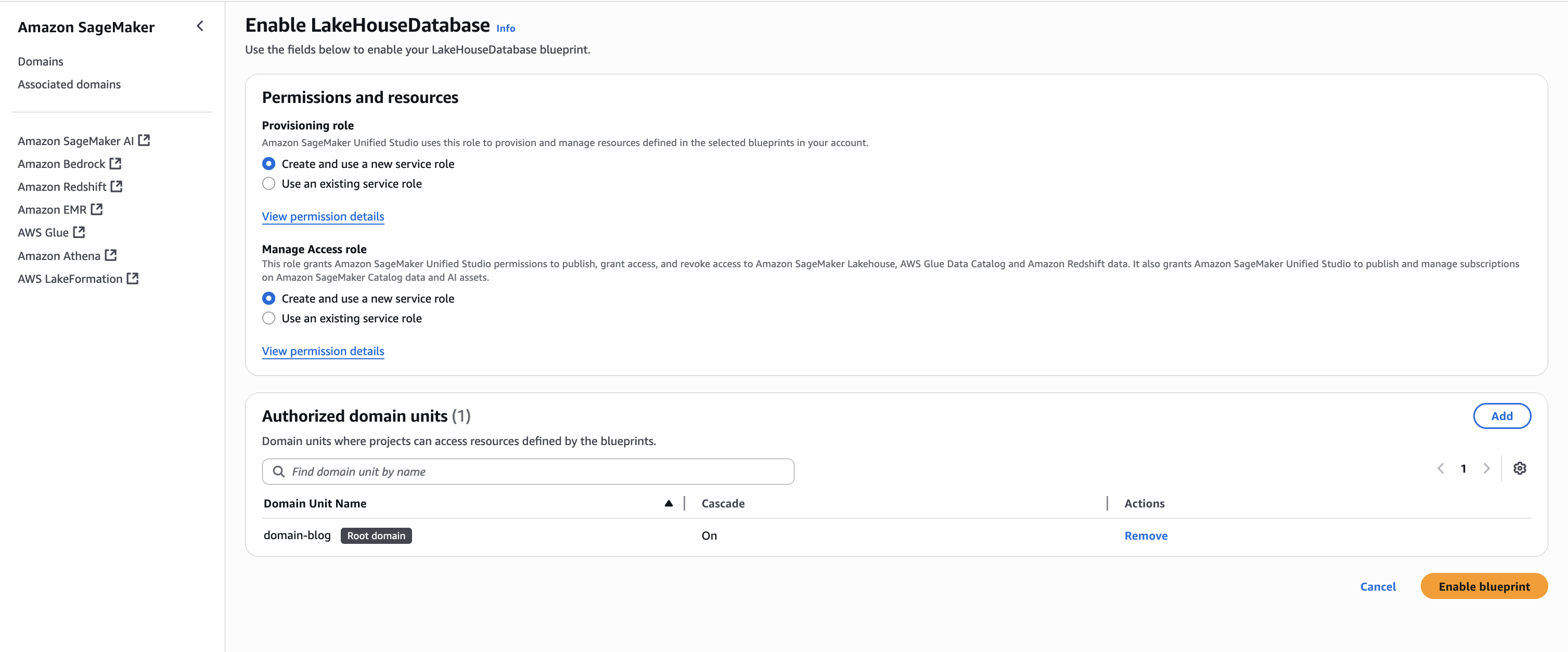
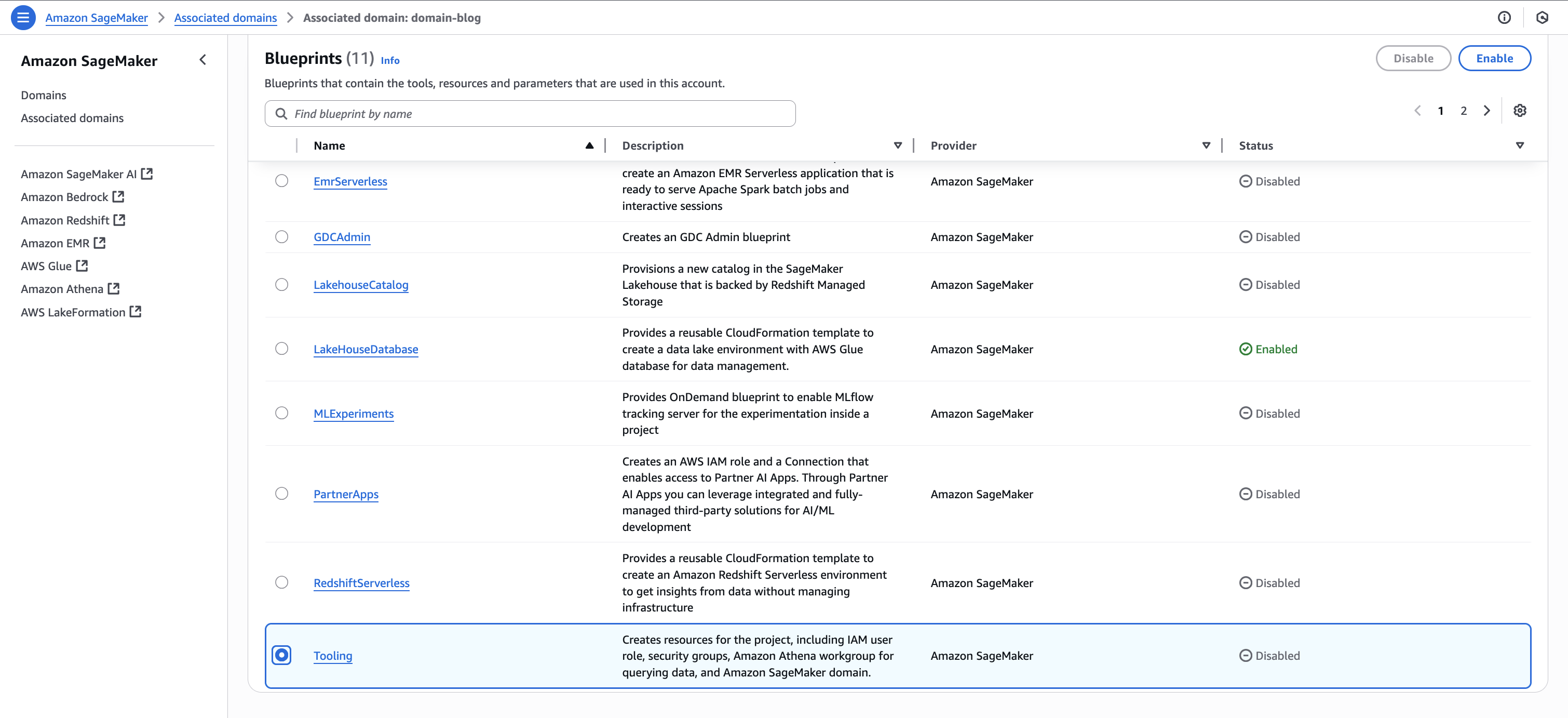
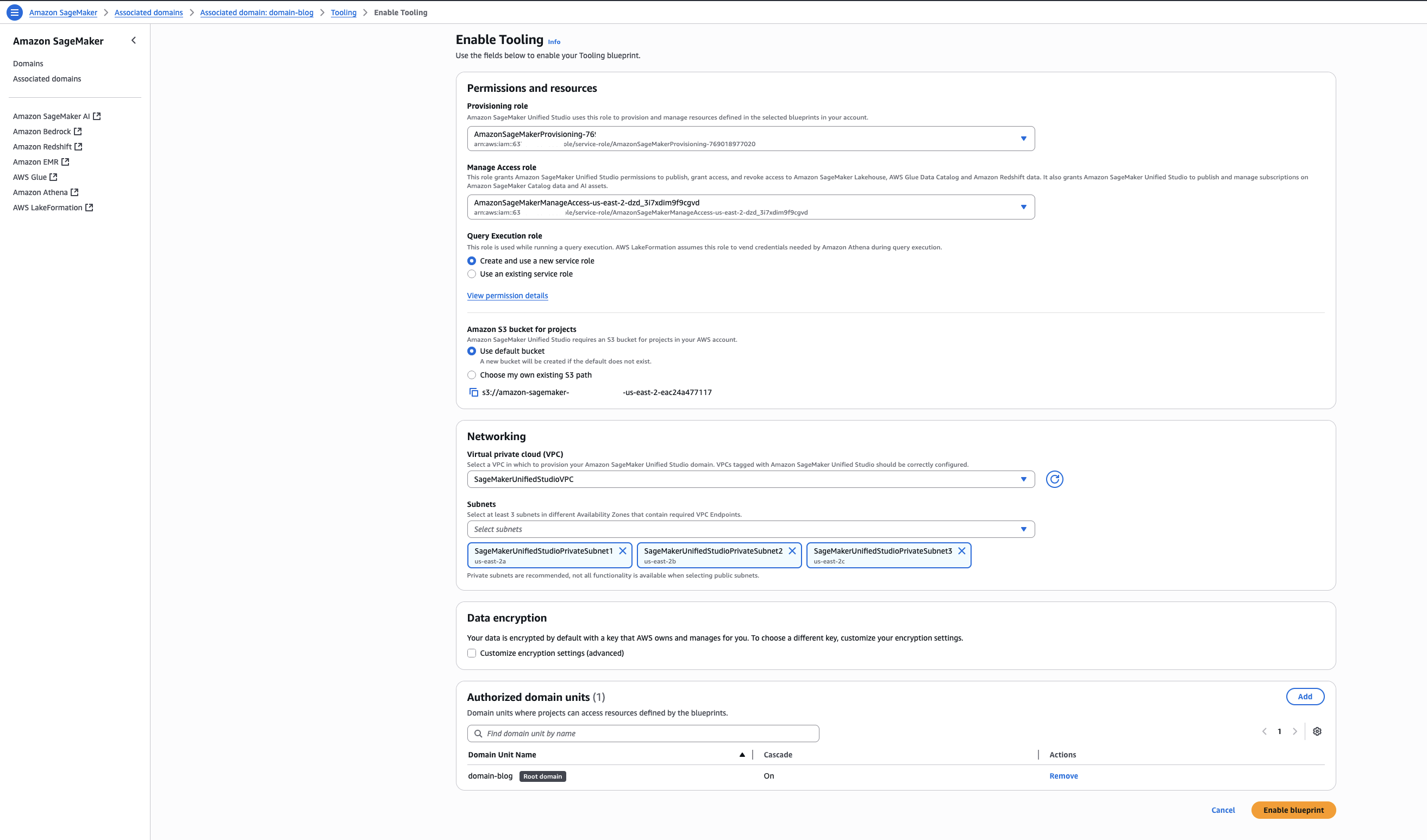

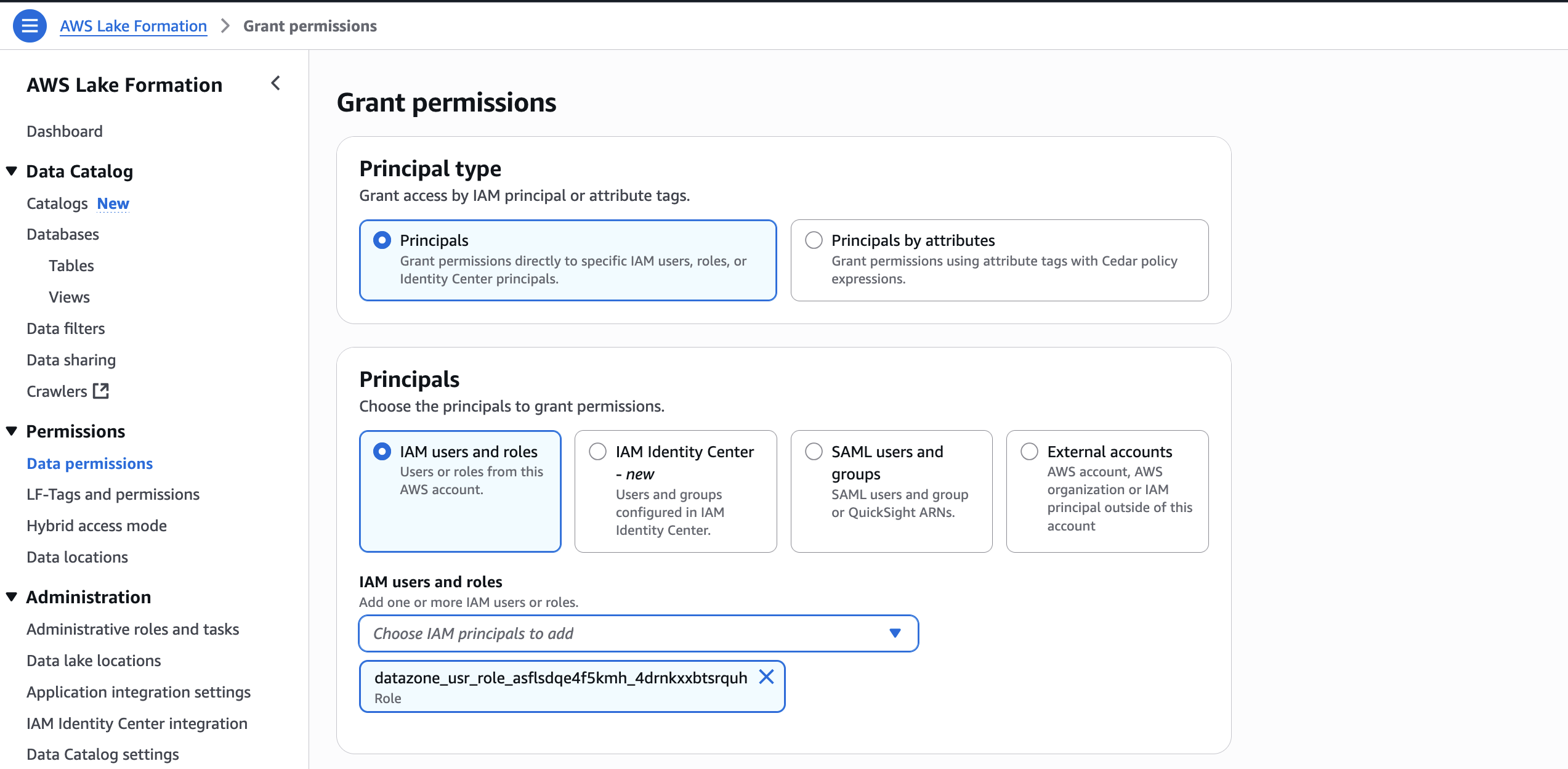
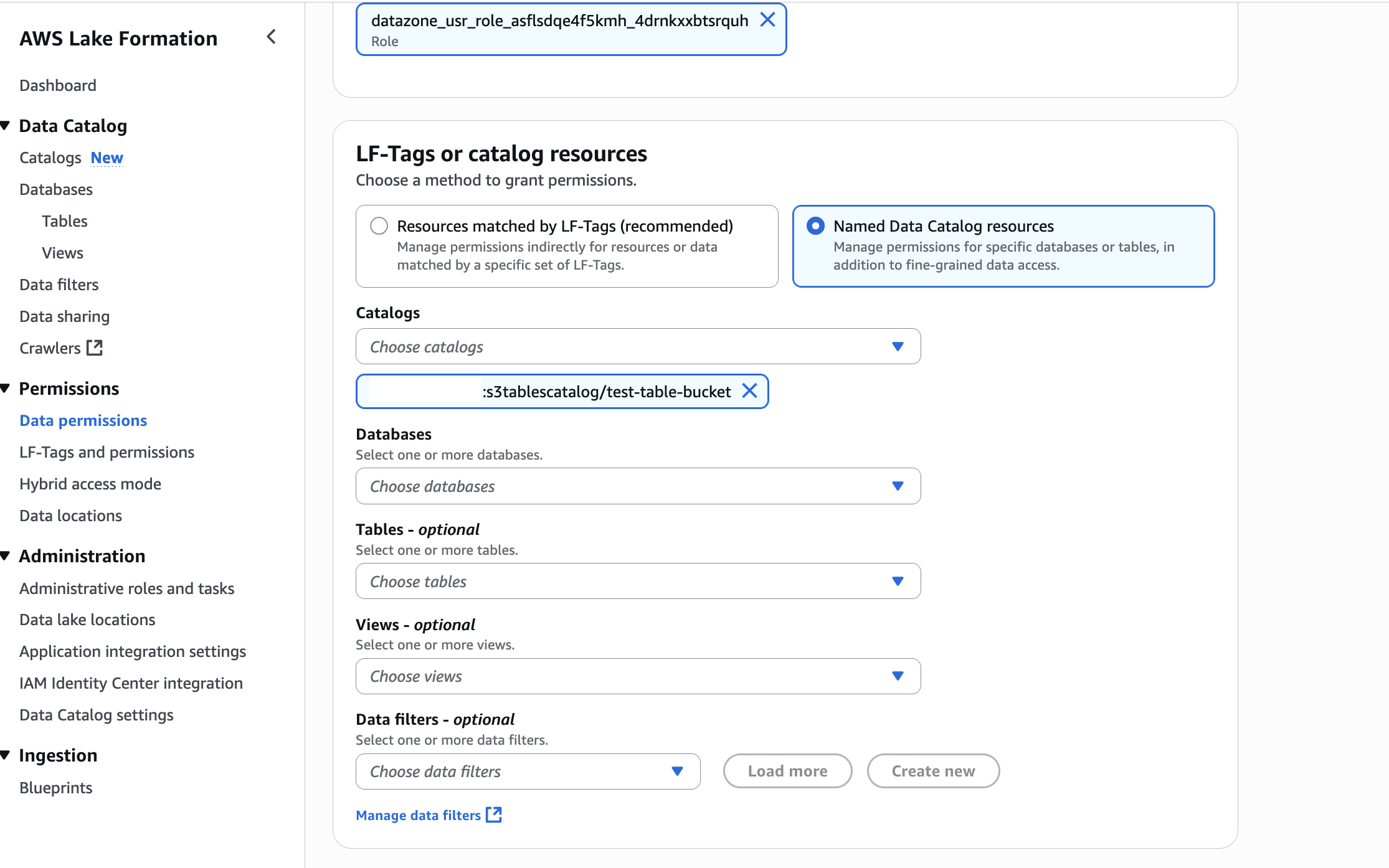
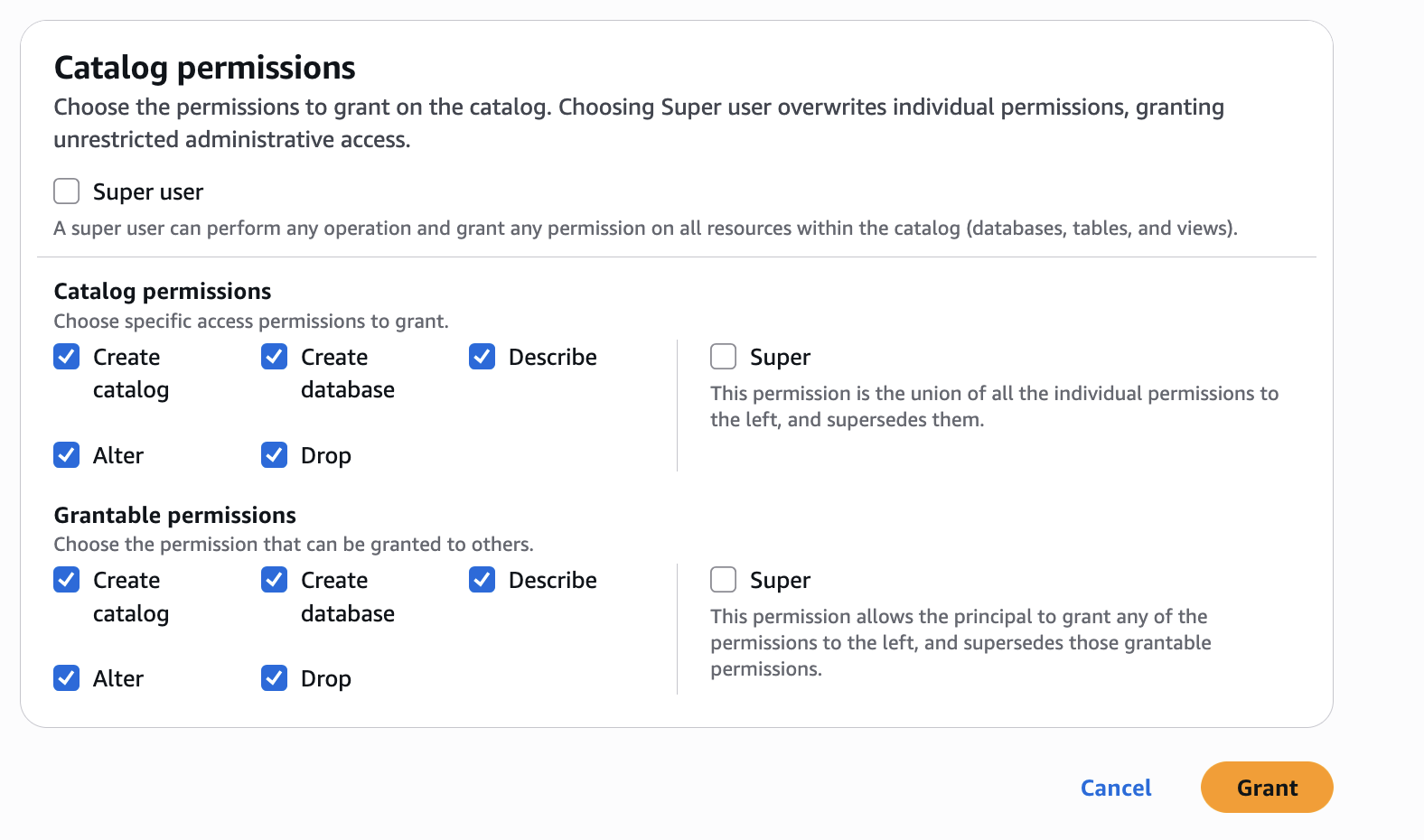
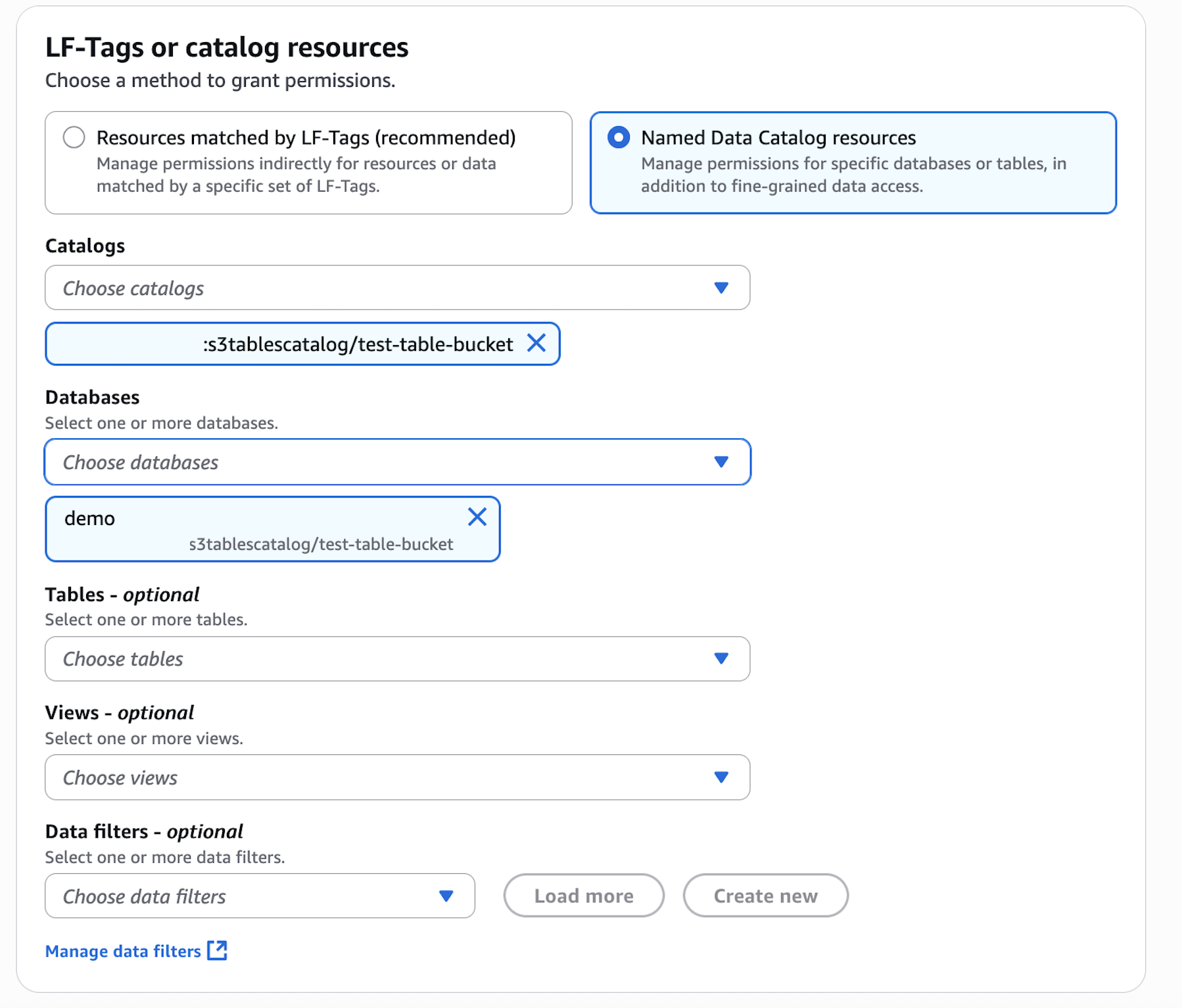
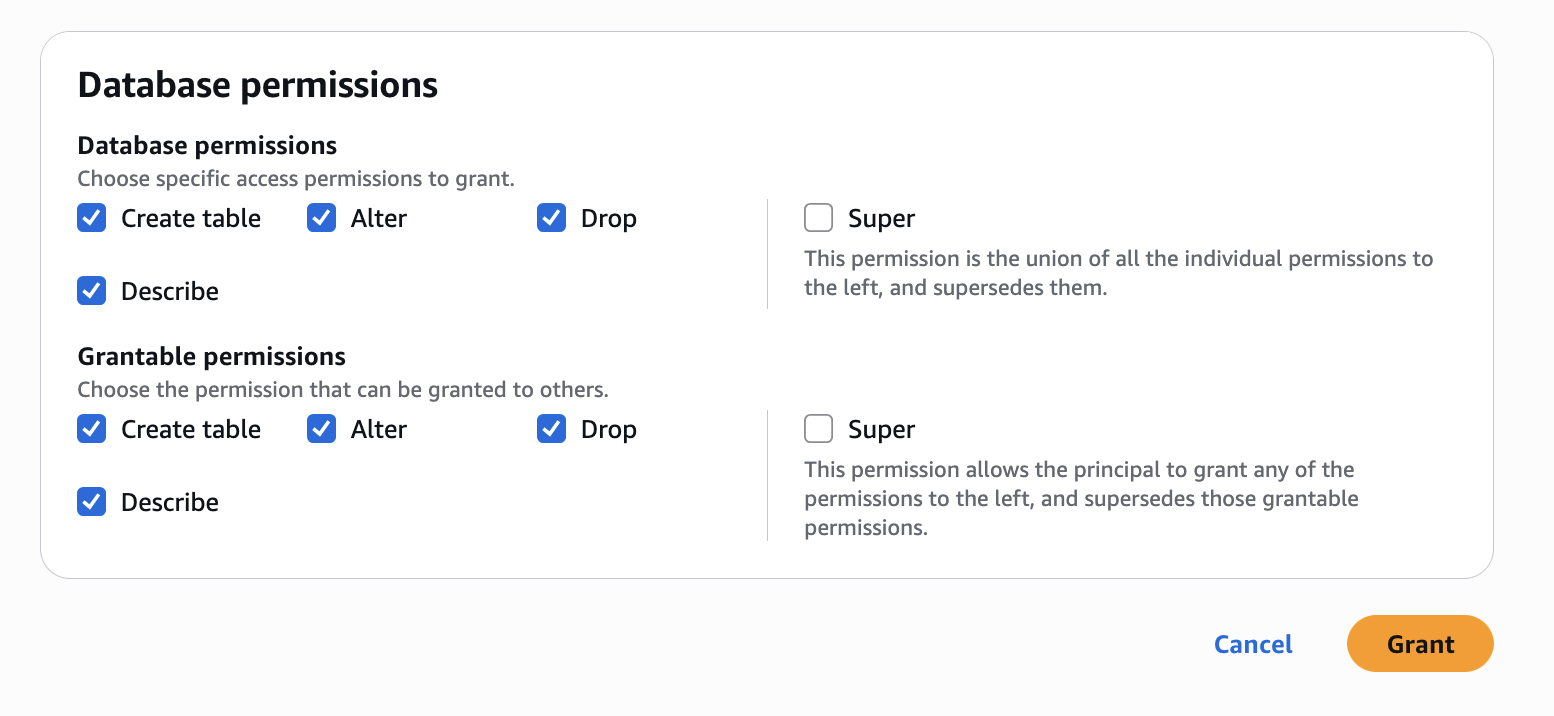
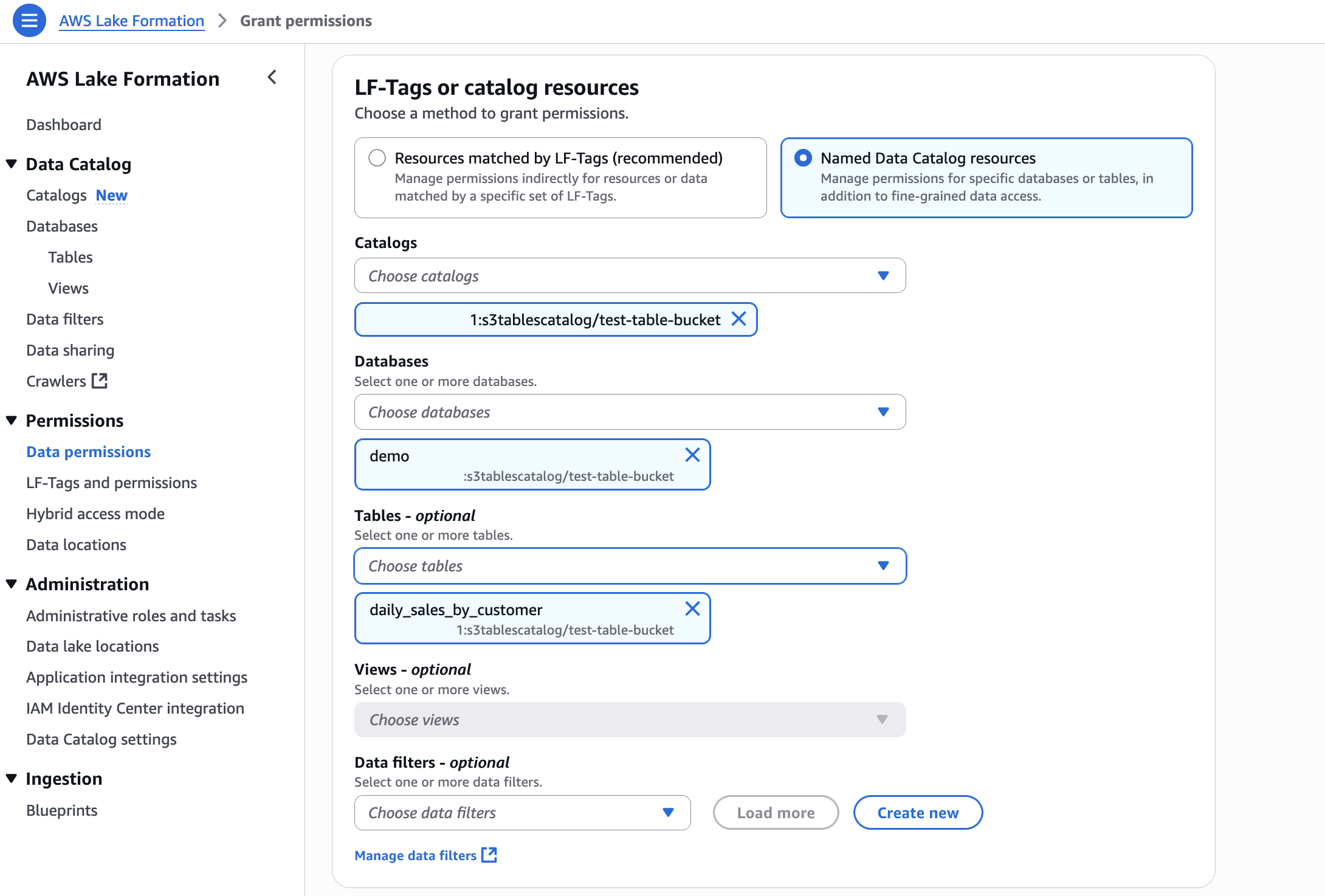
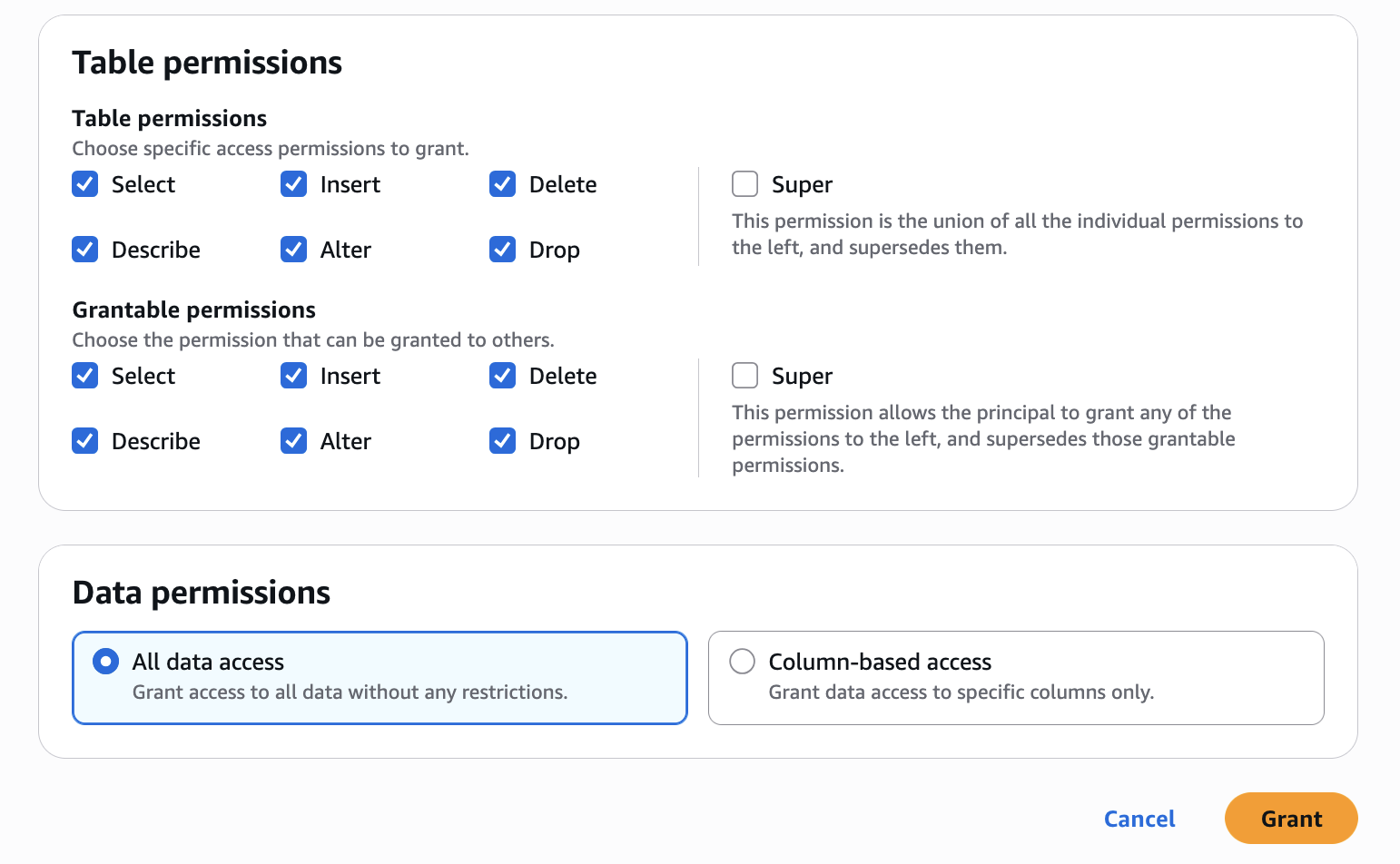
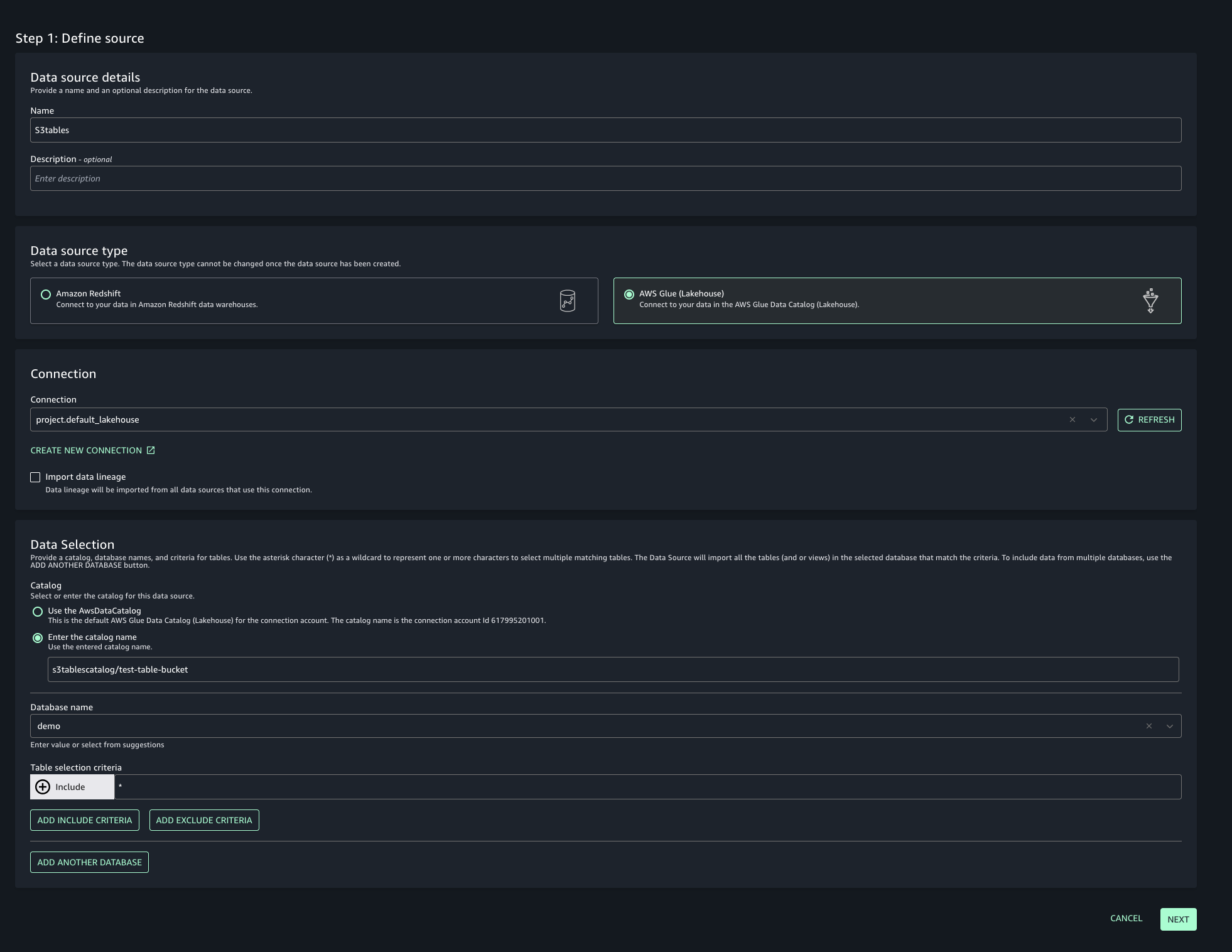
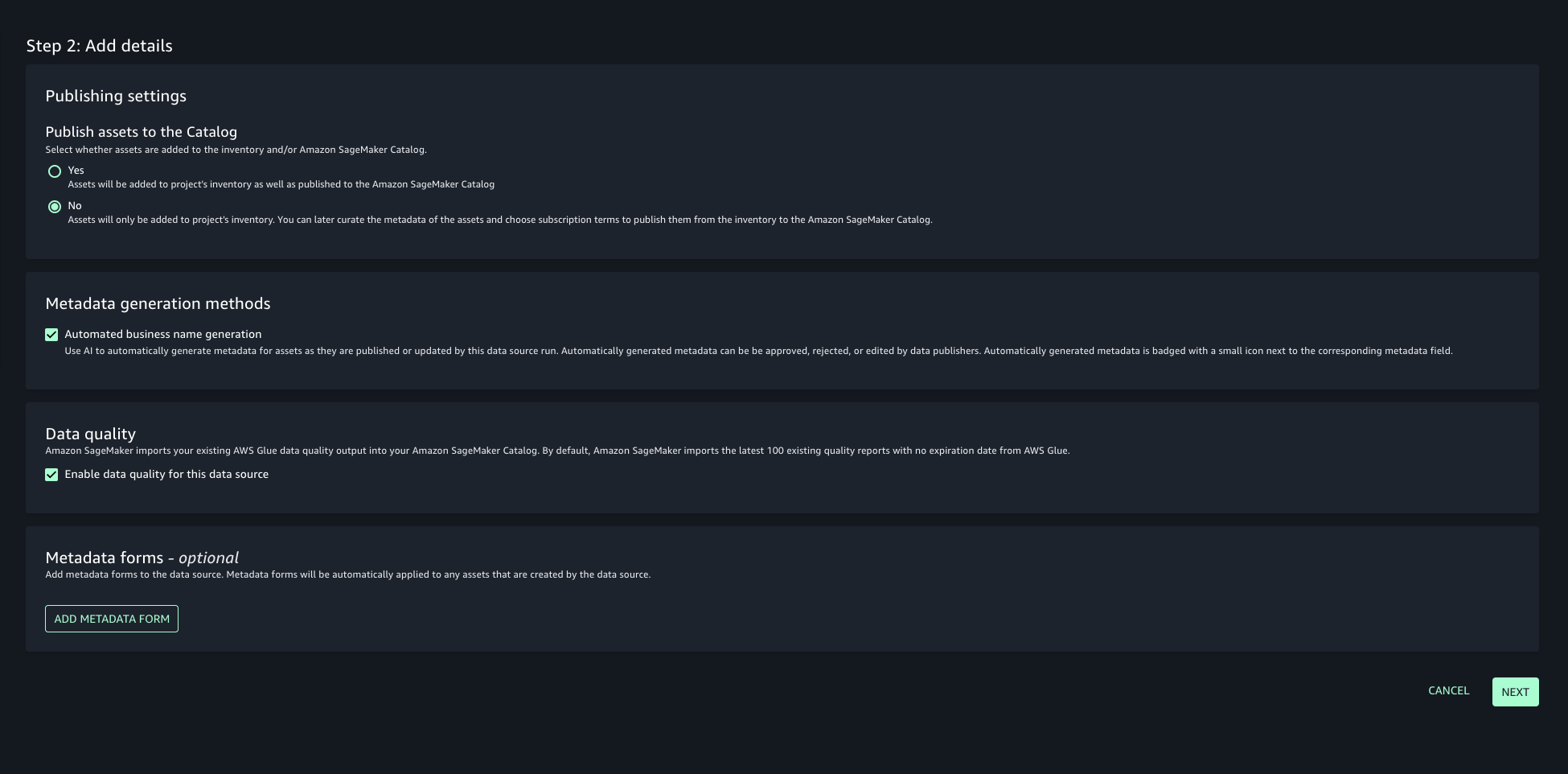
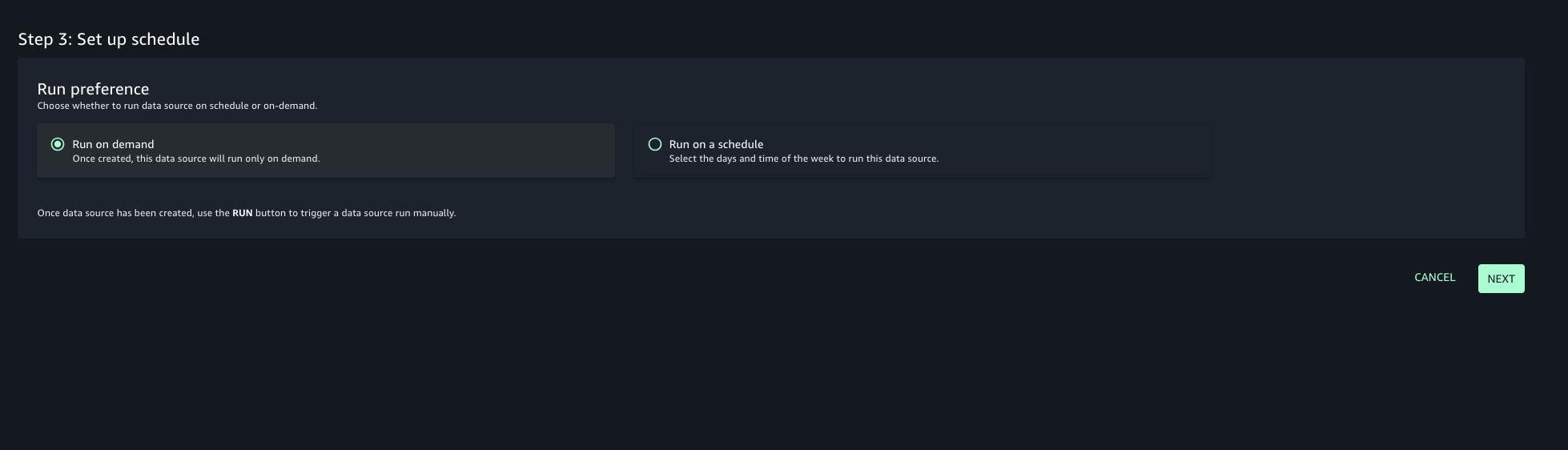
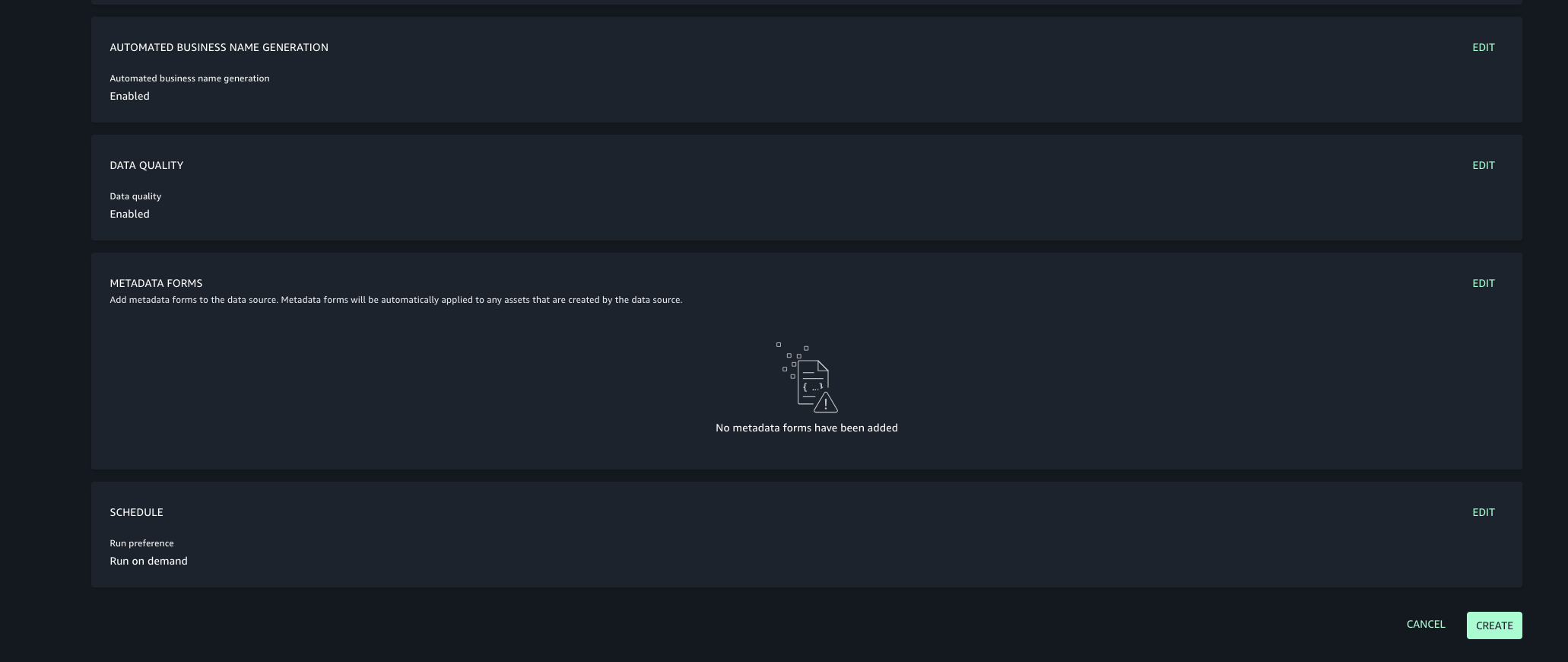
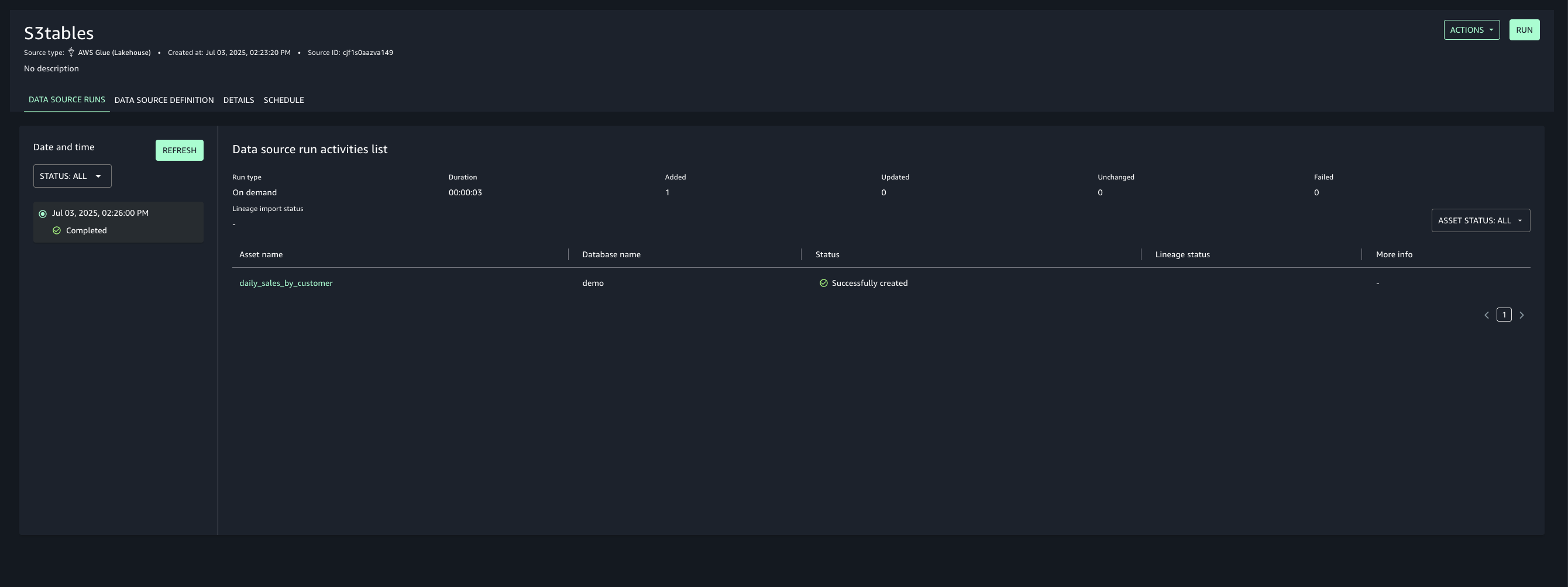
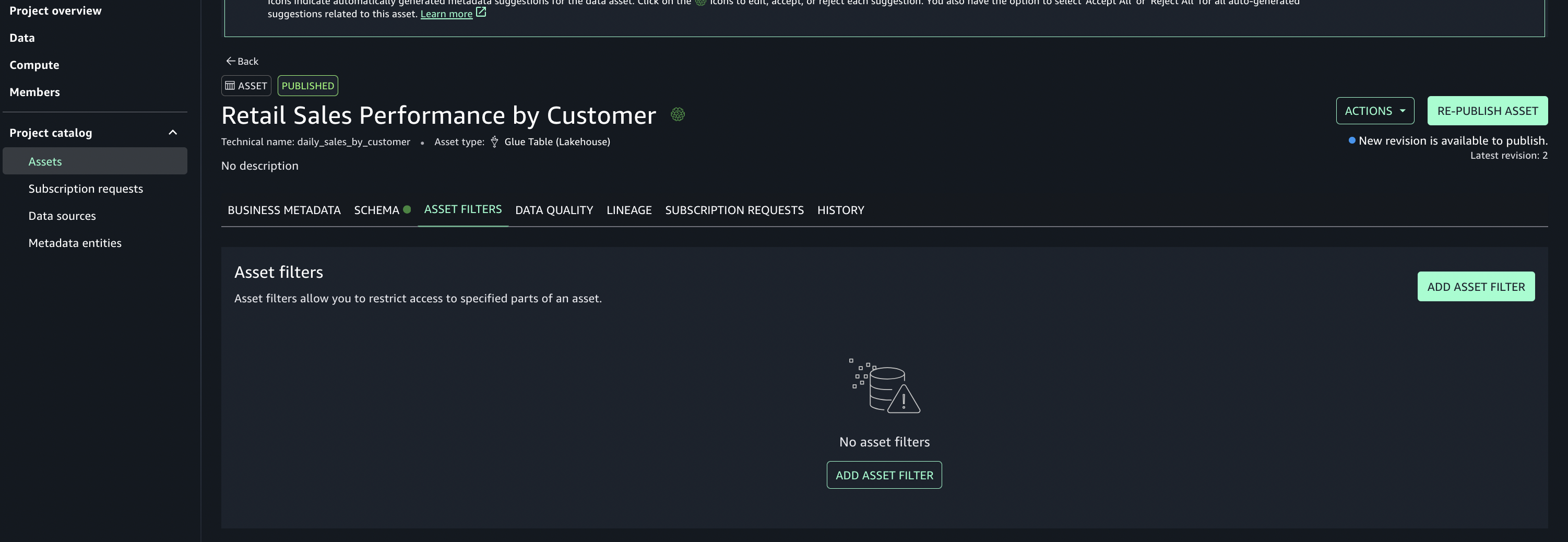
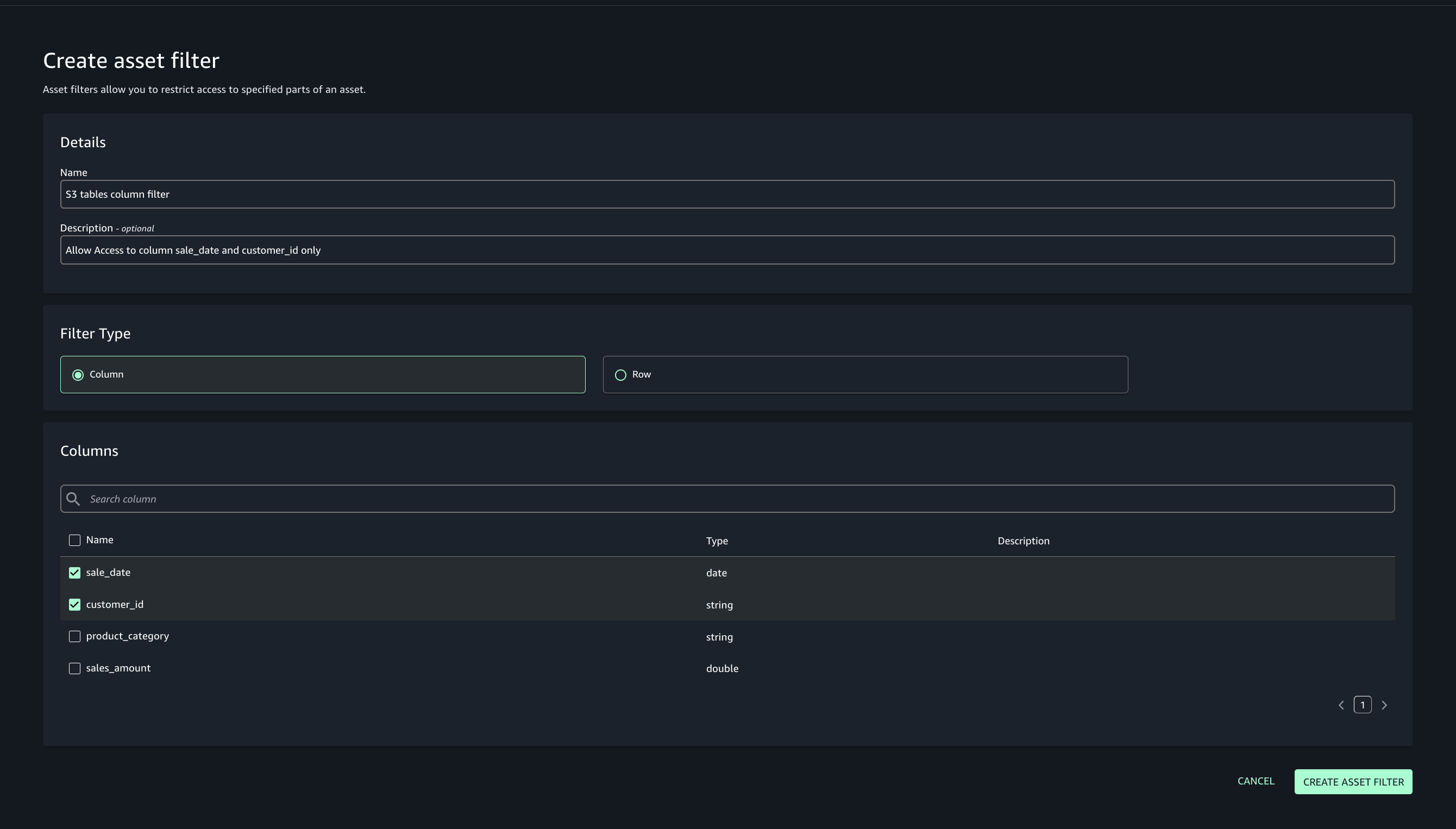
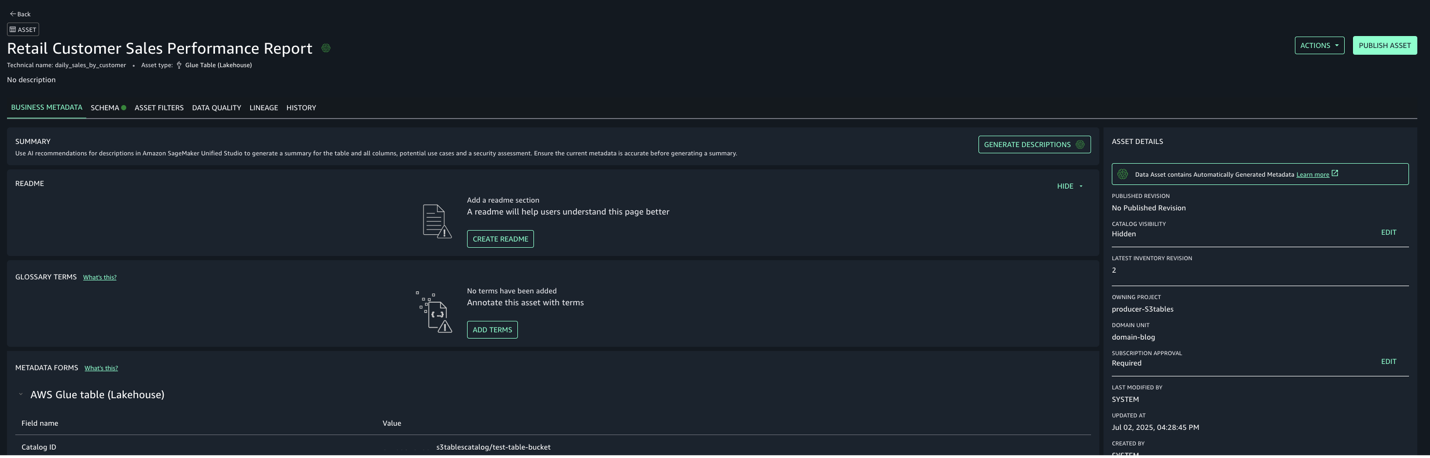
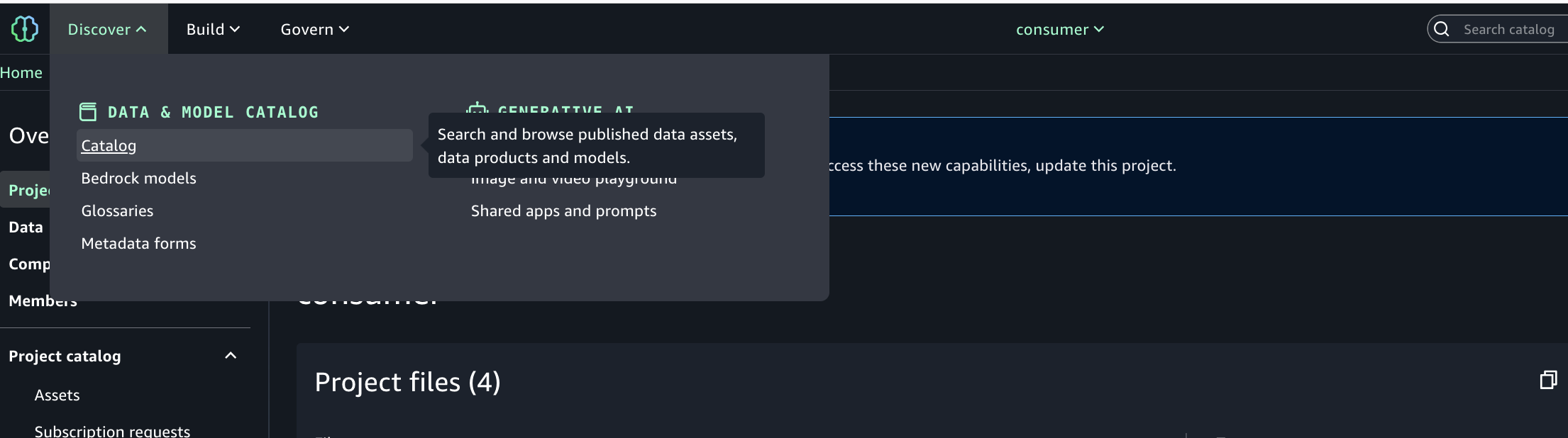
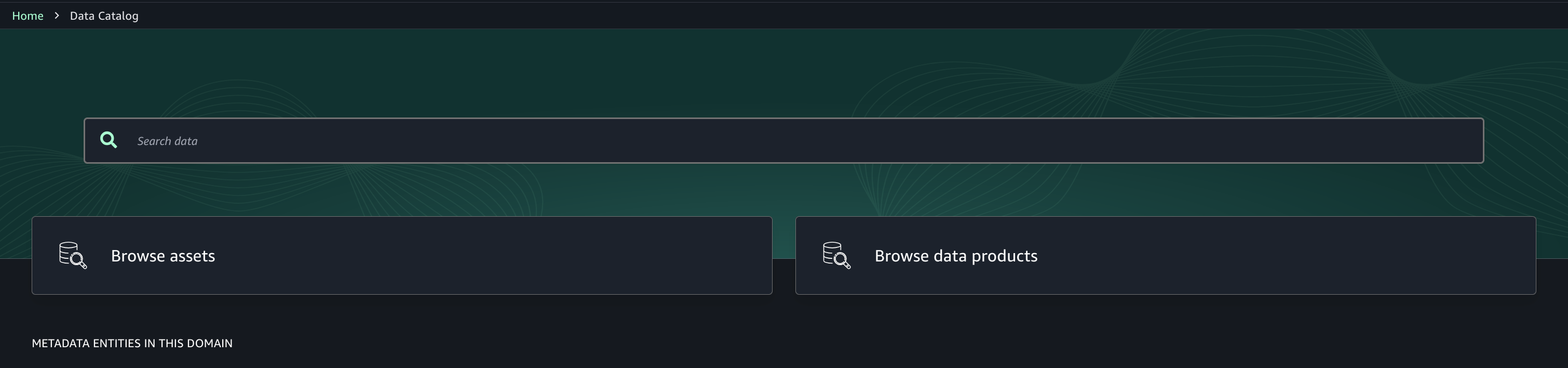
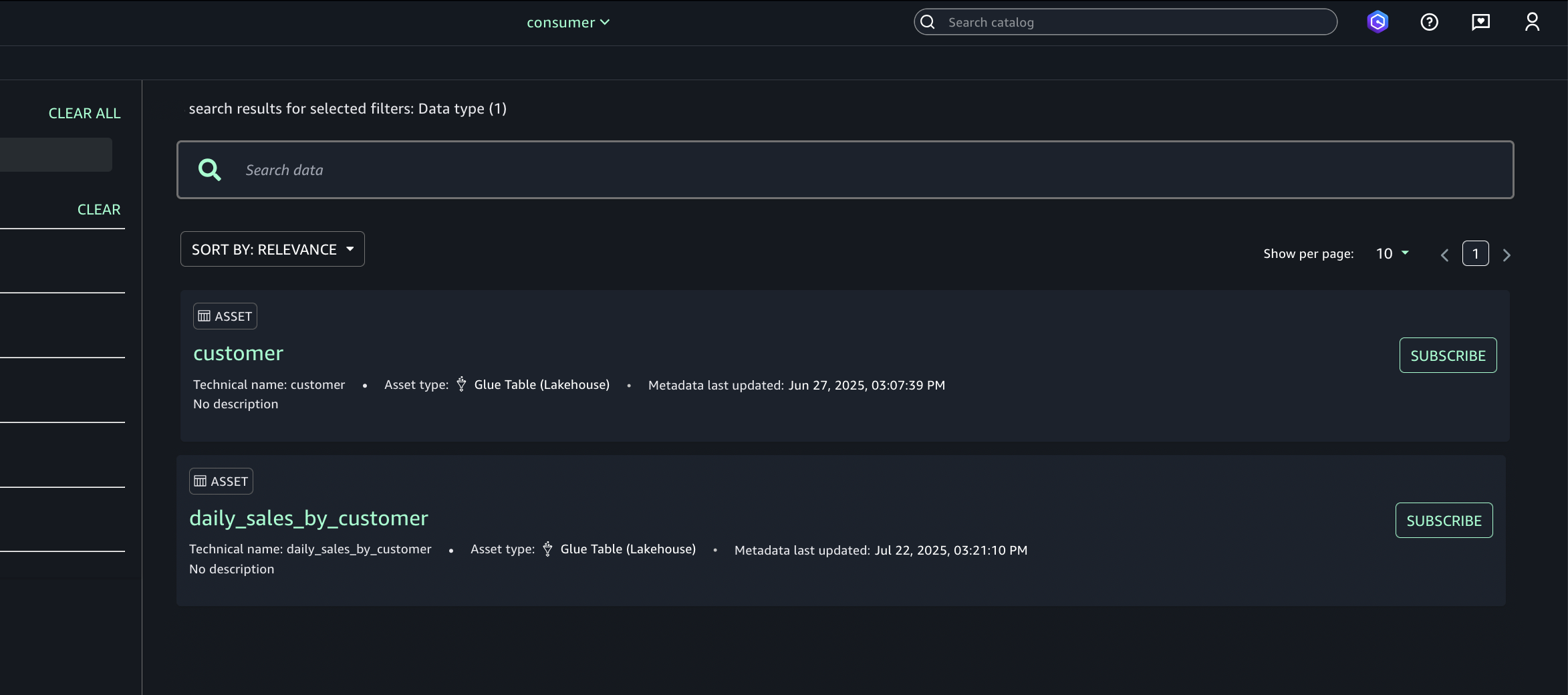
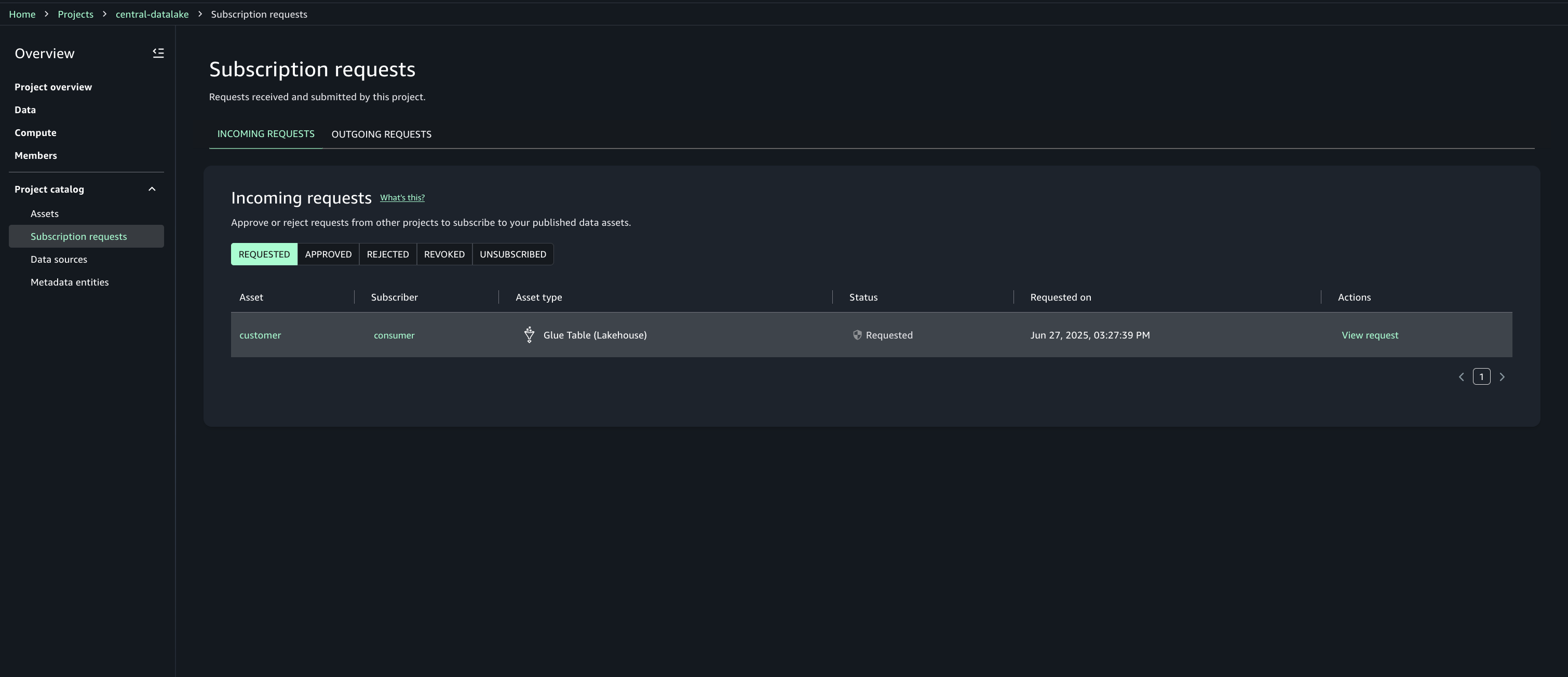
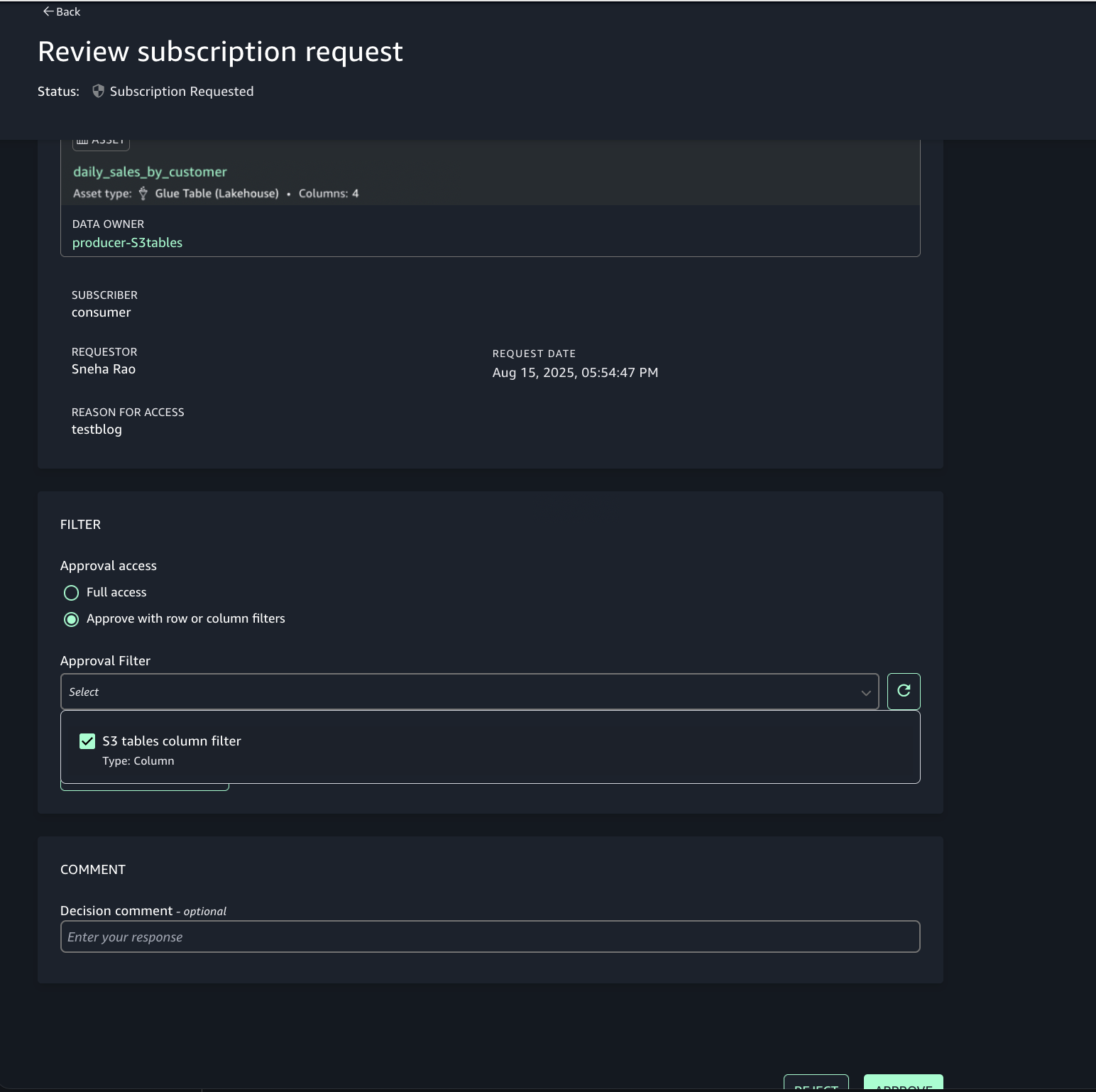
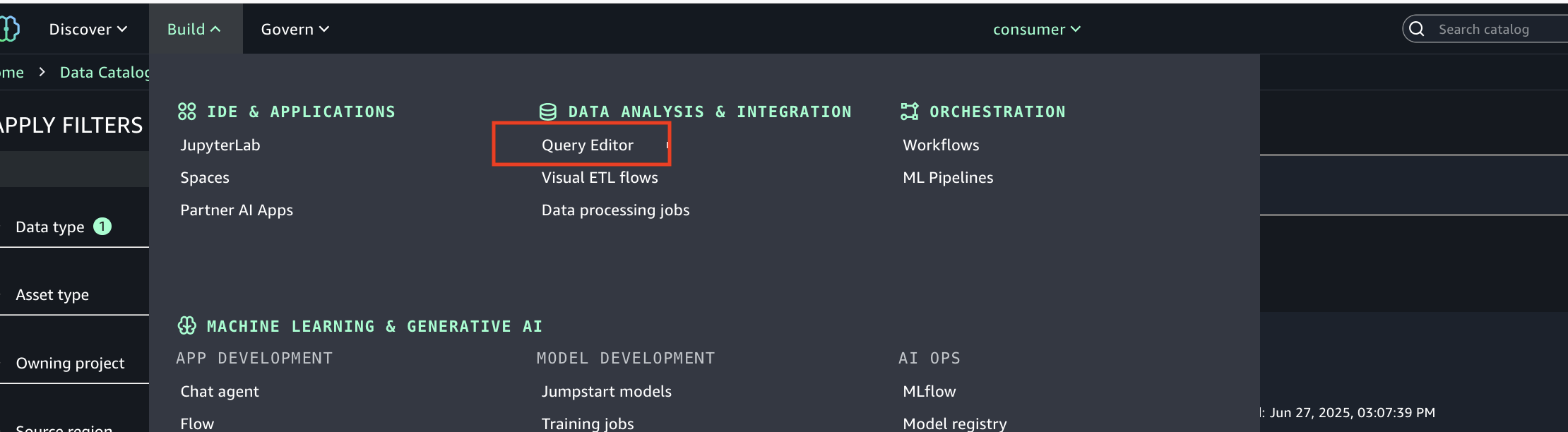
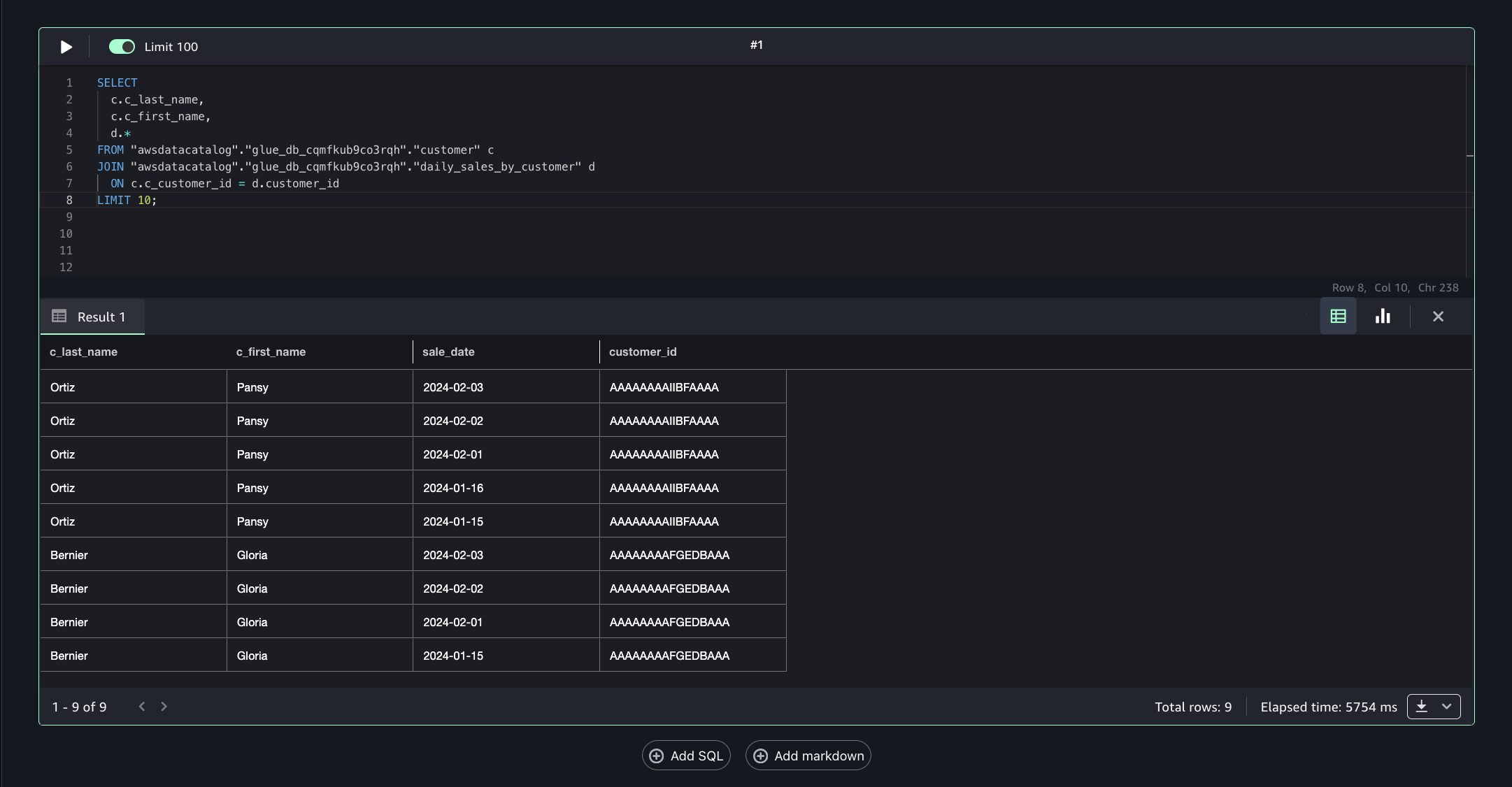
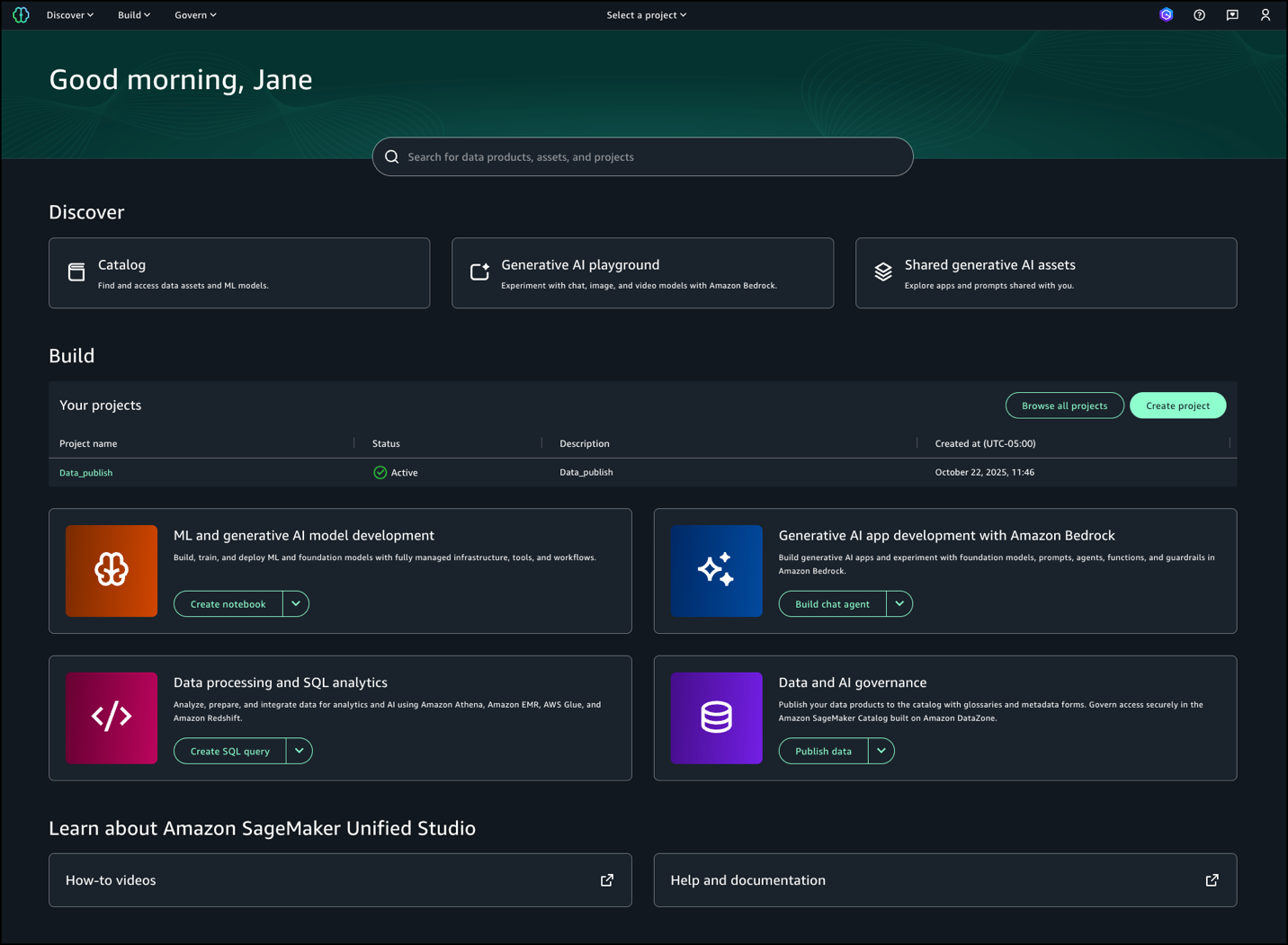
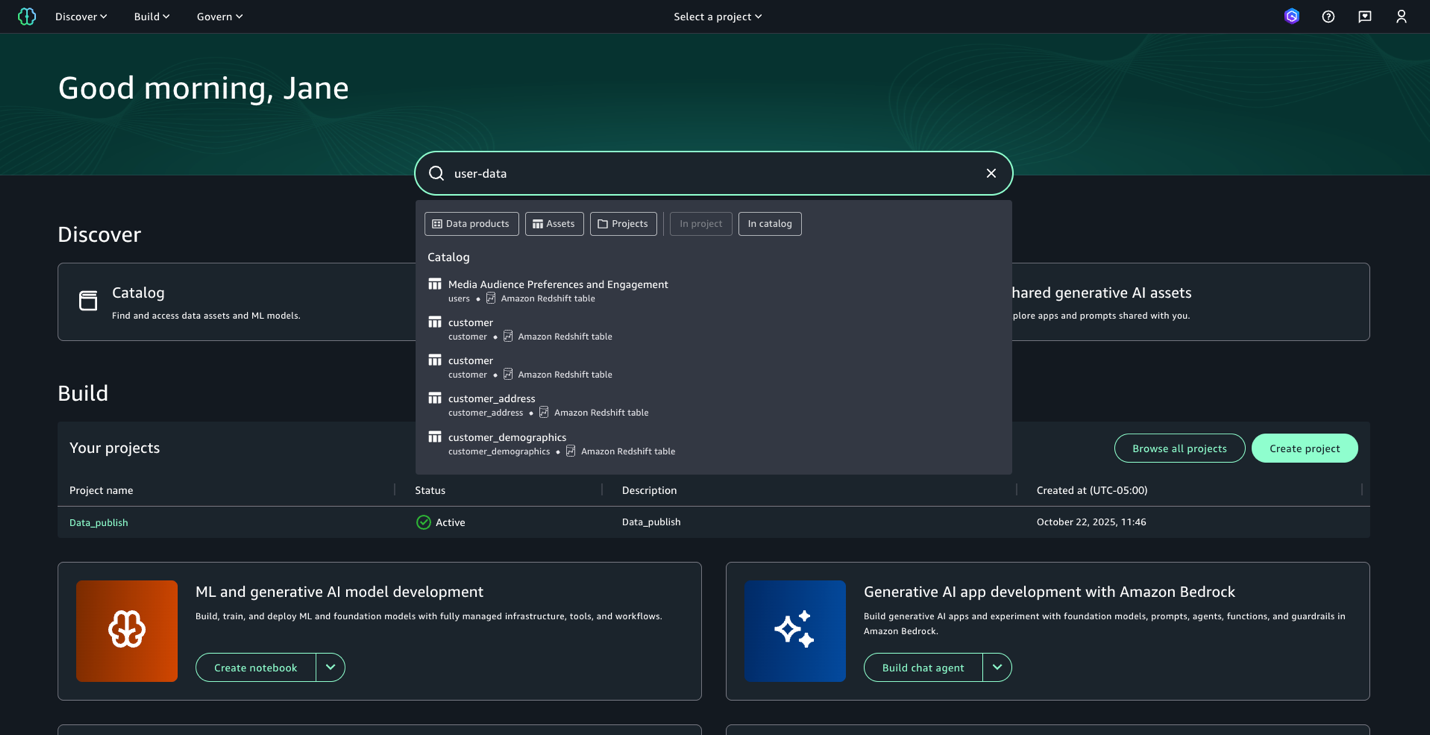
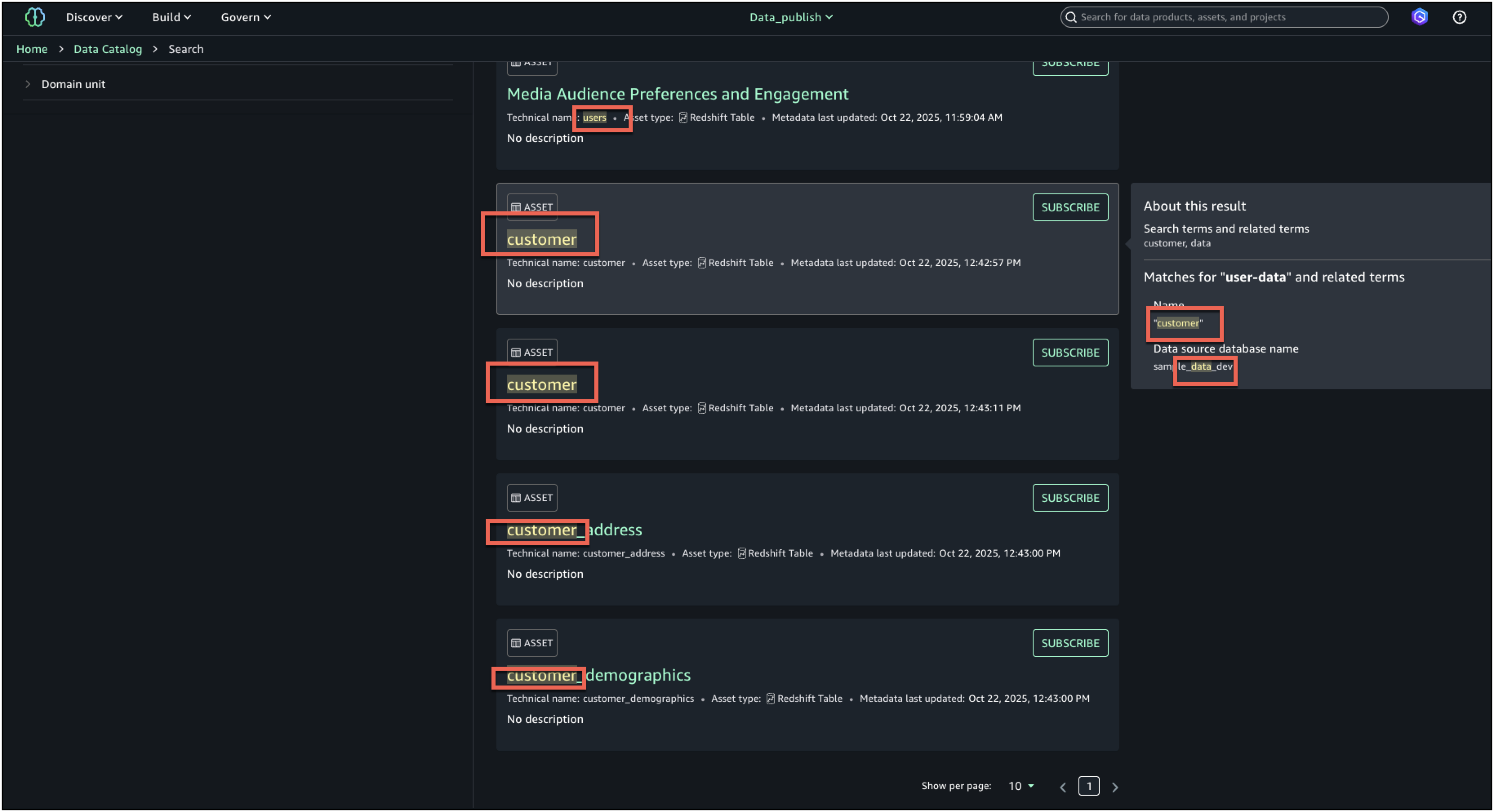
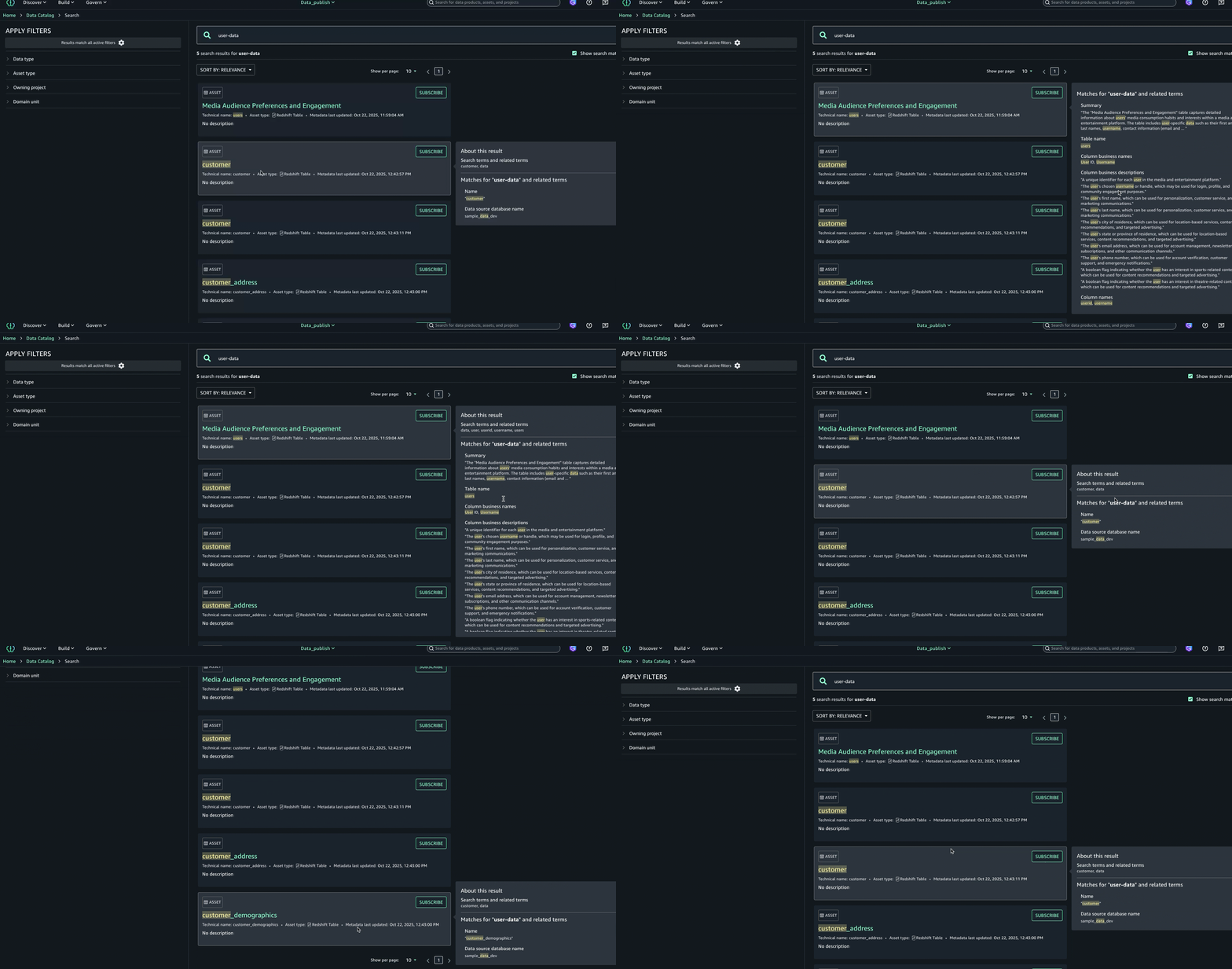
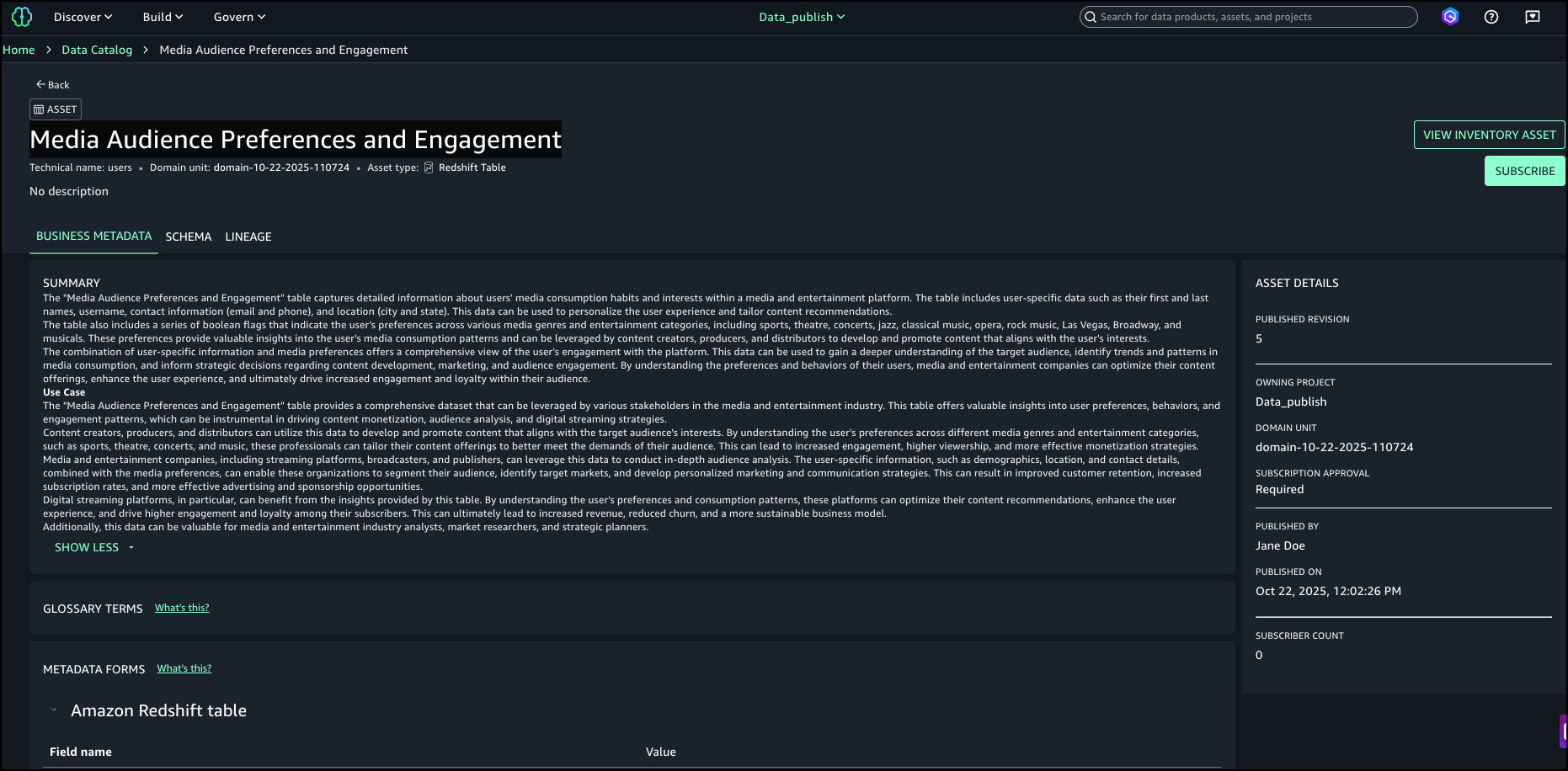
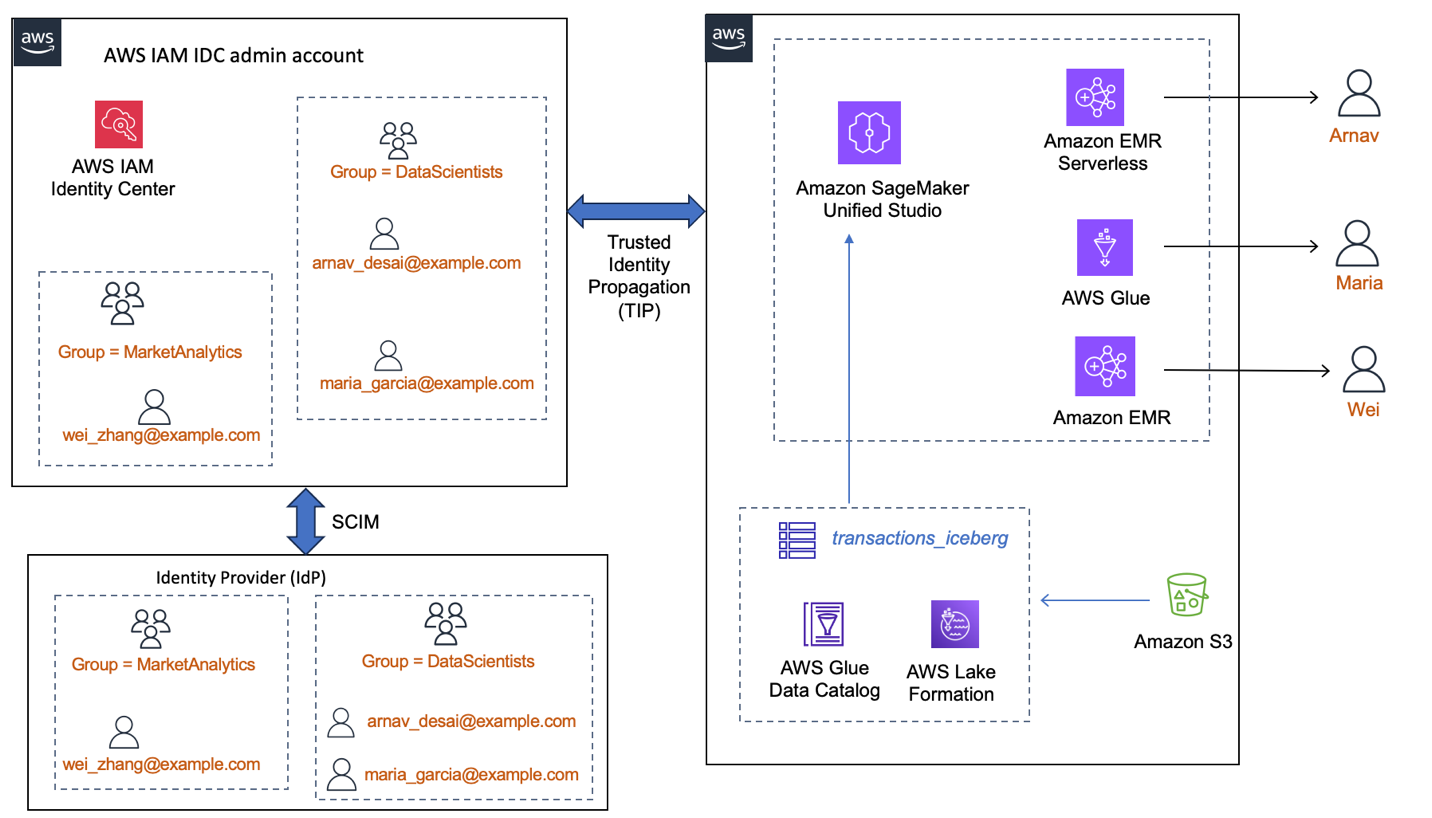
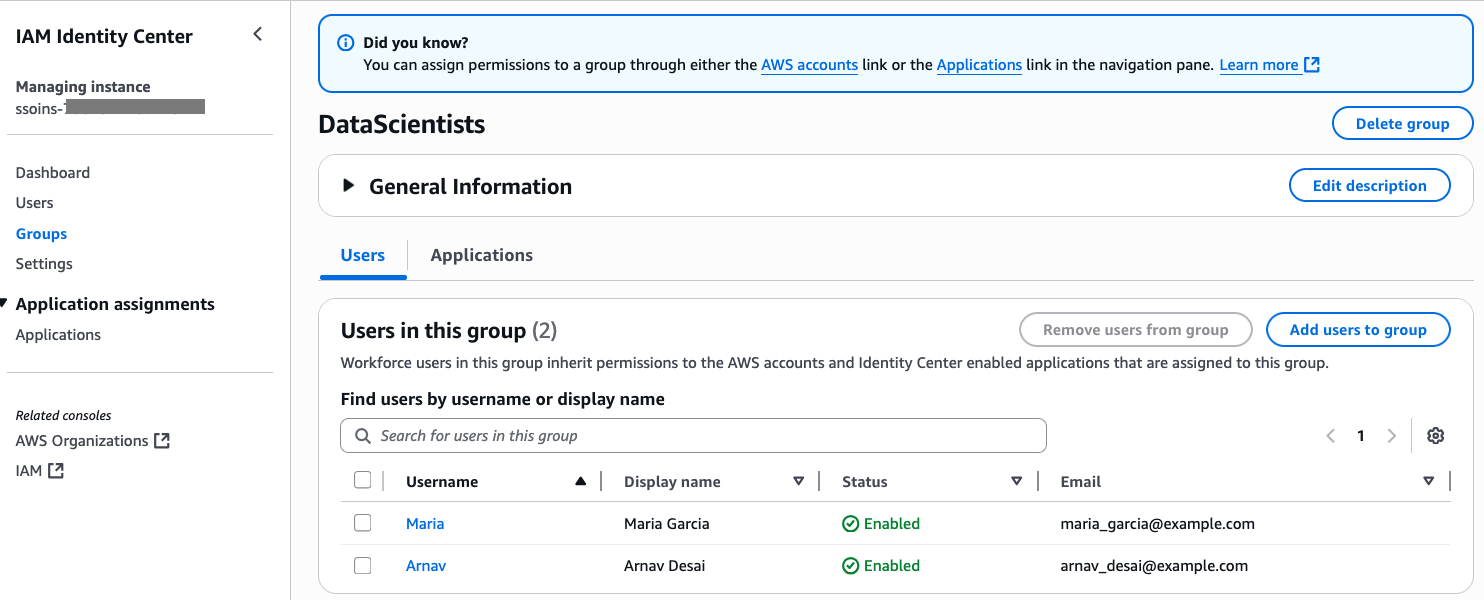
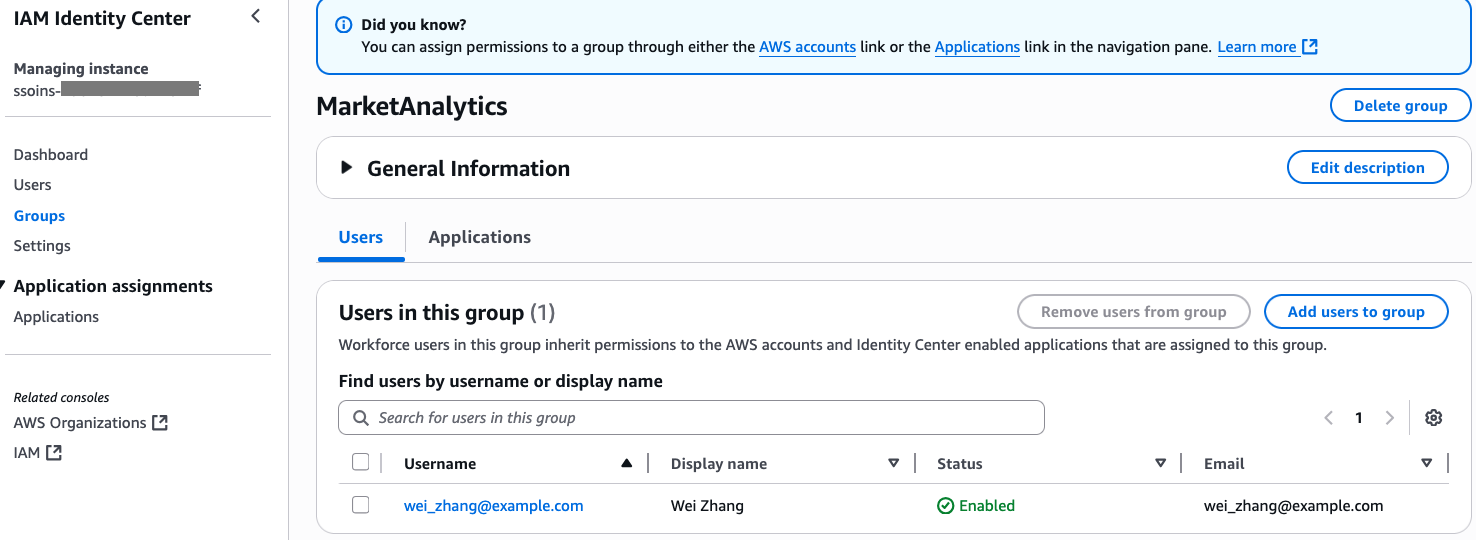
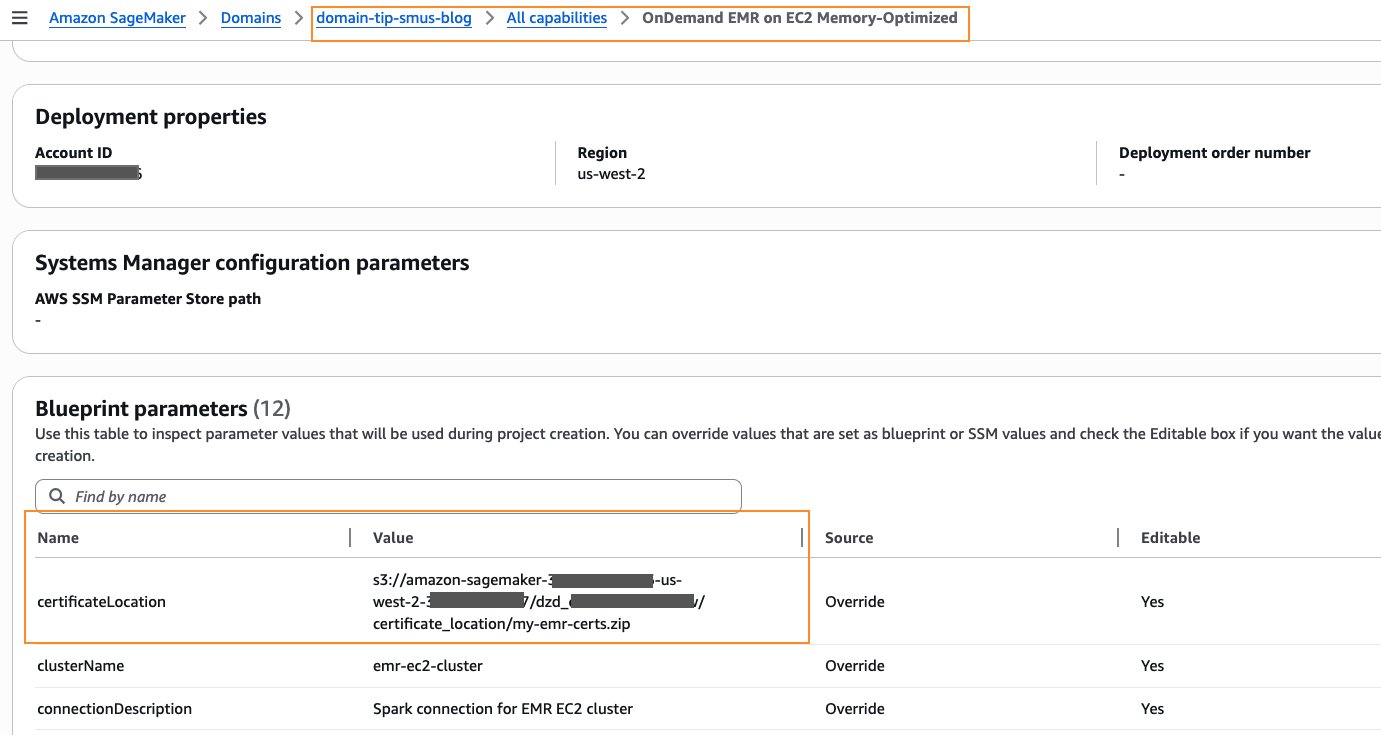
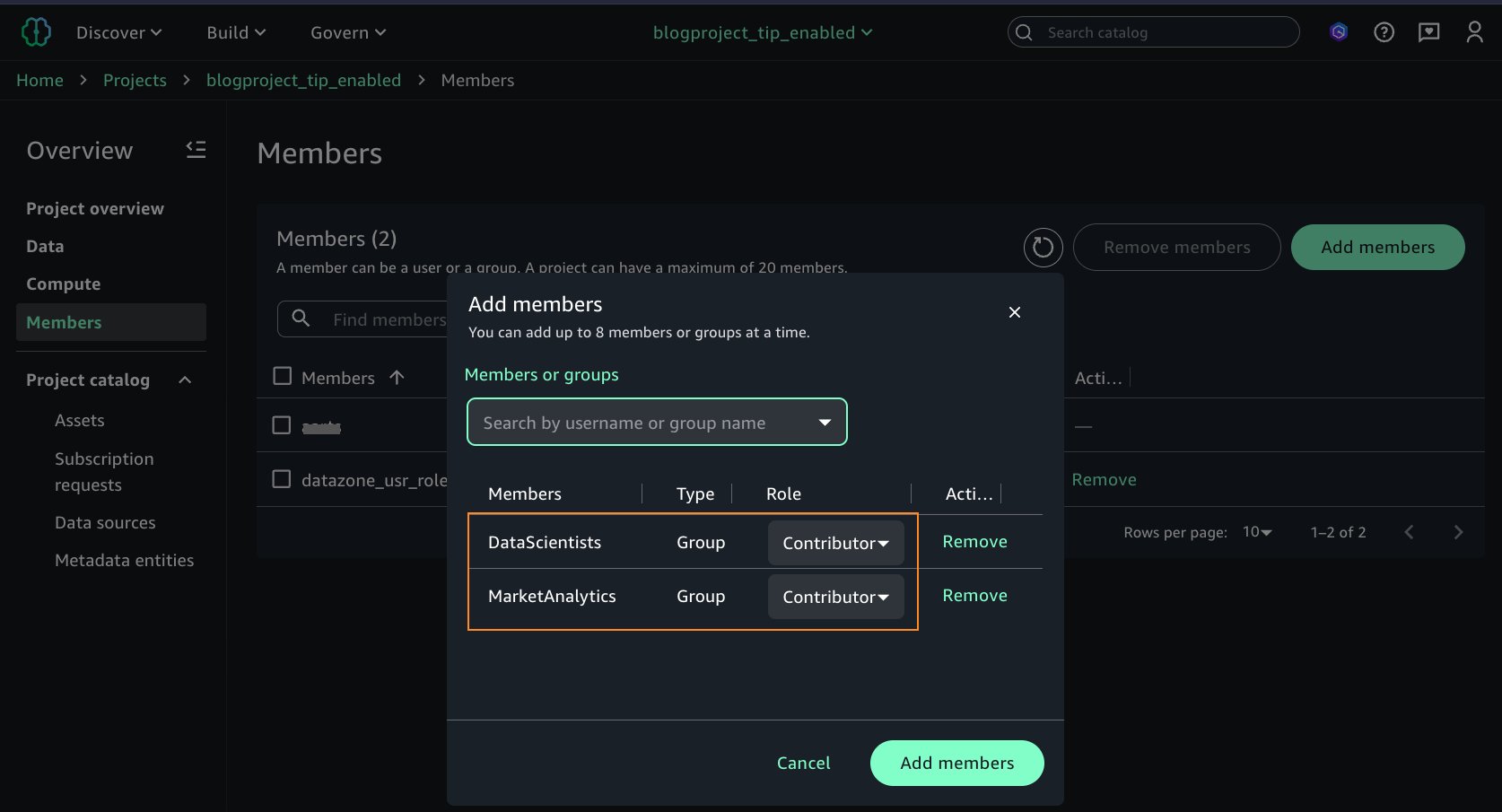
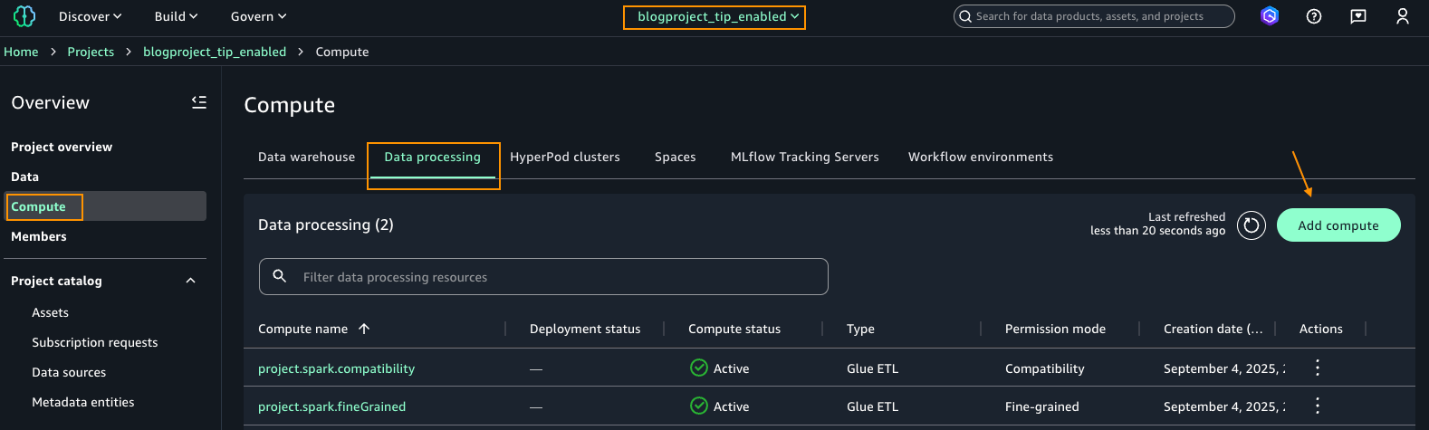
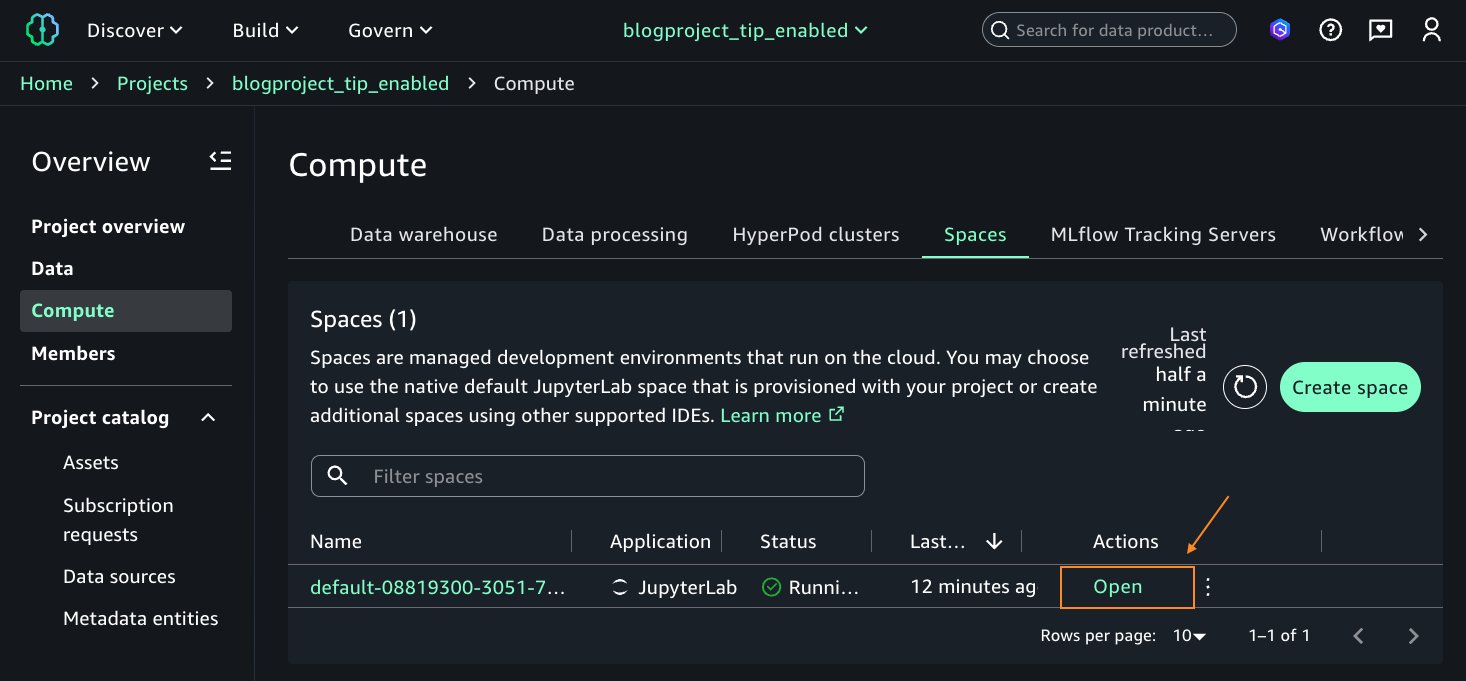
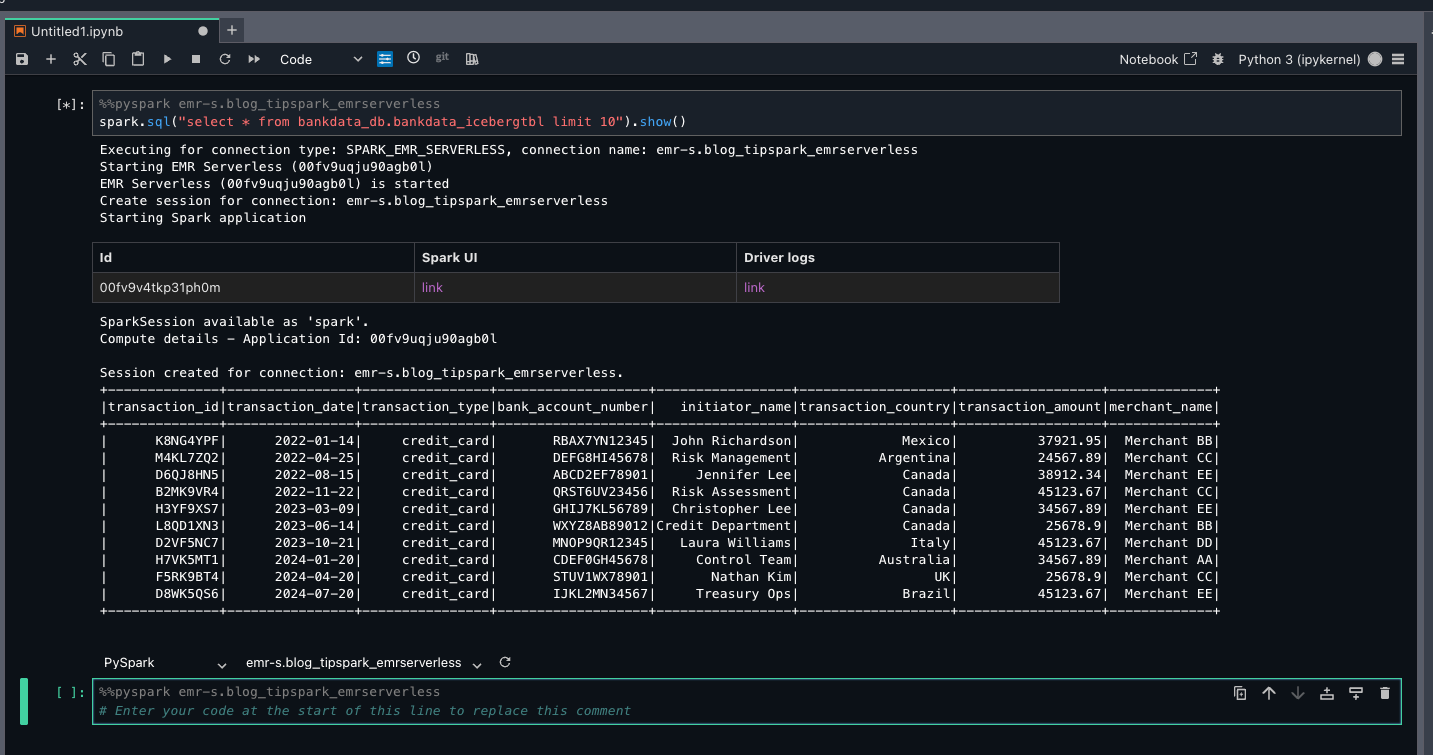
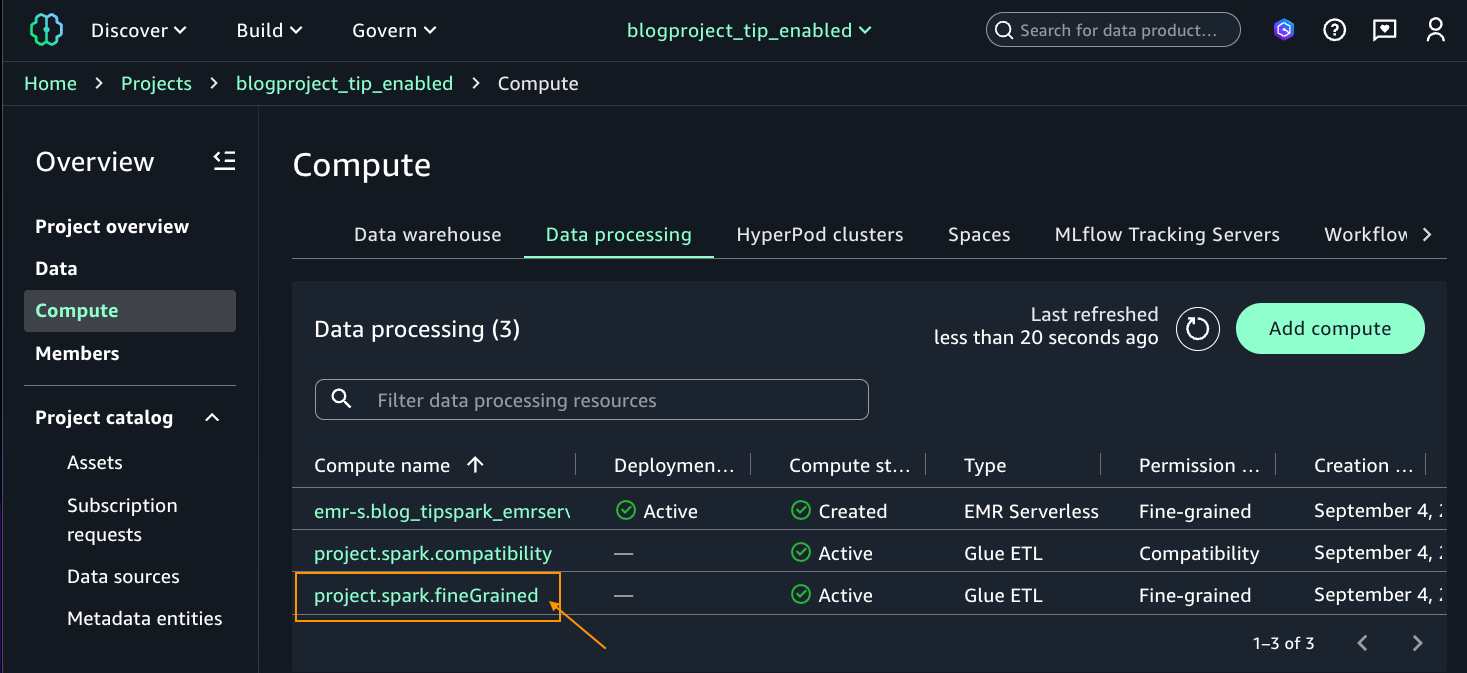
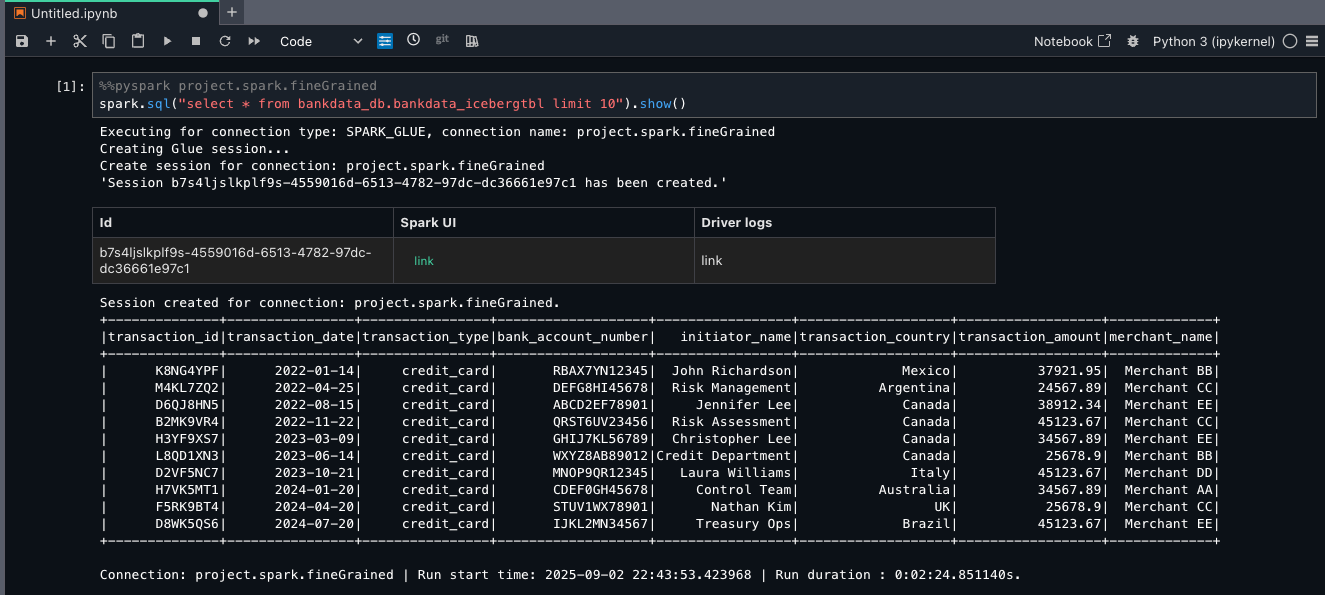
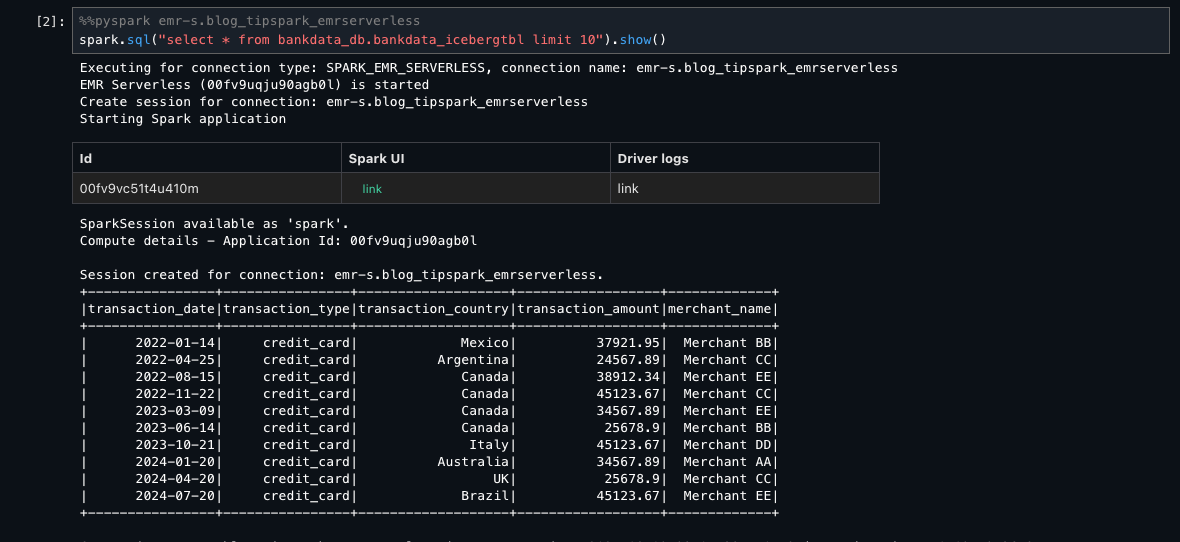
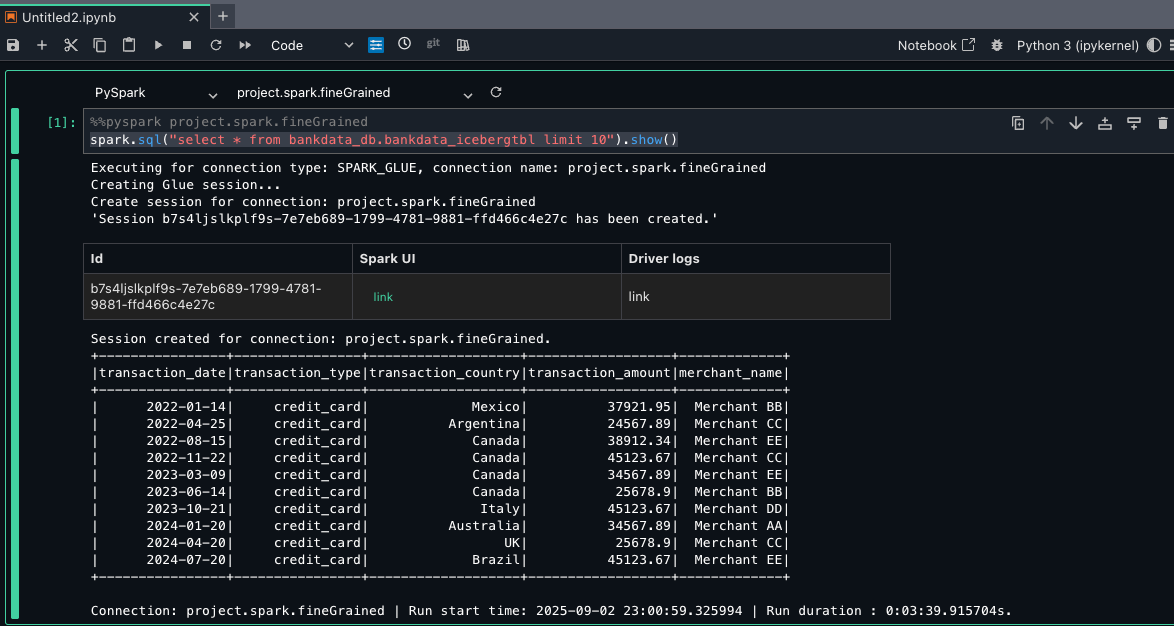
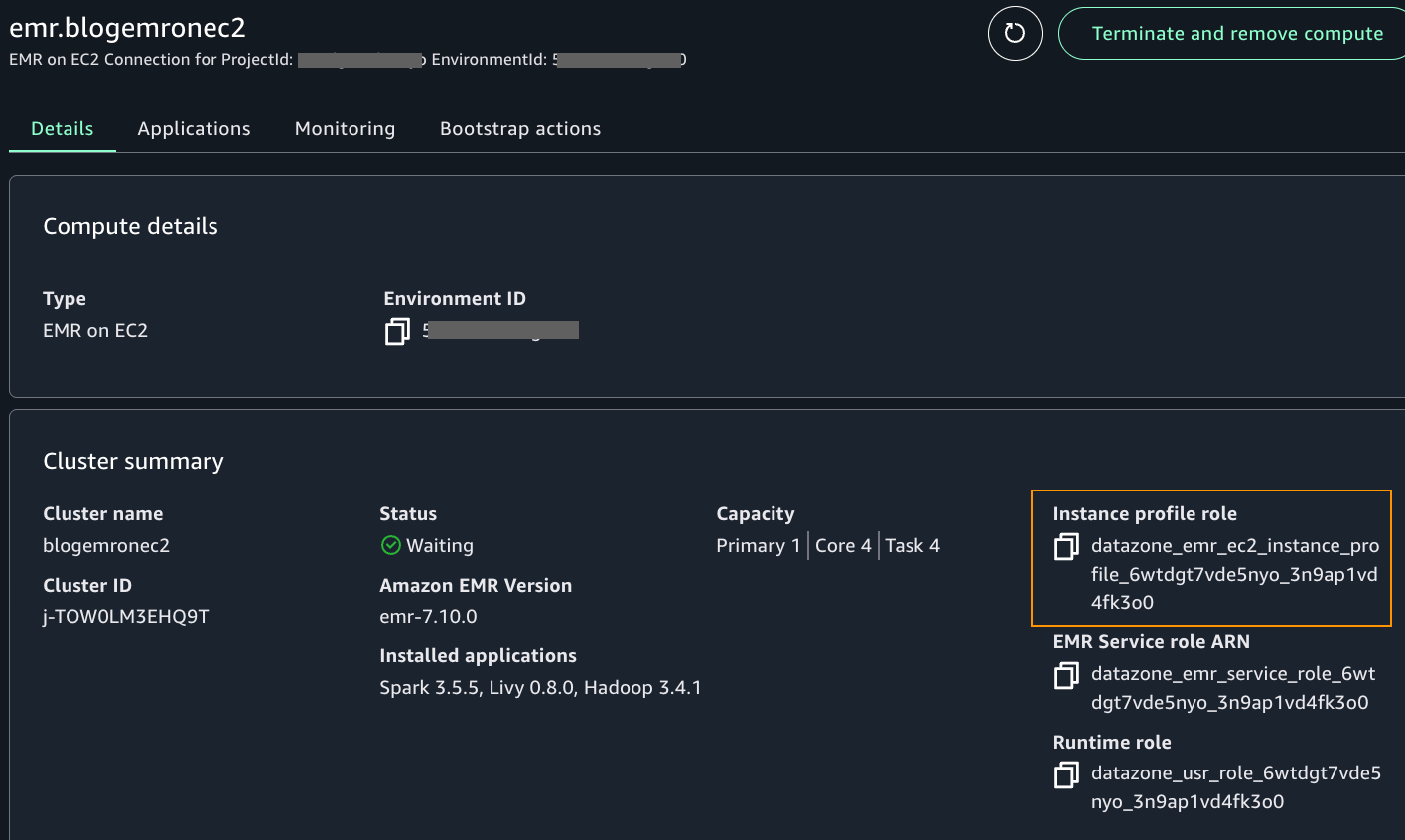
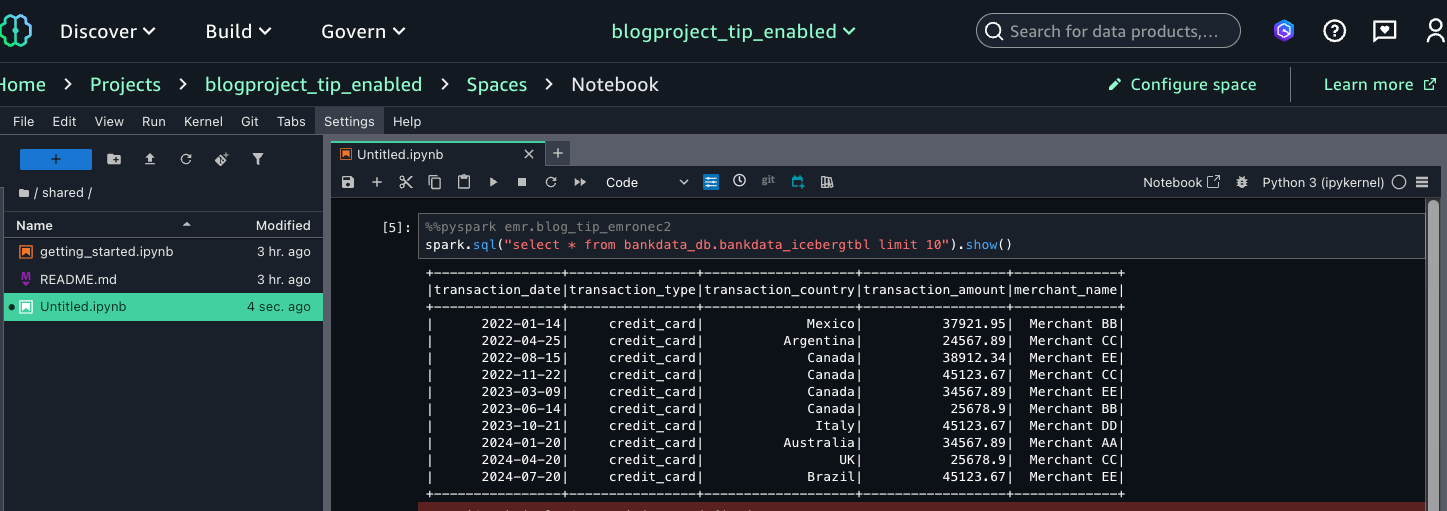
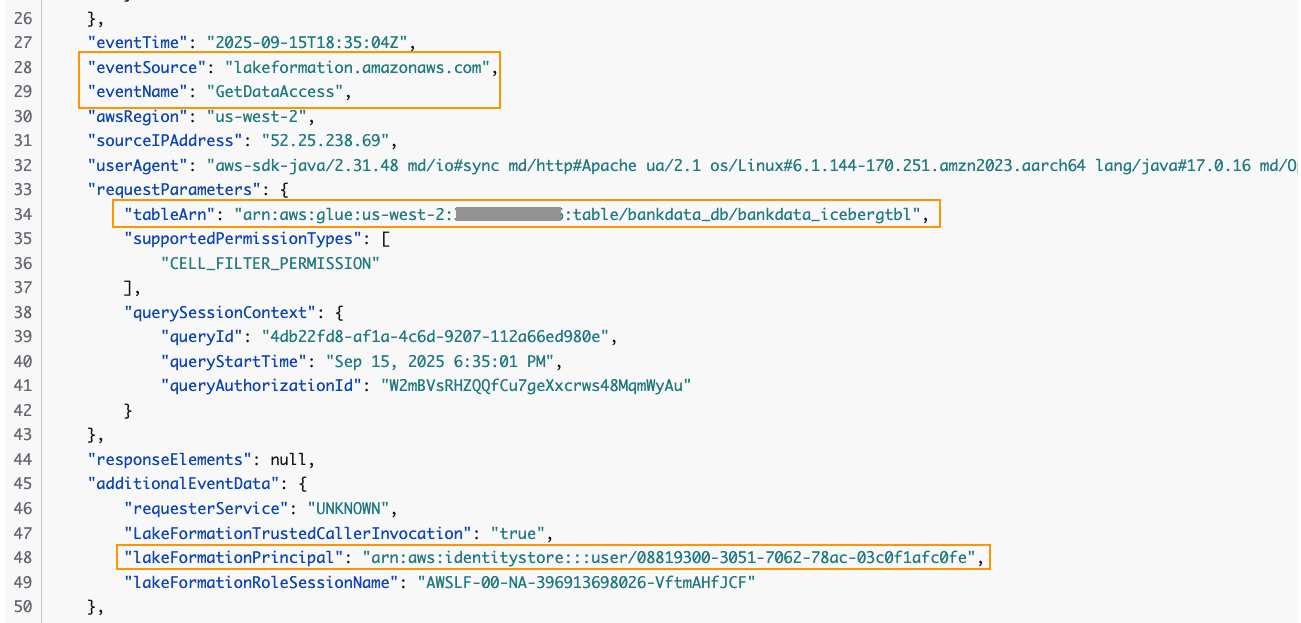
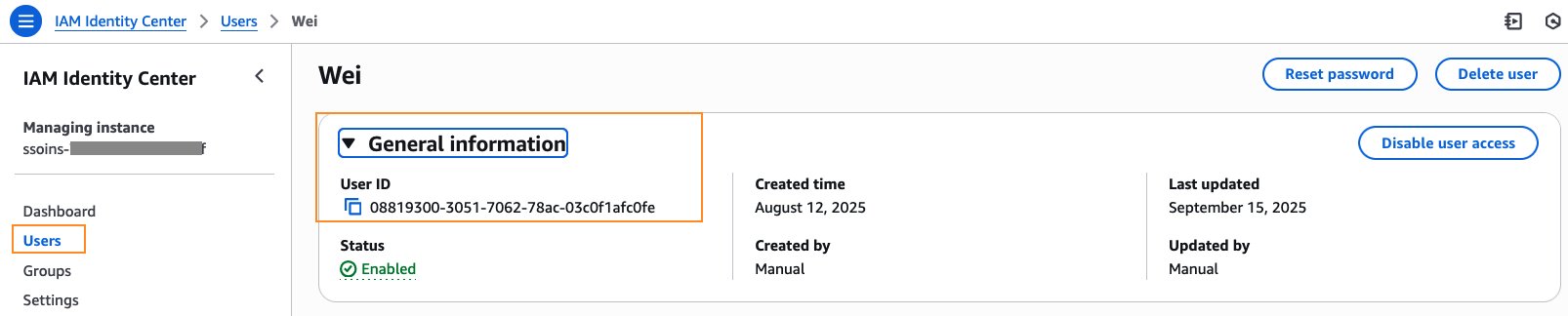
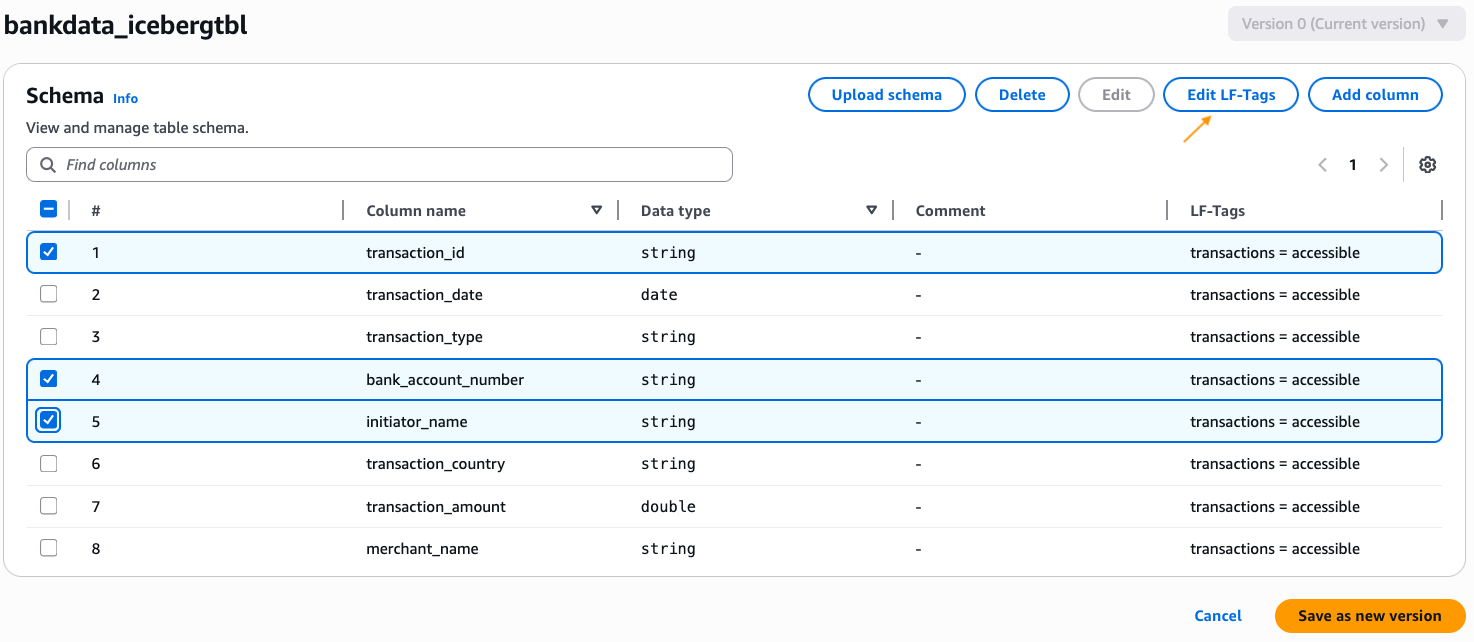
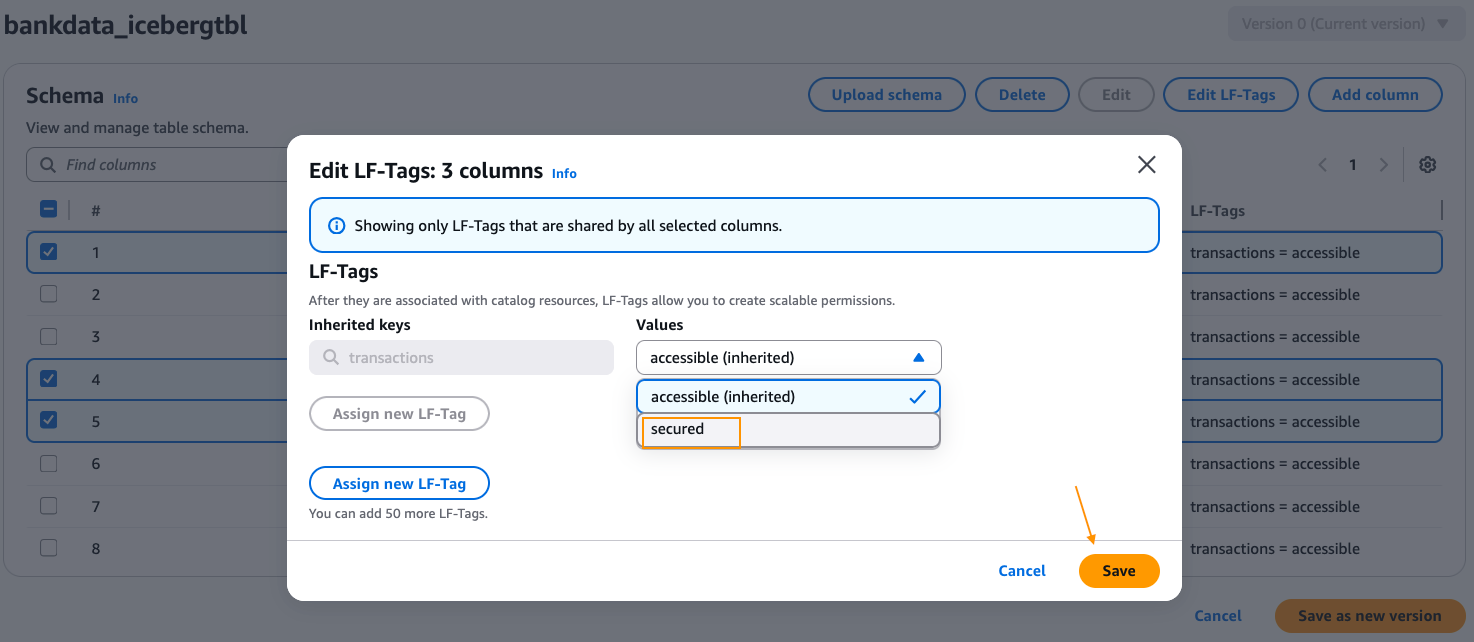
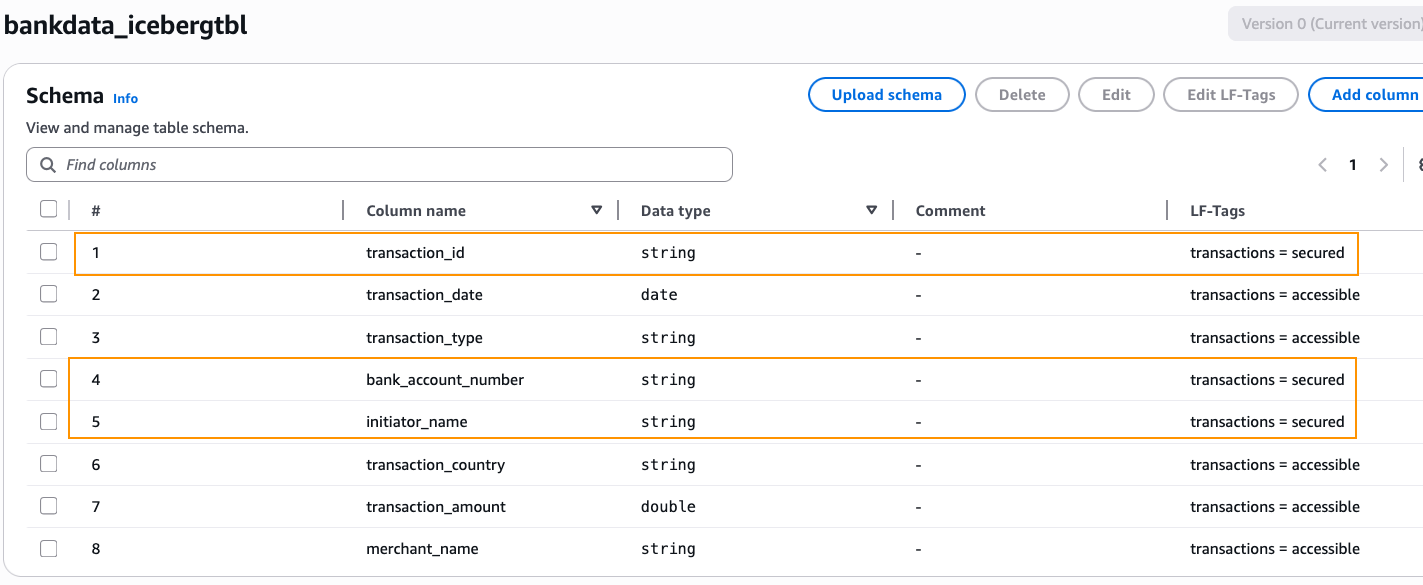
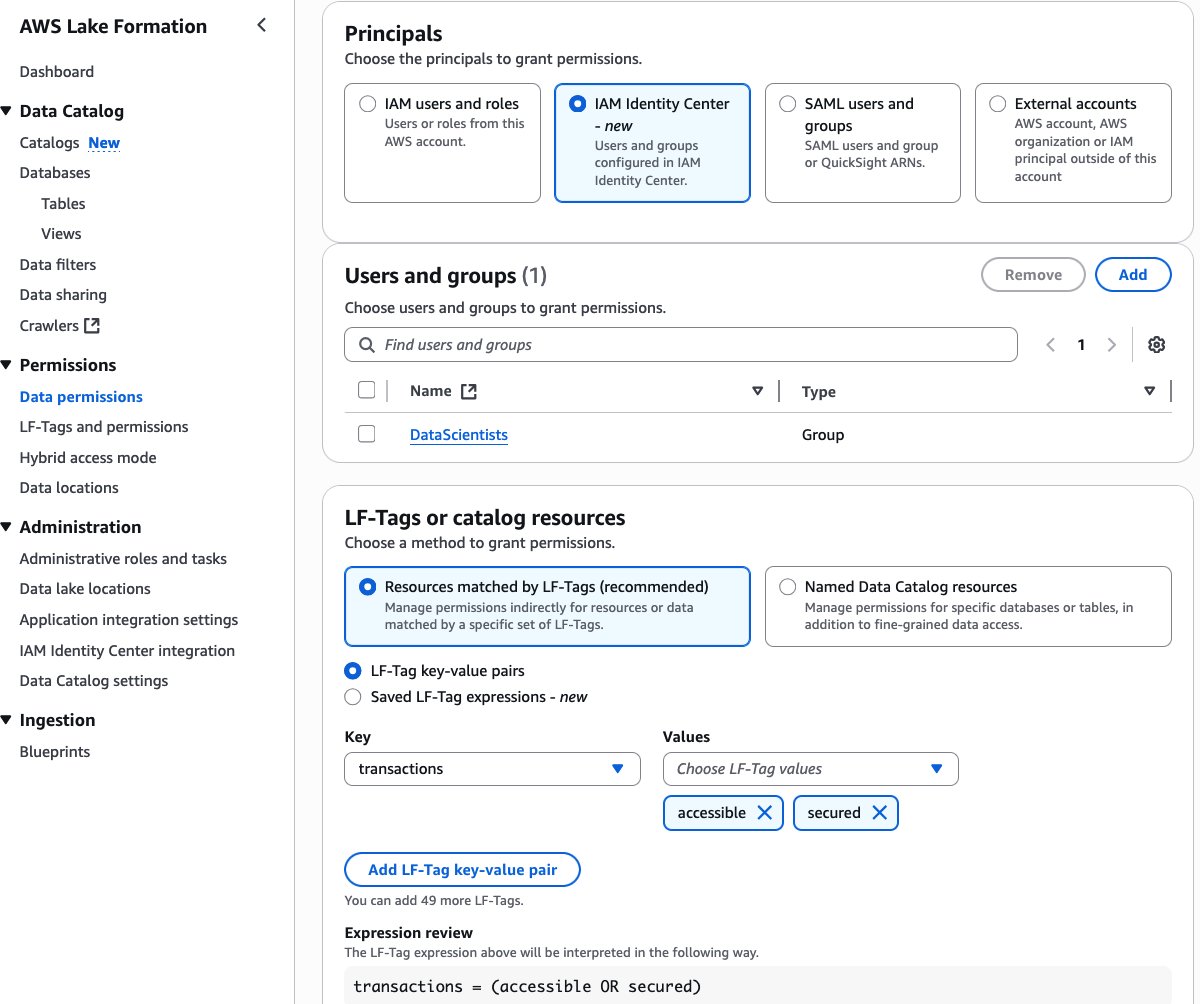
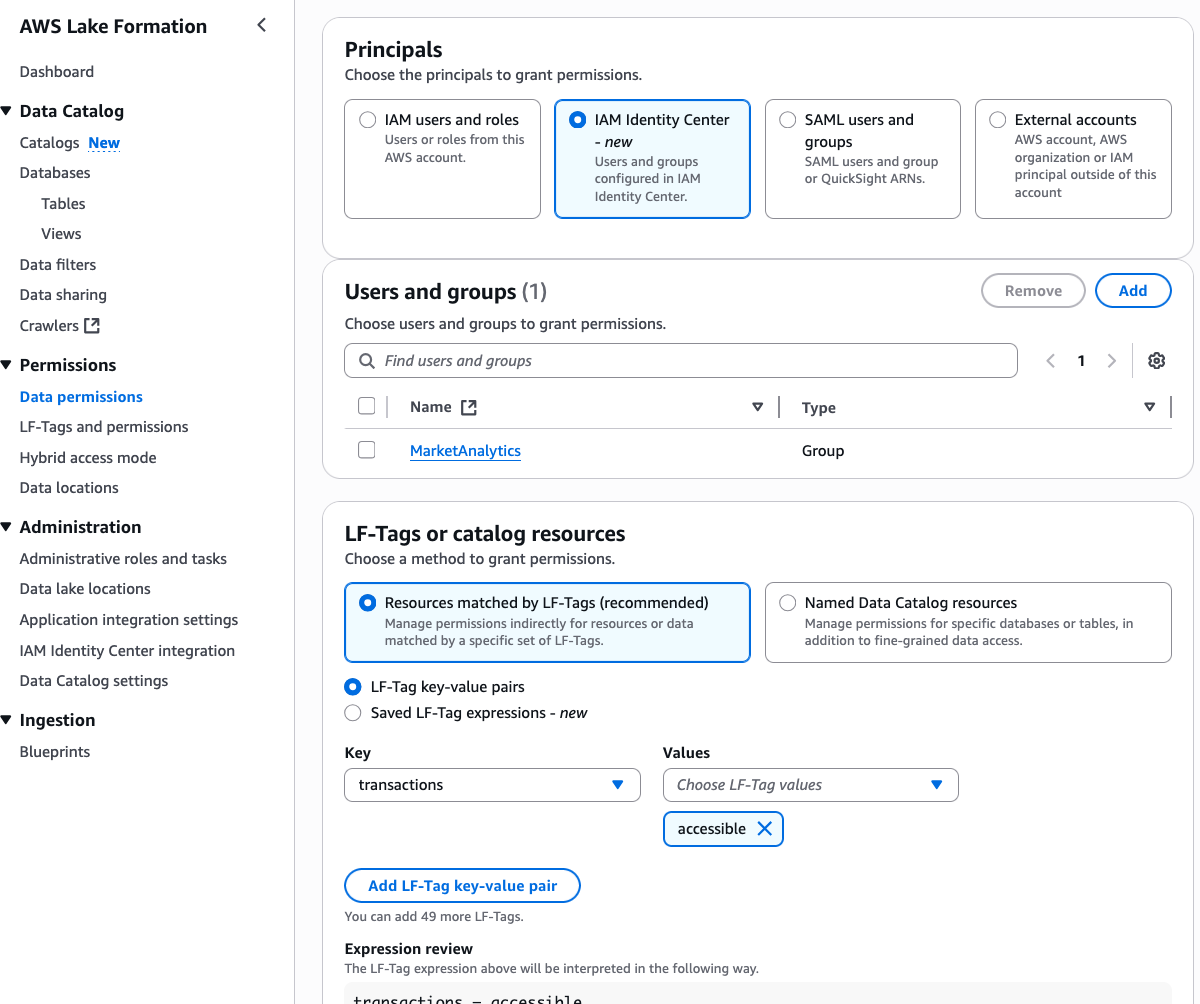

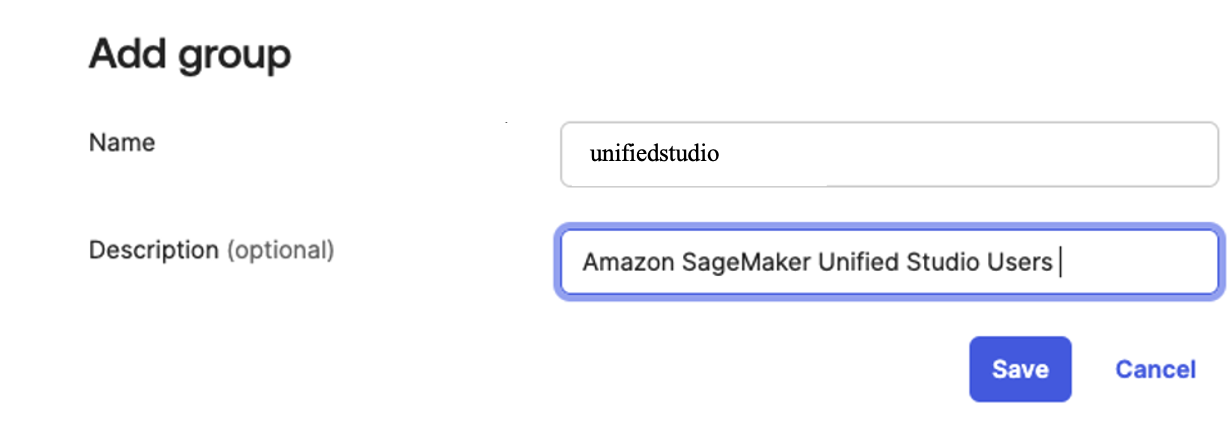
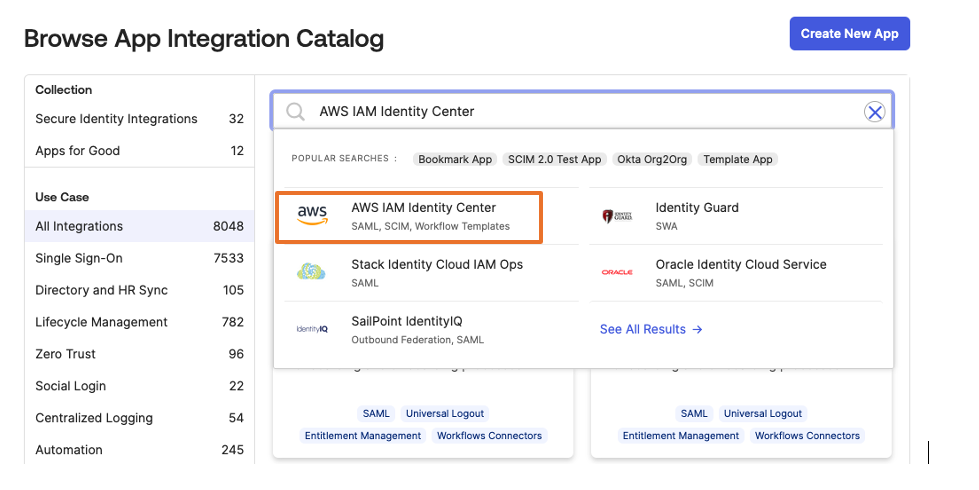
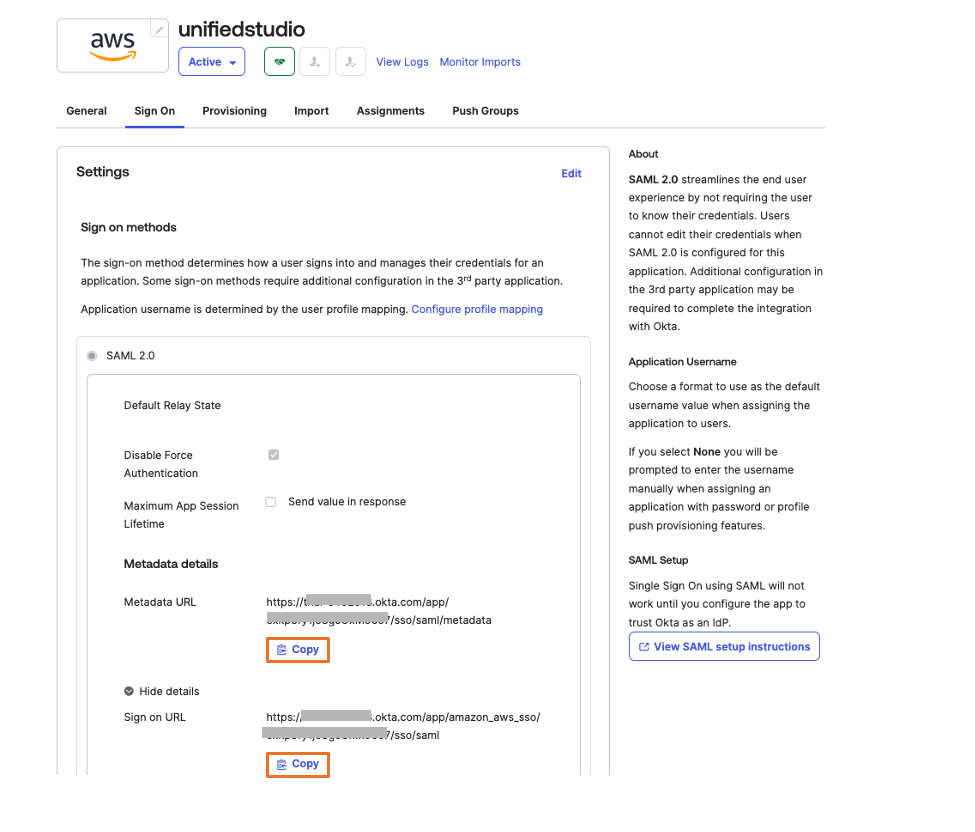
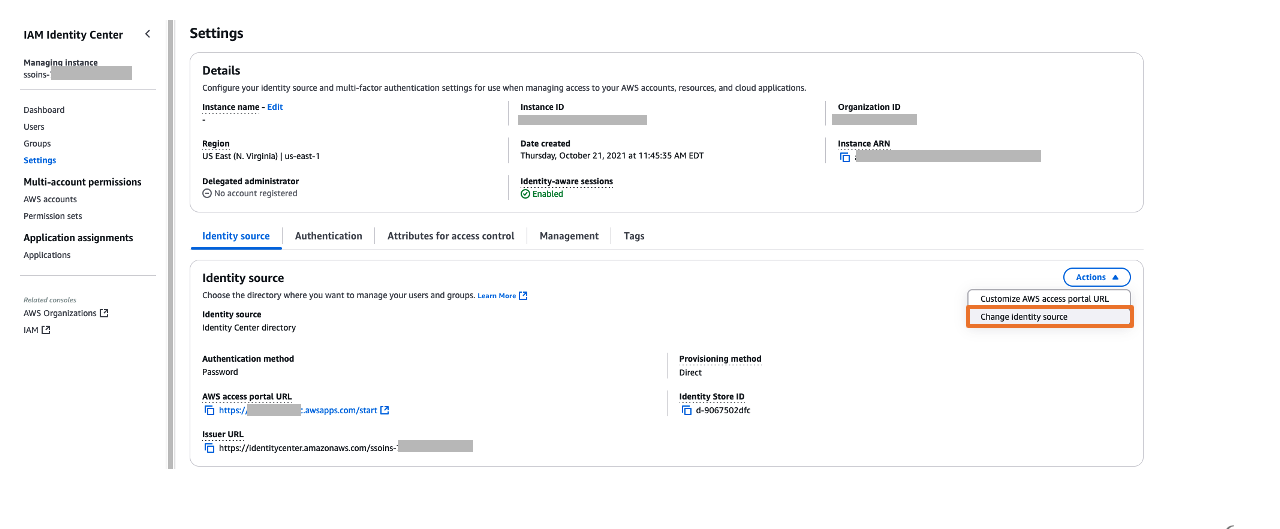 Figure 5: Selecting identity source in AWS IAM Identity Center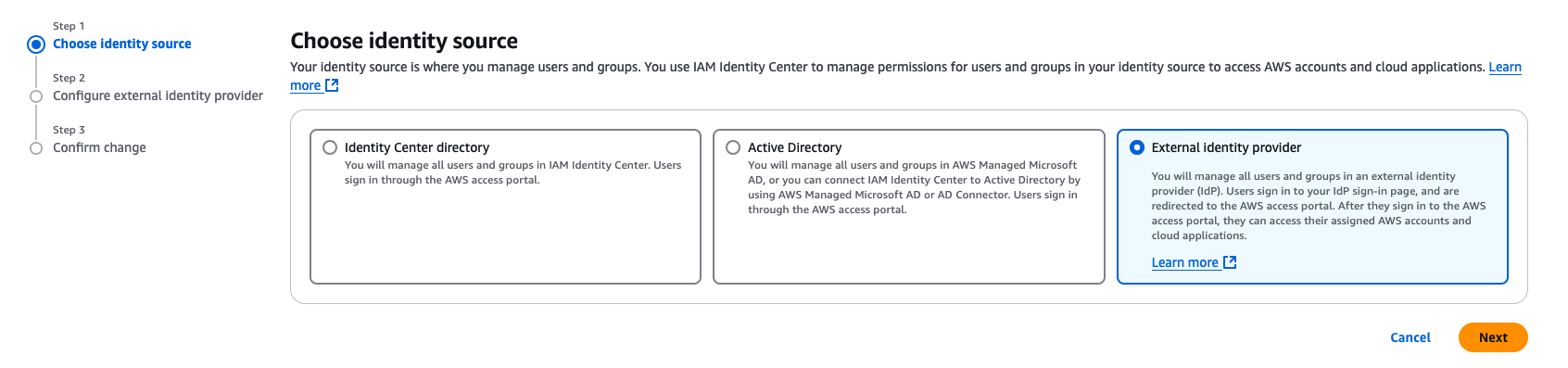
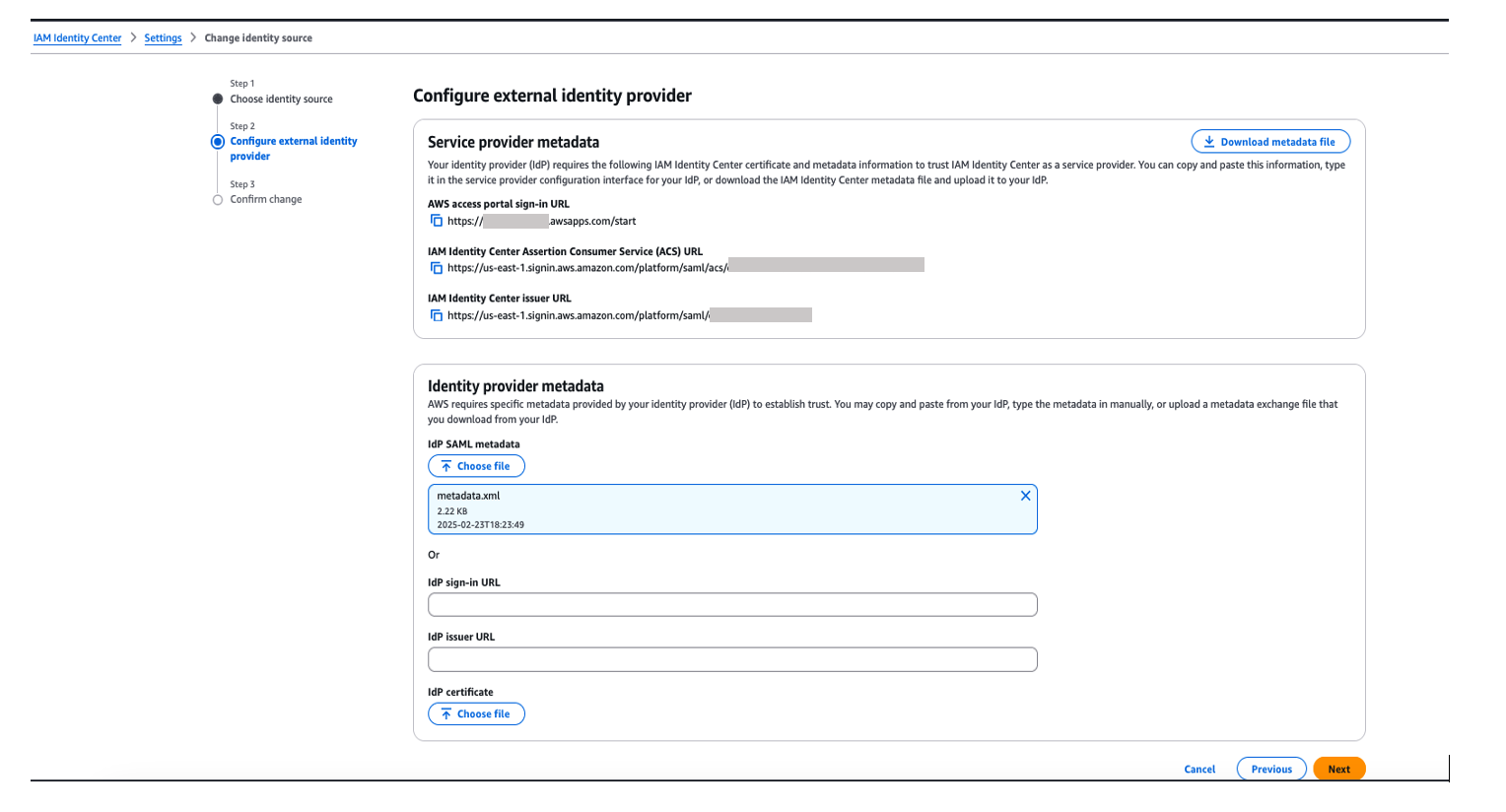
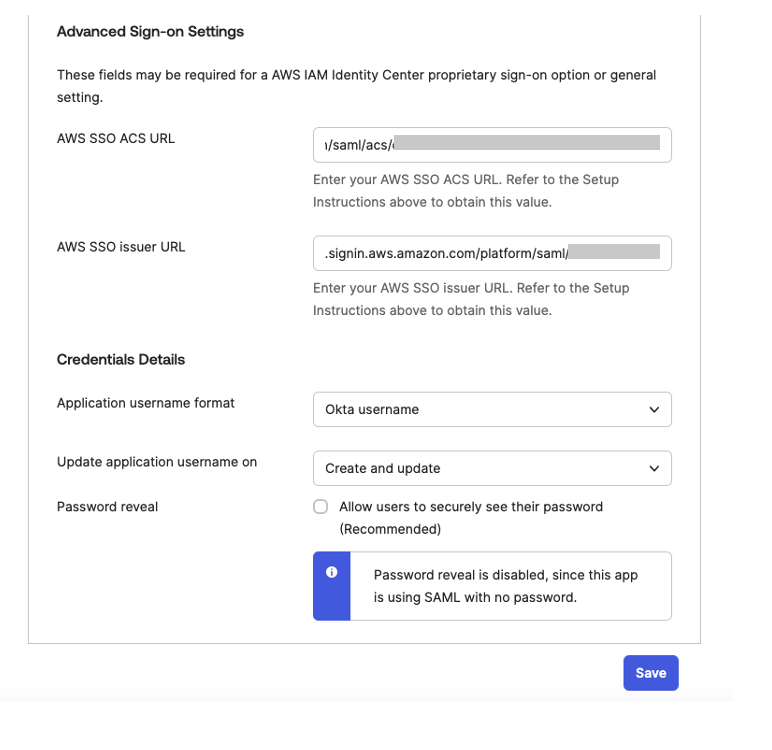 Figure 8. Configuring okta sign-on settings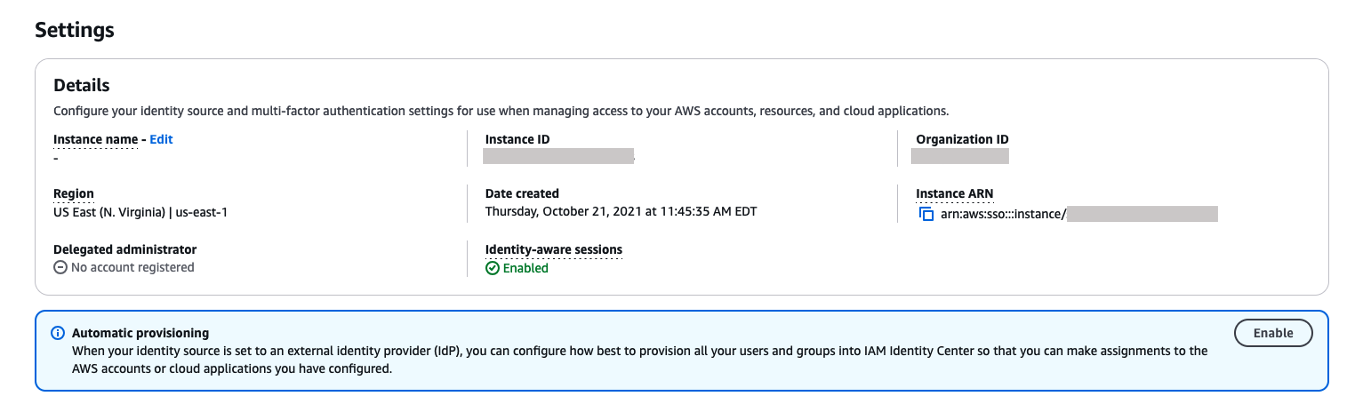
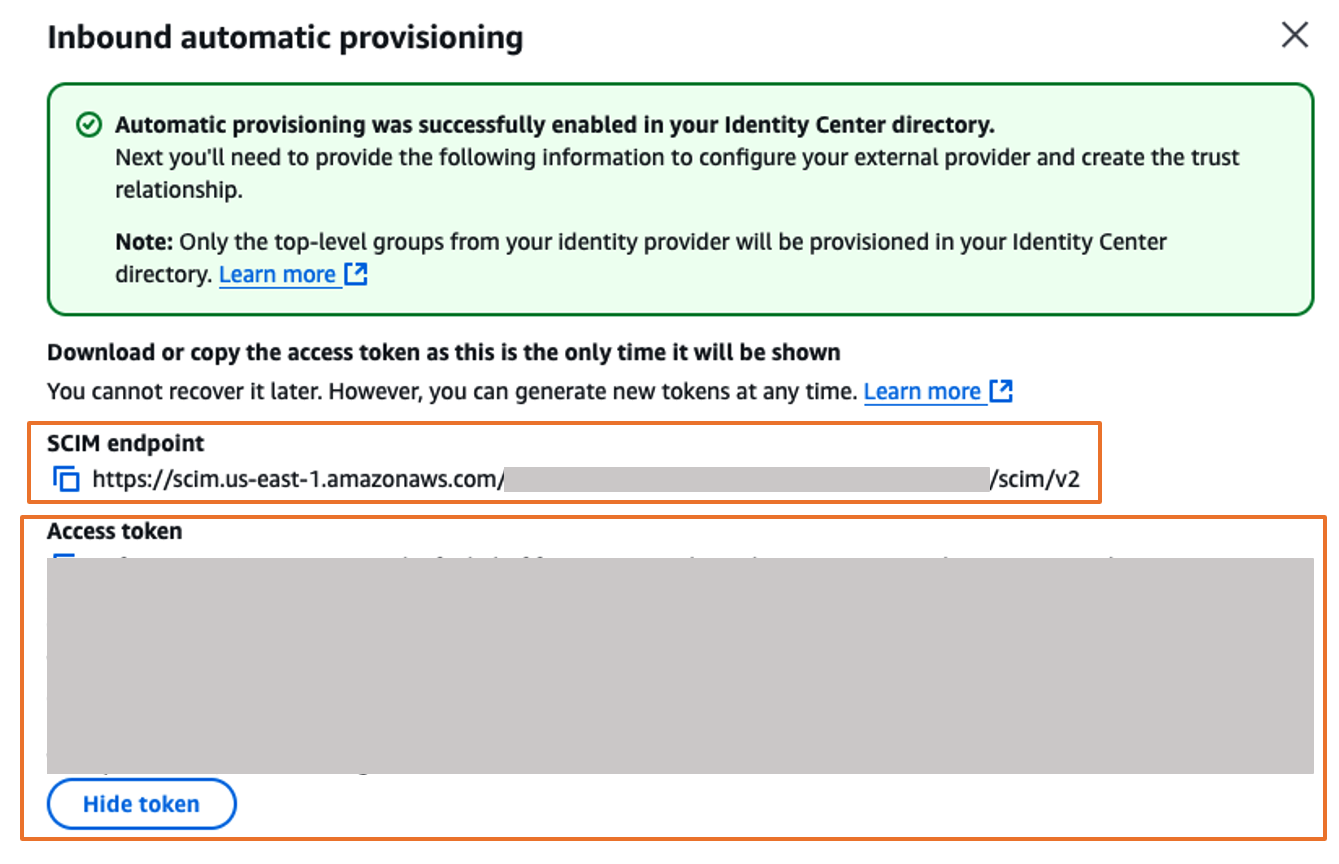 Figure 10. Automatic provisioning configuration parameters in AWS IAM Identity Center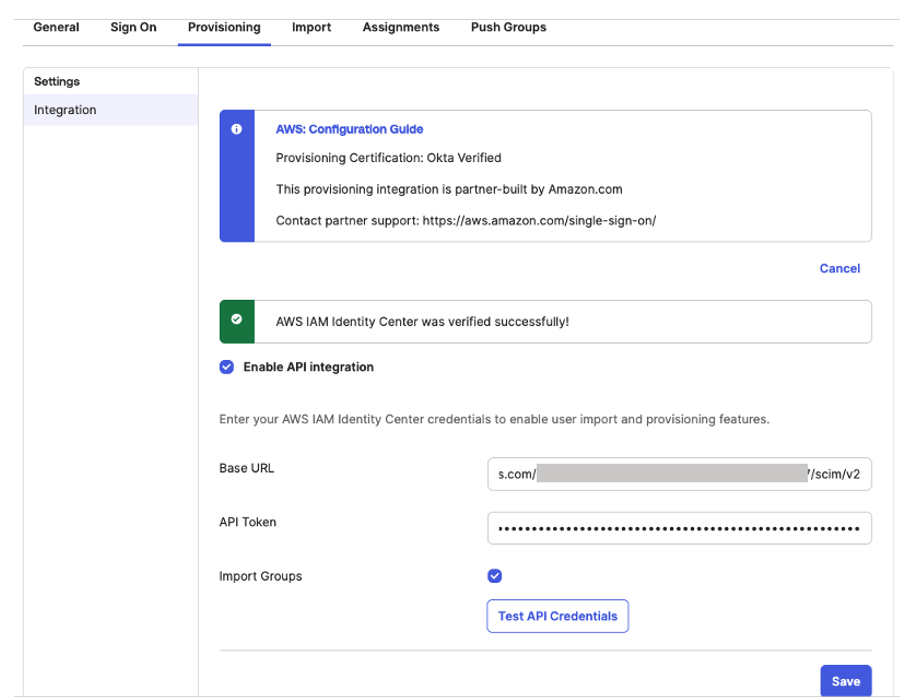
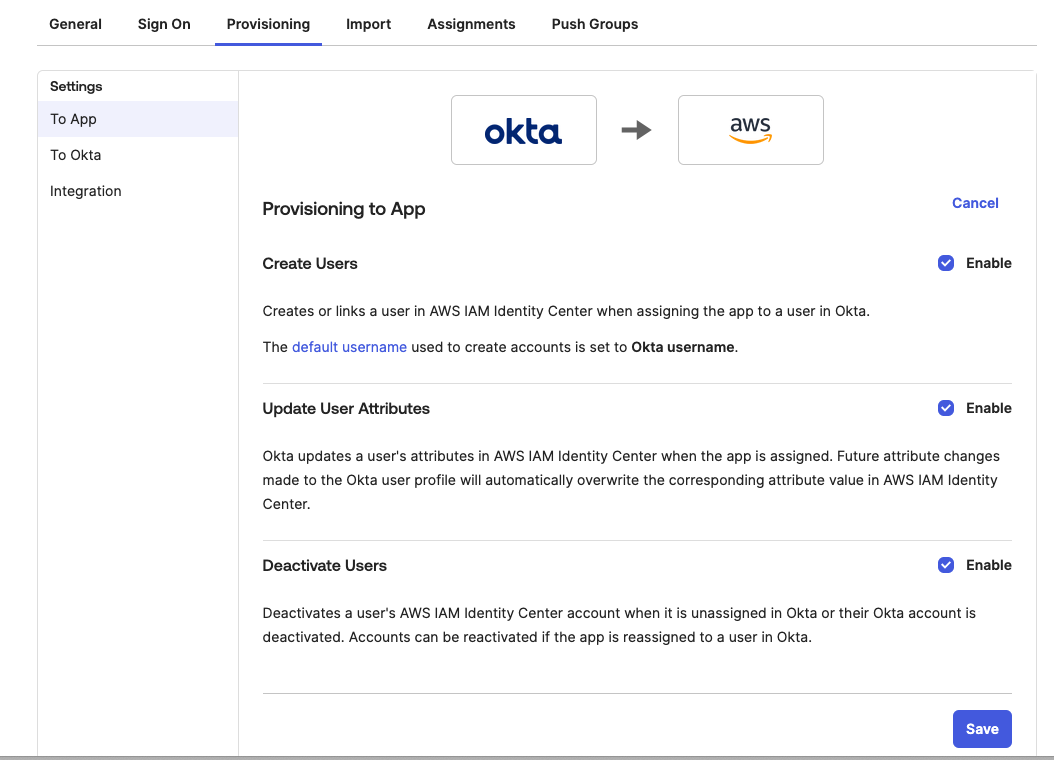
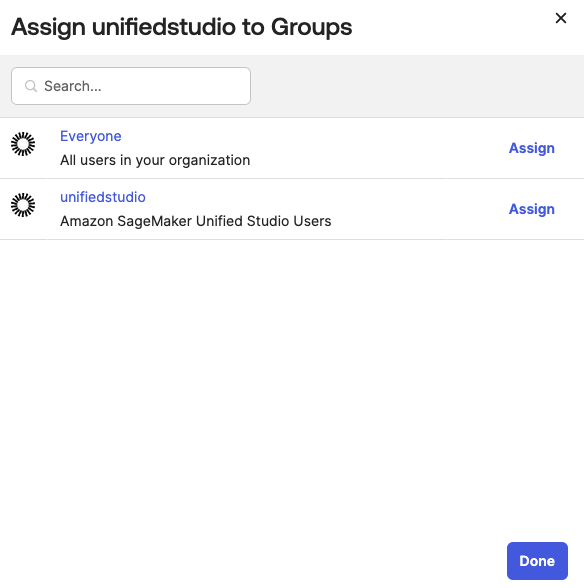 Figure 13: Assigning unifiedstudio group to SAML application called unifiedstudio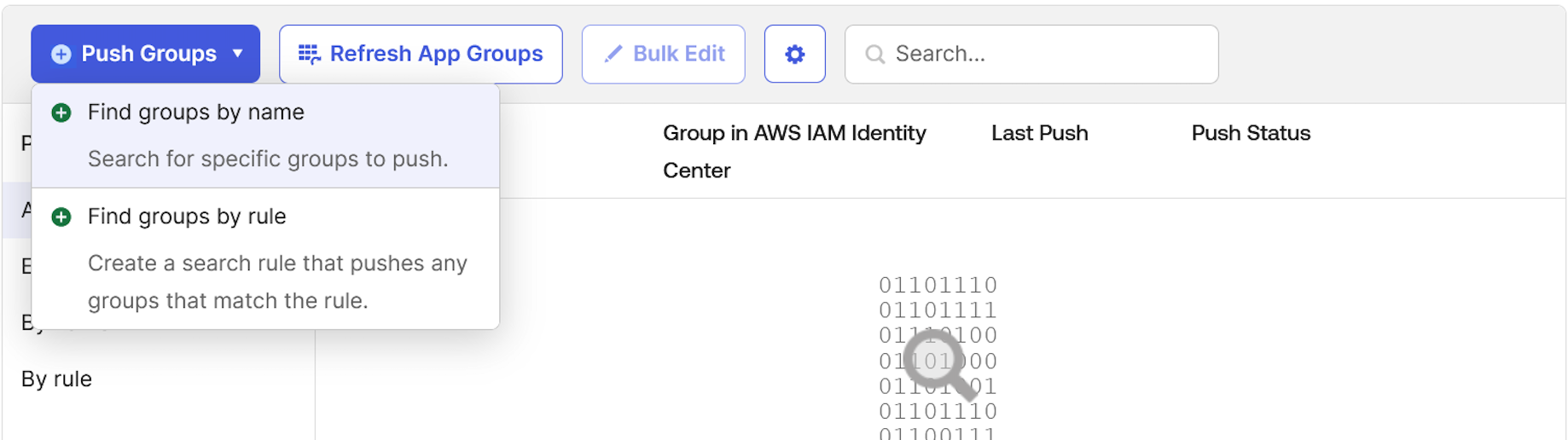
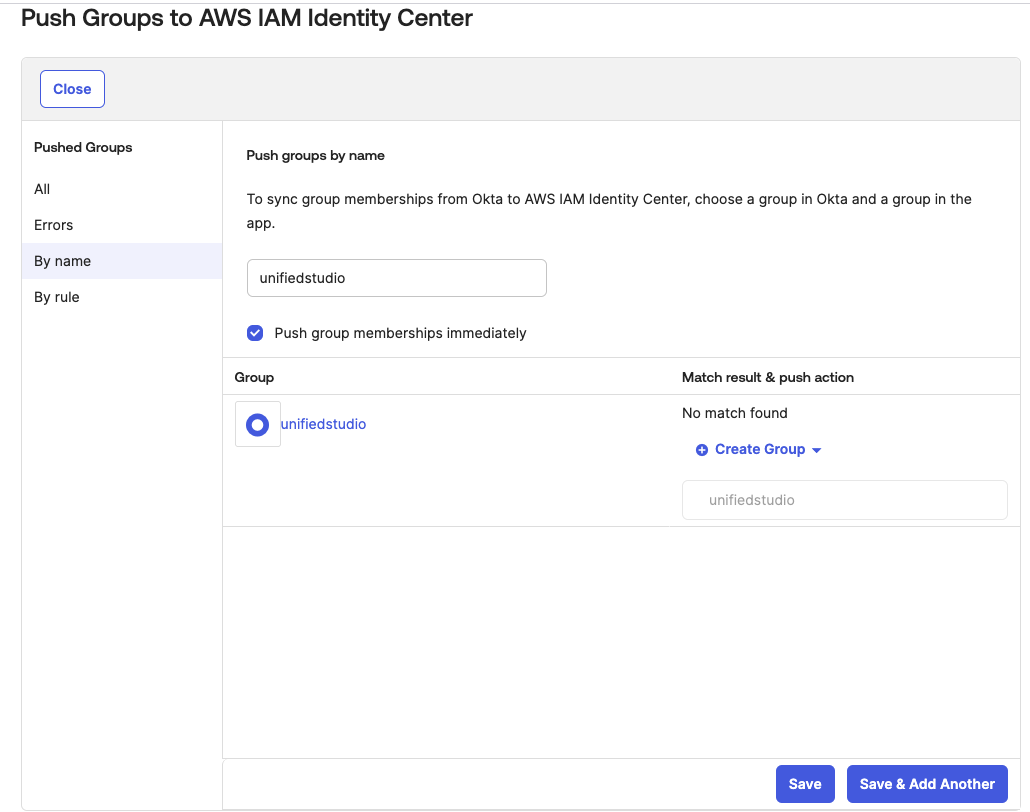

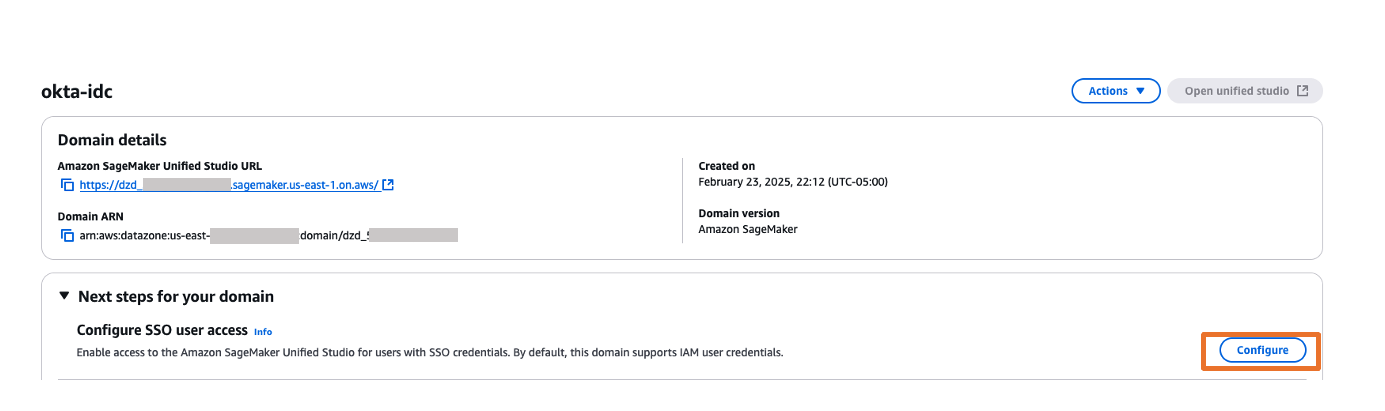

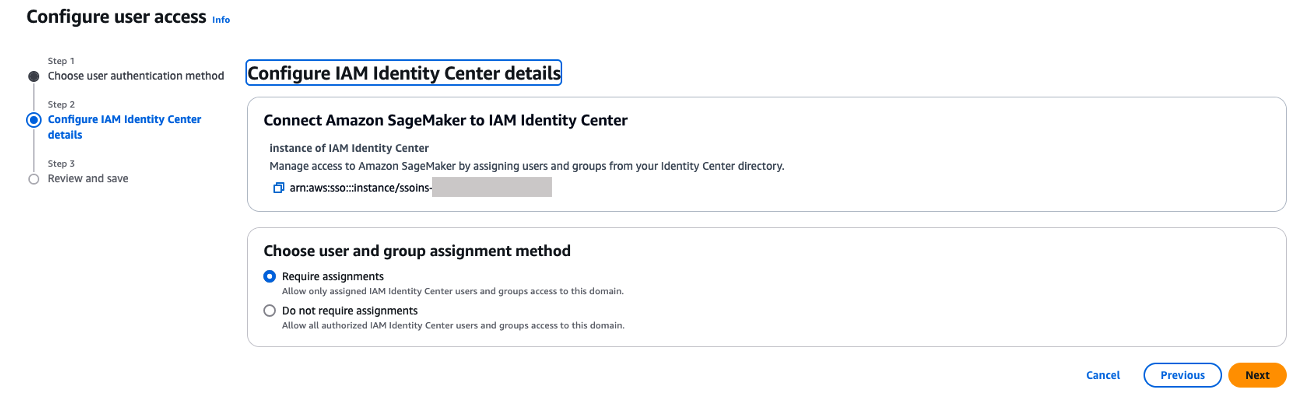
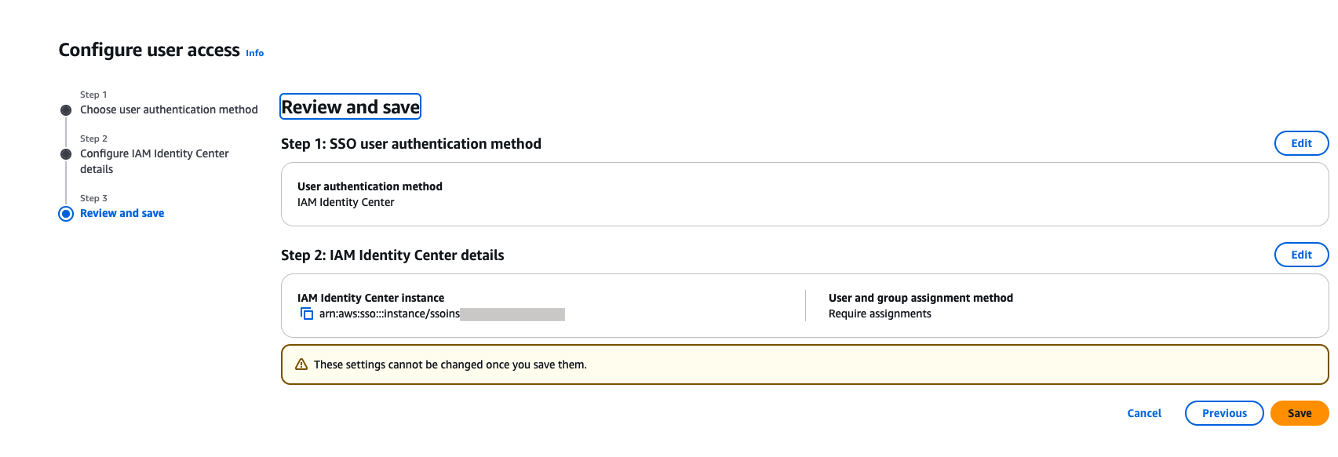
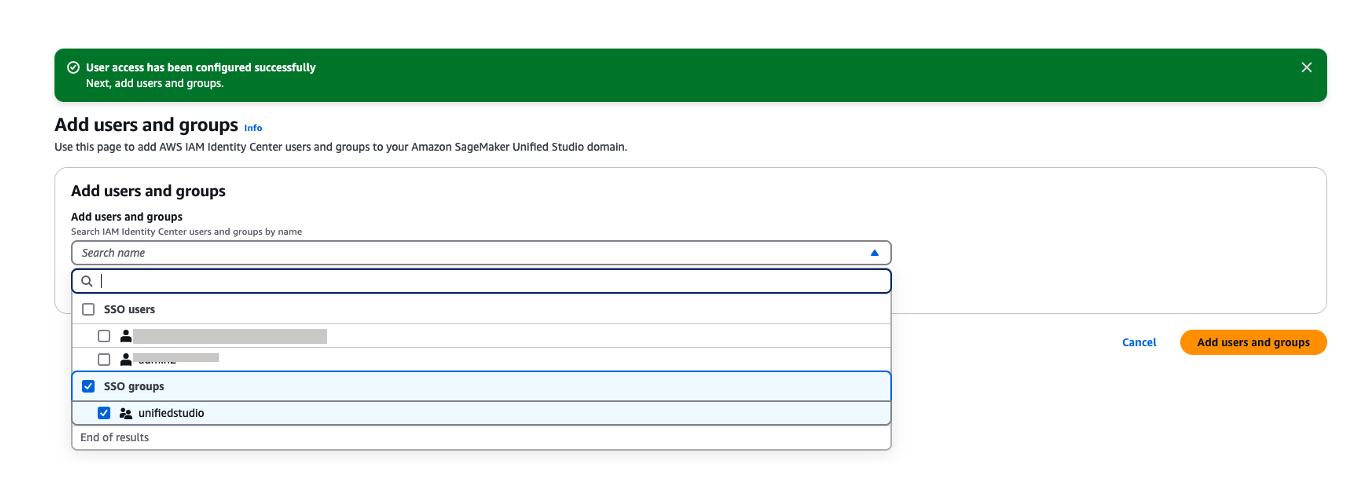
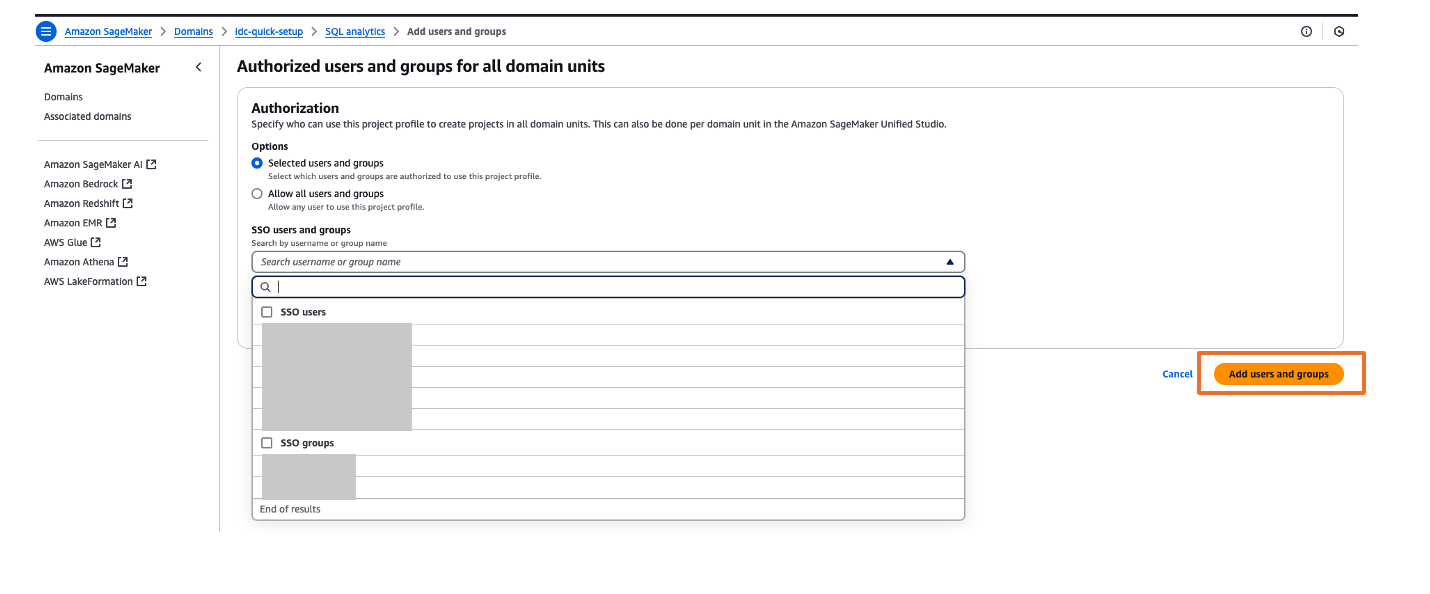
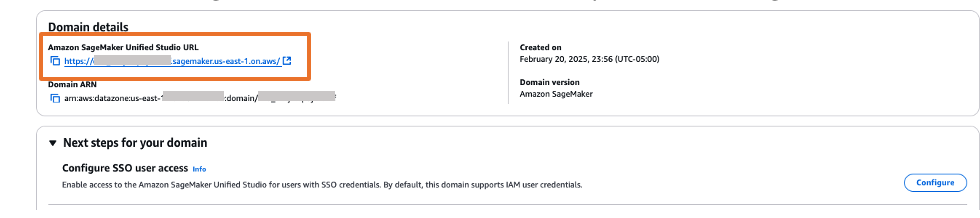

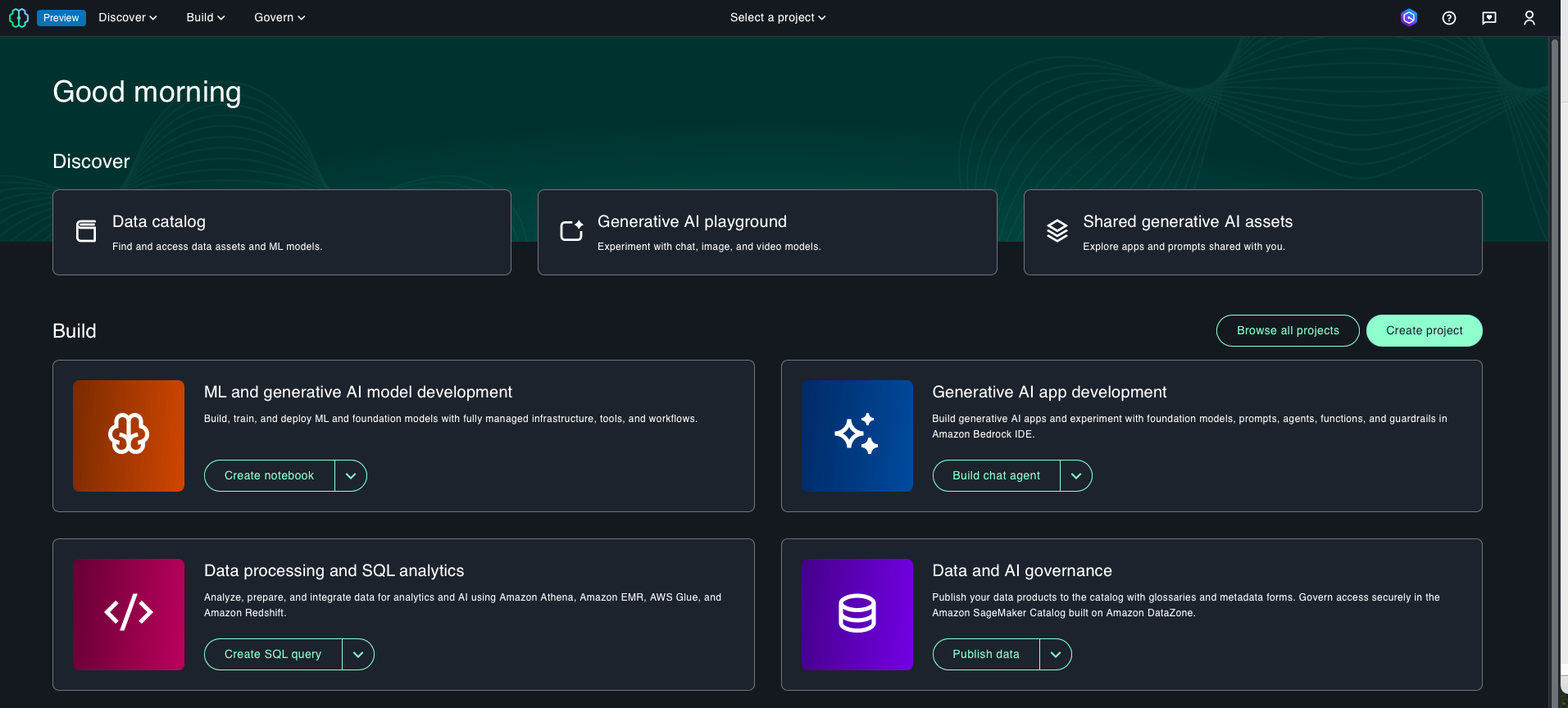
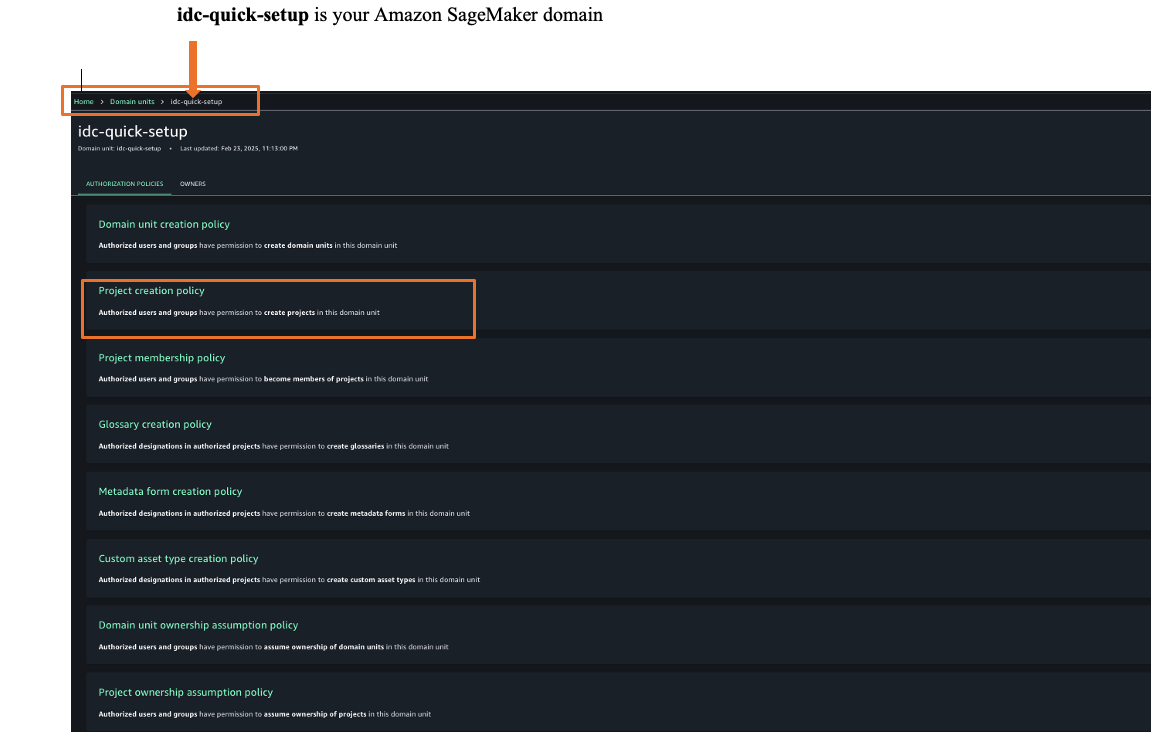

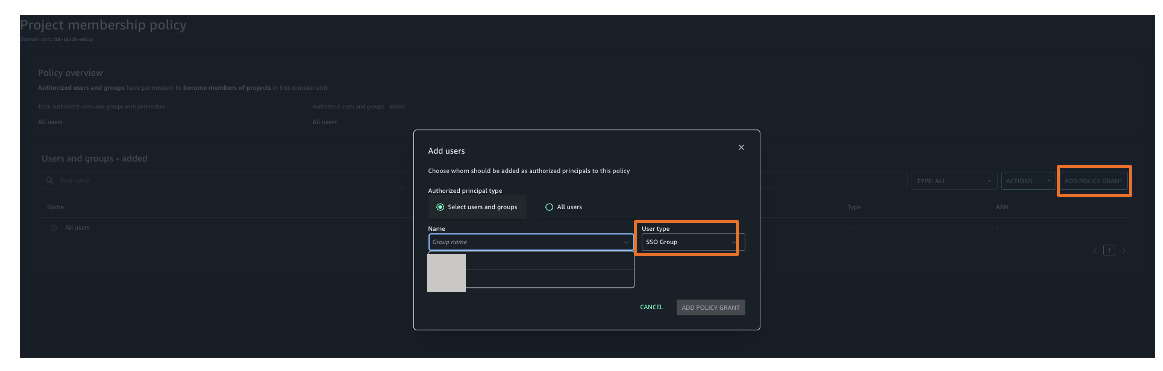

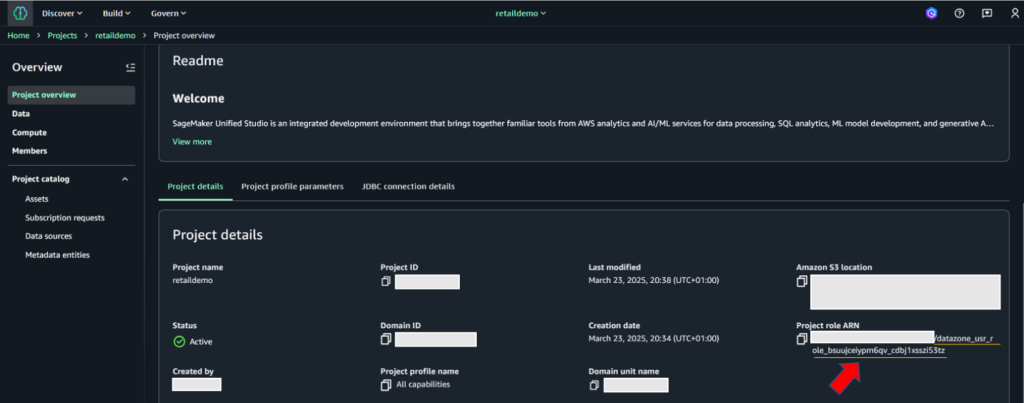
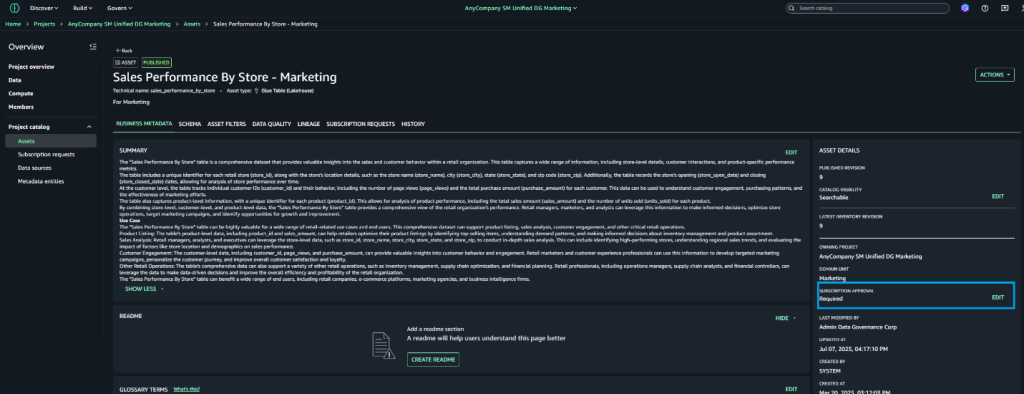
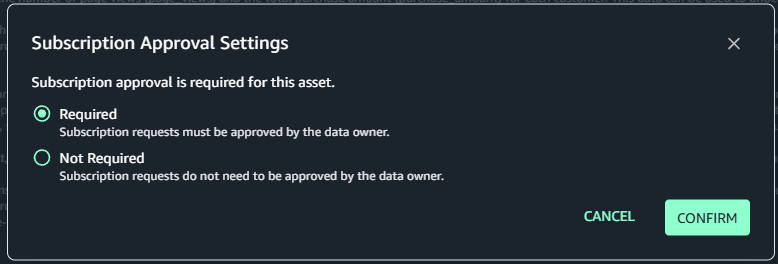
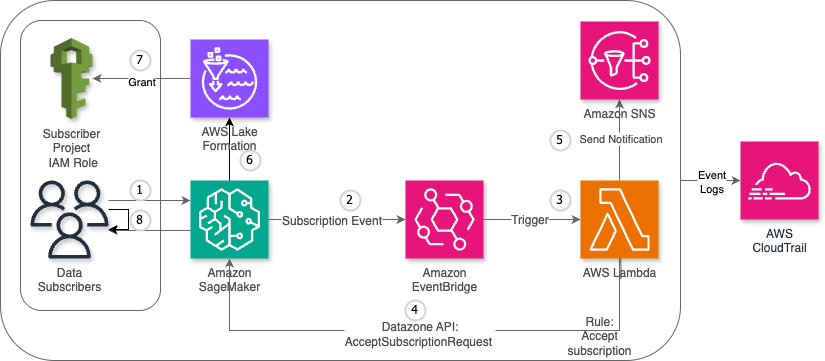
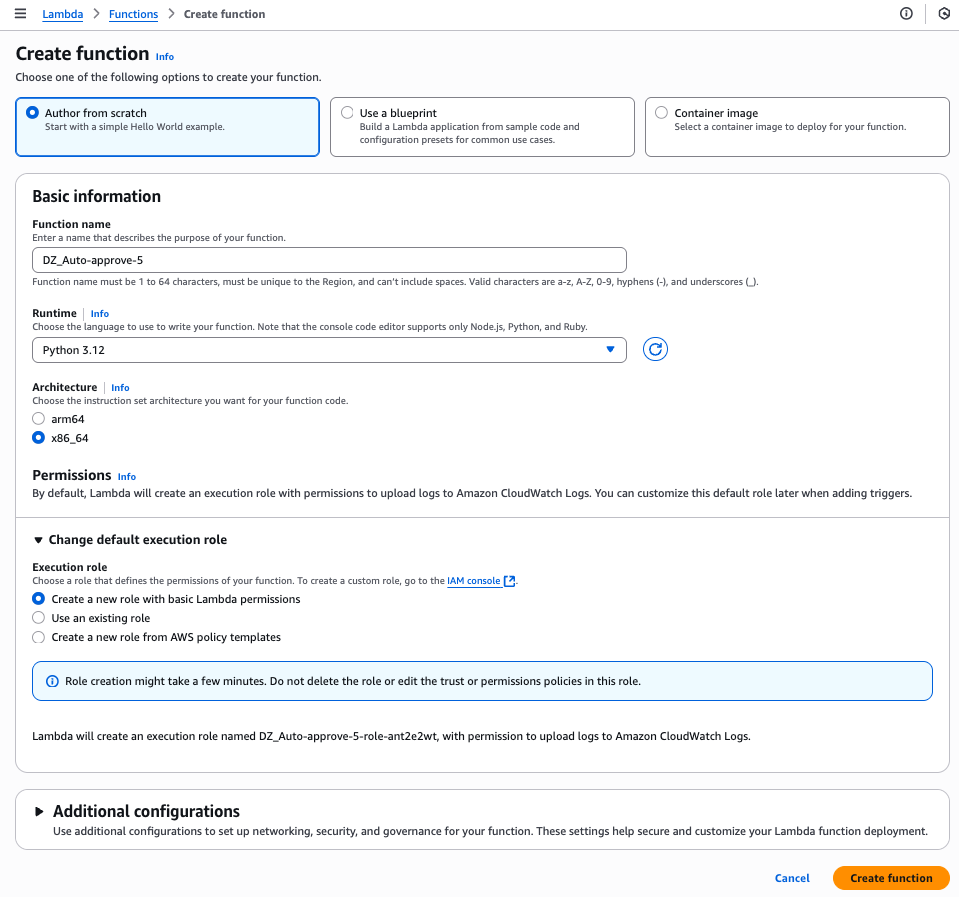
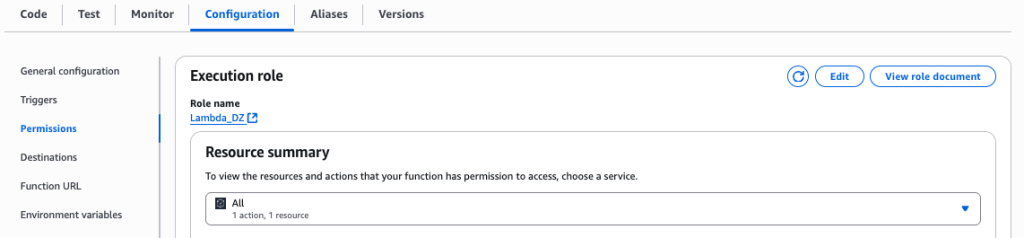
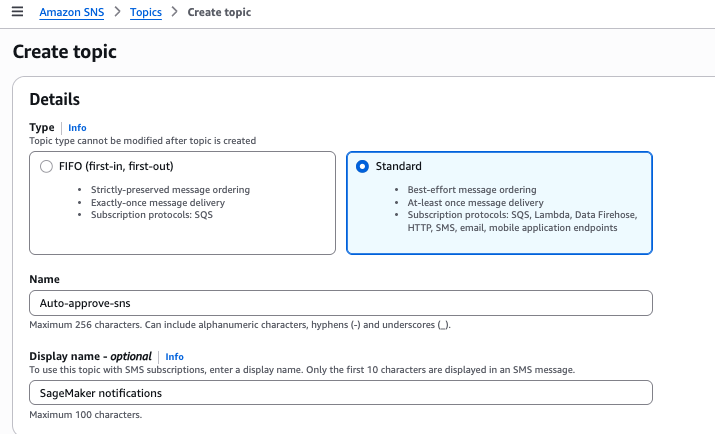
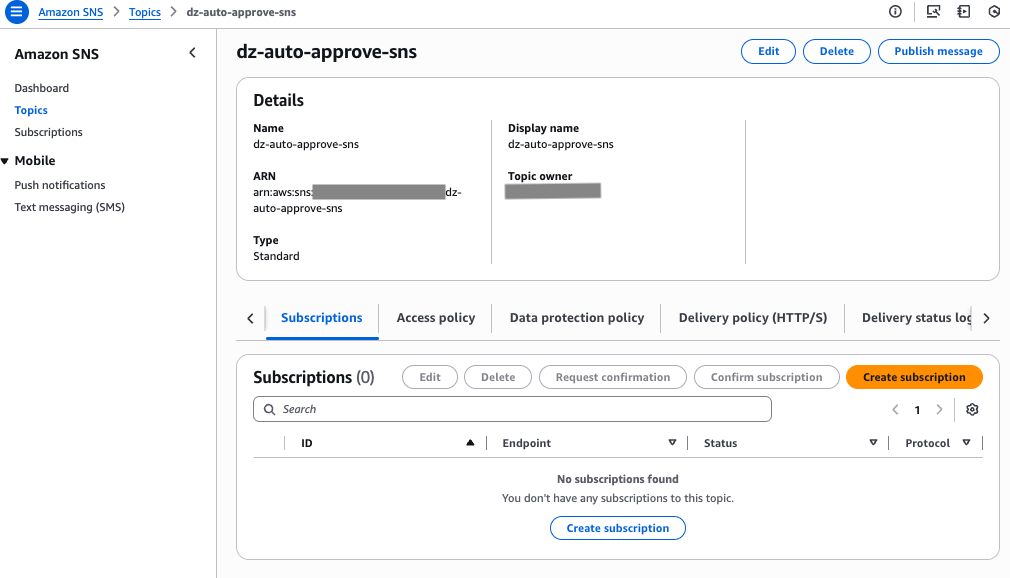
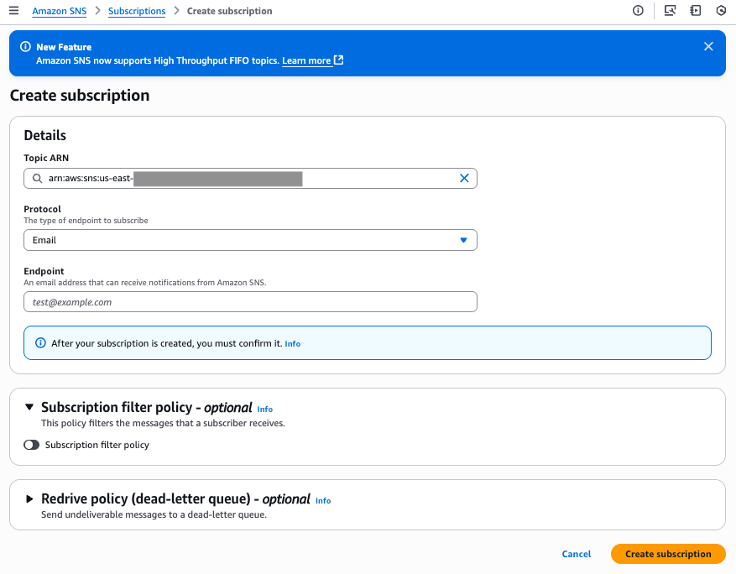
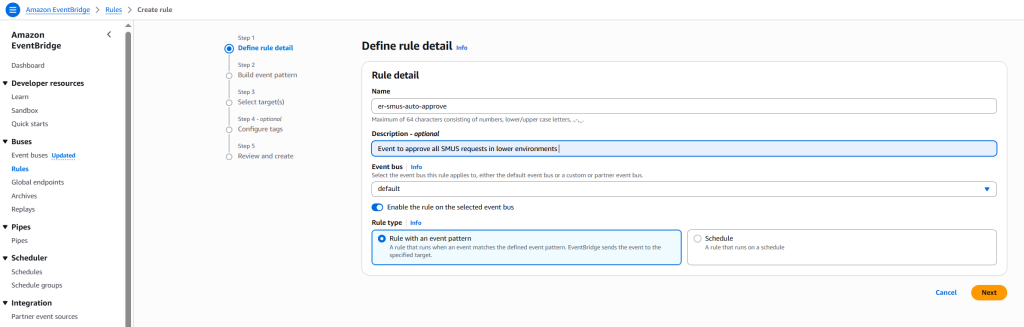
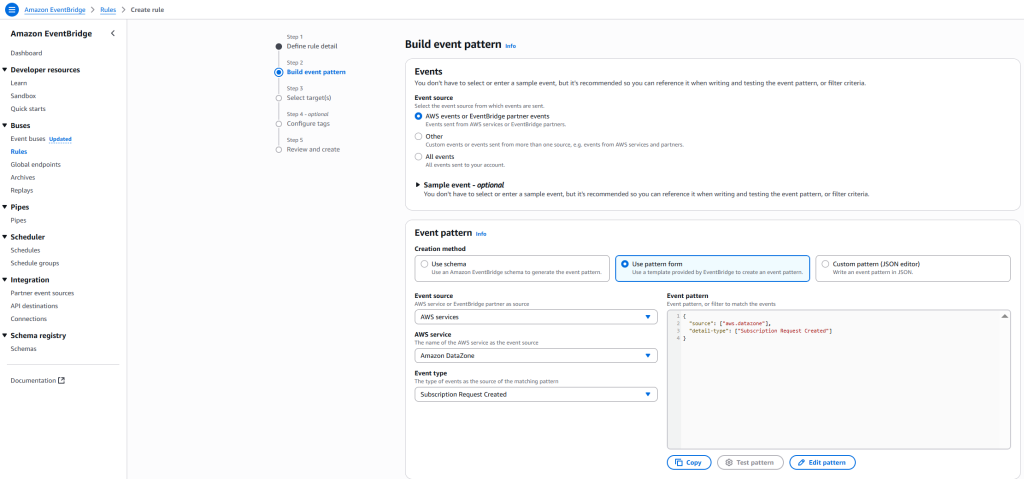
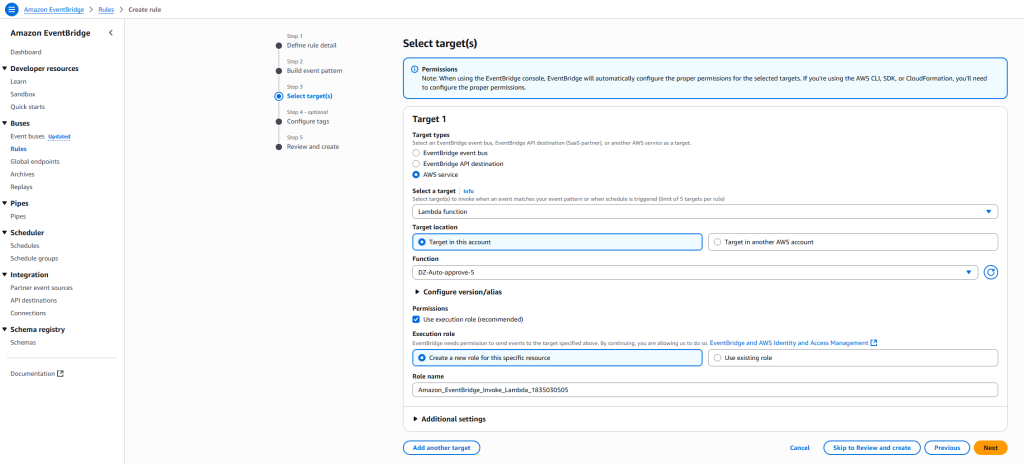

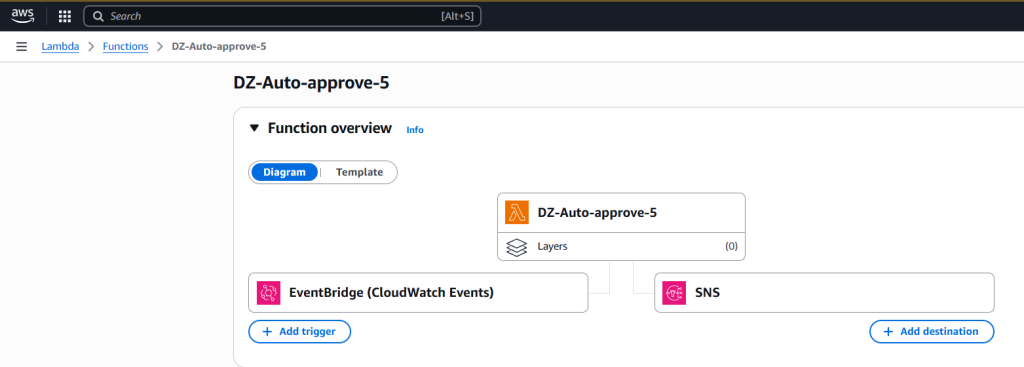
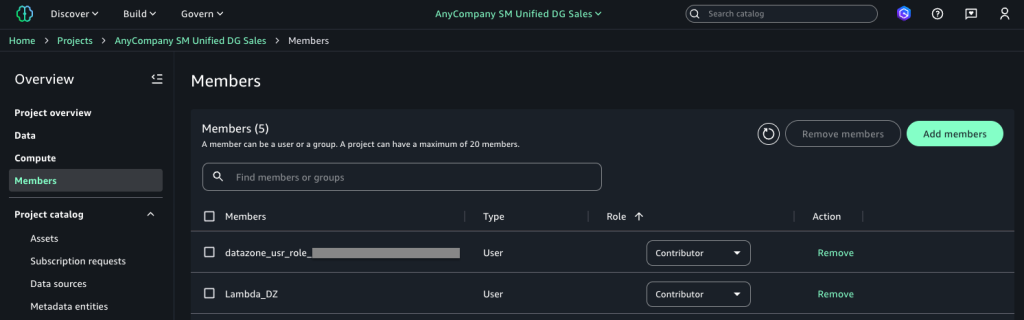
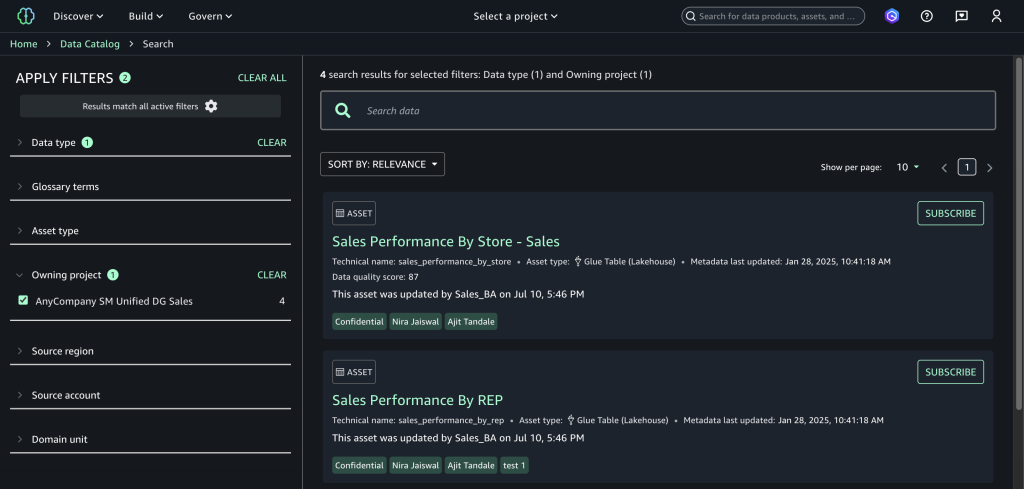
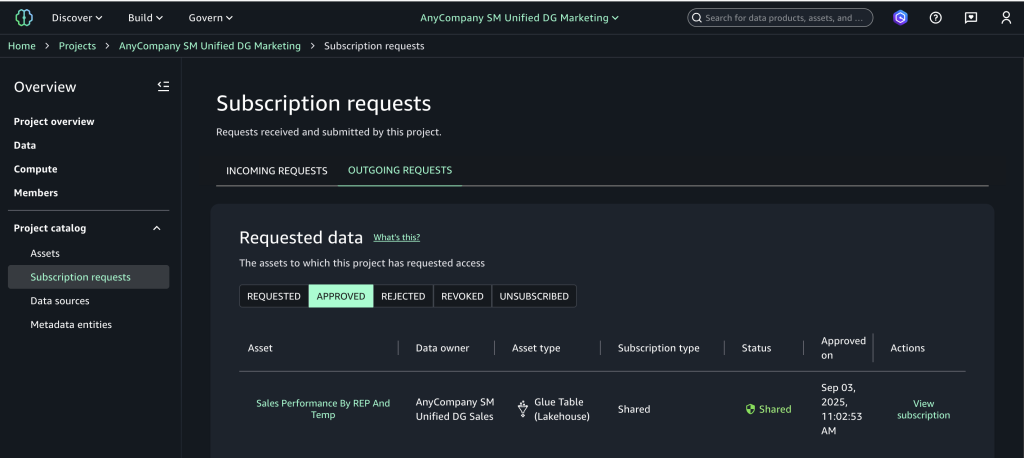
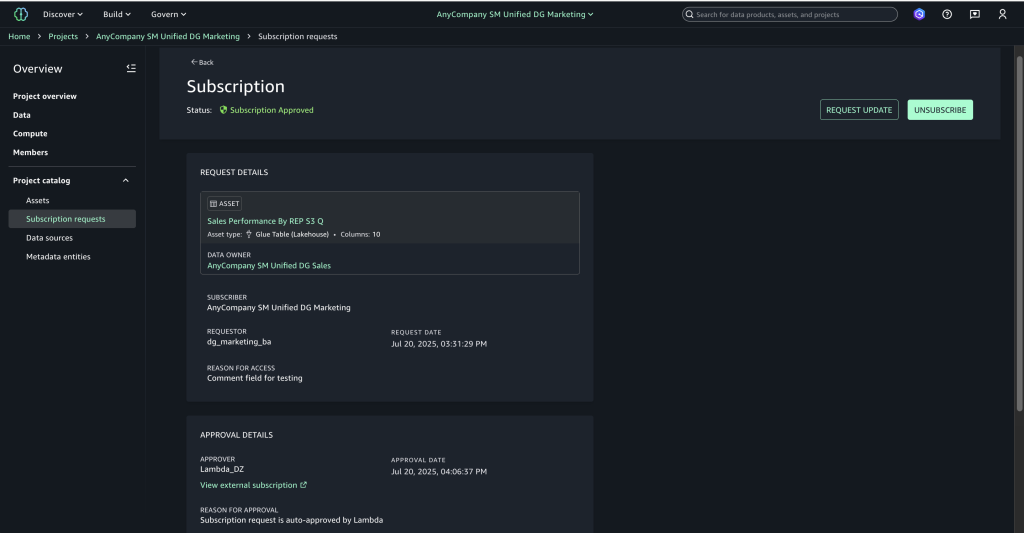
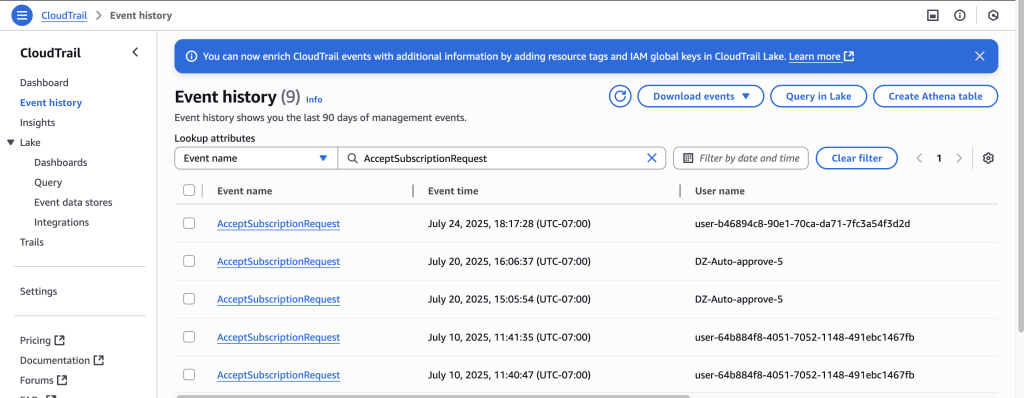
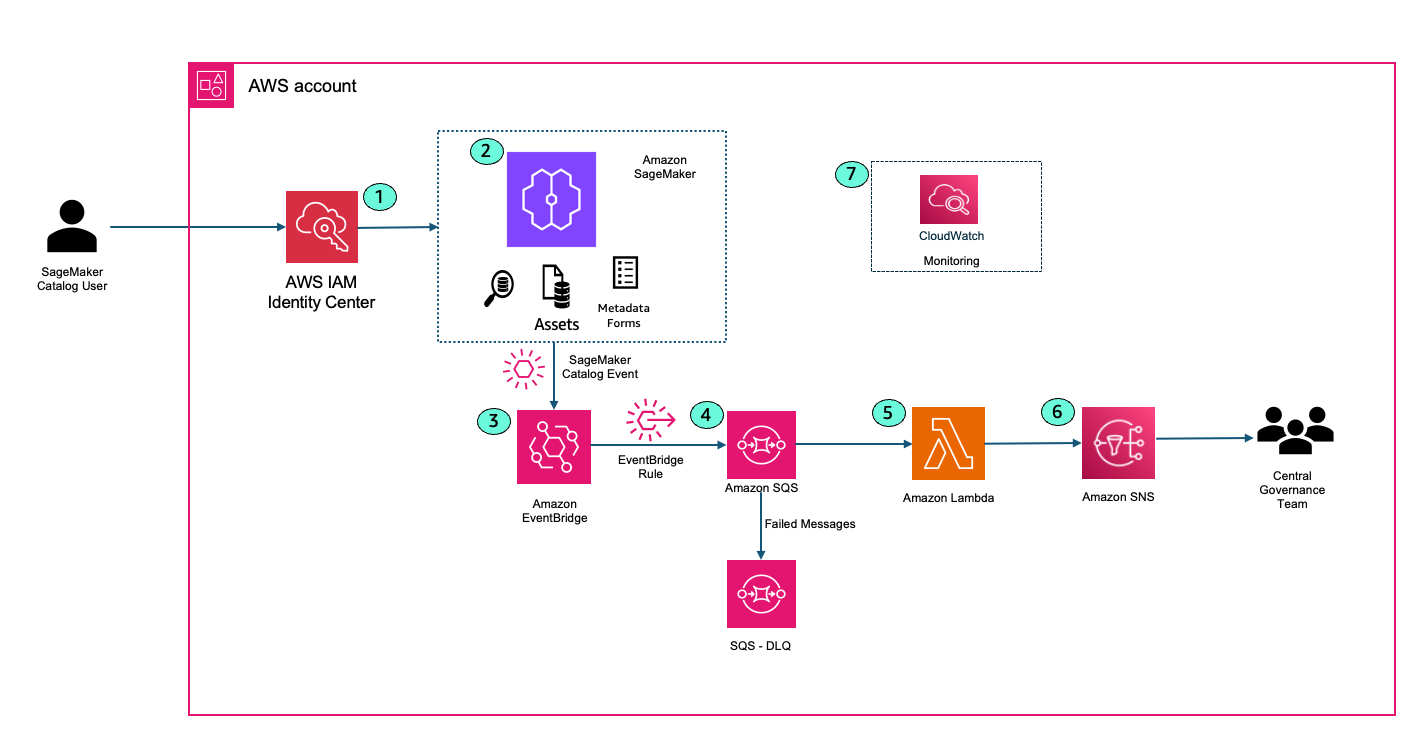
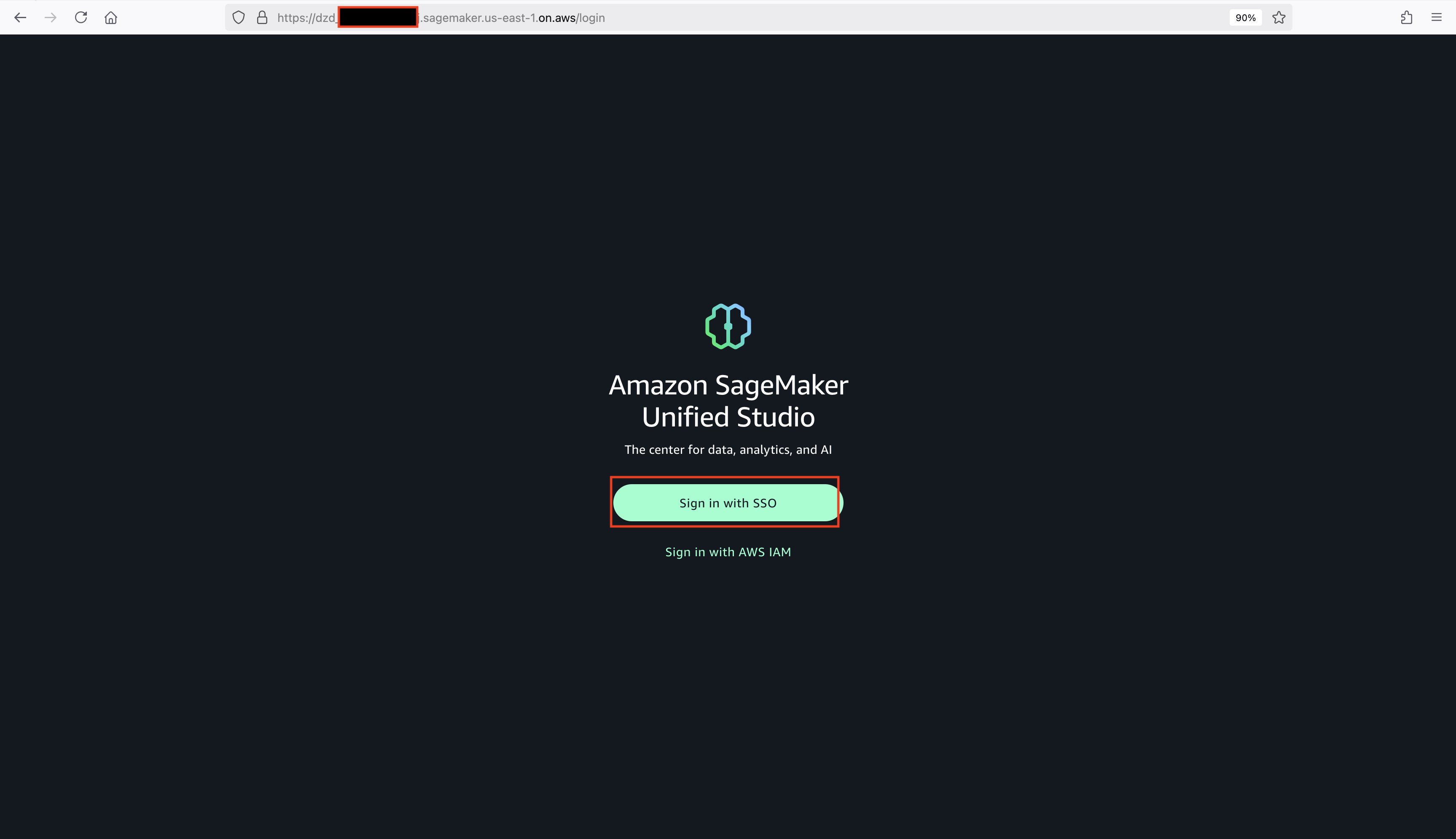
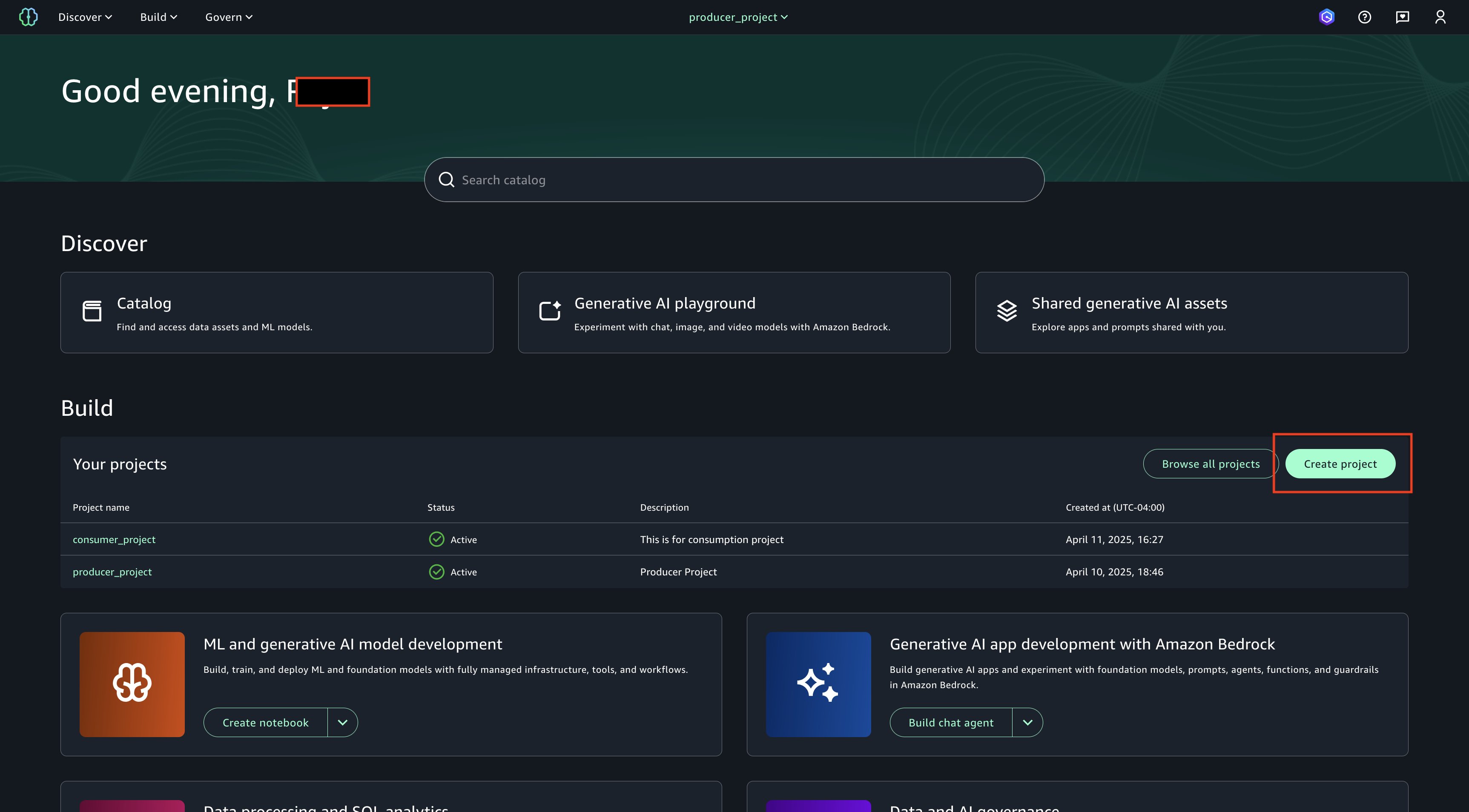
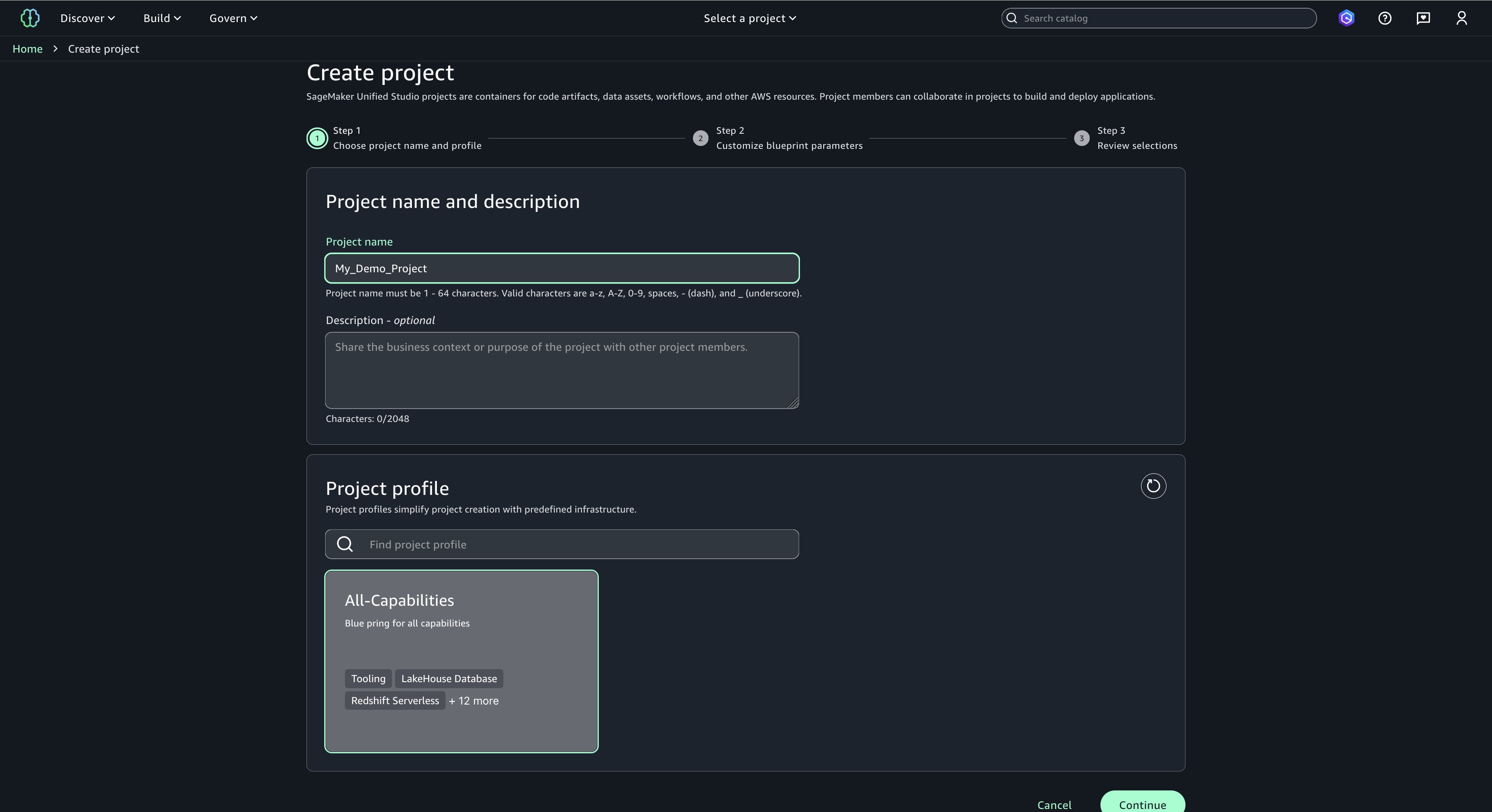
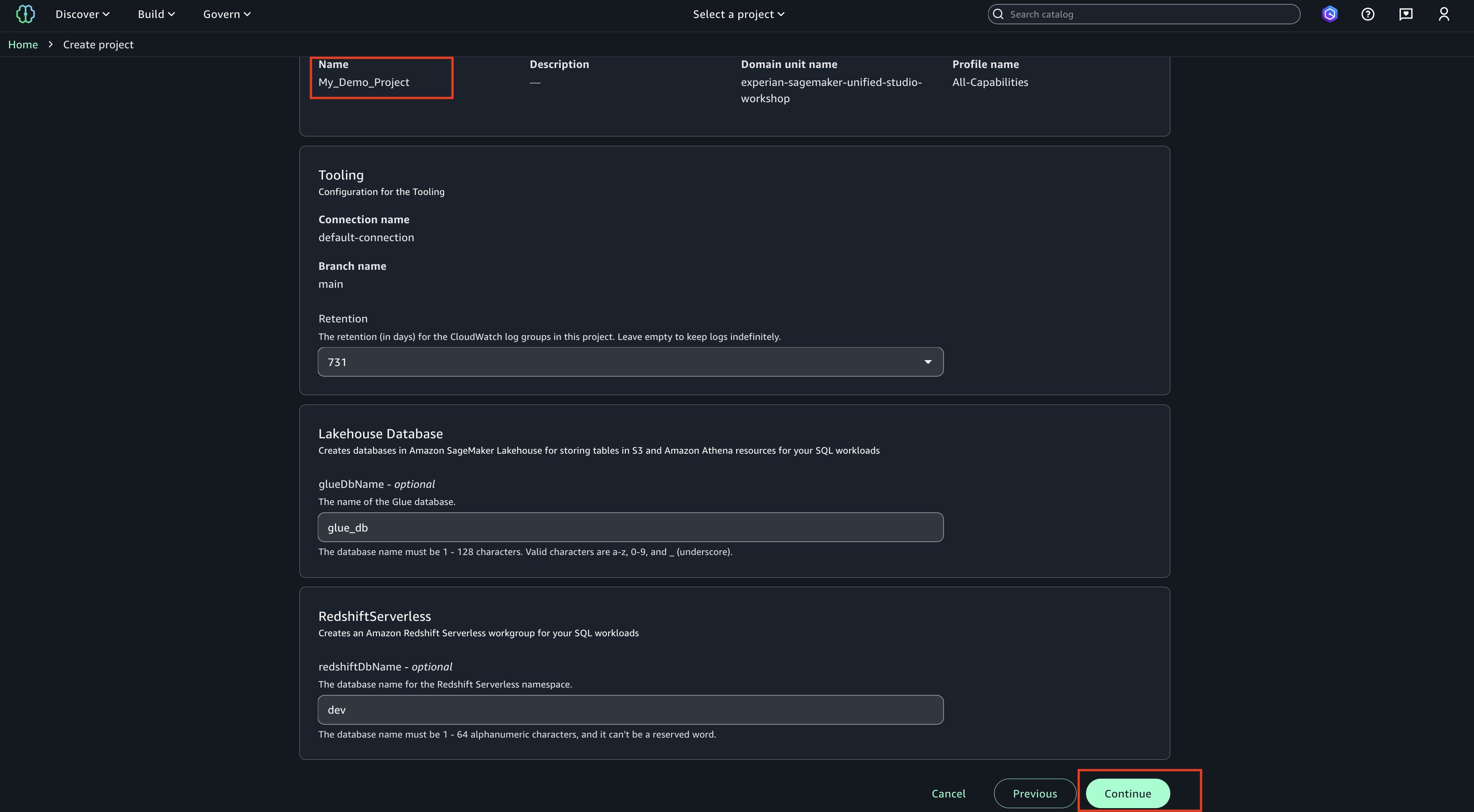
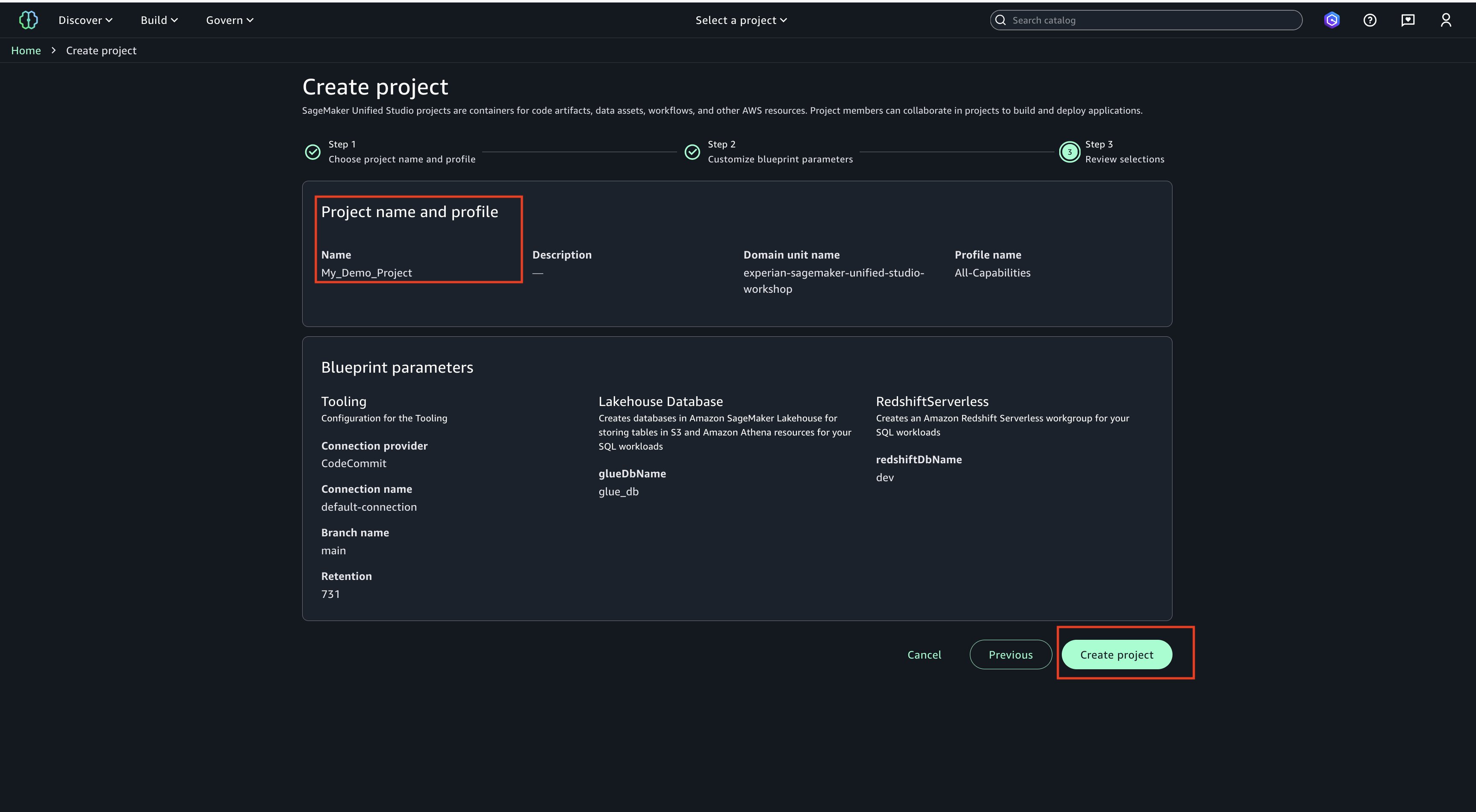
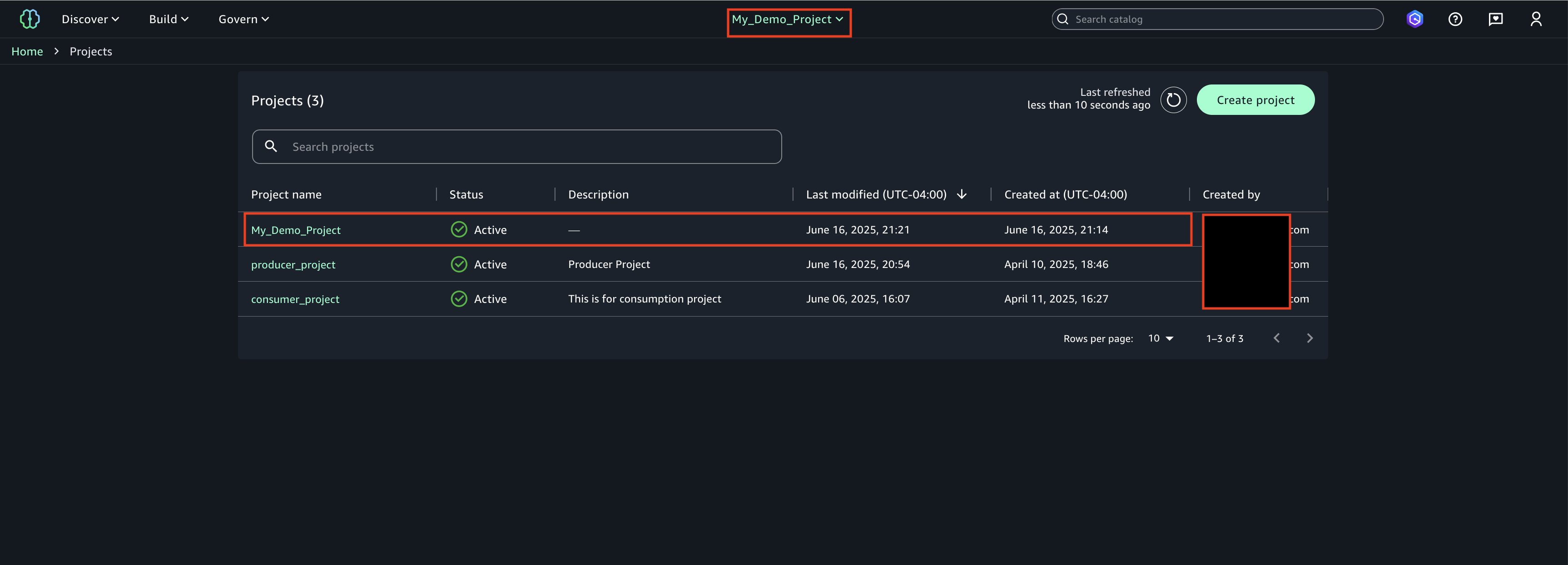
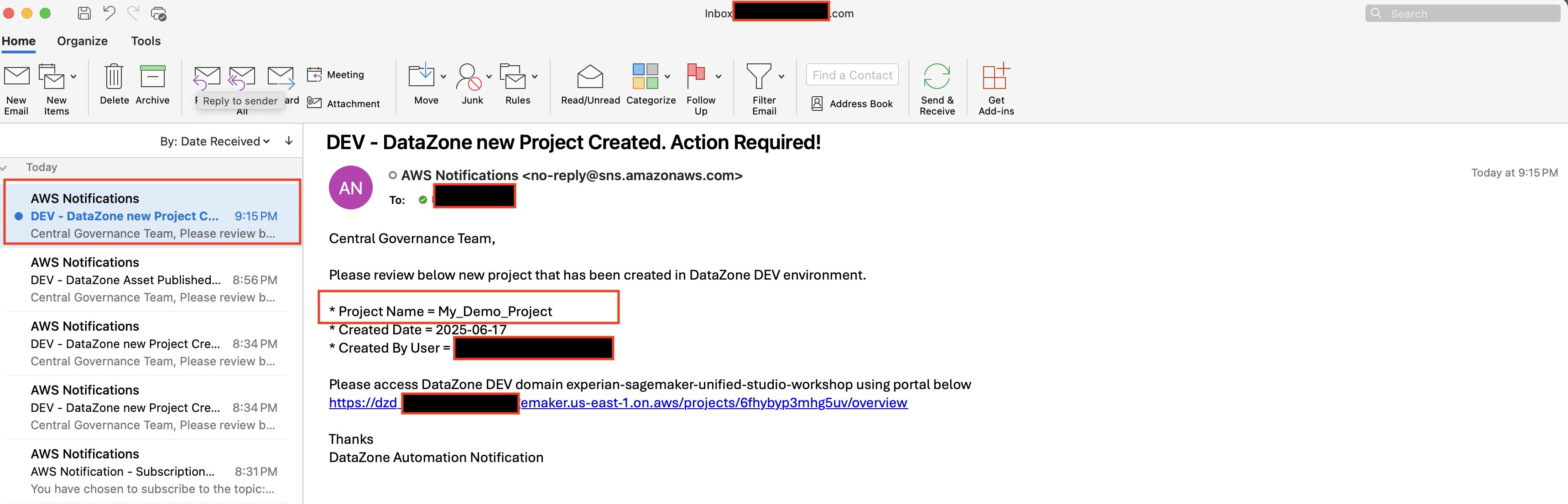
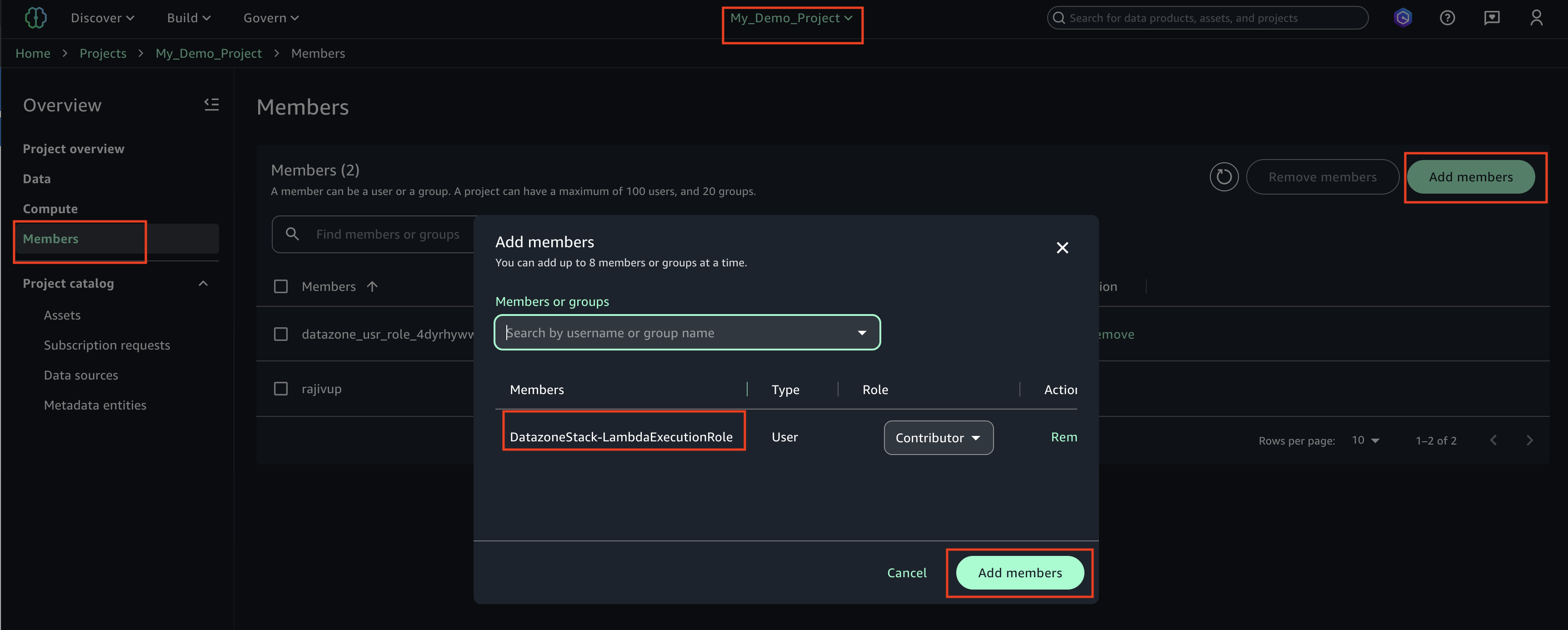
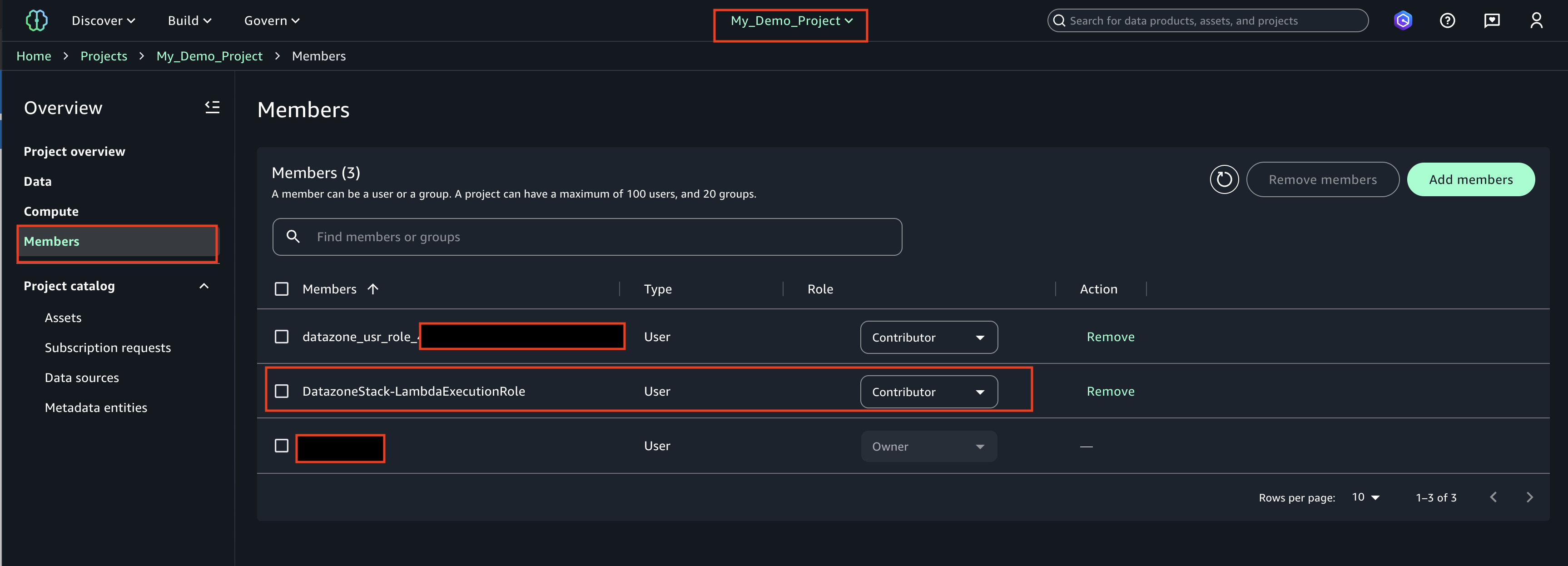
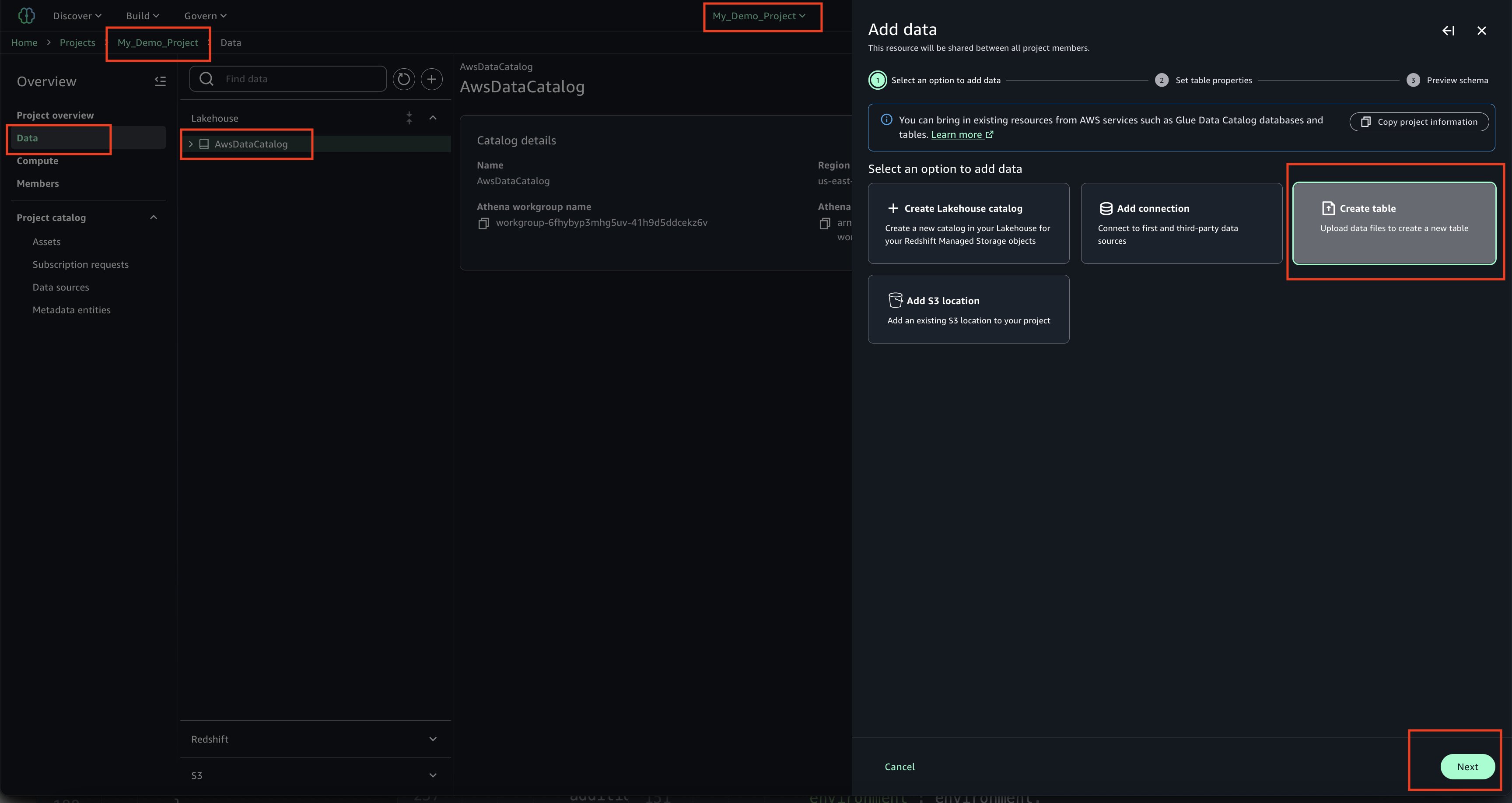
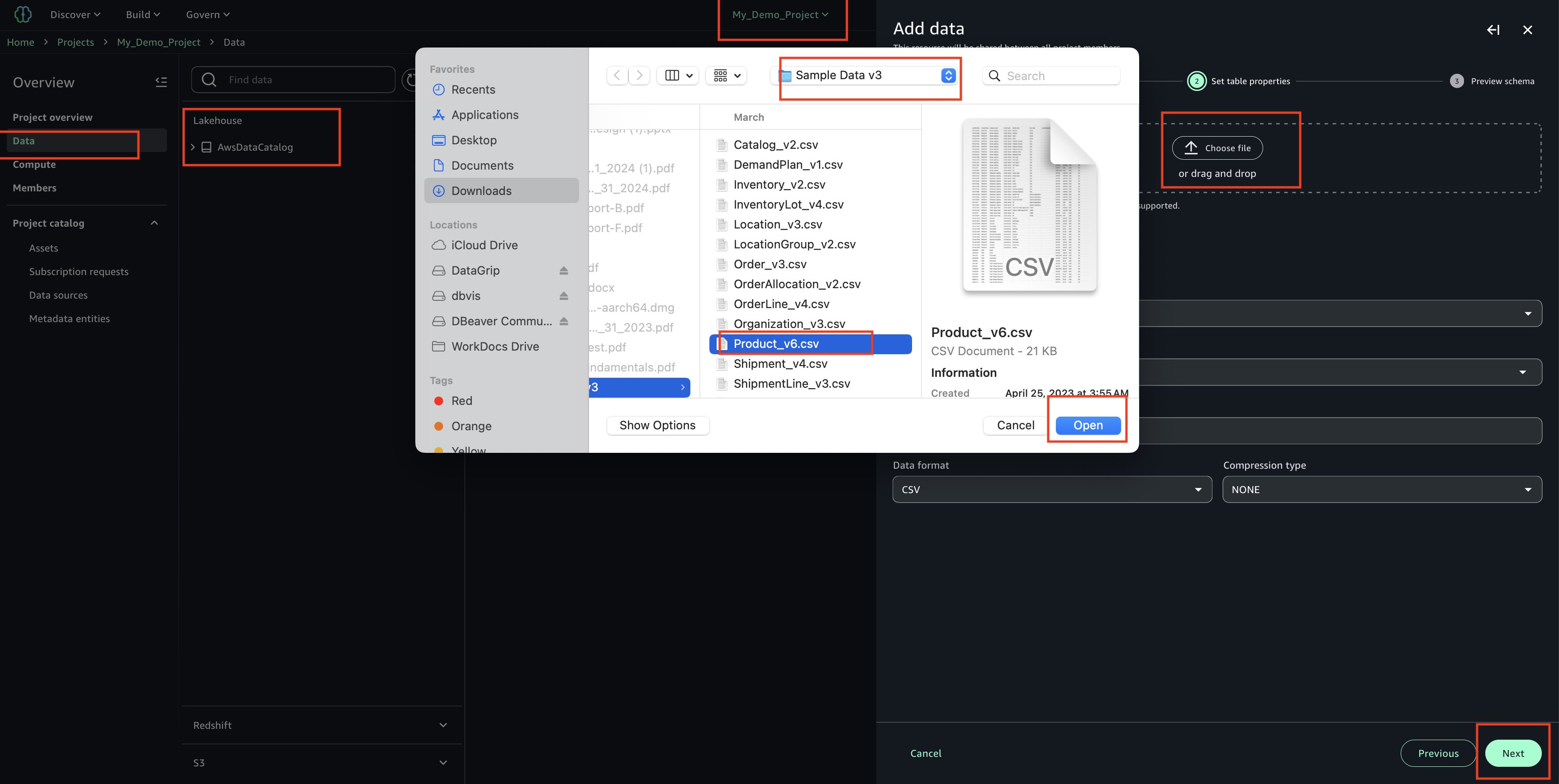
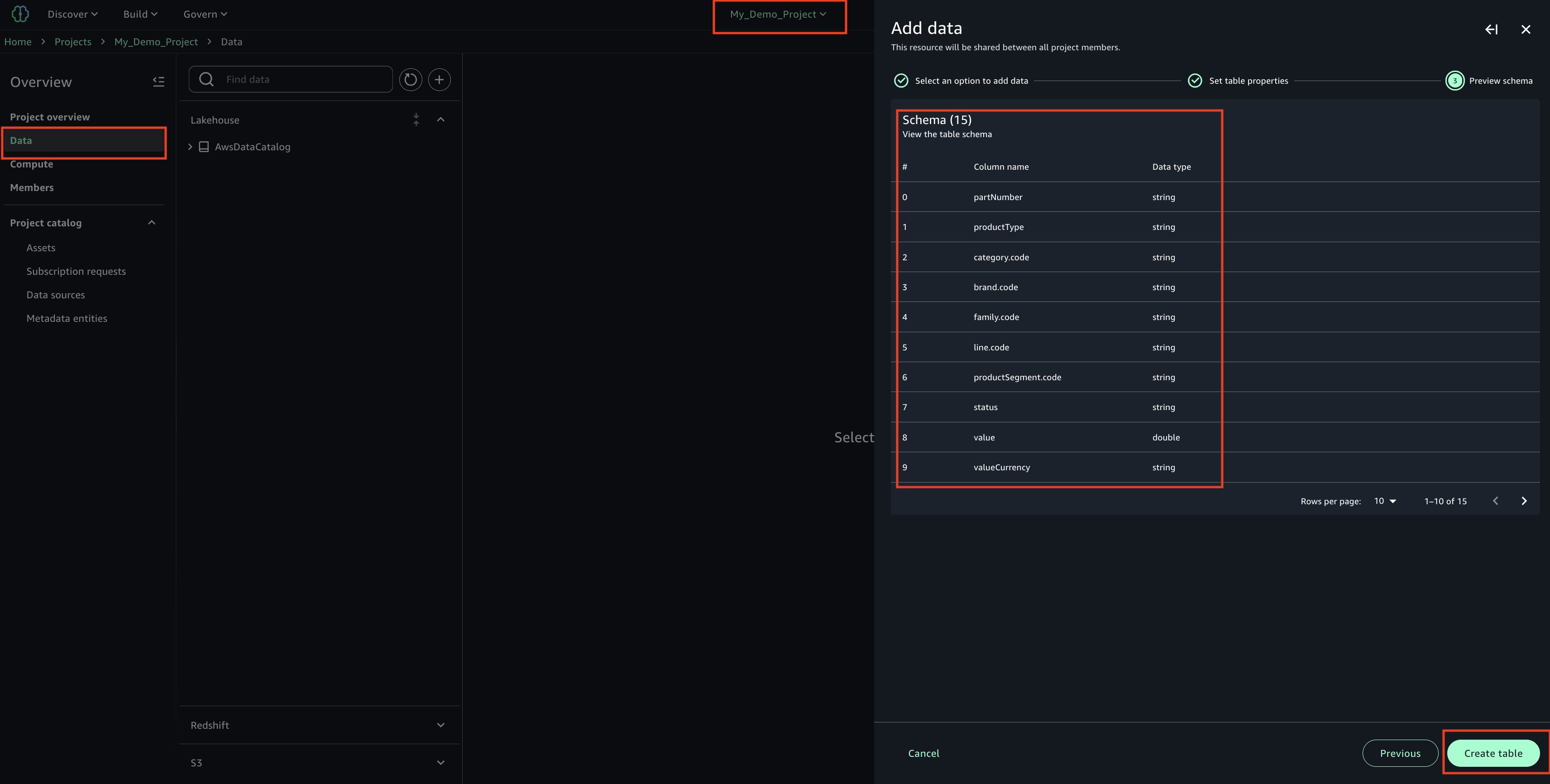
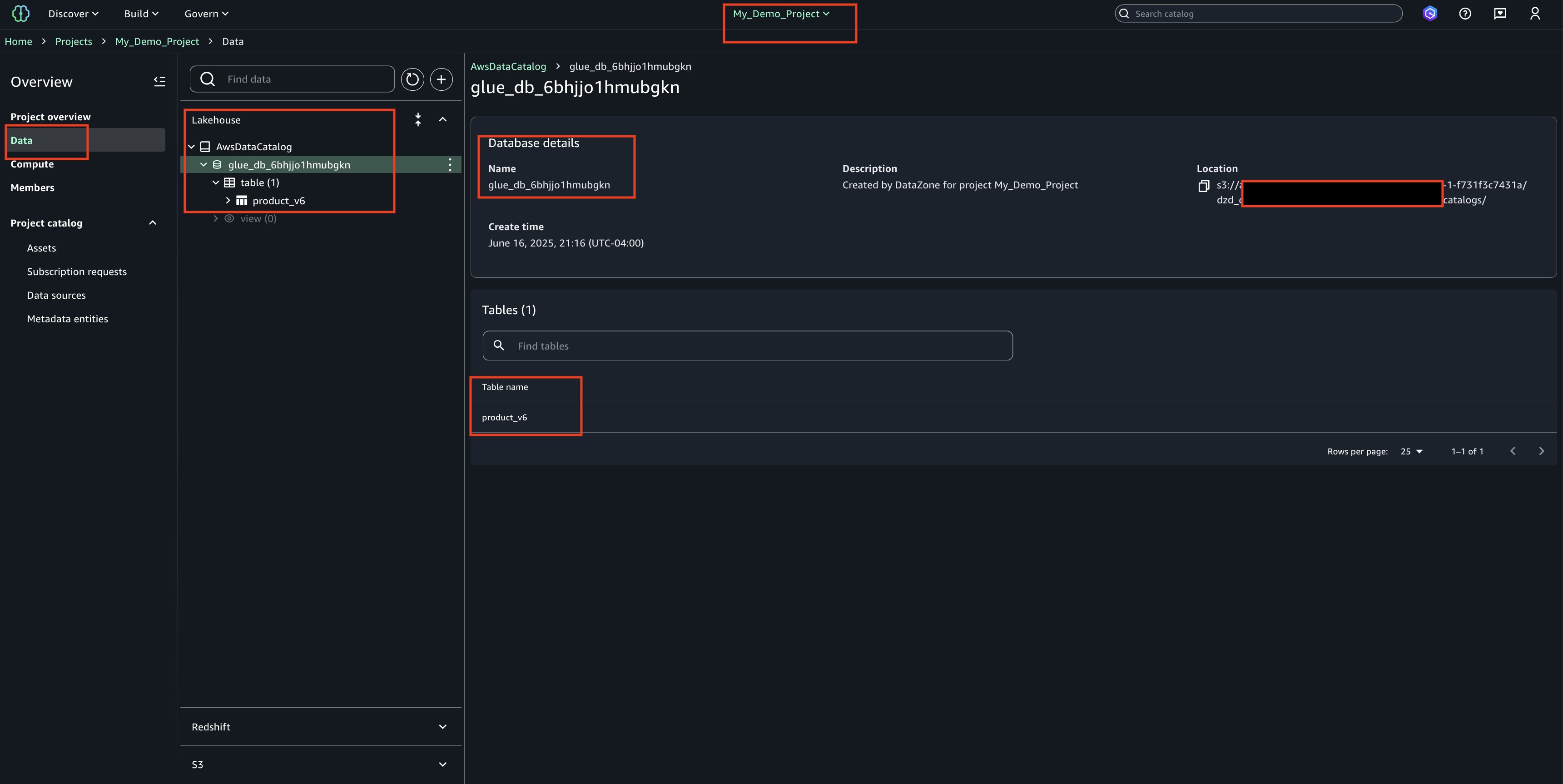
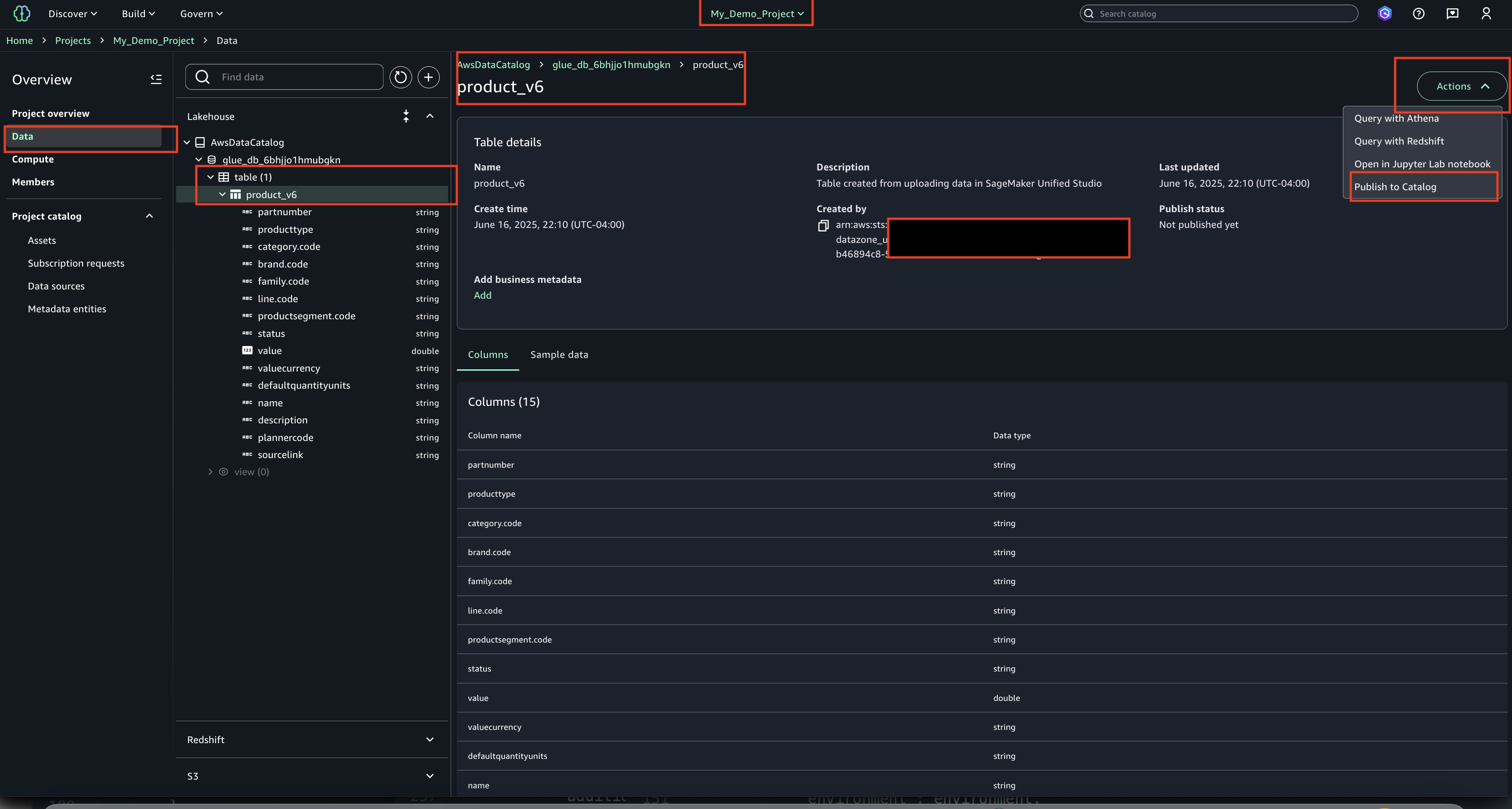
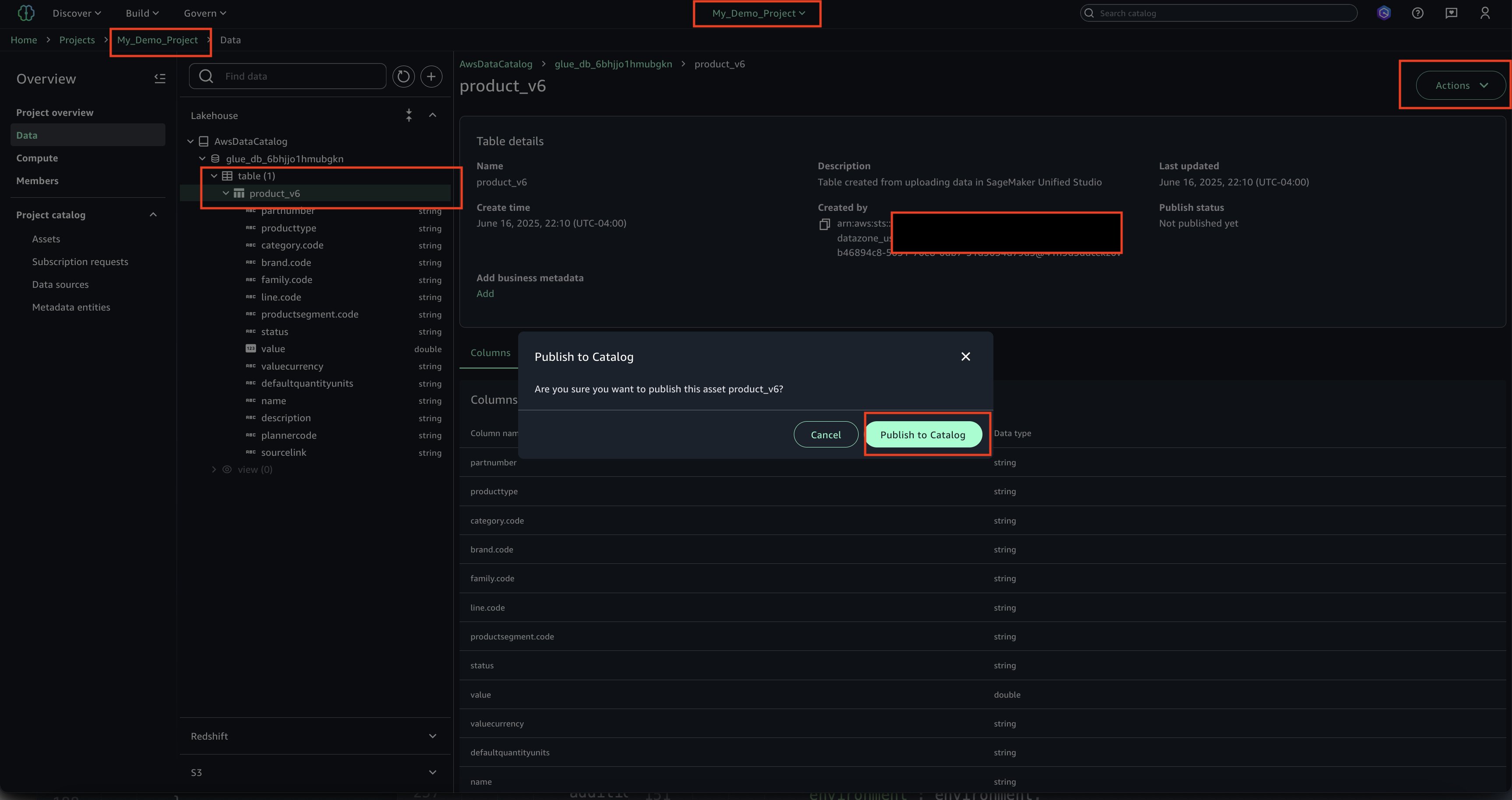
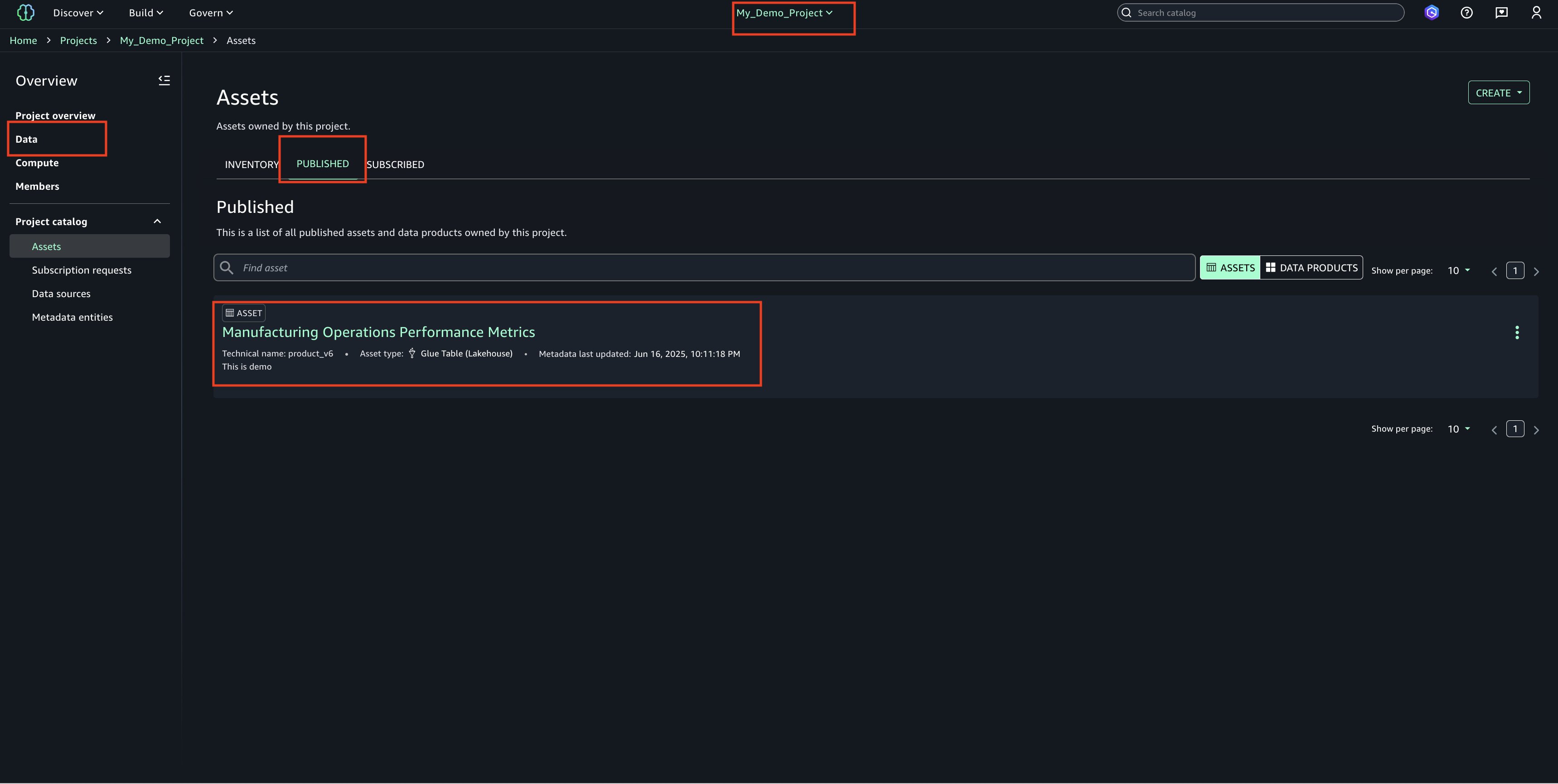
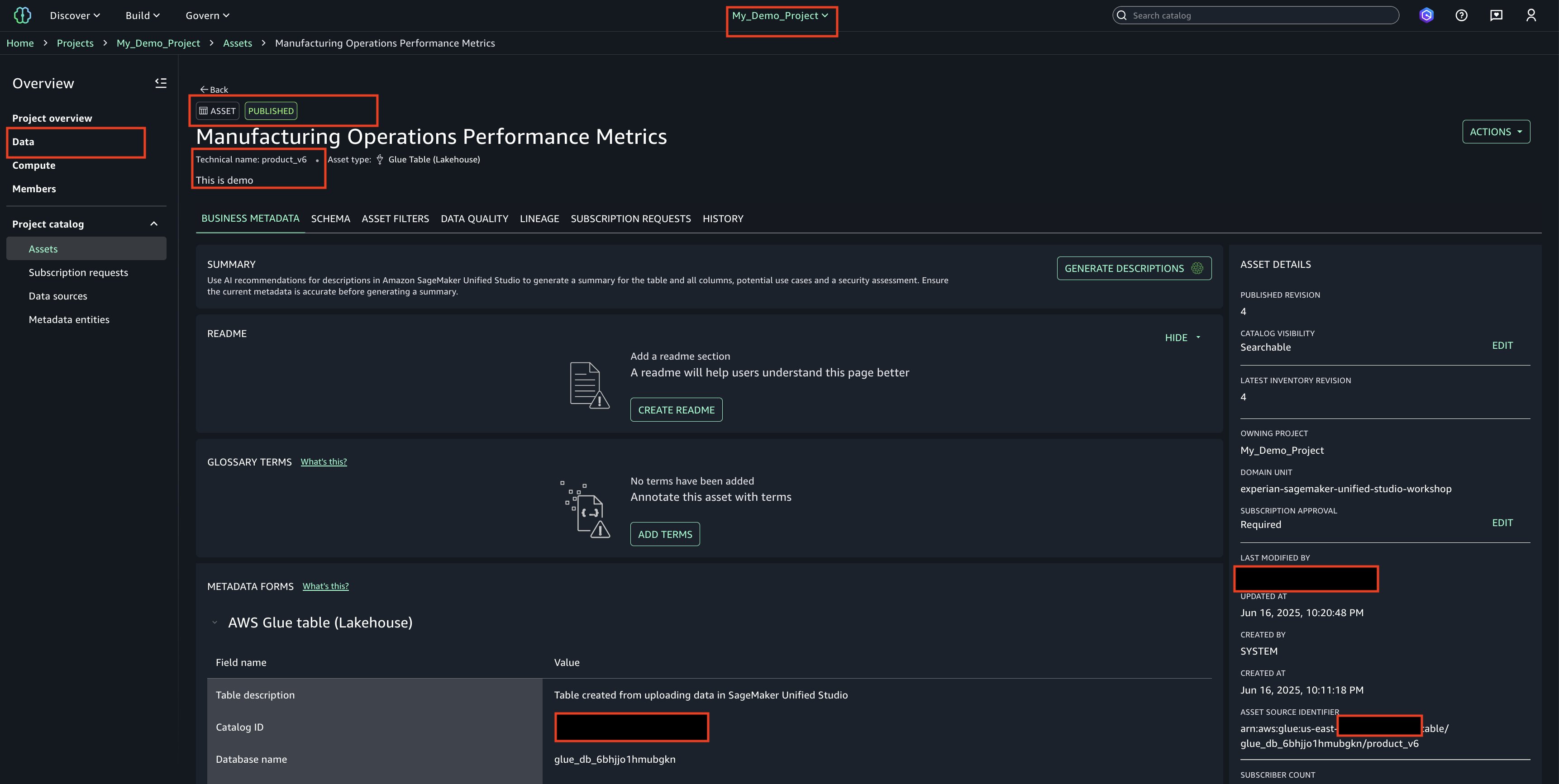
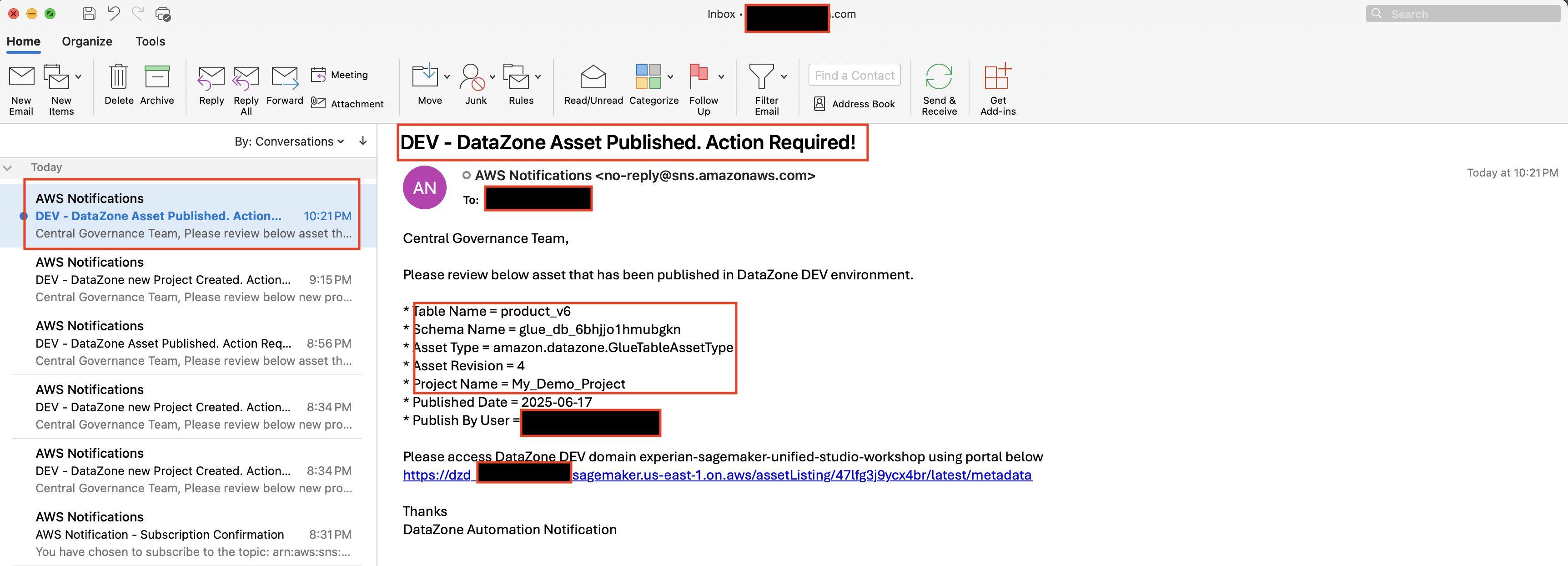
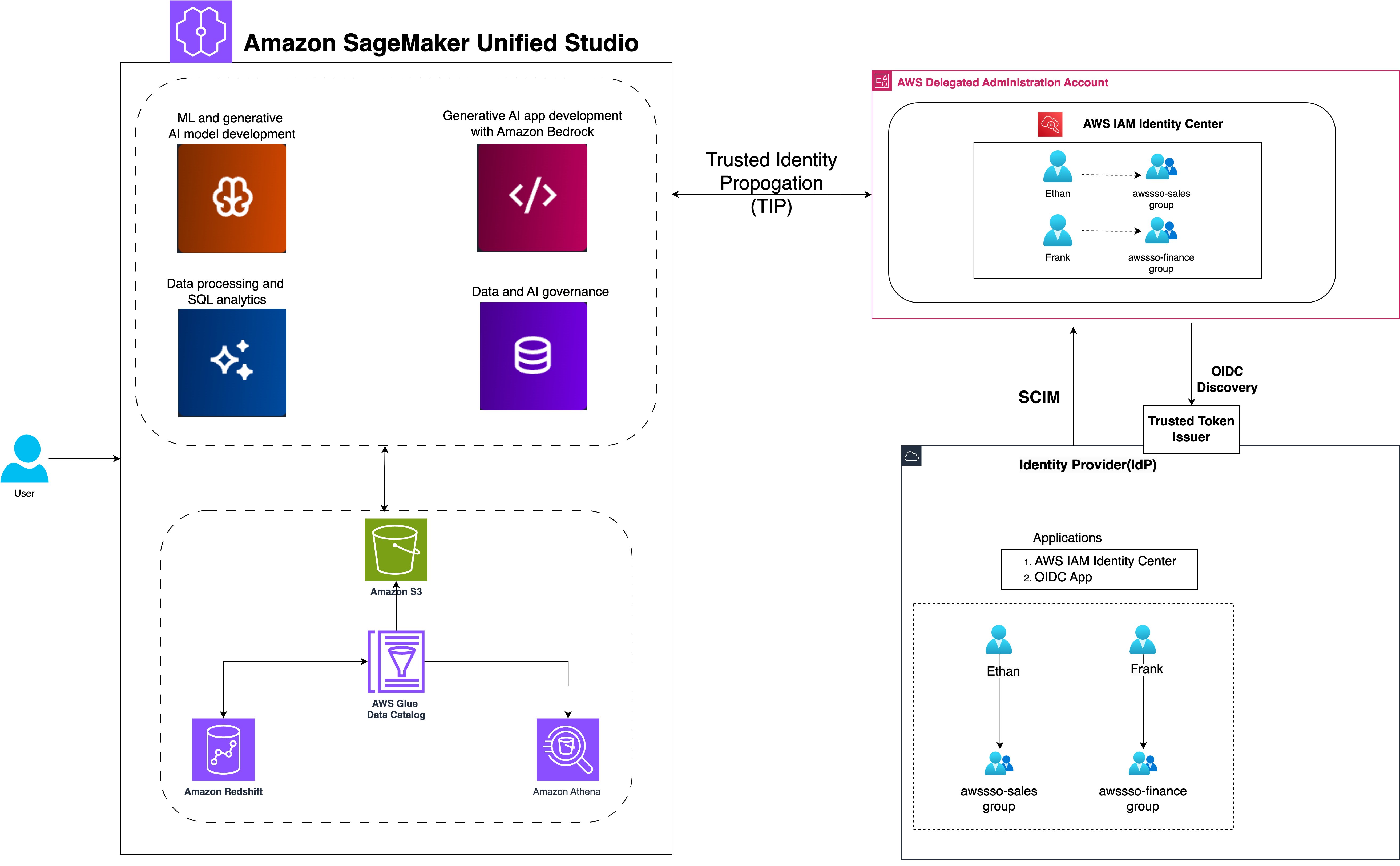
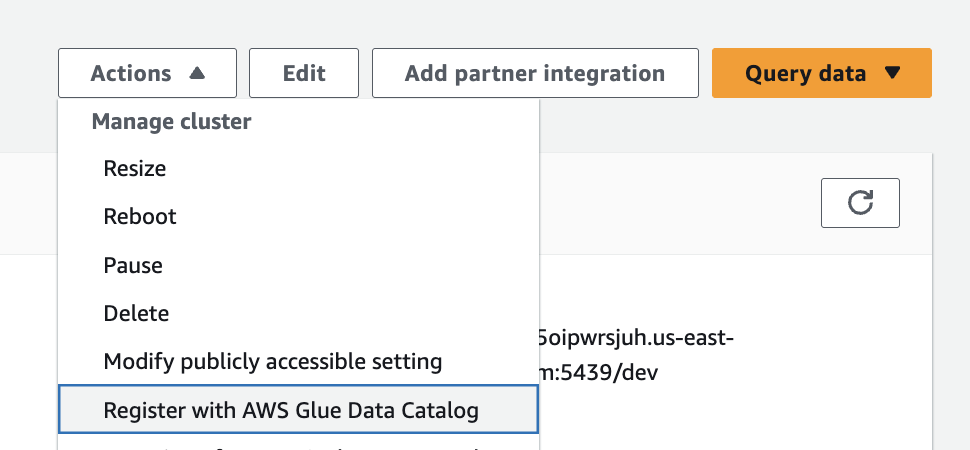

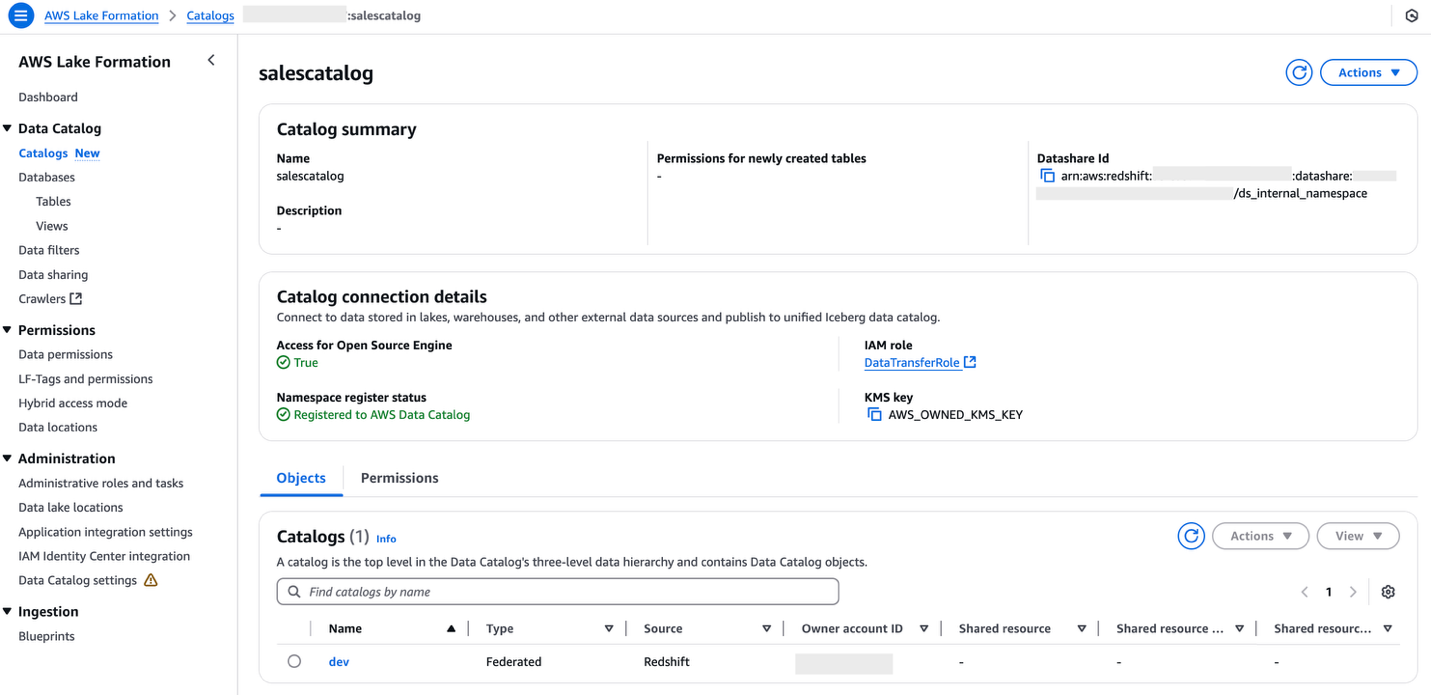
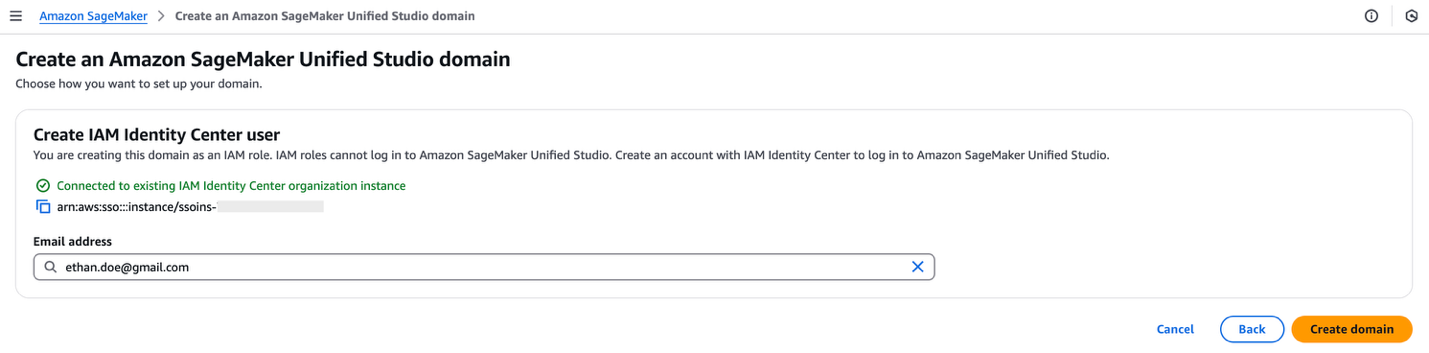
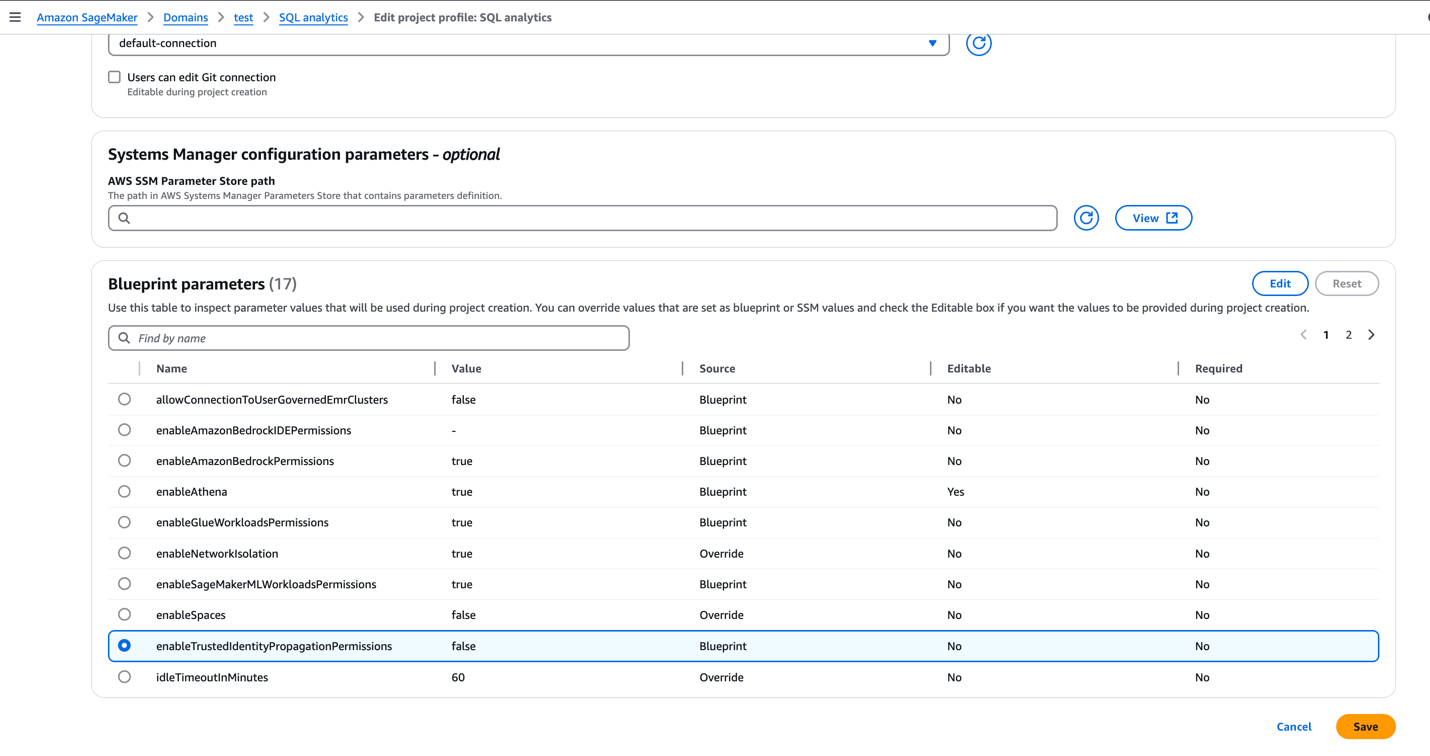
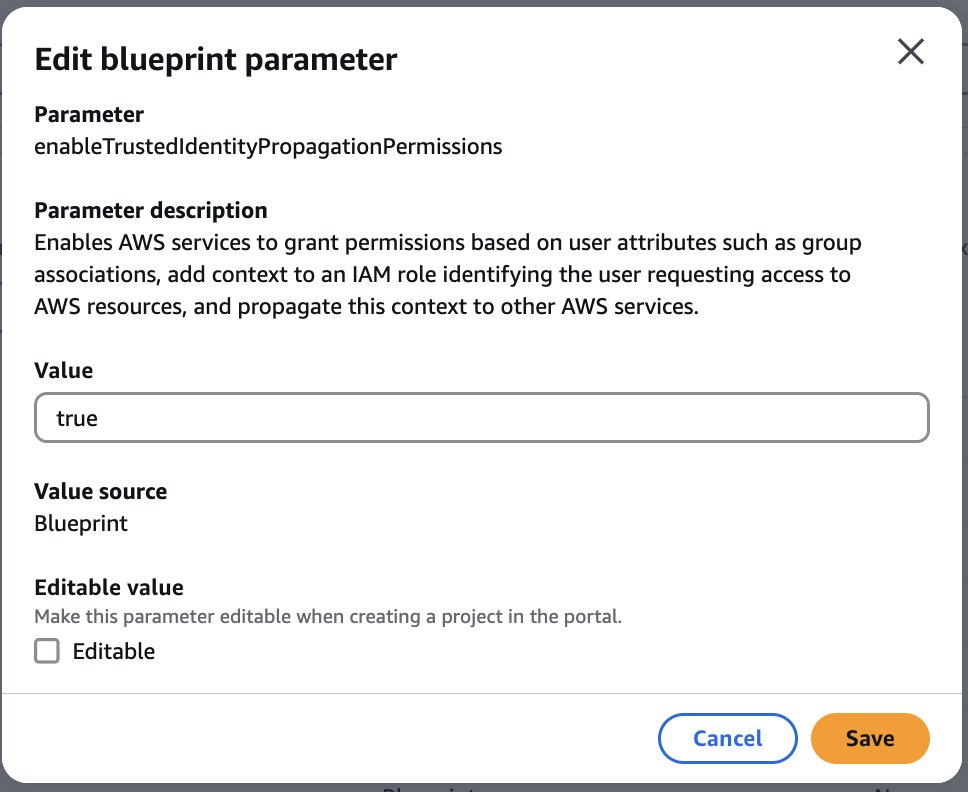
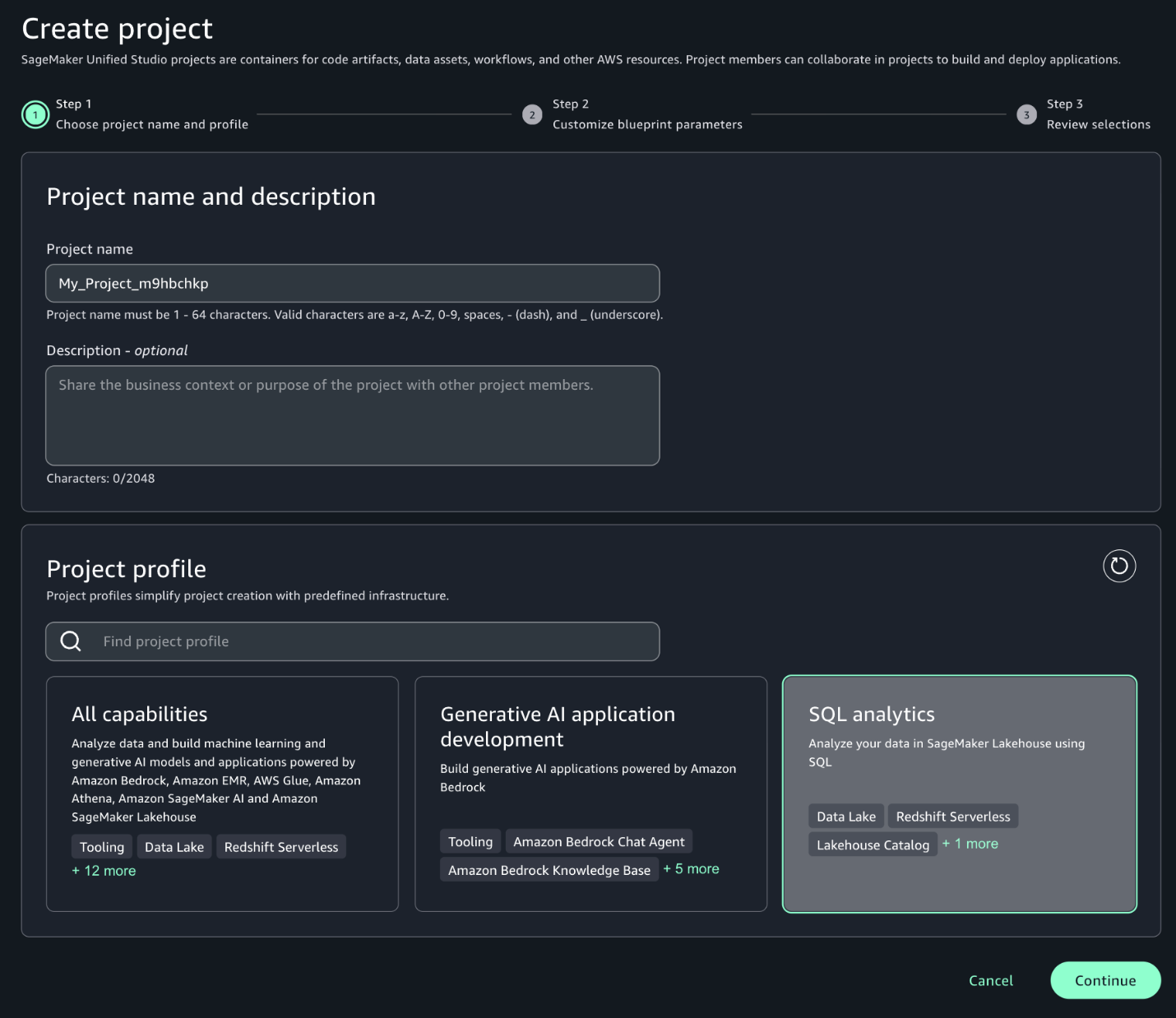
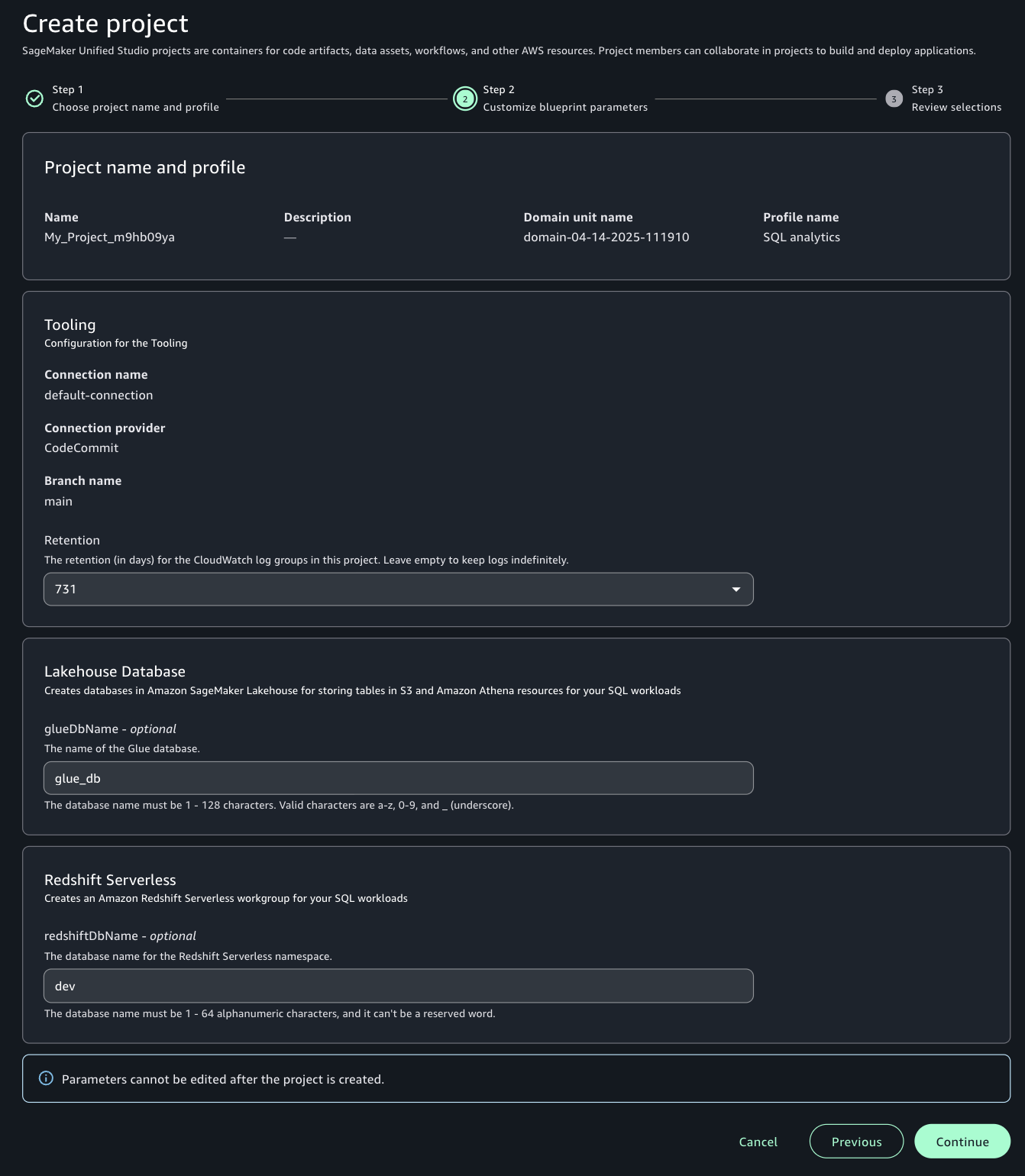
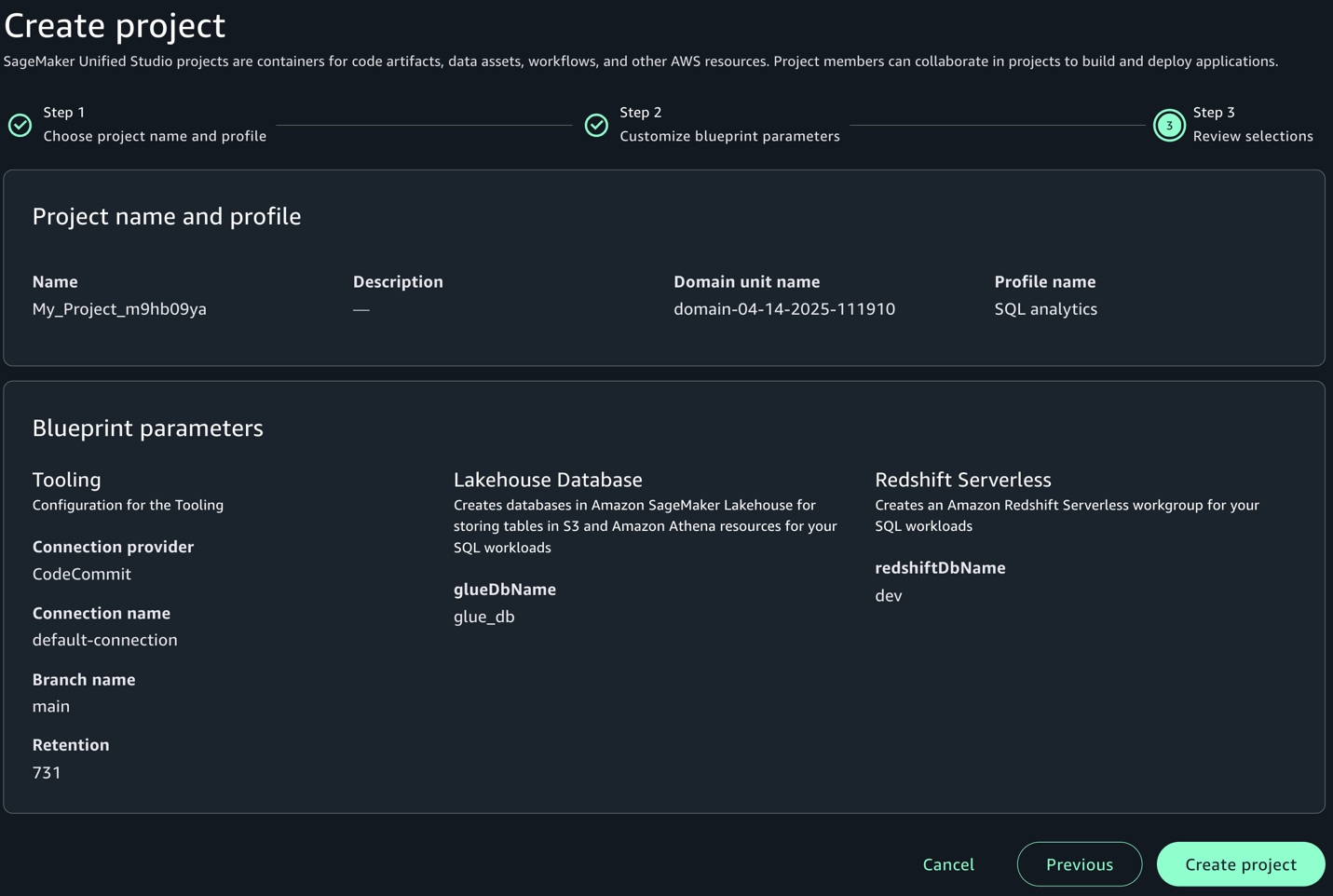
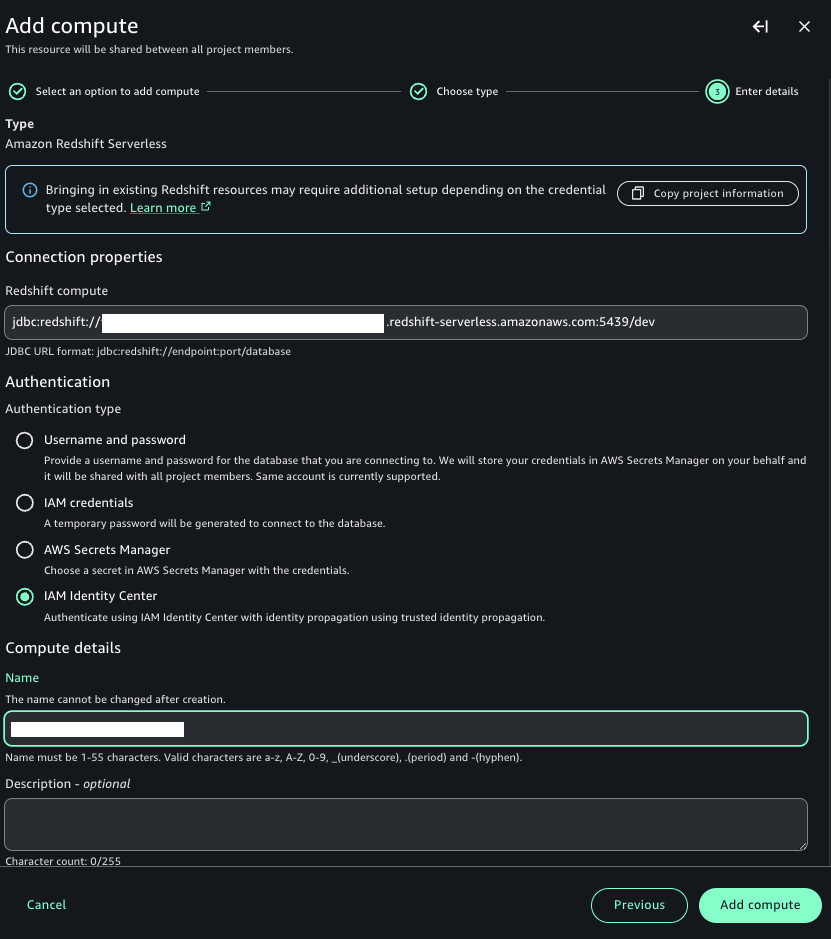
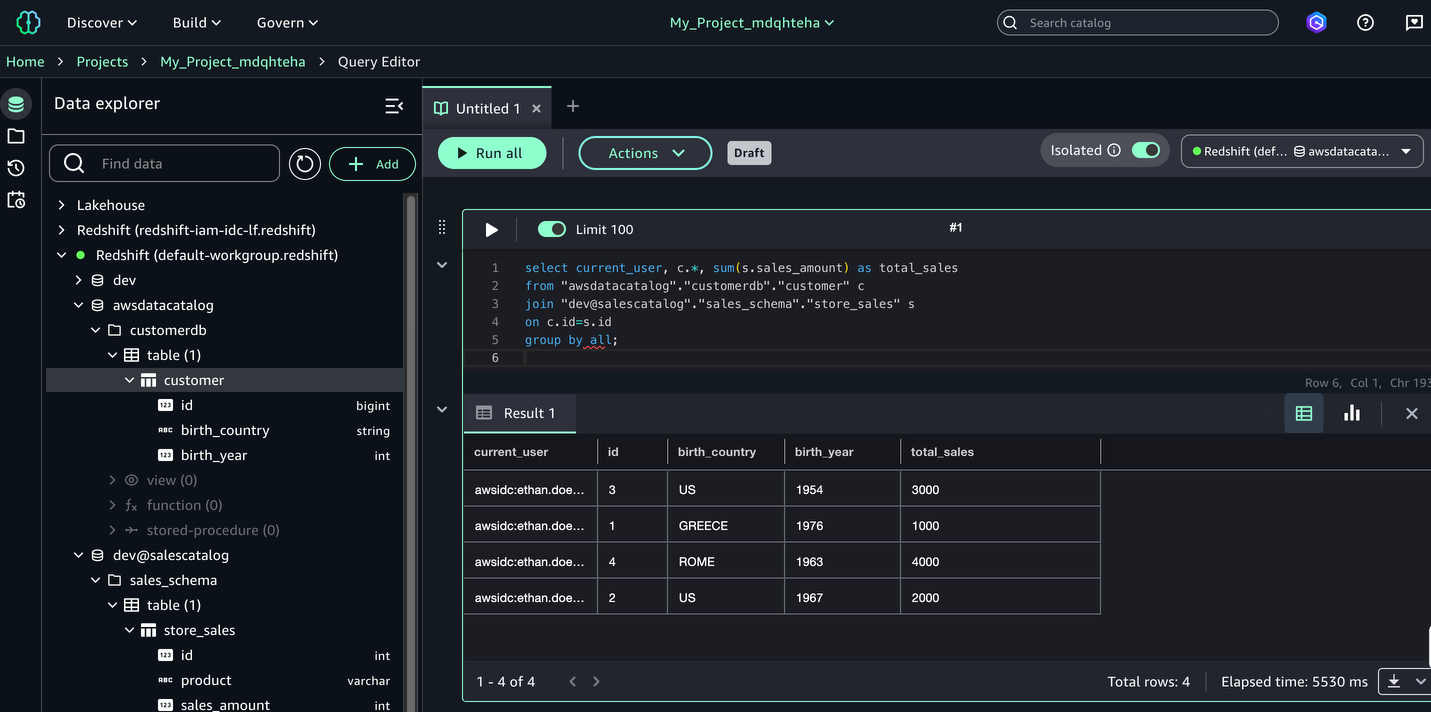
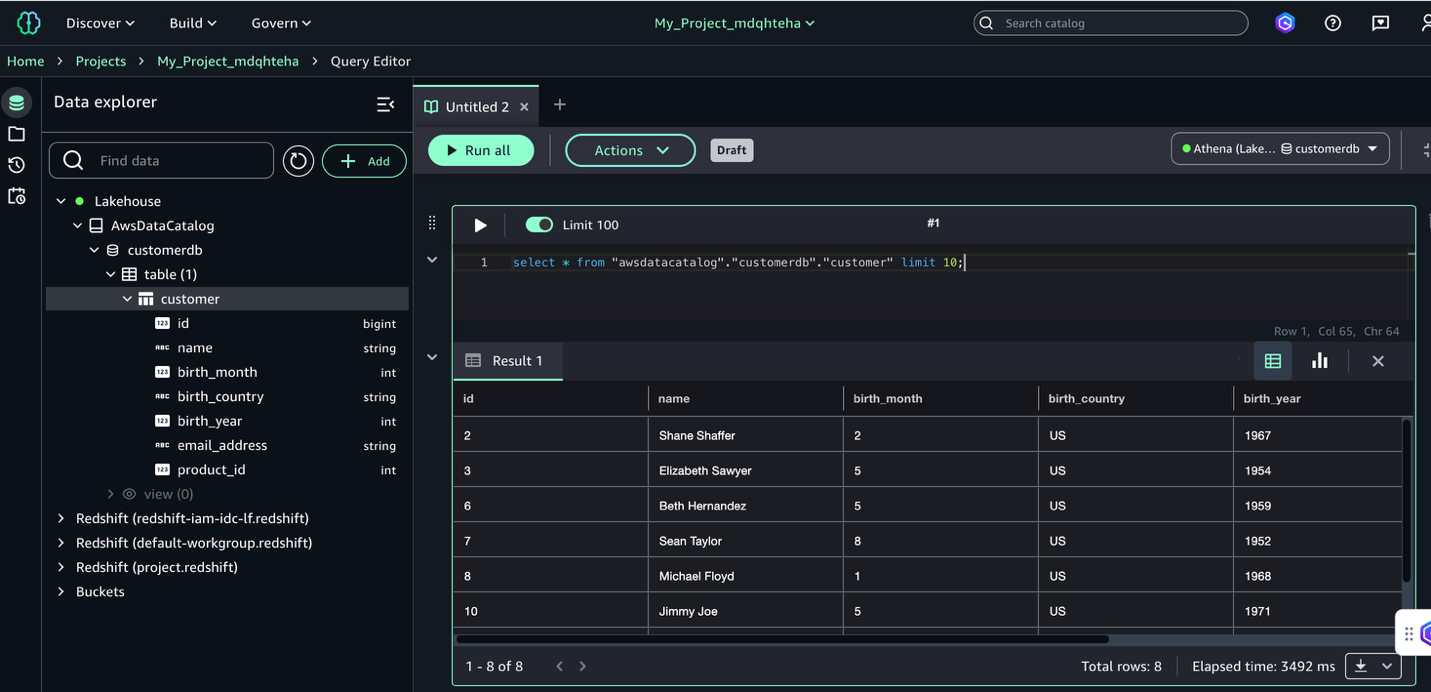

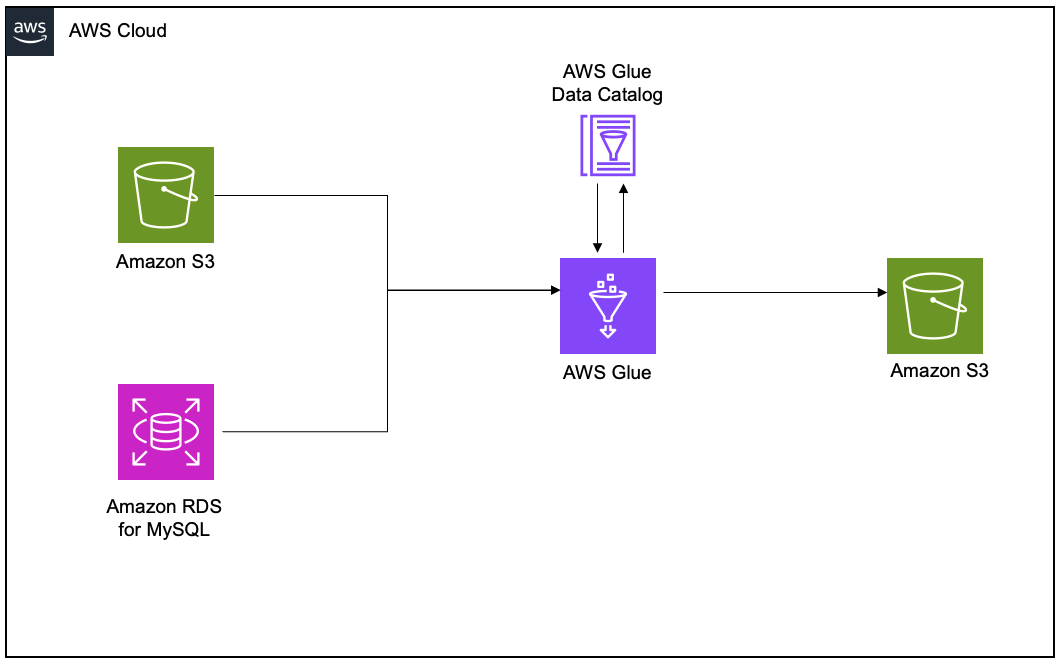
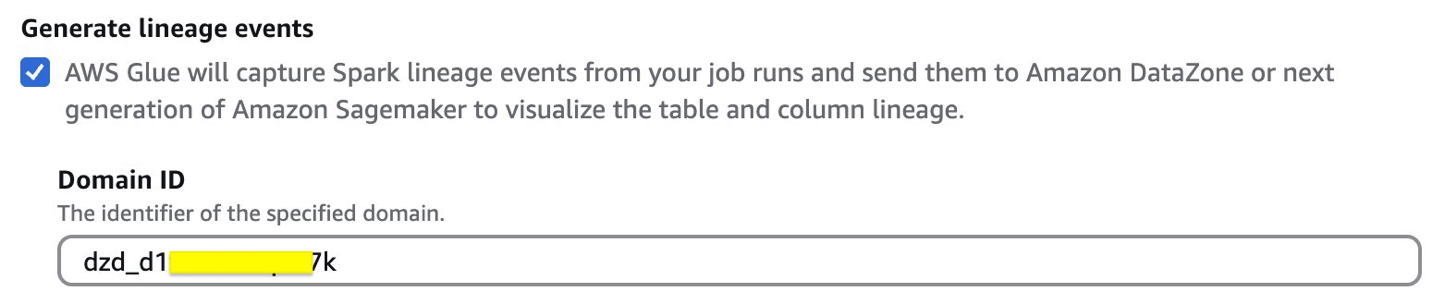
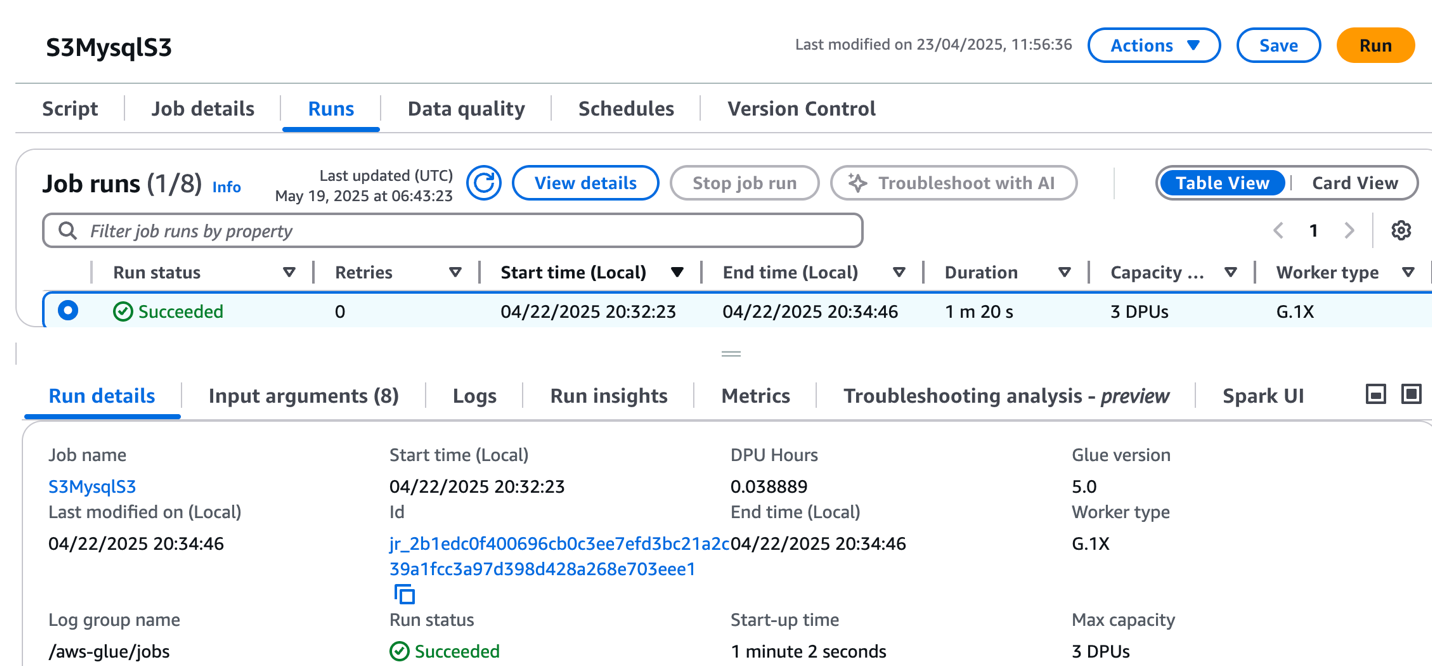
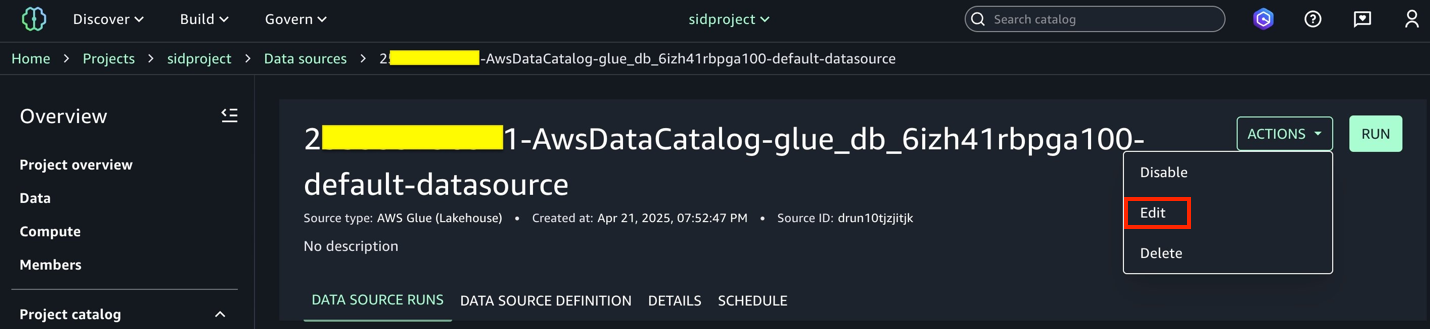
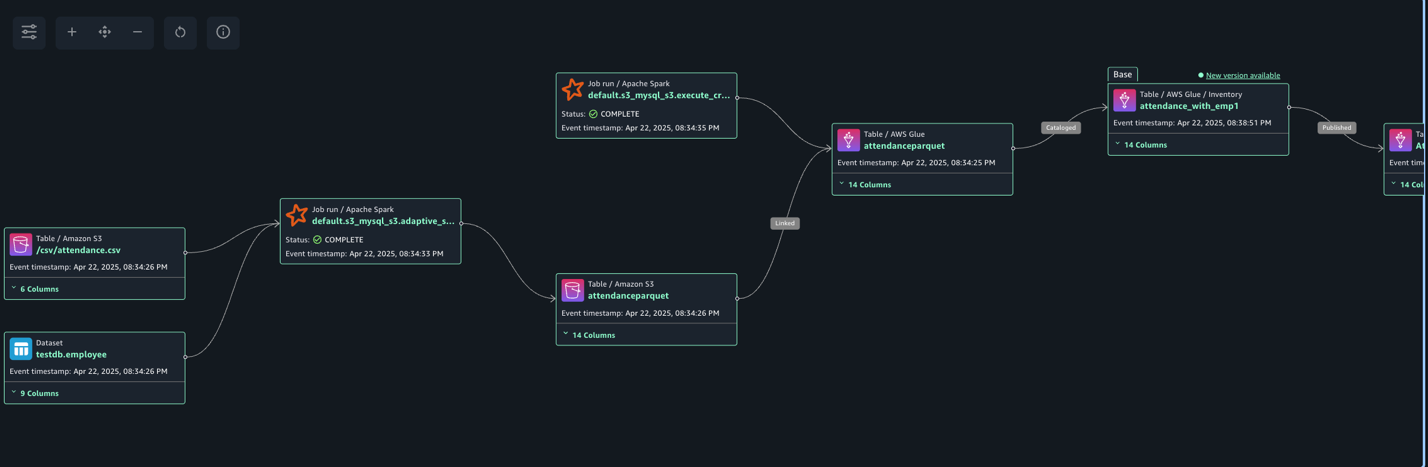
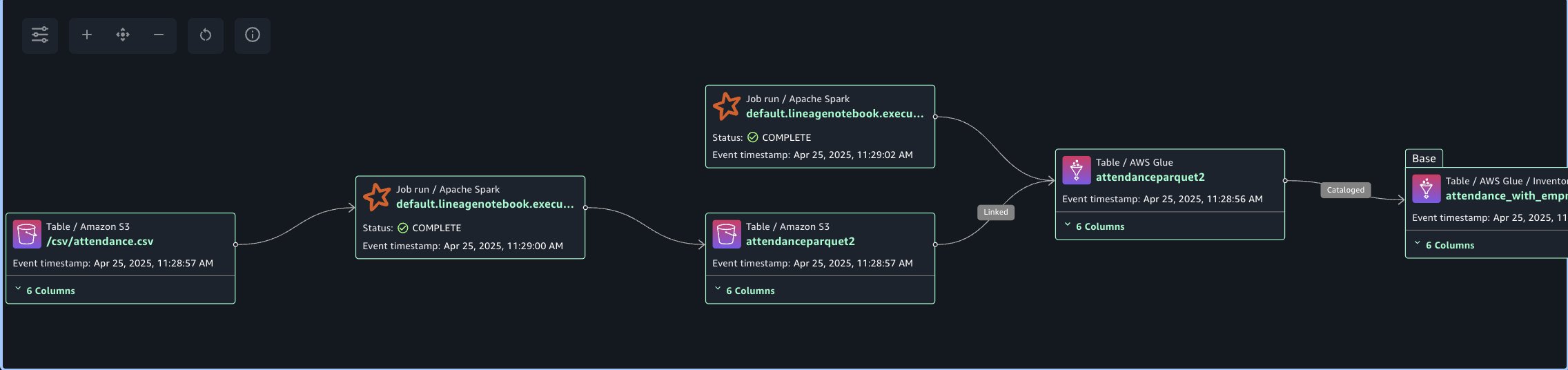
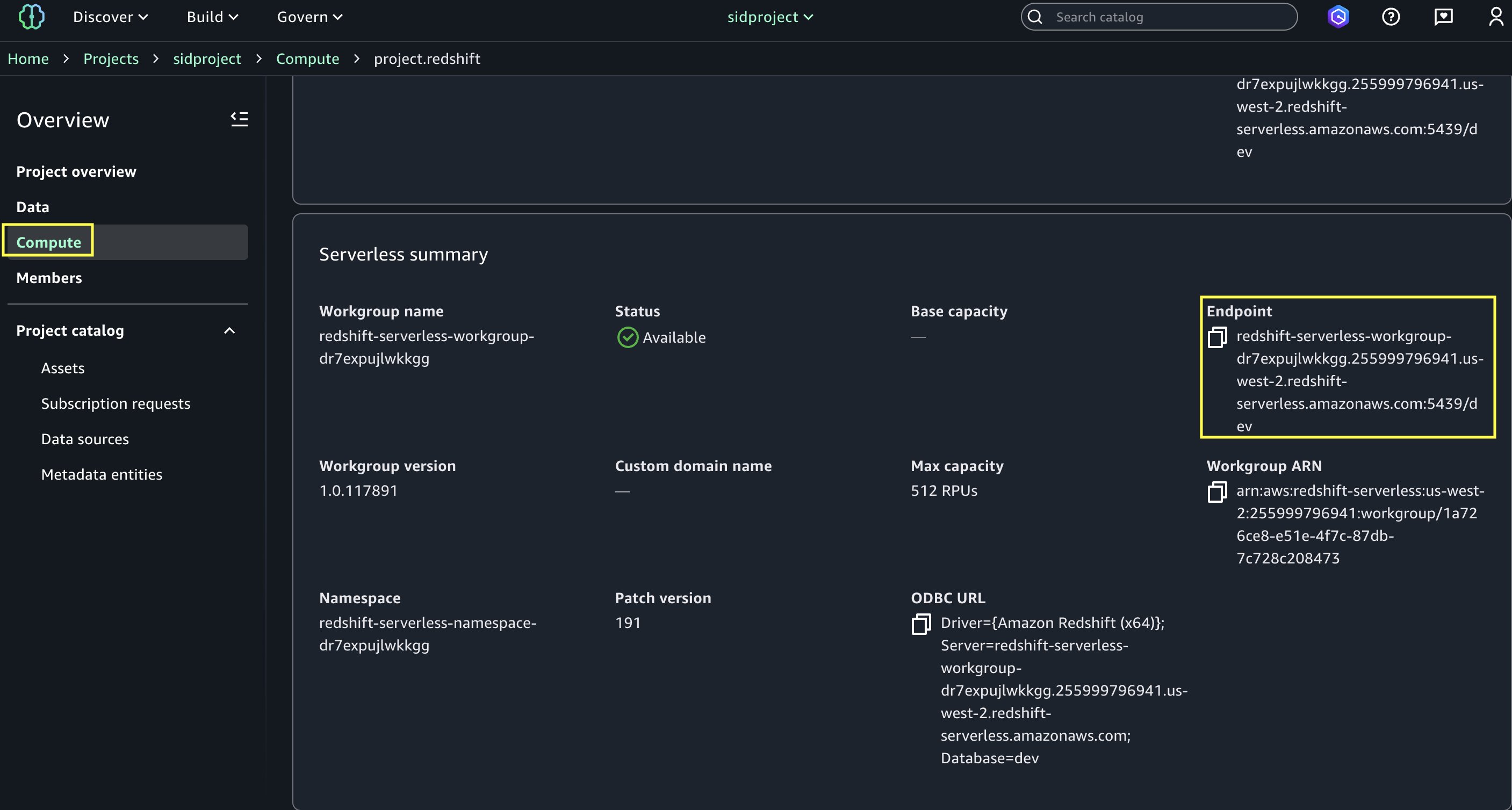
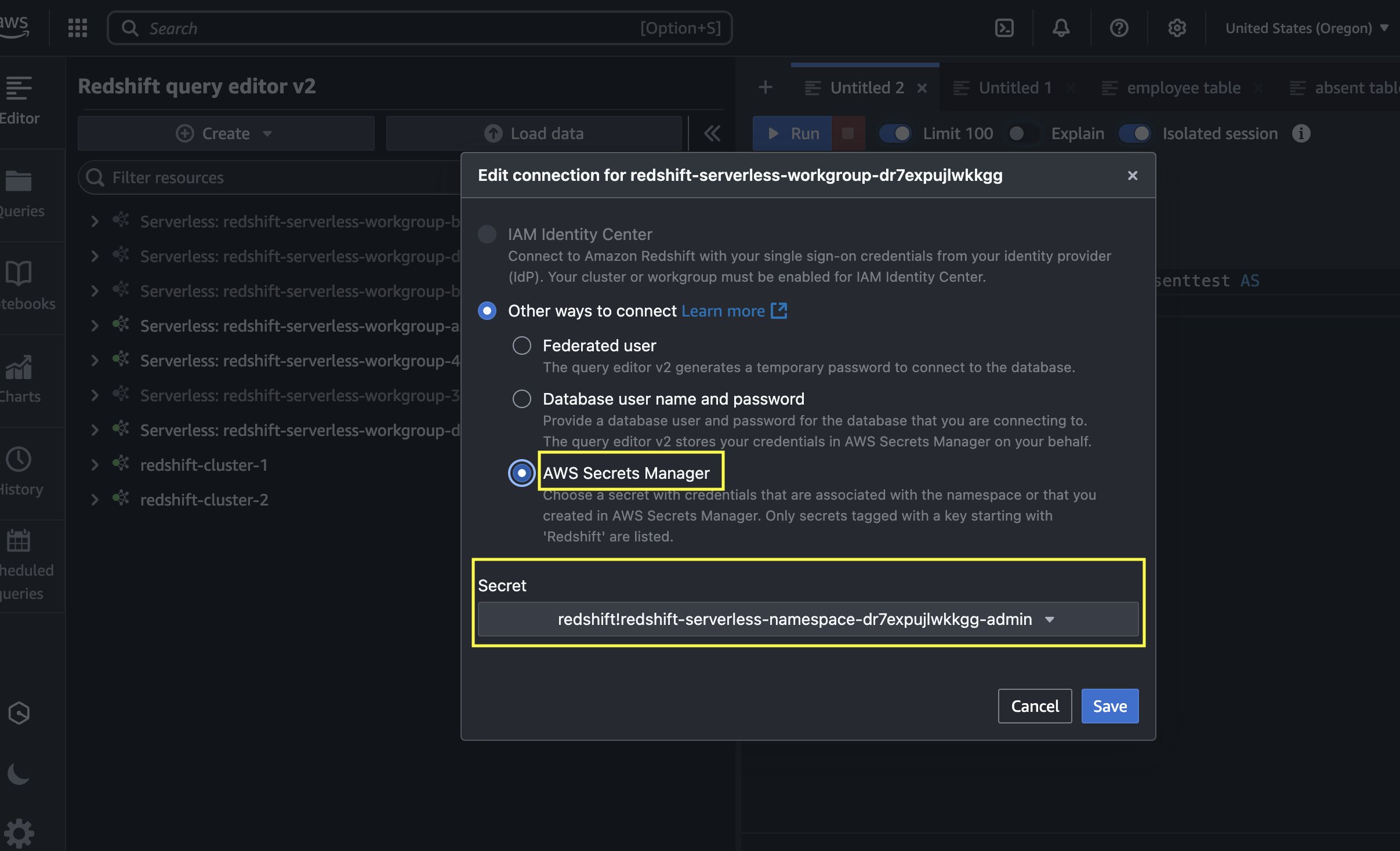
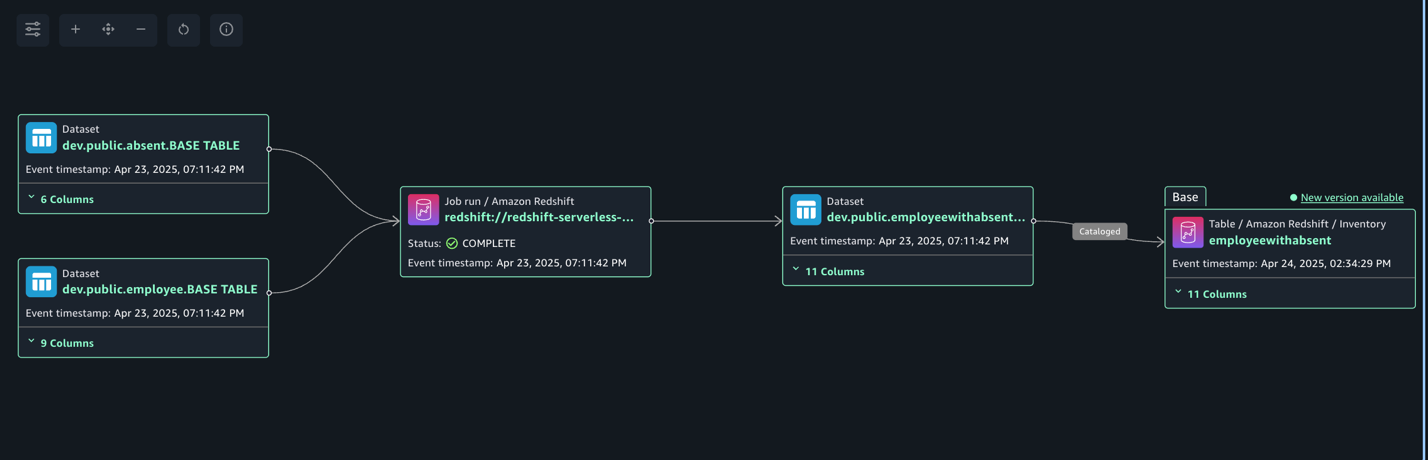
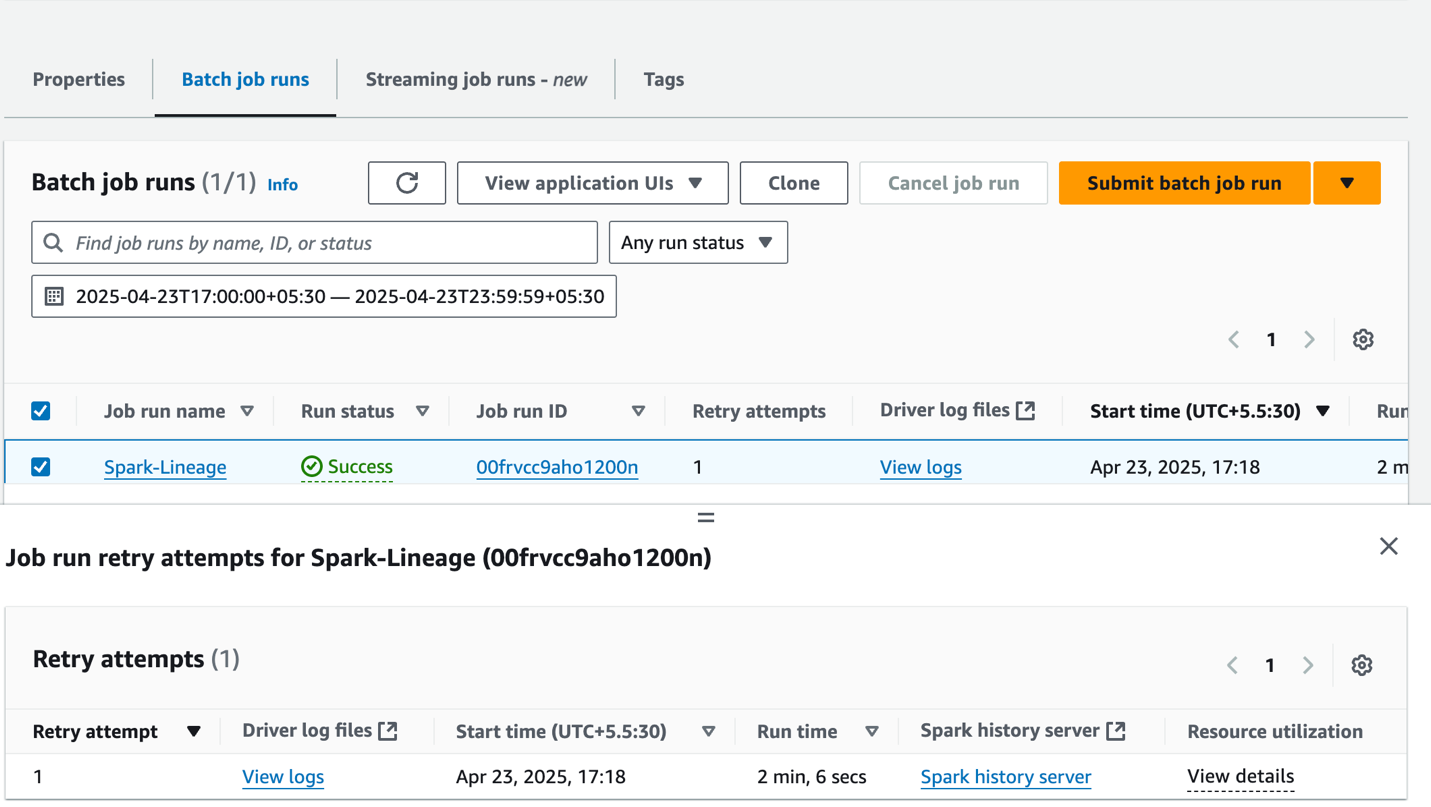
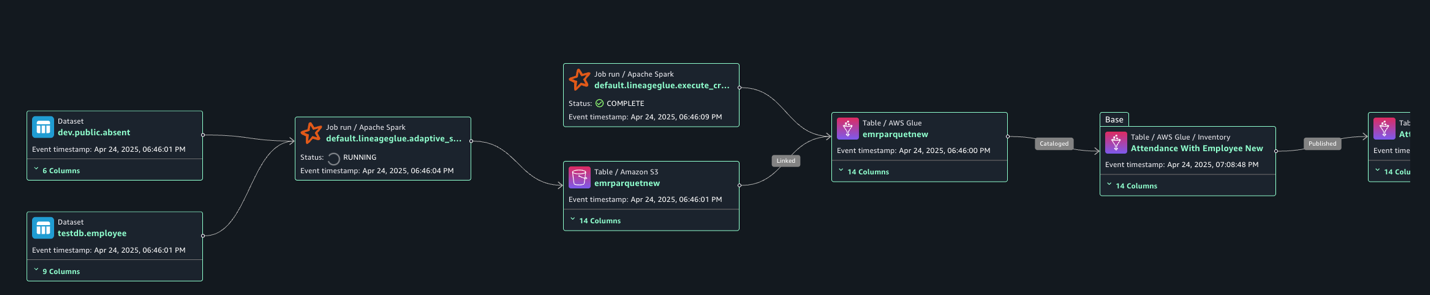
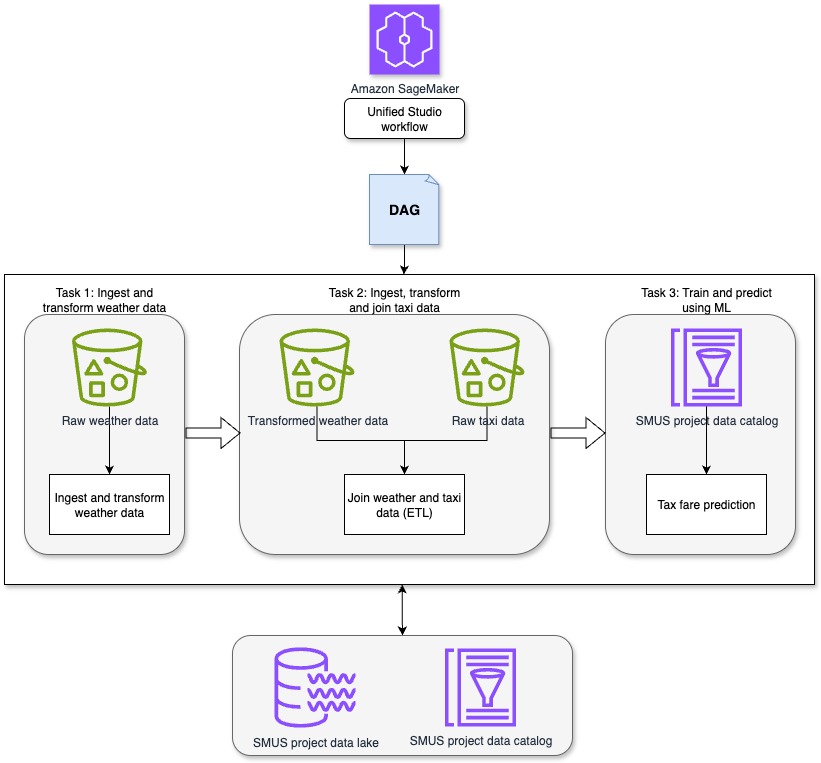
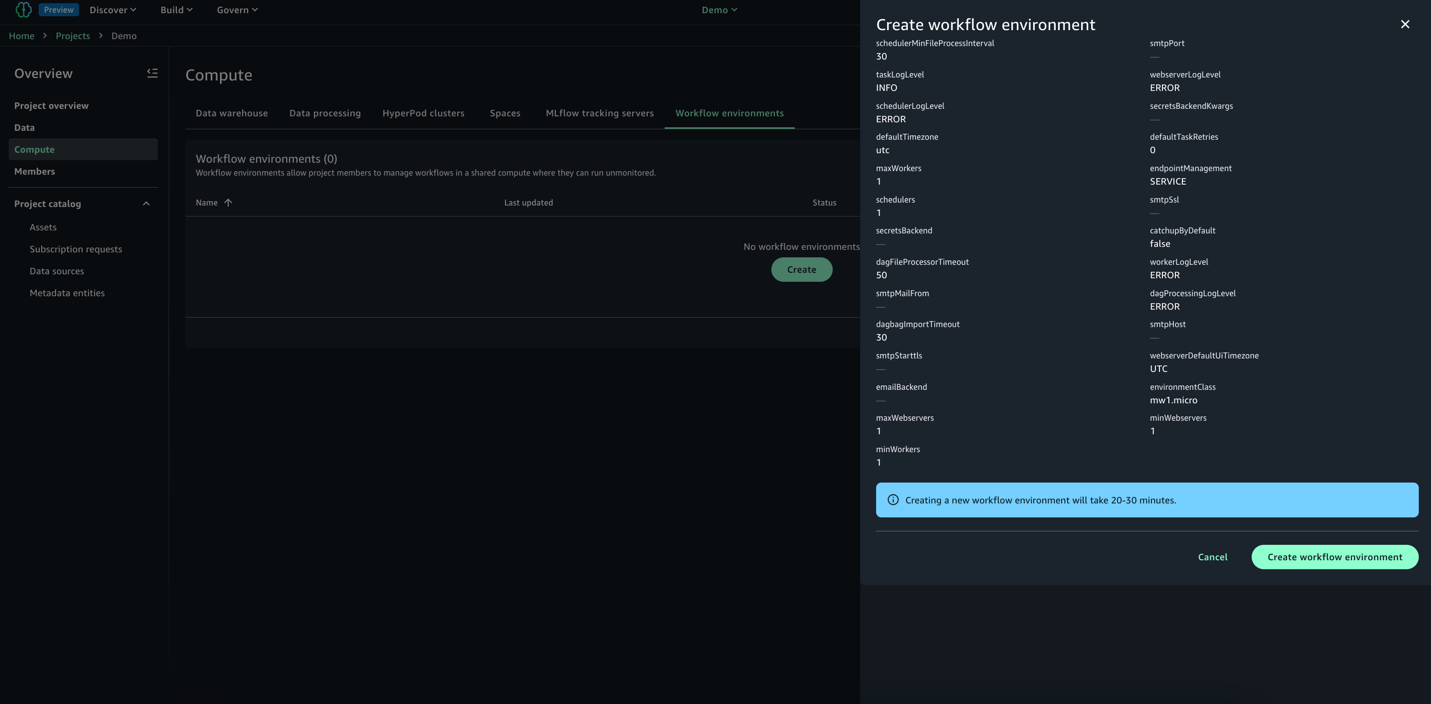
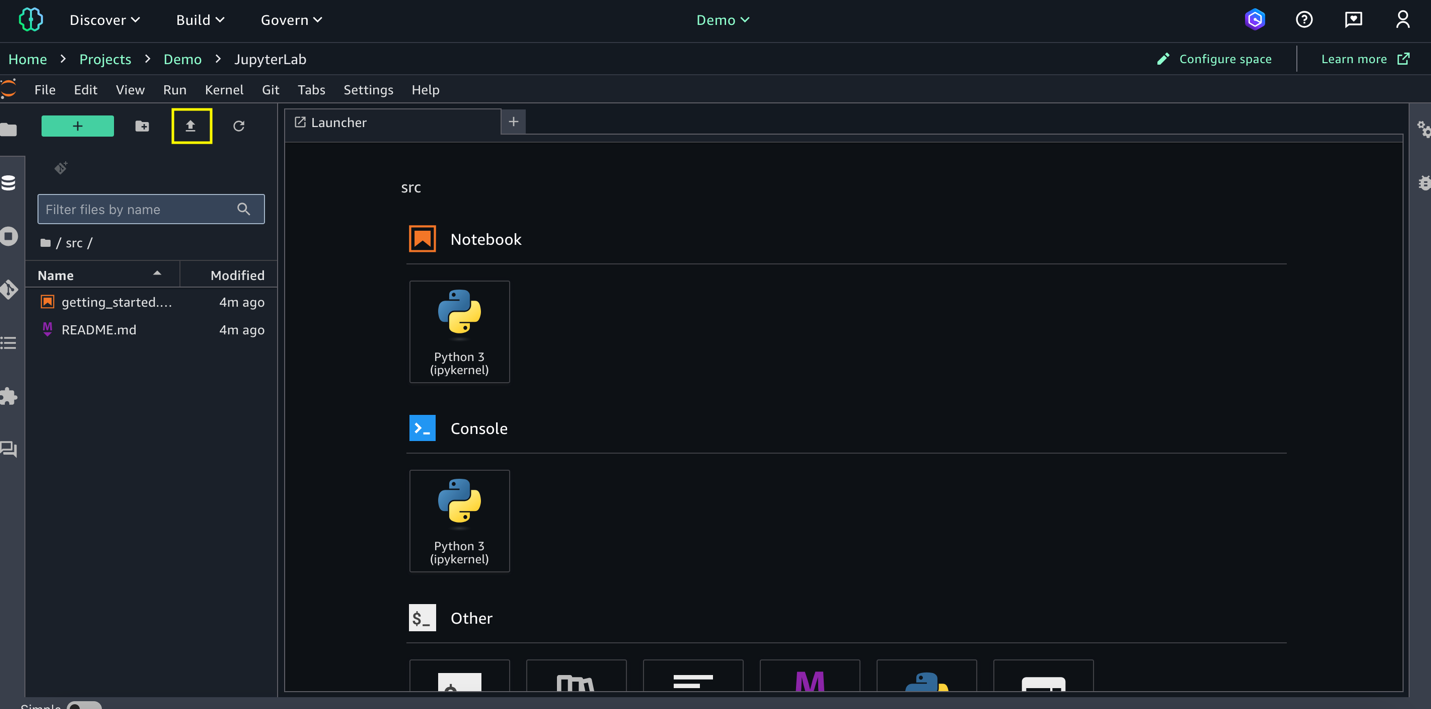
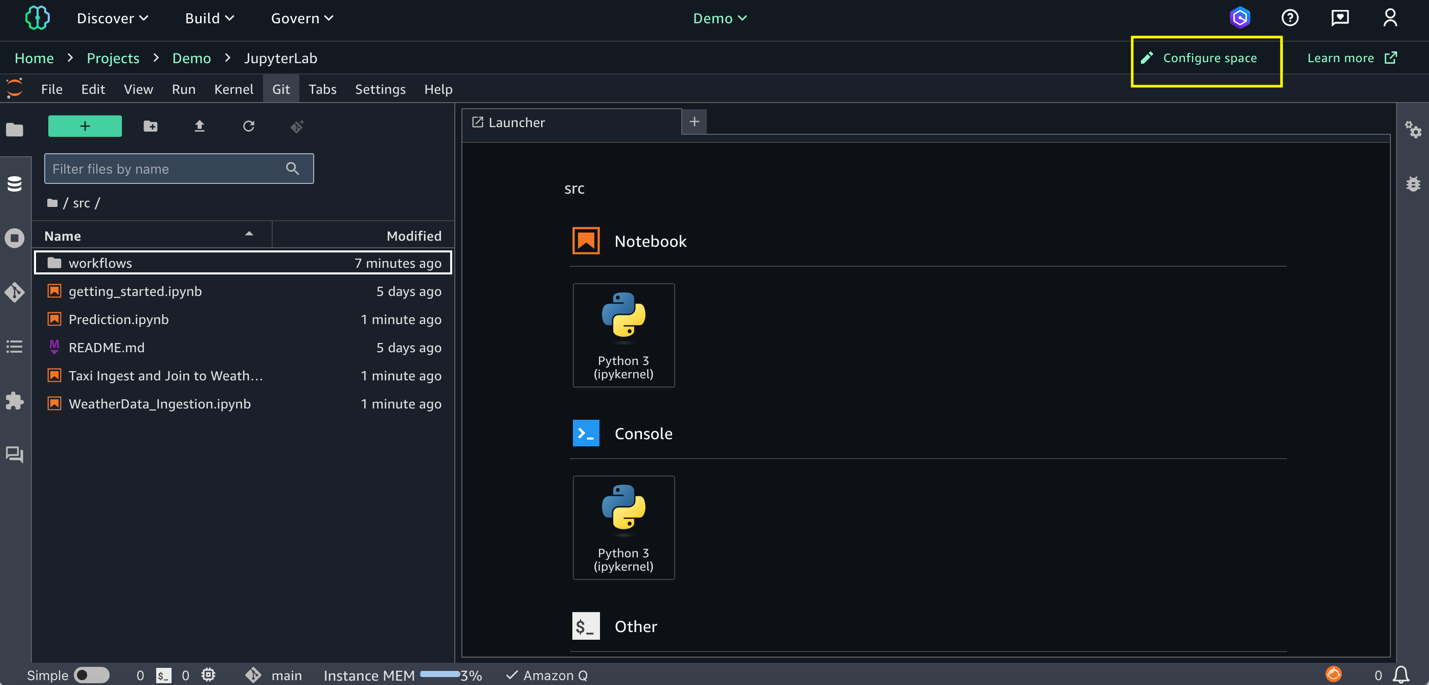
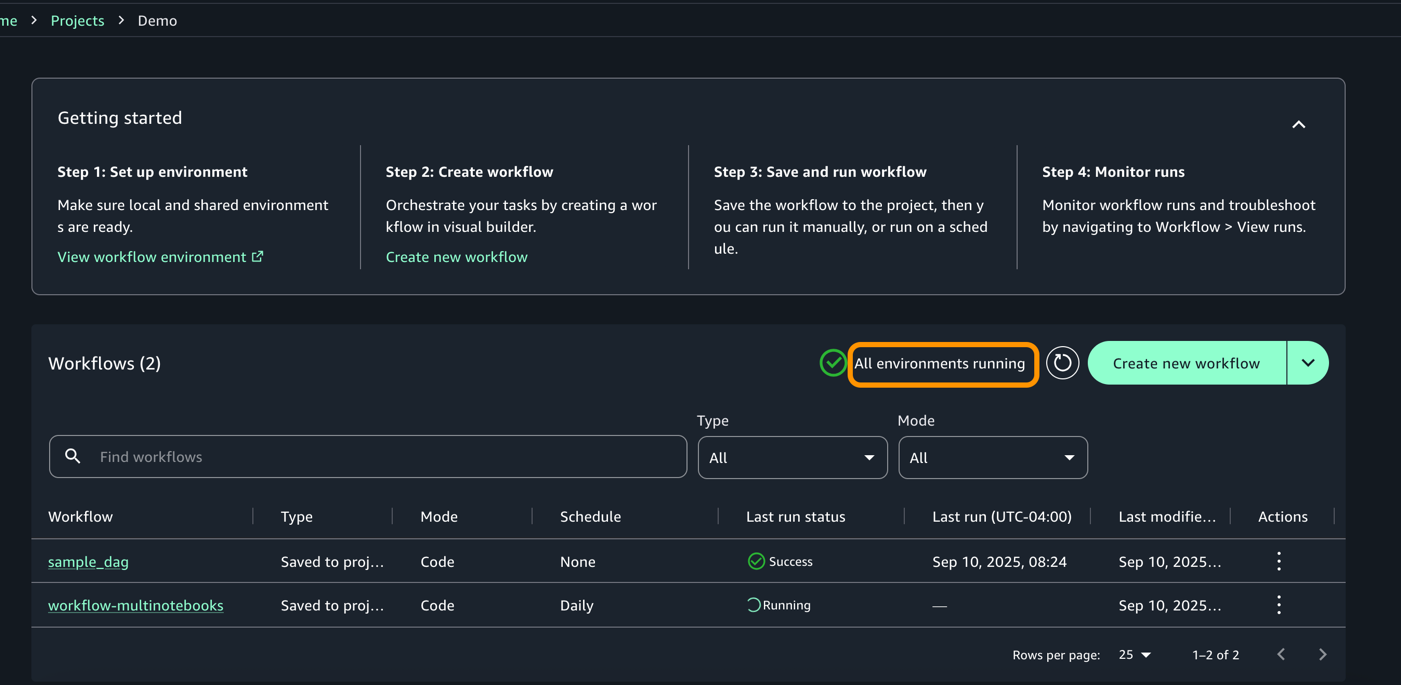
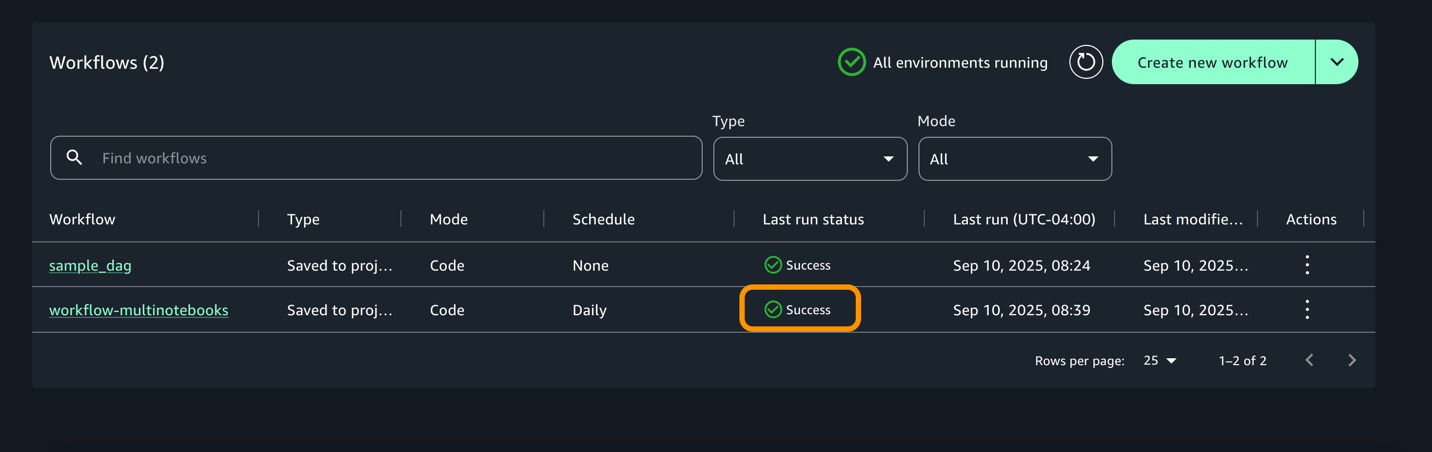
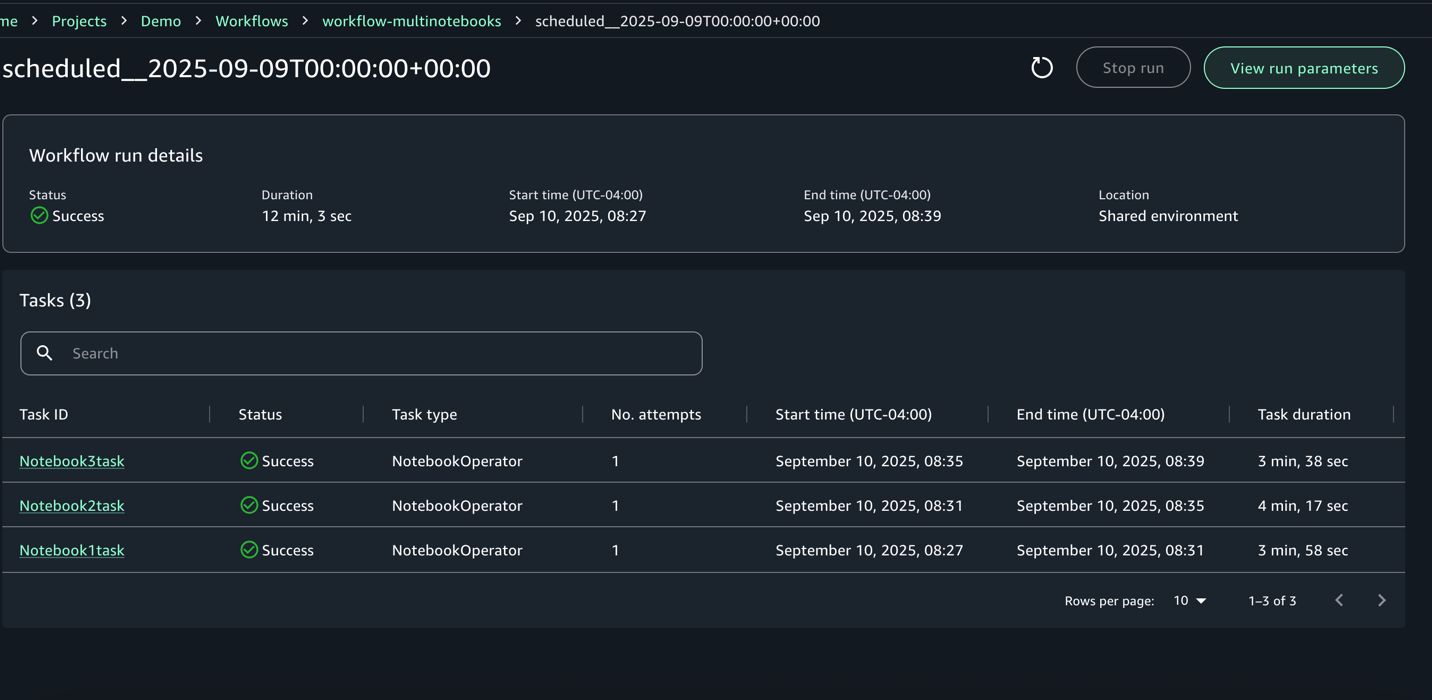
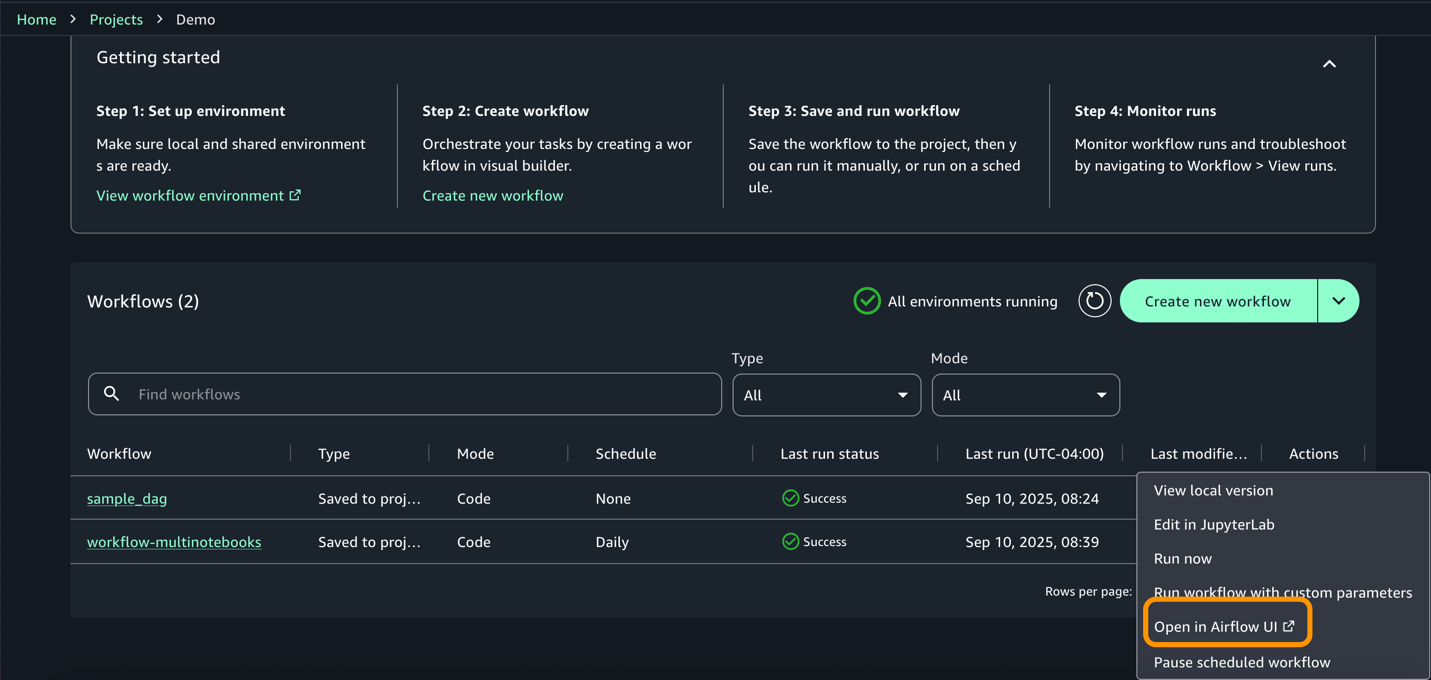
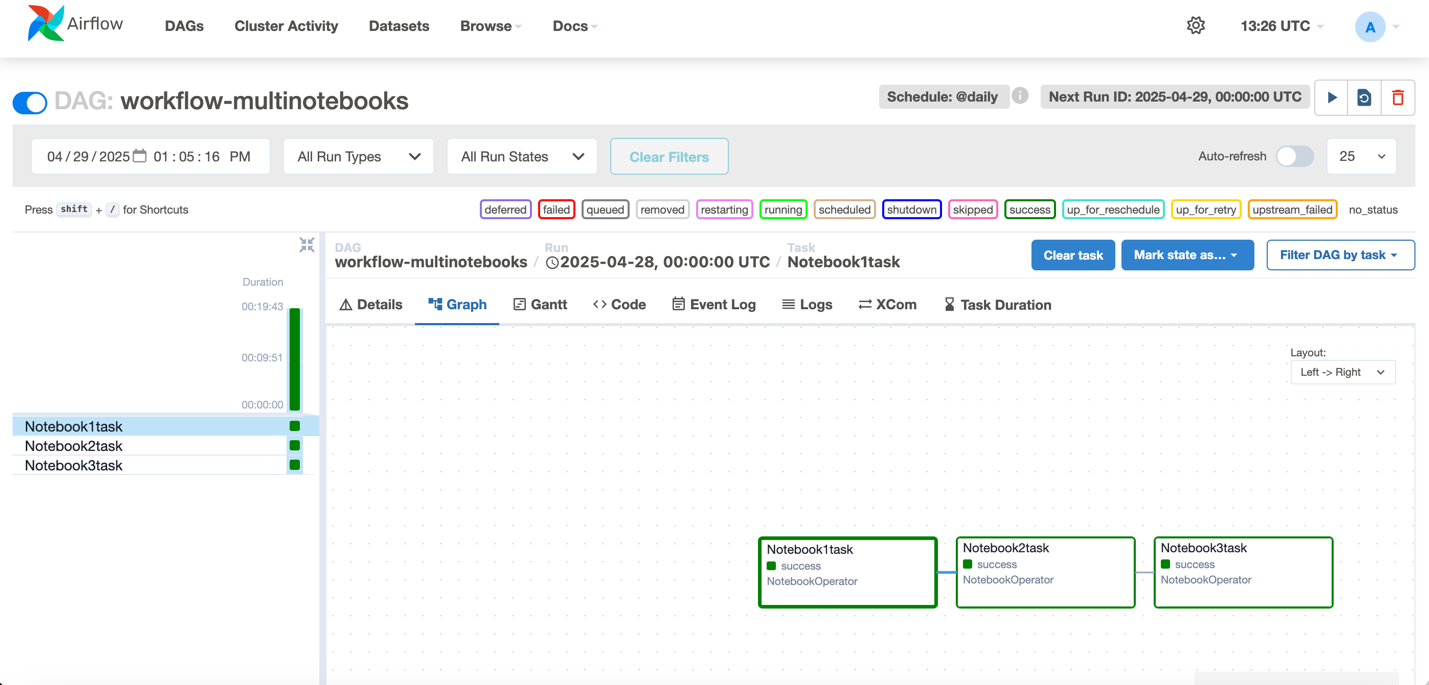
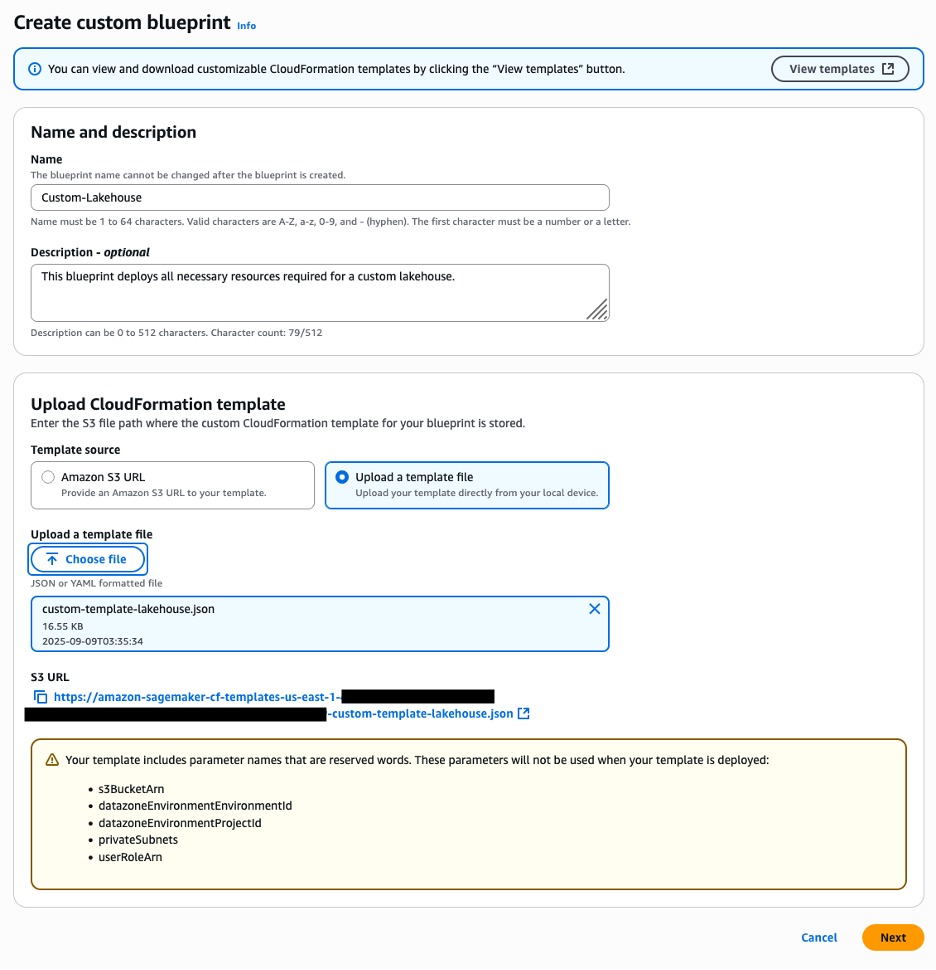
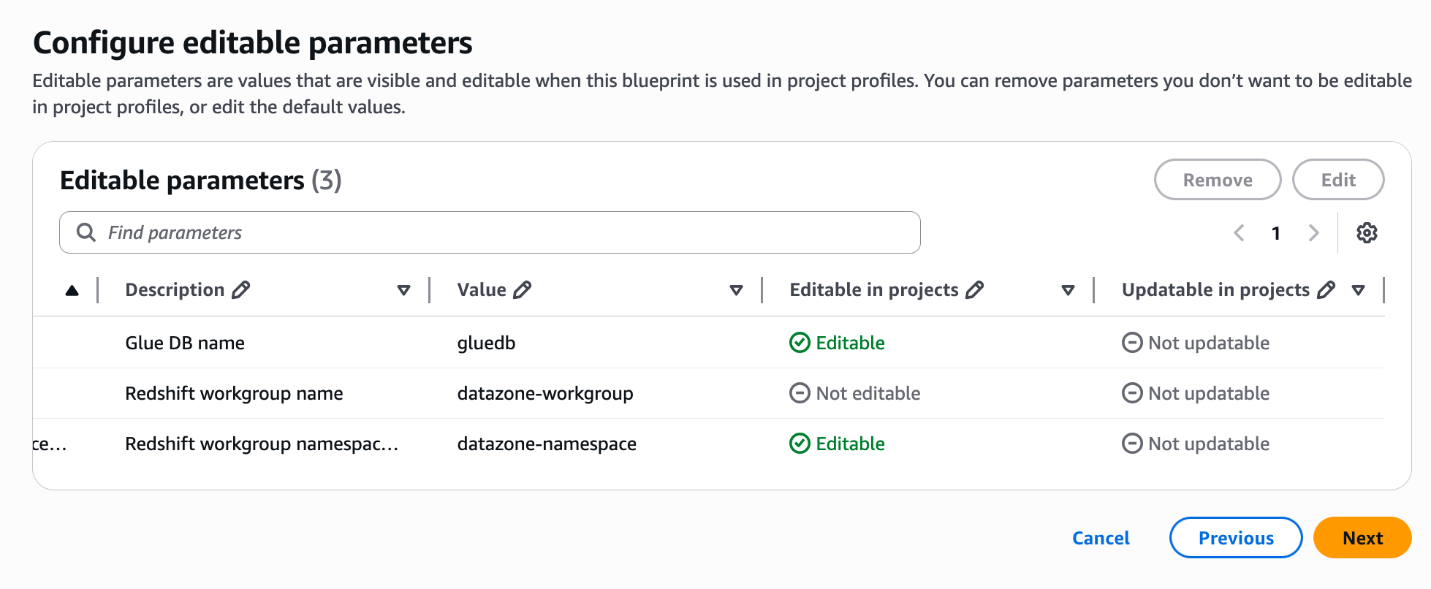
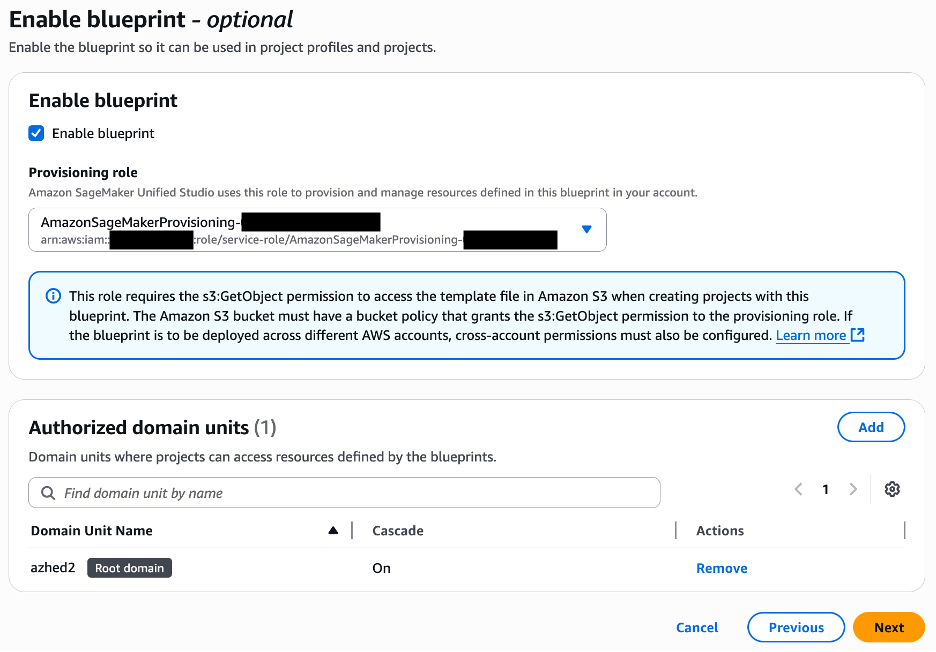
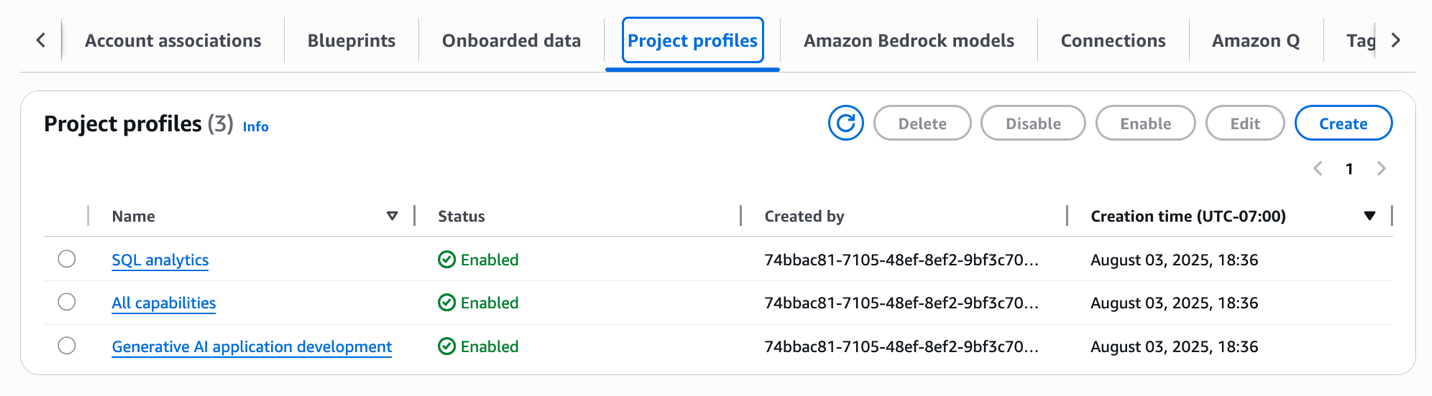
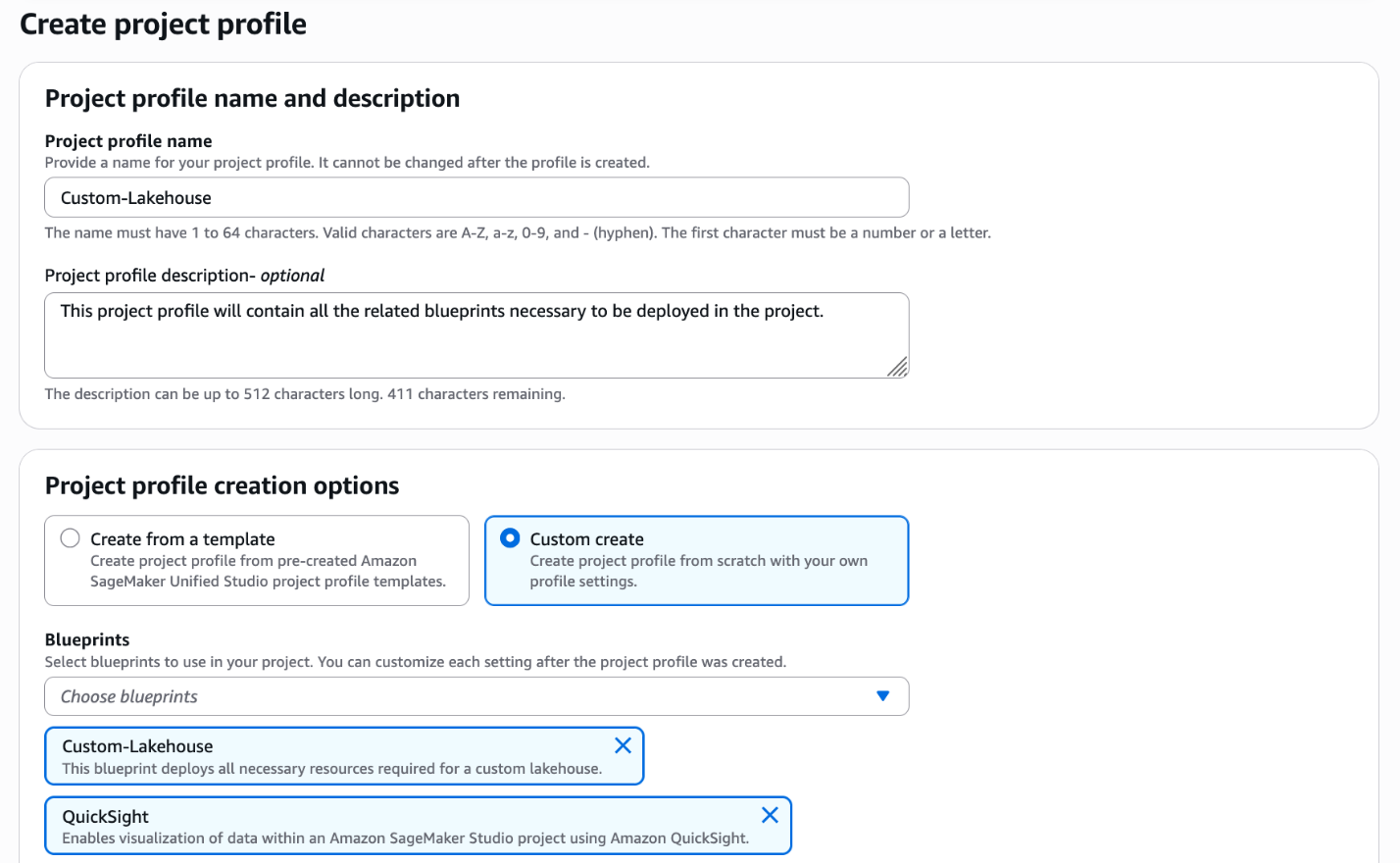
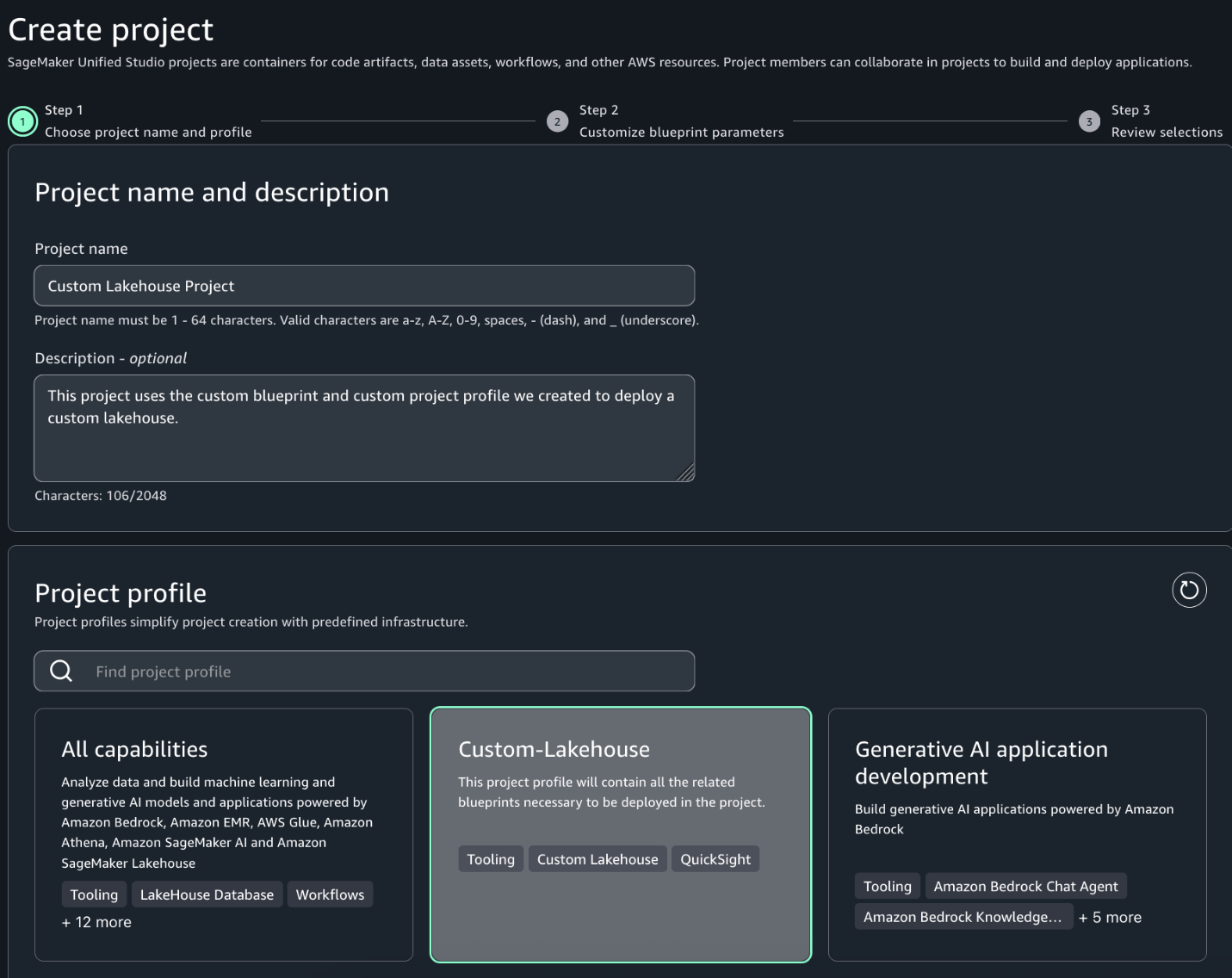
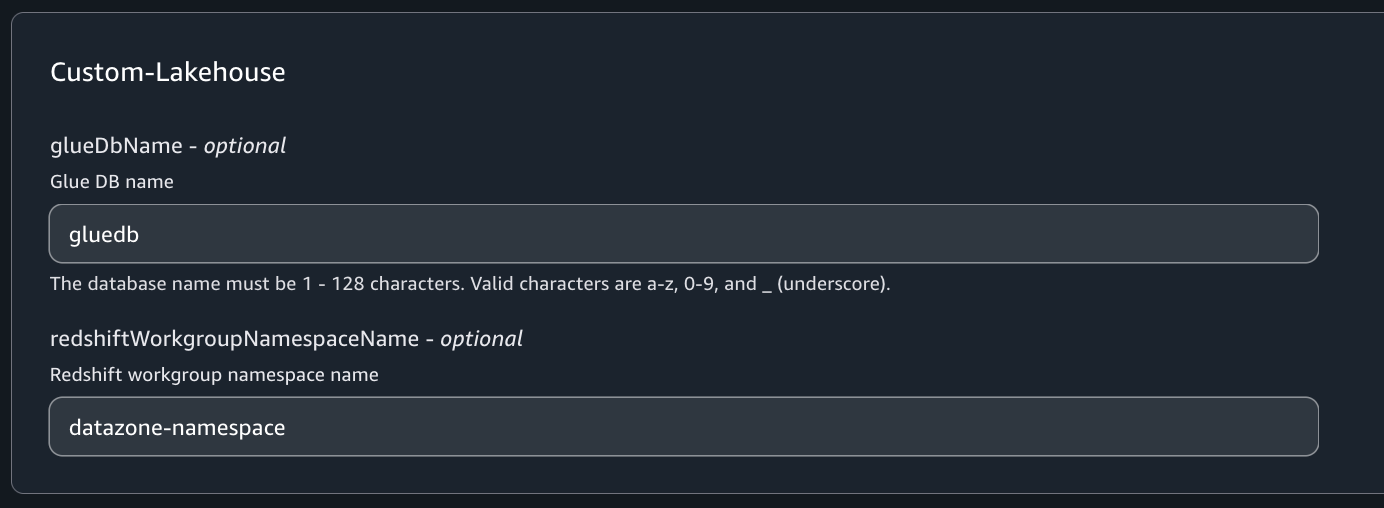
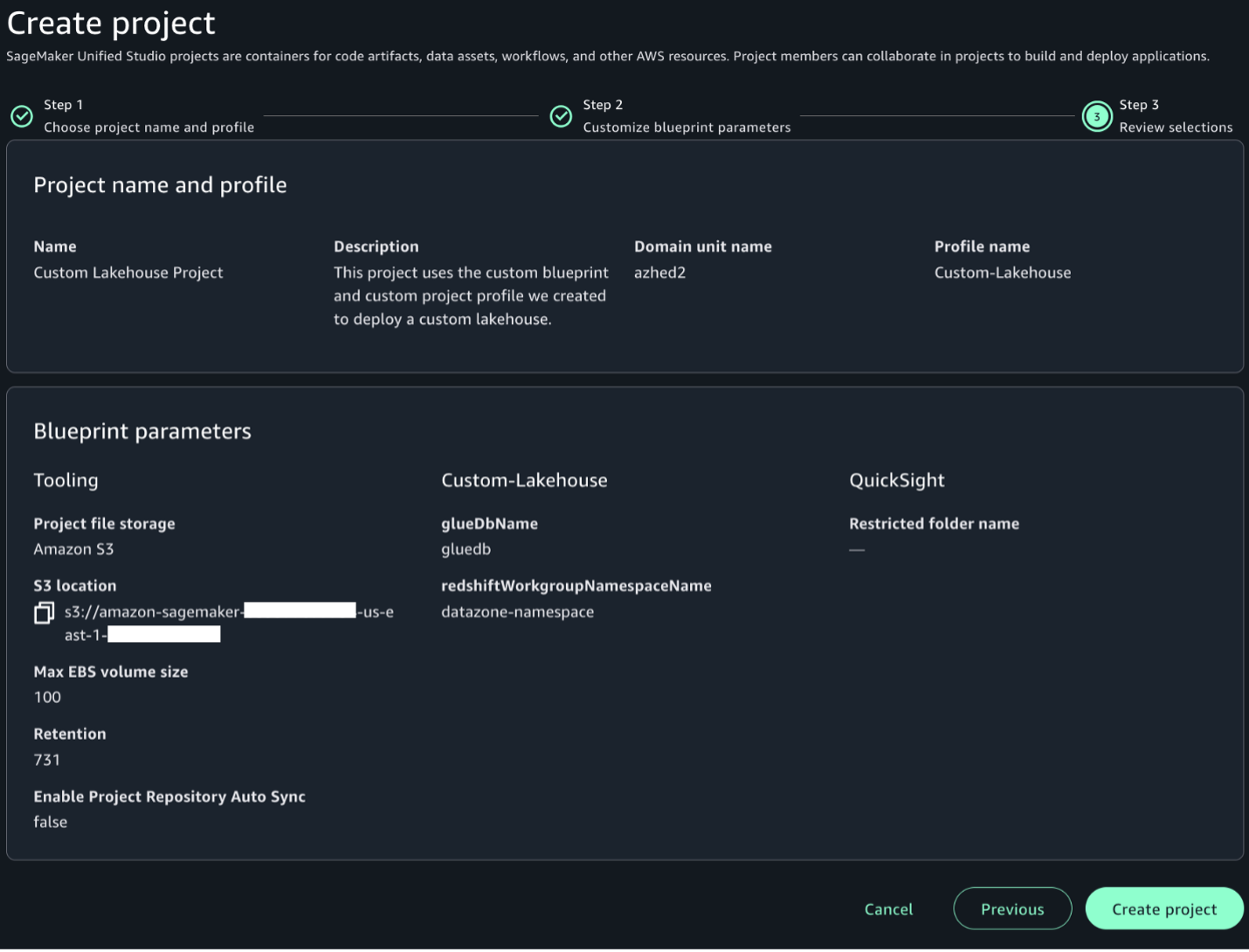
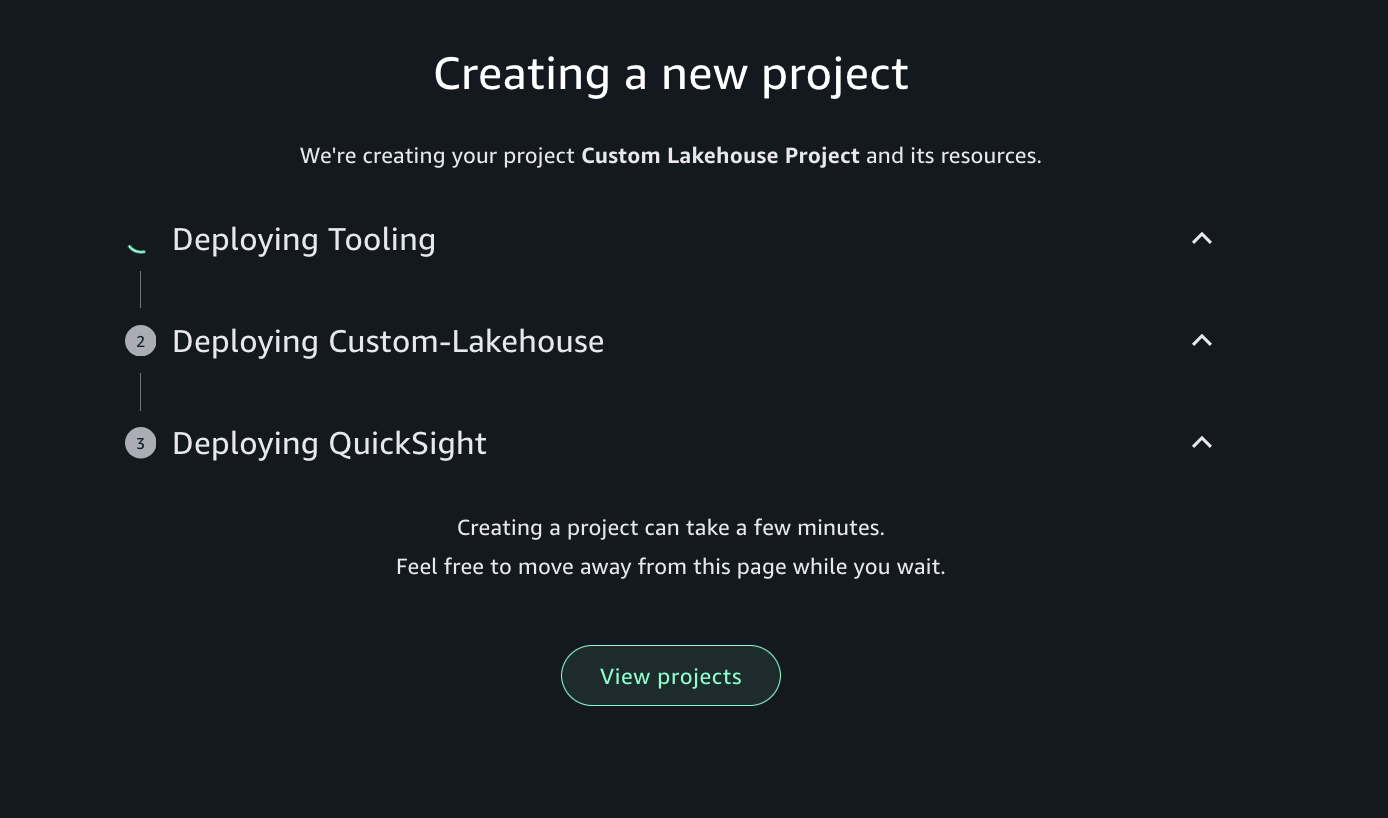
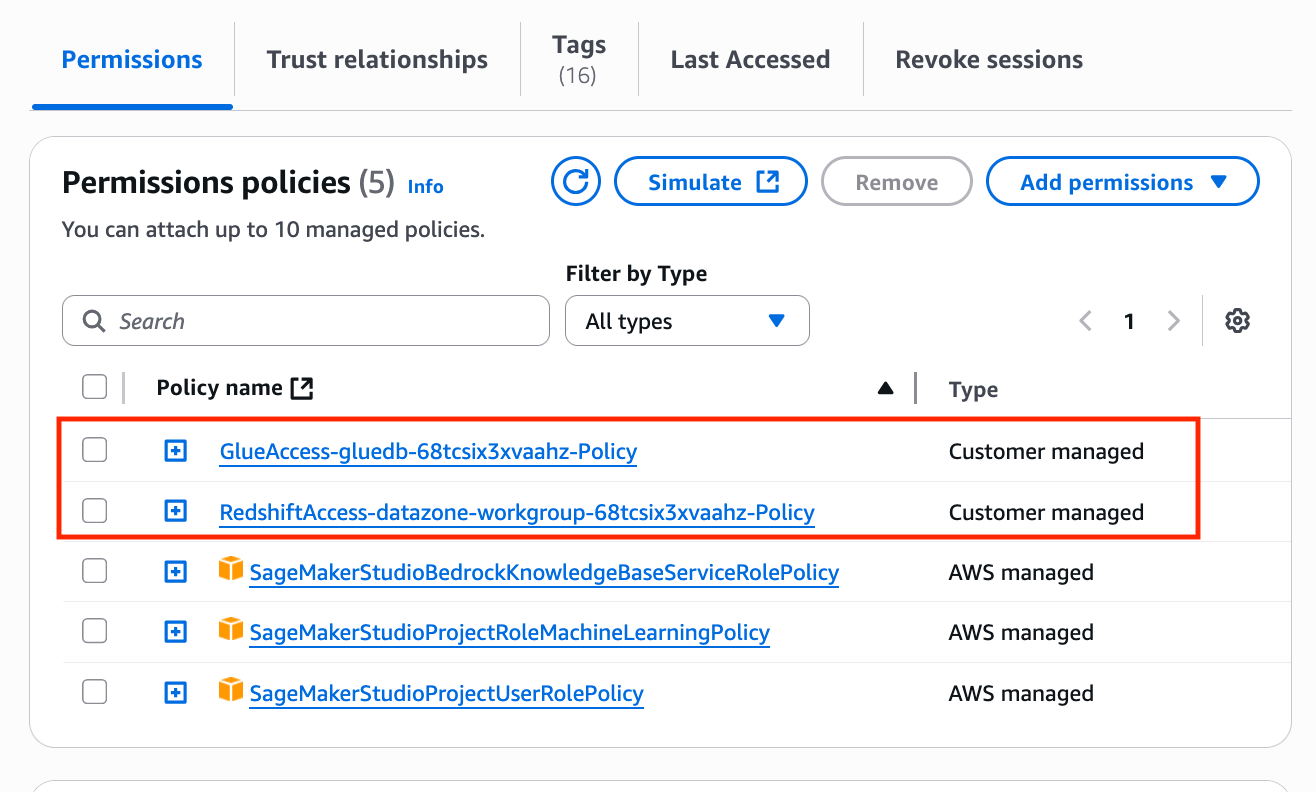
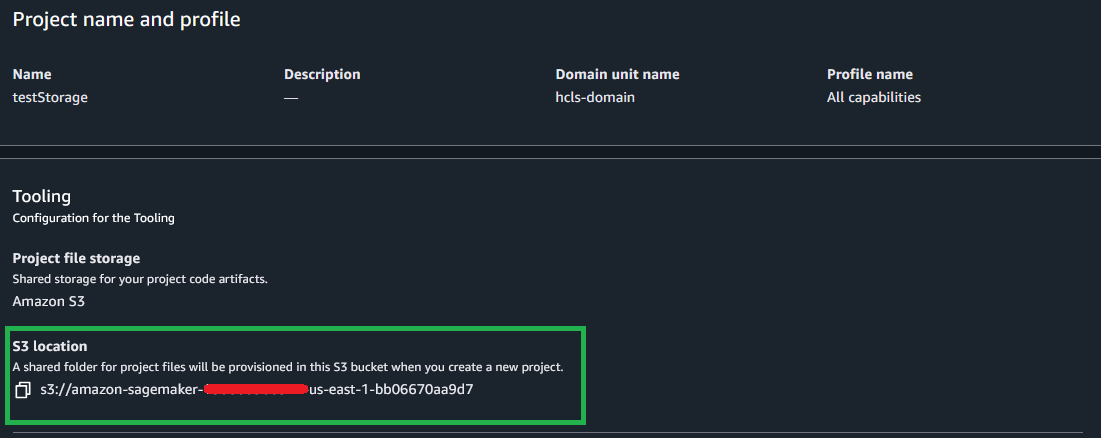
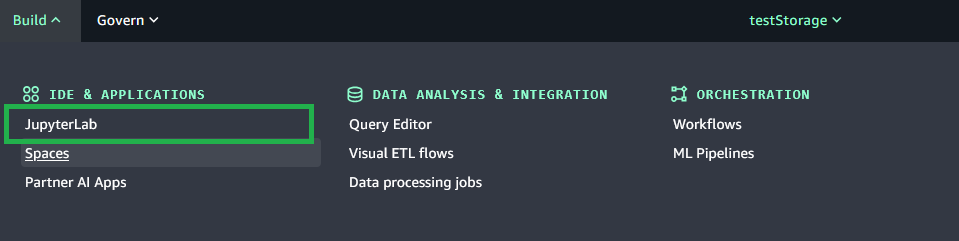
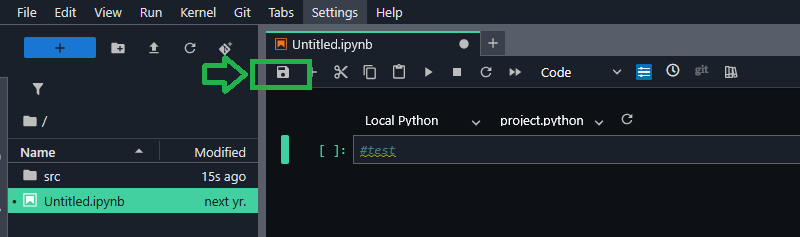
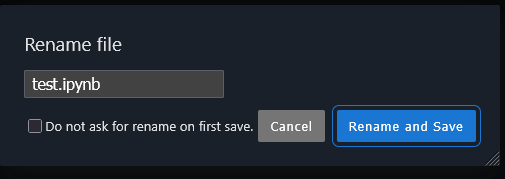
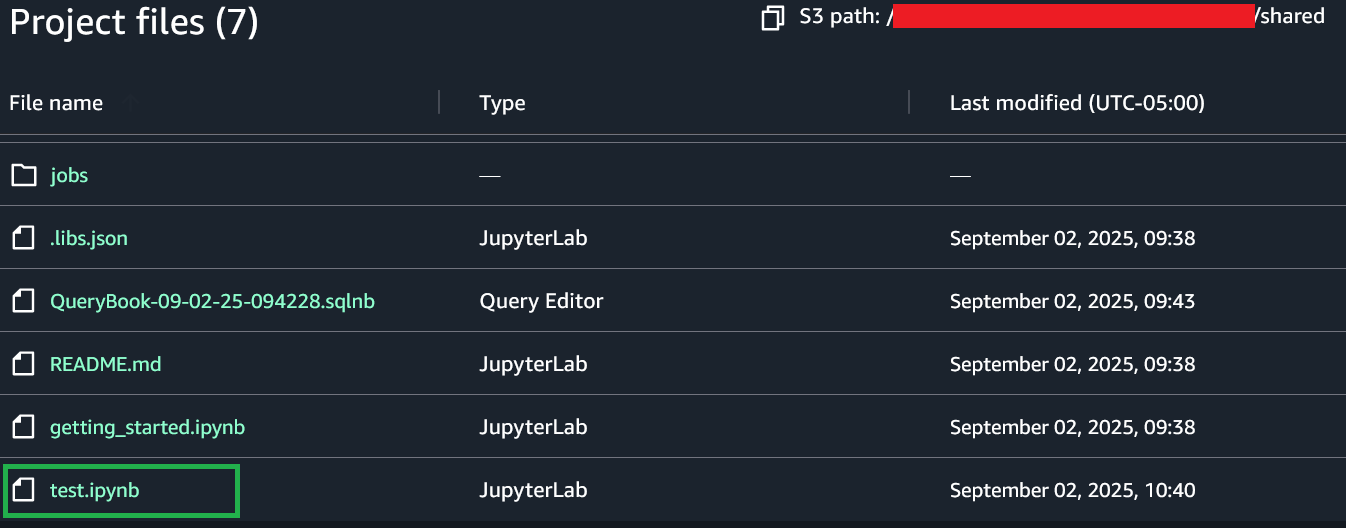
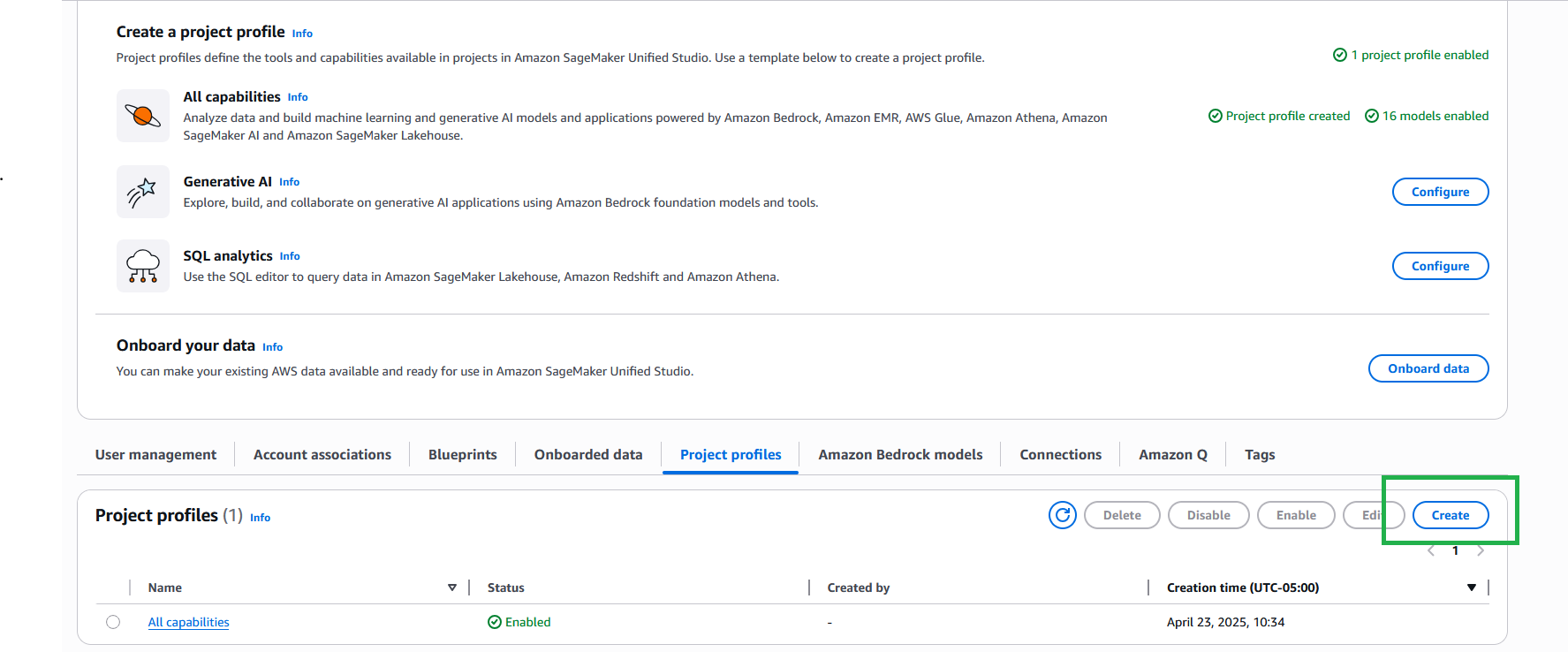
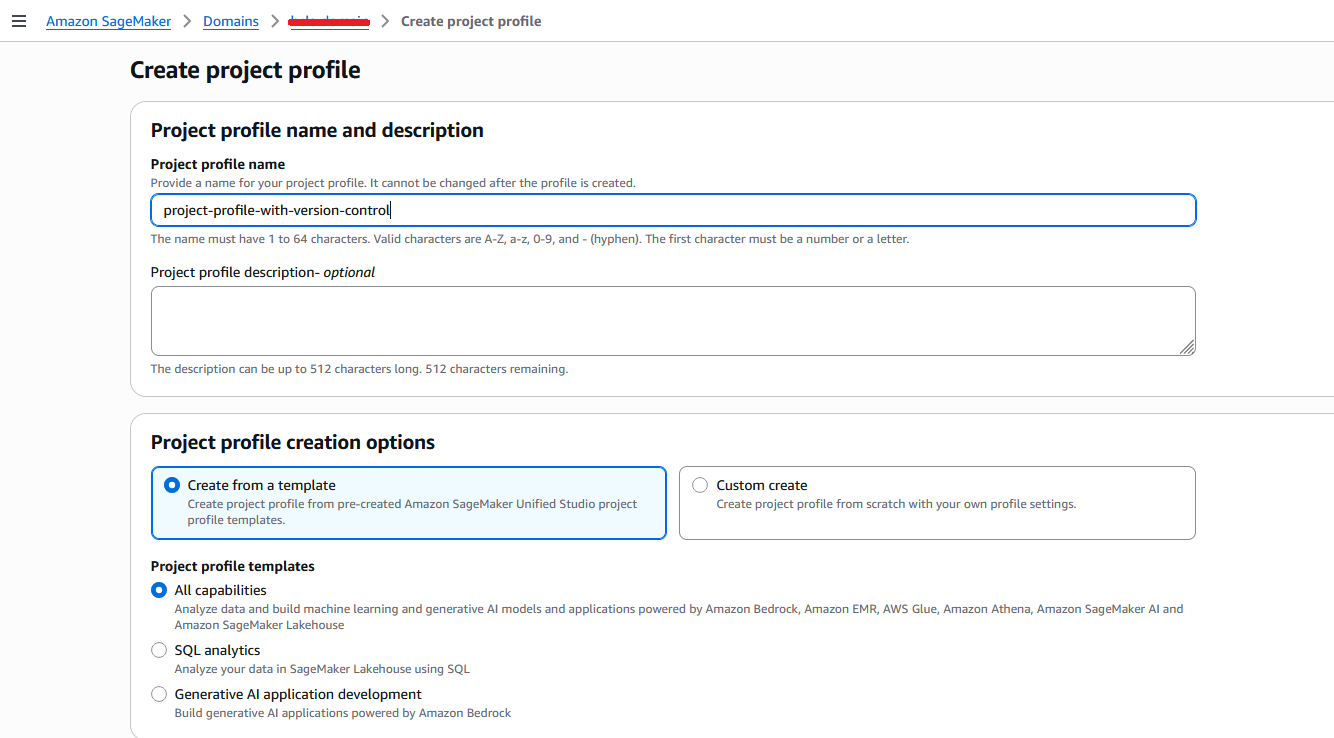
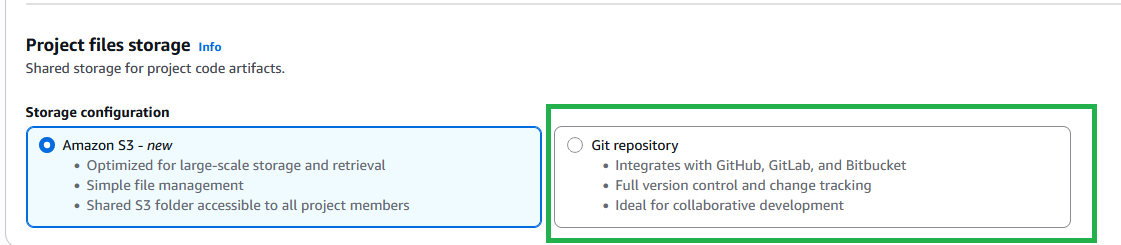
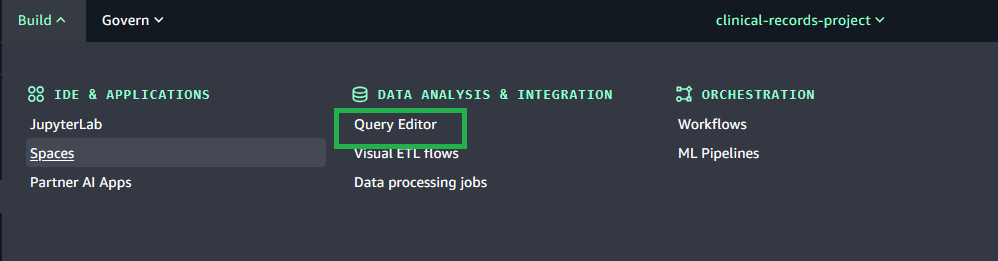
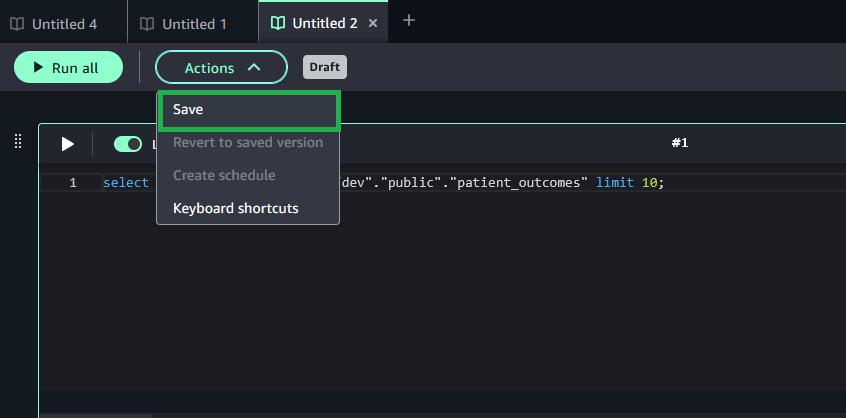
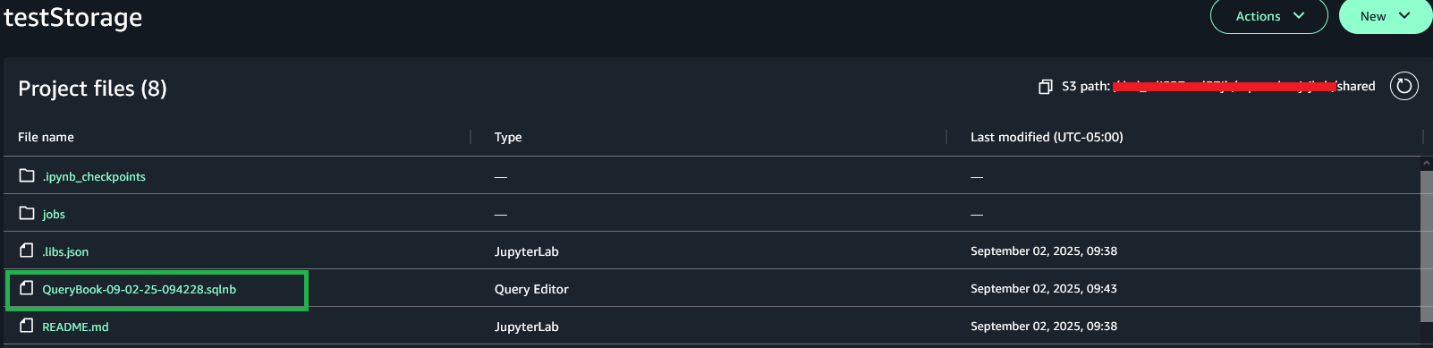
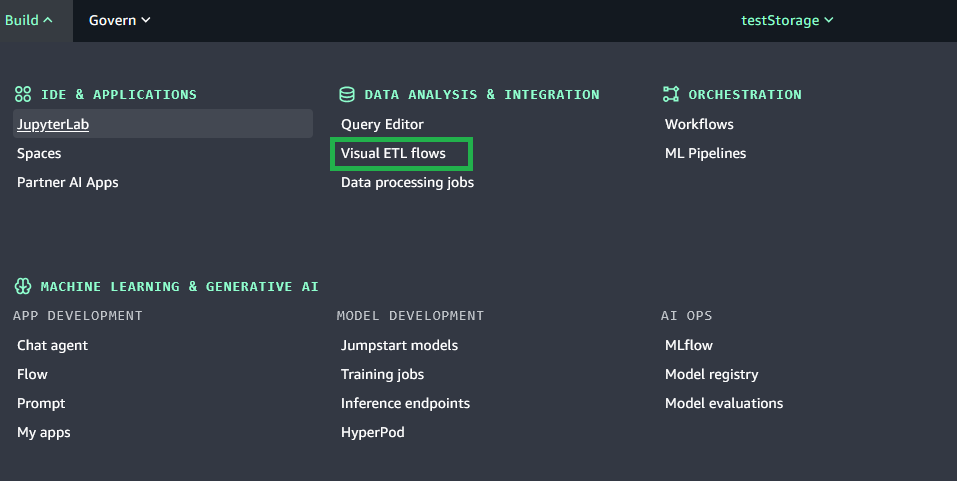


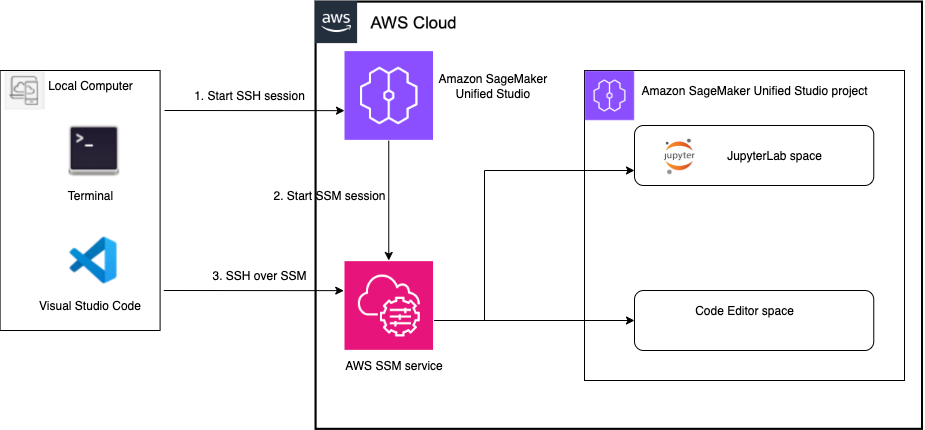

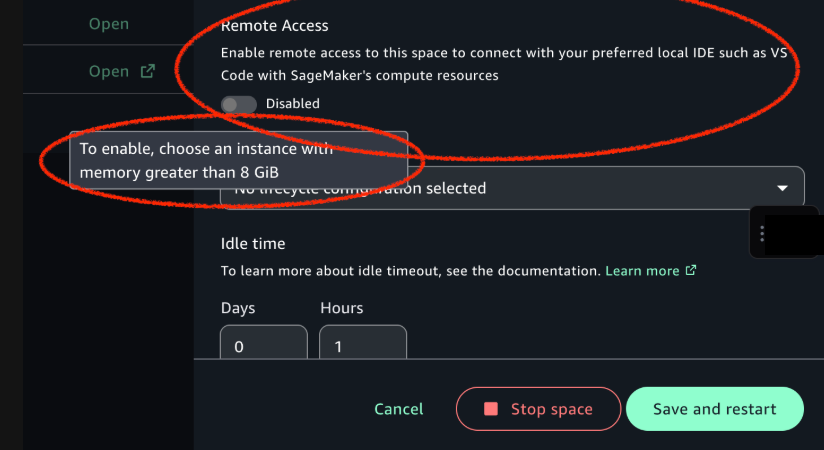
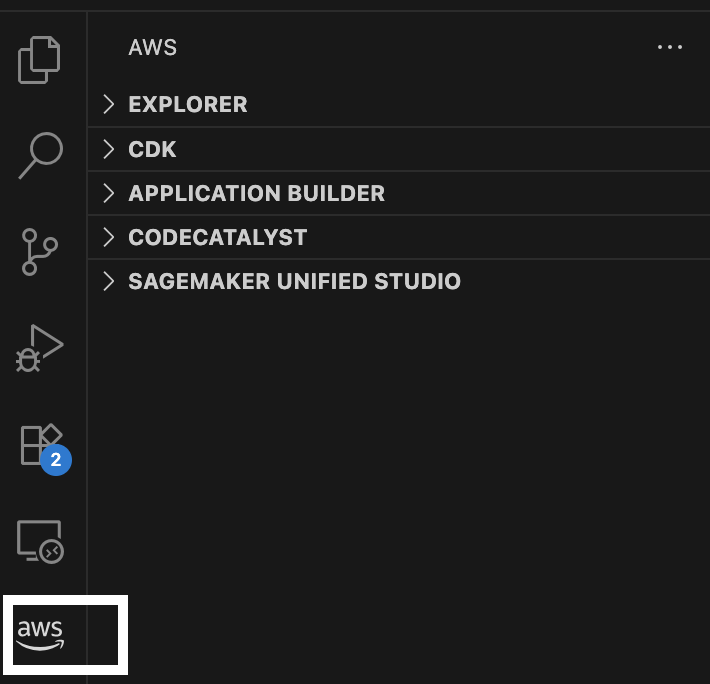
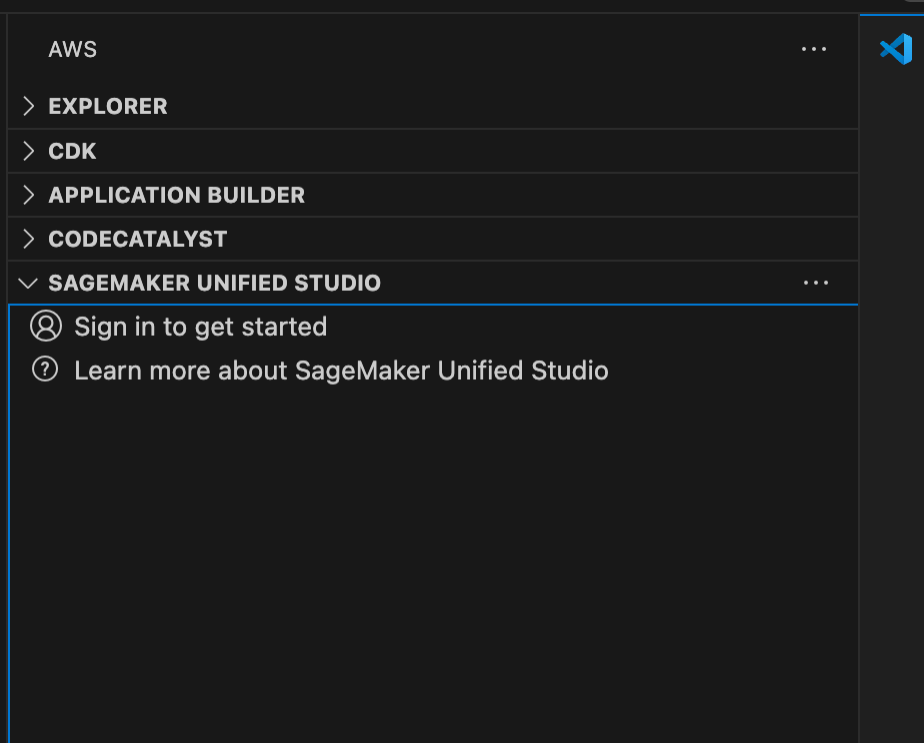
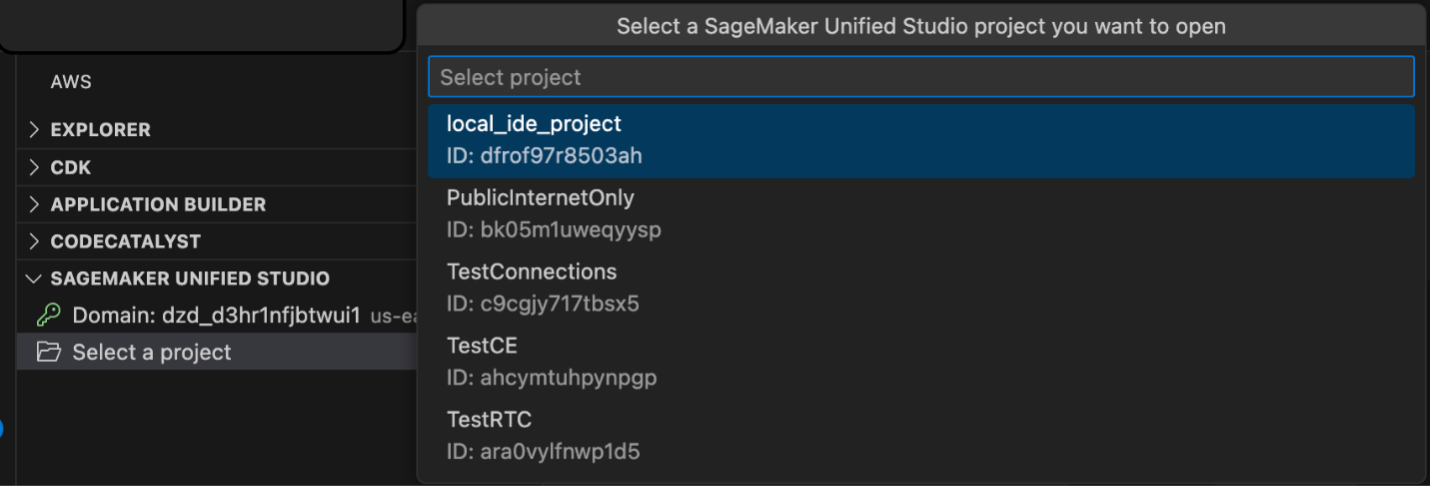
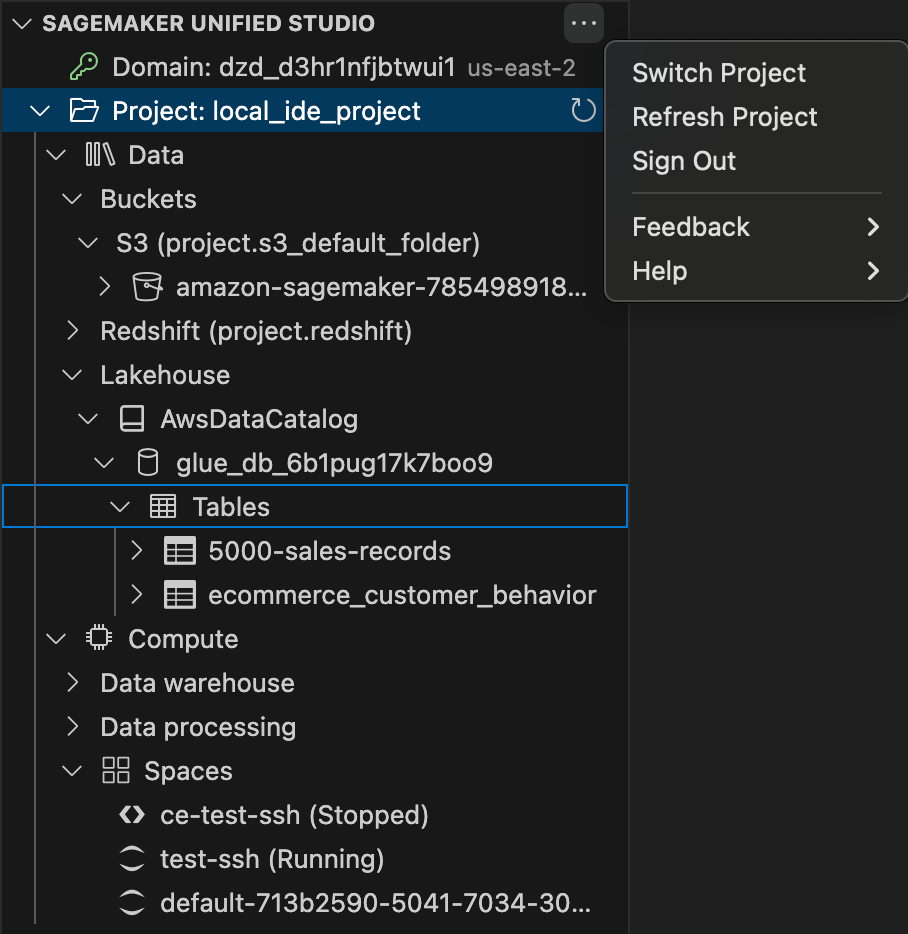
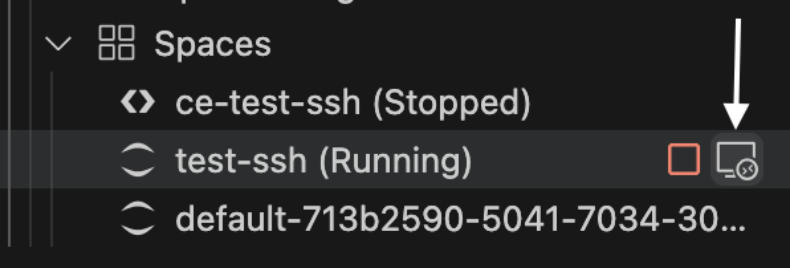
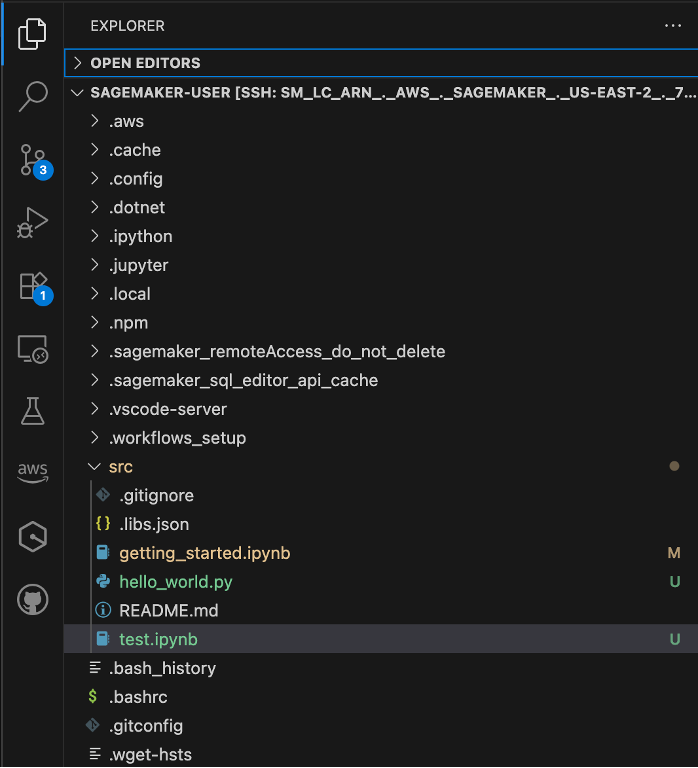
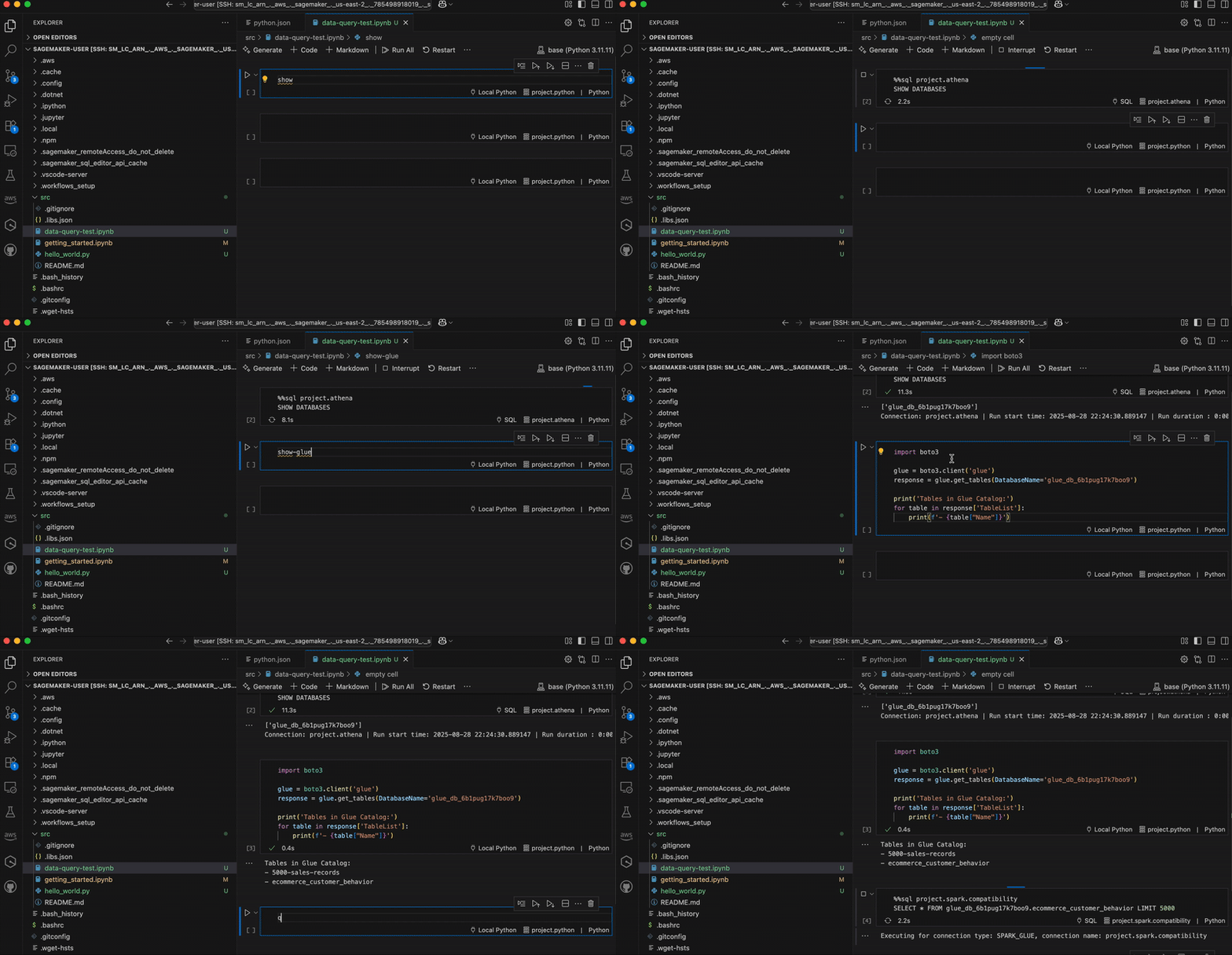
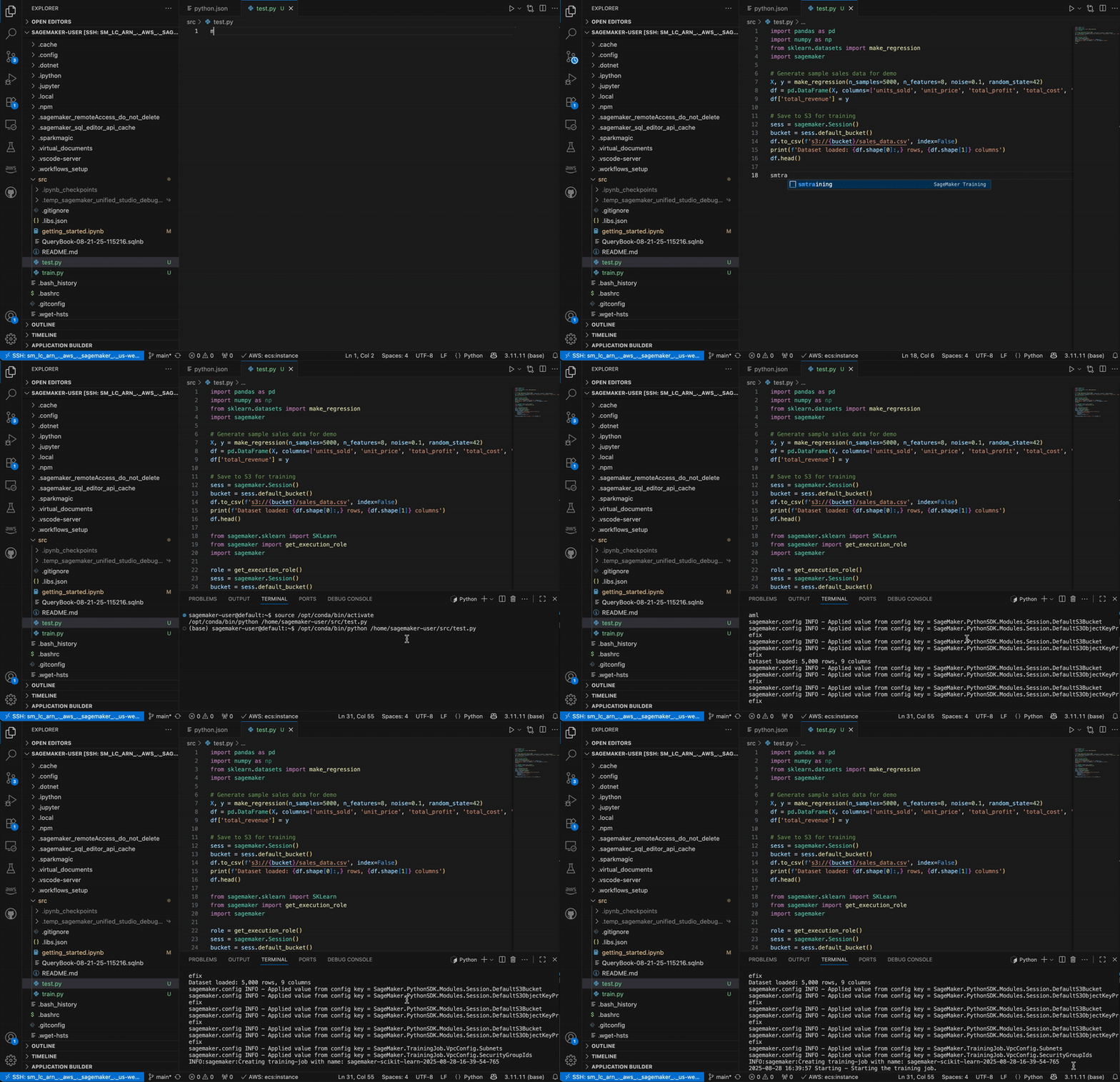
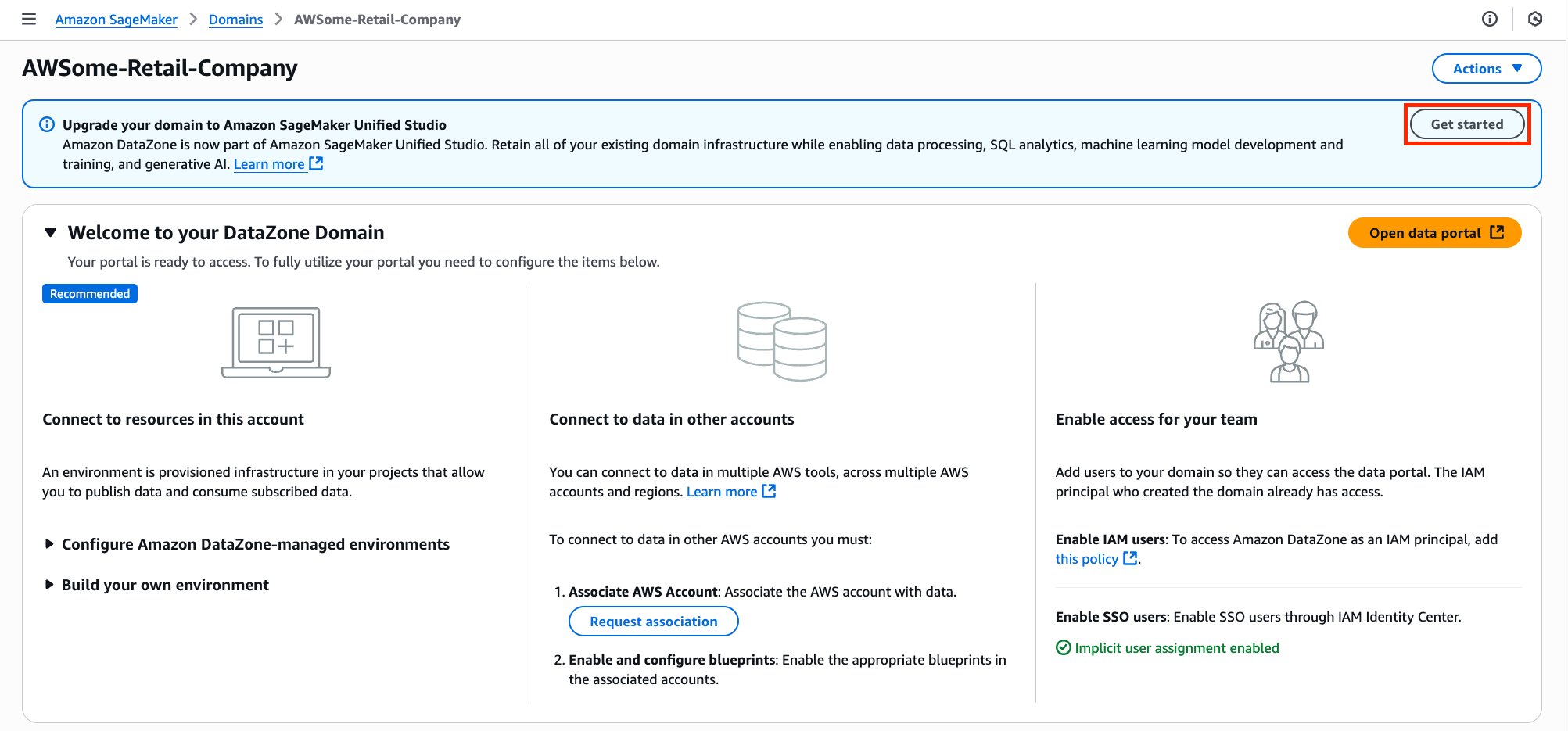
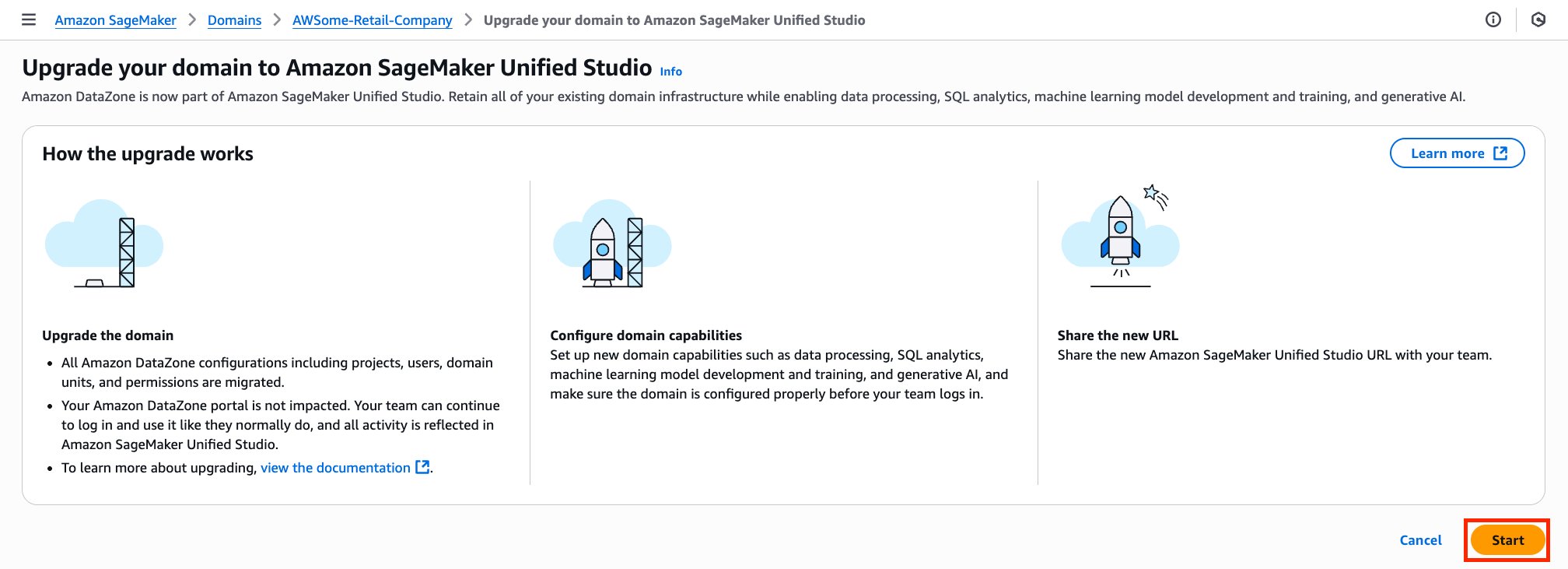
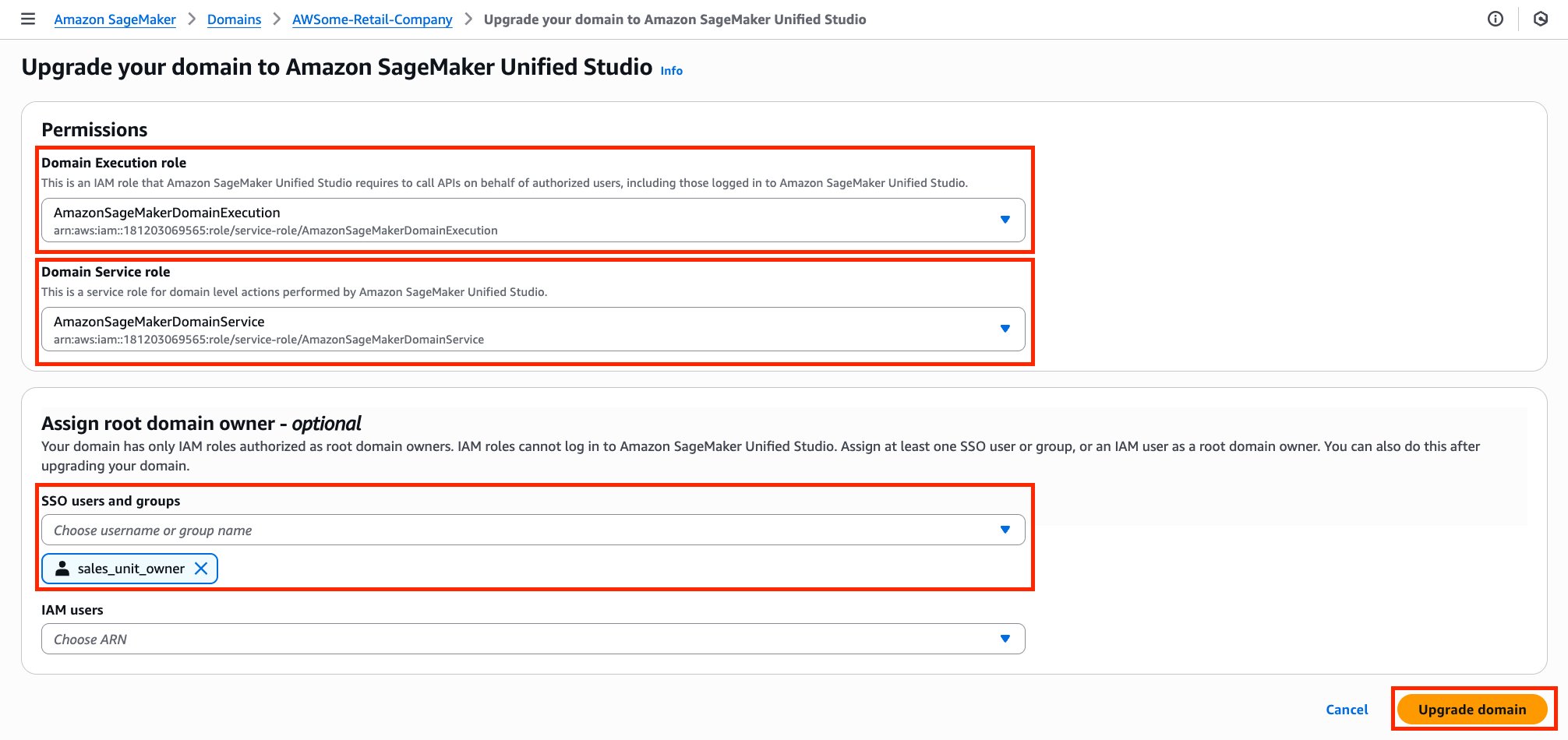
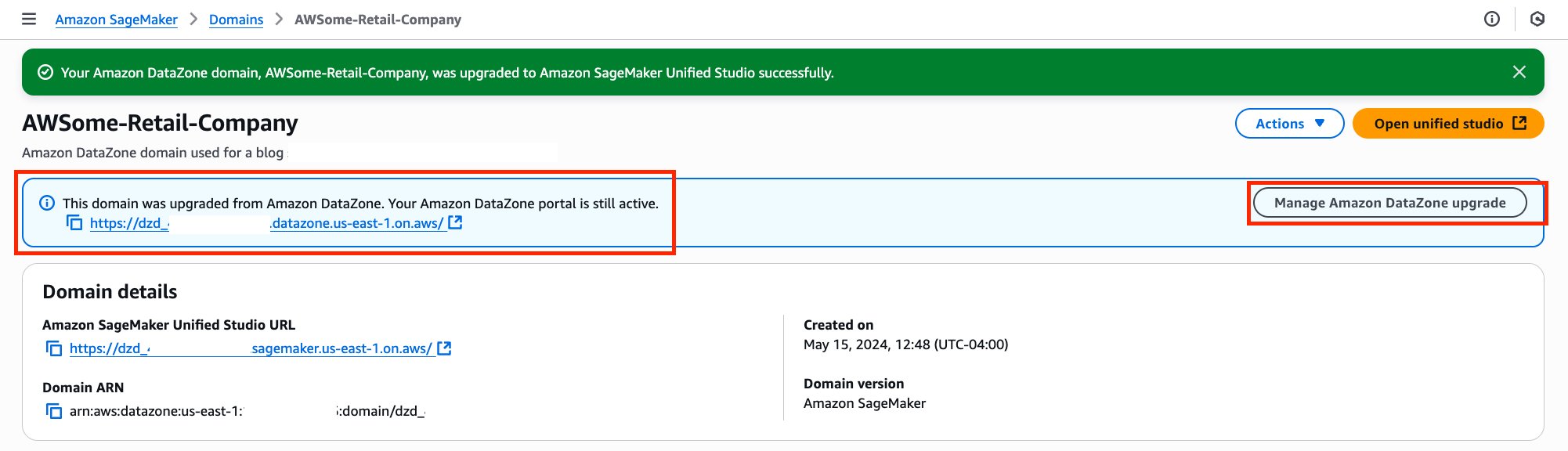
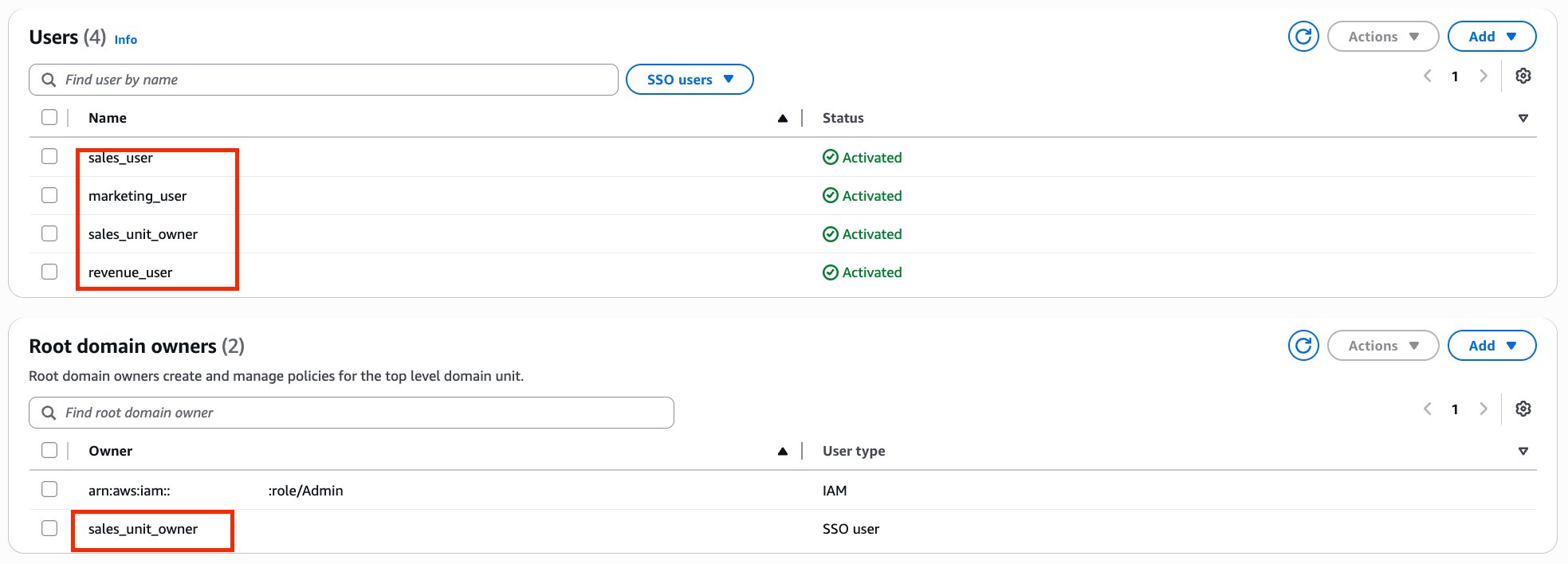
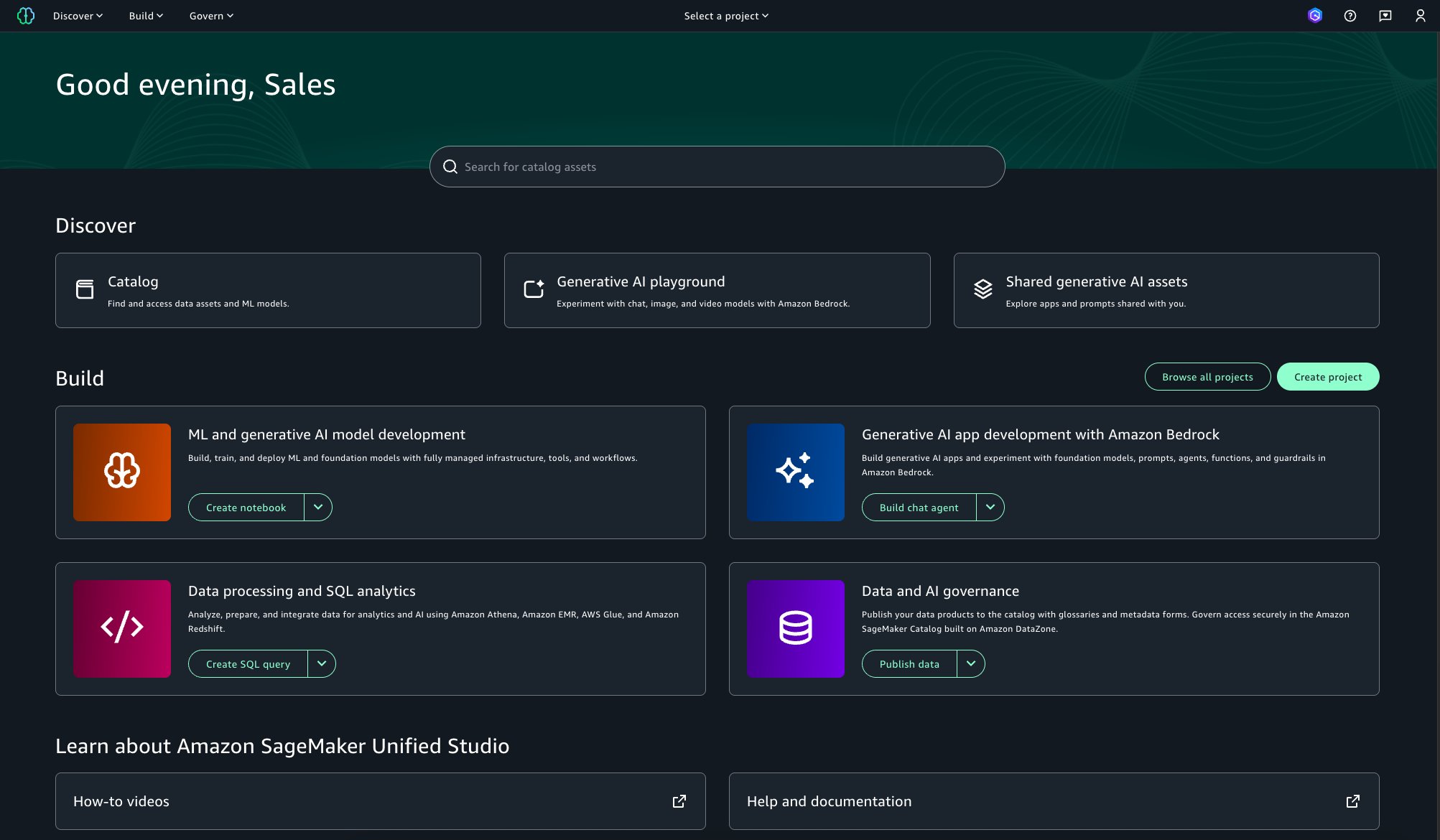
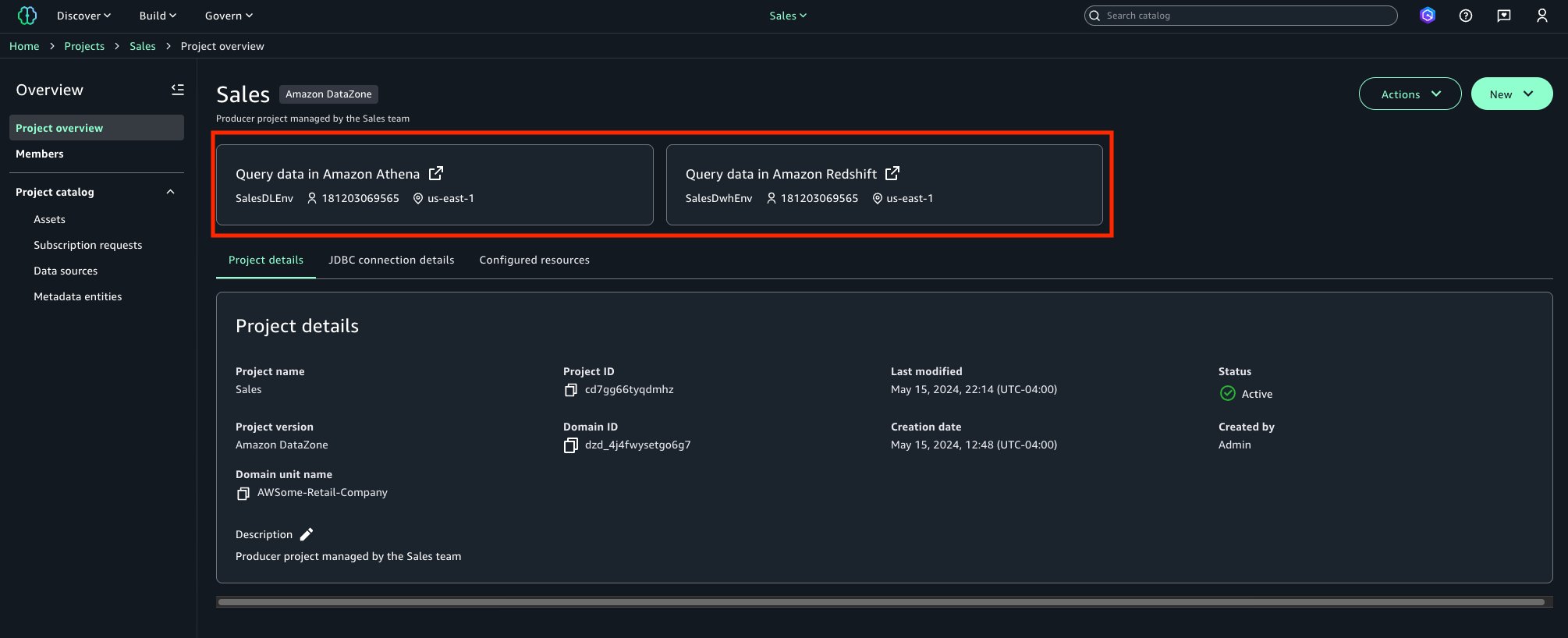
 David Victoria is a Senior Technical Product Manager with Amazon SageMaker at AWS. He focuses on improving administration and governance capabilities needed for customers to support their analytics systems. He is passionate about helping customers realize the most value from their data in a secure, governed manner.
 Leonardo David Gomez Virahonda is a Principal Analytics Specialist Solutions Architect at AWS, with a strong focus on data governance. He helps organizations across industries implement effective governance strategies using AWS services like Amazon DataZone, AWS Glue, Lake Formation, and SageMaker Catalog. Leonardo’s work spans metadata management, data lineage, access control, and compliance—empowering customers to make their data secure, discoverable, and ready for analytics and AI. He regularly shares best practices through technical blogs, enablement content, and sessions at AWS events like re:Invent and regional Summits.
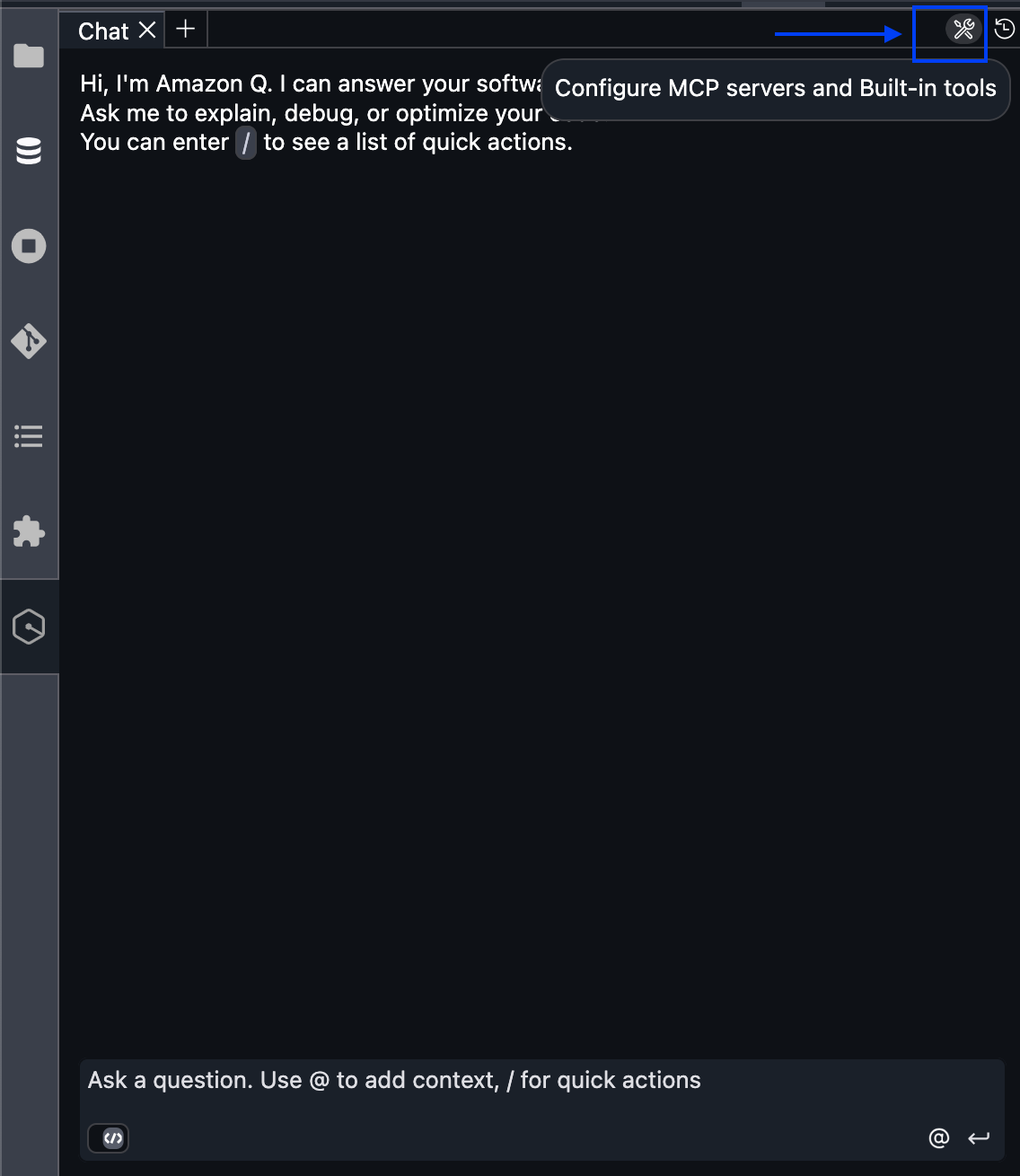
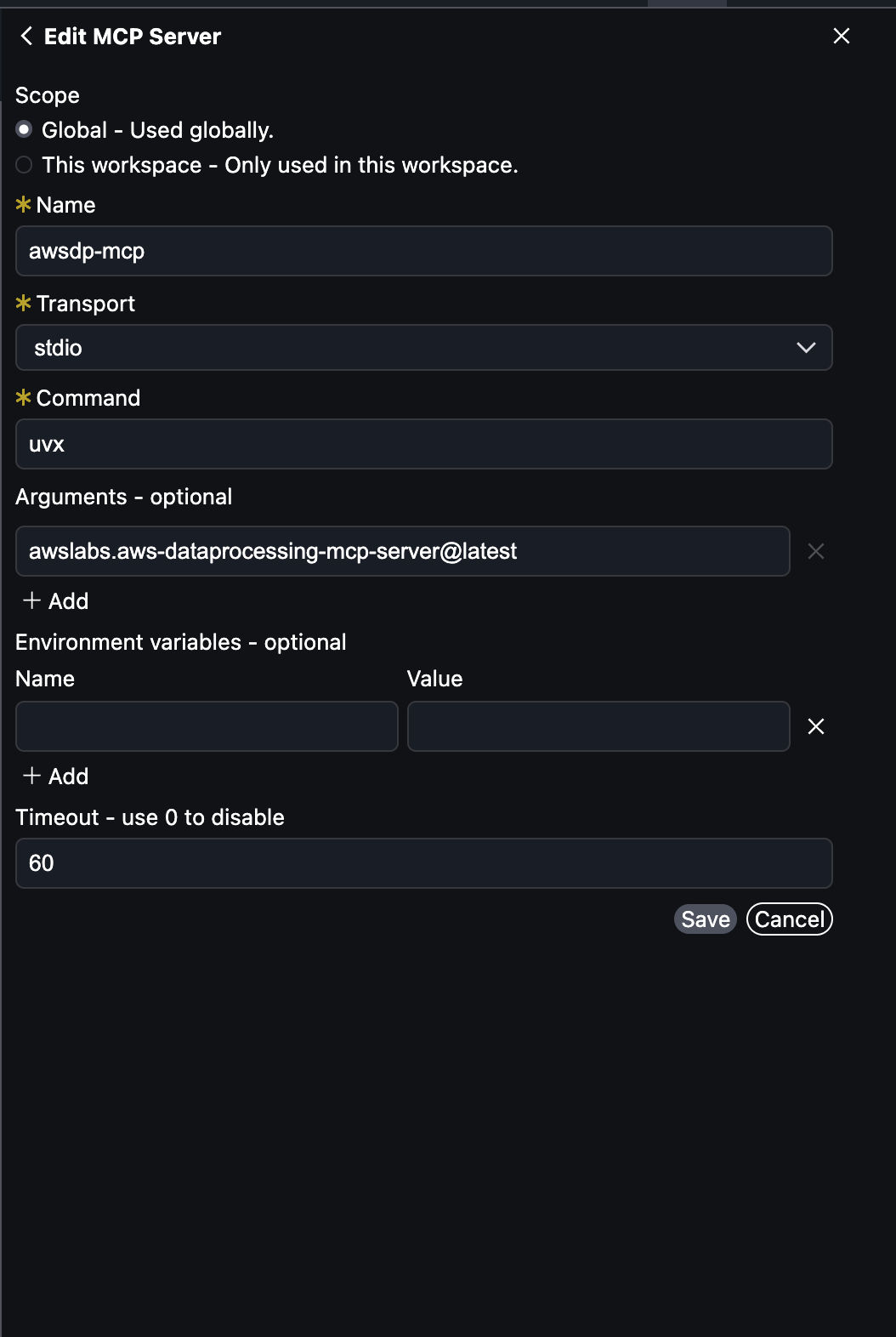

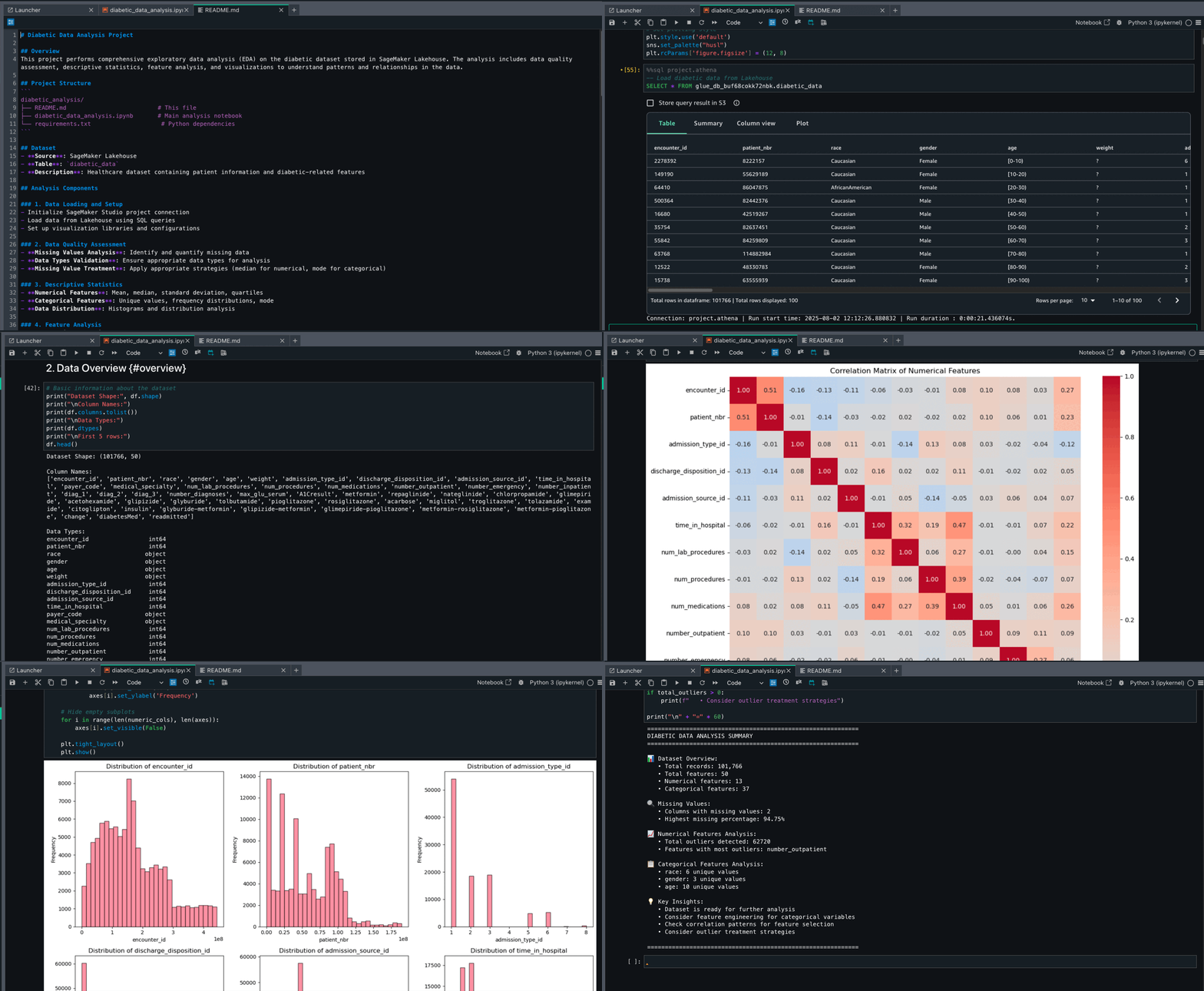
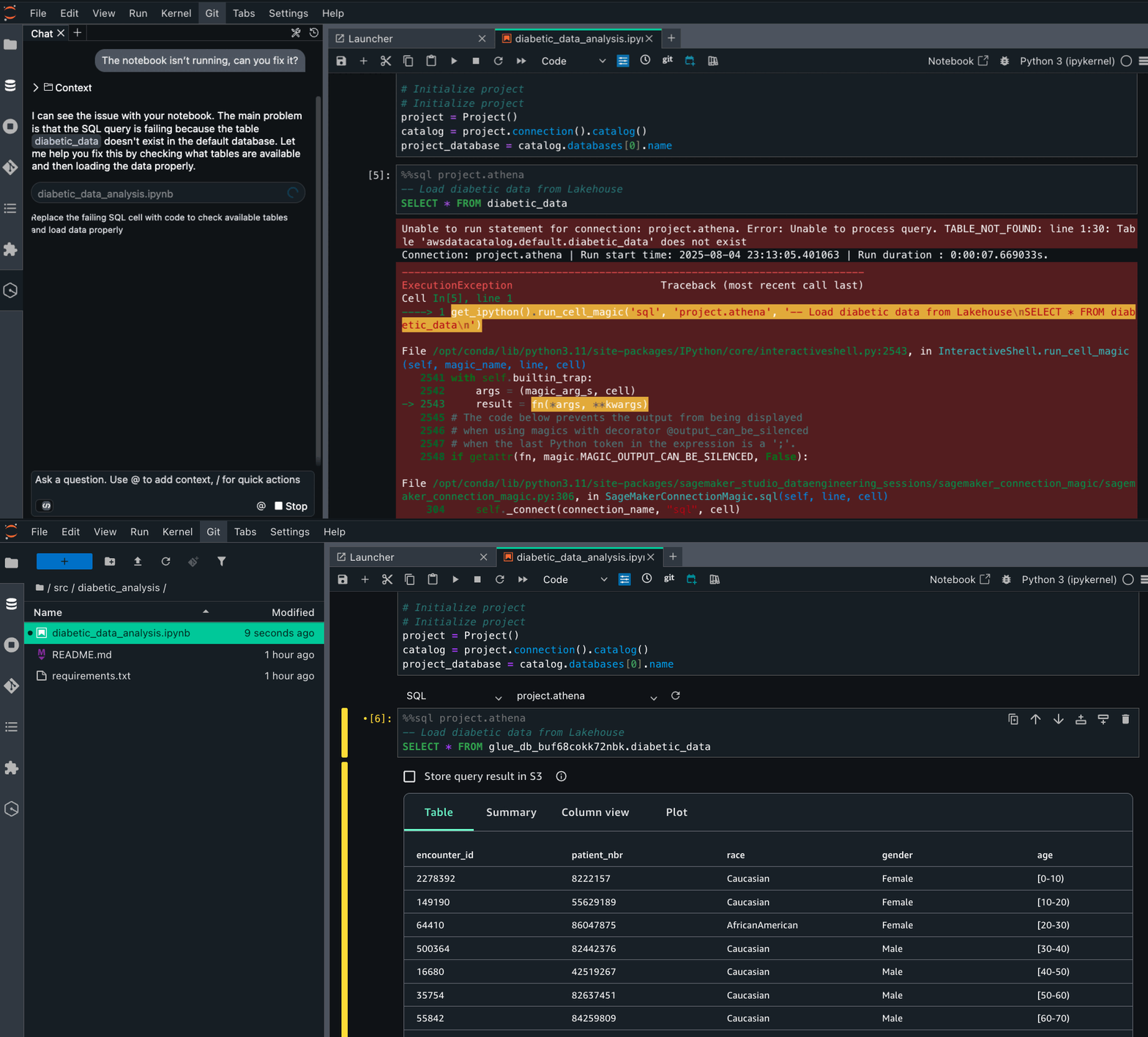
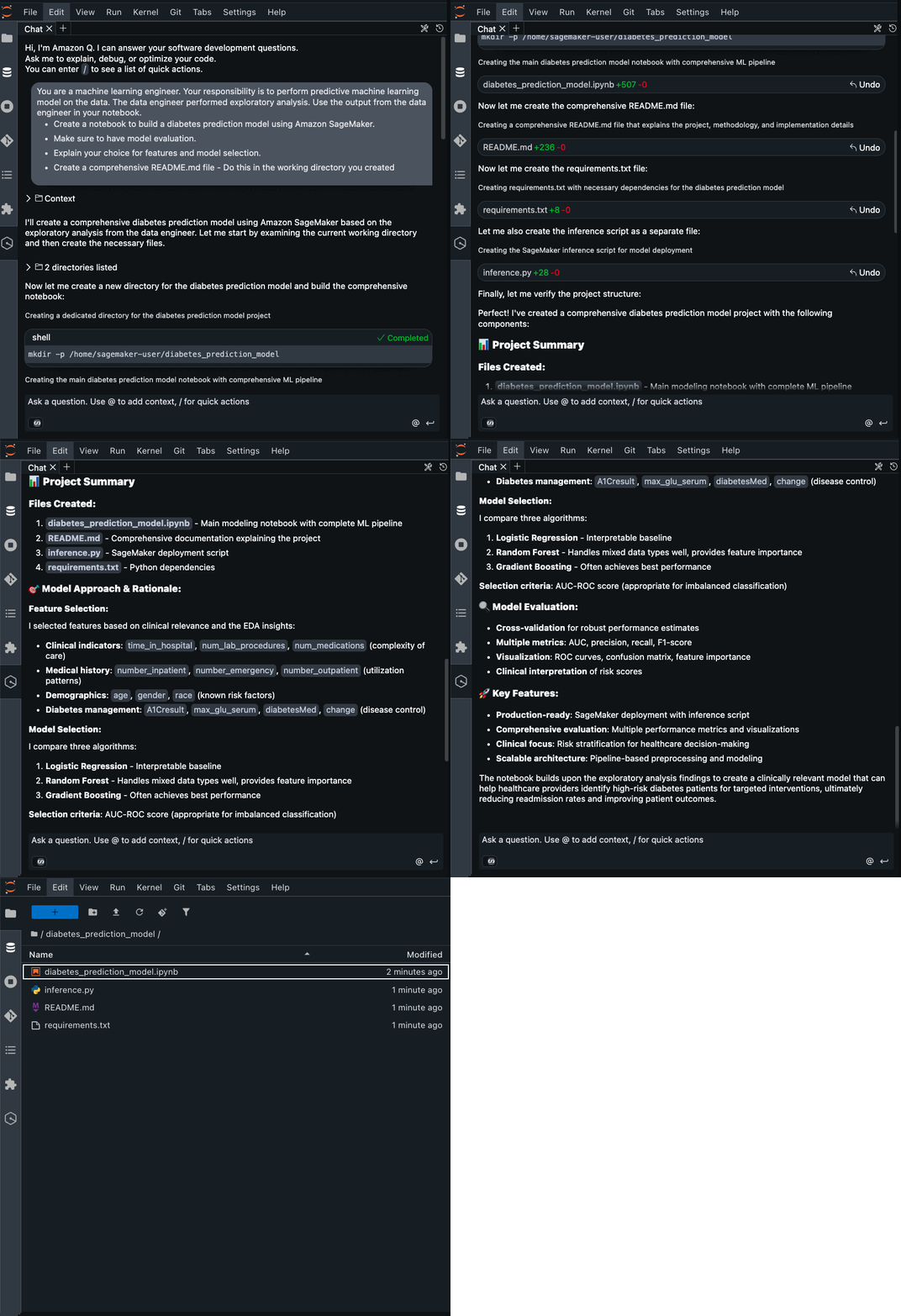
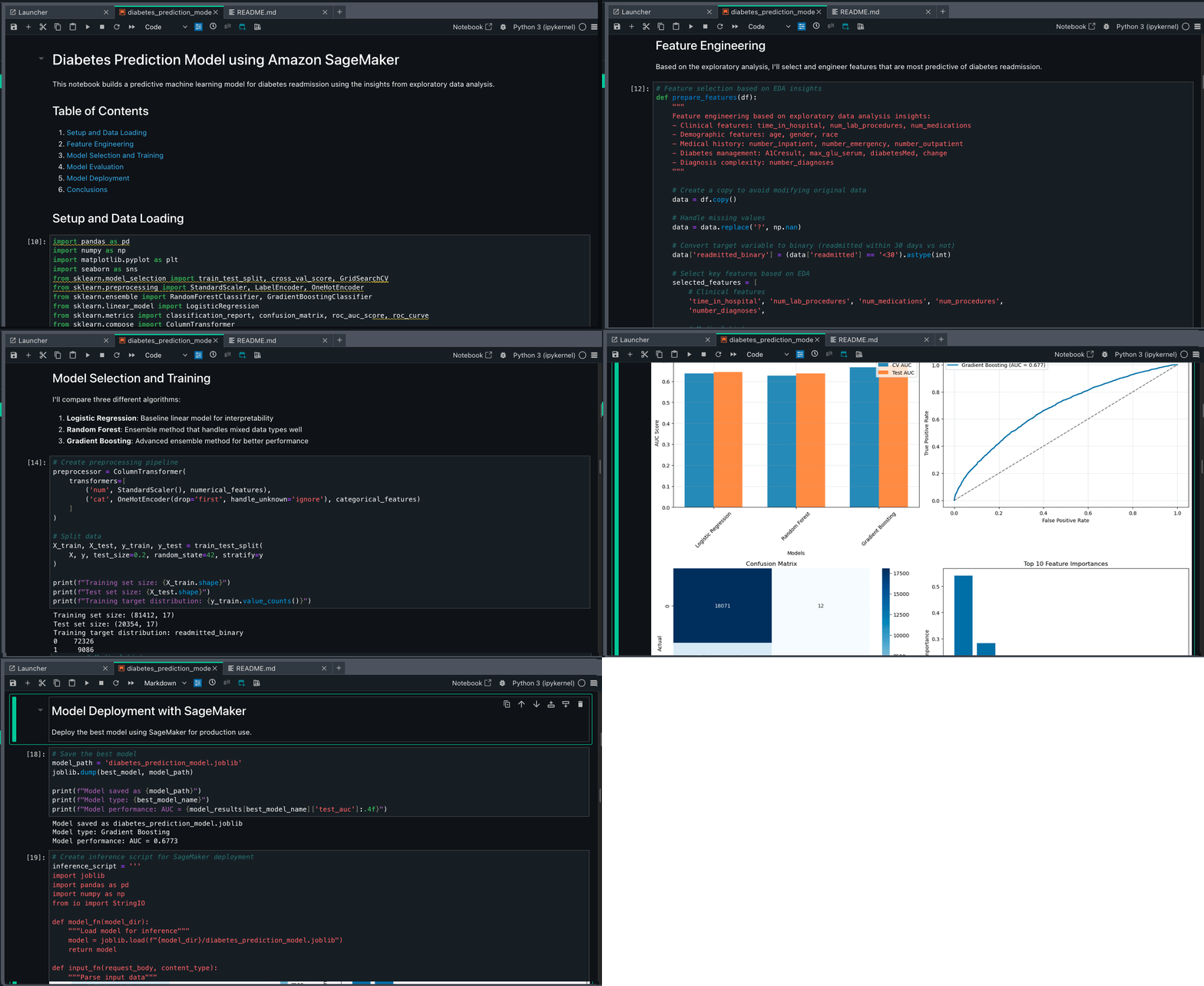
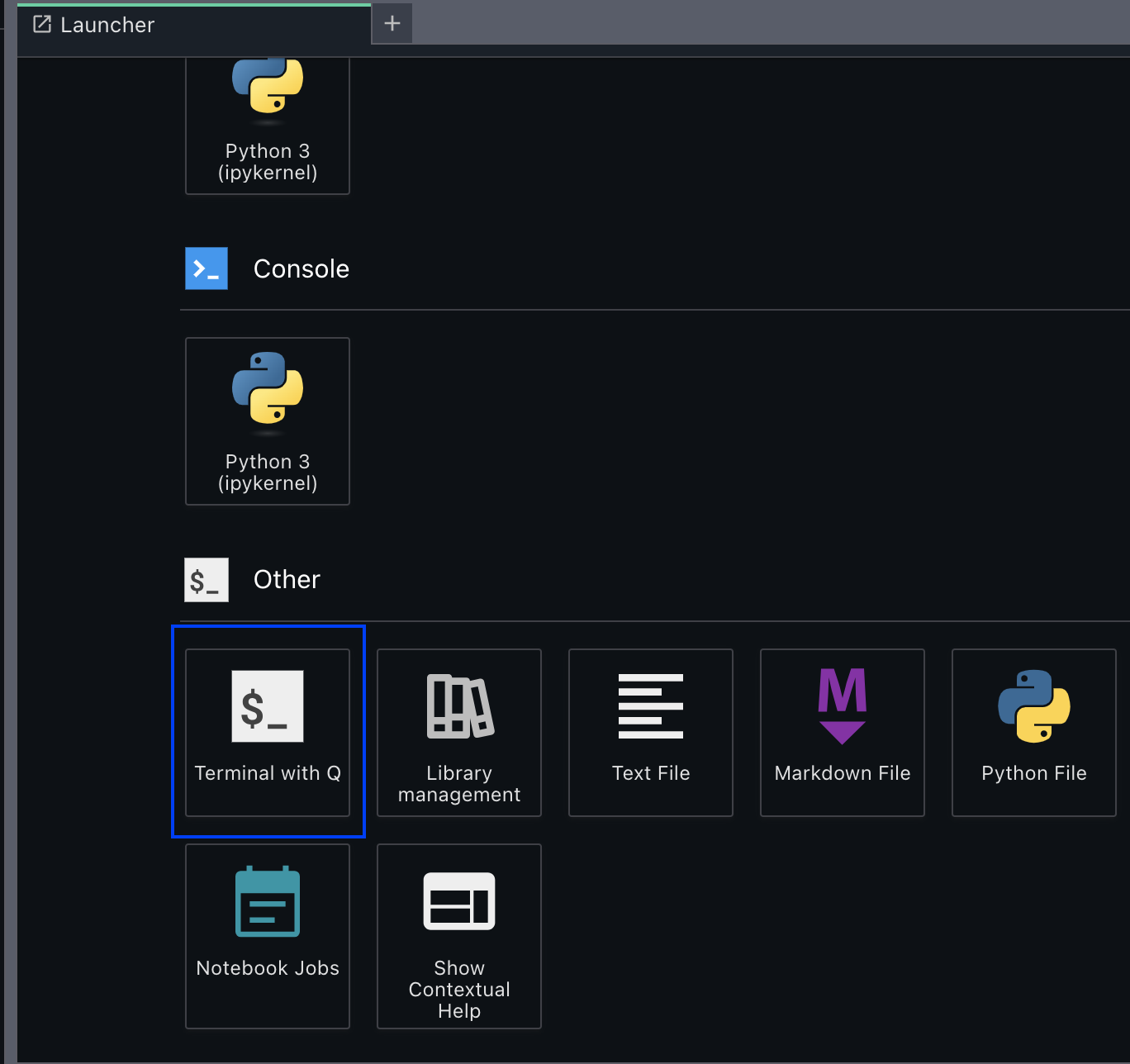
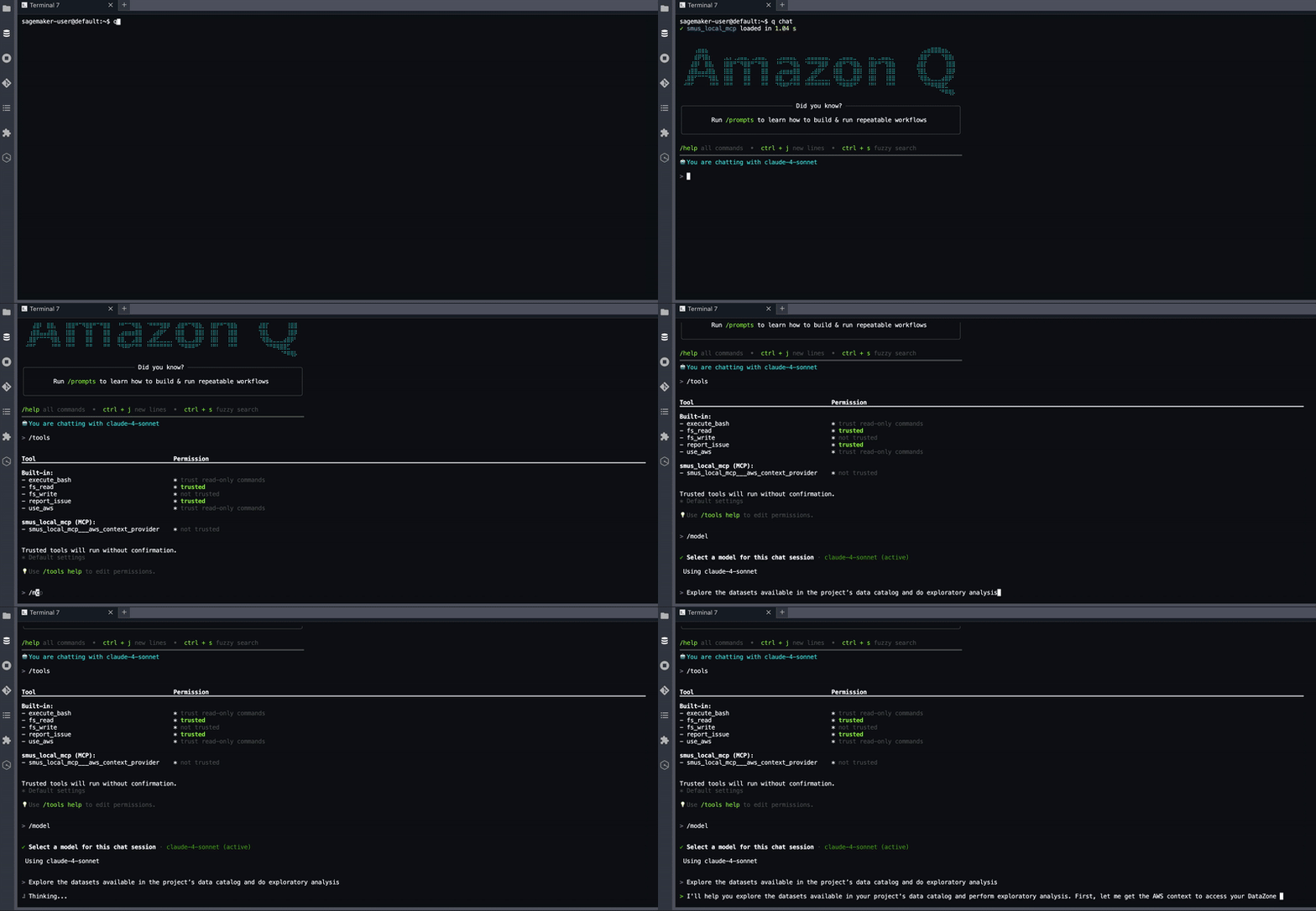
 Lauren Mullennex is a Senior GenAI/ML Specialist Solutions Architect at AWS. She has over a decade of experience in ML, DevOps, and infrastructure. She is a published author of a book on computer vision. Outside of work, you can find her traveling and hiking with her two dogs.
 Siddharth Gupta is heading Generative AI within SageMaker’s Unified Experiences. His focus is on driving agentic experiences, where AI systems act autonomously on behalf of users to accomplish complex tasks. Previously, he led edge machine learning solutions at AWS. This cutting-edge work aims to revolutionize how developers and data scientists interact with AI, creating more intuitive data integrations and powerful tools for building and deploying machine learning models. An alumnus of the University of Illinois at Urbana-Champaign, he brings extensive experience from his roles at Yahoo, Glassdoor, and Twitch. You can reach out to him on LinkedIn.
 Ishneet Kaur is a Software Development Manager on the Amazon SageMaker Unified Studio team. She leads the engineering team to design and build GenAI capabilities in SageMaker Unified Studio
 Mohan Gandhi is a Senior Software Engineer at AWS. He has been with AWS for the last 10 years and has worked on various AWS services like Amazon EMR, Amazon EFA, and Amazon RDS. Currently, he is focused on improving the SageMaker inference experience. In his spare time, he enjoys hiking and marathons.
 Mukul Prasad is a Senior Applied Science Manager in the AWS Agentic AI organization. He leads the Data Processing Agents Science team developing DevOps agents to simplify and optimize the customer journey in using AWS Big Data processing services including Amazon EMR, AWS Glue, and Amazon SageMaker Unified Studio. Outside of work, Mukul enjoys food, travel, photography, and Cricket.
 Murali Narayanaswamy is a Principal Machine Learning Scientist in the Agentic AI organization in AWS working on products including Amazon Bedrock, Amazon SageMaker Unified Studio, Amazon Redshift and Amazon RDS. His research interests lie at the intersection of AI, optimization, learning and inference particularly using them to understand, model and combat noise and uncertainty in real world applications and Reinforcement Learning in practice and at scale. Broadly, he works on using ideas from online algorithms, optimization under uncertainty, control theory, game theory, artificial intelligence, graphical models and estimation theory to solve important problems at Amazon scale.
 Necibe Ahat is a Senior AI/ML Specialist Solutions Architect at AWS, working with Healthcare and Life Sciences customers. Necibe helps customers to advance their generative AI and machine learning journey. She has a background in computer science with 15 years of industry experience helping customers ideate, design, build and deploy solutions at scale. She is a passionate inclusion and diversity advocate.
 Vipin Mohan is a Principal Product Manager at Amazon Web Services, where he leads generative AI product strategy. He specializes in building AI/ML products, container platforms, and search technologies that serve thousands of customers. Outside of work, he mentors aspiring product managers, enjoys reading about financial investing and entrepreneurship, and loves exploring the world through the eyes of his two kids.