Tag Archives: AWS IAM Access Analyzer

Use IAM Access Analyzer to generate IAM policies based on access activity found in your organization trail

Post Syndicated from Mathangi Ramesh original https://aws.amazon.com/blogs/security/use-iam-access-analyzer-to-generate-iam-policies-based-on-access-activity-found-in-your-organization-trail/

In April 2021, AWS Identity and Access Management (IAM) Access Analyzer added policy generation to help you create fine-grained policies based on AWS CloudTrail activity stored within your account. Now, we’re extending policy generation to enable you to generate policies based on access activity stored in a designated account. For example, you can use AWS Organizations to define a uniform event logging strategy for your organization and store all CloudTrail logs in your management account to streamline governance activities. You can use Access Analyzer to review access activity stored in your designated account and generate a fine-grained IAM policy in your member accounts. This helps you to create policies that provide only the required permissions for your workloads.

Customers that use a multi-account strategy consolidate all access activity information in a designated account to simplify monitoring activities. By using AWS Organizations, you can create a trail that will log events for all Amazon Web Services (AWS) accounts into a single management account to help streamline governance activities. This is sometimes referred to as an organization trail. You can learn more from Creating a trail for an organization. With this launch, you can use Access Analyzer to generate fine-grained policies in your member account and grant just the required permissions to your IAM roles and users based on access activity stored in your organization trail.

When you request a policy, Access Analyzer analyzes your activity in CloudTrail logs and generates a policy based on that activity. The generated policy grants only the required permissions for your workloads and makes it easier for you to implement least privilege permissions. In this blog post, I’ll explain how to set up the permissions for Access Analyzer to access your organization trail and analyze activity to generate a policy. To generate a policy in your member account, you need to grant Access Analyzer limited cross-account access to access the Amazon Simple Storage Service (Amazon S3) bucket where logs are stored and review access activity.

Generate a policy for a role based on its access activity in the organization trail

In this example, you will set fine-grained permissions for a role used in a development account. The example assumes that your company uses Organizations and maintains an organization trail that logs all events for all AWS accounts in the organization. The logs are stored in an S3 bucket in the management account. You can use Access Analyzer to generate a policy based on the actions required by the role. To use Access Analyzer, you must first update the permissions on the S3 bucket where the CloudTrail logs are stored, to grant access to Access Analyzer.

To grant permissions for Access Analyzer to access and review centrally stored logs and generate policies

  1. Sign in to the AWS Management Console using your management account and go to S3 settings.
  2. Select the bucket where the logs from the organization trail are stored.
  3. Change object ownership to bucket owner preferred. To generate a policy, all of the objects in the bucket must be owned by the bucket owner.
  4. Update the bucket policy to grant cross-account access to Access Analyzer by adding the following statement to the bucket policy. This grants Access Analyzer limited access to the CloudTrail data. Replace the <organization-bucket-name>, and <organization-id> with your values and then save the policy.
    {
        "Version": "2012-10-17",
        "Statement": 
        [
        {
            "Sid": "PolicyGenerationPermissions",
            "Effect": "Allow",
            "Principal": {
                "AWS": "*"
            },
            "Action": [
                "s3:GetObject",
                "s3:ListBucket"
            ],
            "Resource": [
                "arn:aws:s3:::<organization-bucket-name>",
                "arn:aws:s3:::my-organization-bucket/AWSLogs/o-exampleorgid/${aws:PrincipalAccount}/*
    "
            ],
            "Condition": {
    "StringEquals":{
    "aws:PrincipalOrgID":"<organization-id>"
    },
    
                "StringLike": {"aws:PrincipalArn":"arn:aws:iam::${aws:PrincipalAccount}:role/service-role/AccessAnalyzerMonitorServiceRole*"            }
            }
        }
        ]
    }
    

By using the preceding statement, you’re allowing listbucket and getobject for the bucket my-organization-bucket-name if the role accessing it belongs to an account in your Organizations and has a name that starts with AccessAnalyzerMonitorServiceRole. Using aws:PrincipalAccount in the resource section of the statement allows the role to retrieve only the CloudTrail logs belonging to its own account. If you are encrypting your logs, update your AWS Key Management Service (AWS KMS) key policy to grant Access Analyzer access to use your key.

Now that you’ve set the required permissions, you can use the development account and the following steps to generate a policy.

To generate a policy in the AWS Management Console

  1. Use your development account to open the IAM Console, and then in the navigation pane choose Roles.
  2. Select a role to analyze. This example uses AWS_Test_Role.
  3. Under Generate policy based on CloudTrail events, choose Generate policy, as shown in Figure 1.
     
    Figure 1: Generate policy from the role detail page

    Figure 1: Generate policy from the role detail page

  4. In the Generate policy page, select the time window for which IAM Access Analyzer will review the CloudTrail logs to create the policy. In this example, specific dates are chosen, as shown in Figure 2.
     
    Figure 2: Specify the time period

    Figure 2: Specify the time period

  5. Under CloudTrail access, select the organization trail you want to use as shown in Figure 3.

    Note: If you’re using this feature for the first time: select create a new service role, and then choose Generate policy.

    This example uses an existing service role “AccessAnalyzerMonitorServiceRole_MBYF6V8AIK.”
     

    Figure 3: CloudTrail access

    Figure 3: CloudTrail access

  6. After the policy is ready, you’ll see a notification on the role page. To review the permissions, choose View generated policy, as shown in Figure 4.
     
    Figure 4: Policy generation progress

    Figure 4: Policy generation progress

After the policy is generated, you can see a summary of the services and associated actions in the generated policy. You can customize it by reviewing the services used and selecting additional required actions from the drop down. To refine permissions further, you can replace the resource-level placeholders in the policies to restrict permissions to just the required access. You can learn more about granting fine-grained permissions and creating the policy as described in this blog post.

Conclusion

Access Analyzer makes it easier to grant fine-grained permissions to your IAM roles and users by generating IAM policies based on the CloudTrail activity centrally stored in a designated account such as your AWS Organizations management accounts. To learn more about how to generate a policy, see Generate policies based on access activity in the IAM User Guide.

If you have feedback about this blog post, submit comments in the Comments section below. If you have questions about this blog post, start a new thread on the IAM forum or contact AWS Support.

Want more AWS Security how-to content, news, and feature announcements? Follow us on Twitter.

Mathangi Ramesh

Mathangi Ramesh

Mathangi is the product manager for AWS Identity and Access Management. She enjoys talking to customers and working with data to solve problems. Outside of work, Mathangi is a fitness enthusiast and a Bharatanatyam dancer. She holds an MBA degree from Carnegie Mellon University.

Strengthen the security of sensitive data stored in Amazon S3 by using additional AWS services

Post Syndicated from Jerry Mullis original https://aws.amazon.com/blogs/security/strengthen-the-security-of-sensitive-data-stored-in-amazon-s3-by-using-additional-aws-services/

In this post, we describe the AWS services that you can use to both detect and protect your data stored in Amazon Simple Storage Service (Amazon S3). When you analyze security in depth for your Amazon S3 storage, consider doing the following:

Using these additional AWS services along with Amazon S3 can improve your security posture across your accounts.

Audit and restrict Amazon S3 access with IAM Access Analyzer

IAM Access Analyzer allows you to identify unintended access to your resources and data. Users and developers need access to Amazon S3, but it’s important for you to keep users and privileges accurate and up to date.

Amazon S3 can often house sensitive and confidential information. To help secure your data within Amazon S3, you should be using AWS Key Management Service (AWS KMS) with server-side encryption at rest for Amazon S3. It is also important that you secure the S3 buckets so that you only allow access to the developers and users who require that access. Bucket policies and access control lists (ACLs) are the foundation of Amazon S3 security. Your configuration of these policies and lists determines the accessibility of objects within Amazon S3, and it is important to audit them regularly to properly secure and maintain the security of your Amazon S3 bucket.

IAM Access Analyzer can scan all the supported resources within a zone of trust. Access Analyzer then provides you with insight when a bucket policy or ACL allows access to any external entities that are not within your organization or your AWS account’s zone of trust.

To setup and use IAM Access Analyzer, follow the instructions for Enabling Access Analyzer in the AWS IAM User Guide.

The example in Figure 1 shows creating an analyzer with the zone of trust as the current account, but you can also create an analyzer with the organization as the zone of trust.

Figure 1: Creating IAM Access Analyzer and zone of trust

Figure 1: Creating IAM Access Analyzer and zone of trust

After you create your analyzer, IAM Access Analyzer automatically scans the resources in your zone of trust and returns the findings from your Amazon S3 storage environment. The initial scan shown in Figure 2 shows the findings of an unsecured S3 bucket.

Figure 2: Example of unsecured S3 bucket findings

Figure 2: Example of unsecured S3 bucket findings

For each finding, you can decide which action you would like to take. As shown in figure 3, you are given the option to archive (if the finding indicates intended access) or take action to modify bucket permissions (if the finding indicates unintended access).

Figure 3: Displays choice of actions to take

Figure 3: Displays choice of actions to take

After you address the initial findings, Access Analyzer monitors your bucket policies for changes, and notifies you of access issues it finds. Access Analyzer is regional and must be enabled in each AWS Region independently.

Classify and secure sensitive data with Macie

Organizational compliance standards often require the identification and securing of sensitive data. Your organization’s sensitive data might contain personally identifiable information (PII), which includes things such as credit card numbers, birthdates, and addresses.

Macie is a data security and privacy service offered by AWS that uses machine learning and pattern matching to discover the sensitive data stored within Amazon S3. You can define your own custom type of sensitive data category that might be unique to your business or use case. Macie will automatically provide an inventory of S3 buckets and alert you of unprotected sensitive data.

Figure 4 shows a sample result from a Macie scan in which you can see important information regarding Amazon S3 public access, encryption settings, and sharing.

Figure 4: Sample results from a Macie scan

Figure 4: Sample results from a Macie scan

In addition to finding potential sensitive data, Macie also gives you a severity score based on the privacy risk, as shown in the example data in Figure 5.

Figure 5: Example Macie severity scores

Figure 5: Example Macie severity scores

When you use Macie in conjunction with AWS Step Functions, you can also automatically remediate any issues found. You can use this combination to help meet regulations such as General Data Protection Regulation (GDPR) and Health Insurance Portability and Accountability Act (HIPAA). Macie allows you to have constant visibility of sensitive data within your Amazon S3 storage environment.

When you deploy Macie in a multi-account configuration, your usage is rolled up to the master account to provide the total usage for all accounts and a breakdown across the entire organization.

Detect malicious access patterns with GuardDuty

Your customers and users can commit thousands of actions each day on S3 buckets. Discerning access patterns manually can be extremely time consuming as the volume of data increases. GuardDuty uses machine learning, anomaly detection, and integrated threat intelligence to analyze billions of events across multiple accounts and uses data collected in AWS CloudTrail logs for S3 data events as well as S3 access logs, VPC Flow Logs, and DNS logs. GuardDuty can be configured to analyze these logs and notify you of suspicious activity, such as unusual data access patterns, unusual discovery API calls, and more. After you receive a list of findings on these activities, you will be able to make informed decisions to secure your S3 buckets.

Figure 6 shows a sample list of findings returned by GuardDuty which shows the finding type, resource affected, and count of occurrences.

Figure 6: Example GuardDuty list of findings

Figure 6: Example GuardDuty list of findings

You can select one of the results in Figure 6 to see the IP address and details associated from this potential malicious IP caller, as shown in Figure 7.

Figure 7: GuardDuty Malicious IP Caller detailed findings

Figure 7: GuardDuty Malicious IP Caller detailed findings

Monitor and remediate configuration changes with AWS Config

Configuration management is important when securing Amazon S3, to prevent unauthorized users from gaining access. It is important that you monitor the configuration changes of your S3 buckets, whether the changes are intentional or unintentional. AWS Config can track all configuration changes that are made to an S3 bucket. For example, if an S3 bucket had its permissions and configurations unexpectedly changed, using AWS Config allows you to see the changes made, as well as who made them.

With AWS Config, you can set up AWS Config managed rules that serve as a baseline for your S3 bucket. When any bucket has configurations that deviate from this baseline, you can be alerted by Amazon Simple Notification Service (Amazon SNS) of the bucket being noncompliant.

AWS Config can be used in conjunction with a service called AWS Lambda. If an S3 bucket is noncompliant, AWS Config can trigger a preprogrammed Lambda function and then the Lambda function can resolve those issues. This combination can be used to reduce your operational overhead in maintaining compliance within your S3 buckets.

Figure 8 shows a sample of AWS Config managed rules selected for configuration monitoring and gives a brief description of what the rule does.

Figure 8: Sample selections of AWS Managed Rules

Figure 8: Sample selections of AWS Managed Rules

Figure 9 shows a sample result of a non-compliant configuration and resource inventory listing the type of resource affected and the number of occurrences.

Figure 9: Example of AWS Config non-compliant resources

Figure 9: Example of AWS Config non-compliant resources

Conclusion

AWS has many offerings to help you audit and secure your storage environment. In this post, we discussed the particular combination of AWS services that together will help reduce the amount of time and focus your business devotes to security practices. This combination of services will also enable you to automate your responses to any unwanted permission and configuration changes, saving you valuable time and resources to dedicate elsewhere in your organization.

For more information about pricing of the services mentioned in this post, see AWS Free Tier and AWS Pricing. For more information about Amazon S3 security, see Amazon S3 Preventative Security Best Practices in the Amazon S3 User Guide.

If you have feedback about this post, submit comments in the Comments section below.

Want more AWS Security how-to content, news, and feature announcements? Follow us on Twitter.

Author

Jerry Mullis

Jerry is an Associate Solutions Architect at AWS. His interests are in data migration, machine learning, and device automation. Jerry has previous experience in machine learning research and healthcare management. His certifications include AWS Solutions Architect Pro, AWS Developer Associate, AWS Sysops Admin Associate and AWS Certified Cloud Practitioner. In his free time, Jerry enjoys hiking, playing basketball, and spending time with his wife.

Author

Dave Geyer

Dave is an Associate Solutions Architect at AWS. He has a background in data management and organizational design, and is interested in data analytics and infrastructure security. Dave has advised and worked for customers in the commercial and public sectors, providing them with architectural best practices and recommendations. Dave is interested in the aerospace and financial services industries. Outside of work, he is an adrenaline junkie, and is passionate about mountaineering and high altitudes.

Author

Andrew Chen

Andrew is an Associate Solutions Architect with an interest in data analytics, machine learning, and virtualization of infrastructure. Andrew has previous experience in management consulting in which he worked as a technical lead for various cloud migration projects. In his free time, Andrew enjoys fishing, hiking, kayaking, and keeping up with financial markets.

Automate resolution for IAM Access Analyzer cross-account access findings on IAM roles

Post Syndicated from Ramesh Balajepalli original https://aws.amazon.com/blogs/security/automate-resolution-for-iam-access-analyzer-cross-account-access-findings-on-iam-roles/

In this blog post, we show you how to automatically resolve AWS Identity and Access Management (IAM) Access Analyzer findings generated in response to unintended cross-account access for IAM roles. The solution automates the resolution by responding to the Amazon EventBridge event generated by IAM Access Analyzer for each active finding.

You can use identity-based policies and resource-based policies to granularly control access to a specific resource and how you use it across the entire AWS Cloud environment. It is important to ensure that policies you create adhere to your organization’s requirements on data/resource access and security best practices. IAM Access Analyzer is a feature that you can enable to continuously monitor policies for changes, and generate detailed findings related to access from external entities to your AWS resources.

When you enable Access Analyzer, you create an analyzer for your entire organization or your account. The organization or account you choose is known as the zone of trust for the analyzer. The zone of trust determines what type of access is considered trusted by Access Analyzer. Access Analyzer continuously monitors all supported resources to identify policies that grant public or cross-account access from outside the zone of trust, and generates findings. In this post, we will focus on an IAM Access Analyzer finding that is generated when an IAM role is granted access to an external AWS principal that is outside your zone of trust. To resolve the finding, we will show you how to automatically block such unintended access by adding explicit deny statement to the IAM role trust policy.

Prerequisites

To ensure that the solution only prevents unintended cross account access for IAM roles, we highly recommend you to do the following within your AWS environment before deploying the solution described in the blog post:

Note: This solution adds an explicit deny in the IAM role trust policy to block the unintended access, which overrides any existing allow actions. We recommend that you carefully evaluate that this is the resolution action you want to apply.

Solution overview

To demonstrate this solution, we will take a scenario where you are asked to grant access to an external AWS account. In order to grant access, you create an IAM role named Audit_CrossAccountRole on your AWS account 123456789012. You grant permission to assume the role Audit_CrossAccountRole to an AWS principal named Alice in AWS account 999988887777, which is out-side of your AWS Organizations. The following is an example of the trust policy for the IAM role Audit_CrossAccountRole:

{
  "Version": "2012-10-17",
  "Statement": [
    {
      "Effect": "Allow",
      "Principal": {
        "AWS": "arn:aws:iam::999988887777:user/Alice"
      },
      "Action": "sts:AssumeRole",
      "Condition": {}
    }
  ]
}

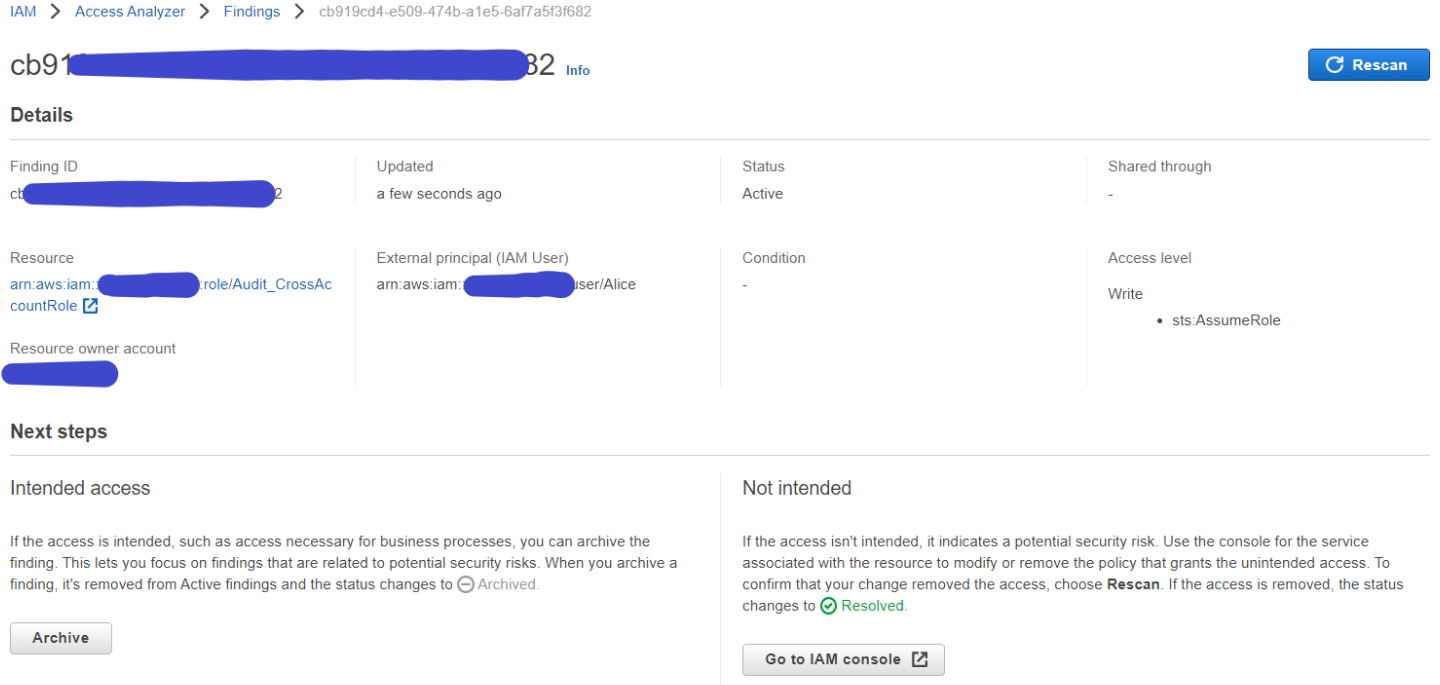
Assuming the principal arn:aws:iam::999988887777:user/Alice was not archived previously in Access Analyzer, you see an active finding in Access Analyzer as shown in Figure 1.

Figure 1: Sample IAM Access Analyzer finding in AWS Console

Figure 1: Sample IAM Access Analyzer finding in AWS Console

Typically, you will review this finding and determine whether this access is intended or not. If the access is unintended, you can block access to the principal 999988887777/Alice by adding an explicit deny to the IAM role trust policy, and then follow up with IAM role owner to find out if there is a reason to allow this cross-account access. If the access is intended, then you can create an archive rule that will archive the finding and suppress such findings in future.

We will walk through the solution to automate this resolution process in the remainder of this blog post.

Solution walkthrough

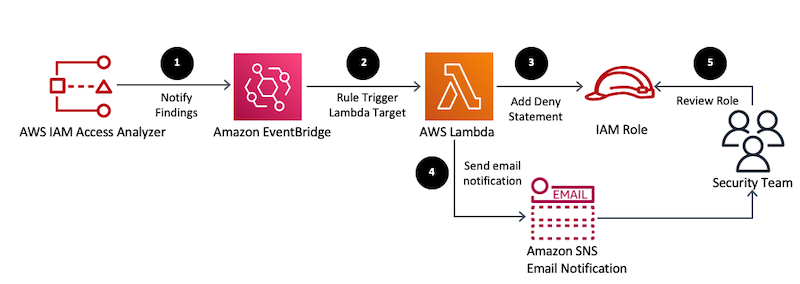
Access Analyzer sends an event to Amazon EventBridge for every active finding. This solution configures an event rule in EventBridge to match an active finding, and triggers a resolution AWS Lambda function. The Lambda function checks that the resource type in the finding is an IAM role, and then adds a deny statement to the associated IAM role trust policy as a resolution. The Lambda function also sends an email through Amazon Simple Notification Service (Amazon SNS) to the email address configured in the solution. The individual or group who receives the email can then review the automatic resolution and the IAM role. They can then decide either to remove the role for unintended access, or to delete the deny statement from the IAM trust policy and create an archive rule in Access Analyzer to suppress such findings in future.

Figure 2: Automated resolution followed by human review

Figure 2: Automated resolution followed by human review

Figure 2 shows the following steps of the resolution solution.

  1. Access Analyzer scans resources and generates findings based on the zone of trust and the archive rules configuration. The following is an example of an Access Analyzer active finding event sent to Amazon EventBridge:
    { 
        "version": "0",
        "id": "22222222-dcba-4444-dcba-333333333333",
        "detail-type": "Access Analyzer Finding",
        "source": "aws.access-analyzer",
        "account": "123456789012",
        "time": "2020-05-13T03:14:33Z",
        "region": "us-east-1",
        "resources": [
            "arn:aws:access-analyzer:us-east-1: 123456789012:analyzer/AccessAnalyzer"
        ],
        "detail": {
            "version": "1.0",
            "id": "a5018210-97c4-46c4-9456-0295898377b6",
            "status": "ACTIVE",
            "resourceType": "AWS::IAM::Role",
            "resource": "arn:aws:iam::123456789012:role/ Audit_CrossAccountRole",
            "createdAt": "2020-05-13T03:14:32Z",
            "analyzedAt": "2020-05-13T03:14:32Z",
            "updatedAt": "2020-05-13T03:14:32Z",
            "accountId": "123456789012",
            "region": "us-east-1",
            "principal": {
                "AWS": "aws:arn:iam::999988887777:user/Alice"
            },
            "action": [
                "sts:AssumeRole"
            ],
            "condition": {},
            "isDeleted": false,
            "isPublic": false
        }
    }
    

  2. EventBridge receives an event for the Access Analyzer finding, and triggers the AWS Lambda function based on the event rule configuration. The following is an example of the EventBridge event pattern to match active Access Analyzer findings:
    {
      "source": [
        "aws.access-analyzer"
      ],
      "detail-type": [
        "Access Analyzer Finding"
      ],
      "detail": { 
         "status": [ "ACTIVE" ],
    	"resourceType": [ "AWS::IAM:Role" ] 
     	}
    }
    

  3. The Lambda function processes the event when ResourceType is equal to AWS::IAM::Role, as shown in the following example Python code:
    ResourceType = event['detail']['resourceType']
    ResourceType = "".join(ResourceType.split())
    if ResourceType == 'AWS::IAM::Role' :
    

    Then, the Lambda function adds an explicit deny statement in the trust policy of the IAM role where the Sid of the new statement references the Access Analyzer finding ID.

    def disable_iam_access(<resource_name>, <ext_arn>, <finding_id>):
        try:
            ext_arn = ext_arn.strip()
            policy = {
                "Sid": <finding_id>,
                "Effect": "Deny",
                "Principal": {
                    "AWS": <ext_arn>},
                "Action": "sts:AssumeRole"
            }
            response = iam.get_role(RoleName=<resource_name>)
            current_policy = response['Role']['AssumeRolePolicyDocument']
            current_policy = current_policy['Statement'].append(policy)
            new_policy = json.dumps(response['Role']['AssumeRolePolicyDocument'])
            logger.debug(new_policy)
            response = iam.update_assume_role_policy(
                PolicyDocument=new_policy,
                RoleName=<resource_name>)
            logger.info(response)
        except Exception as e:
            logger.error(e)
            logger.error('Unable to update IAM Policy')
    

    As result, the IAM role trust policy looks like the following example:

    {
            "Version": "2012-10-17",
            "Statement": [
                {
                    "Effect": "Allow",
                    "Principal": {
            "AWS": "arn:aws:iam::999988887777:user/Alice"
                    },
                    "Action": "sts:AssumeRole",
                },
                {
                    "Sid": "22222222-dcba-4444-dcba-333333333333",
                    "Effect": "Deny",
                    "Principal": {
            "AWS": "arn:aws:iam::999988887777:user/Alice"
                    },
                    "Action": "sts:AssumeRole"
                }
            ]
        }
    

    Note: After Access Analyzer adds the deny statement, on the next scan, Access Analyzer finds the resource is no longer shared outside of your zone of trust. Access Analyzer changes the status of the finding to Resolved and the finding appears in the Resolved findings table.

  4. The Lambda function sends a notification to an SNS topic that sends an email to the configured email address (which should be the business owner or security team) subscribed to the SNS topic. The email notifies them that a specific IAM role has been blocked from the cross-account access. The following is an example of the SNS code for the notification.
    def send_notifications(sns_topic,principal, resource_arn, finding_id):
        sns_client = boto3.client("sns")
        message = "The IAM Role resource {} allows access to the principal {}. Trust policy for the role has been updated to deny the external access. Please review the IAM Role and its trust policy. If this access is intended, update the IAM Role trust policy to remove a statement with SID matching with the finding id {} and mark the finding as archived or create an archive rule. If this access is not intended then delete the IAM Role.". format(
            resource_arn, principal)
        subject = "Access Analyzer finding {} was automatically resolved ".format(finding_id)
        snsResponse = sns_client.publish(
            TopicArn=sns_topic,
            Message=message,
            Subject=subject
        )
    

    Figure 3 shows an example of the email notification.

    Figure 3: Sample resolution email generated by the solution

    Figure 3: Sample resolution email generated by the solution

  5. The security team or business owner who receives the email reviews the role and does one of the following steps:
    • If you find that the IAM role with cross-account access is intended then:Remove the deny statement added in the trust policy through AWS CLI or AWS Management Console. As mentioned above, the solution adds the Access Analyzer finding ID as Sid for the deny statement. The following command shows removing the deny statement for role_name through AWS CLI using the finding id available in the email notification.
      POLICY_DOCUMENT=`aws iam get-role --role-name '<role_name>' --query "Role.AssumeRolePolicyDocument.{Version: Version, Statement: Statement[?Sid!='<finding_id>']}"`
      aws iam update-assume-role-policy --role-name '<role_name>' --policy-document "$POLICY_DOCUMENT"
      

      Further, you can create an archive rule with criteria such as AWS Account ID, resource type, and principal, to automatically archive new findings that match the criteria.

    • If you find that the IAM role provides unintentional cross-account access then you may delete the IAM role. Also, you should investigate who created the IAM role by checking relevant AWS CloudTrail events like iam:createRole, so that you can plan for preventive actions.

Solution deployment

You can deploy the solution by using either the AWS Management Console or the AWS Cloud Development Kit (AWS CDK).

To deploy the solution by using the AWS Management Console

  1. In your AWS account, launch the template by choosing the Launch Stack button, which creates the stack the in us-east-1 Region.
    Select the Launch Stack button to launch the template
  2. On the Quick create stack page, for Stack name, enter a unique stack name for this account; for example, iam-accessanalyzer-findings-resolution, as shown in Figure 4.

    Figure 4: Deploy the solution using CloudFormation template

    Figure 4: Deploy the solution using CloudFormation template

  3. For NotificationEmail, enter the email address to receive notifications for any resolution actions taken by the solution.
  4. Choose Create stack.

Additionally, you can find the latest code on the aws-iam-permissions-guardrails GitHub repository, where you can also contribute to the sample code. The following procedure shows how to deploy the solution by using the AWS Cloud Development Kit (AWS CDK).

To deploy the solution by using the AWS CDK

  1. Install the AWS CDK.
  2. Deploy the solution to your account using the following commands:
    git clone [email protected]:aws-samples/aws-iam-permissions-guardrails.git
    cd aws-iam-permissions-guardrails/access-analyzer/iam-role-findings-resolution/ 
    cdk bootstrap
    cdk deploy --parameters NotificationEmail=<YOUR_EMAIL_ADDRESS_HERE>
    

After deployment, you must confirm the AWS Amazon SNS email subscription to get the notifications from the solution.

To confirm the email address for notifications

  1. Check your email inbox and choose Confirm subscription in the email from Amazon SNS.
  2. Amazon SNS opens your web browser and displays a subscription confirmation with your subscription ID.

To test the solution

Create an IAM role with a trust policy with another AWS account as principal that is neither part of archive rule nor within your zone of trust. Also, for this test, do not attach any permission policies to the IAM role. You will receive an email notification after a few minutes, similar to the one shown previously in Figure 3.

As a next step, review the resolution action as described in step 5 in the solution walkthrough section above.

Clean up

If you launched the solution in the AWS Management Console by using the Launch Stack button, you can delete the stack by navigating to CloudFormation console, selecting the specific stack by its name, and then clicking the Delete button.

If you deployed the solution using AWS CDK, you can perform the cleanup using the following CDK command from the local directory where the solution was cloned from GitHub.

cdk destroy

Cost estimate

Deploying the solution alone will not incur any costs, but there is a cost associated with the AWS Lambda execution and Amazon SNS notifications through email, when the findings generated by IAM Access Analyzer match the EventBridge event rule and the notifications are sent. AWS Lambda and Amazon SNS have perpetual free tier and you will be charged only when the usage goes beyond the free tier usage each month.

Summary

In this blog post, we showed you how to automate the resolution of unintended cross-account IAM roles using IAM Access Analyzer. As a resolution, this solution added a deny statement into the IAM role’s trust policy.

You can expand the solution to resolve Access Analyzer findings for Amazon S3 and KMS, by modifying the associated resource policies. You can also include capabilities like automating the rollback of the resolution if the role is intended, or introducing an approval workflow to resolve the finding to suit to your organization’s process requirements. Also, IAM Access Analyzer now enables you to preview and validate public and cross-account access before deploying permissions changes.

If you have feedback about this post, submit comments in the Comments section below. If you have questions about this post, start a new thread on the AWS IAM forum.

Want more AWS Security how-to content, news, and feature announcements? Follow us on Twitter.

Author

Ramesh Balajepalli

Ramesh is a Senior Solutions Architect at AWS. He enjoys working with customers to solve their technical challenges using AWS services. In his spare time, you can find him spending time with family and cooking.

Author

Siva Rajamani

Siva is a Boston-based Enterprise Solutions Architect for AWS. Siva enjoys working closely with customers to accelerate their AWS cloud adoption and improve their overall security posture.

Author

Sujatha Kuppuraju

Sujatha is a Senior Solutions Architect at AWS. She works with ISV customers to help design secured, scalable, and well-architected solutions on the AWS Cloud. She is passionate about solving complex business problems with the ever-growing capabilities of technology.

Building well-architected serverless applications: Managing application security boundaries – part 2

Post Syndicated from Julian Wood original https://aws.amazon.com/blogs/compute/building-well-architected-serverless-applications-managing-application-security-boundaries-part-2/

This series uses the AWS Well-Architected Tool with the Serverless Lens to help customers build and operate applications using best practices. In each post, I address the nine serverless-specific questions identified by the Serverless Lens along with the recommended best practices. See the introduction post for a table of contents and explanation of the example application.

Security question SEC2: How do you manage your serverless application’s security boundaries?

This post continues part 1 of this security question. Previously, I cover how to evaluate and define resource policies, showing what policies are available for various serverless services. I show some of the features of AWS Web Application Firewall (AWS WAF) to protect APIs. Then then go through how to control network traffic at all layers. I explain how AWS Lambda functions connect to VPCs, and how to use private APIs and VPC endpoints. I walk through how to audit your traffic.

Required practice: Use temporary credentials between resources and components

Do not share credentials and permissions policies between resources to maintain a granular segregation of permissions and improve the security posture. Use temporary credentials that are frequently rotated and that have policies tailored to the access the resource needs.

Use dynamic authentication when accessing components and managed services

AWS Identity and Access Management (IAM) roles allows your applications to access AWS services securely without requiring you to manage or hardcode the security credentials. When you use a role, you don’t have to distribute long-term credentials such as a user name and password, or access keys. Instead, the role supplies temporary permissions that applications can use when they make calls to other AWS resources. When you create a Lambda function, for example, you specify an IAM role to associate with the function. The function can then use the role-supplied temporary credentials to sign API requests.

Use IAM for authorizing access to AWS managed services such as Lambda or Amazon S3. Lambda also assumes IAM roles, exposing and rotating temporary credentials to your functions. This enables your application code to access AWS services.

Use IAM to authorize access to internal or private Amazon API Gateway API consumers. See this list of AWS services that work with IAM.

Within the serverless airline example used in this series, the loyalty service uses a Lambda function to fetch loyalty points and next tier progress. AWS AppSync acts as the client using an HTTP resolver, via an API Gateway REST API /loyalty/{customerId}/get resource, to invoke the function.

To ensure only AWS AppSync is authorized to invoke the API, IAM authorization is set within the API Gateway method request.

Viewing API Gateway IAM authorization

Viewing API Gateway IAM authorization

The IAM role specifies that appsync.amazonaws.com can perform an execute-api:Invoke on the specific API Gateway resource arn:aws:execute-api:${AWS::Region}:${AWS::AccountId}:${LoyaltyApi}/*/*/*

For more information, see “Using an IAM role to grant permissions to applications”.

Use a framework such as the AWS Serverless Application Model (AWS SAM) to deploy your applications. This ensures that AWS resources are provisioned with unique per resource IAM roles. For example, AWS SAM automatically creates unique IAM roles for every Lambda function you create.

Best practice: Design smaller, single purpose functions

Creating smaller, single purpose functions enables you to keep your permissions aligned to least privileged access. This reduces the risk of compromise since the function does not require access to more than it needs.

Create single purpose functions with their own IAM role

Single purpose Lambda functions allow you to create IAM roles that are specific to your access requirements. For example, a large multipurpose function might need access to multiple AWS resources such as Amazon DynamoDB, Amazon S3, and Amazon Simple Queue Service (SQS). Single purpose functions would not need access to all of them at the same time.

With smaller, single purpose functions, it’s often easier to identify the specific resources and access requirements, and grant only those permissions. Additionally, new features are usually implemented by new functions in this architectural design. You can specifically grant permissions in new IAM roles for these functions.

Avoid sharing IAM roles with multiple cloud resources. As permissions are added to the role, these are shared across all resources using this role. For example, use one dedicated IAM role per Lambda function. This allows you to control permissions more intentionally. Even if some functions have the same policy initially, always separate the IAM roles to ensure least privilege policies.

Use least privilege access policies with your users and roles

When you create IAM policies, follow the standard security advice of granting least privilege, or granting only the permissions required to perform a task. Determine what users (and roles) must do and then craft policies that allow them to perform only those tasks.

Start with a minimum set of permissions and grant additional permissions as necessary. Doing so is more secure than starting with permissions that are too lenient and then trying to tighten them later. In the unlikely event of misused credentials, credentials will only be able to perform limited interactions.

To control access to AWS resources, AWS SAM uses the same mechanisms as AWS CloudFormation. For more information, see “Controlling access with AWS Identity and Access Management” in the AWS CloudFormation User Guide.

For a Lambda function, AWS SAM scopes the permissions of your Lambda functions to the resources that are used by your application. You add IAM policies as part of the AWS SAM template. The policies property can be the name of AWS managed policies, inline IAM policy documents, or AWS SAM policy templates.

For example, the serverless airline has a ConfirmBooking Lambda function that has UpdateItem permissions to the specific DynamoDB BookingTable resource.

Parameters:
    BookingTable:
        Type: AWS::SSM::Parameter::Value<String>
        Description: Parameter Name for Booking Table
Resources:
    ConfirmBooking:
        Type: AWS::Serverless::Function
        Properties:
            FunctionName: !Sub ServerlessAirline-ConfirmBooking-${Stage}
            Policies:
                - Version: "2012-10-17"
                  Statement:
                      Action: dynamodb:UpdateItem
                      Effect: Allow
                      Resource: !Sub "arn:${AWS::Partition}:dynamodb:${AWS::Region}:${AWS::AccountId}:table/${BookingTable}"

One of the fastest ways to scope permissions appropriately is to use AWS SAM policy templates. You can reference these templates directly in the AWS SAM template for your application, providing custom parameters as required.

The serverless patterns collection allows you to build integrations quickly using AWS SAM and AWS Cloud Development Kit (AWS CDK) templates.

The booking service uses the SNSPublishMessagePolicy. This policy gives permission to the NotifyBooking Lambda function to publish a message to an Amazon Simple Notification Service (Amazon SNS) topic.

    BookingTopic:
        Type: AWS::SNS::Topic

    NotifyBooking:
        Type: AWS::Serverless::Function
        Properties:
            Policies:
                - SNSPublishMessagePolicy:
                      TopicName: !Sub ${BookingTopic.TopicName}
        …

Auditing permissions and removing unnecessary permissions

Audit permissions regularly to help you identify unused permissions so that you can remove them. You can use last accessed information to refine your policies and allow access to only the services and actions that your entities use. Use the IAM console to view when last an IAM role was used.

IAM last used

IAM last used

Use IAM access advisor to review when was the last time an AWS service was used from a specific IAM user or role. You can view last accessed information for IAM on the Access Advisor tab in the IAM console. Using this information, you can remove IAM policies and access from your IAM roles.

IAM access advisor

IAM access advisor

When creating and editing policies, you can validate them using IAM Access Analyzer, which provides over 100 policy checks. It generates security warnings when a statement in your policy allows access AWS considers overly permissive. Use the security warning’s actionable recommendations to help grant least privilege. To learn more about policy checks provided by IAM Access Analyzer, see “IAM Access Analyzer policy validation”.

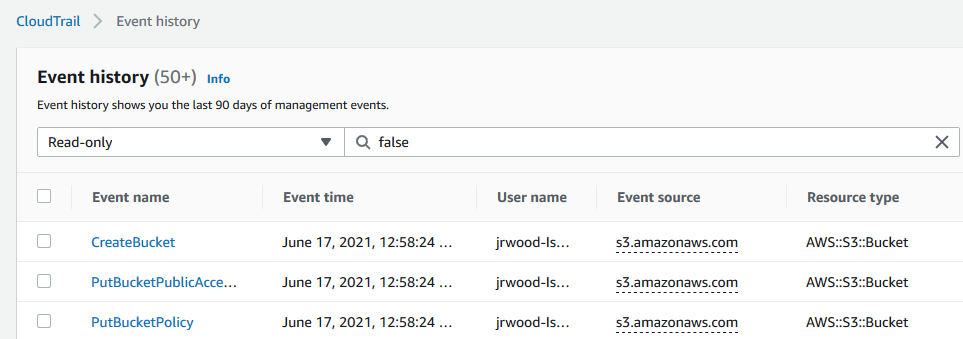
With AWS CloudTrail, you can use CloudTrail event history to review individual actions your IAM role has performed in the past. Using this information, you can detect which permissions were actively used, and decide to remove permissions.

AWS CloudTrail

AWS CloudTrail

To work out which permissions you may need, you can generate IAM policies based on access activity. You configure an IAM role with broad permissions while the application is in development. Access Analyzer reviews your CloudTrail logs. It generates a policy template that contains the permissions that the role used in your specified date range. Use the template to create a policy that grants only the permissions needed to support your specific use case. For more information, see “Generate policies based on access activity”.

IAM Access Analyzer

IAM Access Analyzer

Conclusion

Managing your serverless application’s security boundaries ensures isolation for, within, and between components. In this post, I continue from part 1, looking at using temporary credentials between resources and components. I cover why smaller, single purpose functions are better from a security perspective, and how to audit permissions. I show how to use AWS SAM to create per-function IAM roles.

For more serverless learning resources, visit https://serverlessland.com.

New! Streamline existing IAM Access Analyzer findings using archive rules

Post Syndicated from Andrea Nedic original https://aws.amazon.com/blogs/security/new-streamline-existing-iam-access-analyzer-findings-using-archive-rules/

AWS Identity and Access Management (IAM) Access Analyzer generates comprehensive findings to help you identify resources that grant public and cross-account access. Now, you can also apply archive rules to existing findings, so you can better manage findings and focus on the findings that need your attention most.

You can think of archive rules as similar to email rules. You define email rules to automatically organize emails. With IAM Access Analyzer, you can define archive rules to automatically mark findings as intended access. Now, those rules can apply to existing as well as new IAM Access Analyzer findings. This helps you focus on findings for potential unintended access to your resources. You can then easily track and resolve these findings by reducing access, helping you to work towards least privilege.

In this post, first I give a brief overview of IAM Access Analyzer. Then I show you an example of how to create an archive rule to automatically archive findings for intended access. Finally, I show you how to update an archive rule to mark existing active findings as intended.

IAM Access Analyzer overview

IAM Access Analyzer helps you determine which resources can be accessed publicly or from other accounts or organizations. IAM Access Analyzer determines this by mathematically analyzing access control policies attached to resources. This form of analysis—called automated reasoning—applies logic and mathematical inference to determine all possible access paths allowed by a resource policy. This is how IAM Access Analyzer uses provable security to deliver comprehensive findings for potential unintended bucket access. You can enable IAM Access Analyzer in the IAM console by creating an analyzer for an account or an organization. Once you’ve created your analyzer, you can review findings for resources that can be accessed publicly or from other AWS accounts or organizations.

Create an archive rule to automatically archive findings for intended access

When you review findings and discover common patterns for intended access, you can create archive rules to automatically archive those findings. This helps you focus on findings for unintended access to your resources, just like email rules help streamline your inbox.

To create an archive rule

In the IAM console, choose Archive rules under Access Analyzer. Then, choose Create archive rule to display the Create archive rule page shown in Figure 1. There, you find the option to name the rule or use the name generated by default. In the Rule section, you define criteria to match properties of findings you want to archive. Just like email rules, you can add multiple criteria to the archive rule. You can define each criterion by selecting a finding property, an operator, and a value. To help ensure a rule doesn’t archive findings for public access, the criterion Public access is false is suggested by default.
 

Figure 1: IAM Access Analyzer create archive rule page where you add criteria to create a new archive rule

Figure 1: IAM Access Analyzer create archive rule page where you add criteria to create a new archive rule

For example, I have a security audit role external to my account that I expect to have access to resources in my account. To mark that access as intended, I create a rule to archive all findings for Amazon S3 buckets in my account that can be accessed by the security audit role outside of the account. To do this, I include two criteria: Resource type matches S3 bucket, and the AWS Account value matches the security audit role ARN. Once I add these criteria, the Results section displays the list of existing active findings the archive rule matches, as shown in Figure 2.
 

Figure 2: A rule to archive all findings for S3 buckets in an account that can be accessed by the audit role outside of the account, with matching findings displayed

Figure 2: A rule to archive all findings for S3 buckets in an account that can be accessed by the audit role outside of the account, with matching findings displayed

When you’re done adding criteria for your archive rule, select Create and archive active findings to archive new and existing findings based on the rule criteria. Alternatively, you can choose Create rule to create the rule for new findings only. In the preceding example, I chose Create and archive active findings to archive all findings—existing and new—that match the criteria.

Update an archive rule to mark existing findings as intended

You can also update an archive rule to archive existing findings retroactively and streamline your findings. To edit an archive rule, choose Archive rules under Access Analyzer, then select an existing rule and choose Edit. In the Edit archive rule page, update the archive rule criteria and review the list of existing active findings the archive rule applies to. When you save the archive rule, you can apply it retroactively to existing findings by choosing Save and archive active findings as shown in Figure 3. Otherwise, you can choose Save rule to update the rule and apply it to new findings only.

Note: You can also use the new IAM Access Analyzer API operation ApplyArchiveRule to retroactively apply an archive rule to existing findings that meet the archive rule criteria.


Figure 3: IAM Access Analyzer edit archive rule page where you can apply the rule retroactively to existing findings by choosing Save and archive active findings

Figure 3: IAM Access Analyzer edit archive rule page where you can apply the rule retroactively to existing findings by choosing Save and archive active findings

Get started

To turn on IAM Access Analyzer at no additional cost, open the IAM console. IAM Access Analyzer is available at no additional cost in the IAM console and through APIs in all commercial AWS Regions, AWS China Regions, and AWS GovCloud (US). To learn more about IAM Access Analyzer and which resources it supports, visit the feature page.

If you have feedback about this post, submit comments in the Comments section below. If you have questions about this post, start a new thread on the AWS IAM forum or contact AWS Support.

Want more AWS Security how-to content, news, and feature announcements? Follow us on Twitter.

Author

Andrea Nedic

Andrea is a Sr. Tech Product Manager for AWS Identity and Access Management. She enjoys hearing from customers about how they build on AWS. Outside of work, Andrea likes to ski, dance, and be outdoors. She holds a PhD from Princeton University.

How to automatically archive expected IAM Access Analyzer findings

Post Syndicated from Josh Joy original https://aws.amazon.com/blogs/security/how-to-automatically-archive-expected-iam-access-analyzer-findings/

AWS Identity and Access Management (IAM) Access Analyzer continuously monitors your Amazon Web Services (AWS) resource-based policies for changes in order to identify resources that grant public or cross-account access from outside your AWS account or organization. Access Analyzer findings include detailed information that you can use to make an informed decision about whether access to the shared resource was intended or not. The findings information includes the affected AWS resource, the external principal that has access, the condition from the policy statement that grants the access, and the access level, such as read, write, or the ability to modify permissions.

In this blog post, we show you how to automatically archive Access Analyzer findings for expected events, such as authorized resource access. The benefit of automatically archiving expected findings is to help you reduce distraction from findings that don’t require action, enabling you to concentrate on remediating any unexpected access to your shared resources.

Access Analyzer provides you with the ability to archive findings that show intended cross-account sharing of your AWS resources. The AWS service-provided archive mechanism provides you with built-in archive rules that can automatically archive new findings that meet the criteria you define (such as directive controls). For example, your organizational access controls might allow your auditor to have read-only IAM role cross-account access from your security account into all of your accounts. In this security auditor scenario, you can define a built-in archive rule to automatically archive the findings related to the auditor cross-account IAM role that has authorized read-only access.

A limitation of the built-in archive rules is that they are static and based only on simple pattern matching. To build your own custom archiving logic, you can create an AWS Lambda function that listens to Amazon CloudWatch Events. Access Analyzer forwards all findings to CloudWatch Events, and you can easily configure a CloudWatch Events rule to trigger a Lambda function for each Access Analyzer finding. For example, if you want to look up the tags on a resource, you can make an AWS API call based on the Amazon Resource Name (ARN) for the resource in your Lambda function. As another example, you might want to compute an overall risk score based on the various parts of a finding and archive everything below a certain threshold score that you define.

In this blog post, we show you how to configure a built-in archive rule, how to add context enrichment for more complex rules, and how to trigger an alert for unintended findings. We first cover the scenario of the auditor role using a built-in archive rule. Then, we show how to perform automated archive remediation by using CloudWatch Events with AWS Step Functions to add context enrichment and automatically remediate the authorized sharing of a cross-account AWS Key Management Service (AWS KMS) key. Finally, we show how to trigger alerts for the unintended sharing of a public Amazon Simple Storage Service (Amazon S3) bucket.

Prerequisites

The solution we give here assumes that you have Access Analyzer enabled in your AWS account. You can find more details about enabling Access Analyzer in the Getting Started guide for that feature. Access Analyzer is available at no additional cost in the IAM console and through APIs in all commercial AWS Regions. Access Analyzer is also available through APIs in the AWS GovCloud (US) Regions.

How to use the built-in archive rules

In our first example, there is a security auditor cross-account IAM role that can be assumed by security automation tools from the central security AWS account. We use the built-in archive rules to automatically archive cross-account findings related to the cross-account security auditor IAM role.

To create a built-in archive rule

  1. In the AWS Management Console, choose Identity and Access Management (IAM). On the dashboard, choose Access Analyzer, and then choose Archive rules.
  2. Choose the Create archive rule button.
     
    Figure 1: Create archive rule

    Figure 1: Create archive rule

  3. You can select archive rule criteria based on your use case. For this example, in the search box, choose AWS Account as the criteria, since we want to automatically archive the security auditor account.
     
    Figure 2: Select archive rule criteria

    Figure 2: Select archive rule criteria

  4. You can now enter the value for the selected criteria. In this case, for Criteria, choose AWS Account, and then choose the equals operator.
  5. After you’ve entered your criteria, choose the Create archive rule button.
     
    Figure 3: Finish creating the archive rule

    Figure 3: Finish creating the archive rule

    You should see a message confirming that you’ve successfully created a new archive rule.
     

    Figure 4: Successful creation of a new archive rule

    Figure 4: Successful creation of a new archive rule

How to automatically archive expected findings

We now show you how to automatically archive expected findings by using a serverless workflow that you define by using AWS Step Functions. We show you how to leverage Step Functions to enrich an Access Analyzer finding, evaluate the finding against your customized rule engine logic, and finally either archive the finding or send a notification. A CloudWatch Event Rule will trigger the Step Functions workflow when Access Analyzer generates a new finding.

Solution architecture – serverless workflow

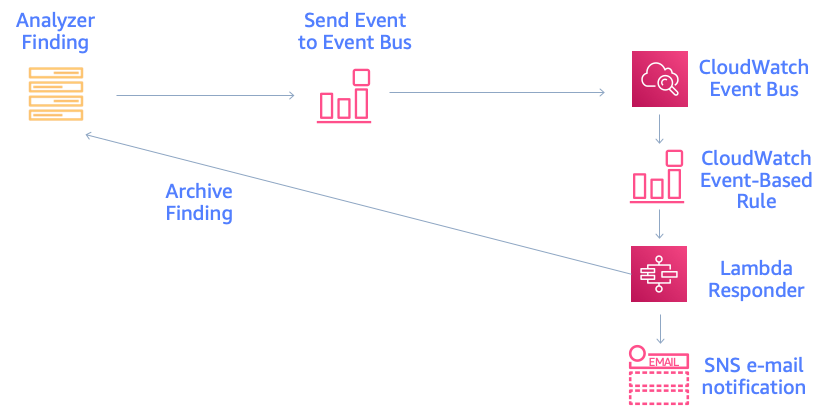
The CloudWatch event bus delivers the Access Analyzer findings to the Step Functions workflow. The Step Functions workflow responds to each Access Analyzer finding and either archives the finding for authorized access or sends an Amazon Simple Notification Service (Amazon SNS) email notification for an unauthorized access finding, as shown in figure 5.
 

Figure 5: Solution architecture for automatic archiving

Figure 5: Solution architecture for automatic archiving

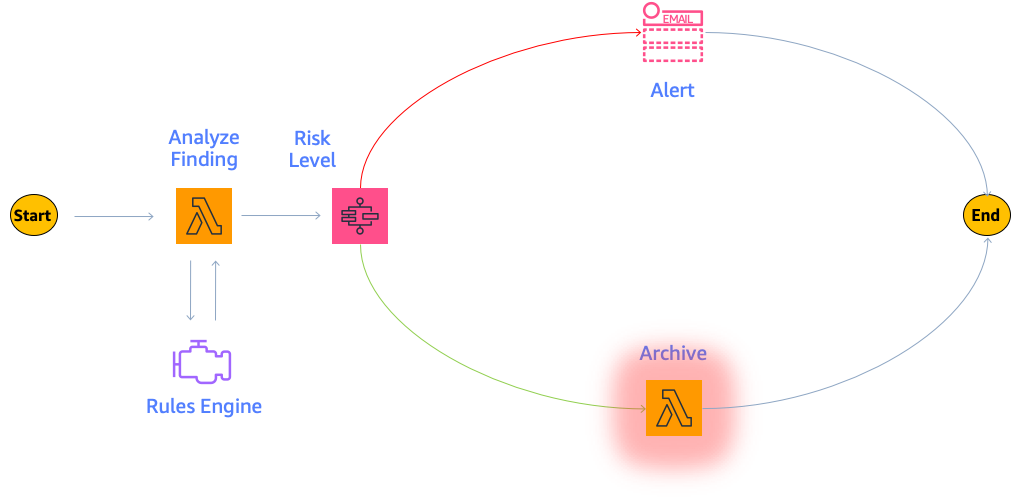
The Step Functions workflow enriches the finding and provides contextual information to the rules engine for evaluation, as shown in figure 6. The Access Analyzer finding is either archived or generates an alert, based on the result of the rules engine evaluation and the associated risk level. If you’re interested in remediating the finding, you can learn more by watching the talk AWS re:Invent 2019: [NEW LAUNCH!] Dive Deep into IAM Access Analyzer (SEC309).
 

Figure 6: Finding analysis and archival

Figure 6: Finding analysis and archival

This example uses four Lambda functions. One function is for context enrichment, a second function is for rule evaluation logic, a third function is to archive expected findings, and finally a fourth function is to send a notification for findings that require investigation by your security operations team.

First, the enrichment Lambda function retrieves the tags associated with the AWS resource. The following code example retrieves the S3 bucket tags.

def lookup_s3_tags(resource_arn):
  tags = {}

  s3_client = boto3.client("s3")
  bucket_tags = s3_client.get_bucket_tagging(Bucket=resource_arn)["TagSet"]

  return bucket_tags

The Lambda function can perform additional enrichment beyond looking up tags, such as looking up the AWS KMS key alias, as shown in the next code example.

def additional_enrichment(resource_type, resource_arn):
  additional_context = {}

  if resource_type == "AWS::KMS::Key":
    kms_client = boto3.client("kms")
    aliases = kms_client.list_aliases(KeyId=resource_arn)["Aliases"]
    additional_context["key_aliases"] = [alias["AliasName"] for alias in aliases]

  return additional_context

Next, the evaluation rule Lambda function determines whether the finding is authorized and can be archived, or whether the finding is unauthorized and a notification needs to be generated. In this example, we first check whether the resource is shared publicly and then immediately alert if there’s an unexpected public sharing of a resource. Additionally, we explicitly don’t want public sharing of resources that are tagged Confidential. Our example method checks whether the value “Confidential” is set as the “Data Classification” tag and correspondingly returns False in order to trigger a notification.

Also, we allow cross-account sharing of a key in the development environment with the tag key “IsAllowedToShare” and tag value “true”, tag key “Environment” with tag value “development”, and a key alias of “DevelopmentKey”.

# Evaluate Risk Level
# Return True to raise alert if risk level exceeds threshold
# Return False to archive finding
def should_raise_alert(finding_details, tags, additional_context):
  if (
      finding_details["isPublic"]
      and not is_allowed_public(finding_details, tags, additional_context)
     ):
    return True
  elif (
        tags.get("IsAllowedToShare") == "true"
        and tags.get("Environment") == "development"
        and "DevelopmentKey" in additional_context.get("key_aliases", [])
    ):
    return False

  return True

def is_allowed_public(finding_details, tags, additional_context):
  # customize your logic here
  # for example, Data Classification is Confidential, return False for no public access
  if "Data Classification" in tags and tags["Data Classification"] == "Confidential":
    return False 

  return True
  if should_raise_alert(finding_details, tags, additional_context):
    return {"status": "NOTIFY"}
  else:
    return {"status": "ARCHIVE"}     

We then use the Choice condition to trigger either the archive or notification step.

 next(sfn.Choice(self, "Archive?"). \
  when(sfn.Condition.string_equals("$.guid.status", "ARCHIVE"), archive_task). \
  when(sfn.Condition.string_equals("$.guid.status", "NOTIFY"), notification_task) \
 )

The archive Lambda step archives the Access Analyzer finding if a rule is successfully evaluated.

def archive_finding(finding_id, analyzer_arn):
  access_analyzer_client = boto3.client("accessanalyzer")
  access_analyzer_client.update_findings(
    analyzerArn=analyzer_arn,
    ids=[finding_id],
    status="ARCHIVED"
  )

Otherwise, we raise an SNS notification because there is unauthorized resource sharing.

  resource_type = event["detail"]["resourceType"]
  resource_arn = event["detail"]["resource"]

  sns_client = boto3.client('sns')
  sns_client.publish(
      TopicArn=sns_topic_arn,
      Message=f"Alert {resource_type} {resource_arn} exceeds risk level.",
      Subject="Alert Access Analyzer Finding"
  )

Solution deployment

You can deploy the solution through either the AWS Management Console or the AWS Cloud Development Kit (AWS CDK).

Prerequisites

Make sure that Access Analyzer is enabled in your AWS account. You can find an AWS CloudFormation template for doing so in the GitHub repository. It’s also possible for you to enable Access Analyzer across your organization by using the scripts for AWS CloudFormation StackSets found in the GitHub repository. See more details in the blog post Enabling AWS IAM Access Analyzer on AWS Control Tower accounts.

To deploy the solution by using the AWS Management Console

  1. In your security account, launch the template by choosing the following Launch Stack button.
     
    Select the Launch Stack button to launch the template
  2. Provide the following parameter for the security account:
    EmailSubscriptionParameter: The email address to receive subscription notifications for any findings that exceed your defined risk level.

To deploy the solution by using the AWS CDK

Additionally, you can find the latest code on GitHub, where you can also contribute to the sample code. The following commands shows how to deploy the solution by using the AWS Cloud Development Kit (AWS CDK). First, upload the Lambda assets to S3. Then, deploy the solution to your account.

cdk bootstrap

cdk deploy --parameters EmailSubscriptionParameter=YOUR_EMAIL_ADDRESS_HERE

To test the solution

  1. Create a cross-account KMS key. You should receive an email notification after several minutes.
  2. Create a cross-account KMS key with the tags IsAllowedToShare=true and Environment=development. Also, create a KMS key alias named alias/DevelopmentKey for this key. After a few seconds, you should see that the finding was automatically archived.

Summary

In this blog post, we showed you how IAM Access Analyzer can help you identify resources in your organization and accounts that are shared with an external identity. We explained how to automatically archive expected findings by using the built-in archive rules. Then, we walked you through how to automatically archive expected shared resources. We showed you how to create a serverless workflow that uses AWS Step Functions, which performs context enrichment and then automatically archives your findings for expected shared resources.

After you follow the steps in this blog post for automatic archiving, you will only receive Access Analyzer findings for unexpected AWS resource sharing. A good way to manage these unexpected Access Analyzer findings is with AWS Security Hub, alongside your other findings. Visit Getting started with AWS Security Hub to learn more. You can also see the blog post Automated Response and Remediation with AWS Security Hub for event patterns and remediation code examples.

If you have feedback about this post, submit comments in the Comments section below.

Want more AWS Security how-to content, news, and feature announcements? Follow us on Twitter.

Author

Josh Joy

Josh is a Security Consultant with the AWS Global Security Practice, a part of our Worldwide Professional Services Organization. Josh helps customers improve their security posture as they migrate their most sensitive workloads to AWS. Josh enjoys diving deep and working backwards in order to help customers achieve positive outcomes.

Author

Andrew Gacek

Andrew is a Principal Applied Scientist in the Automated Reasoning Group at Amazon. He designs analyses to ensure the safety and security of AWS customer configurations. Prior to joining Amazon, Andrew worked at Rockwell Collins where he used automated reasoning to verify aerospace applications. He holds a PhD in Computer Science from the University of Minnesota.