LLM-assisted vector similarity search

Post Syndicated from Grab Tech original https://engineering.grab.com/llm-assisted-vector-similarity-search

Introduction

As the complexity of data retrieval requirements continue to grow, traditional search methods often struggle to provide relevant and accurate results, especially for nuanced or conceptual queries. Vector similarity search has emerged as a powerful technique for finding semantically similar information. It refers to finding vectors in a large dataset that are most similar to a given query vector, typically using some distance or similarity measure. The concept originated in the 1960s with the work by Minsky and Papert on nearest neighbour search 1. Since then, the idea has evolved substantially with modern approaches often using approximate methods to enable fast search in high-dimensional spaces, such as locality-sensitive hashing 2 and graph-based indexing 3.

Recently, vector similarity search has become a crucial component in many machine learning and information retrieval applications. It is one of the key technologies that popularised the idea of Retrieval Augmented Generation (RAG) 4 which increased the applicability of Transformer 5 based Generative Large Language Models (LLMs) 6 in domain-specific tasks without requiring any further training or fine-tuning. However, the effectiveness of the vector search can be limited when dealing with intricate queries or contextual nuances. For example, from a typical vector similarity search perspective, “I like fishing” and “I do not like fishing” may be quite close to each other, while in reality, they are the exact opposite. In this blog post, we discuss an approach that we experimented with that combines vector similarity search with LLMs to enhance the relevance and accuracy of search results for such complex and nuanced queries. We leverage the strengths of both techniques: vector similarity search for efficient shortlisting of potential matches, and LLMs for their ability to understand natural language queries and rank the shortlisted results based on their contextual relevance.

Proposed solution

The proposed solution involves a two-step process:

  1. Vector similarity search: We first perform a vector similarity search on the dataset to obtain a shortlist of potential matches (e.g., top 10-50 results) for the given query. This step leverages the efficiency of vector similarity search to quickly narrow down the search space.

  2. LLM-assisted ranking: The shortlisted results from the vector similarity search are then fed into an LLM, which ranks the results based on their relevance to the original query. The LLM’s ability to understand natural language queries and contextual information helps in identifying the most relevant results from the shortlist.

By combining these two steps, we aim to achieve the best of both worlds: the efficiency of vector similarity search for initial shortlisting, and the contextual understanding and ranking capabilities of LLMs for refining the final results.
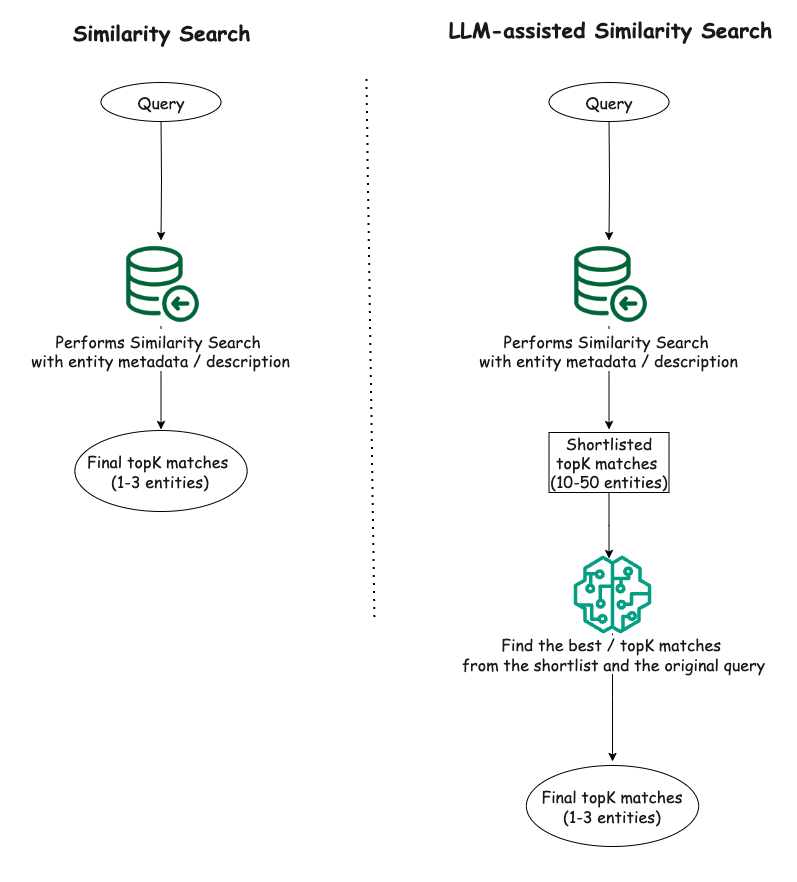
Figure 1. Similarity search and the proposed LLM-assisted similarity search.

Experiment

Datasets

To evaluate the effectiveness of our proposed solution, we conducted experiments on two small synthetic datasets in CSV format that we curated using GPT-4o 7.

  • Food dataset: A collection of 100 dishes with their titles and descriptions.
  • Tourist spots dataset: A collection of 100 tourist spots in Asia, including their names, cities, countries, and descriptions.

It is important to note that we primarily focus on performing similarity search on structured data such as description of various entities in a relational database.

Setup

Our experimental setup included a Python script for vector similarity search leveraging Facebook AI Similarity Search (FAISS) 8, a library developed by Facebook that offers efficient similarity search, and OpenAI’s embeddings (i.e., text-embedding-ada-002) 9 to generate the vector embeddings needed for facilitating the vector search. For our proposed solution, an LLM component (i.e., GPT-4o) was included in the setup in addition to the FAISS-based similarity search component.

Observations

To compare the performance of the proposed approach of LLM-assisted vector similarity search as outlined in the “Proposed solution” section with the raw vector similarity search, we conducted both techniques on our two synthetic datasets. With the raw vector search, we get the top three matches for a given query. For our proposed technique, we first get a shortlist of 15 entity matches from FAISS for the same query, and supply the shortlist and the original query to LLM with some descriptive instructions in the prompt to find the top three matches from the provided shortlist.

From the experiments, in simpler cases where the queries were straightforward and directly aligned with the textual content of the data, both the raw similarity search and the LLM-assisted similarity search demonstrated comparable performance. However, as the queries became more complex, involving additional constraints, negations, or conceptual requirements, the LLM-assisted search exhibited a clear advantage over the raw similarity search. The LLM’s ability to understand context and capture subtleties in the queries allowed it to filter out irrelevant results and rank the most appropriate ones higher, leading to improved accuracy.

Here are a few examples where the LLM-assisted similarity search performed better:

Food dataset

Query: “food with no fish or shrimp”

Raw similarity search result:

- title: Tempura, description: A Japanese dish of seafood or vegetables that have been battered and deep fried.
- title: Ceviche, description: A seafood dish popular in Latin America, made from fresh raw fish cured in citrus juices.
- title: Sushi, description: A Japanese dish consisting of vinegared rice accompanied by various ingredients such as seafood and vegetables.

LLM-assisted similarity search result:

- title: Chicken Piccata, description: Chicken breasts cooked in a sauce of lemon, butter, and capers.
- title: Chicken Alfredo, description: An Italian-American dish of pasta in a creamy sauce made from butter and Parmesan cheese.
- title: Chicken Satay, description: Grilled chicken skewers served with peanut sauce.

Observation: The LLM correctly filtered out dishes containing fish or shrimp, while the raw similarity search failed to do so, presumably due to the presence of negation in the query.

Tourist spots dataset

Query: “exposure to wildlife”

Raw similarity search result:

- name: Ocean Park, city: Hong Kong, country: Hong Kong, description: Marine mammal park and oceanarium.
- name: Merlion Park, city: Singapore, country: Singapore, description: Iconic statue with the head of a lion and body of a fish.
- name: Manila Bay, city: Manila, country: Philippines, description: A natural harbor known for its sunset views.

LLM-assisted similarity search result:

- name: Ocean Park, city: Hong Kong, country: Hong Kong, description: Marine mammal park and oceanarium.
- name: Chengdu Research Base, city: Chengdu, country: China, description: A research center for giant panda breeding.
- name: Mount Hua, city: Shaanxi, country: China, description: Mountain known for its dangerous hiking trails.

Observation: Two out of the top three matches by the LLM-assisted technique seem relevant to the query while only one result from the raw similarity search is relevant and the other two being somewhat irrelevant to the query. The LLM identified the relevance of a research base for giant panda breeding to the “exposure to wildlife”, which the raw similarity search ignored in its ranking.

These examples provide a glimpse into the utility of LLMs in finding more relevant matches in scenarios where the queries involved additional context, constraints, or conceptual requirements beyond simple keyword matching. On the other hand, when the queries were more straightforward and focused on specific keywords or phrases present in the data, both approaches demonstrated comparable performance. For instance, queries like “Japanese food” or “beautiful mountains” yielded similar results from both the raw similarity search and the proposed LLM-assisted approach.

Overall, the LLM-assisted vector search exhibited a clear advantage in handling complex queries, leveraging its ability to understand natural language and contextual information. However, for simpler queries, the raw similarity search remained a viable option, especially when computational efficiency is a concern.

Conclusion

The experiments demonstrated the potential of combining vector similarity search with LLMs to enhance the relevance and accuracy of search results, particularly for complex and nuanced queries. While vector similarity search alone can provide reasonable results for straightforward queries, the LLM-assisted approach shines when dealing with queries that require a deeper understanding of context, nuances, and conceptual relationships. By leveraging the natural language understanding capabilities of LLMs, this approach can better capture the intent behind complex queries and provide more relevant search results.

Our experiment was limited to using a small volume of structured data (100 data points in each dataset) with a limited number of queries. However, we have witnessed similar enhancement in search result relevance when we deployed this solution internally within Grab for larger datasets, for example, 4500+ rows of data stored in a relational database.

Nevertheless, it is important to note that the effectiveness of this approach may still depend on the quality and complexity of the data, as well as the specific use case and query patterns. We believe it is still worthwhile to evaluate the proposed approach for more diverse (e.g., beyond CSV) and larger datasets. An interesting future work can be varying the size of the shortlist from the similarity search and observing how it impacts the overall search relevance when using the proposed approach. In addition, for real world applications, the performance implications in terms of additional latency introduced by the additional LLM query must also be considered.

Join us

Grab is the leading superapp platform in Southeast Asia, providing everyday services that matter to consumers. More than just a ride-hailing and food delivery app, Grab offers a wide range of on-demand services in the region, including mobility, food, package and grocery delivery services, mobile payments, and financial services across 700 cities in eight countries.

Powered by technology and driven by heart, our mission is to drive Southeast Asia forward by creating economic empowerment for everyone. If this mission speaks to you, join our team today!

References

  1. M. Minsky and S. Papert, Perceptrons: An Introduction to Computational Geometry. MIT Press, 1969. ↩

  2. P. Indyk and R. Motwani, “Approximate nearest neighbors: Towards removing the curse of dimensionality,” in Proceedings of the Thirtieth Annual ACM Symposium on Theory of Computing, 1998. ↩

  3. Y. Malkov and D. Yashunin, “Efficient and robust approximate nearest neighbor search using hierarchical navigable small world graphs,” IEEE Transactions on Pattern Analysis and Machine Intelligence, 2020. ↩

  4. P. Lewis, E. Perez, A. Piktus, F. Petroni, V. Karpukhin, N. Goyal, and D. Kiela, “Retrieval-augmented generation for knowledge-intensive NLP tasks,” in Advances in Neural Information Processing Systems, 2020. ↩

  5. A. Vaswani, “Attention is all you need,” in Advances in Neural Information Processing Systems, 2017. ↩

  6. A. Radford, “Improving language understanding by generative pre-training,” 2018. ↩

  7. “Hello GPT-4o,” OpenAI, May 2024. [Online]. Available: https://openai.com/index/hello-gpt-4o/. [Accessed: Oct. 6, 2024]. ↩

  8. M. Douze, A. Guzhva, C. Deng, J. Johnson, G. Szilvasy, P. E. Mazaré, and H. Jégou, “The faiss library,” arXiv preprint arXiv:2401.08281, 2024. ↩

  9. “Embeddings,” OpenAI API. [Online]. Available: https://platform.openai.com/docs/guides/embeddings. [Accessed: Oct. 6, 2024]. ↩
Several Russian developers lose kernel maintainership status

Post Syndicated from corbet original https://lwn.net/Articles/995186/

Perhaps one of the more surprising changes in the 6.12-rc4 development
kernel was the removal
of several entries
from the kernel’s MAINTAINERS file. The patch
performing the removal was sent (by Greg Kroah-Hartman) only to the
[email protected] mailing list; the change was included in a char-misc drivers
pull request
with no particular mention.

The explanation for the removal is simply “various compliance
requirements
“. Given that the developers involved all appear to be of
Russian origin, it is not too hard to imagine what sort of compliance is
involved here. There has, however, been no public posting of the policy
that required the removal of these entries.

Introducing the new Amazon Q Developer experience in AWS Lambda

Post Syndicated from Brian Beach original https://aws.amazon.com/blogs/devops/introducing-the-new-amazon-q-developer-experience-in-aws-lambda/

AWS Lambda recently announced a new code editor based on Code-OSS. Like the previous version, the new editor includes Amazon Q Developer. Amazon Q Developer is a generative AI-powered assistant for software development that can help you build and debug Lambda functions more quickly. In this post, I provide an overview of Amazon Q Developer’s integration into the new built-in code editor.

Introduction

AWS Lambda first supported Amazon Q Developer in 2022 (previously known as Amazon CodeWhisperer). While Q Developer has added many features since 2022, the experience in the Lambda editor has remained mostly unchanged until recently. For example, the quality and length of recommendations has increased significantly over the past two years. The original blog post announcing support for Q Developer in the Lambda editor (then called CodeWhisperer) used a series of prompts such as “upload a file to an S3 bucket” or “send a notification using SNS” to incrementally build a Lambda function. While that was impressive at the time, Q Developer can now accept much longer and more complex prompts. For example, I asked Q Developer to create an image moderation function with the following comment. This comment will result in about seventy lines of Python code, including whitespace.

This function moderates images uploaded to S3. It is invoked by an S3 event notification when a new image is uploaded. First, it calls Rekognition image moderation. It also uses Rekognition to extract text from the image, and uses Comprehend to check for toxic content. Finally, it sends a message to the SQS queue identified in the env var QUEUE_URL if the image was moderated or if it contained toxic content. The env var MIN_SCORE allows configuration of the confidence score used as the threshold for both moderation and toxicity.

While I can use this comment in both the old and new editor, the experience in the new editor has significantly improved. Note that in the following image of the old editor, I can only see the first eight lines of the suggestion in a popup. I have to scroll to review the remaining 62 lines of code. The old editor experience did not anticipate that Q Developer would someday return 70 lines, or more, in a single response.

Screenshot of the AWS Lambda code editor showing a Python function for image moderation. The code includes comments describing the function's purpose and a popup with initial import statements and AWS service client initializations.

The experience in the new editor is much improved as shown in the following image. I can preview the entire suggestion in-line with my code, up to the size of my screen. This makes it much easier to evaluate the suggestion before deciding to accept or decline it.

Screenshot of the AWS Lambda code editor showing a Python function for image moderation. The code includes comments describing the function's purpose and a popup with initial import statements and AWS service client initializations.

Now that you have seen the new editor in action, let’s discuss how to configure and use it.

Inline completions in Lambda

Q Developer can provide you with code recommendations in real time. As you write code, Q Developer automatically generates suggestions based on your existing code and comments. Before I can use Q Developer in the Lambda console, I must first configure it as described in Using Amazon Q Developer with AWS Lambda. With that done, I am ready to start with a simple example.

While I love Python, I often find myself working with a dictionary object without knowledge of its structure. As a result, I waste time reading the documentation searching for the names of various keys. In Lambda, the event object is passed as a dictionary. In addition, each event type has a different structure. Q Developer can save me countless hours of reading documentation to find the structure of each event.

As an example, imagine that I have created a function that can be triggered by Amazon API Gateway, Application Load Balancer, and AWS AppSync. I need to get the IP address of the client that invoked my function. While this is available in the X-Forwarded-For header, the location and format of the header in the dictionary is subtly different in each event type. Q Developer can save me a trip to the documentation.

In the example below, Q Developer is making the correct suggestion for API Gateway based on the contextual clues in my file. Specifically, the comments on lines one and three. When I hit enter at the end of line three, Q Developer uses the context to recommend the code on line four. Note that it correctly recommends X-Forwarded-For with capitals for an API Gateway event.

Screenshot of the AWS Lambda code editor showing a Python function. Q is suggesting code to extract the x-forwarded-for header.

However, in the next example, the comment on line one now mentions an Application Load Balancer. Note that Q Developer correctly recommends x-forwarded-for in lower-case for an Application Load Balancer event.

Screenshot of the AWS Lambda code editor showing a Python function. Q is suggesting code to extract the x-forwarded-for header.

That trivial example just saved me a trip to the documentation that would have taken three to five minutes. If I can do that a few times every hour, it has a huge impact on my productivity and focus due to less context switching.

While the in-line completion experience is greatly improved in the new editor, Q Developer supports other capabilities in the Lambda console that I do not want to overlook. Let’s take a moment to review chat and troubleshooting, which are unchanged with the release of the new editor.

Chat in the Lambda console

Q Developer supports chat in the Lambda console. I can use this to ask questions rather than reading through the documentation. Returning to my original example, the image moderation function, remember that my function expects two environment variables, QUEUE_URL andMIN_SCORE.Imagine that I do not know how to configure an environment variable in the Lambda console. In the following example, I chat with Q Developer to ask for help.

Screenshot of the AWS Lambda code showing the chat pane. Q is providing instructoins for creating an env var in Lambda.

Note that the response is aware of my position in the console. Q Developer says “It looks like you’re already in the function design.” Q Developer not only saves me a trip to the documentation, but it tailors the suggestion to my current position so I do not have to read unnecessary instructions. I will follow Q Developer’s instructions to configure the two required environment variables as shown below.

Screenshot of the AWS Lambda env var with the two variables created.

You can see how chat is able to help keep me on task and in a state of flow. Next, I will show you how Q Developer can help you troubleshoot issues in the console.

Troubleshooting in the Lambda console

With the environment variables configured, I am ready to test my function. However, when I run a test, I get an error message as shown in the following image. Note the “Diagnose with Amazon Q” button. Q Developer noticed that I am having issues, and is offering to help.

A Lambda error with the “Diagnose with Amazon Q” button shown

If I select the “Diagnose with Amazon Q” button, Q Developer will analyze the error. In the example below, you can see that it has identified that “the Lambda function is unable to access an object in S3.” Of course! I never granted the Lambda function permission to access the Amazon Simple Storage Service (Amazon S3) bucket.

Amazon Q troubleshooting providing Analysis and resolution of the issue.

I could go back to the chat pane I used earlier and ask Q Developer how to add permissions. However, notice that it already provides set-by-step instructions to fix the issue. So, I don’t even need to use the chat. Once I fix the permissions, my function is working as expected. Q Developer has saved me time and made me much more productive.

Cleanup

If you have been following along and deployed a Lambda function, please remember to delete it.

Conclusion

The new AWS Lambda built-in editor experience greatly improves the Q Developer inline suggestion experience for Lamba. This new editor, combined with the existing chat and troubleshooting capabilities can significantly improve your productivity. To learn more read Getting started with Amazon Q Developer and Using Amazon Q Developer with AWS Lambda.

How to use the Amazon Detective API to investigate GuardDuty security findings and enrich data in Security Hub

Post Syndicated from Nicholas Jaeger original https://aws.amazon.com/blogs/security/how-to-use-the-amazon-detective-api-to-investigate-guardduty-security-findings-and-enrich-data-in-security-hub/

Understanding risk and identifying the root cause of an issue in a timely manner is critical to businesses. Amazon Web Services (AWS) offers multiple security services that you can use together to perform more timely investigations and improve the mean time to remediate issues. In this blog post, you will learn how to integrate Amazon Detective with AWS Security Hub, giving you better visibility into threat indicators and investigative data directly from Security Hub, which provides you with a centralized view of your overall security posture across your AWS accounts.

Amazon GuardDuty is an intelligent threat detection service that continuously monitors your AWS accounts, workloads, runtime activity, and data for potential malicious activity. If suspicious activity, such as anomalous behavior or credential exfiltration, is detected, GuardDuty generates detailed security findings. When you enable GuardDuty and Security Hub in the same account within the same AWS Region, GuardDuty sends its generated findings to Security Hub.

AWS Security Hub is a cloud security posture management tool that automatically detects when your AWS accounts and resources deviate from security best practices, aggregates security alerts into a single place and format, and provides insight into your security posture across your AWS accounts.

Amazon Detective makes it easier for you to analyze, investigate, and quickly identify the root cause of potential security issues or suspicious activities. Detective supports the ability to automatically investigate AWS Identity and Access Management (IAM) users and roles for indicators of compromise (IoC). This capability helps security analysts determine whether IAM users and IAM roles have potentially been compromised or involved in any known tactics, techniques, and procedures (TTPs) from the MITRE ATT&CK framework. In this post, we show you an example of how to programmatically use the Detective Investigation API to help investigate potential security issues.

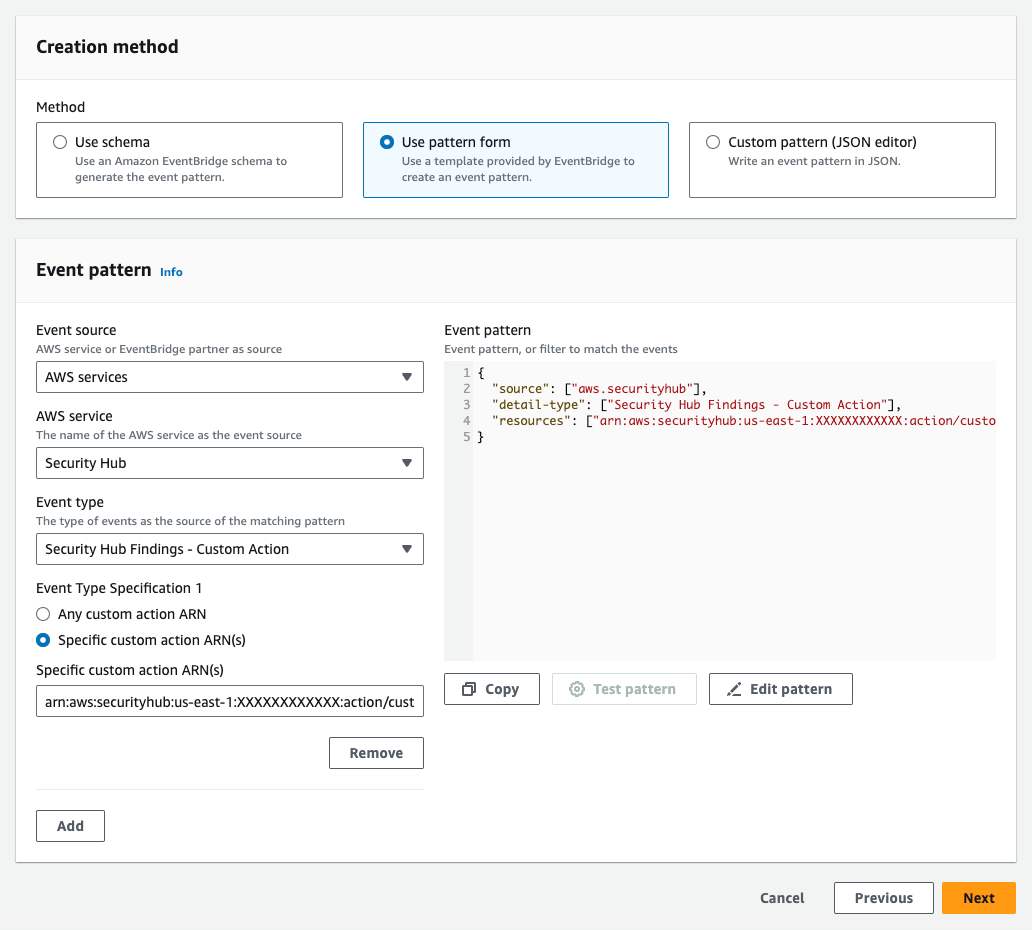
The example architecture we provide in this post performs enrichment automatically for CRITICAL, HIGH, and MEDIUM severity findings and gives you the flexibility to initiate additional investigations and enrichment on-demand. You then have the option to review those enriched findings directly in the Security Hub console, or you can enable an integration to review the enriched findings in the AWS service or AWS Partner Network (APN) solution of your choice. This post gives an overview of what you need to do to build the example architecture, but if you prefer step-by-step instructions, check out the workshop version of the instructions.

This integration and finding enrichment is made possible through the use of the Detective Investigation API. You must have GuardDuty, Detective, and Security Hub enabled for this to work. We recommend that you build this architecture in the account you are using as a delegated admin for GuardDuty, Detective, and Security Hub, and in the Region where Security Hub aggregates findings (if finding aggregation is configured).

Solution architecture

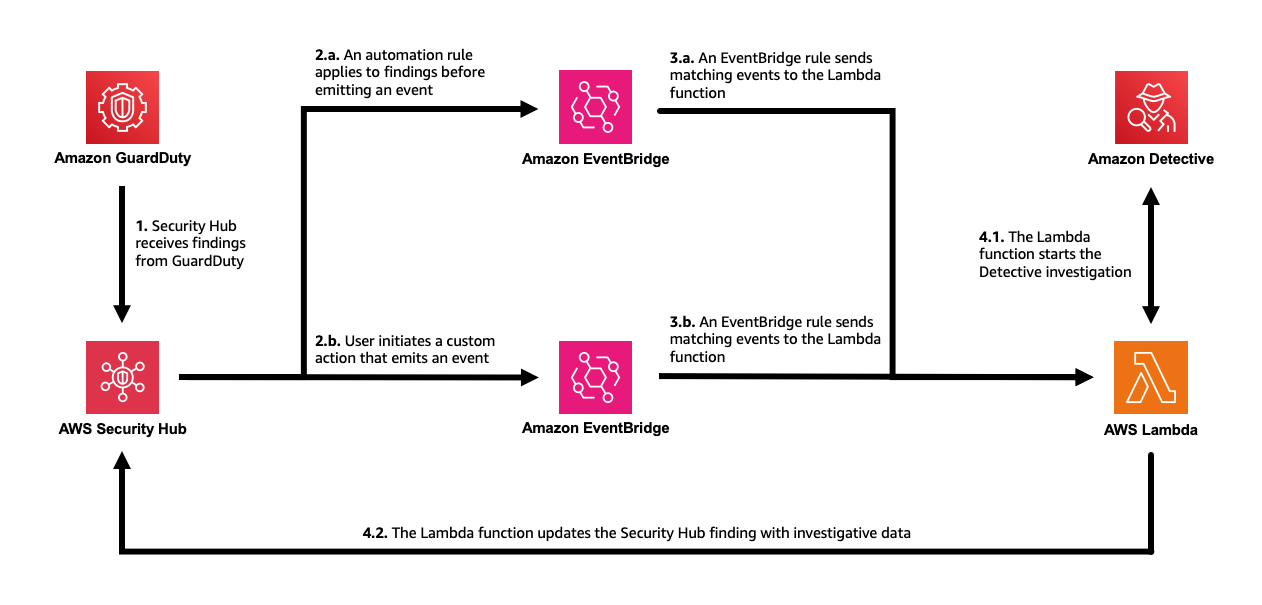
Security Hub automatically ingests findings from GuardDuty. You can integrate Security Hub with Detective using EventBridge rules and a Lambda function. To make the solution more manageable and customizable, you can configure a Security Hub custom action and a Security Hub automation rule. The custom action is used to identify findings you want to manually select for investigation. The automation rule is configured to identify and flag findings you want to automatically initiate investigations for. EventBridge rules (two of them) are used to initiate the Lambda function for each finding you want to investigate and enrich. The Lambda function processes the finding it receives, makes API calls to Detective, and then makes an API call back to Security Hub to update and enrich the finding. The Lambda function is invoked one time for each finding. Figure 1 illustrates this solution.

Figure 1: The solution architecture, including GuardDuty, Security Hub, EventBridge, Lambda, and Detective

Figure 1: The solution architecture, including GuardDuty, Security Hub, EventBridge, Lambda, and Detective

The workflow is as follows:

  1. Security Hub automatically ingests the findings from GuardDuty. As Security Hub ingests the findings, it applies one or more enabled automation rules to modify the findings. You can use rules to add a user-defined field to mark which findings you want automatically processed, such as those of CRITICAL, HIGH, and MEDIUM severity.
  2. Security Hub emits an event for each new and updated imported finding after applying the automation rules that are enabled. The event that is emitted includes one finding (after automation rules are applied).
    B. Security Hub emits an event for each execution of a custom action. The event emitted includes the findings that are selected when the custom action is initiated.
  3. An EventBridge rule evaluates tevents that match Security Hub Findings – Imported and sends the events to a target Lambda function for processing. You can further adjust the event pattern to only send findings that contain a user-defined field.
    B. A second EventBridge rule evaluates events that match Security Hub Findings – Custom Action (the specific custom action) and sends the events to the same target Lambda function for processing.
  4. The target Lambda function processes the finding in the event, makes API calls to Detective to start an investigation for the related IAM user or IAM role (if there is one) and fetches the results. It then makes an API call to Security Hub to update the finding. The function adds a note with a summary of the investigation, a link to the full investigation result, and a user-defined field that can be used to filter for findings that have been investigated.

In the following sections of this post, we provide more detail on the architecture components and setup. As a prerequisite, you must have GuardDuty, Detective, and Security Hub enabled.

Perform investigations with Detective using Lambda

You can start investigations in Detective and retrieve the results through the API. AWS Lambda supports several programming languages, but you will use JavaScript (Node.js 20.x) in this example. To start an investigation, supply the Amazon Resource Name (ARN) of an IAM role or user, the start time, the end time, and the ARN of the Detective behavior graph. The Detective API will fetch the results of the investigation, including IoCs, TTPs, and a categorical severity score. The severity score returned is computed using two dimensions, confidence and impact, where the confidence represents the likelihood that the events are anomalous and not normal user behavior, while the impact quantifies harm that could occur from the events as a measure of the TTPs’ effect.

You can use the example Lambda function in code sample 1 as the target of the EventBridge rule in the architecture previously described. The function takes the ARN from a GuardDuty security finding that was aggregated by Security Hub and calls the Investigation API. When the result is returned, the function formats the data into the AWS Security Finding Format (ASFF) used by Security Hub and calls the BatchUpdateFindings API to send the enriched, updated finding back to Security Hub. Make sure to read and review the function so you understand in detail how it works.

Code sample 1: Example JavaScript Lambda function using Node.js 20.x

"use strict";
import {
  DetectiveClient,
  GetInvestigationCommand,
  ListGraphsCommand,
  StartInvestigationCommand,
} from "@aws-sdk/client-detective";
import { BatchUpdateFindingsCommand, SecurityHubClient } from "@aws-sdk/client-securityhub";

const SHClient = new SecurityHubClient();
const detectiveClient = new DetectiveClient();

export const handler = async (event) => {
  try {
    // Handle only one (the first) finding per function call
    const finding = event.detail.findings[0];

    if (finding.ProductName != "GuardDuty") {
      // Handle only GuardDuty findings
      throw new Error("This is not a GuardDuty finding!");
    }

    const listgraphs = new ListGraphsCommand({});
    const graphs = await detectiveClient.send(listgraphs);
    const graphArn = graphs.GraphList[0].Arn;

    const IAMResourceARNs = finding.Resources.filter((resource) => {
      return (
        resource.Type == "AwsIamAccessKey" ||
        resource.Type == "AwsIamRole" ||
        resource.Type == "AwsIamUser"
      );
    }).map((resource) => {
      if (resource.Type == "AwsIamRole" || resource.Type == "AwsIamUser") {
        return {
          arn: resource.Id,
          type: resource.Type == "AwsIamRole" ? "role" : "user",
        };
      } else if (resource.Type == "AwsIamAccessKey") {
        return {
          arn: `arn:aws:iam::${finding.AwsAccountId}:role/${resource.Details.AwsIamAccessKey.PrincipalName}`,
          type: "role",
        };
      }
    });

    if (IAMResourceARNs.length == 0) {
      throw new Error("No IAM resource!");
    }

    // Investigate the first IAM role or user identified in the finding
    const investigationTarget = IAMResourceARNs[0].arn;
    const investigationTargetType = IAMResourceARNs[0].type;

    const investigationEndTime = new Date(Date.now());

    let investigationStartTime;
    if (finding.FirstObservedAt) {
      investigationStartTime = new Date(finding.FirstObservedAt);
    } else if (finding.CreatedAt) {
      investigationStartTime = new Date(finding.CreatedAt);
    } else if (finding.ProcessedAt) {
      investigationStartTime = new Date(finding.ProcessedAt);
    } else {
      throw new Error("Investigation start time invalid!");
    }
    investigationStartTime.setHours(investigationStartTime.getHours() - 24);

    const totalInvestigationTime = Math.round(
      (investigationEndTime.getTime() - investigationStartTime.getTime()) / (1000 * 60 * 60),
    ); // Hours

    const startInvestigationRequest = {
      GraphArn: graphArn,
      EntityArn: investigationTarget,
      ScopeStartTime: investigationStartTime,
      ScopeEndTime: investigationEndTime,
    };

    const startinvestigation = new StartInvestigationCommand(startInvestigationRequest);
    const investigation = await detectiveClient.send(startinvestigation);
    const investigationId = investigation.InvestigationId;

    const getInvestigationRequest = {
      GraphArn: graphArn,
      InvestigationId: investigationId,
    };

    let investigationResult = { Status: "RUNNING" };
    while (investigationResult.Status == "RUNNING") {
      await new Promise((r) => setTimeout(r, 30000));
      const getinvestigation = new GetInvestigationCommand(getInvestigationRequest);
      investigationResult = await detectiveClient.send(getinvestigation);
      if (investigationResult.Status == "FAILED") {
        throw new Error("Investigation failed!");
      }
    }

    let investigationSummary = "";
    switch (investigationResult.Severity) {
      case "INFORMATIONAL":
      case "LOW":
        investigationSummary += `We did not observe uncommon behavior for the associated ${investigationTargetType} during the ${totalInvestigationTime} hour investigation window.`;
        break;
      case "MEDIUM":
        investigationSummary += `We observed anomalous behavior for the associated ${investigationTargetType} during the ${totalInvestigationTime} hour investigation window which might be indicative of compromise.`;
        break;
      case "HIGH":
      case "CRITICAL":
        investigationSummary += `We observed anomalous behavior for the associated ${investigationTargetType} during the ${totalInvestigationTime} hour investigation window indicating potential compromise.`;
        break;
      default:
        throw new Error("Severity information not found!");
    }

    investigationSummary += " For more information, visit ";
    investigationSummary += `https://${process.env.AWS_REGION}.console.aws.amazon.com/detective/home?region=${process.env.AWS_REGION}#investigationReport/${investigationResult.InvestigationId}`;

    const findingUpdateInput = {
      FindingIdentifiers: [
        {
          Id: finding.Id,
          ProductArn: finding.ProductArn,
        },
      ],
      Note: {
        Text: investigationSummary.substring(0, 512),
        UpdatedBy: "Detective Investigation Lambda function.",
      },
      UserDefinedFields: {
        investigate: "complete",
      },
    };

    const batchUpdateCommand = new BatchUpdateFindingsCommand(findingUpdateInput);
    const updatedFinding = await SHClient.send(batchUpdateCommand);

    return updatedFinding;
  } catch (error) {
    console.error("Error:", error);
    throw error;
  }
};

For this function to work as desired, you need to change the permissions and the timeout of the Lambda function. The permissions must include the necessary actions you are taking with Detective and Security Hub in the function. Attach the policy shown in code example 2 to the role used by the function. Then set the timeout of the function to 15 minutes to allow Detective to complete the investigation. Note that you can change “Resource”:”*” to restrict permissions as needed.

Code example 2: Permissions required by the Lambda function

{
	"Version": "2012-10-17",
	"Statement": [
		{
			"Effect": "Allow",
			"Action": [
				"detective:ListGraphs",
				"detective:searchGraph",
				"detective:StartInvestigation",
				"detective:UpdateInvestigationState",
                "detective:GetInvestigation",
				"detective:ListInvestigations",
				"detective:ListIndicators",
				"securityhub:BatchUpdateFindings",
                "securityhub:UpdateFindings"
			],
			"Resource": "*"
		}
	]
}

Initiate automated investigations and finding enrichment

Now that you’ve set up the Lambda function, you’re ready to set up the two methods of initiating the investigations. The first approach involves automatically investigating and enriching CRITICAL, HIGH, and MEDIUM severity GuardDuty findings. This can accelerate investigations for the highest severity findings because you don’t need to go into Security Hub or Detective and manually select the findings for investigation.

In this approach, the investigation Lambda function you previously created is automatically invoked by using Security Hub automations and an EventBridge rule. Using Security Hub automations allows you to configure and update which findings get automatically investigated and enriched without ongoing code changes. (Automation rules use a UI with dropdown options for criteria.)

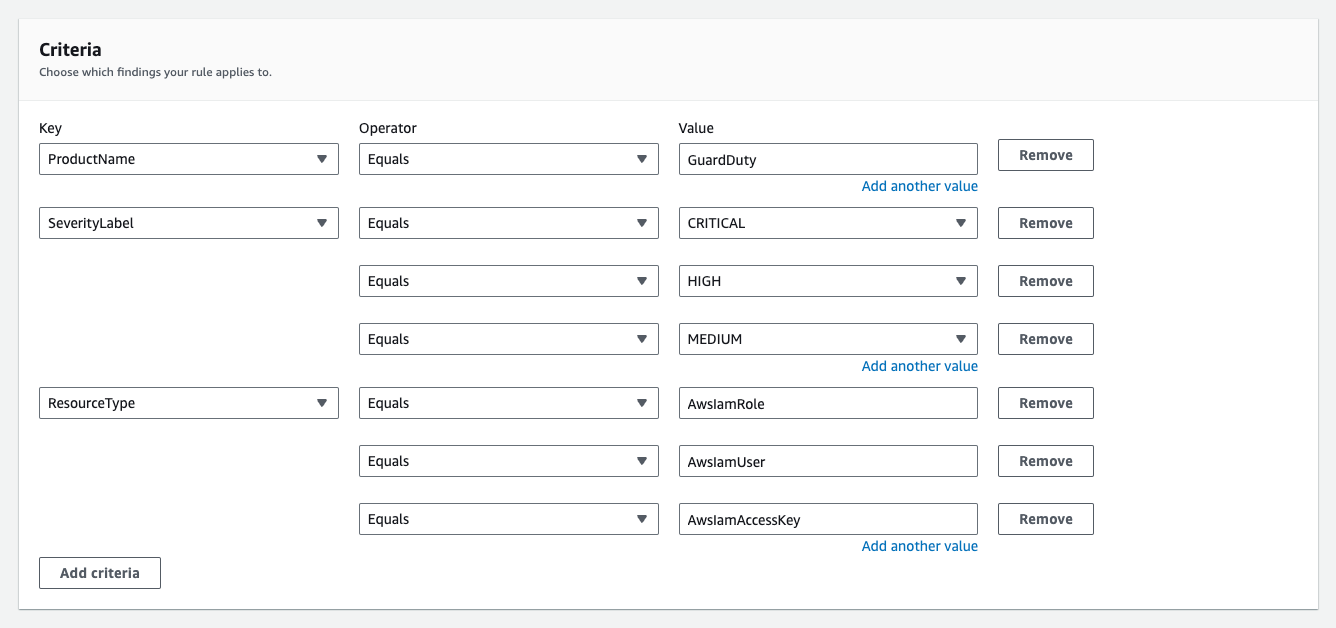
Set up an automation rule from the Automations page in Security Hub. Use these criteria for the rule:

  • ProductName equals GuardDuty
  • SeverityLabel equals CRITICAL, HIGH, or MEDIUM
  • ResourceType equals AwsIamUser or AwsIamRole (shown in Figure 2)

In the future, if you want to modify which findings are automatically investigated, you can revisit the rule and select new criteria to specify which findings receive the user-defined field.

Figure 2: Example criteria for automation rule in Security Hub

Figure 2: Example criteria for automation rule in Security Hub

For the automated actions for the rule, add a user-defined field as follows:

  • Key: investigate, Value: true (shown in Figure 3)
Figure 3: Define the user-defined field for the automation rule in Security Hub

Figure 3: Define the user-defined field for the automation rule in Security Hub

Next, set an EventBridge rule to determine which Security Hub Findings – Imported events are investigated based on the user-defined field, investigate. Each Security Hub Findings – Imported event contains a single finding. Use the JSON pattern shown in Code example 3 to match findings in the rule. You need to set the target of this rule to the Lambda function you set up earlier.

Code example 3: The pattern used in your EventBridge rule

{
  "source": ["aws.securityhub"],
  "detail": {
    "findings": {
      "UserDefinedFields": {
        "investigate": ["true"]
      }
    }
  }
}

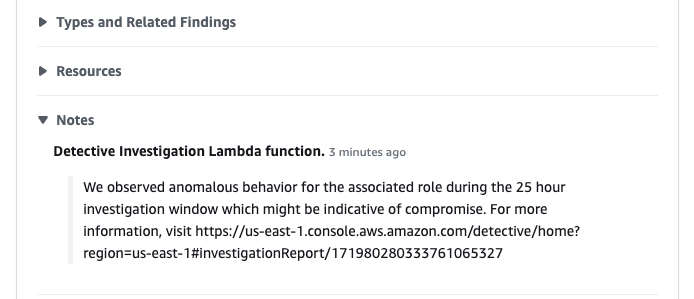
As new findings are aggregated in Security Hub, they are evaluated and updated by the automation rule. Findings that receive the user-defined field will initiate the Lambda function. After the Lambda function is initiated, it might take a couple of minutes for the execution to complete and appear in Security Hub. When it does, you will notice a new Notes field, as shown in Figure 4, and additional data in the finding JSON.

Figure 4: See that the enriched finding now includes a Notes section

Figure 4: See that the enriched finding now includes a Notes section

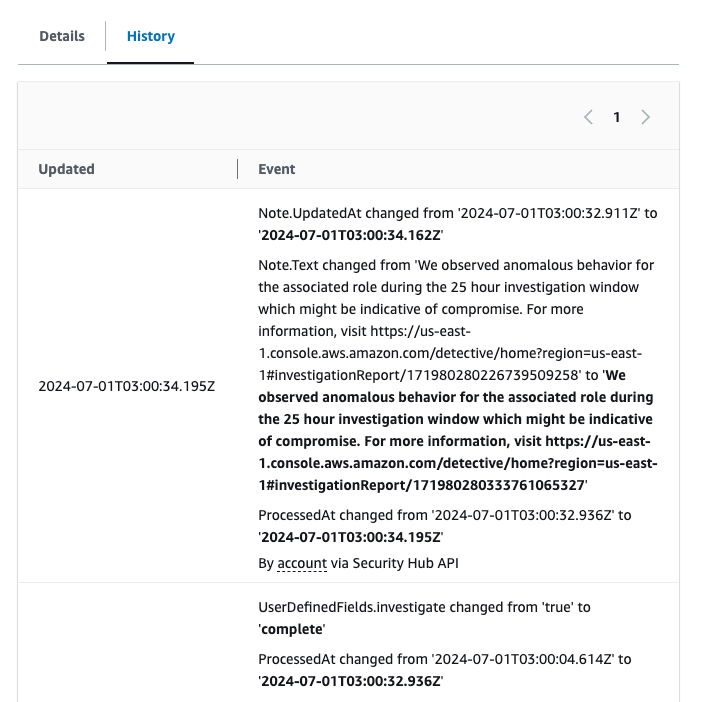
You can also see what updates were made to the finding on the History tab of the finding, as shown in Figure 5.

Figure 5: See the fields that were updated for the finding under the History tab

Figure 5: See the fields that were updated for the finding under the History tab

If you want to modify which findings start this flow, you can modify the automation rule in the Security Hub console. For example, you might also want to investigate findings from other services or with other severity labels. Keep in mind that Detective only supports IAM users and IAM roles.

You might want to add additional criteria to help prevent repeat investigations on the same findings. For example, you might not want to have the investigation flow initiated every time a finding receives an update. To help prevent this behavior, you can add criteria to the automation rule where the user-defined field, investigate, does not equal complete.

On-demand finding investigation and enrichment

The second approach involves investigating and enriching findings on-demand. You might want to use both approaches in case there are findings that don’t meet the criteria of your earlier automation that you still want to investigate.

In this approach, initiate the Lambda function through the use of a feature in Security Hub called custom actions. To use a Security Hub custom action to send findings to EventBridge, you first create the custom action in Security Hub. Name it Investigate. Then, define a rule in EventBridge that applies to your custom action (using the ARN of the custom action) and that uses the same Lambda function as the target to orchestrate the automation. The pattern of your EventBridge rule will be similar to the one shown in Figure 6, but uses the ARN of the custom action you create in Security Hub.

Figure 6: The EventBridge rule for the second approach

Figure 6: The EventBridge rule for the second approach

After you set up the custom action and the EventBridge rule, you can select a finding and choose Investigate from the Actions dropdown list to initiate the processing, as shown in Figure 7.

Figure 7: Initiate the on-demand finding enrichment

Figure 7: Initiate the on-demand finding enrichment

Because both approaches to initiating the investigation use the same Lambda function, the resulting enriched finding in Security Hub will be the same.

Limitations and further customization

We encourage you to try, test, and customize the architecture and example code. To simplify the example, there are some limitations coded in the Lambda function. For example, the Lambda function processes only the first finding it receives (per execution) and proceeds only if the finding originates from GuardDuty. The function also only begins an investigation into the first IAM user or IAM role it identifies that is associated with the finding. If you have a use case requiring that the Lambda function handle multiple findings at a time, findings from other services, or other problems, you will need to make code or architectural changes to accommodate those requirements (such as incorporating the use of AWS Step Functions or Amazon Simple Queue Service (Amazon SQS)), and perform the relevant testing.

Conclusion

Use the example code provided here or the detailed workshop version of the instructions to try out the Detective API and enrich findings in Security Hub with investigative data. This can help you reduce mean time to respond by automatically investigating IAM entities, providing investigation details within the findings, and giving you a direct link into the details of the Detective investigation. Visit Getting started with AWS Security Hub, Getting started with Amazon Detective, and Getting started with Amazon GuardDuty to learn more.

If you have feedback about this post, submit comments in the Comments section below. If you have questions about this post, contact AWS Support.

Nicholas Jaeger

Nicholas Jaeger

Nicholas is a Principal Security Solutions Architect at AWS, where he provides guidance to customers focused on operating their business as securely as possible on AWS. His background includes software engineering, teaching, solutions architecture, and AWS security. Nicholas also hosts AWS Security Activation Days to provide customers with prescriptive guidance while using AWS security services. https://awsactivationdays.splashthat.com/

Rima Tanash

Rima Tanash

Rima, a Senior Security Engineer and researcher at AWS, specializes in developing innovative cloud security features that use machine learning and automated reasoning. Her work encompasses modeling automating risk identification, AWS API sequences, building investigative playbooks, and graph analytics for threat modeling. She holds a PhD from Rice University and a Master’s from Johns Hopkins University.

[$] A report from the 2024 Image-Based Linux Summit

Post Syndicated from daroc original https://lwn.net/Articles/994704/

The Image-Based Linux Summit has by now established itself as a yearly event.
Following on from last year’s edition,
the third edition was held in Berlin on September 24, the
day before

All Systems Go! 2024
(ASG). The purpose of this event is to gather
stakeholders from various engineering groups and hold friendly but lively
discussions around the topic of image-based Linux — that is, Linux distributions
based around immutable images, instead of mutable root filesystems.

Infor’s Amazon OpenSearch Service Modernization: 94% faster searches and 50% lower costs

Post Syndicated from Allan Pienaar original https://aws.amazon.com/blogs/big-data/infors-amazon-opensearch-service-modernization-94-faster-searches-and-50-lower-costs/

This post is cowritten by Arjan Hammink from Infor.

Robust storage and search capabilities are critical components of Infor’s enterprise business cloud software. Infor’s Intelligent Open Network (ION) OneView platform provides real-time reporting, dashboards, and data visualization to help customers access and analyze information across their organization. To enhance the search functionality within ION OneView, Infor used Amazon OpenSearch Service to improve their software products and offer better service to their customers by providing real-time visibility. By modernizing their use of OpenSearch Service, Infor has been able to deliver a 94% improvement in search performance for customers, along with a 50% reduction in storage costs.

In this post, we’ll explore Infor’s journey to modernize its search capabilities, the key benefits they achieved, and the technologies that powered this transformation. We’ll also discuss how Infor’s customers are now able to more effectively search through business messages, documents, and other critical data within the ION OneView platform.

Where Infor started

Infor’s ION OneView was built on top of Elasticsearch v5.x on Amazon OpenSearch Service, hosted across eight AWS Regions. This architecture enabled users to track business documents from a consolidated view, search using various criteria, and correlate messages while viewing content based on user roles. Over time, Infor expanded its functionality to include “Enrich” and “Archive” capabilities, which added significant complexity. The Enrich process would build searchable messages by aggregating related events, requiring constant document updates to the OpenSearch indices. The Archive process would then move these messages and events to Amazon Simple Storage Service (Amazon S3), while using a delete_by_query to remove the corresponding documents from OpenSearch Service. These read-update-write-delete workloads, coupled with large all-encompassing indices with shard sizes of over 100GB, resulted in high volumes of deleted documents and exponential data growth that the system struggled to keep up with. To address increasing performance needs, Infor continually horizontally scaled out their OpenSearch Service domain.

Challenges 

The key challenges Infor faced underscored the need for a more scalable, resilient, and cost-effective search capability that could seamlessly integrate with their cloud environment. These included the inability to effectively archive data because of high ingestion rates, resulting in longer upgrade and recovery times. Escalating costs from scaling the solution and the need for custom development to enable newer OpenSearch Service features created significant operational burdens. Additionally, Infor was seeing increasing search latency, with CPU utilization peaking at 75% and occasionally spiking above 90% (as shown in the following figures), demonstrating the performance limitations of Infor’s existing infrastructure. Collectively, these issues drove Infor’s need for a modernized search solution.

SearchLatency Pre-Modernization

Screenshot shows CloudWatch metric SearchLatency before Modernization

CPUUtilization Pre-Modernization

Screenshot shows CloudWatch metric CPUUtilization before Modernization

Infor’s journey to modernize search with OpenSearch Service

To address the growing challenges with ION OneView, Infor partnered with AWS to undertake a comprehensive modernization effort. This involved optimizing operational processes, storage configurations, and instance selections, while also upgrading to the later versions within OpenSearch Service.

Operational review and enhancements

As a collaborative effort between Infor and AWS, a comprehensive operational review of Infor’s OpenSearch Service cluster was undertaken. With the help of slow logs and adjusting the logging thresholds, the review was able to identify long-running queries and the archival process consuming the largest amount of CPU capacity. Infor rewrote the long-running queries that used high cardinality fields, reducing the average query time.

Next, the team turned their attention to redesigning Infor’s archival process to reduce stress on the CPU. Instead of a single large index, we implemented independent indices based on customer license types. This improved delete performance by allowing the team to target old indices, using index aliases to manage the transition. We also replaced the delete_by_query approach where a query is sent to locate documents prior to a delete with a standard delete passing document IDs directly, because all the document IDs to be archived were known ahead of time. This reduced round-trip time and CPU stress compared to the sequential search requests performed by delete_by_query. This was followed by the tuning of the refresh interval based on the workload requirements, improving the indexing performance, and memory and CPU utilization.

Storage optimization

The team switched from GP2 to GP3 storage, provisioning additional input/output operations per second (IOPS) and throughput only when needed. This resulted in a 9% reduction in storage costs for most of Infor’s workloads. In all use cases where IOPS was a bottleneck, the team was able to provision additional IOPS and throughput independent of the volume size using GP3, further reducing Infor’s overall storage costs. Additionally, we implemented a shard size-based rollover strategy that provided a sharding strategy where total shards were divisible by the number of nodes to reduce the shard size to the recommended number of less than 50 GiB. This helped ensure an even distribution of data and workloads across the nodes for each index, and the performance improvements indicated that more vCPU would be beneficial given the thread pool queues and latencies. Appropriate master and data node instance types were chosen based on the new storage requirements. To support the reindexing process, the team also temporarily scaled up the storage and compute resources.

Upgrading OpenSearch Service

After optimizing the storage and compute configurations based on best practices, the Infor ION team turned their attention to using the latest features of OpenSearch Service. With the shards now at an appropriate boundary and the memory and CPU utilization at the right levels, the team was able to seamlessly upgrade from Elasticsearch version 5.x to 6.x and then to 7.x in OpenSearch Service. Each major version upgrade required careful testing and client-side code changes to make sure that the appropriate compatible client libraries were used, and the team took the necessary time after each upgrade to thoroughly validate the system and provide a smooth transition for Infor’s customers. This commitment to a methodical upgrade process allowed Infor to take advantage of the latest OpenSearch Service features, such as Graviton support, performance improvements, bug fixes, and security posture improvements, while minimizing disruption to their users.

Optimizing instance selection for performance

In collaboration with the AWS team, Infor carefully evaluated local non-volatile memory express (NVMe)-backed instance types for their ION OneView search cluster, comparing options such as i3 and R6gd instances to balance memory, latency, and storage requirements. For write-heavy workloads, the team found that using NVMe storage provided better performance and price compared to Amazon Elastic Block Store (Amazon EBS) volumes because of the high IOPS requirement of the workload, allowing them to be less reliant on off-heap memory usage. By selecting the most appropriate instance types, the ION OneView search cluster was able to resize and scale down the number of data nodes by 63% while still achieving improved throughput and reduced latency. Staying on the latest AWS instance families was also a key consideration, and the team further optimized costs by purchasing Reserved Instances after establishing a good baseline for their performance and compute consumption, with discounts ranging from 30% to 50% depending on the commitment term.

Results

The following figures show the improvements of the modernization.

New indices with the correct shard size can be seen in the increase in shards, shown in the following figure.

Figure showing increase in shards with new indices and correct shard size

The updated shard strategy combined with a version upgrade led to a ten-fold increase in the volume of traffic and efficient archiving as shown in the following figure.

Figure illustrates 10x increase in traffic volume and improved archiving due to updated shard strategy and version upgrade

The SearchRate increase is shown in the following figure.

Figure shows increase in SearchRate

The following figure shows that the CPU increase was minimal compared to the traffic increase.

Figure demonstrates CPU increase was minimal compared to traffic increase

The SearchLatency reduction post upgrade and implementation of the new indexing and shard strategy is shown in the following figure.

Figure illustrates reduction in CloudWatch metric SearchLatency after upgrade and new indexing/shard strategy implementation

The following figure shows the monthly spend over the past 4 quarters for two Infor ION products.

Figure shows the monthly spend over 4 quarters for two Infor ION products.

Conclusion

Through their careful modernization of the OpenSearch Service infrastructure, Infor was able to achieve 50% reduction in infrastructure costs coupled with a 94% improvement in cluster performance. The optimized clusters are now healthier and more resilient, enabling faster blue/green deployments to process even greater data volumes.

This successful transformation was driven by Infor’s close collaboration with the AWS team, using deep technical expertise and best practices to accelerate the optimization process and unlock the full potential of OpenSearch Service. Infor’s OpenSearch Service modernization has empowered the company to provide an improved, high-performing search experience for their customers at a significantly lower cost, positioning their ION OneView platform for continued growth and success.

Every workload is unique, with its own distinct characteristics. While the best practices outlined in the Amazon OpenSearch Service developer guide serve as a valuable guide, the most important step is to deploy, test, and continuously tune your own domains to find the optimal configuration, stability, and cost for your specific needs.


About the Authors

Author image of Allan PiennarAllan Pienaar is an OpenSearch SME and Customer Success Engineer at AWS. He works closely with enterprise customers in ensuring operational excellence, maintaining production stability and optimizing cost using the Amazon OpenSearch Service.

Author image of Gokul Sarangaraju Gokul Sarangaraju is a Senior Solutions Architect at AWS. He helps customers adopt AWS services and provides guidance in AWS cost and usage optimization. His areas of expertise include building scalable and cost-effective data analytics solutions using AWS services and tools.

Author image of Arjan Hammink Arjan Hammink is a Senior Director of Software Development at Infor, bringing over 25 years of expertise in software development and team management. He currently oversees Infor ION, a project he has been integral to since its inception in 2010 when he began as a Software Engineer. Infor ION is a robust middleware designed to streamline software integration, a key component of Infor OS, Infor’s cloud technology platform.

Upgraded Claude 3.5 Sonnet from Anthropic (available now), computer use (public beta), and Claude 3.5 Haiku (coming soon) in Amazon Bedrock

Post Syndicated from Danilo Poccia original https://aws.amazon.com/blogs/aws/upgraded-claude-3-5-sonnet-from-anthropic-available-now-computer-use-public-beta-and-claude-3-5-haiku-coming-soon-in-amazon-bedrock/

Four months ago, we introduced Anthropic’s Claude 3.5 in Amazon Bedrock, raising the industry bar for AI model intelligence while maintaining the speed and cost of Claude 3 Sonnet.

Today, I am excited to announce three new capabilities for the Claude 3.5 model family in Amazon Bedrock:

Upgraded Claude 3.5 Sonnet – You now have access to an upgraded Claude 3.5 Sonnet model that builds upon its predecessor’s strengths, offering even more intelligence at the same cost. Claude 3.5 Sonnet continues to improve its capability to solve real-world software engineering tasks and follow complex, agentic workflows. The upgraded Claude 3.5 Sonnet helps across the entire software development lifecycle, from initial design to bug fixes, maintenance, and optimizations. With these capabilities, the upgraded Claude 3.5 Sonnet model can help build more advanced chatbots with a warm, human-like tone. Other use cases in which the upgraded model excels include knowledge Q&A platforms, data extraction from visuals like charts and diagrams, and automation of repetitive tasks and operations.

Computer use – Claude 3.5 Sonnet now offers computer use capabilities in Amazon Bedrock in public beta, allowing Claude to perceive and interact with computer interfaces. Developers can direct Claude to use computers the way people do: by looking at a screen, moving a cursor, clicking buttons, and typing text. This works by giving the model access to integrated tools that can return computer actions, like keystrokes and mouse clicks, editing text files, and running shell commands. Software developers can integrate computer use in their solutions by building an action-execution layer and grant screen access to Claude 3.5 Sonnet. In this way, software developers can build applications with the ability to perform computer actions, follow multiple steps, and check their results. Computer use opens new possibilities for AI-powered applications. For example, it can help automate software testing and back office tasks and implement more advanced software assistants that can interact with applications. Given this technology is early, developers are encouraged to explore lower-risk tasks and use it in a sandbox environment.

Claude 3.5 Haiku – The new Claude 3.5 Haiku is coming soon and combines rapid response times with improved reasoning capabilities, making it ideal for tasks that require both speed and intelligence. Claude 3.5 Haiku improves on its predecessor and matches the performance of Claude 3 Opus (previously Claude’s largest model) at the speed and cost of Claude 3 Haiku. Claude 3.5 Haiku can help with use cases such as fast and accurate code suggestions, highly interactive chatbots that need rapid response times for customer service, e-commerce solutions, and educational platforms. For customers dealing with large volumes of unstructured data in finance, healthcare, research, and more, Claude 3.5 Haiku can help efficiently process and categorize information.

According to Anthropic, the upgraded Claude 3.5 Sonnet delivers across-the-board improvements over its predecessor, with significant gains in coding, an area where it already excelled. The upgraded Claude 3.5 Sonnet shows wide-ranging improvements on industry benchmarks. On coding, it improves performance on SWE-bench Verified from 33% to 49%, scoring higher than all publicly available models. It also improves performance on TAU-bench, an agentic tool use task, from 62.6% to 69.2% in the retail domain, and from 36.0% to 46.0% in the airline domain. The following table includes the model evaluations provided by Anthropic.

UPgraded Claude 3.5 Sonnet evaluations

Computer use, a new frontier in AI interaction
Instead of restricting the model to use APIs, Claude has been trained on general computer skills, allowing it to use a wide range of standard tools and software programs. In this way, applications can use Claude to perceive and interact with computer interfaces. Software developers can integrate this API to enable Claude to translate prompts (for example, “find me a hotel in Rome”) into specific computer commands (open a browser, navigate this website, and so on).

More specifically, when invoking the model, software developers now have access to three new integrated tools that provide a virtual set of hands to operate a computer:

  • Computer tool – This tool can receive as input a screenshot and a goal and returns a description of the mouse and keyboard actions that should be performed to achieve that goal. For example, this tool can ask to move the cursor to a specific position, click, type, and take screenshots.
  • Text editor tool – Using this tool, the model can ask to perform operations like viewing file contents, creating new files, replacing text, and undoing edits.
  • Bash tool – This tool returns commands that can be run on a computer system to interact at a lower level as a user typing in a terminal.

These tools open up a world of possibilities for automating complex tasks, from data analysis and software testing to content creation and system administration. Imagine an application powered by Claude 3.5 Sonnet interacting with the computer just as a human would, navigating through multiple desktop tools including terminals, text editors, internet browsers, and also capable of filling out forms and even debugging code.

We’re excited to help software developers explore these new capabilities with Amazon Bedrock. We expect this capability to improve rapidly in the coming months, and Claude’s current ability to use computers has limits. Some actions such as scrolling, dragging, or zooming can present challenges for Claude, and we encourage you to start exploring low-risk tasks.

When looking at OSWorld, a benchmark for multimodal agents in real computer environments, the upgraded Claude 3.5 Sonnet currently gets 14.9%. While human-level skill is far ahead with about 70-75%, this result is much better than the 7.7% obtained by the next-best model in the same category.

Using the upgraded Claude 3.5 Sonnet in the Amazon Bedrock console
To get started with the upgraded Claude 3.5 Sonnet, I navigate to the Amazon Bedrock console and choose Model access in the navigation pane. There, I request access for the new Claude 3.5 Sonnet V2 model.

To test the new vision capability, I open another browser tab and download from the Our World in Data website the Wind power generation chart in PNG format.

Our Word in Data – Wind power generation chart

Back in the Amazon Bedrock console, I choose Chat/text under Playgrounds in the navigation pane. For the model, I select Anthropic as the model provider and then Claude 3.5 Sonnet V2.

I use the three vertical dots in the input section of the chat to upload the image file from my computer. Then I enter this prompt:

Which are the top countries for wind power generation? Answer only in JSON.

The result follows my instructions and returns the list extracting the information from the image.

Console screenshot.

Using the upgraded Claude 3.5 Sonnet with AWS CLI and SDKs
Here’s a sample AWS Command Line Interface (AWS CLI) command using the Amazon Bedrock Converse API. I use the --query parameter of the CLI to filter the result and only show the text content of the output message:

aws bedrock-runtime converse \
    --model-id anthropic.claude-3-5-sonnet-20241022-v2:0 \
    --messages '[{ "role": "user", "content": [ { "text": "What do you throw out when you want to use it, but take in when you do not want to use it?" } ] }]' \
    --query 'output.message.content[*].text' \
    --output text

In output, I get this text in the response.

An anchor! You throw an anchor out when you want to use it to stop a boat, but you take it in (pull it up) when you don't want to use it and want to move the boat.

The AWS SDKs implement a similar interface. For example, you can use the AWS SDK for Python (Boto3) to analyze the same image as in the console example:

import boto3

MODEL_ID = "anthropic.claude-3-5-sonnet-20241022-v2:0"
IMAGE_NAME = "wind-generation.png"

bedrock_runtime = boto3.client("bedrock-runtime")

with open(IMAGE_NAME, "rb") as f:
    image = f.read()

user_message = "Which are the top countries for wind power generation? Answer only in JSON."

messages = [
    {
        "role": "user",
        "content": [
            {"image": {"format": "png", "source": {"bytes": image}}},
            {"text": user_message},
        ],
    }
]

response = bedrock_runtime.converse(
    modelId=MODEL_ID,
    messages=messages,
)
response_text = response["output"]["message"]["content"][0]["text"]
print(response_text)

Integrating computer use with your application
Let’s see how computer use works in practice. First, I take a snapshot of the desktop of a Ubuntu system:

Ubuntu desktop screenshot

This screenshot is the starting point for the steps that will be implemented by computer use. To see how that works, I run a Python script passing in input to the model the screenshot image and this prompt:

Find me a hotel in Rome.

This script invokes the upgraded Claude 3.5 Sonnet in Amazon Bedrock using the new syntax required for computer use:

import base64
import json
import boto3

MODEL_ID = "anthropic.claude-3-5-sonnet-20241022-v2:0"

IMAGE_NAME = "ubuntu-screenshot.png"

bedrock_runtime = boto3.client(
    "bedrock-runtime",
    region_name="us-east-1",
)

with open(IMAGE_NAME, "rb") as f:
    image = f.read()

image_base64 = base64.b64encode(image).decode("utf-8")

prompt = "Find me a hotel in Rome."

body = {
    "anthropic_version": "bedrock-2023-05-31",
    "max_tokens": 512,
    "temperature": 0.5,
    "messages": [
        {
            "role": "user",
            "content": [
                {"type": "text", "text": prompt},
                {
                    "type": "image",
                    "source": {
                        "type": "base64",
                        "media_type": "image/jpeg",
                        "data": image_base64,
                    },
                },
            ],
        }
    ],
    "tools": [
        { # new
            "type": "computer_20241022", # literal / constant
            "name": "computer", # literal / constant
            "display_height_px": 1280, # min=1, no max
            "display_width_px": 800, # min=1, no max
            "display_number": 0 # min=0, max=N, default=None
        },
        { # new
            "type": "bash_20241022", # literal / constant
            "name": "bash", # literal / constant
        },
        { # new
            "type": "text_editor_20241022", # literal / constant
            "name": "str_replace_editor", # literal / constant
        }
    ],
    "anthropic_beta": ["computer-use-2024-10-22"],
}

# Convert the native request to JSON.
request = json.dumps(body)

try:
    # Invoke the model with the request.
    response = bedrock_runtime.invoke_model(modelId=MODEL_ID, body=request)

except Exception as e:
    print(f"ERROR: {e}")
    exit(1)

# Decode the response body.
model_response = json.loads(response["body"].read())
print(model_response)

The body of the request includes new options:

  • anthropic_beta with value ["computer-use-2024-10-22"] to enable computer use.
  • The tools section supports a new type option (set to custom for the tools you configure).
  • Note that the computer tool needs to know the resolution of the screen (display_height_px and display_width_px).

To follow my instructions with computer use, the model provides actions that operate on the desktop described by the input screenshot.

The response from the model includes a tool_use section from the computer tool that provides the first step. The model has found in the screenshot the Firefox browser icon and the position of the mouse arrow. Because of that, it now asks to move the mouse to specific coordinates to start the browser.

{
    "id": "msg_bdrk_01WjPCKnd2LCvVeiV6wJ4mm3",
    "type": "message",
    "role": "assistant",
    "model": "claude-3-5-sonnet-20241022",
    "content": [
        {
            "type": "text",
            "text": "I'll help you search for a hotel in Rome. I see Firefox browser on the desktop, so I'll use that to access a travel website.",
        },
        {
            "type": "tool_use",
            "id": "toolu_bdrk_01CgfQ2bmQsPFMaqxXtYuyiJ",
            "name": "computer",
            "input": {"action": "mouse_move", "coordinate": [35, 65]},
        },
    ],
    "stop_reason": "tool_use",
    "stop_sequence": None,
    "usage": {"input_tokens": 3443, "output_tokens": 106},
}

This is just the first step. As with usual tool use requests, the script should reply with the result of using the tool (moving the mouse in this case). Based on the initial request to book a hotel, there would be a loop of tool use interactions that will ask to click on the icon, type a URL in the browser, and so on until the hotel has been booked.

A more complete example is available in this repository shared by Anthropic.

Things to know
The upgraded Claude 3.5 Sonnet is available today in Amazon Bedrock in the US West (Oregon) AWS Region and is offered at the same cost as the original Claude 3.5 Sonnet. For up-to-date information on regional availability, refer to the Amazon Bedrock documentation. For detailed cost information for each Claude model, visit the Amazon Bedrock pricing page.

In addition to the greater intelligence of the upgraded model, software developers can now integrate computer use (available in public beta) in their applications to automate complex desktop workflows, enhance software testing processes, and create more sophisticated AI-powered applications.

Claude 3.5 Haiku will be released in the coming weeks, initially as a text-only model and later with image input.

You can see how computer use can help with coding in this video with Alex Albert, Head of Developer Relations at Anthropic.

This other video describes computer use for automating operations.

To learn more about these new features, visit the Claude models section of the Amazon Bedrock documentation. Give the upgraded Claude 3.5 Sonnet a try in the Amazon Bedrock console today, and send feedback to AWS re:Post for Amazon Bedrock. You can find deep-dive technical content and discover how our Builder communities are using Amazon Bedrock at community.aws. Let us know what you build with these new capabilities!

– Danilo

Introducing an enhanced in-console editing experience for AWS Lambda

Post Syndicated from Julian Wood original https://aws.amazon.com/blogs/compute/introducing-an-enhanced-in-console-editing-experience-for-aws-lambda/

AWS Lambda is introducing a new code editing experience in the AWS console based on the popular Code-OSS, Visual Studio Code Open Source code editor. This brings the familiar Visual Studio Code interface and many of the features directly into the Lambda console, allowing developers to use their preferred coding environment and tools in the cloud. The Lambda Code Editor displays larger function package sizes and also integrates with Amazon Q Developer. This is an AI-powered coding assistant that provides real-time suggestions and insights to help you write, understand, and troubleshoot your Lambda functions more efficiently.

Overview

Visual Studio Code is the most popular IDE among developers according to the 2023 Stack Overflow Developer Survey. Integrating Code-OSS into the Lambda Console brings a familiar, accessible, and customizable interface to the in-browser code editing capabilities. This provides a coding experience that is substantially similar to working with function code locally. You can install selected extensions, apply preferred themes and settings, and use your familiar keyboard shortcuts and coding preferences.

The new editing experience is included as part of the standard Lambda service, at no extra cost.

Accessibility

The update also addresses important accessibility needs. With features like high color contrast, keyboard-only navigation, and screen reader support, the Code-OSS integration ensures an inclusive and accessible coding experience for all developers.

Differences from Visual Studio Code IDE

The Lambda console’s Code-OSS integration complements, rather than fully replaces, local development workflows. You can view and edit function code that uses an interpreted language, not compiled languages, which is consistent with the previous Lambda console. The terminal window is also unavailable in Code-OSS.

AWS Toolkit for Visual Studio Code extensions

Deeper integration with the AWS Toolkit for VS Code extension provides access to a subset of AWS specific functionality, including Q Developer. This ensures that the Lambda code editing experience benefits from additional developer tooling enhancements provided through the AWS Toolkit.

Larger package sizes

With Lambda, the total package size for ZIP-based functions, including code and libraries, cannot exceed 50 MB. Previously Lambda imposed a 3MB limit for editing code in the console. Now you are able to view function package sizes up to 50 MB in the console, however, there is still a single file limit of 3 MB. This allows you to view function code even when you have larger dependencies.

Using the new features

Viewing code

To experience the new Lambda Code Editor, log into the AWS Management Console and navigate to the Lambda service. Create a new function or edit an existing one. The new Lambda Code Editor is ready to use, with no additional setup required.

This example shows editing an existing function, viewing the function code in the familiar Code-OSS editor.

Viewing function code in the Lambda Code Editor

Viewing function code in the Lambda Code Editor

Previously, the code was not viewable as the code package size was greater than 3 MB. The update allows you to view larger files. The following image shows a package size of 13.3 MB and the Code-OSS editor allows editing of the function handler.

Viewing larger package size

Viewing larger package size

Environment variables

In the left pane, the environment variables are viewable for the function. Select the pencil icon to edit, add, and remove environment variables.

Viewing and editing environment variables

Viewing and editing environment variables

Creating test events

The new split-screen view allows you to test your function and see your code and test results side-by-side, simplifying test event configuration.

  1. Select Create test event to open the panel.
  2. Creating test event

    Creating test event

    You can create Private test events or Shareable test events for other builders to use with access to the account.

  3. Generate an event using an event template for the Amazon API Gateway HTTP API event trigger that the function uses. Save the test event.
  4. Creating API Gateway test event

    Creating API Gateway test event

    Invoke function

  5. Invoke the function by selecting the Invoke button

The function results appear in the Output panel, consistent with the local VS Code IDE experience.

Function invoke result

Function invoke result

The function logs appear below the output.

Viewing function logs

Viewing function logs

This view allows you to view and edit your code, generate and use test events, and invoke your function, all visible within the familiar Lambda Code Editor interface.

Live Tail Logs

Lambda now natively supports Amazon CloudWatch Logs Live Tail. This is an interactive log streaming and analytics capability, which allows you to view and analyze your Lambda function logs in real time.

  1. Select the Run and Debug icon in the Activity Bar on the left-hand side of the code editor in the Code tab.
  2. Select Open CloudWatch Live Tail. This opens the CloudWatch Logs Live Tail bottom drawer.
  3. Select Start to start a Live Tail session and view your Lambda function logs stream in real time.
  4. Alternatively, navigate to the Test tab and select CloudWatch Logs Live Tail to start a Live Tail session.
CloudWatch Logs Live Tail

CloudWatch Logs Live Tail

Keyboard shortcuts

In the left pane Extensions dialog, you can see the keyboard shortcuts are installed by default.

Viewing installed extensions

Viewing installed extensions

Select the Manage gear icon which shows which aspects are configurable.

Viewing configuration options

Viewing configuration options

The Keyboard shortcuts dialog allows you to view and change the shortcuts.

Amending keyboard shortcuts

Amending keyboard shortcuts

Command Palette

Viewing the Command Palette shows available commands.

Viewing Command Palette

Viewing Command Palette

Configuration settings

The Settings panel allows you to configure the Lambda Code Editor to match your local IDE environment if required.

Viewing Settings panel

Viewing Settings panel

Navigate to Themes | Color Themes to customize the theme, including dark mode.

Lambda Console Editor dark mode

Lambda Console Editor dark mode

Downloading function code and template

It is now easier to download the function code and an AWS Serverless Application Model (AWS SAM) template which represents the Cloudformation resources required to set up the function, policies, and triggers. This allows you to start in the console and more easily move to using infrastructure as code, which is a serverless best practice.

  1. Navigate to the Activity Bar Run and Debug section.
  2. Select Download code and SAM template.
  3. Extract the .zip file and open the folder in your local VS Code IDE.

You can continue to edit the function in your local IDE experience, which is consistent with the Lambda Console Editor.

Local VS Code IDE to continue working on function

Local VS Code IDE to continue working on function

Using your local IDE terminal or AWS Toolkit for VS Code, you can update the existing function. You can also use AWS SAM functionality to build and deploy the template as a Cloudformation stack to the cloud.

Using Amazon Q

The Amazon Q Developer AI assistant integrates directly into the code editor. This reduces the need to consult external documentation or tutorials, streamlining your development workflow.

Amazon Q provides inline suggestions or by using keyboard shortcuts for common actions you take, such as initiating Amazon Q or accepting a recommendation.

This example below adds more functionality to a new Lambda function to download an object from S3 with the help of Amazon Q. Enter a comment explaining the functionality you need.

Asking Amazon Q a question

Asking Amazon Q a question

Select tab to accept the suggestion.

Accepting an Amazon Q suggestion

Accepting an Amazon Q suggestion

You can continue to invoke Q manually to keep adding more code suggestions.

Continue adding functionality with Amazon Q

Continue adding functionality with Amazon Q

Conclusion

Lambda is introducing a new AWS console code editing experience based on the popular Code-OSS, Visual Studio Code Open Source code editor. This brings the familiar VS Code IDE interface and features directly into the Lambda console so you can use your preferred coding environment and tools in the cloud. Invoke your function using a new split-screen view to see your code and test results side-by-side, simplifying test event configuration.

The code editor displays larger function package sizes, makes environment variables more visible, and also integrates with Amazon Q Developer. This provides real-time suggestions and insights to help you write, understand, and troubleshoot your Lambda functions more efficiently.

For more serverless learning resources, visit Serverless Land.

Introducing AlmaLinux OS Kitten (AlmaLinux Blog)

Post Syndicated from jzb original https://lwn.net/Articles/995140/

The AlmaLinux project has introduced a new edition called “Kitten”,
which will serve as “the direct upstream for AlmaLinux OS and is
the primary point for the AlmaLinux community to engage and influence
the future of AlmaLinux OS
“. Not intended for production use, the
first release is based on CentOS Stream 10 source, which
will eventually be the basis for Red Hat Enterprise Linux (RHEL)
10:

Because we anticipated many changes in 10, we wanted to get a head
start on building AlmaLinux OS 10. Earlier this year we started
setting up infrastructure and the build pipeline for AlmaLinux OS 10,
and started testing using CentOS Stream 10’s code. Based on this
preparation work, we are excited to share that we have successfully
built a preview of AlmaLinux OS 10 that we are calling AlmaLinux OS
Kitten 10.

The first Kitten release previews a number of ways that AlmaLinux will
diverge from RHEL 10, including re-enabling frame pointers,
including Simple Protocol for Independent Computing Environments
(SPICE), and adding packages for Firefox and Thunderbird, which have
been dropped from CentOS Stream 10 in favor of Flatpak versions. New
installation images for Kitten will be built quarterly. See the release
notes
for download links, installation instructions, and more
information.

AI 101: Classification vs. Predictive vs. Generative AI

Post Syndicated from Stephanie Doyle original https://www.backblaze.com/blog/ai-101-classification-vs-predictive-vs-generative-ai/

A decorative image showing several buildings with digital lines flowing upward into a cloud.

It may seem like generative AI is the only game in town, or at least the only AI model worth paying attention to. But folks have been using AI models to do all kinds of things for years before ChatGPT, Claude, and Gemini came on the scene. 

Today, I’m talking about the three different broadly defined categories of AI—classification, predictive, and generative—and what they’re good for.

Classification vs. Predictive vs. Generative AI Models: What’s the Diff?

Classification and predictive models have been foundational to AI for decades, powering applications like spam filters, cyber security tools, big data analysis, and demand forecasting. However, with recent advances, generative models like GPT and DALL-E have taken the spotlight, bringing up interesting existential (and legal) questions about the nature of creativity and creative work going forward. Understanding the distinctions and history of these models is key to grasping how AI continues to shape industries and innovation today.

Let’s see which category best applies to your particular problem.

AI classification models

A classification model is built to recognize, understand, and group data into preset categories. The model is fully trained using the training data and then evaluated using test data before being used to respond to unseen data. In general, such models infer answers for the current moment in time, for example, deciding whether an email is spam or phishing. In that case, the decision is based on comparing the incoming email to a model trained on previously classified email messages, both ones that the user has set or ones that the platform has. (The two are related, of course, as the platform’s filters often update to include aggregate user data.) 

In business, classification models drive applications like spam detection, customer segmentation, and fraud detection. Healthcare uses classification models to diagnose diseases based on medical images or patient data. In finance, they help identify high-risk transactions. Social media platforms rely on these models to filter content, detect hate speech, and recommend posts. Overall, classification models are key to organizing large datasets efficiently and making decisions based on patterns, helping automate and optimize numerous industry processes.

AI prediction models

Predictive AI models utilize historical data, patterns, and trends to train the model, so they can be used to make informed decisions about future events or outcomes. Using Drive Stats as an example, we could theoretically build a model that, when given data about a particular drive model and failure rates, predicts the chance that a given hard drive will fail in the next 90 days. Predictive AI models typically require large amounts of data to be trained and are computationally expensive to generate.

Predicting Hard Drive Failure Rates with AI

Okay, we were being coy when we said “example.” Check out Andy Klein’s Tech Day 2024 presentation, “Predicting Hard Drive Failure Rates with AI” to see how this kind of predictive model works.

AI prediction models help predict customer behavior, sales trends, and demand, aiding in decision making and resource planning. In finance, these models are crucial for stock price forecasting, risk assessment, and credit scoring. Healthcare utilizes prediction models for patient outcome predictions, disease progression, and treatment effectiveness. They are also applied in weather forecasting, supply chain optimization, and energy usage management. By analyzing past data, prediction models provide insights that help organizations anticipate trends, make proactive decisions, and optimize performance across various industries.

Generative AI models

You know this one. Generative AI is about creating (sort of) new content. It uses neural networking, deep learning, and other techniques to infer and generate content that is based on patterns it observes in existing content all while mimicking the style and structure as requested. Image generators such as DALL-E and Stable Diffusion, and large language models like ChatGPT, Claude, and Gemini are easily accessible AI applications which have brought AI into the public eye.

Generative AI is at turns the thing that will revolutionize everything, a scary specter with near-sentience that will steal your job, or a big hallucinating fluke that tells you to put glue on pizza. There are some pretty cool use cases—for one, researchers are using generative AI for new drug discovery. But you’re most likely to run into generative AI in the following use cases: customer service chatbots, coding assistants, marketing support, and general business assistants that generate transcripts and summaries.

Unlocking the power of AI

Even with all the current hype around generative AI we are still in the early stages of development when it comes to AI systems given they are most useful in responding to queries based on the subject matter with which they were trained. 

For example, an AI model trained to play chess might find playing checkers to be difficult. While the board, and number of players are the same, can a chess-playing AI model infer the allowed checker moves based on its understanding of chess? Even generative AI models like ChatGPT which are trained on a wide variety of subjects are still lacking a key ingredient to be truly useful to your organization: your data.

An AI chatbot, for example, isn’t going to perform the way you want it to without being powered by your organization’s data. And, how do you build an AI powered tool while keeping your private data private? We started to explore that very question in a recent webinar, “Leveraging your Cloud Storage Data in AI/ML Apps and Services.”

Tune in to learn more about the various ways AI/ML applications use and store data and get insights from our customers who leverage Backblaze B2 Cloud Object Storage for their AI/ML needs.

The post AI 101: Classification vs. Predictive vs. Generative AI appeared first on Backblaze Blog | Cloud Storage & Cloud Backup

The collective thoughts of the interwebz