Bottomley: Linux Plumbers Conference Matrix and BBB integration

Post Syndicated from original https://lwn.net/Articles/871450/rss

James Bottomley explains
how the integration of Matrix and BigBlueButton was done for the
just-concluded Linux Plumbers Conference.

One thing that emerged from our initial disaster with Matrix on the
first day is that we failed to learn from the experiences of other
open source conferences (i.e. FOSDEM, which used Matrix and ran
into the same problems). So, an object of this post is to document
for posterity what we did and how to repeat it.

[$] User-space interrupts

Post Syndicated from original https://lwn.net/Articles/871113/rss

The term “interrupt” brings to mind a signal that originates in the
hardware and which is handled in the kernel; even software interrupts are a
kernel concept. But there is, it seems, a use case for enabling user-space
processes to send interrupts directly to each other. An upcoming Intel
processor generation includes support for this capability; at the 2020 Linux Plumbers Conference,
Sohil Mehta ran a
Kernel-Summit session
on how Linux might support that feature.

Field Notes: How to Scale Your Networks on Amazon Web Services

Post Syndicated from Androski Spicer original https://aws.amazon.com/blogs/architecture/field-notes-how-to-scale-your-networks-on-amazon-web-services/

As AWS adoption increases throughout an organization, the number of networks and virtual private clouds (VPCs) to support them also increases. Customers can see growth upwards of tens, hundreds, or in the case of the enterprise, thousands of VPCs.

Generally, this increase in VPCs is driven by the need to:

  • Simplify routing, connectivity, and isolation boundaries
  • Reduce network infrastructure cost
  • Reduce management overhead

Overview of solution

This blog post discusses the guidance customers require to achieve their desired outcomes. Guidance is provided through a series of real-world scenarios customers encounter on their journey to building a well-architected network environment on AWS. These challenges range from the need to centralize networking resources, to reduce complexity and cost, to implementing security techniques that help workloads to meet industry and customer specific operational compliance.

The scenarios presented here form the foundation and starting point from which the intended guidance is provided. These scenarios start as simple, but gradually increase in complexity. Each scenario tackles different questions customers ask AWS solutions architects, service teams, professional services, and other AWS professionals, on a daily basis.

Some of these questions are:

  • What does centralized DNS look like on AWS, and how should I approach and implement it?
  • How do I reduce the cost and complexity associated with Amazon Virtual Private Cloud (Amazon VPC) interface endpoints for AWS services by centralizing that is spread across many AWS accounts?
  • What does centralized packet inspection look like on AWS, and how should we approach it?

This blog post will answer these questions, and more.

Prerequisites

This blog post assumes that the reader has some understanding of AWS networking basics outlined in the blog post One to Many: Evolving VPC Design. It also assumes that the reader understands industry-wide networking basics.

Simplify routing, connectivity, and isolation boundaries

Simplification in routing starts with selecting the correct layer 3 technology. In the past, customers used a combination of VPC peering, Virtual Gateway configurations, and the Transit VPC Solution to achieve inter–VPC routing, and routing to on-premises resources. These solutions presented challenges in configuration and management complexity, as well as security and scaling.

To solve these challenges, AWS introduced AWS Transit Gateway. Transit Gateway is a regional virtual router that customers can attach their VPCs, site-to-site virtual private networks (VPNs), Transit Gateway Connect, AWS Direct Connect gateways, and cross-region transit gateway peering connections, and configure routing between them. Transit Gateway scales up to 5,000 attachments; so, a customer can start with one VPC attachment, and scale up to thousands of attachments across thousands of accounts. Each VPC, Direct Connect gateway, and peer transit gateway connection receives up to 50 Gbps of bandwidth.

Routing happens at layer 3 through a transit gateway. Transit Gateway come with a default route table to which all default attachment association happens. If route propagation and association is enabled at transit gateway creation time, AWS will create a transit gateway with a default route table to which attachments are automatically associated and their routes automatically propagated. This creates a network where all attachments can route to each other.

Adding VPN or Direct Connect gateway attachments to on-premises networks will allow all attached VPCs and networks to easily route to on-premises networks. Some customers require isolation boundaries between routing domains. This can be achieved with Transit Gateway.

Let’s review a use case where a customer with two spoke VPCs and a shared services VPC (shared-services-vpc-A) would like to:

  • Allow all spoke VPCs to access the shared services VPC
  • Disallow access between spoke VPCs

Figure 1. Transit Gateway Deployment

To achieve this, the customer needs to:

  1. Create a transit gateway with the name tgw-A and two route tables with the names spoke-tgw-route-table and shared-services-tgw-route-table.
    1. When creating the transit gateway, disable automatic association and propagation to the default route table.
    2. Enable equal-cost multi-path routing (ECMP) and use a unique Border Gateway Protocol (BGP) autonomous system number (ASN).
  1. Associate all spoke VPCs with the spoke-tgw-route-table.
    1. Their routes should not be propagated.
    2. Propagate their routes to the shared-services-tgw-route-table.
  1. Associate the shared services VPC with the shared-services-tgw-route-table and its routes should be propagated or statically added to the spoke-tgw-route-table.
  2. Add a default and summarized route with a next hop of the transit gateway to the shared services and spoke VPCs route table.

After successfully deploying this configuration, the customer decides to:

  1. Allow all VPCs access to on-premises resources through AWS site-to-site VPNs.
  2. Require an aggregated bandwidth of 10 Gbps across this VPN.
Figure 2. Transit Gateway hub and spoke architecture, with VPCs and multiple AWS site-to-site VPNs

Figure 2. Transit Gateway hub and spoke architecture, with VPCs and multiple AWS site-to-site VPNs

To achieve this, the customer needs to:

  1. Create four site-to-site VPNs between the transit gateway and the on-premises routers with BGP as the routing protocol.
    1. AWS site-to-site VPN has two VPN tunnels. Each tunnel has a dedicated bandwidth of 1.25 Gbps.
    2. Read more on how to configure ECMP for site-to-site VPNs.
  1. Create a third transit gateway route table with the name WAN-connections-route-table.
  2. Associate all four VPNs with the WAN-connections-route-table.
  3. Propagate the routes from the spoke and shared services VPCs to WAN-connections-route-table.
  4. Propagate VPN attachment routes to the spoke-tgw-route-table and shared-services-tgw-route-table.

Building on this progress, the customer has decided to deploy another transit gateway and shared services VPC in another AWS Region. They would like both shared service VPCs to be connected.

Transit Gateway peering connection architecture

Figure 3. Transit Gateway peering connection architecture

To accomplish these requirements, the customer needs to:

  1. Create a transit gateway with the name tgw-B in the new region.
  2. Create a transit gateway peering connection between tgw-A and tgw-B. Ensure peering requests are accepted.
  3. Statically add a route to the shared-services-tgw-route-table in region A that has the transit-gateway-peering attachment as the next for hop traffic destined to the VPC Classless Inter-Domain Routing (CIDR) range for shared-services-vpc-B. Then, in region B, add a route to the shared-services-tgw-route-table that has the transit-gateway-peering attachment as the next for hop traffic destined to the VPC CIDR range for shared-services-vpc-A.

Reduce network infrastructure cost

It is important to design your network to eliminate unnecessary complexity and management overhead, as well as cost optimization. To achieve this, use centralization. Instead of creating network infrastructure that is needed by every VPC inside each VPC, deploy these resources in a type of shared services VPC and share them throughout your entire network. This results in the creation of this infrastructure only one time, which reduces the cost and management overhead.

Some VPC components that can be centralized are network address translation (NAT) gateways, VPC interface endpoints, and AWS Network Firewall. Third-party firewalls can also be centralized.

Let’s take a look at a few use cases that build on the previous use cases.

Figure 4. Centralized interface endpoint architecture

Figure 4. Centralized interface endpoint architecture

The customer has made the decision to allow access to AWS Key Management Service (AWS KMS) and AWS Secrets Manager from their VPCs.

The customer should employ the strategy of centralizing their VPC interface endpoints to reduce the potential proliferation of cost, management overhead, and complexity that can occur when working with this VPC feature.

To centralize these endpoints, the customer should:

  1. Deploy AWS VPC interface endpoints for AWS KMS and Secrets Manager inside shared-services-vpc-A and shared-services-vpc-B.
    1. Disable each Private DNS.

Figure 5. Centralized interface endpoint step-by-step guide (Step 1)

  1. Use the AWS default DNS name for AWS KMS and Secrets Manager to create an Amazon Route 53 private hosted zone (PHZ) for each of these services. These are:
    1. kms.<region>.amazonaws.com
    2. secretsmanager.<region>.amazonaws.com
Figure 6. Centralized interface endpoint step-by-step guide (Step 2)

Figure 6. Centralized interface endpoint step-by-step guide (Step 2)

  1. Authorize each spoke VPC to associate with the PHZ in their respective region. This can be done from the AWS Command Line Interface (AWS CLI) by using the command aws route53 create-vpc-association-authorization –hosted-zone-id <hosted-zone-id> –vpc VPCRegion=<region>,VPCId=<vpc-id> –region <AWS-REGION>.
  2. Create an A record for each PHZ. In the creation process, for the Route to option, select the VPC Endpoint Alias. Add the respective VPC interface endpoint DNS hostname that is not Availability Zone specific (for example, vpce-0073b71485b9ad255-mu7cd69m.ssm.ap-south-1.vpce.amazonaws.com).
Figure 7. Centralized interface endpoint step-by-step guide (Step 3)

Figure 7. Centralized interface endpoint step-by-step guide (Step 3)

  1. Associate each spoke VPC with the available PHZs. Use the CLI command aws route53 associate-vpc-with-hosted-zone –hosted-zone-id <hosted-zone-id> –vpc VPCRegion=<region>,VPCId=<vpc-id> –region <AWS-REGION>.

This concludes the configuration for centralized VPC interface endpoints for AWS KMS and Secrets Manager. You can learn more about cross-account PHZ association configuration.

After successfully implementing centralized VPC interface endpoints, the customer has decided to centralize:

  1. Internet access.
  2. Packet inspection for East-West and North-South internet traffic using a pair of firewalls that support the Geneve protocol.

To achieve this, the customer should use the AWS Gateway Load Balancer (GWLB), Amazon VPC endpoint services, GWLB endpoints, and transit gateway route table configurations.

Figure 8. Illustrated security-egress VPC infrastructures and route table configuration

Figure 8. Illustrated security-egress VPC infrastructures and route table configuration

To accomplish these centralization requirements, the customer should create:

  1. A VPC with the name security-egress VPC.
  2. A GWLB, an autoscaling group with at least two instance of the customer’s firewall which are evenly distributed across multiple private subnets in different Availability Zones.
  3. A target group for use with the GWLB. Associate the autoscaling group with this target group.
  4. An AWS endpoint service using the GWLB as the entry point. Then create AWS interface endpoints for this endpoint service inside the same set of private subnets or create a /28 set of subnets for interface endpoints.
  5. Two AWS NAT gateways spread across two public subnets in multiple Availability Zones.
  6. A transit gateway attachment request from the security-egress VPC and ensure that:
    1. Transit gateway appliance mode is enabled for this attachment as it ensures bidirectional traffic forwarding to the same transit gateway attachments.
    2. Transit gateway–specific subnets are used to host the attachment interfaces.
  1. In the security-egress VPC, configure the route tables accordingly.
    1. Private subnet route table.
      1. Add default route to the NAT gateway.
      2. Add summarized routes with a next-hop of Transit Gateway for all networks you intend to route to that are connected to the Transit Gateway.
    1. Public subnet route table.
      1. Add default route to the internet gateway.
      2. Add summarized routes with a next-hop of the GWLB endpoints you intend to route to for all private networks.

Transit Gateway configuration

  1. Create a new transit gateway route table with the name transit-gateway-egress-route-table.
    1. Propagate all spoke and shared services VPCs routes to it.
    2. Associate the security-egress VPC with this route table.
  1. Add a default route to the spoke-tgw-route-table and shared-services-tgw-route-table that points to the security-egress VPC attachment, and remove all VPC attachment routes respectively from both route tables.
Illustrated routing configuration for the transit gateway route tables and VPC route tables

Figure 9. Illustrated routing configuration for the transit gateway route tables and VPC route tables

Illustrated North-South traffic flow from spoke VPC to the internet

Figure 10. Illustrated North-South traffic flow from spoke VPC to the internet

Figure 11. Illustrated East-West traffic flow between spoke VPC and shared services VPC

Figure 11. Illustrated East-West traffic flow between spoke VPC and shared services VPC

Conclusion

In this blog post, we went on a network architecture journey that started with a use case of routing domain isolation. This is a scenario most customers confront when getting started with Transit Gateway. Gradually, we built upon this use case and exponentially increased its complexity by exploring other real-world scenarios that customers confront when designing multiple region networks across multiple AWS accounts.

Regardless of the complexity, these use cases were accompanied by guidance that helps customers achieve a reduction in cost and complexity throughout their entire network on AWS.

When designing your networks, design for scale. Use AWS services that let you achieve scale without the complexity of managing the underlying infrastructure.

Also, simplify your network through the technique of centralizing repeatable resources. If more than one VPC requires access to the same resource, then find ways to centralize access to this resource which reduces the proliferation of these resources. DNS, packet inspection, and VPC interface endpoints are good examples of things that should be centralized.

Thank you for reading. Hopefully you found this blog post useful.

Field Notes provides hands-on technical guidance from AWS Solutions Architects, consultants, and technical account managers, based on their experiences in the field solving real-world business problems for customers.

AWS Cloud Control API, a Uniform API to Access AWS & Third-Party Services

Post Syndicated from Sébastien Stormacq original https://aws.amazon.com/blogs/aws/announcing-aws-cloud-control-api/

Today, I am happy to announce the availability of AWS Cloud Control API a set of common application programming interfaces (APIs) that are designed to make it easy for developers to manage their AWS and third-party services.

AWS delivers the broadest and deepest portfolio of cloud services. Builders leverage these to build any type of cloud infrastructure. It started with Amazon Simple Storage Service (Amazon S3) 15 years ago and grew over 200+ services. Each AWS service has a specific API with its own vocabulary, input parameters, and error reporting. For example, you use the S3 CreateBucket API to create an Amazon Simple Storage Service (Amazon S3) bucket and the Amazon Elastic Compute Cloud (Amazon EC2) RunInstances API to create an EC2 instances.

Some of you use AWS APIs to build infrastructure-as-code, some to inspect and automatically improve your security posture, some others for configuration management, or to provision and to configure high performance compute clusters. The use cases are countless.

As applications and infrastructures become increasingly sophisticated and you work across more AWS services, it becomes increasingly difficult to learn and manage distinct APIs. This challenge is exacerbated when you also use third-party services in your infrastructure, since you have to build and maintain custom code to manage both the AWS and third-party services together.

Cloud Control API is a standard set of APIs to Create, Read, Update, Delete, and List (CRUDL) resources across hundreds of AWS Services (more being added) and dozens of third-party services (and growing).

It exposes five common verbs (CreateResource, GetResource, UpdateResource, DeleteResource, ListResource) to manage the lifecycle of services. For example, to create an Amazon Elastic Container Service (Amazon ECS) cluster or an AWS Lambda function, you call the same CreateResource API, passing as parameters the type and attributes of the resource you want to create: an Amazon ECS cluster or an Lambda function. The input parameters are defined by an unified resource model using JSON. Similarly, the return types and error messages are uniform across all verbs and all resources.

Cloud Control API provides support for hundreds of AWS resources today, and we will continue to add support for existing AWS resources across services such as Amazon Elastic Compute Cloud (Amazon EC2) and Amazon Simple Storage Service (Amazon S3) in the coming months. It will support new AWS resources typically on the day of launch.

Until today, when I want to get the details about an Lambda function or a Amazon Kinesis stream, I use the get-function API to call Lambda and the describe-stream API to call Kinesis. Notice in the example below how different these two API calls are: they have different names, different naming conventions, different JSON outputs, etc.

aws lambda get-function --function-name TictactoeDatabaseCdkStack
{
    "Configuration": {
        "FunctionName": "TictactoeDatabaseCdkStack",
        "FunctionArn": "arn:aws:lambda:us-west-2:0123456789:function:TictactoeDatabaseCdkStack",
        "Runtime": "nodejs14.x",
        "Role": "arn:aws:iam::0123456789:role/TictactoeDatabaseCdkStack",
        "Handler": "framework.onEvent",
        "CodeSize": 21539,
        "Timeout": 900,
        "MemorySize": 128,
        "LastModified": "2021-06-07T11:26:39.767+0000",

...

aws kinesis describe-stream --stream-name AWSNewsBlog
{
    "StreamDescription": {
        "Shards": [
            {
                "ShardId": "shardId-000000000000",
                "HashKeyRange": {
                    "StartingHashKey": "0",
                    "EndingHashKey": "340282366920938463463374607431768211455"
                },
                "SequenceNumberRange": {
                    "StartingSequenceNumber": "49622132796672989268327879810972713309953024040638611458"
                }
            }
        ],
        "StreamARN": "arn:aws:kinesis:us-west-2:012345678901:stream/AWSNewsBlog",
        "StreamName": "AWSNewsBlog",
        "StreamStatus": "ACTIVE",
        "RetentionPeriodHours": 24,
        "EncryptionType": "NONE",
        "KeyId": null,
        "StreamCreationTimestamp": "2021-09-17T14:58:20+02:00"
    }
}	

In contrast, when using the Cloud Control API, I use a single API name get-resource, and I receive a consistent output.

aws cloudcontrol get-resource        \
    --type-name AWS::Kinesis::Stream \
    --identifier NewsBlogDemo
{
   "TypeName": "AWS::Kinesis::Stream",
   "ResourceDescription": {
      "Identifier": "NewsBlogDemo",
      "Properties": "{\"Arn\":\"arn:aws:kinesis:us-west-2:486652066693:stream/NewsBlogDemo\",\"RetentionPeriodHours\":168,\"Name\":\"NewsBlogDemo\",\"ShardCount\":3}"
   }
}	

Similary, to create the resource above I used the create-resource API.


aws cloudcontrol create-resource    \
   --type-name AWS::Kinesis::Stream \
   --desired-state "{"Name": "NewsBlogDemo","RetentionPeriodHours":168, "ShardCount":3}"

In my opinion, there are three types of builders that are going to adopt Cloud Control API:

Builders
The first community is builders using AWS Services APIs to manage their infrastructure or their customer’s infrastructure. The ones requiring usage of low-level AWS Services APIs rather than higher level tools. For example, I know companies that manages AWS infrastructures on behalf of their clients. Many developed solutions to list and describe all resources deployed in their client’s AWS Accounts, for management and billing purposes. Often, they built specific tools to address their requirements, but find it hard to keep up with new AWS Services and features. Cloud Control API simplifies this type of tools by offering a consistent, resource-centric approach. It makes easier to keep up with new AWS Services and features.

Another example: Stedi is a developer-focused platform for building automated Electronic Data Interchange (EDI) solutions that integrate with any business system. “We have a strong focus on infrastructure as code (IaC) within Stedi and have been looking for a programmatic way to discover and delete legacy cloud resources that are no longer managed through CloudFormation – helping us reduce complexity and manage cost,” said Olaf Conjin, Serverless Engineer at Stedi, Inc. “With AWS Cloud Control API, our teams can easily list each of these legacy resources, cross-reference them against CloudFormation managed resources, apply additional logic and delete the legacy resources. By deleting these unused legacy resources using Cloud Control API, we can manage our cloud spend in a simpler and faster manner. Cloud Control API allows us to remove the need to author and maintain custom code to discover and delete each type of resource, helping us improve our developer velocity”.

APN Partners
The second community that benefits from Cloud Control API is APN Partners, such as HashiCorp (maker of Terraform) and Pulumi, and other APN Partners offering solutions that relies on AWS Services APIs. When AWS releases a new service or feature, our partner’s engineering teams need to learn, integrate, and test a new set of AWS Service APIs to expose it in their offerings. This is a time consuming process and often leads to a lag between the AWS release and the availability of the service or feature in their solution. With the new Cloud Control API, partners are now able to build a unique REST API code base, using unified API verbs, common input parameters, and common error types. They just have to merge the standardized pre-defined uniform resource model to interact with new AWS Services exposed as REST resources.

Launch Partners
HashiCorp and Pulumi are our launch partners, both solutions are integrated with Cloud Control API today.

HashiCorp provides cloud infrastructure automation software that enables organizations to provision, secure, connect, and run any infrastructure for any application. “AWS Cloud Control API makes it easier for our teams to build solutions to integrate with new and existing AWS services,” said James Bayer – EVP Product, HashiCorp. “Integrating HashiCorp Terraform with AWS Cloud Control API means developers are able to use the newly released AWS features and services, typically on the day of launch.”

Pulumi’s new AWS Native Provider, powered by the AWS Cloud Control API, “gives Pulumi’s users faster access to the latest AWS innovations, typically the day they launch, without any need for us to manually implement support,” said Joe Duffy, CEO at Pulumi. “The full surface area of AWS resources provided by AWS Cloud Control API can now be automated from familiar languages like Python, TypeScript, .NET, and Go, with standard IDEs, package managers, and test frameworks, with high fidelity and great quality. Using this new provider, developers and infrastructure teams can develop and ship modern AWS applications and infrastructure faster and with more confidence than ever before.”

To learn more about HashiCorp and Pulumi’s integration with Cloud Control API, refer to their blog post and announcements. I will add the links here as soon as they are available.

AWS Customers
The third type of builders that will benefit from Cloud Control API is AWS customers using solution such as Terraform or Pulumi. You can benefit from Cloud Control API too. For example, when using the new Terraform AWS Cloud Control provider or Pulumi’s AWS Native Provider, you can benefit from availability of new AWS Services and features typically on the day of launch.

Now that you understand the benefits, let’s see Cloud Control API in action.

How It Works?
To start using Cloud Control API, I first make sure I use the latest AWS Command Line Interface (CLI) version. Depending on how the CLI was installed, there are different methods to update the CLI. Cloud Control API is available from our AWS SDKs as well.

To create an AWS Lambda function, I first create an index.py handler, I zip it, and upload the zip file to one of my private bucket. I pay attention that the S3 bucket is in the same AWS Region where I will create the Lambda function:

cat << EOF > index.py  
heredoc> import json 
def lambda_handler(event, context):
    return {
        'statusCode': 200,
        'body': json.dumps('Hello from Lambda!')
    }
EOF

zip index.zip index.py
aws s3 cp index.zip s3://private-bucket-seb/index.zip

Then, I call the create-resource API, passing the same set of arguments as required by the corresponding CloudFormation resource. In this example, the Code, Role, Runtime, and Handler arguments are mandatory, as per the CloudFormation AWS::Lambda::Function documentation.

aws cloudcontrol create-resource          \
       --type-name AWS::Lambda::Function   \
       --desired-state '{"Code":{"S3Bucket":"private-bucket-seb","S3Key":"index.zip"},"Role":"arn:aws:iam::0123456789:role/lambda_basic_execution","Runtime":"python3.9","Handler":"index.lambda_handler"}' \
       --client-token 123


{
    "ProgressEvent": {
        "TypeName": "AWS::Lambda::Function",
        "RequestToken": "56a0782b-2b26-491c-b082-18f63d571bbd",
        "Operation": "CREATE",
        "OperationStatus": "IN_PROGRESS",
        "EventTime": "2021-09-26T12:05:42.210000+02:00"
    }
}

I may call the same command again to get the status or to learn about an eventual error:

aws cloudcontrol create-resource          \
       --type-name AWS::Lambda::Function   \
       --desired-state '{"Code":{"S3Bucket":"private-bucket-seb","S3Key":"index.zip"},"Role":"arn:aws:iam::0123456789:role/lambda_basic_execution","Runtime":"python3.9","Handler":"index.lambda_handler"}' \
       --client-token 123

{
    "ProgressEvent": {
        "TypeName": "AWS::Lambda::Function",
        "Identifier": "ukjfq7sqG15LvfC30hwbRAMfR-96K3UNUCxNd9",
        "RequestToken": "f634b21d-22ed-41bb-9612-8740297d20a3",
        "Operation": "CREATE",
        "OperationStatus": "SUCCESS",
        "EventTime": "2021-09-26T19:46:46.643000+02:00"
    }
}

Here, the OperationStatus is SUCCESS and the function name is ukjfq7sqG15LvfC30hwbRAMfR-96K3UNUCxNd9 (I can pass my own name if I want something more descriptive 🙂 )

I then invoke the Lambda function to ensure it works as expected:

aws lambda invoke \
    --function-name ukjfq7sqG15LvfC30hwbRAMfR-96K3UNUCxNd9 \
    out.txt && cat out.txt && rm out.txt 

{
    "StatusCode": 200,
    "ExecutedVersion": "$LATEST"
}
{"statusCode": 200, "body": "\"Hello from Lambda!\""}

When finished, I delete the Lambda function using Cloud Control API:

aws cloudcontrol delete-resource \
     --type-name AWS::Lambda::Function \
     --identifier ukjfq7sqG15LvfC30hwbRAMfR-96K3UNUCxNd9 
{
    "ProgressEvent": {
        "TypeName": "AWS::Lambda::Function",
        "Identifier": "ukjfq7sqG15LvfC30hwbRAMfR-96K3UNUCxNd9",
        "RequestToken": "8923991d-72b3-4981-8160-4d9a585965a3",
        "Operation": "DELETE",
        "OperationStatus": "IN_PROGRESS",
        "EventTime": "2021-09-26T20:06:22.013000+02:00"
    }
}

Idempotency
You might have noticed the client-token parameter I passed to the create-resource API call. Create, Update, and Delete requests all accept a ClientToken, which is used to ensure idempotency of the request.

  • We recommend always passing a client token. This will disambiguate requests in case a retry is needed. Otherwise, you may encounter unexpected errors like ConcurrentOperationException or AlreadyExists.
  • We recommend that client tokens always be unique for every single request, such as by passing a UUID.

One More Thing
At the heart of AWS Cloud Control API source of data, there is the CloudFormation Public Registry, which my colleague Steve announced earlier this month in this blog post. It allows anyone to expose a set of AWS resources through CloudFormation and AWS CDK. This is the mechanism AWS Service teams are now using to release their services and features as CloudFormation and AWS CDK resources. Multiple third-party vendors are also publishing their solutions in the CloudFormation Public Registry. All resources published are modelled with a standard schema that defines the resource, its properties, and their attributes in a uniform way.

AWS Cloud Control API is a CRUDL API layer on top of resources published in the CloudFormation Public Registry. Any resource published in the registry exposes its attributes with standard JSON schemas. The resource can then be created, updated, deleted, or listed using Cloud Control API with no additional work.

For example, imagine I decide to expose a public CloudFormation stack to let any AWS customer create VPN servers, based on EC2 instances. I model the VPNServer resource type and publish it in the CloudFormation Public Registry. With no additional work on my side, my custom resource “VPNServer” is now available to all AWS customers through the Cloud Control API REST API. Not only, it is also automatically available through solutions like Hashicorp’s Terraform and Pulumi, and potentially others who adopt Cloud Control API in the future.

It is worth mentioning Cloud Control API is not aimed at replacing the traditional AWS service-level APIs. They are still there and will always be there, but we think that Cloud Control API is easier and more consistent to use and you should use it for new apps.

Availability and Pricing
Cloud Control API is available in all AWS Regions, except China.

You will only pay for the usage of underlying AWS resources, such as a CloudWatch logs or Lambda functions invocations, or pay for the number of handler operations and handler operation duration associated with using third-party resources (such as Datadog monitors or MongoDB Atlas clusters). There are no minimum fees and no required upfront commitments.

I can’t wait to discover what you are going to build on top of this new Cloud Control API. Go build!

— seb

Now — AWS Step Functions Supports 200 AWS Services To Enable Easier Workflow Automation

Post Syndicated from Marcia Villalba original https://aws.amazon.com/blogs/aws/now-aws-step-functions-supports-200-aws-services-to-enable-easier-workflow-automation/

Today AWS Step Functions expands the number of supported AWS services from 17 to over 200 and AWS API Actions from 46 to over 9,000 with its new capability AWS SDK Service Integrations.

When developers build distributed architectures, one of the patterns they use is the workflow-based orchestration pattern. This pattern is helpful for workflow automation inside a service to perform distributed transactions. An example of a distributed transaction is all the tasks required to handle an order and keep track of the transaction status at all times.

Step Functions is a low-code visual workflow service used for workflow automation, to orchestrate services, and help you to apply this pattern. Developers use Step Functions with managed services such as Artificial Intelligence services, Amazon Simple Storage Service (Amazon S3), and Amazon DynamoDB.

Introducing Step Functions AWS SDK Service Integrations
Until today, when developers were building workflows that integrate with AWS services, they had to choose from the 46 supported services integrations that Step Functions provided. If the service integration was not available, they had to code the integration in an AWS Lambda function. This is not ideal as it added more complexity and costs to the application.

Now with Step Functions AWS SDK Service Integrations, developers can integrate their state machines directly to AWS service that has AWS SDK support.

You can create state machines that use AWS SDK Service Integrations with Amazon States Language (ASL), AWS Cloud Development Kit (AWS CDK), or visually using AWS Step Function Workflow Studio. To get started, create a new Task state. Then call AWS SDK services directly from the ASL in the resource field of a task state. To do this, use the following syntax.

arn:aws:states:::aws-sdk:serviceName:apiAction.[serviceIntegrationPattern]

Let me show you how to get started with a demo.

Demo
In this demo, you are building an application that, when given a video file stored in S3, transcribes it and translates from English to Spanish.

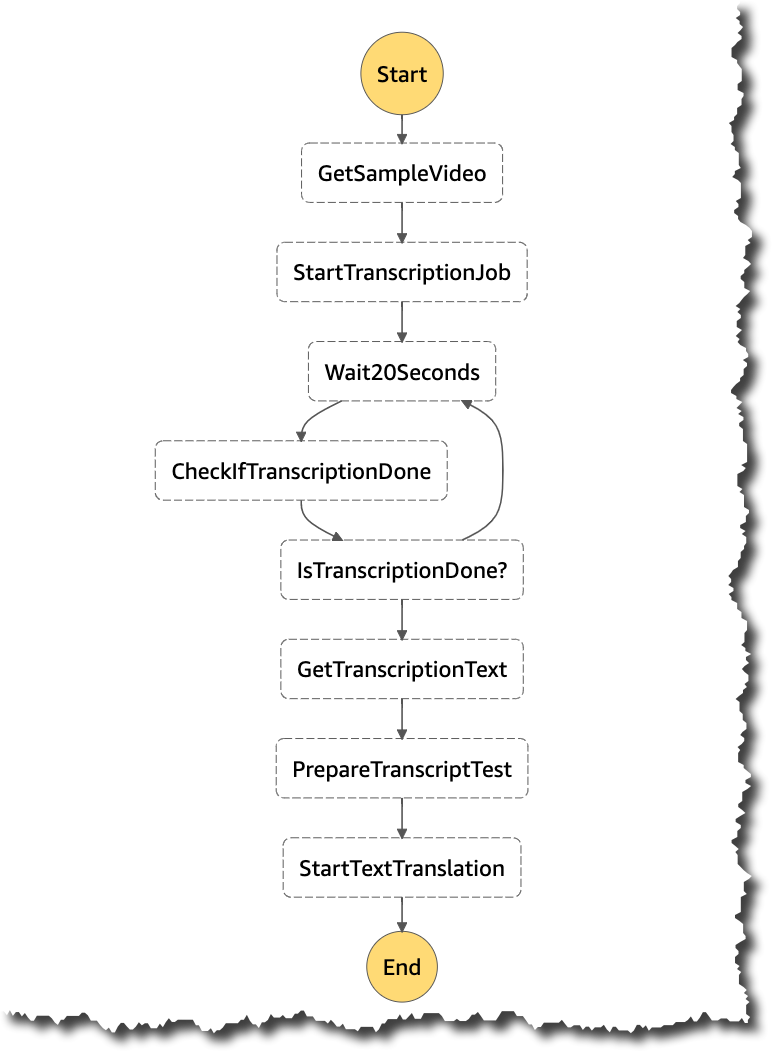
Let’s build this demo with Step Functions. The state machine, with the service integrations, integrates directly to S3, Amazon Transcribe, and Amazon Translate. The API for transcribing is asynchronous. To verify that the transcribing job is completed, you need a polling loop, which waits for it to be ready.

State machine we are going to build

Create the state machine
To follow this demo along, you need to complete these prerequisites:

  • An S3 bucket where you will put the original file that you want to process
  • A video or audio file in English stored in that bucket
  • An S3 bucket where you want the processing to happen

I will show you how to do this demo using the AWS Management Console. If you want to deploy this demo as infrastructure as code, deploy the AWS CloudFormation template for this project.

To get started with this demo, create a new standard state machine. Choose the option Write your workflow in code to build the state machine using ASL. Create a name for the state machine and create a new role.

Creating a state machine

Start a transcription job
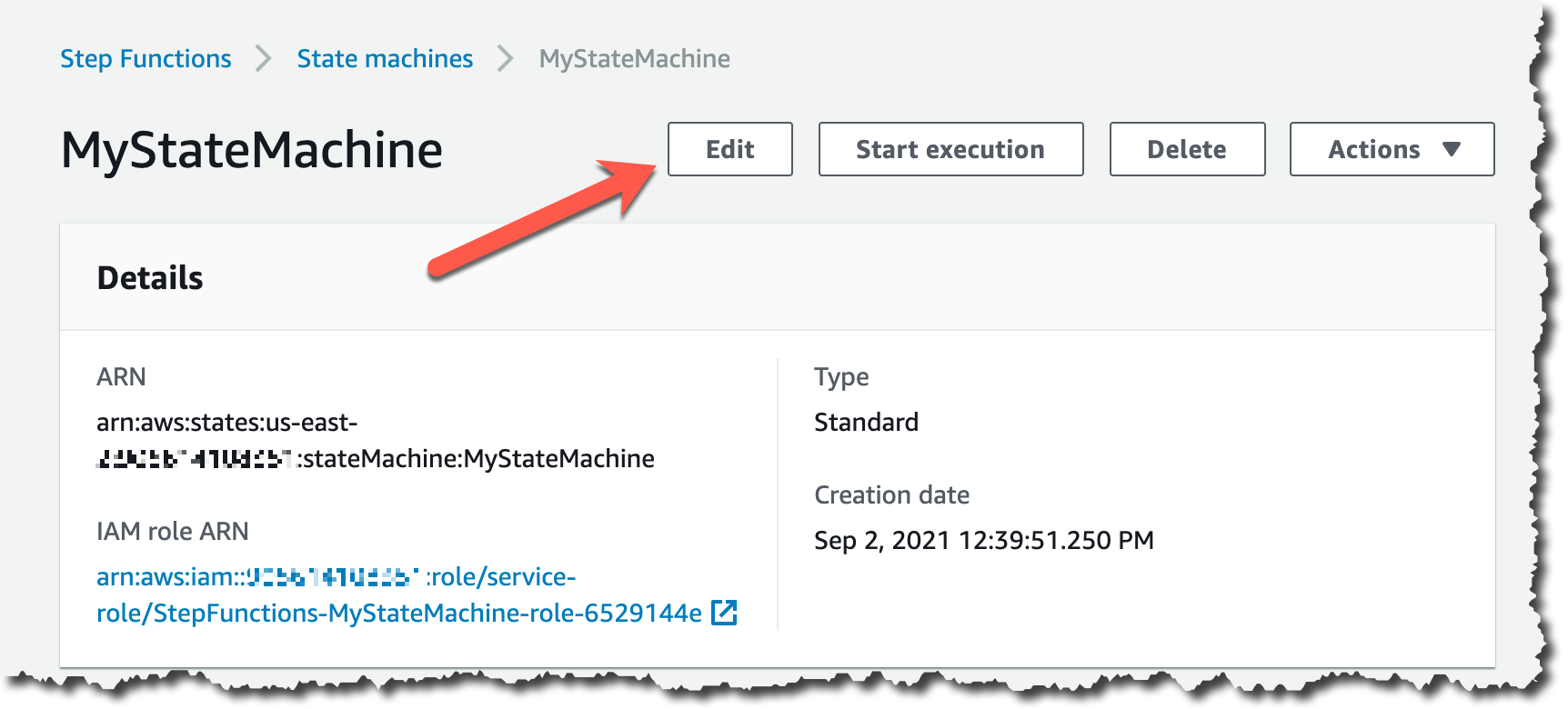
To get started working on the state machine definition, you can Edit the state machine.

Edit the state machine definition

The following piece of ASL code is a state machine with two tasks that are using the new AWS SDK Service Integrations capability. The first task is copying the file from one S3 bucket to another, and the second task is starting the transcription job by directly calling Amazon Transcribe.

For using this new capability from Step Functions, the state type needs to be a Task. You need to specify the service name and API action using this syntax: “arn:aws:states:::aws-sdk:serviceName:apiAction.<serviceIntegrationPattern>”. Use camelCase for apiAction names in the Resource field, such as “copyObject”, and use PascalCase for parameter names in the Parameters field, such as “CopySource”.

For the parameters, find the name and required parameters in the AWS API documentation for this service and API action.

{
  "Comment": "A State Machine that process a video file",
  "StartAt": "GetSampleVideo",
  "States": {
    "GetSampleVideo": {
      "Type": "Task",
      "Resource": "arn:aws:states:::aws-sdk:s3:copyObject",
      "Parameters": {
        "Bucket.$": "$.S3BucketName",
        "Key.$": "$.SampleDataInputKey",
        "CopySource.$": "States.Format('{}/{}',$.SampleDataBucketName,$.SampleDataInputKey)"
      },
      "ResultPath": null,
      "Next": "StartTranscriptionJob"
    },
    "StartTranscriptionJob": {
      "Type": "Task",
      "Resource": "arn:aws:states:::aws-sdk:transcribe:startTranscriptionJob",
      "Parameters": {
        "Media": {
          "MediaFileUri.$": "States.Format('s3://{}/{}',$.S3BucketName,$.SampleDataInputKey)"
        },
        "TranscriptionJobName.$": "$$.Execution.Name",
        "LanguageCode": "en-US",
        "OutputBucketName.$": "$.S3BucketName",
        "OutputKey": "transcribe.json"
      },
      "ResultPath": "$.transcription",
      "End": true
    }
  }
}

In the previous piece of code, you can see an interesting use case of the intrinsic functions that ASL provides. You can construct a string using different parameters. Using intrinsic functions in combination with AWS SDK Service Integrations allows you to manipulate data without the needing a Lambda function. For example, this line:

"MediaFileUri.$": "States.Format('s3://{}/{}',$.S3BucketName,$.SampleDataInputKey)"

Give permissions to the state machine
If you start the execution of the state machine now, it will fail. This state machine doesn’t have permissions to access the S3 buckets or use Amazon Transcribe. Step Functions can’t autogenerate IAM policies for most AWS SDK Service Integrations, so you need to add those to the role manually.

Add those permissions to the IAM role that was created for this state machine. You can find a quick link to the role in the state machine details. Attach the “AmazonTranscribeFullAccess” and the “AmazonS3FullAccess” policies to the role.

Link of the IAM role

Running the state machine for the first time
Now that the permissions are in place, you can run this state machine. This state machine takes as an input the S3 bucket name where the original video is uploaded, the name for the file and the name of the S3 bucket where you want to store this file and do all the processing.

For this to work, this file needs to be a video or audio file and it needs to be in English. When the transcription job is done, it saves the result in the bucket you specify in the input with the name transcribe.json.

 {
  "SampleDataBucketName": "<name of the bucket where the original file is>",
  "SampleDataInputKey": "<name of the original file>",
  "S3BucketName": "<name of the bucket where the processing will happen>"
}

As StartTranscriptionJob is an asynchronous call, you won’t see the results right away. The state machine is only calling the API, and then it completes. You need to wait until the transcription job is ready and then see the results in the output bucket in the file transcribe.json.

Adding a polling loop
Because you want to translate the text using your transcriptions results, your state machine needs to wait for the transcription job to complete. For building an API poller in a state machine, you can use a Task, Wait, and Choice state.

  • Task state gets the job status. In your case, it is calling the service Amazon Transcribe and the API getTranscriptionJob.
  • Wait state waits for 20 seconds, as the transcription job’s length depends on the size of the input file.
  • Choice state moves to the right step based on the result of the job status. If the job is completed, it moves to the next step in the machine, and if not, it keeps on waiting.

States of a polling loop

Wait state
The first of the states you are going to add is the Wait state. This is a simple state that waits for 20 seconds.

"Wait20Seconds": {
        "Type": "Wait",
        "Seconds": 20,
        "Next": "CheckIfTranscriptionDone"
      },

Task state
The next state to add is the Task state, which calls the API getTranscriptionJob. For calling this API, you need to pass the transcription job name. This state returns the job status that is the input of the Choice state.

"CheckIfTranscriptionDone": {
        "Type": "Task",
        "Resource": "arn:aws:states:::aws-sdk:transcribe:getTranscriptionJob",
        "Parameters": {
          "TranscriptionJobName.$": "$.transcription.TranscriptionJob.TranscriptionJobName"
        },
        "ResultPath": "$.transcription",
        "Next": "IsTranscriptionDone?"
      },

Choice state
The Choice state has one rule that checks if the transcription job status is completed. If that rule is true, then it goes to the next state. If not, it goes to the Wait state.

 "IsTranscriptionDone?": {
        "Type": "Choice",
        "Choices": [
          {
            "Variable": "$.transcription.TranscriptionJob.TranscriptionJobStatus",
            "StringEquals": "COMPLETED",
            "Next": "GetTranscriptionText"
          }
        ],
        "Default": "Wait20Seconds"
      },

Getting the transcription text
In this step you are extracting only the transcription text from the output file returned by the transcription job. You need only the transcribed text, as the result file has a lot of metadata that makes the file too long and confusing to translate.

This is a step that you would generally do with a Lambda function. But you can do it directly from the state machine using ASL.

First you need to create a state using AWS SDK Service Integration that gets the result file from S3. Then use another ASL intrinsic function to convert the file text from a String to JSON.

In the next state you can process the file as a JSON object. This state is a Pass state, which cleans the output from the previous state to get only the transcribed text.

 "GetTranscriptionText": {
        "Type": "Task",
        "Resource": "arn:aws:states:::aws-sdk:s3:getObject",
        "Parameters": {
          "Bucket.$": "$.S3BucketName",
          "Key": "transcribe.json"
        },
        "ResultSelector": {
          "filecontent.$": "States.StringToJson($.Body)"
        },
        "ResultPath": "$.transcription",
        "Next": "PrepareTranscriptTest"
      },
  
      "PrepareTranscriptTest" : {
        "Type": "Pass",
        "Parameters": {
          "transcript.$": "$.transcription.filecontent.results.transcripts[0].transcript"
        },
        "Next": "TranslateText"
      },

Translating the text
After preparing the transcribed text, you can translate it. For that you will use Amazon Translate API translateText directly from the state machine. This will be the last state for the state machine and it will return the translated text in the output of this state.

"TranslateText": {
        "Type": "Task",
        "Resource": "arn:aws:states:::aws-sdk:translate:translateText",
        "Parameters": {
          "SourceLanguageCode": "en",
          "TargetLanguageCode": "es",
          "Text.$": "$.transcript"
         },
         "ResultPath": "$.translate",
        "End": true
      }

Add the permissions to the state machine to call the Translate API, by attaching the managed policy “TranslateReadOnly”.

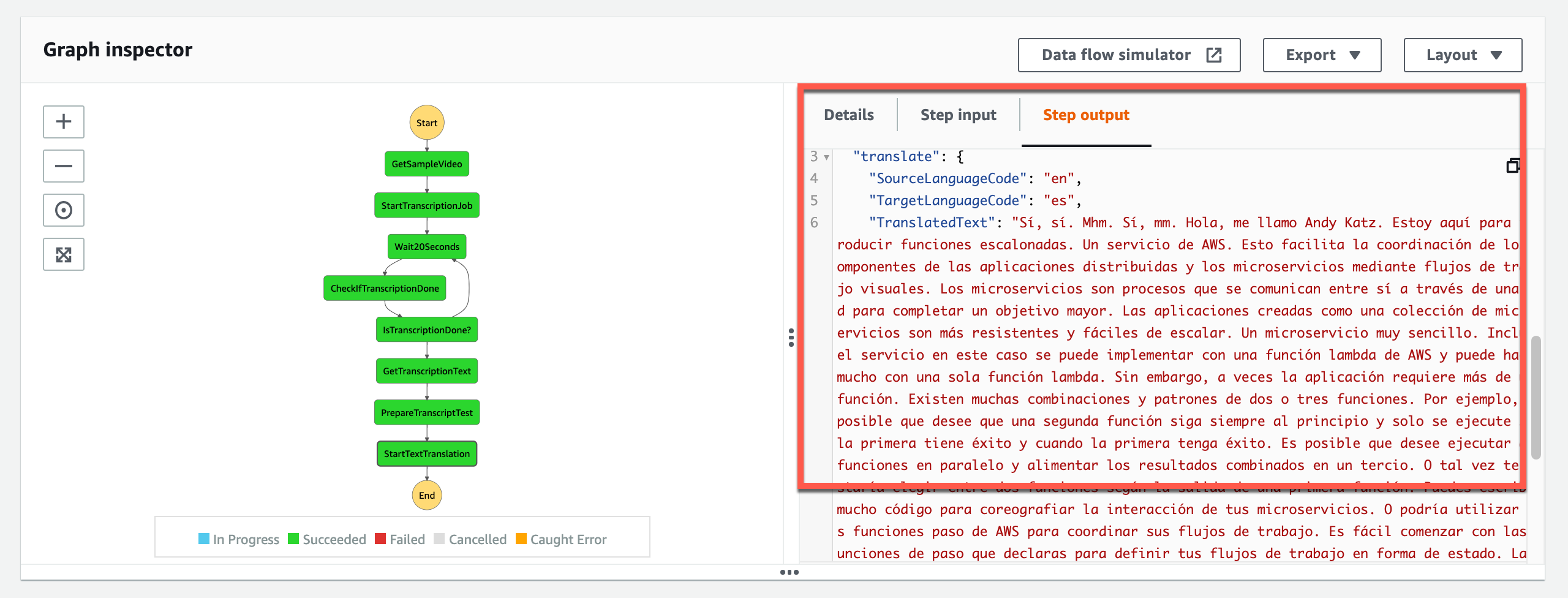
Now with all these in place, you can run your state machine. When the state machine finishes running, you will see the translated text in the output of the last state.

Final state machine

Important things to know
Here are some things that will help you to use AWS SDK Service Integration:

  • Call AWS SDK services directly from the ASL in the resource field of a task state. To do this, use the following syntax: arn:aws:states:::aws-sdk:serviceName:apiAction.[serviceIntegrationPattern]
  • Use camelCase for apiAction names in the Resource field, such as “copyObject”, and use PascalCase for parameter names in the Parameters field, such as “CopySource”.
  • Step Functions can’t autogenerate IAM policies for most AWS SDK Service Integrations, so you need to add those to the IAM role of the state machine manually.
  • Take advantage of ASL intrinsic functions, as those allow you to manipulate the data and avoid using Lambda functions for simple transformations.

Get started today!
AWS SDK Service Integration is generally available in the following regions: US East (N. Virginia), US East (Ohio), US West (Oregon), Canada (Central), Europe (Ireland), Europe (Milan), Africa (Cape Town) and Asia Pacific (Tokyo). It will be generally available in all other commercial regions where Step Functions is available in the coming days.

Learn more about this new capability by reading its documentation.

Marcia

Increased interest in Spanish media after the La Palma volcanic eruption

Post Syndicated from João Tomé original https://blog.cloudflare.com/increased-interest-in-spanish-media-after-the-la-palma-volcanic-eruption/

Increased interest in Spanish media after the La Palma volcanic eruption

The Internet is a valuable source of knowledge but also a deeply interesting, interconnected, and complex place. And with Cloudflare Radar (our Internet trends and insights free tool for everyone — including journalists, like I was for several years) you get a sense of different trends in the collection of networks that form the Internet.

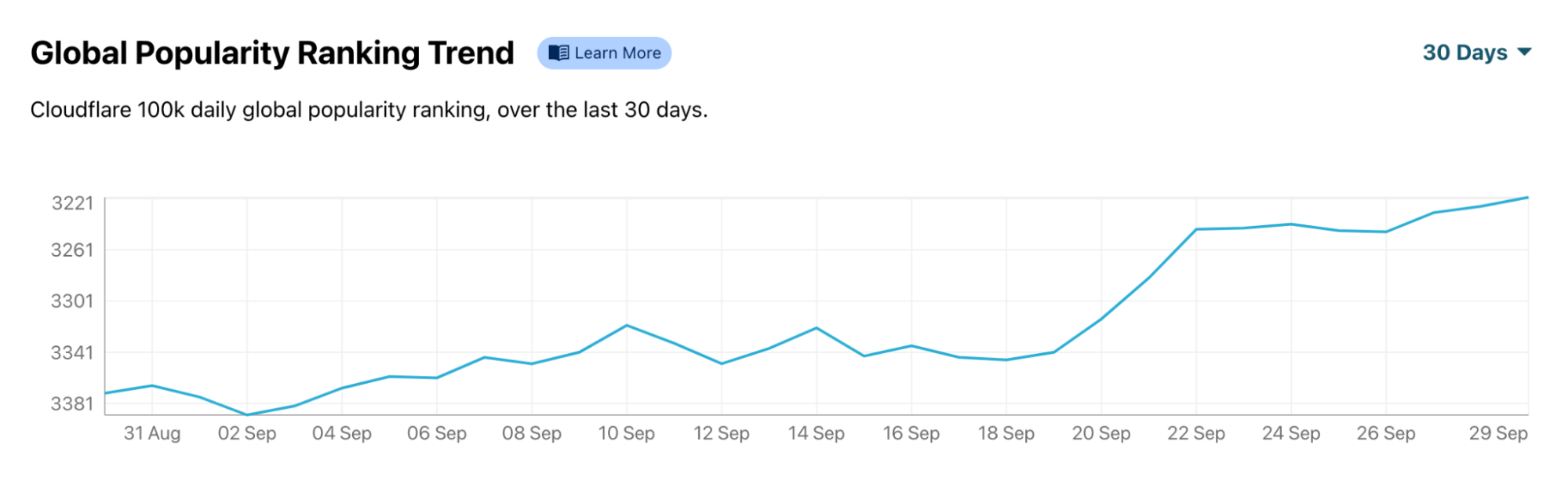
We saw that over the past week or so in Spain. Radar shows a clear increase in interest in Spanish media outlets (in comparison with the preceding days and Sundays) after the news of the eruption in La Palma (one of the Spanish Canary Islands) broke on Sunday, September 19.

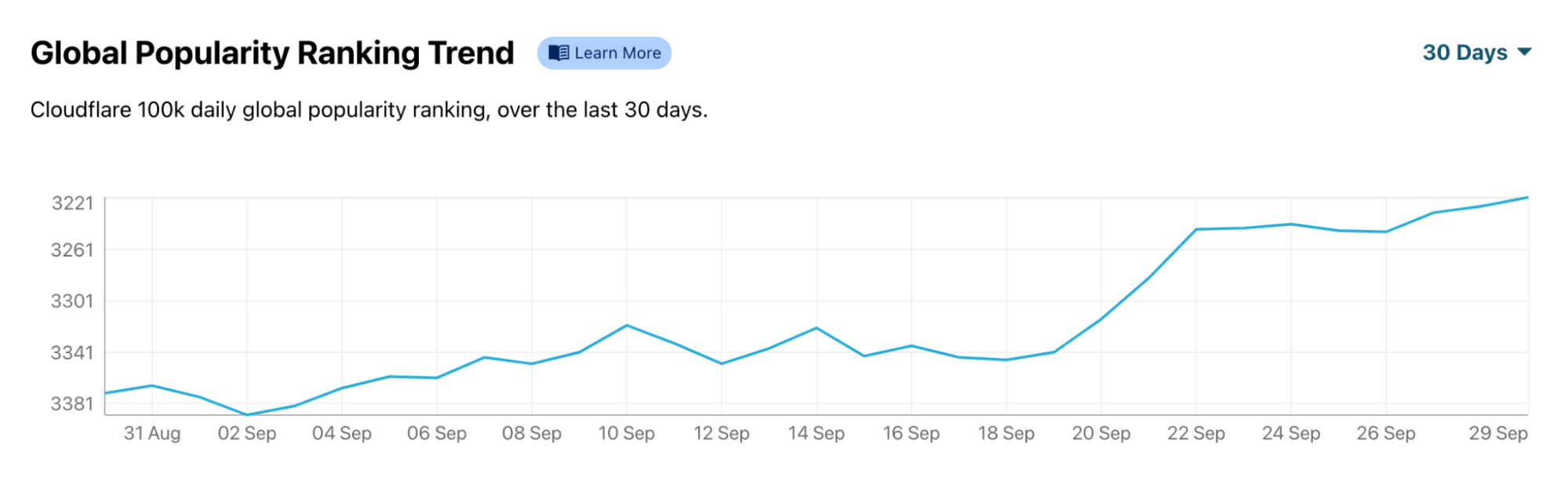
That is particularly clear looking at El País, one of the most well known media outlets in the country. Using our Global Popularity Ranking Trend available on Radar, we can see that ElPais.com jumped several positions in our ranking of most popular domains after September 19. That change is clear in the last seven days, but especially in the last 30, putting El País near the top 3,000 most popular domains in the world.

Elpais.com

Increased interest in Spanish media after the La Palma volcanic eruption
The increase in El País’s popularity is clearly visible after Sunday, September 19, 2021

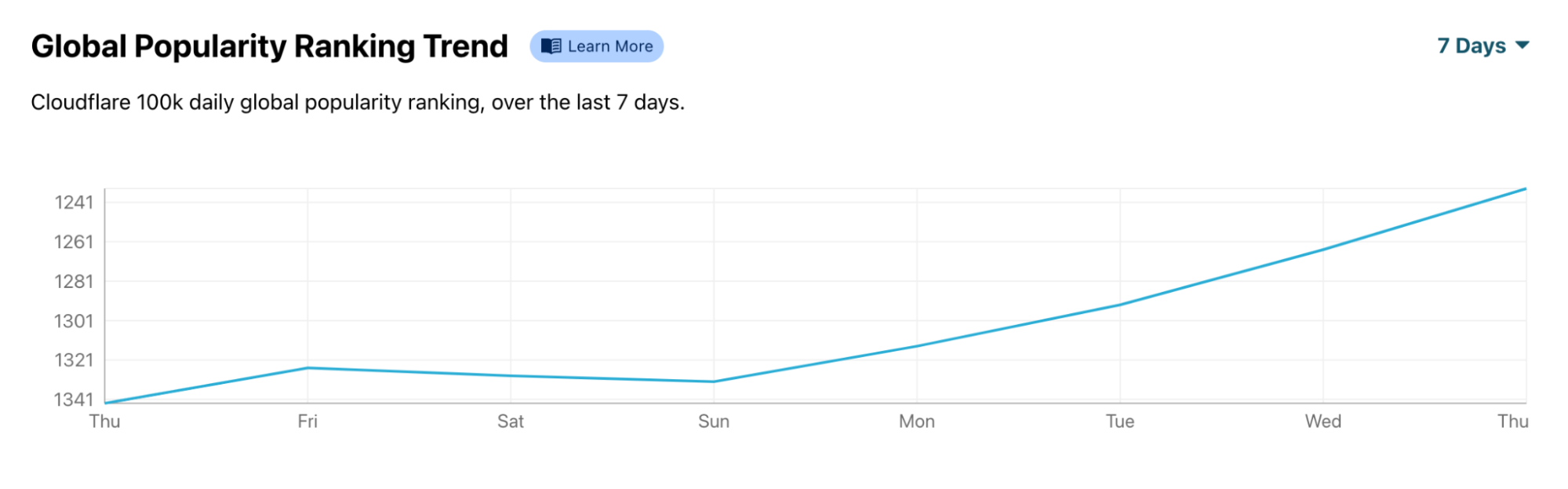
A similar trend is seen on the El Mundo website, which had its highest days of global popularity on Wednesday and Thursday of last week. And Spanish public radio and television, RTVE, after a week of growing popularity, reached the top 1,200 of our Global Popularity Ranking last Friday, climbing more than 100 positions after the news of the volcano’s eruption broke.

Rtve.es

Increased interest in Spanish media after the La Palma volcanic eruption
Rtve.es also had a popularity increase that continued to grow throughout the past week.

There is a world of trends and even human habits (different from country to country) to discover on our Cloudflare Radar platform. Start here.

More about the volcanic eruption:

Live blog from ElPais (in Spanish) — https://elpais.com/espana/2021-09-22/ultimas-noticias-del-volcan-en-erupcion-en-la-palma-en-directo-la-ultima-hora-de-cumbre-vieja-en-canarias.html

Enable Security Hub PCI DSS standard across your organization and disable specific controls

Post Syndicated from Pablo Pagani original https://aws.amazon.com/blogs/security/enable-security-hub-pci-dss-standard-across-your-organization-and-disable-specific-controls/

At this time, enabling the PCI DSS standard from within AWS Security Hub enables this compliance framework only within the Amazon Web Services (AWS) account you are presently administering.

This blog post showcases a solution that can be used to customize the configuration and deployment of the PCI DSS standard compliance standard using AWS Security Hub across multiple AWS accounts and AWS Regions managed by AWS Organizations. It also demonstrates how to disable specific standards or controls that aren’t required by your organization to meet its compliance requirement. This solution can be used as a baseline for implementation when creating new AWS accounts through the use of AWS CloudFormation StackSets.

Solution overview

Figure 1 that follows shows a sample account setup using the automated solution in this blog post to enable PCI DSS monitoring and reporting across multiple AWS accounts using AWS Organizations. The hierarchy depicted is of one management account used to monitor two member accounts with infrastructure spanning across multiple Regions. Member accounts are configured to send their Security Hub findings to the designated Security Hub management account for centralized compliance management.

Figure 1: Security Hub deployment using AWS Organizations

Figure 1: Security Hub deployment using AWS Organizations

Prerequisites

The following prerequisites must be in place in order to enable the PCI DSS standard:

  1. A designated administrator account for Security Hub.
  2. Security Hub enabled in all the desired accounts and Regions.
  3. Access to the management account for the organization. The account must have the required permissions for stack set operations.
  4. Choose which deployment targets (accounts and Regions) you want to enable the PCI DSS standard. Typically, you set this on the accounts where Security Hub is already enabled, or on the accounts where PCI workloads reside.
  5. (Optional) If you find standards or controls that aren’t applicable to your organization, get the Amazon Resource Names (ARNs) of the desired standards or controls to disable.

Solution Resources

The CloudFormation template that you use in the following steps contains:

Solution deployment

To set up this solution for automated deployment, stage the following CloudFormation StackSet template for rollout via the AWS CloudFormation service. The stack set runs across the organization at the root or organizational units (OUs) level of your choice. You can choose which Regions to run this solution against and also to run it each time a new AWS account is created.

To deploy the solution

  1. Open the AWS Management Console.
  2. Download the sh-pci-enabler.yaml template and save it to an Amazon Simple Storage Services (Amazon S3) bucket on the management account. Make a note of the path to use later.
  3. Navigate to CloudFormation service on the management account. Select StackSets from the menu on the left, and then choose Create StackSet.
     
    Figure 2: CloudFormation – Create StackSet

    Figure 2: CloudFormation – Create StackSet

  4. On the Choose a template page, go to Specify template and select Amazon S3 URL and enter the path to the sh-pci-enabler.yaml template you saved in step 2 above. Choose Next.
     
    Figure 3: CloudFormation – Choose a template

    Figure 3: CloudFormation – Choose a template

  5. Enter a name and (optional) description for the StackSet. Choose Next.
     
    Figure 4: CloudFormation – enter StackSet details

    Figure 4: CloudFormation – enter StackSet details

  6. (Optional) On the Configure StackSet options page, go to Tags and add tags to identify and organize your stack set.
     
    Figure 5: CloudFormation – Configure StackSet options

    Figure 5: CloudFormation – Configure StackSet options

  7. Choose Next.
  8. On the Set deployment options page, select the desired Regions, and then choose Next.

    Figure 6: CloudFormation – Set deployment options

    Figure 6: CloudFormation – Set deployment options

  9. Review the definition and select I acknowledge that AWS CloudFormation might create IAM resources. Choose Submit.
     
    Figure 7: CloudFormation – Review, acknowledge, and submit

    Figure 7: CloudFormation – Review, acknowledge, and submit

  10. After you choose Submit, you can monitor the creation of the StackSet from the Operations tab to ensure that deployment is successful.
     
    Figure 8: CloudFormation – Monitor creation of the StackSet

    Figure 8: CloudFormation – Monitor creation of the StackSet

Disable standards that don’t apply to your organization

To disable a standard that isn’t required by your organization, you can use the same template and steps as described above with a few changes as explained below.

To disable standards

  1. Start by opening the SH-PCI-enabler.yaml template and saving a copy under a new name.
  2. In the template, look for sh.batch_enable_standards. Change it to sh.batch_disable_standards.
  3. Locate standardArn=f”arn:aws:securityhub:{region}::standards/pci-dss/v/3.2.1″ and change it to the desired ARN. To find the correct standard ARN, you can use the AWS Command Line Interface (AWS CLI) or AWS CloudShell to run the command aws securityhub describe-standards.
Figure 9: Describe Security Hub standards using CLI

Figure 9: Describe Security Hub standards using CLI

Note: Be sure to keep the f before the quotation marks and replace any Region you might get from the command with the {region} variable. If the CIS standard doesn’t have the Region defined, remove the variable.

Disable controls that don’t apply to your organization

When you enable a standard, all of the controls for that standard are enabled by default. If necessary, you can disable specific controls within an enabled standard.

When you disable a control, the check for the control is no longer performed, no additional findings are generated for that control, and the related AWS Config rules that Security Hub created are removed.

Security Hub is a regional service. When you disable or enable a control, the change is applied in the Region that you specify in the API request. Also, when you disable an entire standard, Security Hub doesn’t track which controls were disabled. If you enable the standard again later, all of the controls in that standard will be enabled.

To disable a list of controls

  1. Open the Security Hub console and select Security standards from the left menu. For each check you want to disable, select Finding JSON and make a note of each StandardsControlArn to add to your list.

    Note: Another option is to use the DescribeStandardsControls API to create a list of StandardsControlArn to be disabled.


    Figure 10: Security Hub console – finding JSON download option

    Figure 10: Security Hub console – finding JSON download option

  2. Download the StackSet SH-disable-controls.yaml template to your computer.
  3. Use a text editor to open the template file.
  4. Locate the list of controls to disable, and edit the template to replace the provided list of StandardsControlArn with your own list of controls to disable, as shown in the following example. Use a comma as the delimiter for each ARN.
    controls=f"arn:aws:securityhub:{region}:{account_id}:control/aws-foundational-security-best-practices/v/1.0.0/ACM.1, arn:aws:securityhub:{region}:{account_id}:control/aws-foundational-security-best-practices/v/1.0.0/APIGateway.1, arn:aws:securityhub:{region}:{account_id}:control/aws-foundational-security-best-practices/v/1.0.0/APIGateway.2"
    

  5. Save your changes to the template.
  6. Follow the same steps you used to deploy the PCI DSS standard, but use your edited template.

Note: The region and account_id are set as variables, so you decide in which accounts and Regions to disable the controls from the StackSet deployment options (step 8 in Deploy the solution).

Troubleshooting

The following are issues you might encounter when you deploy this solution:

  1. StackSets deployment errors: Review the troubleshooting guide for CloudFormation StackSets.
  2. Dependencies issues: To modify the status of any standard or control, Security Hub must be enabled first. If it’s not enabled, the operation will fail. Make sure you meet the prerequisites listed earlier in this blog post. Use CloudWatch logs to analyze possible errors from the Lambda function to help identify the cause.
  3. StackSets race condition error: When creating new accounts, the Organizations service enables Security Hub in the account, and invokes the stack sets during account creation. If the stack set runs before the Security Hub service is enabled, the stack set can’t enable the PCI standard. If this happens, you can fix it by adding the Amazon EventBridge rule as shown in SH-EventRule-PCI-enabler.yaml. The EventBridge rule invokes the SHLambdaFunctionEB Lambda function after Security Hub is enabled.

Conclusion

The AWS Security Hub PCI DSS standard is fundamental for any company involved with storing, processing, or transmitting cardholder data. In this post, you learned how to enable or disable a standard or specific controls in all your accounts throughout the organization to proactively monitor your AWS resources. Frequently reviewing failed security checks, prioritizing their remediation, and aiming for a Security Hub score of 100 percent can help improve your security posture.

Further reading

If you have feedback about this post, submit comments in the Comments section below. If you have questions, please start a new thread on the Security Hub forum.

Want more AWS Security how-to content, news, and feature announcements? Follow us on Twitter.

Author

Pablo Pagani

Pablo is the Latam Security Manager for AWS Professional Services based in Buenos Aires, Argentina. He developed his passion for computers while writing his first lines of code in BASIC using a Talent MSX.

Author

Rogerio Kasa

Rogerio is a Senior SRC Consultant based in Sao Paulo, Brazil. He has more than 20 years experience in information security, including 11 years in financial services as a local information security officer. As a security consultant, he helps customers improve their security posture by understanding business goals and creating controls aligned with their risk strategy.

Security updates for Thursday

Post Syndicated from original https://lwn.net/Articles/871424/rss

Security updates have been issued by Debian (libxstream-java, uwsgi, and weechat), Fedora (libspf2, libvirt, mingw-python3, mono-tools, python-flask-restx, and sharpziplib), Mageia (gstreamer, libgcrypt, libgd, mosquitto, php, python-pillow, qtwebengine5, and webkit2), openSUSE (postgresql12 and postgresql13), SUSE (haproxy, postgresql12, postgresql13, and rabbitmq-server), and Ubuntu (commons-io and linux-oem-5.13).

PostgreSQL 14 released

Post Syndicated from original https://lwn.net/Articles/871389/rss

Version 14 of the PostgreSQL relational database manager is out.

PostgreSQL 14 brings a variety of features that help developers and
administrators deploy their data-backed applications. PostgreSQL continues to
add innovations on complex data types, including more convenient access for
JSON and support for noncontiguous ranges of data. This latest release adds
to PostgreSQL’s trend on improving high performance and distributed
data workloads, with advances in connection concurrency, high-write
workloads, query parallelism and logical replication.

More information can be found in the release
notes
.

Are SSDs Really More Reliable Than Hard Drives?

Post Syndicated from original https://www.backblaze.com/blog/are-ssds-really-more-reliable-than-hard-drives/

Solid-state drives (SSDs) continue to become more and more a part of the data storage landscape. And while our SSD 101 series has covered topics like upgrading, troubleshooting, and recycling your SSDs, we’d like to test one of the more popular declarations from SSD proponents: that SSDs fail much less often than our old friend, the hard disk drive (HDD). This statement is generally attributed to SSDs having no moving parts and is supported by vendor proclamations and murky mean time between failure (MTBF) computations. All of that is fine for SSD marketing purposes, but for comparing failure rates, we prefer the Drive Stats way: direct comparison. Let’s get started.

What Does Drive Failure Look Like for SSDs and HDDs?

In our quarterly Drive Stats reports, we define hard drive failure as either reactive, meaning the drive is no longer operational, or proactive, meaning we believe that drive failure is imminent. For hard drives, much of the data we use to determine a proactive failure comes from the SMART stats we monitor that are reported by the drive.

SMART, or S.M.A.R.T., stands for Self-monitoring, Analysis, and Reporting Technology and is a monitoring system included in HDDs and SSDs. The primary function of SMART is to report on various indicators related to drive reliability with the intent being to anticipate drive failures. Backblaze records the SMART attributes for every data and boot drive in operation each day.

As with HDDs, we also record and monitor SMART stats for SSD drives. Different SSD models report different SMART stats, with some overlap. To date, we record 31 SMART stats attributes related to SSDs. 25 are listed below.

# Description # Description
1 Read Error Rate 194 Temperature Celsius
5 Reallocated Sectors Count 195 Hardware ECC Recovered
9 Power-on Hours 198 Uncorrectable Sector Count
12 Power Cycle Count 199 UltraDMA CRC Error Count
13 Soft Read Error Rate 201 Soft Read Error Rate
173 SSD Wear Leveling Count 202 Data Address Mark Errors
174 Unexpected Power Loss Count 231 Life Left
177 Wear Range Delta 232 Endurance Remaining
179 Used Reserved Block Count Total 233 Media Wearout Indicator
180 Unused Reserved Block Count Total 235 Good Block Count
181 Program Fail Count Total 241 Total LBAs Written
182 Erase Fail Count 242 Total LBAs Read
192 Unsafe Shutdown Count

For the remaining six (16, 17, 168, 170, 218, and 245), we are unable to find their definitions. Please reach out in the comments if you can shed any light on the missing attributes.
All that said, we are just at the beginning of using SMART stats to proactively fail a SSD. Many of the attributes cited are drive model or vendor dependent. In addition, as you’ll see, there are a limited number of SSD failures. This limits the amount of data we have for research. As we add and monitor more SSDs to our farm, we intend on building out our rules for proactive SSD drive failure. In the meantime, all of the SSDs which have failed to date are reactive failures, that is: They just stopped working.

Comparing Apples to Apples

In the Backblaze data centers, we use both SSDs and HDDs as boot drives in our storage servers. In our case, describing these drives as boot drives is a misnomer as boot drives are also used to store log files for system access, diagnostics, and more. In other words, these boot drives are regularly reading, writing, and deleting files in addition to their named function of booting a server at startup.

In our first storage servers, we used hard drives as boot drives as they were inexpensive and served the purpose. This continued until mid-2018 when we were able to buy 200GB SSDs for about $50, which was our top-end price point for boot drives for each storage server. It was an experiment, but things worked out so well that beginning in mid-2018 we switched to only using SSDs in new storage servers and replaced failed HDD boot drives with SSDs as well.

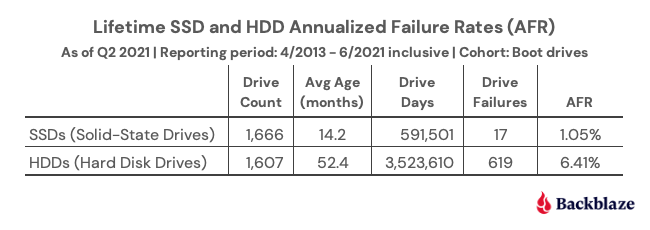
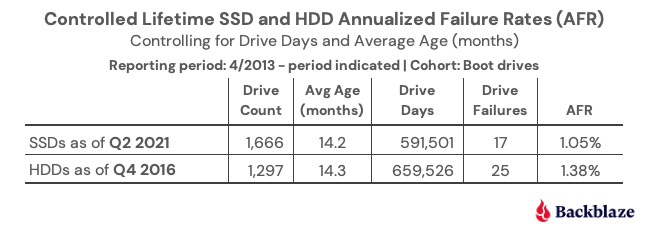
What we have are two groups of drives, SSDs and HDDs, which perform the same functions, have the same workload, and operate in the same environment over time. So naturally, we decided to compare the failure rates of the SSD and HDD boot drives. Below are the lifetime failure rates for each cohort as of Q2 2021.

SSDs Win… Wait, Not So Fast!

It’s over, SSDs win. It’s time to turn your hard drives into bookends and doorstops and buy SSDs. Although, before you start playing dominoes with your hard drives, there are a couple of things to consider which go beyond the face value of the table above: average age and drive days.

  • The average age of the SSD drives is 14.2 months, and the average age of the HDD drives is 52.4 months.
  • The oldest SSD drives are about 33 months old and the youngest HDD drives are 27 months old.

Basically, the timelines for the average age of the SSDs and HDDs don’t overlap very much. The HDDs are, on average, more than three years older than the SSDs. This places each cohort at very different points in their lifecycle. If you subscribe to the idea that drives fail more often as they get older, you might want to delay your HDD shredding party for just a bit.

By the way, we’ll be publishing a post in a couple of weeks on how well drive failure rates fit the bathtub curve; SPOILER ALERT: old drives fail a lot.

The other factor we listed was drive days, the number of days all the drives in each cohort have been in operation without failing. The wide disparity in drive days causes a big difference in the confidence intervals of the two cohorts as the number of observations (i.e. drive days) varies significantly.

To create a more accurate comparison, we can attempt to control for the average age and drive days in our analysis. To do this, we can take the HDD cohort back in time in our records to see where the average age and drive days are similar to those of the SDDs from Q2 2021. That would allow us to compare each cohort at the same time in their life cycles.

Turning back the clock on the HDDs, we find that using the HDD data from Q4 2016, we were able to create the following comparison.

Suddenly, the annualized failure rate (AFR) difference between SSDs and HDDs is not so massive. In fact, each drive type is within the other’s 95% confidence interval window. That window is fairly wide (plus or minus 0.5%) because of the relatively small number of drive days.
Where does that leave us? We have some evidence that when both types of drives are young (14 months on average in this case), the SSDs fail less often, but not by much. But you don’t buy a drive to last 14 months, you want it to last years. What do we know about that?

Failure Rates Over Time

We have data for HDD boot drives that go back to 2013 and for SSD boot drives going back to 2018. The chart below is the lifetime AFR for each drive type through Q2 2021.

As the graph shows, beginning in 2018, the HDD boot drive failure rate accelerated. This continued in 2019 and 2020 before leveling off in 2021 (so far). To state the obvious, as the age of the HDD boot drive fleet increased, so did the failure rate.

One point of interest is the similarity in the two curves through their first four data points. For the HDD cohort, year five (2018) was where the failure rate acceleration began. Is the same fate awaiting our SSDs as they age? While we can expect some increase in the AFR as the SSD age, will it be as dramatic as the HDD line?

Decision Time: SSD or HDD

Where does that leave us in choosing between buying a SSD or a HDD? Given what we know to date, using the failure rate as a factor in your decision is questionable. Once we controlled for age and drive days, the two drive types were similar and the difference was certainly not enough by itself to justify the extra cost of purchasing a SSD versus a HDD. At this point, you are better off deciding based on other factors: cost, speed required, electricity, form factor requirements, and so on.

Over the next couple of years, as we get a better idea of SSD failure rates, we will be able to decide whether or not to add the AFR to the SSD versus HDD buying guide checklist. Until then, we look forward to continued debate.

The post Are SSDs Really More Reliable Than Hard Drives? appeared first on Backblaze Blog | Cloud Storage & Cloud Backup.

Simplify your data analysis with Amazon Redshift Query Editor v2

Post Syndicated from Srikanth Sopirala original https://aws.amazon.com/blogs/big-data/simplify-your-data-analysis-with-amazon-redshift-query-editor-v2/

Amazon Redshift is a fast, fully managed cloud data warehouse that provides a web-based query editor in addition to supporting connectivity via ODBC/JDBC or the Redshift Data API. Tens of thousands of customers use Amazon Redshift as their analytics platform. Data analysts, database developers, and data scientists use SQL to analyze their data in Amazon Redshift data warehouses. Amazon Redshift Query Editor v2 is a web-based SQL client application that you can use to author and run queries on your Amazon Redshift data warehouse. You can visualize query results with charts and collaborate by sharing queries with members of your team.

Query Editor v2 provides several capabilities, such as the ability to browse and explore multiple databases, external tables, views, stored procedures, and user-defined functions. It provides wizards to create schemas, tables, and user-defined functions. It simplifies the management and collaboration of saved queries. You can also gain faster insights by visualizing the results with a single click.

Query Editor v2 enhances and builds upon the functionality of the prior version of the query editor, such as increased size of queries, the ability to author and run multi-statement queries, support for session variables, and query parameters, to name a few.

You can provide Query Editor v2 to end-users such as data analysts, database developers, and data scientists without providing the privileges required to access the Amazon Redshift console.

In this post, we walk through how to create an AWS Identity and Access Management (IAM) role to provide access to Query Editor v2 for end-users, easily connect to your clusters, run SQL queries, load data in your clusters, create charts, and share queries directly from the console.

Configure Query Editor v2 for your AWS account

As an admin, you must first configure Query Editor v2 before providing access to your end-users.

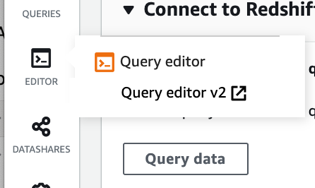
You can access Query Editor v2 from the Amazon Redshift console.

When you choose Query Editor v2 from the Editor options, a new tab in your browser opens with the Query Editor v2 interface.

By default, an AWS-owned key is used to encrypt resources. Optionally, you can create a symmetric customer managed key to encrypt Query Editor v2 resources such as saved queries and query results using the AWS Key Management Service (AWS KMS) console or AWS KMS API operations.

Provide access to Query Editor v2 for your end-users

Enterprises want to democratize access to data in the data warehouse securely by providing a web-based query editor to their end-users. You can either use IAM users or integrate the AWS console with your single sign-on (SSO) provider to provide access to end-users. In a future post, we will document all necessary steps to integrate your SSO provider with the query editor.

To enable your users to access Query Editor v2 using IAM, as an administrator, you can attach one of the AWS-managed policies depicted in the following table to the IAM user or role to grant permission. These managed policies also give access to other required services. You can create your custom-managed policy if you want to customize permissions for your end-users.

Policy Description
AmazonRedshiftQueryEditorV2FullAccess Grants full access to Query Editor v2 operations and resources. This is primarily intended for administrators.
AmazonRedshiftQueryEditorV2NoSharing Grants the ability to work with Query Editor v2 without sharing resources. Users can’t share their queries with their team members.
AmazonRedshiftQueryEditorV2ReadSharing Grants the ability to work with Query Editor v2 with limited sharing of resources. The granted principal can read the saved queries shared with its team but can’t update them.
AmazonRedshiftQueryEditorV2ReadWriteSharing Grants the ability to work with Query Editor v2 with sharing of resources. The granted principal can read and update the shared resources with its team.

For example, if you have a group of users as a part of marketing_group, and you want them to collaborate between themselves by sharing their queries, you can create an IAM role for them and assign the AmazonRedshiftQueryEditorV2ReadSharing policy. You can also tag the role with sqlworkbench-team as marketing_group.

You can use the IAM console to attach IAM policies to an IAM user or an IAM role. After you attach a policy to a role, you can attach the role to an IAM user.

To attach the IAM policies to an IAM role, complete the following steps:

  1. On the IAM console, choose Roles.
  2. Choose the role that needs access to Query Editor v2. Assume the name of the role as marketing_role.
  3. Choose Attach policies.
  4. For Policy names, choose the policies that we described previously based on your requirement.
  5. Choose Attach policy.

Now you can add the marketing_group tag for an IAM role.

  1. In the navigation pane, choose Roles and select the name of the role that you want to edit.
  2. Choose the Tags tab and choose Add tags.
  3. Add the tag key sqlworkbench-team and the value marketing_group.
  4. Choose Save changes.

Now the end-users with marketing_role can access Query Editor v2 with limited sharing of resources.

Work with Query Editor v2

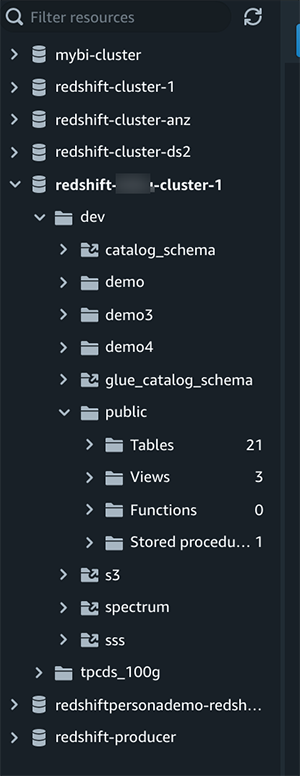
You can use Query Editor v2 to author and run queries, visualize results, and share your work with your team. With Query Editor v2, you can create databases, schemas, tables, and user-defined functions (UDFs) with visual wizards. In a tree-view panel, for each of your clusters, you can view its schemas. For each schema, you can view its tables, views, functions (UDFs), and stored procedures.

Open Query Editor v2

After you log in to the console and navigate to Query Editor v2, you see a page like the following screenshot.

Query Editor v2 now provides a more IDE-like experience to its users and offers both dark and light themes. You can switch between themes by choosing the moon icon at the lower left of the page.

The left navigation pane shows the list of clusters that you have access to. If you don’t have an Amazon Redshift cluster, use the Getting Started with Amazon Redshift cluster with sample data option. In this post, we use the sample data (Tickets database) as examples.

Connect to an Amazon Redshift database

You can connect to a cluster by choosing a cluster and entering your credentials.

You can connect using either a database user name and password or temporary credentials. Query Editor v2 creates a secret on your behalf stored in AWS Secrets Manager. This secret contains credentials to connect to your database. With temporary credentials, Query Editor v2 generates a temporary password to connect to the database.

Browse a database

You can browse one or more databases in the cluster that you’re connected to. Within a database, you can manage schemas, tables, views, functions, and stored procedures in the tree-view panel. If you have integrated your cluster with the AWS Glue Data Catalog, you see the Data Catalog schema and external tables. Similarly, you can browse the external tables if you create external schemas using Amazon Redshift data sharing, Amazon Redshift Spectrum, or federated queries.

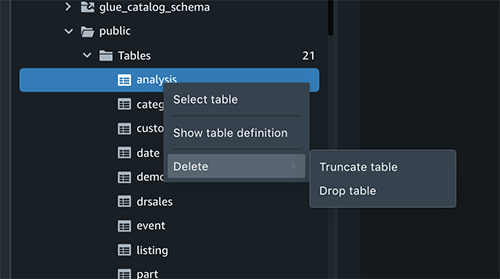
You can perform an operation on an object choosing it (right-click) and choosing from the menu options.

Author and run queries

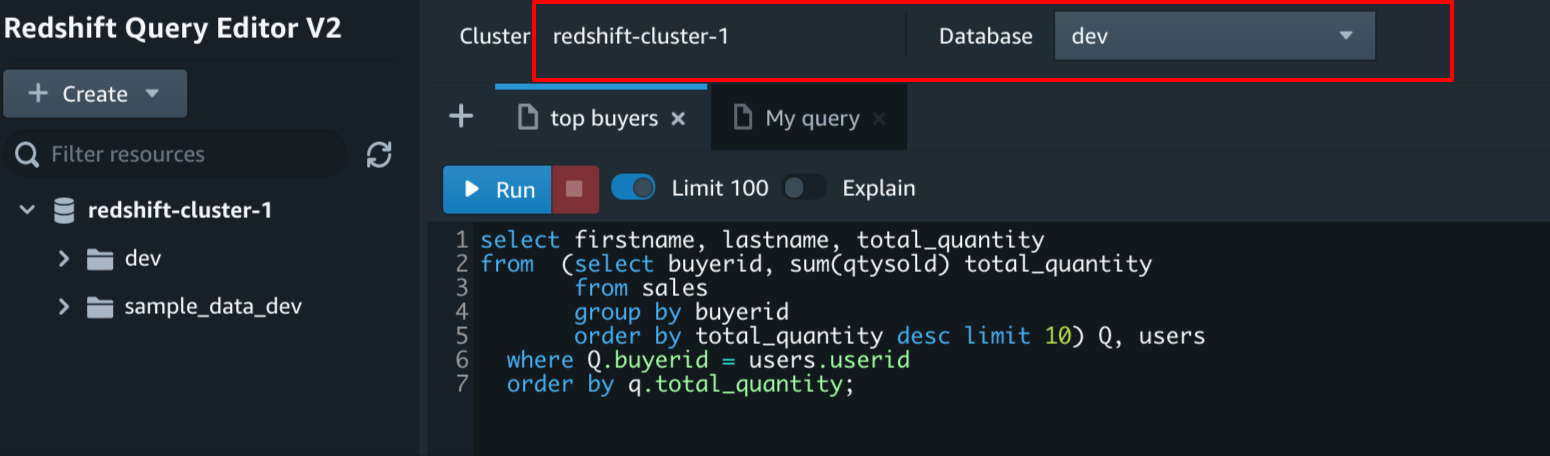
Query Editor v2 allows you to run your queries by selecting a specific database. If you have multiple databases, make sure that you choose the correct database.

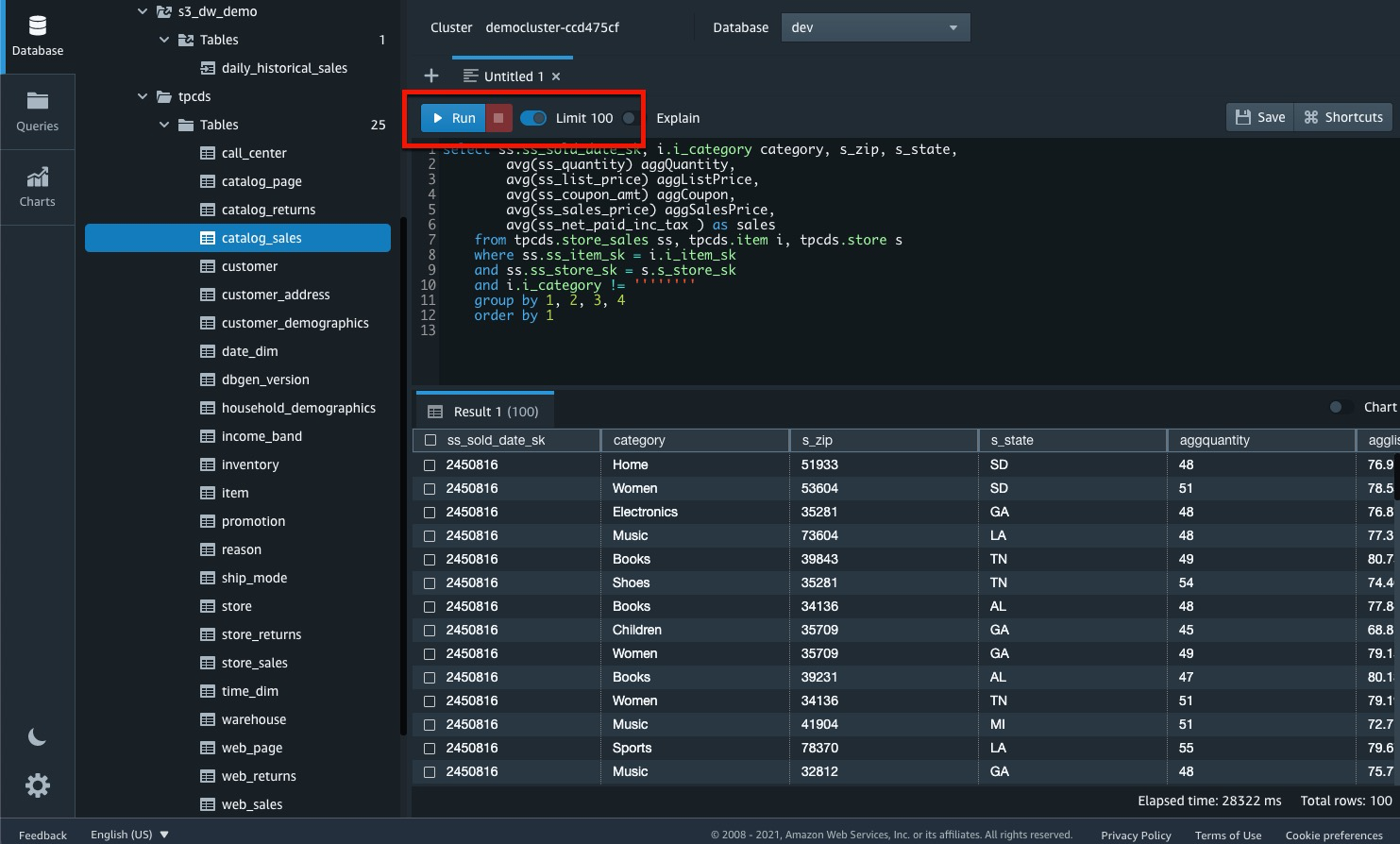
You can enter a query in the editor or select a saved query from the Queries list and choose Run. The query editor provides several shortcuts for using with your query editor, and you can access that by choosing the content assist option.

By default, Limit 100 is set to limit the results to 100 rows. You can turn off this option to return a more extensive result set. If you turn off this option, you can include the LIMIT option in your SQL statement to avoid very large result sets.

Use multiple SQL statements in a query

The query editor supports multiple queries, session variables, and temporary tables. If you have multiple SQL statements and you run the query, the results are displayed on various tabs.

Run long queries

You don’t have to wait for long queries to complete to view results. The queries run even if the browser window is closed. You can view the results the next time you log in to Query Editor v2.

Run parameterized queries

You can use parameters with your query instead of hardcoding certain values, as in the following code:

SELECT sum(qtysold) 
FROM   sales, date 
WHERE  sales.dateid = date.dateid 
AND    sellerId >= ${sellerid};

When you run a query with a parameter, you’re prompted with a form.

Run the explain plan

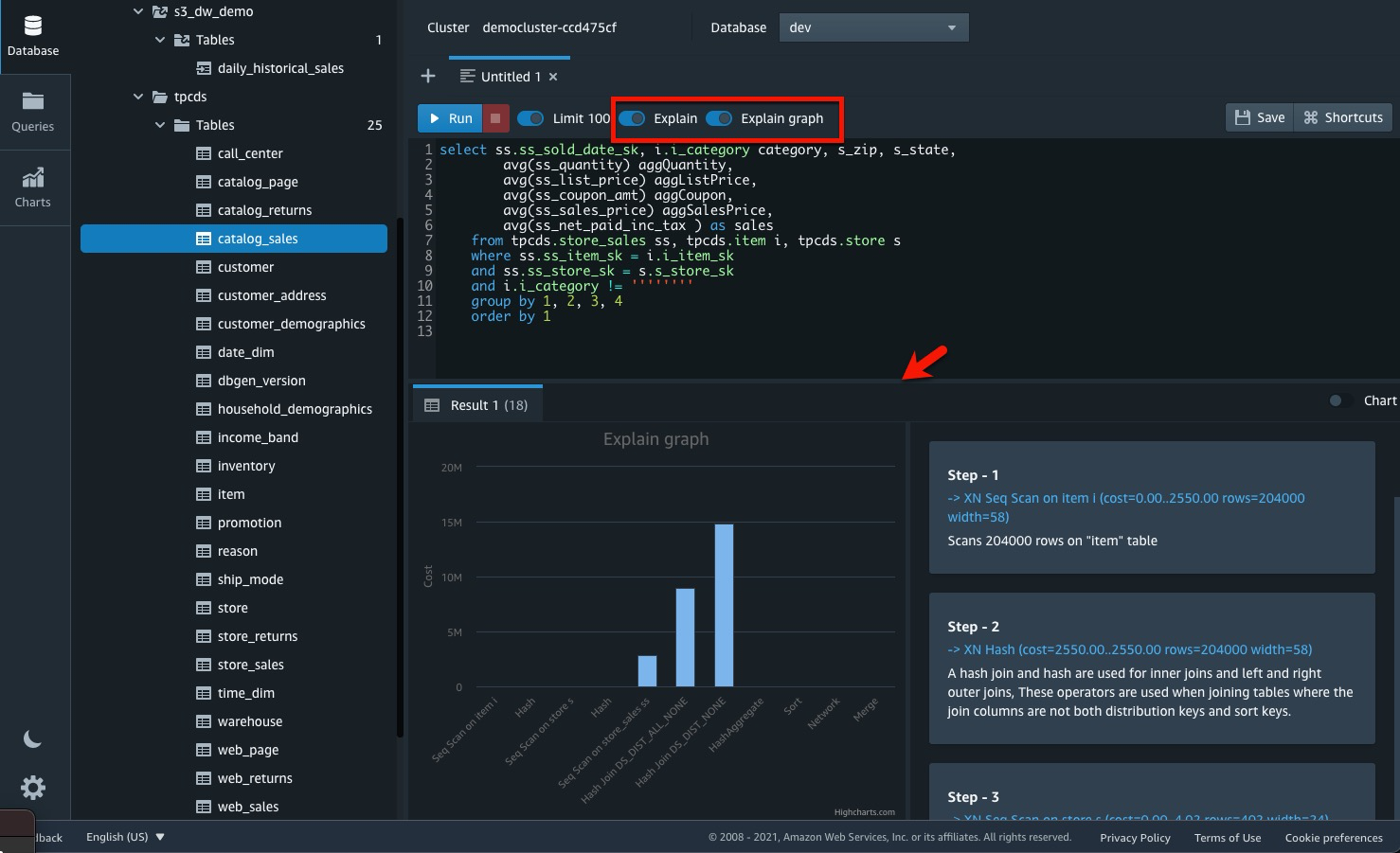
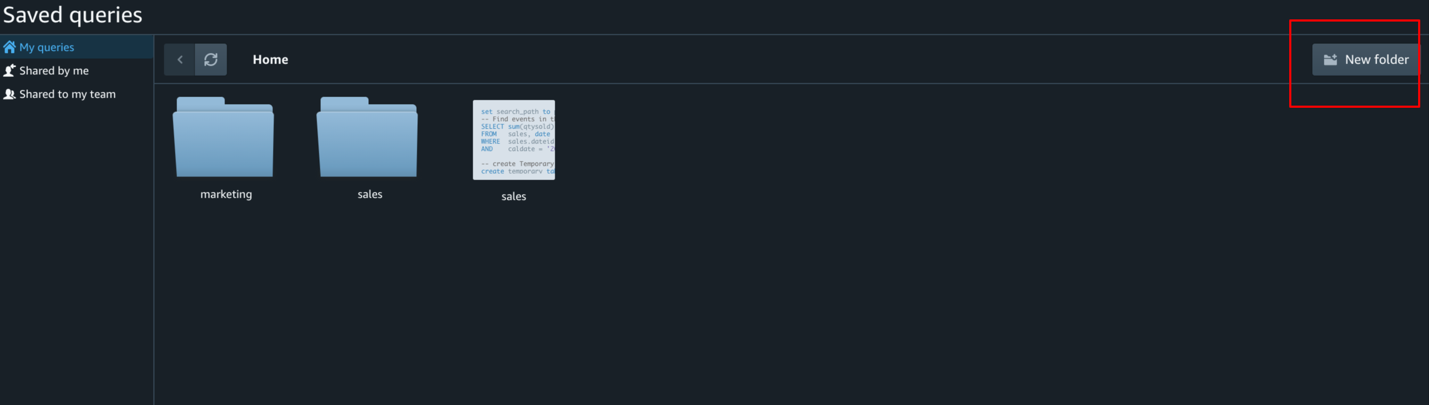
You can optimize your queries by turning on the Explain option to display a query plan in the results area. You can choose Save to save the query to the Queries folder.

Export results

You can export the query results on the current page to a file in JSON or CSV format. To save the file in the format you want, open the context menu (right-click) in the results area, then choose Export current page and either JSON or CSV. You can also select rows and export the results for specific rows.

Visual analysis of your results

You can perform a visual analysis of your results for a query by turning on Chart to display a graphic visualization of the results. Choose Traces to display the results as a chart. For Type, choose the style of chart as Bar, Line, and so on. For Orientation, you can choose Vertical or Horizontal. For X, select the table column that you want to use for the horizontal axis. For Y, choose the table column that you want to use for the vertical axis.

Choose Refresh to update the chart display. Choose Fullscreen to expand the chart display.

To create a chart, complete the following steps:

  1. Run a query and get results.
  2. Turn on Chart.
  3. Choose a chart style from the available options.

  1. Choose Trace and start to visualize your data.
  2. Choose Style to customize the appearance, including colors, axes, legend, and annotations.
  3. Choose Annotations to add text, shapes, and images.

For certain chart types, you can add transforms to filter, spilt, aggregate, and sort the underlying data for the chart.

You can also save, export, and browse the charts you created.

Collaborate and share with your team members

You can share queries with others on your team. As we discussed earlier, an administrator sets up a team based on the IAM policy associated with an IAM user or IAM role. For example, if you’re a member of marketing_group, you can share your queries with your team members.

Save, organize and browse queries

Before you can share your query with your team, save your query. You can also view and delete saved queries.

To save your query, choose Save, enter a title, and choose Save again.

To browse for saved queries, choose Queries from the navigation pane. You can view queries that are My queries, Shared by me, or Shared to my team. These queries can appear as individual queries or within folders you created.

Organize your queries with folders

You can organize your queries by creating folders and dragging and dropping a saved query to a folder.

Share a query

You can share your queries with your team.

  1. Choose Queries in the navigation pane.
  2. Open the context menu (right-click) of the query that you want to share.
  3. Choose Share with my team.

Manage query versions

You can also view the history of saved queries and manage query versions. Every time you save an SQL query, Query Editor v2 saves it as a new version. You can view or store 20 different versions of your query and browse earlier query versions, save a copy of a query, or restore a query.

  1. Choose Queries in the navigation pane.
  2. Open the context menu (right-click) for the query that you want to work with.
  3. Choose Version history to open a list of versions of the query.
  4. On the Version history page, choose one of the following options:
    • Revert to selected – Revert to the selected version and continue your work with this version.
    • Save selected as – Create a new query in the editor.

Conclusion

In this post, we introduced you to Amazon Redshift Query Editor v2, which has a rich set of features to manage and run your SQL statements securely that provide you with several capabilities, such as ability to browse and explore multiple databases, external tables, views, stored procedures, and user-defined functions. It provides wizards to create schemas, tables, and user-defined functions. Query Editor v2 simplifies management and collaboration of saved queries and improves the ability to analyze and visualize results with a single click.

If you have any questions or suggestions, please leave a comment.

Happy querying!


About the Author

Srikanth Sopirala is a Principal Analytics Specialist Solutions Architect at AWS. He is a seasoned leader with over 20 years of experience, who is passionate about helping customers build scalable data and analytics solutions to gain timely insights and make critical business decisions. In his spare time, he enjoys reading, spending time with his family, and road cycling.

Debu Panda, a Principal Product Manager at AWS, is an industry leader in analytics, application platform, and database technologies, and has more than 25 years of experience in the IT world. Debu has published numerous articles on analytics, enterprise Java, and databases and has presented at multiple conferences such as re:Invent, Oracle Open World, and Java One. He is lead author of the EJB 3 in Action (Manning Publications 2007, 2014) and Middleware Management (Packt).

Eren Baydemir, a Technical Product Manager at AWS, has 15 years of experience in building customer facing products and is currently creating data analytics solutions in the Amazon Redshift team. He was the CEO and co-founder of DataRow which was acquired by Amazon in 2020.

Erol Murtezaoglu, a Technical Product Manager at AWS, is an inquisitive and enthusiastic thinker with a drive for self improvement and learning. He has a strong and proven technical background in software development and architecture, balanced with a drive to deliver commercially successful products. Erol highly values the process of understanding customer needs and problems, in order to deliver solutions that exceed expectations.
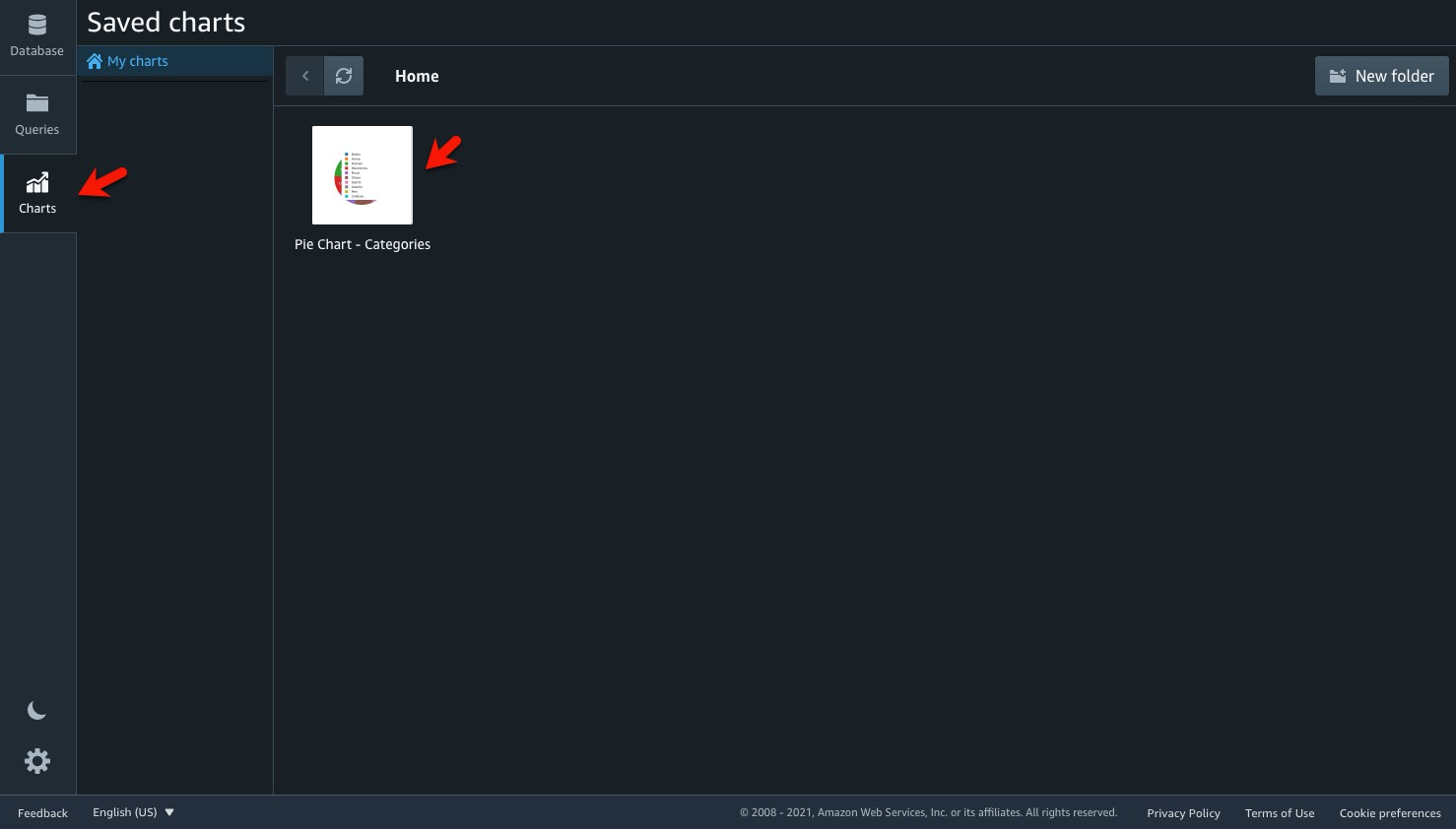
The collective thoughts of the interwebz