Introducing new Event Source Mapping (ESM) metrics for AWS Lambda

Post Syndicated from Chris McPeek original https://aws.amazon.com/blogs/compute/introducing-new-event-source-mapping-esm-metrics-for-aws-lambda/

This post is written by Tarun Rai Madan, Principal Product Manager –  Serverless, and Rajesh Kumar Pandey, Principal Software Engineer, Serverless

Today, AWS is announcing new opt-in Amazon CloudWatch metrics for AWS Lambda Event Source Mappings that subscribe to Amazon Simple Queue Service (Amazon SQS), Amazon Kinesis, and Amazon DynamoDB event sources. These metrics include PolledEventCount, InvokedEventCount, FilteredOutEventCount, FailedInvokeEventCount, DeletedEventCount, DroppedEventCount, and OnFailureDestinationDeliveredEventCount. The new metrics enable customers to monitor the processing state of events read by Event Source Mappings (ESMs), and helps them diagnose processing issues.

Previously, customers found it challenging to monitor the processing state of events read by an ESM. An ESM is a resource that polls events from an event source and invokes a Lambda function. With the new metrics for ESMs, you can count events by their processing state, which includes events that were polled, invoked, filtered out, deleted, dropped, failed, or sent to on-failure destination.

Overview

Customers building modern event-driven applications use services like SQS, Kinesis, and DynamoDB as fundamental building blocks for developing decoupled architectures, and use a Lambda function as a consumer to benefit from its simplicity, auto-scaling and cost effectiveness. To subscribe to an event source, customers configure a Lambda Event Source Mapping (ESM). An ESM is a fully-managed Lambda resource that runs an event poller which polls, processes (e.g., filters and batches), and delivers the events to a Lambda function. Due to the processing that happens on an ESM, for example, filtering, batching, and delivery to on-failure destinations, events can end up in varying terminal states. As a result, some polled events may not invoke a Lambda function. Previously, the count of polled, filtered, invoked, deleted or dropped events was not visible to customers. This made it challenging for customers to diagnose processing issues with their ESM, resulting from faulty permissions, misconfiguration, or function errors.

What’s new

With today’s announcement, customers can opt-in to CloudWatch metrics to monitor the processing state of events that are read by an ESM configured with SQS, Kinesis and DynamoDB as event sources.

PolledEventCount metric counts the number of events read by an ESM from the event source.

InvokedEventCount metric counts the number of events that invoked your Lambda function. For an event that experiences function errors, this metric may increase the count multiple times for the same polled event, due to retries.

FilteredOutEventCount metric counts the number of events filtered out by your ESM, based on the Filter Criteria defined by you.

FailedInvokeEventCount metric counts the number of events that attempted to invoke a Lambda function, but encountered partial or complete failure.

DeletedEventCount metric counts the events that have been deleted from the SQS queue by Lambda upon successful processing.

DroppedEventCount metric counts the number of events dropped due to event expiry or exhaustion of retry attempts, for Kinesis and DynamoDB ESMs configured with MaximumRecordAgeInSeconds or MaximumRetryAttempts.

OnFailureDestinationDeliveredEventCount metric counts the events sent to an on-failure destination upon reaching the MaximumRecordAgeInSeconds or MaximumRetryAttempts, for ESMs configured with DestinationConfig.

How to use the new ESM metrics

Once an ESM is created and reaches enabled state, it continuously polls the event source for new events. You can monitor the PolledEventCount metric to catch issues with polling due to misconfigured or deleted event source, misconfigured or deleted Lambda function execution role, incorrect permissions, or throttles from the event source. This metric typically increases when there is an increase in traffic in the event source. You can observe the InvokedEventCount metric to catch issues with the Lambda function, and whether the events are properly invoking your Lambda function. In case of Lambda function errors, InvokedEventCount could be more than PolledEventCount due to retries. This metric would also increase when there is an increase in events processed by an ESM. For ESMs that have filter criteria configured, you can monitor the FilteredOutEventCount to count events that were not sent to a Lambda function because they were filtered out per the defined filter criteria.

You can monitor the FailedInvokeEventCount metric to observe the number of events that failed processing when Lambda service tried to invoke your Lambda function. Invocations can fail due to network configuration issues, incorrect permissions, or a deleted Lambda function, version, or alias. If your event source mapping has partial batch responses enabled, this metric includes any event with a non-empty BatchItemFailures in the response. If all events in a batch are successfully processed by your Lambda function, Lambda service emits a 0 value for this metric. You can use the DeletedEventCount metric to ensure that processed events have been successfully deleted from your SQS queue after being processed by the Lambda function. You can use the DroppedEventCount metric to identify issues with message backlogs or misconfigured event expiry rules. You can use the OnFailureDestinationDeliveredEventCount metric to monitor issues such as failed events caused by Lambda function invocation errors.

The classification for available Lambda ESM metrics by event source is presented below:

CloudWatch metric SQS DynamoDB Kinesis Data Stream
PolledEventCount √ √ √
InvokedEventCount √ √ √
FilteredOutEventCount √ √ √
FailedInvokeEventCount √ √ √
DeletedEventCount √
DroppedEventCount √ √
OnFailureDestinationDeliveredEventCount √ √

Activating and testing the new ESM metrics

You can enable the new ESM metrics using AWS Lambda Console, AWS Command Line Interface (CLI), Lambda ESM API, AWS SDK, AWS CloudFormation, and AWS Serverless Application Model (SAM). The metrics will be published under the AWS/Lambda namespace and EventSourceMappingUUID dimension in the CloudWatch console. To learn more, see CloudWatch metrics for Lambda.

Using AWS CLI

To turn on the new metrics using AWS CLI, use the –metrics-config parameter.

aws lambda create-event-source-mapping \
    --region <region-name> \
    --function-name <function-name> \
    --event-source-arn <event-source-arn> \
    --metrics-config '{"Metrics": ["EventCount"]}'

Using AWS Lambda Console

To turn on the new metrics using AWS Lambda Console, click on “Enable metrics” while adding the trigger for your function.

Enabling ESM metrics in AWS Console.

Figure 1: Enabling ESM metrics in AWS Console

A typical scenario where the new ESM metrics can help with better observability is an ESM that uses event filtering. To test the ESM metrics, you can deploy a sample Lambda application with Kinesis as an event source using this serverless pattern, which uses event filtering with a certain criteria to control which events are sent to Lambda. Use this pattern for both the example scenarios; please follow the setup guidelines for this pattern and continue with testing for the scenarios. Running this sample project in your account may incur charges. See AWS Lambda pricing and Amazon Kinesis pricing.

Configuring Lambda function with Kinesis event source.

Figure 2: Configuring Lambda function with Kinesis event source

Example scenario 1: ESM metrics with event filtering configured

The following diagram shows the results for the test scenario with Kinesis ESM, where the total polled events, filtered events, invoked events, and failed events are represented by PolledEventCount, FilteredOutEventCount, InvokedEventCount and FailedInvokeEventCount.

Image of ESM metrics for scenario 1.

Figure 3: ESM metrics for scenario 1

Example Scenario 2: ESM metrics with event filtering and On-Failure Destination configured

Another common scenario is where you want to have visibility around the number of events delivered to Lambda function, events filtered, and additionally, the count of events routed to on-failure destination upon failure. To test this scenario, follow a setup similar to the one in scenario 1. Create or update the ESM with an on-failure destination, and set MaximumRetryCount to 1, as shown below.

aws lambda update-event-source-mapping \
    --uuid <event-source-mapping-uuid> \
    --maximum-retry-attempts 1 \
    --filter-criteria '{"Filters": [{"Pattern": "{\"data\": { \"tire_pressure\": [ { \"numeric\": [ \"<\", 32 ] } ] } }"}]}' \
    --destination-config '{"OnFailure": {"Destination": "<your_SQS_queue_ARN>"}}' \
    --function-name <lambda-function-name>

Publish a sample payload which matches the FilterCriteria defined above. Also generate sample data with different “tire_pressure” < 32 to match the event and invoke the Lambda function.

Sample Data:

{
    "time": "2021-11-09 13:32:04",
    "fleet_id": "fleet-452",
    "vehicle_id": "a42bb15c-43eb-11ec-81d3-0242ac130003",
    "lat": 47.616226213162406,
    "lon": -122.33989110734133,
    "speed": 43,
    "odometer": 43519,
    "tire_pressure": [41, 40, 31, 41],
    "weather_temp": 76,
    "weather_pressure": 1013,
    "weather_humidity": 66,
    "weather_wind_speed": 8,
    "weather_wind_dir": "ne"
}

Once you have published these records to the stream, you should be able to see the CloudWatch metrics under AWS/Lambda namespace with the EventSourceMappingUUID dimension, as shown below. Note that if an event experiences a function error, InvokedEventCount may increase multiple times for the same polled event due to automatic retries.

Image of ESM metrics for scenario 2.

Figure 4: ESM metrics for scenario 2

Available Now

The new ESM metrics are generally available in all commercial regions that Lambda service is available in. Support is also available through AWS Lambda partners like Datadog, Elastic, and Lumigo. The Lambda service sends these new metrics to CloudWatch at no additional cost to you. However, charges apply for CloudWatch metrics at standard CloudWatch metrics pricing for these opt-in metrics, in addition to your AWS Lambda pricing and event source pricing.

Conclusion

With these new CloudWatch metrics, you can gain visibility into the processing state of your events that are polled by Lambda Event Source Mapping (ESM) for queue-based or stream-based applications. The blog explains the new metrics PolledEventCount, InvokedEventCount, FilteredOutEventCount, FailedInvokeEventCount, DeletedEventCount, DroppedEventCount, and OnFailureDestinationDeliveredEventCount, and how to use them to troubleshoot event processing issues for Lambda functions. These metrics help you track the invocation requests sent to Lambda via an ESM, monitor any delays or issues in processing, and take corrective actions if required. To learn more about these metrics, visit Lambda developer guide.

For more serverless learning resources, visit Serverless Land.
[$] NonStop discussion around adding Rust to Git

Post Syndicated from daroc original https://lwn.net/Articles/998115/

The Linux kernel community’s discussions about including Rust have

gotten a lot of attention
, but the kernel is not the only project wrestling
with the question of whether to allow Rust. The Git project

discussed
the prospect in January, and then

again
at the Git Contributor’s Summit in September. Complicating the
discussion is the Git project’s lack of a policy on platform
support, and the fact that it does already have tools written in other
languages.
While the project has not committed to using
or avoiding Rust, it seems like only a matter of time until maintainers will
have to make a decision.

Secure root user access for member accounts in AWS Organizations

Post Syndicated from Jonathan VanKim original https://aws.amazon.com/blogs/security/secure-root-user-access-for-member-accounts-in-aws-organizations/

AWS Identity and Access Management (IAM) now supports centralized management of root access for member accounts in AWS Organizations. With this capability, you can remove unnecessary root user credentials for your member accounts and automate some routine tasks that previously required root user credentials, such as restoring access to Amazon Simple Storage Service (Amazon S3) buckets and Amazon Simple Queue Service (Amazon SQS) queues that have policies that deny all access.

In this blog post, we show how you can centrally manage root credentials and perform tasks that previously required root credentials across member accounts in your organization.

Centralized root access

This new IAM capability has two features: root credentials management and privileged root actions in member accounts.

Root credentials management enables you to centrally monitor, remove, and disallow recovery of long-term root credentials across your member accounts in AWS Organizations. This helps to prevent unintended root access and improves account security at scale throughout your organization. It helps reduce the number of privileged credentials and multi-factor authentication (MFA) devices that you need to manage.

Note: After you enable root credentials management in your organization, new AWS accounts you create from AWS Organizations will not have a root user password, and will not be eligible for the root user password recovery procedure until you re-enable account recovery.

Privileged root actions in member accounts provide you with a way to centrally perform the most common privileged tasks that previously required root user credentials in your organization member accounts. Your security teams can support your member account users by performing privileged tasks such as unlocking a misconfigured S3 bucket or SQS queue centrally, through short-term (maximum 15 minutes) task-scoped root sessions. You can authorize the root session to perform only the actions that the session was intended for. For example, a root session that you initiate to unlock an S3 bucket policy can only unlock an S3 bucket policy, and cannot be used for other root tasks. The root sessions can only be initiated from your management account or from a delegated administrator account. An IAM principal requires permissions to the new IAM action sts:AssumeRoot in the management account or the delegated administrator account to create a root session.

Service control policies, VPC endpoint policies, and other relevant policies remain effective during the root sessions. For example, you can restrict root sessions to only expected networks.

You can scope temporary root sessions with one of the following AWS managed policies:

  • policy/root-task/IAMDeleteRootUserCredentials – The root session is scoped to allow the deletion of member root credentials (console passwords, access keys, signing certificates, and MFA devices).
  • policy/root-task/IAMCreateRootUserPassword – The root session is scoped to allow the creation of a member root login profile.
  • policy/root-task/IAMAuditRootUserCredentials – The root session is scoped to review root credentials.
  • policy/root-task/S3UnlockBucketPolicy – The root session is scoped to allow deletion of an S3 bucket policy
  • policy/root-task/SQSUnlockQueuePolicy – The root session is scoped to allow deletion of an SQS queue resource policy.

Enable centralized root access

In this section, we show you how to enable centralized management of root access. You must be signed in to your organization management account with Organizations admin permissions.

To enable centralized root access (console)

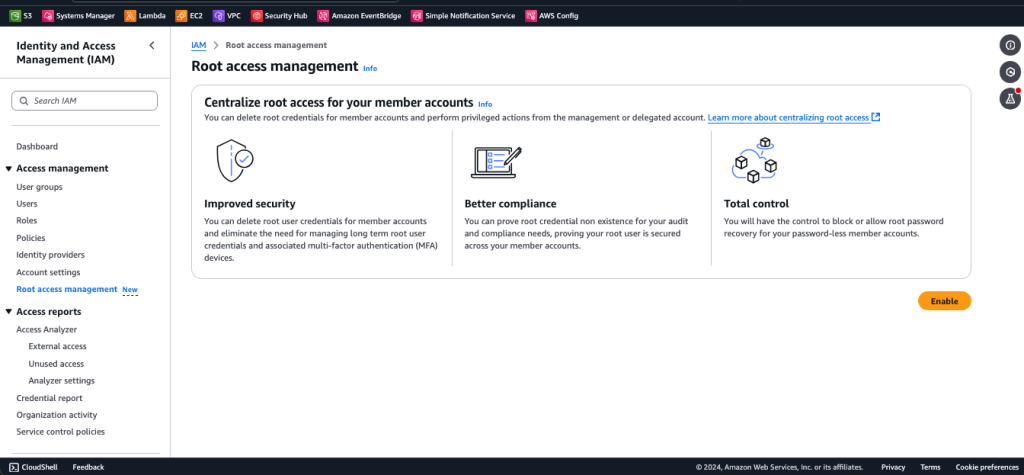
  1. In the IAM console, in the left navigation menu, choose Root access management.
  2. Choose the Enable When you enable centralized root access by using the console, you also enable trusted access for IAM in AWS Organizations.

    Figure 1: Centralized root access capability in the IAM console

    Figure 1: Centralized root access capability in the IAM console

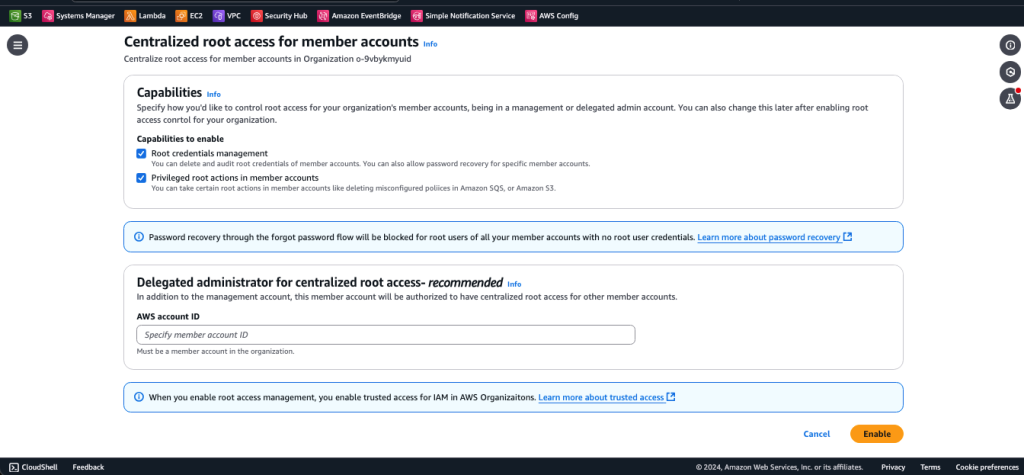
    On the Centralized root access for member accounts page, both the Root credentials management and Privileged root actions in member accounts capabilities are selected by default, as shown in Figure 2. As a security best practice, AWS strongly recommends that you delegate the administration of this service to a dedicated member account used by your security team that is separate from AWS accounts that are used to host your workloads or applications. You can also use a delegated administrator account to avoid unnecessary access to your management account.

Figure 2: Enable root access management

Figure 2: Enable root access management

Enable centralized root access (CLI)

From the Organizations management account, you can also enable centralized root access from the command line.

To enable centralized root access (CLI)

  1. First, make sure that you’ve updated to the latest AWS CLI so that the new APIs are available.
  2. After you’ve verified your CLI version, turn on the feature by running the following command:
      aws organizations enable-aws-service-access \
    --service-principal iam.amazonaws.com

  3. To reduce unnecessary access to the management account, delegate the administration of this service to a dedicated Security member account by using the following command. Make sure to replace <MEMBER_ACCOUNT_ID> with the member account ID where the delegated administrator will register.
    aws organizations register-delegated-administrator --service-principal iam.amazonaws.com --account-id <MEMBER_ACCOUNT_ID>

  4. Next, enable root actions:
    aws iam enable-organizations-root-sessions 
    aws iam enable-organizations-root-credentials-management

Centralized root access is now enabled and delegated to a dedicated Security member account. From that account, you can manage root credentials for member accounts or gain short-term task-scoped root access into member accounts in order to perform specific root actions. Sign in to the Security member account to follow the rest of the steps in this post.

Root credentials management

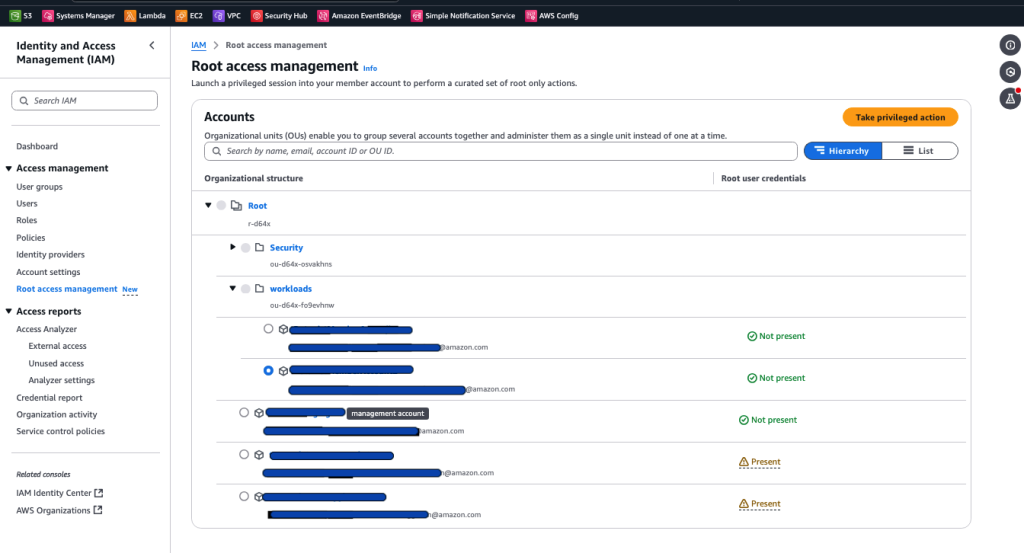
The first feature that we will discuss is root credentials management. Navigate to the new centralized root access management console page as described earlier, and you will see the organizational structure. As shown in Figure 3, there is a Root user credentials field for each AWS account, which tells you if the root user credential is present.

Figure 3: Preview of member accounts with root credential status

Figure 3: Preview of member accounts with root credential status

From this console page, you can delete or create the root user console password (login profile) for each member account.

To delete or create the root user console password

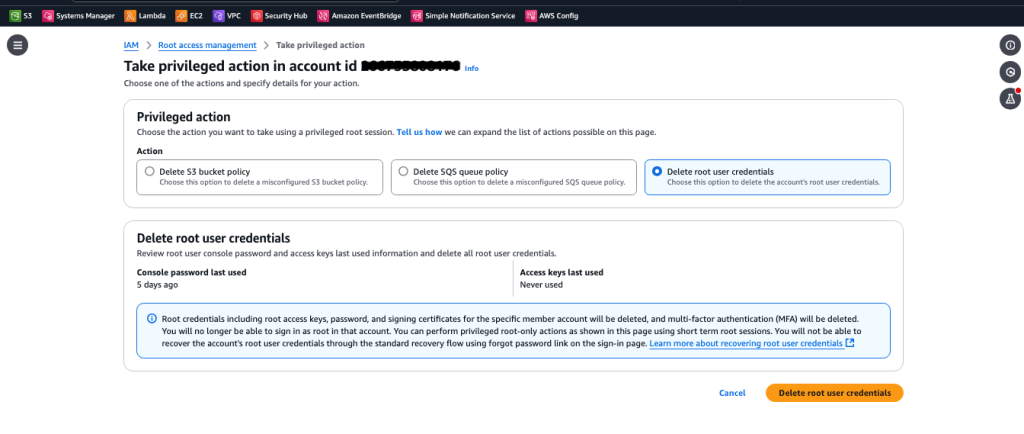
  1. Under Accounts, select one account and choose the Take privileged action button.
  2. Select either Delete root user credentials or Allow password recovery (for AWS accounts where root credentials do not exist). Note that creating a root user login profile does not restore the previous root user configurations, such as the previously set password and associated MFA device.

Figure 4: The Delete root user credentials feature in the IAM console

Figure 4: The Delete root user credentials feature in the IAM console

Privileged root tasks

After you enable the privileged root actions feature, you (as a security admin) will be able to use the console or CLI to perform privileged tasks such as unlocking S3 bucket or SQS queue policies in member accounts.

To perform privileged root actions (console)

  1. From your delegated administrator account, navigate to the IAM console. In the left navigation menu, choose Root access management.
  2. Select the account where your S3 bucket or SQS queue exists. Then choose the Take privileged action button.
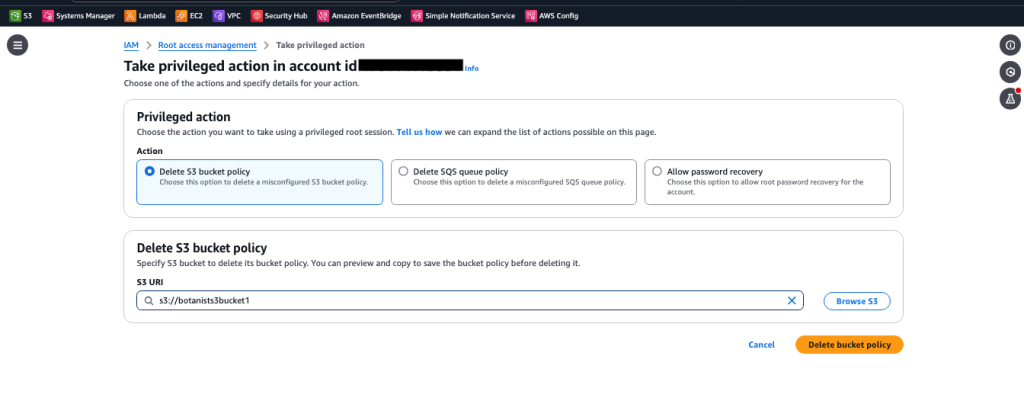
  3. Select the privileged task you want to perform on the member account and provide the details of the S3 bucket or SQS queue from which you would like remove the resource policy. In the example in Figure 5, we’ve selected the Delete S3 bucket policy action and entered the URI of the S3 bucket in the member account.

    Figure 5: Privileged root actions in the IAM console

    Figure 5: Privileged root actions in the IAM console

  4. Confirm your intent to delete the resource policy and then choose Delete bucket policy.

To perform privileged root actions (CLI)

  1. From a terminal, update to the latest AWS CLI to make sure that the new APIs are available.
  2. From the delegated admin account, get a root session in a member account by using the STS/AssumeRoot API action, as shown following. The default and maximum duration for the root session is 15 minutes. Make sure to replace <MEMBER_ACCOUNT_ID> with your member account ID.
     aws sts assume-root \
    --target-principal <MEMBER_ACCOUNT_ID> \
    --task-policy-arn arn=arn:aws:iam::aws:policy/root-task/S3UnlockBucketPolicy 

  3. Use the following command to load the new credentials in the CLI:
    export AWS_ACCESS_KEY_ID=[from sts assume root response]
    export AWS_SECRET_ACCESS_KEY=[from sts assume root response] 
    export AWS_SESSION_TOKEN=[from sts assume root response]

  4. Delete the locked S3 bucket policy, making sure to replace <value> with the name of the bucket:
    aws s3api delete-bucket-policy --bucket <value>

Now the bucket policy is available, and the bucket owner can write a new policy.

Best practices for centralized root access

This section outlines security considerations for centralized root access and usage of temporary root sessions.

Restrict who can use root sessions

Only grant access to use the new root sessions with AssumeRoot to admins and automations that need access. Within your organization’s management and delegated admin account for root management, only grant sts:AssumeRoot permissions to the persons and automations who need it.

You can further limit the root actions that an admin or automation principal can perform by using the AWS Security Token Service (AWS STS) condition key sts:TaskPolicyArn, as shown in the following policy statement.

{
   "Sid": "AllowLaunchingRootSessionsforS3Action",
   "Effect": "Allow",
   "Action": "sts:AssumeRoot",
   "Resource": "*",
   "Condition": {
      "StringEquals": {
         "sts:TaskPolicyARN": "arn:aws:iam::aws:policy/root-task/S3UnlockBucketPolicy"
      }
   }
}

Provide break glass access for root access

Break glass access refers to an alternative method of gaining access for use in exceptional circumstances, such as tasks that can only be performed with root access. When you follow the recommendations for break glass access, root user access is not needed. Review and update your existing procedures that rely on the root user to reduce the dependency of break glass access on root credentials.

Automate routine root actions

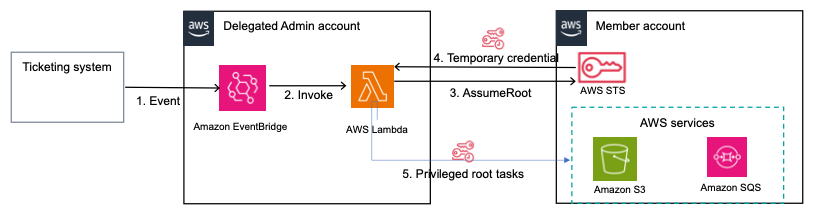
Because the centralized root access feature launched with AWS API, CLI, and SDK support, you can build automations to save time and reduce the need for security teams to take manual actions. For example, you can build an Amazon EventBridge integration with your ticketing system, where an EventBridge rule triggers an AWS Lambda function when the queue or bucket owner submits a ticket with approval. The Lambda function then uses a task-scoped root session to delete the policy on an SQS queue or S3 bucket. The diagram in Figure 6 shows an example of this type of automation.

Figure 6: An automation to delete policies on SQS queues or S3 buckets upon ticket approval

Figure 6: An automation to delete policies on SQS queues or S3 buckets upon ticket approval

The flow of the automation is as follows:

  1. When a ticket to delete a policy on an S3 bucket or SQS queue is approved in your ticketing system, an event is put on the EventBridge event bus and an EventBridge rule is triggered on your delegated admin account.
  2. The EventBridge rule triggers and invokes a Lambda function, passing a copy of the event.
  3. The Lambda function uses the assumeRoot action, with the scope as one of the centralized root access task policies.
  4. AWS STS returns temporary credentials with the scope that was determined in the task policy in the preceding step.
  5. Using the temporary credentials, the Lambda function performs the privileged root action of deletion of S3 bucket or SQS queue policies on your member account.

Review and update your root usage and root credentials management procedures

Now that the tasks that most commonly required root user access (S3 bucket recovery and SQS queue recovery) no longer require long-lived root user credentials, you should revisit your procedures for those use cases and migrate to using root sessions instead of long-lived root users.

Because it is now possible to delete the root user’s login profile, you should revisit the credential management procedures for the root users of your organization’s member accounts. Rather than performing password rotation or MFA device management, you might be able to improve your overall security posture by deleting the root login profile so no credential can be used to access the root user, and no way to initiate the password recovery procedure.

Continue to follow root user best practices for the root user in your organization’s management account

The new capability allows you to more simply manage root credentials from your organization’s member accounts. However, the organization’s management account root user must still exist with a known credential. See the IAM User Guide to learn more about the best practices for managing the organization’s management account root user.

If you don’t have an MFA device for your organization’s management account root user, AWS will provide a free MFA device to eligible customers.

How to remove root credentials in a scalable manner

This section outlines an approach to securely remove your root user credentials at scale. First, get a summary of root credentials for your member accounts. Review the usage of root credentials and identify accounts where root credentials can be safely removed. Then build automation to remove unused root credentials at scale across your member accounts.

Get a summary of root credentials for your member accounts

First, verify whether the root account for your member accounts has credentials before you remove them. If you already have a security admin role in your member accounts, use the getAccountSummary action to audit root credentials. If you don’t have such a role and can’t create an audit role across your member accounts, you can build automation that uses an assume-root session scoped for the IAMAuditRootUserCredentials task to determine whether root credentials exist, and the last time the persistent root credentials were used. The persistent root account can have two types of credentials, password and access keys. You need to check both.

Below is a sample bash script that you can run from your delegated admin account to get a summary of the root credentials on your member accounts.

To use the bash script to get a summary of root credentials

  1. Make sure that you have the AWS CLI installed and are signed in to your delegated admin account using admin role credentials with permissions to the organizations:ListAccounts and sts:AssumeRoot actions.
  2. Save the code that follows to GetRootCredentialsSummary.sh.
  3. The profile used in the scripts is root-access-management. You can modify the scripts to use another profile.
  4. Run GetRootCredentialsSummary.sh on your terminal.
  5. The output will have a .csv file for the root accounts that lists their last login, for both password and access key. Use this information to determine which root accounts are safe to remove. If there is no last-used information, then the credentials are unused, and you can proceed to remove them. If they were used, trace the actions for which they were used in AWS CloudTrail. If the credentials were used for root actions, replace them with an alternative method for member accounts. Identify accounts for which root credentials cannot be removed at this time and need to be excluded from the deletion process.
#!/bin/bash

# Specify the AWS profile to use
AWS_PROFILE="root-access-management"

# Specify the account IDs to exclude (comma-separated)
EXCLUDED_ACCOUNTS="111122223333,444455556666"

# Get the list of accounts in the organization
ACCOUNTS=$(aws organizations list-accounts  --profile $AWS_PROFILE --query 'Accounts[*].[Id]' --output text 2>&1) || handle_error $? $LINENO
# Open a CSV file for writing
: > root_user_last_login.csv  # Create an empty file
echo "AccountId,MFADevices,AccountAccessKeysPresent,AccountMFAEnabled,AccountPasswordPresent,PasswordLastUsedTime" >> root_user_last_login.csv
# Set the assume-root parameters\
REGION="us-east-1"
TASK_POLICY_ARN="arn=arn:aws:iam::aws:policy/root-task/IAMAuditRootUserCredentials"
# Iterate over each account
while IFS=',' read -r account_id account_name; do
    # Check if the account is excluded
    if [[ ",$EXCLUDED_ACCOUNTS," == *,"$account_id",* ]]; then
        echo "Skipping account $account_id ($account_name) as it is excluded."
        continue
    fi
    # Set the role ARN and session name for the current account
    SESSION_NAME="session_${account_id}"
    TARGET_PRINCIPAL="${account_id}"
    # Assume the role and capture the JSON response
    # Assume the role
    ASSUME_ROLE_OUTPUT=$(aws  sts assume-root \
        --profile "$AWS_PROFILE" \
        --region $REGION \
        --task-policy-arn "$TASK_POLICY_ARN" \
        --target-principal "$TARGET_PRINCIPAL" \
        --output json )
        
    # Extract the temporary credentials from the JSON response
    ACCESS_KEY_ID=$(echo "$ASSUME_ROLE_OUTPUT" | jq -r '.Credentials.AccessKeyId')
    SECRET_ACCESS_KEY=$(echo "$ASSUME_ROLE_OUTPUT" | jq -r '.Credentials.SecretAccessKey')
    SESSION_TOKEN=$(echo "$ASSUME_ROLE_OUTPUT" | jq -r '.Credentials.SessionToken')
    # Export the temporary credentials as environment variables
    export AWS_ACCESS_KEY_ID="$ACCESS_KEY_ID"
    export AWS_SECRET_ACCESS_KEY="$SECRET_ACCESS_KEY"
    export AWS_SESSION_TOKEN="$SESSION_TOKEN"
    
    # Fetch IAM account summary using get-account-summary
    iam_summary=$(aws iam get-account-summary --query 'SummaryMap')
    
    # Extract relevant information
    mfa_devices=$(echo "$iam_summary" | jq -r '.MFADevices // "No"')
    account_accesskeys_present=$(echo "$iam_summary" | jq -r '.AccountAccessKeysPresent // "No"')
                       
    # Extract MFA and password status for the root user
    mfa_enabled=$(echo "$iam_summary" | jq -r '.AccountMFAEnabled // "No"')
    password_present=$(echo "$iam_summary" | jq -r '.AccountPasswordPresent // "No"')

    # Get the root user's password last used information
    ROOT_PASSWORD_LAST_USED=$(aws iam get-user  --query User.PasswordLastUsed --output text 2>&1)  
    # Unset temporary credentials for security
    unset AWS_ACCESS_KEY_ID
    unset AWS_SECRET_ACCESS_KEY
    unset AWS_SESSION_TOKEN

    # Write the account information to the CSV file
    echo "$account_id,$mfa_devices,$account_accesskeys_present,$mfa_enabled,$password_present,$ROOT_PASSWORD_LAST_USED" >> root_user_last_login.csv
    sleep .1 # Waits 0.1 second.
done <<< "$ACCOUNTS"
echo "Root user last login information has been written to root_user_last_login.csv"

Remove root credentials at scale

After you determine which AWS accounts have persistent root credentials that you want to remove, use the new action, assumeRoot, to access these accounts and remove the root credentials.

Below is a script that will remove root login profiles across your entire organization. You can exclude certain accounts by updating the variable EXCLUDED_ACCOUNTS.

To use the script to remove root credentials

  1. Make sure that you have the AWS CLI installed and are signed in to your delegated admin account using admin role credentials with permissions to the organizations:ListAccounts and sts:AssumeRoot actions.
  2. Save the code that follows to DeleteRootCredentials.sh.
  3. The profile used in the script is root-access-management. You can modify the script to use another profile.
  4. Run ./DeleteRootCredentials.sh on your terminal.
  5. The output will have a .csv file for the root accounts (except the ones in EXCLUDED_ACCOUNTS) with the status for root login profile deletion.
#/bin/bash

# Specify the account IDs to exclude (comma-separated)
EXCLUDED_ACCOUNTS="111122223333,444455556666"

# Specify the AWS profile to use
AWS_PROFILE="root-access-management"

# Set the role name and additional parameters
REGION="us-east-1"
TASK_POLICY_ARN="arn=arn:aws:iam::aws:policy/root-task/IAMDeleteRootUserCredentials"

# Function to handle errors
handle_error() {
    echo "Error on line $2: Command exited with status $1" >&2
    exit $1
}

# Get the list of accounts in the organization
ACCOUNTS=$(aws organizations list-accounts  --profile $AWS_PROFILE  --query 'Accounts[*].[Id]' --output text 2>&1) || handle_error $? $LINENO

# Open a CSV file for writing
: > root_user_deletion.csv  # Create an empty file
echo "AccountId,AccountName,RootUserDeleted" >> root_user_deletion.csv

# Iterate over each account
while IFS=$'\t' read -r account_id ; do
    # Check if the account is excluded
    if [[ ",$EXCLUDED_ACCOUNTS," == *,"$account_id",* ]]; then
        echo "Skipping account $account_id ($account_name) as it is excluded."
        continue
    fi

    SESSION_NAME="session_${account_id}"
    TARGET_PRINCIPAL="${account_id}"
    
    # Assume the role
    assume_role=$(aws  sts assume-root \
        --profile "$AWS_PROFILE" \
        --region $REGION \
        --task-policy-arn "$TASK_POLICY_ARN" \
        --target-principal "$TARGET_PRINCIPAL" \
        --output json)


    # Extract temporary credentials from the assume role response
    export AWS_ACCESS_KEY_ID=$(echo $assume_role | jq -r '.Credentials.AccessKeyId')
    export AWS_SECRET_ACCESS_KEY=$(echo $assume_role | jq -r '.Credentials.SecretAccessKey')
    export AWS_SESSION_TOKEN=$(echo $assume_role | jq -r '.Credentials.SessionToken')

    # Attempt to delete the root user
    ROOT_USER_DELETED="false"
    if aws iam delete-login-profile  ; then
        ROOT_USER_DELETED="true"
    fi

     # Unset temporary credentials for security
    unset AWS_ACCESS_KEY_ID
    unset AWS_SECRET_ACCESS_KEY
    unset AWS_SESSION_TOKEN
    
    # Write the account information to the CSV file
    echo "$account_id,$account_name,$ROOT_USER_DELETED" >> root_user_deletion.csv

done <<< "$ACCOUNTS"

echo "Root user deletion results have been written to root_user_deletion.csv"

You can extend this script to delete root access keys by using the delete-access-key command. To do so, you retrieve the list of access keys by using the list-access-keys command, iterate through the list of access keys to determine which keys to delete, and pass the resulting access key IDs to delete-access-key to delete the access keys.

Similarly, you can extend the script to delete MFA devices by doing the following. Retrieve the list of MFA devices by using list-mfa-devices, iterate through the list to determine which MFA devices to delete, and pass the resulting device serial numbers to deactivate-mfa-device and delete-virtual-mfa-device to deactivate the MFA devices and further delete the virtual MFA devices.

Conclusion

In this post, we showed you how to enable and use the various features of centralized root access. Additionally, we covered best practices for using this new capability and discussed considerations for adoption.

To learn more about centralized root access and root user best practices, review our documentation. If you have questions, reach out to AWS Support or post a question at re:Post.

Jonathan VanKim
Jonathan VanKim

Jonathan is a Principal Solutions Architect who specializes in security and identity for AWS. In 2014, he started working at AWS Professional Services and transitioned to solutions architecture four years later. His AWS career has been focused on helping customers of all sizes build secure AWS architectures. He enjoys snowboarding, wakesurfing, travelling, and experimental cooking.
Sowjanya Rajavaram
Sowjanya Rajavaram

Sowjanya is a Senior Solutions Architect who specializes in security and identity for AWS. Her career has been focused on helping customers of all sizes solve their identity and access management problems. She enjoys traveling and experiencing new cultures and food.

Security updates for Friday

Post Syndicated from daroc original https://lwn.net/Articles/999102/

Security updates have been issued by Debian (postgresql-13, postgresql-15, and webkit2gtk), Fedora (libsndfile, microcode_ctl, and trafficserver), Mageia (kanboard, kernel, kmod-xtables-addons, kmod-virtualbox, and bluez, kernel-linus, opendmarc, and radare2), Oracle (.NET 9.0, bubblewrap and flatpak, buildah, expat, firefox, grafana, grafana-pcp, kernel, krb5, libsoup, libvpx, NetworkManager-libreswan, openexr, pcp, python3.11, python3.11-urllib3, python3.12, python3.9, squid, thunderbird, tigervnc, and webkit2gtk3), Red Hat (.NET 9.0, binutils, expat, grafana-pcp, kernel, libsoup, NetworkManager-libreswan, openexr, python3.11, python3.12, python39:3.9, squid, tigervnc, and webkit2gtk3), SUSE (chromedriver, cobbler, govulncheck-vulndb, and icinga2), and Ubuntu (linux-lowlatency, linux-lowlatency-hwe-6.8, python2.7, and zbar).

The Scale of Geoblocking by Nation

Post Syndicated from Bruce Schneier original https://www.schneier.com/blog/archives/2024/11/the-scale-of-geoblocking-by-nation.html

Interesting analysis:

We introduce and explore a little-known threat to digital equality and freedom­websites geoblocking users in response to political risks from sanctions. U.S. policy prioritizes internet freedom and access to information in repressive regimes. Clarifying distinctions between free and paid websites, allowing trunk cables to repressive states, enforcing transparency in geoblocking, and removing ambiguity about sanctions compliance are concrete steps the U.S. can take to ensure it does not undermine its own aims.

The paper: “Digital Discrimination of Users in Sanctioned States: The Case of the Cuba Embargo“:

Abstract: We present one of the first in-depth and systematic end-user centered investigations into the effects of sanctions on geoblocking, specifically in the case of Cuba. We conduct network measurements on the Tranco Top 10K domains and complement our findings with a small-scale user study with a questionnaire. We identify 546 domains subject to geoblocking across all layers of the network stack, ranging from DNS failures to HTTP(S) response pages with a variety of status codes. Through this work, we discover a lack of user-facing transparency; we find 88% of geoblocked domains do not serve informative notice of why they are blocked. Further, we highlight a lack of measurement-level transparency, even among HTTP(S) blockpage responses. Notably, we identify 32 instances of blockpage responses served with 200 OK status codes, despite not returning the requested content. Finally, we note the inefficacy of current improvement strategies and make recommendations to both service providers and policymakers to reduce Internet fragmentation.

Остави, ония от третия етаж ще се занимава пак

Post Syndicated from Боян Юруков original https://yurukov.net/blog/2024/bloka/

Покривът пак тече, асансьорът постоянно е в ремонт, мазите са в мухъл, стълбището още вони от пожара на втория етаж, несъмнено няколко в блока крадат ток и парно, а този дето все се избира за касиер прибира събраните пари, за да се напива и спи със съседката.

Драми големи в хипотетичния блок и на повечето естествено ама хич не ни се занимава. Не само си имаме друга работа и главоболия, но предимно защото е трудно да седнеш на маса и да се разбереш с някой, с когото те делят светоглед, характер, маниери, два вагона книги или бъчви ракия. Успокоението е, че все някой се хваща и бута нещата напред. Поне един има във всеки блок, нали? Лошото е, че винаги има още няколко, които правят мазало, блокират всичко или просто всяват хаос.

Познато?

Ако държавата беше блок, всички проблеми щяха да са далеч по-ясни и близки. Аналогично, на повечето не им се занимава по същите причини. В тази ситуация, независимо дали ни харесва или някои искат да си го признаят, всички очакват Да, България да излезе и да даде решенията. При това не само да ги изпише, но и да ги направи неоспорими и неизбежни и да уреди без компромиси подкрепа дори от пияндето от втория етаж, побойника от последния и схемаджията дето спи със съседката и е кофти човек ама се има с всички щото е готин на чашка.

И ако не се случи това или решението не е угодно на всички, не пияндето, побойникът или схемаджията са виновни, защото „ма тях си ги знаем„, а тоя дето всички очакваме да каже какво следва. Дали успява е друга работа, но трудно може да се определи сегашното положение по друг начин. Обаче каквото и да стане, пак ще му спуснем гумите и ще го замерваме от балкона. Защото ние знаем най-добре, ама все пак той да каже, че трети път плащаме за покрива и пак тече.

The post Остави, ония от третия етаж ще се занимава пак first appeared on Блогът на Юруков.

How we reduced initialisation time of Product Configuration Management SDK

Post Syndicated from Grab Tech original https://engineering.grab.com/how-we-reduced-grabx-sdk-initialisation-time

Introduction

GrabX serves as Grab’s central platform for product configuration management. GrabX client services read product configurations through an SDK. This SDK reads the configurations in a way that’s eventually consistent, meaning it takes about a minute for any configuration updates to reach the client SDKs.

However, some GrabX SDK clients, particularly those that need to read larger configuration data (~400 MB), reported that the SDK takes an extended amount of time to initialise, approximately four minutes. This blog post details how we analysed and addressed this issue.

SDK Observations

GrabX clients have observed that the GrabX SDK requires several minutes to initialise. This results in what is known as ‘cold starts’, where the SDK takes an extended time to begin supporting the reading of configurations at startup. This challenge highlights the importance of efficient SDK start-up management, especially when a service handling a high volume of incoming traffic initiates new SDK instances to manage the load better. However, due to the extended SDK initialisation time, these instances continue to experience stress, potentially leading to service throttling.

SDK Initialisation Workflow

The SDK initialisation flow described below is based on the improvements we proposed to the SDK design in our previous post. In that post, we suggested enhancing the SDK design by:

A. Implementing service-based data partitioning and storage in the AWS S3 bucket
B. Allowing service-based subscription of data for the SDK

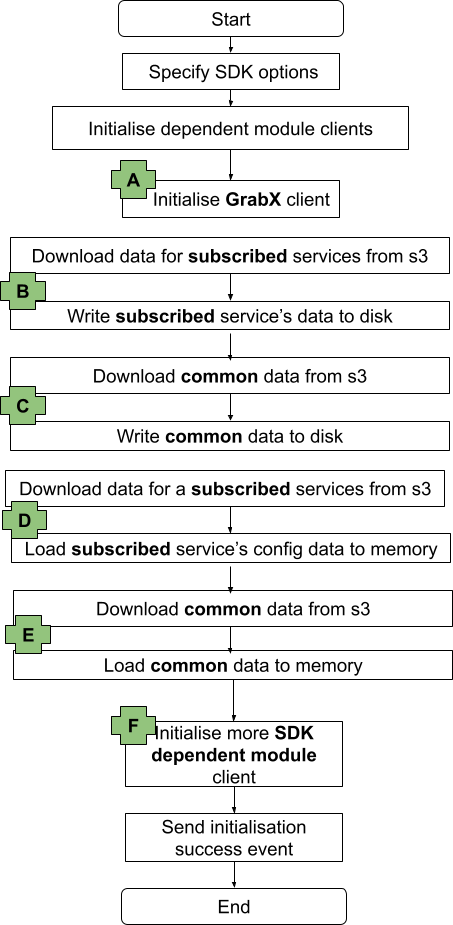
The following diagram provides a high-level overview of the initialisation process of the GrabX SDK, which can be divided into the following sequential steps:

  1. Set options that drive the behaviour of the SDK.
  2. Initialise dependent module clients.
  3. Initialise the GrabX client. (Highlighted as A in the diagram below)
  4. Download data for the SDK’s subscribed list of services from the AWS S3 bucket and store this data on the SDK instance disk. (Highlighted as B in the diagram below)
  5. Download common data needed by the SDK from the AWS S3 bucket and store this data on the SDK instance disk. This data is referred to as ‘common’ because it is required by all different client services. (Highlighted as C in the diagram below)
  6. Download data for the SDK’s subscribed list of services from the AWS S3 bucket and load this data into the SDK instance memory. (Highlighted as D in the diagram below)
  7. Download common data needed by the SDK from the AWS S3 bucket and load this data into the SDK instance memory. (Highlighted as E in the diagram below)
  8. Initialise dependent modules for resolving the configuration value. (Highlighted as F in the diagram below)

Proposed Solution

In order to address the issue of extended SDK initialisation time, we have decided to enhance the SDK initialisation design in multiple phases. Each phase focused on improving a specific part of the workflow.

Improvement Phase 1

As discussed in the previous section, the GrabX SDK needs to load two separate sets of data: the subscribed services data and the common data. These two data sets are currently downloaded from the AWS S3 bucket and sequentially loaded into disk and memory.

In the first phase of our improvement plan, we decided to change the sequential data load to a concurrent data load for these two data sets, as illustrated in the following diagram. This alteration in the SDK initialisation workflow reduced the initialisation time by approximately 80%.


Improvement Phase 2

Building on the progress made in Phase 1, we next turned our attention to the issue of large configuration file sizes. As mentioned in the introduction, the extended SDK initialisation time was particularly noticeable for client services that needed to load larger amounts of data.

In this phase, we decided to implement an SDK design change that allows the SDK to concurrently download data from the AWS S3 bucket and load it into memory for all these large configurations within a subscribed service, as illustrated in the following diagram. This modification to the SDK initialisation workflow further reduced the initialisation time by approximately 6%.


Improvement Phase 3

Upon examining the SDK’s behaviour, we observed that the SDK is both persisting configuration data downloaded from the AWS S3 bucket to disk and loading the data into memory. We understand that the data is loaded into memory to reduce the latency of configuration reads. The data is stored on disk to support a fallback mechanism, which is activated in a very specific use case: when the client SDK instance restarts and there is a connectivity issue with AWS S3 for downloading configuration files. In this scenario, the SDK will read the configuration data stored on disk. However, this data could be outdated as it is not freshly downloaded from the AWS S3 bucket, and most client services require the most recent data.

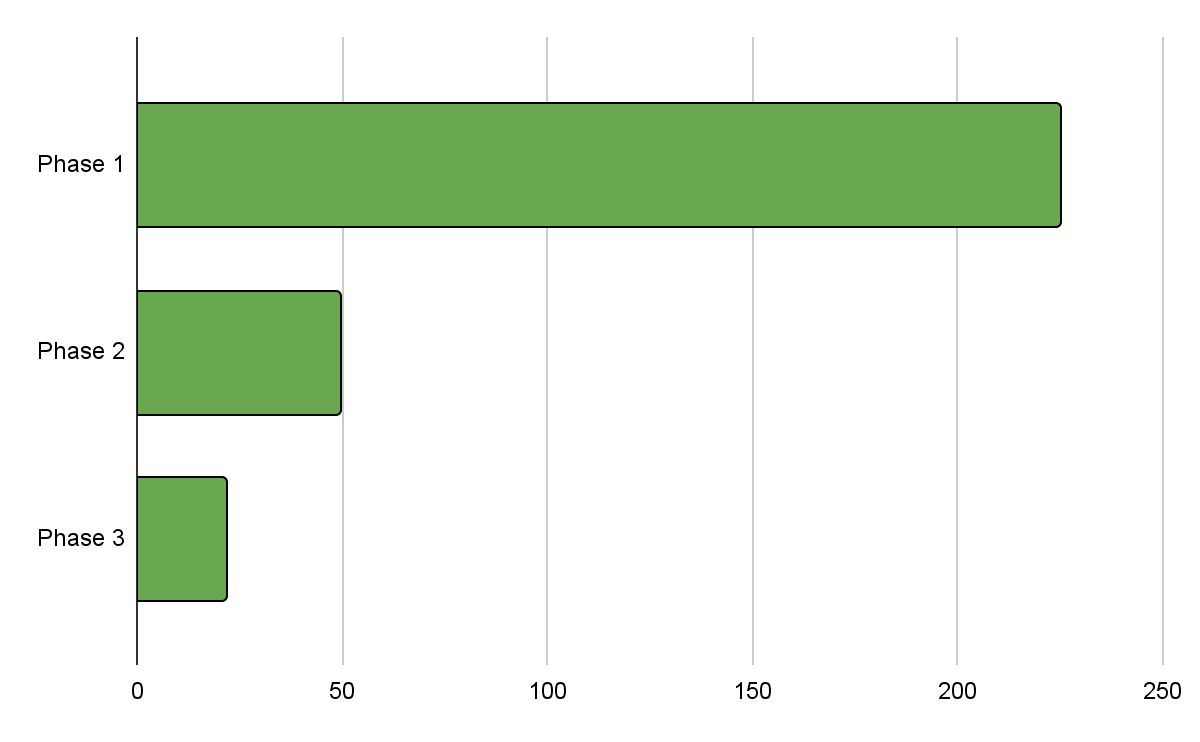
Therefore, we realised that the fallback mechanism, for which data is persisted on disk, actually conflicts with the desired SDK behaviour for most client services. As a result, we decided to eliminate the SDK initialisation step that downloads configuration data from AWS S3 and persists it on disk. If the SDK initialisation fails to connect to the AWS S3 bucket and download data, client services can then take the necessary action, such as retrying initialisation. This modification further reduced the initialisation time by approximately 50% compared to the improvement achieved in Phase 2.


Conclusion

We benchmarked the proposed solution with a variety of services, each having different configuration data sizes. Our findings suggest that the proposed solution has the potential to reduce initialisation time by up to 90%.

The following chart illustrates the phase-wise reduction in initialisation time achieved through the improvements made to the GrabX SDK.


Join us

Grab is the leading superapp platform in Southeast Asia, providing everyday services that matter to consumers. More than just a ride-hailing and food delivery app, Grab offers a wide range of on-demand services in the region, including mobility, food, package and grocery delivery services, mobile payments, and financial services across 700 cities in eight countries.

Powered by technology and driven by heart, our mission is to drive Southeast Asia forward by creating economic empowerment for everyone. If this mission speaks to you, join our team today!

Node.js 22 runtime now available in AWS Lambda

Post Syndicated from Julian Wood original https://aws.amazon.com/blogs/compute/node-js-22-runtime-now-available-in-aws-lambda/

This post is written by Julian Wood, Principal Developer Advocate, and Andrea Amorosi, Senior SA Engineer.

You can now develop AWS Lambda functions using the Node.js 22 runtime, which is in active LTS status and ready for production use. Node.js 22 includes a number of additions to the language, including require()ing ES modules, as well as changes to the runtime implementation and the standard library. With this release, Node.js developers can take advantage of these new features and enhancements when creating serverless applications on Lambda.

You can develop Node.js 22 Lambda functions using the AWS Management Console, AWS Command Line Interface (AWS CLI), AWS SDK for JavaScript, AWS Serverless Application Model (AWS SAM), AWS Cloud Development Kit (AWS CDK), and other infrastructure as code tools.

To use this new version, specify a runtime parameter value of nodejs22.x when creating or updating functions or by using the appropriate container base image.

You can use Node.js 22 with Powertools for AWS Lambda (TypeScript), a developer toolkit to implement serverless best practices and increase developer velocity. Powertools for AWS Lambda includes libraries to support common tasks such as observability, AWS Systems Manager Parameter Store integration, idempotency, batch processing, and more. You can also use Node.js 22 with Lambda@Edge to customize low-latency content delivered through Amazon CloudFront.

This blog post highlights important changes to the Node.js runtime, notable Node.js language updates, and how you can use the new Node.js 22 runtime in your serverless applications.

Node.js 22 language updates

Node.js 22 introduces several language updates and features that enhance developer productivity and improve application performance.

This release adds support for loading ECMAScript modules (ESM) using require(). You can enable this feature using the --experimental-require-module flag by configuring the NODE_OPTIONS environment variable. require() support for synchronous ESM graphs bridges the gap between CommonJS and ESM, providing more flexibility in module loading. It is important to note that this feature is currently experimental and may change in future releases.

WebSocket support which was previously available behind the --experimental-websocket flag is now enabled by default in Node.js 22. This brings a browser-compatible WebSocket client implementation to Node.js with no need for external dependencies. Native support simplifies building real-time applications and enhances the overall WebSocket experience in Node.js environments.

The new runtime also includes performance improvements to AbortSignal creation. This makes network operations faster and more efficient for the Fetch API and test runner. The Fetch API is also now considered stable in Node.js 22.

For TypeScript users, Node.js 22 introduces experimental support for transforming TypeScript-only syntax into JavaScript code. By using the --experimental-transform-types flag, you can enable this feature to support TypeScript syntax such as Enum and namespace directly. While you can enable the feature in Lambda, your function entrypoint (i.e. index.mjs or app.cjs) cannot currently be written using TypeScript as the runtime expects a file with a JavaScript extension. You can use TypeScript for any other module imported within your codebase.

For a detailed overview of Node.js 22 language features, see the Node.js 22 release blog post and the Node.js 22 changelog.

Experimental features that are unavailable

Node.js 22 includes an experimental feature to detect the module syntax automatically (CommonJS or ES Modules). This feature must be enabled when the Node.js runtime is compiled. Since the Lambda-provided Node.js 22 runtime is intended for production workloads, this experimental feature is not enabled in the Lambda build and cannot be enabled via an execution-time flag. To use this feature in Lambda, you need to deploy your own Node.js runtime using a custom runtime or container image with experimental module syntax detection enabled.

Performance considerations

At launch, new Lambda runtimes receive less usage than existing established runtimes. This can result in longer cold start times due to reduced cache residency within internal Lambda sub-systems. Cold start times typically improve in the weeks following launch as usage increases. As a result, AWS recommends not drawing conclusions from side-by-side performance comparisons with other Lambda runtimes until the performance has stabilized. Since performance is highly dependent on workload, customers with performance-sensitive workloads should conduct their own testing, instead of relying on generic test benchmarks.

Builders should continue to measure and test function performance and optimize function code and configuration for any impact. To learn more about how to optimize Node.js performance in Lambda, see Performance optimization in the Lambda Operator Guide, and our blog post Optimizing Node.js dependencies in AWS Lambda.

Migration from earlier Node.js runtimes

AWS SDK for JavaScript

Up until Node.js 16, Lambda’s Node.js runtimes included the AWS SDK for JavaScript version 2. This has since been superseded by the AWS SDK for JavaScript version 3, which was released in December 2022. Starting with Node.js 18, and continuing with Node.js 22, the Lambda Node.js runtimes include version 3. When upgrading from Node.js 16 or earlier runtimes and using the included version 2, you must upgrade your code to use the v3 SDK.

For optimal performance, and to have full control over your code dependencies, we recommend bundling and minifying the AWS SDK in your deployment package, rather than using the SDK included in the runtime. For more information, see Optimizing Node.js dependencies in AWS Lambda.

Amazon Linux 2023

The Node.js 22 runtime is based on the provided.al2023 runtime, which is based on the Amazon Linux 2023 minimal container image. The Amazon Linux 2023 minimal image uses microdnf as a package manager, symlinked as dnf. This replaces the yum package manager used in Node.js 18 and earlier AL2-based images. If you deploy your Lambda function as a container image, you must update your Dockerfile to use dnf instead of yum when upgrading to the Node.js 22 base image from Node.js 18 or earlier.

Additionally AL2 includes curl and gnupg2 as their minimal versions curl-minimal and gnupg2-minimal.

Learn more about the provided.al2023 runtime in the blog post Introducing the Amazon Linux 2023 runtime for AWS Lambda and the Amazon Linux 2023 launch blog post.

Using the Node.js 22 runtime in AWS Lambda

AWS Management Console

To use the Node.js 22 runtime to develop your Lambda functions, specify a runtime parameter value Node.js 22.x when creating or updating a function. The Node.js 22 runtime version is now available in the Runtime dropdown on the Create function page in the AWS Lambda console:

Creating Node.js function in AWS Management Console

Creating Node.js function in AWS Management Console

To update an existing Lambda function to Node.js 22, navigate to the function in the Lambda console, then choose Node.js 22.x in the Runtime settings panel. The new version of Node.js is available in the Runtime dropdown:

Changing a function to Node.js 22

Changing a function to Node.js 22

AWS Lambda container image

Change the Node.js base image version by modifying the FROM statement in your Dockerfile.

FROM public.ecr.aws/lambda/nodejs:22
# Copy function code
COPY lambda_handler.xx ${LAMBDA_TASK_ROOT}

AWS Serverless Application Model (AWS SAM)

In AWS SAM, set the Runtime attribute to node22.x to use this version:

AWSTemplateFormatVersion: "2210-09-09"
Transform: AWS::Serverless-2216-10-31

Resources:
  MyFunction:
    Type: AWS::Serverless::Function
    Properties:
      Handler: lambda_function.lambda_handler
      Runtime: nodejs22.x
      CodeUri: my_function/.
      Description: My Node.js Lambda Function

When you add function code directly in an AWS SAM or AWS CloudFormation template as an inline function, it is seen as common.js.

AWS SAM supports generating this template with Node.js 22 for new serverless applications using the sam init command. Refer to the AWS SAM documentation.

AWS Cloud Development Kit (AWS CDK)

In AWS CDK, set the runtime attribute to Runtime.NODEJS_22_X to use this version.

import * as cdk from "aws-cdk-lib";
import * as lambda from "aws-cdk-lib/aws-lambda";
import * as path from "path";
import { Construct } from "constructs";

export class CdkStack extends cdk.Stack {
  constructor(scope: Construct, id: string, props?: cdk.StackProps) {
    super(scope, id, props);

    // The code that defines your stack goes here

    // The Node.js 22 enabled Lambda Function
    const lambdaFunction = new lambda.Function(this, "node22LambdaFunction", {
      runtime: lambda.Runtime.NODEJS_22_X,
      code: lambda.Code.fromAsset(path.join(__dirname, "/../lambda")),
      handler: "index.handler",
    });
  }
}


Conclusion

Lambda now supports Node.js 22 as a managed language runtime. This release uses the Amazon Linux 2023 OS as well as other improvements detailed in this blog post.

You can build and deploy functions using Node.js 22 using the AWS Management Console, AWS CLI, AWS SDK, AWS SAM, AWS CDK, or your choice of infrastructure as code tool. You can also use the Node.js 22 container base image if you prefer to build and deploy your functions using container images.

The Node.js 22 runtime helps developers build more efficient, powerful, and scalable serverless applications. Read about the Node.js programming model in the Lambda documentation to learn more about writing functions in Node.js 22. Try the Node.js runtime in Lambda today.

For more serverless learning resources, visit Serverless Land.
Introducing new capabilities to AWS CloudTrail Lake to enhance your cloud visibility and investigations

Post Syndicated from Esra Kayabali original https://aws.amazon.com/blogs/aws/introducing-new-capabilities-to-aws-cloudtrail-lake-to-enhance-your-cloud-visibility-and-investigations/

Today, I’m excited to announce new updates to AWS CloudTrail Lake, which is a managed data lake you can use to aggregate, immutably store, and query events recorded by AWS CloudTrail for auditing, security investigation, and operational troubleshooting.

The new updates in CloudTrail Lake are:

  • Enhanced filtering options for CloudTrail events
  • Cross-account sharing of event data stores
  • General availability of the generative AI–powered natural language query generation
  • AI-powered query results summarization capability in preview
  • Comprehensive dashboard capabilities, including a high-level overview dashboard with AI-powered insights (AI-powered insights is in preview), a suite of 14 pre-built dashboards for various use cases, and the ability to create custom dashboards with scheduled refreshes

Let’s look into the new features one by one.

Enhanced filtering options for CloudTrail events ingested into event data stores
Enhanced event filtering capabilities give you greater control over which CloudTrail events are ingested into your event data stores. These enhanced filtering options provide tighter control over your AWS activity data, improving the efficiency and precision of security, compliance, and operational investigations. Additionally, the new filtering options help you reduce your analysis workflow costs by ingesting only the most relevant event data into your CloudTrail Lake event data stores.

You can filter both management and data events based on attributes such as eventSource, eventType, eventName, userIdentity.arn, and sessionCredentialFromConsole.

I go to the AWS CloudTrail console and choose Event data stores under Lake in the navigation pane. I choose Create event data store. In the first step, I enter a name in the Event data store name field. For this demo, I leave other fields as default. You can choose the pricing and retention options that suit your needs. In the next step, I choose Managements events and Data events under CloudTrail events. You can include all the options you need under CloudTrail events. You also have the option to choose ingestion options. I choose Ingest events to start ingesting when it’s created. There may be scenarios, when you want to deselect the Ingest events option to stop an event data store from ingesting events. For example, you may be copying trail events to the event data store and do not want the event data store to collect any future events. You can also choose to enable ingestion for all accounts in your organization or include only the current region in your event data store.

The following example shows an out of the box template for filtering, which excludes any management events that are initiated by an AWS Service. I choose Advanced event collection under the Management events. I choose Exclude AWS service-initiated events from the Log selector template dropdown. You can also expand the JSON view to see how the filters actually apply.

Under the Data events, the following example creates a filter to include DynamoDB data events initiated by a certain user, helping me to log events based on an IAM principal. I choose DynamoDB as Resource type. I choose Custom as Log selector template. Under the Advanced event selector, I choose userIdentity.arn as Field and equals as Operator. I enter the user’s ARN as Value. I choose Next and choose Create event data store in the final step.

Now, I have my event data store that gives me granular control over the ingested CloudTrail data.

This expanded set of filtering options helps you to be more selective in capturing only the most relevant events for your security, compliance, and operational needs.

Cross-account sharing of event data stores
You can use the cross-account sharing feature of event data stores to enhance collaborative analysis within organizations. It enables secure sharing of event data stores with selected AWS principals through Resource-Based Policies (RBP). This functionality allows authorized entities to query shared event data stores within the same AWS Region where they were created. 

To use this feature, I go to the AWS CloudTrail console and choose Event data stores under Lake in the navigation pane. I choose an event data store from the list and navigate to its details page. I choose Edit in the Resource policy section. The following example policy includes a statement that allows root users in accounts 111111111111, 222222222222, and 333333333333 to run queries and get query results on the event data store owned by account ID 999999999999. I choose Save changes to save the policy.

Generative AI–powered natural language query generation in CloudTrail Lake is now generally available
In June, we announced this feature for CloudTrail Lake in preview. With this launch, you can generate SQL queries using natural language questions to easily explore and analyze AWS activity logs (only management, data, and network activity events) without needing technical SQL expertise. The feature uses generative AI to convert natural language questions into ready-to-use SQL queries you can run directly in the CloudTrail Lake console. This simplifies the process of exploring event data stores and retrieving insights such as error counts, top services used, and the causes of errors. This feature is also accessible through the AWS Command Line Interface (AWS CLI), providing additional flexibility for users who prefer command-line operations. The preview blog post provides step-by-step instructions on how to get started with the natural language query generation feature in CloudTrail Lake.

CloudTrail Lake generative AI–powered query results summarization capability in preview
Building on the capability of natural language query generation, we’re introducing a new AI-powered query results summarization feature in preview to further simplify the process of analyzing AWS account activity. With this feature, you can easily extract valuable insights from your AWS activity logs (only management, data, and network activity events) by automatically summarizing the key points from your query results in natural language, reducing the time and effort required to understand the information.

To try this feature, I go to the AWS CloudTrail console and choose Query under Lake in the navigation pane. I choose an event data store for my CloudTrail Lake query from the dropdown list in Event data store. You can use summarization regardless of whether the query was written manually or generated by generative AI. For this example, I will use the natural language query generation capability. In the Query generator, I enter the following prompt in the Prompt field using natural language:

How many errors were logged during the past month for each service and what was the cause of each error?

Then, I choose Generate query. The following SQL query is automatically generated:

SELECT eventsource,
    errorcode,
    errormessage,
    count(*) as errorcount
FROM a0******
WHERE eventtime >= '2024-10-14 00:00:00'
    AND eventtime <= '2024-11-14 23:59:59'
    AND (
        errorcode IS NOT NULL
        OR errormessage IS NOT NULL
    )
GROUP BY 1,
    2,
    3
ORDER BY 4 DESC;

I choose Run to get the results. To use the summarization capability, I choose Summarize results in the Query results tab. CloudTrail automatically analyzes the query results and provides a natural language summary of the key insights. It’s important to note that there’s a monthly quota of 3 MB for query results that can be summarized.

This new summarization capability can save you time and effort in understanding your AWS activity data by automatically generating meaningful summaries of the key findings.

Comprehensive dashboard capabilities
Lastly, let me tell you about the new dashboard capabilities of CloudTrail Lake to enhance visibility and analysis across your AWS environments.

The first one is a Highlights dashboard that provides you with an easy-to-view summary of the data captured in your CloudTrail Lake management and data events stored in event data stores. This dashboard makes it easier to quickly identify and understand important insights, such as the top failed API calls, trends in failed login attempts, and spikes in resource creation. It surfaces any anomalies or unusual trends in the data.

I go to the AWS CloudTrail console and choose Dashboard under Lake in the navigation pane to check out the Highlights dashboard. First, I enable Highlights dashboard by choosing Agree and enable Highlights.

I check out the Highlights dashboard once it populates with data.

The second addition to the new dashboard capabilities is a suite of 14 pre-built dashboards. These dashboards are designed for different personas and use cases. For example, the security-focused dashboards help you to track and analyze key security indicators, such as top access denied events, failed console login attempts, and users who have disabled multi-factor authentication (MFA). There are also pre-built dashboards for operational monitoring, highlighting trends in errors and availability issues, such as top APIs with throttling errors and top users with errors. You can also use the dashboards focused on specific AWS services such as Amazon EC2 and Amazon DynamoDB, which help you identify security risks or operational problems within those particular service environments.

You can create your own dashboards and optionally set schedules for refreshing them. This level of customization helps you tailor the CloudTrail Lake analysis capabilities to your precise monitoring and investigative needs across your AWS environments.

I switch to the Managed and custom dashboards to observe the custom and pre-built dashboards.

I choose IAM activity dashboard pre-built dashboard to observe overall IAM activity. You can choose Save as new dashboard to customize this dashboard.

To create a custom dashboard from scratch, I go to Dashboard under Lake in the navigation pane and choose Build my own dashboard. I enter a name in the Enter a name for the dashboard field and choose event data stores under Permissions, to visualize the events. Next, I choose Create dashboard.

Now, I can add widgets to my dashboard. You have the flexibility to customize your dashboards in multiple ways. You can select from a list of pre-built sample widgets using Add sample widget, or you can create your own custom widgets using Create new widget. For each widget, you can choose the type of visualization you prefer, such as a line graph, bar graph, or other options to best represent your data.

Now available
The new features in AWS CloudTrail Lake represent a major advancement in providing a comprehensive audit logging and analysis solution. These enhancements provide the ability to gain more profound understanding and conduct investigations more rapidly, assisting with more preventative monitoring and faster incident handling across your entire AWS environments.

You can now start using generative AI–powered natural language query generation in CloudTrail Lake in US East (N. Virginia), US West (Oregon), Asia Pacific (Mumbai), Asia Pacific (Sydney), Asia Pacific (Tokyo), Canada (Central), and Europe (London) AWS Regions.

CloudTrail Lake generative AI–powered query results summarization capability is available in preview in US East (N. Virginia), US West (Oregon), and Asia Pacific (Tokyo) Regions.

Enhanced filtering options, cross-account sharing of event data stores and dashboards are available in all the Regions where CloudTrail Lake is available, with the exception of generative AI–powered summarization feature on the Highlights dashboard being available only in US East (N. Virginia), US West (Oregon), and Asia Pacific (Tokyo) Regions.

Running queries will incur CloudTrail Lake query charges. For more details on pricing, visit AWS CloudTrail pricing.

— Esra

AWS Glue Data Catalog supports automatic optimization of Apache Iceberg tables through your Amazon VPC

Post Syndicated from Noritaka Sekiyama original https://aws.amazon.com/blogs/big-data/aws-glue-data-catalog-supports-automatic-optimization-of-apache-iceberg-tables-through-your-amazon-vpc/

The AWS Glue Data Catalog supports automatic table optimization of Apache Iceberg tables, including compaction, snapshots, and orphan data management. The data compaction optimizer constantly monitors table partitions and kicks off the compaction process when the threshold is exceeded for the number of files and file sizes.

The Iceberg table compaction process starts and will continue if the table or any of the partitions within the table has more than the configured number of files (default five files), each smaller than 75% of the target file size. The snapshot retention process runs periodically (default daily) to identify and remove snapshots that are older than the specified retention configuration from the table properties, while keeping the most recent snapshots up to the configured limit. Similarly, the orphan file deletion process scans the table metadata and the actual data files, identifies the unreferenced files, and deletes them to reclaim storage space. These storage optimizations can help you reduce metadata overhead, control storage costs, and improve query performance.

Although automatic table optimization has simplified day-to-day Iceberg table maintenance tasks, certain industries and customers have advanced requirements to access their Iceberg tables from specific virtual private clouds (VPCs). This access control is needed for not only data ingestion and querying, but also for table maintenance.

To help achieve such requirements, we provide the capability where the Data Catalog optimizes Iceberg tables to run in your specific VPC. This post demonstrates how it works with step-by-step instructions.

How the table optimizer works with AWS Glue network connection

By default, a table optimizer is not associated with any of your VPCs and subnets. With this new capability of supporting data access from VPCs, you can associate a table optimizer with an AWS Glue network connection to run in a specific VPC, subnet, and security group. An AWS Glue network connection is commonly used to run an AWS Glue job with a specific VPC, subnet, and security group. The following diagram illustrates how it works.

In the next sections, we demonstrate how to configure a table optimizer with an AWS Glue network connection.

Prerequisites

To run through this instruction, you must have the following prerequisites:

Set up resources with AWS CloudFormation

This post includes a sample AWS CloudFormation template that enables a quick setup of the solution resources. You can review and customize the template to suit your needs.

The CloudFormation template generates the following resources:

  • An Amazon Simple Storage Service (Amazon S3) bucket to store the dataset, AWS Glue job scripts, and so on. (See Appendix 1 at the end of this post for manual instructions.)
  • A Data Catalog database.
  • An AWS Glue job that creates and modifies sample customer data in your S3 bucket with a trigger every 10 minutes.
  • AWS IAM roles and policies.
  • A VPC, public subnet, two private subnets, internet gateway, and route tables.
  • Amazon Virtual Private Cloud (Amazon VPC) endpoints for AWS Glue, AWS Lake Formation, Amazon CloudWatch, Amazon S3, and AWS Security Token Service (AWS STS). The endpoint names are as follows:
    • AWS Glue – com.amazonaws.<region>.glue (for example, com.amazonaws.us-east-1.glue).
    • Lake Formation – com.amazonaws.<region>.lakeformation (only if tables are registered with Lake Formation).
    • CloudWatch – com.amazonaws.<region>.monitoring.
    • Amazon S3 – com.amazonaws.<region>.s3.
    • AWS STS – com.amazonaws.<region>.sts.
  • An AWS Glue network connection configured with the VPC and subnet. (See Appendix 2 at the end of this post for manual instructions.)

To launch the CloudFormation stack, complete the following steps:

  1. Sign in to the AWS CloudFormation console.
  2. Choose Launch Stack.
    Launch Stack
  3. Choose Next.
  4. For SubnetAz1, choose your preferred Availability Zone.
  5. For SubnetAz2, choose your preferred Availability Zone. This needs to be different from SubnetAz1.
  6. Leave the other parameters as default or make appropriate changes based on your requirements, then choose Next.
  7. Review the details on the final page and select I acknowledge that AWS CloudFormation might create IAM resources.
  8. Choose Create.

This stack can take around 5–10 minutes to complete, after which you can view the deployed stack on the AWS CloudFormation console.

Configure automatic table optimization with an AWS Glue network connection

Complete following steps to configure automatic table optimization with an AWS Glue network connection:

  1. On the AWS Glue console, choose Databases in the navigation pane.
  2. Choose iceberg_optimizer_vpc_db.
  3. Under Tables, choose customer.
  4. On the Table optimization – new tab, choose Enable optimization.

  1. For Optimization configuration, choose Customize settings.
  2. For IAM role, choose the iceberg-optimizer-vpc-MyGlueTableOptimizerRole-xxx role created by the CloudFormation stack.
  3. For Virtual private cloud (VPC) – optional, choose myvpc_private_network_connection.

  1. Select I acknowledge that expired data will be deleted as part of the optimizers and choose Enable optimization.

Now the table optimizer has been configured with your VPC. After a while, you can see how the optimizer worked.

  1. Under Table optimization – new, choose View optimization history on the Actions menu.

You can confirm that the table optimizer worked successfully for this Iceberg table.

You have now seen how to set up the table optimizer with an AWS Glue network connection to run it through a specific VPC.

Clean up

When you have finished all the preceding steps, remember to clean up all the AWS resources you created using AWS CloudFormation:

  1. Delete the S3 bucket storing the Iceberg table and the AWS Glue job script.
  2. Delete the CloudFormation stack.

Conclusion

This post demonstrated how the Data Catalog supports automatic optimization of Iceberg tables through your VPC. With this enhancement, you can simplify table maintenance for your Iceberg tables under advanced security requirements. This feature is available today in all AWS Glue supported AWS Regions.

Try out this solution for your own use case, and share your feedback and questions in the comments.


About the Authors

Noritaka Sekiyama is a Principal Big Data Architect on the AWS Glue team. He is responsible for building software artifacts to help customers. In his spare time, he enjoys cycling with his new road bike.

Paul Villena is an Analytics Solutions Architect in AWS with expertise in building modern data and analytics solutions to drive business value. He works with customers to help them harness the power of the cloud. His areas of interest are infrastructure as code, serverless technologies, and coding in Python.

Justin Lin is a software engineer on the AWS Lake Formation team. He works on delivering managed optimization solutions for open table formats to enhance customer data management and query performance. In his spare time, he enjoys playing tennis.

Himani Desai is a Software Engineer on the AWS Lake Formation team. She works on providing managed optimization solutions for Iceberg tables.

Abishek Shankar is a software engineer on the AWS Lake Formation team, working on providing managed optimization solutions for Iceberg tables.

Shyam Rathi is a Software Development Manager on the AWS Lake Formation team, working on delivering new features and enhancements related to modern data lakes.

Sandeep Adwankar is a Senior Product Manager at AWS. Based in the California Bay Area, he works with customers around the globe to translate business and technical requirements into products that enable customers to improve how they manage, secure, and access data.


Appendix 1: Configure your S3 bucket to allow access only from a specific VPC

The instructions provided in this post help you configure your S3 bucket automatically through the CloudFormation template, but you can also manually configure your S3 bucket to allow access only from a specific VPC. This is an optional step to simulate the strict security regulation on your Iceberg table. Complete following steps:

  1. On the Amazon S3 console, choose Buckets in the navigation pane.
  2. Choose your S3 bucket.
  3. Choose Permissions.
  4. Under Bucket policy, choose Edit.
  5. Enter following bucket policy:
{
    "Version": "2012-10-17",
    "Id": "S3BucketPolicyVPCAccessOnly",
    "Statement": [
        {
            "Sid": "DenyIfNotFromAllowedVPC",
            "Effect": "Deny",
            "Principal": "*",
            "Action": [
                "s3:GetObject",
                "s3:ListBucket",
                "s3:PutObject"
            ],
            "Resource": [
                "arn:aws:s3:::<your-bucket-name>",
                "arn:aws:s3:::<your-bucket-name>/*"
            ],
            "Condition": {
                "StringNotEquals": {
                    "aws:SourceVpc": "<your-vpc-id>",
                    "aws:PrincipalArn": [
                        "arn:aws:iam::<your-account-id>:role/<your-IAM-role-name>"
                    ]
                }
            }
        }
    ]
}
  1. Choose Save changes.

Now this S3 bucket prevents any data operations not from the VPC. You can try uploading files to the bucket through Amazon S3 console to see that this operation fails as expected.

Appendix 2: Create an AWS Glue network connection

You can also can manually configure the AWS Glue network connection with the following steps:

  1. On the AWS Glue console, choose Data connections in the navigation pane.
  2. Under Connections, choose Create connection.
  3. Select Network, and choose Next.
  4. For VPC, choose your VPC created by the CloudFormation stack. The VPC ID is shown on the Outputs tab of the CloudFormation stack.
  5. For Subnet, choose your private subnet created by the CloudFormation stack. The subnet ID is shown on the Outputs tab of the CloudFormation stack.
  6. For Security groups, choose your security group created by the CloudFormation stack. The security group ID is shown on the Outputs tab of the CloudFormation stack.
  7. Choose Next.
  8. For Name, enter myvpc_private_network_connection.
  9. Choose Next.
  10. Review the configurations and choose Create connection.

Track performance of serverless applications built using AWS Lambda with Application Signals

Post Syndicated from Veliswa Boya original https://aws.amazon.com/blogs/aws/track-performance-of-serverless-applications-built-using-aws-lambda-with-application-signals/

In November 2023, we announced Amazon CloudWatch Application Signals, an AWS built-in application performance monitoring (APM) solution, to solve the complexity associated with monitoring performance of distributed systems for applications hosted on Amazon EKS, Amazon ECS, and Amazon EC2. Application Signals automatically correlates telemetry across metrics, traces, and logs, to speed up troubleshooting and reduce application disruption. By providing an integrated experience for analyzing performance in the context of your applications, Application Signals gives you improved productivity focusing on the applications that support your most critical business functions.

Today we’re announcing the availability of Application Signals for AWS Lambda to eliminate the complexities of manual setup and performance issues required to assess application health for Lambda functions. With CloudWatch Application Signals for Lambda, you can now collect application golden metrics (the incoming and outgoing volume of requests, latency, faults, and errors).

AWS Lambda abstracts away the complexity of the underlying infrastructure, enabling you to focus on building your application without having to monitor server health. This allows you to shift your focus toward monitoring the performance and health of your applications, which is necessary to operate your applications at peak performance and availability. This requires deep visibility into performance insights such as volume of transactions, latency spikes, availability drops, and errors for your critical business operations and application programming interfaces (APIs).

Previously, you had to spend significant time correlating disjointed logs, metrics, and traces across multiple tools to establish the root cause of anomalies, increasing mean time to recovery (MTTR) and operational costs. Additionally, building your own APM solutions with custom code or manual instrumentation using open source (OSS) libraries was time-consuming, complex, operationally expensive, and often resulted in increased cold start times and deployment challenges when managing large fleets of Lambda functions. Now, you can use Application Signals to seamlessly monitor and troubleshoot health and performance issues in serverless applications, without requiring any manual instrumentation or code changes from your application developers.

How it works
Using the pre-built, standardized dashboards of Application Signals, you can identify the root cause of performance anomalies in just a few clicks by drilling down into performance metrics for critical business operations and APIs. This helps you visualize application topology which shows interactions between the function and its dependencies. In addition, you can define Service Level Objectives (SLOs) on your applications to monitor specific operations that matter most to you. An example of an SLO could be to set a goal that a webpage should render within 2000 ms 99.9 percent of the time in a rolling 28-day interval.

Application Signals auto-instruments your Lambda function using enhanced AWS Distro for OpenTelemetry (ADOT) libraries. This delivers better performance such as lower cold start latency,
memory consumption, and function invocation duration, so you can quickly monitor your applications.

I have an existing Lambda function appsignals1 and I will configure Application Signals in the Lambda Console to collect various telemetry on this application.

In the Configuration tab of the function I select Monitoring and operations tools to enable both the Application signals and the Lambda service traces.

I have an application myAppSignalsApp that has this Lambda function attached as a resource. I’ve defined an SLO for my application to monitor specific operations that matter most to me. I’ve defined a goal that states that the application executes within 10 ms 99.9 percent of the time in a rolling 1-day interval.

It can take 5-10 minutes for Application Signals to discover the function after it’s been invoked. As a result you’ll need to refresh the Services page before you can see the service.

Now I’m in the Services page and I can see a list of all my Lambda functions that have been discovered by Application Signals. Any telemetry that is emitted will be displayed here.

I can then visualize the complete application topology from the Service Map and quickly spot anomalies across my service’s individual operations and dependencies, using the newly collected metrics of volume of requests, latency, faults, and errors. To troubleshoot, I can click into any point in time for any application metric graph to discover correlated traces and logs related to that metric, to quickly identify if issues impacting end users are isolated to an individual task or deployment.

Available now
Amazon CloudWatch Application Signals for Lambda is now generally available and you can start using it today in all AWS Regions where Lambda and Application Signals are available. Today, Application Signals is available for Lambda functions that use Python and Node.js managed runtimes. We’ll continue to add support for other Lambda runtimes in near future.

To learn more, visit the AWS Lambda developer guide and Application Signals developer guide. You can submit your questions to AWS re:Post for Amazon CloudWatch, or through your usual AWS Support contacts.

– Veliswa.

The collective thoughts of the interwebz