Tag Archives: Amazon EC2

Creating an EC2 instance in the AWS Wavelength Zone

Post Syndicated from Bala Thekkedath original https://aws.amazon.com/blogs/compute/creating-an-ec2-instance-in-the-aws-wavelength-zone/

Creating an EC2 instance in the AWS Wavelength Zone

This blog post is contributed by Saravanan Shanmugam, Lead Solution Architect, AWS Wavelength

AWS announced Wavelength at re:Invent 2019 in partnership with Verizon in US, SK Telecom in South Korea, KDDI in Japan, and Vodafone in UK and Europe. Following the re:Invent 2019 announcement, on August 6, 2020, AWS announced GA of one Wavelength Zone with Verizon in Boston connected to US East (N.Virginia) Region and one in San Francisco connected to the US West (Oregon) Region.

In this blog, I walk you through the steps required to create an Amazon EC2 instance in an AWS Wavelength Zone from the AWS Management console. We also address the questions asked by our customers regarding the different protocol traffic allowed into and out of a AWS Wavelength Zones.

Customers who want to access AWS Wavelength Zones and deploy their applications to the Wavelength Zone can sign up using this link. Customers that opted in to access the AWS Wavelength Zone can confirm the status on the EC2 console Account Attribute section as shown in the following image.

 Services and features

AWS Wavelength Zones are Availability Zones inside the Carrier Service Provider network closer to the Edge of the Mobile Network. Wavelength Zones bring the AWS core compute and storage services like Amazon EC2 and Amazon EBS that can be used by other services like Amazon EKS and Amazon ECS. We look at Wavelength Zone(s) as a hub and spoke model, where developers can deploy latency sensitive, high-bandwidth applications at the Edge and non-latency sensitive and data persistent applications in the Region.

Wavelength Zones supports three Nitro based Amazon EC2 instance types t3 (t3.medium, t3.xlarge) r5 (r5.2xlarge) and g4 (g4dn.2xlarge) with EBS volume types gp2. Customers can also use Amazon ECS and Amazon EKS to deploy container applications at the Edge. Other AWS Services, like AWS CloudFormation templates, CloudWatch, IAM resources, and Organizations, continue to work as expected, providing you a consistent experience. You can also leverage the full suite of services like Amazon S3 in the parent Region over AWS’s private network backbone. Now that we have reviewed AWS wavelength, the services and features associated with it, let us talk about the steps to launch an EC2 instance in the AWS Wavelength zone.

Creating a Subnet in the Wavelength Zone

Once the Wavelength Zone is enabled for your AWS Account, you can extend your existing VPC from the parent Region to a Wavelength Zone by creating a new VPC subnet assigned to the AWS Wavelength Zone. Customers can also create a new VPC and then a Subnet to deploy their applications in the Wavelength zone. The following image shows the Subnet creation step, where you pick the Wavelength Zone as the Availability zone for the subnet
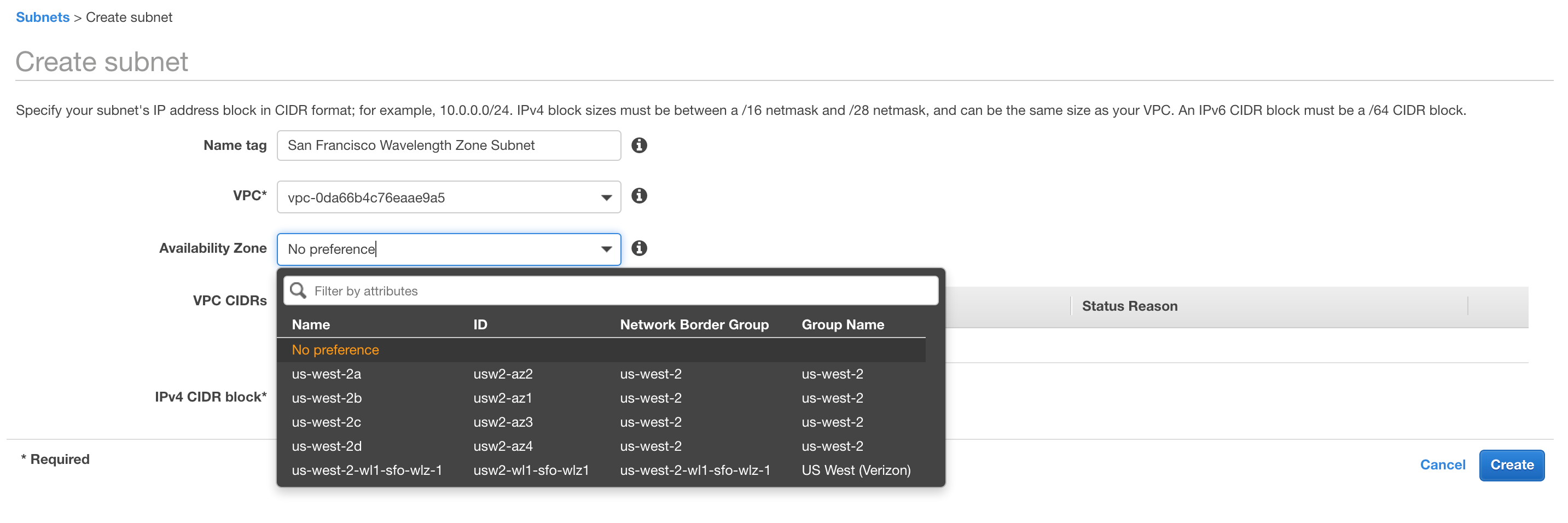
Carrier Gateway

We have introduced a new gateway type called Carrier Gateway, which allows you to route traffic from the Wavelength Zone subnet to the CSP network and to the Internet. Carrier Gateways are similar to the Internet gateway in the Region. Carrier Gateway is also responsible for NAT’ing the traffic from/to the Wavelength Zone subnets mapping it to the carrier ip address assigned to the instances.

Creating a Carrier Gateway

In the VPC console, you can now create Carrier Gateway and attach it to your VPC.

You select the VPC to which the Carrier Gateway must be attached. There is also option to select “Route subnet traffic to the Carrier Gateway” in the Carrier Gateway creation step. By selecting this option, you can pick the Wavelength subnets you want to default route to the Carrier Gateway. This option automatically deletes the existing route table to the subnets, creates a new route table, creates a default route entry, and attaches the new route table to the Subnets you selected. The following picture captures the necessary input required while creating a Carrier Gateway


Creating an EC2 instance in a Wavelength Zone with Private IP Address

Once a VPC subnet is created for the AWS Wavelength Zone, you can launch an EC2 instance with a Private address using the EC2 Launch Wizard. In the configure instance details step, you can select the Wavelength Zone Subnet that you created in the “Creating a Subnet” section.

Attach a IAM profile with SSM role included, which allows you to SSH into the console of the instance through SSM. This is a recommended practice for Wavelength Zone instances as there is no direct SSH access allowed from Public internet.

 Creating an EC2 instance in a Wavelength Zone with Carrier IP Address

The instances running in the Wavelength Zone subnets can obtain a Carrier IP address, which is allocated from a pool of IP addresses called Network Border group (NBG). To create an EC2 instance in the Wavelength Zone with a carrier routable IP address, you can use AWS CLI. You can use the following command to create EC2 instance in a Wavelength Zone subnet. Note the additional network interface (NIC) option “AssociateCarrierIpAddress: as part of the EC2 run instance command, as shown in the following command.

aws ec2 --region us-west-2 run-instances --network-interfaces '[{"DeviceIndex":0, "AssociateCarrierIpAddress": true, "SubnetId": "<subnet-0d3c2c317ac4a262a>"}]' --image-id <ami-0a07be880014c7b8e> --instance-type t3.medium --key-name <san-francisco-wavelength-sample-key>

 *To use “AssociateCarrierIpAddress” option in the ec2 run-instance command use the latest aws cli v2.

The carrier IP assigned to the EC2 instance can be obtained by running the following command.

 aws ec2 describe-instances --instance-ids <replace-with-your-instance-id> --region us-west-2

 Make necessary changes to the default security group that is attached to the EC2 instance after running the run-instance command to allow the necessary protocol traffic. If you allow ICMP traffic to your EC2 instance, you can test ICMP connectivity to your instance from the public internet.

The different protocols allowed in and out of the Wavelength Zone are captured in the following table.


TCP Connection FROM TCP Connection TO Result*
Region Zones WL Zones Allowed
Wavelength Zones Region Allowed
Wavelength Zones Internet Allowed
Internet (TCP SYN) WL Zones Blocked
Internet (TCP EST) WL Zones Allowed
Wavelength Zones UE (Radio) Allowed
UE(Radio) WL Zones Allowed


UDP Packets FROM UDP Packets TO Result*
Wavelength Zones WL Zones Allowed
Wavelength Zones Region Allowed
Wavelength Zones Internet Allowed
Internet WL Blocked
Wavelength Zones UE (Radio) Allowed
UE(Radio) WL Zones Allowed


ICMP FROM ICMP TO Result*
Wavelength Zones WL Zones Allowed
Wavelength Zones Region Allowed
Wavelength Zones Internet Allowed
Internet WL Allowed
Wavelength Zones UE (Radio) Allowed
UE(Radio) WL Zones Allowed

Conclusion

We have covered how to create and run an EC2 instance in the AWS Wavelength Zone, the core foundation for application deployments. We will continue to publish blogs helping customers to create ECS and EKS clusters in the AWS Wavelength Zones and deploy container applications at the Mobile Carriers Edge. We are really looking forward to seeing what all you can do with them. AWS would love to get your advice on additional local services/features or other interesting use cases, so feel free to leave us your comments!


EFA-enabled C5n instances to scale Simcenter STAR-CCM+

Post Syndicated from Ben Peven original https://aws.amazon.com/blogs/compute/efa-enabled-c5n-instances-to-scale-simcenter-star-ccm/

This post was contributed by Dnyanesh Digraskar, Senior Partner SA, High Performance Computing; Linda Hedges, Principal SA, High Performance Computing

In this blog, we define and demonstrate the scalability metrics for a typical real-world application using Computational Fluid Dynamics (CFD) software from Siemens, Simcenter STAR-CCM+, running on a High Performance Computing (HPC) cluster on Amazon Web Services (AWS). This scenario demonstrates the scaling of an external aerodynamics CFD case with 97 million cells to over 4,000 cores of Amazon EC2 C5n.18xlarge instances using the Simcenter STAR-CCM+ software. We also discuss the effects of scaling on efficiency, simulation turn-around time, and total simulation costs. TLG Aerospace, a Seattle-based aerospace engineering services company, contributed the data used in this blog. For a detailed case study describing TLG Aerospace’s experience and the results they achieved, see the TLG Aerospace case study.

For HPC workloads that use multiple nodes, the cluster setup including the network is at the heart of scalability concerns. Some of the most common concerns from CFD or HPC engineers are “how well will my application scale on AWS?”, “how do I optimize the associated costs for best performance of my application on AWS?”, “what are the best practices in setting up an HPC cluster on AWS to reduce the simulation turn-around time and maintain high efficiency?” This post aims to answer these concerns by defining and explaining important scalability-related parameters by illustrating the results from the CFD case. For detailed HPC-specific information, see visit the High Performance Computing page and download the CFD whitepaper, Computational Fluid Dynamics on AWS.

CFD scaling on AWS

Scale-up

HPC applications, such as CFD, depend heavily on the applications’ ability to scale compute tasks efficiently in parallel across multiple compute resources. We often evaluate parallel performance by determining an application’s scale-up. Scale-up – a function of the number of processors used – is the time to complete a run on one processor, divided by the time to complete the same run on the number of processors used for the parallel run.

Scale-up formula

In addition to characterizing the scale-up of an application, scalability can be further characterized as “strong” or “weak”. Strong scaling offers a traditional view of application scaling, where a problem size is fixed and spread over an increasing number of processors. As more processors are added to the calculation, good strong scaling means that the time to complete the calculation decreases proportionally with increasing processor count. In comparison, weak scaling does not fix the problem size used in the evaluation, but purposely increases the problem size as the number of processors also increases. An application demonstrates good weak scaling when the time to complete the calculation remains constant as the ratio of compute effort to the number of processors is held constant. Weak scaling offers insight into how an application behaves with varying case size.

Figure 1, the following image, shows scale-up as a function of increasing processor count for the Simcenter STAR-CCM+ case data provided by TLG Aerospace. This is a demonstration of “strong” scalability. The blue line shows what ideal or perfect scalability looks like. The purple triangles show the actual scale-up for the case as a function of increasing processor count. The closeness of these two curves demonstrates excellent scaling to well over 3,000 processors for this mid-to-large-sized 97M cell case. This example was run on Amazon EC2 C5n.18xlarge Intel Skylake instances, 3.0 GHz, each providing 36 cores with Hyper-Threading disabled.

Figure 1. Strong scaling demonstrated for a 97M cell Simcenter STAR-CCM+ CFD calculation

Efficiency

Now that you understand the variation of scale-up with the number of processors, we discuss the relation of scale-up with number of grid cells per processor, which determines the efficiency of the parallel simulation. Efficiency is the scale-up divided by the number of processors used in the calculation. By plotting grid cells per processor, as in Figure 2, scaling estimates can be made for simulations with different grid sizes with Simcenter STAR-CCM+. The purple line in Figure 2 shows scale-up as a function of grid cells per processor. The vertical axis for scale-up is on the left-hand side of the graph as indicated by the purple arrow. The green line in Figure 2 shows efficiency as a function of grid cells per processor. The vertical axis for efficiency is on the right side of the graph and is indicated by the green arrow.

Figure 2. Scale-up and efficiency as a function of cells per processor.

Fewer grid cells per processor means reduced computational effort per processor. Maintaining efficiency while reducing cells per processor demonstrates the strong scalability of Simcenter STAR-CCM+ on AWS.

Efficiency remains at about 100% between approximately 700,000 cells per processor core and 60,000 cells per processor core. Efficiency starts to fall off at about 60,000 cells per core. An efficiency of at least 80% is maintained until 25,000 cells per core. Decreasing cells per core leads to decreased efficiency because the total computational effort per processor core is reduced. The goal of achieving more than 100% efficiency (here, at about 250,000 cells per core) is common in scaling studies, is case-specific, and often related to smaller effects such as timing variation and memory caching.

Turn-around time and cost

Case turn-around time and cost is what really matters to most HPC users. A plot of turn-around time versus CPU cost for this case is shown in Figure 3. As the number of cores increases, the total turn-around time decreases. But as the number of cores increases, the inefficiency also increases, which leads to increased costs. The cost, represented by solid blue curve, is based on the On-Demand price for the C5n.18xlarge, and only includes the computational costs. Small costs are also incurred for data storage. Minimum cost and turn-around time are achieved with approximately 60,000 cells per core.

Figure 3. Cost per run for: On-Demand pricing ($3.888 per hour for C5n.18xlarge in US-East-1) with and without the Simcenter STAR-CCM+ POD license cost as a function of turn-around time [Blue]; 3-yr all-upfront pricing ($1.475 per hour for C5n.18xlarge in US-East-1) [Green]

Many users choose a cell count per core count to achieve the lowest possible cost. Others may choose a cell count per core count to achieve the fastest turn-around time. If a run is desired in 1/3rd the time of the lowest price point, it can be achieved with approximately 25,000 cells per core.

Additional information about the test scenario

TLG Aerospace has used the Simcenter STAR-CCM+ Power-On-Demand (POD) license for running the simulations for this case. POD license enables flexible On-Demand usage of the software on unlimited cores for a fixed price of $22 per hour. The total cost per run, which includes the computational cost, plus the POD license cost is represented in Figure 3 by the dashed blue curve. As POD license is charged per hour, the total cost per run increases for higher turn-around times. Note that many users run Simcenter STAR-CCM+ with fewer cells per core than this case. While this increases the compute cost, other concerns—such as license costs or schedules—can be overriding factors. However, many find the reduced turn-around time well worth the price of the additional instances.

AWS also offers Savings Plans, which are a flexible pricing model offering substantially lower price on EC2 instances compared to On-Demand prices for a committed usage of 1- or 3-year term. For example, the 3-year all-upfront pricing of C5n.18xlarge instance is 62% cheaper than the On-Demand pricing. The total cost per run using the 3-year all-upfront pricing model is illustrated in Figure 3 by solid green line. The 3-year all-upfront pricing plan offers a substantial reduction in price for running the simulations.

Amazon Linux is optimized to run on AWS and offers excellent performance for running HPC applications. For the case presented here, the operating system used was Amazon Linux 2. While other Linux distributions are also performant, we strongly recommend that for Linux HPC applications, you use a current Linux kernel.

Amazon Elastic Block Store (Amazon EBS) is a persistent, block-level storage device that is often used for cluster storage on AWS. A standard EBS General Purpose SSD (gp2) volume was used for this scenario. For other HPC applications that may require faster I/O to prevent data writes from being a bottleneck to turn-around speed, we recommend FSx for Lustre. FSx for Lustre seamlessly integrates with Amazon S3, allowing users for efficient data interaction with Amazon S3.

AWS customers can choose to run their applications on either threads or cores. With hyper-threading, a single CPU physical core appears as two logical CPUs to the operating system. For an application like Simcenter STAR-CCM+, excellent linear scaling can be seen when using either threads or cores, though we generally recommend disabling hyper-threading. Most HPC applications benefit from disabling hyper-threading, and therefore, it tends to be the preferred environment for running HPC workloads. For more information, see Well-Architected Framework HPC Lens.

Elastic Fabric Adapter (EFA)

Elastic Fabric Adapter (EFA) is a network device that can be attached to Amazon EC2 instances to accelerate HPC applications by providing lower and consistent latency and higher throughput than the Transmission Control Protocol (TCP) transport. C5n.18xlarge instances used for running Simcenter STAR-CCM+ for this case support EFA technology, which is generally recommended for best scaling.

Summary

This post demonstrates the scalability of a commercial CFD software Simcenter STAR-CCM+ for an external aerodynamics simulation performed on the Amazon EC2 C5n.18xlarge instances. The availability of EFA, a high-performing network device on these instances result in excellent scalability of the application. The case turn-around time and associated costs of running Simcenter STAR-CCM+ on AWS hardware are discussed. In general, excellent performance can be achieved on AWS for most HPC applications. In addition to low cost and quick turn-around time, important considerations for HPC also include throughput and availability. AWS offers high throughput, scalability, security, cost-savings, and high availability, decreasing a long queue time and reducing the case turn-around time.

How to delete user data in an AWS data lake

Post Syndicated from George Komninos original https://aws.amazon.com/blogs/big-data/how-to-delete-user-data-in-an-aws-data-lake/

General Data Protection Regulation (GDPR) is an important aspect of today’s technology world, and processing data in compliance with GDPR is a necessity for those who implement solutions within the AWS public cloud. One article of GDPR is the “right to erasure” or “right to be forgotten” which may require you to implement a solution to delete specific users’ personal data.

In the context of the AWS big data and analytics ecosystem, every architecture, regardless of the problem it targets, uses Amazon Simple Storage Service (Amazon S3) as the core storage service. Despite its versatility and feature completeness, Amazon S3 doesn’t come with an out-of-the-box way to map a user identifier to S3 keys of objects that contain user’s data.

This post walks you through a framework that helps you purge individual user data within your organization’s AWS hosted data lake, and an analytics solution that uses different AWS storage layers, along with sample code targeting Amazon S3.

Reference architecture

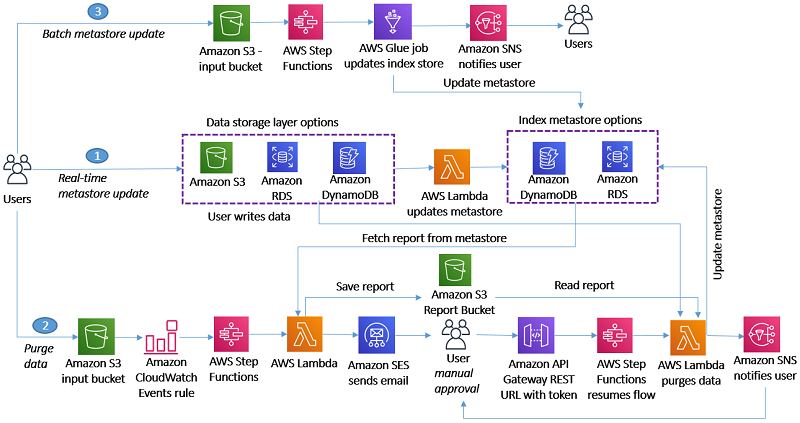
To address the challenge of implementing a data purge framework, we reduced the problem to the straightforward use case of deleting a user’s data from a platform that uses AWS for its data pipeline. The following diagram illustrates this use case.

We’re introducing the idea of building and maintaining an index metastore that keeps track of the location of each user’s records and allows us locate to them efficiently, reducing the search space.

You can use the following architecture diagram to delete a specific user’s data within your organization’s AWS data lake.

For this initial version, we created three user flows that map each task to a fitting AWS service:

Flow 1: Real-time metastore update

The S3 ObjectCreated or ObjectDelete events trigger an AWS Lambda function that parses the object and performs an add/update/delete operation to keep the metadata index up to date. You can implement a simple workflow for any other storage layer, such as Amazon Relational Database Service (RDS), Amazon Aurora, or Amazon Elasticsearch Service (ES). We use Amazon DynamoDB and Amazon RDS for PostgreSQL as the index metadata storage options, but our approach is flexible to any other technology.

Flow 2: Purge data

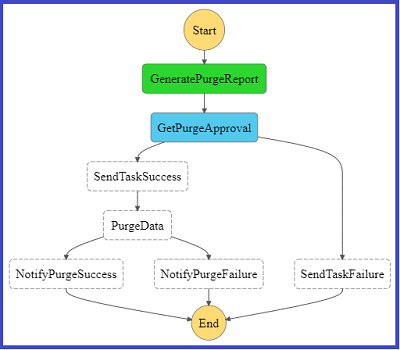
When a user asks for their data to be deleted, we trigger an AWS Step Functions state machine through Amazon CloudWatch to orchestrate the workflow. Its first step triggers a Lambda function that queries the metadata index to identify the storage layers that contain user records and generates a report that’s saved to an S3 report bucket. A Step Functions activity is created and picked up by a Lambda Node JS based worker that sends an email to the approver through Amazon Simple Email Service (SES) with approve and reject links.

The following diagram shows a graphical representation of the Step Function state machine as seen on the AWS Management Console.

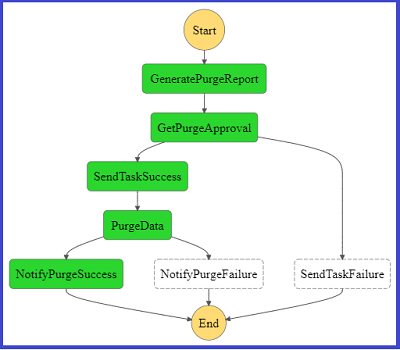
The approver selects one of the two links, which then calls an Amazon API Gateway endpoint that invokes Step Functions to resume the workflow. If you choose the approve link, Step Functions triggers a Lambda function that takes the report stored in the bucket as input, deletes the objects or records from the storage layer, and updates the index metastore. When the purging job is complete, Amazon Simple Notification Service (SNS) sends a success or fail email to the user.

The following diagram represents the Step Functions flow on the console if the purge flow completed successfully.

For the complete code base, see step-function-definition.json in the GitHub repo.

Flow 3: Batch metastore update

This flow refers to the use case of an existing data lake for which index metastore needs to be created. You can orchestrate the flow through AWS Step Functions, which takes historical data as input and updates metastore through a batch job. Our current implementation doesn’t include a sample script for this user flow.

Our framework

We now walk you through the two use cases we followed for our implementation:

  • You have multiple user records stored in each Amazon S3 file
  • A user has records stored in homogenous AWS storage layers

Within these two approaches, we demonstrate alternatives that you can use to store your index metastore.

Indexing by S3 URI and row number

For this use case, we use a free tier RDS Postgres instance to store our index. We created a simple table with the following code:

CREATE UNLOGGED TABLE IF NOT EXISTS user_objects (
				userid TEXT,
				s3path TEXT,
				recordline INTEGER
			);

You can index on user_id to optimize query performance. On object upload, for each row, you need to insert into the user_objects table a row that indicates the user ID, the URI of the target Amazon S3 object, and the row that corresponds to the record. For instance, when uploading the following JSON input, enter the following code:

{"user_id":"V34qejxNsCbcgD8C0HVk-Q","body":"…"}
{"user_id":"ofKDkJKXSKZXu5xJNGiiBQ","body":"…"}
{"user_id":"UgMW8bLE0QMJDCkQ1Ax5Mg","body ":"…"}

We insert the tuples into user_objects in the Amazon S3 location s3://gdpr-demo/year=2018/month=2/day=26/input.json. See the following code:

(“V34qejxNsCbcgD8C0HVk-Q”, “s3://gdpr-demo/year=2018/month=2/day=26/input.json”, 0)
(“ofKDkJKXSKZXu5xJNGiiBQ”, “s3://gdpr-demo/year=2018/month=2/day=26/input.json”, 1)
(“UgMW8bLE0QMJDCkQ1Ax5Mg”, “s3://gdpr-demo/year=2018/month=2/day=26/input.json”, 2)

You can implement the index update operation by using a Lambda function triggered on any Amazon S3 ObjectCreated event.

When we get a delete request from a user, we need to query our index to get some information about where we have stored the data to delete. See the following code:

SELECT s3path,
                ARRAY_AGG(recordline)
                FROM user_objects
                WHERE userid = ‘V34qejxNsCbcgD8C0HVk-Q’
                GROUP BY;

The preceding example SQL query returns rows like the following:

(“s3://gdpr-review/year=2015/month=12/day=21/review-part-0.json“, {2102,529})

The output indicates that lines 529 and 2102 of S3 object s3://gdpr-review/year=2015/month=12/day=21/review-part-0.json contain the requested user’s data and need to be purged. We then need to download the object, remove those rows, and overwrite the object. For a Python implementation of the Lambda function that implements this functionality, see deleteUserRecords.py in the GitHub repo.

Having the record line available allows you to perform the deletion efficiently in byte format. For implementation simplicity, we purge the rows by replacing the deleted rows with an empty JSON object. You pay a slight storage overhead, but you don’t need to update subsequent row metadata in your index, which would be costly. To eliminate empty JSON objects, we can implement an offline vacuum and index update process.

Indexing by file name and grouping by index key

For this use case, we created a DynamoDB table to store our index. We chose DynamoDB because of its ease of use and scalability; you can use its on-demand pricing model so you don’t need to guess how many capacity units you might need. When files are uploaded to the data lake, a Lambda function parses the file name (for example, 1001-.csv) to identify the user identifier and populates the DynamoDB metadata table. Userid is the partition key, and each different storage layer has its own attribute. For example, if user 1001 had data in Amazon S3 and Amazon RDS, their records look like the following code:

{"userid:": 1001, "s3":{"s3://path1", "s3://path2"}, "RDS":{"db1.table1.column1"}}

For a sample Python implementation of this functionality, see update-dynamo-metadata.py in the GitHub repo.

On delete request, we query the metastore table, which is DynamoDB, and generate a purge report that contains details on what storage layers contain user records, and storage layer specifics that can speed up locating the records. We store the purge report to Amazon S3. For a sample Lambda function that implements this logic, see generate-purge-report.py in the GitHub repo.

After the purging is approved, we use the report as input to delete the required resources. For a sample Lambda function implementation, see gdpr-purge-data.py in the GitHub repo.

Implementation and technology alternatives

We explored and evaluated multiple implementation options, all of which present tradeoffs, such as implementation simplicity, efficiency, critical data compliance, and feature completeness:

  • Scan every record of the data file to create an index – Whenever a file is uploaded, we iterate through its records and generate tuples (userid, s3Uri, row_number) that are then inserted to our metadata storing layer. On delete request, we fetch the metadata records for requested user IDs, download the corresponding S3 objects, perform the delete in place, and re-upload the updated objects, overwriting the existing object. This is the most flexible approach because it supports a single object to store multiple users’ data, which is a very common practice. The flexibility comes at a cost because it requires downloading and re-uploading the object, which introduces a network bottleneck in delete operations. User activity datasets such as customer product reviews are a good fit for this approach, because it’s unexpected to have multiple records for the same user within each partition (such as a date partition), and it’s preferable to combine multiple users’ activity in a single file. It’s similar to what was described in the section “Indexing by S3 URI and row number” and sample code is available in the GitHub repo.
  • Store metadata as file name prefix – Adding the user ID as the prefix of the uploaded object under the different partitions that are defined based on query pattern enables you to reduce the required search operations on delete request. The metadata handling utility finds the user ID from the file name and maintains the index accordingly. This approach is efficient in locating the resources to purge but assumes a single user per object, and requires you to store user IDs within the filename, which might require InfoSec considerations. Clickstream data, where you would expect to have multiple click events for a single customer on a single date partition during a session, is a good fit. We covered this approach in the section “Indexing by file name and grouping by index key” and you can download the codebase from the GitHub repo.
  • Use a metadata file – Along with uploading a new object, we also upload a metadata file that’s picked up by an indexing utility to create and maintain the index up to date. On delete request, we query the index, which points us to the records to purge. A good fit for this approach is a use case that already involves uploading a metadata file whenever a new object is uploaded, such as uploading multimedia data, along with their metadata. Otherwise, uploading a metadata file on every object upload might introduce too much of an overhead.
  • Use the tagging feature of AWS services – Whenever a new file is uploaded to Amazon S3, we use the Put Object Tagging Amazon S3 operation to add a key-value pair for the user identifier. Whenever there is a user data delete request, it fetches objects with that tag and deletes them. This option is straightforward to implement using the existing Amazon S3 API and can therefore be a very initial version of your implementation. However, it involves significant limitations. It assumes a 1:1 cardinality between Amazon S3 objects and users (each object only contains data for a single user), searching objects based on a tag is limited and inefficient, and storing user identifiers as tags might not be compliant with your organization’s InfoSec policy.
  • Use Apache Hudi – Apache Hudi is becoming a very popular option to perform record-level data deletion on Amazon S3. Its current version is restricted to Amazon EMR, and you can use it if you start to build your data lake from scratch, because you need to store your as Hudi datasets. Hudi is a very active project and additional features and integrations with more AWS services are expected.

The key implementation decision of our approach is separating the storage layer we use for our data and the one we use for our metadata. As a result, our design is versatile and can be plugged in any existing data pipeline. Similar to deciding what storage layer to use for your data, there are many factors to consider when deciding how to store your index:

  • Concurrency of requests – If you don’t expect too many simultaneous inserts, even something as simple as Amazon S3 could be a starting point for your index. However, if you get multiple concurrent writes for multiple users, you need to look into a service that copes better with transactions.
  • Existing team knowledge and infrastructure – In this post, we demonstrated using DynamoDB and RDS Postgres for storing and querying the metadata index. If your team has no experience with either of those but are comfortable with Amazon ES, Amazon DocumentDB (with MongoDB compatibility), or any other storage layer, use those. Furthermore, if you’re already running (and paying for) a MySQL database that’s not used to capacity, you could use that for your index for no additional cost.
  • Size of index – The volume of your metadata is orders of magnitude lower than your actual data. However, if your dataset grows significantly, you might need to consider going for a scalable, distributed storage solution rather than, for instance, a relational database management system.

Conclusion

GDPR has transformed best practices and introduced several extra technical challenges in designing and implementing a data lake. The reference architecture and scripts in this post may help you delete data in a manner that’s compliant with GDPR.

Let us know your feedback in the comments and how you implemented this solution in your organization, so that others can learn from it.


About the Authors

George Komninos is a Data Lab Solutions Architect at AWS. He helps customers convert their ideas to a production-ready data product. Before AWS, he spent 3 years at Alexa Information domain as a data engineer. Outside of work, George is a football fan and supports the greatest team in the world, Olympiacos Piraeus.



Sakti Mishra is a Data Lab Solutions Architect at AWS. He helps customers architect data analytics solutions, which gives them an accelerated path towards modernization initiatives. Outside of work, Sakti enjoys learning new technologies, watching movies, and travel.
New EC2 T4g Instances – Burstable Performance Powered by AWS Graviton2 – Try Them for Free

Post Syndicated from Danilo Poccia original https://aws.amazon.com/blogs/aws/new-t4g-instances-burstable-performance-powered-by-aws-graviton2/

Two years ago Amazon Elastic Compute Cloud (EC2) T3 instances were first made available, offering a very cost effective way to run general purpose workloads. While current T3 instances offer sufficient compute performance for many use cases, many customers have told us that they have additional workloads that would benefit from increased peak performance and lower cost.

Today, we are launching T4g instances, a new generation of low cost burstable instance type powered by AWS Graviton2, a processor custom built by AWS using 64-bit Arm Neoverse cores. Using T4g instances you can enjoy a performance benefit of up to 40% at a 20% lower cost in comparison to T3 instances, providing the best price/performance for a broader spectrum of workloads.

T4g instances are designed for applications that don’t use CPU at full power most of the time, using the same credit model as T3 instances with unlimited mode enabled by default. Examples of production workloads that require high CPU performance only during times of heavy data processing are web/application servers, small/medium data stores, and many microservices. Compared to previous generations, the performance of T4g instances makes it possible to migrate additional workloads such as caching servers, search engine indexing, and e-commerce platforms.

T4g instances are available in 7 sizes providing up to 5 Gbps of network and up to 2.7 Gbps of Amazon Elastic Block Store (EBS) performance:

Name vCPUs Baseline Performance/vCPU CPU Credits Earned/Hour Memory
t4g.nano 2 5% 6 0.5 GiB
t4g.micro 2 10% 12 1 GiB
t4g.small 2 20% 24 2 GiB
t4g.medium 2 20% 24 4 GiB
t4g.large 2 30% 36 8 GiB
t4g.xlarge 4 40% 96 16 GiB
t4g.2xlarge 8 40% 192 32 GiB

Free Trial
To make it easier to develop, test, and run your applications on T4g instances, all AWS customers are automatically enrolled in a free trial on the t4g.micro size. Starting September 2020 until December 31st 2020, you can run a t4g.micro instance and automatically get 750 free hours per month deducted from your bill, including any CPU credits during the free 750 hours of usage. The 750 hours are calculated in aggregate across all regions. For details on terms and conditions of the free trial, please refer to the EC2 FAQs.

During the free trial, have a look at this getting started guide on using the Arm-based AWS Graviton processors. There, you can find suggestions on how to build and optimize your applications, using different programming languages and operating systems, and on managing container-based workloads. Some of the tips are specific for the Graviton processor, but most of the content works generally for anyone using Arm to run their code.

Using T4g Instances
You can start an EC2 instance in different ways, for example using the EC2 console, the AWS Command Line Interface (CLI), AWS SDKs, or AWS CloudFormation. For my first T4g instance, I use the AWS CLI:

$ aws ec2 run-instances \
  --instance-type t4g.micro \
  --image-id ami-09a67037138f86e67 \
  --security-groups MySecurityGroup \
  --key-name my-key-pair

The Amazon Machine Image (AMI) I am using is based on Amazon Linux 2. Other platforms are available, such as Ubuntu 18.04 or newer, Red Hat Enterprise Linux 8.0 and newer, and SUSE Enterprise Server 15 and newer. You can find additional AMIs in the AWS Marketplace, for example Fedora, Debian, NetBSD, CentOS, and NGINX Plus. For containerized applications, Amazon ECS and Amazon Elastic Kubernetes Service optimized AMIs are available as well.

The security group I selected gives me SSH access to the instance. I connect to the instance and do a general update:

$ sudo yum update -y

Since the kernel has been updated, I reboot the instance.

I’d like to set up this instance as a development environment. I can use it to build new applications, or to recompile my existing apps to the 64-bit Arm architecture. To install most development tools, such as Git, GCC, and Make, I use this group of packages:

$ sudo yum groupinstall -y "Development Tools"

AWS is working with several open source communities to drive improvements to the performance of software stacks running on AWS Graviton2. For example, you can see our contributions to PHP for Arm64 in this post.

Using the latest versions helps you obtain maximum performance from your Graviton2-based instances. The amazon-linux-extras command enables new versions for some of my favorite programming environments:

$ sudo amazon-linux-extras enable golang1.11 corretto8 php7.4 python3.8 ruby2.6

The output of the amazon-linux-extras command tells me which packages to install with yum:

$ yum clean metadata
$ sudo yum install -y golang java-1.8.0-amazon-corretto \
  php-cli php-pdo php-fpm php-json php-mysqlnd \
  python38 ruby ruby-irb rubygem-rake rubygem-json rubygems

Let’s check the versions of the tools that I just installed:

$ go version
go version go1.13.14 linux/arm64
$ java -version
openjdk version "1.8.0_265"
OpenJDK Runtime Environment Corretto-8.265.01.1 (build 1.8.0_265-b01)
OpenJDK 64-Bit Server VM Corretto-8.265.01.1 (build 25.265-b01, mixed mode)
$ php -v
PHP 7.4.9 (cli) (built: Aug 21 2020 21:45:13) ( NTS )
Copyright (c) The PHP Group
Zend Engine v3.4.0, Copyright (c) Zend Technologies
$ python3.8 -V
Python 3.8.5
$ ruby -v
ruby 2.6.3p62 (2019-04-16 revision 67580) [aarch64-linux]

It looks like I am ready to go! Many more packages are available with yum, such as MariaDB and PostgreSQL. If you’re interested in databases, you might also want to try the preview of Amazon RDS powered by AWS Graviton2 processors.

Available Now
T4g instances are available today in US East (N. Virginia, Ohio), US West (Oregon), Asia Pacific (Tokyo, Mumbai), Europe (Frankfurt, Ireland).

You now have a broad choice of Graviton2-based instances to better optimize your workloads for cost and performance: low cost burstable general-purpose (T4g), general purpose (M6g), compute optimized (C6g) and memory optimized (R6g) instances. Local NVMe-based SSD storage options are also available.

You can use the free trial to develop new applications, or migrate your existing workloads to the AWS Graviton2 processor. Let me know how that goes!

— Danilo

How to configure an LDAPS endpoint for Simple AD

Post Syndicated from Marco Sommella original https://aws.amazon.com/blogs/security/how-to-configure-ldaps-endpoint-for-simple-ad/

In this blog post, we show you how to configure an LDAPS (LDAP over SSL or TLS) encrypted endpoint for Simple AD so that you can extend Simple AD over untrusted networks. Our solution uses Network Load Balancer (NLB) as SSL/TLS termination. The data is then decrypted and sent to Simple AD. Network Load Balancer offers integrated certificate management, SSL/TLS termination, and the ability to use a scalable Amazon Elastic Compute Cloud (Amazon EC2) backend to process decrypted traffic. Network Load Balancer also tightly integrates with Amazon Route 53, enabling you to use a custom domain for the LDAPS endpoint. To simplify testing and deployment, we have provided an AWS CloudFormation template to provision the network load balancer (NLB).

Simple AD, which is powered by Samba 4, supports basic Active Directory (AD) authentication features such as users, groups, and the ability to join domains. Simple AD also includes an integrated Lightweight Directory Access Protocol (LDAP) server. LDAP is a standard application protocol for accessing and managing directory information. You can use the BIND operation from Simple AD to authenticate LDAP client sessions. This makes LDAP a common choice for centralized authentication and authorization for services such as Secure Shell (SSH), client-based virtual private networks (VPNs), and many other applications. Authentication, the process of confirming the identity of a principal, typically involves the transmission of highly sensitive information such as user names and passwords. To protect this information in transit over untrusted networks, companies often require encryption as part of their information security strategy.

This post assumes that you understand concepts such as Amazon Virtual Private Cloud (Amazon VPC) and its components, including subnets, routing, internet and network address translation (NAT) gateways, DNS, and security groups. If needed, you should familiarize yourself with these concepts and review the solution overview and prerequisites in the next section before proceeding with the deployment.

Note: This solution is intended for use by clients who require only an LDAPS endpoint. If your requirements extend beyond this, you should consider accessing the Simple AD servers directly or by using AWS Directory Service for Microsoft AD.

Solution overview

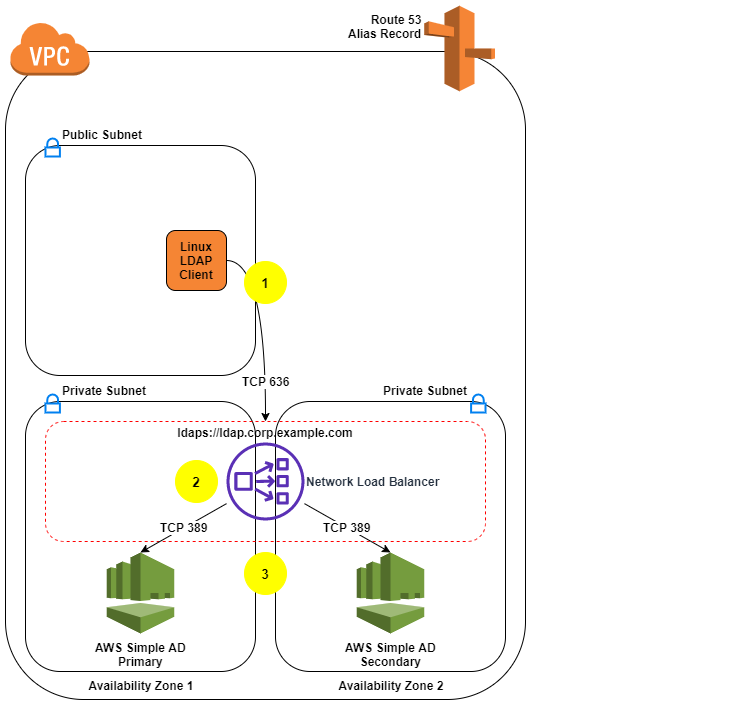
The following description explains the Simple AD LDAPS environment. The AWS CloudFormation template creates the network-load-balancer object.

  1. The LDAP client sends an LDAPS request to the NLB on TCP port 636.
  2. The NLB terminates the SSL/TLS session and decrypts the traffic using a certificate. The NLB sends the decrypted LDAP traffic to Simple AD on TCP port 389.
  3. The Simple AD servers send an LDAP response to the NLB. The NLB encrypts the response and sends it to the client.

The following diagram illustrates how the solution works and shows the prerequisites (listed in the following section).

Figure 1: LDAPS with Simple AD Architecture

Figure 1: LDAPS with Simple AD Architecture

Note: Amazon VPC prevents third parties from intercepting traffic within the VPC. Because of this, the VPC protects the decrypted traffic between the NLB and Simple AD. The NLB encryption provides an additional layer of security for client connections and protects traffic coming from hosts outside the VPC.

Prerequisites

  1. Our approach requires an Amazon VPC with one public and two private subnets. If you don’t have an Amazon VPC that meets that requirement, use the following instructions to set up a sample environment:
    1. Identify an AWS Region that supports Simple AD and network load balancing.
    2. Identify two Availability Zones in that Region to use with Simple AD. The Availability Zones are needed as parameters in the AWS CloudFormation template used later in this process.
    3. Create or choose an Amazon VPC in the region you chose.
    4. Enable DNS support within your VPC so you can use Route 53 to resolve the LDAPS endpoint.
    5. Create two private subnets, one per Availability Zone. The Simple AD servers use the subnets that you create.
    6. Create a public subnet in the same VPC.
    7. The LDAP service requires a DNS domain that resolves within your VPC and from your LDAP clients. If you don’t have an existing DNS domain, create a private hosted zone and associate it with your VPC. To avoid encryption protocol errors, you must ensure that the DNS domain name is consistent across your Route 53 zone and in the SSL/TLS certificate.
  2. Make sure you’ve completed the Simple AD prerequisites.
  3. You can use a certificate issued by your preferred certificate authority or a certificate issued by AWS Certificate Manager (ACM). If you don’t have a certificate authority, you can create a self-signed certificate by following the instructions in section 2 (Create a certificate).

Note: To prevent unauthorized direct connections to your Simple AD servers, you can modify the Simple AD security group on port 389 to block traffic from locations outside of the Simple AD VPC. You can find the security group in the Amazon EC2 console by creating a search filter for your Simple AD directory ID. It is also important to allow the Simple AD servers to communicate with each other as shown on Simple AD Prerequisites.

Solution deployment

This solution includes 5 main parts:

  1. Create a Simple AD directory.
  2. (Optional) Create a SSL/TLS certificate, if you don’t have already have one.
  3. Create the NLB by using the supplied AWS CloudFormation template.
  4. Create a Route 53 record.
  5. Test LDAPS access using an Amazon Linux 2 client.

1. Create a Simple AD directory

With the prerequisites completed, your first step is to create a Simple AD directory in your private VPC subnets.

To create a Simple AD directory:

  1. In the Directory Service console navigation pane, choose Directories and then choose Set up directory.
  2. Choose Simple AD.

    Figure 2: Select directory type

    Figure 2: Select directory type

  3. Provide the following information:
    1. Directory Size: The size of the directory. The options are Small or Large. Which you should choose depends on the anticipated size of your directory.
    2. Directory DNS: The fully qualified domain name (FQDN) of the directory, such as corp.example.com.

      Note: You will need the directory FQDN when you test your solution.

    3. NetBIOS name: The short name for the directory, such as corp.
    4. Administrator password: The password for the directory administrator. The directory creation process creates an administrator account with the user name Administrator and this password. Don’t lose this password, because it can’t be recovered. You also need this password for testing LDAPS access in a later step.
    5. Description: An optional description for the directory.
    Figure 3: Directory information

    Figure 3: Directory information

  4. Select the VPC and subnets, and then choose Next:
    • VPC: Use the dropdown list to select the VPC to install the directory in.
    • Subnets: Use the dropdown lists to select two private subnets for the directory servers. The two subnets must be in different Availability Zones. Make a note of the VPC and subnet IDs to use as input parameters for the AWS CloudFormation template. In the following example, the subnets are in the us-east-1a and us-east-1c Availability Zones.
    Figure 4: Choose VPC and subnets

    Figure 4: Choose VPC and subnets

  5. Review the directory information and make any necessary changes. When the information is correct, choose Create directory.

    Figure 5: Review and create the directory

    Figure 5: Review and create the directory

  6. It takes several minutes to create the directory. From the AWS Directory Service console, refresh the screen periodically and wait until the directory Status value changes to Active before continuing.
  7. When the status has changed to Active, choose your Simple AD directory and note the two IP addresses in the DNS address section. You will enter them in a later step when you run the AWS CloudFormation template.

Note: How to administer your Simple AD implementation is out of scope for this post. See the documentation to add users, groups, or instances to your directory. Also see the previous blog post, How to Manage Identities in Simple AD Directories.

2. Add a certificate

Now that you have a Simple AD directory, you need a SSL/TLS certificate. The certificate will be used with the NLB to secure the LDAPS endpoint. You then import the certificate into ACM, which is integrated with the NLB.

As mentioned earlier, you can use a certificate issued by your preferred certificate authority or a certificate issued by AWS Certificate Manager (ACM).

(Optional) Create a self-signed certificate

If you don’t already have a certificate authority, you can use the following instructions to generate a self-signed certificate using OpenSSL.

Note: OpenSSL is a standard, open source library that supports a wide range of cryptographic functions, including the creation and signing of x509 certificates.

Use the command line interface to create a certificate:

  1. You must have a system with OpenSSL installed to complete this step. If you don’t have OpenSSL, you can install it on Amazon Linux by running the command sudo yum install openssl. If you don’t have access to an Amazon Linux instance you can create one with SSH access enabled to proceed with this step. Use the command line to run the command openssl version to see if you already have OpenSSL installed.
    [ec2-user@ip-10-21-32-162 ~]$ openssl version
    OpenSSL 1.0.1k-fips 8 Jan 2015
    

  2. Create a private key using the openssl genrsa command.
    [ec2-user@ip-10-21-32-162 tmp]$ openssl genrsa 2048 > privatekey.pem
    Generating RSA private key, 2048 bit long modulus
    ......................................................................................................................................................................+++
    ..........................+++
    e is 65537 (0x10001)
    

  3. Generate a certificate signing request (CSR) using the openssl req command. Provide the requested information for each field. The Common Name is the FQDN for your LDAPS endpoint (for example, ldap.corp.example.com). The Common Name must use the domain name you will later register in Route 53. You will encounter certificate errors if the names do not match.
    [ec2-user@ip-10-21-32-162 tmp]$ openssl req -new -key privatekey.pem -out server.csr
    You are about to be asked to enter information that will be incorporated into your certificate request.
    

  4. Use the openssl x509 command to sign the certificate. The following example uses the private key from the previous step (privatekey.pem) and the signing request (server.csr) to create a public certificate named server.crt that is valid for 365 days. This certificate must be updated within 365 days to avoid disruption of LDAPS functionality.
    [ec2-user@ip-10-21-32-162 tmp]$ openssl x509 -req -sha256 -days 365 -in server.csr -signkey privatekey.pem -out server.crt
    Signature ok
    subject=/C=XX/L=Default City/O=Default Company Ltd/CN=ldap.corp.example.com
    Getting Private key
    

  5. You should see three files: privatekey.pem, server.crt, and server.csr.
    [ec2-user@ip-10-21-32-162 tmp]$ ls
    privatekey.pem server.crt server.csr
    

  6. Restrict access to the private key.
    [ec2-user@ip-10-21-32-162 tmp]$ chmod 600 privatekey.pem
    

Note: Keep the private key and public certificate to use later. You can discard the signing request, because you are using a self-signed certificate and not using a certificate authority. Always store the private key in a secure location, and avoid adding it to your source code.

Import a certificate

For this step, you can either use a certificate obtained from a certificate authority, or a self-signed certificate that you created using the optional procedure above.

  1. In the ACM console, choose Import a certificate.
  2. Using a Linux text editor, paste the contents of your certificate file (called server.crt if you followed the procedure above) file in the Certificate body box.
  3. Using a Linux text editor, paste the contents of your privatekey.pem file in the Certificate private key box. (For a self-signed certificate, you can leave the Certificate chain box blank.)
  4. Choose Review and import. Confirm the information and choose Import.
  5. Take note of the Amazon Resource Name (ARN) of the imported certificate.

3. Create the NLB by using the supplied AWS CloudFormation template

Now that you have a Simple AD directory and SSL/TLS certificate, you’re ready to use the AWS CloudFormation template to create the NLB.

Create the NLB:

  1. Load the AWS CloudFormation template to deploy an internal NLB. After you load the template, provide the input parameters from the following table:

    Input parameter Input parameter description
    VPCId The target VPC for this solution. Must be the VPC where you deployed Simple AD and available in your Simple AD directory details page.
    SubnetId1 The Simple AD primary subnet. This information is available in your Simple AD directory details page.
    SubnetId2 The Simple AD secondary subnet. This information is available in your Simple AD directory details page.
    SimpleADPriIP The primary Simple AD Server IP. This information is available in your Simple AD directory details page.
    SimpleADSecIP The secondary Simple AD Server IP. This information is available in your Simple AD directory details page.
    LDAPSCertificateARN The Amazon Resource Name (ARN) for the SSL certificate. This information is available in the ACM console.
  2. Enter the input parameters and choose Next.
  3. On the Options page, accept the defaults and choose Next.
  4. On the Review page, confirm the details and choose Create. The stack will be created in approximately 5 minutes.
  5. Wait until the AWS Cloud formation stack status is CREATE_COMPLETE before starting the next procedure, Create a Route 53 record.
  6. Go to Outputs and note the FQDN of your new NLB. The FQDN is in the output variable named LDAPSURL.

    Note: You can find the parameters of your Simple AD on the directory details page by choosing your Simple AD in the Directory Service console.

4. Create a Route 53 record

The next step is to create a Route 53 record in your private hosted zone so that clients can resolve your LDAPS endpoint.

Note: Don’t start this procedure until the AWS CloudFormation stack status is CREATE_COMPLETE.

Create a Route 53 record:

  1. If you don’t have an existing DNS domain for use with LDAP, create a private hosted zone and associate it with your VPC. The hosted zone name should be consistent with your Simple AD (for example, corp.example.com).
  2. When the AWS CloudFormation stack is in CREATE_COMPLETE status, locate the value of the LDAPSURL on the Outputs tab of the stack. Copy this value for use in the next step.
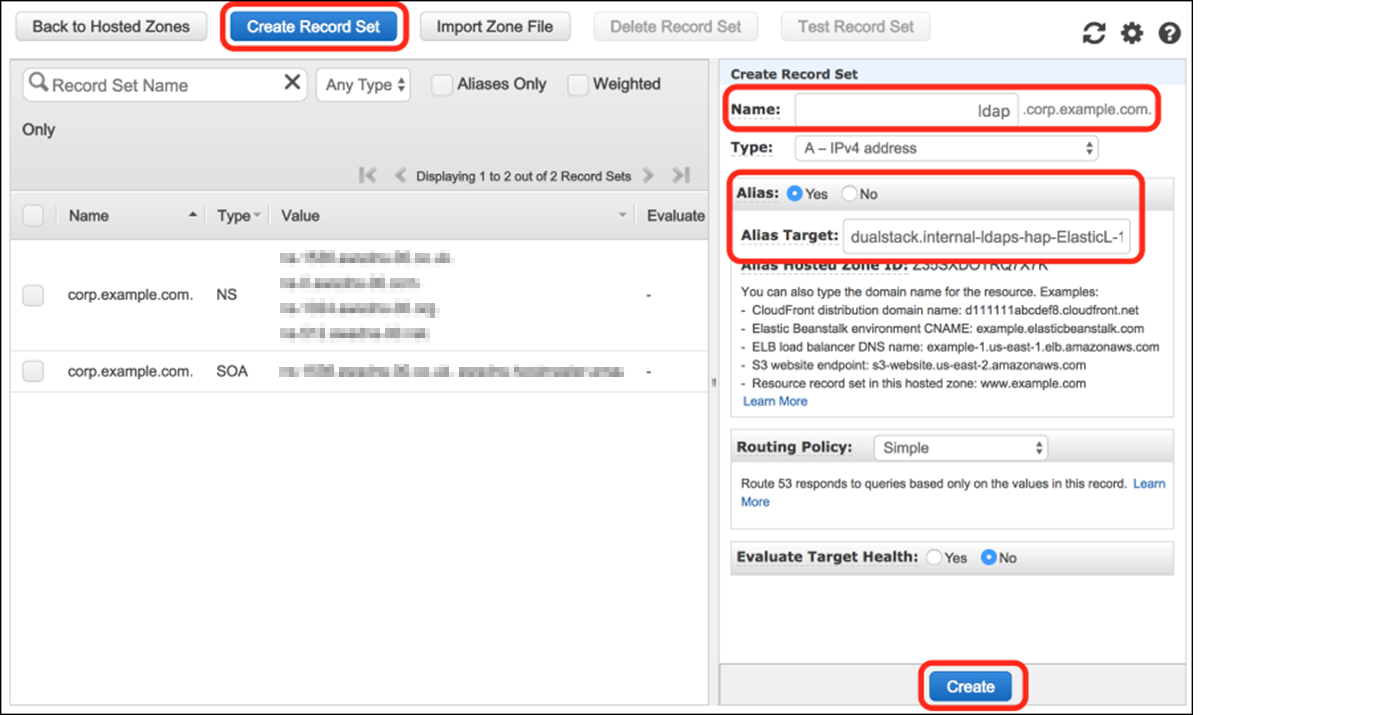
  3. On the Route 53 console, choose Hosted Zones and then choose the zone you used for the Common Name value for your self-signed certificate. Choose Create Record Set and enter the following information:
    1. Name: A short name for the record set (remember that the FQDN has to match the Common Name of your certificate).
    2. Type: Leave as A – IPv4 address.
    3. Alias: Select Yes.
    4. Alias Target: Paste the value of the LDAPSURL from the Outputs tab of the stack.
  4. Leave the defaults for Routing Policy and Evaluate Target Health, and choose Create.
Figure 6: Create a Route 53 record

Figure 6: Create a Route 53 record

5. Test LDAPS access using an Amazon Linux 2 client

At this point, you’re ready to test your LDAPS endpoint from an Amazon Linux client.

Test LDAPS access:

  1. Create an Amazon Linux 2 instance with SSH access enabled to test the solution. Launch the instance on one of the public subnets in your VPC. Make sure the IP assigned to the instance is in the trusted IP range you specified in the security group associated with the Simple AD.
  2. Use SSH to sign in to the instance and complete the following steps to verify access.
    1. Install the openldap-clients package and any required dependencies:
      sudo yum install -y openldap-clients.
      

    2. Add the server.crt file to the /etc/openldap/certs/ directory so that the LDAPS client will trust your SSL/TLS certificate. You can download the file directly from the NLB the certificate and save it in the proper format, or copy the file using Secure Copy or create it using a text editor:
      openssl s_client -connect <LDAPSURL>:636 -showcerts </dev/null 2>/dev/null | openssl x509 -outform PEM > server.crt 
      

      Replace <LDAPSURL> with the FQDN of your NLB, the address can be found in the Outputs section of the stack created in CloudFormation.

    3. Edit the /etc/openldap/ldap.conf file to define the environment variables:
      • BASE: The Simple AD directory name.
      • URI: Your DNS alias.
      • TLS_CACERT: The path to your public certificate.
      • TLSCACertificateFile: The path to your self-signed certificate authority. If you used the instructions in section 2 (Create a certificate) to create a certificate, the path will be /etc/ssl/certs/ca-bundle.crt.

      Here’s an example of the file:

      BASE dc=corp,dc=example,dc=com
      URI ldaps://ldap.corp.example.com
      TLS_CACERT /etc/openldap/certs/server.crt
      TLSCACertificateFile /etc/ssl/certs/ca-bundle.crt
      

  3. To test the solution, query the directory through the LDAPS endpoint, as shown in the following command. Replace corp.example.com with your domain name and use the Administrator password that you configured in step 3 of section 1 (Create a Simple AD directory).
    $ ldapsearch -D "[email protected]" -W sAMAccountName=Administrator
    

  4. The response will include the directory information in LDAP Data Interchange Format (LDIF) for the administrator distinguished name (DN) from your Simple AD LDAP server.
    # extended LDIF
    #
    # LDAPv3
    # base <dc=corp,dc=example,dc=com> (default) with scope subtree
    # filter: sAMAccountName=Administrator
    # requesting: ALL
    #
    
    # Administrator, Users, corp.example.com
    dn: CN=Administrator,CN=Users,DC=corp,DC=example,DC=com
    objectClass: top
    objectClass: person
    objectClass: organizationalPerson
    objectClass: user
    description: Built-in account for administering the computer/domain
    instanceType: 4
    whenCreated: 20170721123204.0Z
    uSNCreated: 3223
    name: Administrator
    objectGUID:: l3h0HIiKO0a/ShL4yVK/vw==
    userAccountControl: 512
    …
    

You can now use the LDAPS endpoint for directory operations and authentication within your environment. Here are a few resources to learn more about how to interact with an LDAPS endpoint:

Troubleshooting

If the ldapsearch command returns something like the following error, there are a few things you can do to help identify issues.

ldap_sasl_bind(SIMPLE): Can't contact LDAP server (-1)
  1. You might be able to obtain additional error details by adding the -d1 debug flag to the ldapsearch command.
    $ ldapsearch -D "[email protected]" -W sAMAccountName=Administrator –d1
    

  2. Verify that the parameters in ldap.conf match your configured LDAPS URI endpoint and that all parameters can be resolved by DNS. You can use the following dig command, substituting your configured endpoint DNS name.
    $ dig ldap.corp.example.com
    

  3. Confirm that the client instance you’re connecting from is in the trusted IP range you specified in the security associated with your Simple AD directory.
  4. Confirm that the path to your public SSL/TLS certificate in ldap.conf as TLS_CAERT is correct. You configured this as part of step 2 in section 5 (Test LDAPS access using an Amazon Linux 2 client). You can check your SSL/TLS connection with the following command, replacing ldap.corp.example.com with the DNS name of your endpoint.
    $ echo -n | openssl s_client -connect ldap.corp.example.com:636
    

  5. Verify that the status of your Simple AD IPs is Healthy in the Amazon EC2 console.
    1. Open the EC2 console and choose Load Balancing and then Target Groups in the navigation pane.
    2. Choose your LDAPS target and then choose Targets.

Conclusion

You can use NLB to provide an LDAPS endpoint for Simple AD and transport sensitive authentication information over untrusted networks. You can explore using LDAPS to authenticate SSH users or integrate with other software solutions that support LDAP authentication. The AWS CloudFormation template for this solution is available on GitHub.

If you have comments about this post, submit them in the Comments section below. If you have questions about or issues implementing this solution, start a new thread on the AWS Directory Service forum or contact AWS Support.

Want more AWS Security how-to content, news, and feature announcements? Follow us on Twitter.

Marco Somella

Marco Sommella

Marco is a Cloud Support Engineer II in the Windows Team based in Dublin. He is a Subject Matter Expert on Directory Service and EC2 Windows. Marco has over 10 years experience as a Windows and Linux system administrator and is passionate about automation coding. He is actively involved in AWS Systems Manager public Automations released by AWS Support and AWS EC2.

Cameron Worrell

Cameron Worrell

Cameron is a Solutions Architect with a passion for security and enterprise transformation. He joined AWS in 2015.

Field Notes: Deploying UiPath RPA Software on AWS

Post Syndicated from Yuchen Lin original https://aws.amazon.com/blogs/architecture/field-notes-deploying-uipath-rpa-software-on-aws/

Running UiPath RPA software on AWS leverages the elasticity of the AWS Cloud, to set up, operate, and scale robotic process automation. It provides cost-efficient and resizable capacity, and scales the robots to meet your business workload. This reduces the need for administration tasks, such as hardware provisioning, environment setup, and backups. It frees you to focus on business process optimization by automating more processes.

This blog post guides you in deploying UiPath robotic processing automation (RPA) software on AWS. RPA software uses the user interface to capture data and manipulate applications just like humans do. It runs as a software robot to interpret, and trigger responses, as well as communicate with other systems to perform a variety of repetitive tasks.

UiPath Enterprise RPA Platform provides the full automation lifecycle including discover, build, manage, run, engage, and measure with different products. This blog post focuses on the Platform’s core products: build with UiPath Studio, manage with UiPath Orchestrator and run with UiPath Robots.

About UiPath software

UiPath Enterprise RPA Platform’s core products are:

UiPath Studio and UiPath Robot are individual products, you can deploy each on a standalone machine.

UiPath Orchestrator contains Web Servers, SQL Server and Indexer Server (Elasticsearch), you can use Single Machine deployment, or Multi-Node deployment, depends on the workload capacity and availability requirements.

For information on UiPath platform offerings, review UiPath platform products.

UiPath on AWS

You can deploy all UiPath products on AWS.

  • UiPath Studio is needed for automation design jobs and runs on single machine. You deploy it with Amazon EC2.
  • UiPath Robots are needed for automation tasks, runs on a single machine, and scales with the business workload. You deploy it with Amazon EC2 and scale with Amazon EC2 Auto Scaling.
  • UiPath Orchestrator is needed for automation administration jobs and contains three logical components that run on multiple machines. You deploy Web Server with Amazon EC2, SQL Server with Amazon RDS, and Indexer Server with Amazon Elasticsearch Service. For Multi-Node deployment, you deploy High Availability Add-On with Amazon EC2.

The architecture of UiPath Enterprise RPA Platform on AWS looks like the following diagram:

Figure 1 - UiPath Enterprise RPA Platform on AWS

Figure 1 – UiPath Enterprise RPA Platform on AWS

By deploying the UiPath Enterprise RPA Platform on AWS, you can set up, operate, and scale workloads. This controls the infrastructure cost to meet process automation workloads.

Prerequisites

For this walkthrough, you should have the following prerequisites:

  • An AWS account
  • AWS resources
  • UiPath Enterprise RPA Platform software
  • Basic knowledge of Amazon EC2, EC2 Auto Scaling, Amazon RDS, Amazon Elasticsearch Service.
  • Basic knowledge to set up Windows Server, IIS, SQL Server, Elasticsearch.
  • Basic knowledge of Redis Enterprise to set up High Availability Add-on.
  • Basic knowledge of UiPath Studio, UiPath Robot, UiPath Orchestrator.

Deployment Steps

Deploy UiPath Studio
UiPath Studio deploys on a single machine. Amazon EC2 instances provide secure and resizable compute capacity in the cloud, and the ability to launch applications when needed without upfront commitments.

  1. Download the UiPath Enterprise RPA Platform. UiPath Studio is integrated in the installation package.
  2. Launch an EC2 instance with a Windows OS-based Amazon Machine Image (AMI) that meets the UiPath Studio hardware requirements and software requirements.
  3. Install the UiPath Studio software. For UiPath Studio installation steps, review the UiPath Studio Guide.

Optionally, you can save the installation and pre-configuration work completed for UiPath Studio as a custom Amazon Machine Image (AMI). Then, you can launch more UiPath Studio instances from this AMI. For details, visit Launch an EC2 instance from a custom AMI tutorial.

UiPath Robot Deployment

Each UiPath Robot deploys one single machine with Amazon EC2. Amazon EC2 Auto Scaling helps you add or remove Robots to meet automation workload changes in demand.

  1. Download the UiPath Enterprise RPA Platform. The UiPath Robot is integrated in the installation package.
  2. Launch an EC2 instance with a Windows OS based Amazon Machine Image (AMI) that meets the UiPath Robot hardware requirements and software requirements.
  3. Install the business application (Microsoft Office, SAP, etc.) required for your business processes. Alternatively, select the business application AMI from the AWS Marketplace.
  4. Install the UiPath Robot software. For UiPath Robot installation steps, review Installing the Robot.

Optionally, you can save the installation and pre-configuration work completed for UiPath Robot as a custom Amazon Machine Image (AMI). Then you can create Launch templates with instance configuration information. With launch template, you can create Auto Scaling groups from launch templates and scale the Robots.

Scale the Robots’ Capacity

Amazon EC2 Auto Scaling groups help you use scaling policies to scale compute capacity based on resource use. By monitoring the process queue and creating a customized scaling policy, the UiPath Robot can automatically scale based on the workload. For details, review Scaling the size of your Auto Scaling group.

Use the Robot Logs

UiPath Robot generates multiple diagnostic and execution logs. Amazon CloudWatch provides the log collection, storage, and analysis, and enables the complete visibility of the Robots and automation tasks. For CloudWatch agent setup on Robot, review Quick Start: Enable Your Amazon EC2 Instances Running Windows Server to Send logs to CloudWatch Logs.

Monitor the Automation Jobs

UiPath Robot uses the user interface to capture data and manipulate applications. When UiPath Robot runs, it is important to capture processing screens for troubleshooting and auditing usage. This screen capture activity can be integrated with process in conjunction with UiPath Studio.

Amazon S3 provides cost-effective storage for retaining all Robot logs and processing screen captures. Amazon S3 Object Lifecycle Management automates the transition between different storage classes, and helps you manage the screenshots so that they are stored cost effectively throughout their lifecycle. For lifecycle policy creation, review How Do I Create a Lifecycle Policy for an S3 Bucket?.

UiPath Orchestrator Deployment

Deployment Components
UiPath Orchestrator Server Platform has many logical components, grouped in three layers:

  • presentation layer
  • web service layer
  • persistence layer

The presentation layer and web service layer are built into one ASP.NET website. The persistence layer contains SQL Server and Elasticsearch. There are three deployment components to be set up:

  • web application
  • SQL Server
  • Elasticsearch

The Web Server, SQL Server, and Elasticsearch Server require multiple different environments. Review the hardware requirements and software requirements for more details.

Note: set up the Web Server, SQL Server, Elasticsearch Server environments before running the UiPath Enterprise Platform installation wizard.

Set up Web Server with Amazon EC2

UiPath Orchestrator Web Server deploys on Windows Server with IIS 7.5 or later. For details, review the software requirements.

AWS provides various AMIs for Windows Server that can help you set up the environment required for the Web Server.

The Microsoft Windows Server 2019 Base AMI includes most prerequisites for installation except some features of Web Server (IIS) to be enabled. For configuration steps, review Server Roles and Features.

The Web Server should be put in correct subnet (Public or Private) and have proper security group (HTTPS visits) according to the business requirements. Review Allow user to connect EC2 on HTTP or HTTPS.

Set up SQL Server with Amazon RDS

Amazon Relational Database Service (Amazon RDS) provides you with a managed database service. With a few clicks, you can set up, operate, and scale a relational database in the AWS Cloud.

Amazon RDS support SQL Server Engine. For UiPath Orchestrator, both Standard Edition and Enterprise Edition are supported. For details, review software requirements.

Amazon RDS can be set up in multiple Available Zones to meet requirements for high availability.

UiPath Orchestrator can connect to the created Amazon RDS database with SQL Server Authentication.

Set up Elasticsearch Server with Amazon Elasticsearch Service (Amazon ES)

Amazon ES is a fully managed service for you to deploy, secure, and operate Elasticsearch at scale with generally zero down time.

Elasticsearch Service provides a managed ELS stack, with no upfront costs or usage requirements, and without the operational overhead.

All messages logged by UiPath Robots are sent through the Logging REST endpoint to the Indexer Server where they are indexed for future utilization.

Install UiPath Orchestrator on the Web Server

After Web Server, SQL Server, Elasticsearch Server environment are ready, download the UiPath Enterprise RPA Platform, and install it on the Web Server.

The UiPath Enterprise Platform installation wizard guides you in configuring and setting up each environment, including connecting to SQL Server and configuring the Elasticsearch API URL.

After you complete setup, the UiPath Orchestrator Portal is available for you to visit and manage processes, jobs, and robots.

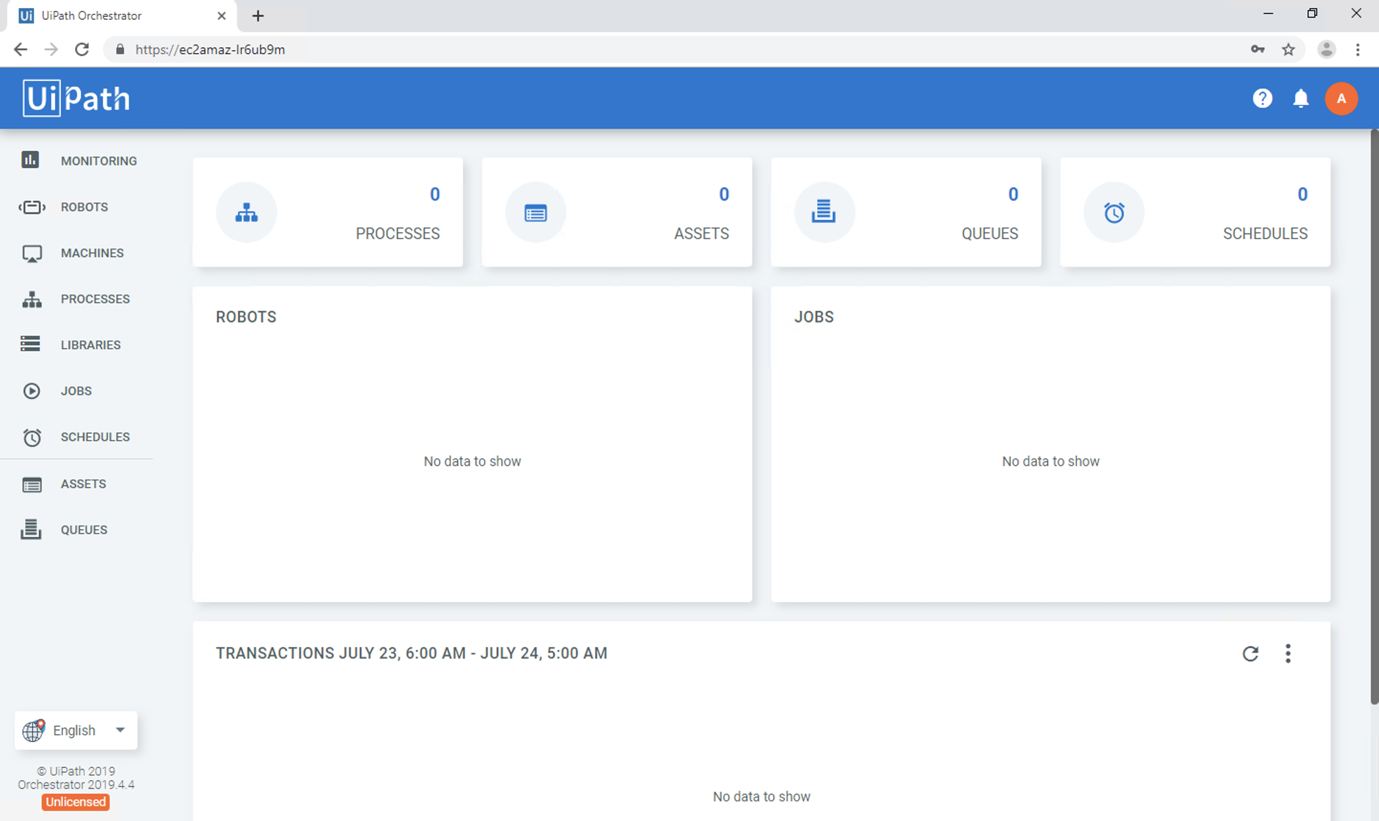
The UiPath Orchestrator dashboard appears like in the following screenshot:

Figure UiPath Orchestrator Portal

Figure 2- UiPath Orchestrator Portal

Set up Orchestrator High Availability Architecture

One Orchestrator can handle many robots in a typical configuration, but any product running on a single server is vulnerable to failure if something happens to that server.

The High Availability add-on (HAA) enables you to add a second Orchestrator server to your environment that is generally fully synchronized with the first server.

To set up multi-node deployment, launch Amazon EC2 instances with a Linux OS-based Amazon Machine Image (AMI) that meets the HAA hardware and software requirements. Follow the installation guide to set up HAA.

Elastic Load Balancing automatically distributes incoming application traffic across multiple targets. Network Load Balancer should be set up to allow Robots to communicate with multi-node Orchestrators.

Cleaning up

To avoid incurring future charges, delete all the resources.

Conclusion

In this post, I showed you how to deploy the UiPath Enterprise RPA Platform on AWS to further optimize and automate your business processes. AWS Managed Services like Amazon EC2, Amazon RDS, and Amazon Elasticsearch Service help you set up the environment with high availability. This reduces the maintenance effort of backend services, as well as scaling Orchestrator capabilities. Amazon EC2 Auto Scaling helps you add or remove robots to meet automation workload changes in demand.

Learn more about how to integrate UiPath with AWS services, check out The UiPath and AWS partnership.

Field Notes provides hands-on technical guidance from AWS Solutions Architects, consultants, and technical account managers, based on their experiences in the field solving real-world business problems for customers.

Seamlessly Join a Linux Instance to AWS Directory Service for Microsoft Active Directory

Post Syndicated from Martin Beeby original https://aws.amazon.com/blogs/aws/seamlessly-join-a-linux-instance-to-aws-directory-service-for-microsoft-active-directory/

Many customers I speak to use Active Directory to manage centralized user authentication and authorization for a variety of applications and services. For these customers, Active Directory is a critical piece of their IT Jigsaws.

At AWS, we offer the AWS Directory Service for Microsoft Active Directory that provides our customers with a highly available and resilient Active Directory service that is built on actual Microsoft Active Directory. AWS manages the infrastructure required to run Active Directory and handles all of the patching and software updates needed. It’s fully managed, so for example, if a domain controller fails, our monitoring will automatically detect and replace that failed controller.

Manually connecting a machine to Active Directory is a thankless task; you have to connect to the computer, make a series of manual changes, and then perform a reboot. While none of this is particularly challenging, it does take time, and if you have several machines that you want to onboard, then this task quickly becomes a time sink.

Today the team is unveiling a new feature which will enable a Linux EC2 instance, as it is launched, to connect to AWS Directory Service for Microsoft Active Directory seamlessly. This complements the existing feature that allows Windows EC2 instances to seamlessly domain join as they are launched. This capability will enable customers to move faster and improves the experience for Administrators.

Now you can have both your Windows and Linux EC2 instances seamlessly connect to AWS Directory Service for Microsoft Active Directory. The directory can be in your own account or shared with you from another account, the only caveat being that both the instance and the directory must be in the same region.

To show you how the process works, let’s take an existing AWS Directory Service for Microsoft Active Directory and work through the steps required to have a Linux EC2 instance seamlessly join that directory.

Create and Store AD Credentials
To seamlessly join a Linux machine to my AWS Managed Active Directory Domain, I will need an account that has permissions to join instances into the domain. While members of the AWS Delegated Administrators have sufficient privileges to join machines to the domain, I have created a service account that has the minimum privileges required. Our documentation explains how you go about creating this sort of service account.

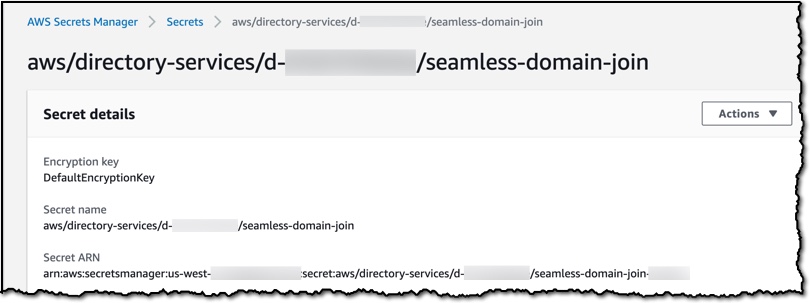
The seamless domain join feature needs to know the credentials of my active directory service account. To achieve this, I need to create a secret using AWS Secrets Manager with specifically named secret keys, which the seamless domain feature will use to join instances to the directory.

In the AWS Secrets Manager console I click on the Store a new secret button, on the next screen, when asked to Select a secret type, I choose the option named Other type of secrets. I can now add two secret key/values. The first is called awsSeamlessDomainUsername, and in the value textbox, I enter the username for my Active Directory service account. The Second key is called awsSeamlessDomainPassword, and here I enter the password for my service account.

Since this is a demo, I chose to use the DefaultEncryptionKey for the secret, but you might decide to use your own key.

After clicking next, I am asked to give the secret a name. I add the following name, replacing d-xxxxxxxxx with my directory ID.

aws/directory-services/d-xxxxxxxxx/seamless-domain-join

The domain join will fail if you mistype this name or if you have any leading or ending spaces.

I take note down the Secret ARN as I will need it when I create my IAM Policy.

Create The Required IAM Policy and Role
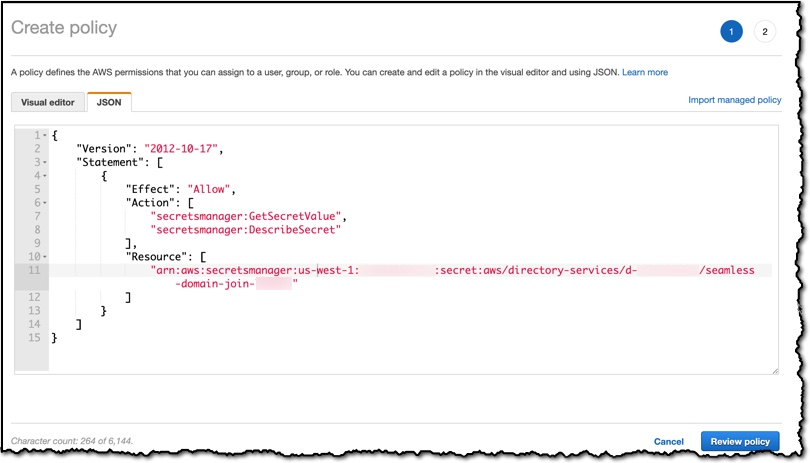
Now I need to create an IAM policy that gives permission to read my seamless-domain-join secret.

I sign in to the IAM console and choose Policies. In the content pane, I select Create policy. I switch over to the JSON tab and copy the text from the following JSON policy document, replacing the Secrets Manager ARN with the one I noted down earlier.

{
    "Version": "2012-10-17",
    "Statement": [
        {
            "Effect": "Allow",
            "Action": [
                "secretsmanager:GetSecretValue",
                "secretsmanager:DescribeSecret"
            ],
            "Resource": [
                "arn:aws:secretsmanager:us-east-1:############:secret:aws/directory-service/d-xxxxxxxxxx/seamless-domain-join-example"
            ]
        }
    ]
}

On the Review page, I name the policy SeamlessDomainJoin-Secret-Readonly then choose Create policy to save my work.

Now I need to create an IAM Role that will use this policy (and a few others). In the IAM Console, I choose Roles, and then in the content pane, choose to Create role. Under Select type of trusted entity, I select AWS service and then select EC2 as a use case and click Next:Permissions.


I attach the following policies to my Role: AmazonSSMManagedInstanceCore, AmazonSSMDirectoryServiceAccess, and SeamlessDomainJoin-Secret-Readonly.

I click through to the Review screen where it asks for a Role name, I call the role EC2DomainJoin, but it could be called whatever you like. I then create the role by pressing the button at the bottom right of the screen.

Create an Amazon Machine Image
When I launch a Linux Instance later I will need to pick a Linux Amazon Machine Image (AMI) as a template. Currently, the default Linux AMIs do not contain the version of AWS Systems Manager agent (SSM agent) that this new seamless domain feature needs. Therefore I am going to have to create an AMI with an updated SSM agent. To do this, I first create a new Linux Instance in my account and then connect to it using my SSH client. I then follow the documentation to update the SSM agent to 2.3.1644.0 or newer. Once the instance has finished updating I am then able to create a new AMI based on this instance using the following documentation.

I now have a new AMI which I can use in the next step. In the future, the base AMIs will be updated to use the newer SSM agent, and then we can skip this section. If you are interested to know what version of the SSM agent an instance is using this documentation explains how you can check.

Seamless Join
To start, I need to create a Linux instance, and so I head over to the EC2 console and choose Launch Instance.

Next, I pick a Linux Amazon Machine Image (AMI). I select the AMI which I created earlier.

When configuring the instance, I am careful to choose the Amazon Virtual Private Cloud that contains my directory. Using the drop-down labeled Domain join directory I am able to select the directory that I want this instance to join.

In the IAM role, I select the EC2DomainJoin role that I created earlier.

When I launch this instance, it will seamlessly join my directory. Once the instance comes online, I can confirm everything is working correctly by using SSH to connect to the instance using the administrator credentials of my AWS Directory Service for Microsoft Active Directory.

This new feature is available from today, and we look forward to hearing your feedback about this new capability.

Happy Joining

— Martin