Tag Archives: Amazon EC2

Coming Soon – EC2 C6gn Instances – 100 Gbps Networking with AWS Graviton2 Processors

Post Syndicated from Danilo Poccia original https://aws.amazon.com/blogs/aws/coming-soon-ec2-c6gn-instances-100-gbps-networking-with-aws-graviton2-processors/

Based on the amazing feedback from customers such as Snap, NextRoll, Intuit, SmugMug, and Honeycomb who are running their workloads on Amazon Elastic Compute Cloud (EC2) instances powered by AWS Graviton2, today we are announcing an addition to our broad Arm-based Graviton2 portfolio with C6gn instances that deliver up to 100 Gbps network bandwidth, up to 38 Gbps Amazon Elastic Block Store (EBS) bandwidth, up to 40% higher packet processing performance, and up to 40% better price/performance versus comparable current generation x86-based network optimized instances.

Compared to C6g instances, this new instance type provides 4x higher network bandwidth, 4x higher packet processing performance, and 2x higher EBS bandwidth. This means that customers with workloads that need high networking bandwidth such as high performance computing (HPC), network appliance, real-time video communications, and data analytics, will be able to bring their biggest and most challenging applications to Arm and take advantage of the performance and cost-optimization.

C6gn instances will be available in 8 sizes:

Name vCPUs Memory
(GiB)
Network Bandwidth
(Gbps)
EBS Throughput
(Gbps)
c6gn.medium 1 2 Up to 25 Up to 9.5
c6gn.large 2 4 Up to 25 Up to 9.5
c6gn.xlarge 4 8 Up to 25 Up to 9.5
c6gn.2xlarge 8 16 Up to 25 Up to 9.5
c6gn.4xlarge 16 32 25 9.5
c6gn.8xlarge 32 64 50 19
c6gn.12xlarge 48 96 75 28.5
c6gn.16xlarge 64 128 100 38

The new instances are built on the AWS Nitro System, a collection of AWS-designed hardware and software innovations that maximize resource efficiency. C6gn instances support Elastic Fabric Adapter (EFA) on the c6gn.16xlarge sizes for workloads that can take advantage of lower network latency (such as HPC and video processing) and use Message Passing Interface (MPI) for highly scalable clusters. These new instances also fully support network frameworks like Data Plane Development Kit (DPDK), making it easier to migrate network appliance workloads.

Coming Soon
EC2 C6gn instances will be available later this month and make it easier to optimize costs for HPC and workloads that require high network bandwidth and low latency. Let me know what you are going to build with them!

To get practice with the AWS Graviton2 architecture, you can try t4g.micro instances for free for up to 750 hours per month until March 31st, 2021.

Learn more about EC2 C6gn instances today.

— Danilo

New – Amazon EC2 R5b Instances Provide 3x Higher EBS Performance

Post Syndicated from Harunobu Kameda original https://aws.amazon.com/blogs/aws/new-amazon-ec2-r5b-instances-providing-3x-higher-ebs-performance/

In July 2018, we announced memory-optimized R5 instances for the Amazon Elastic Compute Cloud (Amazon EC2). R5 instances are designed for memory-intensive applications such as high-performance databases, distributed web scale in-memory caches, in-memory databases, real time big data analytics, and other enterprise applications.

R5 instances offer two different block storage options. R5d instances offer up to 3.6TB of NMVe instance storage for applications that need access to high-speed, low latency local storage. In addition, all R5b instances work with Amazon Elastic Block Store. Amazon EBS is an easy-to-use, high-performance and highly available block storage service designed for use with Amazon EC2 for both throughput- and transaction-intensive workloads at any scale. A broad range of workloads, such as relational and non-relational databases, enterprise applications, containerized applications, big data analytics engines, file systems, and media workflows are widely deployed on Amazon EBS.

Today, we are happy to announce the availability of R5b, a new addition to the R5 instance family. The new R5b instance is powered by the AWS Nitro System to provide the best network-attached storage performance available on EC2. This new instance offers up to 60Gbps of EBS bandwidth and 260,000 I/O operations per second (IOPS).

Amazon EC2 R5b Instance
Many customers use R5 instances with EBS for large relational database workloads such as commerce platforms, ERP systems, and health record systems, and they rely on EBS to provide scalable, durable, and high availability block storage. These instances provide sufficient storage performance for many use cases, but some customers require higher EBS performance on EC2.

R5 instances provide bandwidth up to 19Gbps and maximum EBS performance of 80K IOPS, while the new R5b instances support bandwidth up to 60Gbps and EBS performance of 260K IOPS, providing 3x higher EBS-Optimized performance compared to R5 instances, enabling customers to lift and shift large relational databases applications to AWS. R5b and R5 vCPU to memory ratio and network performance are the same.

Instance Name vCPUs Memory EBS Optimized Bandwidth (Mbps) EBS Optimized IOPs@16KiB (IO/s)
r5b.large 2 16 GiB Up to 10,000 Up to 43,333
r5b.xlarge 4 32 GiB Up to 10,000 Up to 43,333
r5b.2xlarge 8 64 GiB Up to 10,000 Up to 43,333
r5b.4xlarge 16 128 GiB 10,000 43,333
r5b.8xlarge 32 256 GiB 20,000 86,667
r5b.12xlarge 48 384 GiB 30,000 130,000
r5b.16xlarge 64 512 GiB 40,000 173,333
r5b.24xlarge 96 768 GiB 60,000 260,000
r5b.metal 96 768 GiB 60,000 260,000

Customers operating storage performance sensitive workloads can migrate from R5 to R5b to consolidate their existing workloads into fewer or smaller instances. This can reduce the cost of both infrastructure and licensed commercial software working on those instances. R5b instances are supported by Amazon RDS for Oracle and Amazon RDS for SQL Server, simplifying the migration path for large commercial database applications and improving storage performance for current RDS customers by up to 3x.

All Nitro compatible AMIs support R5b instances, and the EBS-backed HVM AMI must have NVMe 1.0e and ENA drivers installed at R5b instance launch. R5b supports io1, io2 Block Express (in preview), gp2, gp3, sc1, st1 and standard volumes. R5b does not support io2 volumes and io1 volumes that have multi-attach enabled, which are coming soon.

Available Today

R5b instances are available in the following regions: US West (Oregon), Asia Pacific (Tokyo), US East (N. Virginia), US East (Ohio), Asia Pacific (Singapore), and Europe (Frankfurt). RDS on r5b is available in US East (Ohio), Asia Pacific (Singapore), and Europe (Frankfurt), and support in other regions is coming soon.

Learn more about EC2 R5 instances and get started with Amazon EC2 today.

– Kame;

EC2 Update – D3 / D3en Dense Storage Instances

Post Syndicated from Jeff Barr original https://aws.amazon.com/blogs/aws/ec2-update-d3-d3en-dense-storage-instances/

We have launched several generations of EC2 instances with dense storage including the HS1 in 2012 and the D2 in 2015. As you can guess from the name, our customers use these instances when they need massive amounts of very economical on-instance storage for their data warehouses, data lakes, network file systems, Hadoop clusters, and the like. These workloads demand plenty of I/O and network throughput, but work fine with a high ratio of storage to compute power.

New D3 and D3en Instances
Today we are launching the D3 and D3en instances. Like their predecessors, they give you access to massive amounts of low-cost on-instance HDD storage. The D3 instances are available in four sizes, with up to 32 vCPUs and 48 TB of storage. Here are the specs:

Instance Name vCPUs RAM HDD Storage Aggregate Disk Throughput
(128 KiB Blocks)
Network Bandwidth EBS-Optimized Bandwidth
d3.xlarge 4 32 GiB 6 TB (3 x 2 TB)  580 MiBps Up to 15 Gbps 850 Mbps
d3.2xlarge 8 64 GiB 12 TB (6 x 2 TB) 1,100 MiBps Up to 15 Gbps 1,700 Mbps
d3.4xlarge 16 128 GiB 24 TB (12 x 2 TB) 2,300 MiBps Up to 15 Gbps 2,800 Mbps
d3.8xlarge 32 256 GiB 48 TB (24 x 2 TB) 4,600 MiBps 25 Gbps 5,000 Mbps

As you can see from the table above, the D3 instances are available in the same configurations as the D2 instances for easy migration. You’ll get 5% more memory per vCPU, a 30% boost in compute power, and 2.5x higher network performance if you migrate from D2 to D3. The instances provide low-cost dense storage that delivers high performance sequential access to large data sets. They are perfect for distributed file systems such as HDFS and MapR FS, big data analytical workloads, data warehouses, log processing, and data processing.

The D3en instances are available in six sizes, with up to 48 vCPUs and 336 TB of storage. Here are the specs:

Instance Name vCPUs RAM HDD Storage Aggregate Disk Throughput
(128 KiB Blocks)
Network Bandwidth EBS-Optimized Bandwidth
d3en.xlarge 4 16 GiB 28 TB (2 x 14 TB) 500 MiBps Up to 25 Gbps 850 Mbps
d3en.2xlarge 8 32 GiB 56 TB (4 x 14 TB) 1,000 MiBps Up to 25 Gbps 1,700 Mbps
d3en.4xlarge 16 64 GiB 112 TB (8 x 14 TB) 2,000 MiBps 25 Gbps 2,800 Mbps
d3en.6xlarge 24 96 GiB 168 TB (12 x 14 TB) 3,100 MiBps 40 Gbps 4,000 Mbps
d3en.8xlarge 32 128 GiB  224 TB (16 x 14 TB) 4,100 MiBps 50 Gbps 5,000 Mbps
d3en.12xlarge 48 192 GiB 336 TB (24 x 14 TB) 6,200 MiBps 75 Gbps 7,000 Mbps

The D3en instances have a high ratio of storage to vCPU, and are optimized for high throughput and high sequential I/O to very large data sets, with a cost-per-TB that is 80% lower than on D2 instances. D3en instances can host Lustre, BeeGFS, GPFS, and other distributed file systems, they can store your data lakes, and they can run your Amazon EMR, Spark, and Hadoop analytical workloads.

Both of the instance types are built on the AWS Nitro System and are powered by custom Intel® Second Generation Scalable Xeon® (Cascade Lake) processors that can deliver all-core turbo performance of up to 3.1 GHz. The HDD storage is encrypted at rest using AES-256-XTS; traffic between D3 or D3en instances in the same VPC or within peered VPCs is encrypted using a 256-bit key.

Things to Know
Here are a couple of things that you should keep in mind regarding the D3 and D3en instances:

Regions – D3en instances are available in the US East (N. Virginia), US West (Oregon), and Europe (Ireland) Regions; D3en instances are available in all of those regions and also in the US East (Ohio) Region, with more regions coming soon.

Purchase Options – You can purchase D3 and D3 instances in On-Demand, Savings Plan, Reserved Instance, Spot, and Dedicated Instance form.

AMIs – You must use AMIs that include the Elastic Network Adapter (ENA) and NVMe drivers.

Now Available
D3 and D3en instances are available now and you can start using them today!

— Jeff;

New – Use Amazon EC2 Mac Instances to Build & Test macOS, iOS, ipadOS, tvOS, and watchOS Apps

Post Syndicated from Jeff Barr original https://aws.amazon.com/blogs/aws/new-use-mac-instances-to-build-test-macos-ios-ipados-tvos-and-watchos-apps/

Throughout the course of my career I have done my best to stay on top of new hardware and software. As a teenager I owned an Altair 8800 and an Apple II. In my first year of college someone gave me a phone number and said “call this with modem.” I did, it answered “PENTAGON TIP,” and I had access to ARPANET!

I followed the emerging PC industry with great interest, voraciously reading every new issue of Byte, InfoWorld, and several other long-gone publications. In early 1983, rumor had it that Apple Computer would soon introduce a new system that was affordable, compact, self-contained, and very easy to use. Steve Jobs unveiled the Macintosh in January 1984 and my employer ordered several right away, along with a pair of the Apple Lisa systems that were used as cross-development hosts. As a developer, I was attracted to the Mac’s rich collection of built-in APIs and services, and still treasure my phone book edition of the Inside Macintosh documentation!

New Mac Instance
Over the last couple of years, AWS users have told us that they want to be able to run macOS on Amazon Elastic Compute Cloud (EC2). We’ve asked a lot of questions to learn more about their needs, and today I am pleased to introduce you to the new Mac instance!


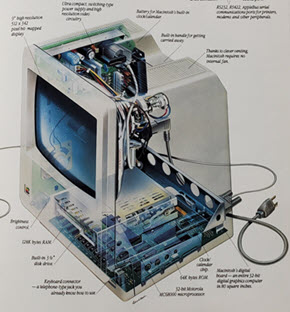
The original (128 KB) Mac

Powered by Mac mini hardware and the AWS Nitro System, you can use Amazon EC2 Mac instances to build, test, package, and sign Xcode applications for the Apple platform including macOS, iOS, iPadOS, tvOS, watchOS, and Safari. The instances feature an 8th generation, 6-core Intel Core i7 (Coffee Lake) processor running at 3.2 GHz, with Turbo Boost up to 4.6 GHz. There’s 32 GiB of memory and access to other AWS services including Amazon Elastic Block Store (EBS), Amazon Elastic File System (EFS), Amazon FSx for Windows File Server, Amazon Simple Storage Service (S3), AWS Systems Manager, and so forth.

On the networking side, the instances run in a Virtual Private Cloud (VPC) and include ENA networking with up to 10 Gbps of throughput. With EBS-Optimization, and the ability to deliver up to 55,000 IOPS (16KB block size) and 8 Gbps of throughput for data transfer, EBS volumes attached to the instances can deliver the performance needed to support I/O-intensive build operations.

Mac instances run macOS 10.14 (Mojave) and 10.15 (Catalina) and can be accessed via command line (SSH) or remote desktop (VNC). The AMIs (Amazon Machine Images) for EC2 Mac instances are EC2-optimized and include the AWS goodies that you would find on other AWS AMIs: An ENA driver, the AWS Command Line Interface (CLI), the CloudWatch Agent, CloudFormation Helper Scripts, support for AWS Systems Manager, and the ec2-user account. You can use these AMIs as-is, or you can install your own packages and create custom AMIs (the homebrew-aws repo contains the additional packages and documentation on how to do this).

You can use these instances to create build farms, render farms, and CI/CD farms that target all of the Apple environments that I mentioned earlier. You can provision new instances in minutes, giving you the ability to quickly & cost-effectively build code for multiple targets without having to own & operate your own hardware. You pay only for what you use, and you get to benefit from the elasticity, scalability, security, and reliability provided by EC2.

EC2 Mac Instances in Action
As always, I asked the EC2 team for access to an instance in order to put it through its paces. The instances are available in Dedicated Host form, so I started by allocating a host:

$ aws ec2 allocate-hosts --instance-type mac1.metal \
  --availability-zone us-east-1a --auto-placement on \
  --quantity 1 --region us-east-1

Then I launched my Mac instance from the command line (console, API, and CloudFormation can also be used):

$ aws ec2 run-instances --region us-east-1 \
  --instance-type mac1.metal \
  --image-id  ami-023f74f1accd0b25b \
  --key-name keys-jbarr-us-east  --associate-public-ip-address

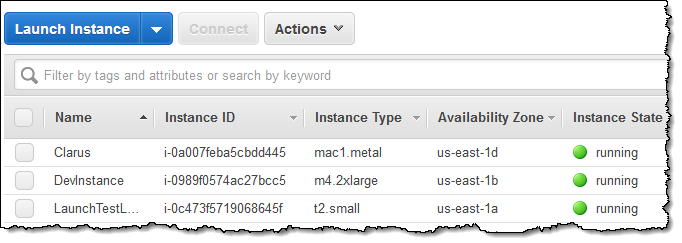
I took Luna for a very quick walk, and returned to find that my instance was ready to go. I used the console to give it an appropriate name:

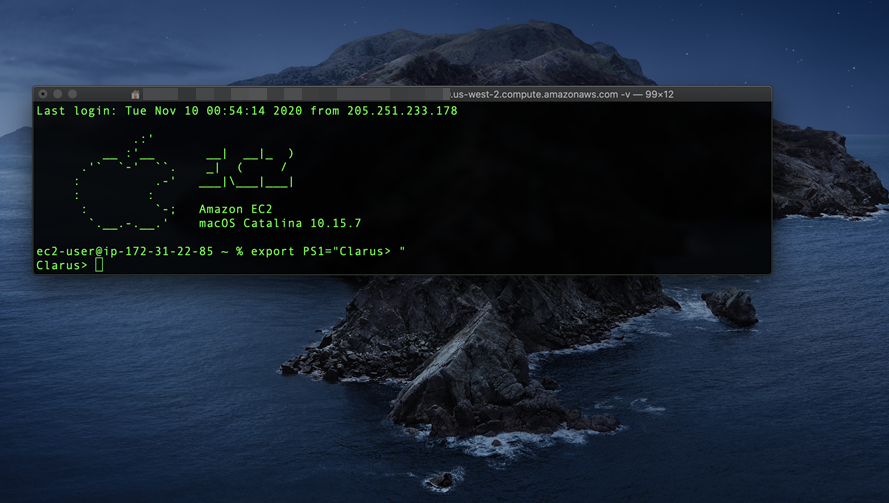
Then I connected to my instance:

From here I can install my development tools, clone my code onto the instance, and initiate my builds.

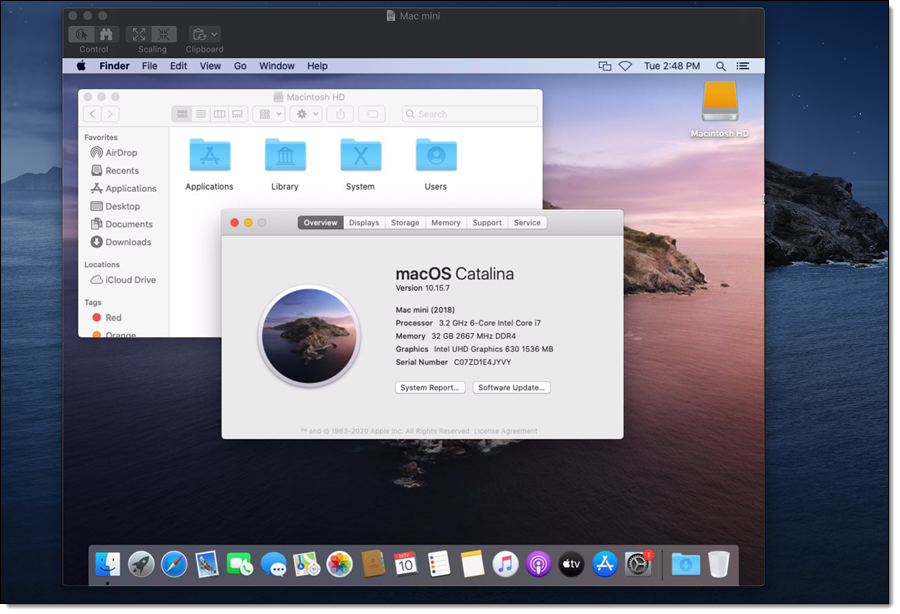
I can also start a VNC server on the instance and use a VNC client to connect to it:

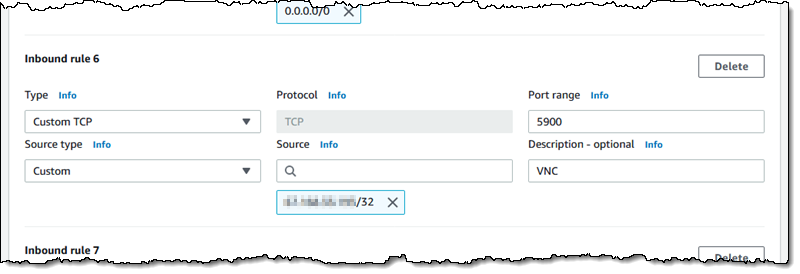
Note that the VNC protocol is not considered secure, and this feature should be used with care. I used a security group that allowed access only from my desktop’s IP address:

I can also tunnel the VNC traffic over SSH; this is more secure and would not require me to open up port 5900.

Things to Know
Here are a couple of fast-facts about the Mac instances:

AMI Updates – We expect to make new AMIs available each time Apple releases major or minor versions of each supported OS. We also plan to produce AMIs with updated Amazon packages every quarter.

Dedicated Hosts – The instances are launched as EC2 Dedicated Hosts with a minimum tenancy of 24 hours. This is largely transparent to you, but it does mean that the instances cannot be used as part of an Auto Scaling Group.

Purchase Models – You can run Mac instances On-Demand and you can also purchase a Savings Plan.

Apple M1 Chip – EC2 Mac instances with the Apple M1 chip are already in the works, and planned for 2021.

Launch one Today
You can start using Mac instances in the US East (N. Virginia), US East (Ohio), US West (Oregon), Europe (Ireland), and Asia Pacific (Singapore) Regions today, and check out this video for more information!

— Jeff;


Automatically update security groups for Amazon CloudFront IP ranges using AWS Lambda

Post Syndicated from Yeshwanth Kottu original https://aws.amazon.com/blogs/security/automatically-update-security-groups-for-amazon-cloudfront-ip-ranges-using-aws-lambda/

Amazon CloudFront is a content delivery network that can help you increase the performance of your web applications and significantly lower the latency of delivering content to your customers. For CloudFront to access an origin (the source of the content behind CloudFront), the origin has to be publicly available and reachable. Anyone with the origin domain name or IP address could request content directly and bypass CloudFront. In this blog post, I describe an automated solution that uses security groups to permit only CloudFront to access the origin.

Amazon Simple Storage Service (Amazon S3) origins provide a feature called Origin Access Identity, which blocks public access to selected buckets, making them accessible only through CloudFront. When you use CloudFront to secure your web applications, it’s important to ensure that only CloudFront can access your origin (such as Amazon Elastic Cloud Compute (Amazon EC2) or Application Load Balancer (ALB)) and any direct access to origin is restricted. This blog post shows you how to create an AWS Lambda function to automatically update Amazon Virtual Private Cloud (Amazon VPC) security groups with CloudFront service IP ranges to permit only CloudFront to access the origin.

AWS publishes the IP ranges in JSON format for CloudFront and other AWS services. If your origin is an Elastic Load Balancer or an Amazon EC2 instance, you can use VPC security groups to allow only CloudFront IP ranges to access your applications. The IP ranges in the list are separated by service and Region, and you must specify only the IP ranges that correspond to CloudFront.

The IP ranges that AWS publishes change frequently and without an automated solution, you would need to retrieve this document frequently to understand the current IP ranges for CloudFront. Frequent polling is inefficient because there is no notice of when the IP ranges change, and if these IP ranges aren’t modified immediately, your client might see 504 errors when they access CloudFront. Additionally, there are numerous IP ranges for each service, performing the change manually isn’t an efficient way of updating these ranges. This means you need infrastructure to support the task. However, in that case you end up with another host to manage—complete with the typical patching, deployment, and monitoring. As you can see, a small task could quickly become more complicated than the problem you intended to solve.

An Amazon Simple Notification Service (Amazon SNS) message is sent to a topic whenever the AWS IP ranges change. Enabling you to build an event-driven, serverless solution that updates the IP ranges for your security groups, as needed by using a Lambda function that is triggered in response to the SNS notification.

Here are the steps we are going to take to implement the solution:

  1. Create your resources
    1. Create an IAM policy and execution role for the Lambda function
    2. Create your Lambda function
  2. Test your Lambda function
  3. Configure your Lambda function’s trigger

Create your resources

The first thing you need to do is create a Lambda function execution role and policy. Lambda function uses execution role to access or create AWS resources. This Lambda function is triggered by an SNS notification whenever there’s a change in the IP ranges document. Based on the number of IP ranges present for CloudFront and also the number of ports (for example, 80,443) that you want to whitelist on the origin, this Lambda function creates the required security groups. These security groups will allow only traffic from CloudFront to your ELB load balancers or EC2 instances.

Create an IAM policy and execution role for the Lambda function

When you create a Lambda function, it’s important to understand and properly define the security context for the Lambda function. Using AWS Identity and Access Management (IAM), you can create the Lambda execution role that determines the AWS service calls that the function is authorized to complete. (Learn more about the Lambda permissions model.)

To create the IAM policy for your role

  1. Log in to the IAM console with the user account that you will use to manage the Lambda function. This account must have administrator permissions.
  2. In the navigation pane, choose Policies.
  3. In the content pane, choose Create policy.
  4. Choose the JSON tab and copy the text from the following JSON policy document. Paste this text into the JSON text box.
    {
      "Version": "2012-10-17",
      "Statement": [
        {
          "Sid": "CloudWatchPermissions",
          "Effect": "Allow",
          "Action": [
            "logs:CreateLogGroup",
            "logs:CreateLogStream",
            "logs:PutLogEvents"
          ],
          "Resource": "arn:aws:logs:*:*:*"
        },
        {
          "Sid": "EC2Permissions",
          "Effect": "Allow",
          "Action": [
            "ec2:DescribeSecurityGroups",
            "ec2:AuthorizeSecurityGroupIngress",
            "ec2:RevokeSecurityGroupIngress",
            "ec2:CreateSecurityGroup",
            "ec2:DescribeVpcs",
    		"ec2:CreateTags",
            "ec2:ModifyNetworkInterfaceAttribute",
            "ec2:DescribeNetworkInterfaces"
            
          ],
          "Resource": "*"
        }
      ]
    }
    

  5. When you’re finished, choose Review policy.
  6. On the Review page, enter a name for the policy name (e.g. LambdaExecRolePolicy-UpdateSecurityGroupsForCloudFront). Review the policy Summary to see the permissions granted by your policy, and then choose Create policy to save your work.

To understand what this policy allows, let’s look closely at both statements in the policy. The first statement allows the Lambda function to create and write to CloudWatch Logs, which is vital for debugging and monitoring our function. The second statement allows the function to get information about existing security groups, get existing VPC information, create security groups, and authorize and revoke ingress permissions. It’s an important best practice that your IAM policies be as granular as possible, to support the principal of least privilege.

Now that you’ve created your policy, you can create the Lambda execution role that will use the policy.

To create the Lambda execution role

  1. In the navigation pane of the IAM console, choose Roles, and then choose Create role.
  2. For Select type of trusted entity, choose AWS service.
  3. Choose the service that you want to allow to assume this role. In this case, choose Lambda.
  4. Choose Next: Permissions.
  5. Search for the policy name that you created earlier and select the check box next to the policy.
  6. Choose Next: Tags.
  7. (Optional) Add metadata to the role by attaching tags as key-value pairs. For more information about using tags in IAM, see Tagging IAM Users and Roles.
  8. Choose Next: Review.
  9. For Role name (e.g. LambdaExecRole-UpdateSecurityGroupsForCloudFront), enter a name for your role.
  10. (Optional) For Role description, enter a description for the new role.
  11. Review the role, and then choose Create role.

Create your Lambda function

Now, create your Lambda function and configure the role that you created earlier as the execution role for this function.

To create the Lambda function

  1. Go to the Lambda console in N. Virginia region and choose Create function. On the next page, choose Author from scratch. (I’ll be providing the code for your Lambda function, but for other functions, the Use a blueprint option can be a great way to get started.)
  2. Give your Lambda function a name (e.g UpdateSecurityGroupsForCloudFront) and description, and select Python 3.8 from the Runtime menu.
  3. Choose or create an execution role: Select the execution role you created earlier by selecting the option Use an Existing Role.
  4. After confirming that your settings are correct, choose Create function.
  5. Paste the Lambda function code from here.
  6. Select Save.

Additionally, in the Basic Settings of the Lambda function, increase the timeout to 10 seconds.

To set the timeout value in the Lambda console

  1. In the Lambda console, choose the function you just created.
  2. Under Basic settings, choose Edit.
  3. For Timeout, select 10s.
  4. Choose Save.

By default, the Lambda function has these settings:

  • The Lambda function is configured to create security groups in the default VPC.
  • CloudFront IP ranges are updated as inbound rules on port 80.
  • The created security groups are tagged with the name prefix AUTOUPDATE.
  • Debug logging is turned off.
  • The service for which IP ranges are extracted is set to CloudFront.
  • The SDK client in the Lambda function set to us-east-1(N. Virginia).

If you want to customize these settings, set the following environment variables for the Lambda function. For more details, see Using AWS Lambda environment variables.

Action Key-value data
To create security groups in a specific VPC Key: VPC_ID
Value: vpc-id
To create security groups rules for a different port or multiple ports
 
The solution in this example supports a total of two ports. One can be used for HTTP and another for HTTPS.

Key: PORTS
Value: portnumber
or
Key: PORTS
Value: portnumber,portnumber
To customize the prefix name tag of your security groups Key: PREFIX_NAME
Value: custom-name
To enable debug logging to CloudWatch Key: DEBUG
Value: true
To extract IP ranges for a different service other than CloudFront Key: SERVICE
Value: servicename
To configure the Region for the SDK client used in the Lambda function
 
If the CloudFront origin is present in a different Region than N. Virginia, the security groups must be created in that region.
Key: REGION
Value: regionname

To set environment variables in the Lambda console

  1. In the Lambda console, choose the function you created.
  2. Under Environment variables, choose Edit.
  3. Choose Add environment variable.
  4. Enter a key and value.
  5. Choose Save.

Test your Lambda function

Now that you’ve created your function, it’s time to test it and initialize your security group.

To create your test event for the Lambda function

  1. In the Lambda console, on the Functions page, choose your function. In the drop-down menu next to Actions, choose Configure test events.
  2. Enter an Event Name (e.g. TriggerSNS)
  3. Replace the following as your sample event, which will represent an SNS notification and then select Create.
    {
        "Records": [
            {
                "EventVersion": "1.0",
                "EventSubscriptionArn": "arn:aws:sns:EXAMPLE",
                "EventSource": "aws:sns",
                "Sns": {
                    "SignatureVersion": "1",
                    "Timestamp": "1970-01-01T00:00:00.000Z",
                    "Signature": "EXAMPLE",
                    "SigningCertUrl": "EXAMPLE",
                    "MessageId": "95df01b4-ee98-5cb9-9903-4c221d41eb5e",
                    "Message": "{\"create-time\": \"yyyy-mm-ddThh:mm:ss+00:00\", \"synctoken\": \"0123456789\", \"md5\": \"7fd59f5c7f5cf643036cbd4443ad3e4b\", \"url\": \"https://ip-ranges.amazonaws.com/ip-ranges.json\"}",
                    "Type": "Notification",
                    "UnsubscribeUrl": "EXAMPLE",
                    "TopicArn": "arn:aws:sns:EXAMPLE",
                    "Subject": "TestInvoke"
                }
      		}
        ]
    }
    

  4. After you’ve added the test event, select Save and then select Test. Your Lambda function is then invoked, and you should see log output at the bottom of the console in Execution Result section, similar to the following.
    Updating from https://ip-ranges.amazonaws.com/ip-ranges.json
    MD5 Mismatch: got 2e967e943cf98ae998efeec05d4f351c expected 7fd59f5c7f5cf643036cbd4443ad3e4b: Exception
    Traceback (most recent call last):
      File "/var/task/lambda_function.py", line 29, in lambda_handler
        ip_ranges = json.loads(get_ip_groups_json(message['url'], message['md5']))
      File "/var/task/lambda_function.py", line 50, in get_ip_groups_json
        raise Exception('MD5 Missmatch: got ' + hash + ' expected ' + expected_hash)
    Exception: MD5 Mismatch: got 2e967e943cf98ae998efeec05d4f351c expected 7fd59f5c7f5cf643036cbd4443ad3e4b
    

  5. Edit the sample event again, and this time change the md5 value in the sample event to be the first MD5 hash provided in the log output. In this example, you would update the md5 value in the sample event configured earlier with the hash value seen in the error ‘2e967e943cf98ae998efeec05d4f351c’. Lambda code successfully executes only when the original hash of the IP ranges document and the hash received from the event trigger match. After you modify the hash value from the error message received earlier, the test event matches the hash of the IP ranges document.
  6. Select Save and test. This invokes your Lambda function.

After the function is invoked the second time with updated md5 has Lambda function should execute without any errors. You should be able to see the new security groups created and the IP ranges of CloudFront updated in the rules in the EC2 console, as shown in Figure 1.
 

Figure 1: EC2 console showing the security groups created

Figure 1: EC2 console showing the security groups created

In the initial successful run of this function, it created the total number of security groups required to update all the IP ranges of CloudFront for the ports mentioned. The function creates security groups based on the maximum number of rules that can be added to individual security groups. The new security groups can be identified from the EC2 console by the name AUTOUPDATE_random if you used the default configuration, or a custom name if you provided a PREFIX_NAME.

You can now attach these security groups to your Elastic LoadBalancer or EC2 instances. If your log output is different from what is described here, the output should help you identify the issue.

Configure your Lambda function’s trigger

After you’ve validated that your function is executing properly, it’s time to connect it to the SNS topic for IP changes. To do this, use the AWS Command Line Interface (CLI). Enter the following command, making sure to replace Lambda ARN with the Amazon Resource Name (ARN) of your Lambda function. You can find this ARN at the top right when viewing the configuration of your Lambda function.

aws sns subscribe - -topic-arn "arn:aws:sns:us-east-1:806199016981:AmazonIpSpaceChanged" - -region us-east-1 - -protocol lambda - -notification-endpoint "Lambda ARN"

You should receive the ARN of your Lambda function’s SNS subscription.

Now add a permission that allows the Lambda function to be invoked by the SNS topic. The following command also adds the Lambda trigger.

aws lambda add-permission - -function-name "Lambda ARN" - -statement-id lambda-sns-trigger - -region us-east-1 - -action lambda:InvokeFunction - -principal sns.amazonaws.com - -source-arn "arn:aws:sns:us-east-1:806199016981:AmazonIpSpaceChanged"

When AWS changes any of the IP ranges in the document, an SNS notification is sent and your Lambda function will be triggered. This Lambda function verifies the modified ranges in the document and efficiently updates the IP ranges on the existing security groups. Additionally, the function dynamically scales and creates additional security groups if the number of IP ranges for CloudFront is increased in future. Any newly created security groups are automatically attached to the network interface where the previous security groups are attached in order to avoid service interruption.

Summary

As you followed this blog post, you created a Lambda function to create a security groups and update the security group’s rules dynamically whenever AWS publishes new internal service IP ranges. This solution has several advantages:

  • The solution isn’t designed as a periodic poll, so it only runs when it needs to.
  • It’s automatic, so you don’t need to update security groups manually which lowers the operational cost.
  • It’s simple, because you have no extra infrastructure to maintain as the solution is completely serverless.
  • It’s cost effective, because the Lambda function runs only when triggered by the AmazonIpSpaceChanged SNS topic and only runs for a few seconds, this solution costs only pennies to operate.

If you have feedback about this post, submit comments in the Comments section below. If you have questions about this post, start a new thread on the Amazon CloudFront forum. If you have any other use cases for using Lambda functions to dynamically update security groups, or even other networking configurations such as VPC route tables or ACLs, we’d love to hear about them!

Want more AWS Security how-to content, news, and feature announcements? Follow us on Twitter.

Author

Yeshwanth Kottu

Yeshwanth is a Systems Development Engineer at AWS in Cupertino, CA. With a focus on CloudFront and Lambda@Edge, he enjoys helping customers tackle challenges through cloud-scale architectures. Yeshwanth has an MS in Computer Systems Networking and Telecommunications from Northeastern University. Outside of work, he enjoys travelling, visiting national parks, and playing cricket.

Tracking the latest server images in Amazon EC2 Image Builder pipelines

Post Syndicated from Eric Johnson original https://aws.amazon.com/blogs/compute/tracking-the-latest-server-images-in-amazon-ec2-image-builder-pipelines/

This post courtesy of Anoop Rachamadugu, Cloud Architect at AWS

The Amazon EC2 Image Builder service helps users to build and maintain server images. The images created by EC2 Image Builder can be used with Amazon Elastic Compute Cloud (EC2) and on-premises. Image Builder reduces the effort of keeping images up-to-date and secure by providing a graphical interface, built-in automation, and AWS-provided security settings. Customers have told us that they manage multiple server images and are looking for ways to track the latest server images created by the pipelines.

In this blog post, I walk through a solution that uses AWS Lambda and AWS Systems Manager (SSM) Parameter Store. It tracks and updates the latest Amazon Machine Image (AMI) IDs every time an Image Builder pipeline is run. With Lambda, you pay only for what you use. You are charged based on the number of requests for your functions and the time it takes for your code to run. In this case, the Lambda function is invoked upon the completion of the image builder pipeline. Standard SSM parameters are available at no additional charge.

Users can reference the SSM parameters in automation scripts and AWS CloudFormation templates providing access to the latest AMI ID for your EC2 infrastructure. Consider the use case of updating Amazon Machine Image (AMI) IDs for the EC2 instances in your CloudFormation templates. Normally, you might map AMI IDs to specific instance types and Regions. Then to update these, you would manually change them in each of your templates. With the SSM parameter integration, your code remains untouched and a CloudFormation stack update operation automatically fetches the latest Parameter Store value.

Overview

This solution uses a Lambda function written in Python that subscribes to an Amazon Simple Notification Service (SNS) topic. The Lambda function and the SNS topic are deployed using AWS SAM CLI. Once deployed, the SNS topic must be configured in an existing Image Builder pipeline. This results in the Lambda function being invoked at the completion of the Image Builder pipeline.

When a Lambda function subscribes to an SNS topic, it is invoked with the payload of the published messages. The Lambda function receives the message payload as an input parameter. The Lambda function first checks the message payload to see if the image status is available. If the image state is available, it retrieves the AMI ID from the message payload and updates the SSM parameter.

EC2 Image builder architecture diagram

EC2 Image builder architecture diagram

Prerequisites

To get started with this solution, the following is required:

Deploying the solution

The solution consists of two files, which can be downloaded from the amazon-ec2-image-builder GitHub repository.

  1. The Python file image-builder-lambda-update-ssm.py contains the code for the Lambda function. It first checks the SNS message payload to determine if the image is available. If it’s available, it extracts the AMI ID from the SNS message payload and updates the SSM parameter specified.The ‘ssm_parameter_name’ variable specifies the SSM parameter path where the AMI ID should be stored and updated. The Lambda function finishes by adding tags to the SSM parameter.
  2. The template.yaml file is an AWS SAM template. It deploys the Lambda function, SNS topic, and IAM role required for the Lambda function. I use Python 3.7 as the runtime and assign a memory of 256 MB for the Lambda function. The IAM policy gives the Lambda function permissions to retrieve and update SSM parameters. Deploy this application using the AWS SAM CLI guided deploy:
    sam deploy --guided

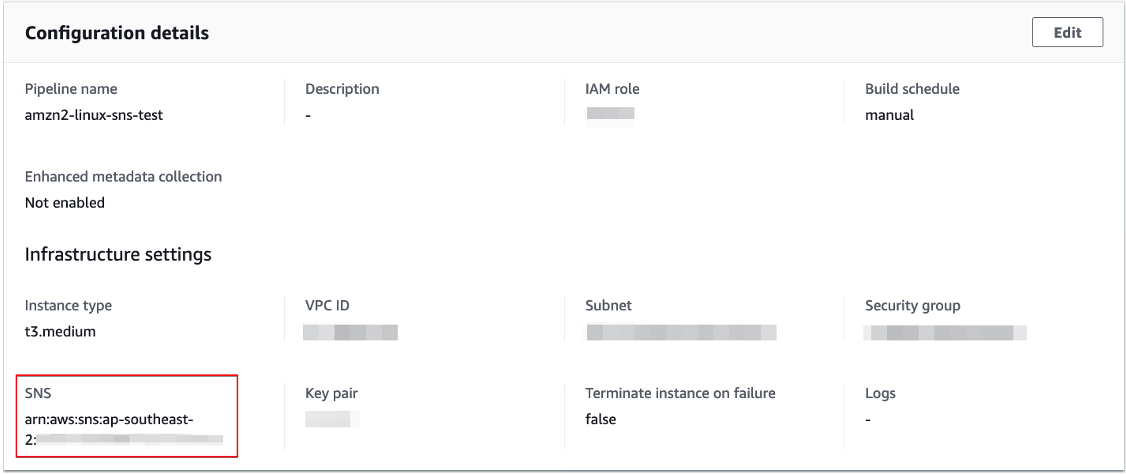
After deploying the application, note the ARN of the created SNS topic. Next, update the infrastructure settings of an existing Image Builder pipeline with this newly created SNS topic. This results in the Lambda function being invoked upon the completion of the image builder pipeline.

Configuration details

Configuration details

Verifying the solution

After the completion of the image builder pipeline, use the AWS CLI or check the AWS Management Console to verify the updated SSM parameter. To verify via AWS CLI, run the following commands to retrieve and list the tags attached to the SSM parameter:

aws ssm get-parameter --name ‘/ec2-imagebuilder/latest’
aws ssm list-tags-for-resource --resource-type "Parameter" --resource-id ‘/ec2-imagebuilder/latest’

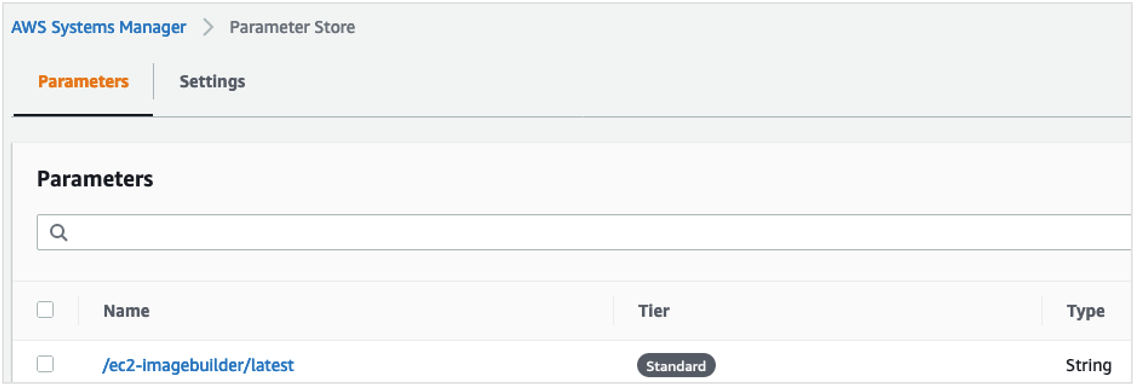
To verify via the AWS Management Console, navigate to the Parameter Store under AWS Systems Manager. Search for the parameter /ec2-imagebuilder/latest:

AWS Systems Manager: Parameter Store

AWS Systems Manager: Parameter Store

Select the Tags tab to view the tags attached to the SSM parameter:

Image builder tags list

Image builder tags list

Referencing the SSM Parameter in CloudFormation templates

Users can reference the SSM parameters in automation scripts and AWS CloudFormation templates providing access to the latest AMI ID for your EC2 infrastructure. This sample code shows how to reference the SSM parameter in a CloudFormation template.

Parameters :
  LatestAmiId :
    Type : 'AWS::SSM::Parameter::Value<AWS::EC2::Image::Id>'
    Default: ‘/ec2-imagebuilder/latest’

Resources :
  Instance :
    Type : 'AWS::EC2::Instance'
    Properties :
      ImageId : !Ref LatestAmiId

Conclusion

In this blog post, I demonstrate a solution that allows users to track and update the latest AMI ID created by the Image Builder pipelines. The Lambda function retrieves the AMI ID of the image created by a pipeline and update an AWS Systems Manager parameter. This Lambda function is triggered via an SNS topic configured in an Image Builder pipeline.

The solution is deployed using AWS SAM CLI. I also note how users can reference Systems Manager parameters in AWS CloudFormation templates providing access to the latest AMI ID for your EC2 infrastructure.

The amazon-ec2-image-builder-samples GitHub repository provides a number of examples for getting started with EC2 Image Builder. Image Builder can make it easier for you to build virtual machine (VM) images.

Snowflake: Running Millions of Simulation Tests with Amazon EKS

Post Syndicated from Keith Joelner original https://aws.amazon.com/blogs/architecture/snowflake-running-millions-of-simulation-tests-with-amazon-eks/

This post was co-written with Brian Nutt, Senior Software Engineer and Kao Makino, Principal Performance Engineer, both at Snowflake.

Transactional databases are a key component of any production system. Maintaining data integrity while rows are read and written at a massive scale is a major technical challenge for these types of databases. To ensure their stability, it’s necessary to test many different scenarios and configurations. Simulating as many of these as possible allows engineers to quickly catch defects and build resilience. But the Holy Grail is to accomplish this at scale and within a timeframe that allows your developers to iterate quickly.

Snowflake has been using and advancing FoundationDB (FDB), an open-source, ACID-compliant, distributed key-value store since 2014. FDB, running on Amazon Elastic Cloud Compute (EC2) and Amazon Elastic Block Storage (EBS), has proven to be extremely reliable and is a key part of Snowflake’s cloud services layer architecture. To support its development process of creating high quality and stable software, Snowflake developed Project Joshua, an internal system that leverages Amazon Elastic Kubernetes Service (EKS), Amazon Elastic Container Registry (ECR), Amazon EC2 Spot Instances, and AWS PrivateLink to run over one hundred thousand of validation and regression tests an hour.

About Snowflake

Snowflake is a single, integrated data platform delivered as a service. Built from the ground up for the cloud, Snowflake’s unique multi-cluster shared data architecture delivers the performance, scale, elasticity, and concurrency that today’s organizations require. It features storage, compute, and global services layers that are physically separated but logically integrated. Data workloads scale independently from one another, making it an ideal platform for data warehousing, data lakes, data engineering, data science, modern data sharing, and developing data applications.

Snowflake architecture

Developing a simulation-based testing and validation framework

Snowflake’s cloud services layer is composed of a collection of services that manage virtual warehouses, query optimization, and transactions. This layer relies on rich metadata stored in FDB.

Prior to the creation of the simulation framework, Project Joshua, FDB developers ran tests on their laptops and were limited by the number they could run. Additionally, there was a scheduled nightly job for running further tests.

Joshua at Snowflake

Amazon EKS as the foundation

Snowflake’s platform team decided to use Kubernetes to build Project Joshua. Their focus was on helping engineers run their workloads instead of spending cycles on the management of the control plane. They turned to Amazon EKS to achieve their scalability needs. This was a crucial success criterion for Project Joshua since at any point in time there could be hundreds of nodes running in the cluster. Snowflake utilizes the Kubernetes Cluster Autoscaler to dynamically scale worker nodes in minutes to support a tests-based queue of Joshua’s requests.

With the integration of Amazon EKS and Amazon Virtual Private Cloud (Amazon VPC), Snowflake is able to control access to the required resources. For example: the database that serves Joshua’s test queues is external to the EKS cluster. By using the Amazon VPC CNI plugin, each pod receives an IP address in the VPC and Snowflake can control access to the test queue via security groups.

To achieve its desired performance, Snowflake created its own custom pod scaler, which responds quicker to changes than using a custom metric for pod scheduling.

  • The agent scaler is responsible for monitoring a test queue in the coordination database (which, coincidentally, is also FDB) to schedule Joshua agents. The agent scaler communicates directly with Amazon EKS using the Kubernetes API to schedule tests in parallel.
  • Joshua agents (one agent per pod) are responsible for pulling tests from the test queue, executing, and reporting results. Tests are run one at a time within the EKS Cluster until the test queue is drained.

Achieving scale and cost savings with Amazon EC2 Spot

A Spot Fleet is a collection—or fleet—of Amazon EC2 Spot instances that Joshua uses to make the infrastructure more reliable and cost effective. ​ Spot Fleet is used to reduce the cost of worker nodes by running a variety of instance types.

With Spot Fleet, Snowflake requests a combination of different instance types to help ensure that demand gets fulfilled. These options make Fleet more tolerant of surges in demand for instance types. If a surge occurs it will not significantly affect tasks since Joshua is agnostic to the type of instance and can fall back to a different instance type and still be available.

For reservations, Snowflake uses the capacity-optimized allocation strategy to automatically launch Spot Instances into the most available pools by looking at real-time capacity data and predicting which are the most available. This helps Snowflake quickly switch instances reserved to what is most available in the Spot market, instead of spending time contending for the cheapest instances, at the cost of a potentially higher price.

Overcoming hurdles

Snowflake’s usage of a public container registry posed a scalability challenge. When starting hundreds of worker nodes, each node needs to pull images from the public registry. This can lead to a potential rate limiting issue when all outbound traffic goes through a NAT gateway.

For example, consider 1,000 nodes pulling a 10 GB image. Each pull request requires each node to download the image across the public internet. Some issues that need to be addressed are latency, reliability, and increased costs due to the additional time to download an image for each test. Also, container registries can become unavailable or may rate-limit download requests. Lastly, images are pulled through public internet and other services in the cluster can experience pulling issues.

​For anything more than a minimal workload, a local container registry is needed. If an image is first pulled from the public registry and then pushed to a local registry (cache), it only needs to pull once from the public registry, then all worker nodes benefit from a local pull. That’s why Snowflake decided to replicate images to ECR, a fully managed docker container registry, providing a reliable local registry to store images. Additional benefits for the local registry are that it’s not exclusive to Joshua; all platform components required for Snowflake clusters can be cached in the local ECR Registry. For additional security and performance Snowflake uses AWS PrivateLink to keep all network traffic from ECR to the workers nodes within the AWS network. It also resolved rate-limiting issues from pulling images from a public registry with unauthenticated requests, unblocking other cluster nodes from pulling critical images for operation.

Conclusion

Project Joshua allows Snowflake to enable developers to test more scenarios without having to worry about the management of the infrastructure. ​ Snowflake’s engineers can schedule thousands of test simulations and configurations to catch bugs faster. FDB is a key component of ​the Snowflake stack and Project Joshua helps make FDB more stable and resilient. Additionally, Amazon EC2 Spot has provided non-trivial cost savings to Snowflake vs. running on-demand or buying reserved instances.

If you want to know more about how Snowflake built its high performance data warehouse as a Service on AWS, watch the This is My Architecture video below.

Majority of Alexa Now Running on Faster, More Cost-Effective Amazon EC2 Inf1 Instances

Post Syndicated from Sébastien Stormacq original https://aws.amazon.com/blogs/aws/majority-of-alexa-now-running-on-faster-more-cost-effective-amazon-ec2-inf1-instances/

Today, we are announcing that the Amazon Alexa team has migrated the vast majority of their GPU-based machine learning inference workloads to Amazon Elastic Compute Cloud (EC2) Inf1 instances, powered by AWS Inferentia. This resulted in 25% lower end-to-end latency, and 30% lower cost compared to GPU-based instances for Alexa’s text-to-speech workloads. The lower latency allows Alexa engineers to innovate with more complex algorithms and to improve the overall Alexa experience for our customers.

AWS built AWS Inferentia chips from the ground up to provide the lowest-cost machine learning (ML) inference in the cloud. They power the Inf1 instances that we launched at AWS re:Invent 2019. Inf1 instances provide up to 30% higher throughput and up to 45% lower cost per inference compared to GPU-based G4 instances, which were, before Inf1, the lowest-cost instances in the cloud for ML inference.

Alexa is Amazon’s cloud-based voice service that powers Amazon Echo devices and more than 140,000 models of smart speakers, lights, plugs, smart TVs, and cameras. Today customers have connected more than 100 million devices to Alexa. And every month, tens of millions of customers interact with Alexa to control their home devices (“Alexa, increase temperature in living room,” “Alexa, turn off bedroom’“), to listen to radios and music (“Alexa, start Maxi 80 on bathroom,” “Alexa, play Van Halen from Spotify“), to be informed (“Alexa, what is the news?” “Alexa, is it going to rain today?“), or to be educated, or entertained with 100,000+ Alexa Skills.

If you ask Alexa where she lives, she’ll tell you she is right here, but her head is in the cloud. Indeed, Alexa’s brain is deployed on AWS, where she benefits from the same agility, large-scale infrastructure, and global network we built for our customers.

How Alexa Works
When I’m in my living room and ask Alexa about the weather, I trigger a complex system. First, the on-device chip detects the wake word (Alexa). Once detected, the microphones record what I’m saying and stream the sound for analysis in the cloud. At a high level, there are two phases to analyze the sound of my voice. First, Alexa converts the sound to text. This is known as Automatic Speech Recognition (ASR). Once the text is known, the second phase is to understand what I mean. This is Natural Language Understanding (NLU). The output of NLU is an Intent (what does the customer want) and associated parameters. In this example (“Alexa, what’s the weather today ?”), the intent might be “GetWeatherForecast” and the parameter can be my postcode, inferred from my profile.

This whole process uses Artificial Intelligence heavily to transform the sound of my voice to phonemes, phonemes to words, words to phrases, phrases to intents. Based on the NLU output, Alexa routes the intent to a service to fulfill it. The service might be internal to Alexa or external, like one of the skills activated on my Alexa account. The fulfillment service processes the intent and returns a response as a JSON document. The document contains the text of the response Alexa must say.

The last step of the process is to generate the voice of Alexa from the text. This is known as Text-To-Speech (TTS). As soon as the TTS starts to produce sound data, it is streamed back to my Amazon Echo device: “The weather today will be partly cloudy with highs of 16 degrees and lows of 8 degrees.” (I live in Europe, these are Celsius degrees 🙂 ). This Text-To-Speech process also heavily involves machine learning models to build a phrase that sounds natural in terms of pronunciations, rhythm, connection between words, intonation etc.

Alexa is one of the most popular hyperscale machine learning services in the world, with billions of inference requests every week. Of Alexa’s three main inference workloads (ASR, NLU, and TTS), TTS workloads initially ran on GPU-based instances. But the Alexa team decided to move to the Inf1 instances as fast as possible to improve the customer experience and reduce the service compute cost.

What is AWS Inferentia?
AWS Inferentia is a custom chip, built by AWS, to accelerate machine learning inference workloads and optimize their cost. Each AWS Inferentia chip contains four NeuronCores. Each NeuronCore implements a high-performance systolic array matrix multiply engine, which massively speeds up typical deep learning operations such as convolution and transformers. NeuronCores are also equipped with a large on-chip cache, which helps cut down on external memory accesses, dramatically reducing latency and increasing throughput.

AWS Inferentia can be used natively from popular machine-learning frameworks like TensorFlow, PyTorch, and MXNet, with AWS Neuron. AWS Neuron is a software development kit (SDK) for running machine learning inference using AWS Inferentia chips. It consists of a compiler, run-time, and profiling tools that enable you to run high-performance and low latency inference.

Who Else is Using Amazon EC2 Inf1?
In addition to Alexa, Amazon Rekognition is also adopting AWS Inferentia. Running models such as object classification on Inf1 instances resulted in 8x lower latency and doubled throughput compared to running these models on GPU instances.

Customers, from Fortune 500 companies to startups, are using Inf1 instances for machine learning inference. For example, Snap Inc.​ incorporates machine learning (ML) into many aspects of Snapchat, and exploring innovation in this field is a key priority for them. Once they heard about AWS Inferentia, they collaborated with AWS to adopt Inf1 instances to help with ML deployment, including around performance and cost. They started with their recommendation models inference, and are now looking forward to deploying more models on Inf1 instances in the future.

Conde Nast, one of the world’s leading media companies, saw a 72% reduction in cost of inference compared to GPU-based instances for its recommendation engine. And Anthem, one of the leading healthcare companies in the US, observed 2x higher throughput compared to GPU-based instances for its customer sentiment machine learning workload.

How to Get Started with Amazon EC2 Inf1
You can start using Inf1 instances today.

If you prefer to manage your own machine learning application development platforms, you can get started by either launching Inf1 instances with AWS Deep Learning AMIs, which include the Neuron SDK, or you can use Inf1 instances via Amazon Elastic Kubernetes Service or Amazon ECS for containerized machine learning applications. To learn more about running containers on Inf1 instances, read this blog to get started on ECS and this blog to get started on EKS.

The easiest and quickest way to get started with Inf1 instances is via Amazon SageMaker, a fully managed service that enables developers to build, train, and deploy machine learning models quickly.

Get started with Inf1 on Amazon SageMaker today.

— seb

PS: The team just released this video, check it out!

Integrating AWS Outposts with existing security zones

Post Syndicated from Shubha Kumbadakone original https://aws.amazon.com/blogs/compute/integrating-aws-outposts-with-existing-security-zones/

This post is contributed by Santiago Freitas and Matt Lehwess.

AWS Outposts is a fully managed service that extends AWS infrastructure, services, APIs, and tools to your on-premises facility. This blog post explains how the resources created on an Outpost can be integrated with security zones of an existing infrastructure. Integrating Outposts with existing security zones is important for customers that segment their environment into multiple domains based on their security policy.

Background

It’s common for customers to have different security zones within their infrastructure. For example, a customer might have a DMZ security zone where internet facing systems are located, an extra-net security zone where systems used to communicate with business partners are hosted, and an internal security zone where the systems accessible only by employees operate.

As illustrated in the following figure, customers often use firewalls and network ACLs to perform packet inspection and filtering for traffic that flows between security zones. Customers also usually use similar security controls for traffic flowing between different application tiers.


Example of firewall being used for security zone segmentation

Enabling connectivity from an Outposts VPC to your on-premises network

During your Outpost deployment, AWS works with you to establish connectivity to your local network. During this installation process, AWS creates an address pool based on an IP range you assign to the Outpost out of your local network’s IP ranges. This address pool is known as a customer-owned IP address pool or CoIP pool.

When resources running on Outposts (like an EC2 instance) need to communicate with existing on-premises systems, you must assign an Elastic IP address to them. This Elastic IP address comes from the CoIP pool. The resources in your local area network (LAN), including firewalls and network ACLs, see the Elastic IP address as the source IP of the packets sent from the resources running on Outposts. This Elastic IP address is also used as the destination IP for traffic from your on-premises systems to the instance on the Outpost.

How to enable connectivity from an Outposts VPC to your on-premises network

With a typical Outpost deployment, as shown in the following diagram, the following items are required to enable connectivity from the Outpost’s VPC to your on-premises network:

  1. VPC routing: Routes to your on-premises network in the route table of the VPC’s Outpost subnet.
  2. CoIP pool: Assigned by you, the customer, and created by AWS at time of install, for example, 192.168.1.0/26 in the diagram. It’s used to allocate Elastic IP addresses that can then be associated with instances or other resources on the Outpost.
  3. Elastic IP address association: Customer configured, association of Elastic IP addresses from the CoIP pool with EC2 instances and other resources on the Outpost. For example, VPC IP 10.0.3.112 from instance Y has Elastic IP address 192.168.1.15 associated with it.
  4. Routing advertisement: The Outpost advertises the assigned CoIP range to the local devices within your on-premises network via Border Gateway Protocol (BGP). This is configured by AWS during installation and based on the CoIP pool IP range you provide.


AWS Outposts – typical network topology

Integrating Outposts with existing security zones

CoIP pools, and AWS Resource Access Manager (RAM) are used to facilitate the integration of Outposts with your existing security zones. AWS RAM lets you share your resources with AWS account or through AWS Organizations.

When AWS deploys your Outposts, you can ask AWS to create multiple CoIP pools. Each CoIP pool is configured with an IP range assigned by you during initial installation. If after the initial installation you need AWS to create additional CoIP pools for an existing Outpost, you can open a case with AWS Support and request the creation of additional pools.

CoIP pools are owned initially by the AWS account that owns the Outpost. In a multi-account Outpost deployment, you can share your customer-owned IP pool(s) with other AWS accounts in your AWS Organization using AWS RAM.

VPCs that have subnets on the Outpost must be created in the same account that owns the Outpost. After creation of these subnets within the Outpost account, AWS RAM can then be used to share these subnets with other accounts or organizational units that are in the same organization from AWS Organizations.

After you’ve shared the CoIP pool with the account where you’d like to run your workloads, and you’ve shared an Outpost subnet with that same account, users of that account can deploy resources in the shared Outpost subnet. For the Outposts resources that must communicate with resources in your existing infrastructure, users can assign Elastic IP addresses from one or more of the shared CoIP pools to those Outposts resources.

Multiple CoIP pools and the ability to share them and Outpost subnets with a particular account, gives you granular control over the IP range used by Outpost resources requiring connectivity to your on-premises LAN.

The following figure illustrates the sharing of a subnet and CoIP pool from Account 1, which is the account where the Outpost was initially deployed, with Account 2. As the CoIP pool was shared with Account 2, the users in Account 2 are able to assign an Elastic IP address to the EC2 instance running within Account 2.

AWS Outposts and VPC Sharing

Creating an AWS RAM resource share

The following screenshots demonstrate how to use AWS RAM to share a CoIP pool and a subnet with another account in the same organization from AWS Organizations.

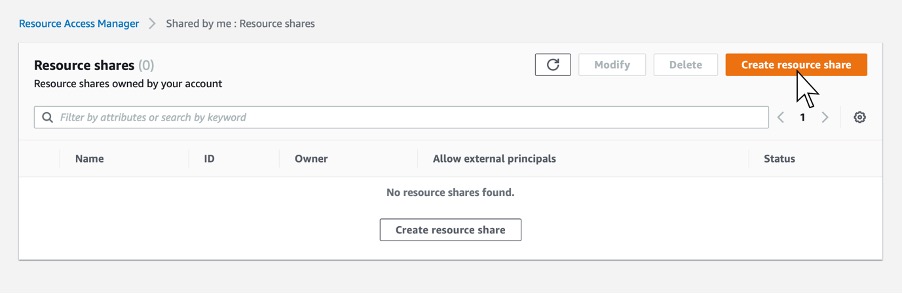
Step 1. Navigate to the AWS RAM service page within the AWS Management Console, and click Create Resource Share. This step is done within the AWS account that owns the Outpost.

Step 2. Next, give the share an appropriate name.

Step 3. Select one or more subnets you’d like to share with your application owner’s account. In this case, select a subnet that exists in your VPC on the Outpost.

Step 4. In this case, share the CoIP range. You can find that in the resources type list.

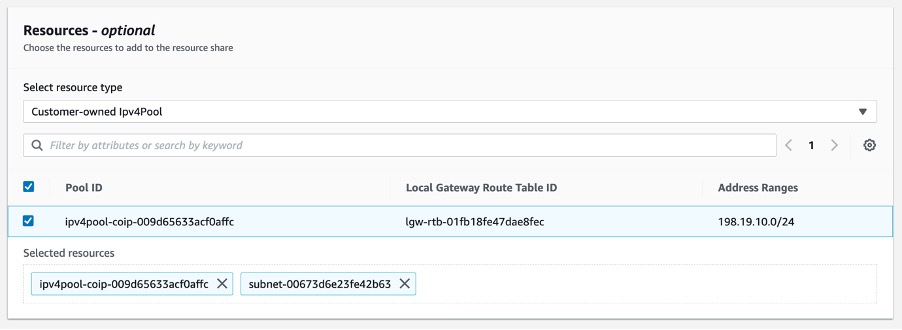
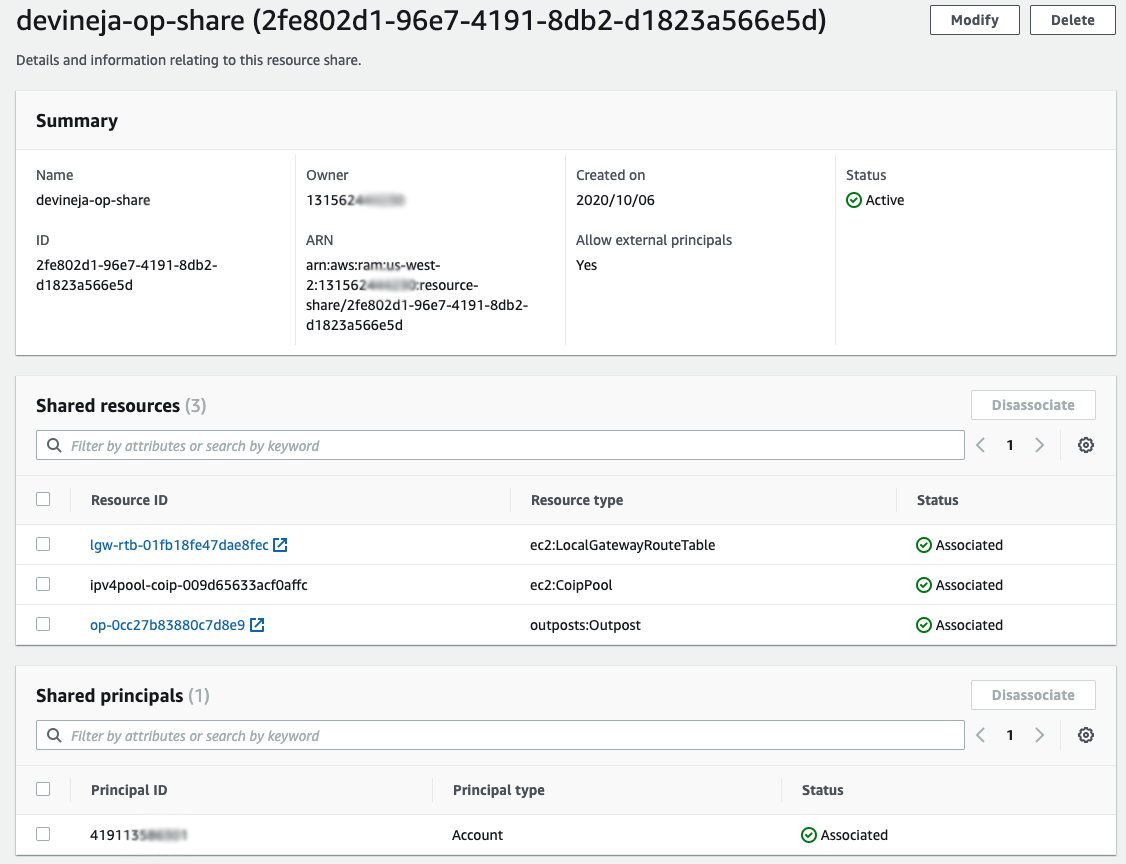
Step 5. Select the Customer-owned Ipv4Pool resource type, and then select the CoIP to be shared. Selecting the the CoIP adds it to the list of shared resources along with the subnet selected earlier.

Step 6. Add the account number for the account you’d like to share the Outposts subnet and CoIP pool with.

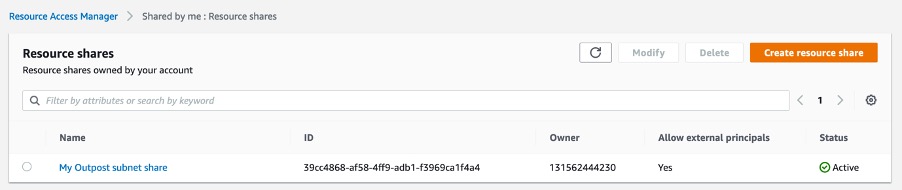
Step 7. Click Create Resource. After clicking the Create Resource share button, you should see the resource share listed and be in the state “active.”

Now that you’ve successfully shared the subnet and CoIP pool with your application account (that’s in the same organization), you can now go in to that account and allocate an Elastic IP address from the CoIP pool. You can then assign the Elastic IP address to an instance launched in the subnet previously shared, which is on the Outpost.

Allocating and associating the Elastic IP address from your CoIP pool

Step 1. From within the application account, allocate an Elastic IP address from the CoIP pool. This is done by navigating to the VPC console, then to Elastic IP addresses, and then click Allocate Elastic IP address.

Step 2. Select Customer owned pool of IPv4 addresses, select the CoIP pool that’s been shared with this account previously, then click Allocate. You can see this step in the following image.

Step 3. You can now see the new Elastic IP address that has been allocated from the shared CoIP pool. You can now associate that Elastic IP address with an instance in our shared subnet.

Note: When using the AWS Management Console to allocate an Elastic IP address, the ElasticIP address is automatically allocated from the CoIPpool. If you’re using the AWS CLI, you have the option to select a specific Elastic IP address from the CoIP pool by using the --customer-owned-ipv4-pool <value> option.

Step 4. You can now associate the Elastic IP address of type CoIP with an instance. Click Associate after selecting the instance that is running on your Outpost in the shared subnet. This step is represented in the following image.

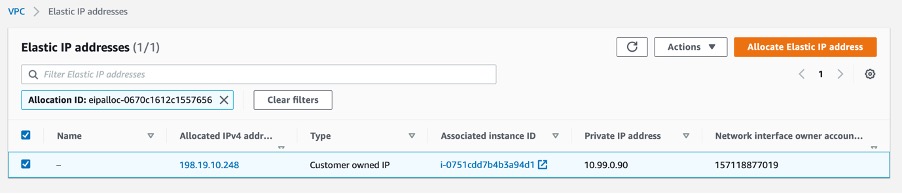
Step 5 – Once the operation is complete, you can see the CoIP Elastic IP address in the Elastic IP address console, and that it’s assigned to the instance that’s running in your shared subnet.

The steps preceding demonstrated how to share the Outpost with other accounts through the use of AWS Resource Access Manager, subnet sharing, and CoIP sharing.

Use case

Let’s apply the capabilities described prior into a design. A customer is running a 3-tier web application and would like to host the web and application tiers on Outposts. The database tier is hosted on the existing infrastructure. The application’s user traffic comes from the internet, through an external firewall towards the web tier hosted on the Outpost. Traffic between web and application tiers is secured with security groups and remains within the Outpost. Application servers connect to the database servers via the existing internal firewalls. The customer uses independent external and internal firewalls.

During the Outposts installation, the customer asks AWS to create two CoIP pools. The first CoIP pool, referenced in the following image as CoIP Web, is assigned the IP range 172.0.1.0/24. The second CoIP pool, referenced in the following image as CoIP App, is assigned the IP range 172.0.2.0/24. The customer then creates two additional AWS accounts, one for the web tier and another for the app tier. Within the account that owns the Outpost, the customer creates two VPCs and within each of those VPCs a subnet is created.

The subnet with IP address 10.0.1.0/24 is shared with the web tier account and the subnet with IP address 10.1.2.0/24 is shared with the app tier account. The customer then configures VPC peering between the VPCs to enable communication between the web and app tiers. VPC peering configuration is performed within the account that owns the Outposts.

Note: With VPC peering traffic between the VPCs remains within the Outpost. However, data transfer charges for VPC peering applies. This use-case could also be built with the web tier and app tier using different subnets within the same VPC to save on data transfer costs over VPC peering.

The following image shows initial setup with two CoIP pools, two accounts, and two VPCs.


Initial setup with two CoIP pools, two accounts and two VPCs

After the initial setup the customer then shares each CoIP pool with the appropriate account using AWS RAM. The customer can then create their web and application servers within the respective accounts. As shown in the prior image, the web server is assigned IP address 10.0.1.5 and the application server is assigned IP address 10.1.2.10. Each IP address is part of their respective VPC IP range and are reachable only within the Outpost at this point.

To enable the integration of the web and application servers with the existing infrastructure, the customer assigns an Elastic IP address from the CoIP pool shared with each account to their respective Amazon EC2 instances.

With this configuration, the customer can integrate the web and application servers into the existing security zones. To integrate the web servers, path “A” in the following image, the customer creates a rule in their external firewall that allows communication from any source (internet) to Elastic IP address 172.0.1.5 on port 443 (HTTPS) which has been assigned to the web server.

For the communication between the web and application servers, path “B” in the following image, the customer has configured VPC peering between the two VPCs and created the required security groups.

To integrate the application servers into the Internal Security Zone, path “C” in the following image, the customer has assigned Elastic IP address 172.0.2.10 to the application server and has configured a rule on the Internal Firewall allowing the IP range 172.0.2.0/24 that is assigned to the app CoIP pool to communicate with the database server.


End to end traffic flow from users to web tier and from app tier to database tier

In addition to setting up their Outposts as covered in the preceding details, to enable the communication between the Outposts hosted resources and the existing infrastructure you must create a custom route table and associate it with an Outpost subnet.

Conclusion

AWS Outposts extends AWS infrastructure, services, APIs, and tools to your on-premises facility. During deployment of your Outposts, AWS works with you to establish connectivity to your local network. This blog post builds upon this initial deployment of an Outpost to allow the Outpost’s resources to integrate into your existing security zones. The design is applicable for customers that segment their environment into multiple security zones.


Santiago Freitas is AWS Head of Technology for Central Eastern Europe (CEE), Middle East, North Africa (MENA), Sub Saharan Africa (SSA), Turkey (TUR), and Russia and Commonwealth of Independent States (RUS-CIS). Previously he was an AWS Global Solutions Architect for financial services. Before joining AWS, Santiago was a Distinguished Engineer at Cisco. He is based in Dubai, United Arab Emirates.

Matt is a Principal Developer Advocate for Amazon Web Services where he has spent the last 7 years working with AWS customers and partners, helping them to build best-in-class AWS networking solutions. He is co-author of the AWS Certified Advanced Networking Official Study Guide, as well as an Amazon Re:Invent speaker extraordinaire (5 years and counting!). His primary focus at AWS is to help evangelize AWS networking solutions and more recently, AWS Outposts.

Using shared memory for low-latency, intra-node communication in AWS Batch

Post Syndicated from James Beswick original https://aws.amazon.com/blogs/compute/using-shared-memory-for-low-latency-intra-node-communication-in-aws-batch/

This post is courtesy of Dario La Porta, Senior Consultant, HPC.

AWS Batch enables developers, scientists, and engineers to run hundreds of thousands of HPC jobs in AWS. By managing the provisioning of computing resources, this allows you to focus on your core business. Shared memory support is a new feature that can help improve overall performance.

This post explains the shared memory paradigm and how it can help you improve the performance of your single and multi-node applications. Performance gains can also help you to reduce the total runtime of your jobs and therefore reduce the overall cost.

The second part of the post shows you how to use shared memory in AWS Batch both in the AWS Management Console and the AWS CLI. Finally, I show the performance gains that are made possible with shared memory usage by walking through a benchmarking analysis with OSU Micro-Benchmarks and GROMACS.

Shared memory paradigm

Advanced, compute-intensive workloads require high-performance hardware to use scalability to deliver results. The Amazon EC2 C5n instance type provides cost-efficient, high-performance hardware with a configurable number of cores.

HPC workloads use algorithms that require parallelization and a low latency communication between the different processes. The two main technologies used for the parallel communications are message-passing with distributed memory and shared memory.

Message Passing Interface (MPI) is a message-passing standard used for the communication in a parallel distributed environment. Elastic Fabric Adapter (EFA) enables your MPI applications to use low-latency, inter-node communication.

The shared memory paradigm allows multiple processors in the same system to communicate using a memory (RAM) portion that is shared between the processes. This method takes advantage of the high-speed memory bus.

Shared memory paradigm

MPI with intra-node shared memory communication

The two main MPI implementations, OpenMPI and Intel MPI, enable an intra-node shared memory communication in a distributed compute environment. When configured, you take advantage of the EFA libfabic implementation having consistent and reduced latency. This results in higher throughput than the TCP transport for the intra-node communication. From libfabric 1.9 onwards, the shared memory support has been directly added to the EFA provider. You no longer need to perform any modification to the OFI MTL.

MPI jobs in AWS Batch

AWS Batch enables the execution of MPI jobs using a multi-node configuration. First, a job definition is created that enables the execution of the job in multiple nodes. To learn how to create this definition, see Creating a Multi-node Parallel Job Definition.

To take advantage of the EFA capabilities, select a supported instance type and read Leveraging Elastic Fabric Adapter to run HPC and ML Workloads on AWS Batch. This post shows how to create the necessary resources in AWS Batch and run your first job with EFA.

Shared memory in AWS Batch

The new AWS Batch console interface enables you to configure the shared memory of the container inside the Job Definition. To see this, expand the Additional configuration in the Container properties section:

Container properties

The Linux parameters section contains the Shared memory size parameter in MB.

Linux parameters

You can set the same configuration in the AWS CLI by passing JSON parameters to the RegisterJobDefinition API:

"linuxParameters": {
    "sharedMemorySize": integer
}

When you run the job, it creates a shared memory area on each node that uses two or more processes. The shared memory area cannot be changed during the execution of the job. The size of the shared memory area is determined by the number of cores available in the node and the application requirements. For most jobs, a suggested initial value is 4096 MB.

Modern Linux kernels support a POSIX shared memory API. You can inspect the size of the container shared memory using the df -h /dev/shm command. The output can help you determine the shared memory space needed for your job.

Benchmarks

The following section compares the different performance using shared memory with Intel MPI 2019 update 7 and EFA.

The instance type used for the benchmark is the c5n.18xlarge and, for the multi-node use case, a cluster placement group. This compares the performance increase from shared memory versus using pure EFA communication. The first benchmark focuses on the latency of the communication in a single node use case.

OSU Micro-Benchmarks is a suite of benchmarks for measuring and evaluating the performance of MPI operations. The specific test case used is the osu_latency, measuring the minimum, maximum and average latency of a ping-pong communication between a sender and a receiver. Specifically, this is where the message sender waits for the reply from the receiver. The benchmark uses a variety of data sizes to report the average one-way latency.

OSU benchmark results

The chart shows the latency in μs on the horizontal axis and packet size in bits on the vertical axis. The result shows a decrease in the communication latency using shared memory for the intra-node communication compared with using only EFA. The following chart shows the latency improvement:

Latency improvement graph

The next benchmark demonstrates how shared memory can also increase the performance in a multi-node configuration. The test application is GROMACS, a versatile package to perform molecular dynamics. The overall performance of the application is susceptible to communication latency variance.

Gromacs performance

The code for the test has been downloaded from the Unified European Applications Benchmark Suite. The specific use case is named lignocellulose-rf and it uses the Reaction field for electrostatics. The details and the download link can be found in the UEABS repository.

The benchmark uses one thread per core and the following mdrun parameters:

-maxh 0.50 -resethway -noconfout -nsteps 10000 -dlb yes -nstlist 100 -pin on

The compilation options and the parameters configuration are explained in the README file. The test is run on a c5n.18xlarge instance, instead of a GPU instance, to focus on measuring the performance improvement caused specifically by increasing the number of total cores of the simulation. The chart explains the performance gain (measure in ns/day) that are achieved by increasing the number of cores. This is possible by using the shared memory for the intra-node communication during the simulation instead of using only EFA networking.

The following chart illustrates a significant percentage performance improvement by using the shared memory:

Shared memory performance improvement

Conclusion

In this post, I show how the new shared memory support in AWS Batch is able to improve performance while decreasing the latency of the intra-node communication. This performance gain can also lower the cost of running jobs overall.

I show how to enable the usage of the shared memory in AWS Batch from the AWS Management Console or the AWS CLI. I also highlight the performance gain from using shared memory with the high-speed memory bus of the c5n.18xlarge instance, using benchmarking analysis with OSU Micro-Benchmarks and GROMACS.

AWS Batch multi-node parallel jobs are now even more performant with EFA and shared memory configurations, enabling you to focus more on your applications and less on tuning. In addition, the Elastic Fabric Adapter (EFA) has a more consistent latency and higher throughput than the TCP transport for the inter-node communication.

To learn more about using this feature, visit the Getting Started guide.

Proactively manage the Spot Instance lifecycle using the new Capacity Rebalancing feature for EC2 Auto Scaling

Post Syndicated from Chad Schmutzer original https://aws.amazon.com/blogs/compute/proactively-manage-spot-instance-lifecycle-using-the-new-capacity-rebalancing-feature-for-ec2-auto-scaling/

By Deepthi Chelupati and Chad Schmutzer

AWS now offers Capacity Rebalancing for Amazon EC2 Auto Scaling, a new feature for proactively managing the Amazon EC2 Spot Instance lifecycle in an Auto Scaling group. Capacity Rebalancing complements the capacity optimized allocation strategy (designed to help find the most optimal spare capacity) and the mixed instances policy (designed to enhance availability by deploying across multiple instance types running in multiple Availability Zones). Capacity Rebalancing increases the emphasis on availability by automatically attempting to replace Spot Instances in an Auto Scaling group before they are interrupted by Amazon EC2.

In order to proactively replace Spot Instances, Capacity Rebalancing leverages the new EC2 Instance rebalance recommendation, a signal that is sent when a Spot Instance is at elevated risk of interruption. The rebalance recommendation signal can arrive sooner than the existing two-minute Spot Instance interruption notice, providing an opportunity to proactively rebalance a workload to new or existing Spot Instances that are not at elevated risk of interruption.

Capacity Rebalancing for EC2 Auto Scaling provides a seamless and automated experience for maintaining desired capacity through the Spot Instance lifecycle. This includes monitoring for rebalance recommendations, attempting to proactively launch replacement capacity for existing Spot Instances when they are at elevated risk of interruption, detaching from Elastic Load Balancing if necessary, and running lifecycle hooks as configured. This post provides an overview of using Capacity Rebalancing in EC2 Auto Scaling to manage your Spot Instance backed workloads, and dives into an example use case for taking advantage of Capacity Rebalancing in your environment.

EC2 Auto Scaling and Spot Instances – a classic love story

First, let’s review what Spot Instances are and why EC2 Auto scaling provides an optimal platform to manage your Spot Instance backed workloads. This will help illustrate how Capacity Rebalancing can benefit these workloads.

Spot Instances are spare EC2 compute capacity in the AWS Cloud available for steep discounts off On-Demand prices. In exchange for the discount, Spot Instances come with a simple rule – they are interruptible and must be returned when EC2 needs the capacity back. Where does this spare capacity come from? Since AWS builds capacity for unpredictable demand at any given time (think all 350+ instance types across 77 Availability Zones and 24 Regions), there is often excess capacity. Rather than let that spare capacity sit idle and unused, it is made available to be purchased as Spot Instances.

As you can imagine, the location and amount of spare capacity available at any given moment is dynamic and continually changes in real time. This is why it is extremely important for Spot customers to only run workloads that are truly interruption tolerant. Additionally, Spot workloads should be flexible, meaning they can be shifted in real time to where the spare capacity currently is (or otherwise be paused until spare capacity is available again). In practice, being flexible means qualifying a workload to run on multiple EC2 instance types (think big: multiple families, sizes, and generations), and in multiple Availability Zones, at any given time.

This is where EC2 Auto Scaling comes in. EC2 Auto Scaling is designed to help you maintain application availability. It also allows you to automatically add or remove EC2 instances according to conditions you define. We’ve continued to innovate on behalf of our customers by adding new features to EC2 Auto Scaling to natively support flexible configurations for EC2 workloads. One of these innovations is the mixed instances policy (launched in 2018), which supports multiple instance types and purchase options in a single Auto Scaling group. Another innovation is the capacity optimized allocation strategy (launched in 2019), an allocation strategy designed to locate optimal spare capacity for Spot Instances backed workloads. These features are aimed at supporting flexible workload best practices, and reacting to the dynamic shifts in capacity automatically.

The next level – moving from reactive to proactive Spot Capacity Rebalancing in EC2 Auto Scaling

The default behavior for EC2 Auto Scaling is to take a reactive approach to Spot Instance interruptions. This means that EC2 Auto Scaling attempts to replace an interrupted Spot Instance with another Spot Instance only after the instance has been shut down by EC2 and the health check fails. The reactive approach to interruptions works fine for many workloads. However, we have received feedback from customers requesting that EC2 Auto Scaling take a more proactive approach to handling Spot Instance interruptions.

Capacity Rebalancing in EC2 Auto Scaling is the answer to this request. Capacity Rebalancing is designed to take a proactive approach in handling the dynamic nature of EC2 capacity. It does this by monitoring for the EC2 Instance rebalance recommendation signal in addition to the “final” two-minute Spot Instance interruption notice. When a rebalance recommendation signal is detected, it automatically attempts to get a head start in replacing Spot Instances with new Spot Instances before they are shut down. In addition to attempting to maintain desired capacity through interruptions by launching replacement Spot Instances, Capacity Rebalancing gives customers the opportunity to gracefully remove Spot Instances from an Auto Scaling group by taking Spot Instances through the normal shut down process, such as deregistering from a load balancer and running terminating lifecycle hooks.

Capacity Rebalancing in EC2 Auto Scaling works best when combined with a few best practices. Let’s quickly review them:

  1. Be flexible. Capacity Rebalancing thrives on flexibility, and works best when using the EC2 Auto Scaling mixed instances policy and as many instance types and Availability Zones as possible. Remember to think big and qualify multiple families, sizes, and generations for your workload, and use all Availability Zones if possible.
  2. Use the capacity optimized allocation strategy. Capacity rebalance works optimally when combined with the capacity optimized allocation strategy and a flexible list of instance types and Availability Zones, because the goal is to find the optimal spare capacity to rebalance your workload on.
  3. Take advantage of termination lifecycle hooks (optional). Termination lifecycle hooks are powerful in case you need to perform any final tasks before shutdown.

Example tutorial – Web application workload

Now that you understand the best practices for taking advantage of Capacity Rebalancing in EC2 Auto Scaling, let’s dive into the example workload. In this scenario, we have a web application powered by 75% Spot Instances and 25% On-Demand Instances in an Auto Scaling group, running behind an Application Load Balancer. We’d like to maintain availability, and have the Auto Scaling group automatically handle Spot Instance interruptions and rebalancing of capacity.

The Auto Scaling group configuration looks like this (note the best practices of instance type and Availability Zone flexibility combined with the capacity optimized allocation strategy in the mixed instances policy):

{
   "AutoScalingGroupName": "myAutoScalingGroup",
   "CapacityRebalance": true,
   "DesiredCapacity": 12,
   "MaxSize": 15,
   "MinSize": 12,
   "MixedInstancesPolicy": {
      "InstancesDistribution": {
         "OnDemandBaseCapacity": 0,
         "OnDemandPercentageAboveBaseCapacity": 25,
         "SpotAllocationStrategy": "capacity-optimized"
      },
      "LaunchTemplate": {
         "LaunchTemplateSpecification": {
            "LaunchTemplateName": "myLaunchTemplate",
            "Version": "$Default"
         },
         "Overrides": [
            {
               "InstanceType": "c5.large"
            },
            {
               "InstanceType": "c5a.large"
            },
            {
               "InstanceType": "m5.large"
            },
            {
               "InstanceType": "m5a.large"
            },
            {
               "InstanceType": "c4.large"
            },
            {
               "InstanceType": "m4.large"
            },
            {
               "InstanceType": "c3.large"
            },
            {
               "InstanceType": "m3.large"
            }
         ]
      }
   },
   "TargetGroupARNs": [
      "arn:aws:elasticloadbalancing:us-west-2:123456789012:targetgroup/my-targets/a1b2c3d4e5f6g7h8"
   ],
   "VPCZoneIdentifier": "mySubnet1,mySubnet2,mySubnet3"
}

Next, create the Auto Scaling group as follows:

aws autoscaling create-auto-scaling-group \
  --cli-input-json file://myAutoScalingGroup.json

We also use a lifecycle hook to download logs before an instance is shut down:

aws autoscaling put-lifecycle-hook \
  --lifecycle-hook-name myTerminatingHook \
  --auto-scaling-group-name myAutoScalingGroup \
  --lifecycle-transition autoscaling:EC2_INSTANCE_TERMINATING \
  --heartbeat-timeout 300

In this example scenario, let’s say that the above config results in nine Spot Instances and three On-Demand instances being deployed in the Auto Scaling group, three Spot Instances, and one On-Demand instance in each Availability Zone. With Capacity Rebalancing enabled, if any of the nine Spot Instances receive the EC2 Instance rebalance recommendation signal, EC2 Auto Scaling will automatically request a replacement Spot Instance according to the allocation strategy (capacity optimized), resulting in 10 running Spot Instances. When the new Spot Instance passes EC2 health checks, it is joined to the load balancer and placed into service. Upon placing the new Spot Instance in service, EC2 Auto Scaling then proceeds with the shutdown process for the Spot Instance that has received the rebalance recommendation signal. It detaches the instance from the load balancer, drains connections, and then carries out the terminating lifecycle hook. Once the terminating lifecycle hook is complete, EC2 Auto Scaling shuts down the instance, bringing capacity back to nine Spot Instances.

Conclusion

Consider using the new Capacity Rebalancing feature for EC2 Auto Scaling in your environment to proactively manage Spot Instance lifecycle. Capacity Rebalancing attempts to maintain workload availability by automatically rebalancing capacity as necessary, providing a seamless and hands-off experience for managing Spot Instance interruptions. Capacity Rebalancing works best when combined with instance type flexibility and the capacity optimized allocation strategy, and may be especially useful for workloads that can easily rebalance across shifting capacity, including:

  • Containerized workloads
  • Big data and analytics
  • Image and media rendering
  • Batch processing
  • Web applications

To learn more about Capacity Rebalancing for EC2 Auto Scaling, please visit the documentation.

To learn more about the new EC2 Instance rebalance recommendation, please visit the documentation.

Announcing Outposts and local gateway sharing for multi-account access

Post Syndicated from Shubha Kumbadakone original https://aws.amazon.com/blogs/compute/announcing-outposts-and-local-gateway-sharing-for-multi-account-access/

This post was contributed by James Devine, Sr. Outposts SA

AWS Outposts enables customers to run AWS services in their on-premises environments. With the release of Outposts and local gateway (LGW) sharing, customers can now configure multi-account access and sharing within an AWS Organization.

Prior to this release, an Outpost was only viable within a single AWS account. VPC sharing was the main way to enable multiple accounts to use Outposts capacity. With the release of Outposts and LGW sharing support, there is now additional functionality to enable multi-account access Outpost capacity within an AWS Organization.

Outposts and LGW sharing is facilitated through AWS Resource Access Manager (RAM). It enables Outposts and LGWs to be shared with AWS accounts within the same AWS Organization. The account that orders Outposts is the owner account that can create resource shares. The accounts that have access to the share are called consumer accounts. Each consumer account can create its own VPCs with subnets that reside on the shared Outpost.

This post will discuss how to start using this new functionality and considerations to take into account.

Use cases

Per AWS best practices, customers typically deploy a number of AWS accounts. Utilizing multiple accounts allows for reduced blast radius and the ability to provide infrastructure isolation by line of business, environment type, and even down to individual workloads. Outposts sharing enables customers to extend their existing AWS account structures to seamlessly integrate with Outposts.

Getting started – creating a resource share

Before any resources can be shared, the first step is to configure an AWS Organization (if one does not already exist). Outposts resources can only be shared with accounts under the same AWS Organization. The Outposts can reside in any account under an organization. For centralized management of Outposts, it is recommend to create a dedicated account, or set of accounts, to host Outposts.

Once an organization is created with member AWS accounts, resources shares can then be created. It’s possible to place multiple resources into a resource share. To facilitate Outposts, LGW, and customer-owned IP (CoIP) sharing, a single resource share can be created that includes all three resources. Principals can then be added to the resource share. The principals can be both organizational units (OUs) and individual AWS account IDs within the AWS Organization. In this case, I’ve shared all three resources with a consumer account ID as a principal, as demonstrated in the following screenshot.

Screen shot of resource sharing.

Sharing an Outpost

After an Outposts is provisioned, the logical Outpost ID can be shared with any account under the AWS Organization. The consumer account then has access to provision resources on the Outposts, such as Amazon EBS volumes and Outposts subnets, as well as launching instances on the shared Outpost.

From the AWS Management Console in the consumer account, I can see the shared Outposts ID, its associated Availability Zone, and the owner account ID.

From the AWS Management Console in the consumer account, I can see the shared Outposts ID, its associated Availability Zone, and the owner account ID.

Once the Outposts ID is selected, I can use the Actions drop down menu to create Outposts subnets and EBS volumes. I can also select Launch instance to provision instances on the Outpost.

Once the Outposts ID is selected, I can use the Actions drop down menu to create Outposts subnets and EBS volumes. I can also select Launch instance to provision instances on the Outpost.

Sharing an LGW

Each consumer account can create their own Outposts subnets within their own VPCs. LGW sharing enables the consumer account to create routes an Outposts subnet route table that has a shared LGW as the destination. This enables Outposts subnets in the consumer account to have communication with the on-premises network through the shared LGW.

The consumer account view shared LGWs, as shown in the following screenshot.

The consumer account view shared LGWs, as shown in the following screenshot.

The consumer account can then select VPCs within the account to associate with the LGW route table. This enables routing to on-premises if a CoIP is assigned to an instance.

This enables routing to on-premises if a CoIP is assigned to an instance.

Considerations

LGW and Outposts sharing is meant to enable sharing of resources between various accounts within a larger organizational structure. It is not suitable for multi-tenancy outside of an AWS Organization. Additional considerations around capacity planning, access, and local network connectivity should be taken into account.

Resources created in the consumer account are only visible from within the consumer account. The AWS account that owns the Outpost does not have the ability to view instances, EBS volumes, VPCs, subnets, or any other resource created within the consumer account. Since the consumer account is part of an AWS Organization, it is possible to use the default OrganizationAccountAccessRole role that is created by AWS Organizations. This allows for visibility and management of Outpost resources across the AWS Organization.

Capacity information is not shared with the consumer account. However, it is possible to use cross-account CloudWatch metric sharing. Outposts utilization metrics from the account that owns the Outpost can be shared with the consumer account. This allows the consumer account to see what capacity is available on the shared Outposts. I’ve configured the cross-account sharing, and from my consumer account I can see that there is ample c5.xlarge capacity on the shared Outposts.

I’ve configured the cross-account sharing, and from my consumer account I can see that there is ample c5.xlarge capacity on the shared Outposts.
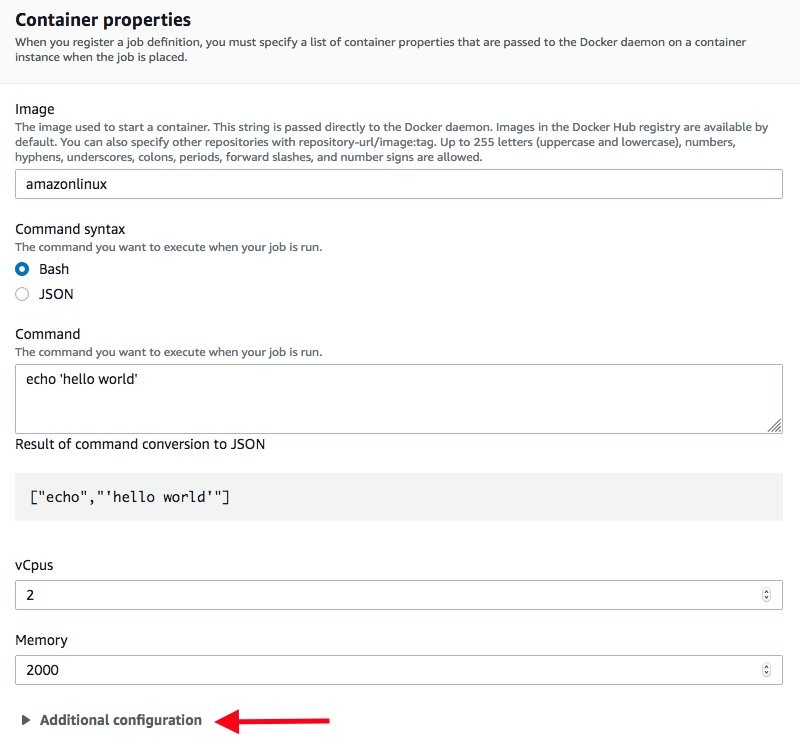
If a principal (consumer account or organizational unit) no longer requires access to Outposts capacity, the resource share can be deleted through RAM in the primary Outposts account. It is important to note that this does not delete subnets, EBS volumes, instances, or other resources running on the shared Outposts. Proper cleanup of Outposts resources within the consumer account (EBS volumes, instances, subnets, etc.) should be planned for whenever removing principals from a resource share to ensure that the capacity is released.
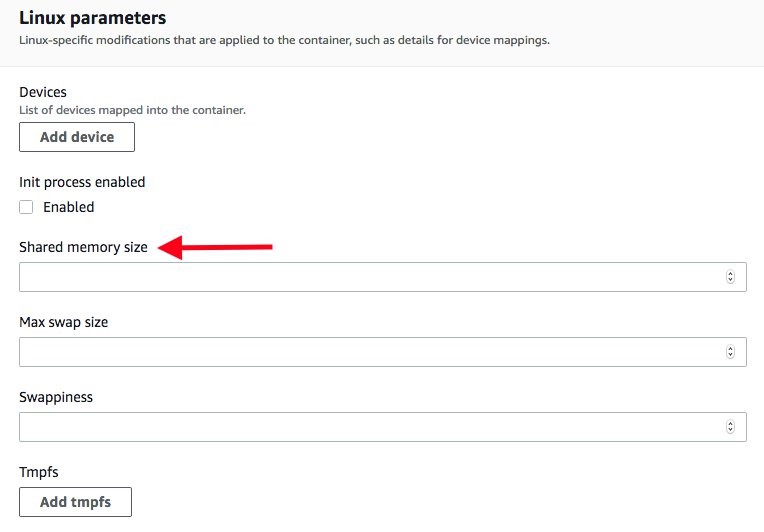
Conclusion 

In the blog post, I described the Outposts and LGW sharing capabilities and demonstrated how they can be used to enable multi-account sharing of an Outpost within an AWS Organization. These new capabilities unlock even more customer use cases and allow for stronger blast-radius and account isolation. It’s exciting to see continued functionality come to Outposts! You can start using LGW and Outposts sharing today. There’s no need to upgrade or modify your Outposts in any way to take advantage of this new and exciting functionality.

Architecting for Reliable Scalability

Post Syndicated from Marwan Al Shawi original https://aws.amazon.com/blogs/architecture/architecting-for-reliable-scalability/

Cloud solutions architects should ideally “build today with tomorrow in mind,” meaning their solutions need to cater to current scale requirements as well as the anticipated growth of the solution. This growth can be either the organic growth of a solution or it could be related to a merger and acquisition type of scenario, where its size is increased dramatically within a short period of time.

Still, when a solution scales, many architects experience added complexity to the overall architecture in terms of its manageability, performance, security, etc. By architecting your solution or application to scale reliably, you can avoid the introduction of additional complexity, degraded performance, or reduced security as a result of scaling.

Generally, a solution or service’s reliability is influenced by its up time, performance, security, manageability, etc. In order to achieve reliability in the context of scale, take into consideration the following primary design principals.

Modularity

Modularity aims to break a complex component or solution into smaller parts that are less complicated and easier to scale, secure, and manage.

Monolithic architecture vs. modular architecture

Figure 1: Monolithic architecture vs. modular architecture

Modular design is commonly used in modern application developments. where an application’s software is constructed of multiple and loosely coupled building blocks (functions). These functions collectively integrate through pre-defined common interfaces or APIs to form the desired application functionality (commonly referred to as microservices architecture).


Scalable modular applications

Figure 2: Scalable modular applications

For more details about building highly scalable and reliable workloads using a microservices architecture, refer to Design Your Workload Service Architecture.

This design principle can also be applied to different components of the solution’s architecture. For example, when building a cloud solution on a single Amazon VPC, it may reach certain scaling limits and make it harder to introduce changes at scale due to the higher level of dependencies. This single complex VPC can be divided into multiple smaller and simpler VPCs. The architecture based on multiple VPCs can vary. For example, the VPCs can be divided based on a service or application building block, a specific function of the application, or on organizational functions like a VPC for various departments. This principle can also be leveraged at a regional level for very high scale global architectures. You can make the architecture modular at a global level by distributing the multiple VPCs across different AWS Regions to achieve global scale (facilitated by AWS Global Infrastructure).

In addition, modularity promotes separation of concerns by having well-defined boundaries among the different components of the architecture. As a result, each component can be managed, secured, and scaled independently. Also, it helps you avoid what is commonly known as “fate sharing,” where a vertically scaled server hosts a monolithic application, and any failure to this server will impact the entire application.

Horizontal scaling

Horizontal scaling, commonly referred to as scale-out, is the capability to automatically add systems/instances in a distributed manner in order to handle an increase in load. Examples of this increase in load could be the increase of number of sessions to a web application. With horizontal scaling, the load is distributed across multiple instances. By distributing these instances across Availability Zones, horizontal scaling not only increases performance, but also improves the overall reliability.

In order for the application to work seamlessly in a scale-out distributed manner, the application needs to be designed to support a stateless scaling model, where the application’s state information is stored and requested independently from the application’s instances. This makes the on-demand horizontal scaling easier to achieve and manage.

This principle can be complemented with a modularity design principle, in which the scaling model can be applied to certain component(s) or microservice(s) of the application stack. For example, only scale-out Amazon Elastic Cloud Compute (EC2) front-end web instances that reside behind an Elastic Load Balancing (ELB) layer with auto-scaling groups. In contrast, this elastic horizontal scalability might be very difficult to achieve for a monolithic type of application.

Leverage the content delivery network

Leveraging Amazon CloudFront and its edge locations as part of the solution architecture can enable your application or service to scale rapidly and reliably at a global level, without adding any complexity to the solution. The integration of a CDN can take different forms depending on the solution use case.

For example, CloudFront played an important role to enable the scale required throughout Amazon Prime Day 2020 by serving up web and streamed content to a worldwide audience, which handled over 280 million HTTP requests per minute.

Go serverless where possible

As discussed earlier in this post, modular architectures based on microservices reduce the complexity of the individual component or microservice. At scale it may introduce a different type of complexity related to the number of these independent components (microservices). This is where serverless services can help to reduce such complexity reliably and at scale. With this design model you no longer have to provision, manually scale, maintain servers, operating systems, or runtimes to run your applications.

For example, you may consider using a microservices architecture to modernize an application at the same time to simplify the architecture at scale using Amazon Elastic Kubernetes Service (EKS) with AWS Fargate.

Example of a serverless microservices architecture

Figure 3: Example of a serverless microservices architecture

In addition, an event-driven serverless capability like AWS Lambda is key in today’s modern scalable cloud solutions, as it handles running and scaling your code reliably and efficiently. See How to Design Your Serverless Apps for Massive Scale and 10 Things Serverless Architects Should Know for more information.

Secure by design

To avoid any major changes at a later stage to accommodate security requirements, it’s essential that security is taken into consideration as part of the initial solution design. For example, if the cloud project is new or small, and you don’t consider security properly at the initial stages, once the solution starts to scale, redesigning the entire cloud project from scratch to accommodate security best practices is usually not a simple option, which may lead to consider suboptimal security solutions that may impact the desired scale to be achieved. By leveraging CDN as part of the solution architecture (as discussed above), using Amazon CloudFront, you can minimize the impact of distributed denial of service (DDoS) attacks as well as perform application layer filtering at the edge. Also, when considering serverless services and the Shared Responsibility Model, from a security lens you can delegate a considerable part of the application stack to AWS so that you can focus on building applications. See The Shared Responsibility Model for AWS Lambda.

Design with security in mind by incorporating the necessary security services as part of the initial cloud solution. This will allow you to add more security capabilities and features as the solution grows, without the need to make major changes to the design.

Design for failure

The reliability of a service or solution in the cloud depends on multiple factors, the primary of which is resiliency. This design principle becomes even more critical at scale because the failure impact magnitude typically will be higher. Therefore, to achieve a reliable scalability, it is essential to design a resilient solution, capable of recovering from infrastructure or service disruptions. This principle involves designing the overall solution in such a way that even if one or more of its components fail, the solution is still be capable of providing an acceptable level of its expected function(s). See AWS Well-Architected Framework – Reliability Pillar for more information.

Conclusion

Designing for scale alone is not enough. Reliable scalability should be always the targeted architectural attribute. The design principles discussed in this blog act as the foundational pillars to support it, and ideally should be combined with adopting a DevOps model.

Amazon EC2 P4d instances deep dive

Post Syndicated from Neelay Thaker original https://aws.amazon.com/blogs/compute/amazon-ec2-p4d-instances-deep-dive/

This post is contributed by Amr Ragab, Senior Solutions Architect, Amazon EC2

Introduction

AWS is excited to announce that the new Amazon EC2 P4d instances are now generally available. This instance type brings additional benefits with 2.5x higher deep learning performance; adding to the accelerated instances portfolio, new features, and technical breakthroughs that our customers can benefit from with this latest technology. This blog post details some of those key features and how to integrate them into your current workloads and architectures.

Overview

P4d instances

As you can see from the generalized block diagram above, the p4d comes with dual socket Intel Cascade Lake 8275CL processors totaling 96 vCPUs at 3.0 GHz with 1.1 TB of RAM and 8 TB of NVMe local storage. P4d also comes with 8 x 40 GB NVIDIA Tesla A100 GPUs with NVSwitch and 400 Gbps Elastic Fabric Adapter (EFA) enabled networking. This instance configuration represents the latest generation of computing for our customers spanning Machine Learning (ML), High Performance Computing (HPC), and analytics.

One of the improvements of the p4d is in the networking stack.  This new instance type has 400 Gbps with support for EFA and GPUDirect RDMA. Now, on AWS, you can take advantage of point-to-point GPU to GPU communication (across nodes), bypassing the CPU. Look out for additional blogs and webinars detailing use cases of GPUDirect and how this feature helps decrease latency and improve performance for certain workloads.

Let’s look at some new features and performance metrics for the P4d instances.

Features

Local ephemeral NVMe storage
The p4d instance type comes with 8 TB of local NVMe storage. Each device has a maximum read/write throughput of 2.7 GB/s. To create a local namespace and staging area for input into the GPUs, you can create a local RAID 0 of all the drives. This results in aggregate read throughput of about 16 GB/s. The following table summarizes the I/O tests on the NVMe drives in this configuration.

FIO – Test Block Size Threads Bandwidth
1 Sequential Read 128k 96 16.4 GiB/s
2 Sequential Write 128k 96 8.2 GiB/s
3 Random Read 128k 96 16.3 GiB/s
4 Random Write 128k 96 8.1 GiB/s

NVSwitch

Introduced with the p4d instance type is NVSwitch. Every GPU in the node is connected to each other in a full mesh topology up to 600 GB/s bidirectional bandwidth. ML frameworks and HPC applications that use NVIDIA communication collectives library (NCCL) can take full advantage of this all-to-all communication layer.

P4d GPU to GPU bandwidth

P3 GPU to GPU bandwidth

P4d uses a full mesh NVLink topology for optimized all-to-all communication, compared to the previous generation P3/P3dn instances, which have all-to-all communication across various data path domains (NUMA, PCIe switch, NVLink).  This new topology accessed via NCCL will improve performance for multiGPU workloads.
To make optimal use of the NVSwitch ensure that in your instance, all GPUs application boost clocks are set to its maximum values:

sudo nvidia-smi -ac 1215,1410

Multi-Instance GPU (MIG)

It’s now possible, at the user level, to have control of fractionating a GPU into multiple GPU slices, with each GPU slice isolated from each other. This enables multiple users to run different workloads on the same GPU without impacting performance. I walk you through an example implementation of MIG in the following steps:

With every newly launched instance, MIG is disabled. So, you must enable it with the following command:

ubuntu@ip-172-31-34-6:~# sudo nvidia-smi -mig 1 

Enabled MIG Mode for GPU 00000000:10:1C.0
You can get a list of supported MIG profiles.
Next, you can create seven slices, and create compute instances for each slice.
ubuntu@ip-172-31-34-6:~# sudo nvidia-smi mig -cgi 19,19,19,19,19,19,19 
Successfully created GPU instance ID 9 on GPU 0 using profile MIG 1g.5gb (ID 19) 
Successfully created GPU instance ID 7 on GPU 0 using profile MIG 1g.5gb (ID 19) 
Successfully created GPU instance ID 8 on GPU 0 using profile MIG 1g.5gb (ID 19) 
Successfully created GPU instance ID 11 on GPU 0 using profile MIG 1g.5gb (ID 19) 
Successfully created GPU instance ID 12 on GPU 0 using profile MIG 1g.5gb (ID 19) 
Successfully created GPU instance ID 13 on GPU 0 using profile MIG 1g.5gb (ID 19) 
Successfully created GPU instance ID 14 on GPU 0 using profile MIG 1g.5gb (ID 19)
ubuntu@ip-172-31-34-6:~# nvidia-smi mig -cci -gi 7,8,9,11,12,13,14 
Successfully created compute instance ID 0 on GPU 0 GPU instance ID 7 using profile MIG 1g.5gb (ID 0) 
Successfully created compute instance ID 0 on GPU 0 GPU instance ID 8 using profile MIG 1g.5gb (ID 0) 
Successfully created compute instance ID 0 on GPU 0 GPU instance ID 9 using profile MIG 1g.5gb (ID 0) 
Successfully created compute instance ID 0 on GPU 0 GPU instance ID 11 using profile MIG 1g.5gb (ID 0) 
Successfully created compute instance ID 0 on GPU 0 GPU instance ID 12 using profile MIG 1g.5gb (ID 0) 
Successfully created compute instance ID 0 on GPU 0 GPU instance ID 13 using profile MIG 1g.5gb (ID 0) 
Successfully created compute instance ID 0 on GPU 0 GPU instance ID 14 using profile MIG 1g.5gb (ID 0)

You can split a GPU into a maximum of seven slices. To pass the GPU through into a docker container, you can specify the index pair at runtime:

docker run -it --gpus '"device=1:0"' nvcr.io/nvidia/tensorflow:20.09-tf1-py3

With MIG, you can run multiple smaller workloads on the same GPU without compromising performance. We will follow up with additional blogs on this feature as we integrate it with additional AWS services.

NVIDIA GPUDirect RDMA over EFA

For workloads optimized for multiGPU capabilities, we introduced GPUDirect over EFA fabric. This allows direct GPU-GPU communication across multiple p4d nodes for decreased latency and improved performance. Follow this user guide to get started with installing the EFA driver and setting up the environment. The code sample below can be used as a template to use GPUDirect RDMA over EFA.

/opt/amazon/openmpi/bin/mpirun \
     -n ${NUM_PROCS} -N ${NUM_PROCS_NODE} \
     -x RDMAV_FORK_SAFE=1 -x NCCL_DEBUG=info \
     -x FI_EFA_USE_DEVICE_RDMA=1 \
     --hostfile ${HOSTS_FILE} \
     --mca pml ^cm --mca btl tcp,self --mca btl_tcp_if_exclude lo,docker0 --bind-to none \
     $HOME/nccl-tests/build/all_reduce_perf -b 8 -e 4G -f 2 -g 1 -c 1 -n 100

Machine learning Optimizations

You can quickly get started with the all benefits mentioned earlier for the p4d by using our latest Deep Learning AMI (DLAMI). The DLAMI now comes with CUDA11 and the latest NVLink and cuDNN SDKs and drivers to take advantage of the p4d.

TensorFloat32 – TF32

TF32 is a new 19 bit precision datatype from NVIDIA introduced for the first time for the p4d.24xlarge instance. This datatype improves performance with little to no loss of training and validation accuracy for most mainstream models. We have more detailed benchmarks for individual algorithms. But, on the p4d.24xlarge you can achieve approximately a 2.5 fold increase compared to FP32 on the p3dn.24xlarge for mainstream deep learning models.

We have updated our machine learning models here to show examples (see the following chart) of popular algorithms our customers are using today including general DNNs and Bert.

DNN P3dn FP32 (imgs/sec) P3dn FP16 (imgs/sec) P4d Throughput TF32 (imgs/sec) P4d Throughput FP16 (imgs/sec) P4d over p3dn TF32/FP32 P4d over P3dn FP16
1 Resnet50 3057 7413 6841 15621 2.2 2.1
2 Resnet152 1145 2644 2823 5700 2.5 2.2
3 Inception3 2010 4969 4808 10433 2.4 2.1
4 Inception4 847 1778 2025 3811 2.4 2.1
5 VGG16 1202 2092 4532 7240 3.8 3.5
6 Alexnet 32198 50708 82192 133068 2.6 2.6
7 SSD300 1554 2918 3467 6016 2.2 2.1

BERT Large – Wikipedia/Books Corpus

GPUs Sequence Length Batch size / GPU: mixed precision, TF32 Gradient Accumulation: mixed precision, TF32 Throughput – mixed precision
1 1 128 64,64 1024,1024 372
2 4 128 64,64 256,256 1493
3 8 128 64,64 128,128 2936
4 1 512 16,8 2048,4096 77
5 4 512 16,8 512,1024 303
6 8 512 16,8 256,512 596

You can find other code examples at github.com/NVIDIA/DeepLearningExamples.

If you want to builld your own AMI or extend an AMI maintained by your organization you can use the github repo, which provides Packer scripts to build AMIs for Amazon Linux 2 or Ubuntu 18.04 versions.

https://github.com/aws-samples/aws-efa-nccl-baseami-pipeline

The stack includes the following components:

  • NVIDIA Driver 450.80.02
  • CUDA 11
  • NVIDIA Fabric Manager
  • cuDNN 8
  • NCCL 2.7.8
  • EFA latest driver
  • AWS-OFI-NCCL
  • FSx kernel and client driver and utilities
  • Intel OneDNN
  • NVIDIA-runtime Docker

Conclusion

Get started with the new P4d instances with support on Amazon EKS, AWS Batch, and Amazon Sagemaker. We are excited to hear about what you develop and run with the new P4d instances. If you have any questions please reach out to your account team. Now, go power up your ML and HPC workloads with NVIDIA Tesla A100s and the P4d instances.

New – GPU-Equipped EC2 P4 Instances for Machine Learning & HPC

Post Syndicated from Jeff Barr original https://aws.amazon.com/blogs/aws/new-gpu-equipped-ec2-p4-instances-for-machine-learning-hpc/

The Amazon EC2 team has been providing our customers with GPU-equipped instances for nearly a decade. The first-generation Cluster GPU instances were launched in late 2010, followed by the G2 (2013), P2 (2016), P3 (2017), G3 (2017), P3dn (2018), and G4 (2019) instances. Each successive generation incorporates increasingly-capable GPUs, along with enough CPU power, memory, […]

AWS Nitro Enclaves – Isolated EC2 Environments to Process Confidential Data

Post Syndicated from Jeff Barr original https://aws.amazon.com/blogs/aws/aws-nitro-enclaves-isolated-ec2-environments-to-process-confidential-data/

When I first told you about the AWS Nitro System, I said: The Nitro system is a rich collection of building blocks that can be assembled in many different ways, giving us the flexibility to design and rapidly deliver EC2 instance types with an ever-broadening selection of compute, storage, memory, and networking options. To date, […]

Mercado Libre: How to Block Malicious Traffic in a Dynamic Environment

Post Syndicated from Gaston Ansaldo original https://aws.amazon.com/blogs/architecture/mercado-libre-how-to-block-malicious-traffic-in-a-dynamic-environment/

Blog post contributors: Pablo Garbossa and Federico Alliani of Mercado Libre

Introduction

Mercado Libre (MELI) is the leading e-commerce and FinTech company in Latin America. We have a presence in 18 countries across Latin America, and our mission is to democratize commerce and payments to impact the development of the region.

We manage an ecosystem of more than 8,000 custom-built applications that process an average of 2.2 million requests per second. To support the demand, we run between 50,000 to 80,000 Amazon Elastic Cloud Compute (EC2) instances, and our infrastructure scales in and out according to the time of the day, thanks to the elasticity of the AWS cloud and its auto scaling features.

Mercado Libre

As a company, we expect our developers to devote their time and energy building the apps and features that our customers demand, without having to worry about the underlying infrastructure that the apps are built upon. To achieve this separation of concerns, we built Fury, our platform as a service (PaaS) that provides an abstraction layer between our developers and the infrastructure. Each time a developer deploys a brand new application or a new version of an existing one, Fury takes care of creating all the required components such as Amazon Virtual Private Cloud (VPC), Amazon Elastic Load Balancing (ELB), Amazon EC2 Auto Scaling group (ASG), and EC2) instances. Fury also manages a per-application Git repository, CI/CD pipeline with different deployment strategies, such like blue-green and rolling upgrades, and transparent application logs and metrics collection.

Fury- MELI PaaS

For those of us on the Cloud Security team, Fury represents an opportunity to enforce critical security controls across our stack in a way that’s transparent to our developers. For instance, we can dictate what Amazon Machine Images (AMIs) are vetted for use in production (such as those that align with the Center for Internet Security benchmarks). If needed, we can apply security patches across all of our fleet from a centralized location in a very scalable fashion.

But there are also other attack vectors that every organization that has a presence on the public internet is exposed to. The AWS recent Threat Landscape Report shows a 23% YoY increase in the total number of Denial of Service (DoS) events. It’s evident that organizations need to be prepared to quickly react under these circumstances.

The variety and the number of attacks are increasing, testing the resilience of all types of organizations. This is why we started working on a solution that allows us to contain application DoS attacks, and complements our perimeter security strategy, which is based on services such as AWS Shield and AWS Web Application Firewall (WAF). In this article, we will walk you through the solution we built to automatically detect and block these events.

The strategy we implemented for our solution, Network Behavior Anomaly Detection (NBAD), consists of four stages that we repeatedly execute:

  1. Analyze the execution context of our applications, like CPU and memory usage
  2. Learn their behavior
  3. Detect anomalies, gather relevant information and process it
  4. Respond automatically

Step 1: Establish a baseline for each application

End user traffic enters through different AWS CloudFront distributions that route to multiple Elastic Load Balancers (ELBs). Behind the ELBs, we operate a fleet of NGINX servers from where we connect back to the myriad of applications that our developers create via Fury.

MELI Architecture - nomaly detection project-step 1

Step 1: MELI Architecture – Anomaly detection project

We collect logs and metrics for each application that we ship to Amazon Simple Storage Service (S3) and Datadog. We then partition these logs using AWS Glue to make them available for consumption via Amazon Athena. On average, we send 3 terabytes (TB) of log files in parquet format to S3.

Based on this information, we developed processes that we complement with commercial solutions, such as Datadog’s Anomaly Detection, which allows us to learn the normal behavior or baseline of our applications and project expected adaptive growth thresholds for each one of them.

Anomaly detection

Step 2: Anomaly detection

When any of our apps receives a number of requests that fall outside the limits set by our anomaly detection algorithms, an Amazon Simple Notification Service (SNS) event is emitted, which triggers a workflow in the Anomaly Analyzer, a custom-built component of this solution.

Upon receiving such an event, the Anomaly Analyzer starts composing the so-called event context. In parallel, the Data Extractor retrieves vital insights via Athena from the log files stored in S3.

The output of this process is used as the input for the data enrichment process. This is responsible for consulting different threat intelligence sources that are used to further augment the analysis and determine if the event is an actual incident or not.

At this point, we build the context that will allow us not only to have greater certainty in calculating the score, but it will also help us validate and act quicker. This context includes:

  • Application’s owner
  • Affected business metrics
  • Error handling statistics of our applications
  • Reputation of IP addresses and associated users
  • Use of unexpected URL parameters
  • Distribution by origin of the traffic that generated the event (cloud providers, geolocation, etc.)
  • Known behavior patterns of vulnerability discovery or exploitation
Step 2: MELI Architecture - Anomaly detection project

Step 2: MELI Architecture – Anomaly detection project

Step 3: Incident response

Once we reconstruct the context of the event, we calculate a score for each “suspicious actor” involved.

Step 3: MELI Architecture - Anomaly detection project

Step 3: MELI Architecture – Anomaly detection project

Based on these analysis results we carry out a series of verifications in order to rule out false positives. Finally, we execute different actions based on the following criteria:

Manual review

If the outcome of the automatic analysis results in a medium risk scoring, we activate a manual review process:

  1. We send a report to the application’s owners with a summary of the context. Based on their understanding of the business, they can activate the Incident Response Team (IRT) on-call and/or provide feedback that allows us to improve our automatic rules.
  2. In parallel, our threat analysis team receives and processes the event. They are equipped with tools that allow them to add IP addresses, user-agents, referrers, or regular expressions into Amazon WAF to carry out temporary blocking of “bad actors” in situations where the attack is in progress.

Automatic response

If the analysis results in a high risk score, an automatic containment process is triggered. The event is sent to our block API, which is responsible for adding a temporary rule designed to mitigate the attack in progress. Behind the scenes, our block API leverages AWS WAF to create IPSets. We reference these IPsets from our custom rule groups in our web ACLs, in order to block IPs that source the malicious traffic. We found many benefits in the new release of AWS WAF, like support for Amazon Managed Rules, larger capacity units per web ACL as well as an easier to use API.

Conclusion

By leveraging the AWS platform and its powerful APIs, and together with the AWS WAF service team and solutions architects, we were able to build an automated incident response solution that is able to identify and block malicious actors with minimal operator intervention. Since launching the solution, we have reduced YoY application downtime over 92% even when the time under attack increased over 10x. This has had a positive impact on our users and therefore, on our business.

Not only was our downtime drastically reduced, but we also cut the number of manual interventions during this type of incident by 65%.

We plan to iterate over this solution to further reduce false positives in our detection mechanisms as well as the time to respond to external threats.

About the authors

Pablo Garbossa is an Information Security Manager at Mercado Libre. His main duties include ensuring security in the software development life cycle and managing security in MELI’s cloud environment. Pablo is also an active member of the Open Web Application Security Project® (OWASP) Buenos Aires chapter, a nonprofit foundation that works to improve the security of software.

Federico Alliani is a Security Engineer on the Mercado Libre Monitoring team. Federico and his team are in charge of protecting the site against different types of attacks. He loves to dive deep into big architectures to drive performance, scale operational efficiency, and increase the speed of detection and response to security events.

How to automate incident response in the AWS Cloud for EC2 instances

Post Syndicated from Ben Eichorst original https://aws.amazon.com/blogs/security/how-to-automate-incident-response-in-aws-cloud-for-ec2-instances/

One of the security epics core to the AWS Cloud Adoption Framework (AWS CAF) is a focus on incident response and preparedness to address unauthorized activity. Multiple methods exist in Amazon Web Services (AWS) for automating classic incident response techniques, and the AWS Security Incident Response Guide outlines many of these methods. This post demonstrates one specific method for instantaneous response and acquisition of infrastructure data from Amazon Elastic Compute Cloud (Amazon EC2) instances.

Incident response starts with detection, progresses to investigation, and then follows with remediation. This process is no different in AWS. AWS services such as Amazon GuardDuty, Amazon Macie, and Amazon Inspector provide detection capabilities. Amazon Detective assists with investigation, including tracking and gathering information. Then, after your security organization decides to take action, pre-planned and pre-provisioned runbooks enable faster action towards a resolution. One principle outlined in the incident response whitepaper and the AWS Well-Architected Framework is the notion of pre-provisioning systems and policies to allow you to react quickly to an incident response event. The solution I present here provides a pre-provisioned architecture for an incident response system that you can use to respond to a suspect EC2 instance.

Infrastructure overview

The architecture that I outline in this blog post automates these standard actions on a suspect compute instance:

  1. Capture all the persistent disks.
  2. Capture the instance state at the time the incident response mechanism is started.
  3. Isolate the instance and protect against accidental instance termination.
  4. Perform operating system–level information gathering, such as memory captures and other parameters.
  5. Notify the administrator of these actions.

The solution in this blog post accomplishes these tasks through the following logical flow of AWS services, illustrated in Figure 1.
 

Figure 1: Infrastructure deployed by the accompanying AWS CloudFormation template and associated task flow when invoking the main API

Figure 1: Infrastructure deployed by the accompanying AWS CloudFormation template and associated task flow when invoking the main API

  1. A user or application calls an API with an EC2 instance ID to start data collection.
  2. Amazon API Gateway initiates the core logic of the process by instantiating an AWS Lambda function.
  3. The Lambda function performs the following data gathering steps before making any changes to the infrastructure:
    1. Save instance metadata to the SecResponse Amazon Simple Storage Service (Amazon S3) bucket.
    2. Save a snapshot of the instance console to the SecResponse S3 bucket.
    3. Initiate an Amazon Elastic Block Store (Amazon EBS) snapshot of all persistent block storage volumes.
  4. The Lambda function then modifies the infrastructure to continue gathering information, by doing the following steps:
    1. Set the Amazon EC2 termination protection flag on the instance.
    2. Remove any existing EC2 instance profile from the instance.
    3. If the instance is managed by AWS Systems Manager:
      1. Attach an EC2 instance profile with minimal privileges for operating system–level information gathering.
      2. Perform operating system–level information gathering actions through Systems Manager on the EC2 instance.
      3. Remove the instance profile after Systems Manager has completed its actions.
    4. Create a quarantine security group that lacks both ingress and egress rules.
    5. Move the instance into the created quarantine security group for isolation.
  5. Send an administrative notification through the configured Amazon Simple Notification Service (Amazon SNS) topic.

Solution features

By using the mechanisms outlined in this post to codify your incident response runbooks, you can see the following benefits to your incident response plan.

Preparation for incident response before an incident occurs

Both the AWS CAF and Well-Architected Framework recommend that customers formulate known procedures for incident response, and test those runbooks before an incident. Testing these processes before an event occurs decreases the time it takes you to respond in a production environment. The sample infrastructure shown in this post demonstrates how you can standardize those procedures.

Consistent incident response artifact gathering

Codifying your processes into set code and infrastructure prepares you for the need to collect data, but also standardizes the collection process into a repeatable and auditable sequence of What information was collected when and how. This reduces the likelihood of missing data for future investigations.

Walkthrough: Deploying infrastructure and starting the process

To implement the solution outlined in this post, you first need to deploy the infrastructure, and then start the data collection process by issuing an API call.

The code example in this blog post requires that you provision an AWS CloudFormation stack, which creates an S3 bucket for storing your event artifacts and a serverless API that uses API Gateway and Lambda. You then execute a query against this API to take action on a target EC2 instance.

The infrastructure deployed by the AWS CloudFormation stack is a set of AWS components as depicted previously in Figure 1. The stack includes all the services and configurations to deploy the demo. It doesn’t include a target EC2 instance that you can use to test the mechanism used in this post.

Cost

The cost for this demo is minimal because the base infrastructure is completely serverless. With AWS, you only pay for the infrastructure that you use, so the single API call issued in this demo costs fractions of a cent. Artifact storage costs will incur S3 storage prices, and Amazon EC2 snapshots will be stored at their respective prices.

Deploy the AWS CloudFormation stack

In future posts and updates, we will show how to set up this security response mechanism inside a separate account designated for security, but for the purposes of this post, your demo stack must reside in the same AWS account as the target instance that you set up in the next section.

First, start by deploying the AWS CloudFormation template to provision the infrastructure.

To deploy this template in the us-east-1 region

  1. Choose the Launch Stack button to open the AWS CloudFormation console pre-loaded with the template:
     
    Select the Launch Stack button to launch the template
  2. (Optional) In the AWS CloudFormation console, on the Specify Details page, customize the stack name.
  3. For the LambdaS3BucketLocation and LambdaZipFileName fields, leave the default values for the purposes of this blog. Customizing this field allows you to customize this code example for your own purposes and store it in an S3 bucket of your choosing.
  4. Customize the S3BucketName field. This needs to be a globally unique S3 bucket name. This bucket is where gathered artifacts are stored for the demo in this blog. You must customize it beyond the default value for the template to instantiate properly.
  5. (Optional) Customize the SNSTopicName field. This name provides a meaningful label for the SNS topic that notifies the administrator of the actions that were performed.
  6. Choose Next to configure the stack options and leave all default settings in place.
  7. Choose Next to review and scroll to the bottom of the page. Select all three check boxes under the Capabilities and Transforms section, next to each of the three acknowledgements:
    • I acknowledge that AWS CloudFormation might create IAM resources.
    • I acknowledge that AWS CloudFormation might create IAM resources with custom names.
    • I acknowledge that AWS CloudFormation might require the following capability: CAPABILITY_AUTO_EXPAND.
  8. Choose Create Stack.

Set up a target EC2 instance

In order to demonstrate the functionality of this mechanism, you need a target host. Provision any EC2 instance in your account to act as a target for the security response mechanism to act upon for information collection and quarantine. To optimize affordability and demonstrate full functionality, I recommend choosing a small instance size (for example, t2.nano) and optionally joining the instance into Systems Manager for the ability to later execute Run Command API queries. For more details on configuring Systems Manager, refer to the AWS Systems Manager User Guide.

Retrieve required information for system initiation

The entire security response mechanism triggers through an API call. To successfully initiate this call, you first need to gather the API URI and key information.

To find the API URI and key information

  1. Navigate to the AWS CloudFormation console and choose the stack that you’ve instantiated.
  2. Choose the Outputs tab and save the value for the key APIBaseURI. This is the base URI for the API Gateway. It will resemble https://abcdefgh12.execute-api.us-east-1.amazonaws.com.
  3. Next, navigate to the API Gateway console and choose the API with the name SecurityResponse.
  4. Choose API Keys, and then choose the only key present.
  5. Next to the API key field, choose Show to reveal the key, and then save this value to a notepad for later use.

(Optional) Configure administrative notification through the created SNS topic

One aspect of this mechanism is that it sends notifications through SNS topics. You can optionally subscribe your email or another notification pipeline mechanism to the created SNS topic in order to receive notifications on actions taken by the system.

Initiate the security response mechanism

Note that, in this demo code, you’re using a simple API key for limiting access to API Gateway. In production applications, you would use an authentication mechanism such as Amazon Cognito to control access to your API.

To kick off the security response mechanism, initiate a REST API query against the API that was created in the AWS CloudFormation template. You first create this API call by using a curl command to be run from a Linux system.

To create the API initiation curl command

  1. Copy the following example curl command.
    curl -v -X POST -i -H "x-api-key: 012345ABCDefGHIjkLMS20tGRJ7othuyag" https://abcdefghi.execute-api.us-east-1.amazonaws.com/DEMO/secresponse -d '{
      "instance_id":"i-123457890"
    }'
    

  2. Replace the placeholder API key specified in the x-api-key HTTP header with your API key.
  3. Replace the example URI path with your API’s specific URI. To create the full URI, concatenate the base URI listed in the AWS CloudFormation output you gathered previously with the API call path, which is /DEMO/secresponse. This full URI for your specific API call should closely resemble this sample URI path: https://abcdefghi.execute-api.us-east-1.amazonaws.com/DEMO/secresponse
  4. Replace the value associated with the key instance_id with the instance ID of the target EC2 instance you created.

Because this mechanism initiates through a simple API call, you can easily integrate it with existing workflow management systems. This allows for complex data collection and forensic procedures to be integrated with existing incident response workflows.

Review the gathered data

Note that the following items were uploaded as objects in the security response S3 bucket:

  1. A console screenshot, as shown in Figure 2.
  2. (If Systems Manager is configured) stdout information from the commands that were run on the host operating system.
  3. Instance metadata in JSON form.


Figure 2: Example outputs from a successful completion of this blog post's mechanism

Figure 2: Example outputs from a successful completion of this blog post’s mechanism

Additionally, if you load the Amazon EC2 console and scroll down to Elastic Block Store, you can see that EBS snapshots are present for all persistent disks as shown in Figure 3.
 

Figure 3: Evidence of an EBS snapshot from a successful run

Figure 3: Evidence of an EBS snapshot from a successful run

You can also verify that the previously outlined security controls are in place by viewing the instance in the Amazon EC2 console. You should see the removal of AWS Identity and Access Management (IAM) roles from the target EC2 instances and that the instance has been placed into network isolation through a newly created quarantine security group.

Note that for the purposes of this demo, all information that you gathered is stored in the same AWS account as the workload. As a best practice, many AWS customers choose instead to store this information in an AWS account that’s specifically designated for incident response and analysis. A dedicated account provides clear isolation of function and restriction of access. Using AWS Organizations service control policies (SCPs) and IAM permissions, your security team can limit access to adhere to security policy, legal guidance, and compliance regulations.

Clean up and delete artifacts

To clean up the artifacts from the solution in this post, first delete all information in your security response S3 bucket. Then delete the CloudFormation stack that was provisioned at the start of this process in order to clean up all remaining infrastructure.

Conclusion

Placing workloads in the AWS Cloud allows for pre-provisioned and explicitly defined incident response runbooks to be codified and quickly executed on suspect EC2 instances. This enables you to gather data in minutes that previously took hours or even days using manual processes.

If you have feedback about this post, submit comments in the Comments section below. If you have questions about this post, start a new thread on the Amazon EC2 forum or contact AWS Support.

Want more AWS Security how-to content, news, and feature announcements? Follow us on Twitter.

Author

Ben Eichorst

Ben is a Senior Solutions Architect, Security, Cryptography, and Identity Specialist for AWS. He works with AWS customers to efficiently implement globally scalable security programs while empowering development teams and reducing risk. He holds a BA from Northwestern University and an MBA from University of Colorado.

Field Notes: Migrating a Self-managed Kubernetes Cluster on Amazon EC2 to Amazon EKS

Post Syndicated from Ahmed Bham original https://aws.amazon.com/blogs/architecture/field-notes-migrating-a-self-managed-kubernetes-cluster-on-ec2-to-amazon-eks/

AWS customers from startups to enterprises have been successfully running Kubernetes clusters on Amazon EC2 instances since 2015, well before Amazon Elastic Kubernetes Service (Amazon EKS), was launched in 2018. As a fully managed Kubernetes service, Amazon EKS customers can run Kubernetes on AWS without needing to install, operate, and maintain their own Kubernetes control plane. Since its launch, many existing and new customers are building and running their Kubernetes clusters on Amazon EKS.

At re:Invent 2019, AWS announced AWS Fargate for Amazon EKS, which is serverless compute for containers. Then, in January 2020, AWS announced a price reduction of Amazon EKS  by 50% to $0.10 per hour, per cluster. These developments, coupled with realization of management and cost overhead of Kubernetes control plane operations at scale, made more customers look into migrating their self-managed Kubernetes clusters to Amazon EKS.

The “how” of this migration is the focus of this blog.

Overview of Solution

For most customers migrating from self-managed Kubernetes clusters on Amazon EC2 to Amazon EKS can usually be accomplished with minimal or no downtime. However, for large clusters involving hundreds of nodes and thousands of pods, this requires more planning and testing, and it is recommended to engage AWS Support for guidance.

Kubernetes control plane

Considerations

There are certain considerations to ensure a successful Amazon EKS migration and operational excellence.

Security

  • Access Control
    • Amazon EKS uses AWS Identity and Access Management (IAM) to provide authentication to your Kubernetes cluster, but it still relies on native Kubernetes Role Based Access Control (RBAC) for authorization. It’s important to plan for the creation and governance of IAM users, roles, or groups, for Kubernetes cluster administration.
    • You can enable private access to the Kubernetes API server so that all communication between your nodes and the API server stays within your VPC. You can limit the IP addresses that can access your API server from the internet, or completely disable internet access to the API server.
  • IAM Role for Service Account
    • With IAM roles for service accounts on Amazon EKS clusters, you can associate an IAM role with a Kubernetes service account. This service account can then provide AWS permissions to the containers in any pod that uses that service account. With this feature, you no longer need to provide extended permissions to the node IAM role so that pods on that node can call AWS APIs.
  • Security groups for pods
    • Security groups for pods integrate Amazon EC2 security groups with Kubernetes pods. You can use Amazon EC2 security groups to define rules that allow inbound and outbound network traffic to and from pods. These pods are deployed to nodes running on many Amazon EC2 instance types.

Networking

  • Amazon EKS supports native VPC networking with the Amazon VPC Container Network Interface (CNI) plugin for Kubernetes. Using this plugin allows Kubernetes pods to have the same IP address inside the pod as they do on the VPC network.
  •  VPC CNI plugin uses IP addresses for the pods from the VPC CIDR ranges, and specifically from the subnet where the worker node is hosted. Therefore, customers must ensure the VPC and subnets that will host their Amazon EKS cluster have sufficient IP addresses available for the expected number of pods running at a time. Additionally, IP addresses are allocated to the Elastic Network Interface (ENI) attached to the EC2 instances.  The EC2 instance selection for the worker nodes should take into account the number of ENI attachments supported by the instance type.

Compute Options

Kubernetes Versions

  • Amazon EKS supports four major Kubernetes versions at a time,  which you can review in the available AWS documentation, along with a calendar for future Amazon EKS releases.
  • If you are currently running a non-supported Kubernetes cluster, or would like to migrate to a newer version on Amazon EKS, consider the following:
    1. Review release notes for specific Kubernetes version you want to migrate to, and make necessary updates to Kubernetes manifest files.
    2. Update your Kubernetes add-ons (CNI plugin, CoreDNS, Kube-Proxy) to compatible versions, as listed in the Updating an Amazon EKS Cluster guide.

Prerequisites

  1. Create an IAM Role for the creator and/or administrator of the Amazon EKS cluster. Specify this role when creating the Amazon EKS cluster.
  2. If using an existing VPC and subnets to host Amazon EKS cluster:
    • You will need subnets in at least two Availability Zones
    • All public subnets should have the property MapPublicIpOnLaunch enabled (that is, Auto-assign public IPv4 address in the AWS Management Console) to host self-managed and managed node groups.

3. If your pods are currently accessing AWS resources, and if you would like to use IAM roles for service accounts, then:

    • Create service accounts in Kubernetes to be used by your pods.
    • Follow these steps to create IAM roles, and assign to service account created.
    • Update your pod manifest files to specify the newly created service account and role ARN annotation. Remove any existing code for storing or passing IAM credentials.

4. If you are planning to use AWS Fargate to run your pods, you need to create the appropriate Fargate Profile and pod execution role.

Application and Data Migration

  • For stateless workloads, apply your resource definitions (YAML or Helm) to the new cluster, and make sure everything works as expected. This includes the connection to resources external to the cluster.
  • For stateful workloads:
    1. You will need to carefully plan your migration to avoid data loss or unexpected downtime.
    2. If you are currently using shared persistent file storage based on Amazon EFS or Amazon FSx for Lustre, they can be mounted to Amazon EKS pods concurrently. Just make sure that pods don’t write to the same files concurrently.
    3. For pods using EBS volumes, and for other persistent storage types, you can use a Kubernetes backup and restore tool, Velero.

Traffic Migration

If you have an entire domain migration that you would like to smoothly migrate, you can take advantage of Amazon Route 53’s Weighted Routing (as shown in the following diagram). With Weighted Routing, you are able to have a progressive transition from your existing cluster to the new one with zero downtime by splitting the traffic at the DNS level.

Your customers are slowly being transferred to your new cluster as their cached TTL expires. The split could start with a small share of your customers, for example, 10% being pointed to the new Amazon EKS cluster and 90% still on the old one. As soon as traffic is confirmed to be working as expected on the new cluster, that percentage of clients pointed to the new one can be increased.

mydomain.com


This implementation is flexible, it can be tied to Load Balancers, EC2 Instances, and even to external on-premises infrastructure.

Conclusion

In this blog post, we showed how to migrate your live-traffic serving self-hosted Kubernetes Cluster to Amazon EKS. Amazon EKS offers a cost-effective and highly available option for running Kubernetes clusters in the cloud. Since Amazon EKS is upstream Kubernetes compliant, you can migrate existing self-managed Kubernetes workloads to Amazon EKS, with multiple options to minimize or avoid service disruption. To create your first Amazon EKS cluster, visit Getting started with Amazon EKS.

Field Notes provides hands-on technical guidance from AWS Solutions Architects, consultants, and technical account managers, based on their experiences in the field solving real-world business problems for customers.


Introducing queued purchases for Savings Plans

Post Syndicated from Roshni Pary original https://aws.amazon.com/blogs/compute/introducing-queued-purchases-for-savings-plans/

This blog post is contributed by Idan Maizlits, Sr. Product Manager, Savings Plans

AWS now provides the ability for you to queue purchases of Savings Plans by specifying a time, up to 3 years in the future, to carry out those purchases. This blog reviews how you can queue purchases of Savings Plans.

In November 2019, AWS launched Savings Plans. This is a new flexible pricing model that allows you to save up to 72% on Amazon EC2, AWS Fargate, and AWS Lambda in exchange for making a commitment to a consistent amount of compute usage measured in dollars per hour (for example $10/hour) for a 1- or 3-year term. Savings Plans is the easiest way to save money on compute usage while providing you the flexibility to use the compute options that best fits your needs as they change.

Queueing Savings Plans allows you to plan ahead for future events. Say, you want to purchase a Savings Plan three months into the future to cover a new workload. Now, with the ability to queue plans in advance, you can easily schedule the purchase to be carried out at the exact time you expect your workload to go live. This helps you plan in advance by eliminating the need to make “just-in-time” purchases, and benefit from low prices on your future workloads from the get-go. With the ability to queue purchases, you can also enjoy uninterrupted Savings Plans coverage by scheduling renewals of your plans ahead of their expiry. This makes it even easier to save money on your overall AWS bill.

So how do queued purchases for Savings Plans work? Queued purchases are similar to regular purchases in all aspects but one – the start date. With a regular purchase, a plan goes active immediately whereas with a queued purchase, you select a date in the future for a plan to start. Up until the said future date, the Savings Plan remains in a queued state, and on the future date any upfront payments are charged and the plan goes active.

Now, let’s look at this in more detail with a couple of examples. I walk through three scenarios – a) queuing Savings Plans to cover future usage b) renewing expiring Savings Plans and c) deleting a queued Savings plan.

How do I queue a Savings Plan?

If you are planning ahead and would like to queue a Savings Plan to support future needs such as new workloads or expiring Reserved Instances, head to the Purchase Savings Plans page on the AWS Cost Management Console. Then, select the type of Savings Plan you would like to queue, including the term length, purchase commitment, and payment option.

Select the type of Savings Plan

Now, indicate the start date and time for this plan (this is the date/time at which your Savings Plan becomes active). The time you indicate is in UTC, but is also shown in your browser’s local time zone. If you are looking to replace an existing Reserved Instance, you can provide the start date and time to align with the expiration of your existing Reserved Instances. You can find the expiration time of your Reserved Instances on the EC2 Reserved Instances Console (this is in your local time zone, convert it to UTC when you queue a Savings Plan).

After you have selected the start time and date for the Savings Plan, click “Add to cart”. When you are ready to complete the purchase, click “Submit Order,” which completes the purchase.

Once you have submitted the order, the Savings Plans Inventory page lists the queued Savings Plan with a “Queued” status and that purchase will be carried out on the date and time provided.

How can I replace an expiring plan?

If you have already purchased a Savings Plan, queuing purchases allow you to renew that Savings Plan upon expiry for continuous coverage. All you have to do is head to the AWS Cost Management Console, go to the Savings Plans Inventory page, and select the Savings Plan you would like to renew. Then, click on Actions and select “Renew Savings Plan” as seen in the following image.

This action automatically queues a Savings Plan in the cart with the same configuration (as your original plan) to replace the expiring one. The start time for the plan automatically sets to one second after expiration of the old Savings Plan. All you have to do now is submit the order and you are good to go.

If you would like to renew multiple Savings Plans, select each one and click “Renew Savings Plan,” which adds them to the Cart. When you are done adding new Savings Plans, your cart lists all of the Savings Plans that you added to the order. When you are ready to submit the order, click “Submit order.”

How can I delete a queued Savings Plan?

If you have queued Savings Plans that you no longer need to purchase, or need to modify, you can do so by visiting the console. Head to the AWS Cost Management Console, select the Savings Plans Inventory page, and then select the Savings Plan you would like to delete. By selecting the Savings Plan and clicking on Actions, as seen in the following image, you can delete the queued purchase if you need to make changes or if you no longer need the plan to be purchased. If you need the Savings Plan at a different commitment value, you can make a new queued purchase.

Conclusion

AWS Savings Plans allow you to save up to 72% of On-demand prices by committing to a 1- or 3- year term. Starting today, with the ability to queue purchases of Savings Plans, you can easily plan for your future needs or renew expiring Savings Plan ahead of time, all with just a few clicks. In this blog, I walked through various scenarios. As you can see, it’s even easier to save money with AWS Savings Plans by queuing your purchases to meet your future needs and continue benefiting from uninterrupted coverage.

Click here to learn more about queuing purchases of Savings Plans and visit the AWS Cost Management Console to get started.