Tag Archives: VMWare Cloud on AWS

AWS Week in Review – September 5, 2022

Post Syndicated from Danilo Poccia original https://aws.amazon.com/blogs/aws/aws-week-in-review-september-5-2022/

This post is part of our Week in Review series. Check back each week for a quick roundup of interesting news and announcements from AWS!

As a new week begins, let’s quickly look back at the most significant AWS news from the previous seven days.

Last Week’s Launches
Here are the launches that got my attention last week:

AWS announces open-sourced credentials-fetcher to simplify Microsoft AD access from Linux containers. You can find more in the What’s New post.

AWS Step Functions now has 14 new intrinsic functions that help you process data more efficiently and make it easier to perform data processing tasks such as array manipulation, JSON object manipulation, and math functions within your workflows without having to invoke downstream services or add Task states.

AWS SAM CLI esbuild support is now generally available. You can now use esbuild in the SAM CLI build workflow for your JavaScript applications.

Amazon QuickSight launches a new user interface for dataset management that replaces the existing popup dialog modal with a full-page experience, providing a clearer breakdown of dataset management categories.

AWS GameKit adds Unity support. With this release for Unity, you can integrate cloud-based game features into Win64, MacOS, Android, or iOS games from both the Unreal and Unity engines with just a few clicks.

AWS and VMware announce VMware Cloud on AWS integration with Amazon FSx for NetApp ONTAP. Read more in Veliswa‘s blog post.

The AWS Region in the United Arab Emirates (UAE) is now open. More info in Marcia‘s blog post.

View of Abu Dhabi in the United Arab Emirates

For a full list of AWS announcements, be sure to keep an eye on the What’s New at AWS page.

Other AWS News
A few more blog posts you might have missed:

Easy analytics and cost-optimization with Amazon Redshift Serverless – Four different use cases of Redshift Serverless are discussed in this post.

Building cost-effective AWS Step Functions workflows – In this blog post, Ben explains the difference between Standard and Express Workflows, including costs, migrating from Standard to Express, and some interesting ways of using both together.

How to subscribe to the new Security Hub Announcements topic for Amazon SNS – You can now receive updates about new Security Hub services and features, newly supported standards and controls, and other Security Hub changes.

Deploying AWS Lambda functions using AWS Controllers for Kubernetes (ACK) – With the ACK service controller for AWS Lambda, you can provision and manage Lambda functions with kubectl and custom resources.

For AWS open-source news and updates, here’s the latest newsletter curated by Ricardo to bring you the most recent updates on open-source projects, posts, events, and more.

Upcoming AWS Events
Depending on where you are on this planet, there are many opportunities to meet and learn:

AWS Summits – Come together to connect, collaborate, and learn about AWS. Registration is open for the following in-person AWS Summits: Ottawa (September 8), New Delhi (September 9), Mexico City (September 21–22), Bogotá (October 4), and Singapore (October 6).

AWS Community DaysAWS Community Day events are community-led conferences to share and learn with one another. In September, the AWS community in the US will run events in the Bay Area, California (September 9) and Arlington, Virginia (September 30). In Europe, Community Day events will be held in October. Join us in Amersfoort, Netherlands (October 3), Warsaw, Poland (October 14), and Dresden, Germany (October 19).

That’s all from me for this week. Come back next Monday for another Week in Review!

Danilo

AWS and VMware Announce VMware Cloud on AWS integration with Amazon FSx for NetApp ONTAP

Post Syndicated from Veliswa Boya original https://aws.amazon.com/blogs/aws/aws-and-vmware-announce-vmware-cloud-on-aws-integration-with-amazon-fsx-for-netapp-ontap/

Our customers are looking for cost-effective ways to continue to migrate their applications to the cloud. VMware Cloud on AWS is a fully managed, jointly engineered service that brings VMware’s enterprise-class, software-defined data center architecture to the cloud. VMware Cloud on AWS offers our customers the ability to run applications across operationally consistent VMware vSphere-based public, private, and hybrid cloud environments by bringing VMware’s Software-Defined Data Center (SDDC) to AWS.

In 2021, we announced the fully managed shared storage service Amazon FSx for NetApp ONTAP. This service provides our customers with access to the popular features, performance, and APIs of ONTAP file systems with the agility, scalability, security, and resiliency of AWS, making it easier to migrate on-premises applications that rely on network-attached storage (NAS) appliances to AWS.

Today I’m excited to announce the general availability of VMware Cloud on AWS integration with Amazon FSx for NetApp ONTAP. Prior to this announcement, customers could only use VMware VSAN where they could scale datastore capacity with compute. Now, they can scale storage independently and SDDCs can be scaled with the additional storage capacity that is made possible by FSx for NetApp ONTAP.

Customers can already add storage to their SDDCs by purchasing additional hosts or by adding AWS native storage services such as Amazon S3, Amazon EFS, and Amazon FSx for providing storage to virtual machines (VMs) on existing hosts. You may be thinking that nothing about this announcement is new.

Well, with this amazing integration, our customers now have the flexibility to add an external datastore option to support their growing workload needs. If you are running into storage constraints or are continually met with unplanned storage demands, this integration provides a cost-effective way to incrementally add capacity without the need to purchase more hosts. By taking advantage of external datastores through FSx for NetApp ONTAP, you have the flexibility to add more storage capacity when your workloads require it.

An Overview of VMware Cloud on AWS Integration with Amazon FSx for NetApp ONTAP
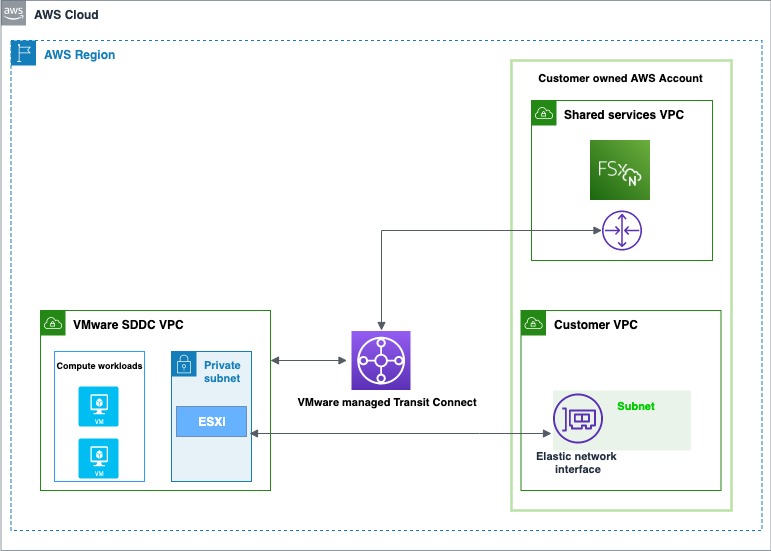
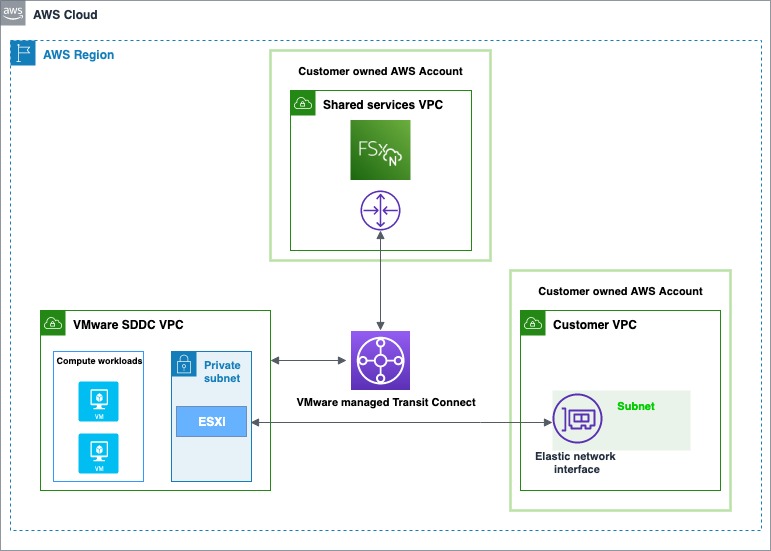
There are two account connectivity options for enabling storage provisioned by FSx for NetApp ONTAP to be made available for mounting as a datastore to a VMware Cloud on AWS SDDC. Both options use a dedicated Amazon Virtual Private Cloud (Amazon VPC) for the FSx file system to prevent routing conflicts.

The first option is to create a new Amazon VPC under the same connected AWS account and have it connected with the VMware-owned Shadow VPC using VMware Transit Connect. The diagram below shows the architecture of this option:

The first option is to enable storage under the same customer-owned account

The first option is to enable storage under the same AWS connected account

The second option is to create a new AWS account, which by default comes with an Amazon VPC for the Region. Similar to the first option, VMware Transit Connect is used to attach this new VPC with the VMware-owned Shadow VPC. Here is a diagram showing the architecture of this option:

The second option is to enable storage provisioned by FSx for NetApp ONTAP by creating a new AWS account

The second option is to enable storage by creating a new AWS account

Getting Started with VMware Cloud on AWS Integration with Amazon FSx for NetApp ONTAP
The first step is to create an FSx for NetApp ONTAP file system in your AWS account. The steps that you will follow to do this are the same, whether you’re using the first or second path to provision and mount your NFS datastore.

  1. Open the Amazon FSx service page.
  2. On the dashboard, choose Create file system to start the file system creation wizard.
  3. On the Select file system type page, select Amazon FSx for NetApp ONTAP, and then click Next which takes you to the Create ONTAP file system page. Here select the Standard create method.

The following video shows a complete guide on how to create an FSx for NetApp ONTAP:

The same process can be found in this FSx for ONTAP User Guide.

After the file system is created, locate the NFS IP address under the Storage virtual machines tab. The NFS IP address is the floating IP that is used to manage access between file system nodes, and it is required for configuring VMware Transit Connect.

Location of the NFS IP address under the Storage virtual machines tab - AWS console

Location of the NFS IP address under the Storage virtual machines tab – AWS console

Location of the NFS IP address under the Storage virtual machines tab - AWS console

Location of the NFS IP address under the Storage virtual machines tab – AWS console

You are done with creating the FSx for NetApp ONTAP file system, and now you need to create an SDDC group and configure VMware Transit Connect. In order to do this, you need to navigate between the VMware Cloud Console and the AWS console.

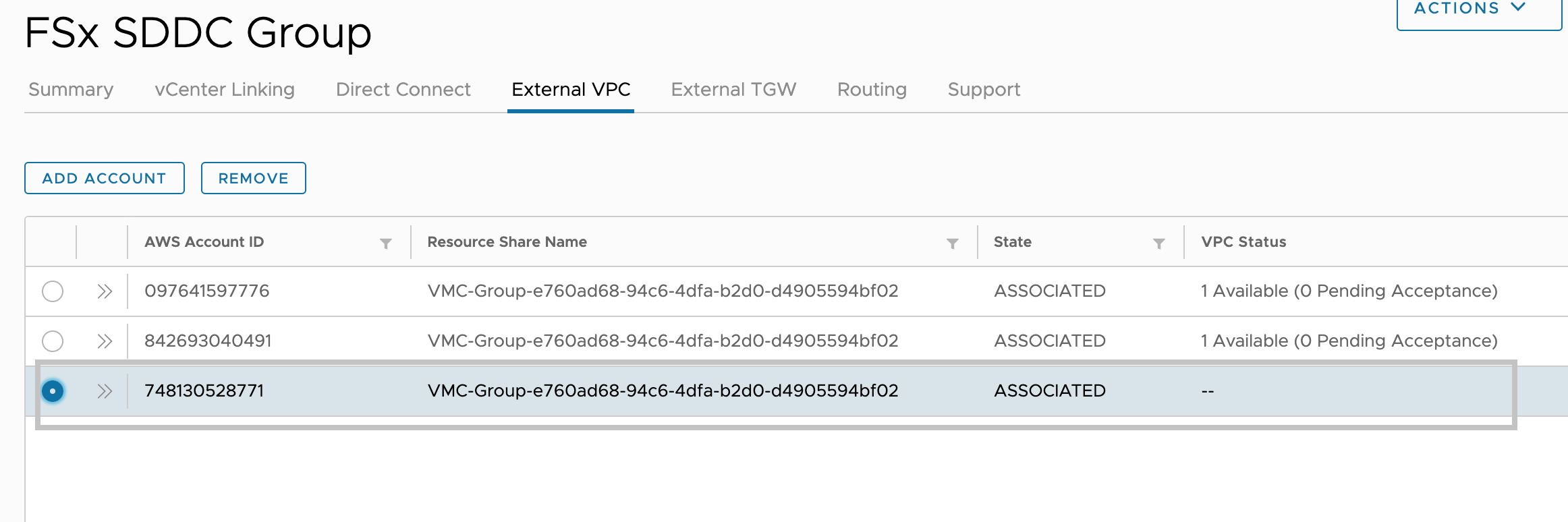
Sign in to the VMware Cloud Console, then go to the SDDC page. Here locate the Actions button and select Create SDDC Group. Once you’ve done this, provide the required data for Name (in the following example I used “FSx SDDC Group” for the name) and Description. For Membership, only include the SDDC in question.

After the SDDC Group is created, it shows up in your list of SDDC Groups. Select the SDDC Group, and then go to the External VPC tab.

External VPC tab Add Account - VMC Console

External VPC tab Add Account – VMC Console

Once you are in the External VPC tab, click the ADD ACCOUNT button, then provide the AWS account that was used to provision the FSx file system, and then click Add.

Now it’s time for you to go back to the AWS console and sign in to the same AWS account where you created your Amazon FSx file system. Here navigate to the Resource Access Manager service page and click the Accept resource share button.

Resource Access Manager service page to access the Accept resource share button - AWS console

Resource Access Manager service page to access the Accept resource share button – AWS console

Return to the VMC Console. By now, the External VPC is in an ASSOCIATED state. This can take several minutes to update.

External VPC tab - VMC Console

External VPC tab – VMC Console

Next, you need to attach a Transit Gateway to the VPC. For this, navigate back to the AWS console. A step-by-step guide can be found in the AWS Transit Gateway documentation.

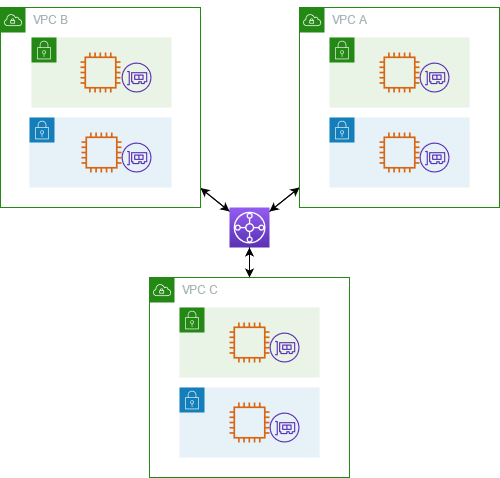
The following is an example that represents a typical architecture of a VPC attached to a Transit Gateway:

A typical architecture of a VPC attached to a Transit Gateway

A typical architecture of a VPC attached to a Transit Gateway

You are almost at the end of the process. You now need to accept the transit gateway attachment and for this you will navigate back to the VMware Cloud Console.

Accept the Transit Gateway attachment as follows:

  1. Navigating back to the SDDC Group, External VPC tab, select the AWS account ID used for creating your FSx NetApp ONTAP, and click Accept. This process may take a few minutes.
  2. Next, you need to add the routes so that the SDDC can see the FSx file system. This is done on the same External VPC tab, where you will find a table with the VPC. In that table, there is a button called Add Routes. In the Add Route section, add two routes:
    1. The CIDR of the VPC where the FSx file system was deployed.
    2. The floating IP address of the file system.
  3. Click Done to complete the route task.

In the AWS console, create the route back to the SDDC by locating VPC on the VPC service page and navigating to the Route Table as seen below.

VPC service page Route Table navigation - AWS console

VPC service page Route Table navigation – AWS console

Ensure that you have the correct inbound rules for the SDDC Group CIDR by locating Security Groups under VPC and finding the Security Group that is being used (it should be the default one) to allow the inbound rules for SDDC Group CIDR.

Security Groups under VPC that is being used to allow the inbound rules for SDDC Group CIDR

Security Groups under VPC that are being used to allow the inbound rules for SDDC Group CIDR

Lastly, mount the NFS Datastore in the VMware Cloud Console as follows:

  1. Locate your SDDC.
  2. After selecting the SDDC, Navigate to the Storage Tab.
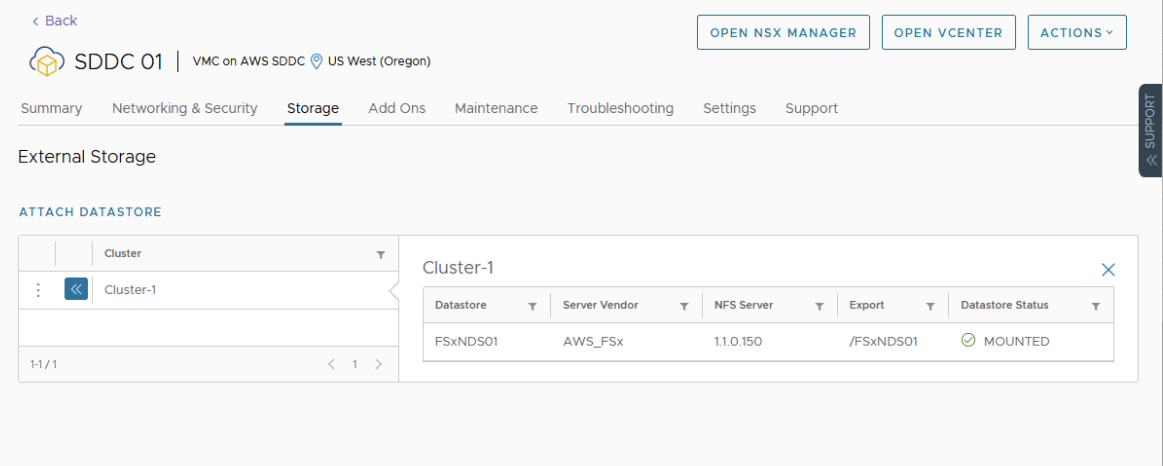
  3. Click Attach Datastore to mount the NFS volume(s).
  4. The next step is to select which hosts in the SDDC to mount the datastore to and click Mount to complete the task.
Attach a new datastore

Attach A New Datastore

Available Today
Amazon FSx for NetApp ONTAP is available today for VMware Cloud on AWS customers in US East (Ohio), US East (N. Virginia), US West (Oregon), Asia Pacific (Mumbai), Asia Pacific (Seoul), Asia Pacific (Singapore), Asia Pacific (Sydney), Asia Pacific (Tokyo), Canada (Central), Europe (Frankfurt), Europe (Ireland), Europe (London), Europe (Milan), Europe (Paris), Europe (Stockholm), South America (São Paulo), AWS GovCloud (US-East), and AWS GovCloud (US-West).

Veliswa x

New for AWS Backup – Support for VMware and VMware Cloud on AWS

Post Syndicated from Danilo Poccia original https://aws.amazon.com/blogs/aws/new-for-aws-backup-support-for-vmware-and-vmware-cloud-on-aws/

Today, I am happy to announce AWS Backup support for VMware, a new capability that enables you to centralize and automate data protection of virtual machines (VMs) running on VMware on premises and VMware CloudTM on AWS. You can now use a single, centrally managed policy in AWS Backup to protect these VMware environments together with 12 AWS compute, storage, and database services already supported by AWS Backup. You can then use AWS Backup to restore VMware workloads to on-premises data centers and VMware Cloud on AWS.

While doing so, AWS Backup Audit Manager lets you consistently demonstrate compliance by monitoring backup, copy, and restore operations and generating auditor-ready reports to satisfy your data governance and regulatory requirements.

Let’s see how this works in practice.

Using AWS Backup Support for VMware
There are three steps to back up VMware virtual machines (VMs) with AWS Backup:

  1. Create a gateway to connect AWS Backup to your hypervisor.
  2. Connect to your hypervisor through the gateway.
  3. Assign virtual machines managed by your hypervisor to a backup plan.

AWS Back Support for VMware diagram

On the left pane of the AWS Backup console, there is a new External resources section. There, I choose Gateways and then Create gateway. This AWS Backup gateway helps with discovery of the on-premises VMware environment and acts as a cloud gateway to send and receive data.

I download the Open Virtualization Format (OVF) file of the AWS Backup gateway and follow the instructions to deploy the gateway using the VMware vSphere client. I am using an internal test and development VMware environment for this walkthrough.

VMware vCenter screenshot.

After deploying the gateway in my VMware environment, I come back to the AWS Backup console. I write a name for the gateway (for simplicity, I use the same name of the gateway VM) and the IP address of the gateway VM. Optionally, I can add tags to help organize and track my setup. I go on and create the gateway.

Console screenshot.

Now, I choose Add hypervisor. I write a name for the hypervisor and the IP address of the VMware vCenter server host.

Console screenshot.

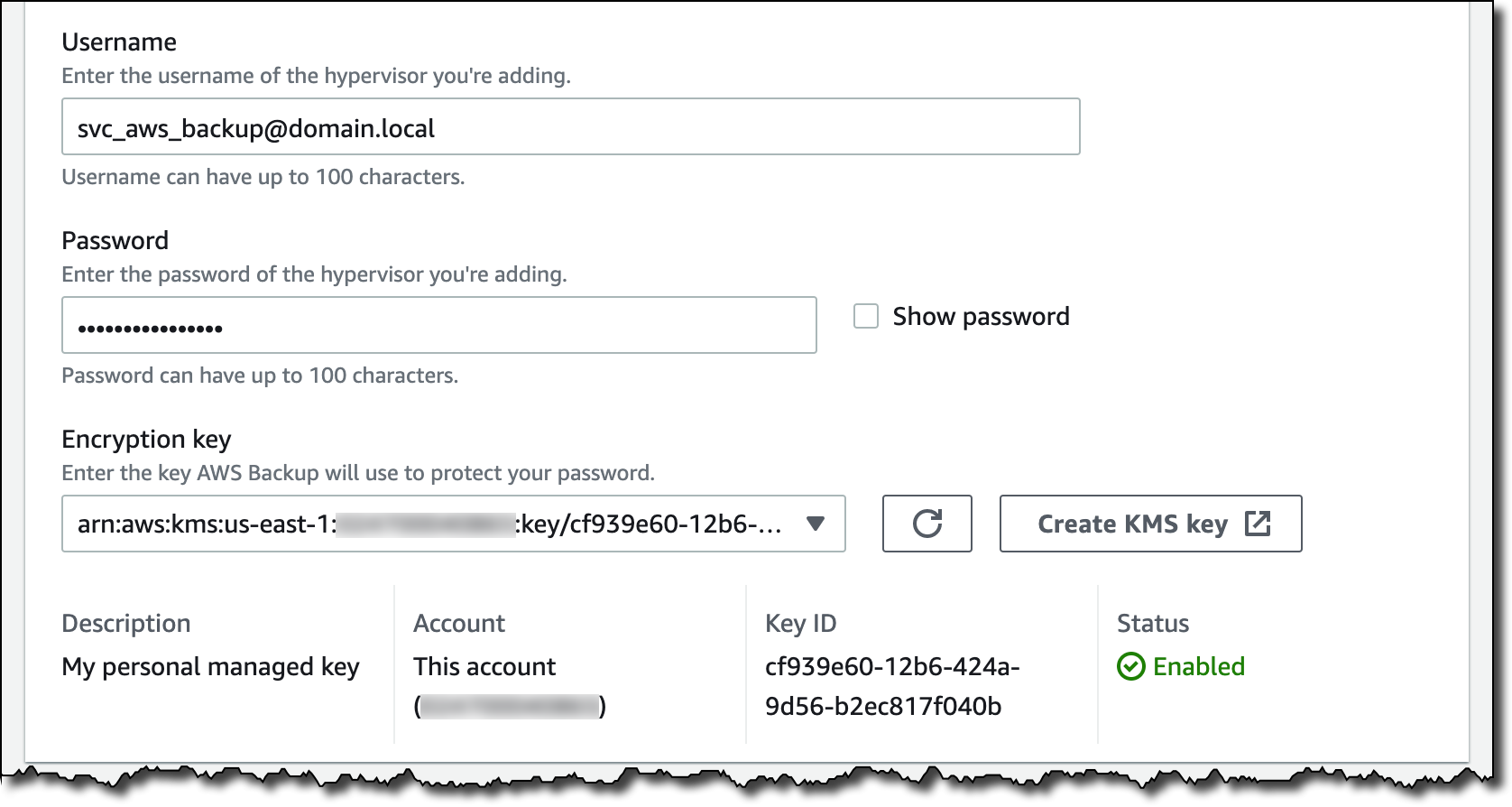
I enter the username and password of a service account that I created for AWS Backup on the Active Directory domain. The username should include the domain (for example, username@domain). Then, I choose the encryption key to protect the service account credentials. If I don’t choose my own AWS Key Management Service (KMS) key, AWS Backup encrypts the username and password using a key that AWS owns and manages.

Console screenshot.

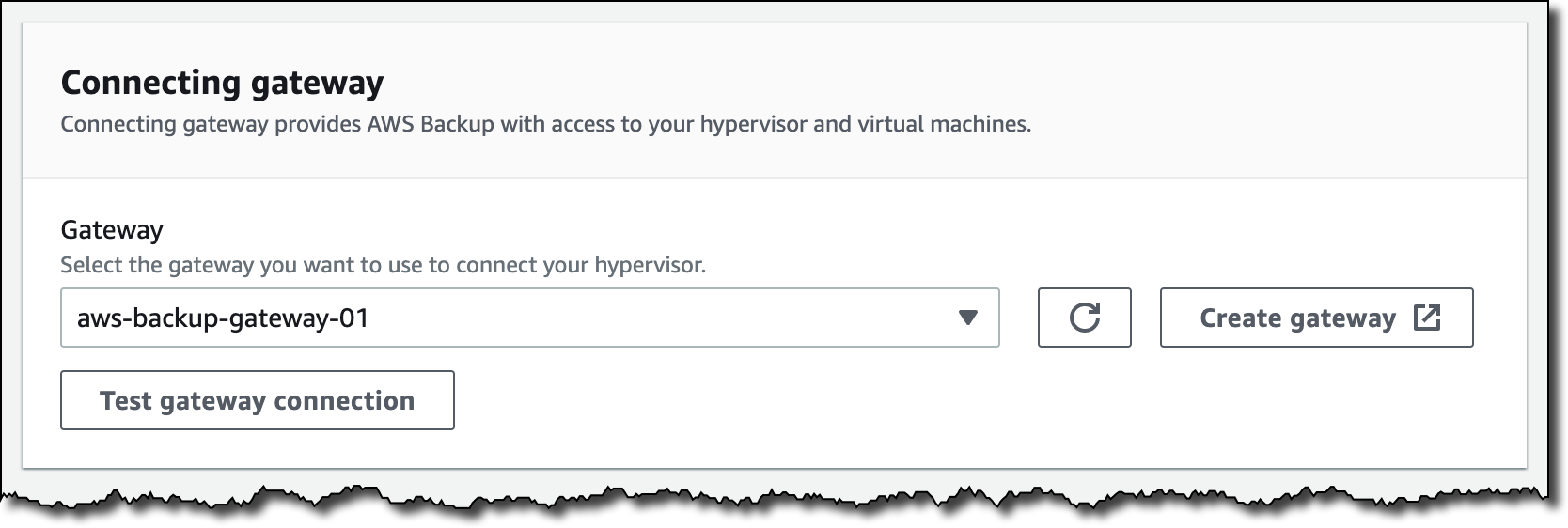
I select the gateway to connect to the hypervisor and choose Test gateway connection. This test helps ensure that the gateway can communicate with the hypervisor before I complete the configuration. Optionally, I can add tags to help organize and track my setup. I go on and add the hypervisor.

Console screenshot.

After a few minutes, the hypervisor is online, and I see the VMs managed by vCenter in the AWS Backup console. I can now use these virtual machines as resources in my backup plans in the same way as the other AWS compute, storage, and database resources supported by AWS Backup.

Console screenshot.

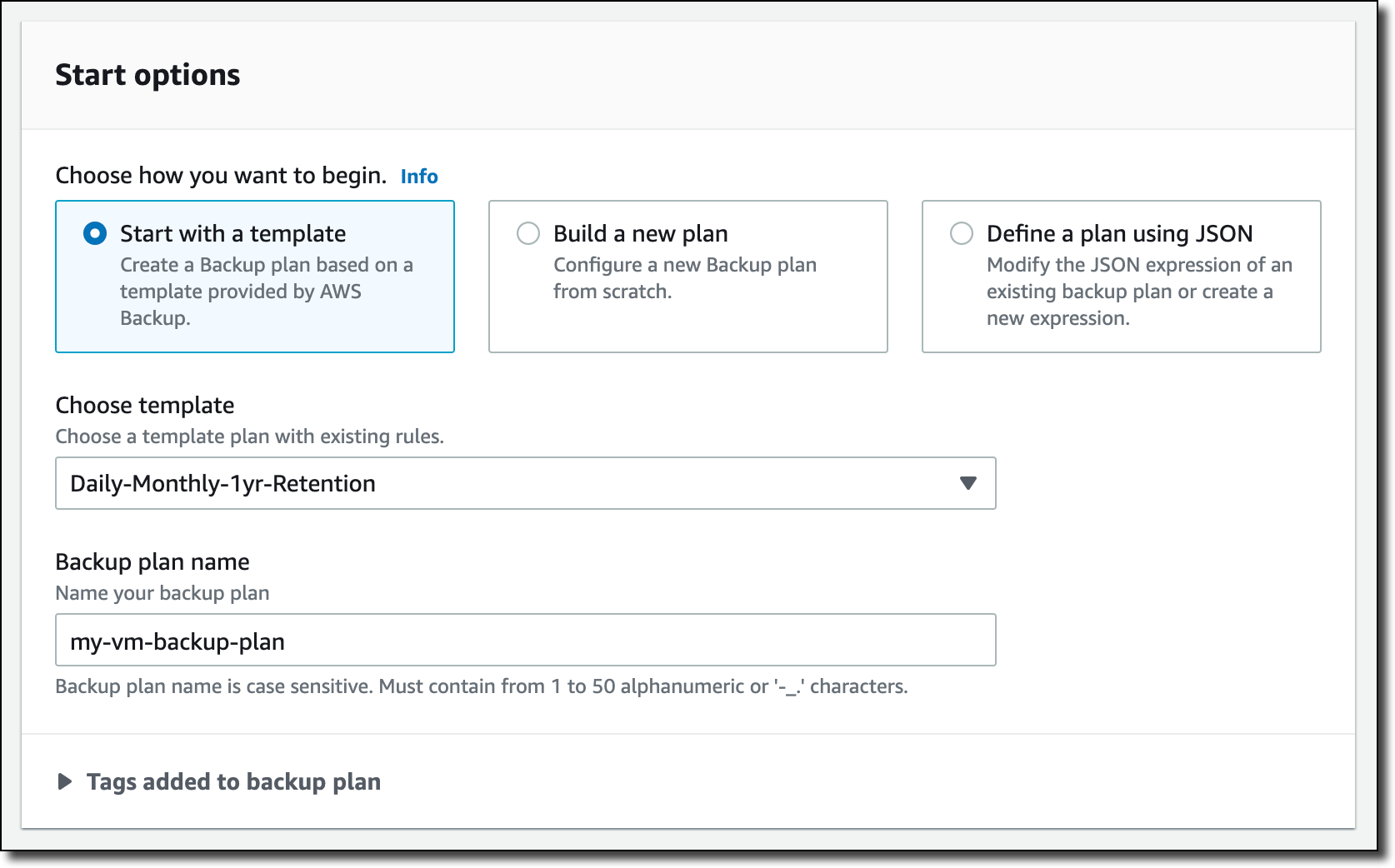
I create a new backup plan and start with a template. The rules of the template enforce daily backups with five weeks of retention and monthly backups with one year of retention. I can customize these rules based on my requirements.

Console screenshot.

Then, I choose to assign resources to the backup plan, and I select three VMs.

Console screenshot.

If you need, you can create an on-demand backup in the Protected resources section of the console. For example, here I am starting the on-demand backup for one of the VMs.

Console screenshot.

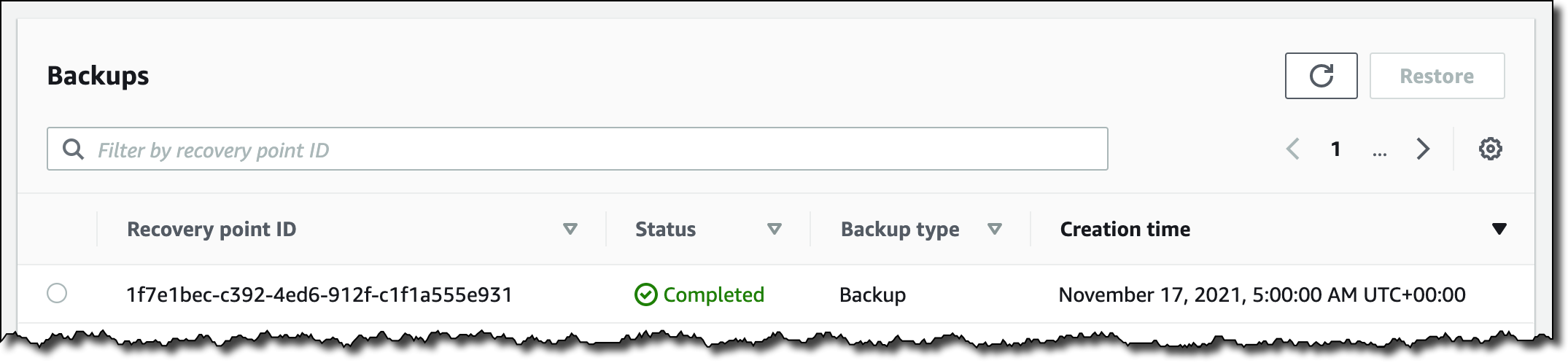
When a backup is complete, VMs are added to the list of the protected resources, and I can initiate a restore.

Console screenshot.

I select the backup and choose Restore. Then, I enter the restore location, which can be the same VMware environment I used for the backup or another (for example, on VMware Cloud on AWS). Below, I specify name, path, compute resource name, and datastore to use for the restore. Then, I choose Restore backup.

Console screenshot.

I monitor the status of my backup and restore jobs from the AWS Backup console. To monitor backup and restore metrics over a period of time, I can use Amazon CloudWatch metrics, logs, and alarms. I can also send events to Amazon EventBridge to receive notifications once a job completes or fails.

Availability and Pricing
AWS Backup support for VMware is available in the US East (N. Virginia, Ohio), US West (N. California, Oregon), GovCloud (US-East, US-West), Canada (Central), Europe (Frankfurt, Ireland, London, Milan, Paris, Stockholm), South America (São Paulo), Asia Pacific (Hong Kong, Mumbai, Seoul, Singapore, Sydney, Tokyo, Osaka), Middle East (Bahrain), and Africa (Cape Town) Regions. Please see the AWS Regional Services List for more information.

AWS Backup supports VMware ESXi 6.7.x and 7.0.x VMs running on NFS, VMFS, and VSAN data stores on premises and in VMware Cloud on AWS. In addition, AWS Backup supports both SCSI Hot-Add and Network Block Device (NBD) transport modes for copying data from source VMs to AWS.

With AWS Backup support for VMware, you pay using the same dimensions that AWS Backup uses today: backup storage, restore, and cross-region data transfer. For more information, see the AWS Backup pricing page.

Your VM backups are stored in a backup vault. All backups stored and managed by AWS Backup are replicated to 3 Availability Zones (AZs) in the Region and designed for 99.999999999 percent (11 9s) durability and 99.99 percent (4 9s) of service availability.

AWS Backup supports first full, then incremental-forever, backups of VMs that you can create on-demand or via a schedule configured in your backup plan. AWS Backup always does full restores even though backups are stored as incremental, enabling you to benefit from storage efficiency cost savings while easily performing restores.

Centrally protect your VMware environments and your AWS compute, storage, and database resources with AWS Backup.

Danilo

VMware Cloud on AWS Outposts Brings VMware SDDC as a Fully Managed Service on Premises

Post Syndicated from Channy Yun original https://aws.amazon.com/blogs/aws/vmware-cloud-on-aws-outposts-brings-vmware-sddc-as-a-fully-managed-service-on-premises/

In 2017, AWS and VMware brought VMware Cloud on AWS, the VMware enterprise-class Software-Defined Data Center (SDDC) software for all vSphere-based workloads, to the AWS Cloud with optimized access to native AWS services. VMware Cloud on AWS provides dedicated, single-tenant cloud infrastructure, delivered on the next-generation bare-metal AWS infrastructure based on the latest Amazon EC2 storage optimized high I/O instances and featuring low-latency non-volatile memory express (NVMe) based SSDs.

Some customers have certain workloads that will likely need to remain on premises, such as applications that are latency-sensitive, have to meet specific data residency to the requirement for data to be stored locally, and proceed local data to the need to run apps closer to where data resides or need to be in close proximity to on-premises assets. These customers would like to be able to use the same VMware tools, APIs, and skill sets that they’ve been using to run their infrastructure on premises and seamlessly integrate these on-premises workloads with the rest of their applications in the AWS Cloud.

AWS and VMware are bringing the VMware Cloud on AWS experience on premises by announcing the general availability of VMware Cloud on AWS Outposts, VMware’s enterprise-class SDDC software deployed on AWS Nitro System-based EC2 bare-metal instances in AWS Outposts, a fully managed service that brings AWS infrastructure and services on premises for a truly consistent hybrid experience. VMware Cloud on AWS Outposts runs on AWS infrastructure within any location provided to us by the customer to support applications that require low latency and to accommodate local data processing and data residency needs as long as the network requirements are met.

AWS Outposts VMware Cloud on AWS Outposts VMware Cloud on AWS
Use cases Low-latency compute, Local data processing, Data residency, Migration and modernization Low-latency compute, Local data processing, Data residency, Migration and modernization with consistent VMware environments Cloud Migrations, Data center extension, Disaster Recovery, Scalable VDI and DevTest, and App modernization
Control Plane AWS console VMware Cloud portal
Software AWS services VMware SDDC built on AWS services*
Infrastructure AWS custom-built hardware
Hardware Location Customers’ datacenters, co-location space, or on-premises facilities AWS Regions

* VMware Cloud runs on Amazon Nitro System-based EC2 bare-metal instances provisioned in AWS Outposts or AWS Regions.

With VMware Cloud on AWS Outposts, you can remove the overhead associated with designing, procuring, and managing IT infrastructure, thereby improving IT efficiency. You can get operational consistency with a single pane of glass in vCenter that allows you to manage your SDDCs in the AWS Regions, on VMware Cloud on AWS Outposts, and in your self-managed on-premises VMware environments.

Preview with VMware on AWS Outposts
To get started with VMware Cloud on AWS Outposts, a group of experts from AWS or VMware will help you understand your specific requirements and sizing needs. Please contact your usual sales representatives from either AWS or VMware before the order.

After your requirements and site conditions are collected, you can simply log into the VMware Cloud Service Portal. Choose VMware Cloud on AWS Outposts from My Services, and start an order. This ordering process via the VMware Cloud Service Portal will be generally available by the end of VMware’s Q3FY22 fiscal quarter (October 29, 2021). If you need to order VMware Cloud on AWS Outposts sooner, contact your AWS or VMware representative.

This order initiates a process for us to collect the necessary site and installation information. You will receive an email confirmation once the order is successfully submitted and confirmed.

AWS will contact you to schedule and perform the site assessment. If your site is compliant with all requirements, then your Outpost will be ordered and installed on your site. Once the VMware Cloud on AWS Outposts capacity is delivered to your site and plugged into power and network connections, AWS will provision the Amazon EC2 instances for SDDC consumption. VMware will perform additional validation and notify you when the VMware Cloud on AWS Outposts service is available.

Next, you will be able to see the available capacity on the VMware Cloud Service Portal and create your SDDC as needed. The connection to your on-premises network is already configured based on the information we collected from the previous steps.

You will need to configure or use your own Virtual Private Cloud (VPC) and subnet to connect as you use in AWS. Workloads running on VMware Cloud on AWS Outpost communicate with other resources in your VPC through elastic network interface (ENI) the same way they do for VMware Cloud on AWS. Performance is subject to the service link connection to the parent AWS Region.

Things to Know
Here are a couple of things to keep in mind about VMware Cloud on AWS Outposts:

Support Process: Unlike AWS Outposts, the VMware Cloud on AWS Outposts service is operated and managed by AWS and VMware. VMware will be your first line of support for VMware Cloud on AWS Outposts. AWS will contact you regarding hardware-related maintenance and replacement. For all other issues, you can use the in-service chat support, which is available 24×5 in English across all global Regions or contact your enterprise support personnel from VMware.

Hybrid with Other Outposts: Similar to VMware Cloud on AWS, you can use ENI to connect your SDDCs to AWS services running on another AWS Outpost or in an AWS Region. VMware Cloud on AWS Outposts has been validated to function with native AWS services such as Amazon CloudWatch, AWS Systems Manager, and Amazon S3 from the connected VPC in the AWS Region. Also, it can fully integrate with all native AWS services such as Amazon EC2, S3, and Amazon RDS that are supported on a native AWS Outposts rack that exists in the same location. Please reach out to your AWS or VMware representative for additional assistance in setting up the connectivity between your Outpost and the nearest AWS Region.

Network Connectivity: While VMware Cloud on AWS Outposts requires reliable network connectivity to the nearest AWS Region, the SDDC continues functioning if network connectivity to the AWS Region is temporarily unavailable. However, the VMware Cloud control plane will be unavailable when network connectivity is down. SDDC configurations can be accessed but network functions such as creating a new logical network , deleting an existing logical network and modifying a logical network will fail. However, you can still access vCenter to perform VM operations, and your data remains safely stored on your Outpost during periods of disconnect.

Data Residency: Your data will remain on VMware Cloud on AWS Outposts by default. This is enabled through the local storage and VMware vSAN technology. You may choose to replicate some or all of your data to AWS Regions or VMware Cloud on AWS based on your specific residency requirements. Some limited metadata will flow back to the AWS Region and the VMware Cloud Service Platform. As an example, information about instance health, instance activity (launched, stopped), and the underlying hypervisor system may be sent back to the parent AWS Region. This information enables AWS to provide alerting on instance health and capacity and apply patches and updates to the Outpost.

Get started with VMware Cloud on AWS Outposts
We’re pleased to announce the general availability of VMware Cloud on AWS Outposts. It can be shipped to the United States and connected to an AWS Region where VMware Cloud on AWS is supported: US East (N. Virginia) or US West (Oregon). If you want to deploy VMware Cloud on AWS Outposts outside the United States or connect VMware Cloud on AWS Outposts to other AWS Regions, please contact your AWS or VMware sales representative.

You can contact your AWS or VMware sales representative to place an order. You will also be able to place an order via the VMware Cloud Service Portal by October 29, 2021. When purchasing through AWS, you can also take advantage of your existing AWS enterprise contracts and AWS field promotional programs such as Migration Acceleration Program (MAP).

To learn more, visit the VMware Cloud on AWS Outposts page. Please send feedback to the VMware forum for VMware on AWS or through your usual AWS support contacts.

Channy

Augmenting VMware Cloud on AWS Workloads with Native AWS services

Post Syndicated from Talha Kalim original https://aws.amazon.com/blogs/architecture/augmenting-vmware-cloud-on-aws-workloads-with-native-aws-services/

VMware Cloud on AWS allows you to quickly migrate VMware workloads to a VMware-managed Software-Defined Data Center (SDDC) running in the AWS Cloud and extend your on-premises data centers without replatforming or refactoring applications.

You can use native AWS services with Virtual Machines (VMs) in the SDDC, to reduce operational overhead and lower your Total Cost of Ownership (TCO) while increasing your workload’s agility and scalability.

This post covers patterns for connectivity between native AWS services and VMware workloads. We also explore common integrations, including using AWS Cloud storage from an SDDC, securing VM workloads using AWS networking services, and using AWS databases and analytics services with workloads running in the SDDC.

Networking between SDDC and native AWS services

Establishing robust network connectivity with VMware Cloud SDDC VMs is critical to successfully integrating AWS services. This section shows you different options to connect the VMware SDDC with your native AWS account.

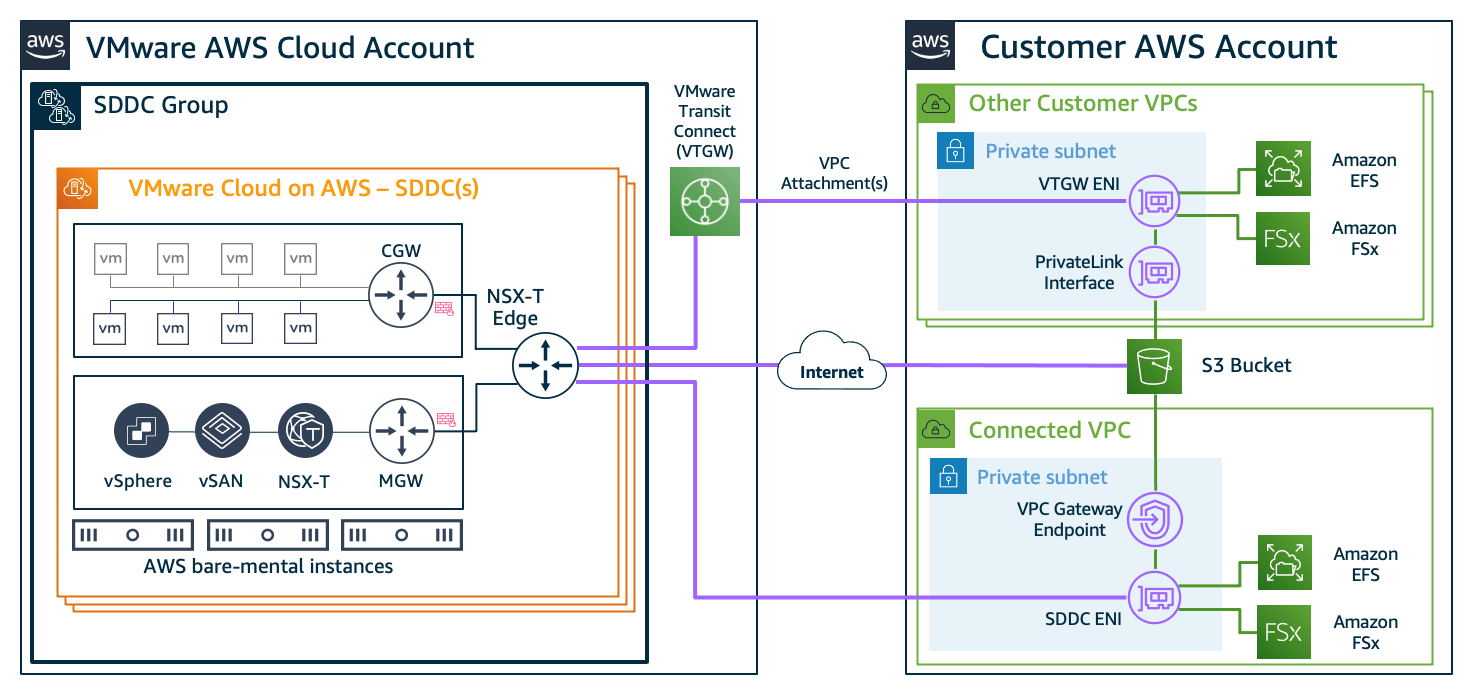
The simplest way to get started is to use AWS services in the connected Amazon Virtual Private Cloud (VPC) that is selected during the SDDC deployment process. Figure 1 shows this connectivity, which is automatically configured and available once the SDDC is deployed.

Figure 1. SDDC to Customer Account VPC connectivity configured at deployment

Figure 1. SDDC to Customer Account VPC connectivity configured at deployment

The SDDC Elastic Network Interface (ENI) allows you to connect to native AWS services within the connected VPC, but it doesn’t provide transitive routing beyond the connected VPC. For example, it will not connect the SDDC to other VPCs and the internet.

If you’re looking to connect to native AWS services in multiple accounts and VPCs in the same AWS Region, you have two connectivity options. These are explained in the following sections.

Attaching VPCs to VMware Transit Connect

When you need high-throughput connectivity in a multi-VPC environment, use VMware Transit Connect (VTGW), as shown in Figure 2.

Figure 2. Multi-account VPC connectivity through VMware Transit Connect VPC attachments

Figure 2. Multi-account VPC connectivity through VMware Transit Connect VPC attachments

VTGW uses a VMware-managed AWS Transit Gateway to interconnect SDDCs within an SDDC group. It also allows you to attach your VPCs in the same Region to the VTGW by providing connectivity to any SDDC within the SDDC group.

Connecting through an AWS Transit Gateway

To connect to your VPCs through an existing Transit Gateway in your account, use IPsec virtual private network (VPN) connections from the SDDC with Border Gateway Protocol (BGP)-based routing, as shown in Figure 3. Multiple IPsec tunnels to the Transit Gateway use equal-cost multi-path routing, which increases bandwidth by load-balancing traffic.

Figure 3. Multi-account VPC connectivity through an AWS Transit Gateway

Figure 3. Multi-account VPC connectivity through an AWS Transit Gateway

For scalable, high throughput connectivity to an existing Transit Gateway, connect to the SDDC via a Transit VPC that is attached to the VTGW, as shown in Figure 3. You must manually configure the routes between the VPCs and SDDC for this architecture.

In the following sections, we’ll show you how to use some of these connectivity options for common native AWS services integrations with VMware SDDC workloads.

Reducing TCO with Amazon EFS, Amazon FSx, and Amazon S3

As you are sizing your VMware Cloud on AWS SDDC, consider using AWS Cloud storage for VMs that provide files services or require object storage. Migrating these workloads to cloud storage like Amazon Simple Storage Service (Amazon S3), Amazon Elastic File System (Amazon EFS), or Amazon FSx can reduce your overall TCO through optimized SDDC sizing.

Additionally, you can reduce the undifferentiated heavy lifting involved with deploying and managing complex architectures for file services in VM disks. Figure 4 shows how these services integrate with VMs in the SDDC.

Figure 4. Connectivity examples for AWS Cloud storage services

Figure 4. Connectivity examples for AWS Cloud storage services

We recommend connecting to your S3 buckets via the VPC gateway endpoint in the connected VPC. This is a more cost-effective approach because it avoids the data processing costs associated with a VTGW and AWS PrivateLink for Amazon S3.

Similarly, the recommended approach for Amazon EFS and Amazon FSx is to deploy the services in the connected VPC for VM access through the SDDC elastic network interface. You can also connect to existing Amazon EFS and Amazon FSx file shares in other accounts and VPCs using a VTGW, but consider the data transfer costs first.

Integrating AWS networking and content delivery services

Using various AWS networking and content delivery services with VMware Cloud on AWS workloads will provide robust traffic management, security, and fast content delivery. Figure 5 shows how AWS networking and content delivery services integrate with workloads running on VMs.

Figure 5. Connectivity examples for AWS networking and content delivery services

Figure 5. Connectivity examples for AWS networking and content delivery services

Deploy Elastic Load Balancing (ELB) services in a VPC subnet that has network reachability to the SDDC VMs. This includes the connected VPC over the SDDC elastic network interface, a VPC attached via VTGW, and VPCs attached to a Transit Gateway connected to the SDDC.

VTGW connectivity should be used when the design requires using existing networking services in other VPCs. For example, if you have a dedicated internet ingress/egress VPC. An internal ELB can also be used for load-balancing traffic between services running in SDDC VMs and services running within AWS VPCs.

Use Amazon CloudFront, a global content delivery service, to integrate with load balancers, S3 buckets for static content, or directly with publicly accessible SDDC VMs. Additionally, use Amazon Route 53 to provide public and private DNS services for VMware Cloud on AWS. Deploy services such as AWS WAF and AWS Shield to provide comprehensive network security for VMware workloads in the SDDC.

Integrating with AWS database and analytics services

Data is one the most valuable assets in an organization, and databases are often the most demanding and critical workloads running in on-premises VMware environments.

A common customer pattern to reduce TCO for storage-heavy or memory-intensive databases is to use purpose-built Databases on AWS like Amazon Relational Database Service (RDS). Amazon RDS lets you migrate on-premises relational databases to the cloud and integrate it with SDDC VMs. Using AWS databases also reduces operational overhead you may incur with tasks associated with managing availability, scalability, and disaster recovery (DR).

With AWS Analytics services integrations, you can take advantage of the close proximity of data within VMware Cloud on AWS data stores to gain meaningful insights from your business data. For example, you can use Amazon Redshift to create a data warehouse to run analytics at scale on relational data from transactional systems, operational databases, and line-of-business applications running within the SDDC.

Figure 6 shows integration options for AWS databases and analytics services with VMware Cloud on AWS VMs.

Figure 6. Connectivity examples for AWS Database and Analytics services

Figure 6. Connectivity examples for AWS Database and Analytics services

We recommend deploying and consuming database services in the connected VPC. If you have existing databases in other accounts or VPCs that require integration with VMware VMs, connect them using the VTGW.

Analytics services can involve ingesting large amounts of data from various sources, including from VMs within the SDDC, creating a significant amount of data traffic. In such scenarios, we recommend using the SDDC connected VPC to deploy any required interface endpoints for analytics services to achieve a cost-effective architecture.

Summary

VMware Cloud on AWS is one of the fastest ways to migrate on-premises VMware workloads to the cloud. In this blog post, we provided different architecture options for connecting the SDDC to native AWS services. This lets you evaluate your requirements to select the most cost-effective option for your workload.

The example integrations covered in this post are common AWS service integrations, including storage, network, and databases. They are a great starting point, but the possibilities are endless. Integrating services like Amazon Machine Learning (Amazon ML), and Serverless on AWS allows you to deliver innovative services to your users, often without having to re-factor existing application backends running on VMware Cloud on AWS.

Additional Resources

If you need to integrate VMware Cloud on AWS with an AWS service, explore the following resources and reach out to us at AWS.

Using AWS Systems Manager in Hybrid Cloud Environments

Post Syndicated from Shivam Patel original https://aws.amazon.com/blogs/architecture/using-aws-systems-manager-in-hybrid-cloud-environments/

Customers operating in hybrid environments today face tremendous challenges with regard to operational management, security/compliance, and monitoring. Systems administrators have to connect, monitor, patch, and automate across multiple Operating Systems (OS), applications, cloud, and on-premises infrastructure. Each of these scenarios has its own unique vendor and console purpose-built for a specific use case.

Using Hybrid Activations, a capability within AWS Systems Manager, you can manage resources irrespective of where they are hosted. You can securely initiate remote shell connections, automate patch management, and monitor critical metrics. You’re able to gain visibility into networking information and application installations via a single console.

In this post, we’ll discuss how the Session Manager and Patch Manager capabilities of Systems Manager allow you to securely connect to instances and virtual machines (VMs). You can centrally log session activity for later auditing and automate patch management, across both cloud and on-premises environments, within a single interface.

Session Manager

Session Manager is a fully managed feature of AWS Systems Manager. Session Manager provides secure and auditable instance management without the need to open inbound ports, maintain bastion hosts, or manage SSH keys. The centralized session management capability of Session Manager provides administrators the ability to centrally manage access to all compute instances. Irrespective of where your VM is hosted, the Session Manager session can be initiated from the AWS Management Console or from the Command-line interface (CLI). When using the CLI, the Session Manager plugin must be installed. The screenshot following shows an example of this.

Figure 1. Initiating instance management via Session Manager

Figure 1. Initiating instance management via Session Manager

The session is launched using the default system generated ssm-user account. With this account, the system does not prompt for a password when initiating root level commands. To improve security, OS accounts can be used to launch sessions using the Run As feature of Session Manager.

A session initiated via Session Manager is secure. The data exchange between the client and a managed instance takes place over a secure channel using TLS 1.2. To further improve your security posture, AWS Key Management Service (KMS) encryption can be used to encrypt the session traffic between a client and a managed instance. Encrypting session data with a customer managed key enables sessions to handle confidential data interactions. For using KMS encryption, both the user who starts sessions and the managed instance that they connect to, must have permission to use the key. Step-by-step instructions on how to set this up can be found in the Session Manager documentation.

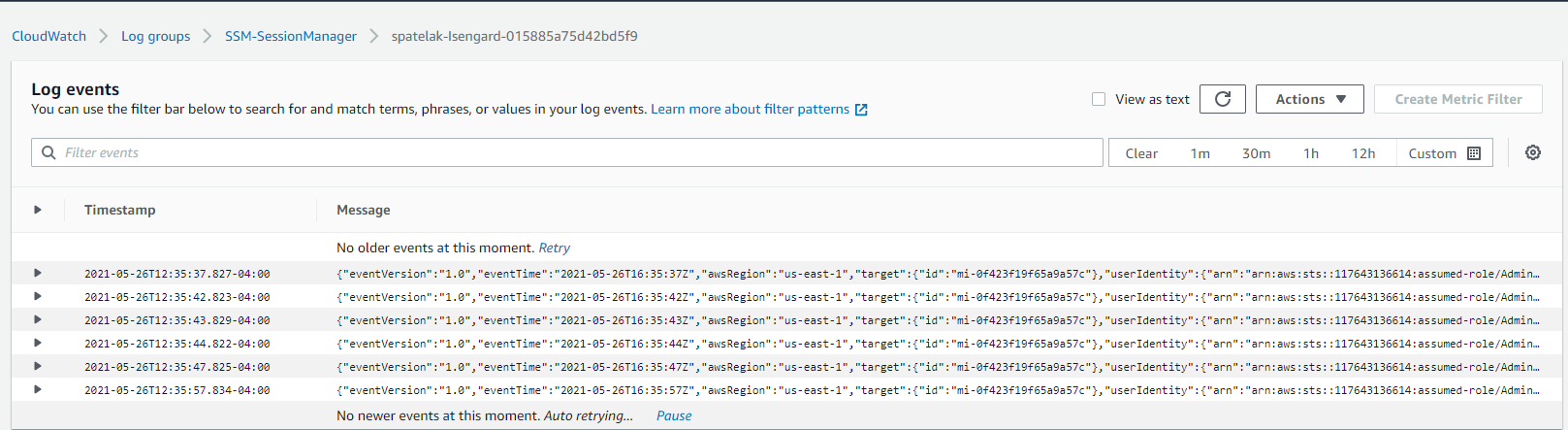
Session Manager integrates with AWS CloudTrail, and this enables security teams to track when a user starts and shuts down sessions. Session Manager can also centrally log all session activity in Amazon CloudWatch or Amazon Simple Storage Service (S3). This gives system administrators the ability to manage details, such as when the session started, what commands were typed during the session, and when it ended. To configure session manager to send logs to CloudWatch and Amazon S3, the instance profile attached to the instance must have permissions to write to CloudWatch and S3. For the Amazon EC2 instance, this will be the IAM role attached to the instance. For VMs running on VMware Cloud on AWS, or on-premises, this is the IAM role from the “Hybrid Activations” page.

Following, we show an example of a session run on an on-premises instance via Session Manager and the corresponding logs in CloudWatch. The logs are continuously streamed into CloudWatch.

Figure 2. CloudWatch log events for session activity via Session Manager

Figure 2. CloudWatch log events for session activity via Session Manager

The following screenshot displays the ipconfig /all command being run remotely within PowerShell of an instance running within VMware Cloud on AWS via Session Manager:

Figure 3. Remote PowerShell session for on-premises VM via Session Manager

Figure 3. Remote PowerShell session for on-premises VM via Session Manager

Patch Manager

Patch management is vital in maintaining a secure and compliant environment. Patch Manager, a capability of AWS Systems Manager, helps you monitor, select, and deploy operating system and software patches automatically. This can happen across compute running on Amazon EC2, VMware on-premises, or VMware Cloud on AWS instances.

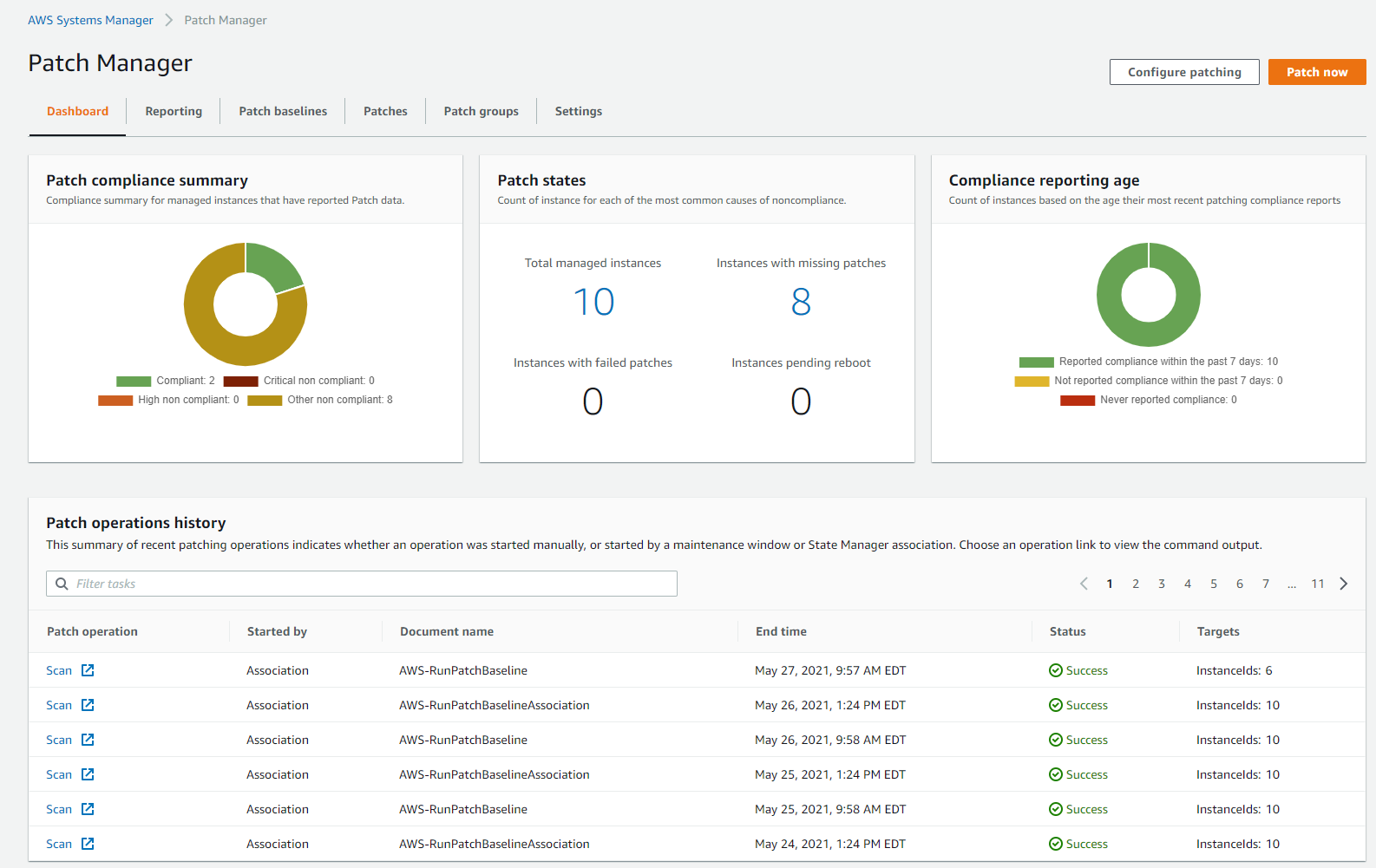
The Patch Manager dashboard shows details such as number of instances, high-level patch compliance summaries, compliance reporting age, and common causes of noncompliance. As Patch Manager performs patching operations, it updates the dashboard with a summary of recent patching operations and a list of recurring patching tasks. This provides the operations team a single unified view into environments and simplifies their monitoring efforts.

Figure 4. Patch Manager dashboard

Figure 4. Patch Manager dashboard

Figure 5. List of all recurring patching tasks

Figure 5. List of all recurring patching tasks

A patch baseline in Patch Manager defines which patches are approved for installation on your instances. Patch Manager provides predefined patch baselines for each supported operating system and also lets you create your own custom patch baselines. These patch baselines let you maintain patch consistency across your deployments on Amazon EC2, VMware on-premises, and VMware Cloud on AWS.

Custom patch baselines give you greater control over which patches are approved and when they are automatically applied. By using multiple patch baselines with different auto-approval delays or cutoffs, you can test patches in your development environment. Custom patch baselines also let you assign compliance levels to indicate the severity of the compliance violation when a patch is reported as missing.

Figure 6. List of Patch baselines

Figure 6. List of Patch baselines

You can use a patch group to associate a group of instances with a specific patch baseline in Patch Manager. This ensures that you are deploying the appropriate patches with associated patch baseline rules, to the correct set of instances. These instances can be EC2, VMware on-premises, or VMware Cloud on AWS. You can also use patch groups to schedule patching during a specific maintenance window.

Patch Manager also provides the ability to scan your instances and VMs running within VMware on-premises and/or VMware Cloud on AWS. It can report compliance adherence based on pre-defined schedules. Patch compliance reports can also be saved to an Amazon S3 bucket of your choice and generated as needed. For reports on a single instance/VM, detailed patch data will be included. For reports run on all instances, a summary of missing patch data will be provided.

The Patch Manager feature of AWS Systems Manager also integrates with AWS Security Hub, a service providing a comprehensive view of your security alerts. It additionally offers security check automation capabilities. In the following image, we show non-compliant instances and servers being reported within AWS Security Hub across EC2, VMware on-premises, and VMware Cloud on AWS:

Figure 7. Non-compliant instances and VMs being reported via AWS Security Hub

Figure 7. Non-compliant instances and VMs being reported via AWS Security Hub

Installation and deployment

To ease installation and deployment efforts, the SSM agent is pre-installed on instances created from the following Amazon Machine Images (AMIs):

  • Amazon Linux
  • Amazon Linux 2
  • Amazon Linux 2 ECS-Optimized Base AMIs
  • macOS 10.14.x (Mojave) and 10.15.x (Catalina)
  • Ubuntu Server 16.04, 18.04, and 20.04
  • Windows Server 2008-2012 R2 AMIs published in November 2016 or later
  • Windows Server 2016 and 2019

For other AMI’s and VMs within VMware on-premises and/or VMware Cloud on AWS, manual agent installation must be performed.

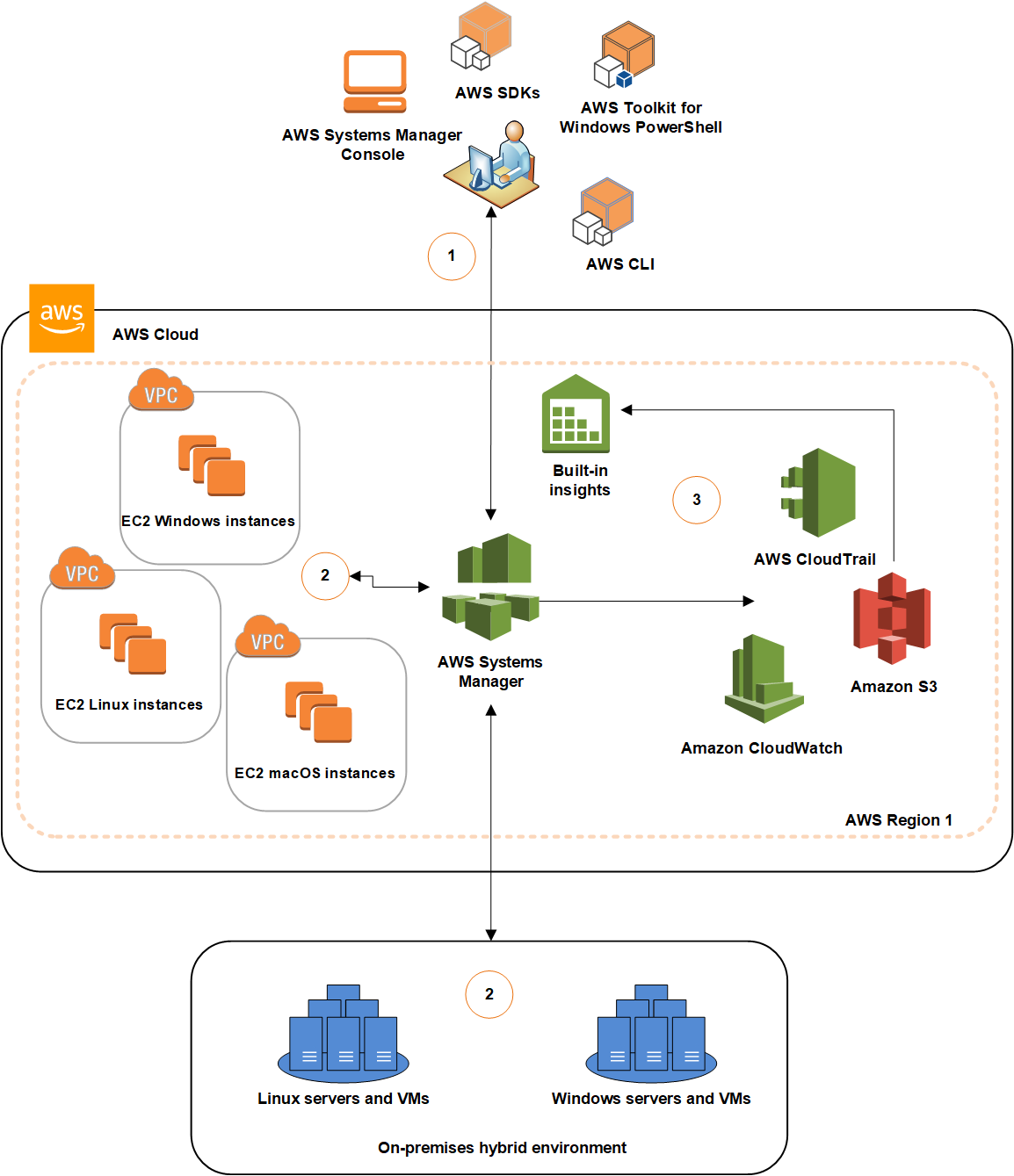
Below is an architecture diagram of our solution described in this post:

Figure 8. General example of Systems Manager process flow

Figure 8. General example of Systems Manager process flow

  1. Configure Systems Manager: Use the Systems Manager console, SDK, AWS Command Line Interface (AWS CLI), or AWS Tools for Windows PowerShell to configure, schedule, automate, and run actions that you want to perform on your AWS resources.
  2. Verification and processing: Systems Manager verifies the configurations, including permissions, and sends requests to the AWS Systems Manager SSM Agent running on your instances or servers in your hybrid environment. SSM Agent performs the specified configuration changes.
  3. Reporting: SSM Agent reports the status of the configuration changes and actions to Systems Manager in the AWS Cloud. If configured, Systems Manager then sends the status to the user and various AWS services.

Conclusion

In this post, we showcase how AWS Systems Manager can yield a unified view within your hybrid environments. It spans native AWS, VMware on-premises, and VMware Cloud on AWS. The Session Manager and Patch Manager features simplify instance connectivity and patch management. Other native capabilities of AWS Systems Manager allow application and change management, software inventory, remote initiation, and monitoring. We encourage you to use the features discussed in this post to maintain your servers across your hybrid environment.

Additional links for consideration: