Levels of Assurance for DoD Microelectronics

Post Syndicated from Bruce Schneier original https://www.schneier.com/blog/archives/2022/08/levels-of-assurance-for-dod-microelectronics.html

The NSA has has published criteria for evaluating levels of assurance required for DoD microelectronics.

The introductory report in a DoD microelectronics series outlines the process for determining levels of hardware assurance for systems and custom microelectronic components, which include application-specific integrated circuits (ASICs), field programmable gate arrays (FPGAs) and other devices containing reprogrammable digital logic.

The levels of hardware assurance are determined by the national impact caused by failure or subversion of the top-level system and the criticality of the component to that top-level system. The guidance helps programs acquire a better understanding of their system and components so that they can effectively mitigate against threats.

The report was published last month, but I only just noticed it.

Security updates for Monday

Post Syndicated from original https://lwn.net/Articles/906355/

Security updates have been issued by Debian (curl, exim4, maven-shared-utils, ndpi, puma, webkit2gtk, and wpewebkit), Fedora (dotnet3.1, firefox, and webkit2gtk3), Mageia (clamav, mariadb, net-snmp, postgresql, python-ldap, and thunderbird), SUSE (freeciv, gnutls, keepalived, libyang, nim, python-Django, and varnish), and Ubuntu (schroot).

Git’s database internals I: packed object store

Post Syndicated from Derrick Stolee original https://github.blog/2022-08-29-gits-database-internals-i-packed-object-store/

Developers collaborate using Git. It is the medium that allows us to share code, work independently on our own machines, and then finally combine our efforts into a common understanding. For many, this is done by following some well-worn steps and sticking to that pattern. This works in the vast majority of use cases, but what happens when we need to do something new with Git? Knowing more about Git’s internals helps when exploring those new solutions.

In this five-part blog post series, we will illuminate Git’s internals to help you collaborate via Git, especially at scale.

It might also be interesting because you love data structures and algorithms. That’s what drives me to be interested in and contribute to Git.

Git’s architecture follows patterns that may be familiar to developers, except the patterns come from a different context. Almost all applications use a database to persist and query data. When building software based on an application database system, it’s easy to get started without knowing any of the internals. However, when it’s time to scale your solution, you’ll have to dive into more advanced features like indexes and query plans.

The core idea I want to convey is this:

Git is the distributed database at the core of your engineering system.

Here are some very basic concepts that Git shares with application databases:

  1. Data is persisted to disk.
  2. Queries allow users to request information based on that data.
  3. The data storage is optimized for these queries.
  4. The query algorithms are optimized to take advantage of these structures.
  5. Distributed nodes need to synchronize and agree on some common state.

While these concepts are common to all databases, Git is particularly specialized. Git was built to store plain-text source code files, where most change are small enough to read in a single sitting, even if the codebase contains millions of lines. People use Git to store many other kinds of data, such as documentation, web pages, or configuration files.

While many application databases use long-running processes with significant amounts of in-memory caching, Git uses short-lived processes and uses the filesystem to persist data between executions. Git’s data types are more restrictive than a typical application database. These aspects lead to very specialized data storage and access patterns.

Today, let’s dig into the basics of what data Git stores and how it accesses that data. Specifically, we will learn about Git’s object store and how it uses packfiles to compress data that would otherwise contain redundant information.

Git’s object store

The most fundamental concepts in Git are Git objects. These are the “atoms” of your Git repository. They combine in interesting ways to create the larger structure. Let’s start with a quick overview of the important Git objects. Feel free to skip ahead if you know this, or you can dig deep into Git’s object model if you’re interested.

In your local Git repositories, your data is stored in the .git directory. Inside, there is a .git/objects directory that contains your Git objects.

$ ls .git/objects/
01  34  9a  df  info    pack

$ ls .git/objects/01/
12010547a8990673acf08117134bdc181bd735

$ ls .git/objects/pack/
multi-pack-index
pack-7017e6ce443801478cf19006fc5499ba1c4d2960.idx
pack-7017e6ce443801478cf19006fc5499ba1c4d2960.pack
pack-9f9258a8ffe4187f08a93bcba47784e07985d999.idx
pack-9f9258a8ffe4187f08a93bcba47784e07985d999.pack

The .git/objects directory is called the object store. It is a content-addressable data store, meaning that we can retrieve the contents of an object by providing a hash of those contents.

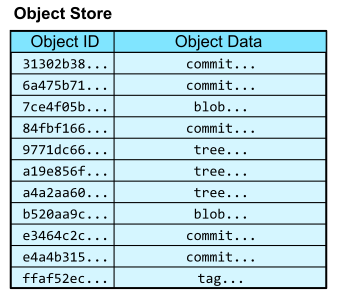
In this way, the object store is like a database table with two columns: the object ID and the object content. The object ID is the hash of the object content and acts like a primary key.

Table with columns labeled Object ID and Object Data

Upon first encountering content-addressable data stores, it is natural to ask, “How can we access an object by hash if we don’t already know its content?” We first need to have some starting points to navigate into the object store, and from there we can follow links between objects that exist in the structure of the object data.

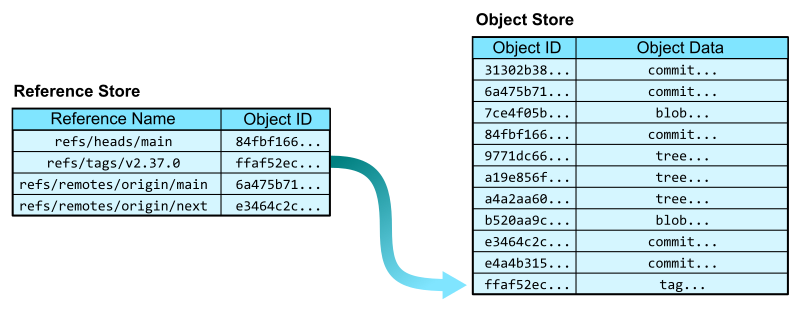
First, Git has references that allow you to create named pointers to keys in the object database. The reference store mainly exists in the .git/refs/ directory and has its own advanced way of storing and querying references efficiently. For now, think of the reference store as a two-column table with columns for the reference name and the object ID. In the reference store, the reference name is the primary key.

Image showing how the Object ID table relates to the Object Store

Now that we have a reference store, we can navigate into the object store from some human-readable names. In addition to specifying a reference by its full name, such as refs/tags/v2.37.0, we can sometimes use short names, such as v2.37.0 where appropriate.

In the Git codebase, we can start from the v2.37.0 reference and follow the links to each kind of Git object.

  • The refs/tags/v2.37.0 reference points to an annotated tag object. An annotated tag contains a reference to another object (by object ID) and a plain-text message.
  • That tag’s object references a commit object. A commit is a snapshot of the worktree at a point in time, along with connections to previous versions. It contains links to parent commits, a root tree, as well as metadata, such as commit time and commit message.
  • That commit’s root tree references a tree object. A tree is similar to a directory in that it contains entries that link a path name to an object ID.
  • From that tree, we can follow the entry for README.md to find a blob object. Blobs store file contents. They get their name from the tree that points to them.

Image displaying hops through the object database in response to a user request.

From this example, we navigated from a ref to the contents of the README.md file at that position in the history. This very simple request of “give me the README at this tag” required several hops through the object database, linking an object ID to that object’s contents.

These hops are critical to many interesting Git algorithms. We will explore how the graph structure of the object store is used by Git’s algorithms in parts two through four. For now, let’s focus on the critical operation of linking an object ID to the object contents.

Object store queries

To store and access information in an application database, developers interact with the database using a query language such as SQL. Git has its own type of query language: the command-line interface. Git commands are how we interact with the Git object store. Since Git has its own structure, we do not get the full flexibility of a relational database. However, there are some parallels.

To select object contents by object ID, the git cat-file command will do the object lookup and provide the necessary information. We’ve already been using git cat-file -p to present “pretty” versions of the Git object data by object ID. The raw content is not always fit for human readers, with object IDs stored as raw hashes and not hexadecimal digits, among other things like null bytes. We can also use git cat-file -t to show the type of an object, which is discoverable from the initial few bytes of the object data.

To insert an object into the object store, we can write directly to a blob using git hash-object. This command takes file content and writes it into a blob in the object store. After the input is complete, Git reports the object ID of the written blob.

$ git hash-object -w --stdin
Hello, world!
af5626b4a114abcb82d63db7c8082c3c4756e51b

$ git cat-file -t af5626b4a114abcb82d63db7c8082c3c4756e51b
blob

$ git cat-file -p af5626b4a114abcb82d63db7c8082c3c4756e51b
Hello, world!

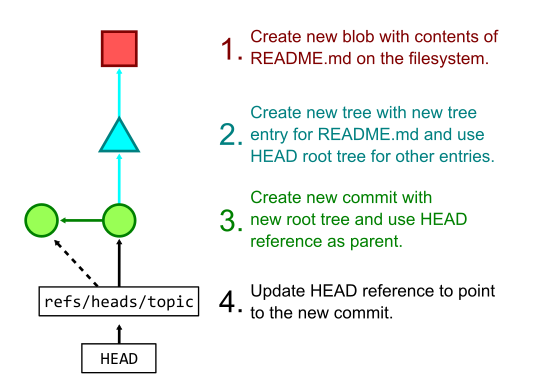
More commonly, we not only add a file’s contents to the object store, but also prepare to create new commit and tree objects to reference that new content. The git add command hashes new changes in the worktree and stores their blobs in the object store then writes the list of objects to a staging area known as the Git index. The git commit command takes those staged changes and creates trees pointing to all of the new blobs, then creates a new commit object pointing to the new root tree. Finally, git commit also updates the current branch to point to the new commit.

The figure below shows the process of creating several Git objects and finally updating a reference that happens when running git commit -a -m "Update README.md" when the only local edit is a change to the README.md file.

Image showing the process of creating several Git objects and updating references

We can do slightly more complicated queries based on object data. Using git log --pretty=format:<format-string>, we can make custom queries into the commits by pulling out “columns” such as the object ID and message, and even the committer and author names, emails, and dates. See the git log documentation for a full column list.

There are also some prebuilt formats ready for immediate use. For example, we can get a simple summary of a commit using git log --pretty=reference -1 <ref>. This query parses the commit at <ref> and provides the following information:

  • An abbreviated object ID.
  • The first sentence of the commit message.
  • The commit date in short form.
$ git log --pretty=reference -1 378b51993aa022c432b23b7f1bafd921b7c43835
378b51993aa0 (gc: simplify --cruft description, 2022-06-19)

Now that we’ve explored some of the queries we can make in Git, let’s dig into the actual storage of this data.

Compressed object storage: packfiles

Looking into the .git/objects directory again, we might see several directories with two-digit names. These directories then contain files with long hexadecimal names. These files are called loose objects, and the filename corresponds to the object ID of an object: the first two hexadecimal characters form the directory name while the rest form the filename. While the files themselves are compressed, there is not much interesting about querying these files, since Git relies on filesystem queries to satisfy most of these needs.

However, it does not take many objects before it is infeasible to store an entire Git repository using only loose objects. Not only does it strain the filesystem to have so many files, it is also inefficient when storing many versions of the same text file. Thus, Git’s packed object store in the .git/objects/pack/ directory forms a more efficient way to store Git objects.

Packfiles and pack-indexes

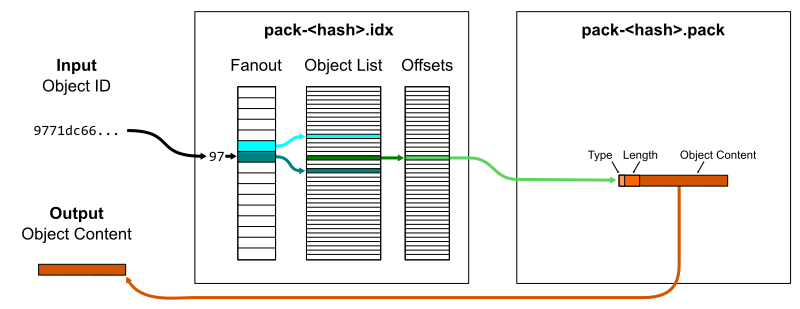
Each *.pack file in .git/objects/pack/ is called a packfile. Packfiles store multiple objects in compressed forms. Not only is each object compressed individually, they can also be compressed against each other to take advantage of common data.

At its simplest, a packfile contains a concatenated list of objects. It only stores the object data, not the object ID. It is possible to read a packfile to find objects by object ID, but it requires decompressing and hashing each object to compare it to the input hash. Instead, each packfile is paired with a pack-index file ending with .idx. The pack-index file stores the list of object IDs in lexicographical order so a quick binary search is sufficient to discover if an object ID is in the packfile, then an offset value points to where the object’s data begins within the packfile. The pack-index operates like a query index that speeds up read queries that rely on the primary key (object ID).

One small optimization is that a fanout table of 256 entries provides boundaries within the full list of object IDs based on their first byte. This reduces the time spent by the binary search, specifically by focusing the search on a smaller number of memory pages. This works particularly well because object IDs are uniformly distributed so the fanout ranges are well-balanced.

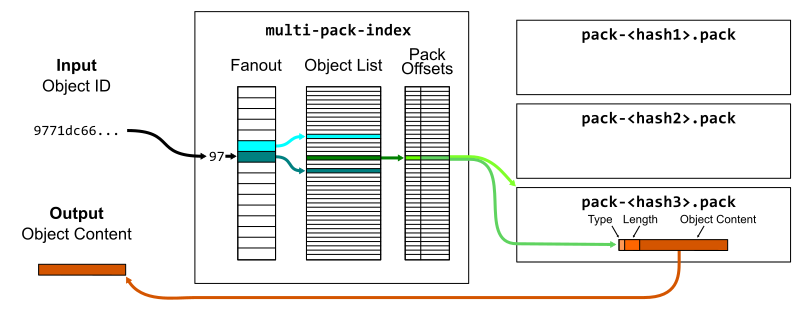
If we have a number of packfiles, then we could ask each pack-index in sequence to look up the object. A further enhancement to packfiles is to put several pack-indexes together in a single multi-pack-index, which stores the same offset data plus which packfile the object is in.

Lookups and prefixes work the same as in pack-indexes, except now we can skip the linear issue with many packs. You can read more about the multi-pack-index file and how it helps scale monorepo maintenance at GitHub.

Diffable object content

Packfiles also have a hyper-specialized version of row compression called deltification. Since read queries are only indexed by the object ID, we can perform extra compression on the object data part.

Git was built to store source code, which consists of plain-text files that are used as input to a compiler or interpreter to create applications. Git was also built to store many versions of this source code as it is changed by humans. This provides additional context about the kind of data typically stored in Git: diffable files with significant portions in common. If you’ve ever wondered why you shouldn’t store large binary files in Git repositories, this is the reason.

The field of software engineering has made it clear that it is difficult to understand applications in their entirety. Humans can grasp a very high-level view of an architecture and can parse small sections of code, but we cannot store enough information in our brains to grasp huge amounts of concrete code at once. You can read more about this in the excellent book, The Programmer’s Brain by Dr. Felienne Hermans.

Because of the limited size of our working memory, it is best to change code in small, well-documented iterations. This helps the code author, any code reviewers, and future developers looking at the code history. Between iterations, a significant majority of the code remains fixed while only small portions change. This allows Git to use difference algorithms to identify small diffs between the content of blob objects.

There are many ways to compute a difference between two blobs. Git has several difference algorithms implemented which can have drastically different results. Instead of focusing on unstructured differences, I want to focus on differences between structured object data. Specifically, tree objects usually change in small ways that are easy to compress.

Tree diffs

Git’s tree objects can also be compared using a difference algorithm that is aware of the structure of tree entries. Each tree entry stores a mode (think Unix file permissions), an object type, a name, and an object ID. Object IDs are for all intents and purposes random, but most edits will change a file without changing its mode, type, or name. Further, large trees are likely to have only a few entries change at a time.

For example, the tip commit at any major Git release only changes one file: the GIT-VERSION-GEN file. This means also that the root tree only has one entry different from the previous root tree:

$ git diff v2.37.0~1 v2.37.0
diff --git a/GIT-VERSION-GEN b/GIT-VERSION-GEN
index 120af376c1..b210b306b7 100755
--- a/GIT-VERSION-GEN
+++ b/GIT-VERSION-GEN
@@ -1,7 +1,7 @@
 #!/bin/sh

 GVF=GIT-VERSION-FILE
-DEF_VER=v2.37.0-rc2
+DEF_VER=v2.37.0

 LF='
 '

$ git cat-file -p v2.37.0~1^{tree} >old
$ git cat-file -p v2.37.0^{tree} >new

$ diff old new
13c13
< 100755 blob 120af376c147799e6c0069bac1f61709a0286cd6  GIT-VERSION-GEN
---
> 100755 blob b210b306b7554f28dc687d1c503517d2a5f87082  GIT-VERSION-GEN

Once we have an algorithm that can compute diffs for Git objects, the packfile format can take advantage of that.

Delta compression

The packfile format begins with some simple header information, but then it contains Git object data concatenated together. Each object’s data starts with a type and a length. The type could be the object type, in which case the content in the packfile is the full object content (subject to DEFLATE compression). The object’s type could instead be an offset delta, in which case the data is based on the content of a previous object in the packfile.

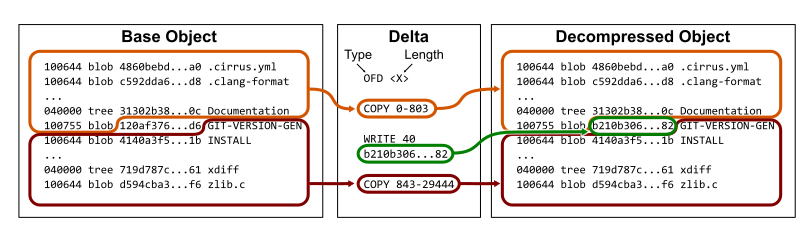
An offset delta begins with an integer offset value pointing to the relative position of a previous object in the packfile. The remaining data specifies a list of instructions which either instruct how to copy data from the base object or to write new data chunks.

Thinking back to our example of the root tree for Git’s v2.37.0 tag, we can store that tree as an offset delta to the previous root tree by copying the tree up until the object ID 120af37..., then write the new object ID b210b30..., and finally copy the rest of the previous root tree.

Keep in mind that these instructions are also DEFLATE compressed, so the new data chunks can also be compressed similarly to the base object. For the example above, we can see that the root tree for v2.37.0 is around 19KB uncompressed, 14KB compressed, but can be represented as an offset delta in only 50 bytes.

$ git rev-parse v2.37.0^{tree}
a4a2aa60ab45e767b52a26fc80a0a576aef2a010

$ git cat-file -s v2.37.0^{tree}
19388

$ ls -al .git/objects/a4/a2aa60ab45e767b52a26fc80a0a576aef2a010
-r--r--r--   1 ... ... 13966 Aug  1 13:24 a2aa60ab45e767b52a26fc80a0a576aef2a010

$ git rev-parse v2.37.0^{tree} | git cat-file --batch-check="%(objectsize:disk)"
50

Also, an offset delta can be based on another object that is also an offset delta. This creates a delta chain that requires computing the object data for each object in the list. In fact, we need to traverse the delta links in order to even determine the object type.

For this reason, there is a cost to storing objects efficiently this way. At read time, we need to do a bit extra work to materialize the raw object content Git needs to parse to satisfy its queries. There are multiple ways that Git tries to optimize this trade-off.

One way Git minimizes the extra work when parsing delta chains is by keeping the delta-chains short. The pack.depth config value specifies an upper limit on how long delta chains can be while creating a packfile. The default limit is 50.

When writing a packfile, Git attempts to use a recent object as the base and order the delta chain in reverse-chronological order. This allows the queries that involve recent objects to have minimum overhead, while the queries that involve older objects have slightly more overhead.

However, while thinking about the overhead of computing object contents from a delta chain, it is important to think about what kind of resources are being used. For example, to compute the diff between v2.37.0 and its parent, we need to load both root trees. If these root trees are in the same delta chain, then that chain’s data on disk is smaller than if they were stored in raw form. Since the packfile also places delta chains in adjacent locations in the packfile, the cost of reading the base object and its delta from disk is almost identical to reading just the base object. The extra overhead of some CPU during the parse is very small compared to the disk read. In this way, reading multiple objects in the same delta chain is faster than reading multiple objects across different chains.

In addition, some Git commands query the object store in such a way that we are very likely to parse multiple objects in the same delta chain. We will cover this more in part III when discussing file history queries.

In addition to persisting data efficiently to disk, the packfile format is also critical to how Git synchronizes Git object data across distributed copies of the repository during git fetch and git push. We will learn more about this in part IV when discussing distributed synchronization.

Packfile maintenance

In order to take advantage of packfiles and their compressed representation of Git objects, Git needs to actually write these packfiles. It is too expensive to create a packfile for every object write, so Git batches the packfile write into certain commands.

You could roll your own packfile using git pack-objects and create a pack-index for it using git index-pack. However, you instead might want to recompute a new packfile containing your entire object store using git repack -a or git gc.

As your repository grows, it becomes more difficult to replace your entire object store with a new packfile. For starters, you need enough space to store two copies of your Git object data. In addition, the computation effort to find good delta compression is very expensive and demanding. An optimal way to do delta compression takes quadratic time over the number objects, which is quickly infeasible. Git uses several heuristics to help with this, but still the cost of repacking everything all at once can be more than we are willing to spend, especially if we are just a client repository and not responsible for serving our Git data to multiple users.

There are two primary ways to update your object store for efficient reads without rewriting the entire object store into a new packfile. One is the geometric repacking option where you can run git repack --geometric to repack only a portion of packfiles until the resulting packfiles form a geometric sequence. That is, each packfile is some fixed multiple smaller than the next largest one. This uses the multi-pack-index to keep logarithmic performance for object lookups, but will occasionally tip over to repack all of the object data. That “tip over” moment only happens when the repository doubles in size, which does not happen very often.

Another approach to reducing the amount of work spent repacking is the incremental repack task in the git maintenance command. This task collects packfiles below a fixed size threshold and groups them together, at least until their total size is above that threshold. The default threshold is two gigabytes. This task is used by default when you enable background maintenance with the git maintenance start command. This also uses the multi-pack-index to keep fast lookups, but also will not rewrite the entire object store for large repositories since once a packfile is larger than the threshold it is not considered for repacking. The storage is slightly inefficient here, since objects in newer packfiles could be stored as deltas to objects in those fixed packs, but the simplicity in avoiding expensive repository maintenance is worth that slight overhead.

If you’re interested in keeping your repositories well maintained, then think about these options. You can always perform a full repack that recomputes all delta chains using git repack -adf at any time you are willing to spend that upfront maintenance cost.

What could Git learn from other databases?

Now that we have some understanding about how Git stores and accesses packed object data, let’s think about features that exist in application database systems that might be helpful here.

One thing to note is that there are no B-trees to be found! Almost every database introduction talks about how B-trees are used to efficiently index data in a database table. Why are they not present here in Git?

The main reason Git does not use B-trees is because it doesn’t do “live updating” of packfiles and pack-indexes. Once a packfile is written, it is static until it is replaced by another packfile containing its objects. That packfile is also not accessed by Git processes until its pack-index is completely written.

In this world, objects are dynamically added to the object store by adding new loose object files (such as in git add or git commit) or by adding new packfiles (such as in git fetch). If a packfile has fixed content, then we can do the most space-and-time efficient index: a binary search tree. Specifically, performing binary search on the list of object IDs in a pack-index is very efficient. It’s not an exact binary search because there is an initial fan-out table for the first byte of the object ID. It’s kind of like a rooted binary tree, except the root node has 256 children instead of only two.

B-trees excel when data is being inserted or removed from the tree. Being able to track those modifications with minimal modifications to the overall tree structure is critical for an application database serving many concurrent requests.

Git does not currently have the capability to update a packfile in real time without shutting down concurrent reads from that file. Such a change could be possible, but it would require updating Git’s storage significantly. I think this is one area where a database expert could contribute to the Git project in really interesting ways.

Another difference between Git and most database systems is that Git runs as short-lived processes. Typically, we think of the database as a process that has data cached in memory. We send queries to the existing process and it returns results and keeps running. Instead, Git starts a new process with every “query” and relies on the filesystem for persisted state. Git also relies on the operating system to cache the disk pages during and between the processes. Expert database systems tell the kernel to stop managing disk pages and instead the database manages the page cache since it knows its usage needs better than a general purpose operating system could predict.

What if Git had a long-running daemon that could satisfy queries on-demand, but also keep that in-memory representation of data instead of needing to parse objects from disk every time? Although the current architecture of Git is not well-suited to this, I believe it is an idea worth exploring in the future.

Come back tomorrow for more!

In the next part of this blog series, we will explore how Git commit history queries use the structure of Git commits to present interesting information to the user. We’ll also explore the commit-graph file and how it acts as a specialized query index for these commands.

I’ll also be speaking at Git Merge 2022 covering all five parts of this blog series, so I look forward to seeing you there!
Kernel prepatch 6.0-rc3

Post Syndicated from original https://lwn.net/Articles/906315/

The 6.0-rc3 kernel prepatch is out for
testing.

So as some people already noticed, last week was an anniversary
week – 31 years since the original Linux development
announcement. How time flies.

But this is not that kind of historic email – it’s just the regular
weekly RC release announcement, and things look pretty normal.

Easily protect your AWS CDK-defined infrastructure with AWS WAFv2

Post Syndicated from Ramon Lopez Narvaez original https://aws.amazon.com/blogs/devops/easily-protect-your-aws-cdk-defined-infrastructure-with-aws-wafv2/

Security is a shared responsibility between AWS and the customer. When we use infrastructure as code (IaC) we want to describe workloads wholistically, and that includes the configuration of firewalls alongside the entrypoints to web applications. As we evolve the infrastructure that our application is built upon, we can adjust firewall rules in the same place.

In this post, you’ll learn how you can easily add a layer of protection to your web application that is defined in AWS Cloud Development Kit (AWS CDK) and built using Amazon CloudFront, Amazon API Gateway, Application Load Balancer, or AWS AppSync.

To accomplish this, we’ll use AWS WAFv2. Although it’s usually complex to write your own firewall rules, we can simply use AWS Managed Rules. No tedious setup required!

What is AWS WAFv2?

AWS WAFv2 is a managed web application firewall. It can be natively enabled on CloudFront, API Gateway, Application Load Balancer, or AWS AppSync and is deployed alongside these services. AWS services terminate the TCP/TLS connection, process incoming HTTP requests, and then pass the request to AWS WAF for inspection and filtering.

For example, you can use AWS WAFv2 to protect against attacks, such as cross-site request forgery (CSRF), cross-site scripting (XSS), and SQL injection (SQLi) among other threats in the OWASP Top 10.

AWS Managed Rules for AWS WAF is a set of AWS WAF rules curated and maintained by the AWS Threat Research Team that provides protection against common application vulnerabilities or other unwanted traffic, without having to write your own rules.

Prerequisites

For this walkthrough, you should have the following prerequisites:

  • An AWS account
  • An application fronted by one or more of the following services: Amazon Cloudfront, Amazon API Gateway, Application Load Balancer or AWS AppSync. From here on these are called ‘entrypoint’.
  • At least the above mentioned ‘entrypoint’ defined in AWS CDK.

Solution overview

When AWS WAF is applied to Amazon CloudFront, Amazon API Gateway, Application Load Balancer, or AWS AppSync, it inspects and filters requests before they’re forwarded to your compute infrastructure.

Figure 1. AWS WAFv2 can protect endpoints built by Amazon CloudFront, Amazon API Gateway, Application Load Balancer and AWS AppSync

Given that you have an existing web application defined in AWS CDK, we want to add a WAFv2 web ACL to its entrypoint. Instead of writing our own firewall rules to inspect and filter requests, we want to leverage an AWS Managed Rules rule group. Simultaneously, we must be able to disable or reconfigure some of the rules in the case that they cause undesirable behavior in the application.

A good first rule group to use is the core rule set (CRS) managed rule group, also named AWSManagedRulesCommonRuleSet. It contains rules that are generally applicable to web applications and provides protection against exploitation of various vulnerabilities, such as the ones described in the OWASP Top 10. You can later add more managed rule groups or write your own rules, which are specific to your application (e.g., for Windows, Linux, or WordPress).

Define the AWS WAFv2 web ACL

First, let’s give the AWS WAF module a nicely readable name:

import { aws_wafv2 as wafv2 } from 'aws-cdk-lib';

Then, we define the AWS WAFv2 web ACL in AWS CDK:

const cfnWebACL = new wafv2.CfnWebACL(this,'MyCDKWebAcl'
      defaultAction: {
        allow: {}
      },
      scope: 'REGIONAL',
      visibilityConfig: {
        cloudWatchMetricsEnabled: true,
        metricName:'MetricForWebACLCDK',
        sampledRequestsEnabled: true,
      },
      name:‘MyCDKWebAcl’,
      rules: [{
        name: 'CRSRule',
        priority: 0,
        statement: {
          managedRuleGroupStatement: {
            name:'AWSManagedRulesCommonRuleSet',
            vendorName:'AWS'
          }
        },
        visibilityConfig: {
          cloudWatchMetricsEnabled: true,
          metricName:'MetricForWebACLCDK-CRS',
          sampledRequestsEnabled: true,
        },
        overrideAction: {
          none: {}
        },
      }]
    });

The highlighted line references the CRS managed rule group as one Rule in the list. You could add more Rule elements, either referencing the managed rule groups or custom rules.

Note the scope attribute. If you want to attach this web ACL to an API Gateway, AWS AppSync API, or Application Load Balancer, then it will be REGIONAL. If you want to attach it to a CloudFront distribution, then make sure that your AWS WAFv2 web ACL is defined in the US East (N. Virginia) Region and the scope is CLOUDFRONT.

Attach the AWS WAFv2 web ACL to an Application Load Balancer, AWS AppSync API, or API Gateway

Now that we have a web ACL defined, we must attach it to a resource. This works exactly the same across API Gateway API’s, an AWS AppSync API, or an Application Load Balancer. We must create a CfnWebACLAssociation and point it to the previously created web ACL and the resource to protect:

const cfnWebACLAssociation = new wafv2.CfnWebACLAssociation(this,'MyCDKWebACLAssociation', {
      resourceArn:<ARN of resource to protect>,
      webAclArn:cfnWebACL.attrArn,
    });

Amazon Resource Names (ARNs) uniquely identify AWS resources. The highlighted line shows how AWS CDK lets you get the ARN of the previously defined CfnWebAcl.

Depending on what type of service you’re using, jump to one of the three following sections to learn how to retrieve the resourceArn of API Gateway, AWS AppSync, or Application Load Balancers.

Retrieving ARN for AWS AppSync API’s

To retrieve the ARN of an AWS AppSync API, call the .arn property:

const api = new appsync.GraphqlApi(…)
const cfnWebACLAssociation = new wafv2.CfnWebACLAssociation(this,'MyCDKWebACLAssociation', {
      resourceArn:api.arn,
      webAclArn: cfnWebACL.attrArn,
    });

Retrieving ARN for Amazon API Gateway REST API’s

In this case, we must specify which stage of the REST API we want to protect with the web ACL. Then, we reference the ARN of the stage:

const api = new apigateway.RestApi(…)
const deployment = new apigateway.Deployment(…)
const stage = apigateway.Stage(…)
const cfnWebACLAssociation = new wafv2.CfnWebACLAssociation(this,'MyCDKWebACLAssociation', {
      resourceArn:stage.stageArn,
      webAclArn: cfnWebACL.attrArn,
    });

Retrieving ARN for Application Load Balancers

If you’re dealing with an Application Load Balancer, then this is how you can retrieve its ARN:

const lb = new elbv2.ApplicationLoadBalancer(…)

const cfnWebACLAssociation = new wafv2.CfnWebACLAssociation(this,'MyCDKWebACLAssociation', {
      resourceArn:lb.loadBalancerArn,
      webAclArn: cfnWebACL.attrArn,
    });

Attach the AWS WAFv2 web ACL to a CloudFront distribution

Attaching a web ACL to CloudFront follows a different approach. Instead of defining a cfnWebACLAssociation, we reference the web ACL inside of the Distribution definition:

const distribution = new cloudfront.Distribution(this,'distro', {
      defaultBehavior: {
        origin: new origins.S3Origin(s3Bucket)
      },
     webAclId:cfnWebACL.attrArn
    });

Note that even though the property is called webAclId, because we’re using AWS WAFv2, we must supply the ARN of the web ACL.

Exclude rules from the web ACL

Lastly, let’s understand how we can customize the web ACL further. If a rule of the managed rule group causes undesired behavior in the application, then we can exclude it from the webACL. Assume that we want to exclude the SizeRestrictions_BODY rule, which limits the request body size to 8 KB.

Go back to the definition of the web ACL, and add the highlighted lines:

const cfnWebACL = new wafv2.CfnWebACL(this, 'MyCDKWebAcl', {
      defaultAction: {
        allow: {}
      },
      scope:'REGIONAL',
      visibilityConfig: {
        cloudWatchMetricsEnabled: true,
        metricName:'MetricForWebACLCDK',
        sampledRequestsEnabled: true,
      },
      name:'MyCDKWebAcl',
      rules: [{
        name:'CRSRule',
        priority: 0,
        statement: {
          managedRuleGroupStatement: {
            name: 'AWSManagedRulesCommonRuleSet',
            vendorName: 'AWS',
            excludedRules: [{
             ‘SizeRestrictions_BODY’ }]
          }
        },
        visibilityConfig: {
          cloudWatchMetricsEnabled: true,
          metricName:'MetricForWebACLCDK-CRS',
          sampledRequestsEnabled: true,
        },
        overrideAction: {
          none: {}
        },
      }]

    });

Other customizations you can do include pinning the version of the rule group and narrowing the scope of the request that the rule evaluates, using Scope-down statements.

Conclusion

In this post, you’ve seen how an AWS WAFv2 web ACL can be added to your existing infrastructure defined in AWS CDK. By using Managed Rules, your application benefits from a layer of protection that is curated and maintained by AWS security experts.

As a next step, you can learn how to include AWS WAFv2 metrics from Amazon CloudWatch into your application dashboards. This will give you perspective on how your web application is performing in conjunction with the AWS WAFv2 web ACL.

To learn more about AWS WAFv2 and how to manage web ACL’s, check out the official developer guide.

About the author:

Ramon Lopez

Ramon is a Senior Solutions Architect at AWS, where he guides, educates, and empowers customers of all sizes and industries to build successful businesses in the AWS cloud. He also built web services for 150+ million Amazon Prime customers and led a team of software engineers in a fast-paced global environment. After being immersed in one of the largest micro-service environments, he is a believer in the DevOps mantra of “You build it, you run it”.

Metasploit Wrap-Up

Post Syndicated from Shelby Pace original https://blog.rapid7.com/2022/08/26/metasploit-wrap-up-173/

Zimbra Auth Bypass to Shell

Metasploit Wrap-Up

Ron Bowes added an exploit module that targets multiple versions of Zimbra Collaboration Suite. The module leverages an authentication bypass (CVE-2022-37042) and a directory traversal vulnerability (CVE-2022-27925) to gain code execution as the zimbra user. The auth bypass functionality correctly checks for a valid session; however, the function that performs the check does not return and instead proceeds with execution. Because of this, an attacker only needs a valid account to get a shell. The directory traversal vulnerability lives in Zimbra’s Zip file extraction functionality, enabling an attacker to write an arbitrary file to a web directory. Coupling those two vulnerabilities together, the module writes a JSP shell to the target via a POST request to the /mboximport endpoint. These vulnerabilities have been reported as exploited in the wild.

Another Deserialization Flaw in Exchange

Our very own zeroSteiner submitted a new module that exploits an authenticated .Net deserialization vulnerability in Microsoft Exchange. The vulnerability is due to a flaw in the ChainedSerializationBinder, a type validator for serialized data. Provided the attacker has credentials for at least a low-privileged user, this exploit will result in code execution as NT AUTHORITY\SYSTEM.

New module content (2)

  • Zip Path Traversal in Zimbra (mboximport) (CVE-2022-27925) by Ron Bowes, Volexity Threat Research, and Yang_99’s Nest, which exploits CVE-2022-37042 – adds a module for CVE-2022-27925 and CVE-2022-37042. An attacker can exploit these issues to bypass authentication and then exploit a ZIP file path directory traversal vulnerability to gain RCE as the zimbra user.
  • #16915 from zeroSteiner – A new module has been added for CVE-2022-23277 which is another ChainedSerializationBinder bypass that results in RCE on vulnerable versions of Exchange prior to the March 8th 2022 security updates.

Enhancements and features (6)

  • #16701 from jbaines-r7 – This improves the original auxiliary/scanner/http/cisco_asa_asdm scanner module by adding the ability to brute force the Cisco ASA’s Clientless SSL VPN (webvpn) interface. The old module has been replaced by two new modules, this one and auxiliary/scanner/http/cisco_asa_asdm_bruteforce, which provide brute force of the Cisco ASA’s ASDM interface directly.
  • #16898 from bcoles – This adds a Msf::Post::Windows::Accounts.domain_controller? method and removes is_dc? methods from several modules in favor of using the new method.
  • #16899 from bcoles – This removes the domain_list_gen Meterpreter script which has been replaced by the post/windows/gather/enum_domain_group_users post module.
  • #16907 from bcoles – This improves the MS10-092 LPE exploit module. It uses the new task manager mixin, adds additional module metadata, and documentation.
  • #16912 from bcoles – This removes the sound recorder Meterpreter script. It has been replaced by the record_mic post module.
  • #16938 from zeroSteiner – The ldap_query module has been updated to allow the stored query templates to specify a Base DN prefix. Additionally, two ADCS-related queries that then use this to enumerate certificate authorities and certificate templates.

Bugs fixed (4)

  • #16925 from rbowes-r7 – This fixes some issues with the payload generation in the UnRAR generic exploit module (CVE-2022-30333). This also adds the option to provide its own custom payload.
  • #16931 from bcoles – A bug has been fixed in Rex::Post::Meterpreter::Extensions::Stdapi::AudioOutput.play_file where a channel would be opened before the path parameter was verified. This could lead to dangling channels being opened which would not be closed until Meterpreter was shut down.
  • #16935 from adfoster-r7 – Fixes multiple SSH warnings when loading msfconsole on Ubuntu 22.04 or the latest Kali version.
  • #16936 from adfoster-r7 – Fixes a crash when using evasion modules when mingw is not present on the host machine for generating encrypted payloads.

Get it

As always, you can update to the latest Metasploit Framework with msfupdate
and you can get more details on the changes since the last blog post from
GitHub:

If you are a git user, you can clone the Metasploit Framework repo (master branch) for the latest.
To install fresh without using git, you can use the open-source-only Nightly Installers or the
binary installers (which also include the commercial edition).

Top Amazon QuickSight features launched in Q2 2022

Post Syndicated from Sindhu Chandra original https://aws.amazon.com/blogs/big-data/top-amazon-quicksight-features-launched-in-q2-2022/

Amazon QuickSight is a serverless, cloud-based business intelligence (BI) service that brings data insights to your teams and end-users through machine learning (ML)-powered dashboards and data visualizations, which can be accessed via QuickSight or embedded in apps and portals that your users access. This post shares the top QuickSight features and updates launched in Q2 2022 categorized into embedding, Amazon QuickSight Q, BI, and admin features.

Embedding

QuickSight offers a new embedding feature:

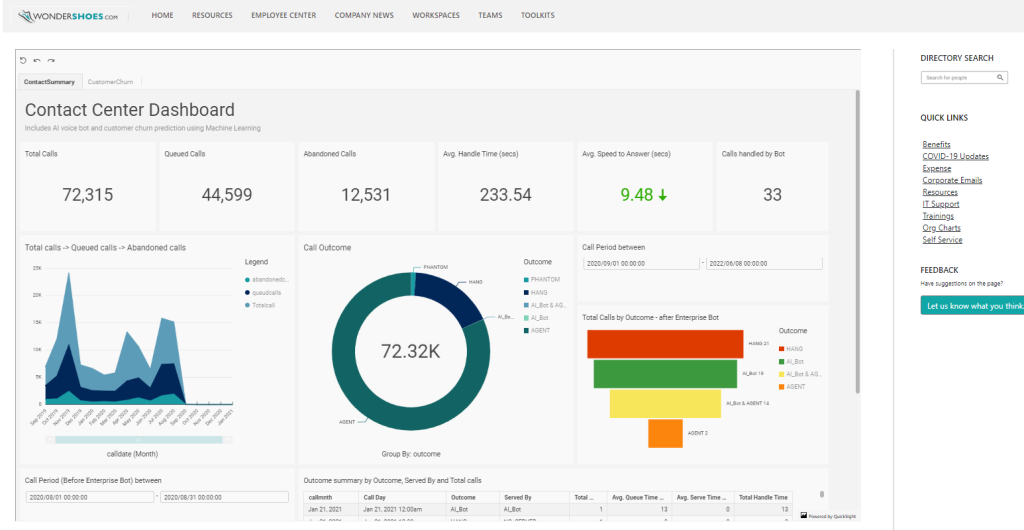
  • 1-click public embedding – QuickSight now allows you to embed your dashboards into public applications, wikis, and portals without any coding or development. Once enabled, anyone on the internet can start accessing these embedded dashboards with up-to-date information instantly, without server deployments or infrastructure licensing needed! To learn how to empower your end-users with access to insights, visit Amazon QuickSight 1-click public embedding.

An embedded dashboard example showing metrics for a contact center

QuickSight Q

You can take advantage of the following updates in Q:

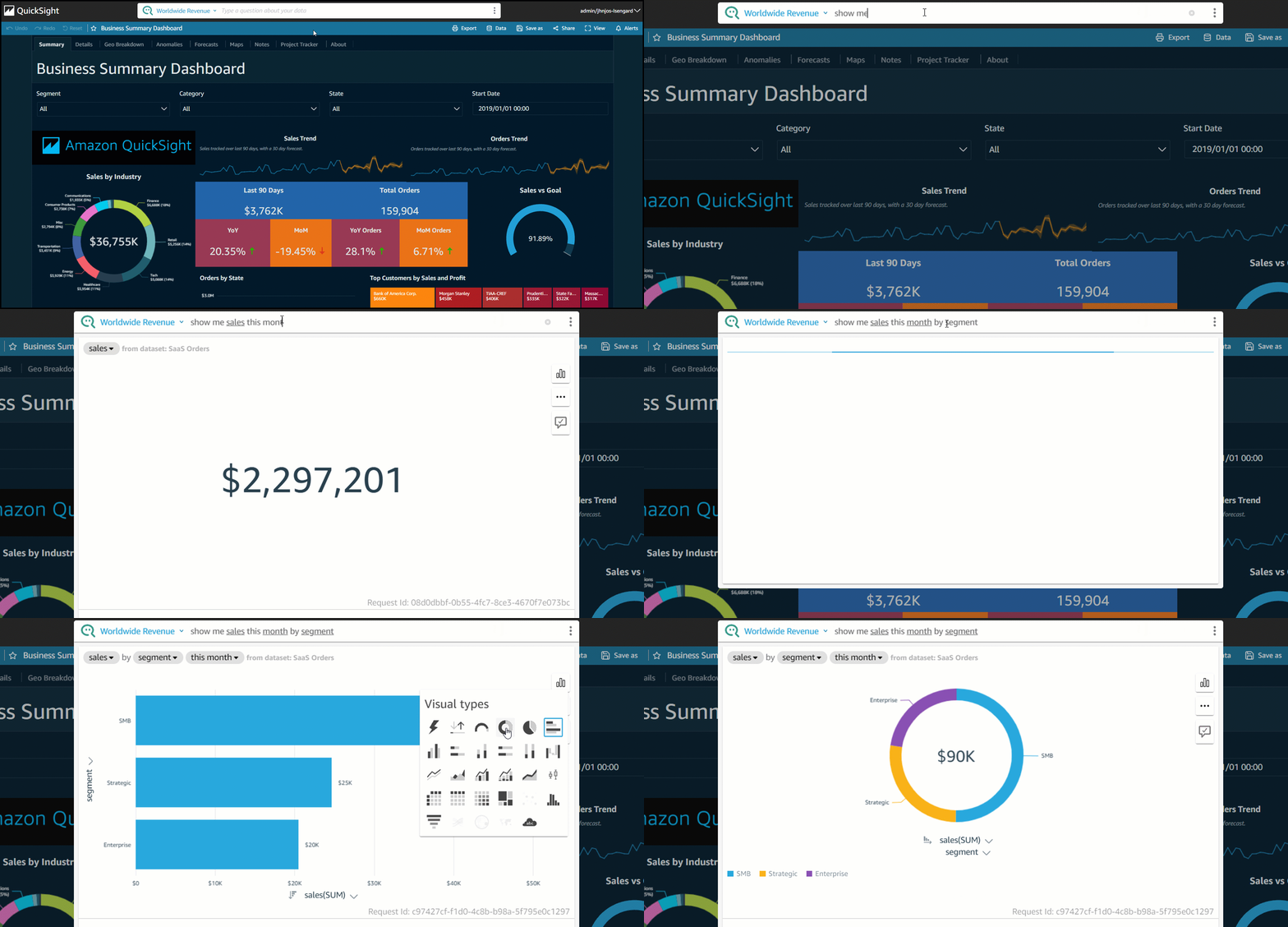
  • Programmatic question submission – Q can now accept full questions as input without requiring users to enter them when used in embedded mode. This new feature allows developers to create questions as widgets at appropriate placements on their web applications, making it easy for users to discover the capability to ask questions about data within the current context of their user journey. To learn more, see Amazon QuickSight Embedding SDK.
  • Experience Q before signing up – QuickSight authors can now try, learn, and experience Q before signing up. You can choose from six different sample topics to explore relevant dashboard visualizations and ask questions about data in the context of exploration to fully explore Q’s capability before signing up. Get started with a free trial for QuickSight Q.

User inputs a question in natural language about sales numbers for the month by segment and gets answers on the embedded dashboard.

Business intelligence

QuickSight now offers the following BI features:

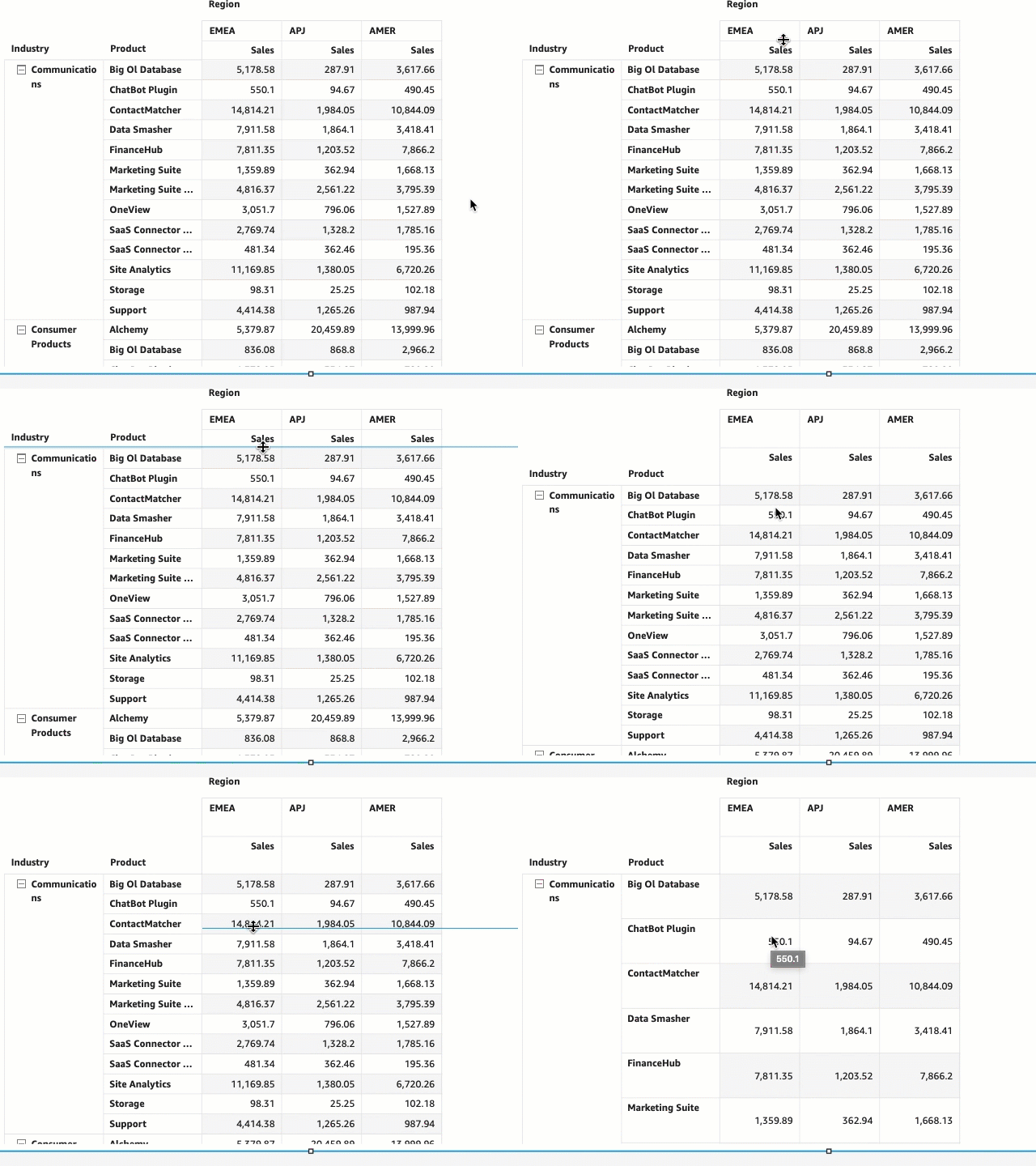
  • Table row and column size control – QuickSight now provides the flexibility for both authors and readers to use drag controller to resize rows and columns in a table or pivot table visual. You can adjust both row height and column width. To learn more, see Resizing rows and columns in tables and pivot tables.

Animation showing how to use drag controllers to resize rows and columns in a table

  • Level-aware calculations – QuickSight now supports a suite of functions called level-aware calculations (LAC). The new calculation capability brings flexibility and simplification for users to build advanced calculations and powerful analyses. LAC enables you to specify the level of granularity you want the window functions or aggregate functions to be conducted at. For more information, refer to Using level-aware calculations in Amazon QuickSight.
  • Show or hide fields on pivot tables – QuickSight now provides authors the ability to show or hide any column, row, or value fields from the field well context menu on pivot table visuals. With the show/hide column feature, you can hide unwanted columns that are often used for custom actions for interactivity and provide a better visual presentation. For further details, visit Showing and hiding pivot table columns in Amazon QuickSight.
  • Rolling date functionality – QuickSight now enables authors to set up rolling dates to dynamically generate dashboards for end-users. You can set up rolling rules to fetch a date, such as today, yesterday, or different combinations of (start/end) of (this/previous/next) (year/quarter/month/week/day), and dynamically update the dashboard content To learn how to create date filters, visit Creating date filters in analyses.
  • Bookmarks in dashboards – QuickSight now supports bookmarks in dashboards. Bookmarks allow QuickSight readers to save customized dashboard preferences into a list of bookmarks for easy one-click access to specific views of the dashboard without having to manually make multiple filter and parameter changes every time you want to access your dashboard. For further details, visit Bookmarking views of a dashboard.
  • Custom subtotals at all levels – QuickSight now enables custom subtotals at all levels on pivot tables. QuickSight authors can now customize how subtotals are displayed in a pivot table, with options to display subtotals for last level, all levels, or selected level. This customization is available for both rows and columns. To learn more about custom subtotals, refer to Displaying Totals and Subtotals.

Admin

QuickSight offers the following new admin features:

  • Monitor deployments in real time – QuickSight now supports monitoring of QuickSight assets by sending metrics to Amazon CloudWatch. QuickSight developers and administrators can use these metrics to observe and respond to the availability and performance of their QuickSight ecosystem in near-real time. To learn how to monitor your QuickSight deployments in real time, visit Monitor your Amazon QuickSight deployments using the new Amazon CloudWatch integration.
  • Public API for account provisioning – QuickSight now supports APIs for QuickSight account creation. Administrators and developers can automate deployment of QuickSight accounts in their organization at scale. You can now programmatically create accounts with QuickSight Enterprise and Enterprise + Q editions. For more information on account creation, visit CreateAccountSubscription.
  • API for account creation – QuickSight now supports API-based allow listing of domains where QuickSight data visualizations can be embedded. With this new capability, developers can easily scale their embedded analytics offerings across different applications for different customers quickly without any infrastructure setup or management. To learn more, visit Scale Amazon QuickSight embedded analytics with new API-based domain allow listing.

Conclusion

QuickSight serves millions of dashboard views weekly, enabling data-driven decision-making in organizations of all sizes, including customers like the NFL, 3M, Accenture, and more.

To stay up to date on all things new with QuickSight, visit What’s New with Analytics!


About the Author

Sindhu Chandra is a Senior Product Marketing Manager for Amazon QuickSight, AWS’ cloud-native, business intelligence (BI) service that delivers easy-to-understand insights to anyone, wherever they are.

Set up and monitor AWS Glue crawlers using the enhanced AWS Glue UI and crawler history

Post Syndicated from Leonardo Gomez original https://aws.amazon.com/blogs/big-data/set-up-and-monitor-aws-glue-crawlers-using-the-enhanced-aws-glue-ui-and-crawler-history/

A data lake is a centralized, curated, and secured repository that stores all your data, both in its original form and prepared for analysis. Setting up and managing data lakes today involves a lot of manual, complicated, and time-consuming tasks. AWS Glue and AWS Lake Formation make it easy to build, secure, and manage data lakes. As data from existing data stores is moved in the data lake, there is a need to catalog the data to prepare it for analytics from services such as Amazon Athena.

AWS Glue crawlers are a popular way to populate the AWS Glue Catalog. AWS Glue crawlers are a key component that allow you to connect to data sources or targets, use different classifiers to determine the logical schema for the data, and create metadata in the Data Catalog. You can run crawlers on a schedule, on demand, or triggered based on an Amazon Simple Storage Service (Amazon S3) event to ensure that the Data Catalog is up to date. Using S3 event notifications can reduce the cost and time a crawler needs to update large and frequently changing tables.

The AWS Glue crawlers UI has been redesigned to offer a better user experience, and new functionalities have been added. This new UI provides easier setup of crawlers across multiple sources, including Amazon S3, Amazon DynamoDB, Amazon Redshift, Amazon Aurora, Amazon DocumentDB (with MongoDB compatibility), Delta Lake, MariaDB, Microsoft SQL Server, MySQL, Oracle, PostgreSQL, and MongoDB. A new AWS Glue crawler history feature has also been launched, which provides a convenient way to view crawler runs, their schedules, data sources, and tags. For each crawl, the crawler history offers a summary of data modifications such as changes in the database schema or Amazon S3 partition changes. Crawler history also provides DPU hours that can reduce the time to analyze and debug crawler operations and costs.

This post shows how to create an AWS Glue crawler that supports S3 event notification using the new UI. We also show how to navigate through the new crawler history section and get valuable insights.

Overview of solution

To demonstrate how to create an AWS Glue crawler using the new UI, we use the Toronto parking tickets dataset, specifically the data about parking tickets issued in the city of Toronto between 2017–2018. The goal is to create a crawler based on S3 events, run it, and explore the information showed in the UI about the run of this crawler.

As mentioned before, instead of crawling all the subfolders on Amazon S3, we use an S3 event-based approach. This helps improve the crawl time by using S3 events to identify the changes between two crawls by listing all the files from the subfolder that triggered the event instead of listing the full Amazon S3 target. For this post, we create an S3 event, Amazon Simple Storage Service (Amazon SNS) topic, and Amazon Simple Queue Service (Amazon SQS ) queue.

The following diagram illustrates our solution architecture.

Prerequisites

For this walkthrough, you should have the following prerequisites:

If the AWS account you use to follow this post uses Lake Formation to manage permissions on the AWS Glue Data Catalog, make sure that you log in as a user with access to create databases and tables. For more information, refer to Implicit Lake Formation permissions.

Launch your CloudFormation stack

To create your resources for this use case, complete the following steps:

  1. Launch your CloudFormation stack in us-east-1:
    BDB-2063-launch-cloudformation-stack
  2. Under Parameters, enter a name for your S3 bucket (include your account number).
  3. Select I acknowledge that AWS CloudFormation might create IAM resources with custom names.
  4. Choose Create stack.
  5. Wait until the creation of the stack is complete, as shown on the AWS CloudFormation console.
  6. On the stack’s Outputs tab, take note of the SQS queue ARN—we use it during the crawler creation process.

Launching this stack creates AWS resources. You need the following resources from the Outputs tab for the next steps:

  • GlueCrawlerRole – The IAM role to run AWS Glue jobs
  • BucketName – The name of the S3 bucket to store solution-related files
  • GlueSNSTopic – The SNS topic, which we use as the target for the S3 event
  • SQSArn – The SQS queue ARN; this queue is going to be consumed by the AWS Glue crawler

Create an AWS Glue crawler

Let’s first create the dataset that is going to be used as the source of the AWS Glue crawler:

  1. Open AWS CloudShell.
  2. Run the following command:
    aws s3 cp s3://aws-bigdata-blog/artifacts/gluenewcrawlerui/sourcedata/year=2017/Parking_Tags_Data_2017_2.csv s3://glue-crawler-blog-<YOUR ACCOUNT NUMBER>/torontotickets/year=2017/Parking_Tags_Data_2017_2.csv


    This action triggers an S3 event that sends a message to the SNS topic that you created using the CloudFormation template. This message is consumed by an SQS queue that will be input for the AWS Glue crawler.

    Now, let’s create the AWS Glue crawler.

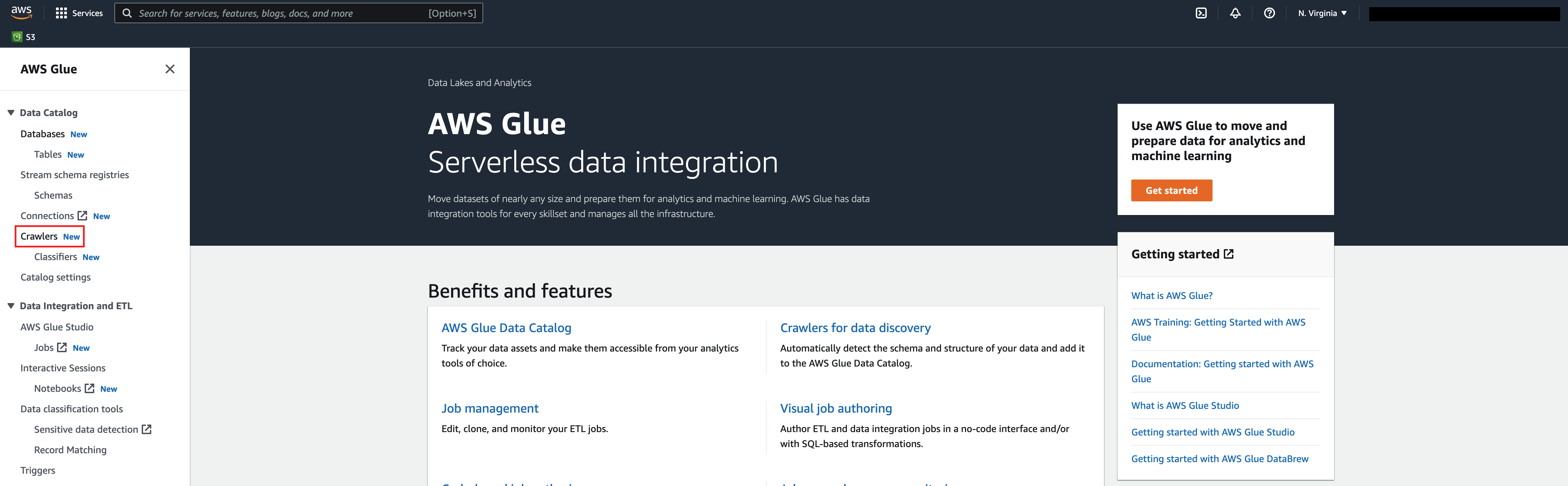
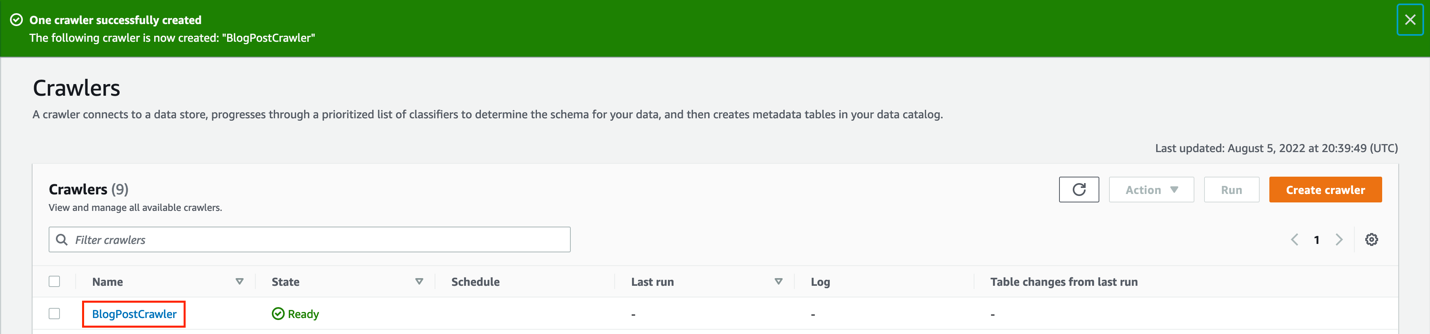
  3. On the AWS Glue console, choose Crawlers in the navigation pane.
  4. Choose Create crawler.
  5. For Name, enter a name (for example, BlogPostCrawler).
  6. Choose Next.
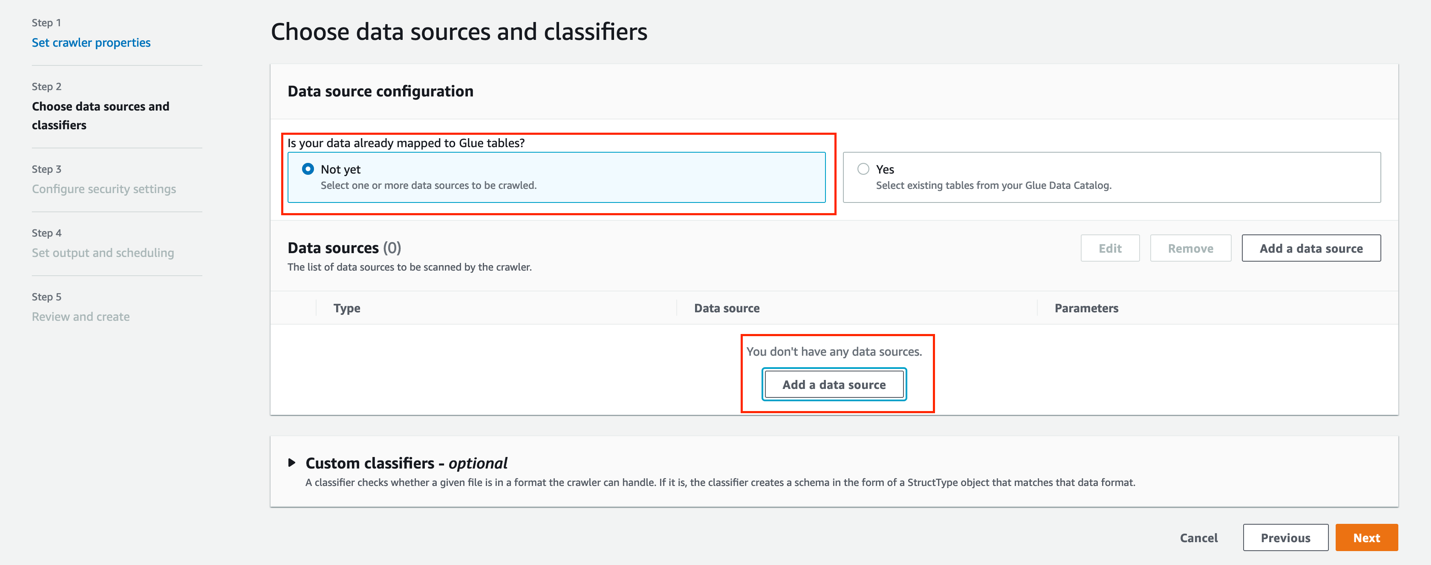
  7. For Is your data already mapped to Glue tables, select Not yet.
  8. In the Data sources section, choose Add data source.

    For this post, you use an S3 dataset as a source.
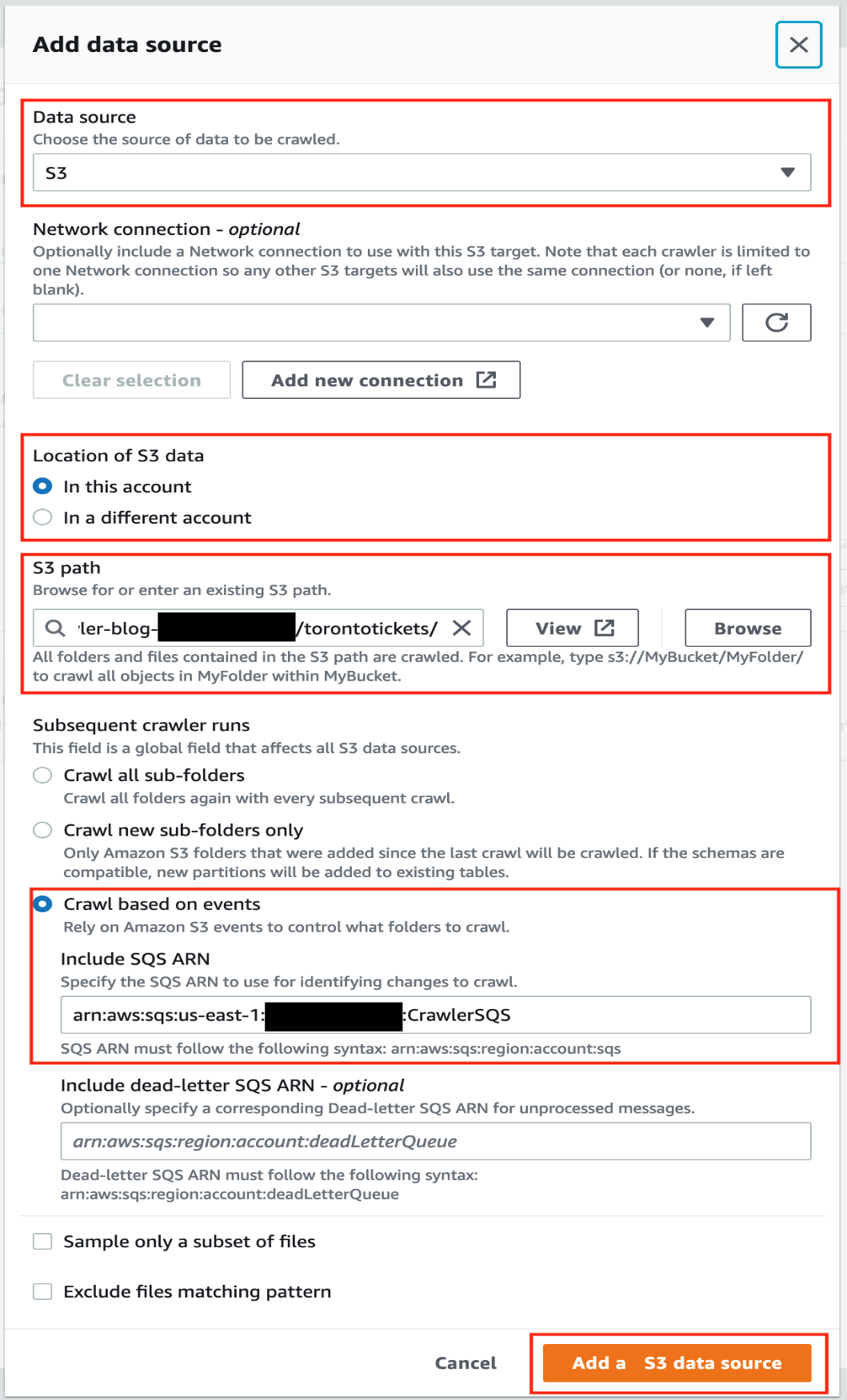
  9. For Data source, choose S3.
  10. For Location of S3 data, select In this account.
  11. For S3 path, enter the path to the S3 bucket you created with the CloudFormation template (s3://glue-crawler-blog-YOUR ACCOUNT NUMBER/torontotickets/).
  12. For Subsequent crawler runs, select Crawl based on events.
  13. Enter the SQS queue ARN you created earlier.
  14. Choose Add a S3 data source.
  15. Choose Next.
  16. For Existing IAM role¸ choose the role you created (GlueCrawlerBlogRole).
  17. Choose Next.

    Now let’s create an AWS Glue database.
  18. Under Target database, choose Add database.
  19. For Name, enter blogdb.
  20. For Location, choose the S3 bucket created by the CloudFormation template.
  21. Choose Create database.
  22. On the Set output and scheduling page, for Target database, choose the database you just created (blogdb).
  23. For Table name prefix, enter blog.
  24. For Maximum table threshold, you can optionally set a limit for the number of tables that this crawler can scan. For this post, we leave this option blank.
  25. For Frequency, choose On demand.
  26. Choose Next.
  27. Review the configuration and choose Create crawler.

Run the AWS Glue crawler

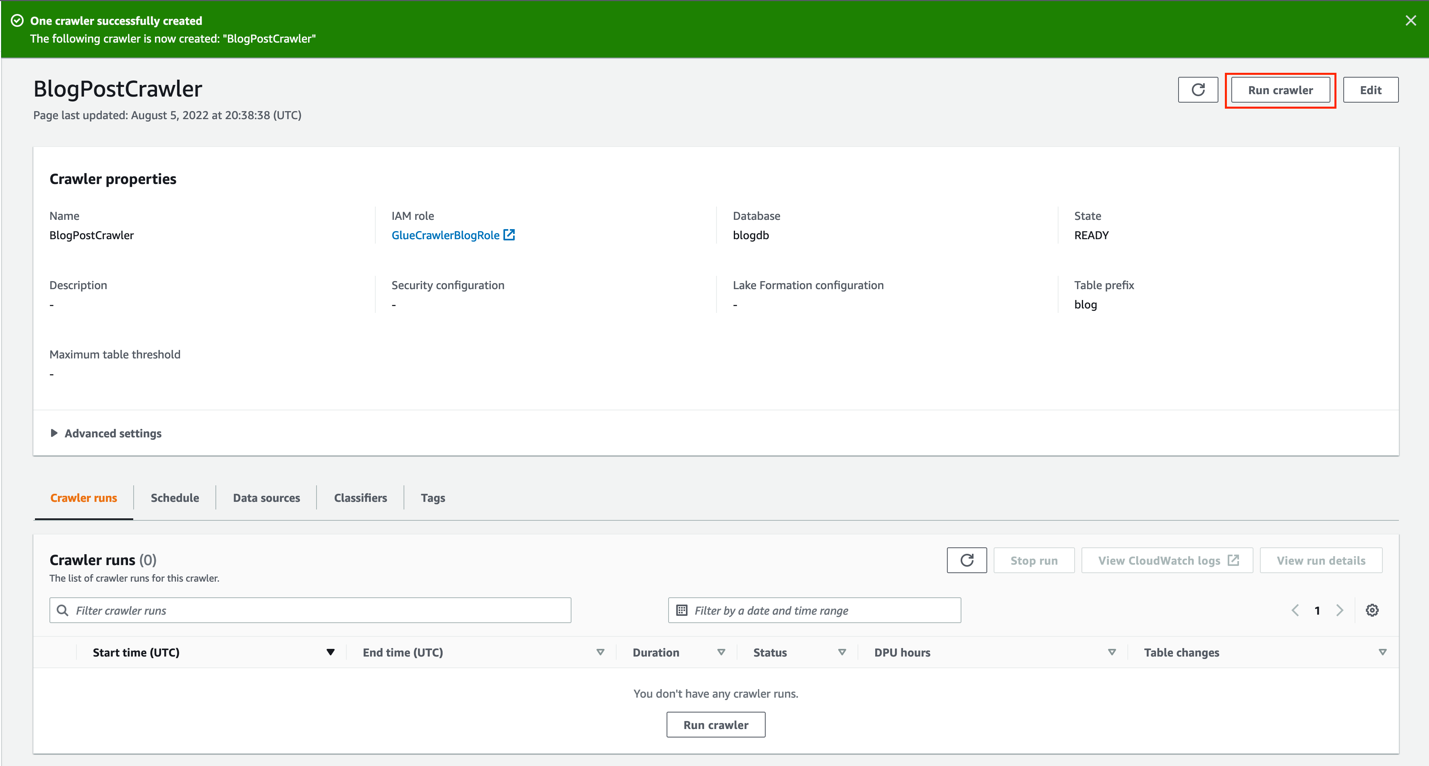
To run the crawler, navigate to the crawler on the AWS Glue console.

Choose Run crawler.

On the Crawler runs tab, you can see the current run of the crawler.

Explore the crawler run history data

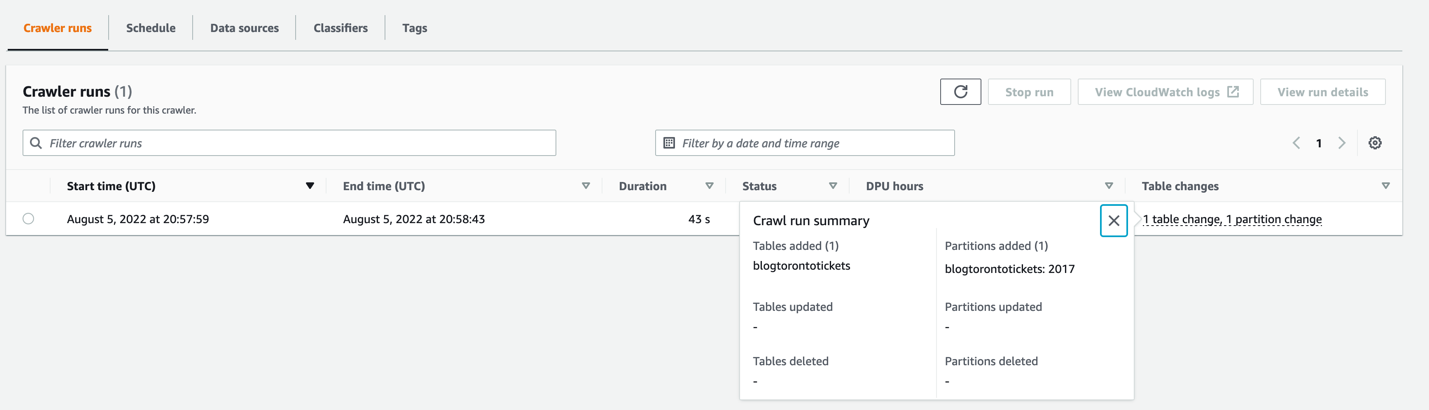
When the crawler is complete, you can see the following details:

  • Duration – The exact duration time of the crawler run
  • DPU hours – The number of DPU hours spent during the crawler run; this is very useful to calculate costs
  • Table changes – The changes applied to the table, like new columns or partitions

Choose Table changes to see the crawler run summary.

You can see the table blogtorontotickets was created, and also a 2017 partition.

Let’s add more data to the S3 bucket to see how the crawler processes this change.

  1. Open CloudShell.
  2. Run the following command:
    aws s3 cp s3://aws-bigdata-blog/artifacts/gluenewcrawlerui/sourcedata/year=2018/Parking_Tags_Data_2018_1.csv s3://glue-crawler-blog-<YOUR ACCOUNT NUMBER>/torontotickets/year=2018/Parking_Tags_Data_2018_1.csv

  3. Choose Run crawler to run the crawler one more time.

You can see the second run of the crawler listed.

Note that the DPU hours were reduced by more than half; this is because only one partition was scanned and added. Having an event-based crawler helps reduce runtime and cost.

You can choose the Table changes information of the second run to see more details.

Note under Partitions added, the 2018 partition was created.

Additional notes

Keep in mind the following considerations:

  • Crawler history is supported for crawls that have occurred since the launch date of the crawler history feature, and only retains up to 12 months of crawls. Older crawls will not be returned.
  • To set up a crawler using AWS CloudFormation, you can use following template.
  • You can get all the crawls of a specified crawler by using list-crawls APIs.
  • You can update existing crawlers with a single Amazon S3 target to use this new feature. You can do this either via the AWS Glue console or by calling the update_crawler API.

Clean up

To avoid incurring future charges, and to clean up unused roles and policies, delete the resources you created: the CloudFormation stack, S3 bucket, AWS Glue crawler, AWS Glue database, and AWS Glue table.

Conclusion

You can use AWS Glue crawlers to discover datasets, extract schema information, and populate the AWS Glue Data Catalog. AWS Glue crawlers now provide an easier-to-use UI workflow to set up crawlers and also provide metrics associated with past crawlers run to simplify monitoring and auditing. In this post, we provided a CloudFormation template to set up AWS Glue crawlers to use S3 event notifications, which reduces the time and cost needed to incrementally process table data updates in the AWS Glue Data Catalog. We also showed you how to monitor and understand the cost of crawlers.

Special thanks to everyone who contributed to the crawler history launch: Theo Xu, Jessica Cheng and Joseph Barlan.

Happy crawling!


About the authors

Leonardo Gómez is a Senior Analytics Specialist Solutions Architect at AWS. Based in Toronto, Canada, He has over a decade of experience in data management, helping customers around the globe address their business and technical needs. Connect with him on LinkedIn.

Sandeep Adwankar is a Senior Technical Product Manager at AWS. Based in the California Bay Area, he works with customers around the globe to translate business and technical requirements into products that enable customers to improve how they manage, secure, and access data.

Diving Deep into EC2 Spot Instance Cost and Operational Practices

Post Syndicated from Sheila Busser original https://aws.amazon.com/blogs/compute/diving-deep-into-ec2-spot-instance-cost-and-operational-practices/

This blog post is written by, Sudhi Bhat, Senior Specialist SA, Flexible Compute.

Amazon EC2 Spot Instances are one of the popular choices among customers looking to cost optimize their workload running on AWS. Spot Instances let you take advantage of unused Amazon Elastic Compute Cloud (Amazon EC2) capacity in the AWS cloud and are available at up to a 90% discount compared to On-Demand EC2 instance prices. The key difference between On-Demand Instances and Spot Instances is that Spot Instances can be interrupted by Amazon EC2, with two minutes of notification, when Amazon EC2 needs the capacity back. Spot Instances are recommended for various stateless, fault-tolerant, or flexible applications, such as big data, containerized workloads, continuous integration/continuous development (CI/CD), web servers, high-performance computing (HPC), and test and development workloads.

Customers asked us for fast and easy ways to track and optimize usage for different services. In this post, we’ll focus on tools and techniques that can provide useful insights into the usages and behavior of workloads using Spot Instances, as well as how we can leverage those techniques for troubleshooting and cost tracking purposes.

Operational tools

Instance selection

One of the best practices while using Spot Instances is to be flexible about instance types, Regions, and Availability Zones, as this gives Spot a better cross-section of compute pools to select and allocate your desired capacity. AWS makes it easier to diversify your instance selection in Auto Scaling groups and EC2 Fleet through features like Attribute-Based Instance Type Selection, where you can select the instance requirements as a set of attributes like vCPU, memory, storage, etc. These requirements are translated into matching instance types automatically.

Instance Selection using Attribute Based Instance Selection feature available during Auto Scaling Group creation

Considering that AWS Cloud spans across 25+ Regions and 80+ Availability Zones, finding the optimal location (either a Region or Availability Zone) to fulfil Spot capacity needs without launching a Spot can be very handy. This is especially true when AWS customers have the flexibility to run their workloads across multiple Regions or Availability Zones. This functionality can be achieved with one of the newer features called Amazon EC2 Spot placement score. Spot placement score provides a list of Regions or Availability Zones, each scored from 1 to 10, based on factors such as the requested instance types, target capacity, historical and current Spot usage trends, and the time of the request. The score reflects the likelihood of success when provisioning Spot capacity, with a 10 meaning that the request is highly likely to succeed.

Spot Placement Score feature is available in EC2 Dashboard

If you wish to specifically select and match your instances to your workloads to leverage them, then refer to Spot Instance Advisor to determine Spot Instances that meet your computing requirements with their relative discounts and associated interruption rates. Spot Instance Advisor populates the frequency of interruption and average savings over On-Demand instances based on the last 30 days of historical data. However, note that the past interruption behavior doesn’t predict the future availability of these instances. Therefore, as a part of instance diversity, try to leverage as many instances as possible regardless of whether or not an instance has a high level of interruptions.

Spot Instance pricing history

Understanding the price history for a specific Amazon EC2 Spot Instance can be useful during instance selection. However, tracking these pricing changes can be complex. Since November 2017, AWS launched a new pricing model that simplified the Spot purchasing experience. The new model gives AWS Customers predictable prices that adjust slowly over days and weeks, as Spot Instance prices are now determined based on long-term trends in supply and demand for Spot Instance capacity. The current Spot Instance prices can be viewed on AWS website, and the Spot Instance pricing history can be viewed on the Amazon EC2 console or accessed via AWS Command Line Interface (AWS CLI). Customers can continue to access the Spot price history for the last 90 days, filtering by instance type, operating system, and Availability Zone to understand how the Spot pricing has changed.

Spot Pricing History is available in EC2 DashboardAccessing Pricing history via AWS CLI using describe-spot-price-history or Get-EC2SpotPriceHistory (AWS Tools for Windows PowerShell).

aws ec2 describe-spot-price-history --start-time 2018-05-06T07:08:09 --end-time 2018-05-06T08:08:09 --instance-types c4.2xlarge --availability-zone eu-west-1a --product-description "Linux/UNIX (Amazon VPC)“
{
    "SpotPriceHistory": [
        {
            "Timestamp": "2018-05-06T06:30:30.000Z",
            "AvailabilityZone": "eu-west-1a",
            "InstanceType": "c4.2xlarge",
            "ProductDescription": "Linux/UNIX (Amazon VPC)",
            "SpotPrice": "0.122300"
        }
    ]
}

Spot Instance data feed

EC2 offers a mechanism to describe Spot Instance usage and pricing by providing a data feed that can be subscribed to. Therefore, the data feed is sent to an Amazon Simple Storage Service (Amazon S3) bucket on an hourly basis. Learn more about setting up the Spot Data feed and configuring the S3 bucket options in the documentation. A sample data feed would look like the following:

Sample Spot Instance data feed dataThe above example provides more information about Spot Instance in use, like m4.large Instance being used at the time as specified by Timestamp and MyBidID=sir-11wsgc6k representing the request that generated this instance usage, Charge=0.045 USD indicating the discounted price charged compared to the MyMaxPrice, which was set to On-Demand cost. This information can be useful during troubleshooting, as you can refer to the information about Spot Instances even if that specific instance has been terminated. Moreover, you could choose to extend the use of this data for simple querying and visualization/analytics purposes using Amazon Athena.

Amazon EC2 Spot Instance Interruption dashboard

Spot Instance interruptions are an inherent part of the Spot Instance lifecycle. For example, it’s always possible that your Spot Instance might be interrupted depending on how many unused EC2 instances are available. Therefore, you must make sure that your application is prepared for a Spot Instance interruption.

There are several best practices regarding handling Spot interruptions as described in the blog “Best practices for handling EC2 Spot Instance interruptions. Tracking Spot Instance interruptions can be useful in some scenarios, such as evaluating your workload for the tolerance for interruptions of a specific instance type, or to simply learn more about frequency of interruptions in your test environment so that you can fine-tune your instance selection. In these scenarios, you can use the EC2 Spot interruption dashboard, which is an opensource sample reference solution for logging Spot Instance interruptions. Spot Instance interruptions can fluctuate dynamically based on overall Spot Instance availability and demand for On-Demand Instances. However, it is important to note that tracking interruptions may not always represent the true Spot experience. Therefore, it’s recommended that this solution be used for those situations where Spot Instance interruptions inform a specific outcome, as it doesn’t accurately reflect system health or availability. It’s recommended to use this solution in dev/test environments to provide an educated view of how to use Spot Instances in production systems.

Open Source Solution available in github called Spot Interruption Dashboard for tracking Spot Interruption termination notices.

Cost management tools

AWS Pricing Calculator

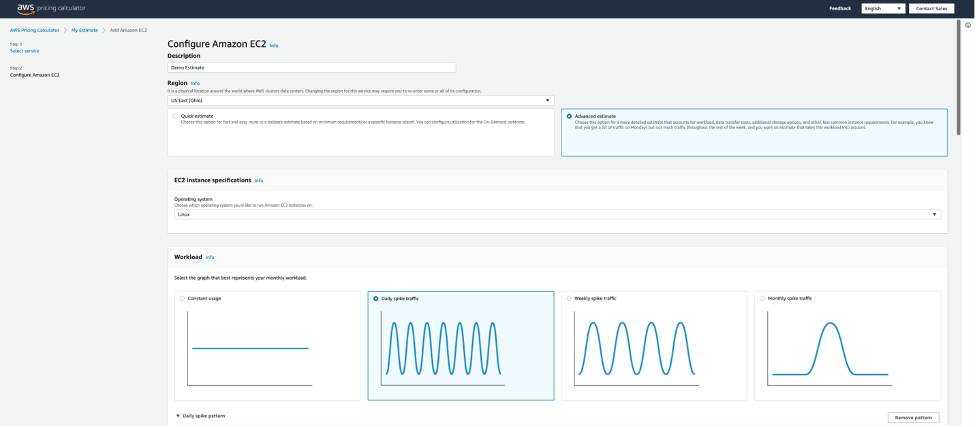
AWS Pricing Calculator is a free tool that lets you create cost estimates for workloads that you run on AWS Services, including EC2 and Spot Instances. This calculator can greatly assist in calculating the cost of compute instances and estimating the future costs so that customers can compare the cost savings to be achieved before they even launch a Spot Instance as part of their solution. The AWS Pricing Calculator advanced estimate path offers six pricing strategies for Amazon EC2 instances. The pricing models include On-Demand, Reserved, Savings Plans, and Spot Instances. The estimates generated can also be exported to a CSV or PDF file format for quick sharing and additional analysis of the proposed architecture spend.

AWS Pricing Calculator support different types of workloadsFor Spot Instances, the calculator shows the historical average discount percentage for the instance chosen, and lets you enter a percentage discount for creating forecasts. We recommend choosing an instance type that best represents your target compute, memory, and network requirements for running your workload and generating an approximate estimate.

AWS Pricing Calculator Supports different type of EC2 Purchasing options, including EC2 Spot instances

AWS Cost Management

One of the popular reporting tools offered by AWS is AWS Cost Explorer, which has an easy-to-use interface that lets you visualize, understand, and manage your AWS costs and usage over time, including Spot Instances. You can view data up to the last 12 months, and forecast the next three months. You can use Cost Explorer filtered by “Purchase Options” to see patterns in how much you spend on Spot Instances over time, and see trends that you can use to understand your costs. Furthermore, you can specify time ranges for the data, and view time data by day or by month. Moreover, you can leverage the Amazon EC2 Instance Usage reports to gain insights into your instance usage and patterns, along with information that you need to optimize the overall EC2 use.

AWS Cost Explores shows cost incurred in multiple different compute purchasing options

AWS Billing and Cost Management offers a way to organize your resource costs on your cost allocation report by leveraging cost allocation tags, so that it’s easier to categorize and track your AWS costs using cost allocation reports, which includes all of your AWS costs for each billing period. The report includes both tagged and untagged resources, so that you can clearly organize the charges for resources. For example, if you tag resources with an application name that is deployed on Spot Instances, you can track the total cost of that single application that runs on those resources. The AWS generated tags “createdBy” is a tag that AWS defines and applies to supported AWS resources for cost allocation purposes and if opted, this tag is applied to “Spot-instance-request” resource type whenever the RequestSpotInstances API is invoked. This can be a great way to track the Spot Instance creation activities in your billing reports.

Cost and Usage Reports

AWS Customers have access to raw cost and usage data through the AWS Cost and Usage (AWS CUR) reports. These reports contain the most comprehensive information about your AWS usage and costs. Financial teams need this data so that they have an overview of their monthly, quarterly, and yearly AWS spend. But this data is equally valuable for technical teams who need detailed resource-level granularity to understand which resources are contributing to the spend, and what parts of the system to optimize. If you’re using Spot Instances for your compute needs, then AWS CUR populates the Amazon EC2 Spot usage pricing/* columns and the product/* columns. With this data, you can calculate the past savings achieved with Spot through the AWS CUR. Note that this feature was enabled in July 2021 and the AWS CUR data for Spot Usage is available only since then. The Cloud Intelligence Dashboards provide prebuilt visualizations that can help you get a detailed view of your AWS usage and costs. You can learn more about deploying Cloud Intelligence Dashboards by referring to the detailed blog “Visualize and gain insight into you AWS cost and usage with Cloud Intelligence Dashboard and CUDOS using Amazon QuickSite”Compute summary can be viewed in Cloud Intelligent Dashboards

Conclusion

It’s always recommended to follow Spot Instance best practices while using Amazon EC2 Spot Instances for suitable workloads, so that you can have the best experience. In this post, we explored a few tools and techniques that can further guide you toward much deeper insights into your workloads that are using Spot Instances. This can assist you with understanding cost savings and help you with troubleshooting so that you can use Spot Instances more easily.

How to deploy AWS Network Firewall by using AWS Firewall Manager

Post Syndicated from Harith Gaddamanugu original https://aws.amazon.com/blogs/security/how-to-deploy-aws-network-firewall-by-using-aws-firewall-manager/

AWS Network Firewall helps make it easier for you to secure virtual networks at scale inside Amazon Web Services (AWS). Without having to worry about availability, scalability, or network performance, you can now deploy Network Firewall with the AWS Firewall Manager service. Firewall Manager allows administrators in your organization to apply network firewalls across accounts. This post will take you through different deployment models and demonstrate with step-by-step instructions how this can be achieved.

Here’s a quick overview of the services used in this blog post:

  • Amazon Virtual Private Cloud (Amazon VPC) is a logically isolated virtual network. It has inbuilt network security controls and routing between VPC subnets by design. An internet gateway is a horizontally scaled, redundant, and highly available VPC component that allows communication between your VPC and the internet.
  • AWS Transit Gateway is a service that connects your VPCs to each other, to on-premises networks, to virtual private networks (VPNs), and to the internet through a central hub.
  • AWS Network Firewall is a service that secures network traffic at the organization and account levels. AWS Network Firewall policies govern the monitoring and protection behavior of these firewalls. The specifics of these policies are defined in rule groups. A rule group consists of rules that define reusable criteria for inspecting and processing network traffic. Network Firewall can support thousands of rules that can be based on a domain, port, protocol, IP address, or pattern matching.
  • AWS Firewall Manager is a security management service that acts as a central place for you to configure and deploy firewall rules across AWS Regions, accounts, and resources in AWS Organizations. Firewall Manager helps you to ensure that all firewall rules are consistently enforced, even as new accounts and resources are created. Firewall Manager integrates with AWS Network Firewall, Amazon Route 53 Resolver DNS Firewall, AWS WAF, AWS Shield Advanced, and Amazon VPC security groups.

Deployment models overview

When it comes to securing multiple AWS accounts, security teams categorize firewall deployment into centralized or distributed deployment models. Firewall Manager supports Network Firewall deployment in both modes. There are multiple additional deployment models available with Network Firewall. For more information about these models, see the blog post Deployment models for AWS Network Firewall.

Centralized deployment model

Network Firewall can be centrally deployed as an Amazon VPC attachment to a transit gateway that you set up with AWS Transit Gateway. Transit Gateway acts as a network hub and simplifies the connectivity between VPCs as well as on-premises networks. Transit Gateway also provides inter-Region peering capabilities to other transit gateways to establish a global network by using the AWS backbone. In a centralized transit gateway model, Firewall Manager can create one or more firewall endpoints for each Availability Zone within an inspection VPC. Network Firewall deployed in a centralized model covers the following use cases:

  • Filtering and inspecting traffic within a VPC or in transit between VPCs, also known as east-west traffic.
  • Filtering and inspecting ingress and egress traffic to and from the internet or on-premises networks, also known as north-south traffic.

Distributed deployment model

With the distributed deployment model, Firewall Manager creates endpoints into each VPC that requires protection. Each VPC is protected individually and VPC traffic isolation is retained. You can either customize the endpoint location by specifying which Availability Zones to create firewall endpoints in, or Firewall Manager can automatically create endpoints in those Availability Zones that have public subnets. Each VPC does not require connectivity to any other VPC or transit gateway. Network Firewall configured in a distributed model addresses the following use cases:

  • Protect traffic between a workload in a public subnet (for example, an EC2 instance) and the internet. Note that the only recommended workloads that should have a network interface in a public subnet are third-party firewalls, load balancers, and so on.
  • Protect and filter traffic between an AWS resource (for example Application Load Balancers or Network Load Balancers) in a public subnet and the internet.

Deploying Network Firewall in a centralized model with Firewall Manager

The following steps provide a high-level overview of how to configure Network Firewall with Firewall Manager in a centralized model, as shown in Figure 1.

Overview of how to configure a centralized model

  1. Complete the steps described in the AWS Firewall Manager prerequisites.
  2. Create an Inspection VPC in each Firewall Manager member account. Firewall Manager will use these VPCs to create firewalls. Follow the steps to create a VPC.
  3. Create the stateless and stateful rule groups that you want to centrally deploy as an administrator. For more information, see Rule groups in AWS Network Firewall.
  4. Build and deploy Firewall Manager policies for Network Firewall, based on the rule groups you defined previously. Firewall Manager will now create firewalls across these accounts.
  5. Finish deployment by updating the related VPC route tables in the member account, so that traffic gets routed through the firewall for inspection.
    Figure 1: Network Firewall centralized deployment model

    Figure 1: Network Firewall centralized deployment model

The following steps provide a detailed description of how to configure Network Firewall with Firewall Manager in a centralized model.

To deploy network firewall policy centrally with Firewall Manager (console)

  1. Sign in to your Firewall Manager delegated administrator account and open the Firewall Manager console under AWS WAF and Shield services.
  2. In the navigation pane, under AWS Firewall Manager, choose Security policies.
  3. On the Filter menu, select the AWS Region where your application is hosted, and choose Create policy. In this example, we choose US East (N. Virginia).
  4. As shown in Figure 2, under Policy details, choose the following:
    1. For AWS services, choose AWS Network Firewall.
    2. For Deployment model, choose Centralized.
      Figure 2: Network Firewall Manager policy type and Region for centralized deployment

      Figure 2: Network Firewall Manager policy type and Region for centralized deployment

  5. Choose Next.
  6. Enter a policy name.
  7. In the AWS Network Firewall policy configuration pane, you can choose to configure both stateless and stateful rule groups along with their logging configurations. In this example, we are not creating any rule groups and keep the default configurations, as shown in Figure 3. If you would like to add a rule group, you can create rule groups here and add them to the policy.
    Figure 3: AWS Network Firewall policy configuration

    Figure 3: AWS Network Firewall policy configuration

  8. Choose Next.
  9. For Inspection VPC configuration, select the account and add the VPC ID of the inspection VPC in each of the member accounts that you previously created, as shown in Figure 4. In the centralized model, you can only select one VPC under a specific account as the inspection VPC.
    Figure 4: Inspection VPC configuration

    Figure 4: Inspection VPC configuration

  10. For Availability Zones, select the Availability Zones in which you want to create the Network Firewall endpoint(s), as shown in Figure 5. You can select by Availability Zone name or Availability Zone ID. Optionally, if you want to specify the CIDR for each Availability Zone, or specify the subnets for firewall subnets, then you can add the CIDR blocks. If you don’t provide CIDR blocks, Firewall Manager queries your VPCs for available IP addresses to use. If you provide a list of CIDR blocks, Firewall Manager searches for new subnets only in the CIDR blocks that you provide.
    Figure 5: Network Firewall endpoint Availability Zones configuration

    Figure 5: Network Firewall endpoint Availability Zones configuration

  11. Choose Next.
  12. For Policy scope, choose VPC, as shown in Figure 6.
    Figure 6: Firewall Manager policy scope configuration

    Figure 6: Firewall Manager policy scope configuration

  13. For Resource cleanup, choose Automatically remove protections from resources that leave the policy scope. When you select this option, Firewall Manager will automatically remove Firewall Manager managed protections from your resources when a member account or a resource leaves the policy scope. Choose Next.
  14. For Policy tags, you don’t need to add any tags. Choose Next.
  15. Review the security policy, and then choose Create policy.
  16. To route traffic for inspection, you manually update the route configuration in the member accounts. Exactly how you do this depends on your architecture and the traffic that you want to filter. For more information, see Route table configurations for AWS Network Firewall.

Note: In current versions of Firewall Manager, centralized policy only supports one inspection VPC per account. If you want to have multiple inspection VPCs in an account to inspect multiple firewalls, you cannot deploy all of them through Firewall Manager centralized policy. You have to manually deploy to the network firewalls in each inspection VPC.

Deploying Network Firewall in a distributed model with Firewall Manager

The following steps provide a high-level overview of how to configure Network Firewall with Firewall Manager in a distributed model, as shown in Figure 7.

Overview of how to configure a distributed model

  1. Complete the steps described in the AWS Firewall Manager prerequisites.
  2. Create a new VPC with a desired tag in each Firewall Manager member account. Firewall Manager uses these VPC tags to create network firewalls in tagged VPCs. Follow these steps to create a VPC.
  3. Create the stateless and stateful rule groups that you want to centrally deploy as an administrator. For more information, see Rule groups in AWS Network Firewall.
  4. Build and deploy Firewall Manager policy for network firewalls into tagged VPCs based on the rule groups that you defined in the previous step.
  5. Finish deployment by updating the related VPC route tables in the member accounts to begin routing traffic through the firewall for inspection.
    Figure 7: Network Firewall distributed deployment model

    Figure 7: Network Firewall distributed deployment model

The following steps provide a detailed description how to configure Network Firewall with Firewall Manager in a distributed model.

To deploy Network Firewall policy distributed with Firewall Manager (console)

  1. Create new VPCs in member accounts and tag them. In this example, you launch VPCs in the US East (N. Virginia) Region. Create a new VPC in a member account by using the VPC wizard, as follows.
    1. Choose VPC with a Single Public Subnet. For this example, select a subnet in the us-east-1a Availability Zone.
    2. Add a desired tag to this VPC. For this example, use the key Network Firewall and the value yes. Make note of this tag key and value, because you will need this tag to configure the policy in the Policy scope step.
  2. Sign in to your Firewall Manager delegated administrator account and open the Firewall Manager console under AWS WAF and Shield services.
  3. In the navigation pane, under AWS Firewall Manager, choose Security policies.
  4. On the Filter menu, select the AWS Region where you created VPCs previously and choose Create policy. In this example, you choose US East (N. Virginia).
    1. For AWS services, choose AWS Network Firewall.
    2. For Deployment model, choose Distributed, and then choose Next.
      Figure 8: Network Firewall Manager policy type and Region for distributed deployment

      Figure 8: Network Firewall Manager policy type and Region for distributed deployment

  5. Enter a policy name.
  6. On the AWS Network Firewall policy configuration page, you can configure both stateless and stateful rule groups, along with their logging configurations. In this example you are not creating any rule groups, so you choose the default configurations, as shown in Figure 9. If you would like to add a rule group, you can create rule groups here and add them to the policy.
    Figure 9: Network Firewall policy configuration

    Figure 9: Network Firewall policy configuration

  7. Choose Next.
  8. In the Configure AWS Network Firewall Endpoint section, as shown in Figure 10, you can choose Custom endpoint configuration or Automatic endpoint configuration. In this example, you choose Custom endpoint configuration and select the us-east-1a Availability Zone. Optionally, if you want to specify the CIDR for each Availability Zone or specify the subnets for firewall subnets, then you can add the CIDR blocks. If you don’t provide CIDR blocks, Firewall Manager queries your VPCs for available IP addresses to use. If you provide a list of CIDR blocks, Firewall Manager searches for new subnets only in the CIDR blocks that you provide.
    Figure 10: Network Firewall endpoint Availability Zones configuration

    Figure 10: Network Firewall endpoint Availability Zones configuration

  9. Choose Next.
  10. For AWS Network Firewall route configuration, choose the following options, as shown in Figure 11. This will monitor the route configuration using the administrator account, to help ensure that traffic is routed as expected through the network firewalls.
    1. For Route management, choose Monitor.
    2. Under Traffic type, for Internet gateway, choose Add to firewall policy.
    3. Select the checkbox for Allow required cross-AZ traffic, and then choose Next.
      Figure 11: Network Firewall route management configuration

      Figure 11: Network Firewall route management configuration

  11. For Policy scope, select the following options to create network firewalls in previously tagged VPCs, as shown in Figure 12.
    1. For AWS accounts this policy applies to, choose All accounts under my AWS organization.
    2. For Resource type, choose VPC.
    3. For Resources, choose Include only resources that have the specified tags.
    4. For Key, enter Network Firewall. For Value, Enter Yes. The tag you are using here is the same tag defined in step 1.
      Figure 12: AWS Firewall Manager policy scope configuration

      Figure 12: AWS Firewall Manager policy scope configuration

      Important: Be careful when defining the policy scope. Each policy creates Network Firewall endpoints in all the VPCs and their Availability Zones that are within the policy scope. If you select an inappropriate scope, it could result in the creation of a large number of network firewalls and incur significant charges for AWS Network Firewall.

  12. For Resource cleanup, select the Automatically remove protections from resources that leave the policy scope check box, and then choose Next.
    Figure 13: Firewall Manager Resource cleanup configuration

    Figure 13: Firewall Manager Resource cleanup configuration

  13. For Policy tags, you don’t need to add any tags. Choose Next.
  14. Review the security policy, and then choose Create policy.
  15. To route traffic for inspection, you need to manually update the route configuration in the member accounts. Exactly how you do this depends on your architecture and the traffic that you want to filter. For more information, see Route table configurations for AWS Network Firewall.

Clean up

To avoid incurring future charges, delete the resources you created for this solution.

To delete Firewall Manager policy (console)

  1. Sign in to your Firewall Manager delegated administrator account and open the Firewall Manager console under AWS WAF and Shield services
  2. In the navigation pane, choose Security policies.
  3. Choose the option next to the policy that you want to delete.
  4. Choose Delete all policy resources, and then choose Delete. If you do not select Delete all policy resources, then only the firewall policy on the administrator account will be deleted, not network firewalls deployed in the other accounts in AWS Organizations.

To delete the VPCs you created as prerequisites

Conclusion

In this blog post, you learned how you can use either a centralized or a distributed deployment model for Network Firewall, so developers in your organization can build firewall rules, create security policies, and enforce them in a consistent, hierarchical manner across your entire infrastructure. As new applications are created, Firewall Manager makes it easier to bring new applications and resources into a consistent state by enforcing a common set of security rules.

For information about pricing, see the pages for AWS Firewall Manager pricing and AWS Network Firewall pricing. For more information, see the other AWS Network Firewall posts on the AWS Security Blog. Want more AWS Security how-to content, news, and feature announcements? Follow us on Twitter.

If you have feedback about this post, submit comments in the Comments section below. If you have questions about this post, start a new thread on the AWS Firewall Manager re:Post or contact AWS Support.

Want more AWS Security news? Follow us on Twitter.

Harith Gaddamanugu

Harith Gaddamanugu

Harith works at AWS as a Sr. Edge Specialist Solutions Architect. He stays motivated by solving problems for customers across AWS Perimeter Protection and Edge services. When he is not working, he enjoys spending time outdoors with friends and family.

Yang Liu

Yang Liu

Yang works as cloud support engineer II with AWS. On a daily basis, he provides solutions for customers’ cloud architecture questions related to networking infrastructure and the security domain. Outside of work, Yang loves traveling with his family and two Corgis, Cookie and Cache.

The collective thoughts of the interwebz