Seamlessly migrate on-premises legacy workloads using a strangler pattern

Post Syndicated from Arnab Ghosh original https://aws.amazon.com/blogs/architecture/seamlessly-migrate-on-premises-legacy-workloads-using-a-strangler-pattern/

Replacing a complex workload can be a huge job. Sometimes you need to gradually migrate complex workloads but still keep parts of the on-premises system to handle features that haven’t been migrated yet. Gradually replacing specific functions with new applications and services is known as a “strangler pattern.”

When you use a strangler pattern, monolithic workloads are broken down and individual services are scheduled for rehosting, replatforming, and even retirement. As you do this, there is value in having a uniform point of access for the various services, as well as a uniform level of security and a way to manage workloads in the cloud and on-premises.

This blog post covers how to implement a strangler architecture pattern for on-premises legacy workloads to create uniform access and security across your workloads. We walk you through how to implement this pattern, which uses an API facade to ensure your customers continue to see and use the same interface while you “strangle” the monolith by incrementally creating and deploying new microservices in the cloud.

Solution overview

API facade with connectivity to an on-premises monolith

Figure 1. API facade with connectivity to an on-premises monolith

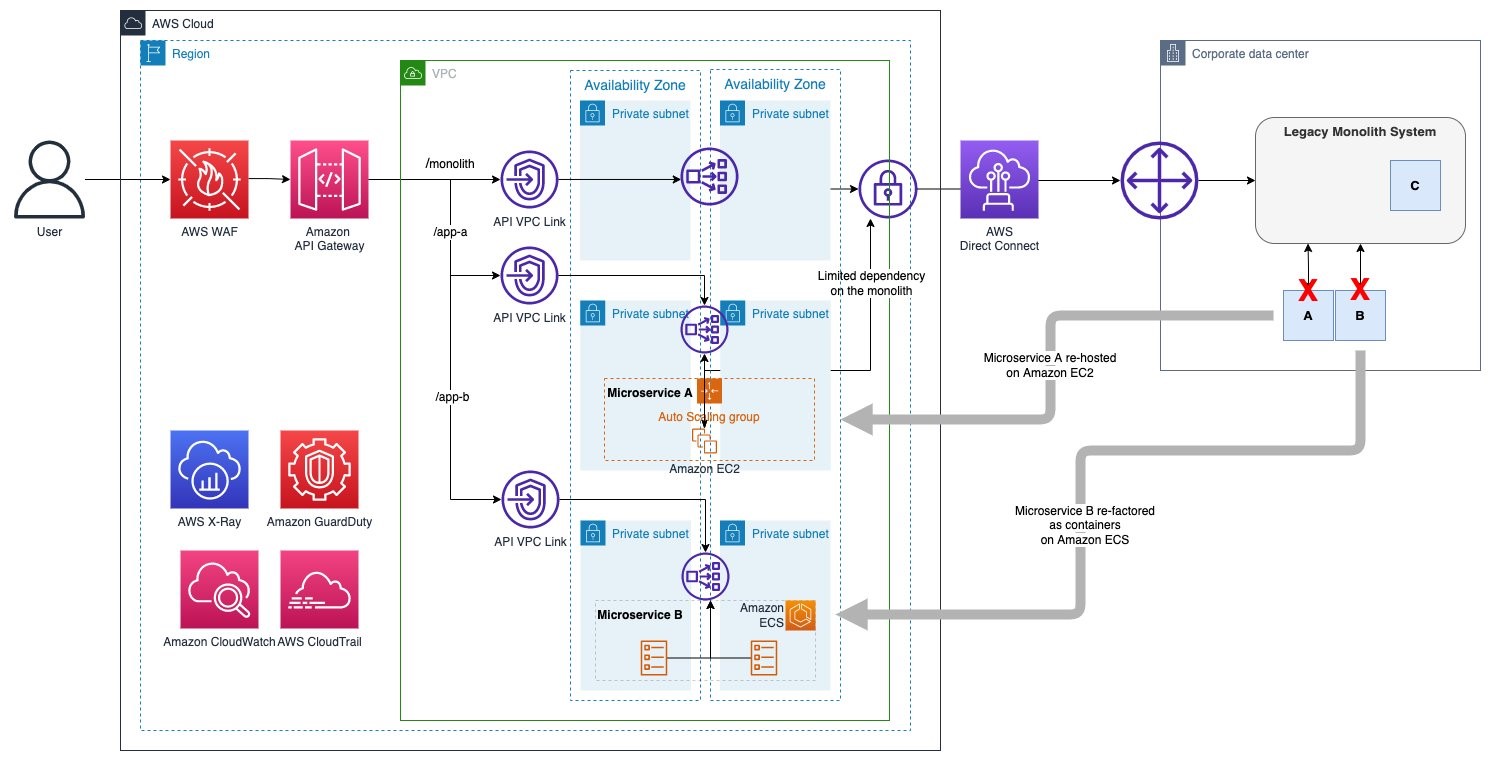
This solution uses Amazon API Gateway to create an API facade for your on-premises monolith application. As you deploy new microservices on AWS, you can create new API resources/methods under the same API Gateway endpoint (to learn more about creating REST APIs, see Creating a REST API in Amazon API Gateway).

AWS Direct Connect, along with API Gateway private integrations that use virtual private cloud (VPC) links, provide secure network connectivity to your on-premises services.

The following sections provide more detail on these services and their functions.

On-premises Connectivity

Direct Connect provides a dedicated connection between the on-premises services and AWS. This allows you to implement a hybrid workload by securely connecting the API Gateway and the application deployed on your on-premises environment.

You can use an AWS Site-to-Site VPN to connect to on-premises environments, but Direct Connect is preferred for its reduced latency and dedicated bandwidth.

API facade

API Gateway creates the facade for customer APIs/services (the monolith and the new microservices) deployed in the on-premises environment as well as the ones migrated to AWS.

API Gateway uses private integrations to securely connect to on-premises services and resources launched into Amazon Virtual Private Cloud (Amazon VPC) like re-hosted microservices running on Amazon Elastic Compute Cloud (Amazon EC2) or modernized applications running on container services like Amazon Elastic Container Service (Amazon ECS).

The Network Load Balancer is part of the private integration for API Gateway. It acts as a high throughput, high availability resource that fronts the API backends deployed either in the on-premises environment or Amazon VPC. Network Load Balancers support different target types. Use the IP target type to target on-premises servers hosting legacy workloads and use the instance and Application Load Balancer target types for applications hosted within AWS environments.

Security

Use AWS Web Application Firewall for API Gateway REST endpoints. It provides the ability to monitor and block HTTP and HTTPS traffic according to stateless and stateful rule groups.

Amazon GuardDuty provides threat detection across your microservices.

(Optional) Enable AWS Shield Advanced for Amazon CloudFront distributions that are configured for regional API Gateway endpoints. This provides added distributed denial of service (DDoS) protection beyond AWS Shield Standard, which is automatically included.

Logging and monitoring

AWS X-Ray and Amazon CloudWatch give you visibility into your requests and assorted service metrics.

AWS CloudTrail allows you to track interactions with your infrastructure through the AWS control plane APIs.

Strangler process

The strangler pattern allows you to smoothly migrate resources from on-premises environments by placing a cloud-based API facade in front of them. The next sections show an example scenario of what a strangler pattern-based migration process could look like for a given workload.

Putting a facade in front of the monolith

First, we add our API Gateway facade in front of our on premises monolith. The API Gateway acts as a facade to the customer APIs/services (the monolith and the new microservices) deployed in the on-premises environment as well as the ones migrated to AWS. This means that as the on-premises monolith application is strangled and new microservices are created, the new services are added to the API Gateway so that they can consumed along with the monolith services, as shown in Figure 2.

API facade with connectivity to an on-premises monolith

Figure 2. API facade with connectivity to an on-premises monolith

Breaking up the monolith behind the facade

Next, let’s break up our monolith into component microservices, as shown in Figure 3. This allows us more flexibility in deciding how best to migrate individual services. With the strangler pattern, we can incrementally update sections of code and functionality of the monolith (extract as a microservice with minimum dependency to the monolith application) without needing to completely refactor the entire application. Eventually, all the monolith’s services and components will be migrated, and the legacy system can be retired. Monoliths can be decomposed by business capability, subdomain, transactions, or based on the teams that maintain them.

Microservices A and B being decomposed from a legacy monolith, component C scheduled for retirement is not broken out into a microservice

Figure 3. Microservices A and B being decomposed from a legacy monolith, component C scheduled for retirement is not broken out into a microservice

Migrating microservices into the cloud

With our monolith broken up into its component microservices, we can begin moving the microservices into the cloud.

In our example, we rehost microservice A and refactor microservice B.

  • Rehosting a microservice: Here, we take microservice A and rehost it from on-premises virtual machines onto EC2 instances in AWS. We have deployed the microservice across multiple Availability Zones with Amazon EC2 Auto Scaling group. As you see from Figure 4, even after deployment to AWS, microservice A continues to have limited dependency on the monolith application. This dependency will eventually be removed as the strangling process is completed and the monolith is completely decomposed.
Microservice A being rehosted onto EC2 instances within an Amazon EC2 Auto Scaling Group

Figure 4. Microservice A being rehosted onto EC2 instances within an Amazon EC2 Auto Scaling Group

  • Refactoring a microservice: With functionality broken out across microservices, we can opt to refactor certain services using containerization and orchestration platforms like Amazon ECS. Here, we take microservice B and containerize it using Docker and then use Amazon ECS to deploy it.
Microservice B being refactored and after containerization and being moved onto Amazon ECS

Figure 5. Microservice B being refactored and after containerization and being moved onto Amazon ECS

Retire the monolith

Finally, when ready (application users have all been migrated to the new microservice endpoints), you can retire the legacy monolith application. Figure 6 shows the end state where the monolith application is retired along with hybrid connectivity. The API facade now serves the new migrated microservices. At this point, you can decide to retire application components.

Microservices A and B after the legacy monolith retired and on-premises connectivity has ceased

Figure 6. Microservices A and B after the legacy monolith retired and on-premises connectivity has ceased

Conclusion

In this blog post, we showed you how to use a strangler pattern to smoothly transition on-premises workloads through a hybrid migration process with a uniform entry point in AWS. We walked you through the process of strangling a legacy monolith by decomposing it into microservices and bringing microservices into the cloud one by one with migration approaches that best fit each service.

Ready to get started? Learn how to implement private integration for API Gateway. See how to further integrate mediation layers to support legacy XML and other non-JSON-based API responses. Get hands-on with the Break a Monolith Application into Microservices project.

Security updates for Thursday

Post Syndicated from original https://lwn.net/Articles/891354/

Security updates have been issued by Debian (lrzip), Fedora (community-mysql, expat, firefox, kernel, mingw-openjpeg2, nss, and openjpeg2), Mageia (ceph, subversion, and webkit2), openSUSE (chromium), Oracle (httpd:2.4), Red Hat (kpatch-patch), Slackware (ruby), SUSE (kernel and netatalk), and Ubuntu (gzip and xz-utils).

Handy Tips #27: Tracking changes with the improved Zabbix Audit log

Post Syndicated from Arturs Lontons original https://blog.zabbix.com/handy-tips-27-tracking-changes-with-the-improved-zabbix-audit-log/20176/

Track the creation of new entities, updates to the existing configuration, and potential intrusion attempts with Zabbix audit log.

If your monitoring environment is managed by more than a single administrator, it can become hard to track the implemented changes and additions. Having a detailed audit log can help you analyze any potentially unwanted changes and detect potential intrusion attempts.

Use Zabbix audit log to track changes in your environment:

  • Track configuration changes and updates
  • Audit log displays information about Zabbix server and frontend operations

  • Identify potential intrusion attempts and their source
  •  Filter the audit log by action and resource types

Check out the video to learn how to track changes in Zabbix audit log.

How to track changes in Zabbix audit log:

  1. Navigate to Administration  General  Audit log
  2. Enable and configure your Zabbix audit log settings
  3. Perform a failed login attempt
  4. Check the related entries under Reports  Audit log
  5. Navigate to Configuration →  Hosts
  6. Import hosts or templates from a YAML file
  7. Check the related entries under Reports  Audit log
  8. Filter the entries by the Recordset ID
  9. Navigate to Configuration  Hosts
  10. Find a host with a low-level discovery rule on it
  11. Execute the low-level discovery rule
  12. Check the related entries under Reports  Audit log

Tips and best practices
  • Audit logging should be enabled in the Administration settings to collect audit records
  • Audit log entry storage period can be defined under Administration → General → Audit log
  • Each audit log entry belongs to a Recordset ID which is shared by entries created as a result of the same operation
  • auditlog.get API method can be used to obtain audit log entries via the Zabbix API

The post Handy Tips #27: Tracking changes with the improved Zabbix Audit log appeared first on Zabbix Blog.

A hint on the future direction of SUSE Linux Enterprise

Post Syndicated from original https://lwn.net/Articles/891315/

SUSE has begun to
discuss its plans
for the next version of SUSE Linux Enterprise on the
openSUSE lists. It appears that there will be some significant changes.

Intending to do radical changes (regarding technology-
but also design-wise) we choose “Adaptable Linux Platform” or short
“ALP” as codename for that next generation. This indicates already
that some things will be quite different than a “mere “SLE 15++
would be 😉 […]

Another important point is that we intend to split what was a more
generic, everything is closely intertwined into two parts: One
smaller hardware enabling piece, a kind of “host OS”, and the and
the layer providing and supporting applications, which will be
container (and VM) based.

Python coding for kids: Moving beyond the basics

Post Syndicated from Rebecca Franks original https://www.raspberrypi.org/blog/python-coding-for-kids-beyond-the-basics/

We are excited to announce our second new Python learning path, ‘More Python’, which shows young coders how to add real data to their programs while creating projects from a chart of Olympic medals to an interactive world map. The six guided Python projects in this free learning path are designed to enable young people to independently create their own Python projects about the topics that matter to them.

A girl points excitedly at a project on the Raspberry Pi Foundation's projects site.
Two kids are at a laptop with one of our coding projects.

In this post, we’ll show you how kids use the projects in the ‘More Python’ path, what they can make by following the path, and how the path structure helps them become confident and independent digital makers.

Python coding for kids: Our learning paths

Our ‘Introduction to Python’ learning path is the perfect place to start learning how to use Python, a text-based programming language. When we launched the Intro path in February, we explained why Python is such a popular, useful, and accessible programming language for young people.

Because Python has so much to offer, we have created a second Python path for young people who have learned the basics in the first path. In this new set of six projects, learners will discover new concepts and see how to add different types of real data to their programs.

Illustration of different graph types
By following the ‘More Python’ path, young people learn the skills to independently create a data visualisation for a topic they are passionate about in the final project.

Key questions answered

Who is this path for?

We have written the projects in this path with young people around the age of 10 to 13 in mind. To code in a text-based language, a young person needs to be familiar with using a keyboard, due to the typing involved. Learners should have already completed the ‘Introduction to Python’ project path, as they will build on the learning from that path.

Three young tech creators show off their tech project at Coolest Projects.

How do young people learn with the projects? 

Young people need access to a web browser to complete our project paths. Each project contains step-by-step instructions for learners to follow, and tick boxes to mark when they complete each step. On top of that, the projects have steps for learners to:

  • Reflect on what they have covered in the project
  • Share their projects with others
  • See suggestions to upgrade their projects

Young people also have the option to sign up for an account with us so they can save their progress at any time and collect badges.

A young person codes at a Raspberry Pi computer.

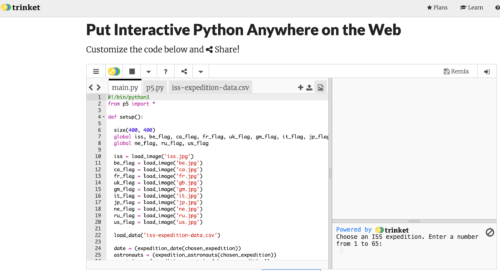
While learners follow the project instructions in this project path, they write their code into Trinket, a free web-based coding platform accessible in a browser. Each project contains a link to a starter Trinket, which includes everything to get started writing Python code — no need to install any additional software.

Screenshot of Python code in the online IDE Trinket.
This is what Python code on Trinket looks like.

If they prefer, however, young people also have the option of instead writing their code in a desktop-based programming environment, such as Thonny, as they work through the projects.

What will young people learn?  

To use data in their Python programs, the project instructions show learners how to:

  • Create and use lists
  • Create and use dictionaries
  • Read data from a data file

The projects support learners as they explore new concepts of digital visual media and: 

  • Create charts using the Python library Pygal
  • Plot pins on a map
  • Create randomised artwork

In each project, learners reflect and answer questions about their work, which is important for connecting the project’s content to their pre-existing knowledge.

In a computing classroom, a girl laughs at what she sees on the screen.

As they work through the projects, learners see different ways to present data and then decide how they want to present their data in the final project in the path. You’ll find out what the projects are on the path page, or at the bottom of this blog post.

The project path helps learners become independent coders and digital makers, as each project contains slightly less support than the one before. You can read about how our project paths are designed to increase young people’s independence, and explore our other free learning paths for young coders

How long will the path take to complete?

We’ve designed the path to be completed in around six one-hour sessions, with one hour per project, at home, in school, or at a coding club. The project instructions encourage learners to add code to upgrade their projects and go further if they wish. This means that young people might want to spend a little more time getting their projects exactly as they imagine them.

In a classroom, a teacher and a student look at a computer screen while the student types on the keyboard.

What can young people do next?

Use Unity to create a 3D world

Unity is a free development environment for creating 3D virtual environments, including games, visual novels, and animations, all with the text-based programming language C#. Our ‘Introduction to Unity’ project path for keen coders shows how to make 3D worlds and games with collectibles, timers, and non-player characters.

Take part in Coolest Projects Global

At the end of the ‘More Python’ path, learners are encouraged to register a project they’ve made using their new coding skills for Coolest Projects Global, our free and world-leading online technology showcase for young tech creators. The project they register will become part of the online gallery, where members of the Coolest Projects community can celebrate each other’s creations.

A young coder shows off her tech project for Coolest Projects to two other young tech creators.

We welcome projects from all young people, whether they are beginners or experienced coders and digital makers. Coolest Projects Global is a unique opportunity for young people to share their ingenuity with the world and with other young people who love coding and creating with digital technology.

Details about the projects in ‘More Python’

The ‘More Python’ path is structured according to our Digital Making Framework, with three Explore project, two Design projects, and a final Invent project.

Explore project 1: Charting champions

Illustration of a fast-moving, smiling robot wearing a champion's rosette.

In this Explore project, learners discover the power of lists in Python by creating an interactive chart of Olympic medals. They learn how to read data from a text file and then present that data as a bar chart.

Explore project 2: Solar system

Illustration of our solar system.

In this Explore project, learners create a simulation of the solar system. They revisit the drawing and animation skills that they learned in the ‘Introduction to Python’ project path to produce animated planets orbiting the sun. The animation is based on real data taken from a data file to simulate the speed that the planets move at as they orbit. The simulation is also interactive, using dictionaries to display data about the planets that have been selected.

Explore project 3: Codebreaker

Illustration of a person thinking about codebreaking.

The final Explore project gets learners to build on their knowledge of lists and dictionaries by creating a program that encodes and decodes a message using an Atbash cipher. The Atbash cipher was originally developed in the Hebrew language. It takes the alphabet and matches it to its reverse order to create a secret message. They also create a script that checks how many times certain letters have been used in an encoded message, so that they can discover patterns.

Design project 1: Encoded art

Illustration of a robot painting a portrait of another robot.

The first Design project allows learners to create fun pieces of artwork by encoding the letters of their name into images, patterns, or drawings. Learners can choose the images that will be produced for each letter, and whether these appear at random or in a geometric pattern.

Learners are encouraged to share their encoded artwork in the community library, where there are lots of fun projects to discover already. In this project, learners apply all of the coding skills and knowledge covered in the Explore projects, including working with dictionaries and lists.

Design project 2: Mapping data

Illustration of a map and a hand of someone marking it with a large pin.

In the next Design project, learners access data from a data file and use it to create location pins on a world map. They have six datasets to choose from, so they can use one that interests them. They can also choose from a variety of maps and design their own pin to truly personalise their projects.

Invent project: Persuasive data presentation

Illustration of different graph types

This project is designed to use all of the skills and knowledge covered in this path, and most of the skills from the ‘Introduction to Python’ path. Learners can choose from eight datasets to create data visualisations. They are also given instructions on how to access and prepare other datasets if they want to visualise data about a different topic.

Once learners have chosen their dataset, they can decide how they want it to be displayed. This could be a chart, a map with pins, or a unique data visualisation. There are lots of example projects to provide inspiration for learners. One of our favourites is the ISS Expedition project, which places flags on the ISS depending on the expedition number you enter.

The post Python coding for kids: Moving beyond the basics appeared first on Raspberry Pi.

[$] A literal string type for Python

Post Syndicated from original https://lwn.net/Articles/891082/

Using strings with contents that are supplied by users can be fraught with
peril; SQL injection is a well-known technique for attacking applications
that stems from that, for example. Generally, database frameworks and
libraries provide mechanisms that seek to lead programmers toward doing The
Right Thing, with parameterized queries and the like, but they cannot
enforce that—inventive developers will seemingly always find ways to inject
user input into places it should not go. A recently adopted Python
Enhancement Proposal (PEP) provides a way to enforce the use of
strings that are untainted by user input, but it uses the optional typing features
of the language to do so; those wanting to take advantage of it will need
to be running a type-checking program.

Share Conversion and Founder Selling Plan

Post Syndicated from original https://www.backblaze.com/blog/share-conversion-and-founder-selling-plan/

Over the past 15 years, Backblaze has established a track record of transparency by sharing everything we can about our work, from publishing our Drive Stats to exploring how we grew our business. After becoming a publicly traded company this past November, we now have a whole new set of opportunities to maintain our commitment to transparency.

Today, I wanted to share in-depth information about a few things we just did and plan to do: In short, the Backblaze founders converted some of our company shares to make them available for sale via 10b5-1 automatic trading plans that were adopted back in February. These plans arrange for automatic sales to occur each trading day over the next 12 months. Importantly, the founders have aligned to each sell the same number of shares and, following the sales from these 10b5-1 plans, would each still hold over 80% of their current shares and jointly continue to hold the majority of the voting control. (If you’re not familiar with some of those terms or concepts, don’t worry, they’re new to many of us, too. We’ll explain in greater detail below.)

Why share this information today? Partially because we’re required to in other channels: When management converts shares from Class B to Class A, a Form 4 must be filed with the Securities and Exchange Commission (SEC). These filings are then typically picked up by financial reporting bots and further shared across financial media to inform shareholders.

But what we are sharing here goes beyond the SEC requirements. We’re doing so because of our commitment to transparency and to provide an easier to grasp (hopefully) explanation of the news.

The Details:

  • The five original founders have aligned to convert an equal, limited portion of their Class B shares of Backblaze stock to Class A shares. Class B shares at Backblaze provide greater voting power and are held by every person who held stock or stock options pre-IPO. However class B shares cannot be sold on the market, which is why they need to be converted to Class A in order to execute stock sales.
  • We are converting these shares for future sale under our 10b5-1 plans. 10b5-1 plans are a standard approach for any employee at a publicly traded company who is considered an “insider” to sell shares while avoiding many of the risks related to insider trading. It’s a set-it-and-forget-it plan you put into action and then pretty much leave alone. The plans schedule share sales at set intervals and times regardless of market fluctuations or business news. We implemented these plans in late February 2022, during the Company’s open trading window, and the sales will likely begin May 10, 2022, when the IPO lockup period expires.
  • Each founder’s 10b5-1 plan is set up to sell 2,000 shares every trading day for approximately 12 months. Here, too, the founders have aligned to each sell the same number of their shares every day—I’ll explain why a little later.

What Does This Mean?

When the sales under the 10b5-1 plans are summed up at the end of the 12 month period, this should be a relatively minor transaction. But we’re aware of the potential perception of founding members selling shares, so we wanted to explain our motivations and their implications more plainly here:

  1. We intend to sell only a small portion of our holdings over the next year and therefore remain significant holders of Backblaze shares after these sales are complete.
  2. We continue to have a positive long-term outlook for the company. Simply put: As founders, we invested a lot in Backblaze almost 15 years ago (when we founded the business in 2007 we contributed both money and time, working without salaries and then for very low pay in the early years) and we’d like to square up some of that investment. This is an opportunity for us to recoup some of our original inputs while also diversifying our finances in a way that feels balanced to us. More on that last thought in the next bullet:
  3. Because we’re invested in the long term success of the business and the mutual success of our investors, we’ve structured our 10b5-1 selling plans to minimize price impact through low volume, daily sales. We’ve aligned our sales as a founding team to achieve this approach, even though it could make for less financial upside for us.
  4. Some readers might wonder why we are selling equal amounts. While there might be a few of you who read our S-1 in full, we understand that ~200 pages is a little long and you may have missed our explanation of the founders’ salary tontine. It’s so well-written though, I’ll just quote it here:
     
    “Early on, we grew our team by hiring co-workers from previous companies who we trusted with what we consider to be our lives and livelihood—our customers’ data… Most of us went entirely without salary for more than a year in order to spend all of Backblaze’s resources building products our customers would love. In the spirit of that original bond, we formed a salary tontine where, until the public offering is finalized, a core group of the original founders and some other very early employees agreed to make the same salary. This solidarity helped us build and sustain our culture through the first 14 years of our evolution.”
     
    The spirit that formed that original understanding—which included equivalent stock ownership among the founders—has persisted beyond the IPO and continues to inform the founders’ treatment of compensation and stock sales. That is why we’re selling equal amounts.
  5. Other readers might wonder if we are trying to “time the market.” No. We created very simple 10b5-1 plans in late February. The plans begin when the IPO lockup expires and stretch into mid-2023. Thus, this has nothing to do with the stock price today or any attempt to try to “time the market.”

From the outside, SEC regulations and financial mechanisms can seem overly complicated and, when read in regulatory filings, somewhat gloomy. But the story here is simple: The other founders and I remain committed to the long-term success of Backblaze. We would also like to realize some of our very long-term investment as we do so. Hopefully the information we’ve shared here helps clarify the picture for you.

If you’d like to dig deeper, you can always access our company filings at https://ir.backblaze.com or in the EDGAR filings database on the SEC website, sec.gov. If you’re an investor and you’d like to ask any questions about the information above or any other topics, you can submit questions about our next earnings beginning one week prior to our call; watch for a forthcoming press release on this topic.

The post Share Conversion and Founder Selling Plan appeared first on Backblaze Blog | Cloud Storage & Cloud Backup.

Best practices to optimize data access performance from Amazon EMR and AWS Glue to Amazon S3

Post Syndicated from Noritaka Sekiyama original https://aws.amazon.com/blogs/big-data/best-practices-to-optimize-data-access-performance-from-amazon-emr-and-aws-glue-to-amazon-s3/

Customers are increasingly building data lakes to store data at massive scale in the cloud. It’s common to use distributed computing engines, cloud-native databases, and data warehouses when you want to process and analyze your data in data lakes. Amazon EMR and AWS Glue are two key services you can use for such use cases. Amazon EMR is a managed big data framework that supports several different applications, including Apache Spark, Apache Hive, Presto, Trino, and Apache HBase. AWS Glue Spark jobs run on top of Apache Spark, and distribute data processing workloads in parallel to perform extract, transform, and load (ETL) jobs to enrich, denormalize, mask, and tokenize data on a massive scale.

For data lake storage, customers typically use Amazon Simple Storage Service (Amazon S3) because it’s secure, scalable, durable, and highly available. Amazon S3 is designed for 11 9’s of durability and stores over 200 trillion objects for millions of applications around the world, making it the ideal storage destination for your data lake. Amazon S3 averages over 100 million operations per second, so your applications can easily achieve high request rates when using Amazon S3 as your data lake.

This post describes best practices to achieve the performance scaling you need when analyzing data in Amazon S3 using Amazon EMR and AWS Glue. We specifically focus on optimizing for Apache Spark on Amazon EMR and AWS Glue Spark jobs.

Optimizing Amazon S3 performance for large Amazon EMR and AWS Glue jobs

Amazon S3 is a very large distributed system, and you can scale to thousands of transactions per second in request performance when your applications read and write data to Amazon S3. Amazon S3 performance isn’t defined per bucket, but per prefix in a bucket. Your applications can achieve at least 3,500 PUT/COPY/POST/DELETE or 5,500 GET/HEAD requests per second per prefix in a bucket. Additionally, there are no limits to the number of prefixes in a bucket, so you can horizontally scale your read or write performance using parallelization. For example, if you create 10 prefixes in an S3 bucket to parallelize reads, you could scale your read performance to 55,000 read requests per second. You can similarly scale writes by writing data across multiple prefixes.

You can scale performance by utilizing automatic scaling in Amazon S3 and scan millions of objects for queries run over petabytes of data. Amazon S3 automatically scales in response to sustained new request rates, dynamically optimizing performance. While Amazon S3 is internally optimizing for a new request rate, you receive HTTP 503 request responses temporarily until the optimization completes:

AmazonS3Exception: Please reduce your request rate. (Service: Amazon S3; Status Code: 503; Error Code: SlowDown)

Such situations require the application to retry momentarily, but after Amazon S3 internally optimizes performance for the new request rate, all requests are generally served without retries. One such situation is when multiple workers in distributed compute engines such as Amazon EMR and AWS Glue momentarily generate a high number of requests to access data under the same prefix.

When using Amazon EMR and AWS Glue to process data in Amazon S3, you can employ certain best practices to manage request traffic and avoid HTTP Slow Down errors. Let’s look at some of these strategies.

Best practices to manage HTTP Slow Down responses

You can use the following approaches to take advantage of the horizontal scaling capability in Amazon S3 and improve the success rate of your requests when accessing Amazon S3 data using Amazon EMR and AWS Glue:

  • Modify the retry strategy for Amazon S3 requests
  • Adjust the number of Amazon S3 objects processed
  • Adjust the number of concurrent Amazon S3 requests

We recommend choosing and applying the options that fit best for your use case to optimize data processing on Amazon S3. In the following sections, we describe best practices of each approach.

Modify the retry strategy for Amazon S3 requests

This is the easiest way to avoid HTTP 503 Slow Down responses and improve the success rate of your requests. To access Amazon S3 data, both Amazon EMR and AWS Glue use the EMR File System (EMRFS), which retries Amazon S3 requests with jitters when it receives 503 Slow Down responses. To improve the success rate of your Amazon S3 requests, you can adjust your retry strategy by configuring certain properties. In Amazon EMR, you can configure parameters in your emrfs-site configuration. In AWS Glue, you can configure the parameters in job parameters. You can adjust your retry strategy in the following ways:

  • Increase the EMRFS default retry limit – By default, EMRFS uses an exponential backoff strategy to retry requests to Amazon S3. The default EMRFS retry limit is 15. However, you can increase this limit when you create a new cluster, on a running cluster, or at application runtime. To increase the retry limit, you can change the value of the fs.s3.maxRetries parameter. Note that you may experience longer job duration if you set a higher value for this parameter. We recommend experimenting with different values, such as 20 as a starting point, confirm the duration overhead of the jobs for each value, and then adjust this parameter based on your requirement.
  • For Amazon EMR, use the AIMD retry strategy – With Amazon EMR versions 6.4.0 and later, EMRFS supports an alternative retry strategy based on an additive-increase/multiplicative-decrease (AIMD) model. This strategy can be useful in shaping the request rate from large clusters. Instead of treating each request in isolation, this mode keeps track of the rate of recent successful and throttled requests. Requests are limited to a rate determined from the rate of recent successful requests. This decreases the number of throttled requests, and therefore the number of attempts needed per request. To enable the AIMD retry strategy, you can set the fs.s3.aimd.enabled property to true. You can further refine the AIMD retry strategy using the advanced AIMD retry settings.

Adjust the number of Amazon S3 objects processed

Another approach is to adjust the number of Amazon S3 objects processed so you have fewer requests made concurrently. When you lower the number of objects to be processed in a job, you use fewer Amazon S3 requests, thereby lowering the request rate or transactions per second (TPS) required for each job. Note the following considerations:

  • Preprocess the data by aggregating multiple smaller files into fewer, larger chunks – For example, use s3-dist-cp or an AWS Glue compaction blueprint to merge a large number of small files (generally less than 64 MB) into a smaller number of optimally sized files (such as 128–512 MB). This approach reduces the number of requests required, while simultaneously improving the aggregate throughput to read and process data in Amazon S3. You may need to experiment to arrive at the optimal size for your workload, because creating extremely large files can reduce the parallelism of the job.
  • Use partition pruning to scan data under specific partitions – In Apache Hive and Hive Metastore-compatible applications such as Apache Spark or Presto, one table can have multiple partition folders. Partition pruning is a technique to scan only the required data in a specific partition folder of a table. It’s useful when you want to read a specific portion from the entire table. To take advantage of predicate pushdown, you can use partition columns in the WHERE clause in Spark SQL or the filter expression in a DataFrame. In AWS Glue, you can also use a partition pushdown predicate when creating DynamicFrames.
  • For AWS Glue, enable job bookmarks – You can use AWS Glue job bookmarks to process continuously ingested data repeatedly. It only picks unprocessed data from the previous job run, thereby reducing the number of objects read or retrieved from Amazon S3.
  • For AWS Glue, enable bounded executionsAWS Glue bounded execution is a technique to only pick unprocessed data, with an upper bound on the dataset size or the number of files to be processed. This is another way to reduce the number of requests made to Amazon S3.

Adjust the number of concurrent Amazon S3 requests

To adjust the number of Amazon S3 requests to have fewer concurrent reads per prefix, you can configure Spark parameters. By default, Spark populates 10,000 tasks to list prefixes when creating Spark DataFrames. You may experience Slow Down responses, especially when you read from a table with highly nested prefix structures. In this case, it’s a good idea to configure Spark to limit the number of maximum listing parallelism by decreasing the parameter spark.sql.sources.parallelPartitionDiscovery.parallelism (the default is 10000).

To have fewer concurrent write requests per prefix, you can use the following techniques:

  • Reduce the number of Spark RDD partitions before writes – You can do this by using df.repartition(n) or df.coalesce(n) in DataFrames. For Spark SQL, you can also use query hints like REPARTITION or COALESCE. You can see the number of tasks (=RDD partitions) on the Spark UI.
  • For AWS Glue, group the input data – If the datasets are made up of small files, we recommend grouping the input data because it reduces the number of RDD partitions, and reduces the number of Amazon S3 requests to write the files.
  • Use the EMRFS S3-optimized committer – The EMRFS S3-optimized committer is used by default in Amazon EMR 5.19.0 and later, and AWS Glue 3.0. In AWS Glue 2.0, you can configure it in the job parameter --enable-s3-parquet-optimized-committer. The committer uses Amazon S3 multipart uploads instead of renaming files, and it usually reduces the number of HEAD/LIST requests significantly.

The following are other techniques to adjust the Amazon S3 request rate in Amazon EMR and AWS Glue. These options have the net effect of reducing parallelism of the Spark job, thereby reducing the probability of Amazon S3 Slow Down responses, although it can lead to longer job duration. We recommend testing and adjusting these values for your use case.

  • Reduce the number of concurrent jobs – Start with the most read/write heavy jobs. If you configured cross-account access for Amazon S3, keep in mind that other accounts might also be submitting jobs to the prefix.
  • Reduce the number of concurrent Spark tasks – You have several options:
    • For Amazon EMR, set the number of Spark executors (for example, the spark-submit option --num-executors and Spark parameter spark.executor.instance).
    • For AWS Glue, set the number of workers in the NumberOfWorkers parameter.
    • For AWS Glue, change the WorkerType parameter to a smaller one (for example, G.2X to G.1X).
    • Configure Spark parameters:
      • Decrease the number of spark.default.parallelism.
      • Decrease the number of spark.sql.shuffle.partitions.
      • Increase the number of spark.task.cpus (the default is 1) to allocate more CPU cores per Spark task.

Conclusion

In this post, we described the best practices to optimize data access from Amazon EMR and AWS Glue to Amazon S3. With these best practices, you can easily run Amazon EMR and AWS Glue jobs by taking advantage of Amazon S3 horizontal scaling, and process data in a highly distributed way at a massive scale.

For further guidance, please reach out to AWS Premium Support.

Appendix A: Configure CloudWatch request metrics

To monitor Amazon S3 requests, you can enable request metrics in Amazon CloudWatch for the bucket. Then, define a filter for the prefix. For a list of useful metrics to monitor, see Monitoring metrics with Amazon CloudWatch. After you enable metrics, use the data in the metrics to determine which of the aforementioned options is best for your use case.

Appendix B: Configure Spark parameters

To configure Spark parameters in Amazon EMR, there are several options:

  • spark-submit command – You can pass Spark parameters via the --conf option.
  • Job script – You can set Spark parameters in the SparkConf object in the job script codes.
  • Amazon EMR configurations – You can configure Spark parameters via API using Amazon EMR configurations. For more information, see Configure Spark.

To configure Spark parameters in AWS Glue, you can configure AWS Glue job parameters using key --conf with value like spark.hadoop.fs.s3.maxRetries=50.

To set multiple configs, configure your job parameters using key --conf with value like spark.hadoop.fs.s3.maxRetries=50 --conf spark.task.cpus=2.


About the Authors

Noritaka Sekiyama is a Principal Big Data Architect on the AWS Glue team. He is passionate about releasing AWS Glue connector custom blueprints and other software artifacts to help customers build their data lakes. In his spare time, he enjoys watching hermit crabs with his children.

Aditya Kalyanakrishnan is a Senior Product Manager on the Amazon S3 team at AWS. He enjoys learning from customers about how they use Amazon S3 and helping them scale performance. Adi’s based in Seattle, and in his spare time enjoys hiking and occasionally brewing beer.

Build a data pipeline to automatically discover and mask PII data with AWS Glue DataBrew

Post Syndicated from Samson Lee original https://aws.amazon.com/blogs/big-data/build-a-data-pipeline-to-automatically-discover-and-mask-pii-data-with-aws-glue-databrew/

Personally identifiable information (PII) data handling is a common requirement when operating a data lake at scale. Businesses often need to mitigate the risk of exposing PII data to the data science team while not hindering the productivity of the team to get to the data they need in order to generate valuable data insights. However, there are challenges in striking the right balance between data governance and agility:

  • Proactively identifying the dataset that contains PII data, if it’s not labeled by the data providers
  • Determining to what extent the data scientists can access the dataset
  • Minimizing chances that the data lake operator is visually exposed to PII data when they process the data

To help overcome these challenges, we can build a data pipeline that automatically scans data upon its arrival to the data lake, then further masks the portion of data that is labeled as PII data. Automating the PII data scanning and masking tasks helps prevent human actors processing the data while the PII data is still presented in plain text, yet still provides data consumers timely access to the newly arrived dataset.

To build a data pipeline that can automatically handle PII data, you can use AWS Glue DataBrew. DataBrew is a no-code data preparation tool with pre-built transformations to automate data preparation tasks. It natively supports PII data identification, entity detection, and PII data handling features. In addition to its visual interface for no-code data preparation, it offers APIs to let you orchestrate the creation and running of DataBrew profile jobs and recipe jobs.

In this post, we illustrate how you can orchestrate DataBrew jobs with AWS Step Functions to build a data pipeline to handle PII data. The pipeline is triggered by Amazon Simple Storage Service (Amazon S3) event notifications sent to Amazon EventBridge whenever there is a new data object lands in a S3 bucket. We also include an AWS CloudFormation template for you to deploy as a reference.

Solution overview

The following diagram describes the solution architecture.

Architecture Diagram

The solution includes a S3 bucket as the data input bucket and another S3 bucket as the data output bucket. Data uploaded to the data input bucket sends an event to EventBridge to trigger the data pipeline. The pipeline is composed of a Step Functions state machine, DataBrew jobs, and an AWS Lambda function used for reading the results of the DataBrew profile job.

The solution workflow includes the following steps:

  1. A new data file is uploaded to the data input bucket.
  2. EventBridge receives an object created event from the S3 bucket, and triggers the Step Functions state machine.
  3. The state machine uses DataBrew to register the S3 object as a new DataBrew dataset, and creates a profile job. The profile job results, including the PII statistics, are written to the data output bucket.
  4. A Lambda function reads the profile job results and returns whether the data file contains PII data.
  5. If no PII data is found, the workflow is complete; otherwise, a DataBrew recipe job is created to target the columns that contain PII data.
  6. When running the DataBrew recipe job, DataBrew uses the secret (a base64 encoded string, such as TXlTZWNyZXQ=) stored in AWS Secrets Manager to hash the PII columns.
  7. When the job is complete, the new data file with PII data hashed is written to the data output bucket.

Prerequisites

To deploy the solution, you should have the following prerequisites:

Deploy the solution using AWS CloudFormation

To deploy the solution using the CloudFormation template, complete the following steps.

  1. Sign in to your AWS account.
  2. Choose Launch Stack:
  3. Navigate to one of the AWS Regions where DataBrew is available (such as us-east-1).
  4. For Stack name, enter a name for the stack or leave as default (automate-pii-handling-data-pipeline).
  5. For HashingSecretValue, enter a secret (which is base64 encoded during the CloudFormation stack creation) to use for data hashing.
  6. For PIIMatchingThresholdValue, enter a threshold value (1–100 in terms of percentage, default is 80) to indicate the desired percentage of records the DataBrew profile job must identify as PII data in a given column, so that the data in the column is further hashed by the subsequent DataBrew PII recipe job.
  7. Select I acknowledge that AWS CloudFormation might create IAM resources.
  8. Choose Create stack.

CloudFormation Quick Launch Page

The CloudFormation stack creation process takes around 3-4 minutes to complete.

Test the data pipeline

To test the data pipeline, you can download the sample synthetic data generated by Mockaroo. The dataset contains synthetic PII fields such as email, contact number, and credit card number.

Data Preview

The sample data contains columns of PII data as an illustration; you can use DataBrew to detect PII values down to the cell level.

  1. On the AWS CloudFormation console, navigate to the Outputs tab for the stack you created.
  2. Choose the URL value for AmazonS3BucketForGlueDataBrewDataInput to navigate to the S3 bucket created for DataBrew data input.
    CloudFormation Stack Output 1
  3. Choose Upload.
    S3 Object Upload Page
  4. Choose Add files to upload the data file you downloaded.
  5. Choose Upload again.
  6. Return to the Outputs tab for the CloudFormation stack.
  7. Choose the URL value for AWSStepFunctionsStateMachine.
    CloudFormation Stack Output 2
    You’re redirected to the Step Functions console, where you can review the state machine you created. The state machine should be in a Running state.
  1. In the Executions list, choose the current run of the state machine.
    Step Functions State Machine
    A graph inspector visualizes which step of the pipeline is being run. You can also inspect the step input and output of each step completed.Step Functions Graph Inspector
    For the provided sample dataset, with 8 columns containing 1,000 rows of records, the whole run takes approximately 7–8 minutes.

Data pipeline details

While we’re waiting for the steps to complete, let’s explain more of how this data pipeline is built. The following figure is the detailed workflow of the Step Functions state machine.

Step Functions Workflow

The key step in the state machine is the Lambda function used to parse the DataBrew profile job result. The following code is a snippet of the profile job result in JSON format:

{
    "defaultProfileConfiguration": {...
    },
    "entityDetectorConfigurationOverride": {
        "AllowedStatistics": [...
        ],
        "EntityTypes": [
            "USA_ALL",
            "PERSON_NAME"
        ]
    },
    "datasetConfigurationOverride": {},
    "sampleSize": 1000,
    "duplicateRowsCount": 0,
    "columns": [
        {...
        },
        {
            "name": "email_address",
            "type": "string",
            "entity": {
                "rowsCount": 1000,
                "entityTypes": [
                    {
                        "entityType": "EMAIL",
                        "rowsCount": 1000
                    }
                ]
            }...
        }...
    ]...
}

Inside columns, each column object has the property entity if it’s detected to be a column containing PII data. rowsCount inside entity tells us how many rows out of the total sample are identified as PII, followed by entityTypes to indicate the type of PII identified.

The following is the Python code used in the Lambda function:

import json
import boto3
import os

def lambda_handler(event, context):

  s3Bucket = event["Outputs"][0]["Location"]["Bucket"]
  s3ObjKey = event["Outputs"][0]["Location"]["Key"]

  s3 =boto3.client('s3')
  glueDataBrewProfileResultFile = s3.get_object(Bucket=s3Bucket, Key=s3ObjKey)
  glueDataBrewProfileResult = json.loads(glueDataBrewProfileResultFile['Body'].read().decode('utf-8'))
  columnsProfiled = glueDataBrewProfileResult["columns"]
  PIIColumnsList = []

  for item in columnsProfiled:
    if "entityTypes" in item["entity"]:
      if (item["entity"]["rowsCount"]/glueDataBrewProfileResult["sampleSize"]) >= int(os.environ.get("threshold"))/100:
        PIIColumnsList.append(item["name"])

  if PIIColumnsList == []:
    return 'No PII columns found.'
  else:
    return PIIColumnsList

To summarize what the logic of the Lambda function is, a for-loop is implemented to aggregate a list of column names, in which the ratio of PII rows over the total sample size of that column is larger than or equal to the threshold value set earlier in the CloudFormation stack creation step. The Lambda function returns the list of column names to the Step Functions state machine to author a DataBrew recipe that masks only the columns in the returned list, instead of all the columns of the dataset. This way, we retain the content of non-PII columns for the data consumer while not exposing the PII data in plain text.

Step Functions Workflow Studio

We use CRYPTOGRAPHIC_HASH in this solution for the Operation parameter of the DataBrew CreateRecipe step. Because the profile job result and threshold value have already been used to determine which columns contain PII data to mask, the recipe step doesn’t include the parameter entityTypeFilter to enforce all rows of the columns getting hashed. Otherwise, some rows in the column might not be hashed by the operation if the particular rows of data are not identified by DataBrew as PII.

If your dataset potentially contains free-text columns such as doctor notes and email body, it would be beneficial to include the parameter entityTypeFilter in an additional recipe step to handle the free-text columns. For more information, refer to the values supported for this parameter.

To customize the solution further, you can also choose other PII recipe steps available from DataBrew to mask, replace, or transform the data in approaches best suited for your use cases.

Data pipeline results

After a deeper dive into the solution components, let’s check if all the steps in the Step Functions state machine are complete and review the results.

  1. Navigate to the Datasets page on the DataBrew console to view the data profile result of the dataset you just uploaded.
    Glue DataBrew Datasets
    Five columns of the dataset have been identified as columns containing PII data. Depending on the threshold value you set when creating the CloudFormation stack (the default is 80), the column spoken_language wouldn’t be included in the PII data masking step because only 14% of the rows were identified as a name of a person.
  1. Navigate to the Jobs page to inspect the output of the data masking step.
  2. Choose 1 output to see the S3 bucket containing the data output.
    Glue DataBrew Job Ouput
  3. Choose the value for Destination to navigate to the S3 bucket.
    Glue DataBrew Job Output Destination
    The data output S3 bucket contains a .json file, which is the data profile result you just reviewed in JSON format. There is also a folder path that contains the data output of the PII data masking task.
  1. Choose the folder path.
    Glue DataBrew Output in S3
  2. Select the CSV file, which is the output of the DataBrew recipe job.
  3. On the Actions menu, choose Query with S3 Select.
    S3 Select
  4. In the SQL query section, choose Run SQL query.
    Query Result
    The query results sampled five rows from the data output of the DataBrew recipe job; the columns identified as PII (full_name, email_address, and contact_phone_number) have been masked. Congratulations! You have successfully produced a dataset from a data pipeline that detects and masks PII data automatically.

Clean up

To avoid incurring future charges, delete the resources you created as part of this post.

On the AWS CloudFormation console, delete the stack you created (default name is automate-pii-handling-data-pipeline).

Conclusion

In this post, you learned how to build a data pipeline that automatically detects PII data and masks the data accordingly when a new data file arrives in an S3 bucket. With DataBrew profile jobs, you can develop logics with low code to run automatically on the profile results. For this post, our job determined which columns to mask. You can also author the DataBrew recipe job in an automated approach, which helps limit occasions when human actors can access the PII data while it’s still in plain text.

You can learn more about this solution and the source code by visiting the GitHub repository. To learn more about what DataBrew can do in handling PII data, refer to Introducing PII data identification and handling using AWS Glue DataBrew and Personally identifiable information (PII) recipe steps.


About the Author

Author

Samson Lee is a Solutions Architect with a focus on the data analytics domain. He works with customers to build enterprise data platforms, discovering and designing solutions on AI/ML use cases. Samson also enjoys coffee and wine tasting outside of work.

[Security Nation] Kate Stewart on Open-Source Projects at the Linux Foundation

Post Syndicated from Rapid7 original https://blog.rapid7.com/2022/04/13/security-nation-kate-stewart-on-open-source-projects-at-the-linux-foundation/

[Security Nation] Kate Stewart on Open-Source Projects at the Linux Foundation

In this episode of Security Nation, Jen and Tod chat with Kate Stewart, VP of Dependable Embedded Systems at the Linux Foundation, about the open-source security projects she’s working on, including the Zephyr project. They chat about strategies for dealing with bugs and vulnerabilities in today’s complex tech landscape, including the much talked-about software bill of materials (SBOM), so we can reap the benefits of open source while avoiding the downsides as much as possible.

Stick around for our Rapid Rundown, where Tod and Jen talk about a recent piece of news in the open-source community: A developer used the “event-source-polyfill” npm package to write a piece of “protestware” decrying Russia’s aggression in Ukraine. They also pay homage to healthcare cybersecurity stalwart Mike Murray, who recently passed away.

Kate Stewart

[Security Nation] Kate Stewart on Open-Source Projects at the Linux Foundation

Kate Stewart works with the safety, security, and license compliance communities to advance the adoption of best practices into embedded open-source projects. With over 30 years of experience in the software industry, she has held a variety of roles and worked as a developer in Canada, Australia, and the US and for the last 20 years has managed international software development teams and activities. Kate was one of the founders of SPDX and is currently the specification coordinator. She is also the co-lead for the NTIA SBOM formats and tooling working group. Since joining The Linux Foundation, she has launched the ELISA and Zephyr Projects among others, as well as supporting other embedded projects.

Show notes

Interview links

Rapid Rundown links

Like the show? Want to keep Jen and Tod in the podcasting business? Feel free to rate and review with your favorite podcast purveyor, like Apple Podcasts.

Want More Inspiring Stories From the Security Community?

Subscribe to Security Nation Today

Amazon FSx for NetApp ONTAP Update – New Single-AZ Deployment Type

Post Syndicated from Jeff Barr original https://aws.amazon.com/blogs/aws/amazon-fsx-for-netapp-ontap-update-new-single-az-deployment-type/

Last year I told you about Amazon FSx for NetApp ONTAP and showed you how you can create a file system in minutes with just a couple of clicks. You can use these high-performance, scalable (up to 176 PiB) file systems to migrate your on-premises applications to the cloud and to build new, cloud-native applications. As I noted in my original post, your file systems can have up to 192 TiB of fast, SSD-based primary storage, and many pebibytes of cost-optimized capacity pool storage. Your file systems also support many of ONTAP’s unique features including multi-protocol (NFS, SMB, and iSCSI) access, built-in deduplication & compression, cloning, and replication.

We launched Amazon FSx for NetApp ONTAP with a Multi-AZ deployment type that has AWS infrastructure in a pair of Availability Zones in the same AWS region, data replication between them, and automated failover/failback that is typically complete within seconds. This option has a 99.99% SLA (Service Level Agreement) for availability, and is suitable for hosting the most demanding storage workloads.

New Deployment Type
Today we are launching a new single-AZ deployment type that is designed to provide high availability and durability within an AZ, at a level similar to an on-premises file system. It is a great fit for many use cases including dev & test workloads, disaster recovery, and applications that manage their own replication. It is also a great for storing secondary copies of data that is stored elsewhere (either on-premises or AWS), or for data that can be recomputed if necessary.

The AWS infrastructure powering each single-AZ file system resides in separate fault domains within a single Availability Zone. As is the case with the multi-AZ option, the infrastructure is monitored and replaced automatically, and failover typically completes within seconds.

This new deployment type offers the same ease of use and data management capabilities as the multi-AZ option, with 50% lower storage costs and 40% lower throughput costs. File operations deliver sub-millisecond latency for SSD storage and tens of milliseconds for capacity pool storage, at up to hundreds of thousands of IOPS.

Creating a Single-AZ File System
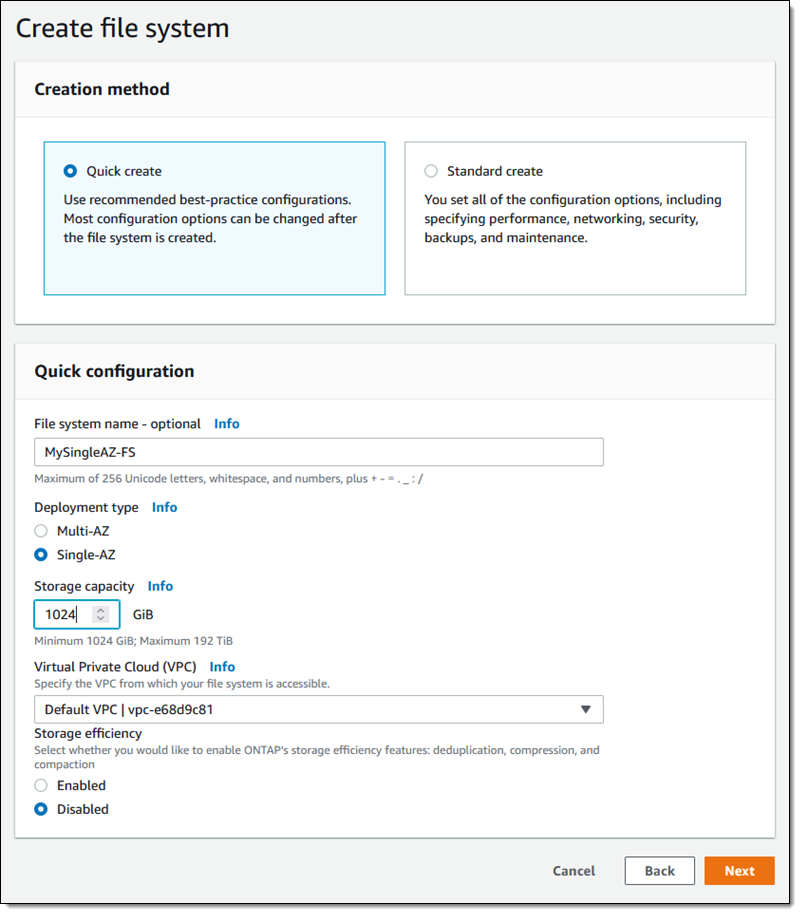
I can create a single-AZ NetApp ONTAP file system using the Amazon FSx Console, the CLI (aws fsx create-file-system), or the Amazon FSx CreateFileSystem API function. From the console I click Create file system, select Amazon FSx for NetApp ONTAP, and enter a name. Then I select the Single-AZ deployment type, indicate the desired amount of storage, and click Next:

On the next page I review and confirm my choices, and then click Create file system. The file system Status starts out as Creating, then transitions to Available within 20 minutes or so, as detailed in my original post.

Depending on my architecture and use case, I can access my new file system in several different ways. I can simply mount it to an EC2 instance running in the same VPC. I can also access it from another VPC in the same region or in a different region across a peered (VPC or Transit Gateway) connection, and from my on-premises clients using AWS Direct Connect or AWS VPN.

Things to Know
Here are a couple of things to know:

Regions – The new deployment type is available in all regions where FSx for ONTAP is already available.

Pricing – Pricing is based on the same billing dimensions as the multi-AZ deployment type; see the Amazon FSx for NetApp Pricing page for more information.

Available Now
The new deployment type is available now and you can start using it today!

Jeff;

Евродепутати разкриват пред “Биволъ” „Бездействие и липса на отговори“: Иван Гешев обещал на евродепутати прогрес по #БарселонаГейт до 15 дни

Post Syndicated from Николай Марченко original https://bivol.bg/%D0%B1%D0%B5%D0%B7%D0%B4%D0%B5%D0%B9%D1%81%D1%82%D0%B2%D0%B8%D0%B5-%D0%B8-%D0%BB%D0%B8%D0%BF%D1%81%D0%B0-%D0%BD%D0%B0-%D0%BE%D1%82%D0%B3%D0%BE%D0%B2%D0%BE%D1%80%D0%B8-%D0%B8%D0%B2.html

сряда 13 април 2022


Главният прокурор Иван Гешев е обещал на делегацията на Европарламента от Комисията по бюджетен контрол резултати по казуса Барселона Гейт до 10 – 15 дни. Това обявиха пред „Биволъ“ евродепутатите…

Query your data streams interactively using Kinesis Data Analytics Studio and Python

Post Syndicated from Jeremy Ber original https://aws.amazon.com/blogs/big-data/query-your-data-streams-interactively-using-kinesis-data-analytics-studio-and-python/

Amazon Kinesis Data Analytics Studio makes it easy for customers to analyze streaming data in real time, as well as build stream processing applications powered by Apache Flink using standard SQL, Python, and Scala. Just a few clicks in the AWS Management console lets customers launch a serverless notebook to query data streams and get results in seconds. Kinesis Data Analytics reduces the complexity of building and managing Apache Flink applications. Apache Flink is an open-source framework and engine for processing data streams. It’s highly available and scalable, and it delivers high throughput and low latency for stream processing applications.

Customers running Apache Flink workloads face the non-trivial challenge of developing their distributed stream processing applications without having true visibility into the steps conducted by their application for data processing. Kinesis Data Analytics Studio combines the ease-of-use of Apache Zeppelin notebooks, with the power of the Apache Flink processing engine, to provide advanced streaming analytics capabilities in a fully-managed offering. Furthermore, it accelerates developing and running stream processing applications that continuously generate real-time insights.

In this post, we will introduce you to Kinesis Data Analytics Studio and get started querying data interactively from an Amazon Kinesis Data Stream using the Python API for Apache Flink (Pyflink). We will use a Kinesis Data Stream for this example, as it is the quickest way to begin. Kinesis Data Analytics Studio is also compatible with Amazon Managed Streaming for Apache Kafka (Amazon MSK), Amazon Simple Storage Service (Amazon S3), and various other data sources supported by Apache Flink.

Prerequisites

  • Kinesis Data Stream
  • Data Generator

To follow this guide and interact with your streaming data, you will need a data stream with data flowing through.

Create a Kinesis Data Stream

You can create these streams using either the Amazon Kinesis console or the following AWS Command Line Interface (AWS CLI) command. For console instructions, see Creating and Updating Data Streams in the Kinesis Data Streams Developer Guide.

To create the data stream, use the following Kinesis create-stream AWS CLI command. Your data stream will be named input-stream.

$ aws kinesis create-stream \
--stream-name input-stream \
--shard-count 1 \
--region us-east-1

Creating a Kinesis Data Analytics Studio notebook

You can start interacting with your data stream by following these steps:

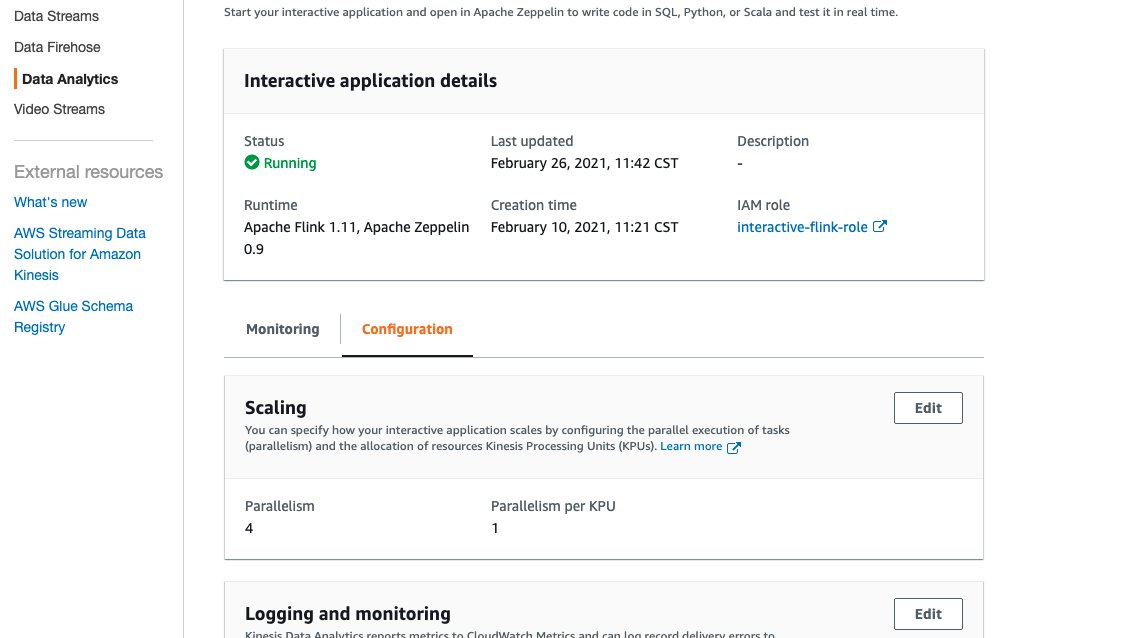
  1. Open the AWS Management Console and navigate to Amazon Kinesis Data Analytics for Apache Flink
  2. Select the Studio tab on the main page, and select Create Studio Notebook.
  3. Enter the name of your Studio notebook, and let Kinesis Data Analytics Studio create an AWS Identity and Access Management (IAM) role for this. You can create a custom role for specific use cases using the IAM Console.
  4. Choose an AWS Glue Database to store the metadata around your sources and destinations used by Kinesis Data Analytics Studio.
  5. Select Create Studio Notebook.

We will keep the default settings for the application, and we can scale up as needed.

Once the application has been created, select Start to start the Apache Flink application. This will take a few minutes to complete, at which point you can Open in Apache Zeppelin.

Write Sample Records to the Data Stream

In this section, you can create a Python script within the Apache Zeppelin notebook to write sample records to the stream for the application to process.

Select Create a new note in Apache Zeppelin, and name the new notebook stock-producer with the following contents:

%ipyflink
import datetime
import json
import random
import boto3

STREAM_NAME = "input-stream"
REGION = "us-east-1"


def get_data():
    return {
        'event_time': datetime.datetime.now().isoformat(),
        'ticker': random.choice(["BTC","ETH","BNB", "XRP", "DOGE"]),
        'price': round(random.random() * 100, 2)}


def generate(stream_name, kinesis_client):
    while True:
        data = get_data()
        print(data)
        kinesis_client.put_record(
            StreamName=stream_name,
            Data=json.dumps(data),
            PartitionKey="partitionkey")


if __name__ == '__main__':
    generate(STREAM_NAME, boto3.client('kinesis', region_name=REGION))

You can run the stock-producer paragraph to begin publishing messages to your Kinesis Data Stream either by pressing SHIFT + ENTER on the paragraph, or by selecting the Play button in the top-right of the paragraph.

Feel free to close or navigate away from this notebook for now, as it will continue publishing events indefinitely.

Note that this will continue publishing events until the notebook is paused or the Apache Flink cluster is shut down.

Example Applications

Apache Zeppelin supports the Apache Flink interpreter and allows for the direct use of Apache Flink within a notebook for interactive data analysis. Within the Flink Interpreter, three languages are supported at this time—Scala, Python (PyFlink), and SQL. The notebook requires a specification to one of these languages at the top of each paragraph to interpret the language properly.

%flink          - Scala environment 
%flink.pyflink  - Python Environment
%flink.ipyflink - ipython Environment
%flink.ssql     - Streaming SQL Environment
%flink.bsql     - Batch SQL Environment 

There are several other predefined variables per interpreter, such as the senv variable in Scala for a StreamExecutionEnvironment, and st_env in python for the same. A full list of these entry point variables can be found here. Now we will showcase the capabilities of Apache Flink in Python (Pyflink) by providing code samples for the most common use cases.

How to follow along

If you would like to follow along with this walkthrough, we have provided the Kinesis Data Analytics Studio notebook here with comments and context. Once you have created your Kinesis Data Analytics application, you can download the file and upload it to Kinesis Data Analytics studio.

Once you have imported the notebook, you should be able to follow along with the remainder of the post as you try it out!

Create a source table for Kinesis

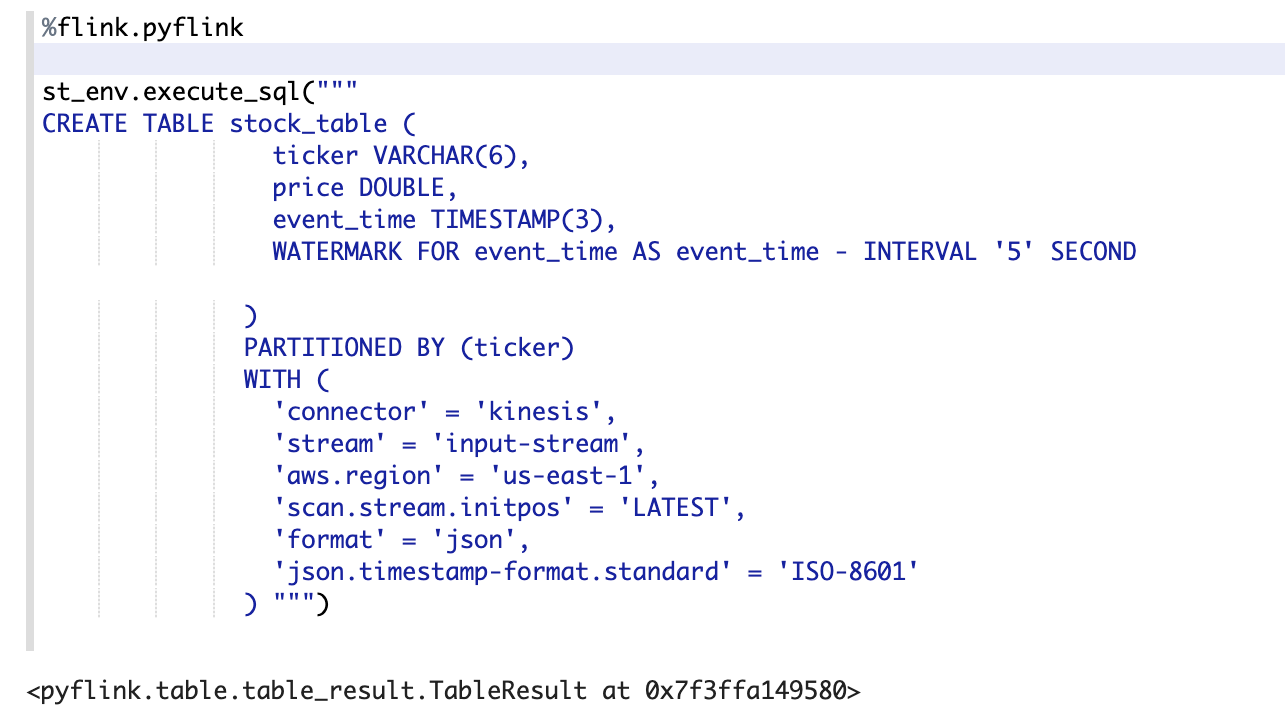
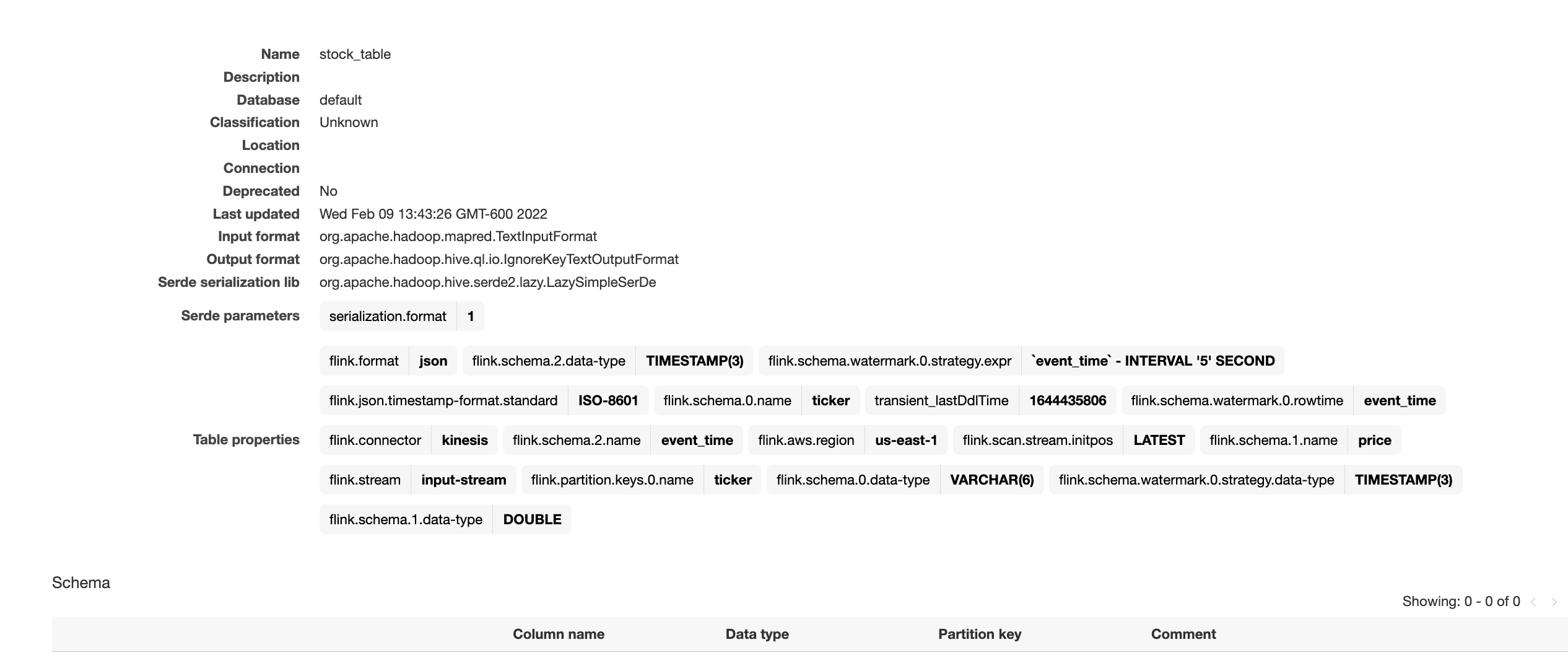
Using the %flink.pyflink header to signify that this code block will be interpreted via the Python Flink interpreter, we’re creating a table called stock_table with a ticker, price, and event_time column that signifies the time at which the price was recorded for the ticker. The WATERMARK clause defines the watermark strategy for generating watermarks according to the event_time (row_time) column. The event_time column must be defined as Timestamp(3) and be a top-level column to be used in conjunction with watermarks. The syntax following the WATERMARK definition—FOR event_time AS event_time - INTERVAL '5' SECOND declares that watermarks will be emitted according to a bounded out of orderness watermark strategy that allows for a five second delay in event_time data.

To learn more about event time and watermarks, read about the techniques implemented by Apache Flink here.

The table defined below uses the Kinesis connector to read from a kinesis data stream called input-stream in the us-east-1 region from the latest stream position.

In this example, we are utilizing the Python interpreter’s built-in streaming table environment variable, st_env, to execute a SQL DDL statement. The streaming table environment provides access to the Table API within pyflink and uses the blink planner to optimize the job graph. This planner translates queries into a DataStream program regardless of whether the input is batch or streaming.

If the table already exists in the AWS Glue Data Catalog, then this statement will issue an error stating that the table already exists.

%flink.pyflink
st_env.execute_sql("""
CREATE TABLE stock_table (
                ticker VARCHAR(6),
                price DOUBLE,
                event_time TIMESTAMP(3),
                WATERMARK FOR event_time AS event_time - INTERVAL '5' SECOND

              )
              PARTITIONED BY (ticker)
              WITH (
                'connector' = 'kinesis',
                'stream' = 'input-stream',
                'aws.region' = 'us-east-1',
                'scan.stream.initpos' = 'LATEST',
                'format' = 'json',
                'json.timestamp-format.standard' = 'ISO-8601'
              ) """)

The screenshot above showcases the successful execution of this paragraph. We can verify the results by checking in the AWS Glue Data Catalog for the accompanying table.

To find this, navigate back to the AWS Management Console, and then search for Glue. Once here, locate the Glue database that you chose for our Kinesis Data Analytics application, and select it. You should see a link toward the bottom of the Databases view that lets you view the Tables in your database. Furthermore, you can directly select Tables in the left-hand side. Locate the table that we created in the previous step, called stock_table.

Here we can see that the table was not only created in Kinesis Data Analytics studio, but also durably persisted in a Glue Data Catalog table for reference from other applications or between runs of your application.

Tumbling windows

Performing a tumbling window in the Python Table API first requires the definition of an in-memory reference to the table created in Step 1. We use the st_env variable to define this table using the from_path function and referencing the table name. Once this is created, then we can create a windowed aggregation over one minute of data, according to the event_time column.

Note that you could also perform this transformation entirely in Flink SQL, as described in this blog post. We’re simply showcasing the features of the Pyflink API. The blog post linked above also showcases many different window operators that you might perform, such as sliding windows, group windows, over windows, session windows, etc. The windowing choice is entirely use-case dependent.

%flink.pyflink
from pyflink.table.expressions import col, lit

stock_table = st_env.from_path("stock_table")

 # tumble over 1 minute, then group by that window and sum the number of trades over that time
count_table = stock_table.window(
                     Tumble.over(lit(1).minute).on(stock_table.event_time).alias("one_minute_window")) \
                           .group_by(col("one_minute_window"), col("ticker")) \
                           .select(col("ticker"), col("price").sum.alias("sum_price"), col("one_minute_window").end.alias("minute_window"))

Use the ZeppelinContext to visualize the Python Table aggregation within the notebook.

%flink.pyflink

z.show(count_table, stream_type="update")

This image shows the count_table we defined previously displayed as a pie chart within the Apache Zeppelin notebook.

User-defined functions

To use and reuse common business logic into an operator, it can be useful to reference a User-defined function to transform your Data stream. This can be done either within the Kinesis Data Analytics notebook, or as an externally referenced application jar file. Utilizing User-defined functions can simplify the transformations or data enrichments that you might perform over streaming data.

In our notebook, we will be referencing a simple Java application jar that computes an integer hash of our ticker symbol. You can also write Python or Scala UDFs for use within the notebook. We chose a Java application jar to highlight the functionality of importing an application jar into a Pyflink notebook.

package com.aws.kda.udf;

import org.apache.flink.table.functions.ScalarFunction;

// The Java class must have a public no-argument constructor and can be founded in current Java classloader.
public class HashFunction extends ScalarFunction {
    private int factor = 12;

    public int eval(String s) {
        return s.hashCode() * factor;
    }
    
}

You can find the application jar here.

  1. Create and package this jar, or download the link above.
  2. Next, upload this application jar to an Amazon S3 bucket to be referenced by our Kinesis Data Analytics Studio notebook.
  3. Head back to the Kinesis Data Analytics studio notebook, and under Configuration locate the User-defined functions box. From here, select Add user-defined function, and use the add wizard to locate your uploaded Java jar to reference it.

Once you save changes, the application will take a few minutes to update before you can open it again.

Open the notebook once it has been restarted so that we can reference our UDF.

%flink.pyflink
st_env.create_java_temporary_function("hash", "com.aws.kda.udf.HashFunction")

hash_ticker = stock_table.select("ticker, hash(ticker) as secret_ticker_key, event_time")

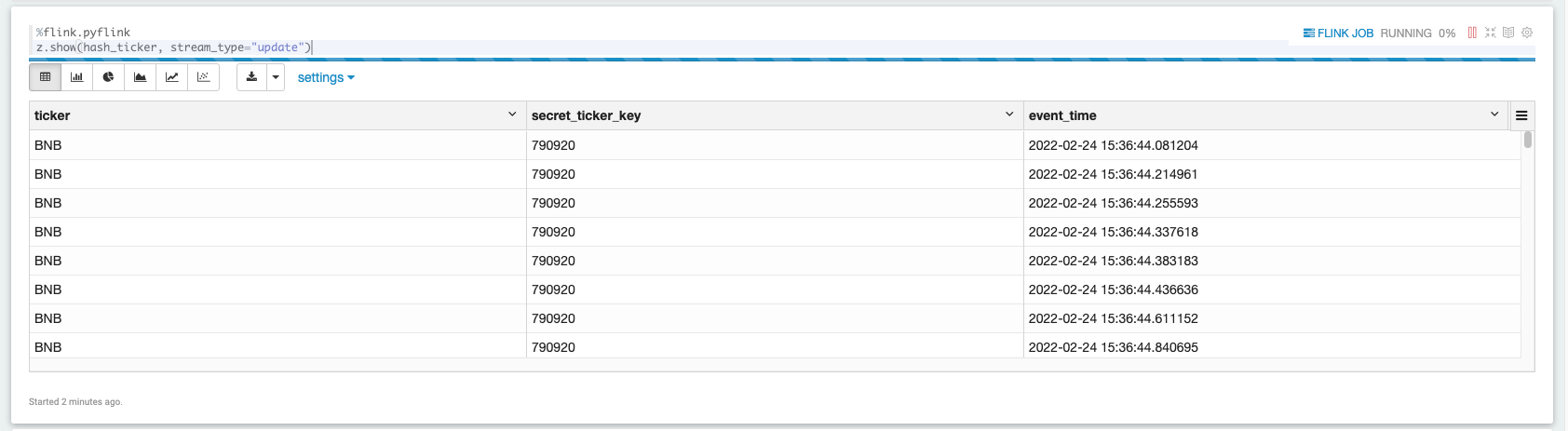
Now we can view this newly transformed data from the hash_ticker table context.

%flink.pyflink
st_env.create_java_temporary_function("hash", "com.aws.kda.udf.HashFunction")

hash_ticker = stock_table.select("ticker, hash(ticker) as secret_ticker_key, event_time")

The screenshot above showcases data being displayed in a tabular format from our hashed results set.

The screenshot above showcases data being displayed in a tabular format from our hashed results set.

Enable checkpointing

To utilize the fault-tolerant features of the Streaming File Sink (writing data to Amazon S3), we must enable checkpointing within our Apache Flink application. This setting isn’t enabled by default on any Kinesis Data Analytics Studio notebook. However, it can be enabled by simply accessing the streaming environment variable’s configuration and setting the proper string accordingly:

%flink.pyflink
z.show(hash_ticker, stream_type="update")

Writing results out to Amazon S3

In the same way that we ingested data into Kinesis Data Analytics Studio, we will create another table, called a sink, that will be responsible for taking data within Kinesis Data Analytics Studio and writing it out to Amazon S3 using the Apache Flink Filesystem connector. This connector does require checkpoints to commit data to a Filesystem, hence the previous step.

First, let’s create the table.

%flink.pyflink

table_name = "output_table"
bucket_name = "kda-python-sink-bucket"

st_env.execute_sql("""CREATE TABLE {0} (
                ticker VARCHAR(6),
                price DOUBLE,
                event_time TIMESTAMP(3)
              )
              PARTITIONED BY (ticker)
              WITH (
                  'connector'='filesystem',
                  'path'='s3a://{1}/',
                  'format'='csv',
                  'sink.partition-commit.policy.kind'='success-file',
                  'sink.partition-commit.delay' = '1 min'
              )""".format(
        table_name, bucket_name))

Next, we can perform the insert by calling the streaming table environment’s execute_sql function.

%flink.pyflink
table_result = st_env.execute_sql("INSERT INTO {0} SELECT * FROM {1}".format("output_table", "hash_ticker"))

The return value table_result is a pyflink table TableResult object. This lets you query and interact with the Flink job that is operating in the background.

Since we’ve set our checkpointing interval to one minute, wait at least one minute with data flowing to see data in your Amazon S3 bucket.

To stop the Amazon S3 sink process, run the following cell:

%flink.pyflink
print(table_result.get_job_client().cancel())

Scaling

A Studio notebook application consists of one or more tasks. You can split an application task into several parallel instances for execution, where each parallel instance processes a subset of the task’s data. The number of parallel instances of a task is called its parallelism, and adjusting that helps execute your tasks more efficiently.

Upon creation, Studio notebooks are given four parallel Kinesis Processing Units (KPU) which make up the application parallelism. To increase that parallelism, navigate to the Kinesis Data Analytics Studio Management Console, select your application name, and select the Configuration tab.

The screenshot above shows the Kinesis Data Analytics Studio console configuration page, where we can note the runtime environment, IAM Role, and modify things like the number of KPU’s the application is allocated.

  1. From this page, under the Scaling section, select Edit and modify the Parallelism entry. We don’t recommend increasing the Parallelism Per KPU setting higher than 1 unless your application is I/O bound.
  2. Select Save Changes to increase/decrease your application’s parallelism.

Promotion

When you have thoroughly tested and iterated on your application code within a Kinesis Data Analytics Studio notebook, you may choose to promote your notebook to a Kinesis Data Analytics for Apache Flink application with durable state. The benefits of doing this include having full fault tolerance with stateful operations, such as checkpointing, snapshotting, and autoscaling based on CPU usage.

To promote your Kinesis Data Analytics Studio notebook to a Kinesis Data Analytics for Apache Flink application:

  1. Navigate to the top-right of your notebook and select Actions for <<notebook name>>.
  2. First, select Build <<notebook name>> and export to Amazon S3.
  3. Once this process finishes, select Deploy <<notebook name>> as Kinesis Analytics Application. This will open a modal.
  4. Then, select Deploy using AWS Console.
  5. On the next screen, you can enter the following
    1. An optional description
    2. The same IAM role that you used for your Kinesis Data Analytics Studio notebooks.
  6. Then, select Create streaming application. Once the process finishes, you will see a Streaming Application preconfigured with the code supplied by your Kinesis Data Analytics studio notebook.
  7. Select Run to start your application.

Make sure that you have stopped all paragraphs in your Kinesis Data Analytics studio notebook so as not to contend for resources with your Kinesis Data Stream.

When the application has started, you should begin to see new data flowing into your Amazon S3 bucket in an entirely fault-tolerant and stateful manner.

Congratulations! You’ve just promoted a Kinesis Data Analytics studio notebook to Kinesis Data Analytics for Apache Flink!

Summary

Kinesis Data Analytics Studio makes developing stream processing applications using Apache Flink much faster. Moreover, all of this is done with rich visualizations, a scalable and user-friendly interface to develop and collaborate on pipelines, and the flexibility of language choice to make any streaming workload performant and powerful. Users can run paragraphs from within the notebook as described in this post, or choose to promote their Studio notebook to a Kinesis Data Analytics for Apache Flink application with durable state.

For more information, please see the following documentation:


About the Author

Jeremy Ber has been working in the telemetry data space for the past five years as a Software Engineer, Machine Learning Engineer, and most recently a Data Engineer. In the past, Jeremy has supported and built systems that stream in terabytes of data-per-day, and process complex Machine Learning Algorithms in real-time. At AWS, he is a Solutions Architect Streaming Specialist supporting both Managed Streaming for Kafka (Amazon MSK) and Amazon Kinesis services.

Announcing Backblaze B2’s Universal Data Migration

Post Syndicated from Jeremy Milk original https://www.backblaze.com/blog/announcing-backblaze-b2-universal-data-migration/

Your data is valuable. Whether you’re sequencing genomes, managing a media powerhouse, or running your own business, you need fast, affordable, ready access to it in order to achieve your goals. But, you can’t get the most out of your data if it’s locked-in to a provider where it’s hard to manage or time-consuming to retrieve. Unfortunately, due to egress fees and closed, “all-in-one” platforms, vendor lock-in is currently trapping too many companies.

Backblaze can help: Universal Data Migration, a new service launched today, covers all data transfer costs, including legacy provider egress fees, and manages data migration from any legacy on-premises or cloud source. In short, your migration to Backblaze B2 Cloud Storage is on us.

Many of the businesses we’ve spoken to about this didn’t believe that the service was free at first. But seriously—you will never see an invoice for your transfer fees, any egress fees levied by your legacy vendor when you pull data out, or for the assistance in moving data.

If you’re still in doubt, read on to learn more about how Universal Data Migration can help you say goodbye to vendor lock-in, cold delays, and escalating storage costs, and hello to B2 Cloud Storage gains, all without fears of cost, complexity, downtime, or data loss.

How Does Universal Data Migration Work?

Backblaze has curated a set of integrated services to handle migrations from pretty much every source, including:

  • Public cloud storage
  • Servers
  • Network attached storage (NAS)
  • Storage area networks (SAN)
  • Tape/LTO solutions
  • Cloud drives

We cover data transfer and egress costs and facilitate the migration to Backblaze B2 Cloud Storage. The turnkey service expands on our earlier Cloud to Cloud Migration services as well as transfers via internet and the Backblaze Fireball rapid ingest devices. These offerings are now rolled up into one universal service.

“I thought moving my files would be the hardest part of the process, and it’s why I never really thought about switching providers before, but it was easy.”
—Tristan Pelligrino, Co-founder, Motion

We do ask that companies who use the service commit to maintaining at least 10TB in Backblaze B2 for a minimum of one year, but we expect that our cloud storage pricing—a quarter the cost of comparable services—and our interoperability with other cloud services, will keep new customers happy for that first year and beyond.

Outside of specifics that will vary by your unique infrastructure and workflows, migration types include:

  • Cloud to cloud: Reads from public cloud storage or a cloud drive (e.g., Amazon S3 or Google Drive) and writes to Backblaze B2 via inter-cloud bandwidth.
  • On-premises to cloud: Reads from a server, NAS, or SAN and writes to Backblaze B2 over optimized cloud pipes or via Backblaze’s 96TB Fireball rapid ingest device.
  • LTO/tape to cloud: Reads tape media, from reel cassettes to cartridges and more, and writes to Backblaze B2 via a high-speed, direct connection.

Backblaze also supports simple internet transfers for moving files over your existing bandwidth—with multi-threading to maximize speed.

How Much Does Universal Data Migration Cost?

Not to sound like a broken record, but this is the best part—the service is entirely free to you. You’ll never receive a bill. Backblaze incurs all data transfer and legacy vendor egress or download fees for inbound migrations >10TB with a one-year commitment. It’s pretty cool that we can help save you money; it’s even cooler that we can help more businesses build the tech stacks they want using unconflicted providers to truly get the most out of their data.

Fortune Media Reduces Storage Costs by Two-thirds With Universal Data Migration

 
After divesting from its parent company, Fortune Media rebuilt its technology infrastructure and moved many services, including data storage, to the cloud. However, the initial tech stack was expensive, difficult to use, and not 100% reliable.

Backblaze B2 offered a more reliable and cost-effective solution for both hot cloud storage and archiving. In addition, the platform’s ease of use would give Fortune’s geographically-dispersed video editors a modern, self-service experience, and it was easier for the IT team to manage.

Using Backblaze’s Cloud to Cloud Migration, now part of Universal Data Migration, the team transferred over 300TB of data from their legacy provider in less than a week with zero downtime, business disruption, or egress costs, and was able to cut overall storage costs by two-thirds.

“In the cloud space, the biggest complaint that we hear from clients is the cost of egress and storage. With Backblaze, we saved money on the migration, but also overall on the storage and the potential future egress of this data.”
—Tom Kehn, Senior Solutions Architect at CHESA, Fortune Media’s technology systems integrator

Even More Benefits

What else do you get with Universal Data Migration? Additional benefits include:

  • Truly universal migrations: Secure data mobility from practically any source.
  • Support along the way: Simple, turnkey services with solution engineer support to help ensure easy success.
  • Safe and speedy transfers: Proven to securely transfer millions of objects and petabytes of data, often in just days.

Ready to Get Started?

The Universal Data Migration service is generally available now. To qualify, organizations must migrate and commit to maintaining at least 10TB in Backblaze B2 for a minimum of one year. For more information or to set up a free proof of concept, contact the Backblaze Sales team.

The post Announcing Backblaze B2’s Universal Data Migration appeared first on Backblaze Blog | Cloud Storage & Cloud Backup.

Security updates for Wednesday

Post Syndicated from original https://lwn.net/Articles/891182/

Security updates have been issued by Arch Linux (gzip, python-django, and xz), Debian (chromium, subversion, and zabbix), Red Hat (expat, kernel, and thunderbird), SUSE (go1.16, go1.17, kernel, libexif, libsolv, libzypp, zypper, opensc, subversion, thunderbird, xxx, and xz), and Ubuntu (git, linux-bluefield, nginx, and subversion).

The collective thoughts of the interwebz