Part 3: A Survey of Analytics Engineering Work at Netflix

Post Syndicated from Netflix Technology Blog original https://netflixtechblog.com/part-3-a-survey-of-analytics-engineering-work-at-netflix-e67f0aa82183

This article is the last in a multi-part series sharing a breadth of Analytics Engineering work at Netflix, recently presented as part of our annual internal Analytics Engineering conference. Need to catch up? Check out Part 1, which detailed how we’re empowering Netflix to efficiently produce and effectively deliver high quality, actionable analytic insights across the company and Part 2, which stepped through a few exciting business applications for Analytics Engineering. This post will go into aspects of technical craft.

Dashboard Design Tips

Rina Chang, Susie Lu

What is design, and why does it matter? Often people think design is about how things look, but design is actually about how things work. Everything is designed, because we’re all making choices about how things work, but not everything is designed well. Good design doesn’t waste time or mental energy; instead, it helps the user achieve their goals.

When applying this to a dashboard application, the easiest way to use design effectively is to leverage existing patterns. (For example, people have learned that blue underlined text on a website means it’s a clickable link.) So knowing the arsenal of available patterns and what they imply is useful when making the choice of when to use which pattern.

First, to design a dashboard well, you need to understand your user.

  • Talk to your users throughout the entire product lifecycle. Talk to them early and often, through whatever means you can.
  • Understand their needs, ask why, then ask why again. Separate symptoms from problems from solutions.
  • Prioritize and clarify — less is more! Distill what you can build that’s differentiated and provides the most value to your user.

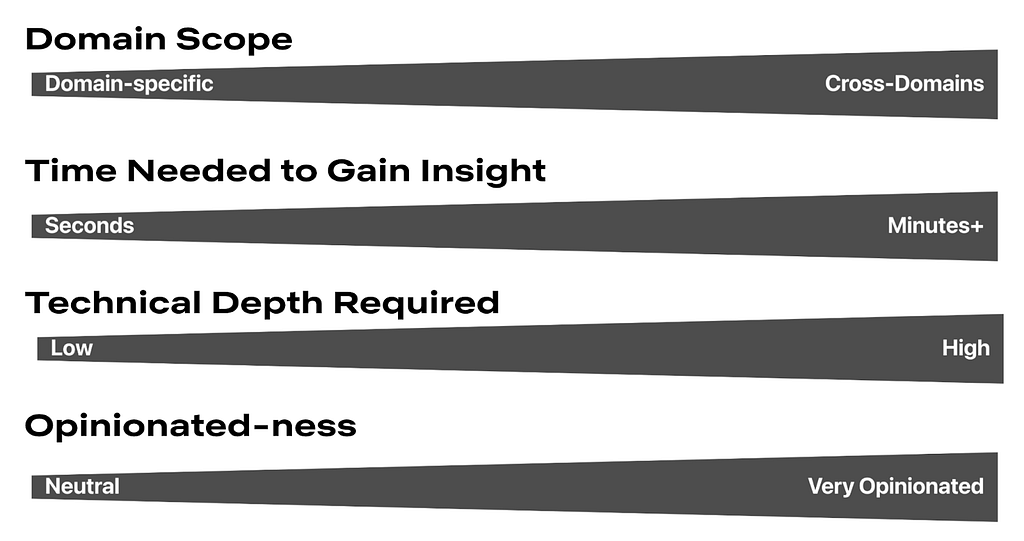
Here is a framework for thinking about what your users are trying to achieve. Where do your users fall on these axes? Don’t solve for multiple positions across these axes in a given view; if that exists, then create different views or potentially different dashboards.
Second, understanding your users’ mental models will allow you to choose how to structure your app to match. A few questions to ask yourself when considering the information architecture of your app include:

  • Do you have different user groups trying to accomplish different things? Split them into different apps or different views.
  • What should go together on a single page? All the information needed for a single user type to accomplish their “job.” If there are multiple jobs to be done, split each out onto its own page.
  • What should go together within a single section on a page? All the information needed to answer a single question.
  • Does your dashboard feel too difficult to use? You probably have too much information! When in doubt, keep it simple. If needed, hide complexity under an “Advanced” section.

Here are some general guidelines for page layouts:

  • Choose infinite scrolling vs. clicking through multiple pages depending on which option suits your users’ expectations better
  • Lead with the most-used information first, above the fold
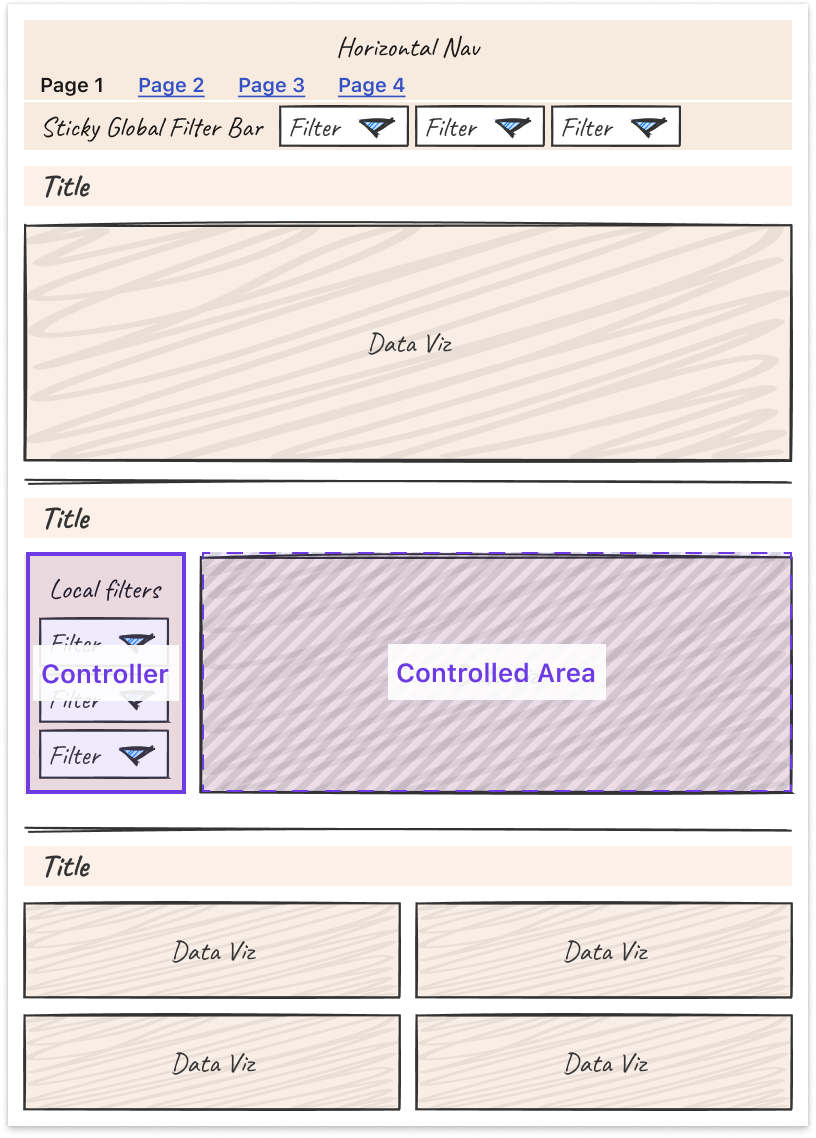
  • Create signposts that cue the user to where they are by labeling pages, sections, and links
  • Use cards or borders to visually group related items together
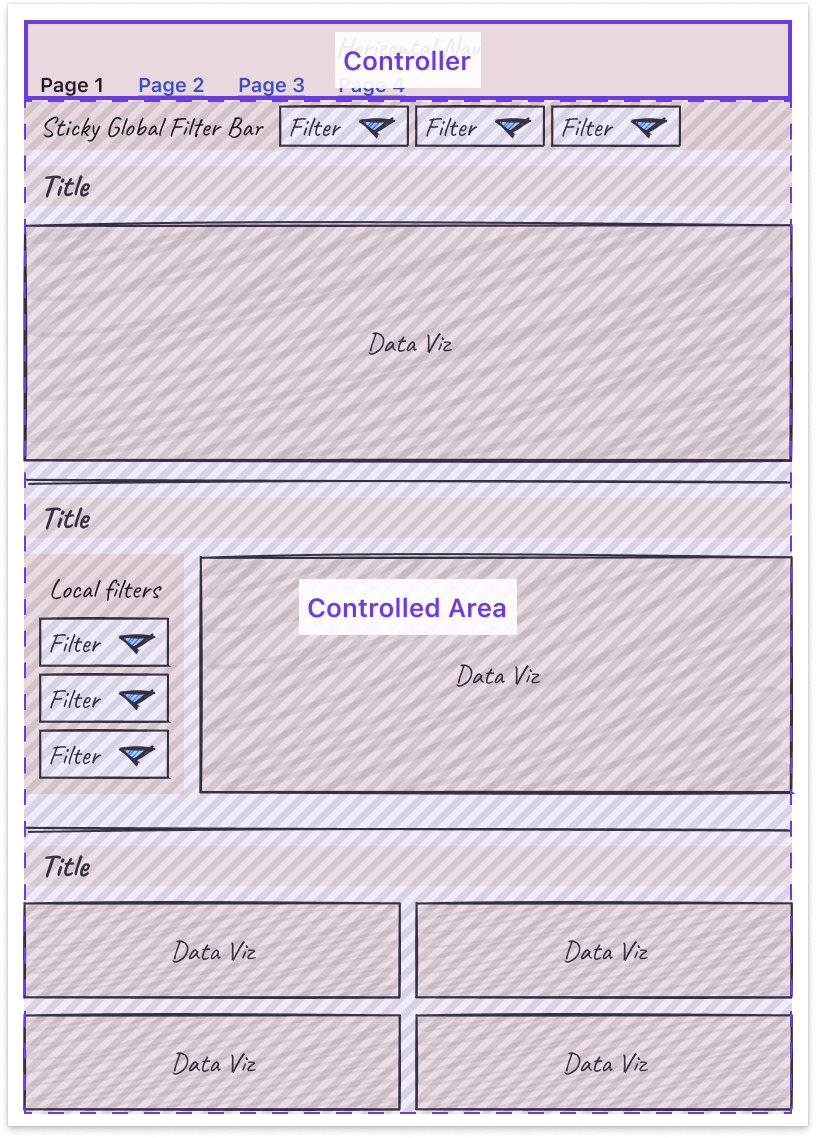
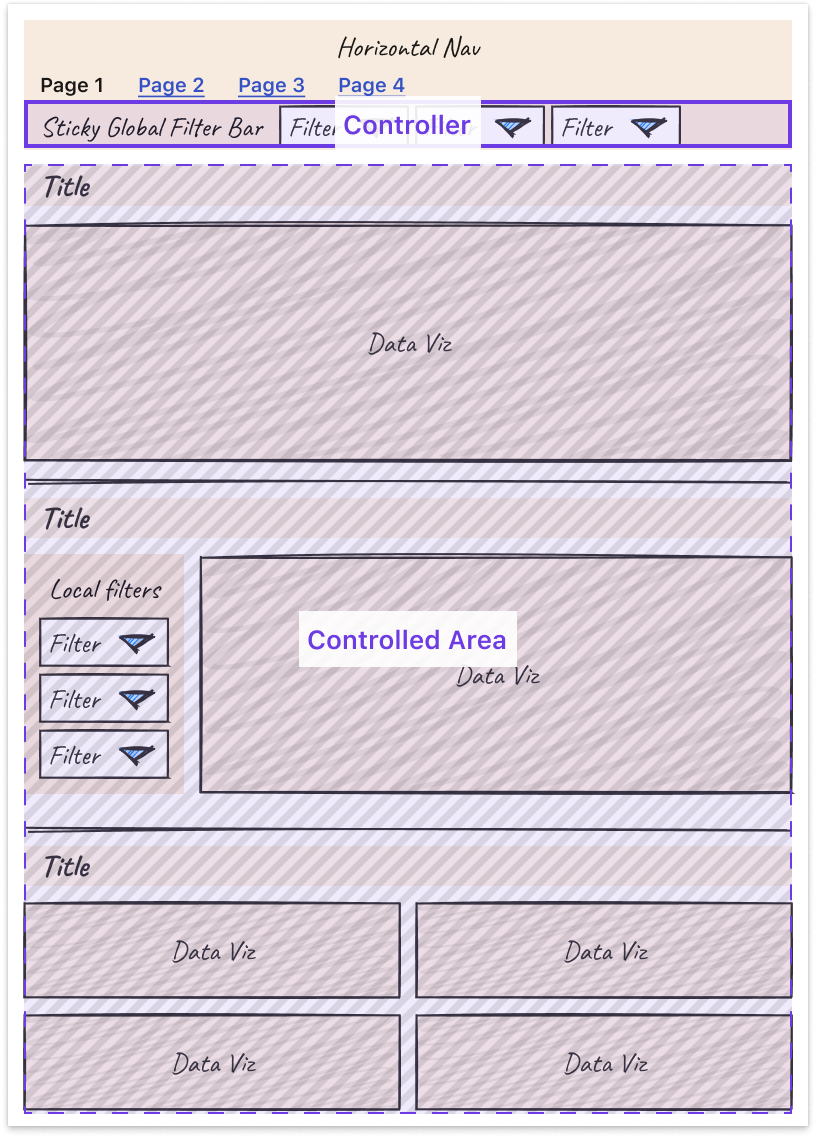
  • Leverage nesting to create well-understood “scopes of control.” Specifically, users expect a controller object to affect children either: Below it (if horizontal) or To the right of it (if vertical)
Third, some tips and tricks can help you more easily tackle the unique design challenges that come with making interactive charts.

  • Titles: Make sure filters are represented in the title or subtitle of the chart for easy scannability and screenshot-ability.
  • Tooltips: Core details should be on the page, while the context in the tooltip is for deeper information. Annotate multiple points when there are only a handful of lines.
  • Annotations: Provide annotations on charts to explain shifts in values so all users can access that context.
  • Color: Limit the number of colors you use. Be consistent in how you use colors. Otherwise, colors lose meaning.
  • Onboarding: Separate out onboarding to your dashboard from routine usage.

Finally, it is important to note that these are general guidelines, but there is always room for interpretation and/or the use of good judgment to adapt them to suit your own product and use cases. At the end of the day, the most important thing is that a user can leverage the data insights provided by your dashboard to perform their work, and good design is a means to that end.

Learnings from Deploying an Analytics API at Netflix

Devin Carullo

At Netflix Studio, we operate at the intersection of art and science. Data is a tool that enhances decision-making, complementing the deep expertise and industry knowledge of our creative professionals.

One example is in production budgeting — namely, determining how much we should spend to produce a given show or movie. Although there was already a process for creating and comparing budgets for new productions against similar past projects, it was highly manual. We developed a tool that automatically selects and compares similar Netflix productions, flagging any anomalies for Production Finance to review.

To ensure success, it was essential that results be delivered in real-time and integrated seamlessly into existing tools. This required close collaboration among product teams, DSE, and front-end and back-end developers. We developed a GraphQL endpoint using Metaflow, integrating it into the existing budgeting product. This solution enabled data to be used more effectively for real-time decision-making.

We recently launched our MVP and continue to iterate on the product. Reflecting on our journey, the path to launch was complex and filled with unexpected challenges. As an analytics engineer accustomed to crafting quick solutions, I underestimated the effort required to deploy a production-grade analytics API.

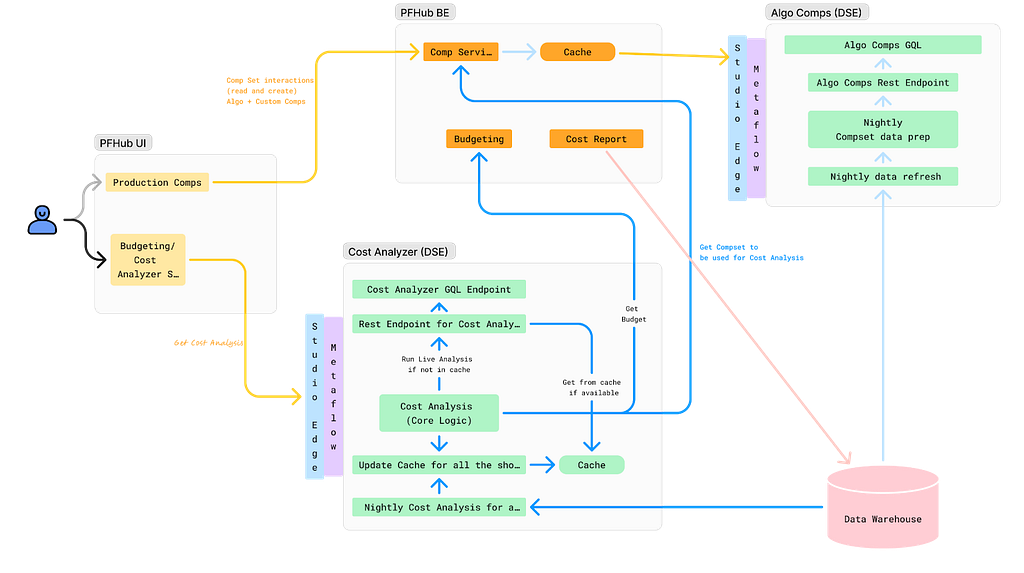
Fig 1. My vague idea of how my API would work
Fig 2: Our actual solution

With hindsight, below are my key learnings.

Measure Impact and Necessity of Real-Time Results

Before implementing real-time analytics, assess whether real-time results are truly necessary for your use case. This can significantly impact the complexity and cost of your solution. Batch processing data may provide a similar impact and take significantly less time. It’s easier to develop and maintain, and tends to be more familiar for analytics engineers, data scientists, and data engineers.

Additionally, if you are developing a proof of concept, the upfront investment may not be worth it. Scrappy solutions can often be the best choice for analytics work.

Explore All Available Solutions

At Netflix, there were multiple established methods for creating an API, but none perfectly suited our specific use case. Metaflow, a tool developed at Netflix for data science projects, already supported REST APIs. However, this approach did not align with the preferred workflow of our engineering partners. Although they could integrate with REST endpoints, this solution presented inherent limitations. Large response sizes rendered the API/front-end integration unreliable, necessitating the addition of filter parameters to reduce the response size.

Additionally, the product we were integrating into was using GraphQL, and deviating from this established engineering approach was not ideal. Lastly, given our goal to overlay results throughout the product, GraphQL features, such as federation, proved to be particularly advantageous.

After realizing there wasn’t an existing solution at Netflix for deploying python endpoints with GraphQL, we worked with the Metaflow team to build this feature. This allowed us to continue developing via Metaflow and allowed our engineering partners to stay on their paved path.

Align on Performance Expectations

A major challenge during development was managing API latency. Much of this could have been mitigated by aligning on performance expectations from the outset. Initially, we operated under our assumptions of what constituted an acceptable response time, which differed greatly from the actual needs of our users and our engineering partners.

Understanding user expectations is key to designing an effective solution. Our methodology resulted in a full budget analysis taking, on average, 7 seconds. Users were willing to wait for an analysis when they modified a budget, but not every time they accessed one. To address this, we implemented caching using Metaflow, reducing the API response time to approximately 1 second for cached results. Additionally, we set up a nightly batch job to pre-cache results.

While users were generally okay with waiting for analysis during changes, we had to be mindful of GraphQL’s 30-second limit. This highlighted the importance of continuously monitoring the impact of changes on response times, leading us to our next key learning: rigorous testing.

Real-Time Analysis Requires Rigorous Testing

Load Testing: We leveraged Locust to measure the response time of our endpoint and assess how the endpoint responded to reasonable and elevated loads. We were able to use FullStory, which was already being used in the product, to estimate expected calls per minute.
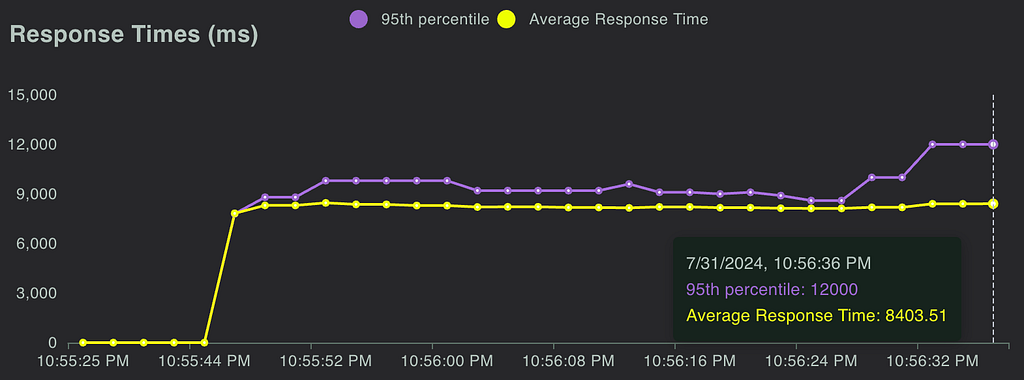
Fig 3. Locust allows us to simulate concurrent calls and measure response time

Unit Tests & Integration Tests: Code testing is always a good idea, but it can often be overlooked in analytics. It is especially important when you are delivering live analysis to circumvent end users from being the first to see an error or incorrect information. We implemented unit testing and full integration tests, ensuring that our analysis would return correct results.

The Importance of Aligning Workflows and Collaboration

This project marked the first time our team collaborated directly with our engineering partners to integrate a DSE API into their product. Throughout the process, we discovered significant gaps in our understanding of each other’s workflows. Assumptions about each other’s knowledge and processes led to misunderstandings and delays.

Deployment Paths: Our engineering partners followed a strict deployment path, whereas our approach on the DSE side was more flexible. We typically tested our work on feature branches using Metaflow projects and then pushed results to production. However, this lack of control led to issues, such as inadvertently deploying changes to production before the corresponding product updates were ready and difficulties in managing a test endpoint. Ultimately, we deferred to our engineering partners to establish a deployment path and collaborated with the Metaflow team and data engineers to implement it effectively.
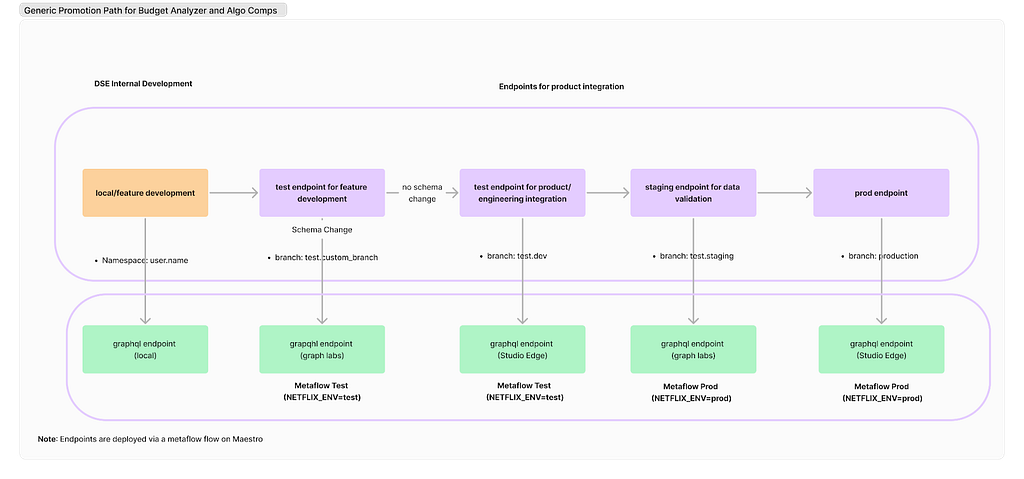
Fig 4. Our current deployment path

Work Planning: While the engineering team operated on sprints, our DSE team planned by quarters. This misalignment in planning cycles is an ongoing challenge that we are actively working to resolve.

Looking ahead, our team is committed to continuing this partnership with our engineering colleagues. Both teams have invested significant time in building this relationship, and we are optimistic that it will yield substantial benefits in future projects.

External Speaker: Benn Stancil

In addition to the above presentations, we kicked off our Analytics Summit with a keynote talk from Benn Stancil, Founder of Mode Analytics. Benn stepped through a history of the modern data stack, and the group discussed ideas on the future of analytics.

Analytics Engineering is a key contributor to building our deep data culture at Netflix, and we are proud to have a large group of stunning colleagues that are not only applying but advancing our analytical capabilities at Netflix. The 2024 Analytics Summit continued to be a wonderful way to give visibility to one another on work across business verticals, celebrate our collective impact, and highlight what’s to come in analytics practice at Netflix.

To learn more, follow the Netflix Research Site, and if you are also interested in entertaining the world, have a look at our open roles!


Part 3: A Survey of Analytics Engineering Work at Netflix was originally published in Netflix TechBlog on Medium, where people are continuing the conversation by highlighting and responding to this story.

Ingest data from Google Analytics 4 and Google Sheets to Amazon Redshift using Amazon AppFlow

Post Syndicated from Ritesh Sinha original https://aws.amazon.com/blogs/big-data/ingest-data-from-google-analytics-4-and-google-sheets-to-amazon-redshift-using-amazon-appflow/

Google Analytics 4 (GA4) provides valuable insights into user behavior across websites and apps. But what if you need to combine GA4 data with other sources or perform deeper analysis? That’s where Amazon Redshift and Amazon AppFlow come in. Amazon AppFlow bridges the gap between Google applications and Amazon Redshift, empowering organizations to unlock deeper insights and drive data-informed decisions. In this post, we show you how to establish the data ingestion pipeline between Google Analytics 4, Google Sheets, and an Amazon Redshift Serverless workgroup.

Amazon AppFlow is a fully managed integration service that you can use to securely transfer data from software as a service (SaaS) applications, such as Google BigQuery, Salesforce, SAP, HubSpot, and ServiceNow, to Amazon Web Services (AWS) services such as Amazon Simple Storage Service (Amazon S3) and Amazon Redshift, in just a few clicks. With Amazon AppFlow, you can run data flows at nearly any scale and at the frequency you choose—on a schedule, in response to a business event, or on demand. You can configure data transformation capabilities such as filtering and validation to generate rich, ready-to-use data as part of the flow itself, without additional steps. Amazon AppFlow automatically encrypts data in motion, and allows you to restrict data from flowing over the public internet for SaaS applications that are integrated with AWS PrivateLink, reducing exposure to security threats.

Amazon Redshift is a fast, scalable, and fully managed cloud data warehouse that allows you to process and run your complex SQL analytics workloads on structured and semi-structured data. It also helps you securely access your data in operational databases, data lakes, or third-party datasets with minimal movement or copying of data. Tens of thousands of customers use Amazon Redshift to process large amounts of data, modernize their data analytics workloads, and provide insights for their business users.

Prerequisites

Before starting this walkthrough, you need to have the following prerequisites in place:

  • An AWS account.
  • In your Google Cloud project, you’ve enabled the following APIs:
    • Google Analytics API
    • Google Analytics Admin API
    • Google Analytics Data API
    • Google Sheets API
    • Google Drive API

For more information, refer to Amazon AppFlow support for Google Sheets.

For the steps to enable these APIs, see Enable and disable APIs on the API Console Help for Google Cloud Platform.

Architecture overview

The following architecture shows how Amazon AppFlow can transform and move data from SaaS applications to processing and storage destinations. Three sections appear from left to right in the diagram: Source, Move, Target. These sections are described in the following section.

  • Source – The leftmost section on the diagram represents different applications acting as a source, including Google Analytics, Google Sheets, and Google BigQuery.
  • Move – The middle section is labeled Amazon AppFlow. The section contains boxes that represent Amazon AppFlow operations such as Mask Fields, Map Fields, Merge Fields, Filter Data, and others. In this post, we focus on setting up the data movement using Amazon AppFlow and filtering data based on start date. The other transformation operations such as mapping, masking, and merging fields are not covered in this post.
  • Destination – The section on the right of the diagram is labeled Destination and represents targets such as Amazon Redshift and Amazon S3. In this psot, we primarily focus on Amazon Redshift as the destination.

This post has two parts. The first part covers integrating from Google Analytics. The second part focuses on connecting with Google Sheets.

Application configuration in Google Cloud Platform

Amazon AppFlow requires OAuth 2.0 for authentication. You need to create an OAuth 2.0 client ID, which Amazon AppFlow uses when requesting an OAuth 2.0 access token. To create an OAuth 2.0 client ID in the Google Cloud Platform console, follow these steps:

  1. On the Google Cloud Platform Console, from the projects list, select a project or create a new one.
  2. If the APIs & Services page isn’t already open, choose the menu icon on the upper left and select APIs & Services.
  3. In the navigation pane, choose Credentials.
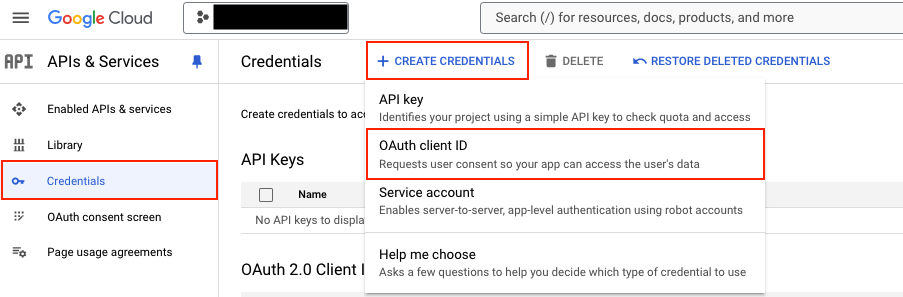
  4. Choose CREATE CREDENTIALS, then choose OAuth client ID, as shown in the following screenshot.

  1. Select the application type Web application, enter the name demo-google-aws, and provide URIs for Authorized JavaScript origins https://console.aws.amazon.com. For Authorized redirect URIs, add https://us-east-1.console.aws.amazon.com/appflow/oauth. Choose SAVE, as shown in the following screenshot.

  1. The OAuth client ID is now created. Select demo-google-aws.

  1. Under Additional information, as shown in the following screenshot, note down the Client ID and Client secret.

Data ingestion from Google Analytics 4 to Amazon Redshift

In this section, you configure Amazon AppFlow to set up a connection between Google Analytics 4 and Amazon Redshift for data migration. This procedure can be classified into the following steps:

  1. Create a connection to Google Analytics 4 in Amazon AppFlow
  2. Create an IAM role for Amazon AppFlow integration with Amazon Redshift
  3. Set up Amazon AppFlow connection for Amazon Redshift
  4. Set up table and permission in Amazon Redshift
  5. Create data flow in Amazon AppFlow

Create a connection to Google Analytics 4 in Amazon AppFlow

To create a connection to Google Analytics 4 in Amazon AppFlow, follow these steps:

  1. Sign in to the AWS Management Console and open Amazon AppFlow.
  2. In the navigation pane on the left, choose Connections.
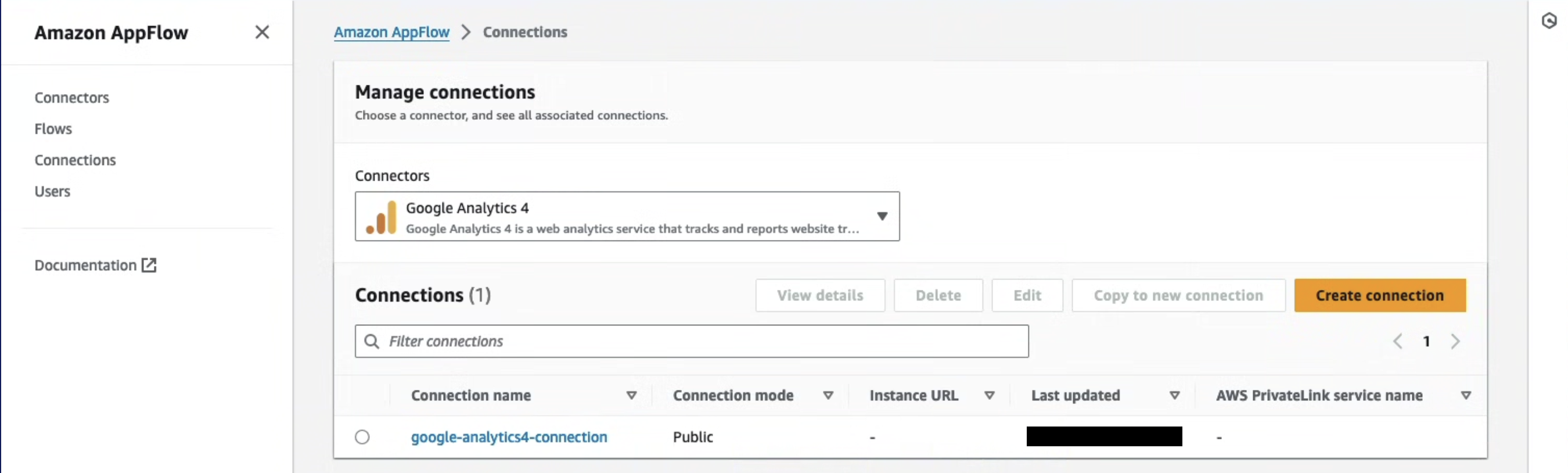
  3. On the Manage connections page, for Connectors, choose Google Analytics 4.
  4. Choose Create connection.
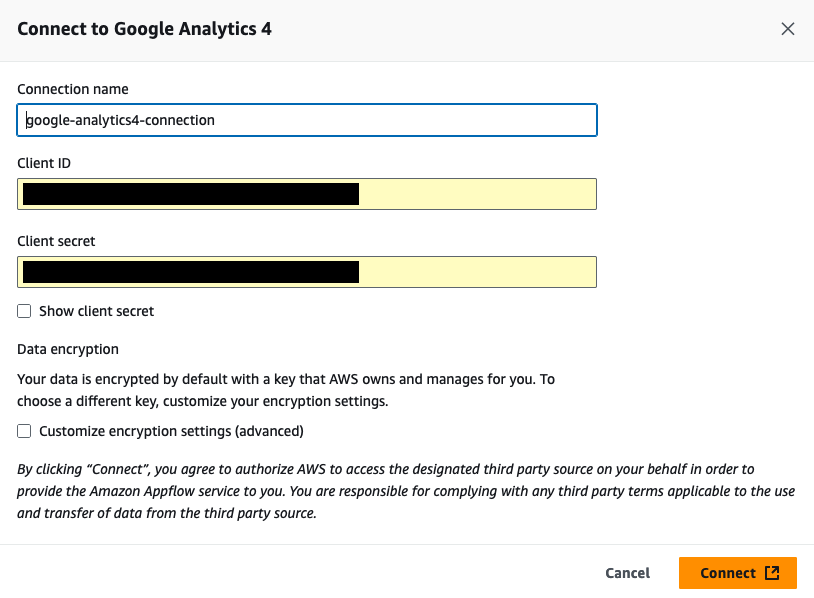
  5. In the Connect to Google Analytics 4 window, enter the following information. For Client ID, enter the client ID of the OAuth 2.0 client ID in your Google Cloud project created in the previous section. For Client secret, enter the client secret of the OAuth 2.0 client ID in your Google Cloud project created in the previous section.
  6. (Optional) under Data encryption, choose Customize encryption settings (advanced) if you want to encrypt your data with a customer managed key in AWS Key Management Service (AWS KMS). By default, Amazon AppFlow encrypts your data with an AWS KMS key that AWS creates, uses, and manages for you. Choose this option if you want to encrypt your data with your own AWS KMS key instead.

The following screenshot shows the Connect to Google Analytics 4 window.

Amazon AppFlow encrypts your data during transit and at rest. For more information, see Data protection in Amazon AppFlow.

If you want to use an AWS KMS key from the current AWS account, select this key under Choose an AWS KMS key. If you want to use an AWS KMS key from a different AWS account, enter the Amazon Resource Name (ARN) for that key:

  1. For Connection name, enter a name for your connection
  2. Choose Continue
  3. In the window that appears, sign in to your Google account and grant access to Amazon AppFlow

On the Manage connections page, your new connection appears in the Connections table. When you create a flow that uses Google Analytics 4 as the data source, you can select this connection.

Create an IAM role for Amazon AppFlow integration with Amazon Redshift

You can use Amazon AppFlow to transfer data from supported sources into your Amazon Redshift databases. You need an IAM role because Amazon AppFlow needs authorization to access Amazon Redshift using an Amazon Redshift Data API.

  1. Sign in to the AWS Management Console, preferably as admin user, and in the navigation pane of the IAM dashboard, choose Policies.
  2. Choose Create policy.
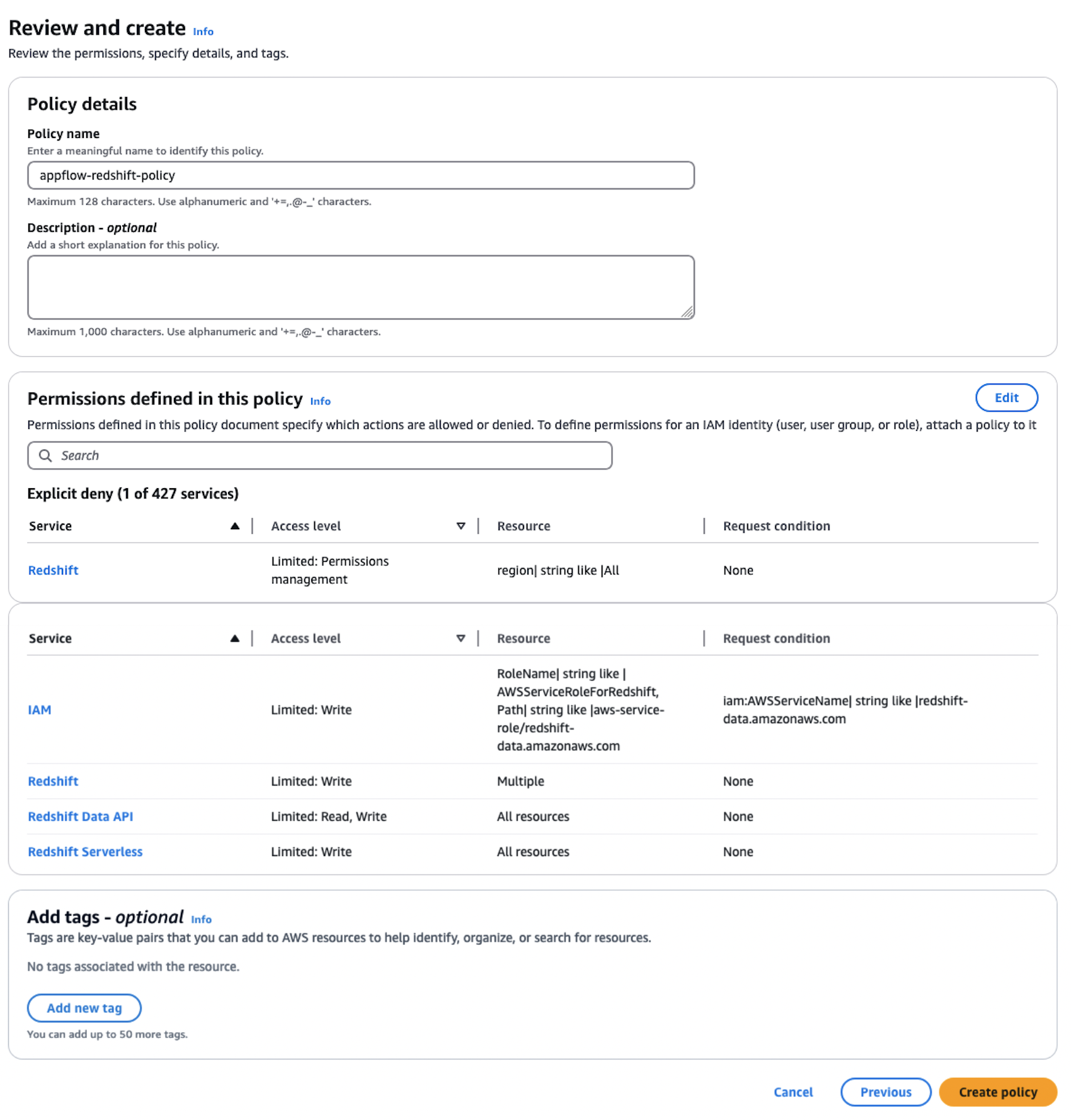
  3. Select the JSON tab and paste in the following policy. Amazon AppFlow needs the following permissions to gain access and run SQL statements with the Amazon Redshift database.
{
  "Version": "2012-10-17",
  "Statement": [
    {
      "Sid": "DataAPIPermissions",
      "Effect": "Allow",
      "Action": [
        "redshift-data:ExecuteStatement",
        "redshift-data:GetStatementResult",
        "redshift-data:DescribeStatement"
      ],
      "Resource": "*"
    },
    {
      "Sid": "GetCredentialsForAPIUser",
      "Effect": "Allow",
      "Action": "redshift:GetClusterCredentials",
      "Resource": [
        "arn:aws:redshift:*:*:dbname:*/*",
        "arn:aws:redshift:*:*:dbuser:*/*"
      ]
    },
    {
      "Sid": "GetCredentialsForServerless",
      "Effect": "Allow",
      "Action": "redshift-serverless:GetCredentials",
      "Resource": "*"
    },
    {
      "Sid": "DenyCreateAPIUser",
      "Effect": "Deny",
      "Action": "redshift:CreateClusterUser",
      "Resource": [
        "arn:aws:redshift:*:*:dbuser:*/*"
      ]
    },
    {
      "Sid": "ServiceLinkedRole",
      "Effect": "Allow",
      "Action": "iam:CreateServiceLinkedRole",
      "Resource": "arn:aws:iam::*:role/aws-service-role/redshift-data.amazonaws.com/AWSServiceRoleForRedshift",
      "Condition": {
        "StringLike": {
          "iam:AWSServiceName": "redshift-data.amazonaws.com"
        }
      }
    }
  ]
}
  1. Choose Next, provide the Policy name as appflow-redshift-policy, Description as appflow redshift policy, and choose Create policy.

  1. In the navigation pane, choose Roles and Create role. Choose Custom trust policy and paste in the following. Choose Next. This trust policy grants Amazon AppFlow the ability to assume the role for Amazon AppFlow to access and process data.
{
  "Version": "2012-10-17",
  "Statement": [
    {
      "Effect": "Allow",
      "Principal": {
        "Service": "appflow.amazonaws.com"
      },
      "Action": "sts:AssumeRole"
    }
  ]
}
  1. Search for policy appflow-redshift-policy, check the box next to it, and choose Next.

  1. Provide the role name appflow-redshift-access-role and Description and choose Create role.

Set up Amazon AppFlow connection for Amazon Redshift

To set up an Amazon AppFlow connection for Amazon Redshift, follow these steps:

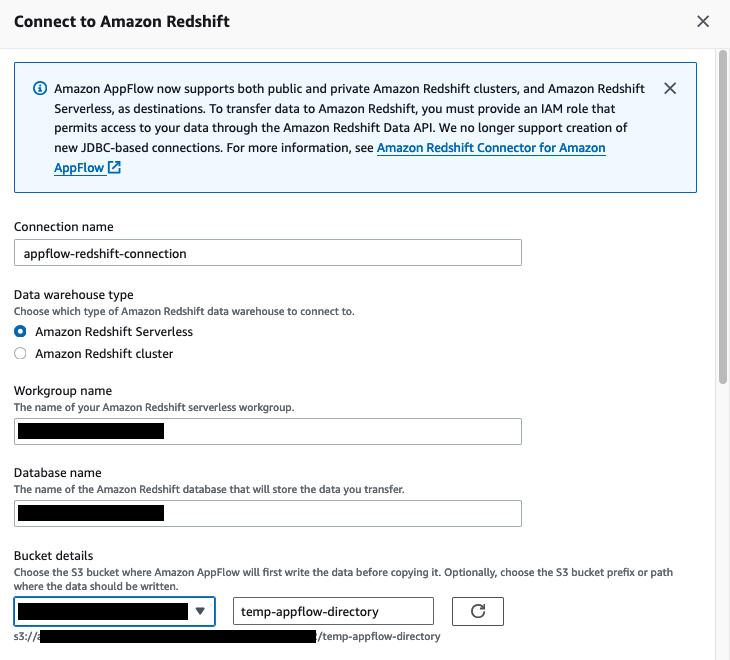
  1. On the Amazon AppFlow console, in the navigation pane, choose Connectors, select Amazon Redshift, and choose Create connection.

  1. Enter the connection name appflow-redshift-connection. You can either use Amazon Redshift provisioned or Amazon Redshift Serverless, but in this example we are using Amazon Redshift Serverless. Select Amazon Redshift Serverless and enter the workgroup name and database name.
  2. Choose the S3 bucket and enter the bucket prefix.

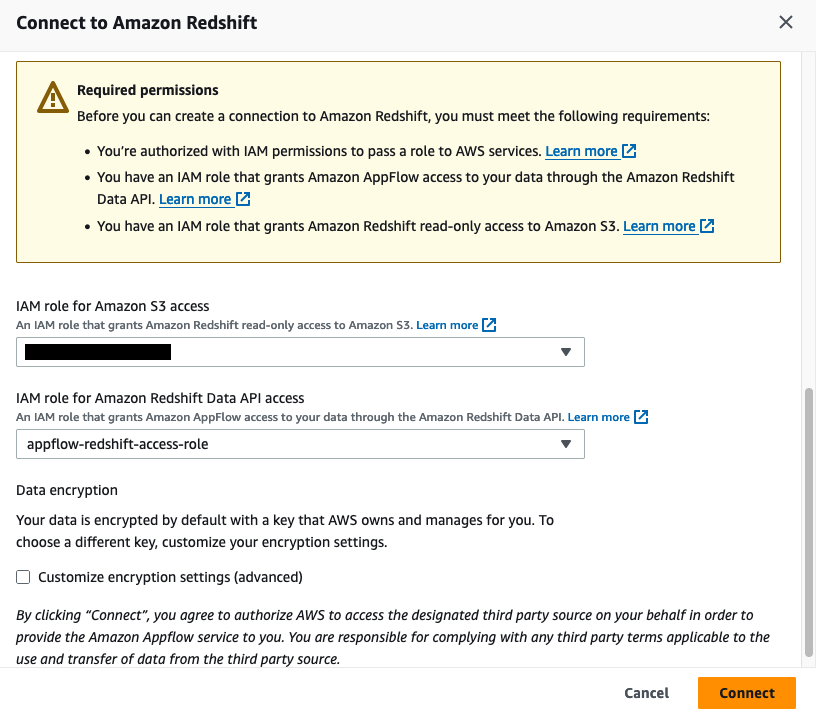
  1. For Amazon S3 access, select the IAM role attached to the Redshift cluster or namespace during the creation of the Redshift cluster. Additionally, for the Amazon Redshift Data API, choose the IAM role appflow-redshift-access-role created in the previous section and then choose

Set up a table and permission in Amazon Redshift

To set up table and permission in Amazon Redshift, follow these steps:

  1. On the Amazon Redshift console, choose Query editor v2 in Explorer.
  2. Connect to your existing Redshift cluster or Amazon Redshift Serverless workgroup.
  3. Create a table with the following Data Definition Language (DDL).
create table public.stg_ga4_daily_summary

(

event_date date,

region varchar(255),

country varchar(255),

city varchar(255),

deviceCategory varchar(255),

deviceModel varchar(255),

browser varchar(255),

active_users INTEGER,

new_users integer,

total_revenue  NUMERIC(18,2)

);

The following screenshot shows the successful creation of this table in Amazon Redshift:

The following step is only applicable to Amazon Redshift Serverless. If you are using a Redshift provisioned cluster, you can skip this step.

  1. Grant the permissions on the table to the IAM user used by Amazon AppFlow to load data into Amazon Redshift Serverless, for example, appflow-redshift-access-role.
GRANT INSERT ON TABLE public.stg_ga4_daily_summary TO "IAMR:appflow-redshift-access-role";

Create data flow in Amazon AppFlow

To create a data flow in Amazon AppFlow, follow these steps:

  1. On the Amazon AppFlow console, choose Flows and select Amazon Redshift. Choose Create flow and enter the flow name and the flow description, as shown in the following screenshot.

  1. In Source name, choose Google Analytics 4. Choose the Google Analytics 4 connection.
  2. Select the Google Analytics 4 object, then choose Amazon Redshift as the destination, selecting the public schema and stg_ga4_daily_summary table in your Redshift instance.

  1. For Flow trigger, choose Run on demand and choose Next, as shown in the following screenshot.

You can run the flow on schedule to pull either full or incremental data refresh. For more information, see Schedule-triggered flows.

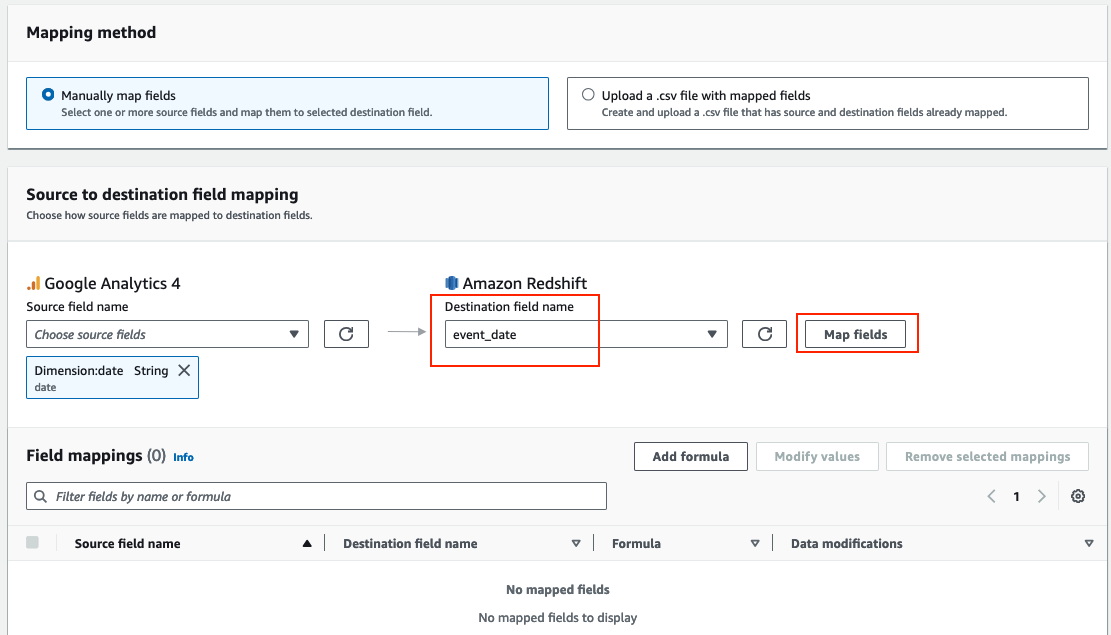
  1. Select Manually map fields. From the Source field name dropdown menu, select the attribute date, and from the Destination field name, select event_date and choose Map fields, as shown in the following screenshot.

  1. Repeat the previous step (step 5) for the following attributes and then choose Next. The following screenshot shows the mapping.
Dimension:browser --> browser
Dimension:region --> region
Dimension:country --> country
Dimension:city --> city
Dimension:deviceCategory --> devicecategory
Dimension:deviceModel --> devicemodel
Metric:activeUsers --> active_users
Metric:newUsers --> new_users
Metric: totalRevenue --> total_revenue
Dimension:date --> event_date

The Google Analytics API provides various dimensions and metrics for reporting purposes. Refer to API Dimensions & Metrics for details.

  1. In Field name, enter the filter start_end_date and choose Next, as shown in the following screenshot. The Amazon AppFlow date filter supports both a start date (criteria1) and an end date (criteria2) to define the desired date range for data transfer. We are using the date range because we have sample data created for this range.

  1. Review the configurations and choose Create flow.
  2. Choose Run flow, as shown in the following screenshot, and wait for the flow execution to be completed.

  1. On the Amazon Redshift console, choose Query editor v2 in Explorer.
  2. Connect to your existing Redshift cluster or Amazon Redshift Serverless workgroup.
  3. Enter the following SQL to verify the data in Amazon Redshift.
select * from public.stg_ga4_daily_summary

The screenshot below shows the results loaded into the stg_ga4_daily_summary table.

Data ingestion from Google Sheets to Amazon Redshift

Ingesting data from Google Sheets to Amazon Redshift using Amazon AppFlow streamlines analytics, enabling seamless transfer and deeper insights. In this section, we demonstrate how business users can maintain their business glossary in Google Sheets and integrate that using Amazon AppFlow with Amazon Redshift and get meaningful insights.

For this demo, you can upload the Nation Market segment file to your Google sheet before proceeding to the next steps. These steps show how to configure Amazon AppFlow to set up a connection between Google Sheets and Amazon Redshift for data migration. This procedure can be classified into the following steps:

  1. Create Google Sheets connection in Amazon AppFlow
  2. Set up table and permission in Amazon Redshift
  3. Create data flow in Amazon AppFlow

Create Google Sheets connection in Amazon AppFlow

To create a Google Sheets connection in Amazon AppFlow, follow these steps:

  1. On the Amazon AppFlow console, choose Connectors, select Google Sheets, then choose Create connection.
  2. In the Connect to Google Sheets window, enter the following information. For Client ID, enter the client ID of the OAuth 2.0 client ID in your Google Sheets project. For Client secret, enter the client secret of the OAuth 2.0 client ID in your Google Sheets project.
  3. For Connection name, enter a name for your connection.
  4. (Optional) Under Data encryption, choose Customize encryption settings (advanced) if you want to encrypt your data with a customer managed key in AWS KMS. By default, Amazon AppFlow encrypts your data with an AWS KMS key that AWS creates, uses, and manages for you. Choose this option if you want to encrypt your data with your own AWS KMS key instead.
  5. Choose Connect.
  6. In the window that appears, sign in to your Google account and grant access to Amazon AppFlow.

Set up table and permission in Amazon Redshift

To set up a table and permission in Amazon Redshift, follow these steps:

  1. On the Amazon Redshift console, choose Query editor v2 in Explorer
  2. Connect to your existing Redshift cluster or Amazon Redshift Serverless workgroup
  3. Create a table with the following DDL
create table public.stg_nation_market_segment(
n_nationkey int4 not null,
n_name char(25) not null ,
n_regionkey int4 not null,
n_comment varchar(152) not null,
n_marketsegment varchar(255),
Primary Key(N_NATIONKEY)
) distkey(n_nationkey) sortkey(n_nationkey);

he following steps are only applicable to Amazon Redshift Serverless. If you are using a Redshift provisioned cluster, you can skip this step.

  1. Grant the permissions on the table to the IAM user used by Amazon AppFlow to load data into Amazon Redshift Serverless, for example, appflow-redshift-access-role
GRANT INSERT ON TABLE public.stg_nation_market_segment TO "IAMR:appflow-redshift-access-role";

Create data flow in Amazon AppFlow

  1. On the Amazon AppFlow console, choose Flows and select Google Sheets. Choose Create flow, enter the flow name and flow description, and choose Next.
  2. Select Google Sheets in Source name and choose the Google Sheets connection.
  3. Select the Google Sheets object nation_market_segment#Sheet1.
  4. Choose the Destination name as Amazon Redshift, then select stg_nation_market_segment as your Amazon Redshift object, as shown in the following screenshot.

  1. For Flow trigger, select On demand and choose Next.

You can run the flow on schedule to pull full or incremental data refresh. Read more at Schedule-triggered flows.

  1. Select Manually map fields. From the Source field name dropdown menu, select Map all fields directly. When a dialog box pops up, choose the respective attribute values and choose Map fields, as shown in the following screenshot. Choose Next.

The following screenshot shows the mapping.

  1. On the Add Filters page, choose Next.
  2. On the Review and create page, choose Create flow.
  3. Choose Run flow and wait for the flow execution to finish.

The screenshot below shows the execution details of the flow job.

  1. On the Amazon Redshift console, choose Query editor v2 in Explorer.
  2. Connect to your existing Redshift cluster or Amazon Redshift Serverless workgroup.
  3. Run the following SQL to verify the data in Amazon Redshift.
select * from public.stg_nation_market_segment

The screenshot below shows the results loaded into the stg_nation_market_segment table.

  1. Run the following SQL to prepare a sample dataset in Amazon Redshift.
create table public.customer (
c_custkey int8 not null ,
c_name varchar(25) not null,
c_address varchar(40) not null,
c_nationkey int4 not null,
c_phone char(15) not null,
c_acctbal numeric(12,2) not null,
c_mktsegment char(10) not null,
c_comment varchar(117) not null,
Primary Key(C_CUSTKEY)
) distkey(c_custkey) sortkey(c_custkey);

create table public.lineitem (
l_orderkey int8 not null ,
l_partkey int8 not null,
l_suppkey int4 not null,
l_linenumber int4 not null,
l_quantity numeric(12,2) not null,
l_extendedprice numeric(12,2) not null,
l_discount numeric(12,2) not null,
l_tax numeric(12,2) not null,
l_returnflag char(1) not null,
l_linestatus char(1) not null,
l_shipdate date not null ,
l_commitdate date not null,
l_receiptdate date not null,
l_shipinstruct char(25) not null,
l_shipmode char(10) not null,
l_comment varchar(44) not null,
Primary Key(L_ORDERKEY, L_LINENUMBER)
) distkey(l_orderkey) sortkey(l_shipdate,l_orderkey)  ;

create table public.orders (
o_orderkey int8 not null,
o_custkey int8 not null,
o_orderstatus char(1) not null,
o_totalprice numeric(12,2) not null,
o_orderdate date not null,
o_orderpriority char(15) not null,
o_clerk char(15) not null,
o_shippriority int4 not null,
o_comment varchar(79) not null,
Primary Key(O_ORDERKEY)
) distkey(o_orderkey) sortkey(o_orderdate, o_orderkey) ;
copy lineitem from 's3://redshift-downloads/TPC-H/2.18/10GB/lineitem.tbl' iam_role default delimiter '|' region 'us-east-1';
copy orders from 's3://redshift-downloads/TPC-H/2.18/10GB/orders.tbl' iam_role default delimiter '|' region 'us-east-1';
copy customer from 's3://redshift-downloads/TPC-H/2.18/10GB/customer.tbl' iam_role default delimiter '|' region 'us-east-1';
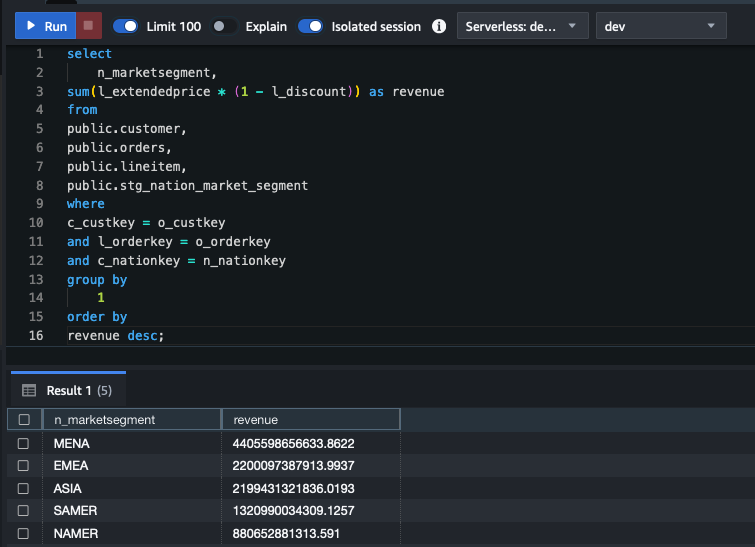
  1. Run the following SQL to do the data analytics using Google Sheets business data classification in the Amazon Redshift dataset.
select
n_marketsegment,
sum(l_extendedprice * (1 - l_discount)) as revenue
from
public.customer,
public.orders,
public.lineitem,
public.stg_nation_market_segment
where
c_custkey = o_custkey
and l_orderkey = o_orderkey
and c_nationkey = n_nationkey
group by
1
order by
revenue desc;

The screenshot below shows the results from the aggregated query in Amazon Redshift from data loaded using Amazon Appflow.

Clean up

To avoid incurring charges, clean up the resources in your AWS account by completing the following steps:

  1. On the Amazon AppFlow console, in the navigation pane, choose Flows.
  2. From the list of flows, select the flow name created and delete it.
  3. Enter “delete” to delete the flow.
  4. Delete the Amazon Redshift workgroup.
  5. Clean up resources in your Google account by deleting the project that contains the Google BigQuery resources. Follow the documentation to clean up the Google resources.

Conclusion

In this post, we walked you through the process of using Amazon AppFlow to integrate data from Google Ads and Google Sheets. We demonstrated how the complexities of data integration are minimized so you can focus on deriving actionable insights from your data. Whether you’re archiving historical data, performing complex analytics, or preparing data for machine learning, this connector streamlines the process, making it accessible to a broader range of data professionals.

For more information, refer to Amazon AppFlow support for Google Sheets and Google Ads.


About the authors

Ritesh Kumar Sinha is an Analytics Specialist Solutions Architect based out of San Francisco. He has helped customers build scalable data warehousing and big data solutions for over 16 years. He loves to design and build efficient end-to-end solutions on AWS. In his spare time, he loves reading, walking, and doing yoga.

Tahir Aziz is an Analytics Solution Architect at AWS. He has worked with building data warehouses and big data solutions for over 13 years. He loves to help customers design end-to-end analytics solutions on AWS. Outside of work, he enjoys traveling and cooking.

Raza Hafeez is a Senior Product Manager at Amazon Redshift. He has over 13 years of professional experience building and optimizing enterprise data warehouses and is passionate about enabling customers to realize the power of their data. He specializes in migrating enterprise data warehouses to AWS Modern Data Architecture.

Amit Ghodke is an Analytics Specialist Solutions Architect based out of Austin. He has worked with databases, data warehouses and analytical applications for the past 16 years. He loves to help customers implement analytical solutions at scale to derive maximum business value.

How to enhance Amazon Macie data discovery capabilities using Amazon Textract

Post Syndicated from ZhiWei Huang original https://aws.amazon.com/blogs/security/how-to-enhance-amazon-macie-data-discovery-capabilities-using-amazon-textract/

Amazon Macie is a managed service that uses machine learning (ML) and deterministic pattern matching to help discover sensitive data that’s stored in Amazon Simple Storage Service (Amazon S3) buckets. Macie can detect sensitive data in many different formats, including commonly used compression and archive formats. However, Macie doesn’t support the discovery of sensitive data within images, audio, video, or other types of multimedia content. Customers often ask how to effectively detect whether there’s sensitive data in images. This can be a significant challenge for organizations, especially those operating in highly regulated industries with strict data protection requirements.

In this post, we show you how to gain visibility of sensitive data embedded in images that are stored within your S3 buckets by adding an additional conversion layer to extract image-based data into a format supported by Macie. The solution also uses the recommended set of managed identifiers and custom data identifiers supported by Macie to cover most use cases.

Solution overview

In this section, we walk through the components of the solution. The solution is deployed using AWS Serverless Application Model (AWS SAM), which is an open source framework for building serverless applications. AWS SAM helps to organize related components and operate on a single stack. When used together with the AWS SAM CLI, it’s a useful tool for developing, testing, and building serverless applications on AWS. We provided an AWS SAM template that you can use to set up the required services and AWS Lambda functions. Figure 1 illustrates the architecture of the solution.

Figure 1: Solution architecture and workflow

Figure 1: Solution architecture and workflow

The solution workflow is as follows:

  1. A user uploads images that might contain sensitive data into the S3 bucket.
  2. After you have verified that potentially sensitive data has been uploaded into the S3 bucket, you can manually invoke the Lambda function textract-trigger to start the process. This function calls Amazon Textract asynchronously to process files in the S3 bucket with filename extensions such as .png, .jpg, and .jpeg. Amazon Textract creates a job for each image and extracts the text found in each image.
  3. Because the operation is asynchronous, the job ID and status of each call is stored in an Amazon DynamoDB table to track the status of jobs and make sure that all of the jobs are completed before Macie is triggered to scan the S3 bucket.
  4. The resulting JSON file from the Amazon Textract job is stored within the same S3 bucket as the original image.
  5. For each analysis job, Amazon Textract sends a job completion notification to the registered Amazon Simple Notification Service (Amazon SNS) topic AmazonTextractJobSNSTopic. The Lambda function macie-trigger is subscribed to the SNS topic and triggered every time an SNS message is received for a completed Amazon Textract analysis job.
  6. Further post-processing is done by the Lambda function macie-trigger to extract the values from the JSON file into a text file. This text file is then uploaded into the same S3 bucket.
  7. The function then checks for other in-progress Amazon Textract jobs in the DynamoDB table. If there are pending jobs, the function exits and waits to be triggered again.
  8. After all of the Amazon Textract jobs are marked as complete in the DynamoDB table, the Lambda function macie-trigger creates a Macie classification job.
  9. Macie then scans the bucket for sensitive data based on managed identifiers and your custom data identifiers.
  10. Macie will continuously publish the classification job status to Amazon CloudWatch Logs.
  11. It might take some time to scan all the files in the S3 bucket, and you will be notified through SNS email when the Macie job is completed. The Lambda function MacieCompletedSNSLambda will filter for completed job status and send an email notification using the SNS topic MacieSnsTopic.

When deploying the solution, you can specify an existing S3 bucket in your AWS account that’s already storing data that might be sensitive or deploy a new S3 bucket as part of the setup. If you specify an existing S3 bucket, make sure that there are no additional statements in the bucket policy or KMS key policy that will deny the relevant solution components access to the S3 bucket. If no existing S3 bucket is specified, a new S3 bucket will be created with the name s3-with-sensitive-data-<account-id>-<random-string>.

Prerequisites

Before deploying the solution, make sure the following prerequisites are in place.

  • Enable Macie in your account. For instructions, see Getting Started with Amazon Macie.
  • Determine the regular expression (regex) pattern for sensitive textual data that you want Macie to detect. This will allow you to create custom data identifiers that complement the managed data identifiers provided by Macie. For more information, see Building custom data identifiers in Amazon Macie. There’s an example in the pre-deployment steps that you can follow, with the sample images that come with the solution.
  • Make sure that you have the permissions to deploy the AWS services detailed in the solution: Lambda, Amazon S3, Amazon Textract, Amazon SNS, Macie, Amazon CloudWatch, and DynamoDB.
  • Install the AWS SAM CLI, which you will use to deploy the solution. To learn more about how AWS SAM works, see The AWS SAM project and AWS SAM template.

Pre-deployment steps

With the prerequisites in place, you need to set up one or more custom identifiers through the AWS Management Console for Macie before you can deploy the solution. Use the following steps to set up an example custom identifier for the images provided in this post.

To set up custom identifiers:

  1. Navigate to the Amazon Macie console.
  2. Choose Custom data identifiers in the navigation pane, and then choose Create.
  3. Enter a name and description for the custom identifier, such as the following examples:
    1. Name: Singapore NRIC Number
    2. Description: This expression can be used to find or validate a Singapore NRIC Number that begins with the character S, F, T, or G, followed by seven digits and ending with any character from A to Z.
  4. For Regular expression, enter: [SFTG]\d{7}[A-Z].
  5. For Keywords, enter: Singapore,Identity, Card.
    Keywords are important because they can help to improve the accuracy of the detection and refine the results.
  6. Leave the other fields as default and choose Submit.
  7. Navigate to the newly created custom identifier and note the ID. This ID is required as an input when deploying the AWS SAM solution.
    Figure 2: ID of a newly created Macie custom identifier

    Figure 2: ID of a newly created Macie custom identifier

Deploy the solution

With the prerequisites in place and pre-deployment steps complete, you’re ready to deploy the solution.

To deploy the solution:

  1. Open a CLI window, navigate to your preferred local directory and run git clone https://github.com/aws-samples/enhancing-macie-with-textract.
    1. Navigate to this directory by using cd enhancing-macie-with-textract.
    2. Run sam deploy --guided and follow the step-by-step instructions to indicate the deployment details such as the desired CloudFormation stack name, AWS Region, and other details. The following are descriptions of some of the requested parameters:
      • ExistingS3BucketName: This is the name of the S3 bucket that you want the solution to scan. This is an optional parameter. If it’s left blank, the solution will create an S3 bucket for you to store the objects that you want to scan.
      • MacieCustomCustomIdentifierIDList: This is the ID that you noted in the final pre-deployment step. Use this field to enter a list of custom identifiers for Macie to detect with. If there is more than one ID, each ID should be separated by a comma (for example, 59fd2814-0ba8-41cc-adb2-1ffec6a0bb3c, 665cf948-ea30-42df-9f63-9a858cbfe1a8).
      • EmailAddress: This is the email address that you want Amazon SNS email notifications to be sent to when a Macie job is complete.
      • MacieLogGroupExists: This checks if you have an existing Macie CloudWatch Log Group (/aws/macie/classificationjobs). If this is your first time running a Macie job, enter No or n. Otherwise, enter Yes or y.
  2. When completed, a confirmation request will be presented for the creation of the required resources. AWS SAM creates a default S3 bucket to store the necessary resources and then proceeds to the deployment prompt. Enter y to deploy and wait for deployment to complete.
  3. After deployment is complete, you should see the following output: Successfully created/updated stack – {StackName} in {AWSRegion}. You can review the resources and stack in the CloudFormation console.
    Figure 3: CloudFormation console of the deployed stack

    Figure 3: CloudFormation console of the deployed stack

  4. An email will be sent from [email protected] to the email address that you entered in step 3. Choose Confirm subscription to allow SNS to send you Macie job completion emails.
    Figure 4: Sample email from Amazon SNS for subscription confirmation

    Figure 4: Sample email from Amazon SNS for subscription confirmation

Test the solution

With the solution deployed, use a set of sample images to verify that it can detect sensitive data within images.

To test the solution:

  1. Use the Amazon S3 console to navigate to the bucket you specified during deployment. If you didn’t specify an S3 bucket to scan, look for a new bucket named s3-with-sensitive-data-<account-id>-<random-string>.
  2. In your project directory, there are sample images in sample-images.zip. Unzip the file and upload the sample images into the S3 bucket. The sample images include a US driver’s license, social security card, passport, and a Singapore National Registration Identity Card (NRIC).
  3. Navigate to the AWS Lambda console and select the {StackName}-TextractTriggerLambda-<random-string> function.
  4. Choose the Test tab and then choose Test to start the automated sensitive data discovery process for the uploaded images.
    Figure 5: Trigger an Amazon Textract scan on all images in the S3 bucket

    Figure 5: Trigger an Amazon Textract scan on all images in the S3 bucket

  5. The whole process will take about 15 minutes to complete. You will receive an email notification after the Macie scan is completed.
    Figure 6: Sample email from Amazon SNS for Macie job completion

    Figure 6: Sample email from Amazon SNS for Macie job completion

  6. Navigate to the Amazon Macie console and select Jobs in the navigation pane. You should see the job Scan for [number of] objects [datetime stamp] that matches the job name shown in the email notification.
  7. In the details panel, choose Show results button and then choose Show findings.
    Figure 7: Show Macie data discovery job findings

    Figure 7: Show Macie data discovery job findings

  8. You will see the findings related to the Macie sensitive data discovery job ID that you selected.
    Figure 8: Findings from the data discovery job

    Figure 8: Findings from the data discovery job

Understanding the findings

In this section, we take a closer look at each finding.

  1. In the console, look in the Resources affected column for the finding that ends with singapore-pink-nric-postprocessed.txt and select it. The finding type SensitiveData:S3Object/CustomIdentifier means that the resource contains text that matches the detection criteria of a custom data identifier. The other finding types in this example are from managed data identifiers. See Types of sensitive data findings for more information about Macie finding types.
  2. In the finding information panel, you can also see:
    1. In the Overview section, the resource indicates which resource contains sensitive data. The resource identifies the text file; however, you can identify the original image file because it has the same object name (other than the file type).
    2. In the Custom data identifiers section, you can see the type of sensitive data found. In this case, the finding involves data that matches the regex of a Singapore NRIC.

By using this solution, you can use Macie to detect sensitive data within the images in your S3 bucket and which images each finding corresponds to.

Using the solution

In this post, you have configured a single custom data identifier and a recommended set of managed identifiers. However, you can create and use multiple custom data identifiers in the solution by providing them as a comma-separated list, as mentioned in step 3 of Deploy the solution.

This solution has been designed to enable sensitive data discovery of text in image objects within a single S3 bucket. To expand the scope to include multiple S3 buckets, some additional code and permission changes are required to allow the Lambda functions to process and access multiple existing S3 buckets.

It’s important to note the language capabilities of Amazon Textract. Amazon Textract can extract printed text and handwriting from the standard English alphabet and ASCII symbols. Currently, Amazon Textract supports extraction in English, German, French, Italian, and Portuguese. For more information on what textual information Amazon Textract can identify, see Amazon Textract FAQs.

Clean up the resources

To clean up the resources that you created for this example:

  1. If you didn’t set up the scan on your own S3 bucket, empty the S3 bucket that was created as part of the solution. Open the Amazon S3 console, search for the bucket name s3-with-sensitive-data-<account-id>-<random-string> and choose Empty.
  2. Use one of the following methods to delete the CloudFormation stack:
    • Use the CloudFormation console to delete the stack.
    • Use AWS SAM CLI to run sam delete in your terminal. Follow the instructions and enter y when prompted to delete the stack.

Conclusion

In this post, you learned how to enhance the capabilities of Amazon Macie to conduct sensitive data discovery within image files. With this solution, you can extend the benefits of Amazon Macie beyond structured file formats.

If you want to extend the benefits of Amazon Macie to scan your databases for sensitive data, you might find these blog posts useful:

If you have feedback about this post, submit comments in the Comments section. If you have questions about this post, start a new thread on the AWS Security, Identity, & Compliance re:Post or contact AWS Support.

ZhiWei Huang

ZhiWei Huang

ZhiWei is a Financial Services Solutions Architect at AWS. He works with FSI customers across the ASEAN region, providing guidance for establishing robust security controls and networking foundations as customers build on and scale with AWS. Outside of work, he finds joy in travelling the world and spending quality time with his family.

Edmund Yeo

Edmund Yeo

Edmund is a Security Solutions Architect based in Singapore. He works with customers across ASEAN region, helping them to continually raise the security bar and posture for them to innovate rapidly and securely. Outside of work, Edmund enjoys having a cup of coffee, seeing the world, and bouldering.

Ying Ting Ng

Ying Ting Ng

Ying Ting is an Associate Security Solutions Architect at AWS, where she supports ASEAN growth customers in scaling securely on the cloud. She also advises on architectural best practices to help customers meet industry compliance standards. An active member in Amazon Women in Security, Ying Ting shares insights on making an impact as an early-career cybersecurity professional.

Out With the Old, In With the New: Securely Disposing of Smart Devices

Post Syndicated from Deral Heiland original https://blog.rapid7.com/2025/01/06/out-with-the-old-in-with-the-new-securely-disposing-of-smart-devices/

Out With the Old, In With the New: Securely Disposing of Smart Devices

So, what did you get for Christmas this year?

Hopefully you received some cool smart technology, or maybe you just upgraded your smart camera or voice assistant to a newer model or version. If you upgraded to a new model or version, what is your plan for the old device? Is it still working or is it broken?

Either way, you will need to figure out what to do with it: Donate it, sell it online, or maybe dispose of it as electronic waste. Before you make up your mind, let’s think through a few things.

Have you done a factory reset?

The key reason you want to do a factory reset is to make sure the device is no longer customized according to your environment and that personal information such as WiFi passwords, email addresses, username and account passwords, and your name and home address are properly removed from the device prior to it leaving your hands.

Factory resets are accomplished in different ways, depending upon the device. For example, some devices have a button you press and hold, while others may use a mobile or web application to trigger the reset. I have also seen devices where you just cycle the power multiple times in sequence to reset the devices. Regardless of what the manufacturer’s recommended process is, it is very important that you follow it.

But what if the device appears to be broken? Well, if your old device truly is 100% dead, then there’s not much you can do about that. But the truth is, an IoT device may not be completely functioning yet it may still allow a factory reset to be done. For example, if the device appears to power up but doesn’t communicate correctly, you can try pushing and holding the reset button and see if the device resets (often indicated by the lights).

Now, let’s say the device has a web application online or a mobile application and it shows the device is online — such as a smart light bulb or an Amazon Echo — but you cannot get it to work correctly. For example, the LED lights on a smart bulb don’t light up or the Echo doesn’t respond to your voice. If the application is still showing the device is online, then chances are the network communication is still working, and the application may allow you to remote reset the device.

Again, if you can find a way to accomplish a factory reset, then you should do it.

What could go wrong?

What could happen if you don’t properly reset a device and then dispose of it by selling it or giving it to someone else, who may in turn sell the device?

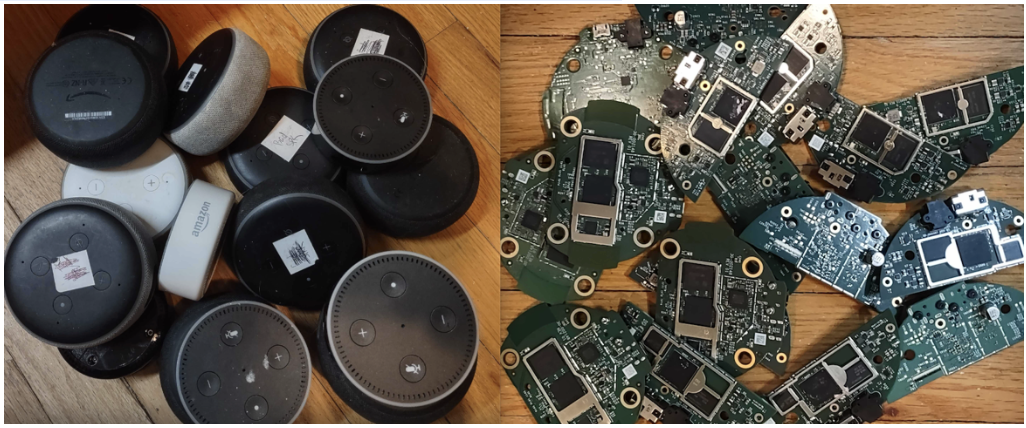
Out of curiosity and an attempt to answer this question, I purchased a box full of previously owned Amazon Echos online. Many of them were supposed to be broken, with most of them marked “dead speakers.” With that said, I had an important question to answer. Did the owner use the Amazon Alexa online application to factory reset and remove the Echo device before selling or giving the device to the person who sold it to me? I proceeded to disassemble 10 of these devices and dumped their memory so that I could evaluate the results to see if any of them were still provisioned and contained any user data.

Out With the Old, In With the New: Securely Disposing of Smart Devices

Out of the 10 devices I examined, 4 were found to still be provisioned. As a small example of the potential data accessible on these 4 devices, I conducted further examination and found these devices still containing the WiFi SSID and Pre-shared Key (PSK) for the user’s home networks. Having the PSK in hand can give a malicious actor access to the user’s home network.

To make matters worse, in one of the 4 provisioned devices, the user used his last name for the SSID and his home phone number for PSK. Using personally identifiable information in an SSID, such as a name and/or phone number, greatly increases the ease in tracing a device back to a specific person and physical location. In other words, I highly recommend you not do this.

In the case of the Amazon Echo specifically, critical data such as personal Amazon authentication account information is currently stored in encrypted storage on the devices; therefore, it would take more work for someone to gain access to that, but I would not say it is impossible. Also, it’s important to note that although Echo devices may be encrypting the user account information they store, not all smart products on the market follow those recommendations. So — once again — to reduce the risk of your data being compromised, it is important that you factory reset your devices prior to disposal.

The proliferation of consumer-grade IoT devices in business.

It’s important to point out that the issue I’ve been discussing here doesn’t just apply to general consumers but also to businesses. Often, we assume that consumer-grade IoT technologies are only used by home users when in fact businesses of all sizes can and do leverage consumer-based IoT technology in the workplace environment.

It’s common to see WiFi access points, smart TVs, smart cameras, TV streaming boxes, smart exercise equipment, consumer-grade printers, and yes, even smart voice assistants, being used within a number of organizations. For example, every year I build out exercises for DEF CON IoT Village to help expose people to, and train them on, various aspects of hardware hacking. I purchase devices on the secondary market for this training and every year at least 40-50% of the devices I’ve purchased have not been factory reset. On more than one occasion, I have even purchased blocks of devices from a single reseller to find that those devices were not factory reset and were still configured with data from an operational business.

Start the year off securely.

To summarize, here are the key takeaways from my experiment and the bigger conversation around disposing of old smart devices:

  1. Business IT and security leaders should have clear, cradle-to-grave processes governing the IoT technologies purchased, so that the organization is not exposed to unnecessary risk. Cradle to grave covers initial installation and provisioning, ongoing maintenance, and, in the end, safe and secure disposal of the technology.
  2. Consumers should make sure to do a proper factory reset prior to the disposal or resale of any smart devices. Keep in mind that even if the device appears to be broken, a factory reset is still often possible — see my guidance earlier in this blog.
  3. If you cannot factory reset your device and you’re concerned about the data on the device, you can always change your SSID, PSK, and account password.

Finally, always remember to never dispose of your IoT technology in the trash, as landfills are not the proper place to send them. Instead, these devices should be sent to an electronic waste disposal option in your local area.

If you are looking for a deeper dive check out this research paper on Amazon echo dot devices from Northeastern University. Happy New Year!

Kernel prepatch 6.13-rc6

Post Syndicated from corbet original https://lwn.net/Articles/1004230/

Linus has released 6.13-rc6 for testing.

So we had a slight pickup in commits this last week, but as
expected and hoped for, things were still pretty quiet. About twice
as many commits as the holiday week, but that’s still not all that
many.

I expect things will start becoming more normal now that people are
back from the holidays and are starting to recover and wake up from
their food comas.

The collective thoughts of the interwebz