Tag Archives: Amazon API Gateway

Building a serverless document scanner using Amazon Textract and AWS Amplify

Post Syndicated from Moheeb Zara original https://aws.amazon.com/blogs/compute/building-a-serverless-document-scanner-using-amazon-textract-and-aws-amplify/

This guide demonstrates creating and deploying a production ready document scanning application. It allows users to manage projects, upload images, and generate a PDF from detected text. The sample can be used as a template for building expense tracking applications, handling forms and legal documents, or for digitizing books and notes.

The frontend application is written in Vue.js and uses the Amplify Framework. The backend is built using AWS serverless technologies and consists of an Amazon API Gateway REST API that invokes AWS Lambda functions. Amazon Textract is used to analyze text from uploaded images to an Amazon S3 bucket. Detected text is stored in Amazon DynamoDB.

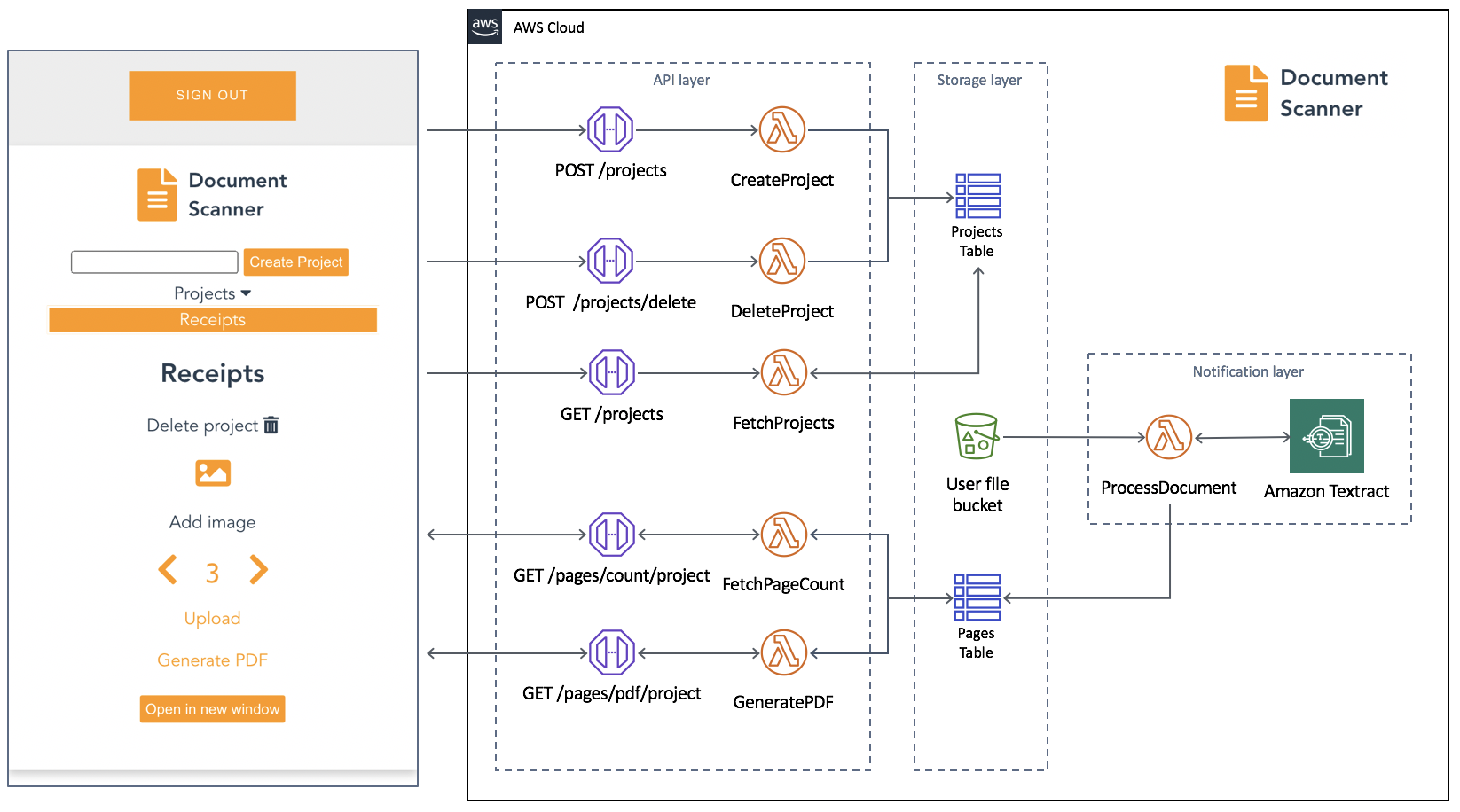
An architectural diagram of the application.

An architectural diagram of the application.

Prerequisites

You need the following to complete the project:

Deploy the application

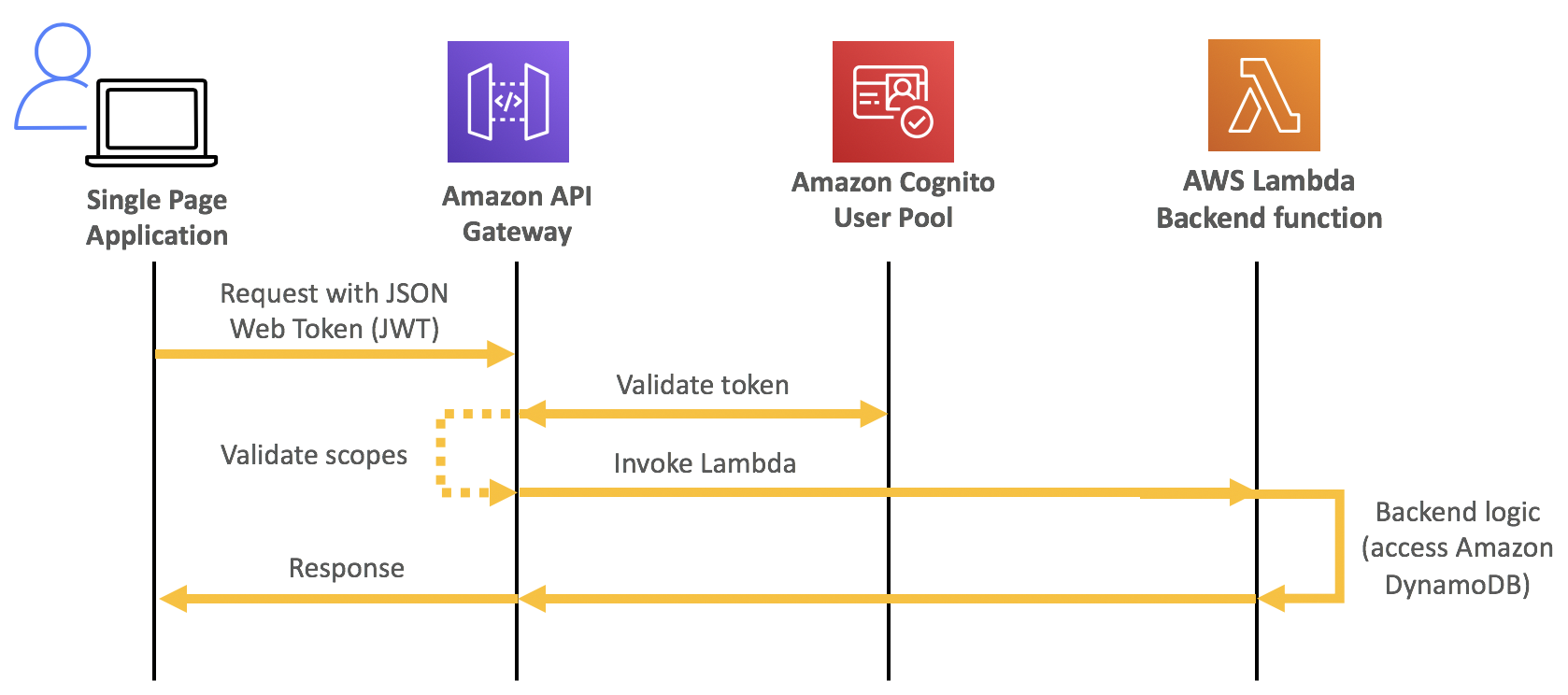
The solution consists of two parts, the frontend application and the serverless backend. The Amplify CLI deploys all the Amazon Cognito authentication, and hosting resources for the frontend. The backend requires the Amazon Cognito user pool identifier to configure an authorizer on the API. This enables an authorization workflow, as shown in the following image.

A diagram showing how an Amazon Cognito authorization workflow works

A diagram showing how an Amazon Cognito authorization workflow works

First, configure the frontend. Complete the following steps using a terminal running on a computer or by using the AWS Cloud9 IDE. If using AWS Cloud9, create an instance using the default options.

From the terminal:

  1. Install the Amplify CLI by running this command.
    npm install -g @aws-amplify/cli
  2. Configure the Amplify CLI using this command. Follow the guided process to completion.
    amplify configure
  3. Clone the project from GitHub.
    git clone https://github.com/aws-samples/aws-serverless-document-scanner.git
  4. Navigate to the amplify-frontend directory and initialize the project using the Amplify CLI command. Follow the guided process to completion.
    cd aws-serverless-document-scanner/amplify-frontend
    
    amplify init
  5. Deploy all the frontend resources to the AWS Cloud using the Amplify CLI command.
    amplify push
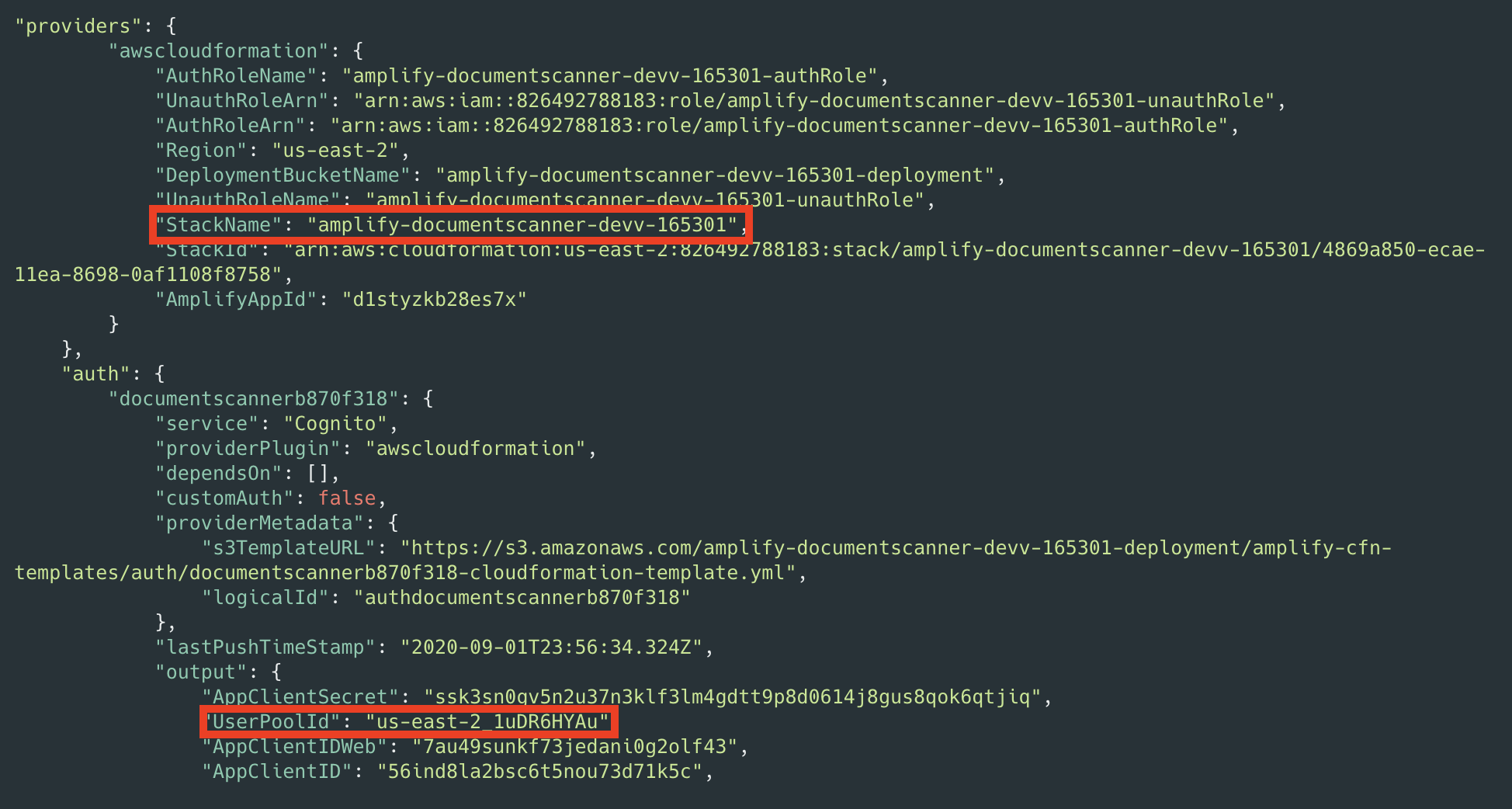
  6. After the resources have finishing deploying, make note of the StackName and UserPoolId properties in the amplify-frontend/amplify/backend/amplify-meta.json file. These are required when deploying the serverless backend.

Next, deploy the serverless backend. While it can be deployed using the AWS SAM CLI, you can also deploy from the AWS Management Console:

  1. Navigate to the document-scanner application in the AWS Serverless Application Repository.
  2. In Application settings, name the application and provide the StackName and UserPoolId from the frontend application for the UserPoolID and AmplifyStackName parameters. Provide a unique name for the BucketName parameter.
  3. Choose Deploy.

  4. Once complete, copy the API endpoint so that it can be configured on the frontend application in the next section.

Configure and run the frontend application

  1. Create a file, amplify-frontend/src/api-config.js, in the frontend application with the following content. Include the API endpoint and the unique BucketName from the previous step. The s3_region value must be the same as the Region where your serverless backend is deployed.
    const apiConfig = {
    	"endpoint": "<API ENDPOINT>",
    	"s3_bucket_name": "<BucketName>",
    	"s3_region": "<Bucket Region>"
    };
    
    export default apiConfig;
  2. In a terminal, navigate to the root directory of the frontend application and run it locally for testing.
    cd aws-serverless-document-scanner/amplify-frontend
    
    npm install
    
    npm run serve

    You should see an output like this:

  3. To publish the frontend application to cloud hosting, run the following command.
    amplify publish

    Once complete, a URL to the hosted application is provided.

Using the frontend application

Once the application is running locally or hosted in the cloud, navigating to it presents a user login interface with an option to register. The registration flow requires a code sent to the provided email for verification. Once verified you’re presented with the main application interface.

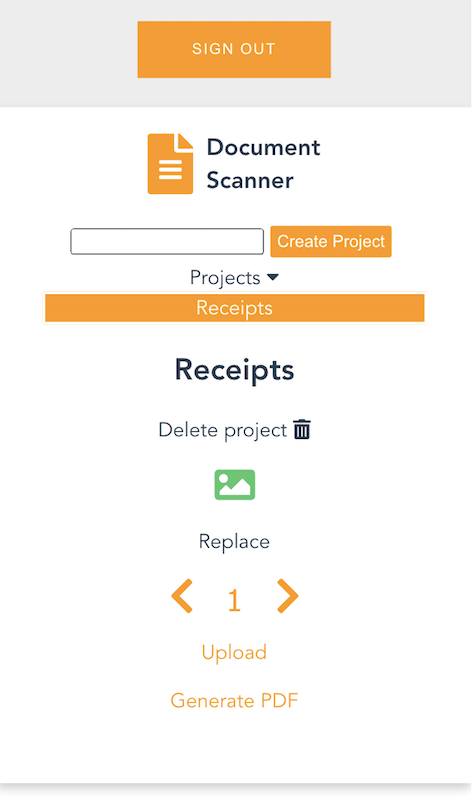
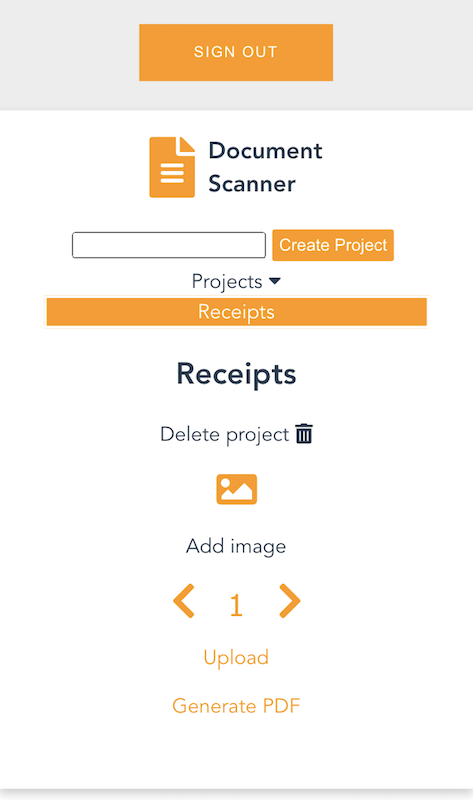
Once you create a project and choose it from the list, you are presented with an interface for uploading images by page number.

On mobile, it uses the device camera to capture images. On desktop, images are provided by the file system. You can replace an image and the page selector also lets you go back and change an image. The corresponding analyzed text is updated in DynamoDB as well.

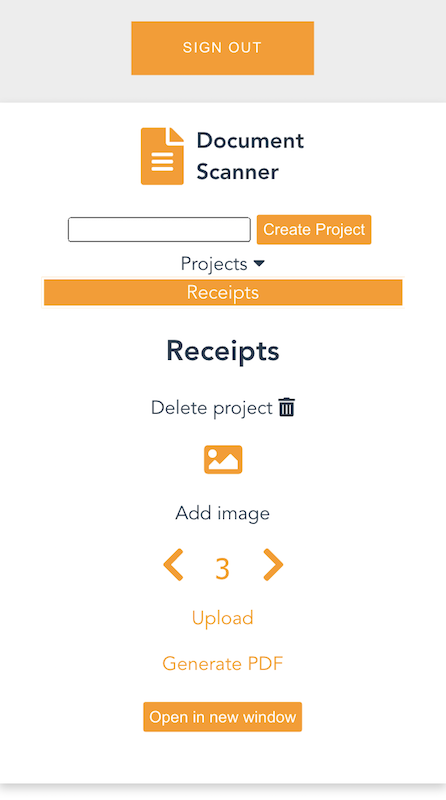
Each time you upload an image, the page is incremented. Choosing “Generate PDF” calls the endpoint for the GeneratePDF Lambda function and returns a PDF in base64 format. The download begins automatically.

You can also open the PDF in another window, if viewing a preview in a desktop browser.

Understanding the serverless backend

An architecture diagram of the serverless backend.

An architecture diagram of the serverless backend.

In the GitHub project, the folder serverless-backend/ contains the AWS SAM template file and the Lambda functions. It creates an API Gateway endpoint, six Lambda functions, an S3 bucket, and two DynamoDB tables. The template also defines an Amazon Cognito authorizer for the API using the UserPoolID passed in as a parameter:

Parameters:
  UserPoolID:
    Type: String
    Description: (Required) The user pool ID created by the Amplify frontend.

  AmplifyStackName:
    Type: String
    Description: (Required) The stack name of the Amplify backend deployment. 

  BucketName:
    Type: String
    Default: "ds-userfilebucket"
    Description: (Required) A unique name for the user file bucket. Must be all lowercase.  


Globals:
  Api:
    Cors:
      AllowMethods: "'*'"
      AllowHeaders: "'*'"
      AllowOrigin: "'*'"

Resources:

  DocumentScannerAPI:
    Type: AWS::Serverless::Api
    Properties:
      StageName: Prod
      Auth:
        DefaultAuthorizer: CognitoAuthorizer
        Authorizers:
          CognitoAuthorizer:
            UserPoolArn: !Sub 'arn:aws:cognito-idp:${AWS::Region}:${AWS::AccountId}:userpool/${UserPoolID}'
            Identity:
              Header: Authorization
        AddDefaultAuthorizerToCorsPreflight: False

This only allows authenticated users of the frontend application to make requests with a JWT token containing their user name and email. The backend uses that information to fetch and store data in DynamoDB that corresponds to the user making the request.

Two DynamoDB tables are created. A Project table, which tracks all the project names by user, and a Pages table, which tracks pages by project and user. The DynamoDB tables are created by the AWS SAM template with the partition key and range key defined for each table. These are used by the Lambda functions to query and sort items. See the documentation to learn more about DynamoDB table key schema.

ProjectsTable:
    Type: AWS::DynamoDB::Table
    Properties: 
      AttributeDefinitions: 
        - 
          AttributeName: "username"
          AttributeType: "S"
        - 
          AttributeName: "project_name"
          AttributeType: "S"
      KeySchema: 
        - AttributeName: username
          KeyType: HASH
        - AttributeName: project_name
          KeyType: RANGE
      ProvisionedThroughput: 
        ReadCapacityUnits: "5"
        WriteCapacityUnits: "5"

  PagesTable:
    Type: AWS::DynamoDB::Table
    Properties: 
      AttributeDefinitions: 
        - 
          AttributeName: "project"
          AttributeType: "S"
        - 
          AttributeName: "page"
          AttributeType: "N"
      KeySchema: 
        - AttributeName: project
          KeyType: HASH
        - AttributeName: page
          KeyType: RANGE
      ProvisionedThroughput: 
        ReadCapacityUnits: "5"
        WriteCapacityUnits: "5"

When an API Gateway endpoint is called, it passes the user credentials in the request context to a Lambda function. This is used by the CreateProject Lambda function, which also receives a project name in the request body, to create an item in the Project Table and associate it with a user.

The endpoint for the FetchProjects Lambda function is called to retrieve the list of projects associated with a user. The DeleteProject Lambda function removes a specific project from the Project table and any associated pages in the Pages table. It also deletes the folder in the S3 bucket containing all images for the project.

When a user enters a Project, the API endpoint calls the FetchPageCount Lambda function. This returns the number of pages for a project to update the current page number in the upload selector. The project is retrieved from the path parameters, as defined in the AWS SAM template:

FetchPageCount:
    Type: AWS::Serverless::Function
    Properties:
      Handler: app.handler
      Runtime: python3.8
      CodeUri: lambda_functions/fetchPageCount/
      Policies:
        - DynamoDBCrudPolicy:
            TableName: !Ref PagesTable
      Environment:
        Variables:
          PAGES_TABLE_NAME: !Ref PagesTable
      Events:
        GetResource:
          Type: Api
          Properties:
            RestApiId: !Ref DocumentScannerAPI
            Path: /pages/count/{project+}
            Method: get  

The template creates an S3 bucket and two AWS IAM managed policies. The policies are applied to the AuthRole and UnauthRole created by Amplify. This allows users to upload images directly to the S3 bucket. To understand how Amplify works with Storage, see the documentation.

The template also sets an S3 event notification on the bucket for all object create events with a “.png” suffix. Whenever the frontend uploads an image to S3, the object create event invokes the ProcessDocument Lambda function.

The function parses the object key to get the project name, user, and page number. Amazon Textract then analyzes the text of the image. The object returned by Amazon Textract contains the detected text and detailed information, such as the positioning of text in the image. Only the raw lines of text are stored in the Pages table.

import os
import json, decimal
import boto3
import urllib.parse
from boto3.dynamodb.conditions import Key, Attr

client = boto3.resource('dynamodb')
textract = boto3.client('textract')

tableName = os.environ.get('PAGES_TABLE_NAME')

def handler(event, context):

  table = client.Table(tableName)

  print(table.table_status)
 
  key = urllib.parse.unquote(event['Records'][0]['s3']['object']['key'])
  bucket = event['Records'][0]['s3']['bucket']['name']
  project = key.split('/')[3]
  page = key.split('/')[4].split('.')[0]
  user = key.split('/')[2]
  
  response = textract.detect_document_text(
    Document={
        'S3Object': {
            'Bucket': bucket,
            'Name': key
        }
    })
    
  fullText = ""
  
  for item in response["Blocks"]:
    if item["BlockType"] == "LINE":
        fullText = fullText + item["Text"] + '\n'
  
  print(fullText)

  table.put_item(Item= {
    'project': user + '/' + project,
    'page': int(page), 
    'text': fullText
    })

  # print(response)
  return

The GeneratePDF Lambda function retrieves the detected text for each page in a project from the Pages table. It combines the text into a PDF and returns it as a base64-encoded string for download. This function can be modified if your document structure differs.

Understanding the frontend

In the GitHub repo, the folder amplify-frontend/src/ contains all the code for the frontend application. In main.js, the Amplify VueJS modules are configured to use the resources defined in aws-exports.js. It also configures the endpoint and S3 bucket of the serverless backend, defined in api-config.js.

In components/DocumentScanner.vue, the API module is imported and the API is defined.

API calls are defined as Vue methods that can be called by various other components and elements of the application.

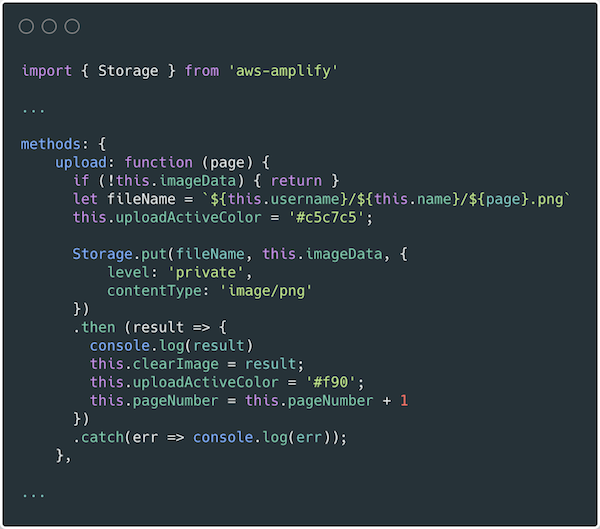
In components/Project.vue, the frontend uses the Storage module for Amplify to upload images. For more information on how to use S3 in an Amplify project see the documentation.

Conclusion

This blog post shows how to create a multiuser application that can analyze text from images and generate PDF documents. This guide demonstrates how to do so in a secure and scalable way using a serverless approach. The example also shows an event driven pattern for handling high volume image processing using S3, Lambda, and Amazon Textract.

The Amplify Framework simplifies the process of implementing authentication, storage, and backend integration. Explore the full solution on GitHub to modify it for your next project or startup idea.

To learn more about AWS serverless and keep up to date on the latest features, subscribe to the YouTube channel.
#ServerlessForEveryone

Building storage-first serverless applications with HTTP APIs service integrations

Post Syndicated from Eric Johnson original https://aws.amazon.com/blogs/compute/building-storage-first-applications-with-http-apis-service-integrations/

Over the last year, I have been talking about “storage first” serverless patterns. With these patterns, data is stored persistently before any business logic is applied. The advantage of this pattern is increased application resiliency. By persisting the data before processing, the original data is still available, if or when errors occur.
Common pattern for serverless API backend

Common pattern for serverless API backend

Using Amazon API Gateway as a proxy to an AWS Lambda function is a common pattern in serverless applications. The Lambda function handles the business logic and communicates with other AWS or third-party services to route, modify, or store the processed data. One option is to place the data in an Amazon Simple Queue Service (SQS) queue for processing downstream. In this pattern, the developer is responsible for handling errors and retry logic within the Lambda function code.

The storage first pattern flips this around. It uses native error handling with retry logic or dead-letter queues (DLQ) at the SQS layer before any code is run. By directly integrating API Gateway to SQS, developers can increase application reliability while reducing lines of code.

Storage first pattern for serverless API backend

Storage first pattern for serverless API backend

Previously, direct integrations require REST APIs with transformation templates written in Velocity Template Language (VTL). However, developers tell us they would like to integrate directly with services in a simpler way without using VTL. As a result, HTTP APIs now offers the ability to directly integrate with five AWS services without needing a transformation template or code layer.

The first five service integrations

This release of HTTP APIs direct integrations includes Amazon EventBridge, Amazon Kinesis Data Streams, Simple Queue Service (SQS), AWS System Manager’s AppConfig, and AWS Step Functions. With these new integrations, customers can create APIs and webhooks for their business logic hosted in these AWS services. They can also take advantage of HTTP APIs features like authorizers, throttling, and enhanced observability for securing and monitoring these applications.

Amazon EventBridge

HTTP APIs service integration with Amazon EventBridge

HTTP APIs service integration with Amazon EventBridge

The HTTP APIs direct integration for EventBridge uses the PutEvents API to enable client applications to place events on an EventBridge bus. Once the events are on the bus, EventBridge routes the event to specific targets based upon EventBridge filtering rules.

This integration is a storage first pattern because data is written to the bus before any routing or logic is applied. If the downstream target service has issues, then EventBridge implements a retry strategy with incremental back-off for up to 24 hours. Additionally, the integration helps developers reduce code by filtering events at the bus. It routes to downstream targets without the need for a Lambda function as a transport layer.

Use this direct integration when:

  • Different tasks are required based upon incoming event details
  • Only data ingestion is required
  • Payload size is less than 256 kb
  • Expected requests per second are less than the Region quotas.

Amazon Kinesis Data Streams

HTTP APIs service integration with Amazon Kinesis Data Streams

HTTP APIs service integration with Amazon Kinesis Data Streams

The HTTP APIs direct integration for Kinesis Data Streams offers the PutRecord integration action, enabling client applications to place events on a Kinesis data stream. Kinesis Data Streams are designed to handle up to 1,000 writes per second per shard, with payloads up to 1 mb in size. Developers can increase throughput by increasing the number of shards in the data stream. You can route the incoming data to targets like an Amazon S3 bucket as part of a data lake or a Kinesis data analytics application for real-time analytics.

This integration is a storage first option because data is stored on the stream for up to seven days until it is processed and routed elsewhere. When processing stream events with a Lambda function, errors are handled at the Lambda layer through a configurable error handling strategy.

Use this direct integration when:

  • Ingesting large amounts of data
  • Ingesting large payload sizes
  • Order is important
  • Routing the same data to multiple targets

Amazon SQS

HTTP APIs service integration with Amazon SQS

HTTP APIs service integration with Amazon SQS

The HTTP APIs direct integration for Amazon SQS offers the SendMessage, ReceiveMessage, DeleteMessage, and PurgeQueue integration actions. This integration differs from the EventBridge and Kinesis integrations in that data flows both ways. Events can be created, read, and deleted from the SQS queue via REST calls through the HTTP API endpoint. Additionally, a full purge of the queue can be managed using the PurgeQueue action.

This pattern is a storage first pattern because the data remains on the queue for four days by default (configurable to 14 days), unless it is processed and removed. When the Lambda service polls the queue, the messages that are returned are hidden in the queue for a set amount of time. Once the calling service has processed these messages, it uses the DeleteMessage API to remove the messages permanently.

When triggering a Lambda function with an SQS queue, the Lambda service manages this process internally. However, HTTP APIs direct integration with SQS enables developers to move this process to client applications without the need for a Lambda function as a transport layer.

Use this direct integration when:

  • Data must be received as well as sent to the service
  • Downstream services need reduced concurrency
  • The queue requires custom management
  • Order is important (FIFO queues)

AWS AppConfig

HTTP APIs service integration with AWS Systems Manager AppConfig

HTTP APIs service integration with AWS Systems Manager AppConfig

The HTTP APIs direct integration for AWS AppConfig offers the GetConfiguration integration action and allows applications to check for application configuration updates. By exposing the systems parameter API through an HTTP APIs endpoint, developers can automate configuration changes for their applications. While this integration is not considered a storage first integration, it does enable direct communication from external services to AppConfig without the need for a Lambda function as a transport layer.

Use this direct integration when:

  • Access to AWS AppConfig is required.
  • Managing application configurations.

AWS Step Functions

HTTP APIs service integration with AWS Step Functions

HTTP APIs service integration with AWS Step Functions

The HTTP APIs direct integration for Step Functions offers the StartExecution and StopExecution integration actions. These actions allow for programmatic control of a Step Functions state machine via an API. When starting a Step Functions workflow, JSON data is passed in the request and mapped to the state machine. Error messages are also mapped to the state machine when stopping the execution.

This pattern provides a storage first integration because Step Functions maintains a persistent state during the life of the orchestrated workflow. Step Functions also supports service integrations that allow the workflows to send and receive data without needing a Lambda function as a transport layer.

Use this direct integration when:

  • Orchestrating multiple actions.
  • Order of action is required.

Building HTTP APIs direct integrations

HTTP APIs service integrations can be built using the AWS CLI, AWS SAM, or through the API Gateway console. The console walks through contextual choices to help you understand what is required for each integration. Each of the integrations also includes an Advanced section to provide additional information for the integration.

Creating an HTTP APIs service integration

Creating an HTTP APIs service integration

Once you build an integration, you can export it as an OpenAPI template that can be used with infrastructure as code (IaC) tools like AWS SAM. The exported template can also include the API Gateway extensions that define the specific integration information.

Exporting the HTTP APIs configuration to OpenAPI

Exporting the HTTP APIs configuration to OpenAPI

OpenAPI template

An example of a direct integration from HTTP APIs to SQS is located in the Sessions With SAM repository. This example includes the following architecture:

AWS SAM template resource architecture

AWS SAM template resource architecture

The AWS SAM template creates the HTTP APIs, SQS queue, Lambda function, and both Identity and Access Management (IAM) roles required. This is all generated in 58 lines of code and looks like this:

AWSTemplateFormatVersion: '2010-09-09'
Transform: AWS::Serverless-2016-10-31
Description: HTTP API direct integrations

Resources:
  MyQueue:
    Type: AWS::SQS::Queue
    
  MyHttpApi:
    Type: AWS::Serverless::HttpApi
    Properties:
      DefinitionBody:
        'Fn::Transform':
          Name: 'AWS::Include'
          Parameters:
            Location: './api.yaml'
          
  MyHttpApiRole:
    Type: "AWS::IAM::Role"
    Properties:
      AssumeRolePolicyDocument:
        Version: "2012-10-17"
        Statement:
          - Effect: "Allow"
            Principal:
              Service: "apigateway.amazonaws.com"
            Action: 
              - "sts:AssumeRole"
      Policies:
        - PolicyName: ApiDirectWriteToSQS
          PolicyDocument:
            Version: '2012-10-17'
            Statement:
              Action:
              - sqs:SendMessage
              Effect: Allow
              Resource:
                - !GetAtt MyQueue.Arn
                
  MyTriggeredLambda:
    Type: AWS::Serverless::Function
    Properties:
      CodeUri: src/
      Handler: app.lambdaHandler
      Runtime: nodejs12.x
      Policies:
        - SQSPollerPolicy:
            QueueName: !GetAtt MyQueue.QueueName
      Events:
        SQSTrigger:
          Type: SQS
          Properties:
            Queue: !GetAtt MyQueue.Arn

Outputs:
  ApiEndpoint:
    Description: "HTTP API endpoint URL"
    Value: !Sub "https://${MyHttpApi}.execute-api.${AWS::Region}.amazonaws.com"

The OpenAPI template handles the route definitions for the HTTP API configuration and configures the service integration. The template looks like this:

openapi: "3.0.1"
info:
  title: "my-sqs-api"
paths:
  /:
    post:
      responses:
        default:
          description: "Default response for POST /"
      x-amazon-apigateway-integration:
        integrationSubtype: "SQS-SendMessage"
        credentials:
          Fn::GetAtt: [MyHttpApiRole, Arn]
        requestParameters:
          MessageBody: "$request.body.MessageBody"
          QueueUrl:
            Ref: MyQueue
        payloadFormatVersion: "1.0"
        type: "aws_proxy”
        connectionType: "INTERNET"
x-amazon-apigateway-importexport-version: "1.0"

Because the OpenAPI template is included in the AWS SAM template via a transform, the API Gateway integration can reference the roles and services created within the AWS SAM template.

Conclusion

This post covers the concept of storage first integration patterns and how the new HTTP APIs direct integrations can help. I cover the five current integrations and possible use cases for each. Additionally, I demonstrate how to use AWS SAM to build and manage the integrated applications using infrastructure as code.

Using the storage first pattern with direct integrations can help developers build serverless applications that are more durable with fewer lines of code. A Lambda function is no longer required to transport data from the API endpoint to the desired service. Instead, use Lambda function invocations for differentiating business logic.

To learn more join us for the HTTP API service integrations session of Sessions With SAM! 

#ServerlessForEveryone

Fundbox: Simplifying Ways to Query and Analyze Data by Different Personas

Post Syndicated from Annik Stahl original https://aws.amazon.com/blogs/architecture/fundbox-simplifying-ways-to-query-and-analyze-data-by-different-personas/

Fundbox is a leading technology platform focused on disrupting the $21 trillion B2B commerce market by building the world’s first B2B payment and credit network. With Fundbox, sellers of all sizes can quickly increase average order volumes (AOV) and improve close rates by offering more competitive net terms and payment plans to their SMB buyers. With heavy investments in machine learning and the ability to quickly analyze the transactional data of SMB’s, Fundbox is reimagining B2B payments and credit products in new category-defining ways.

Learn how how the company simplified the way different personas in the organization query and analyze data by building a self-service data orchestration platform. The platform architecture is entirely serverless, which simplifies the ability to scale and adopt to unpredictable demand. The platform was built using AWS Step Functions, AWS Lambda, Amazon API Gateway, Amazon DynamoDB, AWS Fargate, and other AWS Serverless managed services.

For more content like this, subscribe to our YouTube channels This is My Architecture, This is My Code, and This is My Model, or visit the This is My Architecture on AWS, which has search functionality and the ability to filter by industry, language, and service.

Field Notes: Serverless Container-based APIs with Amazon ECS and Amazon API Gateway

Post Syndicated from Simone Pomata original https://aws.amazon.com/blogs/architecture/field-notes-serverless-container-based-apis-with-amazon-ecs-and-amazon-api-gateway/

A growing number of organizations choose to build their APIs with Docker containers. For hosting and exposing these container-based APIs, they need a solution which supports HTTP requests routing, autoscaling, and high availability. In some cases, user authorization is also needed.

For this purpose, many organizations are orchestrating their containerized services with Amazon Elastic Container Service (Amazon ECS) or Amazon Elastic Kubernetes Service (Amazon EKS), while hosting their containers on Amazon EC2 or AWS Fargate. Then, they can add scalability and high availability with Service Auto Scaling (in Amazon ECS) or Horizontal Pod Auto Scaler (in Amazon EKS), and they expose the services through load balancers (for example, the AWS Application Load Balancer).

When you use Amazon ECS as an orchestrator (with EC2 or Fargate launch type), you also have the option to expose your services with Amazon API Gateway and AWS Cloud Map instead of a load balancer. AWS Cloud Map is used for service discovery: no matter how Amazon ECS tasks scale, AWS Cloud Map service names would point to the right set of Amazon ECS tasks. Then, API Gateway HTTP APIs can be used to define API routes and point them to the corresponding AWS Cloud Map services.

API Gateway and AWS Cloud Map could be a good fit if you want to leverage the capabilities provided by API Gateway HTTP APIs. For example, you could import/export your API as an OpenAPI definition file. You could configure the following features, either on the whole API or – more granularly – at route level: throttling, detailed metrics, or OAuth 2.0 / OIDC user authorization. You could also deploy your API at different stages over time. Or you could easily configure CORS for your API or for any route, instead of handling OPTIONS preflight requests yourself.

If you don’t need the capabilities of API Gateway HTTP APIs or if those of Elastic Load Balancing are a better fit, then you can use the latter. For example, the capabilities of the Application Load Balancer include: content-based routing (not only by path and HTTP method, but also by HTTP header, query-string parameter, source IP, etc.), redirects, fixed responses, and others. Additionally, the Network Load Balancer provides layer 4 load balancing capabilities. Ultimately, there are overlaps and differences between the features of Elastic Load Balancing and those of API Gateway HTTP APIs: so you may want to compare them to choose the right option for your use case.

This blog post guides you through the details of the option based on API Gateway and AWS Cloud Map, and how to implement it: first you learn how the different components (Amazon ECS, AWS Cloud Map, API Gateway, etc.) work together, then you launch and test a sample container-based API.

Architecture Overview

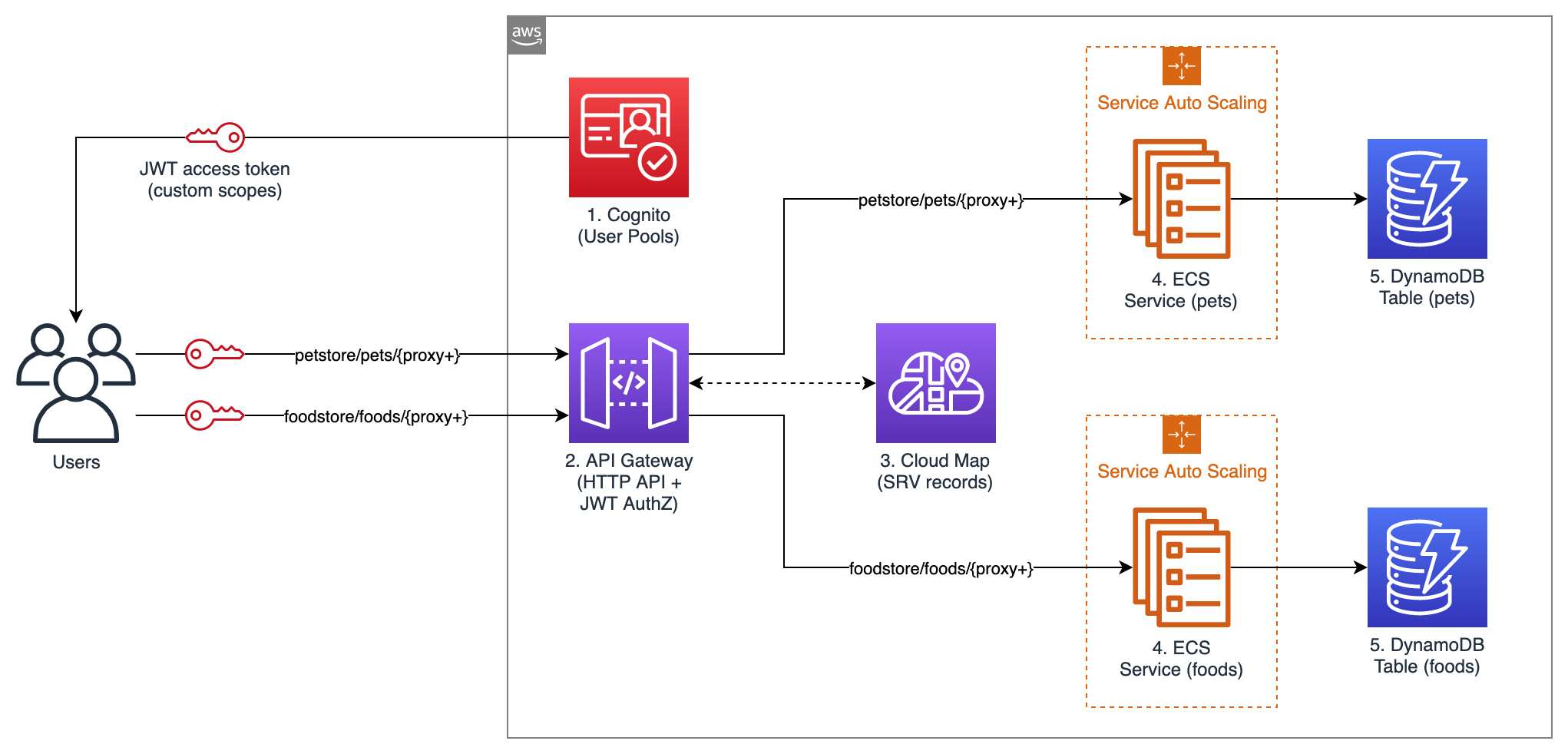
The following diagram shows the architecture of the sample API that you are going to launch.

Figure 1 - Architecture Diagram

Figure 1 – Architecture Diagram

This example API exposes two services: “Food store” to PUT and GET foods, and “Pet store” to PUT and GET pets. Unauthenticated users can only GET, while authenticated users can also PUT.

The following building blocks are used:

  1. Amazon Cognito User Pools: for user authentication. In this example API, Amazon Cognito is used for user authentication, but you could use any other OAuth 2.0 / OIDC identity provider instead. When the user authenticates with Amazon Cognito, user pool tokens are granted, including a JWT access token that is used for authorizing requests to the container APIs.
  2. API Gateway HTTP APIs: for exposing the containerized services to the user. API routes and the respective integrations are defined in API Gateway. A route is the combination of a path and a method. An integration is the backend service which is invoked by that route. In this API, private integrations point to AWS Cloud Map services, which in turn resolve to private Amazon ECS services (more about AWS Cloud Map in the next paragraph). As Amazon ECS services are private resources in a Virtual Private Cloud (VPC), API Gateway uses a VPC link to connect to them in a private way. A VPC link is a set of elastic network interfaces in the VPC, assigned to and managed by API Gateway, so that API Gateway can talk privately with other resources in the VPC. This way, Amazon ECS services can be launched in private subnets and don’t need a public IP. In this sample application, JWT authorization is configured in API Gateway for PUT routes. API Gateway performs requests authorization based on validation of the JWT Token provided, and optionally, scopes in the token. This way, you don’t need additional code in your containers for authorization.
  3. AWS Cloud Map: for service discovery of the containerized services. API Gateway needs a way to find physical addresses of the backend services, and AWS Cloud Map provides this capability. To enable this functionality, service discovery should be configured on Amazon ECS services. Amazon ECS performs periodic health checks on tasks in Amazon ECS services and registers the healthy tasks to the respective AWS Cloud Map service. AWS Cloud Map services can then be resolved either via DNS queries or by calling the DiscoverInstances API (API Gateway uses the API). AWS Cloud Map supports different DNS record types (including A, AAAA, CNAME, and SRV); at the time, of writing, API Gateway can only retrieve SRV records from AWS Cloud Map, so SRV records are used in this sample application. With SRV records, each AWS Cloud Map service returns a combination of IP addresses and port numbers of all the healthy tasks in the service. Consider that AWS Cloud Map would perform round-robin routing (with equal weighting to the targets): for this reason, to avoid hot spots, all tasks in each service should be homogeneous (in terms of container images, vCPU, memory, and other settings).
  4. Amazon ECS: for hosting the containerized services. Amazon ECS is a highly scalable and high-performance container orchestrator. In this blog post, the Fargate launch type is used, so that containers are launched on the Fargate serverless compute engine, and you don’t have to provision or manage any EC2 instances. In this sample API, service auto scaling is also enabled, so that the number of containers in each service can scale up and down automatically based on % CPU usage. Containers will be launched across multiple Availability Zones in the AWS Region, to get high availability.
  5. Amazon DynamoDB: for persisting the data. Amazon DynamoDB is a key-value and document database that provides single-millisecond performance at any scale. In a real-world scenario, you could still use DynamoDB or another data store, such as Amazon Relational Database Service (RDS).

All the code of this blog post is publicly available in this GitHub repository. You can explore the CloudFormation template used to define the sample application as code. You can view the source code of the two containerized services: Food store repository and Pet store repository. You can also explore the code of the sample web app that you’ll use to test the API (this web app has been developed with the Amplify framework). Note that the code provided is intended for testing purposes and not for production usage.

Walkthrough

In this section, you will deploy the sample application and test it.

Prerequisites

To launch the sample API, you first need an AWS user that has access to the AWS Management Console and has the IAM permissions to launch the AWS CloudFormation stack.

Deploying the sample application

Now it’s time to launch the sample API:

  1. Select Launch Stack
  2. In the page for quick stack creation, do the following:
    • Select the capability “I acknowledge that AWS CloudFormation might create IAM resources”.
    • Keep the rest as default.
    • Choose Create Stack.
  3. Wait until the status of the stack transitions to “CREATE_COMPLETE”.

Testing the sample application

In this section, you test the API from a sample web application client that I created. Open the sample web application:

  1. From the page of the stack, choose Outputs.
  2. Open the URL for the “APITestPage” output.
  3. On the opened page, choose Proceed.

The web page should state that you are not signed-in. In this sample API, any user can GET items, but only authenticated users can PUT items. Sign up to the sample web application:

  1. Choose Go To Sign In.
  2. Choose Create account.
  3. Complete the sign-up procedure (you will be asked for a valid email address, which will be registered into your Amazon Cognito User Pool).

The application should state that you are signed-in. Test the API as an authenticated user:

  1. Try to PUT an item. You would see that the operation succeeds. The item has been persisted by the containerized service to the DynamoDB table.

DynamoDB table


2.  Try to GET the same item that you previously PUT. You would see that the same JSON is returned. This JSON is retrieved by the containerized service from the DynamoDB table.

Test the API as an unauthenticated user:

  1. Choose Sign Out.
  2. Try to GET the same item that you previously PUT. You would see that the same JSON is returned. This JSON is retrieved by the containerized service from the DynamoDB table.
  3. Try to PUT any item. You would get a 401 Unauthorized error from the API. This behavior is expected because only signed-in users have a JWT token, and you configured API Gateway to only authorize PUT requests that provide a valid token.

DynamoDB table

Exploring the resources of the sample application

You can also explore the resources launched as part of the CloudFormation stack. To list all of them, from the page of your CloudFormation stack, choose Resources.

To see the Amazon ECS services, go to the Amazon ECS console, choose your cluster, and you would see that 2 services are running, one for the Foodstore and another for the Petstore, as shown in the following image.

Notice that the services use the Fargate launch type, meaning that they are running on serverless compute capacity, so you don’t have to launch or maintain any EC2 instances to run them.

Cluster demo

To see the details of a service, go to the Amazon ECS cluster page and choose a service. You land on the service page, where you can see the running tasks, the service events, and other details.

To view the service auto scaling configuration, choose Auto Scaling. You can notice that Amazon ECS is set to automatically scale the number of tasks according to the value of a metric. In this sample application, the metric is the average CPU utilization of the service (ECSServiceAverageCPUUtilization), but you could use another metric.

Auto scaling

The scaling policy of each service uses two Amazon CloudWatch Alarms, one for scaling out and one for scaling in. An alarm is triggered when the target metric deviates from the target value, which in turn is used to trigger the scaling action. To see the alarms, go to the CloudWatch Alarms console.

CloudWatch Alarms

To see the service discovery entries, go to the AWS Cloud Map console, choose your namespace (see the parameter “PrivateDNSNamespaceName” in the CloudFormation stack), and you would see that two services are defined. If you choose one of these services, you would see that multiple service instances are registered, each representing a single Amazon ECS task (in this sample application, each Amazon ECS task is a single container). If you choose one of these service instances, you would see the details about the task, including the private IP, the port, and the health status. API Gateway retrieves these entries to discover your services.

Service Instance

To see the API configuration, go to the API Gateway console and choose your API.

Then, from the left side of the screen select either Routes, Authorization, Integrations, or any other option.

Integrations

Cleaning up

To clean up the resources, simply delete the CloudFormation stack that you deployed as part of this blog post.

Conclusion

You have learned how API Gateway HTTP APIs can be used together with AWS Cloud Map to expose Amazon ECS services as APIs. You have deployed a sample API that also uses Amazon Cognito for authentication and DynamoDB for data persistence.

API Gateway HTTP APIs provides a number of features that you can leverage, such as OpenAPI import/export, throttling, OAuth 2.0 / OIDC user authorization, detailed metrics, and stages deployment. That said, API Gateway is not the only way to expose your ECS services; if you don’t need the features of API Gateway HTTP APIs or if those of Elastic Load Balancing are a better fit, then you can use the latter service. The recommended approach is to compare them to choose the most suitable for your use case.

Field Notes provides hands-on technical guidance from AWS Solutions Architects, consultants, and technical account managers, based on their experiences in the field solving real-world business problems for customers.