Partnering with civil society to track Internet shutdowns with Radar Alerts and API

Post Syndicated from Jocelyn Woolbright original https://blog.cloudflare.com/partnering-with-civil-society-to-track-shutdowns/

Partnering with civil society to track Internet shutdowns with Radar Alerts and API

This post is also available in 简体中文, 繁體中文, 日本語, 한국어, Deutsch, Français and Español.

Partnering with civil society to track Internet shutdowns with Radar Alerts and API

Internet shutdowns have long been a tool in government toolboxes when it comes to silencing opposition and cutting off access from the outside world. The KeepItOn campaign by Access Now, a group that defends the digital rights of global Internet users, documented at least 182 Internet shutdowns in 34 countries in 2021. Many of these shutdowns occurred during public protests, elections, and wars as an extreme form of censorship in places like Afghanistan, Democratic Republic of the Congo, Ukraine, India, and Iran.

There are a range of ways governments block or slow communications, including throttling, IP blocking, DNS interference, mobile data shutoffs, and deep packet inspection, all with similar goals: exerting control over information.

Although Internet shutdowns are largely public, it is difficult to document and track the ways in which governments implement them. The shutdowns not only impact people’s ability to participate in civil and political life and the economy but also have grave consequences for trust in democratic institutions.

We have reported on these shutdowns in the past, and for Cloudflare Impact Week, we want to tell you more about how we work with civil society organizations to provide tools to track and document the scope of these disruptions. We want to support their critical work and provide the tools they need so they can demand accountability and condemn the use of shutdowns to silence dissent.

Radar Internet shutdown alerts for civil society

We launched Radar in 2020 to shine light on the Internet’s patterns, insights, threats, and trends based on aggregated data from our network. Once we launched Radar, we found that many civil society organizations and those who work in democracy-building use Radar to track trends in countries to better understand the rise and fall of Internet usage.

Internally, we had an alert system for potential Internet disruptions that we use as an early warning regarding shifts in network patterns and incidents. When we engaged with these organizations that use Radar to track Internet trends, we learned more about how our internal tool to identify traffic distributions could be useful for organizations that work with human rights defenders on the ground that are impacted by these shutdowns.

To determine the best way to provide a tool to alert organizations when Cloudflare has seen these disruptions, we spoke with organizations such as Access Now, Internews, The Carter Center, National Democratic Institute, Internet Society, and the International Foundation for Electoral Systems. After our conversations, we launched Radar Internet shutdown alerts in 2021 to provide alerts on when Cloudflare has detected significant drops in traffic with the hope that the information is used to document, track, and hold institutions accountable for these human rights violations.

Since 2021, we have been providing these alerts to civil society partners to track these shutdowns. As we have collected feedback to improve the alerts, we have seen many partners looking for more ways to integrate Radar and the alerts into their existing tracking mechanisms. With this, we announced Radar 2.0 with API access for free so academics, data sleuths, civil society, human rights organizations, and other web enthusiasts can analyze, visualize, and investigate Internet usage across the globe, based on data from our global network. In addition, we launched Cloudflare Radar Outage Center to archive Internet outages and make it easier for civil society organizations, journalists/news media, and impacted parties to track past shutdowns.

Highlighting the work of our civil society partners to track Internet shutdowns

We believe our job at Cloudflare is to build tools that improve privacy and security for a range of players on the Internet. With this, we want to highlight the work of our civil society partners. These organizations are pushing back against targeted shutdowns that inflict lasting damage to democracies around the world. Here are their stories.

Access Now

Partnering with civil society to track Internet shutdowns with Radar Alerts and API

Access Now’s #KeepItOn coalition was launched in 2016 to help unite and organize the efforts of activists and organizations across the world to end Internet shutdowns. It now represents more than 280 organizations from 105 countries across the globe. The goal of STOP Project (Shutdown Tracker Optimization Project) is ultimately to document and report shutdowns accurately, which requires diligent verification. Access Now regularly uses multiple sources to identify and understand the shutdown, the choice and combination of which depends on where and how the shutdown occurred.

The tracker uses both quantitative and qualitative data to record the number of Internet shutdowns in the world in a given year and to characterize the nature of the shutdowns, including their magnitude, scope, and causes.

Zach Rosson, #KeepItOn Data Analyst, Access Now, details, “Sometimes, we confirm an Internet shutdown through means such as technical measurement, while at other times we rely upon contextual information, such as news reports or personal accounts. We also work hard to document how a particular shutdown was ordered and how it impacted society, including why and how it happened.

On how Access Now’s #KeepItOn coalition uses Cloudflare Radar, Rosson says, We use Radar Internet shutdown alerts in both email and tweet form, as a trusted source to help verify a shutdown occurrence. These alerts and their underlying measurements are used as primary sources in our dataset when compiling shutdowns for our annual report, so they are used in an archival sense as well. Cloudflare Radar is sometimes the first place that we hear about a shutdown, which is quite useful in a rapid response context, since we can quickly mobilize to verify the shutdown and have strong evidence when advocating against it.

The recorded instances of shutdowns include events reported through local or international news sources that are included in the dataset, from local actors through Access Now’s Digital Security Helpline or the #KeepItOn Coalition email list, or directly from telecommunication and Internet companies.

Rosson notes, When it comes to Radar 2.0 and API, we plan to use these resources to speed up our response, verification, and publication of shutdown data as compiled from different sources. Thus, the Cloudflare Radar Outage Center (CROC) and related API endpoint will be very useful for us to access timely information on shutdowns, either through visual inspection of the CROC in the short term or through using the API to pull data into a centralized database in the long term.

Internet Society: ISOC

Partnering with civil society to track Internet shutdowns with Radar Alerts and API

On the Internet Society Pulse platform, Susannah Gray, Director, Communications, Internet Society, explains that they strive to curate meaningful information around a government-mandated Internet shutdown by using data from multiple trusted sources, and making it available to everyone, everywhere in an easy-to-understand manner. ISOC does this by monitoring Internet traffic using various tools, including Radar. When they see something that might indicate that an Internet shutdown is in progress, they check if the shutdown meets their  criteria. For a shutdown to appear on the Pulse Shutdowns Tracker it needs to meet all the following requirements. It must:

  • Be artificially induced, as evident from reputable sources, including government statements and orders.
  • Remove Internet access.
  • Affect access to a group of people.

Once ISOC is certain that a shutdown is the result of government action, and isn’t the result of technical errors, routing misconfigurations, or infrastructure failures, they prepare an incident page, collate related measurements from their trusted data partners, and then publish the information on the Pulse shutdowns tracker.

ISOC uses many resources to track shutdowns. Gray explains, Radar Internet shutdown alerts are incredibly useful for bringing incidents to our attention as they are happening. The easy access to the data provided helps us assess the nature of an outage. If an outage is established as a government-mandated shutdown, we often use screenshots of Radar charts on the Pulse shutdowns tracker incident page to help illustrate how traffic stopped flowing in and out of a country during the shutdown. We provide a link back to the Radar platform so that people interested in getting more in-depth data can find out more.

ISOC’s aim has never been to be the first to report a government-mandated shutdown: instead, their mission is to report accurate and meaningful information about the shutdown and explore its impact on the economy and society.

Gray adds, For Radar 2.0 and the API, we plan to use it as part of the data aggregation tool we are developing. This internal tool will combine several outage alert and monitoring tools and sources into one single system so that we are able to track incidents more efficiently.

Open Observatory of Network Interference: OONI

Partnering with civil society to track Internet shutdowns with Radar Alerts and API

OONI is a nonprofit that measures Internet censorship, including the blocking of websites, instant messaging apps, and circumvention tools. Cloudflare Radar is one of the main public data sources that they use when examining reported Internet connectivity shutdowns. For example, OONI relied on Radar data when reporting on shutdowns in Iran amid ongoing protests. In 2022, the team launched the Measurement Aggregation Toolkit (MAT), which enables the public to track censorship worldwide and create their own charts based on real-time OONI data. OONI also forms partnerships with multiple digital rights organizations that use OONI tools and data to monitor and respond to censorship events in their regions.

Maria Xynou, OONI Research and Partnerships Director, explains Cloudflare Radar is one of the main public data sources that OONI has referred to when examining reported internet connectivity shutdowns. Specifically, OONI refers to Cloudflare Radar to check whether the platform provides signals of a reported internet connectivity shutdown; compare Cloudflare Radar signals with those visible in other, relevant public data sources (such as IODA, and Google traffic data).

Tracking the shutdowns of tomorrow

As we work with more organizations in the human rights space and learn how our global network can be used for good, we are eager to improve and create new tools to protect human rights in the digital age.

If you would like to be added to Radar Internet Shutdown alerts, please contact [email protected] and follow the Cloudflare Radar alert Twitter page and Cloudflare Radar Outage Center (CROC). For access to the Radar API, please visit Cloudflare Radar.

Security updates for Thursday

Post Syndicated from original https://lwn.net/Articles/917947/

Security updates have been issued by Debian (firefox-esr and git), Slackware (mozilla and xorg), SUSE (apache2-mod_wsgi, capnproto, xorg-x11-server, xwayland, and zabbix), and Ubuntu (emacs24, firefox, linux-azure, linux-azure-5.15, linux-azure-fde, linux-oem-6.0, and xorg-server, xorg-server-hwe-18.04, xwayland).

A Security Vulnerability in the KmsdBot Botnet

Post Syndicated from Bruce Schneier original https://www.schneier.com/blog/archives/2022/12/a-security-vulnerability-in-the-kmsdbot-botnet.html

Security researchers found a software bug in the KmsdBot cryptomining botnet:

With no error-checking built in, sending KmsdBot a malformed command­—like its controllers did one day while Akamai was watching­—created a panic crash with an “index out of range” error. Because there’s no persistence, the bot stays down, and malicious agents would need to reinfect a machine and rebuild the bot’s functions. It is, as Akamai notes, “a nice story” and “a strong example of the fickle nature of technology.”
The Linux kernel contribution maturity model

Post Syndicated from original https://lwn.net/Articles/917913/

Ted Ts’o, in collaboration with the Linux Foundation Technical Advisory
Board, has put together a document called the Linux kernel
contribution maturity model
to help companies improve their
participation in the kernel development process.

The goal is to encourage, in a management-friendly way, companies
to allow their engineers to contribute with the upstream Linux
Kernel development community, so we can grow the “talent pipeline”
for contributors to become respected leaders, and eventually kernel
maintainers.

Reimagining Democracy

Post Syndicated from Bruce Schneier original https://www.schneier.com/blog/archives/2022/12/reimagining-democracy.html

Last week, I hosted a two-day workshop on reimagining democracy.

The idea was to bring together people from a variety of disciplines who are all thinking about different aspects of democracy, less from a “what we need to do today” perspective and more from a blue-sky future perspective. My remit to the participants was this:

The idea is to start from scratch, to pretend we’re forming a new country and don’t have any precedent to deal with. And that we don’t have any unique interests to perturb our thinking. The modern representative democracy was the best form of government mid-eighteenth century politicians technology could invent. The twenty-first century is a very different place technically, scientifically, and philosophically. What could democracy look like if it were reinvented today? Would it even be democracy­—what comes after democracy?

Some questions to think about:

  • Representative democracies were built under the assumption that travel and communications were difficult. Does it still make sense to organize our representative units by geography? Or to send representatives far away to create laws in our name? Is there a better way for people to choose collective representatives?
  • Indeed, the very idea of representative government is due to technological limitations. If an AI system could find the optimal solution for balancing every voter’s preferences, would it still make sense to have representatives­—or should we vote for ideas and goals instead?
  • With today’s technology, we can vote anywhere and any time. How should we organize the temporal pattern of voting—­and of other forms of participation?
  • Starting from scratch, what is today’s ideal government structure? Does it make sense to have a singular leader “in charge” of everything? How should we constrain power­—is there something better than the legislative/judicial/executive set of checks and balances?
  • The size of contemporary political units ranges from a few people in a room to vast nation-states and alliances. Within one country, what might the smaller units be­—and how do they relate to one another?
  • Who has a voice in the government? What does “citizen” mean? What about children? Animals? Future people (and animals)? Corporations? The land?
  • And much more: What about the justice system? Is the twelfth-century jury form still relevant? How do we define fairness? Limit financial and military power? Keep our system robust to psychological manipulation?

My perspective, of course, is security. I want to create a system that is resilient against hacking: one that can evolve as both technologies and threats evolve.

The format was one that I have used before. Forty-eight people meet over two days. There are four ninety-minute panels per day, with six people on each. Everyone speaks for ten minutes, and the rest of the time is devoted to questions and comments. Ten minutes means that no one gets bogged down in jargon or details. Long breaks between sessions and evening dinners allow people to talk more informally. The result is a very dense, idea-rich environment that I find extremely valuable.

It was amazing event. Everyone participated. Everyone was interesting. (Details of the event—emerging themes, notes from the speakers—are in the comments.) It’s a week later and I am still buzzing with ideas. I hope this is only the first of an ongoing series of similar workshops.

Let’s Encrypt improves how we manage OCSP responses

Post Syndicated from Let's Encrypt original https://letsencrypt.org/2022/12/15/ocspcaching.html

Let’s Encrypt has improved how we manage Online Certificate Status Protocol (OCSP) responses by deploying Redis and generating responses on-demand rather than pre-generating them, making us more reliable than ever.

About OCSP Responses

OCSP is used to communicate the revocation status of TLS certificates. When an ACME agent signs a request to revoke a certificate, our Let’s Encrypt Certificate Authority (CA) verifies whether or not the request is authorized and if it is, we begin publishing a ‘revoked’ OCSP response for that certificate. Each time a relying party, such as a browser, visits a domain with a Let’s Encrypt certificate, they can request information about whether the certificate has been revoked and we serve a reply containing ‘good’ or ‘revoked’, signed by our CA, which we call an OCSP response.

An Enormous OCSP Response Load: 100,000 Every Second

Let’s Encrypt currently serves over 300 million domains, which means we receive an enormous number of certificate revocation status requests — fielding around 100,000 OCSP responses every second!

Normally 98-99% of our OCSP responses are handled by our Content Delivery Network (CDN). But there are times when our CDN has an issue resulting in Let’s Encrypt being required to directly accept a larger number of requests. Historically, we could effectively respond to a maximum of 6% of our OCSP response traffic on our own. Should the need arise for us to accept much higher than that, some of our systems might begin to take too long to return results, return significant numbers of errors, or even stop accepting new requests. Not an ideal situation for us, or the Internet.

Our inability to serve OCSP responses during an issue with one of our CDNs could result in a slowdown in users’ browsing speed or not being able to connect to a website — or worse, Internet users unintentionally visiting domains for which a certificate has been revoked. Browsers react differently to unresponsive OCSP, but one thing was clear, our systems needed to handle these occasions much better.

Increasing our Reliability

After working on this throughout most of 2022, our engineers have dramatically improved our ability to independently serve OCSP responses. We did that by deploying Redis as an in-memory caching layer that helps protect our database by absorbing traffic spikes, whether due to CDN issues or our own actions, such as CDN cache clearing.

Pivot in Design

Our team developed a system architecture design to organize/change all of the various interconnected systems needed to make Redis trusted to serve our OCSP responses. Amidst the fervor of developing this design, our engineers identified a resource we could depend upon more heavily to simplify the overall architecture and still realize incredible reliability gains. Rather than pre-signing OCSP status responses at regular intervals, storing the results in a relational database, and asking Redis to keep copies—we could keep simple but authoritative certificate status information in our database. We could then leverage fast, concurrent signing power from our HSMs to Just-in-Time sign a fresh OCSP response, cache it in Redis, and return it to the requester. Thanks to this, the demands on the relational database became much lighter (especially total table-writes and write-contention), the speed was impressive, and Redis wasn’t holding anything that couldn’t be (very very quickly) regenerated.

Testing our Systems

The first test was to directly accept 1/16 of the requests by dropping a segment of our CDN cache. In that initial test we handled ~12,500 requests per second. Successive tests ratcheted up to 1/8th CDN cache drop, then 1/4th, then 1/2, then a 100% cache drop. With each ratcheting up of the test load we were able to monitor and glean insights as to how our deployment could handle the traffic. In the final test of 100% of requests, our systems remained responsive. This means that if we experience a spike in the number of OCSP responses we need to accept moving forward, we are equipped to handle them, dramatically reducing the risks to Internet users.

Supporting Let’s Encrypt

As a project of the Internet Security Research Group (ISRG), 100% of our funding comes from contributions from our community of users and supporters. We depend on their support in order to provide our public benefit services. If your company or organization would like to sponsor Let’s Encrypt please email us at [email protected]. If you can support us with a donation, we ask that you make an individual contribution.

Migrate Google BigQuery to Amazon Redshift using AWS Schema Conversion tool (SCT)

Post Syndicated from Jagadish Kumar original https://aws.amazon.com/blogs/big-data/migrate-google-bigquery-to-amazon-redshift-using-aws-schema-conversion-tool-sct/

Amazon Redshift is a fast, fully-managed, petabyte scale data warehouse that provides the flexibility to use provisioned or serverless compute for your analytical workloads. Using Amazon Redshift Serverless and Query Editor v2, you can load and query large datasets in just a few clicks and pay only for what you use. The decoupled compute and storage architecture of Amazon Redshift enables you to build highly scalable, resilient, and cost-effective workloads. Many customers migrate their data warehousing workloads to Amazon Redshift and benefit from the rich capabilities it offers. The following are just some of the notable capabilities:

  • Amazon Redshift seamlessly integrates with broader analytics services on AWS. This enables you to choose the right tool for the right job. Modern analytics is much wider than SQL-based data warehousing. Amazon Redshift lets you build lake house architectures and then perform any kind of analytics, such as interactive analytics, operational analytics, big data processing, visual data preparation, predictive analytics, machine learning (ML), and more.
  • You don’t need to worry about workloads, such as ETL, dashboards, ad-hoc queries, and so on, interfering with each other. You can isolate workloads using data sharing, while using the same underlying datasets.
  • When users run many queries at peak times, compute seamlessly scales within seconds to provide consistent performance at high concurrency. You get one hour of free concurrency scaling capacity for 24 hours of usage. This free credit meets the concurrency demand of 97% of the Amazon Redshift customer base.
  • Amazon Redshift is easy-to-use with self-tuning and self-optimizing capabilities. You can get faster insights without spending valuable time managing your data warehouse.
  • Fault Tolerance is inbuilt. All of the data written to Amazon Redshift is automatically and continuously replicated to Amazon Simple Storage Service (Amazon S3). Any hardware failures are automatically replaced.
  • Amazon Redshift is simple to interact with. You can access data with traditional, cloud-native, containerized, and serverless web services-based or event-driven applications and so on.
  • Redshift ML makes it easy for data scientists to create, train, and deploy ML models using familiar SQL. They can also run predictions using SQL.
  • Amazon Redshift provides comprehensive data security at no extra cost. You can set up end-to-end data encryption, configure firewall rules, define granular row and column level security controls on sensitive data, and so on.
  • Amazon Redshift integrates seamlessly with other AWS services and third-party tools. You can move, transform, load, and query large datasets quickly and reliably.

In this post, we provide a walkthrough for migrating a data warehouse from Google BigQuery to Amazon Redshift using AWS Schema Conversion Tool (AWS SCT) and AWS SCT data extraction agents. AWS SCT is a service that makes heterogeneous database migrations predictable by automatically converting the majority of the database code and storage objects to a format that is compatible with the target database. Any objects that can’t be automatically converted are clearly marked so that they can be manually converted to complete the migration. Furthermore, AWS SCT can scan your application code for embedded SQL statements and convert them.

Solution overview

AWS SCT uses a service account to connect to your BigQuery project. First, we create an Amazon Redshift database into which BigQuery data is migrated. Next, we create an S3 bucket. Then, we use AWS SCT to convert BigQuery schemas and apply them to Amazon Redshift. Finally, to migrate data, we use AWS SCT data extraction agents, which extract data from BigQuery, upload it into the S3 bucket, and then copy to Amazon Redshift.

Prerequisites

Before starting this walkthrough, you must have the following prerequisites:

  1. A workstation with AWS SCT, Amazon Corretto 11, and Amazon Redshift drivers.
    1. You can use an Amazon Elastic Compute Cloud (Amazon EC2) instance or your local desktop as a workstation. In this walkthrough, we’re using Amazon EC2 Windows instance. To create it, use this guide.
    2. To download and install AWS SCT on the EC2 instance that you previously created, use this guide.
    3. Download the Amazon Redshift JDBC driver from this location.
    4. Download and install Amazon Corretto 11.
  2. A GCP service account that AWS SCT can use to connect to your source BigQuery project.
    1. Grant BigQuery Admin and Storage Admin roles to the service account.
    2. Copy the Service account key file, which was created in the Google cloud management console, to the EC2 instance that has AWS SCT.
    3. Create a Cloud Storage bucket in GCP to store your source data during migration.

This walkthrough covers the following steps:

  • Create an Amazon Redshift Serverless Workgroup and Namespace
  • Create the AWS S3 Bucket and Folder
  • Convert and apply BigQuery Schema to Amazon Redshift using AWS SCT
    • Connecting to the Google BigQuery Source
    • Connect to the Amazon Redshift Target
    • Convert BigQuery schema to an Amazon Redshift
    • Analyze the assessment report and address the action items
    • Apply converted schema to target Amazon Redshift
  • Migrate data using AWS SCT data extraction agents
    • Generating Trust and Key Stores (Optional)
    • Install and start data extraction agent
    • Register data extraction agent
    • Add virtual partitions for large tables (Optional)
    • Create a local migration task
    • Start the Local Data Migration Task
  • View Data in Amazon Redshift

Create an Amazon Redshift Serverless Workgroup and Namespace

In this step, we create an Amazon Redshift Serverless workgroup and namespace. Workgroup is a collection of compute resources and namespace is a collection of database objects and users. To isolate workloads and manage different resources in Amazon Redshift Serverless, you can create namespaces and workgroups and manage storage and compute resources separately.

Follow these steps to create Amazon Redshift Serverless workgroup and namespace:

  • Navigate to the Amazon Redshift console.
  • In the upper right, choose the AWS Region that you want to use.
  • Expand the Amazon Redshift pane on the left and choose Redshift Serverless.
  • Choose Create Workgroup.
  • For Workgroup name, enter a name that describes the compute resources.
  • Verify that the VPC is the same as the VPC as the EC2 instance with AWS SCT.
  • Choose Next.

  • For Namespace name, enter a name that describes your dataset.
  • In Database name and password section, select the checkbox Customize admin user credentials.
    • For Admin user name, enter a username of your choice, for example awsuser.
    • For Admin user password: enter a password of your choice, for example MyRedShiftPW2022
  • Choose Next. Note that data in Amazon Redshift Serverless namespace is encrypted by default.
  • In the Review and Create page, choose Create.
  • Create an AWS Identity and Access Management (IAM) role and set it as the default on your namespace, as described in the following. Note that there can only be one default IAM role.
    • Navigate to the Amazon Redshift Serverless Dashboard.
    • Under Namespaces / Workgroups, choose the namespace that you just created.
    • Navigate toSecurity and encryption.
    • Under Permissions, choose Manage IAM roles.
    • Navigate to Manage IAM roles. Then, choose the Manage IAM roles drop-down and choose Create IAM role.
    • Under Specify an Amazon S3 bucket for the IAM role to access, choose one of the following methods:
      • Choose No additional Amazon S3 bucket to allow the created IAM role to access only the S3 buckets with a name starting with redshift.
      • Choose Any Amazon S3 bucket to allow the created IAM role to access all of the S3 buckets.
      • Choose Specific Amazon S3 buckets to specify one or more S3 buckets for the created IAM role to access. Then choose one or more S3 buckets from the table.
    • Choose Create IAM role as default. Amazon Redshift automatically creates and sets the IAM role as default.
  • Capture the Endpoint for the Amazon Redshift Serverless workgroup that you just created.

Create the S3 bucket and folder

During the data migration process, AWS SCT uses Amazon S3 as a staging area for the extracted data. Follow these steps to create the S3 bucket:

  • Navigate to the Amazon S3 console
  • Choose Create bucket. The Create bucket wizard opens.
  • For Bucket name, enter a unique DNS-compliant name for your bucket (e.g., uniquename-bq-rs). See rules for bucket naming when choosing a name.
  • For AWS Region, choose the region in which you created the Amazon Redshift Serverless workgroup.
  • Select Create Bucket.
  • In the Amazon S3 console, navigate to the S3 bucket that you just created (e.g., uniquename-bq-rs).
  • Choose “Create folder” to create a new folder.
  • For Folder name, enter incoming and choose Create Folder.

Convert and apply BigQuery Schema to Amazon Redshift using AWS SCT

To convert BigQuery schema to the Amazon Redshift format, we use AWS SCT. Start by logging in to the EC2 instance that we created previously, and then launch AWS SCT.

Follow these steps using AWS SCT:

Connect to the BigQuery Source

  • From the File Menu choose Create New Project.
  • Choose a location to store your project files and data.
  • Provide a meaningful but memorable name for your project, such as BigQuery to Amazon Redshift.
  • To connect to the BigQuery source data warehouse, choose Add source from the main menu.
  • Choose BigQuery and choose Next. The Add source dialog box appears.
  • For Connection name, enter a name to describe BigQuery connection. AWS SCT displays this name in the tree in the left panel.
  • For Key path, provide the path of the service account key file that was previously created in the Google cloud management console.
  • Choose Test Connection to verify that AWS SCT can connect to your source BigQuery project.
  • Once the connection is successfully validated, choose Connect.

Connect to the Amazon Redshift Target

Follow these steps to connect to Amazon Redshift:

  • In AWS SCT, choose Add Target from the main menu.
  • Choose Amazon Redshift, then choose Next. The Add Target dialog box appears.
  • For Connection name, enter a name to describe the Amazon Redshift connection. AWS SCT displays this name in the tree in the right panel.
  • For Server name, enter the Amazon Redshift Serverless workgroup endpoint captured previously.
  • For Server port, enter 5439.
  • For Database, enter dev.
  • For User name, enter the username chosen when creating the Amazon Redshift Serverless workgroup.
  • For Password, enter the password chosen when creating Amazon Redshift Serverless workgroup.
  • Uncheck the “Use AWS Glue” box.
  • Choose Test Connection to verify that AWS SCT can connect to your target Amazon Redshift workgroup.
  • Choose Connect to connect to the Amazon Redshift target.

Note that alternatively you can use connection values that are stored in AWS Secrets Manager. 

Convert BigQuery schema to an Amazon Redshift

After the source and target connections are successfully made, you see the source BigQuery object tree on the left pane and target Amazon Redshift object tree on the right pane.

Follow these steps to convert BigQuery schema to the Amazon Redshift format:

  • On the left pane, right-click on the schema that you want to convert.
  • Choose Convert Schema.
  • A dialog box appears with a question, The objects might already exist in the target database. Replace?. Choose Yes.

Once the conversion is complete, you see a new schema created on the Amazon Redshift pane (right pane) with the same name as your BigQuery schema.

The sample schema that we used has 16 tables, 3 views, and 3 procedures. You can see these objects in the Amazon Redshift format in the right pane. AWS SCT converts all of the BigQuery code and data objects to the Amazon Redshift format. Furthermore, you can use AWS SCT to convert external SQL scripts, application code, or additional files with embedded SQL.

Analyze the assessment report and address the action items

AWS SCT creates an assessment report to assess the migration complexity. AWS SCT can convert the majority of code and database objects. However, some of the objects may require manual conversion. AWS SCT highlights these objects in blue in the conversion statistics diagram and creates action items with a complexity attached to them.

To view the assessment report, switch from the Main view to the Assessment Report view as follows:

The Summary tab shows objects that were converted automatically, and objects that weren’t converted automatically. Green represents automatically converted or with simple action items. Blue represents medium and complex action items that require manual intervention.

The Action Items tab shows the recommended actions for each conversion issue. If you select an action item from the list, AWS SCT highlights the object to which the action item applies.

The report also contains recommendations for how to manually convert the schema item. For example, after the assessment runs, detailed reports for the database/schema show you the effort required to design and implement the recommendations for converting Action items. For more information about deciding how to handle manual conversions, see Handling manual conversions in AWS SCT. Amazon Redshift takes some actions automatically while converting the schema to Amazon Redshift. Objects with these actions are marked with a red warning sign.

You can evaluate and inspect the individual object DDL by selecting it from the right pane, and you can also edit it as needed. In the following example, AWS SCT modifies the RECORD and JSON datatype columns in BigQuery table ncaaf_referee_data to the SUPER datatype in Amazon Redshift. The partition key in the ncaaf_referee_data table is converted to the distribution key and sort key in Amazon Redshift.

Apply converted schema to target Amazon Redshift

To apply the converted schema to Amazon Redshift, select the converted schema in the right pane, right-click, and then choose Apply to database.

Migrate data from BigQuery to Amazon Redshift using AWS SCT data extraction agents

AWS SCT extraction agents extract data from your source database and migrate it to the AWS Cloud. In this walkthrough, we show how to configure AWS SCT extraction agents to extract data from BigQuery and migrate to Amazon Redshift.

First, install AWS SCT extraction agent on the same Windows instance that has AWS SCT installed. For better performance, we recommend that you use a separate Linux instance to install extraction agents if possible. For big datasets, you can use several data extraction agents to increase the data migration speed.

Generating trust and key stores (optional)

You can use Secure Socket Layer (SSL) encrypted communication with AWS SCT data extractors. When you use SSL, all of the data passed between the applications remains private and integral. To use SSL communication, you must generate trust and key stores using AWS SCT. You can skip this step if you don’t want to use SSL. We recommend using SSL for production workloads.

Follow these steps to generate trust and key stores:

  1. In AWS SCT, navigate to Settings → Global Settings → Security.
  2. Choose Generate trust and key store.
  3. Enter the name and password for trust and key stores and choose a location where you would like to store them.
  4. Choose Generate.

Install and configure Data Extraction Agent

In the installation package for AWS SCT, you find a sub-folder agent (\aws-schema-conversion-tool-1.0.latest.zip\agents). Locate and install the executable file with a name like aws-schema-conversion-tool-extractor-xxxxxxxx.msi.

In the installation process, follow these steps to configure AWS SCT Data Extractor:

  1. For Listening port, enter the port number on which the agent listens. It is 8192 by default.
  2. For Add a source vendor, enter no, as you don’t need drivers to connect to BigQuery.
  3. For Add the Amazon Redshift driver, enter YES.
  4. For Enter Redshift JDBC driver file or files, enter the location where you downloaded Amazon Redshift JDBC drivers.
  5. For Working folder, enter the path where the AWS SCT data extraction agent will store the extracted data. The working folder can be on a different computer from the agent, and a single working folder can be shared by multiple agents on different computers.
  6. For Enable SSL communication, enter yes. Choose No here if you don’t want to use SSL.
  7. For Key store, enter the storage location chosen when creating the trust and key store.
  8. For Key store password, enter the password for the key store.
  9. For Enable client SSL authentication, enter yes.
  10. For Trust store, enter the storage location chosen when creating the trust and key store.
  11. For Trust store password, enter the password for the trust store.
*************************************************
*                                               *
*     AWS SCT Data Extractor Configuration      *
*              Version 2.0.1.666                *
*                                               *
*************************************************
User name: Administrator
User home: C:\Windows\system32\config\systemprofile
*************************************************
Listening port [8192]: 8192
Add a source vendor [YES/no]: no
No one source data warehouse vendors configured. AWS SCT Data Extractor cannot process data extraction requests.
Add the Amazon Redshift driver [YES/no]: YES
Enter Redshift JDBC driver file or files: C:\Users\Administrator\Desktop\BQToRedshiftSCTProject\redshift-jdbc42-2.1.0.9.jar
Working folder [C:\Windows\system32\config\systemprofile]: C:\Users\Administrator\Desktop\BQToRedshiftSCTProject
Enable SSL communication [YES/no]: YES
Setting up a secure environment at "C:\Windows\system32\config\systemprofile". This process will take a few seconds...
Key store [ ]: C:\Users\Administrator\Desktop\BQToRedshiftSCTProject\TrustAndKeyStores\BQToRedshiftKeyStore
Key store password:
Re-enter the key store password:
Enable client SSL authentication [YES/no]: YES
Trust store [ ]: C:\Users\Administrator\Desktop\BQToRedshiftSCTProject\TrustAndKeyStores\BQToRedshiftTrustStore
Trust store password:
Re-enter the trust store password:

Starting Data Extraction Agent(s)

Use the following procedure to start extraction agents. Repeat this procedure on each computer that has an extraction agent installed.

Extraction agents act as listeners. When you start an agent with this procedure, the agent starts listening for instructions. You send the agents instructions to extract data from your data warehouse in a later section.

To start the extraction agent, navigate to the AWS SCT Data Extractor Agent directory. For example, in Microsoft Windows, double-click C:\Program Files\AWS SCT Data Extractor Agent\StartAgent.bat.

  • On the computer that has the extraction agent installed, from a command prompt or terminal window, run the command listed following your operating system.
  • To check the status of the agent, run the same command but replace start with status.
  • To stop an agent, run the same command but replace start with stop.
  • To restart an agent, run the same RestartAgent.bat file.

Register the Data Extraction Agent

Follow these steps to register the Data Extraction Agent:

  1. In AWS SCT, change the view to Data Migration view (other) and choose + Register.
  2. In the connection tab:
    1. For Description, enter a name to identify the Data Extraction Agent.
    2. For Host name, if you installed the Data Extraction Agent on the same workstation as AWS SCT, enter 0.0.0.0 to indicate local host. Otherwise, enter the host name of the machine on which the AWS SCT Data Extraction Agent is installed. It’s recommended to install the Data Extraction Agents on Linux for better performance.
    3. For Port, enter the number entered for the Listening Port when installing the AWS SCT Data Extraction Agent.
    4. Select the checkbox to use SSL (if using SSL) to encrypt the AWS SCT connection to the Data Extraction Agent.
  3. If you’re using SSL, then in the SSL Tab:
    1. For Trust store, choose the trust store name created when generating Trust and Key Stores (optionally, you can skip this if SSL connectivity isn’t needed).
    2. For Key Store, choose the key store name created when generating Trust and Key Stores (optionally, you can skip this if SSL connectivity isn’t needed).
  4. Choose Test Connection.
  5. Once the connection is validated successfully, choose Register.

Add virtual partitions for large tables (optional)

You can use AWS SCT to create virtual partitions to optimize migration performance. When virtual partitions are created, AWS SCT extracts the data in parallel for partitions. We recommend creating virtual partitions for large tables.

Follow these steps to create virtual partitions:

  1. Deselect all objects on the source database view in AWS SCT.
  2. Choose the table for which you would like to add virtual partitioning.
  3. Right-click on the table, and choose Add Virtual Partitioning.
  4. You can use List, Range, or Auto Split partitions. To learn more about virtual partitioning, refer to Use virtual partitioning in AWS SCT. In this example, we use Auto split partitioning, which generates range partitions automatically. You would specify the start value, end value, and how big the partition should be. AWS SCT determines the partitions automatically. For a demonstration, on the Lineorder table:
    1. For Start Value, enter 1000000.
    2. For End Value, enter 3000000.
    3. For Interval, enter 1000000 to indicate partition size.
    4. Choose Ok.

You can see the partitions automatically generated under the Virtual Partitions tab. In this example, AWS SCT automatically created the following five partitions for the field:

    1. <1000000
    2. >=1000000 and <=2000000
    3. >2000000 and <=3000000
    4. >3000000
    5. IS NULL

Create a local migration task

To migrate data from BigQuery to Amazon Redshift, create, run, and monitor the local migration task from AWS SCT. This step uses the data extraction agent to migrate data by creating a task.

Follow these steps to create a local migration task:

  1. In AWS SCT, under the schema name in the left pane, right-click on Standard tables.
  2. Choose Create Local task.
  3. There are three migration modes from which you can choose:
    1. Extract source data and store it on a local pc/virtual machine (VM) where the agent runs.
    2. Extract data and upload it on an S3 bucket.
    3. Choose Extract upload and copy, which extracts data to an S3 bucket and then copies to Amazon Redshift.
  4. In the Advanced tab, for Google CS bucket folder enter the Google Cloud Storage bucket/folder that you created earlier in the GCP Management Console. AWS SCT stores the extracted data in this location.
  5. In the Amazon S3 Settings tab, for Amazon S3 bucket folder, provide the bucket and folder names of the S3 bucket that you created earlier. The AWS SCT data extraction agent uploads the data into the S3 bucket/folder before copying to Amazon Redshift.
  6. Choose Test Task.
  7. Once the task is successfully validated, choose Create.

Start the Local Data Migration Task

To start the task, choose the Start button in the Tasks tab.

  • First, the Data Extraction Agent extracts data from BigQuery into the GCP storage bucket.
  • Then, the agent uploads data to Amazon S3 and launches a copy command to move the data to Amazon Redshift.
  • At this point, AWS SCT has successfully migrated data from the source BigQuery table to the Amazon Redshift table.

View data in Amazon Redshift

After the data migration task executes successfully, you can connect to Amazon Redshift and validate the data.

Follow these steps to validate the data in Amazon Redshift:

  1. Navigate to the Amazon Redshift QueryEditor V2.
  2. Double-click on the Amazon Redshift Serverless workgroup name that you created.
  3. Choose the Federated User option under Authentication.
  4. Choose Create Connection.
  5. Create a new editor by choosing the + icon.
  6. In the editor, write a query to select from the schema name and table name/view name you would like to verify. Explore the data, run ad-hoc queries, and make visualizations and charts and views.

The following is a side-by-side comparison between source BigQuery and target Amazon Redshift for the sports data-set that we used in this walkthrough.

Clean up up any AWS resources that you created for this exercise

Follow these steps to terminate the EC2 instance:

  1. Navigate to the Amazon EC2 console.
  2. In the navigation pane, choose Instances.
  3. Select the check-box for the EC2 instance that you created.
  4. Choose Instance state, and then Terminate instance.
  5. Choose Terminate when prompted for confirmation.

Follow these steps to delete Amazon Redshift Serverless workgroup and namespace

  1. Navigate to Amazon Redshift Serverless Dashboard.
  2. Under Namespaces / Workgroups, choose the workspace that you created.
  3. Under Actions, choose Delete workgroup.
  4. Select the checkbox Delete the associated namespace.
  5. Uncheck Create final snapshot.
  6. Enter delete in the delete confirmation text box and choose Delete.

Follow these steps to delete the S3 bucket

  1. Navigate to Amazon S3 console.
  2. Choose the bucket that you created.
  3. Choose Delete.
  4. To confirm deletion, enter the name of the bucket in the text input field.
  5. Choose Delete bucket.

Conclusion

Migrating a data warehouse can be a challenging, complex, and yet rewarding project. AWS SCT reduces the complexity of data warehouse migrations. Following this walkthrough, you can understand how a data migration task extracts, downloads, and then migrates data from BigQuery to Amazon Redshift. The solution that we presented in this post performs a one-time migration of database objects and data. Data changes made in BigQuery when the migration is in progress won’t be reflected in Amazon Redshift. When data migration is in progress, put your ETL jobs to BigQuery on hold or replay the ETLs by pointing to Amazon Redshift after the migration. Consider using the best practices for AWS SCT.

AWS SCT has some limitations when using BigQuery as a source. For example, AWS SCT can’t convert sub queries in analytic functions, geography functions, statistical aggregate functions, and so on. Find the full list of limitations in the AWS SCT user guide. We plan to address these limitations in future releases. Despite these limitations, you can use AWS SCT to automatically convert most of your BigQuery code and storage objects.

Download and install AWS SCT, sign in to the AWS Console, checkout Amazon Redshift Serverless, and start migrating!


About the authors

Cedrick Hoodye is a Solutions Architect with a focus on database migrations using the AWS Database Migration Service (DMS) and the AWS Schema Conversion Tool (SCT) at AWS. He works on DB migrations related challenges. He works closely with EdTech, Energy, and ISV business sector customers to help them realize the true potential of DMS service. He has helped migrate 100s of databases into the AWS cloud using DMS and SCT.

Amit Arora is a Solutions Architect with a focus on Database and Analytics at AWS. He works with our Financial Technology and Global Energy customers and AWS certified partners to provide technical assistance and design customer solutions on cloud migration projects, helping customers migrate and modernize their existing databases to the AWS Cloud.

Jagadish Kumar is an Analytics Specialist Solution Architect at AWS focused on Amazon Redshift. He is deeply passionate about Data Architecture and helps customers build analytics solutions at scale on AWS.

Anusha Challa is a Senior Analytics Specialist Solution Architect at AWS focused on Amazon Redshift. She has helped many customers build large-scale data warehouse solutions in the cloud and on premises. Anusha is passionate about data analytics and data science and enabling customers achieve success with their large-scale data projects.

Create, Train and Deploy Multi Layer Perceptron (MLP) models using Amazon Redshift ML

Post Syndicated from Anuradha Karlekar original https://aws.amazon.com/blogs/big-data/create-train-and-deploy-multi-layer-perceptron-mlp-models-using-amazon-redshift-ml/

Amazon Redshift is a fully managed and petabyte-scale cloud data warehouse which is being used by tens of thousands of customers to process exabytes of data every day to power their analytics workloads. Amazon Redshift comes with a feature called Amazon Redshift ML which puts the power of machine learning in the hands of every data warehouse user, without requiring the users to learn any new programming language, ML concepts or ML tools. Redshift ML abstracts all the intricacies that are involved in the traditional ML approach around data warehouse which traditionally involved repetitive, manual steps to move data back and forth between the data warehouse and ML tools for running long, complex, iterative ML workflow.

Redshift ML uses Amazon SageMaker Autopilot and Amazon SageMaker Neo in the background to make it easy for SQL users such as data analysts, data scientists, BI experts and database developers to create, train, and deploy machine learning (ML) models using familiar SQL commands and then use these models to make predictions on new data for use cases such as customer churn prediction, basket analysis for sales prediction, manufacturing unit lifetime value prediction, and product recommendations. Redshift ML makes the model available as SQL function within the Amazon Redshift data warehouse so you can easily use it in queries and reports.

Amazon Redshift ML supports supervised learning, including regression, binary classification, multi-class classification, and unsupervised learning using K-Means. You can optionally specify XGBoost, MLP, and linear learner model types, which are supervised learning algorithms used for solving either classification or regression problems, and provide a significant increase in speed over traditional hyperparameter optimization techniques. Amazon Redshift ML also supports bring-your-own-model to either import existing SageMaker models that are built using algorithms supported by SageMaker Autopilot, which can be used for local inference; or for the unsupported algorithms, one can alternatively invoke remote SageMaker endpoints for remote inference.

In this blog post, we show you how to use Redshift ML to solve binary classification problem using the Multi Layer Perceptron (MLP) algorithm, which explores different training objectives and chooses the best solution from the validation set.

A multilayer perceptron (MLP) is a deep learning method which deals with training multi-layer artificial neural networks, also called Deep Neural Networks. It is a feedforward artificial neural network that generates a set of outputs from a set of inputs. An MLP is characterized by several layers of input nodes connected as a directed graph between the input and output layers. MLP uses backpropagation for training the network. MLP is widely used for solving problems that require supervised learning as well as research into computational neuroscience and parallel distributed processing. It is also used for speech recognition, image recognition and machine translation.

As far as MLP usage with Redshift ML (powered by Amazon SageMaker Autopilot) is concerned, it supports tabular data as of now.

Solution Overview

To use the MLP algorithm, you need to provide inputs or columns representing dimensional values and also the label or target, which is the value you’re trying to predict.

With Redshift ML, you can use MLP on tabular data for regression, binary classification or multiclass classification problems. What is more unique about MLP is, is that the output function of MLP can be a linear or a continuous function as well. It need not be a straight line like the general regression model provides.

In this solution, we use binary classification to detect frauds based upon the credit cards transaction data. The difference between classification models and MLP is that logistic regression uses a logistic function, while perceptrons use a step function. Using the multilayer perceptron model, machines can learn weight coefficients that help them classify inputs. This linear binary classifier is highly effective in arranging and categorizing input data into different classes, allowing probability-based predictions and classifying items into multiple categories. Multilayer Perceptrons have the advantage of learning non-linear models and the ability to train models in real-time.

For this solution, we first ingest the data into Amazon Redshift, we then distribute it for model training and validation, then use Amazon Redshift ML specific queries for model creation and thereby create and utilize the generated SQL function for being able to finally predict the fraudulent transactions.

Prerequisites

To get started, we need an Amazon Redshift cluster or an Amazon Redshift Serverless endpoint and an AWS Identity and Access Management (IAM) role attached that provides access to SageMaker and permissions to an Amazon Simple Storage Service (Amazon S3) bucket.

For an introduction to Redshift ML and instructions on setting it up, see Create, train, and deploy machine learning models in Amazon Redshift using SQL with Amazon Redshift ML.

To create a simple cluster with a default IAM role, see Use the default IAM role in Amazon Redshift to simplify accessing other AWS services.

Data Set Used

In this post, we use the Credit Card Fraud detection data to create, train and deploy MLP model which can be used further to identify fraudulent transactions from the newly captured transaction records.

The dataset contains transactions made by credit cards in September 2013 by European cardholders.
This dataset presents transactions that occurred in two days, where we have 492 frauds out of 284,807 transactions. The dataset is highly unbalanced, the positive class (frauds) account for 0.172% of all transactions.

It contains only numerical input variables which are the result of a Principal Component Analysis transformation. Due to confidentiality issues, the original features and more background information about the data is not provided. Features V1, V2, … V28 are the principal components obtained with PCA, the only features which have not been transformed with PCA are ‘Time’ and ‘Amount’. Feature ‘Time’ contains the seconds elapsed between each transaction and the first transaction in the dataset. The feature ‘Amount’ is the transaction Amount. Feature ‘Class’ is the response variable and it takes value 1 in case of fraud and 0 otherwise.

Here are sample records:

Prepare the data

Load the credit card dataset into Amazon Redshift using the following SQL. You can use the Amazon Redshift query editor v2 or your preferred SQL tool to run these commands.

Alternately we have provided a notebook you may use to execute all the sql commands that can be downloaded here. You will find instructions in this blog on how to import and use notebooks.

To create the table, use the following command:

CREATE TABLE creditcardsfrauds (
    txtime integer,
    v1 float8,
    v2 float8,
    v3 float8,
    v4 float8,
    v5 float8,
    v6 float8,
    v7 float8,
    v8 float8,
    v9 float8,
    v10 float8,
    v11 float8,
    v12 float8,
    v13 float8,
    v14 float8,
    v15 float8,
    v16 float8,
    v17 float8,
    v18 float8,
    v19 float8,
    v20 float8,
    v21 float8,
    v22 float8,
    v23 float8,
    v24 float8,
    v25 float8,
    v26 float8,
    v27 float8,
    v28 float8,
    amount float8,
    class integer
);

Load the data

To load data into Amazon Redshift, use the following COPY command:

COPY creditcardsfrauds
FROM 's3://redshift-ml-blog-mlp/creditcard.csv' 
IAM_ROLE default
CSV QUOTE as '\"' delimiter ',' IGNOREHEADER 1 maxerror 100
REGION 'us-east-1';

Before creating the model, we want to divide our data into two sets by splitting 80% of the dataset for training and 20% for validation, which is a common practice in ML. The training data is input to the ML model to identify the best possible algorithm for the model. After the model is created, we use the validation data to validate the model accuracy.

So, in ‘creditcardsfrauds’ table, we check the distribution of data based upon ‘txtime’ value and identify the cutoff for around 80% of the data to train the model.

With this, the highest txtime value comes to 120954 (based upon the distribution of txtime’s min, max, ranking by window function and ceil(count(*)*0.80) values)), based upon which we consider the transaction records having ‘txtime’ field value less than 120954 for creating training data. We then validate the accuracy of that model by seeing if it correctly identifies the fraudulent transactions by predicting its ‘class’ attribute on the remaining 20% of the data.

This distribution for 80% cutoff need not always be based upon ordered time. It can be picked up randomly as well, based upon the use case under consideration.

Create a model in Redshift ML

To create the model, use the following command:

 CREATE model creditcardsfrauds_mlp
FROM (select * from creditcardsfrauds where txtime < 120954)
TARGET class 
FUNCTION creditcardsfrauds_mlp_fn
IAM_ROLE default
MODEL_TYPE MLP
SETTINGS (
      S3_BUCKET '<<your-amazon-s3-bucket-name>>’,
      MAX_RUNTIME 9600
);

Here, in the settings section of the command, you need to set up an S3_BUCKET which is used to export the data that is sent to SageMaker and store model artifacts.

S3_BUCKET setting is a required parameter of the command, whereas MAX_RUNTIME is an optional one which specifies the maximum amount of time to train. The default value of this parameter is 90 minutes (5400 seconds), however you can override it by explicitly specifying it in the command, just like we have done it here by setting it to run for 9600 seconds.

The preceding statement initiates an Amazon SageMaker Autopilot process in the background to automatically build, train, and tune the best ML model for the input data. It then uses Amazon SageMaker Neo to deploy that model locally in the Amazon Redshift cluster or Amazon Redshift Serverless as a user-defined function (UDF).

You can use the SHOW MODEL command in Amazon Redshift to track the progress of your model creation, which should be in the READY state within the max_runtime parameter you defined while creating the model.

To check the status of the model, use the following command:

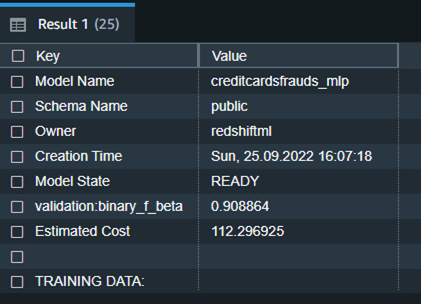
show model creditcardsfrauds_mlp;

We notice from the preceding table that the F1-score for the training data is 0.908, which shows very good performance accuracy.

To elaborate, F1-score is the harmonic mean of precision and recall. It combines precision and recall into a single number using the following formula:

Where, Precision means: Of all positive predictions, how many are really positive?

And Recall means: Of all real positive cases, how many are predicted positive?

F1 scores can range from 0 to 1, with 1 representing a model that perfectly classifies each observation into the correct class and 0 representing a model that is unable to classify any observation into the correct class. So higher F1 scores are better.

The following is the detailed tabular outcome for the preceding command after model training was done.

Model Name creditcardsfrauds_mlp
Schema Name public
Owner redshiftml
Creation Time Sun, 25.09.2022 16:07:18
Model State READY
validation:binary_f_beta 0.908864
Estimated Cost 112.296925
TRAINING DATA: .
Query SELECT * FROM CREDITCARDSFRAUDS WHERE TXTIME < 120954
Target Column CLASS
PARAMETERS: .
Model Type mlp
Problem Type BinaryClassification
Objective F1
AutoML Job Name redshiftml-20221118035728881011
Function Name creditcardsfrauds_mlp_fn
. creditcardsfrauds_mlp_fn_prob
Function Parameters txtime v1 v2 v3 v4 v5 v6 v7 v8 v9 v10 v11 v12 v13 v14 v15 v16 v17 v18 v19 v20 v21 v22 v23 v24 v25 v26 v27 v28 amount
Function Parameter Types int4 float8 float8 float8 float8 float8 float8 float8 float8 float8 float8 float8 float8 float8 float8 float8 float8 float8 float8 float8 float8 float8 float8 float8 float8 float8 float8 float8 float8 float8
IAM Role default
S3 Bucket redshift-ml-blog-mlp
Max Runtime 54000

Redshift ML now supports Prediction Probabilities for binary classification models. For classification problem in machine learning, for a given record, each label can be associated with a probability that indicates how likely this record really belongs to the label. With option to have probabilities along with the label, customers could use the classification results when confidence based on chosen label is higher than a certain threshold value returned by the model

Prediction probabilities are calculated by default for binary classification models and an additional function is created while creating model without impacting performance of the ML model.

In above snippet, you will notice that predication probabilities enhancements have added another function as a suffix (_prob) to model function with a name ‘creditcardsfrauds_mlp_fn_prob’ which could be used to get prediction probabilities.

Additionally, you can check the model explainability to understand which inputs contributed effectively to derive the prediction.

Model explainability helps to understand the cause of prediction by answering questions such as:

  • Why did the model predict a negative outcome such as blocking of credit card when someone travels to a different country and withdraws a lot of money in different currency?
  • How does the model make predictions? Lots of data for credit cards can be put in a tabular format and as per MLP process where a fully connected neural network of several layers is involved, we can tell which input feature actually contributed to the model output and its magnitude.
  • Why did the model make an incorrect prediction? E.g. Why is the card blocked even though the transaction is legitimate?
  • Which features have the largest influence on the behavior of the model? Is it just based upon the location where the credit card is swiped, or even the time of the day and unusual credit consumption that is influencing the prediction?

Run the following SQL command to retrieve the values from the explainability report:

SELECT json_table.report.explanations.kernel_shap.label0.global_shap_values 
FROM (select explain_model('creditcardsfrauds_mlp') as report) as json_table;

In the preceding screenshot, we have only selected the column that projects shapley values from the response returned by the explain_model function. If you notice the response of the query, the values in every json object show the contribution of different features in terms of influencing the prediction. E.g. from the preceding snippet, v14 feature is influencing the prediction the most and txtime feature does not really play any significant role in predicting ‘class’.

Model validation

Now let’s run the prediction query and validate the accuracy of the model on the validation dataset:

FROM (
  SELECT 
      CASE WHEN class =  
      creditcardsfrauds_mlp_fn(txtime,v1,v2,v3,v4,v5,v6,v7,v8,v9,v10,v11,v12,v13,v14,v15,v16,v17,v18,v19,v20,v21,v22,v23,v24,v25,v26,v27,v28,amount) 
      THEN 'PredictedMatchesActual' 
      else 'NoMatch' 
      END as actualvspredicted
    FROM creditcardsfrauds 
    WHERE txtime >= 120954
) 
group by actualvspredicted

We can observe here that Redshift ML is able to identify 99.88 percent of the transactions correctly as fraudulent or non-fraudulent.

Now you can continue to use this SQL function creditcardsfrauds_mlp_fn for local inference in any part of the SQL query while analyzing, visualizing or reporting the newly arriving as well as existing data!

--CREATE A STAGING TABLE TO HOLD NEWLY ARRIVING DATA FROM THE SOURCE WHICH WILL NOT CONAIN THE CLASS COLUMN - AS IT IS TO BE PREDICTED
DROP TABLE creditcardsfrauds_staging;
CREATE TABLE creditcardsfrauds_staging as (select * from creditcardsfrauds limit 0);
Alter table creditcardsfrauds_staging drop column class;

--LETS CONSIDER ONLY ONE RECORD HERE WHICH HAS NEWLY ARRIVED
insert into creditcardsfrauds_staging values(174965,-39999.11383160738512,0.58586417180689,-5.39973021073242,1.81709247345531,-0.840618465991056,-2.94354779071974,-2.20800192003372,1.05873267723056,-1.63233334974982,-5000.24598383776964,11.93351953683592,-53046479695456,-1.12745457501155,-666666.41662797597451,0.141237234328704,-2.54949823633632,-4.61471706851594,-10.47813794126038,-0.0354803664667244,0.306270740368093,0.583275998701341,-0.269208637986581,-0.456107772584008,-0.183659129549716,-0.328167759255761,0.606115810329683,0.884875539542905,-0.253700318894381,-2450000000);

--USE THE FUNCTION TO PREDICT THE VALUE OF CLASS
SELECT txtime, creditcardsfrauds_mlp_fn(txtime,v1,v2,v3,v4,v5,v6,v7,v8,v9,v10,v11,v12,v13,v14,v15,v16,v17,v18,v19,v20,v21,v22,v23,v24,v25,v26,v27,v28,amount)
FROM creditcardsfrauds_staging;

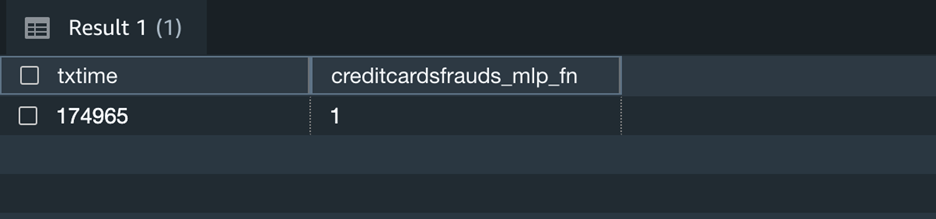
Here the output 1 means that the newly captured transaction is fraudulent as per the inference.

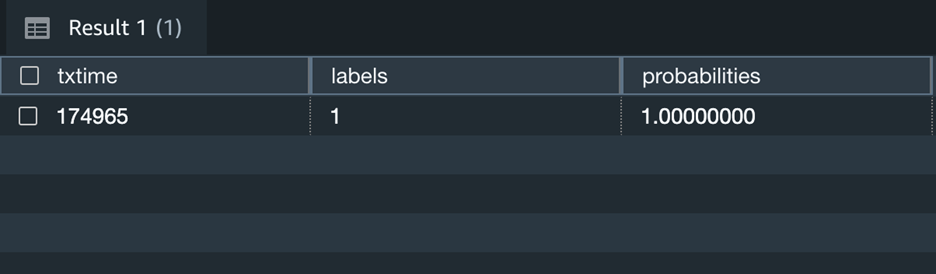
Additionally, you can change the above query to include prediction probabilities of label output for the above scenario and decide if you still like to use the prediction by the model.

--USE THE FUNCTION TO PREDICT THE VALUE OF CLASS ALONG WITH THE PROBABILITY
Select txtime, predictedActive.labels[0], predictedActive.probabilities[0] 
from (
SELECT txtime, creditcardsfrauds_mlp_fn_prob(txtime,v1,v2,v3,v4,v5,v6,v7,v8,v9,v10,v11,v12,v13,v14,v15,v16,v17,v18,v19,v20,v21,v22,v23,v24,v25,v26,v27,v28,amount)as predictedACtive
FROM creditcardsfrauds_staging ) temp

The above screenshot shows that this transaction has 100% likelihood of being fraudulent.

Clean up

To avoid incurring future charges, you can stop the Redshift cluster when not being used. You can even terminate the Redshift cluster altogether if you have run the exercise in this blog post just for experimental purpose. If you are instead using serverless version of Redshift, it will not cost you anything, until it is used. However, like mentioned before, you will have to stop or terminate the cluster if you are using a provisioned version of Redshift.

Conclusion

Redshift ML makes it easy for users of all levels to create, train, and tune models using SQL interface. In this post, we walked you through how to use the MLP algorithm to create binary classification model. You can then use those models to make predictions using simple SQL commands and gain valuable insights.

To learn more about RedShift ML, visit Amazon Redshift ML.


About the authors

Anuradha Karlekar is a Solutions Architect at AWS working majorly for Partners and Startups. She has over 15 years of IT experience extensively in full stack development, deployment, building data ETL pipelines and visualizations. She is passionate about data analytics and text search. Outside work – She is a travel enthusiast!

Phil Bates is a Senior Analytics Specialist Solutions Architect at AWS with over 25 years of data warehouse experience.

Abhishek Pan is a Solutions Architect-Analytics working at AWS India. He engages with customers to define data driven strategy, provide deep dive sessions on analytics use cases & design  scalable and performant Analytical applications. He has over 11 years of experience and is passionate about Databases, Analytics and solving customer problems with help of cloud solutions. An avid traveller and tries to capture world through my lenses

Debu Panda is a Senior Manager, Product Management at AWS, is an industry leader in analytics, application platform, and database technologies, and has more than 25 years of experience in the IT world. Debu has published numerous articles on analytics, enterprise Java, and databases and has presented at multiple conferences such as re:Invent, Oracle Open World, and Java One. He is lead author of the EJB 3 in Action (Manning Publications 2007, 2014) and Middleware Management (Packt).

Secure your database credentials with AWS Secrets Manager and encrypt data with AWS KMS in Amazon QuickSight

Post Syndicated from Srikanth Baheti original https://aws.amazon.com/blogs/big-data/secure-your-database-credentials-with-aws-secrets-manager-and-encrypt-data-with-aws-kms-in-amazon-quicksight/

Amazon QuickSight is a fully managed, cloud-native business intelligence (BI) service that makes it easy to connect to your data, create interactive dashboards, and share them with tens of thousands of users, either directly within a QuickSight application, or embedded in web apps and portals.

Let’s consider AnyCompany, which owns healthcare facilities across the country. The central IT team of AnyCompany is responsible for setting up and maintaining IT infrastructure and services for all the facilities in each state. Because AnyCompany is in the healthcare industry and holds sensitive data, they want to store their database credentials safely and don’t want to share them with individuals in the reporting or BI teams. Additionally, they need to encrypt their data at rest using their own encryption key instead of service-managed keys to satisfy their regulatory requirements. AnyCompany is able to audit access of their SPICE (the QuickSight robust in-memory calculation engine) datasets. In an unlikely case of a security incident, AnyCompany is in full control to immediately lock down access to their data by universally revoking access to their AWS Key Management Service (AWS KMS) keys. QuickSight is one of the services used by AnyCompany, and central IT needs to be able to set up these security measures.

QuickSight Enterprise Edition now supports storing database credentials in AWS Secrets Manager, a feature that allows you to put these credentials in Secrets Manager and not share with every BI user for data source creation. Secrets Manager is a secret storage service that you can use to protect database credentials, API keys, and other secret information. Using a key helps you ensure that the secret can’t be compromised by someone examining your code, because the secret isn’t stored in the code.

Additionally, QuickSight supports account administrators to use their own customer managed key (CMK) to encrypt and manage datasets in SPICE, through integration with AWS KMS. AWS KMS lets you create, manage, and control cryptographic keys across your applications and more than 100 AWS services. With AWS KMS, you can encrypt data across your AWS workloads, digitally sign data, encrypt within your applications using the AWS Encryption SDK, and generate and verify message authentication codes (MACs). Using a QuickSight SPICE CMK enables QuickSight users to revoke access to SPICE datasets with one click, and maintain an auditable log that tracks how SPICE datasets are accessed.

Both features help increase the level of security and transparency, give you more control over QuickSight, and help satisfy security requirements by company and government agency policies.

In this post, we walk you through the steps to use these features.

Solution overview

To enable both features (storing of database credentials in Secrets Manager and using KMS keys for encryption), we require an administrator of the QuickSight account. In the following sections, we walk you through the high-level steps to implement this solution:

  1. Enable Secrets Manager integration from the QuickSight management console.
  2. Create or update a data source with secret credentials using the QuickSight API.
  3. Create a dataset using the data source you created.
  4. Enable KMS keys from the QuickSight management console.
  5. Audit CMK usage and dataset access in AWS CloudTrail.
  6. Revoke access to CMK-encrypted datasets.

Prerequisites

Make sure you have the following prerequisites:

  • A QuickSight subscription with Enterprise Edition
  • A secret in Secrets Manager with your database credentials
  • KMS keys to encrypt data in SPICE

Enable Secrets Manager integration

With this integration, you no longer need to manually enter data source credentials; you can store them in Secrets Manager and manage access via Secrets Manager. You can also rotate the keys and credentials in one place instead of updating all the data sources. Complete the following steps to enable the integration:

  1. Sign in to your QuickSight account.
  2. On the user name drop-down menu, choose Manage QuickSight.
    Manage Quicksight
  3. Choose Security & permissions in the navigation pane.
  4. Under QuickSight access to AWS services, choose Manage.
    Security & Permissions
  5. From the list of services, choose Select secrets under AWS Secrets Manager.
    QuickSight access to AWS services
  6. Select the appropriate secret from the list of secrets and choose Finish.
    Finish

QuickSight creates an AWS Identity and Access Management (IAM) role called aws-quicksight-secretsmanager-role-v0 in your account. It grants users in the account read-only access to the specified secrets and looks similar to the following code:

Identity and Access Management

Create a data source with secret credentials using the QuickSight API

At the time of this writing, creation of data sources using the stored secret in Secrets Manager is only available through the CreateDatasource public API.

The following code is an example API call to create a data source in QuickSight. This example uses the create-data-source API operation. You can also use the update-data-source operation to update an existing data source. For more information, see CreateDataSource and UpdateDataSource.

aws quicksight create-data-source --aws-account-id AWSACCOUNTID \ --data-source-id DATASOURCEID \ --name NAME \ --type MYSQL \ --permissions '[{"Principal": "arn:aws:quicksight:region:accountID:user/namespace/username", "Actions": ["quicksight:DeleteDataSource", "quicksight:DescribeDataSource", "quicksight:DescribeDataSourcePermissions", "quicksight:PassDataSource", "quicksight:UpdateDataSource", "quicksight:UpdateDataSourcePermissions"]}]' \    --data-source-parameters='{"MySQLParameters":{"Database": "database", "Host":"hostURL", "Port":"port"}}' \ --credentials='{"SecretArn":"arn:aws:secretsmanager:region:accountID:secret:secretname"}' \ --region us-west-2

In the preceding call, QuickSight authorizes secretsmanager:GetSecretValue access to the secret based on the API caller’s IAM policy, not the IAM service role’s policy. The IAM service role acts on the account level and is used when an analysis or dashboard is viewed by a user. It can’t be used to authorize secret access when a user creates or updates the data source.

We get the following response:

{
   "Arn": "string",
   "CreationStatus": "string",
   "DataSourceId": "string",
   "RequestId": "string"
}

In the initial response, the creation status is CREATION_IN_PROGRESS. To check if the data source was successfully created, use the DescribeDatasource API to receive a description of the data source:

aws quicksight describe-data-source --aws-account-id AWSACCOUNTID \ --data-source-id DATASOURCEID

A successful API call returns the data source object that includes status and data source details:

{
   "Status": integer,
   "DataSource":{
      "Arn": "string",
 "DataSourceId": "string",
   	 "Name": "string"
   	 "Type": "string"
   	 "Status": "string"
   	 "CreatedTime": "string"
   	 "LastUpdatedTime": "string"
   	 "DataSourceParameters": {
       }
   	 "VpcConnectionProperties": {
 "VpcConnectionArn":"string"
  }
	 "SslProperties": {
            "DisableSsl": boolean
        },
       "SecretArn": "string"
}
     "RequestId": "string"
}

Create a dataset using the new data source

For instructions on creating a new SPICE dataset using the data source you just created, refer to Creating a dataset using an existing data source.

Enable KMS keys

To enable KMS keys, complete the following steps:

  1. On the QuickSight start page, choose Manage QuickSight.
    Managing QuickSight
  2. Choose KMS keys in the navigation pane.
  3. Choose Manage.
    Manage
  4. On the KMS Keys page, choose Select key.
    Select Key
  5. In the Select key pop-up box, on the Key menu, choose the key that you want to add.
    Key Menu

If your key isn’t on the list, you can manually enter the key’s ARN.

  1. Choose Use as default encryption key for all new SPICE datasets in this QuickSight account to set the selected key as your default key.

A blue badge appears next to the default key to indicate its status.

When you choose a default key, all new SPICE datasets that are created in the Region that hosts your QuickSight account are encrypted with the default key.

Default Key

  1. Optionally, add more keys by repeating the previous steps.

Although you can add as many keys as you want, you can only have one default key at one time.

  1. Optionally, change or remove CMKs by changing or deleting the default key for all new SPICE datasets.

For existing datasets, you need to perform a full refresh after changing or deleting the default key to take effect.

Audit CMK usage and dataset access in CloudTrail

When a key is used (for example, when a CMK-encrypted SPICE dataset is accessed), an audit log is created in CloudTrail. You can use the log to track the key’s usage. For more information, see Logging operations with AWS CloudTrail. If you need to know which key a SPICE dataset is encrypted by, you can find this information in CloudTrail. Complete the following steps:

  1. On the CloudTrail console, navigate to your CloudTrail log.
  2. Locate the CMK usage (CMK-encrypted SPICE dataset access), using the following search arguments:
    1. The event name (eventName) is GenerateDataKey or Decrypt.
    2. The eventTime denotes when the CMK is used (a CMK-encrypted SPICE dataset is accessed).
    3. The request parameters (requestParameters) contain the QuickSight ARN for the dataset.
    4. The request parameters (requestParameters) contain the KMS ARN (keyId) of the CMK.

See the following code:

{
    "eventVersion": "1.08",
    "userIdentity": {
        "type": "AWSService",
        "invokedBy": "quicksight.amazonaws.com"
    },
    "eventTime": "2022-10-26T00:06:06Z",
    "eventSource": "kms.amazonaws.com",
    "eventName": "Decrypt",
    "awsRegion": "us-west-2",
    "sourceIPAddress": "quicksight.amazonaws.com",
    "userAgent": "quicksight.amazonaws.com",
    "requestParameters": {
        "constraints": {
            "encryptionContextSubset": {
                "aws:quicksight:arn": "arn:aws:quicksight:us-west-2:111122223333:dataset/12345678-1234-1234-1234-123456789012"
            }
        },
        "keyId": "arn:aws:kms:us-west-2:111122223333:key/87654321-4321-4321-4321-210987654321",
        "encryptionAlgorithm": "SYMMETRIC_DEFAULT"
    },
....
}

Now we can verify the CMK that’s currently used by a SPICE dataset.

  1. In your CloudTrail log, locate the most recent grant events for the SPICE dataset using the following search arguments:
    1. The event name (eventName) contains Grant.
    2. The request parameters (requestParameters) contain the QuickSight ARN for the dataset.

See the following code:

{
    "eventVersion": "1.08",
    "userIdentity": {
        "type": "AWSService",
        "invokedBy": "quicksight.amazonaws.com"
    },
    "eventTime": "2022-10-26T00:11:08Z",
    "eventSource": "kms.amazonaws.com",
    "eventName": "CreateGrant",
    "awsRegion": "us-west-2",
    "sourceIPAddress": "quicksight.amazonaws.com",
    "userAgent": "quicksight.amazonaws.com",
    "requestParameters": {
        "constraints": {
            "encryptionContextSubset": {
                "aws:quicksight:arn": "arn:aws:quicksight:us-west-2:111122223333:dataset/12345678-1234-1234-1234-123456789012"
            }
        },
        "retiringPrincipal": "quicksight.amazonaws.com",
        "keyId": "arn:aws:kms:us-west-2:111122223333:key/87654321-4321-4321-4321-210987654321",
        "granteePrincipal": "quicksight.amazonaws.com",
        "operations": [
            "Encrypt",
            "Decrypt",
            "DescribeKey",
            "GenerateDataKey"
        ]
    },
....
}

Depending on the event type, one of the following applies:

  • CreateGrant – You can find the most recently used CMK in the key ID (keyID) for the last CreateGrant event for the SPICE dataset
  • RetireGrant – If latest CloudTrail event of the SPICE dataset is RetireGrant, there is no key ID and the SPICE dataset is no longer CMK encrypted

Revoke access to CMK-encrypted datasets

You can revoke access to your CMK-encrypted SPICE datasets. When you revoke access to a key that is used to encrypt a dataset, access to the dataset is denied until you undo the revoke. The following method is one example of how you can revoke access:

  1. On the AWS KMS console, choose Customer managed keys in the navigation pane.
  2. Select the key that you want to turn off.
  3. On the Key actions menu, choose Disable.

After you revoke access by using any method, it can take up to 15 minutes for the SPICE dataset to become inaccessible.

Sample implementation

The following code shows a sample CreateDatasource API call for creating a QuickSight data source:

aws quicksight create-data-source --aws-account-id <AccountID> --data-source-id hospitaldataASM --name hospipataldataASM --type POSTGRESQL --credentials={\"SecretArn\":\"arn:aws:secretsmanager:us-east-1:<AccountiD>:secret:<SecretID>\"} --data-source-parameters={\"PostgreSqlParameters\":{\"Database\":\"postgres\",\"Host\":\"xxxx.xxxxxx.us-east-1.rds.amazonaws.com\",\"Port\":5432}} --vpc-connection-properties={\"VpcConnectionArn\":\"arn:aws:quicksight:us-east-1:<AccountID>:vpcConnection/<vpcConnectionName>\"} --permissions="Principal=arn:aws:quicksight:us-east-1:380249061054:user/default/<username>,Actions=quicksight:DescribeDataSource,quicksight:DescribeDataSourcePermissions,quicksight:PassDataSource,quicksight:UpdateDataSourcePermissions,quicksight:DeleteDataSource,quicksight:UpdateDataSource"

We get the following response:

Response

To monitor the status of the new data source, run the DescribeDataSource API:

aws quicksight describe-data-source --aws-account-id <AccountId> \     --data-source-id hospitaldataASM

aws quicksight describe-data-source –aws-account-id <AccountId> \ –data-source-id hospitaldataASM

We get the following response:

Response 2

To validate the KMS keys used, navigate to CloudTrail logs, as shown in the following code:

Cloud Trails Log

Finally, audit the CMK usage (dataset access) via CloudTrail logs. And in the unlikely case of a security incident, access to data can be locked down universally by revoking access to the KMS keys.

Clean up

Clean up the resources created as part of this post with the following steps:

  1. To remove the Secrets Manager integration, update the data source with regular service-level credentials.
  2. Remove the secret from the QuickSight admin console.
  3. On the QuickSight start page, choose Manage QuickSight.
  4. Choose KMS keys in the navigation pane.
  5. Choose Manage.
  6. Choose the Actions menu (three dots) on the row of the default key, then choose Delete.
  7. In the pop-up box that appears, choose Remove.

Conclusion

This post showcased the new features released in QuickSight to secure database credentials through integration with Secrets Manager and AWS KMS. We also demonstrated how to set up customer managed keys to enable encryption of data at rest in QuickSight SPICE, track key usage history using CloudTrail, and lock down access to data by revoking access to KMS keys.

Try out QuickSight support for Secrets Manager and AWS KMS integration to secure your credentials and data with QuickSight, and share your feedback and questions in the comments. For more information, refer to Key management and Using AWS Secrets Manager secrets instead of database credentials in Amazon QuickSight.


About the authors

Srikanth Baheti is a Specialized World Wide Sr. Solution Architect for Amazon QuickSight. He started his career as a consultant and worked for multiple private and government organizations. Later he worked for PerkinElmer Health and Sciences & eResearch Technology Inc, where he was responsible for designing and developing high traffic web applications, highly scalable and maintainable data pipelines for reporting platforms using AWS services and Serverless computing.

Raji Sivasubramaniam is a Sr. Solutions Architect at AWS, focusing on Analytics. Raji is specialized in architecting end-to-end Enterprise Data Management, Business Intelligence and Analytics solutions for Fortune 500 and Fortune 100 companies across the globe. She has in-depth experience in integrated healthcare data and analytics with wide variety of healthcare datasets including managed market, physician targeting and patient analytics.

Chaos experiments using AWS Step Functions and AWS Fault Injection Simulator

Post Syndicated from James Beswick original https://aws.amazon.com/blogs/compute/chaos-experiments-using-aws-step-functions-and-aws-fault-injection-simulator/

This post is written by Arunsingh Jeyasingh Jacob, Senior Solutions Architect, and Sindhura Palakodety, Senior Solutions Architect.

To run business-critical applications at scale, it is important to determine the resiliency of the application. Chaos experiments induce controlled failures into a distributed application to gain confidence in the application behavior. The learnings from these experiments can be fed into a continuous feedback cycle to improve the resiliency.

In 2021, AWS launched AWS Fault Injection Simulator (FIS). This is a fully managed service for running Fault Injection experiments on AWS. It makes it easier to improve an application’s performance, observability, and resiliency. With Fault Injection Simulator, AWS customers can quickly set up experiments using pre-built templates that generate the desired disruptions.

Overview

This post uses AWS Step Functions to create and run AWS Fault Injection Simulator (FIS) experiments. You are encouraged to perform these experiments in a test account. Do not use the example in a production environment without making appropriate code changes.

The demo-fis-stepfunctions code deployed in this post is used to build the Step Functions state machine for FIS experiments.

There are two Step Functions workflows that are deployed. One is for chaos testing Amazon EC2 workloads and the other one is for Amazon ECS workloads.

The Step Functions workflow for EC2 workloads

The following Step Functions workflow shows an EC2 chaos experiment to stress CPU utilization, and stop and terminate EC2 instances.

Step Functions workflow for Amazon EC2 Fault Injection Experiments

EC2 experiment templates

This workflow runs through FIS experiment template creation followed by the execution of the FIS experiment. The FIS experiment template contains one or more actions to run on specified targets during an experiment. By creating a template, you are not running experiments against any workload, but creating a definition for the experiment.

The EC2 experiment templates created in this workflow are:

  • EC2CPUStressExperimentTemplate
  • EC2StopExperimentTemplate
  • EC2TerminateExperimentTemplate

These are the terms used in the FIS experiment template:

  • Actions: While creating an experimentation template, you must define an action once during an experiment.
  • Targets: A target is one or more AWS resources on which an action is performed by AWS Fault Injection Simulator (AWS FIS) during an experiment. For example, defining which instances to stress CPUs based on the tags.
  • Filters: Resource filters are queries that identify target resources according to specific attributes.
  • IAM role: This IAM role is assumed by FIS to perform the actions mentioned in the template. The Step Functions role must pass permissions to this FIS role.
  • Client token: The Step Functions execution fails if a client token is not passed.
  • Selection mode: Run experiments on all the resources matching the target criteria or specify the number of resources. For example, the EC2CPUStressExperimentTemplate targets one resource in random.

The ‘EC2CPUStressExperimentTemplate’ code defines how to stop EC2 instances with the tag ‘FISAction: CPUStress’:

{
   "Targets": {
      "CPUStressInstances": {
         "ResourceType": "aws:ec2:instance",
         "ResourceTags": {
            "FISAction": "CPUStress"
         },
         "Filters": [
            {
               "Path": "VpcId",
               "Values": [
                  "${VpcID}"
               ]
            }
         ],
         "SelectionMode": "COUNT(1)"
      }
   }
}

Targets can also be filtered using parameters like Amazon VPC ID. You can change the Step Functions definition by modifying the targets, actions, and filters.

EC2 FIS experiments

FIS experiment uses the experiment template definition during the state execution, and targets the appropriate resources.

  1. There are three EC2 FIS experiments created as a part of the workflow:1. CPUStressInstances: This runs after the ‘EC2CPUStressExperimentTemplate’ state. In this state, AWS Systems Manager (SSM) attempts to add CPU stress on the target instance with the tag “FISAction: CPUStress”. You can monitor the metric in the Amazon CloudWatch dashboard, and take actions using Amazon CloudWatch alarms.
    Monitoring the CPU utilization using Amazon CloudWatch
  2. StopInstances: Here, the target instances enter the ‘stopping’ state. Based on the template definition, all the EC2 instances with the tag “FISAction:Stop” in the filtered VPC are stopped.
  3.  TerminateInstances: This terminates the target instances with the tag “FISAction:Terminate” in the filtered VPC.

The Step Functions workflow for Amazon ECS workloads

The following Step Functions workflow shows an FIS experiment to stop ECS tasks:

Step Functions workflow for Amazon ECS Fault Injection experiment

  • Amazon ECS experiment template: The ECSStopTaskExperimentTemplate state is created in this workflow. This FIS template defines the action to be run during the experiment.
  • Amazon ECS experiments: After creating the experiment template, the ECSStopTask state runs the FIS experiment.
  • ECSStopTask: FIS targets all the Amazon ECS tasks with the tag “FISAction: StopECSTask” and stops the tasks.

After the FIS experiment state is initiated, the status of the experiment can be polled before proceeding to the next state. The FIS experiments have multiple states like pending, initiating, running, completed, stopping, stopped, and failed.

The choice state in the workflow checks for the ‘running’ state by polling the status using FIS: GetExperiment API. A ‘failed’ status will result in the workflow failure. You can also design the workflow by introducing wait times between the experiments or by including flow activities like parallel.

Deploying with the AWS Serverless Application Model

This example has the following prerequisites:

  1. Create an AWS account if you don’t have one already.
  2. A valid existing VPC with subnets.
  3. A local install of Git CLI.
  4. A local install of AWS SAM CLI to build and deploy the sample code.

After installation, follow these steps to deploy the example:

  1. Clone the sample code:
    git clone https://github.com/aws-samples/aws-stepfunctions-examples.git
    cd sam/demo-fis-stepfunctions/
    
  2. Modify the templates as needed. You can also edit the state machine code from the AWS Management Console after you deploy this code.
  3. Build and deploy the code:
    sam build 
    sam deploy --guided
    

To learn more, visit the AWS SAM deployment documentation. This launches an AWS CloudFormation stack that creates the state machine, AWS IAM roles and CloudWatch log group. The next step is to run the state machines.

Running the Step Functions workflows

The AWS SAM deployment creates two Step Functions state machines in the deployed AWS Region: FISTest-aws-region-StateMachineFIS and FISTest-aws-region-StateMachineECSFIS.

Before running the state machine FISTest-aws-region-StateMachineFIS, create three EC2 instances with the tags “FISAction: CPUStress”, “FISAction:Stop” and “FISAction:Terminate” respectively.

  1. Navigate to the Step Functions console.
  2. Choose FISTest-aws-region-StateMachineFIS then Start execution.

As the workflow progresses, CPU Utilization spikes in one Amazon EC2 instance. The other Amazon EC2 instances are stopped and terminated.

To run chaos experiments on an ECS cluster, you can either use an existing ECS cluster or create a new cluster. To create an ECS cluster:

  1. Navigate to the ECS console.
  2. Choose Get Started.
  3. Choose sample-app and follow the instructions to deploy. Wait for the cluster to be created.
  4. Choose the sample cluster, then choose Tasks.
  5. Choose the running tasks and add the tag “FISAction: StopECSTask”

From the browser, the public IP assigned to the task takes you to the sample application.

Amazon ECS Sample Application

  1. Navigate to the Step Functions console.
  2. Choose FISTest-aws-region-StateMachineECSFIS, then Start execution.
  3. The workflow transitions to Wait during the execution.

Execution - FIS Step Functions workflow for ECS experiment

Once the execution is complete, the webpage momentarily becomes unavailable until a new task comes up. The public IP address and ARN of the task changes. The task status of the stopped tasks now shows “Task stopped by AWS FIS”.

ECS Task stopped by AWS FIS Experiment

To perform an FIS experiment against an existing ECS cluster, add the Resource Tags value “FISAction: StopECSTask” to your ECS tasks before running the workflows.

{
   "Targets": {
      "ecsfargatetask": {
         "ResourceType": "aws:ecs:task",
         "ResourceTags": {
            "FISAction": "StopECSTask"
         },
         "SelectionMode": "ALL"
      }
   }
}

Cleanup

If you have deployed the code using AWS SAM, delete the resources:

sam delete –stack-name <STACK_NAME>

Refer to this documentation for further information.

Conclusion

This blog post describes how to use Step Functions to orchestrate Fault Injection Simulator (FIS) experiments for EC2 and ECS workloads. Using the workflow in this post as an example, you can build state machines for more AWS FIS experiments. Step Functions, AWS FIS, and other services can be combined to build resiliency workflows, and test your application against your resiliency goals.

To learn more about AWS FIS and Step Functions, visit:

For more Step Functions resources, visit the Serverless Workflows Collection.

[$] Troubles with triaging syzbot reports

Post Syndicated from original https://lwn.net/Articles/917762/

A report from the syzbot
kernel fuzz-testing robot does not usually spawn a
vitriolic mailing-list thread, but that is just what happened recently.
While the invective is regrettable, the underlying issue is important. The
dispute revolves around how best to report bugs
to affected subsystems and, ultimately, how not to waste maintainers’ time.

New – Bring ML Models Built Anywhere into Amazon SageMaker Canvas and Generate Predictions

Post Syndicated from Antje Barth original https://aws.amazon.com/blogs/aws/new-bring-ml-models-built-anywhere-into-amazon-sagemaker-canvas-and-generate-predictions/

Amazon SageMaker Canvas provides business analysts with a visual interface to solve business problems using machine learning (ML) without writing a single line of code. Since we introduced SageMaker Canvas in 2021, many users have asked us for an enhanced, seamless collaboration experience that enables data scientists to share trained models with their business analysts with a few simple clicks.

Today, I’m excited to announce that you can now bring ML models built anywhere into SageMaker Canvas and generate predictions.

New – Bring Your Own Model into SageMaker Canvas
As a data scientist or ML practitioner, you can now seamlessly share models built anywhere, within or outside Amazon SageMaker, with your business teams. This removes the heavy lifting for your engineering teams to build a separate tool or user interface to share ML models and collaborate between the different parts of your organization. As a business analyst, you can now leverage ML models shared by your data scientists within minutes to generate predictions.

Let me show you how this works in practice!

In this example, I share an ML model that has been trained to identify customers that are potentially at risk of churning with my marketing analyst. First, I register the model in the SageMaker model registry. SageMaker model registry lets you catalog models and manage model versions. I create a model group called 2022-customer-churn-model-group and then select Create model version to register my model.

Amazon SageMaker Model Registry

To register your model, provide the location of the inference image in Amazon ECR, as well as the location of your model.tar.gz file in Amazon S3. You can also add model endpoint recommendations and additional model information. Once you’ve registered your model, select the model version and select Share.

Amazon SageMaker Studio - Share models from model registry with SageMaker Canvas users

You can now choose the SageMaker Canvas user profile(s) within the same SageMaker domain you want to share your model with. Then, provide additional model details, such as information about training and validation datasets, the ML problem type, and model output information. You can also add a note for the SageMaker Canvas users you share the model with.

Amazon SageMaker Studio - Share a model from Model Registry with SageMaker Canvas users

Similarly, you can now also share models trained in SageMaker Autopilot and models available in SageMaker JumpStart with SageMaker Canvas users.

The business analysts will receive an in-app notification in SageMaker Canvas that a model has been shared with them, along with any notes you added.

Amazon SageMaker Canvas - Received model from SageMaker Studio

My marketing analyst can now open, analyze, and start using the model to generate ML predictions in SageMaker Canvas.

Amazon SageMaker Canvas - Imported model from SageMaker Studio

Select Batch prediction to generate ML predictions for an entire dataset or Single prediction to create predictions for a single input. You can download the results in a .csv file.

Amazon SageMaker Canvas - Generate Predictions

New – Improved Model Sharing and Collaboration from SageMaker Canvas with SageMaker Studio Users
We also improved the sharing and collaboration capabilities from SageMaker Canvas with data science and ML teams. As a business analyst, you can now select which SageMaker Studio user profile(s) you want to share your standard-build models with.

Your data scientists or ML practitioners will receive a similar in-app notification in SageMaker Studio once a model has been shared with them, along with any notes from you. In addition to just reviewing the model, SageMaker Studio users can now also, if needed, update the data transformations in SageMaker Data Wrangler, retrain the model in SageMaker Autopilot, and share back the updated model. SageMaker Studio users can also recommend an alternate model from the list of models in SageMaker Autopilot.

Once SageMaker Studio users share back a model, you receive another notification in SageMaker Canvas that an updated model has been shared back with you. This collaboration between business analysts and data scientists will help democratize ML across organizations by bringing transparency to automated decisions, building trust, and accelerating ML deployments.

Now Available
The enhanced, seamless collaboration capabilities for Amazon SageMaker Canvas, including the ability to bring your ML models built anywhere, are available today in all AWS Regions where SageMaker Canvas is available with no changes to the existing SageMaker Canvas pricing.

Start collaborating and bring your ML model to Amazon SageMaker Canvas today!

— Antje

Cloudflare achieves FedRAMP authorization to secure more of the public sector

Post Syndicated from Aron Nakazato original https://blog.cloudflare.com/cloudflare-achieves-fedramp-authorization/

Cloudflare achieves FedRAMP authorization to secure more of the public sector

This post is also available in Deutsch, Français and Español.

Cloudflare achieves FedRAMP authorization to secure more of the public sector

We are excited to announce our public sector suite of services, Cloudflare for Government, has achieved FedRAMP Moderate Authorization. The Federal Risk and Authorization Management Program (“FedRAMP”) is a US-government-wide program that provides a standardized approach to security assessment, authorization, and continuous monitoring for cloud products and services. FedRAMP Moderate Authorization demonstrates Cloudflare’s continued commitment to customer trust, and Cloudflare for Government’s ability to secure and protect US public sector organizations.

Key differentiators

We believe public sector customers deserve the same experience as any other customer — so rather than building a separate platform, we leveraged our existing platform for Cloudflare for Government. Cloudflare’s platform protects and accelerates any Internet application without adding hardware, installing software, or changing a line of code. It’s also one of the largest and fastest global networks on the planet.

One of the things that distinguishes Cloudflare for Government from other FedRAMP cloud providers is the number of data centers we have in scope, with each able to run our full stack of FedRAMP Authorized services locally, with a single control plane on our private backbone. Networking and security services can only improve the user experience if they are run as close to the user as possible, even if the user doesn’t live on an east or west coast hub. While other cloud service providers may only have a handful of data centers within their FedRAMP environment, Cloudflare for Government includes over 30 of our US-based data centers. This provides Cloudflare for Government customers with the same speed, availability, and security that non-highly regulated customers have come to expect from us.

Cloudflare for Government services

Cloudflare for Government is a suite of services for U.S. government and public sector agencies, delivered from our global, highly resilient cloud network with built-in security and performance.

Cloudflare achieves FedRAMP authorization to secure more of the public sector

Application services

Web Application Firewall with API protection provides an intelligent, integrated and scalable solution to protect your critical web applications. Rate Limiting protects against denial of service attacks, brute force login attempts, and other abusive behavior that targets the application layer. Load Balancing improves application performance and availability by steering traffic from unhealthy origin servers and dynamically distributing it to the most available and responsive server pools.

Bot Management manages good and bad bots in real-time, helps prevent credential stuffing, content scraping, content spam, inventory hoarding, credit card stuffing, and application DDoS. CDN provides ultra-fast static and dynamic content delivery over our global network; it offers users the ability to exercise precise control over how content is cached, helps reduce bandwidth costs and take advantage of built-in unmetered DDoS protections. Enterprise grade DNS offers the fastest response time, unparalleled redundancy, and advanced security with built-in DDoS mitigation and DNSSEC.

Zero trust

Zero Trust Network Access creates secure boundaries for applications by allowing access to resources after verifying identity, context, and policy adherence for each specific request. Remote Browser Isolation provides a fast and reliable solution for remote browsing by running all browser code in the cloud. Secure Web Gateway protects users and data by inspecting user traffic, filtering and blocking malicious content, and identifying compromised devices.

Network services

Cloudflare for Government can replace your legacy WAN architecture with Cloudflare’s WAN-as-a-Service which provides expansive connectivity, cloud-based security, performance and control. L3/4 DDoS can protect your websites, applications, and network — Cloudflare blocks an average of 87 billion threats per day! Network Interconnect enables you to directly connect your on-premise networks and cloud hosted environments to Cloudflare for Government.

Developer platform

Workers provides a serverless execution environment that allows you to create entirely new applications or augment existing ones without configuring or maintaining infrastructure. Workers KV is a global, low-latency, key-value data store. It supports exceptionally high read volumes with low-latency, making it possible to build highly dynamic APIs and websites which respond as quickly as a cached static file would. Durable Objects provides low-latency coordination and consistent storage for the Workers platform through two features: global uniqueness and a transactional storage API.

What’s next for Cloudflare for Government

Our achievement of FedRAMP Moderate for our Cloudflare for Government suite of products is the first step in our journey to help secure government entities. As you may have read earlier this week, our focus hasn’t been only with the US public sector. Our Zero Trust products are being leveraged to protect critical infrastructure in Japan, Australia, Germany, Portugal, and the UK. We’re also securing organizations qualified under Project Galileo and Athenian with our Cloudflare One Zero Trust suite at no cost.  We will expand the Cloudflare for Government suite to allow governments all over the world to have the opportunity to use our services to protect their assets and users.

We aim to help agencies build stronger cybersecurity, without compromising the customer experience of the government services that all US citizens rely on. We invite all our Cloudflare for Government public and private partners to learn more about our capabilities and work with us to develop solutions to the rapidly evolving security demands required in complex environments. Please reach out to us at [email protected] with any questions.

For more information on Cloudflare’s FedRAMP status, please visit the FedRAMP Marketplace.

Building a healthcare data pipeline on AWS with IBM Cloud Pak for Data

Post Syndicated from Eduardo Monich Fronza original https://aws.amazon.com/blogs/architecture/building-a-healthcare-data-pipeline-on-aws-with-ibm-cloud-pak-for-data/

Healthcare data is being generated at an increased rate with the proliferation of connected medical devices and clinical systems. Some examples of these data are time-sensitive patient information, including results of laboratory tests, pathology reports, X-rays, digital imaging, and medical devices to monitor a patient’s vital signs, such as blood pressure, heart rate, and temperature.

These different types of data can be difficult to work with, but when combined they can be used to build data pipelines and machine learning (ML) models to address various challenges in the healthcare industry, like the prediction of patient outcome, readmission rate, or disease progression.

In this post, we demonstrate how to bring data from different sources, like Snowflake and connected health devices, to form a healthcare data lake on Amazon Web Services (AWS). We also explore how to use this data with IBM Watson to build, train, and deploy ML models. You can learn how to integrate model endpoints with clinical health applications to generate predictions for patient health conditions.

Solution overview

The main parts of the architecture we discuss are (Figure 1):

  1. Using patient data to improve health outcomes
  2. Healthcare data lake formation to store patient health information
  3. Analyzing clinical data to improve medical research
  4. Gaining operational insights from healthcare provider data
  5. Providing data governance to maintain the data privacy
  6. Building, training, and deploying an ML model
  7. Integration with the healthcare system
Data pipeline for the healthcare industry using IBM CP4D on AWS

Figure 1. Data pipeline for the healthcare industry using IBM CP4D on AWS

IBM Cloud Pak for Data (CP4D) is deployed on Red Hat OpenShift Service on AWS (ROSA). It provides the components IBM DataStage, IBM Watson Knowledge Catalogue, IBM Watson Studio, IBM Watson Machine Learning, plus a wide variety of connections with data sources available in a public cloud or on-premises.

Connected health devices, on the edge, use sensors and wireless connectivity to gather patient health data, such as biometrics, and send it to the AWS Cloud through Amazon Kinesis Data Firehose. AWS Lambda transforms the data that is persisted to Amazon Simple Storage Service (Amazon S3), making that information available to healthcare providers.

Amazon Simple Notification Service (Amazon SNS) is used to send notifications whenever there is an issue with the real-time data ingestion from the connected health devices. In case of failures, messages are sent via Amazon SNS topics for rectifying and reprocessing of failure messages.

DataStage performs ETL operations and move patient historical information from Snowflake into Amazon S3. This data, combined with the data from the connected health devices, form a healthcare data lake, which is used in IBM CP4D to build and train ML models.

The pipeline described in architecture uses Watson Knowledge Catalogue, which provides data governance framework and artifacts to enrich our data assets. It protects sensitive patient information from unauthorized access, like individually identifiable information, medical history, test results, or insurance information.

Data protection rules define how to control access to data, mask sensitive values, or filter rows from data assets. The rules are automatically evaluated and enforced each time a user attempts to access a data asset in any governed catalog of the platform.

After this, the datasets are published to Watson Studio projects, where they are used to train ML models. You can develop models using Jupyter Notebook, IBM AutoAI (low-code), or IBM SPSS modeler (no-code).

For the purpose of this use case, we used logistic regression algorithm for classifying and predicting the probability of an event, such as disease risk management to assist doctors in making critical medical decisions. You can also build ML models using algorithms like Classification, Random Forest, and K-Nearest Neighbor. These are widely used to predict disease risk.

Once the models are trained, they are exposed as endpoints with Watson Machine Learning and integrated with the healthcare application to generate predictions by analyzing patient symptoms.

The healthcare applications are a type of clinical software that offer crucial physiological insights and predict the effects of illnesses and possible treatments. It provides built-in dashboards that display patient information together with the patient’s overall metrics for outcomes and treatments. This can help healthcare practitioners gain insights into patient conditions. It also can help medical institutions prioritize patients with more risk factors and curate clinical and behavioral health plans.

Finally, we are using IBM Security QRadar XDR SIEM to collect, process, and aggregate Amazon Virtual Private Cloud (Amazon VPC) flow logs, AWS CloudTrail logs, and IBM CP4D logs. QRadar XDR uses this information to manage security by providing real-time monitoring, alerts, and responses to threats.

Healthcare data lake

A healthcare data lake can help health organizations turn data into insights. It is centralized, curated, and securely stores data on Amazon S3. It also enables you to break down data silos and combine different types of analytics to gain insights. We are using the DataStage, Kinesis Data Firehose, and Amazon S3 services to build the healthcare data lake.

Data governance

Watson Knowledge Catalogue provides an ML catalogue for data discovery, cataloging, quality, and governance. We define policies in Watson Knowledge Catalogue to enable data privacy and overall access to and utilization of this data. This includes sensitive data and personal information that needs to be handled through data protection, quality, and automation rules. To learn more about IBM data governance, please refer to Running a data quality analysis (Watson Knowledge Catalogue).

Build, train, and deploy the ML model

Watson Studio empowers data scientists, developers, and analysts to build, run, and manage AI models on IBM CP4D.

In this solution, we are building models using Watson Studio by:

  1. Promoting the governed data from Watson Knowledge Catalogue to Watson Studio for insights
  2. Using ETL features, such as built-in search, automatic metadata propagation, and simultaneous highlighting, to process and transform large amounts of data
  3. Training the model, including model technique selection and application, hyperparameter setting and adjustment, validation, ensemble model development and testing; algorithm selection; and model optimization
  4. Evaluating the model based on metric evaluation, confusion matrix calculations, KPIs, model performance metrics, model quality measurements for accuracy and precision
  5. Deploying the model on Watson Machine Learning using online deployments, which create an endpoint to generate a score or prediction in real time
  6. Integrating the endpoint with applications like health applications, as demonstrated in Figure 1

Conclusion

In this blog, we demonstrated how to use patient data to improve health outcomes by creating a healthcare data lake and analyzing clinical data. This can help patients and healthcare practitioners make better, faster decisions and prioritize cases. We also discussed how to build an ML model using IBM Watson and integrate it with healthcare applications for health analysis.

Additional resources

Cloud Audit: Compliance + Automation

Post Syndicated from Aaron Wells original https://blog.rapid7.com/2022/12/14/cloud-audit-compliance-automation/

Setting your own standard

Cloud Audit: Compliance + Automation

Today’s regulatory environment is incredibly fractured and extensive. Depending on the industry—and the part of the world your business and/or security organization resides in—you may be subject to several regulatory compliance standards. Adding to the complexity, there is overlap among many of the standards, and they all require considerable resources to implement properly.

This can be a difficult endeavor, to say the least. That’s why many companies have dedicated compliance personnel to (as much as possible) push workloads and resources to adherence to cloud security standards. It’s important to build a plan to keep up with changing regulations and determine what exactly they mean for your environment.

From there, you can specify how to incorporate those changes and automate cloud posture management processes so you can act fast in the wake of an incident or breach. Deploying a cloud security posture management (CSPM) can ease the administrative burden associated with staying in compliance.

Complex compliance frameworks

There’s no reason to think your organization needs to go about all this compliance confusion on its own, even with skilled in-house personnel. There are regulations you’ll need to adhere to explicitly, but oftentimes regulatory bodies don’t offer a solution to track and enforce adherence to standards. It can be difficult to build that compliance framework from scratch.

That’s why it’s important to engage a CSPM tool that can be used to build in checks/compliance standards that align to one or more regulations—as noted above, it’s often a combination of many. It’s also likely you’ll want to supplement with additional checks not covered in the regulatory frameworks. A capable solution like InsightCloudSec can help you accomplish that.

For example, The European Union’s General Data Protection Regulation (GDPR) requires organizations to incorporate data protection by design, including default security features. To this point, InsightCloudSec can help to enforce security rules throughout the CI/CD build process to prevent misconfigurations from ever happening and govern IaC security.

A pre-configured solution can erase the complexity of setting up your own compliance framework and alert system, and help you keep up with the speed of this type of regulatory pace. The key is knowing if the solution you’re getting is up to date with the current standard in the location in which it’s required.

When choosing a solution, look for one that delivers out-of-the-box policies that hold cloud security to high standards, so your controls are tight and contain failsafes. For example, a standard like the Cloud Security Alliance Cloud Controls Matrix (CSA CCM) helps you create and fortify those checks so that your customers or users have confidence that you’re putting cloud security at the forefront. The InsightCloudSec CSA CCM compliance pack provides:  

  • Detailed guidance of security concepts across 13 domains—all of which follow Cloud Security Alliance best practices.
  • Alignment with many other security standards like PCI DSS, NIST, and NERC CIP.
  • Dozens of out-of-the-box policies that map back to specific directives within CSA CCM, all of which are available to use right away so you can remediate violations in real time.

A few questions to keep in mind when considering a solution that aligns to the above criteria:

  • Does the solution allow you to export and/or easily report on compliance data?
  • Does the solution offer the ability to customize frameworks or build custom policies?
  • Does the solution allow you to exempt certain resources from compliance requirements to minimize false positives?

Automating enforcement

Real-time visibility is the key to automating with confidence, which is a critical factor in staying compliant. Given the complexity of today’s hybrid and multi-cloud environments, keeping up with the sheer number of risk signals is nearly impossible without automation. Automation can help you safeguard customer data and avoid risk by catching misconfigurations before they go live and continuously auditing your environment.

As aptly noted in Rapid7’s Trust in the Cloud report, automation must be tuned to internal risk factors like trustworthiness of developers and engineers in day-to-day maintenance, trust in automation to set guardrails in your environments, and your organization’s ability to consistently and securely configure cloud environments. Continuous monitoring, enforcement, reporting—and, oh yeah, flexibility—are keys to success in  the automated-compliance game.

Automated cloud compliance with InsightCloudSec

It can be very easy for things to fall between the cracks when your team is attempting to both innovate and manually catch and investigate each alert. Implementing automation with a solution like InsightCloudSec, which offers more than 30 pre-built compliance packs available out-of-the-box, allows your teams to establish standards and policies around cloud access and resource configuration. By establishing a common definition of “good” and automating enforcement with your organizational standards, InsightCloudSec frees your teams to focus on eliminating risk in your cloud environments.

Get started now with the 2022 edition of The Complete Cloud Security Buyer’s Guide from Rapid7. In this guide, you’ll learn more about tactics to help you make your case for more cloud security at your company. Plus, you’ll get a handy checklist to use when looking into a potential solution.

You can also read the previous entry in this blog series here.

The collective thoughts of the interwebz