Tag Archives: AWS CodeCommit

Agile website delivery with Hugo and AWS Amplify

Post Syndicated from Nigel Harris original https://aws.amazon.com/blogs/devops/agile-website-delivery-with-hugo-and-aws-amplify/

In this post, we show how you can rapidly configure and deploy a website using Hugo (an AWS Cloud9 integrated development environment (IDE) for content editing), AWS CodeCommit for source code control, and AWS Amplify to implement a source code-controlled, automated deployment process.

When hosting a website on AWS, you can choose from several options. One popular option is to use Amazon Simple Storage Service (Amazon S3) to host a static website. If you prefer full access to the infrastructure hosting your website, you can use the NGINX Quick Start to quickly deploy web server infrastructure using AWS CloudFormation.

Static website generators such as Hugo and MkDocs accelerate the website content generation process, and can be a valuable tool when trying to rapidly deliver technical documentation or similar content. Typically, the content creation process requires programming in HTML and CSS.

Hugo is written in Go and available under the Apache 2.0 license. It provides several themes (collections of layouts) that accelerate website creation by drastically reducing the need to focus on format. You can author content in Markdown and output in multiple languages and formats (including ebook formats). Excellent examples of public websites built using Hugo include Digital.gov and Kubernetes.io.


Solution overview

This solution illustrates how to provision a hosted, source code-controlled Hugo generated website using CodeCommit and Amplify Console. The provisioned website is configured with a custom subdomain and an SSL certificate. We use an AWS Cloud9 IDE to enable content creation in the cloud.


Setting up an AWS Cloud9 IDE

Start by provisioning an AWS Cloud9 IDE. AWS Cloud9 environments run using Amazon Elastic Compute Cloud (Amazon EC2). You need to provision your AWS Cloud9 environment into an existing public subnet in an Amazon Virtual Private Cloud (Amazon VPC) within your AWS account. You can complete this in the following steps:

1. Access your AWS account using with an identity with administrative privileges. If you don’t have an AWS account, you can create one.

2. Create a new AWS Cloud9 environment using the wizard on the AWS Cloud9 console.

3. Enter a name for your desktop and an optional description.

4. Choose Next step.

Naming your Cloud 9 environment

5. In the Environment settings section, for Environment type, select Create a new EC2 instance for environment (direct access).

6. For Instance type, select your preferred instance type (the default, t2.micro, works for this use case)

7. Under Network settings, for Network (VPC), choose a VPC that you wish to deploy your AWS Cloud9 instance into. You may wish to use your default VPC, which is suitable for the purpose of this tutorial.

8. Choose a public subnet from this VPC for deployment.

Cloud9 Settings

9. Leave all other settings unchanged and choose Next step.
10. Review your choices and choose Create environment.

Environment creation takes a few minutes to complete. When the environment is ready, you receive access to the AWS Cloud9 IDE in your browser. We return to it shortly to develop content for your Hugo website.

Your Cloud9 Desktop

Configuring a source code repository to track content changes

Static website generators enable rapid changes to website content and layout. Source control management (SCM) systems provide a revision history for your code, and allow you to revert to previous versions of a project when unintended changes are introduced. SCM systems become increasingly important as the velocity of change and the number of team members introducing change increases.

You now create a source code repository to track changes to your content. You use CodeCommit, a fully-managed source control service that hosts secure Git-based repositories.

1. In a new browser, sign in to the CodeCommit Console and create a new repository.

2. For Repository name, enter amplify-website.

3. For Description, enter an appropriate description.

4. Choose Create.
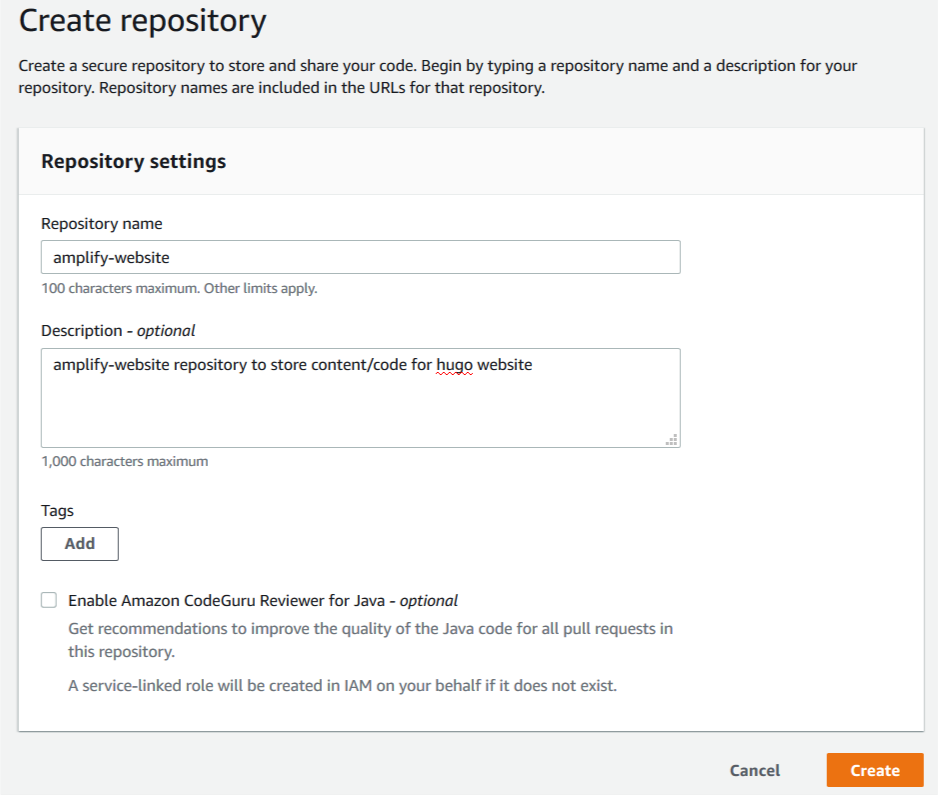
Create repository

Repository creation takes just a few moments.

5. In the Connection steps section, choose the appropriate method to connect to your repository based on how you accessed your AWS account.

For this post, I signed in to my AWS account using federated access, so I choose the HTTPS Git Remote CodeCommit (HTTPS-GRC) tab. This is the recommended connection method for this sign-in type. You can also configure a connection to your repository using SSH or Git credentials over HTTPS. SSH and Git credentials over HTTPS are appropriate methods if you have signed in to your AWS account as an AWS Identity and Access Management (IAM) user. The Amazon CodeCommit console provides additional information regarding each of these connection types, including links to supporting documentation.

Connect to Repo


Configuring and deploying an example website

You’re now ready to configure and deploy your website.

1. Return to the browser with your AWS Cloud9 IDE and place your cursor in the lower terminal pane of the IDE.

The terminal pane provides Bash shell access on the EC2 instance running AWS Cloud9.

You now create a Hugo website. The website design is based on Hugo-theme-learn. Themes are collections of Hugo layouts that take all the hassle out of building your website. Learn is a multilingual-ready theme authored by Mathieu Cornic, designed for building technical documentation websites.

Hugo provides a variety of themes on their website. Many of the themes include bundled example website content that you can easily adapt by following the accompanying theme documentation.

2. Enter the following code to download an existing example website stored as a .zip file, extract it, and commit the contents into CodeCommit from your AWS Cloud9 IDE:

cd ~/environment
aws s3 cp s3://ee-assets-prod-us-east-1/modules/3c5ba9cb6ff44465b96993d210f67147/v1/example-website.zip ~/environment/example-website.zip
unzip example-website.zip
rm example-website.zip

The following screenshot shows your output.
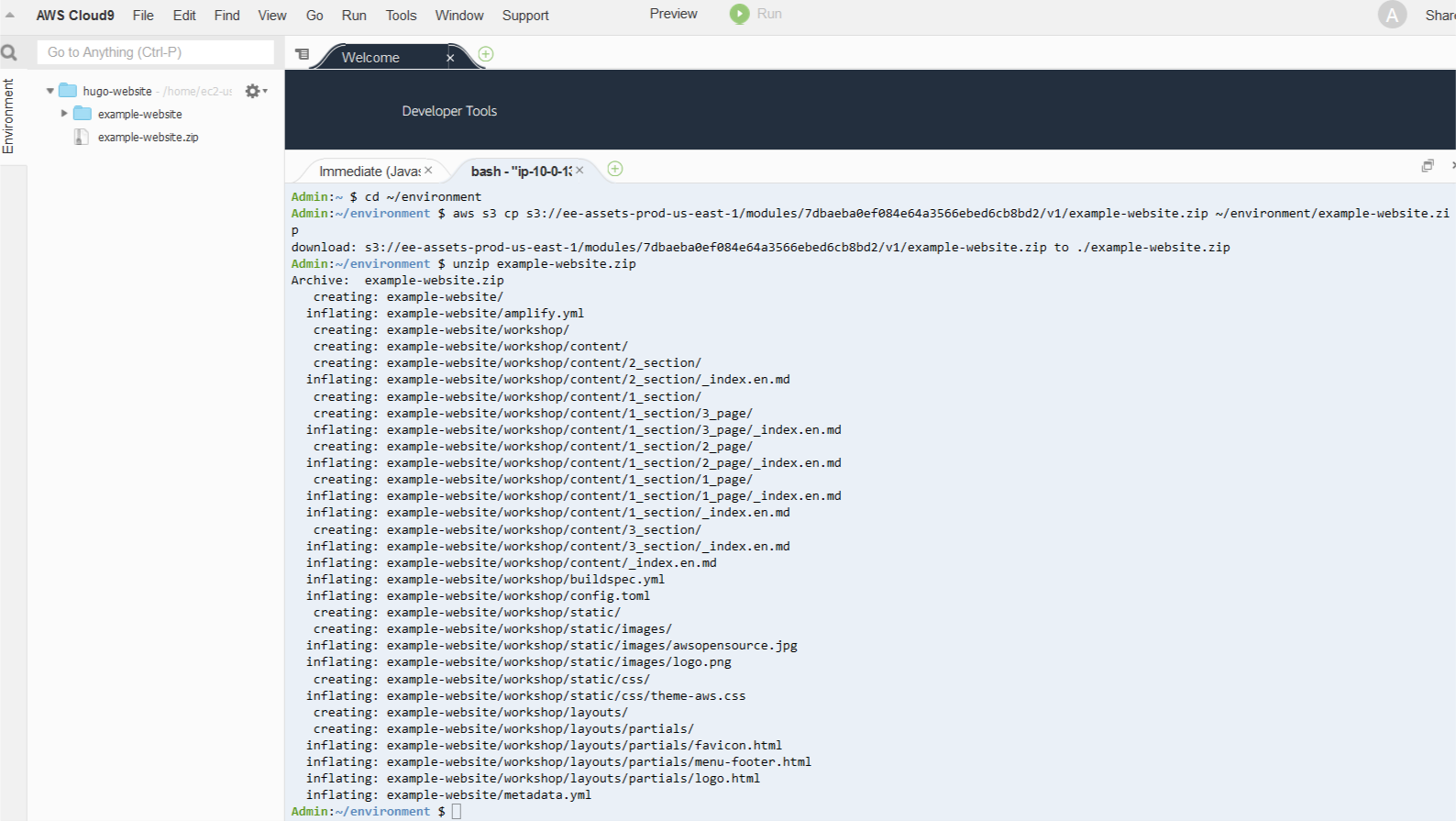
example website copy commands


Next, we run commands to create a directory to host your website and copy files into place from the example website to get started. We then create a new default branch called main (formerly referred to as the master branch), local to our AWS Cloud9 instance. We then copy files into place from the example website. After adding and committing them locally, we push all our changes to the remote Amazon Codecommit repository.

3. Enter the following code:

mkdir ~/environment/amplify-website/
cd ~/environment/amplify-website/
git init
git remote add origin codecommit::us-east-1://amplify-website
git remote -v
git checkout -b main
cp -rp ~/environment/example-website/* ~/environment/amplify-website/
git add *
git commit -am "first commit"
git push -u origin main

Deployment and hosting is achieved by using Amplify Console, a static web hosting service that accelerates your application release cycle by providing a simple CI/CD workflow for building and deploying static web applications.

4. On the Amplify console, under Deploy, choose Get Started.
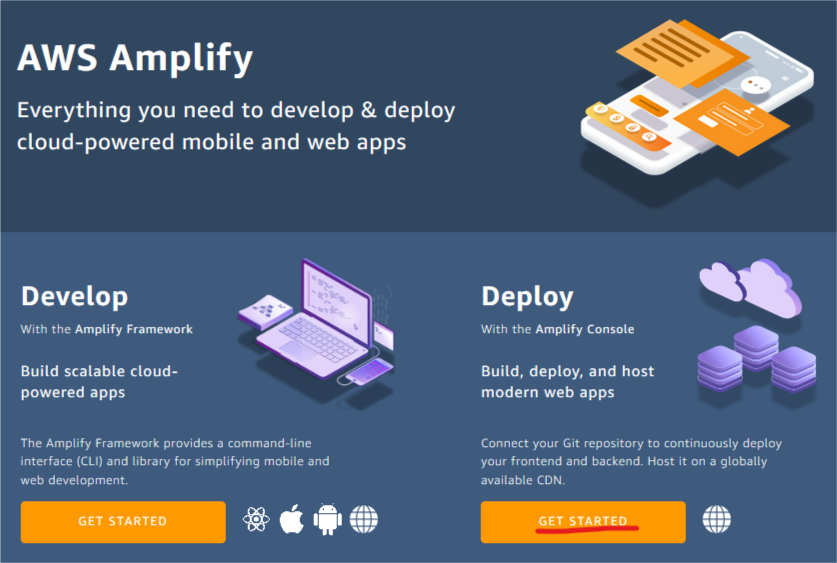
Amplify banner

5. On the Get started with the Amplify Console page, select AWS CodeCommit as your source code repository.

6. Choose Continue.

Amplify get started page

7. On the Add repository branch page, for Recently updated repositories, choose your repository.

8. For Branch, choose main.

9. Choose Next.
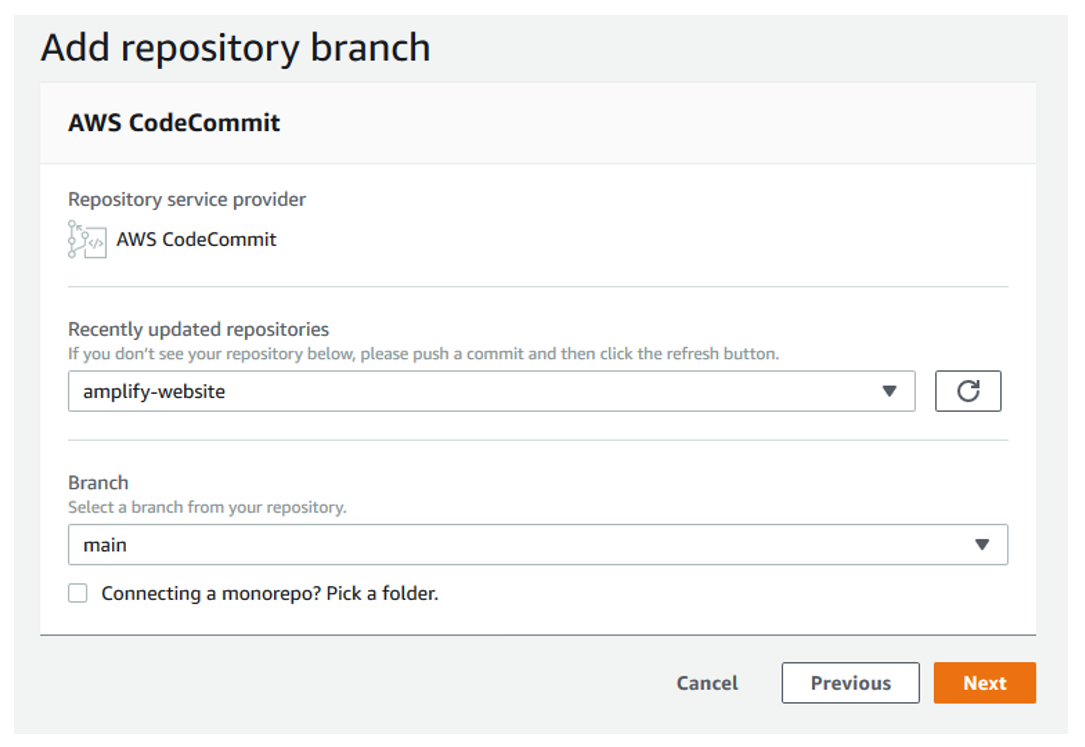
add branch

On the Configure build settings page, Amplify automatically uses the amplify.yml file for build settings for your deployment. You committed this into your source code repository in the previous step. The amplify.yml file is detected from the root of your website directory structure.

10. Choose Next.

Amplify configure build settings

11. On the review page, choose Save and deploy.

Amplify builds and deploys your Amplify website within minutes, and shows you its progress. When deployment is complete, you can access the website to see the sample content.

amplify website

The following screenshot shows your example website.

sample website


Promoting changes to the website

We can now update the line of text in the home page and commit and publish this change.

1. Return to the browser with your AWS Cloud9 IDE and place your cursor in the lower terminal pane of the IDE.

2. On the navigation pane, choose the file ~/environment/amplify-website/workshop/content/_index.en.md.

The contents of the file open under a new tab in the upper pane.

3. Change the string First Line of Text to First Update to Website.

content change

4. From the File menu, choose Save to save the changes you have made to the _index.en.md file.
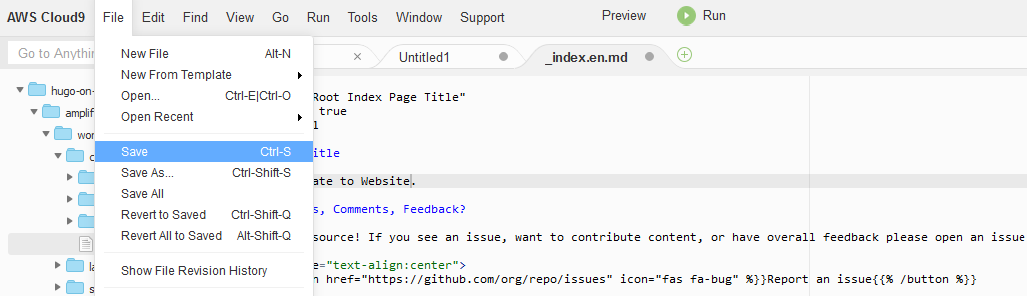
save content changes

5. Commit the changes and push to CodeCommit by running the following command in the lower terminal pane in AWS Cloud9:

git add *; git commit -am "homepage update"; git push origin main

The output in your AWS Cloud9 terminal should appear similar to the following screenshot.

commit output

6. Return to the Amplify Console and observe how the committed change in CodeCommit is automatically detected. Amplify runs deployment steps to push your changes to the website.
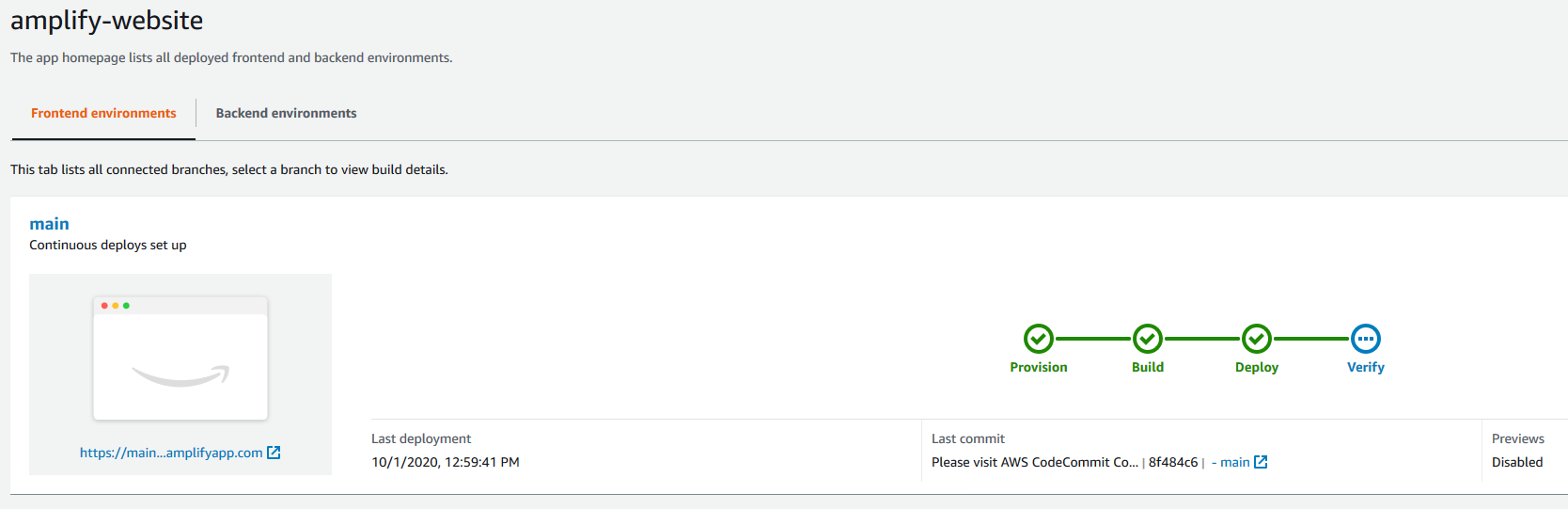
amplify deploy changes

7. Access the URL of your website after this update is complete to verify that the first line of text on your home page has changed.
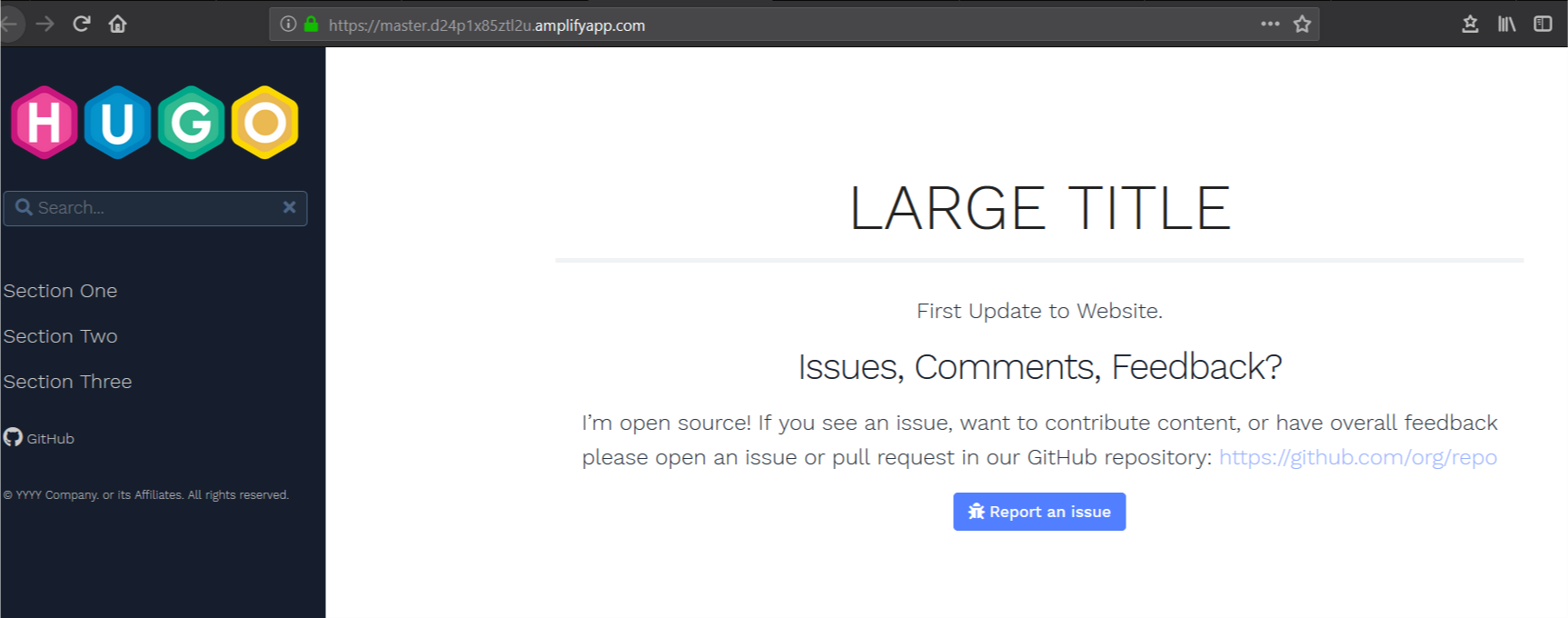
updated website

You can repeat this process to make source-code controlled, automated changes to your website.

Adding a custom domain

Adding a custom domain to your Amplify configuration makes it easier for clients to access your content. You can register new domains using Amazon Route 53 or, if you have an existing domain registered outside of AWS, you can integrate it with Route 53 and Amplify. For our use case, the domain www.hugoonamplify.com is a registered a domain name using a third-party registrar (NameCheap). You can manage DNS configurations for domains registered outside of AWS using Route 53.

Start by configuring a public hosted zone in Route 53.

1. On the Route 53 console, choose Hosted zones.

2. Choose Create hosted zone.
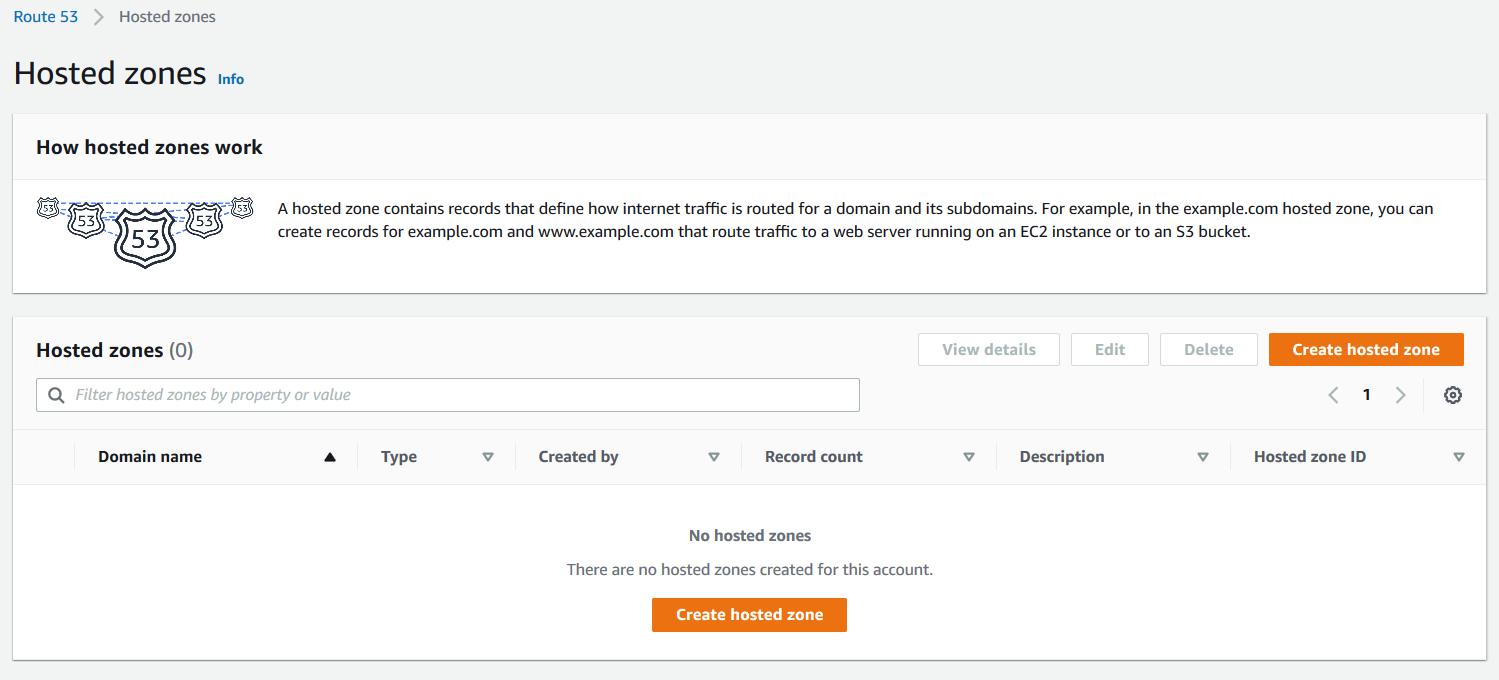
hosted zones

3. For Domain name, enter hugoonamplify.com.

4. For Description, enter an appropriate description.

5. For Type, select Public hosted zone.
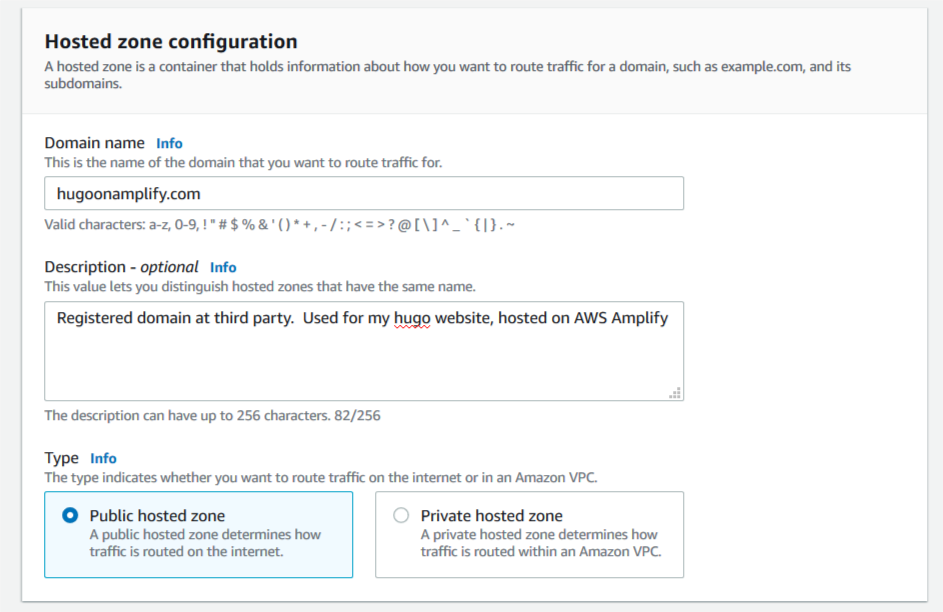
hosted zones configuration

6. Choose Create hosted zone.

7. Save the addresses of the name servers that respond to client DNS lookup requests for the custom domain.

create hosted zone

8. In a separate browser, access the console of your DNS registrar.

9. Configure a custom DNS name servers setting on the console of the third-party domain name registrar.

This configuration specifies the Route 53 assigned name servers as authoritative DNS for our custom domain. For this use case, propagation of this change may take up to 48 hours.

namecheap console

10. Use https://who.is to verify that the AWS name servers are listed correctly for your custom domain to internet clients.
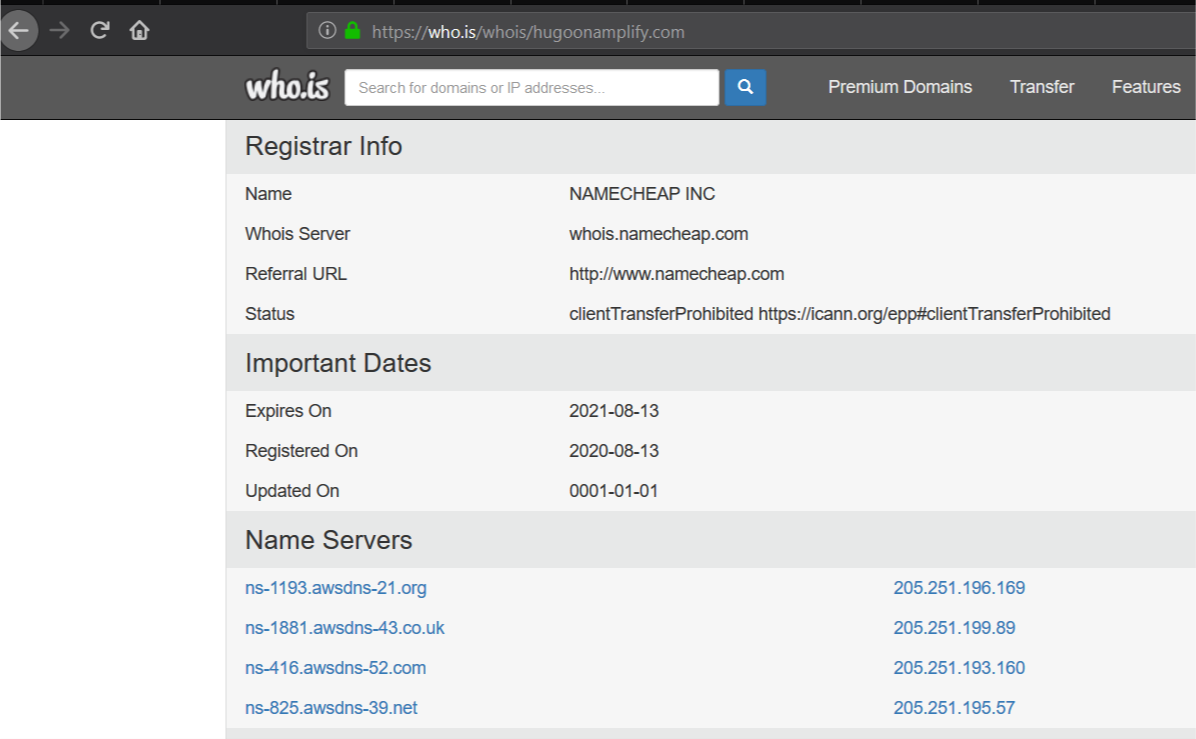
whois lookup

You can now set up your custom domain in Amplify. Amplify helps you configure DNS and set up SSL for your desired custom domain.
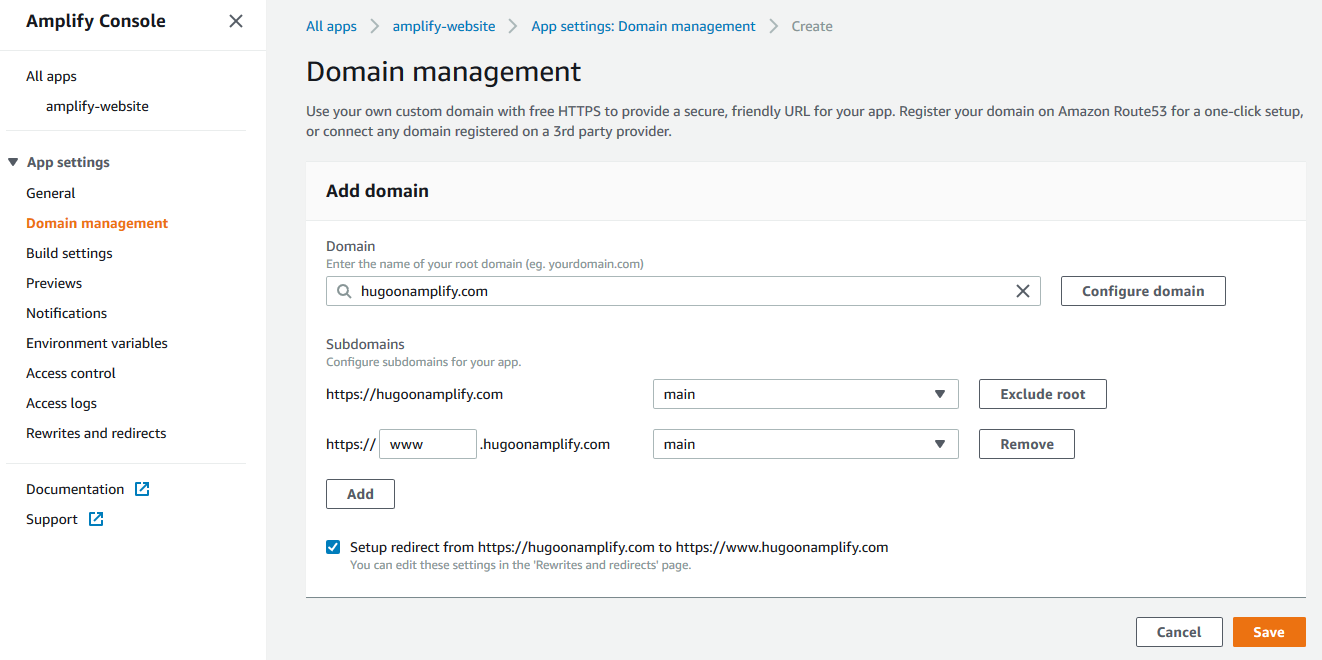
domain management

11. On the Amplify Console, under App settings, choose Domain management.

12. Choose Add domain.

13. For Domain, enter your custom domain name (hugoonamplify.com).

14. Choose Configure domain.

15. For Subdomain, I only want to set up www and choose to exclude the root of my custom domain.

16. Choose Save.

Amplify begins the process of creating the SSL certificates. Amplify sends a notification that it’s issuing an SSL certificate to secure traffic to the custom domain.
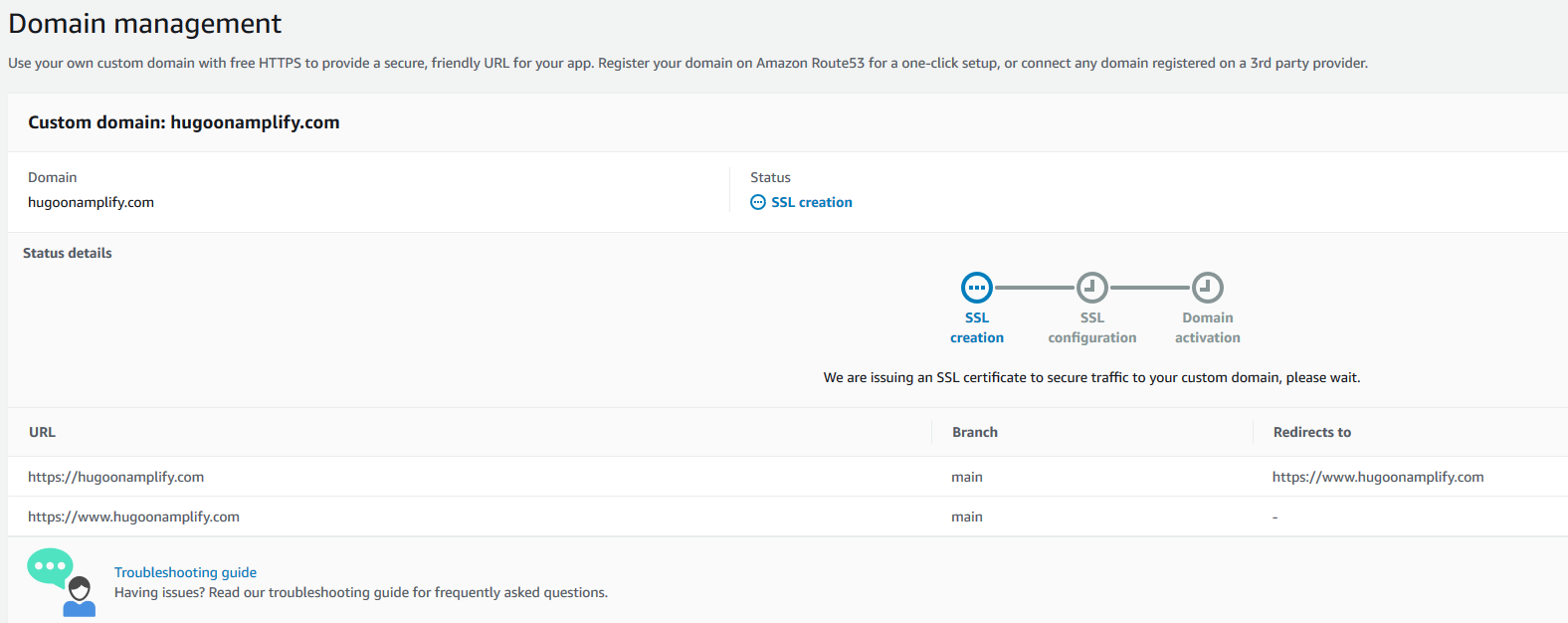
ssl domain management

After a few moments, it proceeds to SSL configuration and indicates that ownership of domain is in progress.
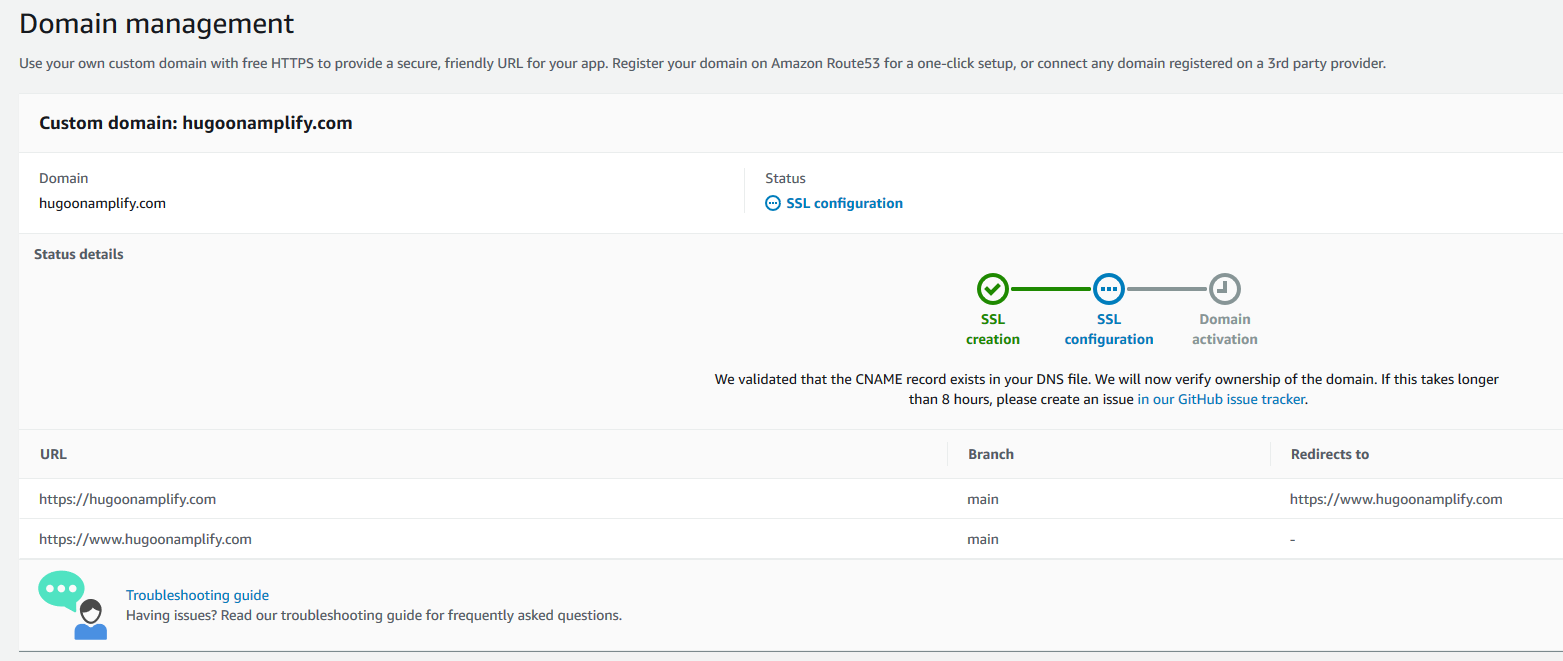
ssl domain management configuration

Amplify verifies domain ownership by creating a sample CNAME record in your hosted zone file. When ownership is verified, the domain is propagated onto an Amazon CloudFront distribution managed by the Amplify service, and domain activation is complete.
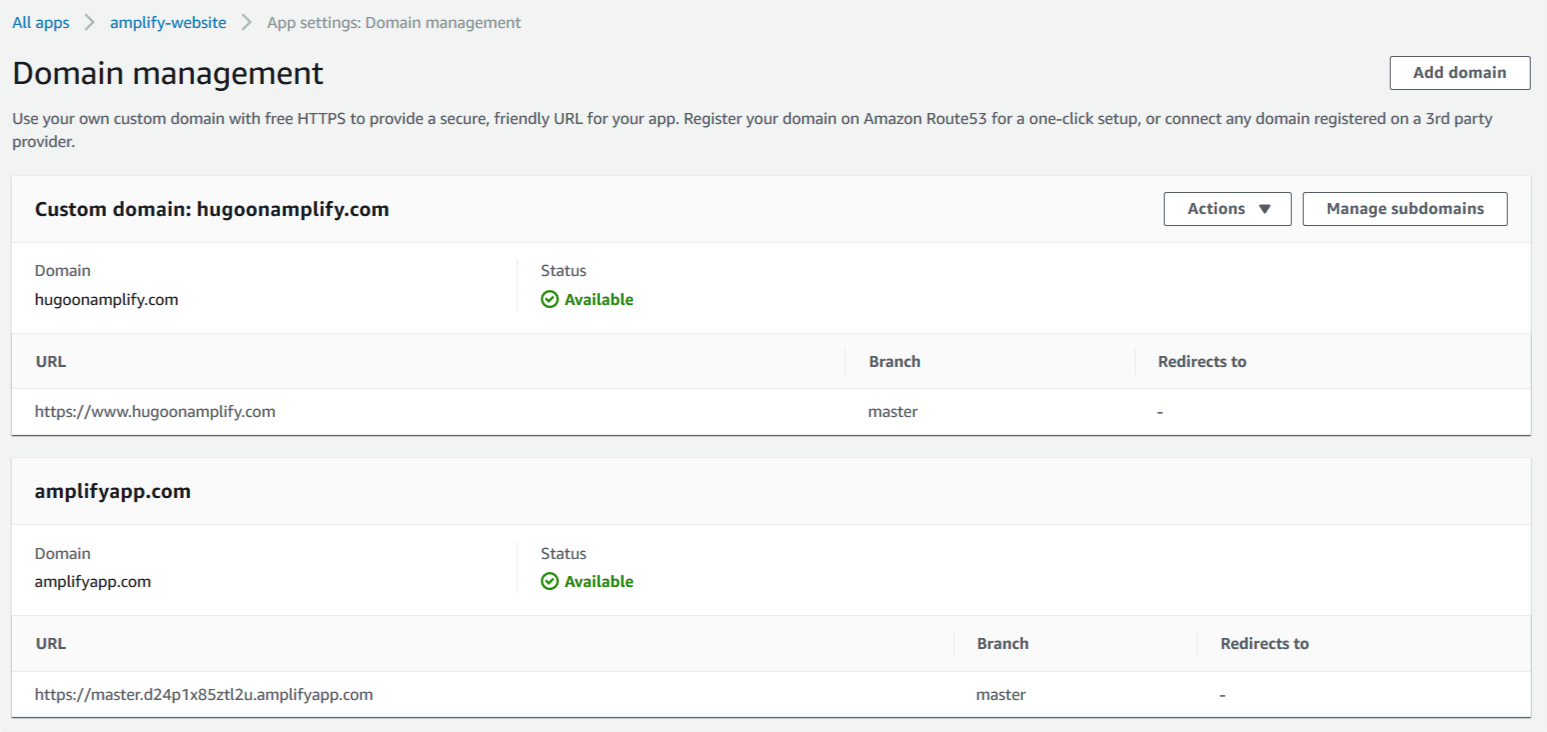
ssl domain management configured

Clients can now access the website using the custom domain name www.hugoonaplify.com.
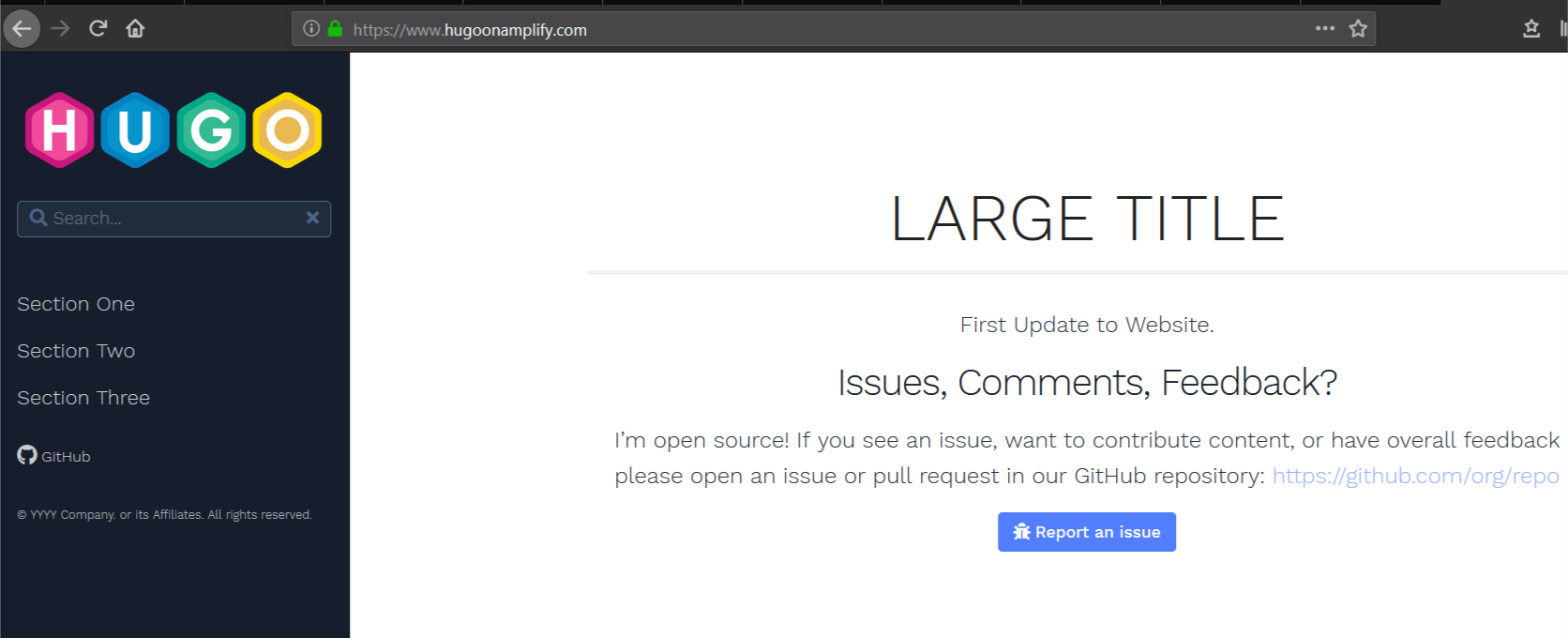
access website via custom domain


Establishing a subdomain for development

You can create a development website in Amplify that is aligned to a development code branch in CodeCommit that enables testing changes prior to production release.

1. Access the AWS Cloud9 IDE and use the terminal to enter the following commands to create a development branch and push changes to CodeCommit using the current content from the main branch with a single content change:

git checkout -b development
git branch
git remote -v
git add *; git commit -am "first development commit";
git push -u origin development

2. Open and edit the file ~/environment/amplify-website/workshop/content/_index.en.md and change the string Update to Website to something else.

Alternatively, run the following Unix sed command from the terminal in AWS Cloud9 to make that content change:

sed -i 's/Update to Website/Update to Development/g' ~/environment/amplify-website/workshop/content/_index.en.md

3. Commit and push your change with the following code:

git add *; git commit -am "second development commit"; git push -u origin development

You now configure a subdomain in Amplify to allow developers to review changes.

4. Return to the amplify-website app.

5. Choose Connect branch.

connect branch

6. For Branch, choose the development branch you created and committed code into.

7. Choose Next.

add development branch

Amplify builds a second website based on the contents of the development branch. You can see the instance of your website matched to the development code branch on Amplify Console.
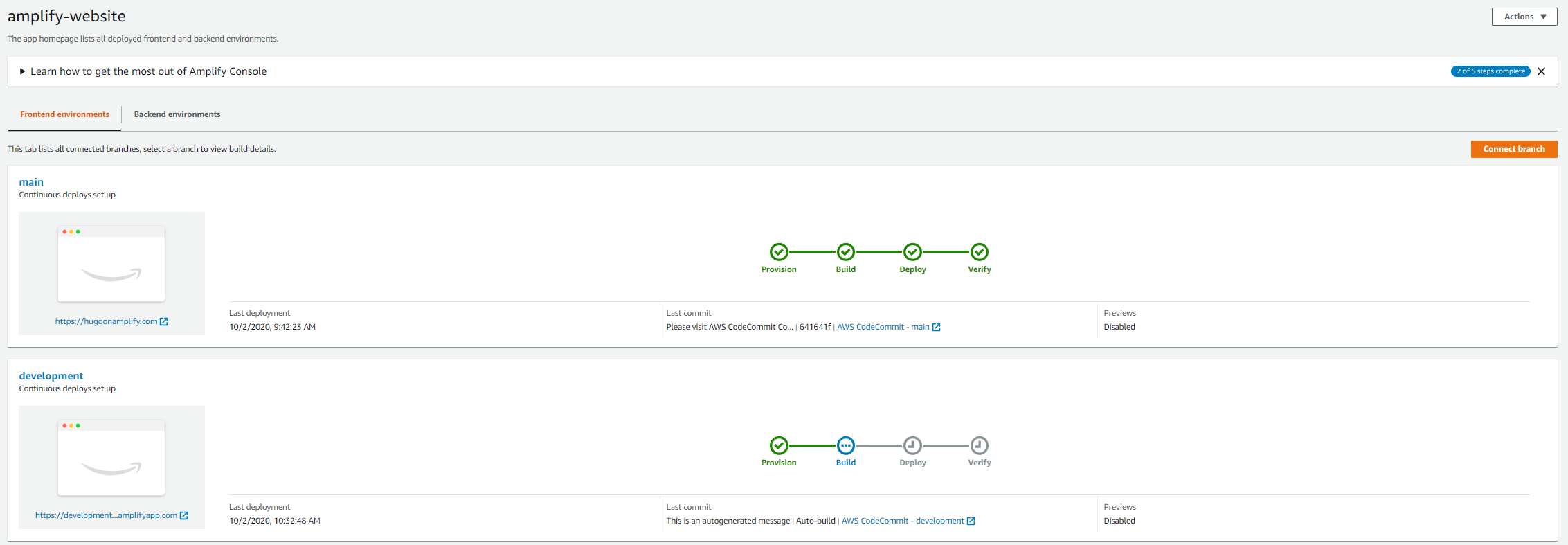
amplify two branches

8. Access the domain management menu item in your Amplify application to add a friendly subdomain.

9. Edit the domain and add a subdomain item with a name of your choice (for example, dev).

10. Associate it to the development branch containing the committed code and content changes.

11. Choose Add.

add dev domain

You can access the subdomain to verify the changes.
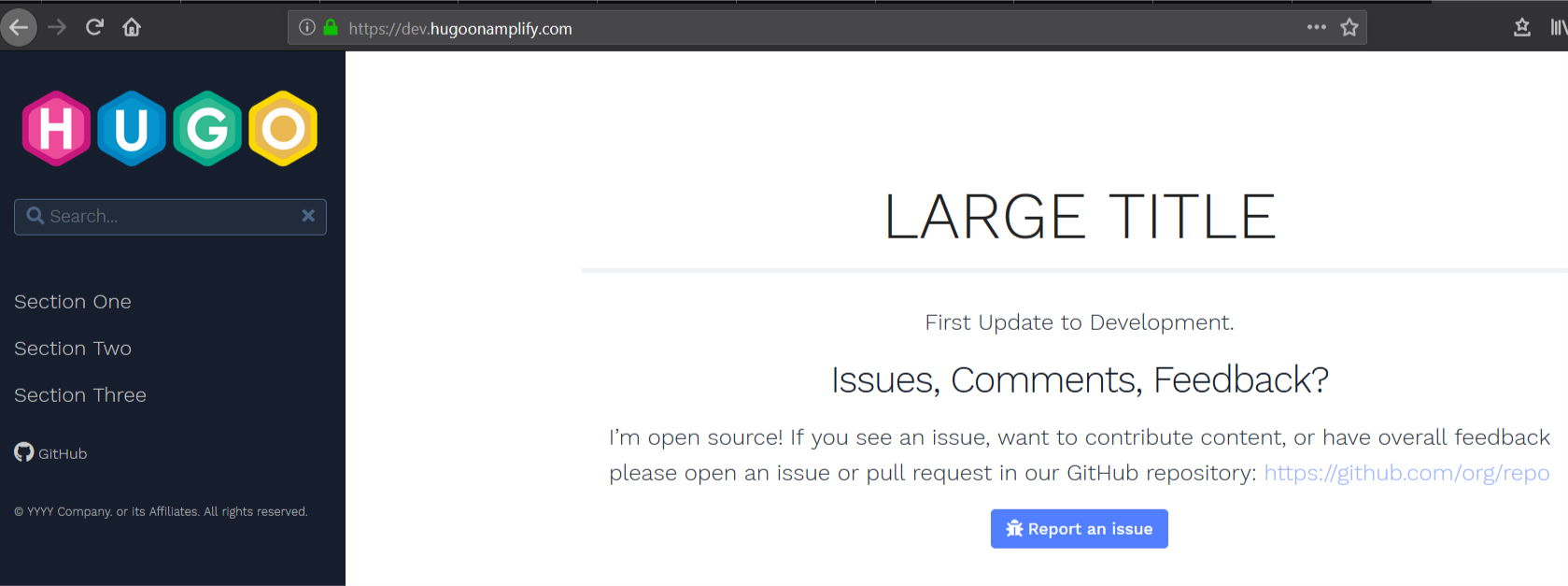
verify domain

Controlling access to development

You may wish to restrict access to new content as it’s deployed into the development website.

1. On Amplify Console, choose your application.

2. Choose Access control.

3. Under Access control settings, choose your preferred settings.

You have the option to restrict access globally or on a branch-by-branch basis. For this use case, we create a simple password protection for a user named developer on the development branch and site.

access control settings


Cleaning up

Unless you plan to keep the website you have constructed, you can quickly clean up provisioned assets and avoid any unnecessary costs.

1. On Amplify Console, select the app you created.

2. From the Actions drop-down menu, choose Delete app.

3. In the pop-up window, confirm the deletion.

4. On the CodeCommit dashboard, select the repository you created.

5. Choose Delete.

6. In the pop-up window, confirm the deletion.

7. On the AWS Cloud9 dashboard, select the IDE you created.

8. Choose Delete.

9. In the pop-up window, confirm the deletion.


Conclusion

Hugo is a powerful tool that enables accelerated delivery of content in a variety of formats including image portfolios, online resume presentation, blogging, and technical documentation. Amplify Console provides a convenient, easy-to-use, static web hosting service that can greatly accelerate delivery of static content.

When combining Hugo with Amplify Console, you can rapidly deploy websites in minutes with features such as friendly URLS, environments matched to code branches, and encryption (SSL). Visit gohugo.io to find out more about Hugo. For more information about how Amplify Console can help you rapidly deploy Hugo and other modern web applications, see the AWS Amplify Console User Guide.

Nigel Harris

Nigel Harris

Nigel Harris is an Enterprise Solutions Architect at Amazon Web Services. He works with AWS customers to provide guidance and technical assistance on AWS architectures.

Integrating AWS CloudFormation Guard into CI/CD pipelines

Post Syndicated from Sergey Voinich original https://aws.amazon.com/blogs/devops/integrating-aws-cloudformation-guard/

In this post, we discuss and build a managed continuous integration and continuous deployment (CI/CD) pipeline that uses AWS CloudFormation Guard to automate and simplify pre-deployment compliance checks of your AWS CloudFormation templates. This enables your teams to define a single source of truth for what constitutes valid infrastructure definitions, to be compliant with your company guidelines and streamline AWS resources’ deployment lifecycle.

We use the following AWS services and open-source tools to set up the pipeline:

Solution overview

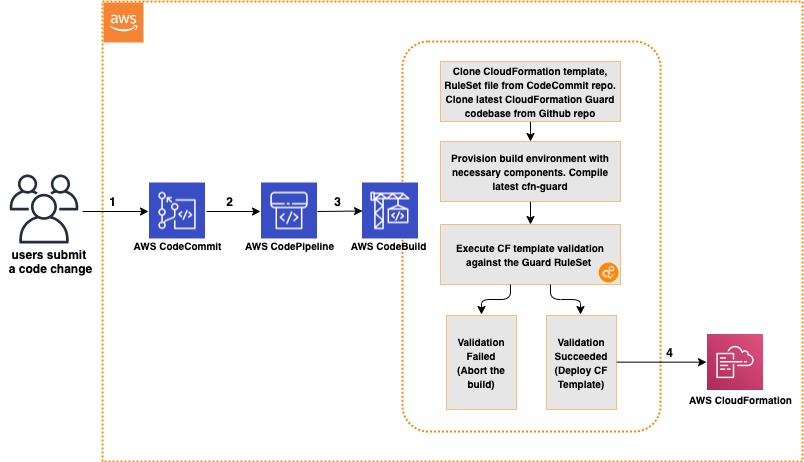
The CI/CD workflow includes the following steps:

  1. A code change is committed and pushed to the CodeCommit repository.
  2. CodePipeline automatically triggers a CodeBuild job.
  3. CodeBuild spins up a compute environment and runs the phases specified in the buildspec.yml file:
  4. Clone the code from the CodeCommit repository (CloudFormation template, rule set for CloudFormation Guard, buildspec.yml file).
  5. Clone the code from the CloudFormation Guard repository on GitHub.
  6. Provision the build environment with necessary components (rust, cargo, git, build-essential).
  7. Download CloudFormation Guard release from GitHub.
  8. Run a validation check of the CloudFormation template.
  9. If the validation is successful, pass the control over to CloudFormation and deploy the stack. If the validation fails, stop the build job and print a summary to the build job log.

The following diagram illustrates this workflow.

Architecture Diagram

Architecture Diagram of CI/CD Pipeline with CloudFormation Guard

Prerequisites

For this walkthrough, complete the following prerequisites:

Creating your CodeCommit repository

Create your CodeCommit repository by running a create-repository command in the AWS CLI:

aws codecommit create-repository --repository-name cfn-guard-demo --repository-description "CloudFormation Guard Demo"

The following screenshot indicates that the repository has been created.

CodeCommit Repository

CodeCommit Repository has been created

Populating the CodeCommit repository

Populate your repository with the following artifacts:

  1. A buildspec.yml file. Modify the following code as per your requirements:
version: 0.2
env:
  variables:
    # Definining CloudFormation Teamplate and Ruleset as variables - part of the code repo
    CF_TEMPLATE: "cfn_template_file_example.yaml"
    CF_ORG_RULESET:  "cfn_guard_ruleset_example"
phases:
  install:
    commands:
      - apt-get update
      - apt-get install build-essential -y
      - apt-get install cargo -y
      - apt-get install git -y
  pre_build:
    commands:
      - echo "Setting up the environment for AWS CloudFormation Guard"
      - echo "More info https://github.com/aws-cloudformation/cloudformation-guard"
      - echo "Install Rust"
      - curl https://sh.rustup.rs -sSf | sh -s -- -y
  build:
    commands:
       - echo "Pull GA release from github"
       - echo "More info https://github.com/aws-cloudformation/cloudformation-guard/releases"
       - wget https://github.com/aws-cloudformation/cloudformation-guard/releases/download/1.0.0/cfn-guard-linux-1.0.0.tar.gz
       - echo "Extract cfn-guard"
       - tar xvf cfn-guard-linux-1.0.0.tar.gz .
  post_build:
    commands:
       - echo "Validate CloudFormation template with cfn-guard tool"
       - echo "More information https://github.com/aws-cloudformation/cloudformation-guard/blob/master/cfn-guard/README.md"
       - cfn-guard-linux/cfn-guard check --rule_set $CF_ORG_RULESET --template $CF_TEMPLATE --strict-checks
artifacts:
  files:
    - cfn_template_file_example.yaml
  name: guard_templates
  1. An example of a rule set file (cfn_guard_ruleset_example) for CloudFormation Guard. Modify the following code as per your requirements:
#CFN Guard rules set example

#List of multiple references
let allowed_azs = [us-east-1a,us-east-1b]
let allowed_ec2_instance_types = [t2.micro,t3.nano,t3.micro]
let allowed_security_groups = [sg-08bbcxxc21e9ba8e6,sg-07b8bx98795dcab2]

#EC2 Policies
AWS::EC2::Instance AvailabilityZone IN %allowed_azs
AWS::EC2::Instance ImageId == ami-0323c3dd2da7fb37d
AWS::EC2::Instance InstanceType IN %allowed_ec2_instance_types
AWS::EC2::Instance SecurityGroupIds == ["sg-07b8xxxsscab2"]
AWS::EC2::Instance SubnetId == subnet-0407a7casssse558

#EBS Policies
AWS::EC2::Volume AvailabilityZone == us-east-1a
AWS::EC2::Volume Encrypted == true
AWS::EC2::Volume Size == 50 |OR| AWS::EC2::Volume Size == 100
AWS::EC2::Volume VolumeType == gp2
  1. An example of a CloudFormation template file (.yaml). Modify the following code as per your requirements:
AWSTemplateFormatVersion: "2010-09-09"
Description: "EC2 instance with encrypted EBS volume for AWS CloudFormation Guard Testing"

Resources:

 EC2Instance:
    Type: AWS::EC2::Instance
    Properties:
      ImageId: 'ami-0323c3dd2da7fb37d'
      AvailabilityZone: 'us-east-1a'
      KeyName: "your-ssh-key"
      InstanceType: 't3.micro'
      SubnetId: 'subnet-0407a7xx68410e558'
      SecurityGroupIds:
        - 'sg-07b8b339xx95dcab2'
      Volumes:
         - 
          Device: '/dev/sdf'
          VolumeId: !Ref EBSVolume
      Tags:
       - Key: Name
         Value: cfn-guard-ec2

 EBSVolume:
   Type: AWS::EC2::Volume
   Properties:
     Size: 100
     AvailabilityZone: 'us-east-1a'
     Encrypted: true
     VolumeType: gp2
     Tags:
       - Key: Name
         Value: cfn-guard-ebs
   DeletionPolicy: Snapshot

Outputs:
  InstanceID:
    Description: The Instance ID
    Value: !Ref EC2Instance
  Volume:
    Description: The Volume ID
    Value: !Ref  EBSVolume
AWS CodeCommit

Optional CodeCommit Repository Structure

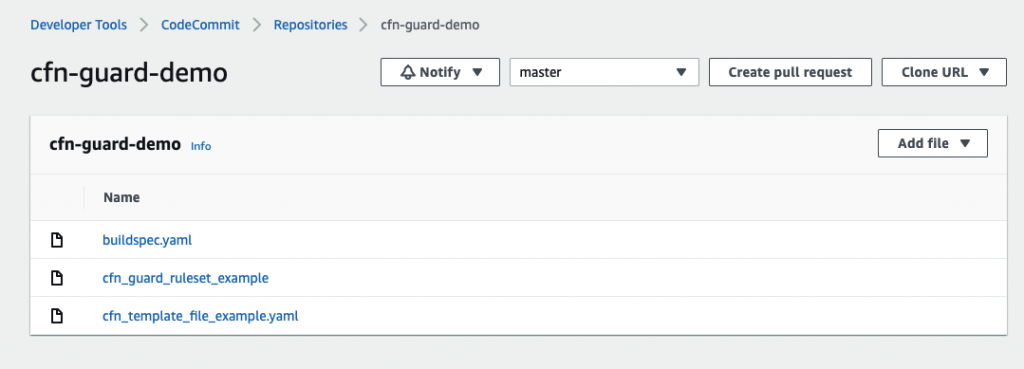
The following screenshot shows a potential CodeCommit repository structure.

Creating a CodeBuild project

Our CodeBuild project orchestrates around CloudFormation Guard and runs validation checks of our CloudFormation templates as a phase of the CI process.

  1. On the CodeBuild console, choose Build projects.
  2. Choose Create build projects.
  3. For Project name, enter your project name.
  4. For Description, enter a description.
AWS CodeBuild

Create CodeBuild Project

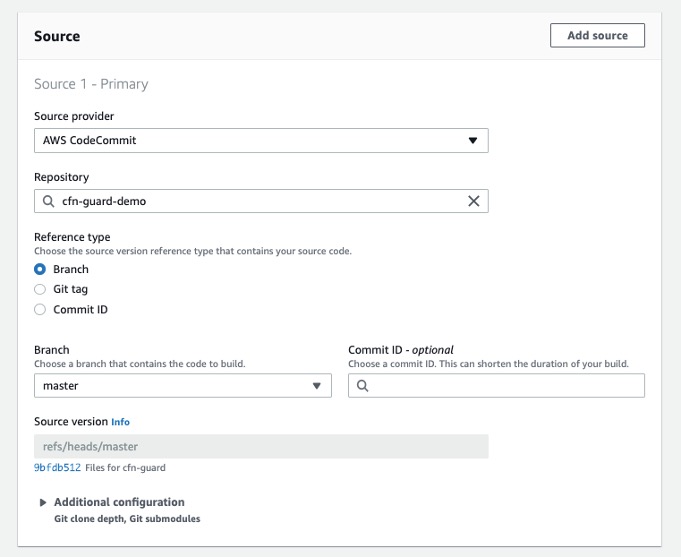
  1. For Source provider, choose AWS CodeCommit.
  2. For Repository, choose the CodeCommit repository you created in the previous step.
AWS CodeBuild

Define the source for your CodeBuild Project

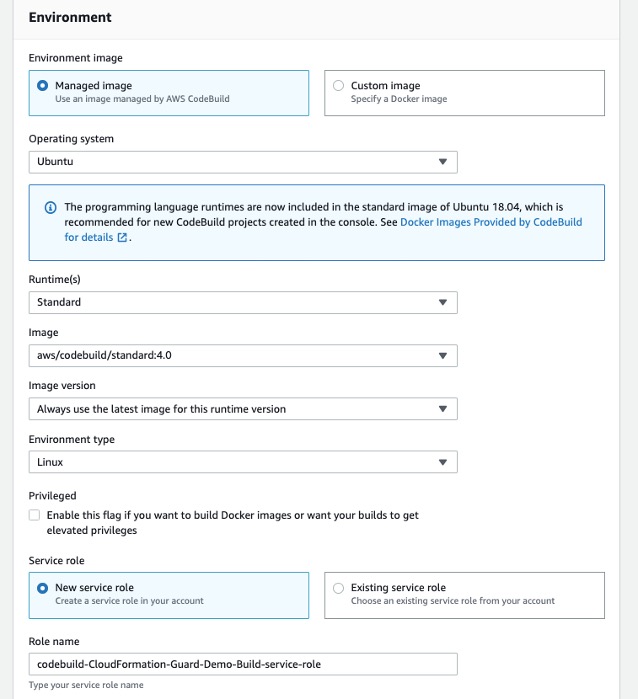
To setup CodeBuild environment we will use managed image based on Ubuntu 18.04

  1. For Environment Image, select Managed image.
  2. For Operating system, choose Ubuntu.
  3. For Service role¸ select New service role.
  4. For Role name, enter your service role name.
CodeBuild Environment

Setup the environment, the OS image and other settings for the CodeBuild

  1. Leave the default settings for additional configuration, buildspec, batch configuration, artifacts, and logs.

You can also use CodeBuild with custom build environments to help you optimize billing and improve the build time.

Creating IAM roles and policies

Our CI/CD pipeline needs two AWS Identity and Access Management (IAM) roles to run properly: one role for CodePipeline to work with other resources and services, and one role for AWS CloudFormation to run the deployments that passed the validation check in the CodeBuild phase.

Creating permission policies

Create your permission policies first. The following code is the policy in JSON format for CodePipeline:

{
    "Version": "2012-10-17",
    "Statement": [
        {
            "Sid": "VisualEditor0",
            "Effect": "Allow",
            "Action": [
                "codecommit:UploadArchive",
                "codecommit:CancelUploadArchive",
                "codecommit:GetCommit",
                "codecommit:GetUploadArchiveStatus",
                "codecommit:GetBranch",
                "codestar-connections:UseConnection",
                "codebuild:BatchGetBuilds",
                "codedeploy:CreateDeployment",
                "codedeploy:GetApplicationRevision",
                "codedeploy:RegisterApplicationRevision",
                "codedeploy:GetDeploymentConfig",
                "codedeploy:GetDeployment",
                "codebuild:StartBuild",
                "codedeploy:GetApplication",
                "s3:*",
                "cloudformation:*",
                "ec2:*"
            ],
            "Resource": "*"
        },
        {
            "Sid": "VisualEditor1",
            "Effect": "Allow",
            "Action": "iam:PassRole",
            "Resource": "*",
            "Condition": {
                "StringEqualsIfExists": {
                    "iam:PassedToService": [
                        "cloudformation.amazonaws.com",
                        "ec2.amazonaws.com"
                    ]
                }
            }
        }
    ]
}

To create your policy for CodePipeline, run the following CLI command:

aws iam create-policy --policy-name CodePipeline-Cfn-Guard-Demo --policy-document file://CodePipelineServiceRolePolicy_example.json

Capture the policy ARN that you get in the output to use in the next steps.

The following code is the policy in JSON format for AWS CloudFormation:

{
    "Version": "2012-10-17",
    "Statement": [
        {
            "Sid": "VisualEditor0",
            "Effect": "Allow",
            "Action": "iam:CreateServiceLinkedRole",
            "Resource": "*",
            "Condition": {
                "StringEquals": {
                    "iam:AWSServiceName": [
                        "autoscaling.amazonaws.com",
                        "ec2scheduled.amazonaws.com",
                        "elasticloadbalancing.amazonaws.com"
                    ]
                }
            }
        },
        {
            "Sid": "VisualEditor1",
            "Effect": "Allow",
            "Action": [
                "s3:GetObjectAcl",
                "s3:GetObject",
                "cloudwatch:*",
                "ec2:*",
                "autoscaling:*",
                "s3:List*",
                "s3:HeadBucket"
            ],
            "Resource": "*"
        }
    ]
}

Create the policy for AWS CloudFormation by running the following CLI command:

aws iam create-policy --policy-name CloudFormation-Cfn-Guard-Demo --policy-document file://CloudFormationRolePolicy_example.json

Capture the policy ARN that you get in the output to use in the next steps.

Creating roles and trust policies

The following code is the trust policy for CodePipeline in JSON format:

{
  "Version": "2012-10-17",
  "Statement": [
    {
      "Effect": "Allow",
      "Principal": {
        "Service": "codepipeline.amazonaws.com"
      },
      "Action": "sts:AssumeRole"
    }
  ]
}

Create your role for CodePipeline with the following CLI command:

aws iam create-role --role-name CodePipeline-Cfn-Guard-Demo-Role --assume-role-policy-document file://RoleTrustPolicy_CodePipeline.json

Capture the role name for the next step.

The following code is the trust policy for AWS CloudFormation in JSON format:

{
  "Version": "2012-10-17",
  "Statement": [
    {
      "Sid": "",
      "Effect": "Allow",
      "Principal": {
        "Service": "cloudformation.amazonaws.com"
      },
      "Action": "sts:AssumeRole"
    }
  ]
}

Create your role for AWS CloudFormation with the following CLI command:

aws iam create-role --role-name CF-Cfn-Guard-Demo-Role --assume-role-policy-document file://RoleTrustPolicy_CloudFormation.json

Capture the role name for the next step.


Finally, attach the permissions policies created in the previous step to the IAM roles you created:

aws iam attach-role-policy --role-name CodePipeline-Cfn-Guard-Demo-Role  --policy-arn "arn:aws:iam::<AWS Account Id >:policy/CodePipeline-Cfn-Guard-Demo"

aws iam attach-role-policy --role-name CF-Cfn-Guard-Demo-Role  --policy-arn "arn:aws:iam::<AWS Account Id>:policy/CloudFormation-Cfn-Guard-Demo"

Creating a pipeline

We can now create our pipeline to assemble all the components into one managed, continuous mechanism.

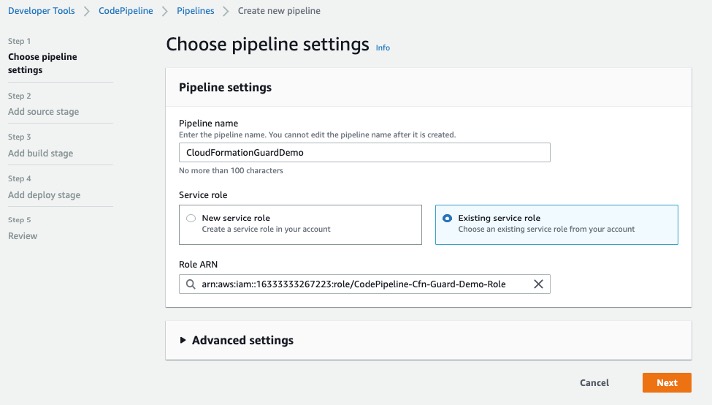
  1. On the CodePipeline console, choose Pipelines.
  2. Choose Create new pipeline.
  3. For Pipeline name, enter a name.
  4. For Service role, select Existing service role.
  5. For Role ARN, choose the service role you created in the previous step.
  6. Choose Next.
CodePipeline Setup

Setting Up CodePipeline environment

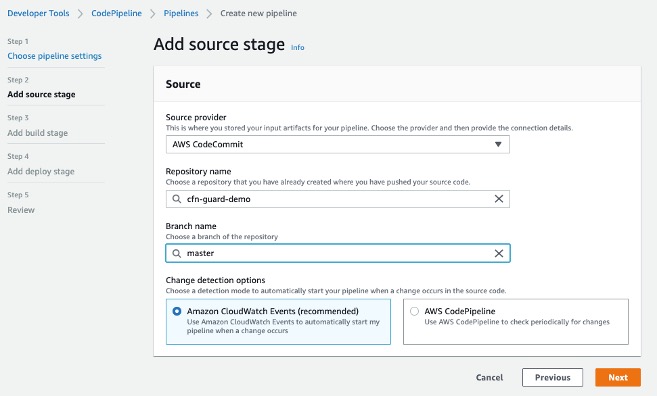
  1. In the Source section, for Source provider, choose AWS CodeCommit.
  2. For Repository name¸ enter your repository name.
  3. For Branch name, choose master.
  4. For Change detection options, select Amazon CloudWatch Events.
  5. Choose Next.
AWS CodePipeline Source

Adding CodeCommit to CodePipeline

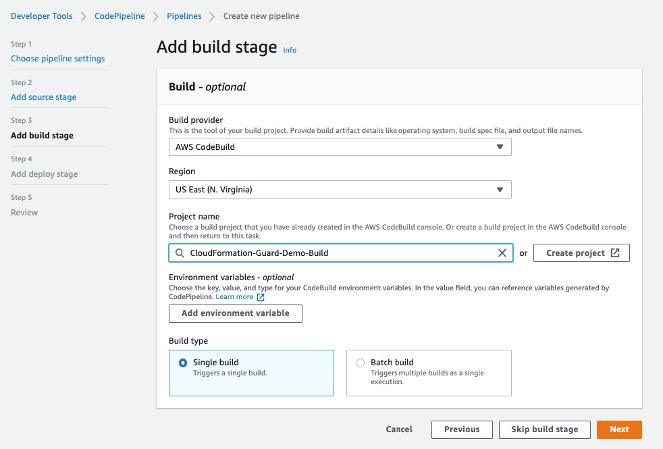
  1. In the Build section, for Build provider, choose AWS CodeBuild.
  2. For Project name, choose the CodeBuild project you created.
  3. For Build type, select Single build.
  4. Choose Next.
CodePipeline Build Stage

Adding Build Project to Pipeline Stage

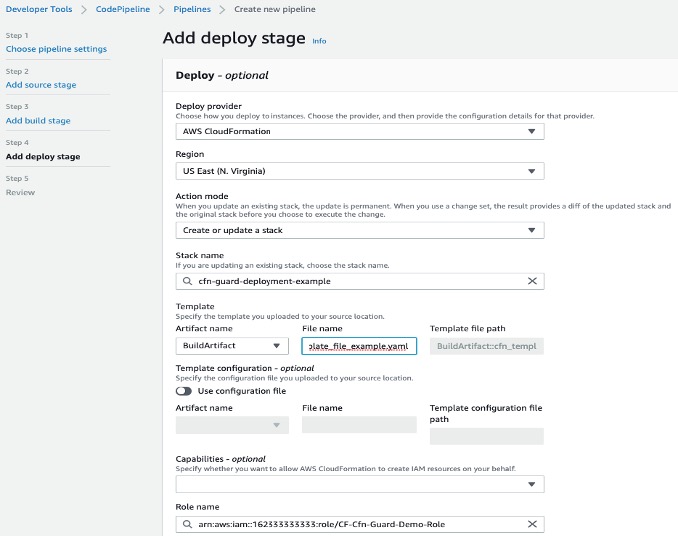
Now we will create a deploy stage in our CodePipeline to deploy CloudFormation templates that passed the CloudFormation Guard inspection in the CI stage.

  1. In the Deploy section, for Deploy provider, choose AWS CloudFormation.
  2. For Action mode¸ choose Create or update stack.
  3. For Stack name, choose any stack name.
  4. For Artifact name, choose BuildArtifact.
  5. For File name, enter the CloudFormation template name in your CodeCommit repository (In case of our demo it is cfn_template_file_example.yaml).
  6. For Role name, choose the role you created earlier for CloudFormation.
CodePipeline - Deploy Stage

Adding deploy stage to CodePipeline

22. In the next step review your selections for the pipeline to be created. The stages and action providers in each stage are shown in the order that they will be created. Click Create pipeline. Our CodePipeline is ready.

Validating the CI/CD pipeline operation

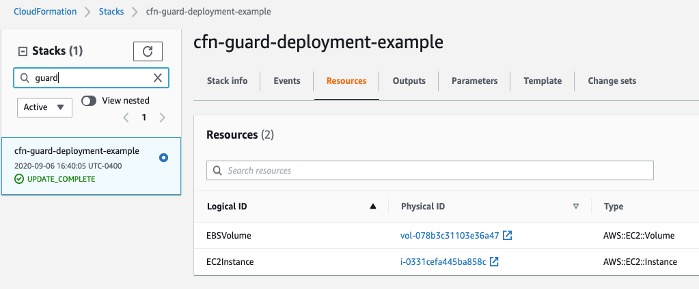
Our CodePipeline has two basic flows and outcomes. If the CloudFormation template complies with our CloudFormation Guard rule set file, the resources in the template deploy successfully (in our use case, we deploy an EC2 instance with an encrypted EBS volume).

CloudFormation Deployed

CloudFormation Console

If our CloudFormation template doesn’t comply with the policies specified in our CloudFormation Guard rule set file, our CodePipeline stops at the CodeBuild step and you see an error in the build job log indicating the resources that are non-compliant:

[EBSVolume] failed because [Encrypted] is [false] and the permitted value is [true]
[EC2Instance] failed because [t3.2xlarge] is not in [t2.micro,t3.nano,t3.micro] for [InstanceType]
Number of failures: 2

Note: To demonstrate the above functionality I changed my CloudFormation template to use unencrypted EBS volume and switched the EC2 instance type to t3.2xlarge which do not adhere to the rules that we specified in the Guard rule set file

Cleaning up

To avoid incurring future charges, delete the resources that we have created during the walkthrough:

  • CloudFormation stack resources that were deployed by the CodePipeline
  • CodePipeline that we have created
  • CodeBuild project
  • CodeCommit repository

Conclusion

In this post, we covered how to integrate CloudFormation Guard into CodePipeline and fully automate pre-deployment compliance checks of your CloudFormation templates. This allows your teams to have an end-to-end automated CI/CD pipeline with minimal operational overhead and stay compliant with your organizational infrastructure policies.

Complete CI/CD with AWS CodeCommit, AWS CodeBuild, AWS CodeDeploy, and AWS CodePipeline

Post Syndicated from Nitin Verma original https://aws.amazon.com/blogs/devops/complete-ci-cd-with-aws-codecommit-aws-codebuild-aws-codedeploy-and-aws-codepipeline/

Many organizations have been shifting to DevOps practices, which is the combination of cultural philosophies, practices, and tools that increases your organization’s ability to deliver applications and services at high velocity; for example, evolving and improving products at a faster pace than organizations using traditional software development and infrastructure management processes.

DevOps-Feedback-Flow

An integral part of DevOps is adopting the culture of continuous integration and continuous delivery/deployment (CI/CD), where a commit or change to code passes through various automated stage gates, all the way from building and testing to deploying applications, from development to production environments.

This post uses the AWS suite of CI/CD services to compile, build, and install a version-controlled Java application onto a set of Amazon Elastic Compute Cloud (Amazon EC2) Linux instances via a fully automated and secure pipeline. The goal is to promote a code commit or change to pass through various automated stage gates all the way from development to production environments, across AWS accounts.

AWS services

This solution uses the following AWS services:

  • AWS CodeCommit – A fully-managed source control service that hosts secure Git-based repositories. CodeCommit makes it easy for teams to collaborate on code in a secure and highly scalable ecosystem. This solution uses CodeCommit to create a repository to store the application and deployment codes.
  • AWS CodeBuild – A fully managed continuous integration service that compiles source code, runs tests, and produces software packages that are ready to deploy, on a dynamically created build server. This solution uses CodeBuild to build and test the code, which we deploy later.
  • AWS CodeDeploy – A fully managed deployment service that automates software deployments to a variety of compute services such as Amazon EC2, AWS Fargate, AWS Lambda, and your on-premises servers. This solution uses CodeDeploy to deploy the code or application onto a set of EC2 instances running CodeDeploy agents.
  • AWS CodePipeline – A fully managed continuous delivery service that helps you automate your release pipelines for fast and reliable application and infrastructure updates. This solution uses CodePipeline to create an end-to-end pipeline that fetches the application code from CodeCommit, builds and tests using CodeBuild, and finally deploys using CodeDeploy.
  • AWS CloudWatch Events – An AWS CloudWatch Events rule is created to trigger the CodePipeline on a Git commit to the CodeCommit repository.
  • Amazon Simple Storage Service (Amazon S3) – An object storage service that offers industry-leading scalability, data availability, security, and performance. This solution uses an S3 bucket to store the build and deployment artifacts created during the pipeline run.
  • AWS Key Management Service (AWS KMS) – AWS KMS makes it easy for you to create and manage cryptographic keys and control their use across a wide range of AWS services and in your applications. This solution uses AWS KMS to make sure that the build and deployment artifacts stored on the S3 bucket are encrypted at rest.

Overview of solution

This solution uses two separate AWS accounts: a dev account (111111111111) and a prod account (222222222222) in Region us-east-1.

We use the dev account to deploy and set up the CI/CD pipeline, along with the source code repo. It also builds and tests the code locally and performs a test deploy.

The prod account is any other account where the application is required to be deployed from the pipeline in the dev account.

In summary, the solution has the following workflow:

  • A change or commit to the code in the CodeCommit application repository triggers CodePipeline with the help of a CloudWatch event.
  • The pipeline downloads the code from the CodeCommit repository, initiates the Build and Test action using CodeBuild, and securely saves the built artifact on the S3 bucket.
  • If the preceding step is successful, the pipeline triggers the Deploy in Dev action using CodeDeploy and deploys the app in dev account.
  • If successful, the pipeline triggers the Deploy in Prod action using CodeDeploy and deploys the app in the prod account.

The following diagram illustrates the workflow:

cicd-overall-flow


Failsafe deployments

This example of CodeDeploy uses the IN_PLACE type of deployment. However, to minimize the downtime, CodeDeploy inherently supports multiple deployment strategies. This example makes use of following features: rolling deployments and automatic rollback.

CodeDeploy provides the following three predefined deployment configurations, to minimize the impact during application upgrades:

  • CodeDeployDefault.OneAtATime – Deploys the application revision to only one instance at a time
  • CodeDeployDefault.HalfAtATime – Deploys to up to half of the instances at a time (with fractions rounded down)
  • CodeDeployDefault.AllAtOnce – Attempts to deploy an application revision to as many instances as possible at once

For OneAtATime and HalfAtATime, CodeDeploy monitors and evaluates instance health during the deployment and only proceeds to the next instance or next half if the previous deployment is healthy. For more information, see Working with deployment configurations in CodeDeploy.

You can also configure a deployment group or deployment to automatically roll back when a deployment fails or when a monitoring threshold you specify is met. In this case, the last known good version of an application revision is automatically redeployed after a failure with the new application version.

How CodePipeline in the dev account deploys apps in the prod account

In this post, the deployment pipeline using CodePipeline is set up in the dev account, but it has permissions to deploy the application in the prod account. We create a special cross-account role in the prod account, which has the following:

  • Permission to use fetch artifacts (app) rom Amazon S3 and deploy it locally in the account using CodeDeploy
  • Trust with the dev account where the pipeline runs

CodePipeline in the dev account assumes this cross-account role in the prod account to deploy the app.

Do I need multiple accounts?
If you answer “yes” to any of the following questions you should consider creating more AWS accounts:

  • Does your business require administrative isolation between workloads? Administrative isolation by account is the most straightforward way to grant independent administrative groups different levels of administrative control over AWS resources based on workload, development lifecycle, business unit (BU), or data sensitivity.
  • Does your business require limited visibility and discoverability of workloads? Accounts provide a natural boundary for visibility and discoverability. Workloads cannot be accessed or viewed unless an administrator of the account enables access to users managed in another account.
  • Does your business require isolation to minimize blast radius? Separate accounts help define boundaries and provide natural blast-radius isolation to limit the impact of a critical event such as a security breach, an unavailable AWS Region or Availability Zone, account suspensions, and so on.
  • Does your business require a particular workload to operate within AWS service limits without impacting the limits of another workload? You can use AWS account service limits to impose restrictions on a business unit, development team, or project. For example, if you create an AWS account for a project group, you can limit the number of Amazon Elastic Compute Cloud (Amazon EC2) or high performance computing (HPC) instances that can be launched by the account.
  • Does your business require strong isolation of recovery or auditing data? If regulatory requirements require you to control access and visibility to auditing data, you can isolate the data in an account separate from the one where you run your workloads (for example, by writing AWS CloudTrail logs to a different account).

Prerequisites

For this walkthrough, you should complete the following prerequisites:

  1. Have access to at least two AWS accounts. For this post, the dev and prod accounts are in us-east-1. You can search and replace the Region and account IDs in all the steps and sample AWS Identity and Access Management (IAM) policies in this post.
  2. Ensure you have EC2 Linux instances with the CodeDeploy agent installed in all the accounts or VPCs where the sample Java application is to be installed (dev and prod accounts).
    • To manually create EC2 instances with CodeDeploy agent, refer Create an Amazon EC2 instance for CodeDeploy (AWS CLI or Amazon EC2 console). Keep in mind the following:
      • CodeDeploy uses EC2 instance tags to identify instances to use to deploy the application, so it’s important to set tags appropriately. For this post, we use the tag name Application with the value MyWebApp to identify instances where the sample app is installed.
      • Make sure to use an EC2 instance profile (AWS Service Role for EC2 instance) with permissions to read the S3 bucket containing artifacts built by CodeBuild. Refer to the IAM role cicd_ec2_instance_profile in the table Roles-1 below for the set of permissions required. You must update this role later with the actual KMS key and S3 bucket name created as part of the deployment process.
    • To create EC2 Linux instances via AWS Cloudformation, download and launch the AWS CloudFormation template from the GitHub repo: cicd-ec2-instance-with-codedeploy.json
      • This deploys an EC2 instance with AWS CodeDeploy agent.
      • Inputs required:
        • AMI : Enter name of the Linux AMI in your region. (This template has been tested with latest Amazon Linux 2 AMI)
        • Ec2SshKeyPairName: Name of an existing SSH KeyPair
        • Ec2IamInstanceProfile: Name of an existing EC2 instance profile. Note: Use the permissions in the template cicd_ec2_instance_profile_policy.json to create the policy for this EC2 Instance Profile role. You must update this role later with the actual KMS key and S3 bucket name created as part of the deployment process.
        • Update the EC2 instance Tags per your need.
  3. Ensure required IAM permissions. Have an IAM user with an IAM Group or Role that has the following access levels or permissions:

    AWS Service / Components  Access Level Accounts Comments
    AWS CodeCommit Full (admin) Dev Use AWS managed policy AWSCodeCommitFullAccess.
    AWS CodePipeline Full (admin) Dev Use AWS managed policy AWSCodePipelineFullAccess.
    AWS CodeBuild Full (admin) Dev Use AWS managed policy AWSCodeBuildAdminAccess.
    AWS CodeDeploy Full (admin) All

    Use AWS managed policy

    AWSCodeDeployFullAccess.

    Create S3 bucket and bucket policies Full (admin) Dev IAM policies can be restricted to specific bucket.
    Create KMS key and policies Full (admin) Dev IAM policies can be restricted to specific KMS key.
    AWS CloudFormation Full (admin) Dev

    Use AWS managed policy

    AWSCloudFormationFullAccess.

    Create and pass IAM roles Full (admin) All Ability to create IAM roles and policies can be restricted to specific IAM roles or actions. Also, an admin team with IAM privileges could create all the required roles. Refer to the IAM table Roles-1 below.
    AWS Management Console and AWS CLI As per IAM User permissions All To access suite of Code services.


  4. Create Git credentials for CodeCommit in the pipeline account (dev account). AWS allows you to either use Git credentials or associate SSH public keys with your IAM user. For this post, use Git credentials associated with your IAM user (created in the previous step). For instructions on creating a Git user, see Create Git credentials for HTTPS connections to CodeCommit. Download and save the Git credentials to use later for deploying the application.
  5. Create all AWS IAM roles as per the following tables (Roles-1). Make sure to update the following references in all the given IAM roles and policies:
    • Replace the sample dev account (111111111111) and prod account (222222222222) with actual account IDs
    • Replace the S3 bucket mywebapp-codepipeline-bucket-us-east-1-111111111111 with your preferred bucket name.
    • Replace the KMS key ID key/82215457-e360-47fc-87dc-a04681c91ce1 with your KMS key ID.

Table: Roles-1

Service IAM Role Type Account IAM Role Name (used for this post) IAM Role Policy (required for this post) IAM Role Permissions
AWS CodePipeline Service role Dev (111111111111)

cicd_codepipeline_service_role

Select Another AWS Account and use this account as the account ID to create the role.

Later update the trust as follows:
“Principal”: {“Service”: “codepipeline.amazonaws.com”},

Use the permissions in the template cicd_codepipeline_service_policy.json to create the policy for this role. This CodePipeline service role has appropriate permissions to the following services in a local account:

  • Manage CodeCommit repos
  • Initiate build via CodeBuild
  • Create deployments via CodeDeploy
  • Assume cross-account CodeDeploy role in prod account to deploy the application
AWS CodePipeline IAM role Dev (111111111111)

cicd_codepipeline_trigger_cwe_role

Select Another AWS Account and use this account as the account ID to create the role.

Later update the trust as follows:
“Principal”: {“Service”: “events.amazonaws.com”},

Use the permissions in the template cicd_codepipeline_trigger_cwe_policy.json to create the policy for this role. CodePipeline uses this role to set a CloudWatch event to trigger the pipeline when there is a change or commit made to the code repository.
AWS CodePipeline IAM role Prod (222222222222)

cicd_codepipeline_cross_ac_role

Choose Another AWS Account and use the dev account as the trusted account ID to create the role.

Use the permissions in the template cicd_codepipeline_cross_ac_policy.json to create the policy for this role. This role is created in the prod account and has permissions to use CodeDeploy and fetch from Amazon S3. The role is assumed by CodePipeline from the dev account to deploy the app in the prod account. Make sure to set up trust with the dev account for this IAM role on the Trust relationships tab.
AWS CodeBuild Service role Dev (111111111111)

cicd_codebuild_service_role

Choose CodeBuild as the use case to create the role.

Use the permissions in the template cicd_codebuild_service_policy.json to create the policy for this role. This CodeBuild service role has appropriate permissions to:

  • The S3 bucket to store artefacts
  • Stream logs to CloudWatch Logs
  • Pull code from CodeCommit
  • Get the SSM parameter for CodeBuild
  • Miscellaneous Amazon EC2 permissions
AWS CodeDeploy Service role Dev (111111111111) and Prod (222222222222)

cicd_codedeploy_service_role

Choose CodeDeploy as the use case to create the role.

Use the built-in AWS managed policy AWSCodeDeployRole for this role. This CodeDeploy service role has appropriate permissions to:

  • Miscellaneous Amazon EC2 Auto Scaling
  • Miscellaneous Amazon EC2
  • Publish Amazon SNS topic
  • AWS CloudWatch metrics
  • Elastic Load Balancing
EC2 Instance Service role for EC2 instance profile Dev (111111111111) and Prod (222222222222)

cicd_ec2_instance_profile

Choose EC2 as the use case to create the role.

Use the permissions in the template cicd_ec2_instance_profile_policy.json to create the policy for this role.

This is set as the EC2 instance profile for the EC2 instances where the app is deployed. It has appropriate permissions to fetch artefacts from Amazon S3 and decrypt contents using the KMS key.


You must update this role later with the actual KMS key and S3 bucket name created as part of the deployment process.


Setting up the prod account

To set up the prod account, complete the following steps:

  1. Download and launch the AWS CloudFormation template from the GitHub repo: cicd-codedeploy-prod.json
    • This deploys the CodeDeploy app and deployment group.
    • Make sure that you already have a set of EC2 Linux instances with the CodeDeploy agent installed in all the accounts where the sample Java application is to be installed (dev and prod accounts). If not, refer back to the Prerequisites section.
  2. Update the existing EC2 IAM instance profile (cicd_ec2_instance_profile):
    • Replace the S3 bucket name mywebapp-codepipeline-bucket-us-east-1-111111111111 with your S3 bucket name (the one used for the CodePipelineArtifactS3Bucket variable when you launched the CloudFormation template in the dev account).
    • Replace the KMS key ARN arn:aws:kms:us-east-1:111111111111:key/82215457-e360-47fc-87dc-a04681c91ce1 with your KMS key ARN (the one created as part of the CloudFormation template launch in the dev account).

Setting up the dev account

To set up your dev account, complete the following steps:

  1. Download and launch the CloudFormation template from the GitHub repo: cicd-aws-code-suite-dev.json
    The stack deploys the following services in the dev account:

    • CodeCommit repository
    • CodePipeline
    • CodeBuild environment
    • CodeDeploy app and deployment group
    • CloudWatch event rule
    • KMS key (used to encrypt the S3 bucket)
    • S3 bucket and bucket policy
  2. Use following values as inputs to the CloudFormation template. You should have created all the existing resources and roles beforehand as part of the prerequisites.

    Key Example Value Comments
    CodeCommitWebAppRepo MyWebAppRepo Name of the new CodeCommit repository for your web app.
    CodeCommitMainBranchName master Main branch name on your CodeCommit repository. Default is master (which is pushed to the prod environment).
    CodeBuildProjectName MyCBWebAppProject Name of the new CodeBuild environment.
    CodeBuildServiceRole arn:aws:iam::111111111111:role/cicd_codebuild_service_role ARN of an existing IAM service role to be associated with CodeBuild to build web app code.
    CodeDeployApp MyCDWebApp Name of the new CodeDeploy app to be created for your web app. We assume that the CodeDeploy app name is the same in all accounts where deployment needs to occur (in this case, the prod account).
    CodeDeployGroupDev MyCICD-Deployment-Group-Dev Name of the new CodeDeploy deployment group to be created in the dev account.
    CodeDeployGroupProd MyCICD-Deployment-Group-Prod Name of the existing CodeDeploy deployment group in prod account. Created as part of the prod account setup.

    CodeDeployGroupTagKey


    Application Name of the tag key that CodeDeploy uses to identify the existing EC2 fleet for the deployment group to use.

    CodeDeployGroupTagValue


    MyWebApp Value of the tag that CodeDeploy uses to identify the existing EC2 fleet for the deployment group to use.
    CodeDeployConfigName CodeDeployDefault.OneAtATime

    Desired Code Deploy config name. Valid options are:

    CodeDeployDefault.OneAtATime

    CodeDeployDefault.HalfAtATime

    CodeDeployDefault.AllAtOnce

    For more information, see Deployment configurations on an EC2/on-premises compute platform.

    CodeDeployServiceRole arn:aws:iam::111111111111:role/cicd_codedeploy_service_role

    ARN of an existing IAM service role to be associated with CodeDeploy to deploy web app.


    CodePipelineName MyWebAppPipeline Name of the new CodePipeline to be created for your web app.
    CodePipelineArtifactS3Bucket mywebapp-codepipeline-bucket-us-east-1-111111111111 Name of the new S3 bucket to be created where artifacts for the pipeline are stored for this web app.
    CodePipelineServiceRole arn:aws:iam::111111111111:role/cicd_codepipeline_service_role ARN of an existing IAM service role to be associated with CodePipeline to deploy web app.
    CodePipelineCWEventTriggerRole arn:aws:iam::111111111111:role/cicd_codepipeline_trigger_cwe_role ARN of an existing IAM role used to trigger the pipeline you named earlier upon a code push to the CodeCommit repository.
    CodeDeployRoleXAProd arn:aws:iam::222222222222:role/cicd_codepipeline_cross_ac_role ARN of an existing IAM role in the cross-account for CodePipeline to assume to deploy the app.

    It should take 5–10 minutes for the CloudFormation stack to complete. When the stack is complete, you can see that CodePipeline has built the pipeline (MyWebAppPipeline) with the CodeCommit repository and CodeBuild environment, along with actions for CodeDeploy in local (dev) and cross-account (prod). CodePipeline should be in a failed state because your CodeCommit repository is empty initially.

  3. Update the existing Amazon EC2 IAM instance profile (cicd_ec2_instance_profile):
    • Replace the S3 bucket name mywebapp-codepipeline-bucket-us-east-1-111111111111 with your S3 bucket name (the one used for the CodePipelineArtifactS3Bucket parameter when launching the CloudFormation template in the dev account).
    • Replace the KMS key ARN arn:aws:kms:us-east-1:111111111111:key/82215457-e360-47fc-87dc-a04681c91ce1 with your KMS key ARN (the one created as part of the CloudFormation template launch in the dev account).

Deploying the application

You’re now ready to deploy the application via your desktop or PC.

  1. Assuming you have the required HTTPS Git credentials for CodeCommit as part of the prerequisites, clone the CodeCommit repo that was created earlier as part of the dev account setup. Obtain the name of the CodeCommit repo to clone, from the CodeCommit console. Enter the Git user name and password when prompted. For example:
    $ git clone https://git-codecommit.us-east-1.amazonaws.com/v1/repos/MyWebAppRepo my-web-app-repo
    Cloning into 'my-web-app-repo'...
    Username for 'https://git-codecommit.us-east-1.amazonaws.com/v1/repos/MyWebAppRepo': xxxx
    Password for 'https://[email protected]/v1/repos/MyWebAppRepo': xxxx

  2. Download the MyWebAppRepo.zip file containing a sample Java application, CodeBuild configuration to build the app, and CodeDeploy config file to deploy the app.
  3. Copy and unzip the file into the my-web-app-repo Git repository folder created earlier.
  4. Assuming this is the sample app to be deployed, commit these changes to the Git repo. For example:
    $ cd my-web-app-repo 
    $ git add -A 
    $ git commit -m "initial commit" 
    $ git push

For more information, see Tutorial: Create a simple pipeline (CodeCommit repository).

After you commit the code, the CodePipeline will be triggered and all the stages and your application should be built, tested, and deployed all the way to the production environment!

The following screenshot shows the entire pipeline and its latest run:


Troubleshooting

To troubleshoot any service-related issues, see the following:

Cleaning up

To avoid incurring future charges or to remove any unwanted resources, delete the following:

  • EC2 instance used to deploy the application
  • CloudFormation template to remove all AWS resources created through this post
  •  IAM users or roles

Conclusion

Using this solution, you can easily set up and manage an entire CI/CD pipeline in AWS accounts using the native AWS suite of CI/CD services, where a commit or change to code passes through various automated stage gates all the way from building and testing to deploying applications, from development to production environments.

FAQs

In this section, we answer some frequently asked questions:

  1. Can I expand this deployment to more than two accounts?
    • Yes. You can deploy a pipeline in a tooling account and use dev, non-prod, and prod accounts to deploy code on EC2 instances via CodeDeploy. Changes are required to the templates and policies accordingly.
  2. Can I ensure the application isn’t automatically deployed in the prod account via CodePipeline and needs manual approval?
  3. Can I use a CodeDeploy group with an Auto Scaling group?
    • Yes. Minor changes required to the CodeDeploy group creation process. Refer to the following Solution Variations section for more information.
  4. Can I use this pattern for EC2 Windows instances?

Solution variations

In this section, we provide a few variations to our solution:

Author bio

author-pic

 Nitin Verma

Nitin is currently a Sr. Cloud Architect in the AWS Managed Services(AMS). He has many years of experience with DevOps-related tools and technologies. Speak to your AWS Managed Services representative to deploy this solution in AMS!


Federated multi-account access for AWS CodeCommit

Post Syndicated from Steven David original https://aws.amazon.com/blogs/devops/federated-multi-account-access-for-aws-codecommit/

As a developer working in a large enterprise or for a group that supports multiple products, you may often find yourself accessing Git repositories from different organizations. Currently, to securely access multiple Git repositories in other popular tools, you need SSH keys, GPG keys, a Git credential helper, and a significant amount of setup by the developer hoping to commit to the repository. In addition, administrators must be aware of the various ways to remove all the permissions granted to the developer.

AWS CodeCommit is a managed source control service. Combined with AWS Single Sign-On (AWS SSO) and git-remote-codecommit, you can quickly and easily switch between repositories owned by different groups or even managed in separate AWS accounts. You can control those permissions with AWS Identity and Access Management (IAM) roles to allow for the automated removal of the user’s permission as part of their off-boarding procedure for the company.

This post demonstrates how to grant access to various CodeCommit repositories without access keys.

Solution overview

In this solution, the user’s access is controlled with federated login via AWS SSO. You can grant that access using AWS native authentication, which eliminates the need for a Git credential helper, SSH, and GPG keys. In addition, this allows the administrator to control access by adding or removing the user’s IAM role access.

The following diagram shows the code access pattern you can achieve by using AWS SSO and git-remote-codecommit to access CodeCommit across multiple accounts.

git-remote-codecommit overview diagram

Prerequisites

To complete this tutorial, you must have the following prerequisites:

  • CodeCommit repositories in two separate accounts. For instructions, see Create an AWS CodeCommit repository.
  • AWS SSO set up to handle access federation. For instructions, see Enable AWS SSO.
  • Python 3.6 or higher installed on the developer’s local machine. To download and install the latest version of Python, see the Python website.
    • On a Mac, it can be difficult to ensure that you’re using Python 3.6, because 2.7 is installed and required by the OS. For more information about checking your version of Python, see the following GitHub repo.
  • Git installed on your local machine. To download Git, see Git Downloads.
  • PIP version 9.0.3 or higher installed on your local machine. For instructions, see Installation on the PIP website.

Configuring AWS SSO role permissions

As your first step, you should make sure each AWS SSO role has the correct permissions to access the CodeCommit repositories.

  1. On the AWS SSO console, choose AWS Accounts.
  2. On the Permissions Sets tab, choose Create permission set.
  3. On the Create a new permission set page, select Create a custom permission set.
  4. For Name, enter CodeCommitDeveloperAccess.
  5. For Description, enter This permission set gives the user access to work with CodeCommit for common developer tasks.
  6. For Session duration, choose 12 hours.

Create new permissions

  1. For Relay state, leave blank.
  2. For What policies do you want to include in your permissions set?, select Create a custom permissions policy.
  3. Use the following policy:
{
    "Version": "2012-10-17",
    "Statement": [
        {
             "Sid": "CodeCommitDeveloperAccess",
             "Effect": "Allow",
             "Action": [
                 "codecommit:GitPull",
                 "codecommit:GitPush",
                 "codecommit:ListRepositories"
             ],
             "Resource": "*"
         }
      ]
}

The preceding code grants access to all the repositories in the account. You could limit to a specific list of repositories, if needed.

  1. Choose Create.

Creating your AWS SSO group

Next, we need to create the SSO Group we want to assign the permissions.

  1. On the AWS SSO console, choose Groups.
  2. Choose create group.
  3. For Group name, enter CodeCommitAccessGroup.
  4. For Description, enter Users assigned to this group will have access to work with CodeCommit.

Create Group

  1. Choose Create.

Assigning your group and permission sets to your accounts

Now that we have our group and permission sets created, we need to assign them to the accounts with the CodeCommit repositories.

  1. On the AWS SSO console, choose AWS Accounts.
  2. Choose the account you want to use in your new group.
  3. On the account Details page, choose Assign Users.
  4. On the Select users or groups page, choose Group.
  5. Select CodeCommitGroup.
  6. Choose NEXT: Permission Sets.
  7. Choose the CodeCommitDeveloperAccess permission set and choose Finish

Assign Users

  1. Choose Proceed to Accounts to return to the AWS SSO console.
  2. Repeat these steps for each account that has a CodeCommit repository.

Assigning a user to the group

To wrap up our AWS SSO configuration, we need to assign the user to the group.

  1. On the AWS SSO console, choose Groups.
  2. Choose CodeCommitAccessGroup.
  3. Choose Add user.
  4. Select all the users you want to add to this group.
  5. Choose Add user(s).
  6. From the navigation pane, choose Settings.
  7. Record the user portal URL to use later.

Enabling AWS SSO login

The second main feature we want to enable is AWS SSO login from the AWS Command Line Interface (AWS CLI) on our local machine.

  1. Run the following command from the AWS CLI. You need to enter the user portal URL from the previous step and tell the CLI what Region has your AWS SSO deployment. The following code example has AWS SSO deployed in us-east-1:
aws configure sso 
SSO start URL [None]: https://my-sso-portal.awsapps.com/start 
SSO region [None]:us-east-1

You’re redirected to your default browser.

  1. Sign in to AWS SSO.

When you return to the CLI, you must choose your account. See the following code:

There are 2 AWS accounts available to you.
> DeveloperResearch, [email protected] (123456789123)
DeveloperTrading, [email protected] (123456789444)
  1. Choose the account with your CodeCommit repository.

Next, you see the permissions sets available to you in the account you just picked. See the following code:

Using the account ID 123456789123
There are 2 roles available to you.
> ReadOnly
CodeCommitDeveloperAccess
  1. Choose the CodeCommitDeveloperAccess permissions.

You now see the options for the profile you’re creating for these AWS SSO permissions:

CLI default client Region [None]: us-west-2<ENTER>
CLI default output format [None]: json<ENTER>
CLI profile name [123456789011_ReadOnly]: DevResearch-profile<ENTER>
  1. Repeat these steps for each AWS account you want to access.

For example, I create DevResearch-profile for my DeveloperResearch account and DevTrading-profile for the DeveloperTrading account.

Installing git-remote-codecommit

Finally, we want to install the recently released git-remote-codecommit and start working with our Git repositories.

  1. Install git-remote-codecommit with the following code:
pip install git-remote-codecommit

With some operating systems, you might need to run the following code instead:

sudo pip install git-remote-codecommit
  1. Clone the code from one of your repositories. For this use case, my CodeCommit repository is named MyDemoRepo. See the following code:
git clone codecommit://DevResearch-profile@MyDemoRepo my-demo-repo
  1. After that solution is cloned locally, you can copy code from another federated profile by simply changing to that profile and referencing the repository in that account named MyDemoRepo2. See the following code:
git clone codecommit://DevTrading-profile@MyDemoRepo2 my-demo-repo2

Cleaning up

At the end of this tutorial, complete the following steps to undo the changes you made to your local system and AWS:

  1. On the AWS SSO console, remove the user from the group you created, so any future access requests fail.
  2. To remove the AWS SSO login profiles, open the local config file with your preferred tool and remove the profile.
    1. The config file is located at %UserProfile%/.aws/config for Windows and $HOME/.aws/config for Linux or Mac.
  3. To remove git-remote-codecommit, run the PIP uninstall command:
pip uninstall git-remote-codecommit

With some operating systems, you might need to run the following code instead:

sudo pip uninstall git-remote-codecommit

Conclusion

This post reviewed an approach to securely switch between repositories and work without concerns about one Git repository’s security credentials interfering with the other Git repository. User access is controlled by the permissions assigned to the profile via federated roles from AWS SSO. This allows for access control to CodeCommit without needing access keys.

About the Author

Steven David
Steven David

Steven David is an Enterprise Solutions Architect at Amazon Web Services. He helps customers build secure and scalable solutions. He has background in application development and containers.

Migrating Subversion repositories to AWS CodeCommit

Post Syndicated from Iftikhar khan original https://aws.amazon.com/blogs/devops/migrating-subversion-repositories-aws-codecommit/

In this post, we walk you through migrating Subversion (SVN) repositories to AWS CodeCommit. But before diving into the migration, we do a brief review of SVN and Git based systems such as CodeCommit.

About SVN

SVN is an open-source version control system. Founded in 2000 by CollabNet, Inc., it was originally designed to be a better Concurrent Versions System (CVS), and is being developed as a project of the Apache Software Foundation. SVN is the third implementation of a revision control system: Revision Control System (RCS), then CVS, and finally SVN.

SVN is the leader in centralized version control. Systems such as CVS and SVN have a single remote server of versioned data with individual users operating locally against copies of that data’s version history. Developers commit their changes directly to that central server repository.

All the files and commit history information are stored in a central server, but working on a single central server means more chances of having a single point of failure. SVN offers few offline access features; a developer has to connect to the SVN server to make a commit that makes commits slower. The single point of failure, security, maintenance, and scaling SVN infrastructure are the major concerns for any organization.

About DVCS

Distributed Version Control Systems (DVCSs) address the concerns and challenges of SVN. In a DVCS (such as Git or Mercurial), you don’t just check out the latest snapshot of the files; rather, you fully mirror the repository, including its full history. If any server dies, and these systems are collaborating via that server, you can copy any of the client repositories back up to the server to restore it. Every clone is a full backup of all the data.

DVCs such as Git are built with speed, non-linear development, simplicity, and efficiency in mind. It works very efficiently with large projects, which is one of the biggest factors why customers find it popular.

A significant reason to migrate to Git is branching and merging. Creating a branch is very lightweight, which allows you to work faster and merge easily.

About CodeCommit

CodeCommit is a version control system that is fully managed by AWS. CodeCommit can host secure and highly scalable private Git repositories, which eliminates the need to operate your source control system and scale its infrastructure. You can use it to securely store anything, from source code to binaries. CodeCommit features like collaboration, encryption, and easy access control make it a great choice. It works seamlessly with most existing Git tools and provides free private repositories.

Understanding the repository structure of SVN and Git

SVNs have a tree model with one branch where the revisions are stored, whereas Git uses a graph structure and each commit is a node that knows its parent. When comparing the two, consider the following features:

  • Trunk – An SVN trunk is like a primary branch in a Git repository, and contains tested and stable code.
  • Branches – For SVN, branches are treated as separate entities with its own history. You can merge revisions between branches, but they’re different entities. Because of its centralized nature, all branches are remote. In Git, branches are very cheap; it’s a pointer for a particular commit on the tree. It can be local or be pushed to a remote repository for collaboration.
  • Tags – A tag is just another folder in the main repository in SVN and remains static. In Git, a tag is a static pointer to a specific commit.
  • Commits – To commit in SVN, you need access to the main repository and it creates a new revision in the remote repository. On Git, the commit happens locally, so you don’t need to have access to the remote. You can commit the work locally and then push all the commits at one time.

So far, we have covered how SVN is different from Git-based version control systems and illustrated the layout of SVN repositories. Now it’s time to look at how to migrate SVN repositories to CodeCommit.

Planning for migration

Planning is always a good thing. Before starting your migration, consider the following:

  • Identify SVN branches to migrate.
  • Come up with a branching strategy for CodeCommit and document how you can map SVN branches.
  • Prepare build, test scripts, and test cases for system testing.

If the size of the SVN repository is big enough, consider running all migration commands on the SVN server. This saves time because it eliminates network bottlenecks.

Migrating the SVN repository to CodeCommit

When you’re done with the planning aspects, it’s time to start migrating your code.

Prerequisites

You must have the AWS Command Line Interface (AWS CLI) with an active account and Git installed on the machine that you’re planning to use for migration.

Listing all SVN users for an SVN repository
SVN uses a user name for each commit, whereas Git stores the real name and email address. In this step, we map SVN users to their corresponding Git names and email.

To list all the SVN users, run the following PowerShell command from the root of your local SVN checkout:

svn.exe log --quiet | ? { $_ -notlike '-*' } | % { "{0} = {0} &amp;amp;lt;{0}&amp;amp;gt;" -f ($_ -split ' \| ')[1] } | Select-Object -Unique | Out-File 'authors-transform.txt'

On a Linux based machine, run the following command from the root of your local SVN checkout:

svn log -q | awk -F '|' '/^r/ {sub("^ ", "", $2); sub(" $", "", $2); print $2" = "$2" &lt;"$2"&gt;"}' | sort -u &gt; authors-transform.txt

The authors-transform.txt file content looks like the following code:

ikhan = ikhan <ikhan>
foobar= foobar <foobar>
abob = abob <abob>

After you transform the SVN user to a Git user, it should look like the following code:

ikhan = ifti khan <[email protected]>
fbar = foo bar <[email protected]>
abob = aaron bob <[email protected]>

Importing SVN contents to a Git repository

The next step in the migration from SVN to Git is to import the contents of the SVN repository into a new Git repository. We do this with the git svn utility, which is included with most Git distributions. The conversion process can take a significant amount of time for larger repositories.

The git svn clone command transforms the trunk, branches, and tags in your SVN repository into a new Git repository. The command depends on the structure of the SVN.

git svn clone may not be available in all installations; you might consider using an AWS Cloud9 environment or using a temporary Amazon Elastic Compute Cloud (Amazon EC2) instance.

If your SVN layout is standard, use the following command:

git svn clone --stdlayout --authors-file=authors.txt  <svn-repo>/<project> <temp-dir/project>

If your SVN layout isn’t standard, you need to map the trunk, branches, and tags folder in the command as parameters:

git svn clone <svn-repo>/<project> --prefix=svn/ --no-metadata --trunk=<trunk-dir> --branches=<branches-dir>  --tags==<tags-dir>  --authors-file "authors-transform.txt" <temp-dir/project>

Creating a bare Git repository and pushing the local repository

In this step, we create a blank repository and match the default branch with the SVN’s trunk name.

To create the .gitignore file, enter the following code:

cd <temp-dir/project>
git svn show-ignore > .gitignore
git add .gitignore
git commit -m 'Adding .gitignore.'

To create the bare Git repository, enter the following code:

git init --bare <git-project-dir>\local-bare.git
cd <git-project-dir>\local-bare.git
git symbolic-ref HEAD refs/heads/trunk

To update the local bare Git repository, enter the following code:

cd <temp-dir/project>
git remote add bare <git-project-dir\local-bare.git>
git config remote.bare.push 'refs/remotes/*:refs/heads/*'
git push bare

You can also add tags:

cd <git-project-dir\local-bare.git>

For Windows, enter the following code:

git for-each-ref --format='%(refname)' refs/heads/tags | % { $_.Replace('refs/heads/tags/','') } | % { git tag $_ "refs/heads/tags/$_"; git branch -D "tags/$_" }

For Linux, enter the following code:

for t in $(git for-each-ref --format='%(refname:short)' refs/remotes/tags); do git tag ${t/tags\//} $t &amp;&amp; git branch -D -r $t; done

You can also add branches:

cd <git-project-dir\local-bare.git>

For Windows, enter the following code:

git for-each-ref --format='%(refname)' refs/remotes | % { $_.Replace('refs/remotes/','') } | % { git branch "$_" "refs/remotes/$_"; git branch -r -d "$_"; }

For Linux, enter the following code:

for b in $(git for-each-ref --format='%(refname:short)' refs/remotes); do git branch $b refs/remotes/$b && git branch -D -r $b; done

As a final touch-up, enter the following code:

cd <git-project-dir\local-bare.git>
git branch -m trunk master

Creating a CodeCommit repository

You can now create a CodeCommit repository with the following code (make sure that the AWS CLI is configured with your preferred Region and credentials):

aws configure
aws codecommit create-repository --repository-name MySVNRepo --repository-description "SVN Migration repository" --tags Team=Migration

You get the following output:

{
    "repositoryMetadata": {
        "repositoryName": "MySVNRepo",
        "cloneUrlSsh": "ssh://ssh://git-codecommit.us-east-2.amazonaws.com/v1/repos/MySVNRepo",
        "lastModifiedDate": 1446071622.494,
        "repositoryDescription": "SVN Migration repository",
        "cloneUrlHttp": "https://git-codecommit.us-east-2.amazonaws.com/v1/repos/MySVNRepo",
        "creationDate": 1446071622.494,
        "repositoryId": "f7579e13-b83e-4027-aaef-650c0EXAMPLE",
        "Arn": "arn:aws:codecommit:us-east-2:111111111111:MySVNRepo",
        "accountId": "111111111111"
    }
}

Pushing the code to CodeCommit

To push your code to the new CodeCommit repository, enter the following code:

cd <git-project-dir\local-bare.git>
git remote add origin https://git-codecommit.us-east-2.amazonaws.com/v1/repos/MySVNRepo
git add *

git push origin --all
git push origin --tags (Optional if tags are mapped)

Troubleshooting

When migrating SVN repositories, you might encounter a few SVN errors, which are displayed as code on the console. For more information, see Subversion client errors caused by inappropriate repository URL.

For more information about the git-svn utility, see the git-svn documentation.

Conclusion

In this post, we described the straightforward process of using the git-svn utility to migrate SVN repositories to Git or Git-based systems like CodeCommit. After you migrate an SVN repository to CodeCommit, you can use any Git-based client and start using CodeCommit as your primary version control system without worrying about securing and scaling its infrastructure.