Tag Archives: CI/CD

Integrating Jenkins with AWS CodeArtifact to publish and consume Python artifacts

Post Syndicated from Matt Ulinski original https://aws.amazon.com/blogs/devops/using-jenkins-with-codeartifact/

Python packages are used to share and reuse code across projects. Centralized artifact storage allows sharing versioned artifacts across an organization. This post explains how you can set up two Jenkins projects. The first project builds the Python package and publishes it to AWS CodeArtifact using twine (Python utility for publishing packages), and the second project consumes the package using pip and deploys an application to AWS Fargate.

Solution overview

The following diagram illustrates this architecture.

Architecture Diagram


The solution consists of two GitHub repositories and two Jenkins projects. The first repository contains the source code of a Python package. Jenkins builds this package and publishes it to a CodeArtifact repository.

The second repository contains the source code of a Python Flask application that has a dependency on the package produced by the first repository. Jenkins builds a Docker image containing the application and its dependencies, pushes the image to an Amazon Elastic Container Registry (Amazon ECR) registry, and deploys it to AWS Fargate using AWS CloudFormation.

Prerequisites

For this walkthrough, you should have the following prerequisites:

To create a new Jenkins server that includes the required dependencies, complete the following steps:

  1. Launch a CloudFormation stack with the following link:
    Launch CloudFormation stack
  2. Choose Next.
  3. Enter the name for your stack.
  4. Select the Amazon Elastic Compute Cloud (Amazon EC2) instance type for your Jenkins server.
  5. Select the subnet and corresponding VPC.
  6. Choose Next.
  7. Scroll down to the bottom of the page and choose Next.
  8. Review the stack configuration and choose Create stack.

AWS CloudFormation creates the following resources:

  • JenkinsInstance – Amazon EC2 instance that Jenkins and its dependencies is installed on
  • JenkinsWaitCondition – CloudFormation wait condition that waits for Jenkins to be fully installed before finishing the deployment
  • JenkinsSecurityGroup – Security group attached to the EC2 instance that allows inbound traffic on port 8080

The stack takes a few minutes to deploy. When it’s fully deployed, you can find the URL and initial password for Jenkins on the Outputs tab of the stack.

CloudFormation outputs tab

Use the initial password to unlock the Jenkins installation, then follow the setup wizard to install the suggested plugins and create a new Jenkins user. After the user is created, the initial password no longer works.

On the Jenkins homepage, complete the following steps:

  1. Choose Manage Jenkins.
  2. Choose Manage Plugins.
  3. On the Available tab, search for “Docker Pipeline” and select it.
    Jenkins plugins available tab
  4. Choose Download now and install after restart.
  5. Select Restart Jenkins when installation is complete and no jobs are running.

Jenkins plugins installation complete

Jenkins is ready to use after it restarts. Log in with the user you created with the setup wizard.

Setting up a CodeArtifact repository

To get started, create a CodeArtifact repository to store the Python packages.

  1. On the CodeArtifact console, choose Create repository.
  2. For Repository name, enter a name (for this post, I use my-repository).
  3. For Public upstream repositories, choose pypi-store.
  4. Choose Next.
    AWS CodeArtifact repository wizard
  5. Choose This AWS account.
  6. If you already have a CodeArtifact domain, choose it from the drop-down menu. If you don’t already have a CodeArtifact domain, choose a name for your domain and the console creates it for you. For this post, I named my domain my-domain.
  7. Choose Next.
  8. Review the repository details and choose Create repository.
    CodeArtifact repository overview

You now have a CodeArtifact repository created, which you use to store and retrieve Python packages used by the application.

Configuring Jenkins: Creating an IAM user

  1. On the IAM console, choose User.
  2. Choose Add user.
  3. Enter a name for the user (for this post, I used the name Jenkins).
  4. Select Programmatic access as the access type.
  5. Choose Next: Permissions.
  6. Select Attach existing policies directly.
  7. Choose the following policies:
    1. AmazonEC2ContainerRegistryPowerUser – Allows Jenkins to push Docker images to ECR.
    2. AmazonECS_FullAccess – Allows Jenkins to deploy your application to AWS Fargate.
    3. AWSCloudFormationFullAccess – Allows Jenkins to update the CloudFormation stack.
    4. AWSCodeArtifactAdminAccessAllows Jenkins access to the CodeArtifact repository.
  8. Choose Next: Tags.
  9. Choose Next: Review.
  10. Review the configuration and choose Create user.
  11. Record the Access key ID and Secret access key; you need them to configure Jenkins.

Configuring Jenkins: Adding credentials

After you create your IAM user, you need to set up the credentials in Jenkins.

  1. Open Jenkins.
  2. From the left pane, choose Manage Jenkins
  3. Choose Manage Credentials.
  4. Hover over the (global) domain and expand the drop-down menu.
  5. Choose Add credentials.
    Jenkins credentials
  6. Enter the following credentials:
    1. Kind – User name with password.
    2. Scope – Global (Jenkins, nodes, items, all child items).
    3. Username – Enter the Access key ID for the Jenkins IAM user.
    4. Password – Enter the Secret access key for the Jenkins IAM user.
    5. ID – Name for the credentials (for this post, I used AWS).
  7. Choose OK.

You use the credentials to make API calls to AWS as part of the builds.

Publishing a Python package

To publish your Python package, complete the following steps:

  1. Create a new GitHub repo to store the source of the sample package.
  2. Clone the sample GitHub repo onto your local machine.
  3. Navigate to the package_src directory.
  4. Place its contents in your GitHub repo.
    Package repository contents

When your GitHub repo is populated with the sample package, you can create the first Jenkins project.

  1. On the Jenkins homepage, choose New Item.
  2. Enter a name for the project; for example, producer.
  3. Choose Freestyle project.
  4. Choose OK.
    Jenkins new project wizard
  5. In the Source Code Management section, choose Git.
  6. Enter the HTTP clone URL of your GitHub repo into the Repository URL
  7. To make sure that the workspace is clean before each build, under Additional Behaviors, choose Add and select Clean before checkout.
    Jenkins source code managnment
  8. To have builds start automatically when a change occurs in the repository, under Build Triggers, select Poll SCM and enter * * * * * in the Schedule
    Jenkins build triggers
  9. In the Build Environment section, select Use secret text(s) or file(s).
  10. Choose Add and choose Username and password (separated).
  11. Enter the following information:
    1. UsernameAWS_ACCESS_KEY_ID
    2. PasswordAWS_SECRET_ACCESS_KEY
    3. Credentials – Select Specific Credentials and from the drop-down menu and choose the previously created credentials.
      Jenkins credential binding
  12. In the Build section, choose Add build step.
  13. Choose Execute shell.
  14. Enter the following command and replace my-domain, my-repository, and my-region with the name of your CodeArtifact domain, repository, and Region:
    python3 setup.py sdist bdist_wheel
    aws codeartifact login --tool twine --domain my-domain --repository my-repository --region my-region
    python3 -m twine upload dist/* --repository codeartifact

    These commands do the following:

    • Build the Python package
    • Run the aws codeartifact login AWS Command Line Interface (AWS CLI) command, which retrieves the access token for CodeArtifact and configures the twine client
    • Use twine to publish the Python package to CodeArtifact
  15. Choose Save.
  16. Start a new build by choosing Build Now in the left pane.After a build starts, it shows in the Build History on the left pane. To view the build’s details, choose the build’s ID number.
    Jenkins project builds
  17. To view the results of the run commands, from the build details page, choose Console Output.
  18. To see that the package has been successfully published, check the CodeArtifact repository on the console.
    CodeArtifact console showing package

When a change is pushed to the repo, Jenkins will start a new build and attempt to publish the package. CodeArtifact will prevent publishing duplicates of the same package version, failing the Jenkins build.

If you want to publish a new version of the package, you will need to increment the version number.

The sample package uses semantic versioning (major.minor.maintenance), to change the version number modify the version='1.0.0' value in the setup.py file. You can do this manually before pushing any changes to the repo, or automatically as part of the build process by using the python-semantic-release package, or a similar solution.

Consuming a package and deploying an application

After you have a package published, you can use it in an application.

  1. Create a new GitHub repo for this application.
  2. Populate it with the contents of the application_src directory from the sample repo.
    Sample application repository

The version of the sample package used by the application is defined in the requirements.txt file. If you have published a new version of the package and want the application to use it modify the fantastic-ascii==1.0.0 value in this file.

After the repository created, you need to deploy the CloudFormation template application.yml. The template creates the following resources:

  • ECRRepository – Amazon ECR repository to store your Docker image.
  • ClusterAmazon Elastic Container Service (Amazon ECS) cluster that contains the service of your application.
  • TaskDefinition – ECS task definition that defines how your Docker image is deployed.
  • ExecutionRole – IAM role that Amazon ECS uses to pull the Docker image.
  • TaskRole – IAM role provided to the ECS task.
  • ContainerSecurityGroup – Security group that allows outbound traffic to ports 8080 and 80.
  • Service – Amazon ECS service that launches and manages your Docker containers.
  • TargetGroup – Target group used by the Load Balancer to send traffic to Docker containers.
  • Listener – Load Balancer Listener that listens for incoming traffic on port 80.
  • LoadBalancer – Load Balancer that sends traffic to the ECS task.
  1. Choose the following link to create the application’s CloudFormation stack:
    Launch CloudFormation stack
  2. Choose Next.
  3. Enter the following parameters:
    1. Stack name – Name for the CloudFormation stack. For this post, I use the name Consumer.
    2. Container Name – Name for your application (for this post, I use application).
    3. Image Tag – Leave this field blank. Jenkins populates it when you deploy the application.
    4. VPC – Choose a VPC in your account that contains two public subnets.
    5. SubnetA – Choose a public subnet from the previously chosen VPC.
    6. SubnetB – Choose a public subnet from the previously chosen VPC.
  4. Choose Next.
  5. Scroll down to the bottom of the page and choose Next.
  6. Review the configuration of the stack.
  7. Acknowledge the IAM resources warning to allow CloudFormation to create the TaskRole IAM role.
  8. Choose Create Stack.

After the stack is created, the Outputs tab contains information you can use to configure the Jenkins project.

Application stack outputs tab

To access the sample application, choose the ApplicationUrl link. Because the application has not yet been deployed, you receive an error message.

You can now create the second Jenkins project, which uses a configured through a Jenkinsfile stored in the source repository. The Jenkinsfile defines the steps that the build takes to build and deploy a Docker image containing your application.

The Jenkinsfile included in the sample instructs Jenkins to perform these steps:

  1. Get the authorization token for CodeArtifact:
    withCredentials([usernamePassword(
        credentialsId: CREDENTIALS_ID,
        passwordVariable: 'AWS_SECRET_ACCESS_KEY',
        usernameVariable: 'AWS_ACCESS_KEY_ID'
    )]) {
        authToken = sh(
                returnStdout: true,
                script: 'aws codeartifact get-authorization-token \
                --domain $AWS_CA_DOMAIN \
                --query authorizationToken \
                --output text \
                --duration-seconds 900'
        ).trim()
    }

  2. Start a Docker build and pass the authorization token as an argument to the build:
    sh ("""
        set +x
        docker build -t $CONTAINER_NAME:$BUILD_NUMBER \
        --build-arg CODEARTIFACT_TOKEN='$authToken' \
        --build-arg DOMAIN=$AWS_CA_DOMAIN-$AWS_ACCOUNT_ID \
        --build-arg REGION=$AWS_REGION \
        --build-arg REPO=$AWS_CA_REPO .
    """)

  3. Inside of Docker, the passed argument is used to configure pip to use CodeArtifact:
    RUN pip config set global.index-url "https://aws:$CODEARTIFACT_TOKEN@$DOMAIN.d.codeartifact.$REGION.amazonaws.com/pypi/$REPO/simple/"
    RUN pip install -r requirements.txt

  4. Test the image by starting a container and performing a simple GET request.
  5. Log in to the Amazon ECR repository and push the Docker image.
  6. Update the CloudFormation template and start a deployment of the application.

Look at the Jenkinsfile and Dockerfile in your repository to review the exact commands being used, then take the following steps to setup the second Jenkins projects:

  1. Change the variables defined in the environment section at the top of the Jenkinsfile:
    environment {
        AWS_ACCOUNT_ID = 'Your AWS Account ID'
        AWS_REGION = 'Region you used for this project'
        AWS_CA_DOMAIN = 'Name of your CodeArtifact domain'
        AWS_CA_REPO = 'Name of your CodeArtifact repository'
        AWS_STACK_NAME = 'Name of the CloudFormation stack'
        CONTAINER_NAME = 'Container name provided to CloudFormation'
        CREDENTIALS_ID = 'Jenkins credentials ID
    }
  2. Commit the changes to the GitHub repo.
  3. To create a new Jenkins project, on the Jenkins homepage, choose New Item.
  4. Enter a name for the project, for example, Consumer.
  5. Choose Pipeline.
  6. Choose OK.
    Jenkins pipeline wizard
  7. To have a new build start automatically when a change is detected in the repository, under Build Triggers, select Poll SCM and enter * * * * * in the Schedule field.
    Jenkins source polling configuration
  8. In the Pipeline section, choose Pipeline script from SCM from the Definition drop-down menu.
  9. Choose Git for the SCM
  10. Enter the HTTP clone URL of your GitHub repo into the Repository URL
  11. To make sure that your workspace is clean before each build, under Additional Behaviors, choose Add and select Clean before checkout.
    Jenkins source configuration
  12. Choose Save.

The Jenkins project is now ready. To start a new job, choose Build Now from the navigation pane. You see a visualization of the pipeline as it moves through the various stages, gathering the dependencies and deploying your application.

Jenkins application pipeline visualization

When the Deploy to ECS stage of the pipeline is complete, you can choose ApplicationUrl on the Outputs tab of the CloudFormation stack. You see a simple webpage that uses the Python package to display the current time.

Deployed application displaying in browser

Cleaning up

To avoid incurring future charges, delete the resources created in this post.

To empty the Amazon ECR repository:

  1. Open the application’s CloudFormation stack.
  2. On the Resources tab, choose the link next to the ECRRepository
  3. Select the check-box next to each of the images in the repository.
  4. Choose Delete.
  5. Confirm the deletion.

To delete the CloudFormation stacks:

  1. On the AWS CloudFormation console, select the application stack you deployed earlier.
  2. Choose Delete.
  3. Confirm the deletion.

If you created a Jenkins as part of this post, select the Jenkins stack and delete it.

To delete the CodeArtifact repository:

  1. On the CodeArtifact console, navigate to the repository you created.
  2. Choose Delete.
  3. Confirm the deletion.

If you’re not using the CodeArtifact domain for other repositories, you should follow the previous steps to delete the pypi-store repository, because it contains the public packages that were used by the application, then delete the CodeArtifact domain:

  1. On the CodeArtifact console, navigate to the domain you created.
  2. Choose Delete.
  3. Confirm the deletion.

Conclusion

In this post I showed how you can use Jenkins to publish and consume a Python package with Jenkins and CodeArtifact. I walked you through creating two Jenkins projects, a Jenkins freestyle project that built a package and published it to CodeArtifact, and a Jenkins pipeline project that built a Docker image that used the package in an application that was deployed to AWS Fargate.

About the author

Matt Ulinski is a Cloud Support Engineer with Amazon Web Services.


Complete CI/CD with AWS CodeCommit, AWS CodeBuild, AWS CodeDeploy, and AWS CodePipeline

Post Syndicated from Nitin Verma original https://aws.amazon.com/blogs/devops/complete-ci-cd-with-aws-codecommit-aws-codebuild-aws-codedeploy-and-aws-codepipeline/

Many organizations have been shifting to DevOps practices, which is the combination of cultural philosophies, practices, and tools that increases your organization’s ability to deliver applications and services at high velocity; for example, evolving and improving products at a faster pace than organizations using traditional software development and infrastructure management processes.

DevOps-Feedback-Flow

An integral part of DevOps is adopting the culture of continuous integration and continuous delivery/deployment (CI/CD), where a commit or change to code passes through various automated stage gates, all the way from building and testing to deploying applications, from development to production environments.

This post uses the AWS suite of CI/CD services to compile, build, and install a version-controlled Java application onto a set of Amazon Elastic Compute Cloud (Amazon EC2) Linux instances via a fully automated and secure pipeline. The goal is to promote a code commit or change to pass through various automated stage gates all the way from development to production environments, across AWS accounts.

AWS services

This solution uses the following AWS services:

  • AWS CodeCommit – A fully-managed source control service that hosts secure Git-based repositories. CodeCommit makes it easy for teams to collaborate on code in a secure and highly scalable ecosystem. This solution uses CodeCommit to create a repository to store the application and deployment codes.
  • AWS CodeBuild – A fully managed continuous integration service that compiles source code, runs tests, and produces software packages that are ready to deploy, on a dynamically created build server. This solution uses CodeBuild to build and test the code, which we deploy later.
  • AWS CodeDeploy – A fully managed deployment service that automates software deployments to a variety of compute services such as Amazon EC2, AWS Fargate, AWS Lambda, and your on-premises servers. This solution uses CodeDeploy to deploy the code or application onto a set of EC2 instances running CodeDeploy agents.
  • AWS CodePipeline – A fully managed continuous delivery service that helps you automate your release pipelines for fast and reliable application and infrastructure updates. This solution uses CodePipeline to create an end-to-end pipeline that fetches the application code from CodeCommit, builds and tests using CodeBuild, and finally deploys using CodeDeploy.
  • AWS CloudWatch Events – An AWS CloudWatch Events rule is created to trigger the CodePipeline on a Git commit to the CodeCommit repository.
  • Amazon Simple Storage Service (Amazon S3) – An object storage service that offers industry-leading scalability, data availability, security, and performance. This solution uses an S3 bucket to store the build and deployment artifacts created during the pipeline run.
  • AWS Key Management Service (AWS KMS) – AWS KMS makes it easy for you to create and manage cryptographic keys and control their use across a wide range of AWS services and in your applications. This solution uses AWS KMS to make sure that the build and deployment artifacts stored on the S3 bucket are encrypted at rest.

Overview of solution

This solution uses two separate AWS accounts: a dev account (111111111111) and a prod account (222222222222) in Region us-east-1.

We use the dev account to deploy and set up the CI/CD pipeline, along with the source code repo. It also builds and tests the code locally and performs a test deploy.

The prod account is any other account where the application is required to be deployed from the pipeline in the dev account.

In summary, the solution has the following workflow:

  • A change or commit to the code in the CodeCommit application repository triggers CodePipeline with the help of a CloudWatch event.
  • The pipeline downloads the code from the CodeCommit repository, initiates the Build and Test action using CodeBuild, and securely saves the built artifact on the S3 bucket.
  • If the preceding step is successful, the pipeline triggers the Deploy in Dev action using CodeDeploy and deploys the app in dev account.
  • If successful, the pipeline triggers the Deploy in Prod action using CodeDeploy and deploys the app in the prod account.

The following diagram illustrates the workflow:

cicd-overall-flow


Failsafe deployments

This example of CodeDeploy uses the IN_PLACE type of deployment. However, to minimize the downtime, CodeDeploy inherently supports multiple deployment strategies. This example makes use of following features: rolling deployments and automatic rollback.

CodeDeploy provides the following three predefined deployment configurations, to minimize the impact during application upgrades:

  • CodeDeployDefault.OneAtATime – Deploys the application revision to only one instance at a time
  • CodeDeployDefault.HalfAtATime – Deploys to up to half of the instances at a time (with fractions rounded down)
  • CodeDeployDefault.AllAtOnce – Attempts to deploy an application revision to as many instances as possible at once

For OneAtATime and HalfAtATime, CodeDeploy monitors and evaluates instance health during the deployment and only proceeds to the next instance or next half if the previous deployment is healthy. For more information, see Working with deployment configurations in CodeDeploy.

You can also configure a deployment group or deployment to automatically roll back when a deployment fails or when a monitoring threshold you specify is met. In this case, the last known good version of an application revision is automatically redeployed after a failure with the new application version.

How CodePipeline in the dev account deploys apps in the prod account

In this post, the deployment pipeline using CodePipeline is set up in the dev account, but it has permissions to deploy the application in the prod account. We create a special cross-account role in the prod account, which has the following:

  • Permission to use fetch artifacts (app) rom Amazon S3 and deploy it locally in the account using CodeDeploy
  • Trust with the dev account where the pipeline runs

CodePipeline in the dev account assumes this cross-account role in the prod account to deploy the app.

Do I need multiple accounts?
If you answer “yes” to any of the following questions you should consider creating more AWS accounts:

  • Does your business require administrative isolation between workloads? Administrative isolation by account is the most straightforward way to grant independent administrative groups different levels of administrative control over AWS resources based on workload, development lifecycle, business unit (BU), or data sensitivity.
  • Does your business require limited visibility and discoverability of workloads? Accounts provide a natural boundary for visibility and discoverability. Workloads cannot be accessed or viewed unless an administrator of the account enables access to users managed in another account.
  • Does your business require isolation to minimize blast radius? Separate accounts help define boundaries and provide natural blast-radius isolation to limit the impact of a critical event such as a security breach, an unavailable AWS Region or Availability Zone, account suspensions, and so on.
  • Does your business require a particular workload to operate within AWS service limits without impacting the limits of another workload? You can use AWS account service limits to impose restrictions on a business unit, development team, or project. For example, if you create an AWS account for a project group, you can limit the number of Amazon Elastic Compute Cloud (Amazon EC2) or high performance computing (HPC) instances that can be launched by the account.
  • Does your business require strong isolation of recovery or auditing data? If regulatory requirements require you to control access and visibility to auditing data, you can isolate the data in an account separate from the one where you run your workloads (for example, by writing AWS CloudTrail logs to a different account).

Prerequisites

For this walkthrough, you should complete the following prerequisites:

  1. Have access to at least two AWS accounts. For this post, the dev and prod accounts are in us-east-1. You can search and replace the Region and account IDs in all the steps and sample AWS Identity and Access Management (IAM) policies in this post.
  2. Ensure you have EC2 Linux instances with the CodeDeploy agent installed in all the accounts or VPCs where the sample Java application is to be installed (dev and prod accounts).
    • To manually create EC2 instances with CodeDeploy agent, refer Create an Amazon EC2 instance for CodeDeploy (AWS CLI or Amazon EC2 console). Keep in mind the following:
      • CodeDeploy uses EC2 instance tags to identify instances to use to deploy the application, so it’s important to set tags appropriately. For this post, we use the tag name Application with the value MyWebApp to identify instances where the sample app is installed.
      • Make sure to use an EC2 instance profile (AWS Service Role for EC2 instance) with permissions to read the S3 bucket containing artifacts built by CodeBuild. Refer to the IAM role cicd_ec2_instance_profile in the table Roles-1 below for the set of permissions required. You must update this role later with the actual KMS key and S3 bucket name created as part of the deployment process.
    • To create EC2 Linux instances via AWS Cloudformation, download and launch the AWS CloudFormation template from the GitHub repo: cicd-ec2-instance-with-codedeploy.json
      • This deploys an EC2 instance with AWS CodeDeploy agent.
      • Inputs required:
        • AMI : Enter name of the Linux AMI in your region. (This template has been tested with latest Amazon Linux 2 AMI)
        • Ec2SshKeyPairName: Name of an existing SSH KeyPair
        • Ec2IamInstanceProfile: Name of an existing EC2 instance profile. Note: Use the permissions in the template cicd_ec2_instance_profile_policy.json to create the policy for this EC2 Instance Profile role. You must update this role later with the actual KMS key and S3 bucket name created as part of the deployment process.
        • Update the EC2 instance Tags per your need.
  3. Ensure required IAM permissions. Have an IAM user with an IAM Group or Role that has the following access levels or permissions:

    AWS Service / Components  Access Level Accounts Comments
    AWS CodeCommit Full (admin) Dev Use AWS managed policy AWSCodeCommitFullAccess.
    AWS CodePipeline Full (admin) Dev Use AWS managed policy AWSCodePipelineFullAccess.
    AWS CodeBuild Full (admin) Dev Use AWS managed policy AWSCodeBuildAdminAccess.
    AWS CodeDeploy Full (admin) All

    Use AWS managed policy

    AWSCodeDeployFullAccess.

    Create S3 bucket and bucket policies Full (admin) Dev IAM policies can be restricted to specific bucket.
    Create KMS key and policies Full (admin) Dev IAM policies can be restricted to specific KMS key.
    AWS CloudFormation Full (admin) Dev

    Use AWS managed policy

    AWSCloudFormationFullAccess.

    Create and pass IAM roles Full (admin) All Ability to create IAM roles and policies can be restricted to specific IAM roles or actions. Also, an admin team with IAM privileges could create all the required roles. Refer to the IAM table Roles-1 below.
    AWS Management Console and AWS CLI As per IAM User permissions All To access suite of Code services.


  4. Create Git credentials for CodeCommit in the pipeline account (dev account). AWS allows you to either use Git credentials or associate SSH public keys with your IAM user. For this post, use Git credentials associated with your IAM user (created in the previous step). For instructions on creating a Git user, see Create Git credentials for HTTPS connections to CodeCommit. Download and save the Git credentials to use later for deploying the application.
  5. Create all AWS IAM roles as per the following tables (Roles-1). Make sure to update the following references in all the given IAM roles and policies:
    • Replace the sample dev account (111111111111) and prod account (222222222222) with actual account IDs
    • Replace the S3 bucket mywebapp-codepipeline-bucket-us-east-1-111111111111 with your preferred bucket name.
    • Replace the KMS key ID key/82215457-e360-47fc-87dc-a04681c91ce1 with your KMS key ID.

Table: Roles-1

Service IAM Role Type Account IAM Role Name (used for this post) IAM Role Policy (required for this post) IAM Role Permissions
AWS CodePipeline Service role Dev (111111111111)

cicd_codepipeline_service_role

Select Another AWS Account and use this account as the account ID to create the role.

Later update the trust as follows:
“Principal”: {“Service”: “codepipeline.amazonaws.com”},

Use the permissions in the template cicd_codepipeline_service_policy.json to create the policy for this role. This CodePipeline service role has appropriate permissions to the following services in a local account:

  • Manage CodeCommit repos
  • Initiate build via CodeBuild
  • Create deployments via CodeDeploy
  • Assume cross-account CodeDeploy role in prod account to deploy the application
AWS CodePipeline IAM role Dev (111111111111)

cicd_codepipeline_trigger_cwe_role

Select Another AWS Account and use this account as the account ID to create the role.

Later update the trust as follows:
“Principal”: {“Service”: “events.amazonaws.com”},

Use the permissions in the template cicd_codepipeline_trigger_cwe_policy.json to create the policy for this role. CodePipeline uses this role to set a CloudWatch event to trigger the pipeline when there is a change or commit made to the code repository.
AWS CodePipeline IAM role Prod (222222222222)

cicd_codepipeline_cross_ac_role

Choose Another AWS Account and use the dev account as the trusted account ID to create the role.

Use the permissions in the template cicd_codepipeline_cross_ac_policy.json to create the policy for this role. This role is created in the prod account and has permissions to use CodeDeploy and fetch from Amazon S3. The role is assumed by CodePipeline from the dev account to deploy the app in the prod account. Make sure to set up trust with the dev account for this IAM role on the Trust relationships tab.
AWS CodeBuild Service role Dev (111111111111)

cicd_codebuild_service_role

Choose CodeBuild as the use case to create the role.

Use the permissions in the template cicd_codebuild_service_policy.json to create the policy for this role. This CodeBuild service role has appropriate permissions to:

  • The S3 bucket to store artefacts
  • Stream logs to CloudWatch Logs
  • Pull code from CodeCommit
  • Get the SSM parameter for CodeBuild
  • Miscellaneous Amazon EC2 permissions
AWS CodeDeploy Service role Dev (111111111111) and Prod (222222222222)

cicd_codedeploy_service_role

Choose CodeDeploy as the use case to create the role.

Use the built-in AWS managed policy AWSCodeDeployRole for this role. This CodeDeploy service role has appropriate permissions to:

  • Miscellaneous Amazon EC2 Auto Scaling
  • Miscellaneous Amazon EC2
  • Publish Amazon SNS topic
  • AWS CloudWatch metrics
  • Elastic Load Balancing
EC2 Instance Service role for EC2 instance profile Dev (111111111111) and Prod (222222222222)

cicd_ec2_instance_profile

Choose EC2 as the use case to create the role.

Use the permissions in the template cicd_ec2_instance_profile_policy.json to create the policy for this role.

This is set as the EC2 instance profile for the EC2 instances where the app is deployed. It has appropriate permissions to fetch artefacts from Amazon S3 and decrypt contents using the KMS key.


You must update this role later with the actual KMS key and S3 bucket name created as part of the deployment process.


Setting up the prod account

To set up the prod account, complete the following steps:

  1. Download and launch the AWS CloudFormation template from the GitHub repo: cicd-codedeploy-prod.json
    • This deploys the CodeDeploy app and deployment group.
    • Make sure that you already have a set of EC2 Linux instances with the CodeDeploy agent installed in all the accounts where the sample Java application is to be installed (dev and prod accounts). If not, refer back to the Prerequisites section.
  2. Update the existing EC2 IAM instance profile (cicd_ec2_instance_profile):
    • Replace the S3 bucket name mywebapp-codepipeline-bucket-us-east-1-111111111111 with your S3 bucket name (the one used for the CodePipelineArtifactS3Bucket variable when you launched the CloudFormation template in the dev account).
    • Replace the KMS key ARN arn:aws:kms:us-east-1:111111111111:key/82215457-e360-47fc-87dc-a04681c91ce1 with your KMS key ARN (the one created as part of the CloudFormation template launch in the dev account).

Setting up the dev account

To set up your dev account, complete the following steps:

  1. Download and launch the CloudFormation template from the GitHub repo: cicd-aws-code-suite-dev.json
    The stack deploys the following services in the dev account:

    • CodeCommit repository
    • CodePipeline
    • CodeBuild environment
    • CodeDeploy app and deployment group
    • CloudWatch event rule
    • KMS key (used to encrypt the S3 bucket)
    • S3 bucket and bucket policy
  2. Use following values as inputs to the CloudFormation template. You should have created all the existing resources and roles beforehand as part of the prerequisites.

    Key Example Value Comments
    CodeCommitWebAppRepo MyWebAppRepo Name of the new CodeCommit repository for your web app.
    CodeCommitMainBranchName master Main branch name on your CodeCommit repository. Default is master (which is pushed to the prod environment).
    CodeBuildProjectName MyCBWebAppProject Name of the new CodeBuild environment.
    CodeBuildServiceRole arn:aws:iam::111111111111:role/cicd_codebuild_service_role ARN of an existing IAM service role to be associated with CodeBuild to build web app code.
    CodeDeployApp MyCDWebApp Name of the new CodeDeploy app to be created for your web app. We assume that the CodeDeploy app name is the same in all accounts where deployment needs to occur (in this case, the prod account).
    CodeDeployGroupDev MyCICD-Deployment-Group-Dev Name of the new CodeDeploy deployment group to be created in the dev account.
    CodeDeployGroupProd MyCICD-Deployment-Group-Prod Name of the existing CodeDeploy deployment group in prod account. Created as part of the prod account setup.

    CodeDeployGroupTagKey


    Application Name of the tag key that CodeDeploy uses to identify the existing EC2 fleet for the deployment group to use.

    CodeDeployGroupTagValue


    MyWebApp Value of the tag that CodeDeploy uses to identify the existing EC2 fleet for the deployment group to use.
    CodeDeployConfigName CodeDeployDefault.OneAtATime

    Desired Code Deploy config name. Valid options are:

    CodeDeployDefault.OneAtATime

    CodeDeployDefault.HalfAtATime

    CodeDeployDefault.AllAtOnce

    For more information, see Deployment configurations on an EC2/on-premises compute platform.

    CodeDeployServiceRole arn:aws:iam::111111111111:role/cicd_codedeploy_service_role

    ARN of an existing IAM service role to be associated with CodeDeploy to deploy web app.


    CodePipelineName MyWebAppPipeline Name of the new CodePipeline to be created for your web app.
    CodePipelineArtifactS3Bucket mywebapp-codepipeline-bucket-us-east-1-111111111111 Name of the new S3 bucket to be created where artifacts for the pipeline are stored for this web app.
    CodePipelineServiceRole arn:aws:iam::111111111111:role/cicd_codepipeline_service_role ARN of an existing IAM service role to be associated with CodePipeline to deploy web app.
    CodePipelineCWEventTriggerRole arn:aws:iam::111111111111:role/cicd_codepipeline_trigger_cwe_role ARN of an existing IAM role used to trigger the pipeline you named earlier upon a code push to the CodeCommit repository.
    CodeDeployRoleXAProd arn:aws:iam::222222222222:role/cicd_codepipeline_cross_ac_role ARN of an existing IAM role in the cross-account for CodePipeline to assume to deploy the app.

    It should take 5–10 minutes for the CloudFormation stack to complete. When the stack is complete, you can see that CodePipeline has built the pipeline (MyWebAppPipeline) with the CodeCommit repository and CodeBuild environment, along with actions for CodeDeploy in local (dev) and cross-account (prod). CodePipeline should be in a failed state because your CodeCommit repository is empty initially.

  3. Update the existing Amazon EC2 IAM instance profile (cicd_ec2_instance_profile):
    • Replace the S3 bucket name mywebapp-codepipeline-bucket-us-east-1-111111111111 with your S3 bucket name (the one used for the CodePipelineArtifactS3Bucket parameter when launching the CloudFormation template in the dev account).
    • Replace the KMS key ARN arn:aws:kms:us-east-1:111111111111:key/82215457-e360-47fc-87dc-a04681c91ce1 with your KMS key ARN (the one created as part of the CloudFormation template launch in the dev account).

Deploying the application

You’re now ready to deploy the application via your desktop or PC.

  1. Assuming you have the required HTTPS Git credentials for CodeCommit as part of the prerequisites, clone the CodeCommit repo that was created earlier as part of the dev account setup. Obtain the name of the CodeCommit repo to clone, from the CodeCommit console. Enter the Git user name and password when prompted. For example:
    $ git clone https://git-codecommit.us-east-1.amazonaws.com/v1/repos/MyWebAppRepo my-web-app-repo
    Cloning into 'my-web-app-repo'...
    Username for 'https://git-codecommit.us-east-1.amazonaws.com/v1/repos/MyWebAppRepo': xxxx
    Password for 'https://[email protected]/v1/repos/MyWebAppRepo': xxxx

  2. Download the MyWebAppRepo.zip file containing a sample Java application, CodeBuild configuration to build the app, and CodeDeploy config file to deploy the app.
  3. Copy and unzip the file into the my-web-app-repo Git repository folder created earlier.
  4. Assuming this is the sample app to be deployed, commit these changes to the Git repo. For example:
    $ cd my-web-app-repo 
    $ git add -A 
    $ git commit -m "initial commit" 
    $ git push

For more information, see Tutorial: Create a simple pipeline (CodeCommit repository).

After you commit the code, the CodePipeline will be triggered and all the stages and your application should be built, tested, and deployed all the way to the production environment!

The following screenshot shows the entire pipeline and its latest run:


Troubleshooting

To troubleshoot any service-related issues, see the following:

Cleaning up

To avoid incurring future charges or to remove any unwanted resources, delete the following:

  • EC2 instance used to deploy the application
  • CloudFormation template to remove all AWS resources created through this post
  •  IAM users or roles

Conclusion

Using this solution, you can easily set up and manage an entire CI/CD pipeline in AWS accounts using the native AWS suite of CI/CD services, where a commit or change to code passes through various automated stage gates all the way from building and testing to deploying applications, from development to production environments.

FAQs

In this section, we answer some frequently asked questions:

  1. Can I expand this deployment to more than two accounts?
    • Yes. You can deploy a pipeline in a tooling account and use dev, non-prod, and prod accounts to deploy code on EC2 instances via CodeDeploy. Changes are required to the templates and policies accordingly.
  2. Can I ensure the application isn’t automatically deployed in the prod account via CodePipeline and needs manual approval?
  3. Can I use a CodeDeploy group with an Auto Scaling group?
    • Yes. Minor changes required to the CodeDeploy group creation process. Refer to the following Solution Variations section for more information.
  4. Can I use this pattern for EC2 Windows instances?

Solution variations

In this section, we provide a few variations to our solution:

Author bio

author-pic

 Nitin Verma

Nitin is currently a Sr. Cloud Architect in the AWS Managed Services(AMS). He has many years of experience with DevOps-related tools and technologies. Speak to your AWS Managed Services representative to deploy this solution in AMS!


Cross-account and cross-region deployment using GitHub actions and AWS CDK

Post Syndicated from DAMODAR SHENVI WAGLE original https://aws.amazon.com/blogs/devops/cross-account-and-cross-region-deployment-using-github-actions-and-aws-cdk/

GitHub Actions is a feature on GitHub’s popular development platform that helps you automate your software development workflows in the same place you store code and collaborate on pull requests and issues. You can write individual tasks called actions, and combine them to create a custom workflow. Workflows are custom automated processes that you can set up in your repository to build, test, package, release, or deploy any code project on GitHub.

A cross-account deployment strategy is a CI/CD pattern or model in AWS. In this pattern, you have a designated AWS account called tools, where all CI/CD pipelines reside. Deployment is carried out by these pipelines across other AWS accounts, which may correspond to dev, staging, or prod. For more information about a cross-account strategy in reference to CI/CD pipelines on AWS, see Building a Secure Cross-Account Continuous Delivery Pipeline.

In this post, we show you how to use GitHub Actions to deploy an AWS Lambda-based API to an AWS account and Region using the cross-account deployment strategy.

Using GitHub Actions may have associated costs in addition to the cost associated with the AWS resources you create. For more information, see About billing for GitHub Actions.

Prerequisites

Before proceeding any further, you need to identify and designate two AWS accounts required for the solution to work:

  • Tools – Where you create an AWS Identity and Access Management (IAM) user for GitHub Actions to use to carry out deployment.
  • Target – Where deployment occurs. You can call this as your dev/stage/prod environment.

You also need to create two AWS account profiles in ~/.aws/credentials for the tools and target accounts, if you don’t already have them. These profiles need to have sufficient permissions to run an AWS Cloud Development Kit (AWS CDK) stack. They should be your private profiles and only be used during the course of this use case. So, it should be fine if you want to use admin privileges. Don’t share the profile details, especially if it has admin privileges. I recommend removing the profile when you’re finished with this walkthrough. For more information about creating an AWS account profile, see Configuring the AWS CLI.

Solution overview

You start by building the necessary resources in the tools account (an IAM user with permissions to assume a specific IAM role from the target account to carry out deployment). For simplicity, we refer to this IAM role as the cross-account role, as specified in the architecture diagram.

You also create the cross-account role in the target account that trusts the IAM user in the tools account and provides the required permissions for AWS CDK to bootstrap and initiate creating an AWS CloudFormation deployment stack in the target account. GitHub Actions uses the tools account IAM user credentials to the assume the cross-account role to carry out deployment.

In addition, you create an AWS CloudFormation execution role in the target account, which AWS CloudFormation service assumes in the target account. This role has permissions to create your API resources, such as a Lambda function and Amazon API Gateway, in the target account. This role is passed to AWS CloudFormation service via AWS CDK.

You then configure your tools account IAM user credentials in your Git secrets and define the GitHub Actions workflow, which triggers upon pushing code to a specific branch of the repo. The workflow then assumes the cross-account role and initiates deployment.

The following diagram illustrates the solution architecture and shows AWS resources across the tools and target accounts.

Architecture diagram

Creating an IAM user

You start by creating an IAM user called git-action-deployment-user in the tools account. The user needs to have only programmatic access.

  1. Clone the GitHub repo aws-cross-account-cicd-git-actions-prereq and navigate to folder tools-account. Here you find the JSON parameter file src/cdk-stack-param.json, which contains the parameter CROSS_ACCOUNT_ROLE_ARN, which represents the ARN for the cross-account role we create in the next step in the target account. In the ARN, replace <target-account-id> with the actual account ID for your designated AWS target account.                                             Replace <target-account-id> with designated AWS account id
  2. Run deploy.sh by passing the name of the tools AWS account profile you created earlier. The script compiles the code, builds a package, and uses the AWS CDK CLI to bootstrap and deploy the stack. See the following code:
cd aws-cross-account-cicd-git-actions-prereq/tools-account/
./deploy.sh "<AWS-TOOLS-ACCOUNT-PROFILE-NAME>"

You should now see two stacks in the tools account: CDKToolkit and cf-GitActionDeploymentUserStack. AWS CDK creates the CDKToolkit stack when we bootstrap the AWS CDK app. This creates an Amazon Simple Storage Service (Amazon S3) bucket needed to hold deployment assets such as a CloudFormation template and Lambda code package. cf-GitActionDeploymentUserStack creates the IAM user with permission to assume git-action-cross-account-role (which you create in the next step). On the Outputs tab of the stack, you can find the user access key and the AWS Secrets Manager ARN that holds the user secret. To retrieve the secret, you need to go to Secrets Manager. Record the secret to use later.

Stack that creates IAM user with its secret stored in secrets manager

Creating a cross-account IAM role

In this step, you create two IAM roles in the target account: git-action-cross-account-role and git-action-cf-execution-role.

git-action-cross-account-role provides required deployment-specific permissions to the IAM user you created in the last step. The IAM user in the tools account can assume this role and perform the following tasks:

  • Upload deployment assets such as the CloudFormation template and Lambda code package to a designated S3 bucket via AWS CDK
  • Create a CloudFormation stack that deploys API Gateway and Lambda using AWS CDK

AWS CDK passes git-action-cf-execution-role to AWS CloudFormation to create, update, and delete the CloudFormation stack. It has permissions to create API Gateway and Lambda resources in the target account.

To deploy these two roles using AWS CDK, complete the following steps:

  1. In the already cloned repo from the previous step, navigate to the folder target-account. This folder contains the JSON parameter file cdk-stack-param.json, which contains the parameter TOOLS_ACCOUNT_USER_ARN, which represents the ARN for the IAM user you previously created in the tools account. In the ARN, replace <tools-account-id> with the actual account ID for your designated AWS tools account.                                             Replace <tools-account-id> with designated AWS account id
  2. Run deploy.sh by passing the name of the target AWS account profile you created earlier. The script compiles the code, builds the package, and uses the AWS CDK CLI to bootstrap and deploy the stack. See the following code:
cd ../target-account/
./deploy.sh "<AWS-TARGET-ACCOUNT-PROFILE-NAME>"

You should now see two stacks in your target account: CDKToolkit and cf-CrossAccountRolesStack. AWS CDK creates the CDKToolkit stack when we bootstrap the AWS CDK app. This creates an S3 bucket to hold deployment assets such as the CloudFormation template and Lambda code package. The cf-CrossAccountRolesStack creates the two IAM roles we discussed at the beginning of this step. The IAM role git-action-cross-account-role now has the IAM user added to its trust policy. On the Outputs tab of the stack, you can find these roles’ ARNs. Record these ARNs as you conclude this step.

Stack that creates IAM roles to carry out cross account deployment

Configuring secrets

One of the GitHub actions we use is aws-actions/configure-aws-credentials@v1. This action configures AWS credentials and Region environment variables for use in the GitHub Actions workflow. The AWS CDK CLI detects the environment variables to determine the credentials and Region to use for deployment.

For our cross-account deployment use case, aws-actions/configure-aws-credentials@v1 takes three pieces of sensitive information besides the Region: AWS_ACCESS_KEY_ID, AWS_ACCESS_KEY_SECRET, and CROSS_ACCOUNT_ROLE_TO_ASSUME. Secrets are recommended for storing sensitive pieces of information in the GitHub repo. It keeps the information in an encrypted format. For more information about referencing secrets in the workflow, see Creating and storing encrypted secrets.

Before we continue, you need your own empty GitHub repo to complete this step. Use an existing repo if you have one, or create a new repo. You configure secrets in this repo. In the next section, you check in the code provided by the post to deploy a Lambda-based API CDK stack into this repo.

  1. On the GitHub console, navigate to your repo settings and choose the Secrets tab.
  2. Add a new secret with name as TOOLS_ACCOUNT_ACCESS_KEY_ID.
  3. Copy the access key ID from the output OutGitActionDeploymentUserAccessKey of the stack GitActionDeploymentUserStack in tools account.
  4. Enter the ID in the Value field.                                                                                                                                                                Create secret
  5. Repeat this step to add two more secrets:
    • TOOLS_ACCOUNT_SECRET_ACCESS_KEY (value retrieved from the AWS Secrets Manager in tools account)
    • CROSS_ACCOUNT_ROLE (value copied from the output OutCrossAccountRoleArn of the stack cf-CrossAccountRolesStack in target account)

You should now have three secrets as shown below.

All required git secrets

Deploying with GitHub Actions

As the final step, first clone your empty repo where you set up your secrets. Download and copy the code from the GitHub repo into your empty repo. The folder structure of your repo should mimic the folder structure of source repo. See the following screenshot.

Folder structure of the Lambda API code

We can take a detailed look at the code base. First and foremost, we use Typescript to deploy our Lambda API, so we need an AWS CDK app and AWS CDK stack. The app is defined in app.ts under the repo root folder location. The stack definition is located under the stack-specific folder src/git-action-demo-api-stack. The Lambda code is located under the Lambda-specific folder src/git-action-demo-api-stack/lambda/ git-action-demo-lambda.

We also have a deployment script deploy.sh, which compiles the app and Lambda code, packages the Lambda code into a .zip file, bootstraps the app by copying the assets to an S3 bucket, and deploys the stack. To deploy the stack, AWS CDK has to pass CFN_EXECUTION_ROLE to AWS CloudFormation; this role is configured in src/params/cdk-stack-param.json. Replace <target-account-id> with your own designated AWS target account ID.

Update cdk-stack-param.json in git-actions-cross-account-cicd repo with TARGET account id

Finally, we define the Git Actions workflow under the .github/workflows/ folder per the specifications defined by GitHub Actions. GitHub Actions automatically identifies the workflow in this location and triggers it if conditions match. Our workflow .yml file is named in the format cicd-workflow-<region>.yml, where <region> in the file name identifies the deployment Region in the target account. In our use case, we use us-east-1 and us-west-2, which is also defined as an environment variable in the workflow.

The GitHub Actions workflow has a standard hierarchy. The workflow is a collection of jobs, which are collections of one or more steps. Each job runs on a virtual machine called a runner, which can either be GitHub-hosted or self-hosted. We use the GitHub-hosted runner ubuntu-latest because it works well for our use case. For more information about GitHub-hosted runners, see Virtual environments for GitHub-hosted runners. For more information about the software preinstalled on GitHub-hosted runners, see Software installed on GitHub-hosted runners.

The workflow also has a trigger condition specified at the top. You can schedule the trigger based on the cron settings or trigger it upon code pushed to a specific branch in the repo. See the following code:

name: Lambda API CICD Workflow
# This workflow is triggered on pushes to the repository branch master.
on:
  push:
    branches:
      - master

# Initializes environment variables for the workflow
env:
  REGION: us-east-1 # Deployment Region

jobs:
  deploy:
    name: Build And Deploy
    # This job runs on Linux
    runs-on: ubuntu-latest
    steps:
      # Checkout code from git repo branch configured above, under folder $GITHUB_WORKSPACE.
      - name: Checkout
        uses: actions/checkout@v2
      # Sets up AWS profile.
      - name: Configure AWS credentials
        uses: aws-actions/configure-aws-credentials@v1
        with:
          aws-access-key-id: ${{ secrets.TOOLS_ACCOUNT_ACCESS_KEY_ID }}
          aws-secret-access-key: ${{ secrets.TOOLS_ACCOUNT_SECRET_ACCESS_KEY }}
          aws-region: ${{ env.REGION }}
          role-to-assume: ${{ secrets.CROSS_ACCOUNT_ROLE }}
          role-duration-seconds: 1200
          role-session-name: GitActionDeploymentSession
      # Installs CDK and other prerequisites
      - name: Prerequisite Installation
        run: |
          sudo npm install -g [email protected]
          cdk --version
          aws s3 ls
      # Build and Deploy CDK application
      - name: Build & Deploy
        run: |
          cd $GITHUB_WORKSPACE
          ls -a
          chmod 700 deploy.sh
          ./deploy.sh

For more information about triggering workflows, see Triggering a workflow with events.

We have configured a single job workflow for our use case that runs on ubuntu-latest and is triggered upon a code push to the master branch. When you create an empty repo, master branch becomes the default branch. The workflow has four steps:

  1. Check out the code from the repo, for which we use a standard Git action actions/checkout@v2. The code is checked out into a folder defined by the variable $GITHUB_WORKSPACE, so it becomes the root location of our code.
  2. Configure AWS credentials using aws-actions/configure-aws-credentials@v1. This action is configured as explained in the previous section.
  3. Install your prerequisites. In our use case, the only prerequisite we need is AWS CDK. Upon installing AWS CDK, we can do a quick test using the AWS Command Line Interface (AWS CLI) command aws s3 ls. If cross-account access was successfully established in the previous step of the workflow, this command should return a list of buckets in the target account.
  4. Navigate to root location of the code $GITHUB_WORKSPACE and run the deploy.sh script.

You can check in the code into the master branch of your repo. This should trigger the workflow, which you can monitor on the Actions tab of your repo. The commit message you provide is displayed for the respective run of the workflow.

Workflow for region us-east-1 Workflow for region us-west-2

You can choose the workflow link and monitor the log for each individual step of the workflow.

Git action workflow steps

In the target account, you should now see the CloudFormation stack cf-GitActionDemoApiStack in us-east-1 and us-west-2.

Lambda API stack in us-east-1 Lambda API stack in us-west-2

The API resource URL DocUploadRestApiResourceUrl is located on the Outputs tab of the stack. You can invoke your API by choosing this URL on the browser.

API Invocation Output

Clean up

To remove all the resources from the target and tools accounts, complete the following steps in their given order:

  1. Delete the CloudFormation stack cf-GitActionDemoApiStack from the target account. This step removes the Lambda and API Gateway resources and their associated IAM roles.
  2. Delete the CloudFormation stack cf-CrossAccountRolesStack from the target account. This removes the cross-account role and CloudFormation execution role you created.
  3. Go to the CDKToolkit stack in the target account and note the BucketName on the Output tab. Empty that bucket and then delete the stack.
  4. Delete the CloudFormation stack cf-GitActionDeploymentUserStack from tools account. This removes cross-account-deploy-user IAM user.
  5. Go to the CDKToolkit stack in the tools account and note the BucketName on the Output tab. Empty that bucket and then delete the stack.

Security considerations

Cross-account IAM roles are very powerful and need to be handled carefully. For this post, we strictly limited the cross-account IAM role to specific Amazon S3 and CloudFormation permissions. This makes sure that the cross-account role can only do those things. The actual creation of Lambda, API Gateway, and Amazon DynamoDB resources happens via the AWS CloudFormation IAM role, which AWS  CloudFormation assumes in the target AWS account.

Make sure that you use secrets to store your sensitive workflow configurations, as specified in the section Configuring secrets.

Conclusion

In this post we showed how you can leverage GitHub’s popular software development platform to securely deploy to AWS accounts and Regions using GitHub actions and AWS CDK.

Build your own GitHub Actions CI/CD workflow as shown in this post.

About the author


Damodar Shenvi Wagle is a Cloud Application Architect at AWS Professional Services. His areas of expertise include architecting serverless solutions, ci/cd and automation.
How Pushly Media used AWS to pivot and quickly spin up a StartUp

Post Syndicated from Eddie Moser original https://aws.amazon.com/blogs/devops/how-pushly-media-used-aws-to-pivot-and-quickly-spin-up-a-startup/

This is a guest post from Pushly. In their own words, “Pushly provides a scalable, easy-to-use platform designed to deliver targeted and timely content via web push notifications across all modern desktop browsers and Android devices.”

Introduction

As a software engineer at Pushly, I’m part of a team of developers responsible for building our SaaS platform.

Our customers are content publishers spanning the news, ecommerce, and food industries, with the primary goal of increasing page views and paid subscriptions, ultimately resulting in increased revenue.

Pushly’s platform is designed to integrate seamlessly into a publisher’s workflow and enables advanced features such as customizable opt-in flow management, behavioral targeting, and real-time reporting and campaign delivery analytics.

As developers, we face various challenges to make all this work seamlessly. That’s why we turned to Amazon Web Services (AWS). In this post, I explain why and how we use AWS to enable the Pushly user experience.

At Pushly, my primary focus areas are developer and platform user experience. On the developer side, I’m responsible for building and maintaining easy-to-use APIs and a web SDK. On the UX side, I’m responsible for building a user-friendly and stable platform interface.

The CI/CD process

We’re a cloud native company and have gone all in with AWS.

AWS CodePipeline lets us automate the software release process and release new features to our users faster. Rapid delivery is key here, and CodePipeline lets us automate our build, test, and release process so we can quickly and easily test each code change and fail fast if needed. CodePipeline is vital to ensuring the quality of our code by running each change through a staging and release process.

One of our use cases is continuous reiteration deployment. We foster an environment where developers can fully function in their own mindset while adhering to our company’s standards and the architecture within AWS.

We deploy code multiple times per day and rely on AWS services to run through all checks and make sure everything is packaged uniformly. We want to fully test in a staging environment before moving to a customer-facing production environment.

The development and staging environments

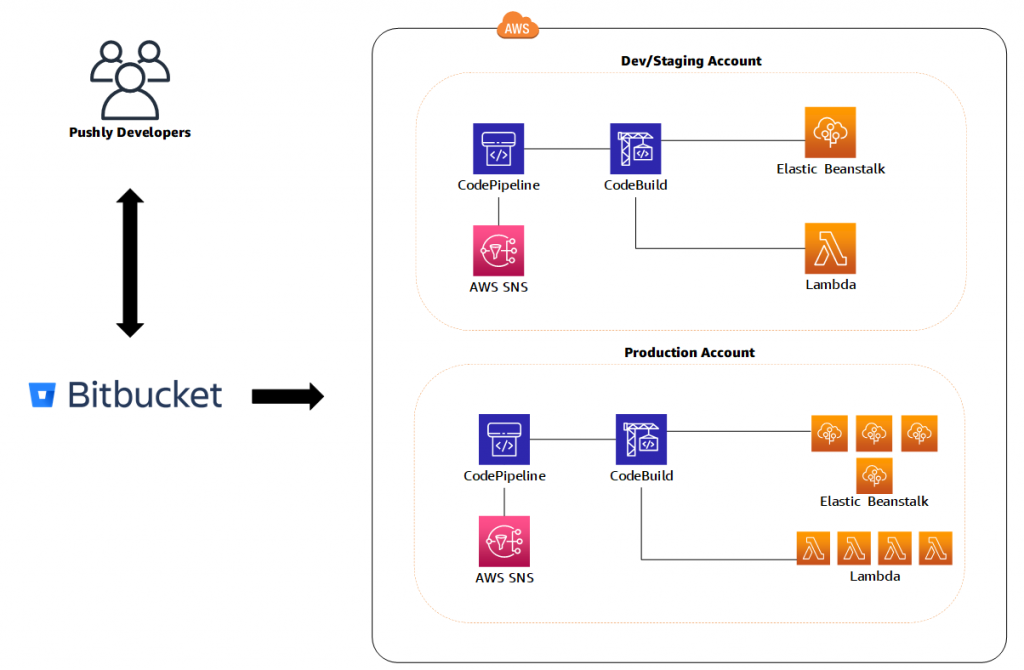
Our development environment allows developers to securely pull down applications as needed and access the required services in a development AWS account. After an application is tested and is ready for staging, the application is deployed to our staging environment—a smaller reproduction of our production environment—so we can test how the changes work together. This flow allows us to see how the changes run within the entire Pushly ecosystem in a secure environment without pushing to production.

When testing is complete, a pull request is created for stakeholder review and to merge the changes to production branches. We use AWS CodeBuild, CodePipeline, and a suite of in-house tools to ensure that the application has been thoroughly tested to our standards before being deployed to our production AWS account.

Here is a high level diagram of the environment described above:

Diagram showing at a high level the Pushly environment.Ease of development

Ease of development was—and is—key. AWS provides the tools that allow us to quickly iterate and adapt to ever-changing customer needs. The infrastructure as code (IaC) approach of AWS CloudFormation allows us to quickly and simply define our infrastructure in an easily reproducible manner and rapidly create and modify environments at scale. This has given us the confidence to take on new challenges without concern over infrastructure builds impacting the final product or causing delays in development.

The Pushly team

Although Pushly’s developers all have the skill-set to work on both front-end-facing and back-end-facing projects, primary responsibilities are split between front-end and back-end developers. Developers that primarily focus on front-end projects concentrate on public-facing projects and internal management systems. The back-end team focuses on the underlying architecture, delivery systems, and the ecosystem as a whole. Together, we create and maintain a product that allows you to segment and target your audiences, which ensures relevant delivery of your content via web push notifications.

Early on we ran all services entirely off of AWS Lambda. This allowed us to develop new features quickly in an elastic, cost efficient way. As our applications have matured, we’ve identified some services that would benefit from an always on environment and moved them to AWS Elastic Beanstalk. The capability to quickly iterate and move from service to service is a credit to AWS, because it allows us to customize and tailor our services across multiple AWS offerings.

Elastic Beanstalk has been the fastest and simplest way for us to deploy this suite of services on AWS; their blue/green deployments allow us to maintain minimal downtime during deployments. We can easily configure deployment environments with capacity provisioning, load balancing, autoscaling, and application health monitoring.

The business side

We had several business drivers behind choosing AWS: we wanted to make it easier to meet customer demands and continually scale as much as needed without worrying about the impact on development or on our customers.

Using AWS services allowed us to build our platform from inception to our initial beta offering in fewer than 2 months! AWS made it happen with tools for infrastructure deployment on top of the software deployment. Specifically, IaC allowed us to tailor our infrastructure to our specific needs and be confident that it’s always going to work.

On the infrastructure side, we knew that we wanted to have a staging environment that truly mirrored the production environment, rather than managing two entirely disparate systems. We could provide different sets of mappings based on accounts and use the templates across multiple environments. This functionality allows us to use the exact same code we use in our current production environment and easily spin up additional environments in 2 hours.

The need for speed

It took a very short time to get our project up and running, which included rewriting different pieces of the infrastructure in some places and completely starting from scratch in others.

One of the new services that we adopted is AWS CodeArtifact. It lets us have fully customized private artifact stores in the cloud. We can keep our in-house libraries within our current AWS accounts instead of relying on third-party services.

CodeBuild lets us compile source code, run test suites, and produce software packages that are ready to deploy while only having to pay for the runtime we use. With CodeBuild, you don’t need to provision, manage, and scale your own build servers, which saves us time.

The new tools that AWS is releasing are going to even further streamline our processes. We’re interested in the impact that CodeArtifact will have on our ability to share libraries in Pushly and with other business units.

Cost savings is key

What are we saving by choosing AWS? A lot. AWS lets us scale while keeping costs at a minimum. This was, and continues to be, a major determining factor when choosing a cloud provider.

By using Lambda and designing applications with horizontal scale in mind, we have scaled from processing millions of requests per day to hundreds of millions, with very little change to the underlying infrastructure. Due to the nature of our offering, our traffic patterns are unpredictable. Lambda allows us to process these requests elastically and avoid over-provisioning. As a result, we can increase our throughput tenfold at any time, pay for the few minutes of extra compute generated by a sudden burst of traffic, and scale back down in seconds.

In addition to helping us process these requests, AWS has been instrumental in helping us manage an ever-growing data warehouse of clickstream data. With Amazon Kinesis Data Firehose, we automatically convert all incoming events to Parquet and store them in Amazon Simple Storage Service (Amazon S3), which we can query directly using Amazon Athena within minutes of being received. This has once again allowed us to scale our near-real-time data reporting to a degree that would have otherwise required a significant investment of time and resources.

As we look ahead, one thing we’re interested in is Lambda custom stacks, part of AWS’s Lambda-backed custom resources. Amazon supports many languages, so we can run almost every language we need. If we want to switch to a language that AWS doesn’t support by default, they still provide a way for us to customize a solution. All we have to focus on is the code we’re writing!

The importance of speed for us and our customers is one of our highest priorities. Think of a news publisher in the middle of a briefing who wants to get the story out before any of the competition and is relying on Pushly—our confidence in our ability to deliver on this need comes from AWS services enabling our code to perform to its fullest potential.

Another way AWS has met our needs was in the ease of using Amazon ElastiCache, a fully managed in-memory data store and cache service. Although we try to be as horizontal thinking as possible, some services just can’t scale with the immediate elasticity we need to handle a sudden burst of requests. We avoid duplicate lookups for the same resources with ElastiCache. ElastiCache allows us to process requests quicker and protects our infrastructure from being overwhelmed.

In addition to caching, ElastiCache is a great tool for job locking. By locking messages by their ID as soon as they are received, we can use the near-unlimited throughput of Amazon Simple Queue Service (Amazon SQS) in a massively parallel environment without worrying that messages are processed more than once.

The heart of our offering is in the segmentation of subscribers. We allow building complex queries in our dashboard that calculate reach in real time and are available to use immediately after creation. These queries are often never-before-seen and may contain custom properties provided by our clients, operate on complex data types, and include geospatial conditions. No matter the size of the audience, we see consistent sub-second query times when calculating reach. We can provide this to our clients using Amazon Elasticsearch Service (Amazon ES) as the backbone to our subscriber store.

Summary

AWS has countless positives, but one key theme that we continue to see is overall ease of use, which enables us to rapidly iterate. That’s why we rely on so many different AWS services—Amazon API Gateway with Lambda integration, Elastic Beanstalk, Amazon Relational Database Service (Amazon RDS), ElastiCache, and many more.

We feel very secure about our future working with AWS and our continued ability to improve, integrate, and provide a quality service. The AWS team has been extremely supportive. If we run into something that we need to adjust outside of the standard parameters, or that requires help from the AWS specialists, we can reach out and get feedback from subject matter experts quickly. The all-around capabilities of AWS and its teams have helped Pushly get where we are, and we’ll continue to rely on them for the foreseeable future.


Automated CloudFormation Testing Pipeline with TaskCat and CodePipeline

Post Syndicated from Raleigh Hansen original https://aws.amazon.com/blogs/devops/automated-cloudformation-testing-pipeline-with-taskcat-and-codepipeline/

Researchers at Academic Medical Centers (AMCs) use programs such as Observational Health Data Sciences and Informatics (OHDSI) and Research Electronic Data Capture (REDCap) to interact with healthcare data. Our internal team at AWS has provided solutions such as OHDSI-on-AWS and REDCap environments on AWS to help clinicians analyze healthcare data in the AWS Cloud. Occasionally, these solutions break due to a change in some portion of the solution (e.g. updated services). The Automated Solutions Testing Pipeline enables our team to take a proactive approach to discovering these breaks and their cause in order to expedite the repair process.

OHDSI-on-AWS provides these AMCs with the ability to store and analyze observational health data in the AWS cloud. REDCap is a web application for managing surveys and databases with HIPAA-compliant environments. Using our solutions, these programs can be spun up easily on the AWS infrastructure using AWS CloudFormation templates.

Updates to AWS services and other program libraries can cause the CloudFormation template to fail during deployment. Other times, the outputs may not be operating correctly, or the template may not work on every AWS region. This can create a negative customer experience. Some customers may discover this kind of break and decide to not move forward with using the solution. Other customers may not even realize the solution is broken, so they might be unknowingly working with an uncooperative environment. Furthermore, we cannot always provide fast support to the customers who contact us about broken solutions. To meet our team’s needs and the needs of our customers, we decided to focus our efforts on taking a CI/CD approach to maintain these solutions. We developed the Automated Testing Pipeline which regularly tests solution deployment and changes to source files.

This post shows the features of the Automated Testing Pipeline and provides resources to help you get started using it with your AWS account.

Overview of Automated Testing Pipeline Solution

The Automated Testing Pipeline solution as a whole is designed to automatically deploy CloudFormation templates, run tests against the deployed environments, send notifications if an issue is discovered, and allow for insightful testing data to be easily explored.

CloudFormation templates to be tested are stored in an Amazon S3 bucket. Custom test scripts and TaskCat deployment configuration are stored in an AWS CodeCommit repository.

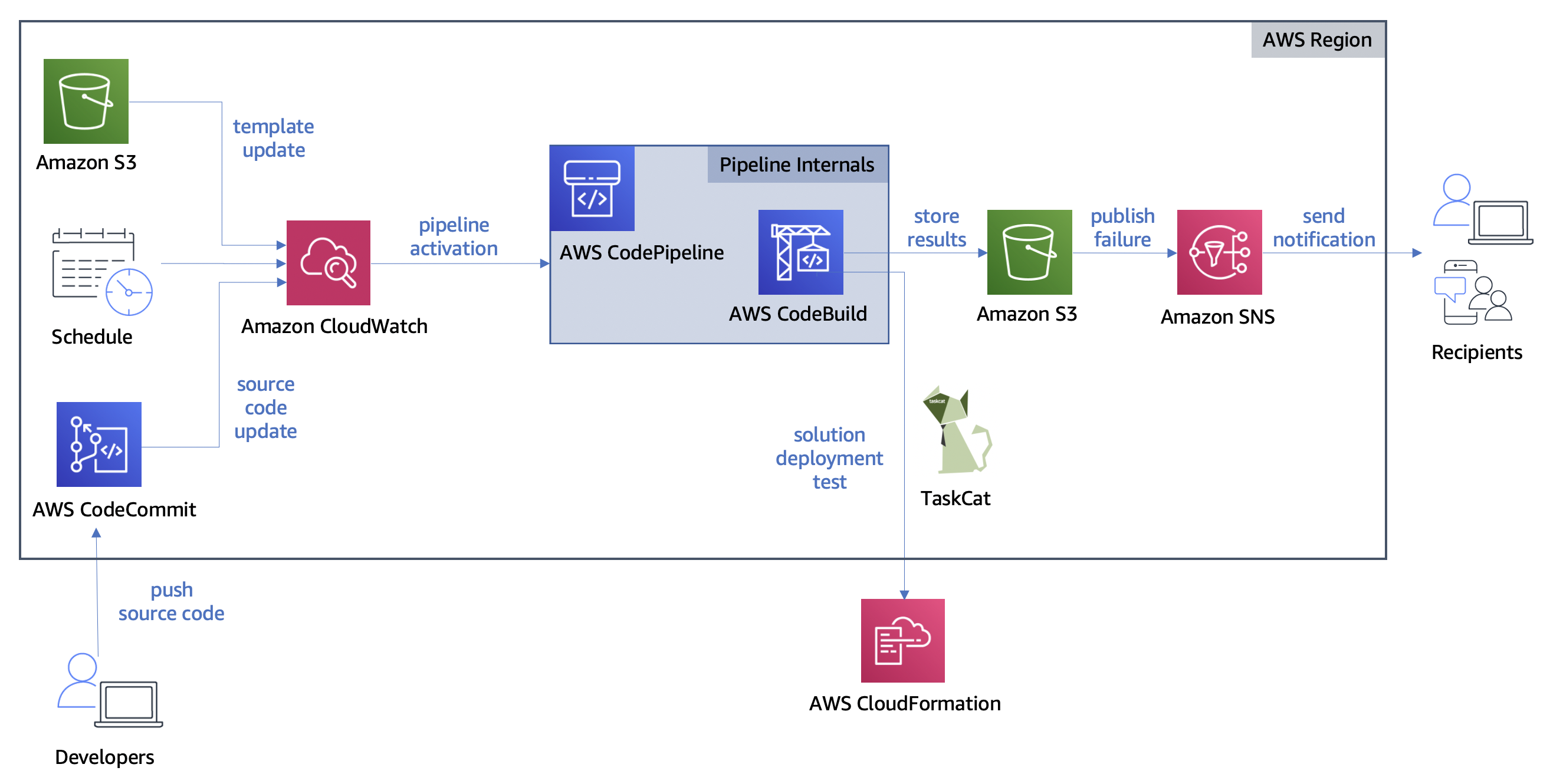
The pipeline is triggered in one of three ways: an update to the CloudFormation Template in S3, an Amazon CloudWatch events rule, and an update to the testing source code repository. Once the pipeline has been triggered, AWS CodeBuild pulls the source code to deploy the CloudFormation template, test the deployed environment, and store the results in an S3 bucket. If any failures are discovered, subscribers to the failure topic are notified. The following diagram shows its overall architecture.

Diagram of Automated Testing Pipeline architecture

Diagram of Automated Testing Pipeline architecture

In order to create the Automated Testing Pipeline, two interns collaborated over the course of 5 weeks to produce the architecture and custom test scripts. We divided the work of constructing a serverless architecture and writing out test scripts for the output urls for OHDSI-on-AWS and REDCap environments on AWS.

The following tasks were completed to build out the Automated Testing Pipeline solution:

  • Setup AWS IAM roles for accessing AWS resources securely
  • Create CloudWatch events to trigger AWS CodePipeline
  • Setup CodePipeline and CodeBuild to run TaskCat and testing scripts
  • Configure TaskCat to deploy CloudFormation solutions in various AWS Regions
  • Write test scripts to interact with CloudFormation solutions’ deployed environments
  • Subscribe to receive emails detailing test results
  • Create a CloudFormation template for the Automated Testing Pipeline

The architecture can be extended to test any CloudFormation stack. For this particular use case, we wrote the test scripts specifically to test the urls output by the CloudFormation solutions. The Automated Testing Pipeline has the following features:

  • Deployed in a single AWS Region, with the exception of the tested CloudFormation solution
  • Has a serverless architecture operating at the AWS Region level
  • Deploys a pipeline which can deploy and test the CloudFormation solution
  • Creates CloudWatch events to activate the pipeline on a schedule or when the solution is updated
  • Creates an Amazon SNS topic for notifying subscribers when there are errors
  • Includes code for running TaskCat and scripts to test solution functionality
  • Built automatically in minutes
  • Low in cost with free tier benefits

The pipeline is triggered automatically when an event occurs. These events include a change to the CloudFormation solution template, a change to the code in the testing repository, and an alarm set off by a regular schedule. Additional events can be added in the CloudWatch console.

When the pipeline is triggered, the testing environment is set up by CodeBuild. CodeBuild uses a build specification file kept within our source repository to set up the environment and run the test scripts. We created a CodeCommit repository to host the test scripts alongside the build specification. The build specification includes commands run TaskCat — an open-source tool for testing the deployment of CloudFormation templates. TaskCat provides the ability to test the deployment of the CloudFormation solution, but we needed custom test scripts to ensure that we can interact with the deployed environment as expected. If the template is successfully deployed, CodeBuild handles running the test scripts against the CloudFormation solution environment. In our case, the environment is accessed via urls output by the CloudFormation solution.

We used a Selenium WebDriver for interacting with the web pages given by the output urls. This allowed us to programmatically navigate a headless web browser in the serverless environment and gave us the ability to use text output by JavaScript functions to understand the state of the test. You can see this interaction occurring in the code snippet below.

def log_in(driver, user, passw, link, btn_path, title):
    """Enter username and password then submit to log in

        :param driver: webdriver for Chrome page
        :param user: username as String
        :param passw: password as String
        :param link: url for page being tested as String
        :param btn_path: xpath to submit button
        :param title: expected page title upon successful sign in
        :return: success String tuple if log in completed, failure description tuple String otherwise
    """
    try:
        # post username and password data
        driver.find_element_by_xpath("//input[ @name='username' ]").send_keys(user)
        driver.find_element_by_xpath("//input[ @name='password' ]").send_keys(passw)

        # click sign in button and wait for page update
        driver.find_element_by_xpath(btn_path).click()
    except NoSuchElementException:
        return 'FAILURE', 'Unable to access page elements'

    try:
        WebDriverWait(driver, 20).until(ec.url_changes(link))
        WebDriverWait(driver, 20).until(ec.title_is(title))
    except TimeoutException as e:
        print("Timeout occurred (" + e + ") while attempting to sign in to " + driver.current_url)
        if "Sign In" in driver.title or "invalid user" in driver.page_source.lower():
            return 'FAILURE', 'Incorrect username or password'
        else:
            return 'FAILURE', 'Sign in attempt timed out'

    return 'SUCCESS', 'Sign in complete'

We store the test results in JSON format for ease of parsing. TaskCat generates a dashboard which we customize to display these test results. We are able to insert our JSON results into the dashboard in order to make it easy to find errors and access log files. This dashboard is a static html file that can be hosted on an S3 bucket. In addition, messages are published to topics in SNS whenever an error occurs which provide a link to this dashboard.

Dashboard containing descriptions of tests and their results

Customized TaskCat dashboard

In true CI/CD fashion, this end-to-end design automatically performs tasks that would otherwise be performed manually. We have shown how deploying solutions, testing solutions, notifying maintainers, and providing a results dashboard are all actions handled entirely by the Automated Testing Pipeline.

Getting Started with the Automated Testing Pipeline

Prerequisite tasks to complete before deploying the pipeline:

Once the prerequisite tasks are completed, the pipeline is ready to be deployed. Detailed information about deployment, altering the source code to fit your use case, and troubleshooting issues can be found at the GitHub page for the Automated Testing Pipeline.

For those looking to jump right into deployment, click the Launch Stack button below.

Button to click to deploy the Automated Testing Pipeline via CloudFormation

Tasks to complete after deployment:

  • Subscribe to SNS topic for error messages
  • Update the code to match the parameters and CloudFormation template that were chosen
  • Skip this step if you are testing OHDSI-on-AWS. Upload the desired CloudFormation template to the created source S3 Bucket
  • Push the source code to the created CodeCommit Repository

After the code is pushed to the CodeCommit repository and the CloudFormation template has been uploaded to S3, the pipeline will run automatically. You can visit the CodePipeline console to confirm that the pipeline is running with an “in progress” status.

You may desire to alter various aspects of the Automated Testing Pipeline to better fit your use case. Listed below are some actions you can take to modify the solution to fit your needs:

  • Go to CloudWatch Events and update rules for automatically started the pipeline.
  • Scale out testing by providing custom testing scripts or altering the existing ones.
  • Test a different CloudFormation template by uploading it to the source S3 bucket created and configuring the pipeline accordingly. Custom test scripts will likely be required for this use case.

Challenges Addressed by the Automated Testing Pipeline

The Automated Testing Pipeline directly addresses the challenges we faced with maintaining our OHDSI and REDCap solutions. Additionally, the pipeline can be used whenever there is a need to test CloudFormation templates that are being used on a regular basis or are distributed to other users. Listed below is the set of specific challenges we faced maintaining CloudFormation solutions and how the pipeline addresses them.

Table describing challenges faced with their direct solution offered by Testing Pipeline

The desire to better serve our customers guided our decision to create the Automated Testing Pipeline. For example, we know that source code used to build the OHDSI-on-AWS environment changes on occasion. Some of these changes have caused the environment to stop functioning correctly. This left us with cases where our customers had to either open an issue on GitHub or reach out to AWS directly for support. Our customers depend on OHDSI-on-AWS functioning properly, so fixing issues is of high priority to our team. The ability to run tests regularly allows us to take action without depending on notice from our customers. Now, we can be the first ones to know if something goes wrong and get to fixing it sooner.

“This automation will help us better monitor the CloudFormation-based projects our customers depend on to ensure they’re always in working order.” — James Wiggins, EDU HCLS SA Manager

Cleaning Up

If you decide to quit using the Automated Testing Pipeline, follow the steps below to get rid of the resources associated with it in your AWS account.

  • Delete CloudFormation solution root Stack
  • Delete pipeline CloudFormation Stack
  • Delete ATLAS S3 Bucket if OHDSI-on-AWS was chosen

Deleting the pipeline CloudFormation stack handles removing the resources associated with its architecture. Depending on the CloudFormation template chosen for testing, additional resources associated with it may need to be removed. Visit our GitHub page for more information on removing resources.

Conclusion

The ability to continuously test preexisting solutions on AWS has great benefits for our team and our customers. The automated nature of this testing frees up time for us and our customers, and the dashboard makes issues more visible and easier to resolve. We believe that sharing this story can benefit anyone facing challenges maintaining CloudFormation solutions in AWS. Check out the Getting Started with the Automated Testing Pipeline section of this post to deploy the solution.

Additional Resources

More information about the key services and open-source software used in our pipeline can be found at the following documentation pages:

About the Authors

Raleigh Hansen is a former Solutions Architect Intern on the Academic Medical Centers team at AWS. She is passionate about solving problems and improving upon existing systems. She also adores spending time with her two cats.

Dan Le is a former Solutions Architect Intern on the Academic Medical Centers team at AWS. He is passionate about technology and enjoys doing art and music.

Speed and Stability: Yahoo Mail’s Forward-Thinking Continuous Integration and Delivery Pipeline

Post Syndicated from mikesefanov original https://yahooeng.tumblr.com/post/162320459636

By Mohit Goenka, Senior Engineering Manager

Building the technology powering the best consumer email inbox in the world is no easy task. When you start on such a journey, it is important to consider how to deliver such an experience to the users. After all, any consumer feature we build can only make a difference after it is delivered to everyone via the tech pipeline. 

As we began building out the new version of Yahoo Mail, we wanted to ensure that our internal developer productivity would not be hindered by how our pipelines work. Keeping this in mind, we identified the following principles as most important while designing the delivery pipeline for the new Yahoo Mail experience: 

  • Product updates are pushed at regular intervals
  • Releases are stable
  • Builds are not blocked by irrational test failures
  • Developers are notified of code pushes
  • Hotfixes
  • Rollbacks
  • Heartbeat pushes 

Product updates are pushed at regular intervals 

We ensure that our engineers can push any code changes to all Mail users everyday, with the ability to push multiple times a day, if necessary or desired. This is possible because of the time we spent building a solid testing infrastructure, which continues to evolve as we scale to new users and add new features to the product. Every one of our builds runs 10,000+ unit tests and 5,000+ integration tests on various combinations of operating systems and browsers. It is important to push product updates regularly as it allows all our users to get the best Mail experience possible. 

Releases are stable 

Every code release starts with the company’s internal audience first, where all our employees get to try out the latest changes before they go out to production. This begins with our alpha and beta environments that our Mail engineers use by default. Our build then goes out to the canary environment, which is a small subset of production users, before making it to all users. This gives us the ability to analyze quality metrics on internal and canary servers before rolling the build out to 100% of users in production. Once we go through this process, the code pushed to all our users is thoroughly baked and tested. 

Builds are not blocked by irrational test failures 

Running tests using web drivers on multiple browsers, as is standard when testing frontend code, comes with the problem of tests irrationally failing. As part the Yahoo Mail continuous delivery pipeline, we employ various novel strategies to recover from such failures. One such strategy is recording the data related to failed tests in the first pass of a build, and then rerunning only the failed tests in the subsequent passes. This is achieved by creating a metadata file that stores all our build-related information. As part of this process, a new bundle is created with a new set of code changes. Once a bundle is created with build metadata information, the same build job can be rerun multiple times such that subsequent reruns would only run the failing tests. This significantly improves rerun times and eliminates the chances of build detentions introduced by irrational test failures. The recorded test information is analyzed independently to understand the pattern of failing tests. This helps us in improving the stability of those intermittently failing tests. 
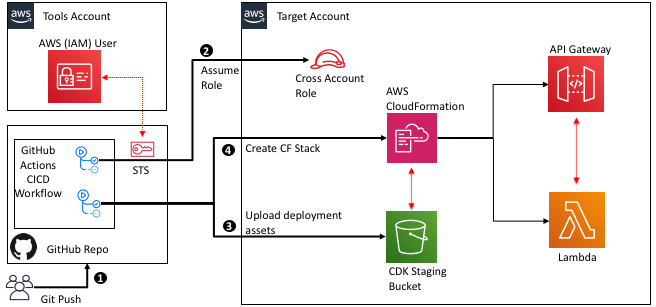
Developers are notified of code pushes 

Our build and deployment pipelines collect data related to all the authors contributing to any release through code commits or by merging various pull requests. This enables the build pipeline to send out email notifications to all our Mail developers as their code flows through each environment in our build pipeline (alpha, beta, canary, and production). With this ability, developers are well aware of where their code is in the pipeline and can test their changes as needed. 

Hotfixes 

We have also created a pipeline to deploy major code fixes directly to production. This is needed even after the existence of tens of thousands of tests and multitudes of checks. Every now and then, a bug may make its way into production. For such instances, we have hotfixes that are very useful. These are code patches that we quickly deploy on top of production code to address critical issues impacting large sets of users. 

Rollbacks 

If we find any issues in production, we do our best to minimize the impact on users by swiftly utilizing rollbacks, ensuring there is zero to minimal impact time. In order to do rollbacks, we maintain lists of all the versions pushed to production along with their release bundles and change logs. If needed, we pick the stable version that was previously pushed to production and deploy it directly on all the machines running our production instance. 

Heartbeat pushes

As part of our continuous delivery efforts, we have also developed a concept we call heartbeat pushes. Heartbeat pushes are notifications we send users to refresh their browsers when we issue important builds that they should immediately adopt. These can include bug fixes, product updates, or new features. Heartbeat allows us to dynamically update the latest version of Yahoo Mail when we see that a user’s current version needs to be updated.

image

Yahoo Mail Continuous Delivery Flow

In building the new Yahoo Mail experience, we knew that we needed to revamp from the ground up, starting with our continuous integration and delivery pipeline. The guiding principles of our new, forward-thinking infrastructure allow us to deliver new features and code fixes at a very high launch velocity and ensure that our users are always getting the latest and greatest Yahoo Mail experience.

Open Sourcing Daytona: A Framework For Automated and Application-agnostic Performance Analysis

Post Syndicated from mikesefanov original https://yahooeng.tumblr.com/post/160987779296

By Sapan Panigrahi and Deepesh Mittal

Today, we are pleased to offer Daytona, an open-source framework for automated performance testing and analysis, to the community. Daytona is an application-agnostic framework to conduct integrated performance testing and analysis with repeatable test execution, standardized reporting, and built-in profiling support.

Daytona gives you the capability to build a customized test harness in a single, unified framework to test and analyze the performance of any application. You’ll get easy repeatability, consistent reporting, and the ability to capture trends. Daytona’s UI accepts a performance testing script that can run on a command line. This includes websites, databases, networks, or any workload you need to test and tune for performance. You can submit tests to the scheduler queue from the Daytona UI or from your CI/CD tool. You can deploy Daytona as a hosted service in your on-prem environment or on the public cloud of your choice. In fact, you can even host test harnesses for multiple applications with a single centralized service so that developers, architects, and systems engineers from different parts of your organization can work together on a unified view and manage your performance analysis on a continuous basis.

Daytona’s differentiation lies in its ability to aggregate and present essential aspects of application, system, and hardware performance metrics with a simple and unified user interface. This helps you maintain your focus on performance analysis without changing context across various sources and formats of data. The overall goal of performance analysis is to find ways of maximizing application throughput with minimum hardware resource and the best user experience. Metrics and insights from Daytona help achieve this objective.

Prior to Daytona, we created multiple, heterogenous performance tools to meet the specific needs of various applications. This meant that we often stored test results inconsistently, making it harder to analyze performance in a comprehensive manner. We had a difficult time sharing results and analyzing differences in test runs in a standard manner, which could lead to confusion.

With Daytona, we are now able to integrate all our load testing tools under a single framework and aggregate test results in one common central repository. We are gaining insight into the performance characteristics of many of our applications on a continuous basis. These insights help us optimize our applications which results in better utilization of our hardware resources and helps improve user experience by reducing the latency to serve end-user requests. Ultimately, Daytona helps us reduce capital expenditure on our large-scale infrastructure and makes our applications more robust under load. Sharing performance results in a common format encourages the use of common optimization techniques that we can leverage across many different applications.

Daytona was built knowing that we would want to publish it as open source and share the technology with the community for validation and improvement of the framework. We hope the community can help extend its use cases and make it suitable for an even broader set of applications and workloads.

Architecture

Daytona is comprised of a centralized scheduler, a distributed set of agents running on SUTs (systems under test), a MySQL database to store all metadata for tests, and a PHP-based UI. A test harness can be customized by answering a simple set of questions about the application/workload. A test can be submitted to Daytona’s queue through the UI or through a CLI (Command Line Interface) from the CI/CD system. The scheduler process polls the database for a test to be run and sends all the actions associated with the execution of the test to the agent running on a SUT. An agent process executes the test, collects application and system performance metrics, and sends the metrics back as a package to the scheduler. The scheduler saves the test metadata in the database and test results in the local file system. Tests from multiple harnesses proceed concurrently.

image

Architecture and Life Cycle Of A Test

Looking Forward

Our goal is to integrate Daytona with popular open source CI/CD tools and we welcome contributions from the community to make that happen. It is available under Apache License Version 2.0. To evaluate Daytona, we provide simple instructions to deploy it on your in-house bare metal, VM, or public cloud infrastructure. We also provide instructions so you can quickly have a test and development environment up and running on your laptop with Docker. Please join us on the path of making application performance analysis an enjoyable and insightful experience. Visit the Daytona Yahoo repo to get started!