Tag Archives: automation

Tracking the latest server images in Amazon EC2 Image Builder pipelines

Post Syndicated from Eric Johnson original https://aws.amazon.com/blogs/compute/tracking-the-latest-server-images-in-amazon-ec2-image-builder-pipelines/

This post courtesy of Anoop Rachamadugu, Cloud Architect at AWS

The Amazon EC2 Image Builder service helps users to build and maintain server images. The images created by EC2 Image Builder can be used with Amazon Elastic Compute Cloud (EC2) and on-premises. Image Builder reduces the effort of keeping images up-to-date and secure by providing a graphical interface, built-in automation, and AWS-provided security settings. Customers have told us that they manage multiple server images and are looking for ways to track the latest server images created by the pipelines.

In this blog post, I walk through a solution that uses AWS Lambda and AWS Systems Manager (SSM) Parameter Store. It tracks and updates the latest Amazon Machine Image (AMI) IDs every time an Image Builder pipeline is run. With Lambda, you pay only for what you use. You are charged based on the number of requests for your functions and the time it takes for your code to run. In this case, the Lambda function is invoked upon the completion of the image builder pipeline. Standard SSM parameters are available at no additional charge.

Users can reference the SSM parameters in automation scripts and AWS CloudFormation templates providing access to the latest AMI ID for your EC2 infrastructure. Consider the use case of updating Amazon Machine Image (AMI) IDs for the EC2 instances in your CloudFormation templates. Normally, you might map AMI IDs to specific instance types and Regions. Then to update these, you would manually change them in each of your templates. With the SSM parameter integration, your code remains untouched and a CloudFormation stack update operation automatically fetches the latest Parameter Store value.

Overview

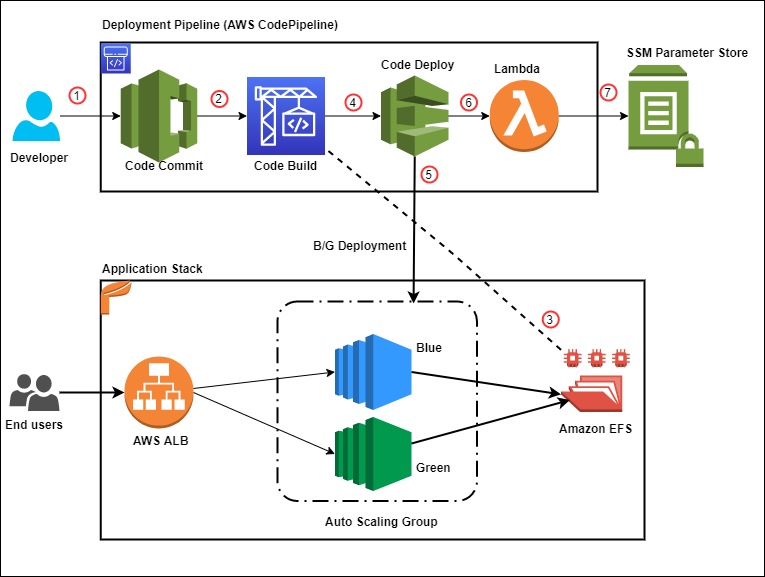
This solution uses a Lambda function written in Python that subscribes to an Amazon Simple Notification Service (SNS) topic. The Lambda function and the SNS topic are deployed using AWS SAM CLI. Once deployed, the SNS topic must be configured in an existing Image Builder pipeline. This results in the Lambda function being invoked at the completion of the Image Builder pipeline.

When a Lambda function subscribes to an SNS topic, it is invoked with the payload of the published messages. The Lambda function receives the message payload as an input parameter. The Lambda function first checks the message payload to see if the image status is available. If the image state is available, it retrieves the AMI ID from the message payload and updates the SSM parameter.

EC2 Image builder architecture diagram

EC2 Image builder architecture diagram

Prerequisites

To get started with this solution, the following is required:

Deploying the solution

The solution consists of two files, which can be downloaded from the amazon-ec2-image-builder GitHub repository.

  1. The Python file image-builder-lambda-update-ssm.py contains the code for the Lambda function. It first checks the SNS message payload to determine if the image is available. If it’s available, it extracts the AMI ID from the SNS message payload and updates the SSM parameter specified.The ‘ssm_parameter_name’ variable specifies the SSM parameter path where the AMI ID should be stored and updated. The Lambda function finishes by adding tags to the SSM parameter.
  2. The template.yaml file is an AWS SAM template. It deploys the Lambda function, SNS topic, and IAM role required for the Lambda function. I use Python 3.7 as the runtime and assign a memory of 256 MB for the Lambda function. The IAM policy gives the Lambda function permissions to retrieve and update SSM parameters. Deploy this application using the AWS SAM CLI guided deploy:
    sam deploy --guided

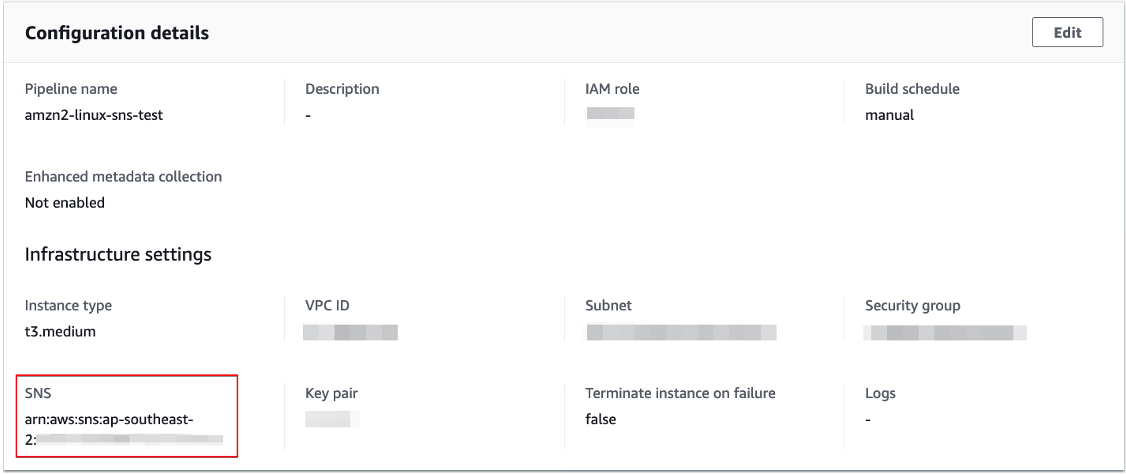
After deploying the application, note the ARN of the created SNS topic. Next, update the infrastructure settings of an existing Image Builder pipeline with this newly created SNS topic. This results in the Lambda function being invoked upon the completion of the image builder pipeline.

Configuration details

Configuration details

Verifying the solution

After the completion of the image builder pipeline, use the AWS CLI or check the AWS Management Console to verify the updated SSM parameter. To verify via AWS CLI, run the following commands to retrieve and list the tags attached to the SSM parameter:

aws ssm get-parameter --name ‘/ec2-imagebuilder/latest’
aws ssm list-tags-for-resource --resource-type "Parameter" --resource-id ‘/ec2-imagebuilder/latest’

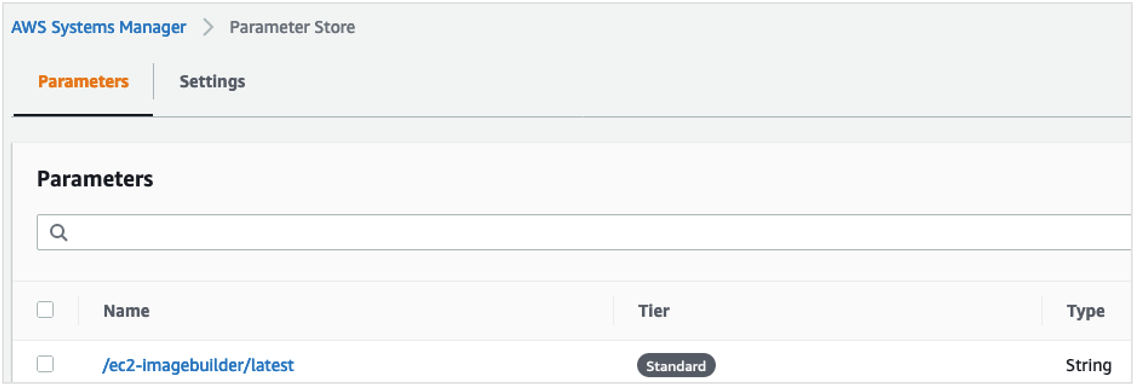
To verify via the AWS Management Console, navigate to the Parameter Store under AWS Systems Manager. Search for the parameter /ec2-imagebuilder/latest:

AWS Systems Manager: Parameter Store

AWS Systems Manager: Parameter Store

Select the Tags tab to view the tags attached to the SSM parameter:

Image builder tags list

Image builder tags list

Referencing the SSM Parameter in CloudFormation templates

Users can reference the SSM parameters in automation scripts and AWS CloudFormation templates providing access to the latest AMI ID for your EC2 infrastructure. This sample code shows how to reference the SSM parameter in a CloudFormation template.

Parameters :
  LatestAmiId :
    Type : 'AWS::SSM::Parameter::Value<AWS::EC2::Image::Id>'
    Default: ‘/ec2-imagebuilder/latest’

Resources :
  Instance :
    Type : 'AWS::EC2::Instance'
    Properties :
      ImageId : !Ref LatestAmiId

Conclusion

In this blog post, I demonstrate a solution that allows users to track and update the latest AMI ID created by the Image Builder pipelines. The Lambda function retrieves the AMI ID of the image created by a pipeline and update an AWS Systems Manager parameter. This Lambda function is triggered via an SNS topic configured in an Image Builder pipeline.

The solution is deployed using AWS SAM CLI. I also note how users can reference Systems Manager parameters in AWS CloudFormation templates providing access to the latest AMI ID for your EC2 infrastructure.

The amazon-ec2-image-builder-samples GitHub repository provides a number of examples for getting started with EC2 Image Builder. Image Builder can make it easier for you to build virtual machine (VM) images.

Getting started with DevOps automation

Post Syndicated from Jared Murrell original https://github.blog/2020-10-29-getting-started-with-devops-automation/

This is the second post in our series on DevOps fundamentals. For a guide to what DevOps is and answers to common DevOps myths check out part one.

What role does automation play in DevOps?

First things first—automation is one of the key principles for accelerating with DevOps. As noted in my last blog post, it enables consistency, reliability, and efficiency within the organization, making it easier for teams to discover and troubleshoot problems. 

However, as we’ve worked with organizations, we’ve found not everyone knows where to get started, or which processes can and should be automated. In this post, we’ll discuss a few best practices and insights to get teams moving in the right direction.

A few helpful guidelines

The path to DevOps automation is continually evolving. Before we dive into best practices, there are a few common guidelines to keep in mind as you’re deciding what and how you automate. 

  • Choose open standards. Your contributors and team may change, but that doesn’t mean your tooling has to. By maintaining tooling that follows common, open standards, you can simplify onboarding and save time on specialized training. Community-driven standards for packaging, runtime, configuration, and even networking and storage—like those found in Kubernetes—also become even more important as DevOps and deployments move toward the cloud.
  • Use dynamic variables. Prioritizing reusable code will reduce the amount of rework and duplication you have, both now and in the future. Whether in scripts or specialized tools, securely using externally-defined variables is an easy way to apply your automation to different environments without needing to change the code itself.
  • Use flexible tooling you can take with you. It’s not always possible to find a tool that fits every situation, but using a DevOps tool that allows you to change technologies also helps reduce rework when companies change direction. By choosing a solution with a wide ecosystem of partner integrations that works with any cloud, you’ll be able to  define your unique set of best practices and reach your goals—without being restricted by your toolchain.

DevOps automation best practices

Now that our guidelines are in place, we can evaluate which sets of processes we need to automate. We’ve broken some best practices for DevOps automation into four categories to help you get started. 

1. Continuous integration, continuous delivery, and continuous deployment

We often think of the term “DevOps” as being synonymous with “CI/CD”. At GitHub we recognize that DevOps includes so much more, from enabling contributors to build and run code (or deploy configurations) to improving developer productivity. In turn, this shortens the time it takes to build and deliver applications, helping teams add value and learn faster. While CI/CD and DevOps aren’t precisely the same, CI/CD is still a core component of DevOps automation.

  • Continuous integration (CI) is a process that implements testing on every change, enabling users to see if their changes break anything in the environment. 
  • Continuous delivery (CD) is the practice of building software in a way that allows you to deploy any successful release candidate to production at any time.
  • Continuous deployment (CD) takes continuous delivery a step further. With continuous deployment, every successful change is automatically deployed to production. Since some industries and technologies can’t immediately release new changes to customers (think hardware and manufacturing), adopting continuous deployment depends on your organization and product.

Together, continuous integration and continuous delivery (commonly referred to as CI/CD) create a collaborative process for people to work on projects through shared ownership. At the same time, teams can maintain quality control through automation and bring new features to users with continuous deployment. 

2. Change management

Change management is often a critical part of business processes. Like the automation guidelines, there are some common principles and tooling that development and operations teams can use to create consistency.  

  • Version control: The practice of using version control has a long history rooted in helping people revert changes and learn from past decisions. From RCS to SVN, CVS to Perforce, ClearCase to Git, version control is a staple for enabling teams to collaborate by providing a common workflow and code base for individuals to work with. 
  • Change control: Along with maintaining your code’s version history, having a system in place to coordinate and facilitate changes helps to maintain product direction, reduces the probability of harmful changes to your code, and encourages a collaborative process.
  • Configuration management: Configuration management makes it easier for everyone to manage complex deployments through templates and manage changes at scale with proper controls and approvals.

3. ‘X’ as code

By now, you also may have heard of “infrastructure as code,” “configuration as code,” “policy as code,” or some of the other “as code” models. These models provide a declarative framework for managing different aspects of your operating environments through high level abstractions. Stated another way, you provide variables to a tool and the output is consistently the same, allowing you to recreate your resources consistently. DevOps implements the “as code” principle with several goals, including: an auditable change trail for compliance, collaborative change process via version control, a consistent, testable and reliable way of deploying resources, and as a way to lower the learning curve for new team members. 

  • Infrastructure as code (IaC) provides a declarative model for creating immutable infrastructure using the same versioning and workflow that developers use for source code. As changes are introduced to your infrastructure requirements, new infrastructure is defined, tested, and deployed with new configurations through automated declarative pipelines.
  • Platform as code (PaC) provides a declarative model for services similar to how infrastructure as code provides a framework for recreating the same infrastructure—allowing you to rapidly deploy services to existing infrastructure with high-level abstractions.
  • Configuration as code (CaC) brings the next level of declarative pipelining by defining the configuration of your applications as versioned resources.
  • Policy as code brings versioning and the DevOps workflow to security and policy management. 

4. Continuous monitoring

Operational insights are an invaluable component of any production environment. In order to understand the behaviors of your software in production, you need to have information about how it operates. Continuous monitoring—the processes and technology that monitor performance and stability of applications and infrastructure throughout the software lifecycle—provides operations teams with data to help troubleshoot, and development teams the information needed to debug and patch. This also leads into an important aspect of security, where DevSecOps takes on these principles with a security focus. Choosing the right monitoring tools can be the difference between a slight service interruption and a major outage. When it comes to gaining operational insights, there are some important considerations: 

  • Logging gives you a continuous stream of data about your business’ critical components. Application logs, infrastructure logs, and audit logs all provide important data that helps teams learn and improve products.
  • Monitoring provides a level of intelligence and interpretation to the raw data provided in logs and metrics. With advanced tooling, monitoring can provide teams with correlated insights beyond what the raw data provides.
  • Alerting provides proactive notifications to respective teams to help them stay ahead of major issues. When effectively implemented, these alerts not only let you know when something has gone wrong, but can also provide teams with critical debugging information to help solve the problem quickly.
  • Tracing takes logging a step further, providing a deeper level of application performance and behavioral insights that can greatly impact the stability and scalability of applications in production environments.

Putting DevOps automation into action

At this point, we’ve talked much about automation in the DevOps space, so is DevOps all about automation? Put simply, no. Automation is an important means to accomplishing this work efficiently between teams. Whether you’re new to DevOps or migrating from another set of automation solutions, testing new tooling with a small project or process is a great place to start. It will lay the foundation for scaling and standardizing automation across your entire organization, including how to measure effectiveness and progression toward your goals. 

Regardless of which toolset you choose to automate your DevOps workflow, evaluating your teams’ current workflows and the information you need to do your work will help guide you to your tool and platform selection, and set the stage for success. Here are a few more resources to help you along the way:

Want to see what DevOps automation looks like in practice? See how engineers at Wiley build faster and more securely with GitHub Actions.

Building, bundling, and deploying applications with the AWS CDK

Post Syndicated from Cory Hall original https://aws.amazon.com/blogs/devops/building-apps-with-aws-cdk/

The AWS Cloud Development Kit (AWS CDK) is an open-source software development framework to model and provision your cloud application resources using familiar programming languages.

The post CDK Pipelines: Continuous delivery for AWS CDK applications showed how you can use CDK Pipelines to deploy a TypeScript-based AWS Lambda function. In that post, you learned how to add additional build commands to the pipeline to compile the TypeScript code to JavaScript, which is needed to create the Lambda deployment package.

In this post, we dive deeper into how you can perform these build commands as part of your AWS CDK build process by using the native AWS CDK bundling functionality.

If you’re working with Python, TypeScript, or JavaScript-based Lambda functions, you may already be familiar with the PythonFunction and NodejsFunction constructs, which use the bundling functionality. This post describes how to write your own bundling logic for instances where a higher-level construct either doesn’t already exist or doesn’t meet your needs. To illustrate this, I walk through two different examples: a Lambda function written in Golang and a static site created with Nuxt.js.

Concepts

A typical CI/CD pipeline contains steps to build and compile your source code, bundle it into a deployable artifact, push it to artifact stores, and deploy to an environment. In this post, we focus on the building, compiling, and bundling stages of the pipeline.

The AWS CDK has the concept of bundling source code into a deployable artifact. As of this writing, this works for two main types of assets: Docker images published to Amazon Elastic Container Registry (Amazon ECR) and files published to Amazon Simple Storage Service (Amazon S3). For files published to Amazon S3, this can be as simple as pointing to a local file or directory, which the AWS CDK uploads to Amazon S3 for you.

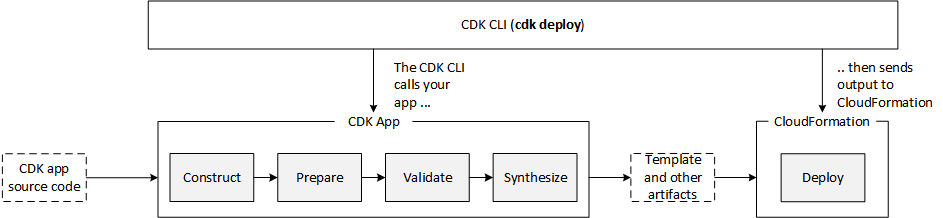
When you build an AWS CDK application (by running cdk synth), a cloud assembly is produced. The cloud assembly consists of a set of files and directories that define your deployable AWS CDK application. In the context of the AWS CDK, it might include the following:

  • AWS CloudFormation templates and instructions on where to deploy them
  • Dockerfiles, corresponding application source code, and information about where to build and push the images to
  • File assets and information about which S3 buckets to upload the files to

Use case

For this use case, our application consists of front-end and backend components. The example code is available in the GitHub repo. In the repository, I have split the example into two separate AWS CDK applications. The repo also contains the Golang Lambda example app and the Nuxt.js static site.

Golang Lambda function

To create a Golang-based Lambda function, you must first create a Lambda function deployment package. For Go, this consists of a .zip file containing a Go executable. Because we don’t commit the Go executable to our source repository, our CI/CD pipeline must perform the necessary steps to create it.

In the context of the AWS CDK, when we create a Lambda function, we have to tell the AWS CDK where to find the deployment package. See the following code:

new lambda.Function(this, 'MyGoFunction', {
  runtime: lambda.Runtime.GO_1_X,
  handler: 'main',
  code: lambda.Code.fromAsset(path.join(__dirname, 'folder-containing-go-executable')),
});

In the preceding code, the lambda.Code.fromAsset() method tells the AWS CDK where to find the Golang executable. When we run cdk synth, it stages this Go executable in the cloud assembly, which it zips and publishes to Amazon S3 as part of the PublishAssets stage.

If we’re running the AWS CDK as part of a CI/CD pipeline, this executable doesn’t exist yet, so how do we create it? One method is CDK bundling. The lambda.Code.fromAsset() method takes a second optional argument, AssetOptions, which contains the bundling parameter. With this bundling parameter, we can tell the AWS CDK to perform steps prior to staging the files in the cloud assembly.

Breaking down the BundlingOptions parameter further, we can perform the build inside a Docker container or locally.

Building inside a Docker container

For this to work, we need to make sure that we have Docker running on our build machine. In AWS CodeBuild, this means setting privileged: true. See the following code:

new lambda.Function(this, 'MyGoFunction', {
  code: lambda.Code.fromAsset(path.join(__dirname, 'folder-containing-source-code'), {
    bundling: {
      image: lambda.Runtime.GO_1_X.bundlingDockerImage,
      command: [
        'bash', '-c', [
          'go test -v',
          'GOOS=linux go build -o /asset-output/main',
      ].join(' && '),
    },
  })
  ...
});

We specify two parameters:

  • image (required) – The Docker image to perform the build commands in
  • command (optional) – The command to run within the container

The AWS CDK mounts the folder specified as the first argument to fromAsset at /asset-input inside the container, and mounts the asset output directory (where the cloud assembly is staged) at /asset-output inside the container.

After we perform the build commands, we need to make sure we copy the Golang executable to the /asset-output location (or specify it as the build output location like in the preceding example).

This is the equivalent of running something like the following code:

docker run \
  --rm \
  -v folder-containing-source-code:/asset-input \
  -v cdk.out/asset.1234a4b5/:/asset-output \
  lambci/lambda:build-go1.x \
  bash -c 'GOOS=linux go build -o /asset-output/main'

Building locally

To build locally (not in a Docker container), we have to provide the local parameter. See the following code:

new lambda.Function(this, 'MyGoFunction', {
  code: lambda.Code.fromAsset(path.join(__dirname, 'folder-containing-source-code'), {
    bundling: {
      image: lambda.Runtime.GO_1_X.bundlingDockerImage,
      command: [],
      local: {
        tryBundle(outputDir: string) {
          try {
            spawnSync('go version')
          } catch {
            return false
          }

          spawnSync(`GOOS=linux go build -o ${path.join(outputDir, 'main')}`);
          return true
        },
      },
    },
  })
  ...
});

The local parameter must implement the ILocalBundling interface. The tryBundle method is passed the asset output directory, and expects you to return a boolean (true or false). If you return true, the AWS CDK doesn’t try to perform Docker bundling. If you return false, it falls back to Docker bundling. Just like with Docker bundling, you must make sure that you place the Go executable in the outputDir.

Typically, you should perform some validation steps to ensure that you have the required dependencies installed locally to perform the build. This could be checking to see if you have go installed, or checking a specific version of go. This can be useful if you don’t have control over what type of build environment this might run in (for example, if you’re building a construct to be consumed by others).

If we run cdk synth on this, we see a new message telling us that the AWS CDK is bundling the asset. If we include additional commands like go test, we also see the output of those commands. This is especially useful if you wanted to fail a build if tests failed. See the following code:

$ cdk synth
Bundling asset GolangLambdaStack/MyGoFunction/Code/Stage...
✓  . (9ms)
✓  clients (5ms)

DONE 8 tests in 11.476s
✓  clients (5ms) (coverage: 84.6% of statements)
✓  . (6ms) (coverage: 78.4% of statements)

DONE 8 tests in 2.464s

Cloud Assembly

If we look at the cloud assembly that was generated (located at cdk.out), we see something like the following code:

$ cdk synth
Bundling asset GolangLambdaStack/MyGoFunction/Code/Stage...
✓  . (9ms)
✓  clients (5ms)

DONE 8 tests in 11.476s
✓  clients (5ms) (coverage: 84.6% of statements)
✓  . (6ms) (coverage: 78.4% of statements)

DONE 8 tests in 2.464s

It contains our GolangLambdaStack CloudFormation template that defines our Lambda function, as well as our Golang executable, bundled at asset.01cf34ff646d380829dc4f2f6fc93995b13277bde7db81c24ac8500a83a06952/main.

Let’s look at how the AWS CDK uses this information. The GolangLambdaStack.assets.json file contains all the information necessary for the AWS CDK to know where and how to publish our assets (in this use case, our Golang Lambda executable). See the following code:

{
  "version": "5.0.0",
  "files": {
    "01cf34ff646d380829dc4f2f6fc93995b13277bde7db81c24ac8500a83a06952": {
      "source": {
        "path": "asset.01cf34ff646d380829dc4f2f6fc93995b13277bde7db81c24ac8500a83a06952",
        "packaging": "zip"
      },
      "destinations": {
        "current_account-current_region": {
          "bucketName": "cdk-hnb659fds-assets-${AWS::AccountId}-${AWS::Region}",
          "objectKey": "01cf34ff646d380829dc4f2f6fc93995b13277bde7db81c24ac8500a83a06952.zip",
          "assumeRoleArn": "arn:${AWS::Partition}:iam::${AWS::AccountId}:role/cdk-hnb659fds-file-publishing-role-${AWS::AccountId}-${AWS::Region}"
        }
      }
    }
  }
}

The file contains information about where to find the source files (source.path) and what type of packaging (source.packaging). It also tells the AWS CDK where to publish this .zip file (bucketName and objectKey) and what AWS Identity and Access Management (IAM) role to use (assumeRoleArn). In this use case, we only deploy to a single account and Region, but if you have multiple accounts or Regions, you see multiple destinations in this file.

The GolangLambdaStack.template.json file that defines our Lambda resource looks something like the following code:

{
  "Resources": {
    "MyGoFunction0AB33E85": {
      "Type": "AWS::Lambda::Function",
      "Properties": {
        "Code": {
          "S3Bucket": {
            "Fn::Sub": "cdk-hnb659fds-assets-${AWS::AccountId}-${AWS::Region}"
          },
          "S3Key": "01cf34ff646d380829dc4f2f6fc93995b13277bde7db81c24ac8500a83a06952.zip"
        },
        "Handler": "main",
        ...
      }
    },
    ...
  }
}

The S3Bucket and S3Key match the bucketName and objectKey from the assets.json file. By default, the S3Key is generated by calculating a hash of the folder location that you pass to lambda.Code.fromAsset(), (for this post, folder-containing-source-code). This means that any time we update our source code, this calculated hash changes and a new Lambda function deployment is triggered.

Nuxt.js static site

In this section, I walk through building a static site using the Nuxt.js framework. You can apply the same logic to any static site framework that requires you to run a build step prior to deploying.

To deploy this static site, we use the BucketDeployment construct. This is a construct that allows you to populate an S3 bucket with the contents of .zip files from other S3 buckets or from a local disk.

Typically, we simply tell the BucketDeployment construct where to find the files that it needs to deploy to the S3 bucket. See the following code:

new s3_deployment.BucketDeployment(this, 'DeployMySite', {
  sources: [
    s3_deployment.Source.asset(path.join(__dirname, 'path-to-directory')),
  ],
  destinationBucket: myBucket
});

To deploy a static site built with a framework like Nuxt.js, we need to first run a build step to compile the site into something that can be deployed. For Nuxt.js, we run the following two commands:

  • yarn install – Installs all our dependencies
  • yarn generate – Builds the application and generates every route as an HTML file (used for static hosting)

This creates a dist directory, which you can deploy to Amazon S3.

Just like with the Golang Lambda example, we can perform these steps as part of the AWS CDK through either local or Docker bundling.

Building inside a Docker container

To build inside a Docker container, use the following code:

new s3_deployment.BucketDeployment(this, 'DeployMySite', {
  sources: [
    s3_deployment.Source.asset(path.join(__dirname, 'path-to-nuxtjs-project'), {
      bundling: {
        image: cdk.BundlingDockerImage.fromRegistry('node:lts'),
        command: [
          'bash', '-c', [
            'yarn install',
            'yarn generate',
            'cp -r /asset-input/dist/* /asset-output/',
          ].join(' && '),
        ],
      },
    }),
  ],
  ...
});

For this post, we build inside the publicly available node:lts image hosted on DockerHub. Inside the container, we run our build commands yarn install && yarn generate, and copy the generated dist directory to our output directory (the cloud assembly).

The parameters are the same as described in the Golang example we walked through earlier.

Building locally

To build locally, use the following code:

new s3_deployment.BucketDeployment(this, 'DeployMySite', {
  sources: [
    s3_deployment.Source.asset(path.join(__dirname, 'path-to-nuxtjs-project'), {
      bundling: {
        local: {
          tryBundle(outputDir: string) {
            try {
              spawnSync('yarn --version');
            } catch {
              return false
            }

            spawnSync('yarn install && yarn generate');

       fs.copySync(path.join(__dirname, ‘path-to-nuxtjs-project’, ‘dist’), outputDir);
            return true
          },
        },
        image: cdk.BundlingDockerImage.fromRegistry('node:lts'),
        command: [],
      },
    }),
  ],
  ...
});

Building locally works the same as the Golang example we walked through earlier, with one exception. We have one additional command to run that copies the generated dist folder to our output directory (cloud assembly).

Conclusion

This post showed how you can easily compile your backend and front-end applications using the AWS CDK. You can find the example code for this post in this GitHub repo. If you have any questions or comments, please comment on the GitHub repo. If you have any additional examples you want to add, we encourage you to create a Pull Request with your example!

Our code also contains examples of deploying the applications using CDK Pipelines, so if you’re interested in deploying the example yourself, check out the example repo.


About the author

Cory Hall

Cory is a Solutions Architect at Amazon Web Services with a passion for DevOps and is based in Charlotte, NC. Cory works with enterprise AWS customers to help them design, deploy, and scale applications to achieve their business goals.

Complete CI/CD with AWS CodeCommit, AWS CodeBuild, AWS CodeDeploy, and AWS CodePipeline

Post Syndicated from Nitin Verma original https://aws.amazon.com/blogs/devops/complete-ci-cd-with-aws-codecommit-aws-codebuild-aws-codedeploy-and-aws-codepipeline/

Many organizations have been shifting to DevOps practices, which is the combination of cultural philosophies, practices, and tools that increases your organization’s ability to deliver applications and services at high velocity; for example, evolving and improving products at a faster pace than organizations using traditional software development and infrastructure management processes.

DevOps-Feedback-Flow

An integral part of DevOps is adopting the culture of continuous integration and continuous delivery/deployment (CI/CD), where a commit or change to code passes through various automated stage gates, all the way from building and testing to deploying applications, from development to production environments.

This post uses the AWS suite of CI/CD services to compile, build, and install a version-controlled Java application onto a set of Amazon Elastic Compute Cloud (Amazon EC2) Linux instances via a fully automated and secure pipeline. The goal is to promote a code commit or change to pass through various automated stage gates all the way from development to production environments, across AWS accounts.

AWS services

This solution uses the following AWS services:

  • AWS CodeCommit – A fully-managed source control service that hosts secure Git-based repositories. CodeCommit makes it easy for teams to collaborate on code in a secure and highly scalable ecosystem. This solution uses CodeCommit to create a repository to store the application and deployment codes.
  • AWS CodeBuild – A fully managed continuous integration service that compiles source code, runs tests, and produces software packages that are ready to deploy, on a dynamically created build server. This solution uses CodeBuild to build and test the code, which we deploy later.
  • AWS CodeDeploy – A fully managed deployment service that automates software deployments to a variety of compute services such as Amazon EC2, AWS Fargate, AWS Lambda, and your on-premises servers. This solution uses CodeDeploy to deploy the code or application onto a set of EC2 instances running CodeDeploy agents.
  • AWS CodePipeline – A fully managed continuous delivery service that helps you automate your release pipelines for fast and reliable application and infrastructure updates. This solution uses CodePipeline to create an end-to-end pipeline that fetches the application code from CodeCommit, builds and tests using CodeBuild, and finally deploys using CodeDeploy.
  • AWS CloudWatch Events – An AWS CloudWatch Events rule is created to trigger the CodePipeline on a Git commit to the CodeCommit repository.
  • Amazon Simple Storage Service (Amazon S3) – An object storage service that offers industry-leading scalability, data availability, security, and performance. This solution uses an S3 bucket to store the build and deployment artifacts created during the pipeline run.
  • AWS Key Management Service (AWS KMS) – AWS KMS makes it easy for you to create and manage cryptographic keys and control their use across a wide range of AWS services and in your applications. This solution uses AWS KMS to make sure that the build and deployment artifacts stored on the S3 bucket are encrypted at rest.

Overview of solution

This solution uses two separate AWS accounts: a dev account (111111111111) and a prod account (222222222222) in Region us-east-1.

We use the dev account to deploy and set up the CI/CD pipeline, along with the source code repo. It also builds and tests the code locally and performs a test deploy.

The prod account is any other account where the application is required to be deployed from the pipeline in the dev account.

In summary, the solution has the following workflow:
  • A change or commit to the code in the CodeCommit application repository triggers CodePipeline with the help of a CloudWatch event.
  • The pipeline downloads the code from the CodeCommit repository, initiates the Build and Test action using CodeBuild, and securely saves the built artifact on the S3 bucket.
  • If the preceding step is successful, the pipeline triggers the Deploy in Dev action using CodeDeploy and deploys the app in dev account.
  • If successful, the pipeline triggers the Deploy in Prod action using CodeDeploy and deploys the app in the prod account.

The following diagram illustrates the workflow:

cicd-overall-flow


Failsafe deployments

This example of CodeDeploy uses the IN_PLACE type of deployment. However, to minimize the downtime, CodeDeploy inherently supports multiple deployment strategies. This example makes use of following features: rolling deployments and automatic rollback.

CodeDeploy provides the following three predefined deployment configurations, to minimize the impact during application upgrades:

  • CodeDeployDefault.OneAtATime – Deploys the application revision to only one instance at a time
  • CodeDeployDefault.HalfAtATime – Deploys to up to half of the instances at a time (with fractions rounded down)
  • CodeDeployDefault.AllAtOnce – Attempts to deploy an application revision to as many instances as possible at once

For OneAtATime and HalfAtATime, CodeDeploy monitors and evaluates instance health during the deployment and only proceeds to the next instance or next half if the previous deployment is healthy. For more information, see Working with deployment configurations in CodeDeploy.

You can also configure a deployment group or deployment to automatically roll back when a deployment fails or when a monitoring threshold you specify is met. In this case, the last known good version of an application revision is automatically redeployed after a failure with the new application version.

How CodePipeline in the dev account deploys apps in the prod account

In this post, the deployment pipeline using CodePipeline is set up in the dev account, but it has permissions to deploy the application in the prod account. We create a special cross-account role in the prod account, which has the following:

  • Permission to use fetch artifacts (app) rom Amazon S3 and deploy it locally in the account using CodeDeploy
  • Trust with the dev account where the pipeline runs

CodePipeline in the dev account assumes this cross-account role in the prod account to deploy the app.

Do I need multiple accounts?
If you answer “yes” to any of the following questions you should consider creating more AWS accounts:

  • Does your business require administrative isolation between workloads? Administrative isolation by account is the most straightforward way to grant independent administrative groups different levels of administrative control over AWS resources based on workload, development lifecycle, business unit (BU), or data sensitivity.
  • Does your business require limited visibility and discoverability of workloads? Accounts provide a natural boundary for visibility and discoverability. Workloads cannot be accessed or viewed unless an administrator of the account enables access to users managed in another account.
  • Does your business require isolation to minimize blast radius? Separate accounts help define boundaries and provide natural blast-radius isolation to limit the impact of a critical event such as a security breach, an unavailable AWS Region or Availability Zone, account suspensions, and so on.
  • Does your business require a particular workload to operate within AWS service limits without impacting the limits of another workload? You can use AWS account service limits to impose restrictions on a business unit, development team, or project. For example, if you create an AWS account for a project group, you can limit the number of Amazon Elastic Compute Cloud (Amazon EC2) or high performance computing (HPC) instances that can be launched by the account.
  • Does your business require strong isolation of recovery or auditing data? If regulatory requirements require you to control access and visibility to auditing data, you can isolate the data in an account separate from the one where you run your workloads (for example, by writing AWS CloudTrail logs to a different account).

Prerequisites

For this walkthrough, you should complete the following prerequisites:

  1. Have access to at least two AWS accounts. For this post, the dev and prod accounts are in us-east-1. You can search and replace the Region and account IDs in all the steps and sample AWS Identity and Access Management (IAM) policies in this post.
  2. Ensure you have EC2 Linux instances with the CodeDeploy agent installed in all the accounts or VPCs where the sample Java application is to be installed (dev and prod accounts).
    • To manually create EC2 instances with CodeDeploy agent, refer Create an Amazon EC2 instance for CodeDeploy (AWS CLI or Amazon EC2 console). Keep in mind the following:
      • CodeDeploy uses EC2 instance tags to identify instances to use to deploy the application, so it’s important to set tags appropriately. For this post, we use the tag name Application with the value MyWebApp to identify instances where the sample app is installed.
      • Make sure to use an EC2 instance profile (AWS Service Role for EC2 instance) with permissions to read the S3 bucket containing artifacts built by CodeBuild. Refer to the IAM role cicd_ec2_instance_profile in the table Roles-1 below for the set of permissions required. You must update this role later with the actual KMS key and S3 bucket name created as part of the deployment process.
    • To create EC2 Linux instances via AWS Cloudformation, download and launch the AWS CloudFormation template from the GitHub repo: cicd-ec2-instance-with-codedeploy.json
      • This deploys an EC2 instance with AWS CodeDeploy agent.
      • Inputs required:
        • AMI : Enter name of the Linux AMI in your region. (This template has been tested with latest Amazon Linux 2 AMI)
        • Ec2SshKeyPairName: Name of an existing SSH KeyPair
        • Ec2IamInstanceProfile: Name of an existing EC2 instance profile. Note: Use the permissions in the template cicd_ec2_instance_profile_policy.json to create the policy for this EC2 Instance Profile role. You must update this role later with the actual KMS key and S3 bucket name created as part of the deployment process.
        • Update the EC2 instance Tags per your need.
  3. Ensure required IAM permissions. Have an IAM user with an IAM Group or Role that has the following access levels or permissions:

    AWS Service / Components  Access Level Accounts Comments
    AWS CodeCommit Full (admin) Dev Use AWS managed policy AWSCodeCommitFullAccess.
    AWS CodePipeline Full (admin) Dev Use AWS managed policy AWSCodePipelineFullAccess.
    AWS CodeBuild Full (admin) Dev Use AWS managed policy AWSCodeBuildAdminAccess.
    AWS CodeDeploy Full (admin) All

    Use AWS managed policy

    AWSCodeDeployFullAccess.

    Create S3 bucket and bucket policies Full (admin) Dev IAM policies can be restricted to specific bucket.
    Create KMS key and policies Full (admin) Dev IAM policies can be restricted to specific KMS key.
    AWS CloudFormation Full (admin) Dev

    Use AWS managed policy

    AWSCloudFormationFullAccess.

    Create and pass IAM roles Full (admin) All Ability to create IAM roles and policies can be restricted to specific IAM roles or actions. Also, an admin team with IAM privileges could create all the required roles. Refer to the IAM table Roles-1 below.
    AWS Management Console and AWS CLI As per IAM User permissions All To access suite of Code services.


  4. Create Git credentials for CodeCommit in the pipeline account (dev account). AWS allows you to either use Git credentials or associate SSH public keys with your IAM user. For this post, use Git credentials associated with your IAM user (created in the previous step). For instructions on creating a Git user, see Create Git credentials for HTTPS connections to CodeCommit. Download and save the Git credentials to use later for deploying the application.
  5. Create all AWS IAM roles as per the following tables (Roles-1). Make sure to update the following references in all the given IAM roles and policies:
    • Replace the sample dev account (111111111111) and prod account (222222222222) with actual account IDs
    • Replace the S3 bucket mywebapp-codepipeline-bucket-us-east-1-111111111111 with your preferred bucket name.
    • Replace the KMS key ID key/82215457-e360-47fc-87dc-a04681c91ce1 with your KMS key ID.

Table: Roles-1

Service IAM Role Type Account IAM Role Name (used for this post) IAM Role Policy (required for this post) IAM Role Permissions
AWS CodePipeline Service role Dev (111111111111)

cicd_codepipeline_service_role

Select Another AWS Account and use this account as the account ID to create the role.

Later update the trust as follows:
“Principal”: {“Service”: “codepipeline.amazonaws.com”},

Use the permissions in the template cicd_codepipeline_service_policy.json to create the policy for this role. This CodePipeline service role has appropriate permissions to the following services in a local account:

  • Manage CodeCommit repos
  • Initiate build via CodeBuild
  • Create deployments via CodeDeploy
  • Assume cross-account CodeDeploy role in prod account to deploy the application
AWS CodePipeline IAM role Dev (111111111111)

cicd_codepipeline_trigger_cwe_role

Select Another AWS Account and use this account as the account ID to create the role.

Later update the trust as follows:
“Principal”: {“Service”: “events.amazonaws.com”},

Use the permissions in the template cicd_codepipeline_trigger_cwe_policy.json to create the policy for this role. CodePipeline uses this role to set a CloudWatch event to trigger the pipeline when there is a change or commit made to the code repository.
AWS CodePipeline IAM role Prod (222222222222)

cicd_codepipeline_cross_ac_role

Choose Another AWS Account and use the dev account as the trusted account ID to create the role.

Use the permissions in the template cicd_codepipeline_cross_ac_policy.json to create the policy for this role. This role is created in the prod account and has permissions to use CodeDeploy and fetch from Amazon S3. The role is assumed by CodePipeline from the dev account to deploy the app in the prod account. Make sure to set up trust with the dev account for this IAM role on the Trust relationships tab.
AWS CodeBuild Service role Dev (111111111111)

cicd_codebuild_service_role

Choose CodeBuild as the use case to create the role.

Use the permissions in the template cicd_codebuild_service_policy.json to create the policy for this role. This CodeBuild service role has appropriate permissions to:

  • The S3 bucket to store artefacts
  • Stream logs to CloudWatch Logs
  • Pull code from CodeCommit
  • Get the SSM parameter for CodeBuild
  • Miscellaneous Amazon EC2 permissions
AWS CodeDeploy Service role Dev (111111111111) and Prod (222222222222)

cicd_codedeploy_service_role

Choose CodeDeploy as the use case to create the role.

Use the built-in AWS managed policy AWSCodeDeployRole for this role. This CodeDeploy service role has appropriate permissions to:

  • Miscellaneous Amazon EC2 Auto Scaling
  • Miscellaneous Amazon EC2
  • Publish Amazon SNS topic
  • AWS CloudWatch metrics
  • Elastic Load Balancing
EC2 Instance Service role for EC2 instance profile Dev (111111111111) and Prod (222222222222)

cicd_ec2_instance_profile

Choose EC2 as the use case to create the role.

Use the permissions in the template cicd_ec2_instance_profile_policy.json to create the policy for this role.

This is set as the EC2 instance profile for the EC2 instances where the app is deployed. It has appropriate permissions to fetch artefacts from Amazon S3 and decrypt contents using the KMS key.


You must update this role later with the actual KMS key and S3 bucket name created as part of the deployment process.


Setting up the prod account

To set up the prod account, complete the following steps:

  1. Download and launch the AWS CloudFormation template from the GitHub repo: cicd-codedeploy-prod.json
    • This deploys the CodeDeploy app and deployment group.
    • Make sure that you already have a set of EC2 Linux instances with the CodeDeploy agent installed in all the accounts where the sample Java application is to be installed (dev and prod accounts). If not, refer back to the Prerequisites section.
  2. Update the existing EC2 IAM instance profile (cicd_ec2_instance_profile):
    • Replace the S3 bucket name mywebapp-codepipeline-bucket-us-east-1-111111111111 with your S3 bucket name (the one used for the CodePipelineArtifactS3Bucket variable when you launched the CloudFormation template in the dev account).
    • Replace the KMS key ARN arn:aws:kms:us-east-1:111111111111:key/82215457-e360-47fc-87dc-a04681c91ce1 with your KMS key ARN (the one created as part of the CloudFormation template launch in the dev account).

Setting up the dev account

To set up your dev account, complete the following steps:

  1. Download and launch the CloudFormation template from the GitHub repo: cicd-aws-code-suite-dev.json
    The stack deploys the following services in the dev account:

    • CodeCommit repository
    • CodePipeline
    • CodeBuild environment
    • CodeDeploy app and deployment group
    • CloudWatch event rule
    • KMS key (used to encrypt the S3 bucket)
    • S3 bucket and bucket policy
  2. Use following values as inputs to the CloudFormation template. You should have created all the existing resources and roles beforehand as part of the prerequisites.

    Key Example Value Comments
    CodeCommitWebAppRepo MyWebAppRepo Name of the new CodeCommit repository for your web app.
    CodeCommitMainBranchName master Main branch name on your CodeCommit repository. Default is master (which is pushed to the prod environment).
    CodeBuildProjectName MyCBWebAppProject Name of the new CodeBuild environment.
    CodeBuildServiceRole arn:aws:iam::111111111111:role/cicd_codebuild_service_role ARN of an existing IAM service role to be associated with CodeBuild to build web app code.
    CodeDeployApp MyCDWebApp Name of the new CodeDeploy app to be created for your web app. We assume that the CodeDeploy app name is the same in all accounts where deployment needs to occur (in this case, the prod account).
    CodeDeployGroupDev MyCICD-Deployment-Group-Dev Name of the new CodeDeploy deployment group to be created in the dev account.
    CodeDeployGroupProd MyCICD-Deployment-Group-Prod Name of the existing CodeDeploy deployment group in prod account. Created as part of the prod account setup.

    CodeDeployGroupTagKey


    Application Name of the tag key that CodeDeploy uses to identify the existing EC2 fleet for the deployment group to use.

    CodeDeployGroupTagValue


    MyWebApp Value of the tag that CodeDeploy uses to identify the existing EC2 fleet for the deployment group to use.
    CodeDeployConfigName CodeDeployDefault.OneAtATime

    Desired Code Deploy config name. Valid options are:

    CodeDeployDefault.OneAtATime

    CodeDeployDefault.HalfAtATime

    CodeDeployDefault.AllAtOnce

    For more information, see Deployment configurations on an EC2/on-premises compute platform.

    CodeDeployServiceRole arn:aws:iam::111111111111:role/cicd_codedeploy_service_role

    ARN of an existing IAM service role to be associated with CodeDeploy to deploy web app.


    CodePipelineName MyWebAppPipeline Name of the new CodePipeline to be created for your web app.
    CodePipelineArtifactS3Bucket mywebapp-codepipeline-bucket-us-east-1-111111111111 Name of the new S3 bucket to be created where artifacts for the pipeline are stored for this web app.
    CodePipelineServiceRole arn:aws:iam::111111111111:role/cicd_codepipeline_service_role ARN of an existing IAM service role to be associated with CodePipeline to deploy web app.
    CodePipelineCWEventTriggerRole arn:aws:iam::111111111111:role/cicd_codepipeline_trigger_cwe_role ARN of an existing IAM role used to trigger the pipeline you named earlier upon a code push to the CodeCommit repository.
    CodeDeployRoleXAProd arn:aws:iam::222222222222:role/cicd_codepipeline_cross_ac_role ARN of an existing IAM role in the cross-account for CodePipeline to assume to deploy the app.

    It should take 5–10 minutes for the CloudFormation stack to complete. When the stack is complete, you can see that CodePipeline has built the pipeline (MyWebAppPipeline) with the CodeCommit repository and CodeBuild environment, along with actions for CodeDeploy in local (dev) and cross-account (prod). CodePipeline should be in a failed state because your CodeCommit repository is empty initially.

  3. Update the existing Amazon EC2 IAM instance profile (cicd_ec2_instance_profile):
    • Replace the S3 bucket name mywebapp-codepipeline-bucket-us-east-1-111111111111 with your S3 bucket name (the one used for the CodePipelineArtifactS3Bucket parameter when launching the CloudFormation template in the dev account).
    • Replace the KMS key ARN arn:aws:kms:us-east-1:111111111111:key/82215457-e360-47fc-87dc-a04681c91ce1 with your KMS key ARN (the one created as part of the CloudFormation template launch in the dev account).

Deploying the application

You’re now ready to deploy the application via your desktop or PC.

  1. Assuming you have the required HTTPS Git credentials for CodeCommit as part of the prerequisites, clone the CodeCommit repo that was created earlier as part of the dev account setup. Obtain the name of the CodeCommit repo to clone, from the CodeCommit console. Enter the Git user name and password when prompted. For example:
    $ git clone https://git-codecommit.us-east-1.amazonaws.com/v1/repos/MyWebAppRepo my-web-app-repo
    Cloning into 'my-web-app-repo'...
    Username for 'https://git-codecommit.us-east-1.amazonaws.com/v1/repos/MyWebAppRepo': xxxx
    Password for 'https://[email protected]/v1/repos/MyWebAppRepo': xxxx

  2. Download the MyWebAppRepo.zip file containing a sample Java application, CodeBuild configuration to build the app, and CodeDeploy config file to deploy the app.
  3. Copy and unzip the file into the my-web-app-repo Git repository folder created earlier.
  4. Assuming this is the sample app to be deployed, commit these changes to the Git repo. For example:
    $ cd my-web-app-repo 
    $ git add -A 
    $ git commit -m "initial commit" 
    $ git push

For more information, see Tutorial: Create a simple pipeline (CodeCommit repository).

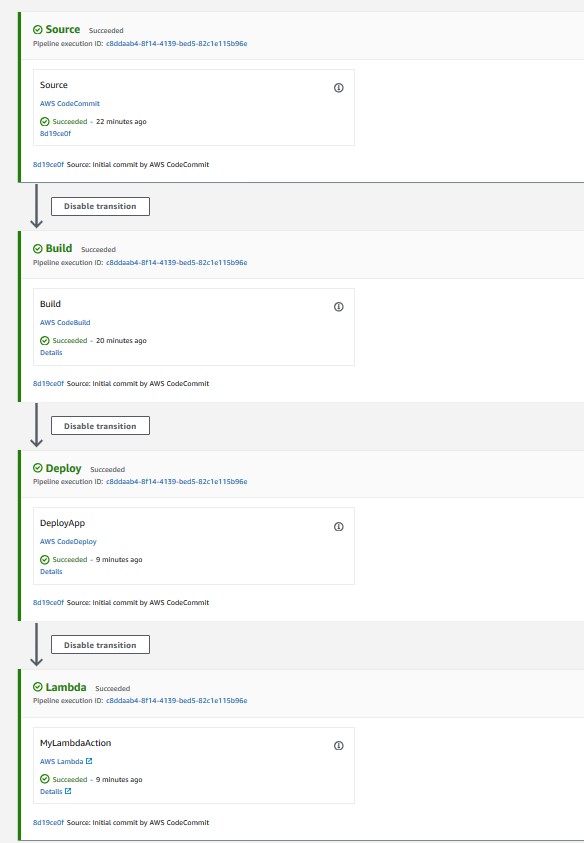
After you commit the code, the CodePipeline will be triggered and all the stages and your application should be built, tested, and deployed all the way to the production environment!

The following screenshot shows the entire pipeline and its latest run:


Troubleshooting

To troubleshoot any service-related issues, see the following:

Cleaning up

To avoid incurring future charges or to remove any unwanted resources, delete the following:

  • EC2 instance used to deploy the application
  • CloudFormation template to remove all AWS resources created through this post
  •  IAM users or roles

Conclusion

Using this solution, you can easily set up and manage an entire CI/CD pipeline in AWS accounts using the native AWS suite of CI/CD services, where a commit or change to code passes through various automated stage gates all the way from building and testing to deploying applications, from development to production environments.

FAQs

In this section, we answer some frequently asked questions:

  1. Can I expand this deployment to more than two accounts?
    • Yes. You can deploy a pipeline in a tooling account and use dev, non-prod, and prod accounts to deploy code on EC2 instances via CodeDeploy. Changes are required to the templates and policies accordingly.
  2. Can I ensure the application isn’t automatically deployed in the prod account via CodePipeline and needs manual approval?
  3. Can I use a CodeDeploy group with an Auto Scaling group?
    • Yes. Minor changes required to the CodeDeploy group creation process. Refer to the following Solution Variations section for more information.
  4. Can I use this pattern for EC2 Windows instances?

Solution variations

In this section, we provide a few variations to our solution:

Author bio

author-pic

 Nitin Verma

Nitin is currently a Sr. Cloud Architect in the AWS Managed Services(AMS). He has many years of experience with DevOps-related tools and technologies. Speak to your AWS Managed Services representative to deploy this solution in AMS!


Automated CloudFormation Testing Pipeline with TaskCat and CodePipeline

Post Syndicated from Raleigh Hansen original https://aws.amazon.com/blogs/devops/automated-cloudformation-testing-pipeline-with-taskcat-and-codepipeline/

Researchers at Academic Medical Centers (AMCs) use programs such as Observational Health Data Sciences and Informatics (OHDSI) and Research Electronic Data Capture (REDCap) to interact with healthcare data. Our internal team at AWS has provided solutions such as OHDSI-on-AWS and REDCap environments on AWS to help clinicians analyze healthcare data in the AWS Cloud. Occasionally, these solutions break due to a change in some portion of the solution (e.g. updated services). The Automated Solutions Testing Pipeline enables our team to take a proactive approach to discovering these breaks and their cause in order to expedite the repair process.

OHDSI-on-AWS provides these AMCs with the ability to store and analyze observational health data in the AWS cloud. REDCap is a web application for managing surveys and databases with HIPAA-compliant environments. Using our solutions, these programs can be spun up easily on the AWS infrastructure using AWS CloudFormation templates.

Updates to AWS services and other program libraries can cause the CloudFormation template to fail during deployment. Other times, the outputs may not be operating correctly, or the template may not work on every AWS region. This can create a negative customer experience. Some customers may discover this kind of break and decide to not move forward with using the solution. Other customers may not even realize the solution is broken, so they might be unknowingly working with an uncooperative environment. Furthermore, we cannot always provide fast support to the customers who contact us about broken solutions. To meet our team’s needs and the needs of our customers, we decided to focus our efforts on taking a CI/CD approach to maintain these solutions. We developed the Automated Testing Pipeline which regularly tests solution deployment and changes to source files.

This post shows the features of the Automated Testing Pipeline and provides resources to help you get started using it with your AWS account.

Overview of Automated Testing Pipeline Solution

The Automated Testing Pipeline solution as a whole is designed to automatically deploy CloudFormation templates, run tests against the deployed environments, send notifications if an issue is discovered, and allow for insightful testing data to be easily explored.

CloudFormation templates to be tested are stored in an Amazon S3 bucket. Custom test scripts and TaskCat deployment configuration are stored in an AWS CodeCommit repository.

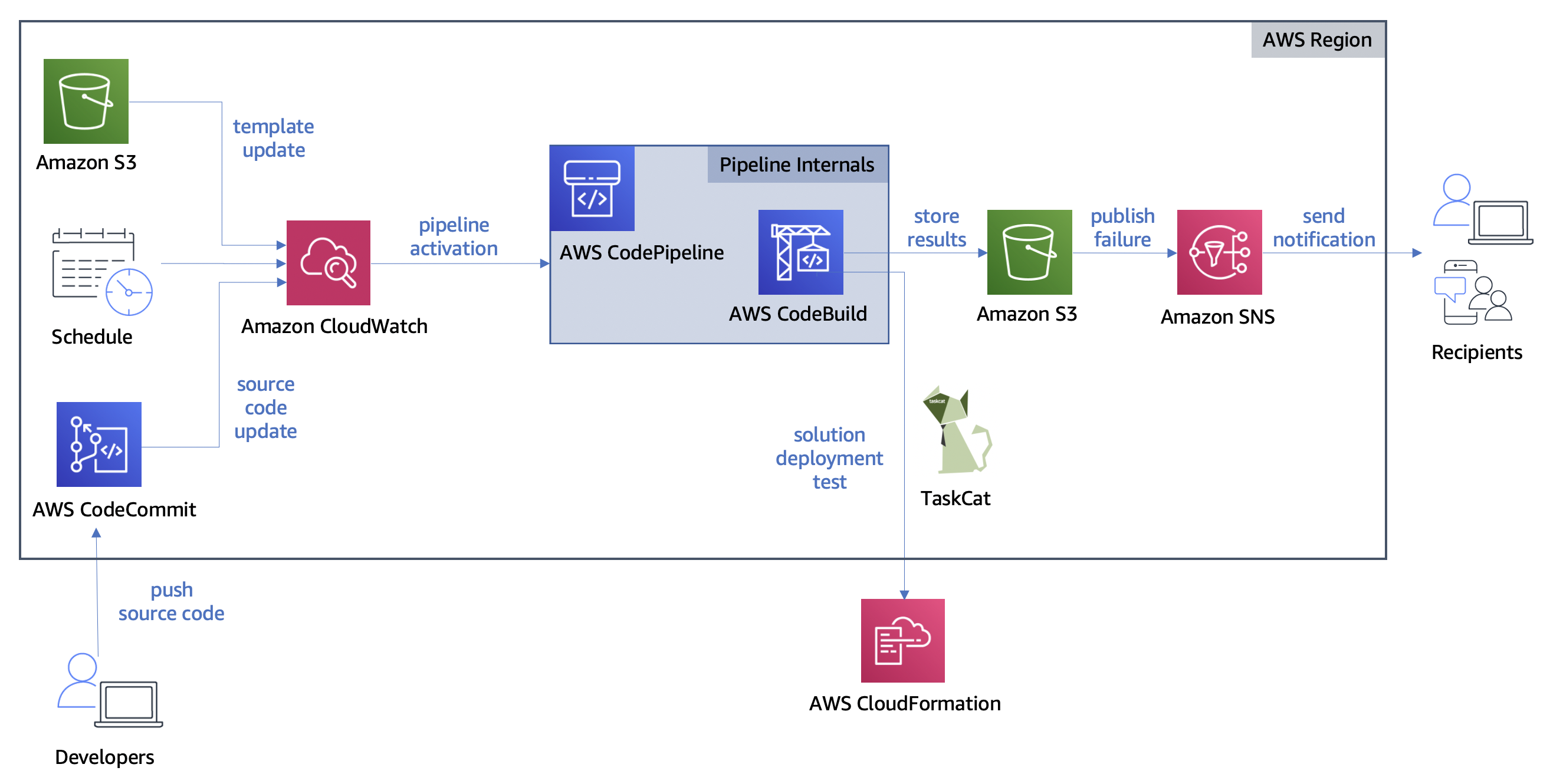
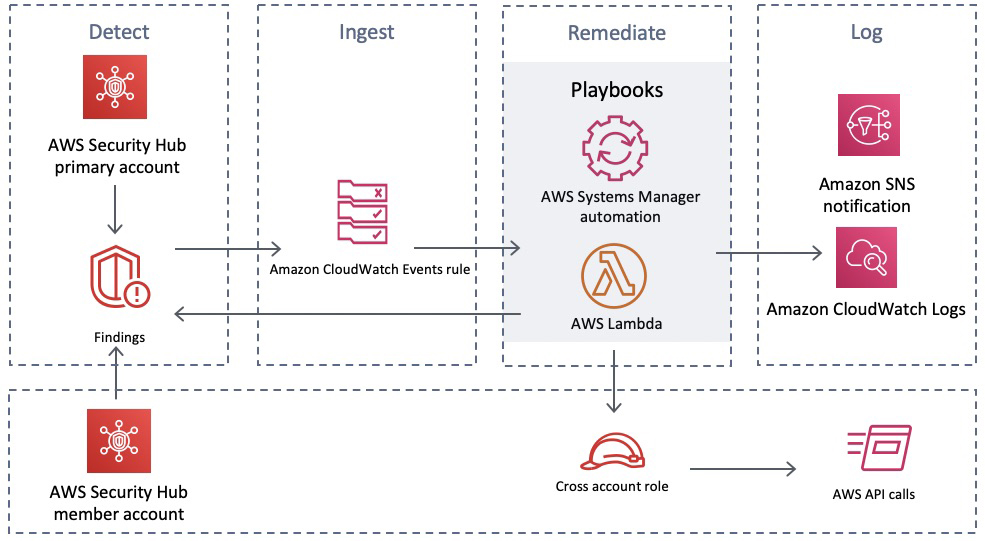
The pipeline is triggered in one of three ways: an update to the CloudFormation Template in S3, an Amazon CloudWatch events rule, and an update to the testing source code repository. Once the pipeline has been triggered, AWS CodeBuild pulls the source code to deploy the CloudFormation template, test the deployed environment, and store the results in an S3 bucket. If any failures are discovered, subscribers to the failure topic are notified. The following diagram shows its overall architecture.

Diagram of Automated Testing Pipeline architecture

Diagram of Automated Testing Pipeline architecture

In order to create the Automated Testing Pipeline, two interns collaborated over the course of 5 weeks to produce the architecture and custom test scripts. We divided the work of constructing a serverless architecture and writing out test scripts for the output urls for OHDSI-on-AWS and REDCap environments on AWS.

The following tasks were completed to build out the Automated Testing Pipeline solution:

  • Setup AWS IAM roles for accessing AWS resources securely
  • Create CloudWatch events to trigger AWS CodePipeline
  • Setup CodePipeline and CodeBuild to run TaskCat and testing scripts
  • Configure TaskCat to deploy CloudFormation solutions in various AWS Regions
  • Write test scripts to interact with CloudFormation solutions’ deployed environments
  • Subscribe to receive emails detailing test results
  • Create a CloudFormation template for the Automated Testing Pipeline

The architecture can be extended to test any CloudFormation stack. For this particular use case, we wrote the test scripts specifically to test the urls output by the CloudFormation solutions. The Automated Testing Pipeline has the following features:

  • Deployed in a single AWS Region, with the exception of the tested CloudFormation solution
  • Has a serverless architecture operating at the AWS Region level
  • Deploys a pipeline which can deploy and test the CloudFormation solution
  • Creates CloudWatch events to activate the pipeline on a schedule or when the solution is updated
  • Creates an Amazon SNS topic for notifying subscribers when there are errors
  • Includes code for running TaskCat and scripts to test solution functionality
  • Built automatically in minutes
  • Low in cost with free tier benefits

The pipeline is triggered automatically when an event occurs. These events include a change to the CloudFormation solution template, a change to the code in the testing repository, and an alarm set off by a regular schedule. Additional events can be added in the CloudWatch console.

When the pipeline is triggered, the testing environment is set up by CodeBuild. CodeBuild uses a build specification file kept within our source repository to set up the environment and run the test scripts. We created a CodeCommit repository to host the test scripts alongside the build specification. The build specification includes commands run TaskCat — an open-source tool for testing the deployment of CloudFormation templates. TaskCat provides the ability to test the deployment of the CloudFormation solution, but we needed custom test scripts to ensure that we can interact with the deployed environment as expected. If the template is successfully deployed, CodeBuild handles running the test scripts against the CloudFormation solution environment. In our case, the environment is accessed via urls output by the CloudFormation solution.

We used a Selenium WebDriver for interacting with the web pages given by the output urls. This allowed us to programmatically navigate a headless web browser in the serverless environment and gave us the ability to use text output by JavaScript functions to understand the state of the test. You can see this interaction occurring in the code snippet below.

def log_in(driver, user, passw, link, btn_path, title):
    """Enter username and password then submit to log in

        :param driver: webdriver for Chrome page
        :param user: username as String
        :param passw: password as String
        :param link: url for page being tested as String
        :param btn_path: xpath to submit button
        :param title: expected page title upon successful sign in
        :return: success String tuple if log in completed, failure description tuple String otherwise
    """
    try:
        # post username and password data
        driver.find_element_by_xpath("//input[ @name='username' ]").send_keys(user)
        driver.find_element_by_xpath("//input[ @name='password' ]").send_keys(passw)

        # click sign in button and wait for page update
        driver.find_element_by_xpath(btn_path).click()
    except NoSuchElementException:
        return 'FAILURE', 'Unable to access page elements'

    try:
        WebDriverWait(driver, 20).until(ec.url_changes(link))
        WebDriverWait(driver, 20).until(ec.title_is(title))
    except TimeoutException as e:
        print("Timeout occurred (" + e + ") while attempting to sign in to " + driver.current_url)
        if "Sign In" in driver.title or "invalid user" in driver.page_source.lower():
            return 'FAILURE', 'Incorrect username or password'
        else:
            return 'FAILURE', 'Sign in attempt timed out'

    return 'SUCCESS', 'Sign in complete'

We store the test results in JSON format for ease of parsing. TaskCat generates a dashboard which we customize to display these test results. We are able to insert our JSON results into the dashboard in order to make it easy to find errors and access log files. This dashboard is a static html file that can be hosted on an S3 bucket. In addition, messages are published to topics in SNS whenever an error occurs which provide a link to this dashboard.

Dashboard containing descriptions of tests and their results

Customized TaskCat dashboard

In true CI/CD fashion, this end-to-end design automatically performs tasks that would otherwise be performed manually. We have shown how deploying solutions, testing solutions, notifying maintainers, and providing a results dashboard are all actions handled entirely by the Automated Testing Pipeline.

Getting Started with the Automated Testing Pipeline

Prerequisite tasks to complete before deploying the pipeline:

Once the prerequisite tasks are completed, the pipeline is ready to be deployed. Detailed information about deployment, altering the source code to fit your use case, and troubleshooting issues can be found at the GitHub page for the Automated Testing Pipeline.

For those looking to jump right into deployment, click the Launch Stack button below.

Button to click to deploy the Automated Testing Pipeline via CloudFormation

Tasks to complete after deployment:

  • Subscribe to SNS topic for error messages
  • Update the code to match the parameters and CloudFormation template that were chosen
  • Skip this step if you are testing OHDSI-on-AWS. Upload the desired CloudFormation template to the created source S3 Bucket
  • Push the source code to the created CodeCommit Repository

After the code is pushed to the CodeCommit repository and the CloudFormation template has been uploaded to S3, the pipeline will run automatically. You can visit the CodePipeline console to confirm that the pipeline is running with an “in progress” status.

You may desire to alter various aspects of the Automated Testing Pipeline to better fit your use case. Listed below are some actions you can take to modify the solution to fit your needs:

  • Go to CloudWatch Events and update rules for automatically started the pipeline.
  • Scale out testing by providing custom testing scripts or altering the existing ones.
  • Test a different CloudFormation template by uploading it to the source S3 bucket created and configuring the pipeline accordingly. Custom test scripts will likely be required for this use case.

Challenges Addressed by the Automated Testing Pipeline

The Automated Testing Pipeline directly addresses the challenges we faced with maintaining our OHDSI and REDCap solutions. Additionally, the pipeline can be used whenever there is a need to test CloudFormation templates that are being used on a regular basis or are distributed to other users. Listed below is the set of specific challenges we faced maintaining CloudFormation solutions and how the pipeline addresses them.

Table describing challenges faced with their direct solution offered by Testing Pipeline

The desire to better serve our customers guided our decision to create the Automated Testing Pipeline. For example, we know that source code used to build the OHDSI-on-AWS environment changes on occasion. Some of these changes have caused the environment to stop functioning correctly. This left us with cases where our customers had to either open an issue on GitHub or reach out to AWS directly for support. Our customers depend on OHDSI-on-AWS functioning properly, so fixing issues is of high priority to our team. The ability to run tests regularly allows us to take action without depending on notice from our customers. Now, we can be the first ones to know if something goes wrong and get to fixing it sooner.

“This automation will help us better monitor the CloudFormation-based projects our customers depend on to ensure they’re always in working order.” — James Wiggins, EDU HCLS SA Manager

Cleaning Up

If you decide to quit using the Automated Testing Pipeline, follow the steps below to get rid of the resources associated with it in your AWS account.

  • Delete CloudFormation solution root Stack
  • Delete pipeline CloudFormation Stack
  • Delete ATLAS S3 Bucket if OHDSI-on-AWS was chosen

Deleting the pipeline CloudFormation stack handles removing the resources associated with its architecture. Depending on the CloudFormation template chosen for testing, additional resources associated with it may need to be removed. Visit our GitHub page for more information on removing resources.

Conclusion

The ability to continuously test preexisting solutions on AWS has great benefits for our team and our customers. The automated nature of this testing frees up time for us and our customers, and the dashboard makes issues more visible and easier to resolve. We believe that sharing this story can benefit anyone facing challenges maintaining CloudFormation solutions in AWS. Check out the Getting Started with the Automated Testing Pipeline section of this post to deploy the solution.

Additional Resources

More information about the key services and open-source software used in our pipeline can be found at the following documentation pages:

About the Authors

Raleigh Hansen is a former Solutions Architect Intern on the Academic Medical Centers team at AWS. She is passionate about solving problems and improving upon existing systems. She also adores spending time with her two cats.

Dan Le is a former Solutions Architect Intern on the Academic Medical Centers team at AWS. He is passionate about technology and enjoys doing art and music.

Amazon Supplier Fraud

Post Syndicated from Bruce Schneier original https://www.schneier.com/blog/archives/2020/08/amazon_supplier.html

Interesting story of an Amazon supplier fraud:

According to the indictment, the brothers swapped ASINs for items Amazon ordered to send large quantities of different goods instead. In one instance, Amazon ordered 12 canisters of disinfectant spray costing $94.03. The defendants allegedly shipped 7,000 toothbrushes costing $94.03 each, using the code for the disinfectant spray, and later billed Amazon for over $650,000.

In another instance, Amazon ordered a single bottle of designer perfume for $289.78. In response, according to the indictment, the defendants sent 927 plastic beard trimmers costing $289.79 each, using the ASIN for the perfume. Prosecutors say the brothers frequently shipped and charged Amazon for more than 10,000 units of an item when it had requested fewer than 100. Once Amazon detected the fraud and shut down their accounts, the brothers allegedly tried to open new ones using fake names, different email addresses, and VPNs to obscure their identity.

It all worked because Amazon is so huge that everything is automated.