Tag Archives: Featured

Backblaze Commits to Routing Security With MANRS Participation

Post Syndicated from Brent Nowak original https://www.backblaze.com/blog/backblaze-commits-to-routing-security-with-manrs-participation/

A decorative image displaying the MANRS logo.

They say good manners are better than good looks. When it comes to being a good internet citizen, we have to agree. And when someone else tells you that you have good manners (or MANRS in this case), even better. 

If you hold your cloud partners to a higher standard, and if you think it’s not asking too much that they make the internet a better, safer place for everyone, then you’ll be happy to know that Backblaze is now recognized as a Mutually Agreed Norms for Routing Security (MANRS) participant (aka MANRS Compliant). 

What Is MANRS?

MANRS is a global initiative with over 1,095 participants that are enacting network policies and controls to help reduce the most common routing threats. At a high level, we’re setting up filters to check that network routing information we receive for peers is valid, ensuring that the networks we advertise to the greater internet are marked as owned by Backblaze, and making sure that data that gets out of our network is legitimate and can’t be spoofed.

You can view a full list of MANRS participants here.

What Our (Good) MANRS Mean For You

The biggest benefit for customers is that network traffic to and from Backblaze’s connection points where we exchange traffic with our peering partners is more secure and more trustworthy. All of the changes that we’ve implemented (which we get into below) are on our side—so, no action is necessary from Backblaze partners or users—and will be transparent for our customers. Our Network Engineering team has done the heavy lifting. 

MANRS Actions

Backblaze falls under the MANRS category of CDN and Cloud Providers, and as such, we’ve implemented solutions or processes for each of the five actions stipulated by MANRS:

  1. Prevent propagation of incorrect routing information: Ensure that traffic we receive is coming from known networks.
  2. Prevent traffic of illegitimate source IP addresses: Prevent malicious traffic coming out of our network.
  3. Facilitate global operational communication and coordination: Keep our records with 3rd party sites like Peeringdb.com up to date as other operators use this to validate our connectivity details.
  4. Facilitate validation of routing information on a global scale: Digitally sign our network objects using the Resource Public Key Infrastructure (RPKI) standard.
  5. Encourage MANRS adoption: By telling the world, just like in this post!

Digging Deeper Into Filtering and RPKI

Let’s go over the filtering and RPKI details, since they are very valuable to ensuring the security and validity of our network traffic.

Filtering: Sorting Out the Good Networks From the Bad

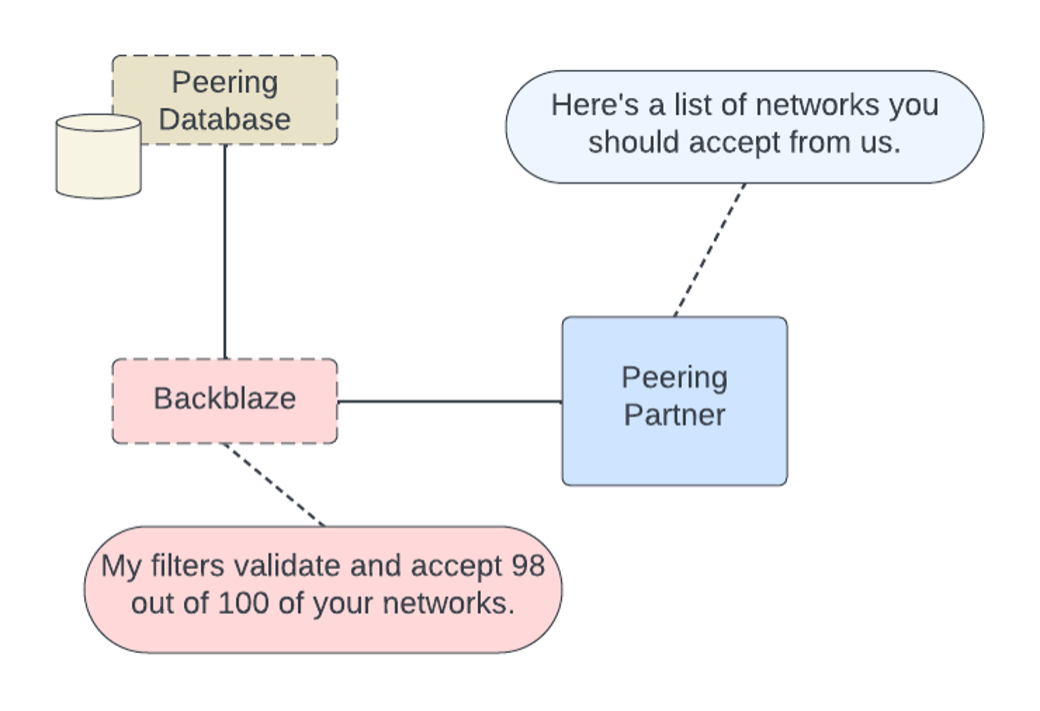
One major action for MANRS compliance is to validate that the networks we receive from peers are valid. When we connect to other networks, we each tell each other about our networks in order to build a routing table that lets us know the optimal path to send traffic.

We can blindly trust what the other party is telling us, or we can reach out to an external source to validate. We’ve implemented automated internal processes to help us apply these filters to our edge routers (the devices that connect us externally to other networks).

If you’re a more visual learner, like me, here’s a quick conversational bubble diagram of what we have in place.

Externally verifying routing information we receive.

Every edge device that connects to an external peer now has validation steps to ensure that the networks we receive and use to send out traffic are valid. We have automated processes that periodically check and deploy for updates to any lists.

What Is RPKI?

RPKI is a public key infrastructure framework designed to secure the internet’s routing infrastructure, specifically the Border Gateway Protocol (BGP). RPKI provides a way to connect internet number resource information (such as IP addresses) to a trust anchor. In layman’s terms, RPKI allows us, as a network operator, to securely identify whether other networks that interact with ours are legitimate or malicious.

RPKI: Signing Our Paperwork

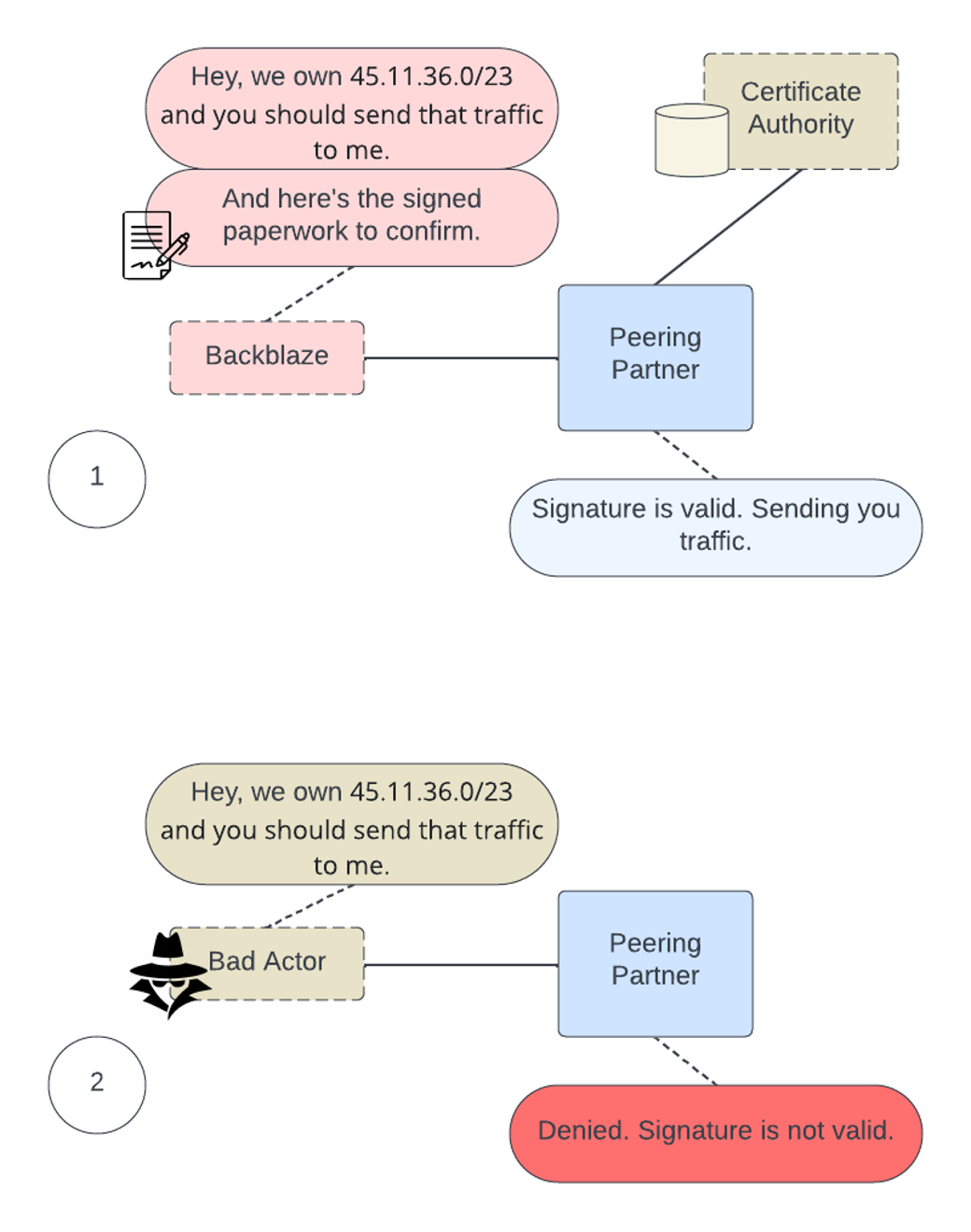
Much like going to a notary and validating a form, we can perform the same action digitally with the list of networks that we advertise to the greater internet. The RPKI framework allows us to stamp our networks as owned by us.

It also allows us to digitally sign records of our networks that we own, allowing external parties to confirm that the networks that they see from us are valid. If another party comes along and tries to claim to be us, by using RPKI our peering partner will deny using that network to send data to a false Backblaze network.

You can check the status of our RPKI signed route objects on the MANRS statistics website.

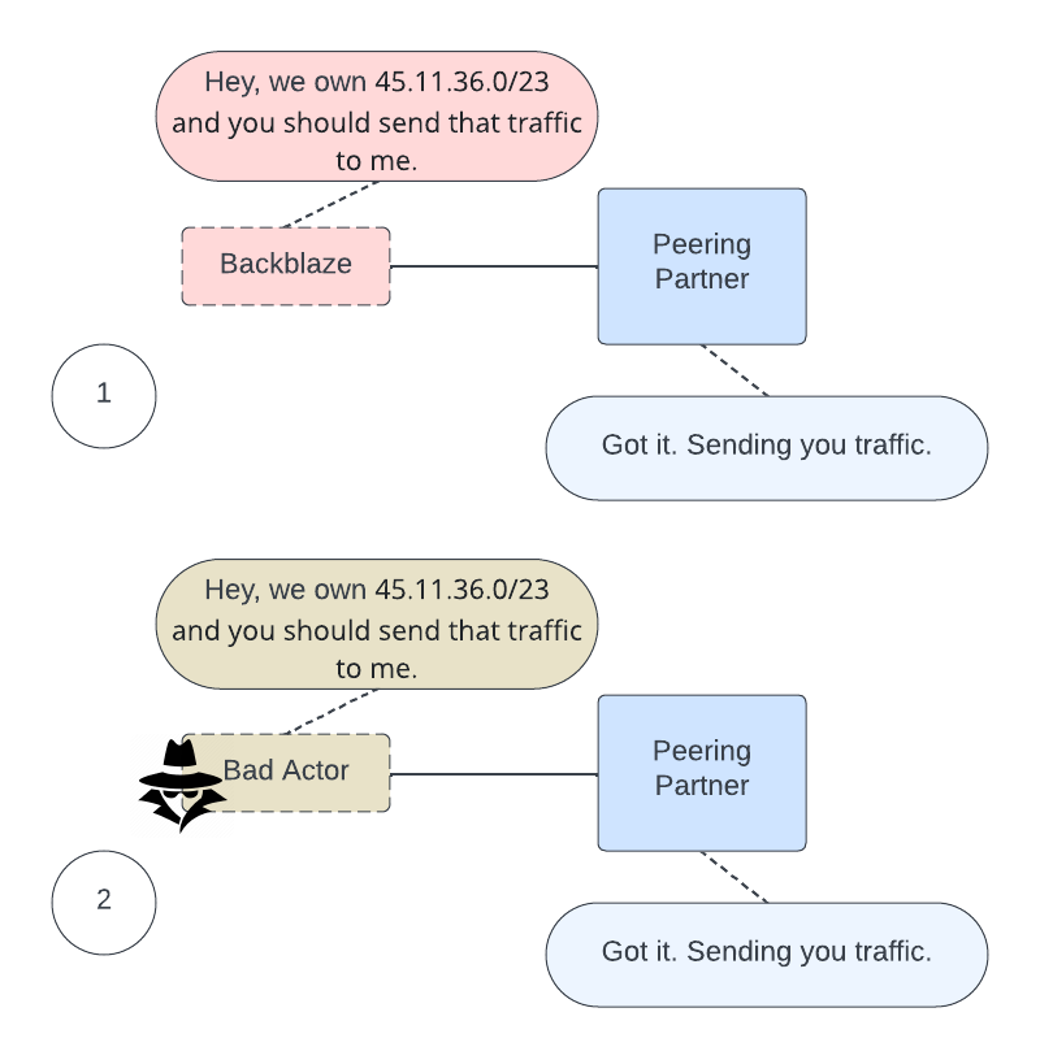
What does the process of peering and advertising networks look like without RPKI validation?

A diagram that imagines IP address requests for ownership without RPKI standards. Bad actors would be able to claim traffic directed towards IP addresses that they don't own.
Bad actor claiming to be a Backblaze network without RPKI validation.

Now, with RPKI, we’ve dotted our I’s and crossed our T’s. A third party certificate holder serves as a validator for the digital certificates that we used to sign our network objects. If anyone else claims to be us, they will be marked as invalid and the peer will not accept the routing information, as you can see in the diagram below.

A diagram that imagines networking requests for ownership with RPKI standards properly applied. Bad actors would attempt to claim traffic towards an owned or valid IP address, but be prevented because they don't have the correct credentials.
With RPKI validation, the bad actor is denied the ability to claim to be a Backblaze network.

Mind Your MANRS

Our first value as a company is to be fair and good. It reads: “Be good. Trust is paramount. Build a good product. Charge fairly. Be open, honest, and accepting with customers and each other.” Almost sounds like Emily Post wrote it—that’s why our MANRS participation fits right in with the way we do business. We believe in an open internet, and participating in MANRS is just one way that we can contribute to a community that is working towards good for all.

The post Backblaze Commits to Routing Security With MANRS Participation appeared first on Backblaze Blog | Cloud Storage & Cloud Backup.
Object Storage Simplified: Introducing Powered by Backblaze

Post Syndicated from Elton Carneiro original https://www.backblaze.com/blog/powered-by-announcement-2024/

A decorative image showing the Backblaze logo on a cloud hovering over a power button.

Today, we announced our new Powered by Backblaze program to give platform providers the ability to offer cloud storage without the burden of building scalable storage infrastructure (something we know a little bit about). 

If you’re an independent software vendor (ISV), technology partner, or any company that wants to incorporate easy, affordable data storage within your branded user experience, Powered by Backblaze will give you the tools to do so without complex code, capital outlay, or massive expense.

Read on to learn more about Powered by Backblaze and how it can help you enhance your platforms and services. Or, if you’d like to get started asap, contact our Sales Team for access.  

Benefits of Powered by Backblaze

  • Business Growth: Adding cloud services to your product portfolios can generate new revenue streams and/or grow your existing margin.
  • Improved Customer Experience: Take the complexity out of object storage and deliver the best solutions by incorporating a proven object cloud storage solution.
  • Simplified Billing: Reduce complex billing by providing customers with a single bill from a single provider. 
  • Build Your Brand:  Improve customer expectations by providing cloud storage with your company name for consistency and brand identity.

What Is Powered by Backblaze?

Powered by Backblaze offers companies the ability to incorporate B2 Cloud Storage into their products so they can sell more services or enhance their user experience with no capital investment. Today, this program offers two solutions that support the provisioning of B2 Cloud Storage: Custom Domains and the Backblaze Partner API.

How Can I Leverage Custom Domains?

Custom Domains, launched today, lets you serve content to your end users from the web domain or URL of your choosing, with no need for complex code or proxy servers. Backblaze manages the heavy lifting of cloud storage on the back end.

Custom Domains functionality combines CNAME and Backblaze B2 Object Storage, enabling the use of your preferred domain name in your files’ web domain or URLs instead of using the domain name that Backblaze automatically assigns.

We’ve chosen Backblaze so we can have a reliable partner behind our new Edge Storage solution. With their Custom Domain feature, we can implement the security needed to serve data from Backblaze to end users from Azion’s Edge Platform, improving user experience.

—Rafael Umann, CEO, Azion, a full stack platform for developers

How Can I Leverage the Backblaze Partner API?

The Backblaze Partner API automates the provisioning and management of Backblaze B2 Cloud Storage storage accounts within a platform. It allows for managing accounts, running reports, and creating a bundled solution or managed service for a unified user experience.

We wrote more about the Backblaze Partner API here, but briefly: We created this solution by exposing existing API functionality in a manner that allows partners to automate tasks essential to provisioning users with seamless access to storage.

The Backblaze Partner API calls allow you to:

  • Create accounts (add Group members)
  • Organize accounts in Groups
  • List Groups
  • List Group members
  • Eject Group members

If you’d like to get into the details, you can dig deeper in our technical documentation.

Our customers produce thousands of hours of content daily and, with the shift to leveraging cloud services like ours, they need a place to store both their original and transcoded files. The Backblaze Partner API allows us to expand our cloud services and eliminate complexity for our customers—giving them time to focus on their business needs, while we focus on innovations that drive more value.

—Murad Mordukhay, CEO, Qencode

How to Get Started With Powered by Backblaze

To get started with Powered by Backblaze, contact our Sales Team. They will work with you to understand your use case and how you can best utilize Powered by Backblaze. 

What’s Next?

We’re looking forward to adding more to the Powered by Backblaze program as we continue investing in the tools you need to bring performant cloud storage to your users in an easy, seamless fashion.

The post Object Storage Simplified: Introducing Powered by Backblaze appeared first on Backblaze Blog | Cloud Storage & Cloud Backup.

What’s the Diff: RAM vs. Storage

Post Syndicated from Molly Clancy original https://www.backblaze.com/blog/whats-diff-ram-vs-storage/

A decorative image showing a RAM chip and a hard drive with the words What's the Diff in the center.
Editor’s Note: This post was originally published in 2016 and has since been updated in 2022 and 2023 with the latest information on RAM vs. storage.

Memory is a finite resource when it comes to both humans and computers—it’s one of the most common causes of computer issues. And if you’ve ever left the house without your keys, you know memory is one of the most common human problems, too.

If you’re unclear about the different types of memory in your computer, it makes pinpointing the cause of computer problems that much harder. You might hear folks use the terms memory and storage interchangeably, but there are some important differences. Understanding how both components work can help you understand what kind of computer you need, diagnose problems you’re having, and know when it’s time to consider upgrades. 

The Difference Between RAM and Storage

Random access memory (RAM) and storage are both forms of computer memory, but they serve different functions. 

What Is RAM?

RAM is volatile memory used by the computer’s processor to store and quickly access data that is actively being used or processed. Volatile memory maintains data only while the device is powered on. RAM takes the form of computer chips—integrated circuits—that are either soldered directly onto the main logic board of your computer or installed in memory modules that go in sockets on your computer’s logic board.

You can think of it like a desk—it’s where your computer gets work done. When you double-click on an app, open a document, or do much of anything, part of your “desk” is covered and can’t be used by anything else. As you open more files, it is like covering your desk with more and more items. Using a desk with a handful of files is easy, but a desk that is covered with a bunch of stuff gets difficult to use.

What Is Computer Storage?

On the other hand, storage is used for long-term data retention, like a hard disk drive (HDD) or solid state drive (SSD). Compared with RAM, this type of storage is non-volatile, which means it retains information even when a device is powered off. You can think of storage like a filing cabinet—a place next to your desk where you can retrieve information as needed. 

RAM vs. Storage: How Do They Compare?

Speed and Performance

Two of the primary differences between RAM and storage are speed and performance. RAM is significantly faster than storage. Data stored in RAM can be written and accessed almost instantly, so it’s very fast—milliseconds fast. DDR4 RAM, one of the newer types of RAM technology, is capable of a peak transfer rate of 25.6GB/s! RAM has a very fast path to the computer’s central processing unit (CPU), the brain of the computer that does most of the work. 

Storage, as it’s slower in comparison, is responsible for holding the operating system (OS), applications, and user data for the long term—it should still be fast, but it doesn’t need to be as fast as RAM.

That said, computer storage is getting faster thanks to the popularity of SSDs. SSDs are much faster than hard drives since they use integrated circuits instead of mechanical platters that have to be read sequentially, like HDDs. SSDs use a special type of memory circuitry called non-volatile RAM (NVRAM) to store data, so those shorter term memory access points stay in place even when the computer is turned off.

Even though SSDs are faster than HDDs, they’re still slower than RAM. There are two reasons for that difference in speed. First, the memory chips in SSDs are slower than those in RAM. Second, there is a bottleneck created by the interface that connects the storage device to the computer. RAM, in comparison, has a much faster interface.

Capacity and Size

RAM is typically smaller in capacity compared to storage. It is measured in gigabytes (GB) or terabytes (TB), whereas storage capacities can reach multiple terabytes or even petabytes. The smaller size of RAM is intentional, as it is designed to store only the data currently in use, ensuring quick access for the processor.

Volatility and Persistence

Another key difference is the volatility of RAM and the persistence of storage. RAM is volatile, meaning it loses its data when the power is turned off or the system is rebooted. This makes it ideal for quick data access and manipulation, but unsuitable for long-term storage. Storage is non-volatile or persistent, meaning it retains data even when the power is off, making it suitable for holding files, applications, and the operating system over extended periods.

How Much RAM Do I Have?

Understanding how much RAM you have might be one of your first steps for diagnosing computer performance issues. 

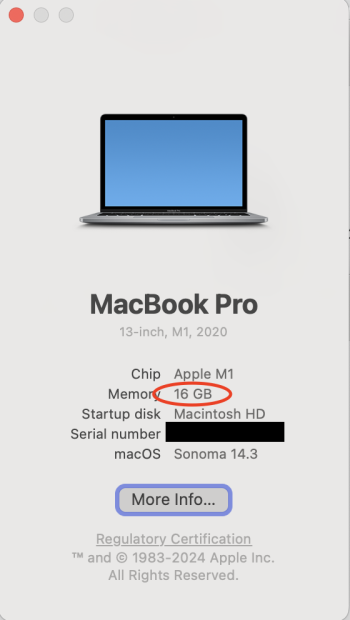
Use the following steps to confirm how much RAM your computer has installed. We’ll start with an Apple computer. Click on the Apple menu and then click About This Mac. In the screenshot below, we can see that the computer has 16GB of RAM.

A screenshot of the Mac system screen that shows a computer summary with total RAM.
How much RAM on macOS (Apple menu > About This Mac).

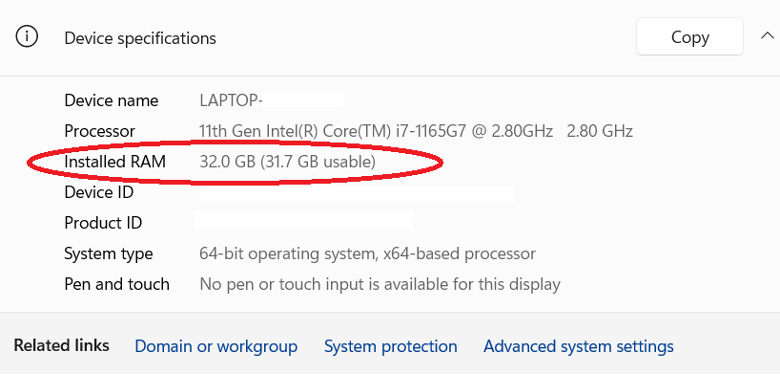
With a Windows 11 computer, use the following steps to see how much RAM you have installed. Open the Control Panel by clicking the Windows button and typing “control panel,” then click System and Security, and then click System. Look for the line “Installed RAM.” In the screenshot below, you can see that the computer has 32GB of RAM installed.

A screenshot from a Windows computer showing installed RAM.
How much RAM on Windows 11 (Control Panel > System and Security > System).

How Much Computer Storage Do I Have?

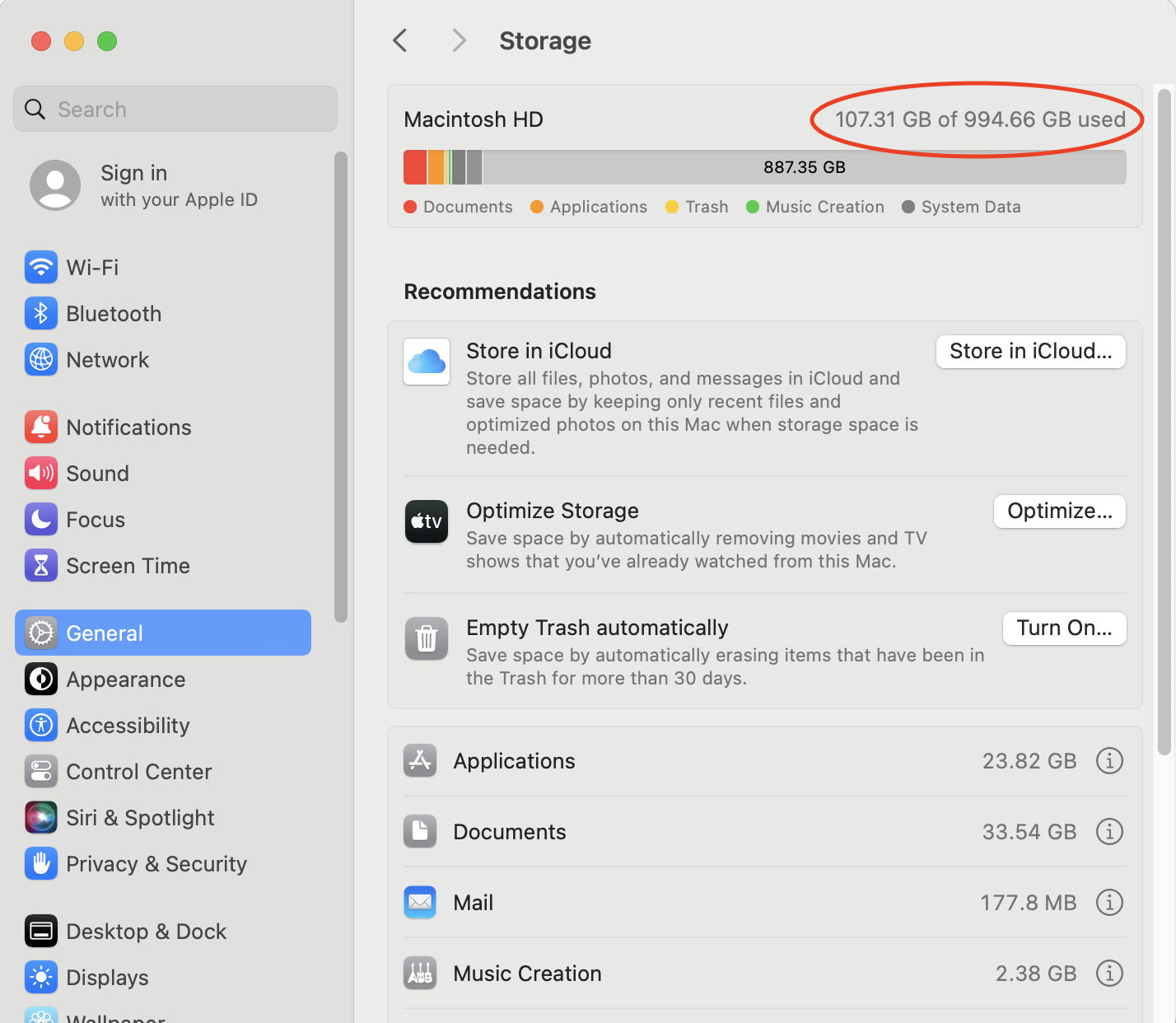
To view how much free storage space you have available on a Mac computer, use these steps. Click on the Apple menu, then System Settings, select General, and then open Storage. In the screenshot below, we’ve circled where your available storage is displayed.

A screenshot from a Mac showing total storage and usage.
Disk space on Mac OS (Apple Menu > System Settings > General > Storage).

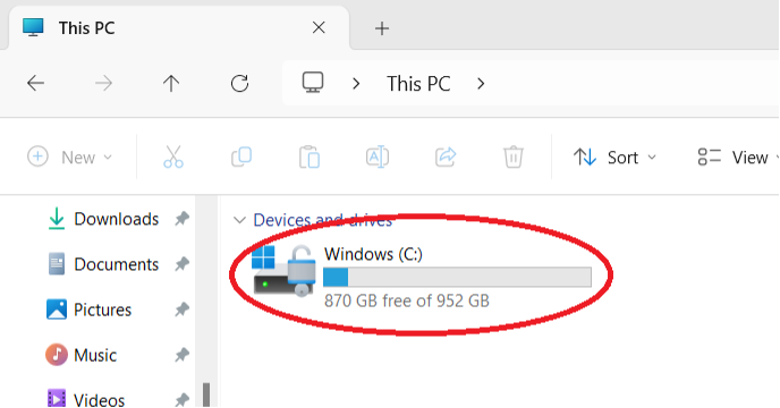
With a Windows 11 computer, it is also easy to view how much available storage space you have. Click the Windows button and type in “file explorer.” When File Explorer opens, click on This PC from the list of options in the left-hand pane. In the screenshot below, we’ve circled where your available storage is displayed (in this case, 200GB).

A screenshot from a Windows computer showing available and used storage.
Disk Space on Windows 10 (File Explorer > This PC).

How RAM and Storage Affect Your Computer’s Performance

RAM

For most general-purpose uses of computers—email, writing documents, surfing the web, or watching Netflix—the RAM that comes with our computer is enough. If you own your computer for a long enough time, you might need to add a bit more to keep up with memory demands from newer apps and OSes. Specifically, more RAM makes it possible for you to use more apps, documents, and larger files at the same time.

People that work with very large files like large databases, videos, and images can benefit significantly from having more RAM. If you regularly use large files, it is worth checking to see if your computer’s RAM is upgradeable.

Adding More RAM to Your Computer

In some situations, adding more RAM is worth the expense. For example, editing videos and high-resolution images takes a lot of memory. In addition, high-end audio recording and editing as well as some scientific work require significant RAM.

However, not all computers allow you to upgrade RAM. For example, the Chromebook typically has a fixed amount of RAM, and you cannot install more. So, when you’re buying a new computer—particularly if you plan on using that computer for more than five years, make sure to 1) understand how much RAM your computer has, and, 2) if you can upgrade the computer’s RAM. 

When your computer’s RAM is filled up, your computer has to get creative to keep working. Specifically, your computer starts to temporarily use your hard drive or SSD as “virtual memory.” If you have relatively fast storage like an SSD, virtual memory will be fast. On the other hand, using a traditional hard drive will be fairly slow.

Storage

Besides RAM, the most serious bottleneck to improving performance in your computer can be your storage. Even with plenty of RAM installed, computers need to read and write information from the storage system (i.e., the HDD or the SSD).

Hard drives come in different speeds and sizes. For laptops and desktops, the most common RPM rates are between 5400–7200RPM. In some cases, you might even decide to use a 10,000RPM drive. Faster drives cost more, are louder, have greater cooling needs, and use more power, but they may be a good option.

New disk technologies enable hard drives to be bigger and faster. These technologies include filling the drive with helium instead of air to reduce disk platter friction and using heat or microwaves to improve disk density, such as with heat-assisted magnetic recording (HAMR) drives and microwave-assisted magnetic recording (MAMR) drives.

Today, SSDs are becoming increasingly popular for computer storage. This type of computer storage is popular because it is faster, cooler, and takes up less space than traditional hard drives. They’re also less susceptible to magnetic fields and physical jolts, which makes them great for laptops. 

For more about the difference between HDDs and SSDs, check out our post, “Hard Disk Drive (HDD) vs. Solid-state Drive (SSD): What’s the Diff?”

Adding More Computer Storage

As a user’s disk storage needs increase, typically they will look to larger drives to store more data. The first step might be to replace an existing drive with a larger, faster drive. Or you might decide to install a second drive. One approach is to use different drives for different purposes. For example, use an SSD for the operating system, and then store your business videos on a larger SSD.

If more storage space is needed, you can also use an external drive, most often using USB or Thunderbolt to connect to the computer. This can be a single drive or multiple drives and might use a data storage virtualization technology such as RAID to protect the data.

If you have really large amounts of data, or simply wish to make it easy to share data with others in your location or elsewhere, you might consider network-attached storage (NAS). A NAS device can hold multiple drives, typically uses a data virtualization technology like RAID, and is accessible to anyone on your local network and—if you wish—on the internet, as well. NAS devices can offer a great deal of storage and other services that typically have been offered only by dedicated network servers in the past.

Back Up Early and Often

As a cloud storage company, we’d be remiss not to mention that you should back up your computer. No matter how you configure your computer’s storage, remember that technology can fail (we know a thing or two about that). You always want a backup so you can restore everything easily. The best backup strategy shouldn’t be dependent on any single device, either. Your backup strategy should always include three copies of your data on two different mediums with one off-site.

FAQs About Differences Between RAM and Storage

What is the difference between internal storage and RAM and internal storage?

Internal storage is a method of data storage that writes data to a disk, holding onto that data until it’s erased. Think of it as your computer’s brain. RAM is a method of communicating data between your device’s CPU and its internal storage. Think of it as your brain’s short-term memory and ability to multi-task. The data the RAM receives is volatile, so it will only last until it’s no longer needed, usually when you turn off the power or reset the computer.

Is it better to have more RAM or more storage?

If you’re looking for better PC performance, you can upgrade either RAM or storage for a boost in performance. More RAM will make it easier for your computer to perform multiple tasks at once, while upgrading your storage will improve battery life, make it faster to open applications and files, and give you more space for photos and applications. This is especially true if you’re switching your storage from a hard disk drive (HDD) to a solid state drive (SSD).

Does RAM give you more storage?

More RAM does not provide you with more free space. If your computer is giving you notifications that you’re getting close to running out of storage or you’ve already started having to delete files to make room for new ones, you should upgrade the internal storage, not the RAM.

Is memory and storage the same?

Memory and storage are also not the same thing, even though the words are often used interchangeably. Memory is another term for RAM.

The post What’s the Diff: RAM vs. Storage appeared first on Backblaze Blog | Cloud Storage & Cloud Backup.

Exploring aws-lite, a Community-Driven JavaScript SDK for AWS

Post Syndicated from Pat Patterson original https://www.backblaze.com/blog/exploring-aws-lite-a-community-driven-javascript-sdk-for-aws/

A decorative image showing the Backblaze and aws-lite logos.

One of the benefits of the Backblaze B2 Storage Cloud having an S3 compatible API is that developers can take advantage of the wide range of Amazon Web Services SDKs when building their apps. The AWS team has released over a dozen SDKs covering a broad range of programming languages, including Java, Python, and JavaScript, and the latter supports both frontend (browser) and backend (Node.js) applications.

With all of this tooling available, you might be surprised to discover aws-lite. In the words of its creators, it is “a simple, extremely fast, extensible Node.js client for interacting with AWS services.” After meeting Brian LeRoux, cofounder and chief technology officer (CTO) of Begin, the company that created the aws-lite project, at the AWS re:Invent conference last year, I decided to give aws-lite a try and share the experience. Read on for the learnings I discovered along the way.

A photo showing an aws-lite promotional sticker that says, I've got p99 problems but an SDK ain't one, as well as a Backblaze promotional sticker that says Blaze/On.
Brian bribed me to try out aws-lite with a shiny laptop sticker!

Why Not Just Use the AWS SDK for JavaScript?

The AWS SDK has been through a few iterations. The initial release, way back in May 2013, focused on Node.js, while version 2, released in June 2014, added support for JavaScript running on a web page. We had to wait until December 2020 for the next major revision of the SDK, with version 3 adding TypeScript support and switching to an all-new modular architecture.

However, not all developers saw version 3 as an improvement. Let’s look at a simple example of the evolution of the SDK. The simplest operation you can perform against an S3 compatible cloud object store, such as Backblaze B2, is to list the buckets in an account. Here’s how you would do that in the AWS SDK for JavaScript v2:

var AWS = require('aws-sdk');

var client = new AWS.S3({
  region: 'us-west-004', 
  endpoint: 's3.us-west-004.backblazeb2.com'
});

client.listBuckets(function (err, data) {
  if (err) {
    console.log("Error", err);
  } else {
    console.log("Success", data.Buckets);
  }
});

Looking back from 2023, passing a callback function to the listBuckets() method looks quite archaic! Version 2.3.0 of the SDK, released in 2016, added support for JavaScript promises, and, since async/await arrived in JavaScript in 2017, today we can write the above example a little more clearly and concisely:

const AWS = require('aws-sdk');

const client = new AWS.S3({
  region: 'us-west-004', 
  endpoint: 's3.us-west-004.backblazeb2.com'
});

try {
  const data = await client.listBuckets().promise();
  console.log("Success", data.Buckets);  
} catch (err) {
  console.log("Error", err);
}

One major drawback with version 2 of the AWS SDK for JavaScript is that it is a single, monolithic, JavaScript module. The most recent version, 2.1539.0, weighs in at 92.9MB of code and resources. Even the most minimal app using the SDK has to include all that, plus another couple of MB of dependencies, causing performance issues in resource-constrained environments such as internet of things (IoT) devices, or browsers on low-end mobile devices.

Version 3 of the AWS SDK for JavaScript aimed to fix this, taking a modular approach. Rather than a single JavaScript module there are now over 300 packages published under the @aws-sdk/ scope on NPM. Now, rather than the entire SDK, an app using S3 need only install @aws-sdk/client-s3, which, with its dependencies, adds up to just 20MB.

So, What’s the Problem With AWS SDK for JavaScript v3?

One issue is that, to fully take advantage of modularization, you must adopt an unfamiliar coding style, creating a command object and passing it to the client’s send() method. Here is the “new way” of listing buckets:

const { S3Client, ListBucketsCommand } = require("@aws-sdk/client-s3");

// Since v3.378, S3Client can read region and endpoint, as well as
// credentials, from configuration, so no need to pass any arguments
const client = new S3Client();

try {
  // Inexplicably, you must pass an empty object to 
  // ListBucketsCommand() to avoid the SDK throwing an error
  const data = await client.send(new ListBucketsCommand({}));
  console.log("Success", data.Buckets);  
} catch (err) {
  console.log("Error", err);
}

The second issue is that, to help manage the complexity of keeping the SDK packages in sync with the 200+ services and their APIs, AWS now generates the SDK code from the API specifications. The problem with generated code is that, as the aws-lite home page says, it can result in “large dependencies, poor performance, awkward semantics, difficult to understand documentation, and errors without usable stack traces.”

A couple of these effects are evident even in the short code sample above. The underlying ListBuckets API call does not accept any parameters, so you might expect to be able to call the ListBucketsCommand constructor without any arguments. In fact, you have to supply an empty object, otherwise the SDK throws an error. Digging into the error reveals that a module named middleware-sdk-s3 is validating that, if the object passed to the constructor has a Bucket property, it is a valid bucket name. This is a bit odd since, as I mentioned above, ListBuckets doesn’t take any parameters, let alone a bucket name. The documentation for ListBucketsCommand contains two code samples, one with the empty object, one without. (I filed an issue for the AWS team to fix this.)

“Okay,” you might be thinking, “I’ll just carry on using v2.” After all, the AWS team is still releasing regular updates, right? Not so fast! When you run the v2 code above, you’ll see the following warning before the list of buckets:

(node:35814) NOTE: We are formalizing our plans to enter AWS SDK for JavaScript (v2) into maintenance mode in 2023.
Please migrate your code to use AWS SDK for JavaScript (v3).
For more information, check the migration guide at https://a.co/7PzMCcy

At some (as yet unspecified) time in the future, v2 of the SDK will enter maintenance mode, during which, according to the AWS SDKs and Tools maintenance policy, “AWS limits SDK releases to address critical bug fixes and security issues only.” Sometime after that, v2 will reach the end of support, and it will no longer receive any updates or releases.

Getting Started With aws-lite

Faced with a forced migration to what they judged to be an inferior SDK, Brian’s team got to work on aws-lite, posting the initial code to the aws-lite GitHub repository in September last year, under the Apache 2.0 open source license. At present the project comprises a core client and 13 plugins covering a range of AWS services including S3, Lambda, and DynamoDB.

Following the instructions on the aws-lite site, I installed the client module and the S3 plugin, and implemented the ListBuckets sample:

import awsLite from '@aws-lite/client';

const aws = await awsLite();

try {
  const data = await aws.S3.ListBuckets();
  console.log("Success", data.Buckets);
} catch (err) {
  console.log("Error", err);
}

For me, this combines the best of both worlds—concise code, like AWS SDK v2, and full support for modern JavaScript features, like v3. Best of all, the aws-lite client, S3 plugin, and their dependencies occupy just 284KB of disk space, which is less than 2% of the modular AWS SDK’s 20MB, and less than 0.5% of the monolith’s 92.9MB!

Caveat Developer!

(Not to kill the punchline here, but for those of you who might not have studied Latin or law, this is a play on the phrase, “caveat emptor”, meaning “buyer beware”.)

I have to mention, at this point, that aws-lite is still very much under construction. Only a small fraction of AWS services are covered by plugins, although it is possible (with a little extra code) to use the client to call services without a plugin. Also, not all operations are covered by the plugins that do exist. For example, at present, the S3 plugin supports 10 of the most frequently used S3 operations, such as PutObject, GetObject, and ListObjectsV2, leaving the remaining 89 operations TBD.

That said, it’s straightforward to add more operations and services, and the aws-lite team welcomes pull requests. We’re big believers in being active participants in the open source community, and I’ve already contributed the ListBuckets operation, a fix for HeadObject, and I’m working on adding tests for the S3 plugin using a mock S3 server. If you’re a JavaScript developer working with cloud services, this is a great opportunity to contribute to an open source project that promises to make your coding life better!

The post Exploring aws-lite, a Community-Driven JavaScript SDK for AWS appeared first on Backblaze Blog | Cloud Storage & Cloud Backup.

Welcoming Chief Product Officer David Ngo to Backblaze

Post Syndicated from Backblaze original https://www.backblaze.com/blog/welcoming-chief-product-officer-david-ngo-to-backblaze/

A decorative image with David Ngo's photo as well as the headline, "David Ngo, Chief Product Officer."

Backblaze is happy to announce that David Ngo has joined our team as Chief Product Officer, a role responsible for spearheading the company’s global product management function, shaping the strategy, crafting the technology roadmap and overseeing execution. 

What David Brings to the Role

David is a software as a service (SaaS) data protection industry veteran with more than 25 years of global leadership experience. He previously served as the global chief technology officer (CTO) for Metallic, a division of Commvault, which provides data protection and cyber resilience as a service. He will play a pivotal role in guiding overall product direction for our existing customers as well as emerging needs as the company continues to succeed in moving upmarket.

I am pleased to welcome David as our new Chief Product Officer. David brings impressive engineering, design, and product leadership to Backblaze. He joins us at an exciting time as we help more customers break free from traditional cloud walled gardens and move to an open cloud ecosystem and empower them to do more with their data.

Gleb Budman, Backblaze CEO and Chairperson of the Board

Ngo joins a team with an impressive track record of building and scaling products and solutions that excite customers, drive growth, and deliver impact. With over 500,000 customers and three billion gigabytes of data storage under management, Backblaze has built data storage products at industry leading pricing over the past 15 years. Ngo further expands the company’s leadership by bringing his vast cloud, infrastructure, and data management knowledge developed during his time leading global teams at Commvault.

David says of his new role: 

I am thrilled to lead the amazing product organization at Backblaze and to help accelerate growth for our company. I am committed to continuing the company’s impressive track record of building powerful products that support customers’ data needs and leading the industry towards an open cloud ecosystem.

—David Ngo, Backblaze Chief Product Officer

The post Welcoming Chief Product Officer David Ngo to Backblaze appeared first on Backblaze Blog | Cloud Storage & Cloud Backup.

Data Storage Beyond the Hardware: 4 Surprising Questions

Post Syndicated from Stephanie Doyle original https://www.backblaze.com/blog/data-storage-beyond-the-hardware-4-surprising-questions/

A decorative image showing a several types of data storage medium, like a floppy disk, a USB stick, a CD, and the cloud.

We’ve gathered you together here today to address some of weirdest questions (and answers) about everyone’s favorite topic: data storage. 

From the outside looking in, it’s easy to think it’s a subject that is as dry as Ben Stein in “Ferris Beuller’s Day Off”. But, given that everyday functions are increasingly moving to the internet, data storage is, in some ways, the secret backbone of modern society. 

Today it’s estimated that there are over 8,000 data centers (DCs) in the world, built on a variety of storage media, connected to various networks, consuming vast amounts of power, and taking up valuable real estate. Plus, the drive technology itself brings together engineering foci affected by (driving?) everything from clean room technology to DNA research. 

Fertile ground for strange, surprising questions, certainly. So, without further ado, here are some of our favorite questions about data storage. 

1. Does a Hard Drive Weigh More When It’s Full?

Short answer: for all practical purposes, no. Long answer: technically yes, but it’s such a miniscule amount that you wouldn’t be able to measure it. Shout out to David Zaslavsky for doing all the math, and here’s the summary. 

As Einstein famously hypothesized, e = mc2. If it’s been a while since you took physics, that formula defined is that energy is equal to mass multiplied by the speed of light squared. Since energy is defined by mass, then, we can infer that energy has a weight, even if it’s negligible. 

Now, hard drives record data by magnetizing a thin film of ferromagnetic material. Basically, you’re forcing the atoms in a magnetic field to align in a different direction. And, since magnetic fields have differing amounts of energy depending on whether they’re aligned or antialigned, technically the weight does change. According to David’s math, it’d be approximately 10-14 g for a 1TB hard drive. 
2. How Loud Is the Cloud?

In the past, we’ve talked about how heavy the Backblaze Storage Cloud is, and we’ve spent some ink on how loud a Backblaze DC is. All that noise comes from a combination of factors, largely cooling systems. Back in 2017, we measured our DCs at approximately 78dB, but other sources report that DCs can reach up to 96dB

When you’re talking about building your own storage, my favorite research data point was one Reddit user’s opinion:

A screenshot of a comment from Reddit user EpicEpyc that says:

I think a good rule of thumb will be "if you care about noise, don't get rackmount equipment" go a with a used workstation from your favorite brand and your ears will thank you

But, it’s still worth investing in ways to reduce the noise—if not for worker safety, then to reduce the environmental impact of DCs, including noise pollution. There are a wealth of studies out there connecting noise pollution to cardiovascular disease, hypertension, high stress levels, sleep disturbance, and good ol’ hearing loss in humans. In our animal friends, noise pollution can disrupt predator/prey detection and avoidance, echolocation, and interfere with reproduction and navigation. 

The good news is that there are technologies to keep data centers (relatively) quiet when they become disruptive to communities.  

3. How Long Does Data Stay Where You Stored It?

As much as we love old-school media here at Backblaze, we’re keeping this conversation to digital storage—so let’s chat about how long your data storage will retain your media, unplugged, in ideal environmental conditions. 

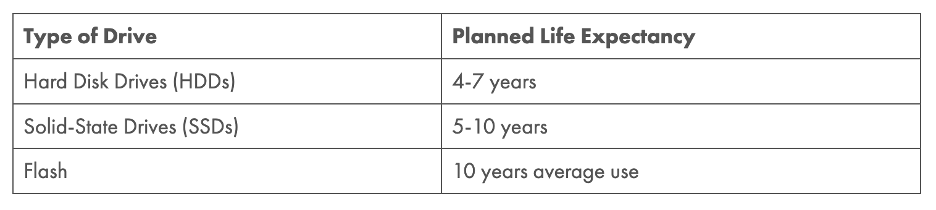
We like the way Enterprise Storage Forum put it: “Storage experts know that there are two kinds of drive in this world—those that have already failed, and those that will fail sooner or later.” Their article encompasses a pretty solid table of how long (traditional) storage media lasts.

A table that compares types of drive and how long they will last. 

Hard disk drives: 4-7 years 
Solid state drives: 5-10 years
Flash drives: 10 years average use

However, with new technologies—and their consumer applications—emerging, we might see a challenge to the data storage throne. The Institute of Physics reports that data written to a glass memory crystal could remain intact for a million years, a product they’ve dubbed the “Superman crystal.” So, look out for lasers altering the optical properties of quartz at the nanoscale. (That was just too cool not to say.)

4. What’s the Most Expensive Data Center Site?

And why? 

One thing we know from the Network Engineering team at Backblaze is that optimizing your connectivity (getting your data from point A to point B) to the strongest networks is no simple feat. Take this back to the real world: when you’re talking about what the internet truly is, you’re just connecting one computer to every other computer, and there are, in fact, cables involved

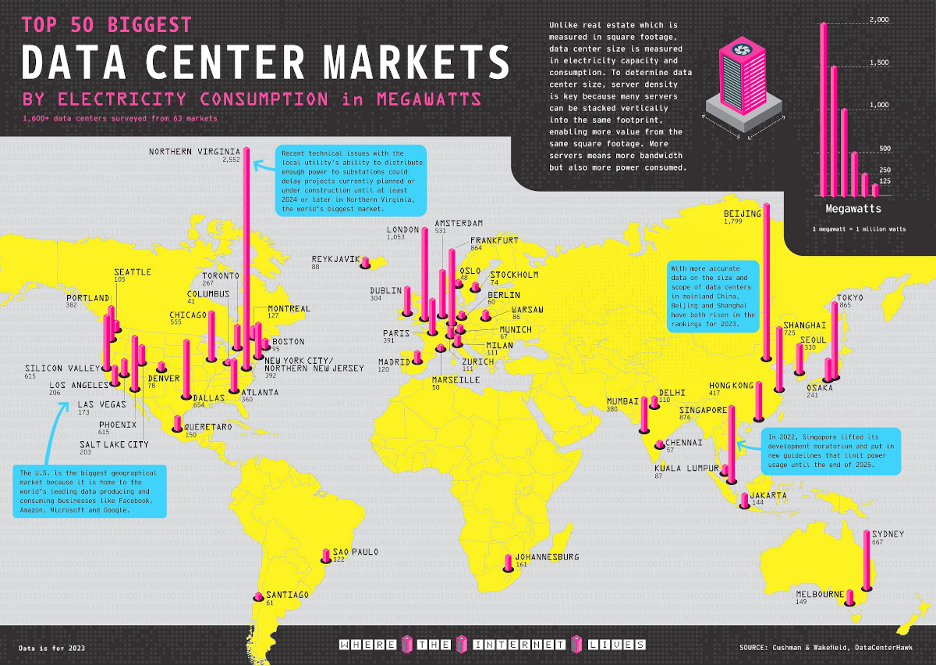
The hardware infrastructure combines with population dispersion in murky ways. We’ll go ahead and admit that’s out of scope for this article. But, working backwards from the below image, let’s just say that where there are more data centers, it’s likely there are more network exchanges. 

An infographic depicting data center concentration on a global map.
Source.

From an operational standpoint, you’d likely assume it’s a bad choice to have your data center in the middle of the most expensive real estate and power infrastructures in the world, but there are tangible benefits to joining up all those networks at a central hub and to putting them in or near population centers. We call those spaces carrier hotels

Here’s the best definition we found: 

There is no industry standard definition of a carrier hotel versus merely a data center with a meet-me room (MMR). But, generally, the term is reserved for the facilities where metro fiber carriers meet long-haul carriers—and the number of network providers numbers in the dozens.
Data Center Dynamics

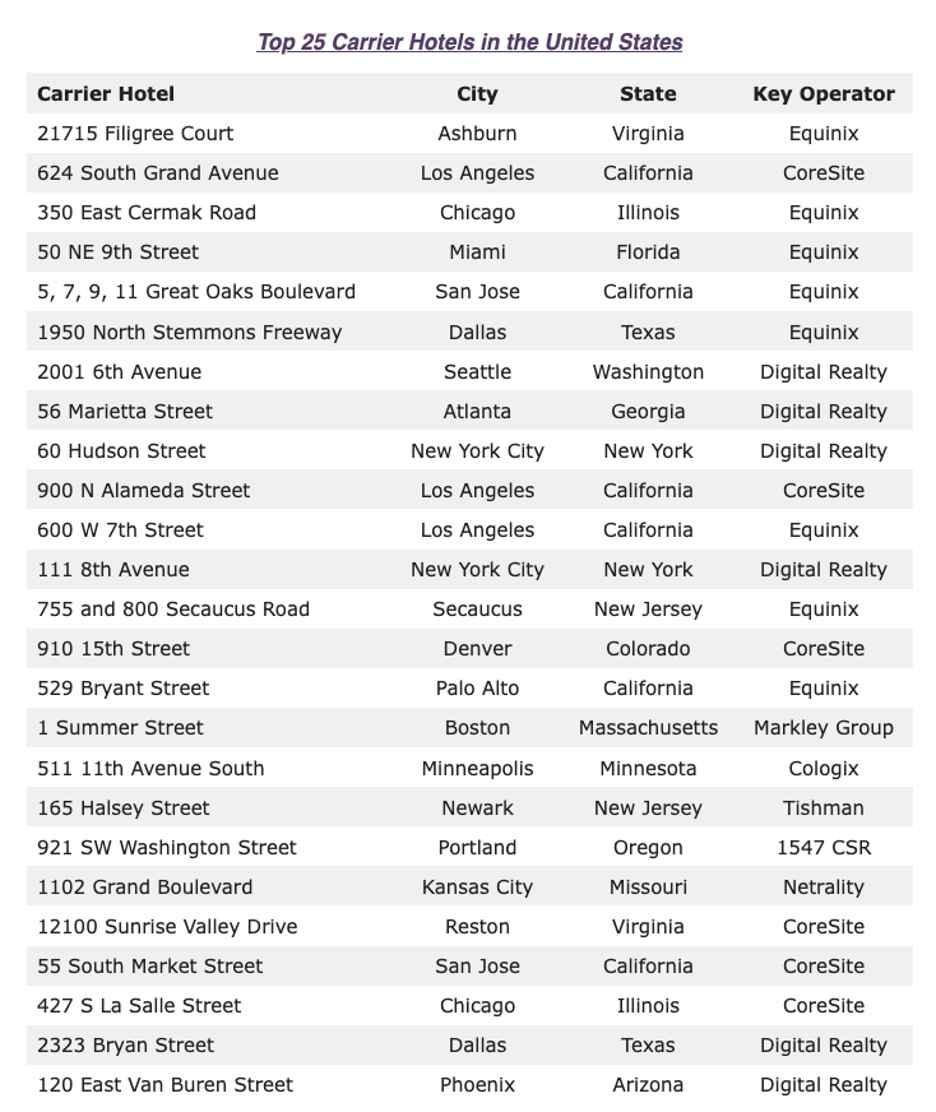
Some sources go so far as to say that carrier hotels have to be in cities by definition. Either way, the result is that carrier hotels sit on some of the most expensive real estate in the world. Citing DGTL Infra from April 2023, here are the top 25 U.S. carrier hotels: 

A chart showing the top 25 carrier hotels in the United States and their locations.

Let’s take #12 on this list, the NYC listing. According to PropertyShark, it’s worth $1.15 billion. With a b. That’s before you even get to the tech inside the building. 

If you’re so inclined, flex those internet research skills and look up some of the other property values on the list. Some of them are a bit hard to find, and there are other interesting tidbits along the way. (And tell us what you find in the comments, of course.)

Bonus Question: Is It Over Already?

Look, do I want it to be over? No, never. But, the amount of weird and wonderful data storage questions that I could include in this article is infinite. Here’s a shortlist that other folks from Backblaze suggested: 

  • How broken is too broken when it comes to restoring files from a hard drive? (This is a whole article in and of itself.)
  • When I send an email, how does it get to where it goes? (Check out Backblaze CEO Gleb Budman’s Bookblaze recommendation if you’re curious.) 
  • What happens to storage drives when we’re done with them? What does recycling look like? 

So, the real question is, what do you want to know? Sound off in the comments—we’ll do our best to research and answer.

The post Data Storage Beyond the Hardware: 4 Surprising Questions appeared first on Backblaze Blog | Cloud Storage & Cloud Backup.

Now Available: Enterprise Control for Computer Backup

Post Syndicated from Yev original https://www.backblaze.com/blog/2024-enterprise-control-announcement/

A decorative image showing a person at two computers with the Backblaze logo on a cloud in the background.

If you’re responsible for protecting company data, you know that any number of things can jeopardize the data on workstations, be it human error or natural disaster. It’s your job to reduce risk, but to do that you need the ability to fine-tune your backup systems.

Backblaze Computer Backup gives you an easy, automatic, centrally-managed solution for backup. And, starting today IT administrators can take greater control of their endpoint backups—from how employees authenticate to what they can and cannot restore—with the introduction of our new Enterprise Control for Backblaze Computer Backup.   

Ready to Turn the Dials?

Enterprise Control is available for enterprises with more than 20 Computer Backup licenses at an additional $2 per license. To take advantage of greater administrative control, contact a Sales representative. Learn more about how to set up Enterprise Control by visiting our technical documentation on the subject.

What’s New in Enterprise Control?

Whether you’re an IT manager or an MSP responsible for protecting business data, Enterprise Control allows you to meet your full business continuity and data security standards for workstation data and better support a hybrid and remote workforce. Here’s what you can do with Enterprise Control:

  • Fine-Grained Access Permissions: Manage access to group member data on a granular level for enterprise operations. This includes control over members’ ability to delete their own backups, admin’s ability to delete member backups, and admin’s permissions for restoring data on a member’s behalf. 
  • Advanced Single Sign-On: Enable OpenID Connect (OIDC) single sign-on (SSO) and the ability to use tools like Okta and Azure Active Directory in addition to GSuite and Microsoft. This enhances security control, allowing you to ramp up authentication practices, verifying member identity and streamlining identity management.
  • Group Management Controls: Prevent members from leaving a group, taking data with them, or ordering restore hard drives or snapshot hard drives without permission. You also have the option to hide the ability to update the client through the desktop app, rename or purge end user backups from the web application, and prevent Group members from updating the client app on their own. 
  • Compliance Support: Benefits businesses who are mandated to apply greater controls given compliance, cyber insurance, or heightened recovery point objective (RPO) and recovery time objective (RTO) requirements.

We’ve been using Backblaze to reliably back up our 400 endpoints for years. We’re excited at the possibility of having even more control to meet our growing administration and data protection needs with this new Computer Backup with Enterprise Control solution.

—Sintya Pappagallo, IT Manager, North Point Ministries

Enterprise Control Gives You The Guardrails

Backblaze Computer Backup reduces IT burden with its simplicity, and consistently ranked as Wirecutter’s Best Online Cloud Backup Service. Now, we’ve wrapped that simplicity with the enterprise features larger organizations require so you can reduce risk, achieve compliance, and better support your cybersecurity and disaster recovery goals. 

How to Upgrade to Enterprise Control

Enterprise Control is available for Groups with 20 or more Computer Backup licenses. To take advantage of Enterprise Control or to purchase Backblaze Computer Backup for your organization, contact your Sales representative. Or, learn more about how to implement Enterprise Control by visiting our technical documentation article.

If you have additional feature requests, please visit our Product Portal or let us know in the comments below.

The post Now Available: Enterprise Control for Computer Backup appeared first on Backblaze Blog | Cloud Storage & Cloud Backup.

Data-Driven Decisions With Snowflake and Backblaze B2

Post Syndicated from Pat Patterson original https://www.backblaze.com/blog/data-driven-decisions-wwith-snowflake-and-backblaze-b2/

A decorative image showing the Backblaze and Snowflake images superimposed over a cloud.

Since its launch in 2014 as a cloud-based data warehouse, Snowflake has evolved into a broad data-as-a-service platform addressing a wide variety of use cases, including artificial intelligence (AI), machine learning (ML), collaboration across organizations, and data lakes. Last year, Snowflake introduced support for S3 compatible cloud object stores, such as Backblaze B2 Cloud Storage. Now, Snowflake customers can access unstructured data such as images and videos, as well as structured and semi-structured data such as CSV, JSON, Parquet, and XML files, directly in the Snowflake Platform, served up from Backblaze B2.

Why access external data from Snowflake, when Snowflake is itself a data as a service (DaaS) platform with a cloud-based relational database at its core? To put it simply, not all data belongs in Snowflake. Organizations use cloud object storage solutions such as Backblaze B2 as a cost-effective way to maintain both master and archive data, with multiple applications reading and writing that data. In this situation, Snowflake is just another consumer of the data. Besides, data storage in Snowflake is much more expensive than in Backblaze B2, raising the possibility of significant cost savings as a result of optimizing your data’s storage location.

Snowflake Basics

At Snowflake’s core is a cloud-based relational database. You can create tables, load data into them, and run SQL queries just as you can with a traditional on-premises database. Given Snowflake’s origin as a data warehouse, it is currently better suited to running analytical queries against large datasets than as an operational database serving a high volume of transactions, but Snowflake Unistore’s hybrid tables feature (currently in private preview) aims to bridge the gap between transactional and analytical workloads.

As a DaaS platform, Snowflake runs on your choice of public cloud—currently Amazon Web Services (AWS), Microsoft Azure, and Google Cloud Platform—but insulates you from the details of managing storage, compute, and networking infrastructure. Having said that, sometimes you need to step outside the Snowflake box to access data that you are managing in your own cloud object storage account. I’ll explain exactly how that works in this blog post, but, first, let’s take a quick look at how we classify data according to its degree of structure, as this can have a big impact on your decision of where to store it.

Structured and Semi-Structured Data

Structured data conforms to a rigid data model. Relational database tables are the most familiar example—a table’s schema describes required and optional fields and their data types, and it is not possible to insert rows into the table that contain additional fields not listed in the schema. Aside from relational databases, file formats such as Apache Parquet, Optimized Row Columnar (ORC), and Avro can all store structured data; each file format specifies a schema that fully describes the data stored within a file. Here’s an example of a schema for a Parquet file:

% parquet meta customer.parquet

File path:  /data/customer.parquet
...
Schema:
message hive_schema {
  required int64 custkey;
  required binary name (STRING);
  required binary address (STRING);
  required int64 nationkey;
  required binary phone (STRING);
  required int64 acctbal;
  optional binary mktsegment (STRING);
  optional binary comment (STRING);
}

Semi-structured data, as its name suggests, is more flexible. File formats such as CSV, XML and JSON need not use a formal schema, since they can be self-describing. That is, an application can infer the structure of the data as it reads the file, a mechanism often termed “schema-on-read.” 

This simple JSON example illustrates the principle. You can see how it’s possible for an application to build the schema of a product record as it reads the file:

{
  "products" : [
    {
      "name" : "Paper Shredder",
      "description" : "Crosscut shredder with auto-feed"
    },
    {
      "name" : "Stapler",
      "color" : "Red"
    },
    {
      "name" : "Sneakers",
      "size" : "11"
    }
  ]
}

Accessing Structured and Semi-Structured Data Stored in Backblaze B2 from Snowflake

You can access data located in cloud object storage external to Snowflake, such as Backblaze B2, by creating an external stage. The external stage is a Snowflake database object that holds a URL for the external location, as well as configuration (e.g., credentials) required to access the data. For example:

CREATE STAGE b2_stage
  URL = 's3compat://your-b2-bucket-name/'
  ENDPOINT = 's3.your-region.backblazeb2.com'
  REGION = 'your-region'
  CREDENTIALS = (
    AWS_KEY_ID = 'your-application-key-id'
    AWS_SECRET_KEY = 'your-application-key'
  );

You can create an external table to query data stored in an external stage as if the data were inside a table in Snowflake, specifying the table’s columns as well as filenames, file formats, and data partitioning. Just like the external stage, the external table is a database object, located in a Snowflake schema, that stores the metadata required to access data stored externally to Snowflake, rather than the data itself.

Every external table automatically contains a single VARIANT type column, named value, that can hold arbitrary collections of fields. An external table definition for semi-structured data needs no further column definitions, only metadata such as the location of the data. For example:

CREATE EXTERNAL TABLE product
  LOCATION = @b2_stage/data/
  FILE_FORMAT = (TYPE = JSON)
  AUTO_REFRESH = false;

When you query the external table, you can reference elements within the value column, like this:

SELECT value:name
  FROM product
  WHERE value:color = ‘Red’;
+------------+
| VALUE:NAME |
|------------|
| "Stapler"  |
+------------+

Since structured data has a more rigid layout, you must define table columns (technically, in Snowflake, these are referred to as “pseudocolumns”), corresponding to the fields in the data files, in terms of the value column. For example:

CREATE EXTERNAL TABLE customer (
    custkey number AS (value:custkey::number),
    name varchar AS (value:name::varchar),
    address varchar AS (value:address::varchar),
    nationkey number AS (value:nationkey::number),
    phone varchar AS (value:phone::varchar),
    acctbal number AS (value:acctbal::number),
    mktsegment varchar AS (value:mktsegment::varchar),
    comment varchar AS (value:comment::varchar)
  )
  LOCATION = @b2_stage/data/
  FILE_FORMAT = (TYPE = PARQUET)
  AUTO_REFRESH = false;

Once you’ve created the external table, you can write SQL statements to query the data stored externally, just as if it were inside a table in Snowflake:

SELECT phone
  FROM customer
  WHERE name = ‘Acme, Inc.’;
+----------------+
| PHONE          |
|----------------|
| "111-222-3333" |
+----------------+

The Backblaze B2 documentation includes a pair of technical articles that go further into the details, describing how to export data from Snowflake to an external table stored in Backblaze B2, and how to create an external table definition for existing structured data stored in Backblaze B2.

Accessing Unstructured Data Stored in Backblaze B2 from Snowflake

The term “unstructured”, in this context, refers to data such as images, audio, and video, that cannot be defined in terms of a data model. You still need to create an external stage to access unstructured data located outside of Snowflake, but, rather than creating external tables and writing SQL queries, you typically access unstructured data from custom code running in Snowflake’s Snowpark environment.

Here’s an excerpt from a Snowflake user-defined function, written in Python, that loads an image file from an external stage:

from snowflake.snowpark.files import SnowflakeFile

# The file_path argument is a scoped Snowflake file URL to a file in the 
# external stage, created with the BUILD_SCOPED_FILE_URL function. 
# It has the form
# https://abc12345.snowflakecomputing.com/api/files/01b1690e-0001-f66c-...
def generate_image_label(file_path):

  # Read the image file 
  with SnowflakeFile.open(file_path, 'rb') as f:
    image_bytes = f.readall()

  ...

In this example, the user-defined function reads an image file from an external stage, then runs an ML model on the image data to generate a label for the image according to its content. A Snowflake task using this user-defined function can insert rows into a table of image names and labels as image files are uploaded into a Backblaze B2 Bucket. You can learn more about this use case in particular, and loading unstructured data from Backblaze B2 into Snowflake in general, from the Backblaze Tech Day ‘23 session that I co-presented with Snowflake Product Manager Saurin Shah:

Choices, Choices: Where Should I Store My Data?

Given that, currently, Snowflake charges at least $23/TB/month for data storage on its platform compared to Backblaze B2 at $6/TB/month, it might seem tempting to move your data wholesale from Snowflake to Backblaze B2 and create external tables to replace tables currently residing in Snowflake. There are, however, a couple of caveats to mention: performance and egress costs.

The same query on the same dataset will run much more quickly against tables inside Snowflake than the corresponding external tables. A comprehensive analysis of performance and best practices for Snowflake external tables is a whole other blog post, but, as an example, one of my queries that completes in 30 seconds against a table in Snowflake takes three minutes to run against the same data in an external table.

Similarly, when you query an external table located in Backblaze B2, Snowflake must download data across the internet. Data formats such as Parquet can make this very efficient, organizing data column-wise and compressing it to minimize the amount of data that must be transferred. But, some amount of data still has to be moved from Backblaze B2 to Snowflake. Downloading data from Backblaze B2 is free of charge for up to 3x your average monthly data footprint, then $0.01/GB for additional egress, so there is a trade-off between data storage cost and data transfer costs for frequently-accessed data.

Some data naturally lives on one platform or the other. Frequently-accessed tables should probably be located in Snowflake. Media files, that might only ever need to be downloaded once to be processed by code running in Snowpark, belong in Backblaze B2. The gray area is large datasets that will only be accessed a few times a month, where the performance disparity is not an issue, and the amount of data transferred might fit into Backblaze B2’s free egress allowance. By understanding how you access your data, and doing some math, you’re better able to choose the right cloud storage tool for your specific tasks.

The post Data-Driven Decisions With Snowflake and Backblaze B2 appeared first on Backblaze Blog | Cloud Storage & Cloud Backup.

New Open Source Tool for Consistency in Cassandra Migrations

Post Syndicated from Elliott Sims original https://www.backblaze.com/blog/new-open-source-tool-for-consistency-in-cassandra-migrations/

A decorative image showing the Cassandra logo with a function represented by two servers on either side of the logo.

Sometimes you find a problem because something breaks, and other times you find a problem the good way—by thinking it through before things break. This is a story about one of those bright, shining, lightbulb moments when you find a problem the good way.

On the Backblaze Site Reliability Engineering (SRE) team, we were thinking through an upcoming datacenter migration in Cassandra. We were running through all of the various types of queries we would have to do when we had the proverbial “aha” moment. We discovered an inconsistency in the way Cassandra handles lightweight transactions (LWTs).

If you’ve ever tried to do a datacenter migration in Cassandra and something got corrupted in the process but you couldn’t figure out why or how—this might be why. I’m going to walk through a short intro on Cassandra, how we use it, and the issue we ran into. Then, I’ll explain the workaround, which we open sourced. 

Get the Open Source Code

You can download the open source code from our Git repository. We’d love to know how you’re using it and how it’s working for you—let us know in the comments.

How We Use Cassandra

First, if you’re not a Cassandra dev, I should mention that when we say “datacenter migration” it means something slightly different in Cassandra than what it sounds like. It doesn’t mean a data center migration in the physical sense (although you can use datacenter migrations in Cassandra when you’re moving data from one physical data center to another). In the simplest terms, it involves moving data between two Cassandra or Cassandra-compatible database replica sets within a cluster.

And, if you’re not familiar with Cassandra at all, it’s an open-source, NoSQL, distributed database management system. It was created to handle large amounts of data across many commodity servers, so it fits our use case—lots of data, lots of servers. 

At Backblaze, we use Cassandra to index filename to location for data stored in Backblaze B2, for example. Because it’s customer data and not just analytics, we care more about durability and consistency than some other applications of Cassandra. We run with three replicas in a single datacenter and “batch” mode to require writes to be committed to disk before acknowledgement rather than the default “periodic.”

Datacenter migrations are an important aspect of running Cassandra, especially on bare metal. We do a few datacenter migrations per year either for physical data moves, hardware refresh, or to change certain cluster layout parameters like tokens per host that are otherwise static. 

What Are LWTs and Why Do They Matter for Datacenter Migrations in Cassandra?

First of all, LWTs are neither lightweight nor transactions, but that’s neither here nor there. They are an important feature in Cassandra. Here’s why. 

Cassandra is great at scaling. In something like a replicated SQL cluster, you can add additional replicas for read throughput, but not writes. Cassandra scales writes (as well as reads) nearly linearly with the number of hosts—into the hundreds. Adding nodes is a fairly straightforward and “automagic” process as well, with no need to do something like manual token range splits. It also handles individual down nodes with little to no impact on queries. Unfortunately, these properties come with a trade-off: a complex and often nonintuitive consistency model that engineers and operators need to understand well.

In a distributed database like Cassandra, data is replicated across multiple nodes for durability and availability. 

Although databases generally allow multiple reads and writes to be submitted at once, they make it look to the outside world like all the operations are happening in order, one at a time. This property is known as serializability, and Cassandra is not serializable. Although it does have a “last write wins” system, there’s no transaction isolation and timestamps can be identical. 

It’s possible, for example, to have a row that has some columns from one write and other columns from another write. It’s safe if you’re only appending additional rows, but mutating existing rows safely requires careful design. Put another way, you can have two transactions with different data that, to the system, appear to have equal priority. 

How Do LWTs Solve This Problem?

As a solution for cases where stronger consistency is needed, Cassandra has a feature called “Lightweight Transactions” or LWTs. These are not really identical to traditional database transactions, but provide a sort of “compare and set” operation that also guarantees pending writes are completed before answering a read. This means if you’re trying to change a row’s value from “A” to “B”, a simultaneous attempt to change that row from “A” to “C” will return a failure. This is accomplished by doing a full—not at all lightweight—Paxos round complete with multiple round trips and slow expensive retries in the event of a conflict.

In Cassandra, the minimum consistency level for read and write operations is ONE, meaning that only a single replica needs to acknowledge the operation for it to be considered successful. This is fast, but in a situation where you have one down host, it could mean data loss, and later reads may or may not show the newest write depending on which replicas are involved and whether they’re received the previous write. For better durability and consistency, Cassandra also provides various quorum levels that require a response from multiple replicas, as well as an ALL consistency that requires responses from every replica.

Cassandra Is My Type of Database

Curious to know more about consistency limitations and LWTs in Cassandra? Christopher Batey’s presentation at the 2016 Cassandra Summit does a good job of explaining the details.

The Problem We Found With LWTs During Datacenter Migrations

Usually we use one datacenter in Cassandra, but there are circumstances where we sometimes stand up a second datacenter in the cluster and migrate to it, then tear down the original. We typically do this either to change num_tokens, to move data when we’re refreshing hardware, or to physically move to another nearby data center.

The TL:DR

We reasoned through the interaction between LWTs/serial and datacenter migrations and found a hole—there’s no guarantee of LWT correctness during a topology change (that is, a change to the number of replicas) large enough to change the number of replicas needed to satisfy quorum. It turns out that combining LWTs and datacenter migrations can violate consistency guarantees in subtle ways without some specific steps and tools to work around it.

The Long Version

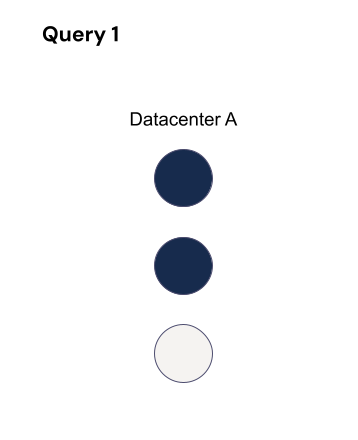
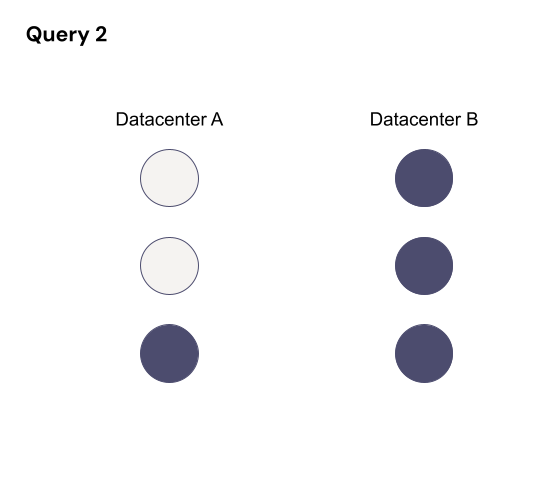
Let’s say you are standing up a new datacenter, and you need to copy an existing datacenter to it. So, you have two datacenters—datacenter A, the existing datacenter, and datacenter B, the new datacenter. Let’s say datacenter A has three replicas you need to copy for simplicity’s sake, and you’re using quorum writes to ensure consistency.

Refresher: What is Quorum-Based Consistency in Cassandra?

Quorum consistency in Cassandra is based on the concept that a specific number of replicas must participate in a read or write operation to ensure consistency and availability—a majority (n/2 +1) of the nodes must respond before considering the operation as successful. This ensures that the data is durably stored and available even if a minority of replicas are unavailable.

You have different types of quorum you can choose from, and here’s how those defaults make a decision: 

  • Local quorum: Two out of the three replicas in the datacenter I’m talking to must respond in order to return success. I don’t care about the other datacenter.
  • Global quorum: Four out of the six total replicas must respond in order to return success, and it doesn’t matter which datacenter they come from.
  • Each quorum: Two out of the three replicas in each datacenter must respond in order to return success.

Most of these quorum types also have a serial equivalent for LWTs.

Type of Quorum Serial Regular
Local LOCAL_SERIAL LOCAL_QUORUM
Each unsupported EACH_QUORUM
Global SERIAL QUORUM

The problem you might run into, however, is that LWTs do not have an each_serial mode. They only have local and global. There’s no way to tell the LWT you want quorum in each datacenter. 

local_serial is good for performance, but transactions on different datacenters could overlap and be inconsistent. serial is more expensive, but normally guarantees correctness as long as all queries agree on cluster size. But what if a query straddles a topology change that changes quorum size? 

Let’s use global quorum to show how this plays out. If a LWT starts when RF=3, at least two hosts must process it. 

While it’s running, the topology changes to two datacenters (A and B) each with RF=3 (so six replicas total) with a quorum of four. There’s a chance that a query affecting the same partition could then run without overlapping nodes, which means consistency guarantees are not maintained for those queries. For that query, quorum is four out of six where those four could be the three replicas in datacenter B and the remaining replica in datacenter A. 

Those two queries are on the same partition, but they’re not overlapping any hosts, so they don’t know about each other. It violates the LWT guarantees.

The Solution to LWT Inconsistency

What we needed was a way to make sure that the definition of “quorum” didn’t change too much in the middle of a LWT running. Some change is okay, as long as old and new are guaranteed to overlap.

To account for this, you need to change the replication factor one level at a time and make sure there are no transactions still running that started before the previous topology change before you make the next. Three replicas with a quorum of two can only change to four replicas with a quorum of three. That way, at least one replica must overlap. The same thing happens when you go from four to five replicas or five to six replicas. This also applies when reducing the replication factor, such as when tearing down the old datacenter after everything has moved to the new one.

Then, you just need to make sure no LWT overlaps multiple changes. You could just wait long enough that they’ve timed out, but it’s better to be sure. This requires querying the internal-only system.paxos table on each host in the cluster between topology changes.

We built a tool that checks to see whether there are still transactions running from before we made a topology change. It reads system.paxos on each host, ignoring any rows with proposal_ballot=null, and records them. Then after a short delay, it re-reads system.paxos, ignoring any rows that weren’t present in the previous run, or any with proposal_ballot=null in either read, or any where in_progress_ballot has changed. Any remaining rows are potentially active transactions. 

This worked well the first few times that we used it, on 3.11.6. To our surprise, when we tried to migrate a cluster running 3.11.10 the tool reported hundreds of thousands of long-running LWTs. After a lot of digging, we found a small (but fortunately well-commented) performance optimization added as part of a correctness fix (CASSANDRA-12126), which means proposal_ballot does not get set to null if the proposal is empty/noop. To work around this, we had to actually parse the proposal field. Fortunately all we need is the is_empty flag in the third field, so no need to reimplement the full parsing code. A big impact to us for a seemingly small and innocuous change piggy-backed onto a correctness fix, but that’s the risk of directly reading internal-only tables. 

We’ve used the tool several times now for migrations with good results, but it’s still relatively basic and limited. It requires running repeatedly until all transactions are complete, and sometimes manual intervention to deal with incomplete transactions. In some cases we’ve been able to force-commit a long-pending LWT by doing a SERIAL read of the partition affected, but in a couple of cases we actually ended up running across LWTs that still didn’t seem to complete. Fortunately in every case so far it was in a temporary table and a little work allowed us to confirm that we no longer needed the partition at all and could just delete it.

Most people who use Cassandra may never run across this problem, and most of those who do will likely never track down what caused the small mystery inconsistency around the time they did a datacenter migration. If you rely on LWTs and are doing a datacenter migration, we definitely recommend going through the extra steps to guarantee consistency until and unless Cassandra implements an EACH_SERIAL consistency level.
Using the Tool

If you want to use the tool for yourself to help maintain consistency through datacenter migrations, you can find it here. Drop a note in the comments to let us know how it’s working for you and if you think of any other ways around this problem—we’re all ears!

If You’ve Made It This Far

You might be interested in signing up for our Developer Newsletter where our resident Chief Technical Evangelist, Pat Patterson, shares the latest and greatest ways you can use B2 Cloud Storage in your applications.

The post New Open Source Tool for Consistency in Cassandra Migrations appeared first on Backblaze Blog | Cloud Storage & Cloud Backup.

The Drive Stats of Backblaze Storage Pods

Post Syndicated from Andy Klein original https://www.backblaze.com/blog/the-drive-stats-of-backblaze-storage-pods/

A decorative image showing the Backblaze logo on a cloud over a pattern representing a network.

Since 2009, Backblaze has written extensively about the data storage servers we created and deployed which we call Backblaze Storage Pods. We not only wrote about our Storage Pods, we open sourced the design, published a parts list, and even provided instructions on how to build one. Many people did. Of the six storage pod versions we produced, four of them are still in operation in our data centers today. Over the last few years, we began using storage servers from Dell and, more recently, Supermicro, as they have proven to be economically and operationally viable in our environment. 

Since 2013, we have also written extensively about our Drive Stats, sharing reports on the failure rates of the HDDs and SSDs in our legion of storage servers. We have examined the drive failure rates by manufacturer, size, age, and so on, but we have never analyzed the drive failure rates of the storage servers—until now. Let’s take a look at the Drive Stats for our fleet of storage servers and see what we can learn.

Storage Pods, Storage Servers, and Backblaze Vaults

Let’s start with a few definitions:

  • Storage Server: A storage server is our generic name for a server from any manufacturer which we use to store customer data. We use storage servers from Backblaze, Dell, and Supermicro.
  • Storage Pod: A Storage Pod is the name we gave to the storage servers Backblaze designed and had built for our data centers. The first Backblaze Storage Pod version was announced in September 2009. Subsequent versions are 2.0, 3.0, 4.0, 4.5, 5.0, 6.0, and 6.1. All but 6.1 were announced publicly. 
  • Backblaze Vault: A Backblaze Vault is 20 storage servers grouped together for the purpose of data storage. Uploaded data arrives at a given storage server within a Backblaze Vault and is encoded into 20 parts with a given part being either a data blob or parity. Each of the 20 parts (shards) is then stored on one of the 20 storage servers. 

As you review the charts and tables here are a few things to know about Backblaze Vaults.

  • There are currently six cohorts of storage servers in operation today: Supermicro, Dell, Backblaze 3.0, Backblaze 5.0, Backblaze 6.0, and Backblaze 6.1.
  • A given Vault will always be made up from one of the six cohorts of storage servers noted above. For example, Vault 1016 is made up of 20 Backblaze 5.0 Storage Pods and Vault 1176 is made of the 20 Supermicro servers. 
  • A given Vault is made up of storage servers that contain the same number of drives as follows:
    • Dell servers: 26 drives.
    • Backblaze 3.0 and Backblaze 5.0 servers: 45 drives.
    • Backblaze 6.0, Backblaze 6.1, and Supermicro servers: 60 drives.
  • All of the hard drives in a Backblaze Vault will be logically the same size; so, 16TB drives for example.

Drive Stats by Backblaze Vault Cohort

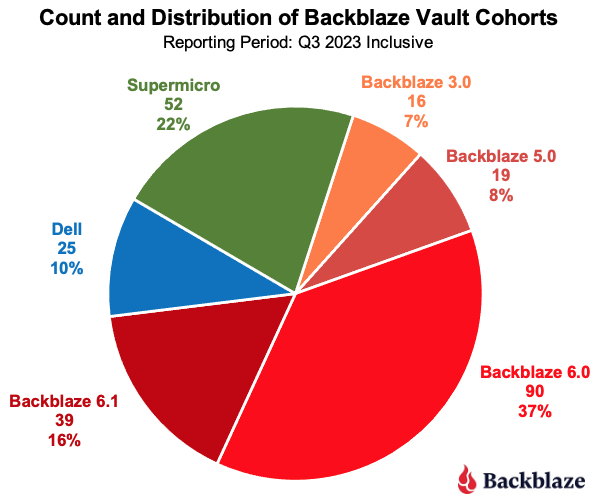
With the background out of the way, let’s get started. As of the end of Q3 2023, there were a total of 241 Backblaze Vaults divided into the six cohorts, as shown in the chart below. The chart includes the server cohort, the number of Vaults in the cohort, and the percentage that cohort is of the total number of Vaults.

A pie chart showing the types of Backblaze Vaults by percentage.

Vaults consisting of Backblaze servers still comprise 68% of the vaults in use today (shaded from orange to red), although that number is dropping as older Vaults are being replaced with newer server models, typically the Supermicro systems.

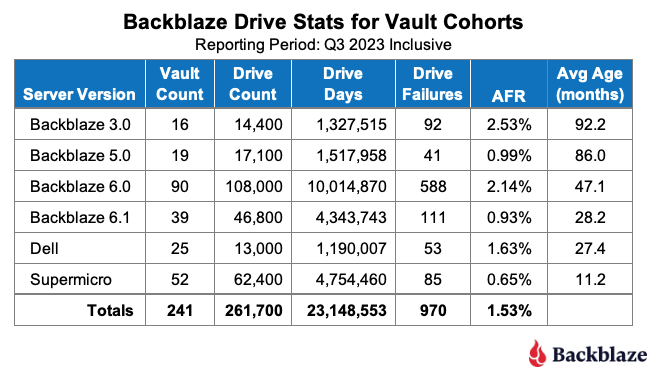
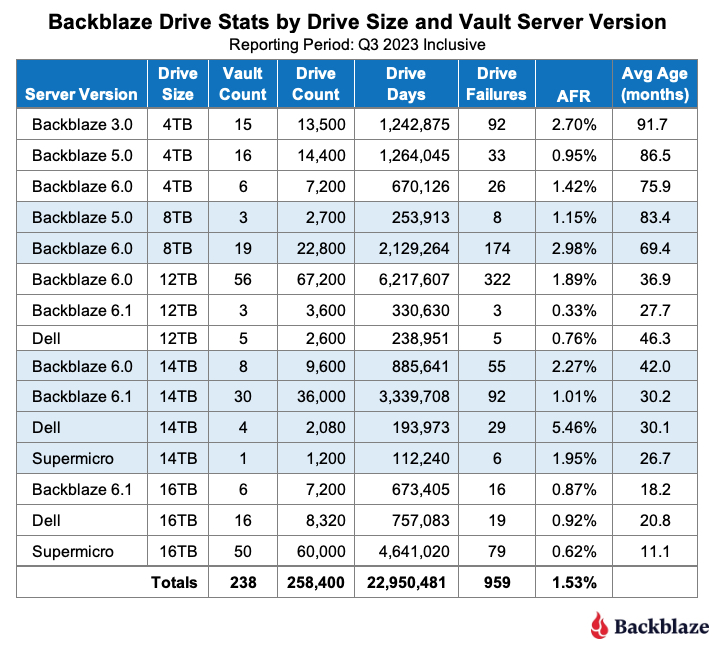
The table below shows the Drive Stats for the different Vault cohorts identified above for Q3 2023.

A chart showing the Drive Stats for Backblaze Vaults.

The Avg Age (months) column is the average age of the drives, not the average age of the Vaults. The two may seem to be related, that’s not entirely the case. It is true the Backblaze 3.0 Vaults were deployed first followed in order by the 5.0 and 6.0 Vaults, but that’s where things get messy. There was some overlap between the Dell and Backblaze 6.1 deployments as the Dell systems were deployed in our central Europe data center, while the 6.1 Vaults continued to be deployed in the U.S. In addition, some migrations from the Backblaze 3.0 Vaults were initially done to 6.1 Vaults while we were also deploying new drives in the Supermicro Vaults. 

The AFR for each of the server versions does not seem to follow any pattern or correlation to the average age of the drives. This was unexpected because, in general, as drives pass about four years in age, they start to fail more often. This should mean that Vaults with older drives, especially those with drives whose average age is over four years (48 months), should have a higher failure rate. But, as we can see, the Backblaze 5.0 Vaults defy that expectation. 
To see if we can determine what’s going on, let’s expand on the previous table and dig into the different drive sizes that are in each Vault cohort, as shown in the table below.

A table showing Drive Stats by server version and drive size.

Observations for Each Vault Cohort

  • Backblaze 3.0: Obviously these Vaults have the oldest drives and, given their AFR is nearly twice the average for all of the drives (1.53%), it would make sense to migrate off of these servers. Of course the 6TB drives seem to be the exception, but at some point they will most likely “hit the wall” and start failing.
  • Backblaze 5.0: There are two Backblaze 5.0 drive sizes (4TB and 8TB) and the AFR for each is well below the average AFR for all of the drives (1.53%). The average age of the two drive sizes is nearly seven years or more. When compared to the Backblaze 6.0 Vaults, it would seem that migrating the 5.0 Vaults could wait, but there is an operational consideration here. The Backblaze 5.0 Vaults each contain 45 drives, and from the perspective of data density per system, they should be migrated to 60 drive servers sooner rather than later to optimize data center rack space.
  • Backblaze 6.0: These Vaults as a group don’t seem to make any of the five different drive sizes happy. Only the AFR of the 4TB drives (1.42%) is just barely below the average AFR for all of the drives. The rest of the drive groups are well above the average.
  • Backblaze 6.1: The 6.1 servers are similar to the 6.0 servers, but with an upgraded CPU and faster NIC cards. Is that why their annualized failure rates are much lower than the 6.0 systems? Maybe, but the drives in the 6.1 systems are also much younger, about half the age of those in the 6.0 systems, so we don’t have the full picture yet.
  • Dell: The 14TB drives in the Dell Vaults seem to be a problem at a 5.46% AFR. Much of that is driven by two particular Dell vaults which have a high AFR, over 8% for Q3. This appears to be related to their location in the data center. All 40 of the Dell servers which make up these two Vaults were relocated to the top of 52U racks, and it appears that initially they did not like their new location. Recent data indicates they are doing much better, and we’ll publish that data soon. We’ll need to see what happens over the next few quarters. That said, if you remove these two Vaults from the Dell tally, the AFR is a respectable 0.99% for the remaining Vaults.
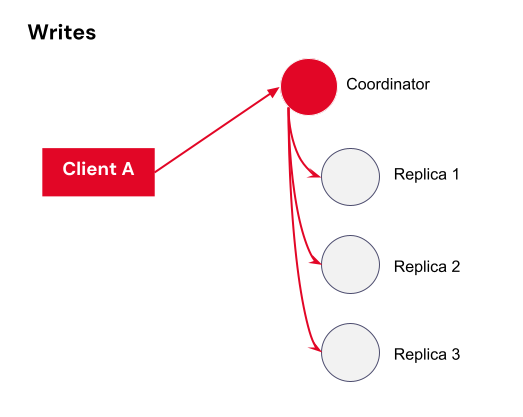
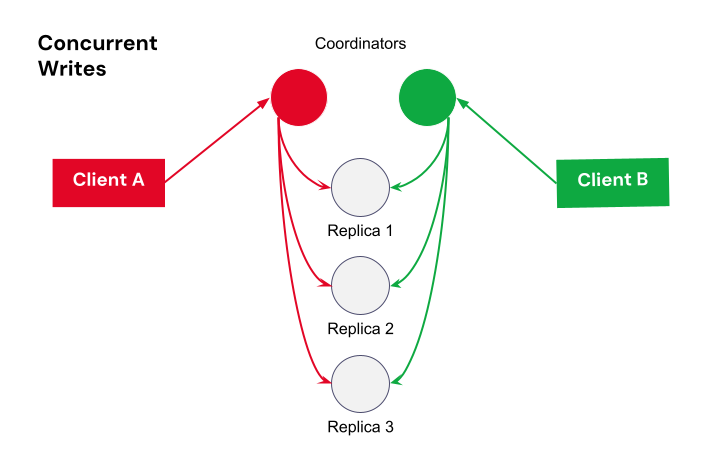
  • Supermicro: This server cohort is mostly 16TB drives which are doing very well with an AFR of 0.62%. The one 14TB Vault is worth our attention with an AFR of 1.95%, and the 22TB Vault is too new to do any analysis.

Drive Stats by Drive Size and Vault Cohort

Another way to look at the data is to take the previous table and re-sort it by drive size. Before we do that let’s establish the AFR for the different drive sizes aggregated over all Vaults.

A bar chart showing annualized failure rates for Backblaze Vaults by drive size.

As we can see in Q3 the 6TB and 22TB Vaults had zero failures (AFR = 0%). Also, the 10TB Vault is indeed only one Vault, so there are no other 10TB Vaults to compare it to. Given this, for readability, we will remove the 6TB, 10TB, and 22TB Vaults from the next table which compares how each drive size has fared in each of the six different Vault cohorts.

A table showing the annualized failure rates of servers by drive size and server version, not displaying the 6TB, 10TB, and 22TB Vaults.

Currently we are migrating the 4TB drive Vaults to larger Vaults, replacing them with drives of 16TB and above. The migrations are done using an in-house system which we’ll expand upon in a future post. The specific order of migrations is based on failure rates and durability of the existing 4TB Vaults with an eye towards removing the Backblaze 3.0 systems first as they are nearly 10 years old in some cases, and many of the non-drive replacement parts are no longer available. Whether we give away, destroy, or recycle the retired Backblaze 3.0 Storage Pods (sans drives) is still being debated.

For the 8TB drive Vaults, the Backblaze 5.0 Vaults are up first for migration when the time comes. Yes, their AFR is lower then the Backblaze 6.0 Vaults, but remember: the 5.0 Vaults are 45 drive units which are not as efficient storage density-wise versus the 60 drive systems. 

Speaking of systems with less than 60 drives, the Dell servers are 26 drives. Those 26 drives are in a 2U chassis versus a 4U chassis for all of the other servers. The Dell servers are not quite as dense as the 60 drive units, but their 2U form factor gives us some flexibility in filling racks, especially when you add utility servers (1U or 2U) and networking gear to the mix. That’s one of the reasons the two Dell Vaults we noted earlier were moved to the top of the 52U racks. FYI, those two Vaults hold 14TB drives and are two of the four 14TB Dell Vaults making up the 5.46% AFR. The AFR for the Dell Vaults with 12TB and 16TB drives is 0.76% and 0.92% respectively. As noted earlier, we expect the AFR for 14TB Dell Vaults to drop over the coming months.

What Have We Learned?

Our goal today was to see what we can learn about the drive failure rates of the storage servers we use in our data centers. All of our storage servers are grouped in operational systems we call Backblaze Vaults. There are six different cohorts of storage servers with each vault being composed of the same type of storage server, hence there are six types of vaults. 

As we dug into data, we found that the different cohorts of Vaults had different annualized failure rates. What we didn’t find was a correlation between the age of the drives used in the servers and the annualized failure rates of the different Vault cohorts. For example, the Backblaze 5.0 Vaults have a much lower AFR of 0.99%  versus the Backblaze 6.0 Vault AFR at 2.14%—even though the drives in the 5.0 Vaults are nearly twice as old on average than the drives in the 6.0 Vaults.

This suggests that while our initial foray into the annualized failure rates of the different Vault cohorts is a good first step, there is more to do here.

Where Do We Go From Here?

In general, all of the Vaults in a given cohort were manufactured to the same specifications, used the same parts, and were assembled using the same processes. One obvious difference is that different drive models are used in each Vault cohort. For example, the 16TB vaults are composed of seven different drive models. Do some drive models work better in one Vault cohort versus another? Over the next couple of quarters we’ll dig into the data and let you know what we find. Hopefully it will add to our understanding of the annualized failures rates of the different Vault cohorts. Stay tuned.

The post The Drive Stats of Backblaze Storage Pods appeared first on Backblaze Blog | Cloud Storage & Cloud Backup.

Bookblaze: The Second Annual Backblaze Book Guide

Post Syndicated from Stephanie Doyle original https://www.backblaze.com/blog/bookblaze-the-second-annual-backblaze-book-guide/

A decorative image showing a book and a bookshelves.

It’s that time again—cozy season is upon us and your Backblaze authors are eager to share some of their favorite reads. Feel free to use them as a gift guide (if you still have gifts to give, that is), as a list of recs to start your New Year’s resolutions off right, or just some excellent excuses to take some much-needed solo time away from the family. 

So, whether the weather outside is frightful, or, like at our home office in San Mateo, weird and drizzly, we hope you enjoy! And, as always, feel free to let us know what you thought in the comments. 

Tech Expertise and Whimsical Reads, All in One List

Pat Patterson, Chief Technical Evangelist

An image of the cover of the book Too Much Too Young by Daniel Rachel.

Too Much Too Young: The 2 Tone Records Story, by Daniel Rachel

In 1979, a clutch of young, multiracial bands burst onto the music scene in the UK, each offering their own take on ska, the precursor to reggae that originated in 1950’s Jamaica. “Too Much Too Young”, named after The Specials’ 1980 UK number one hit, tells the fascinating story of how bands such as The Specials, The Selecter, and The Beat (ok, “The English Beat” in the U.S.) took punk’s do-it-yourself ethic, blended it with reggae rhythms, and, as the 70s turned into the 80s, released a string of singles and albums that dominated the pop charts. 

Looking back from 2023, it’s astonishing to realize that this was the first time many audiences had seen black and white musicians on stage together, and musician-turned-author Daniel Rachel does a great job telling the 2 Tone story in the context of the casual racism, economic recession, and youth unemployment of the time. Highly recommended for any music fan, whether or not you remember moonstomping back in the day!

Vinodh Subramanian, Product Marketing Manager

An image of the book cover for Build: An Unorthodox Guide To Making Things Worth Making, by Tony Fadell.

Build: An Unorthodox Guide To Making Things Worth Making, by Tony Fadell

I picked up this book while waiting for a flight at an airport and it quickly became a source of inspiration. Authored by Tony Fadell, who played a significant role in building successful tech products like iPod, iPhone, and the Nest thermostat, the book provides insights and strategies on how to build yourself, build your career, and ultimately build products that users love. What I love about the book is how it creates a practical roadmap for building things in life and business, and it makes those things seem more possible and achievable regardless of what stage of career (or life) you’re in. I’d highly recommend this for anyone who loves to build things, but is not sure what to focus on in what order. 

nathaniel wagner, Senior Site Reliability Engineer

An image of the cover of the book Designing Data-Intensive Applications by Martin Kleppmann.

Designing Data-Intensive Applications: The Big Ideas Behind Reliable, Scalable, and Maintainable Systems, by Martin Kleppmann

Backblaze has created several data intensive applications, and while normally I am not a fan of deeply technical books because I am a learn-by-doing type of person, I think this book does a fantastic job at explaining the strengths and weaknesses of various strategies to handling large amounts of data. It also helps that I am a big fan of the freedom/speed of NoSQL, and here at Backblaze we use Cassandra to keep our index of over 500 billion Backblaze B2 files. 🙂

Nicole Gale, Marketing Operations Manager

An image of the cover of the book Before the coffee gets cold by Toshikazu Kawaguchi.

Before the Coffee Gets Cold, by Toshikazu Kawaguchi

It’s probably the shortest book I read this year, but the one that stuck with me the most. “Before the Coffee Gets Cold” is a new take (at least for me) on time traveling that dives into what would you do if you could go back in time, but it doesn’t change anything (or does it?). Each chapter is a short story following a different character’s journey to decide to sit in the chair and drink the coffee. You won’t regret picking up this book!

Andy Klein, Principal Cloud Storage Storyteller

An image of the book cover for Stephen Hawking's A Brief History of Time.

A Brief History of Time, by Stephen Hawking

I reread “A Brief History of Time” by Stephen Hawking this past year. I read it years ago to understand the science. This time as I read it I felt an appreciation for the elegance that is the universe. The book is an approachable scientific read, but it does demand your full attention while reading, and if you slept through your high school and college physics classes, the book may not be for you.

Molly Clancy, Senior Content Editor

An image of the book cover for Demon Copperhead by Barbara Kingsolver.

Demon Copperhead, by Barbara Kingsolver

“Demon Copperhead” is the book that brought me back to reading for pleasure after having a baby. Some perspective for new parents—he’s almost one and a half, so… go easy on yourselves. Anyway, about this book: you probably never thought you wanted to get inside the head of a teenage boy from the hollers of coal country, but you do. Trust me, you do. Barbara Kingsolver doesn’t hold back when it comes to, let’s say, the authenticity of what a teenage boy from the hollers of coal country thinks about, and she somehow manages to do it without being cringe. It’s a damning critique of social services, the foster care system, the school system to some extent, Big Pharma to a huge extent, and even Big City Liberals in a way that’s clarifying for this Big City Liberal who now lives …in the hollers of coal country.

Troy Liljedahl, Director, Solutions Engineering

An image of the book cover for Radical Candor by Kim Scott.

Radical Candor: Be a Kick-Ass Boss Without Losing Your Humanity, by Kim Scott

The book that really stuck with me this year is “Radical Candor” by Kim Scott. This was the best book on leadership and management I’ve ever read, and I’ve been recommending it to my friends and colleagues who are looking for ways to improve in those skills. I love how Scott gives you actionable items to take with you into the workplace rather than generalized advice that’s less applicable to specific situations. I loved the book so much I started listening to the Radical Candor podcast, which has quickly become a favorite of mine as well.

Kari Rivas, Senior Product Marketing Manager

A cover image of the book The Grace Year by Kim Liggett.

The Grace Year, by Kim Liggett

For fans of “The Handmaid’s Tale”, “Hunger Games”, and any other books where women are badasses (can I say that?) fighting a dystopian empire, “The Grace Year” will not disappoint. This book examines the often fraught and complex relationships between women, with a magical bent. Think Lady of the Flies. Just like the mentioned references, this thrilling read will leave you feeling both hopeful and sad—exactly the mix of feelings we’re all looking for at the end of the year, amIright?

Yev Pusin, Senior Director, Marketing

An image of the book cover The Aeronaut's Windlass by Jim Butcher.

The Aeronaut’s Windlass, by Jim Butcher

I do not feel like I need to sell this book too hard. Here’s the gist. Jim Butcher (of Dresden Files and Codex Alera fame) wrote this book. It’s about an airship-filled steampunk society that’s divided into living habitats they call spires. It has air ship battles. Magic. Snarky characters. And possibly most important of all: TALKING CATS AS A MAIN CHARACTER. Enjoy.

Mark Potter, Chief Information Security Officer

An image of the cover of the book To Shape a Dragon's Breath by Moniquill Blackgoose.

To Shape a Dragon’s Breath: The First Book of Nampeshiweisit, by Moniquill Blackgoose (and some other bonus books!)

I don’t really have a book recommendation, but I have a few books that I’m reading at the moment: “To Shape a Dragon’s Breath” (a recommendation from a fellow Backblazer that I’m only a couple of chapters into) and Robert Jordan’s “The Eye of the World” (has been on my list for over a decade, so far I’m underwhelmed).

Gleb Budman, Chief Executive Officer

An image of the book cover of Tubes by Andrew Blum.

Tubes: A Journey to the Center of the Internet, by Andrew Blum

The idea that the internet is “a series of tubes” may have been widely mocked when former Senator Ted Stevens of Alaska famously described it. But he wasn’t entirely wrong. I love how Blum starts with a simple question: “Where does this cord that comes out of my modem actually go?” and then that takes him on a journey of exploration around the world.

Alison McClelland, Senior Technical Editing Manager

An image of the cover of the book Packing for Mars by Mary Roach.

Packing for Mars: The Curious Science of Life in the Void, by Mary Roach

Mary Roach presents a unique view of the challenges of space, investigating the comical side of planetary exploration, from zero-gravity hijinks to the surprisingly practical challenges of personal hygiene in orbit. Forget packing trendy outfits in your stylish carry-on; in the cosmos, it’s all about zero-gravity hairstyles and toothpaste that doesn’t float away mid-brush.

Stephanie Doyle, Associate Editor and Writer

An image of the book cover for All the Birds in the Sky by Charlie Jane Anders.

All the Birds in the Sky, by Charlie Jane Anders

This book is a wonderful mashup of near-future sci fi, magical realism, strong character arcs, and so much more. It’s brilliant at taking things that seem familiar—urban San Francisco for example, or science as a concept—and inserting chaos and whimsy in ways that challenge our base assumptions and create a totally unexpected, but absolutely believable, universe. It’s so matter-of-fact in tone, that you may just question whether magic does exist. And, with all that, the book ends by delivering a poignant and thoughtful ending that turns all that quirkiness inside out, and forces you to wonder about the world you’re living in right now, and how you can change things. It’s one of my go-to recommendations for fans of all kinds of fiction.

Patrick Thomas, Senior Director, Publishing

An image of the book cover for Mr. Penumbra's 24-Hour Bookstore by Robin Sloan.

Mr. Penumbra’s 24-Hour Bookstore, by Robin Sloan

So, full disclosure—I continue to struggle with being a toddler dad when it comes to reading. (Evidence: I’ve read “The Grinch”10 times in the last 24 hours and my heart is feeling three sizes too small). So this isn’t a new recommendation, but rather a recommendation I’m realizing not enough people in tech have received yet. “Mr. Penumbra’s 24-Hour Bookstore” brings together my two worlds: books and tech… and, well, fantasy and mystery sort of (not my worlds, but I like to dwell in the idea that there’s a near-real fantasy world at the edge of our experience). If you like data and narrative structure, or if you like a spooky adventure, or if you like dusty old bookshops, Robin Sloan has you covered with this one. And, once you’ve read this, get on his email lists, he writes about history, fiction, and technology (and olive oil) beautifully. P.S.: I don’t know why Picador insists on this terrible cover, it does little to convey the world inside the book—don’t make my mistake and judge this book by its cover).

Happy Reading From Backblaze

We hope this list piques your interest—we may be a tech company, but nothing beats a good, old fashioned book (or audiobook) to help you unwind, disconnect, and lose yourself in someone else’s story for a while. (Okay, we may be biased on the Publishing team.) 

Any reading recommendations to give us? Let us know in the comments.

The post Bookblaze: The Second Annual Backblaze Book Guide appeared first on Backblaze Blog | Cloud Storage & Cloud Backup.

The Backblaze Team Recommends: Tech That Saves the Day

Post Syndicated from Molly Clancy original https://www.backblaze.com/blog/the-backblaze-team-recommends-tech-that-saves-the-day/

A decorative image showing a superhero holding a computer with the Backblaze logo showing.

Everyone has their arsenal of indispensable gadgets and apps they absolutely couldn’t live without, and we had a feeling the folks here at Backblaze would have a lot to say about the subject. We tapped the smart, savvy minds that keep our storage cloud up and running, and discovered a treasure trove of insights into the tech essentials that power their daily lives.

From budgeting apps to text editors to humble charging jacks, our staff share the tools they can’t live without. So, without further ado, let’s dig into the gear that keeps our collective gears turning:

Tech for Staying Connected

Solutions Engineering Director, Troy Liljedahl

As a Mac guy, I love my Airpod Pros and the way they work seamlessly with my iPhone, Macbook Pro, and iPad. But things get a little wonky when you try to use them outside of the Apple ecosystem. I tried many different wireless earbuds and settled on the Anker Soundcore Space A40 Earbuds. I’m a big fan of The Wirecutter by the New York Times (and they’re big fans of us) and they had these at the top of their list. I love the sound quality, noise canceling, and excellent battery life. My Airpod Pros are still my go to when I’m out of the house, but when I need a good headset at home for my PC and other non-Apple devices, these have become my go to earbuds.

Senior Director, Marketing, Yev Pusin

You know what I hate? Getting my phone out at inopportune times. You know what I don’t mind so much? Glancing down at my Google Pixel Watch to see that the cold call I’m receiving is being answered by my phone’s call screening and I don’t have to pick it up. Whether it’s the first version or the second, I have grown accustomed to having something on my wrist that acts as an extension of my phone. True digital bliss. 

Chief Technical Evangelist, Pat Patterson

I use my webcam a LOT: Zoom and Google Meet with coworkers, FaceTime with family and friends, webinars with the Backblaze community of developers and admins, and quick-start videos for the Backblaze YouTube channel. Ever since I got my PlexiCam Pro mount about a year ago, it’s been my secret weapon in every one of those interactions. It’s a transparent plexiglass webcam mount that hangs from the top edge of my monitor, allowing me to position my webcam in my eyeline, just above my focus. To anyone on the call, I appear to be looking directly into the camera. 

At $85, it’s not cheap, but it’s well designed and constructed, and feels like it will last forever. Highly recommended for anyone who spends a lot of time flicking their eyes between the screen and the webcam!

Tech for Devs

Senior Site Reliability Engineer, nathaniel wagner

Ah, the age old debate of Emacs versus Vim: the two most widely used editors for Linux operating systems. I solidly planted my flag on team Vim once I learned how to save and exit the program. 😉

I do aspire to one day having a computer that only runs Emacs because byte compiled Emacs is cool to me. Until I graduate to that level of wizardry, I stick to Neovim when I need to quickly edit something from a terminal or want to appear cool in front of my coworkers. I mostly use the Vim extension in Intellij for day-to-day modifying of code and configs. If you would like to also learn Vim, I really enjoyed playing through Vim Adventures, which is a free game that teaches you a lot of the shortcuts and movements in Vim.

Lead Software Engineer, Application Security, Ola Nordstrom

Continuing the discussion in favor of Vim, specifically Neovim. You only have to learn the keybindings once. There is a fantastic set of plugins to customize it to your heart’s content—Visual Studio Code has VSCodeVim, Intellij has IdeaVim, for example. Then you don’t have to relearn keybindings while switching between languages, projects, and code. 

Tmux the terminal multiplexer: like Vim, it may have a steep learning curve but once you learn it you can’t live without it. The tmux wiki has some great getting started guides. I strongly recommend remapping the leader key (mine is Caps + A, or Caps Lock + A on Windows keyboards). You can set up customized tmux scripts to re-create all your environments (one session for server code, another for a different codebase, another for your notes, and so on). Each session then has multiple windows which you can create, split, and close quickly, no need to leave your keyboard.

For web technologies, learn the toolset available in the browser developer tools. Remember to preserve logs filter to specific responses so you won’t be overwhelmed looking at messages.

Stepping away from the browser and back into the terminal, learn Curl and ag or rg. For every “old” unix command there’s likely a modern replacement that’s 100s of times faster with much more customization available. 

But there’s always the middle ground for situations where you may need to initiate a complex series of browser–webapp interactions and you need to modify or test something quickly. To do this, learn how to use Burp. In the long run it’s well worth it. It makes it a breeze to modify data between the browser and your app.

Last tip: for native code, just learn how to use the debugger.

Tusen Tack!

Tech That Makes Home Homier

Principle Site Reliability Engineer, Elliott Sims

One power adapter to rule them all: the Anker 715 Charger (Nano II 65W). This one little power adapter can power my personal laptop, work laptop, headphones, and more. With one cable, one small charger cube, and a few small USB end adapters, I can charge everything.

Senior Product Marketing Manager, James Flores 

A Roku. I use it at home for streaming apps, but I also carry one in my travel bag. There’s nothing worse than flipping through basic cable channels in a hotel when you’re traveling. Wait, yes there is—signing in to Netflix on the hotel TV and forgetting to sign out. If I travel with it, I just plug it in and I’m already signed in to all my apps. 

Senior Technical Editing Manager, Alison McClelland

I got tired of locking myself out of my own house and forgetting who I gave spare keys to, so I really appreciate this Yale Lock with Nest Connect. It works with the Nest cameras that I mostly use to see whether the UPS or DoorDash delivery person has the nerve to ring my doorbell. (Drop it and run, people!) 

It’s secure and easy-to-use; no more locking myself out of my own house in the middle of winter. I can give a code to a friend so they can feed my cats while I’m away, or create temporary passcodes so I don’t have to wait around for the cable guy.

Senior Content Editor, Molly Clancy

I have a hard time turning my brain off at night, so I used to pop in earbuds to listen to something soothing (not comfortable at all!). Then I got this Cozyband as a gift and became 100% addicted to it. I CAN fall asleep without it, but I don’t do it willingly. It’s also good for working out if you hate sweaty earbuds slipping out all the time. 

Chief Executive Officer, Gleb Budman

It gets cold in my home, and I don’t necessarily want to heat the whole place when it’s just me. A good old fashioned heated blanket does the trick. All the tech in the world won’t help you when you’re shivering. 

The Apps Have Entered the Chat

Partner Marketing Director, Jen Newman

As a working mom with two boys, I am always on the go. Both of my boys are now playing for AAA travel teams. I try my best to keep up with all their games, and LiveBarn is how I stay connected to them. It allows me to pull up a live feed or on-demand video of the game. Last weekend was a great example: they were playing at two different rinks across town. I was able to pull up one game on LiveBarn on my phone, and watch both games literally at the same time. When my older son came home and asked me if I saw his goal, I was able to say, “I heard Coach yell, ‘Nice shot, Newy!’” 

Associate Editor and Writer, Stephanie Doyle

My life changed when I adopted a password manager years ago. Before I went back to full-time corporate life in 2020, I freelanced quite a bit—which means an endless series of logins and passwords, depending on how you’re engaging with your clients. And, while I enjoy making up 13–15 character passphrases with a mix of upper and lowercase letters, at least one symbol with some outlawed symbols (but different ones on each site), and then remembering which ones I’ve used for which accounts without reusing them… Oh wait, I actually really don’t like that. I’d rather have a password manager like Bitwarden that can generate passwords, follows me device to device, and allows me to enable biometric controls. And, spoiler alert for any of my family members who diligently read my work (I’m sure): This year the whole family is getting a subscription as a gift, and I can centrally manage it for my non-tech-inclined family members.

Senior Director of Publishing, Patrick Thomas

I’m not going into the story of how I got hooked on this app, but I will tell you that CENTR’s meal planning tool is a life saver. You can set a crazy variety of dietary needs, select your meals and portions for a week, and it spits out a perfectly organized shopping list. Then, when you want to make a meal, you just pop into the app and it tells you exactly how to look like you know what you’re doing in the kitchen. It’s sort of pricey, but the amount of money I save by not ordering in or wasting food that I bought without a plan more than makes up for it.

And, oh yeah, Chris Hemsworth is one of its founders.

Senior Product Marketing Manager, Kari Rivas

Hoping on the app train here. The one I can’t live without is definitely YNAB. I’m trying to get better at budgeting ahead (and get my husband and I on the same page—haha!) and I like their philosophical approach to a typically boring subject.

The “Tech Is a Tool” Answer

Principal Cloud Storage Storyteller, Andy Klein

I don’t have a favorite tech thing. I certainly use lots of them, but I would not be lost without them because I was raised without any of the current tech. I know how to tie my shoes without watching a Youtube video. Just sayin’.

But, you know, just in case.

Thanks, Andy

Leave it to Andy to send us off with a reminder to put the tech down sometimes, as we hope you all get a chance to do this holiday season. But, we also want to know: what’s the tech that you can’t live without? Let us know in the comments.

The post The Backblaze Team Recommends: Tech That Saves the Day appeared first on Backblaze Blog | Cloud Storage & Cloud Backup.

NAS Life Expectancy: How to Extend NAS Longevity

Post Syndicated from Vinodh Subramanian original https://www.backblaze.com/blog/nas-life-expectancy-how-to-extend-nas-longevity/

A decorative image showing a NAS device and a cloud in the background.

There’s only one truth you need to know about tech: at some point, it will fail. Hard drives die. You get the blue screen of death the day of the big presentation. You lose cell service right when your mom calls. (Or maybe you pretend to lose service right when your mom calls. We won’t judge.) Whatever it is, we’ve all been there. 

If you use network attached storage (NAS) for your business or at home, you’re probably well aware of this fact. The redundancy you get from a solid RAID configuration might be one of the reasons you invested in a NAS—to prepare for inevitable drive failures. NAS devices are a great investment for a business for their durability and reliability, but there are things you can do to extend the lifespan of your NAS and get even more out of your investment.

Extending the lifespan of a NAS system isn’t just about preventing hardware failures; it’s crucial for ensuring uninterrupted access to critical data while maximizing ROI on your IT investments. In this blog, you’ll learn about the key factors that influence NAS longevity and get real-world strategies to strengthen and optimize your NAS infrastructure. 

Understanding NAS Lifespan

Today’s NAS devices offer faster processing, enhanced performance, and significantly larger storage capabilities than ever before. These technological advancements have paved the way for efficient local data management using NAS in both professional and personal settings. 

A decorative image showing a NAS device, an office building, and the Backblaze logo on a cloud.

Despite these advancements, it’s important to acknowledge that NAS devices tend to have a finite lifespan. This limitation is due to several factors, including the physical wear and tear of hardware components, ever-evolving software requirements, and the constant advancement of technology which can render older systems less efficient or incompatible with new standards. 

Also, it’s crucial to differentiate between the life expectancy of a NAS device and that of the hard drives within the device. While the NAS itself may continue to function, the hard drives that are subjected to intense read/write operations often have a shorter lifespan. If you want to learn more about hard drive reliability and failure rates, refer to Backblaze’s Hard Drive Stats.

Key Factors Affecting NAS Longevity

From the quality of the hardware to the environment it operates in, multiple elements contribute to the lifespan of NAS. Let’s explore these key factors in detail:

1. Hardware Components: Quality and Durability

One of the key factors that heavily affects the NAS device is the quality of the hardware itself. Additionally, factors such as the processor, memory, and power unit also play crucial roles. High-quality hardware and components from reputable manufacturers tend to last longer and offer better performance and reliability which contribute to the overall lifespan of the NAS.

2. Workload and Usage Intensity

The workload handled by the NAS is a significant determinant of its longevity. Devices that are constantly under heavy load, managing large data transfers, or running intensive applications will likely experience wear and tear more rapidly than those used for lighter tasks. 

3. Environmental Factors: Temperature, Humidity, and Corrosion

Operating a NAS in environments with high temperatures or humidity levels can lead to overheating and moisture-related damage. Additionally, locations with high levels of dust or corrosive elements can lead to physical deterioration of components.

4. Quality of Network Environment

The quality and stability of the network environment in which the NAS operates can also affect its lifespan. Frequent network issues or unstable connections can strain the NAS’s hardware and software, potentially leading to earlier failures. 

5. Support, Technological Advancements, and Compatibility

Ongoing support and compatibility with new technologies are also vital for the longevity of NAS systems. As technology evolves, older NAS devices may struggle with compatibility issues, rendering them less efficient or even obsolete.

Maintenance and Care for Enhanced Lifespan

Now that we understand the factors that affect NAS longevity, let’s explore how proactive maintenance and care are crucial to extending its lifespan. There are a number of things you can do to keep your NAS functioning properly for the long haul:

  • Regular Maintenance: Routine cleaning is vital for maintaining NAS efficiency. Dust accumulation can lead to overheating. Regularly cleaning the external vents and fans, and ensuring the device is in a well-ventilated area can prevent thermal issues and prolong the device’s life. 
  • Proactive Drive Replacements: Hard drives are among the most failure-prone components in a NAS. Implementing a regular schedule to check drive health and replacing unhealthy or borderline drives proactively can prevent data loss and reduce the workload on the NAS’s remaining drives, thus preserving its overall integrity. 
  • Updating Software and Patches: Keeping the NAS software and firmware up to date is essential for security and performance. Regular updates often include patches for vulnerabilities, performance enhancements, and new features that can improve the efficiency and longevity of the NAS. 
  • Monitoring NAS Health: Utilizing the tools and built-in functionalities to monitor the health and performance of your NAS also helps extend its lifespan. Many NAS systems come with software that can alert you to issues such as failing drives, high temperatures, or network problems. Keeping an eye on these metrics can help you address potential problems before they escalate. 
  • Environmental Considerations: The operating environment of a NAS plays a significant role in NAS longevity. Keeping your NAS in a stable environment with controlled temperature and humidity levels should be considered to extend its lifespan. 
  • Power Protection: Protect your NAS from power surges and outages using uninterrupted power supply (UPS). This can not only prevent data loss but also help avoid any potential hardware damage caused by electrical issues. 
A product image of a CyberPower 900 AVR uninterrupted power supply tower.
The CyberPower 900 AVR is just one example of a UPS. Source.
  • Recognizing When to Replace the NAS: Look out for indicators that suggest it’s time to replace your NAS. These include the expiration of the manufacturer’s warranty, noticeable performance declines, increased frequency of repairs, or when the device no longer meets your evolving storage needs. Waiting until a complete failure can be more costly and disruptive. 

By adhering to these maintenance and care guidelines, you can significantly enhance the lifespan and reliability of your NAS, ensuring that it continues to serve as a robust and efficient data storage solution for your business or personal needs. 

Implementing Fault Tolerance and Off-Loading Data to Cloud

In addition to proactive maintenance and care, there are a few other strategies you can use to extend NAS lifespan such as implementing fault tolerance and adding cloud storage to your backup strategy to offload data from your NAS. Let’s explore them below. 

The Importance of Fault Tolerance and RAID Configurations in NAS

Fault tolerance refers to the ability of a NAS to continue operating correctly even if one or more of its hard drives fail. It’s critical for NAS systems to have fault tolerance in place, especially in business environments where data availability and integrity can not be compromised. 

RAID (Redundant Array of Independent Disks) plays a pivotal role in achieving fault tolerance. It involves combining multiple hard drives into a single system to improve data redundancy and performance. By doing so, RAID protects against data loss due to single or multiple disk failures, depending on the RAID level implemented. 

An image showing a RAID 5 configuration.
RAID 5: Striping and parity distributed across disks.

RAID Configurations

Various RAID configurations offer different balances of data protection, storage efficiency, and performance. Common configurations include RAID 0 (striping), RAID 1 (mirroring), RAID 5 and RAID 6, each with its specific advantages and use cases. For example, RAID 1 is simple and offers data redundancy, while RAID 5 and 6 provide a good balance between storage capacity and data protection. To fully understand which RAID configuration suits your needs, explore our NAS RAID Levels blog which explains how to choose the right RAID level for your NAS data. 

Off-Loading and Backing Up NAS Data to the Cloud

Off-loading data from your NAS to a cloud storage service can significantly reduce the workload on your NAS hardware, thus potentially extending its life. You can consider creating a cloud archive of old data and a system for off-loading data on a regular cadence or as projects close.  

The cloud also helps you establish a robust 3-2-1 backup strategy (three total copies of your data, two of which are local but on different mediums, and one copy off-site). This ensures data redundancy and offers enhanced data protection against local disasters, theft, or hardware failure. Many NAS devices, like Synology and QNAP, have built-in backup utilities that back up directly to cloud storage like Backblaze B2

By integrating fault tolerance through RAID configurations and backing up data to the cloud, you can significantly enhance the data protection capabilities of your NAS. This approach not only ensures data safety but also contributes to the overall health and longevity of your NAS system.

Extending Your NAS Lifespan

Navigating the complexities of NAS systems can be a journey full of learning and adaptation. While NAS offers unparalleled convenience of local storage, it’s essential to recognize that its longevity relies on more than just its initial setup. It requires a proactive approach with diligent maintenance while embracing technological advancements such as fault tolerance and RAID levels. When properly cared for, however, many users find NAS to be a long-lived piece of their tech stack

But, it doesn’t have to stop there. The integration of cloud storage with NAS systems can significantly help reduce the strain on your local system, and safeguard your NAS data off-site while ensuring you have comprehensive 3-2-1 data protection in place. 

It’s time to hear from you. What strategies have you employed to extend the lifespan of your NAS device? Share your stories and tips in the comments below to help others in the NAS community.

The post NAS Life Expectancy: How to Extend NAS Longevity appeared first on Backblaze Blog | Cloud Storage & Cloud Backup.

Backblaze Network Stats

Post Syndicated from Brent Nowak original https://www.backblaze.com/blog/backblaze-network-stats/

A decorative image displaying the headline Welcome to Network Stats.

At the end of Q3 2023, Backblaze was monitoring 263,992 hard disk drives (HDDs) and solid state drives (SSDs) in our data centers around the world. We’ve reported on those drives for many years. But, all the data on those drives needs to somehow get from your devices to our storage servers. You might be wondering, “How does that happen?” and “Where does that happen?” Or, more likely, “How fast does that happen?”

These are all questions we want to start to answer.

Welcome to our new Backblaze Network Stats series, where we’ll explore the world of network connectivity and how we better serve our customers, partners, and the internet community at large. We hope to share our challenges, initiatives, and engineering perspective as we build the open cloud with our Partners.

In this first post, we will explore two issues: how we connect our network with the internet and the distribution of our peering traffic. As we expand this series, we hope to capture and share more metrics and insights.

Nice to Meet You; I’m Brent

Since this is the first time you’re hearing from me, I thought I should introduce myself. I’m a Senior Network Engineer here at Backblaze. The Network Engineering group is responsible for ensuring the reliability, capacity, and security of network traffic. 

My interest in computer networking began in my childhood when I first persuaded my father to upgrade our analog modem to a ISDN line by providing a financial comparison of time sink due to large download times I was conducting (nothing like using all the family dial-up time to download multi-megabyte SimCity 2000 and Doom customizations). Needless to say, I’m still interested in those same types of networking metrics, and that’s why I’m here sharing them with you at Backblaze.

First, Some Networking Basics

If you’ve ever heard folks joke about the internet being a series of tubes, well, it may be widely mocked, but it’s not entirely wrong. The internet as we know it is fundamentally a complex network of all the computers on the planet. Whenever we’re typing in an internet address into a web browser, we’re basically giving our computer the address of a computer (or server, etc.) to locate, and that computer will hopefully display data to you that it’s storing. 

Of course, it’s not a free-for-all. Internet protocols like TLS/SSL are the boundaries that set the rules for how computers communicate, and networks allow different levels of access to outsiders. Internet service providers (ISPs) are defined and regulated, and we’ll outline some of those roles and how Backblaze interacts with them below. But, all that communication between computers has to be powered by hardware, which is why, at one point, we actually had to solve the problem of sharks attacking the internet. Good news: since 2006, sharks have accounted for less than one percent of fiber optic cable attacks. 

Wireless internet has largely made this connectivity invisible to consumers, but the job of Wi-Fi is to broadcast a short-range network that connects you to this series of cables and “tubes.” That’s why when you’re transmitting or storing larger amounts of data, you typically get better speeds when you use a wired connection. (A good consumer example: setting up NAS devices works better with an ethernet cable.)

When you’re talking about storing and serving petabytes of data for a myriad of use cases, then you have to create and use different networks to connect to the internet effectively. Think of it like water: both a fire hose and your faucet are connected to utility lines, but they have to move different amounts of water, so they have different kinds of connections to the main utility.   

And, that brings us to peering, the different levels of internet service providers, and many, many more things that Backblaze Network Engineers deal with from both a hardware and a software perspective on a regular basis. 

What Is Peering?

Peering on the internet is akin to building direct express lanes between neighborhoods. Instead of all data (residents) relying on crowded highways (public internet), networks (neighborhoods) establish peering connections—dedicated pathways connecting them directly. This allows data to travel faster and more efficiently, reducing congestion and delays. Peering is like having exclusive lanes, streamlining communication between networks and enhancing the overall performance of the internet “transportation” system. 

We connect to various types of networks to help move your data. I’ll explain the different types below.

The Bit Exchange

Every day we move multiple petabytes of traffic between our internet connectivity points and our scalable data center fabric layer to be delivered to either our SSD caching layer (what we call a “shard stash”) or spinning hard drives for storage.

Our data centers are connected to the world in three different ways.

1. Direct Internet Access (DIA)

The most common way we reach everyone is via a DIA connection with a Tier 1 internet service provider. These connections give us access to long-haul, high-capacity fiber infrastructure that spans continents and oceans. Connecting to a Tier 1 ISP has the advantage of scale and reach, but this scale comes at a cost—we may not have the best path to our customers. 

If we draw out the hierarchy of networks that we have to traverse to reach you, it would look like a series of geographic levels (Global, Regional, and Local). The Tier 1 ISPs would be positioned at the top, leasing bandwidth on their networks to smaller Tier 2 and Tier 3 networks, which are closer to our customer’s home and office networks.

A chart showing an example of network and ISP reroutes between Backblaze and a customer.
How we get from B to C (Backblaze to customer).

Since our connections to the Tier 1 ISPs are based on leased bandwidth, we pay based on how much data we transfer. The bill grows the more we transfer. There are commitments and overage charges, and the relationship is more formal since a Tier 1 ISP is a for-profit company. Sometimes you just want unlimited bandwidth, and that’s where the role of the internet exchange (IX) helps us.

2. Internet Exchange (IX)

We always want to be as close to the client as possible and our next connectivity option allows us to join a community of peers that exchange traffic more locally. Peering with an IX means that network traffic doesn’t have to bubble up to a Tier 1 National ISP to eventually reach a regional network. If we are on an advantageous IX, we transfer data locally inside a data center or within the same data center campus, thus reducing latency and improving the overall experience.

Benefits of an IX, aka the “Unlimited Plan,” include:

  • Paying a flat rate per month to get a fiber connection to the IX equipment versus paying based on how much data we transfer.
  • No price negotiation based on bandwidth transfer rates.
  • No overage charges.
  • Connectivity to lower tiered networks that are closer to consumer and business networks.
  • Participation helps build a more egalitarian internet.

In short, we pay a small fee to help the IX remain financially stable, and then we can exchange as much or as little traffic as we want.

Our network connectivity standard is to connect to multiple Tier 1 ISPs and a localized IX at every location to give us the best of both solutions. Every time we have to traverse a network, we’re adding latency and increasing the total amount of time for a file to upload or download. Internet routing prefers the shortest path, so if we have a shorter (faster) way to reach you, we will talk over the IX versus the Tier 1 network.

A decorative image showing two possible paths to serve data from Backblaze to the customer.
Less is more—the fewer networks between us and you, the better.

3. Private Network Interconnect (PNI)

The most direct and lowest latency way for us to exchange traffic is with a PNI. This option is used for direct fiber connections within the same data center or metro region to some of our specific partners like Fastly and Cloudflare. Our edge routing equipment—that is, the appliances that allow us to connect our internal network to external networks—is connected directly to our partner’s edge routing equipment. To go back to our neighborhood analogy, this would be if you and your friend put a gate in the fences that connect your backyards. With a PNI, the logical routing distance between us and our partners is the best it can be. 

IX Participation

Personally, the internet exchange path is the most exciting for me as a network engineer. It harkens back to the days of the early internet (IX points began as Network Access Points and were a key component of Al Gore’s National Information Infrastructure (NII) plan way back in 1991), and the growth of an IX feels communal, as people are joining to help the greater whole. When we add our traffic to an IX as a new peer, it increases participation, further strengthening the advantage of contributing to the local IX and encouraging more organizations to join.

Backblaze Joins the Equinix Silicon Valley (SV1) Internet Exchange

Our San Jose data center is a major point of presence (PoP) (that is, a point where a network connects to the internet) for Backblaze, with the site connecting us in the Silicon Valley region to many major peering networks.

In November, we brought up connectivity to Equinix IX peering exchange in San Jose, bringing us closer to 278 peering networks at the time of publishing. Many of the networks that participate on this IX are very logically close to our customers. The participants are some of the well known ISPs that serve homes, offices, and business in the region, including Comcast, Google Fiber, Sprint, and Verizon.

Now, for the Stats

As soon as we turned up the connection, 26% inbound traffic that was being sent to our DIA connections shifted to the local Equinix IX, as shown in the pie chart below.

Two side by side pie charts comparing traffic on the different types of network connections.
Before: 98% direct internet access (DIA); 2% private network interconnect (PNI). After: 72% DIA; 2% PNI; 26% internet exchange (IX).

The below graph shows our peering traffic load over the edge router and how immediately the traffic pattern changed as soon as we brought up the peer. Green indicates inbound traffic, while yellow shows outbound traffic. It’s always exciting to see a project go live with such an immediate reaction!

A graph showing networking uploads and downloads increasing as Backblaze brought networks up to peer.

To give you an idea of what we mean by better network proximity, let’s take a look at our improved connectivity to Google Fiber. Here’s a diagram of the three pathways that our edge routers see that show how to get to Google Fiber. With the new IX connection, we see a more advantageous path and pick that as our method to exchange traffic. We no longer have to send traffic to the Tier 1 providers and can use them as backup paths.

A graph showing possible network paths now that peering is enabled.
Taking faster local roads.

What Does This Mean for You?

We here at Backblaze are always trying to improve the performance and reliability of our storage platform while scaling up. We monitor our systems for inefficiencies, and improving the network components is one way that we can deliver a better experience. 

By joining the Equinix SV1 peering exchange, we shorten the number of network hops that we have to transit to communicate with you. And that reduces latency, speeding up your backup job upload, allowing for faster image download, or supporting Partners

Cheers from the NetEng team! We’re excited to start this series and bring you more content as our solutions evolve and grow. Some of the coverage we hope to share in the future includes analyzing our proximity to our peers and Partners, how we can improve those connections further, and stats to show the amount of bits per second that we process in our data centers to ensure that we not only have a file, but all the related redundancy shard components related to it. So, stay tuned!

The post Backblaze Network Stats appeared first on Backblaze Blog | Cloud Storage & Cloud Backup.

How to Run AI/ML Workloads on CoreWeave + Backblaze

Post Syndicated from Pat Patterson original https://www.backblaze.com/blog/how-to-run-ai-ml-workloads-on-coreweave-backblaze/

A decorative image showing the Backblaze and CoreWeave logos superimposed on clouds.

Backblaze compute partner CoreWeave is a specialized GPU cloud provider designed to power use cases such as AI/ML, graphics, and rendering up to 35x faster and for 80% less than generalized public clouds. Brandon Jacobs, an infrastructure architect at CoreWeave, joined us earlier this year for Backblaze Tech Day ‘23. Brandon and I co-presented a session explaining both how to backup CoreWeave Cloud storage volumes to Backblaze B2 Cloud Storage and how to load a model from Backblaze B2 into the CoreWeave Cloud inference stack.

Since we recently published an article covering the backup process, in this blog post I’ll focus on loading a large language model (LLM) directly from Backblaze B2 into CoreWeave Cloud.

Below is the session recording from Tech Day; feel free to watch it instead of, or in addition to, reading this article.

More About CoreWeave

In the Tech Day session, Brandon covered the two sides of CoreWeave Cloud: 

  1. Model training and fine tuning. 
  2. The inference service. 

To maximize performance, CoreWeave provides a fully-managed Kubernetes environment running on bare metal, with no hypervisors between your containers and the hardware.

CoreWeave provides a range of storage options: storage volumes that can be directly mounted into Kubernetes pods as block storage or a shared file system, running on solid state drives (SSDs) or hard disk drives (HDDs), as well as their own native S3 compatible object storage. Knowing that, you’re probably wondering, “Why bother with Backblaze B2, when CoreWeave has their own object storage?”

The answer echoes the first few words of this blog post—CoreWeave’s object storage is a specialized implementation, co-located with their GPU compute infrastructure, with high-bandwidth networking and caching. Backblaze B2, in contrast, is general purpose cloud object storage, and includes features such as Object Lock and lifecycle rules, that are not as relevant to CoreWeave’s object storage. There is also a price differential. Currently, at $6/TB/month, Backblaze B2 is one-fifth of the cost of CoreWeave’s object storage.

So, as Brandon and I explained in the session, CoreWeave’s native storage is a great choice for both the training and inference use cases, where you need the fastest possible access to data, while Backblaze B2 shines as longer term storage for training, model, and inference data as well as the destination for data output from the inference process. In addition, since Backblaze and CoreWeave are bandwidth partners, you can transfer data between our two clouds with no egress fees, freeing you from unpredictable data transfer costs.

Loading an LLM From Backblaze B2

To demonstrate how to load an archived model from Backblaze B2, I used CoreWeave’s GPT-2 sample. GPT-2 is an earlier version of the GPT-3.5 and GPT-4 LLMs used in ChatGPT. As such, it’s an accessible way to get started with LLMs, but, as you’ll see, it certainly doesn’t pass the Turing test!

This sample comprises two applications: a transformer and a predictor. The transformer implements a REST API, handling incoming prompt requests from client apps, encoding each prompt into a tensor, which the transformer passes to the predictor. The predictor applies the GPT-2 model to the input tensor, returning an output tensor to the transformer for decoding into text that is returned to the client app. The two applications have different hardware requirements—the predictor needs a GPU, while the transformer is satisfied with just a CPU, so they are configured as separate Kubernetes pods, and can be scaled up and down independently.

Since the GPT-2 sample includes instructions for loading data from Amazon S3, and Backblaze B2 features an S3 compatible API, it was a snap to modify the sample to load data from a Backblaze B2 Bucket. In fact, there was just a single line to change, in the s3-secret.yaml configuration file. The file is only 10 lines long, so here it is in its entirety:

apiVersion: v1
kind: Secret
metadata:
  name: s3-secret
  annotations:
     serving.kubeflow.org/s3-endpoint: s3.us-west-004.backblazeb2.com
type: Opaque
data:
  AWS_ACCESS_KEY_ID: <my-backblaze-b2-application-key-id>
  AWS_SECRET_ACCESS_KEY: <my-backblaze-b2-application-key>

As you can see, all I had to do was set the serving.kubeflow.org/s3-endpoint metadata annotation to my Backblaze B2 Bucket’s endpoint and paste in an application key and its ID.

While that was the only Backblaze B2-specific edit, I did have to configure the bucket and path where my model was stored. Here’s an excerpt from gpt-s3-inferenceservice.yaml, which configures the inference service itself:

apiVersion: serving.kubeflow.org/v1alpha2
kind: InferenceService
metadata:
  name: gpt-s3
  annotations:
    # Target concurrency of 4 active requests to each container
    autoscaling.knative.dev/target: "4"
    serving.kubeflow.org/gke-accelerator: Tesla_V100
spec:
  default:
    predictor:
      minReplicas: 0 # Allow scale to zero
      maxReplicas: 2 
      serviceAccountName: s3-sa # The B2 credentials are retrieved from the service account
      tensorflow:
        # B2 bucket and path where the model is stored
        storageUri: s3://<my-bucket>/model-storage/124M/
        runtimeVersion: "1.14.0-gpu"
        ...

Aside from storageUri configuration, you can see how the predictor application’s pod is configured to scale from between zero and two instances (“replicas” in Kubernetes terminology). The remainder of the file contains the transformer pod configuration, allowing it to scale from zero to a single instance.

Running an LLM on CoreWeave Cloud

Spinning up the inference service involved a kubectl apply command for each configuration file and a short wait for the CoreWeave GPU cloud to bring up the compute and networking infrastructure. Once the predictor and transformer services were ready, I used curl to submit my first prompt to the transformer endpoint:

% curl -d '{"instances": ["That was easy"]}' http://gpt-s3-transformer-default.tenant-dead0a.knative.chi.coreweave.com/v1/models/gpt-s3:predict
{"predictions": ["That was easy for some people, it's just impossible for me,\" Davis said. \"I'm still trying to" ]}

In the video, I repeated the exercise, feeding GPT-2’s response back into it as a prompt a few times to generate a few paragraphs of text. Here’s what it came up with:

“That was easy: If I had a friend who could take care of my dad for the rest of his life, I would’ve known. If I had a friend who could take care of my kid. He would’ve been better for him than if I had to rely on him for everything.

The problem is, no one is perfect. There are always more people to be around than we think. No one cares what anyone in those parts of Britain believes,

The other problem is that every decision the people we’re trying to help aren’t really theirs. If you have to choose what to do”

If you’ve used ChatGPT, you’ll recognize how far LLMs have come since GPT-2’s release in 2019!

Run Your Own Large Language Model

While CoreWeave’s GPT-2 sample is an excellent introduction to the world of LLMs, it’s a bit limited. If you’re looking to get deeper into generative AI, another sample, Fine-tune Large Language Models with CoreWeave Cloud, shows how to fine-tune a model from the more recent EleutherAI Pythia suite.

Since CoreWeave is a specialized GPU cloud designed to deliver best-in-class performance up to 35x faster and 80% less expensive than generalized public clouds, it’s a great choice for workloads such as AI, ML, rendering, and more, and, as you’ve seen in this blog post, easy to integrate with Backblaze B2 Cloud Storage, with no data transfer costs. For more information, contact the CoreWeave team.

The post How to Run AI/ML Workloads on CoreWeave + Backblaze appeared first on Backblaze Blog | Cloud Storage & Cloud Backup.

Storage Tech of the Future: Ceramics, DNA, and More

Post Syndicated from Molly Clancy original https://www.backblaze.com/blog/storage-tech-of-the-future-ceramics-dna-and-more/

A decorative image showing a data drive with a health monitor indicator running through and behind it.

Two announcements had the Backblaze #social Slack channel blowing up this week, both related to “Storage Technologies of the Future.” The first reported “Video of Ceramic Storage System Surfaces Online” like some kind of UFO sighting. The second, somewhat more restrained announcement heralded the release of DNA storage cards available to the general public. Yep, you heard that right—coming to a Best Buy near you. (Not really. You absolutely have to special order these babies, but they ARE going to be for sale.)

We talked about DNA storage way back in 2015. It’s been nine years, so we thought it was high time to revisit the tech and dig into ceramics as well. (Pun intended.) 

What Is DNA Storage?

The idea is elegant, really. What is DNA if not an organic, naturally occuring form of code? 

DNA consists of four nucleotide bases: adenine (A), thymine (T), cytosine (C), and guanine (G). 

In DNA storage, information is encoded into sequences of these nucleotide bases. For example, A and C might represent 0, while T and G represent 1. This encoding allows digital data, such as text, images, or other types of information, to be translated into DNA sequences. Cool!

The appeal of DNA as a storage medium lies in its density and stability, as well as its ability to store vast amounts of information in a very compact space. It also boasts remarkable durability, with the ability to preserve information for thousands of years under suitable conditions. I mean, leave it to Mother Nature to put our silly little hard drives to shame.

Back in 2015, we shared that the storage density of DNA was about 2.2 petabytes per gram. In 2017, a study out of Columbia University and the New York Genome Center put it at an incredible 215 petabytes per gram. For comparison’s sake, a WDC 22TB drive (WDC WUH722222ALE6L4) that we currently use in our data centers is 1.5 pounds or 680 grams, which nets out at 0.032TB/gram or 0.000032PB/gram.

Another major advantage is its sustainability. Estimated global data center electricity consumption in 2022 was 240–340 TWh1, or around 1–1.3% of global final electricity demand. Current data storage technology uses rare earth metals which are environmentally damaging to mine. Drives take up space, and they also create e-waste at the end of their lifecycle. It’s a challenge anyone who works in the data storage industry thinks about a lot. 

DNA storage, on the other hand, requires less energy. A 2023 study found that data writing can be achieved in the DNA movable-type storage system under normal operating temperatures ranging from about 60–113°F and can be stored at room temperature. DNA molecules are also biodegradable and can be broken down naturally. 

The DNA data-writing process is chemical-based, and actually not the most environmentally friendly, but the DNA storage cards developed by Biomemory use a proprietary biosourced writing process, which they call “a significant advancement over existing chemical or enzymatic synthesis technologies.” So, there might be some trade-offs, but we’ll know more as the technology evolves. 

What’s the Catch?

Density? Check. Durability? Wow, yeah. Sustainability? You got it. But DNA storage is still a long way from sitting on your desk, storing your duplicate selfies. First, and we said this back in 2015 too, DNA takes a long time to read and write—DNA synthesis writes at a few hundred bytes per second. An average iPhone photo would take several hours to write to DNA. And to read it, you have to sequence the DNA—a time-intensive process. Both of those processes require specialized scientific equipment.

It’s also still too expensive. In 2015, we found a study that put 83 kilobytes of DNA storage at £1000 (about $1,500 U.S. dollars). In 2021, MIT estimated it would cost about $1 trillion to store one petabyte of data on DNA. For comparison, it costs $6,000 per month to store one petabyte in Backblaze B2 Cloud Storage ($6/TB/month). You could store that petabyte for a little over 13 million years before you’d hit $1 trillion.

Today, Biomemory’s DNA storage cards ring in at a cool €1000 (about $1,080 U.S. dollars). And they can hold a whopping one kilobyte of data or the equivalent of a short email. So, yeah …it’s ahh, gotten even more expensive for the commercial product. 

The discrepancy between the MIT theoretical estimate and the cost of the Biomemory cards really speaks to the expense of bringing a technology like this to market. The theoretical cost per byte is a lot different than the operational cost, and the Biomemory cards are really meant to serve as proof of concept.  All that said, as the technology improves, one can only hope that it becomes more cost-effective in the future. Folks are experimenting with different encoding schemes to make writing and reading more efficient, as one example of an advance that could start to tip the balance.  

Finally, there’s just something a bit spooky about using synthetic DNA to store data. There’s a Black Mirror episode in there somewhere. Maybe one day we can upload kung fu skills directly into our brain domes and that would be cool, but for now, it’s still somewhat unsettling.

What Is Ceramic Storage?

Ceramic storage makes an old school approach new again, if you consider that the first stone tablets were kind of the precursor to today’s hard drives. Who’s up for storing some cuneiform?

Cerabyte, the company behind the “video that surfaced online,” is working on storage technology that uses ceramic and glass substrates in devices the size of a typical HDD that can store 10 petabytes of data. They use a glass base similar to Gorilla Glass by Corning topped with a layer of ceramic 300 micrometers thick that’s essentially etched with lasers. (Glass is used in many larger hard drives today, for what it’s worth. Hoya makes them, for example.) The startup debuted a fully operational prototype system using only commercial off-the-shelf equipment—pretty impressive. 

The prototype consists of a single read-write rack and several library racks. When you want to write data, it moves one of the cartridges from the library to the read-write rack where it is opened to expose and stage the ceramic substrate. Two million laser beamlets then punch nanoscale ones and zeros into the surface. Once the data is written, the read-write arm verifies it on the return motion to its original position. 

Cerabyte isn’t the only player in the game. Others like MDisc use similar technology. Currently, MDisc stores data on DVD-sized disks using a “rock-like” substrate. Several DVD player manufacturers have included the technology in players. 

Similar to DNA storage, ceramic storage boasts much higher density than current data storage tech—terabytes per square centimeter versus an HDD’s 0.02TB per square centimeter. Also like DNA storage, it’s more environmentally friendly. Ceramic and glass can be stored within a wide temperature range between -460°F–570°F, and it’s a natural material that will last millennia and eventually decompose. It’s also incredibly durable: Cerabyte claims it will last 5000+ years, and with tons of clay pots still laying around from ancient times, that makes sense. 

One advantage it has on DNA storage though is speed. One laser pulse writes up to 2,000,000 bits, so data can be written at GBps speeds. 

What’s the Catch?

Ceramic also has density, sustainability, and speed to boot, but our biggest question is: who’s going to need that speed? There are only a handful of applications, like AI, that require that speed now. AI is certainly having a big moment, and it can only get bigger. So, presumably there’s a market, but only a small one that can justify the cost. 

One other biggie, at least for a cloud storage provider like us, though not necessarily for consumers or other enterprise users: it’s a write-once model. Once it’s on there, it’s on there. 

Finally, much like DNA tech, it’s probably (?) still too expensive to make it feasible for most data center applications. Cerabyte hasn’t released pricing yet. According to Blocks & Files, “The cost roadmap is expected to offer cost structures below projections of current commercial storage technologies.” But it’s still a big question mark.

Our Hot Take

Both of these technologies are really cool. They definitely got our storage geek brains fired up. But until they become scalable, operationally feasible, and cost-effective, you won’t see them in production—they’re still far enough out that they’re on the fiction end of the science fiction to science fact spectrum. And there are a couple roadblocks we see before they reach the ubiquity of your trusty hard drive. 

The first is making both technologies operational, not just theoretical in a lab. We’ll know more about both Biomemory’s and Cerabyte’s technologies as they roll out these initial proof of concept cards and prototype machines. And both have plans, naturally, for scaling the technologies to the data center. Whether they can or not remains to be seen. Lots of technologies have come and gone, falling victim to the challenges of production, scaling, and cost. 

The second is the attendant infrastructure needs. Getting 100x speed is great, if the device is right next to you. But we’ll need similar leaps in physical networking infrastructure to transfer the data anywhere else. Until that catches up, the tech remains lab-bound. 

All that said, I still remember using floppy disks that held mere megabytes of data, and now you can put 20TB on a hard disk. So, I guess the question is, how long will it be before I can plug into the Matrix?

The post Storage Tech of the Future: Ceramics, DNA, and More appeared first on Backblaze Blog | Cloud Storage & Cloud Backup.

How to Download Your Google Drive and Back Up Your Files

Post Syndicated from Molly Clancy original https://www.backblaze.com/blog/download-backup-google-drive/

A decorative image showing a Google Drive logo and a storage bar filling up with different types of files.

Editor’s Note

What better time for a reminder to back up your data than after a serious data loss event? If you are concerned about the safety of your Google Drive data after the reports of unexplained data loss by Google Drive users last week, then read on to learn how to download and back up your Google Drive.

More than one billion businesses and individuals use Google Drive according to, well, a quick search on Google. If most of those one billion people are like me, they save pretty much everything there. 

Whether the data is professional or personal, the end result is a lot of important files that aren’t necessarily backed up anywhere. Maybe your school is closing your account and you need to move all of your data somewhere else. Maybe your account gets attacked by cybercriminals. Or maybe Google goes down or loses your data. In order to protect your important Google Drive files, you need to understand how to go about downloading and backing up your account. 

In this post, you’ll learn some simple steps to achieve that, including how to download your Google Drive, how to back up your computer, and how to back up your Google Drive.
We’ve gathered a handful of guides to help you protect social content across many different platforms. We’re working on developing this list—please comment below if you’d like to see another platform covered.

How to Download Your Google Drive

Most people have multiple email accounts, so first it is important to make sure you are logged in to the correct Google Account before you start this process. 

Once you’re signed in, you will want to go to Google Drive: drive.google.com. From there, you can download individual files if you don’t have that many or do a bulk download.

To download individual files:

  1. Hold shift while you select all of your files.
  2. Right click and select download.

To do a bulk download:

  1. Go to your account at myaccount.google.com.
  2. Go to Data & privacy.
  3. Scroll down to the section of the page titled “Download or delete your data” and click “Download your data.” This allows you to download all of the data in your Google account (not just Google Drive) via Google Takeout.
A screenshot of Google Drive settings showing where to download your data.
  1. Select Google Drive (and whatever other services you might want to download data from).
A screenshot of Google Drive settings showing how to select which Google suite data you want to download.
  1. You then have a few options to select:
    1. Multiple formats: Here you can tell Google the formats of the files you want to download. For example, if you want to download documents as .docx files or as PDFs.
    2. Advanced settings: Here you can tell Google to download additional data, including previous versions and the names of your folders. 
    3. All Drive data included: Here you can select all data, or deselect specific folders if you want to.
  2. Scroll down to the bottom and click on Next Step.
  3. You’ll be prompted to specify your delivery method. Select Send download link via email.
  4. You can then specify your frequency. You can select a single export or an export every two months for a year. For our purposes, you can select a single export. (We’ll talk about options for backing up your data more frequently later.)
  5. Specify the file type and the file size you want to export.
    1. You can choose to have these files sent as a .zip file or a .tgz (tar) file. The main difference between the two options is that a .zip file compresses every file independently in the archive, but a .tgz file compresses the archive as a whole.
    2. The file size tells Google when to split your data into a separate file. Depending on the size of your data, Google may send you multiple emails with different sizes of files.
A screenshot of Google Drive settings showing where to set the frequency and file types of data downloads.
  1. Click Create export.

When most people think about downloading the data they store in Google Drive, they’re thinking about the documents, photos, and other larger files they work with, but (as Google Takeout makes clear) you have a lot more data stored with Google outside of Drive.

Here’s why you might choose to export everything: 

  • To have a copy of bookmarked websites. 
  • To have a copy of emails that may contain files you’ve lost over time. 
  • To have a copy of important voicemails from loved ones in Google’s Voice product that you want to keep forever. 

Also, when you download all of your data it is a good reminder of what information Google has of yours.

After you click Create export, you’ll get an email in a few minutes, hours, or a couple of days, depending on the size of your data, informing you that your Google data is ready to download.

How to Back Up Your Computer

You now have your Google Drive data out of the Google Cloud and on your computer. Next, you’ll want to make sure it’s backed up. Your computer can fail just like Google, so simply downloading it isn’t enough. Protecting your newly downloaded Google data with a good cloud backup strategy should be the next thing you do.

Make sure to have at least three copies of your data: two local including one on your desktop and one on a different storage medium, like a hard drive. Then, you should have one off-site, and these days that means in the cloud.  

Note that when we’re using the word “cloud” here, we specifically mean that you’re backing up to the cloud. Often using a “cloud drive” means that you’re syncing, and, as the current data loss snafu at Google shows, there’s a big difference between sync and backup.

How to Back Up Google Drive

Downloading your data once and backing it all up is a good step. But, you’re adding documents to Google Drive all the time, and downloading your data manually can get tedious if you want to make sure your work is consistently and reliably backed up. 

Of course, as we noted above, you can set your Google Drive bulk download frequency to a regular cadence. You’d still have to manually download your data and add it to your computer’s local storage, then back it up using the same method you would for your computer data. If you’re using Backblaze Computer Backup, which automatically runs in the background on your computer, those files would be backed once they entered your local storage. 

Still, that means that you have the possibility of losing files if your cadence isn’t frequent enough, and if you forget to manually download and replace those files sent to you in email, then you might run into trouble. 

Alternatively, there are a few services that will back up your Google Drive data for you. With something like Movebot, you can set up your Google Drive to sync and back up to a cloud storage service like Backblaze B2. If you’re a little more tech savvy, you can also use rclone to do the same thing. 

These tools are a bit more complex than using your Backblaze Computer Backup account, but you can configure these tools to back up your Google Drive at a frequency that makes sense for you to make sure new data is getting backed up as you add it.

Do you have any techniques on how you download your data from Google Drive or other Google products? Share them in the comments section below!

FAQ

How do I download individual files from Google?

You can simply select the files you want to download, right click, and select Download.

How do I download my entire Google Drive?

You can use Google Takeout to download your entire Google Drive as well as any data you have in other Google services. Go to your account, click on Data & privacy, and click on Download your data to get started.

How do I back up my Google data once I download it?

You can back up your Google Data once you’ve downloaded it to your computer by using a trusted cloud computer backup service. Make sure to follow a 3-2-1 backup strategy by keeping at least two backups in addition to your data in Google drive: one local, on your desktop or on a hard drive, and one in the cloud.

How do I back up my Google Drive?

There are many backup software services available to help you back up your Google drive data. With something like Movebot, you can set up your Google Drive to sync and back up to a cloud storage service like Backblaze B2. If you’re a little more tech savvy, you can also use rclone to do the same thing. 

The post How to Download Your Google Drive and Back Up Your Files appeared first on Backblaze Blog | Cloud Storage & Cloud Backup.

Cloud Egress Fees: What They Are And How To Reduce Them

Post Syndicated from Molly Clancy original https://www.backblaze.com/blog/cloud-101-data-egress-fees-explained/

A decorative article showing a server, a cloud, and arrows pointing up and down with a dollar sign.

You can imagine data egress fees like tolls on a highway—your data is cruising along trying to get to its destination, but it has to pay a fee for the privilege of continuing its journey. If you have a lot of data moving across a cloud environment, or a lot of toll booths (multiple services) to pass through, those egress fees can add up quickly.

Data egress fees are charges you incur for moving data out of a cloud service provider’s network. These data transfer fees can be a big part of your cloud bill depending on how you use the cloud. 

For example, sending data between availability zones or to an external location like a local server can significantly increase costs. And, they’re frequently a reason behind surprise AWS bills
So, let’s take a closer look at egress, egress fees, Backblaze’s smarter cloud storage pricing, and ways you can reduce or eliminate these fees. 

What is data egress?

In computing generally, data egress refers to the transfer or movement of data from a specific location, such as a data center, private network, or virtual network, to an external location. In a cloud environment, egress typically happens whenever data flows out of the same data center, moves between availability zones, or transfers to another cloud region. 

For example, data moving from one cloud provider to other cloud providers, or even across services within the same cloud, can incur data egress costs. These egress charges are determined by factors such as the egress pricing model of the provider and whether the transfer happens within the same region or across regions.

In the simplest terms, data egress is the outbound flow of data.

A photo showing a staircase with a sign above that says "out."
The fees, like these stairs, climb higher. Source.

While data ingress—the inbound flow of data—often incurs no cost, data transfer fees associated with egress can lead to significant network costs, especially in cases involving large-scale data traffic or vendor lock-in.

Egress vs. ingress: What’s the difference?

While egress pertains to data exiting a system, ingress refers to data entering a system. When you download something, you’re egressing data from a cloud service or data center. When you upload something, you’re ingressing data to that environment. 

Unsurprisingly, most cloud storage providers do not charge you fees to ingress data—they want you to store your data on their platform, so why would they? However, you may see API transaction fees when you’re ingressing data, depending on the provider or the pricing tier. 

Data egress costs can be significant, especially for data flowing between multiple services, moving out of the same data center, or crossing availability zones or cloud regions. These costs are often part of egress pricing strategies that, while designed to cover network costs, can discourage customers from extracting data or transferring it to other cloud providers.
So, it’s worth spending some time to understand those nuances when you’re optimizing costs for complex workloads. And yes, we know that’s easier said than done.

Egress vs. download

You might hear egress referred to as download, and that’s not wrong, but there are some nuances. Egress applies not only to downloads, but also when you migrate data between cloud services, for example. (So, egress includes downloads, but it’s not limited to them.) 

In the context of cloud service providers, the distinction between egress and download may not always be explicitly stated. Some providers classify data egress charges differently, depending on whether the data is leaving their cloud environment, moving to another cloud region, or crossing between availability zones. 

The terminology and pricing structures vary, so review the specific service terms and egress pricing details provided by your platform. This is important when managing data transfer fees or mitigating associated costs.

How do egress fees work?

Data egress fees are charges incurred when data is transferred out of a cloud provider’s environment. These fees are often associated with cloud computing services, where users pay not only for the resources they consume within the cloud (such as storage and compute) but also for the data that is transferred from the cloud to external destinations.

There are a number of scenarios where a cloud provider typically charges for egress: 

  • When you’re migrating data from one cloud to another.
  • When you’re downloading data from a cloud to a local repository.
  • When you move data between regions or zones with certain cloud providers. 
  • When an application, end user, or content delivery network (CDN) requests data from your cloud storage bucket. 

The fees can vary depending on the amount of data transferred, the destination of the data, and the cloud networking setup. For example, transferring data between regions within the same cloud provider’s network might incur lower fees than transferring data to the internet or a different cloud provider.

Data egress fees are an important consideration for organizations using cloud services, and they can impact the overall cost of hosting and managing data in the cloud. It’s important to know the pricing details related to data egress in the cloud provider’s pricing documentation, as these fees can contribute significantly to the total cost of using cloud services.d. It’s important to be aware of the pricing details related to data egress in the cloud provider’s pricing documentation, as these fees can contribute significantly to the total cost of using cloud services.

Why do cloud providers charge egress fees?

Both ingressing and egressing data incur costs for cloud providers. They have to build and maintain a robust cloud networking infrastructure to allow users to do that, including switches, routers, fiber cables, etc. They also have to have enough of that infrastructure on hand to meet customer demand, not to mention staff to deploy and maintain it. 

However, most cloud providers don’t charge ingress fees, only egress fees. It would be hard to entice people to use your service if you charged them extra for uploading their data. But, once cloud providers have your data, they want you to keep it there. This pricing model creates an incentive for users to keep their cloud data within the provider’s environment, contributing to vendor lock-in. 

Charging you to remove it is one way cloud providers like AWS, Google Cloud, and Microsoft Azure do that. These data egress costs can represent a significant portion of the total bill for organizations that rely heavily on data transfers across multiple services or cloud regions. 

What are AWS’s egress fees?

AWS S3 gives customers 100GB of data transfer out to the internet free each month, with some caveats—that 100GB excludes data sAWS S3 gives customers 100GB of data transfer out to the internet free each month, with some caveats—that 100GB excludes data stored in China and GovCloud. After that, the published rates for U.S. regions for data transferred over the public internet are as follows as of the date of publication:

  • The first 10TB per month is $0.09 per GB.
  • The next 40TB per month is $0.085 per GB.
  • The next 100TB per month is $0.07 per GB.
  • Anything greater than 150TB per month is $0.05 per GB. 

Additionally, AWS charges for data transfers between certain services and regions, which can complicate cost structures. For instance, data transfer between Availability Zones within the same AWS Region is charged at $0.01 per GB. Look at AWS’s detailed pricing documentation to understand these charges fully. 

The following diagram illustrates the complexity of AWS’s data transfer pricing:

illustration of AWS Data Transfer Costs
Source.

How can I reduce egress fees?

If you’re using cloud services, minimizing your egress fees is probably a high priority. Companies like the Duckbill Group (the creators of the diagram above) exist to help businesses manage their AWS bills. In fact, there’s a whole industry of consultants that focuses solely on reducing your AWS bills. 

Aside from hiring a consultant to help you spend less, there are a few simple ways to lower your egress fees:

  1. Use a content delivery network (CDN): If you’re hosting an application, using a CDN can lower your egress fees since a CDN will cache data on edge servers. That way, when a user sends a request for your data, it can pull it from the CDN server rather than your cloud storage provider where you would be charged egress. 
  2. Optimize data transfer protocols: Choose efficient data transfer protocols that minimize the amount of data transmitted. For example, consider using compression or delta encoding techniques to reduce the size of transferred files. Compressing data before transfer can reduce the volume of data sent over the network, leading to lower egress costs. However, the effectiveness of compression depends on the nature of the data.
  3. Utilize cloud providers that focus on interoperability: Some cloud providers offer free data transfer with a range of other cloud partners. 
  1. Be aware of tiering: It may sound enticing to opt for a cold(er) storage tier to save on storage, but some of those tiers come with much higher egress fees. 
  2. Consolidate workloads in the same region: Minimize inter-region data transfers by keeping applications, services, and data storage within the same cloud region whenever possible. Transferring data between regions often incurs additional charges that can quickly add up.
  3. Use point-to-point networking or directprivate connect: If your business frequently transfers large volumes of data, consider setting up a private network connection, like Megaport, PacketFabric, or Console Connect. These services provide dedicated bandwidth at a predictable cost, potentially lowering overall egress fees.
  4. Plan data extractions strategically: Instead of frequent, small data extractions, batch your transfers into fewer, larger downloads. This can help you better manage costs by avoiding repeated charges for smaller-scale egress operations.
  5. Monitor and analyze data flows: Use tools or dashboards to monitor data traffic within your cloud environment. Identifying patterns in data usage can help pinpoint unnecessary transfers or optimize workflows to limit costly egress activities.

How does Backblaze reduce egress fees?

There’s one more way you can drastically reduce egress, and we’ll just come right out and say it: Backblaze gives you free egress up to 3x the average monthly storage and unlimited free egress through a number of CDN and compute partners, including Fastly, Cloudflare, Bunny.net, and Vultr. 

Why do we offer free egress? Supporting an open cloud environment is central to our mission, so we expanded free egress to all customers so they can move data when and where they prefer. 

Cloud providers like AWS and others charge high egress fees that make it expensive for customers to use multi-cloud infrastructures and therefore lock in customers to their services. These walled gardens hamper innovation and long-term growth. By eliminating restrictive egress fees, we enable businesses to adopt multi-cloud strategies without the financial penalty of moving their data.

By partnering with leading CDN providers and compute platforms, we’ve built a system where you can move data seamlessly while enjoying cost savings that other providers don’t offer.

Free egress = A better, multi-cloud world

The bottom line: the high egress fees charged by hyperscalers like AWS, Google, and Microsoft are a direct impediment to a multi-cloud future driven by customer choice and industry need. And, a multi-cloud future is something we believe in. So go forth and build the multi-cloud future of your dreams, and leave worries about high egress fees in the past. 

The post Cloud Egress Fees: What They Are And How To Reduce Them appeared first on Backblaze Blog | Cloud Storage & Cloud Backup

Digging Deeper Into Object Lock

Post Syndicated from Pat Patterson original https://www.backblaze.com/blog/digging-deeper-into-object-lock/

A decorative image showing data inside of a vault.

Using Object Lock for your data is a smart choice—you can protect your data from ransomware, meet compliance requirements, beef up your security policy, or preserve data for legal reasons. But, it’s not a simple on/off switch, and accidentally locking your data for 100 years is a mistake you definitely don’t want to make.

Today we’re taking a deeper dive into Object Lock and the related legal hold feature, examining the different levels of control that are available, explaining why developers might want to build Object Lock into their own applications, and showing exactly how to do that. While the code samples are aimed at our developer audience, anyone looking for a deeper understanding of Object Lock should be able to follow along.

I presented a webinar on this topic earlier this year that covers much the same ground as this blog post, so feel free to watch it instead of, or in addition to, reading this article. 

Check Out the Docs

For even more information on Object Lock, check out our Object Lock overview in our Technical Documentation Portal as well as these how-tos about how to enable Object Lock using the Backblaze web UI, Backblaze B2 Native API, and the Backblaze S3 Compatible API:

What Is Object Lock?

In the simplest explanation, Object Lock is a way to lock objects (aka files) stored in Backblaze B2 so that they are immutable—that is, they cannot be deleted or modified, for a given period of time, even by the user account that set the Object Lock rule. Backblaze B2’s implementation of Object Lock was originally known as File Lock, and you may encounter the older terminology in some documentation and articles. For consistency, I’ll use the term “object” in this blog post, but in this context it has exactly the same meaning as “file.”

Object Lock is a widely offered feature included with backup applications such as Veeam and MSP360, allowing organizations to ensure that their backups are not vulnerable to deliberate or accidental deletion or modification for some configurable retention period.

Ransomware mitigation is a common motivation for protecting data with Object Lock. Even if an attacker were to compromise an organization’s systems to the extent of accessing the application keys used to manage data in Backblaze B2, they would not be able to delete or change any locked data. Similarly, Object Lock guards against insider threats, where the attacker may try to abuse legitimate access to application credentials.

Object Lock is also used in industries that store sensitive or personal identifiable information (PII) such as banking, education, and healthcare. Because they work with such sensitive data, regulatory requirements dictate that data be retained for a given period of time, but data must also be deleted in particular circumstances. 

For example, the General Data Protection Regulation (GDPR), an important component of the EU’s privacy laws and an international regulatory standard that drives best practices, may dictate that some data must be deleted when a customer closes their account. A related use case is where data must be preserved due to litigation, where the period for which data must be locked is not fixed and depends on the type of lawsuit at hand. 

To handle these requirements, Backblaze B2 offers two Object Lock modes—compliance and governance—as well as the legal hold feature. Let’s take a look at the differences between them.

Compliance Mode: Near-Absolute Immutability

When objects are locked in compliance mode, not only can they not be deleted or modified while the lock is in place, but the lock also cannot be removed during the specified retention period. It is not possible to remove or override the compliance lock to delete locked data until the lock expires, whether you’re attempting to do so via the Backblaze web UI or either of the S3 Compatible or B2 Native APIs. Similarly, Backblaze Support is unable to unlock or delete data locked under compliance mode in response to a support request, which is a safeguard designed to address social engineering attacks where an attacker impersonates a legitimate user.

What if you inadvertently lock many terabytes of data for several years? Are you on the hook for thousands of dollars of storage costs? Thankfully, no—you have one escape route, which is to close your Backblaze account. Closing the account is a multi-step process that requires access to both the account login credentials and two-factor verification (if it is configured) and results in the deletion of all data in that account, locked or unlocked. This is a drastic step, so we recommend that developers create one or more “burner” Backblaze accounts for use in developing and testing applications that use Object Lock, that can be closed if necessary without disrupting production systems.

There is one lock-related operation you can perform on compliance-locked objects: extending the retention period. In fact, you can keep extending the retention period on locked data any number of times, protecting that data from deletion until you let the compliance lock expire.

Governance Mode: Override Permitted

In our other Object Lock option, objects can be locked in governance mode for a given retention period. But, in contrast to compliance mode, the governance lock can be removed or overridden via an API call, if you have an application key with appropriate capabilities. Governance mode handles use cases that require retention of data for some fixed period of time, with exceptions for particular circumstances.

When I’m trying to remember the difference between compliance and governance mode, I think of the phrase, “Twenty seconds to comply!”, uttered by the ED-209 armed robot in the movie “RoboCop.” It turned out that there was no way to override ED-209’s programming, with dramatic, and fatal, consequences.

ED-209: as implacable as compliance mode.

Legal Hold: Flexible Preservation

While the compliance and governance retention modes lock objects for a given retention period, legal hold is more like a toggle switch: you can turn it on and off at any time, again with an application key with sufficient capabilities. As its name suggests, legal hold is ideal for situations where data must be preserved for an unpredictable period of time, such as while litigation is proceeding.

The compliance and governance modes are mutually exclusive, which is to say that only one may be in operation at any time. Objects locked in governance mode can be switched to compliance mode, but, as you might expect from the above explanation, objects locked in compliance mode cannot be switched to governance mode until the compliance lock expires.

Legal hold, on the other hand, operates independently, and can be enabled and disabled regardless of whether an object is locked in compliance or governance mode.

How does this work? Consider an object that is locked in compliance or governance mode and has legal hold enabled:

  • If the legal hold is removed, the object remains locked until the retention period expires.
  • If the retention period expires, the object remains locked until the legal hold is removed.

Object Lock and Versioning

By default, Backblaze B2 Buckets have versioning enabled, so as you upload successive objects with the same name, previous versions are preserved automatically. None of the Object Lock modes prevent you from uploading a new version of a locked object; the lock is specific to the object version to which it was applied.

You can also hide a locked object so it doesn’t appear in object listings. The hidden version is retained and can be revealed using the Backblaze web UI or an API call.

As you might expect, locked object versions are not subject to deletion by lifecycle rules—any attempt to delete a locked object version via a lifecycle rule will fail.

How to Use Object Lock in Applications

Now that you understand the two modes of Object Lock, plus legal hold, and how they all work with object versions, let’s look at how you can take advantage of this functionality in your applications. I’ll include code samples for Backblaze B2’s S3 Compatible API written in Python, using the AWS SDK, aka Boto3, in this blog post. You can find details on working with Backblaze B2’s Native API in the documentation.

Application Key Capabilities for Object Lock

Every application key you create for Backblaze B2 has an associated set of capabilities; each capability allows access to a specific functionality in Backblaze B2. There are seven capabilities relevant to object lock and legal hold. 

Two capabilities relate to bucket settings:

  1. readBucketRetentions 
  2. writeBucketRetentions

Three capabilities relate to object settings for retention: 

  1. readFileRetentions 
  2. writeFileRetentions 
  3. bypassGovernance

And, two are specific to Object Lock: 

  1. readFileLegalHolds 
  2. writeFileLegalHolds 

The Backblaze B2 documentation contains full details of each capability and the API calls it relates to for both the S3 Compatible API and the B2 Native API.

When you create an application key via the web UI, it is assigned capabilities according to whether you allow it access to all buckets or just a single bucket, and whether you assign it read-write, read-only, or write-only access.

An application key created in the web UI with read-write access to all buckets will receive all of the above capabilities. A key with read-only access to all buckets will receive readBucketRetentions, readFileRetentions, and readFileLegalHolds. Finally, a key with write-only access to all buckets will receive bypassGovernance, writeBucketRetentions, writeFileRetentions, and writeFileLegalHolds.

In contrast, an application key created in the web UI restricted to a single bucket is not assigned any of the above permissions. When an application using such a key uploads objects to its associated bucket, they receive the default retention mode and period for the bucket, if they have been set. The application is not able to select a different retention mode or period when uploading an object, change the retention settings on an existing object, or bypass governance when deleting an object.

You may want to create application keys with more granular permissions when working with Object Lock and/or legal hold. For example, you may need an application restricted to a single bucket to be able to toggle legal hold for objects in that bucket. You can use the Backblaze B2 CLI to create an application key with this, or any other set of capabilities. This command, for example, creates a key with the default set of capabilities for read-write access to a single bucket, plus the ability to read and write the legal hold setting:

% b2 create-key --bucket my-bucket-name my-key-name listBuckets,readBuckets,listFiles,readFiles,shareFiles,writeFiles,deleteFiles,readBucketEncryption,writeBucketEncryption,readBucketReplications,writeBucketReplications,readFileLegalHolds,writeFileLegalHolds

Enabling Object Lock

You must enable Object Lock on a bucket before you can lock any objects therein; you can do this when you create the bucket, or at any time later, but you cannot disable Object Lock on a bucket once it has been enabled. Here’s how you create a bucket with Object Lock enabled:

s3_client.create_bucket(
    Bucket='my-bucket-name',
    ObjectLockEnabledForBucket=True
)

Once a bucket’s settings have Object Lock enabled, you can configure a default retention mode and period for objects that are created in that bucket. Only compliance mode is configurable from the web UI, but you can set governance mode as the default via an API call, like this:

s3_client.put_object_lock_configuration(
    Bucket='my-bucket-name',
    ObjectLockConfiguration={
        'ObjectLockEnabled': 'Enabled',
        'Rule': {
            'DefaultRetention': {
                'Mode': 'GOVERNANCE',
                'Days': 7
            }
        }
    }
)

You cannot set legal hold as a default configuration for the bucket.

Locking Objects

Regardless of whether you set a default retention mode for the bucket, you can explicitly set a retention mode and period when you upload objects, or apply the same settings to existing objects, provided you use an application key with the appropriate writeFileRetentions or writeFileLegalHolds capability.

Both the S3 PutObject operation and Backblaze B2’s b2_upload_file include optional parameters for specifying retention mode and period, and/or legal hold. For example:

s3_client.put_object(
    Body=open('/path/to/local/file', mode='rb'),
    Bucket='my-bucket-name',
    Key='my-object-name',
    ObjectLockMode='GOVERNANCE',
    ObjectLockRetainUntilDate=datetime(
        2023, 9, 7, hour=10, minute=30, second=0
    )
)

Both APIs implement additional operations to get and set retention settings and legal hold for existing objects. Here’s an example of how you apply a governance mode lock:

s3_client.put_object_retention(
    Bucket='my-bucket-name',
    Key='my-object-name',
    VersionId='some-version-id',
    Retention={
        'Mode': 'GOVERNANCE',  # Required, even if mode is not changed
        'RetainUntilDate': datetime(
            2023, 9, 5, hour=10, minute=30, second=0
        )
    }
)

The VersionId parameter is optional: the operation applies to the current object version if it is omitted.

You can also use the web UI to view, but not change, an object’s retention settings, and to toggle legal hold for an object:

A screenshot highlighting where to enable Object Lock via the Backblaze web UI.

Deleting Objects in Governance Mode

As mentioned above, a key difference between the compliance and governance modes is that it is possible to override governance mode to delete an object, given an application key with the bypassGovernance capability. To do so, you must identify the specific object version, and pass a flag to indicate that you are bypassing the governance retention restriction:

# Get object details, including version id of current version
object_info = s3_client.head_object(
    Bucket='my-bucket-name',
    Key='my-object-name'
)

# Delete the most recent object version, bypassing governance
s3_client.delete_object(
    Bucket='my-bucket-name',
    Key='my-object-name',
    VersionId=object_info['VersionId'],
    BypassGovernanceRetention=True
)

There is no way to delete an object in legal hold; the legal hold must be removed before the object can be deleted.

Protect Your Data With Object Lock and Legal Hold

Object Lock is a powerful feature, and with great power… you know the rest. Here are some of the questions you should ask when deciding whether to implement Object Lock in your applications:

  • What would be the impact of malicious or accidental deletion of your application’s data?
  • Should you lock all data according to a central policy, or allow users to decide whether to lock their data, and for how long?
  • If you are storing data on behalf of users, are there special circumstances where a lock must be overridden?
  • Which users should be permitted to set and remove a legal hold? Does it make sense to build this into the application rather than have an administrator use a tool such as the Backblaze B2 CLI to manage legal holds?

If you already have a Backblaze B2 account, you can start working with Object Lock today; otherwise, create an account to get started.

The post Digging Deeper Into Object Lock appeared first on Backblaze Blog | Cloud Storage & Cloud Backup.

What Is Hybrid Cloud?

Post Syndicated from Molly Clancy original https://www.backblaze.com/blog/confused-about-the-hybrid-cloud-youre-not-alone/

An illustration of clouds computers and servers.
Editor’s note: This post has been updated since it was originally published in 2017.

The term hybrid cloud has been around for a while—we originally published this explainer in 2017. But time hasn’t necessarily made things clearer. Maybe you hear folks talk about your company’s hybrid cloud approach, but what does that really mean? If you’re confused about the hybrid cloud, you’re not alone. 

Hybrid cloud is a computing approach that uses both private and public cloud resources with some kind of orchestration between them. The term has been applied to a wide variety of IT solutions, so it’s no wonder the concept breeds confusion. 

In this post, we’ll explain what a hybrid cloud is, how it can benefit your business, and how to choose a cloud storage provider for your hybrid cloud strategy.

What Is the Hybrid Cloud?

A hybrid cloud is an infrastructure approach that uses both private and public resources. Let’s first break down those key terms:

  • Public cloud: When you use a public cloud, you are storing your data in another company’s internet-accessible data center. A public cloud service allows anybody to sign up for an account, and share data center resources with other customers or tenants. Instead of worrying about the costs and complexity of operating an on-premises data center, a cloud storage user only needs to pay for the cloud storage they need.
  • Private cloud: In contrast, a private cloud is specifically designed for a single tenant. Think of a private cloud as a permanently reserved private dining room at a restaurant—no other customer can use that space. As a result, private cloud services can be more expensive than public clouds. Traditionally, private clouds typically lived on on-premises infrastructure, meaning they were built and maintained on company property. Now, private clouds can be maintained and managed on-premises by an organization or by a third party in a data center. The key defining factor is that the cloud is dedicated to a single tenant or organization.

Those terms are important to know to understand the hybrid cloud architecture approach. Hybrid clouds are defined by a combined management approach, which means there is some type of orchestration between the private and public environments that allows workloads and data to move between them in a flexible way as demands, needs, and costs change. This gives you flexibility when it comes to data deployment and usage.  

In other words, if you have some IT resources on-premises that you are replicating or sharing with an external vendor—congratulations, you have a hybrid cloud!

Hybrid cloud refers to a computing architecture that is made up of both private cloud resources and public cloud resources with some kind of orchestration between them.

Hybrid Cloud Examples

Here are a few examples of how a hybrid cloud can be used:

  1. As an active archive: You might establish a protocol that says all accounting files that have not been changed in the last year, for example, are automatically moved off-premises to cloud storage archive to save cost and reduce the amount of storage needed on-site. You can still access the files; they are just no longer stored on your local systems. 
  2. To meet compliance requirements: Let’s say some of your data is subject to strict data privacy requirements, but other data you manage isn’t as closely protected. You could keep highly regulated data on premises in a private cloud and the rest of your data in a public cloud. 
  3. To scale capacity: If you’re in an industry that experiences seasonal or frequent spikes like retail or ecommerce, these spikes can be handled by a public cloud which provides the elasticity to deal with times when your data needs exceed your on-premises capacity.
  4. For digital transformation: A hybrid cloud lets you adopt cloud resources in a phased approach as you expand your cloud presence.

Hybrid Cloud vs. Multi-cloud: What’s the Diff?

You wouldn’t be the first person to think that the terms multi-cloud and hybrid cloud appear similar. Both of these approaches involve using multiple clouds. However, multi-cloud uses two clouds of the same type in combination (i.e., two or more public clouds) and hybrid cloud approaches combine a private cloud with a public cloud. One cloud approach is not necessarily better than the other—they simply serve different use cases. 

For example, let’s say you’ve already invested in significant on-premises IT infrastructure, but you want to take advantage of the scalability of the cloud. A hybrid cloud solution may be a good fit for you. 

Alternatively, a multi-cloud approach may work best for you if you are already in the cloud and want to mitigate the risk of a single cloud provider having outages or issues. 

Hybrid Cloud Benefits

A hybrid cloud approach allows you to take advantage of the best elements of both private and public clouds. The primary benefits are flexibility, scalability, and cost savings.

Benefit 1: Flexibility and Scalability

One of the top benefits of the hybrid cloud is its flexibility. Managing IT infrastructure on-premises can be time consuming and expensive, and adding capacity requires advance planning, procurement, and upfront investment

The public cloud is readily accessible and able to provide IT resources whenever needed on short notice. For example, the term “cloud bursting” refers to the on-demand and temporary use of the public cloud when demand exceeds resources available in the private cloud. A private cloud, on the other hand, provides the absolute fastest access speeds since it is generally located on-premises. (But cloud providers are catching up fast, for what it’s worth.) For data that is needed with the absolute lowest levels of latency, it may make sense for the organization to use a private cloud for current projects and store an active archive in a less expensive, public cloud.

Benefit 2: Cost Savings

Within the hybrid cloud framework, the public cloud segment offers cost-effective IT resources, eliminating the need for upfront capital expenses and associated labor costs. IT professionals gain the flexibility to optimize configurations, choose the most suitable service provider, and determine the optimal location for each workload. This strategic approach reduces costs by aligning resources with specific tasks. Furthermore, the ability to easily scale, redeploy, or downsize services enhances efficiency, curbing unnecessary expenses and contributing to overall cost savings.

Comparing Private vs. Hybrid Cloud Storage Costs

To understand the difference in storage costs between a purely on-premises solution and a hybrid cloud solution, we’ll present two scenarios. For each scenario, we’ll use data storage amounts of 100TB, 1PB, and 2PB. Each table is the same format, all we’ve done is change how the data is distributed: private (on-premises) or public (off-premises). We are using the costs for our own Backblaze B2 Cloud Storage in this example. The math can be adapted for any set of numbers you wish to use.

Scenario 1    100% of data on-premises storage

    Data Stored
  Data Stored On-premises: 100%   100TB 1,000TB 2,000TB
On-premises cost range   Monthly Cost
  Low — $12/TB/Month   $1,200 $12,000 $24,000
  High — $20/TB/Month   $2,000 $20,000 $40,000

Scenario 2    20% of data on-premises with 80% public cloud storage (Backblaze B2)

    Data Stored
  Data Stored On-premises: 20%   20TB 200TB 400TB
  Data Stored in the Cloud: 80%   80TB 800TB 1,600TB
On-premises cost range   Monthly Cost
  Low — $12/TB/Month   $240 $2,400 $4,800
  High — $20/TB/Month   $400 $4,000 $8,000
Public cloud cost range   Monthly Cost
  Low — $6/TB/Month (Backblaze B2)   $480 $4,800 $9,600
  High — $20/TB/Month   $1,600 $16,000 $32,000
On-premises + public cloud cost range   Monthly Cost
  Low   $720 $7,200 $14,400
  High   $2,000 $20,000 $40,000

As you can see, using a hybrid cloud solution and storing 80% of the data in the cloud with a provider like Backblaze B2 can result in significant savings over storing only on-premises.

Choosing a Cloud Storage Provider for Your Hybrid Cloud

Okay, so you understand the benefits of using a hybrid cloud approach, what next? Determining the right mix of cloud services may be intimidating because there are so many public cloud options available. Fortunately, there are a few decision factors you can use to simplify setting up your hybrid cloud solution. Here’s what to think about when choosing a public cloud storage provider:

  • Ease of use: Avoiding a steep learning curve can save you hours of work effort in managing your cloud deployments. By contrast, overly complicated pricing tiers or bells and whistles you don’t need can slow you down.
  • Data security controls: Compare how each cloud provider facilitates proper data controls. For example, take a look at features like authentication, Object Lock, and encryption.
  • Data egress fees: Some cloud providers charge additional fees for data egress (i.e., removing data from the cloud). These fees can make it more expensive to switch between providers. In addition to fees, check the data speeds offered by the provider.
  • Interoperability: Flexibility and interoperability are key reasons to use cloud services. Before signing up for a service, understand the provider’s integration ecosystem. A lack of needed integrations may place a greater burden on your team to keep the service running effectively.
  • Storage tiers: Some providers offer different storage tiers where you sacrifice access for lower costs. While the promise of inexpensive cold storage can be attractive, evaluate whether you can afford to wait hours or days to retrieve your data.
  • Pricing transparency: Pay careful attention to the cloud provider’s pricing model and tier options. Consider building a spreadsheet to compare a shortlist of cloud providers’ pricing models.

When Hybrid Cloud Might Not Always Be the Right Fit

The hybrid cloud may not always be the optimal solution, particularly for smaller organizations with limited IT budgets that might find a purely public cloud approach more cost-effective. The substantial setup and operational costs of private servers could be prohibitive.

A thorough understanding of workloads is crucial to effectively tailor the hybrid cloud, ensuring the right blend of private, public, and traditional IT resources for each application and maximizing the benefits of the hybrid cloud architecture.

So, Should You Go Hybrid?

Big picture, anything that helps you respond to IT demands quickly, easily, and affordably is a win. With a hybrid cloud, you can avoid some big up-front capital expenses for in-house IT infrastructure, making your CFO happy. Being able to quickly spin up IT resources as they’re needed will appeal to the CTO and VP of operations.

So, given all that, we’ve arrived at the bottom line and the question is, should you or your organization embrace hybrid cloud infrastructure?According to Flexera’s 2023 State of the Cloud report, 72% of enterprises utilize a hybrid cloud strategy. That indicates that the benefits of the hybrid cloud appeal to a broad range of companies.

If an organization approaches implementing a hybrid cloud solution with thoughtful planning and a structured approach, a hybrid cloud can deliver on-demand flexibility, empower legacy systems, and applications with new capabilities, and become a catalyst for digital transformation. The result can be an elastic and responsive infrastructure that has the ability to quickly adapt to changing demands of the business.

As data management professionals increasingly recognize the advantages of the hybrid cloud, we can expect more and more of them to embrace it as an essential part of their IT strategy.

Tell Us What You’re Doing With the Hybrid Cloud

Are you currently embracing the hybrid cloud, or are you still uncertain or hanging back because you’re satisfied with how things are currently? We’d love to hear your comments below on how you’re approaching your cloud architecture decisions.

FAQs About Hybrid Cloud

What exactly is a hybrid cloud?

Hybrid cloud is a computing approach that uses both private and public cloud resources with some kind of orchestration between them.

What is the difference between hybrid and multi-cloud?

Multi-cloud uses two clouds of the same type in combination (i.e., two or more public clouds) and hybrid cloud approaches combine a private cloud with a public cloud. One cloud approach is not necessarily better than the other—they simply serve different use cases.

What is a hybrid cloud architecture?

Hybrid cloud architecture is any kind of IT architecture that combines both the public and private clouds. Many organizations use this term to describe specific software products that provide solutions which combine the two types of clouds.

What are hybrid clouds used for?

Organizations will often use hybrid clouds to create redundancy and scalability for their computing workload. A hybrid cloud is a great way for a company to have extra fallback options to continue offering services even when they have higher than usual levels of traffic, and it can also help companies scale up their services over time as they need to offer more options.

The post What Is Hybrid Cloud? appeared first on Backblaze Blog | Cloud Storage & Cloud Backup.