All posts by Sébastien Stormacq

A New AWS Console Home Experience

Post Syndicated from Sébastien Stormacq original https://aws.amazon.com/blogs/aws/a-new-aws-console-home-experience/

If you are reading this blog, there is a high chance you frequently use the AWS Management Console. I taught AWS classes for years. During classes, students’ first hands-on experience with the AWS Cloud happened on the console, and I bet yours did too.

Until today, the home page of the console showed your most recently used services and a set of static links organized in sections, such as Getting Started with AWS, Build a Solution, or Explore AWS with links to training courses. However, we learned from our data that their usage is very different depending on your profile. You also told us it is cumbersome and time-consuming to navigate to different parts of the console to get an overview of important information for you.

We listened to your feedback, and I’m happy to announce a redesigned home page for the AWS Management Console. This new home page experience includes dynamic content, can be customized, and includes data from multiple AWS Regions.

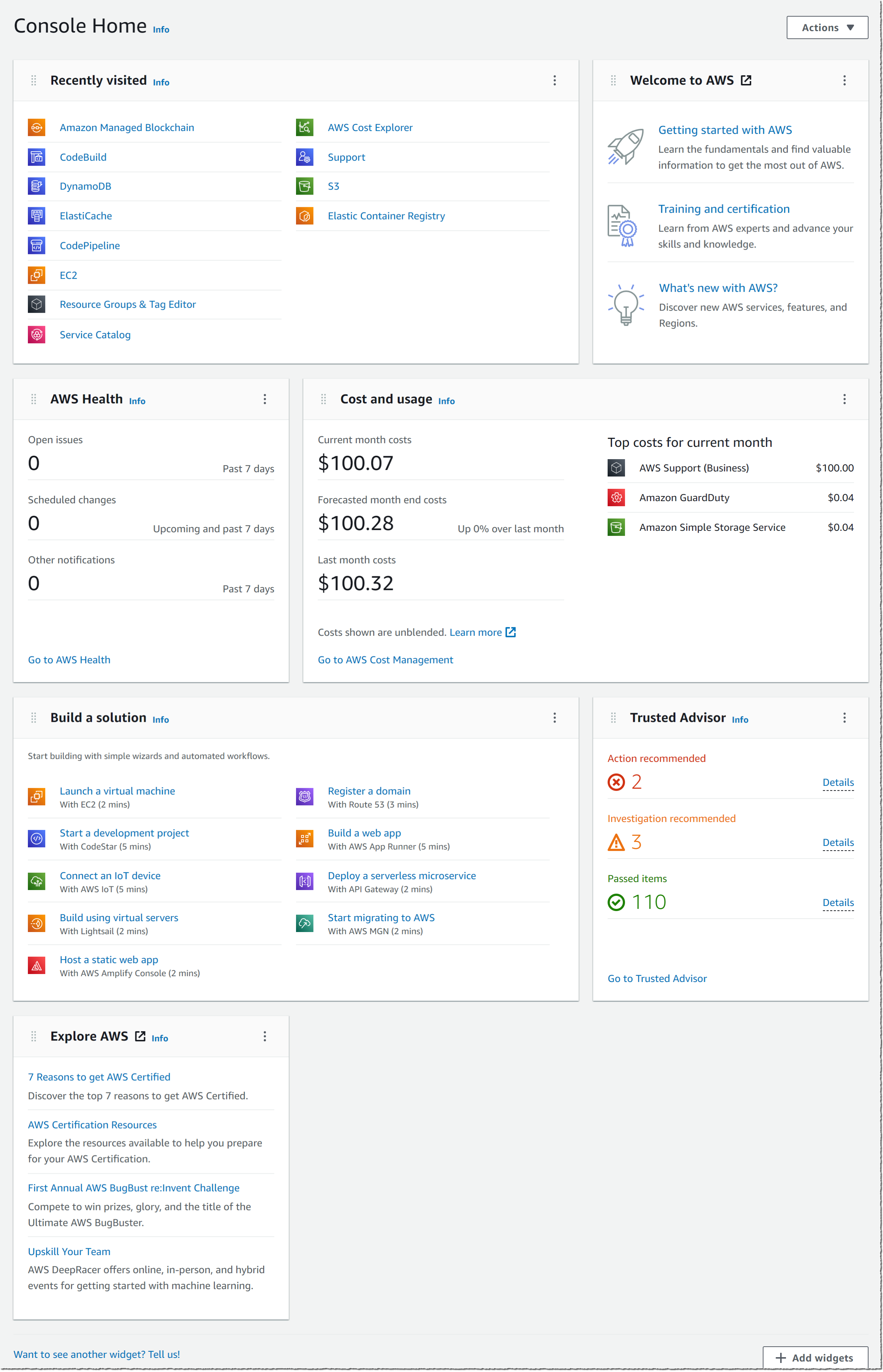
The screenshot below shows the default view of this new console home page:

New console default layout

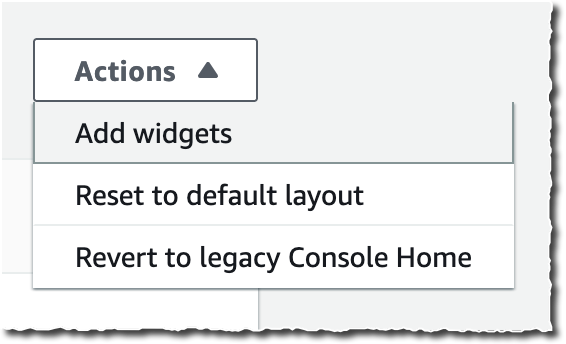
New console homepage action

The new Console Home is made of widgets. I may choose which widget to display on the page and where to include it. I may use the actions in the Actions drop down to customize my home page.

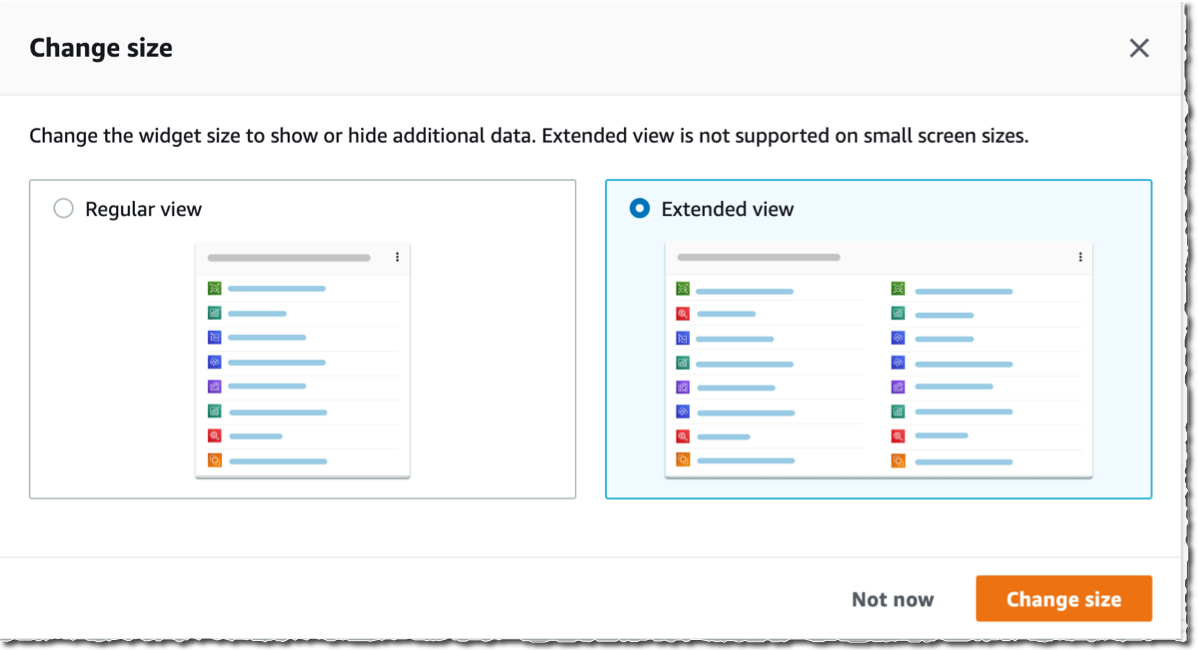
I may move and arrange widgets on the home page to organize the content as I want. When I click on the three little dots on the widget title bar, I may choose to remove the widget or resize it. I have the choice between Regular view and Extended view.

New console resize widget

At launch, the console provides eight widgets, and we will add more over time. Three widgets provide me with static links to learn how to build a solution or to explore AWS (Welcome to AWS, Build a Solution and Explore AWS). The other five are dynamic; their content depends on the usage of AWS by my applications and infrastructure:

  • AWS Health: this widget provides information on important events and changes
  • Cost and usage: this widget provides an overview of service costs, with a break down per AWS service.
  • Favorites: this widget shows a list of services that I have bookmarked
  • Recently visited: this widget provides the list of top recently visited services
  • Trusted Advisor: this widget provides recommendations to follow AWS best practices

AWS News Console List of widgets

As usual, we pay attention to the importance of not disturbing existing workflows and habits. You can use the new Console Home after opt-in. You can revert back to the old console home with a simple click.

This new Console Home is the first step to bring you more relevant content on this very first page you see every day. Stay tuned for more.

The new Console Home is available today in all AWS Regions at no additional cost. Go and customize your console homepage today.

— seb

Amazon Elastic Kubernetes Service Adds IPv6 Networking

Post Syndicated from Sébastien Stormacq original https://aws.amazon.com/blogs/aws/amazon-elastic-kubernetes-service-adds-ipv6-networking/

Starting today, you can deploy applications that use IPv6 address space on Amazon Elastic Kubernetes Service (EKS).

Many of our customers are standardizing Kubernetes as their compute infrastructure platform for cloud and on-premises applications. Amazon EKS makes it easy to deploy containerized workloads. It provides highly available clusters and automates tasks such as patching, node provisioning, and updates.

Kubernetes uses a flat networking model that requires each pod to receive an IP address. This simplified approach enables low-friction porting of applications from virtual machines to containers but requires a significant number of IP addresses that many private VPC IPv4 networks are not equipped to handle. Some cluster administrators work around this IPv4 space limitation by installing container network plugins (CNI) that virtualize IP addresses a layer above the VPC, but this architecture limits an administrator’s ability to effectively observe and troubleshoot applications and has a negative impact on network performance at scale. Further, to communicate with internet services outside the VPC, traffic from IPv4 pods is routed through multiple network hops before reaching its destination, which adds latency and puts a strain on network engineering teams who need to maintain complex routing setups.

To avoid IP address exhaustion, minimize latency at scale, and simplify routing configuration, the solution is to use IPv6 address space.

IPv6 is not new. In 1996, I bought my first book on “IPng, Internet Protocol Next Generation”, as it was called 25 years ago. It provides a 64-bit address space, allowing 3.4 x 10^38 possible IP addresses for our devices, servers, or containers. We could assign an IPv6 address to every atom on the surface of the planet and still have enough addresses left to do another 100-plus Earths.

IPng Internet protocol Next Generation bookThere are a few advantages to using Amazon EKS clusters with an IPv6 network. First, you can run more pods on one single host or subnet without the risk of exhausting all available IPv4 addresses available in your VPC. Second, it allows for lower-latency communications with other IPv6 services, running on-premises, on AWS, or on the internet, by avoiding an extra NAT hop. Third, it relieves network engineers of the burden of maintaining complex routing configurations.

Kubernetes cluster administrators can focus on migrating and scaling applications without spending efforts working around IPv4 limits. Finally, pod networking is configured so that the pods can communicate with IPv4-based applications outside the cluster, allowing you to adopt the benefits of IPv6 on Amazon EKS without requiring that all dependent services deployed across your organization are first migrated to IPv6.

As usual, I built a short demo to show you how it works.

How It Works
Before I get started, I create an IPv6 VPC. I use this CDK script to create an IPv6-enabled VPC in a few minutes (thank you Angus Lees for the code). Just install CDK v2 (npm install -g aws-cdk@next) and deploy the stack (cdk bootstrap && cdk deploy).

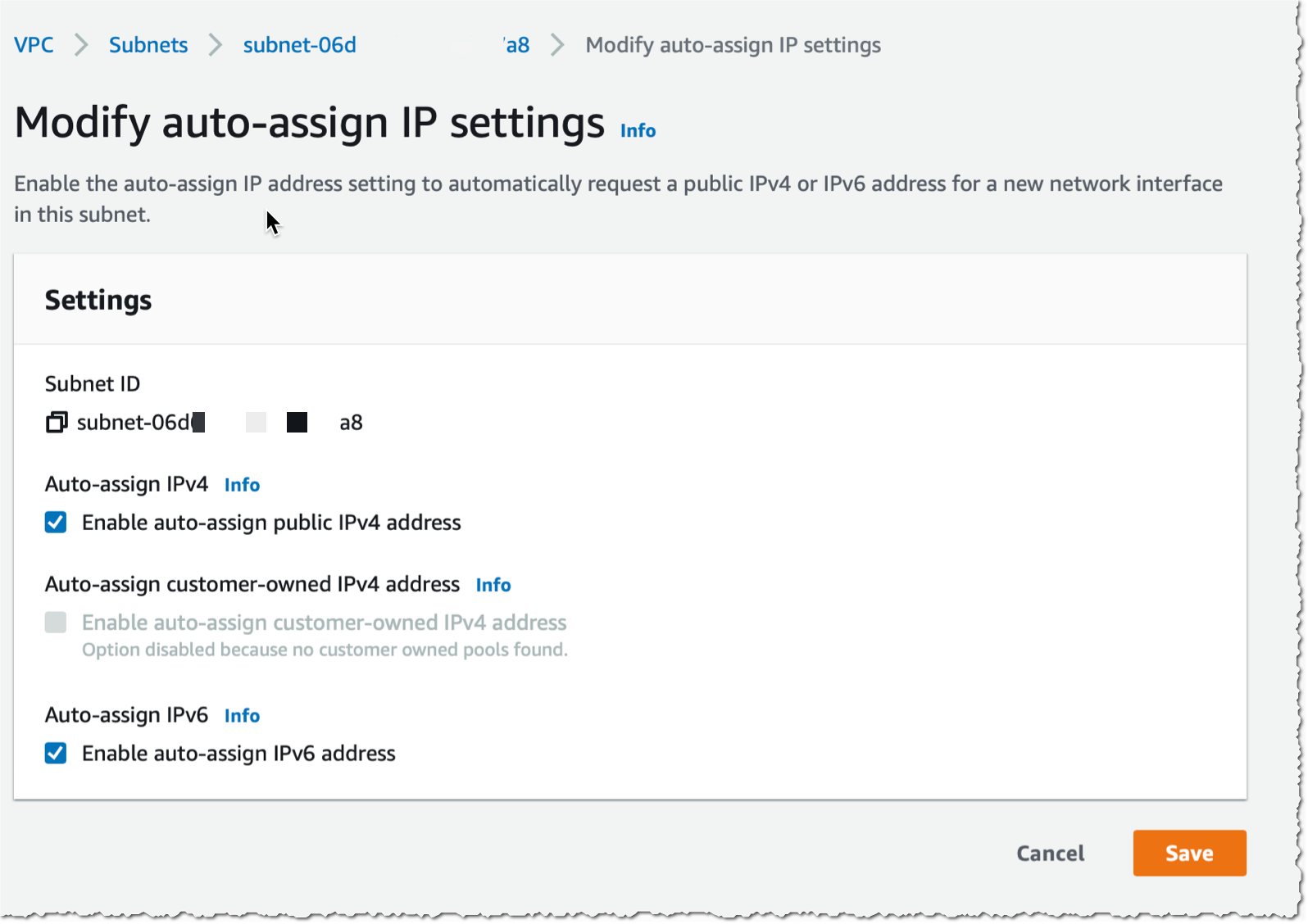
When the VPC with IPv6 is created, I use the console to configure auto-assignment of IPv6 addresses to resources deployed in the public subnets (I do this for each public subnet).

auto assign IPv6 addresses in subnet

I take note of the subnet IDs created by the CDK script above (they are listed in the output of the script) and define a couple of variables I’ll use throughout the demo. I also create a cluster IAM role and a node IAM role, as described in the Amazon EKS documentation. When you already have clusters deployed, these two roles exist already.

I open a Terminal and type:


CLUSTER_ROLE_ARN="arn:aws:iam::0123456789:role/EKSClusterRole"
NODE_ROLE_ARN="arn:aws:iam::0123456789:role/EKSNodeRole"
SUBNET1="subnet-06000a8"
SUBNET2="subnet-03000cc"
CLUSTER_NAME="AWSNewsBlog"
KEYPAIR_NAME="my-key-pair-name"

Next, I create an Amazon EKS IPv6 cluster. In a terminal, I type:


aws eks create-cluster --cli-input-json "{
\"name\": \"${CLUSTER_NAME}\",
\"version\": \"1.21\",
\"roleArn\": \"${CLUSTER_ROLE_ARN}\",
\"resourcesVpcConfig\": {
\"subnetIds\": [
    \"${SUBNET1}\", \"${SUBNET2}\"
],
\"endpointPublicAccess\": true,
\"endpointPrivateAccess\": true
},
\"kubernetesNetworkConfig\": {
    \"ipFamily\": \"ipv6\"
}
}"

{
    "cluster": {
        "name": "AWSNewsBlog",
        "arn": "arn:aws:eks:us-west-2:486652066693:cluster/AWSNewsBlog",
        "createdAt": "2021-11-02T17:29:32.989000+01:00",
        "version": "1.21",

...redacted for brevity...

        "status": "CREATING",
        "certificateAuthority": {},
        "platformVersion": "eks.4",
        "tags": {}
    }
}

I use the describe-cluster while waiting for the cluster to be created. When the cluster is ready, it has "status" : "ACTIVE"

aws eks describe-cluster --name "${CLUSTER_NAME}"

Then I create a node group:

aws eks create-nodegroup                       \
        --cluster-name ${CLUSTER_NAME}         \
        --nodegroup-name AWSNewsBlog-nodegroup \
        --node-role ${NODE_ROLE_ARN}           \
        --subnets "${SUBNET1}" "${SUBNET2}"    \
        --remote-access ec2SshKey=${KEYPAIR_NAME}
		
{
    "nodegroup": {
        "nodegroupName": "AWSNewsBlog-nodegroup",
        "nodegroupArn": "arn:aws:eks:us-west-2:0123456789:nodegroup/AWSNewsBlog/AWSNewsBlog-nodegroup/3ebe70c7-6c45-d498-6d42-4001f70e7833",
        "clusterName": "AWSNewsBlog",
        "version": "1.21",
        "releaseVersion": "1.21.4-20211101",

        "status": "CREATING",
        "capacityType": "ON_DEMAND",

... redacted for brevity ...

}		

Once the node group is created, I see two EC2 instances in the console. I use the AWS Command Line Interface (CLI) to verify that the instances received an IPv6 address:

aws ec2 describe-instances --query "Reservations[].Instances[? State.Name == 'running' ][].NetworkInterfaces[].Ipv6Addresses" --output text 

2600:1f13:812:0000:0000:0000:0000:71eb
2600:1f13:812:0000:0000:0000:0000:3c07

I use the kubectl command to verify the cluster from a Kubernetes point of view.

kubectl get nodes -o wide

NAME                                       STATUS   ROLES    AGE     VERSION               INTERNAL-IP                              EXTERNAL-IP    OS-IMAGE         KERNEL-VERSION                CONTAINER-RUNTIME
ip-10-0-0-108.us-west-2.compute.internal   Ready    <none>   2d13h   v1.21.4-eks-033ce7e   2600:1f13:812:0000:0000:0000:0000:2263   18.0.0.205   Amazon Linux 2   5.4.149-73.259.amzn2.x86_64   docker://20.10.7
ip-10-0-1-217.us-west-2.compute.internal   Ready    <none>   2d13h   v1.21.4-eks-033ce7e   2600:1f13:812:0000:0000:0000:0000:7f3e   52.0.0.122   Amazon Linux 2   5.4.149-73.259.amzn2.x86_64   docker://20.10.7

Then I deploy a Pod. I follow these steps in the EKS documentation. It deploys a sample nginx web server.

kubectl create namespace aws-news-blog
namespace/aws-news-blog created

# sample-service.yml is available at https://docs.aws.amazon.com/eks/latest/userguide/sample-deployment.html
kubectl apply -f  sample-service.yml 
service/my-service created
deployment.apps/my-deployment created

kubectl get pods -n aws-news-blog -o wide
NAME                             READY   STATUS    RESTARTS   AGE   IP                           NODE                                       NOMINATED NODE   READINESS GATES
my-deployment-5dd5dfd6b9-7rllg   1/1     Running   0          17m   2600:0000:0000:0000:405b::2   ip-10-0-1-217.us-west-2.compute.internal   <none>           <none>
my-deployment-5dd5dfd6b9-h6mrt   1/1     Running   0          17m   2600:0000:0000:0000:46f9::    ip-10-0-0-108.us-west-2.compute.internal   <none>           <none>
my-deployment-5dd5dfd6b9-mrkfv   1/1     Running   0          17m   2600:0000:0000:0000:46f9::1   ip-10-0-0-108.us-west-2.compute.internal   <none>           <none>

I take note of the IPv6 address of my pods, and try to connect it from my laptop. As my awesome service provider doesn’t provide me with an IPv6 at home yet, the connection fails. This is expected as the pods do not have an IPv4 address at all. Notice the -g option telling curl to not consider : in the IP address as the separator for the port number and -6 to tell curl to connect through IPv6 only (required when you provide curl with a DNS hostname).

curl -g -6 http://\[2600:0000:0000:35000000:46f9::1\]
curl: (7) Couldn't connect to server

To test IPv6 connectivity, I start a dual stack (IPv4 and IPv6) EC2 instance in the same VPC as the cluster. I SSH connect to the instance and try the curl command again. I see I receive the default HTML page served by nginx. IPv6 connectivity to the pod works!

curl -g -6 http://\[2600:0000:0000:35000000:46f9::1\]
<!DOCTYPE html>
<html>
<head>
<title>Welcome to nginx!</title>

... redacted for brevity ...

<p><em>Thank you for using nginx.</em></p>
</body>
</html>

If it does not work for you, verify the security group for the cluster EC2 nodes and be sure it has a rule allowing incoming connections on port TCP 80 from ::/0.

A Few Things to Remember
Before I wrap up, I’d like to answer some frequent questions received from customers who have already experimented with this new capability:

Pricing and Availability
IPv6 support for your Amazon Elastic Kubernetes Service (EKS) cluster is available today in all AWS Regions where Amazon EKS is available, at no additional cost.

Go try it out and build your first IPv6 cluster today.

— seb

Use New Amazon EC2 M1 Mac Instances to Build & Test Apps for iPhone, iPad, Mac, Apple Watch, and Apple TV

Post Syndicated from Sébastien Stormacq original https://aws.amazon.com/blogs/aws/use-amazon-ec2-m1-mac-instances-to-build-test-macos-ios-ipados-tvos-and-watchos-apps/

Last year at AWS re:Invent, Jeff Barr wrote about the exciting availability of Amazon Elastic Compute Cloud (Amazon EC2) Mac instances. Today, we’re announcing the preview of a new EC2 M1 Mac instance.

The introduction of EC2 Mac instances brought the flexibility, scalability, and cost benefits of AWS to all Apple developers. EC2 Mac instances are dedicated Mac mini computers attached through Thunderbolt to the AWS Nitro System, which lets the Mac mini appear and behave like another EC2 instance. It connects to your Amazon Virtual Private Cloud (VPC), boot from Amazon Elastic Block Store (EBS) volumes, and leverage EBS snapshots, security groups and other AWS services. EC2 Mac instances let you scale your build and test fleets of Macs, paying as you go. There is no hypervisor involved, and you get full bare metal performance of the underlying Mac mini. An EC2 dedicated host reserves a Mac mini for your usage.

The availability (in preview) of EC2 M1 Mac instances lets you access machines built around the Apple-designed M1 System on Chip (SoC). If you are a Mac developer and re-architecting your apps to natively support Macs with Apple silicon, you may now build and test your apps and take advantage of all the benefits of AWS. Developers building for iPhone, iPad, Apple Watch, and Apple TV will also benefit from faster builds. EC2 M1 Mac instances deliver up to 60% better price performance over the x86-based EC2 Mac instances for iPhone and Mac app build workloads.

EC2 M1 Mac instances are powered by a combination of two hardware components:

  • The Mac mini, featuring M1 SoC with 8 CPU cores, 8 GPU cores, 16 GiB of memory, and a 16 core Apple Neural Engine.
  • The AWS Nitro System, providing up to 10 Gbps of VPC network bandwidth and 8 Gbps of EBS storage bandwidth through a high-speed Thunderbolt connection.

How to Get Started
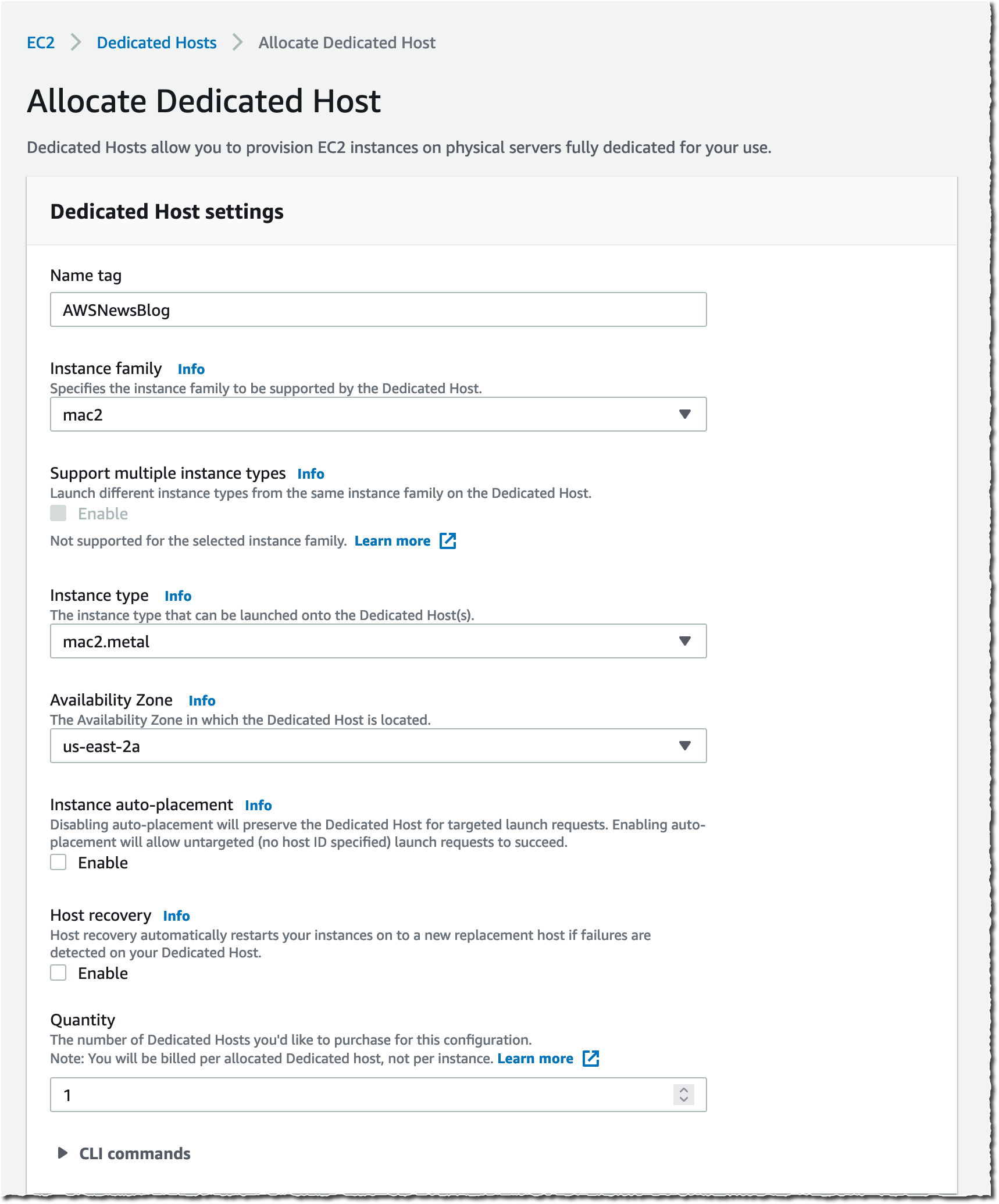
As I explained previously, when using EC2 Mac instances, there is no virtual machine involved. These are running on bare metal servers, each hosting a Mac mini. The first step, therefore, involves grabbing a dedicated server. I open the AWS Management Console, navigate to the Amazon EC2 section, then I select Dedicated Hosts. I select Allocate Dedicated Host to allocate a server to my AWS account.

EC2 Mac2 Instances - Dedicated Hosts

Alternatively, I may use the AWS Command Line Interface (CLI).

➜  ~ aws ec2 allocate-hosts                  \
         --instance-type mac2.metal          \
         --availability-zone us-east-2b      \
         --quantity 1 
{
    "HostIds": [
        "h-0fxxxxxxx90"
    ]
}

Once the host is allocated, I start an EC2 instance on it. The procedure is no different from starting any EC2 instance type. I just have to ensure I select a macOS AMI version that suits my requirements. I select the mac2.metal instance type and select host Tenancy and the dedicated Host I just created.

EC2 Dedicated TenancyAlternatively, I may use the CLI.

➜ ~ aws ec2 run-instances                                     \
	    --instance-type mac2.metal                             \
        --key-name my_key                                      \
        --placement HostId=h-0fxxxxxxx90                       \
        --security-group-ids sg-01000000000000032              \
        --image-id AWS_OR_YOUR_AMI_ID
{
    "Groups": [],
    "Instances": [
        {
            "AmiLaunchIndex": 0,
            "ImageId": "ami-01xxxxbd",
            "InstanceId": "i-08xxxxx5c",
            "InstanceType": "mac2.metal",
            "KeyName": "my_key",
            "LaunchTime": "2021-11-08T16:47:39+00:00",
            "Monitoring": {
                "State": "disabled"
            },
... redacted for brevity ....

When you use EC2 Mac instances for the first time, you’re likely to ask questions such as, “How do I connect through Apple Remote Desktop?” or “How do I increase the size of the APFS file system on the EBS volume?” The EC2 Mac documentation covers the answers for you and provides examples of commands to run on macOS to perform these common tasks.

I use SSH to connect to the newly launched instance as usual.

EC2 Mac M1 Instance uname -a

I may enable Apple Remote Desktop and start a VNC session to the EC2 instance. The EC2 Mac instance documentation page has the details.

mac2 GUI VNC

Availability and Pricing
EC2 M1 Mac instances are now available in preview in US East (N. Virginia) and US West (Oregon), with other AWS Regions coming at launch.

Pricing metrics are similar to the previous generation of EC2 Mac instances. You are charged per hour of reservation of the dedicated host, not for the time the instance is running, and there is a minimum charge of 24 hours for reserving a dedicated host.

In the two preview Regions, the on-demand price is $0.6498 per hour. You can save up to 42 percent over the on-demand price with Savings Plans. Check our Dedicated Host on-demand pricing page, as well as the Savings Plans page to learn the details.

You can sign up for the preview of EC2 Mac M1 instances today!

— seb

New – Site-to-Site Connectivity with AWS Direct Connect SiteLink

Post Syndicated from Sébastien Stormacq original https://aws.amazon.com/blogs/aws/new-site-to-site-connectivity-with-aws-direct-connect-sitelink/

We are launching AWS Direct Connect SiteLink, a new capability of AWS Direct Connect that lets you create connections between your on-premises networks through the AWS global network backbone.

Until today, when you needed direct connectivity between your data centers or branch offices, you had to rely on public internet or expensive and hard-to-deploy fixed networks. These are geographically constrained and can be tied to long-term contracts. This rigidity becomes a pain point as you expand your businesses globally. In turn, you’re required to create custom workarounds to interconnect networks from different providers, which increases your operating costs.

Starting today, you may connect your sites through Direct Connect locations, without sending your traffic through an AWS Region. We have 108 Direct Connect locations available in 32 countries as I am writing this post, located across Africa, Americas, Asia-Pacific, Europe, and the Middle East. Traffic flows from one Direct Connect location to another following the shortest possible path. You no longer need to connect through the closest AWS Region and manage and configure an AWS Transit Gateway for site-to-site network connectivity.

You can take advantage of Direct Connect’s reliability and global footprint to build a network that grows with your business, with no long-term contracts, flexible pay-as-you-go pricing, and a wide range of port-speeds, from 50 Mbps to 100 Gbps. SiteLink also integrates with other AWS services, letting you reach your VPCs, other AWS services, and your on-premises networks from your Direct Connect connections.

When talking about network topology, a small diagram is always more descriptive than long phrases.

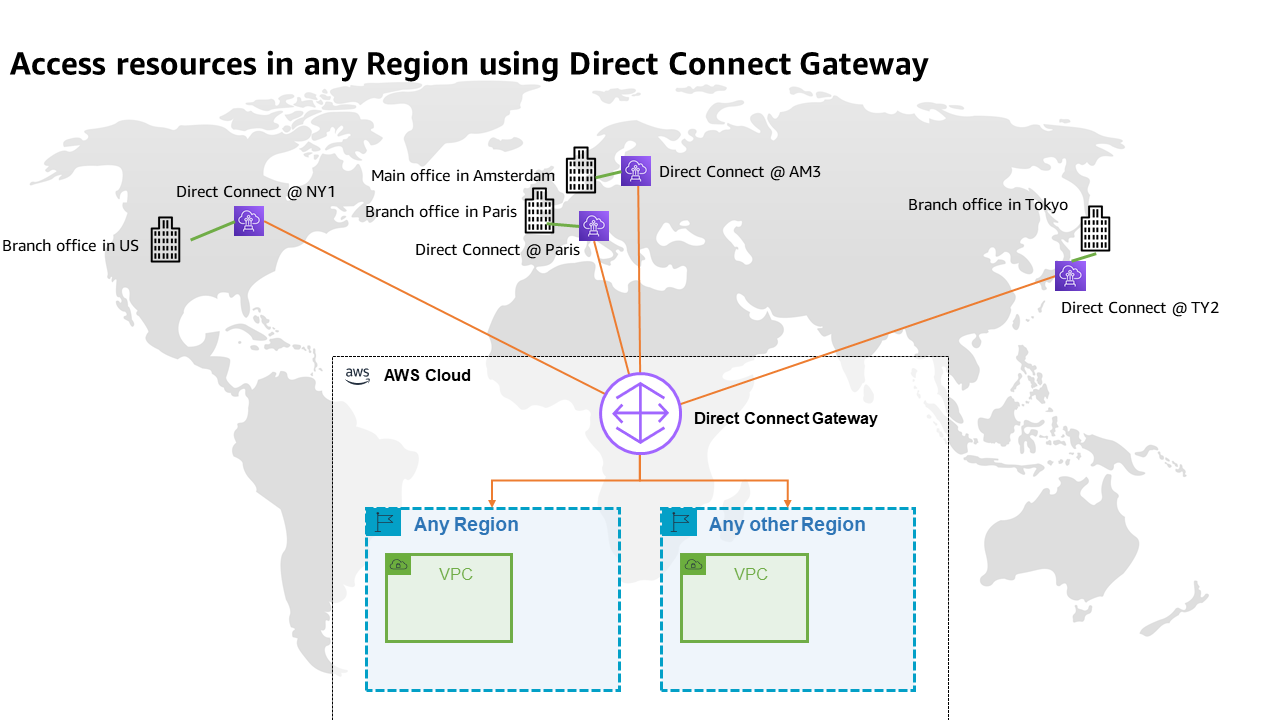
The following diagram shows the way that you use Direct Connect today. Direct Connect is currently optimized to let you reach your AWS Resources running in any Region as quickly as possible. Sending data from one Direct Connect location to another is not possible.

Once you connect your locations (NY1, AM3, Paris, and TY2 in the diagram) to a Direct Connect gateway, those connections can reach any AWS Region (except the two AWS China Regions). No peering between Regions is necessary, because Direct Connect gateways are global resources.

Site-to-site connectivity without SiteLink

The following diagram shows how you connect multiple sites using SiteLink. The data flows between Direct Connect locations without going through an AWS Region.

Site-to-site connectivity with SiteLink

How to Get Started?
Configuring these connections is very similar to what you do today. The first step is to connect my network to Direct Connect locations. After that, SiteLink can be enabled or disabled in minutes.

Using the AWS Management Console, I navigate to the Direct Connect section, and I select Create virtual interface to create a virtual interface. Under the Additional Settings section, I make sure the SiteLink switch is turned on. Obviously, I repeat this on another virtual interface, once per site, to connect.

SiteLink - enable sitelink for VIF

I have access to similar monitoring dashboards and metrics published to CloudWatch. I select my virtual interface, and then navigate to the Monitoring tab (hopefully your ViF will have more data available than mine that was created just for this post).

SiteLink VIF Monitoring

Availability and Pricing
You can connect your on-premises networks or branch offices to any of our Direct Connect locations available today, except in China.

Pricing is pay-as-you-go, with no commitment or recurring fees. In addition to existing Direct Connect charges, your monthly bill will include a price-per-hour for SiteLink virtual interfaces, as well as the cost of SiteLink data transfer. Check the pricing page to get the details.

Go ahead an start connecting your on-premises locations together with Direct Connect SiteLink!

— seb

Enhanced Amazon S3 Integration for Amazon FSx for Lustre

Post Syndicated from Sébastien Stormacq original https://aws.amazon.com/blogs/aws/enhanced-amazon-s3-integration-for-amazon-fsx-for-lustre/

Today, we are announcing two additional capabilities of Amazon FSx for Lustre. First, a full bi-directional synchronization of your file systems with Amazon Simple Storage Service (Amazon S3), including deleted files and objects. Second, the ability to synchronize your file systems with multiple S3 buckets or prefixes.

Lustre is a large scale, distributed parallel file system powering the workloads of most of the largest supercomputers. It is popular among AWS customers for high-performance computing workloads, such as meteorology, life-science, and engineering simulations. It is also used in media and entertainment, as well as the financial services industry.

I had my first hands-on Lustre file systems when I was working for Sun Microsystems. I was a pre-sales engineer and worked on some deals to sell multimillion-dollar compute and storage infrastructure to financial services companies. Back then, having access to a Lustre file system was a luxury. It required expensive compute, storage, and network hardware. We had to wait weeks for delivery. Furthermore, it required days to install and configure a cluster.

Fast forward to 2021, I may create a petabyte-scale Lustre cluster and attach the file system to compute resources running in the AWS cloud, on-demand, and only pay for what I use. There is no need to know about Storage Area Networks (SAN), Fiber Channel (FC) fabric, and other underlying technologies.

Modern applications use different storage options for different workloads. It is common to use S3 object storage for data transformation, preparation, or import/export tasks. Other workloads may require POSIX file-systems to access the data. FSx for Lustre lets you synchronize objects stored on S3 with the Lustre file system to meet these requirements.

When you link your S3 bucket to your file system, FSx for Lustre transparently presents S3 objects as files and lets you to write results back to S3.

Full Bi-Directional Synchronization with Multiple S3 Buckets
If your workloads require a fast, POSIX-compliant file system access to your S3 buckets, then you can use FSx for Lustre to link your S3 buckets to a file system and keep data synchronized between the file system and S3 in both directions. However, until today, there were a couple limitations. First, you had to manually configure a task to export data back from FSx for Lustre to S3. Second, deleted files on S3 were not automatically deleted from the file system. And third, an FSx for Lustre file system was synchronized with one S3 bucket only. We are addressing these three challenges with this launch.

Starting today, when you configure an automatic export policy for your data repository association, files on your FSx for Lustre file system are automatically exported to your data repository on S3. Next, deleted objects on S3 are now deleted from the FSx for Lustre file system. The opposite is also available: deleting files on FSx for Lustre triggers the deletion of corresponding objects on S3. Finally, you may now synchronize your FSx for Lustre file system with multiple S3 buckets. Each bucket has a different path at the root of your Lustre file system. For example your S3 bucket logs may be mapped to /fsx/logs and your other financial_data bucket may be mapped to /fsx/finance.

These new capabilities are useful when you must concurrently process data in S3 buckets using both a file-based and an object-based workflow, as well as share results in near real time between these workflows. For example, an application that accesses file data can do so by using an FSx for Lustre file system linked to your S3 bucket, while another application running on Amazon EMR may process the same files from S3.

Moreover, you may link multiple S3 buckets or prefixes to a single FSx for Lustre file system, thereby enabling a unified view across multiple datasets. Now you can create a single FSx for Lustre file system and easily link multiple S3 data repositories (S3 buckets or prefixes). This is convenient when you use multiple S3 buckets or prefixes to organize and manage access to your data lake, access files from a public S3 bucket (such as these hundreds of public datasets) and write job outputs to a different S3 bucket, or when you want to use a larger FSx for Lustre file system linked to multiple S3 datasets to achieve greater scale-out performance.

How It Works
Let’s create an FSx for Lustre file system and attach it to an Amazon Elastic Compute Cloud (Amazon EC2) instance. I make sure that the file system and instance are in the same VPC subnet to minimize data transfer costs. The file system security group must authorize access from the instance.

I open the AWS Management Console, navigate to FSx, and select Create file system. Then, I select Amazon FSx for Lustre. I am not going through all of the options to create a file system here, you can refer to the documentation to learn how to create a file system. I make sure that Import data from and export data to S3 is selected.

Lustre - enable S3 synchronizationIt takes a few minutes to create the file system. Once the status is ✅ Available, I navigate to the Data repository tab, and then select Create data repository association.
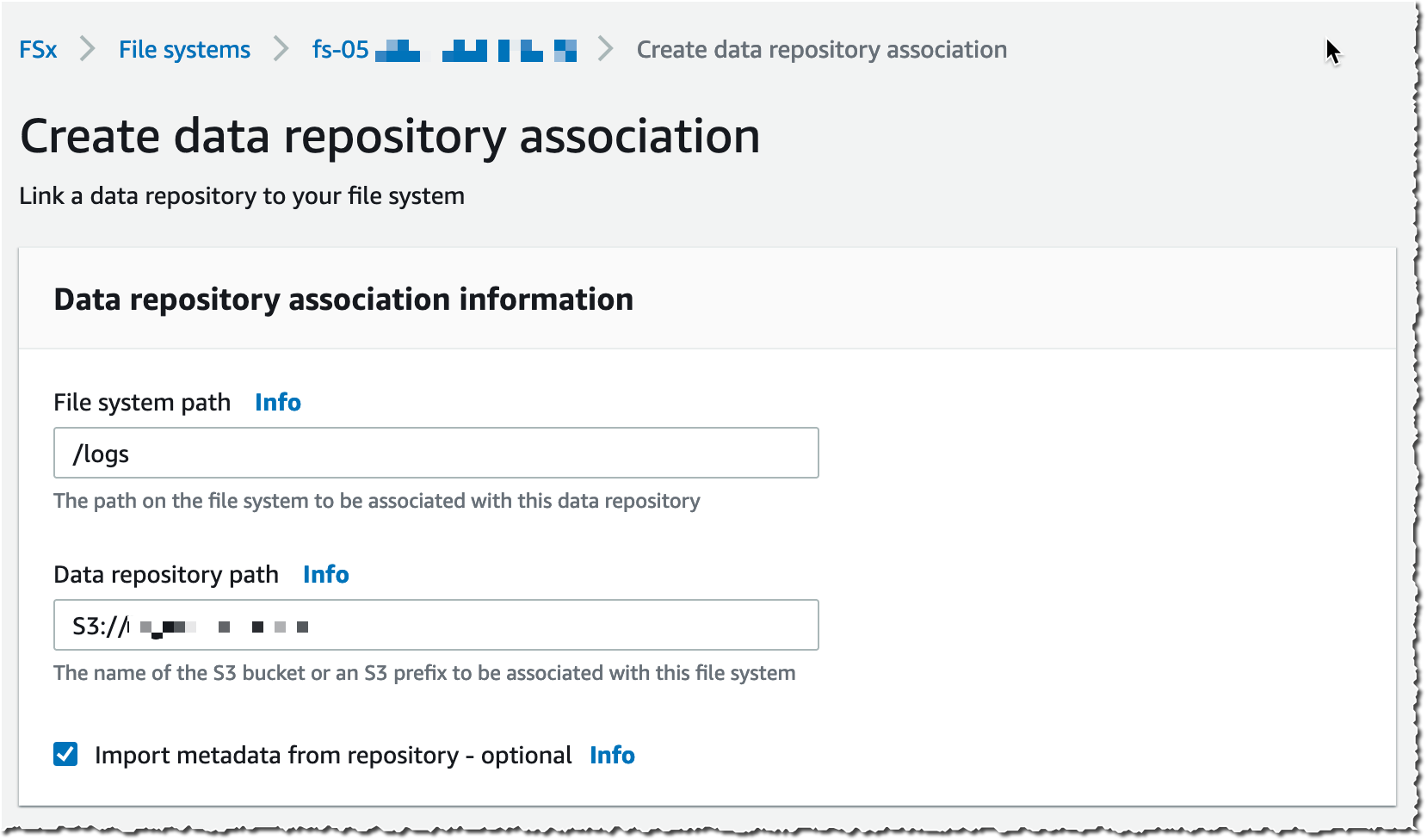
I choose a Data Repository path (my source S3 bucket) and a file system path (where in the file system that bucket will be imported).

FsX Lustre Data repository

Then, I choose the Import policy and Export policy. I may synchronize the creation of file/objects, their updates, and when they are deleted. I select Create.

FsX Lustre Data repository import policies

When I use automatic import, I also make sure to provide an S3 bucket in the same AWS Region as the FSx for Lustre cluster. FSx for Lustre supports linking to an S3 bucket in a different AWS Region for automatic export and all other capabilities.

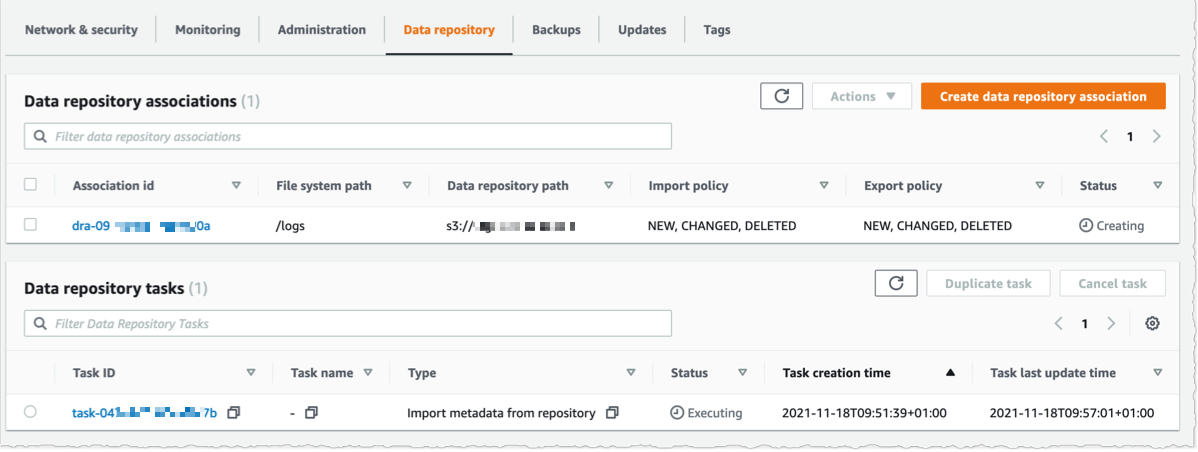
Using the console, I see the list of Data repository associations. I wait for the import task status to become ✅ Succeeded. If I link the file system to an S3 bucket with a large number of objects, then I may choose to skip Importing metadata from repository while creating the data repository association, and then load metadata from selected prefixes in my S3 buckets that are required for my workload using an Import task.

FsX for lustre - meta data repository tasks

I create an EC2 instance in the same VPC subnet. Furthermore, I make sure that the FSx for Lustre cluster security group authorizes ingress traffic from the EC2 instance. I use SSH to connect to the instance, and then type the following commands (commands are prefixed with the $ sign that is part of my shell prompt).

# check kernel version, minimum version 4.14.104-95.84 is required 
$ uname -r
4.14.252-195.483.amzn2.aarch64

# install lustre client 
$ sudo amazon-linux-extras install -y lustre2.10
Installing lustre-client
...
Installed:
  lustre-client.aarch64 0:2.10.8-5.amzn2                                                                                                                        

Complete!

# create a mount point 
$ sudo mkdir /fsx

# mount the file system 
$ sudo mount -t lustre -o noatime,flock fs-00...9d.fsx.us-east-1.amazonaws.com@tcp:/ny345bmv /fsx

# verify mount succeeded
$ mount 
...
172.0.0.0@tcp:/ny345bmv on /fsx type lustre (rw,noatime,flock,lazystatfs)

Then, I verify that the file system contains the S3 objects, and I create a new file using the touch command.

Fsx Lustre - check file system

I switch to the AWS Console, under S3 and then my bucket name, and I verify that the file has been synchronized.

Fsx Lustre - check s3

Using the console, I delete the file from S3. And, unsurprisingly, after a few seconds, the file is also deleted from the FSx file system.

Fsx Lustre - check file systems - deleted

Pricing and Availability
These new capabilities are available at no additional cost on Amazon FSx for Lustre file systems. Automatic export and multiple repositories are only available on Persistent 2 file systems in US East (N. Virginia), US East (Ohio), US West (Oregon), Canada (Central), Asia Pacific (Tokyo), Europe (Frankfurt), and Europe (Ireland). Automatic import with support for deleted and moved objects in S3 is available on file systems created after July 23, 2020 in all regions where FSx for Lustre is available.

You can configure your file system to automatically import S3 updates by using the AWS Management Console, the AWS Command Line Interface (CLI), and AWS SDKs.

Learn more about using S3 data repositories with Amazon FSx for Lustre file systems.

One More Thing
One more thing while you are reading. Today, we also launched the next generation of FSx for Lustre file systems. FSx for Lustre next-gen file systems are built on AWS Graviton processors. They are designed to provide you with up to 5x higher throughput per terabyte (up to 1 GB/s per terabyte) and reduce your cost of throughput by up to 60% as compared to previous generation file systems. Give it a try today!

— seb

PS : my colleague Michael recorded a demo video to show you the enhanced S3 integration for FSx for Lustre in action. Check it out today.

Preview – AWS Backup Adds Support for Amazon S3

Post Syndicated from Sébastien Stormacq original https://aws.amazon.com/blogs/aws/preview-aws-backup-adds-support-for-amazon-s3/

Starting today, you can preview AWS Backup for Amazon Simple Storage Service (Amazon S3).

AWS Backup is a fully managed, policy-based service that lets you to centralize and automate the backup and restore of your applications spanning across 12 AWS services: Amazon Elastic Compute Cloud (Amazon EC2) instances, Amazon Elastic Block Store (EBS) volumes, Amazon Relational Database Service (RDS) databases (including Amazon Aurora clusters), Amazon DynamoDB tables, Amazon Neptune databases, Amazon DocumentDB (with MongoDB compatibility) databases, Amazon Elastic File System (Amazon EFS) file systems, Amazon FSx for Lustre file systems, Amazon FSx for Windows File Server file systems, AWS Storage Gateway volumes, and now Amazon S3 (in preview).

Modern workloads and systems are leveraging different storage options for different functionalities. In the 21st century, it is normal to build applications relying on non-relational and relational databases, shared file storage, and object storage, just to name of few. When operating and managing these applications, you told us that you wanted centralized protection and provable compliance for application data stored in S3 alongside other AWS services for storage, compute, and databases.

I can see three benefits when integrating Amazon Simple Storage Service (Amazon S3) with your data protection policies in AWS Backup.

First, it lets you centrally manage your applications backups: AWS Backup provides an automated solution to centrally configure backup policies, thereby helping you simplify backup lifecycle management. This also makes it easy to ensure that your application data across AWS services (including S3) is centrally backed up.

Second, it lets you easily restore your data: AWS Backup provides a single-click-restore experience for your S3 data. This lets you perform point-in-time restores of your S3 buckets and objects to a new or existing S3 bucket.

Finally, it improves backup compliance: AWS Backup provides built-in dashboards that let you to track backup and restore operations for S3.

AWS Backup for S3 (Preview) lets you create continuous point-in-time backups along with periodic backups of S3 buckets, including object data, object tags, access control lists (ACLs), and user-defined metadata. The first backup is a full snapshot, while subsequent backups are incremental. If there is a data disruption event, then you choose a backup from the backup vault, and restore an S3 bucket (or individual S3 objects) to a new or existing S3 bucket. AWS Backup is integrated with AWS Organizations, which let you use a single policy across AWS accounts (within your Organizations) to automate backup creation and backup access management.

Furthermore, you can turn on AWS Backup Vault Lock to enable delete protection of the data that you protect with AWS Backup, and thereby improving protection of your immutable backups from accidental deletion or malicious re-encryption.

How to Get Started
AWS Backup works with versioned S3 buckets. Before you get started, turn on S3 Versioning on your buckets to backup.

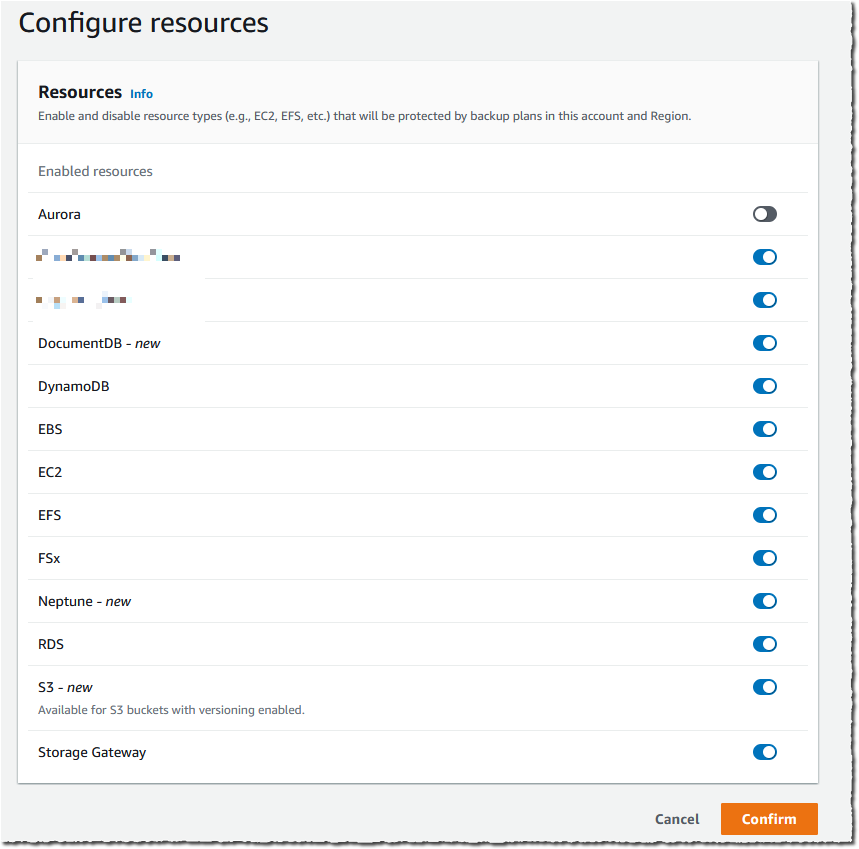
I must enable S3 in AWS Backup Settings when I use this feature for the first time. Using the AWS Management Console, I navigate to AWS Backup, then select Settings and Configure resources. I enable S3, and select Confirm. This is a one-time operation.

AWS Backup - optin S3

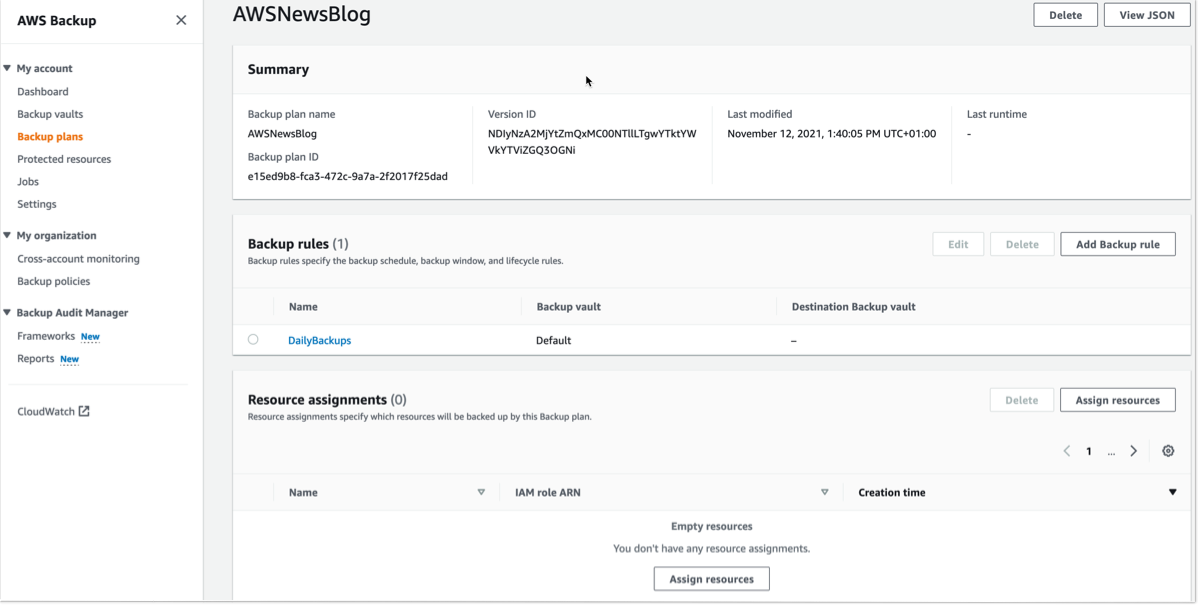
For this demo, I already have an existing backup plan, and I want to add an S3 bucket to this plan. If you want to create a new backup plan, then you can refer to AWS Backup‘s technical documentation.

To start including my S3 objects in my backup plan, I open the AWS Management Console, navigate to Backup plans, and select Assign resources.

AWS Backup Add Resources

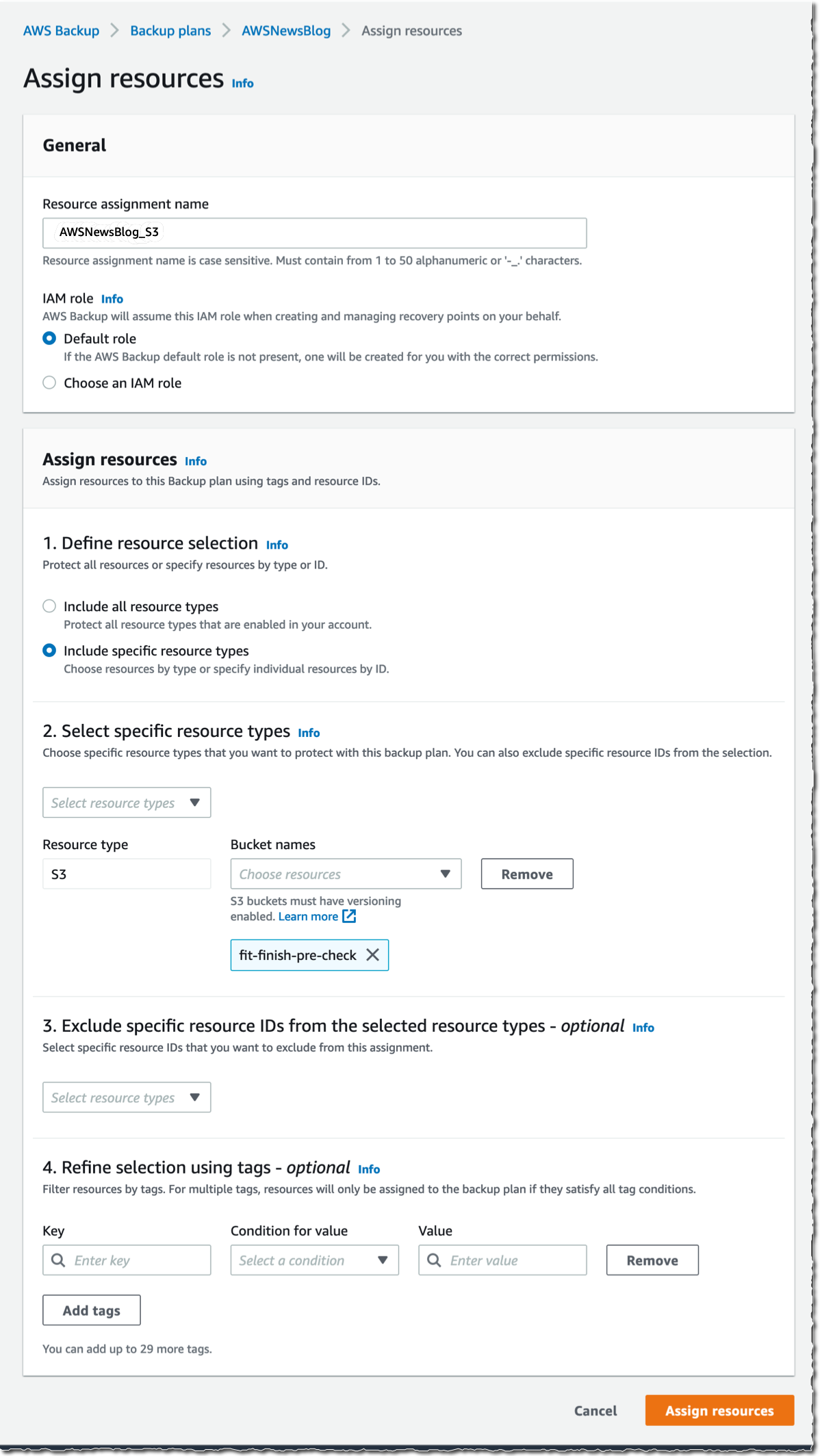
I give a name to my Resource assignment. I select Include specific resources types, then I select S3 as Resource type and one or several S3 Bucket names. When I am done, I select Assign resources.

Alternatively, I may use tags or resource IDs to assign S3 resources.

If you have thousands of S3 buckets, I recommend using tags to assign the S3 buckets to a backup plan. AWS Backup matches the tags in S3 buckets to the ones assigned to the backup plan, and it centrally backs up the S3 resources along with other AWS services that your application uses.

The other options are not different from what you know already.

AWS Backup - backup plan for S3

The Bucket names list in the previous screenshot only shows the S3 buckets in the same Region.

Alternatively, I may also create on-demand backups. I navigate to the Protected resources section, and select Create on-demand backup.

I select S3 as the Resource type, and select the Bucket name. As per usual, I choose a Backup Window, a Retention period, a Backup vault, and an IAM role. Then, I select Create on-demand backup.

AWS Backup - on-demand backup for S3After a while, depending on the size of my bucket, the backup is ✅ Completed.

AWS Backup for S3 - Backup completed

All of the backups are encrypted and stored securely in a backup vault that I selected in the backup plan.

A backup vault (or backup storage vault) is an encrypted logical construct in my AWS account that stores and organizes my backups (recovery points). I may create new backup vaults in every AWS Region where AWS Backup is available. I may enable AWS Backup Vault Lock (delete-protection capability) on the backup vault to avoid accidental deletions and prevent malicious actors from re-encrypting my data. AWS Backup stores my continuous backups and periodic snapshots in the backup vault of my preference, and it lets me browse and restore as per my requirements.

How to Restore Objects
Let’s try to restore this backup.

The restore operation is very flexible. I may restore entire S3 buckets or individual S3 objects. I may restore the backups to the source S3 bucket, or to another existing bucket. Furthermore, I may create a new S3 bucket during restore. The S3 buckets must have Versioning enabled. Also, I may change the encryption key during restore.

I navigate to Backup vaults to restore the S3 bucket I just backed up. In the Backups section, I select the Recovery point ID that I want to restore, and I select Restore from the Actions menu.

AWS Backup for S3 - restore

Before starting the restore, I may select a few options:

  • The Restore time: I may restore my continuous backup to a point-in-time in the last 35 days, while I can restore my periodic backups to their original state.
  • The Restore type: I may choose to restore the entire bucket or a subset of objects within it.
  • The Restore destination: I may choose to restore on the same bucket, on another one, or create a new bucket during restore.
  • The Restored object encryption: this lets me select the key I want to use to encrypt the restored objects in the bucket.

I select Restore backup to start the restore.

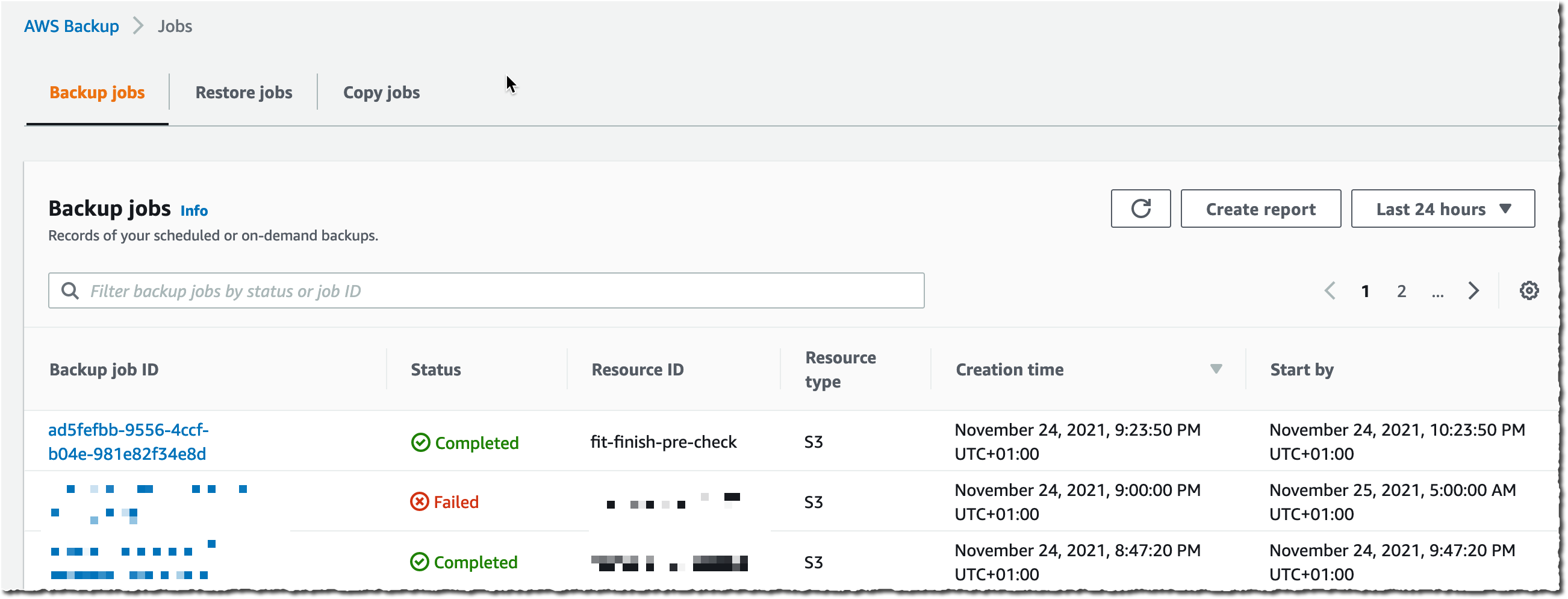
AWS Backup for S3 - restore optionsI can monitor the progress in the Jobs section, under the Restore jobs tab.

AWS Backup S3 - restore Jobs

When the status turns green to ✅ Completed, my objects are ready to use!

Generally, the most comprehensive data-protection strategies include regular testing and validation of your restore procedures before you need them. Testing your restores also helps to prepare and maintain recovery runbooks. In turn, that ensures operational readiness during a disaster recovery exercise, or an actual data loss scenario.

Availability and Pricing
The preview is available in the US West (Oregon) Region only.

During the preview, there are no charges for creating and storing backups. You will pay the AWS charges for underlying resources, such as S3 storage, API usage, and versioning.

Send us an email at [email protected] including your AWS account ID to register for the preview.

Go ahead and apply to the preview program today.

— seb

Machine Learning-Powered Amazon Connect, Now With Call Summarization

Post Syndicated from Sébastien Stormacq original https://aws.amazon.com/blogs/aws/machine-learning-powered-amazon-connect-now-with-call-summarization/

At AWS our mission is to make machine learning (ML) accessible to data scientists, developers, and business users. To help businesses easily leverage the power of ML, we create purpose-built solutions that embed ML and deep learning technologies directly into a business process to address real customer needs, rather than leaving companies to sort it out on their own.

One place where we have seen ML have an impact is within the contact center—the place you receive and respond to customer inquiries and issues. Because of the growing role of customer experience (CX) and the increase in contact less commerce via phone or email, contact centers are essentials to maintaining the human connections that businesses depend on. However, analog or outdated methods make it difficult to address every customer need in an effective way that delivers timely resolutions, delivers great experiences, and fosters customer loyalty.

Embedding AWS ML technologies into a cloud contact center solution helps decrease the friction of calls, chats, and other engagements. It also makes it possible to automate outdated processes.

Amazon Connect is an easy-to-use, cloud-based, ML-powered contact center service that helps companies of any size deliver superior customer service at a lower cost.

Let me take three examples with Voice ID, Wisdom, and Contact Lens.

Amazon Connect Voice ID
ML capabilities might help streamline customer experience for authentication. Instead of asking customers to repeat their email address and their mother’s maiden name several times, ML-powered voice identification can establish a digital voice print associated with each customer’s unique voice. Then, it can recognize it at the beginning of each subsequent call. Voice identification provides a confidence score that may be used to automate authentication workflows.

Amazon Connect Wisdom
ML might also help search the vast documentation and knowledge base to find the most relevant answers to the questions raised by the customer. ML helps resolve customer issues faster and better.

Contact Lens for Amazon Connect
ML technologies also shine at analyzing the tone and content of a conversation, capturing customer sentiment in the moment, and learning from it. ML can help transcribe calls, track customer sentiment, detect common issues and customer trends, or even pinpoint discrepancies.

At just about the same time last year, I announced the addition of real-time capabilities for Contact Lens. This lets supervisors identify when to assist an agent on live calls so that they can provide guidance via chat or have the agent transfer the call. Last September, we added support for eight new languages, ending up with a total of 21 languages for post-call analytics and 12 languages for both post-call and real-time analytics.

Contact Lens Adds Call Summarization
But we didn’t stop there. Today, I am pleased to announce the addition of a new capability that helps you improve customer experience and agent and supervisor productivity by automatically summarizing the important aspects of each customer call.

You told us that keeping notes of customer conversations is time consuming, especially, for agents that must take notes during the call and import them manually in your CRM tool afterward. In the end, this is more time for us, the customers, waiting in queue for an agent to become available. Likewise, using automatically generated call transcripts doesn’t save time for supervisors. It is time consuming for supervisors to read these full call transcripts to understand what happened during customer conversations.

How it Works
Starting today, Contact Lens has added a summary of the key moments in a conversation. It is enabled by default, and there is no additional configuration step. You may toggle the Show transcript summary button to show or hide the summary when you don’t need it.

Contac Lens - Show Transcript Summary - Toggle button

Once a call is analyzed, the summary is available on the contact detail page.

Contact Lens identifies and summarizes the sections corresponding to Issue (e.g., lost package), Outcome (e.g., customer refund), and Action item (e.g., send a follow-up mail confirming the refund was processed). A manager can quickly see where there’s an action to send a customer a follow-up email and take action to ensure it happens.

Contact Lens Call Summary Example

The call summary is also available in JSON format. Contact Lens uploads these in the S3 bucket of your choice. Having access to the JSON file lets you import the summaries programmatically in your CRM or other tools.

... redacted for brevity ...

"IssuesDetected": [
{
   "CharacterOffsets": {
      "BeginOffsetChar": 31,
      "EndOffsetChar": 73
   },
   "Text": "I would like to cancel my subscription"
}
]
...
"ActionItemsDetected": [
 {
   "CharacterOffsets": {
      "BeginOffsetChar": 32,
      "EndOffsetChar": 116
   },
   "Text": "I will send you an email with details"
 }
 ]

Availability and Pricing
Call summarization by Contact Lens is available in all AWS Regions where Contact Lens is available today. We support post-call analytics in the US West (Oregon), US East (N. Virginia), Canada (Central), Europe (London), Europe (Frankfurt), Asia Pacific (Singapore), Asia Pacific (Seoul), Asia Pacific (Tokyo), and Asia Pacific (Sydney) regions. We support real-time analytics in the US West (Oregon), US East (N. Virginia), Canada (Central), Europe (London), Europe (Frankfurt), Asia Pacific (Seoul), Asia Pacific (Tokyo), and Asia Pacific (Sydney) regions.

Call summary comes at no additional cost on top of the usual charges for Contact Lens. This is why we choose to enable it by default. Contact Lens is charged $0.015 per minute of voice conversation analyzed. Most of our Contact Lens customers analyze millions of conversation minutes per month. The price is $0.0125 per minute when you analyze more than 5 millions minutes per month.

If you do not have Contact Lens enabled on your call center, go ahead and start using it today.

— seb

New – Amazon EBS Snapshots Archive

Post Syndicated from Sébastien Stormacq original https://aws.amazon.com/blogs/aws/new-amazon-ebs-snapshots-archive/

I am pleased to announce the availability of Amazon EBS Snapshots Archive, a new storage tier for the long-term retention of Amazon Elastic Block Store (EBS) snapshots of your EBS volumes.

In a nutshell, EBS is an easy-to-use high-performance block storage service for your Amazon Elastic Compute Cloud (Amazon EC2) instances. An EBS volume mounted to your EC2 instances lets you boot an operating system and store data for your most performance-demanding workloads. You may use EBS snapshots to create point-in-time copies of your volume data. The first snapshot of a volume contains all of the data written into that volume. Subsequent snapshots are incremental. Snapshots are stored on Amazon Simple Storage Service (Amazon S3), and they may be shared between AWS accounts and AWS Regions.

The ability to take frequent snapshots and easily restore volumes makes EBS snapshots an obvious choice for your data management strategy, alongside other backup options. The incremental nature of snapshots makes them cost-effective for daily and weekly backups that need immediate restores. However, you were telling us that business compliance and regulatory needs have meant that you needed to retain EBS snapshots for longer periods of time (months or years). For example, snapshots taken at the end of a project, or snapshots for test and development preserved for future project releases. The vast majority of these snapshots are taken and never read. For these snapshots, you are looking to lower your storage costs. Today, to benefit from lower storage costs, you may have written complex scripts involving temporary EC2 instances to restore snapshots, mount the corresponding volumes, and transfer the data to lower-cost storage tiers, such as Amazon Glacier.

EBS Snapshots Archive provides a low-cost storage tier to archive full, point-in-time copies of EBS Snapshots that you must retain for 90 days or more for regulatory and compliance reasons, or for future project releases. Now, you can easily archive and manage EBS Snapshots, thereby eliminating the need for custom scripts and third-party tools to manage these snapshots. This lets you move your rarely accessed snapshots to EBS Snapshots Archive to achieve up to 75% lower storage costs, and avoid licensing costs for third-party tools. Furthermore, you can retrieve an archived snapshot within 24-72 hours, and, once restored, use the snapshot to recover an EBS volume.

As per usual, let me show you how it works.

How to Get Started
I have a snapshot available in the US East (N. Virginia) Region, and I want to archive this snapshot for compliance reasons. I open the AWS Management Console, navigate to EC2, then to Snapshots. I select the snapshot I want to archive, and select the Actions menu. I select the Archive snapshot menu option.

EBS Snapshot Archive - create snapshot

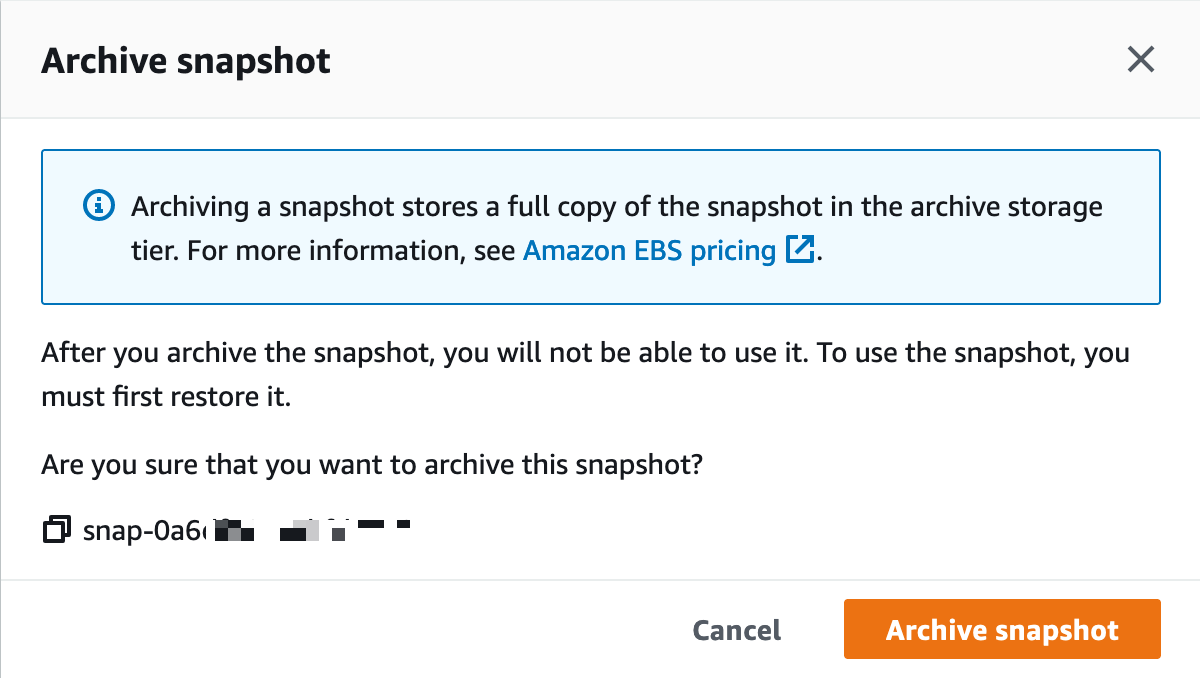
I carefully read the confirmation message :-), and I select Archive snapshot.

EBS Snapshot Archive - create snapshot - confirmation

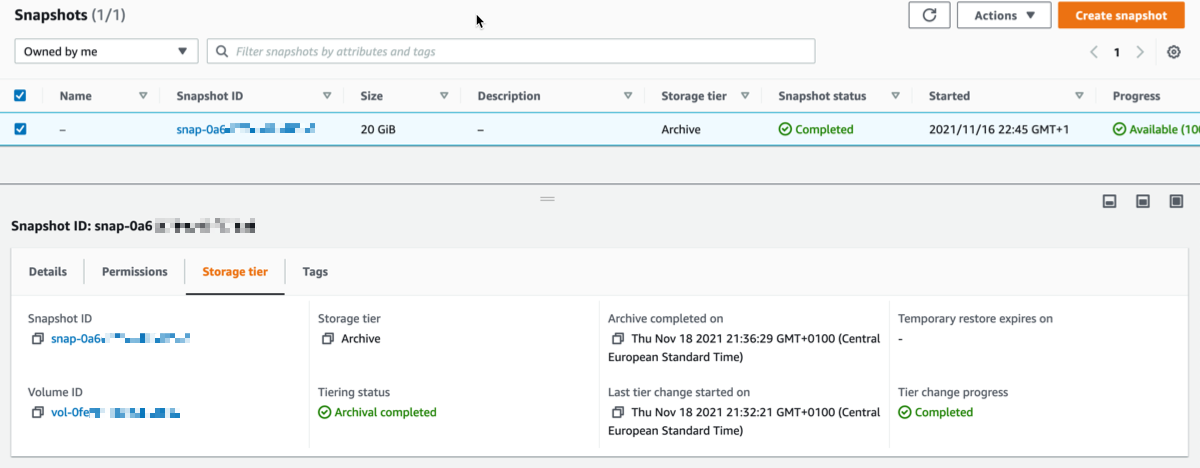
I may monitor the progress of the archive operation with the new Storage Tier tab at the bottom of the screen. After some time, depending on the size of the snapshot, the Tiering status becomes ✅ Archival completed.

EBS Snapshot Archive - create snapshot - archival completedArchived snapshots stay visible in the console. The new Storage tier column indicates the tier used for storage (Standard or Archive).

How do I Restore a Volume?
Restoring a volume from EBS Snapshots Archive is a two-step process. First, I retrieve the snapshot from EBS Snapshots Archive to its original snapshot ID, using RestoreSnapshotTier API call or the management console. It takes between 24-72 hours to retrieve the snapshot from the archive, depending on the snapshot size. Once retrieved, the snapshot appears as a regular snapshot on my account. At this stage, I hydrate the retrieved snapshot into an EBS volume using the default snapshot restore or Fast Snapshot Restore (FSR) for expedited restores, just like usual.

A CloudWatch event is generated when the snapshot is restored. You may listen to this event to avoid pulling the status with the API.

A CreateVolume API call on an archived snapshot will fail. You must restore a snapshot from archive before you use it to create a volume.

Using the AWS Management Console, I select the snapshot that I want to restore, I select the Actions menu, and then I select the Restore snapshot from archive menu option.

EBS Snapshot Archive - create snapshot - restore archive

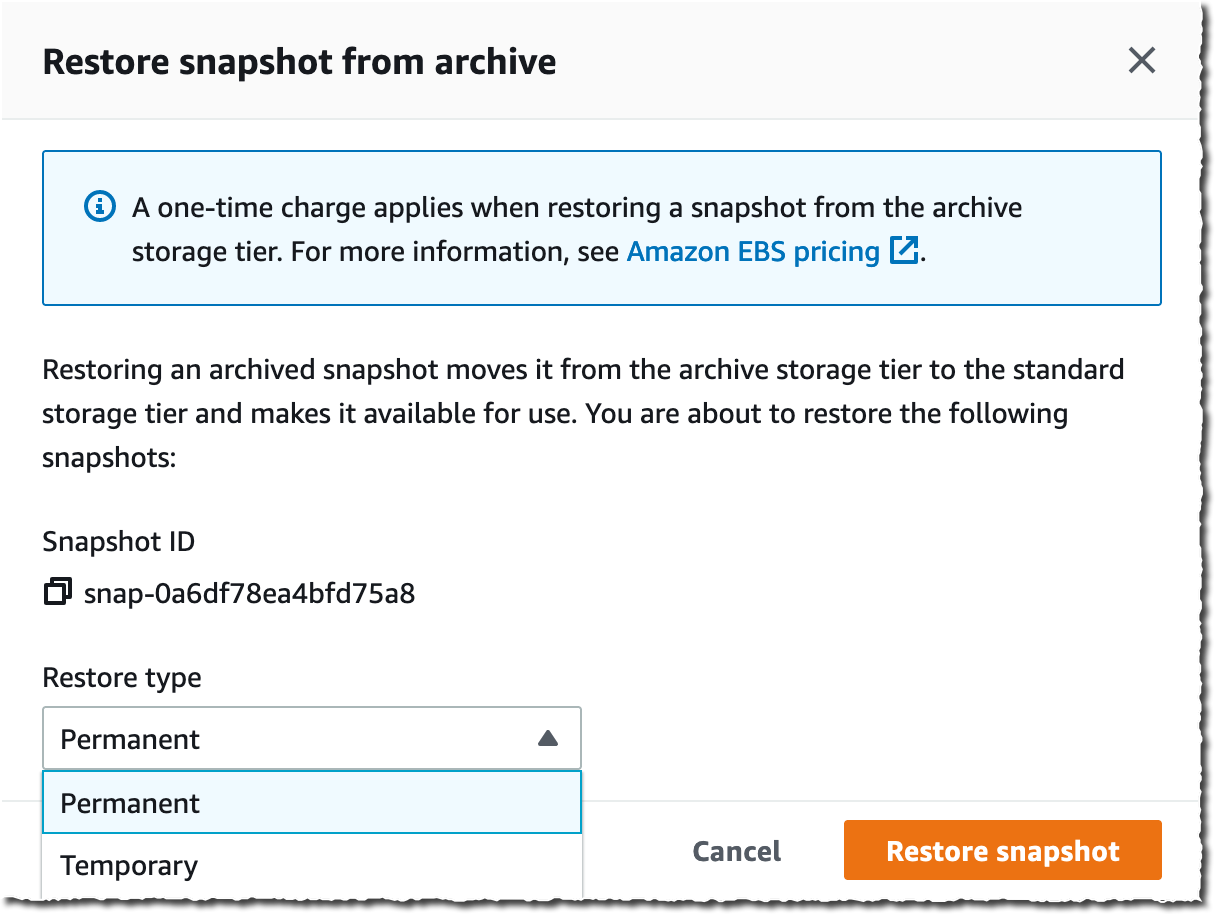
I have the choice to restore the snapshot permanently, or just temporarily. At the end of the temporary duration, the standard tier snapshot is deleted, and only the archive is preserved.

EBS Snapshot Archive - create snapshot - restore archive - confirmation

After a while, depending on the snapshot size, the archive is restored to standard storage and may be used to recreate a volume, just like usual. I may monitor the progress of the retrieval and the lifetime for temporarily restored archives in the new Storage tier tab in the bottom half of the screen. Temporary restored snapshots may be kept for up to 180 days.

Pricing and Availability
EBS Snapshots Archive is available for you today in 17 AWS Regions. At the time of launch, it is not available in the two Regions in China, Asia Pacific (Seoul), Asia Pacific (Osaka), Canada (Central), and South America (São Paulo).

As per usual, you pay as-you-go, with no minimum or fixed fees. There are two metrics that influence EBS Snapshots Archive billing: data storage and data retrieval. We charge you $0.0125 per GB-month of stored data and $0.03 per GB retrieved. You are charged for a 90-day period at minimum. This means that if you delete a snapshot archive or permanently restore it less than 90 days after creation, then we charge for the full 90-day period. The EBS pricing page has the details.

Go ahead and start to configure your long term storage for EBS snaphots today.

— seb

New – Amazon CloudWatch Evidently – Experiments and Feature Management

Post Syndicated from Sébastien Stormacq original https://aws.amazon.com/blogs/aws/cloudwatch-evidently/

As a developer, I am excited to announce the availability of Amazon CloudWatch Evidently. This is a new Amazon CloudWatch capability that makes it easy for developers to introduce experiments and feature management in their application code. CloudWatch Evidently may be used for two similar but distinct use-cases: implementing dark launches, also known as feature flags, and A/B testing.

Features flags is a software development technique that lets you enable or disable features without needing to deploy your code. It decouples the feature deployment from the release. Features in your code are deployed in advance of the actual release. They stay hidden behind if-then-else statements. At runtime, your application code queries a remote service. The service decides the percentage of users who are exposed to the new feature. You can also configure the application behavior for some specific customers, your beta testers for example.

When you use feature flags you can deploy new code in advance of your launch. Then, you can progressively introduce a new feature to a fraction of your customers. During the launch, you monitor your technical and business metrics. As long as all goes well, you may increase traffic to expose the new feature to additional users. In the case that something goes wrong, you may modify the server-side routing with just one click or API call to present only the old (and working) experience to your customers. This lets you revert back user experience without requiring rollback deployments.

A/B Testing shares many similarities with feature flags while still serving a different purpose. A/B tests consist of a randomized experiment with multiple variations. A/B testing lets you compare multiple versions of a single feature, typically by testing the response of a subject to variation A against variation B, and determining which of the two is more effective. For example, let’s imagine an e-commerce website (a scenario we know quite well at Amazon). You might want to experiment with different shapes, sizes, or colors for the checkout button, and then measure which variation has the most impact on revenue.

The infrastructure required to conduct A/B testing is similar to the one required by feature flags. You deploy multiple scenarios in your app, and you control how to route part of the customer traffic to one scenario or the other. Then, you perform deep dive statistical analysis to compare the impacts of variations. CloudWatch Evidently assists in interpreting and acting on experimental results without the need for advanced statistical knowledge. You can use the insights provided by Evidently’s statistical engine, such as anytime p-value and confidence intervals for decision-making while an experiment is in progress.

At Amazon, we use feature flags extensively to control our launches, and A/B testing to experiment with new ideas. We’ve acquired years of experience to build developers’ tools and libraries and maintain and operate experimentation services at scale. Now you can benefit from our experience.

CloudWatch Evidently uses the terms “launches” for feature flags and “experiments” for A/B testing, and so do I in the rest of this article.

Let’s see how it works from an application developer point of view.

Launches in Action
For this demo, I use a simple Guestbook web application. So far, the guest book page is read-only, and comments are entered from our back-end only. I developed a new feature to let customers enter their comments on the guestbook page. I want to launch this new feature progressively over a week and keep the ability to revert the change back if it impacts important technical or business metrics (such as p95 latency, customer engagement, page views, etc.). Users are authenticated, and I will segment users based on their user ID.

Before launch:
Evidently - experiment off
After launch:
Evidently - experiment on

Create a Project
Let’s start by configuring Evidently. I open the AWS Management Console and navigate to CloudWatch Evidently. Then, I select Create a project.

Evidently - create project


I enter a Project name and Description.

Evidently lets you optionally store events to CloudWatch logs or S3, so that you can move them to systems such as Amazon Redshift to perform analytical operations. For this demo, I choose not to store events. When done, I select Create project.

Evidently - create project second part

Add a Feature
Next, I create a feature for this project by selecting Add feature. I enter a Feature name and Feature description. Next, I define my Feature variations. In this example, there are two variations, and I use a Boolean type. true indicates the guestbook is editable and false indicates it is read only. Variations types might be boolean, double, long, or string.

Evidently - create featureI may define overrides. Overrides let me pre-define the variation for selected users. I want the user “seb”, my beta tester, to always receive the editable variation.

Evidently - Create feature - overridesThe console shares the JavaScript and Java code snippets to add into my application.

Evidently - code snippetTalking about code snippets, let’s look at the changes at the code level.

Instrument my Application Code
I use a simple web application for this demo. I coded this application using JavaScript. I use the AWS SDK for JavaScript and Webpack to package my code. I also use JQuery to manipulate the DOM to hide or show elements. I designed this application to use standard JavaScript and a minimum number of frameworks to make this example inclusive to all. Feel free to use higher level tools and frameworks, such as React or Angular for real-life projects.

I first initialize the Evidently client. Just like other AWS Services, I have to provide an access key and secret access key for authentication. Let’s leave the authentication part out for the moment. I added a note at the end of this article to discuss the options that you have. In this example, I use Amazon Cognito Identity Pools to receive temporary credentials.

// Initialize the Amazon CloudWatch Evidently client
const evidently = new AWS.Evidently({
    endpoint: EVIDENTLY_ENDPOINT,
    region: 'us-east-1',
    credentials: fromCognitoIdentityPool({
        client: new CognitoIdentityClient({ region: 'us-west-2' }),
        identityPoolId: IDENTITY_POOL_ID
    }),
});

Armed with this client, my code may invoke the EvaluateFeature API to make decisions about the variation to display to customers. The entityId is any string-based attribute to segment my customers. It might be a session ID, a customer ID, or even better, a hash of these. The featureName parameter contains the name of the feature to evaluate. In this example, I pass the value EditableGuestBook.

const evaluateFeature = async (entityId, featureName) => {

    // API request structure
    const evaluateFeatureRequest = {
        // entityId for calling evaluate feature API
        entityId: entityId,
        // Name of my feature
        feature: featureName,
        // Name of my project
        project: "AWSNewsBlog",
    };

    // Evaluate feature
    const response = await evidently.evaluateFeature(evaluateFeatureRequest).promise();
    console.log(response);
    return response;
}

The response contains the assignment decision from Evidently, as based on traffic rules defined on the server-side.

{
 details: {
   launch: "EditableGuestBook", group: "V2"},
   reason: "LAUNCH_RULE_MATCH", 
   value: {boolValue: false},
   variation: "readonly"
}}

The last part consists of hiding or displaying part of the user interface based on the value received above. Using basic JQuery DOM manipulation, it would be something like the following:

window.aws.evaluateFeature(entityId, 'EditableGuestbook').then((response, error) => {
    if (response.value.boolValue) {
        console.log('Feature Flag is on, showing guest book');
        $('div#guestbook-add').show();
    } else {
        console.log('Feature Flag is off, hiding guest book');
        $('div#guestbook-add').hide();
    }
});

Create a Launch
Now that the feature is defined on the server-side, and the client code is instrumented, I deploy the code and expose it to my customers. At a later stage, I may decide to launch the feature. I navigate back to the console, select my project, and select Create Launch. I choose a Launch name and a Launch description for my launch. Then, I select the feature I want to launch.

Evidently - create launchIn the Launch Configuration section, I configure how much traffic is sent to each variation. I may also schedule the launch with multiple steps. This lets me plan different steps of routing based on a schedule. For example, on the first day, I may choose to send 10% of the traffic to the new feature, and on the second day 20%, etc. In this example, I decide to split the traffic 50/50.

Evidently - launch configurationFinally, I may define up to three metrics to measure the performance of my variations. Metrics are defined by applying rules to data events.

Evidently - Custom MetricsAgain, I have to instrument my code to send these metrics with PutProjectEvents API from Evidently. Once my launch is created, the EvaluateFeature API returns different values for different values of entityId (users in this demo).

At any moment, I may change the routing configuration. Moreover, I also have access to a monitoring dashboard to observe the distribution of my variations and the metrics for each variation.

Evidently - launch monitoringI am confident that your real-life launch graph will get more data than mine did, as I just created it to write this post.

A/B Testing
Doing an A/B test is similar. I create a feature to test, and I create an Experiment. I configure the experiment to route part of the traffic to variation 1, and then the other part to variation 2. When I am ready to launch the experiment, I explicitly select Start experiment.

Evidently - start experiment

In this experiment, I am interested in sending custom metrics. For example:

// pageLoadTime custom metric
const timeSpendOnHomePageData = `{
   "details": {
      "timeSpendOnHomePage": ${timeSpendOnHomePageValue}
   },
   "userDetails": { "userId": "${randomizedID}", "sessionId": "${randomizedID}" }
}`;

const putProjectEventsRequest: PutProjectEventsRequest = {
   project: 'AWSNewsBlog',
   events: [
    {
        timestamp: new Date(),
        type: 'aws.evidently.custom',
        data: JSON.parse(timeSpendOnHomePageData)
    },
   ],
};

this.evidently.putProjectEvents(putProjectEventsRequest).promise().then(res =>{})

Switching to the Results page, I see raw values and graph data for Event Count, Total Value, Average, Improvement (with 95% confidence interval), and Statistical significance. The statistical significance describes how certain we are that the variation has an effect on the metric as compared to the baseline.

These results are generated throughout the experiment and the confidence intervals and the statistical significance are guaranteed to be valid anytime you want to view them. Additionally, at the end of the experiment, Evidently also generates a Bayesian perspective of the experiment that provides information about how likely it is that a difference between the variations exists.

The following two screenshots show graphs for the average value of two metrics over time, and the improvement for a metric within a 95% confidence interval.

Evidently - experiment monitoring - average valuesEvidently - experiment monitoring - improvement

Additional Thoughts
Before we wrap-up, I’d like to share some additional considerations.

First, it is important to understand that I choose to demo Evidently in the context of front-end application development. However, you may use Evidently with any application type: front-end web or mobile, back-end API, or even machine learning (ML). For example, you may use Evidently to deploy two different ML models and conduct experiments just like I showed above.

Second, just like with other AWS Services, Evidently API is available in all of our AWS SDK. This lets you use EvaluateFeature and other APIs from nine programing languages: C++, Go, Java, JavaScript (and Typescript), .Net, NodeJS, PHP, Python, and Ruby. AWS SDK for Rust and Swift are in the making.

Third, for a front-end application as I demoed here, it is important to consider how to authenticate calls to Evidently API. Hard coding access keys and secret access keys is not an option. For the front-end scenario, I suggest that you use Amazon Cognito Identity Pools to exchange user identity tokens for a temporary access and secret keys. User identity tokens may be obtained from Cognito User Pools, or third-party authentications systems, such as Active Directory, Login with Amazon, Login with Facebook, Login with Google, Signin with Apple, or any system compliant with OpenID Connect or SAML. Cognito Identity Pools also allows for anonymous access. No identity token is required. Cognito Identity Pools vends temporary tokens associated with IAM roles. You must Allow calls to the evidently:EvaluateFeature API in your policies.

Finally, when using feature flags, plan for code cleanup time during your sprints. Once a feature is launched, you might consider removing calls to EvaluateFeature API and the if-then-else logic used to initially hide the feature.

Pricing and Availability
Amazon Cloudwatch Evidently is generally available in nine AWS Regions: US East (N. Virginia), US East (Ohio), US West (Oregon), Asia Pacific (Singapore), Asia Pacific (Sydney), Asia Pacific (Tokyo), Europe (Ireland), Europe (Frankfurt), and Europe (Stockholm). As usual, we will gradually extend to other Regions in the coming months.

Pricing is pay-as-you-go with no minimum or recurring fees. CloudWatch Evidently charges your account based on Evidently events and Evidently analysis units. Evidently analysis units are generated from Evidently events, based on rules you have created in Evidently. For example, a user checkout event may produce two Evidently analysis units: checkout value and the number of items in cart. For more information about pricing, see Amazon CloudWatch Pricing.

Start experimenting with CloudWatch Evidently today!

— seb

New – AWS Migration Hub Refactor Spaces Helps to Incrementally Refactor Your Applications

Post Syndicated from Sébastien Stormacq original https://aws.amazon.com/blogs/aws/new-aws-migration-hub-refactor-spaces-helps-to-incrementally-refactor-your-applications/

I am excited to announce the preview of AWS Migration Hub Refactor Spaces, a new capability of AWS Migration Hub to let you refactor existing applications into distributed applications, typically based on microservices.

There are multiple reasons why you want to refactor existing applications. You might want to make your code more modular, use more modern frameworks, use different data storage, etc. In general, when refactoring, your objective is to make your application easier to maintain and evolve over time. Other benefits might include handling larger workloads, increasing resiliency, or lowering costs. But let’s face it, refactoring is hard. I usually compare refactoring to changing the engines, cabin seats, and entertainment system of a plane while keeping the plane in the air, fully loaded with passengers, and without having them notice any change.

When talking with customers who have successfully been through these refactoring projects, we noticed a common pattern: the Strangler Fig design pattern.

strangler fig

A strangler fig is a family of plants that grow their roots from the top of the trees that host them, eventually enveloping or replacing their host. Author Martin Fowler first coined the term to describe a migration design pattern. The idea is “to gradually create a new system around the edges of the old, letting it grow slowly over several years until the old system is strangled”.

How Can I Apply This Plant Behavior To My Application Migration?
Inspired by this family of plants, I might want to extract capabilities from a monolithic application and rewrite them as microservices. Then, I incrementally route traffic away from the old to the new. Over time, all of the requests are routed to microservices, and the existing application is retired.

While effective, this approach to application transformation creates hurdles. I must create the required infrastructure to separate the existing applications and the microservices. In the AWS cloud, this often involves creating multiple AWS accounts, so teams or services can more easily operate independently. Having multiple accounts is the most efficient way to separate concerns and billing across teams. When dealing with multiple AWS accounts, it is required to maintain networking infrastructure to connect my existing application and new services together. Furthermore, I must create a routing control system to route traffic gradually from the old application to the new services in different accounts. Creating and managing that infrastructure at scale is complex. It introduces additional risks and costs to the refactor project.

How Refactor Spaces Helps
AWS Migration Hub Refactor Spaces takes care of the heavy lifting for me. First, it lays down the networking infrastructure to enable connectivity between multiple AWS accounts. Second, it creates and manages a mechanism to route API calls away from my legacy application.

Let’s imagine I have a monolithic application that I want to refactor. The application is made of a web-based front-end using ReactJS. The front-end application is hosted on Amazon Simple Storage Service (Amazon S3) and distributed through Amazon CloudFront. The front-end makes API calls to a monolithic application developed in NodeJS or Python and deployed on several EC2 instances. The API uses a relational database, because this is how we store data since the company existed.

The architecture of this application is illustrated by the following diagram.

refactor spaces - monolith

Each API has a distinct URI. For example the /cart API handles the shopping basket, the /order API handles the ordering system, etc. I apply the strangler fig pattern and decide to extract the /cart capabilities to a set of new microservices. I create an AWS account for these microservices. I develop and deploy a set of AWS Lambda functions to implement the cart management functionalities. I chose to use Amazon DynamoDB for the shopping basket data storage because of its low latency at scale.

The schema of my new architecture is shown in the following diagram:

Refactor Space - target architectureBut now I have two challenges. First, I have to design, code, and deploy a routing mechanism to route API calls made by the front-end application to the correct back-end: either the monolith, or the new microservices. This service will likely be deployed into a distinct AWS account. Then, I have to configure network connectivity between these multiple AWS accounts.

This is where Refactor Spaces comes into the picture.

Introducing AWS Migration Hub Refactor Spaces
Refactor Spaces makes it easy to manage application refactoring by taking care of the two challenges I just described: the routing of the API calls and the network connectivity between AWS accounts. It is made of Environments, Services, and an Application proxy. Let’s see it in action.

I open the AWS Management Console, navigate to AWS Migration Hub, and select Refactor Spaces.

I first create a Refactor Spaces Environment. An Environment is a multi-account network fabric consisting of peered VPCs. This lets AWS resources in service VPCs added to the environment communicate directly across AWS accounts. It also provides a unified view of networking and services across accounts.

In Create environment, I give my environment a name and a description, and then select Next.

Refactor Spaces - Create environment

Then, I define my application. I give my application a name, and select the VPC where the proxy will be deployed.

An application is a services container. It has a proxy that defines routes. The proxy lets your front-end application use a single endpoint to contact multiple services. All of the traffic hits the single proxy endpoint, and then it’s sent to multiple services based on your rules.

Refactor Space - Create application

You may want to use multiple AWS accounts as explained before. Typically, an application is made of one AWS Account that hosts the Refactor Spaces Application proxy, one or multiple AWS accounts to host the legacy application, and one AWS account for the first microservice. Therefore, I invite the other AWS account owners to join this Refactor Spaces environment. I add one principal per AWS Account. Refactor Spaces doesn’t reinvent the wheel, but it leverages AWS Resource Access Manager (RAM) to do so.

This step is optional. Refactor Spaces may work within one AWS Account. It is possible to share the environments with other AWS accounts at a later stage.

I enter the AWS account IDs as Principals, and then select Next.

Refactor Space - Shared Accounts

Finally, I review my choices and select Create & share environment (not shown here).

Assuming that the microservices are ready to use, the next step is registering them as Refactor Spaces Services. Refactor Spaces Services are entities that provide business capabilities, typically microservices. These services are reachable through unique endpoints, and they can interoperate across accounts in a Refactor Spaces Environment. In this example, there are four services:

  • The monolithic app. This is the default service where Refactor Spaces routes all API calls initiated by the front-end.
  • Three microservices to implement the /cart capability. I decided to refactor this capability with three distinct sevices: AddItem, RemoveItem, and ListItems.

A Refactor Spaces Service may target any compute resource type: EC2, containers deployed on AWS Fargate, an Application Load Balancer, an AWS Lambda function, etc.

I select Create service from the left menu. The service configuration is in three steps. First, I select the Refactor Spaces Environment and Application where I want to define this service. Second, I give my service a name and a description. And third, I select the service endpoint: either an HTTP/HTTPS URL in a VPC, or a Lambda function.

The monolithic application is the default route where Refactor Spaces Application proxy routes all of the API calls, unless otherwise specified. I enter / as Source path and select Include child paths. Then, I make make sure Match all is selected for HTTP verbs.

When finished, I select Create service. I repeat this process for each of my microservices. For this demo, I create four Refactor Spaces Services in total.

AWS Migration Hub refactor Spaces - create service

The last step defines the routing rules for the Refactor Spaces Application proxy. When configured, the proxy becomes the new API endpoint for my front-end application. The sole change that I have to make in my front-end application is to point it at the Refactor Spaces Application proxy URI. The proxy routes API calls to Services, according to a route definition. An Application proxy supports routing to all compute platforms with public or private visibility. At the moment, private endpoints must be referred through a public DNS name or their private IP address. Each API call is run against the set of routes configured in the proxy. When a path matches a rule, the request is sent to the target service configured for that path. Proxies have a default route that forwards requests to a default service if they don’t match any of the path rules.

I select the service that I just created. Then, I enter the route Source path and the HTTP Verb to support. When my service expects subpaths (such as /cart/123), I make sure to select Include child paths, as well.

Refactor Spaces - Define route

I repeat this process for the GetItem and RemoveItem microservices. They are invoked for different HTTP verbs: GET and DELETE respectively.

Based on this configuration, Refactor Spaces creates and manages the following architecture for me. The Refactor Spaces Application proxy and network fabric are deployed in a separate AWS account. I might further configure the Amazon API Gateway based on the needs of my monolithic application or microservices.

Refactor Spaces - final architecture

The ultimate change is for the application front-end. I modify its configuration to point to the Refactor Spaces Application proxy endpoint, instead of the monolith’s endpoint. From now on, Refactor Spaces routes API calls to the monolith by default. It routes the /cart calls for GET, POST, and DELETE verbs to my new microservices implemented as Lambda functions.

Over time, I will repeat this process to move other capabilities out of the monolithic application, one-by-one, until the old monolith is strangled replaced by the new microservices architecture.

Pricing and Availaibility
AWS Migration Hub Refactor Spaces is available today in the ten following AWS Regions: US East (N. Virginia), US West (Oregon), US East (Ohio), Asia Pacific (Singapore) Asia Pacific (Sydney), Asia Pacific (Tokyo), Europe (Ireland), Europe (Frankfurt), Europe (London), and Europe (Stockholm). As per usual, we’re looking forward to expanding to additional Regions in the future.

This new capability is available today as an open preview, and no registration is necessary. You can start to use it today. There is no charge for using Refactor Space during the preview period. However, you may be charged for the resources that it provisions on your AWS accounts: Amazon API Gateway, AWS Transit Gateway, and Network Load Balancer. The pricing details are available on AWS Migration Hub’s pricing page. Billing will start when Refactor Spaces will be generally available.

Go and start refactoring your applications today!

— seb

Measure and Improve Your Application Resilience with AWS Resilience Hub

Post Syndicated from Sébastien Stormacq original https://aws.amazon.com/blogs/aws/monitor-and-improve-your-application-resiliency-with-resilience-hub/

I am excited to announce the immediate availability of AWS Resilience Hub, a new AWS service designed to help you define, track, and manage the resilience of your applications.

You are building and managing resilient applications to serve your customers. Building distributed systems is hard; maintaining them in an operational state is even harder. The question is not if a system will fail, but when it will, and you want to be prepared for that.

Resilience targets are typically measured by two metrics: Recovery Time Objective (RTO), the time it takes to recover from a failure, and Recovery Point Objective (RPO), the maximum window of time in which data might be lost after an incident. Depending on your business and application, these can be measured in seconds, minutes, hours, or days.

AWS Resilience Hub lets you define your RTO and RPO objectives for each of your applications. Then it assesses your application’s configuration to ensure it meets your requirements. It provides actionable recommendations and a resilience score to help you track your application’s resiliency progress over time. Resilience Hub gives a customizable single dashboard experience, accessible through the AWS Management Console, to run assessments, execute prebuilt tests, and configure alarms to identify issues and alert the operators.

AWS Resilience Hub discovers applications deployed by AWS CloudFormation (this includes SAM and CDK applications), including cross Regions and cross account stacks. Resilience Hub also discovers applications from Resource Groups and tags or chooses from applications already defined in AWS Service Catalog AppRegistry.

The term “application” here refers not just to your application software or code; it refers to the entire infrastructure stack to host the application: networking, virtual machines, databases, and so on.

Resilience assessment and recommendations
AWS Resilience Hub’s resilience assessment utilizes best practices from the AWS Well-Architected Framework to analyze the components of your application and uncover potential resilience weaknesses caused by incomplete infrastructure setup, misconfigurations, or opportunities for additional configuration improvements. Resilience Hub provides actionable recommendations to improve the application’s resilience.

For example, Resilience Hub validates that the application’s Amazon Relational Database Service (RDS), Amazon Elastic Block Store (EBS), and Amazon Elastic File System (Amazon EFS) backup schedule is sufficient to meet the application’s RPO and RTO you defined in your resilience policy. When insufficient, it recommends improvements to meet your RPO and RTO objectives.

The resilience assessment generates code snippets that help you create recovery procedures as AWS Systems Manager documents for your applications, referred to as standard operating procedures (SOPs). In addition, Resilience Hub generates a list of recommended Amazon CloudWatch monitors and alarms to help you quickly identify any change to the application’s resilience posture once deployed.

Continuous resilience validation
After the application and SOPs have been updated to incorporate recommendations from the resilience assessment, you may use Resilience Hub to test and verify that your application meets its resilience targets before it is released into production. Resilience Hub is integrated with AWS Fault Injection Simulator (FIS), a fully managed service for running fault injection experiments on AWS. FIS provides fault injection simulations of real-world failures, such as network errors or having too many open connections to a database. Resilience Hub also provides APIs for development teams to integrate their resilience assessment and testing into their CI/CD pipelines for ongoing resilience validation. Integrating resilience validation into CI/CD pipelines helps ensure that every change to the application’s underlying infrastructure does not compromise its resilience.

Visibility
AWS Resilience Hub provides a comprehensive view of your overall application portfolio resilience status
through its dashboard. To help you track the resilience of applications, Resilience Hub aggregates and
organizes resilience events (for example, unavailable database or failed resilience validation), alerts, and insights from services like Amazon CloudWatch and AWS Fault Injection Simulator (FIS). Resilience Hub also generates a resilience score, a scale that indicates the level of implementation for recommended resilience tests, alarms and recovery SOPs. This score can be used to measure resilience improvements over time.

The intuitive dashboard sends alerts for issues, recommends remediation steps, and provides a single place to manage application resilience. For example, when a CloudWatch alarm triggers, Resilience Hub alerts you and recommends recovery procedures to deploy.

AWS Resilience Hub in Action
I developed a non-resilient application made of a single EC2 instance and an RDS database. I’d like Resilience Hub to assess this application. The CDK script to deploy this application on your AWS Account is available on my GitHub repository. Just install CDK v2 (npm install -g aws-cdk@next) and deploy the stack (cdk bootstrap && cdk deploy --all).

There are four steps when using Resilience Hub:

  • I first add the application to assess. I can start with CloudFormation stacks, AppRegistry, Resource Groups, or another existing application.
  • Second, I define my resilience policy. The policy document describes my RTO and RPO objectives for incidents that might impact either my application, my infrastructure, an entire availability zone, or an entire AWS Region.
  • Third, I run an assessment against my application. The assessment lists policy breaches, if any, and provides a set of recommendations, such as creating CloudWatch alarms, standard operating procedures documents, or fault injection experiment templates.
  • Finally, I might setup any of the recommendations made or run experiments on a regular basis to validate the application’s resilience posture.

Preparation
To start, I open my browser and navigate to the AWS Management Console. I select AWS Resilience Hub and select Add application.

Resilience hub add application

My sample app is deployed with three CloudFormation stacks: a network, a database, and an EC2 instance.  I select these three stacks and select Next on the bottom of the screen:

Resilience Hub add cloud formations tack

Resilience Hub detects the resources created by these stacks that might affect the resilience of my applications and I select the ones I want to include or exclude from the assessments and click Next. In this example, I select the NAT gateway, the database instance, and the EC2 instance.

Resilience Hub Select resources

I create a resilience policy and associate it with this application. I can choose from policy templates or create a policy from scratch. A policy includes a name and the RTO and RPO values for four types of incidents: the ones affecting my application itself, like a deployment error or a bug at code level; the ones affecting my application infrastructure, like a crash of the EC2 instance; the ones affecting an availability zone; and the ones affecting an entire region. The values are expressed in seconds, minutes,  hours, or days.

Resilience Hub Create Policy

Finally, I review my choices and select Publish.

Assessment
Once this application and its policy are published, I start the assessment by selecting Assess resiliency.

Resilience Hub Assess resiliency

Without surprise, Resilience Hub reports my resilience policy is breached.

Resilience Hub Policy breach

I select the report to get the details.  The dashboard shows how Region, availability zone, infrastructure and application-level incident expected RTO/RPO compare to my policy.

Resilience Hub Assessment dashboard

I have access to Resiliency recommendations and Operational recommendations.

In Resiliency recommendations, I see if components of my application are compliant with the resilience policy. I also discover recommendations to Optimize for availability zone RTO/RPO, Optimize for cost, or Optimize for minimal changes.

Resilience Hub Optimisation

In Operational recommendations, on the first tab, I see a list of proposed Alarms to create in CloudWatch.

Resilience Hub Alarms

The second tab lists recommended Standard operating procedures. These are Systems Manager documents I can run on my infrastructure, such as Restore from Backup.

Resilience Hub SOP

The third tab (Fault injection experiment templates) proposes experiments to run on my infrastructure to test its resilience. Experiments are run with FIS. Proposed experiments are Inject memory load or Inject process kill.

Resilience Hub - FIS

When I select Set up recommendations, Resilience Hub generates CloudFormation templates to create the alarms or to execute the SOP or experiment proposed.

Resilience Hub - Set up recommandations

The follow up screens are quite self-explanatory. Once generated, templates are available to execute in the Templates tab. I apply the template and observe how it impacts the resilience score of the application.

Resilience Hub Resilience score

The CDK script you used to deploy the sample applications also creates a highly available infrastructure for the same application. It has a load balancer, an auto scaling group, and a database cluster with two nodes. As an exercise, run the same assessment report on this application stack and compare the results.

Pricing and Availability
AWS Resilience Hub is available today in US East (Ohio), US East (N. Virginia), US West (Oregon), Asia Pacific (Singapore), Asia Pacific (Tokyo), Europe (Ireland), and Europe (Frankfurt). We will add more regions in the future.

As usual, you pay only for what you use. There are no upfront costs or minimum fees. You are charged based on the number of applications you described in Resilience Hub. You can try Resilience Hub free for 6 months, up to 3 applications. After that, Resilience Hub‘s price is $15.00 per application per month. Metering begins once you run the first resilience assessment in Resilience Hub. Remember that Resilience Hub might provision services for you, such as CloudWatch alarms, so additional charges might apply. Visit the pricing page to get the details.

Let us know your feedback and build your first resilience dashboard today.

— seb

Goodbye Microsoft SQL Server, Hello Babelfish

Post Syndicated from Sébastien Stormacq original https://aws.amazon.com/blogs/aws/goodbye-microsoft-sql-server-hello-babelfish/

Many of our customers are telling us they want to move away from commercial database vendors to avoid expensive costs and burdensome licensing terms. But migrating away from commercial and legacy databases can be time-consuming and resource-intensive. When migrating your databases, you can automate the migration of your database schema and data using the AWS Schema Conversation Tool and AWS Database Migration Service. But there is always more work to do to migrate the application itself, including rewriting application code that interacts with the database. Motivation is there, but costs and risks are often limiting factors.

Today, we are making Babelfish for Aurora PostgreSQL available. Babelfish allows Amazon Aurora PostgreSQL-Compatible Edition to understand the SQL Server wire protocol. It allows you to migrate your SQL Server applications to PostgreSQL cheaper, faster, and with less risks involved with such change.

You can migrate your application in a fraction of the time that a traditional migration would require. You continue to use the existing queries and drivers your application uses today. Just point the application to an Amazon Aurora PostgreSQL database with Babelfish activated. Babelfish adds the capability to Amazon Aurora PostgreSQL to understand the SQL Server wire protocol Tabular Data Stream (TDS), as well as extending PostgreSQL to understand commonly used T-SQL commands used by SQL Server. Support for T-SQL includes elements such as the SQL dialect, static cursors, data types, triggers, stored procedures, and functions. Babelfish reduces the risk associated with database migration projects by significantly reducing the number of changes required to the application. When adopting Babelfish, you save on licensing costs of using SQL Server. Amazon Aurora provides the security, availability, and reliability of commercial databases at 1/10th the cost.

SQL Server has evolved over more than 30 years, and we do not expect to support all functionalities right away. Instead, we focused on the most common T-SQL commands and returning the correct response or an error message. For example, the MONEY datatype has different characteristics in SQL Server (with four decimals precision) and PostgreSQL (with two decimals precision). Such a subtle difference might lead to rounding errors and have a significant impact on downstream processes, such as financial reporting. In this case, and many others, Babelfish ensures the semantics of SQL Server data types and T-SQL functionality are preserved: we created a MONEY datatype that behaves as SQL Server apps would expect. When you create a table with this datatype through the Babelfish connection, you get this compatible datatype and behaviors that a SQL Server app would expect.

Create a Babelfish Cluster Using the Console
To show you how Babelfish works, let’s first connect to the console and create a new Amazon Aurora PostgreSQL cluster. The procedure is no different than for the regular Amazon Aurora database. In the RDS launch wizard, I first make sure I select an Aurora version compatible with PostgreSQL 13.4, or more recent. The updated console has additional filters to help you select the versions that are compatible with Babelfish.

Babelfish Create databaseThen, lower on the page, I select the option Turn on Babelfish.

Aurora turn on babelfish

Under Monitoring section, I also make sure I turn off Enable Enhanced monitoring. This option requires additional IAM permissions and preparation that are not relevant for this demo.

Enable Enhanced MonitoringAfter a couple of minutes, my cluster is created, it has two instances, one writer and one reader.

Babelfish cluster created

Create a Babelfish Cluster Using the CLI
Alternatively, I may use the CLI to create a cluster. I first create a parameter group to activate Babelfish (the console does it automatically):

aws rds create-db-cluster-parameter-group             \
    --db-cluster-parameter-group-name myapp-babelfish \
    --db-parameter-group-family aurora-postgresql13   \
    --description "babelfish APG 13"
aws rds modify-db-cluster-parameter-group             \
    --db-cluster-parameter-group-name myapp-babelfish \
    --parameters "ParameterName=rds.babelfish_status,ParameterValue=on,ApplyMethod=pending-reboot" \

Then I create the database cluster (when using the command below, adjust the security group id and the subnet group name) :

aws rds create-db-cluster \
    --db-cluster-identifier awsnewblog-cli-demo \
    --master-username postgres \  
    --master-user-password Passw0rd \
    --engine aurora-postgresql \
    --engine-version 13.4 \
    --vpc-security-group-ids sg-abcd1234 \
    --db-subnet-group-name default-vpc-1234abcd \
    --db-cluster-parameter-group-name myapp-babelfish
{
    "DBCluster": {
        "AllocatedStorage": 1,
        "AvailabilityZones": [
            "us-east-1c",
            "us-east-1d",
            "us-east-1a"
        ],
        "BackupRetentionPeriod": 1,
        "DBClusterIdentifier": "awsnewblog-cli-demo",
        "Status": "creating",
        ... <redacted for brevity> ...
    }
}

Once the cluster is created, I create an instance using

aws rds create-db-instance \
    --db-instance-identifier myapp-db1 \
    --db-instance-class db.r5.4xlarge \
    --db-subnet-group-name default-vpc-1234abcd \
    --db-cluster-identifier awsnewblog-cli-demo \
    --engine aurora-postgresql
{
    "DBInstance": {
        "DBInstanceIdentifier": "myapp-db1",
        "DBInstanceClass": "db.r5.4xlarge",
        "Engine": "aurora-postgresql",
        "DBInstanceStatus": "creating",
        ... <redacted for brevity> ...

Connect to the Babelfish Cluster
Once the cluster and instances are ready, I connect to the writer instance to create the database itself. I may connect to the instance using SQL Server Management Studio (SSMS) or other SQL client such as sqlcmd. The Windows client must be able to connect to the Babelfish cluster, I made sure the RDS security group authorizes connections from the Windows host.

Using SSMS on Windows, I select New Query in the toolbar, I enter the database DNS name as Server name. I select SQL Server Authentication and I enter the database Login and Password. I click on Connect.

Important: Do not connect via the SSMS Object Explorer. Be sure to connect using the query editor via the New Query button. At this time, Babelfish supports the query editor, but not the Object Explorer.

SSMS Connect to babelfish

Once connected, I check the version with select @@version statement and click the green Execute button in the toolbar. I can read the statement result on the bottom part of the screen.

Babelfish check version

Finally, I create the database on the instance with the create database demo statement.

babelfish create database

By default, Babelfish runs in single-db mode. Using this mode, you can have maximum one user database per instance. It allows to have a close mapping of schema names between SQL Server and PostgreSQL. Alternatively, you may turn on multi-db mode at cluster creation time. This allows you to create multiple user databases per instance. In PostgreSQL, user databases will be mapped to multiple schemas with the database name as a prefix.

Run an Application
For the purpose of this demo, I use a database schema provided by SQLServerTutorial.net as part of their SQL Server Tutorial to create a schema and populate it with data. The SQL script and application C# code I use in this demo are available on my GitHub repository. A big thanks to my colleague Anuja for providing me with a C# demo application.

In SQL Server Management Studio, I open the create_objects.sql script and I choose the green execute icon on the top toolbar. A confirmation message tells me the database schema is created.

babelfish create schema

I repeat the operation with the load_data.sql script to load data in the newly created tables. Data loading takes a few minutes to run.

Now the database is loaded, let’s open Anuja‘s  C# application developed to access a SQL Server database. I modify two lines of code:

  • line 12 : I type the DNS name of the Babelfish cluster I created earlier. Note that I use the DNS name of a “write” node from my cluster.
  • line 15 : I type the password I entered when I created the database cluster.

Visual Studio Code - Prepare app to connect to babelfish

And that’s it! No other modification is required on this app. This code written to query and interact with SQL Server is just working “as-is” on Aurora PostgreSQL with Babelfish.

babelfish application execution

Open Source Transparency
We decided to open-source the technology behind Babelfish to create the Babelfish for PostgreSQL open source project. It uses the permissive Apache 2.0 and PostgreSQL licenses, meaning you can modify or tweak or distribute Babelfish in whatever fashion you see fit. Over time, we are shifting Babelfish to fully open development on GitHub, so there is transparency from the start. Now, anyone, whether you are an AWS customer or not, can use Babelfish to leave behind SQL Server and quickly, easily, and cost-effectively migrate your applications to open source PostgreSQL. We believe Babelfish is going to make PostgreSQL accessible to a much wider group of customers and developers than ever before, particularly those with large numbers of complex applications originally written for SQL Server.

Availability
Babelfish for Aurora PostgreSQL is available today in all publicly available AWS Regions at no additional cost. Start your application migration today.

— seb

PS : if you wonder where the name Babelfish comes from, just remember the answer is 42. (Or you can read this slightly longer answer.)

AWS Local Zones Are Now Open in Las Vegas, New York City, and Portland

Post Syndicated from Sébastien Stormacq original https://aws.amazon.com/blogs/aws/aws-local-zones-are-now-open-in-las-vegas-new-york-city-and-portland/

Today, we are opening three new AWS Local Zones in Las Vegas, New York City (located in New Jersey), and Portland metro areas. We are now at a total of 14 Local Zones in 13 cities since Jeff Barr announced the first Local Zone in Los Angeles in December 2019. These three new Local Zones join the ones in full operation in Boston, Chicago, Dallas, Denver, Houston, Kansas City, Los Angeles, Miami, Minneapolis, and Philadelphia.

Local Zones are one of the ways we bring select AWS services much closer to large populations and geographic areas where major industries come together. By having this proximity, you can deploy latency-sensitive workloads such as real-time gaming platforms, financial transaction processing, media and entertainment content creation, or ad services. Using Local Zones for migrations or hybrid strategies are two additional use cases allowing you to migrate your applications to a nearby AWS Local Zone while still meeting the low-latency requirements of hybrid deployments.

Local Zones support the deployment of workloads using Amazon Elastic Compute Cloud (Amazon EC2), Amazon Elastic Block Store (EBS), Amazon FSx for Windows File Server and Amazon FSx for Lustre, Elastic Load Balancing, Amazon Relational Database Service (RDS), and Amazon Virtual Private Cloud (VPC). Local Zones provide a high-bandwidth, secure connection between local workloads and those running in the parent AWS Region, while offering the full range of services found in a Region through the same APIs, console and tool sets. This page lists the exact AWS services and features available in each Local Zone.

Local Zones are easy to use and can be enabled in only three clicks! This article will help you learn how to provision infrastructure in a Local Zone, which is very similar to creating infrastructure in an Availability Zone. Once enabled, Local Zones appear as additional Availability Zones in your AWS Management Console or AWS Command Line Interface (CLI).

Local Zones in Action
Examples of workloads that our customers run in Local Zones include:

Dish Wireless is building the US-telecom’s first cloud-native 5G network. They are unleashing 5G connectivity with better speed, better security, and better latency. DISH is leveraging AWS Regions, AWS Local Zones, and AWS Outposts to extend AWS infrastructure and services to wherever they – or their customers – need it.

Integral Ad Science (IAS) is a global leader in digital media quality. Every millisecond counts when it comes to delivering actionable insights for its advertiser and publisher customers. Leveraging AWS Regions and AWS Local Zones, IAS ensures rapid response times in milliseconds when analyzing data and delivering insights.

Esports Engine (a Vindex company) is a turnkey esports solutions company working with gaming publishers, rights holders, brands, and teams to provide production, broadcast, tournament, and program design. Their graphic-intensive streaming content is live-fed from the locations where the games are recorded and then broadcast from the studios to viewers. AWS Local Zones replace their previous on-premises data centers to reduce the need for support for the physical data center buildings.

Proof Trading is a financial services company looking forward to taking advantage of AWS Local Zones to bring trading workloads closer to the major trading venues located in Chicago and New Jersey. Our industry blog has a detailed article that provides more context on trading-related workloads.

Ubitus is a cloud gaming technology leader. They deploy latency-sensitive game servers all over the world to be closer to gamers. An important part of having a great gaming experience is to have consistent low-latency game plays. AWS Local Zones are a game changer for them. Now, they can easily deploy and test clusters of game servers in many cities across the US, ensuring that more customers get a consistent experience regardless of where they are located.

What’s Next?
In 2019 when we launched our first Local Zone at AWS re:Invent 2019, we said we were just getting started. In addition to today’s announcement, we are working on opening three additional Local Zones in Atlanta, Phoenix, and Seattle by the end of the year, and we keep expanding. If you would like to express your interest in a particular location, please let us know by filling out the AWS Local Zones Interest form.

We are also listening to your feedback on additional services that we should add to Local Zones, such as more EC2 instance types to give you even more flexibility.

Build and deploy your workload on a Local Zone today.

— seb

Computer Vision at the Edge with AWS Panorama

Post Syndicated from Sébastien Stormacq original https://aws.amazon.com/blogs/aws/computer-vision-at-the-edge-with-aws-panorama/

Today, the AWS Panorama Appliance is generally available to all of you. The AWS Panorama Appliance is a computer vision (CV) appliance designed to be deployed on your network to analyze images provided by your on-premises cameras.

AWS Panorama Appliance

Every week, I read about new and innovative use cases for computer vision. Some customers are using CV to verify pallet trucks are parked in designated areas to ensure worker safety in warehouses, some are analyzing customer walking flows in retail stores to optimize space and product placement, and some are using it to recognize cats and mice, just to name a few.

AWS customers agree the cloud is the most convenient place to train computer vision models thanks to its virtually infinite access to storage and compute resources. In the cloud, data scientists have access to powerful tools such as Amazon SageMaker and a wide variety of compute resources and frameworks.

However, when it’s time to analyze images from one or multiple video feeds, many of you are telling us the cloud is not the place where you want to run such workloads. There are a number of reasons for that: sometimes the facilities where the images are captured do not have enough bandwidth to send video feeds to the cloud, some use cases require very low latency, or some just want to keep their images on premises and not send them for analysis outside of their network.

At re:Invent 2020, we announced the AWS Panorama Appliance and SDK to address these requirements.

AWS Panorama is a machine learning appliance and software development kit (SDK) that allows you to bring computer vision to on-premises cameras to make predictions locally with high accuracy and low latency. With the AWS Panorama Appliance, you can automate tasks that have traditionally required human inspection to improve visibility into potential issues. For example, you can use AWS Panorama Appliance to evaluate manufacturing quality, identify bottlenecks in industrial processes, and monitor workplace security even in environments with limited or no internet connectivity. The software development kit allows camera manufacturers to bring equivalent capabilities directly inside their IP camera.

As usual on this blog, I would like to walk you through the development and deployment of a computer vision application for the AWS Panorama Appliance. The demo application from this blog uses a machine learning model to recognise objects in frames of video from a network camera. The application loads a model onto the AWS Panorama Appliance, gets images from a camera, and runs those images through the model. The application then overlays the results on top of the original video and outputs it to a connected display. The application uses libraries provided by AWS Panorama to interact with input and output video streams and the model, no low level programming is required.

Let’s first define a few concepts. I borrowed the following definitions from the AWS Panorama documentation page.

Concepts
The AWS Panorama Appliance is the hardware that runs your applications. You use the AWS Panorama console or AWS SDKs to register an appliance, update its software, and deploy applications to it. The software that runs on the appliance discovers and connects to camera streams, sends frames of video to your application, and optionally displays video output on an attached display.

The appliance is an edge device. Instead of sending images to the AWS Cloud for processing, it runs applications locally on optimized hardware. This enables you to analyze video in real time and process the results with limited connectivity. The appliance only requires an internet connection to report its status, upload logs, and get software updates and deployments.

An application comprises multiple components called nodes, which represent cameras, models, code, or global variables. A node can be configuration only (inputs and outputs), or include artifacts (models and code). Application nodes are bundled in node packages that you upload to an S3 access point, where the AWS Panorama Appliance can access them. An application manifest is a configuration file that defines connections between the nodes.

A computer vision model is a machine learning network that is trained to process images. Computer vision models can perform various tasks such as classification, detection, segmentation, and tracking. A computer vision model takes an image as input and outputs information about the image or objects in the image.

AWS Panorama supports models built with Apache MXNet, DarkNet, GluonCV, Keras, ONNX, PyTorch, TensorFlow, and TensorFlow Lite. You can build models with Amazon SageMaker and import them from an Amazon Simple Storage Service (Amazon S3) bucket.

AWS Panorama Context

Now that we grasp the concepts, let’s get our hands on.

Unboxing Your AWS Panorama Appliance
In the box the service team sent me, I found the appliance itself (no surprise!), a power cord and two ethernet cables. The box also contains a USB key to initially configure the appliance. The device is designed to work in industrial environments. It has two ethernet ports next to the power connector on the back. On the front, protected behind a sliding door, I found a SD card reader, one HDMI connector and two USB ports. There is also a power button and a reset button to reinitialise the device to its factory state.

AWS Panorama Appliance Front Side AWS Panorama Appliance Back Side AWS Panorama USB key

Configuring Your Appliance
I first configured it for my network (cable + DHCP, but it also supports static IP configuration) and registered it to securely connect back to my AWS Account. To do so, I navigated to the AWS Management Console, entered my network configuration details. It generated a set of configuration files and certificates. I copied them to the appliance using the provided USB key. My colleague Martin Beeby shared screenshots of this process. The team slightly modified the screens based on the feedback they received during the preview, but I don’t think it is worth going through the step-by-step process again. Tip from the field: be sure to use the USB key provided in the box, it is correctly formatted and automatically recognised by the appliance (my own USB key was not recognized properly).

I then downloaded a sample application from the Panorama GitHub repository and tried it with the Test Utility for Panorama, also available on this GitHub (the test utility is an EC2 instance configured to act as a simulator). The Test Utility for Panorama uses Jupyter notebooks to quickly experiment with sample applications or your code before deploying it to the appliance. It also lists commands allowing you to deploy your applications to the appliance programmatically.

Panorama Command Line
The Panorama command line simplifies the operations to create a project, import assets, package it, and deploy it to the AWS Panorama Appliance. You can follow these instructions to download and install the Panorama command line.

When receiving an application developed by someone else, like the sample application, I have to replace AWS account IDs in all application files and directory names. I do this with one single command:

panorama-cli import-application

Application Structure
A Panorama application structure looks as follows:

├── assets
├── graphs
│   └── example_project
│       └── graph.json
└── packages
    ├── accountXYZ-model-1.0
    │   ├── descriptor.json
    │   └── package.json
    └── accountXYZ-sample-app-1.0
        ├── Dockerfile
        ├── descriptor.json
        ├── package.json
        └── src
            └── app.py

  • graph.json lists all the packages and nodes in this application. Nodes are the way to define an application in Panorama.
  • in each package package.json has details about the package and the assets it uses.
  • model package model has a descriptor.json which contains the metadata required for compiling the model.
  • container packagesample-app package contains the application code in the src directory and a Dockerfile to build the container. descriptor.json has details about which command and file to use when the container is launched.
  • assets directory is where all the assets reside, such as packaged code and compiled models. You should not make any changes in this directory.

Note that package names are prefixed with your account number.

When my application is ready, I build the container (I am using a Linux machine with Docker Engine and Docker CLI to avoid using Docker Desktop for macOS or Windows.)

$ panorama-cli build-container                               \
               --container-asset-name {container_asset_name} \ 
               --package-path packages/{account_id}-{package_name}-1.0 

A Note About the Cameras
AWS Panorama Appliance has a concept of “abstract cameras”. Abstract camera sources are placeholders that can be mapped to actual camera devices during application deployment. The Test Utility for Panorama allows you to map abstract cameras to video files for easy, repeatable tests.

Adding a ML Model
The AWS Panorama Appliance supports multiple ML Model frameworks. Models may be trained on Amazon SageMaker or any other solution of your choice. I downloaded my ML model from S3 and import it to my project:

panorama-cli add-raw-model                                                 \
    --model-asset-name {asset_name}                                        \
    --model-s3-uri s3://{S3_BUCKET}/{project_name}/{ML_MODEL_FNAME}.tar.gz \
    --descriptor-path {descriptor_path}                                    \
    --packages-path {package_path}

Behind the scenes, ML Models are compiled to optimise them to the Nvidia Accelerated Linux Arm64 architecture of the AWS Panorama Appliance.

Package the Application
Now that I have a ML model and my application code packaged in a container, I am ready to package my application assets for AWS Panorama Appliance:

panorama-cli package-application

This command uploads all my application assets to the AWS cloud account along with all the manifests.

Deploy the Application
Finally I deploy the application to the AWS Panorama Appliance. A deployment copies the application and its configuration, like camera stream selection, from the AWS cloud to my on-premise AWS Panorama Appliance. I may deploy my application programmatically using Python code (and the Boto3 SDK you might know already):


client = boto3.client('panorama')
client.create_application_instance(
    Name="AWS News Blog Sample Application",
    Description="An object detection app",
    ManifestPayload={
       'PayloadData': manifest         # <== this is the graph.json file content 
    },
    RuntimeRoleArn=role,               # <== this is a role that gives my app permissions to use AWS Services such as Cloudwatch
    DefaultRuntimeContextDevice=device # <== this is my device name 
)

Alternatively, I may use the AWS Management Console:

On Deployed applications, I select Deploy application.

AWS Panorama - Start the deployment

I copy and paste the content of graphs/<project name>/graph.json to the console and select Next.

AWS Panorama - Copy Graph JSON

I give my application a name and an optional description. I select Proceed to deploy.

AWS Panoram Deploy - Application Name

The next steps are

  • declare an IAM role to give permissions to my application to use AWS Service. The minimal permissions set allows to call the PuMetricData API on CloudWatch.
  • select the AWS Panorama Appliance I want to deploy to
  • map the abstract cameras defined in the application descriptors.json to physical cameras known by the AWS Panorama Appliance
  • fill in any application-specific inputs, such as acceptable threshold value, log level etc.

An example IAM policy is

AWSTemplateFormatVersion: '2010-09-09'
Description: Resources for an AWS Panorama application.
Resources:
  runtimeRole:
    Type: AWS::IAM::Role
    Properties:
      AssumeRolePolicyDocument:
        Version: "2012-10-17"
        Statement:
          -
            Effect: Allow
            Principal:
              Service:
                - panorama.amazonaws.com
            Action:
              - sts:AssumeRole
      Policies:
        - PolicyName: cloudwatch-putmetrics
          PolicyDocument:
            Version: 2012-10-17
            Statement:
              - Effect: Allow
                Action: 'cloudwatch:PutMetricData'
                Resource: '*'
      Path: /service-role/

These six screenhots capture this process:

AWS Panorama - Deploy 2 AWS Panorama - Deploy 1 AWS Panorama - Deploy 3
AWS Panorama - Deploy 4 AWS Panorama - Deploy 5 AWS Panorama - Deploy 5

The deployment takes 15-30 minutes depending on the size of your code and your ML models, and the appliance available bandwidth. Eventually, the status turn green to “Running”.

AWS Panorama - Deployment Completed

Once the application is deployed to your AWS Panorama Appliance it begins to run, continuously analyzing video and generating highly accurate predictions locally within milliseconds. I connect an HDMI cable to the AWS Panorama Appliance to monitor the output, and I can see:

AWS Panorama HDMI output

Should anything goes wrong during the deployment or during the life of the application, I have access to the logs on Amazon CloudWatch. There are two log streams created, one for the AWS Panorama Appliance itself and one for the application.

AWS Panorama Appliance log AWS Panorama application log

Pricing and Availability
The AWS Panorama Appliance is available to purchase at AWS Elemental order page in the AWS Console. You can place orders from the United States, Canada, the United Kingdom, and the European Union. There is a one-time charge of $4,000 for the appliance itself.

There is a usage charge of $8.33 / month / camera feed.

AWS Panorama stores versioned copies of all assets deployed to the AWS Panorama Appliance (including ML models and business logic) in the cloud. You are charged $0.10 per-GB, per-month for this storage.

You may incur additional charges if the business logic deployed to your AWS Panorama Appliance uses other AWS services. For example, if your business logic uploads ML predictions to S3 for offline analysis, you will be billed separately by S3 for any storage charges incurred.

The AWS Panorama Appliance can be installed anywhere. The appliance connects back to the AWS Panorama service in the AWS cloud in one of the following AWS Region : US East (N. Virginia), US West (Oregon), Canada (Central), or Europe (Ireland).

Go and build your first computer vision model today.

— seb

AWS Cloud Control API, a Uniform API to Access AWS & Third-Party Services

Post Syndicated from Sébastien Stormacq original https://aws.amazon.com/blogs/aws/announcing-aws-cloud-control-api/

Today, I am happy to announce the availability of AWS Cloud Control API a set of common application programming interfaces (APIs) that are designed to make it easy for developers to manage their AWS and third-party services.

AWS delivers the broadest and deepest portfolio of cloud services. Builders leverage these to build any type of cloud infrastructure. It started with Amazon Simple Storage Service (Amazon S3) 15 years ago and grew over 200+ services. Each AWS service has a specific API with its own vocabulary, input parameters, and error reporting. For example, you use the S3 CreateBucket API to create an Amazon Simple Storage Service (Amazon S3) bucket and the Amazon Elastic Compute Cloud (Amazon EC2) RunInstances API to create an EC2 instances.

Some of you use AWS APIs to build infrastructure-as-code, some to inspect and automatically improve your security posture, some others for configuration management, or to provision and to configure high performance compute clusters. The use cases are countless.

As applications and infrastructures become increasingly sophisticated and you work across more AWS services, it becomes increasingly difficult to learn and manage distinct APIs. This challenge is exacerbated when you also use third-party services in your infrastructure, since you have to build and maintain custom code to manage both the AWS and third-party services together.

Cloud Control API is a standard set of APIs to Create, Read, Update, Delete, and List (CRUDL) resources across hundreds of AWS Services (more being added) and dozens of third-party services (and growing).

It exposes five common verbs (CreateResource, GetResource, UpdateResource, DeleteResource, ListResource) to manage the lifecycle of services. For example, to create an Amazon Elastic Container Service (Amazon ECS) cluster or an AWS Lambda function, you call the same CreateResource API, passing as parameters the type and attributes of the resource you want to create: an Amazon ECS cluster or an Lambda function. The input parameters are defined by an unified resource model using JSON. Similarly, the return types and error messages are uniform across all verbs and all resources.

Cloud Control API provides support for hundreds of AWS resources today, and we will continue to add support for existing AWS resources across services such as Amazon Elastic Compute Cloud (Amazon EC2) and Amazon Simple Storage Service (Amazon S3) in the coming months. It will support new AWS resources typically on the day of launch.

Until today, when I want to get the details about an Lambda function or a Amazon Kinesis stream, I use the get-function API to call Lambda and the describe-stream API to call Kinesis. Notice in the example below how different these two API calls are: they have different names, different naming conventions, different JSON outputs, etc.

aws lambda get-function --function-name TictactoeDatabaseCdkStack
{
    "Configuration": {
        "FunctionName": "TictactoeDatabaseCdkStack",
        "FunctionArn": "arn:aws:lambda:us-west-2:0123456789:function:TictactoeDatabaseCdkStack",
        "Runtime": "nodejs14.x",
        "Role": "arn:aws:iam::0123456789:role/TictactoeDatabaseCdkStack",
        "Handler": "framework.onEvent",
        "CodeSize": 21539,
        "Timeout": 900,
        "MemorySize": 128,
        "LastModified": "2021-06-07T11:26:39.767+0000",

...

aws kinesis describe-stream --stream-name AWSNewsBlog
{
    "StreamDescription": {
        "Shards": [
            {
                "ShardId": "shardId-000000000000",
                "HashKeyRange": {
                    "StartingHashKey": "0",
                    "EndingHashKey": "340282366920938463463374607431768211455"
                },
                "SequenceNumberRange": {
                    "StartingSequenceNumber": "49622132796672989268327879810972713309953024040638611458"
                }
            }
        ],
        "StreamARN": "arn:aws:kinesis:us-west-2:012345678901:stream/AWSNewsBlog",
        "StreamName": "AWSNewsBlog",
        "StreamStatus": "ACTIVE",
        "RetentionPeriodHours": 24,
        "EncryptionType": "NONE",
        "KeyId": null,
        "StreamCreationTimestamp": "2021-09-17T14:58:20+02:00"
    }
}	

In contrast, when using the Cloud Control API, I use a single API name get-resource, and I receive a consistent output.

aws cloudcontrol get-resource        \
    --type-name AWS::Kinesis::Stream \
    --identifier NewsBlogDemo
{
   "TypeName": "AWS::Kinesis::Stream",
   "ResourceDescription": {
      "Identifier": "NewsBlogDemo",
      "Properties": "{\"Arn\":\"arn:aws:kinesis:us-west-2:486652066693:stream/NewsBlogDemo\",\"RetentionPeriodHours\":168,\"Name\":\"NewsBlogDemo\",\"ShardCount\":3}"
   }
}	

Similary, to create the resource above I used the create-resource API.


aws cloudcontrol create-resource    \
   --type-name AWS::Kinesis::Stream \
   --desired-state "{"Name": "NewsBlogDemo","RetentionPeriodHours":168, "ShardCount":3}"

In my opinion, there are three types of builders that are going to adopt Cloud Control API:

Builders
The first community is builders using AWS Services APIs to manage their infrastructure or their customer’s infrastructure. The ones requiring usage of low-level AWS Services APIs rather than higher level tools. For example, I know companies that manages AWS infrastructures on behalf of their clients. Many developed solutions to list and describe all resources deployed in their client’s AWS Accounts, for management and billing purposes. Often, they built specific tools to address their requirements, but find it hard to keep up with new AWS Services and features. Cloud Control API simplifies this type of tools by offering a consistent, resource-centric approach. It makes easier to keep up with new AWS Services and features.

Another example: Stedi is a developer-focused platform for building automated Electronic Data Interchange (EDI) solutions that integrate with any business system. “We have a strong focus on infrastructure as code (IaC) within Stedi and have been looking for a programmatic way to discover and delete legacy cloud resources that are no longer managed through CloudFormation – helping us reduce complexity and manage cost,” said Olaf Conjin, Serverless Engineer at Stedi, Inc. “With AWS Cloud Control API, our teams can easily list each of these legacy resources, cross-reference them against CloudFormation managed resources, apply additional logic and delete the legacy resources. By deleting these unused legacy resources using Cloud Control API, we can manage our cloud spend in a simpler and faster manner. Cloud Control API allows us to remove the need to author and maintain custom code to discover and delete each type of resource, helping us improve our developer velocity”.

APN Partners
The second community that benefits from Cloud Control API is APN Partners, such as HashiCorp (maker of Terraform) and Pulumi, and other APN Partners offering solutions that relies on AWS Services APIs. When AWS releases a new service or feature, our partner’s engineering teams need to learn, integrate, and test a new set of AWS Service APIs to expose it in their offerings. This is a time consuming process and often leads to a lag between the AWS release and the availability of the service or feature in their solution. With the new Cloud Control API, partners are now able to build a unique REST API code base, using unified API verbs, common input parameters, and common error types. They just have to merge the standardized pre-defined uniform resource model to interact with new AWS Services exposed as REST resources.

Launch Partners
HashiCorp and Pulumi are our launch partners, both solutions are integrated with Cloud Control API today.

HashiCorp provides cloud infrastructure automation software that enables organizations to provision, secure, connect, and run any infrastructure for any application. “AWS Cloud Control API makes it easier for our teams to build solutions to integrate with new and existing AWS services,” said James Bayer – EVP Product, HashiCorp. “Integrating HashiCorp Terraform with AWS Cloud Control API means developers are able to use the newly released AWS features and services, typically on the day of launch.”

Pulumi’s new AWS Native Provider, powered by the AWS Cloud Control API, “gives Pulumi’s users faster access to the latest AWS innovations, typically the day they launch, without any need for us to manually implement support,” said Joe Duffy, CEO at Pulumi. “The full surface area of AWS resources provided by AWS Cloud Control API can now be automated from familiar languages like Python, TypeScript, .NET, and Go, with standard IDEs, package managers, and test frameworks, with high fidelity and great quality. Using this new provider, developers and infrastructure teams can develop and ship modern AWS applications and infrastructure faster and with more confidence than ever before.”

To learn more about HashiCorp and Pulumi’s integration with Cloud Control API, refer to their blog post and announcements. I will add the links here as soon as they are available.

AWS Customers
The third type of builders that will benefit from Cloud Control API is AWS customers using solution such as Terraform or Pulumi. You can benefit from Cloud Control API too. For example, when using the new Terraform AWS Cloud Control provider or Pulumi’s AWS Native Provider, you can benefit from availability of new AWS Services and features typically on the day of launch.

Now that you understand the benefits, let’s see Cloud Control API in action.

How It Works?
To start using Cloud Control API, I first make sure I use the latest AWS Command Line Interface (CLI) version. Depending on how the CLI was installed, there are different methods to update the CLI. Cloud Control API is available from our AWS SDKs as well.

To create an AWS Lambda function, I first create an index.py handler, I zip it, and upload the zip file to one of my private bucket. I pay attention that the S3 bucket is in the same AWS Region where I will create the Lambda function:

cat << EOF > index.py  
heredoc> import json 
def lambda_handler(event, context):
    return {
        'statusCode': 200,
        'body': json.dumps('Hello from Lambda!')
    }
EOF

zip index.zip index.py
aws s3 cp index.zip s3://private-bucket-seb/index.zip

Then, I call the create-resource API, passing the same set of arguments as required by the corresponding CloudFormation resource. In this example, the Code, Role, Runtime, and Handler arguments are mandatory, as per the CloudFormation AWS::Lambda::Function documentation.

aws cloudcontrol create-resource          \
       --type-name AWS::Lambda::Function   \
       --desired-state '{"Code":{"S3Bucket":"private-bucket-seb","S3Key":"index.zip"},"Role":"arn:aws:iam::0123456789:role/lambda_basic_execution","Runtime":"python3.9","Handler":"index.lambda_handler"}' \
       --client-token 123


{
    "ProgressEvent": {
        "TypeName": "AWS::Lambda::Function",
        "RequestToken": "56a0782b-2b26-491c-b082-18f63d571bbd",
        "Operation": "CREATE",
        "OperationStatus": "IN_PROGRESS",
        "EventTime": "2021-09-26T12:05:42.210000+02:00"
    }
}

I may call the same command again to get the status or to learn about an eventual error:

aws cloudcontrol create-resource          \
       --type-name AWS::Lambda::Function   \
       --desired-state '{"Code":{"S3Bucket":"private-bucket-seb","S3Key":"index.zip"},"Role":"arn:aws:iam::0123456789:role/lambda_basic_execution","Runtime":"python3.9","Handler":"index.lambda_handler"}' \
       --client-token 123

{
    "ProgressEvent": {
        "TypeName": "AWS::Lambda::Function",
        "Identifier": "ukjfq7sqG15LvfC30hwbRAMfR-96K3UNUCxNd9",
        "RequestToken": "f634b21d-22ed-41bb-9612-8740297d20a3",
        "Operation": "CREATE",
        "OperationStatus": "SUCCESS",
        "EventTime": "2021-09-26T19:46:46.643000+02:00"
    }
}

Here, the OperationStatus is SUCCESS and the function name is ukjfq7sqG15LvfC30hwbRAMfR-96K3UNUCxNd9 (I can pass my own name if I want something more descriptive 🙂 )

I then invoke the Lambda function to ensure it works as expected:

aws lambda invoke \
    --function-name ukjfq7sqG15LvfC30hwbRAMfR-96K3UNUCxNd9 \
    out.txt && cat out.txt && rm out.txt 

{
    "StatusCode": 200,
    "ExecutedVersion": "$LATEST"
}
{"statusCode": 200, "body": "\"Hello from Lambda!\""}

When finished, I delete the Lambda function using Cloud Control API:

aws cloudcontrol delete-resource \
     --type-name AWS::Lambda::Function \
     --identifier ukjfq7sqG15LvfC30hwbRAMfR-96K3UNUCxNd9 
{
    "ProgressEvent": {
        "TypeName": "AWS::Lambda::Function",
        "Identifier": "ukjfq7sqG15LvfC30hwbRAMfR-96K3UNUCxNd9",
        "RequestToken": "8923991d-72b3-4981-8160-4d9a585965a3",
        "Operation": "DELETE",
        "OperationStatus": "IN_PROGRESS",
        "EventTime": "2021-09-26T20:06:22.013000+02:00"
    }
}

Idempotency
You might have noticed the client-token parameter I passed to the create-resource API call. Create, Update, and Delete requests all accept a ClientToken, which is used to ensure idempotency of the request.

  • We recommend always passing a client token. This will disambiguate requests in case a retry is needed. Otherwise, you may encounter unexpected errors like ConcurrentOperationException or AlreadyExists.
  • We recommend that client tokens always be unique for every single request, such as by passing a UUID.

One More Thing
At the heart of AWS Cloud Control API source of data, there is the CloudFormation Public Registry, which my colleague Steve announced earlier this month in this blog post. It allows anyone to expose a set of AWS resources through CloudFormation and AWS CDK. This is the mechanism AWS Service teams are now using to release their services and features as CloudFormation and AWS CDK resources. Multiple third-party vendors are also publishing their solutions in the CloudFormation Public Registry. All resources published are modelled with a standard schema that defines the resource, its properties, and their attributes in a uniform way.

AWS Cloud Control API is a CRUDL API layer on top of resources published in the CloudFormation Public Registry. Any resource published in the registry exposes its attributes with standard JSON schemas. The resource can then be created, updated, deleted, or listed using Cloud Control API with no additional work.

For example, imagine I decide to expose a public CloudFormation stack to let any AWS customer create VPN servers, based on EC2 instances. I model the VPNServer resource type and publish it in the CloudFormation Public Registry. With no additional work on my side, my custom resource “VPNServer” is now available to all AWS customers through the Cloud Control API REST API. Not only, it is also automatically available through solutions like Hashicorp’s Terraform and Pulumi, and potentially others who adopt Cloud Control API in the future.

It is worth mentioning Cloud Control API is not aimed at replacing the traditional AWS service-level APIs. They are still there and will always be there, but we think that Cloud Control API is easier and more consistent to use and you should use it for new apps.

Availability and Pricing
Cloud Control API is available in all AWS Regions, except China.

You will only pay for the usage of underlying AWS resources, such as a CloudWatch logs or Lambda functions invocations, or pay for the number of handler operations and handler operation duration associated with using third-party resources (such as Datadog monitors or MongoDB Atlas clusters). There are no minimum fees and no required upfront commitments.

I can’t wait to discover what you are going to build on top of this new Cloud Control API. Go build!

— seb

New for Amazon Connect: Voice ID, Wisdom, and Outbound Communications

Post Syndicated from Sébastien Stormacq original https://aws.amazon.com/blogs/aws/three-new-capabilities-for-amazon-connect/

During the AWS re:Invent conference last year, I wrote about new capabilities added to Amazon Connect. Today, I am happy to announce the general availability of two of these capabilities, Voice ID and Wisdom, and the launch of a new one. High-volume outbound communications allows, as the name implies, the initiation and management of outbound communications over voice, SMS, or email.

Amazon Connect is an easy-to-use omnichannel cloud contact center that helps you provide customer service at a lower cost. In just a few clicks, you can set up and make changes to your contact center, so agents can begin helping customers right away.

Amazon Connect Wisdom
Wisdom reduces the time agents spend searching for answers. Today, when agents require access to information to help a customer, they lose time trying to navigate different data sources in siloes: FAQ, files, wiki pages, customer call history, knowledge bases, etc.

When using Wisdom, agents simply enter a question or phrase in their agent desktop application, such as “what is the pet policy in hotel rooms”, and Wisdom searches connected repositories and returns the most relevant information and best answer to handle the customer issue.

Amazon Connect Wisdom launch screenshot

Wisdom also uses real-time call transcripts from Contact Lens for Amazon Connect to automatically detect customer issues during calls and to recommend relevant content stored across connected knowledge repositories, without requiring agents to even enter a question.

Wisdom connects to knowledge repositories with built-in connectors for third-party applications including Salesforce and ServiceNow. You can also ingest content from other knowledge stores using the Wisdom ingestion APIs.

Amazon Connect Wisom configure connectors

Amazon Connect Voice ID
How many times have you been through an authentication procedure when calling a contact center? Voice ID simplifies this to make voice interactions faster and more secure. It uses machine learning to provide real-time caller authentication based on the caller’s voice.

To effectively recognize me as “Sébastien”, Voice ID must learn how I talk. This is the enrollment phase. It only requires 30 seconds of voice recording to enroll a caller.

When I call the same contact center again, Voice ID compares the sound of my voice with the one enrolled earlier. This is the verification phase. It only requires between 5 and 10 seconds of my voice to authenticate me. The verification phase generates a confidence score and a status displayed in the agent desktop app.

Amazon Connect Voice ID agent desktop view

Contact Center administrators can use this result to configure different flows depending on the verification outcome. The routing is configured with a simple configuration panel such as this one:Amazon Connect Voice ID Configuration panelTo meet with personal data protection laws, contact center agents capture my consent to use Voice ID.

High-Volume Outbound Communications
Typical contact centers are designed to receive customer calls. However, there is a growing set of use cases where contact centers send outbound communications as well. For example, to call customers back,to inform them about the progress of a case, to confirm an appointment, to renew a subscription, or for telemarketing, just to name a few.

The majority of these outbound communications are phone calls. When doing so, traditional contact center agents dial the number provided by a customer management system and wait for someone to answer. Typically, only 10% of the calls are answered. This process is highly inefficient.

In the Amazon Connect administration console, I select High volume outbound communication, then I select Create Campaign.

Connect High Volume Outbout Communication - Create Campaign

I then configure the details. I give the campaign a name, then I select one of my outbound contact flow and a contact queue associated with an outbound phone number.

Connect High Volume Outbout Communication - Campaign details

The predictive dialer makes more calls than available agents. It uses metrics such as campaign performance, expected pick-up rates, and the number of available agents to adjust the number of calls. When a call is answered, it detects when a human is on the line (vs. an automatic machine, a fax line, etc.). Only calls answered by humans are routed to an available agent. The Amazon Connect agent application shows the call script that was specified during setup, along with relevant customer information.

The progressive dialer is more conservative, it uses a 1:1 ratio between calls and available agents.

Amazon Connect not only adds high-volume outbound communication capabilities for voice, but also for SMS, and email. Amazon Connect comes with pre-built connectors for importing customer contact lists from external systems, such as Salesforce, Zendesk, Marketo, and Amazon Pinpoint. No coding required.

Contact center managers have access to real-time metrics such as contact volume, abandonment rates, average connection times, and minimum ring times to optimize agent efficiency. These metrics help to understand the status of their campaigns and ensure compliance with applicable regulations, such as maximum call abandonment rates. Contact center managers use historical reports of these metrics to understand the effectiveness of all their communications campaigns over time.

To ensure a fair usage of the high-volume outbound communication capability, you must apply for production access to use the predictive dialer as well as SMS and email. You may submit a service request detailing your use cases and business context, which will be used to validate your legitimacy as a sender. Once access is granted, Amazon Connect continuously monitors your usage and the team might revoke access when fraud is suspected.

If you want to try it out yourself, you may apply to the preview by filling out this form.

Pricing and Availability
As usual, there are no upfront costs or minimum usage fees. You pay only what you use: a price per minute of outbound calls and per email or SMS message. The details are up-to-date on the Amazon Connect pricing page.

Regional availability slightly differ for each of these three new capabilities, here is a the list of AWS Regions where they are available:

  • Wisdom: US West (Oregon), US East (N. Virginia), Europe (London), Europe (Frankfurt), Asia Pacific (Tokyo), and Asia Pacific (Sydney).
  • Voice ID: US West (Oregon), US East (N. Virginia), Europe (London), Europe (Frankfurt), Asia Pacific (Tokyo), Asia Pacific (Singapore), and Asia Pacific (Sydney)
  • High volume outbound communication (preview): US East (N. Virginia), Europe (London), and US West (Oregon). More Regions will be added when it will be generally available.

As usual, let us know what you think about these new capabilities and how you use them. Go build your own contact center in the cloud today.

— seb

Inspect Subnet to Subnet traffic with Amazon VPC More Specific Routing

Post Syndicated from Sébastien Stormacq original https://aws.amazon.com/blogs/aws/inspect-subnet-to-subnet-traffic-with-amazon-vpc-more-specific-routing/

Since December 2019, Amazon Virtual Private Cloud (VPC) has allowed you to route all ingress traffic (also known as north – south traffic) to a specific network interface. You might use this capability for a number of reasons. For example, to inspect incoming traffic using an intrusion detection system (IDS) appliance or to route ingress traffic to a firewall.

Since we launched this feature, many of you asked us to provide a similar capability to analyze traffic flowing from one subnet to another inside your VPC, also known as east – west traffic. Until today, it was not possible because a route in a routing table cannot be more specific than the default local route (check the VPC documentation for more details). In plain English, it means that no route can have a destination using a smaller CIDR range than the default local route (which is the CIDR range of the whole VPC). For example, when the VPC range is 10.0.0/16 and a subnet has 10.0.1.0/24, a route to 10.0.1.0/24 is more specific than a route to 10.0.0/16.

Routing tables no longer have this restriction. Routes in a routing table can have routes more specific than the default local route. You can use such more specific route to send all traffic to a dedicated appliance or service to inspect, analyze, or filter all traffic flowing between two subnets (east-west traffic). The route target can be the network interface (ENI) attached to an appliance you built or you acquired, an AWS Gateway Load Balancer (GWLB) endpoint to distribute traffic to multiple appliances for performance or high availability reasons, an AWS Firewall Manager endpoint, or a NAT gateway. It also allows to insert an appliance between a subnet and an AWS Transit Gateway.

It is possible to chain appliances to have more than one type of analysis in between source and destination subnets. For examples, you might want first to filter traffic using a firewall (AWS managed or a third-party firewall appliance), second send the traffic to an intrusion detection and prevention systems, and finally, perform deep packet inspection. You can access virtual appliances from our AWS Partner Network and AWS Marketplace.

When you chain appliances, each appliance and each endpoint have to be in separate subnets.

Let’s get our hands dirty and try this new capability.

How It Works
For the purpose of this blog post, let’s assume I have a VPC with three subnets. The first subnet is public and has a bastion host. It requires access to resources, such as an API or a database in the second subnet. The second subnet is private. It hosts the resources required by the bastion. I wrote a simple CDK script to help you to deploy this setup.

VPC More Specific Routing

For compliance reasons, my company requires that traffic to this private application flows through an intrusion detection system. The CDK script also creates a third subnet, a private one, to host a network appliance. It provides three Amazon Elastic Compute Cloud (Amazon EC2) instances : the bastion host, the application instance and the network analysis appliance. The script also creates a NAT gateway allowing to bootstrap the application instance and to connect to the three instances using AWS Systems Manager Session Manager (SSM).

Because this is a demo, the network appliance is just a regular Amazon Linux EC2 instance configured as an IP router. In real life, you’re most probably going to use either one of the many appliances provided by our partners on the AWS Marketplace, or a Gateway Load Balancer endpoint, or a Network Firewall.

Let’s modify the routing tables to send the traffic through the appliance.

Using either the AWS Management Console, or the AWS Command Line Interface (CLI), I add a more specific route to the 10.0.0.0/24 and 10.0.1.0/24 subnet routing tables. These routes point to eni0, the network interface of the traffic-inspection appliance.

Using the CLI, I first collect the VPC ID, Subnet IDs, routing table IDs, and the ENI ID of the appliance.

VPC_ID=$(aws                                                    \
    --region $REGION cloudformation describe-stacks             \
    --stack-name SpecificRoutingDemoStack                       \
    --query "Stacks[].Outputs[?OutputKey=='VPCID'].OutputValue" \
    --output text)
echo $VPC_ID

APPLICATION_SUBNET_ID=$(aws                                                                      \
    --region $REGION ec2 describe-instances                                                      \
    --query "Reservations[].Instances[] | [?Tags[?Key=='Name' && Value=='application']].NetworkInterfaces[].SubnetId" \
    --output text)
echo $APPLICATION_SUBNET_ID

APPLICATION_SUBNET_ROUTE_TABLE=$(aws                                                             \
    --region $REGION  ec2 describe-route-tables                                                  \
    --query "RouteTables[?VpcId=='${VPC_ID}'] | [?Associations[?SubnetId=='${APPLICATION_SUBNET_ID}']].RouteTableId" \
    --output text)
echo $APPLICATION_SUBNET_ROUTE_TABLE

APPLIANCE_ENI_ID=$(aws                                                                           \
    --region $REGION ec2 describe-instances                                                      \
    --query "Reservations[].Instances[] | [?Tags[?Key=='Name' && Value=='appliance']].NetworkInterfaces[].NetworkInterfaceId" \
    --output text)
echo $APPLIANCE_ENI_ID

BASTION_SUBNET_ID=$(aws                                                                         \
    --region $REGION ec2 describe-instances                                                     \
    --query "Reservations[].Instances[] | [?Tags[?Key=='Name' && Value=='BastionHost']].NetworkInterfaces[].SubnetId" \
    --output text)
echo $BASTION_SUBNET_ID

BASTION_SUBNET_ROUTE_TABLE=$(aws \
 --region $REGION ec2 describe-route-tables \
 --query "RouteTables[?VpcId=='${VPC_ID}'] | [?Associations[?SubnetId=='${BASTION_SUBNET_ID}']].RouteTableId" \
 --output text)
echo $BASTION_SUBNET_ROUTE_TABLE

Next, I add two more specific routes. One route sends traffic from the bastion public subnet to the application private subnet through the appliance network interface.  The second route is in the opposite direction to route replies. It routes more specific traffic from the application private subnet to the bastion public subnet through the appliance network interface.  Confused? Let’s look at the following diagram:

VPC More Specific Routing

First, let’s modify the bastion routing table:

aws ec2 create-route                                  \
     --region $REGION                                 \
     --route-table-id $BASTION_SUBNET_ROUTE_TABLE     \
     --destination-cidr-block 10.0.1.0/24             \
     --network-interface-id $APPLIANCE_ENI_ID

Next, let’s modify the application routing table:

aws ec2 create-route                                  \
    --region $REGION                                  \
    --route-table-id $APPLICATION_SUBNET_ROUTE_TABLE  \
    --destination-cidr-block 10.0.0.0/24              \
    --network-interface-id $APPLIANCE_ENI_ID

I can also use the Amazon VPC Console to make these modifications. I simply choose the “Bastion” routing tables and from the Routes tab and click Edit routes.MSR : Select a routing table

I add a route to send traffic for 10.0.1.0/24 (subnet of the application) to the appliance ENI (eni-055...).MSR : create a route

The next step is to define the opposite route for replies, from the application subnet send traffic to 10.0.0.0/24 to the appliance ENI (eni-05...).  Once finished, the application subnet routing table should look like this:

MSR : Final route table

Configure the Appliance Instance
Finally, I configure the appliance instance to forward all traffic it receives. Your software appliance usually does that for you. No extra step is required when you use AWS Marketplace appliances or the instance created by the CDK script I provided for this demo. If you’re using a plain Linux instance, complete these two extra steps:

1. Connect to the EC2 appliance instance and configure IP traffic forwarding in the kernel:

sysctl -w net.ipv4.ip_forward=1
sysctl -w net.ipv6.conf.all.forwarding=1

2. Configure the EC2 instance to accept traffic for destinations other than itself (known as source/destination check) :

APPLIANCE_ID=$(aws --region $REGION ec2 describe-instances                     \
     --filter "Name=tag:Name,Values=appliance"                                 \
     --query "Reservations[].Instances[?State.Name == 'running'].InstanceId[]" \
     --output text)

aws ec2 modify-instance-attribute --region $REGION     \
                         --no-source-dest-check        \
                         --instance-id $APPLIANCE_ID

Test the Setup
The appliance is now ready to forward traffic to the other EC2 instances.

If you are using the demo setup, there is no SSH key installed on the bastion host. Access is made through AWS Systems Manager Session Manager.

BASTION_ID=$(aws --region $REGION ec2 describe-instances                      \
    --filter "Name=tag:Name,Values=BastionHost"                               \
    --query "Reservations[].Instances[?State.Name == 'running'].InstanceId[]" \
    --output text)

aws --region $REGION ssm start-session --target $BASTION_ID

After you’re connected to the bastion host, issue the following cURL command to connect to the application host:

sh-4.2$ curl -I 10.0.1.239 # use the private IP address of your application host
HTTP/1.1 200 OK
Server: nginx/1.18.0
Date: Mon, 24 May 2021 10:00:22 GMT
Content-Type: text/html
Content-Length: 12338
Last-Modified: Mon, 24 May 2021 09:36:49 GMT
Connection: keep-alive
ETag: "60ab73b1-3032"
Accept-Ranges: bytes

To verify the traffic is really flowing through the appliance, you can enable source/destination check on the instance again. Use the --source-dest-check parameter with the modify-instance-attribute CLI command above. The traffic is blocked when the source/destination check is enabled.

I can also connect to the appliance host and inspect traffic with the tcpdump command.

(on your laptop)
APPLIANCE_ID=$(aws --region $REGION ec2 describe-instances     \
                   --filter "Name=tag:Name,Values=appliance" \
		   --query "Reservations[].Instances[?State.Name == 'running'].InstanceId[]" \
  		   --output text)

aws --region $REGION ssm start-session --target $APPLIANCE_ID

(on the appliance host)
tcpdump -i eth0 host 10.0.0.16 # the private IP address of the bastion host

08:53:22.760055 IP ip-10-0-0-16.us-west-2.compute.internal.46934 > ip-10-0-1-104.us-west-2.compute.internal.http: Flags [S], seq 1077227105, win 26883, options [mss 8961,sackOK,TS val 1954932042 ecr 0,nop,wscale 6], length 0
08:53:22.760073 IP ip-10-0-0-16.us-west-2.compute.internal.46934 > ip-10-0-1-104.us-west-2.compute.internal.http: Flags [S], seq 1077227105, win 26883, options [mss 8961,sackOK,TS val 1954932042 ecr 0,nop,wscale 6], length 0
08:53:22.760322 IP ip-10-0-1-104.us-west-2.compute.internal.http > ip-10-0-0-16.us-west-2.compute.internal.46934: Flags [S.], seq 4152624111, ack 1077227106, win 26847, options [mss 8961,sackOK,TS val 4094021737 ecr 1954932042,nop,wscale 6], length 0
08:53:22.760329 IP ip-10-0-1-104.us-west-2.compute.internal.http > ip-10-0-0-16.us-west-2.compute.internal.46934: Flags [S.], seq 4152624111, ack 1077227106, win 26847, options [mss 

Cleanup
If you used the CDK script I provided for this post, be sure to run cdk destroy when you’re finished so that you’re not billed for the three EC2 instances and the NAT gateway I use for this demo. Running the demo script in us-west-2 costs $0.062 per hour.

Things to Keep in Mind.
There are couple of things to keep in mind when using VPC more specific routes :

  • The network interface or service endpoint you are sending the traffic to must be in a dedicated subnet. It cannot be in the source or destination subnet of your traffic.
  • You can chain appliances. Each appliance must live in its dedicated subnet.
  • Each subnet you’re adding consumes a block of IP addresses.  If you’re using IPv4, be conscious of the number of IP addresses consumed (A /24 subnet consumes 256 addresses from your VPC). The smallest CIDR range allowed in a subnet is /28, it just consumes 16 IP addresses.
  • The appliance’s security group must have a rule accepting incoming traffic on the desired port. Similarly, the application’s security group must authorize traffic coming from the appliance security group or IP address.

This new capability is available in all AWS Regions, at no additional cost.

You can start using it today.

Introducing Amazon Route 53 Application Recovery Controller

Post Syndicated from Sébastien Stormacq original https://aws.amazon.com/blogs/aws/amazon-route-53-application-recovery-controller/

I am pleased to announce the availability today of Amazon Route 53 Application Recovery Controller, a Amazon Route 53 set of capabilities that continuously monitors an application’s ability to recover from failures and controls application recovery across multiple AWS Availability Zones, AWS Regions, and on premises environments to help you to build applications that must deliver very high availability.

At AWS, the security and availability of your data and workloads are our top priorities. From the very beginning, AWS global infrastructure allowed you to build application architectures that are resilient to different type of failures. When your business or application requires high availability, you typically use AWS global infrastructure to deploy redundant application replicas across AWS Availability Zones inside an AWS Region. Then, you use a Network or Application Load Balancer to route traffic to the appropriate replica. This architecture handles the requirements of the vast majority of workloads.

However, some industries and workloads have higher requirements in terms of high availability: availability rate at or above 99.99% with recovery time objectives (RTO) measured in seconds or minutes. Think about how real-time payment processing or trading engines can affect entire economies if disrupted. To address these requirements, you typically deploy multiple replicas across a variety of AWS Availability Zones, AWS Regions, and on premises environments. Then, you use Amazon Route 53 to reliably route end users to the appropriate replica.

Amazon Route 53 Application Recovery Controller helps you to build these applications requiring very high availability and low RTO, typically those using active-active architectures, but other type of redundant architectures might also benefit from Amazon Route 53 Application Recovery Controller. It is made of two parts: readiness check and routing control.

Readiness checks continuously monitor AWS resource configurations, capacity, and network routing policies, and allow you to monitor for any changes that would affect the ability to execute a recovery operation. These checks ensure that the recovery environment is scaled and configured to take over when needed. They check the configuration of Auto Scaling groups, Amazon Elastic Compute Cloud (Amazon EC2) instances, Amazon Elastic Block Store (EBS) volumes, load balancers, Amazon Relational Database Service (RDS) instances, Amazon DynamoDB tables, and several others. For example, readiness check verifies AWS service limits to ensure enough capacity can be deployed in an AWS Region in case of failover. It also verifies capacity and scaling characteristics of application replicas are the same across AWS Region.

Routing controls help to rebalance traffic across application replicas during failures, to ensure that the application stays available. Routing controls work with Amazon Route 53 health checks to redirect traffic to an application replica, using DNS resolution. Routing controls improve traditional automated Amazon Route 53 health check-based failovers in three ways:

  • First, routing controls give you a way to failover the entire application stack based on application metrics or partial failures, such as a 5% increased error rate or a millisecond of increased latency.
  • Second, routing controls give you safe and simple manual overrides. You can use them to shift traffic for maintenance purposes or to recover from failures when your monitors fail to detect an issue.
  • Third, routing controls can use a capability called safety rules to prevent common side effects associated with fully automated health checks, such as preventing fail over to an unprepared replica, or flapping issues.

To help you understand how Route 53 Application Recovery Controller works, I’ll walk you through the process I used to configure my own high availability application.

How It Works
For demo purposes, I built an application made up of a load balancer, an Auto Scaling group with two EC2 instances, and a global DynamoDB table. I wrote a CDK script to deploy the application in two AWS Regions: US East (N. Virginia) and US West (Oregon). The global DynamoDB table ensures data is replicated across the two AWS Regions. This is an active-standby architecture, as I described earlier.

The application is a multi-player TicTacToe game, an application that typically needs 99.99% availability or more :-). One DNS record (tictactoe.seb.go-aws.com) points to the load balancer in the US East (N. Virginia) region. The following diagram shows the architecture for this application:

Example application architecture

Preparing My Application
To configure Route 53 Application Recovery Controller for my application, I first deployed independent replicas of my application stack so that I can fail over traffic across the stacks. These copies are deployed across AWS high-availability boundaries, such as Availability Zones, or AWS Regions. I chose to deploy my application replicas across multiple AWS Regions

Then, I configured data replication across these independent replicas. I’m using DynamoDB global tables to help replicate my data.

Lastly, I configured each independent stack to expose a DNS name. This DNS name is the entry point into my application, such as a regional load balancer DNS name.

Terminology
Before I configure readiness check, let me share some basic terminology.

A cell defines the silo that contains my application’s independent units of failover. It groups all AWS resources that are required for my application to operate independently. For my demo, I have two cells: one per AWS Region where my application is deployed. A cell is typically aligned with AWS high-availability boundaries, such as AWS Regions or Availability Zones, but it can be smaller too. It is possible to have multiple cells in one Availability Zone. This is an effective way to reduce blast radius, especially when you follow one-cell-at-a-time change management practices.

definition of a cell

A recovery group is a collection of cells that represent an application or group of applications that I want to check for failover readiness. A recovery group typically consists of two or more cells that mirror each other in terms of functionality.

definition of a recovery group

A resource set is a set of AWS resources that can span multiple cells. For this demo, I have three resource sets: one for the two load balancers in us-east-1 and us-west-2, one for the two Auto Scaling groups in the two Regions, and one for the global DynamoDB table.

A readiness check validates a set of AWS resources readiness to be failed over to. In this example, I want to audit readiness for my load balancers, Auto Scaling groups, and DynamoDB table. I create a readiness check for the Auto Scaling groups. The service constantly monitors the instance types and counts in the groups to make sure that each group is scaled equally. I repeat the process for the load balancer and the global DynamoDB table.

definition of a resource set

To help determine recovery readiness for my application, Route 53 Application Recovery Controller continuously audits mismatches in capacity, AWS resource limits, and AWS throttle limits across application cells (Availability Zones or Regions). When Route 53 Application Recovery Controller detects a mismatch in limits, it raises an AWS Service Quota request for the resource across the cells. If Route 53 Application Recovery Controller detects a capacity mismatch in resources, I can take actions to align capacity across the cells. For example, I could trigger a scaling increase for my Auto Scaling groups.

Create a Readiness Check
To create a readiness check, I open the AWS Management Console and navigate to the Application Recovery Controller section under Route 53.

Create Recovery Group

To create a recovery group for my application, I navigate to the Getting Started section, then I choose Create recovery group.

Create Recovery Group - enter a name

I enter a name (for example AWSNewsBlogDemo) and then choose Next.

Create Recovery readiness - create cells

In Configure Architecture, I choose Add Cell, then I enter a cell name (AWSNewsBlogDemo-RegionWEST) and then choose Add Cell again to add a second cell. I enter AWSNewsBlogDemo-RegionEAST for the second cell. I choose Next to review my inputs, then I choose Create recovery group.

I now need to associate resources such as my load balancers, Auto Scaling groups, and DynamoDB table with my recovery group.

Create Resource Set

In the left navigation pane, I choose Resource Set and then I choose Create.

Create Resource Set - load balancers

I enter a name for my first resource set (for example, load_balancers). For Resource type, I choose Network Load Balancer or Application Load Balancer and I then choose Add to add the load balancer ARN.

I choose Add again to enter the second load balancer ARN, and then I choose Create resource set.

I repeat the process to create one resource set for the two Auto Scaling groups and a third resource set for the global DynamoDB table (one ARN). I now have three resource sets:

Create Resource Set - 3 Resource Sets

My last step is to create the readiness check. This will associate the resources with cells in the resource groups.

Create Readiness Check

In Readiness check, I choose Create at the top right of the screen, then Readiness check.

Create Readiness Check Step 1

Step 1 (Create readiness check), I enter a name (for example, load_balancers). For Resource Type, I choose Network Load Balancer or Application Load Balancer and then choose Next.

Create Readiness Check Step 2

Step 2 (Add resource set), I keep the default selection Use an existing resource set and for Resource set name, I choose load_balancers and then I choose Next.

Step 3 (Apply readiness rules), I review the rules and then choose Next.

Recovery Group Options

Step 4 (Recovery Group Options), I keep the default selection Associate with an existing recovery group. For Recovery group name, I choose AWSNewsBlog. Then, I associate the two cells (EAST and WEST) with the two load balancers ARN. Be sure to associate the correct load balancer to each cell. The Region name is included in the ARN.

Step 5 (Review and create), I review my choices and then choose Create readiness check.

Three readiness checks

I repeat this process for the Auto Scaling group and the DynamoDB global table.

Recovery Groups in Ready mode

When all readiness checks in the group are green, the group has a status of Ready.

Now, I can configure and test the routing controls.

Terminology
Before I configure routing controls, let me share some basic terminology.

A cluster is a set of five redundant Regional endpoints against which you can execute API calls to update or get the state of routing controls. You can host multiple control panels and routing controls on one cluster.

A routing control is a simple on/off switch, hosted on a cluster, that you use to control routing of client traffic in and out of cells. When you create a routing control, you add a health check in Route 53 so that you can reroute traffic when you update the routing control in Route 53 Application Recovery Controller. The health checks must be associated with DNS failover records that front each application replica if you want to use them to route traffic with routing controls.

A control panel groups together a set of related routing controls.

Configure Routing Controls
I can use the Route 53 console or API actions to create a routing control for each AWS Region for my application. After I create routing controls, I create an Amazon Route 53 Application Recovery Controller health check for each one, and then associate each health check with a DNS failover record for my load balancers in each Region. Then, to fail over traffic between Regions, I change the routing control state for one routing control to off and another routing control state to on.

The first step is to create a cluster. A cluster is charged $2.5 / hour. When you create a cluster to experience Route 53 Application Recovery Controller, be sure to delete the cluster after your experimentation.

Create Cluster

In the left navigation pane, I navigate to the cluster panel and then I choose Create.

Create Cluster - enter name

I enter a name for my cluster and then choose Create cluster.

The cluster is in Pending state for a few minutes. After a while, its status changes to Deployed.

After it’s deployed, I select the cluster name to discover the five redundant API endpoints. You must specify one of those endpoints when you build recovery tools to retrieve or set routing control states. You can use any of the cluster endpoints, but in complex or automated scenarios, we recommend that your systems be prepared to retry with each of the available endpoints, using a different endpoint with each retry request.

Routing Control Cluster Endpoints

Traffic routing is managed through routing controls that are grouped in a control panel. You can create one or use the default one that is created for you.

Default Control Panel

I choose DefaultControlPanel.

Default Control Panel - Add routing control

I choose Add routing control.

Create Routing Control

I enter a name for my routing (FailToWEST) control and then choose Create routing control. I repeat the operation for the second routing control (FailToEAST).

Control Panel - Create Health Check

After the routing control is created, I choose it from the list. On the detail page, I choose Create health check to create a health check in Route 53.

Control Panel - Create Health Check

I enter a name for the health check and then choose Create. I navigate to the Route 53 console to verify the health check was correctly created.

I create one health check for each routing control.

You might have noticed that the Control Panel provides a place where you can add Safety Rules. When you work with several routing controls at the same time, you might want some safeguards in place when you enable and disable them. These help you to avoid initiating a failover when a replica is not ready, or unintended consequences like turning both routing controls off and stopping all traffic flow. To create these safeguards, you create safety rules. For more information about safety rules, including usage examples, see the Route 53 Application Recovery Controller developer guide.

Now the routing controls and the DNS health check are in place, the last step is to route traffic to my application.

Adjust My DNS Settings
To route traffic to my application. I assign a DNS alias to the top-level entry point of the application in the cell. For this example, using the Route 53 console, I create two ALIAS A records of type FAILOVER and associate each health check with each DNS record. The two records have the same record name. One is the primary record and the other is the secondary record. For more information about Amazon Route 53 health checks, see the Amazon Route 53 developer guide.

DNS Alias Record Primary DNS Alias Record Secondary

On the application recovery routing controls page, I enable one of the two routing controls.

Application recovery Control - enable one control state

As soon as I do, all the traffic pointed to tictactoe.seb.go-aws.com goes to the infrastructure deployed on us-east-1.

Testing My Setup
To test my setup, I first use the dig command in a terminal. It shows the DNS CNAME record that points to the load balancer deployed in us-east-1.

testing alias for us-east-1

I also test the application with a web browser. I observe the name tictactoe.seb.go-aws.com goes to us-east-1.

Tic Tac Toe application

Now, using the update-routing-control-state API action, the CLI, or the console, I turn off the routing control to the us-east-1 Region and turn on the one to the us-west-2 Region. When I use the CLI, I use the endpoints provided by my cluster.

aws route53-recovery-cluster update-routing-control-state \
     --routing-control-arn arn:aws:route53-recovery-control::012345678:controlpanel/xxx/routingcontrol/abcd \
     --routing-control-state On \
     --region us-west-2 \
     --endpoint-url https://host-xxx.us-west-2.cluster.routing-control.amazonaws.com/v1

In the console, I navigate to the control panel, I select the routing control I want to change and click Change routing control states.

Changing routing control states

After less than a minute, the DNS address is updated. My application traffic is now routed to the us-west-2 Region.

DNS checked after a routing control state change

Readiness checks and routing controls provide a controlled failover for my application traffic, redirecting traffic from my active replica to my standby one, in another AWS Region. I can change the traffic routing manually, as I showed in the demo, or I can automate it using Amazon CloudWatch alarms based on technical and business metrics for my application.

Pricing
This new capability is charged on demand. There are no upfront costs. You are charged per readiness check and per cluster per hour. Readiness checks are charged $0.045 / hour. Cluster are charged $2.5 / hour. In the demo example used for this blog post, there are three readiness checks and one cluster. The price per hour for this setup, excluding the application itself, is 3 x $0.045 + 1 x $2.5 = $2.635 / hour. For more details about the pricing, including an example, see the Route 53 pricing page.

This new capability is a global service that can be used to monitor and control application recovery for application running in any of the public commercial AWS Regions. Give it a try and let us know what you think. As always, you can send feedback through your usual AWS Support contacts or post it on the AWS forum for Route 53 Application Recovery Controller.

— seb

AWS Contact Center Day – July 2021

Post Syndicated from Sébastien Stormacq original https://aws.amazon.com/blogs/aws/aws-contact-center-day-july-2021/

AWS Contact Center Days

Earlier this week, I ordered from Amazon.fr a box of four toothpaste tubes, but only one was in the box. I called Amazon’s customer center. The agent immediately found my order without me having to share the long order number. She issued a refund and told me I even can keep the one tube I received, no return was needed.  As a customer, I can’t ask for better customer service.

Amazon strives to be the earth’s most customer-centric company, not only because it is the right thing to do for customers, but because over the long term, it’s good for the business. According to a Salesforce study, 80% of customers believe the experience a company provides is as important as its product or services. Over 90% of customers believe a positive customer service experience makes them more likely to make another purchase.

Just like me, you might have been delighted by Amazon customer service already. We know that you want fast, convenient support and it’s what makes you loyal.

This is why we created the AWS Contact Center Day conference. To learn from industry experts how to create your contact center of the future in a free on-demand video conference.

Amazon’s Contact Centers
Amazon’s contact centers are critical to our mission to be focused on customer experience. Our contact centers have more than 100,000 customer-service associates in 32 countries who support millions of customers in dozens of languages. Given the scale and our strict requirements for security, resiliency, flexibility, agility, or automation, we couldn’t purchase an off-the-shelf solution. We decided to build our own.

Everything that Amazon learned from our customer service organization, while looking to the future, has helped us bring to market Amazon Connect, an easy-to-use omnichannel cloud contact center that helps businesses provide superior customer service at a lower cost. As the notion of the contact center has evolved, so have the expectations of customers. The contact center of the future isn’t a collection of disparate point solutions for taking a call or a chat, and it isn’t just an application that consolidates those technologies. It’s a platform that makes it easy to integrate with your enterprise applications or system of record. The contact center of the future makes it easy to use customer data in real time to personalize and contextualize all customer experiences.

Contact Centers Best Practices
To further support business looking to improve their contact centers, Amazon designed our first contact center focused event, AWS Contact Contact Center Day, a way to share best practices, customer experience, and contact center technology, and to learn how to use Amazon Connect to accelerate the modernization of your contact centers.

The one-day conference took place on July 13, 2021 and brought together some of the most influential people invested in the future of contact centers including: Becky Ploeger, Global Head of Hilton Reservations and Customer Care, and member of the Customer Contact Week advisory board; Matt Dixon, Chief Research and Innovation Officer at Tethr, and author of multiple bestsellers, including The Challenger Sale; Customer service expert; author Shep Hyken, author of I’ll Be Back: How to Get Customers to Come Back Again and Again; Brian Solis, Global Innovation Evangelist, Salesforce, and best-selling author; and Mark Honeycutt, Director of Consumer Operations, Amazon.

At Amazon, we have gone through years of trial and error to get to where our customer experience stands today. This is why we wanted to share our experiences with you so that you can learn from our progress:

  • Customers want super-human service. You can now automate routine customer experience and agent tasks. When I call my airline for a rebooking after a delayed flight, I expect to be greeted by name. I expect the system to know my flight was delayed and to offer rebooking suggestions. This can happen automatically today, without involving a customer agent. These automatic chatbot systems are personalized per customer. They are dynamic because they answer customer questions before they ask, and they are natural because they are based on voice interactions, like conversations between humans.
  • Customers expect personalized engagement. Amazon Connect allows for fast and secure interactions with real-time voice biometric authentication. There is no need to go through a lengthy authentication questionnaire anymore. After the customer is authenticated, the customer service agent has a 360-degree view of the customer’s profile, integrating and displaying data from across the enterprise and using machine learning to provide the right information at the right moment.
  • Contact centers must evolve quickly to answer changing needs. Contact center interactions must take action based on real-time data or customer sentiment. Leaders want to experiment, learn, and improve using customer analytics and data.

Learn more
If you’re interested in learning more about contact center excellence, the entire Contact Center Day conference is now available on demand.

Check out the full agenda and watch a session now or learn more about Amazon Connect.

I am looking forward my next delightful customer experience using your contact centers.

— seb

Easily Manage Security Group Rules with the New Security Group Rule ID

Post Syndicated from Sébastien Stormacq original https://aws.amazon.com/blogs/aws/easily-manage-security-group-rules-with-the-new-security-group-rule-id/

At AWS, we tirelessly innovate to allow you to focus on your business, not its underlying IT infrastructure. Sometimes we launch a new service or a major capability. Sometimes we focus on details that make your professional life easier.

Today, I’m happy to announce one of these small details that makes a difference: VPC security group rule IDs.

A security group acts as a virtual firewall for your cloud resources, such as an Amazon Elastic Compute Cloud (Amazon EC2) instance or a Amazon Relational Database Service (RDS) database. It controls ingress and egress network traffic. Security groups are made up of security group rules, a combination of protocol, source or destination IP address and port number, and an optional description.

When you use the AWS Command Line Interface (CLI) or API to modify a security group rule, you must specify all these elements to identify the rule. This produces long CLI commands that are cumbersome to type or read and error-prone. For example:

aws ec2 revoke-security-group-egress \
         --group-id sg-0xxx6          \
         --ip-permissions IpProtocol=tcp, FromPort=22, ToPort=22, IpRanges='[{CidrIp=192.168.0.0/0}, {84.156.0.0/0}]'

What’s New?
A security group rule ID is an unique identifier for a security group rule. When you add a rule to a security group, these identifiers are created and added to security group rules automatically. Security group IDs are unique in an AWS Region. Here is the Edit inbound rules page of the Amazon VPC console:

Security Group Rules Ids

As mentioned already, when you create a rule, the identifier is added automatically. For example, when I’m using the CLI:

aws ec2 authorize-security-group-egress                                  \
        --group-id sg-0xxx6                                              \
        --ip-permissions IpProtocol=tcp,FromPort=22,ToPort=22,           \
                         IpRanges=[{CidrIp=1.2.3.4/32}]
        --tag-specifications                                             \
                         ResourceType='security-group-rule',             \
                         "Tags": [{                                      \
                           "Key": "usage", "Value": "bastion"            \
                         }]

The updated AuthorizeSecurityGroupEgress API action now returns details about the security group rule, including the security group rule ID:

"SecurityGroupRules": [
    {
        "SecurityGroupRuleId": "sgr-abcdefghi01234561",
        "GroupId": "sg-0xxx6",
        "GroupOwnerId": "6800000000003",
        "IsEgress": false,
        "IpProtocol": "tcp",
        "FromPort": 22,
        "ToPort": 22,
        "CidrIpv4": "1.2.3.4/32",
        "Tags": [
            {
                "Key": "usage",
                "Value": "bastion"
            }
        ]
    }
]

We’re also adding two API actions: DescribeSecurityGroupRules and ModifySecurityGroupRules to the VPC APIs. You can use these to list or modify security group rules respectively.

What are the benefits ?
The first benefit of a security group rule ID is simplifying your CLI commands. For example, the RevokeSecurityGroupEgress command used earlier can be now be expressed as:

aws ec2 revoke-security-group-egress \
         --group-id sg-0xxx6         \
         --security-group-rule-ids "sgr-abcdefghi01234561"

Shorter and easier, isn’t it?

The second benefit is that security group rules can now be tagged, just like many other AWS resources. You can use tags to quickly list or identify a set of security group rules, across multiple security groups.

In the previous example, I used the tag-on-create technique to add tags with --tag-specifications at the time I created the security group rule. I can also add tags at a later stage, on an existing security group rule, using its ID:

aws ec2 create-tags                         \
        --resources sgr-abcdefghi01234561   \
        --tags "Key=usage,Value=bastion"

Let’s say my company authorizes access to a set of EC2 instances, but only when the network connection is initiated from an on-premises bastion host. The security group rule would be IpProtocol=tcp, FromPort=22, ToPort=22, IpRanges='[{1.2.3.4/32}]' where 1.2.3.4 is the IP address of the on-premises bastion host. This rule can be replicated in many security groups.

What if the on-premises bastion host IP address changes? I need to change the IpRanges parameter in all the affected rules. By tagging the security group rules with usage : bastion, I can now use the DescribeSecurityGroupRules API action to list the security group rules used in my AWS account’s security groups, and then filter the results on the usage : bastion tag. By doing so, I was able to quickly identify the security group rules I want to update.

aws ec2 describe-security-group-rules \
        --max-results 100 
        --filters "Name=tag-key,Values=usage" --filters "Name=tag-value,Values=bastion" 

This gives me the following output:

{
    "SecurityGroupRules": [
        {
            "SecurityGroupRuleId": "sgr-abcdefghi01234561",
            "GroupId": "sg-0xxx6",
            "GroupOwnerId": "40000000003",
            "IsEgress": false,
            "IpProtocol": "tcp",
            "FromPort": 22,
            "ToPort": 22,
            "CidrIpv4": "1.2.3.4/32",
            "Tags": [
                {
                    "Key": "usage",
                    "Value": "bastion"
                }
            ]
        }
    ],
    "NextToken": "ey...J9"
}

As usual, you can manage results pagination by issuing the same API call again passing the value of NextToken with --next-token.

Availability
Security group rule IDs are available for VPC security groups rules, in all commercial AWS Regions, at no cost.

It might look like a small, incremental change, but this actually creates the foundation for future additional capabilities to manage security groups and security group rules. Stay tuned!