Tag Archives: Analytics

Introducing Protocol buffers (protobuf) schema support in Amazon Glue Schema Registry

Post Syndicated from Vikas Bajaj original https://aws.amazon.com/blogs/big-data/introducing-protocol-buffers-protobuf-schema-support-in-amazon-glue-schema-registry/

AWS Glue Schema Registry now supports Protocol buffers (protobuf) schemas in addition to JSON and Avro schemas. This allows application teams to use protobuf schemas to govern the evolution of streaming data and centrally control data quality from data streams to data lake. AWS Glue Schema Registry provides an open-source library that includes Apache-licensed serializers and deserializers for protobuf that integrate with Java applications developed for Apache Kafka, Amazon Managed Streaming for Apache Kafka (Amazon MSK), Amazon Kinesis Data Streams, and Kafka Streams. Similar to Avro and JSON schemas, Protocol buffers schemas also support compatibility modes, schema sourcing via metadata, auto-registration of schemas, and AWS Identity and Access Management (IAM) compatibility.

In this post, we focus on Protocol buffers schema support in AWS Glue Schema Registry and how to use Protocol buffers schemas in stream processing Java applications that integrate with Apache Kafka, Amazon Managed Streaming for Apache Kafka and Amazon Kinesis Data Streams

Introduction to Protocol buffers

Protocol buffers is a language and platform-neutral, extensible mechanism for serializing and deserializing structured data for use in communications protocols and data storage. A protobuf message format is defined in the .proto file. Protobuf is recommended over other data formats when you need language interoperability, faster serialization and deserialization, type safety, schema adherence between data producer and consumer applications, and reduced coding effort. With protobuf, you can use generated code from the schema using the protobuf compiler (protoc) to easily write and read your data to and from data streams using a variety of languages. You can also use build tools plugins such as Maven and Gradle to generate code from protobuf schemas as part of your CI/CD pipelines. ​We use the following schema for code examples in this post, which defines an employee with a gRPC service definition to find an employee by ID:

Employee.proto

syntax = "proto2";
package gsr.proto.post;

import "google/protobuf/wrappers.proto";
import "google/protobuf/duration.proto";
import "google/protobuf/timestamp.proto";
import "google/type/money.proto";

service EmployeeSearch {
    rpc FindEmployee(EmployeeSearchParams) returns (Employee);
}
message EmployeeSearchParams {
    required int32 id = 1;
}
message Employee {
    required int32 id = 1;
    required string name = 2;
    required string address = 3;
    required google.protobuf.Int32Value employee_age = 4;
    required google.protobuf.Timestamp start_date = 5;
    required google.protobuf.Duration total_time_span_in_company = 6;
    required google.protobuf.BoolValue is_certified = 7;
    required Team team = 8;
    required Project project = 9;
    required Role role = 10;
    required google.type.Money total_award_value = 11;
}
message Team {
    required string name = 1;
    required string location = 2;
}
message Project {
    required string name = 1;
    required string state = 2;
}
enum Role {
    MANAGER = 0;
    DEVELOPER = 1;
    ARCHITECT = 2;
}

AWS Glue Schema Registry supports both proto2 and proto3 syntax. The preceding protobuf schema using version 2 contains three message types: Employee, Team, and Project using scalar, composite, and enumeration data types. Each field in the message definitions has a unique number, which is used to identify fields in the message binary format, and should not be changed once your message type is in use. In a proto2 message, a field can be required, optional, or repeated; in proto3, the options are repeated and optional. The package declaration makes sure generated code is namespaced to avoid any collisions. In addition to scalar, composite, and enumeration types, AWS Glue Schema Registry also supports protobuf schemas with common types such as Money, PhoneNumber,Timestamp, Duration, and nullable types such as BoolValue and Int32Value. It also supports protobuf schemas with gRPC service definitions with compatibility rules, such as EmployeeSearch, in the preceding schema. To learn more about the Protocol buffers, refer to its documentation.

Supported Protocol buffers specification and features

AWS Glue Schema Registry supports all the features of Protocol buffers for versions 2 and 3 except for groups, extensions, and importing definitions. AWS Glue Schema Registry APIs and its open-source library supports the latest protobuf runtime version. The protobuf schema operations in AWS Glue Schema Registry are supported via the AWS Management Console, AWS Command Line Interface (AWS CLI), AWS Glue Schema Registry API, AWS SDK, and AWS CloudFormation.

How AWS Glue Schema Registry works

The following diagram illustrates a high-level view of how AWS Glue Schema Registry works. AWS Glue Schema Registry allows you to register and evolve JSON, Apache Avro, and Protocol buffers schemas with compatibility modes. You can register multiple versions of each schema as the business needs or stream processing application’s requirements evolve. The AWS Glue Schema Registry open-source library provides JSON, Avro, and protobuf serializers and deserializers that you configure in producer and consumer stream processing applications, as shown in the following diagram. The open-source library also supports optional compression and caching configuration to save on data transfers.

To accommodate various business use cases, AWS Glue Schema Registry supports multiple compatibility modes. For example, if a consumer application is updated to a new schema version but is still able to consume and process messages based on the previous version of the same schema, then the schema is backward-compatible. However, if a schema version has bumped up in the producer application and the consumer application is not updated yet but can still consume and process the old and new message, then the schema is configured as forward-compatible. For more information, refer to How the Schema Registry Works.

Create a Protocol buffers schema in AWS Glue Schema Registry

In this section, we create a protobuf schema in AWS Glue Schema Registry via the console and AWS CLI.

Create a schema via the console

Make sure you have the required AWS Glue Schema Registry IAM permissions.

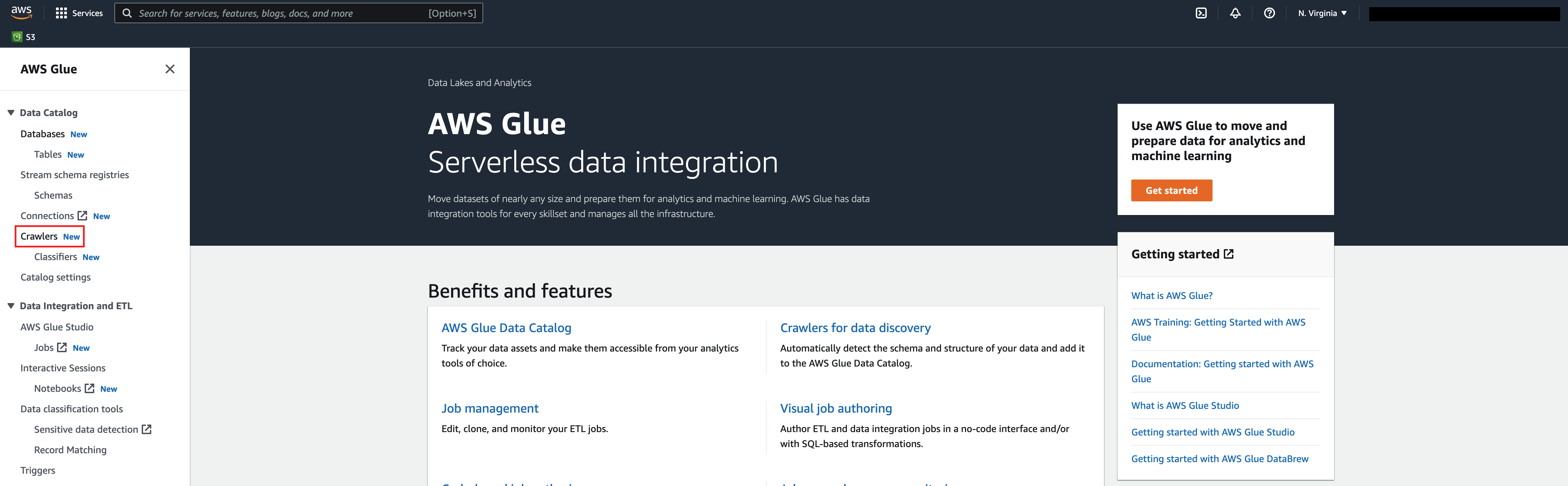
  1. On the AWS Glue console, choose Schema registries in the navigation pane.
  2. Click Add registry.
  3. For Registry name, enter employee-schema-registry.
  4. Click Add Registry.
  5. After the registry is created, click Add schema to register a new schema.
  6. For Schema name, enter Employee.proto.

The schema must be either Employee.proto or Employee if the protobuf schema doesn’t have the options option java_multiple_files = true; and option java_outer_classname = "<Outer class name>"; and if you decide to use protobuf schema generated code (POJOs) in your stream processing applications. We cover this with an example in a subsequent section of this post.­ For more information on protobuf options, refer to Options.

  1. For Registry, choose the registry employee-schema-registry.
  2. For Data format, choose Protocol buffers.
  3. For Compatibility mode, choose Backward.

You can choose other compatibility modes as per your use case.

  1. For First schema version, enter the preceding protobuf schema, then click Create schema and version.

After the schema is registered successfully, its status will be Available, as shown in the following screenshot.

Create a schema via the AWS CLI

Make sure you have IAM credentials with AWS Glue Schema Registry permissions.

  1. Run the following AWS CLI command to create a schema registry employee-schema-registry (for this post, we use the Region us-east-2):
    aws glue create-registry \
    --registry-name employee-schema-registry \
    --region us-east-2

The AWS CLI command returns the newly created schema registry ARN in response.

  1. Copy the RegistryArn value from the response to use in the following AWS CLI command.
  2. In the following command, use the preceding protobuf schema and schema name Employee.proto:
    aws glue create-schema --schema-name Employee.proto \
    --registry-id RegistryArn=<Schema Registry ARN that you copied from response of create registry CLI command> \
    --compatibility BACKWARD \
    --data-format PROTOBUF \
    --schema-definition file:///<project-directory>/Employee.proto \
    --region us-east-2

You can also use AWS CloudFormation to create schemas in AWS Glue Schema Registry.

Using a Protocol buffers schema with Amazon MSK and Kinesis Data Streams

Like Apache Avro’s SpecificRecord and GenericRecord, protobuf also supports working with POJOs to ensure type safety and DynamicMessage to create generic data producer and consumer applications. The following examples showcase the use of a protobuf schema registered in AWS Glue Schema Registry with Kafka and Kinesis Data Streams producer and consumer applications.

Use a protobuf schema with Amazon MSK

Create an Amazon MSK or Apache Kafka cluster with a topic called protobuf-demo-topic. If creating an Amazon MSK cluster, you can use the console. For instructions, refer to Getting Started Using Amazon MSK.

Use protobuf schema-generated POJOs

To use protobuf schema-generated POJOs, complete the following steps:

  1. Install the protobuf compiler (protoc) on your local machine from GitHub and add it in the PATH variable.
  2. Add the following plugin configuration to your application’s pom.xml file. We use the xolstice protobuf Maven plugin for this post to generate code from the protobuf schema.
    <plugin>
       <!-- https://www.xolstice.org/protobuf-maven-plugin/usage.html -->
       <groupId>org.xolstice.maven.plugins</groupId>
       <artifactId>protobuf-maven-plugin</artifactId>
       <version>0.6.1</version>
       <configuration>
           <protoSourceRoot>${basedir}/src/main/resources/proto</protoSourceRoot>
           <outputDirectory>${basedir}/src/main/java</outputDirectory>
           <clearOutputDirectory>false</clearOutputDirectory>
       </configuration>
       <executions>
           <execution>
               <goals>
                   <goal>compile</goal>
               </goals>
           </execution>
       </executions>
    </plugin>

  3. Add the following dependencies to your application’s pom.xml file:
    <!-- https://mvnrepository.com/artifact/com.google.protobuf/protobuf-java -->
    <dependency>
       <groupId>com.google.protobuf</groupId>
       <artifactId>protobuf-java</artifactId>
       <version>3.19.4</version>
    </dependency>
    
    <!-- https://mvnrepository.com/artifact/software.amazon.glue/schema-registry-serde -->
    <dependency>
       <groupId>software.amazon.glue</groupId>
       <artifactId>schema-registry-serde</artifactId>
       <version>1.1.9</version>
    </dependency>	

  4. Create a schema registry employee-schema-registry in AWS Glue Schema Registry and register the Employee.proto protobuf schema with it. Name your schema Employee.proto (or Employee).
  5. Run the following command to generate the code from Employee.proto. Make sure you have the schema file in the ${basedir}/src/main/resources/proto directory or change it as per your application directory structure in the application’s pom.xml <protoSourceRoot> tag value:
    mvn clean compile

Next, we configure the Kafka producer publishing protobuf messages to the Kafka topic on Amazon MSK.

  1. Configure the Kafka producer properties:
private Properties getProducerConfig() {
    Properties props = new Properties();
    props.put(ProducerConfig.BOOTSTRAP_SERVERS_CONFIG, this.bootstrapServers);
    props.put(ProducerConfig.KEY_SERIALIZER_CLASS_CONFIG, StringSerializer.class.getName());
    props.put(ProducerConfig.VALUE_SERIALIZER_CLASS_CONFIG, GlueSchemaRegistryKafkaSerializer.class.getName());
    props.put(AWSSchemaRegistryConstants.DATA_FORMAT, DataFormat.PROTOBUF.name());
    props.put(AWSSchemaRegistryConstants.AWS_REGION,"us-east-2");
    props.put(AWSSchemaRegistryConstants.REGISTRY_NAME, "employee-schema-registry");
    props.put(AWSSchemaRegistryConstants.SCHEMA_NAME, "Employee.proto");
    props.put(AWSSchemaRegistryConstants.PROTOBUF_MESSAGE_TYPE, ProtobufMessageType.POJO.getName());
    return props;
}

The VALUE_SERIALIZER_CLASS_CONFIG configuration specifies the AWS Glue Schema Registry serializer, which serializes the protobuf message.

  1. Use the schema-generated code (POJOs) to create a protobuf message:
    public EmployeeOuterClass.Employee createEmployeeRecord(int employeeId){
        EmployeeOuterClass.Employee employee =
                EmployeeOuterClass.Employee.newBuilder()
                        .setId(employeeId)
                        .setName("Dummy")
                        .setAddress("Melbourne, Australia")
                        .setEmployeeAge(Int32Value.newBuilder().setValue(32).build())
                        .setStartDate(Timestamp.newBuilder().setSeconds(235234532434L).build())
                        .setTotalTimeSpanInCompany(Duration.newBuilder().setSeconds(3453245345L).build())
                        .setIsCertified(BoolValue.newBuilder().setValue(true).build())
                        .setRole(EmployeeOuterClass.Role.ARCHITECT)
                        .setProject(EmployeeOuterClass.Project.newBuilder()
                                .setName("Protobuf Schema Demo")
                                .setState("GA").build())
                        .setTotalAwardValue(Money.newBuilder()
                                            .setCurrencyCode("USD")
                                            .setUnits(5)
                                            .setNanos(50000).build())
                        .setTeam(EmployeeOuterClass.Team.newBuilder()
                                .setName("Solutions Architects")
                                .setLocation("Australia").build()).build();
        return employee;
    }

  2. Publish the protobuf messages to the protobuf-demo-topic topic on Amazon MSK:
    public void startProducer() throws InterruptedException {
        String topic = "protobuf-demo-topic";
        KafkaProducer<String, EmployeeOuterClass.Employee> producer = new KafkaProducer<String, EmployeeOuterClass.Employee>(getProducerConfig());
        logger.info("Starting to send records...");
        int employeeId = 0;
        while(employeeId < 100)
        {
            EmployeeOuterClass.Employee person = createEmployeeRecord(employeeId);
            String key = "key-" + employeeId;
            ProducerRecord<String,  EmployeeOuterClass.Employee> record = new ProducerRecord<String,  EmployeeOuterClass.Employee>(topic, key, person);
            producer.send(record, new ProducerCallback());
            employeeId++;
        }
    }
    private class ProducerCallback implements Callback {
        @Override
        public void onCompletion(RecordMetadata recordMetaData, Exception e){
            if (e == null) {
                logger.info("Received new metadata. \n" +
                        "Topic:" + recordMetaData.topic() + "\n" +
                        "Partition: " + recordMetaData.partition() + "\n" +
                        "Offset: " + recordMetaData.offset() + "\n" +
                        "Timestamp: " + recordMetaData.timestamp());
            }
            else {
                logger.info("There's been an error from the Producer side");
                e.printStackTrace();
            }
        }
    }

  3. Start the Kafka producer:
    public static void main(String args[]) throws InterruptedException {
        ProducerProtobuf producer = new ProducerProtobuf();
        producer.startProducer();
    }

  4. In the Kafka consumer application’s pom.xml, add the same plugin and dependencies as the Kafka producer’s pom.xml.

Next, we configure the Kafka consumer consuming protobuf messages from the Kafka topic on Amazon MSK.

  1. Configure the Kafka consumer properties:
    private Properties getConsumerConfig() {
        Properties props = new Properties();
        props.put(ProducerConfig.BOOTSTRAP_SERVERS_CONFIG, this.bootstrapServers);
        props.put(ConsumerConfig.GROUP_ID_CONFIG, "protobuf-consumer");
        props.put(ConsumerConfig.AUTO_OFFSET_RESET_CONFIG,"earliest");
        props.put(ConsumerConfig.KEY_DESERIALIZER_CLASS_CONFIG, StringDeserializer.class.getName());
        props.put(ConsumerConfig.VALUE_DESERIALIZER_CLASS_CONFIG, GlueSchemaRegistryKafkaDeserializer.class.getName());
        props.put(AWSSchemaRegistryConstants.AWS_REGION,"us-east-2");
        props.put(AWSSchemaRegistryConstants.PROTOBUF_MESSAGE_TYPE, ProtobufMessageType.POJO.getName());
        return props;
    }

The VALUE_DESERIALIZER_CLASS_CONFIG config specifies the AWS Glue Schema Registry deserializer that deserializes the protobuf messages.

  1. Consume the protobuf message (as a POJO) from the protobuf-demo-topic topic on Amazon MSK:
    public void startConsumer() {
        logger.info("starting consumer...");
        String topic = "protobuf-demo-topic";
        KafkaConsumer<String, EmployeeOuterClass.Employee> consumer = new KafkaConsumer<String, EmployeeOuterClass.Employee>(getConsumerConfig());
        consumer.subscribe(Collections.singletonList(topic));
        while (true) {
            final ConsumerRecords<String, EmployeeOuterClass.Employee> records = consumer.poll(Duration.ofMillis(1000));
            for (final ConsumerRecord<String, EmployeeOuterClass.Employee> record : records) {
                final EmployeeOuterClass.Employee employee = record.value();
                logger.info("Employee Id: " + employee.getId() + " | Name: " + employee.getName() + " | Address: " + employee.getAddress() +
                        " | Age: " + employee.getEmployeeAge().getValue() + " | Startdate: " + employee.getStartDate().getSeconds() +
                        " | TotalTimeSpanInCompany: " + employee.getTotalTimeSpanInCompany() +
                        " | IsCertified: " + employee.getIsCertified().getValue() + " | Team: " + employee.getTeam().getName() +
                        " | Role: " + employee.getRole().name() + " | Project State: " + employee.getProject().getState() +
                        " | Project Name: " + employee.getProject().getName() + "| Award currency code: " + employee.getTotalAwardValue().getCurrencyCode() +
                        " | Award units : " + employee.getTotalAwardValue().getUnits() + " | Award nanos " + employee.getTotalAwardValue().getNanos());
            }
        }
    }

  2. Start the Kafka consumer:
    public static void main(String args[]){
        ConsumerProtobuf consumer = new ConsumerProtobuf();
        consumer.startConsumer();
    }

Use protobuf’s DynamicMessage

You can use DynamicMessage to create generic producer and consumer applications without generating the code from the protobuf schema. To use DynamicMessage, you first need to create a protobuf schema file descriptor.

  1. Generate a file descriptor from the protobuf schema using the following command:
    protoc --include_imports --proto_path=proto --descriptor_set_out=proto/Employeeproto.desc proto/Employee.proto

The option --descritor_set_out has the descriptor file name that this command generates. The protobuf schema Employee.proto is in the proto directory.

  1. Make sure you have created a schema registry and registered the preceding protobuf schema with it.

Now we configure the Kafka producer publishing DynamicMessage to the Kafka topic on Amazon MSK.

  1. Create the Kafka producer configuration. The PROTOBUF_MESSAGE_TYPE configuration is DYNAMIC_MESSAGE instead of POJO.
    private Properties getProducerConfig() {
       Properties props = new Properties();
       props.put(ProducerConfig.BOOTSTRAP_SERVERS_CONFIG, this.bootstrapServers);
       props.put(ProducerConfig.ACKS_CONFIG, "-1");
       props.put(ProducerConfig.CLIENT_ID_CONFIG,"protobuf-dynamicmessage-record-producer");
       props.put(ProducerConfig.KEY_SERIALIZER_CLASS_CONFIG, StringSerializer.class.getName());
       props.put(ProducerConfig.VALUE_SERIALIZER_CLASS_CONFIG,GlueSchemaRegistryKafkaSerializer.class.getName());
       props.put(AWSSchemaRegistryConstants.DATA_FORMAT, DataFormat.PROTOBUF.name());
       props.put(AWSSchemaRegistryConstants.AWS_REGION,"us-east-2");
       props.put(AWSSchemaRegistryConstants.REGISTRY_NAME, "employee-schema-registry");
       props.put(AWSSchemaRegistryConstants.SCHEMA_NAME, "Employee.proto");
       props.put(AWSSchemaRegistryConstants.PROTOBUF_MESSAGE_TYPE, ProtobufMessageType.DYNAMIC_MESSAGE.getName());
       return props;
        }

  2. Create protobuf dynamic messages and publish them to the Kafka topic on Amazon MSK:
    public void startProducer() throws Exception {
        Descriptor desc = getDescriptor();
        String topic = "protobuf-demo-topic";
        KafkaProducer<String, DynamicMessage> producer = new KafkaProducer<String, DynamicMessage>(getProducerConfig());
        logger.info("Starting to send records...");
        int i = 0;
        while (i < 100) {
            DynamicMessage dynMessage = DynamicMessage.newBuilder(desc)
                    .setField(desc.findFieldByName("id"), 1234)
                    .setField(desc.findFieldByName("name"), "Dummy Name")
                    .setField(desc.findFieldByName("address"), "Melbourne, Australia")
                    .setField(desc.findFieldByName("employee_age"), Int32Value.newBuilder().setValue(32).build())
                    .setField(desc.findFieldByName("start_date"), Timestamp.newBuilder().setSeconds(235234532434L).build())
                    .setField(desc.findFieldByName("total_time_span_in_company"), Duration.newBuilder().setSeconds(3453245345L).build())
                    .setField(desc.findFieldByName("is_certified"), BoolValue.newBuilder().setValue(true).build())
    		.setField(desc.findFieldByName("total_award_value"), Money.newBuilder().setCurrencyCode("USD")
    						.setUnits(1).setNanos(50000).build())
                    .setField(desc.findFieldByName("team"), createTeam(desc.findFieldByName("team").getMessageType()))
                    .setField(desc.findFieldByName("project"), createProject(desc.findFieldByName("project").getMessageType()))
                    .setField(desc.findFieldByName("role"), desc.findFieldByName("role").getEnumType().findValueByName("ARCHITECT"))
                    .build();
            String key = "key-" + i;
            ProducerRecord<String, DynamicMessage> record = new ProducerRecord<String, DynamicMessage>(topic, key, dynMessage);
            producer.send(record, new ProtobufProducer.ProducerCallback());
            Thread.sleep(1000);
            i++;
        }
    }
    private static DynamicMessage createTeam(Descriptor desc) {
        DynamicMessage dynMessage = DynamicMessage.newBuilder(desc)
                .setField(desc.findFieldByName("name"), "Solutions Architects")
                .setField(desc.findFieldByName("location"), "Australia")
                .build();
        return dynMessage;
    }
    
    private static DynamicMessage createProject(Descriptor desc) {
        DynamicMessage dynMessage = DynamicMessage.newBuilder(desc)
                .setField(desc.findFieldByName("name"), "Protobuf Schema Demo")
                .setField(desc.findFieldByName("state"), "GA")
                .build();
        return dynMessage;
    }
    
    private class ProducerCallback implements Callback {
        @Override
        public void onCompletion(RecordMetadata recordMetaData, Exception e) {
            if (e == null) {
                logger.info("Received new metadata. \n" +
                        "Topic:" + recordMetaData.topic() + "\n" +
                        "Partition: " + recordMetaData.partition() + "\n" +
                        "Offset: " + recordMetaData.offset() + "\n" +
                        "Timestamp: " + recordMetaData.timestamp());
            } else {
                logger.info("There's been an error from the Producer side");
                e.printStackTrace();
            }
        }
    }

  3. Create a descriptor using the Employeeproto.desc file that we generated from the Employee.proto schema file in the previous steps:
    private Descriptor getDescriptor() throws Exception {
        InputStream inStream = ProtobufProducer.class.getClassLoader().getResourceAsStream("proto/Employeeproto.desc");
        DescriptorProtos.FileDescriptorSet fileDescSet = DescriptorProtos.FileDescriptorSet.parseFrom(inStream);
        Map<String, DescriptorProtos.FileDescriptorProto> fileDescProtosMap = new HashMap<String, DescriptorProtos.FileDescriptorProto>();
        List<DescriptorProtos.FileDescriptorProto> fileDescProtos = fileDescSet.getFileList();
        for (DescriptorProtos.FileDescriptorProto fileDescProto : fileDescProtos) {
            fileDescProtosMap.put(fileDescProto.getName(), fileDescProto);
        }
        DescriptorProtos.FileDescriptorProto fileDescProto = fileDescProtosMap.get("Employee.proto");
        FileDescriptor[] dependencies = getProtoDependencies(fileDescProtosMap, fileDescProto);
        FileDescriptor fileDesc = FileDescriptor.buildFrom(fileDescProto, dependencies);
        Descriptor desc = fileDesc.findMessageTypeByName("Employee");
        return desc;
    }
    
    public static FileDescriptor[] getProtoDependencies(Map<String, FileDescriptorProto> fileDescProtos, 
    				  FileDescriptorProto fileDescProto) throws Exception {
    
        if (fileDescProto.getDependencyCount() == 0)
            return new FileDescriptor[0];
    
        ProtocolStringList dependencyList = fileDescProto.getDependencyList();
        String[] dependencyArray = dependencyList.toArray(new String[0]);
        int noOfDependencies = dependencyList.size();
    
        FileDescriptor[] dependencies = new FileDescriptor[noOfDependencies];
        for (int i = 0; i < noOfDependencies; i++) {
            FileDescriptorProto dependencyFileDescProto = fileDescProtos.get(dependencyArray[i]);
            FileDescriptor dependencyFileDesc = FileDescriptor.buildFrom(dependencyFileDescProto, 
    					     getProtoDependencies(fileDescProtos, dependencyFileDescProto));
            dependencies[i] = dependencyFileDesc;
        }
        return dependencies;
    }

  4. Start the Kafka producer:
    public static void main(String args[]) throws InterruptedException {
    	 ProducerProtobuf producer = new ProducerProtobuf();
             producer.startProducer();
    }

Now we configure the Kafka consumer consuming dynamic messages from the Kaka topic on Amazon MSK.

  1. Enter the following Kafka consumer configuration:
    private Properties getConsumerConfig() {
        Properties props = new Properties();
        props.put(ProducerConfig.BOOTSTRAP_SERVERS_CONFIG, this.bootstrapServers);
        props.put(ConsumerConfig.GROUP_ID_CONFIG, "protobuf-record-consumer");
        props.put(ConsumerConfig.AUTO_OFFSET_RESET_CONFIG,"earliest");
        props.put(ConsumerConfig.KEY_DESERIALIZER_CLASS_CONFIG, StringDeserializer.class.getName());
        props.put(ConsumerConfig.VALUE_DESERIALIZER_CLASS_CONFIG, GlueSchemaRegistryKafkaDeserializer.class.getName());
        props.put(AWSSchemaRegistryConstants.AWS_REGION,"us-east-2");
        props.put(AWSSchemaRegistryConstants.PROTOBUF_MESSAGE_TYPE, ProtobufMessageType.DYNAMIC_MESSAGE.getName());
        return props;
    }

  2. Consume protobuf dynamic messages from the Kafka topic protobuf-demo-topic. Because we’re using DYNAMIC_MESSAGE, the retrieved objects are of type DynamicMessage.
    public void startConsumer() {
        logger.info("starting consumer...");
        String topic = "protobuf-demo-topic";
        KafkaConsumer<String, DynamicMessage> consumer = new KafkaConsumer<String, DynamicMessage>(getConsumerConfig());
        consumer.subscribe(Collections.singletonList(topic));
        while (true) {
            final ConsumerRecords<String, DynamicMessage> records = consumer.poll(Duration.ofMillis(1000));
            for (final ConsumerRecord<String, DynamicMessage> record : records) {
                for (Descriptors.FieldDescriptor field : record.value().getAllFields().keySet()) {
                    logger.info(field.getName() + ": " + record.value().getField(field));
                }
            }
        }
    }

  3. Start the Kafka consumer:
    public static void main(String args[]){
            ConsumerProtobuf consumer = new ConsumerProtobuf();
            consumer.startConsumer();
         }

Use a protobuf schema with Kinesis Data Streams

You can use the protobuf schema-generated POJOs with the Kinesis Producer Library (KPL) and Kinesis Client Library (KCL).

  1. Install the protobuf compiler (protoc) on your local machine from GitHub and add it in the PATH variable.
  2. Add the following plugin configuration to your application’s pom.xml file. We’re using the xolstice protobuf Maven plugin for this post to generate code from the protobuf schema.
    <plugin>
       <!-- https://www.xolstice.org/protobuf-maven-plugin/usage.html -->
       <groupId>org.xolstice.maven.plugins</groupId>
       <artifactId>protobuf-maven-plugin</artifactId>
       <version>0.6.1</version>
       <configuration>
           <protoSourceRoot>${basedir}/src/main/resources/proto</protoSourceRoot>
           <outputDirectory>${basedir}/src/main/java</outputDirectory>
           <clearOutputDirectory>false</clearOutputDirectory>
       </configuration>
       <executions>
           <execution>
               <goals>
                   <goal>compile</goal>
               </goals>
           </execution>
       </executions>
    </plugin>

  3. Because the KPL and KCL latest versions have the AWS Glue Schema Registry open-source library (schema-registry-serde) and protobuf runtime (protobuf-java) included, you only need to add the following dependencies to your application’s pom.xml:
    <!-- https://mvnrepository.com/artifact/com.amazonaws/amazon-kinesis-producer -->
    <dependency>
        <groupId>com.amazonaws</groupId>
        <artifactId>amazon-kinesis-producer</artifactId>
        <version>0.14.11</version>
    	</dependency>
    	<!-- https://mvnrepository.com/artifact/software.amazon.kinesis/amazon-kinesis-client -->
    <dependency>
        <groupId>software.amazon.kinesis</groupId>
        <artifactId>amazon-kinesis-client</artifactId>
        <version>2.4.0version>
    </dependency>

  4. Create a schema registry employee-schema-registry and register the Employee.proto protobuf schema with it. Name your schema Employee.proto (or Employee).
  5. Run the following command to generate the code from Employee.proto. Make sure you have the schema file in the ${basedir}/src/main/resources/proto directory or change it as per your application directory structure in the application’s pom.xml <protoSourceRoot> tag value.
    mvn clean compile

The following Kinesis producer code with the KPL uses the Schema Registry open-source library to publish protobuf messages to Kinesis Data Streams.

  1. Start the Kinesis Data Streams producer:
    private static final String PROTO_SCHEMA_FILE = "proto/Employee.proto";
    private static final String SCHEMA_NAME = "Employee.proto";
    private static String REGION_NAME = "us-east-2";
    private static String REGISTRY_NAME = "employee-schema-registry";
    private static String STREAM_NAME = "employee_data_stream";
    private static int NUM_OF_RECORDS = 100;
    private static String REGISTRY_ENDPOINT = "https://glue.us-east-2.amazonaws.com";
    
    public static void main(String[] args) throws Exception {
         ProtobufKPLProducer producer = new ProtobufKPLProducer();
         producer.startProducer();
     }
    }

  2. Configure the Kinesis producer:
public void startProducer() throws Exception {
    logger.info("Starting KPL client with Glue Schema Registry Integration...");
    GlueSchemaRegistryConfiguration schemaRegistryConfig = new GlueSchemaRegistryConfiguration(REGION_NAME);
    schemaRegistryConfig.setCompressionType(AWSSchemaRegistryConstants.COMPRESSION.ZLIB);
    schemaRegistryConfig.setSchemaAutoRegistrationEnabled(false);
    schemaRegistryConfig.setCompatibilitySetting(Compatibility.BACKWARD);
    schemaRegistryConfig.setEndPoint(REGISTRY_ENDPOINT);
    schemaRegistryConfig.setProtobufMessageType(ProtobufMessageType.POJO);
    schemaRegistryConfig.setRegistryName(REGISTRY_NAME);
	
    //Setting Glue Schema Registry configuration in Kinesis Producer Configuration along with other configs
    KinesisProducerConfiguration config = new KinesisProducerConfiguration()
                                        .setRecordMaxBufferedTime(3000)
                                        .setMaxConnections(1)
                                        .setRequestTimeout(60000)
                                        .setRegion(REGION_NAME)
                                        .setRecordTtl(60000)
                                        .setGlueSchemaRegistryConfiguration(schemaRegistryConfig);

    FutureCallback<UserRecordResult> myCallback = new FutureCallback<UserRecordResult>() {
        @Override public void onFailure(Throwable t) {
              t.printStackTrace();
        };
        @Override public void onSuccess(UserRecordResult result) {
            logger.info("record sent successfully. Sequence Number: " + result.getSequenceNumber() + " | Shard Id : " + result.getShardId());
        };
    };
    
	//Creating schema definition object from the Employee.proto schema file.
    Schema gsrSchema = getSchemaDefinition();
    final KinesisProducer producer = new KinesisProducer(config);
    int employeeCount = 1;
    while(true) {
        //Creating and serializing schema generated POJO object (protobuf message)

        EmployeeOuterClass.Employee employee = createEmployeeRecord(employeeCount);
        byte[] serializedBytes = employee.toByteArray();
        ByteBuffer data = ByteBuffer.wrap(serializedBytes);
        Instant timestamp = Instant.now();

        //Publishing protobuf message to the Kinesis Data Stream
        ListenableFuture<UserRecordResult> f =
                    producer.addUserRecord(STREAM_NAME,
                                        Long.toString(timestamp.toEpochMilli()),
                                        new BigInteger(128, new Random()).toString(10),
                                        data,
                                        gsrSchema);
        Futures.addCallback(f, myCallback, MoreExecutors.directExecutor());
        employeeCount++;
        if(employeeCount > NUM_OF_RECORDS)
            break;
    }
    List<Future<UserRecordResult>> putFutures = new LinkedList<>();
    for (Future<UserRecordResult> future : putFutures) {
        UserRecordResult userRecordResult = future.get();
        logger.info(userRecordResult.getShardId() + userRecordResult.getSequenceNumber());
    }
}
  1. Create a protobuf message using schema-generated code (POJOs):
    public EmployeeOuterClass.Employee createEmployeeRecord(int count){
        EmployeeOuterClass.Employee employee =
                EmployeeOuterClass.Employee.newBuilder()
                .setId(count)
                .setName("Dummy")
                .setAddress("Melbourne, Australia")
                .setEmployeeAge(Int32Value.newBuilder().setValue(32).build())
                .setStartDate(Timestamp.newBuilder().setSeconds(235234532434L).build())
                .setTotalTimeSpanInCompany(Duration.newBuilder().setSeconds(3453245345L).build())
                .setIsCertified(BoolValue.newBuilder().setValue(true).build())
                .setRole(EmployeeOuterClass.Role.ARCHITECT)
                .setProject(EmployeeOuterClass.Project.newBuilder()
                            .setName("Protobuf Schema Demo")
                            .setState("GA").build())
                .setTotalAwardValue(Money.newBuilder()
                            .setCurrencyCode("USD")
                            .setUnits(5)
                            .setNanos(50000).build())
                .setTeam(EmployeeOuterClass.Team.newBuilder()
                            .setName("Solutions Architects")
                            .setLocation("Australia").build()).build();
        return employee;
    }

  2. Create the schema definition from Employee.proto:
    private Schema getSchemaDefinition() throws IOException {
        InputStream inputStream = ProtobufKPLProducer.class.getClassLoader().getResourceAsStream(PROTO_SCHEMA_FILE);
        StringBuilder resultStringBuilder = new StringBuilder();
        try (BufferedReader br = new BufferedReader(new InputStreamReader(inputStream))) {
            String line;
            while ((line = br.readLine()) != null) {
                resultStringBuilder.append(line).append("\n");
            }
        }
        String schemaDefinition = resultStringBuilder.toString();
        logger.info("Schema Definition " + schemaDefinition);
        Schema gsrSchema =
                new Schema(schemaDefinition, DataFormat.PROTOBUF.toString(), SCHEMA_NAME);
        return gsrSchema;
    }

The following is the Kinesis consumer code with the KCL using the Schema Registry open-source library to consume protobuf messages from the Kinesis Data Streams.

  1. Initialize the application:
    public void run(){
        logger.info("Starting KCL client with Glue Schema Registry Integration...");
        Region region = Region.of(ObjectUtils.firstNonNull(REGION_NAME, "us-east-2"));
        KinesisAsyncClient kinesisClient = KinesisClientUtil.createKinesisAsyncClient(KinesisAsyncClient.builder().region(region));
        DynamoDbAsyncClient dynamoClient = DynamoDbAsyncClient.builder().region(region).build();
        CloudWatchAsyncClient cloudWatchClient = CloudWatchAsyncClient.builder().region(region).build();
    
        EmployeeRecordProcessorFactory employeeRecordProcessorFactory = new EmployeeRecordProcessorFactory();
        ConfigsBuilder configsBuilder =
                new ConfigsBuilder(STREAM_NAME,
                        APPLICATION_NAME,
                        kinesisClient,
                        dynamoClient,
                        cloudWatchClient,
                        APPLICATION_NAME,
                        employeeRecordProcessorFactory);
    
        //Creating Glue Schema Registry configuration and Glue Schema Registry Deserializer object.
        GlueSchemaRegistryConfiguration gsrConfig = new GlueSchemaRegistryConfiguration(region.toString());
        gsrConfig.setEndPoint(REGISTRY_ENDPOINT);
        gsrConfig.setProtobufMessageType(ProtobufMessageType.POJO);
        GlueSchemaRegistryDeserializer glueSchemaRegistryDeserializer =
                new GlueSchemaRegistryDeserializerImpl(DefaultCredentialsProvider.builder().build(), gsrConfig);
        /*
         Setting Glue Schema Registry deserializer in the Retrieval Config for
         Kinesis Client Library to use it while deserializing the protobuf messages.
         */
        RetrievalConfig retrievalConfig = configsBuilder.retrievalConfig().retrievalSpecificConfig(new PollingConfig(STREAM_NAME, kinesisClient));
        retrievalConfig.glueSchemaRegistryDeserializer(glueSchemaRegistryDeserializer);
    
        Scheduler scheduler = new Scheduler(
                		configsBuilder.checkpointConfig(),
                		configsBuilder.coordinatorConfig(),
               		configsBuilder.leaseManagementConfig(),
                		configsBuilder.lifecycleConfig(),
                		configsBuilder.metricsConfig(),
                		configsBuilder.processorConfig(),
                		retrievalConfig);
    
        Thread schedulerThread = new Thread(scheduler);
        schedulerThread.setDaemon(true);
        schedulerThread.start();
    
        logger.info("Press enter to shutdown");
        BufferedReader reader = new BufferedReader(new InputStreamReader(System.in));
        try {
            reader.readLine();
            Future<Boolean> gracefulShutdownFuture = scheduler.startGracefulShutdown();
            logger.info("Waiting up to 20 seconds for shutdown to complete.");
            gracefulShutdownFuture.get(20, TimeUnit.SECONDS);
        } catch (Exception e) {
            logger.info("Interrupted while waiting for graceful shutdown. Continuing.");
        }
        logger.info("Completed, shutting down now.");
    }

  2. Consume protobuf messages from Kinesis Data Streams:
    public static class EmployeeRecordProcessorFactory implements ShardRecordProcessorFactory {
        @Override
        public ShardRecordProcessor shardRecordProcessor() {
            return new EmployeeRecordProcessor();
        }
    }
    public static class EmployeeRecordProcessor implements ShardRecordProcessor {
        private static final Logger logger = Logger.getLogger(EmployeeRecordProcessor.class.getSimpleName());
        public void initialize(InitializationInput initializationInput) {}
        public void processRecords(ProcessRecordsInput processRecordsInput) {
            try {
                logger.info("Processing " + processRecordsInput.records().size() + " record(s)");
                for (KinesisClientRecord r : processRecordsInput.records()) {
    			
                    //Deserializing protobuf message into schema generated POJO
                    EmployeeOuterClass.Employee employee = EmployeeOuterClass.Employee.parseFrom(r.data().array());
                    
                   logger.info("Processed record: " + employee);
                    logger.info("Employee Id: " + employee.getId() + " | Name: "  + employee.getName() + " | Address: " + employee.getAddress() +
                            " | Age: " + employee.getEmployeeAge().getValue() + " | Startdate: " + employee.getStartDate().getSeconds() +
                            " | TotalTimeSpanInCompany: " + employee.getTotalTimeSpanInCompany() +
                            " | IsCertified: " + employee.getIsCertified().getValue() + " | Team: " + employee.getTeam().getName() +
                            " | Role: " + employee.getRole().name() + " | Project State: " + employee.getProject().getState() +
                            " | Project Name: " + employee.getProject().getName() + " | Award currency code: " +    
                           employee.getTotalAwardValue().getCurrencyCode() + " | Award units : " + employee.getTotalAwardValue().getUnits() + 
    		      " | Award nanos " + employee.getTotalAwardValue().getNanos());
                }
            } catch (Exception e) {
                logger.info("Failed while processing records. Aborting" + e);
                Runtime.getRuntime().halt(1);
            }
        }
        public void leaseLost(LeaseLostInput leaseLostInput) {. . .}
        public void shardEnded(ShardEndedInput shardEndedInput) {. . .}
        public void shutdownRequested(ShutdownRequestedInput shutdownRequestedInput) {. . .}
    }

  3. Start the Kinesis Data Streams consumer:
    private static final Logger logger = Logger.getLogger(ProtobufKCLConsumer.class.getSimpleName());
    private static String REGION_NAME = "us-east-2";
    private static String STREAM_NAME = "employee_data_stream";
    private static final String APPLICATION_NAME =  "protobuf-demo-kinesis-kpl-consumer";
    private static String REGISTRY_ENDPOINT = "https://glue.us-east-2.amazonaws.com";
    
    public static void main(String[] args) throws ParseException {
        new ProtobufKCLConsumer().run();
    }
    

Enhance your protobuf schema

We covered examples of data producer and consumer applications integrating with Amazon MSK, Apache Kafka, and Kinesis Data Streams, and using a Protocol buffers schema registered with AWS Glue Schema Registry. You can further enhance these examples with schema evolution using the following rules, which are supported by AWS Glue Schema Registry. For example, the following protobuf schema shown is a backward-compatible updated version of Employee.proto. We have added another gRPC service definition CreateEmployee under EmployeeSearch and added an Optional field in the Employee message type. If you upgrade the consumer application with this version of the protobuf schema, the consumer application can still consume old and new protobuf messages.

Employee.proto (version-2)

syntax = "proto2";
package gsr.proto.post;

import "google/protobuf/wrappers.proto";
import "google/protobuf/duration.proto";
import "google/protobuf/timestamp.proto";
import "google/protobuf/empty.proto";
import "google/type/money.proto";

service EmployeeSearch {
    rpc FindEmployee(EmployeeSearchParams) returns (Employee);
    rpc CreateEmployee(EmployeeSearchParams) returns (google.protobuf.Empty);
}
message EmployeeSearchParams {
    required int32 id = 1;
}
message Employee {
    required int32 id = 1;
    required string name = 2;
    required string address = 3;
    required google.protobuf.Int32Value employee_age = 4;
    required google.protobuf.Timestamp start_date = 5;
    required google.protobuf.Duration total_time_span_in_company = 6;
    required google.protobuf.BoolValue is_certified = 7;
    required Team team = 8;
    required Project project = 9;
    required Role role = 10;
    required google.type.Money total_award_value = 11;
    optional string title = 12;
}
message Team {
    required string name = 1;
    required string location = 2;
}
message Project {
    required string name = 1;
    required string state = 2;
}
enum Role {
    MANAGER = 0;
    DEVELOPER = 1;
    ARCHITECT = 2;
}

Conclusion

In this post, we introduced Protocol buffers schema support in AWS Glue Schema Registry. AWS Glue Schema Registry now supports Apache Avro, JSON, and Protocol buffers schemas with different compatible modes. The examples in this post demonstrated how to use Protocol buffers schemas registered with AWS Glue Schema Registry in stream processing applications integrated with Apache Kafka, Amazon MSK, and Kinesis Data Streams. We used the schema-generated POJOs for type safety and protobuf’s DynamicMessage to create generic producer and consumer applications. The examples in this post contain the basic components of the stream processing pattern; you can adapt these examples to your use case needs.

To learn more, refer to the following resources:


About the Author

Vikas Bajaj is a Principal Solutions Architect at AWS. Vikas works with digital native customers and advises them on technology architecture and solutions to meet strategic business objectives.

Understanding the JVMMemoryPressure metric changes in Amazon OpenSearch Service

Post Syndicated from Liz Snyder original https://aws.amazon.com/blogs/big-data/understanding-the-jvmmemorypressure-metric-changes-in-amazon-opensearch-service/

Amazon OpenSearch Service is a managed service that makes it easy to secure, deploy, and operate OpenSearch and legacy Elasticsearch clusters at scale.

In the latest service software release of Amazon OpenSearch Service, we’ve changed the behavior of the JVMMemoryPressure metric. This metric now reports the overall heap usage, including young and old pools, for all domains that use the G1GC garbage collector. If you’re using Graviton-based data nodes (C6, R6, and M6 instances), or if you enabled Auto-Tune and it has switched your garbage collection algorithm to G1GC, this change will improve your ability to detect and respond to problems with OpenSearch’s Java heap.

Basics of Java garbage collection

Objects in Java are allocated in a heap memory, occupying half of the instance’s RAM up to approximately 32 GB. As your application runs, it creates and destroys objects in the heap, leaving the heap fragmented and making it harder to allocate new objects. Java’s garbage collection algorithm periodically goes through the heap and reclaims the memory of any unused objects. It also compacts the heap when necessary to provide more contiguous free space.

The heap is allocated into smaller memory pools:

Young generation – The young generation memory pool is where new objects are allocated. The young generation is further divided into an Eden space, where all new objects start, and two survivor spaces (S0 and S1), where objects are moved from Eden after surviving one garbage collection cycle. When the young generation fills up, Java performs a minor garbage collection to clean up unmarked objects. Objects that remain in the young generation age until they eventually move to the old generation.

Old generation – The old generation memory pool stores long-lived objects. When objects reach a certain age after multiple garbage collection iterations in the young generation, they are then moved to the old generation.

Permanent generation – The permanent generation contains metadata required by the JVM to describe the classes and methods used in the application at runtime. It is not populated when the old generation’s objects reach a certain age.

Java processes can employ different garbage collection algorithms, selected by command-line option.

  • Concurrent Mark Sweep (CMS) – The different pools are segregated in memory. Stop-the-world pauses, and heap compaction are regular occurrences. The young generation pool is small. All non-Graviton data nodes use CMS.
  • G1 Garbage Collection (G1GC) – All heap memory is a single block, with different areas of memory (regions) allocated to the different pools. The pools are interleaved in physical memory. Stop-the-world pauses and heap compaction are infrequent. The young generation pool is larger. All Graviton data nodes use G1GC. Amazon OpenSearch Service’s Auto-Tune feature can choose G1GC for non-Graviton data nodes.

You can use the CloudWatch console to retrieve statistics about those data points as an ordered set of time-series data, known as metrics. Amazon OpenSearch Service currently publishes three metrics related to JVM memory pressure to CloudWatch:

  • JVMMemoryPressure – The maximum percentage of the Java heap used for all data nodes in the cluster.
  • MasterJVMMemoryPressure – The maximum percentage of the Java heap used for all dedicated master nodes in the cluster.
  • WarmJVMMemoryPressure – The maximum percentage of the Java heap used for UltraWarm nodes in the cluster.

In the latest service software update, Amazon OpenSearch Service improved the logic that it uses to compute these metrics in order to more accurately reflect actual memory utilization.

The problem

Previously, all data nodes used CMS, where the young pool was a small portion of memory. The JVM memory pressure metrics that Amazon OpenSearch Service published to CloudWatch only considered the old pool of the Java heap. You could detect problems in the heap usage by looking only at old generation usage.

When the domain uses G1GC, the young pool is larger, representing a larger percentage of the total heap. Since objects are created first in the young pool, and then moved to the old pool, a significant portion of the usage could be in the young pool. However, the prior metric reported only on the old pool. This leaves domains vulnerable to invisibly running out of memory in the young pool.

What’s changing?

In the latest service software update, Amazon OpenSearch Service changed the logic for the three JVM memory pressure metrics that it sends to CloudWatch to account for the total Java heap in use (old generation and young generation). The goal of this update is to provide a more accurate representation of total memory utilization across your Amazon Opensearch Service domains, especially for Graviton instance types, whose garbage collection logic makes it important to consider all memory pools to calculate actual utilization.

What you can expect

After you update your Amazon OpenSearch Service domains to the latest service software release, the following metrics that Amazon OpenSearch Service sends to CloudWatch will begin to report JVM memory usage for the old and young generation memory pools, rather than just old: JVMemoryPressure, MasterJVMMemoryPressure, and WarmJVMMemoryPressure.

You might see an increase in the values of these metrics, predominantly in G1GC configured domains. In some cases, you might notice a different memory usage pattern altogether, because the young generation memory pool has more frequent garbage collection. Any CloudWatch alarms that you have created around these metrics might be triggered. If this keeps happening, consider scaling your instances vertically up to 64 GiB of RAM, at which point you can scale horizontally by adding instances.

As a standard practice, for domains that have low available memory, Amazon OpenSearch Service blocks further write operations to prevent the domain from reaching red status. You should monitor your memory utilization after the update to get a sense of the actual utilization on your domain. The _nodes/stats/jvm API offers a useful summary of JVM statistics, memory pool usage, and garbage collection information.

Conclusion

Amazon OpenSearch Service recently improved the logic that it uses to calculate JVM memory usage to more accurately reflect actual utilization. The JVMMemoryPressure, MasterJVMMemoryPressure, and WarmJVMMemoryPressure CloudWatch metrics now account for both old and young generation memory pools when calculating memory usage, rather than just old generation. For more information about these metrics, see Monitoring OpenSearch cluster metrics with Amazon CloudWatch.

With the updated metrics, your domains will start to more accurately reflect memory utilization numbers, and might breach CloudWatch alarms that you previously configured. Make sure to monitor your alarms for these metrics and scale your clusters accordingly to maintain optimal memory utilization.

Stay tuned for more exciting updates and new features in Amazon OpenSearch Service.


About the Authors

Liz Snyder is a San Francisco-based technical writer for Amazon OpenSearch Service, OpenSearch OSS, and Amazon CloudSearch.

Jon Handler is a Senior Principal Solutions Architect, specializing in AWS search technologies – Amazon CloudSearch, and Amazon OpenSearch Service. Based in Palo Alto, he helps a broad range of customers get their search and log analytics workloads deployed right and functioning well.

Build data lineage for data lakes using AWS Glue, Amazon Neptune, and Spline

Post Syndicated from Khoa Nguyen original https://aws.amazon.com/blogs/big-data/build-data-lineage-for-data-lakes-using-aws-glue-amazon-neptune-and-spline/

Data lineage is one of the most critical components of a data governance strategy for data lakes. Data lineage helps ensure that accurate, complete and trustworthy data is being used to drive business decisions. While a data catalog provides metadata management features and search capabilities, data lineage shows the full context of your data by capturing in greater detail the true relationships between data sources, where the data originated from and how it gets transformed and converged. Different personas in the data lake benefit from data lineage:

  • For data scientists, the ability to view and track data flow as it moves from source to destination helps you easily understand the quality and origin of a particular metric or dataset
  • Data platform engineers can get more insights into the data pipelines and the interdependencies between datasets
  • Changes in data pipelines are easier to apply and validate because engineers can identify a job’s upstream dependencies and downstream usage to properly evaluate service impacts

As the complexity of data landscape grows, customers are facing significant manageability challenges in capturing lineage in a cost-effective and consistent manner. In this post, we walk you through three steps in building an end-to-end automated data lineage solution for data lakes: lineage capturing, modeling and storage and finally visualization.

In this solution, we capture both coarse-grained and fine-grained data lineage. Coarse-grained data lineage, which often targets business users, focuses on capturing the high-level business processes and overall data workflows. Typically, it captures and visualizes the relationships between datasets and how they’re propagated across storage tiers, including extract, transform and load (ETL) jobs and operational information. Fine-grained data lineage gives access to column-level lineage and the data transformation steps in the processing and analytical pipelines.

Solution overview

Apache Spark is one of the most popular engines for large-scale data processing in data lakes. Our solution uses the Spline agent to capture runtime lineage information from Spark jobs, powered by AWS Glue. We use Amazon Neptune, a purpose-built graph database optimized for storing and querying highly connected datasets, to model lineage data for analysis and visualization.

The following diagram illustrates the solution architecture. We use AWS Glue Spark ETL jobs to perform data ingestion, transformation, and load. The Spline agent is configured in each AWS Glue job to capture lineage and run metrics, and sends such data to a lineage REST API. This backend consists of producer and consumer endpoints, powered by Amazon API Gateway and AWS Lambda functions. The producer endpoints process the incoming lineage objects before storing them in the Neptune database. We use consumer endpoints to extract specific lineage graphs for different visualizations in the frontend application. We perform ad hoc interactive analysis on the graph through Neptune notebooks.

Solution Architecture

We provide sample code and Terraform deployment scripts on GitHub to quickly deploy this solution to the AWS Cloud.

Data lineage capturing

The Spline agent is an open-source project that can harvest data lineage automatically from Spark jobs at runtime, without the need to modify the existing ETL code. It listens to Spark’s query run events, extracts lineage objects from the job run plans and sends them to a preconfigured backend (such as HTTP endpoints). The agent also automatically collects job run metrics such as the number of output rows. As of this writing, the Spline agent works only with Spark SQL (DataSet/DataFrame APIs) and not with RDDs/DynamicFrames.

The following screenshot shows how to integrate the Spline agent with AWS Glue Spark jobs. The Spline agent is an uber JAR that needs to be added to the Java classpath. The following configurations are required to set up the Spline agent:

  • spark.sql.queryExecutionListeners configuration is used to register a Spline listener during its initialization.
  • spark.spline.producer.url specifies the address of the HTTP server that the Spline agent should send lineage data to.

Spline Agent Configuration on AWS Glue

We build a data lineage API that is compatible with the Spline agent. This API facilitates the insertion of lineage data to Neptune database and graph extraction for visualization. The Spline agent requires three HTTP endpoints:

  • /status – For health checks
  • /execution-plans – For sending the captured Spark execution plans after the jobs are submitted to run
  • /execution-events – For sending the job’s run metrics when the job is complete

We also create additional endpoints to manage various metadata of the data lake, such as the names of the storage layers and dataset classification.

When a Spark SQL statement is run or a DataFrame action is called, Spark’s optimization engine, namely Catalyst, generates different query plans: a logical plan, optimized logical plan and physical plan, which can be inspected using the EXPLAIN statement. In a job run, the Spline agent parses the analyzed logical plan to construct a JSON lineage object. The object consists of the following:

  • A unique job run ID
  • A reference schema (attribute names and data types)
  • A list of operations
  • Other system metadata such as Spark version and Spline agent version

A run plan specifies the steps the Spark job performs, from reading data sources, applying different transformations, to finally persisting the job’s output into a storage location.

To sum up, the Spline agent captures not only the metadata of the job (such as job name and run date and time), the input and output tables (such as data format, physical location and schema) but also detailed information about the business logic (SQL-like operations that the job performs, such as join, filter, project and aggregate).

Data modeling and storage

Data modeling starts with the business requirements and use cases and maps those needs into a structure for storing and organizing our data. In data lineage for data lakes, the relationships between data assets (jobs, tables and columns) are as important as the metadata of those. As a result, graph databases are suitable to model such highly connected entities, making it efficient to understand the complex and deep network of relationships within the data.

Neptune is a fast, reliable, fully managed graph database service that makes it easy to build and run applications with highly connected datasets. You can use Neptune to create sophisticated, interactive graph applications that can query billions of relationships in milliseconds. Neptune supports three popular graph query languages: Apache TinkerPop Gremlin and openCypher for property graphs and SPARQL for W3C’s RDF data model. In this solution, we use the property graph’s primitives (including vertices, edges, labels and properties) to model the objects and use the gremlinpython library to interact with the graphs.

The objective of our data model is to provide an abstraction for data assets and their relationships within the data lake. In the producer Lambda functions, we first parse the JSON lineage objects to form logical entities such as jobs, tables and operations before constructing the final graph in Neptune.

Lineage Processing

The following diagram shows a sample data model used in this solution.

Lineage Data Model

This data model allows us to easily traverse the graph to extract coarse-grained and fine-grained data lineage, as mentioned earlier.

Data lineage visualization

You can extract specific views of the lineage graph from Neptune using the consumer endpoints backed by Lambda functions. Hierarchical views of lineage at different levels make it easy for the end-user to analyze the information.

The following screenshot shows a data lineage view across all jobs and tables.

Lineage Visualization Overall

The following screenshot shows a view of a specific job plan.

Lineage Visualization at Job Level

The following screenshot shows a detailed look into the operations taken by the job.

Lineage Visualization at Execution Level

The graphs are visualized using the vis.js network open-source project. You can interact with the graph elements to learn more about the entity’s properties, such as data schema.

Conclusion

In this post, we showed you architectural design options to automatically collect end-to-end data lineage for AWS Glue Spark ETL jobs across a data lake in a multi-account AWS environment using Neptune and the Spline agent. This approach enables searchable metadata, helps to draw insights and achieve an improved organization-wide data lineage posture. The proposed solution uses AWS managed and serverless services, which are scalable and configurable for high availability and performance.

For more information about this solution, see Github. You may modify the code to extend the data model and APIs.


About the Authors

Khoa Nguyen is a Senior Big Data Architect at Amazon Web Services. He works with large enterprise customers and AWS partners to accelerate customers’ business outcomes by providing expertise in Big Data and AWS services.

Krithivasan Balasubramaniyan is a Principal Consultant at Amazon Web Services. He enables global enterprise customers in their digital transformation journey and helps architect cloud native solutions.

Rahul Shaurya is a Senior Big Data Architect at Amazon Web Services. He helps and works closely with customers building data platforms and analytical applications on AWS.

Up to 15 times improvement in Hive write performance with the Amazon EMR Hive zero-rename feature

Post Syndicated from Suthan Phillips original https://aws.amazon.com/blogs/big-data/up-to-15-times-improvement-in-hive-write-performance-with-the-amazon-emr-hive-zero-rename-feature/

Our customers use Apache Hive on Amazon EMR for large-scale data analytics and extract, transform, and load (ETL) jobs. Amazon EMR Hive uses Apache Tez as the default job execution engine, which creates Directed Acyclic Graphs (DAGs) to process data. Each DAG can contain multiple vertices from which tasks are created to run the application in parallel. Their final output is written to Amazon Simple Storage Service (Amazon S3).

Hive initially writes data to staging directories and then move it to the final location after a series of rename operations. This design of Hive renames supports task failure recovery, such as rescheduling the failed task with another attempt, running speculative execution, and recovering from a failed job attempt. These move and rename operations don’t have a significant performance impact in HDFS because it’s only a metadata operation when compared to Amazon S3 where the performance can degrade significantly based on the number of files written.

This post discusses the new optimized committer for Hive in Amazon EMR and also highlights its impressive performance by running a TPCx-BB performance benchmark and comparing it with the Hive default commit logic.

How Hive commit logic works

By default, Apache Hive manages the task and job commit phase and doesn’t have support for pluggable Hadoop output committers, which you can use to customize Hive’s file commit behavior.

In its current state, the rename operation with Hive-managed and external tables happens in three places:

  • Task commit – The output of task attempts is stored in its own staging directory. In the task commit phase, they’re renamed and moved to a task-specific staging directory.
  • Job commit – In this phase, the final output is generated from the output of all committed tasks of a job attempt. Task-specific staging directories are renamed and moved to the job commit staging directory.
  • Move task – The job commit staging directory is renamed or moved to the final table directory.

The impact of these rename operations is more significant on Hive jobs writing a large number of files.

Hive EMRFS S3-optimized committer

To mitigate the slowdown in write performance due to renames, we added support for output committers in Hive. We developed a new output committer, the Hive EMRFS S3-optimized committer, to avoid Hive rename operations. This committer directly writes the data to the output location, and the file commit happens only at the end of the job to ensure that it is resilient to job failures.

It modifies the default Hive file naming convention from <task_id>_<attempt_id>_<copy_n> to <task_id>_<attempt_id>_<copy_n>-<query_id>. For example, after an insert query in a Hive table, the output file is generated as 000000_0-hadoop_20210714130459_ba7c23ec-5695-4947-9d98-8a40ef759222-1 instead of 000000_0, where the suffix is the combination of user_name, timestamp, and UUID, which forms the query ID.

Performance evaluation

We ran the TPCx-BB Express Benchmark tests with and without the new committer and evaluated the write performance improvement.

The following graph shows performance improvement measured as total runtime of the queries. With the new committer, the runtime is better(lower).

This optimization is for Hive writes and hence the majority of improvement occurred in the load test, which is the writing phase of the benchmark. We observed an approximate 15-times reduction in runtime. However, we didn’t see much improvement in the power test and throughput test because each query is just writing a single file to the final table.

The benchmark used in this post is derived from the industry-standard TPCx-BB benchmark, and has the following characteristics:

  • The schema and data are used unmodified from TPCx-BB.
  • The scale factor used is 1000.
  • The queries are used unmodified from TPCx-BB.
  • The suite has three tests: the load test is the process of building of test database and is write heavy; the power test determines the maximum speed the system takes to run all the queries; and the Throughput test runs the queries in concurrent streams. The run elapsed times are used as the primary metric.
  • The power tests and throughput tests include 25 out of 30 queries. The five queries for machine learning workloads were excluded.

Note that this is derived from the TPCx-BB benchmark, and as such is not comparable to published TPCx-BB results, as the results of our tests do not comply with the specification.

Understanding performance impact with different data sizes and number of files

To benchmark the performance impact with variable data sizes and number of files, we also evaluated the following INSERT OVERWRITE query over the store_sales table from the TPC-DS dataset with additional variations, such as size of data (1 GB, 5 GB, 10 GB, 25 GB, 50 GB, 100 GB), number of files, and number of partitions:

SET partitions=100.0
SET files_per_partition=10;

CREATE TABLE store_sales_simple_test
(ss_sold_time_sk int, ss_item_sk int, ss_customer_sk int,
ss_cdemo_sk int, ss_hdemo_sk int, ss_addr_sk int,
ss_store_sk int, ss_promo_sk int, ss_ticket_number bigint,
ss_quantity int, ss_wholesale_cost decimal(7,2),
ss_list_price decimal(7,2), ss_sales_price decimal(7,2),
ss_ext_discount_amt decimal(7,2),
ss_ext_sales_price decimal(7,2),
ss_ext_wholesale_cost decimal(7,2),
ss_ext_list_price decimal(7,2), ss_ext_tax decimal(7,2),
ss_coupon_amt decimal(7,2), ss_net_paid decimal(7,2),
ss_net_paid_inc_tax decimal(7,2),
ss_net_profit decimal(7,2), ss_sold_date_sk int)
PARTITIONED BY (part_key int)
STORED AS ORC
LOCATION 's3://<bucket>/<table_location>';

Insert overwrite table store_sales_simple_test
select * , FLOOR(RAND()*${partitions}) as part_key
from store_sales distribute by part_key, FLOOR(RAND()*${files_per_partition});

The results show that the number of files written is the critical factor for performance improvement when using this new committer in comparison to the default Hive commit logic.

In the following graph, the y-axis denotes the speedup (total time taken with rename / total time taken by query with committer), and the x-axis denotes the data size.

Enabling the feature

To enable Amazon EMR Hive to use HiveEMRFSOptimizedCommitter to commit data as the default for all Hive-managed and external tables, use the following hive-site configuration starting with EMR 6.5.0 or EMR 5.34.0 clusters:

[
  {
    "classification": "hive-site",
    "properties": {
      "hive.blobstore.use.output-committer": "true"
    }
  }
]

The new committer is not compatible with the hive.exec.parallel=true setting. Be sure to not enable both settings at the same time in Amazon EMR 6.5.0. In future EMR releases, parallel execution will automatically be disabled when the new Hive committer is used.

Limitations

This committer will not be used and default Hive commit logic will be applied in the following scenarios:

  • When merge small files (hive.merge.tezfiles) is enabled
  • When using Hive ACID tables
  • When partitions are distributed across file systems such as HDFS and Amazon S3

Summary

The Hive EMRFS S3-optimized committer improves write performance compared to the default Hive commit logic, eliminating Amazon S3 renames. You can use this feature starting with Amazon EMR 6.5.0 and Amazon EMR 5.34.0.

Stay tuned for additional updates on new features and further improvements in Apache Hive on Amazon EMR.


About the Authors

Suthan Phillips works with customers to provide them architectural guidance and helps them achieve performance enhancements for complex applications on Amazon EMR. In his spare time, he enjoys hiking and exploring the Pacific Northwest.

Aditya Shah is a Software Development Engineer at AWS. He is interested in Databases and Data warehouse engines and has worked on distributed filesystem, ACID compliance and metadata management of Apache Hive. When not thinking about data, he is browsing pages of internet to sate his appetite for random trivia and is a movie geek at heart.

Syed Shameerur Rahman is a software development engineer at Amazon EMR. He is interested in highly scalable, distributed computing. He is an active contributor of open source projects like Apache Hive, Apache Tez, Apache ORC and has contributed important features and optimizations. During his free time, he enjoys exploring new places and food.

What to consider when migrating data warehouse to Amazon Redshift

Post Syndicated from Lewis Tang original https://aws.amazon.com/blogs/big-data/what-to-consider-when-migrating-data-warehouse-to-amazon-redshift/

Customers are migrating data warehouses to Amazon Redshift because it’s fast, scalable, and cost-effective. However, data warehouse migration projects can be complex and challenging. In this post, I help you understand the common drivers of data warehouse migration, migration strategies, and what tools and services are available to assist with your migration project.

Let’s first discuss the big data landscape, the meaning of a modern data architecture, and what you need to consider for your data warehouse migration project when building a modern data architecture.

Business opportunities

Data is changing the way we work, live, and play. All of this behavior change and the movement to the cloud has resulted in a data explosion over the past 20 years. The proliferation of Internet of Things and smart phones have accelerated the amount of the data that is generated every day. Business models have shifted, and so have the needs of the people running these businesses. We have moved from talking about terabytes of data just a few years ago to now petabytes and exabytes of data. By putting data to work efficiently and building deep business insights from the data collected, businesses in different industries and of various sizes can achieve a wide range of business outcomes. These can be broadly categorized into the following core business outcomes:

  • Improving operational efficiency – By making sense of the data collected from various operational processes, businesses can improve customer experience, increase production efficiency, and increase sales and marketing agility
  • Making more informed decisions – Through developing more meaningful insights by bringing together full picture of data across an organization, businesses can make more informed decisions
  • Accelerating innovation – Combining internal and external data sources enable a variety of AI and machine learning (ML) use cases that help businesses automate processes and unlock business opportunities that were either impossible to do or too difficult to do before

Business challenges

Exponential data growth has also presented business challenges.

First of all, businesses need to access all data across the organization, and data may be distributed in silos. It comes from a variety of sources, in a wide range of data types and in large volume and velocity. Some data may be stored as structured data in relational databases. Other data may be stored as semi-structured data in object stores, such as media files and the clickstream data that is constantly streaming from mobile devices.

Secondly, to build insights from data, businesses need to dive deep into the data by conducting analytics. These analytics activities generally involve dozens and hundreds of data analysts who need to access the system simultaneously. Having a performant system that is scalable to meet the query demand is often a challenge. It gets more complex when businesses need to share the analyzed data with their customers.

Last but not least, businesses need a cost-effective solution to address data silos, performance, scalability, security, and compliance challenges. Being able to visualize and predict cost is necessary for a business to measure the cost-effectiveness of its solution.

To solve these challenges, businesses need a future proof modern data architecture and a robust, efficient analytics system.

Modern data architecture

A modern data architecture enables organizations to store any amount of data in open formats, break down disconnected data silos, empower users to run analytics or ML using their preferred tool or technique, and manage who has access to specific pieces of data with the proper security and data governance controls.

The AWS data lake architecture is a modern data architecture that enables you to store data in a data lake and use a ring of purpose-built data services around the lake, as shown in the following figure. This allows you to make decisions with speed and agility, at scale, and cost-effectively. For more details, refer to Modern Data Architecture on AWS.

Modern data warehouse

Amazon Redshift is a fully managed, scalable, modern data warehouse that accelerates time to insights with fast, easy, and secure analytics at scale. With Amazon Redshift, you can analyze all your data and get performance at any scale with low and predictable costs.

Amazon Redshift offers the following benefits:

  • Analyze all your data – With Amazon Redshift, you can easily analyze all your data across your data warehouse and data lake with consistent security and governance policies. We call this the modern data architecture. With Amazon Redshift Spectrum, you can query data in your data lake with no need for loading or other data preparation. And with data lake export, you can save the results of an Amazon Redshift query back into the lake. This means you can take advantage of real-time analytics and ML/AI use cases without re-architecture, because Amazon Redshift is fully integrated with your data lake. With new capabilities like data sharing, you can easily share data across Amazon Redshift clusters both internally and externally, so everyone has a live and consistent view of the data. Amazon Redshift ML makes it easy to do more with your data—you can create, train, and deploy ML models using familiar SQL commands directly in Amazon Redshift data warehouses.
  • Fast performance at any scale – Amazon Redshift is a self-tuning and self-learning system that allows you to get the best performance for your workloads without the undifferentiated heavy lifting of tuning your data warehouse with tasks such as defining sort keys and distribution keys, and new capabilities like materialized views, auto-refresh, and auto-query rewrite. Amazon Redshift scales to deliver consistently fast results from gigabytes to petabytes of data, and from a few users to thousands. As your user base scales to thousands of concurrent users, the concurrency scaling capability automatically deploys the necessary compute resources to manage the additional load. Amazon Redshift RA3 instances with managed storage separate compute and storage, so you can scale each independently and only pay for the storage you need. AQUA (Advanced Query Accelerator) for Amazon Redshift is a new distributed and hardware-accelerated cache that automatically boosts certain types of queries.
  • Easy analytics for everyone – Amazon Redshift is a fully managed data warehouse that abstracts away the burden of detailed infrastructure management or performance optimization. You can focus on getting to insights, rather than performing maintenance tasks like provisioning infrastructure, creating backups, setting up the layout of data, and other tasks. You can operate data in open formats, use familiar SQL commands, and take advantage of query visualizations available through the new Query Editor v2. You can also access data from any application through a secure data API without configuring software drivers, managing database connections. Amazon Redshift is compatible with business intelligence (BI) tools, opening up the power and integration of Amazon Redshift to business users who operate from within the BI tool.

A modern data architecture with a data lake architecture and modern data warehouse with Amazon Redshift helps businesses in all different sizes address big data challenges, make sense of a large amount of data, and drive business outcomes. You can start the journey of building a modern data architecture by migrating your data warehouse to Amazon Redshift.

Migration considerations

Data warehouse migration presents a challenge in terms of project complexity and poses a risk in terms of resources, time, and cost. To reduce the complexity of data warehouse migration, it’s essential to choose a right migration strategy based on your existing data warehouse landscape and the amount of transformation required to migrate to Amazon Redshift. The following are the key factors that can influence your migration strategy decision:

  • Size – The total size of the source data warehouse to be migrated is determined by the objects, tables, and databases that are included in the migration. A good understanding of the data sources and data domains required for moving to Amazon Redshift leads to an optimal sizing of the migration project.
  • Data transfer – Data warehouse migration involves data transfer between the source data warehouse servers and AWS. You can either transfer data over a network interconnection between the source location and AWS such as AWS Direct Connect or transfer data offline via the tools or services such as the AWS Snow Family.
  • Data change rate – How often do data updates or changes occur in your data warehouse? Your existing data warehouse data change rate determines the update intervals required to keep the source data warehouse and the target Amazon Redshift in sync. A source data warehouse with a high data change rate requires the service switching from the source to Amazon Redshift to complete within an update interval, which leads to a shorter migration cutover window.
  • Data transformation – Moving your existing data warehouse to Amazon Redshift is a heterogenous migration involving data transformation such as data mapping and schema change. The complexity of data transformation determines the processing time required for an iteration of migration.
  • Migration and ETL tools – The selection of migration and extract, transform, and load (ETL) tools can impact the migration project. For example, the efforts required for deployment and setup of these tools can vary. We look closer at AWS tools and services shortly.

After you have factored in all these considerations, you can pick a migration strategy option for your Amazon Redshift migration project.

Migration strategies

You can choose from three migration strategies: one-step migration, two-step migration, or wave-based migration.

One-step migration is a good option for databases that don’t require continuous operation such as continuous replication to keep ongoing data changes in sync between the source and destination. You can extract existing databases as comma separated value (CSV) files, or columnar format like Parquet, then use AWS Snow Family services such as AWS Snowball to deliver datasets to Amazon Simple Storage Service (Amazon S3) for loading into Amazon Redshift. You then test the destination Amazon Redshift database for data consistency with the source. After all validations have passed, the database is switched over to AWS.

Two-step migration is commonly used for databases of any size that require continuous operation, such as the continuous replication. During the migration, the source databases have ongoing data changes, and continuous replication keeps data changes in sync between the source and Amazon Redshift. The breakdown of the two-step migration strategy is as follows:

  • Initial data migration – The data is extracted from the source database, preferably during non-peak usage to minimize the impact. The data is then migrated to Amazon Redshift by following the one-step migration approach described previously.
  • Changed data migration – Data that changed in the source database after the initial data migration is propagated to the destination before switchover. This step synchronizes the source and destination databases. After all the changed data is migrated, you can validate the data in the destination database and perform necessary tests. If all tests are passed, you then switch over to the Amazon Redshift data warehouse.

Wave-based migration is suitable for large-scale data warehouse migration projects. The principle of wave-based migration is taking precautions to divide a complex migration project into multiple logical and systematic waves. This strategy can significantly reduce the complexity and risk. You start from a workload that covers a good number of data sources and subject areas with medium complexity, then add more data sources and subject areas in each subsequent wave. With this strategy, you run both the source data warehouse and Amazon Redshift production environments in parallel for a certain amount of time before you can fully retire the source data warehouse. See Develop an application migration methodology to modernize your data warehouse with Amazon Redshift for details on how to identify and group data sources and analytics applications to migrate from the source data warehouse to Amazon Redshift using the wave-based migration approach.

To guide your migration strategy decision, refer to the following table to map the consideration factors with a preferred migration strategy.

. One-Step Migration Two-Step Migration Wave-Based Migration
The number of subject areas in migration scope Small Medium to Large Medium to Large
Data transfer volume Small to Large Small to Large Small to Large
Data change rate during migration None Minimal to Frequent Minimal to Frequent
Data transformation complexity Any Any Any
Migration change window for switching from source to target Hours Seconds Seconds
Migration project duration Weeks Weeks to Months Months

Migration process

In this section, we review the three high-level steps of the migration process. The two-step migration strategy and wave-based migration strategy involve all three migration steps. However, the wave-based migration strategy includes a number of iterations. Because only databases that don’t require continuous operations are good fits for one-step migration, only Steps 1 and 2 in the migration process are required.

Step 1: Convert schema and subject area

In this step, you make the source data warehouse schema compatible with the Amazon Redshift schema by converting the source data warehouse schema using schema conversion tools such as AWS Schema Conversion Tool (AWS SCT) and the other tools from AWS partners. In some situations, you may also be required to use custom code to conduct complex schema conversions. We dive deeper into AWS SCT and migration best practices in a later section.

Step 2: Initial data extraction and load

In this step, you complete the initial data extraction and load the source data into Amazon Redshift for the first time. You can use AWS SCT data extractors to extract data from the source data warehouse and load data to Amazon S3 if your data size and data transfer requirements allow you to transfer data over the interconnected network. Alternatively, if there are limitations such as network capacity limit, you can load data to Snowball and from there data gets loaded to Amazon S3. When the data in the source data warehouse is available on Amazon S3, it’s loaded to Amazon Redshift. In situations when the source data warehouse native tools do a better data unload and load job than AWS SCT data extractors, you may choose to use the native tools to complete this step.

Step 3: Delta and incremental load

In this step, you use AWS SCT and sometimes source data warehouse native tools to capture and load delta or incremental changes from sources to Amazon Redshift. This is often referred to change data capture (CDC). CDC is a process that captures changes made in a database, and ensures that those changes are replicated to a destination such as a data warehouse.

You should now have enough information to start developing a migration plan for your data warehouse. In the following section, I dive deeper into the AWS services that can help you migrate your data warehouse to Amazon Redshift, and the best practices of using these services to accelerate a successful delivery of your data warehouse migration project.

Data warehouse migration services

Data warehouse migration involves a set of services and tools to support the migration process. You begin with creating a database migration assessment report and then converting the source data schema to be compatible with Amazon Redshift by using AWS SCT. To move data, you can use the AWS SCT data extraction tool, which has integration with AWS Data Migration Service (AWS DMS) to create and manage AWS DMS tasks and orchestrate data migration.

To transfer source data over the interconnected network between the source and AWS, you can use AWS Storage Gateway, Amazon Kinesis Data Firehose, Direct Connect, AWS Transfer Family services, Amazon S3 Transfer Acceleration, and AWS DataSync. For data warehouse migration involving a large volume of data, or if there are constraints with the interconnected network capacity, you can transfer data using the AWS Snow Family of services. With this approach, you can copy the data to the device, send it back to AWS, and have the data copied to Amazon Redshift via Amazon S3.

AWS SCT is an essential service to accelerate your data warehouse migration to Amazon Redshift. Let’s dive deeper into it.

Migrating using AWS SCT

AWS SCT automates much of the process of converting your data warehouse schema to an Amazon Redshift database schema. Because the source and target database engines can have many different features and capabilities, AWS SCT attempts to create an equivalent schema in your target database wherever possible. If no direct conversion is possible, AWS SCT creates a database migration assessment report to help you convert your schema. The database migration assessment report provides important information about the conversion of the schema from your source database to your target database. The report summarizes all the schema conversion tasks and details the action items for schema objects that can’t be converted to the DB engine of your target database. The report also includes estimates of the amount of effort that it will take to write the equivalent code in your target database that can’t be converted automatically.

Storage optimization is the heart of a data warehouse conversion. When using your Amazon Redshift database as a source and a test Amazon Redshift database as the target, AWS SCT recommends sort keys and distribution keys to optimize your database.

With AWS SCT, you can convert the following data warehouse schemas to Amazon Redshift:

  • Amazon Redshift
  • Azure Synapse Analytics (version 10)
  • Greenplum Database (version 4.3 and later)
  • Microsoft SQL Server (version 2008 and later)
  • Netezza (version 7.0.3 and later)
  • Oracle (version 10.2 and later)
  • Snowflake (version 3)
  • Teradata (version 13 and later)
  • Vertica (version 7.2 and later)

At AWS, we continue to release new features and enhancements to improve our product. For the latest supported conversions, visit the AWS SCT User Guide.

Migrating data using AWS SCT data extraction tool

You can use an AWS SCT data extraction tool to extract data from your on-premises data warehouse and migrate it to Amazon Redshift. The agent extracts your data and uploads the data to either Amazon S3 or, for large-scale migrations, an AWS Snowball Family service. You can then use AWS SCT to copy the data to Amazon Redshift. Amazon S3 is a storage and retrieval service. To store an object in Amazon S3, you upload the file you want to store to an S3 bucket. When you upload a file, you can set permissions on the object and also on any metadata.

In large-scale migrations involving data upload to a AWS Snowball Family service, you can use wizard-based workflows in AWS SCT to automate the process in which the data extraction tool orchestrates AWS DMS to perform the actual migration.

Considerations for Amazon Redshift migration tools

To improve and accelerate data warehouse migration to Amazon Redshift, consider the following tips and best practices. Tthis list is not exhaustive. Make sure you have a good understanding of your data warehouse profile and determine which best practices you can use for your migration project.

  • Use AWS SCT to create a migration assessment report and scope migration effort.
  • Automate migration with AWS SCT where possible. The experience from our customers shows that AWS SCT can automatically create the majority of DDL and SQL scripts.
  • When automated schema conversion is not possible, use custom scripting for the code conversion.
  • Install AWS SCT data extractor agents as close as possible to the data source to improve data migration performance and reliability.
  • To improve data migration performance, properly size your Amazon Elastic Compute Cloud (Amazon EC2) instance and its equivalent virtual machines that the data extractor agents are installed on.
  • Configure multiple data extractor agents to run multiple tasks in parallel to improve data migration performance by maximizing the usage of the allocated network bandwidth.
  • Adjust AWS SCT memory configuration to improve schema conversion performance.
  • Use Amazon S3 to store the large objects such as images, PDFs, and other binary data from your existing data warehouse.
  • To migrate large tables, use virtual partitioning and create sub-tasks to improve data migration performance.
  • Understand the use cases of AWS services such as Direct Connect, the AWS Transfer Family, and the AWS Snow Family. Select the right service or tool to meet your data migration requirements.
  • Understand AWS service quotas and make informed migration design decisions.

Summary

Data is growing in volume and complexity faster than ever. However, only a fraction of this invaluable asset is available for analysis. Traditional on-premises data warehouses have rigid architectures that don’t scale for modern big data analytics use cases. These traditional data warehouses are expensive to set up and operate, and require large upfront investments in both software and hardware.

In this post, we discussed Amazon Redshift as a fully managed, scalable, modern data warehouse that can help you analyze all your data, and achieve performance at any scale with low and predictable cost. To migrate your data warehouse to Amazon Redshift, you need to consider a range of factors, such as the total size of the data warehouse, data change rate, and data transformation complexity, before picking a suitable migration strategy and process to reduce the complexity and cost of your data warehouse migration project. With AWS services such AWS SCT and AWS DMS, and by adopting the tips and the best practices of these services, you can automate migration tasks, scale migration, accelerate the delivery of your data warehouse migration project, and delight your customers.


About the Author

Lewis Tang is a Senior Solutions Architect at Amazon Web Services based in Sydney, Australia. Lewis provides partners guidance to a broad range of AWS services and help partners to accelerate AWS practice growth.

How telematics helps Grab to improve safety

Post Syndicated from Grab Tech original https://engineering.grab.com/telematics-at-grab

Telematics is a collection of sensor data such as accelerometer data, gyroscope data, and GPS data that a driver’s mobile phone provides, and we collect, during the ride. With this information, we apply data science logic to detect traffic events such as harsh braking, acceleration, cornering, and unsafe lane changes, in order to help improve our consumers’ ride experience.

Introduction

As Grab grows to meet our consumers’ needs, the number of driver-partners has also grown. This requires us to ensure that our consumers’ safety continues to remain the highest priority as we scale. We developed an in-house telematics engine which uses mobile phone sensors to determine, evaluate, and quantify the driving behaviour of our driver-partners. This telemetry data is then evaluated and gives us better insights into our driver-partners’ driving patterns.

Through our data, we hope to improve our driver-partners’ driving habits and reduce the likelihood of driving-related incidents on our platform. This telemetry data also helps us determine optimal insurance premiums for driver-partners with risky driving patterns and reward driver-partners who have better driving habits.

In addition, we also merge telematics data with spatial data to further identify areas where dangerous driving manoeuvres happen frequently. This data is used to inform our driver-partners to be alert and drive more safely in such areas.

Background

With more consumers using the Grab app, we realised that purely relying on passenger feedback is not enough; we had no definitive way to tell which driver-partners were actually driving safely, when they deviated from their routes or even if they had been involved in an accident.

To help address these issues, we developed an in-house telematics engine that analyses telemetry data, identifies driver-partners’ driving behaviour and habits, and provides safety reports for them.

Architecture details

Real time ingestion architecture

As shown in the diagram, our telematics SDK receives raw sensor data from our driver-partners’ devices and processes it in two ways:

  1. On-device processing for crash detection: Used to determine situations such as if the driver-partner has been in an accident.
  2. Raising traffic events and generating safety reports after each job: Useful for detecting events like speeding and harsh braking.

Note: Safety reports are generated by our backend service using sensor data that is only uploaded as a text file after each ride.

Implementation

Our telematics framework relies on accelerometer, gyroscope and GPS sensors within the mobile device to infer the vehicle’s driving parameters. Both accelerometer and gyroscope are triaxial sensors, and their respective measurements are in the mobile device’s frame of reference.

That being said, the data collected from these sensors have no fixed sample rate, so we need to implement sensor data time synchronisation. For example, there will be temporal misalignment between gyroscope and accelerometer data if they do not share the same timestamp. The sample rate that comes from the accelerometer and gyroscope also varies independently. Therefore, we need to uniformly sample the sensor data to be at the same frequency rate.

This synchronisation process is done in two steps:

  1. Interpolation to uniform time grid at a reasonably higher frequency.
  2. Decimation from the higher frequency to the output data rate for accelerometer and gyroscope data.

We then use the Fourier Transform to transform a signal from time domain to frequency domain for compression. These components are then written to a text file on the mobile device, compressed, and uploaded after the end of each ride.

Learnings/Conclusion

There are a few takeaways that we learned from this project:

  • Sensor data frequency: There are many device manufacturers out there for Android and each one of them has a different sensor chipset. The frequency of the sensor data may vary from device to device.
  • Four-wheel (4W) vs two-wheel (2W): The behaviour is different for a driver-partner on 2W vs 4W, so we need different rules for each.
  • Hardware axis-bias: The device may not be aligned with the vehicle during the ride. It cannot be assumed that the phone will remain in a fixed orientation throughout the trip, so the mobile device sensors might not accurately measure the acceleration/braking or sharp turning of the vehicle.
  • Sensor noise: There are artifacts in sensor readings, which are basically a single outlier event that represents an error and is not a valid sensor reading.
  • Time-synchronisation: GPS, accelerometer, and gyroscope events are captured independently by three different sensors and have different time formats. These events will need to be transformed into the same time grid in order to work together. For example, the GPS location from 30 seconds prior to the gyroscope event will not work as they are out of sync.
  • Data compression and network consumption: Longer rides will contain more telematics data.  It will result in a bigger upload size and increase in time for file compression.

What’s next?

There are a few milestones that we want to accomplish with our telematics framework in the future. However, our number one goal is to extend telematics to all bookings across Grab verticals. We are also planning to add more on-device rules and data processing for event detections to further eliminate future delays from backend communication for crash detection.

With the data from our telematics framework, we can improve our passengers’ experience and improve safety for both passengers and driver-partners.

Join us

Grab is a leading superapp in Southeast Asia, providing everyday services that matter to consumers. More than just a ride-hailing and food delivery app, Grab offers a wide range of on-demand services in the region, including mobility, food, package and grocery delivery services, mobile payments, and financial services across over 400 cities in eight countries.

Powered by technology and driven by heart, our mission is to drive Southeast Asia forward by creating economic empowerment for everyone. If this mission speaks to you, join our team today!

Improve reusability and security using Amazon Athena parameterized queries

Post Syndicated from Blayze Stefaniak original https://aws.amazon.com/blogs/big-data/improve-reusability-and-security-using-amazon-athena-parameterized-queries/

Amazon Athena is a serverless interactive query service that makes it easy to analyze data in Amazon Simple Storage Service (Amazon S3) using standard SQL, and you only pay for the amount of data scanned by your queries. If you use SQL to analyze your business on a daily basis, you may find yourself repeatedly running the same queries, or similar queries with minor adjustments. Athena parameterized queries enable you to prepare statements you can reuse with different argument values you provide at run time. Athena parameterized queries also provide a layer of security against SQL injection attacks, and mask the query string in AWS CloudTrail for workloads with sensitive data.

This post shows you how to create and run parameterized queries in Athena. This post provides an example of how Athena parameterized queries protect against SQL injection, and shows the CloudTrail events with the masked query string. Lastly, the post reviews functions related to managing Athena prepared statements. If you want to follow along, this post provides steps to set up the components with a sample dataset; alternatively, you can use your own dataset.

Reusability

Athena prepared statements allow you to run and reuse queries within your Athena workgroup. By decoupling the queries from the code, you can update your prepared statements and your applications independent from one another. If a data lake has schema updates, it could require query updates. If multiple applications share the same Athena workgroup and are using similar queries, you can create a new query or update the existing query to serve multiple use cases, without each application being required to adjust similar queries in their own source code. Parameterized queries are currently supported for SELECT, INSERT INTO, CTAS, and UNLOAD statements. For the most current list, refer to Considerations and Limitations in Querying with Prepared Statements.

Security

Athena prepared statements provide a layer of protection against SQL injection. If you are using Athena behind an application interface, free text inputs inherently present a SQL injection threat vector which, if left unmitigated, could result in data exfiltration. When the parameterized query is run, Athena interprets the arguments as literal values, not as executable commands nor SQL fragments like SQL operators.

When using Athena, CloudTrail captures all Athena API calls as audit events to provide a record of actions taken by an AWS user, role, or AWS service. Customers with sensitive data in their data lakes, such as personally identifiable information (PII), have told us they don’t want query strings in their CloudTrail event history for compliance reasons. When running parameterized queries, the query string is masked with HIDDEN_DUE_TO_SECURITY_REASONS in the CloudTrail event, so you don’t show protected data within your log streams.

Solution overview

This post documents the steps using the public Amazon.com customer reviews dataset; however, you can follow similar steps to use your own dataset.

The example query is to find a product’s 4-star (out of 5 stars) reviews voted as the most helpful by other customers. The intent behind the query is to find query results that indicate constructive product feedback. The intent is to validate the feedback and get helpful feedback incorporated into the product roadmap. The product used in this use case is the Amazon Smile eGift Card.

Prerequisites

As a prerequisite, you need a foundational understanding of SQL syntax, as well as a foundational understanding the following AWS services:

This post assumes you have:

Deploy resources for the example dataset

If you’re using the example dataset, follow the steps in this section. The data is in an S3 bucket in an AWS-managed AWS account. You need to create Athena and AWS Glue resources to get started.

This post provides a CloudFormation template that deploys the following resources in your AWS account:

  • AthenaWorkGroup – An Athena workgroup for your dataset and prepared statements. On the console, this workgroup is named PreparedStatementsWG.
  • GlueDatabase – A database in the AWS Glue Data Catalog for table metadata. The database is named athena_prepared_statements.
  • GlueTableAmazonReviews – An external table with Amazon.com customer reviews in the Data Catalog.

The following diagram shows how the resources interact when the query runs.
Diagram depicting a customer's AWS account and an AWS managed AWS account. In the customer account, there is a region box. In the region, there is an Amazon Athena workgroup taking 3 steps. In the first step, the workgroup accesses metadata from the AWS Glue Data Catalog named default. The catalog has a dotted line to an AWS Glue table called amazon_reviews_parquet, which has the attributes and S3 bucket location. The second step from the workgroup queries data from the S3 bucket. The S3 bucket is in the AWS managed AWS account. The bucket is for the Amazon Customer Reviews dataset. In the third step, the workgroup stores the query results in the Amazon S3 bucket in the customer AWS account. The query results can then be read by users with read access to the Athena workgroup.

To deploy the CloudFormation template, follow these steps:

  1. Navigate to this post’s GitHub repository.
  2. Clone the repository or copy the CloudFormation template athena-prepared-statements.yaml.
  3. On the AWS CloudFormation console, choose Create stack.
  4. Select Upload a template file and choose Choose file.
  5. Upload athena-prepared-statements.yaml, then choose Next.
  6. On the Specify stack details page, enter the stack name athena-prepared-statements-blog.
  7. For S3QueryResultsBucketName, enter your S3 bucket name.
  8. If you leave AthenaWorkGroupName as default, the Athena workgroup is named PreparedStatementsWG. If you change the value, the Athena workgroup name must be unique in your AWS Region.
  9. Choose Next.
  10. On the Configure stack options page, choose Next.
  11. On the Review page, choose Create stack.

The script takes less than a minute to run and change to a CREATE_COMPLETE state. If you deploy the stack twice in the same AWS account and Region, the AWS Glue database, table, or Athena workgroup may already exist, and the process fails with a message indicating that the resource already exists in another template.

For least-privilege authorization for deployment of the CloudFormation template, you can create an AWS CloudFormation service role with the following IAM policy actions. To do this, you must create an IAM policy and IAM role, and choose this role when configuring stack options.

{
  "Version": "2012-10-17",
  "Statement": [
    {
      "Effect": "Allow",
      "Action": [
        "glue:CreateDatabase"
      ],
      "Resource": [
        "arn:${Partition}:glue:${Region}:${Account}:catalog",
        "arn:${Partition}:glue:${Region}:${Account}:database/athena_prepared_statements"
      ]
    },
    {
      "Effect": "Allow",
      "Action": [
        "glue:DeleteDatabase"
      ],
      "Resource": [
        "arn:${Partition}:glue:${Region}:${Account}:catalog",
        "arn:${Partition}:glue:${Region}:${Account}:database/athena_prepared_statements",
        "arn:${Partition}:glue:${Region}:${Account}:table/athena_prepared_statements/*",
        "arn:${Partition}:glue:${Region}:${Account}:userDefinedFunction/athena_prepared_statements/*"
      ]
    },
    {
      "Effect": "Allow",
      "Action": [
        "glue:CreateTable"
      ],
      "Resource": [
        "arn:${Partition}:glue:${Region}:${Account}:catalog",
        "arn:${Partition}:glue:${Region}:${Account}:database/athena_prepared_statements",
        "arn:${Partition}:glue:${Region}:${Account}:table/athena_prepared_statements/amazon_reviews_parquet"
      ]
    },
    {
      "Effect": "Allow",
      "Action": [
        "glue:DeleteTable"
      ],
      "Resource": [
        "arn:${Partition}:glue:${Region}:${Account}:catalog",
        "arn:${Partition}:glue:${Region}:${Account}:database/athena_prepared_statements",
        "arn:${Partition}:glue:${Region}:${Account}:table/athena_prepared_statements/amazon_reviews_parquet"
      ]
    },
    {
      "Effect": "Allow",
      "Action": [
        "athena:CreateWorkGroup",
        "athena:DeleteWorkGroup",
        "athena:GetWorkGroup"
      ],
      "Resource": "arn:${Partition}:athena:${Region}:${Account}:workgroup/PreparedStatementsWG"
    }
  ]
}

For authorization for the IAM principal running the CloudFormation template and following along, this post was tested with the following AWS managed policies and the customer managed policy below.

AWS managed policies:

  • AmazonAthenaFullAccess
  • AWSCloudTrailReadOnlyAccess
  • AWSCloudFormationFullAccess

Customer managed policy:

{
    "Version": "2012-10-17",
    "Statement": [
        {
            "Sid": "ViewS3BucketsWithoutErrors",
            "Effect": "Allow",
            "Action": [
                "s3:ListAllMyBuckets"
            ],
            "Resource": [
                "*"
            ]
        },
        {
            "Sid": "InteractWithMyBucketAndDataSetBucket",
            "Effect": "Allow",
            "Action": [
                "s3:GetObject",
                "s3:GetBucketLocation",
                "s3:ListBucket",
                "s3:PutObject"
            ],
            "Resource": [
                "arn:aws:s3:::${my-bucket-name}*",
                "arn:aws:s3:::amazon-reviews-pds*"
            ]
        },
        {
            "Sid": "UploadCloudFormationTemplate",
            "Effect": "Allow",
            "Action": "s3:PutObject",
            "Resource": "arn:aws:s3:::cf-template*"
        },
        {
            "Sid": "CleanUpResults",
            "Effect": "Allow",
            "Action": [
                "s3:DeleteObject"
            ],
            "Resource": [
                "arn:aws:s3:::${my-bucket-name}/results*"
            ]
        },
        {
            "Sid": "ListRolesForCloudFormationDeployment",
            "Effect": "Allow",
            "Action": [
                "iam:ListRoles"
            ],
            "Resource": [
                "*"
            ]
        },
        {
            "Sid": "IAMRoleForCloudFormationDeployment",
            "Effect": "Allow",
            "Action": [
                "iam:PassRole"
            ],
            "Resource": [
                "arn:${Partition}:iam::${Account}:role/${role-name}"
            ],
            "Condition": {
                "StringEquals": {
                    "iam:PassedToService": "cloudformation.amazonaws.com"
                }
            }
        }
    ]
}

Partition the example dataset

The CloudFormation template created an external table pointing at a dataset of over 130 million customer reviews from Amazon.com. Partitioning data improves query performance and reduces cost by restricting the amount of data scanned by each query. The external table for this dataset has Hive-compatible partitions. The MSCK REPAIR TABLE SQL statement scans the prefix paths in the S3 bucket and updates the metadata in the Data Catalog with the partition metadata. To access the dataset, the external table’s partitions must be updated.

After you deploy the CloudFormation template, complete the following steps:

  1. On the Athena console, choose Query editor in the navigation pane.
  2. For Data Source, enter AwsDataCatalog.
  3. For Database, enter athena_prepared_statements.
  4. On the Workgroup drop-down menu, choose PreparedStatementsWG.
  5. Choose Acknowledge to confirm.
  6. In the query editor pane, run the following SQL statement for your external table:
MSCK REPAIR TABLE athena_prepared_statements.amazon_reviews_parquet;

This query takes approximately 15 seconds to run when tested in us-east-1.

  1. Run the following query to list the available partitions. The example dataset has partitions based on product_category.
SHOW PARTITIONS athena_prepared_statements.amazon_reviews_parquet;
  1. Run a SELECT statement to output a sample of data available in the table:
SELECT * FROM athena_prepared_statements.amazon_reviews_parquet limit 10;

Create prepared statements

To use Athena parameterized queries, first you run the PREPARE SQL statement and specify your positional parameters, denoted by question marks. The Athena prepared statement is stored with a name you specify.

Run the following PREPARE statement in the Athena query editor. This example query, named product_helpful_reviews, provides customer reviews with three parameters for a specified product ID, star rating provided by the reviewer, and minimum number of helpful votes provided to the review by other Amazon.com customers.

PREPARE product_helpful_reviews FROM
SELECT product_id, product_title, star_rating, helpful_votes, review_headline, review_body
FROM amazon_reviews_parquet WHERE product_id = ? AND star_rating = ? AND helpful_votes > ?
ORDER BY helpful_votes DESC
LIMIT 10;

You could also use the CreatePreparedStatement API or SDK. For example, to create your prepared statement from AWS CLI, run the following command:

aws athena create-prepared-statement \
--statement-name "product_helpful_reviews" \
--query-statement "SELECT product_id, product_title, star_rating, helpful_votes, review_headline, review_body FROM amazon_reviews_parquet WHERE product_id = ? AND star_rating = ? AND helpful_votes > ? ORDER BY helpful_votes DESC LIMIT 10;" \
--work-group PreparedStatementsWG \
--region region

For more information on creating prepared statements, refer to SQL Statements in Querying with Prepared Statements.

Run parameterized queries

You can run a parameterized query against the prepared statement with the EXECUTE SQL statement and a USING clause. The USING clause specifies the argument values for the prepared statement’s parameters.

Run the following EXECUTE statement in the Athena query editor. The prepared statement created in the previous section is run with parameters to output 4-star reviews for the Amazon Smile eGift Card product ID with at least 10 helpful votes.

EXECUTE product_helpful_reviews USING 'BT00DDVMVQ', 4, 10;

If you receive the message PreparedStatement product_helpful_reviews was not found in workGroup primary, make sure you selected the PreparedStatementsWG workgroup.

For more information on running parameterized queries, refer to SQL Statements in Querying with Prepared Statements.

Mask query string data in CloudTrail events using parameterized queries

You may want to use parameterized queries to redact sensitive data from the query string visible in CloudTrail events. For example, you may have columns containing PII as parameters, which you don’t want visible in logs. Athena automatically masks query strings from CloudTrail events for EXECUTE statements, replacing the query string with the value HIDDEN_DUE_TO_SECURITY_REASONS. This helps you avoid displaying protected data in your log streams.

To access the CloudTrail event for the query, complete the following steps:

  1. Navigate to the Event history page on the CloudTrail console.
  2. On the drop-down menu, choose Event name.
  3. Search for StartQueryExecution events.

CloudTrail event records for parameterized queries include a queryString value redacted with HIDDEN_DUE_TO_SECURITY_REASONS. The query string is visible in the Athena workgroup’s query history. You can control access by using least-privilege IAM policies to Athena, the AWS Glue Data Catalog, and the Amazon S3 query output location in your workgroup settings. For more information on viewing recent queries, refer to Viewing Recent Queries. For more information on IAM policies, refer to Actions, resources, and condition keys for AWS services.

Layer of protection for SQL injection

In this section, you’re shown an example of a SQL injection attack, and how prepared statements can protect against the same attack. We use the Athena console to invoke the StartQueryExecution API against a table named users with three rows.

SQL injection is an attempt to insert malicious SQL code into requests to change the statement and extract data from your dataset’s tables. Without Athena parameterized queries, if you’re querying a dataset directly or appending user input to a SQL query, and users can append SQL fragments, the dataset may be vulnerable to SQL injection attacks which return unauthorized data in the result set.

This post shows an example of inserting a SQL fragment in a malicious way. In the example, an OR condition which will always return true (such as OR 1=1) is appended to the WHERE clause. The same example query is shown with Athena parameterized queries, and the query fails because it contains an invalid parameter value, since the parameter value is expected to be an integer but contains the characters “OR”. If the parameter was based on a String column, then the same SQL injection attempt would result in the query returning no results because the positional argument is interpreted as a literal parameter value.

Athena provides an additional layer of defense against multi-statement SQL injection attacks. Attempting to perform SQL injection with an executable command (such as DROP) results in a failed query with Athena providing an error Only one sql statement is allowed, because Athena only accepts one executable command per SQL statement submission.

Although Athena prepared statements provide a layer of protection against SQL injection attacks, other precautions provide additional layers of defense. Athena prepared statements can be a part of your defense-in-depth strategy. For more information on layers of security, refer to Amazon Athena Security.

SQL injection example

The intended use of the SELECT query in the example is to receive a small set of values. However, an attacker can manipulate the input to append malicious SQL code. For example, an attacker can input a value of 1 OR 1=1, which appends a true condition to the WHERE clause and returns all records in the table:

SELECT * FROM users WHERE id = 1 OR 1=1;

By appending malicious SQL code, the attacker can retrieve all rows of the users table, as shown in the following screenshot.
An image of the Athena graphical user interface. A query SELECT * FROM users WHERE id = 1 OR 1=1; has been run. All 3 users in the table, with ids 1, 2, and 3, returned with all columns of the table.

SQL injection attempt with a prepared statement

If we create prepared statements with the same query from the previous example, the executable command is passed as a literal argument for the parameter’s value. If a user tries to pass additional SQL, they receive a syntax error because the WHERE clause is based on ID, which expects an integer value.

  1. Create a prepared statement using the same query against the users table:
PREPARE get_user FROM SELECT * FROM users WHERE id = ?
  1. Set the parameter to a legitimate value:
EXECUTE get_user USING 1

The expected result returns, as shown in the following screenshot.

Graphical user interface of Athena running query EXECUTE get_user USING 1. Only the user with id 1 returned.

  1. Now, attempt to pass a malicious value:
EXECUTE get_user USING 1 OR 1=1

Running this prepared statement produces a syntax error, because an integer value is expected, but it receives an invalid integer value of 1 OR 1=1. The query and syntax error are shown in the following screenshot.

Graphical user interface of Athena querying EXECUTE get_user USING 1 OR 1=1. There is an error. The error says "SYNTAX_ERROR: line 1:24: Left side of logical expression must evaluate to a boolean (actual: integer). This query ran against the "default" database, unless qualified by the query. Please post the error message in our forum."

Working with prepared statements

This section describes administrative functions to make it easier to work with prepared statements.

List all prepared statements in my AWS account

To list all prepared statements in an Athena workgroup from the AWS Command Line Interface (AWS CLI), you can run the following command:

aws athena list-prepared-statements --work-group workgroup_name --region region_name

If following the example above, the command will return the following response.

{
  "PreparedStatements": [
    {
      "StatementName": "product_helpful_reviews",
      "LastModifiedTime": "2022-01-14T15:33:07.935000+00:00"
    }
  ]
}

To list all available prepared statements in your AWS account, you can use the AWS APIs. This post provides a sample script using the AWS SDK for Python (Boto3) to loop through all Regions in your account, and provide the prepared statements per Athena workgroup.

Make sure you have AWS credentials where you plan to run the Python script. For more information, refer to Credentials.

Clone the GitHub repo or copy the Python script list-prepared-statements.py from the repo and run the script:

python3 list-prepared-statements.py

Replace <my-profile-name> with your AWS profile name when it prompts you, or leave empty to use default local credentials.

Enter the AWS CLI profile name or leave blank if using instance profile: <my-profile-name>

The following text is the output of the script. If following along, the response returns only the product_helpful_reviews prepared statement.

eu-north-1:
ap-south-1:
eu-west-3:
eu-west-2:
eu-west-1:
ap-northeast-3:
ap-northeast-2:
ap-northeast-1:
sa-east-1:
ca-central-1:
ap-southeast-1:
ap-southeast-2:
eu-central-1:
us-east-1:
        athena-v2-wg: my_select
        PreparedStatementsWG: get_user
        PreparedStatementsWG: get_contacts_by_company
        PreparedStatementsWG: product_helpful_reviews
        PreparedStatementsWG: count_stars
        PreparedStatementsWG: helpful_reviews
        PreparedStatementsWG: get_product_info
        PreparedStatementsWG: check_avg_stars_of_category
        PreparedStatementsWG: my_select_v1
        PreparedStatementsWG: my_select_v2
us-east-2:
us-west-1:
us-west-2:

Update prepared statements

You have a few options for updating prepared statements. You may want to do this to optimize your query performance, change the values you select, or for several other reasons.

  1. Rerun the PREPARE statement with the changes in the Athena query editor or against the StartQueryExecution API.
  2. Use the UpdatePreparedStatement API via the AWS CLI or SDK.

You can use this API to add a description to your prepared statements or update your queries. To update your query statement via this method, you must provide the statement name, workgroup name, updated query statement, and optionally a new description. For more information about the UpdatePreparedStatement API, refer to update-prepared-statement.

You may want to roll out versions of your query. To maintain backward-compatibility for users, you could create a new prepared statement with a different name. For example, the prepared statement could have a version number in its name (such as my_select_v1 and my_select_v2). When necessary, you could communicate changes to teams who rely on the prepared statement, and later deallocate the old prepared statement versions.

Delete prepared statements

To delete a prepared statement, you can use the following query syntax when against the StartQueryExecution API, or from within the Athena query editor:

DEALLOCATE PREPARE product_helpful_reviews

You could also use the DeletePreparedStatement API or SDK. For example, to delete your prepared statement from AWS CLI, run the following command:

aws athena delete-prepared-statement --statement-name product_helpful_reviews --work-group PreparedStatementsWG --region region

Clean up

If you followed along with this post, you created several components that may incur costs. To avoid future charges, remove the resources with the following steps:

  1. Delete the S3 bucket’s results prefix created after you run a query on your workgroup.

With the default template, it’s named <S3QueryResultsBucketName>/athena-results. Use caution in this step. Unless you are using versioning on your S3 bucket, deleting S3 objects cannot be undone.

  1. Delete the Athena prepared statements in the PreparedStatementsWG

You can follow the steps in the Delete prepared statements section of this post using either the DEALLOCATE PREPARE statement or delete-prepared-statement API for each prepared statement you created.

  1. To remove the CloudFormation stack, select the stack on the AWS CloudFormation console, choose Delete, and confirm.

Conclusion

Athena parameterized queries make it easy to decouple your code base from your queries by providing a way to store common queries within your Athena workgroup. This post provided information about how Athena parameterized queries can improve your code reusability and data lake security. We showed how you can set up a sample data lake and start using parameterized queries today. We also provided an example of the protections parameterized queries offers, and detailed additional administrative functions.

You can get started with Athena prepared statements via the Athena console, the AWS CLI, or the AWS SDK. To learn more about Athena, refer to the Amazon Athena User Guide.

Thanks for reading this post! If you have questions about Athena parameterized queries, don’t hesitate to leave a comment in the comments section.


About the Authors

Blayze Stefaniak is a Senior Solutions Architect at AWS who works with public sector, federal financial, and healthcare organizations. Blayze is based out of Pittsburgh. He is passionate about breaking down complex situations into something practical and actionable. His interests include artificial intelligence, distributed systems, and Excel formula gymnastics. Blayze holds a B.S.B.A. in Accounting and B.S. in Information Systems from Clarion University of Pennsylvania. In his spare time, you can find Blayze listening to Star Wars audiobooks, trying to make his dogs laugh, and probably talking on mute.

Daniel Tatarkin is a Solutions Architect at Amazon Web Services (AWS) supporting Federal Financial organizations. He is passionate about big data analytics and serverless technologies. Outside of work, he enjoys learning about personal finance, coffee, and trying out new programming languages for fun.

Accelerate your data warehouse migration to Amazon Redshift – Part 5

Post Syndicated from Michael Soo original https://aws.amazon.com/blogs/big-data/part-5-accelerate-your-data-warehouse-migration-to-amazon-redshift/

This is the fifth in a series of posts. We’re excited to share dozens of new features to automate your schema conversion; preserve your investment in existing scripts, reports, and applications; accelerate query performance; and potentially simplify your migrations from legacy data warehouses to Amazon Redshift.

Check out the all the posts in this series:

Amazon Redshift is the leading cloud data warehouse. No other data warehouse makes it as easy to gain new insights from your data. With Amazon Redshift, you can query exabytes of data across your data warehouse, operational data stores, and data lake using standard SQL. You can also integrate other AWS services such as Amazon EMR, Amazon Athena, Amazon SageMaker, AWS Glue, AWS Lake Formation, and Amazon Kinesis to use all the analytic capabilities in the AWS Cloud.

Until now, migrating a data warehouse to AWS has been a complex undertaking, involving a significant amount of manual effort. You need to manually remediate syntax differences, inject code to replace proprietary features, and manually tune the performance of queries and reports on the new platform.

Legacy workloads may rely on non-ANSI, proprietary features that aren’t directly supported by modern databases like Amazon Redshift. For example, many Teradata applications use SET tables, which enforce full row uniqueness—there can’t be two rows in a table that are identical in all of their attribute values.

If you’re an Amazon Redshift user, you may want to implement SET semantics but can’t rely on a native database feature. You can use the design patterns in this post to emulate SET semantics in your SQL code. Alternatively, if you’re migrating a workload to Amazon Redshift, you can use the AWS Schema Conversion Tool (AWS SCT) to automatically apply the design patterns as part of your code conversion.

In this post, we describe the SQL design patterns and analyze their performance, and show how AWS SCT can automate this as part of your data warehouse migration. Let’s start by understanding how SET tables behave in Teradata.

Teradata SET tables

At first glance, a SET table may seem similar to a table that has a primary key defined across all of its columns. However, there are some important semantic differences from traditional primary keys. Consider the following table definition in Teradata:

CREATE SET TABLE testschema.sales_by_month (
  sales_dt DATE
, amount DECIMAL(8,2)
);

We populate the table with four rows of data, as follows:

select * from testschema.sales_by_month order by sales_dt;

*** Query completed. 4 rows found. 2 columns returned. 
*** Total elapsed time was 1 second.

sales_dt amount
-------- ----------
22/01/01 100.00
22/01/02 200.00
22/01/03 300.00
22/01/04 400.00

Notice that we didn’t define a UNIQUE PRIMARY INDEX (similar to a primary key) on the table. Now, when we try to insert a new row into the table that is a duplicate of an existing row, the insert fails:

INSERT INTO testschema.sales_by_month values (20220101, 100);

 *** Failure 2802 Duplicate row error in testschema.sales_by_month.
 Statement# 1, Info =0 
 *** Total elapsed time was 1 second.

Similarly, if we try to update an existing row so that it becomes a duplicate of another row, the update fails:

UPDATE testschema.sales_by_month 
SET sales_dt = 20220101, amount = 100
WHERE sales_dt = 20220104 and amount = 400;

 *** Failure 2802 Duplicate row error in testschema.sales_by_month.
 Statement# 1, Info =0 
 *** Total elapsed time was 1 second.

In other words, simple INSERT-VALUE and UPDATE statements fail if they introduce duplicate rows into a Teradata SET table.

There is a notable exception to this rule. Consider the following staging table, which has the same attributes as the target table:

CREATE MULTISET TABLE testschema.sales_by_month_stg (
  sales_dt DATE
, amount DECIMAL(8,2)
);

The staging table is a MULTISET table and accepts duplicate rows. We populate three rows into the staging table. The first row is a duplicate of a row in the target table. The second and third rows are duplicates of each other, but don’t duplicate any of the target rows.

select * from testschema.sales_by_month_stg;

 *** Query completed. 3 rows found. 2 columns returned. 
 *** Total elapsed time was 1 second.

sales_dt amount
-------- ----------
22/01/01 100.00
22/01/05 500.00
22/01/05 500.00

Now we successfully insert the staging data into the target table (which is a SET table):

INSERT INTO testschema.sales_by_month (sales_dt, amount)
SELECT sales_dt, amount FROM testschema.sales_by_month_stg;

 *** Insert completed. One row added. 
 *** Total elapsed time was 1 second.

If we examine the target table, we can see that a single row for (2022-01-05, 500) has been inserted, and the duplicate row for (2022-01-01, 100) has been discarded. Essentially, Teradata silently discards any duplicate rows when it performs an INSERT-SELECT statement. This includes duplicates that are in the staging table and duplicates that are shared between the staging and target tables.

select * from testschema.sales_by_month order by sales_dt;

 *** Query completed. 6 rows found. 2 columns returned. 
 *** Total elapsed time was 1 second.

sales_dt amount
-------- ----------
22/01/01 100.00
22/01/02 200.00
22/01/03 300.00
22/01/03 200.00
22/01/04 400.00
22/01/05 500.00

Essentially, SET tables behave differently depending on the type of operation being run. An INSERT-VALUE or UPDATE operation suffers a failure if it introduces a duplicate row into the target. An INSERT-SELECT operation doesn’t suffer a failure if the staging table contains a duplicate row, or a duplicate row is shared between the staging and table tables.

In this post, we don’t go into detail on how to convert INSERT-VALUE or UPDATE statements. These statements typically involve one or a few rows and are less impactful in terms of performance than INSERT-SELECT statements. For INSERT-VALUE or UPDATE statements, you can materialize the row (or rows) being created, and join that set to the target table to check for duplicates.

INSERT-SELECT

In the rest of this post, we analyze INSERT-SELECT statements carefully. Customers have told us that INSERT-SELECT operations can comprise up to 78% of the INSERT workload against SET tables. We are concerned with statements with the following form:

INSERT into <target table> SELECT * FROM <staging table>

The schema of the staging table is identical to the target table on a column-by-column basis. As we mentioned earlier, a duplicate row can appear in two different circumstances:

  • The staging table is not set-unique, meaning that there are two or more full row duplicates in the staging data
  • There is a row x in the staging table and an identical row x in the target table

Because Amazon Redshift supports multiset table semantics, it’s possible that the staging table contains duplicates (the first circumstance we listed). Therefore, any automation must address both cases, because either can introduce a duplicate into an Amazon Redshift table.

Based on this analysis, we implemented the following algorithms:

  • MINUS – This implements the full set logic deduplication using SQL MINUS. MINUS works in all cases, including when the staging table isn’t set-unique and when the intersection of the staging table and target table is non-empty. MINUS also has the advantage that NULL values don’t require special comparison logic to overcome NULL to NULL comparisons. MINUS has the following syntax:
    INSERT INTO <target table> (<column list>)
    SELECT <column list> FROM <staging table> 
    MINUS
    SELECT <column list> FROM <target table>;

  • MINUS-MIN-MAX – This is an optimization on MINUS that incorporates a filter to limit the target table scan based on the values in the stage table. The min/max filters allow the query engine to skip large numbers of block during table scans. See Working with sort keys for more details.
    INSERT INTO <target table>(<column list>)
    SELECT <column list> FROM <staging table> 
    MINUS
    SELECT <column list> FROM <target table>
    WHERE <target table>.<sort key> >= (SELECT MIN(<sort key>) FROM <staging table>)
      AND <target table>).<sort key> <= (SELECT MAX(<sort key>) FROM <staging table>)
    );

We also considered other algorithms, but we don’t recommend that you use them. For example, you can perform a GROUP BY to eliminate duplicates in the staging table, but this step is unnecessary if you use the MINUS operator. You can also perform a left (or right) outer join to find shared duplicates between the staging and target tables, but then additional logic is needed to account for NULL = NULL conditions.

Performance

We tested the MINUS and MINUS-MIN-MAX algorithms on Amazon Redshift. We ran the algorithms on two Amazon Redshift clusters. The first configuration consisted of 6 x ra3.4xlarge nodes. The second consisted of 12 x ra3.4xlarge nodes. Each node contained 12 CPU and 96 GB of memory.

We created the stage and target tables with identical sort and distribution keys to minimize data movement. We loaded the same target dataset into both clusters. The target dataset consisted of 1.1 billion rows of data. We then created staging datasets that ranged from 20 million to 200 million rows, in 20 million row increments.

The following graph shows our results.

The test data was artificially generated and some skew was present in the distribution key values. This is manifested in the small deviations from linearity in the performance.

However, you can observe the performance increase that is afforded the MINUS-MIN-MAX algorithm over the basic MINUS algorithm (comparing orange lines or blue lines to themselves). If you’re implementing SET tables in Amazon Redshift, we recommend using MINUS-MIN-MAX because this algorithm provides a happy convergence of simple, readable code and good performance.

Automation

All Amazon Redshift tables allow duplicate rows, i.e., they are MULTISET tables by default. If you are converting a Teradata workload to run on Amazon Redshift, you’ll need to enforce SET semantics outside of the database.

We’re happy to share that AWS SCT will automatically convert your SQL code that operates against SET tables. AWS SCT will rewrite INSERT-SELECT that load SET tables to incorporate the rewrite patterns we described above.

Let’s see how this works. Suppose you have the following target table definition in Teradata:

CREATE SET TABLE testschema.fact (
  id bigint NOT NULL
, se_sporting_event_id INTEGER NOT NULL
, se_sport_type_name VARCHAR(15) NOT NULL
, se_home_team_id INTEGER NOT NULL
, se_away_team_id INTEGER NOT NULL
, se_location_id INTEGER NOT NULL
, se_start_date_time DATE NOT NULL
, se_sold_out INTEGER DEFAULT 0 NOT NULL
, stype_sport_type_name varchar(15) NOT NULL
, stype_short_name varchar(10) NOT NULL
, stype_long_name varchar(60) NOT NULL
, stype_description varchar(120)
, sd_sport_type_name varchar(15) NOT NULL
, sd_sport_league_short_name varchar(10) NOT NULL
, sd_short_name varchar(10) NOT NULL
, sd_long_name varchar(60)
, sd_description varchar(120)
, sht_id INTEGER NOT NULL
, sht_name varchar(30) NOT NULL
, sht_abbreviated_name varchar(10)
, sht_home_field_id INTEGER 
, sht_sport_type_name varchar(15) NOT NULL
, sht_sport_league_short_name varchar(10) NOT NULL
, sht_sport_division_short_name varchar(10)
, sat_id INTEGER NOT NULL
, sat_name varchar(30) NOT NULL
, sat_abbreviated_name varchar(10)
, sat_home_field_id INTEGER 
, sat_sport_type_name varchar(15) NOT NULL
, sat_sport_league_short_name varchar(10) NOT NULL
, sat_sport_division_short_name varchar(10)
, sl_id INTEGER NOT NULL
, sl_name varchar(60) NOT NULL
, sl_city varchar(60) NOT NULL
, sl_seating_capacity INTEGER
, sl_levels INTEGER
, sl_sections INTEGER
, seat_sport_location_id INTEGER
, seat_seat_level INTEGER
, seat_seat_section VARCHAR(15)
, seat_seat_row VARCHAR(10)
, seat_seat VARCHAR(10)
, seat_seat_type VARCHAR(15)
, pb_id INTEGER NOT NULL
, pb_full_name varchar(60) NOT NULL
, pb_last_name varchar(30)
, pb_first_name varchar(30)
, ps_id INTEGER NOT NULL
, ps_full_name varchar(60) NOT NULL
, ps_last_name varchar(30)
, ps_first_name varchar(30)
)
PRIMARY INDEX(id)
;

The stage table is identical to the target table, except that it’s created as a MULTISET table in Teradata.

Next, we create a procedure to load the fact table from the stage table. The procedure contains a single INSERT-SELECT statement:

REPLACE PROCEDURE testschema.insert_select()  
BEGIN
  INSERT INTO testschema.test_fact 
  SELECT * FROM testschema.test_stg;
END;

Now we use AWS SCT to convert the Teradata stored procedure to Amazon Redshift. First, select the stored procedure in the source database tree, then right-click and choose Convert schema.

AWS SCT converts the stored procedure (and embedded INSERT-SELECT) using the MINUS-MIN-MAX rewrite pattern.

And that’s it! Presently, AWS SCT only performs rewrite for INSERT-SELECT because those statements are heavily used by ETL workloads and have the most impact on performance. Although the example we used was embedded in a stored procedure, you can also use AWS SCT to convert the same statements if they’re in BTEQ scripts, macros, or application programs. Download the latest version of AWS SCT and give it a try!

Conclusion

In this post, we showed how to implement SET table semantics in Amazon Redshift. You can use the described design patterns to develop new applications that require SET semantics. Or, if you’re converting an existing Teradata workload, you can use AWS SCT to automatically convert your INSERT-SELECT statements so that they preserve the SET table semantics.

We’ll be back soon with the next installment in this series. Check back for more information on automating your migrations from Teradata to Amazon Redshift. In the meantime, you can learn more about Amazon Redshift and AWS SCT. Happy migrating!


About the Authors

Michael Soo is a Principal Database Engineer with the AWS Database Migration Service team. He builds products and services that help customers migrate their database workloads to the AWS cloud.

Po Hong, PhD, is a Principal Data Architect of the Modern Data Architecture Global Specialty Practice (GSP), AWS Professional Services.  He is passionate about helping customers to adopt innovative solutions and migrate from large scale MPP data warehouses to the AWS modern data architecture.

Cloudflare Observability

Post Syndicated from Tanushree Sharma original https://blog.cloudflare.com/vision-for-observability/

Cloudflare Observability

Cloudflare Observability

Whether you’re a software engineer deploying a new feature, network engineer updating routes, or a security engineer configuring a new firewall rule: You need visibility to know if your system is behaving as intended — and if it’s not, to know how to fix it.

Cloudflare is committed to helping our customers get visibility into the services they have protected behind Cloudflare. Being a single pane of glass for all network activity has always been one of Cloudflare’s goals. Today, we’re outlining the future vision for Cloudflare observability.

What is observability?

Observability means gaining visibility into the internal state of a system. It’s used to give users the tools to figure out what’s happening, where it’s happening, and why.

At Cloudflare, we believe that observability has three core components: monitoring, analytics, and forensics. Monitoring measures the health of a system – it tells you when something is going wrong. Analytics give you the tools to visualize data to identify patterns and insights. Forensics helps you answer very specific questions about an event.

Observability becomes particularly important in the context of security to validate that any mitigating actions performed by our security products, such as Firewall or Bot Management, are not false positives. Was that request correctly classified as malicious? And if it wasn’t, which detection system classified it as such?

Cloudflare, additionally, has products to improve performance of applications and corporate networks and allow developers to write lightning fast code that runs on our global network. We want to be able to provide our customers with insights into every request, packet, and fetch that goes through Cloudflare’s network.

Monitoring and Notifying

Analytics are fantastic for summarizing data, but how do you know when to look at them? No one wants to sit on the dashboard clicking refresh over and over again just in case something looks off. That’s where notifications come in.

When we talk about something “looking off” on an analytics page, what we really mean is that there’s a significant change in your traffic or network which is reflected by spikes or drops in our analytics. Availability and performance directly affect end users, and our goal is to monitor and notify our customers as soon as we see things going wrong.

Cloudflare Observability

Today, we have many different types of notifications from Origin Error Rates, Security Events, and Advanced Security Events to Usage Based Billing and Health Checks. We’re continuously adding more notification types to have them correspond with our awesome analytics. As our analytics get more customizable, our notifications will as well.

There’s tons of different algorithms that can be used to detect spikes, including using burn rates and z-scores. We’re continuing to iterate on the algorithms that we use for detections to offer more variations, make them smarter, and make sure that our notifications are both accurate and not too noisy.

Analytics

So, you’ve received an alert from Cloudflare. What comes next?

Analytics can be used to get a birds eye view of traffic or focus on specific types of events by adding filters and time ranges. After you receive an alert, we want to show you exactly what’s been triggered through graphs, high level metrics, and top Ns on the Cloudflare dashboard.

Whether you’re a developer, security analyst, or network engineer, the Cloudflare dashboard should be the spot for you to see everything you need. We want to make the dashboard more customizable to serve the diverse use cases of our customers. Analyze data by specifying a timeframe and filter through dropdowns on the dashboard, or build your own metrics and graphs that work alongside the raw logs to give you a clear picture of what’s happening.

Focusing on security, we believe analytics are the best tool to build confidence before deploying security policies. Moving forward, we plan to layer all of our security related detection signals on top of HTTP analytics so you can use the dashboard to answer questions such as: if I were to block all requests that the WAF identifies as an XSS attack, what would I block?

Customers using our enterprise Bot Management may already be familiar with this experience, and as we improve it and build upon it further, all of our other security products will follow.

Cloudflare Observability

Analytics are a powerful tool to see high level patterns and identify anomalies that indicate that something unusual is happening. We’re working on new dashboards, customizations, and features that widen the use cases for our customers. Stay tuned!

Logs

Logs are used when you want to examine specific details about an event. They consist of a timestamp and fields that describe the event and are used to get visibility on a granular level when you need a play-by-play.

In each of our datasets, an event measures something different. For example, in HTTP request logs, an event is when an end user requests content from or sends content to a server. For Firewall logs, an event occurs when the Firewall takes an action on an HTTP request. There can be multiple Firewall events for each HTTP request.

Today, our customers access logs using Logpull, Logpush, or Instant Logs. Logpull and Logpush are great for customers that want to send their logs to third parties (like our Analytics Partners) to store, analyze, and correlate with other data sources. With Instant Logs, our customers can monitor and troubleshoot their traffic in real-time straight from the dashboard or CLI. We’re planning on building out more capabilities to dig into logs on Cloudflare. We’re hard at work on building log storage on R2 – but what’s next?

We’ve heard from customers that the activity log on the Firewall analytics dashboard is incredibly useful. We want to continue to bring the power of logs to the dashboard by adding the same functionality across our products. For customers that will store their logs on Cloudflare R2, this means that we can minimize the use of sampled data.

If you’re looking for something very specific, querying logs is also important, which is where forensics comes in. The goal is to let you investigate from high level analytics all the way down to individual logs lines that make them up. Given a unique identifier, such as the ray ID, you should be able to look up a single request, and then correlate it with all other related activity. Find out the client IP of that ray ID and from there, use cases are plentiful: what other requests from this IP are malicious? What paths did the client follow?

Tracing

Logs are really useful, but they don’t capture the context around a request. Traces show the end-to-end life cycle of a request from when a user requests a resource to each of the systems that are involved in its delivery. They’re another way of applying forensics to help you find something very specific.

These are used to differentiate each part of the application to identify where errors or bottlenecks are occurring. Let’s say that you have a Worker that performs a fetch event to your origin and a third party API. Analytics can show you average execution times and error rates for your Worker, but it doesn’t give you visibility into each of these operations.

Using wrangler dev and console.log statements are really helpful ways to test and debug your code. They bring some of the visibility that’s needed, but it can be tedious to instrument your code like this.

As a developer, you should have the tools to understand what’s going on in your applications so you can deliver the best experience to your end users. We can help you answer questions like: Where is my Worker execution failing? Which operation is causing a spike in latency in my application?

Putting it all together

Notifications, analytics, logs, and tracing each have their distinct use cases, but together, these are powerful tools to provide analysts and developers visibility. Looking forward, we’re excited to bring more and more of these capabilities on the Cloudflare dashboard.

We would love to hear from you as we build these features out. If you’re interested in sharing use cases and helping shape our roadmap, contact your account team!

Back up and restore Kafka topic data using Amazon MSK Connect

Post Syndicated from Rakshith Rao original https://aws.amazon.com/blogs/big-data/back-up-and-restore-kafka-topic-data-using-amazon-msk-connect/

You can use Apache Kafka to run your streaming workloads. Kafka provides resiliency to failures and protects your data out of the box by replicating data across the brokers of the cluster. This makes sure that the data in the cluster is durable. You can achieve your durability SLAs by changing the replication factor of the topic. However, streaming data stored in Kafka topics tends to be transient and typically has a retention time of days or weeks. You may want to back up the data stored in your Kafka topic long after its retention time expires for several reasons. For example, you might have compliance requirements that require you to store the data for several years. Or you may have curated synthetic data that needs to be repeatedly hydrated into Kafka topics before starting your workload’s integration tests. Or an upstream system that you don’t have control over produces bad data and you need to restore your topic to a previously well state.

Storing data indefinitely in Kafka topics is an option, but sometimes the use case calls for a separate copy. Tools such as MirrorMaker let you back up your data into another Kafka cluster. However, this requires another active Kafka cluster to be running as a backup, which increases compute costs and storage costs. A cost-effective and durable way of backing up the data of your Kafka cluster is to use an object storage service like Amazon Simple Storage Service (Amazon S3).

In this post, we walk through a solution that lets you back up your data for cold storage using Amazon MSK Connect. We restore the backed-up data to another Kafka topic and reset the consumer offsets based on your use case.

Overview of solution

Kafka Connect is a component of Apache Kafka that simplifies streaming data between Kafka topics and external systems like object stores, databases, and file systems. It uses sink connectors to stream data from Kafka topics to external systems, and source connectors to stream data from external systems to Kafka topics. You can use off-the-shelf connectors written by third parties or write your own connectors to meet your specific requirements.

MSK Connect is a feature of Amazon Managed Streaming for Apache Kafka (Amazon MSK) that lets you run fully managed Kafka Connect workloads. It works with MSK clusters and with compatible self-managed Kafka clusters. In this post, we use the Lenses AWS S3 Connector to back up the data stored in a topic in an Amazon MSK cluster to Amazon S3 and restore this data back to another topic. The following diagram shows our solution architecture.

To implement this solution, we complete the following steps:

  1. Back up the data using an MSK Connect sink connector to an S3 bucket.
  2. Restore the data using an MSK Connect source connector to a new Kafka topic.
  3. Reset consumer offsets based on different scenarios.

Prerequisites

Make sure to complete the following steps as prerequisites:

  1. Set up the required resources for Amazon MSK, Amazon S3, and AWS Identity and Access Management (IAM).
  2. Create two Kafka topics in the MSK cluster: source_topic and target_topic.
  3. Create an MSK Connect plugin using the Lenses AWS S3 Connector.
  4. Install the Kafka CLI by following Step 1 of Apache Kafka Quickstart.
  5. Install the kcat utility to send test messages to the Kafka topic.

Back up your topics

Depending on the use case, you may want to back up all the topics in your Kafka cluster or back up some specific topics. In this post, we cover how to back up a single topic, but you can extend the solution to back up multiple topics.

The format in which the data is stored in Amazon S3 is important. You may want to inspect the data that is stored in Amazon S3 to debug issues like the introduction of bad data. You can examine data stored as JSON or plain text by using text editors and looking in the time frames that are of interest to you. You can also examine large amounts of data stored in Amazon S3 as JSON or Parquet using AWS services like Amazon Athena. The Lenses AWS S3 Connector supports storing objects as JSON, Avro, Parquet, plaintext, or binary.

In this post, we send JSON data to the Kafka topic and store it in Amazon S3. Depending on the data type that meets your requirements, update the connect.s3.kcql statement and *.converter configuration. You can refer to the Lenses sink connector documentation for details of the formats supported and the related configurations. If the existing connectors don’t work for your use case, you can also write your own connector or extend existing connectors. You can partition the data stored in Amazon S3 based on fields of primitive types in the message header or payload. We use the date fields stored in the header to partition the data on Amazon S3.

Follow these steps to back up your topic:

  1. Create a new Amazon MSK sink connector by running the following command:
    aws kafkaconnect create-connector \
    --capacity "autoScaling={maxWorkerCount=2,mcuCount=1,minWorkerCount=1,scaleInPolicy={cpuUtilizationPercentage=10},scaleOutPolicy={cpuUtilizationPercentage=80}}" \
    --connector-configuration \
    "connector.class=io.lenses.streamreactor.connect.aws.s3.sink.S3SinkConnector, \
    key.converter.schemas.enable=false, \
    connect.s3.kcql=INSERT INTO <<S3 Bucket Name>>:my_workload SELECT * FROM source_topic PARTITIONBY _header.year\,_header.month\,_header.day\,_header.hour STOREAS \`JSON\` WITHPARTITIONER=KeysAndValues WITH_FLUSH_COUNT = 5, \
    aws.region=us-east-1, \
    tasks.max=2, \
    topics=source_topic, \
    schema.enable=false, \
    errors.log.enable=true, \
    value.converter=org.apache.kafka.connect.storage.StringConverter, \
    key.converter=org.apache.kafka.connect.storage.StringConverter " \
    --connector-name "backup-msk-to-s3-v1" \
    --kafka-cluster '{"apacheKafkaCluster": {"bootstrapServers": "<<MSK broker list>>","vpc": {"securityGroups": [ <<Security Group>> ],"subnets": [ <<Subnet List>> ]}}}' \
    --kafka-cluster-client-authentication "authenticationType=NONE" \
    --kafka-cluster-encryption-in-transit "encryptionType=PLAINTEXT" \
    --kafka-connect-version "2.7.1" \
    --plugins "customPlugin={customPluginArn=<< ARN of the MSK Connect Plugin >>,revision=1}" \
    --service-execution-role-arn " <<ARN of the IAM Role>> "

  2. Send data to the topic using kcat:
    ./kcat -b <<broker list>> -t source_topic -H "year=$(date +"%Y")" -H "month=$(date +"%m")" -H "day=$(date +"%d")" -H "hour=$(date +"%H")" -P
    {"message":"interesset eros vel elit salutatus"}
    {"message":"impetus deterruisset per aliquam luctus"}
    {"message":"ridens vocibus feugait vitae cras"}
    {"message":"interesset eros vel elit salutatus"}
    {"message":"impetus deterruisset per aliquam luctus"}
    {"message":"ridens vocibus feugait vitae cras"}

  3. Check the S3 bucket to make sure the data is being written.

MSK Connect publishes metrics to Amazon CloudWatch that you can use to monitor your backup process. Important metrics are SinkRecordReadRate and SinkRecordSendRate, which measure the average number of records read from Kafka and written to Amazon S3, respectively.

Also, make sure that the backup connector is keeping up with the rate at which the Kafka topic is receiving messages by monitoring the offset lag of the connector. If you’re using Amazon MSK, you can do this by turning on partition-level metrics on Amazon MSK and monitoring the OffsetLag metric of all the partitions for the backup connector’s consumer group. You should keep this as close to 0 as possible by adjusting the maximum number of MSK Connect worker instances. The command that we used in the previous step sets MSK Connect to automatically scale up to two workers. Adjust the --capacity setting to increase or decrease the maximum worker count of MSK Connect workers based on the OffsetLag metric.

Restore data to your topics

You can restore your backed-up data to a new topic with the same name in the same Kafka cluster, a different topic in the same Kafka cluster, or a different topic in a different Kafka cluster altogether. In this post, we walk through the scenario of restoring data that was backed up in Amazon S3 to a different topic, target_topic, in the same Kafka cluster. You can extend this to other scenarios by changing the topic and broker details in the connector configuration.

Follow these steps to restore the data:

  1. Create an Amazon MSK source connector by running the following command:
    aws kafkaconnect create-connector \
    --capacity "autoScaling={maxWorkerCount=2,mcuCount=1,minWorkerCount=1,scaleInPolicy={cpuUtilizationPercentage=10},scaleOutPolicy={cpuUtilizationPercentage=80}}"   \
    --connector-configuration \
        "connector.class=io.lenses.streamreactor.connect.aws.s3.source.S3SourceConnector, \
         key.converter.schemas.enable=false, \
         connect.s3.kcql=INSERT INTO target_topic SELECT * FROM <<S3 Bucket Name>>:my_workload PARTITIONBY _header.year\,_header.month\,_header.day\,_header.hour STOREAS \`JSON\` WITHPARTITIONER=KeysAndValues WITH_FLUSH_COUNT = 5 , \
         aws.region=us-east-1, \
         tasks.max=2, \
         topics=target_topic, \
         schema.enable=false, \
         errors.log.enable=true, \
         value.converter=org.apache.kafka.connect.storage.StringConverter, \
         key.converter=org.apache.kafka.connect.storage.StringConverter " \
    --connector-name "restore-s3-to-msk-v1" \
    --kafka-cluster '{"apacheKafkaCluster": {"bootstrapServers": "<<MSK broker list>>","vpc": {"securityGroups": [<<Security Group>>],"subnets": [ <<Subnet List>> ]}}}' \
    --kafka-cluster-client-authentication "authenticationType=NONE" \
    --kafka-cluster-encryption-in-transit "encryptionType=PLAINTEXT" \
    --kafka-connect-version "2.7.1" \
    --plugins "customPlugin={customPluginArn=<< ARN of the MSK Connect Plugin >>,revision=1}" \
    --service-execution-role-arn " <<ARN of the IAM Role>> "

The connector reads the data from the S3 bucket and replays it back to target_topic.

  1. Verify if the data is being written to the Kafka topic by running the following command:
    ./kafka-console-consumer.sh --bootstrap-server <<MSK broker list>> --topic target_topic --from-beginning

MSK Connect connectors run indefinitely, waiting for new data to be written to the source. However, while restoring, you have to stop the connector after all the data is copied to the topic. MSK Connect publishes the SourceRecordPollRate and SourceRecordWriteRate metrics to CloudWatch, which measure the average number of records polled from Amazon S3 and number of records written to the Kafka cluster, respectively. You can monitor these metrics to track the status of the restore process. When these metrics reach 0, the data from Amazon S3 is restored to the target_topic. You can get notified of the completion by setting up a CloudWatch alarm on these metrics. You can extend the automation to invoke an AWS Lambda function that deletes the connector when the restore is complete.

As with the backup process, you can speed up the restore process by scaling out the number of MSK Connect workers. Change the --capacity parameter to adjust the maximum and minimum workers to a number that meets the restore SLAs of your workload.

Reset consumer offsets

Depending on the requirements of restoring the data to a new Kafka topic, you may also need to reset the offsets of the consumer group before consuming or producing to them. Identifying the actual offset that you want to reset to depends on your specific business use case and involves manual work to identify this. You can use tools like Amazon S3 Select, Athena, or other custom tools to inspect the objects. The following screenshot demonstrates reading the records ending at offset 14 of partition 2 of topic source_topic using S3 Select.

After you identify the new start offsets for your consumer groups, you have to reset them on your Kafka cluster. You can do this using the CLI tools that come bundled with Kafka.

Existing consumer groups

If you want to use the same consumer group name after restoring the topic, you can do this by running the following command for each partition of the restored topic:

 ./kafka-consumer-groups.sh --bootstrap-server <<broker list>> --group <<consumer group>> --topic target_topic:<<partition>> --to-offset <<desired offset>> --reset-offsets --execute

Verify this by running the --describe option of the command:

./kafka-consumer-groups.sh --bootstrap-server <<broker list>> --group <<consumer group>>  --describe
TOPIC           PARTITION  CURRENT-OFFSET  LOG-END-OFFSET  LAG        ...
source_topic  0          211006          188417765       188206759  ...
source_topic  1          212847          192997707       192784860  ...
source_topic  2          211147          196410627       196199480  ...
target_topic  0          211006          188417765       188206759  ...
target_topic  1          212847          192997707       192784860  ...
target_topic  2          211147          196410627       196199480  ...

New consumer group

If you want your workload to create a new consumer group and seek to custom offsets, you can do this by invoking the seek method in your Kafka consumer for each partition. Alternatively, you can create the new consumer group by running the following code:

./kafka-console-consumer.sh --bootstrap-server <<broker list>> --topic target_topic --group <<consumer group>> --from-beginning --max-messages 1

Reset the offset to the desired offsets for each partition by running the following command:

./kafka-consumer-groups.sh --bootstrap-server <<broker list>> --group <<New consumer group>> --topic target_topic:<<partition>> --to-offset <<desired offset>> --reset-offsets --execute

Clean up

To avoid incurring ongoing charges, complete the following cleanup steps:

  1. Delete the MSK Connect connectors and plugin.
  2. Delete the MSK cluster.
  3. Delete the S3 buckets.
  4. Delete any CloudWatch resources you created.

Conclusion

In this post, we showed you how to back up and restore Kafka topic data using MSK Connect. You can extend this solution to multiple topics and other data formats based on your workload. Be sure to test various scenarios that your workloads may face and document the runbook for each of those scenarios.

For more information, see the following resources:


About the Author

Rakshith Rao is a Senior Solutions Architect at AWS. He works with AWS’s strategic customers to build and operate their key workloads on AWS.

Migrate your Amazon Redshift cluster to another AWS Region

Post Syndicated from Sindhura Palakodety original https://aws.amazon.com/blogs/big-data/migrate-your-amazon-redshift-cluster-to-another-aws-region/

Amazon Redshift is a fast, fully managed cloud data warehouse that makes it simple and cost-effective to analyze all your data using standard SQL and your existing business intelligence (BI) tools. Amazon Redshift uses SQL to analyze structured and semi-structured data across data warehouses, operational databases, and data lakes, using AWS designed hardware and machine learning (ML) to deliver the best price-performance at any scale.

Customers have reached out to us with a need to migrate their Amazon Redshift clusters from one AWS Region to another. Some of the common reasons include provisioning their clusters geographically closer to their user base to improve latency, for cost-optimization purposes by deploying their clusters in a Region where the pricing is lower, or for migrating clusters to a Region where the rest of their deployments are. This post provides a step-by-step approach to migrate your Amazon Redshift cluster to another Region using the snapshot functionality.
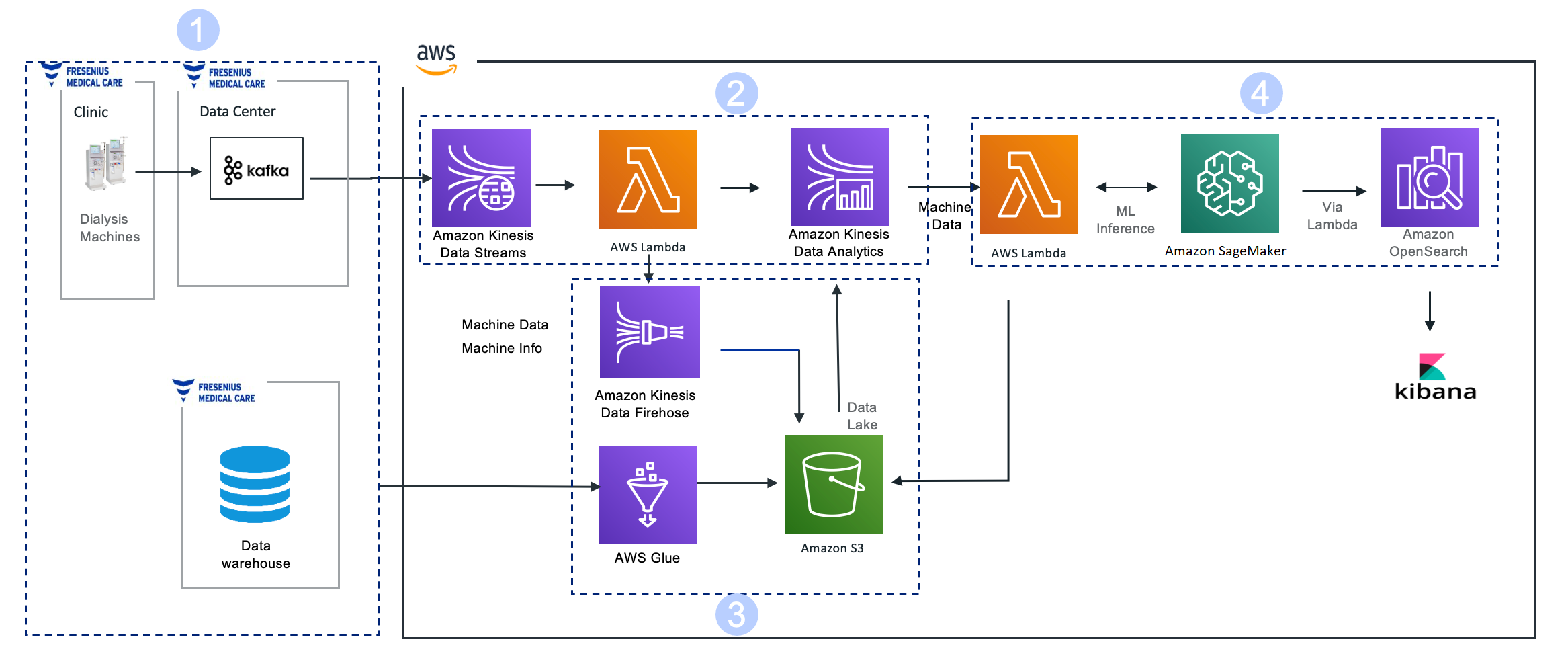
Overview of solution

This solution uses the cross-Region snapshot feature of Amazon Redshift to perform inter-Region migration. The idea is to take multiple manual snapshots of your Amazon Redshift cluster before the cutover deadline to ensure minimal data loss and to migrate the cluster to another Region within the defined maintenance window. You should plan for the maintenance window to be during a period of low or no write activity to minimize downtime. The time taken to copy over the snapshots depends on the size of the snapshot. Before the migration, it’s a good idea to estimate how much time it takes to copy over snapshots to the target Region by testing with similar or larger size datasets in your staging environments. This can help with your planning process.

After you copy the snapshots to the target Region, you can restore the latest snapshot to create a new Amazon Redshift cluster. Snapshots are incremental by nature and track changes to the cluster since the previous snapshot. The copy time is relative to the amount of data that has changed since the last snapshot.

When a snapshot is copied to another Region, it can also act as a standalone, which means that even if only the latest snapshot is copied to the target Region, the restored Amazon Redshift cluster still has all the data. For more information, refer to Amazon Redshift snapshots. Cross-Region snapshot functionality can also be useful for setting up disaster recovery for your Amazon Redshift cluster.

The following diagram illustrates the architecture for cross-Region migration within the same AWS account.

The solution includes the following steps:

  1. Configure cross-Region snapshots of the source Amazon Redshift cluster before the cutover deadline.
  2. Restore the latest snapshots to create a new Amazon Redshift cluster in the target Region.
  3. Point your applications to the new Amazon Redshift cluster.

For encrypted snapshots, there is an additional step of creating a new encryption key and performing a snapshot grant before you can copy the snapshot to the target Region.

Prerequisites

For the migration process, select a maintenance window during when there is low write activity, and be aware of the RTO and RPO requirements of the organization.

The following steps walk you through setting up an Amazon Redshift cluster in the source Region and populating it with a sample dataset. For this post, we use US West (Oregon) as the source Region and US East (N. Virginia) as the target Region. If you already have a source Amazon Redshift cluster, you can skip these prerequisite steps.

Create an Amazon Redshift cluster in the source Region

To create your cluster in the source Region, complete the following steps:

  1. Open the Amazon Redshift console in your source Region.
  2. Choose Clusters in the navigation pane and choose Clusters again on the menu.
  3. Choose Create cluster.
  4. For Cluster identifier, enter redshift-cluster-source.
  5. Select Production for cluster use.

This option allows you to select specific instance types and load the sample data of your choice. Note that you are charged for Amazon Redshift instances and storage for the entire time until you delete the cluster. For more information about pricing, see Amazon Redshift pricing.

  1. For Node type, choose your preferred node type.
  2. For Number of nodes, enter the number of nodes to use.

For this post, we use four dc2.large instances.

  1. Under Database configurations, enter a user name and password for the cluster.

As a best practice, change the default user name to a custom user name (for this post, mydataadmin) and follow the password guidelines.

To load the sample data from an external Amazon Simple Storage Service (Amazon S3) bucket to the source cluster, you need to create an AWS Identity and Access Management (IAM) role.

  1. Under Cluster permissions, on the Manage IAM roles drop-down menu, choose Create IAM role.
  2. Select Any S3 bucket and choose Create IAM role as default.
  3. For Additional configurations, turn Use defaults off.
  4. In the Network and security section, choose a VPC and cluster subnet group.

For more information about creating a cluster, refer to Creating a cluster in a VPC.

  1. Expand Database configurations.

We recommend using custom values instead of the defaults.

  1. For Database name, enter stagingdb.
  2. For Database port, enter 7839.
  3. For Encryption, select Disabled.

We enable encryption in a later step.

  1. Leave the other options as default and choose Create cluster.
  2. When the cluster is available, enable audit logging on the cluster.

Audit logging records information about connections and user activities in your database. This is useful for security as well as troubleshooting purposes.

To meet security best practices, you also create a new Amazon Redshift parameter group.

  1. Choose Configurations and Workload management to create your parameter group.
  2. Make sure that the parameters require_ssl and enable_user_activity_logging are set to true.
  3. On the Properties tab, choose the Edit menu in the Database configurations section and choose Edit parameter group.
  4. Associate the newly created parameter group to the Amazon Redshift cluster.

If this change prompts you to reboot, choose Reboot.

Load the sample dataset in the source Amazon Redshift cluster

When the cluster is ready, it’s time to load the sample dataset from the S3 bucket s3://redshift-immersionday-labs/data/. The following tables are part of the dataset:

  • REGION (5 rows)
  • NATION (25 rows)
  • CUSTOMER (15 million rows)
  • ORDERS (76 million rows)
  • PART (20 million rows)
  • SUPPLIER (1 million rows)
  • LINEITEM (600 million rows)
  • PARTSUPPLIER (80 million rows)

It’s a best practice for the Amazon Redshift cluster to access the S3 bucket via VPC gateway endpoints in order to enhance data loading performance, because the traffic flows through the AWS network, avoiding the internet.

Before we can load our data into Amazon S3, we need to enable a VPC endpoint via Amazon Virtual Private Cloud (Amazon VPC).

  1. On the Amazon VPC console, choose Endpoints.
  2. Choose Create endpoint.
  3. For Name tag, enter redshift-s3-vpc-endpoint.
  4. For Service category, select AWS services.
  5. Search for S3 and select the Gateway type endpoint.
  6. Choose the same VPC where your cluster is provisioned and select the route table.
  7. Leave everything else as default and choose Create endpoint.

Wait for the Gateway endpoint status to change to Available.

Next, you enable enhanced VPC routing.

  1. Open the Amazon Redshift console in the source Region.
  2. Choose your source cluster.
  3. On the Properties tab, in the Network and security settings section, choose Edit.
  4. For Enhanced VPC routing, select Enabled.
  5. Choose Save changes.

Wait for the cluster status to change to Available.

You need to create tables in order to load the sample data into the cluster. We recommend using the Amazon Redshift web-based query editor.

  1. On the Amazon Redshift console, choose Editor in the navigation pane and choose Query editor.

You can also use the new query editor V2.

  1. Choose Connect to database.
  2. Select Create new connection.
  3. Enter the database name and user name.
  4. Choose Connect.

For this post, we use the TPC data example from the Amazon Redshift Immersion Labs.

  1. Navigate to the Data Loading section of the Immersion Day Labs.
  2. Follow the instructions in the Create Tables section to create the tables in your source cluster.
  3. After you create the tables, follow the instructions in Loading Data section to load the data into the cluster.

Loading the data took approximately 17 minutes in the US West (Oregon) Region. This may vary depending on the Region and network bandwidth at that point in time.

After the data is loaded successfully into the source cluster, you can query it to make sure that you see the data in all the tables.

  1. Choose a table (right-click) and choose Preview data.
  2. Drop the customer table using the query DROP TABLE customer;.

We add the table back later to demonstrate incremental changes.

You can check the storage size to verify the size of the data loaded.

  1. Choose Clusters in the navigation pane.
  2. Choose your source cluster.
  3. Verify the storage size in the General information section, under Storage used.

Your source Amazon Redshift cluster is now loaded with a sample dataset and is ready to use.

Configure cross-Region snapshots in the source Region

To perform inter-Region migration, the first step is to configure cross-Region snapshots. The cross-Region snapshot feature enables you to copy over snapshots automatically to another Region.

  1. Open the Amazon Redshift console in the source Region.
  2. Select your Amazon Redshift cluster.
  3. On the Actions menu, choose Configure cross-region snapshot.
  4. For Copy snapshots, select Yes.
  5. For Destination Region, choose your target Region (for this post, us-east-1).
  6. Configure the manual snapshot retention period according to your requirements.
  7. Choose Save.

After the cross-Region snapshot feature is configured, any subsequent automated or manual snapshots are automatically copied to the target Region.

  1. To create a manual snapshot, choose Clusters in the navigation pane and choose Snapshots.
  2. Choose Create snapshot.
  3. For Cluster identifier, choose redshift-cluster-source.
  4. Adjust the snapshot retention period based on your requirements.
  5. Choose Create snapshot.

The idea is to take multiple snapshots until the cutover deadline so as to capture as much data as possible for minimal data loss based on your RTO and RPO requirements. The first snapshot creation took about 4 minutes for 28.9 GB of data, but subsequent snapshots are incremental in nature.

This snapshot gets automatically copied to the target Region from the source Region. You can open the Amazon Redshift console in the target Region to verify the copy.

As shown in the following screenshot, the snapshot of size 28.9 GB took around 44 minutes to get copied to the target Region because it’s the first snapshot containing all the data in the cluster. Depending on the Regions involved and the amount of data to copy, a cross-Region snapshot copy may take hours to complete.

Let’s now simulate incremental changes being made to the source cluster.

  1. Open the Amazon Redshift console in the source Region and open the query editor.
  2. Create a new table called customer in the cluster using the following query:
    create table customer (
      C_CUSTKEY bigint NOT NULL,
      C_NAME varchar(25),
      C_ADDRESS varchar(40),
      C_NATIONKEY bigint,
      C_PHONE varchar(15),
      C_ACCTBAL decimal(18,4),
      C_MKTSEGMENT varchar(10),
      C_COMMENT varchar(117))
    diststyle all;

  3. Load data into the customer table using the following command:
    copy customer from 's3://redshift-immersionday-labs/data/customer/customer.tbl.'
    iam_role default
    region 'us-west-2' lzop delimiter '|' COMPUPDATE PRESET;

  4. To create a manual snapshot containing incremental data, choose Clusters in the navigation pane, then choose Snapshots.
  5. Provide the necessary information and choose Create snapshot.

Because the cross-Region snapshot functionality is enabled, this incremental snapshot is automatically copied to the target Region. In the following example, the snapshot took approximately 11 minutes to copy to the target Region from the source Region. This time varies from Region to Region and is based on the amount of data being copied.

Restore snapshots to same or higher instance types in the target Region

When the latest snapshot is successfully copied to the target Region, you can restore the snapshot.

  1. Open the Amazon Redshift console in the target Region.
  2. On the Snapshots page, select your snapshot.
  3. On the Restore from snapshot menu, choose Restore to a provisioned cluster.
  4. For Cluster identifier, enter redshift-cluster-target.
  5. For Node type¸ you can use the same instance type or upgrade to a higher instance type.
  6. For Number of nodes, choose the number of nodes you need.

If you choose to upgrade your instance to RA3, refer to Upgrading to RA3 node types to determine the number of nodes you need.

For this post, we still use four nodes of the dc2.large instance type.

  1. Under Database configurations, for Database name¸ enter stagingdb.
  2. Leave the rest of the settings as default (or modify them per your requirements) and choose Restore cluster from snapshot.

A new Amazon Redshift cluster gets provisioned from the snapshot in the target Region.

Follow the same security best practices that you applied to the source cluster for the target cluster.

Point your applications to the new Amazon Redshift cluster

When the target cluster is available, configure your applications to connect to the new target Amazon Redshift endpoints. New clusters have a different Domain Name System (DNS) endpoint. This means that you must update all clients to refer to the new endpoint.

Inter-Region migration steps for encrypted data

If the data in your Amazon Redshift cluster is encrypted, you need to perform additional steps in your inter-Region migration. If data encryption is already enabled, you can skip to the steps for snapshot copy grant.

Enable data encryption in the source Amazon Redshift cluster

To enable data encryption in the source cluster, we use Amazon Key Management Service (AWS KMS).

  1. Open the AWS KMS console in the source Region.
  2. Create a KMS key called redshift-source-key.
  3. Enable key rotation.
  4. On the Amazon Redshift console (still in the source Region), select your cluster.
  5. If a cross-Region snapshot is enabled, choose Configure cross-region snapshot on the Actions menu.
  6. Select No and choose Save.
  7. On the Properties tab, in the Database configurations section, choose the Edit menu and choose Edit encryption.
  8. Select Use AWS Key Management Service (AWS KMS).
  9. Select Use key from current account and choose the key you created.
  10. Choose Save changes.

The time taken to encrypt the data is based on the amount of data present in the cluster.

If the data is encrypted, any subsequent snapshots are also automatically encrypted.

Snapshot copy grant

When you copy the encrypted snapshots to the target Region, the existing KMS key in the source Region doesn’t work in the target Region because KMS keys are specific to the Region where they’re created. You need to create another KMS key in the target Region and grant it access.

  1. Open the AWS KMS console in the target Region.
  2. If you don’t already have a KMS key to use, create a key called redshift-target-key.
  3. Enable key rotation.
  4. Open the Amazon Redshift console in the source Region.
  5. Select the cluster and on the Actions menu, choose Configure cross-region snapshot.
  6. For Copy snapshots, select Yes.
  7. For Choose a snapshot copy grant, choose Create new grant.
  8. For Snapshot copy grant name, enter redshift-target-grant.
  9. For KMS key ID, choose the key that you created for the grant.

If you don’t specify a key ID, the grant applies to your default key.

  1. Choose Save.

Any subsequent snapshots copied to the target Region are now encrypted with the key created in the target Region.

  1. After the snapshot is copied to the target Region, restore the cluster from the encrypted snapshot, following the steps from earlier in this post.

For more details on the encryption process, refer to Copying AWS KMS–encrypted snapshots to another AWS Region.

After you restore from the encrypted snapshot, the restored cluster is automatically encrypted with the key you created in the target Region.

Make sure that your applications point to the new cluster endpoint when the cluster is available.

Clean up

If you created any Amazon Redshift clusters or snapshots for testing purposes, you can delete these resources to avoid incurring any future charges.

For instructions on deleting the snapshots, refer to Deleting manual snapshots.

For instructions on deleting the Amazon Redshift cluster, refer to Deleting a cluster.

Conclusion

This post showed how to migrate your Amazon Redshift cluster to another Region using the cross-Region snapshot functionality. Amazon Redshift migration requires some prior planning depending on the Regions involved and the amount of data to copy over. Snapshot creation and copying may take a significant amount of time. The first snapshot contains all the data in the cluster and therefore it may take longer, but subsequent snapshots contain incremental changes and may take less time depending on the changes made. It’s a good idea to estimate how much time the snapshot copy takes by performing some tests in your staging environments with snapshots of a similar size or slightly larger than the ones in the production environment so you can plan for minimal data loss and meet RTO and RPO requirements.

For further details about the Amazon Redshift snapshot functionality, refer to Working with Snapshots.


About the Author

Sindhura Palakodety is a Solutions Architect at Amazon Web Services. She is passionate about helping customers build enterprise-scale Well-Architected solutions on the AWS platform and specializes in Containers and Data Analytics domains.

Best practices for right-sizing your Apache Kafka clusters to optimize performance and cost

Post Syndicated from Steffen Hausmann original https://aws.amazon.com/blogs/big-data/best-practices-for-right-sizing-your-apache-kafka-clusters-to-optimize-performance-and-cost/

Apache Kafka is well known for its performance and tunability to optimize for various use cases. But sometimes it can be challenging to find the right infrastructure configuration that meets your specific performance requirements while minimizing the infrastructure cost.

This post explains how the underlying infrastructure affects Apache Kafka performance. We discuss strategies on how to size your clusters to meet your throughput, availability, and latency requirements. Along the way, we answer questions like “when does it make sense to scale up vs. scale out?” We end with guidance on how to continuously verify the size of your production clusters.

We use performance tests to illustrate and explain the effect and trade-off of different strategies to size your cluster. But as usual, it’s important to not just blindly trust benchmarks you happen to find on the internet. We therefore not only show how to reproduce the results, but also explain how to use a performance testing framework to run your own tests for your specific workload characteristics.

Sizing Apache Kafka clusters

The most common resource bottlenecks for clusters from an infrastructure perspective are network throughput, storage throughput, and network throughput between brokers and the storage backend for brokers using network attached storage such as Amazon Elastic Block Store (Amazon EBS).

The remainder of the post explains how the sustained throughput limit of a cluster not only depends on the storage and network throughput limits of the brokers, but also on the number of brokers and consumer groups as well as the replication factor r. We derive the following formula (referred to as Equation 1 throughout this post) for the theoretical sustained throughput limit tcluster given the infrastructure characteristics of a specific cluster:

max(tcluster) <= min{
  max(tstorage) * #brokers/r,
  max(tEBSnetwork) * #brokers/r,
  max(tEC2network) * #brokers/(#consumer groups + r-1)
}

For production clusters, it’s a best practice to target the actual throughput at 80% of its theoretical sustained throughput limit. Consider, for instance, a three-node cluster with m5.12xlarge brokers, a replication factor of 3, EBS volumes with a baseline throughput of 1000 MB/sec, and two consumer groups consuming from the tip of the topic. Taking all these parameters into account, the sustained throughput absorbed by the cluster should target 800 MB/sec.

However, this throughput calculation is merely providing an upper bound for workloads that are optimized for high throughput scenarios. Regardless of how you configure your topics and the clients reading from and writing into these topics, the cluster can’t absorb more throughput. For workloads with different characteristics, like latency-sensitive or compute-intensive workloads, the actual throughput that can be absorbed by a cluster while meeting these additional requirements is often smaller.

To find the right configuration for your workload, you need to work backward from your use case and determine the appropriate throughput, availability, durability, and latency requirements. Then, use Equation 1 to obtain the initial sizing of your cluster based on your throughput, durability, and storage requirements. Verify this initial cluster sizing by running performance tests and then fine-tune the cluster size, cluster configuration, and client configuration to meet your other requirements. Lastly, add additional capacity for production clusters so they can still ingest the expected throughput even if the cluster is running at reduced capacity, for instance, during maintenance, scaling, or loss of a broker. Depending on your workload, you may even consider adding enough spare capacity to withstanding an event affecting all brokers of an entire Availability Zone.

The remainder of the post dives deeper into the aspects of cluster sizing. The most important aspects are as follows:

  • There is often a choice between either scaling out or scaling up to increase the throughput and performance of a cluster. Small brokers give you smaller capacity increments and have a smaller blast radius in case they become unavailable. But having many small brokers increases the time it takes for operations that require a rolling update to brokers to complete, and increases the likelihood for failure.
  • All traffic that producers are sending into a cluster is persisted to disk. Therefore, the underlying throughput of the storage volume can become the bottleneck of the cluster. In this case, it makes sense to either increase the volume throughput if possible or to add more volumes to the cluster.
  • All data persisted on EBS volumes traverses the network. Amazon EBS-optimized instances come with dedicated capacity for Amazon EBS I/O, but the dedicated Amazon EBS network can still become the bottleneck of the cluster. In this case, it makes sense to scale up brokers, because larger brokers have higher Amazon EBS network throughput.
  • The more consumer groups that are reading from the cluster, the more data that egresses over the Amazon Elastic Compute Cloud (Amazon EC2) network of the brokers. Depending on the broker type and size, the Amazon EC2 network can become the bottleneck of the cluster. In that case, it makes sense to scale up brokers, because larger brokers have higher Amazon EC2 network throughput.
  • For p99 put latencies, there is a substantial performance impact of enabling in-cluster encryption. Scaling up the brokers of a cluster can substantially reduce the p99 put latency compared to smaller brokers.
  • When consumers fall behind or need to reprocess historic data, the requested data may no longer reside in memory, and brokers need to fetch data from the storage volume. This causes non-sequential I/O reads. When using EBS volumes, it also causes additional network traffic to the volume. Using larger brokers with more memory or enabling compression can mitigate this effect.
  • Using the burst capabilities of your cluster is a very powerful way to absorb sudden throughput spikes without scaling your cluster, which takes time to complete. Burst capacity also helps in response to operational events. For instance, when brokers are undergoing maintenance or partitions need to be rebalanced within the cluster, they can use the burst performance to complete the operation faster.
  • Monitor or alarm on important infrastructure-related cluster metrics such as BytesInPerSec, ReplicationBytesInPerSec, BytesOutPerSec, and ReplicationBytesOutPerSec to receive notification when the current cluster size is no longer optimal for the current cluster size.

The remainder of the post provides additional context and explains the reasoning behind these recommendations.

Understanding Apache Kafka performance bottlenecks

Before we start talking about performance bottlenecks from an infrastructure perspective, let’s revisit how data flows within a cluster.

For this post, we assume that producers and consumers are behaving well and according to best practices, unless explicitly stated differently. For example, we assume the producers are evenly balancing the load between brokers, brokers host the same number of partitions, there are enough partitions to ingest the throughput, consumers consume directly from the tip of the stream, and so on. The brokers are receiving the same load and are doing the same work. We therefore just focus on Broker 1 in the following diagram of a data flow within a cluster.

Data flow within a Kafka cluster

The producers send an aggregate throughput of tcluster into the cluster. As the traffic evenly spreads across brokers, Broker 1 receives an incoming throughput of tcluster/3. With a replication factor of 3, Broker 1 replicates the traffic it directly receives to the two other brokers (the blue lines). Likewise, Broker 1 receives replication traffic from two brokers (the red lines). Each consumer group consumes the traffic that is directly produced into Broker 1 (the green lines). All traffic that arrives in Broker 1 from producers and replication traffic from other brokers is eventually persisted to storage volumes attached to the broker.

Accordingly, the throughput of the storage volume and the broker network are both tightly coupled with the overall cluster throughput and warrant a closer look.

Storage backend throughput characteristics

Apache Kafka has been designed to utilize large sequential I/O operations when writing data to disk. Producers are only ever appending data to the tip of the log, causing sequential writes. Moreover, Apache Kafka is not synchronously flushing to disk. Instead, Apache Kafka is writing to the page cache, leaving it up to the operating system to flush pages to disk. This results in large sequential I/O operations, which optimizes disk throughput.

For many practical purposes, the broker can drive the full throughput of the volume and is not limited by IOPS. We assume that consumers are reading from the tip of the topic. This implies that performance of EBS volumes is throughput bound and not I/O bound, and reads are served from the page cache.

The ingress throughput of the storage backend depends on the data that producers are sending directly to the broker plus the replication traffic the broker is receiving from its peers. For an aggregated throughput produced into the cluster of tcluster and a replication factor of r, the throughput received by the broker storage is as follows:

tstorage = tcluster/#brokers + tcluster/#brokers * (r-1)
        = tcluster/#brokers * r

Therefore, the sustained throughput limit of the entire cluster is bound by the following:

max(tcluster) <= max(tstorage) * #brokers/r

AWS offers different options for block storage: instance storage and Amazon EBS. Instance storage is located on disks that are physically attached to the host computer, whereas Amazon EBS is network attached storage.

Instance families that come with instance storage achieve high IOPS and disk throughput. For instance, Amazon EC2 I3 instances include NVMe SSD-based instance storage optimized for low latency, very high random I/O performance, and high sequential read throughput. However, the volumes are tied to brokers. Their characteristics, in particular their size, only depend on the instance family, and the volume size can’t be adapted. Moreover, when a broker fails and needs to be replaced, the storage volume is lost. The replacement broker then needs to replicate the data from other brokers. This replication causes additional load on the cluster in addition to the reduced capacity from the broker loss.

In contrast, the characteristics of EBS volumes can be adapted while they’re in use. You can use these capabilities to automatically scale broker storage over time rather than provisioning storage for peak or adding additional brokers. Some EBS volume types, such as gp3, io2, and st1, also allow you to adapt the throughput and IOPS characteristics of existing volumes. Moreover, the lifecycle of EBS volumes is independent of the broker—if a broker fails and needs to be replaced, the EBS volume can be reattached to the replacement broker. This avoids most of the otherwise required replication traffic.

Using EBS volumes is therefore often a good choice for many common Apache Kafka workloads. They provide more flexibility and enable faster scaling and recovery operations.

Amazon EBS throughput characteristics

When using Amazon EBS as the storage backend, there are several volume types to choose from. The throughput characteristics of the different volume types range between 128 MB/sec and 4000 MB/sec (for more information, refer to Amazon EBS volume types). You can even choose to attach multiple volumes to a broker to increase the throughput beyond what can be delivered by a single volume.

However, Amazon EBS is network attached storage. All data a broker is writing to an EBS volume needs to traverse the network to the Amazon EBS backend. Newer generation instance families, like the M5 family, are Amazon EBS-optimized instances with dedicated capacity for Amazon EBS I/O. But there are limits on the throughput and the IOPS that depend on the size of the instance and not only on the volume size. The dedicated capacity for Amazon EBS provides a higher baseline throughput and IOPS for larger instances. The capacity ranges between 81 MB/sec and 2375 MB/sec. For more information, refer to Supported instance types.

When using Amazon EBS for storage, we can adapt the formula for the cluster sustained throughput limit to obtain a tighter upper bound:

max(tcluster) <= min{
  max(tstorage) * #brokers/r,
  max(tEBSnetwork) * #brokers/r
}

Amazon EC2 network throughput

So far, we have only considered network traffic to the EBS volume. But replication and the consumer groups also cause Amazon EC2 network traffic out of the broker. The traffic that producers are sending into a broker is replicated to r-1 brokers. Moreover, every consumer group reads the traffic that a broker ingests. Therefore, the overall outgoing network traffic is as follows:

tEC2network = tcluster/#brokers * #consumer groups + tcluster/#brokers * (r–1)
          = tcluster/#brokers * (#consumer groups + r-1)

Taking this traffic into account finally gives us a reasonable upper bound for the sustained throughput limit of the cluster, which we have already seen in Equation 1:

max(tcluster) <= min{
  max(tstorage) * #brokers/r,
  max(tEBSnetwork) * #brokers/r,
  max(tEC2network) * #brokers/(#consumer groups + r-1)
}

For production workloads, we recommend keeping the actual throughput of your workload below 80% of the theoretical sustained throughput limit as it’s determined by this formula. Furthermore, we assume that all data producers sent into the cluster are eventually read by at least one consumer group. When the number of consumers is larger or equal than 1, the Amazon EC2 network traffic out of a broker is always higher than the traffic into the broker. We can therefore ignore data traffic into brokers as a potential bottleneck.

With Equation 1, we can verify if a cluster with a given infrastructure can absorb the throughput required for our workload under ideal conditions. For more information about the Amazon EC2 network bandwidth of m5.8xlarge and larger instances, refer to Amazon EC2 Instance Types. You can also find the Amazon EBS bandwidth of m5.4xlarge instances on the same page. Smaller instances use credit-based systems for Amazon EC2 network bandwidth and the Amazon EBS bandwidth. For the Amazon EC2 network baseline bandwidth, refer to Network performance. For the Amazon EBS baseline bandwidth, refer to Supported instance types.

Right-size your cluster to optimize for performance and cost

So, what do we take from this? Most importantly, keep in mind that that these results only indicate the sustained throughput limit of a cluster under ideal conditions. These results can give you a general number for the expected sustained throughput limit of your clusters. But you must run your own experiments to verify these results for your specific workload and configuration.

However, we can draw a few conclusions from this throughput estimation: adding brokers increases the sustained cluster throughput. Similarly, decreasing the replication factor increases the sustained cluster throughput. Adding more than one consumer group may reduce the sustained cluster throughput if the Amazon EC2 network becomes the bottleneck.

Let’s run a couple of experiments to get empirical data on practical sustained cluster throughput that also accounts for producer put latencies. For these tests, we keep the throughput within the recommended 80% of the sustained throughput limit of clusters. When running your own tests, you may notice that clusters can even deliver higher throughput than what we show.

Measure Amazon MSK cluster throughput and put latencies

To create the infrastructure for the experiments, we use Amazon Managed Streaming for Apache Kafka (Amazon MSK). Amazon MSK provisions and manages highly available Apache Kafka clusters that are backed by Amazon EBS storage. The following discussion therefore also applies to clusters that have not been provisioned through Amazon MSK, if backed by EBS volumes.

The experiments are based on the kafka-producer-perf-test.sh and kafka-consumer-perf-test.sh tools that are included in the Apache Kafka distribution. The tests use six producers and two consumer groups with six consumers each that are concurrently reading and writing from the cluster. As mentioned before, we make sure that clients and brokers are behaving well and according to best practices: producers are evenly balancing the load between brokers, brokers host the same number of partitions, consumers consume directly from the tip of the stream, producers and consumers are over-provisioned so that they don’t become a bottleneck in the measurements, and so on.

We use clusters that have their brokers deployed to three Availability Zones. Moreover, replication is set to 3 and acks is set to all to achieve a high durability of the data that is persisted in the cluster. We also configured a batch.size of 256 kB or 512 kB and set linger.ms to 5 milliseconds, which reduces the overhead of ingesting small batches of records and therefore optimizes throughput. The number of partitions is adjusted to the broker size and cluster throughput.

The configuration for brokers larger than m5.2xlarge has been adapted according to the guidance of the Amazon MSK Developer Guide. In particular when using provisioned throughput, it’s essential to optimize the cluster configuration accordingly.

The following figure compares put latencies for three clusters with different broker sizes. For each cluster, the producers are running roughly a dozen individual performance tests with different throughput configurations. Initially, the producers produce a combined throughput of 16 MB/sec into the cluster and gradually increase the throughput with every individual test. Each individual test runs for 1 hour. For instances with burstable performance characteristics, credits are depleted before starting the actual performance measurement.

Comparing throughput and put latencies of different broker sizes

For brokers with more than 334 GB of storage, we can assume the EBS volume has a baseline throughput of 250 MB/sec. The Amazon EBS network baseline throughput is 81.25, 143.75, 287.5, and 593.75 MB/sec for the different broker sizes (for more information, see Supported instance types). The Amazon EC2 network baseline throughput is 96, 160, 320, and 640 MB/sec (for more information, see Network performance). Note that this only considers the sustained throughput; we discuss burst performance in a later section.

For a three-node cluster with replication 3 and two consumer groups, the recommended ingress throughput limits as per Equation 1 is as follows.

Broker size Recommended sustained throughput limit
m5.large 58 MB/sec
m5.xlarge 96 MB/sec
m5.2xlarge 192 MB/sec
m5.4xlarge 200 MB/sec

Even though the m5.4xlarge brokers have twice the number of vCPUs and memory compared to m5.2xlarge brokers, the cluster sustained throughput limit barely increases when scaling the brokers from m5.2xlarge to m5.4xlarge. That’s because with this configuration, the EBS volume used by brokers becomes a bottleneck. Remember that we’ve assumed a baseline throughput of 250 MB/sec for these volumes. For a three-node cluster and replication factor of 3, each broker needs to write the same traffic to the EBS volume as is sent to the cluster itself. And because the 80% of the baseline throughput of the EBS volume is 200 MB/sec, the recommended sustained throughput limit of the cluster with m5.4xlarge brokers is 200 MB/sec.

The next section describes how you can use provisioned throughput to increase the baseline throughput of EBS volumes and therefore increase the sustained throughput limit of the entire cluster.

Increase broker throughput with provisioned throughput

From the previous results, you can see that from a pure throughput perspective there is little benefit to increasing the broker size from m5.2xlarge to m5.4xlarge with the default cluster configuration. The baseline throughput of the EBS volume used by brokers limits their throughput. However, Amazon MSK recently launched the ability to provision storage throughput up to 1000 MB/sec. For self-managed clusters you can use gp3, io2, or st1 volume types to achieve a similar effect. Depending on the broker size, this can substantially increase the overall cluster throughput.

The following figure compares the cluster throughput and put latencies of different broker sizes and different provisioned throughput configurations.

Comparing max sustained throughput of different brokers with and without provisioned throughput

For a three-node cluster with replication 3 and two consumer groups, the recommended ingress throughput limits as per Equation 1 are as follows.

Broker size Provisioned throughput configuration Recommended sustained throughput limit
m5.4xlarge 200 MB/sec
m5.4xlarge 480 MB/sec 384 MB/sec
m5.8xlarge 850 MB/sec 680 MB/sec
m5.12xlarge 1000 MB/sec 800 MB/sec
m5.16xlarge 1000 MB/sec 800 MB/sec

The provisioned throughput configuration was carefully chosen for the given workload. With two consumer groups consuming from the cluster, it doesn’t make sense to increase the provisioned throughput of m4.4xlarge brokers beyond the 480 MB/sec. The Amazon EC2 network, not the EBS volume throughput, restricts the recommended sustained throughput limit of the cluster to 384 MB/sec. But for workloads with a different number of consumers, it can make sense to further increase or decrease the provisioned throughput configuration to match the baseline throughput of the Amazon EC2 network.

Scale out to increase cluster write throughput

Scaling out the cluster naturally increases the cluster throughput. But how does this affect performance and cost? Let’s compare the throughput of two different clusters: a three-node m5.4xlarge and a six-node m5.2xlarge cluster, as shown in the following figure. The storage size for the m5.4xlarge cluster has been adapted so that both clusters have the same total storage capacity and therefore the cost for these clusters is identical.

Comparing throughput of different cluster configurations

The six-node cluster has almost double the throughput of the three-node cluster and substantially lower p99 put latencies. Just looking at ingress throughput of the cluster, it can make sense to scale out rather than to scale up, if you need more that 200 MB/sec of throughput. The following table summarizes these recommendations.

Number of brokers Recommended sustained throughput limit
m5.large m5.2xlarge m5.4xlarge
3 58 MB/sec 192 MB/sec 200 MB/sec
6 115 MB/sec 384 MB/sec 400 MB/sec
9 173 MB/sec 576 MB/sec 600 MB/sec

In this case, we could have also used provisioned throughput to increase the throughput of the cluster. Compare, for instance, the sustained throughput limit of the six-node m5.2xlarge cluster in the preceding figure with that of the three-node m5.4xlarge cluster with provisioned throughput from the earlier example. The sustained throughput limit of both clusters is identical, which is caused by the same Amazon EC2 network bandwidth limit that usually grows proportional with the broker size.

Scale up to increase cluster read throughput

The more consumer groups are reading from the cluster, the more data egresses over the Amazon EC2 network of the brokers. Larger brokers have a higher network baseline throughput (up to 25 Gb/sec) and can therefore support more consumer groups reading from the cluster.

The following figure compares how latency and throughput changes for the different number of consumer groups for a three-node m5.2xlarge cluster.

Comparing the max sustained throughput of a cluster for different number of consumer groups

As demonstrated in this figure, increasing the number of consumer groups reading from a cluster decreases its sustained throughput limit. The more consumers that consumer groups are reading from the cluster, the more data that needs to egress from the brokers over the Amazon EC2 network. The following table summarizes these recommendations.

Consumer groups Recommended sustained throughput limit
m5.large m5.2xlarge m5.4xlarge
0 65 MB/sec 200 MB/sec 200 MB/sec
2 58 MB/sec 192 MB/sec 200 MB/sec
4 38 MB/sec 128 MB/sec 200 MB/sec
6 29 MB/sec 96 MB/sec 192 MB/sec

The broker size determines the Amazon EC2 network throughput, and there is no way to increase it other than scaling up. Accordingly, to scale the read throughput of the cluster, you either need to scale up brokers or increase the number of brokers.

Balance broker size and number of brokers

When sizing a cluster, you often have the choice to either scale out or scale up to increase the throughput and performance of a cluster. Assuming storage size is adjusted accordingly, the cost of those two options is often identical. So when should you scale out or scale up?

Using smaller brokers allows you to scale the capacity in smaller increments. Amazon MSK enforces that brokers are evenly balanced across all configured Availability Zones. You can therefore only add a number of brokers that are a multiple of the number of Availability Zones. For instance, if you add three brokers to a three-node m5.4xlarge cluster with provisioned throughput, you increase the recommended sustained cluster throughput limit by 100%, from 384 MB/sec to 768 MB/sec. However, if you add three brokers to a six-node m5.2xlarge cluster, you increase the recommended cluster throughput limit by 50%, from 384 MB/sec to 576 MB/sec.

Having too few very large brokers also increases the blast radius in case a single broker is down for maintenance or because of failure of the underlying infrastructure. For instance, for a three-node cluster, a single broker corresponds to 33% of the cluster capacity, whereas it’s only 17% for a six-node cluster. When provisioning clusters to best practices, you have added enough spare capacity to not impact your workload during these operations. But for larger brokers, you may need to add more spare capacity than required because of the larger capacity increments.

However, the more brokers are part of the cluster, the longer it takes for maintenance and update operations to complete. The service applies these changes sequentially to one broker at a time to minimize impact to the availability of the cluster. When provisioning clusters to best practices, you have added enough spare capacity to not impact your workload during these operations. But the time it takes to complete the operation is still something to consider because you need to wait for one operation to complete before you can run another one.

You need to find a balance that works for your workload. Small brokers are more flexible because they give you smaller capacity increments. But having too many small brokers increases the time it takes for maintenance operations to complete and increase the likelihood for failure. Clusters with fewer larger brokers complete update operations faster. But they come with larger capacity increments and a higher blast radius in case of broker failure.

Scale up for CPU intensive workloads

So far, we have we have focused on the network throughput of brokers. But there are other factors that determine the throughput and latency of the cluster. One of them is encryption. Apache Kafka has several layers where encryption can protect data in transit and at rest: encryption of the data stored on the storage volumes, encryption of traffic between brokers, and encryption of traffic between clients and brokers.

Amazon MSK always encrypts your data at rest. You can specify the AWS Key Management Service (AWS KMS) customer master key (CMK) that you want Amazon MSK to use to encrypt your data at rest. If you don’t specify a CMK, Amazon MSK creates an AWS managed CMK for you and uses it on your behalf. For data that is in-flight, you can choose to enable encryption of data between producers and brokers (in-transit encryption), between brokers (in-cluster encryption), or both.

Turning on in-cluster encryption forces the brokers to encrypt and decrypt individual messages. Therefore, sending messages over the network can no longer take advantage of the efficient zero copy operation. This results in additional CPU and memory bandwidth overhead.

The following figure shows the performance impact for these options for three-node clusters with m5.large and m5.2xlarge brokers.

Comparing put latencies for different encryption settings and broker sizes

For p99 put latencies, there is a substantial performance impact of enabling in-cluster encryption. As shown in the preceding graphs, scaling up brokers can mitigate the effect. The p99 put latency at 52 MB/sec throughput of an m5.large cluster with in-transit and in-cluster encryption is above 200 milliseconds (red and green dashed line in the left graph). Scaling the cluster to m5.2xlarge brokers brings down the p99 put latency at the same throughput to below 15 milliseconds (red and green dashed line in the right graph).

There are other factors that can increase CPU requirements. Compression as well as log compaction can also impact the load on clusters.

Scale up for a consumer not reading from the tip of the stream

We have designed the performance tests such that consumers are always reading from the tip of the topic. This effectively means that brokers can serve the reads from consumers directly from memory, not causing any read I/O to Amazon EBS. In contrast to all other sections of the post, we drop this assumption to understand how consumers that have fallen behind can impact cluster performance. The following diagram illustrates this design.

Illustration of cunsomers reading from page cache and storage

When a consumer falls behind or needs to recover from failure it reprocesses older messages. In that case, the pages holding the data may no longer reside in the page cache, and brokers need to fetch the data from the EBS volume. That causes additional network traffic to the volume and non-sequential I/O reads. This can substantially impact the throughput of the EBS volume.

In an extreme case, a backfill operation can reprocess the complete history of events. In that case, the operation not only causes additional I/O to the EBS volume, it also loads a lot of pages holding historic data into the page cache, effectively evicting pages that are holding more recent data. Consequently, consumers that are slightly behind the tip of the topic and would usually read directly from the page cache may now cause additional I/O to the EBS volume because the backfill operation has evicted the page they need to read from memory.

One option to mitigate these scenarios is to enable compression. By compressing the raw data, brokers can keep more data in the page cache before it’s evicted from memory. However, keep in mind that compression requires more CPU resources. If you can’t enable compression or if enabling compression can’t mitigate this scenario, you can also increase the size of the page cache by increasing the memory available to brokers by scaling up.

Use burst performance to accommodate traffic spikes

So far, we’ve been looking at the sustained throughput limit of clusters. That’s the throughput the cluster can sustain indefinitely. For streaming workloads, it’s important to understand baseline the throughput requirements and size accordingly. However, the Amazon EC2 network, Amazon EBS network, and Amazon EBS storage system are based on a credit system; they provide a certain baseline throughput and can burst to a higher throughput for a certain period based on the instance size. This directly translates to the throughput of MSK clusters. MSK clusters have a sustained throughput limit and can burst to a higher throughput for short periods.

The blue line in the following graph shows the aggregate throughput of a three-node m5.large cluster with two consumer groups. During the entire experiment, producers are trying to send data as quickly as possible into the cluster. So, although 80% of the sustained throughput limit of the cluster is around 58 MB/sec, the cluster can burst to a throughput well above 200 MB/sec for almost half an hour.

Throughput of a fully saturated cluster over time

Think of it this way: When configuring the underlying infrastructure of a cluster, you’re basically provisioning a cluster with a certain sustained throughput limit. Given the burst capabilities, the cluster can then instantaneously absorb much higher throughput for some time. For instance, if the average throughput of your workload is usually around 50 MB/sec, the three-node m5.large cluster in the preceding graph can ingress more than four times its usual throughput for roughly half an hour. And that’s without any changes required. This burst to a higher throughput is completely transparent and doesn’t require any scaling operation.

This is a very powerful way to absorb sudden throughput spikes without scaling your cluster, which takes time to complete. Moreover, the additional capacity also helps in response to operational events. For instance, when brokers are undergoing maintenance or partitions need to be rebalanced within the cluster, they can use burst performance to get brokers online and back in sync more quickly. The burst capacity is also very valuable to quickly recover from operational events that affect an entire Availability Zone and cause a lot of replication traffic in response to the event.

Monitoring and continuous optimization

So far, we have focused on the initial sizing of your cluster. But after you determine the correct initial cluster size, the sizing efforts shouldn’t stop. It’s important to keep reviewing your workload after it’s running in production to know if the broker size is still appropriate. Your initial assumptions may no longer hold in practice, or your design goals might have changed. After all, one of the great benefits of cloud computing is that you can adapt the underlying infrastructure through an API call.

As we have mentioned before, the throughput of your production clusters should target 80% of their sustained throughput limit. When the underlying infrastructure is starting to experience throttling because it has exceeded the throughput limit for too long, you need to scale up the cluster. Ideally, you would even scale the cluster before it reaches this point. By default, Amazon MSK exposes three metrics that indicate when this throttling is applied to the underlying infrastructure:

  • BurstBalance – Indicates the remaining balance of I/O burst credits for EBS volumes. If this metric starts to drop, consider increasing the size of the EBS volume to increase the volume baseline performance. If Amazon CloudWatch isn’t reporting this metric for your cluster, your volumes are larger than 5.3 TB and no longer subject to burst credits.
  • CPUCreditBalance – Only relevant for brokers of the T3 family and indicates the amount of available CPU credits. When this metric starts to drop, brokers are consuming CPU credits to burst beyond their CPU baseline performance. Consider changing the broker type to the M5 family.
  • TrafficShaping – A high-level metric indicating the number of packets dropped due to exceeding network allocations. Finer detail is available when the PER_BROKER monitoring level is configured for the cluster. Scale up brokers if this metric is elevated during your typical workloads.

In the previous example, we saw the cluster throughput drop substantially after network credits were depleted and traffic shaping was applied. Even if we didn’t know the maximum sustained throughput limit of the cluster, the TrafficShaping metric in the following graph clearly indicates that we need to scale up the brokers to avoid further throttling on the Amazon EC2 network layer.

Throttling of the broker network correlates with the cluster throughput drop

Amazon MSK exposes additional metrics that help you understand whether your cluster is over- or under-provisioned. As part of the sizing exercise, you have determined the sustained throughput limit of your cluster. You can monitor or even create alarms on the BytesInPerSec, ReplicationBytesInPerSec, BytesOutPerSec, and ReplicationBytesInPerSec metrics of the cluster to receive notification when the current cluster size is no longer optimal for the current workload characteristics. Likewise, you can monitor the CPUIdle metric and alarm when your cluster is under- or over-provisioned in terms of CPU utilization.

Those are only the most relevant metrics to monitor the size of your cluster from an infrastructure perspective. You should also monitor the health of the cluster and the entire workload. For further guidance on monitoring clusters, refer to Best Practices.

A framework for testing Apache Kafka performance

As mentioned before, you must run your own tests to verify if the performance of a cluster matches your specific workload characteristics. We have published a performance testing framework on GitHub that helps automate the scheduling and visualization of many tests. We have been using the same framework to generate the graphs that we have been discussing in this post.

The framework is based on the kafka-producer-perf-test.sh and kafka-consumer-perf-test.sh tools that are part of the Apache Kafka distribution. It builds automation and visualization around these tools.

For smaller brokers that are subject to bust capabilities, you can also configure the framework to first generate excess load over an extended period to deplete networking, storage, or storage network credits. After the credit depletion completes, the framework runs the actual performance test. This is important to measure the performance of clusters that can be sustained indefinitely rather than measuring peak performance, which can only be sustained for some time.

To run your own test, refer to the GitHub repository, where you can find the AWS Cloud Development Kit (AWS CDK) template and additional documentation on how to configure, run, and visualize the results of performance test.

Conclusion

We’ve discussed various factors that contribute to the performance of Apache Kafka from an infrastructure perspective. Although we’ve focused on Apache Kafka, we also learned about Amazon EC2 networking and Amazon EBS performance characteristics.

To find the right size for your clusters, work backward from your use case to determine the throughput, availability, durability, and latency requirements.

Start with an initial sizing of your cluster based on your throughput, storage, and durability requirements. Scale out or use provisioned throughput to increase the write throughput of the cluster. Scale up to increase the number of consumers that can consume from the cluster. Scale up to facilitate in-transit or in-cluster encryption and consumers that aren’t reading form the tip of the stream.

Verify this initial cluster sizing by running performance tests and then fine-tune the cluster size and configuration to match other requirements, such as latency. Add additional capacity for production clusters so that they can withstand the maintenance or loss of a broker. Depending on your workload, you may even consider withstanding an event affecting an entire Availability Zone. Finally, keep monitoring your cluster metrics and resize the cluster in case your initial assumptions no longer hold.


About the Author

Steffen Hausmann is a Principal Streaming Architect at AWS. He works with customers around the globe to design and build streaming architectures so that they can get value from analyzing their streaming data. He holds a doctorate degree in computer science from the University of Munich and in his free time, he tries to lure his daughters into tech with cute stickers he collects at conferences.

Build a cost-effective extension to your Elasticsearch cluster with Amazon OpenSearch Service

Post Syndicated from Alexandre Levret original https://aws.amazon.com/blogs/big-data/build-a-cost-effective-extension-to-your-elasticsearch-cluster-with-amazon-opensearch-service/

During the past year, we’ve seen customers running self-managed Elasticsearch clusters on AWS who were running out of compute and storage capacity because of the non-elasticity of their clusters. They adopted Amazon OpenSearch Service (Successor To Amazon Elasticsearch Service) to benefit from better flexibility for their logs and enhanced retention periods.

In this post, we discuss how to build a cost-effective extension to your Elasticsearch cluster with Amazon OpenSearch Service to extend the retention time of your data.

In May 2021, we published the blog post Introducing Cold Storage for Amazon OpenSearch Service, which explained how to reduce your overall cost. Cold storage separates compute and storage costs when you detach indices from the domain. You benefit from a better overall storage-to-compute ratio. Cold storage can reduce your data retention cost by up to 90% per GB versus storing the same data in the Hot tier. You can automate your data lifecycle management and move your data between the three tiers (Hot, UltraWarm, and Cold) thanks to Index State Management.

AWS Professional Services teams worked with one customer to add an OpenSearch Service domain as a second target for their logs. This customer was only able to keep their indices for 8 days on their existing self-managed Elasticsearch cluster. Because of legal and security requirements, they needed to retain data up to 6 months. The solution was to use an Elasticsearch cluster (running 7.10 version) on Amazon OpenSearch Service as an extension of their existing Elasticsearch cluster. This gave their internal application teams an additional Kibana dashboard to visualize their indices for more than 8 days. This extension uses the UltraWarm tier to provide warm access to their data. Then, they move data to the Cold storage tier when they’re not actively using it to remove compute resources and for cost-effectiveness.

Building this solution as an extension to their existing self-managed cluster gave them 172 extra days of access to their logs (21.5 times the data retention length) at an incremental cost of 15%.

Demystifying Index State Management

Index State Management (ISM) enables you to create a policy to automate index management within different tiers in an OpenSearch Service domain.

As of February 2022, three tiers are available in Amazon OpenSearch Service: Hot, UltraWarm, and Cold.

The default Hot tier is for active writing and low-latency analytics. UltraWarm is for read-only data up to three petabytes at one-tenth of the Hot tier cost, and Cold is for unlimited long-term archival. Although Hot storage is used for indexing and provides the fastest access, UltraWarm complements the Hot storage tier by providing less expensive storage for older and less-frequently accessed data. This is done while maintaining the same interactive analytics experience. Rather than attached storage, UltraWarm nodes use Amazon Simple Storage Service (Amazon S3) and a sophisticated caching solution to improve performance.

ISM helps you from a cost-effective perspective—when you don’t need to access your data after a certain period but you still need to keep them because of legal requirements, for instance, to automate the transition of your data within those tiers. Those operations are based on index age, size, and other conditions.

Also, the order of transition needs to be respected from Hot to UltraWarm to Cold, and from Cold to UltraWarm to Hot—you can’t change this order.

Solution overview

Our solution enables you to extend the retention time for your data. We show you how to add a second Cold OpenSearch Service domain to your existing self-managed Hot deployment. You use Elasticsearch snapshots to move data from the Hot cluster to the Cold domain. You use ISM policies applied to these indices, with different retention periods before their deletion, from 14–180 days.

In addition to that, you add 9 recommended alarms for Amazon OpenSearch Service in Amazon CloudWatch via an AWS CloudFormation template to enhance your ability to monitor your stack. Those recommended alarms notify you, through an Amazon Simple Notification Service (Amazon SNS) topic, on key metrics you should monitor, like ClusterStatus, FreeStorageSpace, CPUUtilization, and JVMMemoryPressure.

The following diagram illustrates the solution architecture:

The diagram contains the following components in our solution for extending your self-managed Elasticsearch cluster with Amazon OpenSearch Service (available on GitHub):

  1. Snapshots repository
    1. You run an AWS Lambda function one time to register your S3 bucket (snapshots-bucket in the diagram) as a snapshots repository for your OpenSearch Service domain.
  2. ISM policies
    1. You run a Lambda function one time to create six ISM policies that automate the migration of your indices from the Hot tier to UltraWarm and from UltraWarm to Cold storage, as soon as they are restored within the domain, with different retention periods (14, 21, 35, 60, 90, and 180 days before deletion).
  3. Index migration
    1. You use an Amazon EventBridge rule to trigger automatically—once a day— a Lambda function (RestoreIndices in the diagram).
    2. This function parses the latest snapshots that have been pushed by the Elasticsearch cluster.
    3. When the function finds a new index that doesn’t exist yet in the OpenSearch Service domain, it initiates a restore operation and attaches an ISM policy (created during step 2.1).
  4. Free UltraWarm cache
    1. You use an EventBridge rule to trigger automatically – once a day – an AWS Lambda function (MoveToCold in the diagram).
    2. This function checks for indices that have been warm accessed and moves them back to the Cold tier in order to free UltraWarm nodes caches.
  5. Alerting
    1. You use CloudWatch to create 9 alarms based on Amazon OpenSearch Service CloudWatch metrics.
    2. CloudWatch redirects alarms to an SNS topic.
    3. You receive notifications from the SNS topic, which sends emails as soon as an alarm is raised.

Prerequisites

Complete the following prerequisite steps:

  1. Deploy a self-managed Elasticsearch cluster (running on premises or in AWS) that pushes snapshots periodically to an S3 bucket (ideally once a day).
  2. Deploy an OpenSearch Service domain (running OpenSearch 1.1 version) and enable UltraWarm and Cold options.
  3. Deploy a proxy server (NGINX on the architecture diagram) in a public subnet that allows access to dashboards for your OpenSearch Service domains, hosted within a VPC.
  4. To automate multiple mechanisms in this solution, create an AWS Identity and Access Management (IAM) role for our different Lambda functions. Use the following IAM policy:
{
    "Version": "2012-10-17",
    "Statement": [
        {
            "Action": "logs:CreateLogGroup",
            "Resource": "arn:aws:logs:us-east-1:123456789012:log-group:*",
            "Effect": "Allow"
        },
        {
            "Action": [
                "logs:CreateLogStream",
                "logs:PutLogEvents"
            ],
            "Resource": "arn:aws:logs:us-east-1:123456789012:log-group:/aws/lambda/*:*",
            "Effect": "Allow"
        },
        {
            "Action": "iam:PassRole",
            "Resource": "arn:aws:iam::123456789012:role/snapshotsRole",
            "Effect": "Allow"
        },
        {
            "Action": [
                "es:ESHttpPut",
                "es:ESHttpGet",
                "es:ESHttpPost"
            ],
            "Resource": "arn:aws:es:us-east-1:123456789012:domain/my-test-domain/*",
            "Effect": "Allow"
        }
    ]
}

This policy allows our Lambda functions to send PUT, GET and POST requests to our OpenSearch Service domain, register their logs in CloudWatch Logs, and pass an IAM role used to access the S3 bucket that stores snapshots.

  1. Additionally, edit the trust relationship to be assumed by Lambda:
    {
      "Version": "2012-10-17",
      "Statement": [
        {
          "Effect": "Allow",
          "Principal": {
            "Service": "lambda.amazonaws.com"
          },
          "Action": "sts:AssumeRole"
        }
      ]
    }

You use this IAM role for the Lambda functions you create.

You also need to configure OpenSearch’s security plugin to assign permissions for traffic Lambda sends to OpenSearch.

  1. Sign in to your Cold domain’s Kibana dashboard and in the Security section, choose Roles.

Here you can find existing and predefined Kibana roles.

  1. Select the all_access role and choose Mapped users.
  2. Choose Manage mapping to edit the mapped users.
  3. Enter the ARN of the IAM role you just created as a new backend role on this Kibana role.

In the following sections, we walk you through the steps to set up each component in the solution architecture.

Snapshots repository

To migrate your logs from the Hot cluster to the Cold domain, you register your S3 bucket that stores logs in the form of snapshots (from the Elasticsearch cluster) as a snapshots repository for your OpenSearch Service domain.

  1. Create an IAM role (for this post, we use SnapshotsRole for the role name) to give permissions to the Cold domain to access your S3 bucket that stores snapshots from your Elasticsearch cluster. Use the following IAM policy for this role:
    {
      "Version": "2012-10-17",
      "Statement": [{
          "Action": [
            "s3:ListBucket"
          ],
          "Effect": "Allow",
          "Resource": [
            "arn:aws:s3:::s3-bucket-name"
          ]
        },
        {
          "Action": [
            "s3:GetObject",
            "s3:PutObject",
            "s3:DeleteObject"
          ],
          "Effect": "Allow",
          "Resource": [
            "arn:aws:s3:::s3-bucket-name/*"
          ]
        }
      ]
    }

  2. Edit the trust relationship to be used from Amazon OpenSearch Service:
    {
      "Version": "2012-10-17",
      "Statement": [{
        "Sid": "",
        "Effect": "Allow",
        "Principal": {
          "Service": "es.amazonaws.com"
        },
        "Action": "sts:AssumeRole"
      }]
      
    }

  3. Create the Lambda function that is responsible for registering this S3 bucket as the snapshots repository.

On the GitHub repository, you can find the files needed to build this part. See the lambda-functions/register-snapshots-repository.py Python file to create the Lambda function.

  1. Choose Test on the Lambda console to run the function.

You only to run it once. It registers the S3 bucket as a new snapshots repository for your OpenSearch Service domain.

  1. Verify the snapshots repository by navigating to the Kibana dashboard of the Cold domain on the Dev Tools tab and running the following command:
    GET _snapshots/myelasticsearch-snapshots-repository (replace with your repository name)

You can also achieve this step from an Amazon Elastic Compute Cloud (Amazon EC2) instance (instead of a Lambda function) because it only has to be run once, with an instance profile IAM role attached to the EC2 instance.

Index State Management policies

You use Index State Management to automate the transition of your indices between storage tiers in Amazon OpenSearch Service. To use ISM, you create policies (small JSON documents that define a state automaton) and attach these policies to the indices in your domain. ISM policies specify states with actions and transitions that enable you to move and delete indices. You can use the functions/create-indexstatemanagement-policy.py Lambda code to create six ISM policies that automate transition within tiers and delete your Cold indices after 14, 21, 35, 60, 90, and 180 days. You use the IAM role you created earlier, and run that function once to create the policies in your domain.

Navigate to Kibana in your OpenSearch Service domain and choose Index Management. On the State management policies page, verify that you can see your ISM policies.

Index migration

To migrate your data from the Hot cluster to the Cold domain, you use the functions/restore-indices.py code to create a Lambda function (RestoreIndices) and the cfn-templates/event-bridge-lambda-function.yaml CloudFormation template to create its trigger, which is an EventBridge rule (scheduled once a day at 12 AM). Your indices are migrated to the Cold domain thanks to the Lambda function that parses indices within your snapshots repository, and initiates restore operations for each new index that doesn’t exist in the Cold domain. As soon as the index is restored in the domain, the Lambda function attaches an ISM policy to it, based on its index pattern to determine its retention period.

Python code looks for an application name structured in exactly three letters (for example, aws). If your logs have a different index pattern, you need to update relevant code lines (trigramme = index [5:8]).

Free UltraWarm cache

To free cache your UltraWarm nodes from the Cold domain, you use the functions/move-to-Cold.py code to create a Lambda function (MoveToCold) and the cfn-templates/event-bridge-lambda-function.yaml CloudFormation template to create its trigger, which is an EventBridge rule (change its schedule to avoid operating in parallel with the previous rule). Your indices that are in UltraWarm tier for warm access are moved to Cold storage to free the nodes cache to prepare the next index migration and for cost-effectiveness.

Alerting

To get alerted via email when the Cold domain requires your attention, you use the cfn-templates/alarms.yaml CloudFormation template to create an SNS topic that receives notifications when one of the 9 CloudWatch alarms have been raised, based on the Amazon OpenSearch Service metrics. Those alarms come from the recommended CloudWatch alarms for Amazon OpenSearch Service.

Conclusion

In this post, we covered a solution to enable an OpenSearch domain as an extension to your existing self-managed Elasticsearch cluster, in order to extend the retention period of applications logs in a serverless and cost-effective way.

If you’re interested in going deeper into Amazon OpenSearch Service and AWS Analytics capabilities in general, you can get help and join discussions on our forums.


About the Authors

Alexandre Levret is a Professional Services consultant within Amazon Web Services (AWS) dedicated to the public sector in Europe. He aims to build, innovate and inspire his multiple customers which face challenges that cloud computing can help them to resolve.

Get full observability into your Cloudflare logs with New Relic

Post Syndicated from Tanushree Sharma original https://blog.cloudflare.com/announcing-the-new-relic-direct-log-integration/

Get full observability into your Cloudflare logs with New Relic

Get full observability into your Cloudflare logs with New Relic

Building a great customer experience is at the heart of any business. Building resilient products is half the battle — teams also need observability into their applications and services that are running across their stack.

Cloudflare provides analytics and logs for our products in order to give our customers visibility to extract insights. Many of our customers use Cloudflare along with other applications and network services and want to be able to correlate data through all of their systems.

Understanding normal traffic patterns, causes of latency and errors can be used to improve performance and ultimately the customer experience. For example, for websites behind Cloudflare, analyzing application logs and origin server logs along with Cloudflare’s HTTP request logs give our customers an end-to-end visibility about the journey of a request.

We’re excited to have partnered with New Relic to create a direct integration that provides this visibility. The direct integration with our logging product, Logpush, means customers no longer need to pay for middleware to get their Cloudflare data into New Relic. The result is a faster log delivery and fewer costs for our mutual customers!

We’ve invited the New Relic team to dig into how New Relic One can be used to provide insights into Cloudflare.

New Relic Log Management

New Relic provides an open, extensible, cloud-based observability platform that gives visibility into your entire stack. Logs, metrics, events, and traces are automatically correlated to help our customers improve user experience, accelerate time to market, and reduce MTTR.

Deploying log management in context and at scale has never been faster, easier, or more attainable. With New Relic One, you can collect, search, and correlate logs and other telemetry data from applications, infrastructure, network devices, and more for faster troubleshooting and investigation.

New Relic correlates events from your applications, infrastructure, serverless environments, along with mobile errors, traces and spans to your logs — so you find exactly what you need with less toil. All your logs are only a click away, so there’s no need to dig through logs in a separate etool to manually correlate them with errors and traces.

See how engineers have used logs in New Relic to better serve their customers in the short video below.

A quickstart for Cloudflare Logpush and New Relic

To help you get the most of the new Logpush integration with New Relic, we’ve created the Cloudflare Logpush quickstart for New Relic. The Cloudflare quickstart will enable you to monitor and analyze web traffic metrics on a single pre-built dashboard, integrating with New Relic’s database to provide an at-a-glance overview of the most important logs and metrics from your websites and applications.

Getting started is simple:

  • First, ensure that you have enabled pushing logs directly into New Relic by following the documentation “Enable Logpush to New Relic”.
  • You’ll also need a New Relic account. If you don’t have one yet, get a free-forever account here.

  • Next, visit the Cloudflare quickstart in New Relic, click “Install quickstart”, and follow the guided click-through.

For full instructions to set up the integration and quickstart, read the New Relic blog post.

Get full observability into your Cloudflare logs with New Relic

As a result, you’ll get a rich ready-made dashboard with key metrics about your Cloudflare logs!

Correlating Cloudflare logs across your stack in New Relic One is powerful for monitoring and debugging in order to keep services safe and reliable. Cloudflare customers get access to logs as part of the Enterprise account, if you aren’t using Cloudflare Enterprise, contact us. If you’re not already a New Relic user, sign up for New Relic to get a free account which includes this new experience and all of our product capabilities.
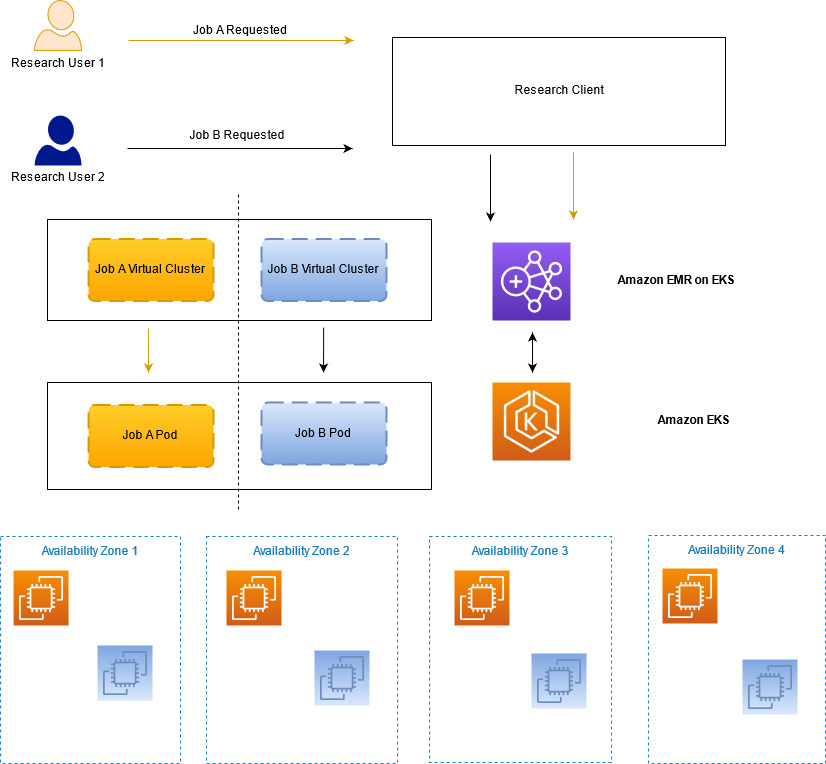

Leverage IBM QRadar SIEM to get insights from Cloudflare logs

Post Syndicated from Tanushree Sharma original https://blog.cloudflare.com/announcing-the-ibm-qradar-direct-log-integration/

Leverage IBM QRadar SIEM to get insights from Cloudflare logs

Leverage IBM QRadar SIEM to get insights from Cloudflare logs

It’s just gone midnight, and you’ve just been notified that there is a malicious IP hitting your servers. You need to triage the situation; find the who, what, where, when, why as fast and in as much detail as possible.

Based on what you find out, your next steps could fall anywhere between classifying the alert as a false positive, to escalating the situation and alerting on-call staff from around your organization with a middle of the night wake up.

For anyone that’s gone through a similar situation, you’re aware that the security tools you have on hand can make the situation infinitely easier. It’s invaluable to have one platform that provides complete visibility of all the endpoints, systems and operations that are running at your company.

Cloudflare protects customers’ applications through application services: DNS, CDN and WAF to name a few. We also have products that protect corporate applications, like our Zero Trust offerings Access and Gateway. Each of these products generates logs that provide customers visibility into what’s happening in their environments. Many of our customers use Cloudflare’s services along with other network or application services, such as endpoint management, containerized systems and their own servers.

We’re excited to announce that Cloudflare customers are now able to push their logs directly to IBM Security QRadar SIEM. This direct integration leads to cost savings and faster log delivery for Cloudflare and QRadar SIEM customers because there is no intermediary cloud storage required.

Cloudflare has invited our partner from the IBM QRadar SIEM team to speak to the capabilities this unlocks for our mutual customers.

IBM QRadar SIEM

QRadar SIEM provides security teams centralized visibility and insights across users, endpoints, clouds, applications, and networks – helping you detect, investigate, and respond to threats enterprise wide. QRadar SIEM helps security teams work quickly and efficiently by turning thousands to millions of events into a manageable number of prioritized alerts and accelerating investigations with automated, AI-driven enrichment and root cause analysis. With QRadar SIEM, increase the productivity of your team, address critical use cases, and mature your security operation.

Cloudflare’s reverse proxy and enterprise security products are a key part of customer’s environments. Security analysis can gain visibility about logs from these products along with data from tools that span their network to build out detections and response workflows.

Leverage IBM QRadar SIEM to get insights from Cloudflare logs

IBM and Cloudflare have partnered together for years to provide a single pane of glass view for our customers. This new enhanced integration means that QRadar SIEM customers can ingest Cloudflare logs directly from Cloudflare’s Logpush product. QRadar SIEM also continues to support customers who are leveraging existing integration via S3 storage.

For more information about how to use this new integration, refer to the Cloudflare Logs DSM guide. Also, check out the blog post on the QRadar Community blog for more details!

Make data available for analysis in seconds with Upsolver low-code data pipelines, Amazon Redshift Streaming Ingestion, and Amazon Redshift Serverless

Post Syndicated from Roy Hasson original https://aws.amazon.com/blogs/big-data/make-data-available-for-analysis-in-seconds-with-upsolver-low-code-data-pipelines-amazon-redshift-streaming-ingestion-and-amazon-redshift-serverless/

Amazon Redshift is the most widely used cloud data warehouse. Amazon Redshift makes it easy and cost-effective to perform analytics on vast amounts of data. Amazon Redshift launched Streaming Ingestion for Amazon Kinesis Data Streams, which enables you to load data into Amazon Redshift with low latency and without having to stage the data in Amazon Simple Storage Service (Amazon S3). This new capability enables you to build reports and dashboards and perform analytics using fresh and current data, without needing to manage custom code that periodically loads new data.

Upsolver is an AWS Advanced Technology Partner that enables you to ingest data from a wide range of sources, transform it, and load the results into your target of choice, such as Kinesis Data Streams and Amazon Redshift. Data analysts, engineers, and data scientists define their transformation logic using SQL, and Upsolver automates the deployment, scheduling, and maintenance of the data pipeline. It’s pipeline ops simplified!

There are multiple ways to stream data to Amazon Redshift and in this post we will cover two options that Upsolver can help you with: First, we show you how to configure Upsolver to stream events to Kinesis Data Streams that are consumed by Amazon Redshift using Streaming Ingestion. Second, we demonstrate how to write event data to your data lake and consume it using Amazon Redshift Serverless so you can go from raw events to analytics-ready datasets in minutes.

Prerequisites

Before you get started, you need to install Upsolver. You can sign up for Upsolver and deploy it directly into your VPC to securely access Kinesis Data Streams and Amazon Redshift.

Configure Upsolver to stream events to Kinesis Data Streams

The following diagram represents the architecture to write events to Kinesis Data Streams and Amazon Redshift.

To implement this solution, you complete the following high-level steps:

  1. Configure the source Kinesis data stream.
  2. Execute the data pipeline.
  3. Create an Amazon Redshift external schema and materialized view.

Configure the source Kinesis data stream

For the purpose of this post, you create an Amazon S3 data source that contains sample retail data in JSON format. Upsolver ingests this data as a stream; as new objects arrive, they’re automatically ingested and streamed to the destination.

  1. On the Upsolver console, choose Data Sources in the navigation sidebar.
  2. Choose New.
  3. Choose Amazon S3 as your data source.
  4. For Bucket, you can use the bucket with the public dataset or a bucket with your own data.
  5. Choose Continue to create the data source.
  6. Create a data stream in Kinesis Data Streams, as shown in the following screenshot.

This is the output stream Upsolver uses to write events that are consumed by Amazon Redshift.

Next, you create a Kinesis connection in Upsolver. Creating a connection enables you to define the authentication method Upsolver uses—for example, an AWS Identity and Access Management (IAM) access key and secret key or an IAM role.

  1. On the Upsolver console, choose More in the navigation sidebar.
  2. Choose Connections.
  3. Choose New Connection.
  4. Choose Amazon Kinesis.
  5. For Region, enter your AWS Region.
  6. For Name, enter a name for your connection (for this post, we name it upsolver_redshift).
  7. Choose Create.

Before you can consume the events in Amazon Redshift, you must write them to the output Kinesis data stream.

  1. On the Upsolver console, navigate to Outputs and choose Kinesis.
  2. For Data Sources, choose the Kinesis data source you created in the previous step.
  3. Depending on the structure of your event data, you have two choices:
    1. If the event data you’re writing to the output doesn’t contain any nested fields, select Tabular. Upsolver automatically flattens nested data for you.
    2. To write your data in a nested format, select Hierarchical.
  4. Because we’re working with Kinesis Data Streams, select Hierarchical.

Execute the data pipeline

Now that the stream is connected from the source to an output, you must select which fields of the source event you wish to pass through. You can also choose to apply transformations to your data—for example, adding correct timestamps, masking sensitive values, and adding computed fields. For more information, refer to Quick guide: SQL data transformation.

After adding the columns you want to include in the output and applying transformations, choose Run to start the data pipeline. As new events arrive in the source, Upsolver automatically transforms them and forwards the results to the output stream. There is no need to schedule or orchestrate the pipeline; it’s always on.

Create an Amazon Redshift external schema and materialized view

First, create an IAM role with the appropriate permissions (for more information, refer to Streaming ingestion). Now you can use the Amazon Redshift query editor, AWS Command Line Interface (AWS CLI), or API to run the following SQL statements.

  1. Create an external schema that is backed by Kinesis Data Streams. The following command requires you to include the IAM role you created earlier:
    CREATE EXTERNAL SCHEMA upsolver
    FROM KINESIS
    IAM_ROLE 'arn:aws:iam::123456789012:role/redshiftadmin';

  2. Create a materialized view that allows you to run a SELECT statement against the event data that Upsolver produces:
    CREATE MATERIALIZED VIEW mv_orders AS
    SELECT ApproximateArrivalTimestamp, SequenceNumber,
       json_extract_path_text(from_varbyte(Data, 'utf-8'), 'orderId') as order_id,
       json_extract_path_text(from_varbyte(Data, 'utf-8'), 'shipmentStatus') as shipping_status
    FROM upsolver.upsolver_redshift;

  3. Instruct Amazon Redshift to materialize the results to a table called mv_orders:
    REFRESH MATERIALIZED VIEW mv_orders;

  4. You can now run queries against your streaming data, such as the following:
    SELECT * FROM mv_orders;

Use Upsolver to write data to a data lake and query it with Amazon Redshift Serverless

The following diagram represents the architecture to write events to your data lake and query the data with Amazon Redshift.

To implement this solution, you complete the following high-level steps:

  1. Configure the source Kinesis data stream.
  2. Connect to the AWS Glue Data Catalog and update the metadata.
  3. Query the data lake.

Configure the source Kinesis data stream

We already completed this step earlier in the post, so you don’t need to do anything different.

Connect to the AWS Glue Data Catalog and update the metadata

To update the metadata, complete the following steps:

  1. On the Upsolver console, choose More in the navigation sidebar.
  2. Choose Connections.
  3. Choose the AWS Glue Data Catalog connection.
  4. For Region, enter your Region.
  5. For Name, enter a name (for this post, we call it redshift serverless).
  6. Choose Create.
  7. Create a Redshift Spectrum output, following the same steps from earlier in this post.
  8. Select Tabular as we’re writing output in table-formatted data to Amazon Redshift.
  9. Map the data source fields to the Redshift Spectrum output.
  10. Choose Run.
  11. On the Amazon Redshift console, create an Amazon Redshift Serverless endpoint.
  12. Make sure you associate your Upsolver role to Amazon Redshift Serverless.
  13. When the endpoint launches, open the new Amazon Redshift query editor to create an external schema that points to the AWS Glue Data Catalog (see the following screenshot).

This enables you to run queries against data stored in your data lake.

Query the data lake

Now that your Upsolver data is being automatically written and maintained in your data lake, you can query it using your preferred tool and the Amazon Redshift query editor, as shown in the following screenshot.

Conclusion

In this post, you learned how to use Upsolver to stream event data into Amazon Redshift using streaming ingestion for Kinesis Data Streams. You also learned how you can use Upsolver to write the stream to your data lake and query it using Amazon Redshift Serverless.

Upsolver makes it easy to build data pipelines using SQL and automates the complexity of pipeline management, scaling, and maintenance. Upsolver and Amazon Redshift enable you to quickly and easily analyze data in real time.

If you have any questions, or wish to discuss this integration or explore other use cases, start the conversation in our Upsolver Community Slack channel.


About the Authors

Roy Hasson is the Head of Product at Upsolver. He works with customers globally to simplify how they build, manage and deploy data pipelines to deliver high quality data as a product. Previously, Roy was a Product Manager for AWS Glue and AWS Lake Formation.

Mei Long is a Product Manager at Upsolver. She is on a mission to make data accessible, usable and manageable in the cloud. Previously, Mei played an instrumental role working with the teams that contributed to the Apache Hadoop, Spark, Zeppelin, Kafka, and Kubernetes projects.

Maneesh Sharma is a Senior Database Engineer  at AWS with more than a decade of experience designing and implementing large-scale data warehouse and analytics solutions. He collaborates with various Amazon Redshift Partners and customers to drive better integration.

Build a serverless pipeline to analyze streaming data using AWS Glue, Apache Hudi, and Amazon S3

Post Syndicated from Nikhil Khokhar original https://aws.amazon.com/blogs/big-data/build-a-serverless-pipeline-to-analyze-streaming-data-using-aws-glue-apache-hudi-and-amazon-s3/

Organizations typically accumulate massive volumes of data and continue to generate ever-exceeding data volumes, ranging from terabytes to petabytes and at times to exabytes of data. Such data is usually generated in disparate systems and requires an aggregation into a single location for analysis and insight generation. A data lake architecture allows you to aggregate data present in various silos, store it in a centralized repository, enforce data governance, and support analytics and machine learning (ML) on top of this stored data.

Typical building blocks to implement such an architecture include a centralized repository built on Amazon Simple Storage Service (Amazon S3) providing the least possible unit cost of storage per GB, big data ETL (extract, transform, and load) frameworks such as AWS Glue, and analytics using Amazon Athena, Amazon Redshift, and Amazon EMR notebooks.

Building such systems involves technical challenges. For example, data residing in S3 buckets can’t be updated in-place using standard data ingestion approaches. Therefore, you must perform constant ad-hoc ETL jobs to consolidate data into new S3 files and buckets.

This is especially the case with streaming sources, which require constant support for increasing data velocity to provide faster insights generation. An example use case might be an ecommerce company looking to build a real-time date lake. They need their solution to do the following:

  • Ingest continuous changes (like customer orders) from upstream systems
  • Capture tables into the data lake
  • Provide ACID properties on the data lake to support interactive analytics by enabling consistent views on data while new data is being ingested
  • Provide schema flexibility due to upstream data layout changes and provisions for late arrival of data

To deliver on these requirements, organizations have to build custom frameworks to handle in-place updates (also referred as upserts), handle small files created due to the continuous ingestion of changes from upstream systems (such as databases), handle schema evolution, and compromise on providing ACID guarantees on its data lake.

A processing framework like Apache Hudi can be a good way solve such challenges. Hudi allows you to build streaming data lakes with incremental data pipelines, with support for transactions, record-level updates, and deletes on data stored in data lakes. Hudi is integrated with various AWS analytics services, like AWS Glue, Amazon EMR, Athena, and Amazon Redshift. This helps you ingest data from a variety of sources via batch streaming while enabling in-place updates to an append-oriented storage system such as Amazon S3 (or HDFS). In this post, we discuss a serverless approach to integrate Hudi with a streaming use case and create an in-place updatable data lake on Amazon S3.

Solution overview

We use Amazon Kinesis Data Generator to send sample streaming data to Amazon Kinesis Data Streams. To consume this streaming data, we set up an AWS Glue streaming ETL job that uses the Apache Hudi Connector for AWS Glue to write ingested and transformed data to Amazon S3, and also creates a table in the AWS Glue Data Catalog.

After the data is ingested, Hudi organizes a dataset into a partitioned directory structure under a base path pointing to a location in Amazon S3. Data layout in these partitioned directories depends on the Hudi dataset type used during ingestion, such as Copy on Write (CoW) and Merge on Read (MoR). For more information about Hudi storage types, see Using Athena to Query Apache Hudi Datasets and Storage Types & Views.

CoW is the default storage type of Hudi. In this storage type, data is stored in columnar format (Parquet). Each ingestion creates a new version of files during a write. With CoW, each time there is an update to a record, Hudi rewrites the original columnar file containing the record with the updated values. Therefore, this is better suited for read-heavy workloads on data that changes less frequently.

The MoR storage type is stored using a combination of columnar (Parquet) and row-based (Avro) formats. Updates are logged to row-based delta files and are compacted to create new versions of columnar files. With MoR, each time there is an update to a record, Hudi writes only the row for the changed record into the row-based (Avro) format, which is compacted (synchronously or asynchronously) to create columnar files. Therefore, MoR is better suited for write or change-heavy workloads with a lesser amount of read.

For this post, we use the CoW storage type to illustrate our use case of creating a Hudi dataset and serving the same via a variety of readers. You can extend this solution to support MoR storage via selecting the specific storage type during ingestion. We use Athena to read the dataset. We also illustrate the capabilities of this solution in terms of in-place updates, nested partitioning, and schema flexibility.

The following diagram illustrates our solution architecture.

Create the Apache Hudi connection using the Apache Hudi Connector for AWS Glue

To create your AWS Glue job with an AWS Glue custom connector, complete the following steps:

  1. On the AWS Glue Studio console, choose Marketplace in the navigation pane.
  2. Search for and choose Apache Hudi Connector for AWS Glue.
  3. Choose Continue to Subscribe.

  4. Review the terms and conditions and choose Accept Terms.
  5. Make sure that the subscription is complete and you see the Effective date populated next to the product, then choose Continue to Configuration.
  6. For Delivery Method, choose Glue 3.0.
  7. For Software Version, choose the latest version (as of this writing, 0.9.0 is the latest version of the Apache Hudi Connector for AWS Glue).
  8. Choose Continue to Launch.
  9. Under Launch this software, choose Usage Instructions and then choose Activate the Glue connector for Apache Hudi in AWS Glue Studio.

You’re redirected to AWS Glue Studio.

  1. For Name, enter a name for your connection (for example, hudi-connection).
  2. For Description, enter a description.
  3. Choose Create connection and activate connector.

A message appears that the connection was successfully created, and the connection is now visible on the AWS Glue Studio console.

Configure resources and permissions

For this post, we provide an AWS CloudFormation template to create the following resources:

  • An S3 bucket named hudi-demo-bucket-<your-stack-id> that contains a JAR artifact copied from another public S3 bucket outside of your account. This JAR artifact is then used to define the AWS Glue streaming job.
  • A Kinesis data stream named hudi-demo-stream-<your-stack-id>.
  • An AWS Glue streaming job named Hudi_Streaming_Job-<your-stack-id> with a dedicated AWS Glue Data Catalog named hudi-demo-db-<your-stack-id>. Refer to the aws-samples github repository for the complete code of the job.
  • AWS Identity and Access Management (IAM) roles and policies with appropriate permissions.
  • AWS Lambda functions to copy artifacts to the S3 bucket and empty buckets first upon stack deletion.

To create your resources, complete the following steps:

  1. Choose Launch Stack:
  2. For Stack name, enter hudi-connector-blog-for-streaming-data.
  3. For HudiConnectionName, use the name you specified in the previous section.
  4. Leave the other parameters as default.
  5. Choose Next.
  6. Select I acknowledge that AWS CloudFormation might create IAM resources with custom names.
  7. Choose Create stack.

Set up Kinesis Data Generator

In this step, you configure Kinesis Data Generator to send sample data to a Kinesis data stream.

  1. On the Kinesis Data Generator console, choose Create a Cognito User with CloudFormation.

You’re redirected to the AWS CloudFormation console.

  1. On the Review page, in the Capabilities section, select I acknowledge that AWS CloudFormation might create IAM resources.
  2. Choose Create stack.
  3. On the Stack details page, in the Stacks section, verify that the status shows CREATE_COMPLETE.
  4. On the Outputs tab, copy the URL value for KinesisDataGeneratorUrl.
  5. Navigate to this URL in your browser.
  6. Enter the user name and password provided and choose Sign In.

Start an AWS Glue streaming job

To start an AWS Glue streaming job, complete the following steps:

  1. On the AWS CloudFormation console, navigate to the Resources tab of the stack you created.
  2. Copy the physical ID corresponding to the AWS::Glue::Job resource.
  3. On the AWS Glue Studio console, find the job name using the physical ID.
  4. Choose the job to review the script and job details.
  5. Choose Run to start the job.
  6. On the Runs tab, validate if the job is successfully running.

Send sample data to a Kinesis data stream

Kinesis Data Generator generates records using random data based on a template you provide. Kinesis Data Generator extends faker.js, an open-source random data generator.

In this step, you use Kinesis Data Generator to send sample data using a sample template using the faker.js documentation to the previously created data stream created at one record per second rate. You sustain the ingestion until the end of this tutorial to achieve reasonable data for analysis while performing the remaining steps.

  1. On the Kinesis Data Generator console, for Records per second, choose the Constant tab, and change the value to 1.
  2. For Record template, choose the Template 1 tab, and enter the following code sample into the text box:
    {
     "name" : "{{random.arrayElement(["Person1","Person2","Person3", "Person4"])}}",  
     "date": "{{date.utc(YYYY-MM-DD)}}",
     "year": "{{date.utc(YYYY)}}",
     "month": "{{date.utc(MM)}}",
     "day": "{{date.utc(DD)}}",
     "column_to_update_integer": {{random.number(1000000000)}},
     "column_to_update_string": "{{random.arrayElement(["White","Red","Yellow", "Silver"])}}" 
    }

  3. Choose Test template.
  4. Verify the structure of the sample JSON records and choose Close.
  5. Choose Send data.
  6. Leave the Kinesis Data Generator page open to ensure sustained streaming of random records into the data stream.

Continue through the remaining steps while you generate your data.

Verify dynamically created resources

While you’re generating data for analysis, you can verify the resources you created.

Amazon S3 dataset

When the AWS Glue streaming job runs, the records from the Kinesis data stream are consumed and stored in an S3 bucket. While creating Hudi datasets in Amazon S3, the streaming job can also create a nested partition structure. This is enabled through the usage of Hudi configuration properties hoodie.datasource.write.partitionpath.field and hoodie.datasource.write.keygenerator.class in the streaming job definition.

In this example, nested partitions have been created by name, year, month, and day. The values of these properties are set as follows in the script for the AWS Glue streaming job.

For further details on how CustomKeyGenerator works to generate such partition paths, refer to Apache Hudi Key Generators.

The following screenshot shows the nested partitions created in Amazon S3.

AWS Glue Data Catalog table

A Hudi table is also created in the AWS Glue Data Catalog and mapped to the Hudi datasets on Amazon S3. See the following code in the AWS Glue streaming job.

The following table provides more details on the configuration options.

hoodie.datasource.hive_sync.enable Indicates if the table is synced to Apache Hive Metastore.
hoodie.datasource.hive_sync.sync_as_datasource Avoids breaking changes introduced with HUDI-1415 (JIRA).
hoodie.datasource.hive_sync.database The database name for your Data Catalog.
hoodie.datasource.hive_sync.table The table name in your Data Catalog.
hoodie.datasource.hive_sync.use_jdbc Uses JDBC for Hive synchronization. For more information, see the GitHub repo.
hoodie.datasource.write.hive_style_partitioning Creates partitions with <partition_column_name>=<partition_value> format.
hoodie.datasource.hive_sync.partition_extractor_class Required for nested partitioning.
hoodie.datasource.hive_sync.partition_fields Columns in the table to use for Hive partition columns.

The following screenshot shows the Hudi table in the Data Catalog and the associated S3 bucket.

Read results using Athena

Using Hudi with an AWS Glue streaming job allows us to have in-place updates (upserts) on the Amazon S3 data lake. This functionality allows for incremental processing, which enables faster and more efficient downstream pipelines. Apache Hudi enables in-place updates with the following steps:

  1. Define an index (using columns of the ingested record).
  2. Use this index to map every subsequent ingestion to the record storage locations (in our case Amazon S3) ingested previously.
  3. Perform compaction (synchronously or asynchronously) to allow the retention of the latest record for a given index.

In reference to our AWS Glue streaming job, the following Hudi configuration options enable us to achieve in-place updates for the generated schema.

The following table provides more details of the highlighted configuration options.

hoodie.datasource.write.recordkey.field Indicates the column to be used within the ingested record for the Hudi index.
hoodie.datasource.write.operation Defines the nature of operation on the Hudi dataset. In this example, it’s set to upsert for in-place updates.
hoodie.datasource.write.table.type Indicates the Hudi storage type to be used. In this example, it’s set to COPY_ON_WRITE.
hoodie.datasource.write.precombine.field When two records have the same key value, Apache Hudi picks the one with the largest value for the precombined field.

To demonstrate an in-place update, consider the following input records sent to the AWS Glue streaming job via Kinesis Data Generator. The record identifier highlighted indicates the Hudi record key in the AWS Glue configuration. In this example, Person3 receives two updates. In first update, column_to_update_string is set to White; in the second update, it’s set to Red.

The streaming job processes these records and creates the Hudi datasets in Amazon S3. You can query the dataset using Athena. In the following example, we get the latest update.

Schema flexibility

The AWS Glue streaming job allows for automatic handling of different record schemas encountered during the ingestion. This is specifically useful in situations where record schemas can be subject to frequent changes. To elaborate on this point, consider the following scenario:

  • Case 1 – At time t1, the ingested record has the layout <col 1, col 2, col 3, col 4>
  • Case 2 – At time t2, the ingested record has an extra column, with new layout <col 1, col 2, col 3, col 4, col 5>
  • Case 3 – At time t3, the ingested record dropped the extra column and therefore has the layout <col 1, col 2, col 3, col 4>

For Case 1 and 2, the AWS Glue streaming job relies on the built-in schema evolution capabilities of Hudi, which enables an update to the Data Catalog with the extra column (col 5 in this case). Additionally, Hudi also adds an extra column in the output files (Parquet files written to Amazon S3). This allows for the querying engine (Athena) to query the Hudi dataset with an extra column without any issues.

Because Case 2 ingestion updates the Data Catalog, the extra column (col 5) is expected to be present in every subsequent ingested record. If we don’t resolve this difference, the job fails.

To overcome this and achieve Case 3, the streaming job defines a custom function named evolveSchema, which handles the record layout mismatches. The method queries the AWS Glue Data Catalog for each to-be-ingested record and gets the current Hudi table schema. It then merges the Hudi table schema with the schema of the to-be-ingested record and enriches the schema of the record before exposing with the Hudi dataset.

For this example, the to-be-ingested record’s schema <col 1, col 2, col 3, col 4> is modified to <col 1, col 2, col 3, col 4, col 5>, where the value of the extra col 5 is set to NULL.

To illustrate this, we stop the existing ingestion of Kinesis Data Generator and modify the record layout to send an extra column called new_column:

{
 "name" : "{{random.arrayElement(["Person1","Person2","Person3", "Person4"])}}",  
 "date": "{{date.utc(YYYY-MM-DD)}}",
 "year": "{{date.utc(YYYY)}}",
 "month": "{{date.utc(MM)}}",
 "day": "{{date.utc(DD)}}",
 "column_to_update_integer": {{random.number(1000000000)}},
 "column_to_update_string": "{{random.arrayElement(["White","Red","Yellow", "Silver"])}}",
 "new_column": "{{random.number(1000000000)}}" 
}

The Hudi table in the Data Catalog updates as follows, with the newly added column (Case 2).

When we query the Hudi dataset using Athena, we can see the presence of a new column.

We can now use Kinesis Data Generator to send records with an old schema—without the newly added column (Case 3).

In this scenario, our AWS Glue job keeps running. When we query using Athena, the extra added column gets populated with NULL values.

If we stop Kinesis Data Generator and start sending records with a schema containing extra columns, the job keeps running and the Athena query continues to return the latest values.

Clean up

To avoid incurring future charges, delete the resources you created as part of the CloudFormation stack.

Summary

This post illustrated how to set up a serverless pipeline using an AWS Glue streaming job with the Apache Hudi Connector for AWS Glue, which runs continuously and consumes data from Kinesis Data Streams to create a near-real-time data lake that supports in-place updates, nested partitioning, and schema flexibility.

You can also use Apache Kafka and Amazon Managed Streaming for Apache Kafka (Amazon MSK) as the source of a similar streaming job. We encourage you to use this approach for setting up a near-real-time data lake. As always, AWS welcomes feedback, so please leave your thoughts or questions in the comments.


About the Authors

Nikhil Khokhar is a Solutions Architect at AWS. He joined AWS in 2016 and specializes in building and supporting data streaming solutions that help customers analyze and get value out of their data. In his free time, he makes use of his 3D printing skills to solve everyday problems.

Dipta S Bhattacharya is a Solutions Architect Manager at AWS. Dipta joined AWS in 2018. He works with large startup customers to design and develop architectures on AWS and support their journey on the cloud.

Automate Amazon Redshift load testing with the AWS Analytics Automation Toolkit

Post Syndicated from Samir Kakli original https://aws.amazon.com/blogs/big-data/automate-amazon-redshift-load-testing-with-the-aws-analytics-automation-toolkit/

Amazon Redshift is a fast, fully managed, widely popular cloud data warehouse that powers the modern data architecture that empowers you with fast and deep insights and machine learning (ML) predictions using SQL across your data warehouse, data lake, and operational databases. A key differentiating factor of Amazon Redshift is its native integration with other AWS services, which makes it easy to build complete, comprehensive, and enterprise-level analytics applications. The AWS Analytics Automation Toolkit enables automatic provisioning and integration of not only Amazon Redshift, but database migration services like AWS Database Migration Service (AWS DMS) and the AWS Schema Conversion Tool (AWS SCT).

This post discusses new additions to the AWS Analytics Automation Toolkit, which enable you to perform advanced load testing on Amazon Redshift. This is accomplished by provisioning Apache JMeter as part of the analytics stack.

Solution overview

Apache JMeter is an open-source load testing application written in Java that you can use to load test web applications, backend server applications, databases, and more. In the database context, it’s an extremely valuable tool for repeating benchmark tests in a consistent manner, simulating concurrency workloads, and scalability testing on different database configurations.

For example, you can use JMeter to simulate a single business intelligence (BI) user or hundreds of BI users simultaneously running various SQL queries on an Amazon Redshift cluster for performance benchmarking, scalability, and throughput testing. Furthermore, you can rerun the same exact simulation on a different Amazon Redshift cluster that perhaps has twice as many nodes as the original cluster, to compare the price/performance ratio of each cluster.

Similarly, you can use JMeter to load test and assess the performance and throughput achieved for mixed extract, transform, and load (ETL) and BI workloads running on different Amazon Redshift cluster configurations.

For a deeper discussion of JMeter and its use for benchmarking Amazon Redshift, refer to Building high-quality benchmark tests for Amazon Redshift using Apache JMeter.

Although JMeter installation is a relatively straightforward process, consisting mainly of downloading and installing a Java virtual machine and JMeter, the thought of having to download, install, and set up any tool for benchmarking purposes can sometimes serve as a detractor for many. Starting from scratch for a test setup could also be intimidating.

The AWS Analytics Automation Toolkit now includes the option to automatically deploy JMeter on Amazon Elastic Compute Cloud (Amazon EC2) in the same virtual private cloud (Amazon VPC) as Amazon Redshift. This includes a dedicated Windows instance, with all required JMeter dependencies, such as JVM and a sample test plan, thereby easily enabling powerful load testing capabilities on Amazon Redshift. In this post, we demonstrate the use of the AWS Analytics Automation Toolkit for JMeter load tests on cloud benchmark data, using Amazon Redshift as a target environment.

This solution has the following features:

  • It deploys resources automatically, including JMeter
  • You can point JMeter to an existing Amazon Redshift cluster, or automatically create a new cluster
  • You can bring your own data and queries, or use a sample TPC dataset
  • You can easily customize the test plan into separate threads, each with different workloads and concurrency as needed

To use the AWS Analytics Automation Toolkit to run a JMeter load test, deploy the toolkit with the JMeter option, load data into your Amazon Redshift cluster, and customize the default test plan as you see fit.

The following diagram illustrates the solution architecture:

Prerequisites

Prior to deploying the AWS Analytics Automation Toolkit, complete the prerequisites and prepare the config file, user-config.json. For instructions, refer to Automate building an integrated analytics solution with AWS Analytics Automation Toolkit.

The config file has a new parameter called JMETER, at the top section. To provision a JMeter instance, enter the value CREATE for this parameter.

To provision a new Amazon Redshift cluster, enter the value CREATE for the REDSHIFT_ENDPOINT parameter. Then fill in values for the fields in the redshift section of the config file. You can use the sizing calculator on the Amazon Redshift console to recommend the correct cluster configuration based on your data size.

If you want load an industry-standard sample TPC-DS data (3TB) into your cluster, enter the value “Y” for the “loadTPCdata” parameter, under the redshift section.

To use an existing cluster, enter the endpoint of your cluster for the REDSHIFT_ENDPOINT parameter in the top section of the user-config.json file.

Deploy resources using the AWS Analytics Automation Toolkit

To deploy your resources, complete the following steps:

  1. Launch the toolkit as described in Automate building an integrated analytics solution with AWS Analytics Automation Toolkit.
  2. Create tables and ingest your test data into your Amazon Redshift cluster.
    • If you chose to load the sample TPC-DS 3TB data, this will take some time to load, so please allow for this. If you are loading your own data then you may do that at this point.

Launch JMeter

To launch JMeter, complete the following steps:

  1. Using RDP, log in to the JMeter EC2 Windows instance created by the AWS Analytics Automation Toolkit.
  2. Launch the JMeter GUI by choosing (double-clicking) the shortcut JMETER on the Windows Desktop.

In our experience, changing the JMeter Look and Feel option to Windows (instead of dark mode) results in increased JMeter stability, so we highly recommend making that change and choosing Yes to restart the GUI.

Customize the JMeter test plan

To customize the JMeter test plan, we modify the JDBC connection, and optionally modify the thread ramp-up schedule and optimize the SQL.

  1. Using the JMeter GUI, open the AWS Analytics Automation Toolkit’s default test plan file c:\JMETER\apache-jmeter-5.4.1\Redshift Load Test.jmx.
  2. Choose the test plan name and edit the JdbcUser value to the correct user name for your Amazon Redshift cluster.

If you used the CREATE cluster option, this value is the same as the master_user_name value in your user-config.json file.

  1. In JDBC connection, edit the DatabaseURL value and password with the correct values for your cluster.

If you used the CREATE cluster option, the password is kept in a secret named <stackname>-RedshiftPassword. You can find the endpoint by choosing the new Amazon Redshift cluster and copying the endpoint value on the upper right.

This test plan already has a initialization command set to turn off the result cache feature of Amazon Redshift: set enable_result_cache_for_session to off. No action is needed to configure this.

  1. Optionally, modify the thread ramp-up schedule.

This test plan uses the Ultimate Thread Group, which is automatically installed when you open the test plan. Each thread group contains a ramp-up schedule, as well as a query or set of queries. Modify these to according to your testing preferences and dataset. If you loaded the TPCDS dataset, the queries included by default in the three thread groups will work.

In the following example, Smallthread Group has four rows, each of which launches the specific number of sessions at staggered timings. The ramp-up time to achieve the maximum session count is 45 seconds, because the last thread doesn’t start until 15 seconds into the test, and has a 30-second start time. You can adjust the ramp-up schedule, as well as the hold duration and shutdown time, by editing, adding, or deleting rows in the Thread Schedule section. The graph is then automatically adjusted.

  1. Optionally, you can customize the SQL.

In the following example, we choose the JDBC request item under the same SmallThread Group, called SmallSQL, and review the query run by this thread group. If you added your own data, insert the query or queries you want to run for this thread group. Do the same for the medium and large thread groups, or delete or add thread groups as needed.

Run the test

Run the test plan by choosing the green arrow in the GUI.

Alternatively, enter the following command in a Windows command prompt to run JMeter in command line mode:

C:\JMETER\apache-jmeter-5.4.1\bin\jmeter -n -t RedshiftTPCDWTest.jmx -e -l test.out

Use case example: Evaluating concurrency scaling benefits

For our example use case, we want to determine how Amazon Redshift concurrency scaling benefits our workload performance. We can use the JMeter setup outlined in this post to quickly answer this question.

In the following example, we ran the sample test plan as is against the sample TPC-DS data, with 80 concurrent users across three thread groups. We ran the test first with concurrency scaling enabled, then reran it after disabling concurrency scaling on the Amazon Redshift cluster.

To monitor the results, open the Amazon Redshift console, choose Clusters in the navigation pane, and choose the cluster you’re using for the performance test. On the Cluster performance tab, you can monitor the CPU utilization of all the nodes in your cluster, as shown in the following screenshot.

On the Query monitoring tab, you can monitor the queue activity, as well as concurrency scaling activity of your cluster.

The preceding graphs cover two different tests with a 4-node ra3.16xlarge cluster. On the left side, concurrency scaling was enabled for the cluster, and on the right side it was disabled. In the test with concurrency scaling enabled, the queueing is less, and test completion duration is shorter.

Note that the test duration is the time to run the workload on Amazon Redshift, not to download query results.

Lastly, to review the actual test result query performance, you can download the file C:\JMETER\apache-jmeter-5.4.1\SummaryReportIndividualRecords.csv from the EC2 instance, and review the query performance for each thread. The following screenshot is a summary plot of the test results for this example, with and without concurrency scaling.

As the chart illustrates, concurrency scaling can significantly reduce the latency for your workloads, and is particularly useful for short bursts of activity on your application.

Conclusion

JMeter allows you to create a flexible and powerful load test for your Amazon Redshift clusters to assess the performance of the cluster. With the new capability in the AWS Analytics Automation Toolkit, you can provision and configure JMeter, along with a test plan, in a fraction of the time it would normally take.


About the Authors

Samir Kakli is an Analytics POC Specialist Solutions Architect based out of Florida. He is focused on helping customers quickly and effectively align Amazon Redshift’s capabilities to their business needs.

Asser Moustafa is an Analytics Specialist Solutions Architect at AWS based out of Dallas, Texas. He advises customers in the Americas on their Amazon Redshift and data lake architectures and migrations, starting from the POC stage to actual production deployment and maintenance.

ProLink uses Amazon QuickSight to enable states to deliver housing assistance to those in need

Post Syndicated from Ryan Kim original https://aws.amazon.com/blogs/big-data/prolink-uses-amazon-quicksight-to-enable-states-to-deliver-housing-assistance-to-those-in-need/

This is a joint post by ProLink Solutions and AWS. ProLink Solutions builds software solutions for emergency fund deployment to help state agencies distribute funds to homeowners in need. Over the past 20 years, ProLink Solutions has developed software for the affordable housing industry, designed to make the experience less complicated and easy to report on.

The COVID-19 pandemic has impacted homeowners across the United States who were unable to pay their mortgages, resulting in delinquencies, defaults, and foreclosures. The federal government acted quickly by establishing the Homeowner Assistance Fund (HAF) under the American Rescue Plan Act of 2021, granting nearly $10 billion to states to distribute to homeowners experiencing COVID-related financial hardships.

Distributing these funds quickly and efficiently required states to rapidly deploy new programs, workflows, and reporting. ProLink Solutions rose to the occasion with a new software as a service (SaaS) solution called ProLink+. Consisting of two parts—a homeowner portal that makes the funding application process easy for homeowners, and a back-office system to help state agencies review and approve funding applications—ProLink+ is a turnkey solution for state agencies looking to distribute their HAF dollars fast. For state agencies responsible for HAF programs, data reporting is key because it reinforces the organizational mission of the agency and helps shape public perception of how the program is progressing. Due to the emergency nature of the funding program, state agencies are continually in the public eye, and therefore access to real-time reporting is a must. As a result, ProLink uses Amazon QuickSight as their business intelligence (BI) solution to create and embed dashboards into the ProLink+ solution.

In this post, we share how ProLink+ uses QuickSight to enhance states’ capabilities to analyze and assess their fund deployment status.

Building the solution with AWS

Data-driven decision-making is critical in any industry or business today, and the affordable housing industry is no exception. As a primary technology player in the affordable housing industry for over two decades, ProLink Solutions supports state housing finance agencies by providing comprehensive suite of software products. ProLink has been an AWS customer since 2012, utilizing AWS services to design and build their in-house software development to maximize agility, scale, functionality, and speed to market of their solutions.

The ProLink+ SaaS solution is built using multiple AWS resources, including but not limited to Amazon Elastic Compute Cloud (Amazon EC2), Elastic Load Balancing, Amazon Simple Storage Service (Amazon S3), Amazon Relational Database Service (Amazon RDS), AWS Lambda, and Amazon Cognito. It also utilizes Amazon CloudFront for a secure and high-performance content delivery system to the end-user.

QuickSight inherent integrations with their AWS resources and microservices make it a logical choice for ProLink. In addition, QuickSight allowsProLink to deliver dashboard functionality efficiently and securely without incurring significant costs. Due to the intuitive design of QuickSight, ProLink business analysts are able to build rich, informative dashboards without writing any code or engineering input, thereby shortening the time to client delivery and increasing the efficiency of the decision-making process. With its simple setup and ability to easily create embedded dashboards and visualization tools, QuickSight is yet another flexible and powerful tool that ProLink Solutions uses to deliver high-quality products and services to the market.

Intuitive and effective data visualization is key

The integration of QuickSight into ProLink+ offers a unique opportunity to create a seamless embedded solution for users. For example, the reporting integration isn’t a separate redirect to a different system. The solution exists in the main user interface with visualizations directly associated to the unique activities. Relevant data can be displayed without adding unnecessary complexity to the solution. This experience adds additional value by reducing the learning curve for new customers.

State agencies use QuickSight’s embedded dashboard capabilities in ProLink+ for internal analytical purposes, as well as for real-time reporting to the public. The agencies are proactively thinking about what information needs to be made available to the public and how to best present it. These are big decisions that impact how the public sees the work of the government.

The Percent of Funds Disbursed chart in the following screenshot illustrates how much of the allocation the agency received from the US Department of the Treasury has been disbursed to homeowners in the state.

Blazing a trail for more easily accessible funding

Federal funding programs have traditionally faced challenges with distribution to citizens in need. ProLink Solutions seeks to provide an easy-to-adopt, easy-to-use, and repeatable solution for governments, powered by modern technology. ProLink+ simplifies the process of distributing the funds to the public through an intuitive interface. The dashboard capabilities of QuickSight are an asset to both ProLink Solutions as a solutions provider and state government agencies as end-users. Intuitive, effective data reporting and visualization provides critical insights that help governments communicate their work on behalf of the public, while continuing to improve delivery of their services.

“State agencies across the board are looking for visual reporting tools to tell their stories more effectively. I’m glad QuickSight was readily available to us and we were able to quickly develop a dashboard in our ProLink+ deployment.” Shawn McKenna, CEO ProLink Solutions

Learn more about how ProLink Solutions is helping states distribute housing assistance quickly to those in need.

_______________________________________________________________________

About the Authors

Ryan Kim is the Director of Product Marketing at ProLink Solutions. Ryan leads industry partnerships/initiatives and positioning of all ProLink Solutions’s technology products that serve the affordable housing industry.

Scott Kirn is the Chief Information Officer at ProLink Solutions. Scott leads the Information Technology group at ProLink Solutions and drives all aspects of product development and delivery.

Walter McCain II is a Solutions Architect at Amazon Web Services. Walter is a Solutions Architect for Amazon Web Services, helping customers build operational best practices, application products, and technical solutions in the AWS Cloud. Walter is involved in evangelizing AWS Cloud computing architectures and development for various technologies such as serverless, media entertainment, migration strategies, and security, to name a few.

Perform ETL operations using Amazon Redshift RSQL

Post Syndicated from Saman Irfan original https://aws.amazon.com/blogs/big-data/perform-etl-operations-using-amazon-redshift-rsql/

Amazon Redshift is a fast, scalable, secure, and fully managed cloud data warehouse that makes it simple and cost-effective to analyze all your data using standard SQL and your existing ETL (extract, transform, and load), business intelligence (BI), and reporting tools. Tens of thousands of customers use Amazon Redshift to process exabytes of data per day and power analytics workloads such as BI, predictive analytics, and real-time streaming analytics.

There are many ways to interact with Amazon Redshift. You can programmatically access data in your Amazon Redshift cluster by using the Amazon Redshift Data API, or you can use a web-based interface such as Amazon Redshift Query Editor V2 to author SQL queries. You can also interact with Amazon Redshift in interactive or batch mode via Amazon Redshift RSQL.

Previously, you had to use the PostgreSQL psql command line tool to interact with Amazon Redshift for simple use cases such as importing and exporting data to and from Amazon Redshift or submitting SQL in batch or interactive mode, or for advanced use cases such as performing ETL operations without writing complex ETL jobs.

Now you can use Amazon Redshift RSQL, a new command line tool to connect to an Amazon Redshift cluster and perform operations such as describe database objects, query data, view and export query results in various output file formats, run scripts that include both SQL and complex business logic, perform data cleansing and transformation operations using familiar SQL, and write ETL and ELT scripts using enhanced control flow and advanced error handling. Moreover, if you’re migrating from self-managed data warehousing engines such as Teradata to Amazon Redshift and using Teradata BTEQ (Basic Teradata Query) scripting for data automation, ETL or other tasks can now migrate to Amazon Redshift RSQL.

This post explains how to use Amazon Redshift RSQL for ETL, data cleansing and preparation, enhanced control flow, and exception and error handling.

Solution overview

Amazon Redshift RSQL enables you to connect to your Amazon Redshift cluster via a command line. It supports the capabilities of the PostgreSQL psql command line tool with an additional set of Amazon Redshift specific capabilities:

  • Describe properties or attributes of external tables in an AWS Glue catalog or Apache Hive metastore, external databases in Amazon RDS for PostgreSQL or Amazon Aurora PostgreSQL, and tables shared using Amazon Redshift data sharing
  • Use enhanced control flow commands such as \IF, \ELSEIF, \ELSE, \ENDIF, \GOTO, and \LABEL
  • Use single sign-on (SSO) authentication using ADFS, PingIdentity, Okta, Azure AD, or other SAML/JWT based identity providers (IdPs), as well as use browser-based SAML IdPs with multi-factor authentication (MFA)

The following are some commonly used commands in Amazon Redshift RSQL. We use these commands in this post to demonstrate different possible use cases using Amazon Redshift RSQL scripts.

  • \echo – Prints the specified string to the output.
  • \remark – An extension of the \echo command that has the ability to break the output over separate lines.
  • \goto – Skips all intervening commands and SQL statements and resume the processing at the specified \LABEL in sequence. The \LABEL must be a forward reference. You can’t jump to a \LABEL that lexically precedes the \GOTO.
  • \label – Establishes an entry point for running the program as the target for a \GOTO command.
  • \exit – Stops running Amazon Redshift RSQL. You can also specify an optional exit code.
  • \q – Logs off database sessions and exits Amazon Redshift RSQL.

Prerequisites

The following are the prerequisites for using Amazon Redshift RSQL and perform the steps in this post:

  • An AWS account
  • Linux, Windows, or MacOs operating system (Amazon Redshift RSQL is available for these operating systems)
  • An Amazon Redshift cluster
  • SQL knowledge

Additionally, complete the following prerequisite steps:

  1. Install Amazon Redshift RSQL on your local machine. For instructions, refer to Getting started with Amazon Redshift RSQL.
  2. Connect to the Amazon Redshift cluster.
  3. Create the orders and orders_summary tables using the following DDL statements:
    create table orders (
      O_ORDERKEY bigint NOT NULL,
      O_CUSTKEY bigint,
      O_ORDERSTATUS varchar(1),
      O_TOTALPRICE decimal(18,4),
      O_ORDERDATE Date,
      O_ORDERPRIORITY varchar(15),
      O_CLERK varchar(15),
      O_SHIPPRIORITY Integer,
      O_COMMENT varchar(79))
    distkey (O_ORDERKEY)
    sortkey (O_ORDERDATE);
    
    CREATE TABLE orders_summary 
    ( o_orderkey bigint, 
     o_custkey bigint, 
     o_orderstatus character varying(1),
     o_totalprice integer,
     target_information character varying(14),
     rank character varying(15),
     description character varying(15)
    ) DISTSTYLE AUTO;

Import data into the Amazon Redshift cluster

There are multiple ways to load data into Amazon Redshift tables, including using Amazon Redshift RSQL. In this section, we review the syntax and an example of the Amazon Redshift RSQL script to load data into an Amazon Redshift table using the COPY command.

We use the following syntax:

COPY <TABLE> from <location> 
iam_role <arn>
region <region>;

We provide the following parameters:

  • <location> – The location of the source data to be loaded into the target table
  • <arn> – The AWS Identity and Access Management (IAM) role for accessing the data
  • <region> – The AWS Region of the source data

In the following example Amazon Redshift RSQL script, we load data from an Amazon Simple Storage Service (Amazon S3) bucket location into the orders table:

\echo 'Job started' 
  copy orders from 's3://redshift-immersionday-labs/data/orders/orders.tbl.'
  iam_role default
  region 'us-west-2' lzop delimiter '|' COMPUPDATE PRESET;
\echo 'Job Ended'
\exit 0 

Enhanced control flow

You can use Amazon Redshift RSQL to define programmatic enhanced control flow and conditional blocks in your ETL script. We use the following syntax:

\if <condition> 
  <code_block1>
\else
  <code_block2>
\endif

The syntax includes the following components:

  • <condition> –The conditional statement
  • <code_block1> – The code block to run when the condition is met
  • <code_block2> – The code block to run when the condition is not met

In the following example script, we perform some conditional checks using if, elseif, and else commands based on the count of records from the orders table, and we display some messages based on the record count value:

\echo 'Job started'
Select count(*)  from orders \gset
select :count as count;
\if :count < 76000000 
  \echo 'Orders are less than target'
\elseif :count =76000000
  \echo 'Order met the target'
\else :count > 76000000
  \echo 'Orders exceeded the target'
\endif
\echo 'Job Ended' 
\exit 0  

Error handling

You can use Amazon Redshift RSQL to define exception handling blocks in your in ETL script to handle various user-defined and system-generated error scenarios that you might encounter while running the ETL process.

The following are some of the error handling options supported in Amazon Redshift RSQL:

  • :ACTIVITYCOUNT – This variable is similar to the psql variable ROW_COUNT, which returns the number of rows affected by last SQL statement. However, ACTIVITYCOUNT reports the affected row count for SELECT, COPY, and UNLOAD statements, which ROW_COUNT does not. For SQL statements returning data, ACTIVITYCOUNT specifies the number of rows returned to Amazon Redshift RSQL from the database.
  • :ERRORCODE – This variable contains the return code for the last submitted SQL statement to the database. Error code 0 specifies that SQL statement completed without any errors.
  • :ERRORLEVEL – This variable is used to assign severity levels to errors. You can use these severity levels to determine a course of action. The default value is ON.
  • :MAXERROR – This variable designates a maximum error severity level beyond which Amazon Redshift RSQL halts job processing. If SQL statements in Amazon Redshift RSQL scripts produce an error severity level greater than the designated maxerror value, Amazon Redshift RSQL immediately exits.
  • :LAST_ERROR_MESSAGE – This variable contains the error message of the most recent failed query.

We use the following syntax:

\if :ERROR <> 0 
  \echo :<ERRORCODE>
  \echo :<LAST_ERROR_MESSAGE>
  \goto <codeblock1>
\else
  \goto Y
\endif

The syntax includes the following information:

  • <ERRORCODE> –The error code number
  • <LAST_ERROR_MESSAGE> – The error message of the most recent failed query
  • <code_block1> – The code block to run when the error condition is met
  • <code_block2> – The code block to run when the error condition is not met

In the following example script, we create the orders_staging table and copy records into the table from an Amazon S3 location. The script also contains an exception handling section for both the table creation and copy process to handle the possible errors encountered during the process.

\echo `date`
\echo 'Job started'
DROP TABLE IF EXISTS orders_staging;

create table orders_staging (
O_ORDERKEY bigint NOT NULL,
O_CUSTKEY bigint,
O_ORDERSTATUS varchar(1),
O_TOTALPRICE decimal(18,4),
O_ORDERDATE Date,
O_ORDERPRIORITY varchar(15),
O_CLERK varchar(15),
O_SHIPPRIORITY Integer,
O_COMMENT varchar(79))
distkey (O_ORDERKEY)
sortkey (O_ORDERDATE);

\if :ERROR <> 0 
  \echo :ERRORCODE
  \remark :LAST_ERROR_MESSAGE
  \goto QUIT_JOB
\else
  \remark '***Orders_Staging Table Created Successfully****'
  \goto COPY_DATA
\endif

\label COPY_DATA
 copy orders_staging from 's3://redshift-immersionday-  labs/data/orders/orders.tbl.'
 iam_role default
 region 'us-west-2' lzop delimiter '|' COMPUPDATE PRESET;

\if :ERROR <> 0
  \echo :ERRORCODE
  \remark :LAST_ERROR_MESSAGE
  \goto QUIT_JOB
\else 
  \remark '****Data Copied Successfully****'
\endif

\echo `date`
\echo 'Job Ended'
\exit 0 

\label QUIT_JOB
 \echo `date`
 \echo 'Job Failed'
 \exit 1 

Data transformation and preparation

You can perform some common data preparation and transformation operations on your dataset using SQL statements in the Amazon Redshift RSQL ETL script. In this section, we demonstrate data transformation and preparation operations such as casting, new data column creation, and splitting an input column into multiple columns.

We use industry standard SQL statements for transforming and preparing data for downstream consumption.

In the following example script, we use a SQL statement to transform the data from the orders_staging table and insert it into the orders_summary table:

\echo `date`
\echo 'Job started'

insert into orders_summary 
(o_orderkey,
o_custkey,
o_orderstatus,
o_totalprice,
target_information,
rank,
description)
select
o_orderkey,
o_custkey,
o_orderstatus,
o_totalprice::int,
case 
when o_totalprice < 200000
then 'Target Missed'
when o_totalprice = 200000
then 'Target Met'
when o_totalprice > 200000
then 'Target Exceeds'
end as "Target_Information",
split_part (o_orderpriority,'-',1) as RANK, 
split_part (o_orderpriority,'-',2) as DESCRIPTION
from orders_staging; 

\if :ERROR <> 0 or :ACTIVITYCOUNT=0
 \echo :ERRORCODE
 \remark :LAST_ERROR_MESSAGE
 \goto QUIT_JOB
\else
 \remark 'Data Inserted into Summary Orders Table'
\endif

\echo `date`
\echo 'Job Ended'
\exit 0 

\label QUIT_JOB
 \echo `date`
 \echo 'Job Failed'
 \exit 1 

Export data from an Amazon Redshift cluster and output file formatting options

You can use Amazon Redshift RSQL to extract data from one or multiple Amazon Redshift tables and write to your disk for consumption by downstream applications. Amazon Redshift RSQL uses the \EXPORT option to export the result of query to an output file.

The following are some of the useful output formating options supported in RSQL:

  • \rset rformat on – This command is required for all the formatting commands to take effect.
  • \pset format – Formats can include aligned, AsciiDoc, CSV, HTML, LaTeX, LaTeX longtable, troff-ms, unaligned, and wrapped.
  • \pset border – This option specifies border information for output data. Value 0 means no border, 1 means internal dividing lines, and 2 means table frame.
  • \rset heading – This command adds the specified heading to the output result.
  • \rset rtitle – This command adds the specified heading as well as current system date of the client computer.
  • \rset titledashes on/off – This command specifies whether to print a line of dash characters between the column names and column data returned for the SQL query.
  • \rset width – This command specifies the target width for each line in a report
  • \t – This command turns off printing column names as well as result row count at the end of the output (footers).

We use the following syntax:

\export report file=<'FilePath/Filename'>
\rset rformat on
\pset format wrapped
\pset border 2
\rset heading ‘This is Heading’
\rset width 50
\rset titledashes on
<SQL Query>
\export reset

We provide the following information:

  • <‘FilePath/Filename’> – The file name and path for the output file
  • <SQL Query> – The SQL query to run

In the following example script, we export the data from the orders_summary table using a SQL query and write it into the orders.txt text file on the local machine:

\echo `date`
\echo 'Job started'

\export report file='/<FilePath>/orders.txt'
\rset rformat on
\pset format wrapped
\rset width 50
\rset titledashes on
select * from orders_summary limit 100;

\export reset
\echo 'Job Ended'
\echo `date`
\exit 0 

Automate the Amazon Redshift RSQL ETL script

One of the options to automate Amazon Redshift RSQL scripts to run on a specific schedule is via shell scripting. You can schedule the shell script via a CRON job, a command line utility.

We use the following syntax:

#!/bin/sh
rsql -D awsuser -f <RSQL_SCRIPT> <LOG_FILE>

We provide the following information:

  • <RSQL_SCRIPT> – The SQL scripts to un
  • <LOG_FILE> – The output log file

In the following example shell script, we run the Amazon Redshift RSQL script that we created and write the output log in a log file in the local machine. You can schedule the shell script via a CRON job.

#!/bin/sh
SCRIPTS_DIR="<SCRIPTS_DIR>"
LOG_DIR="<LOG_DIR>"

RSQL_SCRIPT="${SCRIPTS_DIR}/<RSQL_SCRIPT>.sql"
LOG_FILE="${LOG_DIR}/test_rsql.log"

touch $LOG_FILE

rsql -D awsuser -f ${RSQL_SCRIPT} > ${LOG_FILE}

Clean up

To avoid incurring future charges, stop the Amazon Redshift cluster created for the purpose of this post.

Conclusion

In this post, we explained how to use Amazon Redshift RSQL to perform ETL operations. We also demonstrated how to implement advanced error handling and enhanced control flow in your Amazon Redshift RSQL ETL script.

If you’re using scripts via the psql command line client on Amazon Redshift, you can operate on Amazon Redshift RSQL with no modification. If you’re migrating your Teradata BTEQ scripts to Amazon Redshift RSQL, you can use the AWS Schema Conversion Tool (AWS SCT) to automatically convert BTEQ scripts to Amazon Redshift RSQL scripts.

To learn more, refer to Amazon Redshift RSQL.


About the Authors

Saman Irfan is a Specialist Solutions Architect at Amazon Web Services. She focuses on helping customers across various industries build scalable and high-performant analytics solutions. Outside of work, she enjoys spending time with her family, watching TV series, and learning new technologies.

Sudipta Bagchi is a Specialist Solutions Architect at Amazon Web Services. He has over 12 years of experience in data and analytics, and helps customers design and build scalable and high-performant analytics solutions. Outside of work, he loves running, traveling, and playing cricket.