Tag Archives: Amazon Redshift

Migrating from Vertica to Amazon Redshift

Post Syndicated from Seetha Sarma original https://aws.amazon.com/blogs/big-data/migrating-from-vertica-to-amazon-redshift/

Amazon Redshift powers analytical workloads for Fortune 500 companies, startups, and everything in between. With Amazon Redshift, you can query petabytes of structured and semi-structured data across your data warehouse, operational database, and your data lake using standard SQL.

When you use Vertica, you have to install and upgrade Vertica database software and manage the cluster OS and hardware. Amazon Redshift is a fully managed cloud solution; you don’t have to install and upgrade database software and manage the OS and the hardware. In this post, we discuss the best practices for migrating from a self-managed Vertica cluster to the fully managed Amazon Redshift solution. We discuss how to plan for the migration, including sizing your Amazon Redshift cluster and strategies for data placement. We look at the tools for schema conversion and see how to choose the right keys for distributing and sorting your data. We also see how to speed up the data migration to Amazon Redshift based on your data size and network connectivity. Finally, we cover how cluster management on Amazon Redshift differs from Vertica.

Migration planning

When planning your migration, start with where you want to place the data. Your business use case drives what data gets loaded to Amazon Redshift and what data remains on the data lake. In this section, we discuss how to size the Amazon Redshift cluster based on the size of the Vertica dataset that you’re moving to Amazon Redshift. We also look at the Vertica schema and decide the best data distribution and sorting strategies to use for Amazon Redshift, if you choose to do it manually.

Data placement

Amazon Redshift powers the lake house architecture, which enables you to query data across your data warehouse, data lake, and operational databases to gain faster and deeper insights not possible otherwise. In a Vertica data warehouse, you plan the capacity for all your data, whereas with Amazon Redshift, you can plan your data warehouse capacity much more efficiently. If you have a huge historical dataset being shared by multiple compute platforms, then it’s a good candidate to keep on Amazon Simple Storage Service (Amazon S3) and utilize Amazon Redshift Spectrum. Also, streaming data coming from Kafka and Amazon Kinesis Data Streams can add new files to an existing external table by writing to Amazon S3 with no resource impact to Amazon Redshift. This has a positive impact on concurrency. Amazon Redshift Spectrum is good for heavy scan and aggregate work. For tables that are frequently accessed from a business intelligence (BI) reporting or dashboarding interface and for tables frequently joined with other Amazon Redshift tables, it’s optimal to have tables loaded in Amazon Redshift.

Vertica has Flex tables to handle JSON data. You don’t need to load the JSON data to Amazon Redshift. You can use external tables to query JSON data stored on Amazon S3 directly from Amazon Redshift. You create external tables in Amazon Redshift within an external schema.

Vertica users typically create a projection on a Vertica table to optimize for a particular query. If necessary, use materialized views in Amazon Redshift. Vertica also has aggregate projection, which acts like a synchronized materialized view. With materialized views in Amazon Redshift, you can store the pre-computed results of queries and efficiently maintain them by incrementally processing the latest changes made to the source tables. Subsequent queries referencing the materialized views use the pre-computed results to run much faster. You can create materialized views based on one or more source tables using filters, inner joins, aggregations, grouping, functions, and other SQL constructs.

Cluster sizing

When you create a cluster on the Amazon Redshift console, you can get a recommendation of your cluster configuration based on the size of your data and query characteristics (see the following screenshot).

Amazon Redshift offers different node types to accommodate your workloads. We recommend using RA3 nodes so you can size compute and storage independently to achieve improved price and performance. Amazon Redshift takes advantage of optimizations such as data block temperature, data block age, and workload patterns to optimize performance and manage automatic data placement across tiers of storage in the RA3 clusters.

ETL pipelines and BI reports typically use temporary tables that are only valid for a session. Vertica has local and global temporary tables. If you’re using Vertica local temporary tables, no change is required during migration. Vertica local tables and Amazon Redshift temporary tables have similar behavior. They’re visible only to the session and get dropped when the session ends. Vertica global tables persist across sessions until they are explicitly dropped. If you use them now, you have to change them to permanent tables in Amazon Redshift and drop them when they’re no longer needed.

Data distribution, sorting, and compression

Amazon Redshift optimizes for performance by distributing the data across compute nodes and sorting the data. Make sure to set the sort key, distribution style, and compression encoding of the tables to take full advantage of the massively parallel processing (MPP) capabilities. The choice of distribution style and sort keys vary based on data model and access patterns. Use the data distribution and column order of the Vertica tables to help choose the distribution keys and sort keys on Amazon Redshift.

Distribution keys

Choose a column with high cardinality of evenly spread out values as the distribution key. Profile the data for the columns used for distribution keys. Vertica has segmentation that specifies how to distribute data for superprojections of a table, where the data to be hashed consists of one or more column values. The columns used in segmentation are most likely good candidates for distribution keys on Amazon Redshift. If you have multiple columns in segmentation, pick the column that provides the highest cardinality to reduce the possibility of high data skew.

Besides supporting data distribution by key, Amazon Redshift also supports other distribution styles: ALL, EVEN, and AUTO. Use ALL distribution for small dimension tables and EVEN distribution for larger tables, or use AUTO distribution, where Amazon Redshift changes the distribution style from ALL to EVEN as the table size reaches a threshold.

Sort keys

Amazon Redshift stores your data on disk in sorted order using the sort key. The Amazon Redshift query optimizer uses the sort order for optimal query plans. Review if one of raw columns used in the Vertica table’s Order By clause is the best column to use as the sort key in the Amazon Redshift table.

The order by fields in Vertica superprojections are good candidates for a sort key in Amazon Redshift, but the design criteria of sort order in Amazon Redshift is different from what you use in Vertica. In Vertica projections Order By clause, you use the low-cardinality columns with high probability of having RLE encoding before the high-cardinality columns. In Amazon Redshift, you can set the SORTKEY to AUTO, or choose a column as SORTKEY or define a compound sort key. You define compound sort keys using multiple columns, starting with the most frequently used column first. All the columns in the compound sort key are used, in the order in which they are listed, to sort the data. You can use a compound sort key when query predicates use a subset of the sort key columns in order. Amazon Redshift stores the table rows on disk in sorted order and uses metadata to track the minimum and maximum values for each 1 MB block, called a zone map. Amazon Redshift uses the zone map and the sort key for filtering the block, thereby reducing the scanning cost to efficiently handle range-restricted predicates.

Profile the data for the columns used for sort keys. Make sure the first column of the sort key is not encoded. Choose timestamp columns or columns used in frequent range filtering, equality filtering, or joins as sort keys in Amazon Redshift.

Encoding

You don’t always have to select compression encodings; Amazon Redshift automatically assigns RAW compression for columns that are defined as sort keys, AZ64 compression for the numeric and timestamp columns, and LZO compression for the VARCHAR columns. When you select compression encodings manually, choose AZ64 for numeric and date/time data stored in Amazon Redshift. AZ64 encoding has consistently better performance and compression than LZO. It has comparable compression with ZSTD but greatly better performance.

Tooling

After we decide the data placement, cluster size, partition keys, and sort keys, the next step is to look at the tooling for schema conversion and data migration.

You can use AWS Schema Conversion Tool (AWS SCT) to convert your schema, which can automate about 80% of the conversion, including the conversion of DISTKEY and SORTKEY, or you can choose to convert the Vertica DDLs to Amazon Redshift manually.

To efficiently migrate your data, you want to choose the right tools depending on the data size. If you have a dataset that is smaller than a couple of terabytes, you can migrate your data using AWS Data Migration Service (AWS DMS) or AWS SCT data extraction agents. When you have more than a few terabytes of data, your tool choice depends on your network connectivity. When there is no dedicated network connection, you can run the AWS SCT data extraction agents to copy the data to AWS Snowball Edge and ship the device back to AWS to complete the data export to Amazon S3. If you have a dedicated network connection to AWS, you can run the S3EXPORT or S3EXPORT_PARTITION commands available in Vertica 9.x directly from the Vertica nodes to copy the data in parallel to the S3 bucket.

The following diagram visualizes the migration process.

Schema conversion

AWS SCT uses extension pack schema to implement system functions of the source database that are required when writing your converted schema to your target database instance. Review the database migration assessment report for compatibility. AWS SCT can use source metadata and statistical information to determine the distribution key and sort key. AWS SCT adds a sort key in the Amazon Redshift table for the raw column used in the Vertica table’s Order By clause.

The following code is an example of Vertica CREATE TABLE and CREATE PROJECTION statements:

CREATE TABLE My_Schema.My_Table
(
    Product_id int,
    Product_name varchar(50),
    Product_type varchar(50),
    Product_category varchar(50),
    Quantity int,
    Created_at timestamp DEFAULT "sysdate"()
)
PARTITION BY (date_trunc('day', My_Table.Created_at));


CREATE PROJECTION My_Schema.My_Table_Projected
(
 Product_id ENCODING COMMONDELTA_COMP,
 Product_name,
 Product_type ENCODING RLE,
 Product_category ENCODING RLE,
 Quantity,
 Created_at ENCODING GCDDELTA
)
AS
 SELECT Product_id,
        Product_name,
        Product_type,
        Product_category,
        Quantity,
        Created_at
 FROM My_Schema.My_Table 
 ORDER BY Product_type,
          Product_category,
          Product_id,
          Product_name
SEGMENTED BY hash(Product_id) ALL NODES KSAFE 1;

The following code is the corresponding Amazon Redshift CREATE TABLE statement:

CREATE TABLE My_Schema.My_Table
(
    Product_id integer,
    Product_name varchar(50),
    Product_type varchar(50),
    Product_category varchar(50),
    Quantity integer,
    Created_at timestamp DEFAULT sysdate
)
DISTKEY (Product_id) 
SORTKEY (Created_at);

Data migration

To significantly reduce the data migration time from large Vertica clusters (if you have a dedicated network connection from your premises to AWS with good bandwidth), run the S3EXPORT or S3EXPORT_PARTITION function in Vertica 9.x, which exports the data in parallel from the Vertica nodes directly to Amazon S3.

The Parquet files generated by S3EXPORT don’t have any partition key on them, because partitioning consumes time and resources on the database where the S3EXPORT runs, which is typically the Vertica production database. The following code is one command you can use:

SELECT S3EXPORT( * USING PARAMETERS url='s3://myBucket/myTable') OVER(PARTITION BEST) FROM 
myTable;

The following code is another command option:

SELECT S3EXPORT_PARTITION(* USING PARAMETERS url='s3://mytable/bystate.date', multipart=false)
OVER (PARTITION by state, year) from myTable;

Performance

In this section, we look at best practices for ETL performance while copying the data from Amazon S3 to Amazon Redshift. We also discuss how to handle Vertica partition swapping and partition dropping scenarios in Amazon Redshift.

Copying using an Amazon S3 prefix

Make sure the ETL process is running from Amazon Elastic Compute Cloud (Amazon EC2) servers or other managed services within AWS. Exporting your data from Vertica as multiple files to Amazon S3 gives you the option to load your data in parallel to Amazon Redshift. While converting the Vertica ETL scripts, use the COPY command with an Amazon S3 object prefix to load an Amazon Redshift table in parallel from data files stored under that prefix on Amazon S3. See the following code:

copy mytable
from 's3://mybucket/data/mytable/' 
iam_role 'arn:aws:iam::<myaccount>:role/MyRedshiftRole';

Loading data using Amazon Redshift Spectrum queries

When you want to transform the exported Vertica data before loading to Amazon Redshift, or when you want to load only a subset of data into Amazon Redshift, use an Amazon Redshift Spectrum query. Create an external table in Amazon Redshift pointing to the exported Vertica data stored in Amazon S3 within an external schema. Put your transformation logic in a SELECT query, and ingest the result into Amazon Redshift using a CREATE TABLE or SELECT INTO statement:

CREATE TABLE mytable AS SELECT … FROM s3_external_schema.xxx WHERE …;

SELECT … INTO mytable FROM s3_external_schema.xxx WHERE …;

Handling Vertica partitions

Vertica has partitions, and the data loads use partition swapping and partition dropping. In Amazon Redshift, we can use the sort key, staging table, and alter table append to achieve similar results. First, the Amazon Redshift ETL job should use the sort key as filter conditions to insert the incremental data into a staging table or a temporary table in Amazon Redshift, for example the date from the MyTimeStamp column between yesterday and today. The ETL job should then delete data from the primary table that matches the filter conditions. The delete operation is very efficient in Amazon Redshift because of the sort key on the source partition column. The Amazon Redshift ETL jobs can then use alter table append to move the new data to the primary table. See the following code:

INSERT INTO stage_table select * from source_table WHERE date_trunc('day', table.MyTimestamp) BETWEEN <yesterday> AND <today>

DELETE FROM target_table_name select * from stage_table WHERE <target_table.key> = <stage_table.key>

ALTER TABLE target_table_name APPEND FROM stage_table_name 
[ IGNOREEXTRA | FILLTARGET ]

Cluster management

When a Vertica node fails, Vertica remains queryable but the performance is degraded until all the data is restored to the recovered node. When an Amazon Redshift node fails, Amazon Redshift automatically detects and replaces a failed node in your data warehouse cluster and replays the ReadOnly queries. Amazon Redshift makes your replacement node available immediately and loads your most frequently accessed data from the S3 bucket first to allow you to resume querying your data as quickly as possible.

Vertica cluster resize, similar to Amazon Redshift classic resize, takes a few hours depending on data volume to rebalance the data when nodes are added or removed. With Amazon Redshift elastic resize, the cluster resize completes within minutes. We recommend elastic resize for most use cases to shorten the cluster downtime and schedule resizes to handle seasonal spikes in your workload.

Conclusion

This post shared some best practices for migrating your data warehouse from Vertica to Amazon Redshift. It also pointed out the differences between Amazon Redshift and Vertica in handling queries, data management, cluster management, and temporary tables. Create your cluster on the Amazon Redshift console and convert your schema using AWS SCT to start your migration to Amazon Redshift. If you have any questions or comments, please share your thoughts in the comments section.


About the Authors

Seetha Sarma is a Senior Database Solutions Architect with Amazon Web Services.


Veerendra Nayak is a Senior Database Solutions Architect with Amazon Web Services.

Building an event-driven application with AWS Lambda and the Amazon Redshift Data API

Post Syndicated from Manash Deb original https://aws.amazon.com/blogs/big-data/building-an-event-driven-application-with-aws-lambda-and-the-amazon-redshift-data-api/

Eventdriven applications are becoming popular with many customers, where applications run in response to events. A primary benefit of this architecture is the decoupling of producer and consumer processes, allowing greater flexibility in application design and building decoupled processes.

An example of an even-driven application is an automated workflow being triggered by an event, which runs a series of transformations in the data warehouse. At the end of this workflow, another event gets initiated to notify end-users about the completion of those transformations and that they can start analyzing the transformed dataset.

In this post, we explain how you can easily design a similar event-driven application with Amazon Redshift, AWS Lambda, and Amazon EventBridge. In response to a scheduled event defined in EventBridge, this application automatically triggers a Lambda function to run a stored procedure performing extract, load, and transform (ELT) operations in an Amazon Redshift data warehouse, using its out-of-the-box integration with the Amazon Redshift Data API. This stored procedure copies the source data from Amazon Simple Storage Service (Amazon S3) to Amazon Redshift and aggregates the results. When complete, it sends an event to EventBridge, which triggers a Lambda function to send notification to end-users through Amazon Simple Notification Service (Amazon SNS) to inform them about the availability of updated data in Amazon Redshift.

This event-driven server-less architecture offers greater extensibility and simplicity, making it easier to maintain and faster to release new features, and also reduces the impact of changes. It also simplifies adding other components or third-party products to the application without many changes.

Prerequisites

As a prerequisite for creating the application in this post, you need to set up an Amazon Redshift cluster and associate it with an AWS Identity and Access Management (IAM) role. For more information, see Getting Started with Amazon Redshift.

Solution overview

The following architecture diagram highlights the end-to-end solution, which you can provision automatically with an AWS CloudFormation template.

The workflow includes the following steps:

  1. The EventBridge rule EventBridgeScheduledEventRule is initiated based on a cron schedule.
  2. The rule triggers the Lambda function LambdaRedshiftDataApiETL, with the action run_sql as an input parameter. The Python code for the Lambda function is available in the GitHub repo.
  3. The function performs an asynchronous call to the stored procedure run_elt_process in Amazon Redshift, performing ELT operations using the Amazon Redshift Data API.
  4. The stored procedure uses the Amazon S3 location event-driven-app-with-lambda-redshift/nyc_yellow_taxi_raw/ as the data source for the ELT process. We have pre-populated this with the NYC Yellow Taxi public dataset for the year 2015 to test this solution.
  5. When the stored procedure is complete, the EventBridge rule EventBridgeRedshiftEventRule is triggered automatically to capture the event based on the source parameter redshift-data from the Amazon Redshift Data API.
  6. The rule triggers the Lambda function LambdaRedshiftDataApiETL, with the action notify as an input parameter.
  7. The function uses the SNS topic RedshiftNotificationTopicSNS to send an automated email notification to end-users that the ELT process is complete.

The Amazon Redshift database objects required for this solution are provisioned automatically by the Lambda function LambdaSetupRedshiftObjects as part of the CloudFormation template initiation by invoking the function LambdaRedshiftDataApiETL, which creates the following objects in Amazon Redshift:

  • Table nyc_yellow_taxi, which we use to copy the New York taxi dataset from Amazon S3
  • Materialized view nyc_yellow_taxi_volume_analysis, providing an aggregated view of table
  • Stored procedure run_elt_process to take care of data transformations

The Python code for this function is available in the GitHub repo.

We also use the IAM role LambdaRedshiftDataApiETLRole for the Lambda function and  LambdaRedshiftDataApiETL to allow the following permissions:

  • Federate to the Amazon Redshift cluster through getClusterCredentials permission, avoiding password credentials
  • Initiate queries in the Amazon Redshift cluster through redshift-data API calls
  • Log with Amazon CloudWatch for troubleshooting purposes
  • Send notifications through Amazon SNS

A sample IAM role for this function is available in the GitHub repo.

Lambda is a key service in this solution because it initiates queries in Amazon Redshift using the redshift-data client. Based on the input parameter action, this function can asynchronously initiate Structured Query Language (SQL) statements in Amazon Redshift, thereby avoiding chances of timing out in case of long-running SQL statements[MOU1] [MOU2]   [MOU1]I think we should put reference to Redshift Data API and highlight that there is no need to configure drivers and connections [MOU2]done. It can also publish custom notifications through Amazon SNS. Also, it uses the Amazon Redshift Data API temporary credentials functionality, which allows it to communicate with Amazon Redshift using IAM permissions without the need of any password-based authentication. With the Data API, you also don’t need to configure drivers and connections for your Amazon Redshift cluster, because it’s handled automatically.

Deploying the CloudFormation template

When your Amazon Redshift cluster is set up, use the provided CloudFormation template to automatically create all required resources for this solution in your AWS account. For more information, see Getting started with AWS CloudFormation.

The template requires you to provide the following parameters:

  • RedshiftClusterIdentifier – Cluster identifier for your Amazon Redshift cluster.
  • DbUsername – Amazon Redshift database user name that has access to run the SQL script.
  • DatabaseName – Name of the Amazon Redshift database where the SQL script runs.
  • RedshiftIAMRoleARN – ARN of the IAM role associated with the Amazon Redshift cluster.
  • NotificationEmailId – Email to send event notifications through Amazon SNS.
  • ExecutionSchedule – Cron expression to schedule the ELT process through an EventBridge rule.
  • SqlText – SQL text to run as part of the ELT process. Don’t change the default value call run_elt_process(); if you want to test this solution with the test dataset provided for this post.

The following screenshot shows the stack details on the AWS CloudFormation console.

Testing the pipeline

After setting up the architecture, you should have an automated pipeline to trigger based on the schedule you defined in the EventBridge rule’s cron expression. You can view the CloudWatch logs and troubleshoot issues in the Lambda function. The following screenshot shows the logs for our setup.

You can also view the query status on the Amazon Redshift console, which allows you to view detailed execution plans for the queries you ran. Although the stored procedure may take around 6 minutes to complete, the Lambda function finishes in seconds. This is primarily because the execution from Lambda on Amazon Redshift was asynchronous. Therefore, the function is complete after initiating the process in Amazon Redshift without caring about the query completion.

When this process is complete, you receive the email notification that the ELT process is complete.

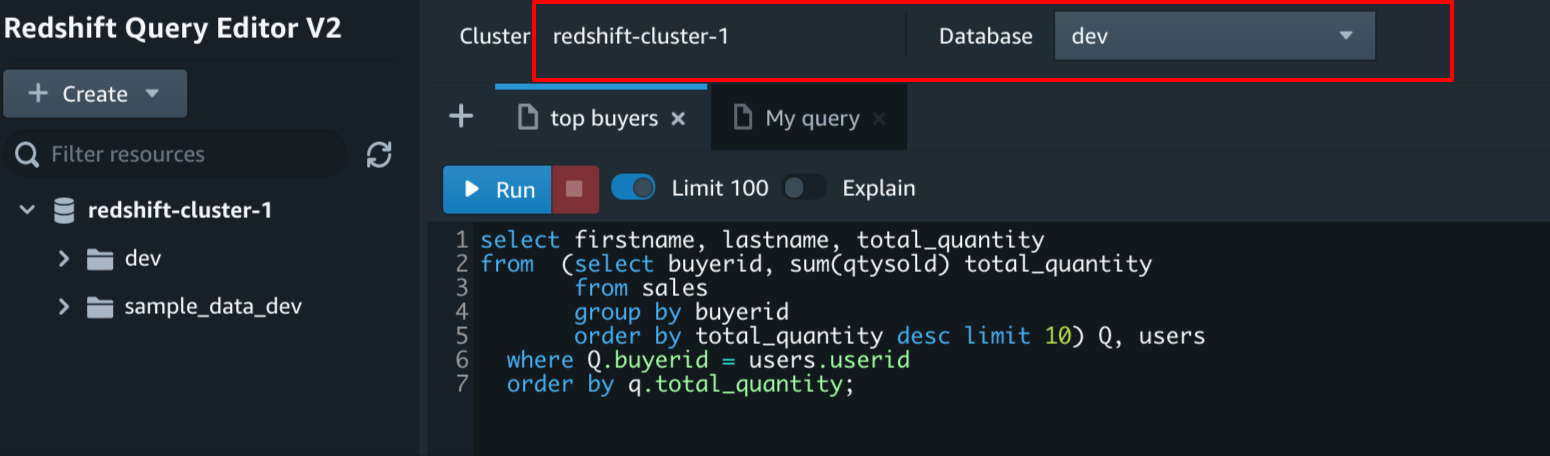
You may then view the updated data in your business intelligence tool, like Amazon QuickSight, or query data directly in Amazon Redshift Query Editor (see the following screenshot) to view the most recent data processed by this event-driven architecture.

Conclusion

The Amazon Redshift Data API enables you to painlessly interact with Amazon Redshift and enables you to build event-driven and cloud-native applications. We demonstrated how to build an event-driven application with Amazon Redshift, Lambda, and EventBridge. For more information about the Data API, see Using the Amazon Redshift Data API to interact with Amazon Redshift clusters and Using the Amazon Redshift Data API.


About the Authors

Manash Deb is a Senior Analytics Specialist Solutions Architect. He has worked in different database and data warehousing technologies for more than 15 years.


Debu Panda, a senior product manager at AWS, is an industry leader in analytics, application platform, and database technologies. He has more than 20 years of experience in the IT industry and has published numerous articles on analytics, enterprise Java, and databases and has presented at multiple conferences. He is lead author of the EJB 3 in Action (Manning Publications 2007, 2014) and Middleware Management (Packt).


Fei Peng is a Software Dev Engineer working in the Amazon Redshift team.

Federated API access to Amazon Redshift using an Amazon Redshift connector for Python

Post Syndicated from BP Yau original https://aws.amazon.com/blogs/big-data/federated-api-access-to-amazon-redshift-using-an-amazon-redshift-connector-for-python/

Amazon Redshift is the leading cloud data warehouse that delivers performance 10 times faster at one-tenth of the cost of traditional data warehouses by using massively parallel query execution, columnar storage on high-performance disks, and results caching. You can confidently run mission-critical workloads, even in highly regulated industries, because Amazon Redshift comes with out-of-the-box security and compliance.

You can use your corporate identity providers (IdPs), for example Azure AD, Active Directory Federation Services, Okta, or Ping Federate, with Amazon Redshift to provide single sign-on (SSO) to your users so they can use their IdP accounts to log in and access Amazon Redshift. With federation, you can centralize management and governance of authentication and permissions. For more information about the federation workflow using AWS Identity and Access Management (IAM) and an identity provider, see Federate Database User Authentication Easily with IAM and Amazon Redshift. For this post, we use Okta as our IdP.

If you have personas that use Python on a computer, such as an Amazon Elastic Compute Cloud (Amazon EC2) instance, you generally use an IAM role attached to the EC2 instance for federated access. However, all users who log in to the EC2 instance assume the same IAM role to federate. The Amazon Redshift connector for Python enables IdP authentication for each user who logs in to the computer. This post shows you how to use the Amazon Redshift connector for Python and Okta to enable federated SSO into Amazon Redshift and query your data warehouse using a Python script.

Solution overview

To implement this solution, you complete the following high-level steps:

  1. Configure your Okta IdP, including users, groups, and SAML application.
  2. Configure your AWS service provider, including IdP, IAM policy, and IAM role.
  3. Set up your Amazon Redshift connector.
  4. Check your Amazon Redshift users.
  5. Configure the Python script and Amazon Redshift connector to use your enterprise credentials and sign in to Amazon Redshift to run queries.

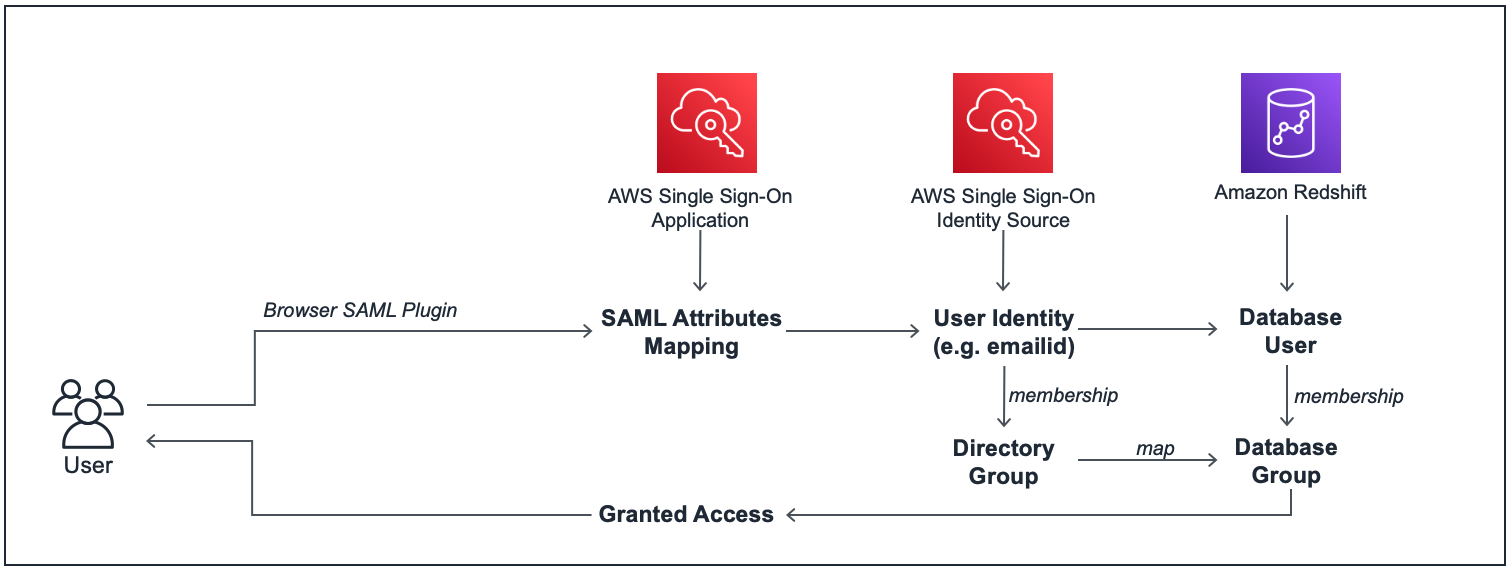
The process flow for federated authentication includes the following steps:

  1. The user logs in from a Python script using an Amazon Redshift connector.
  2. The IdP authenticates using the corporate user name and password, and returns a SAML assertion.
  3. The client uses AWS SDK to call AWS Security Token Service (AWS STS) to assume a role with SAML.
  4. AWS STS returns temporary AWS credentials.
  5. The client uses the temporary AWS credentials to connect Amazon Redshift.

The following diagram illustrates this process flow.

Prerequisites

Before starting this walkthrough, you must have the following:

  • An Amazon Redshift cluster. The US East (N. Virginia) Region is preferred because you need to load data from Amazon Simple Storage Service (Amazon S3) in us-east-1.
  • A database user with superuser
  • Python 3.5 or above.
  • Pip.

Configuring your IdP (Okta)

For instructions on setting up your IdP, see steps 1–4 in Federate Amazon Redshift access with Okta as an identity provider.

For step 2, create a user called [email protected] and add it to the sales group. This is the example user that you use in this post. The following screenshot shows your example users.

When the setup is complete, you should see settings similar to the following screenshots. The following screenshot shows your general SAML settings.

The following screenshot shows your attribute statements.

The following screenshot shows the settings for your application embed link, login page, and access error page.

For instructions on setting up advanced IdP configurations, see steps 8–9 in Federate Amazon Redshift access with Okta as an identity provider.

Configuring your service provider (AWS)

To set up the service provider, complete steps 5–7 from Federate Amazon Redshift access with Okta as an identity provider.

For step 7, the Amazon Redshift connector needs the following additional permission:

{
            "Sid": "DescribeClusters",
            "Effect": "Allow",
            "Action": "redshift:DescribeClusters",
            "Resource": "*"
}

The following code shows the example policy used:

{
    "Version": "2012-10-17",
    "Statement": [
        {
            "Sid": "GetClusterCredsStatement",
            "Effect": "Allow",
            "Action": "redshift:GetClusterCredentials",
            "Resource": [
                "arn:aws:redshift:*:*:cluster:<cluster>",
                "arn:aws:redshift:*:*:dbname:<cluster>/<databasename>",
                "arn:aws:redshift:*:*:dbuser:<cluster>/${redshift:DbUser}"
            ]
        },
        {
            "Sid": "DescribeClusters",
            "Effect": "Allow",
            "Action": "redshift:DescribeClusters",
            "Resource": "*"
        },
        {
            "Sid": "CreateClusterUserStatement",
            "Effect": "Allow",
            "Action": "redshift:CreateClusterUser",
            "Resource": [
                "arn:aws:redshift:*:*:dbname:<cluster>/<databasenmae>",
                "arn:aws:redshift:*:*:dbuser:<cluster>/${redshift:DbUser}"
            ]
        },
        {
            "Sid": "RedshiftJoinGroupStatement",
            "Effect": "Allow",
            "Action": "redshift:JoinGroup",
            "Resource": [
                "arn:aws:redshift:*:*:dbgroup:<cluster>/sales"
            ]
        }
    ]
}

When the setup is complete, you should see an IAM role setup similar to the following screenshot.

Setting up your Amazon Redshift connector

The easiest way to get started with redshift_connector is via pip. See the following code:

pip install redshift_connector

After running the command, you see a message indicating redshift_connector was installed successfully:

Successfully installed redshift_connector

Checking Amazon Redshift users

To check your users, connect to your Amazon Redshift cluster using your preferred SQL client as a superuser and enter the following code:

select * from pg_user where usename = '[email protected]';

The query should return zero records, which shows that the corporate user [email protected] doesn’t exist yet in Amazon Redshift. See the following code:

dev=# select * from pg_user where usename = '[email protected]'; 
 usename | usesysid | usecreatedb | usesuper | usecatupd | passwd | valuntil | useconfig 
---------+----------+-------------+----------+-----------+--------+----------+-----------
(0 rows)

Testing the Python script

The next step is to run an example Python script that uses federation to connect to your Amazon Redshift cluster and run some queries. See the following code:

import redshift_connector
import numpy
 
# Connects to Redshift cluster using Okta MFA Browser Plugin
conn = redshift_connector.connect(
    iam=True,
    ssl=True,
    host='<RedshiftClusterEndpoint>',
    port=<RedshiftClusterPortNumber>,
    database='<RedshiftDatabase>',
    db_user='[email protected]',
    cluster_identifier='<RedshiftClusterIdentifier>',
    region='<Region>',
    login_url='<IdPLoginUrl>',
    credentials_provider='BrowserSamlCredentialsProvider',
    user='',
    password=''
)
 
cursor: redshift_connector.Cursor = conn.cursor()
cursor.execute("select current_user")
result: numpy.ndarray = cursor.fetch_numpy_array()
print(result)
 
cursor.execute("create Temp table book(bookname varchar,author‎ varchar)")
cursor.executemany("insert into book (bookname, author‎) values (%s, %s)", [('One Hundred Years of Solitude', 'Gabriel García Márquez'),('A Brief History of Time', 'Stephen Hawking')])
cursor.execute("select * from book")
 
result: numpy.ndarray = cursor.fetch_numpy_array()
print(result)
cursor.execute("drop table book")
conn.commit()
 
conn.close()

Use the following parameters:

  • RedshiftClusterEndpoint – The Amazon Redshift cluster endpoint without a port and database
  • RedshiftClusterPortNumber – The Amazon Redshift port number
  • RedshiftDatabase – The Amazon Redshift database name
  • RedshiftClusterIdentifier – The Amazon Redshift cluster identifier
  • Region – The Region where the cluster is
  • IdPLoginUrl – The IdP (Okta) sign-in URL, which you can get it from the embed link from the Okta SAML application property

After you run the Python script, the Okta sign-in page opens. Sign in with [email protected].

Switch back to your Python environment; it should show three records returned:

$ python3 redshift_connector_okta.py
[['[email protected]']]
[['One Hundred Years of Solitude' 'Gabriel García Márquez']
 ['A Brief History of Time' 'Stephen Hawking']]

[email protected] is returned, showing that the Python script ran under the context of this federated user.

You may now close your browser window.

To check your users, connect to your Amazon Redshift cluster using your preferred SQL client as a superuser and enter the following code:

select * from pg_user where usename = '[email protected]';

The query should return one record, which shows that the database user is automatically created based on the IdP corporate user:

dev=# select * from pg_user where usename = '[email protected]';
      usename      | usesysid | usecreatedb | usesuper | usecatupd |  passwd  | valuntil | useconfig 
-------------------+----------+-------------+----------+-----------+----------+----------+-----------
 [email protected] |      116 | f           | f        | f         | ******** |          | 
(1 row)

Summary

Amazon Redshift supports stringent compliance and security requirements with no extra cost, which makes it ideal for highly regulated industries. With federation, you can centralize management and governance of authentication and permissions by managing users and groups within the enterprise IdP and use them to authenticate to Amazon Redshift. SSO enables users to have a seamless user experience while accessing various applications in the organization.

This post showed you how to set up an Amazon Redshift connector and use Okta as your IdP to enable federated SSO to an Amazon Redshift cluster from a Python script. If you have users such as data scientists that heavily rely on Python scripts, you can follow these steps to set up federated SSO for your organization and manage access privileges to your Amazon Redshift cluster.

If you have any questions or suggestions, please leave a comment or contribute to the project.


About the Authors


BP Yau is a Data Warehouse Specialist Solutions Architect at AWS. His role is to help customers architect big data solutions to process data at scale. Before AWS, he helped Amazon.com Supply Chain Optimization Technologies migrate the Oracle Data Warehouse to Amazon Redshift and built the next generation big data analytics platform using AWS technologies.


Brooke White is a Software Development Engineer at AWS. She enables customers to get the most out of their data through her work on Amazon Redshift drivers. Prior to AWS, she built ETL pipelines and analytics APIs at a San Francisco Bay Area startup.


Ilesh Garish is a Software Development Engineer at AWS. His role is to develop connectors for Amazon Redshift. Prior to AWS, he built database drivers for the Oracle RDBMS, TigerLogic XDMS, and OpenAccess SDK. He worked in the database internal technologies at San Francisco Bay Area startups.

How the ZS COVID-19 Intelligence Engine helps Pharma & Med device manufacturers understand local healthcare needs & gaps at scale

Post Syndicated from Saunak Chandra original https://aws.amazon.com/blogs/big-data/how-the-zs-covid-19-intelligence-engine-helps-pharma-med-device-manufacturers-understand-local-healthcare-needs-gaps-at-scale/

This post is co-written by Parijat Sharma: Principal, Strategy & Transformation, Wenhao Xia: Manager, Data Science, Vineeth Sandadi: Manager, Business Consulting from ZS Associates, Inc, Arianna Tousi: Strategy, Insights and Planning Consultant from ZS, Gopi Vikranth: Associate Principal from ZS. In their own words, “We’re passionately committed to helping our clients and their customers thrive, working side by side to drive customer value and results”.

The COVID-19 trajectory across the US continues to remain unstable and heterogeneous. Although certain cities and counties were able to tame the adverse effects of the pandemic by applying stricter controls on social life, newer hotspots are emerging in different locations sporadically.

Organizations in healthcare, pharma, and biotech are looking to adapt to a rapidly evolving and diverse local market landscape, and restart parts of their operations that are significantly impacted, such as patient support functions, sales, and key account management. Real-time insights into the rapidly evolving COVID-19 situation and its impact on all key stakeholders in the healthcare supply chain, including patients, physicians, and health systems, is a key asset in helping companies adapt based on local market dynamics and remain resilient to future disruptions. However, several life-science companies don’t have these insights because they lack the infrastructure to integrate and manage the relevant datasets at scale and the analytical capabilities to mine the data for the relevant insights.

ZS came into this critical situation and built a data lake on AWS to address these challenges. The primary characteristics of this data lake is that it’s largely open source, which gives ZS a head start to meet the product launch SLA using AWS. This post describes how ZS developed the data lake and brought their proprietary machine learning (ML) models to run on AWS, providing intelligent insight on COVID-19.

What is the ZS COVID-19 Intelligence Engine?

The ZS COVID-19 Intelligence Engine was designed as a customizable capability that does the following:

  • Integrates diverse public and proprietary healthcare datasets in a scalable data warehouse that stores data in a secure and compliant manner
  • Provides advanced descriptive and predictive analytical modules to forecast COVID-19 evolution and its impact on key stakeholders and the treatment journey
  • Packages insights into intuitive preconfigured reports and dashboards for dissemination across an organization

AWS Cloud data and analytics infrastructure

In this section, we dive into the infrastructure components of the ZS COVID-19 Intelligence Engine. The objective was to quickly set up a data lake with an accompanying ingestion mechanism to allow rapid ingestion of public datasets, third-party data, and datasets from AWS Data Exchange.

The overall data processing solution is based on ZS’s REVO™ data management product, which uses Apache Spark on Amazon EMR. The Spark engine processes and transforms raw data into structured data that is ready for interactive analysis. The raw data comes in compressed text delimited format ranging from 100 MBs to 15 GB. After the data is cleansed and rules applied, the processed data is staged in Amazon Simple Storage Service (Amazon S3) buckets in Apache Parquet format. This data is selectively loaded into an Amazon Redshift cluster for fast interactive querying and repetitive analysis on subsets of data.

The Intelligence Engine also uses a powerful Amazon Elastic Compute Cloud (Amazon EC2) instance to run ML workloads, which predicts future COVID-19 caseloads at the county level. The prediction models run daily on a compute-optimized EC2 C5.24xlarge On-Demand Instance, allowing rapid turnaround of prediction results and saving overall cost for using On-Demand Instances.

ZS uses Amazon Redshift as the data warehouse in this architecture. Amazon Redshift is easy to launch and maintain and can quickly run analytical queries on large normalized datasets using standard ANSI SQL. After the raw data gets processed using ZS’s REVO™, the curated data is loaded into Amazon Redshift to run interactive analytical queries. The queries generate insights specific to local geography, county, and healthcare systems, and run on Amazon Redshift tables consisting of anonymized patient data. The Amazon Redshift cluster uses On-Demand Instances and is sized to accommodate 25 TB of data at the time of this product launch. Typical interactive queries include joining data across large tables, up to 1.5 billion rows in the main table.

The following diagram illustrates this architecture:

The ZS COVID-19 data lake has several benefits and applicable use cases:

  • Streamlined data procurement processes – Eliminates the need for multiple ZS teams to procure, ingest, and process the same datasets separately
  • Optimized common usage across clients and business questions – ZS uses this capability to publish common derivations of data that can then be utilized across different ZS teams and use cases to create a single version of truth
  • Cross-functional processes and requirements – Some analytics use cases require cross-functional data and are significantly hampered by the ability of a user to access various data sources in one place—a data lake enables this by design
  • Connected healthcare data – Due to developing common standards and integrating with MDM and ontologies, data from the public domain can be compliantly integrated with pharma manufacturer-specific data sources to enable seamless analytics on the data lake

Comprehensive healthcare data lake

At its core, the Intelligence Engine builds a scalable and integrated repository of diverse public and proprietary data sources. These datasets range in variety, volume, and velocity:

  • COVID-19 incidence – There are several COVID-specific datasets that the public has become accustomed to viewing over the past several months, such as Johns Hopkins incidence tracking and IHME predictive data, which describes how the disease has been progressing over time and even into the future. This data tends to be at either the state or county level and is often refreshed daily. The data lake solution contains the entire history for these datasets, which, taken together, spans into the hundreds of gigabytes in size. In addition to these sources, ZS’ proprietary predictive models add an additional element of accuracy and are customized with ZS-specific insights.
  • Government policies – Government policy data, which is mostly being used from AWS Data Exchange on behalf of the New York Times, explains the current state of government mandates and recommendations for varying degrees of lockdown or reopening as it pertains to the pandemic. This data is much smaller in volume, well under 1 GB total.
  • Insurance claims at patient level – Thanks to the partnership with Symphony Health, ZS have had the opportunity to analyze and expose patient claims data that can be attributed to the specific hospital account or healthcare provider for which that claim took place. The insurance claims data is the largest volume of data—close to 15 TB—contributing to the ZS COVID-19 Intelligence Engine. ZS’ data engineering team has wrangled these large datasets with the help of Amazon EMR for aggregating and processing metrics, which are then stored in Amazon Redshift in a transformed version that is much smaller and can be more easily understood than the original raw datasets.
  • HCP to site of care affiliations – Thanks to the partnership with Definitive Healthcare, ZS are in the process of integrating best-in-class physician-hospital and clinic affiliations from Definitive Healthcare with patient claims from Symphony to help assess available healthcare capacity and evolving approaches to care delivery and type of care being delivered by disease area.
  • Other Intelligence engine data sources
    • State testing rates
    • Mobility
    • Demographics and social determinants of health
    • Provider access and affinity for pharma commercial engagement (from ZS affinity/access monitor)
    • Automated data ingestors for a variety of pharma manufacturer-specific data sources including specialty pharmacy and hub transactions, sales force activity, customer digital engagement, and more

Predictive models for COVID-19 projections and healthcare demand-supply gaps at a local level

To drive decision-making at a local level, ZS required more granular projections of COVID-19 disease spread than what’s publicly available at a state or national level. Therefore, as part of the Intelligence Engine, the ZS data science team aimed to developed an ensemble model of COVID-19 projections at the county level to identify emerging local healthcare gaps along different phases of the treatment process.

Developing a locally predictive model has many challenges, and ZS believe that no single model can capture all the virtually infinite drivers and factors contributing to disease spread within a specific geographic area. Therefore, the ZS data science team behind the COVID-19 projections has implemented multiple projection models, each with their own set of input data sources, assumptions, and parameters. This allows to increase the accuracy of the projection while retaining a level of stability and interpretability of tge model. These models include:

  • Statistical curve fitting model – A disease progression curve using a Generalized Gaussian Cumulative Distribution Function, optimized to minimize prediction error of COVID-19 cases and deaths
  • SEIR model – Traditional epidemiological disease progression model (pathway of Susceptible – Exposed – Infectious – Recovered) combined with traditional ML on model parameters
  • Agent-based simulation – County-level simulation of individual interactions between people within the county

Obtaining a more granular view of future virus spread at a local level is critical in order to provide support for challenges in specific sites of care. Accurately projecting cases at the county level can be difficult for many reasons. Counties with low current case counts means that the model has little historical data to learn from (both in time since first infection and in magnitude of cases). Additionally, forecasts can be sensitive to many variables, and the current second wave of COVID-19 infections adds additional complications to tracking the spread of the virus.

To combat some of these difficulties, ZS implemented a two-phased approach to generate county-level projections. Counties with a long enough history of virus spread are projected independently using the three disease progression models we outlined, whereas counties with limited history are projected using a combination of state-level projections and social determinants of health factors that are predictive of disease spread (for example, age distribution in a certain county).

As the world around us continues to evolve and the COVID-19 situation with it, the ZS data science team is also working to adapt the model alongside the current situation. Currently, model adaptability and its self-learning ability are continuing to improve to better adapt to the onset of the second wave of the virus. Additional parameters and re-optimizations are happening daily as the situation develops.

Following image shows the Input data sources, modeling techniques and outputs from ZS COVID-19 projection models:

Analyzing and predicting local non-COVID-19 treatment gaps and their drivers

Several flexible analytical tools can be used to evaluate barriers along the disease treatment journey for non-COVID-19 diseases at the local geography level, their evolution over time with COVID-19, and their underlying drivers. These tools summarize local changes in and the underlying drivers of the following:

  • New patient diagnosis
  • Changes in treatment approaches and drugs used
  • Patient affordability and access to medications
  • Persistency and compliance to treatment
  • Healthcare demand, patients needing care and supply, provider capacity to offer care

Following image represents output from the Intelligence Engine illustrating local variations in Healthcare gaps:

Intuitive visualization capabilities

The solution has two intuitive visualization capabilities:

  • COVID-19 monitor – A public access dashboard with insights on historical and future predictions of trajectories of COVID-19 incidences and hospital capacity. These insights are available at the state level and further and allow you to drill into individual counties. The individual county-level view allows you to not only understand the severity of COVID-19 in that area, but also better understand how that county compares to other counties within the same state and observe what policies their local governments have set for the shutdown and reopening process.
  • Treatment finder: A second public access dashboard with near-real-time insights into individual hospital and physician group availability to treat patients for prominent non-COVID-19 diseases. This dashboard allows you to select a specific non-COVID-19 disease and identify the estimated number of COIVD-19-infected people in their geography with the disease, mortality rates, and the individual providers that are accepting patients with a specific disease and health insurance.

Following image represents Intelligence Engine screen with COVID-19 insights for a selected county:

Following image represents Intelligence engine screen that allows patients to find Hospitals / Physician offices that are open & accepting patients:

Conclusion

At its core, the ZS Intelligence Engine is a real-time planning tool. The rich set of AWS services and technologies make it possible to ingest data from various third-party sources—public and proprietary sources alike. AWS services used to build the architecture can run on open technologies. For example, building the the data lake would not have been possible  without Amazon EMR and Amazon EC2. ZS had already been using Apache spark-based EMR instances—the service behind the REVOTM tool—prior to COVID-19 hitting us. ZS can run its ML models cost-effectively by using EC2 On-Demand Instances. Finally, using Amazon Redshift as a data warehouse solution allows ZS to provide COVID-19 analytical insights efficiently and cost-effectively.

Since the project went live, ZS has catered this product to at least six customers in pharma, biotech, and medical device spaces. They are using this product in a variety of ways, including but not limited to:

  • Refining the forecast relating the COVID-19 trajectory to estimate demand for their products
  • Assessing the level of openness of healthcare facilities to understand where patients across therapy areas are being treated
  • Determining which patients and communities to support, because COVID-19 impacts attitudes and concerns regarding immunity and drug use, and greater unemployment means more reimbursement support requirements
  • Readying the education and engagement field force for a mix of in-person and virtual interactions
  • Preparing the supply chain to ensure continuity of care

To try out the analysis yourself, see ZS’s COVID-19 Intelligence Engine.


About the  Authors

Saunak is a Sr. Solutions Architect with AWS helping customers and partners build data warehouse and scalable data platform on AWS.


Parijat is the current lead of strategy and transformation at ZS. He focuses on mid to small clients that are ready for a transformational process to commercialize new products/portfolio, purchase/sell assets or expand into new markets.


Wenhao has over 10 years of experience in various data science and advanced analytics field. During his time at ZS, he has helped both to build and popularize data science capabilities across many organizations.


Vineeth works with Pharmaceutical & Biotech manufacturers on a  broad-spectrum of Commercial issues including Commercial Analytics, Organized provider Strategy & Resource Planning & Deployment.


Arianna is a Strategy, Insights and Planning Consultant in ZS’ High Tech practice. Arianna has extensive experience in working with clients across industries with go to market strategy and commercial effectiveness issues.


Gopi Vikranth is an Associate Principal in ZS’ High Tech Practice. He has extensive experience in helping clients across Retail, HiTech, Hospitality, Pharmaceutical & Insurance sectors leverage BigData & Analytics to drive Topline growth.


AWS serverless data analytics pipeline reference architecture

Post Syndicated from Praful Kava original https://aws.amazon.com/blogs/big-data/aws-serverless-data-analytics-pipeline-reference-architecture/

Onboarding new data or building new analytics pipelines in traditional analytics architectures typically requires extensive coordination across business, data engineering, and data science and analytics teams to first negotiate requirements, schema, infrastructure capacity needs, and workload management.

For a large number of use cases today however, business users, data scientists, and analysts are demanding easy, frictionless, self-service options to build end-to-end data pipelines because it’s hard and inefficient to predefine constantly changing schemas and spend time negotiating capacity slots on shared infrastructure. The exploratory nature of machine learning (ML) and many analytics tasks means you need to rapidly ingest new datasets and clean, normalize, and feature engineer them without worrying about operational overhead when you have to think about the infrastructure that runs data pipelines.

A serverless data lake architecture enables agile and self-service data onboarding and analytics for all data consumer roles across a company. By using AWS serverless technologies as building blocks, you can rapidly and interactively build data lakes and data processing pipelines to ingest, store, transform, and analyze petabytes of structured and unstructured data from batch and streaming sources, all without needing to manage any storage or compute infrastructure.

In this post, we first discuss a layered, component-oriented logical architecture of modern analytics platforms and then present a reference architecture for building a serverless data platform that includes a data lake, data processing pipelines, and a consumption layer that enables several ways to analyze the data in the data lake without moving it (including business intelligence (BI) dashboarding, exploratory interactive SQL, big data processing, predictive analytics, and ML).

Logical architecture of modern data lake centric analytics platforms

The following diagram illustrates the architecture of a data lake centric analytics platform.

You can envision a data lake centric analytics architecture as a stack of six logical layers, where each layer is composed of multiple components. A layered, component-oriented architecture promotes separation of concerns, decoupling of tasks, and flexibility. These in turn provide the agility needed to quickly integrate new data sources, support new analytics methods, and add tools required to keep up with the accelerating pace of changes in the analytics landscape. In the following sections, we look at the key responsibilities, capabilities, and integrations of each logical layer.

Ingestion layer

The ingestion layer is responsible for bringing data into the data lake. It provides the ability to connect to internal and external data sources over a variety of protocols. It can ingest batch and streaming data into the storage layer. The ingestion layer is also responsible for delivering ingested data to a diverse set of targets in the data storage layer (including the object store, databases, and warehouses).

Storage layer

The storage layer is responsible for providing durable, scalable, secure, and cost-effective components to store vast quantities of data. It supports storing unstructured data and datasets of a variety of structures and formats. It supports storing source data as-is without first needing to structure it to conform to a target schema or format. Components from all other layers provide easy and native integration with the storage layer. To store data based on its consumption readiness for different personas across organization, the storage layer is organized into the following zones:

  • Landing zone – The storage area where components from the ingestion layer land data. This is a transient area where data is ingested from sources as-is. Typically, data engineering personas interact with the data stored in this zone.
  • Raw zone – After the preliminary quality checks, the data from the landing zone is moved to the raw zone for permanent storage. Here, data is stored in its original format. Having all data from all sources permanently stored in the raw zone provides the ability to “replay” downstream data processing in case of errors or data loss in downstream storage zones. Typically, data engineering and data science personas interact with the data stored in this zone.
  • Curated zone – This zone hosts data that is in the most consumption-ready state and conforms to organizational standards and data models. Datasets in the curated zone are typically partitioned, cataloged, and stored in formats that support performant and cost-effective access by the consumption layer. The processing layer creates datasets in the curated zone after cleaning, normalizing, standardizing, and enriching data from the raw zone. All personas across organizations use the data stored in this zone to drive business decisions.

Cataloging and search layer

The cataloging and search layer is responsible for storing business and technical metadata about datasets hosted in the storage layer. It provides the ability to track schema and the granular partitioning of dataset information in the lake. It also supports mechanisms to track versions to keep track of changes to the metadata. As the number of datasets in the data lake grows, this layer makes datasets in the data lake discoverable by providing search capabilities.

Processing layer

The processing layer is responsible for transforming data into a consumable state through data validation, cleanup, normalization, transformation, and enrichment. It’s responsible for advancing the consumption readiness of datasets along the landing, raw, and curated zones and registering metadata for the raw and transformed data into the cataloging layer. The processing layer is composed of purpose-built data-processing components to match the right dataset characteristic and processing task at hand. The processing layer can handle large data volumes and support schema-on-read, partitioned data, and diverse data formats. The processing layer also provides the ability to build and orchestrate multi-step data processing pipelines that use purpose-built components for each step.

Consumption layer

The consumption layer is responsible for providing scalable and performant tools to gain insights from the vast amount of data in the data lake. It democratizes analytics across all personas across the organization through several purpose-built analytics tools that support analysis methods, including SQL, batch analytics, BI dashboards, reporting, and ML. The consumption layer natively integrates with the data lake’s storage, cataloging, and security layers. Components in the consumption layer support schema-on-read, a variety of data structures and formats, and use data partitioning for cost and performance optimization.

Security and governance layer

The security and governance layer is responsible for protecting the data in the storage layer and processing resources in all other layers. It provides mechanisms for access control, encryption, network protection, usage monitoring, and auditing. The security layer also monitors activities of all components in other layers and generates a detailed audit trail. Components of all other layers provide native integration with the security and governance layer.

Serverless data lake centric analytics architecture

To compose the layers described in our logical architecture, we introduce a reference architecture that uses AWS serverless and managed services. In this approach, AWS services take over the heavy lifting of the following:

  • Providing and managing scalable, resilient, secure, and cost-effective infrastructural components
  • Ensuring infrastructural components natively integrate with each other

This reference architecture allows you to focus more time on rapidly building data and analytics pipelines. It significantly accelerates new data onboarding and driving insights from your data. The AWS serverless and managed components enable self-service across all data consumer roles by providing the following key benefits:

  • Easy configuration-driven use
  • Freedom from infrastructure management
  • Pay-per-use pricing model

The following diagram illustrates this architecture.
Ingestion layer

The ingestion layer in our serverless architecture is composed of a set of purpose-built AWS services to enable data ingestion from a variety of sources. Each of these services enables simple self-service data ingestion into the data lake landing zone and provides integration with other AWS services in the storage and security layers. Individual purpose-built AWS services match the unique connectivity, data format, data structure, and data velocity requirements of operational database sources, streaming data sources, and file sources.

Operational database sources

Typically, organizations store their operational data in various relational and NoSQL databases. AWS Data Migration Service (AWS DMS) can connect to a variety of operational RDBMS and NoSQL databases and ingest their data into Amazon Simple Storage Service (Amazon S3) buckets in the data lake landing zone. With AWS DMS, you can first perform a one-time import of the source data into the data lake and replicate ongoing changes happening in the source database. AWS DMS encrypts S3 objects using AWS Key Management Service (AWS KMS) keys as it stores them in the data lake. AWS DMS is a fully managed, resilient service and provides a wide choice of instance sizes to host database replication tasks.

AWS Lake Formation provides a scalable, serverless alternative, called blueprints, to ingest data from AWS native or on-premises database sources into the landing zone in the data lake. A Lake Formation blueprint is a predefined template that generates a data ingestion AWS Glue workflow based on input parameters such as source database, target Amazon S3 location, target dataset format, target dataset partitioning columns, and schedule. A blueprint-generated AWS Glue workflow implements an optimized and parallelized data ingestion pipeline consisting of crawlers, multiple parallel jobs, and triggers connecting them based on conditions. For more information, see Integrating AWS Lake Formation with Amazon RDS for SQL Server.

Streaming data sources

The ingestion layer uses Amazon Kinesis Data Firehose to receive streaming data from internal and external sources. With a few clicks, you can configure a Kinesis Data Firehose API endpoint where sources can send streaming data such as clickstreams, application and infrastructure logs and monitoring metrics, and IoT data such as devices telemetry and sensor readings. Kinesis Data Firehose does the following:

  • Buffers incoming streams
  • Batches, compresses, transforms, and encrypts the streams
  • Stores the streams as S3 objects in the landing zone in the data lake

Kinesis Data Firehose natively integrates with the security and storage layers and can deliver data to Amazon S3, Amazon Redshift, and Amazon Elasticsearch Service (Amazon ES) for real-time analytics use cases. Kinesis Data Firehose is serverless, requires no administration, and has a cost model where you pay only for the volume of data you transmit and process through the service. Kinesis Data Firehose automatically scales to adjust to the volume and throughput of incoming data.

File sources

Many applications store structured and unstructured data in files that are hosted on Network Attached Storage (NAS) arrays. Organizations also receive data files from partners and third-party vendors. Analyzing data from these file sources can provide valuable business insights.

Internal file shares

AWS DataSync can ingest hundreds of terabytes and millions of files from NFS and SMB enabled NAS devices into the data lake landing zone. DataSync automatically handles scripting of copy jobs, scheduling and monitoring transfers, validating data integrity, and optimizing network utilization. DataSync can perform one-time file transfers and monitor and sync changed files into the data lake. DataSync is fully managed and can be set up in minutes.

Partner data files

FTP is most common method for exchanging data files with partners. The AWS Transfer Family is a serverless, highly available, and scalable service that supports secure FTP endpoints and natively integrates with Amazon S3. Partners and vendors transmit files using SFTP protocol, and the AWS Transfer Family stores them as S3 objects in the landing zone in the data lake. The AWS Transfer Family supports encryption using AWS KMS and common authentication methods including AWS Identity and Access Management (IAM) and Active Directory.

Data APIs

Organizations today use SaaS and partner applications such as Salesforce, Marketo, and Google Analytics to support their business operations. Analyzing SaaS and partner data in combination with internal operational application data is critical to gaining 360-degree business insights. Partner and SaaS applications often provide API endpoints to share data.

SaaS APIs

The ingestion layer uses AWS AppFlow to easily ingest SaaS applications data into the data lake. With a few clicks, you can set up serverless data ingestion flows in AppFlow. Your flows can connect to SaaS applications (such as SalesForce, Marketo, and Google Analytics), ingest data, and store it in the data lake. You can schedule AppFlow data ingestion flows or trigger them by events in the SaaS application. Ingested data can be validated, filtered, mapped and masked before storing in the data lake. AppFlow natively integrates with authentication, authorization, and encryption services in the security and governance layer.

Partner APIs

To ingest data from partner and third-party APIs, organizations build or purchase custom applications that connect to APIs, fetch data, and create S3 objects in the landing zone by using AWS SDKs. These applications and their dependencies can be packaged into Docker containers and hosted on AWS Fargate. Fargate is a serverless compute engine for hosting Docker containers without having to provision, manage, and scale servers. Fargate natively integrates with AWS security and monitoring services to provide encryption, authorization, network isolation, logging, and monitoring to the application containers.

AWS Glue Python shell jobs also provide serverless alternative to build and schedule data ingestion jobs that can interact with partner APIs by using native, open-source, or partner-provided Python libraries. AWS Glue provides out-of-the-box capabilities to schedule singular Python shell jobs or include them as part of a more complex data ingestion workflow built on AWS Glue workflows.

Third-party data sources

Your organization can gain a business edge by combining your internal data with third-party datasets such as historical demographics, weather data, and consumer behavior data. AWS Data Exchange provides a serverless way to find, subscribe to, and ingest third-party data directly into S3 buckets in the data lake landing zone. You can ingest a full third-party dataset and then automate detecting and ingesting revisions to that dataset. AWS Data Exchange is serverless and lets you find and ingest third-party datasets with a few clicks.

Storage layer

Amazon S3 provides the foundation for the storage layer in our architecture. Amazon S3 provides virtually unlimited scalability at low cost for our serverless data lake. Data is stored as S3 objects organized into landing, raw, and curated zone buckets and prefixes. Amazon S3 encrypts data using keys managed in AWS KMS. IAM policies control granular zone-level and dataset-level access to various users and roles. Amazon S3 provides 99.99 % of availability and 99.999999999 % of durability, and charges only for the data it stores. To significantly reduce costs, Amazon S3 provides colder tier storage options called Amazon S3 Glacier and S3 Glacier Deep Archive. To automate cost optimizations, Amazon S3 provides configurable lifecycle policies and intelligent tiering options to automate moving older data to colder tiers. AWS services in our ingestion, cataloging, processing, and consumption layers can natively read and write S3 objects. Additionally, hundreds of third-party vendor and open-source products and services provide the ability to read and write S3 objects.

Data of any structure (including unstructured data) and any format can be stored as S3 objects without needing to predefine any schema. This enables services in the ingestion layer to quickly land a variety of source data into the data lake in its original source format. After the data is ingested into the data lake, components in the processing layer can define schema on top of S3 datasets and register them in the cataloging layer. Services in the processing and consumption layers can then use schema-on-read to apply the required structure to data read from S3 objects. Datasets stored in Amazon S3 are often partitioned to enable efficient filtering by services in the processing and consumption layers.

Cataloging and search layer

A data lake typically hosts a large number of datasets, and many of these datasets have evolving schema and new data partitions. A central Data Catalog that manages metadata for all the datasets in the data lake is crucial to enabling self-service discovery of data in the data lake. Additionally, separating metadata from data into a central schema enables schema-on-read for the processing and consumption layer components.

In our architecture, Lake Formation provides the central catalog to store and manage metadata for all datasets hosted in the data lake. Organizations manage both technical metadata (such as versioned table schemas, partitioning information, physical data location, and update timestamps) and business attributes (such as data owner, data steward, column business definition, and column information sensitivity) of all their datasets in Lake Formation. Services such as AWS Glue, Amazon EMR, and Amazon Athena natively integrate with Lake Formation and automate discovering and registering dataset metadata into the Lake Formation catalog. Additionally, Lake Formation provides APIs to enable metadata registration and management using custom scripts and third-party products. AWS Glue crawlers in the processing layer can track evolving schemas and newly added partitions of datasets in the data lake, and add new versions of corresponding metadata in the Lake Formation catalog.

Lake Formation provides the data lake administrator a central place to set up granular table- and column-level permissions for databases and tables hosted in the data lake. After Lake Formation permissions are set up, users and groups can access only authorized tables and columns using multiple processing and consumption layer services such as Athena, Amazon EMR, AWS Glue, and Amazon Redshift Spectrum.

Processing layer

The processing layer in our architecture is composed of two types of components:

  • Components used to create multi-step data processing pipelines
  • Components to orchestrate data processing pipelines on schedule or in response to event triggers (such as ingestion of new data into the landing zone)

AWS Glue and AWS Step Functions provide serverless components to build, orchestrate, and run pipelines that can easily scale to process large data volumes. Multi-step workflows built using AWS Glue and Step Functions can catalog, validate, clean, transform, and enrich individual datasets and advance them from landing to raw and raw to curated zones in the storage layer.

AWS Glue is a serverless, pay-per-use ETL service for building and running Python or Spark jobs (written in Scala or Python) without requiring you to deploy or manage clusters. AWS Glue automatically generates the code to accelerate your data transformations and loading processes. AWS Glue ETL builds on top of Apache Spark and provides commonly used out-of-the-box data source connectors, data structures, and ETL transformations to validate, clean, transform, and flatten data stored in many open-source formats such as CSV, JSON, Parquet, and Avro. AWS Glue ETL also provides capabilities to incrementally process partitioned data.

Additionally, you can use AWS Glue to define and run crawlers that can crawl folders in the data lake, discover datasets and their partitions, infer schema, and define tables in the Lake Formation catalog. AWS Glue provides more than a dozen built-in classifiers that can parse a variety of data structures stored in open-source formats. AWS Glue also provides triggers and workflow capabilities that you can use to build multi-step end-to-end data processing pipelines that include job dependencies and running parallel steps. You can schedule AWS Glue jobs and workflows or run them on demand. AWS Glue natively integrates with AWS services in storage, catalog, and security layers.

Step Functions is a serverless engine that you can use to build and orchestrate scheduled or event-driven data processing workflows. You use Step Functions to build complex data processing pipelines that involve orchestrating steps implemented by using multiple AWS services such as AWS Glue, AWS Lambda, Amazon Elastic Container Service (Amazon ECS) containers, and more. Step Functions provides visual representations of complex workflows and their running state to make them easy to understand. It manages state, checkpoints, and restarts of the workflow for you to make sure that the steps in your data pipeline run in order and as expected. Built-in try/catch, retry, and rollback capabilities deal with errors and exceptions automatically.

Consumption layer

The consumption layer in our architecture is composed using fully managed, purpose-built, analytics services that enable interactive SQL, BI dashboarding, batch processing, and ML.

Interactive SQL

Athena is an interactive query service that enables you to run complex ANSI SQL against terabytes of data stored in Amazon S3 without needing to first load it into a database. Athena queries can analyze structured, semi-structured, and columnar data stored in open-source formats such as CSV, JSON, XML Avro, Parquet, and ORC. Athena uses table definitions from Lake Formation to apply schema-on-read to data read from Amazon S3.

Athena is serverless, so there is no infrastructure to set up or manage, and you pay only for the amount of data scanned by the queries you run. Athena provides faster results and lower costs by reducing the amount of data it scans by using dataset partitioning information stored in the Lake Formation catalog. You can run queries directly on the Athena console of submit them using Athena JDBC or ODBC endpoints.

Athena natively integrates with AWS services in the security and monitoring layer to support authentication, authorization, encryption, logging, and monitoring. It supports table- and column-level access controls defined in the Lake Formation catalog.

Data warehousing and batch analytics

Amazon Redshift is a fully managed data warehouse service that can host and process petabytes of data and run thousands highly performant queries in parallel. Amazon Redshift uses a cluster of compute nodes to run very low-latency queries to power interactive dashboards and high-throughput batch analytics to drive business decisions. You can run Amazon Redshift queries directly on the Amazon Redshift console or submit them using the JDBC/ODBC endpoints provided by Amazon Redshift.

Amazon Redshift provides the capability, called Amazon Redshift Spectrum, to perform in-place queries on structured and semi-structured datasets in Amazon S3 without needing to load it into the cluster. Amazon Redshift Spectrum can spin up thousands of query-specific temporary nodes to scan exabytes of data to deliver fast results. Organizations typically load most frequently accessed dimension and fact data into an Amazon Redshift cluster and keep up to exabytes of structured, semi-structured, and unstructured historical data in Amazon S3. Amazon Redshift Spectrum enables running complex queries that combine data in a cluster with data on Amazon S3 in the same query.

Amazon Redshift provides native integration with Amazon S3 in the storage layer, Lake Formation catalog, and AWS services in the security and monitoring layer.

Business intelligence

Amazon QuickSight provides a serverless BI capability to easily create and publish rich, interactive dashboards. QuickSight enriches dashboards and visuals with out-of-the-box, automatically generated ML insights such as forecasting, anomaly detection, and narrative highlights. QuickSight natively integrates with Amazon SageMaker to enable additional custom ML model-based insights to your BI dashboards. You can access QuickSight dashboards from any device using a QuickSight app, or you can embed the dashboard into web applications, portals, and websites.

QuickSight allows you to directly connect to and import data from a wide variety of cloud and on-premises data sources. These include SaaS applications such as Salesforce, Square, ServiceNow, Twitter, GitHub, and JIRA; third-party databases such as Teradata, MySQL, Postgres, and SQL Server; native AWS services such as Amazon Redshift, Athena, Amazon S3, Amazon Relational Database Service (Amazon RDS), and Amazon Aurora; and private VPC subnets. You can also upload a variety of file types including XLS, CSV, JSON, and Presto.

To achieve blazing fast performance for dashboards, QuickSight provides an in-memory caching and calculation engine called SPICE. SPICE automatically replicates data for high availability and enables thousands of users to simultaneously perform fast, interactive analysis while shielding your underlying data infrastructure. QuickSight automatically scales to tens of thousands of users and provides a cost-effective, pay-per-session pricing model.

QuickSight allows you to securely manage your users and content via a comprehensive set of security features, including role-based access control, active directory integration, AWS CloudTrail auditing, single sign-on (IAM or third-party), private VPC subnets, and data backup.

Predictive analytics and ML

Amazon SageMaker is a fully managed service that provides components to build, train, and deploy ML models using an interactive development environment (IDE) called Amazon SageMaker Studio. In Amazon SageMaker Studio, you can upload data, create new notebooks, train and tune models, move back and forth between steps to adjust experiments, compare results, and deploy models to production, all in one place by using a unified visual interface. Amazon SageMaker also provides managed Jupyter notebooks that you can spin up with just a few clicks. Amazon SageMaker notebooks provide elastic compute resources, git integration, easy sharing, pre-configured ML algorithms, dozens of out-of-the-box ML examples, and AWS Marketplace integration, which enables easy deployment of hundreds of pre-trained algorithms. Amazon SageMaker notebooks are preconfigured with all major deep learning frameworks, including TensorFlow, PyTorch, Apache MXNet, Chainer, Keras, Gluon, Horovod, Scikit-learn, and Deep Graph Library.

ML models are trained on Amazon SageMaker managed compute instances, including highly cost-effective Amazon Elastic Compute Cloud (Amazon EC2) Spot Instances. You can organize multiple training jobs by using Amazon SageMaker Experiments. You can build training jobs using Amazon SageMaker built-in algorithms, your custom algorithms, or hundreds of algorithms you can deploy from AWS Marketplace. Amazon SageMaker Debugger provides full visibility into model training jobs. Amazon SageMaker also provides automatic hyperparameter tuning for ML training jobs.

You can deploy Amazon SageMaker trained models into production with a few clicks and easily scale them across a fleet of fully managed EC2 instances. You can choose from multiple EC2 instance types and attach cost-effective GPU-powered inference acceleration. After the models are deployed, Amazon SageMaker can monitor key model metrics for inference accuracy and detect any concept drift.

Amazon SageMaker provides native integrations with AWS services in the storage and security layers.

Security and governance layer

Components across all layers of our architecture protect data, identities, and processing resources by natively using the following capabilities provided by the security and governance layer.

Authentication and authorization

IAM provides user-, group-, and role-level identity to users and the ability to configure fine-grained access control for resources managed by AWS services in all layers of our architecture. IAM supports multi-factor authentication and single sign-on through integrations with corporate directories and open identity providers such as Google, Facebook, and Amazon.

Lake Formation provides a simple and centralized authorization model for tables hosted in the data lake. After implemented in Lake Formation, authorization policies for databases and tables are enforced by other AWS services such as Athena, Amazon EMR, QuickSight, and Amazon Redshift Spectrum. In Lake Formation, you can grant or revoke database-, table-, or column-level access for IAM users, groups, or roles defined in the same account hosting the Lake Formation catalog or another AWS account. The simple grant/revoke-based authorization model of Lake Formation considerably simplifies the previous IAM-based authorization model that relied on separately securing S3 data objects and metadata objects in the AWS Glue Data Catalog.

Encryption

AWS KMS provides the capability to create and manage symmetric and asymmetric customer-managed encryption keys. AWS services in all layers of our architecture natively integrate with AWS KMS to encrypt data in the data lake. It supports both creating new keys and importing existing customer keys. Access to the encryption keys is controlled using IAM and is monitored through detailed audit trails in CloudTrail.

Network protection

Our architecture uses Amazon Virtual Private Cloud (Amazon VPC) to provision a logically isolated section of the AWS Cloud (called VPC) that is isolated from the internet and other AWS customers. AWS VPC provides the ability to choose your own IP address range, create subnets, and configure route tables and network gateways. AWS services from other layers in our architecture launch resources in this private VPC to protect all traffic to and from these resources.

Monitoring and logging

AWS services in all layers of our architecture store detailed logs and monitoring metrics in AWS CloudWatch. CloudWatch provides the ability to analyze logs, visualize monitored metrics, define monitoring thresholds, and send alerts when thresholds are crossed.

All AWS services in our architecture also store extensive audit trails of user and service actions in CloudTrail. CloudTrail provides event history of your AWS account activity, including actions taken through the AWS Management Console, AWS SDKs, command line tools, and other AWS services. This event history simplifies security analysis, resource change tracking, and troubleshooting. In addition, you can use CloudTrail to detect unusual activity in your AWS accounts. These capabilities help simplify operational analysis and troubleshooting.

Additional considerations

In this post, we talked about ingesting data from diverse sources and storing it as S3 objects in the data lake and then using AWS Glue to process ingested datasets until they’re in a consumable state. This architecture enables use cases needing source-to-consumption latency of a few minutes to hours. In a future post, we will evolve our serverless analytics architecture to add a speed layer to enable use cases that require source-to-consumption latency in seconds, all while aligning with the layered logical architecture we introduced.

Conclusion

With AWS serverless and managed services, you can build a modern, low-cost data lake centric analytics architecture in days. A decoupled, component-driven architecture allows you to start small and quickly add new purpose-built components to one of six architecture layers to address new requirements and data sources.

We invite you to read the following posts that contain detailed walkthroughs and sample code for building the components of the serverless data lake centric analytics architecture:


About the Authors

Praful Kava is a Sr. Specialist Solutions Architect at AWS. He guides customers to design and engineer Cloud scale Analytics pipelines on AWS. Outside work, he enjoys travelling with his family and exploring new hiking trails.


Changbin Gong is a Senior Solutions Architect at Amazon Web Services (AWS). He engages with customers to create innovative solutions that address customer business problems and accelerate the adoption of AWS services. In his spare time, Changbin enjoys reading, running, and traveling.

Accessing external components using Amazon Redshift Lambda UDFs

Post Syndicated from Rajiv Gupta original https://aws.amazon.com/blogs/big-data/accessing-external-components-using-amazon-redshift-lambda-udfs/

Amazon Redshift is a fast, scalable, secure, and fully managed cloud data warehouse. It makes it simple and cost-effective to analyze all your data using standard SQL, your existing ETL (extract, transform, and load), business intelligence (BI), and reporting tools. Tens of thousands of customers use Amazon Redshift to process exabytes of data per day and power analytics workloads.

Previously, you could create custom scalar user-defined functions (UDFs) using either a SQL SELECT statement or a Python program. With the general availability of the Amazon Redshift Lambda UDF, you can also create functions backed by AWS Lambda code. These Lambda UDFs enable you to interact and integrate with external components outside of Amazon Redshift. You can write Lambda UDFs in any supported programming language, such as Java, Go PowerShell, Node.js, C#, Python, Ruby, or a custom runtime. This functionality enables new Amazon Redshift use cases, including but not limited to the following:

This post describes how the Amazon Redshift Lambda UDF works and walks you through creating your first Amazon Redshift Lambda UDF.

Solution architecture

Amazon Redshift Lambda UDFs are architected to perform efficiently and securely. When you run an Amazon Redshift Lambda UDF, each slice in the Amazon Redshift cluster accumulates the applicable rows of arguments and sends those rows in batches to your Lambda function in parallel. The data is transferred between the Amazon Redshift compute nodes and function in a separate isolated network that is inaccessible by clients. For Amazon Redshift to reconstruct the results, the function receives the input data in an ordered nested array of values and is expected to return the results in a similarly ordered array. Because each Lambda invocation runs in parallel, the result returns to the compute nodes quickly. The compute nodes further process the data (if needed) and return the results to the leader node and SQL client. The following diagram illustrates this architecture.

Solution overview

For this post, we explore the use case of data enrichment from an external data source, using DynamoDB. In our function, we can pass the DynamoDB table, key field, and value. The function should return a JSON string containing the document associated to that key. In our use case, the transaction data is loaded into Amazon Redshift via a pipeline that is batch loaded from the POS system but contains only the CustomerId. The customer metadata is used by the web application and is stored in DynamoDB. The goal is to run the following SQL statement to look up customer details by CustomerId and retrieve the most up-to-date information:

select
  CustomerId,
  udf_dynamodb_lookup ('Customer', 'id', CustomerId) Customer
from transactions;

The following table shows the expected results, in which the customer information is returned when it’s available, and shows as NULL when it’s not.

CustomerId Customer
0
1 {“lname”: “Doe”, “id”: “1”, “fname”: “John”}
2 {“lname”: “Doe”, “id”: “2”, “fname”: “Jane”}
3 {“lname”: “Salazar”, “id”: “3”, “fname”: “Carlos”}
4 {“lname”: “Ramirez”, “id”: “4”, “fname”: “Diego”}
12

To implement this solution, we create the following:

  • The DynamoDB and Amazon Redshift tables
  • The Lambda function with an AWS Identity and Access Management (IAM) role that has access to the DynamoDB table.
  • The Amazon Redshift UDF mapped to the Lambda function with an IAM role that has access to run the function

Creating the DynamoDB and Amazon Redshift tables

Create a DynamoDB table containing the following customer data:

id fname lname
1 John Doe
2 Jane Doe
3 Carlos Salazar
4 Diego Ramirez
5 Mary Major
6 Richard Roe

To create a table in Amazon Redshift with transactions data that refers to a CustomerId, enter the following code:

create table transactions (CustomerId varchar, StoreId varchar, TransactionAmount decimal(10,4));
insert into transactions values 
('0', '123', '10.34'),
('1', '123', '9.99'),
('2', '234', '10.34'),
('3', '123', '4.15'),
('4', '234', '17.25'),
('12', '123', '9.99');

Creating the Lambda function

The Lambda function receives an input event with metadata about the invocation. The arguments attribute is an ordered nested array of input values. For our use case, you can expect the arguments to be sent as follows:

{
 "arguments": [
  ["Customer", "id", "0"],
  ["Customer", "id", "1"],
  ["Customer", "id", "2"],
  ["Customer", "id", "3"],
  ["Customer", "id", "4"],
  ["Customer", "id", "12"]
 ]
}

This function is written generically so that any table and field combination can be used to lookup. For example, if I need to enrich my data with Store metadata, I run the same function: udf_dynamodb_lookup ('Store', 'id', StoreId).

The code within the Lambda function needs to traverse through the input parameters and for each row, and retrieve the corresponding record from DynamoDB. The function is expected to return an output containing metadata such as success, results, and error_msg. The success attribute determines if the function was successful. In the case of failure, you can use error_msg to pass a custom message to the user about the error. The results attribute is an ordered array of output values. For our use case, the output is as follows:

{
 "success": true,
 "results": [
   "NULL",
   "{\"lname\": \"Doe\", \"id\": \"1\", \"fname\": \"John\"}",
   "{\"lname\": \"Doe\", \"id\": \"2\", \"fname\": \"Jane\"}",
   "{\"lname\": \"Doe\", \"id\": \"3\", \"fname\": \"Bob\"}",
   "{\"lname\": \"Doe\", \"id\": \"4\", \"fname\": \"Frank\"}",
   "NULL"
 ]
}

The following code is of the Lambda function Lambda_DynamoDB_Lookup, which takes the preceding input arguments containing the CustomerId values and produces the output results, containing the corresponding customer metadata when available. The error handling uses the error_msg if the table doesn’t exist, but populates None if a particular key doesn’t exist.

import json
import boto3
dynamodb = boto3.resource('dynamodb')

def lambda_handler(event, context):
 ret = dict()
 try: 
  tableName = event["arguments"][0][0]
  columnName = event["arguments"][0][1]

  table = dynamodb.Table(tableName)
  table.item_count 
  res = []
  for argument in event['arguments']:
   try:
    columnValue = argument[2]
    response = table.get_item(Key={columnName: columnValue })
    res.append(json.dumps(response["Item"]))
   except: 
    res.append(None)
  ret['success'] = True
  ret['results'] = res
 except Exception as e:
  ret['success'] = False
  ret['error_msg'] = str(e)
 return json.dumps(ret)

For the Lambda function to query the DynamoDB Customer table, you need to modify the execution role and grant DescribeTable and GetItem privileges. Add the following policy to the IAM role, replacing the account number with your AWS account number:

{
 "Version": "2012-10-17",
 "Statement": [
  {
   "Effect": "Allow",
   "Action": [
     "dynamodb:DescribeTable",
     "dynamodb:GetItem"
   ],
   "Resource": "arn:aws:dynamodb:*:xxxxxxxxx999:table/Customer"
  }
 ]
}

For the Amazon Redshift cluster to invoke the Lambda function you created, you need to associate the function to an IAM role that Amazon Redshift can assume and has the InvokeFunction privilege. Add the following policy to the IAM role associated to Amazon Redshift, replacing the account number with your AWS account number. If you don’t already have an IAM role associated to Amazon Redshift, you can create one.

{
 "Version": "2012-10-17",
 "Statement": [
  {
   "Effect": "Allow",
   "Action": "lambda:InvokeFunction",
   "Resource": "arn:aws:lambda:*:xxxxxxxxx999:function:Lambda_DynamoDB_Lookup"
  }
 ]
}

Creating the Amazon Redshift UDF

You can now register this function to Amazon Redshift. The following statement creates the function udf_dynamodb_lookup within Amazon Redshift mapped to the earlier Lambda function. Be sure to associate the function to the IAM role modified earlier.

CREATE OR REPLACE EXTERNAL FUNCTION udf_dynamodb_lookup (tableName varchar, columnName varchar, columnValue varchar)
RETURNS varchar STABLE
LAMBDA 'Lambda_DynamoDB_Lookup'
IAM_ROLE '<Role ARN>';

Finally, run the function and you should receive the expected results from earlier:

select
  CustomerId,
  udf_dynamodb_lookup ('Customer', 'id', CustomerId) Customer
from transactions;

Summary

In this post, I introduced you to Amazon Redshift Lambda UDFs. I also provided a step-by-step guide for creating your first function, which enriches data in Amazon Redshift using DynamoDB. For more information about creating an Amazon Redshift Lambda UDF, see online documentation. If you want to share the UDFs you’ve created with other Amazon Redshift customers, please reach out to us.

We look forward to hearing from you about your experience. If you have questions or suggestions, please leave a comment.


About the Author

Rajiv Gupta is a data warehouse specialist solutions architect with Amazon Web Services.


Automating DBA tasks on Amazon Redshift securely using AWS IAM, AWS Lambda, Amazon EventBridge, and stored procedures

Post Syndicated from Gagan Brahmi original https://aws.amazon.com/blogs/big-data/automating-dba-tasks-on-amazon-redshift-securely-using-aws-iam-aws-lambda-amazon-eventbridge-and-stored-procedures/

As a data warehouse administrator or data engineer, you may need to perform maintenance tasks and activities or perform some level of custom monitoring on a regular basis. You can combine these activities inside a stored procedure or invoke views to get details. Some of these activities include things like loading nightly staging tables, invoking views or stopping idle connections, dropping unused tables, and so on.

In this post, we discuss how you can automate these routine activities for an Amazon Redshift cluster running inside a secure private network. For this solution, we use the following AWS services:

  • AWS Lambda – To run a specified query and invoke views or stored procedures inside your Amazon Redshift cluster.
  • Amazon EventBridge – To schedule running these SQL statements by triggering a Lambda function. The EventBridge rule supplies the Amazon Redshift cluster details as the input parameters. This gives you the flexibility to provide multiple queries or multiple cluster details.
  • AWS Identity and Access Management (IAM) – To provide access to the Amazon Redshift cluster using temporarily generated credentials in a secure way. This avoids the need to store access credentials.
  • Amazon API Gateway – To securely connect to the Amazon Redshift API service from a private subnet that has no access to the internet.

Solution architecture

The following architecture diagram provides an overview to the solution.

This architecture has the following workflow:

  1. We create an EventBridge rule with a schedule using the default event bus to invoke a target. The target for this rule is a Lambda function that connects to an Amazon Redshift cluster and runs a SQL statement. The target is configured to provide input parameters as constants. These parameters include an Amazon Redshift cluster identifier, database name, Amazon Redshift user, and the SQL statement to run.
  2. The rule is triggered at the scheduled time and sends the data to the RedshiftExecuteSQLFunction function responsible for running the specified query.
  3. The RedshiftExecuteSQLFunction function in Step 4 is connected to the user’s Amazon Virtual Private Cloud (VPC) inside a private subnet that doesn’t access to the internet. However, this function needs to communicate with the Amazon Redshift API service to generate temporary user credentials to securely access the Amazon Redshift cluster. With the private subnet not having access to the internet (no NAT Gateway), the solution uses an Amazon API Gateway with a VPC endpoint to securely communicate with the Amazon Redshift API service. The function passes the Amazon Redshift cluster information inside the VPC through the private subnet to the API Gateway VPC endpoint, which is backed by another function, RedshiftApiLambda, which is responsible for communicating with the Amazon Redshift API service to generate temporary credentials send them back to the RedshiftExecuteSQLFunction function securely via your VPC.
  4. The RedshiftExecuteSQLFunction function uses the Amazon Redshift cluster endpoint, port, and temporary credentials received in the previous step to communicate with the Amazon Redshift cluster running in a private subnet inside the user’s VPC. It runs the SQL statement submitted in Step 1.

The architecture is scalable to accommodate multiple rules for different DBA tasks and different Amazon Redshift clusters.

Prerequisites

To get started, you need to have an AWS account.

We have provided an AWS CloudFormation template to demonstrate the solution. You can download and use this template to easily deploy the required AWS resources. This template has been tested in the us-east-1 Region.

When you’re logged in to your AWS account, complete the following steps:

  1. You can deploy the resources by using the template to launch the stack on the AWS Management Console. Alternatively, you can launch the stack from the following link:
  2. Choose Next.
  3. On the Specify stack details page, enter the following parameters:
    1. For Lambda VPC Configuration, choose the VPC and subnets inside the VPC. The template allows you to select multiple subnets; however, it only uses the first two subnets that are selected. Make sure the selected VPC subnets have access to the target Amazon Redshift cluster.
    2. Choose if you want to create or use an existing VPC endpoint for the API Gateway. For an existing VPC endpoint for API Gateway, you need a DNS-enabled interface endpoint.
  4. Leave the remaining values at their defaults and choose Next.
  5. On the Configure stack options page, leave everything at its default and choose Next.
  6. On the Review page, select I acknowledge that AWS CloudFormation might create IAM resources.
  7. Choose Create stack.

The CloudFormation template can take approximately 5 minutes to deploy the resources.

  1. When the stack status shows as CREATE_COMPLETE, choose the Outputs tab and record the values for RedshiftExecuteSQLFunction and RedshiftExecuteSQLFunctionSecurityGroup.

You need these values later to create EventBridge rules and to allow access to Amazon Redshift cluster.

Amazon Redshift stored procedures and security definer

A stored procedure is a user-created object to perform a set of SQL queries and logical operations. Stored procedures are often used to encapsulate logic for data transformation, data validation, and business-specific logic. You can reduce round trips between your applications and the database by combining multiple SQL steps into a stored procedure.

Amazon Redshift supports stored procedures in the PL/pgSQL dialect and can include variable declaration, control logic, loops, allow the raising of errors. The SECURITY attribute controls who has privileges to access what database objects. By default, only superusers and the owner of the stored procedure have the permission to perform actions. You can create stored procedures to perform functions without giving a user access to the underlying tables with security definer controls. With the security definer concept, you can allow users to perform actions they otherwise don’t have permissions to run. For example, they can drop a table created by another user.

For more information about stored procedures, see Creating stored procedures in Amazon Redshift and Security and privileges for stored procedures.

For this post, we create two DBA tasks in the form of a stored procedure and views inside the Amazon Redshift cluster:

  • Drop unused tables
  • Clean up idle connections

We then schedule the running of these tasks using EventBridge and Lambda.

To make it easier to track the DBA tasks, such as which table is dropped and how many idle connections are cleaned up, we create a helper table and a stored procedure to track stored procedure run details. You can run the SQL statements against the cluster either using query editor or SQL client tools.

Then you can call this stored procedure in other DBA task stored procedures to log task details. For example, see the following code:

CALL dba.sp_log_dba_task(CURRENT_USER_ID, user, 'Idle connections', 'Kill idle connections', 'Succeed');

Dropping unused tables

A user might create tables for short-term usage but forget to delete them. Over time, lots of leftover tables can accumulate in the data warehouse, wasting storage space. In this use case, the DBA needs to clean them up regularly.

We can collect table usage data from system tables and identify tables that haven’t been accessed for a certain period. Then we can target large tables or all unused tables and drop them automatically.

Various users could have created those tables. To drop them, we need to run the stored procedure as a superuser. Create the following stored procedure as a superuser and with SECURITY DEFINER on the Amazon Redshift cluster you need to maintain. This allows the DBA team to run the stored procedure to drop a table without being the owner of the table.

CREATE OR REPLACE PROCEDURE dba.sp_drop_table_cascade(schema_name VARCHAR, table_name VARCHAR)
AS 
…
SECURITY DEFINER;

CREATE OR REPLACE PROCEDURE dba.sp_drop_unused_tables(schema_name VARCHAR, unused_days int)
AS
…
SECURITY DEFINER;

Then you can call this stored procedure to delete all unused tables. Adjust the unused_days input parameter based on your workload pattern. For example, to delete tables that haven’t been accessed in the past two weeks, enter the following code:

CALL dba.sp_drop_unused_tables('prod', 14);

Cleaning up idle connections

An idle connection can consume system resources, or even hold a table lock if there is a pending transaction, and impact other workloads. As a DBA, keeping an eye on the idle connections and cleaning them up can help your data warehouse be more performant and stable.

First, find all open connections and identify if they’re active or not based on how long the transactions last. For this post, we use a 60-second threshold. Then you can remove those idle connections. The full script is available to download.

The following code deletes connections that have been idle for more than 30 minutes:

CALL dba.sp_delete_idle_connections(1800);

After you test and verify those stored procedures, you may want to run them regularly to clean up your data warehouse automatically. Lambda and EventBridge allow you to run those routine tasks easily.

AWS Lambda

For this post, our Lambda function uses the Python runtime environment with the Amazon Redshift cluster details as input and to generate temporary credentials. Amazon Redshift allows users and applications to programmatically generate temporary database user credentials for an AWS Identity and Access Management (IAM) user or role. The IAM user or role for the function is provided the IAM permission of redshift:GetClusterCredentials to perform the operation of GetClusterCredentials with the Amazon Redshift API service. For more information, see Generating IAM database credentials using the Amazon Redshift CLI or API.

creds = redshiftBoto3Client.get_cluster_credentials(DbUser=redshiftClusterUser,
    DbName=redshiftDatabaseName,
    ClusterIdentifier=redshiftClusterIdentifier,
    DurationSeconds=redshiftSessionDuration)
    
return creds

This credential is used to make a connection with the Amazon Redshift cluster and run the SQL statement, or stored procedure:

conn = DB(dbname=redshiftDatabaseName,
      user=redshift_cluster_details['tempCredentials']['DbUser'],
      passwd=redshift_cluster_details['tempCredentials']['DbPassword'],
      host=redshiftClusterAddress,
      port=redshiftClusterPort)
            
conn.query(redshiftExecuteQuery)

Providing the RedshiftExecuteSQLFunction function access to the Amazon Redshift cluster

You need to grant the RedshiftExecuteSQLFunction function access to the Amazon Redshift cluster where the queries are to be run. On the CloudFormation Outputs tab for the stack you created earlier, you should have the value for RedshiftExecuteSQLFunctionSecurityGroup. We use this value to grant access inside the Amazon Redshift cluster’s security group.

For information about managing the Amazon Redshift security group on the EC2-Classic platform, see Amazon Redshift cluster security groups. For instructions on managing security groups on the EC2-VPC platform, see Managing VPC security groups for a cluster.

You can manage the security group via the Amazon VPC console or the Amazon Redshift console. For this post, we use the EC2-VPC platform for our Amazon Redshift cluster and use the Amazon Redshift console to update the security group.

  1. On the Amazon Redshift console, choose Clusters.
  2. Choose the Amazon Redshift cluster identifier that you need to grant access to.
  3. On the Properties tab, in the Network and security section, under VPC security group, find the security group for the cluster.
  4. Choose the security group starting with sg-.

This opens a new window to manage the security group.

  1. In the new window, choose the security group ID that begins with sg-.
  2. On the Inbound rules tab, choose Edit inbound rules to grant access to the Lambda function.
  3. Choose Add rule.
  4. For Type, choose Redshift.

This should populate the protocol and port range. If you’re using a custom port for the cluster, choose Custom TCP for the type and manually enter the port number relevant to your cluster.

  1. Optionally, add a description for the rule.
  2. Choose Save rules.

For more information about your VPC security group, see Security groups for your VPC.

Creating event rules with EventBridge

For this post, we schedule the DBA task to drop unused tables every 12 hours. We’re using the us-east-1 Region. We start by adding an EventBridge rule with an identifiable name.

  1. On the EventBridge console, choose Create rule.
  2. For Name, enter cluster-1-drop-table-12-hours.
  3. For Description, add an optional description.
  4. For Define pattern, select Schedule.
  5. For Fixed rate every, choose 12 hours.
  6. In the Select targets section, for Target, choose Lambda function.
  7. From the Function drop-down menu, choose the function that matches the RedshiftExecuteSQLFunction from the CloudFormation stack Outputs
  8. In the Configure input section, select Constant (JSON text).
  9. Add the following JSON data (replace the values for Cluster, Username, Database, and ExecutionQuery as appropriate for your cluster). You must provide the cluster identifier for Cluster, not the endpoint address. The code locates the endpoint address and port for the cluster.
    {
        "Cluster": "redshift-cluster-identifier", 
        "Username": "redshift_user", 
        "Database": "dev", 
        "ExecutionQuery": "CALL sp_drop_unused_tables('dbschema', 14)"
    }

  10. Choose Create.
  11. Follow the same steps to create a second EventBridge rule.

The following rule triggers the DBA task to stop idle connections every 3 hours. The input data used for this method includes the reference for the stored procedure for stopping the idle connection.

  1. Add the following JSON data in (replacing the values for Cluster, Username, Database, and ExecutionQuery as appropriate to your use case):
    {
        "Cluster": "redshift-cluster-identifier", 
        "Username": "redshift_user", 
        "Database": "dev", 
        "ExecutionQuery": "CALL dba.sp_delete_idle_connections(1800)"
    }

The preceding code should set up two different rules with the same target Lambda function. However, the two rules are running two different stored procedures on separate schedules. We can scale this solution to add multiple rules to run on different Amazon Redshift clusters on a different schedule or to run multiple SQL statements against the same Amazon Redshift cluster on a different schedule.

Cleaning up

Before you remove the CloudFormation stack, you should remove the EventBridge rule.

  1. On the EventBridge console, choose Rules.
  2. Select the first rule you added earlier and choose Delete.
  3. Choose Delete again to confirm.
  4. Repeat the same steps for the second rule.

Conclusion

In this post, we provided a solution to automate routine DBA tasks against Amazon Redshift clusters in a secure way. The solution is scaleable to support multiple tasks on corresponding schedules on multiple Amazon Redshift clusters. You can extend this solution to handle more routine tasks and simplify your workflow.


About the Authors

Gagan Brahmi is a Specialist Solutions Architect focused on Big Data & Analytics at Amazon Web Services. Gagan has over 15 years of experience in information technology. He helps customers architect and build highly scalable, performant, and secure cloud-based solutions on AWS.


Juan Yu is a Data Warehouse Specialist Solutions Architect at Amazon Web Services, where she helps customers adopt cloud data warehouses and solve analytic challenges at scale. Prior to AWS, she had fun building and enhancing MPP query engines to improve customer experience on Big Data workloads.


Architecting a Data Lake for Higher Education Student Analytics

Post Syndicated from Craig Jordan original https://aws.amazon.com/blogs/architecture/architecting-data-lake-for-higher-education-student-analytics/

One of the keys to identifying timely and impactful actions is having enough raw material to work with. However, this up-to-date information typically lives in the databases that sit behind several different applications. One of the first steps to finding data-driven insights is gathering that information into a single store that an analyst can use without interfering with those applications.

For years, reporting environments have relied on a data warehouse stored in a single, separate relational database management system (RDBMS). But now, due to the growing use of Software as a service (SaaS) applications and NoSQL database options, data may be stored outside the data center and in formats other than tables of rows and columns. It’s increasingly difficult to access the data these applications maintain, and a data warehouse may not be flexible enough to house the gathered information.

For these reasons, reporting teams are building data lakes, and those responsible for using data analytics at universities and colleges are no different. However, it can be challenging to know exactly how to start building this expanded data repository so it can be ready to use quickly and still expandable as future requirements are uncovered. Helping higher education institutions address these challenges is the topic of this post.

About Maryville University

Maryville University is a nationally recognized private institution located in St. Louis, Missouri, and was recently named the second fastest growing private university by The Chronicle of Higher Education. Even with its enrollment growth, the university is committed to a highly personalized education for each student, which requires reliable data that is readily available to multiple departments. University leaders want to offer the right help at the right time to students who may be having difficulty completing the first semester of their course of study. To get started, the data experts in the Office of Strategic Information and members of the IT Department needed to create a data environment to identify students needing assistance.

Critical data sources

Like most universities, Maryville’s student-related data centers around two significant sources: the student information system (SIS), which houses student profiles, course completion, and financial aid information; and the learning management system (LMS) in which students review course materials, complete assignments, and engage in online discussions with faculty and fellow students.

The first of these, the SIS, stores its data in an on-premises relational database, and for several years, a significant subset of its contents had been incorporated into the university’s data warehouse. The LMS, however, contains data that the team had not tried to bring into their data warehouse. Moreover, that data is managed by a SaaS application from Instructure, called “Canvas,” and is not directly accessible for traditional extract, transform, and load (ETL) processing. The team recognized they needed a new approach and began down the path of creating a data lake in AWS to support their analysis goals.

Getting started on the data lake

The first step the team took in building their data lake made use of an open source solution that Harvard’s IT department developed. The solution, comprised of AWS Lambda functions and Amazon Simple Storage Service (S3) buckets, is deployed using AWS CloudFormation. It enables any university that uses Canvas for their LMS to implement a solution that moves LMS data into an S3 data lake on a daily basis. The following diagram illustrates this portion of Maryville’s data lake architecture:

The data lake for the Learning Management System data

Diagram 1: The data lake for the Learning Management System data

The AWS Lambda functions invoke the LMS REST API on a daily schedule resulting in Maryville’s data, which has been previously unloaded and compressed by Canvas, to be securely stored into S3 objects. AWS Glue tables are defined to provide access to these S3 objects. Amazon Simple Notification Service (SNS) informs stakeholders the status of the data loads.

Expanding the data lake

The next step was deciding how to copy the SIS data into S3. The team decided to use the AWS Database Migration Service (DMS) to create daily snapshots of more than 2,500 tables from this database. DMS uses a source endpoint for secure access to the on-premises database instance over VPN. A target endpoint determines the specific S3 bucket into which the data should be written. A migration task defines which tables to copy from the source database along with other migration options. Finally, a replication instance, a fully managed virtual machine, runs the migration task to copy the data. With this configuration in place, the data lake architecture for SIS data looks like this:

Diagram 2: Migrating data from the Student Information System

Diagram 2: Migrating data from the Student Information System

Handling sensitive data

In building a data lake you have several options for handling sensitive data including:

  • Leaving it behind in the source system and avoid copying it through the data replication process
  • Copying it into the data lake, but taking precautions to ensure that access to it is limited to authorized staff
  • Copying it into the data lake, but applying processes to eliminate, mask, or otherwise obfuscate the data before it is made accessible to analysts and data scientists

The Maryville team decided to take the first of these approaches. Building the data lake gave them a natural opportunity to assess where this data was stored in the source system and then make changes to the source database itself to limit the number of highly sensitive data fields.

Validating the data lake

With these steps completed, the team turned to the final task, which was to validate the data lake. For this process they chose to make use of Amazon Athena, AWS Glue, and Amazon Redshift. AWS Glue provided multiple capabilities including metadata extraction, ETL, and data orchestration. Metadata extraction, completed by Glue crawlers, quickly converted the information that DMS wrote to S3 into metadata defined in the Glue data catalog. This enabled the data in S3 to be accessed using standard SQL statements interactively in Athena. Without the added cost and complexity of a database, Maryville’s data analyst was able to confirm that the data loads were completing successfully. He was also able to resolve specific issues encountered on particular tables. The SQL queries, written in Athena, could later be converted to ETL jobs in AWS Glue, where they could be triggered on a schedule to create additional data in S3. Athena and Glue enabled the ETL that was needed to transform the raw data delivered to S3 into prepared datasets necessary for existing dashboards.

Once curated datasets were created and stored in S3, the data was loaded into an AWS Redshift data warehouse, which supported direct access by tools outside of AWS using ODBC/JDBC drivers. This capability enabled Maryville’s team to further validate the data by attaching the data in Redshift to existing dashboards that were running in Maryville’s own data center. Redshift’s stored procedure language allowed the team to port some key ETL logic so that the engineering of these datasets could follow a process similar to approaches used in Maryville’s on-premises data warehouse environment.

Conclusion

The overall data lake/data warehouse architecture that the Maryville team constructed currently looks like this:

The complete architecture

Diagram 3: The complete architecture

Through this approach, Maryville’s two-person team has moved key data into position for use in a variety of workloads. The data in S3 is now readily accessible for ad hoc interactive SQL workloads in Athena, ETL jobs in Glue, and ultimately for machine learning workloads running in EC2, Lambda or Amazon Sagemaker. In addition, the S3 storage layer is easy to expand without interrupting prior workloads. At the time of this writing, the Maryville team is both beginning to use this environment for machine learning models described earlier as well as adding other data sources into the S3 layer.

Acknowledgements

The solution described in this post resulted from the collaborative effort of Christine McQuie, Data Engineer, and Josh Tepen, Cloud Engineer, at Maryville University, with guidance from Travis Berkley and Craig Jordan, AWS Solutions Architects.

Get started with Amazon Redshift cross-database queries (preview)

Post Syndicated from Neeraja Rentachintala original https://aws.amazon.com/blogs/big-data/get-started-with-amazon-redshift-cross-database-queries-preview/

Amazon Redshift is a fast, scalable, secure, and fully managed cloud data warehouse that makes it simple and cost-effective to analyze all your data using standard SQL and your existing ETL, business intelligence (BI), and reporting tools. Tens of thousands of customers use Amazon Redshift to process exabytes of data per day and power analytics workloads such as BI, predictive analytics, and real-time streaming analytics.
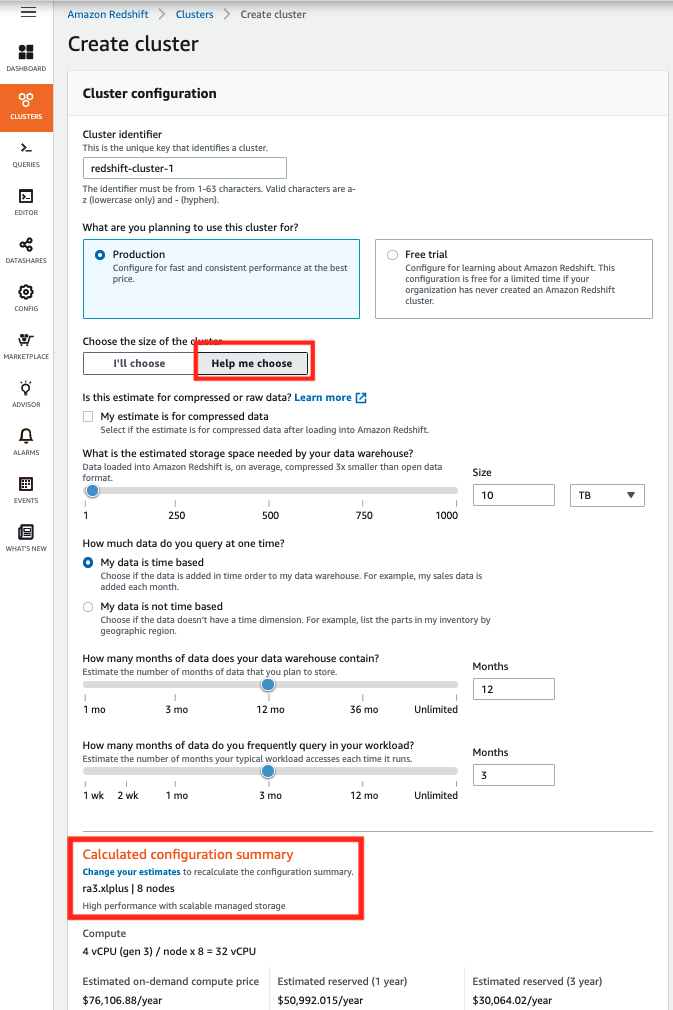
We’re excited to announce the public preview of the new cross-database queries capability to query across databases in an Amazon Redshift cluster. In this post, we provide an overview of the cross-database queries and a walkthrough of the key functionality that allows you to manage data and analytics at scale in your organization.

What are cross-database queries?

With cross-database queries, you can seamlessly query data from any database in your Amazon Redshift cluster, regardless of which database you’re connected to. Cross-database queries eliminate data copies and simplify your data organization to support multiple business groups on the same cluster. Support for cross-database queries is available on Amazon Redshift RA3 node types.

Data is organized across multiple databases in Amazon Redshift clusters to support multi-tenant configurations. However, you often need to query and join across these datasets by allowing read access. For example, different business groups and teams that own and manage their datasets in a specific database in the data warehouse need to collaborate with other groups. You might want to perform common ETL staging and processing while your raw data is spread across multiple databases. Organizing data in multiple Amazon Redshift databases is also a common scenario when migrating from traditional data warehouse systems.

With cross-database queries, you can now access data from any database on the Amazon Redshift cluster without having to connect to that specific database. You can also join datasets from multiple databases in a single query. You can access database objects such as tables, views with a simple three-part notation of <database>.<schema>.<object>, and analyze the objects using business intelligence (BI) or analytics tools. You can continue to set up granular access controls for users with standard Amazon Redshift SQL commands and ensure that users can only see the relevant subsets of the data they have permissions for.

Walkthrough overview

In this post, we walk through an end-to-end use case to illustrate cross-database queries, comprising the following steps:

  1. Set up permissions on the data.
  2. Access data and perform several cross-database queries.
  3. Connect from tools.

For this walkthrough, we use SQL Workbench, a SQL query tool, to perform queries on Amazon Redshift. For more information about connecting SQL Workbench to an Amazon Redshift cluster, see Connect to your cluster by using SQL Workbench/J .

Setting up permissions for cross-database queries

You can use standard Redshift SQL GRANT and REVOKE commands to configure appropriate permissions for users and groups. To configure permissions, we connect as an administrator to a database named TPCH_100G on an Amazon Redshift cluster that we set up with an industry standard dataset, TPC-H. You can set up this dataset in your environment using the code and scripts for this dataset on GitHub and the accompanying dataset hosted in a public Amazon Simple Storage Service (Amazon S3) bucket.

The following screenshot shows the configuration for your connection profile.

The TPCH_100G database consists of eight tables loaded in the schema PUBLIC, as shown in the following screenshot.

The following screenshot shows a test query on one of the TPC-H tables, customer.

The database administrator provides read permissions on the three of the tables, customer, orders, and lineitem, to an Amazon Redshift user called demouser. The user typically connects to and operates in their own team’s database TPCH_CONSUMERDB on the same Amazon Redshift cluster.

Performing cross-database queries using three-part notation

In this section, we see how cross-database queries work in action. With cross-database queries, you can connect to any database and query from all the other databases in the cluster without having to reconnect. In this use case, the user demouser connects to their database TPCH_CONSUMERDB (see the following screenshot).

While connected to TPCH_CONSUMERDB, demouser can also perform queries on the data in TPCH_100gG database objects that they have permissions to, referring to them using the simple and intuitive three-part notation TPCH_100G.PUBLIC.CUSTOMER (see the following screenshot).

You can refer to and query objects in any other database in the cluster using this <database>.<schema>.<object> notation as long as you have permissions to do so. The objects can be tables or views (including regular, late binding and materialized views).

In addition to performing queries on objects, you can create views on top of objects in other databases and apply granular access controls as relevant.

Joining data across databases

With cross-database queries, you can join datasets across databases. In the following screenshot, demouser queries and performs joins across the customer, lineitem, and orders tables in the TPCH_100G database.

You can also span joins on objects across databases. In the following query, demouser seamlessly joins the datasets from TPCH_100G (customer, lineitem, and orders tables) with the datasets in TPCH_CONSUMERDB (nation and supplier tables).

With cross-database queries, you get a consistent view of the data irrespective of the database you’re connected to.

Securely accessing relevant datasets by connecting from tools

To support the database hierarchy navigation and exploration introduced with cross-database queries, Amazon Redshift is introducing a new set of metadata views and modified versions of JDBC and ODBC drivers.

In addition, you can create aliases from one database to schemas in any other databases on the Amazon Redshift cluster. You create the aliases using the CREATE EXTERNAL SCHEMA command, which allows you to refer to the objects in cross-database queries with the two-part notation <external schema name>.<object>. For example, in the following screenshot, the database administrator connects to TPCH_CONSUMERDB and creates an external schema alias for the PUBLIC schema in TPC_100G database called TPC_100G_PUBLIC and grants the usage access on the schema to demouser.

Now, when demouser connects to TPCH_CONSUMERDB, they see the external schema in the object hierarchy (as in the following screenshot) with only the relevant objects that they have permissions to: CUSTOMER, LINEITEM, and ORDERS.

Now they can perform queries using the schema alias as if the data is local rather than using a three-part notation.

Summary and next steps

We provided you a glimpse into what you can accomplish with cross-database queries in Amazon Redshift. Cross-database queries allow you to organize and manage data across databases to effectively support multi-tenant data warehouse deployments for a wide variety of use cases. You can get started with your use case leveraging cross-database queries capability by trying out the preview. For more information, refer to the documentation cross-database queries.


About the Authors

Neeraja Rentachintala is a Principal Product Manager with Amazon Redshift. Neeraja is a seasoned Product Management and GTM leader, bringing over 20 years of experience in product vision, strategy and leadership roles in data products and platforms. Neeraja delivered products in analytics, databases, data Integration, application integration, AI/Machine Learning, large scale distributed systems across On-Premise and Cloud, serving Fortune 500 companies as part of ventures including MapR (acquired by HPE), Microsoft SQL Server, Oracle, Informatica and Expedia.com.


Jenny Chen is a senior database engineer at Amazon Redshift focusing on all aspects of Redshift performance, like Query Processing, Concurrency, Distributed system, Storage, OS and many more. She works together with development team to ensure of delivering highest performance, scalable and easy-of-use database for customer. Prior to her career in cloud data warehouse, she has 10-year of experience in enterprise database DB2 for z/OS in IBM with focus on query optimization, query performance and system performance.


Sushim Mitra is a software development engineer on the Amazon Redshift query processing team. His interest areas are Query Optimization problems, SQL Language features and Database security. When not at work, he enjoys reading fiction from all over the world.


Suzhen Lin is a senior software development engineer on the Amazon Redshift transaction processing and storage team. Suzhen Lin has over 15 years of experiences in industry leading analytical database products including AWS Redshift, Gauss MPPDB, Azure SQL Data Warehouse and Teradata as senior architect and developer. Her experiences cover storage, transaction processing, query processing, memory/disk caching and etc in on-premise/cloud database management systems.


Analyzing healthcare FHIR data with Amazon Redshift PartiQL

Post Syndicated from Amir Bar Or original https://aws.amazon.com/blogs/big-data/analyzing-healthcare-fhir-data-with-amazon-redshift-partiql/

Healthcare organizations across the globe strive to provide the best possible patient care at the lowest cost. In a patient’s care journey, multiple organizations are often involved, including the healthcare provider, diagnostic labs, pharmacies, and health insurance payors. Each of these organizations needs to exchange health data efficiently with the others to ensure care continuity and reimbursement.

The healthcare industry has adopted data exchange standards, many of which are defined by Health Level Seven International (HL7), for several decades. HL7v2, a pipe-delimited data format developed three decades ago, is still in use today despite not conforming to modern best practices for communicating between systems, such as with RESTful APIs. Naturally, these shortcomings can complicate interoperability. More recently, HL7 introduced FHIR (Fast Healthcare Interoperability Resources) to help solve some of the complexity and pave the way for healthcare organizations to modernize how they exchange information. FHIR is built around resources that logically organize healthcare information in a structured but fully extensible format. FHIR is quickly becoming the standard for information exchange in the healthcare industry; for example, the United States’ Centers for Medicare & Medicaid Services (CMS) recently announced the Interoperability and Patient Access final rule (CMS-9115-F), which adopts FHIR as the standard for exchanging health data.

In addition to exchanging information with other entities, healthcare organizations are recognizing the intrinsic value of their own health data flowing within their systems. By bringing analytics to their own health and operational data, leading healthcare organizations are now improving care quality, patient experience, and cost. However, existing tooling for data visualization, statistical analysis, and machine learning often relies on relational schemas that can be easily transformed into vectorized inputs. The majority of existing analytics infrastructure relies on this “flat” storage and presentation of data assets; this can be challenging given FHIR’s heavily nested JSON structure. In addition, data scientists need to consume FHIR format from multiple sources and connect them with each other and existing relational data that resides in existing databases.

In this post, we walk through how to use JSON Schema Induction with Amazon Redshift PartiQL to simplify how you analyze your FHIR data in its native JSON format. Although this post focuses on a simple analysis of claims data, this approach can help data scientists and data analysts reduce the manual work and long cycles of data processing when analyzing patient data by querying and running statistical analysis that is required day to day.

JSON Schema Induction and PartiQL

There are multiple ways to organize and query healthcare data on AWS. One such way is to flatten and normalize the nested JSON FHIR documents so that it’s usable in traditional relational schema. However, such an exercise delivers a subpar final model that results in hundreds of tables with thousands of columns that aren’t naturally extensible the same way FHIR is designed. In addition, consumption of the data from such a relational model is time-consuming and expensive. Alternatively, you can leave the FHIR resources in their hierarchical form and eliminate the need to invest and support a complex ETL pipeline. This approach, however, presents separate challenges because the existing analytics tools data scientists are most comfortable and productive with aren’t often well suited to interrogate deeply hierarchical data structures.

In August, 2019, AWS announced PartiQL, an open source SQL-compatible query language that makes it easy to efficiently query data regardless of where or in what format it is stored. This technology simplifies how data scientists can use SQL to directly query FHIR resources. Our approach is different from using nested types to simplify and optimize query processing. We focus on native hierarchical schema that tends to be much more complex, with many nesting levels and optional structures.

Although Amazon Redshift PartiQL is an enabling technology to query and explore, analysts and scientists also require an understanding of the underlying structure they are interacting with. The FHIR standard incorporates descriptions of data elements as first-class members and presentation of this context alongside the data itself promotes a richer understanding. Despite existing tools having the ability to infer a schema from data (such as Apache Spark and AWS Glue crawlers), they can’t incorporate additional structural information about the data, as found in the FHIR standard. These tools also don’t offer immediate DDL generation, which is very useful to create schema files that define your catalog structure.

As the schema becomes more complex, it’s harder to devise the DDL for it manually, and using our schema induction library becomes necessary. Programmatically inferring the JSON schema is a mechanism that you can use to query FHIR, or any set of JSON documents, in their native structure. We present the tooling required for JSON Schema Induction and provide step-by-step examples to help you get started querying FHIR resources. In this post, we focus on healthcare data in the FHIR format, but our approach for analyzing hierarchical data in JSON or XML formats is applicable to many other data standards in other domains.

To address these challenges and overcome the shortcomings of existing approaches, we have introduced a new open-source library for inferring a schema from a set of JSON documents. As a result of this inference, we can to generate table definitions that significantly streamline the ability to efficiently process FHIR data directly. This library combines the induced schema from the sample data with the descriptive information from the FHIR standard to generate a rich DDL for Amazon Redshift and a JSON tree for UI visualization.

Solution overview

The following diagram illustrates the architecture of the solution.

In this post, we demonstrate how to use our open-source library with conjunction of Amazon Redshift PartiQL queries and Amazon Redshift Spectrum, which enables you to directly query and join data across your data warehouse and data lake. Our approach allows you to design a semi-relational schema, where scientists can quickly combine relational and non-relational data from multiple resource tables.

We use PartiQL in Amazon Redshift Spectrum over data stored in Amazon Simple Storage Service (Amazon S3). Amazon S3 is an object storage built to store and retrieve any amount of data, structured or unstructured, while providing extreme durability and availability, and infinitely scalable data storage infrastructure at very low costs. Amazon Redshift Spectrum runs complex SQL queries directly over Amazon S3 storage without loading or other data preparation, and AWS Glue serves as the meta-store catalog for the Amazon S3 data. That allows us to run PartiQL queries on Amazon S3 prefixes containing FHIR resources stored as JSON or Parquet files. We use Jupyter notebooks to illustrate how to build and use the Schema Induction tool, and for test data we use the public dataset from Fhirbase.

Querying FHIR using PartiQL

To provide a short introduction to PartiQL and illustrate the power of PartiQL, we show a few examples of PartiQL queries over FHIR data. Each example shows different aspects of query functionality varying from simple to aggregate queries. Although you can use this approach for myriad FHIR resources, we focus on claims data as an illustrative example. If you’re already familiar with PartiQL language, you can skip this section.

Assume that we have millions of claim documents as illustrated in claim-example-cms1500-medical.json and in the following code. We want to process attributes regarding ID (line 3), status (line 14), patient (lines 24–26), and diagnosis (lines 58–69):

1.	{
2.	  "resourceType": "Claim",
3.	  "id": "100150",
4.	  "text": {
5.	    "status": "generated",
6.	    "div": "<div xmlns=\"http://www.w3.org/1999/xhtml\">A human-readable rendering of the Oral Health Claim</div>"
7.	  },
8.	  "identifier": [
9.	    {
10.	      "system": "http://happyvalley.com/claim",
11.	      "value": "12345"
12.	    }
13.	  ],
14.	  "status": "active",
15.	  "type": {
16.	    "coding": [
17.	      {
18.	        "system": "http://terminology.hl7.org/CodeSystem/claim-type",
19.	        "code": "oral"
20.	      }
21.	    ]
22.	  },
23.	  "use": "claim",
24.	  "patient": {
25.	    "reference": "Patient/1"
26.	  },
27.	  "created": "2014-08-16",
28.	  "insurer": {
29.	    "reference": "Organization/2"
30.	  },
31.	  "provider": {
32.	    "reference": "Organization/1"
33.	  },
34.	  "priority": {
35.	    "coding": [
36.	      {
37.	        "code": "normal"
38.	      }
39.	    ]
40.	  },
41.	  "payee": {
42.	    "type": {
43.	      "coding": [
44.	        {
45.	          "code": "provider"
46.	        }
47.	      ]
48.	    }
49.	  },
50.	  "careTeam": [
51.	    {
52.	      "sequence": 1,
53.	      "provider": {
54.	        "reference": "Practitioner/example"
55.	      }
56.	    }
57.	  ],
58.	  "diagnosis": [
59.	    {
60.	      "sequence": 1,
61.	      "diagnosisCodeableConcept": {
62.	        "coding": [
63.	          {
64.	            "code": "123456"
65.	          }
66.	        ]
67.	      }
68.	    }
69.	  ],
70.	  "insurance": [
71.	    {
72.	      "sequence": 1,
73.	      "focal": true,
74.	      "identifier": {
75.	        "system": "http://happyvalley.com/claim",
76.	        "value": "12345"
77.	      },
78.	      "coverage": {
79.	        "reference": "Coverage/9876B1"
80.	      }
81.	    }
82.	  ],
83.	  "item": [
84.	    {
85.	      "sequence": 1,
86.	      "careTeamSequence": [
87.	        1
88.	      ],
89.	      "productOrService": {
90.	        "coding": [
91.	          {
92.	            "code": "1200"
93.	          }
94.	        ]
95.	      },
96.	      "servicedDate": "2014-08-16",
97.	      "unitPrice": {
98.	        "value": 135.57,
99.	        "currency": "USD"
100.	      },
101.	      "net": {
102.	        "value": 135.57,
103.	        "currency": "USD"
104.	      }
105.	    }
106.	  ]
107.	}

Creating the claims table DDL

To run queries with Amazon Redshift Spectrum, we first need to create the external table for the claims data. The claims table DDL must use special types such as Struct or Array with a nested structure to fit the structure of the JSON documents. For the FHIR claims document, we use the following DDL to describe the documents:

1.	  create external table fhir.Claims(
2.		"resourceType" varchar(500),
3.		"id" varchar(500),
4.		"status" varchar(500),
5.		"use" varchar(500),
6.		"patient" struct<"reference": varchar(500)>,
7.		"billablePeriod" struct<"start": varchar(500),"end": varchar(500)>,
8.		"organization" struct<"reference": varchar(500)>,
9.		"diagnosis" array<struct<"sequence": double precision,"diagnosisReference": struct<"reference": varchar(500)>>>,
10.		"item" array<struct<"sequence": double precision,"encounter": array<varchar(500)>,"diagnosisLinkId": array<double precision>,"informationLinkId": array<double precision>,"net": struct<"value": double precision,"system": varchar(500),"code": varchar(500)>,"procedureLinkId": array<double precision>>>,
11.		"total" struct<"value": double precision,"system": varchar(500),"code": varchar(500)>,
12.		"information" array<struct<"sequence": double precision,"category": struct<"coding": array<struct<"system": varchar(500),"code": varchar(500)>>>,"valueReference": struct<"reference": varchar(500)>>>,
13.		"procedure" array<struct<"sequence": double precision,"procedureReference": struct<"reference": varchar(500)>>>,
14.		"prescription" struct<"reference": varchar(500)>
15.	)
16.	row format serde 'org.openx.data.jsonserde.JsonSerDe'
17.	with serdeproperties ('dots.in.keys' = 'true','mapping.requesttime' = 'requesttimestamp','strip.outer.array' = 'true')
18.	location 's3://<bucket>/folder1/Claim-1/';

Because each column might be a highly nested JSON structure, this structure requires many levels of type definitions and optional attributes, as shown in lines 9–14. The definition of the preceding table works for a certain type of document in our sample. A table definition that can satisfy any claim document as defined by the FHIR JSON schema is even more complex. This is because the FHIR schema aims to capture any possible medical information, not just the existing data you have, and therefore is more complex than what you currently need.

Traditionally, creating a DDL table is a one-time operation performed by the database administrator, but devising DDL manually isn’t intuitive when it comes to a complex hierarchical dataset. Therefore, we created a new tool: the Schema Induction Tool, which is an open-source library that infers a schema out of a collection of documents and produces rich structure information of the collection of documents scanned.

Generating DDL with the Schema Induction Tool

The Schema Induction Tool is a java utility that reads a collection of JSON documents as stream, learns their common schema, and generates a create table statement for Amazon Redshift Spectrum. In addition, if the documents adhere to a JSON standard schema, the schema file can be provided for additional metadata annotations such as attributes descriptions, concrete datatypes, enumerations, and more. The JSON standard provides a comprehensive data structure for all possible variations of the data, whereas the enriched inferred schema only considers the structure that it has seen from the documents, and doesn’t explode the DDL statement with all the theoretical possibilities that the JSON schema defines. It is therefore imperative to provide a rich and heterogeneous set of documents that can provide the total possible paths in the current data. Because the utility uses stream processing, you can run it on a large volume of documents if time permits.

You can build the code yourself from the GitHub repo, or download a release artifact from Maven central.

The CLI syntax of the command is as follows:

java -jar aws-json-schema-induction.jar 
                        [-ah] [-c=<s3>] [-d=<outDdlFile>] -i=<inputFile> 
                        [-l=<tableLocation>] [-r=<region>] [-root=<rootDefinition>]
                        [-s=<outSchemaFile>] [--stats=<outStatsFile>]
                        [-t=<tableName>]
      -a, --array               is the document a json array
      -c, --cred=<s3>           which type of s3 credentials to use (ec2|profile)
      -d, --ddl=<outDdlFile>    An output ddl file for Redshift
      -h, --help                display a help message
      -i, --input=<inputFile>   An input json file path.
      -l, --location=<tableLocation>
                                table location to use when creating DDL
      -r, --region=<region>     s3 region to use
          -root, --root=<rootDefinition>
                                s3 region to use
      -s, --schema=<outSchemaFile>
                                An output schema file json file path
          --stats=<outStatsFile>
                                An output stats file
      -t, --table=<tableName>   table name to use when creating DDL 

The utility generates a DDL output file that contains the Create Table statement as defined by the ddl switch, and optionally a file that contains the hierarchical schema of the document collection as defined by the schema switch. Finally, a stat file is generated that contains the total number of occurrences of each element from the input documents collection.

Building the Induction Tool

We can now put it all together so we can analyze FHIR Claims data. We assume you have access to AWS account and also to a Linux terminal where you can access the data on Amazon S3 and run commands. We use Amazon SageMaker to host our Jupyter notebook.

  1. Build the Schema induction tool with the following code:
    git clone https://github.com/awslabs/amazon-redshift-json-schema-induction.git
    cd amazon-redshif-json-schema-induction
    mvn package

You use Amazon SageMaker to generate the Create Table statement for the claims.

  1. Create an Amazon SageMaker notebook on the Amazon SageMaker console.
  2. Select the notebook and choose Open JupyterLab.
  3. Copy the example data from your code folder schema-induction/target/schema-induction-1.0.0.jar to the notebook by dragging the file and dropping it into the left panel.
  4. Copy the example data from your code folder data/claims.json to the notebook.
  5. Copy the notebook document from your code folder notebooks/fhir-Partiql-notebook.ipynb.
  6. Open the notebook, set up the variables in the first cell per your account, and run the first cells to download and build the schema induction tool.

Preparing the data

Now the induction tool is ready and we can perform the schema induction.

  1. Run the next cells to download and check the test data.
  2. Check that the schema induction tool is ready and review the help guide.

Creating the FHIR table on Amazon Redshift

  1. Run the tool and review the induced DDL.

You can explore the data structure using the tree control display by running the following cell:

  1. On the AWS Glue console, create a database called fhir and leave location empty.
  2. Create an AWS Identity and Access Management (IAM) role that allows your Amazon Redshift cluster to access the S3 bucket and name it fhir-role.

For more information about creating an Amazon Redshift Spectrum role that can access your S3 buckets, see Authorizing Amazon Redshift to access other AWS services on your behalf.

  1. On your Amazon Redshift cluster, make sure you added the IAM role so you can run the queries and access Amazon S3 and AWS Glue and that the status shows as in-sync.

You can now run your PartiQL queries.

  1. Open the SQL Editor and connect to your database (in this use case, we use the Amazon Redshift Query Editor).
  2. Create the external schema in Amazon Redshift by entering the following code:
    create external schema fhir
    from data catalog
    database 'fhir'
    region '<your region>'
    iam_role 'arn:aws:iam::<account-id>:role/fhir-role';

For more information about creating external schema in Amazon Redshift, see CREATE EXTERNAL SCHEMA.

  1. Create the external table by copying the Create Table DDL from your notebook into your query and running it.
  2. Run your first PartiQL query on a new Query

Querying claims data

Claims are used by providers, payors, and insurers to exchange financial information and supporting clinical information regarding the provision of healthcare services with payors for reporting to regulatory bodies and firms that provide data analytics. In this section, we provide queries as examples of the analyses you can run.

The following query scans all documents in the users.Claims table and retrieves information from each claim.

1.	SELECT c.id,c.status,
2.	       c.patient.reference as patient_ref, 
3.	       SPLIT_PART(c.patient.reference,'/',2) as patient_key,
4.	       d.sequence as diag_seq,
5.	       d.diagnosisReference.reference as diag_ref
6.	
7.	FROM fhir.Claims as c,
8.	     c.diagnosis as d
9.	WHERE c.status = 'active'  

The claim.diagnosis is an array that might contain multiple objects; it is therefore referenced in the SQL From clause and joined with the parent document implicitly, then attributes from the diagnosis element can be retrieved in the SELECT clause. This native SQL approach to un-nest arrays is one of the cornerstones of the PartiQL language. The query also uses the dot notation to access attributes in nested structures, such as c.patient.reference, which accesses the reference attribute inside the patient structure that is in the claim document.

Assuming there are claim documents without diagnosis information, and we want to retrieve the claims even if they have no diagnosis, we want a more permissive join by turning it into a left join. See the following code:

1.	SELECT c.id,c.status,
2.	       c.patient.reference as patient_ref, 
3.	       SPLIT_PART(c.patient.reference,'/',2) as patient_key,
4.	       d.sequence as diag_seq,
5.	       d.diagnosisReference.reference as diag_ref
6.	
7.	FROM fhir.Claims as c LEFT JOIN c.diagnosis as d
8.	WHERE c.status = 'active'  

You don’t need to specify the join keys because the join key is essentially the parent-child relationship of the claim and diagnosis structures.

The following query performs a simple aggregation over the claims data:

1.	SELECT c.status,count(*) as cnt, sum(c.total.value) as total
2.	FROM fhir.Claims as c
3.	GROUP BY c.status,c.patient.reference

It uses the c.patient.reference as the grouping key and the c.total.value as the aggregated value.

The following code queries all the patients’ claims:

1.	SELECT c.id,c.status,
2.	       c.patient.reference as patient_ref, 
3.	       SPLIT_PART(c.patient.reference,'/',2) as patient_key,
4.	       d.sequence as diag_seq,
5.	       d.diagnosisReference.reference as diag_ref
6.	
7.	FROM fhir.Claims as c,
8.	     c.diagnosis as d
9.	WHERE c.status = 'active'  

The following screenshot shows the query output.

Congratulations, you have successfully queried FHIR data in Amazon Redshift Spectrum using PartiQL language.

Conclusion

The FHIR standard looks promising to do great things for healthcare and although it has limitations, we believe the benefits are here to stay. You can directly analyze FHIR format without creating massive normalized design, and can leapfrog over competitors to save tremendous investments in data modeling and ETL maintenance. This post shows you the power of Amazon Redshift PartiQL and how your data science and data engineer team can handle complex data formats like FHIR easily with automation. Adopting these technologies can bring new innovation to the healthcare world and unlock new benefits and cost-optimization.

If you have any questions, please leave your thoughts in the comments section. We look forward to your feedback on our new open-source Schema Induction Tool in GitHub.


About the Authors

Amir Bar Or is a Principal Data Architect at AWS Professional Services. After 20 years leading software organizations and developing data analytics platforms and products, he is now sharing his experience with large enterprise customers and helping them scale their data analytics in the cloud.


Dr. Aaron Friedman a Principal Solutions Architect at Amazon Web Services working with healthcare and life sciences startups to accelerate science and improve patient care. His passion is working at the intersection of science, big data, and software. Outside of work, he’s with his family outdoors or learning a new thing to cook.


Migrating IBM Netezza to Amazon Redshift using the AWS Schema Conversion Tool

Post Syndicated from Mattia Berlusconi original https://aws.amazon.com/blogs/big-data/migrating-ibm-netezza-to-amazon-redshift-with-the-aws-sct/

The post How to migrate a large data warehouse from IBM Netezza to Amazon Redshift with no downtime described a high-level strategy to move from an on-premises Netezza data warehouse to Amazon Redshift. In this post, we explain how a large European Enterprise customer implemented a Netezza migration strategy spanning multiple environments, using the AWS Schema Conversion Tool (AWS SCT) to accelerate schema and data migration. We also walk you through validating that the schema and data content were migrated as expected and followed Amazon Redshift best practices.

Solution overview

It’s important to build a migration plan unique to your organization’s processes and non-functional requirements. The following plan is a real-world use case from a large European Enterprise customer. It details the different environments migrated to and the tasks, tools, and scripts used to complete the work:

  1. Assess migration tasks
    1. Understand the scope of the migration
    2. Record objects to be migrated into a migration runbook
  2. Set up the migration environment
    1. Install AWS SCT
    2. Configure AWS SCT for Netezza source environments
  3. Migrate to the development environment
    1. Create users, groups, and schema
    2. Convert schema
    3. Migrate data
    4. Validate data
    5. Transform ETL, UDF, and procedures
  4. Migrate to other pre-production environments
    1. Create users, groups, and schema
    2. Convert schema
    3. Migrate data
    4. Validate data
    5. Transform ETL, UDF, and procedures
  5. Migrate to the production environment
    1. Create users, groups, and schema
    2. Convert schema
    3. Migrate data
    4. Validate data
    5. Transform ETL, UDF, and procedures
    6. Business validation (including optional dual-running)
    7. Cut over

Assessing migration tasks

To plan and keep track of the migration tasks, you should produce a tracker of all the Netezza databases, tables, and views in scope. This information forms a migration runbook that is updated during the migration to document the progress of data migration from Netezza to Amazon Redshift. For each table identified, record the number of rows and size in GB.

Some Netezza source systems contain two Netezza data warehouses, for example one for ETL loading throughout the day and one for end-user reporting users. Make sure it’s clear which data warehouses are in scope for the migration.

Setting up the migration environment

The migration strategy uses the AWS SCT to accelerate schema object conversion and migrate the data from the Netezza database to the Amazon Redshift cluster. The following diagram illustrates this architecture.

The migration should ensure the following:

  • The AWS SCT is installed within the AWS account onto an Amazon Elastic Compute Cloud (Amazon EC2) instance to facilitate migration operations, orchestrate the AWS SCT data extraction agents, and provide access via a user-friendly console.
  • The AWS SCT data extraction agents are installed and run as close to the Netezza data warehouse as possible. AWS strongly recommends installing them on premises within the same subnet as the Netezza data warehouse.

During the transfer of data from the on-premises data center to the AWS account, you can use either a direct connection or offline storage. AWS Snowball is a petabyte-scale offline solution for moving large amounts of data into the AWS account where sufficient bandwidth of a direct connection isn’t available. AWS Direct Connect is a cloud service solution that makes it easy to establish a dedicated network connection from your premises to an AWS account. You can establish private connectivity between your AWS account and your data center, office, or co-location environment by using Direct Connect, which in many cases can reduce your network costs, increase bandwidth throughput, and provide a more consistent network experience than internet-based connections. Using Direct Connect also adds flexibility in case extract jobs need to be re-run.

Configuring AWS SCT for the Netezza source environment

The AWS SCT is installed on an EC2 instance running Microsoft Windows 10 with administrator privileges. Choosing Microsoft Windows as the operating system allows your users to graphically control the creation of projects, modify profiles, start and view the progress of the conversions, and view the output of the migration assessment reports.

Because you don’t perform the data migration directly on the AWS SCT console, a general purpose EC2 instance with 4 vCPU, 16 GB memory, 100 GB storage, and moderate network bandwidth is sufficient.

You should configure several AWS SCT data extraction agents to match the amount of data to be concurrently transferred and the number of Netezza connections available. You can install the data extraction agents on on-premises VM instances running Linux with root administration privileges. The size of each instance is 8 vCPU, 32 GB memory, and up to 10 Gb network capacity. For disk storage, we use 1TB of 500 IOPS Provisioned SSD because intermediate results are stored on disk.

It’s preferable that the on-premises instances are located as close as possible to the Netezza data warehouse, ideally only a single network hop away. This is important because each data extraction agent creates a table on the instance file system as storage for the extracted data. Also, for each agent, the CPU chosen is more powerful because the compression of the extracted data is processor intensive.

As stated earlier, the number of agents should be proportionate to the amount of concurrent data streams being transferred and the number of Netezza connections available for the transfer. A rule of thumb is to have one data extraction agent for each TB of compressed Netezza data to be migrated in parallel. For optimum performance, it’s recommended that each agent is installed on a single VM instance.

You should work with the DBA team to ensure as many Netezza concurrent connections are made available to the data extraction agents as possible. For the best performance, allocating all the available connections gives all the power of the source database, but if you need to run workloads in parallel with the data extracts, asking for a smaller amount (for example, 21) can suffice. This is a trade-off between resources available against the time required to migrate the data.

For this use case, we allocated seven extraction agents, because the largest project phase extracted 6 TB of Netezza data. The DBA team configured 21 Netezza concurrent connections, so each agent was configured with three parallel data extraction processes (known as threads; see the following configuration file).

Two parameters on the data extraction agents can impact the length of time it takes for the data to migrate from Netezza to the agents: the number of connections and the number of threads.

Tuning is required for each data extraction agent to maximize throughput during the data migration phase. Tuning is achieved by modifying the file /usr/share/aws/sct-extractor/conf/settings.properties, and the file must be applied against each agent. See the following code:

# Number of connections in the pool per agent
extractor.source.connection.pool.size=5

# Number of threads per agent
extractor.extracting.thread.pool.size=3

The preceding code has the following features:

  • extractor.source.connection.pool.size defines the number of connections the agent opens against the Netezza data warehouse.
  • extractor.extracting.thread.pool.size defines the number of parallel jobs the agent can spawn concurrently. The sum of this parameter for all the agents should be smaller than the maximum concurrent connections configured from Netezza.
  • It’s an AWS recommendation to have extractor.source.connection.pool.size 1.5 times larger than extractor.extracting.thread.pool.size. This is because while a task is running, the AWS SCT may need additional connections to retrieve metadata from Netezza to create additional tasks or other operations, such as to collect table statistics.

Migrating to the development environment

The first task to undertake is data model schema transformation. It consists of transforming the Netezza schema objects into Amazon Redshift-compliant syntax and deploying them into the Amazon Redshift development environment. Before migrating the Netezza tables and views, you must create the schemas, groups, and users.

Creating schemas, users, and groups

If you don’t follow this step, all the objects are created in the Amazon Redshift public schema, which isn’t recommended. The following best practices aren’t specific to Netezza migration, but you can use them as a checklist during this step:

  • Create schemas to logically separate views and tables.
  • Groups are easier to maintain than many users because you can grant permissions to groups, and you can add and remove users from groups. Also, groups can direct all traffic from all users in the group to a specific Amazon Redshift WLM queue (which can control priorities as well as QMR limits).
  • Grant permissions at the schema level to allow selected groups to access the schema. This is independent of the permissions for the objects within the schema.
  • Finally, assign users to groups.

Transforming the schema

The AWS SCT analyzes the Netezza data model schema, converts the syntax into Amazon Redshift-compliant DDL statements, and applies the target schema to the Amazon Redshift cluster. The AWS SCT accelerates this phase by making sure Amazon Redshift best practices are taken into account during the transformation.

Within Amazon Redshift, column-level encoding makes sure that the most performant level of compression is applied to every data block of storage for the tables. It’s recommended that the latest ZSTD encoding is applied to all varchar, char, Boolean, and geometry columns, and the AZ64 encoding is applied to all other columns, including integers and decimals.

To improve zone map performance, don’t encode the first column of a sort key (set to raw encoding).

Netezza supports both character-length and byte-length semantics.

If character length semantics (the default) is selected, the length is specified in terms of characters, and it can consume more bytes than the length indicates. For example, if the varchar datatype length is set to 100, it allows multi-byte characters from 1–4 bytes to a maximum of 400 bytes.

If the bytes length semantics is selected, length is specified in terms of bytes. It can support only the number of bytes specified in the varchar. For example, if the varchar datatype is set to 100 only, it allows storing characters up to 100 bytes. This includes single byte and multi byte.

As of this writing, Amazon Redshift doesn’t support character-length semantics, which can lead to String length exceeds DDL length errors while loading the data into Amazon Redshift tables. The simplest solution is to multiply the length of such attributes by 4. A more efficient solution requires determining the maximum length of each varchar column in bytes in Netezza, adding an additional 20% buffer to the maximum length, and setting that as the maximum value for the Amazon Redshift varchar datatype column.

If the Netezza column maximum length in bytes is less than Amazon Redshift column length in bytes, you don’t need to increase the size of the column length in Amazon Redshift. The following query gets the column datatype in Netezza:

SELECT
	DATABASE,
	NAME,
	TYPE,
	ATTNAME,
	FORMAT_TYPE
FROM
	_V_relation_column
WHERE
	DATABASE = 'YOUR_DBASE'
	AND FORMAT_TYPE LIKE '%CHAR%'
	AND name IN ('tablename')
ORDER BY
	NAME;

The following script generates a query to get the maximum amount of bytes actually used for each varchar column:

SELECT
	'Select max(octet_length(' || ATTNAME || ')) from ' || DATABASE || '.' || name || ';'
FROM
	_v_relation_column
WHERE
	DATABASE = 'YOUR_DBASE'
	AND FORMAT_TYPE LIKE '%CHAR%'
	AND name IN ('TABLE')
ORDER BY
	NAME;

During data migration, you can use the following query to identify the reason for the load failure:

SELECT
	DISTINCT(ti."table"),
	ti."schema",
	starttime,
	err.tbl,
	err.colname,
	err.type,
	err.col_length,
	err.err_reason
FROM
	stl_load_errors err,
	svv_table_info ti
WHERE
	starttime > 'YYYY-MM-DD'
	AND ti.table_id = err.tbl
	AND err.err_reason = 'String length exceeds DDL length'
ORDER BY
	starttime DESC;

If the error reason is String length exceeds DDL length, you need to increase the length of the affected column.

As recommended earlier, based on the maximum column length in Netezza, you should add an additional 20% buffer to it and set that as maximum length to Amazon Redshift.

The following in Netezza is example output from the preceding SQL command:

SELECT
	max(octet_length(column_a))
FROM
	schema_a.table_a;

The following code is output in Amazon Redshift:

ALTER TABLE schema_a.table_a 
ALTER COLUMN column_a TYPE varchar(60);

AWS SCT uses statistics from the source database with user-specified optimization strategies to determine the appropriate distribution key and sort key strategies for the target schema. These optimization strategies require collecting statistics from the source database in order to activate the most relevant optimization rule for each table.

It’s recommended to do the following:

  • Choose the current Netezza key distribution style as a good starting point for an Amazon Redshift table’s key distribution strategy. When the table is within Amazon Redshift with representative workloads, you can optimize the distribution choice if needed.
  • Set the Amazon Redshift distribution style to auto for all Netezza tables with random distribution. This makes sure that Amazon Redshift automatically chooses the most performant distribution style depending on the number of rows in the table.

Migrating the data

You use the AWS SCT to migrate the data from the source Netezza data warehouse to the Amazon Redshift cluster. The AWS SCT migrates data with a three-phase approach:

  • Extract – Extracts data from Netezza and stores it into the file system of on-premises AWS SCT data extraction agents
  • Upload – Uploads data from the agents to Amazon Simple Storage Service (Amazon S3)
  • Copy – Loads the data from Amazon S3 into Amazon Redshift via the COPY command

For any migration, especially ones with large volumes of data or many objects to migrate, it’s important to plan and migrate the tables in smaller tasks. This is where tracking the runs and progress via the migration runbook from the assessment phase is important.

Segment the source tables based on their size. The following choices were successful for a 60 TB Netezza migration:

  • One AWS SCT task for all tables less than 5 GB
  • One AWS SCT task for all tables 5–15 GB
  • Multiple AWS SCT tasks for tables under 50 GB; a few tables per task
  • One AWS SCT task for each table bigger than 50 GB

You should refine configuration according to the available migration windows. The approach ensures the following:

  • A task is an atomic process; if it succeeds, all the managed tables are migrated successfully
  • If it fails, it might be more convenient to run the entire task from scratch rather than double-check the status and consistency of each table
  • Task size should trade off between the mentioned opposite poles

To manage the substitution of special characters during these phases, set the following parameters:

  • For NULL values as a string, enter ~~~~. By default, this is not checked. Numeric and date type nulls are by default extracted as ‘\N’ and loaded to Amazon Redshift as nulls.
    • If it is unchecked or if it is checked and value is left black, AWS SCT extracts char/varchar type null as ‘\N’ and the COPY command has the NULL AS ‘\N’ parameter set. This causes issues during COPY operations when we have data with value ‘N’ in any column.
    • If checked and value is ~~~~, AWS SCT extracts char and varchar type null as ~~~~ and the COPY command has the NULL AS ~~~~ parameter set. Using junk characters (such as ~~~~) extracts char and varchar null values as ~~~~, and the COPY command replaces and loads ~~~~ as NULL. This way, we can extract and load char and varchar null values. This doesn’t cause issues during COPY when we have data with the value ‘N’ in any column.
    • If checked and value is ”, AWS SCT extracts the char and varchar type null as ” and the COPY command has the NULL AS ” parameter set. NULL AS ” is equivalent to EMPTYASNULL.
  • Deselect Use blank as null value. If BLANKASNULL is set (which is default setting), it replaces white space characters (‘ ‘) with NULL for char and varchar datatypes, and if the column is NOT NULL, inserting NULL fails. Deselecting BLANKASNULL loads the data as it is in the source.
  • Deselect Use empty as null value. If EMPTYASNULL is set (which is default setting), it replaces empty data (two delimiters in succession with no characters between the delimiters) with NULL for char and varchar datatypes. This is not needed.

The following screenshot shows our configuration for the AWS SCT tasks.

To keep track of the tasks and record them accurately in the migration runbook, on the AWS S3 settings tab, set the folder name to be the same as the task name. Using a consistent naming convention allows easier tracking of progress in the runbook, and is useful during troubleshooting for any issues encountered.

For each subject area in scope, the extraction can either occur while sharing the connections and threads with other process during the day, or it’s recommended for the initial data load to schedule the tasks during the evening, weekend, or agreed schedule with as many Netezza resources as possible.

Breaking the migration down into smaller tasks allows you to log the progress in the migration runbook and run individual tasks to completion during the allocated migration window.

It’s recommended to migrate a small sample table first to test the parameter settings. The following sample table contains specific examples of edge cases that can provide quick feedback as to the suitability of the parameter settings:

create table <schema>.test_dummy
(
       idrow integer,
       field1 integer,
       field2 character varying (50)
);
 
insert into <schema>.test_dummy (idrow, field1, field2) values (1, null, null);
insert into <schema>.test_dummy (idrow, field1, field2) values (2, null, '');
insert into <schema>.test_dummy (idrow, field1, field2) values (3, null, '    ');
insert into <schema>.test_dummy (idrow, field1, field2) values (4, 34, '  Test4   ');
insert into <schema>.test_dummy (idrow, field1, field2) values (5, 15, '');
insert into <schema>.test_dummy (idrow, field1, field2) values (6, 25, '   ');
insert into <schema>.test_dummy (idrow, field1, field2) values (7, 655, 'Test7');

When migrating large Netezza tables, data is migrated on a table-by-table basis using multiple data extraction agents. You should split large tables (for example, tables with more than 20 million rows or greater than 50 GB) into partitions using the AWS SCT virtual partitions functionality. Using virtual partitioning is a recommended best practice for data warehouse migrations using the AWS SCT extractors.

Virtual partitions decrease the migration timeline of a table by parallelizing the extraction of a configurable amount of subsections. You can migrate partitions in parallel, and extract failure is limited to a single partition instead of the entire table.

The AWS SCT creates a subtask for each table partition. Then, when the migration is running, AWS SCT assigns the subtask to an available data extractor to run. The AWS SCT orchestrates which subtask runs on which extractor, thereby keeping all extractors as busy as possible throughout the migration.

To use virtual partitioning, you should identify an attribute that you can use to evenly split the table. It’s important that the virtual partitions are well balanced in order to exploit the benefit of the parallelism. The AWS SCT usually virtually defines such partitions at extraction time—virtual partitions aren’t related to how data is stored into the source data warehouse.

AWS SCT provides three types of virtual partitioning: list, range, and auto split. For more information, see Use virtual partitioning in the AWS Schema Conversion Tool.

When using list partitioning, for very big tables (over 100 GB), the Netezza data slice IDs are an option for the partition key.

Migrating to other pre-production environments

After the data migration has successfully been proven in the development environment, you may choose to migrate to other pre-production environments. Apply the same steps and validation checks, including:

  • Validate that the schema deployment matches the development environment.
  • Validate the data migration has completed successfully, and that no data load errors are logged into the STL_LOAD_ERRORS table. The typical reasons for errors at this stage include schema mismatch, different input file formats, or insufficient varchar length for the input data.
  • Validate the ETL deployment is loading the data as expected.

Migrating to the production environment

Migration to the production environment follows the same processes as the non-production environments, with the addition of the following steps:

  • Undertake the task of business validation with your stakeholders to measure the accuracy of the migration in meeting the program goals:
    1. Undertake a period of dual-running the ETL deployment with production data being dual-loaded into the Netezza data warehouse and the production Amazon Redshift cluster.
    2. Compare the results sets from the Netezza data warehouse and the production Amazon Redshift cluster (the data validation scripts in the following section support this task).
    3. Update the migration runbook for each source table to record the number of records migrated, which validation checks have been run, and any discrepancies found during the checks.
    4. Run reports and dashboards against the Netezza data warehouse and the production Amazon Redshift cluster and ensure the results match.
    5. Obtain sign-off upon successful completion of these business validation tests.
  • After you successfully complete the dual-running of both ETL and reporting deployments, the source of truth is transferred from the Netezza data warehouse to the production Amazon Redshift cluster by decommissioning the Netezza ETL deployment and the Netezza data warehouse, and re-pointing all reporting and dashboard connections to the Amazon Redshift cluster.
  • When the Amazon Redshift cluster is live, monitor the cluster and ensure data model best practices are being followed.

Validating the data

After you migrate the data model schema and data contents to Amazon Redshift, you should perform data-validation tests to measure the migration’s success. The scripts included in this section cover checks commonly undertaken during migration engagements. All these scripts must be run by a superuser account.

Amazon Redshift utilities

The Amazon Redshift Utilities GitHub repo contains a set of utilities to accelerate troubleshooting or analysis on Amazon Redshift. Such utilities consist of queries, views, and scripts. These scripts aren’t deployed by default into Amazon Redshift clusters. The recommendation is to deploy the views into an admin schema.

Comparing source vs. target table and view counts

For Netezza, enter the following code:

SET CATALOG <database_name>;

SELECT
	'<schema_name>' ,
	sum(CASE OBJTYPE WHEN 'TABLE' THEN 1 ELSE 0 END) AS table_count ,
	sum(CASE OBJTYPE WHEN 'VIEW' THEN 1 ELSE 0 END) AS view_count
FROM
	_v_objects
WHERE
	OBJTYPE IN ('TABLE', 'VIEW')
	AND OBJNAME IN ('<table_name>')
GROUP BY
	SCHEMA;

For Amazon Redshift, enter the following code:

SELECT
	trim(pg_namespace.nspname) AS schema_name ,
	sum(CASE pg_class.relkind WHEN 'r' THEN 1 ELSE 0 END) AS table_count ,
	sum(CASE pg_class.relkind WHEN 'v' THEN 1 ELSE 0 END) AS view_count
FROM
	pg_namespace,
	pg_class
WHERE
	pg_class.relnamespace = pg_namespace.oid
	AND pg_class.relkind IN ('r', 'v')
	AND schema_name IN ('<schema_name>')
	AND pg_class.relname IN ('<table_name>')
GROUP BY
	schema_name
ORDER BY
	1;

Comparing source vs. target table constraints

For Netezza, enter the following code:

SET CATALOG <database_name>;

SELECT
	nc.database,
	nc.Schema_Name,
	nc.Table_Name,
	ISNULL(pk_count, 0) pk_count,
	ISNULL(fk_count, 0) fk_count,
	ISNULL(uk_count, 0) uk_count,
	ISNULL(ck_count, 0) ck_count,
	ISNULL(nn_t_count, 0) nn_count,
	ISNULL(pk_count, 0)+ ISNULL(fk_count, 0)+ ISNULL(uk_count, 0)+ ISNULL(ck_count, 0)+ ISNULL(nn_t_count, 0) Total_Count
FROM
	(
	SELECT
		database, Schema_Name, Table_Name, Table_Id, sum(CASE Constraint_Type WHEN 'p' THEN 1 ELSE 0 END) AS pk_count, sum(CASE Constraint_Type WHEN 'f' THEN 1 ELSE 0 END) AS fk_count, sum(CASE Constraint_Type WHEN 'u' THEN 1 ELSE 0 END) AS uk_count, sum(CASE Constraint_Type WHEN 'c' THEN 1 ELSE 0 END) AS ck_count
	FROM
		(
		SELECT
			DISTINCT database, SCHEMA Schema_Name, relation Table_Name, contype Constraint_Type, constraintname, objid Table_Id
		FROM
			_v_relation_keydata) in1
	GROUP BY
		database, Schema_Name, Table_Name, Table_Id) oc
RIGHT OUTER JOIN (
	SELECT
		database, SCHEMA Schema_Name, name Table_Name, objid Table_Id, sum(CASE attnotnull WHEN TRUE THEN 1 ELSE 0 END) AS nn_t_count, sum(CASE attnotnull WHEN FALSE THEN 1 ELSE 0 END) AS nn_f_count, count(attnotnull) nn_total_count
	FROM
		_v_relation_column
	WHERE
		TYPE = 'TABLE'
		AND attnum>0
	GROUP BY
		database, Schema_Name, Table_Name, Table_Id) nc ON
	(oc.Table_Id = nc.Table_Id)
WHERE
	nc.database = '<database_name>'
	AND nc.table_name IN ('<table_name>')
ORDER BY
	1, 2;

For Amazon Redshift, enter the following code:

SELECT
	Schema_Name,
	Table_Name,
	pk_count,
	fk_count,
	uk_count,
	ck_count,
	ISNULL(nn_count, 0) nn_count,
	pk_count + fk_count + uk_count + ck_count + ISNULL(nn_count, 0) Total_Count
FROM
	(
	SELECT
		Schema_Name, Table_Name, Table_Id, sum(CASE Constraint_Type WHEN 'p' THEN 1 ELSE 0 END) AS pk_count, sum(CASE Constraint_Type WHEN 'f' THEN 1 ELSE 0 END) AS fk_count, sum(CASE Constraint_Type WHEN 'u' THEN 1 ELSE 0 END) AS uk_count, sum(CASE Constraint_Type WHEN 'c' THEN 1 ELSE 0 END) AS ck_count
	FROM
		(
		SELECT
			trim(pg_namespace.nspname) Schema_Name, trim(pg_class.relname) Table_Name, trim(pg_constraint.conname) Constraint_Name, pg_constraint.contype Constraint_Type, pg_class.oid Table_Id
		FROM
			pg_namespace
		INNER JOIN pg_class ON
			pg_namespace.oid = pg_class.relnamespace
		LEFT OUTER JOIN pg_constraint ON
			pg_constraint.conrelid = pg_class.oid
		WHERE
			schema_name NOT IN ('pg_catalog', 'pg_toast', 'information_schema')
			AND schema_name NOT LIKE '%_ext'
			AND pg_class.relkind = 'r')
	GROUP BY
		Schema_Name, Table_Name, Table_Id) oc
LEFT OUTER JOIN (
	SELECT
		attrelid Table_Id, count(attnotnull) nn_count
	FROM
		pg_attribute
	WHERE
		attnotnull = TRUE
		AND attnum>0
	GROUP BY
		Table_Id) nc ON
	(oc.Table_Id = nc.Table_Id)
WHERE
	schema_name IN ('<schema_name>')
	AND table_name IN ('<table_name>')
ORDER BY
	1, 2;
Netezza
Amazon Redshift

Generating missing constraints from Netezza

Run the following SQL statements in Netezza to generate the DDL statements to add any missing constraints in Amazon Redshift:

-- Generate Primary Key Constraints DDL
SET CATALOG <database_name>;

SELECT
	'ALTER TABLE <schema_name>.' || relation || ' ADD CONSTRAINT ' || constraintname || ' PRIMARY KEY (' || attname || ')'
FROM
	_V_RELATION_KEYDATA
WHERE
	DATABASE = '<database_name>'
	AND relation IN ('<table_name>')
	AND contype = 'p';

-- Generate Unique Key Constraints DDL
SET CATALOG <database_name>;

SELECT
	'ALTER TABLE <schema_name>.' || relation || ' ADD CONSTRAINT ' || constraintname || ' UNIQUE (' || attname || ')'
FROM
	_V_RELATION_KEYDATA
WHERE
	DATABASE = '<database_name>'
	AND relation IN ('<table_name>')
	AND contype = 'u';

-- Generate Foreign Key Constraints DDL  
SET CATALOG <database_name>;

SELECT
	'ALTER TABLE <schema_name>.' || relation || ' ADD CONSTRAINT ' || constraintname || ' FOREIGN KEY (' || attname || ') REFERENCES <schema_name>.' || pkrelation || '(' || pkattname || ')' refconstrname
FROM
	_V_RELATION_KEYDATA
WHERE
	DATABASE = '<database_name>'
	AND relation IN ('<table_name>')
	AND contype = 'f';

Run the generated script against the Amazon Redshift database.

Identifying tables with insufficient varchar column length

For Netezza, enter the following code:

-- Generate SQL for Varchar Column Length in Bytes   
SET CATALOG <database_name>;

SELECT
	'SELECT ''' || database || ''' database_name,''' || SCHEMA || ''' schema_name,''' || name || ''' table_name, ''' || attname || ''' column_name, ''' || format_type || ''' data_type, ''' || attcolleng || ''' data_type_length_char, ' || 'MAX(OCTET_LENGTH(' || attname || ')) max_bytes FROM ' || SCHEMA || '.' || name || ' UNION ALL'
FROM
	_v_relation_column
WHERE
	TYPE = 'TABLE'
	AND format_type LIKE 'CHARACTER VARYING%'
	AND database = '<database_name>'
	AND name IN ('<table_name>');

For Amazon Redshift, enter the following code:

-- Varchar Column Length in Bytes 
SELECT
	trim(pg_namespace.nspname) Schema_Name,
	trim(pg_class.relname) Table_Name,
	trim(pg_attribute.attname) Column_Name,
	trim(pg_type.typname) Data_Type,
	pg_attribute.atttypmod-4 Data_Type_Length_Bytes
FROM
	pg_attribute
JOIN pg_type ON
	pg_type.oid = pg_attribute.atttypid
JOIN pg_class ON
	pg_class.oid = pg_attribute.attrelid
JOIN pg_namespace ON
	pg_namespace.oid = pg_class.relnamespace
WHERE
	trim(pg_type.typname) LIKE 'varchar%'
	AND Data_Type_Length_Bytes <> 1
	AND Schema_Name IN ('<schema_name>')
	AND Table_Name IN ('<table_name>')
ORDER BY
	1, 2, 3;

Comparing source vs. target row count

Remove the final UNION ALL from the following two scripts output before running.

For Netezza, enter the following:

SET CATALOG <database_name>;

SELECT
	'SELECT ''' || database || ''' database_name,''' || SCHEMA || ''' schema_name,''' || tablename || ''' table_name,COUNT(*) count_of_rows from ' || SCHEMA || '.' || tablename || ' UNION ALL'
FROM
	_v_table
WHERE
	OBJTYPE = 'TABLE'
	AND database = '<database_name>'
	AND tablename IN ('<table_name>');

For Amazon Redshift, enter the following code:

SELECT
	'SELECT ''' || schema_name || ''' schema_name,''' || table_name || ''' table_name,COUNT(*) count_of_rows from ' || schema_name || '.' || table_name || ' UNION ALL'
FROM
	(
	SELECT
		trim(pg_namespace.nspname) schema_name, trim(pg_class.relname) table_name
	FROM
		pg_namespace
	INNER JOIN pg_class ON
		pg_namespace.oid = pg_class.relnamespace
	WHERE
		pg_class.relkind = 'r'
		AND schema_name IN ('<schema_name>')
		AND table_name IN ('<table_name>')
	ORDER BY
		1, 2 );

Comparing source vs. target columns

For Netezza, enter the following code:

SET CATALOG <database_name>;

SELECT
	database,
	SCHEMA Schema_Name,
	name Table_Name,
	attnum,
	attname Column_Name,
	Format_Type Data_Type
FROM
	_v_relation_column
WHERE
	TYPE = 'TABLE'
	AND attnum>0
	AND database = '<database_name>'
	AND name IN ('<table_name>')
ORDER BY
	name,
	attnum;

For Amazon Redshift, enter the following code:

SET search_path TO <schema_name1>,<schema_name2>;

SELECT
	trim(pgn.nspname) AS Schema_Name,
	trim(pgc.relname) AS Table_Name,
	det.attnum,
	det.attname AS Column_Name,
	def.type Data_Type
FROM
	pg_class AS pgc
JOIN pg_namespace AS pgn ON
	pgn.oid = pgc.relnamespace
LEFT OUTER JOIN (
	SELECT
		attrelid, attname, attnum
	FROM
		pg_attribute
	WHERE
		attnum>0) AS det ON
	det.attrelid = pgc.oid
LEFT OUTER JOIN pg_table_def def ON
	(def.schemaname = pgn.nspname
	AND def.tablename = pgc.relname
	AND def."column" = det.attname)
WHERE
	Schema_Name IN ('<schema_name>')
	AND Table_Name IN ('<table_name>')
ORDER BY
	1, 2, 3;

Comparing source vs. target distribution key

For Netezza, enter the following code:

SET CATALOG <database_name>;

SELECT
	t.DATABASE,
	t.SCHEMA,
	t.tablename,
	td.attname AS Dist_Key
FROM
	_v_table t
LEFT OUTER JOIN _v_table_dist_map td ON
	t.tablename = td.tablename
	AND (td.distseqno IS NULL
	OR td.distseqno = 1)
WHERE
	t.database = '<database_name>'
	AND t.tablename IN ('<table_name>')
ORDER BY
	1,
	3;

For Amazon Redshift, enter the following code:

SELECT
	trim(pgn.nspname) AS Schema_Name,
	trim(pgc.relname) AS Table_Name,
	decode(pgc.reldiststyle, 0, 'even', 1, 'key', 8, 'all') AS dist_style,
	det.dist_key AS dist_key
FROM
	pg_class AS pgc
JOIN pg_namespace AS pgn ON
	pgn.oid = pgc.relnamespace
JOIN (
	SELECT
		attrelid, min(CASE attisdistkey WHEN 't' THEN attname ELSE NULL END) AS dist_key
	FROM
		pg_attribute
	GROUP BY
		1) AS det ON
	det.attrelid = pgc.oid
WHERE
	Schema_Name IN ('<schema_name>')
	AND Table_Name IN ('<table_name>')
ORDER BY
	1, 2;

Verifying if any invalid UTF-8 characters were replaced

For Amazon Redshift, enter the following code:

-- Validate if any invalid characters are replaced with '?' during COPY

SELECT userid,
       slice,
       tbl,
       starttime,
       session,
       query,
       filename,
       line_number,
       colname,
       raw_line 
FROM   stl_replacements;

Identifying COPY errors

For Amazon Redshift, enter the following code:

SELECT
	ti."schema",
	ti."table",
	starttime,
	err.tbl,
	err.colname,
	err.type,
	err.col_length,
	err.position,
	err.err_reason,
	err.filename,
	err.raw_line,
	err.raw_field_value
FROM
	stl_load_errors err,
	svv_table_info ti
WHERE
	starttime > '<YYYY-MM-DD>'
	AND ti.table_id = err.tbl
	AND ti."table" = '<Table_Name>'
ORDER BY
	1, 2, 3 DESC;

Additional data validation checks

In addition to checking the row count for each table, you should perform tests on data quality to guarantee production data readiness:

  • During this activity, run tailored queries and validate them against Amazon Redshift tables and views. The recommendation is to run such checks against records that include NULL values as well as strings including trailing whitespaces.
  • Compute and compare statistics (min, max, average, sum, checksums) on numeric attributes against Netezza equivalents.

Conclusion

In this post, we detailed a project migration plan to migrate from Netezza to Amazon Redshift. We included examples of sizing the AWS SCT data extraction agents depending on the volume of data to migrate and the resources made available for the transfer. Validation of successful schema and data migration is vital, and we included several scripts to validate that the data model and data content meet expectations.

Special thanks go to AWS colleagues Arturo Bayo, Boopathi P, and Sunil Vora for their project delivery and support with this post.


About the Authors

Mattia Berlusconi is a Data & Analytics consultant with AWS Professional Services supporting enterprises in adopting innovative solutions for organizing and exploiting data to achieve their business objectives. He is specialized in building data platforms and managing database migrations.


Simon Dimaline has specialised in data warehousing and data modelling for more than 20 years. He currently works for the Data & Analytics practice within AWS Professional Services accelerating customers’ adoption of AWS analytics services.


Federating Amazon Redshift access from OneLogin

Post Syndicated from Veerendra Nayak original https://aws.amazon.com/blogs/big-data/federating-amazon-redshift-access-from-onelogin/

You can use federation to access AWS accounts using credentials from a corporate directory, utilizing open standards such as SAML, to exchange identity and security information between an identity provider (IdP) and an application.

With this integration, you manage user identities to AWS resources centrally in IdPs. This improves enterprise security and removes the need for separate database users and passwords.

In this post, we walk through the steps required to set up Amazon Redshift user federation from OneLogin. Amazon Redshift supports SAML 2.0, and can be easily configured to integrate with OneLogin. For information about integrating with other IdPs, see Federate Amazon Redshift access with Microsoft Azure AD single sign-on and Federate Amazon Redshift access with Okta as an identity provider, respectively.

Solution overview

Amazon Redshift federated login with OneLogin involves the following steps:

  1. Create a OneLogin SAML application, users, and roles.
  2. Create two AWS Identity and Access Management (IAM) roles to support OneLogin integration with Amazon Redshift:
    1. A role to establish the trust relationship between IdP and AWS.
    2. A role that defines Amazon Redshift access policies.
  3. Edit the OneLogin application configuration and parameters using the AWS roles created in the previous step.
  4. Configure JDBC and ODBC clients to connect to Amazon Redshift using corporate credentials

Setting up your OneLogin user

If you don’t have OneLogin set up, you can sign up for a 30-day free trial.

  1. Sign in to OneLogin using the following URL: https://<orgname>.onelogin.com/admin (<orgname> is the name used when setting up the OneLogin account).
  2. On the Users page (https://<orgname>.onelogin.com/users), choose New User.
  3. On the Applications page, choose Add app.
  4. Choose Amazon Redshift JDBC/ODBC.
  5. After the application is created, choose SSO from the navigation pane.
  6. From the More Actions drop-down menu, choose SAML Metadata.

Setting up IAM

In this step, you configure your IdP in IAM and create roles to support OneLogin integration with Amazon Redshift.

Configuring IdP in IAM

To configure your IdP, complete the following steps:

  1. On the IAM console, choose Identity providers.
  2. Choose Create Provider.
  3. For Provider Type, choose SAML.
  4. For Provider Name, enter OneloginRedshift.
  5. For Metadata Document, choose the file that you downloaded in the earlier step.
  6. Choose Next.
  7. Choose Create.

Creating your IAM role

In this step, you create a new IAM role that users federated from OneLogin can assume.

  1. On the IAM console, create an IAM policy with the following permissions. In this policy, we allow Amazon Redshift to query data, create users, and allow users to join groups. For this use case, the sales and marketing groups are already created in Redshift.
    {
    	"Version": "2012-10-17",
    	"Statement": [{
        	"Effect": "Allow",
           	"Action": [
                    "redshift:CreateClusterUser",
                	"redshift:JoinGroup",
                	"redshift:GetClusterCredentials",
                    "redshift:ListSchemas",
                    "redshift:ListTables",
                    "redshift:ListDatabases",
                    "redshift:ExecuteQuery",
                    "redshift:FetchResults",
                	"redshift:CancelQuery",
                    "redshift:DescribeClusters",
                    "redshift:DescribeQuery",
                    "redshift:DescribeTable"],
           	"Resource": [
                 "arn:aws:redshift:<region>:<account>:cluster:<cluster_identifier>",
        	     "arn:aws:redshift:<region>:<account>:dbuser:<cluster_identifier>/${redshift:DBUser}",
                 "arn:aws:redshift:<region>:<account>:dbgroup:<cluster_identifier>/marketing",
                 "arn:aws:redshift:<region>:<account>:dbgroup:<cluster_identifier>/sales",
             	"arn:aws:redshift:<region>:<account>:dbname:<cluster_identifier>/${redshift:DBName}"]
     	}]
    }
    

  2. On the Roles page, choose Create role.
  3. For Role name, enter OneloginRedshiftCluster.
  4. For Role description, enter a description.
  5. For Trusted entities, choose Redshift.
  6. Choose Next: Permissions.
  7. Choose the policy you created earlier (OneloginCustomPolicy).
  8. Choose Create role.

In the next steps, we edit the trust relationships.

  1. On the Summary page for your role, choose Edit trust relationship.
  2. Add the following policy document:
    {
      "Version": "2012-10-17",
      "Statement": [
        {
          "Effect": "Allow",
          "Principal": {
            "Federated": "arn:aws:iam::<account>:saml-provider/OneloginRedshift"
          },
          "Action": "sts:AssumeRoleWithSAML",
          "Condition": {
              "StringLike": {
                  "SAML:aud": "http://localhost:7890/redshift/"
              }
          }
        }
      ]
    }

Setting up your OneLogin application

In this step, you edit the OneLogin application configuration and parameters using the AWS roles created in the previous step.

  1. Go to your application in OneLogin and confirm Redshift Local Host URL is set to http://localhost:7890/redshift/.
  2. On the Parameters page, add the following fields:
Field Name Value Flags: Include in SAML Assertion
DbUser Email Default (checked)
Role

Enter the role created for Amazon Redshift access and the IDP ARN separated by a comma:

RoleARNforRedshiftCluster,RoleARNforIAMIDP.

For example, arn:aws:iam::4XXXXXXXX4:role/ OneloginRedshiftCluster,arn:aws:iam::4XXXXXXX X4:saml-provider/OneloginRedshift.

Default (checked)

RoleSessionName


Email Default (checked)
DbGroups

Choose your AD groups.

If no AD integration is in place, choose user roles with semicolon-delimited input. This is to handle users associated with multiple groups.

The following section shows how to create roles and attach them to users.

Associating user roles

If you don’t have an AD association in OneLogin and you need to authorize access using groups in Amazon Redshift, complete the following steps.

  1. On the OneLogin page, under Users, choose Roles.
  2. Choose New Role.
  3. Create new roles that correspond to the Amazon Redshift user groups. Make sure that the role names are lowercase.
  4. Add the Amazon Redshift JDBC ODBC application created earlier.
  5. Choose Save.

We associate users to the role we created earlier so we can map users to Amazon Redshift groups.

  1. We assign the Fred Taylor user to the marketing role and Joe Bloggs to the sales role.

These roles are used to assign the users to the appropriate groups when they log in. You can also add users automatically to roles by using rules.

  1. Go to user profile and check if the role is associated with the user.
    1. If it’s not selected, choose New Role and add the application.

In the next steps, we set up the JDBC and ODBC tools.

Setting up JDBC and ODBC connections

In this post, we use SQL Workbench to demonstrate the JDBC setup, but you can extend the solution to other JDBC-compliant tools.

  1. Download the Amazon Redshift driver and ensure that the driver version is 1.2.41 or above with SDK included.
  2. In SQL Workbench/J, on the Manage drivers page, create a new Amazon Redshift driver profile and point it to the file downloaded in the previous step.
  3. Create a connection to the Amazon Redshift cluster using the driver you downloaded.
  4. For URL, enter the URL in the following format: jdbc:redshift:iam://<clusterendpoint>:5439/dev.
  5. Leave Username and Password blank (they are federated from OneLogin).
  6. Select Save password.
  7. Choose Extended properties and add the following values:
    1. login_urlhttps://exampleinc.onelogin.com/trust/saml2/http-post/sso/613ac582-9999999999 (from OneLogin application setup)
    2. plugin_namecom.amazon.redshift.plugin.BrowserSamlCredentialsProvider
    3. idp_response_timeout15
  8. Choose Test or Connect to open the OneLogin page.
  9. Enter your corporate user name and password.

You should see the following message upon successful authentication: “Thank you for using Amazon Redshift! You can now close this window.”

  1. Navigate back to SQL Workbench and you should be connected to the Amazon Redshift cluster with the OneLogin user name and the role assigned to you in OneLogin.
  2. Verify the user name passed in via OneLogin by running the following SQL command:
    select current_user

You can now verify that the users have been associated with the correct groups. For our use case, Fred Taylor has access to the tables in the marketing schema only. The user Joe Bloggs has access to tables in the sales schema only. Using the Joe Bloggs user, you get the following results when trying to query data from each schema:

select productid from sales.monthly_sales


productid	
-------
7890
5654
2998
[…]


select * from marketing.employee


An error occurred when executing the SQL command:
select * from marketing.employee

[Amazon](500310) Invalid operation: permission denied for schema marketing;
 [SQL State=42501, DB Errorcode=500310]
1 statement failed.

For client tools that support ODBC, you can configure the ODBC driver to connect Redshift to integrate with OneLogin. In this post, we show ODBC connectivity using the command line tool isql and Python.

isql is an interactive ODBC test tool to test your DSNs for their connectivity to databases and run SQL statements when you’re connected to a database. It is installed with PSQL.

  1. Download and install the ODBC driver (use ODBC – macOS X driver version 1.4.16 or higher).
  2. On MacOS, the installation process installs the driver files in the following directories:
    /opt/amazon/redshift/lib
    /opt/amazon/redshift/ErrorMessages
    /opt/amazon/redshift/Setup

  3. Open the /usr/local/etc/odbc.ini directory and add Amazon Redshift DSN and Login_URL. See the following screenshot.
  4. After odbc.ini is set up, we connect using isql. On terminal, enter the following code:
    isql -v "Amazon Redshift ODBC DSN"

isql should open the browser window to ask for credentials (use your OneLogin credentials).

  1. We can also use Python3 to connect to Amazon Redshift using ODBC. See the following example code:
    import pyodbc
    cnxn = pyodbc.connect('DRIVER={/opt/amazon/redshift/lib/libamazonredshiftodbc.dylib};\
    SERVER=redshift-cluster-1.XXXXXXX.us-west-2.redshift.amazonaws.com;\
    plugin_name=BrowserSAML;\
    IAM=1;\
    AutoCreate=1;\
    Login_URL= https://exampleinc.onelogin.com/trust/saml2/http-post/sso/613ac582-9999999999;\
    IdP_Response_Timeout=15;\
    Database=dev;\
    Port=5439;')	
    cursor = cnxn.cursor()
    cursor.execute("SELECT current_date;")
    for row in cursor.fetchall():
    	print (row)
    

Summary

In this post, we demonstrated how to set up federated login to Amazon Redshift using OneLogin. We also showed how to pass along group membership within your IdP, enabling you to manage user access to Amazon Redshift resources from within your IdP.

If you have any questions or suggestions, please leave us a comment.


About the Authors

Veerendra Nayak is a Senior Database Solution Architect with Amazon Web Services.


Sam Selvan is a Senior Database Solution Architect with Amazon Web Services.


Building high-quality benchmark tests for Redshift using open-source tools: Best practices

Post Syndicated from Asser Moustafa original https://aws.amazon.com/blogs/big-data/building-high-quality-benchmark-tests-for-redshift-using-open-source-tools-best-practices/

Amazon Redshift is the most popular and fastest cloud data warehouse, offering seamless integration with your data lake, up to three times faster performance than any other cloud data warehouse, and up to 75% lower cost than any other cloud data warehouse.

When you use Amazon Redshift to scale compute and storage independently, a need arises to profile the compute requirements of various production workloads, so that your Amazon Redshift cluster configuration reflects an appropriately-balanced compute layer. Existing Amazon Redshift customers often benchmark scaled-up clusters against various production workloads to accommodate growth in their business. Whether it be from YoY data growth, democratization of data leading to an ever-larger user base, or the onboarding of ever-more workloads, the need to scale up with eyes wide open eventually arises as part of the normal data management and analytics lifecycle. In addition, existing customers may also use benchmark tests to proactively monitor a production cluster’s performance in real time.

For prospective Amazon Redshift customers, benchmarking Amazon Redshift is often one of the main components of their evaluation and a key source of insight into the price-to-performance ratio of different Amazon Redshift configurations.

Open-source tools, with their cost-efficiency and vendor neutrality, are often the preferred choice of customers for profiling their production workloads and benchmark tests. However, best practices for using these tools are scarce, possibly resulting in flawed compute profiles, flawed benchmark results, customer frustration, or bloated timelines. This series of posts offers a succinct guide for profiling customer workloads with commonly used open-source tools such as SQLWorkbench, psql, and Apache JMeter.

The first installment of this series discusses some general best practices for benchmarking, and the subsequent installments discuss the different strengths and challenges that may come with different open-source tools.

Although this post focuses on benchmarking best practices using open-source tools with any data/workload combination, another discussion can be had altogether on the benchmark data and workloads that can be employed. For example, benchmark tests could use industry-standard TPC data and workloads, or they could use a customer’s actual production data and workloads. For more information and helpful artifacts on the use of TPC industry-standard data and workloads in benchmark tests on Amazon Redshift, see Rapidly evaluate AWS analytics solutions with Amazon Redshift and the Redshift Gold Standard Github. You can also reach out to an Amazon Analytics Specialist Solutions Architect for additional guidance.

One final point before we get started: there is a lot that could be said about benchmarking—more than can be accommodated in a single post. Analytics Specialists Solutions Architects such as myself frequently and happily engage with current and prospective customers to help them evaluate their benchmarking strategy and approach at no charge. I highly recommend you take advantage of that benefit by reaching out to your AWS account SA.

Benchmarking host

Regardless of which open-source tool you use for benchmarking Amazon Redshift, two needs are constant in your benchmark environment:

  • A test machine from which to initiate the benchmark tests
  • A running Amazon Redshift cluster to serve as the target test cluster

It may seem intuitive to use your remote laptop or an on-premises server as your host for launching the benchmark tests, but there are a number of flaws with that approach.

Firstly, any network traffic between the remote laptop and the target Amazon Redshift cluster (or any AWS Cloud service) must traverse the internet, and internet transmission times can vary tremendously from one test run to another. Internet transmission times introduce so much noise into query runtimes that it becomes very difficult, if not impossible, to achieve high-confidence benchmark results. Just recently, I’ve seen a customer exhibit an increase in query runtimes of several orders of magnitude simply because they used their remote laptop as the launch point for their benchmark tests.

In addition, your remote laptop most likely must be connected to a corporate VPN in order to access any AWS Cloud service such as Amazon Redshift. VPNs achieve a secure connection through mechanisms such as encryption and traffic rerouting, which naturally result in slower network speeds. However, the reduction in network speeds can vary tremendously from one test run to another, so VPNs have the potential to introduce a lot of noise in your benchmark results.

Secondly, your remote laptop simply may not be configured with sufficient memory and CPU to efficiently run the benchmark tests. An underpowered test machine could lead to an out-of-memory error for the benchmarking tool or yield longer query runtimes.

Even if your remote laptop has sufficient CPU and memory for running benchmark tests, your laptop probably has many other applications running on it—email, web browser, development IDE, and more—that are all consuming CPU and memory resources at different intervals. If the benchmarking tool has to compete with other heavyweight applications for CPU and memory, it’s very likely that query runtimes will be impacted negatively and in varying degrees from one test run to another, thereby introducing a lot of noise into the benchmark results.

A better alternative to using your remote laptop or an on-premises server as your benchmarking host is to launch a new Amazon Elastic Compute Cloud (Amazon EC2) instance. There are many EC2 instance types to choose from, just be sure to select an instance type with sufficient memory and vCPUs to handle your benchmark tests. It’s recommended to install and launch benchmark tools and scripts from locally attached Amazon EC2 storage as opposed to network attached storage, such as Amazon Elastic Block Storage (Amazon EBS) volumes, to minimize the risk of network speeds impacting benchmark tests. I have seen customers do very well using the m5dn.24xlarge EC2 instance type for their benchmarking host, but scaling up or down is easy on the AWS Cloud, so feel free to start with something smaller or bigger.

One very important note: try as much as possible to keep the EC2 instance in the same AWS Region, VPC, and Availability Zone as the target Amazon Redshift cluster, so that the number of network hops are kept to a minimum, and to minimize the possibility of additional security settings being needed to connect to the cluster. It’s also highly recommended that you keep any Amazon Simple Storage Service (Amazon S3) data for data lake tests in the same AWS Region as your Amazon Redshift cluster. The following diagram illustrates this architecture.

Number of test iterations

It’s strongly recommended that you conduct at least four iterations (one warm-up iteration and three subsequent iterations) for each test for statistical confidence in the benchmark results. The warm-up iteration is intended to prime the Amazon Redshift cluster just as a real-world cluster would be. For example, Amazon Redshift compiles all queries to machine code to achieve the fastest query performance. More than 99.6% of all real-world queries that run on Amazon Redshift, however, don’t require compilation, because their code already exists in the Amazon Redshift compile cache.

The Amazon Redshift compilation process employs many approaches for efficient and speedy compilation. For example, in the event that Amazon Redshift has never seen a query previously and it requires a compilation, the compilation is scaled to a serverless compilation service beyond the compute resources of the leader node of your Amazon Redshift cluster. The compile cache also survives cluster restarts and software upgrades. In addition, compiled queries are parameterized so that a simple change to the filter value in a where clause still uses the same machine code in the compile cache.

As mentioned, in a real-world Amazon Redshift cluster, less than 1% of queries need to be compiled. However, in a brand-new test cluster, it’s possible that the compile cache could be empty. Performing a warm-up iteration ensures that your benchmark test results reflect real-world production conditions.

The mathematical average and standard deviation of the last three test iterations offer a statistically confident result to be reported for that given test.

Result set caching

Amazon Redshift caches queries and their result sets by default, so that subsequent iterations of the identical query can use those results if the underlying data hasn’t changed. When Amazon Redshift determines a query is eligible to reuse previously cached results, it bypasses query planning, the workload manager (WLM), and the query execution engine altogether. Cached result rows are returned to the client application immediately, making a query’s runtime more a function of network transmission speeds rather than Amazon Redshift processing.

There is clearly a tremendous benefit to leaving result set caching enabled in all your Amazon Redshift clusters. In fact, with the Amazon Redshift Spectrum Request Accelerator feature, even if two data lake queries aren’t identical, but rely on the same aggregated datasets, it’s possible you can use your intermediate or aggregated result sets stored in the Amazon Redshift external data cache. For more information about Spectrum Request Accelerator, see Extending Analytics Beyond the Data Warehouse.

When it comes to benchmarking, however, there may be a valid justification to temporarily disable result set caching so that the Amazon Redshift query processing engine is engaged for every benchmark test. You can disable the result set cache for a test session with the following command:

set enable_result_cache_for_session=false

For more information, see enable_result_cache_for_session.

You can also disable result set caching at the user level (for example, for all future sessions of a particular user) using the ALTER USER command. For example, to disable result set caching for the demo user, enter the following code:

alter user demo set enable_result_cache_for_session = false;

If you choose to disable result set caching in your session, there are two crucial points to keep top of mind:

  • The query runtimes observed in your benchmarking tests are very likely to be significantly longer than your real-world production scenario, and shouldn’t be compared to the query runtimes of on-premises systems
  • As always with benchmarking, be sure to compare “apples-to-apples” by disabling caching in other benchmark environments and tests

With regards to Spectrum Request Accelerator, it is transparently and automatically enabled when certain conditions are met that make data caching a worthwhile activity for a query. Unlike local result set caching, Spectrum Request Accelerator can’t be disabled.

Query execution time, query runtime, and query throughput

The basic purpose of benchmark tests on a database system is to measure performance with respect to query processing under varying conditions. Three of the most common metrics used to assess performance are query execution time, query runtime, and query throughput. To discuss these three metrics, let’s start with a brief overview of the typical query lifecycle.

The typical query lifecycle consists of many stages, such as query transmission time from the query tool (SQL application) to Amazon Redshift, query plan creation, queuing time, execution time, commit time, result set transmission time, result set processing time by the query tool, and more. The following diagram illustrates the basic query lifecycle.

One of the core principles of benchmark tests is to eliminate any factors or components that aren’t in scope (also called noise). For example, Amazon Redshift has no control over how fast the network transmission speeds are or how efficiently your chosen query tool can process result sets—not to mention that these components can also vary from one test run to another. Such artifacts should be considered out of scope and eliminated as much as possible from benchmark tests aiming to measure, for example, Amazon Redshift’s query processing performance.

Query execution time

We can aim to do just that by measuring query execution time; this metric represents the amount of time that Amazon Redshift spent actually executing a query—excluding most other components of the query lifecycle—such as queuing time, result set transmission time, and more. It’s a great metric for isolating the time attributed to the Amazon Redshift engine’s query processing, and can be obtained from the Amazon Redshift system view STL_WLM_QUERY using a query such as the following. You can also add a time filter to the query to limit the result set to specific testing time window.

select s1.query, s1.querytxt, s2.total_exec_time as query_execution_time from STL_QUERY s1 join STL_WLM_QUERY s2 on s1.query=s2.query;

The following screenshot shows the query results.

Query runtime

Query runtime, on the other hand, represents the total time for the query to complete its entire lifecycle. It’s an attractive option because it’s the default runtime offered by most query tools such as on the Amazon Redshift console (see the Duration column in the following screenshot).

Although using the query runtime can still yield good quality benchmark tests, it’s a better practice to rely on query execution time when measuring the performance of individual queries across different benchmarking scenarios and environments.

Query throughput

Query throughput offers much more practical insight into the performance of a data warehouse such as Amazon Redshift.

Query throughput measures the volume of queries that can be run in a period of time (usually an hour), and is often stated as x queries per hour. It’s often coupled with queries of varying degrees of complexity (as indicated by their average runtime), such as small, medium, and large queries. You can incorporate the query throughput into a custom testing script or capture it from a testing tool such as Apache JMeter.

Pause, resume, and snapshots

Whether your benchmark tests are simple enough to be wrapped up in a few hours, or elaborate enough to require a few days or even weeks to complete, you rarely use the Amazon Redshift clusters involved nonstop. To keep costs as lean as possible, it’s highly recommended to pause the clusters (via the Amazon Redshift console) when they’re not expected to be used for several hours in a row (such as overnight or on weekends).

It’s also recommended to keep the clusters used in benchmark testing available for an extended period of time after the benchmarking testing is complete, in case additional benchmark scenarios are required. A final snapshot before deleting an Amazon Redshift cluster is one of the easiest and most cost-effective ways to preserve availability to the cluster. Pausing a cluster is another way and has the added benefit of allowing the cluster to be more quickly resumed should additional benchmark scenarios arise.

Cluster resize

It’s quite common to run a series of benchmark tests on different cluster configurations by doubling the number of nodes in the baseline cluster. Amazon Redshift offers two ways to resize a cluster: elastic resize and classic resize.

Most customers find it easiest to use the elastic resize approach, which resizes the Amazon Redshift cluster within minutes by redistributing the cluster’s existing slices (logical virtual nodes) onto more cluster nodes. For example, if a cluster has 10 cluster nodes that have a default of 16 slices per node (16 slices x 10 cluster nodes = 160 slices total in the cluster), and it’s resized to 20 cluster nodes using the elastic resize approach, the resulting cluster still has 160 slices, but each cluster node only has 8 slices (8 slices x 20 cluster nodes = 160 slices total in the cluster). Because there are fewer slices on each cluster node, each slice in the resized cluster receives an increased memory and CPU capacity.

Alternatively, if you use the classic resize approach, the resized cluster doubles the number of slices in the cluster, but each slice has the standard memory and CPU capacity (16 slices x 20 cluster nodes = 320 slices total in the cluster). Although the slices have the standard memory and CPU allocations, the increased number of slices provides the opportunity for greater parallelization in the cluster.

In short, elastic resize results in fewer, but more powerful Amazon Redshift slices, whereas classic resize results in more standard-power slices (greater parallelization). When resizing a cluster, it’s best to stay consistent with the resize approach used. Workloads can benefit differently from each configuration, which is why you should remain consistent with resize approaches.

Benchmark artifacts

Depending on the purpose of your benchmark tests, your benchmarking approach could be as simple as running five or six long-running or complex BI queries in a query editor against two or three different environments and hand-recording the resulting query runtimes. Or it could be much more elaborate, involving the methodical implementation of hundreds of benchmark tests against 10 or more benchmark environments, with results captured in multiple spreadsheet charts.

Regardless of where your approach falls on the benchmarking spectrum, it’s imperative for the fidelity of your results that you maintain consistent testing methods, data, and queries or workloads across different benchmarking setups and environments. For example, if your goal is to measure the impact of doubling your cluster’s node count, both the base test that runs against x nodes and the experimental test running against 2x nodes should be using identical test tool and configuration, test data, schema, queries, and so on. Also, you should also be consistent with the Amazon Redshift resize approach used (elastic or classic).

Ideally, you should aim to first establish a baseline and change only one variable at a time (such as changing the number of nodes in the cluster) to observe the impact on the benchmark results from just that change. Changing multiple variables simultaneously makes it very difficult, if not impossible, to measure the impact of each individual variable change.

You could explore the following benchmarking ideas in a benchmark test plan:

  • Baseline – This is a highly recommended and typically a standard component of any benchmark test
  • Linear scalability – The impact on query throughput of increasing or decreasing the Amazon Redshift node count
  • Elasticity – Automatic scaling capabilities
  • Concurrency – The impact on query throughput of increasing number of concurrent users
  • Different instance types – The query throughput achieved using an Amazon Redshift ra3.4xl instance type vs. an ra3.16xl instance type, for example
  • Data lake – The query throughput of data lake queries
  • Workload management optimizations – Switching from auto mode to a custom WLM setup in Amazon Redshift
  • Data model optimizations – Using materialized views in Amazon Redshift, Parquet file format in the data lake, and so on
  • Load and unload times – The amount of time needed to unload a fact table to Parquet

Conclusion

We discussed a number of recommended best practices for conducting high-quality benchmark tests. Some of the best practices represented core principles that span all the open-source tools discussed (such as consistency in testing methodology).

In the next set of installments of this series, we review the strengths and appropriateness of three popular open-source tools that you can use to conduct benchmark tests. I hope this series has been helpful, and strongly encourage current and prospective customers to reach out to me or other AWS colleagues if you wish to delve deeper.


About the Author

Asser Moustafa is an Analytics Specialist Solutions Architect at AWS based out of Dallas, TX, USA. He advises customers in the Americas on their Amazon Redshift and data lake architectures and migrations, starting from the POC stage to actual production deployment and maintenance.


Automating deployment of Amazon Redshift ETL jobs with AWS CodeBuild, AWS Batch, and DBT

Post Syndicated from Megah Fadhillah original https://aws.amazon.com/blogs/big-data/automating-deployment-of-amazon-redshift-etl-jobs-with-aws-codebuild-aws-batch-and-dbt/

Data has become an essential part of every business, and its volume, velocity, and variety continue to increase. This has resulted in more complex ETL jobs with interdependencies between each other. There is also a critical need to be agile and automate the workflow—from changing the ETL jobs due to business requirements to deploying it into production. Failure to do so increases the time to value and cost of operations.

In this post, we show you how to automate the deployment of Amazon Redshift ETL jobs using AWS Batch and AWS CodeBuild. AWS Batch allows you to run your data transformation jobs without having to install and manage batch computing software or server clusters. CodeBuild is a fully managed continuous integration service that builds your data transformation project into a Docker image run in AWS Batch. This deployment automation can help you shorten the time to value. These two services are also fully managed and incur fees only when run, which optimizes costs.

We also introduce a third-party tool for the ETL jobs: DBT, which enables data analysts and engineers to write data transformation queries in a modular manner without having to maintain the execution order manually. It compiles all code into raw SQL queries that run against your Amazon Redshift cluster to use existing computing resources. It also understands dependencies within your queries and runs them in the correct order. DBT code is a combination of SQL and Jinja (a templating language); therefore, you can express logic such as if statements, loops, filters, and macros in your queries. For more information, see DBT Documentation.

Solution overview

The following illustration shows the architecture of the solution:

The steps in this workflow are as follows:

  1. A data analyst pushes their DBT project into a GitHub repo.
  2. CodeBuild is triggered and builds a Docker image from the DBT project. It reads Amazon Redshift and GitHub credentials from AWS Secrets Manager. The image is stored in Amazon Elastic Container Registry (Amazon ECR).
  3. Amazon CloudWatch Events submits an AWS Batch job on a scheduled basis to run the Docker image located in Amazon ECR.
  4. The AWS Batch job runs the DBT project against the Amazon Redshift cluster. When the job is finished, AWS Batch automatically terminates your Amazon Elastic Compute Cloud (Amazon EC2) resources so there is no further charge.
  5. If the DBT job fails, Amazon Simple Notification Service (Amazon SNS) notifies the data analyst via email.

Consequent commits pushed to the GitHub repo trigger CodeBuild, and the new version of the code is used the next time the ETL job is scheduled to run.

All code used in this post is available in the GitHub repo.

Prerequisites

You need the following items to complete the steps in this post:

  • An AWS account with permissions to manage these services.
    • You need to use Region us-east-1.
  • An empty GitHub repo. You use this to store the DBT project later.

Setting up the Amazon Redshift cluster

Your first step is to set up an Amazon Redshift cluster for the ETL jobs. The AWS CloudFormation template provided in this post deploys an Amazon Redshift cluster and creates the tables with the required data. The tables are created in the public schema.

You can use Amazon Redshift Query Editor to verify that the tables have been created in the public schema. The Amazon Redshift credentials are as follows:

  • Username awsuser
  • Password Available in Secrets Manager with the name redshift-creds
  • Database name dev

Deploying the automation pipeline

Now that we have the Amazon Redshift cluster, we’re ready to deploy the automation pipeline. The following stack builds the rest of our architecture and schedules the DBT job.

You must provide the following parameters for the CloudFormation template:

  • GithubRepoUrl – The GitHub repo URL of the DBT project; for example, https://GitHub.com/mygit/dbt-batch.git.
  • GithubToken – Your GitHub personal token. If you don’t have a token, you can create one. Make sure the token scope contains both admin:repo_hook and repo.
  • JobFrequency – The frequency of the DBT job in cron format. Time is in UTC time zone. For example, 0 4 * * ? * runs the job every day at 4:00 UTC.
  • MonitoringEmail – The email address that receives monitoring alerts.
  • RedshiftStackName – The name of the CloudFormation stack where we deployed the Amazon Redshift cluster.
  • RedshiftSchema – The name of the schema with your data inside Amazon Redshift cluster.
  • GithubType – Whether you’re using public GitHub (github.com) or GitHub Enterprise from your company.

This template creates a CodeBuild project with a webhook configured to trigger a build whenever there is a change in the GitHub repo. The template also creates an AWS Batch job queue, job definition, compute environment, and CloudWatch event that is scheduled according to the JobFrequency parameter. The AWS Batch job runs the command dbt run –profiles-dir . to start the DBT jobs (for more information, see dbt run). Finally, the SNS topic for data job failures is also set up.

After the template is complete, you receive an email from [email protected] to confirm your subscription for the error topic. Choose Confirm subscription.

Setting up your DBT project in GitHub

You can download the DBT project repository that we provided for this post.

Push this project to your GitHub repo that you specified when deploying the CloudFormation stack. Ensure that your repository has the same folder structure as the sample; it’s required for CodeBuild and AWS Batch to run correctly.

This repository contains the generic DBT project (inside /src/dbt-project) with some wrappers for the automation. In this section, we further examine the files in the provided repository.

Dockerfile

In the /src/ folder, Dockerfile configures how the Docker image is built. Here, it installs the DBT library.

DBT project

The DBT project is located in /src/dbt-project. The profiles.yml file contains the connection details to the Amazon Redshift cluster, and CodeBuild configures the placeholder values.

In the models/example/ folder, you can see two queries that run against the tables we created earlier: top_customers.sql and top_nations.sql. In DBT, each .sql file corresponds to a DBT model. We specify in both models that the query results are materialized as new tables. See the following screenshot.

You can also see that the top_nations model uses the result of the top_customers model using the ref function on line 9. This is sufficient for DBT to understand the dependencies and to run the top_customers model prior to top_nations.

Buildspec.yml

Inside the /config folder, the buildspec.yml file specifies the configuration the CodeBuild project uses. On line 3, we take the Amazon Redshift credentials from Secrets Manager ($REDSHIFT_USER_SECRET and $REDSHIFT_PASSWORD_SECRET resolve to redshift-creds:username and redshift-creds:password, respectively). It also replaces the placeholders in profiles.yml with the value from Secrets Manager and the CloudFormation stack. Finally, it runs docker build, which uses the Dockerfile in the /src/ folder.

Testing the ETL Job

To test the pipeline, we push a Git commit to trigger the build.

  1. In the DBT project repository, we modify the top_nations.sql file. We also want to select the n_comment column from nation table and include it in the group by clause.

The new top_nations.sql looks like the following screenshot.

  1. Commit and push the change to the repository with the following commands:
    1. git commit -am “update top_nations”
    2. git push
  2. On the CodeBuild console, choose the DBT build project.

You should see that a build is currently running. When the build is complete, we trigger the AWS Batch job using a CloudWatch event.

  1. On the CloudWatch console, under Events, choose Rules.
  2. Search for the rule that contains CronjobEvent.
  3. Select that rule and from the Actions drop-down menu, choose Edit.
  4. For testing purposes, you can change the cron expression temporarily so that the job is triggered 2–3 minutes from now. For example, if the current time is 15:04 GMT, you can put 6 15 * * ? * so that it runs at 15:06 GMT.
  5. Choose Configure details.
  6. Choose Update rule.
  7. On the AWS Batch console, choose Jobs.

You can see the progress of your job; it has the status submitted, running, or succeeded.

  1. When the job is successful, go to the Amazon Redshift Query Editor.

In the public schema, you should now see two new tables: top_customers and top_nations. These are the results of the DBT queries.

Cleaning up

To avoid additional charges, delete the resources used in this post.

  1. On the Amazon ECR console, choose the repository named dbt-batch-processing-job-repository and delete the images within it.
  2. On the AWS CloudFormation console, delete the two stacks we created.
  3. In GitHub, delete the personal token that was created for this project. To find your tokens, complete the following:
    1. Choose your profile photo.
    2. In Settings, choose Developer settings.
    3. Choose Personal access tokens.

Conclusion

This post demonstrates how to implement a pipeline to automate deploying and running your ETL jobs. This pipeline allows you to reduce time to market because it automates the integration of changes in your ETL jobs. Thanks to the managed services available in AWS, you can also implement this pipeline without having to maintain servers, thus reducing operational costs. You can set up the process using CloudFormation templates, which allows you to replicate the pipeline in multiple environments consistently.

We also introduce you to a third-party data transformation tool, DBT, which helps implement ETL jobs by managing dependencies between queries. Because DBT code combines SQL and Jinja, you can develop your queries in plain SQL or combine with Jinja to express more complex logic, such as if statements and loops.

If you have any questions or suggestions, leave your feedback in the comment section. If you need any further assistance to optimize your Amazon Redshift implementation, contact your AWS account team or a trusted AWS partner.


About the Authors

Megah Fadhillah is a big data consultant at AWS. She helps customers develop big data and analytics solutions to accelerate their business outcomes. Outside of work, Megah enjoys watching movies and baking.


Amine El Mallem is a DevOps consultant in Professional Services at Amazon Web Services. He works with customers to design, automate, and build solutions on AWS for their business needs.


Enabling multi-factor authentication for an Amazon Redshift cluster using Okta as an identity provider

Post Syndicated from Mohit Mehta original https://aws.amazon.com/blogs/big-data/enabling-multi-factor-authentication-for-an-amazon-redshift-cluster-using-okta-as-an-identity-provider/

Many organizations have started using single sign-on (SSO) with multi-factor authentication (MFA) for enhanced security. This additional authentication factor is the new normal, which enhances the security provided by the user name and password model. Using SSO reduces the effort needed to maintain and remember multiple login credentials.

In the past, you needed to manage Amazon Redshift database users separate from the SSO mechanism. Database administrators had to manage authorizations based on user groups and with a complex set of database grants. These authorizations were maintained within the database and could easily get disjointed from the corporate directory.

Amazon Redshift now supports a browser-based authentication workflow that works with any MFA configured by the identity federation provider. This browser-based authentication workflow also makes integration with any Security Assertion Markup Language (SAML)-based identity federation easier.

As an Amazon Redshift administrator, you can manage users and groups within the enterprise identity provider (IdP) and pass them to Amazon Redshift at login using additional authentication factors. Amazon Redshift supports a browser-based authentication workflow with any MFA configured by the identity federation provider.

Okta is one of the most commonly used SSO service providers using SAML 2.0 authentication. Although setting up Okta is mostly the same as configuring any SAML provider, this post specifically describes the steps to set up identity federation for Amazon Redshift using MFA. I cover the steps to set up an Okta.com account, build users and groups within your organization’s directory, and enable SSO into Amazon Redshift with MFA. You can do all this while also maintaining group-level access controls within your data warehouse.

Solution overview

The steps in this post are structured into the following sections:

  • Okta configuration – You set up Okta, which contains your users organized into logical groups.
  • AWS configuration – You set up an AWS Identity and Access Management (IAM) role that establishes a trust relationship between your IdP and AWS and a role that Okta uses to access Amazon Redshift.
  • Okta advanced configuration – You finalize the Okta configuration by inputting the roles that you just created. You also inform Okta of which groups are allowed to be passed to Amazon Redshift.
  • Amazon Redshift server and client setup – You set up groups within the Amazon Redshift database to match the Okta groups. You also authorize these groups to access certain schemas and tables. Finally, you set up your client tools to use your enterprise credentials and sign in to Amazon Redshift.

Configuring Okta

In this first step, you set up Okta, add users, and organize them into logical groups. You then add the Amazon Web Services Redshift Okta application.

  1. For your Okta users to connect, you need to create or use an existing Amazon Redshift cluster.

You need the identifier property of the cluster when you configure the connection.

  1. Create an Okta account.

If you don’t already have access to an Okta account, you can start a 30-day free trial.

  1. Sign in to Okta.com using the following URL, where <prefix> is specific to your account and was created at account setup: https://<prefix>-admin.okta.com/admin/dashboard.
  2. Navigate to the Directory page to add people and groups into Okta that match your organization.

Be sure to use lowercase group names (Amazon Redshift expects the group names to be lowercase).

For this use case, I added three users and two groups, where one of the users (Jorge) belongs to both the sales and marketing groups.

  1. Choose Admin.
  2. Choose Add Person.

After you add your users, you can add your groups.

  1. Choose Add Group.

The following screenshot shows our new groups: marketing and sales.

  1. To add a new application, navigate to the Applications.
  2. Choose Create New App.
  3. On the Create a New Application Integration page, for Platform, choose Web.
  4. For Sign on method, select SAML 2.0.
  5. Choose Create.
  6. On the General Settings page, for App name, enter a name that identifies your application.
  7. Choose Next.
  8. On the Configure SAML page, for Single sign on URL, enter http://localhost:7890/redshift/.
  9. Select Use this for Recipient URL and Destination URL.
  10. For Audience URI (SP Entity ID), enter urn:amazon:webservices.
  11. In the Attribute Statements section, set up the following four attribute mappings:
Name Name Format Value
https://aws.amazon.com/SAML/Attributes/Role Unspecified arn:aws:iam::<aws_account_id>:saml-provider/<name_for_your_iam_identity_provider>,arn:aws:iam::<aws_account_id>:role/<name_for_your_sso_iam_role>
https://aws.amazon.com/SAML/Attributes/RoleSessionName Unspecified user.email
https://redshift.amazon.com/SAML/Attributes/AutoCreate Unspecified true
https://redshift.amazon.com/SAML/Attributes/DbUser Unspecified user.email

Replace the placeholders with the following information:

  • <aws_account_id> – Account ID of the Amazon Redshift cluster
  • <name_for_your_sso_iam_role> – IAM role for access to the Amazon Redshift cluster
  • <aws_account_id> – Descriptive name for the IdP

  1. In the Group Attribute Statement section, add the following attribute:
Name
Name Format Value
https://redshift.amazon.com/SAML/UnspecifiedAttributes/DbGroups Unspecified marketing

  1. In the Group Attribute Statements section, you can add optional group attribute statements. The following filter conditions are supported:
  • Starts with – Matches groups that start with a specified string. If you want to set up permissions for multiple groups, you can choose a common prefix. For example, you could prefix your group names as aws_marketing and aws_sales. Specifying a filter that starts with aws_ ensures that permissions apply to both groups that start with that prefix.
  • Equals – In our use case, we use the Equals filter condition to specify the group named marketing.
  • Contains – Matches text contained in the group name.
  • Matches Regex – For more complex scenarios, you could use a regular expression. The expression (aws_\S*_retail) matches group names that begin with aws_ and end with _retail.

If you have set up SAML correctly, you should have a SAML assertion with the following attributes:

<saml2:AttributeStatement xmlns:saml2="urn:oasis:names:tc:SAML:2.0:assertion">
<saml2:Attribute Name="https://aws.amazon.com/SAML/Attributes/Role" NameFormat="urn:oasis:names:tc:SAML:2.0:attrname-format:unspecified">
<saml2:AttributeValue xmlns:xsi="http://www.w3.org/2001/XMLSchema-instance" xmlns:xs="http://www.w3.org/2001/XMLSchema" xsi:type="xs:string">arn:aws:iam::<accountid>:saml-provider/redshiftmfa,arn:aws:iam::<accountid>:role/rs-okta-mfa-role</saml2:AttributeValue>
</saml2:Attribute>
<saml2:Attribute Name="https://aws.amazon.com/SAML/Attributes/RoleSessionName" NameFormat="urn:oasis:names:tc:SAML:2.0:attrname-format:unspecified">
<saml2:AttributeValue xmlns:xsi="http://www.w3.org/2001/XMLSchema-instance" xmlns:xs="http://www.w3.org/2001/XMLSchema" xsi:type="xs:string">[email protected]</saml2:AttributeValue>
</saml2:Attribute>
<saml2:Attribute Name="https://redshift.amazon.com/SAML/Attributes/AutoCreate" NameFormat="urn:oasis:names:tc:SAML:2.0:attrname-format:unspecified">
<saml2:AttributeValue xmlns:xsi="http://www.w3.org/2001/XMLSchema-instance" xmlns:xs="http://www.w3.org/2001/XMLSchema" xsi:type="xs:string">true</saml2:AttributeValue>
</saml2:Attribute>
<saml2:Attribute Name="https://redshift.amazon.com/SAML/Attributes/DbUser" NameFormat="urn:oasis:names:tc:SAML:2.0:attrname-format:unspecified">
<saml2:AttributeValue xmlns:xsi="http://www.w3.org/2001/XMLSchema-instance" xmlns:xs="http://www.w3.org/2001/XMLSchema" xsi:type="xs:string"> [email protected] </saml2:AttributeValue>
</saml2:Attribute>
<saml2:Attribute Name="https://redshift.amazon.com/SAML/Attributes/DbGroups" NameFormat="urn:oasis:names:tc:SAML:2.0:attrname-format:unspecified">
<saml2:AttributeValue xmlns:xsi="http://www.w3.org/2001/XMLSchema-instance" xmlns:xs="http://www.w3.org/2001/XMLSchema" xsi:type="xs:string">marketing</saml2:AttributeValue>
</saml2:Attribute>
</saml2:AttributeStatement>
</saml2:Assertion>
</saml2p:Response>
  1. In the Feedback section, keep the options at their default and choose Finish.

You can now download the Okta application metadata.

  1. Navigate to the Amazon Web Services Redshift application’s Settings page.
  2. Choose Sign On.
  3. Choose Identity Provider metadata to download the metadata file in XML format (for example, metadata.xml).

Configuring AWS

In this section, you set up a role that establishes a trust relationship between the IdP and AWS. You also create a role that Okta uses to access Amazon Redshift.

  1. Sign in to the AWS Management Console with your AWS credentials.
  2. On the IAM console, choose Identity providers.
  3. Choose Create Provider.
  4. For Provider Type, choose SAML.
  5. For Provider name, enter a name for your IdP.
  6. For Metadata Document, upload the metadata file that you downloaded in the previous step.
  7. On the IAM console, navigate to Roles and choose Create role.
  8. For Select type of trusted entity, choose SAML 2.0 federation.
  9. For SAML provider, choose the IdP you created in the previous step.
  10. Select Allow programmatic access and AWS Management Console access.
  11. Choose Next: Permissions.
  12. Choose Create policy.
  13. Create the following custom policy, replacing the region, account, and cluster parameters. These permissions allow the role to use Amazon Redshift to query data, create users, and allow users to join groups:
    {
        "Version": "2012-10-17",
        "Statement": [{
            "Effect": "Allow",
               "Action": [
                    "redshift:JoinGroup,
    		"redshift:CreateClusterUser",
                    "redshift:GetClusterCredentials",
                    "redshift:ListSchemas",
                    "redshift:ListTables",
                    "redshift:ListDatabases",
                    "redshift:ExecuteQuery",
                    "redshift:FetchResults",
                    "redshift:CancelQuery",
                    "redshift:DescribeClusters",
                    "redshift:DescribeQuery",
                    "redshift:DescribeTable"               
    		],
               "Resource": [
                 "arn:aws:redshift:<region>:<account>:dbgroup:<clusterName>/<groupName>"
    ]
         }]
    }
    

There are a few important things to note:

  • The group membership lasts only for the duration of the user session
  • There is no CreateGroup permission because groups need to be manually created and granted DB privileges

The following screenshot shows the summary page for the role.

Okta advanced configuration

In this section, you finalize the Okta configuration by adding the roles that you just created. You also tell Okta which groups are allowed to be passed to Amazon Redshift.

You authorize users to use the Amazon Web Services Redshift application by selecting their respective groups or individual user accounts.

For this use case, I authorize users by group. See the following screenshot.

Setting up the Amazon Redshift server and client

Next, you set up groups in the Amazon Redshift database to match the Okta groups. You also authorize these groups to access certain schemas and tables. Finally, you set up your client tools to use your enterprise credentials and sign in to Amazon Redshift.

  1. Log in to your Amazon Redshift cluster with an admin account.
  2. Create groups that match the IdP group names, and grant the appropriate permissions to tables and schemas:
CREATE GROUP marketing;
ALTER DEFAULT PRIVILEGES IN SCHEMA marketing
GRANT SELECT on TABLES to GROUP marketing;
GRANT USAGE on SCHEMA sales to GROUP marketing;
GRANT SELECT on ALL TABLES in SCHEMA sales to GROUP marketing;

Now you’re ready to connect to Amazon Redshift using a SQL client application. Make sure to install the Amazon Redshift driver. For instructions, see Download an Amazon Redshift JDBC driver. Also, IAM authentication requires using the JDBC driver with AWS SDK included or that you ensure the AWS SDK is within your Java classpath.

  1. Assuming that the Amazon Redshift JDBC driver is installed, set up a new connection to your cluster using your IdP credentials.

For this use case, I use SQLWorkbenchJ.

  1. For URL, be sure to enter iam to instruct the driver to authenticate using IAM.
  2. For Username and Password, enter the values that you set in Okta.
  3. Choose OK.
  4. For Edit extended properties, enter the following properties and values:
    1. login_url – Use the application URL from OKTA. E.g., https://amazonmohitmehta.okta.com/app/amazonorg426936_redshiftmfa_1/exkai5axi2ep4hF6C4x6/sso/saml
    2. plugin_name – Enter com.amazon.redshift.plugin.BrowserSamlCredentialsProvider
  5. Choose OK.
  6. When prompted, enter your Okta user name and password to sign in.
  7. When prompted, enter your MFA token.
  8. Retrieve your MFA token from your MFA device.

You should see a message that you successfully connected to Amazon Redshift. See the following screenshot.

You should now be able to sign in with the users created. In our use case, [email protected] has access to the tables in the marketing schema only. Using the [email protected] user, you get the following results when trying to query data from each the schema:

select campaignid From marketing.campaign


campaignid	
-------
1234
2345
3456
[…]


select * From sales.storeid


An error occurred when executing the SQL command:

[Amazon](500310) Invalid operation: permission denied for schema sales;
1 statement failed.

Execution time: 0.16s

Summary

In this post, you learned how to configure Okta as your IdP with multi-factor authentication to enable single sign-on to an Amazon Redshift cluster. You also configured group membership within your IdP that can be passed along, which enables you to manage user access to Amazon Redshift resources from within your IdP.

If you have questions or suggestions, please leave a comment.


About the Author

Mohit Mehta is a Senior Consultant for AWS Professional Services. He works with our customers to provide leadership on a variety of projects, helping them shorten their time to value when using AWS.

Federating single sign-on access to your Amazon Redshift cluster with PingIdentity

Post Syndicated from Rajesh Francis original https://aws.amazon.com/blogs/big-data/federating-single-sign-on-access-to-your-amazon-redshift-cluster-with-pingidentity/

Single sign-on (SSO) enables users to have a seamless user experience while accessing various applications in the organization. If you’re responsible for setting up security and database access privileges for users and tasked with enabling SSO for Amazon Redshift, you can set up SSO authentication using ADFS, PingIdentity, Okta, Azure AD or other SAML browser based Identity Providers.

With federation, you can centralize management and governance of authentication and permissions by managing users and groups within the enterprise identity provider (IdP) and use them to authenticate to Amazon Redshift. For more information about the federation workflow using IAM and an identity provider, see Federate Database User Authentication Easily with IAM and Amazon Redshift.

This post shows you how to set up PingOne as your IdP. I provide step-by-step guidance to set up a trial account at pingidentity.com, build users and groups within your organization’s directory, and enable federated SSO into Amazon Redshift to maintain group-level access controls for your data warehouse.

Solution overview

The steps in this post are structured into the following sections:

  • IdP (PingOne) groups configuration – Create groups and assign users to logical groups in PingOne.
  • IdP (PingOne) application configuration – Create PingOne application(s) and configure AWS Identity and Access Management (IAM) roles, and groups allowed to be passed to Amazon Redshift.
  • IAM SAML federation configuration – Setup a role that allows PingOne to access Amazon Redshift by establishing a trust relationship between PingOne IdP and AWS.
  • Amazon Redshift groups and privileges setup – Setup groups within the Amazon Redshift database to match the PingOne groups. You also authorize these groups to access certain schemas and tables.
  • Amazon Redshift server and client setup and test SSO – Finally, configure SQL client tools to use your enterprise credentials and sign in to Amazon Redshift.

The process flow for federated authentication is shown in the following diagram and steps:

  1. The user logs in using a JDBC/ODBC SQL client.
  2. The IdP authenticates using the corporate user name and password, and returns a SAML assertion.
  3. The client uses AWS SDK to call AWS Security Token Service (AWS STS) to assume a role with SAML.
  4. AWS STS returns temporary AWS credentials.
  5. The client uses the temporary AWS credentials to get temporary cluster credentials.
  6. The client connects to Amazon Redshift using the temporary credentials.

Setting up PingOne provider groups and users

Before you get started, sign up for a free trial of PingOne for Enterprise. You then create the users and groups, and assign the users to the groups they belong to and are authorized to access.

You create groups and users in the PingOne user directory. You can set up the groups according to the read/write access privileges or by business functions in your organization to control access to the database objects.

In this post, we set up groups based on ReadOnly and ReadWrite privileges across all functions.

  1. After you have a PingOne account, log in to the PingOne admin dashboard.
  2. Choose Setup from the menu bar.
  3. On the Identity Repository tab, choose Connect to an Identity Repository.
  4. For Select an Identity Repository, you will see options for PingOne Directory, Active Directory, PingFederate and others. Choose PingOne Directory and go to Next.

After you connect to the PingOne repository, you should see the status CONFIGURED.

You can now create your groups and assign users.

  1. Choose Users from the menu bar.
  2. On the User Directory tab, choose Groups.
  3. Choose Add Group.
  4. For Name, enter readonly.
  5. For Directly Applied Role, select No Access.
  6. Choose Save.
  7. Repeat these steps for your readwrite group.
  8. To create the users, choose Users from the menu bar.
  9. On the User Directory tab, choose Users.
  10. Choose Add Users.

For this post, we create two users, Bob and Rachel.

  1. Under Group Memberships, for Memberships, select the group to add your user to.

For this post, we add Bob to readonly and Rachel to readwrite.

  1. Choose Add.
  2. Choose Save.
  3. Repeat these steps to create both users.

Configuring your IdP (PingOne) application

The next step is to set up the applications in the IdP for Amazon Redshift. Because we decided to control access through two groups, we create two applications.

  1. On the PingOne dashboard, choose Applications from the menu bar.
  2. On the My Applications tab, choose SAML.
  3. Choose Add Application.
  4. Choose New SAML Application.
  5. For Application Name, enter AmazonRedshiftReadOnly.
  6. Choose Continue to Next Step.
  7. On the Application Configuration page, for Assertion Consumer Service (ACS), enter http://localhost:7890/redshift/.
  8. For Entity ID, enter urn:amazon:webservices.
  9. For Signing, select Sign Assertion.
  10. For Signing Algorithm, choose RSA_SHA256.
  11. Choose Continue to Next Step.
  12. On the SSO Attribute Mapping page, add the following application attributes:
Application Attribute Identity Bridge As Literal
https://aws.amazon.com/SAML/Attributes/Role

arn:aws:iam::<AWSAccount>:role/pingreadonlyrole,arn:aws:iam:: <AWSAccount>:saml-provider/pingreadonlyprov

pingreadonlyrole is the name of the IAM role you create in the next step.

pingreadonlyprov is the Identity Provider name in IAM where the metadata is imported. You use this name in next step to create your Identity Provider and import the metadata downloaded from this PingOne application configuration.

True
https://aws.amazon.com/SAML/Attributes/RoleSessionName Email
https://redshift.amazon.com/SAML/Attributes/AutoCreate true True
https://redshift.amazon.com/SAML/Attributes/DbUser Email
https://redshift.amazon.com/SAML/Attributes/DbGroups

memberOf

Choose Advanced and for Function, choose ExtractByRegularExpression. For Expression, enter (readonly|readwrite).+

This regular expression is to remove the @directory value from the PingIdentiy group name to be in line with the Amazon Redshift DB group names and send only the relevant groups to the Application.

Refer to the PingIdentity documentation for more details on parsing the memberof attribute in PingOne.

  1. Choose Continue to Next Step.
  2. On the Group Access page, add the groups that this application can access.

This adds the users who are members of that group so they can SSO to the application.

  1. On the Review Setup page, for SAML Metadata, choose Download.
  2. Save the file as ping-saml-readonly.xml.

You use this file later to import the metadata to create the PingOne IdP.

  1. Record the URL for Initiate Single Sign-On (SSO).

You use this URL to set up the SQL client for federated SSO.

  1. Choose Finish.
  2. Repeat these steps to create the second application, AmazonRedshiftReadWrite, with the following changes:
    1. On the SSO Attribute Mapping page, use the IAM role name pingreadwriterole and IdP name pingreadwriteprov.
    2. Save the SAML metadata file as ping-saml-readwrite.xml.

You should now see the two application names on the My Applications tab.

Configuring IAM SAML federation

To set up your IAM SAML configuration, you create the IAM IdP and the roles and policies for the groups.

Setting up the IAM SAML IdP

You set up the IAM IdP and the roles used in the PingOnereadonly and PingOnereadwrite applications to establish a trust relationship between the IdP and AWS. You need to create two IAM IdPs, one for each application. Complete the following steps:

  1. On the IAM console, under Access management, choose Identity providers.
  2. Choose Create Provider.
  3. For Provider Type, choose SAML.
  4. For Provider name, enter pingreadonlyprov.
  5. For Metadata Document, choose the metadata XML file you downloaded from the AmazonRedshiftReadOnly application.
  6. Repeat these steps to create the provider pingreadwriteprov.
    1. Choose the metadata XML file you downloaded from the AmazonRedshiftReadWrite application.

You now have two IdP providers: pingreadonlyprov and pingreadwriteprov.

Creating the IAM role and policy for the groups

You control access privileges to database objects for specific user groups by using IAM roles. In this section, you create separate IAM roles with policies to map to each of the groups defined in PingOne. These roles allow the user to access Amazon Redshift through the IdP.

You use the same role names that you used to set up applications in PingOne: pingreadonlyrole and pingreadwriterole.

Before you create the role, create the policies with the appropriate joingroup privileges.

  1. On the IAM console, under Access Management, choose Policies.
  2. Choose Create policy.
  3. On the JSON tab, enter the following code to create the two policies.
    1. Replace <cluster> with your cluster name and <dbname> with your database name.

The only difference between the two policies is the Action- redshift:JoinGroup section:

  • “JoinGroup”: pingreadonlypolicy allows users to join the readonly group
  • “JoinGroup”: pingreadwritepolicy allows users to join the readwrite group

The group membership lasts only for the duration of the user session, and there is no CreateGroup permission because you need to manually create groups and grant DB privileges in Amazon Redshift.

The following code is the pingreadonlypolicy policy:

pingreadonlypolicy
	{
    "Version": "2012-10-17",
    "Statement": [
        {
            "Sid": "GetClusterCredsStatement",
            "Effect": "Allow",
            "Action": [
                "redshift:GetClusterCredentials"
            ],
            "Resource": [
                "arn:aws:redshift:*:*:cluster:<cluster>",
                "arn:aws:redshift:*:*:dbname:<cluster/<dbname>",
                "arn:aws:redshift:*:*:dbuser: <dbname>/${redshift:DbUser}"
            ],
            "Condition":{
            "StringLike":{
            "aws:userid":"*:${redshift:DbUser} "
           }
          }
        },
        {
            "Sid": "CreateClusterUserStatement",
            "Effect": "Allow",
            "Action": [
                "redshift:CreateClusterUser"
            ],
            "Resource": [
                "arn:aws:redshift:*:*:dbname:<cluster/<dbname>",
                "arn:aws:redshift:*:*:dbuser: <dbname>/${redshift:DbUser}"
            ]
        },
        {
            "Sid": "RedshiftJoinGroupStatement",
            "Effect": "Allow",
            "Action": [
                "redshift:JoinGroup"
            ],
            "Resource": [
                "arn:aws:redshift:*:*:dbgroup:<dbname>/readonly"
            ]
        }
    ]
}

The following code is the pingreadwritepolicy policy:

pingreadwritepolicy
	{
    "Version": "2012-10-17",
    "Statement": [
        {
            "Sid": "GetClusterCredsStatement",
            "Effect": "Allow",
            "Action": [
                "redshift:GetClusterCredentials"
            ],
            "Resource": [
                "arn:aws:redshift:*:*:cluster:<cluster>",
                "arn:aws:redshift:*:*:dbname:<cluster/<dbname>",
                "arn:aws:redshift:*:*:dbuser:<dbname>/${redshift:DbUser}"
            ],
            "Condition":{
            "StringLike":{
            "aws:userid":"*:${redshift:DbUser} "
           }
          }
        },
        {
            "Sid": "CreateClusterUserStatement",
            "Effect": "Allow",
            "Action": [
                "redshift:CreateClusterUser"
            ],
            "Resource": [
                "arn:aws:redshift:*:*:dbname:<cluster/<dbname>",
                "arn:aws:redshift:*:*:dbuser:<dbname>/${redshift:DbUser}"
            ]
        },
        {
            "Sid": "RedshiftJoinGroupStatement",
            "Effect": "Allow",
            "Action": [
                "redshift:JoinGroup"
            ],
            "Resource": [
                "arn:aws:redshift:*:*:dbgroup:<dbname>/readwrite"
            ]
        }
    ]
}
  1. On the IAM console, choose Roles.
  2. Choose Create role.
  3. For Select type of trusted entity, choose SAML 2.0 federation.
  4. For SAML provider, choose the provider you created.
  5. Select Allow programmatic access only.
  6. For Attribute, choose SAML:aud.
  7. For Value, enter http://localhost:7890/redshift/.
  8. Select pingreadonlypolicy for the first role and pingreadwritepolicy for the second role.
  9. Enter a name and description for each role.

The following screenshot shows your new roles: pingreadonlyrole and pingreadwriterole.

Setting up your groups and privileges in Amazon Redshift

In this section, you create the database groups in Amazon Redshift. These group names should match the group names you used when you set up your PingOne groups. Then you assign privileges to the groups to access the database objects including schemas and tables. User assignment to groups is done only one time in PingOne; you don’t assign users to groups in Amazon Redshift.

  1. Log in to your Amazon Redshift cluster with an admin account using the admin database credentials.
  2. Use the following scripts to create groups that match the IdP group names and grant the appropriate permissions to tables and schemas:
    CREATE GROUP readonly;
    CREATE GROUP readwrite;
    
    ALTER DEFAULT PRIVILEGES IN SCHEMA finance
    GRANT SELECT on TABLES to GROUP readonly;
    GRANT USAGE on SCHEMA finance to GROUP readonly;
    GRANT SELECT on ALL TABLES in SCHEMA finance to GROUP readonly;
    
    ALTER DEFAULT PRIVILEGES IN SCHEMA finance
    GRANT ALL on TABLES to GROUP readwrite;
    GRANT USAGE on SCHEMA finance to GROUP readwrite;
    GRANT ALL on ALL TABLES in SCHEMA finance to GROUP readwrite;
    

Setting up your Amazon Redshift server and client and testing SSO

In these final steps, you set up your client tools to use your enterprise credentials and sign in to Amazon Redshift.

Configuring the JDBC SQL Client using SQL Workbench/J

If you haven’t installed the JDBC driver, you can download the Amazon Redshift JDBC driver from the console. You then set up a new connection to your cluster using your PingOne IdP credentials.

  1. Create two new connection profiles, Redshift-ReadOnly and Redshift-ReadWrite.
  2. For URL, enter jdbc:redshift:iam://<cluster endpoint>.

IAM authentication requires using the JDBC driver with the AWS SDK included or making sure the AWS SDK is within your Java classpath.

You don’t need to enter a user name or password in JDBC setting. PingIdentity prompts you to log in on the web browser.

  1. Choose Extended Properties to define the SSO parameters for loging_url and plugin_name.
  2. In the Edit extended properties section, enter the following properties and values:
Property Value
login_url https://sso.connect.PingOne.com/sso/sp/initsso?saasid=
plugin_name com.amazon.redshift.plugin.BrowserSamlCredentialsProvider
listen_port 7890
idp_response_timeout 60

The login_url is the URL from the PingOne AmazonRedshift applications you set up earlier. Choose the SSO URL from the RedshiftReadOnly application for the readonly connection and the SSO URL from RedshiftReadWrite application for the readwrite connection.

The configuration in your extended properties screen should look like the screenshot below:

  1. Choose OK.

Testing SSO authentication and access privileges

When you log in from the SQL client, you’re redirected to the browser to sign in with your PingOne user name and password.

Log in as user bob with the IdP password.

This user has access to SELECT all tables in the finance schema and not INSERT/UPDATE access. You can enter the following statements to test your access.

The following query shows the results from the finance.revenue table:

/* Finance ReadOnly Query */
select * from finance.revenue limit 10;

customer		salesamt
--------------------------------------
ABC Company	        12000
Tech Logistics		175400
XYZ Industry		24355
The tax experts        186577

When you run an INSERT statement, you get the message that you’re not authorized to insert data:

/* Finance ReadWrite Insert */
insert into finance.revenue
values (10001, 'ABC Company', 12000);

You should see the results below:

INSERT INTO finance.revenue not successful
An error occurred when executing the SQL command:
insert into finance.revenue
values(10001, 'ABC Company', 12000)

[Amazon]()500310)Invalid operation:permission denied for relation revenue;1 statement failed.
Execution time:0.05s

You can repeat these steps for the user rachel, who has access to read and write (INSERT) data into the finance schema.

Configuring the ODBC client

To configure your ODBC client, complete the following steps.

  1. Open the ODBC Data source administrator from your desktop.
  2. On the System DSN tab, choose Add.
  3. For Server, enter your Amazon Redshift ODBC endpoint.
  4. For Port, enter 5439.
  5. For Database, enter your database name.
  6. For Auth Type, choose Identity Provider: Browser SAML to use browser-based authentication.
  7. For Cluster ID, enter your cluster ID.
  8. For Preferred Role, enter your IAM role ARN.
  9. For Login URL, enter your PingOne login URL from the application configuration (https://sso.connect.PingOne.com/sso/sp/initsso?saasid=<saasid>&idpid=<idpid>).
  10. For Listen port, enter 7890 (default).
  11. For Timeout, enter 60.

Summary

In this blog post, I walked you through a step-by-step guide to configure and use PingOne as your IdP and enabled federated SSO to an Amazon Redshift cluster. You can follow these steps to setup federated SSO for your organization and manage access privileges based on read/write privileges or by business function and passing group membership defined in your PingOne IdP to your Amazon Redshift cluster.


About the Authors

Rajesh Francis is a Sr. Analytics Specialist Solutions Architect at AWS. He specializes in Amazon Redshift and works with customers to build scalable Analytic solutions.


How Cookpad scaled its Amazon Redshift cluster while controlling costs with usage limits

Post Syndicated from Shimpei Kodama original https://aws.amazon.com/blogs/big-data/how-cookpad-scaled-its-amazon-redshift-cluster-while-controlling-costs-with-usage-limits/

This is a guest post by Shimpei Kodama, data engineer at Cookpad Inc.

Cookpad is a tech company that builds a community platform where people share recipe ideas and cooking tips. The company’s mission is to “make everyday cooking fun.” It’s one of the largest recipe-sharing platforms in Japan with over 50 million users per month, and is growing fast in other countries as well.

Cookpad has been using Amazon Redshift as its data analytics platform since 2015 to make all data accessible for employees to analyze and gain insights to delight end-users and grow its business. As of this writing, Cookpad’s Amazon Redshift cluster processes thousands of daily queries submitted by its globally distributed teams, along with over 500 batch jobs that run on the same cluster every day.

This post shares how Cookpad shortened load intervals for log data from several hours to minutes to make full logs queryable with Amazon Redshift Spectrum. We also discuss how concurrency scaling has reduced the query queue wait time by 15%. Finally, we present how we easily control costs using the Amazon Redshift pay-as-you-go pricing model.

Analyzing growing log data with Amazon Redshift Spectrum

As our service quickly grew, one of the challenges we had in late 2018 was ever-growing log data. At that time, we were loading data into about 250 log tables. The total volume of log data per month was about 3 TB after compression, and the percentage of disk usage was greater than 80%.

Because the number of log tables and amount of data volume kept growing, we finally reached a point where we were running out of disk space and couldn’t load into Amazon Redshift at specified intervals or keep the full logs queryable through Amazon Redshift without adding nodes. If the RA3 instances had released, we could solve the problem of disk capacity by using it, But we didn’t have that option in 2018.

Also, regarding the load intervals for log tables, we were loading most of the log tables at 6-hour intervals. Although some log tables required shorter intervals so we could check logs immediately after releasing a feature, we couldn’t allow that because it would affect query performance.

With about 3 TB of new logs being added every month (after compression)—causing 80% disk usage—we needed to add more nodes, or offload unused and older data from the cluster. However, neither option was acceptable to us. Although keeping infrequently accessed data like old logs on Amazon Redshift storage might look unreasonable, we wanted to keep old logs and query them for long-term analysis.

Our solution

To tackle those challenges, we decided to move our log data to Amazon Simple Storage Service (Amazon S3) and query it with Amazon Redshift Spectrum.

We built a new data pipeline called Prism, which puts log data (in the Parquet format) into an S3 bucket instead of using Amazon Kinesis Data Firehose. One reason for this was we wanted to have log files in Amazon S3 partitioned by log generation time, rather than by log receiving time, so that delayed logs are put into the right partitions (this custom prefix was released in February 2019). Another reason was we wanted to merge many small files in Amazon S3 into fewer reasonably sized files to improve user query performance. The following diagram shows an overview of our data pipeline.

The pipeline includes the following steps:

  1. Fluentd puts the log files into an S3 bucket.
  2. Amazon S3 event notifications are sent to an Amazon Simple Notification Service (Amazon SNS) topic and an Amazon Simple Queue Service (Amazon SQS) queue, which subscribes to the SNS topic that receives the messages.
  3. The preprocessor receives the messages from the SQS queue. It processes the log files to cleanse and transform them, and saves the processed files in an S3 bucket.
  4. Amazon S3 event notifications are sent to another SQS queue.
  5. The Prism Stream receives the messages from the SQS queue. It converts the files from JSON to Parquet and saves the converted files in another S3 bucket. The log files in the S3 bucket are partitioned by log generation date.
  6. The Parquet log files in the S3 bucket are now available for queries through Amazon Redshift Spectrum.
  7. The Prism Merge periodically merges many small log files into reasonably-sized files.

Results

The intervals for loading logs were dramatically shortened from several hours to about 10 minutes. And full logs are now available for queries through Amazon Redshift Spectrum without adding nodes.

As a bonus, the Amazon Redshift Spectrum schema on read characteristic eliminates the need to reload the data to fix character length overflow for the varchar column, which was occasionally required for Amazon Redshift local tables.

The performance has met our SLA and enabled us to analyze data right away in Amazon S3 without having to load it first. Based on the experiments we did, the performance of Amazon Redshift Spectrum was reasonable. To be more precise, our tests showed that Amazon Redshift Spectrum took 20% longer than Amazon Redshift local tables.

Improving query response time with concurrency scaling

Another challenge we experienced was increasing query queue time because of the nature of more jobs initiated from a globally distributed team. This resulted in some overloaded periods in terms of query concurrency. For example, batch jobs for the UK team start at 03:00 UTC and finish at 08:00 UTC, which translates to 12:00–17:00 in JST. As a result, the Japanese team would often experience degraded performance during that period.

To resolve this issue, we decided to enable Amazon Redshift Concurrency Scaling, which supports processing thousands of concurrent queries by automatically adding more clusters in the background whenever we need it.

We enabled it soon after AWS added the Usage Limits feature to Amazon Redshift, which allowed us to use concurrency scaling while controlling its costs. We’ve set the usage limits (Disable feature) to 1 hour per day.

After we enabled concurrency scaling, we started running over 100 queries on the concurrency scaling cluster every day. And the daily average queue wait time on the main cluster went down by 15%.

Optimizing costs for Amazon Redshift Spectrum and concurrency scaling

We purchased a Reserved Instance for our Amazon Redshift cluster, which provided a significant pricing discount. But the pricing model for both Amazon Redshift Spectrum and concurrency scaling is pay-as-you-go, so we decided to use workload management (WLM) and usage limits to control and monitor the cost to meet our budget.

For Amazon Redshift Spectrum, we configured WLM and usage limits (Alert). We configured the WLM to stop queries when scanning more than 1 TB, to prevent large scans by mistake. Additionally, we configured a weekly usage limit to send an alert to our communication platform when we exceeded the weekly budget for Amazon Redshift Spectrum.

The usage limits and concurrency scaling features monitor and control your usage and associated cost for using both functionalities. You can create daily, weekly, and monthly usage limits, and define actions to take if those limits are reached to maintain predictable spending. Actions include logging usage stats as an event to a system table, generating Amazon SNS alerts, and disabling Amazon Redshift Spectrum or concurrency scaling based on your defined thresholds. This allows you to continue reaping the benefits provided by both Amazon Redshift Spectrum and concurrency scaling with the peace of mind that you can stay within budget simply by configuring the appropriate thresholds.

For more information, see Managing usage limits in Amazon Redshift and watch the following video.

For concurrency scaling, we set the usage limits to 1 hour per day, considering the tradeoff between cost and queue wait time. So the concurrency scaling cluster is up and running for 1 hour (and a little longer, to be exact) every day in our environment. Thankfully, for every 24 hours that our main cluster is in use, we accrue a 1-hour credit for concurrency scaling. So we are using concurrency scaling with just a small additional cost.

Conclusion

Amazon Redshift is vital for Cookpad to enable its employees to conduct self-service analytics. As I’ve described in this post, we’ve successfully expanded our cluster’s capabilities by using new features provided by AWS, without adding nodes.

About the Authors

Shimpei Kodama is a data engineer at Cookpad Inc. Shimpei is in charge of the data infrastructure for analysis in Cookpad. He delivers data and the ability to process it to his colleagues to help them improve the value of their work.


Junpei Ozono is a Senior solutions architect at AWS in Japan. Junpei supports customers’ journeys on the AWS Cloud and guides them to design and develop lake house architectures powered by Amazon Redshift, Amazon S3, and other AWS services.


Best practices using AWS SCT and AWS Snowball to migrate from Teradata to Amazon Redshift

Post Syndicated from Ajinkya Puranik original https://aws.amazon.com/blogs/big-data/best-practices-using-aws-sct-and-aws-snowball-to-migrate-from-teradata-to-amazon-redshift/

This is a guest post from ZS. In their own words, “ZS is a professional services firm that works closely with companies to help develop and deliver products and solutions that drive customer value and company results. ZS engagements involve a blend of technology, consulting, analytics, and operations, and are targeted toward improving the commercial experience for clients.”

This blog is about the approaches evaluated and eventually chosen for ZS’s cloud transformation journey specifically for adoption of Amazon Redshift from prior Teradata based data warehousing solution.

ZS, a professional services firm that works side by side with companies to help develop and deliver products that drive customer value and company results. We leverage our extensive industry expertise, leading-edge analytics, technology and strategies to create solutions that work in the real world. With more than 35 years of experience and over 7,500 ZS employees in 24 offices worldwide, we are passionately committed to helping companies and their customers thrive.

ZS used Teradata as the primary data warehouse solution for several years. Part due to high ownership and operating cost, we started looking for an optimal solution which could provide scaling flexibility, lower maintenance liability and access accelerated innovation in the industry. This was achievable through solutions hosted on a cloud platform like AWS which ZS has already been using for numerous business workloads over the years.

Considerations for migration

Following were the three key areas which were critical for our Teradata to Amazon Redshift migration planning.

Table structures

The process included migrating the database schema first and then migrating the actual data from the databases. The schema on Amazon Redshift needed to be ready before loading the data from Amazon Simple Storage Service (Amazon S3).

AWS Schema Conversion Tool (SCT) helped in migrating table structures to Amazon Redshift, which converted the data types used for columns in Teradata tables into the corresponding Amazon Redshift data types. The AWS SCT tool also helped convert the table definition from Teradata to Amazon Redshift to include the appropriate keys, such as the Distribution Key/Sort Key. How to use the AWS SCT has been explained in the later sections of this blog

Database objects and data types

Teradata databases can hold a variety of database objects apart from tables like views, stored procedures, macros, User Defined Functions (UDF) and so on. The data types of the columns used in Teradata tables needed to be converted into the appropriate data types on Amazon Redshift. For other objects like views, stored procedures, the definitions from Teradata were exported and fresh objects were created in Amazon Redshift with appropriate changes in the new definitions. The AWS SCT can help in identifying the objects that need rework while migrating to Amazon Redshift.

Transferring data to AWS

Third and one of the major considerations was migrating the actual data to AWS. ZS’s use cases and isolation requirements were such that neither was Direct connect used in general nor were all AWS VPCs connected to corporate / on-premises network via VPN Tunnels. Data once exported out of Teradata gets uncompressed and expands approximately 4x resulting in requirement for data storage on local staging servers. Each ZS client workload had its respective warehouse on source and destination which also varied in size and had respective isolate change management timelines. Given these considerations we designed two use case specific approaches for transferring the exported data from the Teradata database to Amazon S3:

  • AWS Snowball – For databases larger than 4TB, we chose to transfer the data using AWS Snowball. Once the data was exported out of Teradata it was pushed to AWS Snowball periodically in batches. Resulting in optimal use of the storage space on the staging servers.
  • AWS CLI upload – For databases smaller than 4TB, data sets were exported from Teradata to staging servers and uploaded to Amazon S3 over the internet using AWS Command Line Interface (AWS CLI). These data sets were uploaded during non-business hours to minimize the impact on the ZS on-premises data center network bandwidth

The following diagram illustrates this architecture

Challenges and constraints

Exporting the data

The amount of data that had to be exported from the Teradata systems was 100+ TB (compressed). When exported, this would potentially expand to 500+TB. We needed a solution that could export this scale efficiently. Staging such large data volumes before migrating to AWS was a challenge due to limited on-premises SAN storage capacity. The mitigation chosen was to export in batches such that the exported data could be moved away from the staging server in a rolling fashion thus keeping space available throughout the migration. For certain datasets, due to volumes we further re-compressed the exported data before migration to Amazon S3.

Transferring the data

ZS had 150+ databases within our Teradata systems used across numerous ZS client initiatives. For certain projects, the data even had to be transferred to the client’s AWS account requiring respective unique processes while technology foundation was reusable. As alluded to earlier, due to varying dataset sizes per client workload, respective nuanced approaches were designed.

Initial approach for the solution

A cross functional team comprising of expertise across data warehousing, storage, network, cloud native technologies, business was formed at ZS which was also supported by AWS experts brought in via ZS’s AWS Partnership.

Primary focus at beginning was placed on finalizing data migration approaches. One such method that we tried was to use the AWS SCT to copy the schema onto Amazon Redshift and transfer the data to Amazon S3 using SCT Migration mode extract and upload. We also looked at file interface of AWS Snowball Edge to eliminate the need of having local storage for migration and directly exporting the Teradata exports on AWS Snowball Edge.

Approach constraints

While choosing a final approach, we came across the following challenges:

  1. Data export speeds were a major factor, considering the huge amount of data to migrate. We adopted the Teradata Parallel Transporter (TPT) approach because it showed better runtimes.
  2. Teradata holds up to 4X compressed data, which gets uncompressed post export. Holding such large datasets on a staging server was not feasible due to storage constraints.
  3. AWS Snowball Edge was evaluated instead of AWS Snowball to test the advantages of attaching it as a direct NFS to staging servers. However, since maximum file size supported by snowball edge NFS interface is 150 GB, we decided to continue with AWS Snowball.

TPT scripts method

Teradata Parallel Transporter (TPT) scripts were leveraged to export the data since it provided faster export speeds from Teradata servers compared to alternatives. We prepared the Teradata Parallel Transporter (TPT) scripts and launched these through Linux servers. Before starting the export, we had to ensure that enough free space was available on the server(s) to accommodate the export dumps.

The advantages of using TPT scripts to export data from Teradata tables were as follows:

  • Parallel processing to export data, which provided faster runtimes
  • Exporting varied data types into text format, which could be loaded into Amazon Redshift

Then the data was exported on the same servers where the TPT scripts were run. From here the data was copied either to the Amazon S3 bucket through the AWS CLI that was installed on the same server or to the Snowball device.

Final architecture

The hybrid cloud architecture we zeroed in on is depicted in picture below comprising of ZS’s on-premises data center hosting Teradata appliance, AWS destination environments and intermediary staging as well as shipping and data transfer networks. AWS SCT was leveraged for Schema migration and TPT exports for the data migration. The TPT export scripts were executed on the staging servers and the data was exported onto shared storage which was attached to staging servers. After the exports were completed the data was copied to AWS S3 using either AWS CLI for S3 or was pushed to AWS Snowball depending on the data size. The Snowball device was configured within the same network as the staging servers to ensure optimal transfer latency. Once data was copied completely onto AWS Snowball, it was shipped to AWS where data was transferred into the corresponding Amazon S3 bucket. On the AWS side, we had the S3 bucket for the corresponding Amazon Redshift cluster that held the data before loading into it.

Exporting the data

The TPT script is very effective when exporting huge amounts of data from the proprietary Teradata systems. You can prepare and deploy export scripts on a server within the same network as the Teradata appliance, which enables high export speeds.

The TPT export script is a combination of 1) Declaration section 2) Loop with built-in commands. Export dump with logs are generated as outputs.

Declaration section

The declaration section is where we initialize all the parameters, like the system identifier known as the tdpid, login user name, and delimiter that are used in the output files. See the following code that sets up shell variables:

#!/bin/ksh  
 split_file_no=3  
 SourceTdpId=<cop alias entries from hosts file or IP>  
 SourceUserName=<user id having read access on the DB tables>  
 SourceUserPassword=  
 DDLPrivateLogName=ddlprivate.log  
 ExportPrivateLogName=exportprivate.log  
 TargetErrorList=3807  
 TargetFormat=delimited  
 TargetTextDelimiter=^ (can be decided based on the column values)  
 TargetOpenMode=write  
 SpoolMode=NoSpool  
 MaxDecimalDigits=31  

Loop with built-in commands:

The values for the required variables were passed from three input files:

  • <databasename>.<tablename>
  • Definition of the TPT export operator
  • Job variables file (this file gets removed at the end of export)

See the following shell script that uses shell and TPT utility commands:

  fn_read_table_schema()   
  {   
  while read database table   
  do   
    SourceWorkingDatabase=${database}   
    TargetFileName=${database}.${table}   
    echo "SourceTdpId = ""'"${SourceTdpId}"'" $'\n' ",""SourceLogonMech = ""'"${SourceLogonMech}"'" $'\n' ","   
       "SourceUserName = ""'"${SourceUserName}"'" $'\n' "," "SourceUserPassword = ""'"${SourceUserPassword}"'" $'\n' ","   
       "SourceWorkingDatabase = ""'"${SourceWorkingDatabase}"'" $'\n' "," "DDLPrivateLogName = ""'"${DDLPrivateLogName}"'" $'\n' ","   
       "ExportPrivateLogName = ""'"${ExportPrivateLogName}"'" $'\n' "," "TargetErrorList = ""[""'"${TargetErrorList}"'""]" $'\n' ","   
       "TargetFileName = ""'"${TargetFileName}".dat""'" $'\n' "," "TargetFormat = ""'"${TargetFormat}"'" $'\n' ","   
       "TargetTextDelimiter = ""'"${TargetTextDelimiter}"'" $'\n' "," "TargetOpenMode = ""'"${TargetOpenMode}"'" $'\n' ","   
       "SpoolMode = ""'"${SpoolMode}"'" $'\n' "," "SelectStmt = ""'""select * from ${database}""."${table}"'" $'\n' >> jobvar.txt   
    chmod 777 jobvar.txt   
    tbuild -j ${table} -f tpt2test_2.tpt -v jobvar.txt   
    rm -rf jobvar.txt   
    log_total_records "${TargetFileName}"   
  done<tablename   
  }  

Export dump and logs

The data exported from the Teradata system through the TPT scripts was placed on the staging server. To ensure the quality of the exported data, we verified that the record counts in the log file, created during the TPT export, matched with the table row counts.

Table row count in Teradata

TPT exported dataset row count

The TPT scripts generated one file for every Teradata table. The file format of these files was text with the .dat extension. See the following screenshot.

You can optimize data loading into Amazon Redshift tables by splitting the corresponding file (dataset) into subsets of equal sizes. The number of such subsets should ideally be equal to or a multiple of the number of slices for the Amazon Redshift node type configured in the cluster. We chose to split the TPT output files using the Linux split command on the TPT server:

‘split -C 20m --numeric-suffixes input_filename output_prefix’

For more information efficiently loading the Amazon Redshift tables, see Top 8 Best Practices for High-Performance ETL Processing Using Amazon Redshift and Best Practices for Micro-Batch Loading on Amazon Redshift.

Transferring data to S3 buckets

ZS leveraged AWS account level isolation for many of our client solutions to align with respective compliance controls. AWS Snowball is associated with a single AWS account, and to achieve full client data isolation, separate devices were shipped for each large use case. As indicated above, we adopted two methods to transfer the data based on the export size for each client workload:

  • AWS CLI – Use when databases are smaller than 4TB.
  • Snowball – Use when databases are bigger than 4TB or when data needed to be loaded to a ZS owned Client Dedicated account.

Transferring data through the AWS CLI

Transferring the data via the AWS CLI includes the following steps:

  1. Install and configure the AWS CLI utility on ZS on-premises Linux (staging) server
  2. Export datasets out from Teradata on the staging server.
  3. Copy the exported datasets to Amazon S3 using the AWS CLI:

aws s3 cp filename.txt s3://aws-s3-bucket-name/foldername/

Transferring data through Snowball

To transfer the data with Snowball, complete the following steps:

  1. Create a Snowball job on the AWS Management Console and order the Snowball device.
  2. Configure the Snowball on ZS’s on-premises data center network and install the Snowball client on the staging server.
  3. Unlock the Snowball device by downloading the manifest file and an unlock code from the console, as shown in the following code:

snowball start -i XX.XX.XX.XX -m /home/abcd/XXXXXXXXX_manifest.bin -u XXXXXXXXXXX

  1. Use the Snowball CLI to list the S3 Bucket associated with Snowball.

snowball s3 ls

  1. Copy the files to Snowball:

snowball cp /location/of/the/exported/files s3://Bucket_name/Target/

Transferring the table structure to Amazon Redshift

There are a few differences in the table definition format between Amazon Redshift and Teradata. The AWS SCT tool helps convert the Teradata table structure into an appropriate Amazon Redshift table structure.

To transfer the Teradata table structure to Amazon Redshift, complete the following steps:

  1. Connect to the on-premises Teradata systems and the Amazon Redshift cluster endpoint.

  1. Select the specific table from Teradata and right-click the option Convert schema. This converts the table definition into the Amazon Redshift equivalent.

  1. In the Amazon Redshift section of the AWS SCT console, choose Apply to database when the table conversion is complete to create the table structure on Amazon Redshift.

Pushing the data to the tables

After you migrate the required data to the appropriate S3 bucket, convert the tables as per usability, and apply the tables to Amazon Redshift, you can push the data to these tables via the COPY command:

copy AXXXX_MAIN.table1  
 from 's3://aws-s3-bucket-name/AXXXX_MAIN.table1.dat'  
 iam_role 'arn:aws:iam::XXXXXXX:role/aws-iam-role '  
 delimiter '|'  
 region 'us-XXXX-1'; 

The naming convention we used for the exported datasets was <databasename>.<tablename>. The table structures (DDLs) were migrated through AWS SCT and the table names matched the dataset names. Therefore, when we created the COPY commands, we simply had to match the target table name in Amazon Redshift with that of the datasets on Amazon S3. For more information about this process, see Using the COPY command to load from Amazon S3.

Conclusion

In this blog, we intended to convey our journey and options evaluated before zeroing on one to transform on-premise Teradata data warehouse workloads onto Amazon Redshift at scale. Process built around multiple tools including AWS SCT, Teradata Parallel Transporter, and AWS Snowball facilitated our transformation

For more information about AWS SCT, see Introducing AWS Schema Conversion Tool Version 1.0.502. For more information about Snowball, see AWS Import/Export Snowball – Transfer 1 Petabyte Per Week Using Amazon-Owned Storage Appliances.

Disclaimer: The content and opinions in this post are those of the third-party author and AWS is not responsible for the content or accuracy of this post.


About the Authors

Ajinkya Puranik is a Cloud Database Lead within Cloud Centre of Excellence at ZS Associates. He has years of experience managing, administrating, optimizing and adopting evolving data warehousing solutions. He played an instrumental role in ZS’s Teradata to Redshift transformation journey. His personal interests involve cricket and traveling.


Sushant Jadhav is a Senior Cloud Administrator within Cloud Center of Excellence at ZS Associates. He is a results-oriented professional with technology experience predominantly in the storage and backup industry. He has worked on many migration projects where he helped customers migrate from on-premises to AWS. Sushant enjoys working on all the AWS services and tries to bridge the gap between technology and business. He is always keen on learning new technologies and is always evolving in his role. Apart from work, he enjoys playing football.

How to delete user data in an AWS data lake

Post Syndicated from George Komninos original https://aws.amazon.com/blogs/big-data/how-to-delete-user-data-in-an-aws-data-lake/

General Data Protection Regulation (GDPR) is an important aspect of today’s technology world, and processing data in compliance with GDPR is a necessity for those who implement solutions within the AWS public cloud. One article of GDPR is the “right to erasure” or “right to be forgotten” which may require you to implement a solution to delete specific users’ personal data.

In the context of the AWS big data and analytics ecosystem, every architecture, regardless of the problem it targets, uses Amazon Simple Storage Service (Amazon S3) as the core storage service. Despite its versatility and feature completeness, Amazon S3 doesn’t come with an out-of-the-box way to map a user identifier to S3 keys of objects that contain user’s data.

This post walks you through a framework that helps you purge individual user data within your organization’s AWS hosted data lake, and an analytics solution that uses different AWS storage layers, along with sample code targeting Amazon S3.

Reference architecture

To address the challenge of implementing a data purge framework, we reduced the problem to the straightforward use case of deleting a user’s data from a platform that uses AWS for its data pipeline. The following diagram illustrates this use case.

We’re introducing the idea of building and maintaining an index metastore that keeps track of the location of each user’s records and allows us locate to them efficiently, reducing the search space.

You can use the following architecture diagram to delete a specific user’s data within your organization’s AWS data lake.

For this initial version, we created three user flows that map each task to a fitting AWS service:

Flow 1: Real-time metastore update

The S3 ObjectCreated or ObjectDelete events trigger an AWS Lambda function that parses the object and performs an add/update/delete operation to keep the metadata index up to date. You can implement a simple workflow for any other storage layer, such as Amazon Relational Database Service (RDS), Amazon Aurora, or Amazon Elasticsearch Service (ES). We use Amazon DynamoDB and Amazon RDS for PostgreSQL as the index metadata storage options, but our approach is flexible to any other technology.

Flow 2: Purge data

When a user asks for their data to be deleted, we trigger an AWS Step Functions state machine through Amazon CloudWatch to orchestrate the workflow. Its first step triggers a Lambda function that queries the metadata index to identify the storage layers that contain user records and generates a report that’s saved to an S3 report bucket. A Step Functions activity is created and picked up by a Lambda Node JS based worker that sends an email to the approver through Amazon Simple Email Service (SES) with approve and reject links.

The following diagram shows a graphical representation of the Step Function state machine as seen on the AWS Management Console.

The approver selects one of the two links, which then calls an Amazon API Gateway endpoint that invokes Step Functions to resume the workflow. If you choose the approve link, Step Functions triggers a Lambda function that takes the report stored in the bucket as input, deletes the objects or records from the storage layer, and updates the index metastore. When the purging job is complete, Amazon Simple Notification Service (SNS) sends a success or fail email to the user.

The following diagram represents the Step Functions flow on the console if the purge flow completed successfully.

For the complete code base, see step-function-definition.json in the GitHub repo.

Flow 3: Batch metastore update

This flow refers to the use case of an existing data lake for which index metastore needs to be created. You can orchestrate the flow through AWS Step Functions, which takes historical data as input and updates metastore through a batch job. Our current implementation doesn’t include a sample script for this user flow.

Our framework

We now walk you through the two use cases we followed for our implementation:

  • You have multiple user records stored in each Amazon S3 file
  • A user has records stored in homogenous AWS storage layers

Within these two approaches, we demonstrate alternatives that you can use to store your index metastore.

Indexing by S3 URI and row number

For this use case, we use a free tier RDS Postgres instance to store our index. We created a simple table with the following code:

CREATE UNLOGGED TABLE IF NOT EXISTS user_objects (
				userid TEXT,
				s3path TEXT,
				recordline INTEGER
			);

You can index on user_id to optimize query performance. On object upload, for each row, you need to insert into the user_objects table a row that indicates the user ID, the URI of the target Amazon S3 object, and the row that corresponds to the record. For instance, when uploading the following JSON input, enter the following code:

{"user_id":"V34qejxNsCbcgD8C0HVk-Q","body":"…"}
{"user_id":"ofKDkJKXSKZXu5xJNGiiBQ","body":"…"}
{"user_id":"UgMW8bLE0QMJDCkQ1Ax5Mg","body ":"…"}

We insert the tuples into user_objects in the Amazon S3 location s3://gdpr-demo/year=2018/month=2/day=26/input.json. See the following code:

(“V34qejxNsCbcgD8C0HVk-Q”, “s3://gdpr-demo/year=2018/month=2/day=26/input.json”, 0)
(“ofKDkJKXSKZXu5xJNGiiBQ”, “s3://gdpr-demo/year=2018/month=2/day=26/input.json”, 1)
(“UgMW8bLE0QMJDCkQ1Ax5Mg”, “s3://gdpr-demo/year=2018/month=2/day=26/input.json”, 2)

You can implement the index update operation by using a Lambda function triggered on any Amazon S3 ObjectCreated event.

When we get a delete request from a user, we need to query our index to get some information about where we have stored the data to delete. See the following code:

SELECT s3path,
                ARRAY_AGG(recordline)
                FROM user_objects
                WHERE userid = ‘V34qejxNsCbcgD8C0HVk-Q’
                GROUP BY;

The preceding example SQL query returns rows like the following:

(“s3://gdpr-review/year=2015/month=12/day=21/review-part-0.json“, {2102,529})

The output indicates that lines 529 and 2102 of S3 object s3://gdpr-review/year=2015/month=12/day=21/review-part-0.json contain the requested user’s data and need to be purged. We then need to download the object, remove those rows, and overwrite the object. For a Python implementation of the Lambda function that implements this functionality, see deleteUserRecords.py in the GitHub repo.

Having the record line available allows you to perform the deletion efficiently in byte format. For implementation simplicity, we purge the rows by replacing the deleted rows with an empty JSON object. You pay a slight storage overhead, but you don’t need to update subsequent row metadata in your index, which would be costly. To eliminate empty JSON objects, we can implement an offline vacuum and index update process.

Indexing by file name and grouping by index key

For this use case, we created a DynamoDB table to store our index. We chose DynamoDB because of its ease of use and scalability; you can use its on-demand pricing model so you don’t need to guess how many capacity units you might need. When files are uploaded to the data lake, a Lambda function parses the file name (for example, 1001-.csv) to identify the user identifier and populates the DynamoDB metadata table. Userid is the partition key, and each different storage layer has its own attribute. For example, if user 1001 had data in Amazon S3 and Amazon RDS, their records look like the following code:

{"userid:": 1001, "s3":{"s3://path1", "s3://path2"}, "RDS":{"db1.table1.column1"}}

For a sample Python implementation of this functionality, see update-dynamo-metadata.py in the GitHub repo.

On delete request, we query the metastore table, which is DynamoDB, and generate a purge report that contains details on what storage layers contain user records, and storage layer specifics that can speed up locating the records. We store the purge report to Amazon S3. For a sample Lambda function that implements this logic, see generate-purge-report.py in the GitHub repo.

After the purging is approved, we use the report as input to delete the required resources. For a sample Lambda function implementation, see gdpr-purge-data.py in the GitHub repo.

Implementation and technology alternatives

We explored and evaluated multiple implementation options, all of which present tradeoffs, such as implementation simplicity, efficiency, critical data compliance, and feature completeness:

  • Scan every record of the data file to create an index – Whenever a file is uploaded, we iterate through its records and generate tuples (userid, s3Uri, row_number) that are then inserted to our metadata storing layer. On delete request, we fetch the metadata records for requested user IDs, download the corresponding S3 objects, perform the delete in place, and re-upload the updated objects, overwriting the existing object. This is the most flexible approach because it supports a single object to store multiple users’ data, which is a very common practice. The flexibility comes at a cost because it requires downloading and re-uploading the object, which introduces a network bottleneck in delete operations. User activity datasets such as customer product reviews are a good fit for this approach, because it’s unexpected to have multiple records for the same user within each partition (such as a date partition), and it’s preferable to combine multiple users’ activity in a single file. It’s similar to what was described in the section “Indexing by S3 URI and row number” and sample code is available in the GitHub repo.
  • Store metadata as file name prefix – Adding the user ID as the prefix of the uploaded object under the different partitions that are defined based on query pattern enables you to reduce the required search operations on delete request. The metadata handling utility finds the user ID from the file name and maintains the index accordingly. This approach is efficient in locating the resources to purge but assumes a single user per object, and requires you to store user IDs within the filename, which might require InfoSec considerations. Clickstream data, where you would expect to have multiple click events for a single customer on a single date partition during a session, is a good fit. We covered this approach in the section “Indexing by file name and grouping by index key” and you can download the codebase from the GitHub repo.
  • Use a metadata file – Along with uploading a new object, we also upload a metadata file that’s picked up by an indexing utility to create and maintain the index up to date. On delete request, we query the index, which points us to the records to purge. A good fit for this approach is a use case that already involves uploading a metadata file whenever a new object is uploaded, such as uploading multimedia data, along with their metadata. Otherwise, uploading a metadata file on every object upload might introduce too much of an overhead.
  • Use the tagging feature of AWS services – Whenever a new file is uploaded to Amazon S3, we use the Put Object Tagging Amazon S3 operation to add a key-value pair for the user identifier. Whenever there is a user data delete request, it fetches objects with that tag and deletes them. This option is straightforward to implement using the existing Amazon S3 API and can therefore be a very initial version of your implementation. However, it involves significant limitations. It assumes a 1:1 cardinality between Amazon S3 objects and users (each object only contains data for a single user), searching objects based on a tag is limited and inefficient, and storing user identifiers as tags might not be compliant with your organization’s InfoSec policy.
  • Use Apache Hudi – Apache Hudi is becoming a very popular option to perform record-level data deletion on Amazon S3. Its current version is restricted to Amazon EMR, and you can use it if you start to build your data lake from scratch, because you need to store your as Hudi datasets. Hudi is a very active project and additional features and integrations with more AWS services are expected.

The key implementation decision of our approach is separating the storage layer we use for our data and the one we use for our metadata. As a result, our design is versatile and can be plugged in any existing data pipeline. Similar to deciding what storage layer to use for your data, there are many factors to consider when deciding how to store your index:

  • Concurrency of requests – If you don’t expect too many simultaneous inserts, even something as simple as Amazon S3 could be a starting point for your index. However, if you get multiple concurrent writes for multiple users, you need to look into a service that copes better with transactions.
  • Existing team knowledge and infrastructure – In this post, we demonstrated using DynamoDB and RDS Postgres for storing and querying the metadata index. If your team has no experience with either of those but are comfortable with Amazon ES, Amazon DocumentDB (with MongoDB compatibility), or any other storage layer, use those. Furthermore, if you’re already running (and paying for) a MySQL database that’s not used to capacity, you could use that for your index for no additional cost.
  • Size of index – The volume of your metadata is orders of magnitude lower than your actual data. However, if your dataset grows significantly, you might need to consider going for a scalable, distributed storage solution rather than, for instance, a relational database management system.

Conclusion

GDPR has transformed best practices and introduced several extra technical challenges in designing and implementing a data lake. The reference architecture and scripts in this post may help you delete data in a manner that’s compliant with GDPR.

Let us know your feedback in the comments and how you implemented this solution in your organization, so that others can learn from it.


About the Authors

George Komninos is a Data Lab Solutions Architect at AWS. He helps customers convert their ideas to a production-ready data product. Before AWS, he spent 3 years at Alexa Information domain as a data engineer. Outside of work, George is a football fan and supports the greatest team in the world, Olympiacos Piraeus.


Sakti Mishra is a Data Lab Solutions Architect at AWS. He helps customers architect data analytics solutions, which gives them an accelerated path towards modernization initiatives. Outside of work, Sakti enjoys learning new technologies, watching movies, and travel.

Using the Amazon Redshift Data API to interact with Amazon Redshift clusters

Post Syndicated from Debu Panda original https://aws.amazon.com/blogs/big-data/using-the-amazon-redshift-data-api-to-interact-with-amazon-redshift-clusters/

Amazon Redshift is a fast, scalable, secure, and fully managed cloud data warehouse that makes it simple and cost-effective to analyze all your data using standard SQL, and your existing ETL, Business Intelligence (BI), and reporting tools. Tens of thousands of customers use Amazon Redshift to process exabytes of data per day and power analytics workloads such as BI, predictive analytics, and real-time streaming analytics. As a data engineer or application developer, for some use cases, you want to interact with Amazon Redshift to load or query data with a simple API endpoint without having to manage persistent connections. Now, with the general availability of the Amazon Redshift Data API, you can interact with Amazon Redshift without having to configure JDBC or ODBC. This makes it easier and more secure to work with Amazon Redshift and opens up new use cases.

This introduction explains how to use the Amazon Redshift Data API from the AWS Command Line Interface (CLI) and Python. We also explain how to use AWS Secrets Manager to store and retrieve credentials for the Data API.

Introducing the Data API

The Amazon Redshift Data API enables you to painlessly access data from Amazon Redshift with all types of traditional, cloud-native, and containerized, serverless web services-based applications and event-driven applications. The following diagram illustrates this architecture.

The Amazon Redshift Data API simplifies data access, ingest, and egress from programming languages and platforms supported by the AWS SDK such as Python, Go, Java, Node.js, PHP, Ruby, and C++.

The Data API simplifies access to Amazon Redshift by eliminating the need for configuring drivers and managing database connections. Instead, you can run SQL commands to an Amazon Redshift cluster by simply calling a secured API endpoint provided by the Data API. The Data API takes care of managing database connections and buffering data. The Data API is asynchronous, so you can retrieve your results later. Your query results are stored for 24 hours. The Data API federates AWS Identity and Access Management (IAM) credentials so you can use identity providers like Okta or Azure Active Directory or database credentials stored in Secrets Manager without passing database credentials in API calls.

For customers using AWS Lambda, the Data API provides a secure way to access your database without the additional overhead for Lambda functions to be launched in an Amazon VPC. Integration with the AWS SDK provides a programmatic interface to run SQL statements and retrieve results asynchronously.

Relevant use cases

The Amazon Redshift Data API is not a replacement for JDBC and ODBC drivers, and is suitable for use cases where you don’t need a persistent connection to a cluster. It’s applicable in the following use cases:

  • Integrating web services-based applications to access data from Amazon Redshift using an API to run SQL statements. For example, you can run SQL from JavaScript.
  • Running a long-running query without having to wait for it to complete.
  • Running your query one time and retrieving the results multiple times without having to run the query again.
  • Building your ETL pipelines with AWS Step Functions, Lambda, and stored procedures.
  • Having simplified access to Amazon Redshift from Amazon SageMaker and Jupyter notebooks.
  • Building event-driven applications with Amazon EventBridge and Lambda.
  • Scheduling SQL scripts to simplify data load, unload, and refreshing of materialized views.

Creating an Amazon Redshift cluster

If you haven’t already created a Redshift cluster, or want to create a new one and aren’t sure how, follow these steps. In this post, we create a table and load data using the COPY command. Make sure that the IAM role you attach to your cluster has AmazonS3ReadOnlyAccess permission.

Prerequisites for using the Data API

You must be authorized to access the Amazon Redshift Data API. Amazon Redshift provides the RedshiftDataFullAccess managed policy, which offers full access to Amazon Redshift Data APIs. This policy also allows access to Amazon Redshift clusters, Secrets Manager, and IAM API operations needed to authenticate and access an Amazon Redshift cluster by using temporary credentials. If you want to use temporary credentials with the managed policy RedshiftDataFullAccess, you have to create one with the user name in the database as redshift_data_api_user.

You can also create your own IAM policy that allows access to specific resources by starting with RedshiftDataFullAccess as a template. For details, refer to the Amazon Redshift Cluster management guide.

The Data API allows you to access your database either using your IAM credentials or to use secrets stored in Secrets Manager. In this post, we use Secrets Manager.

For instructions on using database credentials for the Data API, see How to rotate Amazon Redshift credentials in AWS Secrets Manager.

Using the Data API from the AWS CLI

You can use Data API from the AWS CLI to interact with the Amazon Redshift cluster. For instructions on configuring AWS CLI, see Setting up the Amazon Redshift CLI. The Amazon Redshift command line interface (aws redshift) is a part of AWS CLI that lets you manage Amazon Redshift clusters, such as creating, deleting, and resizing. The Data API now provides a command line interface to the AWS CLI (redshift-data) that allows you to interact with the databases in an Amazon Redshift cluster.

Before we get started, ensure that you have the updated AWS SDK configured.

You can invoke help using the following command:

aws redshift-data help

The following table shows you different commands available with the Amazon Redshift Data API CLI.

Command Description
list-databases Lists the databases in a cluster.
list-schemas Lists the schemas in a database. You can filter this by a matching schema pattern.
list-tables Lists the tables in a database. You can filter the tables list by a schema name pattern, a matching table name pattern, or a combination of both.
describe-table Describes the detailed information about a table including column metadata.
execute-statement Runs a SQL statement, which can be DML, DDL, COPY, or UNLOAD.

cancel-statement


Cancels a running query. To be canceled, a query must be in running state.
describe-statement Describes the details about a specific SQL statement run. The information includes when the query started, when it finished, the number of rows processed, and the SQL statement.
list-statements Lists the SQL statements. By default, only finished statements are shown.
get-statement-result

Fetches the temporarily cached result of the query. The result set contains the complete result set and the column metadata. You can paginate through a set of records to retrieve the entire result as needed.


If you want to get help on a specific command, you have to run the following command:

aws redshift-data list-tables help 

Now we look at how you can use these commands. First, get the secret key ARN by navigating to your key in Secrets Manager.

Listing databases

Most organizations use a single database in their Amazon Redshift cluster. You can use the following command to list the databases you have in your cluster. This operation requires you to connect to a database and therefore requires database credentials:

aws redshift-data list-databases  --cluster-identifier <your-cluster-id>--secret-arn  <replace-with-your-secret ARN> --database <your-db-name> --region us-west-2

Listing schema

Similar to listing databases, you can list your schemas by using the list-schemas command:

aws redshift-data list-schemas  --cluster-identifier <your-cluster-id> --secret-arn <replace-with-your-secret ARN> --database <your-db-name> --region us-west-2 

You have several schemas that match demo (demo, demo2, demo3, and so on). You can optionally provide a pattern to filter your results matching to that pattern:

aws redshift-data list-schemas --database <your-db-name> --cluster-identifier <your-cluster-id> --secret-arn <replace-with-your-secret ARN> --region <your-region> --schema-pattern "demo%"

Listing tables

The Data API provides a simple command, list-tables, to list tables in your database. You might have thousands of tables in a schema; the Data API lets you paginate your result set or filter the table list by providing filter conditions.

You can search across your schema with table-pattern; for example, you can filter the table list by all tables across all your schemas in the database. See the following code:

aws redshift-data list-tables --database dev --cluster-identifier <your-cluster-id>--secret-arn <your-secret-arn> --database <your-db-name> --region <your-region> --table-pattern "ven%"

You can filter your tables list in a specific schema pattern:

aws redshift-data list-tables --database <your-db-name> --cluster-identifier <your-cluster-id> --secret-arn <your-secret-arn> --region <your-region> --table-pattern "ven%" --schema-pattern demo

Running SQL commands

You can run your SELECT, DML, DDL, COPY, or UNLOAD command for Amazon Redshift with the Data API. You can optionally specify a name for your statement. You can optionally specify if you want to send an event to EventBridge after the query runs. The query is asynchronous, and you get a query ID after running a query.

Creating a schema

Let’s now use the Data API to see how you can create a schema. The following command will let you create a schema in your database. You do not have to run this SQL if you have pre-created the schema.

aws redshift-data execute-statement \
     --database <your-db-name>  \
     --cluster-identifier <your-cluster-id> \
     --secret-arn <your-secret-arn> \
     --sql "CREATE SCHEMA demo;" \
     --region <your-region>

The following shows an example output. We will discuss later how you can check the status of a SQL that you executed with execute-statement

{
    "ClusterIdentifier": "redshift-cluster-1",
    "CreatedAt": "2020-09-11T16:06:28.876000-07:00",
    "Database": "dev",
    "Id": "a6e0072b-4641-4e67-9105-aceb7f57266a",
    "SecretArn": "<Your-ARN->"
}

Creating a table

You can use the following command to create a table with the CLI.

aws redshift-data execute-statement \
    --database <your-db-name> \
    --cluster-identifier <your-cluster-id> \
    --secret-arn <your-secret-arn>  \
    --sql "CREATE TABLE demo.green_201601(
  vendorid                VARCHAR(4), \
  pickup_datetime         TIMESTAMP, \
  dropoff_datetime        TIMESTAMP, \
  store_and_fwd_flag      VARCHAR(1), \
  ratecode                INT, \
  pickup_longitude        FLOAT4, \
  pickup_latitude         FLOAT4, \
  dropoff_longitude       FLOAT4, \
  dropoff_latitude        FLOAT4, \
  passenger_count         INT, \
  trip_distance           FLOAT4, \
  fare_amount             FLOAT4, \
  extra                   FLOAT4, \
  mta_tax                 FLOAT4, \
  tip_amount              FLOAT4, \
  tolls_amount            FLOAT4, \
  ehail_fee               FLOAT4, \
  improvement_surcharge   FLOAT4, \
  total_amount            FLOAT4, \
  payment_type            VARCHAR(4),\
  trip_type               VARCHAR(4));" \
    --region <your-region>  

Loading sample data

The COPY command lets you load bulk data into your table in Amazon Redshift. You can use the following command to load data into the table we created earlier.

aws redshift-data execute-statement \
    --database <your-db-name> \
    --cluster-identifier <your-cluster-id> \
    --secret-arn <your-secret-arn>  \
    --region <your-region>  
    --sql "COPY demo.green_201601 \
FROM 's3://us-west-2.serverless-analytics/NYC-Pub/green/green_tripdata_2016-01' \
IAM_ROLE 'arn:aws:iam::<Your_ACCOUNT>:role/<YourRole>' \
DATEFORMAT 'auto' \
IGNOREHEADER 1 \
DELIMITER ',' \
IGNOREBLANKLINES \
REGION 'us-west-2';" 

Retrieving Data

The following query uses the table we created earlier:

aws redshift-data execute-statement \
    --database <your-db-name> \
    --cluster-identifier <your-cluster-id> \
    --secret-arn <your-secret-arn>  \
    --region <your-region> \
    --sql "SELECT ratecode, COUNT(*) FROM demo.green_201601 WHERE \
trip_distance > 5 GROUP BY 1 ORDER BY 1;"
    

If you’re fetching a large amount of data, using UNLOAD is recommended. You can unload data into Amazon Simple Storage Service (Amazon S3) either using CSV or Parquet format. UNLOAD uses the MPP capabilities of your Amazon Redshift cluster and is faster than retrieving a large amount of data to the client side.

The following shows an example output:

{
    "ClusterIdentifier": "redshift-cluster-1",
    "CreatedAt": "2020-09-01T09:39:45.693000-07:00",
    "Database": "dev",
    "Id": "fc4111f0-0e01-456a-83cf-d5922a8b100a",
    "SecretArn": "<your-secret-arn>"
}

You can fetch results using the query ID that you receive as an output of execute-statement.

Checking the status of a statement

You can check the status of your statement by using describe-statement. The output for describe-statement provides additional details such as PID, query duration, number of rows in and size of the result set, and the query ID given by Amazon Redshift. See the following command:

 aws redshift-data describe-statement \
    --id 76f59b84-34a1-481b-a37d-a7b7e1ea57dc \
    --region <your-region> 

The following is an example output:

{
    "ClusterIdentifier": "redshift-cluster-1",
    "CreatedAt": "2020-08-31T15:03:08.852000-07:00",
    "Duration": 82642162,
    "Id": "76f59b84-34a1-481b-a37d-a7b7e1ea57dc",
    "QueryString": " SELECT ratecode, COUNT(*) FROM demo.green_201601 WHERE trip_distance > 5 GROUP BY 1 ORDER BY 1;",
    "RedshiftPid": 27815,
    "RedshiftQueryId": 709972,
    "ResultRows": 6,
    "ResultSize": 186,
    "SecretArn": "<your-secret-arn>",
    "Status": "FINISHED",
    "UpdatedAt": "2020-08-31T15:03:09.505000-07:00"
}

Cancelling a running statement

If your query is still running, you can use cancel-statement to cancel a SQL query. See the following command:

aws redshift-data cancel-statement --id 39a0de2f-e85e-45ff-a0d7-cd074c348120        --region  <your-region> 

Fetching results from your query

You can fetch the query results by using get-statement-result. The query result is stored for 24 hours. See the following command:

aws redshift-data get-statement-result     --id 7b61da88-1b11-4ade-956a-21085a29118d     --region <your-region> 

The output of the result contains metadata such as the number of records fetched, column metadata, and a token for pagination.

Exporting Data

Amazon Redshift allows you to export from database tables to a set of files in an Amazon S3 bucket using the UNLOAD command with a SELECT statement. You can unload data in either text or Apache Parquet format. The following command shows you an example of how you can use the data lake export with the Data API:

aws redshift-data execute-statement --database <db-name> --cluster-identifier <cluster-name> \
--secret-arn <your-secret-arn> \ 
 --region <your-region> \
--sql "unload ('select * from demo.green_201601') to '<your-S3-bucket>' iam_role '<your-iam-role>'; " 

Using the Data API from the AWS SDK

You can use the Amazon Redshift Data API in any of the programming languages supported by AWS SDK. For this post, we use the AWS SDK for Python (boto3) as an example to illustrate the capabilities of the Data API.

We first import the boto3 package and establish a session:

def get_client(service, endpoint=None, region="us-west-2"):
    import botocore.session as bc
    session = bc.get_session()

    s = boto3.Session(botocore_session=session, region_name=region)
    if endpoint:
        return s.client(service, endpoint_url=endpoint)
    return s.client(service)

Getting a client object

You can create a client object from the boto3.Session object and using RedshiftData:

rsd = get_client('redshift-data')

If you don’t want to create a session, your client is as simple as the following code:

import boto3

client = boto3.client('redshift-data')

Running a statement

The following example code uses the Secrets Manager key to run a statement. For this post, we use the table we created earlier. You can use DDL, DML, COPY, and UNLOAD as a parameter:

resp = rsd.execute_statement(
    SecretArn="<replace-with-your-secret-arn>",
    ClusterIdentifier="<replace-with-your-cluster-name> ",
    Database="<replace-with-your-db-name>",
    Sql="SELECT ratecode, COUNT(*) totalrides FROM demo.green_201601 WHERE trip_distance > 5 GROUP BY 1 ORDER BY 1;"

As we discussed earlier, running a query is asynchronous; running a statement returns an ExecuteStatementOutput, which includes the statement ID.

If you want to publish an event to EventBridge when the statement is complete, you can use the additional parameter WithEvent set to true:

resp = rsd.execute_statement(
    Database=database,
    ClusterIdentifier=cluster,
    SecretArn=secretarn,
    Sql=sql,
    WithEvent=True
    ) 

Using IAM credentials

Amazon Redshift provides users to get temporary database credentials using GetClusterCredentials. We recommend you scope the access to a specific cluster and DB user if you are granting your users to use temporary credentials. Here is an example code that uses getting temporary IAM credentials. As you can see in the code, we are using the redshift_data_api_user. The managed policy RedshiftDataFullAccess scopes to use temporary credentials only to redshift_data_api_user.

def query(sql, cluster="redshift-cluster-1",database="dev",dbuser="redshift_data_api_user"):
     resp = rsd.execute_statement(
        Database=database,
        ClusterIdentifier=cluster,
        DbUser=dbuser,
        Sql=sql,
        WithEvent=True
     )

Describing a statement

You can use describe_statement to find the status of the query and number of records retrieved. See the following code:

id=resp['Id']
desc = rsd.describe_statement(Id=id)
if desc["Status"] == "FINISHED":            
    print(desc["ResultRows"])

Fetching results from your query

You can use get_statement_result to retrieve results for your query if your query is complete. See the following code:

if desc and desc["ResultRows"]  > 0:
    result = rsd.get_statement_result(Id=qid)

The get_statement_result command returns a JSON object that includes metadata for the result, the actual result set. You might need to process to format the result if you want to display in a user-friendly format.

Fetching and formatting results

For this post, we demonstrate how to format the results with the Pandas framework. The post_process function processes the metadata and results to populate a data frame. The query function retrieves the result from a database in an Amazon Redshift cluster. See the following code:

import pandas as pd

def post_process(meta, records):
    columns = [k["name"] for k in meta]
    rows = []
    for r in records:
        tmp = []
        for c in r:
            tmp.append(c[list(c.keys())[0]])
        rows.append(tmp)
    return pd.DataFrame(rows, columns=columns)

def query(sql, cluster="redshift-cluster-1", user="awsuser", database="dev"):
    resp = rsd.execute_statement(
        Database=database,
        ClusterIdentifier=cluster,
        DbUser=user,
        Sql=sql
    )
    qid = resp["Id"]
    print(qid)
    desc = None
    while True:
        desc = rsd.describe_statement(Id=qid)
        if desc["Status"] == "FINISHED":
            break
            print(desc["ResultRows"])
    if desc and desc["ResultRows"]  > 0:
        result = rsd.get_statement_result(Id=qid)
        rows, meta = result["Records"], result["ColumnMetadata"]
        return post_process(meta, rows)

pf=query("select venueid,venuename from venue  limit 100;")
print(pf)

In this post, we demonstrated the use of the Data API with Python. However, you can use the Data API with other programming languages supported by the AWS SDK.

Best practices

We recommend the following best practices when using the Data API:

  • Federate your IAM credentials to the database to connect with Amazon Redshift. Amazon Redshift allows users to get temporary database credentials with GetClusterCredentials. We recommend scoping the access to a specific cluster and DB user if you’re granting your users temporary credentials. For more information, see Example policy for using GetClusterCredentials.
  • Use a custom policy to provide fine-grained access to the Data API in the production environment if you don’t want your users to use temporary credentials. You have to use Secrets Manager to manage your credentials in such use cases.
  • Ensure that the record size that you retrieve is smaller than 64 KB.
  • Don’t retrieve a large amount of data to your client and use the UNLOAD command to export the query results to Amazon S3. You’re limited to retrieving only 100 MB of data with the Data API.
  • Don’t forget to retrieve your results within 24 hours; results are stored only for 24 hours.

Customer Feedback

Datacoral is a fast growing startup that offers an AWS-native data integration solution for analytics. Datacoral integrates data from databases, APIs, events and files into Amazon Redshift while providing guarantees on data freshness and data accuracy to ensure meaningful analytics. Using the Redshift API, they are able to create a completely event-driven and serverless platform that makes data integration and loading easier for our mutual customers. Founder and CEO Raghu Murthy said, “As an Amazon Redshift Ready Advanced Technology Partner, we have worked with the Redshift team to integrate their Redshift API into our product. The Redshift API provides the asynchronous component needed in our platform to submit and respond to data pipeline queries running on Amazon Redshift. It is the last piece of the puzzle for us to offer our customers a fully event-driven and serverless platform that is robust, cost-effective, and scales automatically. We are thrilled to be part of the launch”
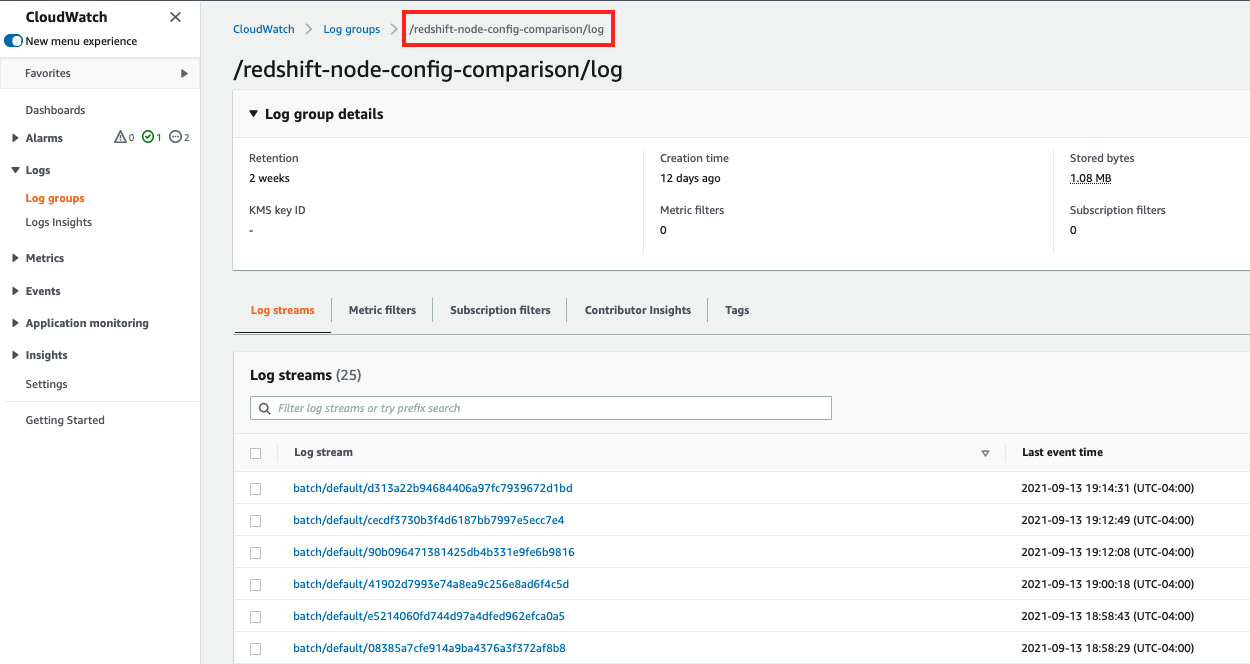
Zynga Inc. is an American game developer running social video game services founded in April 2007. Zynga uses Amazon Redshift as its central data warehouse for game events, user, and revenue data. The data in the Amazon Redshift data warehouse is used for analytics, BI reporting, and AI/ML across all games and departments. Zynga wants to replace any programmatic access clients connected to Amazon Redshift with the new Amazon Redshift Data API. Currently, Zynga’s services connect using a wide variety of clients and drivers, and they plan to consolidate all of them. This will remove the need for Amazon Redshift credentials and regular password rotations. Johan Eklund, Senior Software Engineer, Analytics Engineering team in Zynga, who participated in the beta testing said, “Data API would be an excellent option for our services that will use Amazon Redshift programmatically. The main improvement would be authentication with IAM roles without having to involve the JDBC/ODBC drivers since they are all AWS hosted. Our most common service client environments are PHP, Python, Go plus a few more”.


Conclusion

In this post, we introduced you to the newly launched Amazon Redshift Data API. We also demonstrated how to use the Data API from the Amazon Redshift CLI and Python using the AWS SDK. We also provided best practices for using the Data API. To learn more, read the Amazon Redshift cluster management guide.


About the Authors

Debu Panda, a senior product manager at AWS, is an industry leader in analytics, application platform, and database technologies. He has more than 20 years of experience in the IT industry and has published numerous articles on analytics, enterprise Java, and databases and has presented at multiple conferences. He is lead author of the EJB 3 in Action (Manning Publications 2007, 2014) and Middleware Management (Packt).


Martin Grund is a Principal Engineer working in the Amazon Redshift team on all topics related to data lake (e.g. Redshift Spectrum), AWS platform integration and security.


Chao Duan is a software development manager at Amazon Redshift, where he leads the development team focusing on enabling self-maintenance and self-tuning with comprehensive monitoring for Redshift. Chao is passionate about building high-availability, high-performance, and cost-effective database to empower customers with data-driven decision making.


Daisy Yanrui Zhang is a software Dev Engineer working in the Amazon Redshift team on database monitoring, serverless database and database user experience.