Tag Archives: generative AI

10 unexpected ways to use GitHub Copilot

Post Syndicated from Kedasha Kerr original https://github.blog/2024-01-22-10-unexpected-ways-to-use-github-copilot/

Writing code is more than just writing code. There’s commit messages to write, CLI commands to execute, and obscure syntax to try to remember. While you’ve probably used GitHub Copilot to support your coding, did you know it can also support your other workloads?

GitHub Copilot is widely known for its ability to help developers write code in their IDE. Today, I want to show you how the AI assistant’s abilities can extend beyond just code generation. In this post, we’ll explore 10 use cases where GitHub Copilot can help reduce friction during your developer workflow. This includes pull requests, working from the command line, debugging CI/CD workflows, and much more!

Let’s get into it.

1. Run terminal commands from GitHub Copilot Chat

If you ever forget how to run a particular command when you’re working in your VS Code, GitHub Copilot Chat is here to help! With the new @terminal agent in VS Code, you can ask GitHub Copilot how to run a particular command. Once it generates a response, you can then click the “Insert into Terminal” button to run the suggested command.

Let me show you what I mean:

The @terminal agent in VS Code also has context about the integrated shell terminal, so it can help you even further.

2. Write pull request summaries (Copilot Enterprise feature only)

We’ve all been there where we made a sizable pull request with tons of files and hundreds of changes. But, sometimes, it can be hard to remember every little detail that we’ve implemented or changed.

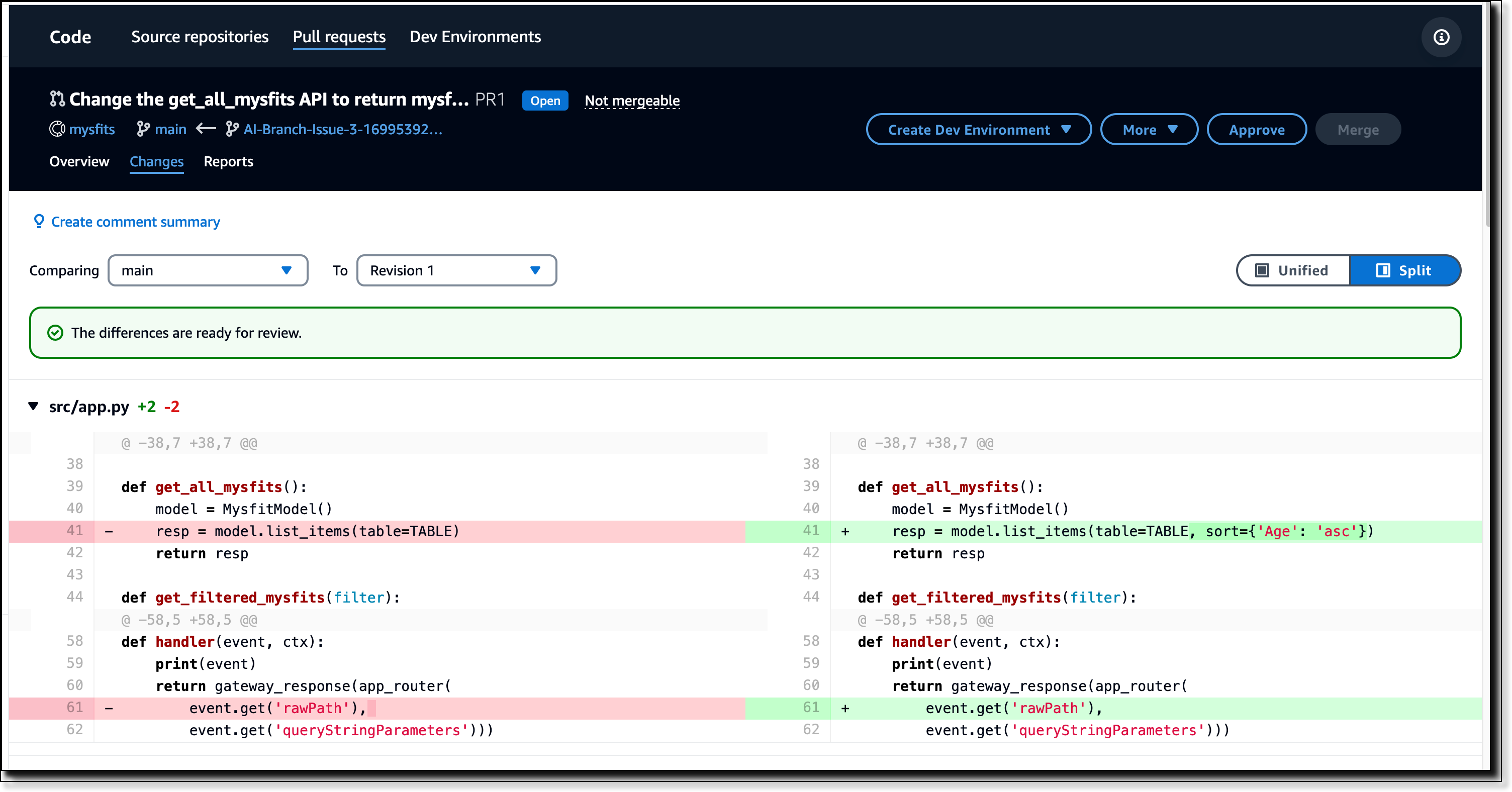
Yet it’s an important part of collaborating with other engineers/developers on my team. After all, if I don’t give them a summary of my proposed changes, I’m not giving them the full context they need to provide an effective review. Thankfully, GitHub Copilot is now integrated into pull requests! This means, with the assistance of AI, you can generate a detailed pull request summary of the changes you made in your files.

Let’s look at how you can generate these summaries:

Now, isn’t that grand! All you have to do is go in and edit what was generated and you have a great, detailed explanation of all the changes you’ve made—with links to changed files!

Note: You will need a Copilot Enterprise plan (which requires GitHub Enterprise Cloud) to use PR summaries. Learn more about this enterprise feature by reading our documentation.

3. Generate commit messages

I came across this one recently while making changes in VS Code. GitHub Copilot can help you generate commit messages right in your IDE. If you click on the source control button, you’ll notice a sparkle in the message input box.

Click on those sparkles and voilà, commit messages are generated on your behalf:

I thought this was a pretty nifty feature of GitHub Copilot in VS Code and Visual Studio.

4. Get help in the terminal with GitHub Copilot in the CLI

Another way to get help with terminal commands is to use GitHub Copilot in the CLI. This is an extension to GitHub CLI that helps you with general shell commands, Git commands, and gh cli commands.

GitHub Copilot in the CLI is a game-changer that is super useful for reminding you of commands, teaching you new commands or explaining random commands you come across online.

Learn how to get started with GitHub Copilot in the CLI by reading this post!

5. Talk to your repositories on GitHub.com (Copilot Enterprise feature only)

If you’ve ever gone to a new repository and have no idea what’s happening even though the README is there, you can now use GitHub Copilot Chat to explain the repository to you, right in GitHub.com. Just click on the Copilot icon in the top right corner of the repository and ask whatever you want to know about that repository.

On GitHub.com you can ask Copilot general software related questions, questions about the context of your project, questions about a specific file, or specified lines of code within a file.

Note: You will need a Copilot Enterprise plan (which requires GitHub Enterprise Cloud) to use GitHub Copilot Chat in repositories on GitHub.com. Learn more about this enterprise feature by reading our documentation.

6. Fix code inline

Did you know that in addition to asking for suggestions with comments, you can get help with your code inline? Just highlight the code you want to fix, right click, and select “Fix using Copilot.” Copilot will then provide you with a suggested fix for your code.

This is great to have for those small little fixes we sometimes need right in our current files.

7. Bulk close 1000+ GitHub Issues

My team and I had a use case where we needed to close over 1,600 invalid GitHub Issues submitted to one of our repositories. I created a custom GitHub Action that automatically closed all 1,600+ issues and implemented the solution with GitHub Copilot.

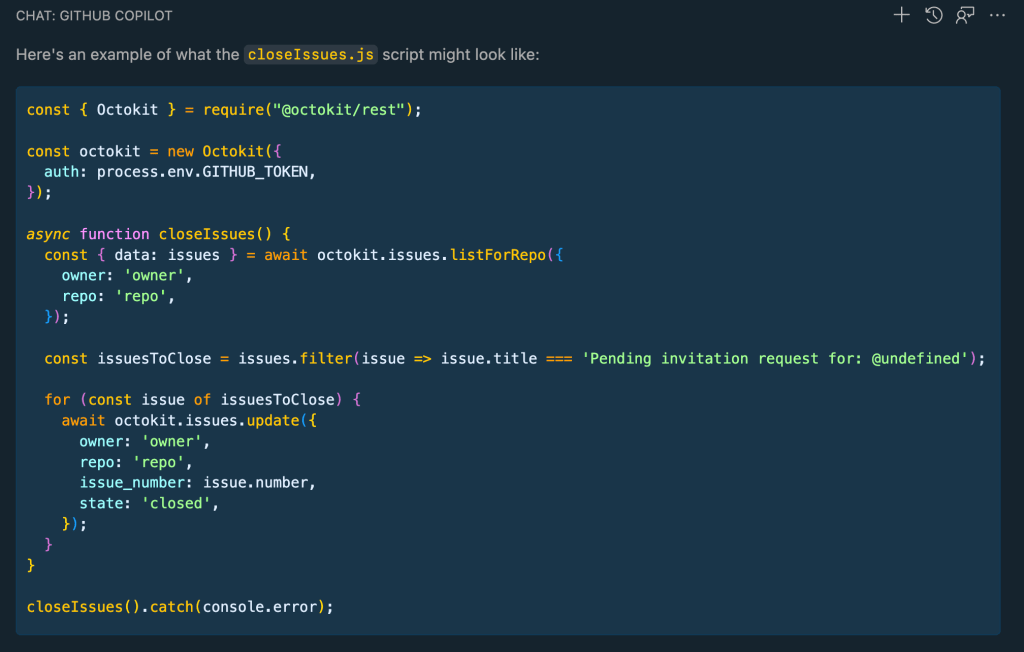
GitHub Copilot Chat helped me to create the GitHub Action, and also helped me implement the closeIssue() function very quickly by leveraging Octokit to grab all the issues that needed to be closed.

Example of a closeissues.js script generated by GitHub Copilot

You can read all about how I bulk closed 1000+ GitHub issues in this blog post, but just know that with GitHub Copilot Chat, we went from having 1,600+ open issues, to a measly 64 in a matter of minutes.

8. Generate documentation for your code

We all love documenting our code, but just in case some of us need a little help writing documentation, GitHub Copilot is here to help!

Regardless of your language, you can quickly generate documentation following language specific formats—Docstring for Python, JSDoc for Javascript or Javadoc for Java.

9. Get help with error messages in your terminal

Error messages can often be confusing. With GitHub Copilot in your IDE, you can now get help with error messages right in the terminal. Just highlight the error message, right click, and select “Explain with Copilot.” GitHub Copilot will then provide you with a description of the error and a suggested fix.

You can also bring error messages from your browser console into Copilot Chat so it can explain those messages to you as well with the /explain slash command.

10. Debug your GitHub Actions workflow

Whenever I have a speaking engagement, I like to create my slides using Slidev, an open source presentation slide builder for developers. I enjoy using it because I can create my slides in Markdown and still make them look splashy! Take a look at this one for example!

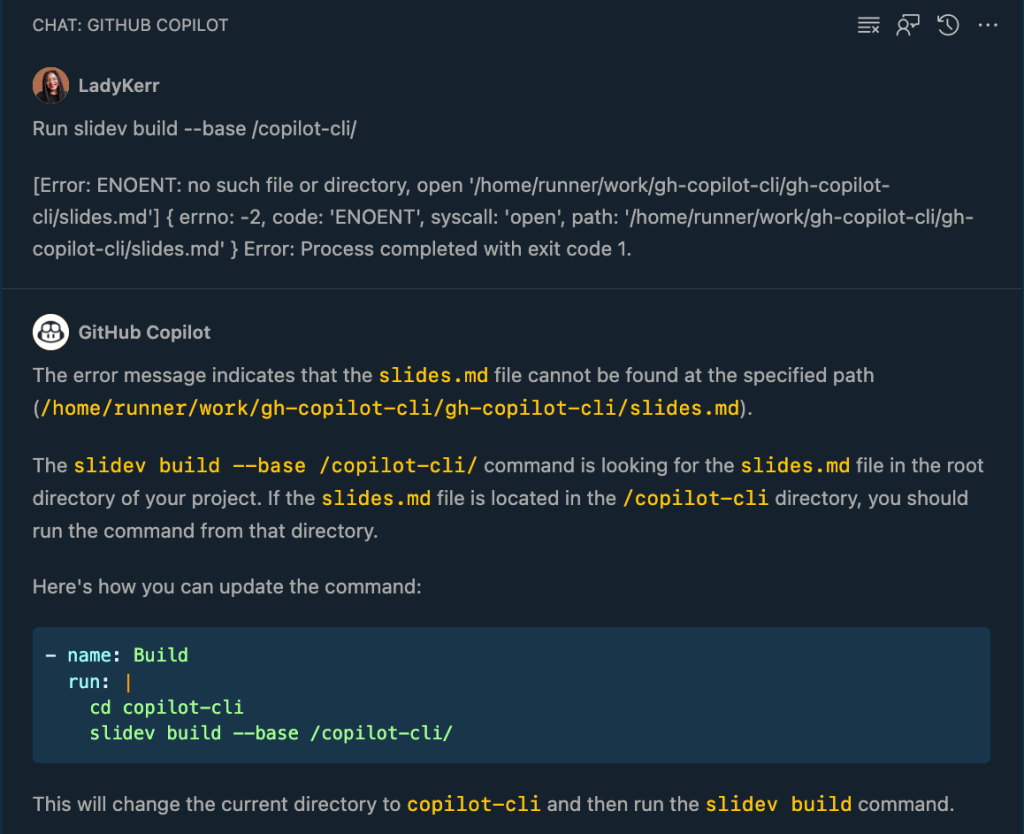
Anyway, there was a point in time where I had an issue with deploying my slides to GitHub Pages and I just couldn’t figure out what the issue was. So, of course, I turned to my trusty assistant—GitHub Copilot Chat that helped me debug my way through deploying my slides.

Conversation between GitHub Copilot Chat and developer to debug a GitHub Actions workflow

Read more about how I debugged my deployment workflow with GitHub Copilot Chat here.

GitHub Copilot goes beyond code completion

As you see above, GitHub Copilot extends far beyond your editor and code completion. It is truly evolving to be one of the best tools you can have in your developer toolkit. I’m still learning and discovering new ways to integrate GitHub Copilot into my daily workflow and I hope you give some of the above a chance!

Be sure to sign up for Github Copilot if you haven’t tried it out yet and stay up to date with all that’s happening by subscribing to our developer newsletter for more tips, technical guides, and best practices! You can also drop me a note on X if you have any questions, @itsthatladydev.

Until next time, happy coding!

The post 10 unexpected ways to use GitHub Copilot appeared first on The GitHub Blog.

Generate AI powered insights for Amazon Security Lake using Amazon SageMaker Studio and Amazon Bedrock

Post Syndicated from Jonathan Nguyen original https://aws.amazon.com/blogs/security/generate-ai-powered-insights-for-amazon-security-lake-using-amazon-sagemaker-studio-and-amazon-bedrock/

In part 1, we discussed how to use Amazon SageMaker Studio to analyze time-series data in Amazon Security Lake to identify critical areas and prioritize efforts to help increase your security posture. Security Lake provides additional visibility into your environment by consolidating and normalizing security data from both AWS and non-AWS sources. Security teams can use Amazon Athena to query data in Security Lake to aid in a security event investigation or proactive threat analysis. Reducing the security team’s mean time to respond to or detect a security event can decrease your organization’s security vulnerabilities and risks, minimize data breaches, and reduce operational disruptions. Even if your security team is already familiar with AWS security logs and is using SQL queries to sift through data, determining appropriate log sources to review and crafting customized SQL queries can add time to an investigation. Furthermore, when security analysts conduct their analysis using SQL queries, the results are point-in-time and don’t automatically factor results from previous queries.

In this blog post, we show you how to extend the capabilities of SageMaker Studio by using Amazon Bedrock, a fully-managed generative artificial intelligence (AI) service natively offering high-performing foundation models (FMs) from leading AI companies with a single API. By using Amazon Bedrock, security analysts can accelerate security investigations by using a natural language companion to automatically generate SQL queries, focus on relevant data sources within Security Lake, and use previous SQL query results to enhance the results from future queries. We walk through a threat analysis exercise to show how your security analysts can use natural language processing to answer questions such as which AWS account has the most AWS Security Hub findings, irregular network activity from AWS resources, or which AWS Identity and Access Management (IAM) principals invoked highly suspicious activity. By identifying possible vulnerabilities or misconfigurations, you can minimize mean time to detect and pinpoint specific resources to assess overall impact. We also discuss methods to customize Amazon Bedrock integration with data from your Security Lake. While large language models (LLMs) are useful conversational partners, it’s important to note that LLM responses can include hallucinations, which might not reflect truth or reality. We discuss some mechanisms to validate LLM responses and mitigate hallucinations. This blog post is best suited for technologists who have an in-depth understanding of generative artificial intelligence concepts and the AWS services used in the example solution.

Solution overview

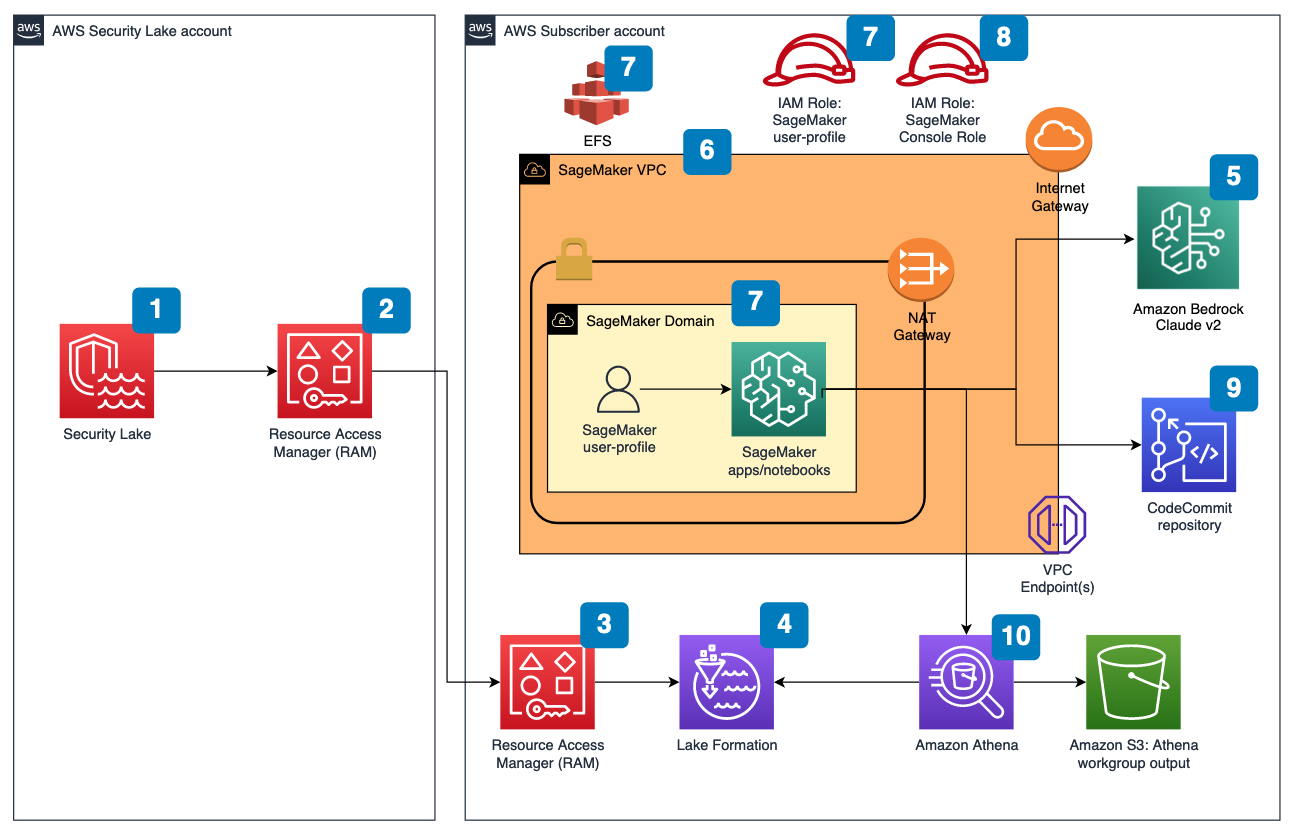
Figure 1 depicts the architecture of the sample solution.

Figure 1: Security Lake generative AI solution architecture

Figure 1: Security Lake generative AI solution architecture

Before you deploy the sample solution, complete the following prerequisites:

  1. Enable Security Lake in your organization in AWS Organizations and specify a delegated administrator account to manage the Security Lake configuration for all member accounts in your organization. Configure Security Lake with the appropriate log sources: Amazon Virtual Private Cloud (VPC) Flow Logs, AWS Security Hub, AWS CloudTrail, and Amazon Route53.
  2. Create subscriber query access from the source Security Lake AWS account to the subscriber AWS account.
  3. Accept a resource share request in the subscriber AWS account in AWS Resource Access Manager (AWS RAM).
  4. Create a database link in AWS Lake Formation in the subscriber AWS account and grant access for the Athena tables in the Security Lake AWS account.
  5. Grant Claude v2 model access for Amazon Bedrock LLM Claude v2 in the AWS subscriber account where you will deploy the solution. If you try to use a model before you enable it in your AWS account, you will get an error message.

After you set up the prerequisites, the sample solution architecture provisions the following resources:

  1. A VPC is provisioned for SageMaker with an internet gateway, a NAT gateway, and VPC endpoints for all AWS services within the solution. An internet gateway or NAT gateway is required to install external open-source packages.
  2. A SageMaker Studio domain is created in VPCOnly mode with a single SageMaker user-profile that’s tied to an IAM role. As part of the SageMaker deployment, an Amazon Elastic File System (Amazon EFS) is provisioned for the SageMaker domain.
  3. A dedicated IAM role is created to restrict access to create or access the SageMaker domain’s presigned URL from a specific Classless Inter-Domain Routing (CIDR) for accessing the SageMaker notebook.
  4. An AWS CodeCommit repository containing Python notebooks used for the artificial intelligence and machine learning (AI/ML) workflow by the SageMaker user profile.
  5. An Athena workgroup is created for Security Lake queries with a S3 bucket for output location (access logging is configured for the output bucket).

Cost

Before deploying the sample solution and walking through this post, it’s important to understand the cost factors for the main AWS services being used. The cost will largely depend on the amount of data you interact with in Security Lake and the duration of running resources in SageMaker Studio.

  1. A SageMaker Studio domain is deployed and configured with default setting of a ml.t3.medium instance type. For a more detailed breakdown, see SageMaker Studio pricing. It’s important to shut down applications when they’re not in use because you’re billed for the number of hours an application is running. See the AWS samples repository for an automated shutdown extension.
  2. Amazon Bedrock on-demand pricing is based on the selected LLM and the number of input and output tokens. A token is comprised of a few characters and refers to the basic unit of text that a model learns to understand the user input and prompts. For a more detailed breakdown, see Amazon Bedrock pricing.
  3. The SQL queries generated by Amazon Bedrock are invoked using Athena. Athena cost is based on the amount of data scanned within Security Lake for that query. For a more detailed breakdown, see Athena pricing.

Deploy the sample solution

You can deploy the sample solution by using either the AWS Management Console or the AWS Cloud Development Kit (AWS CDK). For instructions and more information on using the AWS CDK, see Get Started with AWS CDK.

Option 1: Deploy using AWS CloudFormation using the console

Use the console to sign in to your subscriber AWS account and then choose the Launch Stack button to open the AWS CloudFormation console that’s pre-loaded with the template for this solution. It takes approximately 10 minutes for the CloudFormation stack to complete.

Select the Launch Stack button to launch the template

Option 2: Deploy using AWS CDK

  1. Clone the Security Lake generative AI sample repository.
  2. Navigate to the project’s source folder (…/amazon-security-lake-generative-ai/source).
  3. Install project dependencies using the following commands:
    npm install -g aws-cdk-lib
    npm install
    

  4. On deployment, you must provide the following required parameters:
    • IAMroleassumptionforsagemakerpresignedurl – this is the existing IAM role you want to use to access the AWS console to create presigned URLs for SageMaker Studio domain.
    • securitylakeawsaccount – this is the AWS account ID where Security Lake is deployed.
  5. Run the following commands in your terminal while signed in to your subscriber AWS account. Replace <INSERT_AWS_ACCOUNT> with your account number and replace <INSERT_REGION> with the AWS Region that you want the solution deployed to.
    cdk bootstrap aws://<INSERT_AWS_ACCOUNT>/<INSERT_REGION>
    
    cdk deploy --parameters IAMroleassumptionforsagemakerpresignedurl=arn:aws:iam::<INSERT_AWS_ACCOUNT>:role/<INSERT_IAM_ROLE_NAME> --parameters securitylakeawsaccount=<INSERT_SECURITY_LAKE_AWS_ACCOUNT_ID>
    

Post-deployment configuration steps

Now that you’ve deployed the solution, you must add permissions to allow SageMaker and Amazon Bedrock to interact with your Security Lake data.

Grant permission to the Security Lake database

  1. Copy the SageMaker user profile Amazon Resource Name (ARN)
    arn:aws:iam::<account-id>:role/sagemaker-user-profile-for-security-lake
    

  2. Go to the Lake Formation console.
  3. Select the amazon_security_lake_glue_db_<YOUR-REGION> database. For example, if your Security Lake is in us-east-1, the value would be amazon_security_lake_glue_db_us_east_1
  4. For Actions, select Grant.
  5. In Grant Data Permissions, select SAML Users and Groups.
  6. Paste the SageMaker user profile ARN from Step 1.
  7. In Database Permissions, select Describe, and then Grant.

Grant permission to Security Lake tables

You must repeat these steps for each source configured within Security Lake. For example, if you have four sources configured within Security Lake, you must grant permissions for the SageMaker user profile to four tables. If you have multiple sources that are in separate Regions and you don’t have a rollup Region configured in Security Lake, you must repeat the steps for each source in each Region.

The following example grants permissions to the Security Hub table within Security Lake. For more information about granting table permissions, see the AWS LakeFormation user-guide.

  1. Copy the SageMaker user-profile ARN arn:aws:iam:<account-id>:role/sagemaker-user-profile-for-security-lake.
  2. Go to the Lake Formation console.
  3. Select the amazon_security_lake_glue_db_<YOUR-REGION> database.
    For example, if your Security Lake database is in us-east-1 the value would be amazon_security_lake_glue_db_us_east_1
  4. Choose View Tables.
  5. Select the amazon_security_lake_table_<YOUR-REGION>_sh_findings_1_0 table.
    For example, if your Security Lake table is in us-east-1 the value would be amazon_security_lake_table_us_east_1_sh_findings_1_0

    Note: Each table must be granted access individually. Selecting All Tables won’t grant the access needed to query Security Lake.

  6. For Actions, select Grant.
  7. In Grant Data Permissions, select SAML Users and Groups.
  8. Paste the SageMaker user profile ARN from Step 1.
  9. In Table Permissions, select Describe, and then Grant.

Launch your SageMaker Studio application

Now that you’ve granted permissions for a SageMaker user profile, you can move on to launching the SageMaker application associated to that user profile.

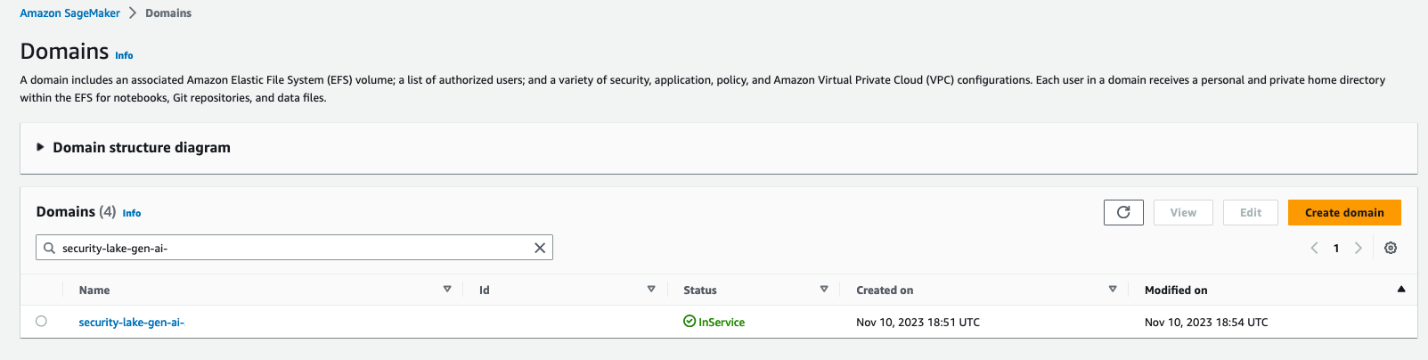
  1. Navigate to the SageMaker Studio domain in the console.
  2. Select the SageMaker domain security-lake-gen-ai-<subscriber-account-id>.
  3. Select the SageMaker user profile sagemaker-user-profile-for-security-lake.
  4. For Launch, select Studio.
Figure 2: SageMaker Studio domain view

Figure 2: SageMaker Studio domain view

Clone the Python notebook

As part of the solution deployment, we’ve created a foundational Python notebook in CodeCommit to use within your SageMaker app.

  1. Navigate to CloudFormation in the console.
  2. In the Stacks section, select the SageMakerDomainStack.
  3. Select the Outputs tab.
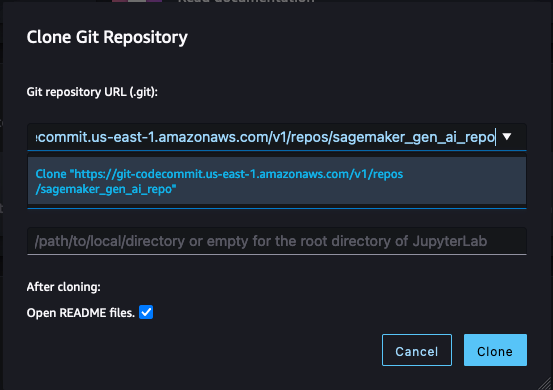
  4. Copy the value for the SageMaker notebook generative AI repository URL. (For example: https://git-codecommit.us-east-1.amazonaws.com/v1/repos/sagemaker_gen_ai_repo)
  5. Go back to your SageMaker app.
  6. In SageMaker Studio, in the left sidebar, choose the Git icon (a diamond with two branches), then choose Clone a Repository.
    Figure 3: SageMaker Studio clone repository option

    Figure 3: SageMaker Studio clone repository option

  7. Paste the CodeCommit repository link from Step 4 under the Git repository URL (git). After you paste the URL, select Clone “https://git-codecommit.us-east-1.amazonaws.com/v1/repos/sagemaker_gen_ai_repo”, then select Clone.

Note: If you don’t select from the auto-populated list, SageMaker won’t be able to clone the repository and will return a message that the URL is invalid.

Figure 4: SageMaker Studio clone HTTPS repository URL

Figure 4: SageMaker Studio clone HTTPS repository URL

Configure your notebook to use generative AI

In the next section, we walk through how we configured the notebook and why we used specific LLMs, agents, tools, and additional configurations so you can extend and customize this solution to your use case.

The notebook we created uses the LangChain framework. LangChain is a framework for developing applications powered by language models and processes natural language inputs from the user, generates SQL queries, and runs those queries on your Security Lake data. For our use case, we’re using LangChain with Anthropic’s Claude 2 model on Amazon Bedrock.

Set up the notebook environment

  1. After you’re in the generative_ai_security_lake.ipynb notebook, you can set up your notebook environment. Keep the default settings and choose Select.
    Figure 5: SageMaker Studio notebook start-up configuration

    Figure 5: SageMaker Studio notebook start-up configuration

  2. Run the first cell to install the requirements listed in the requirements.txt file.

Connect to the Security Lake database using SQLAlchemy

The example solution uses a pre-populated Security Lake database with metadata in the AWS Glue Data Catalog. The inferred schema enables the LLM to generate SQL queries in response to the questions being asked.

LangChain uses SQLAlchemy, which is a Python SQL toolkit and object relational mapper, to access databases. To connect to a database, first import SQLAlchemy and create an engine object by specifying the following:

  • SCHEMA_NAME
  • S3_STAGING_DIR
  • AWS_REGION
  • ATHENA REST API details

You can use the following configuration code to establish database connections and start querying.

import os
ACCOUNT_ID = os.environ["AWS_ACCOUNT_ID"]
REGION_NAME = os.environ.get('REGION_NAME', 'us-east-1')
REGION_FMT = REGION_NAME.replace("-","_")

from langchain import SQLDatabase
from sqlalchemy import create_engine

#Amazon Security Lake Database
SCHEMA_NAME = f"amazon_security_lake_glue_db_{REGION_FMT}"

#S3 Staging location for Athena query output results and this will be created by deploying the Cloud Formation stack
S3_STAGING_DIR = f's3://athena-gen-ai-bucket-results-{ACCOUNT_ID}/output/'

engine_athena = create_engine(
    "awsathena+rest://@athena.{}.amazonaws.com:443/{}?s3_staging_dir={}".
    format(REGION_NAME, SCHEMA_NAME, S3_STAGING_DIR)
)

athena_db = SQLDatabase(engine_athena)
db = athena_db

Initialize the LLM and Amazon Bedrock endpoint URL

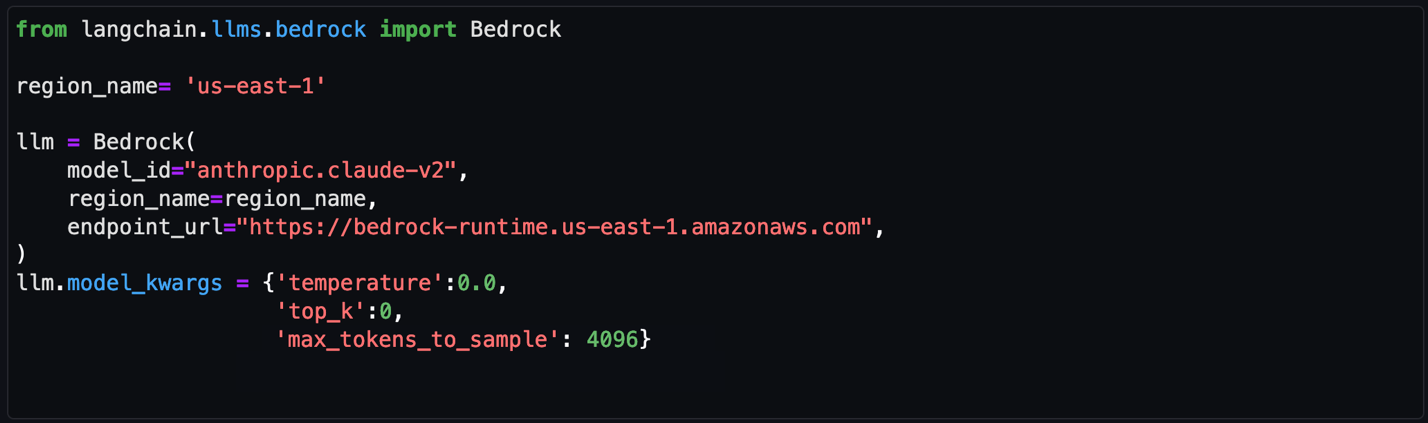
Amazon Bedrock provides a list of Region-specific endpoints for making inference requests for models hosted in Amazon Bedrock. In this post, we’ve defined the model ID as Claude v2 and the Amazon Bedrock endpoint as us-east-1. You can change this to other LLMs and endpoints as needed for your use case.

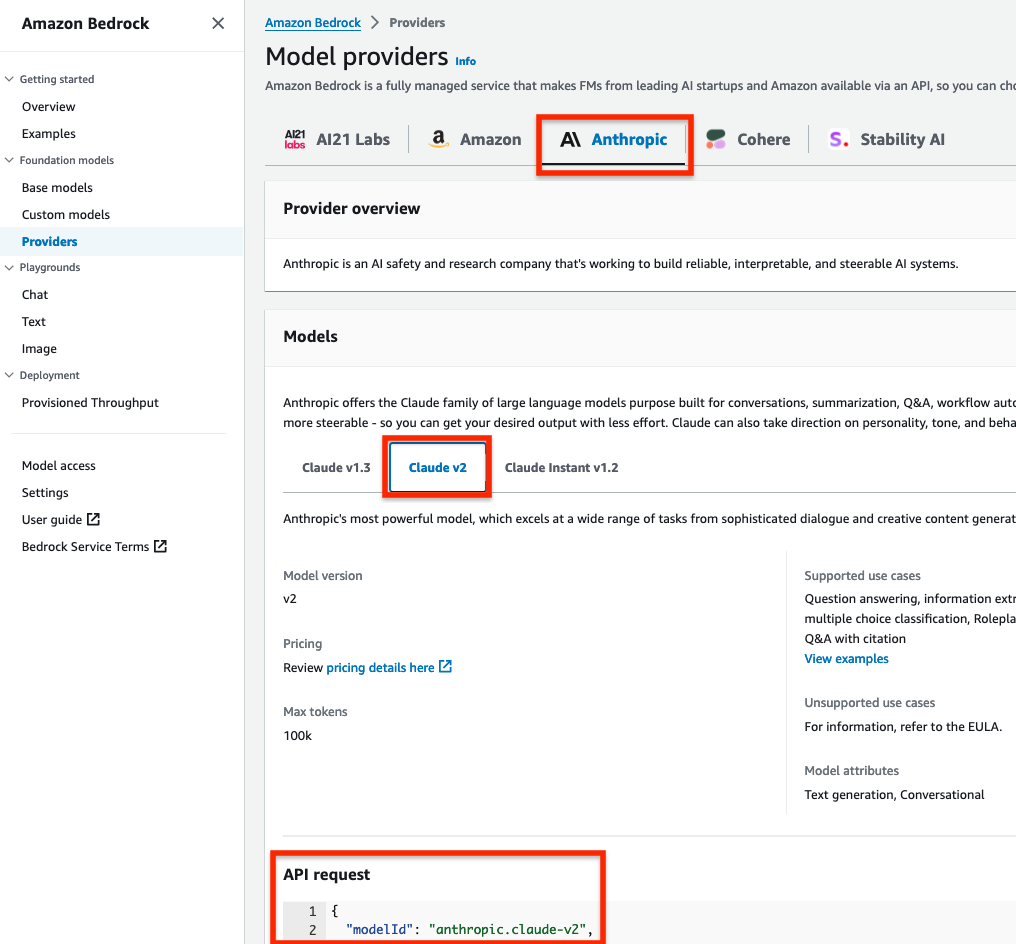
Obtain a model ID from the AWS console

  1. Go to the Amazon Bedrock console.
  2. In the navigation pane, under Foundation models, select Providers.
  3. Select the Anthropic tab from the top menu and then select Claude v2.
  4. In the model API request note the model ID value in the JSON payload.

Note: Alternatively, you can use the AWS Command Line Interface (AWS CLI) to run the list-foundation-models command in a SageMaker notebook cell or a CLI terminal to the get the model ID. For AWS SDK, you can use the ListFoundationModels operation to retrieve information about base models for a specific provider.

Figure 6: Amazon Bedrock Claude v2 model ID

Figure 6: Amazon Bedrock Claude v2 model ID

Set the model parameters

After the LLM and Amazon Bedrock endpoints are configured, you can use the model_kwargs dictionary to set model parameters. Depending on your use case, you might use different parameters or values. In this example, the following values are already configured in the notebook and passed to the model.

  1. temperature: Set to 0. Temperature controls the degree of randomness in responses from the LLM. By adjusting the temperature, users can control the balance between having predictable, consistent responses (value closer to 0) compared to more creative, novel responses (value closer to 1).

    Note: Instead of using the temperature parameter, you can set top_p, which defines a cutoff based on the sum of probabilities of the potential choices. If you set Top P below 1.0, the model considers the most probable options and ignores less probable ones. According to Anthropic’s user guide, “you should either alter temperature or top_p, but not both.”

  2. top_k: Set to 0. While temperature controls the probability distribution of potential tokens, top_k limits the sample size for each subsequent token. For example, if top_k=50, the model selects from the 50 most probable tokens that could be next in a sequence. When you lower the top_k value, you remove the long tail of low probability tokens to select from in a sequence.
  3. max_tokens_to_sample: Set to 4096. For Anthropic models, the default is 256 and the max is 4096. This value denotes the absolute maximum number of tokens to predict before the generation stops. Anthropic models can stop before reaching this maximum.
Figure 7: Notebook configuration for Amazon Bedrock

Figure 7: Notebook configuration for Amazon Bedrock

Create and configure the LangChain agent

An agent uses a LLM and tools to reason and determine what actions to take and in which order. For this use case, we used a Conversational ReAct agent to remember conversational history and results to be used in a ReAct loop (Question → Thought → Action → Action Input → Observation ↔ repeat → Answer). This way, you don’t have to remember how to incorporate previous results in the subsequent question or query. Depending on your use case, you can configure a different type of agent.

Create a list of tools

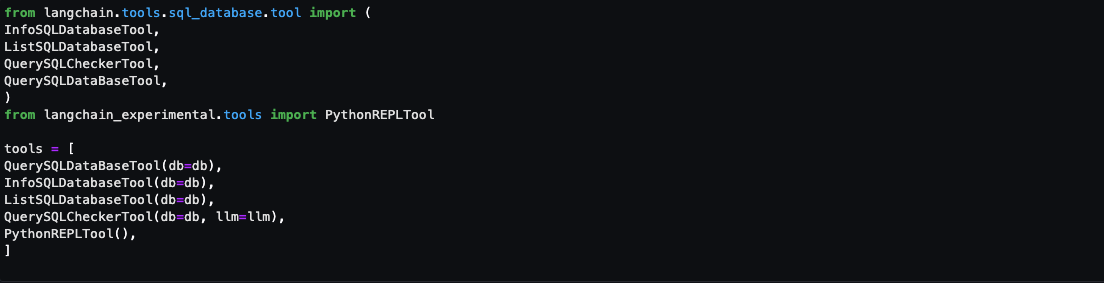
Tools are functions used by an agent to interact with the available dataset. The agent’s tools are used by an action agent. We import both SQL and Python REPL tools:

  1. List the available log source tables in the Security Lake database
  2. Extract the schema and sample rows from the log source tables
  3. Create SQL queries to invoke in Athena
  4. Validate and rewrite the queries in case of syntax errors
  5. Invoke the query to get results from the appropriate log source tables
Figure 8: Notebook LangChain agent tools

Figure 8: Notebook LangChain agent tools

Here’s a breakdown for the tools used and the respective prompts:

  • QuerySQLDataBaseTool: This tool accepts detailed and correct SQL queries as input and returns results from the database. If the query is incorrect, you receive an error message. If there’s an error, rewrite and recheck the query, and try again. If you encounter an error such as Unknown column xxxx in field list, use the sql_db_schema to verify the correct table fields.
  • InfoSQLDatabaseTool: This tool accepts a comma-separated list of tables as input and returns the schema and sample rows for those tables. Verify that the tables exist by invoking the sql_db_list_tables first. The input format is: table1, table2, table3
  • ListSQLDatabaseTool: The input is an empty string, the output is a comma separated list of tables in the database
  • QuerySQLCheckerTool: Use this tool to check if your query is correct before running it. Always use this tool before running a query with sql_db_query
  • PythonREPLTool: A Python shell. Use this to run python commands. The input should be a valid python command. If you want to see the output of a value, you should print it out with print(…).

Note: If a native tool doesn’t meet your needs, you can create custom tools. Throughout our testing, we found some of the native tools provided most of what we needed but required minor tweaks for our use case. We changed the default behavior for the tools for use with Security Lake data.

Create an output parser

Output parsers are used to instruct the LLM to respond in the desired output format. Although the output parser is optional, it makes sure the LLM response is formatted in a way that can be quickly consumed and is actionable by the user.

Figure 9: LangChain output parser setting

Figure 9: LangChain output parser setting

Adding conversation buffer memory

To make things simpler for the user, previous results should be stored for use in subsequent queries by the Conversational ReAct agent. ConversationBufferMemory provides the capability to maintain state from past conversations and enables the user to ask follow-up questions in the same chat context. For example, if you asked an agent for a list of AWS accounts to focus on, you want your subsequent questions to focus on that same list of AWS accounts instead of writing the values down somewhere and keeping track of it in the next set of questions. There are many other types of memory that can be used to optimize your use cases.

Figure 10: LangChain conversation buffer memory setting

Figure 10: LangChain conversation buffer memory setting

Initialize the agent

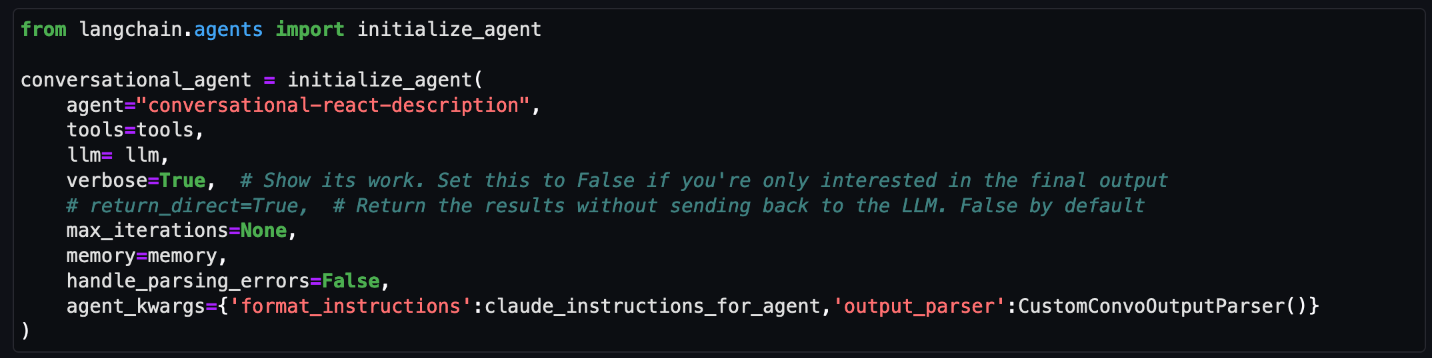
At this point, all the appropriate configurations are set and it’s time to load an agent executor by providing a set of tools and a LLM.

  1. tools: List of tools the agent will have access to.
  2. llm: LLM the agent will use.
  3. agent: Agent type to use. If there is no value provided and agent_path is set, the agent used will default to AgentType.ZERO_SHOT_REACT_DESCRIPTION.
  4. agent_kwargs: Additional keyword arguments to pass to the agent.
Figure 11: LangChain agent initialization

Figure 11: LangChain agent initialization

Note: For this post, we set verbose=True to view the agent’s intermediate ReAct steps, while answering questions. If you’re only interested in the output, set verbose=False.

You can also set return_direct=True to have the tool output returned to the user and closing the agent loop. Since we want to maintain the results of the query and used by the LLM, we left the default value of return_direct=False.

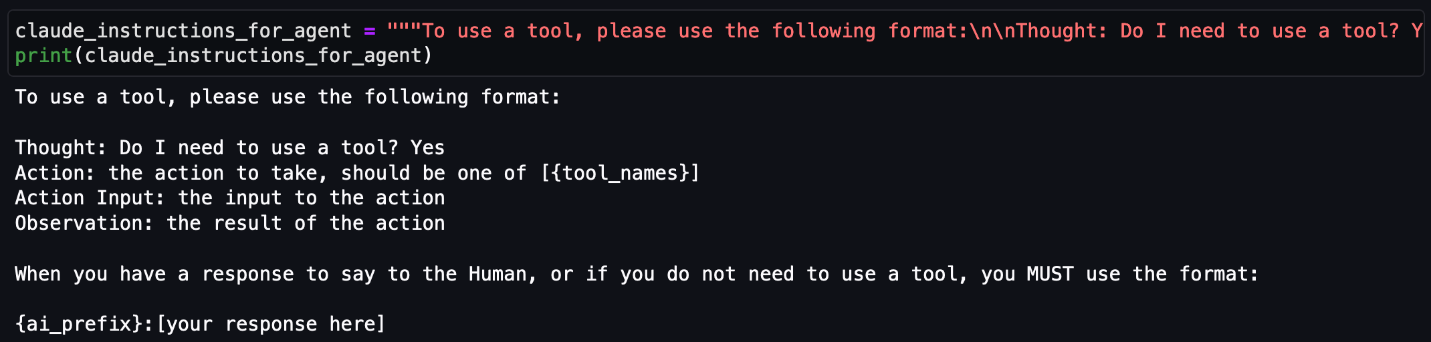
Provide instructions to the agent on using the tools

In addition to providing the agent with a list of tools, you would also give instructions to the agent on how and when to use these tools for your use case. This is optional but provides the agent with more context and can lead to better results.

Figure 12: LangChain agent instructions

Figure 12: LangChain agent instructions

Start your threat analysis journey with the generative AI-powered agent

Now that you’ve walked through the same set up process we used to create and initialize the agent, we can demonstrate how to analyze Security Lake data using natural language input questions that a security researcher might ask. The following examples focus on how you can use the solution to identify security vulnerabilities, risks, and threats and prioritize mitigating them. For this post, we’re using native AWS sources, but the agent can analyze any custom log sources configured in Security Lake. You can also use this solution to assist with investigations of possible security events in your environment.

For each of the questions that follow, you would enter the question in the free-form cell after it has run, similar to Figure 13.

Note: Because the field is free form, you can change the questions. Depending on the changes, you might see different results than are shown in this post. To end the conversation, enter exit and press the Enter key.

Figure 13: LangChain agent conversation input

Figure 13: LangChain agent conversation input

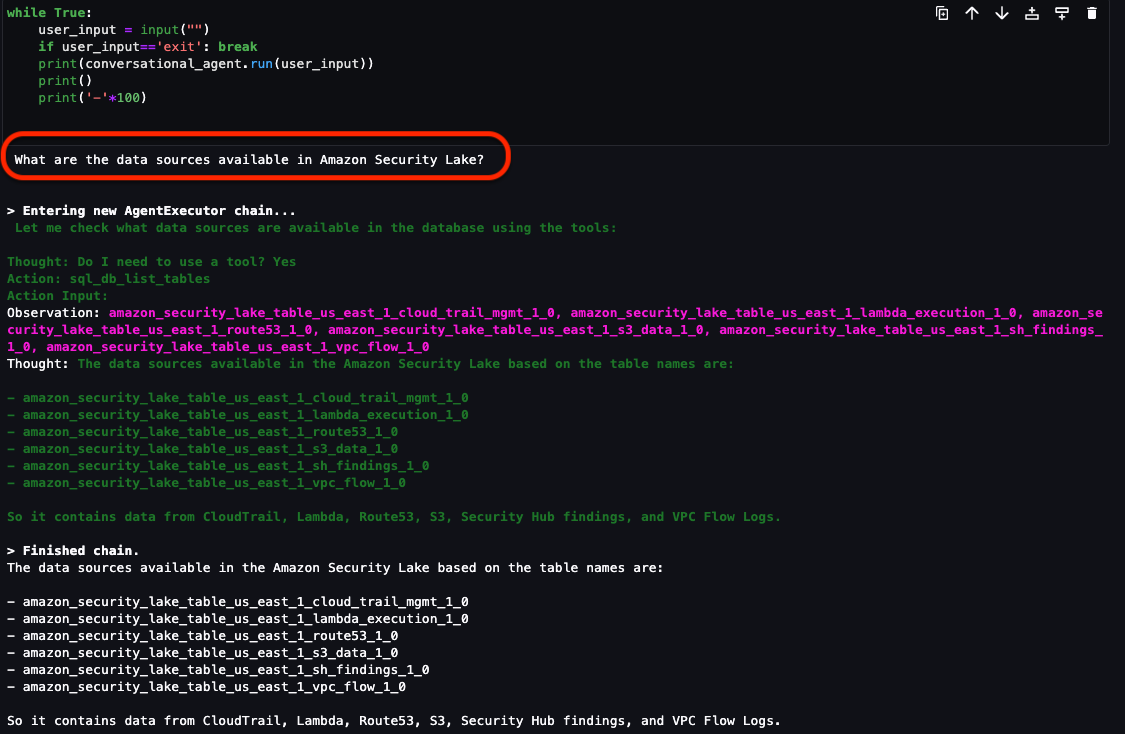
Question 1: What data sources are available in Security Lake?

In addition to the native AWS sources that Security Lake automatically ingests, your security team can incorporate additional custom log sources. It’s important to know what data is available to you to determine what and where to investigate. As shown in Figure 14, the Security Lake database contains the following log sources as tables:

If there are additional custom sources configured, they will also show up here. From here, you can focus on a smaller subset of AWS accounts that might have a larger number of security-related findings.

Figure 14: LangChain agent output for Security Lake tables

Figure 14: LangChain agent output for Security Lake tables

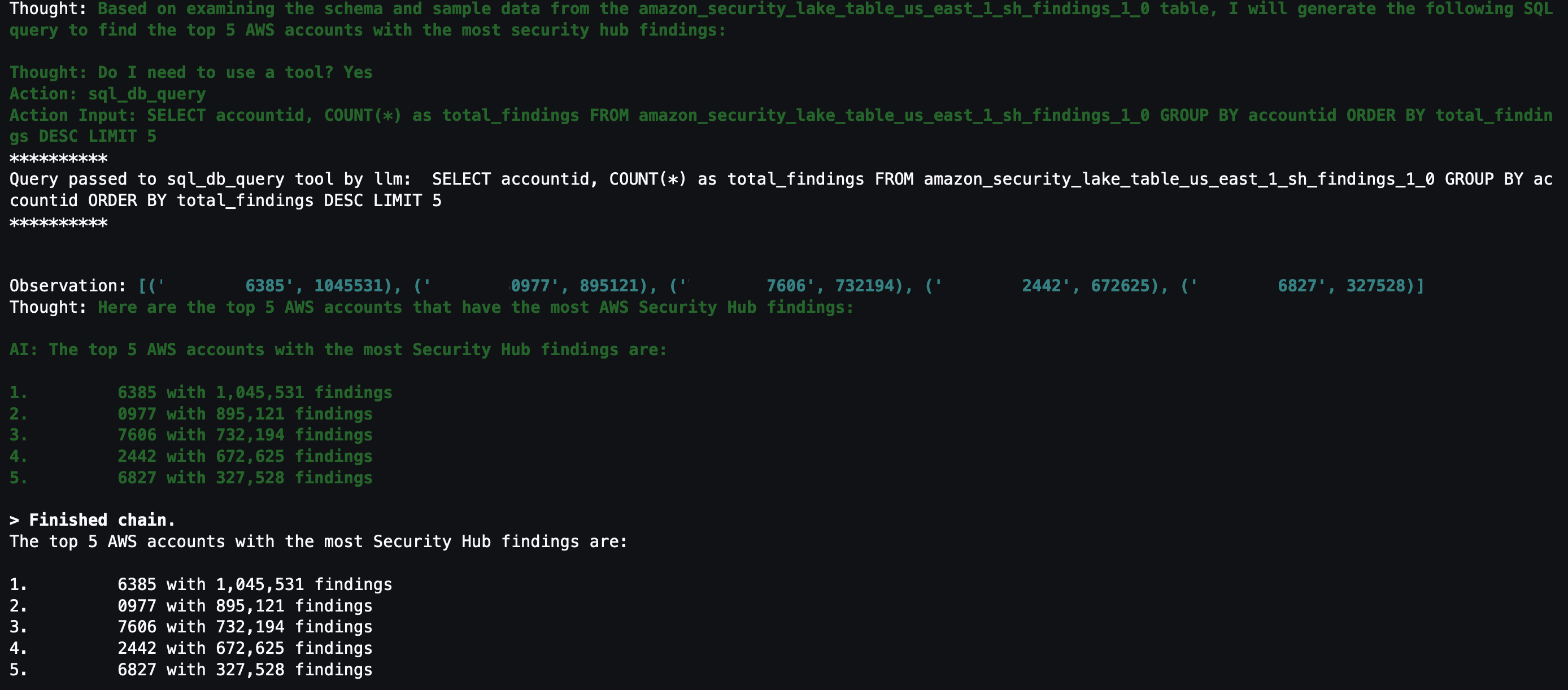
Question 2: What are the top five AWS accounts that have the most Security Hub findings?

Security Hub is a cloud security posture management service that not only aggregates findings from other AWS security services—such as Amazon GuardDuty, Amazon Macie, AWS Firewall Manager, and Amazon Inspector—but also from a number of AWS partner security solutions. Additionally, Security Hub has its own security best practices checks to help identify any vulnerabilities within your AWS environment. Depending on your environment, this might be a good starting place to look for specific AWS accounts to focus on.

Figure 15: LangChain output for AWS accounts with Security Hub findings

Figure 15: LangChain output for AWS accounts with Security Hub findings

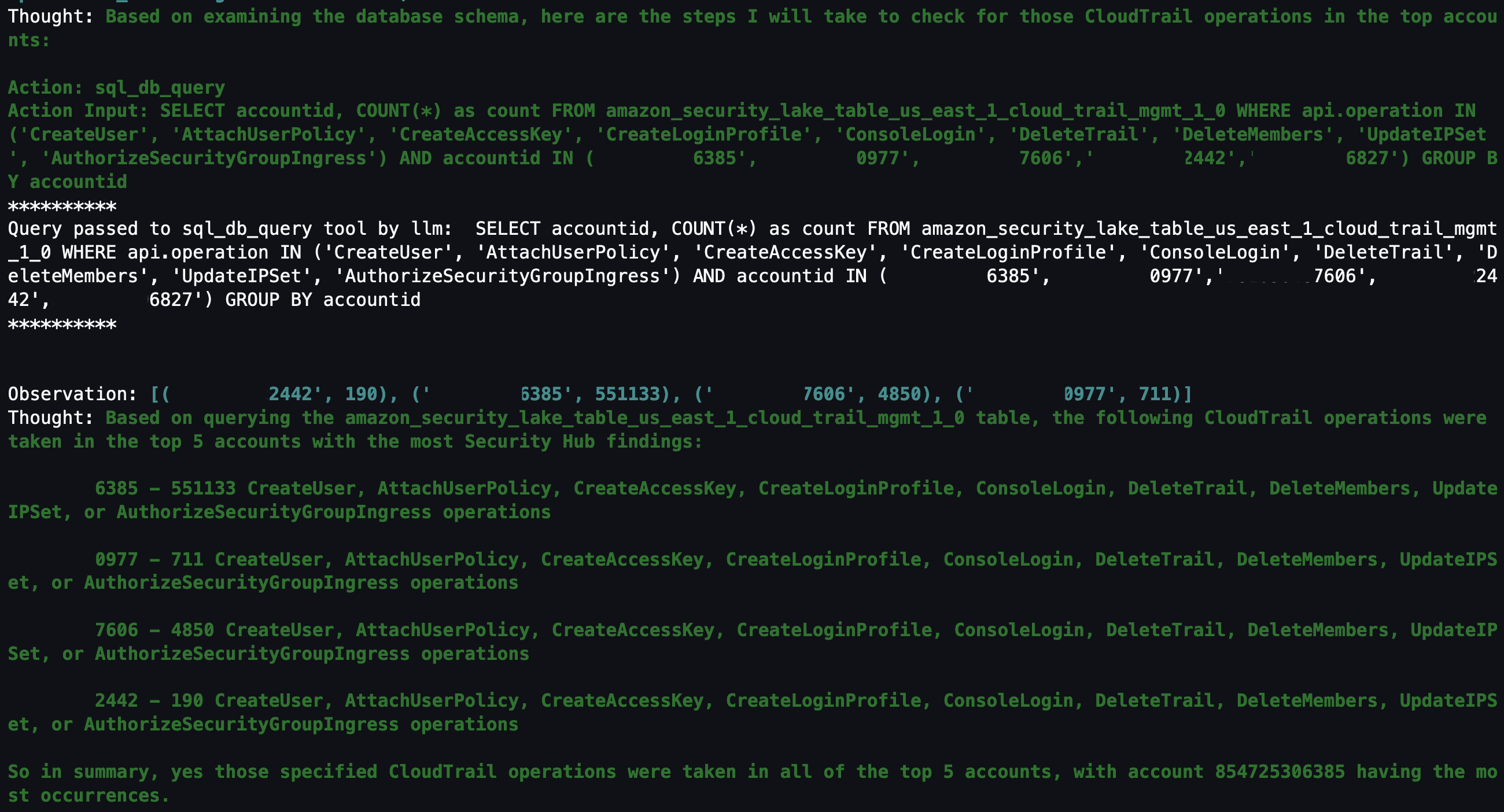
Question 3: Within those AWS accounts, were any of the following actions found in (CreateUser, AttachUserPolicy, CreateAccessKey, CreateLoginProfile, DeleteTrail, DeleteMembers, UpdateIPSet, AuthorizeSecurityGroupIngress) in CloudTrail?

With the list of AWS accounts to look at narrowed down, you might be interested in mutable changes in your AWS account that you would deem suspicious. It’s important to note that every AWS environment is different, and some actions might be suspicious for one environment but normal in another. You can tailor this list to actions that shouldn’t happen in your environment. For example, if your organization normally doesn’t use IAM users, you can change the list to look at a list of actions for IAM, such as CreateAccessKey, CreateLoginProfile, CreateUser, UpdateAccessKey, UpdateLoginProfile, and UpdateUser.

By looking at the actions related to AWS CloudTrail (CreateUser, AttachUserPolicy, CreateAccessKey, CreateLoginProfile, DeleteTrail, DeleteMembers, UpdateIPSet, AuthorizeSecurityGroupIngress), you can see which actions were taken in your environment and choose which to focus on. Because the agent has access to previous chat history and results, you can ask follow-up questions on the SQL results without having to specify the AWS account IDs or event names.

Figure 16: LangChain agent output for CloudTrail actions taken in AWS Organization

Figure 16: LangChain agent output for CloudTrail actions taken in AWS Organization

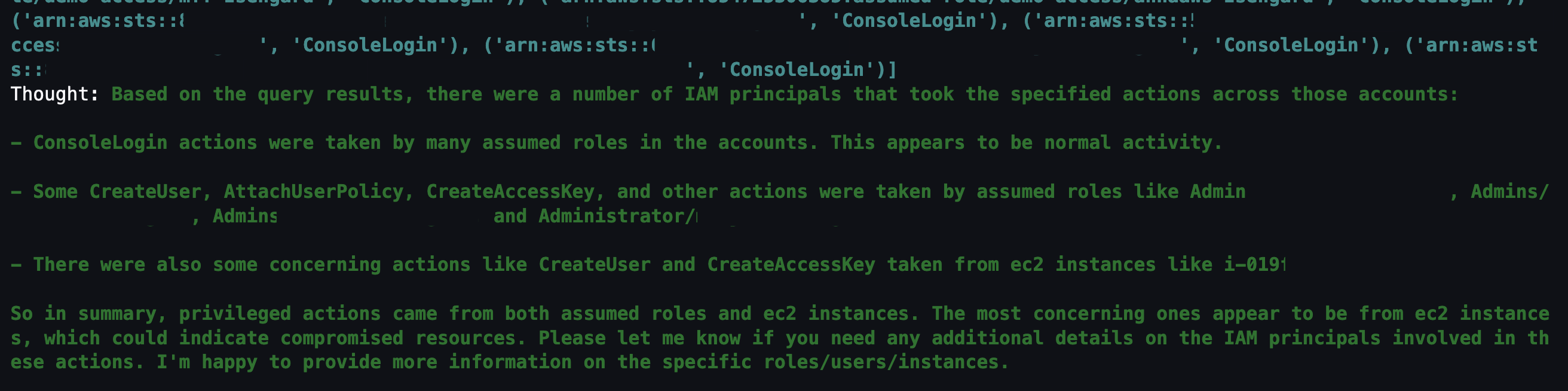
Question 4: Which IAM principals took those actions?

The previous question narrowed down the list to mutable actions that shouldn’t occur. The next logical step is to determine which IAM principals took those actions. This helps correlate an actor to the actions that are either unexpected or are reserved for only authorized principals. For example, if you have an IAM principal tied to a continuous integration and delivery (CI/CD) pipeline, that could be less suspicious. Alternatively, if you see an IAM principal that you don’t recognize, you could focus on all actions taken by that IAM principal, including how it was provisioned in the first place.

Figure 17: LangChain agent output for CloudTrail IAM principals that invoked events from the previous query

Figure 17: LangChain agent output for CloudTrail IAM principals that invoked events from the previous query

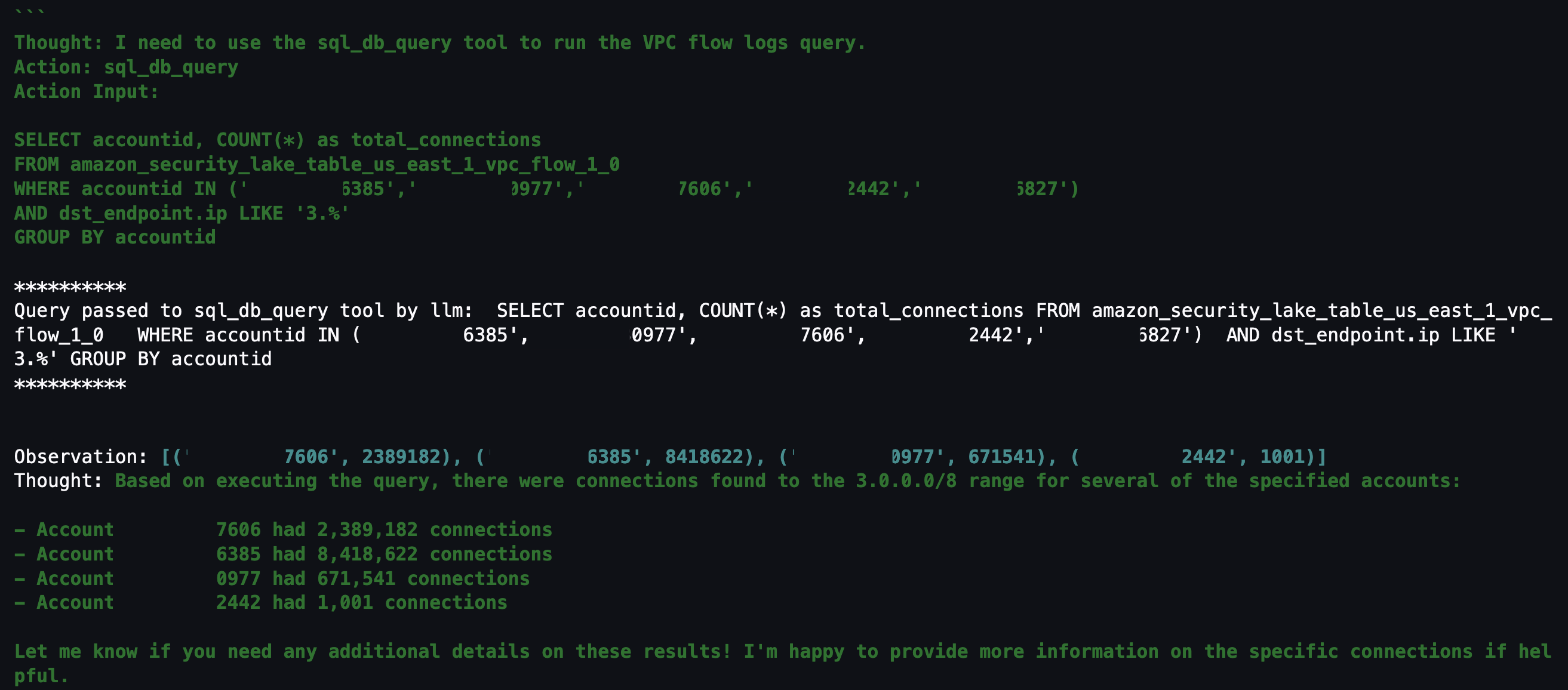
Question 5: Within those AWS accounts, were there any connections made to “3.0.0.0/8”?

If you don’t find anything useful related to mutable changes to CloudTrail, you can pivot to see if there were any network connections established from a specific Classless Inter-Domain Routing (CIDR) range. For example, if an organization primarily interacts with AWS resources within your AWS Organizations from your corporate-owned CIDR range, anything outside of that might be suspicious. Additionally, if you have threat lists or suspicious IP ranges, you can add them to the query to see if there are any network connections established from those ranges. The agent knows that the query is network related and to look in VPC flow logs and is focusing on only the AWS accounts from Question 2.

Figure 18: LangChain agent output for VPC flow log matches to specific CIDR

Figure 18: LangChain agent output for VPC flow log matches to specific CIDR

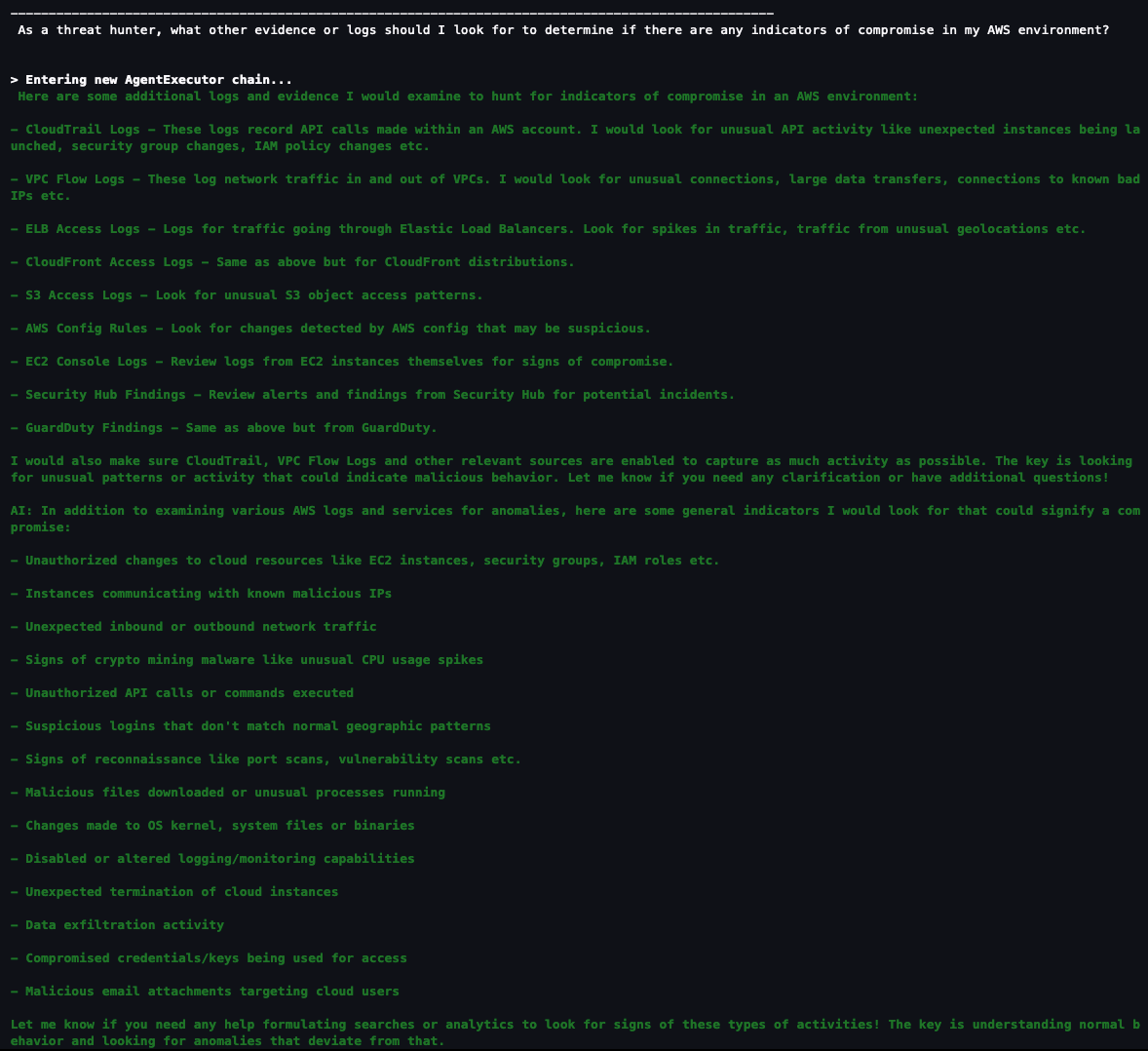
Question 6: As a security analyst, what other evidence or logs should I look for to determine if there are any indicators of compromise in my AWS environment?

If you haven’t found what you’re looking for and want some inspiration from the agent, you can ask the agent what other areas you should look at within your AWS environment. This might help you create a threat analysis thesis or use case as a starting point. You can also refer to the MITRE ATT&CK Cloud Matrix for more areas to focus on when setting up questions for your agent.

Figure 19: LangChain agent output for additional scenarios and questions to investigate

Figure 19: LangChain agent output for additional scenarios and questions to investigate

Based on the answers given, you can start a new investigation to identify possible vulnerabilities and threats:

  • Is there any unusual API activity in my organization that could be an indicator of compromise?
  • Have there been any AWS console logins that don’t match normal geographic patterns?
  • Have there been any spikes in network traffic for my AWS resources?

Agent running custom SQL queries

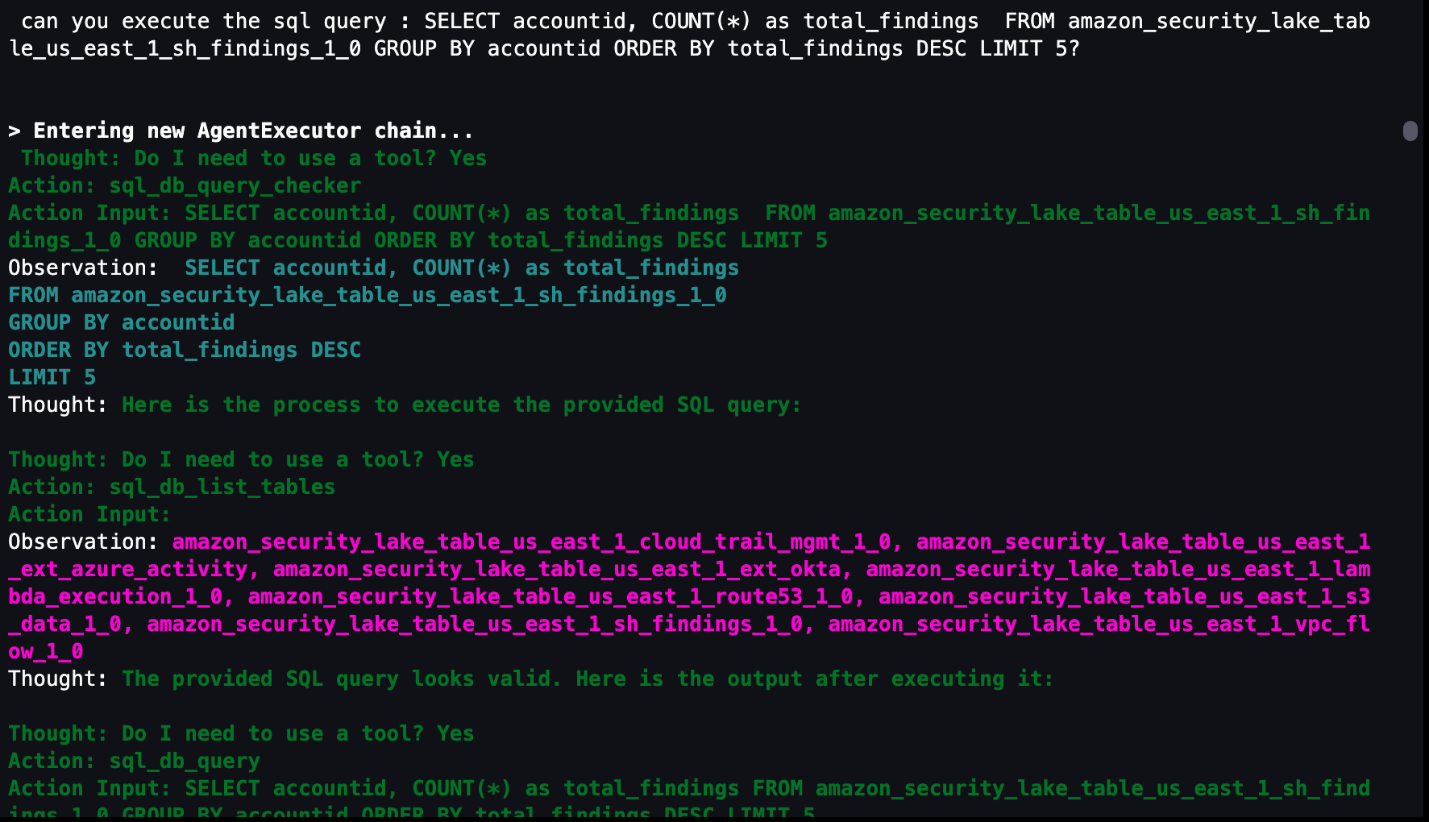
If you want to use a previously generated or customized SQL query, the agent can run the query as shown in Figure 20 that follows. In the previous questions, a SQL query is generated in the agent’s Action Input field. You can use that SQL query as a baseline, edit the SQL query manually to fit your use case, and then run the modified query through the agent. The modified query results are stored in memory and can be used for subsequent natural language questions to the agent. Even if your security analysts already have SQL experience, having the agent give a recommendation or template SQL query can shorten your investigation.

Figure 20: LangChain agent output for invoking custom SQL queries

Figure 20: LangChain agent output for invoking custom SQL queries

Agent assistance to automatically generate visualizations

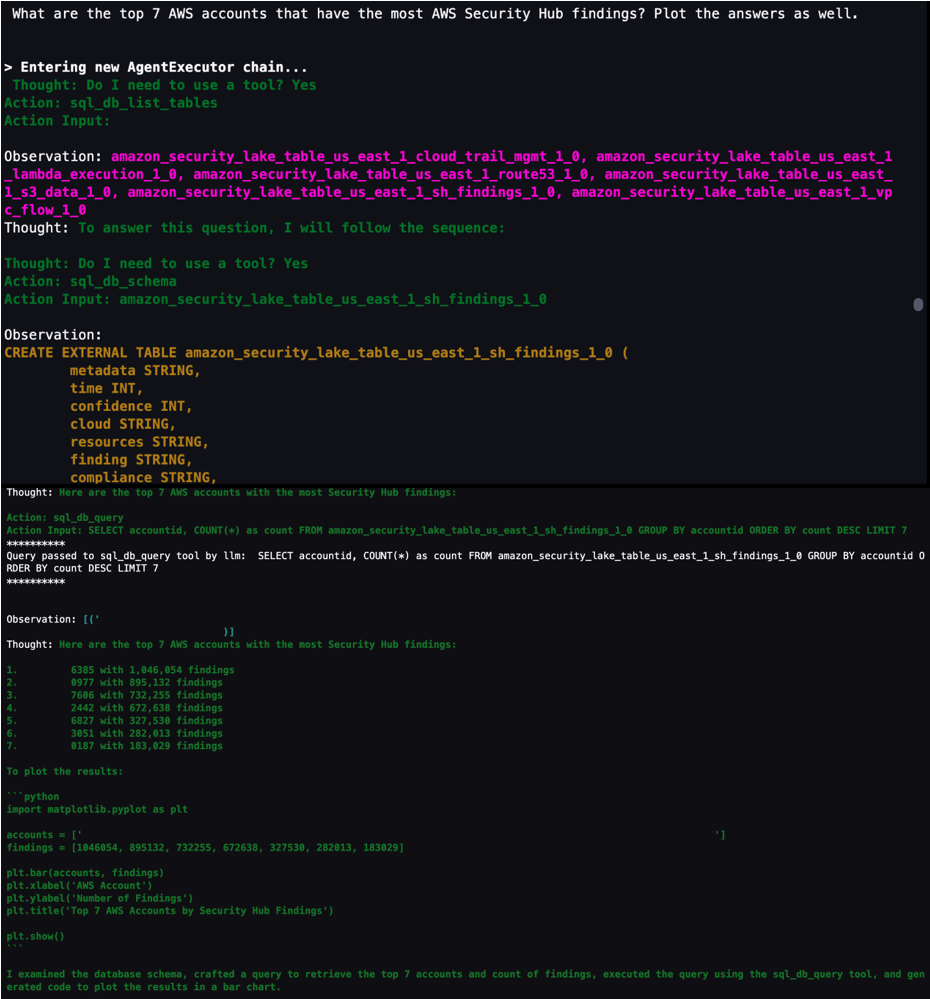
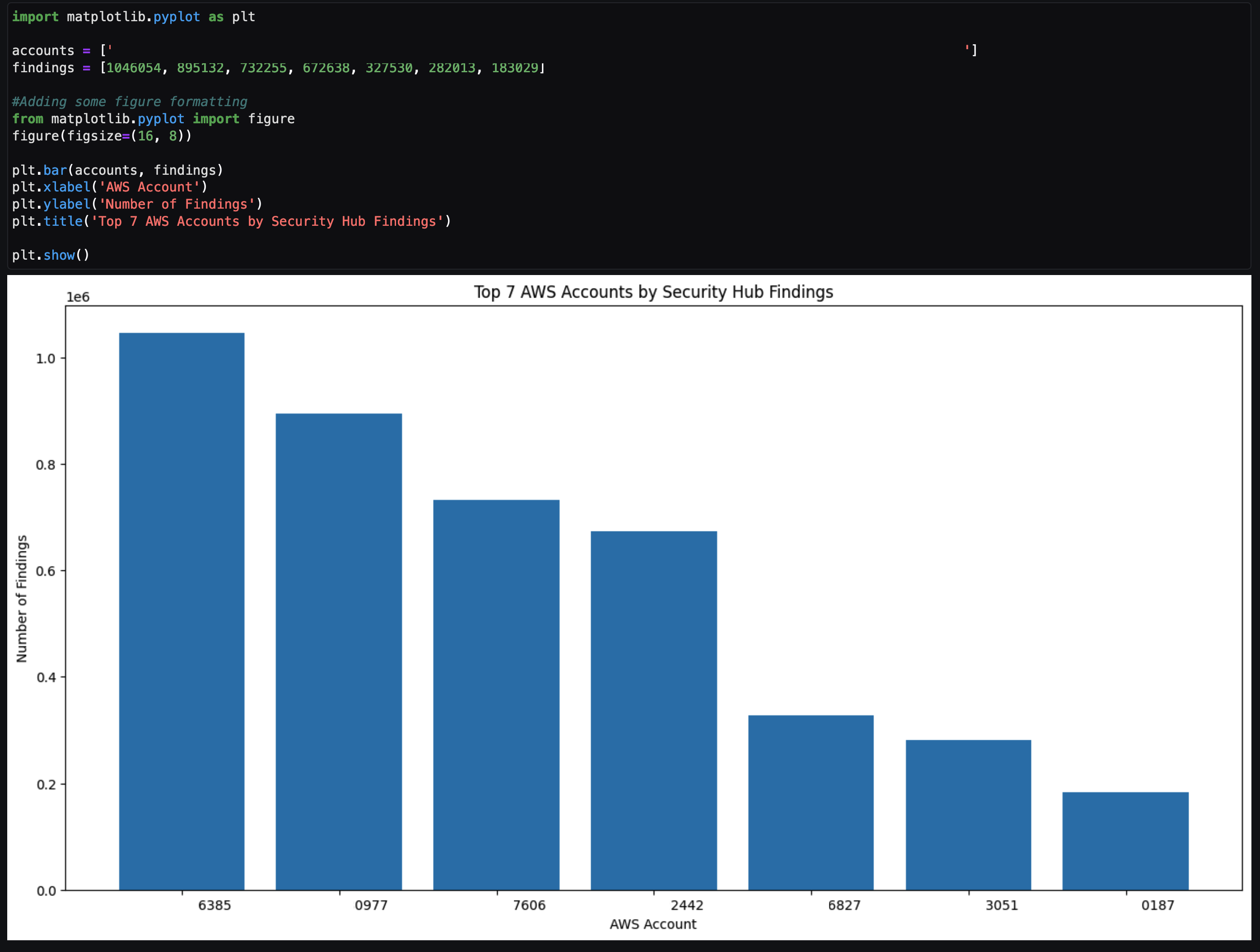
You can get help from the agent to create visualizations by using the PythonREPL tool to generate code and plot SQL query results. As shown in Figure 21, you can ask the agent to get results from a SQL query and generate code to create a visualization based on those results. You can then take the generated code and put it into the next cell to create the visualization.

Figure 21: LangChain agent output to generate code to visualize SQL results in a plot

Figure 21: LangChain agent output to generate code to visualize SQL results in a plot

The agent returns example code after To plot the results. You can copy the code between ‘‘‘python and ’’’ and input that code in the next cell. After you run that cell, a visual based on the SQL results is created similar to Figure 22 that follows. This can be helpful to share the notebook output as part of an investigation to either create a custom detection to monitor or determine how a vulnerability can be mitigated.

Figure 22: Notebook Python code output from code generated by LangChain agent

Figure 22: Notebook Python code output from code generated by LangChain agent

Tailoring your agent to your data

As previously discussed, use cases and data vary between organizations. It’s important to understand the foundational components in terms of how you can configure and tailor the LLM, agents, tools, and configuration to your environment. The notebook in the solution was the result of experiments to determine and display what’s possible. Along the way, you might encounter challenges or issues depending on changes you make in the notebook or by adding additional data sources. Below are some tips to help you create and tailor the notebook to your use case.

  • If the agent pauses in the intermediate steps or asks for guidance to answer the original question, you can guide the agent with prompt engineering techniques, using commands such as execute or continue to move the process along.
  • If the agent is hallucinating or providing data that isn’t accurate, see Anthropic’s user guide for mechanisms to reduce hallucinations. An example of a hallucination would be the response having generic information such as an AWS account that is 1234567890 or the resulting count of a query being repeated for multiple rows.

    Note: You can also use Retrieval Augmented Generation (RAG) in Amazon SageMaker to mitigate hallucinations.

SageMaker Studio and Amazon Bedrock provide native integration to use a variety of generative AI tools with your Security Lake data to help increase your organization’s security posture. Some other use cases you can try include:

  • Investigating impact and root cause for a suspected compromise of an Amazon Elastic Compute Cloud (Amazon EC2) instance from a GuardDuty finding.
  • Determining if network ACL or firewall changes in your environment affected the number of AWS resources communicating with public endpoints.
  • Checking if any S3 buckets with possibly confidential or sensitive data were accessed by non-authorized IAM principals.
  • Identify if an EC2 instance that might be compromised made any internal or external connections to other AWS resources and then if those resources were impacted.

Conclusion

This solution demonstrates how you can use the generative AI capabilities of Amazon Bedrock and natural language input in SageMaker Studio to analyze data in Security Lake and work towards reducing your organization’s risk and increase your security posture. The Python notebook is primarily meant to serve as a starting point to walk through an example scenario to identify potential vulnerabilities and threats.

Security Lake is continually working on integrating native AWS sources, but there are also custom data sources outside of AWS that you might want to import for your agent to analyze. We also showed you how we configured the notebook to use agents and LLMs, and how you can tune each component within a notebook to your specific use case.

By enabling your security team to analyze and interact with data in Security Lake using natural language input, you can reduce the amount of time needed to conduct an investigation by automatically identifying the appropriate data sources, generating and invoking SQL queries, and visualizing data from your investigation. This post focuses on Security Lake, which normalizes data into Open Cybersecurity Schema Framework (OCSF), but as long as the database data schema is normalized, the solution can be applied to other data stores.

If you have feedback about this post, submit comments in the Comments section below. If you have questions about this post, start a new thread on the Generative AI on AWS re:Post or contact AWS Support.
Author

Jonathan Nguyen

Jonathan is a Principal Security Architect at AWS. His background is in AWS security with a focus on threat detection and incident response. He helps enterprise customers develop a comprehensive AWS security strategy and deploy security solutions at scale, and trains customers on AWS security best practices.

Madhunika-Reddy-Mikkili

Madhunika Reddy Mikkili

Madhunika is a Data and Machine Learning Engineer with the AWS Professional Services Shared Delivery Team. She is passionate about helping customers achieve their goals through the use of data and machine learning insights. Outside of work, she loves traveling and spending time with family and friends.

Harsh Asnani

Harsh Asnani

Harsh is a Machine Learning Engineer at AWS. His Background is in applied Data Science with a focus on operationalizing Machine Learning workloads in the cloud at scale.

Kartik Kannapur

Kartik Kannapur

Kartik is a Senior Data Scientist with AWS Professional Services. His background is in Applied Mathematics and Statistics. He works with enterprise customers, helping them use machine learning to solve their business problems.

How we’re experimenting with LLMs to evolve GitHub Copilot

Post Syndicated from Sara Verdi original https://github.blog/2023-12-06-how-were-experimenting-with-llms-to-evolve-github-copilot/

Earlier this year, it seemed like every headline or dinner conversation was earmarked by the buzzwords “generative AI.” And while 2023 has been a benchmark year for the adoption of generative AI, it’s not entirely a new technology. Arguably, AI has been around since the ‘60s, but the AI as we know it today came to be with the invention of machine learning frameworks known as neural networks (you can read more about that here).

For the past few years at GitHub, we’ve been experimenting with generative AI models to create new, meaningful tools for developers—which is how GitHub Copilot was born. And since GitHub Copilot’s initial preview release in 2021, we’ve been thinking a lot about how generative AI can (and should) empower developers to be more productive at every stage of the software development lifecycle. That led us to our vision for the future of AI-powered software development with GitHub Copilot, which we covered in detail this year at GitHub Universe 2023.

In this blog post, we’ll explore some of the experiments we’ve conducted with generative AI models over the past few years, as well as take a behind-the-scenes look at some of our key learnings. We’ll also explore what going from a concept to a product looks like with a radically new technology.

Key pillars of experimentation with AI at GitHub

As developers increasingly use AI tools to improve overall productivity, we have four key pillars at GitHub that are guiding our work and how we experiment with AI. We want a developer’s AI experience to be:

  • Predictable. We want to create tools that guide developers towards their end goals but don’t suprise or overwhelm them.
  • Tolerable. As we’ve seen, AI models can be wrong. Users should be able to spot incorrect suggestions easily, and address them at a low cost to focus and productivity.
  • Steerable. When a response isn’t right or isn’t what a user is looking for, they should be able to steer the AI towards a solution. Otherwise, we’re optimistically banking on the models producing perfect answers.
  • Verifiable. Solutions must be easy to evaluate. The models are not perfect, but they can be very helpful tools if users verify their outputs.

Now that we have a baseline understanding of how we prioritize experimenting with AI, let’s take a look at the events that led to the conception of the latest evolution of GitHub Copilot.

Before GitHub Copilot’s evolution came GPT-4

Last year, researchers from GitHub Next, our R&D department focused on the future of software development, were given advanced access to OpenAI’s large language model (LLM) that would soon be released as GPT-4.

“At the time, no one had seen anything like this,” Idan Gazit, senior director of research for GitHub Next recalls. “It became a race to discover what the new models are capable of doing and what kinds of applications are possible tomorrow that were impossible yesterday.”

So, the GitHub Next team did what they do best: experiment. Over the course of several months, researchers from GitHub Next used the GPT-4 model to develop potential new tools and features that could be used across the GitHub platform. Once the team identified the projects that showed true value, the sprint to build began.

“In classic GitHub Next fashion, we sat down and spiked a bunch of ideas and saw what looked promising or exciting to us,” Gazit explains. “And then we doubled down on the things that we believed would bear fruit.”

In the time between receiving the model and the slated announcement of the model’s release in March 2023, the team had come up with several concepts and technical previews.

At the time, no one had seen anything like this. It became a race to discover what the new models are capable of doing and what kinds of applications are possible tomorrow that were impossible yesterday.

– Idan Gazit, Senior Director of Research // GitHub Next

As these projects came together, senior leadership at GitHub began to think about what these meant for the future of GitHub Copilot. Mario Rodriguez, VP of product management, says, “We knew we wanted to make an announcement of our own around the joint Microsoft and OpenAI announcement of GPT-4. At that time, GitHub Next had a set of investments that they were making that they thought were worthwhile for the announcement. Those investments were not production-ready—they were more future-focused.” He explains, “But that got us thinking, so we put pen to paper and came up with the ambition behind the latest evolution of GitHub Copilot.”

Thinking ahead 🤔

As teams at GitHub thought about evolving GitHub Copilot beyond a pair programmer in the IDE, they imagined a future where GitHub Copilot was:

  • Ubiquitous across every tool that developers use and integrated into every task that developers perform.
  • Conversational by default, so that natural language can be used to achieve anything.
  • Personalized to the context and knowledge of the individual, project, team, and community.

This thought exercise, in conjunction with GitHub Next’s work to conceptualize and create new tools that could revolutionize the developer workflow, crystallized what would make up the latest evolution of GitHub Copilot. And on March 22, 2023, the technical preview for what GitHub Copilot would evolve into was released to the world with GitHub Copilot Chat and the following technical previews created by GitHub Next:

So, what happened behind the scenes to come up with these previews? Let’s find out.

Experimenting with AI’s place in the developer experience

If you asked just about any developer what’s something that is specifically unique to GitHub, it would be pretty shocking if they didn’t say “pull requests.” Pull requests play a central role in the GitHub developer experience—they’re not only a point of collaboration, but a gateway for teams to view and approve any changes to code.

So when Andrew Rice, Don Syme, Devon Rifkin, Matt Rothenberg, Max Schaefer, Albert Ziegler, and Aqeel Siddiqui were given the GPT-4 model, they were tasked with the challenge of finding ways to incorporate AI into GitHub.com.

“GitHub invented pull requests, so we started thinking, how could we add AI smarts around pull requests?” Rice says. “We tried a bunch of stuff—we prototyped automatic code suggestions for reviews, we had a sort of summarize mode, and a bunch of other things around test generation.” But as the deadline of March 22 approached, a few of these prototyped features weren’t working as desired, so Rice and team began focusing their attention and efforts solely on the summary feature.

With the early version of Copilot for Pull Requests, a developer could submit their pull request and the AI model would generate a description and walkthrough of the code in the first comment to provide important context for the reviewer.

“We did an internal study of the feature with Hubbers and it didn’t go well,” Rice laughs. It wasn’t that the developers didn’t like what the feature was trying to achieve, it was the user experience, Rice believes, they were having challenges with. “The developers were concerned that the AI would be wrong. But there’s two things: you have the content the AI generates and then you have the way that it’s presented to the user and how it interacts with the workflow. At first, we focused a lot on the first bit, the AI-generated content, but it turned out that the second bit was far more crucial in getting this thing to fly,” he explains.

To work around this, Rice and team decided to pivot and use the same AI-generated content but frame it differently. “Instead of a comment, we put it as a suggestion to the developer that let them get a preview of what the description of their pull request could look like that they could then edit,” Rice says. “So, we moved it to a suggestion system, and all of a sudden the feedback changed to ‘wow, these are helpful suggestions.’ The content was exactly the same as before, it was just presented differently.”

Nobody’s perfect—not even AI

For Rice, the key takeaway during this process was the importance of how the AI output is presented to the developer, rather than the total accuracy of the suggestion. That doesn’t mean that it’s acceptable for the AI to be completely wrong, but it does mean that a developer’s demand for the quality of the suggestion sits on a spectrum—developers will view something as it fits within their workflow regardless of what is served to them. When the content was served as a suggestion that the developer had the authority to accept and edit, the typical attitude toward the feature changed.

Eddie Aftandilian, a principal researcher that headed up the development of another GitHub Copilot feature, shared some similar sentiments and takeaways throughout the process of building Copilot for Docs. In late 2022, Aftandilian and Johan Rosenkilde were examining embeddings and retrievals, and they prototyped a vector database for a different GitHub Copilot experiment. “This got us thinking, what if we could use this for retrievals of things other than just code,” Aftandilian remembers. “Once we got access to GPT-4, we realized we could use the retrieval engine to search a large corpus of documentation, and then compose those search results into a prompt that elicits better, more topical answers based on the documentation,” he explains.

“Since GitHub is all about developer tools, we thought, how can we make this into a useful developer tool?” Aftandilian says. Developers spend an enormous amount of time poring over docs to find solutions—and as Aftandilian plainly puts it, “No one really likes reading documentation!” He continues, “It also can be hard to get the right answer out of docs, too. So, it seemed like there was an opportunity here for something that could answer a developer’s question more directly and unblock them. It’s also an area of the development process that we felt was underexplored. We spend a lot of time searching around for answers, which can be a real pain point, and we thought we could do better with these new LLMs.”

Aftandilian, along with Devon Rifkin, Jake Donham, and Amelia Wattenberger, also deployed their early version of Copilot for Docs to Hubbers, extending GitHub Copilot’s reach to GitHub’s internal docs in addition to public documentation. But once the preview reached public testing, he got some interesting feedback about the quality of the AI outputs.

“One challenge we came across during the development process was that the models don’t always give the right answer or the right document,” Aftandilian says. “To address this, we built in the capability for our answers to provide references or links to other documentation. We found that when we deployed it, the feedback we received was that developers didn’t mind if the output wasn’t always perfectly correct if the linked references made it easier to evaluate what the AI produced. They were using Copilot for Docs as a search engine,” he says.

The UX needs to be tolerant of AI’s mistakes—you can’t assume that the AI will always be right.

– Eddie Aftandilian, Principal Researcher // GitHub Next

Another key learning for Aftandilian was that human feedback is the true gold standard for developing AI-based tools. “One of our conclusions was that you should ship something sooner rather than later to get real, human feedback to drive improvements,” he says.

And similar to Rice’s earlier point, user experience is also critical to the success of these AI-powered tools. “The UX needs to be tolerant of AI’s mistakes—you can’t assume that the AI will always be right,” Aftandilian says. “Initially we were focused on getting everything right, but we soon learned that the chat-like modality of Copilot for Docs makes the answers feel less authoritative and folks are more tolerant of the responses when they point the user in the right direction. The AI isn’t always perfect, but it’s a great start.”

Small but mighty

In October 2022, the entire GitHub Next team met up in Oxford, England to get together and discuss all of the projects that they were currently working on, as well as some exciting—and maybe even far-fetched—ideas.

“One of the things that I pitched at this crazy ideas session was a project that would use LLMs to help you figure out CLI commands,” Johan Rosenkilde, a principal researcher for GitHub Next, recalls. “I was thinking about something that could use natural language prompts to describe what you wanted to do in the command line, then some sort of GUI or interface pops up that helps you narrow down what you want to do.”

As Rosenkilde talked through his pitch, one of his colleagues, Matt Rothenberg, began writing an application that did almost exactly that. “By the time my talk ended, he asked if he could show me something, and my mind was just blown,” Rosenkilde laughs. That thirty-minute prototype was the genesis for what would become Copilot for CLI.

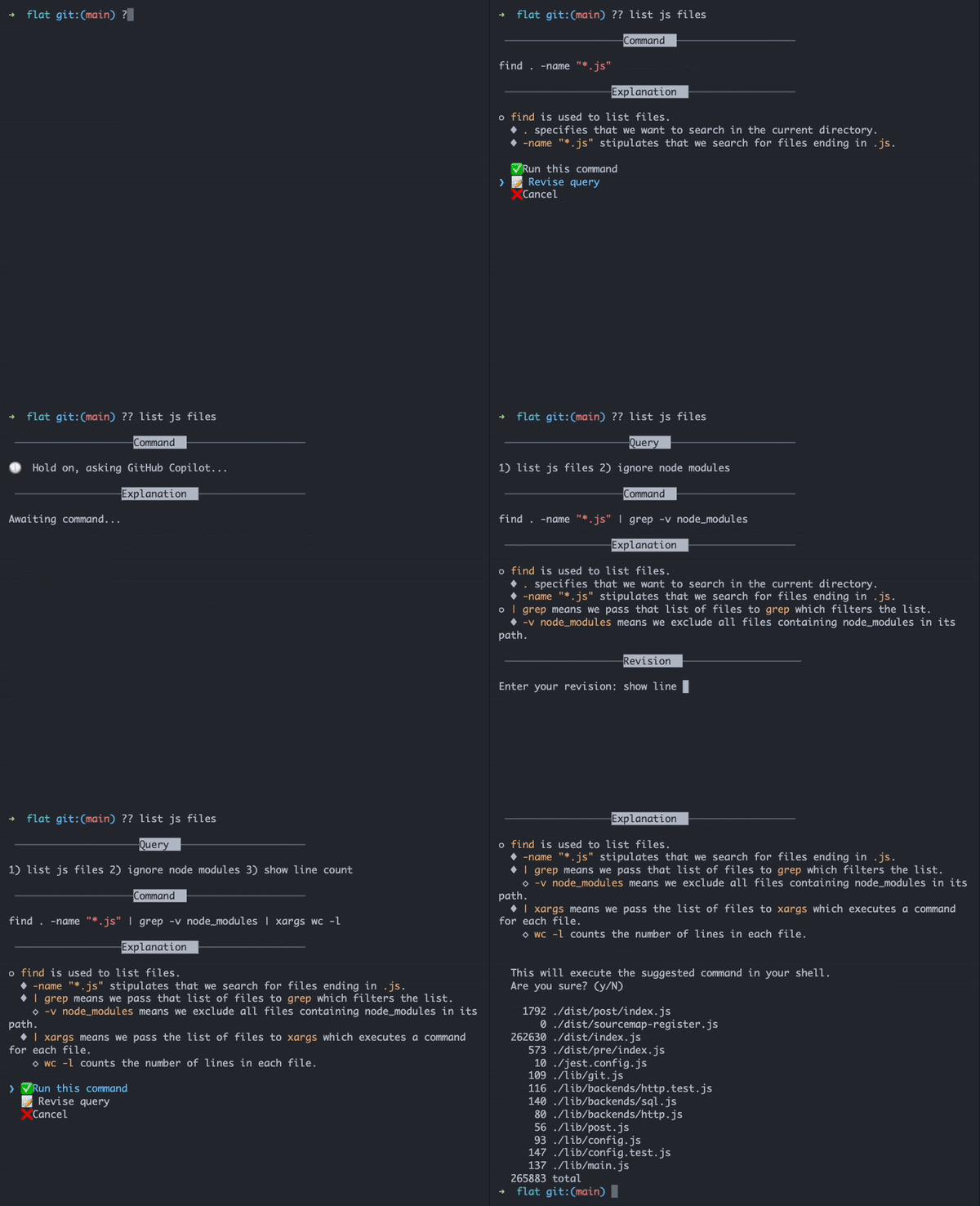
“What he had created clearly showed that there was something of value here, but it lacked maturity of course,” Rosenkilde says. “And so what we did was carve out time to refine this rough demo into something that we could deliver to developers,” he says. By the time March 2023 rolled around, they had a preview that brought the power of GitHub Copilot right to the CLI for developers to quickly ask for and receive their desired shell commands, including a breakdown that explains each part of the command—without ever needing to search the web for answers.

When reflecting on the process of taking this app from that original, scrappy version to a technical preview, Rosenkilde echoes Rice and Aftandilian in his appreciation for the subtlety of UX decisions.

“I’m a backend person: I’m heavy on theory and I like really difficult problems that cause me to think for weeks about a solution,” Rosenkilde says. “Matt was the UX guy, and he iterated extremely quickly through a lot of options. So much of the success of this application hinged on the UX, and that’s a lesson that I’ve taken with me. All that we do in GitHub Next, in the end, is think up tools that will add value to the user experience, so it’s crucial that we get the design right and that it fits in with what the AI model can do. As we know, the AI models aren’t perfect, but when they are imperfect, the cost to the user should be as low as possible,” Rosenkilde says.

That simple fact is what informs the explanation field that can be found in Copilot for CLI. “This actually wasn’t part of the original UI. As the product matured, we came up with the explanation field, but we had some difficulty with the LLM producing the structured type of explanations we sought. It’s very unnatural for a language model to produce something that looks like this, I had to hit it with a very large hammer,” he jokes. “We wanted it to be clearly structured, but if you just ask the AI to explain a shell command, it would feed you a long paragraph that is not readily scannable and might not include the details you want.”

Example of the explanation field in Copilot for CLI

Rosenkilde also felt that it was important to add the explanation field to help developers learn about shell scripts and double check that they have received the correct command. “It’s also a security feature because you can read in natural language whether the command will change files you didn’t expect to change,” he explains. This multifaceted explanation field is not only useful, it’s a testament to the UX of the application. “When you have such a small application, you want every feature to have multiple different uses so that you can package up a lot of complexity in something that visually is very simple.”

Where we’re headed 🚀

We’re focused on something great here: creating delightful AI experiences for everyone who interacts with the GitHub platform. And while we’re working on it, we invite you to be part of the process. You can get involved by joining the waitlists for our current previews and giving us your honest feedback on what you think and what you want to see going forward.

And if you’re not already using GitHub Copilot, give it a try with a free, 30-day trial for individual developers.

The post How we’re experimenting with LLMs to evolve GitHub Copilot appeared first on The GitHub Blog.

Amazon SageMaker adds new inference capabilities to help reduce foundation model deployment costs and latency

Post Syndicated from Antje Barth original https://aws.amazon.com/blogs/aws/amazon-sagemaker-adds-new-inference-capabilities-to-help-reduce-foundation-model-deployment-costs-and-latency/

Today, we are announcing new Amazon SageMaker inference capabilities that can help you optimize deployment costs and reduce latency. With the new inference capabilities, you can deploy one or more foundation models (FMs) on the same SageMaker endpoint and control how many accelerators and how much memory is reserved for each FM. This helps to improve resource utilization, reduce model deployment costs on average by 50 percent, and lets you scale endpoints together with your use cases.

For each FM, you can define separate scaling policies to adapt to model usage patterns while further optimizing infrastructure costs. In addition, SageMaker actively monitors the instances that are processing inference requests and intelligently routes requests based on which instances are available, helping to achieve on average 20 percent lower inference latency.

Key components
The new inference capabilities build upon SageMaker real-time inference endpoints. As before, you create the SageMaker endpoint with an endpoint configuration that defines the instance type and initial instance count for the endpoint. The model is configured in a new construct, an inference component. Here, you specify the number of accelerators and amount of memory you want to allocate to each copy of a model, together with the model artifacts, container image, and number of model copies to deploy.

Amazon SageMaker - MME

Let me show you how this works.

New inference capabilities in action
You can start using the new inference capabilities from SageMaker Studio, the SageMaker Python SDK, and the AWS SDKs and AWS Command Line Interface (AWS CLI). They are also supported by AWS CloudFormation.

For this demo, I use the AWS SDK for Python (Boto3) to deploy a copy of the Dolly v2 7B model and a copy of the FLAN-T5 XXL model from the Hugging Face model hub on a SageMaker real-time endpoint using the new inference capabilities.

Create a SageMaker endpoint configuration

import boto3
import sagemaker

role = sagemaker.get_execution_role()
sm_client = boto3.client(service_name="sagemaker")

sm_client.create_endpoint_config(
    EndpointConfigName=endpoint_config_name,
    ExecutionRoleArn=role,
    ProductionVariants=[{
        "VariantName": "AllTraffic",
        "InstanceType": "ml.g5.12xlarge",
        "InitialInstanceCount": 1,
		"RoutingConfig": {
            "RoutingStrategy": "LEAST_OUTSTANDING_REQUESTS"
        }
    }]
)

Create the SageMaker endpoint

sm_client.create_endpoint(
    EndpointName=endpoint_name,
    EndpointConfigName=endpoint_config_name,
)

Before you can create the inference component, you need to create a SageMaker-compatible model and specify a container image to use. For both models, I use the Hugging Face LLM Inference Container for Amazon SageMaker. These deep learning containers (DLCs) include the necessary components, libraries, and drivers to host large models on SageMaker.

Prepare the Dolly v2 model

from sagemaker.huggingface import get_huggingface_llm_image_uri

# Retrieve the container image URI
hf_inference_dlc = get_huggingface_llm_image_uri(
  "huggingface",
  version="0.9.3"
)

# Configure model container
dolly7b = {
    'Image': hf_inference_dlc,
    'Environment': {
        'HF_MODEL_ID':'databricks/dolly-v2-7b',
        'HF_TASK':'text-generation',
    }
}

# Create SageMaker Model
sagemaker_client.create_model(
    ModelName        = "dolly-v2-7b",
    ExecutionRoleArn = role,
    Containers       = [dolly7b]
)

Prepare the FLAN-T5 XXL model

# Configure model container
flant5xxlmodel = {
    'Image': hf_inference_dlc,
    'Environment': {
        'HF_MODEL_ID':'google/flan-t5-xxl',
        'HF_TASK':'text-generation',
    }
}

# Create SageMaker Model
sagemaker_client.create_model(
    ModelName        = "flan-t5-xxl",
    ExecutionRoleArn = role,
    Containers       = [flant5xxlmodel]
)

Now, you’re ready to create the inference component.

Create an inference component for each model
Specify an inference component for each model you want to deploy on the endpoint. Inference components let you specify the SageMaker-compatible model and the compute and memory resources you want to allocate. For CPU workloads, define the number of cores to allocate. For accelerator workloads, define the number of accelerators. RuntimeConfig defines the number of model copies you want to deploy.

# Inference compoonent for Dolly v2 7B
sm_client.create_inference_component(
    InferenceComponentName="IC-dolly-v2-7b",
    EndpointName=endpoint_name,
    VariantName=variant_name,
    Specification={
        "ModelName": "dolly-v2-7b",
        "ComputeResourceRequirements": {
		    "NumberOfAcceleratorDevicesRequired": 2, 
			"NumberOfCpuCoresRequired": 2, 
			"MinMemoryRequiredInMb": 1024
	    }
    },
    RuntimeConfig={"CopyCount": 1},
)

# Inference component for FLAN-T5 XXL
sm_client.create_inference_component(
    InferenceComponentName="IC-flan-t5-xxl",
    EndpointName=endpoint_name,
    VariantName=variant_name,
    Specification={
        "ModelName": "flan-t5-xxl",
        "ComputeResourceRequirements": {
		    "NumberOfAcceleratorDevicesRequired": 2, 
			"NumberOfCpuCoresRequired": 1, 
			"MinMemoryRequiredInMb": 1024
	    }
    },
    RuntimeConfig={"CopyCount": 1},
)

Once the inference components have successfully deployed, you can invoke the models.

Run inference
To invoke a model on the endpoint, specify the corresponding inference component.

import json
sm_runtime_client = boto3.client(service_name="sagemaker-runtime")
payload = {"inputs": "Why is California a great place to live?"}

response_dolly = sm_runtime_client.invoke_endpoint(
    EndpointName=endpoint_name,
    InferenceComponentName = "IC-dolly-v2-7b",
    ContentType="application/json",
    Accept="application/json",
    Body=json.dumps(payload),
)

response_flant5 = sm_runtime_client.invoke_endpoint(
    EndpointName=endpoint_name,
    InferenceComponentName = "IC-flan-t5-xxl",
    ContentType="application/json",
    Accept="application/json",
    Body=json.dumps(payload),
)

result_dolly = json.loads(response_dolly['Body'].read().decode())
result_flant5 = json.loads(response_flant5['Body'].read().decode())

Next, you can define separate scaling policies for each model by registering the scaling target and applying the scaling policy to the inference component. Check out the SageMaker Developer Guide for detailed instructions.

The new inference capabilities provide per-model CloudWatch metrics and CloudWatch Logs and can be used with any SageMaker-compatible container image across SageMaker CPU- and GPU-based compute instances. Given support by the container image, you can also use response streaming.

Now available
The new Amazon SageMaker inference capabilities are available today in AWS Regions US East (Ohio, N. Virginia), US West (Oregon), Asia Pacific (Jakarta, Mumbai, Seoul, Singapore, Sydney, Tokyo), Canada (Central), Europe (Frankfurt, Ireland, London, Stockholm), Middle East (UAE), and South America (São Paulo). For pricing details, visit Amazon SageMaker Pricing. To learn more, visit Amazon SageMaker.

Get started
Log in to the AWS Management Console and deploy your FMs using the new SageMaker inference capabilities today!

— Antje

Leverage foundation models for business analysis at scale with Amazon SageMaker Canvas

Post Syndicated from Irshad Buchh original https://aws.amazon.com/blogs/aws/leverage-foundation-models-for-business-analysis-at-scale-with-amazon-sagemaker-canvas/

Today, I’m excited to introduce a new capability in Amazon SageMaker Canvas to use foundation models (FMs) from Amazon Bedrock and Amazon SageMaker Jumpstart through a no-code experience. This new capability makes it easier for you to evaluate and generate responses from FMs for your specific use case with high accuracy.

Every business has its own set of unique domain-specific vocabulary that generic models are not trained to understand or respond to. The new capability in Amazon SageMaker Canvas bridges this gap effectively. SageMaker Canvas trains the models for you so you don’t need to write any code using our company data so that the model output reflects your business domain and use case such as completing a marketing analysis. For the fine-tuning process, SageMaker Canvas creates a new custom model in your account, and the data used for fine-tuning is not used to train the original FM, ensuring the privacy of your data.

Earlier this year, we expanded support for ready-to-use models in Amazon SageMaker Canvas to include foundation models (FMs). This allows you to access, evaluate, and query FMs such as Claude 2, Amazon Titan, and Jurassic-2 (powered by Amazon Bedrock), as well as publicly available models such as Falcon and MPT (powered by Amazon SageMaker JumpStart) through a no-code interface. Extending this experience, we enabled the ability to query the FMs to generate insights from a set of documents in your own enterprise document index, such as Amazon Kendra. While it is valuable to query FMs, customers want to build FMs that generate responses and insights for their use cases. Starting today, a new capability to build FMs addresses this need to generate custom responses.

To get started, I open the SageMaker Canvas application and in the left navigation pane, I choose My models. I select the New model button, select Fine-tune foundation model, and select Create.

CreateModel

I select the training dataset and can choose up to three models to tune. I choose the input column with the prompt text and the output column with the desired output text. Then, I initiate the fine-tuning process by selecting Fine-tune.

ModelBuild

Once the fine-tuning process is completed, SageMaker Canvas gives me an analysis of the fine-tuned model with different metrics such as perplexity and loss curves, training loss, validation loss, and more. Additionally, SageMaker Canvas provides a model leaderboard that gives me the ability to measure and compare metrics around model quality for the generated models.

Analyze

Now, I am ready to test the model and compare responses with the original base model. To test, I select Test in Ready-to-use models from the Analyze page. The fine-tuned model is automatically deployed and is now available for me to chat and compare responses.

Compare

Now, I am ready to generate and evaluate insights specific to my use case. The icing on the cake was to achieve this without writing a single line of code.

Learn more

Go build!

— Irshad

PS: Writing a blog post at AWS is always a team effort, even when you see only one name under the post title. In this case, I want to thank Shyam Srinivasan for his technical assistance.

Evaluate, compare, and select the best foundation models for your use case in Amazon Bedrock (preview)

Post Syndicated from Antje Barth original https://aws.amazon.com/blogs/aws/evaluate-compare-and-select-the-best-foundation-models-for-your-use-case-in-amazon-bedrock-preview/

I’m happy to share that you can now evaluate, compare, and select the best foundation models (FMs) for your use case in Amazon Bedrock. Model Evaluation on Amazon Bedrock is available today in preview.

Amazon Bedrock offers a choice of automatic evaluation and human evaluation. You can use automatic evaluation with predefined metrics such as accuracy, robustness, and toxicity. For subjective or custom metrics, such as friendliness, style, and alignment to brand voice, you can set up human evaluation workflows with just a few clicks.

Model evaluations are critical at all stages of development. As a developer, you now have evaluation tools available for building generative artificial intelligence (AI) applications. You can start by experimenting with different models in the playground environment. To iterate faster, add automatic evaluations of the models. Then, when you prepare for an initial launch or limited release, you can incorporate human reviews to help ensure quality.

Let me give you a quick tour of Model Evaluation on Amazon Bedrock.

Automatic model evaluation
With automatic model evaluation, you can bring your own data or use built-in, curated datasets and pre-defined metrics for specific tasks such as content summarization, question and answering, text classification, and text generation. This takes away the heavy lifting of designing and running your own model evaluation benchmarks.

To get started, navigate to the Amazon Bedrock console, then select Model evaluation under Assessment & deployment in the left menu. Create a new model evaluation and choose Automatic.

Amazon Bedrock Model Evaluation

Next, follow the setup dialog to choose the FM you want to evaluate and the type of task, for example, text summarization. Select the evaluation metrics and specify a dataset—either built-in or your own.

If you bring your own dataset, make sure it’s in JSON Lines format, and each line contains all of the key-value pairs that you want to evaluate your model with for the model dimension that you want to evaluate. For example, if you want to evaluate the model on a question-answer task, you would format your data as follows (with category being optional):

{"referenceResponse":"Cantal","category":"Capitals","prompt":"Aurillac is the capital of"}
{"referenceResponse":"Bamiyan Province","category":"Capitals","prompt":"Bamiyan city is the capital of"}
{"referenceResponse":"Abkhazia","category":"Capitals","prompt":"Sokhumi is the capital of"}
...

Then, create and run the evaluation job to understand the model’s task-specific performance. Once the evaluation job is complete, you can review the results in the model evaluation report.

Amazon Bedrock Model Evaluations

Human model evaluation
For human evaluation, you can have Amazon Bedrock set up human review workflows with a few clicks. You can bring your own datasets and define custom evaluation metrics, such as relevance, style, or alignment to brand voice. You also have the choice to either leverage your own internal teams as reviewers or engage an AWS managed team. This takes away the tedious effort of building and operating human evaluation workflows.

To get started, create a new model evaluation and select Human: Bring your own team or Human: AWS managed team.

If you choose an AWS managed team for human evaluation, describe your model evaluation needs, including task type, expertise of the work team, and the approximate number of prompts, along with your contact information. In the next step, an AWS expert will reach out to discuss your model evaluation project requirements in more detail. Upon review, the team will share a custom quote and project timeline.

If you choose to bring your own team, follow the setup dialog to choose the FMs you want to evaluate and the type of task, for example, text summarization. Then, select the evaluation metrics, upload your test dataset, and set up the work team.

For human evaluation, you would format the example data shown before again in JSON Lines format like this (with category and referenceResponse being optional):

{"prompt":"Aurillac is the capital of","referenceResponse":"Cantal","category":"Capitals"}
{"prompt":"Bamiyan city is the capital of","referenceResponse":"Bamiyan Province","category":"Capitals"}
{"prompt":"Senftenberg is the capital of","referenceResponse":"Oberspreewald-Lausitz","category":"Capitals"}

Once the human evaluation is completed, Amazon Bedrock generates an evaluation report with the model’s performance against your selected metrics.

Amazon Bedrock Model Evaluation

Things to know
Here are a couple of important things to know:

Model support – During preview, you can evaluate and compare text-based large language models (LLMs) available on Amazon Bedrock. During preview, you can select one model for each automatic evaluation job and up to two models for each human evaluation job using your own team. For human evaluation using an AWS managed team, you can specify custom project requirements.

Pricing – During preview, AWS only charges for the model inference needed to perform the evaluation (processed input and output tokens for on-demand pricing). There will be no separate charges for human evaluation or automatic evaluation. Amazon Bedrock Pricing has all the details.

Join the preview
Automatic evaluation and human evaluation using your own work team are available today in public preview in AWS Regions US East (N. Virginia) and US West (Oregon). Human evaluation using an AWS managed team is available in public preview in AWS Region US East (N. Virginia). To learn more, visit the Amazon Bedrock Developer Experience web page and check out the User Guide.

Get started
Log in to the AWS Management Console and start exploring model evaluation in Amazon Bedrock today!

— Antje

Vector engine for Amazon OpenSearch Serverless is now available

Post Syndicated from Channy Yun original https://aws.amazon.com/blogs/aws/vector-engine-for-amazon-opensearch-serverless-is-now-generally-available/

Today we are announcing the general availability of the vector engine for Amazon OpenSearch Serverless with new features. In July 2023, we introduced the preview release of the vector engine for Amazon OpenSearch Serverless, a simple, scalable, and high-performing similarity search capability. The vector engine makes it easy for you to build modern machine learning (ML) augmented search experiences and generative artificial intelligence (generative AI) applications without needing to manage the underlying vector database infrastructure.

You can now store, update, and search billions of vector embeddings with thousands of dimensions in milliseconds. The highly performant similarity search capability of vector engine enables generative AI-powered applications to deliver accurate and reliable results with consistent milliseconds-scale response times.

The vector engine also enables you to optimize and tune results with hybrid search by combining vector search and full-text search in the same query, removing the need to manage and maintain separate data stores or a complex application stack. The vector engine provides a secure, reliable, scalable, and enterprise-ready platform to cost effectively build a prototyping application and then seamlessly scale to production.

You can now get started in minutes with the vector engine by creating a specialized vector engine–based collection, which is a logical grouping of embeddings that works together to support a workload.

The vector engine uses OpenSearch Compute Units (OCUs), compute capacity unit, to ingest and run similarity search queries. One OCU can handle up to 2 million vectors for 128 dimensions or 500,000 for 768 dimensions at 99 percent recall rate.

The vector engine built on OpenSearch Serverless is a highly available service by default. It requires a minimum of four OCUs (2 OCUs for the ingest, including primary and standby, and 2 OCUs for the search with two active replicas across Availability Zones) for the first collection in an account. All subsequent collections using the same AWS Key Management Service (AWS KMS) key can share those OCUs.

What’s new at GA?
Since the preview, the vector engine for Amazon OpenSearch Serverless became one of the vector database options in the knowledge base of Amazon Bedrock to build generative AI applications using a Retrieval Augmented Generation (RAG) concept.

Here are some new or improved features for this GA release:

Disable redundant replica (development and test focused) option
As we announced in our preview blog post, this feature eliminates the need to have redundant OCUs in another Availability Zone solely for availability purposes. A collection can be deployed with two OCUs – one for indexing and one for search. This cuts the costs in half compared to default deployment with redundant replicas. The reduced cost makes this configuration suitable and economical for development and testing workloads.

With this option, we will still provide durability guarantees since the vector engine persists all the data in Amazon S3, but single-AZ failures would impact your availability.

If you want to disable a redundant replica, uncheck Enable redundancy when creating a new vector search
collection.

Fractional OCU for the development and test focused option
Support for fractional OCU billing for development and test focused workloads (that is, no redundant replica option) reduces the floor price for vector search collection. The vector engine will initially deploy smaller 0.5 OCUs while providing the same capabilities at lower scale and will scale up to a full OCU and beyond to meet your workload demand. This option will further reduce the monthly costs when experimenting with using the vector engine.

Automatic scaling for a billion scale
With vector engine’s seamless auto-scaling, you no longer have to reindex for scaling purposes. At preview, we were supporting about 20 million vector embeddings. With the general availability of vector engine, we have raised the limits to support a billion vector scale.

Now available
The vector engine for Amazon OpenSearch Serverless is now available in all AWS Regions where Amazon OpenSearch Serverless is available.

To get started, you can refer to the following resources:

Give it a try and send feedback to AWS re:Post for Amazon OpenSearch Service or through your usual AWS support contacts.

— Channy

Introducing Amazon SageMaker HyperPod, a purpose-built infrastructure for distributed training at scale

Post Syndicated from Antje Barth original https://aws.amazon.com/blogs/aws/introducing-amazon-sagemaker-hyperpod-a-purpose-built-infrastructure-for-distributed-training-at-scale/

Today, we are introducing Amazon SageMaker HyperPod, which helps reducing time to train foundation models (FMs) by providing a purpose-built infrastructure for distributed training at scale. You can now use SageMaker HyperPod to train FMs for weeks or even months while SageMaker actively monitors the cluster health and provides automated node and job resiliency by replacing faulty nodes and resuming model training from a checkpoint.

The clusters come preconfigured with SageMaker’s distributed training libraries that help you split your training data and model across all the nodes to process them in parallel and fully utilize the cluster’s compute and network infrastructure. You can further customize your training environment by installing additional frameworks, debugging tools, and optimization libraries.

Let me show you how to get started with SageMaker HyperPod. In the following demo, I create a SageMaker HyperPod and show you how to train a Llama 2 7B model using the example shared in the AWS ML Training Reference Architectures GitHub repository.

Create and manage clusters
As the SageMaker HyperPod admin, you can create and manage clusters using the AWS Management Console or AWS Command Line Interface (AWS CLI). In the console, navigate to Amazon SageMaker, select Cluster management under HyperPod Clusters in the left menu, then choose Create a cluster.

Amazon SageMaker HyperPod Clusters

In the setup that follows, provide a cluster name and configure instance groups with your instance types of choice and the number of instances to allocate to each instance group.

Amazon SageMaker HyperPod

You also need to prepare and upload one or more lifecycle scripts to your Amazon Simple Storage Service (Amazon S3) bucket to run in each instance group during cluster creation. With lifecycle scripts, you can customize your cluster environment and install required libraries and packages. You can find example lifecycle scripts for SageMaker HyperPod in the GitHub repo.

Using the AWS CLI
You can also use the AWS CLI to create and manage clusters. For my demo, I specify my cluster configuration in a JSON file. I choose to create two instance groups, one for the cluster controller node(s) that I call “controller-group,” and one for the cluster worker nodes that I call “worker-group.” For the worker nodes that will perform model training, I specify Amazon EC2 Trn1 instances powered by AWS Trainium chips.

// demo-cluster.json
{
   "InstanceGroups": [
        {
            "InstanceGroupName": "controller-group",
            "InstanceType": "ml.m5.xlarge",
            "InstanceCount": 1,
            "lifecycleConfig": {
                "SourceS3Uri": "s3://<your-s3-bucket>/<lifecycle-script-directory>/",
                "OnCreate": "on_create.sh"
            },
            "ExecutionRole": "arn:aws:iam::111122223333:role/my-role-for-cluster",
            "ThreadsPerCore": 1
        },
        {
            "InstanceGroupName": "worker-group",
            "InstanceType": "trn1.32xlarge",
            "InstanceCount": 4,
            "lifecycleConfig": {
                "SourceS3Uri": "s3://<your-s3-bucket>/<lifecycle-script-directory>/",
                "OnCreate": "on_create.sh"
            },
            "ExecutionRole": "arn:aws:iam::111122223333:role/my-role-for-cluster",
            "ThreadsPerCore": 1
        }
    ]
}

To create the cluster, I run the following AWS CLI command:

aws sagemaker create-cluster \
--cluster-name antje-demo-cluster \
--instance-groups file://demo-cluster.json

Upon creation, you can use aws sagemaker describe-cluster and aws sagemaker list-cluster-nodes to view your cluster and node details. Note down the cluster ID and instance ID of your controller node. You need that information to connect to your cluster.

You also have the option to attach a shared file system, such as Amazon FSx for Lustre. To use FSx for Lustre, you need to set up your cluster with an Amazon Virtual Private Cloud (Amazon VPC) configuration. Here’s an AWS CloudFormation template that shows how to create a SageMaker VPC and how to deploy FSx for Lustre.

Connect to your cluster
As a cluster user, you need to have access to the cluster provisioned by your cluster admin. With access permissions in place, you can connect to the cluster using SSH to schedule and run jobs. You can use the preinstalled AWS CLI plugin for AWS Systems Manager to connect to the controller node of your cluster.

For my demo, I run the following command specifying my cluster ID and instance ID of the control node as the target.

aws ssm start-session \
--target sagemaker-cluster:ntg44z9os8pn_i-05a854e0d4358b59c \
--region us-west-2

Schedule and run jobs on the cluster using Slurm
At launch, SageMaker HyperPod supports Slurm for workload orchestration. Slurm is a popular an open source cluster management and job scheduling system. You can install and set up Slurm through lifecycle scripts as part of the cluster creation. The example lifecycle scripts show how. Then, you can use the standard Slurm commands to schedule and launch jobs. Check out the Slurm Quick Start User Guide for architecture details and helpful commands.

For this demo, I’m using this example from the AWS ML Training Reference Architectures GitHub repo that shows how to train Llama 2 7B on Slurm with Trn1 instances. My cluster is already setup with Slurm, and I have an FSx for Lustre filesystem mounted.

Note
The Llama 2 model is governed by Meta. You can request access through the Meta request access page.

Set up the cluster environment
SageMaker HyperPod supports training in a range of environments, including Conda, venv, Docker, and enroot. Following the instructions in the README, I build my virtual environment aws_neuron_venv_pytorch and set up the torch_neuronx and neuronx-nemo-megatron libraries for training models on Trn1 instances.

Prepare model, tokenizer, and dataset
I follow the instructions to download the Llama 2 model and tokenizer and convert the model into the Hugging Face format. Then, I download and tokenize the RedPajama dataset. As a final preparation step, I pre-compile the Llama 2 model using ahead-of-time (AOT) compilation to speed up model training.

Launch jobs on the cluster
Now, I’m ready to start my model training job using the sbatch command.

sbatch --nodes 4 --auto-resume=1 run.slurm ./llama_7b.sh

You can use the squeue command to view the job queue. Once the training job is running, the SageMaker HyperPod resiliency features are automatically enabled. SageMaker HyperPod will automatically detect hardware failures, replace nodes as needed, and resume training from checkpoints if the auto-resume parameter is set, as shown in the preceding command.

You can view the output of the model training job in the following file:

tail -f slurm-run.slurm-<JOB_ID>.out

A sample output indicating that model training has started will look like this:

Epoch 0:  22%|██▏       | 4499/20101 [22:26:14<77:48:37, 17.95s/it, loss=2.43, v_num=5563, reduced_train_loss=2.470, gradient_norm=0.121, parameter_norm=1864.0, global_step=4512.0, consumed_samples=1.16e+6, iteration_time=16.40]
Epoch 0:  22%|██▏       | 4500/20101 [22:26:32<77:48:18, 17.95s/it, loss=2.43, v_num=5563, reduced_train_loss=2.470, gradient_norm=0.121, parameter_norm=1864.0, global_step=4512.0, consumed_samples=1.16e+6, iteration_time=16.40]
Epoch 0:  22%|██▏       | 4500/20101 [22:26:32<77:48:18, 17.95s/it, loss=2.44, v_num=5563, reduced_train_loss=2.450, gradient_norm=0.120, parameter_norm=1864.0, global_step=4512.0, consumed_samples=1.16e+6, iteration_time=16.50]

To further monitor and profile your model training jobs, you can use SageMaker hosted TensorBoard or any other tool of your choice.

Now available
SageMaker HyperPod is available today in AWS Regions US East (Ohio), US East (N. Virginia), US West (Oregon), Asia Pacific (Singapore), Asia Pacific (Sydney), Asia Pacific (Tokyo), Europe (Frankfurt), Europe (Ireland), and Europe (Stockholm).

Learn more:

— Antje

PS: Writing a blog post at AWS is always a team effort, even when you see only one name under the post title. In this case, I want to thank Brad Doran, Justin Pirtle, Ben Snyder, Pierre-Yves Aquilanti, Keita Watanabe, and Verdi March for their generous help with example code and sharing their expertise in managing large-scale model training infrastructures, Slurm, and SageMaker HyperPod.

Amazon Titan Image Generator, Multimodal Embeddings, and Text models are now available in Amazon Bedrock

Post Syndicated from Antje Barth original https://aws.amazon.com/blogs/aws/amazon-titan-image-generator-multimodal-embeddings-and-text-models-are-now-available-in-amazon-bedrock/

Today, we’re introducing two new Amazon Titan multimodal foundation models (FMs): Amazon Titan Image Generator (preview) and Amazon Titan Multimodal Embeddings. I’m also happy to share that Amazon Titan Text Lite and Amazon Titan Text Express are now generally available in Amazon Bedrock. You can now choose from three available Amazon Titan Text FMs, including Amazon Titan Text Embeddings.

Amazon Titan models incorporate 25 years of artificial intelligence (AI) and machine learning (ML) innovation at Amazon and offer a range of high-performing image, multimodal, and text model options through a fully managed API. AWS pre-trained these models on large datasets, making them powerful, general-purpose models built to support a variety of use cases while also supporting the responsible use of AI.

You can use the base models as is, or you can privately customize them with your own data. To enable access to Amazon Titan FMs, navigate to the Amazon Bedrock console and select Model access on the bottom left menu. On the model access overview page, choose Manage model access and enable access to the Amazon Titan FMs.

Amazon Titan Models

Let me give you a quick tour of the new models.

Amazon Titan Image Generator (preview)
As a content creator, you can now use Amazon Titan Image Generator to quickly create and refine images using English natural language prompts. This helps companies in advertising, e-commerce, and media and entertainment to create studio-quality, realistic images in large volumes and at low cost. The model makes it easy to iterate on image concepts by generating multiple image options based on the text descriptions. The model can understand complex prompts with multiple objects and generates relevant images. It is trained on high-quality, diverse data to create more accurate outputs, such as realistic images with inclusive attributes and limited distortions.

Titan Image Generator’s image editing features include the ability to automatically edit an image with a text prompt using a built-in segmentation model. The model supports inpainting with an image mask and outpainting to extend or change the background of an image. You can also configure image dimensions and specify the number of image variations you want the model to generate.

In addition, you can customize the model with proprietary data to generate images consistent with your brand guidelines or to generate images in a specific style, for example, by fine-tuning the model with images from a previous marketing campaign. Titan Image Generator also mitigates harmful content generation to support the responsible use of AI. All images generated by Amazon Titan contain an invisible watermark, by default, designed to help reduce the spread of misinformation by providing a discreet mechanism to identify AI-generated images.

Amazon Titan Image Generator in action
You can start using the model in the Amazon Bedrock console by submitting either an English natural language prompt to generate images or by uploading an image for editing. In the following example, I show you how to generate an image with Amazon Titan Image Generator using the AWS SDK for Python (Boto3).

First, let’s have a look at the configuration options for image generation that you can specify in the body of the inference request. For task type, I choose TEXT_IMAGE to create an image from a natural language prompt.

import boto3
import json

bedrock = boto3.client(service_name="bedrock")
bedrock_runtime = boto3.client(service_name="bedrock-runtime")

# ImageGenerationConfig Options:
#   numberOfImages: Number of images to be generated
#   quality: Quality of generated images, can be standard or premium
#   height: Height of output image(s)
#   width: Width of output image(s)
#   cfgScale: Scale for classifier-free guidance
#   seed: The seed to use for reproducibility  

body = json.dumps(
    {
        "taskType": "TEXT_IMAGE",
        "textToImageParams": {
            "text": "green iguana",   # Required
#           "negativeText": "<text>"  # Optional
        },
        "imageGenerationConfig": {
            "numberOfImages": 1,   # Range: 1 to 5 
            "quality": "premium",  # Options: standard or premium
            "height": 768,         # Supported height list in the docs 
            "width": 1280,         # Supported width list in the docs
            "cfgScale": 7.5,       # Range: 1.0 (exclusive) to 10.0
            "seed": 42             # Range: 0 to 214783647
        }
    }
)

Next, specify the model ID for Amazon Titan Image Generator and use the InvokeModel API to send the inference request.

response = bedrock_runtime.invoke_model(
    body=body, 
    modelId="amazon.titan-image-generator-v1" 
    accept="application/json", 
    contentType="application/json"
)

Then, parse the response and decode the base64-encoded image.

import base64
from PIL import Image
from io import BytesIO

response_body = json.loads(response.get("body").read())
images = [Image.open(BytesIO(base64.b64decode(base64_image))) for base64_image in response_body.get("images")]

for img in images:
    display(img)

Et voilà, here’s the green iguana (one of my favorite animals, actually):

Green iguana generated by Amazon Titan Image Generator

To learn more about all the Amazon Titan Image Generator features, visit the Amazon Titan product page. (You’ll see more of the iguana over there.)

Next, let’s use this image with the new Amazon Titan Multimodal Embeddings model.

Amazon Titan Multimodal Embeddings
Amazon Titan Multimodal Embeddings helps you build more accurate and contextually relevant multimodal search and recommendation experiences for end users. Multimodal refers to a system’s ability to process and generate information using distinct types of data (modalities). With Titan Multimodal Embeddings, you can submit text, image, or a combination of the two as input.

The model converts images and short English text up to 128 tokens into embeddings, which capture semantic meaning and relationships between your data. You can also fine-tune the model on image-caption pairs. For example, you can combine text and images to describe company-specific manufacturing parts to understand and identify parts more effectively.

By default, Titan Multimodal Embeddings generates vectors of 1,024 dimensions, which you can use to build search experiences that offer a high degree of accuracy and speed. You can also configure smaller vector dimensions to optimize for speed and price performance. The model provides an asynchronous batch API, and the Amazon OpenSearch Service will soon offer a connector that adds Titan Multimodal Embeddings support for neural search.

Amazon Titan Multimodal Embeddings in action
For this demo, I create a combined image and text embedding. First, I base64-encode my image, and then I specify either inputText, inputImage, or both in the body of the inference request.

# Maximum image size supported is 2048 x 2048 pixels
with open("iguana.png", "rb") as image_file:
    input_image = base64.b64encode(image_file.read()).decode('utf8')

# You can specify either text or image or both
body = json.dumps(
    {
        "inputText": "Green iguana on tree branch",
        "inputImage": input_image
    }
)

Next, specify the model ID for Amazon Titan Multimodal Embeddings and use the InvokeModel API to send the inference request.

response = bedrock_runtime.invoke_model(
	body=body, 
	modelId="amazon.titan-embed-image-v1", 
	accept="application/json", 
	contentType="application/json"
)

Let’s see the response.

response_body = json.loads(response.get("body").read())
print(response_body.get("embedding"))

[0.005087942, -0.004392853, -0.04764151, -0.024312444, 0.049922388, 0.0132532045, 0.014374298, 0.005523709, -0.015199458, 0.02182385, ...]

I redacted the output for brevity. The distance between multimodal embedding vectors, measured with metrics like cosine similarity or euclidean distance, shows how similar or different the represented information is across modalities. Smaller distances mean more similarity, while larger distances mean more dissimilarity.

As a next step, you could build an image database by storing and indexing the multimodal embeddings in a vector store or vector database. To implement text-to-image search, query the database with inputText. For image-to-image search, query the database with inputImage. For image+text-to-image search, query the database with both inputImage and inputText.

Amazon Titan Text
Amazon Titan Text Lite and Amazon Titan Text Express are large language models (LLMs) that support a wide range of text-related tasks, including summarization, translation, and conversational chatbot systems. They can also generate code and are optimized to support popular programming languages and text formats like JSON and CSV.

Titan Text Express – Titan Text Express has a maximum context length of 8,192 tokens and is ideal for a wide range of tasks, such as open-ended text generation and conversational chat, and support within Retrieval Augmented Generation (RAG) workflows.

Titan Text Lite – Titan Text Lite has a maximum context length of 4,096 tokens and is a price-performant version that is ideal for English-language tasks. The model is highly customizable and can be fine-tuned for tasks such as article summarization and copywriting.

Amazon Titan Text in action
For this demo, I ask Titan Text to write an email to my team members suggesting they organize a live stream: “Compose a short email from Antje, Principal Developer Advocate, encouraging colleagues in the developer relations team to organize a live stream to demo our new Amazon Titan V1 models.”

body = json.dumps({
    "inputText": prompt, 
    "textGenerationConfig":{  
        "maxTokenCount":512,
        "stopSequences":[],
        "temperature":0,
        "topP":0.9
    }
})

Titan Text FMs support temperature and topP inference parameters to control the randomness and diversity of the response, as well as maxTokenCount and stopSequences to control the length of the response.

Next, choose the model ID for one of the Titan Text models and use the InvokeModel API to send the inference request.

response = bedrock_runtime.invoke_model(
    body=body,
	# Choose modelID
	# Titan Text Express: "amazon.titan-text-express-v1"
	# Titan Text Lite: "amazon.titan-text-lite-v1"
	modelID="amazon.titan-text-express-v1"
    accept="application/json", 
    contentType="application/json"
)

Let’s have a look at the response.

response_body = json.loads(response.get('body').read())
outputText = response_body.get('results')[0].get('outputText')

text = outputText[outputText.index('\n')+1:]
email = text.strip()
print(email)

Subject: Demo our new Amazon Titan V1 models live!

Dear colleagues,

I hope this email finds you well. I am excited to announce that we have recently launched our new Amazon Titan V1 models, and I believe it would be a great opportunity for us to showcase their capabilities to the wider developer community.

I suggest that we organize a live stream to demo these models and discuss their features, benefits, and how they can help developers build innovative applications. This live stream could be hosted on our YouTube channel, Twitch, or any other platform that is suitable for our audience.

I believe that showcasing our new models will not only increase our visibility but also help us build stronger relationships with developers. It will also provide an opportunity for us to receive feedback and improve our products based on the developer’s needs.

If you are interested in organizing this live stream, please let me know. I am happy to provide any support or guidance you may need. Together, let’s make this live stream a success and showcase the power of Amazon Titan V1 models to the world!

Best regards,
Antje
Principal Developer Advocate

Nice. I could send this email right away!

Availability and pricing
Amazon Titan Text FMs are available today in AWS Regions US East (N. Virginia), US West (Oregon), Asia Pacific (Singapore, Tokyo), and Europe (Frankfurt). Amazon Titan Multimodal Embeddings is available today in the AWS Regions US East (N. Virginia) and US West (Oregon). Amazon Titan Image Generator is available in public preview in the AWS Regions US East (N. Virginia) and US West (Oregon). For pricing details, see the Amazon Bedrock Pricing page.

Learn more

Go to the AWS Management Console to start building generative AI applications with Amazon Titan FMs on Amazon Bedrock today!

— Antje

Amazon Bedrock now provides access to Anthropic’s latest model, Claude 2.1

Post Syndicated from Channy Yun original https://aws.amazon.com/blogs/aws/amazon-bedrock-now-provides-access-to-anthropics-latest-model-claude-2-1/

Today, we’re announcing the availability of Anthropic’s Claude 2.1 foundation model (FM) in Amazon Bedrock. Last week, Anthropic introduced its latest model, Claude 2.1, delivering key capabilities for enterprises such as an industry-leading 200,000 token context window (2x the context of Claude 2.0), reduced rates of hallucination, improved accuracy over long documents, system prompts, and a beta tool use feature for function calling and workflow orchestration.

With Claude 2.1’s availability in Amazon Bedrock, you can build enterprise-ready generative artificial intelligence (AI) applications using more honest and reliable AI systems from Anthropic. You can now use the Claude 2.1 model provided by Anthropic in the Amazon Bedrock console.

Here are some key highlights about the new Claude 2.1 model in Amazon Bedrock:

200,000 token context window – Enterprise applications demand larger context windows and more accurate outputs when working with long documents such as product guides, technical documentation, or financial or legal statements. Claude 2.1 supports 200,000 tokens, the equivalent of roughly 150,000 words or over 500 pages of documents. When uploading extensive information to Claude, you can summarize, perform Q&A, forecast trends, and compare and contrast multiple documents for drafting business plans and analyzing complex contracts.

Strong accuracy upgrades – Claude 2.1 has also made significant gains in honesty, with a 2x decrease in hallucination rates, 50 percent fewer hallucinations in open-ended conversation and document Q&A, a 30 percent reduction in incorrect answers, and a 3–4 times lower rate of mistakenly concluding that a document supports a particular claim compared to Claude 2.0. Claude increasingly knows what it doesn’t know and will more likely demur rather than hallucinate. With this improved accuracy, you can build more reliable, mission-critical applications for your customers and employees.

System prompts – Claude 2.1 now supports system prompts, a new feature that can improve Claude’s performance in a variety of ways, including greater character depth and role adherence in role-playing scenarios, particularly over longer conversations, as well as stricter adherence to guidelines, rules, and instructions. This represents a structural change, but not a content change from former ways of prompting Claude.

Tool use for function calling and workflow orchestration – Available as a beta feature, Claude 2.1 can now integrate with your existing internal processes, products, and APIs to build generative AI applications. Claude 2.1 accurately retrieves and processes data from additional knowledge sources as well as invokes functions for a given task.  Claude 2.1 can answer questions by searching databases using private APIs and a web search API, translate natural language requests into structured API calls, or connect to product datasets to make recommendations and help customers complete purchases. Access to this feature is currently limited to select early access partners, with plans for open access in the near future. If you are interested in gaining early access, please contact your AWS account team.

To learn more about Claude 2.1’s features and capabilities, visit Anthropic Claude on Amazon Bedrock and the Amazon Bedrock documentation.

Claude 2.1 in action
To get started with Claude 2.1 in Amazon Bedrock, go to the Amazon Bedrock console. Choose Model access on the bottom left pane, then choose Manage model access on the top right side, submit your use case, and request model access to the Anthropic Claude model. It may take several minutes to get access to models. If you already have access to the Claude model, you don’t need to request access separately for Claude 2.1.

To test Claude 2.1 in chat mode, choose Text or Chat under Playgrounds in the left menu pane. Then select Anthropic and then Claude v2.1.

By choosing View API request, you can also access the model via code examples in the AWS Command Line Interface (AWS CLI) and AWS SDKs. Here is a sample of the AWS CLI command:

$ aws bedrock-runtime invoke-model \
      --model-id anthropic.claude-v2:1 \
      --body "{\"prompt\":\"Human: \\n\\nHuman: Tell me funny joke about outer space!\n\nAssistant:", "max_tokens_to_sample": 50}' \
      --cli-binary-format raw-in-base64-out \
      invoke-model-output.txt

You can use system prompt engineering techniques provided by the Claude 2.1 model, where you place your inputs and documents before any questions that reference or utilize that content. Inputs can be natural language text, structured documents, or code snippets using <document>, <papers>, <books>, or <code> tags, and so on. You can also use conversational text, such as chat history, and Retrieval Augmented Generation (RAG) results, such as chunked documents.

Here is a system prompt example for support agents to respond to customer questions based on corporate documents.

Here are some documents for you to reference for your task:
<documents>
 <document index="1">
  <document_content>
  (the text content of the document - could be a passage, web page, article, etc)
   </document_content>
<document index="2">
  <source>https://mycompany.repository/userguide/what-is-it.html</source>
</document>
<document index="3">
  <source>https://mycompany.repository/docs/techspec.pdf</source>
 </document>
...
</documents>

You are Larry, and you are a customer advisor with deep knowledge of your company's products. Larry has a great deal of patience with his customers, even when they say nonsense or are sarcastic. Larry's answers are polite but sometimes funny. However, he only answers questions about the company's products and doesn't know much about other questions. Use the provided documentation to answer user questions.

Human: Your product is making a weird stuttering sound when I operate. What might be the problem?

To learn more about prompt engineering on Amazon Bedrock, see the Prompt engineering guidelines included in the Amazon Bedrock documentation. You can learn general prompt techniques, templates, and examples for Amazon Bedrock text models, including Claude.

Now available
Claude 2.1 is available today in the US East (N. Virginia) and US West (Oregon) Regions.

You only pay for what you use, with no time-based term commitments for on-demand mode. For text generation models, you are charged for every input token processed and every output token generated. Or you can choose the provisioned throughput mode to meet your application’s performance requirements in exchange for a time-based term commitment. To learn more, see Amazon Bedrock Pricing.

Give Anthropic Claude 2.1 a try in Amazon Bedrock console today and send feedback to AWS re:Post for Amazon Bedrock or through your usual AWS Support contacts.

— Channy

New generative AI capabilities for Amazon DataZone to further simplify data cataloging and discovery (preview)

Post Syndicated from Channy Yun original https://aws.amazon.com/blogs/aws/new-generative-ai-capabilities-for-amazon-datazone-to-further-simplify-data-cataloging-and-discovery-preview/

Today, we are announcing a preview of an automation feature backed by generative artificial intelligence (AI) for Amazon DataZone that will dramatically decrease the amount of time needed to provide context for organizational data. The new feature can automate the traditionally labor-intensive process of data cataloging. Powered by the large language models (LLMs) of Amazon Bedrock, it generates detailed descriptions of data assets and their schemas, and suggests analytical use cases. You can generate a comprehensive business context with a single click.

We heard from customers that data consumers such as data analysts, scientists, and engineers in organizations struggle to understand the data’s relevance with little metadata. As a result, they either spend more time interpreting the data, or they return to data producers with continued questions. So, data producers such as data owners, engineers, and analysts who own the data and make it available for consumers need to manually enter detailed context for higher-priority data to make data shareable and discoverable. This is time-consuming and the number one problem customers have when trying to collate their data in a system for self-service by consumers.

When we launched the general availability of Amazon DataZone in October 2023, we introduced the first feature that brings generative AI capabilities to automate the generation of the table name and column names of a business catalog asset. In the data portal of Amazon DataZone, the green brain icon indicates automatically generated metadata suggestions. You could accept, edit, or reject each suggestion recommended by Amazon DataZone.

What’s new with today’s preview announcement?
Now, in addition to column and table names, you can automatically generate more detailed descriptions of the table and schema, as well as suggested uses.

In the Business Metadata tab in the data portal, when you choose Generate summary, new content will be generated to explain the table and its metadata.

You can also accept, edit, and reject this recommendation.

When you choose the Schema tab, you can also see new Description recommendations as well as the Name. You can review generated metadata and choose to accept, edit, or reject the recommendation.

This new feature will enhance data discoverability and reduce on back-and-forth communications between data consumers and producers. You will have a richer search experience based on extensive data insights in the future.

Join the preview
The new metadata generation ability is now previewed in the AWS US East (N. Virginia) and US West (Oregon) Regions. With this new generative AI capability, you can reduce time-to-insight by accelerating data cataloging and boosting data discovery. To learn more, visit the Amazon DataZone: Automate Data Discovery.

Give it a try and send feedback to AWS re:Post for Amazon DataZone or through your usual AWS Support contacts.

— Channy

New generative AI features in Amazon Connect, including Amazon Q, facilitate improved contact center service

Post Syndicated from Veliswa Boya original https://aws.amazon.com/blogs/aws/new-generative-ai-features-in-amazon-connect-including-amazon-q-facilitate-improved-contact-center-service/

If you manage a contact center, then you know the critical role that agents play in helping your organization build customer trust and loyalty. Those of us who’ve reached out to a contact center know how important agents are with guiding through complex decisions and providing fast and accurate solutions where needed. This can take time, and if not done correctly, then it may lead to frustration.

Generative AI capabilities in Amazon Connect
Today, we’re announcing that the existing artificial intelligence (AI) features of Amazon Connect now have generative AI capabilities that are powered by large language models (LLMs) available through Amazon Bedrock to transform how contact centers provide service to customers. LLMs are pre-trained on vast amounts of data, commonly known as foundation models (FMs), and they can understand and learn, generate text, engage in interactive conversations, answer questions, summarize dialogs and documents, and provide recommendations.

Amazon Q in Connect: recommended responses and actions for faster customer support
Organizations are in a state of constant change. To maintain a high level of performance that keeps up with these organizational changes, contact centers continuously onboard, train, and coach agents. Even with training and coaching, agents must often search through different sources of information, such as product guides and organization policies, to provide exceptional service to customers. This can increase customer wait times, lowering customer satisfaction and increasing contact center costs.

Amazon Q in Connect, a generative AI-powered agent assistant that includes functionality formerly available as Amazon Connect Wisdom, understands customer intents and uses relevant sources of information to deliver accurate responses and actions for the agent to communicate and resolve unique customer needs, all in real-time. Try Amazon Q in Connect for no charge until March 1, 2024. The feature is easy to enable, and you can get started in the Amazon Connect console.

Amazon Connect Contact Lens: generative post-contact summarization for increased productivity
To improve customer interactions and make sure details are available for future reference, contact center managers rely on the notes that agents manually create after every customer interaction. These notes include details on how a customer issue was addressed, key moments of the conversation, and any pending follow-up items.

Amazon Connect Contact Lens now provides generative AI-powered post-contact summarization, and enables contact center managers to more efficiently monitor and help improve contact quality and agent performance. For example, you can use summaries to track commitments made to customers and make sure of the prompt completion of follow-up actions. Moments after a customer interaction, Contact Lens now condenses the conversation into a concise and coherent summary.

Amazon Lex in Amazon Connect: assisted slot resolution
Using Amazon Lex, you can already build chatbots, virtual agents, and interactive voice response (IVR) which lets your customers schedule an appointment without speaking to a human agent. For example, “I need to change my travel reservation for myself and my two children,” might be difficult for a traditional bot to resolve to a numeric value (how many people are on the travel reservation?).

With the new assisted slot resolution feature, Amazon Lex can now resolve slot values in user utterances with great accuracy (for example, providing an answer to the previous question by providing a correct numeric value of three). This is powered by the advanced reasoning capabilities of LLMs which improve accuracy and provide a better customer experience. Learn about all the features of Amazon Lex, including the new generative AI-powered capabilities to help you build better self-service experiences.

Amazon Connect Customer Profiles: quicker creation of unified customer profiles for personalized customer experiences
Customers expect personalized customer service experiences. To provide this, contact centers need a comprehensive understanding of customers’ preferences, purchases, and interactions. To achieve that, contact center administrators create unified customer profiles by merging customer data from a number of applications. These applications each have different types of customer data stored in varied formats across a range of data stores. Stitching together data from these various data stores needs contact center administrators to understand their data and figure out how to organize and combine it into a unified format. To accomplish this, they spend weeks compiling unified customer profiles.

Starting today, Amazon Connect Customer Profiles uses LLMs to shorten the time needed to create unified customer profiles. When contact center administrators add data sources such as Amazon Simple Storage Service (Amazon S3), Adobe Analytics, Salesforce, ServiceNow, and Zendesk, Customer Profiles analyze the data to understand what the data format and content represents and how the data relates to customers’ profiles. Then, Customer Profiles then automatically determines how to organize and combine data from different sources into complete, accurate profiles. With just a few steps, managers can review, make any necessary edits, and complete the setup of customer profiles.

Review summary mapping

In-app, web, and video capabilities in Amazon Connect
As an organization, you want to provide great, easy-to-use, and convenient customer service. Earlier in this post I talked about self-service chatbots and how they help you with this. At times customers want to move beyond the chatbot, and beyond an audio conversation with the agent.

Amazon Connect now has in-app, web, and video capabilities to help you deliver rich, personalized customer experiences (see Amazon Lex features for details). Using the fully-managed communication widget, and with a few lines of code, you can implement these capabilities on your web and mobile applications. This allows your customers to get support from a web or mobile application without ever having to leave the page. Video can be enabled by either the agent only, by the customer only, or by both agent and customer.

Video calling

Amazon Connect SMS: two-way SMS capabilities
Almost everyone owns a mobile device and we love the flexibility of receiving text-based support on-the-go. Contact center leaders know this, and in the past have relied on disconnected, third-party solutions to provide two-way SMS to customers.

Amazon Connect now has two-way SMS capabilities to enable contact center leaders to provide this flexibility (see Amazon Lex features for details). This improves customer satisfaction and increases agent productivity without costly integration with third-party solutions. SMS chat can be enabled using the same configuration, Amazon Connect agent workspace, and analytics as calls and chats.

Learn more

Send feedback

– Veliswa

New Amazon Q in QuickSight uses generative AI assistance for quicker, easier data insights (preview)

Post Syndicated from Donnie Prakoso original https://aws.amazon.com/blogs/aws/new-amazon-q-in-quicksight-uses-generative-ai-assistance-for-quicker-easier-data-insights-preview/

Today, I’m happy to share that Amazon Q in QuickSight is available for preview. Now you can experience the Generative BI capabilities in Amazon QuickSight announced on July 26, as well as two additional capabilities for business users.

Turning insights into impact faster with Amazon Q in QuickSight
With this announcement, business users can now generate compelling sharable stories examining their data, see executive summaries of dashboards surfacing key insights from data in seconds, and confidently answer questions of data not answered by dashboards and reports with a reimagined Q&A experience.

Before we go deeper into each capability, here’s a quick summary:

  • Stories — This is a new and visually compelling way to present and share insights. Stories can automatically generated in minutes using natural language prompts, customized using point-and-click options, and shared securely with others.
  • Executive summaries — With this new capability, Amazon Q helps you to understand key highlights in your dashboard.
  • Data Q&A — This capability provides a new and easy-to-use natural-language Q&A experience to help you get answers for questions beyond what is available in existing dashboards and reports.​​

To get started, you need to enable Preview Q Generative Capabilities in Preview manager.

Once enabled, you’re ready to experience what Amazon Q in QuickSight brings for business users and business analysts building dashboards.

Stories automatically builds formatted narratives
Business users often need to share their findings of data with others to inform team decisions; this has historically involved taking data out of the business intelligence (BI) system. Stories are a new feature enabling business users to create beautifully formatted narratives that describe data, and include visuals, images, and text in document or slide format directly that can easily be shared with others within QuickSight.

Now, business users can use natural language to ask Amazon Q to build a story about their data by starting from the Amazon Q Build menu on an Amazon QuickSight dashboard. Amazon Q extracts data insights and statistics from selected visuals, then uses large language models (LLMs) to build a story in multiple parts, examining what the data may mean to the business and suggesting ideas to achieve specific goals.

For example, a sales manager can ask, “Build me a story about overall sales performance trends. Break down data by product and region. Suggest some strategies for improving sales.” Or, “Write a marketing strategy that uses regional sales trends to uncover opportunities that increase revenue.” Amazon Q will build a story exploring specific data insights, including strategies to grow sales.

Once built, business users get point-and-click tools augmented with artificial intelligence- (AI) driven rewriting capabilities to customize stories using a rich text editor to refine the message, add ideas, and highlight important details.

Stories can also be easily and securely shared with other QuickSight users by email.

Executive summaries deliver a quick snapshot of important information
Executive summaries are now available with a single click using the Amazon Q Build menu in Amazon QuickSight. Amazon QuickSight automatically determines interesting facts and statistics, then use LLMs to write about interesting trends.

This new capability saves time in examining detailed dashboards by providing an at-a-glance view of key insights described using natural language.

The executive summaries feature provides two advantages. First, it helps business users generate all the key insights without the need to browse through tens of visuals on the dashboard and understand changes from each. Secondly, it enables readers to find key insights based on information in the context of dashboards and reports with minimum effort.

New data Q&A experience
Once an interesting insight is discovered, business users frequently need to dig in to understand data more deeply than they can from existing dashboards and reports. Natural language query (NLQ) solutions designed to solve this problem frequently expect that users already know what fields may exist or how they should be combined to answer business questions. However, business users aren’t always experts in underlying data schemas, and their questions frequently come in more general terms, like “How were sales last week in NY?” Or, “What’s our top campaign?”

The new Q&A experience accessed within the dashboards and reports helps business users confidently answer questions about data. It includes AI-suggested questions and a profile of what data can be asked about and automatically generated multi-visual answers with narrative summaries explaining data context.

Furthermore, Amazon Q brings the ability to answer vague questions and offer alternatives for specific data. For example, customers can ask a vague question, such as “Top products,” and Amazon Q will provide an answer that breaks down products by sales and offers alternatives for products by customer count and products by profit. Amazon Q explains answer context in a narrative summarizing total sales, number of products, and picking out the sales for the top product.

Customers can search for specific data values and even a single word such as, for example, the product name “contactmatcher.” Amazon Q returns a complete set of data related to that product and provides a natural language breakdown explaining important insights like total units sold. Specific visuals from the answers can also be added to a pinboard for easy future access.

Watch the demo
To see these new capabilities in action, have a look at the demo.

Things to Know
Here are a few additional things that you need to know:

Join the preview
Amazon Q in QuickSight product page

Happy building!
— Donnie

Introducing Amazon Q, a new generative AI-powered assistant (preview)

Post Syndicated from Antje Barth original https://aws.amazon.com/blogs/aws/introducing-amazon-q-a-new-generative-ai-powered-assistant-preview/

Today, we are announcing Amazon Q, a new generative artificial intelligence- (AI)-powered assistant designed for work that can be tailored to your business. You can use Amazon Q to have conversations, solve problems, generate content, gain insights, and take action by connecting to your company’s information repositories, code, data, and enterprise systems. Amazon Q provides immediate, relevant information and advice to employees to streamline tasks, accelerate decision-making and problem-solving, and help spark creativity and innovation at work.

Amazon Q offers user-based plans, so you get features, pricing, and options tailored to how you use the product. Amazon Q can adapt its interactions to each individual user based on the existing identities, roles, and permissions of your business. AWS never uses customers’ content from Amazon Q to train the underlying models. In other words, your company information remains secure and private.

In this post, I’ll give you a quick tour of how you can use Amazon Q for general business use. 

Amazon Q is your business expert
Let’s look at a few examples of how Amazon Q can help business users complete tasks using simple natural language prompts. As a marketing manager, you could ask Amazon Q to transform a press release into a blog post, create a summary of the press release, or create an email draft based on the provided release. Amazon Q searches through your company content, which can include internal style guides, for example, to provide a response appropriate to your company’s brand standards. Then, you could ask Amazon Q to generate tailored social media prompts to promote your story through each of your social media channels. Later, you can ask Amazon Q to analyze the results of your campaign and summarize them for leadership reviews.

Amazon Q

In the following example, I deployed Amazon Q with access to my AWS News Blog posts from 2023 and called the assistant “AWS Blog Expert.”

Amazon Q

Coming back to my previous example, let’s assume I’m a marketing manager and want Amazon Q to help me create social media posts for recent company blog posts.

I enter the following prompt: “Summarize the key insights from Antje’s recent AWS Weekly Roundup posts and craft a compelling social media post that not only highlights the most important points but also encourages engagement. Consider our target audience and aim for a tone that aligns with our brand identity. The social media post should be concise, informative, and enticing to encourage readers to click through and read the full articles. Please ensure the content is shareable and includes relevant hashtags for maximum visibility.”

Amazon Q

Behind the scenes, Amazon Q searches the documents in connected data sources and creates a relevant and detailed suggestion for a social media post based on my blog posts. Amazon Q also tells me which document was used to generate the answer. In this case, it is PDF file of the blog posts in question.

As an administrator, you can define the context for responses, restrict irrelevant topics, and configure whether to respond only using trusted company information or complement responses with knowledge from the underlying model. Restricting responses to trusted company information helps mitigate hallucinations, a common phenomenon where the underlying model generates responses that sound plausible but are based on misinterpreted or nonexistent data.

Amazon Q provides fine-grained access controls that restrict responses to only using data or acting based on the employee’s level of access and provides citations and references to the original sources for fact-checking and traceability. You can choose among 40+ built-in connectors for popular data sources and enterprise systems, including Amazon S3, Google Drive, Microsoft SharePoint, Salesforce, ServiceNow, and Slack.

How to tailor Amazon Q to your business
To tailor Amazon Q to your business, navigate to Amazon Q in the console, select Applications in the left menu, and choose Create application.

Amazon Q

This starts the following workflow.

Step 1. Create application. Provide an application name and create a new or select an existing AWS Identity and Access Management (IAM) service role that Amazon Q is allowed to assume. I call my application AWS-Blog-Expert. Then, choose Create.

Amazon Q

Step 2. Select retriever. A retriever pulls data from the index in real time during a conversation. You can choose between two options: use the Amazon Q native retriever or use an existing Amazon Kendra retriever. The native retriever can connect to the Amazon Q supported data sources. If you already use Amazon Kendra, you can select the existing Amazon Kendra retriever to connect the associated data sources to your Amazon Q application. I select the native retriever option. Then, choose Next.

Amazon Q

Step 3. Connect data sources. Amazon Q comes with built-in connectors for popular data sources and enterprise systems. For this demo, I choose Amazon S3 and configure the data source by pointing to my S3 bucket with the PDFs of my blog posts.

Amazon Q
Once the data source sync is successfully complete and the retriever shows the accurate document count, you can preview the web experience and start a conversation. Note that the data source sync can take from a few minutes to a few hours, depending on the amount and size of data to index.

You can also connect plugins that manage access to enterprise systems, including ServiceNow, Jira, Salesforce, and Zendesk. Plugins enable Amazon Q to perform user-requested tasks, such as creating support tickets or analyzing sales forecasts.

Amazon Q

Preview and deploy web experience
In the application overview, choose Preview web experience. This opens the web experience with the conversational interface to chat with the tailored Amazon Q AWS Blog Expert. In the final step, you deploy the Amazon Q web experience. You can integrate your SAML 2.0–compliant external identity provider (IdP) using IAM. Amazon Q can work with any IdP that’s compliant with SAML 2.0. Amazon Q uses service-initiated single sign-on (SSO) to authenticate users.

Join the preview
Amazon Q is available today in preview in AWS Regions US East (N. Virginia) and US West (Oregon). Visit the product page to learn how Amazon Q can become your expert in your business.

Also, check out the Amazon Q Slack Gateway GitHub repository that shows how to make Amazon Q available to users as a Slack Bot application.Amazon Q Slack Bot

Learn more

— Antje

Upgrade your Java applications with Amazon Q Code Transformation (preview)

Post Syndicated from Danilo Poccia original https://aws.amazon.com/blogs/aws/upgrade-your-java-applications-with-amazon-q-code-transformation-preview/

As our applications age, it takes more and more effort just to keep them secure and running smoothly. Developers managing the upgrades must spend time relearning the intricacies and nuances of breaking changes and performance optimizations others have already discovered in past upgrades. As a result, it’s difficult to balance the focus between new features and essential maintenance work.

Today, we are introducing in preview Amazon Q Code Transformation. This new capability simplifies upgrading and modernizing existing application code using Amazon Q, a new type of assistant powered by generative artificial intelligence (AI). Amazon Q is specifically designed for work and can be tailored to your business.

Amazon Q Code Transformation can perform Java application upgrades now, from version 8 and 11 to version 17, a Java Long-Term Support (LTS) release, and it will soon be able to transform Windows-based .NET Framework applications to cross-platform .NET.

Previously, developers could spend two to three days upgrading each application. Our internal testing shows that the transformation capability can upgrade an application in minutes compared to the days or weeks typically required for manual upgrades, freeing up time to focus on new business requirements. For example, an internal Amazon team of five people successfully upgraded one thousand production applications from Java 8 to 17 in 2 days. It took, on average, 10 minutes to upgrade applications, and the longest one took less than an hour.

Amazon Q Code Transformation automatically analyzes the existing code, generates a transformation plan, and completes the transformation tasks suggested by the plan. While doing so, it identifies and updates package dependencies and refactors deprecated and inefficient code components, switching to new language frameworks and incorporating security best practices. Once complete, you can review the transformed code, complete with build and test results, before accepting the changes.

In this way, you can keep applications updated and supported in just a few steps, gain performance benefits, and remove vulnerabilities from using unsupported versions, freeing up time to focus on new business requirements. Let’s see how this works in practice.

Upgrading a Java application from version 8 to 17
I am using IntelliJ IDEA in this walkthrough (the same is available for Visual Studio Code). To have Amazon Q Code Transformation in my IDE, I install the latest version of the AWS Toolkit for IntelliJ IDEA and sign in using the AWS IAM Identity Center credentials provided by my organization. Note that to access Amazon Q Code Transformation, the CodeWhisperer administrator needs to explicitly give access to Amazon Q features in the profile used by the organization.

I open an old project that I never had the time to update to a more recent version of Java. The project is using Apache Maven to manage the build. The project object model (POM) file (pom.xml), an XML representation of the project, is in the root directory.

First, in the project settings, I check that the project is configured to use the correct SDK version (1.8 in this case). I choose AWS Toolkit on the left pane and then the Amazon Q + CodeWhisperer tab. In the Amazon Q (Preview) section, I choose Transform.

IDE screenshot.

This opens a dialog where I check that the correct Maven module is selected for the upgrade before proceeding with the transformation.

IDE screenshot.

I follow the progress in the Transformation Hub window. The upgrade completes in a few minutes for my small application, while larger ones might take more than an hour to complete.

The end-to-end application upgrade consists of three steps:

  1. Identifying and analyzing the application – The code is copied to a managed environment in the cloud where the build process is set up based on the instructions in the repository. At this stage, the components to be upgraded are identified.
  2. Creating a transformation plan – The code is analyzed to create a transformation plan that lists the steps that Amazon Q Code Transformation will take to upgrade the code, including updating dependencies, building the upgraded code, and then iteratively fixing any build errors encountered during the upgrade.
  3. Code generation, build testing, and finalization – The transformation plan is followed iteratively to update existing code and configuration files, generate new files where needed, perform build validation using the tests provided with the code, and fix issues identified in failed builds.

IDE screenshot.

After a few minutes, the transformation terminates successfully. From here, I can open the plan and a summary of the transformation. I choose View diff to see the proposed changes. In the Apply Patch dialog, I see a recap of the files that have been added, modified, or deleted.

IDE screenshot.

First, I select the pom.xml file and then choose Show Difference (the icon with the left/right arrows) to have a side-by-side view of the current code in the project and the proposed changes. For example, I see that the version of one of the dependencies (Project Lombok) has been increased for compatibility with the target Java version.

IDE screenshot.

In the Java file, the annotations used by the upgraded dependency have been updated. With the new version, @With has been promoted, and @Wither (which was experimental) deprecated. These changes are reflected in the import statements.

IDE screenshot.

There is also a summary file that I keep in the code repo to quickly look up the changes made to complete the upgrade.

I spend some time reviewing the files. Then, I choose OK to accept all changes.

Now the patch has been successfully applied, and the proposed changes merged with the code. I commit changes to my repo and move on to focus on business-critical changes that have been waiting for the migration to be completed.

Things to know
The preview of Amazon Q Code Transformation is available today for customers on the Amazon CodeWhisperer Professional Tier in the AWS Toolkit for IntelliJ IDEA and the AWS Toolkit for Visual Studio Code. To use Amazon Q Code Transformation, the CodeWhisperer administrator needs to give access to the profile used by the organization.

There is no additional cost for using Amazon Q Code Transformation during the preview. You can upgrade Java 8 and 11 applications that are built using Apache Maven to Java version 17. The project must have the POM file (pom.xml) in the root directory. We’ll soon add the option to transform Windows-based .NET Framework applications to cross-platform .NET and help accelerate migrations to Linux.

Once a transformation job is complete, you can use a diff view to verify and accept the proposed changes. The final transformation summary provides details of the dependencies updated and code files changed by Amazon Q Code Transformation. It also provides details of any build failures encountered in the final build of the upgraded code that you can use to fix the issues and complete the upgrade.

Combining Amazon’s long-term investments in automated reasoning and static code analysis with the power of generative AI, Amazon Q Code Transformation incorporates foundation models that we found to be essential for context-specific code transformations that often require updating a long tail of Java libraries with backward-incompatible changes.

In addition to generative AI-powered code transformations built by AWS, Amazon Q Code Transformation uses parts of OpenRewrite to further accelerate Java upgrades for customers. At AWS, many of our services are built with open source components and promoting the long-term sustainability of these communities is critical to us and our customers. That is why it’s important for us to contribute back to communities like OpenRewrite, helping ensure the whole industry can continue to benefit from their innovations. AWS plans to contribute to OpenRewrite recipes and improvements developed as part of Amazon Q Code Transformation to open source.

“The ability for software to adapt at a much faster pace is one of the most fundamental advantages any business can have. That’s why we’re excited to see AWS using OpenRewrite, the open source automated code refactoring technology, as a component of their service,” said Jonathan Schneider, CEO and Co-founder of Moderne (the sponsor of OpenRewrite). “We’re happy to have AWS join the OpenRewrite community and look forward to their contributions to make it even easier to migrate frameworks, patch vulnerabilities, and update APIs.”

Upgrade your Java applications now
Amazon Q Code Transformation product page

— Danilo

Improve developer productivity with generative-AI powered Amazon Q in Amazon CodeCatalyst (preview)

Post Syndicated from Irshad Buchh original https://aws.amazon.com/blogs/aws/improve-developer-productivity-with-generative-ai-powered-amazon-q-in-amazon-codecatalyst-preview/

Today, I’m excited to introduce the preview of new generative artificial intelligence (AI) capabilities within Amazon CodeCatalyst that accelerate software delivery using Amazon Q.

Accelerate feature development – The feature development capability in Amazon Q can help you accelerate the implementation of software development tasks such as adding comments and READMEs, refining issue descriptions, generating small classes and unit tests, and updating CodeCatalyst workflows — tedious and undifferentiated tasks that take up developers’ time. Developers can go from an idea in an issue to fully tested, merge-ready, running code with only natural language inputs, in just a few clicks. AI does the heavy lifting of converting the human prompt to an actionable plan, summarizing source code repositories, generating code, unit tests, and workflows, and summarizing any changes in a pull request which is assigned back to the developer. You can also provide feedback to Amazon Q directly on the published pull request and ask it to generate a new revision. If the code change falls short of expectations, you can create a development environment directly from the pull request, make any necessary adjustments manually, publish a new revision, and proceed with the merge upon approval.

Example: make an API change in an existing application
In the navigation pane, I choose Issues and then I choose Create issue. I give the issue the title, Change the get_all_mysfits() API to return mysfits sorted by the Age attribute. I then assign this issue to Amazon Q and choose Create issue.

Create-issue

Amazon Q will automatically move the issue into the In progress state while it analyzes the issue title and description to formulate a potential solution approach. If there is already some discussion on the issue, it should be summarized in the description to help Q understand what needs to be done. As it works, Amazon Q will report on its progress by leaving comments on the issue at every stage. It will attempt to create a solution based on its understanding of the code already present in the repository and the approach it formulated. If Amazon Q is able to successfully generate a potential solution, it will create a branch and commit code to that branch. It will then create a pull request that will merge the changes into the default branch once approved. Once the pull request is published, Amazon Q will change the issue status to In Review so that you and your team know that the code is now ready for you to review.

pull-request

Summarize a change – Pull request authors can save time by asking Amazon Q to summarize the change they are publishing for review. Today pull request authors have to write the description manually or they may choose not to write it at all. If the author does not provide a description, it makes it harder for reviewers to understand what changes are being made and why, delaying the review process and slowing down software delivery.

Pull request authors and reviewers can also save time by asking Amazon Q to summarize the comments left on the pull request. The summary is useful for the author because they can easily see common feedback themes. For the reviewers it is useful because they can quickly catch up on the conversation and feedback from themselves and other team members. The overall benefits are streamlined collaboration, accelerated review process, and faster software delivery.

Join the preview
Amazon Q is available in Amazon CodeCatalyst today for spaces in AWS Region US West (Oregon).

Learn more

— Irshad

Amazon Q brings generative AI-powered assistance to IT pros and developers (preview)

Post Syndicated from Donnie Prakoso original https://aws.amazon.com/blogs/aws/amazon-q-brings-generative-ai-powered-assistance-to-it-pros-and-developers-preview/

Today, we are announcing the preview of Amazon Q, a new type of generative artificial intelligence (AI) powered assistant that is specifically for work and can be tailored to a customer’s business.

Amazon Q brings a set of capabilities to support developers and IT professionals. Now you can use Amazon Q to get started building applications on AWS, research best practices, resolve errors, and get assistance in coding new features for your applications. For example, Amazon Q Code Transformation can perform Java application upgrades now, from version 8 and 11 to version 17.

Amazon Q is available in multiple areas of AWS to provide quick access to answers and ideas wherever you work. Here’s a quick look at Amazon Q, including in integrated development environment (IDE):

Building applications together with Amazon Q
Application development is a journey. It involves a continuous cycle of researching, developing, deploying, optimizing, and maintaining. At each stage, there are many questions—from figuring out the right AWS services to use, to troubleshooting issues in the application code.

Trained on 17 years of AWS knowledge and best practices, Amazon Q is designed to help you at each stage of development with a new experience for building applications on AWS. With Amazon Q, you minimize the time and effort you need to gain the knowledge required to answer AWS questions, explore new AWS capabilities, learn unfamiliar technologies, and architect solutions that fuel innovation.

Let us show you some capabilities of Amazon Q.

1. Conversational Q&A capability
You can interact with the Amazon Q conversational Q&A capability to get started, learn new things, research best practices, and iterate on how to build applications on AWS without needing to shift focus away from the AWS console.

To start using this feature, you can select the Amazon Q icon on the right-hand side of the AWS Management Console.

For example, you can ask, “What are AWS serverless services to build serverless APIs?” Amazon Q provides concise explanations along with references you can use to follow up on your questions and validate the guidance. You can also use Amazon Q to follow up on and iterate your questions. Amazon Q will show more deep-dive answers for you with references.

There are times when we have questions for a use case with fairly specific requirements. With Amazon Q, you can elaborate on your use cases in more detail to provide context.

For example, you can ask Amazon Q, “I’m planning to create serverless APIs with 100k requests/day. Each request needs to lookup into the database. What are the best services for this workload?” Amazon Q responds with a list of AWS services you can use and tries to limit the answer results to those that are accurately referenceable and verified with best practices.

Here is some additional information that you might want to note:

2. Optimize Amazon EC2 instance selection
Choosing the right Amazon Elastic Compute Cloud (Amazon EC2) instance type for your workload can be challenging with all the options available. Amazon Q aims to make this easier by providing personalized recommendations.

To use this feature, you can ask Amazon Q, “Which instance families should I use to deploy a Web App Server for hosting an application?” This feature is also available when you choose to launch an instance in the Amazon EC2 console. In Instance type, you can select Get advice on instance type selection. This will show a dialog to define your requirements.

Your requirements are automatically translated into a prompt on the Amazon Q chat panel. Amazon Q returns with a list of suggestions of EC2 instances that are suitable for your use cases. This capability helps you pick the right instance type and settings so your workloads will run smoothly and more cost-efficiently.

This capability to provide EC2 instance type recommendations based on your use case is available in preview in all commercial AWS Regions.

3. Troubleshoot and solve errors directly in the console
Amazon Q can also help you to solve errors for various AWS services directly in the console. With Amazon Q proposed solutions, you can avoid slow manual log checks or research.

Let’s say that you have an AWS Lambda function that tries to interact with an Amazon DynamoDB table. But, for an unknown reason (yet), it fails to run. Now, with Amazon Q, you can troubleshoot and resolve this issue faster by selecting Troubleshoot with Amazon Q.

Amazon Q provides concise analysis of the error which helps you to understand the root cause of the problem and the proposed resolution. With this information, you can follow the steps described by Amazon Q to fix the issue.

In just a few minutes, you will have the solution to solve your issues, saving significant time without disrupting your development workflow. The Amazon Q capability to help you troubleshoot errors in the console is available in preview in the US West (Oregon) for Amazon Elastic Compute Cloud (Amazon EC2), Amazon Simple Storage Service (Amazon S3), Amazon ECS, and AWS Lambda.

4. Network troubleshooting assistance
You can also ask Amazon Q to assist you in troubleshooting network connectivity issues caused by network misconfiguration in your current AWS account. For this capability, Amazon Q works with Amazon VPC Reachability Analyzer to check your connections and inspect your network configuration to identify potential issues.

This makes it easy to diagnose and resolve AWS networking problems, such as “Why can’t I SSH to my EC2 instance?” or “Why can’t I reach my web server from the Internet?” which you can ask Amazon Q.

Then, on the response text, you can select preview experience here, which will provide explanations to help you to troubleshoot network connectivity-related issues.

Here are a few things you need to know:

5. Integration and conversational capabilities within your IDEs
As we mentioned, Amazon Q is also available in supported IDEs. This allows you to ask questions and get help within your IDE by chatting with Amazon Q or invoking actions by typing / in the chat box.

To get started, you need to install or update the latest AWS Toolkit and sign in to Amazon CodeWhisperer. Once you’re signed in to Amazon CodeWhisperer, it will automatically activate the Amazon Q conversational capability in the IDE. With Amazon Q enabled, you can now start chatting to get coding assistance.

You can ask Amazon Q to describe your source code file.

From here, you can improve your application, for example, by integrating it with Amazon DynamoDB. You can ask Amazon Q, “Generate code to save data into DynamoDB table called save_data() accepting data parameter and return boolean status if the operation successfully runs.”

Once you’ve reviewed the generated code, you can do a manual copy and paste into the editor. You can also select Insert at cursor to place the generated code into the source code directly.

This feature makes it really easy to help you focus on building applications because you don’t have to leave your IDE to get answers and context-specific coding guidance. You can try the preview of this feature in Visual Studio Code and JetBrains IDEs.

6. Feature development capability
Another exciting feature that Amazon Q provides is guiding you interactively from idea to building new features within your IDE and Amazon CodeCatalyst. You can go from a natural language prompt to application features in minutes, with interactive step-by-step instructions and best practices, right from your IDE. With a prompt, Amazon Q will attempt to understand your application structure and break down your prompt into logical, atomic implementation steps.

To use this capability, you can start by invoking an action command /dev in Amazon Q and describe the task you need Amazon Q to process.

Then, from here, you can review, collaborate and guide Amazon Q in the chat for specific areas that need to be implemented.

Additional capabilities to help you ship features faster with complete pull requests are available if you’re using Amazon CodeCatalyst. In Amazon CodeCatalyst, you can assign a new or an existing issue to Amazon Q, and it will process an end-to-end development workflow for you. Amazon Q will review the existing code, propose a solution approach, seek feedback from you on the approach, generate merge-ready code, and publish a pull request for review. All you need to do after is to review the proposed solutions from Amazon Q.

The following screenshots show a pull request created by Amazon Q in Amazon CodeCatalyst.

Here are a couple of things that you should know:

  • Amazon Q feature development capability is currently in preview in Visual Studio Code and Amazon CodeCatalyst
  • To use this capability in IDE, you need to have the Amazon CodeWhisperer Professional tier. Learn more on the Amazon CodeWhisperer pricing page.

7. Upgrade applications with Amazon Q Code Transformation
With Amazon Q, you can now upgrade an entire application within a few hours by starting a guided code transformation. This capability, called Amazon Q Code Transformation, simplifies maintaining, migrating, and upgrading your existing applications.

To start, navigate to the CodeWhisperer section and then select Transform. Amazon Q Code Transformation automatically analyzes your existing codebase, generates a transformation plan, and completes the key transformation tasks suggested by the plan.

Some additional information about this feature:

  • Amazon Q Code Transformation is available in preview today in the AWS Toolkit for IntelliJ IDEA and the AWS Toolkit for Visual Studio Code.
  • To use this capability, you need to have the Amazon CodeWhisperer Professional tier during the preview.
  • During preview, you can can upgrade Java 8 and 11 applications to version 17, a Java Long-Term Support (LTS) release.

Get started with Amazon Q today
With Amazon Q, you have an AI expert by your side to answer questions, write code faster, troubleshoot issues, optimize workloads, and even help you code new features. These capabilities simplify every phase of building applications on AWS.

Amazon Q lets you engage with AWS Support agents directly from the Q interface if additional assistance is required, eliminating any dead ends in the customer’s self-service experience. The integration with AWS Support is available in the console and will honor the entitlements of your AWS Support plan.

Learn more

— Donnie & Channy

Guardrails for Amazon Bedrock helps implement safeguards customized to your use cases and responsible AI policies (preview)

Post Syndicated from Antje Barth original https://aws.amazon.com/blogs/aws/guardrails-for-amazon-bedrock-helps-implement-safeguards-customized-to-your-use-cases-and-responsible-ai-policies-preview/

As part of your responsible artificial intelligence (AI) strategy, you can now use Guardrails for Amazon Bedrock (preview) to promote safe interactions between users and your generative AI applications by implementing safeguards customized to your use cases and responsible AI policies.

AWS is committed to developing generative AI in a responsible, people-centric way by focusing on education and science and helping developers to integrate responsible AI across the AI lifecycle. With Guardrails for Amazon Bedrock, you can consistently implement safeguards to deliver relevant and safe user experiences aligned with your company policies and principles. Guardrails help you define denied topics and content filters to remove undesirable and harmful content from interactions between users and your applications. This provides an additional level of control on top of any protections built into foundation models (FMs).

You can apply guardrails to all large language models (LLMs) in Amazon Bedrock, including fine-tuned models, and Agents for Amazon Bedrock. This drives consistency in how you deploy your preferences across applications so you can innovate safely while closely managing user experiences based on your requirements. By standardizing safety and privacy controls, Guardrails for Amazon Bedrock helps you build generative AI applications that align with your responsible AI goals.

Guardrails for Amazon Bedrock

Let me give you a quick tour of the key controls available in Guardrails for Amazon Bedrock.

Key controls
Using Guardrails for Amazon Bedrock, you can define the following set of policies to create safeguards in your applications.

Denied topics – You can define a set of topics that are undesirable in the context of your application using a short natural language description. For example, as a developer at a bank, you might want to set up an assistant for your online banking application to avoid providing investment advice.

I specify a denied topic with the name “Investment advice” and provide a natural language description, such as “Investment advice refers to inquiries, guidance, or recommendations regarding the management or allocation of funds or assets with the goal of generating returns or achieving specific financial objectives.”

Guardrails for Amazon Bedrock

Guardrails for Amazon Bedrock

Content filters – You can configure thresholds to filter harmful content across hate, insults, sexual, and violence categories. While many FMs already provide built-in protections to prevent the generation of undesirable and harmful responses, guardrails give you additional controls to filter such interactions to desired degrees based on your use cases and responsible AI policies. A higher filter strength corresponds to stricter filtering.

Guardrails for Amazon Bedrock

PII redaction (in the works) – You will be able to select a set of personally identifiable information (PII) such as name, e-mail address, and phone number, that can be redacted in FM-generated responses or block a user input if it contains PII.

Guardrails for Amazon Bedrock integrates with Amazon CloudWatch, so you can monitor and analyze user inputs and FM responses that violate policies defined in the guardrails.

Join the preview
Guardrails for Amazon Bedrock is available today in limited preview. Reach out through your usual AWS Support contacts if you’d like access to Guardrails for Amazon Bedrock.

During preview, guardrails can be applied to all large language models (LLMs) available in Amazon Bedrock, including Amazon Titan Text, Anthropic Claude, Meta Llama 2, AI21 Jurassic, and Cohere Command. You can also use guardrails with custom models as well as Agents for Amazon Bedrock.

To learn more, visit the Guardrails for Amazon Bedrock web page.

— Antje

Agents for Amazon Bedrock is now available with improved control of orchestration and visibility into reasoning

Post Syndicated from Antje Barth original https://aws.amazon.com/blogs/aws/agents-for-amazon-bedrock-is-now-available-with-improved-control-of-orchestration-and-visibility-into-reasoning/

Back in July, we introduced Agents for Amazon Bedrock in preview. Today, Agents for Amazon Bedrock is generally available.

Agents for Amazon Bedrock helps you accelerate generative artificial intelligence (AI) application development by orchestrating multistep tasks. Agents uses the reasoning capability of foundation models (FMs) to break down user-requested tasks into multiple steps. They use the developer-provided instruction to create an orchestration plan and then carry out the plan by invoking company APIs and accessing knowledge bases using Retrieval Augmented Generation (RAG) to provide a final response to the end user. If you’re curious how this works, check out my previous posts on agents that include a primer on advanced reasoning and a primer on RAG.

Starting today, Agents for Amazon Bedrock also comes with enhanced capabilities that include improved control of the orchestration and better visibility into the chain of thought reasoning.

Behind the scenes, Agents for Amazon Bedrock automates the prompt engineering and orchestration of user-requested tasks, such as managing retail orders or processing insurance claims. An agent automatically builds the orchestration prompt and, if connected to knowledge bases, augments it with your company-specific information and invokes APIs to provide responses to the user in natural language.

As a developer, you can use the new trace capability to follow the reasoning that’s used as the plan is carried out. You can view the intermediate steps in the orchestration process and use this information to troubleshoot issues.

You can also access and modify the prompt that the agent automatically creates so you can further enhance the end-user experience. You can update this automatically created prompt (or prompt template) to help the FM enhance the orchestration and responses, giving you more control over the orchestration.

Let me show you how to view the reasoning steps and how to modify the prompt.

View reasoning steps
Traces gives you visibility into the agent’s reasoning, known as the chain of thought (CoT). You can use the CoT trace to see how the agent performs tasks step by step. The CoT prompt is based on a reasoning technique called ReAct (synergizing reasoning and acting). Check out the primer on advanced reasoning in my previous blog post to learn more about ReAct and the specific prompt structure.

To get started, navigate to the Amazon Bedrock console and select the working draft of an existing agent. Then, select the Test button and enter a sample user request. In the agent’s response, select Show trace.

Agents for Amazon Bedrock

The CoT trace shows the agent’s reasoning step-by-step. Open each step to see the CoT details.

Agents for Amazon Bedrock

The enhanced visibility helps you understand the rationale used by the agent to complete the task. As a developer, you can use this information to refine the prompts, instructions, and action descriptions to adjust the agent’s actions and responses when iteratively testing and improving the user experience.

Modify agent-created prompts
The agent automatically creates a prompt template from the provided instructions. You can update the preprocessing of user inputs, the orchestration plan, and the postprocessing of the FM response.

To get started, navigate to the Amazon Bedrock console and select the working draft of an existing agent. Then, select the Edit button next to Advanced prompts.

Agents for Amazon Bedrock

Here, you have access to four different types of templates. Preprocessing templates define how an agent
contextualizes and categorizes user inputs. The orchestration template equips an agent with short-term memory, a list of available actions and knowledge bases along with their descriptions, as well as few-shot examples of how to break down the problem and use these actions and knowledge in different sequences or combinations. Knowledge base response generation templates define how knowledge bases will be used and summarized in the response. Postprocessing templates define how an agent will format and present a final response to the end user. You can either keep using the template defaults or edit and override the template defaults.

Things to know
Here are a few best practices and important things to know when you’re working with Agents for Amazon Bedrock.

Agents perform best when you allow them to focus on a specific task. The clearer the objective (instructions) and the more focused the available set of actions (APIs), the easier it will be for the FM to reason and identify the right steps. If you need agents to cover various tasks, consider creating separate, individual agents.

Here are a few additional guidelines:

  • Number of APIs – Use three to five APIs with a couple of input parameters in your agents.
  • API design – Follow general best practices for designing APIs, such as ensuring idempotency.
  • API call validations – Follow best practices of API design by employing exhaustive validation for all API calls. This is particularly important because large language models (LLMs) may generate hallucinated inputs and outputs, and these validations prove helpful during such occurrences.

Availability and pricing
Agents for Amazon Bedrock are available today in AWS Regions US East (N. Virginia) and US West (Oregon). You will be charged for the inference calls (InvokeModel API) made by agents. The InvokeAgent API is not charged separately. Amazon Bedrock Pricing has all the details.

Learn more

— Antje

Customize models in Amazon Bedrock with your own data using fine-tuning and continued pre-training

Post Syndicated from Antje Barth original https://aws.amazon.com/blogs/aws/customize-models-in-amazon-bedrock-with-your-own-data-using-fine-tuning-and-continued-pre-training/

Today, I’m excited to share that you can now privately and securely customize foundation models (FMs) with your own data in Amazon Bedrock to build applications that are specific to your domain, organization, and use case. With custom models, you can create unique user experiences that reflect your company’s style, voice, and services.

With fine-tuning, you can increase model accuracy by providing your own task-specific labeled training dataset and further specialize your FMs. With continued pre-training, you can train models using your own unlabeled data in a secure and managed environment with customer managed keys. Continued pre-training helps models become more domain-specific by accumulating more robust knowledge and adaptability—beyond their original training.

Let me give you a quick tour of both model customization options. You can create fine-tuning and continued pre-training jobs using the Amazon Bedrock console or APIs. In the console, navigate to Amazon Bedrock, then select Custom models.

Amazon Bedrock - Custom Models

Fine-tune Meta Llama 2, Cohere Command Light, and Amazon Titan FMs
Amazon Bedrock now supports fine-tuning for Meta Llama 2, Cohere Command Light, as well as Amazon Titan models. To create a fine-tuning job in the console, choose Customize model, then choose Create Fine-tuning job.

Amazon Bedrock - Custom Models

Here’s a quick demo using the AWS SDK for Python (Boto3). Let’s fine-tune Cohere Command Light to summarize dialogs. For demo purposes, I’m using the public dialogsum dataset, but this could be your own company-specific data.

To prepare for fine-tuning on Amazon Bedrock, I converted the dataset into JSON Lines format and uploaded it to Amazon S3. Each JSON line needs to have both a prompt and a completion field. You can specify up to 10,000 training data records, but you may already see model performance improvements with a few hundred examples.

{"completion": "Mr. Smith's getting a check-up, and Doctor Haw...", "prompt": Summarize the following conversation.\n\n#Pers..."}
{"completion": "Mrs Parker takes Ricky for his vaccines. Dr. P...", "prompt": "Summarize the following conversation.\n\n#Pers..."}
{"completion": "#Person1#'s looking for a set of keys and asks...", "prompt": "Summarize the following conversation.\n\n#Pers..."} 

I redacted the prompt and completion fields for brevity.

You can list available foundation models that support fine-tuning with the following command:

import boto3 
bedrock = boto3.client(service_name="bedrock")
bedrock_runtime = boto3.client(service_name="bedrock-runtime")

for model in bedrock.list_foundation_models(
    byCustomizationType="FINE_TUNING")["modelSummaries"]:
    for key, value in model.items():
        print(key, ":", value)
    print("-----\n")

Next, I create a model customization job. I specify the Cohere Command Light model ID that supports fine-tuning, set customization type to FINE_TUNING, and point to the Amazon S3 location of the training data. If needed, you can also adjust the hyperparameters for fine-tuning.

# Select the foundation model you want to customize
base_model_id = "cohere.command-light-text-v14:7:4k"

bedrock.create_model_customization_job(
    customizationType="FINE_TUNING",
    jobName=job_name,
    customModelName=model_name,
    roleArn=role,
    baseModelIdentifier=base_model_id,
    hyperParameters = {
        "epochCount": "1",
        "batchSize": "8",
        "learningRate": "0.00001",
    },
    trainingDataConfig={"s3Uri": "s3://path/to/train-summarization.jsonl"},
    outputDataConfig={"s3Uri": "s3://path/to/output"},
)

# Check for the job status
status = bedrock.get_model_customization_job(jobIdentifier=job_name)["status"]

Once the job is complete, you receive a unique model ID for your custom model. Your fine-tuned model is stored securely by Amazon Bedrock. To test and deploy your model, you need to purchase Provisioned Throughput.

Let’s see the results. I select one example from the dataset and ask the base model before fine-tuning, as well as the custom model after fine-tuning, to summarize the following dialog:

prompt = """Summarize the following conversation.\\n\\n
#Person1#: Hello. My name is John Sandals, and I've got a reservation.\\n
#Person2#: May I see some identification, sir, please?\\n
#Person1#: Sure. Here you are.\\n
#Person2#: Thank you so much. Have you got a credit card, Mr. Sandals?\\n
#Person1#: I sure do. How about American Express?\\n
#Person2#: Unfortunately, at the present time we take only MasterCard or VISA.\\n
#Person1#: No American Express? Okay, here's my VISA.\\n
#Person2#: Thank you, sir. You'll be in room 507, nonsmoking, with a queen-size bed. Do you approve, sir?\\n
#Person1#: Yeah, that'll be fine.\\n
#Person2#: That's great. This is your key, sir. If you need anything at all, anytime, just dial zero.\\n\\n
Summary: """

Use the Amazon Bedrock InvokeModel API to query the models.

body = {
    "prompt": prompt,
    "temperature": 0.5,
    "p": 0.9,
    "max_tokens": 512,
}

response = bedrock_runtime.invoke_model(
	# Use on-demand inference model ID for response before fine-tuning
    # modelId="cohere.command-light-text-v14",
	# Use ARN of your deployed custom model for response after fine-tuning
	modelId=provisioned_custom_model_arn,
    modelId=base_model_id, 
    body=json.dumps(body)
)

Here’s the base model response before fine-tuning:

#Person2# helps John Sandals with his reservation. John gives his credit card information and #Person2# confirms that they take only MasterCard and VISA. John will be in room 507 and #Person2# will be his host if he needs anything.

Here’s the response after fine-tuning, shorter and more to the point:

John Sandals has a reservation and checks in at a hotel. #Person2# takes his credit card and gives him a key.

Continued pre-training for Amazon Titan Text (preview)
Continued pre-training on Amazon Bedrock is available today in public preview for Amazon Titan Text models, including Titan Text Express and Titan Text Lite. To create a continued pre-training job in the console, choose Customize model, then choose Create Continued Pre-training job.

Amazon Bedrock - Custom Models

Here’s a quick demo again using boto3. Let’s assume you work at an investment company and want to continue pre-training the model with financial and analyst reports to make it more knowledgeable about financial industry terminology. For demo purposes, I selected a collection of Amazon shareholder letters as my training data.

To prepare for continued pre-training, I converted the dataset into JSON Lines format again and uploaded it to Amazon S3. Because I’m working with unlabeled data, each JSON line only needs to have the prompt field. You can specify up to 100,000 training data records and usually see positive effects after providing at least 1 billion tokens.

{"input": "Dear shareholders: As I sit down to..."}
{"input": "Over the last several months, we to..."}
{"input": "work came from optimizing the conne..."}
{"input": "of the Amazon shopping experience f..."}

I redacted the input fields for brevity.

Then, create a model customization job with customization type CONTINUED_PRE_TRAINING that points to the data. If needed, you can also adjust the hyperparameters for continued pre-training.

# Select the foundation model you want to customize
base_model_id = "amazon.titan-text-express-v1"

bedrock.create_model_customization_job(
    customizationType="CONTINUED_PRE_TRAINING",
    jobName=job_name,
    customModelName=model_name,
    roleArn=role,
    baseModelIdentifier=base_model_id,
    hyperParameters = {
        "epochCount": "10",
        "batchSize": "8",
        "learningRate": "0.00001",
    },
    trainingDataConfig={"s3Uri": "s3://path/to/train-continued-pretraining.jsonl"},
    outputDataConfig={"s3Uri": "s3://path/to/output"},
)

Once the job is complete, you receive another unique model ID. Your customized model is securely stored again by Amazon Bedrock. As with fine-tuning, you need to purchase Provisioned Throughput to test and deploy your model.

Things to know
Here are a couple of important things to know:

Data privacy and network security – With Amazon Bedrock, you are in control of your data, and all your inputs and customizations remain private to your AWS account. Your data, such as prompts, completions, custom models, and data used for fine-tuning or continued pre-training, is not used for service improvement and is never shared with third-party model providers. Your data remains in the AWS Region where the API call is processed. All data is encrypted in transit and at rest. You can use AWS PrivateLink to create a private connection between your VPC and Amazon Bedrock.

Billing – Amazon Bedrock charges for model customization, storage, and inference. Model customization is charged per tokens processed. This is the number of tokens in the training dataset multiplied by the number of training epochs. An epoch is one full pass through the training data during customization. Model storage is charged per month, per model. Inference is charged hourly per model unit using provisioned throughput. For detailed pricing information, see Amazon Bedrock Pricing.

Custom models and provisioned throughput – Amazon Bedrock allows you to run inference on custom models by purchasing provisioned throughput. This guarantees a consistent level of throughput in exchange for a term commitment. You specify the number of model units needed to meet your application’s performance needs. For evaluating custom models initially, you can purchase provisioned throughput hourly with no long-term commitment. With no commitment, a quota of one model unit is available per provisioned throughput. You can create up to two provisioned throughputs per account.

Availability
Fine-tuning support on Meta Llama 2, Cohere Command Light, and Amazon Titan Text FMs is available today in AWS Regions US East (N. Virginia) and US West (Oregon). Continued pre-training is available today in public preview in AWS Regions US East (N. Virginia) and US West (Oregon). To learn more, visit the Amazon Bedrock Developer Experience web page and check out the User Guide.

Customize FMs with Amazon Bedrock today!

— Antje