How to automate AWS Managed Microsoft AD scaling based on utilization metrics

Post Syndicated from Dennis Rothmel original https://aws.amazon.com/blogs/security/how-to-automate-aws-managed-microsoft-ad-scaling-based-on-utilization-metrics/

AWS Directory Service for Microsoft Active Directory (AWS Managed Microsoft AD), provides a fully managed service for Microsoft Active Directory (AD) in the AWS cloud. When you create your directory, AWS deploys two domain controllers in separate Availability Zones that are exclusively yours for high availability. For use cases requiring even higher resilience and performance, in a specific Region or during specific hours, AWS Managed Microsoft AD allows you to scale by deploying additional domain controllers to meet your needs. These domain controllers can help load-balance, increase overall performance, or simply provide additional nodes to protect against temporary availability issues. AWS Managed Microsoft AD allows you to define the correct number of domain controllers for your directory based on your individual use case.

This post will walk you through how to automate scaling in AWS Managed Microsoft AD using utilization metrics from your directory. You’ll do this using Amazon CloudWatch Alarms, SNS notifications, and a Lambda function to increase the number of domain controllers in your directory based on utilization peaks.

Simplified directory scaling

AWS Managed Microsoft AD has now simplified this directory scaling process by integrating with Amazon CloudWatch metrics. This new integration enables you to:

  1. Analyze your directory to identify expected average and peak directory utilization
  2. Scale your directory based on utilization data to adequately address the expected load
  3. Automate the addition of domain controllers to handle unexpected load.

Integration is available for both domain controller utilization metrics such as CPU, Memory, Disk and Network, and for AD-specific metrics, such as LDAP searches, binds, DNS queries, and Directory reads/writes. Analyzing this data over time to identify expected average and peak utilization on your directory can help you deploy additional domain controllers in Regions that need them. Once you’ve established this utilization baseline, you can deploy additional domain controllers to service this load, and configure alarms for anything exceeding this baseline.

Solution overview

In this example, our AWS Managed Microsoft AD has the default two domain controllers; once your utilization threshold is reached, you’ll add one additional domain controller (domain controller 3 in the diagram) to cover this additional load. 
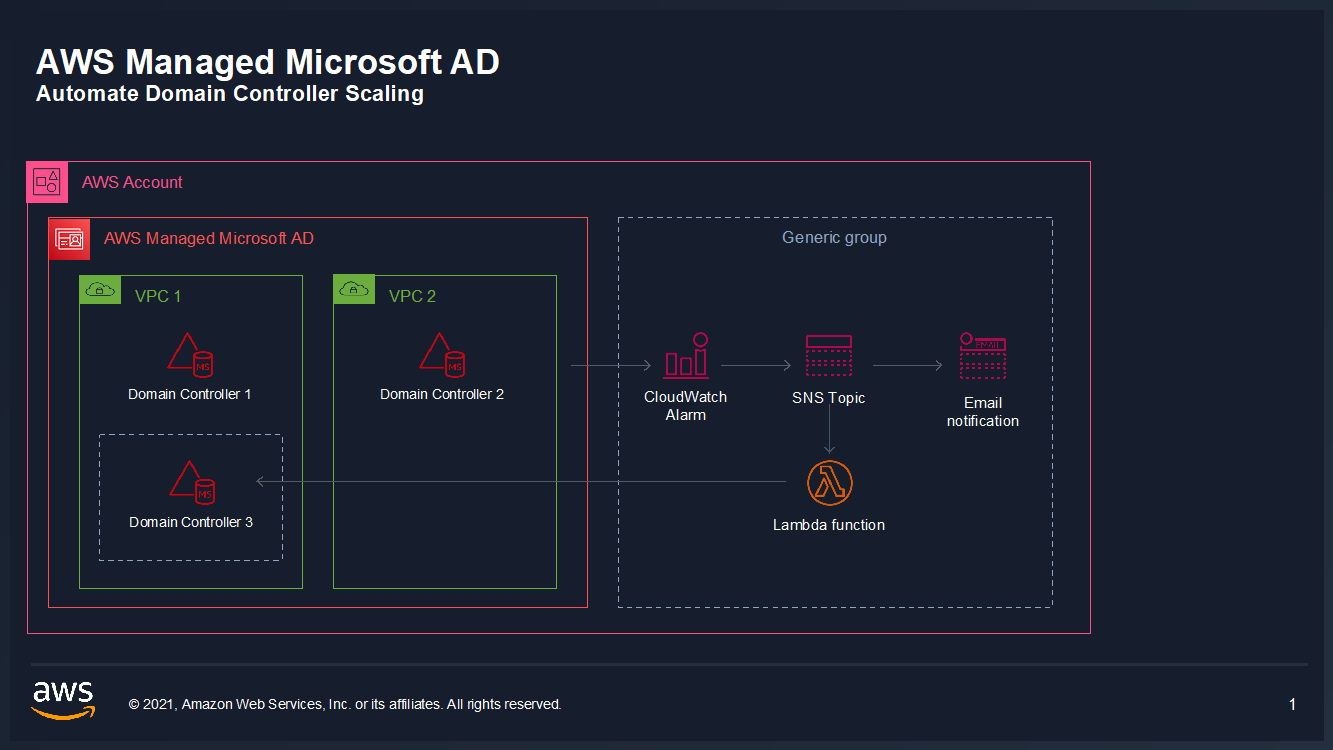
Figure 1: Solution overview

Figure 1: Solution overview

To create a CloudWatch Alarm with SNS topic notifications

  1. In the AWS Console, navigate to CloudWatch
  2. Choose Metrics to see the Browse Metrics panel
  3. Choose the Directory Service namespace, then choose AWS Managed Microsoft AD.
  4. In the Directory ID column, select your directory and check search for this only.
  5. From the Metric Category column, select Processor from Metric Category and check add to search. This view will show the processor utilization for your directory.
  6.  

    Figure 2. Processor utilization metrics

    Figure 2. Processor utilization metrics

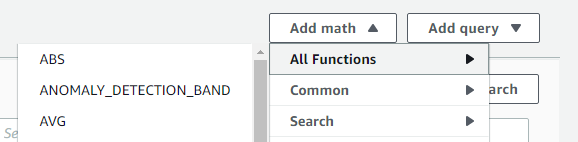
  7. To see the average utilization across all domain controllers, choose Add Math, then All Functions, then AVG to create a metric math expression for average CPU utilization across all domain controllers.
  8.  

    Figure 3. Adding a math function to compute average

    Figure 3. Adding a math function to compute average

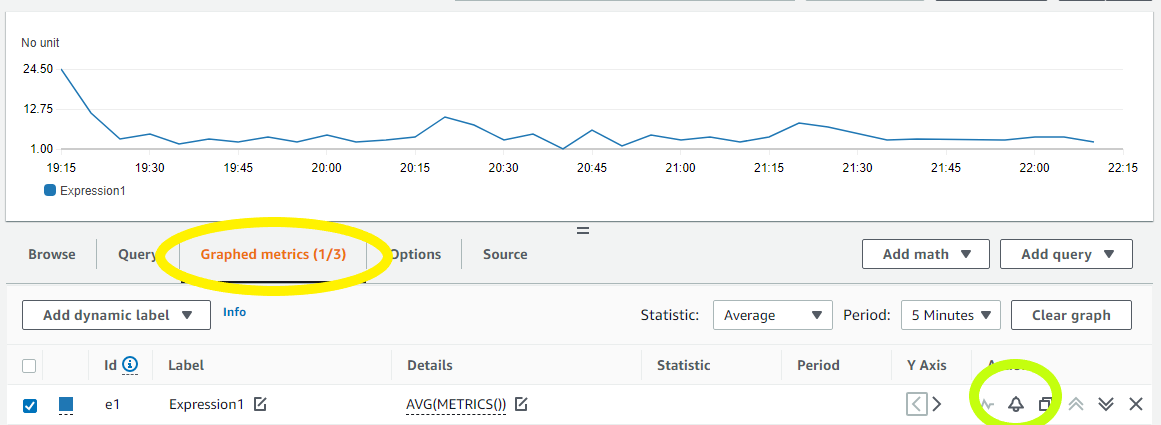
  9. Next, choose the Graphed Metrics tab in the CloudWatch metrics console, select the newly created expression, then select the bell icon from the Actions column to create a CloudWatch alarm based on this metric.
  10. Figure 4. Create a CloudWatch Alarm using Metric Math Expression

    Figure 4. Create a CloudWatch Alarm using Metric Math Expression

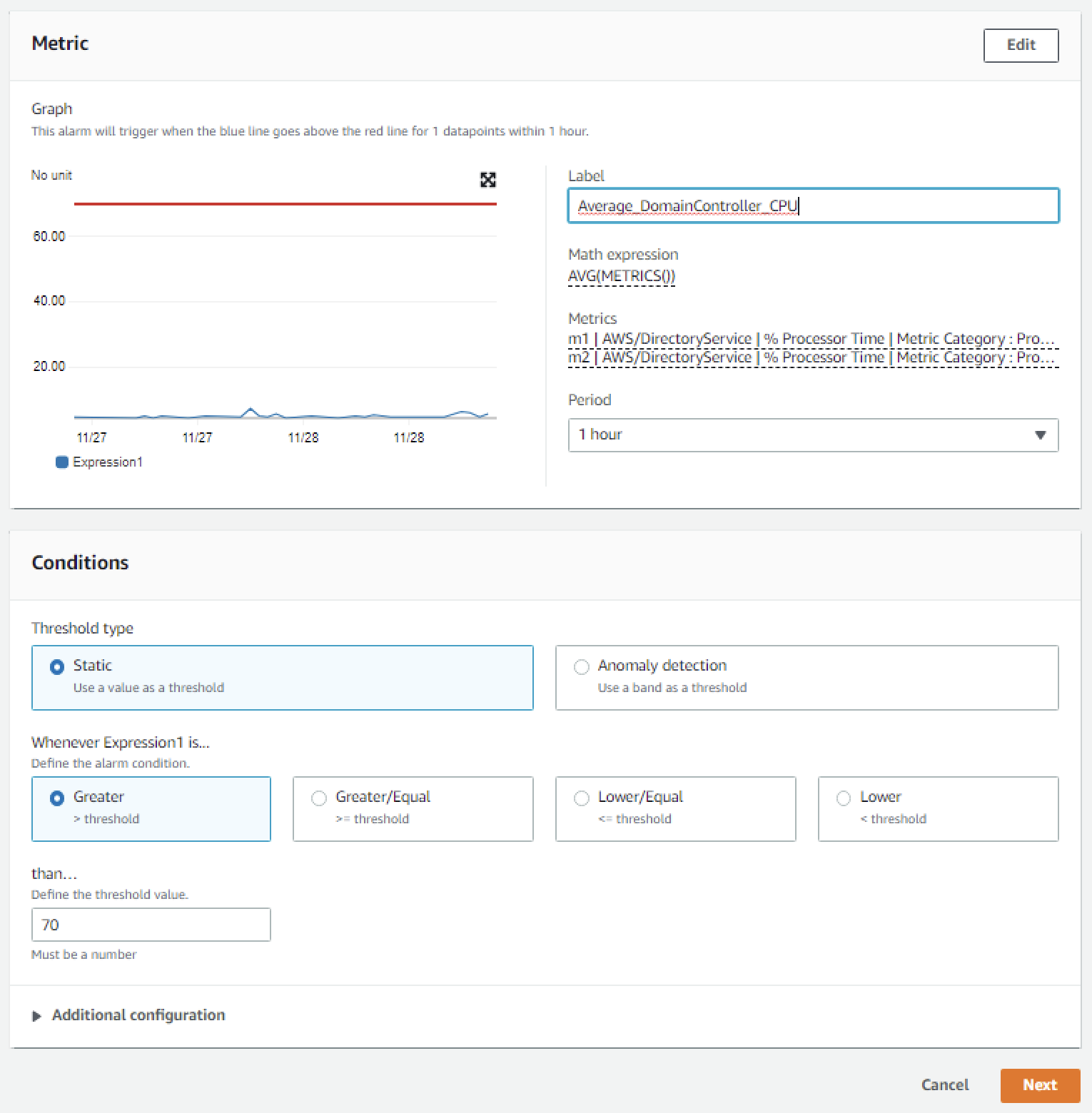
  11. Configure the threshold alarm to trigger when CPU utilization exceeds 70%.
  12.  In the Metrics section, under Period, choose 1 Hour.
     In the Conditions section, under Threshold Type, choose Static. Under Define the alarm condition, choose Greater than threshold. Under Define the threshold value, enter 70. See Figure 5 for an image of how alarm parameters should look on your screen. Choose Next to Configure actions

    Figure 5. Configure the alarm parameters

    Figure 5. Configure the alarm parameters

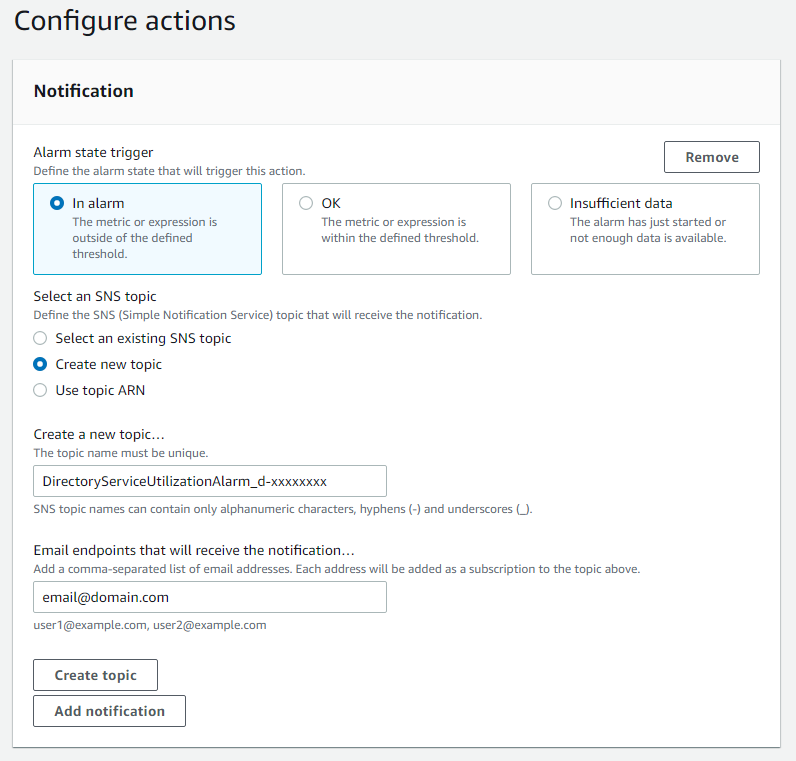
  13. On the Configure actions screen, configure the actions using the parameters listed below to send an email notification when the alarm state is triggered. See Figure 6 for an image of how email notifications are configured.
  14.   In the Notification section, set Alarm state trigger to In alarm.   Set Select an SNS topic to Create topic.  Fill in the name of the alarm in the Create a new topic field, and add the email where notifications should be sent to the Email endpoints that will receive notification field. An email address is required to create the SNS topic and you should use an email address that’s accessible by your operations team. This SNS topic will be used to trigger the Lambda automation described in a later section. Note: make a note of the SNS topic name you chose; you will use it later when creating the Lambda function in the To create an AWS Lambda function to automate scale out procedure below. 

    Figure 6. Create SNS topic and email notification

    Figure 6. Create SNS topic and email notification

  15. In the Alarm name field, provide a name for the alarm. You can optionally also add an Alarm description. Choose Next.
  16. Review your configuration, and choose Create alarm to create the alarm.
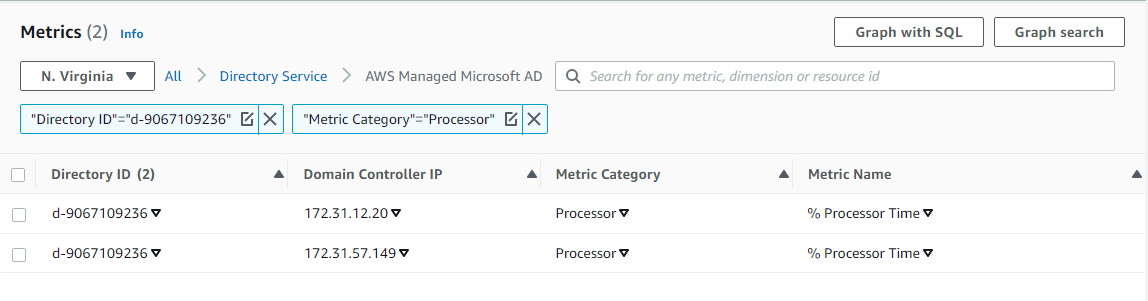
Once you’ve completed these steps, you will now have an alarm implemented for when domain controller CPU utilization exceeds an average of 70% across both domain controllers. This will trigger an SNS topic when your directory is experiencing a heavy load, which will be used to start the Lambda automation and will send an informational email notification. In the next section, we’ll configure an AWS Lambda function to automate the addition of a domain controller based on this SNS topic.

For additional details on CloudWatch Alarms, please see the Amazon CloudWatch documentation.

To create an AWS Lambda function to automate scale out

The sample Lambda function shown below checks the number of domain controllers in this Region, and increases that by adding one additional domain controller. This procedure describes how to configure the IAM role required for this Lambda function, then how to deploy the Lambda function to execute when the alarm is triggered to automatically add a domain controller when your load exceeds your typical usage baseline.

Note: For additional details on Lambda creation, please see the AWS Lambda documentation.

To automate scale-out using AWS Lambda

  1. In the AWS Console, navigate to IAM and choose Policies, then choose Create Policy.
  2. Choose the JSON tab, and create a new IAM role using the policy provided in JSON below.
  3. For more details on this configuration, see the AWS Directory Service documentation.

    Sample policy


    {
    	"Version":"2012-10-17",
    	"Statement":[
    	{
    		"Effect":"Allow",
    		"Action":[
    			"ds:DescribeDomainControllers",
    			"ds:UpdateNumberOfDomainControllers",
    			"ec2:DescribeSubnets",
    			"ec2:DescribeVpcs",
    			"ec2:CreateNetworkInterface",
    			"ec2:DescribeNetworkInterfaces",
    			"ec2:DeleteNetworkInterface"
    		],
    		"Resource":"*"
    	}
    	]
    }
    

  4. Choose Next:Tags to add tags (optional) before choosing Next:Review.
  5. On the Create Policy screen, provide a name in the Name field. You can optionally also add a description. Choose Create policy to complete creating the new policy.
  6.  
    Note: make a note of the policy name you chose; you will use it later when updating the execution role for the Lambda function.  
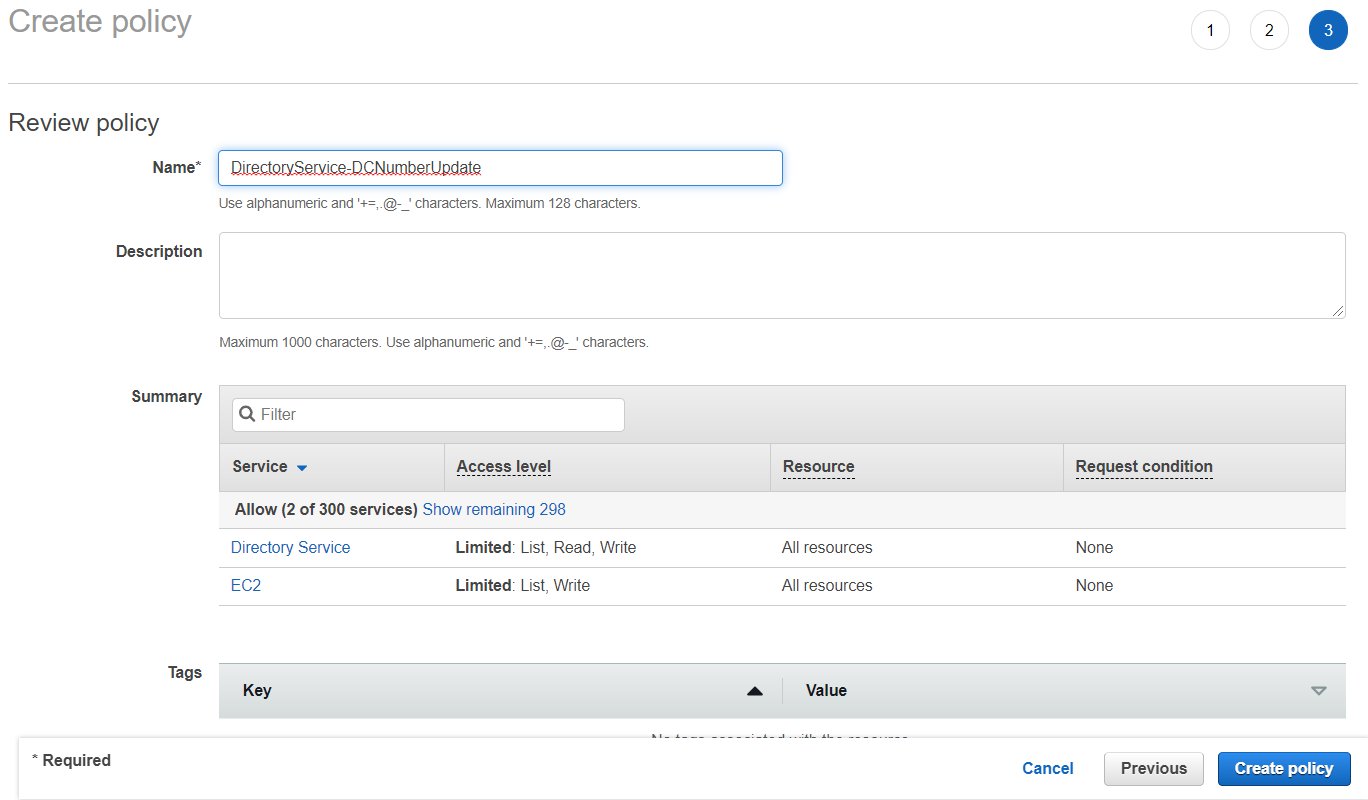
    Figure 7. Provide a name to create the IAM policy
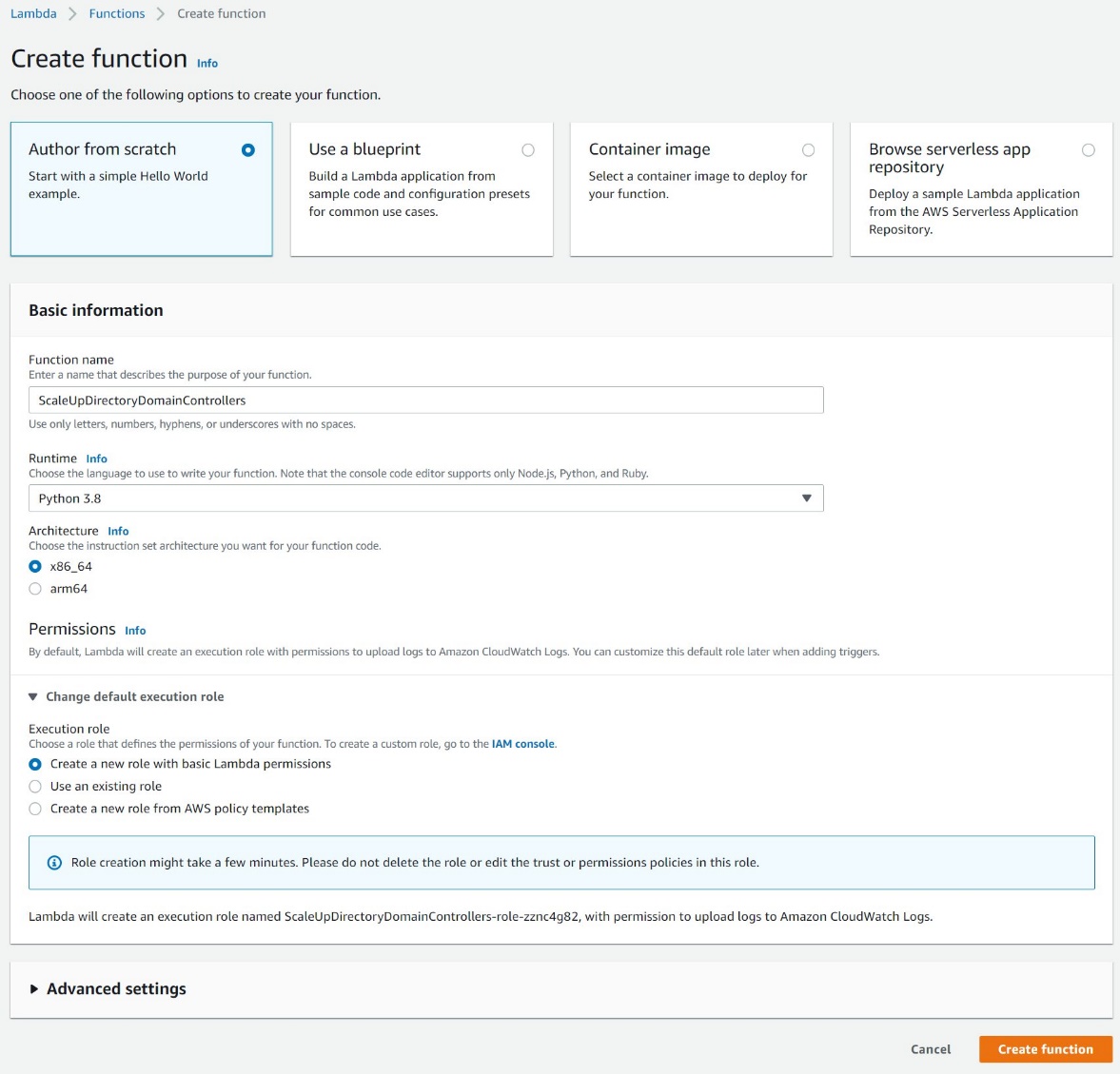
    Figure 7. Provide a name to create the IAM policy

  7. In the AWS Console, navigate to Lambda and choose Create Function
  8. On the Create Function screen, select Author from Scratch and provide a Name, then choose Create Function.
  9. Figure 8. Create a Lambda function

    Figure 8. Create a Lambda function

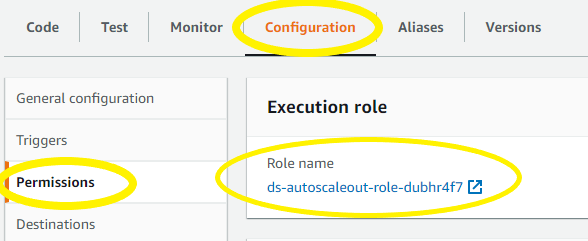
  10. Once created, on the Lambda function’s page, choose the Configuration tab, then choose Permissions from the sidebar and choose the execution role name linked under Role name. This will open the IAM console in another tab, preloaded to your Lambda execution role.
  11.  

    Figure 9: Select the Execution Role

    Figure 9: Select the Execution Role

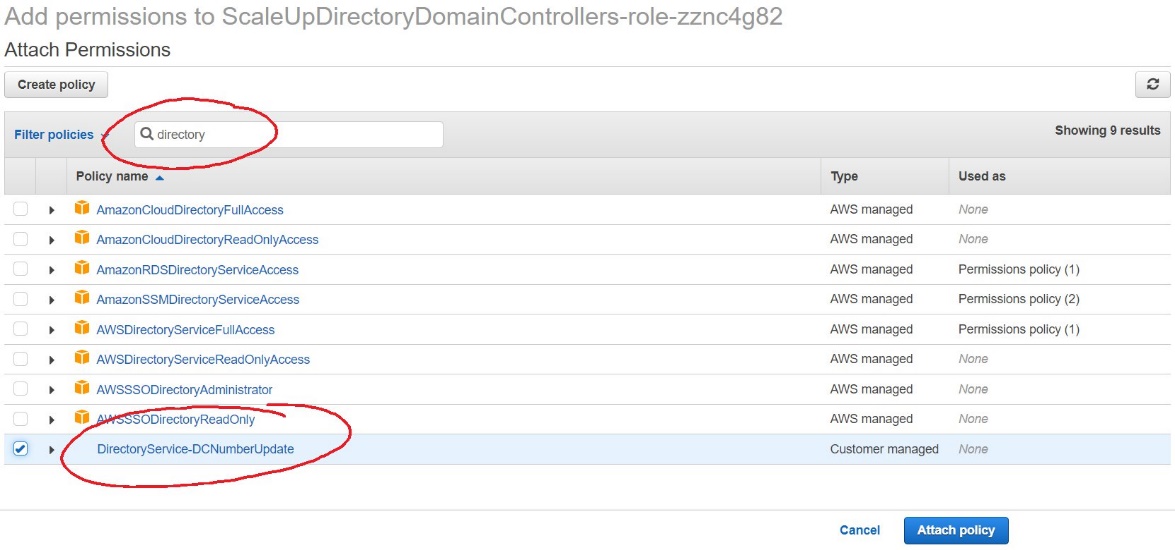
  12. On the execution role screen, choose Attach policies and select the IAM policy you’ve just created (e.g. DirectoryService-DCNumber Update). On the Attach Permissions screen, choose Attach policy to complete updating the execution role. Once completed this step, you may close this tab and return the previous browser tab.
  13.  

    Figure 10. Select and attach the IAM policy
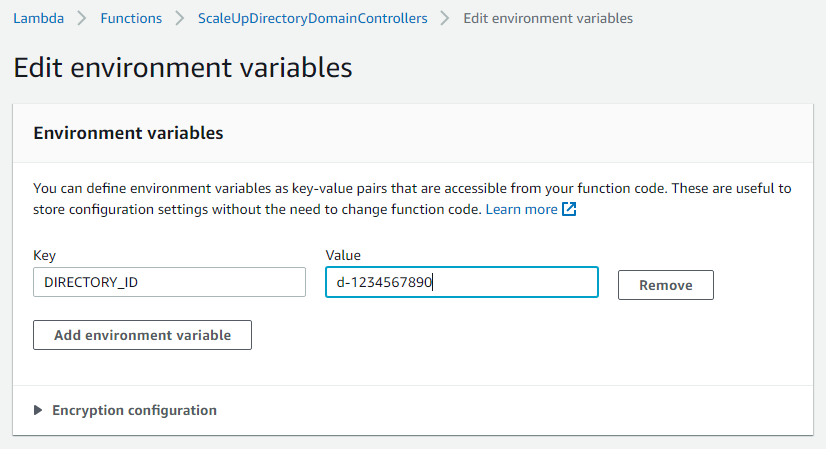
    Figure 10. Select and attach the IAM policy

  14. On the Lambda function screen, choose the Configuration tab, then choose Triggers from the sidebar.
  15. On the Add Trigger screen, choose the pulldown under Trigger configuration and select SNS. On the SNS topic box, select the SNS topic you created in Step 9 of the To create a CloudWatch Alarm with SNS topic notifications procedure above. Then choose Add to complete the trigger configuration.
  16. On the Lambda function screen, choose the Configuration tab, then choose Environment variables from the sidebar.
  17. On the Environment variables card, click Edit.
  18. On the Edit environment variables screen, choose Add environment variables and use the Key “DIRECTORY_ID” and the Value will be the directory ID for you AWS Managed Microsoft AD.
  19.  

    Figure 11. The "Edit environment variables" screen

    Figure 11. The “Edit environment variables” screen
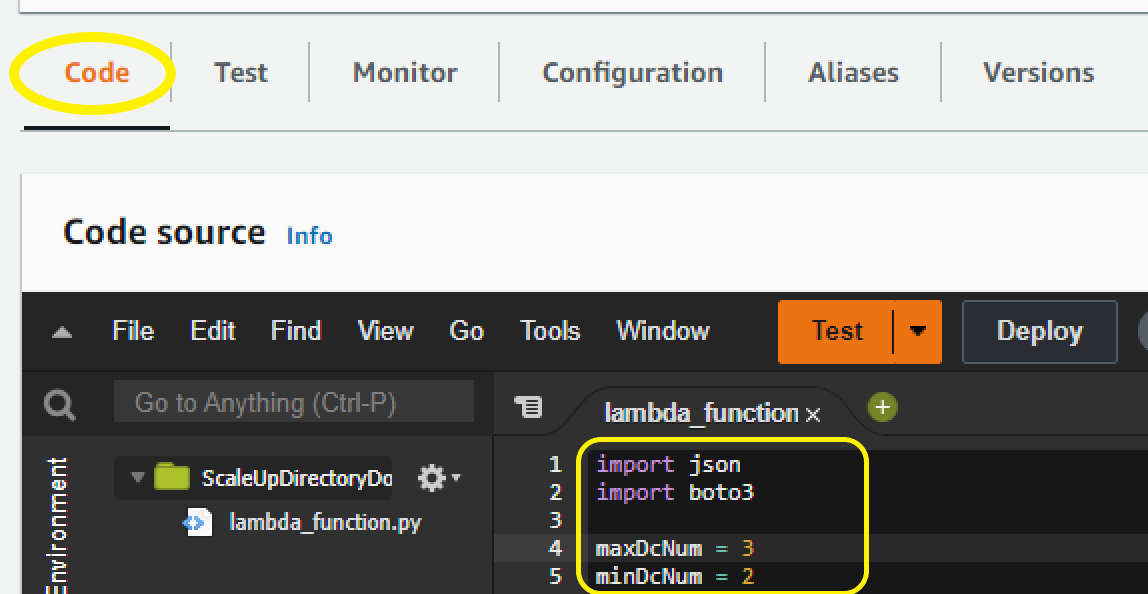
  20. On the Lambda function screen, choose the Code tab to open the in-browser code editor experience inside the Code source card. Paste in the sample Lambda function code given below to complete the implementation.
  21.  

    Figure 12. Paste sample code to complete the Lambda function setup

    Figure 12. Paste sample code to complete the Lambda function setup

Sample Lambda function code

The sample Lambda function given below automates adding another domain controller to your directory. When your CloudWatch alarm triggers, you will receive a notification email, and an additional domain controller will be deployed to provide the added capacity to support the increase in directory usage.

Note: The example code contains a variable for the maximum number of domain controllers (maxDcNum), to prevent you from over provisioning in the event of a missed configuration. This value is set to 3 for this blog post’s example and can be increased to suit your use case. 

import json
import boto3

maxDcNum = 10
minDcNum = 2
region   = "us-east-1"
dsId = "d-906752246f"

ds = boto3.client('ds', region_name=region)

def lambda_handler(event, context):
    
    ## get the current number of domain controllers
    dcs = ds.describe_domain_controllers(DirectoryId = dsId)

    DomainControllers = dcs["DomainControllers"]
    
    DCcount = len(DomainControllers)
    print(">>> Current number of DCs:" + str(DCcount))

    #increase the number of DCs
    if DCcount < maxDcNum:
        NewDCnumber = DCcount + 1 
        response = ds.update_number_of_domain_controllers(DirectoryId = dsId, DesiredNumber =  NewDCnumber);    

        return {
            'statusCode': 200,
            'body': json.dumps("New DC number will be " + str(NewDCnumber))
        }
    else:
        return {
            'statusCode': 200,
            'body': json.dumps("Max number of DCs reached. The number of DCs is" + str(DCcount))
        }

Note: When testing this Lambda function, remember that this will increase the number of domain controllers for your directory in that Region. If the additional domain controller is not needed, please reduce the count after the test to avoid costs for an additional domain controller. The same principles used in this article to automate the addition of domain controllers can be applied to automate the reduction of domain controllers and you should consider automating the reduction to optimize for resilience, performance and cost.

Conclusion

In this post, you’ve implemented alarms based on thresholds in Domain Controller utilization using AWS CloudWatch and automation to increase the number of domain controllers using AWS Lambda functions. This solution helps to cost-effectively improve resilience and performance of your directory, by scaling your directory based on historical load patterns.

To learn more about using AWS Managed Microsoft AD, visit the AWS Directory Service documentation. For general information and pricing, see the AWS Directory Service home page. If you have comments about this blog post, submit a comment in the Comments section below. If you have implementation or troubleshooting questions, start a new thread on the Directory Service forum or contact AWS Support.

Want more AWS Security news? Follow us on Twitter.
Author

Dennis Rothmel

Dennis is a Sr. Product Manager from AWS Identity with a passion for modernization and automation. He has worked globally across Asia Pacific, Europe, and America, and enjoys the travel, languages, cultures and foods that come with global working.

Author

Vladimir Provorov

Vladimir is a Product Solutions Architect from AWS Identity focused on Workforce Identity and Directory Service. He works on developing new features to make Enterprise Identity simpler and more scalable. He is excited to travel and explore the world with his family.

New – Site-to-Site Connectivity with AWS Direct Connect SiteLink

Post Syndicated from Sébastien Stormacq original https://aws.amazon.com/blogs/aws/new-site-to-site-connectivity-with-aws-direct-connect-sitelink/

We are launching AWS Direct Connect SiteLink, a new capability of AWS Direct Connect that lets you create connections between your on-premises networks through the AWS global network backbone.

Until today, when you needed direct connectivity between your data centers or branch offices, you had to rely on public internet or expensive and hard-to-deploy fixed networks. These are geographically constrained and can be tied to long-term contracts. This rigidity becomes a pain point as you expand your businesses globally. In turn, you’re required to create custom workarounds to interconnect networks from different providers, which increases your operating costs.

Starting today, you may connect your sites through Direct Connect locations, without sending your traffic through an AWS Region. We have 108 Direct Connect locations available in 32 countries as I am writing this post, located across Africa, Americas, Asia-Pacific, Europe, and the Middle East. Traffic flows from one Direct Connect location to another following the shortest possible path. You no longer need to connect through the closest AWS Region and manage and configure an AWS Transit Gateway for site-to-site network connectivity.

You can take advantage of Direct Connect’s reliability and global footprint to build a network that grows with your business, with no long-term contracts, flexible pay-as-you-go pricing, and a wide range of port-speeds, from 50 Mbps to 100 Gbps. SiteLink also integrates with other AWS services, letting you reach your VPCs, other AWS services, and your on-premises networks from your Direct Connect connections.

When talking about network topology, a small diagram is always more descriptive than long phrases.

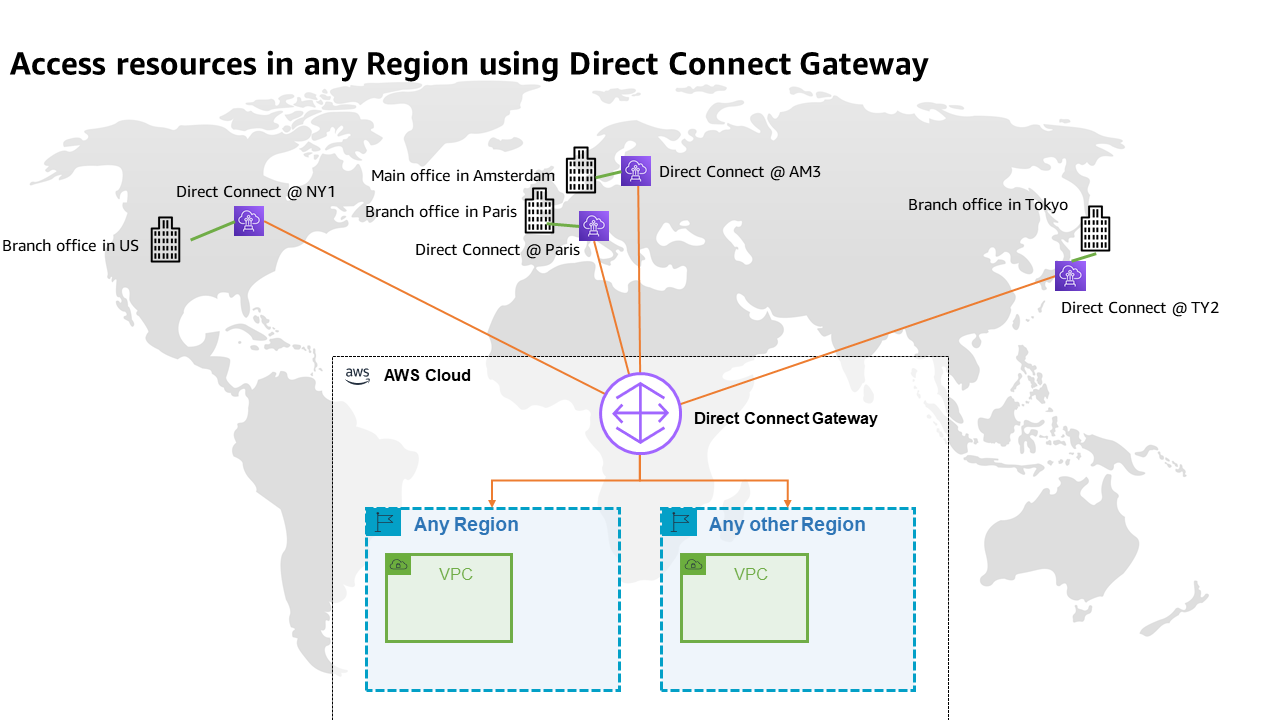
The following diagram shows the way that you use Direct Connect today. Direct Connect is currently optimized to let you reach your AWS Resources running in any Region as quickly as possible. Sending data from one Direct Connect location to another is not possible.

Once you connect your locations (NY1, AM3, Paris, and TY2 in the diagram) to a Direct Connect gateway, those connections can reach any AWS Region (except the two AWS China Regions). No peering between Regions is necessary, because Direct Connect gateways are global resources.

Site-to-site connectivity without SiteLink

The following diagram shows how you connect multiple sites using SiteLink. The data flows between Direct Connect locations without going through an AWS Region.

Site-to-site connectivity with SiteLink

How to Get Started?
Configuring these connections is very similar to what you do today. The first step is to connect my network to Direct Connect locations. After that, SiteLink can be enabled or disabled in minutes.

Using the AWS Management Console, I navigate to the Direct Connect section, and I select Create virtual interface to create a virtual interface. Under the Additional Settings section, I make sure the SiteLink switch is turned on. Obviously, I repeat this on another virtual interface, once per site, to connect.

SiteLink - enable sitelink for VIF

I have access to similar monitoring dashboards and metrics published to CloudWatch. I select my virtual interface, and then navigate to the Monitoring tab (hopefully your ViF will have more data available than mine that was created just for this post).

SiteLink VIF Monitoring

Availability and Pricing
You can connect your on-premises networks or branch offices to any of our Direct Connect locations available today, except in China.

Pricing is pay-as-you-go, with no commitment or recurring fees. In addition to existing Direct Connect charges, your monthly bill will include a price-per-hour for SiteLink virtual interfaces, as well as the cost of SiteLink data transfer. Check the pricing page to get the details.

Go ahead an start connecting your on-premises locations together with Direct Connect SiteLink!

— seb

New – Enhanced Dead-letter Queue Management Experience for Amazon SQS Standard Queues

Post Syndicated from Alex Casalboni original https://aws.amazon.com/blogs/aws/enhanced-dlq-management-sqs/

Hundreds of thousands of customers use Amazon Simple Queue Service (SQS) to build message-based applications to decouple and scale microservices, distributed systems, and serverless apps. When a message cannot be successfully processed by the queue consumer, you can configure SQS to store it in a dead-letter queue (DLQ).

As a software developer or architect, you’d like to examine and review unconsumed messages in your DLQs to figure out why they couldn’t be processed, identify patterns, resolve code errors, and ultimately reprocess these messages in the original queue. The life cycle of these unconsumed messages is part of your error-handling workflow, which is often manual and time consuming.

Today, I’m happy to announce the general availability of a new enhanced DLQ management experience for SQS standard queues that lets you easily redrive unconsumed messages from your DLQ to the source queue.

This new functionality is available in the SQS console and helps you focus on the important phase of your error handling workflow, which consists of identifying and resolving processing errors. With this new development experience, you can easily inspect a sample of the unconsumed messages and move them back to the original queue with a click, and without writing, maintaining, and securing any custom code. This new experience also takes care of redriving messages in batches, reducing overall costs.

DLQ and Lambda Processor Setup
If you’re already comfortable with the DLQ setup, then skip the setup and jump into the new DLQ redrive experience.

First, I create two queues: the source queue and the dead-letter queue.

I edit the source queue and configure the Dead-letter queue section. Here, I pick the DLQ and configure the Maximum receives, which is the number of times after which a message is reprocessed before being sent to the DLQ. For this demonstration, I’ve set it to one. This means that every failed message goes to the DLQ immediately. In a real-world environment, you might want to set a higher number depending on your requirements and based on what a failure means with respect to your application.

I also edit the DLQ to make sure that only my source queue is allowed to use this DLQ. This configuration is optional: when this Redrive allow policy is disabled, any SQS queue can use this DLQ. There are cases where you want to reuse a single DLQ for multiple queues. But usually it’s considered best practices to setup independent DLQs per source queue to simplify the redrive phase without affecting cost. Keep in mind that you’re charged based on the number of API calls, not the number of queues.

Once the DLQ is correctly set up, I need a processor. Let’s implement a simple message consumer using AWS Lambda.

The Lambda function written in Python will iterate over the batch of incoming messages, fetch two values from the message body, and print the sum of these two values.

import json

def lambda_handler(event, context):
    for record in event['Records']:
        payload = json.loads(record['body'])

        value1 = payload['value1']
        value2 = payload['value2']

        value_sum = value1 + value2
        print("the sum is %s" % value_sum)
        
    return "OK"

The code above assumes that each message’s body contains two integer values that can be summed, without dealing with any validation or error handling. As you can imagine, this will lead to trouble later on.

Before processing any messages, you must grant this Lambda function enough permissions to read messages from SQS and configure its trigger. For the IAM permissions, I use the managed policy named AWSLambdaSQSQueueExecutionRole, which grants permissions to invoke sqs:ReceiveMessage, sqs:DeleteMessage, and sqs:GetQueueAttributes.

I use the Lambda console to set up the SQS trigger. I could achieve the same from the SQS console too.

Now I’m ready to process new messages using Send and receive messages for my source queue in the SQS console. I write {"value1": 10, "value2": 5} in the message body, and select Send message.

When I look at the CloudWatch logs of my Lambda function, I see a successful invocation.

START RequestId: 637888a3-c98b-5c20-8113-d2a74fd9edd1 Version: $LATEST
the sum is 15
END RequestId: 637888a3-c98b-5c20-8113-d2a74fd9edd1
REPORT RequestId: 637888a3-c98b-5c20-8113-d2a74fd9edd1	Duration: 1.31 ms	Billed Duration: 2 ms	Memory Size: 128 MB	Max Memory Used: 39 MB	Init Duration: 116.90 ms	

Troubleshooting powered by DLQ Redrive
Now what if a different producer starts publishing messages with the wrong format? For example, {"value1": "10", "value2": 5}. The first number is a string and this is quite likely to become a problem in my processor.

In fact, this is what I find in the CloudWatch logs:

START RequestId: 542ac2ca-1db3-5575-a1fb-98ce9b30f4b3 Version: $LATEST
[ERROR] TypeError: can only concatenate str (not "int") to str
Traceback (most recent call last):
  File "/var/task/lambda_function.py", line 8, in lambda_handler
    value_sum = value1 + value2
END RequestId: 542ac2ca-1db3-5575-a1fb-98ce9b30f4b3
REPORT RequestId: 542ac2ca-1db3-5575-a1fb-98ce9b30f4b3	Duration: 1.69 ms	Billed Duration: 2 ms	Memory Size: 128 MB	Max Memory Used: 39 MB	

To figure out what’s wrong in the offending message, I use the new SQS redrive functionality, selecting DLQ redrive in my dead-letter queue.

I use Poll for messages and fetch all unconsumed messages from the DLQ.

And then I inspect the unconsumed message by selecting it.

The problem is clear, and I decide to update my processing code to handle this case properly. In the ideal world, this is an upstream issue that should be fixed in the message producer. But let’s assume that I can’t control that system and it’s critically important for the business that I process this new type of messages.

Therefore, I update the processing logic as follows:

import json

def lambda_handler(event, context):
    for record in event['Records']:
        payload = json.loads(record['body'])
        value1 = int(payload['value1'])
        value2 = int(payload['value2'])
        value_sum = value1 + value2
        print("the sum is %s" % value_sum)
        # do some more stuff
        
    return "OK"

Now that my code is ready to process the unconsumed message, I start a new redrive task from the DLQ to the source queue.

By default, SQS will redrive unconsumed messages to the source queue. But you could also specify a different destination and provide a custom velocity to set the maximum number of messages per second.

I wait for the redrive task to complete by monitoring the redrive status in the console. This new section always shows the status of most recent redrive task.

The message has been moved back to the source queue and successfully processed by my Lambda function. Everything looks fine in my CloudWatch logs.

START RequestId: 637888a3-c98b-5c20-8113-d2a74fd9edd1 Version: $LATEST
the sum is 15
END RequestId: 637888a3-c98b-5c20-8113-d2a74fd9edd1
REPORT RequestId: 637888a3-c98b-5c20-8113-d2a74fd9edd1	Duration: 1.31 ms	Billed Duration: 2 ms	Memory Size: 128 MB	Max Memory Used: 39 MB	Init Duration: 116.90 ms	

Available Today at No Additional Cost
Today you can start leveraging the new DLQ redrive experience to simplify your development and troubleshooting workflows, without any additional cost. This new console experience is available in all AWS Regions where SQS is available, and we’re looking forward to hearing your feedback.

Alex

Network Address Management and Auditing at Scale with Amazon VPC IP Address Manager

Post Syndicated from Steve Roberts original https://aws.amazon.com/blogs/aws/network-address-management-and-auditing-at-scale-with-amazon-vpc-ip-address-manager/

Managing, monitoring, and auditing IP address allocation for at-scale networks, as the growth in cloud workloads and connected devices continues at a rapid pace, is a complex, time-consuming, and potentially error-prone task. Traditionally, network administrators have resorted to using combinations of spreadsheets, home-grown tools, and scripts to track address assignments across multiple accounts, virtual private clouds (VPCs), and Regions. Manually updating spreadsheets when application development teams request IP address assignments takes time, and care, to avoid errors. Errors which, should they go unnoticed, can lead to address conflicts and subsequent downtime, causing serious operational and business issues. In turn, the time taken to make these updates, sometimes several days, causes delays in onboarding new applications or expanding existing applications, impacting the velocity of development teams. The need to keep those home-grown tools and scripts up-to-date and error-free also results in taking staff hours away from more strategic and business-impacting projects.

Today, I’m happy to announce Amazon VPC IP Address Manager, a new feature that provides network administrators with an automated IP management workflow. IPAM makes it easier for network administrators to organize, assign, monitor, and audit IP addresses in at-scale networks, lowering the management and monitoring burden and eliminating the manual processes that can lead to delays and unintended errors.

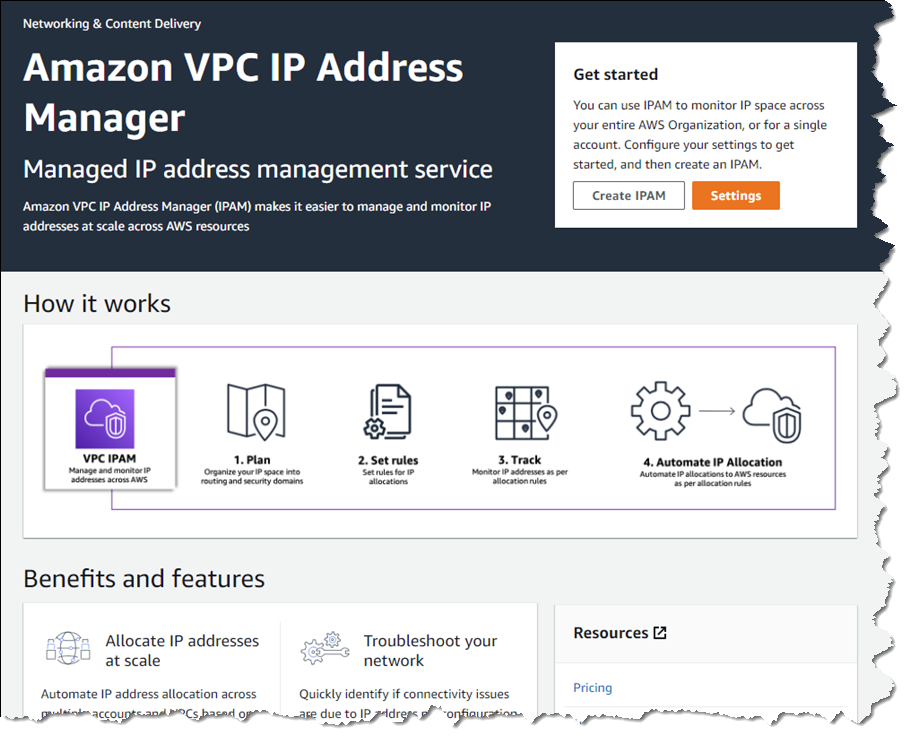
Amazon VPC IP Address Manager dashboard homepage

Introducing Amazon VPC IP Address Manager
IPAM enables management and auditing of IP address assignments across an organization’s accounts, Amazon Virtual Private Cloud (VPC)‘s, and AWS Regions, using a single operational dashboard. From this centralized view, you can manage your IP addresses across AWS.

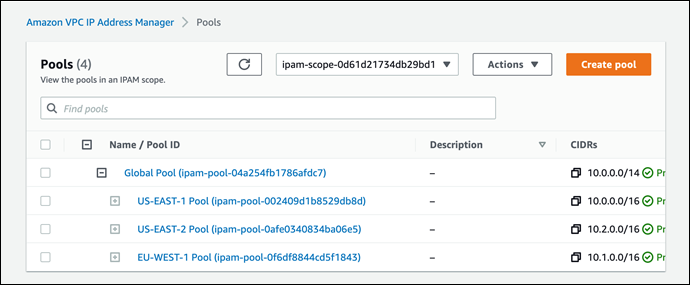
In each Region in which you have resources needing IP addresses, you create a regional pool. Pools are collections of CIDRs and help you to organize your IP space. Unused address space from your top-level pools can be used to fill your regional pools. Further, if you have applications or environments with different security needs, you can create additional pools. For example, you could create different pools for ‘dev’ and ‘prod’ environments if they are subject to different connectivity requirements. The screenshots below illustrate the process of creating a global pool and, from it, three regional pools. Although my example stops after configuring regional pools, in production, you would continue subdividing the regional pools further as needed.

Creating the global IPAM pool

Next, I configure a set of regional pools. Below, I’m creating a regional pool for my US East (N. Virginia) Region resources, scoped within my global pool.

Creating a regional pool, step 1

As part of configuring a regional pool, I must specify the CIDRs to provision from the global pool and can optionally enable automatic discovery of resources and rules for allocation.

Configuring a regional pool

After repeating the process of creating and configuring regional pools for my two remaining Regions, US East (Ohio) and Europe (Ireland) in this example, this is my final pool hierarchy. As I noted above, this hierarchy ends at a regional set of pools but could be subdivided further.

IPAM pool hierarchy

Once the IPAM pools have been configured, development teams and resources needing new IP address assignments are able to make use of an automated, self-service process, unblocking the developers, and eliminating errors from using manual processes that can lead to connectivity issues. To govern IP address assignments, you can make use of automated and simple business rules. With IPAM‘s self-service model, developers can now directly create resources and receive IP addresses based on business rules in seconds, removing the delays in onboarding applications and improving the velocity of the development team. In the screenshot below, I’m referencing my pools to set the address ranges to be used when creating a new VPC.

Assigning address ranges for a new VPC from IPAM pools

You can also share your IPAM with your organization, created using AWS Organizations, and AWS Resource Access Manager (RAM). When you share your IPAM, you gain fully automated CIDR allocation to your Amazon VPCs across member accounts in your organization and Regions.

For network administrators, IPAM provides observability and auditing capabilities, helping to speed up troubleshooting, and providing oversight and monitoring of the used and unused addresses across an organization’s global network address pool using a single dashboard. For each assigned address, IPAM tracks critical information, for example, the AWS account, the VPC, routing, and the security domain, eliminating the bookkeeping work that burdens administrators. Having used IPAM to eliminate IP assignment errors, customers can use IPAM to monitor assigned addresses and receive alerts when potential issues are detected – for example, depleting IP addresses that can stall their network’s growth or overlapping IP addresses that can result in erroneous routing. You can proactively act on those alerts and fix issues before they can become major outages.

The screenshot below illustrates monitoring pool utilization across a set of VPCs.

Monitoring an IPAM pool

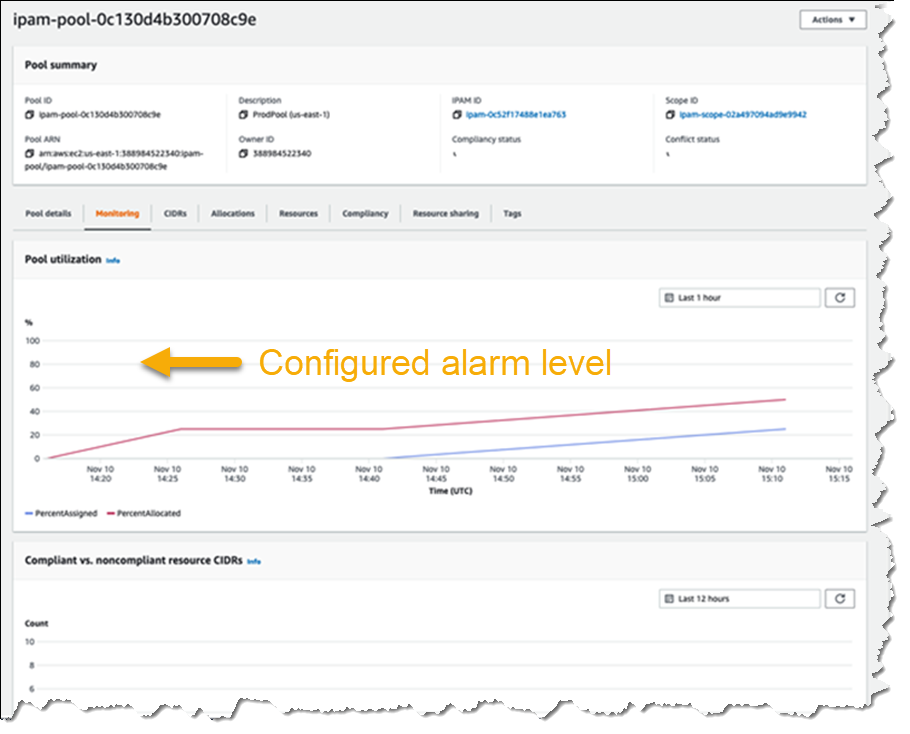
Utilization of address space within a pool can also be monitored. You can add Amazon CloudWatch Alarms that you can configure to trigger at your chosen utilization percentage value so that you can take proactive action before the address space is exhausted.

Monitoring pool utilization with alarms

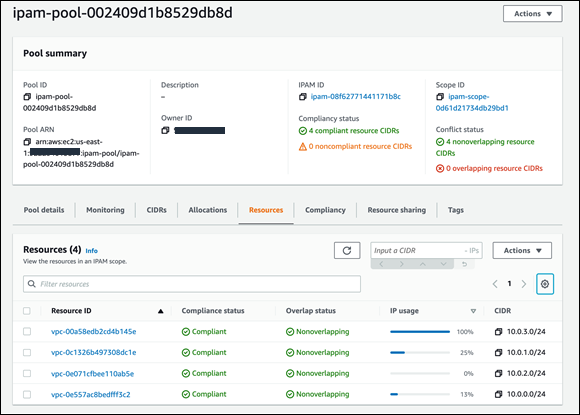
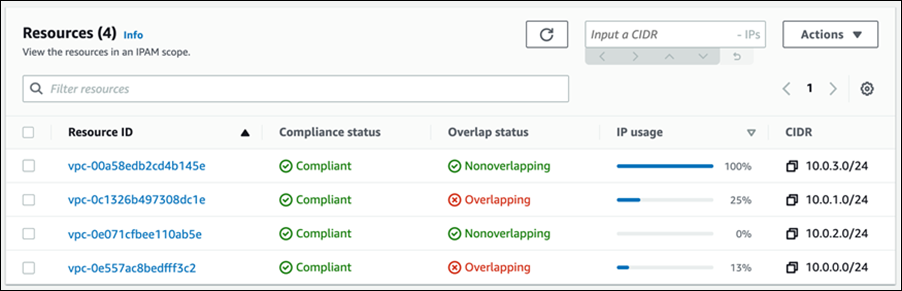
Overlapping address spaces are another headache that network administrators need to manage, usually discovered after the fact during an outage. IPAM can help lower the burden here, too, providing a view of resources that warns of overlapping address ranges.

Detecting overlapping address spaces

To further help troubleshoot network issues and audits of network security and routing policies, network administrators can also take advantage of the current and historical data that IPAM makes available to gain usage insights.

IPAM historical insights

IPAM works with any VPC resource where an IP address needs to be assigned, including public and private addresses and Elastic IP Addresses (EIP), and also supports bring your own IP (BYOIP) for both IPv4 and IPv6 addresses.

Start managing and auditing your IP addresses at scale today
Amazon VPC IP Address Manager is available today in all commercial AWS Regions. Get started today, first creating your IPAM for all Regions and accounts, then creating your pools, and finally setting application policy. Then, you can take advantage of IPAM to automate IP address assignment, monitor, troubleshoot, and audit your network addresses assignments.

For those of you with existing VPCs, after you create IPAM it will start monitoring, without any action on your part, to create an inventory of all your VPCs and EIPs. Once you create pools, IPAM will then backfill your VPCs into the pool. This means you can create VPCs today, using your existing workflow, and use IPAM for monitoring and audit only. Later on, you can switch your workflow to IPAM-based automated VPC assignment.

— Steve

New – Amazon VPC Network Access Analyzer

Post Syndicated from Jeff Barr original https://aws.amazon.com/blogs/aws/new-amazon-vpc-network-access-analyzer/

If you are a member of your organization’s networking, cloud operations, or security teams, you are going to love this new feature. The new Amazon VPC Network Access Analyzer helps you identify network configurations that lead to unintended network access. As you will see in a moment, it will point out ways that you can improve your security posture while still letting you and your organization be agile and flexible. In contrast to manual checking of network configurations, which is error prone and hard to scale, this tool lets you analyze your AWS networks of any size and complexity.

Introducing Network Access Analyzer
Network Access Analyzer takes advantage of our automated reasoning technology that already powers AWS IAM Access Analyzer, Amazon VPC Reachability Analyzer, Amazon Inspector Network Reachability, and other provable security tools.

This new tool uses Network Access Scopes to specify the desired connectivity between your AWS resources. You can get started with a set of Amazon-created scopes, and then either copy & customize them, or create your own from scratch. The scopes are high-level and independent of any particular network architecture or configuration, and can be thought of as a language for specifying the proper level of access & connectivity for your network. You can, for example, create a scope to verify that all web apps use a firewall to access Internet resources, or to indicate that AWS resources used by your Finance team are separate, distinct, and unreachable from the resources used by your Development team.

To evaluate your network against a particular scope, you select it and initiate an analysis. It runs for a few minutes and then generates a set of findings, each of which indicates an unexpected network path between the AWS resources defined in the scope. You can analyze the findings, adjust your configuration or modify the scope in response to the findings, and re-run the analysis, all in just a few minutes.

The analysis process examines a very wide range of AWS resources including Security Groups, CIDR blocks, prefix lists, Elastic Network Interfaces, EC2 instances, Load Balancers, VPC, VPC subnets, VPC endpoints, VPC endpoint services, Transit Gateways, NAT Gateways, Internet Gateways, VPN Gateways, Peering Connections, and Network Firewalls. Your scopes can use Resource Groups to reference all resources that are tagged in a particular way.

Using Network Access Analyzer
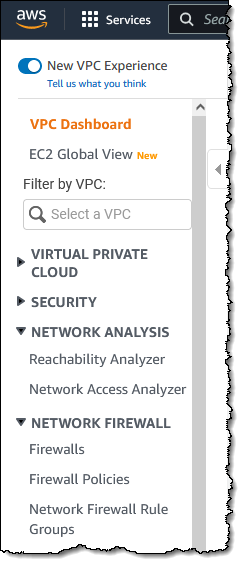
To get started, I open the VPC Console, find the Network Analysis section on the left-side navigation, and click Network Access Analyzer:

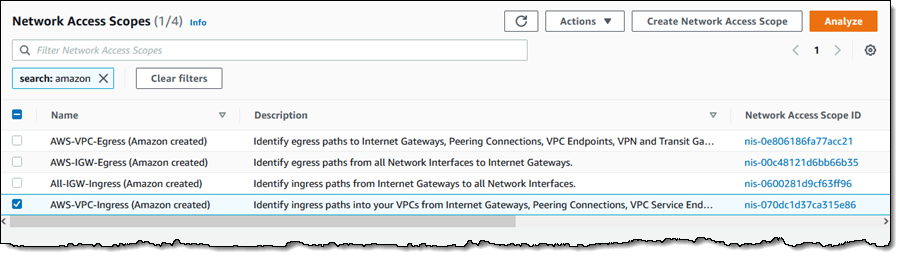
I can see all of my scopes. Initially, I have four, all created by Amazon and ready to use:

To conduct an analysis, I select a scope (AWS-VPC-Ingress (Amazon created)) and click Analyze. The scope’s description reads:

“Identify ingress paths into your VPCs from Internet Gateways, Peering Connections, VPC Service Endpoints, VPN and Transit Gateways.”

The analysis runs for a couple of minutes and displays the findings as soon as it is done:

There’s a lot of very useful information here! The spectrum chart provides an overview of the resources that are in the findings. I can hover my mouse over any of the segments to learn more, or click on one in order to filter the findings and show only those that reference a particular resource or resource type:

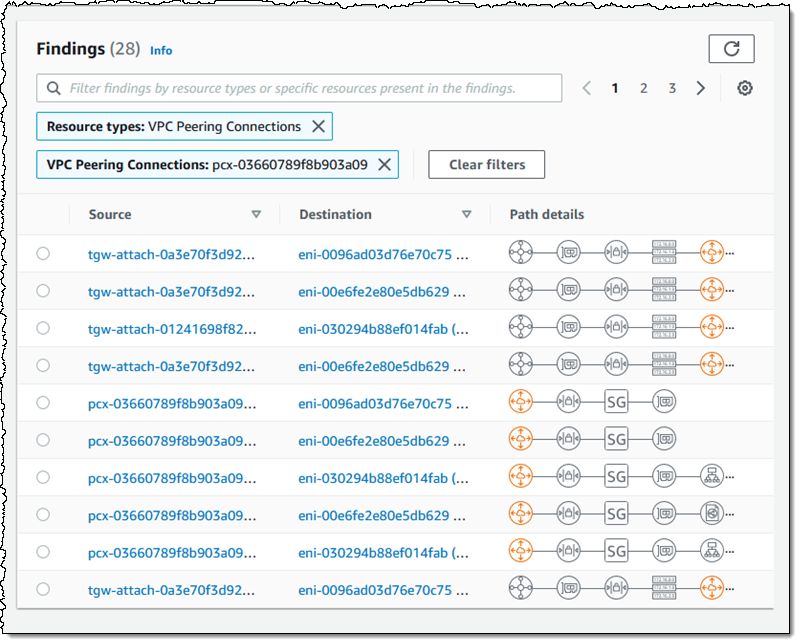
For example, I click VPC Peering Connections and I can see all of the findings that reference the VPC peering connection:

As you can see, the Path details highlight the VPC peering connection in the path! The next step is to examine the findings, decide which ones are expected, and to add them to the scope so that they are excluded from future findings (more on that in a bit).

Inside a Network Access Scope
Let’s take a quick look inside of the Network Access Scope that I used above, and then build another scope from scratch using the visual builder. Each scope is represented in JSON format, and indicates what is considered in-scope (acceptable) traffic between sources and destinations:

{
          "networkInsightsAccessScopeId": "nis-070dc1d37ca315e86",
          "matchPaths": [
                    {
                              "source": {
                                        "resourceStatement": {
                                                  "resources": [],
                                                  "resourceTypes": [
                                                            "AWS::EC2::InternetGateway",
                                                            "AWS::EC2::VPCPeeringConnection",
                                                            "AWS::EC2::VPCEndpointService",
                                                            "AWS::EC2::TransitGatewayAttachment",
                                                            "AWS::EC2::VPNGateway"
                                                  ]
                                        }
                              },
                              "destination": {
                                        "resourceStatement": {
                                                  "resources": [],
                                                  "resourceTypes": [
                                                            "AWS::EC2::NetworkInterface"
                                                  ]
                                        }
                              }
                    }
          ],
          "excludePaths": []
}

The matchPaths element contains source and destination elements. Each of these elements, in turn, identifies AWS resource types and specific resources. While not shown here, scopes can also contain source and destination IP addresses, ports, prefix lists, and traffic types (TCP or UDP). The excludePaths can contain resource types, specific resources, and so forth. I could, for example, define sources and destinations that match all Internet Gateway ingress traffic, but exclude traffic that flows through a Load Balancer, or I could exclude SSH traffic destined for my bastion instances.

Building a Network Access Scope
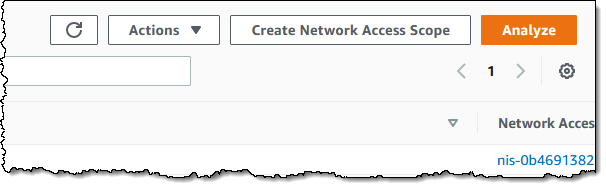
I can build a new scope in three ways. I can Duplicate and modify an existing one, I can start from scratch and use the visual builder, or I can write my own JSON and use either the CLI or the API to create a scope. I click Create Network Access Scope to use the builder:

I can start with one of five predefined templates, or I can build my own:

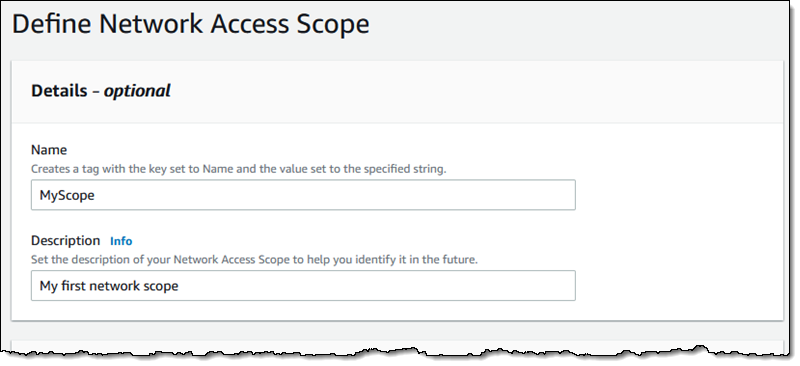
I enter a name and a description:

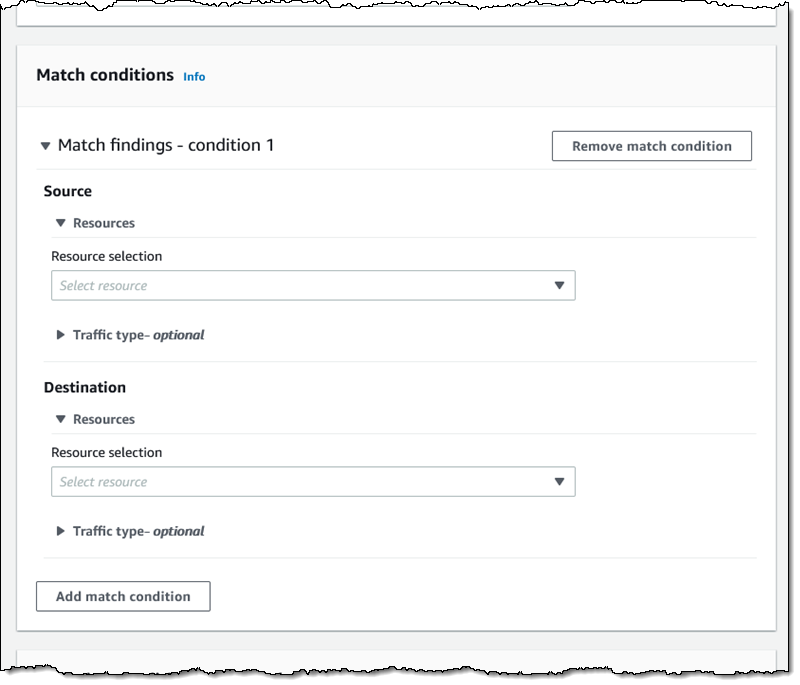
Then I define the source and destinations by resource type, id, traffic type, and so forth:

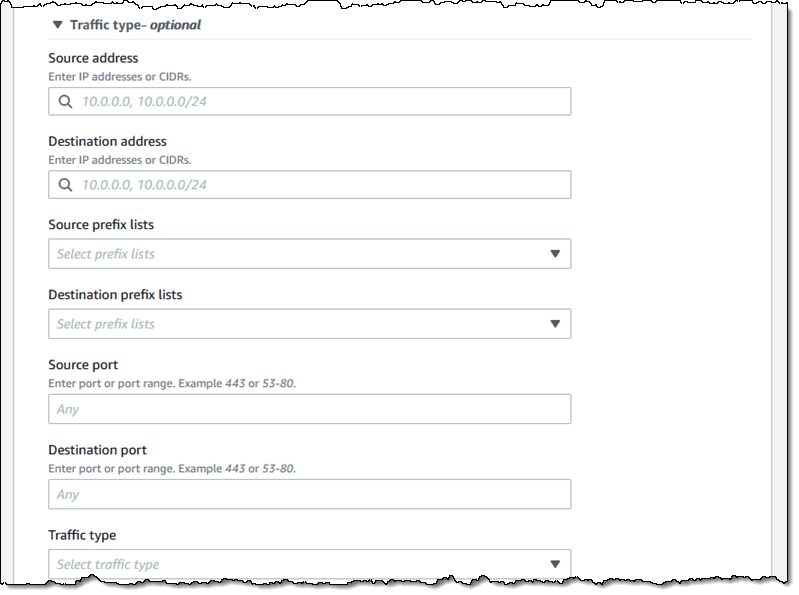
I have many options for matching the traffic type. This allows me to create scopes for very specific purposes:

I can use a similar interface to add any optional exclusions.

Things to Know
This is a very powerful tool and one that I think you are going to love. Here are a couple of things to know about it:

Pricing – You pay $0.002 for each Elastic Network Interface (ENI) analyzed as part of an assessment.

Regions – Network Access Analyzer is available in the US East (N. Virginia), US East (Ohio), US West (N. California), US West (Oregon), Africa (Cape Town), Asia Pacific (Hong Kong), Asia Pacific (Mumbai), Asia Pacific (Seoul), Asia Pacific (Singapore), Asia Pacific (Sydney), Asia Pacific (Tokyo), Canada (Central), Europe (Frankfurt), Europe (Ireland), Europe (London), Europe (Milan), Europe (Paris), Europe (Stockholm), South America (São Paulo), and Middle East (Bahrain) Regions.

In the Works – We have lots of additional features on the product roadmap including support for AWS Organizations, the ability to run your analyses on a regular schedule, and support for IPv6 address ranges and resources.

Jeff;

AWS Shield Advanced Update – Automatic Application Layer DDoS Mitigation

Post Syndicated from Channy Yun original https://aws.amazon.com/blogs/aws/aws-shield-advanced-update-automatic-application-layer-ddos-mitigation/

In 2016, we launched AWS Shield, a managed Distributed Denial of Service (DDoS) protection service that safeguards applications running on AWS. AWS Shield provides always-on detection and automatic inline mitigations that minimize application downtime and latency without needing to contact AWS Support.

There are two tiers of AWS Shield: Standard and Advanced. All AWS customers benefit from the automatic network layer protections of AWS Shield Standard and at no cost. AWS Shield Standard defends against the most common, frequently occurring network and transport layer (Layer 3 and 4) DDoS attacks to maximize the availability of AWS services.

For customized protection against sophisticated (Layer 3 to 7) threats targeting your applications, you can subscribe to AWS Shield Advanced. AWS Shield Advanced provides more sensitive detection and tailored mitigations against large and complex DDoS attacks, near real-time visibility into attacks, and integration with AWS WAF, a web application firewall for defense against Layer 7 attacks. AWS Shield Advanced also gives you 24-7 access to the AWS Shield Response Team (SRT) and cost protection against scaling costs stemming from DDoS attacks.

AWS Shield Advanced establishes a traffic baseline for each protected resource. Significant deviations from this baseline are flagged as DDoS events and trigger alerts through Amazon CloudWatch. However, mitigating these events still requires manually crafting an AWS WAF rule that isolates the malicious traffic, deploying it through the AWS WAF console or API, and evaluating the rule’s effectiveness. AWS Shield Advanced customers can utilize the SRT to create such AWS WAF rules or rely on their own expertise, but the process is time-consuming, which increases the time it takes to mitigate a DDoS attack and prevent availability impact to applications.

Today, we are announcing Automatic Application Layer DDoS Mitigation for AWS Shield Advanced. This is a new set of capabilities included for all Shield Advanced customers that automatically mitigate malicious web traffic that threatens to impact application availability. This feature automatically creates, tests, and deploys AWS WAF rules to mitigate layer 7 DDoS events on behalf of customers.

Enabling Automatic Application Layer DDoS Mitigation
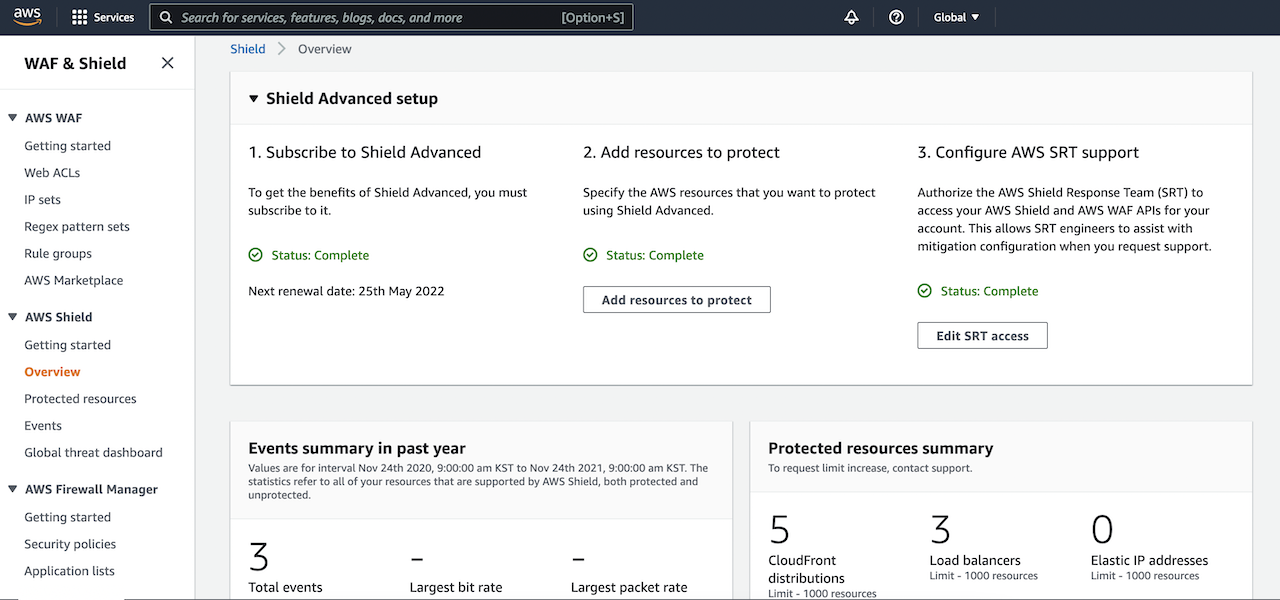
Visit the AWS Shield console to get started with automatic application layer DDoS mitigation. To get the benefits of Shield Advanced, you must subscribe to an annual subscription.

After you subscribe to AWS Shield Advanced, you specify the resources that you want to protect, configure a layer 7 DDoS mitigation, AWS SRT supports, and a dashboard in CloudWatch to monitor DDoS events. To learn more, see Getting started with AWS Shield Advanced in the AWS documentation.

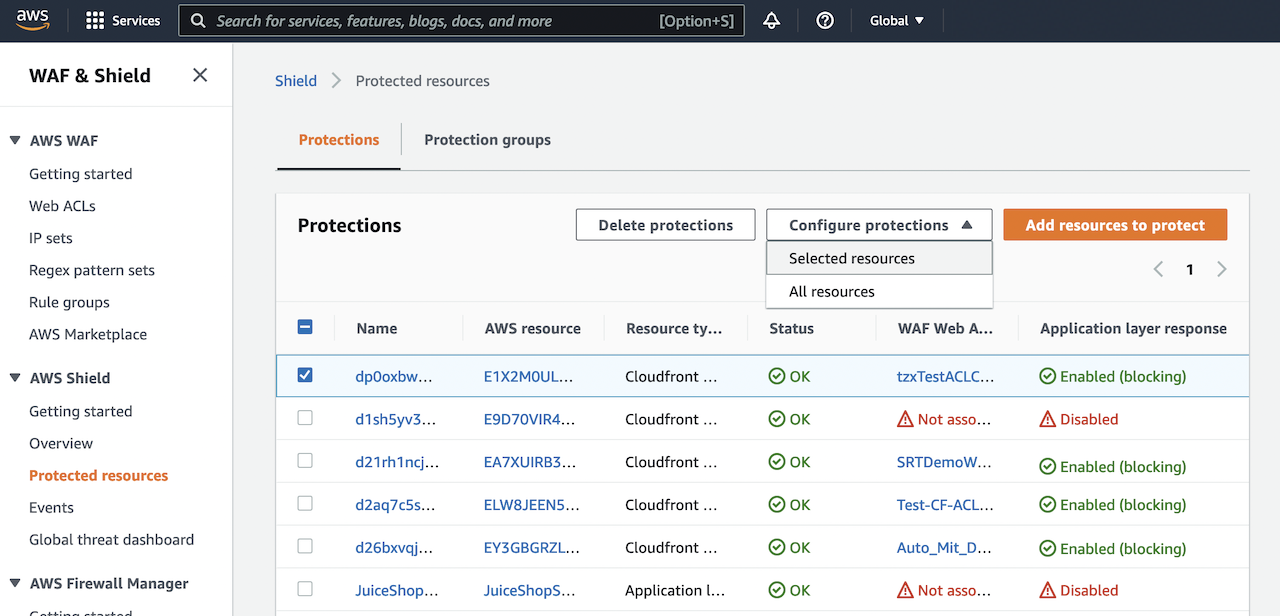
To enable Shield Advanced automatic application layer DDoS mitigation, select your layer 7 AWS resources (e.g. CloudFront), and choose Configure protections from the drop down list.

Next, in Edit protection, choose if you would like to enable automatic mitigation of layer 7 events and select if whether WAF rules should be created in Count or Block mode in Automatic response. Placing WAF rules in Count mode allows you to observe how resource traffic would be affected before deploying them in Block mode. Please note that a WebACL must be associated with a Shield protected resource in order to enable automatic layer 7 mitigation.

Mitigation actions can be changed to count or block mode at any time. Navigate to the Events tab of the console to view detected DDoS events, and select a detected event to see detection, mitigation, and top contributor metrics.

How to Mitigate Application Layer DDoS Automatically
When you want to protect layer 7 resources, such as CloudFront distributions, AWS Shield Advanced will establish a 30-day traffic baseline into each protected resource.

When automatic mitigation is enabled, only then will we create a Shield managed rule group in which AWS Shield Advanced will create AWS WAF rules in response to DDoS events.

Traffic that significantly deviates from the established baseline will be flagged as a potential DDoS event. After an event is detected, Shield Advanced will attempt to identify a signature based on offending request patterns. If a signature is identified, WAF rules will be created to mitigate traffic with that signature.

Once rules are confirmed to be safe, they will be added to the Shield-managed rule group, and customers can choose whether the rules are deployed in count or block mode. Customers can also create CloudWatch alerts based on when requests are being blocked or counted.

Customers can change the action that automatic mitigation takes (count or block) or disable it entirely at any time. Shield Advanced will automatically remove AWS WAF rules after it has determined that an event has fully subsided. To learn more, see Shield Advanced automatic application layer DDoS mitigation in the AWS Shield Developer Guide.

Available Now
Automatic Application Layer DDoS Mitigation is now available in all AWS regions where AWS Shield Advanced is available, and it can be enabled at no additional cost.

You can send feedback to the AWS forum for AWS Shield or through your usual AWS Support contacts.

Channy

[$] Fedora revisits the Git-forge debate

Post Syndicated from original https://lwn.net/Articles/877240/rss

A seemingly straightforward question aimed at candidates for the in-progress
Fedora
elections
led to a discussion on the Fedora devel mailing list that
branched into a few different directions. The question was related to a
struggle that the distribution has had before: whether using non-free Git
forges is appropriate. One of the
differences this time, though, is that the focus is on where source-git (or src-git)
repositories will be hosted, which is a separate question from where the dist-git repository
lives.

GitHub Availability Report: November 2021

Post Syndicated from Scott Sanders original https://github.blog/2021-12-01-github-availability-report-november-2021/

In November, we experienced one incident resulting in significant impact and degraded state of availability for core GitHub services, including GitHub Actions, API Requests, Codespaces, Git Operations, Issues, GitHub Packages, GitHub Pages, Pull Requests, and Webhooks.

November 27 20:40 UTC (lasting 2 hours and 50 minutes)

We encountered a novel failure mode when processing a schema migration on a large MySQL table. Schema migrations are a common task at GitHub and often take weeks to complete. The final step in a migration is to perform a rename to move the updated table into the correct place. During the final step of this migration a significant portion of our MySQL read replicas entered a semaphore deadlock. Our MySQL clusters consist of a primary node for write traffic, multiple read replicas for production traffic, and several replicas that serve internal read traffic for backup and analytics purposes. The read replicas that hit the deadlock entered a crash-recovery state causing an increased load on healthy read replicas. Due to the cascading nature of this scenario, there were not enough active read replicas to handle production requests which impacted the availability of core GitHub services.

During the incident mitigation, in an effort to increase capacity, we promoted all available internal replicas that were in a healthy state into the production path; however, the shift was not sufficient for full recovery. We also observed that read replicas serving production traffic would temporarily recover from their crash-recovery state only to crash again due to load. Based on this crash-recovery loop, we chose to prioritize data integrity over site availability by proactively removing production traffic from broken replicas until they were able to successfully process the table rename. Once the replicas recovered, we were able to move them back into production and restore enough capacity to return to normal operations.

Throughout the incident, write operations remained healthy and we have verified there was no data corruption.

To address this class of failure and reduce time to recover in the future, we continue to prioritize our functional partitioning efforts. Partitioning the cluster adds resiliency given migrations can then be run in canary mode on a single shard—reducing the potential impact of this failure mode. Additionally, we are actively updating internal procedures to increase the amount each cluster is over-provisioned.

As next steps, we’re continuing to investigate the specific failure scenario, and have paused schema migrations until we know more on safeguarding against this issue. As we continue to test our migration tooling, we are classifying opportunities to improve it during such scenarios.

In summary

We will continue to keep you updated on the progress and investments we’re making to ensure the reliability of our services. To learn more about what we’re working on, check out the GitHub engineering blog.

Top 5: Featured Architecture Content for November

Post Syndicated from Ellen Crowley original https://aws.amazon.com/blogs/architecture/top-5-featured-architecture-content-for-november/

The AWS Architecture Center provides new and notable reference architecture diagrams, vetted architecture solutions, AWS Well-Architected best practices, whitepapers, and more. This blog post features some of our best picks from November’s new and updated content.

1. Game Industry Lens for the AWS Well-Architected Framework

This new Lens specifies best practices for the unique characteristics of building and operating games in the cloud, based on our experience working with game developers and publishers around the world. It provides guidance on how to design and operate your environment so that it is cost-optimized and scalable for fluctuations in global player demand. This Lens also provides guidance for securing your game infrastructure and tuning performance in order to deliver a positive player experience.

GameLift with Serverless backend reference architecture diagram

GameLift with Serverless backend reference architecture diagram

2. SAP Lens for the Well-Architected Framework

Another new Lens is aimed at SAP technology architects, cloud architects, and others who build, operate, and maintain SAP systems on AWS. This lens provides insights that AWS has gathered from customers, AWS Partners, and our SAP specialist community. You will learn how to adopt a cloud-native approach when running SAP software including SAP Business Suite, SAP S/4HANA, and supporting products. Use it to evaluate SAP on AWS workloads before, during, and after implementation.

3. Data Analytics Lens for the Well-Architected Framework

The AWS Well-Architected Data Analytics Lens is a collection of customer-proven best practices for designing analytics workloads. The newly updated Lens contains insights that AWS has gathered from real-world case studies, and helps you learn the key design elements of analytics workloads along with recommendations for improvement. The document cover 6 scenarios that are common in many analytics applications, including modern data architecture, batch data processing, and data visualization.

4. Availability and Beyond: Understanding and improving the resilience of distributed systems on AWS

What does it mean to build a highly available workload? How do you measure availability? What can I do to increase my workload’s availability? This new whitepaper will help you answer these questions for workloads operating on complex, distributed systems both in the cloud and on-premises. It outlines a common understanding for availability as a measure of resilience, establishes rules for building highly available workloads, and offers guidance on how to improve workload availability.

5. Content Localization on AWS

This Solutions Implementation provides automated video content transcription, subtitling and translation. It helps you create accurate, multi-language subtitles for video-on-demand (VOD) content, which can help all customers better understand the content. However, localizing (translating) video subtitles is both complex and labor-intensive. Learn how AWS artificial intelligence (AI) services can assist with the subtitle creation process to save manual time spent transcribing, subtitling, translating, and reviewing media assets.

New AWS Scholarship Program Helps Underrepresented and Underserved Students Prep for Careers in AI and ML

Post Syndicated from Antje Barth original https://aws.amazon.com/blogs/aws/new-aws-scholarship-program-helps-underrepresented-and-underserved-students-prep-for-careers-in-ai-and-ml/

As a woman working in information technology (IT) for many years, it has always been close to my heart to challenge long-standing gender stereotypes and inspire more young learners to consider a career in tech. With artificial intelligence (AI) and machine learning (ML) defining the future of technology, this future also depends on diverse representation.

The World Economic Forum estimates that technological advances and automation will create 97 million new technology jobs by 2025, including in the field of AI and ML. Yet, according to their research, women make up just 32% of AI jobs globally. The Pew Research Center found that Black and Hispanic workers in the U.S. comprise just 9% and 8% of workers in the science, technology, engineering, and mathematics (STEM) careers respectively.

At Amazon, we believe that technology should be built in a way that’s inclusive, diverse, and equitable. We already offer STEM programs to enable underrepresented groups to build or advance their technical skills and open up new career possibilities. Programs such as We Power Tech, Amazon Future Engineer, AWS Girls’ Tech Day, and AWS GetIT aim to build a future of tech that is inclusive, diverse, and accessible.

Today, I am excited to announce the launch of the AWS AI & ML Scholarship program in collaboration with Intel and Udacity, designed to prepare underrepresented and underserved students globally for careers in ML.

AWS AI & ML Scholarship Program Debuts with AWS DeepRacer Student
The AWS AI & ML Scholarship program is launching as part of the all-new AWS DeepRacer Student service and Student League. This is a new student division of the popular AWS DeepRacer program, a cloud-based 3D car racing simulator that provides a fun way to learn about ML and reinforcement learning (RL). Through DeepRacer Student, you have access to free online trainings to learn the ML and RL basics. You also have access to 10 hours of model training and 5 GB of storage per month to participate in the DeepRacer Student League, a global autonomous racing competition exclusively for AWS AI & ML students.

As part of DeepRacer Student, the AWS AI & ML Scholarship program in collaboration with Intel and Udacity is geared toward underserved and underrepresented high school and college students globally who are at least 16 years old. These are students who may have faced financial barriers growing up or are part of underrepresented groups, including women, people with disabilities, LGBTQ+ persons, as well as people of color. Students in these groups who take part in the DeepRacer Student League are eligible for a chance to win one or two of 2,500 annual scholarships from Udacity, an online learning platform focused on technology skills.

How to Qualify for the AWS AI & ML Scholarship
AWS DeepRacer Student League LogoTo be considered for a scholarship, you must successfully finish all AWS DeepRacer Student learning modules and achieve a score of at least 80% on all course quizzes, reach a certain lap time performance with your DeepRacer car in the Student League, and submit an essay.

Each year, 2,000 students will win a scholarship to the AI Programming with Python Udacity Nanodegree program. Udacity Nanodegrees are massive open online courses (MOOCs) designed to bridge the gap between learning and career goals. This aims to equip students with programming and ML fundamentals to solve real world problems with ML. The top 500 participants in this first Nanodegree will be eligible to join a second customized Nanodegree program curated specifically for AWS AI & ML Scholarship program recipients.

Coaching and Mentorship Opportunities for Scholarship Recipients
Scholarship recipients not only get access to the educational content, but also receive up to 85 hours of support from Udacity instructors to make sure that students successfully learn and progress through the Nanodegree. Instructors and students meet weekly in small groups, review the content for the week, answer questions, and work on a case study as a group exercise.

The top 500 participants who advance into the second Nanodegree will receive 12 months of mentorship from tenured technology leaders at Amazon and Intel to help prepare for a tech career.

All scholarship recipients will be given exclusive access to Ask-Me-Anythings (AMAs), fireside chats, and office hours with AI/ML professionals and diversity experts from Amazon, Intel, and AWS collaborators such as Girls in Tech. These will help familiarize students with different job functions in the AI/ML field.

Enroll via AWS DeepRacer Student
To enroll in the AWS AI & ML Scholarship program, first sign up at the AWS DeepRacer Student service with a valid email address. Note that this student player account is separate from an AWS account and doesn’t require you to provide any billing or credit card information.

AWS DeepRacer Student Sign Up

You will receive a verification code via email. Once you have verified your email address, log in to the DeepRacer Student service and complete the sign-up process.

AWS DeepRacer Student Complete Sign Up

The form will ask for some additional information, including your school, major, and planned year of graduation. You must also self-certify that you are a student enrolled in either high school, university, or community college.

AWS DeepRacer Student Complete Sign Up with Personal Information

Next, enroll in the AWS AI & ML Scholarship program by selecting the corresponding checkbox. The scholarship qualification will start on March 1, 2022.

AWS DeepRacer Student Opt In To Scholarship

Welcome to AWS DeepRacer Student! Start learning the fundamentals of ML through the provided online trainings. You can also participate in the pre-season DeepRacer Student League before the qualifying races start on March 1, 2022.

AWS DeepRacer Student Dashboard

Available Now
Start preparing for the AWS AI & ML Scholarship program by signing up for AWS DeepRacer Student, available globally today, and opt in to the scholarship program. Start learning with learning modules, train your first AWS DeepRacer model, and see how it performs in AWS DeepRacer Student League Pre-season happening now. Join the AWS Slack community to connect with experts and ask questions.

Sign up for AWS DeepRacer Student and the AWS AI & ML Scholarship program today.

Antje

Now in Preview – Amazon SageMaker Studio Lab, a Free Service to Learn and Experiment with ML

Post Syndicated from Antje Barth original https://aws.amazon.com/blogs/aws/now-in-preview-amazon-sagemaker-studio-lab-a-free-service-to-learn-and-experiment-with-ml/

Our mission at AWS is to make machine learning (ML) more accessible. Through many conversations over the past years, I learned about barriers that many ML beginners face. Existing ML environments are often too complex for beginners, or too limited to support modern ML experimentation. Beginners want to quickly start learning and not worry about spinning up infrastructure, configuring services, or implementing billing alarms to avoid going over budget. This emphasizes another barrier for many people: the need to provide billing and credit card information at sign-up.

What if you could have a predictable and controlled environment for hosting your Jupyter notebooks in which you can’t accidentally run up a big bill? One that doesn’t require billing and credit card information at all at sign-up?

Today, I am extremely happy to announce the public preview of Amazon SageMaker Studio Lab, a free service that enables anyone to learn and experiment with ML without needing an AWS account, credit card, or cloud configuration knowledge.

At AWS, we believe technology has the power to solve the world’s most pressing issues. And, we proudly support the new and innovative ways that our customers are using these technologies to deliver social impacts.

This is why I am also excited to announce the launch of the AWS Disaster Response Hackathon using Amazon SageMaker Studio Lab. The hackathon, starting today and running through February 7, 2022, is a great way to start learning ML while doing good in the world. I will share more details on how to get involved at the end of the post.

Getting Started with Amazon SageMaker Studio Lab
Studio Lab is based on open-source JupyterLab and gives you free access to AWS compute resources to quickly start learning and experimenting with ML. Studio Lab is also simple to set up. In fact, the only configuration you have to do is one click to choose whether you need a CPU or GPU instance for your project. Let me show you.

The first step is to request a free Studio Lab account here.

Amazon SageMaker Studio Lab

When your account request is approved, you will receive an email with a link to the Studio Lab account registration page. You can now create your account with your approved email address and set a password and your username. This account is separate from an AWS account and doesn’t require you to provide any billing information.

Amazon SageMaker Studio Lab - Create Account

Once you have created your account and verified your email address, you can sign in to Studio Lab. Now, you can select the compute type for your project. You can choose between 12 hours of CPU or 4 hours of GPU per user session, with an unlimited number of user sessions available to you. Furthermore, you get a minimum of 15 GB of persistent storage per project. When your session expires, Studio Lab will take a snapshot of your environment. This enables you to pick up right where you left off. Let’s select CPU for this demo, and choose Start runtime.

Amazon SageMaker Studio Lab - Select Compute

Once the instance is running, select Open project to go to your free Studio Lab environment and start building. No additional configuration is required.

Amazon SageMaker Studio Lab - Open Project

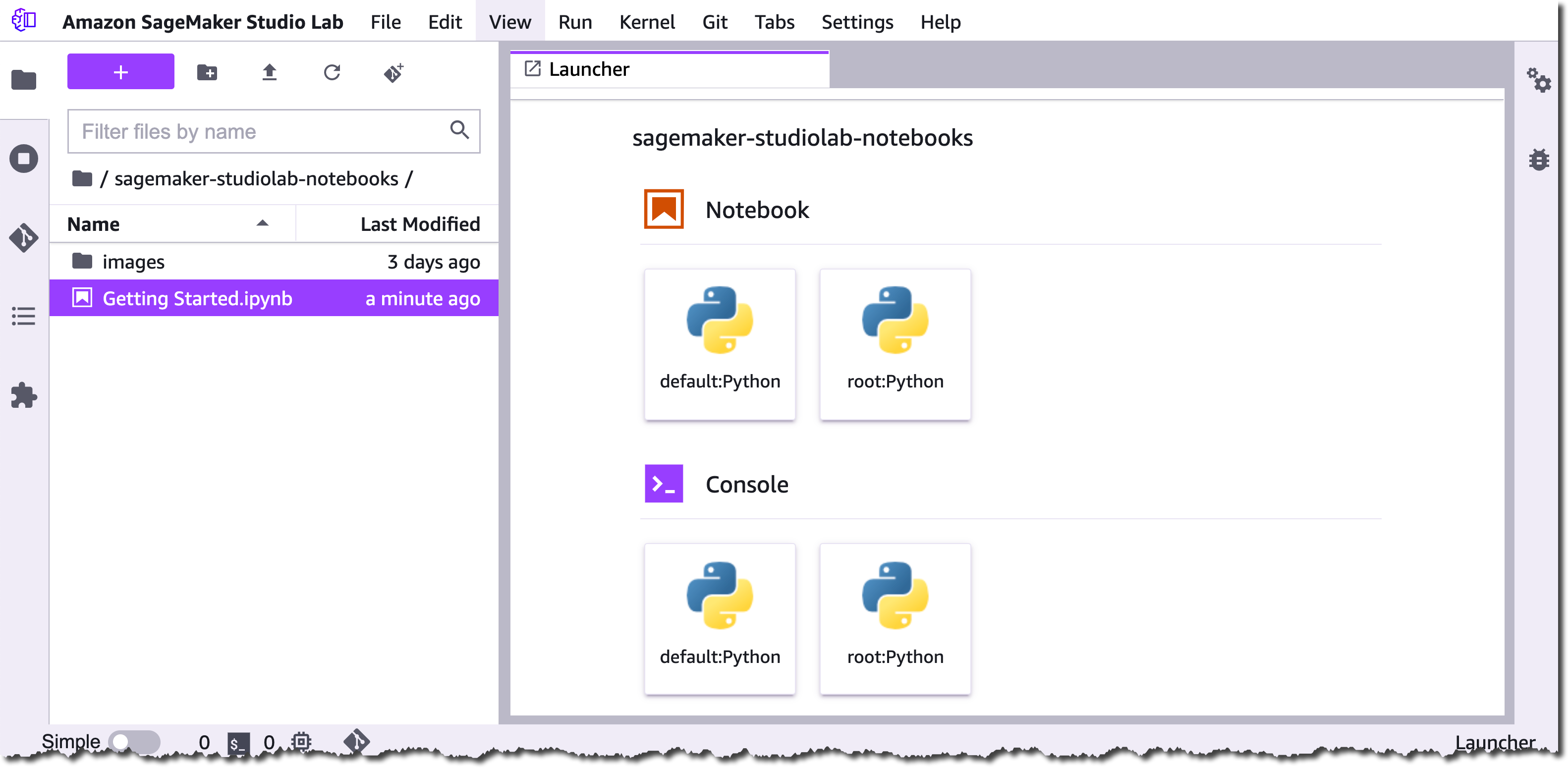
Amazon SageMaker Studio Lab Environment

Customize your environment
Studio Lab comes with a Python base image to get you started. The image only has a few libraries pre-installed to save the available space for the frameworks and libraries that you actually need.

Amazon SageMaker Studio Lab - Select Kernel

You can customize the Conda environment and install additional packages using the %conda install <package> or %pip install <package> command right from within your notebook. You can also create entirely new, custom Conda environments, or install open-source JupyterLab and Jupyter Server extensions. For detailed instructions, see the Studio Lab documentation.

GitHub integration
Studio Lab is tightly integrated with GitHub and offers full support for the Git command line. This lets you easily clone, copy, and save your projects. Moreover, you can add an Open in Studio Lab badge to the README.md file or notebooks in your public GitHub repo to share your work with others.

Open in Amazon SageMaker Studio Lab Badge

This will let everyone open and view the notebook in Studio Lab. If they have a Studio Lab account, then they can also run the notebook. Add the following markdown to the top of your README.md file or notebook to add the Open in Studio Lab badge:

[![Open In Studio Lab](https://studiolab.sagemaker.aws/studiolab.svg)](https://studiolab.sagemaker.aws/import/github/org/repo/blob/master/path/to/notebook.ipynb)

Replace org, repo, path and the notebook filename with those for your repo. Then, when you click the Open in Studio Lab badge, it will preview the notebook in Studio Lab. If your repo is private within a GitHub account or organization and you would like other people to use it, then you must additionally install the Amazon SageMaker GitHub App at the GitHub account or organization level.

Amazon SageMaker Studio Lab Notebook Preview

If you have a Studio Lab account, you can click Copy to project and choose to either copy just the notebook or to clone the entire repo into your Studio Lab account. Moreover, Studio Lab can check if the repository contains a Conda environment file and build the custom Conda environment for you.

Learn the Fundamentals of ML
If you are new to ML, then Studio Lab provides access to free, educational content to get you started. Dive into Deep Learning (D2L) is a free interactive book that teaches the ideas, the math, and the code behind ML and DL. The AWS Machine Learning University (MLU) gives you access to the same ML courses used to train Amazon’s own developers on ML. Hugging Face is a large open source community and a hub for pre-trained deep learning (DL) models. This is mainly aimed at natural language processing. In just a few clicks, you can import the relevant notebooks from D2L, MLU, and Hugging Face into your Studio Lab environment.

Join the AWS Disaster Response Hackathon using Amazon SageMaker Studio Lab
The frequency and severity of natural disasters are increasing. This year alone, we have seen significant wildfires across the Western United States and in countries like Greece and Turkey; major floods across Europe; and Hurricane Ida’s impact to the coast of Louisiana. In response, governments, businesses, nonprofits, and international organizations are placing more emphasis on disaster preparedness and response than ever before.

AWS Disaster Response Hackathon

Through the AWS Disaster Response Hackathon offering a total of $54,000 USD in prices, we hope to stimulate ways of applying ML to solve pressing challenges in natural disaster preparedness and response.

Join the hackathon today, start building, and don’t forget to submit your project before February 7, 2022. This hackathon is also an attempt to set the Guinness World Record for the “largest machine learning competition.”

Join the Preview
You can request a free Amazon SageMaker Studio Lab account starting today. The number of new account registrations will be limited to ensure a high quality of experience for all customers. You can find sample notebooks in the Studio Lab GitHub repository. Give it a try and let us know your feedback.

Request a free Amazon SageMaker Studio Lab account.

Antje

Announcing Amazon SageMaker Inference Recommender

Post Syndicated from Sean M. Tracey original https://aws.amazon.com/blogs/aws/announcing-amazon-sagemaker-inference-recommender/

Today, we’re pleased to announce Amazon SageMaker Inference Recommender — a brand-new Amazon SageMaker Studio capability that automates load testing and optimizes model performance across machine learning (ML) instances. Ultimately, it reduces the time it takes to get ML models from development to production and optimizes the costs associated with their operation.

SageMaker Inference Recommender Banner Image

Until now, no service has provided MLOps Engineers with a means to pick the optimal ML instances for their model. To optimize costs and maximize instance utilization, MLOps Engineers would have to use their experience and intuition to select an ML instance type that would serve them and their model well, given the requirements to run them. Moreover, given the vast array of ML instances available, and the practically infinite nuances of each model, choosing the right instance type could take more than a few attempts to get it right. SageMaker Inference Recommender now lets MLOps Engineers and get recommendations for the best available instance type to run their model. Once an instance has been selected, their model can be instantly deployed to the selected instance type with only a few clicks. Gone are the days of writing custom scripts to run performance benchmarks and load testing.

For MLOps Engineers who want to get data on how their model will perform ahead of pushing to a production environment, SageMaker Inference Recommender also lets them run a load test against their model in a simulated environment. Ahead of deployment, they can specify parameters, such as required throughput, sample payloads, and latency constraints, and test their model against these constraints on a selected set of instances. This lets MLOps Engineers gather data on how well their model will perform in the real world, thereby enabling them to feel confident in pushing it to production—or highlighting potential issues that must be addressed before putting it out into the world.

SageMaker Inference Recommender has even more tricks up its sleeve to make the lives of MLOps Engineers easier and make sure that their models continue to operate optimally. MLOps Engineers can use SageMaker Inference Recommender benchmarking features to perform custom load tests that estimate model performance when accessed under load in a production environment given certain requirements. Results from these tests can be loaded with either SageMaker Studio or the AWS SDK or AWS CLI, giving MLOps Engineers an overview of model performance, comparisons of numerous configurations, and the ability to share the results with any stakeholders.

Find Out More
MLOps Engineers can get started with Amazon SageMaker Inference Recommender through Amazon SageMaker Studio, AWS SDKs and CLI . Amazon SageMaker Inference Recommender is available in all AWS commercial regions where SageMaker is available (except for KIX). To find out more information, you can visit the Amazon SageMaker Inference Recommender landing page.

To get started, see the SageMaker Inference Recommender documentation.

New – Introducing SageMaker Training Compiler

Post Syndicated from Sean M. Tracey original https://aws.amazon.com/blogs/aws/new-introducing-sagemaker-training-compiler/

An image explaining the benefits of using Amazon SageMaker Training CompilerToday, we’re pleased to announce Amazon SageMaker Training Compiler, a new Amazon SageMaker capability that can accelerate the training of deep learning (DL) models by up to 50%.

As DL models grow in complexity, so too does the time it can take to optimize and train them. For example, it can take 25,000 GPU-hours to train popular natural language processing (NLP) model “RoBERTa“. Although there are techniques and optimizations that customers can apply to reduce the time it can take to train a model, these also take time to implement and require a rare skillset. This can impede innovation and progress in the wider adoption of artificial intelligence (AI).

How has this been done to date?
Typically, there are three ways to speed up training:

  1. Using more powerful, individual machines to process the calculations
  2. Distributing compute across a cluster of GPU instances to train the model in parallel
  3. Optimizing model code to run more efficiently on GPUs by utilizing less memory and compute.

In practice, optimizing machine learning (ML) code is difficult, time-consuming, and a rare skill set to acquire. Data scientists typically write their training code in a Python-based ML framework, such as TensorFlow or PyTorch, relying on ML frameworks to convert their Python code into mathematical functions that can run on GPUs, commonly known as kernels. However, this translation from the Python code of a user is often inefficient because ML frameworks use pre-built, generic GPU kernels, instead of creating kernels specific to the code and model of the user.

It can take even the most skilled GPU programmers months to create custom kernels for each new model and optimize them. We built SageMaker Training Compiler to solve this problem.

Today’s launch lets SageMaker Training Compiler automatically compile your Python training code and generate GPU kernels specifically for your model. Consequently, the training code will use less memory and compute, and therefore train faster. For example, when fine-tuning Hugging Face’s GPT-2 model, SageMaker Training Compiler reduced training time from nearly 3 hours to 90 minutes.
Automatically Optimizing Deep Learning Models
So, how have we achieved this acceleration? SageMaker Training Compiler accelerates training jobs by converting DL models from their high-level language representation to hardware-optimized instructions that train faster than jobs with off-the-shelf frameworks. Under the hood, SageMaker Training Compiler makes incremental optimizations beyond what the native PyTorch and TensorFlow frameworks offer to maximize compute and memory utilization on SageMaker GPU instances.

More specifically, SageMaker Training Compiler uses graph-level optimization (operator fusion, memory planning, and algebraic simplification), data flow-level optimizations (layout transformation, common sub-expression elimination), and back-end optimizations (memory latency hiding, loop oriented optimizations) to produce an optimized model that efficiently uses hardware resources. As a result, training is accelerated by up to 50%, and the returned model is the same as if SageMaker Training Compiler had not been used.

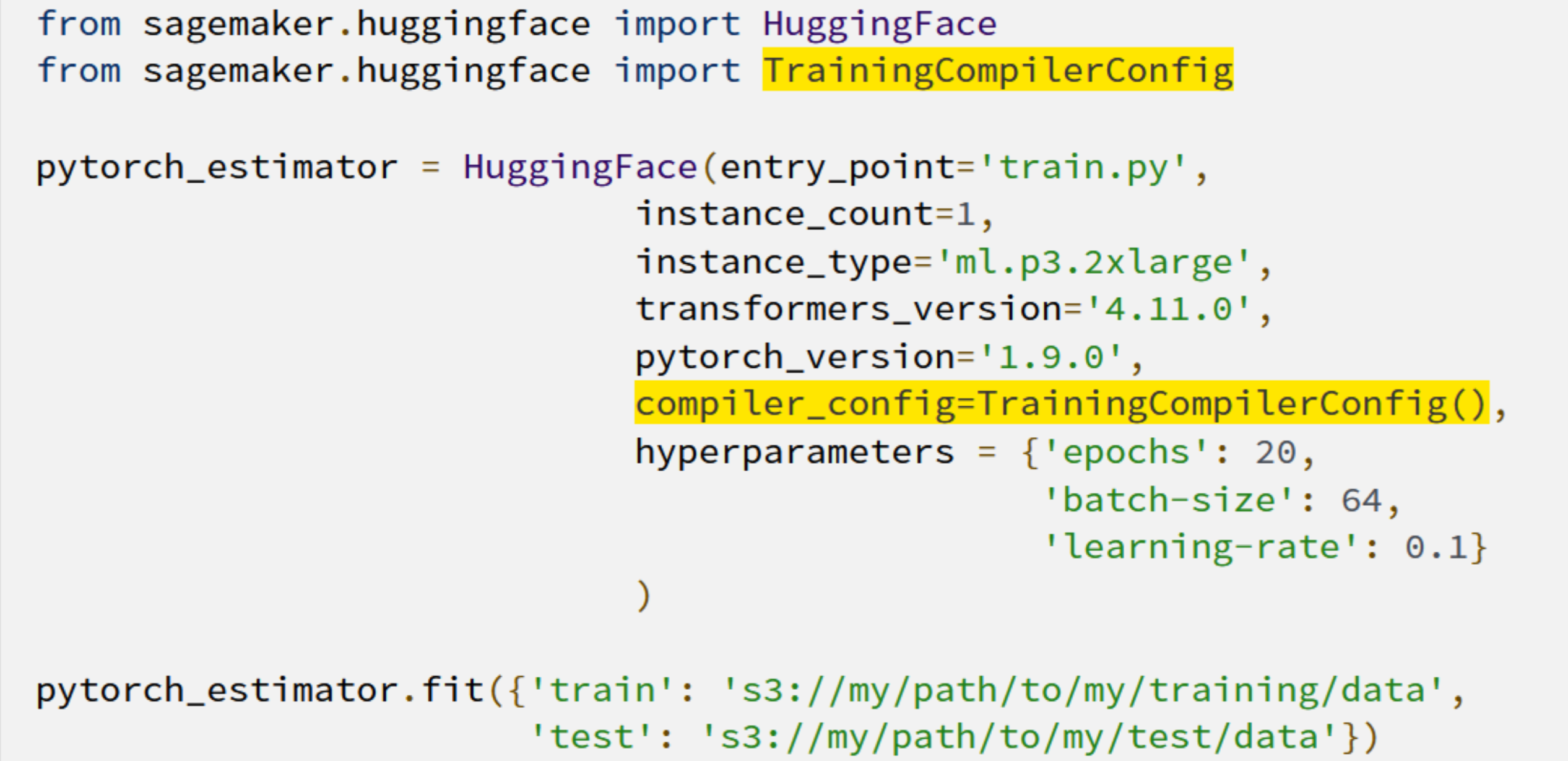
But how do you use SageMaker Training Compiler with your models? It can be as simple as adding two lines of code!

SageMaker Training Compiler Code Changes

The shortened training times mean that customers gain more time for innovating and deploying their newly-trained models at a reduced cost and a greater ability to experiment with larger models and more data.

Getting the most from SageMaker Training Compiler
Although many DL models can benefit from SageMaker Training Compiler, larger models with longer training will realize the greatest time and cost savings. For example, training time and costs fell by 30% on a long-running RoBERTa-base fine-tuning exercise.

Jorge Lopez Grisman, a Senior Data Scientist at Quantum Health – an organization on a mission to “make healthcare navigation smarter, simpler, and more cost-effective for everyone” – said:

“Iterating with NLP models can be a challenge because of their size: long training times bog down workflows and high costs can discourage our team from trying larger models that might offer better performance. Amazon SageMaker Training Compiler is exciting because it has the potential to alleviate these frictions. Achieving a speedup with SageMaker Training Compiler is a real win for our team that will make us more agile and innovative moving forward.”

Further Resources
To learn more about how Amazon SageMaker Training Compiler can benefit you, you can visit our page here. And to get started see our technical documentation here.

New – Create and Manage EMR Clusters and Spark Jobs with Amazon SageMaker Studio

Post Syndicated from Sean M. Tracey original https://aws.amazon.com/blogs/aws/new-create-and-manage-emr-clusters-and-spark-jobs-with-amazon-sagemaker-studio/

Today, we’re very excited to offer three new enhancements to our Amazon SageMaker Studio service.

As of now, users of SageMaker Studio can create, terminate, manage, discover, and connect to Amazon EMR clusters running within a single AWS account and in shared accounts across an organization—all directly from SageMaker Studio. Furthermore, SageMaker Studio Notebook users can able to utilize SparkUI to monitor and debug Spark jobs running on an Amazon EMR cluster—directly from the SageMaker Studio Notebooks!

The story so far…
Before today, SageMaker Studio users had some ability to find and connect with EMR clusters, provided that they were running in the same account as SageMaker Studio. While useful in many circumstances, if a cluster did not exist that would suit the requirements of the model or analysis being run, then data scientists would have to leave their development environment and manually configure a cluster that suited their needs. As well as being disruptive to workflow of data scientists, there are no guarantees that the data scientists would have either the permissions or depth of knowledge required to provision a cluster that would enable them to continue with their work. Additionally, being restricted to creating and managing clusters in a single account could become prohibitive in organizations working across many AWS accounts.

What’s new?
Data scientists can:

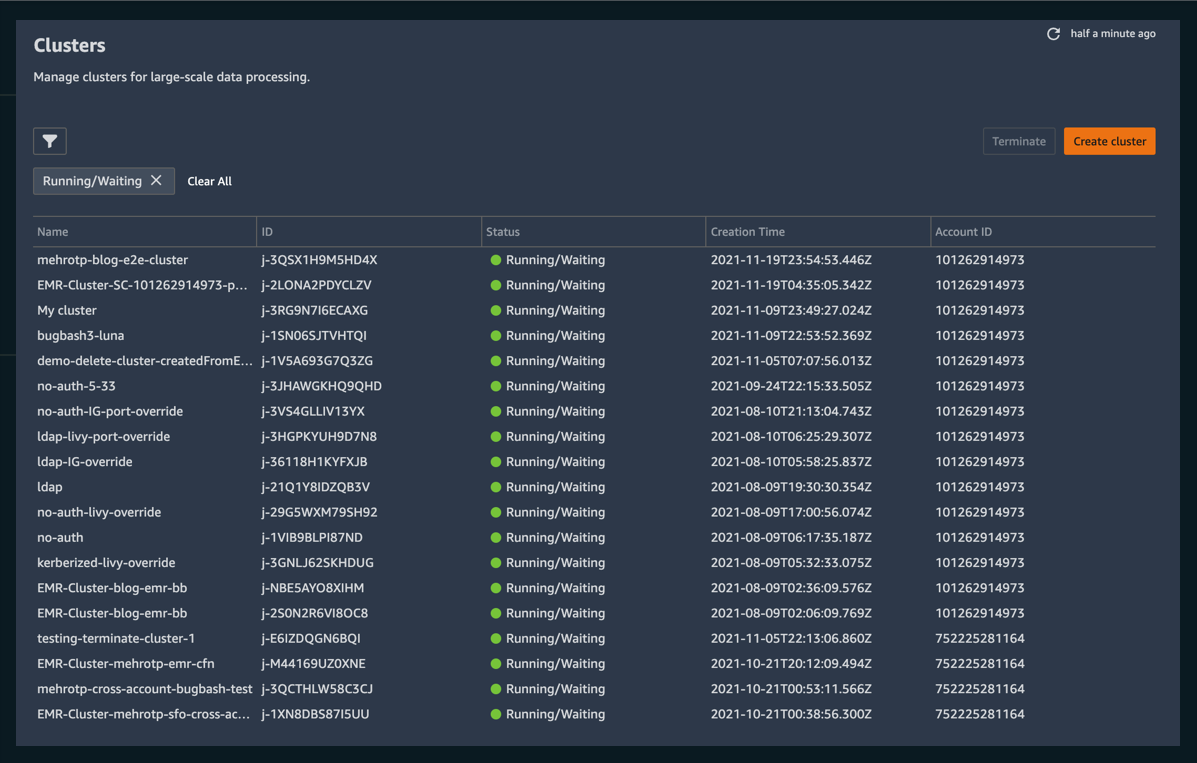
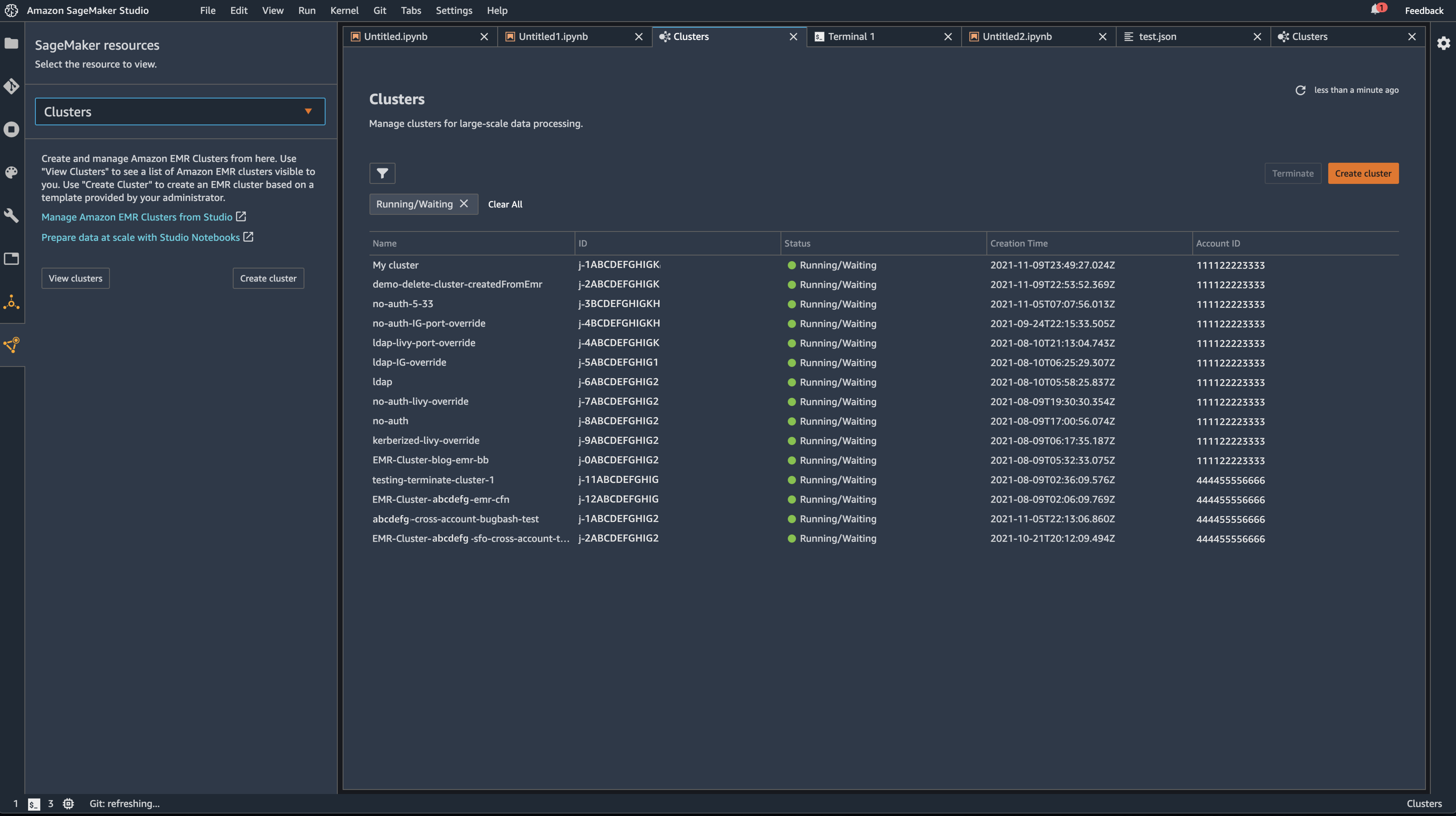
  • Discover, manage, create, terminate, and connect to Amazon EMR clusters from within SageMaker Studio
  • Utilize “templates” – a new way to configure and provision clusters for your workload needs with support from seasoned DevOps practitioners
  • Connect to, debug, and monitor Spark jobs running on an Amazon EMR cluster from within a SageMaker Studio Notebook

Creating, Connecting to, and Managing EMR Clusters

Connecting to an EMR Cluster from a SageMaker Studio Notebook

With the ability to connect to and manage EMR clusters from within SageMaker Studio, data scientists no longer have to leave their familiar environment to create, configure and provision the EMR clusters where they run their workloads.

Introducing Templates
A template is a collection of off-the-shelf cluster configurations optimized for numerous workloads. Templates can be created and managed by DevOps administrators and made available through the AWS Service Catalog to data scientists within SageMaker Studio. This lets them quickly spin up a cluster to meet their needs, all while safe in the knowledge that a trusted DevOps admin has correctly configured a cluster per the project’s requirements. Furthermore, this lets data scientists get on with the work they do best, and it gives DevOps administrators within these teams greater ability to manage the types of provisioned infrastructure.

Managing EMR Clusters from within SageMaker Studio Notebooks

Directly Connect to and monitor Spark Jobs
Finally, to make the job of data scientists even simpler, we’ve built the ability to connect to, debug, and monitor Spark jobs running on an Amazon EMR cluster from within a SageMaker Studio Notebook. Before now, to access the monitoring UI of a Spark Job, one needed to configure secure tunnels and web proxies to gain direct access to currently executing jobs, adding friction to the workflow of a data scientist trying to observe and debug their workloads. Now, with these new features, users will have one-click access directly from the interface that they already know. This enables them to build and put their workloads to work, rather than spending time on configuring infrastructure and workloads.

Connecting to a Spark Job from within a SageMaker Studio Notebook

These new features let data scientists can use a simple, consistent UI to provision and manage infrastructure as needed without ever having to leave SageMaker Studio or dive into the minutiae of the provisioning of such hardware – Moreover, they won’t have to spend time configuring proxies and SSH tunnels to debug and monitor ongoing Spark jobs.

Find out more
These features are generally available in all AWS Regions where SageMaker Studio is available, and there are no additional charges to use this capability. For complete information on pricing and regional availability, please refer to the SageMaker Studio pricing page .

To learn more, see our documentation.

Using ChatOps to help Actions on-call engineers

Post Syndicated from Yaswanth Anantharaju original https://github.blog/2021-12-01-using-chatops-to-help-actions-on-call-engineers/

At GitHub, we use ChatOps to help us collaborate seamlessly. They’re implemented using our favorite chatbot, Hubot. Running a ChatOps command is similar to running commands on your terminal, except that teammates can see what you ran and see the results if the commands are invoked from Slack. This enables real time collaboration. This is especially useful in handling incidents where the primary goal is to mitigate disruption to users and find the root cause quickly.

Keeping an application healthy isn’t the responsibility of some mysterious service delivery team anymore––the responsibility lies in the hands of the engineers who build it. Besides working on the awesome features you see at GitHub, our engineers also contribute their time to keeping our services healthy and helping customers. Let’s talk about a few days in the life of a new Actions on-call engineer: Mona. We’ll take a look at how Mona responds to a variety of incidents, and you’ll see how ChatOps empowers her to remediate incidents quickly and effectively.

Empowering support and on-call engineers

Mona receives a support ticket from a customer who has been having trouble with a few of their Actions runs.

She sees URLs for the runs in the support ticket, but since they belong to a private repository she can’t access them without customer consent, as a customer privacy measure. She needs to quickly identify ways to find the root cause of the issue and help the customer.

Luckily, we have an automated ChatOps tool called “Hubot” for that! Mona asks Hubot about a URL, and Hubot does the analysis for her.

chatops screenshot: Mona runs  `.actions check plan` against a URL

She is able to identify the issue with no effort, and now she has a huge head start in her investigation.

Behind the scenes, Hubot spins up multiple parallel queries to our log aggregation tool, Kusto, performs complex analysis, and reports back on its findings. In this way, we’ve automated a common support procedure into a handy and secure ChatOps command. As a result, Mona was able to diagnose the issue in a fraction of the time it would have taken her to run the necessary queries herself, and she didn’t even need to provision additional resources or DB access for herself to do so—Hubot took care of all of that for her.

Let’s look at another example in which ChatOps commands helped Mona quickly diagnose the impact of some errors. On another fine day, GitHub Actions runs are failing with an error and Mona wants to quickly find the impact. This is a job for ChatOps!

chatops screenshot: Mona runs `.actions kusto annotation "Process completed with exit code 1."`

GitHub Actions telemetry and logs flow into Splunk and Azure Data Explorer (using Kusto Query Language), so Mona can use ChatOps to execute common Kusto queries that help her gain visibility into error logs. Thanks to this ChatOps command, Mona doesn’t have to write the Kusto query herself. All she has to do is execute the ChatOps command, and she’ll get a link to the right query so she can start her investigation.

On-call rotations typically involve analyzing the same things repeatedly—common problems arise with common investigation and remediation steps. This is where ChatOps can help. At GitHub, we take a set of well-defined tasks that we typically perform when incidents occur and codify them into ChatOps. On-call engineers can then reach for these ChatOps tools to greatly increase the speed with which they are able to diagnose and fix issues.

Finding the needle in the haystack

Mona is pretty new to the team, and she loves that there’s a lot of internal documentation on various topics. But soon she realizes there is too much documentation to sort through effectively, especially when remediating high-severity incidents. She is told many times by other engineers on the team, “I know it’s there, but I’m not sure where. It’s definitely somewhere though!” Who can relate?

At GitHub, we invest a lot in documentation. We maintain architecture decision records, or ADRs, across different teams. Besides our repository content, sometimes there are treasures hiding in GitHub Issues. It can be hard to find relevant documentation efficiently, especially information relevant to a specific team, like the GitHub Actions team. This is another place where ChatOps helps. We have a ChatOps command that searches only repositories that are relevant to the Actions team and shows the relevant docs.

chatops screenshot: Mona runs `.actions search GITHUB_TOKEN`

This ChatOps command helps her during on-call shifts as well. In another incident, automated failover of the database isn’t working, and Mona has to manually failover the database. She is sure the instructions she needs are somewhere, but where exactly? Mona types a quick .actions search failover database command into Slack.

chatops screenshot: Mona runs `.actions search failover database`

Voilà! The playbook has been served! A playbook is a set of manual steps for troubleshooting a production issue.

Automating playbooks

Mona has now found the playbooks, but she is overwhelmed by the information.

Just like every service within GitHub, GitHub Actions has its own well-defined SLOs (service level objectives).GitHub’s SLOs are behavior-based rather than resource-based.

However, we also use resource-based alerts, and these sometimes help in quickly root-causing a symptom-based alert. For example, one alert we might see is our “run start delay” SLO signal coupled with high CPU alerts on one of our databases. That is a very solid path toward mitigating and root-causing the incident.

Mona is paged due to a resource-based alert, “database is unhealthy.” There is a lengthy playbook on logical steps to execute for finding the root cause. There could potentially be a wide range of impact from this, and this is not the time to go through manual steps in the playbooks.

She tries to figure out if there is a ChatOps command that would help her by invoking .actions

chatops screeshot: Mona invokes `.actions`

One of the results that Hubot returns, .actions check, seems interesting. Mona wants to check the health of the database and learn more about the issues that are happening.

She invokes help for that command with .actions check help.

chatops screenshot: Mona invokes `.actions check help`

Near the bottom of the list is the sql command, which is exactly what she wants! She then executes the command for the specific database:

chatops screenshot: Mona executes `.actions check sql service_configuration service-ghub-eus2-3`

The root cause is served: worker percentage is high. A single session is blocking others and is waiting on PAGELATCH_SH.

This particular analysis is a simple anomaly-based analysis. Mona looks at the CPU, memory, and worker percentage data between the requested time period and compares that with historic data by using IQR to find outliers. Hubot then switches to analysis of that specific resource and digs in further to find the potential root cause. In the end, Hubot suggests possible mitigation steps and links all resources and queries to do any further analysis.

When there is an active production issue affecting customers, the focus of on-call is to quickly mitigate and root cause. There are always subject matter experts who know more about certain aspects of the code than anyone else, and their mitigation steps and deep insights into potential root causes are generally documented in playbooks. However, during an incident, following the playbook can be challenging. Playbooks can turn out to be huge, with various logical steps for investigation. More and more of GitHub’s incident response activities are moving from static playbooks to ChatOps.

It’s scenarios like these where ChatOps shines. Subject matter experts codify their knowledge by building their time-tested debugging practices into re-usable ChatOps that any on-call engineer can quickly and easily take advantage of. This gives a huge head start to on-call, and they can then take the analysis further and contribute back to the ChatOps, making it even better!

In short, these kinds of reports give a crucial jump-start for on-call and help prevent customer impact with early detection and mitigation.

Looking to the future

You can multiply the impact of your domain experts by building their common workflows into ChatOps. As more and more engineers take advantage of ChatOps during their on-call rotation, ChatOps will get iterated on again and again. In this way, ChatOps can become a sort of living incident playbook that speeds up incident investigation and remediation.

Besides helping the company grow, ChatOps also saves domain experts from doing the same tasks repeatedly. And it’s not just about root cause analysis—we also use ChatOps to deploy, perform mitigations, recycle VMs, upgrade databases, and much more!

If you share the same vision, join us in leveraging ChatOps as living incident playbooks and you’ll see the quality of life for on-call engineers go up, while the time it takes to remediate incidents goes down.

Announcing Amazon SageMaker Ground Truth Plus

Post Syndicated from Sean M. Tracey original https://aws.amazon.com/blogs/aws/announcing-amazon-sagemaker-ground-truth-plus/

Today, we’re pleased to announce the latest service in the Amazon SageMaker suite that will make labeling datasets easier than ever before. Ground Truth Plus is a turn-key service that uses an expert workforce to deliver high-quality training datasets fast, and reduces costs by up to 40 percent.

The Challenges of Machine Learning Model Creation
One of the biggest challenges in building and training machine learning (ML) models is sourcing enough high-quality, labeled data at scale to feed into and train those models so that they can make an accurate prediction.

On the face of it, labeling data might seem like a fairly straightforward task…

  • Step 1: Get data
  • Step 2: Label it

…but this is far from the reality.

Even before you have labelers begin annotations, you need a custom labeling workflow and user interface specific to your project so that you get a high-quality dataset. This relies on a combination of robust tooling and skilled workers, and the effort spent can be significant.

Once the data labeling workflow and user interface has been constructed, a workforce to use those systems must be organized and trained – and this is all before a single point of data has been labeled!

Finally, once the labeling systems have been built, the workflows designed, and the workforce trained and deployed, the process of passing data through that system must be monitored and checked to ensure a consistent, high-quality output. After enough data has been passed through and labeled by the system, you have arrived at the point you’ve been trying to get to all along: you finally have enough data to train the ML model.

Each of these steps represents a significant investment in time, costs, and energy. You could be spending these resources building ML models instead of labeling and managing data, and using Ground Truth Plus can help free you up to do just that.

Introducing Amazon SageMaker Ground Truth Plus
Amazon SageMaker Ground Truth Plus enables you to easily create high-quality training datasets without having to build labeling applications and manage the labeling workforce on your own. Which means you don’t even need to have deep ML expertise or extensive knowledge of workflow design and quality management. You simply provide data along with labeling requirements and Ground Truth Plus sets up the data labeling workflows and manages them on your behalf in accordance with your requirements.

For example, if you need medical experts to label radiology images, you can specify that in the guidelines you provide to Ground Truth Plus. The service will then automatically select labelers trained in radiology to label your data, and from there an expert workforce that is trained on a variety of ML tasks will start labeling the data. Ground Truth Plus brings ML-powered automation to data labeling, which increases the quality of the output dataset and decreases the data labeling costs.

Amazon SageMaker Ground Truth Plus uses a multi-step labeling workflow including ML techniques for active learning, pre-labeling, and machine validation. This reduces the time required to label datasets for a variety of use cases including computer vision and natural language processing. Finally, Ground Truth Plus provides transparency into data labeling operations and quality management through interactive dashboards and user interfaces. This lets you monitor the progress of training datasets across multiple projects, track project metrics such as daily throughput, inspect labels for quality, and provide feedback on the labeled data.

How Does It Work?
A SageMaker Ground Truth Plus screenshot showing the request formFirst, let’s head to the new Ground Truth Plus console and fill out a form outlining the requirements for the data labeling project. Following that, our team of AWS Experts will schedule a call to discuss your data labeling project.

After the call, you simply upload data in an Amazon Simple Storage Service (Amazon S3) bucket for labeling.

Once the data has been uploaded, our experts will set-up the data labeling workflow per your requirements and create a team of labelers with the expertise necessary to label your data effectively. This helps make sure that you have the best people possible working on your projects.

These expert labelers use the Ground Truth Plus tools we’ve built to label these datasets quickly and effectively.

Initially, labelers will annotate the data you’ve uploaded, much like the following example image that we’ve uploaded from the CBCL StreetScenes dataset. However, as the labelers start to submit examples of labeled data, something cool begins happening: our ML systems kick in and start to pre-label the images on behalf of the expert workforce!

An example of the raw dataset used to demonstrate Amazon SageMaker Ground Truth Plus functionality

As more and more data is labeled by the expert workforce, the ML model becomes better at pre-labeling those images. This means that there’s less need for a human to spend as much time creating each individual label for every object of interest in a dataset. Less time spent on labeling means lower costs for you, and it also means a quicker turnaround in creating a dataset that can be used for training a model – all without sacrificing quality.

A screenshot showing one of the labelling interfaces for SageMaker Ground Truth Plus

As the process continues, these ML models will also start to highlight potential areas of interest that the labeling workforce may have missed or incorrectly labeled through machine validation (indicated below by the purple box). Once an area of interest has been highlighted, a human labeler can view and either confirm or delete the suggestion that the model has made. This iteratively improves the pre-labeling and machine validation stages, further reducing the time needed by a labeler to manually label the data, and ensures a high-quality output throughout the process.

A screenshot showing one of the labelling interfaces filed in my a machine learning model for SageMaker Ground Truth Plus

While this is all going on, you can monitor the progress and output of the project using the Ground Truth Plus Project Portal. Within this portal, you can track the amount of data labeled on a day-by-day basis, and make sure that the project is progressing at an acceptable rate.

A screenshot showing the metrics dashboard enabling users to track the progress of their labelling jobs in SageMaker Ground Truth Plus

With each batch of images uploaded and labeled, you can decide whether to accept them or send them back for relabeling if something has been missed.

Finally, when the labeling process has completed, you can retrieve the labeled data from a secure S3 bucket and get to the business of training models.

Find out more
Today, Amazon SageMaker Ground Truth Plus is available in the N. Virginia (us-east-1) region.

To learn more:

SFC: First Update on the Vizio lawsuit

Post Syndicated from original https://lwn.net/Articles/877294/rss

The Software Freedom Conservancy provides
an update
on its suit against Vizio for
copyleft license violations. Vizio’s response was not to release the
source code:

Instead, Vizio filed
a request to “remove” the case from California State Court (into US federal
court)
, which indicates Vizio’s belief that consumers have no
third-party beneficiary rights under copyleft! In other words, Vizio’s
answer to this complaint is not to comply with the copyleft licenses, but instead imply that Software Freedom Conservancy — and all other purchasers of the devices who might want to assert their right under GPL and LGPL to complete, corresponding source — have no right to even ask for that source code.

New DynamoDB Table Class – Save Up To 60% in Your DynamoDB Costs

Post Syndicated from Marcia Villalba original https://aws.amazon.com/blogs/aws/new-dynamodb-table-class-save-up-to-60-in-your-dynamodb-costs/

Today we are announcing Amazon DynamoDB Standard-Infrequent Access (DynamoDB Standard-IA). A new table class for DynamoDB that reduces storage costs by 60 percent compared to existing DynamoDB Standard tables, and that delivers the same performance, durability, and scaling.

Nowadays, many customers are moving their infrequently accessed data between DynamoDB and Amazon Simple Storage Service (Amazon S3). This means that customers are developing a process to migrate the data and build complex applications that must support two different APIs—one for DynamoDB and another for Amazon S3.

DynamoDB Standard-IA table class is designed for customers who want a cost-optimized solution for storing infrequently accessed data in DynamoDB without changing any application code. Using this new table class, you get the single-digit millisecond read and write performance from DynamoDB and use all of the same APIs.

When you use DynamoDB Standard-IA table class, you will save up to 60 percent in storage costs as compared to using the DynamoDB Standard table class. However, DynamoDB reads and writes for this new table class are priced higher than the Standard tables. Therefore, it is important to understand your use cases before applying this new table class to your tables.

DynamoDB Standard-IA is a great solution if you must store terabytes of data for several years where the data must be highly available, but it is not frequently accessed. An example is social media applications where end users rarely access their old posts. However, these posts remain stored, because if someone scrolls on a profile to see an old photo from 2009, they should be able to retrieve it as fast as if it was a newer post.

E-commerce sites are another good use case. These sites might have a lot of products that are not frequently accessed, but administrators of the site still want to have them available in their store just in case someone wants to buy them. Furthermore, this is a good solution for storing a customer’s previous orders. DynamoDB Standard-IA table offers the ability to retain historical orders at a lower cost.

Get started using DynamoDB Standard-IA
Get started using DynamoDB Standard-IA by evaluating the best class for your existing tables.

Go to the table page and select Update the table class in the Actions dropdown to change the table class. Then, choose the new table class and save the changes. You can change the table class for an existing table to be Standard-IA or Standard twice every 30-days with no impact on performance or availability. All of the features of DynamoDB are available when using a table in the Standard-IA table class.

Moreover, you can also create a new table with the DynamoDB Standard-IA table class.

Update table class

Availability and Pricing
DynamoDB Standard-IA is available in all of the AWS Regions, except the China Regions and AWS GovCloud.

For example, DynamoDB Standard-IA storage pricing in US East (N. Virginia) is now $0.10 per GB (60 percent less than DynamoDB Standard), while reads and writes are 25 percent higher.

For more information about this feature and its pricing, see the DynamoDB Standard-IA Feature page and the DynamoDB pricing page.

Marcia

New – Amazon RDS Custom for SQL Server Is Generally Available

Post Syndicated from Channy Yun original https://aws.amazon.com/blogs/aws/new-amazon-rds-custom-for-sql-server-is-generally-available/

On October 26, 2021, we launched Amazon RDS Custom for Oracle, a managed database service for applications that require customization of the underlying operating system and database environment. RDS Custom lets you access and customize your database server host and operating system, for example, by applying special patches and changing the database software settings to support third-party applications that require privileged access.

Today, I am happy to announce the general availability of Amazon RDS Custom for SQL Server to support applications that have dependencies on specific configurations and third-party applications that require customizations in corporate, e-commerce, and content management systems, such as Microsoft SharePoint.

With RDS Custom for SQL Server, you can enable features that require elevated privileges like SQL Common Language Runtime (CLR), install specific drivers to enable heterogenous linked servers, or have more than 100 databases per instance.

Through the time-saving benefits of a managed service, RDS Custom for SQL Server frees you up to focus on more business-impacting, strategic activities. The use of automating backups and other operational tasks let you rest easy, knowing your data is safe and ready to be recovered if needed.

Getting Started with RDS Custom for SQL Server
Get started by creating a DB instance of RDS Custom for SQL Server from an orderable engine version offered by RDS Custom. You can optionally access the server host to customize your software via AWS Systems Manager or a remote desktop client. Your application connects to the RDS Custom DB instance endpoint.

Before creating and connecting your custom DB instance for SQL Server, make sure that you meet some prerequisites, such as configuring the AWS Identity and Access Management (IAM) role and Amazon Virtual Private Cloud  (Amazon VPC).

Choose Create database in the Databases menu to create your custom DB instance for SQL Server in the RDS Console. When you choose a database creation method, select Standard create. You can set Engine options to Microsoft SQL Server and choose Amazon RDS Custom in the database management type.

For Edition, choose the DB engine edition that you want to use in the choices of Enterprise, Standard, and Web with the Version of default SQL Server 2019.

For Settings, enter your favorite unique name for the DB instance identifier and your master username and password. By default, the new instance uses an automatically generated password for the master user.

In DB instance size, choose a DB instance class optimized to each DB engine edition.

SQL Server edition RDS Custom support
Enterprise Edition db.r5.xlarge – db.r5.24xlarge
db.m5.xlarge – db.m5.24xlarge
Standard Edition db.r5.large – db.r5.24xlarge
db.m5.large – db.m5.24xlarge
Web Edition db.r5.large – db.r5.4xlarge
db.m5.large – db.m5.4xlarge

See Settings for DB instances in the Amazon RDS User Guide to learn more about the remaining settings. Choose Create database. After creating the DB instance, the details for the new RDS Custom DB instance appear on the RDS console.

Alternatively, you can create an RDS Custom DB instance by using the create-db-instance command in the AWS Command Line Interface (AWS CLI).

$ aws rds create-db-instance \
	--engine custom-sqlserver-se \
	--engine-version 15.00.4073.23.v1 \
	--db-instance-identifier channy-custom-db \
	--db-instance-class db.m5.xlarge \
	--allocated-storage 20 \
	--db-subnet-group mydbsubnetgroup \
	--master-username myuser \
	--master-user-password mypassword \
	--backup-retention-period 3 \
	--no-multi-az \
	--port 8200 \
	--kms-key-id mykmskey \
	--custom-iam-instance-profile AWSRDSCustomInstanceProfile

After you create your RDS Custom DB instance, you can connect to it using AWS Systems Manager Session Manager or an RDP client. Make sure that the Amazon VPC security group associated with your DB instance permits inbound connections on port 3389 for TCP to allow RDP connections.

You need the key pair associated with the instance to connect to the custom DB instance via RDP. RDS Custom creates the key pair for you. The pair name uses the prefix do-not-delete-rds-custom-DBInstanceIdentifier. AWS Secrets Manager stores your private key as a secret. Choose the secret that has the same name as your key pair and retrieve the secret value to decrypt the password later.

In the EC2 console, look for the name of your EC2 instance, and then choose the instance ID associated with your DB instance ID, for example, channy-custom-db-*. Select your custom DB instance, and then choose Connect. On the Connect to instance page, choose the RDP client tab, and then choose Get password with your private key as a secret.

When you connect an RDP client with a downloaded remote desktop file and decrypted password, you can log in to the Windows Server and customize your SQL Server.

You can use AWS Systems Manager Session Manager to start a session with an instance in your account. After the session is started, you can run PowerShell commands as you would for any other connection type. See Connect to your Windows instance in the Amazon EC2 User Guide for more information.

Things to Know
Here are a couple of things to keep in mind about managing your DB instance:

Pausing RDS Custom Automation: RDS Custom for SQL Server automatically provides monitoring and instance recovery for your RDS Custom DB instance. If you need to customize the instance, then pause RDS Custom automation for a specified period. The pause makes sure that your customizations don’t interfere with RDS Custom automation. To pause or resume RDS Custom automation, you can set RDS Custom automation mode to Paused with the pause duration that you want (in minutes, default 60 minutes to 1,440 minutes maximum).

High Availability (HA): To support replication between RDS Custom for SQL Server instances, you can configure HA with Always On Availability Groups (AGs). We recommend that you set up the primary DB instance to synchronously replicate data to the standby instances in different Availability Zones (AZs) to be resilient to AZ failures. Moreover, you can migrate data by configuring HA for your on-premises instance and then failing over or switching over to the RDS Custom standby database.

Custom DB Management: Just like Amazon RDS, RDS Custom for SQL Server creates automated backups taking a snapshot of an Amazon RDS DB instance. Incremental snapshots are used to restore DB instances to a specific point in time. Furthermore, all changes and customizations to the underlying operating system are automatically logged for audit purposes using Systems Manager and AWS CloudTrail. See Troubleshooting an Amazon RDS Custom for DB instance in the Amazon RDS User Guide to learn more.

Available Now
Amazon RDS Custom for SQL Server is now available in the US East (Ohio), US East (N. Virginia), US West (Oregon), Asia Pacific (Singapore), Asia Pacific (Sydney), Asia Pacific (Tokyo), EU (Frankfurt), EU (Ireland), and EU (Stockholm) Regions.

Look at the product page and documentation of Amazon RDS Custom to learn more. Please send us feedback either in the AWS forum for Amazon RDS or through your usual AWS support contacts.

Channy

New – Amazon DevOps Guru for RDS to Detect, Diagnose, and Resolve Amazon Aurora-Related Issues using ML

Post Syndicated from Marcia Villalba original https://aws.amazon.com/blogs/aws/new-amazon-devops-guru-for-rds-to-detect-diagnose-and-resolve-amazon-aurora-related-issues-using-ml/

Today we are announcing Amazon DevOps Guru for RDS, a new capability for Amazon DevOps Guru. It allows developers to easily detect, diagnose, and resolve performance and operational issues in Amazon Aurora.

Hundreds of thousands of customers nowadays are using Amazon Aurora because it is highly available, scalable, and durable. But as applications grow in size and complexity, it becomes more challenging for these customers to detect and resolve operational and performance issues quickly.

During last year’s re:Invent, we announced DevOps Guru, a service that uses machine learning (ML) to automatically detect and alert customers of application issues, including database problems. Today we are announcing DevOps Guru for RDS to help developers using Amazon Aurora databases to detect, diagnose, and resolve database performance issues fast and at scale. Now developers will have enough information to determine the exact cause for a database performance issue. This launch will save developers and engineers many hours of work trying to uncover and remediate the performance-related database issues.

DevOps Guru for RDS uses ML to automatically identify and analyze a wide range of performance-related database issues, such as over-utilization of host resources, database bottlenecks, or misbehavior of SQL queries. It also recommends solutions to remediate the issues it finds. To use this capability, you don’t need to be a database or ML expert.

When an issue is detected, DevOps Guru for RDS displays the finding in the DevOps Guru console and sends notifications using Amazon EventBridge or Amazon Simple Notification Service (SNS). This allows developers to automatically manage and take real-time action on the issues.

How DevOps Guru for RDS Works
DevOps Guru for RDS uses anomaly detection on the database load (DB load) performance metric to detect issues. DB load is measured in units of Average Active Sessions (AAS). DB load measures the level of activity in your database, making it a great metric to understand the health of your database. If the DB load is high, this can result in performance issues. This metric can be compared to the number of virtual CPUs (vCPUs), and if the DB load is higher than that number, issues can arise.

The most useful dimensions for this metric are the wait events and the top SQL. The wait event describes what the system conditions that are currently running SQLs are waiting on. The most common reasons why a statement is waiting is that it is waiting for the CPU, waiting for a read or write, or waiting for a locked resource. The top SQL dimension shows which queries are contributing the most to DB load.

The following image is an example of a finding that DevOps Guru for RDS reported. The graph shows that from the AAS, most of them were waiting for access to a table or for CPU.

Example of anomaly detection
If you continue scrolling on the DevOps Guru for RDS analysis page, you can discover the cause for the problem and some recommendations to fix it. In this particular example, two problems were detected: high-load wait events and CPU capacity exceeded.

DevOps Guru for RDS looks more in-depth into these problems. First, it looks at the high-load wait events, where there were 27 AAS for the IO and CPU wait types, which is 99 percent of the total DB load.

Second, it tells us that the running tasks exceeded six processes. This database only has two vCPUs, and the recommended number of running processes should be a maximum of four (2x vCPUs). DevOps Guru for RDS also makes recommendations to fix these issues.

Recommendations

In another anomaly, the graph shows that there was a high load of wait events, and one SQL query was found to require further investigation. You can even see the exact SQL query if you click on the SQL digest IDs. The insight’s analysis and recommendation section is full of information on how to investigate further and fix the issue. You can get a lot of detailed information by clicking on the wait event, for example, on the wait event wait/io/table/sql/handler or in the View troubleshooting doc link.

Analysis and recommendations

Get started with DevOps Guru for RDS
To get started with this new capability of DevOps Guru, make sure that Performance Insights is enabled for your Amazon Aurora DB instances. It supports Amazon Aurora with MySQL- and PostgreSQL-compatibility. For instructions on how to enable Performance Insights, see Enabling and disabling Performance Insights.

The next step is to enable DevOps Guru to start monitoring your AWS resources. You can specify the resources you want to be covered by DevOps Guru.

If you are already using DevOps Guru, whenever there is a new insight for an Amazon Aurora database resource, you will see it in the console.

To see the detailed database analysis, navigate to the Insight page and select the new View analysis button under the DB load aggregated metric. That button will take you to the detailed analysis by DevOps Guru for RDS.

View analysis

Pricing and Availability
DevOps Guru for RDS is offered to customers at no additional charge, as part of the existing price that DevOps Guru charges customers for RDS resources.

DevOps Guru for RDS is available in all Regions where DevOps Guru is available, US East (Ohio), US East (N. Virginia), US West (Oregon), Asia Pacific (Singapore), Asia Pacific (Sydney), Asia Pacific (Tokyo), Europe (Frankfurt), Europe (Ireland), and Europe (Stockholm).

Learn more about DevOps Guru for RDS and check out the talk at AWS re:Invent “Automatically detect and resolve performance issues with Amazon DevOps Guru for RDS” (Session Id 15877).

Marcia

The collective thoughts of the interwebz