Tag Archives: AWS re:Invent

New DynamoDB Table Class – Save Up To 60% in Your DynamoDB Costs

Post Syndicated from Marcia Villalba original https://aws.amazon.com/blogs/aws/new-dynamodb-table-class-save-up-to-60-in-your-dynamodb-costs/

Today we are announcing Amazon DynamoDB Standard-Infrequent Access (DynamoDB Standard-IA). A new table class for DynamoDB that reduces storage costs by 60 percent compared to existing DynamoDB Standard tables, and that delivers the same performance, durability, and scaling.

Nowadays, many customers are moving their infrequently accessed data between DynamoDB and Amazon Simple Storage Service (Amazon S3). This means that customers are developing a process to migrate the data and build complex applications that must support two different APIs—one for DynamoDB and another for Amazon S3.

DynamoDB Standard-IA table class is designed for customers who want a cost-optimized solution for storing infrequently accessed data in DynamoDB without changing any application code. Using this new table class, you get the single-digit millisecond read and write performance from DynamoDB and use all of the same APIs.

When you use DynamoDB Standard-IA table class, you will save up to 60 percent in storage costs as compared to using the DynamoDB Standard table class. However, DynamoDB reads and writes for this new table class are priced higher than the Standard tables. Therefore, it is important to understand your use cases before applying this new table class to your tables.

DynamoDB Standard-IA is a great solution if you must store terabytes of data for several years where the data must be highly available, but it is not frequently accessed. An example is social media applications where end users rarely access their old posts. However, these posts remain stored, because if someone scrolls on a profile to see an old photo from 2009, they should be able to retrieve it as fast as if it was a newer post.

E-commerce sites are another good use case. These sites might have a lot of products that are not frequently accessed, but administrators of the site still want to have them available in their store just in case someone wants to buy them. Furthermore, this is a good solution for storing a customer’s previous orders. DynamoDB Standard-IA table offers the ability to retain historical orders at a lower cost.

Get started using DynamoDB Standard-IA
Get started using DynamoDB Standard-IA by evaluating the best class for your existing tables.

Go to the table page and select Update the table class in the Actions dropdown to change the table class. Then, choose the new table class and save the changes. You can change the table class for an existing table to be Standard-IA or Standard twice every 30-days with no impact on performance or availability. All of the features of DynamoDB are available when using a table in the Standard-IA table class.

Moreover, you can also create a new table with the DynamoDB Standard-IA table class.

Update table class

Availability and Pricing
DynamoDB Standard-IA is available in all of the AWS Regions, except the China Regions and AWS GovCloud.

For example, DynamoDB Standard-IA storage pricing in US East (N. Virginia) is now $0.10 per GB (60 percent less than DynamoDB Standard), while reads and writes are 25 percent higher.

For more information about this feature and its pricing, see the DynamoDB Standard-IA Feature page and the DynamoDB pricing page.

Marcia

New – Amazon RDS Custom for SQL Server Is Generally Available

Post Syndicated from Channy Yun original https://aws.amazon.com/blogs/aws/new-amazon-rds-custom-for-sql-server-is-generally-available/

On October 26, 2021, we launched Amazon RDS Custom for Oracle, a managed database service for applications that require customization of the underlying operating system and database environment. RDS Custom lets you access and customize your database server host and operating system, for example, by applying special patches and changing the database software settings to support third-party applications that require privileged access.

Today, I am happy to announce the general availability of Amazon RDS Custom for SQL Server to support applications that have dependencies on specific configurations and third-party applications that require customizations in corporate, e-commerce, and content management systems, such as Microsoft SharePoint.

With RDS Custom for SQL Server, you can enable features that require elevated privileges like SQL Common Language Runtime (CLR), install specific drivers to enable heterogenous linked servers, or have more than 100 databases per instance.

Through the time-saving benefits of a managed service, RDS Custom for SQL Server frees you up to focus on more business-impacting, strategic activities. The use of automating backups and other operational tasks let you rest easy, knowing your data is safe and ready to be recovered if needed.

Getting Started with RDS Custom for SQL Server
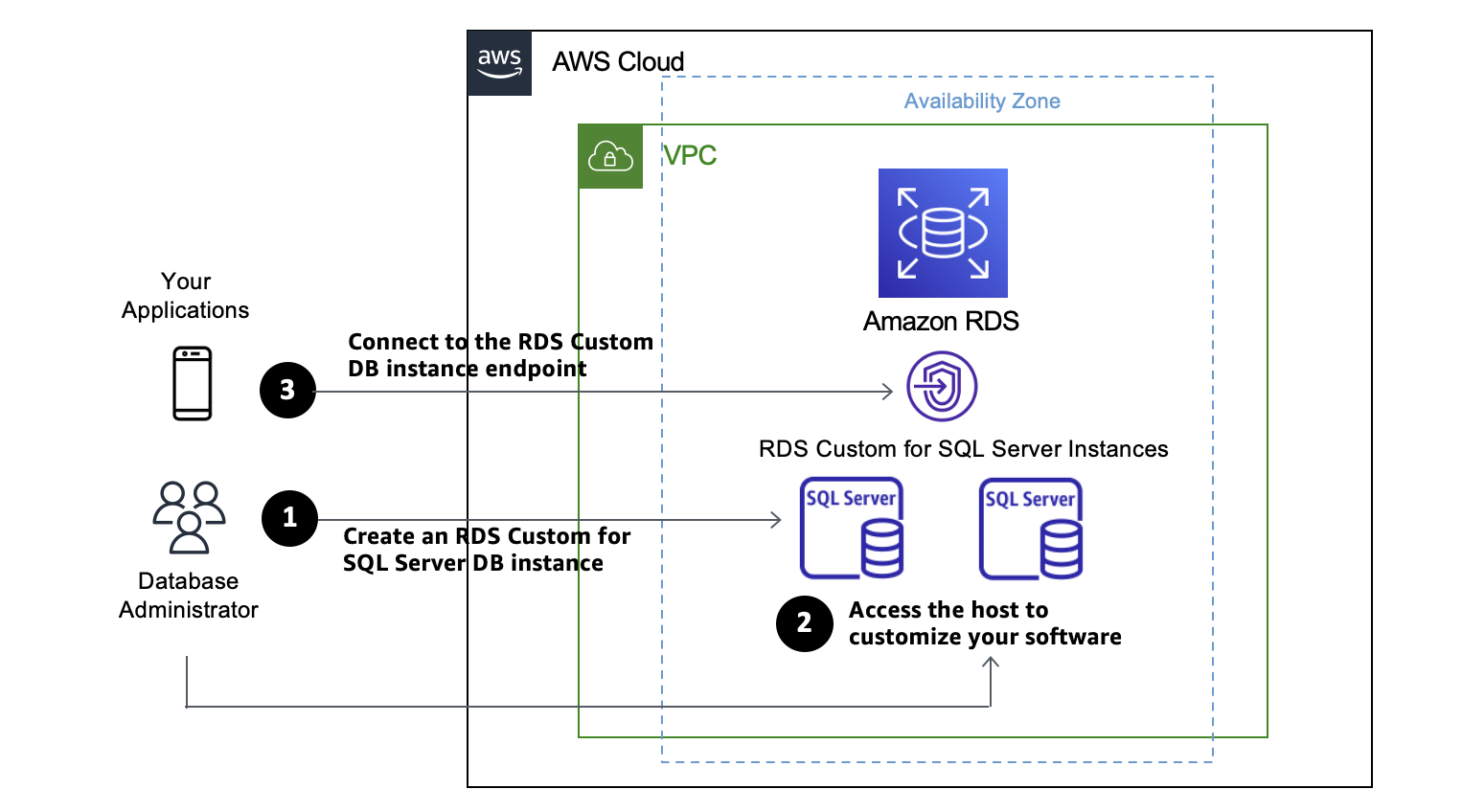
Get started by creating a DB instance of RDS Custom for SQL Server from an orderable engine version offered by RDS Custom. You can optionally access the server host to customize your software via AWS Systems Manager or a remote desktop client. Your application connects to the RDS Custom DB instance endpoint.

Before creating and connecting your custom DB instance for SQL Server, make sure that you meet some prerequisites, such as configuring the AWS Identity and Access Management (IAM) role and Amazon Virtual Private Cloud  (Amazon VPC).

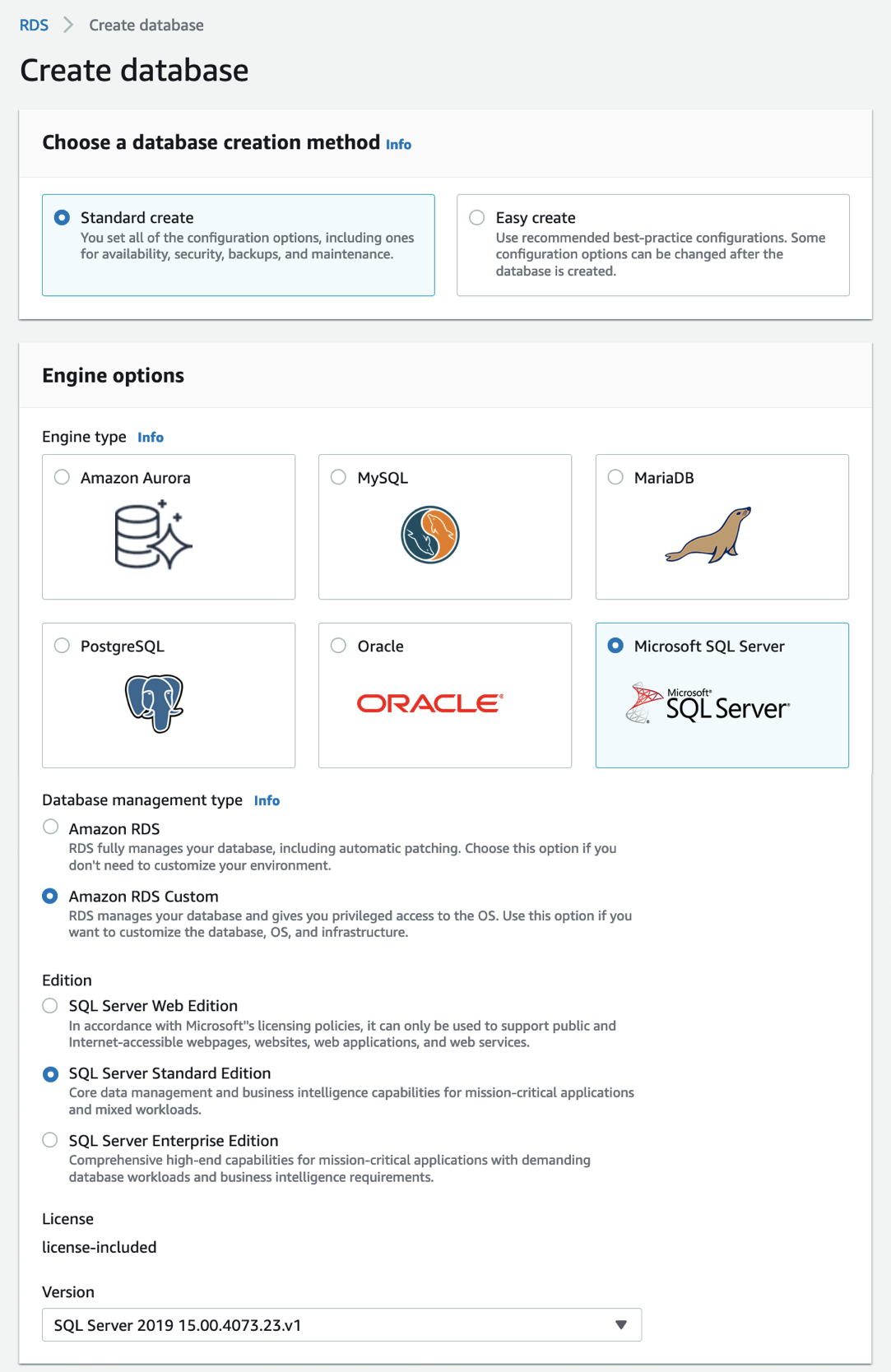
Choose Create database in the Databases menu to create your custom DB instance for SQL Server in the RDS Console. When you choose a database creation method, select Standard create. You can set Engine options to Microsoft SQL Server and choose Amazon RDS Custom in the database management type.

For Edition, choose the DB engine edition that you want to use in the choices of Enterprise, Standard, and Web with the Version of default SQL Server 2019.

For Settings, enter your favorite unique name for the DB instance identifier and your master username and password. By default, the new instance uses an automatically generated password for the master user.

In DB instance size, choose a DB instance class optimized to each DB engine edition.

SQL Server edition RDS Custom support
Enterprise Edition db.r5.xlarge – db.r5.24xlarge
db.m5.xlarge – db.m5.24xlarge
Standard Edition db.r5.large – db.r5.24xlarge
db.m5.large – db.m5.24xlarge
Web Edition db.r5.large – db.r5.4xlarge
db.m5.large – db.m5.4xlarge

See Settings for DB instances in the Amazon RDS User Guide to learn more about the remaining settings. Choose Create database. After creating the DB instance, the details for the new RDS Custom DB instance appear on the RDS console.

Alternatively, you can create an RDS Custom DB instance by using the create-db-instance command in the AWS Command Line Interface (AWS CLI).

$ aws rds create-db-instance \
	--engine custom-sqlserver-se \
	--engine-version 15.00.4073.23.v1 \
	--db-instance-identifier channy-custom-db \
	--db-instance-class db.m5.xlarge \
	--allocated-storage 20 \
	--db-subnet-group mydbsubnetgroup \
	--master-username myuser \
	--master-user-password mypassword \
	--backup-retention-period 3 \
	--no-multi-az \
	--port 8200 \
	--kms-key-id mykmskey \
	--custom-iam-instance-profile AWSRDSCustomInstanceProfile

After you create your RDS Custom DB instance, you can connect to it using AWS Systems Manager Session Manager or an RDP client. Make sure that the Amazon VPC security group associated with your DB instance permits inbound connections on port 3389 for TCP to allow RDP connections.

You need the key pair associated with the instance to connect to the custom DB instance via RDP. RDS Custom creates the key pair for you. The pair name uses the prefix do-not-delete-rds-custom-DBInstanceIdentifier. AWS Secrets Manager stores your private key as a secret. Choose the secret that has the same name as your key pair and retrieve the secret value to decrypt the password later.

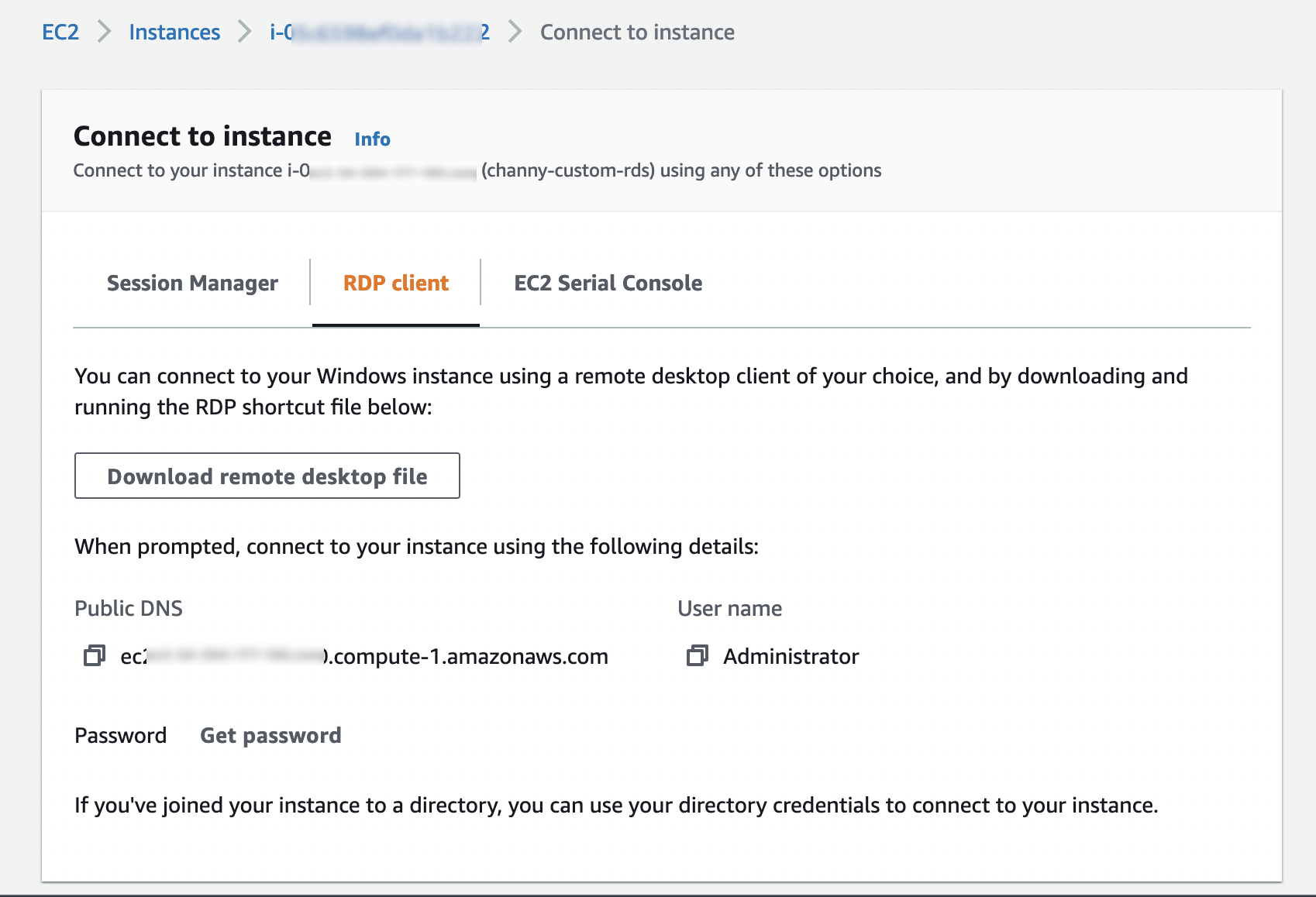
In the EC2 console, look for the name of your EC2 instance, and then choose the instance ID associated with your DB instance ID, for example, channy-custom-db-*. Select your custom DB instance, and then choose Connect. On the Connect to instance page, choose the RDP client tab, and then choose Get password with your private key as a secret.

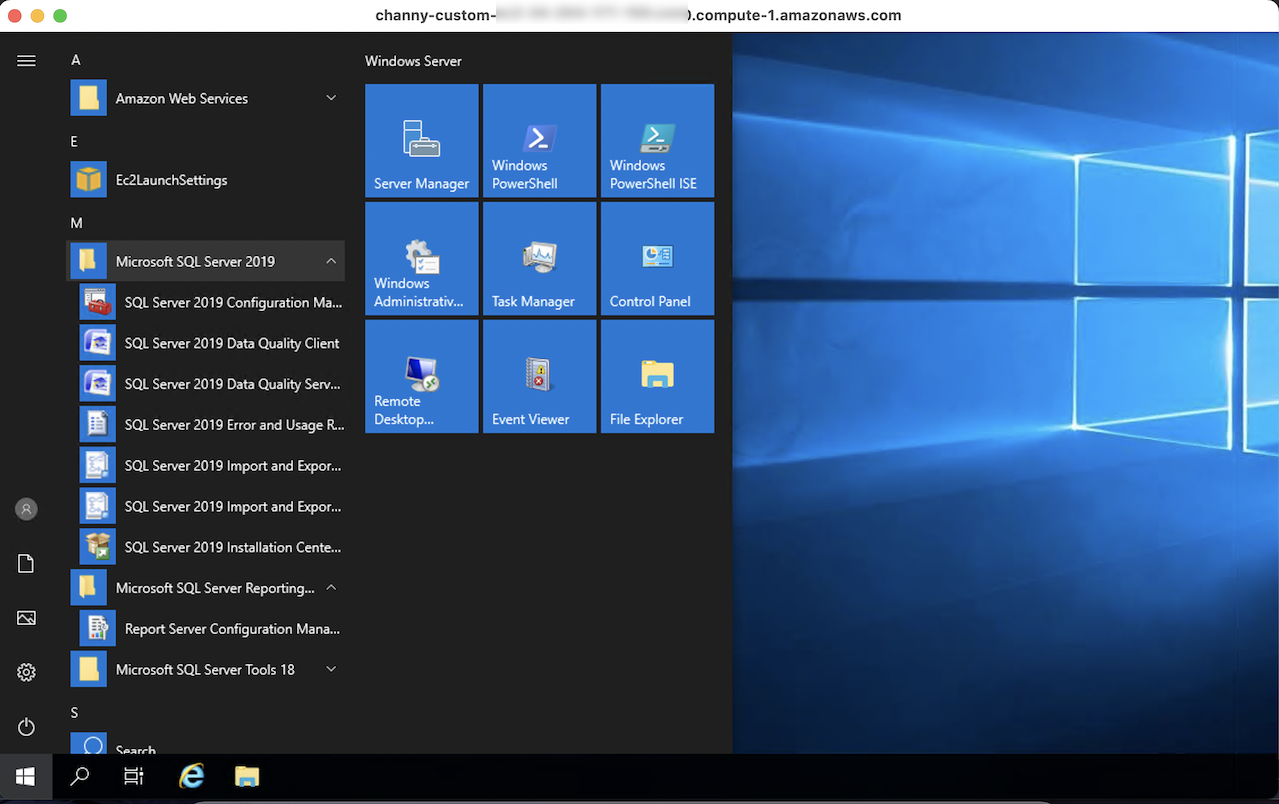
When you connect an RDP client with a downloaded remote desktop file and decrypted password, you can log in to the Windows Server and customize your SQL Server.

You can use AWS Systems Manager Session Manager to start a session with an instance in your account. After the session is started, you can run PowerShell commands as you would for any other connection type. See Connect to your Windows instance in the Amazon EC2 User Guide for more information.

Things to Know
Here are a couple of things to keep in mind about managing your DB instance:

Pausing RDS Custom Automation: RDS Custom for SQL Server automatically provides monitoring and instance recovery for your RDS Custom DB instance. If you need to customize the instance, then pause RDS Custom automation for a specified period. The pause makes sure that your customizations don’t interfere with RDS Custom automation. To pause or resume RDS Custom automation, you can set RDS Custom automation mode to Paused with the pause duration that you want (in minutes, default 60 minutes to 1,440 minutes maximum).

High Availability (HA): To support replication between RDS Custom for SQL Server instances, you can configure HA with Always On Availability Groups (AGs). We recommend that you set up the primary DB instance to synchronously replicate data to the standby instances in different Availability Zones (AZs) to be resilient to AZ failures. Moreover, you can migrate data by configuring HA for your on-premises instance and then failing over or switching over to the RDS Custom standby database.

Custom DB Management: Just like Amazon RDS, RDS Custom for SQL Server creates automated backups taking a snapshot of an Amazon RDS DB instance. Incremental snapshots are used to restore DB instances to a specific point in time. Furthermore, all changes and customizations to the underlying operating system are automatically logged for audit purposes using Systems Manager and AWS CloudTrail. See Troubleshooting an Amazon RDS Custom for DB instance in the Amazon RDS User Guide to learn more.

Available Now
Amazon RDS Custom for SQL Server is now available in the US East (Ohio), US East (N. Virginia), US West (Oregon), Asia Pacific (Singapore), Asia Pacific (Sydney), Asia Pacific (Tokyo), EU (Frankfurt), EU (Ireland), and EU (Stockholm) Regions.

Look at the product page and documentation of Amazon RDS Custom to learn more. Please send us feedback either in the AWS forum for Amazon RDS or through your usual AWS support contacts.

Channy

New – Amazon DevOps Guru for RDS to Detect, Diagnose, and Resolve Amazon Aurora-Related Issues using ML

Post Syndicated from Marcia Villalba original https://aws.amazon.com/blogs/aws/new-amazon-devops-guru-for-rds-to-detect-diagnose-and-resolve-amazon-aurora-related-issues-using-ml/

Today we are announcing Amazon DevOps Guru for RDS, a new capability for Amazon DevOps Guru. It allows developers to easily detect, diagnose, and resolve performance and operational issues in Amazon Aurora.

Hundreds of thousands of customers nowadays are using Amazon Aurora because it is highly available, scalable, and durable. But as applications grow in size and complexity, it becomes more challenging for these customers to detect and resolve operational and performance issues quickly.

During last year’s re:Invent, we announced DevOps Guru, a service that uses machine learning (ML) to automatically detect and alert customers of application issues, including database problems. Today we are announcing DevOps Guru for RDS to help developers using Amazon Aurora databases to detect, diagnose, and resolve database performance issues fast and at scale. Now developers will have enough information to determine the exact cause for a database performance issue. This launch will save developers and engineers many hours of work trying to uncover and remediate the performance-related database issues.

DevOps Guru for RDS uses ML to automatically identify and analyze a wide range of performance-related database issues, such as over-utilization of host resources, database bottlenecks, or misbehavior of SQL queries. It also recommends solutions to remediate the issues it finds. To use this capability, you don’t need to be a database or ML expert.

When an issue is detected, DevOps Guru for RDS displays the finding in the DevOps Guru console and sends notifications using Amazon EventBridge or Amazon Simple Notification Service (SNS). This allows developers to automatically manage and take real-time action on the issues.

How DevOps Guru for RDS Works
DevOps Guru for RDS uses anomaly detection on the database load (DB load) performance metric to detect issues. DB load is measured in units of Average Active Sessions (AAS). DB load measures the level of activity in your database, making it a great metric to understand the health of your database. If the DB load is high, this can result in performance issues. This metric can be compared to the number of virtual CPUs (vCPUs), and if the DB load is higher than that number, issues can arise.

The most useful dimensions for this metric are the wait events and the top SQL. The wait event describes what the system conditions that are currently running SQLs are waiting on. The most common reasons why a statement is waiting is that it is waiting for the CPU, waiting for a read or write, or waiting for a locked resource. The top SQL dimension shows which queries are contributing the most to DB load.

The following image is an example of a finding that DevOps Guru for RDS reported. The graph shows that from the AAS, most of them were waiting for access to a table or for CPU.

Example of anomaly detection
If you continue scrolling on the DevOps Guru for RDS analysis page, you can discover the cause for the problem and some recommendations to fix it. In this particular example, two problems were detected: high-load wait events and CPU capacity exceeded.

DevOps Guru for RDS looks more in-depth into these problems. First, it looks at the high-load wait events, where there were 27 AAS for the IO and CPU wait types, which is 99 percent of the total DB load.

Second, it tells us that the running tasks exceeded six processes. This database only has two vCPUs, and the recommended number of running processes should be a maximum of four (2x vCPUs). DevOps Guru for RDS also makes recommendations to fix these issues.

Recommendations

In another anomaly, the graph shows that there was a high load of wait events, and one SQL query was found to require further investigation. You can even see the exact SQL query if you click on the SQL digest IDs. The insight’s analysis and recommendation section is full of information on how to investigate further and fix the issue. You can get a lot of detailed information by clicking on the wait event, for example, on the wait event wait/io/table/sql/handler or in the View troubleshooting doc link.

Analysis and recommendations

Get started with DevOps Guru for RDS
To get started with this new capability of DevOps Guru, make sure that Performance Insights is enabled for your Amazon Aurora DB instances. It supports Amazon Aurora with MySQL- and PostgreSQL-compatibility. For instructions on how to enable Performance Insights, see Enabling and disabling Performance Insights.

The next step is to enable DevOps Guru to start monitoring your AWS resources. You can specify the resources you want to be covered by DevOps Guru.

If you are already using DevOps Guru, whenever there is a new insight for an Amazon Aurora database resource, you will see it in the console.

To see the detailed database analysis, navigate to the Insight page and select the new View analysis button under the DB load aggregated metric. That button will take you to the detailed analysis by DevOps Guru for RDS.

View analysis

Pricing and Availability
DevOps Guru for RDS is offered to customers at no additional charge, as part of the existing price that DevOps Guru charges customers for RDS resources.

DevOps Guru for RDS is available in all Regions where DevOps Guru is available, US East (Ohio), US East (N. Virginia), US West (Oregon), Asia Pacific (Singapore), Asia Pacific (Sydney), Asia Pacific (Tokyo), Europe (Frankfurt), Europe (Ireland), and Europe (Stockholm).

Learn more about DevOps Guru for RDS and check out the talk at AWS re:Invent “Automatically detect and resolve performance issues with Amazon DevOps Guru for RDS” (Session Id 15877).

Marcia

Enhanced Amazon S3 Integration for Amazon FSx for Lustre

Post Syndicated from Sébastien Stormacq original https://aws.amazon.com/blogs/aws/enhanced-amazon-s3-integration-for-amazon-fsx-for-lustre/

Today, we are announcing two additional capabilities of Amazon FSx for Lustre. First, a full bi-directional synchronization of your file systems with Amazon Simple Storage Service (Amazon S3), including deleted files and objects. Second, the ability to synchronize your file systems with multiple S3 buckets or prefixes.

Lustre is a large scale, distributed parallel file system powering the workloads of most of the largest supercomputers. It is popular among AWS customers for high-performance computing workloads, such as meteorology, life-science, and engineering simulations. It is also used in media and entertainment, as well as the financial services industry.

I had my first hands-on Lustre file systems when I was working for Sun Microsystems. I was a pre-sales engineer and worked on some deals to sell multimillion-dollar compute and storage infrastructure to financial services companies. Back then, having access to a Lustre file system was a luxury. It required expensive compute, storage, and network hardware. We had to wait weeks for delivery. Furthermore, it required days to install and configure a cluster.

Fast forward to 2021, I may create a petabyte-scale Lustre cluster and attach the file system to compute resources running in the AWS cloud, on-demand, and only pay for what I use. There is no need to know about Storage Area Networks (SAN), Fiber Channel (FC) fabric, and other underlying technologies.

Modern applications use different storage options for different workloads. It is common to use S3 object storage for data transformation, preparation, or import/export tasks. Other workloads may require POSIX file-systems to access the data. FSx for Lustre lets you synchronize objects stored on S3 with the Lustre file system to meet these requirements.

When you link your S3 bucket to your file system, FSx for Lustre transparently presents S3 objects as files and lets you to write results back to S3.

Full Bi-Directional Synchronization with Multiple S3 Buckets
If your workloads require a fast, POSIX-compliant file system access to your S3 buckets, then you can use FSx for Lustre to link your S3 buckets to a file system and keep data synchronized between the file system and S3 in both directions. However, until today, there were a couple limitations. First, you had to manually configure a task to export data back from FSx for Lustre to S3. Second, deleted files on S3 were not automatically deleted from the file system. And third, an FSx for Lustre file system was synchronized with one S3 bucket only. We are addressing these three challenges with this launch.

Starting today, when you configure an automatic export policy for your data repository association, files on your FSx for Lustre file system are automatically exported to your data repository on S3. Next, deleted objects on S3 are now deleted from the FSx for Lustre file system. The opposite is also available: deleting files on FSx for Lustre triggers the deletion of corresponding objects on S3. Finally, you may now synchronize your FSx for Lustre file system with multiple S3 buckets. Each bucket has a different path at the root of your Lustre file system. For example your S3 bucket logs may be mapped to /fsx/logs and your other financial_data bucket may be mapped to /fsx/finance.

These new capabilities are useful when you must concurrently process data in S3 buckets using both a file-based and an object-based workflow, as well as share results in near real time between these workflows. For example, an application that accesses file data can do so by using an FSx for Lustre file system linked to your S3 bucket, while another application running on Amazon EMR may process the same files from S3.

Moreover, you may link multiple S3 buckets or prefixes to a single FSx for Lustre file system, thereby enabling a unified view across multiple datasets. Now you can create a single FSx for Lustre file system and easily link multiple S3 data repositories (S3 buckets or prefixes). This is convenient when you use multiple S3 buckets or prefixes to organize and manage access to your data lake, access files from a public S3 bucket (such as these hundreds of public datasets) and write job outputs to a different S3 bucket, or when you want to use a larger FSx for Lustre file system linked to multiple S3 datasets to achieve greater scale-out performance.

How It Works
Let’s create an FSx for Lustre file system and attach it to an Amazon Elastic Compute Cloud (Amazon EC2) instance. I make sure that the file system and instance are in the same VPC subnet to minimize data transfer costs. The file system security group must authorize access from the instance.

I open the AWS Management Console, navigate to FSx, and select Create file system. Then, I select Amazon FSx for Lustre. I am not going through all of the options to create a file system here, you can refer to the documentation to learn how to create a file system. I make sure that Import data from and export data to S3 is selected.

Lustre - enable S3 synchronizationIt takes a few minutes to create the file system. Once the status is ✅ Available, I navigate to the Data repository tab, and then select Create data repository association.

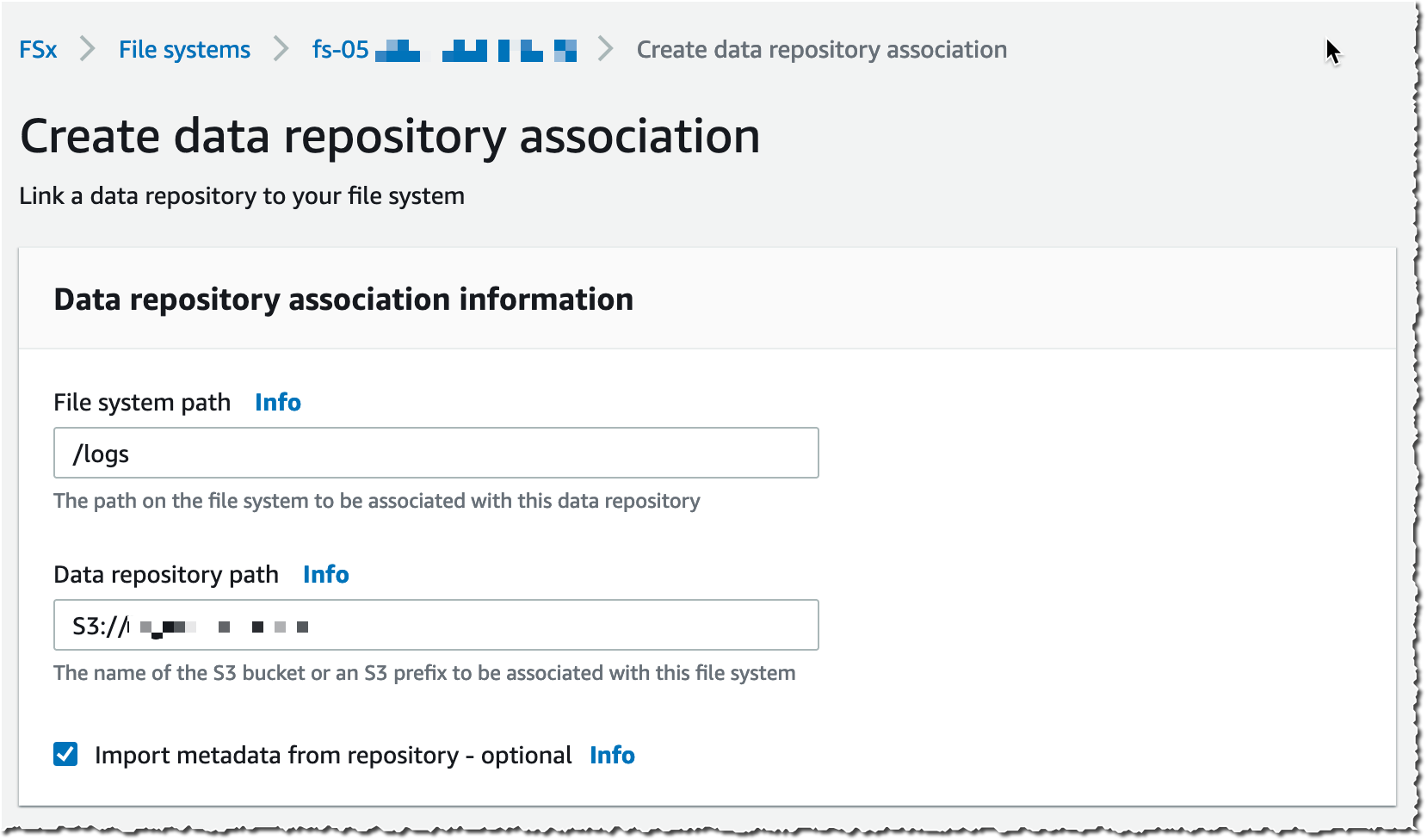
I choose a Data Repository path (my source S3 bucket) and a file system path (where in the file system that bucket will be imported).

FsX Lustre Data repository

Then, I choose the Import policy and Export policy. I may synchronize the creation of file/objects, their updates, and when they are deleted. I select Create.

FsX Lustre Data repository import policies

When I use automatic import, I also make sure to provide an S3 bucket in the same AWS Region as the FSx for Lustre cluster. FSx for Lustre supports linking to an S3 bucket in a different AWS Region for automatic export and all other capabilities.

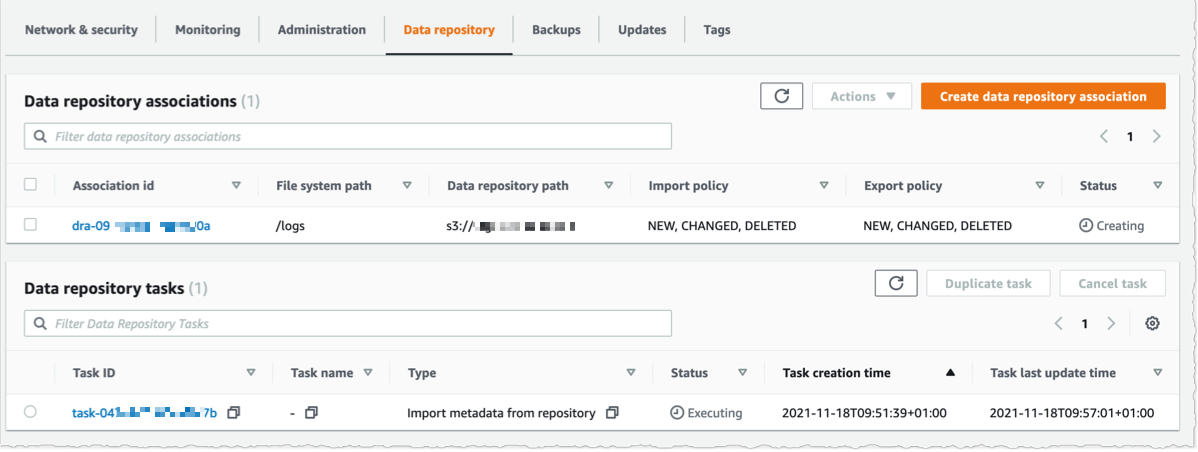
Using the console, I see the list of Data repository associations. I wait for the import task status to become ✅ Succeeded. If I link the file system to an S3 bucket with a large number of objects, then I may choose to skip Importing metadata from repository while creating the data repository association, and then load metadata from selected prefixes in my S3 buckets that are required for my workload using an Import task.

FsX for lustre - meta data repository tasks

I create an EC2 instance in the same VPC subnet. Furthermore, I make sure that the FSx for Lustre cluster security group authorizes ingress traffic from the EC2 instance. I use SSH to connect to the instance, and then type the following commands (commands are prefixed with the $ sign that is part of my shell prompt).

# check kernel version, minimum version 4.14.104-95.84 is required 
$ uname -r
4.14.252-195.483.amzn2.aarch64

# install lustre client 
$ sudo amazon-linux-extras install -y lustre2.10
Installing lustre-client
...
Installed:
  lustre-client.aarch64 0:2.10.8-5.amzn2                                                                                                                        

Complete!

# create a mount point 
$ sudo mkdir /fsx

# mount the file system 
$ sudo mount -t lustre -o noatime,flock fs-00...9d.fsx.us-east-1.amazonaws.com@tcp:/ny345bmv /fsx

# verify mount succeeded
$ mount 
...
172.0.0.0@tcp:/ny345bmv on /fsx type lustre (rw,noatime,flock,lazystatfs)

Then, I verify that the file system contains the S3 objects, and I create a new file using the touch command.

Fsx Lustre - check file system

I switch to the AWS Console, under S3 and then my bucket name, and I verify that the file has been synchronized.

Fsx Lustre - check s3

Using the console, I delete the file from S3. And, unsurprisingly, after a few seconds, the file is also deleted from the FSx file system.

Fsx Lustre - check file systems - deleted

Pricing and Availability
These new capabilities are available at no additional cost on Amazon FSx for Lustre file systems. Automatic export and multiple repositories are only available on Persistent 2 file systems in US East (N. Virginia), US East (Ohio), US West (Oregon), Canada (Central), Asia Pacific (Tokyo), Europe (Frankfurt), and Europe (Ireland). Automatic import with support for deleted and moved objects in S3 is available on file systems created after July 23, 2020 in all regions where FSx for Lustre is available.

You can configure your file system to automatically import S3 updates by using the AWS Management Console, the AWS Command Line Interface (CLI), and AWS SDKs.

Learn more about using S3 data repositories with Amazon FSx for Lustre file systems.

One More Thing
One more thing while you are reading. Today, we also launched the next generation of FSx for Lustre file systems. FSx for Lustre next-gen file systems are built on AWS Graviton processors. They are designed to provide you with up to 5x higher throughput per terabyte (up to 1 GB/s per terabyte) and reduce your cost of throughput by up to 60% as compared to previous generation file systems. Give it a try today!

— seb

PS : my colleague Michael recorded a demo video to show you the enhanced S3 integration for FSx for Lustre in action. Check it out today.

New – Offline Tape Migration Using AWS Snowball Edge

Post Syndicated from Jeff Barr original https://aws.amazon.com/blogs/aws/new-offline-tape-migration-using-aws-snowball-edge/

Over the years, we have given you a succession of increasingly powerful tools to help you migrate your data to the AWS Cloud. Starting with AWS Import/Export back in 2009, followed by Snowball in 2015, Snowmobile and Snowball Edge in 2016, and Snowcone in 2020, each new device has given you additional features to simplify and expedite the migration process. All of the devices are designed to operate in environments that suffer from network constraints such as limited bandwidth, high connections costs, or high latency.

Offline Tape Migration
Today, we are taking another step forward by making it easier for you to migrate data stored offline on physical tapes. You can get rid of your large and expensive storage facility, send your tape robots out to pasture, and eliminate all of the time & effort involved in moving archived data to new formats and mediums every few years, all while retaining your existing tape-centric backup & recovery utilities and workflows.

This launch brings a tape migration capability to AWS Snowball Edge devices, and allows you to migrate up to 80 TB of data per device, making it suitable for your petabyte-scale migration efforts. Tapes can be stored in the Amazon S3 Glacier Flexible Retrieval or Amazon S3 Glacier Deep Archive storage classes, and then accessed from on-premises and cloud-based backup and recovery utilities.

Back in 2013 I showed you how to Create a Virtual Tape Library Using the AWS Storage Gateway. Today’s launch builds on that capability in two different ways. First, you create a Virtual Tape Library (VTL) on a Snowball Edge and copy your physical tapes to it. Second, after your tapes are in the cloud, you create a VTL on a Storage Gateway and use it to access your virtual tapes.

Getting Started
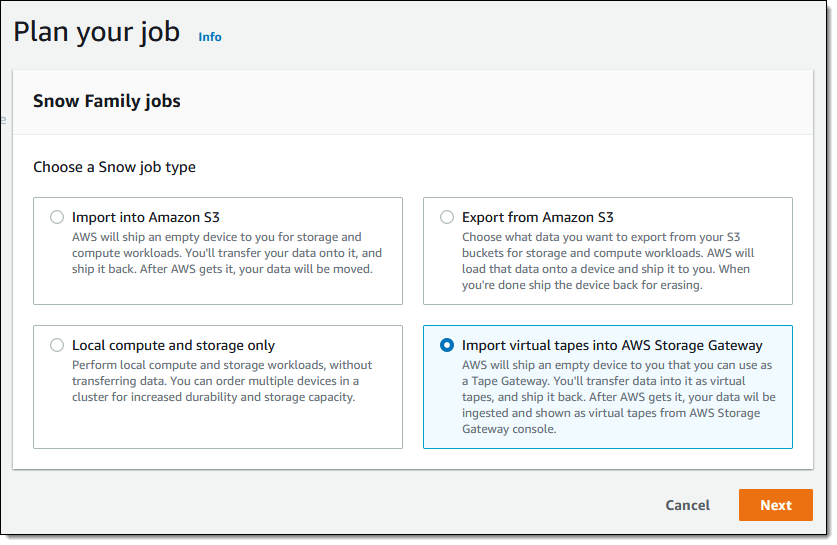
To get started, I open the Snow Family Console and create a new job. Then I select Import virtual tapes into AWS Storage Gateway and click Next:

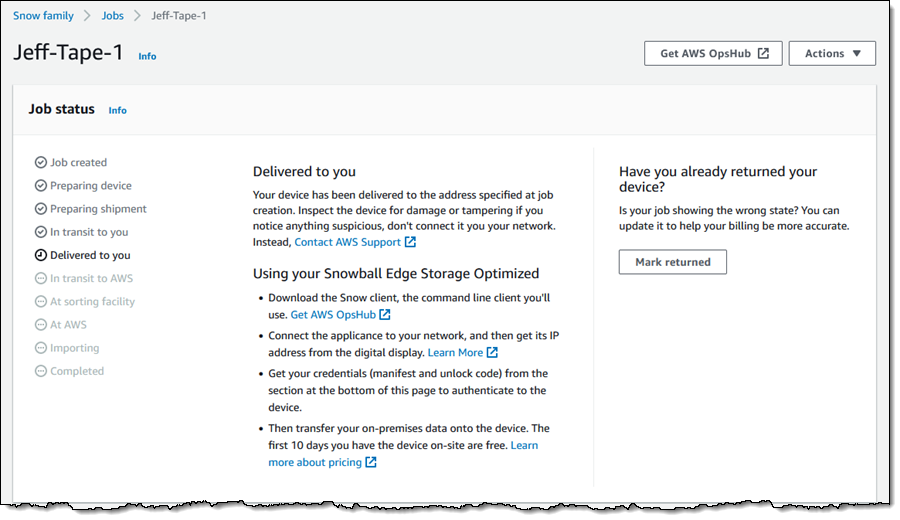
Then I go through the remainder of the ordering sequence (enter my shipping address, name my job, choose a KMS key, and set up notification preferences), and place my order. I can track the status of the job in the console:

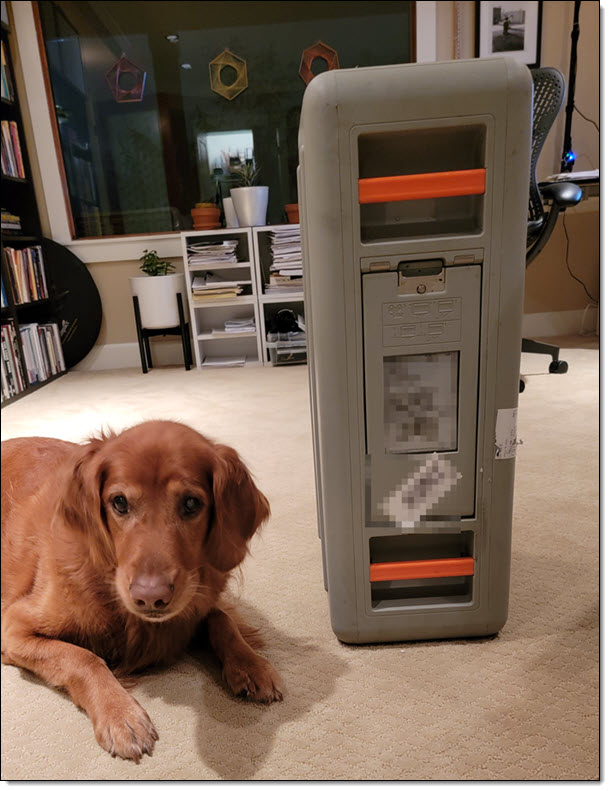
When my device arrives I tell the somewhat perplexed delivery person about data transfer, carry it down to my basement office, and ask Luna to check it out:

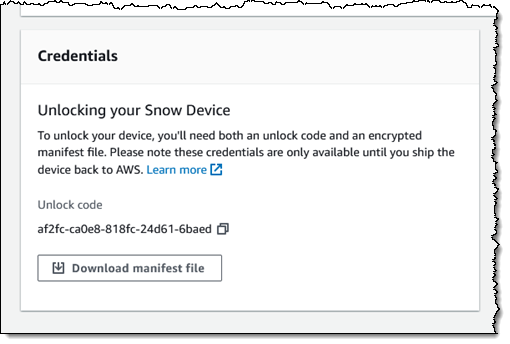
Back in the Snow Family console, I download the manifest file and copy the unlock code:

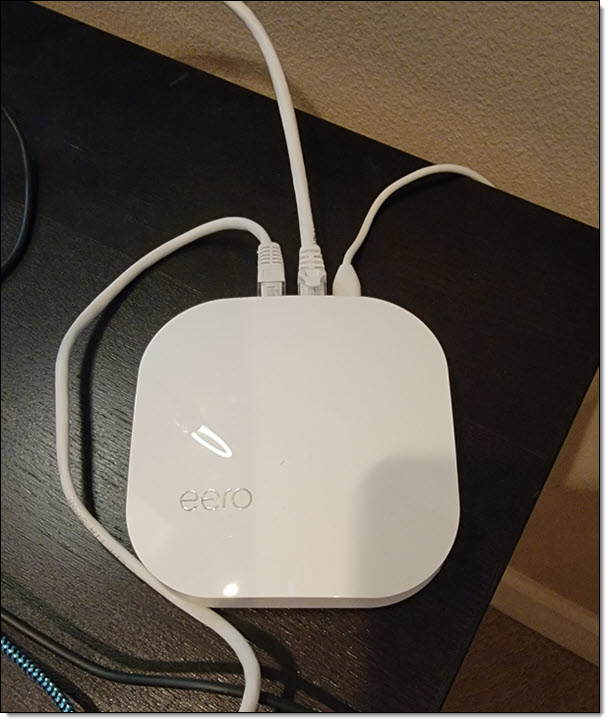
I connect the Snowball Edge to my “corporate” network:

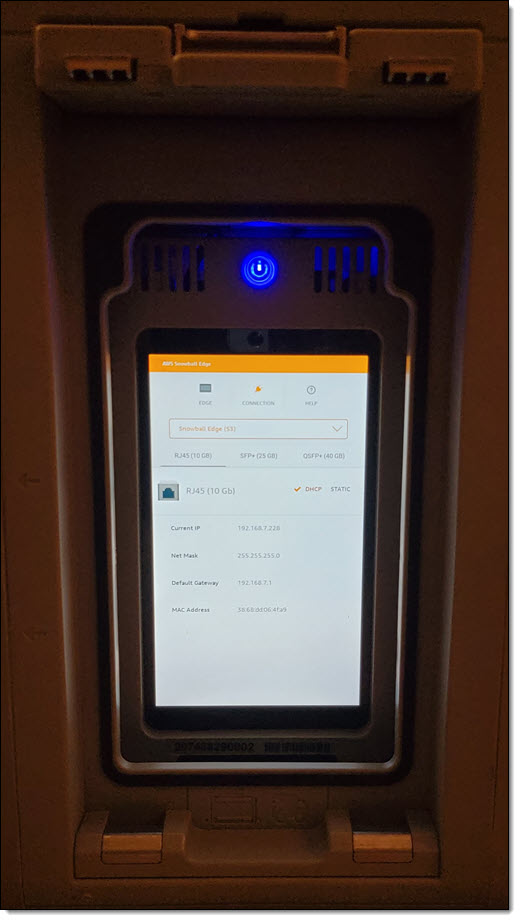
Then I install AWS OpsHub for Snow Family on my laptop, power on the Snowball Edge, and wait for it to obtain & display an IP address:

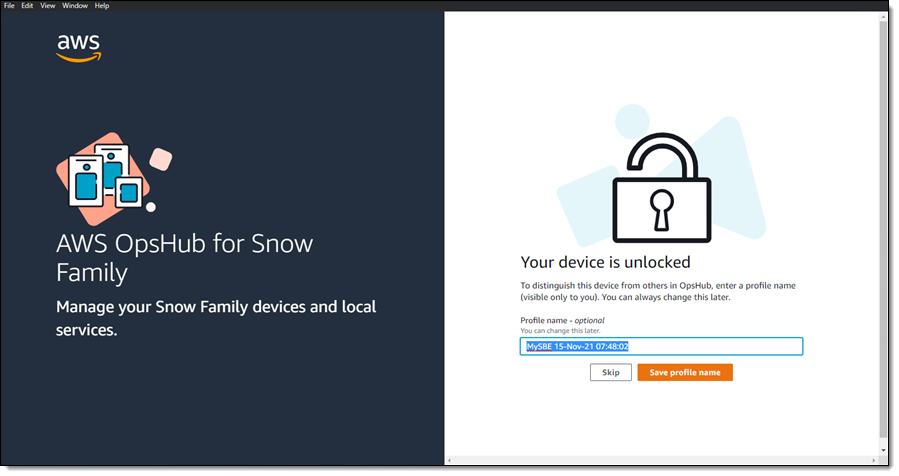
I launch OpsHub, sign in, and accept the default name for my device:

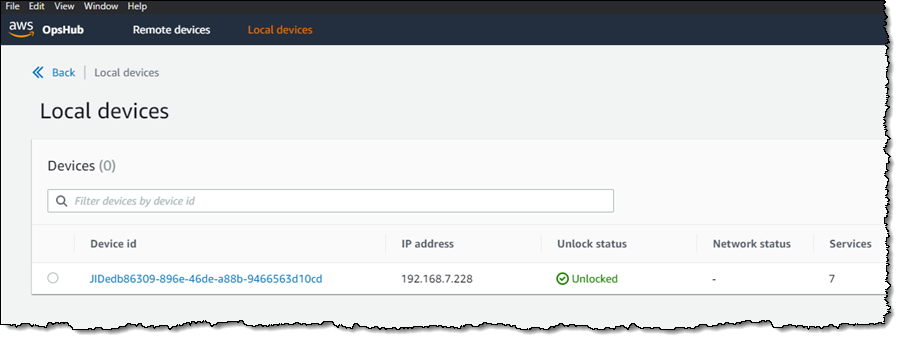
I confirm that OpsHub has access to my device, and that the device is unlocked:

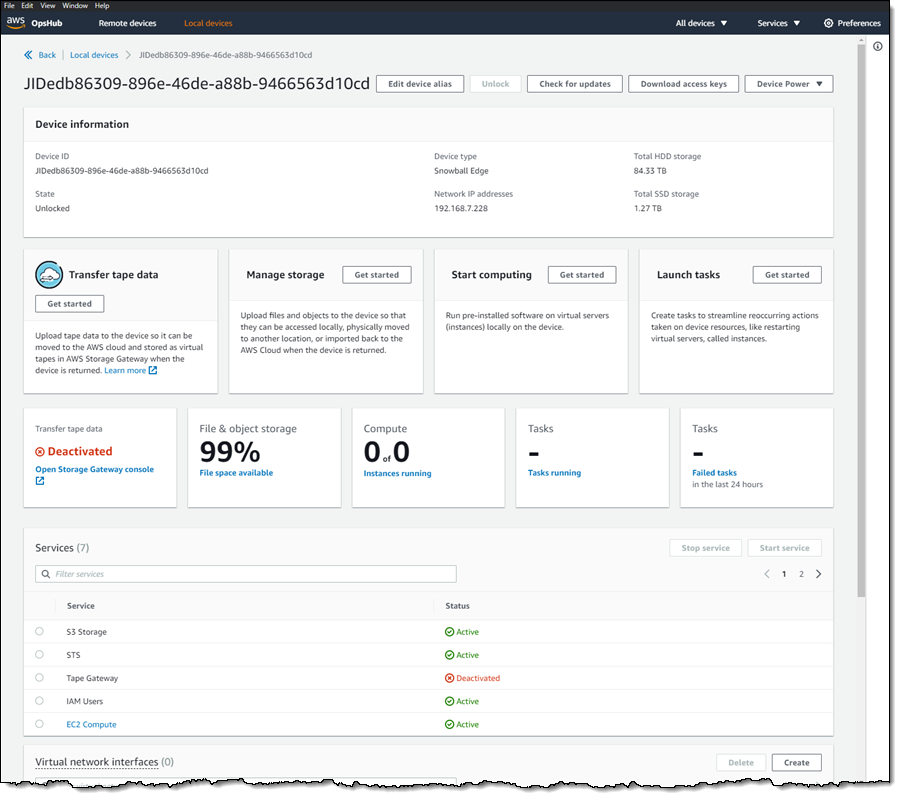
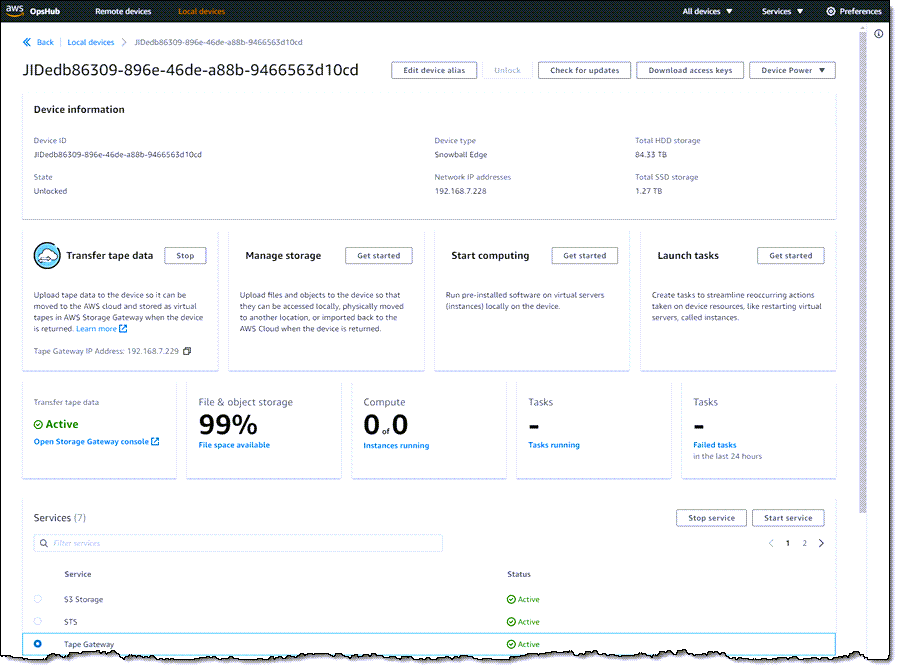
I view the list of services running on the device, and note that Tape Gateway is not running:

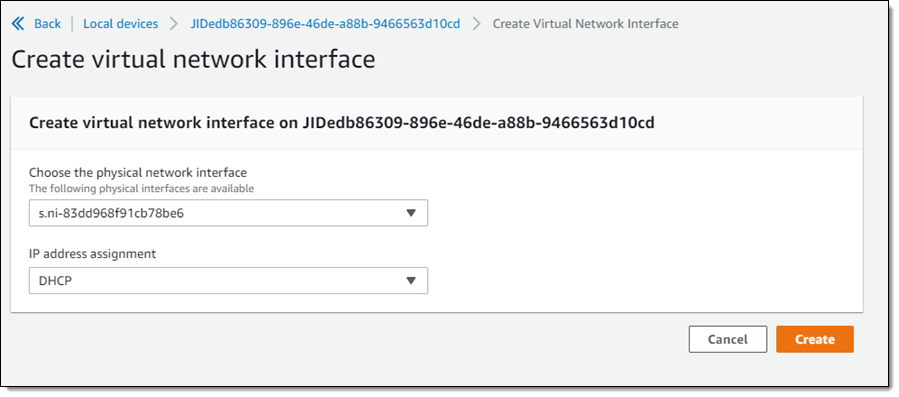
Before I start Tape Gateway, I create a Virtual Network Interface (VNI):

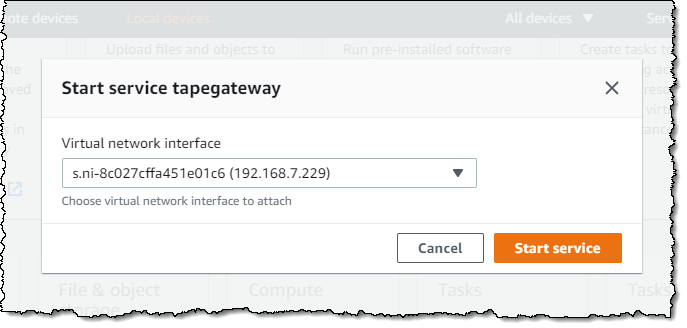
And then I start the Tape Gateway service on the Snow device:

Now that the service is running on the device, I am ready to create the Storage Gateway. I click Open Storage Gateway console from within OpsHub:

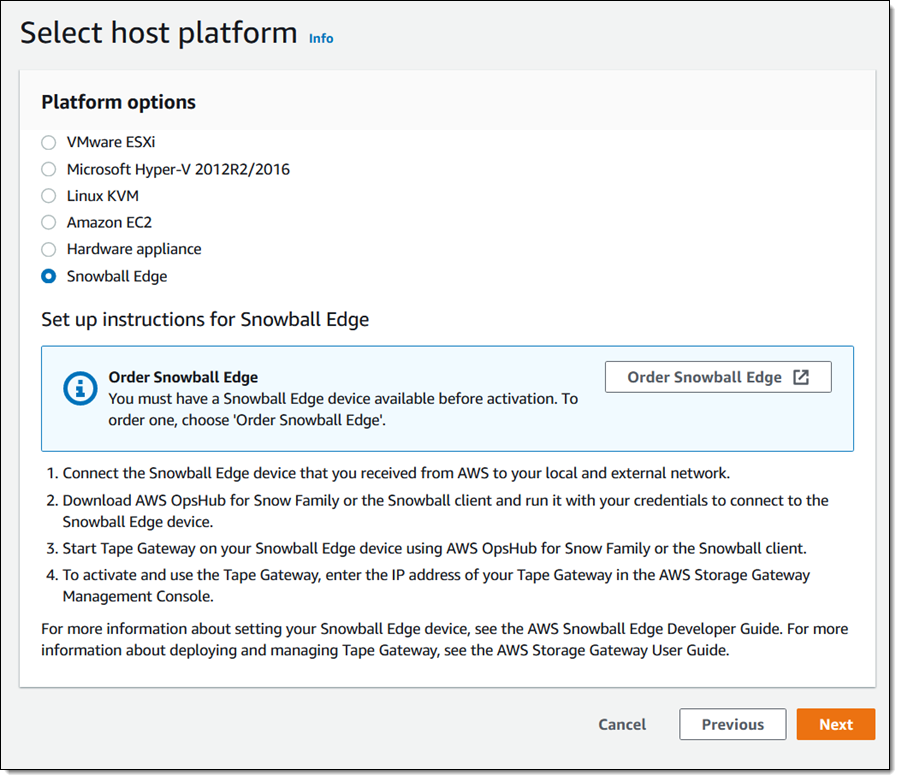
I select Snowball Edge as my host platform:

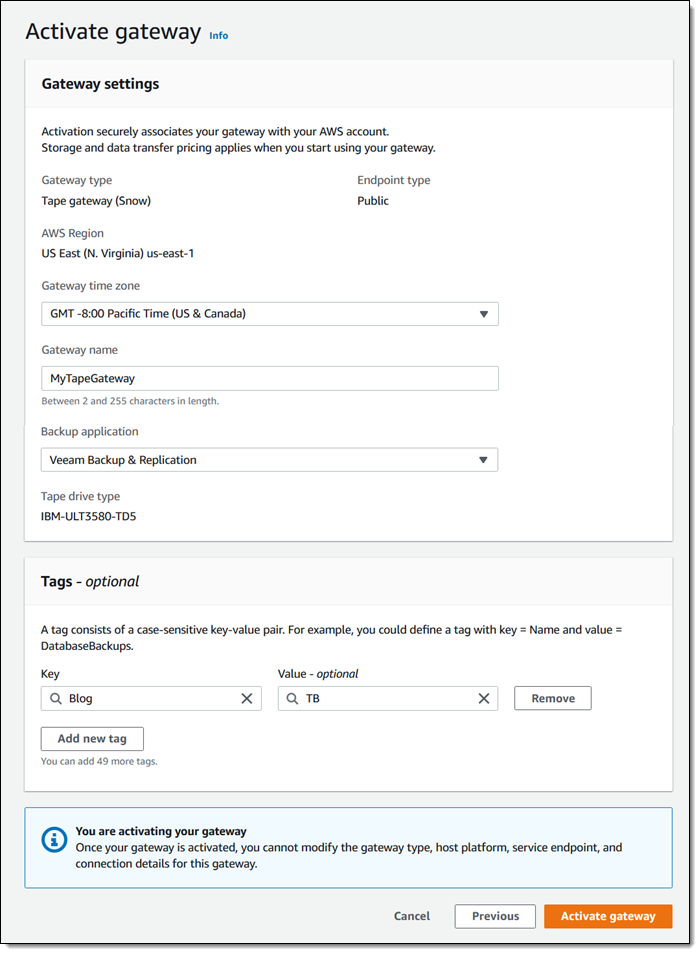
Then I give my gateway a name (MyTapeGateway), select my backup application (Veeam Backup & Replication in this case), and click Activate Gateway:

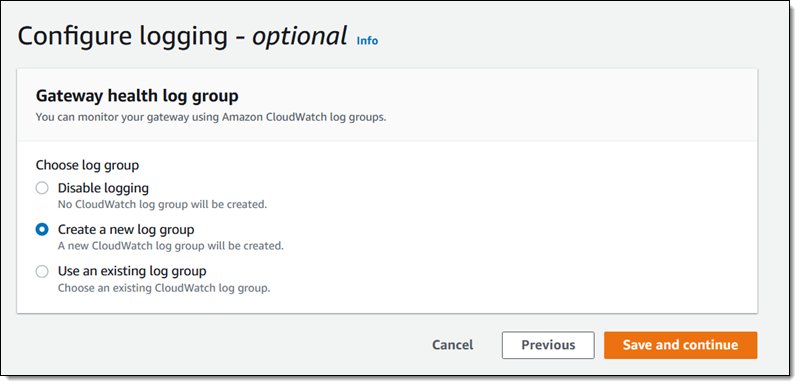
Then I configure CloudWatch logging:

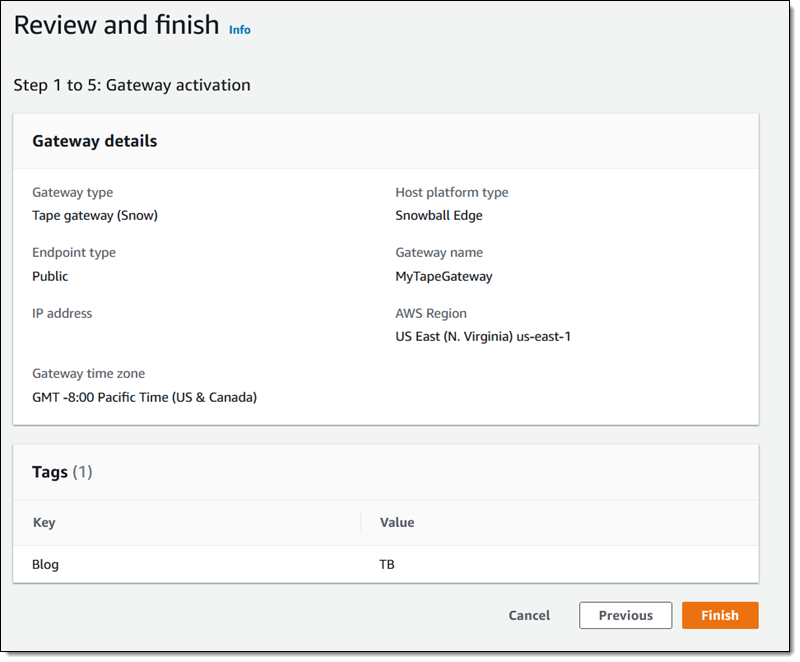
And finally, I review the settings and click Finish to activate my new gateway:

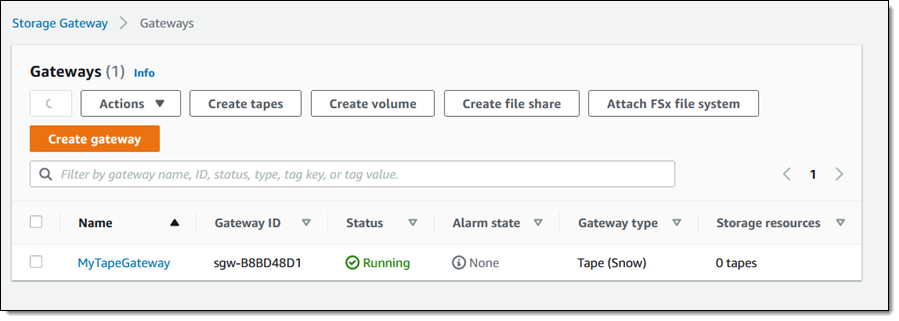
The activation process takes a few minutes, just enough time to take Luna for a quick walk. When I return, the console shows that the gateway is activated and running, and I am all set:

Creating Tapes
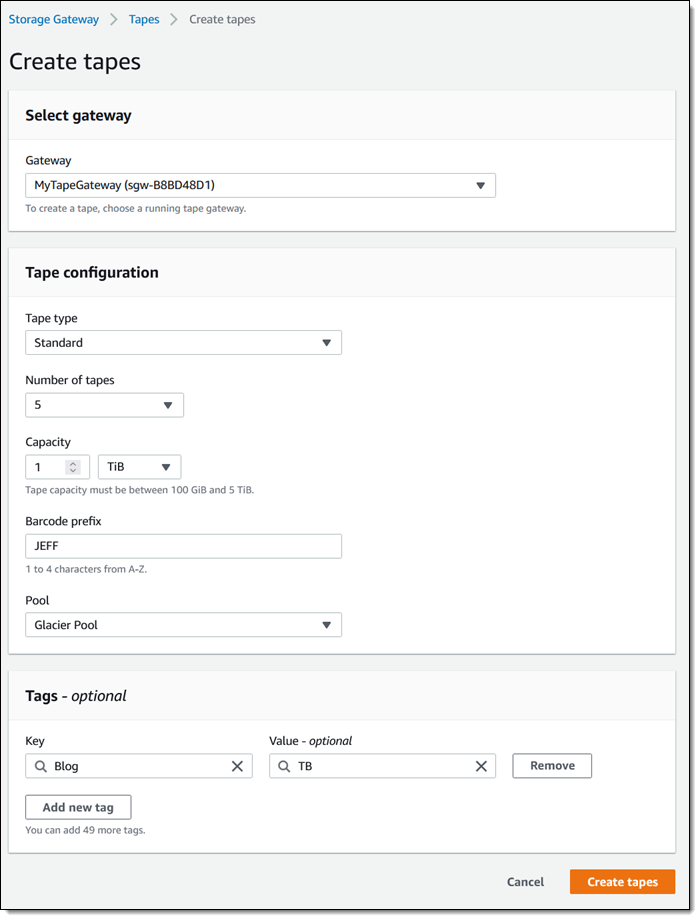
The next step is to create some virtual tapes. I click Create tapes and enter the requested information, including the pool (Deep Archive or Glacier), and click Create tapes:

The next step is to copy data from my physical tapes to the Snowball Edge. I don’t have a data center and I don’t have any tapes, so I can’t show you how to do this part. The data is stored on the device, and my Internet connection is used only for management traffic between the Snowball Edge device and AWS. To learn more about this part of the process, check out our new animated explainer.

After I have copied the desired tapes to the device, I prepare it for shipment to AWS. I make sure that all of the virtual tapes in the Storage Gateway Console have the status In Transit to VTS (Virtual Tape Shelf), and then I power down the device.

The display on the device updates to show the shipping address, and I wait for the shipping company to pick up the device.

When the device arrives at AWS, the virtual tapes are imported, stored in the S3 storage class associated with the pool that I chose earlier, and can be accessed by retrieving them using an online tape gateway. The gateway can be deployed as a virtual machine or a hardware appliance.

Now Available
You can use AWS Snowball Edge for offline tape migration in the US East (N. Virginia), US East (Ohio), US West (Oregon), US West (N. California), Europe (Ireland), Europe (Frankfurt), Europe (London), Asia Pacific (Sydney) Regions. Start migrating petabytes of your physical tape data to AWS, today!

Jeff;

Preview – AWS Backup Adds Support for Amazon S3

Post Syndicated from Sébastien Stormacq original https://aws.amazon.com/blogs/aws/preview-aws-backup-adds-support-for-amazon-s3/

Starting today, you can preview AWS Backup for Amazon Simple Storage Service (Amazon S3).

AWS Backup is a fully managed, policy-based service that lets you to centralize and automate the backup and restore of your applications spanning across 12 AWS services: Amazon Elastic Compute Cloud (Amazon EC2) instances, Amazon Elastic Block Store (EBS) volumes, Amazon Relational Database Service (RDS) databases (including Amazon Aurora clusters), Amazon DynamoDB tables, Amazon Neptune databases, Amazon DocumentDB (with MongoDB compatibility) databases, Amazon Elastic File System (Amazon EFS) file systems, Amazon FSx for Lustre file systems, Amazon FSx for Windows File Server file systems, AWS Storage Gateway volumes, and now Amazon S3 (in preview).

Modern workloads and systems are leveraging different storage options for different functionalities. In the 21st century, it is normal to build applications relying on non-relational and relational databases, shared file storage, and object storage, just to name of few. When operating and managing these applications, you told us that you wanted centralized protection and provable compliance for application data stored in S3 alongside other AWS services for storage, compute, and databases.

I can see three benefits when integrating Amazon Simple Storage Service (Amazon S3) with your data protection policies in AWS Backup.

First, it lets you centrally manage your applications backups: AWS Backup provides an automated solution to centrally configure backup policies, thereby helping you simplify backup lifecycle management. This also makes it easy to ensure that your application data across AWS services (including S3) is centrally backed up.

Second, it lets you easily restore your data: AWS Backup provides a single-click-restore experience for your S3 data. This lets you perform point-in-time restores of your S3 buckets and objects to a new or existing S3 bucket.

Finally, it improves backup compliance: AWS Backup provides built-in dashboards that let you to track backup and restore operations for S3.

AWS Backup for S3 (Preview) lets you create continuous point-in-time backups along with periodic backups of S3 buckets, including object data, object tags, access control lists (ACLs), and user-defined metadata. The first backup is a full snapshot, while subsequent backups are incremental. If there is a data disruption event, then you choose a backup from the backup vault, and restore an S3 bucket (or individual S3 objects) to a new or existing S3 bucket. AWS Backup is integrated with AWS Organizations, which let you use a single policy across AWS accounts (within your Organizations) to automate backup creation and backup access management.

Furthermore, you can turn on AWS Backup Vault Lock to enable delete protection of the data that you protect with AWS Backup, and thereby improving protection of your immutable backups from accidental deletion or malicious re-encryption.

How to Get Started
AWS Backup works with versioned S3 buckets. Before you get started, turn on S3 Versioning on your buckets to backup.

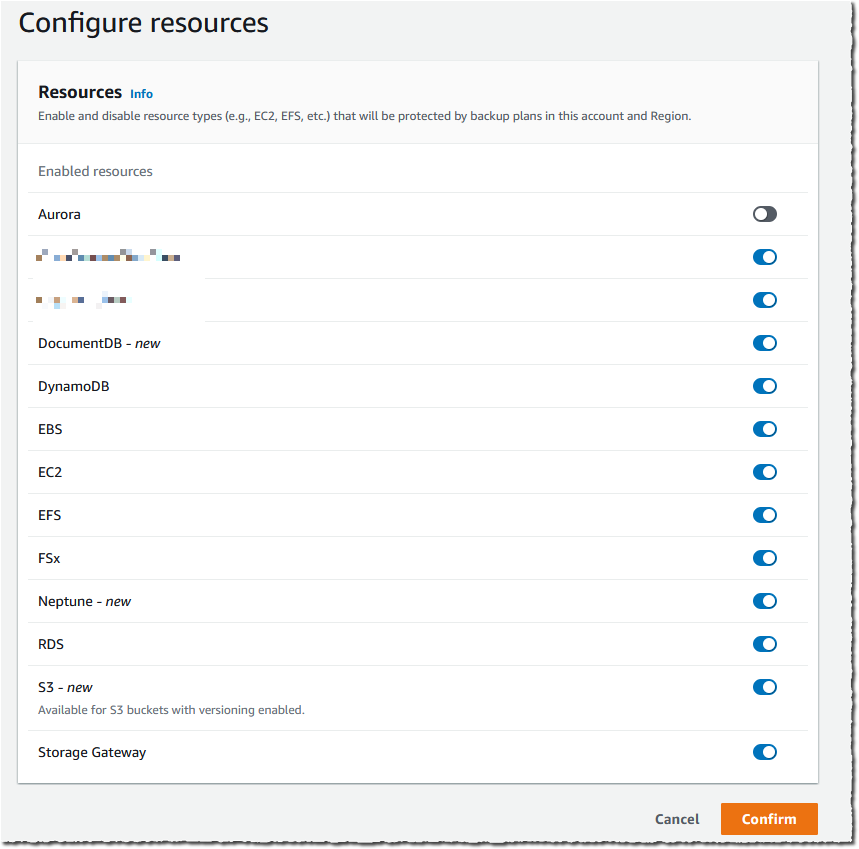
I must enable S3 in AWS Backup Settings when I use this feature for the first time. Using the AWS Management Console, I navigate to AWS Backup, then select Settings and Configure resources. I enable S3, and select Confirm. This is a one-time operation.

AWS Backup - optin S3

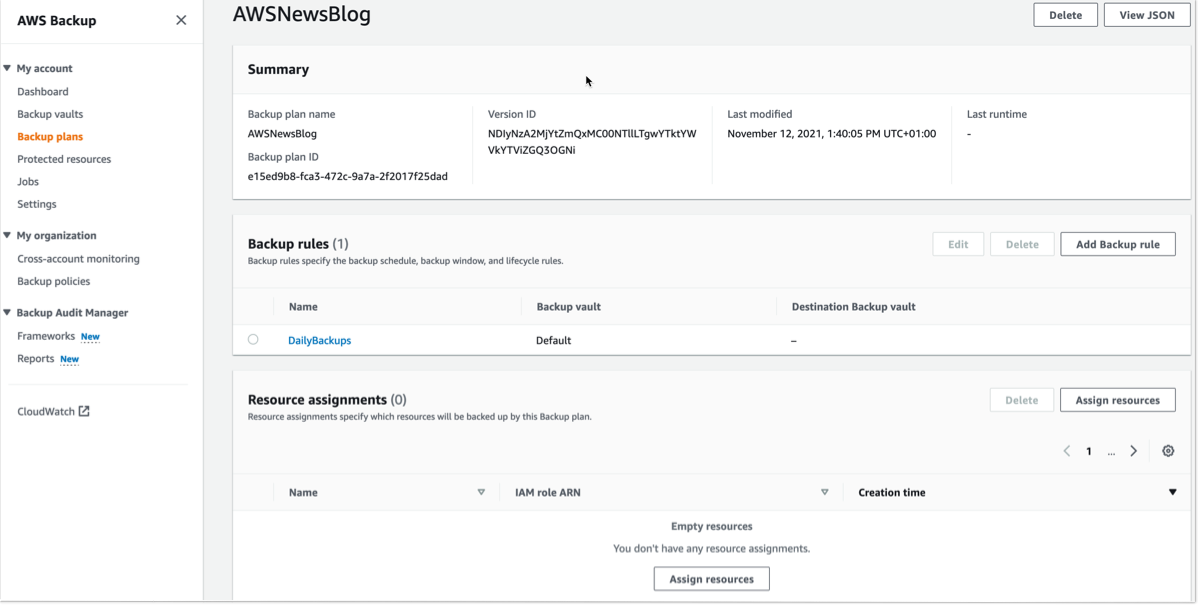
For this demo, I already have an existing backup plan, and I want to add an S3 bucket to this plan. If you want to create a new backup plan, then you can refer to AWS Backup‘s technical documentation.

To start including my S3 objects in my backup plan, I open the AWS Management Console, navigate to Backup plans, and select Assign resources.

AWS Backup Add Resources

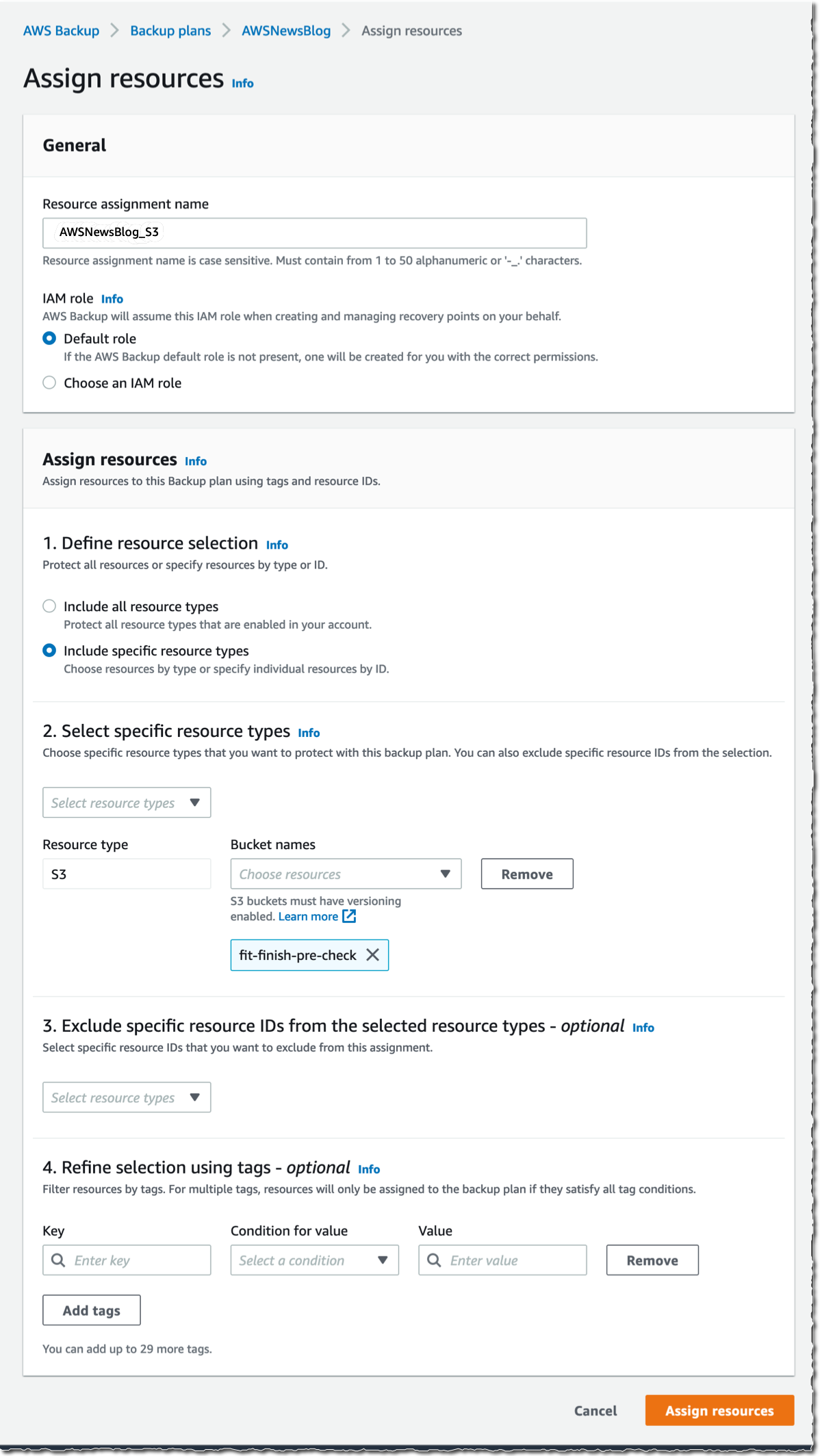
I give a name to my Resource assignment. I select Include specific resources types, then I select S3 as Resource type and one or several S3 Bucket names. When I am done, I select Assign resources.

Alternatively, I may use tags or resource IDs to assign S3 resources.

If you have thousands of S3 buckets, I recommend using tags to assign the S3 buckets to a backup plan. AWS Backup matches the tags in S3 buckets to the ones assigned to the backup plan, and it centrally backs up the S3 resources along with other AWS services that your application uses.

The other options are not different from what you know already.

AWS Backup - backup plan for S3

The Bucket names list in the previous screenshot only shows the S3 buckets in the same Region.

Alternatively, I may also create on-demand backups. I navigate to the Protected resources section, and select Create on-demand backup.

I select S3 as the Resource type, and select the Bucket name. As per usual, I choose a Backup Window, a Retention period, a Backup vault, and an IAM role. Then, I select Create on-demand backup.

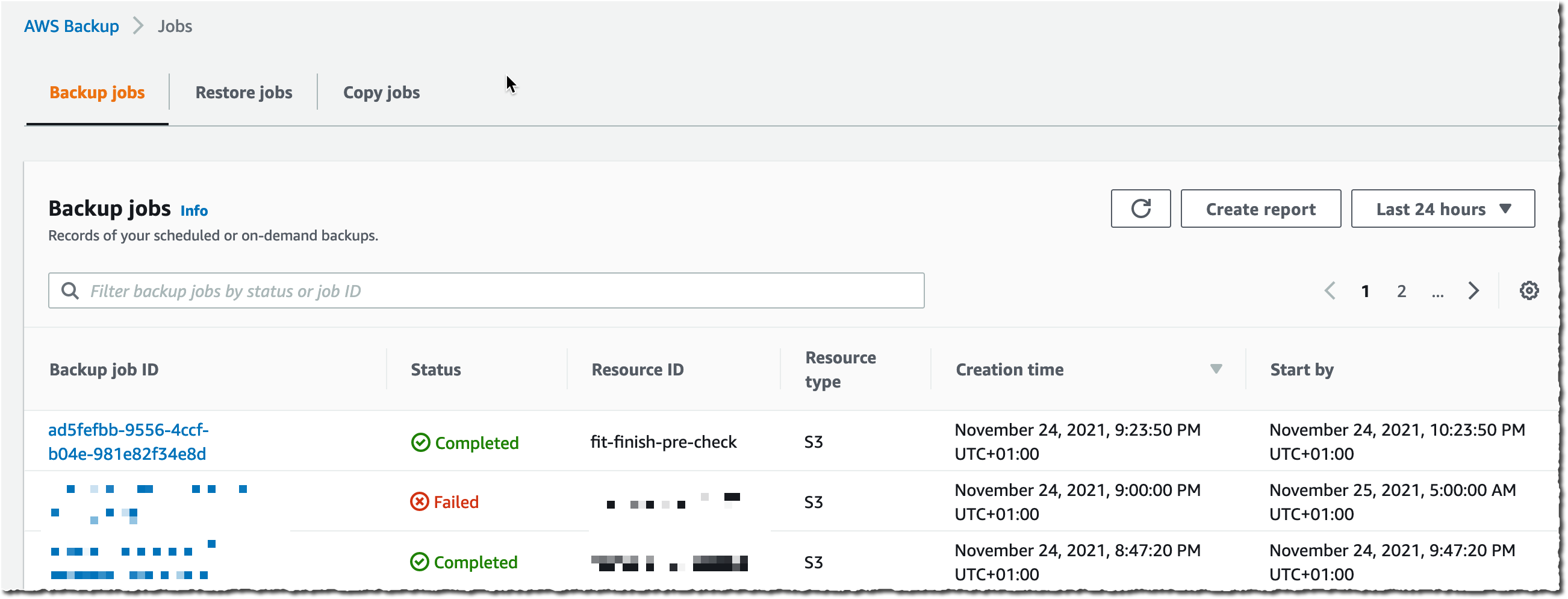
AWS Backup - on-demand backup for S3After a while, depending on the size of my bucket, the backup is ✅ Completed.

AWS Backup for S3 - Backup completed

All of the backups are encrypted and stored securely in a backup vault that I selected in the backup plan.

A backup vault (or backup storage vault) is an encrypted logical construct in my AWS account that stores and organizes my backups (recovery points). I may create new backup vaults in every AWS Region where AWS Backup is available. I may enable AWS Backup Vault Lock (delete-protection capability) on the backup vault to avoid accidental deletions and prevent malicious actors from re-encrypting my data. AWS Backup stores my continuous backups and periodic snapshots in the backup vault of my preference, and it lets me browse and restore as per my requirements.

How to Restore Objects
Let’s try to restore this backup.

The restore operation is very flexible. I may restore entire S3 buckets or individual S3 objects. I may restore the backups to the source S3 bucket, or to another existing bucket. Furthermore, I may create a new S3 bucket during restore. The S3 buckets must have Versioning enabled. Also, I may change the encryption key during restore.

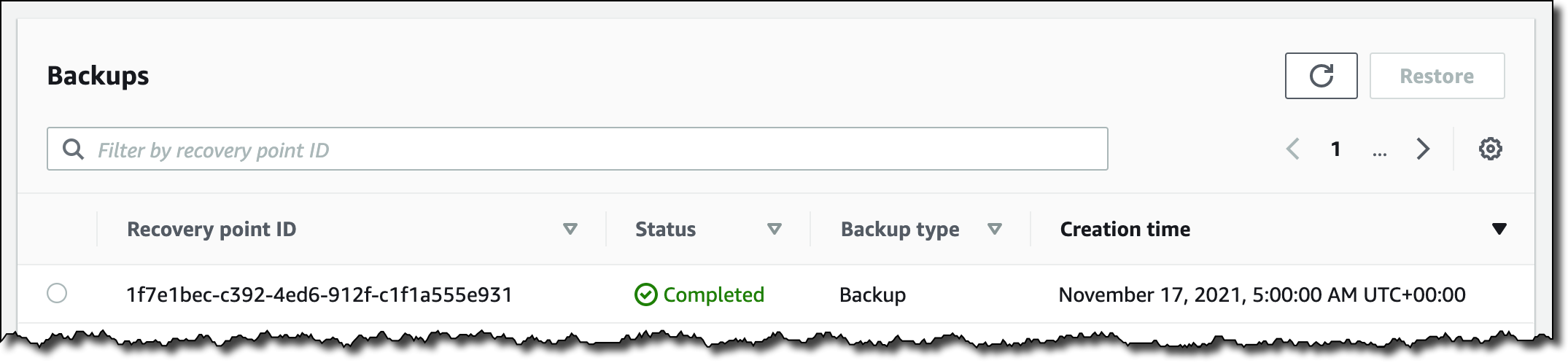
I navigate to Backup vaults to restore the S3 bucket I just backed up. In the Backups section, I select the Recovery point ID that I want to restore, and I select Restore from the Actions menu.

AWS Backup for S3 - restore

Before starting the restore, I may select a few options:

  • The Restore time: I may restore my continuous backup to a point-in-time in the last 35 days, while I can restore my periodic backups to their original state.
  • The Restore type: I may choose to restore the entire bucket or a subset of objects within it.
  • The Restore destination: I may choose to restore on the same bucket, on another one, or create a new bucket during restore.
  • The Restored object encryption: this lets me select the key I want to use to encrypt the restored objects in the bucket.

I select Restore backup to start the restore.

AWS Backup for S3 - restore optionsI can monitor the progress in the Jobs section, under the Restore jobs tab.

AWS Backup S3 - restore Jobs

When the status turns green to ✅ Completed, my objects are ready to use!

Generally, the most comprehensive data-protection strategies include regular testing and validation of your restore procedures before you need them. Testing your restores also helps to prepare and maintain recovery runbooks. In turn, that ensures operational readiness during a disaster recovery exercise, or an actual data loss scenario.

Availability and Pricing
The preview is available in the US West (Oregon) Region only.

During the preview, there are no charges for creating and storing backups. You will pay the AWS charges for underlying resources, such as S3 storage, API usage, and versioning.

Send us an email at [email protected] including your AWS account ID to register for the preview.

Go ahead and apply to the preview program today.

— seb

Amazon S3 Glacier is the Best Place to Archive Your Data – Introducing the S3 Glacier Instant Retrieval Storage Class

Post Syndicated from Marcia Villalba original https://aws.amazon.com/blogs/aws/amazon-s3-glacier-is-the-best-place-to-archive-your-data-introducing-the-s3-glacier-instant-retrieval-storage-class/

Today we are announcing the Amazon S3 Glacier Instant Retrieval storage class. This new archive storage class delivers the lowest cost storage for long-lived data that is rarely accessed and requires millisecond retrieval.

We are also excited to announce that S3 Intelligent-Tiering now automatically optimizes storage costs for rarely accessed data that needs immediate retrieval with the new Archive Instant Access tier, which is ideal for data with unknown or changing access patterns. For existing customers, this will provide an immediate savings of 68 percent for data that hasn’t been accessed for more than 90 days, with no action needed. The Frequent, Infrequent, and now Archive Instant Access tiers are designed for the same milliseconds access time and high-throughput performance.

In addition, we are announcing the new name for the existing Amazon S3 Glacier storage class and several price reductions.

Amazon S3 Glacier Instant Retrieval
The Amazon S3 Glacier storage classes are extremely low-cost and built for data archiving. They are secure and durable, and they are designed to provide the lowest cost for data that does not require immediate access, with retrieval options from minutes to hours.

Many customers need to store rarely accessed data for several years. However the data must be highly available and immediately accessible. Today, these customers use the S3 Standard-Infrequent Access (S3 Standard-IA) storage class. This storage class offers low cost for storage and allows customers to retrieve their data instantly.

S3 Glacier Instant Retrieval is a new storage class that delivers the fastest access to archive storage, with the same low latency and high-throughput performance as the S3 Standard and S3 Standard-IA storage classes. You can save up to 68 percent on storage costs as compared with using the S3 Standard-IA storage class when you use the S3 Glacier Instant Retrieval storage class and pay a low price to retrieve data. For example, in the US East (N. Virginia) Region, S3 Glacier Instant Retrieval storage pricing is $0.004 per GB-month and data retrieval is $0.03 per GB. Learn more about pricing for your Region.

Media archives, medical images, or user-generated content are just a few examples of ideal use cases for S3 Glacier Instant Retrieval. Once created, this content is rarely accessed, but when it is needed it must be available in milliseconds.

To get started using the new storage class from the Amazon S3 console, upload an object as you would normally, and select the S3 Glacier Instant Retrieval storage class.

Upload object with the new storage class

This feature is available programmatically from AWS SDKs, AWS Command Line Interface (CLI), and AWS CloudFormation.

In my opinion, the easiest way to store data in S3 Glacier Instant Retrieval is to use the S3 PUT API using the CLI. When using this API, set the storage class to GLACIER_IR.

aws s3api put-object --bucket <bucket-name> --key <object-key> --body <name-file> --storage-class GLACIER_IR

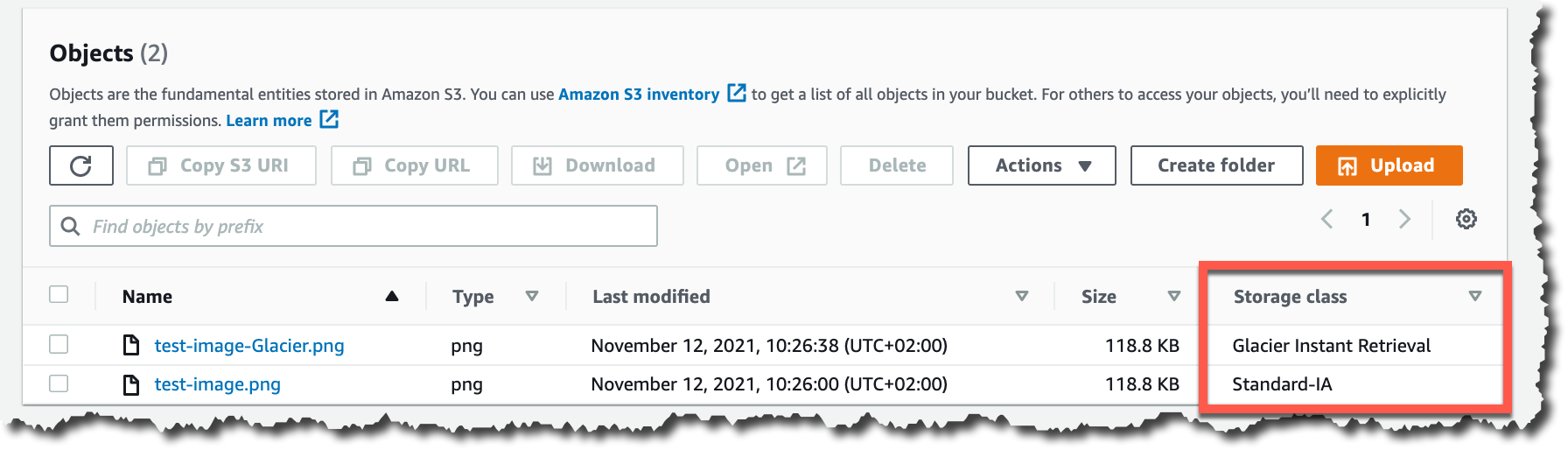
When the object is uploaded to Amazon S3, verify the storage class in the list of objects or on the object details page.

Storage classes

For data that already exists in Amazon S3, you can use S3 Lifecycle to transition data from the S3 Standard and S3 Standard-IA storage classes into S3 Glacier Instant Retrieval.

New Archive Instant Access Tier in S3 Intelligent-Tiering
S3 Intelligent-Tiering is a storage class that automatically moves objects between access tiers to optimize costs. This is the recommended storage class for data with unpredictable or changing access patterns, such as in data lakes, analytics, or user-generated content.

Until today, there were two low latency access tiers optimized for frequent and infrequent access, and two optional archive access tiers designed for asynchronous access optimized for rare access at a low cost.

Beginning today, the Archive Instant Access tier is added as a new access tier in the S3 Intelligent-Tiering storage class. You will start seeing automatic costs savings for your storage in S3 Intelligent-Tiering for rarely accessed objects.

The Archive Instant Access tier joins the group of low latency access tiers. This new tier is optimized for data that is not accessed for months at a time but, when it is needed, is available within milliseconds.

S3 Intelligent-Tiering automatically stores objects in three access tiers that deliver the same performance as the S3 Standard storage class:

  • Frequent Access tier
  • Infrequent Access tier
  • Archive Instant Access (new)

For a small monitoring and automation charge, S3 Intelligent-Tiering monitors access patterns and moves objects between the different access tiers. Objects that have not been accessed for 30 consecutive days are moved from the Frequent Access tier to the Infrequent Access tier for savings of 40 percent. When an object hasn’t been accessed for 90 consecutive days, S3 Intelligent-Tiering will move the object from the Infrequent Access tier to the Archive Instant Access tier, with a savings of 68 percent. If the data is accessed later, it is automatically moved back to the Frequent Access tier. No tiering charges apply when objects are moved between access tiers within the S3 Intelligent-Tiering storage class.

S3 Intelligent-Tiering access tiers

To get started with this new access tier, select Intelligent-Tiering as the storage class for an object when uploading an object using the S3 console. After 90 days of inactivity (30 days in Frequent Access tier and 60 days in Infrequent Access tier), S3 Intelligent-Tiering will automatically move the object to the Archive Instant Access tier. The introduction of the new Archive Instant Access tier has no impact on performance when you retrieve objects.

New name for the Amazon S3 Glacier storage class – S3 Glacier Flexible Retrieval
The existing Amazon S3 Glacier storage class is now named S3 Glacier Flexible Retrieval. This storage class now has free bulk retrievals in 5 to 12 hours, and the storage price has been reduced by 10 percent in all Regions, effective December 1, 2021. S3 Glacier Flexible Retrieval is now even more cost-effective, and the free bulk retrievals make it ideal for retrieving large data volumes.

These are the Amazon S3 archive storage classes:

  • S3 Glacier Instant Retrieval: The newest storage class is optimized for long-lived data that is rarely accessed (typically once per quarter). However when data is needed, it is available within milliseconds. For example, medical images and news media assets are perfect for this storage class.
  • S3 Glacier Flexible Retrieval: This newly renamed storage class is optimized for archiving data that can be retrieved in minutes or with free bulk retrievals in 5 to 12 hours. This storage class is ideal for backups and disaster recovery use cases, where you have large amounts of long-term, rarely accessed data, and you don’t want to worry about retrieval costs when you need the data.
  • S3 Glacier Deep Archive: This storage class is the lowest-cost storage in the cloud and is optimized for archiving data that can be restored in at least 12 hours. It’s great for storing your compliance archives or for digital media preservation.

Amazon S3 has reduced storage prices!
We are excited to announce that Amazon S3 has reduced storage prices of up to 31 percent in the S3 Standard-IA and S3 One Zone-IA storage classes across 9 AWS Regions: US West (N. California), Asia Pacific (Hong Kong), Asia Pacific (Mumbai), Asia Pacific (Osaka), Asia Pacific (Seoul), Asia Pacific (Singapore), Asia Pacific (Sydney), Asia Pacific (Tokyo), and South America (São Paulo). These price reductions are effective December 1, 2021.

Learn more about price reduction details.

Available Now
The new storage class, S3 Glacier Instant Retrieval, and the new Archive Instant Access tier in S3 Intelligent-Tiering are available today (November 30, 2021) in all AWS Regions.

The price cut for S3 Glacier and free bulk retrievals in all AWS Regions, and the S3 Standard-Infrequent Access/One Zone-Infrequent storage class in nine Regions will be effective on December 1, 2021.

Learn more about the storage classes changes and all the storage classes.

Marcia

New – Simplify Access Management for Data Stored in Amazon S3

Post Syndicated from Marcia Villalba original https://aws.amazon.com/blogs/aws/new-simplify-access-management-for-data-stored-in-amazon-s3/

Today, we are introducing a couple new features that simplify access management for data stored in Amazon Simple Storage Service (Amazon S3). First, we are introducing a new Amazon S3 Object Ownership setting that lets you disable access control lists (ACLs) to simplify access management for data stored in Amazon S3. Second, the Amazon S3 console policy editor now reports security warnings, errors, and suggestions powered by IAM Access Analyzer as you author your S3 policies.

Since launching 15 years ago, Amazon S3 buckets have been private by default. At first, the only way to grant access to objects was using ACLs. In 2011, AWS Identity and Access Management (IAM) was announced, which allowed the use of policies to define permissions and control access to buckets and objects in Amazon S3. Nowadays, you have several ways to control access to your data in Amazon S3, including IAM policies, S3 bucket policies, S3 Access Points policies, S3 Block Public Access, and ACLs.

ACLs are an access control mechanism in which each bucket and object has an ACL attached to it. ACLs define which AWS accounts or groups are granted access as well as the type of access. When an object is created, the ownership of it belongs to the creator.  This ownership information is embedded in the object ACL. When you upload an object to a bucket owned by another AWS account, and you want the bucket owner to access the object, then permissions need to be granted in the ACL. In many cases, ACLs and other kinds of policies are used within the same bucket.

The new Amazon S3 Object Ownership setting, Bucket owner enforced, lets you disable all of the ACLs associated with a bucket and the objects in it. When you apply this bucket-level setting, all of the objects in the bucket become owned by the AWS account that created the bucket, and ACLs are no longer used to grant access. Once applied, ownership changes automatically, and applications that write data to the bucket no longer need to specify any ACL. As a result, access to your data is based on policies. This simplifies access management for data stored in Amazon S3.

With this launch, when creating a new bucket in the Amazon S3 console, you can choose whether ACLs are enabled or disabled. In the Amazon S3 console, when you create a bucket, the default selection is that ACLs are disabled. If you wish to keep ACLs enabled, you can choose other configurations for Object Ownership, specifically:

  • Bucket owner preferred: All new objects written to this bucket with the bucket-owner-full-controlled canned ACL will be owned by the bucket owner. ACLs are still used for access control.
  • Object writer: The object writer remains the object owner. ACLs are still used for access control.

Options for object ownership

For existing buckets, you can view and manage this setting in the Permissions tab.

Before enabling the Bucket owner enforced setting for Object Ownership on an existing bucket, you must migrate access granted to other AWS accounts from the bucket ACL to the bucket policy. Otherwise, you will receive an error when enabling the setting. This helps you ensure applications writing data to your bucket are uninterrupted. Make sure to test your applications after you migrate the access.

Policy validation in the Amazon S3 console
We are also introducing policy validation in the Amazon S3 console to help you out when writing resource-based policies for Amazon S3. This simplifies authoring access control policies for Amazon S3 buckets and access points with over 100 actionable policy checks powered by IAM Access Analyzer.

To access policy validation in the Amazon S3 console, first go to the detail page for a bucket. Then, go to the Permissions tab and edit the bucket policy.

Accessing the IAM Policy Validation in S3 consoleWhen you start writing your policy, you see that, as you type, different findings appear at the bottom of the screen. Policy checks from IAM Access Analyzer are designed to validate your policies and report security warnings, errors, and suggestions as findings based on their impact to help you make your policy more secure.

You can also perform these checks and validations using the IAM Access Analyzer’s ValidatePolicy API.

Example of policy suggestion

Availability
Amazon S3 Object Ownership is available at no additional cost in all AWS Regions, excluding the AWS China Regions and AWS GovCloud Regions. IAM Access Analyzer policy validation in the Amazon S3 console is available at no additional cost in all AWS Regions, including the AWS China Regions and AWS GovCloud Regions.

Get started with Amazon S3 Object Ownership through the Amazon S3 console, AWS Command Line Interface (CLI), Amazon S3 REST API, AWS SDKs, or AWS CloudFormation. Learn more about this feature on the documentation page.

And to learn more and get started with policy validation in the Amazon S3 console, see the Access Analyzer policy validation documentation.

Marcia

New for AWS Backup – Support for VMware and VMware Cloud on AWS

Post Syndicated from Danilo Poccia original https://aws.amazon.com/blogs/aws/new-for-aws-backup-support-for-vmware-and-vmware-cloud-on-aws/

Today, I am happy to announce AWS Backup support for VMware, a new capability that enables you to centralize and automate data protection of virtual machines (VMs) running on VMware on premises and VMware CloudTM on AWS. You can now use a single, centrally managed policy in AWS Backup to protect these VMware environments together with 12 AWS compute, storage, and database services already supported by AWS Backup. You can then use AWS Backup to restore VMware workloads to on-premises data centers and VMware Cloud on AWS.

While doing so, AWS Backup Audit Manager lets you consistently demonstrate compliance by monitoring backup, copy, and restore operations and generating auditor-ready reports to satisfy your data governance and regulatory requirements.

Let’s see how this works in practice.

Using AWS Backup Support for VMware
There are three steps to back up VMware virtual machines (VMs) with AWS Backup:

  1. Create a gateway to connect AWS Backup to your hypervisor.
  2. Connect to your hypervisor through the gateway.
  3. Assign virtual machines managed by your hypervisor to a backup plan.

AWS Back Support for VMware diagram

On the left pane of the AWS Backup console, there is a new External resources section. There, I choose Gateways and then Create gateway. This AWS Backup gateway helps with discovery of the on-premises VMware environment and acts as a cloud gateway to send and receive data.

I download the Open Virtualization Format (OVF) file of the AWS Backup gateway and follow the instructions to deploy the gateway using the VMware vSphere client. I am using an internal test and development VMware environment for this walkthrough.

VMware vCenter screenshot.

After deploying the gateway in my VMware environment, I come back to the AWS Backup console. I write a name for the gateway (for simplicity, I use the same name of the gateway VM) and the IP address of the gateway VM. Optionally, I can add tags to help organize and track my setup. I go on and create the gateway.

Console screenshot.

Now, I choose Add hypervisor. I write a name for the hypervisor and the IP address of the VMware vCenter server host.

Console screenshot.

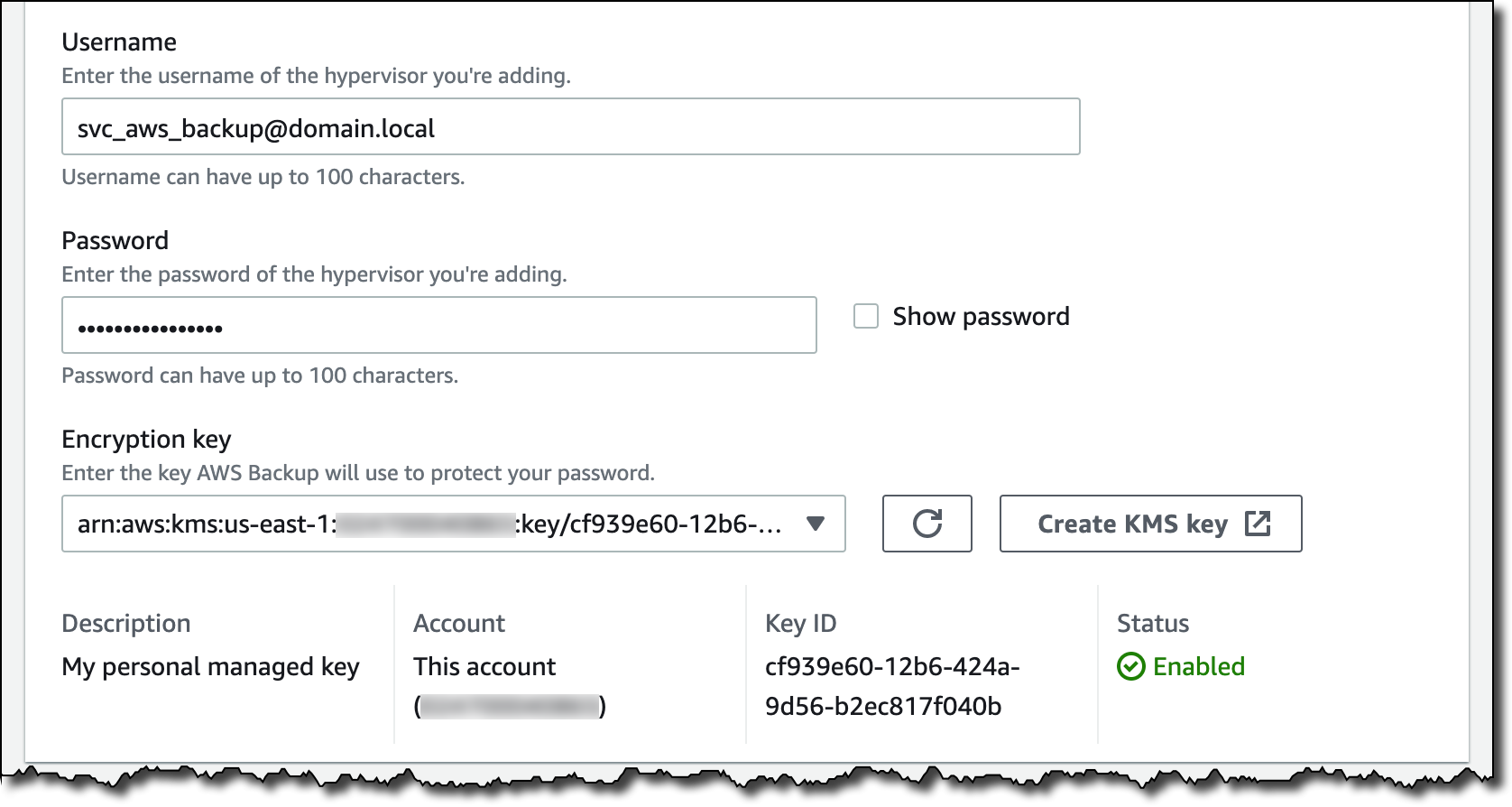
I enter the username and password of a service account that I created for AWS Backup on the Active Directory domain. The username should include the domain (for example, username@domain). Then, I choose the encryption key to protect the service account credentials. If I don’t choose my own AWS Key Management Service (KMS) key, AWS Backup encrypts the username and password using a key that AWS owns and manages.

Console screenshot.

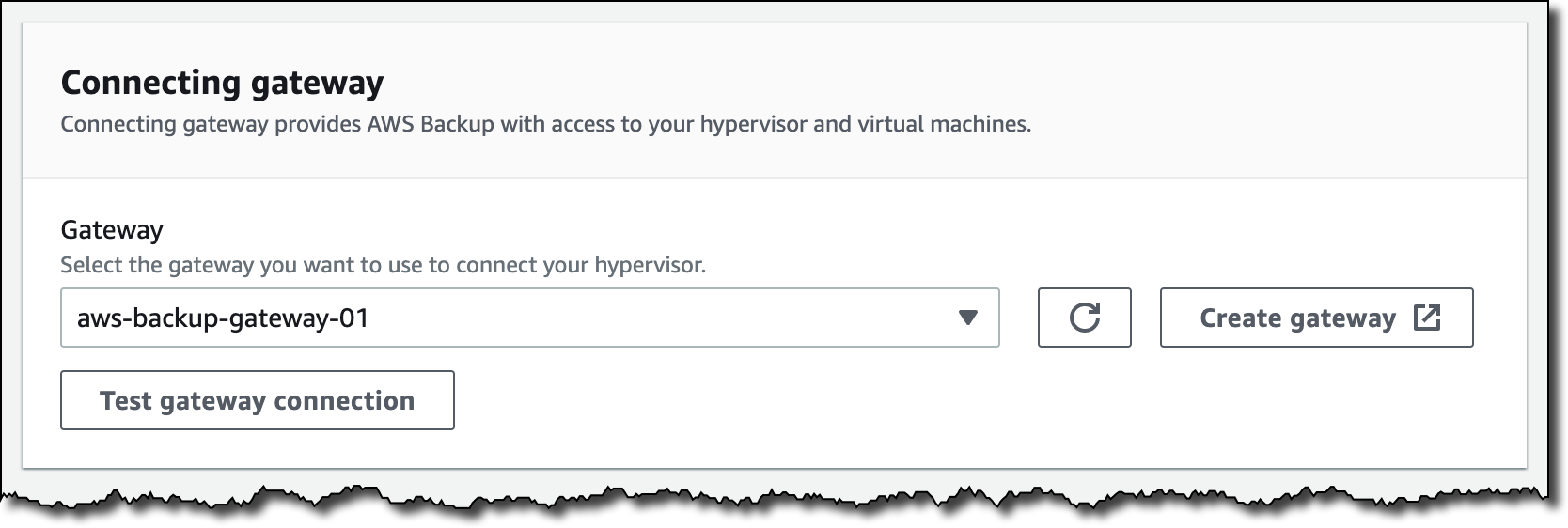
I select the gateway to connect to the hypervisor and choose Test gateway connection. This test helps ensure that the gateway can communicate with the hypervisor before I complete the configuration. Optionally, I can add tags to help organize and track my setup. I go on and add the hypervisor.

Console screenshot.

After a few minutes, the hypervisor is online, and I see the VMs managed by vCenter in the AWS Backup console. I can now use these virtual machines as resources in my backup plans in the same way as the other AWS compute, storage, and database resources supported by AWS Backup.

Console screenshot.

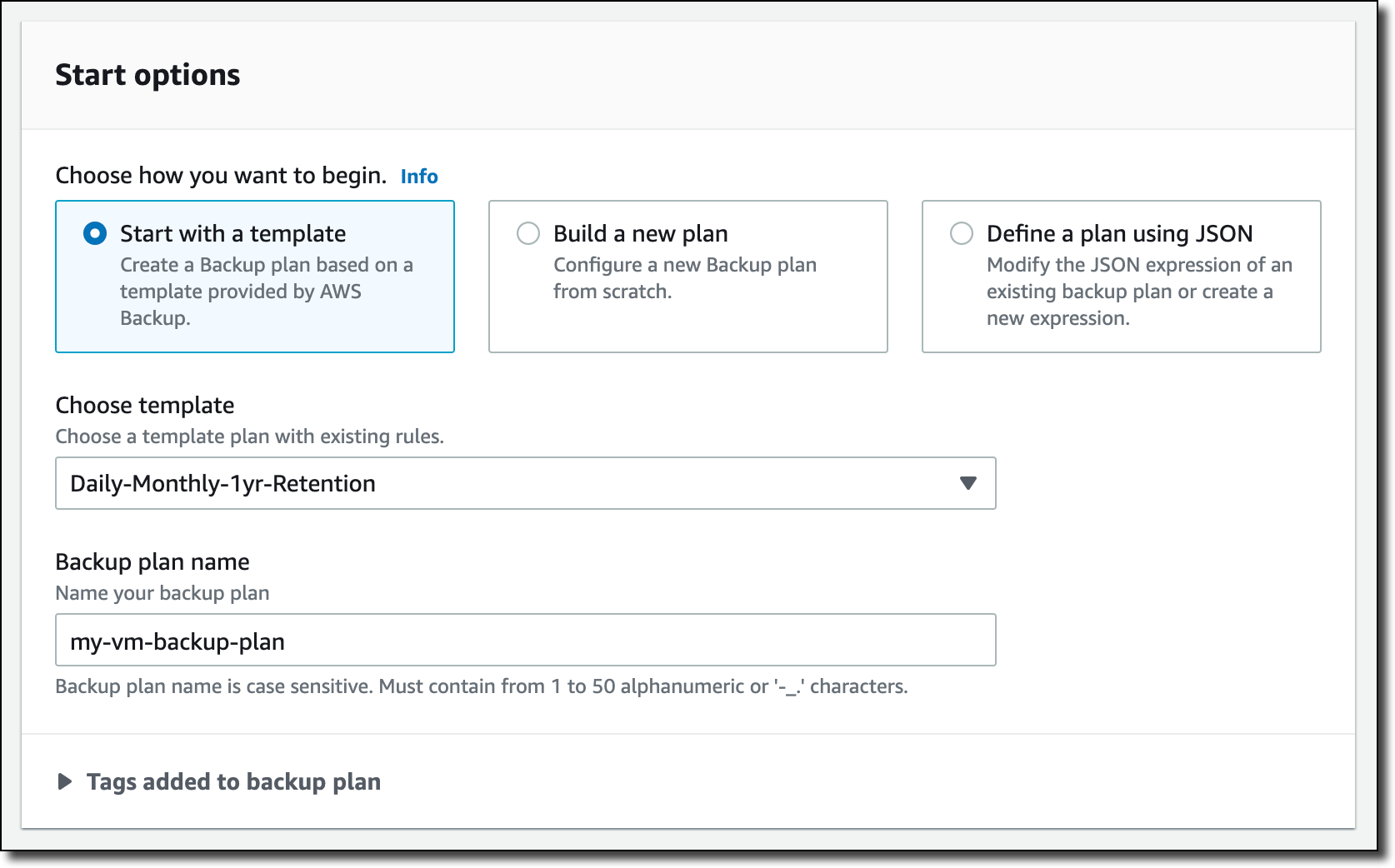
I create a new backup plan and start with a template. The rules of the template enforce daily backups with five weeks of retention and monthly backups with one year of retention. I can customize these rules based on my requirements.

Console screenshot.

Then, I choose to assign resources to the backup plan, and I select three VMs.

Console screenshot.

If you need, you can create an on-demand backup in the Protected resources section of the console. For example, here I am starting the on-demand backup for one of the VMs.

Console screenshot.

When a backup is complete, VMs are added to the list of the protected resources, and I can initiate a restore.

Console screenshot.

I select the backup and choose Restore. Then, I enter the restore location, which can be the same VMware environment I used for the backup or another (for example, on VMware Cloud on AWS). Below, I specify name, path, compute resource name, and datastore to use for the restore. Then, I choose Restore backup.

Console screenshot.

I monitor the status of my backup and restore jobs from the AWS Backup console. To monitor backup and restore metrics over a period of time, I can use Amazon CloudWatch metrics, logs, and alarms. I can also send events to Amazon EventBridge to receive notifications once a job completes or fails.

Availability and Pricing
AWS Backup support for VMware is available in the US East (N. Virginia, Ohio), US West (N. California, Oregon), GovCloud (US-East, US-West), Canada (Central), Europe (Frankfurt, Ireland, London, Milan, Paris, Stockholm), South America (São Paulo), Asia Pacific (Hong Kong, Mumbai, Seoul, Singapore, Sydney, Tokyo, Osaka), Middle East (Bahrain), and Africa (Cape Town) Regions. Please see the AWS Regional Services List for more information.

AWS Backup supports VMware ESXi 6.7.x and 7.0.x VMs running on NFS, VMFS, and VSAN data stores on premises and in VMware Cloud on AWS. In addition, AWS Backup supports both SCSI Hot-Add and Network Block Device (NBD) transport modes for copying data from source VMs to AWS.

With AWS Backup support for VMware, you pay using the same dimensions that AWS Backup uses today: backup storage, restore, and cross-region data transfer. For more information, see the AWS Backup pricing page.

Your VM backups are stored in a backup vault. All backups stored and managed by AWS Backup are replicated to 3 Availability Zones (AZs) in the Region and designed for 99.999999999 percent (11 9s) durability and 99.99 percent (4 9s) of service availability.

AWS Backup supports first full, then incremental-forever, backups of VMs that you can create on-demand or via a schedule configured in your backup plan. AWS Backup always does full restores even though backups are stored as incremental, enabling you to benefit from storage efficiency cost savings while easily performing restores.

Centrally protect your VMware environments and your AWS compute, storage, and database resources with AWS Backup.

Danilo

New – Amazon FSx for OpenZFS

Post Syndicated from Jeff Barr original https://aws.amazon.com/blogs/aws/new-amazon-fsx-for-openzfs/

Last month, my colleague Bill Vass said that we are “slowly adding additional file systems” to Amazon FSx. I’d question Bill’s definition of slow, given that his team has launched Amazon FSx for Lustre, Amazon FSx for Windows File Server, and Amazon FSx for NetApp ONTAP in less than three years.

Amazon FSx for OpenZFS
Today I am happy to announce Amazon FSx for OpenZFS, the newest addition to the Amazon FSx family. Just like the other members of the family, this new addition lets you use a popular file system without having to deal with hardware provisioning, software configuration, patching, backups, and the like. You can create a file system in minutes and begin to enjoy the benefits of OpenZFS right away: transparent compression, continuous integrity verification, snapshots, and copy-on-write. Even better, you get all of these benefits without having to develop the specialized expertise that has traditionally been needed to set up and administer OpenZFS.

FSx for OpenZFS is powered by the AWS Graviton family processors and AWS SRD (Scalable Reliable Datagram) Networking, and can deliver up to 1 million IOPS with latencies of 100-200 microseconds, along with up to 4 GB/second of uncompressed throughput, up to 12 GB/second of compressed throughput, and up to 12.5 GB/second throughput to cached data. FSx for OpenZFS supports the OpenZFS Adaptive Replacement Cache (ARC) and uses memory in the file server to provide faster performance. It also supports advanced NFS performance features such as session trunking and NFS delegation, allowing you to get very high throughput and IOPS from a single client, while still safely caching frequently accessed data on the client side.

FSx for OpenZFS volumes can be accessed from cloud or on-premises Linux, MacOS, and Windows clients via industry-standard NFS protocols (v3, v4, v4.1, and v4.2). Cloud clients can be Amazon Elastic Compute Cloud (Amazon EC2) instances, Amazon Elastic Container Service (Amazon ECS) and Amazon Elastic Kubernetes Service (EKS) clusters, Amazon WorkSpaces virtual desktops, and VMware Cloud on AWS. Your data is stored in encrypted form and replicated within an AWS Availability Zone, with components replaced automatically and transparently as necessary.

You can use FSx for OpenZFS to address your highly demanding machine learning, EDA (Electronic Design Automation), media processing, financial analytics, code repository, DevOps, and web content management workloads. With performance that is close to local storage, FSx for OpenZFS is great for these and other latency-sensitive workloads that manipulate and sequentially access many small files. Finally, because you can create, mount, use, and delete file systems as needed, you can now use OpenZFS in a dynamic, agile fashion.

Using Amazon FSx for OpenZFS
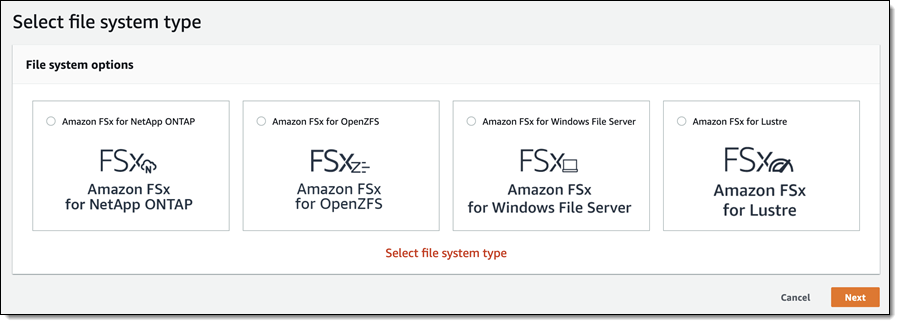
I can create an OpenZFS file system using the AWS Management Console, CLI, APIs, or AWS CloudFormation. From the FSx Console I click Create file system and choose Amazon FSx for OpenZFS:

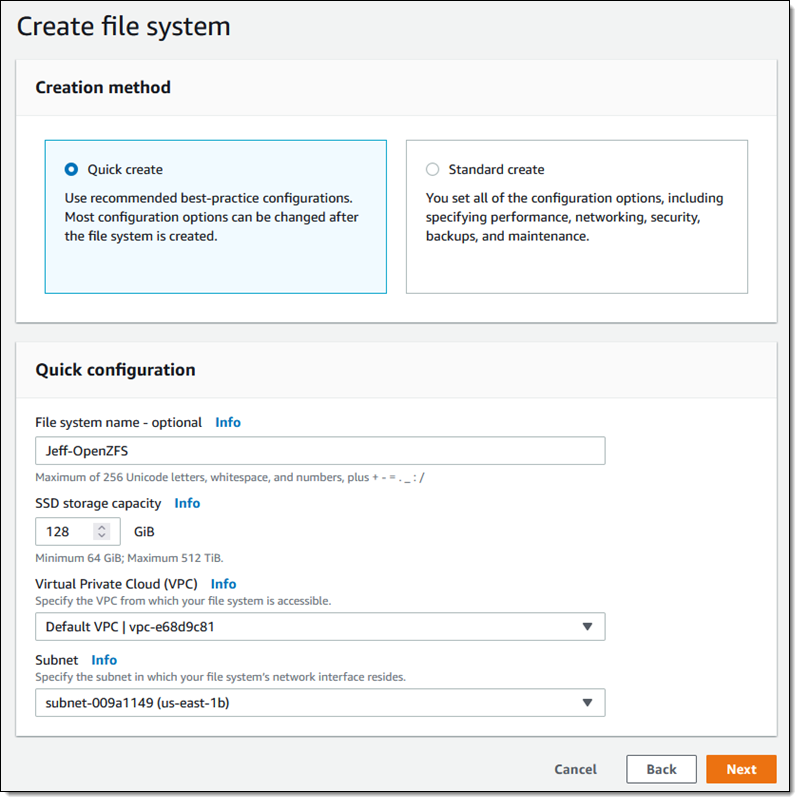
I can choose Quick create (and use recommended best-practice configurations), or Standard create (and set all of the configuration options myself). I’ll take the easy route and use the recommended best practices to get started. I enter a name (Jeff-OpenZFS) select the amount of SSD storage that I need, choose a VPC & subnet, and click Next:

The console shows me that I can edit many of the attributes of my file system later if necessary. I review the settings and click Create file system:

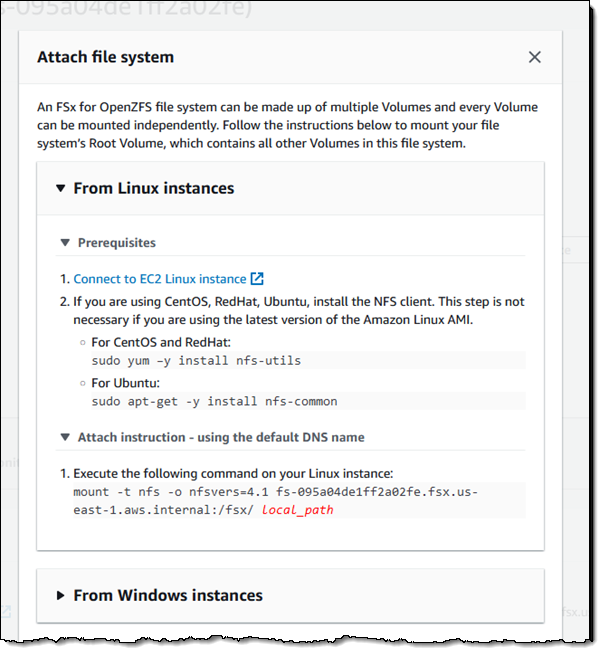
My file system is ready within a minute or two, and I click Attach to get the proper commands to mount it to my client:

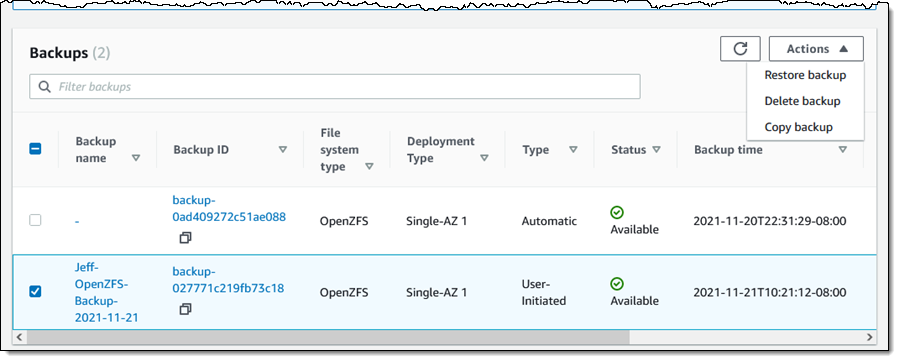
To be more precise, I am mounting the root volume (/fsx) of my file system. Once it is mounted, I can use it as I would any other file system. After I add some files to it, I can use the Action menu in the console to create a backup:

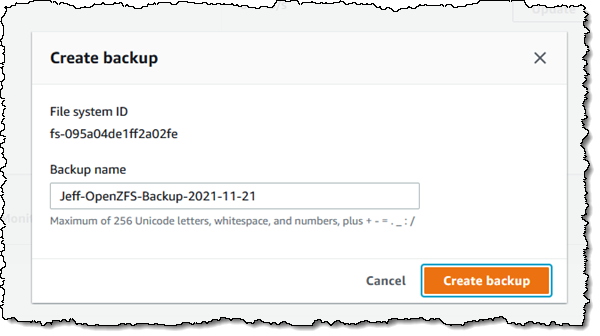
I can restore the backup to a new file system:

As I noted earlier, each file system can deliver up to 4 gigabytes per second of throughput for uncompressed data. I can look at total throughput and other metrics in the console:

I can set throughput capacity of each volume when I create it, and then change it later if necessary:

Changes take effect within minutes. The file system remains active and mounted while the change is put into effect, but some operations may pause momentarily:

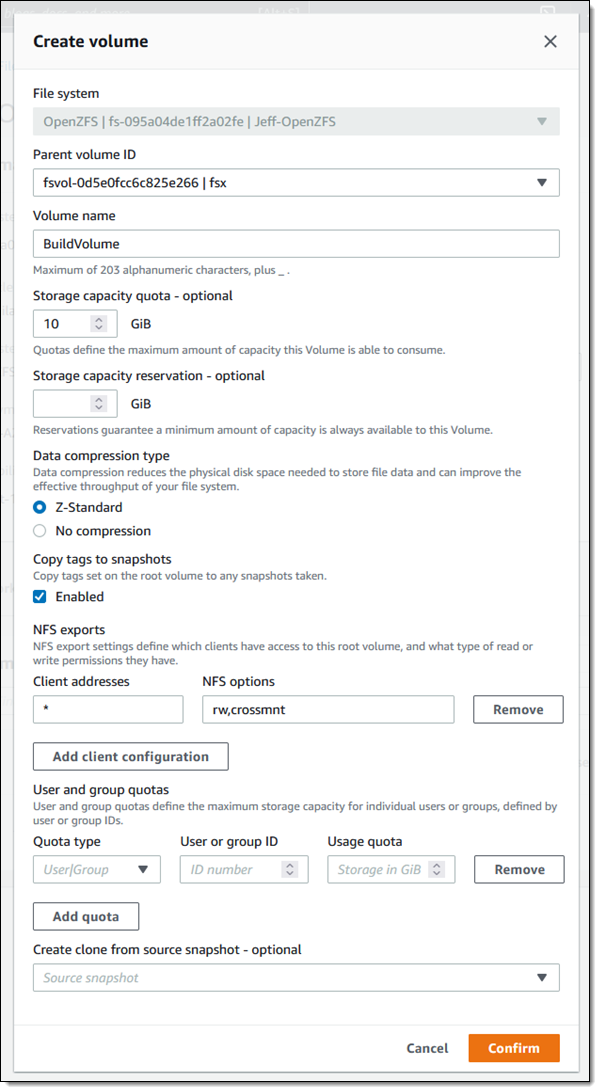
A single OpenZFS file system can contain multiple volumes, each with separate quotas (overall volume storage, per-user storage, and per-group storage) and compression settings. When I use the quick create option a root volume named fsx is created for me; I can click Create volume to create more volumes at any time:

The new volume exists within the namespace hierarchy of the parent, and can be mounted separately or accessed from the parent.

Things to Know
Here are a couple of quick facts and to wrap up this post:

Pricing – Pricing is based on the provisioned storage capacity, throughput, and IOPS.

Regions – Amazon FSx for OpenZFS is available in the US East (N. Virginia), US East (Ohio), US West (Oregon), Europe (Ireland), Canada (Central), Asia Pacific (Tokyo), and Europe (Frankfurt) Regions.

In the Works – We are working on additional features including storage scaling, IOPS scaling, a high availability option and another storage class.

Now Available
Amazon FSx for OpenZFS is available now and you can start using it today!

Jeff;

AWS Nitro SSD – High Performance Storage for your I/O-Intensive Applications

Post Syndicated from Jeff Barr original https://aws.amazon.com/blogs/aws/aws-nitro-ssd-high-performance-storage-for-your-i-o-intensive-applications/

We love to solve difficult problems for our customers! As you have seen through the years, innovation at AWS takes many forms, and encompasses both hardware and software.

One of my favorite examples of customer-driven innovation is AWS Nitro System, which I first wrote about back in mid-2018. In that post I told you how Nitro System would allow us to innovate more quickly than ever, with the goal of creating instances that would run even more types of workloads. I also shared the basic building blocks, as they existed at that time, including Nitro Cards to accelerate and offload network and storage I/O, the Nitro Security Chip to monitor and protect hardware resources, and the Nitro Hypervisor to manage memory and CPU allocation with very low overhead.

Today I would like to tell you about one more building block!

AWS Nitro SSD
For decades, traditional hard drives (sometimes jokingly referred to as spinning rust) were the primary block storage devices. Today, while spinning rust still has its place, most high-performance storage is based on more modern Solid State Drives (SSD). Open up an SSD and you will find lots of flash memory and a firmware-driven processor that manages access to the memory and supports higher-level functions such as block mapping, encryption, caching, wear leveling, and so forth.

The scale of the AWS Cloud and the range of customer use cases that it supports gives us some valuable insights into the ways that today’s applications, database engines, and operating systems make use of block storage. As a result, after delivering several generations of EC2 instances we saw an opportunity to do better. Our goal was to allow I/O-intensive workloads (relational databases, NoSQL databases, data warehouses, search engines, and analytics engines to name a few) to run faster and with more predictable performance.

Today I would like to tell you about the AWS Nitro SSD. The first generation of these devices were used to power io2 Block Express EBS volumes, and allow us to give you EBS volumes with lots of IOPS, plenty of throughput, and a maximum volume size of 64 TiB. The Im4gn and Is4gen instances that I wrote about earlier today make use of the second generation of AWS Nitro SSDs, as will many future EC2 instances, including the I4i instances that we preannounced today.

The AWS Nitro SSDs are designed to be installed and to operate at cloud scale. While this sounds like a simple exercise in manufacturing and installing more devices, the reality is a lot more complex and a lot more interesting. As I noted earlier, the firmware inside of each device is responsible for implementing many lower-level functions. As our customers push the devices to their limits, they expect us to be able to diagnose and resolve any performance inconsistencies they observe. Building our own devices allows us to design in operational telemetry and diagnostics, along with mechanisms that enable us to install firmware updates at cloud scale & at cloud speed. Taking this even further, we developed our own code to manage the instance-level storage in order to further improve the reliability and debug-ability, and to deliver consistent performance.

On the performance side, our deep understanding of cloud workloads led us to engineer the devices so that they can deliver maximum performance under a sustained, continuous load. SSDs are built from fast, dense flash memory. Due to the characteristics of this semiconductor memory, each cell can only be written, erased, and then rewritten a limited number of times. In order to make the devices last as long as possible, the firmware is responsible for a process known as wear leveling. I don’t understand the details, but I assume that this includes some sort of mapping from logical block numbers to physical cells in a way that evens out the number of cycles over time. There’s some housekeeping (a form of garbage collection) involved in this process, and garden-variety SSDs can slow down (creating latency spikes) at unpredictable times when dealing with a barrage of writes. We also took advantage of our database expertise and built a very sophisticated, power-fail-safe journal-based database into the SSD firmware.

The second generation of AWS Nitro SSDs were designed to avoid latency spikes and deliver great I/O performance on real-world workloads. Our benchmarks show instances that use the AWS Nitro SSDs, such as the new Im4gn and Is4gen, deliver 75% lower latency variability than I3 instances, giving you more consistent performance.

Putting all of this together, there’s a very tight, rapidly rotating flywheel in action here because the team that builds the Nitro SSDs is part of the AWS storage team, and also has operational responsibilities. Like all teams at AWS, they watch the metrics day-in and day-out, and can efficiently deploy new firmware using a CI/CD model.

Join the Team
As is always the case, there’s always more innovation ahead, and we have some awesome positions on the teams that design the AWS Nitro SSDs. For example:

Jeff;

New Storage-Optimized Amazon EC2 Instances (Im4gn and Is4gen) Powered by AWS Graviton2 Processors

Post Syndicated from Jeff Barr original https://aws.amazon.com/blogs/aws/new-storage-optimized-amazon-ec2-instances-im4gn-and-is4gen-powered-by-aws-graviton2-processors/

EC2 storage-optimized instances are designed to deliver high disk I/O performance, and plenty of storage. Our customers use them to host high-performance real-time databases, distributed file systems, data warehouses, key-value stores, and more. Over the years we have released multiple generations of storage-optimized instances including the HS1 (2012) , D2 (2015), I2 (2013) , I3 (2017), I3en (2019), and D3/D3en (2020).

As I look back on all of these launches, it is interesting to see how we continue to provide an ever-increasing set of options that make each successive generation an even better fit for the diverse (and also ever-increasing) needs of our customers. HS1 instances were available in just one size, D2 and I2 in four, I3 in six, and I3en in eight. These instances give our customers the freedom to choose the size that best meets their current needs while also giving them room to scale up or down if those needs happen to change.

Im4gn and Is4gen
Today I am happy to introduce the two newest families of storage-optimized instances, Im4gn and Is4gen, powered by Graviton2 processors. Both instances offer up to 30 TB of NVMe storage using AWS Nitro SSD devices that are custom-built by AWS. As part of our drive to innovate on behalf of our customers, we turned our attention to storage and designed devices that were optimized to support high-speed access to large amounts of data. The AWS Nitro SSDs reduce I/O latency by up to 60% and also reduce latency variability by up to 75% when compared to the third generation of storage-optimized instances. As a result you get faster and more predictable performance for your I/O-intensive EC2 workloads.

Im4gn instances are a great fit for applications that require large amounts of dense SSD storage and high compute performance, but are not especially memory intensive such as social games, session storage, chatbots, and search engines. Here are the specs:

Instance Name vCPUs
Memory Local NVMe Storage
(AWS Nitro SSD)
Read Throughput
(128 KB Blocks)
EBS-Optimized Bandwidth Network Bandwidth
im4gn.large 2 8 GiB 937 GB 250 MB/s Up to 9.5 Gbps Up to 25 Gbps
im4gn.xlarge 4 16 GiB 1.875 TB 500 MB/s Up to 9.5 Gbps Up to 25 Gbps
im4gn.2xlarge 8 32 GiB 3.75 TB 1 GB/s Up to 9.5 Gbps Up to 25 Gbps
im4gn.4xlarge 16 64 GiB 7.5 TB 2 GB/s 9.5 Gbps 25 Gbps
im4gn.8xlarge 32 128 GiB 15 TB
(2 x 7.5 TB)
4 GB/s 19 Gbps 50 Gbps
im4gn.16xlarge 64 256 GiB 30 TB
(4 x 7.5 TB)
8 GB/s 38 Gbps 100 Gbps

Im4gn instances provide up to 40% better price performance and up to 44% lower cost per TB of storage compared to I3 instances. The new instances are available in the AWS US West (Oregon), US East (Ohio), US East (N. Virginia), and Europe (Ireland) Regions as On-Demand, Spot, Savings Plan, and Reserved instances.

Is4gen instances are a great fit for applications that do large amounts of random I/O to large amounts of SSD storage. This includes shared file systems, stream processing, social media monitoring, and streaming platforms, all of which can use the increased storage density to retain more data locally. Here are the specs:

Instance Name vCPUs
Memory Local NVMe Storage
(AWS Nitro SSD)
Read Throughput
(128 KB Blocks)
EBS-Optimized Bandwidth Network Bandwidth
is4gen.medium 1 6 GiB 937 GB 250 MB/s Up to 9.5 Gbps Up to 25 Gbps
is4gen.large 2 12 GiB 1.875 TB 500 MB/s Up to 9.5 Gbps Up to 25 Gbps
is4gen.xlarge 4 24 GiB 3.75 TB 1 GB/s Up to 9.5 Gbps Up to 25 Gbps
is4gen.2xlarge 8 48 GiB 7.5 TB 2 GB /s Up to 9.5 Gbps Up to 25 Gbps
is4gen.4xlarge 16 96 GiB 15 TB
(2 x 7.5 TB)
4 GB/s 9.5 Gbps 25 Gbps
is4gen.8xlarge 32 192 GiB 30 TB
(4 x 7.5 TB)
8 GB/s 19 Gbps 50 Gbps

Is4gen instances provide 15% lower cost per TB of storage and up to 48% better compute performance compared to I3en instances. The new instances are available in the AWS US West (Oregon), US East (Ohio), US East (N. Virginia), and Europe (Ireland) Regions as On-Demand, Spot, Savings Plan, and Reserved instances.

Available Now
As I never get tired of saying, these new instances are available now and you can start using them today. You can use Amazon Linux 2, Ubuntu 18.04.05 (and newer), Red Hat Enterprise Linux 8.0, and SUSE Enterprise Server 15 (and newer) AMIs, along with the container-optimized ECS and EKS AMIs. Learn more about the Im4gn and Is4gen instances.

Jeff;

PS – As of this launch twelve EC2 instance types are now powered by Graviton2 processors! To learn more, visit the Graviton2 page.

Machine Learning-Powered Amazon Connect, Now With Call Summarization

Post Syndicated from Sébastien Stormacq original https://aws.amazon.com/blogs/aws/machine-learning-powered-amazon-connect-now-with-call-summarization/

At AWS our mission is to make machine learning (ML) accessible to data scientists, developers, and business users. To help businesses easily leverage the power of ML, we create purpose-built solutions that embed ML and deep learning technologies directly into a business process to address real customer needs, rather than leaving companies to sort it out on their own.

One place where we have seen ML have an impact is within the contact center—the place you receive and respond to customer inquiries and issues. Because of the growing role of customer experience (CX) and the increase in contact less commerce via phone or email, contact centers are essentials to maintaining the human connections that businesses depend on. However, analog or outdated methods make it difficult to address every customer need in an effective way that delivers timely resolutions, delivers great experiences, and fosters customer loyalty.

Embedding AWS ML technologies into a cloud contact center solution helps decrease the friction of calls, chats, and other engagements. It also makes it possible to automate outdated processes.

Amazon Connect is an easy-to-use, cloud-based, ML-powered contact center service that helps companies of any size deliver superior customer service at a lower cost.

Let me take three examples with Voice ID, Wisdom, and Contact Lens.

Amazon Connect Voice ID
ML capabilities might help streamline customer experience for authentication. Instead of asking customers to repeat their email address and their mother’s maiden name several times, ML-powered voice identification can establish a digital voice print associated with each customer’s unique voice. Then, it can recognize it at the beginning of each subsequent call. Voice identification provides a confidence score that may be used to automate authentication workflows.

Amazon Connect Wisdom
ML might also help search the vast documentation and knowledge base to find the most relevant answers to the questions raised by the customer. ML helps resolve customer issues faster and better.

Contact Lens for Amazon Connect
ML technologies also shine at analyzing the tone and content of a conversation, capturing customer sentiment in the moment, and learning from it. ML can help transcribe calls, track customer sentiment, detect common issues and customer trends, or even pinpoint discrepancies.

At just about the same time last year, I announced the addition of real-time capabilities for Contact Lens. This lets supervisors identify when to assist an agent on live calls so that they can provide guidance via chat or have the agent transfer the call. Last September, we added support for eight new languages, ending up with a total of 21 languages for post-call analytics and 12 languages for both post-call and real-time analytics.

Contact Lens Adds Call Summarization
But we didn’t stop there. Today, I am pleased to announce the addition of a new capability that helps you improve customer experience and agent and supervisor productivity by automatically summarizing the important aspects of each customer call.

You told us that keeping notes of customer conversations is time consuming, especially, for agents that must take notes during the call and import them manually in your CRM tool afterward. In the end, this is more time for us, the customers, waiting in queue for an agent to become available. Likewise, using automatically generated call transcripts doesn’t save time for supervisors. It is time consuming for supervisors to read these full call transcripts to understand what happened during customer conversations.

How it Works
Starting today, Contact Lens has added a summary of the key moments in a conversation. It is enabled by default, and there is no additional configuration step. You may toggle the Show transcript summary button to show or hide the summary when you don’t need it.

Contac Lens - Show Transcript Summary - Toggle button

Once a call is analyzed, the summary is available on the contact detail page.

Contact Lens identifies and summarizes the sections corresponding to Issue (e.g., lost package), Outcome (e.g., customer refund), and Action item (e.g., send a follow-up mail confirming the refund was processed). A manager can quickly see where there’s an action to send a customer a follow-up email and take action to ensure it happens.

Contact Lens Call Summary Example

The call summary is also available in JSON format. Contact Lens uploads these in the S3 bucket of your choice. Having access to the JSON file lets you import the summaries programmatically in your CRM or other tools.

... redacted for brevity ...

"IssuesDetected": [
{
   "CharacterOffsets": {
      "BeginOffsetChar": 31,
      "EndOffsetChar": 73
   },
   "Text": "I would like to cancel my subscription"
}
]
...
"ActionItemsDetected": [
 {
   "CharacterOffsets": {
      "BeginOffsetChar": 32,
      "EndOffsetChar": 116
   },
   "Text": "I will send you an email with details"
 }
 ]

Availability and Pricing
Call summarization by Contact Lens is available in all AWS Regions where Contact Lens is available today. We support post-call analytics in the US West (Oregon), US East (N. Virginia), Canada (Central), Europe (London), Europe (Frankfurt), Asia Pacific (Singapore), Asia Pacific (Seoul), Asia Pacific (Tokyo), and Asia Pacific (Sydney) regions. We support real-time analytics in the US West (Oregon), US East (N. Virginia), Canada (Central), Europe (London), Europe (Frankfurt), Asia Pacific (Seoul), Asia Pacific (Tokyo), and Asia Pacific (Sydney) regions.

Call summary comes at no additional cost on top of the usual charges for Contact Lens. This is why we choose to enable it by default. Contact Lens is charged $0.015 per minute of voice conversation analyzed. Most of our Contact Lens customers analyze millions of conversation minutes per month. The price is $0.0125 per minute when you analyze more than 5 millions minutes per month.

If you do not have Contact Lens enabled on your call center, go ahead and start using it today.

— seb

New for AWS Control Tower – Region Deny and Guardrails to Help You Meet Data Residency Requirements

Post Syndicated from Danilo Poccia original https://aws.amazon.com/blogs/aws/new-for-aws-control-tower-region-deny-and-guardrails-to-help-you-meet-data-residency-requirements/

Many customers, such as those in highly regulated industries and the public sector, want to have control over where their data is stored and processed. AWS already offers many tools and features to comply with local laws and regulations, but we want to provide a simplified way to translate data residency requirements into controls that can be applied to single- and multi-account environments.

Starting today, you can use AWS Control Tower to deploy data residency preventive and detective controls, referred to as guardrails. These guardrails will prevent provisioning resources in unwanted AWS Regions by restricting access to AWS APIs through service control policies (SCPs) built and managed by AWS Control Tower. In this way, content cannot be created or transferred outside of your selected Regions at the infrastructure level. In this context, content can be software (including machine images), data, text, audio, video, or images hosted on AWS for processing or storage. For example, AWS customers in Germany can deny access to AWS services in Regions outside of Frankfurt with the exception of global services such as AWS Identity and Access Management (IAM) and AWS Organizations.

AWS Control Tower also offers guardrails to further control data residency in underlying AWS service options, for example, blocking Amazon Simple Storage Service (Amazon S3) cross-region replication or blocking the creation of internet gateways.

The AWS account used for managing AWS Control Tower is not restricted by the new Region deny settings. That account can be used for remediation if you have data in an unwanted Region before enabling Region deny.

Detective guardrails are implemented via AWS Config rules and can further detect unexpected configuration changes that should not be allowed.

You still retain a shared responsibility model for data residency at the application level, but these controls can help you restrict what infrastructure and application teams can do on AWS.

Using Data Residency Guardrails in AWS Control Tower
To use the new data residency guardrails, you need to have created a landing zone using AWS Control Tower. See Plan your AWS Control Tower landing zone for more information.

To see all the new controls that are available, I select Guardrails on the left pane of the AWS Control Tower console and then find those in the Data Residency category. I sort results by Behavior. Guardrails that have a Prevention behavior are implemented as SCPs. Those that have a Detection behavior are implemented as AWS Config rules.

Console screenshot.

The most interesting guardrail is probably the one denying access to AWS based on the requested AWS Region. I choose it from the list and find that it is different from the other guardrails because it affects all Organizational Units (OUs) and cannot be activated here but must be activated in the landing zone settings.

Console screenshot.

Below the Overview, in the Guardrail components, there is a link to the full SCP for this guardrail, and I can see the list of the AWS APIs that, when this setting is enabled, are still going to be allowed towards non-governed Regions. Depending on your requirements, some of those services, such as Amazon CloudFront or AWS Global Accelerator, can be further limited by a custom SCP.

In the Landing zone settings, the Region deny guardrail is currently not enabled. I choose Modify settings and then enable the Region deny settings.

Console screenshot.

Below the Region deny settings, there is the list of AWS Regions governed by the landing zone. Those will be the regions allowed when I enable Region deny.

Console screenshot.

In my case, I have four governed Regions, two in the US and two in Europe:

  • US East (N. Virginia), which is also the home Region for the landing zone
  • US West (Oregon)
  • Europe (Ireland)
  • Europe (Frankfurt)

I choose Update landing zone at the bottom. The update of the landing zone takes a few minutes to complete. Now, the vast majority of the AWS APIs are blocked if they are not directed to one of those governed Regions. Let’s do a few tests.

Testing Region Deny in a Sandbox Account
Using AWS Single Sign-On, I copy the AWS credentials to use the sandbox account with AWSAdministratorAccess permissions. In a terminal, I paste the commands setting the environment variables to use those credentials.

Console screenshot.

Now, I try to start a new Amazon Elastic Compute Cloud (Amazon EC2) instance in US East (Ohio), one of the non-governed Regions. In a landing zone, the default VPC is replaced by a VPC managed by AWS Control Tower. To start the instance, I need to specify a VPC subnet. Let’s find a subnet ID that I can use.

aws ec2 describe-subnets --query 'Subnets[0].SubnetId' --region us-east-2

An error occurred (UnauthorizedOperation) when calling the DescribeSubnets operation:
You are not authorized to perform this operation.

As expected, I am not authorized to perform this operation in US East (Ohio). Let’s try to start an EC2 instance without passing the subnet ID.

aws ec2 run-instances --image-id ami-0dd0ccab7e2801812 --region us-east-2 \
    --instance-type t3.small                                     

An error occurred (UnauthorizedOperation) when calling the RunInstances operation:
You are not authorized to perform this operation.
Encoded authorization failure message: <ENCODED MESSAGE>

Again, I am not authorized. More information is included in the encoded authorization failure message that I can decode as described in this article:

aws sts decode-authorization-message --encoded-message <ENCODED MESSAGE>

The decoded message (that I have omitted for brevity) tells me that there was an explicit deny to my request and includes the full SCP that caused the deny. This information is really useful for debugging these kind of errors.

Now, let’s try in US East (N. Virginia), one of the four governed regions.

aws ec2 describe-subnets --query 'Subnets[0].SubnetId' --region us-east-1
"subnet-0f3580c0c5e56c210"

This time, the command returns the subnet ID of the first subnet returned by the request. Let’s start an instance in US East (N. Virginia) using this subnet.

aws ec2 run-instances --image-id  ami-04ad2567c9e3d7893 --region us-east-1 \
    --instance-type t3.small --subnet-id subnet-0f3580c0c5e56c210

As expected, it works, and I can see the EC2 instance running in the console.

Console screenshot.

Similarly, APIs for other AWS services are limited by the Region deny settings. For example, I can’t create an S3 bucket in a non-governed Region.

Console screenshot.

When I try to create the bucket, I get an access denied error.

Console screenshot.

As expected, the creation of an S3 bucket works in a governed Region.

Even if someone gives this account access to a bucket in a non-governed Region, I would not be able to copy any data into that bucket.

Other preventive guardrails can enforce data residency, for example:

  • Disallow cross-region networking for Amazon EC2, Amazon CloudFront, and AWS Global Accelerator
  • Disallow internet access for an Amazon VPC instance managed by a customer
  • Disallow Amazon Virtual Private Network (VPN) connections

Now, let’s see how detective guardrails work.

Testing Detective Guardrails in a Sandbox Account
I enable the following guardrails for all accounts in the sandbox OU:

  • Detect whether Amazon EBS snapshots are restorable by all AWS accounts
  • Detect whether public routes exist in the route table for an internet gateway

Now, I want to see what happens if I go against these guardrails. In the EC2 console, I create an EBS snapshot for the volume of the EC2 instance I started before. Then, I modify permissions to share it with all AWS accounts.

Console screenshot.

Then, in the VPC console, I create an internet gateway, attach it to the AWS Control Tower managed VPC, and update the route table of one of the private subnets to use the internet gateway.

Console screenshot.

After a few minutes, the noncompliant resources in the sandbox account are found by the detective guardrails.

Console screenshot.

I look at the information provided by the guardrails and update my configuration to fix the issues. In a multi-account setup I’d contact the account owner and ask for remediation.

Availability and Pricing
You can use data-residency guardrails to control resources in any AWS Region. To create a landing zone, you should start from one of the Regions where AWS Control Tower is offered. For more information, see the AWS Regional Services List. There is no additional cost for this feature. You pay the costs of other services used, such as AWS Config.

This feature provides you with a framework of controls and guidance for setting up a multi-account environment that addresses data residency requirements. Depending on your use case, you may use any subset of the new data residency guardrails.

Set up guardrails based on your data residency requirements with AWS Control Tower.

Danilo

New – AWS Outposts Servers in Two Form Factors

Post Syndicated from Jeff Barr original https://aws.amazon.com/blogs/aws/new-aws-outposts-servers-in-two-form-factors/

AWS Outposts gives you on-premises compute and storage that is monitored and managed by AWS, and controlled by the same, familiar AWS APIs. You may already know about the AWS Outposts rack, which occupies a full 42U rack.

Last year I told you that we were working on new sizes of Outposts suitable for locations such as branch offices, factories, retail stores, health clinics, hospitals, and cell sites that are space-constrained and need access to low-latency compute capacity. Today we are launching three AWS Outposts servers, all powered by AWS Nitro System and with your choice of x86 or Arm/Graviton2 processors. Here’s an overview:

Name/Rack Size/Catalog ID
EC2 Instance Capacity
Processor / Architecture
vCPUs Memory
Local NVMe
SSD Storage
Outposts 1U
(STBKRBE)
c6gd.16xlarge Graviton2 / Arm 64 128 GiB 3.8 TB
( 2x 1.9 TB)
Outposts 2U
(LMXAD41)
c6id.16xlarge Intel Ice Lake / x86 64 128 GiB 3.8 TB
(2 x 1.9 TB)
Outposts 2U
(KOSKFSF)
c6id.32xlarge Intel Ice Lake / x86 128 256 GiB 7.6 TB
(4 x 1.9 GB)

You can create VPC subnets on each Outpost, and you can launch Amazon Elastic Compute Cloud (Amazon EC2) instances from EBS-backed AMIs in the parent region. The c6gd.16xlarge model supports six instance sizes, as follows:

Instance Name vCPUs Memory Local Storage
c6gd.large 2 4 GiB 118 GB
c6gd.xlarge 4 8 GiB 237 GB
c6gd.2xlarge 8 16 GiB 474 GB
c6gd.4xlarge 16 32 GiB 950 GB
c6gd.8xlarge 32 64 GiB 1.9 TB
c6gd.16xlarge 64 128 GiB 3.8 TB

The c6id.16xlarge model supports all but the largest of the following instance sizes, and the c6id.32xlarge supports all of them:

Instance Name vCPUs Memory Local Storage
c6id.large 2 4 GiB 118 GB
c6id.xlarge 4 8 GiB 237 GB
c6id.2xlarge 8 16 GiB 474 GB
c6id.4xlarge 16 32 GiB 950 GB
c6id.8xlarge 32 64 GiB 1.9 TB
c6id.16xlarge 64 128 GiB 3.8 TB
c6id.32xlarge 128 256 GiB 7.6 TB

Within each of your Outposts servers, you can launch any desired mix of instance sizes as long as you remain within the overall processing and storage available. You can create Amazon Elastic Container Service (Amazon ECS) clusters (Amazon Elastic Kubernetes Service (EKS) is coming soon) , and the code you run on-premises can make use of the entire lineup of services in the AWS Cloud.

Each Outposts server connects to the cloud via the public Internet or across a private AWS Direct Connect line. Additionally, each Outpost server supports a Local Network Interface (LNI) that provides a Level 2 presence on your local network for AWS service endpoints.

Outposts servers incorporate many powerful Nitro features including high speed networking and enhanced security. The security model is locked-down and prevents administrative access, preventing tampering or human error. Additionally, data at rest is protected by a NIST-compliant physical security key.

While I was writing this post, I stopped in to say hello to the design and development team, and met with my colleague Bianca Nagy to learn more about the Outposts server:

Ordering Outposts Servers
Let’s walk through the process of ordering an Outposts server from the AWS Management Console. I visit the AWS Outposts Console, make sure that I am in the desired AWS Region, and click Place order to get started:

I click Servers, and then choose the desired configuration. I pick the c6gd.16xlarge, and click Next to proceed:

Then I create a new Outpost:

And a new Site:

Then I review my payment options and select my shipping address:

On the next page I review all of my options, click Place order, and await delivery:

In general, we expect to be able to deliver Outposts servers in two to six weeks, starting in the first quarter of 2022. After you receive yours, you or a member of your IT team can mount it in a 19″ rack or position it on a flat surface, cable it to power and networking, and power the device on. You then use a set of temporary AWS credentials to confirm the identity of the device, and to verify that the device is able to use DHCP to obtain an IP address. Once the device has established connectivity to the designated AWS parent region, we will finalize the provisioning of EC2 instance capacity and make it available to you.

After that, you are ready to launch instances and to deploy your on-premises applications.

We will monitor hardware performance and will contact you if your device is in need of maintenance. We will ship a replacement device for arrival within 2 business days. You can migrate your workloads to a redundant device, and use tracking information & notifications to track delivery status. When the replacement arrives, you install it and then destroy the physical security key in the old one before shipping it back to AWS.

Outposts API Update
We are also enhancing the Outposts API as part of this launch. Here are some of the new functions:

ListCatalogItem – Get a list of items in the Outposts catalog, with optional filtering by EC2 family or supported storage options.

GetCatalogItem – Get full information about a single item in the Outposts catalog.

GetSiteAddress – Get the physical address of a site where an Outposts rack or server is installed.

You can use the information returned by GetCatalogItem to place an order that contains the desired quantity of one or more catalog items.

Things to Know
Here are a couple of important things to know about Outposts servers:

Availability – Outposts servers are available for order to most locations where Outposts racks are available (currently 23 regions and 49 countries), with more to follow in 2022.

Ordering at Scale – I showed you the console-based ordering process above, and also gave you a glimpse at the Outposts API. If you need hundreds or thousands of devices, get in touch and we will give you a template that you can fill in and then upload.

re:Invent 2021 Outposts Server Selfie Challenge
If you attend AWS re:Invent, be sure to visit the AWS Hybrid kiosk in the AWS Booth (#1719) to see the new Outposts Servers up close and personal. While you are there, take a fun & creative selfie, tag it with #AWSOutposts & #AWSPromotion, and share it on Twitter. I will post my three favorites at the end of the show!

Jeff;

Announcing Amazon SageMaker Canvas – a Visual, No Code Machine Learning Capability for Business Analysts

Post Syndicated from Alex Casalboni original https://aws.amazon.com/blogs/aws/announcing-amazon-sagemaker-canvas-a-visual-no-code-machine-learning-capability-for-business-analysts/

As an organization facing business problems and dealing with data on a daily basis, the ability to build systems that can predict business outcomes becomes very important. This ability lets you solve problems and move faster by automating slow processes and embedding intelligence in your IT systems.

But how do you make sure that all teams and individual decision makers in the organization are empowered to create these machine learning (ML) systems at scale, and without depending on other data science and data engineering teams? As a business user or data analyst, you’d like to build and use prediction systems based on the data that you analyze and process every day, without having to learn about hundreds of algorithms, training parameters, evaluation metrics, and deployment best practices.

Today, I’m excited to announce the general availability of Amazon SageMaker Canvas, a new visual, no code capability that allows business analysts to build ML models and generate accurate predictions without writing code or requiring ML expertise. Its intuitive user interface lets you browse and access disparate data sources in the cloud or on-premises, combine datasets with the click of a button, train accurate models, and then generate new predictions once new data is available.

SageMaker Canvas leverages the same technology as Amazon SageMaker to automatically clean and combine your data, create hundreds of models under the hood, select the best performing one, and generate new individual or batch predictions. It supports multiple problem types such as binary classification, multi-class classification, numerical regression, and time series forecasting. These problem types let you address business-critical use cases, such as fraud detection, churn reduction, and inventory optimization, without writing a single line of code.

SageMaker Canvas in Action
Imagine that I’m an e-commerce manager who needs to predict whether or not a product will be shipped on time. The datasets at my disposal consist of a product catalog and the historical shipping dataset, both in CSV format.

First, I enter the SageMaker Canvas application where all of my models and datasets are created and inspected.

I select Import, and upload two CSV files: ProductData.csv and ShippingData.csv. I have 120 products and 10,000 shipping records.

I could also fetch data from Amazon Simple Storage Service (Amazon S3) or connect to other cloud or on-premises data sources, such as Amazon Redshift or Snowflake. For this use case, I prefer to upload 1.6 MB of data directly from my computer.

Before confirming the import, I have a chance to preview the two datasets, their columns, and their respective values. For example, each product has a ComputerBrand, ScreenSize, and PackageWeight. In addition to useful columns such as ShippingOrigin, OrderDate, and ShippingPriority, each record in the shipping dataset also contains OnTimeDelivery, which is either On Time or Late. This column will be used by SageMaker Canvas to generate a prediction model based on historical data.

After a few seconds of processing, the datasets are ready, and I decide to join them to create a single dataset containing both product and shipping information. This is an optional step that often lets you increase the precision of a prediction model.

Now I can simply drag and drop the two datasets: SageMaker Canvas will automatically identify the shared ProductId column and apply an Inner Join transformation.

The join preview lets me visualize the resulting columns, identify missing or invalid values, and optionally deselect unwanted columns.

I select Save joined data and provide a new name for this joined dataset, which now includes 16 columns and 10,000 records.

Next, I want to create a model and start by selecting New model in the Models section on the left menu. I call it On Time Prediction Model.

The first step is selecting a dataset.

I select a target column that my model will predict: OnTimeDelivery.

SageMaker Canvas shows me the value distribution and already recommends the most appropriate model type: two categories classification.

Before proceeding with the model training, I have the option to generate an analysis report. This analysis gives me two very important pieces of information: the estimated accuracy and the impact of each column.

The estimated accuracy of 99.9% gives me confidence, but then I notice that the highest impact is provided by the ActualShippingDays column. Unfortunately, this column is not available in advance and I can’t use it for my predictions. So I deselect it and run the analysis again.

The new estimated accuracy is 94.2%, which is still pretty high. The most impactful columns are ShippingPriority, YShippingDistance, XShippingDistance, and Carrier. This is great because all of this information is available in advance and can be used for a prediction. On the other hand, product-related columns, such PackageWeight and ScreenSize, have very small impacts on the prediction. This means that in the future I could simplify the overall process by feeding only shipping information into the training and prediction phases.

I’m happy with the analysis insights. Therefore, I decide to proceed and build a prediction model by selecting the Standard build option.

Now I can go for a walk, attend a few productive meetings, or simply spend some time with family. SageMaker Canvas is doing all of the work for me, training hundreds of models behind the scenes. It will select the best performing one, so that I can start generating accurate predictions in a couple of hours. Of course, the training duration will vary depending on the dataset size and problem type.

After about an hour and a half, the model is ready and the console lets me analyze its accuracy and the column impacts visually. I’m also happy to see that the model predicts the correct value 95.8% of the time, which is even higher than the estimated accuracy.

Optionally, I could also inspect advanced metrics such as Precision, Recall, F1 Score, and so on. These metrics help me understand how the model is performing and what kind of false positives and false negatives I can expect from this model.

From here, I could share the model into Amazon SageMaker Studio or continue using the Canvas UI to generate new predictions.

I decide to continue with the intuitive UI and select Predict. Now I can work with individual records or with a dataset for batch predictions.

When selecting Single prediction, SageMaker Canvas simplifies my life and lets me start from an existing record. I modify the column values and get immediate feedback on the prediction and the corresponding feature importance.

This quick feedback loop and intuitive UI allows me to use the ML model without having to write custom code. In case I decide to integrate the model into an automated production system, the Amazon SageMaker Studio integration lets me share the model easily with other data scientists in my team.

Generally Available Today
SageMaker Canvas is generally available in US East (Ohio), US East (N. Virginia), US West (Oregon), Europe (Frankfurt), and Europe (Ireland). You can start using it with your local datasets, as well as data already stored on Amazon S3, Amazon Redshift, or Snowflake. With just a few clicks, you’ll prepare and join your datasets, analyze estimated accuracy, verify which columns are impactful, train the best performing model, and generate new individual or batch predictions. We’re excited to hear your feedback and help you solve even more business problems with ML.

Alex

Amazon Kinesis Data Streams On-Demand – Stream Data at Scale Without Managing Capacity

Post Syndicated from Marcia Villalba original https://aws.amazon.com/blogs/aws/amazon-kinesis-data-streams-on-demand-stream-data-at-scale-without-managing-capacity/

Today we are launching Amazon Kinesis Data Streams On-demand, a new capacity mode. This capacity mode eliminates capacity provisioning and management for streaming workloads.

Kinesis Data Streams is a fully-managed, serverless service for real-time processing of streamed data at a massive scale. Kinesis Data Streams can take any amount of data, from any number of sources, and scale up and down as needed. Creating a new data stream is easy, since we announced Kinesis Data Streams in November 2013. To get started, you only need to specify the number of shards with which you must provision your stream.

Shards are the way to define capacity in Kinesis Data Streams. Each shard can ingest 1 MB/s and 1,000 records/second and egress up to 2 MB/s. You can add or remove shards of the stream using Kinesis Data Streams APIs to adjust the stream capacity according to the throughout needs of their workloads. This lets you make sure that producer and consumer applications don’t experience any throttling.

As customers adopt data streaming broadly, workloads with data traffic that can increase by millions of events in a few minutes are becoming more common. For these volatile traffic patterns, customers carefully plan capacity, monitor throughput, and in some cases develop processes that automatically change the Kinesis Data Streams stream capacity.

Kinesis Data Streams On-Demand Mode
That is why today we are announcing Kinesis Data Streams On-demand. This new capacity mode eliminates the need for provisioning and managing the capacity for streaming data. Using Kinesis Data Streams On-demand automatically scales the capacity in response to varying data traffic. Customers are charged per gigabyte of data written, read, and stored in the stream, in a pay-per-throughput fashion.

Data streams in the on-demand mode have the same high durability, high availability, low latency, security, and deep AWS integrations that Kinesis Data Streams already provides. Moreover, there are no new APIs to write or read data. All existing Kinesis Data Streams integrations work in the on-demand mode.

Kinesis Data Streams uses the partition key to distribute data across shards. That is why when using Kinesis Data Streams On-demand, you still must specify a partition key for each record to write data into a data stream, as you do today in Kinesis Data Streams using the provisioned mode. In Kinesis Data Streams On-demand, the data stream automatically adapts to handle uneven data distribution patterns. But you must be careful that no partition key exceeds a shard’s limits. If this happens, then you will receive write throttles, and then you can retry these requests.

When a new data stream is created using Kinesis Data Streams On-demand, it gets created with the default capacity of 4 MB/s and 4,000 records per second for writes. Kinesis Data Streams On-demand can automatically scale up to 200 MB/s and 200,000 records per second for writes.

Kinesis Data Streams On-demand accommodates up to double its previous peak write throughput observed in the last 30 days. As your data stream’s write throughput hits a new peak, Kinesis Data Streams automatically scales the stream’s capacity.

For example, if your data stream has a write throughput that varies between 10 MB/s and 40 MB/s, Kinesis Data Streams will make sure that you can easily burst to double the peak—80 MB/s. And, if later on that same data stream reaches a new peak of 50 MB/s, then Kinesis Data Streams will make sure that there is enough capacity to ingest 100 MB/s. However, write throttling can occur if your traffic grows more than double the previous peak in less than 15 minutes.

When to Use Kinesis Data Streams On-demand
On-demand mode is great for customers that have an unknown or variable workload, or who simply don’t want to deal with capacity management. On-demand mode works best for workloads that have even partition key distribution. For example, you run a mobile game that has variable traffic through the week or day, as customers play mostly on nights or weekends. Or, you run a streaming platform that hosts live shows, and you see a sudden increase in demand depending on the guests you have.

In addition, you can switch between on-demand and provision mode twice a day. For example, you run an e-commerce site with predictable traffic. But, starting next month, there will be many marketing campaigns launched globally. You don’t know the impact that those will have on the site traffic. Switch your Kinesis Data Streams to on-demand mode, and now you can enjoy the automated capacity planning and management for your data streams.

Get Started with Kinesis Data Streams On-demand
Create a new data stream with Kinesis Data Streams On-demand from the AWS console, AWS SDKs, AWS Command Line Interface (CLI), and AWS CloudFormation.

To create one from the console, visit the Kinesis console and Create data stream. When selecting the capacity mode, select On-demand.

Creating a data stream

At the end of the page, all of the settings for the new data stream are presented. These settings can be changed after the data stream has been created.

Data stream settings

Let’s See This in Action!
For this demo, I want to show you how the new Kinesis Data Streams capability works. This situation is best described if you at look at the following Amazon CloudWatch graphs. The green line represents the bytes ingested successfully into the stream, and the red line shows the percentage of traffic that is throttled.

First, we will start with a stream provisioned with five shards. For the first three minutes, we are sending a load of 4 MB/s. You can see that the stream can handle the load.

At the time stamp 21:19, we increase the load to 12 MB/s. Now the stream cannot handle the load, and the throttles start (the red line starts climbing up to 60 percent of request being throttled).

Increase the load on a provisioned stream

At the time stamp 21:23, we change the stream capacity from provisioned to on-demand. You can do that on-the-fly without affecting the stream. See that it takes a very short time for the stream to handle the load when converting from one capacity mode to the other.

In a few minutes (time stamp 21:24) the throttles start to drop as the stream starts scaling up. The stream capacity doubles to 10 shards first (time stamp 21:26), and the stream keeps scaling up until each shard has a load of less than 0.5 MB/s. In this way, if the stream suddenly receives double the amount of load, then it has the capacity ready to handle it.

Change to on-demand mode

At the time stamp 21:26, the load in the stream is increased to 18 MB/s. You can see the green line climbing to 350,000 records – there are no throttles, and the stream ends this demo with 40 open shards. This means that if suddenly the stream receives a load of 40 MB/s, then it could handle it with no problem.

Increase the load

Available Now!
The Amazon Kinesis Data Streams On-demand is available globally in all commercial Regions.

You can learn more about the capacity modes in the Amazon Kinesis Data Streams Developer Guide.

Marcia

Introducing Amazon Redshift Serverless – Run Analytics At Any Scale Without Having to Manage Data Warehouse Infrastructure

Post Syndicated from Danilo Poccia original https://aws.amazon.com/blogs/aws/introducing-amazon-redshift-serverless-run-analytics-at-any-scale-without-having-to-manage-infrastructure/

We’re seeing the use of data analytics expanding among new audiences within organizations, for example with users like developers and line of business analysts who don’t have the expertise or the time to manage a traditional data warehouse. Also, some customers have variable workloads with unpredictable spikes, and it can be very difficult for them to constantly manage capacity.

With Amazon Redshift, you use SQL to analyze structured and semi-structured data across data warehouses, operational databases, and data lakes. Today, I am happy to introduce the public preview of Amazon Redshift Serverless, a new capability that makes it super easy to run analytics in the cloud with high performance at any scale. Just load your data and start querying. There is no need to set up and manage clusters. You pay for the duration in seconds when your data warehouse is in use, for example, while you are querying or loading data. There is no charge when your data warehouse is idle.

Amazon Redshift Serverless automatically provisions the right compute resources for you to get started. As your demand evolves with more concurrent users and new workloads, your data warehouse scales seamlessly and automatically to adapt to the changes. You can optionally specify the base data warehouse size to have additional control on cost and application-specific SLAs.

With the new serverless option, you can continue to query data in other AWS data stores, such as Amazon Simple Storage Service (Amazon S3) data lakes and Amazon Aurora and Amazon Relational Database Service (RDS) databases.

Amazon Redshift Serverless is ideal when it is difficult to predict compute needs such as variable workloads, periodic workloads with idle time, and steady-state workloads with spikes. This approach is also a good fit for ad-hoc analytics needs that need to get started quickly and for test and development environments.

Let’s see how this works in practice.

Using Amazon Redshift Serverless
I go to the Amazon Redshift console and choose the new serverless option. The first time, I set up the serverless endpoint and configure networking and security.

I confirm the default settings that use all subnets in my default Amazon Virtual Private Cloud (VPC) and its default security group. Data is always encrypted, and I use the default AWS-owned key. Optionally, I can customize all settings. I can associate now or later the AWS Identity and Access Management (IAM) roles to give permissions to access other AWS resources, for example, to be able to load data from an S3 bucket. The configuration of the serverless endpoint will be shared by all my serverless data warehouses in the same AWS account and Region.

Console screenshot.

To query data, I use Amazon Redshift Query Editor V2, a new free web-based tool that we made available a few months back. The query editor provides quick access to a few sample datasets to make it easy to learn Amazon Redshift’s SQL capabilities: TPC-H, TPC-DS, and tickit, a dataset containing information on ticket sales for events.

For a quick test, I use the tickit sample dataset so I don’t need to load any data. I prepare a query to get the list of tickets sold per date, sorted to see the dates with more sales first:

SELECT caldate, sum(qtysold) as sumsold
FROM   tickit.sales, tickit.date
WHERE  sales.dateid = date.dateid 
GROUP BY caldate
ORDER BY sumsold DESC;

By using the web-based query editor, I don’t need to configure a SQL client or set up the network permissions to reach the serverless endpoint. Instead, I just write my SQL query and run it.

Console screenshot.

I am a visual person. I enable the Chart option on the right of the result table and select a bar chart.
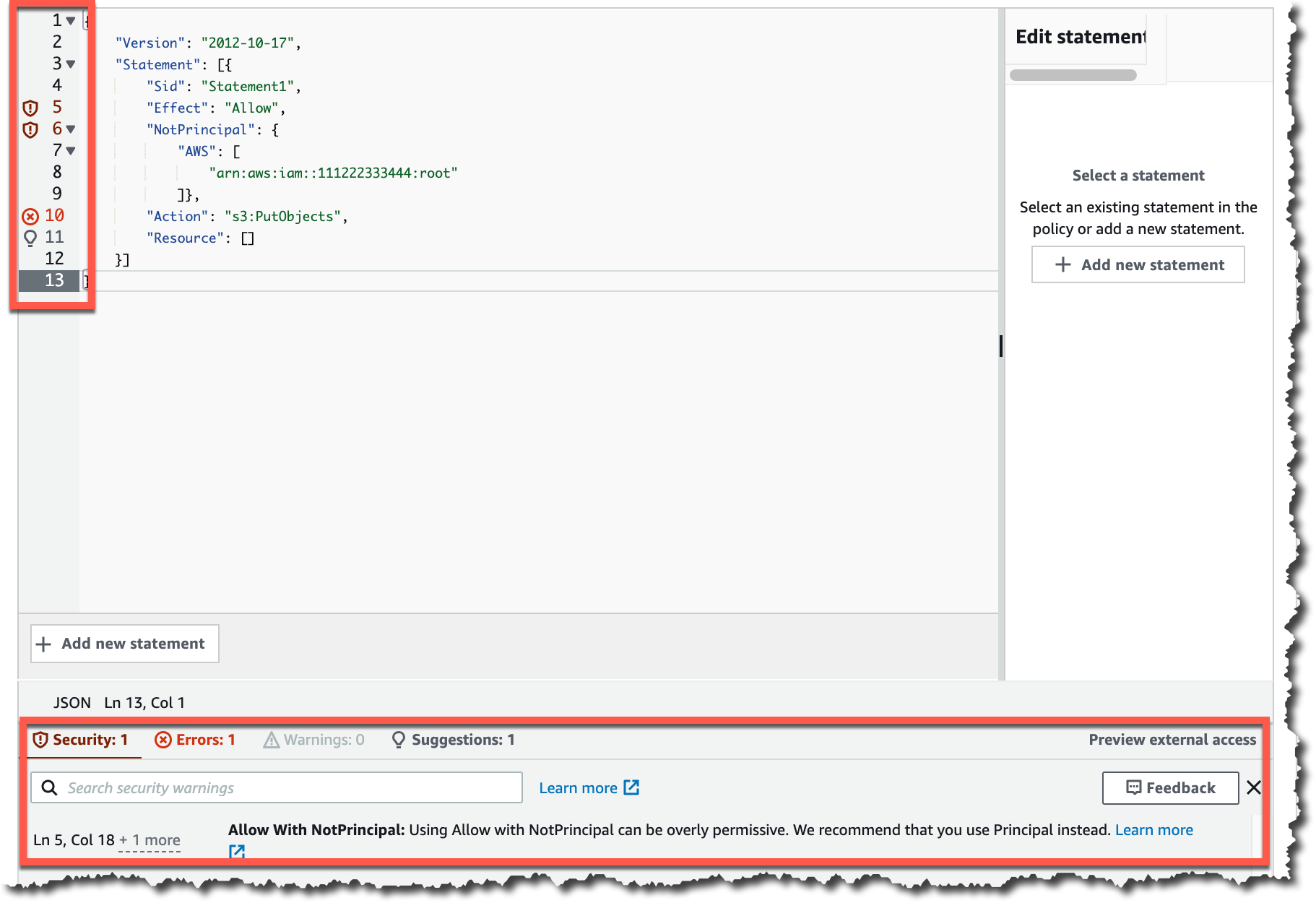
Console screenshot.

Satisfied with the clarity of the chart, I export it as an image file. In this way, I can quickly share it or include it in a report.

Bar chart

Amazon Redshift Serverless supports all rich SQL functionality of Amazon Redshift such as semi-structured data support. I can use any JDBC/ODBC-compliant tool or the Amazon Redshift Data API to query my data. To migrate data, I can take a snapshot of an Amazon Redshift provisioned cluster and restore it as serverless. Then, I just need to update my SQL applications to use the new serverless endpoint.

Availability and Pricing
Amazon Redshift Serverless is available in public preview in the following AWS Regions: US East (N. Virginia), US West (N. California, Oregon), Europe (Frankfurt, Ireland), Asia Pacific (Tokyo).

With Amazon Redshift Serverless, you pay separately for the compute and storage you use. Compute capacity is measured in Redshift Processing Units (RPUs), and you pay for the workloads in RPU-hours with per-second billing. For storage, you pay for data stored in Amazon Redshift-managed storage and storage used for snapshots, similar to what you’d pay with a provisioned cluster using RA3 instances.

To control your costs, you can specify usage limits and define actions that Amazon Redshift automatically takes if those limits are reached. You can specify usage limits in RPU-hours and associated with a daily, weekly, or monthly duration. Setting higher usage limits can improve the overall throughput of the system, especially for workloads that need to handle high concurrency while maintaining consistently high performance.

Compute resources automatically shutdown behind the scenes when there is no activity and resume when you are loading data, or there are queries coming in. When accessing your S3 data lake via the new serverless endpoint, you do not pay for Amazon Redshift Spectrum separately. You have a unified serverless experience and pay for data lake queries also in RPU-seconds. For more information, see the Amazon Redshift pricing page.

The serverless end point is configured at the AWS account level. If you have multiple teams or projects and want to manage costs separately, you can use separate AWS accounts. You can share data between your provisioned clusters and serverless endpoint and between serverless endpoints across accounts.

To help you get practice, we provide you upfront with $500 in AWS credits to try the Amazon Redshift Serverless public preview. You get the credits when you first create a database with Amazon Redshift Serverless. These credits are used to cover your costs for compute, storage, and snapshot usage of Amazon Redshift Serverless only.

Start using Amazon Redshift Serverless today to run and scale analytics without having to provision and manage data warehouse clusters.

Danilo

Announcing Amazon EMR Serverless (Preview): Run big data applications without managing servers

Post Syndicated from Damon Cortesi original https://aws.amazon.com/blogs/big-data/announcing-amazon-emr-serverless-preview-run-big-data-applications-without-managing-servers/

Today we’re happy to announce Amazon EMR Serverless, a new option in Amazon EMR that makes it easy and cost-effective for data engineers and analysts to run petabyte-scale data analytics in the cloud. With EMR Serverless, you can run applications built using open-source frameworks such as Apache Spark, Hive, and Presto, without having to configure, manage, optimize, or secure clusters. EMR Serverless automatically provisions and scales the compute and memory resources required by your applications, and you only pay for the resources that your applications use.

In this post, we discuss the benefits of EMR Serverless, walk you through the core concepts of EMR Serverless and how you can use it, and show you a quick demo.

Overview of EMR Serverless

Tens of thousands of customers use Amazon EMR, a managed service for running open-source analytics frameworks such as Apache Spark, Hive, and Presto, for large-scale data analytics applications. With Amazon EMR, you can provision clusters of any size in minutes. Amazon EMR automatically installs and configures the frameworks you choose, and provides a performance-optimized runtime that is compatible with and over twice as fast as standard open-source.

Amazon EMR customers have full control over cluster configuration. The ability to customize clusters allows you to optimize for cost and performance based on workload requirements. For example, you can use Amazon Elastic Compute Cloud (Amazon EC2) memory optimized instances to run SQL workloads with low latency, or use the EC2 Graviton2-based instances to improve performance. You can also use EC2 Spot Instances, which are integrated in Amazon EMR so that you can take advantage of unused EC2 capacity in the AWS Cloud to obtain instances at up to a 90% discount compared to On-Demand prices. If you run your applications on Kubernetes, you can use Amazon EMR on Amazon EKS to run your Amazon EMR analytics applications on Amazon Elastic Kubernetes Service (Amazon EKS) clusters.
However, tuning clusters for optimal cost and performance requires engineers to have deep knowledge of the underlying analytics frameworks. Furthermore, the specific compute and memory resources needed to optimally run applications depend on various factors, such as the schedule and complexity of data processing jobs and the volume of data being processed. When these characteristics change over time, you need to reevaluate and reconfigure clusters. In addition, administrators have to secure and monitor the clusters to ensure that they’re compliant with corporate security policies, and adjust security settings each time the cluster is reconfigured. Many customers don’t need this level of customization and control, and want a simpler way to process data using open-source frameworks on the Amazon EMR performance-optimized runtime.

With this in mind, we built EMR Serverless. With EMR Serverless, you can get all the benefits of running Amazon EMR, but with a serverless environment. We had the following goals in mind when we built EMR Serverless:

  • Provide a simpler experience – EMR Serverless is simple to use because you don’t have to configure, optimize, operate, or secure clusters. You don’t have to worry about instance types or cluster sizes, or about applying OS patches. You simply specify the framework and version that you want to use for your application, and submit your data processing jobs. You still get all the benefits that you expect out of Amazon EMR—open-source compatibility, open-source version currency, and performance-optimized runtime—but without the need to manage clusters.
  • No need to guess cluster sizes – EMR Serverless eliminates the need to right-size clusters for varying jobs and data sizes. With EMR Serverless, you create an application using an open-source framework version, and submit jobs to the application. EMR Serverless automatically adds and removes workers at different stages of processing your job. As a result, you don’t have to reconfigure when data volumes change, and you only pay for what your jobs require. You can control costs by specifying the minimum and maximum number of concurrent workers, and the VCPU and memory per worker.
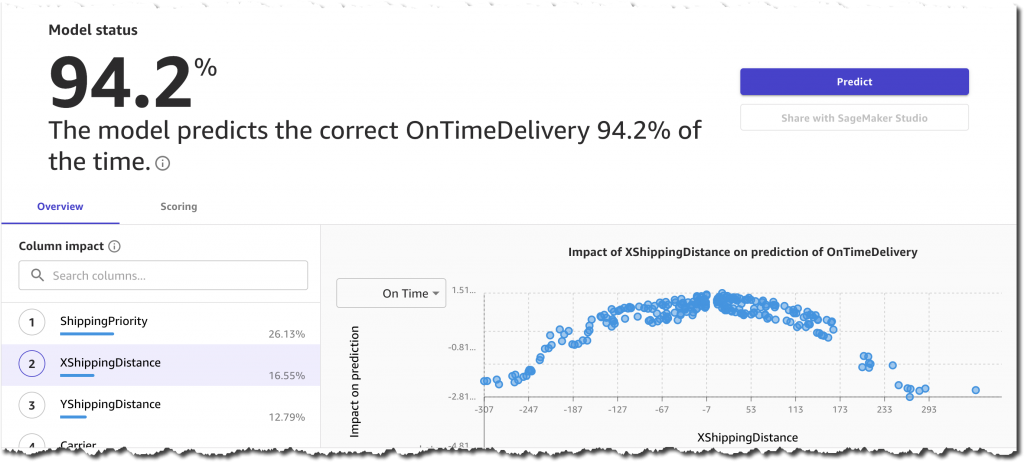
  • Retain Amazon EMR’s performance-optimized runtime and open-source currency – EMR Serverless includes the Amazon EMR performance-optimized runtime for Apache Spark, Hive, and Presto. The Amazon EMR runtime is API-compatible and over twice as fast as standard open-source, so your jobs run faster and incur less compute costs.
  • Seamless integration with EMR Studio – EMR Serverless includes EMR Studio, which provides fully managed serverless Jupyter Notebooks and familiar open-source tools such as Spark UI and Tez UI to help you develop, visualize, and debug your applications.
  • Automatic and fine-grained scaling – EMR Serverless automatically scales up workers at each stage of processing your job and scales them down when they’re not required. You’re charged for aggregate vCPU, memory, and storage resources used from the time a worker starts running until it stops, rounded up to the nearest second with a 1-minute minimum. For example, your job may require 10 workers for the first 10 minutes of processing the job, and 50 workers for the next 5 minutes. With fine-grained automatic scaling, you only incur cost for 10 workers for 10 minutes and 50 workers for 5 minutes. As a result, you don’t have to pay for underutilized resources.
  • Resilience to Availability Zone failures – EMR Serverless is a Regional service. When you submit jobs to an EMR Serverless application, it can run in any Availability Zone in the Region. A job is run in a single Availability Zone to avoid performance implications of network traffic across Availability Zones. In case an Availability Zone is impaired, a job submitted to your EMR Serverless application is automatically run in a different (healthy) Availability Zone. When using resources in a private VPC, EMR Serverless recommends you specify the private VPC configuration for multiple Availability Zones so that EMR Serverless can automatically select a healthy Availability Zone.
  • Enable shared applications – When you submit jobs to an EMR Serverless application, you can specify the AWS Identity and Access Management (IAM) role that must be used by the job to access AWS resources such as Amazon Simple Storage Service (Amazon S3) objects. As a result, different IAM principals can run jobs on a single EMR Serverless application, and each job can only access the AWS resources that the IAM principal is allowed to access. This enables you to set up scenarios where a single application with a pre-initialized pool of workers is made available to multiple tenants wherein each tenant can submit jobs using a different IAM role but use the common pool of pre-initialized workers to immediately process requests.
  • Enable interactive applications – Interactive applications that allow data scientists and analysts to run interactive SQL queries for data exploration require a fast response time to user requests. For such interactive applications, EMR Serverless allows you to pre-initialize a pool of workers. You can start your EMR Serverless application and pre-initialize the pool of workers as soon as a user starts the application, and stop the application to stop workers when no interactive users are active. If processing user requests requires more workers than what have been pre-initialized, EMR Serverless automatically adds more workers up to the maximum concurrent limits that you specify. Therefore, by controlling the number of workers to pre-initialize and the maximum concurrent workers, you can optimize user experience and cost for your interactive applications.
  • Make it easy to switch from one deployment model to another – The same Amazon EMR releases are provided for applications using EMR clusters, Amazon EMR on EKS, and EMR Serverless. When you build an application using an Amazon EMR release (for example a Spark job using Amazon EMR release 6.4), you can choose to run it on an EMR cluster, Amazon EMR on EKS, or EMR Serverless without having to rewrite the application. This allows you to build applications for a given framework version, and retain the flexibility to change the deployment model based on future operational needs.

Core concepts

In this section, we discuss the core concepts in EMR Serverless: applications, jobs, workers, and pre-initialized workers.

Application

With EMR Serverless, you can create one or more applications that use open-source analytics frameworks. To create an application, you specify the open-source framework that you want to use (for example, Apache Spark or Apache Hive), the Amazon EMR release for the open-source framework version (for example, Amazon EMR release 6.4, which corresponds to Apache Spark 3.1.2), and a name for your application. After you create an application, you can submit data processing jobs or interactive requests to your application.

The following are a few examples where you may want to create multiple applications:

  • To use different open-source frameworks (for example, Hive or Spark)
  • To use different versions of open-source frameworks for different use cases (for example, use a newer version of Spark for a new application without having to upgrade older applications)
  • To perform A/B testing when upgrading from one version to another (for example, migrating from Spark 2.4 to Spark 3.1)
  • To maintain separate logical environments for test and production scenarios
  • To provide separate logical environments for different teams with independent cost controls and usage tracking
  • To logically separate different line-of-business applications (for example, finance vs. marketing)

Job

A job is a request submitted to an EMR Serverless application that is asynchronously run and tracked through completion. You can run multiple jobs concurrently in an application.

Workers

An EMR Serverless application internally uses workers to run your jobs. By default, each application uses workers with 4 VCPU, 30 memory, and 20 GB of local storage per worker. You have the ability to customize this configuration.

Pre-initialized workers

EMR Serverless provides an optional feature to pre-initialize workers when your application starts up, so that the workers are ready to process requests immediately when a job is submitted to the application. Pre-initialized workers allow you to maintain a warm pool of workers for the application so that it can provide a sub-second response to start processing requests.

Common usage patterns applied to EMR Serverless

Now let’s examine some common usage scenarios and how EMR Serverless provides you a simple solution.

Pattern #1: Data pipelines

Data pipelines are the backbone of your analytics workloads. A common pattern with data pipelines is to start a cluster, run a job, and stop the cluster when the job is complete. Because data is separated from compute, the inputs and outputs for each job are persisted separately from the cluster (for example, in Amazon S3). These steps are frequently automated using workflow orchestration applications such as Apache Airflow. You can also use AWS services such as AWS Step Functions and AWS Managed Workflows for Apache Airflow (Amazon MWAA) to create such workflows.

Although automating these steps isn’t complex, data engineers have to spend time determining the appropriate EC2 instance and cluster size. They have to determine the Availability Zone where the cluster is run, and handle failover. They have to test their applications when adopting OS updates. When data sizes change over time, they have to resize clusters, or use features like Amazon EMR managed scaling that automatically resize clusters. EMR Serverless provides a simpler solution by eliminating the need for you to handle these scenarios. You simply choose the open-source framework and version for your application, and submit jobs. You don’t have to worry about instance selection, cluster sizes, cluster startup, cluster resize, stopping nodes, Availability Zone failover, or OS updates.

Pattern #2: Shared clusters

Another common pattern is for teams to use a shared long-running cluster to run multiple jobs. In this case, engineers implement queues in Apache YARN for different workloads on a common cluster, and set up rules to automatically scale the cluster up or down based on overall workload. With Amazon EMR on EC2 clusters, you can use Amazon EMR managed scaling, a feature that automatically scales clusters up or down depending on the workload. With EMR Serverless, workers are assigned to each job when required, so your jobs get the resources they need. Moreover, because you only pay for the workers that your jobs require, you don’t incur cost for over-provisioned resources. Finally, because each job can specify the IAM role that should be used to access AWS resources when running the job, you don’t have to set up complex configurations to manage queues and permissions.

Pattern #3: Interactive workloads

A third pattern of use is when teams keep a cluster of instances available to support interactive analysis. In this case, the cluster is set up and initialized with applications that wait for interactive user requests. Applications are pre-initialized so that they can immediately start processing user requests and provide an interactive user experience. EMR Serverless enables this scenario without requiring you to manage clusters. You can specify the number of workers that you want to pre-initialize when you start an EMR Serverless application. Subsequently, when users submit requests, the pre-initialized workers can be used to immediately process user requests. If processing the user requests requires more workers than what you have chosen to pre-initialize, EMR Serverless automatically adds more workers (up to the maximum concurrent limit that you specify). When the requests are processed, EMR Serverless automatically reverts back to maintaining the pre-initialized workers that you specified. You can control when the pre-initialized workers start by controlling when to start and stop your EMR Serverless application. For example, you can start your application when users begin interactive analysis and turn it off when there are no user requests and the application remains idle.

Demo

Conclusion

In this post, we discussed the core concepts and common usage patterns of EMR Serverless, and showed you a quick demo. EMR Serverless is in Preview, in which you can run workloads using Spark 3.1.2 and Hive 2.0 using the API, AWS Command Line Interface (AWS CLI), and SDK. Sign up for now, and for more information, see EMR Serverless documentation.


About the Authors

Damon Cortesi is a Principal Developer Advocate with Amazon Web Services.

Mehul Y. Shah is the GM for Amazon EMR.

Abhishek Sinha is a Principal Product Manager at Amazon Web Services.

AWS Lake Formation – General Availability of Cell-Level Security and Governed Tables with Automatic Compaction

Post Syndicated from Danilo Poccia original https://aws.amazon.com/blogs/aws/aws-lake-formation-general-availability-of-cell-level-security-and-governed-tables-with-automatic-compaction/

A data lake can help you break down data silos and combine different types of analytics into a centralized repository. You can store all of your structured and unstructured data in this repository. However, setting up and managing data lakes involve a lot of manual, complicated, and time-consuming tasks. AWS Lake Formation makes it easy to set up a secure data lake in days instead of weeks or months.

Today, I am excited to share the general availability of some new features that simplify even further loading data, optimizing storage, and managing access to a data lake:

  • Governed Tables – A new type of Amazon Simple Storage Service (Amazon S3) tables that makes it simple and reliable to ingest and manage data at any scale. Governed tables support ACID transactions that let multiple users concurrently and reliably insert and delete data across multiple governed tables. ACID transactions also let you run queries that return consistent and up-to-date data. In case of errors in your extract, transform, and load (ETL) processes, or during an update, changes are not committed and will not be visible.
  • Storage Optimization with Automatic Compaction for governed tables – When this option is enabled, Lake Formation automatically compacts small S3 objects in your governed tables into larger objects to optimize access via analytics engines, such as Amazon Athena and Amazon Redshift Spectrum. By using automatic compaction, you don’t have to implement custom ETL jobs that read, merge, and compress data into new files, and then replace the original files.
  • Granular Access Control with Row and Cell-Level Security – You can control access to specific rows and columns in query results and within AWS Glue ETL jobs based on the identity of who is performing the action. In this way, you don’t have to create (and keep updated) subsets of your data for different roles and legislations. This works for both governed and traditional S3 tables.

Using Governed Tables, ACID Transactions, and Automatic Compaction
In the Lake Formation console, I can enable governed data access and management at table creation. Automatic compaction is enabled by default, and it can be disabled using the AWS Command Line Interface (CLI) or AWS SDKs.

Console screenshot.

Governed tables have a manifest that tracks the S3 objects that are part of the table’s data. I can use the UpdateTableObjects API to keep the manifest updated when adding new objects to the table, and I can call it using the AWS CLI and SDKs. This API is implicitly used by the AWS Glue ETL library.

Moreover, I have access to new Lake Formation APIs to start, commit, or cancel a transaction. I can use these APIs to wrap data loading, data transformation, and output consistent and up-to-date data.

Using Row and Cell-Level Security
There are many use cases where, for a table, you want to restrict access to specific columns, rows, or a combination that depends on the role of the user accessing the data. For example, a company with offices in the US, Germany, and France can create a filter for analysts based in the European Union (EU) to limit access to EU-based customers.

Console screenshot.

The filter can enforce that some columns, such as date of birth (dob) and phone, are not accessible to those analysts. Moreover, access to individual rows can be filtered by using filter expressions. You can configure row filter expressions with a SQL-compatible syntax based on the open-source PartiQL language. In this case, only rows with country equal to Germany or France (country='DE' OR country='FR') are visible.

Console screenshot.

Availability and Pricing
These new features are available today in the following AWS Regions: US East (N. Virginia), US West (Oregon), Europe (Ireland), US East (Ohio), and Asia Pacific (Tokyo).

When querying governed tables, or tables secured with row and cell-level security, you pay by the amount of data scanned (with a 10MB minimum). When using governed tables, transaction metadata is charged by the number of S3 objects tracked, and you pay for the number of transaction requests. Automatic compaction is charged based on the data processed. For more information, see the AWS Lake Formation pricing page.

While implementing these features, we introduced a new Lake Formation Storage API that is integrated with tools such as AWS Glue, Amazon Athena, Amazon Redshift Spectrum, and Amazon QuickSight. You can use this storage API directly in your applications to query tables with a SQL-like syntax (joins are not supported) and get the benefits of governed tables and cell-level security.

See the detailed blog series published during the preview to learn more:

Effective data lakes using AWS Lake Formation

Take advantage of these new features to simplify the creation and management of your data lake.

Danilo