Tag Archives: Uncategorized

Introducing AWS SAM Pipelines: Automatically generate deployment pipelines for serverless applications

Post Syndicated from Benjamin Smith original https://aws.amazon.com/blogs/compute/introducing-aws-sam-pipelines-automatically-generate-deployment-pipelines-for-serverless-applications/

Today, AWS announces the public preview of AWS SAM Pipelines, a new capability of AWS Serverless Application Model (AWS SAM) CLI. AWS SAM Pipelines makes it easier to create secure continuous integration and deployment (CI/CD) pipelines for your organizations preferred continuous integration and continuous deployment (CI/CD) system.

This blog post shows how to use AWS SAM Pipelines to create a CI/CD deployment pipeline configuration file that integrates with GitLab CI/CD.

AWS SAM Pipelines

A deployment pipeline is an automated sequence of steps that are performed to release a new version of an application. They are defined by a pipeline template file. AWS SAM Pipelines provides templates for popular CI/CD systems such as AWS CodePipeline, Jenkins, GitHub Actions, and GitLab CI/CD. Pipeline templates include AWS deployment best practices to help with multi-account and multi-Region deployments. AWS environments such as dev and production typically exist in different AWS accounts. This allows development teams to configure safe deployment pipelines, without making unintended changes to infrastructure. You can also supply your own custom pipeline templates to help to standardize pipelines across development teams.

AWS SAM Pipelines is composed of two commands:

  1. sam pipeline bootstrap, a configuration command that creates the AWS resources required to create a pipeline.
  2. sam pipeline init, an initialization command that creates a pipeline file for your preferred CI/CD system. For example, a Jenkinsfile for Jenkins or a .gitlab-ci.yml file for GitLab CI/CD.

Having two separate commands allows you to manage the credentials for operators and developer separately. Operators can use sam pipeline bootstrap to provision AWS pipeline resources. This can reduce the risk of production errors and operational costs. Developers can then focus on building without having to set up the pipeline infrastructure by running the sam pipeline init command.

You can also combine these two commands by running sam pipeline init –bootstrap. This takes you through the entire guided bootstrap and initialization process.

Getting started

The following steps show how to use AWS SAM Pipelines to create a deployment pipeline for GitLab CI/CD. GitLab is an AWS Partner Network (APN) member to build, review, and deploy code. AWS SAM Pipelines creates two deployment pipelines, one for a feature branch, and one for a main branch. Each pipeline runs as a separate environment in separate AWS accounts. Each time you make a commit to the repository’s feature branch, the pipeline builds, tests, and deploys a serverless application in the development account. For each commit to the Main branch, the pipeline builds, tests, and deploys to a production account.

Prerequisites

  • An AWS account with permissions to create the necessary resources.
  • Install AWS Command Line Interface (CLI) and AWS SAM CLI.
  • A verified GitLab account: This post assumes you have the required permissions to configure GitLab projects, create pipelines, and configure GitLab variables.
  • Create a new GitLab project and clone it to your local environment

Create a serverless application

Use the AWS SAM CLI to create a new serverless application from a Quick Start Template.

Run the following AWS SAM CLI command in the root directory of the repository and follow the prompts. For this example, can select any of the application templates:

sam init

Creating pipeline deployment resources

The sam pipeline bootstrap command creates the AWS resources and permissions required to deploy application artifacts from your code repository into your AWS environments.

For this reason, AWS SAM Pipelines creates IAM users and roles to allow you to deploy applications across multiple accounts. AWS SAM Pipelines creates these deployment resources following the principal of least privilege:

Run the following command in a terminal window:

sam pipeline init --bootstrap

This guides you through a series of questions to help create a .gitlab-ci.yml file. The --bootstrap option enables you to set up AWS pipeline stage resources before the template file is initialized:

  1. Enter 1, to choose AWS Quick Start Pipeline Templates
  2. Enter 2 to choose to create a GitLab CI/CD template file, which includes a two stage pipeline.
  3. Next AWS SAM reports “No bootstrapped resources were detected.” and asks if you want to set up a new CI/CD stage. Enter Y to set up a new stage:

Set up the dev stage by answering the following questions:

  1. Enter “dev” for the Stage name.
  2. AWS SAM CLI detects your AWS CLI credentials file. It uses a named profile to create the required resources for this stage. If you have a development profile, select that, otherwise select the default profile.
  3. Enter a Region for the stage name (for example, “eu-west-2”).
  4. Keep the pipeline IAM user ARN and pipeline and CloudFormation execution role ARNs blank to generate these resources automatically.
  5. An Amazon S3 bucket is required to store application build artifacts during the deployment process. Keep this option blank for AWS SAM Pipelines to generate a new S3 bucket.If your serverless application uses AWS Lambda functions packaged as a container image, you must create or specify an Amazon ECR Image repository. The bootstrap command configures the required permissions to access this ECR repository.
  6. Enter N to specify you are not using Lambda functions packages as container images.
  7. Press “Enter” to confirm the resources to be created.

AWS SAM Pipelines creates a PipelineUser with an associated ACCESS_KEY_ID and SECRET_ACCESS_KEY which GitLab uses to deploy artifacts to your AWS accounts. An S3 bucket is created along with two roles PipelineExecutionRole and CloudFormationExecutionRole.

Make a note of these values. You use these in the following steps to configure the production deployment environment and CI/CD provider.

Creating the production stage

The AWS SAM Pipeline command automatically detects that a second stage is required to complete the GitLab template, and prompts you to go through the set-up process for this:

  1. Enter “Y” to continue to build the next pipeline stage resources.
  2. When prompted for Stage Name, enter “prod”.
  3. When asked to Select a credential source, choose a suitable named profile from your AWS config file. The following example shows that a named profile called “prod” is selected.
  4. Enter a Region to deploy the resources to. The example uses the eu-west-1 Region.
  5. Press enter to use the same Pipeline IAM user ARN created in the previous step.
  6. When prompted for the pipeline execution role ARN and the CloudFormation execution role ARN, leave blank to allow the bootstrap process to create them.
  7. Provide the same answers as in the previous steps 5-7.

The AWS resources and permissions are now created to run the deployment pipeline for a dev and prod stage. The definition of these two stages is saved in .aws-sam/pipeline/pipelineconfig.toml.

AWS SAM Pipelines now automatically continues the walkthrough to create a GitLab deployment pipeline file.

Creating a deployment pipeline file

The following questions help create a .gitlab-ci.yml file. GitLab uses this file to run the CI/CD pipeline to build and deploy the application. When prompted, enter the name for both the dev and Prod stages. Use the following example to help answer the questions:

Deployment pipeline file

A .gitlab-ci.yml pipeline file is generated. The file contains a number of environment variables, which reference the details from AWS SAM pipeline bootstrap command. This includes using the AWS_ACCESS_KEY_ID and AWS_SECRET_ACCESS_KEY securely stored in the GitLab CI/CD repository.

The pipeline file contains a build and deploy stage for a branch that follows the naming pattern ‘feature-*’. The build process assumes the TESTING_PIPELINE_EXECUTION_ROLE in the testing account to deploy the application. sam build uses the AWS SAM template file previously created. It builds the application artifacts using the default AWS SAM build images. You can further customize the sam build –use-container command if necessary.

By default the Docker image used to create the build artifact is pulled from Amazon ECR Public. The default Node.js 14 image in this example is based on the language specified during sam init. To pull a different container image, use the --build-image option as specified in the documentation.

sam deploy deploys the application to a new stack in the dev stage using the TESTING_CLOUDFORMATION_EXECUTION_ROLE.The following code shows how this configured in the .gitlab-ci.yml file.

build-and-deploy-feature:
stage: build
only:
- /^feature-.*$/
script:
- . assume-role.sh ${TESTING_PIPELINE_EXECUTION_ROLE} feature-deployment
- sam build --template ${SAM_TEMPLATE} --use-container
- sam deploy --stack-name features-${CI_COMMIT_REF_NAME}-cfn-stack
--capabilities CAPABILITY_IAM
--region ${TESTING_REGION}
--s3-bucket ${TESTING_ARTIFACTS_BUCKET}
--no-fail-on-empty-changeset
--role-arn ${TESTING_CLOUDFORMATION_EXECUTION_ROLE}

The file also contains separate build and deployments stages for the main branch. sam package prepares the application artifacts. The build process then assumes the role in the production stage and prepares the application artifacts for production. You can customize the file to include testing phases, and manual approval steps, if necessary.

Configure GitLab CI/CD credentials

GitLab CI/CD uses the AWS_ACCESS_KEY_ID and AWS_SECRET_ACCESS_KEY to authenticate to your AWS account. The values are associated with a new user generated in the previous sam pipeline init --bootstrap step. Save these values securely in GitLab’s CI/CD variables section:

  1. Navigate to Settings > CI/CD > Variables and choose expand.
  2. Choose Add variable, and enter in the key name and value for the AWS_SECRET_ACCESS_KEY noted down in the previous steps:
  3. Repeat this process for the AWS_ACCESS_KEY_ID:

Creating a feature branch

Create a new branch in your GitLab CI/CD project named feature-1:

  1. In the GitLab CI/CD menu, choose Branches from the Repository section. Choose New branch.
  2. For Branch name, enter branch “feature-1” and in the Create from field choose main.
  3. Choose Create branch.

Configure the new feature-1 branch to be protected so it can access the protected GitLab CI/D variables.

  1. From the GitLab CI/CD main menu, choose to Settings then choose Repository.
  2. Choose Expand in the Protected Branches section
  3. Select the feature-1 branch in the Branch field and set Allowed to merge and Allowed to push to Maintainers.
  4. Choose Protect

Trigger a deployment pipeline run

1. Add the AWS SAM application files to the repository and push the branch changes to GitLab CI/CD:

git checkout -b feature-1
git add .
git commit -am “added sam application”
git push --set-upstream origin feature-1 

This triggers a new pipeline run that deploys the application to the dev environment. The following screenshot shows GitLab’s CI/CD page.

AWS CloudFormation shows that a new stack has been created in the dev stage account. It is named after the feature branch:

To deploy the feature to production, make a pull request to merge the feature-1 branch into the main branch:

  1. In GitLab CI/CD, navigate to Merge requests and choose New merge request.
  2. On the following screen, choose feature-1 as the Source branch and main as the Target branch.
  3. Choose Compare branches and continue, and then choose Create merge request.
  4. Choose Merge

This merges the feature-1 branch to the main branch, triggering the pipeline to run the production build, testing, and deployment steps:

Conclusion

AWS SAM Pipelines is a new feature of the AWS SAM CLI that helps organizations quickly create pipeline files for their preferred CI/CD system. AWS provides a default set of pipeline templates that follow best practices for popular CI/CD systems such as AWS CodePipeline, Jenkins, GitHub Actions, and GitLab CI/CD. Organizations can also supply their custom pipeline templates via Git repositories to standardize custom pipelines across hundreds of application development teams. This post shows how to use AWS SAM Pipelines to create a CI/CD deployment pipeline for GitLab.

Watch guided video tutorials to learn how to create deployment pipelines for GitHub Actions, GitLab CI/CD, and Jenkins.

For more learning resources, visit https://serverlessland.com/explore/sam-pipelines.

NSO Group Hacked

Post Syndicated from Bruce Schneier original https://www.schneier.com/blog/archives/2021/07/nso-group-hacked.html

NSO Group, the Israeli cyberweapons arms manufacturer behind the Pegasus spyware — used by authoritarian regimes around the world to spy on dissidents, journalists, human rights workers, and others — was hacked. Or, at least, an enormous trove of documents was leaked to journalists.

There’s a lot to read out there. Amnesty International has a report. Citizen Lab conducted an independent analysis. The Guardian has extensive coverage. More coverage.

Most interesting is a list of over 50,000 phone numbers that were being spied on by NSO Group’s software. Why does NSO Group have that list? The obvious answer is that NSO Group provides spyware-as-a-service, and centralizes operations somehow. Nicholas Weaver postulates that “part of the reason that NSO keeps a master list of targeting…is they hand it off to Israeli intelligence.”

This isn’t the first time NSO Group has been in the news. Citizen Lab has been researching and reporting on its actions since 2016. It’s been linked to the Saudi murder of Jamal Khashoggi. It is extensively used by Mexico to spy on — among others — supporters of that country’s soda tax.

NSO Group seems to be a completely deplorable company, so it’s hard to have any sympathy for it. As I previously wrote about another hack of another cyberweapons arms manufacturer: “It’s one thing to have dissatisfied customers. It’s another to have dissatisfied customers with death squads.” I’d like to say that I don’t know how the company will survive this, but — sadly — I think it will.

Finally: here’s a tool that you can use to test if your iPhone or Android is infected with Pegasus. (Note: it’s not easy to use.)

Candiru: Another Cyberweapons Arms Manufacturer

Post Syndicated from Bruce Schneier original https://www.schneier.com/blog/archives/2021/07/candiru-another-cyberweapons-arms-manufacturer.html

Citizen Lab has identified yet another Israeli company that sells spyware to governments around the world: Candiru.

From the report:

Summary:

  • Candiru is a secretive Israel-based company that sells spyware exclusively to governments. Reportedly, their spyware can infect and monitor iPhones, Androids, Macs, PCs, and cloud accounts.
  • Using Internet scanning we identified more than 750 websites linked to Candiru’s spyware infrastructure. We found many domains masquerading as advocacy organizations such as Amnesty International, the Black Lives Matter movement, as well as media companies, and other civil-society themed entities.
  • We identified a politically active victim in Western Europe and recovered a copy of Candiru’s Windows spyware.
  • Working with Microsoft Threat Intelligence Center (MSTIC) we analyzed the spyware, resulting in the discovery of CVE-2021-31979 and CVE-2021-33771 by Microsoft, two privilege escalation vulnerabilities exploited by Candiru. Microsoft patched both vulnerabilities on July 13th, 2021.
  • As part of their investigation, Microsoft observed at least 100 victims in Palestine, Israel, Iran, Lebanon, Yemen, Spain, United Kingdom, Turkey, Armenia, and Singapore. Victims include human rights defenders, dissidents, journalists, activists, and politicians.
  • We provide a brief technical overview of the Candiru spyware’s persistence mechanism and some details about the spyware’s functionality.
  • Candiru has made efforts to obscure its ownership structure, staffing, and investment partners. Nevertheless, we have been able to shed some light on those areas in this report.

We’re not going to be able to secure the Internet until we deal with the companies that engage in the international cyber-arms trade.

REvil is Off-Line

Post Syndicated from Bruce Schneier original https://www.schneier.com/blog/archives/2021/07/revil-is-off-line.html

This is an interesting development:

Just days after President Biden demanded that President Vladimir V. Putin of Russia shut down ransomware groups attacking American targets, the most aggressive of the groups suddenly went off-line early Tuesday.

[…]

Gone was the publicly available “happy blog” the group maintained, listing some of its victims and the group’s earnings from its digital extortion schemes. Internet security groups said the custom-made sites ­- think of them as virtual conference rooms — where victims negotiated with REvil over how much ransom they would pay to get their data unlocked also disappeared. So did the infrastructure for making payments.

Okay. So either the US took them down, Russia took them down, or they took themselves down.

Build a serverless event-driven workflow with AWS Glue and Amazon EventBridge

Post Syndicated from Noritaka Sekiyama original https://aws.amazon.com/blogs/big-data/build-a-serverless-event-driven-workflow-with-aws-glue-and-amazon-eventbridge/

Customers are adopting event-driven-architectures to improve the agility and resiliency of their applications. As a result, data engineers are increasingly looking for simple-to-use yet powerful and feature-rich data processing tools to build pipelines that enrich data, move data in and out of their data lake and data warehouse, and analyze data. AWS Glue is a serverless data integration service that makes it easy to discover, prepare, and combine data for analytics, machine learning, and application development. AWS Glue provides all the capabilities needed for data integration so that you can start analyzing your data and putting it to use in minutes instead of months.

Data integration jobs have varying degrees of priority and time sensitivity. For example, you can use batch processing to process weekly sales data but in some cases, data needs to be processed immediately. Fraud detection applications, for example, require near-real-time processing of security logs. Or if a partner uploads product information to your Amazon Simple Storage Service (Amazon S3) bucket, it needs to be processed right away to ensure that your website has the latest product information.

This post discusses how to configure AWS Glue workflows to run based on real-time events. You no longer need to set schedules or build complex solutions to trigger jobs based on events; AWS Glue event-driven workflows manage it all for you.

Get started with AWS Glue event-driven workflows

As a business requirement, most companies need to hydrate their data lake and data warehouse with data in near-real time. They run their pipelines on a schedule (hourly, daily, or even weekly) or trigger the pipeline through an external system. It’s difficult to predict the frequency at which upstream systems generate data, which makes it difficult to plan and schedule ETL pipelines to run efficiently. Scheduling ETL pipelines to run too frequently can be expensive, whereas scheduling pipelines to run infrequently can lead to making decisions based on stale data. Similarly, triggering pipelines from an external process can increase complexity, cost, and job startup time.

AWS Glue now supports event-driven workflows, a capability that lets developers start AWS Glue workflows based on events delivered by Amazon EventBridge. With this new feature, you can trigger a data integration workflow from any events from AWS services, software as a service (SaaS) providers, and any custom applications. For example, you can react to an S3 event generated when new buckets are created and when new files are uploaded to a specific S3 location. In addition, if your environment generates many events, AWS Glue allows you to batch them either by time duration or by the number of events. Event-driven workflows make it easy to start an AWS Glue workflow based on real-time events.

To get started, you simply create a new AWS Glue trigger of type EVENT and place it as the first trigger in your workflow. You can optionally specify a batching condition. Without event batching, the AWS Glue workflow is triggered every time an EventBridge rule matches which may result in multiple concurrent workflow runs. In some environments, starting many concurrent workflow runs could lead to throttling, reaching service quota limits, and potential cost overruns. This can also result in workflow execution failures in case the concurrency limit specified on the workflow and the jobs within the workflow do not match. Event batching allows you to configure the number of events to buffer or the maximum elapsed time before firing the particular trigger. Once the batching condition is met, a workflow run is started. For example, you can trigger your workflow when 100 files are uploaded in S3 or 5 minutes after the first upload. We recommend configuring event batching to avoid too many concurrent workflow runs, and optimize resource usage and cost.

Overview of the solution

In this post, we walk through a solution to set up an AWS Glue workflow that listens to S3 PutObject data events captured by AWS CloudTrail. This workflow is configured to run when five new files are added or the batching window time of 900 seconds expires after first file is added. The following diagram illustrates the architecture.

The steps in this solution are as follows:

  1. Create an AWS Glue workflow with a starting trigger of EVENT type and configure the batch size on the trigger to be five and batch window to be 900 seconds.
  2. Configure Amazon S3 to log data events, such as PutObject API calls to CloudTrail.
  3. Create a rule in EventBridge to forward the PutObject API events to AWS Glue when they are emitted by CloudTrail.
  4. Add an AWS Glue event-driven workflow as a target to the EventBridge rule.
  5. To start the workflow, upload files to the S3 bucket. Remember you need to have at least five files before the workflow is triggered.

Deploy the solution with AWS CloudFormation

For a quick start of this solution, you can deploy the provided AWS CloudFormation stack. This creates all the required resources in your account.

The CloudFormation template generates the following resources:

  • S3 bucket – This is used to store data, CloudTrail logs, job scripts, and any temporary files generated during the AWS Glue ETL job run.
  • CloudTrail trail with S3 data events enabled – This enables EventBridge to receive PutObject API call data on specific bucket.
  • AWS Glue workflow – A data processing pipeline that is comprised of a crawler, jobs, and triggers. This workflow converts uploaded data files into Apache Parquet format.
  • AWS Glue database – The AWS Glue Data Catalog database that is used to hold the tables created in this walkthrough.
  • AWS Glue table – The Data Catalog table representing the Parquet files being converted by the workflow.
  • AWS Lambda function – This is used as an AWS CloudFormation custom resource to copy job scripts from an AWS Glue-managed GitHub repository and an AWS Big Data blog S3 bucket to your S3 bucket.
  • IAM roles and policies – We use the following AWS Identity and Access Management (IAM) roles:
    • LambdaExecutionRole – Runs the Lambda function that has permission to upload the job scripts to the S3 bucket.
    • GlueServiceRole – Runs the AWS Glue job that has permission to download the script, read data from the source, and write data to the destination after conversion.
    • EventBridgeGlueExecutionRole – Has permissions to invoke the NotifyEvent API for an AWS Glue workflow.

To launch the CloudFormation stack, complete the following steps:

  1. Sign in to the AWS CloudFormation console.
  2. Choose Launch Stack:

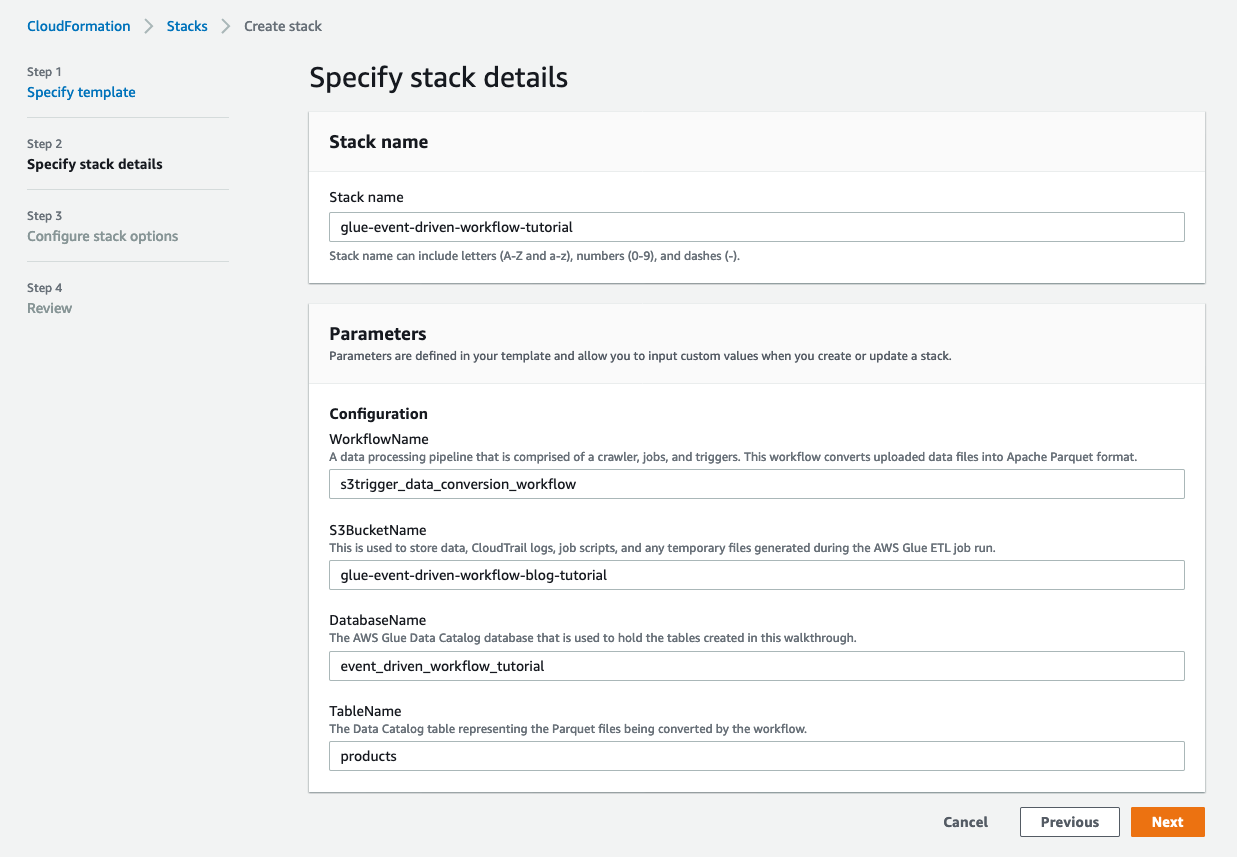
  1. Choose Next.
  2. For S3BucketName, enter the unique name of your new S3 bucket.
  3. For WorkflowName, DatabaseName, and TableName, leave as the default.
  4. Choose Next.

  1. On the next page, choose Next.
  2. Review the details on the final page and select I acknowledge that AWS CloudFormation might create IAM resources.
  3. Choose Create.

It takes a few minutes for the stack creation to complete; you can follow the progress on the Events tab.

By default, the workflow runs whenever a single file is uploaded to the S3 bucket, resulting in a PutObject API call. In the next section, we configure the event batching to change this behavior.

Review the AWS Glue trigger and add event batching conditions

The CloudFormation template provisioned an AWS Glue workflow including a crawler, jobs, and triggers. The first trigger in the workflow is configured as an event-based trigger. Next, we update this trigger to batch five events or wait for 900 seconds after the first event before it starts the workflow.

Before we make any changes, let’s review the trigger on the AWS Glue console:

  1. On the AWS Glue console, under ETL, choose Triggers.
  2. Choose <Workflow-name>_pre_job_trigger.
  3. Choose Edit.

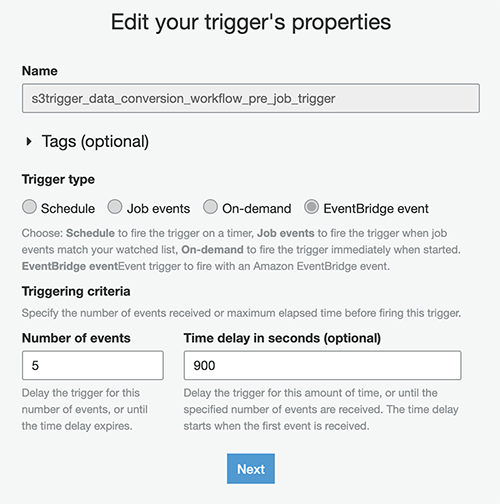
We can see the trigger’s type is set to EventBridge event, which means it’s an event-based trigger. Let’s change the event batching condition to run the workflow after five files are uploaded to Amazon S3.

  1. For Number of events, enter 5.
  2. For Time delay (sec), enter 900.
  3. Choose Next.

  1. On the next screen, under Choose jobs to trigger, leave as the default and choose Next.
  2. Choose Finish.

Review the EventBridge rule

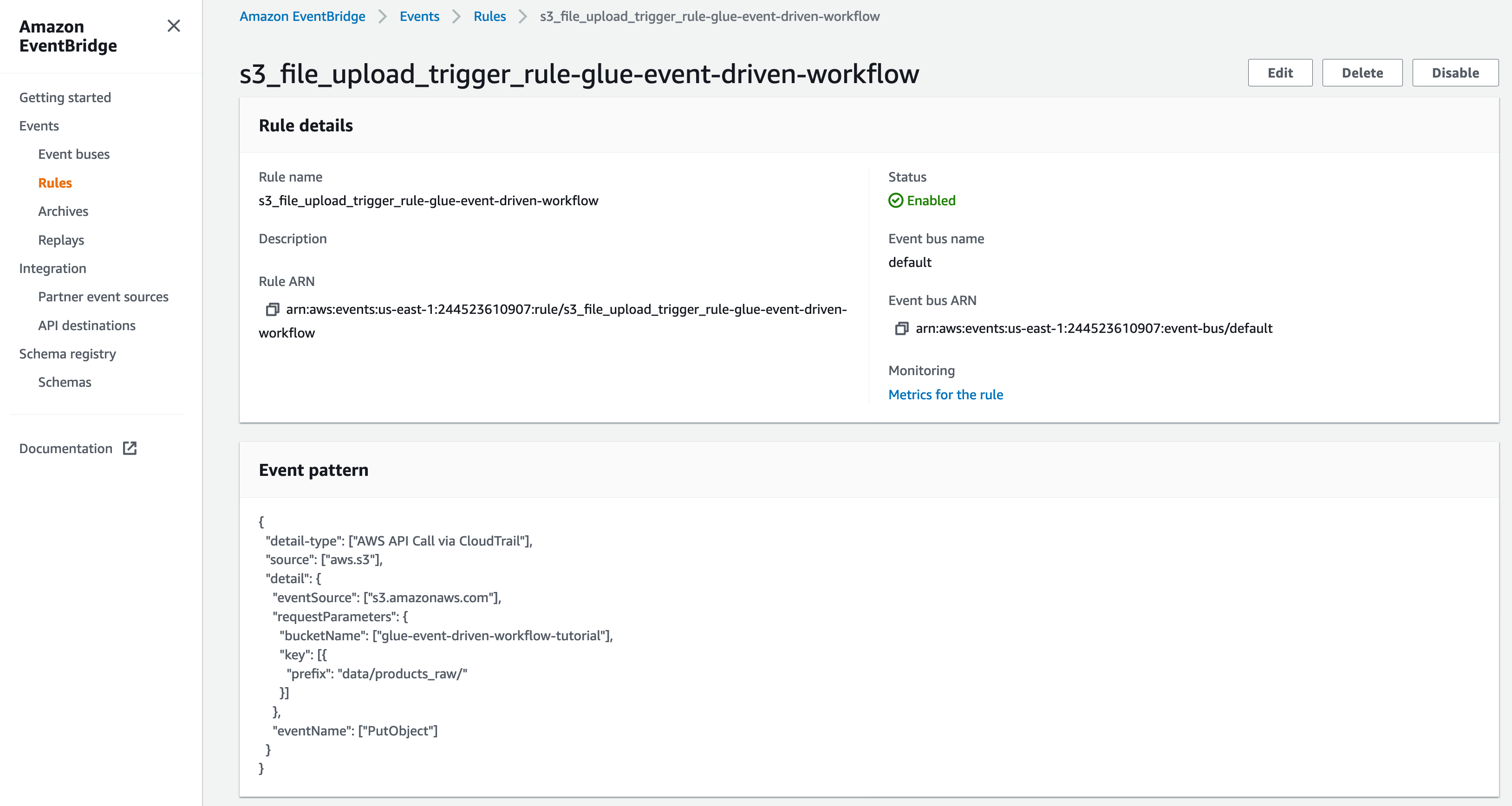
The CloudFormation template created an EventBridge rule to forward S3 PutObject API events to AWS Glue. Let’s review the configuration of the EventBridge rule:

  1. On the EventBridge console, under Events, choose Rules.
  2. Choose s3_file_upload_trigger_rule-<CloudFormation-stack-name>.
  3. Review the information in the Event pattern section.

The event pattern shows that this rule is triggered when an S3 object is uploaded to s3://<bucket_name>/data/products_raw/. CloudTrail captures the PutObject API calls made and relays them as events to EventBridge.

  1. In the Targets section, you can verify that this EventBridge rule is configured with an AWS Glue workflow as a target.

Trigger the AWS Glue workflow by uploading files to Amazon S3

To test your workflow, we upload files to Amazon S3 using the AWS Command Line Interface (AWS CLI). If you don’t have the AWS CLI, see Installing, updating, and uninstalling the AWS CLI.

Let’s upload some small files to your S3 bucket.

  1. Run the following command to upload the first file to your S3 bucket:
$ echo '{"product_id": "00001", "product_name": "Television", "created_at": "2021-06-01"}' > product_00001.json
$ aws s3 cp product_00001.json s3://<bucket-name>/data/products_raw/
  1. Run the following command to upload the second file:
$ echo '{"product_id": "00002", "product_name": "USB charger", "created_at": "2021-06-02"}' > product_00002.json
$ aws s3 cp product_00002.json s3://<bucket-name>/data/products_raw/
  1. Run the following command to upload the third file:
$ echo '{"product_id": "00003", "product_name": "USB charger", "created_at": "2021-06-03"}' &gt; product_00003.json<br />
$ aws s3 cp product_00003.json s3://<bucket-name>/data/products_raw/
  1. Run the following command to upload the fourth file:
$ echo '{"product_id": "00004", "product_name": "USB charger", "created_at": "2021-06-04"}' &gt; product_00004.json<br />
$ aws s3 cp product_00004.json s3://<bucket-name>/data/products_raw/

These events didn’t trigger the workflow because it didn’t meet the batch condition of five events.

  1. Run the following command to upload the fifth file:
$ echo '{"product_id": "00005", "product_name": "USB charger", "created_at": "2021-06-05"}' > product_00005.json
$ aws s3 cp product_00005.json s3://<bucket-name>/data/products_raw/

Now the five JSON files have been uploaded to Amazon S3.

Verify the AWS Glue workflow is triggered successfully

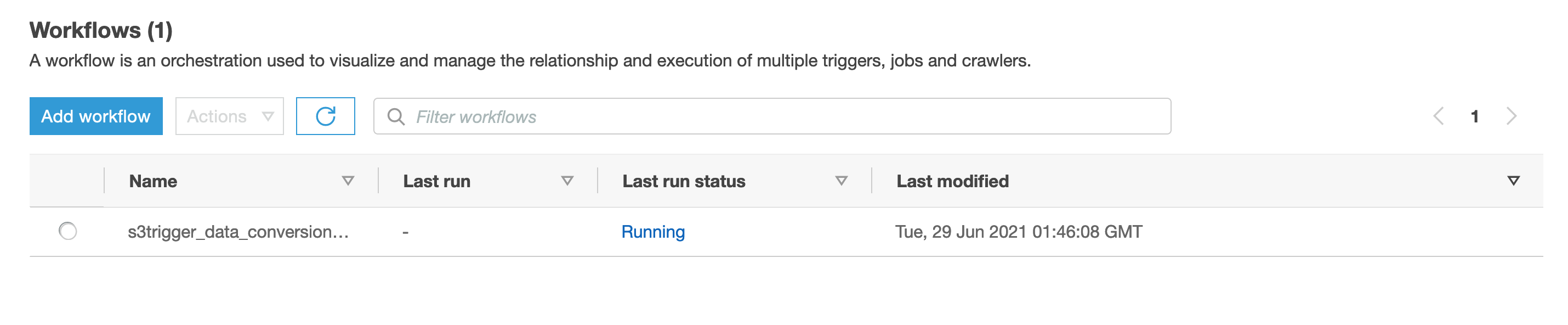
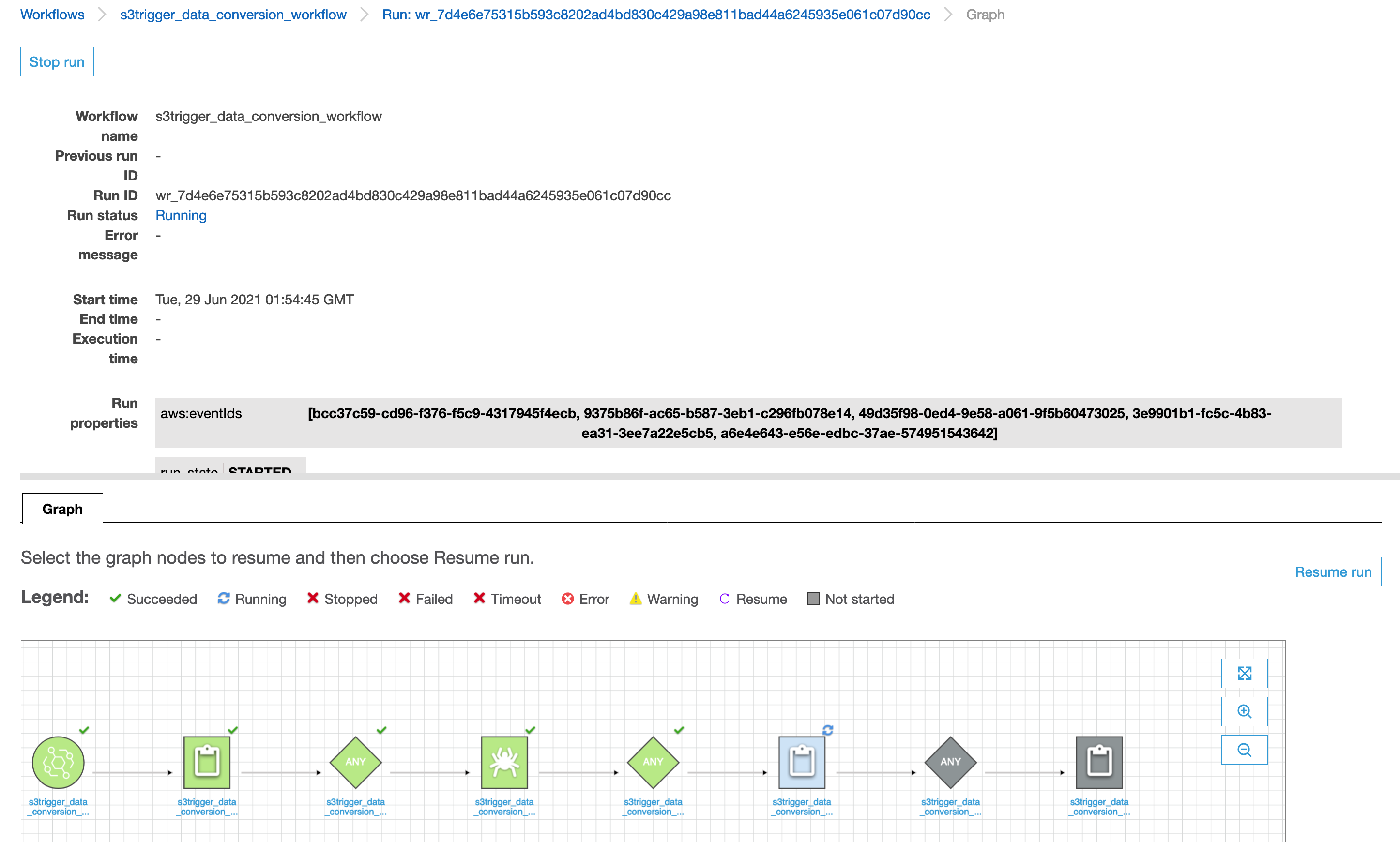
Now the workflow should be triggered. Open the AWS Glue console to validate that your workflow is in the RUNNING state.

To view the run details, complete the following steps:

  1. On the History tab of the workflow, choose the current or most recent workflow run.
  2. Choose View run details.

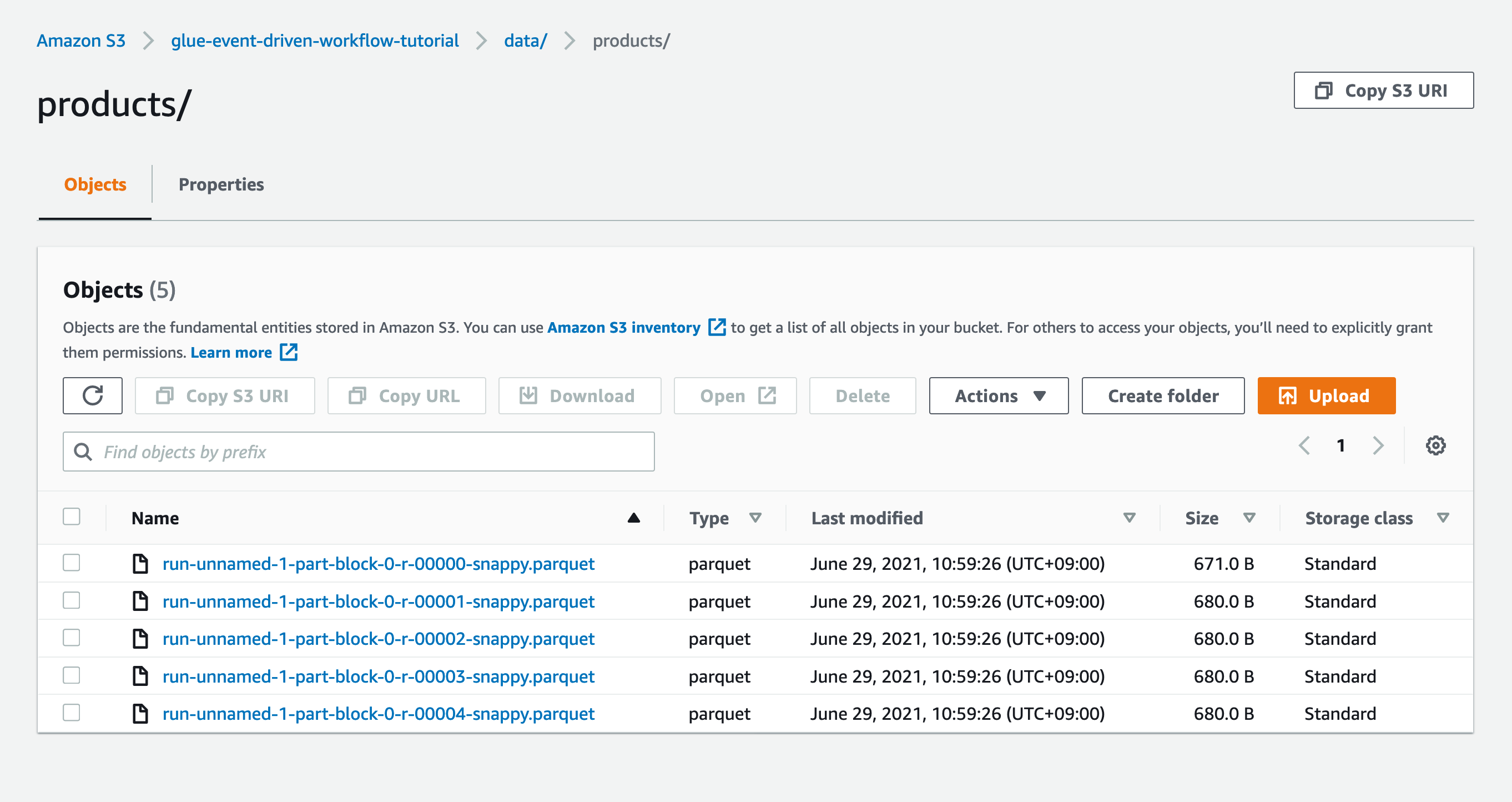
When the workflow run status changes to Completed, let’s see the converted files in your S3 bucket.

  1. Switch to the Amazon S3 console, and navigate to your bucket.

You can see the Parquet files under s3://<bucket-name>/data/products/.

Congratulations! Your workflow ran successfully based on S3 events triggered by uploading files to your bucket. You can verify everything works as expected by running a query against the generated table using Amazon Athena.

Verify the metrics for the EventBridge rule

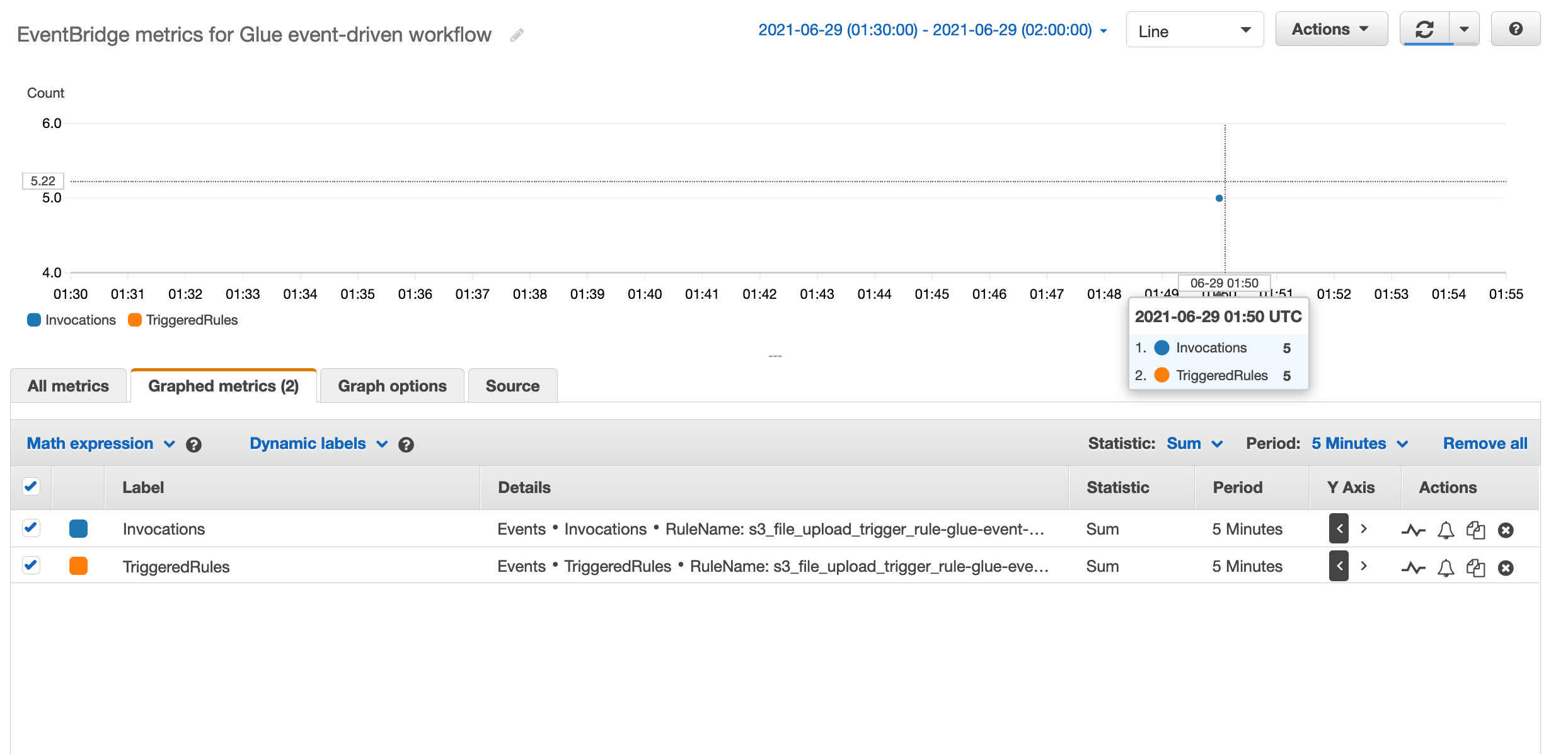
Optionally, you can use Amazon CloudWatch metrics to validate the events were sent to the AWS Glue workflow.

  1. On the EventBridge console, in the navigation pane, choose Rules.
  2. Select your EventBridge rule s3_file_upload_trigger_rule-<Workflow-name> and choose Metrics for the rule.

When the target workflow is invoked by the rule, the metrics Invocations and TriggeredRules are published.

The metric FailedInvocations is published if the EventBridge rule is unable to trigger the AWS Glue workflow. In that case, we recommend you check the following configurations:

  • Verify the IAM role provided to the EventBridge rule allows the glue:NotifyEvent permission on the AWS Glue workflow.
  • Verify the trust relationship on the IAM role provides the events.amazonaws.com service principal the ability to assume the role.
  • Verify the starting trigger on your target AWS Glue workflow is an event-based trigger.

Clean up

Now to the final step, cleaning up the resources. Delete the CloudFormation stack to remove any resources you created as part of this walkthrough.

Conclusion

AWS Glue event-driven workflows enable data engineers to easily build event driven ETL pipelines that respond in near-real time, delivering fresh data to business users. In this post, we demonstrated how to configure a rule in EventBridge to forward events to AWS Glue. We also saw how to create an event-based trigger that either immediately, or after a set number of events or period of time, starts a Glue ETL workflow. Migrating your existing AWS Glue workflows to make them event-driven is easy. This can be simply done by replacing the first trigger in the workflow to be of type EVENT and adding this workflow as a target to an EventBridge rule that captures events of your interest.

For more information about event-driven AWS Glue workflows, see Starting an AWS Glue Workflow with an Amazon EventBridge Event.


About the Authors

Noritaka Sekiyama is a Senior Big Data Architect on the AWS Glue and AWS Lake Formation team. In his spare time, he enjoys playing with his children. They are addicted to grabbing crayfish and worms in the park, and putting them in the same jar to observe what happens.


Karan Vishwanathan is a Software Development Engineer on the AWS Glue team. He enjoys working on distributed systems problems and playing golf.


Keerthi Chadalavada is a Software Development Engineer on the AWS Glue team. She is passionate about building fault tolerant and reliable distributed systems at scale.

Upcoming Speaking Engagements

Post Syndicated from Schneier.com Webmaster original https://www.schneier.com/blog/archives/2021/07/upcoming-speaking-engagements-10.html

This is a current list of where and when I am scheduled to speak:

The list is maintained on this page.

China Taking Control of Zero-Day Exploits

Post Syndicated from Bruce Schneier original https://www.schneier.com/blog/archives/2021/07/china-taking-control-of-zero-day-exploits.html

China is making sure that all newly discovered zero-day exploits are disclosed to the government.

Under the new rules, anyone in China who finds a vulnerability must tell the government, which will decide what repairs to make. No information can be given to “overseas organizations or individuals” other than the product’s manufacturer.

No one may “collect, sell or publish information on network product security vulnerabilities,” say the rules issued by the Cyberspace Administration of China and the police and industry ministries.

This just blocks the cyber-arms trade. It doesn’t prevent researchers from telling the products’ companies, even if they are outside of China.

Iranian State-Sponsored Hacking Attempts

Post Syndicated from Bruce Schneier original https://www.schneier.com/blog/archives/2021/07/iranian-state-sponsored-hacking-attempts.html

Interesting attack:

Masquerading as UK scholars with the University of London’s School of Oriental and African Studies (SOAS), the threat actor TA453 has been covertly approaching individuals since at least January 2021 to solicit sensitive information. The threat actor, an APT who we assess with high confidence supports Islamic Revolutionary Guard Corps (IRGC) intelligence collection efforts, established backstopping for their credential phishing infrastructure by compromising a legitimate site of a highly regarded academic institution to deliver personalized credential harvesting pages disguised as registration links. Identified targets included experts in Middle Eastern affairs from think tanks, senior professors from well-known academic institutions, and journalists specializing in Middle Eastern coverage.

These connection attempts were detailed and extensive, often including lengthy conversations prior to presenting the next stage in the attack chain. Once the conversation was established, TA453 delivered a “registration link” to a legitimate but compromised website belonging to the University of London’s SOAS radio. The compromised site was configured to capture a variety of credentials. Of note, TA453 also targeted the personal email accounts of at least one of their targets. In subsequent phishing emails, TA453 shifted their tactics and began delivering the registration link earlier in their engagement with the target without requiring extensive conversation. This operation, dubbed SpoofedScholars, represents one of the more sophisticated TA453 campaigns identified by Proofpoint.

The report details the tactics.

News article.

Enforcing AWS CloudFormation scanning in CI/CD Pipelines at scale using Trend Micro Cloud One Conformity

Post Syndicated from Chris Dorrington original https://aws.amazon.com/blogs/devops/cloudformation-scanning-cicd-pipeline-cloud-conformity/

Integrating AWS CloudFormation template scanning into CI/CD pipelines is a great way to catch security infringements before application deployment. However, implementing and enforcing this in a multi team, multi account environment can present some challenges, especially when the scanning tools used require external API access.

This blog will discuss those challenges and offer a solution using Trend Micro Cloud One Conformity (formerly Cloud Conformity) as the worked example. Accompanying this blog is the end to end sample solution and detailed install steps which can be found on GitHub here.

We will explore explore the following topics in detail:

  • When to detect security vulnerabilities
    • Where can template scanning be enforced?
  • Managing API Keys for accessing third party APIs
    • How can keys be obtained and distributed between teams?
    • How easy is it to rotate keys with multiple teams relying upon them?
  • Viewing the results easily
    • How do teams easily view the results of any scan performed?
  • Solution maintainability
    • How can a fix or update be rolled out?
    • How easy is it to change scanner provider? (i.e. from Cloud Conformity to in house tool)
  • Enforcing the template validation
    • How to prevent teams from circumventing the checks?
  • Managing exceptions to the rules
    • How can the teams proceed with deployment if there is a valid reason for a check to fail?


When to detect security vulnerabilities

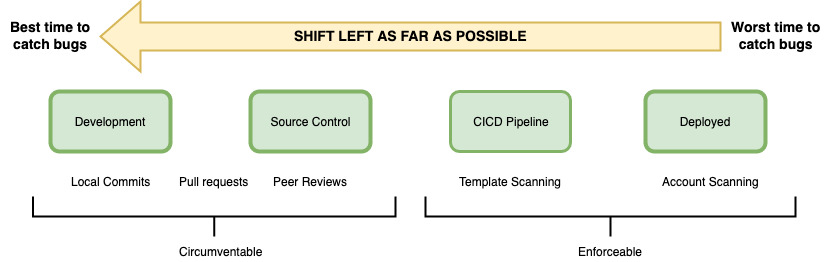
During the DevOps life-cycle, there are multiple opportunities to test cloud applications for best practice violations when it comes to security. The Shift-left approach is to move testing to as far left in the life-cycle, so as to catch bugs as early as possible. It is much easier and less costly to fix on a local developer machine than it is to patch in production.

Diagram showing Shift-left approach

Figure 1 – depicting the stages that an app will pass through before being deployed into an AWS account

At the very left of the cycle is where developers perform the traditional software testing responsibilities (such as unit tests), With cloud applications, there is also a responsibility at this stage to ensure there are no AWS security, configuration, or compliance vulnerabilities. Developers and subsequent peer reviewers looking at the code can do this by eye, but in this way it is hard to catch every piece of bad code or misconfigured resource.

For example, you might define an AWS Lambda function that contains an access policy making it accessible from the world, but this can be hard to spot when coding or peer review. Once deployed, potential security risks are now live. Without proper monitoring, these misconfigurations can go undetected, with potentially dire consequences if exploited by a bad actor.

There are a number of tools and SaaS offerings on the market which can scan AWS CloudFormation templates and detect infringements against security best practices, such as Stelligent’s cfn_nag, AWS CloudFormation Guard, and Trend Micro Cloud One Conformity. These can all be run from the command line on a developer’s machine, inside the IDE or during a git commit hook. These options are discussed in detail in Using Shift-Left to Find Vulnerabilities Before Deployment with Trend Micro Template Scanner.

Whilst this is the most left the testing can be moved, it is hard to enforce it this early on in the development process. Mandating that scan commands be integrated into git commit hooks or IDE tools can significantly increase the commit time and quickly become frustrating for the developer. Because they are responsible for creating these hooks or installing IDE extensions, you cannot guarantee that a template scan is performed before deployment, because the developer could easily turn off the scans or not install the tools in the first place.

Another consideration for very-left testing of templates is that when applications are written using AWS CDK or AWS Serverless Application Model (SAM), the actual AWS CloudFormation template that is submitted to AWS isn’t available in source control; it’s created during the build or package stage. Therefore, moving template scanning as far to the left is just not possible in these situations. Developers have to run a command such as cdk synth or sam package to obtain the final AWS CloudFormation templates.

If we now look at the far right of Figure 1, when an application has been deployed, real time monitoring of the account can pick up security issues very quickly. Conformity performs excellently in this area by providing central visibility and real-time monitoring of your cloud infrastructure with a single dashboard. Accounts are checked against over 400 best practices, which allows you to find and remediate non-compliant resources. This real time alerting is fast – you can be assured of an email stating non-compliance in no time at all! However, remediation does takes time. Following the correct process, a fix to code will need to go through the CI/CD pipeline again before a patch is deployed. Relying on account scanning only at the far right is sub-optimal.

The best place to scan templates is at the most left of the enforceable part of the process – inside the CI/CD pipeline. Conformity provides their Template Scanner API for this exact purpose. Templates can be submitted to the API, and the same Conformity checks that are being performed in real time on the account are run against the submitted AWS CloudFormation template. When integrated programmatically into a build, failing checks can prevent a deployment from occurring.

Whilst it may seem a simple task to incorporate the Template Scanner API call into a CI/CD pipeline, there are many considerations for doing this successfully in an enterprise environment. The remainder of this blog will address each consideration in detail, and the accompanying GitHub repo provides a working sample solution to use as a base in your own organization.


View failing checks as AWS CodeBuild test reports

Treating failing Conformity checks the same as unit test failures within the build will make the process feel natural to the developers. A failing unit test will break the build, and so will a failing Conformity check.

AWS CodeBuild provides test reporting for common unit test frameworks, such as NUnit, JUnit, and Cucumber. This allows developers to easily and very visually see what failing tests have occurred within their builds, allowing for quicker remediation than having to trawl through test log files. This same principle can be applied to failing Conformity checks—this allows developers to quickly see what checks have failed, rather than looking into AWS CodeBuild logs. However, the AWS CodeBuild test reporting feature doesn’t natively support the JSON schema that the Conformity Template Scanner API returns. Instead, you need custom code to turn the Conformity response into a usable format. Later in this blog we will explore how the conversion occurs.

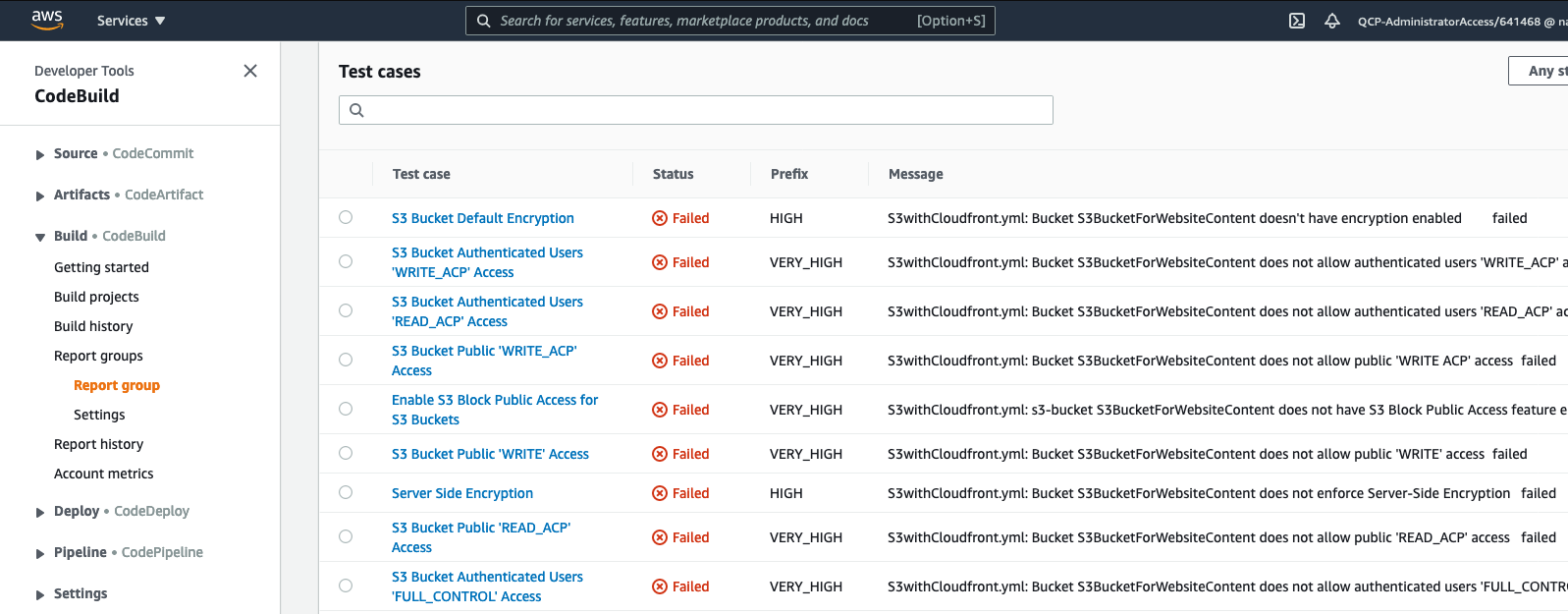
Cloud conformity failed checks displayed as CodeBuild Reports

Figure 2 – Cloud Conformity failed checks appearing as failed test cases in AWS CodeBuild reports

Enterprise speed bumps

Teams wishing to use template scanning as part of their AWS CodePipeline currently need to create an AWS CodeBuild project that calls the external API, and then performs the custom translation code. If placed inside a buildspec file, it can easily become bloated with many lines of code, leading to maintainability issues arising as copies of the same buildspec file are distributed across teams and accounts. Additionally, third-party APIs such as Conformity are often authorized by an API key. In some enterprises, not all teams have access to the Conformity console, further compounding the problem for API key management.

Below are some factors to consider when implementing template scanning in the enterprise:

  • How can keys be obtained and distributed between teams?
  • How easy is it to rotate keys when multiple teams rely upon them?
  • How can a fix or update be rolled out?
  • How easy is it to change scanner provider? (i.e. From Cloud Conformity to in house tool)

Overcome scaling issues, use a centralized Validation API

An approach to overcoming these issues is to create a single AWS Lambda function fronted by Amazon API Gateway within your organization that runs the call to the Template Scanner API, and performs the transform of results into a format usable by AWS CodeBuild reports. A good place to host this API is within the Cloud Ops team account or similar shared services account. This way, you only need to issue one API key (stored in AWS Secrets Manager) and it’s not available for viewing by any developers. Maintainability for the code performing the Template Scanner API calls is also very easy, because it resides in one location only. Key rotation is now simple (due to only one key in one location requiring an update) and can be automated through AWS Secrets Manager

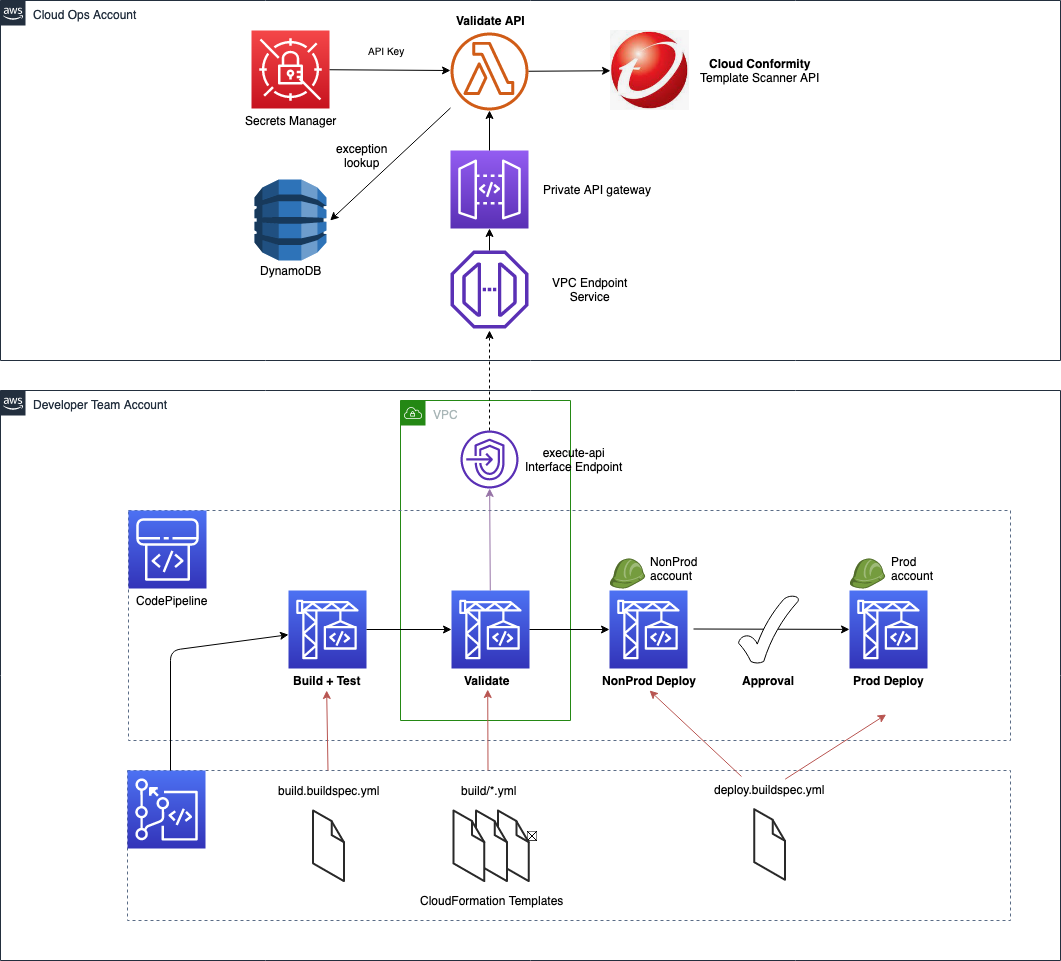
The following diagram illustrates a typical setup of a multi-account, multi-dev team scenario in which a team’s AWS CodePipeline uses a centralized Validation API to call Conformity’s Template Scanner.

architecture diagram central api for cloud conformity template scanning

Figure 3 – Example of an AWS CodePipeline utilizing a centralized Validation API to call Conformity’s Template Scanner


Providing a wrapper API around the Conformity Template Scanner API encapsulates the code required to create the CodeBuild reports. Enabling template scanning within teams’ CI/CD pipelines now requires only a small piece of code within their CodeBuild buildspec file. It performs the following three actions:

  1. Post the AWS CloudFormation templates to the centralized Validation API
  2. Write the results to file (which are already in a format readable by CodeBuild test reports)
  3. Stop the build if it detects failed checks within the results

The centralized Validation API in the shared services account can be hosted with a private API in Amazon API Gateway, fronted by a VPC endpoint. Using a private API denies any public access but does allow access from any internal address allowed by the VPC endpoint security group and endpoint policy. The developer teams can run their AWS CodeBuild validation phase within a VPC, thereby giving it access to the VPC endpoint.

A working example of the code required, along with an AWS CodeBuild buildspec file, is provided in the GitHub repository


Converting 3rd party tool results to CodeBuild Report format

With a centralized API, there is now only one place where the conversion code needs to reside (as opposed to copies embedded in each teams’ CodePipeline). AWS CodeBuild Reports are primarily designed for test framework outputs and displaying test case results. In our case, we want to display Conformity checks – which are not unit test case results. The accompanying GitHub repository to convert from Conformity Template Scanner API results, but we will discuss mappings between the formats so that bespoke conversions for other 3rd party tools, such as cfn_nag can be created if required.

AWS CodeBuild provides out of the box compatibility for common unit test frameworks, such as NUnit, JUnit and Cucumber. Out of the supported formats, Cucumber JSON is the most readable format to read and manipulate due to native support in languages such as Python (all other formats being in XML).

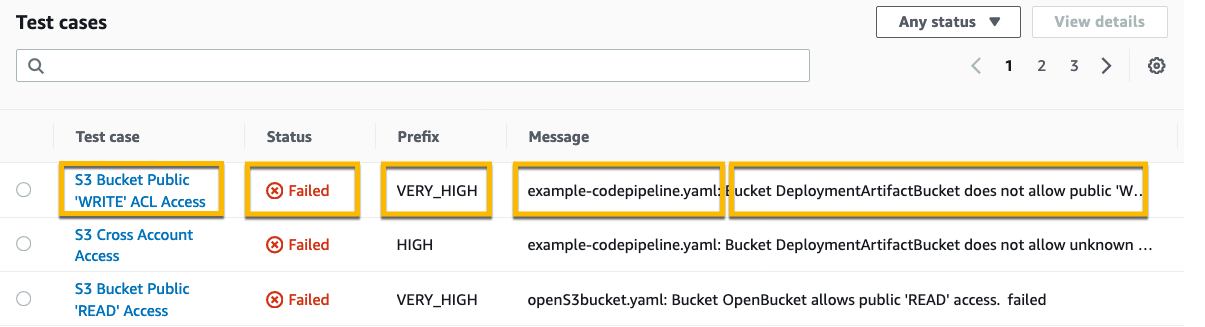
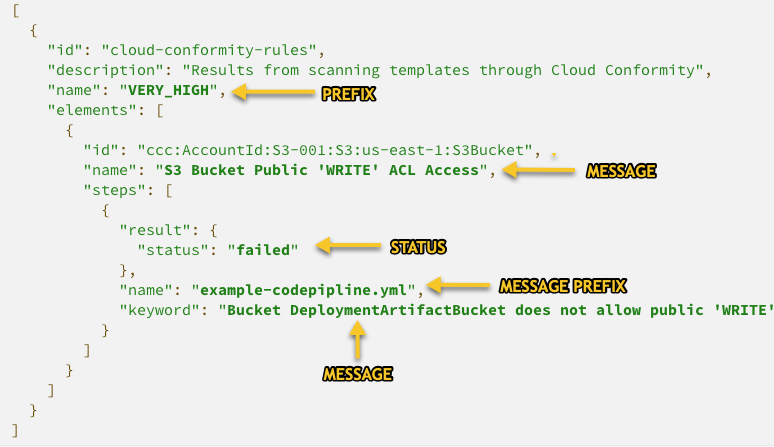
Figure 4 depicts where the Cucumber JSON fields will appear in the AWS CodeBuild reports page and Figure 5 below shows a valid Cucumber snippet, with relevant fields highlighted in yellow.

CodeBuild Reports page with fields highlighted that correspond to cucumber JSON fields

Figure 4 – AWS CodeBuild report test case field mappings utilized by Cucumber JSON


Cucumber JSON snippet showing CodeBuild Report field mappings

Figure 5 – Cucumber JSON with mappings to AWS CodeBuild report table


Note that in Figure 5, there are additional fields (eg. id, description etc) that are required to make the file valid Cucumber JSON – even though this data is not displayed in CodeBuild Reports page. However, raw reports are still available as AWS CodeBuild artifacts, and therefore it is useful to still populate these fields with data that could be useful to aid deeper troubleshooting.

Conversion code for Conformity results is provided in the accompanying GitHub repo, within file app.py, line 376 onwards


Making the validation phase mandatory in AWS CodePipeline

The Shift-Left philosophy states that we should shift testing as much as possible to the left. The furthest left would be before any CI/CD pipeline is triggered. Developers could and should have the ability to perform template validation from their own machines. However, as discussed earlier this is rarely enforceable – a scan during a pipeline deployment is the only true way to know that templates have been validated. But how can we mandate this and truly secure the validation phase against circumvention?

Preventing updates to deployed CI/CD pipelines

Using a centralized API approach to make the call to the validation API means that this code is now only accessible by the Cloud Ops team, and not the developer teams. However, the code that calls this API has to reside within the developer teams’ CI/CD pipelines, so that it can stop the build if failures are found. With CI/CD pipelines defined as AWS CloudFormation, and without any preventative measures in place, a team could move to disable the phase and deploy code without any checks performed.

Fortunately, there are a number of approaches to prevent this from happening, and to enforce the validation phase. We shall now look at one of them from the AWS CloudFormation Best Practices.
IAM to control access

Use AWS IAM to control access to the stacks that define the pipeline, and then also to the AWS CodePipeline/AWS CodeBuild resources within them.

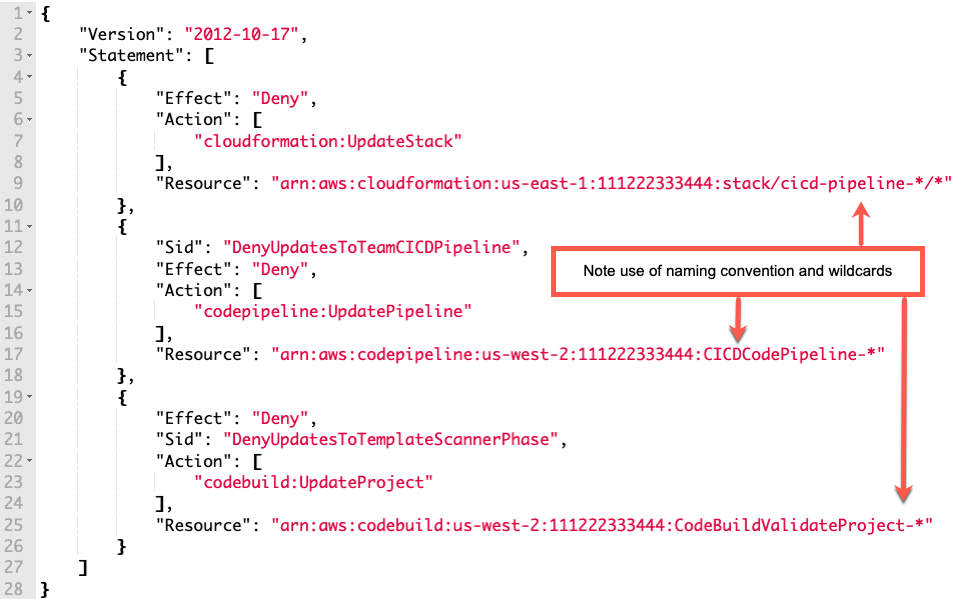
IAM policies can generically restrict a team from updating a CI/CD pipeline provided to them if a naming convention is used in the stacks that create them. By using a naming convention, coupled with the wildcard “*”, these policies can be applied to a role even before any pipelines have been deployed..

For example, lets assume the pipeline depicted in Figure 6 is defined and deployed in AWS CloudFormation as follows:

  • Stack name is “cicd-pipeline-team-X”
  • AWS CodePipeline resource within the stack has logical name with prefix “CodePipelineCICD”
  • AWS CodeBuild Project for validation phase is prefixed with “CodeBuildValidateProject”

Creating an IAM policy with the statements below and attaching to the developer teams’ IAM role will prevent them from modifying the resources mentioned above. The AWS CloudFormation stack and resource names will match the wildcards in the statements and Deny the user to any update actions.

Example IAM policy highlighting how to deny updates to stacks and pipeline resources

Figure 6 – Example of how an IAM policy can restrict updates to AWS CloudFormation stacks and deployed resources


Preventing valid failing checks from being a bottleneck

When centralizing anything, and forcing developers to use tooling or features such as template scanners, it is imperative that it (or the team owning it) does not become a bottleneck and slow the developers down. This is just as true for our centralized API solution.
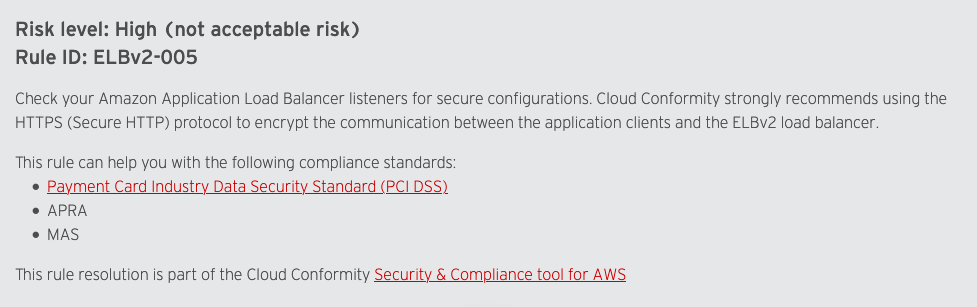
It is sometimes the case that a developer team has a valid reason for a template to yield a failing check. For instance, Conformity will report a HIGH severity alert if a load balancer does not have an HTTPS listener. If a team is migrating an older application which will only work on port 80 and not 443, the team may be able to obtain an exception from their cyber security team. It would not desirable to turn off the rule completely in the real time scanning of the account, because for other deployments this HIGH severity alert could be perfectly valid. The team faces an issue now because the validation phase of their pipeline will fail, preventing them from deploying their application – even though they have cyber approval to fail this one check.

It is imperative that when enforcing template scanning on a team that it must not become a bottleneck. Functionality and workflows must accompany such a pipeline feature to allow for quick resolution.

Screenshot of Trend Micro Cloud One Conformity rule from their website

Figure 7 – Screenshot of a Conformity rule from their website

Therefore the centralized validation API must provide a way to allow for exceptions on a case by case basis. Any exception should be tied to a unique combination of AWS account number + filename + rule ID, which ensures that exceptions are only valid for the specific instance of violation, and not for any other. This can be achieved by extending the centralized API with a set of endpoints to allow for exception request and approvals. These can then be integrated into existing or new tooling and workflows to be able to provide a self service method for teams to be able to request exceptions. Cyber security teams should be able to quickly approve/deny the requests.

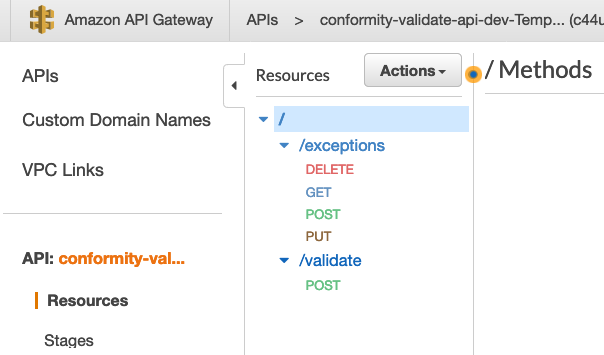
The exception request/approve functionality can be implemented by extending the centralized private API to provide an /exceptions endpoint, and using DynamoDB as a data store. During a build and template validation, failed checks returned from Conformity are then looked up in the Dynamo table to see if an approved exception is available – if it is, then the check is not returned as a actual failing check, but rather an exempted check. The build can then continue and deploy to the AWS account.

Figure 8 and figure 9 depict the /exceptions endpoints that are provided as part of the sample solution in the accompanying GitHub repository.

screenshot of API gateway for centralized template scanner api

Figure 8 – Screenshot of API Gateway depicting the endpoints available as part of the accompanying solution


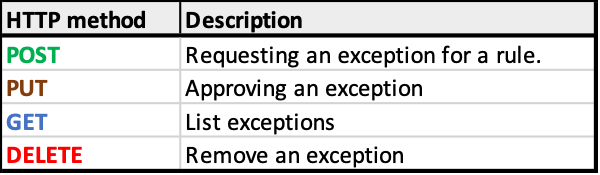
The /exceptions endpoint methods provides the following functionality:

Table containing HTTP verbs for exceptions endpoint

Figure 9 – HTTP verbs implementing exception functionality

Important note regarding endpoint authorization: Whilst the “validate” private endpoint may be left with no auth so that any call from within a VPC is accepted, the same is not true for the “exception” approval endpoint. It would be prudent to use AWS IAM authentication available in API Gateway to restrict approvals to this endpoint for certain users only (i.e. the cyber and cloud ops team only)

With the ability to raise and approve exception requests, the mandatory scanning phase of the developer teams’ pipelines is no longer a bottleneck.


Conclusion

Enforcing template validation into multi developer team, multi account environments can present challenges with using 3rd party APIs, such as Conformity Template Scanner, at scale. We have talked through each hurdle that can be presented, and described how creating a centralized Validation API and exception approval process can overcome those obstacles and keep the teams deploying without unwarranted speed bumps.

By shifting left and integrating scanning as part of the pipeline process, this can leave the cyber team and developers sure that no offending code is deployed into an account – whether they were written in AWS CDK, AWS SAM or AWS CloudFormation.

Additionally, we talked in depth on how to use CodeBuild reports to display the vulnerabilities found, aiding developers to quickly identify where attention is required to remediate.

Getting started

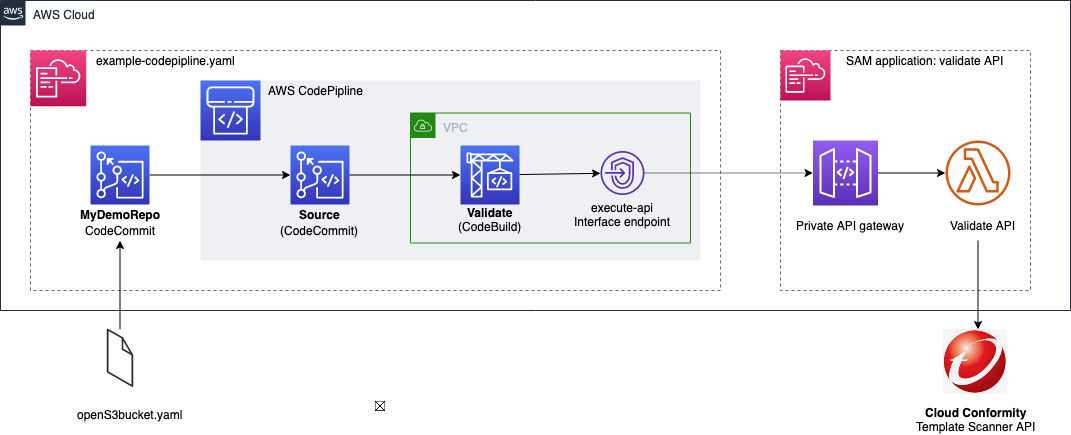
The blog has described real life challenges and the theory in detail. A complete sample for the described centralized validation API is available in the accompanying GitHub repo, along with a sample CodePipeline for easy testing. Step by step instructions are provided for you to deploy, and enhance for use in your own organization. Figure 10 depicts the sample solution available in GitHub.

https://github.com/aws-samples/aws-cloudformation-template-scanning-with-cloud-conformity

NOTE: Remember to tear down any stacks after experimenting with the provided solution, to ensure ongoing costs are not charged to your AWS account. Notes on how to do this are included inside the repo Readme.


example codepipeline architecture provided by the accompanying github solution

Figure 10 depicts the solution available for use in the accompanying GitHub repository


Find out more

Other blog posts are available that cover aspects when dealing with template scanning in AWS:

For more information on Trend Micro Cloud One Conformity, use the links below.

Trend Micro AWS Partner Network joint image

Avatar for Chris Dorrington

Chris Dorrington

Chris Dorrington is a Senior Cloud Architect with AWS Professional Services in Perth, Western Australia. Chris loves working closely with AWS customers to help them achieve amazing outcomes. He has over 25 years software development experience and has a passion for Serverless technologies and all things DevOps


Using serverless to load test Amazon API Gateway with authorization

Post Syndicated from Eric Johnson original https://aws.amazon.com/blogs/compute/using-serverless-to-load-test-amazon-api-gateway-with-authorization/

This post was written by Ashish Mehra, Sr. Solutions Architect and Ramesh Chidirala, Solutions Architect

Many customers design their applications to use Amazon API Gateway as the front door and load test their API endpoints before deploying to production. Customers want to simulate the actual usage scenario, including authentication and authorization. The load test ensures that the application works as expected under high traffic and spiky load patterns.

This post demonstrates using AWS Step Functions for orchestration, AWS Lambda to simulate the load and Amazon Cognito for authentication and authorization. There is no need to use any third-party software or containers to implement this solution.

The serverless load test solution shown here can scale from 1,000 to 1,000,000 calls in a few minutes. It invokes API Gateway endpoints but you can reuse the solution for other custom API endpoints.

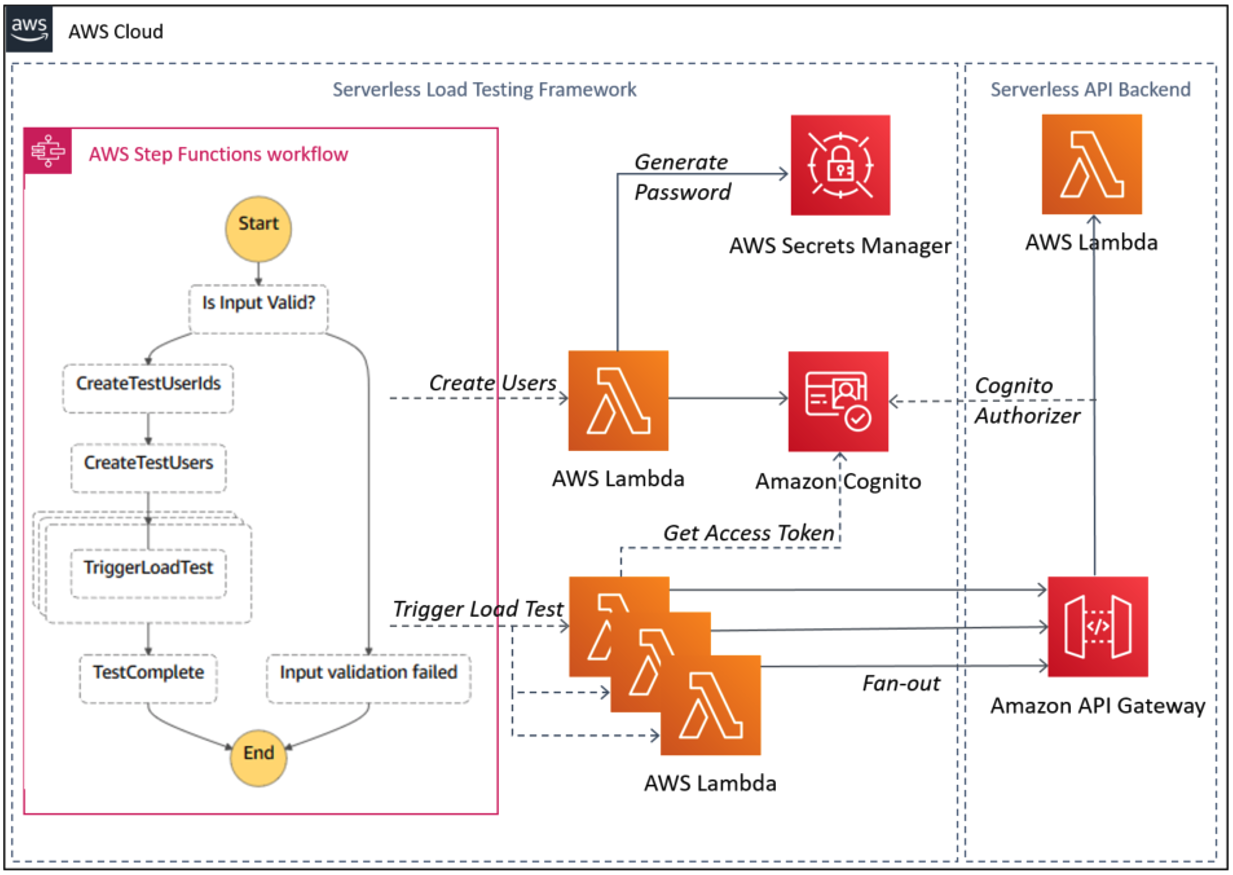
Overall architecture

Overall architecture diagram

Overall architecture diagram

Solution design 

The serverless API load test framework is built using Step Functions that invoke Lambda functions using a fan-out design pattern. The Lambda function obtains the user specific JWT access token from Amazon Cognito user pool and invokes the API Gateway authenticated route..

The solution contains two workflows.

1. Load test workflow

The load test workflow comprises a multi-step process that includes a combination of sequential and parallel steps. The sequential steps include user pool configuration, user creation, and access token generation followed by API invocation in a fan-out design pattern. Step Functions provides a reliable way to build and run such multi-step workflows with support for logging, retries, and dynamic parallelism.

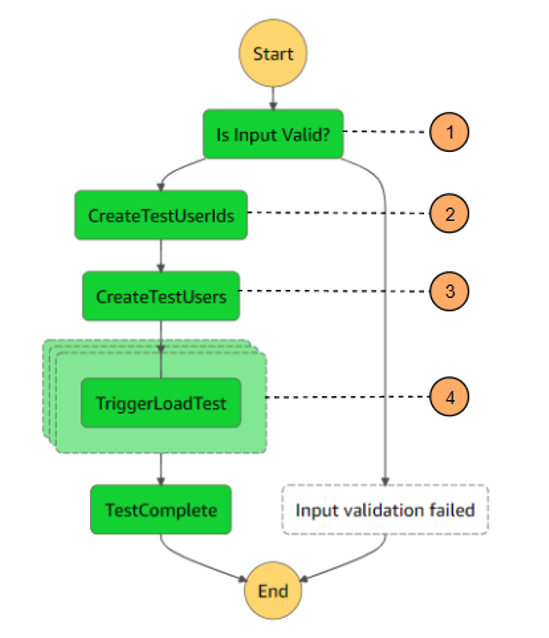
Step Functions workflow diagram for load test

Step Functions workflow diagram for load test

The Step Functions state machine orchestrates the following workflow:

  1. Validate input parameters.
  2. Invoke Lambda function to create a user ID array in the series loadtestuser0, loadtestuser1, and so on. This array is passed as an input to subsequent Lambda functions.
  3. Invoke Lambda to create:
    1. Amazon Cognito user pool
    2. Test users
    3. App client configured for admin authentication flow.
  4. Invoke Lambda functions in a fan-out pattern using dynamic parallelism support in Step Functions. Each function does the following:
    1. Retrieves an access token (one token per user) from Amazon Cognito
    2. Sends an HTTPS request to the specified API Gateway endpoint by passing an access token in the header.

For testing purposes, users can configure mock integration or use Lambda integration for the backend.

2. Cleanup workflow

Step Functions workflow diagram for cleanup

Step Functions workflow diagram for cleanup

As part of the cleanup workflow, the Step Functions state machine invokes a Lambda function to delete the specified number of users from the Amazon Cognito user pool.

Prerequisites to implement the solution

The following prerequisites are required for this walk-through:

  1. AWS account
  2. AWS SAM CLI
  3. Python 3.7
  4. Pre-existing non-production API Gateway HTTP API deployed with a JWT authorizer that uses Amazon Cognito as an identity provider. Refer to this video from the Twitch series #SessionsWithSAM which provides a walkthough for building and deploying a simple HTTP API with JWT authorizer.

Since this solution involves modifying API Gateway endpoint’s authorizer settings, it is recommended to load test non-production environments or production comparable APIs. Revert these settings after the load test is complete. Also, first check Lambda and Amazon Cognito Service Quotas in the AWS account you plan to use.

Step-by-step instructions

Use the AWS CloudShell to deploy the AWS Serverless Application Model (AWS SAM) template. AWS CloudShell is a browser-based shell pre-installed with common development tools. It includes 1 GB of free persistent storage per Region pre-authenticated with your console credentials. You can also use AWS Cloud9 or your preferred IDE. You can check for AWS CloudShell supported Regions here. Depending on your load test requirements, you can specify the total number of unique users to be created. You can also specify the number of API Gateway requests to be invoked per user every time you run the load test. These factors influence the overall test duration, concurrency and cost. Refer to the cost optimization section of this post for tips on minimizing the overall cost of the solution. Refer to the cleanup section of this post for instructions to delete the resources to stop incurring any further charges.

  1. Clone the repository by running the following command:
    git clone https://github.com/aws-snippets/sam-apiloadtest.git
  2. Change to the sam-apiloadtest directory and run the following command to build the application source:
    sam build
  3. Run the following command to package and deploy the application to AWS, with a series of prompts. When prompted for apiGatewayUrl, provide the API Gateway URL route you intend to load test.
    sam deploy --guided

    Example of SAM deploy

    Example of SAM deploy

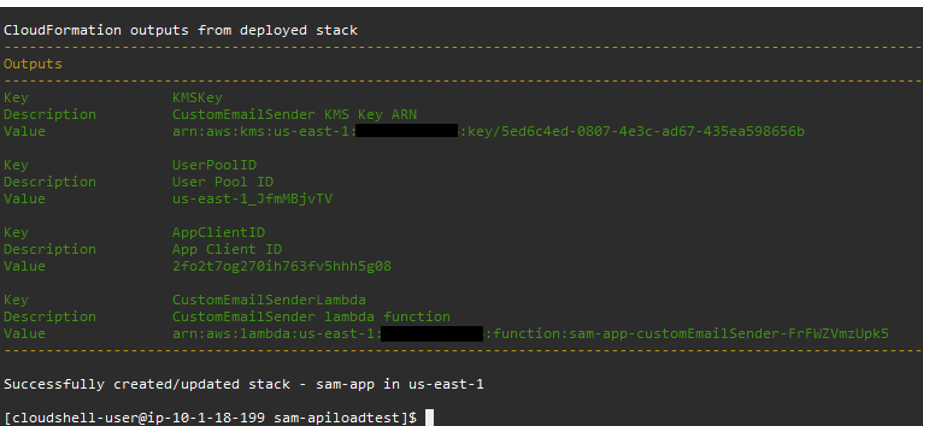
  4. After the stack creation is complete, you should see UserPoolID and AppClientID in the outputs section.

    Example of stack outputs

    Example of stack outputs

  5. Navigate to the API Gateway console and choose the HTTP API you intend to load test.
  6. Choose Authorization and select the authenticated route configured with a JWT authorizer.

    API Gateway console display after stack is deployed

    API Gateway console display after stack is deployed

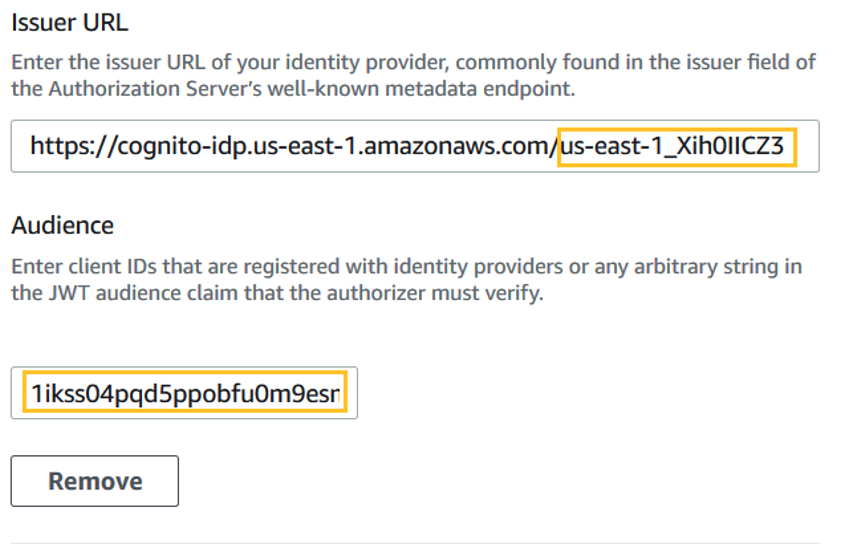
  7. Choose Edit Authorizer and update the IssuerURL with Amazon Cognito user pool ID and audience app client ID with the corresponding values from the stack output section in step 4.

    Editing the issuer URL

    Editing the issuer URL

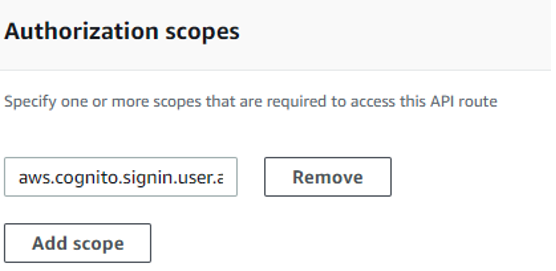
  8. Set authorization scope to aws.cognito.signin.user.admin.

    Setting the authorization scopes

    Setting the authorization scopes

  9. Open the Step Functions console and choose the state machine named apiloadtestCreateUsersAndFanOut-xxx.
  10. Choose Start Execution and provide the following JSON input. Configure the number of users for the load test and the number of calls per user:
    {
      "users": {
        "NumberOfUsers": "100",
        "NumberOfCallsPerUser": "100"
      }
    }
  11. After the execution, you see the status updated to Succeeded.


Checking the load test results

The load test’s primary goal is to achieve high concurrency. The main metric to check the test’s effectiveness is the count of successful API Gateway invocations. While load testing your application, find other metrics that may identify potential bottlenecks. Refer to the following steps to inspect CloudWatch Logs after the test is complete:

  1. Navigate to API Gateway service within the console, choose Monitor → Logging, select the $default stage, and choose the Select button.
  2. Choose View Logs in CloudWatch to navigate to the CloudWatch Logs service, which loads the log group and displays the most recent log streams.
  3. Choose the “View in Logs Insights” button to navigate to the Log Insights page. Choose Run Query.
  4. The query results appear along with a bar graph showing the log group’s distribution of log events. The number of records indicates the number of API Gateway invocations.

    Histogram of API Gateway invocations

    Histogram of API Gateway invocations

  5. To visualize p95 metrics, navigate to CloudWatch metrics, choose ApiGateway → ApiId → Latency.
  6. Choose the “Graphed metrics (1)” tab.

    Addig latency metric

    Addig latency metric

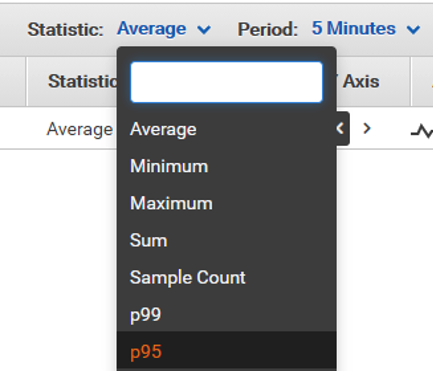
  7. Select p95 from the Statistic dropdown.

    Setting the p95 value

    Setting the p95 value

  8. The percentile metrics help visualize the distribution of latency metrics. It can help you find critical outliers or unusual behaviors, and discover potential bottlenecks in your application’s backend.

    Example of the p95 data

    Example of the p95 data

Cleanup 

  1. To delete Amazon Cognito users, run the Step Functions workflow apiloadtestDeleteTestUsers. Provide the following input JSON with the same number of users that you created earlier:
    {
    “NumberOfUsers”: “100”
    }
  2. Step Functions invokes the cleanUpTestUsers Lambda function. It is configured with the test Amazon Cognito user pool ID and app client ID environment variables created during the stack deployment. The users are deleted from the test user pool.
  3. The Lambda function also schedules the corresponding KMS keys for deletion after seven days, the minimum waiting period.
  4. After the state machine is finished, navigate to Cognito → Manage User Pools → apiloadtest-loadtestidp → Users and Groups. Refresh the page to confirm that all users are deleted.
  5. To delete all the resources permanently and stop incurring cost, navigate to the CloudFormation console, select aws-apiloadtest-framework stack, and choose Delete → Delete stack.

Cost optimization

The load test workflow is repeatable and can be reused multiple times for the same or different API Gateway routes. You can reuse Amazon Cognito users for multiple tests since Amazon Cognito pricing is based on the monthly active users (MAUs). Repeatedly deleting and recreating users may exceed the AWS Free Tier or incur additional charges.

Customizations

You can change the number of users and number of calls per user to adjust the API Gateway load. The apiloadtestCreateUsersAndFanOut state machine validation step allows a maximum value of 1,000 for input parameters NumberOfUsers and NumberOfCallsPerUser.

You can customize and increase these values within the Step Functions input validation logic based on your account limits. To load test a different API Gateway route, configure the authorizer as per the step-by-step instructions provided earlier. Next, modify the api_url environment variable within aws-apiloadtest-framework-triggerLoadTestPerUser Lambda function. You can then run the load test using the apiloadtestCreateUsersAndFanOut state machine.

Conclusion

The blog post shows how to use Step Functions and its features to orchestrate a multi-step load test solution. I show how changing input parameters could increase the number of calls made to the API Gateway endpoint without worrying about scalability. I also demonstrate how to achieve cost optimization and perform clean-up to avoid any additional charges. You can modify this example to load test different API endpoints, identify bottlenecks, and check if your application is production-ready.

For more serverless learning resources, visit Serverless Land.

Details of the REvil Ransomware Attack

Post Syndicated from Bruce Schneier original https://www.schneier.com/blog/archives/2021/07/details-of-the-revil-ransomware-attack.html

ArsTechnica has a good story on the REvil ransomware attack of last weekend, with technical details:

This weekend’s attack was carried out with almost surgical precision. According to Cybereason, the REvil affiliates first gained access to targeted environments and then used the zero-day in the Kaseya Agent Monitor to gain administrative control over the target’s network. After writing a base-64-encoded payload to a file named agent.crt the dropper executed it.

[…]

The ransomware dropper Agent.exe is signed with a Windows-trusted certificate that uses the registrant name “PB03 TRANSPORT LTD.” By digitally signing their malware, attackers are able to suppress many security warnings that would otherwise appear when it’s being installed. Cybereason said that the certificate appears to have been used exclusively by REvil malware that was deployed during this attack.

To add stealth, the attackers used a technique called DLL Side-Loading, which places a spoofed malicious DLL file in a Windows’ WinSxS directory so that the operating system loads the spoof instead of the legitimate file. In the case here, Agent.exe drops an outdated version that is vulnerable to DLL Side-Loading of “msmpeng.exe,” which is the file for the Windows Defender executable.

Once executed, the malware changes the firewall settings to allow local windows systems to be discovered. Then, it starts to encrypt the files on the system….

REvil is demanding $70 million for a universal decryptor that will recover the data from the 1,500 affected Kaseya customers.

More news.

Note that this is yet another supply-chain attack. Instead of infecting those 1,500 networks directly, REvil infected a single managed service provider. And it leveraged a zero-day vulnerability in that provider.

EDITED TO ADD (7/13): Employees warned Kaseya’s management for years about critical security flaws, but they were ignored.

Using Amazon MQ for RabbitMQ as an event source for Lambda

Post Syndicated from Talia Nassi original https://aws.amazon.com/blogs/compute/using-amazon-mq-for-rabbitmq-as-an-event-source-for-lambda/

Amazon MQ for RabbitMQ (ARMQ) is an AWS managed version of RabbitMQ. The service manages the provisioning, setup, and maintenance of RabbitMQ, reducing operational overhead for companies.

Now, with ARMQ as an event source for AWS Lambda, you can process messages from the service. This allows you to integrate ARMQ with downstream serverless workflows without having to manage the resources used to run the cluster itself.

RabbitMQ is one of the two engines for Amazon MQ. The other one is ActiveMQ. Both of these message brokers can now be used as an event source for AWS Lambda.

In this blog post, I explain how to set up a RabbitMQ broker and networking configuration. I also show how to create a Lambda function that is invoked by messages from Amazon MQ queues.

RabbitMQ overview

RabbitMQ is an open-source message broker to which applications connect in order to transfer a message or messages between services. An example application might send a message from one service to another. If there is no queue in between the two services, and the message is not received from the consumer, data could be lost. Queues wait for a successful confirmation from the consumer before deleting messages.

The Lambda event source uses a poller for the RabbitMQ broker that constantly polls for new messages. The poller exists between the queue and Lambda and it is managed by the Lambda service. By default, it polls RabbitMQ every 100 ms to check for messages. Once a defined batch size is reached, the poller invokes the function with the entire set of messages.

Configuring Amazon MQ for RabbitMQ as an event source for Lambda

To use Amazon MQ for RabbitMQ as a highly available service, it must be configured to run in a minimum of two Availability Zones in your preferred Region. You can also run a single broker in one Availability Zone for development and test purposes.

There are three main tasks to configure ARMQ as an event source for Lambda:

  • Set up AWS Secrets Manager.
  • Deploy an AWS SAM template that creates the necessary resources.
  • Create a queue on the broker.

Setting up AWS Secrets Manager

The Lambda service needs access to your Amazon MQ broker. In this step, you create a user name and password that is used to log in to RabbitMQ. To avoid exposing secrets in plaintext in the Lambda function, it’s best practice to use a service like Secrets Manager.

  1. Navigate to the Secrets Manager console and choose Store a new secret.
    secrets manager
  2. For Secret type, choose Other type of secrets. In the Secret key/value, enter username for the first key and password for the second key.
  3. Enter the corresponding values to use to access your RabbitMQ account. Choose Next.
    secrets manager
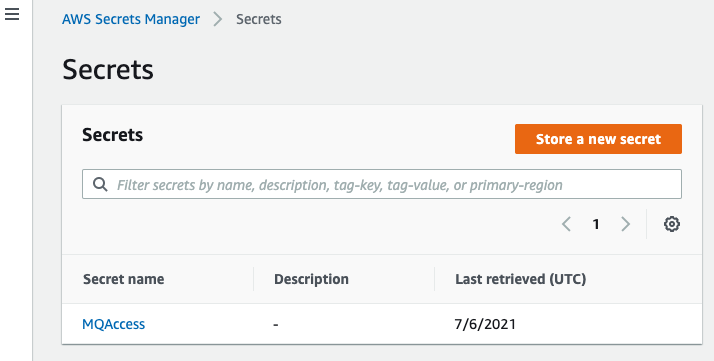
  4. For Secret name, enter ‘MQAccess’ and choose Next.
    secret name
  5. Keep the default setting for the automatic rotation: Disable automatic rotation. Choose Next.
  6. Review your secret information and choose Store.

Build the Lambda function and associated permissions with AWS SAM

In this step, you use AWS SAM to create the necessary resources that are deployed for your application. You can use AWS Cloud9 or your own text editor. (If you use your own text editor, be sure you have the AWS SAM CLI installed.

  1. In the terminal, enter:
    sam init
  2. Choose option 1: AWS Quick Start Templates. Then choose option 1: Zip (artifact is a zip uploaded to S3). Choose your preferred runtime. In this tutorial, use python3.7.
    sam init
  3. In the Secrets Manager console, copy the Secret ARN.
    secret arn
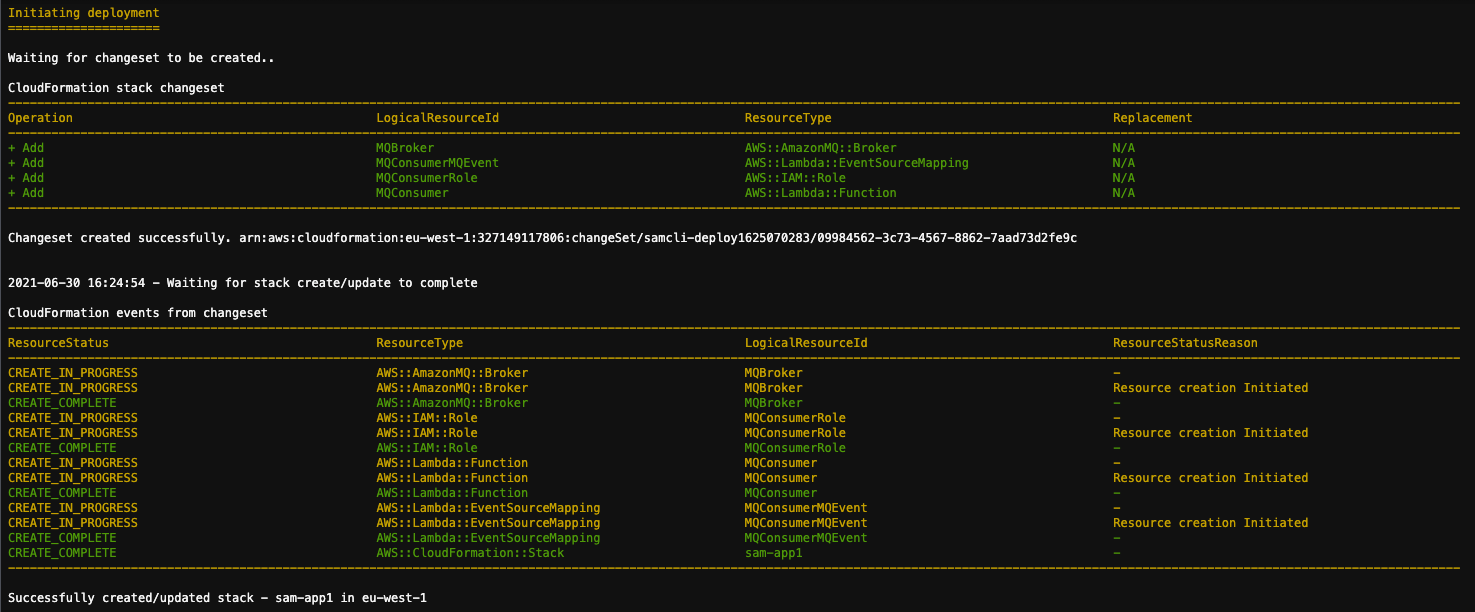
  4. In the template.yaml file that is created, paste the following code. This AWS SAM template deploys an Amazon MQ for RabbitMQ broker, and a Lambda function with the corresponding event source mapping and permissions. Replace the last line of the template with the secret ARN from step 3.
    AWSTemplateFormatVersion: '2010-09-09'
    Transform: AWS::Serverless-2016-10-31
    Description: ARMQ Example
    
    Resources:
      MQBroker:
        Type: AWS::AmazonMQ::Broker
        Properties: 
          AutoMinorVersionUpgrade: false
          BrokerName: myQueue
          DeploymentMode: SINGLE_INSTANCE
          EngineType: RABBITMQ
          EngineVersion: "3.8.11"
          HostInstanceType: mq.m5.large
          PubliclyAccessible: true
          Users:
            - Password: '{{resolve:secretsmanager:MQAccess:SecretString:password}}'
              Username: '{{resolve:secretsmanager:MQAccess:SecretString:username}}'
              
      MQConsumer:
        Type: AWS::Serverless::Function 
        Properties:
          CodeUri: hello_world/
          Timeout: 3
          Handler: app.lambda_handler
          Runtime: python3.7
          Policies:
            - Version: '2012-10-17'
              Statement:
                - Effect: Allow
                  Resource: '*'
                  Action:
                  - mq:DescribeBroker
                  - secretsmanager:GetSecretValue
                  - ec2:CreateNetworkInterface
                  - ec2:DescribeNetworkInterfaces
                  - ec2:DescribeVpcs
                  - ec2:DeleteNetworkInterface
                  - ec2:DescribeSubnets
                  - ec2:DescribeSecurityGroups
          Events:
            MQEvent:
              Type: MQ
              Properties:
                Broker: !GetAtt MQBroker.Arn
                Queues:
                  - myQueue
                SourceAccessConfigurations:
                  - Type: BASIC_AUTH
                    URI: <your_secret_arn>
  5. In the app.py file, replace the existing code with the following. This Lambda function decrypts the messages sent to the queue from the RabbitMQ broker:
    import json
    import logging as log
    import base64
    def lambda_handler(event, context):
        print("Target Lambda function invoked")
        print(event)
        if 'rmqMessagesByQueue' not in event:
            print("Invalid event data")
            return {
                'statusCode': 404
            }
        print(f'Div Data received from event source: ')
        for queue in event["rmqMessagesByQueue"]:
            messageCnt = len(event['rmqMessagesByQueue'][queue])
            print(f'Total messages received from event source: {messageCnt}' )
            for message in event['rmqMessagesByQueue'][queue]:
                data = base64.b64decode(message['data'])
                print(data)
        return {
            'statusCode': 200,
            'body': json.dumps('Hello from Lambda!')
        }
    
  6. Run sam deploy --guided and wait for the confirmation message. This deploys all of the resources.
    sam deploy

Creating a queue on the broker

The poller created by the Lambda service subscribes to a queue on the broker. In this step, you create a new queue:

  1. Navigate to the Amazon MQ console and choose the newly created broker.
  2. In the Connections panel, locate the URL for the RabbitMQ web console.
  3. Sign in with the credentials you created and stored in the Secrets Manager earlier.
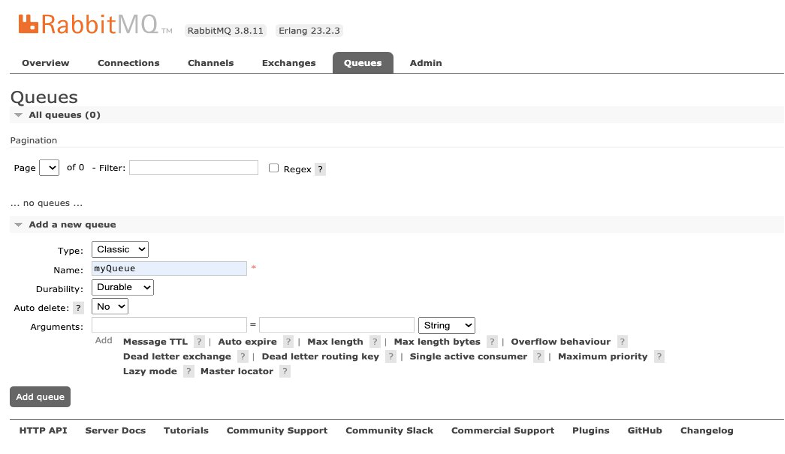
  4. Select Queues from the top panel and then choose Add a new queue.
    new queue
  5. Enter ‘myQueue’ as the name for the queue and choose Add queue. (This must match exactly as that is the name you hardcoded in the AWS SAM template). Keep the other configuration options as default.myqueue

Testing the event source mapping

  1. In the RabbitMQ web console, choose Queues to confirm that the Lambda service is configured to consume events.
    rabbitmq console
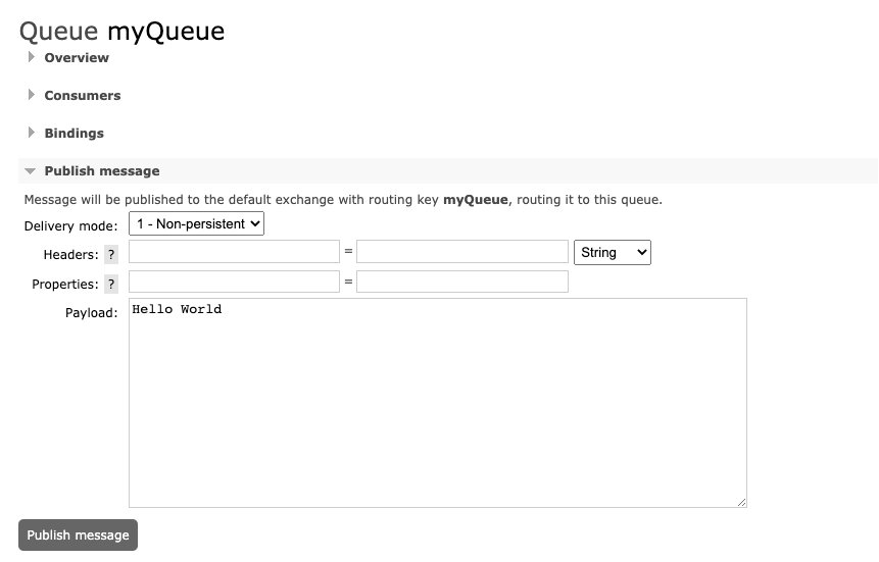
  2. Choose the name of the queue. Under the Publish message tab, enter a message, and choose Publish message to send.
    publish message
  3. You see a confirmation message.
    confirmation message
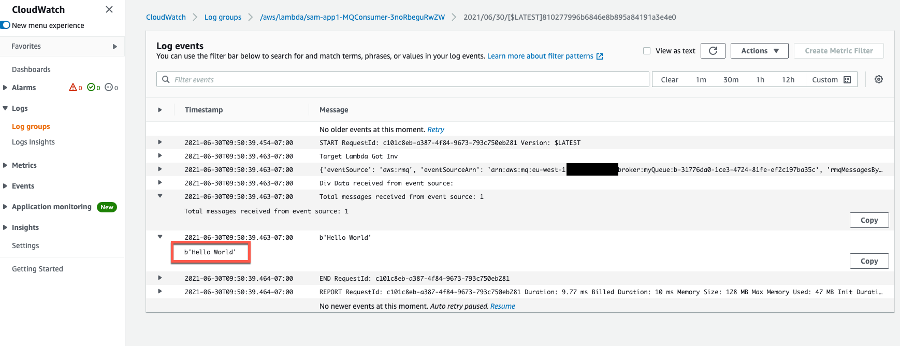
  4. In the MQconsumer Lambda function, select the Monitoring tab and then choose View logs in CloudWatch. The log streams show that the Lambda function is invoked by Amazon MQ and you see the message Hello World in the logs.
    Cloudwatch Logs

A single Lambda function consumes messages from a single queue in an Amazon MQ broker. You control the rate of message processing by using the Batch size property in the event source mapping. The Lambda service limits the concurrency to five execution environments per queue.

Conclusion

Amazon MQ provides a fully managed, highly available message broker service for RabbitMQ. Now, Lambda supports Amazon MQ as an event source, and you can invoke Lambda functions from messages in Amazon MQ queues to integrate into your downstream serverless workflows.

In this post, I give an overview of how to set up an Amazon MQ for RabbitMQ broker. I explain how to create credentials for the RabbitMQ broker and store them in AWS Secrets Manager. I also show how to use AWS SAM templates to deploy the necessary resources to use ARMQ as an event source for AWS Lambda. Then I show how to send a test message to the queue and view the output in the Amazon CloudWatch Logs for the Lambda function.

For more serverless learning resources, visit https://serverlessland.com, and to view the RabbitMQ to Lambda pattern, visit the Serverlessland Patterns Website.

Vulnerability in the Kaspersky Password Manager

Post Syndicated from Bruce Schneier original https://www.schneier.com/blog/archives/2021/07/vulnerability-in-the-kaspersky-password-manager.html

A vulnerability (just patched) in the random number generator used in the Kaspersky Password Manager resulted in easily guessable passwords:

The password generator included in Kaspersky Password Manager had several problems. The most critical one is that it used a PRNG not suited for cryptographic purposes. Its single source of entropy was the current time. All the passwords it created could be bruteforced in seconds. This article explains how to securely generate passwords, why Kaspersky Password Manager failed, and how to exploit this flaw. It also provides a proof of concept to test if your version is vulnerable.

The product has been updated and its newest versions aren’t affected by this issue.

Stupid programming mistake, or intentional backdoor? We don’t know.

More generally: generating random numbers is hard. I recommend my own algorithm: Fortuna. I also recommend my own password manager: Password Safe.

EDITED TO ADD: Commentary from Matthew Green.

Friday Squid Blogging: Best Squid-Related Headline

Post Syndicated from Bruce Schneier original https://www.schneier.com/blog/archives/2021/07/friday-squid-blogging-best-squid-related-headline.html

From the New York Times: “When an Eel Climbs a Ramp to Eat Squid From a Clamp, That’s a Moray.” The article is about the eel; the squid is just eel food. But still….

As usual, you can also use this squid post to talk about the security stories in the news that I haven’t covered.

Read my blog posting guidelines here.

More Russian Hacking

Post Syndicated from Bruce Schneier original https://www.schneier.com/blog/archives/2021/07/more-russian-hacking.html

Two reports this week. The first is from Microsoft, which wrote:

As part of our investigation into this ongoing activity, we also detected information-stealing malware on a machine belonging to one of our customer support agents with access to basic account information for a small number of our customers. The actor used this information in some cases to launch highly-targeted attacks as part of their broader campaign.

The second is from the NSA, CISA, FBI, and the UK’s NCSC, which wrote that the GRU is continuing to conduct brute-force password guessing attacks around the world, and is in some cases successful. From the NSA press release:

Once valid credentials were discovered, the GTsSS combined them with various publicly known vulnerabilities to gain further access into victim networks. This, along with various techniques also detailed in the advisory, allowed the actors to evade defenses and collect and exfiltrate various information in the networks, including mailboxes.

News article.