[$] The history, status, and plans for reproducible builds

Post Syndicated from jake original https://lwn.net/Articles/985739/

On the second day of DebConf24
in Busan, South Korea, Holger Levsen provided a history lesson on the
“first 11 years” of the Reproducible Builds project.
He has been involved in the project for most of that time and has been a
Debian user since the mid-1990s, contributor since 2001, and a Debian
member since 2007; “I love Debian”. Meanwhile, his aim is to make all free
software be reproducible, so that anyone can check that a binary program
comes from the source code it purports to.

Forgejo changes license to GPLv3+

Post Syndicated from daroc original https://lwn.net/Articles/986998/

The

Forgejo
project has announced that, starting from version 9.0, Forgejo will be released under the GPLv3 license (or a later version). Older versions of the software forge remain MIT-licensed.

A copyleft license makes reusing other copyleft software easier. Recently, we discovered that

some of the dependencies we used were incompatible with the license Forgejo was distributed with
, and they had to be removed for now. Choosing copyleft licenses enables us to reuse more work, and saves us precious time to focus on improving Forgejo itself.

Key Takeaways From The Take Command Summit: Navigating New SEC Cybersecurity Disclosure Rules

Post Syndicated from Emma Burdett original https://blog.rapid7.com/2024/08/23/key-takeaways-from-the-take-command-summit-navigating-new-sec-cybersecurity-disclosure-rules/

Key Takeaways From The Take Command Summit: Navigating New SEC Cybersecurity Disclosure Rules

Understanding and complying with the new SEC Cybersecurity Disclosure Rules is a daunting task for many organizations. The Rapid7 Take Command Summit provided an in-depth look at these regulations, offering valuable guidance for cybersecurity professionals.

Here are three key takeaways from the session that are crucial for ensuring compliance and enhancing your organization’s cybersecurity posture.

1. Understand Materiality and Disclosure Requirements

One of the most critical aspects of the new SEC rules is determining the materiality of a cybersecurity incident. Kyra Ayo Caros, Director, Corporate Securities & Compliance at Rapid7  said, “materiality in this context is what would be material for investors to know…what sort of incident would your stakeholders or stockholders need to know about?” This involves assessing the incident’s impact on business operations and financial results. Companies must disclose material incidents within four days of determining their significance, highlighting the need for a robust incident response and evaluation process.

2. Foster Cross-Departmental Collaboration

Effective compliance with SEC rules requires coordination across various departments. Legal Counsel, Cybersecurity Services Group, Venable LLP Harley Geiger emphasized the importance of involving security, legal, and communications teams early in the process to meet disclosure requirements effectively. “Companies should ensure that security, legal, and communications teams are part of the process early on to collaborate on the most effective way of meeting these disclosure requirements.” This collaboration ensures that all relevant information is accurately assessed and reported.

3. Build a Comprehensive Cybersecurity Risk Management Program

The SEC rules also mandate annual disclosure of cybersecurity risk management processes and the role of senior management in overseeing these efforts. Organizations need to describe how they integrate cybersecurity into their overall risk management and governance framework. “It’s crucial to provide an accurate snapshot of your cybersecurity processes and management’s oversight to ensure investor trust,” said Ayo Caros. Ensuring these disclosures are accurate and reflect actual practices is vital for maintaining transparency and compliance.

57% of our post event survey respondents found the complexity and scope of regulations to be the most inhibiting factor in abiding by the SEC Cybersecurity Disclosure Rules. Navigating these intricate requirements poses a significant challenge, often leading to compliance difficulties.

The SEC Cybersecurity Disclosure Rules require a strategic and collaborative approach to ensure compliance and transparency. Understanding materiality, fostering cross-departmental collaboration, and building a comprehensive cybersecurity risk management program are essential steps. For a deeper dive into these strategies and expert insights, click here to watch the full video from the Rapid7 Take Command Event.

Best Practices for working with Pull Requests in Amazon CodeCatalyst

Post Syndicated from Fahim Sajjad original https://aws.amazon.com/blogs/devops/best-practices-for-working-with-pull-requests-in-amazon-codecatalyst/

According to the Well-Architected DevOps Guidance, “A peer review process for code changes is a strategy for ensuring code quality and shared responsibility. To support separation of duties in a DevOps environment, every change should be reviewed and approved by at least one other person before merging.” Development teams often implement the peer review process in their Software Development Lifecycle (SDLC) by leveraging Pull Requests (PRs). Amazon CodeCatalyst has recently released three new features to facilitate a robust peer review process. Pull Request Approval Rules enforce a minimum number of approvals to ensure multiple peers review a proposed change prior to a progressive deployment. Amazon Q pull request summaries can automatically summarize code changes in a PR, saving time for both the creator and reviewer. Lastly, Nested Comments allows teams to organize conversations and feedback left on a PR to ensure efficient resolution.

This blog will demonstrate how a DevOps lead can leverage new features available in CodeCatalyst to accomplish the following requirements covering best practices: 1. Require at least two people to review every PR prior to deployment, and 2. Reduce the review time to merge (RTTM).

Prerequisites

If you are using CodeCatalyst for the first time, you’ll need the following to follow along with the steps outlined in the blog post:

Pull request approval rules

Approval rules can be configured for branches in a repository. When you create a PR whose destination branch has an approval rule configured for it, the requirements for the rule must be met before the PR can be merged.

In this section, you will implement approval rules on the default branch (main in this case) in the application’s repository to implement the new ask from leadership requiring that at least two people review every PR before deployment.

Step 1: Creating the application
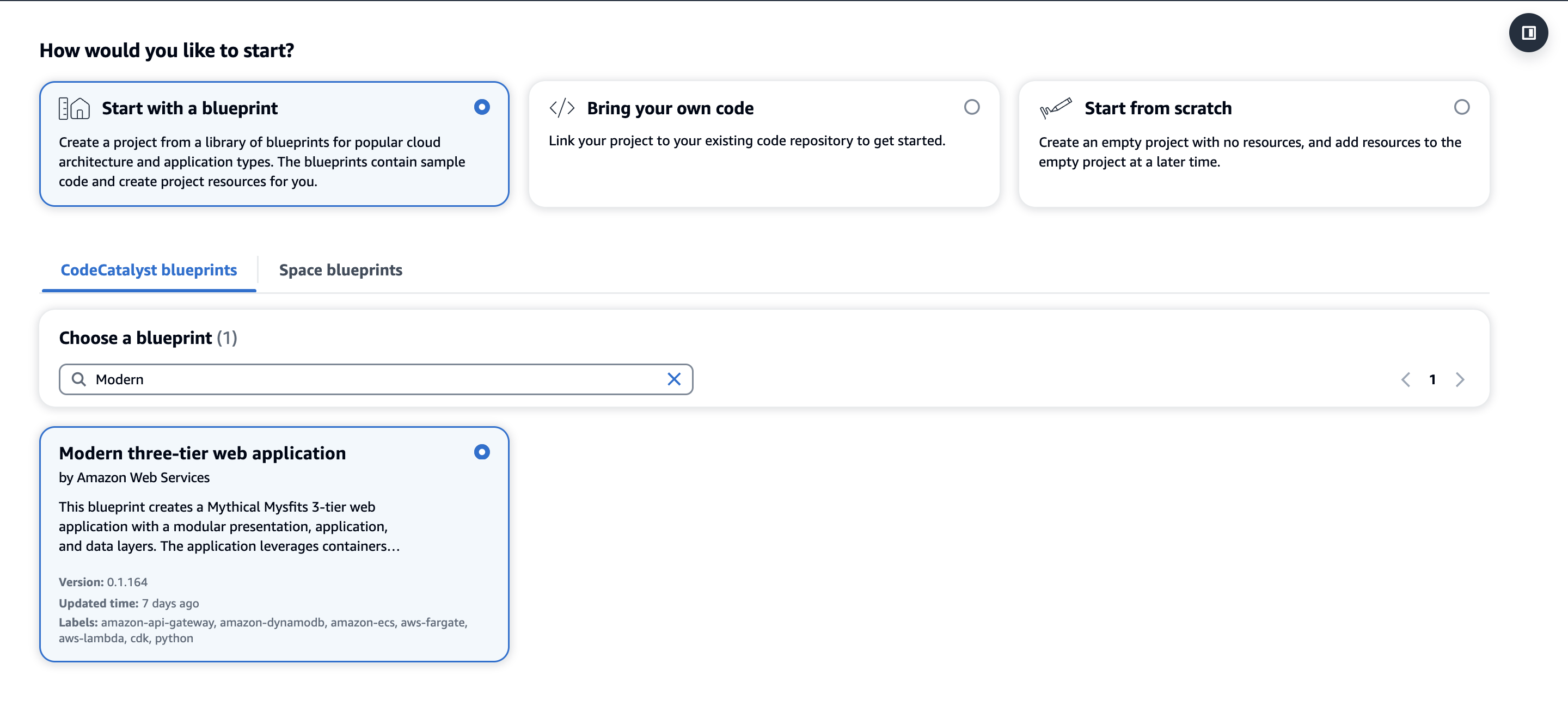
Pull Request approval rules work with every project but in this blog, we’ll leverage the Modern three-tier web application blueprint for simplicity to implement PR approval rules for merging to the main branch.

The image shows the interface of the Amazon CodeCatalyst platform, which allows users to create new projects in three different ways. The three options are "Start with a blueprint", "Bring your own code", and "Start from scratch". In the image, the "Start with a blueprint" option is selected, and the "Modern three-tier web application" blueprint is chosen.

Figure 1: Creating a new Modern three-tier application Blueprint

  1. First, within your space click “Create Project” and select the Modern three-tier web application CodeCatalyst Blueprint as shown above in Figure 1.
  2. Enter a Project name and select: Lambda for the Compute Platform and Amplify Hosting for Frontend Hosting Options. Additionally, ensure your AWS account is selected along with creating a new IAM Role.
  3. Finally, click Create Project and a new project will be created based on the Blueprint.

Once the project is successfully created, the application will deploy via a CodeCatalyst workflow, assuming the AWS account and IAM role were setup correctly. The deployed application will be similar to the Mythical Mysfits website.

Step 2: Creating an approval rule

Next, to satisfy the new requirement of ensuring at least two people review every PR before deployment, you will create the approval rule for members when they create a pull request to merge into the main branch.

  1. Navigate to the project you created in the previous step.
  2. In the navigation pane, choose Code, and then choose Source repositories.
  3. Next, choose the mysfits repository that was created as part of the Blueprint.
    1. On the overview page of the repository, choose Branches.
    2. For the main branch, click View under the Approval Rules column.
  4. In Minimum number of approvals, the number corresponds to the number of approvals required before a pull request can be merged to that branch.
  5. Now, you’ll change the approval rule to satisfy the requirement to ensure at least 2 people review every PR. Choose Manage settings. On the settings page for the source repository, in Approval rules, choose Edit.
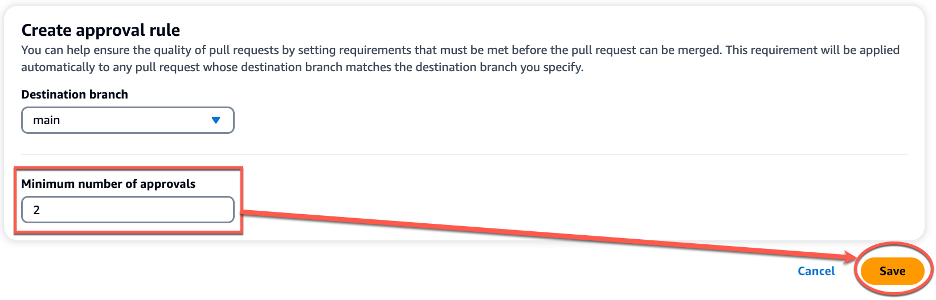
  6. In Destination Branch, from the drop-down list, choose main as the name of the branch to configure an approval rule. In Minimum number of approvals, enter 2, and then choose Save.
The image shows an interface for creating an approval rule. It allows users to specify the destination branch and the minimum number of approvals required before a pull request can be merged. In the image, 'main' is selected as the destination branch, and '2' is set as the minimum number of approvals. The interface also provides "Cancel" and "Save" buttons to either discard or commit the approval rule settings.

Figure 2: Creating a new approval rule

Note: You must have the Project administrator role to create and manage approval rules in CodeCatalyst projects. You cannot create approval rules for linked repositories.

When implementing approval rules and branch restrictions in your repositories, ensure you take into consideration the following best practices:

  • For branches deemed critical or important, ensure only highly privileged users are allowed to Push to the Branch and Delete the Branch in the branch rules. This prevents accidental deletion of critical or important branches as well as ensuring any changes introduced to the branch are reviewed before deployment.
  • Ensure Pull Request approval rules are in place for branches your team considers critical or important. While there is no specific recommended number due to varying team size and project complexity, the minimum number of approvals is recommended to be at least one and research has found the optimal number to be two.

In this section, you walked through the steps to create a new approval rule to satisfy the requirement of ensuring at least two people review every PR before deployment on your CodeCatalyst repository.

Amazon Q pull request summaries

Now, you begin exploring ways that can help development teams reduce MTTR. You begin reading about Amazon Q pull request summaries and how this feature can automatically summarize code changes and start to explore this feature in further detail.

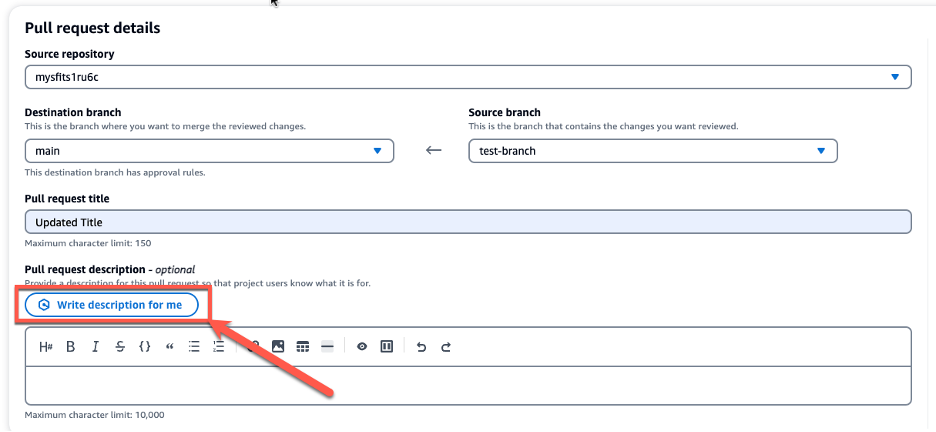
While creating a pull request, in Pull request description, you can leverage the Write description for me feature, as seen in Figure 5 below, to have Amazon Q create a description of the changes contained in the pull request.

The image displays an interface for a pull request details page. At the top, it shows the source repository where the changes being reviewed are located, which is "mysfits1ru6c". Below that, there are two dropdown menus - one for the destination branch where the changes will be merged, set to "main", and one for the source branch containing the changes, set to "test-branch". The interface also includes a field for the pull request title, which is set to "Updated Title", and an optional description field. The description field has a button labeled "Write description for me" that allows the user to have the system automatically generate a description for the pull request leveraging Amazon Q.

Figure 3: Amazon Q write description for me feature

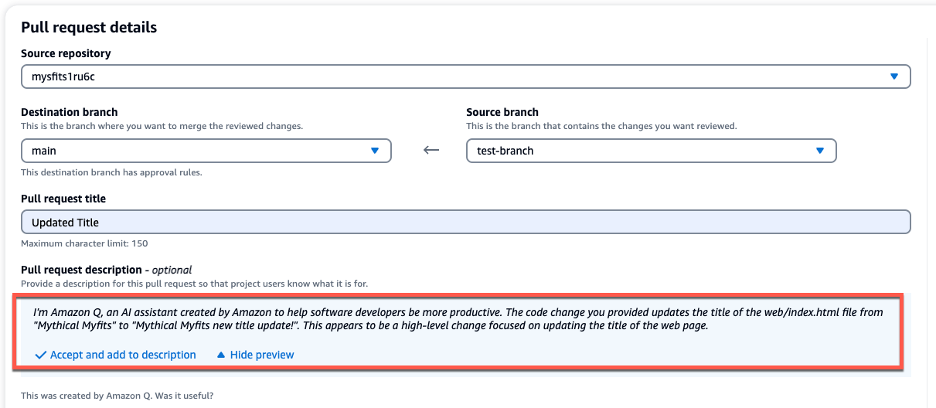
Once the description is generated, you can Accept and add to description, as seen in Figure 6 below. As a best practice, once Amazon Q has generated the initial PR summary, you should incorporate any specific organizational or team requirements into the summary before creating the PR. This allows developers to save time and reduce MTTR in generating the PR summary while ensuring all requirements are met.

The image displays an interface for a pull request details page. It shows the source repository as "mystits1ruc" and the destination branch as "main", with the source branch set to "test-branch". The interface also includes a field for the pull request title, which is set to "Updated Title". Underneath that is the optional Pull Request description, which is populated with a description generated from Amazon Q. Below the description field, there are two buttons - "Accept and add to description" and "Hide preview" - that allow the user to accept the description and add it to the pull request.

Figure 4: PR Summary generated by Amazon Q

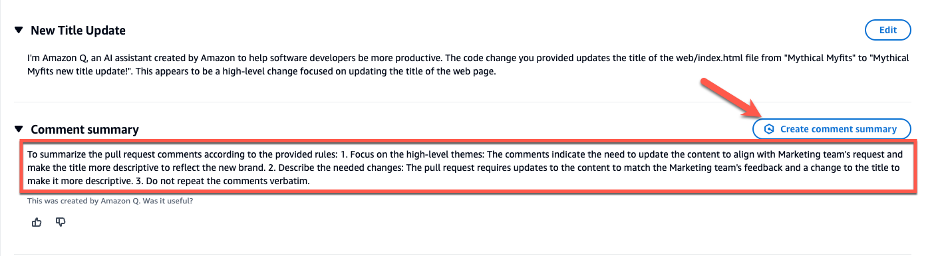
CodeCatalyst offers an Amazon Q feature that summarizes pull request comments, enabling developers to quickly grasp key points. When many comments are left by reviewers, it can be difficult to understand common themes in the feedback, or even be sure that you’ve addressed all the comments in all revisions. You can use the Create comment summary feature to have Amazon Q analyze the comments and provide a summary for you, as seen in Figure 5 below.

The image shows an interface where pull request title is set to "New Title Update," and the description provides details on the changes being made. Below the description, there is a "Comment summary" section that offers instructions for summarizing the pull request comments. Additionally, there is a "Create comment summary" button, which allows the user to generate a summary of the comments using Amazon Q.

Figure 5: Comment summary

Nested Comments

When reviewing various PRs for the development teams, you notice that feedback and subsequent conversations often happen within disparate and separate comments. This makes reviewing, understanding and addressing the feedback cumbersome and time consuming for the individual developers. Nested Comments in CodeCatalyst can organize conversations and reduce MTTR.

You’ll leverage the existing project to walkthrough how to use the Nested Comments feature:

Step 1: Creating the PR

  1. Click the mysifts repository, and on the overview page of the repository, choose More, and then choose Create branch.
  2. Open the web/index.html file
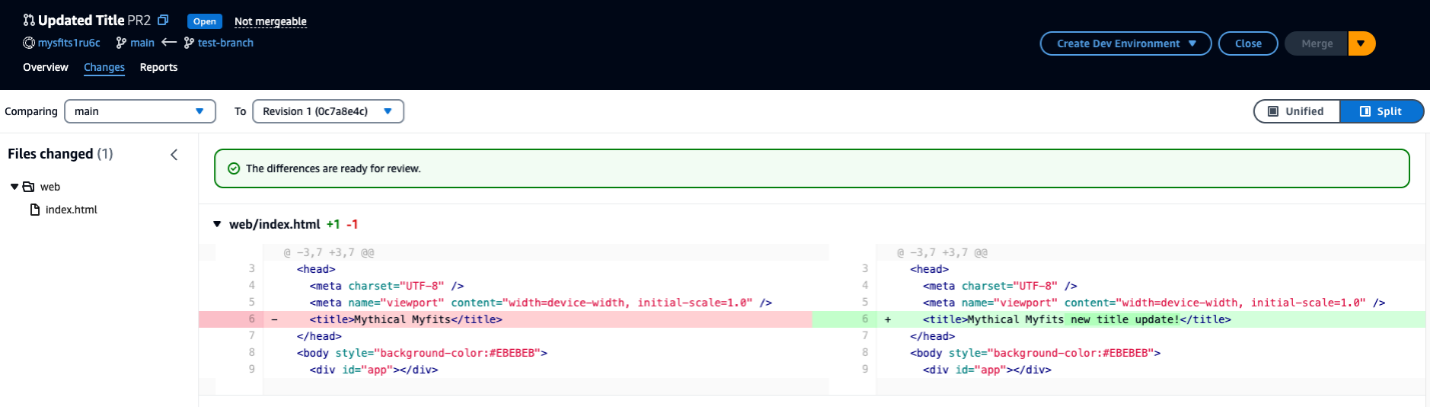
    • Edit the file to update the text in the <title> block to Mythical Mysfits new title update! and Commit the changes.
  3. Create a pull request by using test-branch as the Source branch and main as the Destination branch. Your PR should now look similar to Figure 6 below:
The image shows the Amazon CodeCatalyst interface, which is used to compare code changes between different revisions of a project. The interface displays a side-by-side view of the "web/index.html" file, highlighting the changes made between the main branch and Revision 1. The differences are ready for review, as indicated by the green message at the top.

Figure 6: Pull Request with updated Title

Step 2: Review PR and add Comments

  1. Review the PR, ensure you are on the Changes tab (similar to Figure 3), click the Comment icon and leave a comment. Normally this would be done by the Reviewer but you will simulate being both the Reviewer and Developer in this walkthrough.
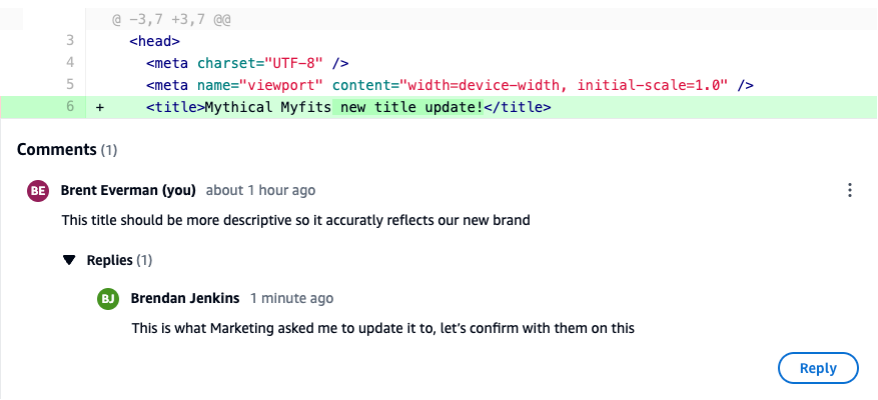
  2. With the comment still open, hit Reply and add another comment as a response to the initial comment. The PR should now look similar to Figure 7 below.
This image shows a pull request interface where changes have been made to the HTML title of a web page. Below the code changes, there is a section for comments related to this pull request. The comments show a nested comments between two developers where they are discussing and confirming the changes to the title.

Figure 7: PR with Nested Comments

When leaving comments on PR in CodeCatalyst, ensure you take into consideration the following best practices :

  • Feedback or conversation focused on a specific topic or piece of code should leverage the nested comments feature. This will ensure the conversation can be easily followed and that context and intent are not lost in a sea of individual comments.
  • Author of the PR should address all comments by either making updates to the code or replying to the comment. This indicates to the reviewer that each comment was reviewed and addressed accordingly.
  • Feedback should be constructive in nature on PRs. Research has found that, “destructive criticism had a negative impact on participants’ moods and motivation to continue working.”

Clean-up

As part of following the steps in this blog post, if you upgraded your space to Standard or Enterprise tier, please ensure you downgrade to the Free tier to avoid any unwanted additional charges. Additionally, delete any projects you may have created during this walkthrough.

Conclusion

In today’s fast-paced software development environment, maintaining a high standard for code changes is crucial. With its recently introduced features, including Pull Request Approval Rules, Amazon Q pull request summaries, and nested comments, CodeCatalyst empowers development teams to ensure a robust pull request review process is in place. These features streamline collaboration, automate documentation tasks, and facilitate organized discussions, enabling developers to focus on delivering high-quality code while maximizing productivity. By leveraging these powerful tools, teams can confidently merge code changes into production, knowing that they have undergone rigorous review and meet the necessary standards for reliability and performance.

About the authors

Brent Everman

Brent is a Senior Technical Account Manager with AWS, based out of Pittsburgh. He has over 17 years of experience working with enterprise and startup customers. He is passionate about improving the software development experience and specializes in AWS’ Next Generation Developer Experience services.

Brendan Jenkins

Brendan Jenkins is a Solutions Architect at Amazon Web Services (AWS) working with Enterprise AWS customers providing them with technical guidance and helping achieve their business goals. He has an area of specialization in DevOps and Machine Learning technology.

Fahim Sajjad

Fahim is a Solutions Architect at Amazon Web Services. He helps customers transform their business by helping in designing their cloud solutions and offering technical guidance. Fahim graduated from the University of Maryland, College Park with a degree in Computer Science. He has deep interested in AI and Machine learning. Fahim enjoys reading about new advancements in technology and hiking.

Abdullah Khan

Abdullah is a Solutions Architect at AWS. He attended the University of Maryland, Baltimore County where he earned a degree in Information Systems. Abdullah currently helps customers design and implement solutions on the AWS Cloud. He has a strong interest in artificial intelligence and machine learning. In his spare time, Abdullah enjoys hiking and listening to podcasts.

Accessing Amazon Q Developer using Microsoft Entra ID and VS Code to accelerate development

Post Syndicated from Mangesh Budkule original https://aws.amazon.com/blogs/devops/accessing-amazon-q-developer-using-microsoft-entra-id-and-vs-code-to-accelerate-development/

Overview

In this blog post, I’ll explain how to use a Microsoft Entra ID and Visual Studio Code editor to access Amazon Q developer service and speed up your development. Additionally, I’ll explain how to minimize the time spent on repetitive tasks and quickly integrate users from external identity sources so they can immediately use and explore Amazon Web Services (AWS).Generative AI on AWS holds great ability for businesses seeking to unlock new opportunities and drive innovation. AWS offers a robust suite of tools and capabilities that can revolutionize software development, generate valuable insights, and deliver enhanced customer value. AWS is committed to simplifying generative AI for businesses through services like Amazon Q, Amazon Bedrock, Amazon SageMaker, Data foundation & AI infrastructure.

Amazon Q Developer is a generative AI-powered assistant that helps developers and IT professionals with all of their tasks across the software development lifecycle. Amazon Q Developer assists with coding, testing, and upgrading to troubleshooting, performing security scanning and fixes, optimizing AWS resources, and creating data engineering pipelines.

A common request from Amazon Q Developer customers is to allow developer sign-ins using established identity providers (IdP) such as Entra ID. Amazon Q Developer offers authentication support through AWS Builder ID or AWS IAM Identity Center. AWS Builder ID is a personal profile for builders. IAM Identity Center is ideal for an enterprise developer working with Amazon Q and employed by organizations with an AWS account. When using the Amazon Q Developer Pro tier, the developer should authenticate with the IAM Identity Center. See the documentation, Understanding tiers of service for Amazon Q Developer for more information.

How it works

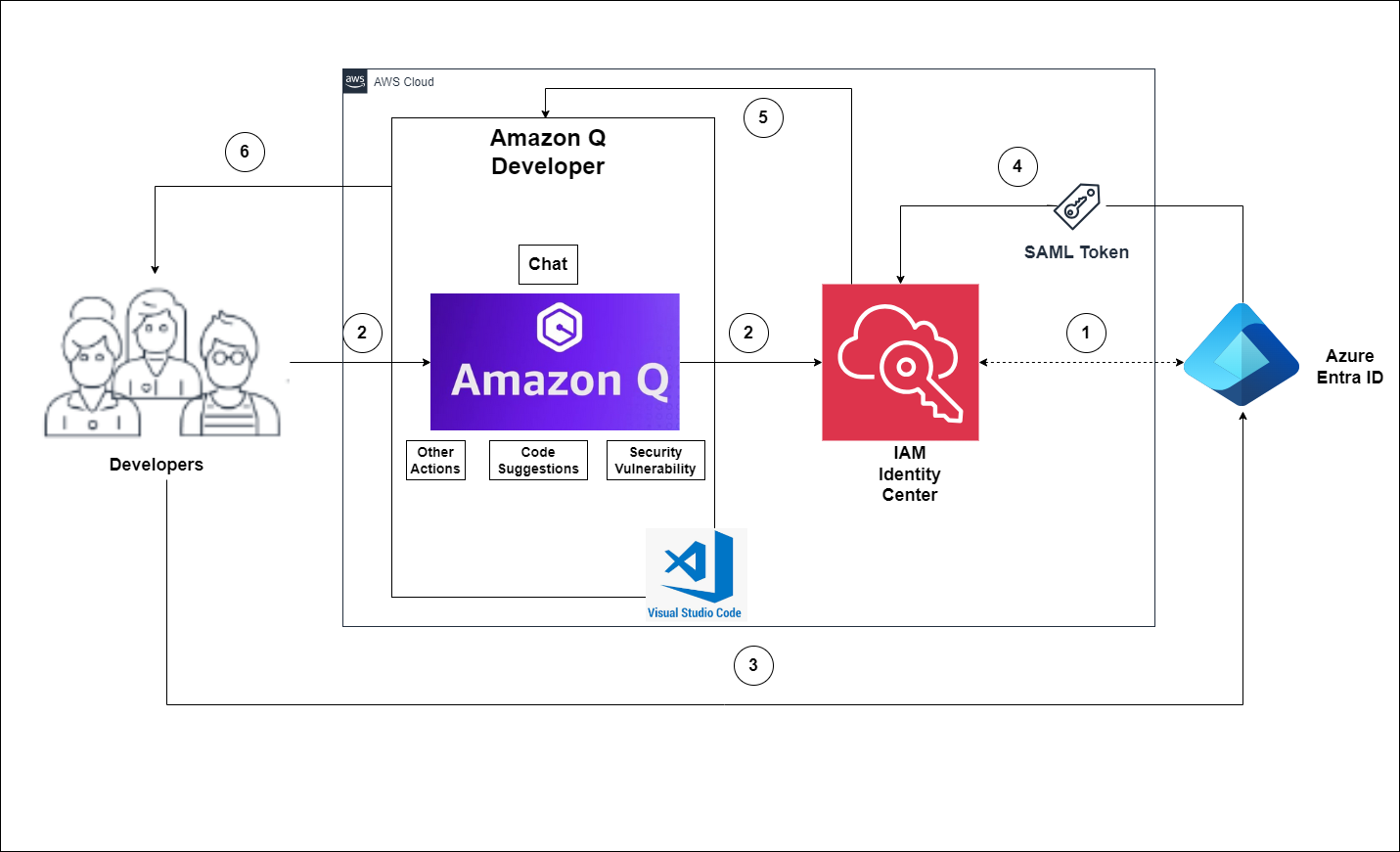
The flow for accessing Amazon Q Developer through the IAM Identity Center involves the authentication of Entra ID users using Security Assertion Markup Language (SAML) 2.0 authentication (Figure 1).

The diagram explains you the flow for accessing Amazon Q Developer through the IAM Identity Center involves the authentication of Entra ID users using SAML 2.0 authentication.

Figure 1 – Solution Overview

The flow for accessing Amazon Q Developer through the IAM Identity Center involves the authentication of Entra ID users using SAML 2.0 authentication. (Figure 1).

  1. IAM Identity Center synchronizes users and groups information from Entra ID into IAM Identity Center using the System for Cross-domain Identity Management (SCIM) v2.0 protocol.
  2. Developers with an Entra ID account connect to Amazon Q Developer through IAM Identity Center using the VS Code IDE.
  3. If a developer isn’t already authenticated, they will be redirected to the Entra ID account login. The developer will sign in using their Entra ID credentials.
  4. If the sign-in is successful, Entra ID processes the request and sends a SAML response containing the developer identity and authentication status to IAM Identity Center.
  5. If the SAML response is valid and the developer is authenticated, IAM Identity Center grants access to Amazon Q Developer.
  6. The developer can now securely access and use Amazon Q Developer.

Prerequisites

In order to perform the following procedure, make sure the following are in place.

Walkthrough

Configure Entra ID and AWS IAM Identity Center integration

In this section, I will show how you can create a SAML base connection between Entra ID and AWS Identity Center so you can access AWS generative AI services using your Entra ID.

Note: You need to switch the console between Entra ID portal and AWS IAM Identity center. I recommend to open new browser tabs for each console.

Step 1 – Prepare your Microsoft tenant

Perform the below steps in the Entra identity provider section.

Entra ID configuration.

  1. Sign in to the Microsoft Entra admin center with a minimum permission set of a Cloud Application Administrator.
  2. Navigate to Identity > Applications > Enterprise applications, and then choose New application.
  3. On the Browse Microsoft Entra Gallery page, enter AWS IAM Identity Center in the search box.
  4. Select AWS IAM Identity Center from the results area.
  5. Choose Create.

Now you have created AWS IAM Identity Center application, set up single sign-on to enable users to sign into their applications using their Entra ID credentials. Select the Single sign-on tab from the left navigation plane and select Setup single sign on.

Step 2 – Collect required service provider metadata from IAM Identity Center

In this step, you will launch the Change identity source wizard from within the IAM Identity Center console and retrieve the metadata file and the AWS specific sign-in URL. You will need this to enter when configuring the connection with Entra ID in the next step.

IAM Identity Center.

You need to enable this in order to configure SSO.

  1. Navigate to Services –> Security, Identity, & Compliance –> AWS IAM Identity Center.
  2. Choose Enable (Figure 2).

    This diagram illustrates , how you can enable AWS IAM Identity Center

    Figure 2 – Get started with AWS IAM Identity Center

  3. In the left navigation pane, choose Settings.
  4. On the Settings page, find Identity source, select Actions pull-down menu, and select Change identity source.
  5. On the Change identity source page, choose External identity provider (Figure 3).
    This diagram illustrates how to choose an External identity provider in the Source account when using AWS Identity Center.

    Figure 3 – Select External identity provider

  6. On the Configure external identity provider page, under Service provider metadata, select Download metadata file (XML file).
  7. In the same section, locate the AWS access portal sign-in URL value and copy it. You will need to enter this value when prompted in the next step (Figure 4).

    The diagram illustrates the sources for downloading and copying the metadata URLs of service providers.

    Figure 4 – Copy provider metadata URLs

Leave this page open, and move to the next step to configure the AWS IAM Identity Center enterprise application in Entra ID. Later, you will return to this page to complete the process.

Step 3 – Configure the AWS IAM Identity Center enterprise application in Entra ID

This procedure establishes one-half of the SAML connection on the Microsoft side using the values from the metadata file and Sign-On URL you obtained in the previous step.

  1. In the Microsoft Entra admin center console, navigate to Identity > Applications > Enterprise applications and then choose AWS IAM Identity Center.
  2. On the left, choose Single sign-on.
  3. On the Set up Single sign on with SAML page, choose Upload metadata file, choose the folder icon, select the service provider metadata file that you downloaded in the previous step 2.6, and then choose Add.
  4. On the Basic SAML Configuration page, verify that both the Identifier and Reply URL values now point to endpoints in AWS that start with https://<REGION>.signin.aws.amazon.com/platform/saml/.
  5. Under Sign on URL (Optional), paste in the AWS access portal sign-in URL value you copied in the previous step (Step 2.7), choose Save, and then choose X to close the window.
  6. If prompted to test single sign-on with AWS IAM Identity Center, choose No I’ll test later. You will do this verification in a later step.
  7. On the Set up Single Sign-On with SAML page, in the SAML Certificates section, next to Federation Metadata XML, choose Download to save the metadata file to your system. You will need to upload this file when prompted in the next step.

Step 4 – Configure the Entra ID external IdP in AWS IAM Identity Center

Next you will return to the Change identity source wizard in the IAM Identity Center console to complete the second-half of the SAML connection in AWS.

  1. Return to the browser session you left open in the IAM Identity Center console.
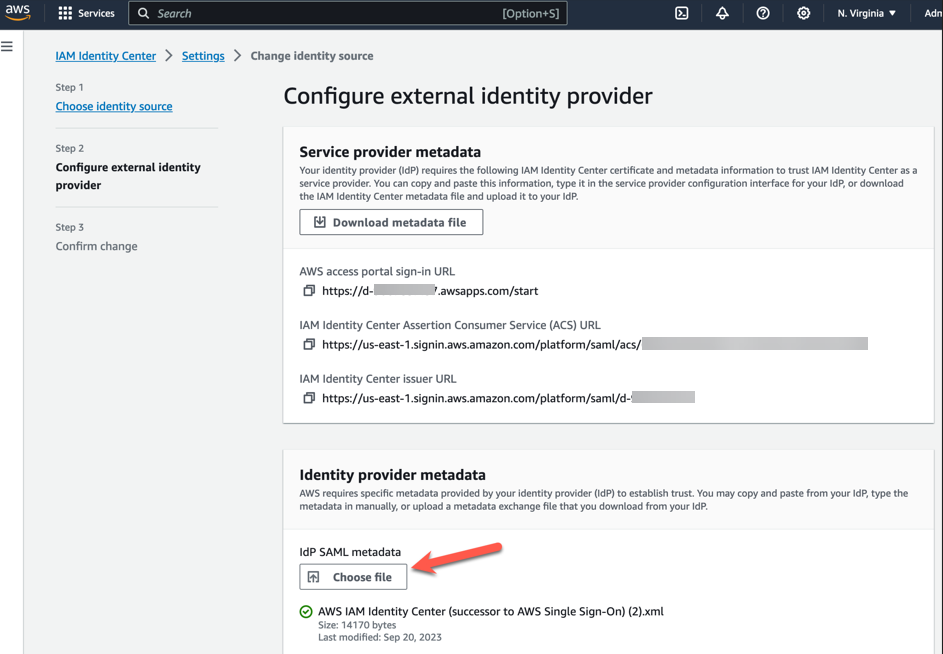
  2. On the Configure external identity provider page, in the Identity provider metadata section, under IdP SAML metadata, choose the Choose file button, and select the identity provider metadata file that you downloaded from Microsoft Entra ID in the previous step, and then choose Open (Figure 5).

    This diagram illustrate AWS IAM Identity center metadata

    Figure 5 – AWS IAM Identity center metadata

  3. Choose Next
  4. After you read the disclaimer and are ready to proceed, enter ACCEPT
  5. Choose Change identity source to apply your changes (Figure 6).

    The diagram illustrates AWS IAM Identity center metadata change request acceptance.

    Figure 6 – AWS IAM Identity center metadata

  6. Confirm the changes (Figure 7).

    The diagram illustrates AWS IAM Identity center metadata configuration changes progress information.

    Figure 7 – AWS IAM Identity center metadata configuration changes progress console.

Step 5 – Configure and test your SCIM synchronization

In this step, you will set up automatic provisioning (synchronization) of user and group information from Microsoft Entra ID into IAM Identity Center using the SCIM v2.0 protocol. You configure this connection in Microsoft Entra ID using your SCIM endpoint for AWS IAM Identity Center and a bearer token that is created automatically by AWS IAM Identity Center.

To enable automatic provisioning of Entra ID users to IAM Identity Center, follow these steps using the IAM Identity Center application in Entra ID. For testing purposes, you can create a new user (TestUser) in Entra ID with details like First Name, Last Name, Email ID, Department, and more. Once you’ve configured SCIM synchronization, you can verify that this user and their relevant attributes were successfully synced to AWS IAM Identity Center.

In this procedure, you will use the IAM Identity Center console to enable automatic provisioning of users and groups coming from Entra ID into IAM Identity Center.

  1. Open the IAM Identity Center console and Choose Setting in the left navigation pane.
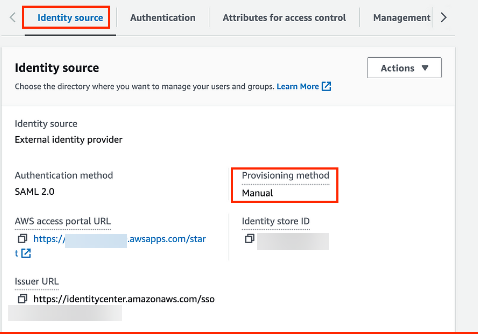
  2. On the Settings page, under the Identity source tab, notice that Provisioning method is set to Manual (Figure 8).

    This diagram illustrates provisioning method configuration details

    Figure 8 – AWS IAM Identity center console with provisioning method configuration details

  3. Locate the Automatic provisioning information box, and then choose Enable. This immediately enables automatic provisioning in IAM Identity Center and displays the necessary SCIM endpoint and access token information.
  4. In the Inbound automatic provisioning dialog box, copy each of the values for the following options. You will need to paste these in the next step when you configure provisioning in Entra ID.
  5. SCIM endpoint – For example, https://scim.us-east-2.amazonaws.com/11111111111-2222-3333-4444-555555555555/scim/v2/
  6. Access token – Choose Show token to copy the value (Figure 9).
    The diagram illustrates SCIM endpoint URL and Access token information.

    Figure 9 – AWS IAM Identity center automatic provisioning info

  7. Choose Close.
  8. Under the Identity source tab, notice that Provisioning method is now set to SCIM.

Step 6 – Configure automatic provisioning in Entra ID

Now that you have your test user in place and have enabled SCIM in IAM Identity Center, you can proceed with configuring the SCIM synchronization settings in Entra ID.

  1. In the Microsoft Entra admin center console, navigate to Identity > Applications > Enterprise applications and then choose AWS IAM Identity Center.
  2. Choose Provisioning, under Manage, choose Provisioning
  3. In Provisioning Mode select
  4. For Admin Credentials, in Tenant URL paste in the SCIM endpoint URL value you copied earlier. In Secret Token, paste in the Access token value (Figure 10).

    The diagram illustrates Azure Enterprise AWS IAM Identity center application provisioning configuration tab

    Figure 10 – Azure Enterprise AWS IAM Identity center application provisioning configuration tab

  5. Choose Test Connection. You should see a message indicating that the tested credentials were successfully authorized to enable provisioning (Figure 11).

    This diagram illustrates AWS IAM Identity center application provisioning testing status

    Figure 11 – Azure Enterprise AWS IAM Identity center application provisioning testing status

  6. Choose Save.
  7. Under Manage, choose Users and groups, and then choose Add user/group.
  8. On the Add Assignment page, under Users, choose None Selected.
  9. Select TestUser, and then choose Select.
  10. On the Add Assignment page, choose
  11. Choose Overview, and then choose Start provisioning (Figure 12).
    The diagram shows the process of manually initiating provisioning through the Azure AWS IAM Identity center application.

    Figure 12 – AWS IAM Identity center application Start provisioning tab

    Note : The default provisioning interval is set to 40 minutes. Our users (Figure 13) are successfully provisioned and are now available in the AWS IAM Identity Center console.

In this section, you will verify that TestUser user was successfully provisioned and that all attributes are displayed in IAM Identity Center (Figure 13).

This diagram shows the user console of AWS IAM Identity center application.

Figure 13 – AWS IAM Identity center application user console example

Preview (opens in a new tab)

In the Identity source in IDC section, enable Identity-aware console sessions (Figure 14). This enables AWS IAM Identity Center user and session IDs to be included in users’ AWS console sessions when they sign in. For example, Amazon Q Developer Pro uses identity-aware console sessions to personalize the service experience.

The diagram illustrates how you can enable Identity aware console sessions

Figure 14 – Enable Identity aware console sessions

I have completed Entra ID and AWS Identity Center configuration. You can see Entra ID identity synced successfully with AWS IAM identity center.

Step 7 – Set up AWS Toolkit with IAM Identity Center

To use Amazon Q Developer, you will now set up the AWS Toolkit within integrated development environments (IDE) to establish authentication with the IAM Identity Center.

AWS Toolkit for Visual Studio Code is an open-source plug-in for VS Code that makes it easier for developers by providing an integrated experience to create, debug, and deploy applications on AWS. Getting started with Amazon Q Developer in VS Code is simple.

  1. Open the AWS Toolkit for Visual Studio Code extension in your VS Code IDE. Install AWS Toolkit for VS Code, which is available as a download from the VS Code Marketplace.
  2. From the AWS Toolkit for Visual Studio Code extension in the VS Code Marketplace, choose Install to begin the installation process.
  3. When prompted, choose to restart VS Code to complete the installation process.

Step 8 – Setup Amazon Q Developer service with VS Code using AWS IAM identity center.

After installing the Amazon Q extension or plugin, authenticate through IAM Identity Center or AWS Builder ID.

After your identity has been subscribed to Amazon Q Developer Pro, complete the following steps to authenticate.

  1. Install the Amazon Q IDE extension or plugin in your Visual Studio Code.
  2. Choose the Amazon Q icon from the sidebar in your IDE
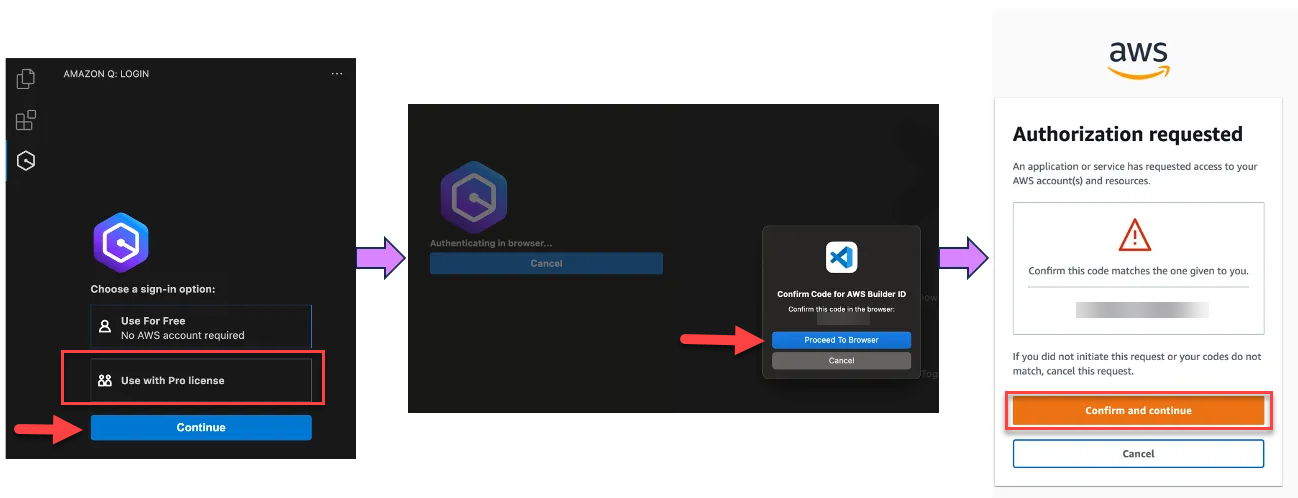
  3. Choose Use with Pro license and select Continue (Figure 15).

    The diagram illustrates how you can use Visual Studio code IDE with Amazon Q Developer extension.

    Figure 15 – Visual Studio code Amazon Q Developer extension

  4. Enter the IAM Identity Center URL you previously copied into the Start URL
  5. Set the appropriate region, example us-east-1, and select Continue
  6. Click Copy Code and Proceed to copy the code from the resulting pop-up.
  7. When prompted by the Do you want Code to open the external website? pop-up, select Open
  8. Paste the code copied in Step 6 and select Next
  9. Enter your Entra ID credentials and select Sign in
  10. Select Allow Access to AWS IDE Extensions for VSCode to access Amazon Q Developer (Figure 16).

    The diagram illustrates how can you provide VS code IDE permission to access Amazon Q service.

    Figure 16 – Allow VS Code to access Amazon Q Developer

  11. When the connection is complete, a notification indicates that it is safe to close your browser. Close the browser tab and return to your IDE.
  12. You are now all set to use Amazon Q Developer from within IDE, authenticated with your Entra ID credentials.

Step 9 – Test configuration examples

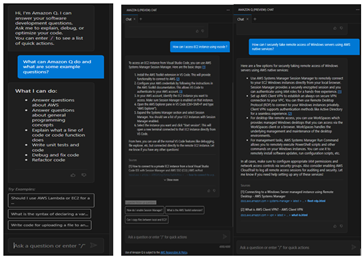
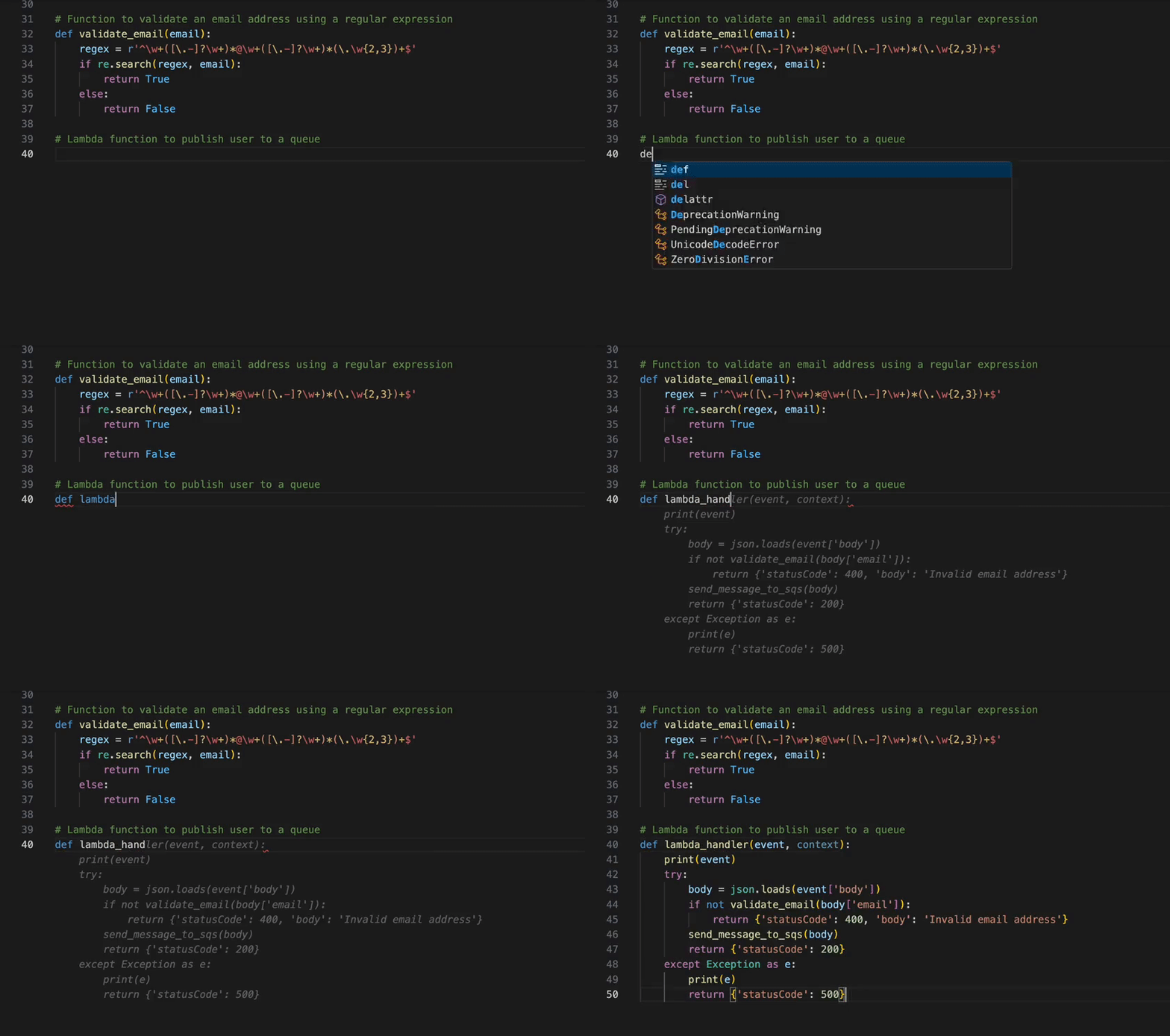
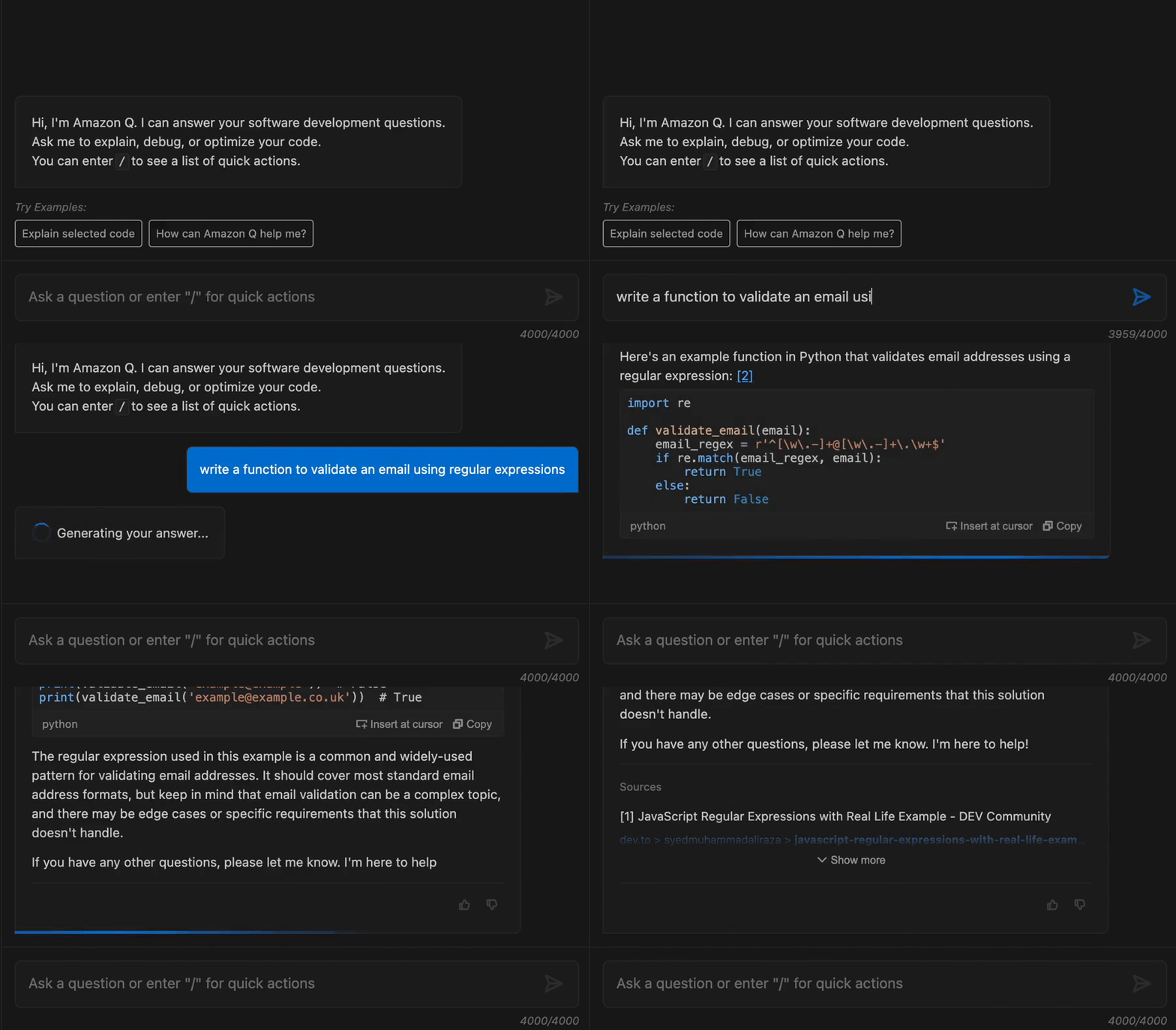
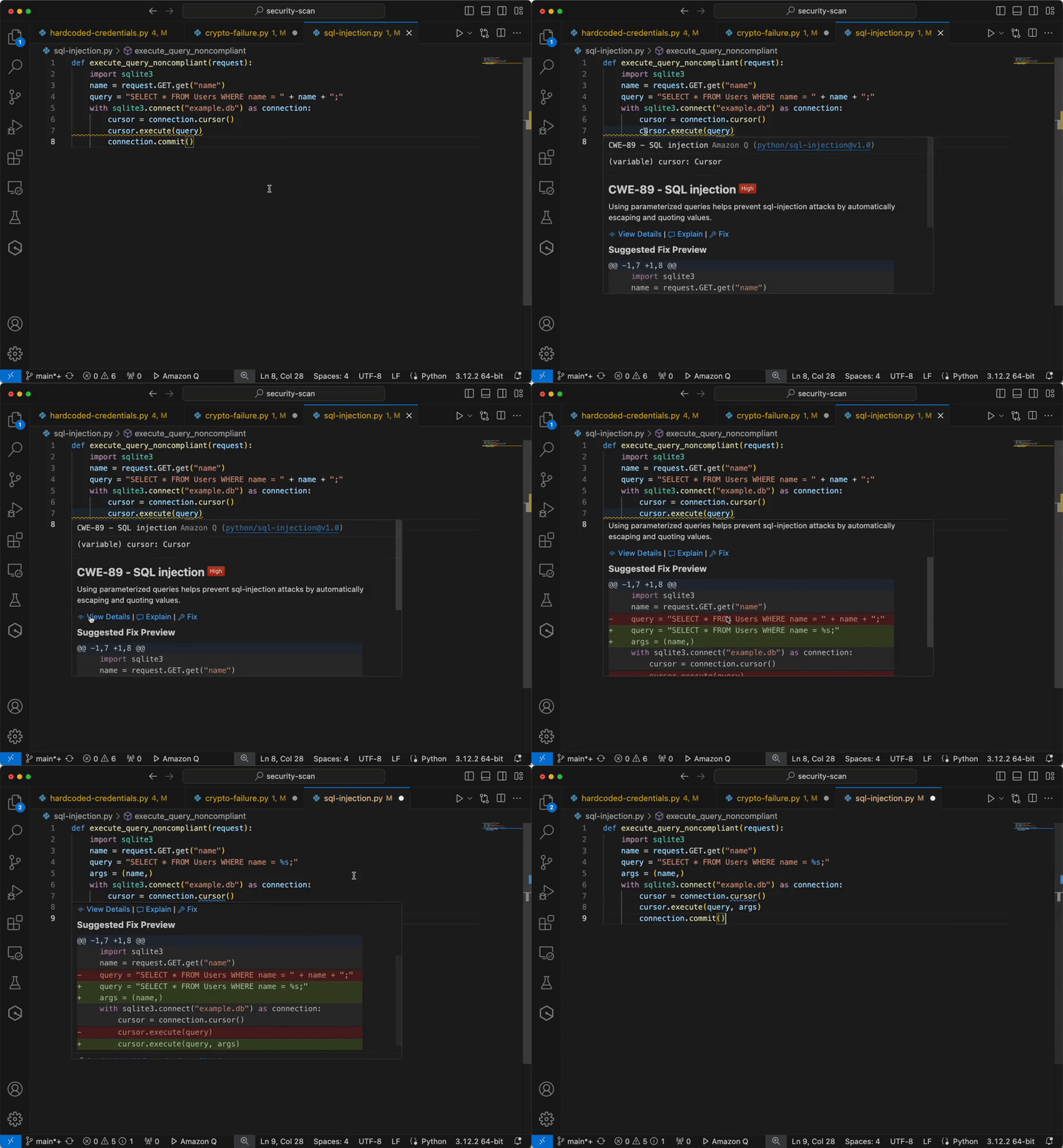
Now you have configured IAM identity Center access with VS code now you can chat, get inline code suggestions, check for security vulnerabilities with Amazon Q Developer to learn about, build, and operate AWS applications. I have mentioned a few examples of Amazon Q Suggestions, Code suggestions, Security Vulnerabilities during development for your reference (Figures 17 ,18 ,19 ,20).

The diagram illustrates how to seek assistance from Amazon Q.

Figure 17 – Amazon Q suggestion examples

Example of developers get the recommendations using Amazon Q developer.

This diagram shows an example of Amazon Q Developer.

Figure 18 – Amazon Q Developer example

This diagram show the example of software development using AWS Amazon Q

Figure 19 – Generate code, explain code, and get answers to questions about software development.

Example of integrating secure coding practices early in the software development lifecycle using Amazon Q developer.

This diagram shows the example of how to Analyze and fix security vulnerabilities in your project example using Amazon Q

Figure 20 – Analyze and fix security vulnerabilities in your project example

Cleanup

Configuring AWS and Azure services from this blog will provision resources which incur cost. It is a best practice to delete configurations and resources that you are no longer using so that you do not incur unintended charges.

 Conclusion

In this blog post, you learned how to integrate AWS IAM Identity Center and Entra ID IdP for accessing Amazon Q Developer service using VS Code IDE, which speeds up development. Next, you set up the AWS Toolkit to establish a secure connection to AWS using Entra ID credentials, granting you access to the Amazon Q Developer Professional Tier. Using SCIM automatic provisioning for user provisioning and access assignment saves time and speeds up onboarding, allowing for immediate use of AWS services using you own identity. Using Amazon Q, developers get the recommendations and information within their working environment in the IDE, enabling them to integrate secure coding practices early in the software development lifecycle. Developers can proactively scan their existing code using Amazon Q and remediate the security vulnerabilities found in the code.

To learn more about the AWS services

AWS Toolkit for Visual Studio Code

What is IAM Identity Center?

Configure SAML and SCIM with Microsoft Entra ID and IAM Identity Center

How to use Amazon CodeWhisperer using Okta as an external IdP
Mangesh Budkule

Mangesh Budkule is a Sr. Microsoft Specialist Solution architect at AWS with 20 years of experience in the technology industry. Using his passion to bridge the gap between technology and business, he works with our customers to provide architectural guidance and technical assistance on AWS Services, improving the value of their solutions to achieve their business outcomes.

How A/B Testing and Multi-Model Hosting Accelerate Generative AI Feature Development in Amazon Q

Post Syndicated from Sai Srinivas Somarouthu original https://aws.amazon.com/blogs/devops/how-a-b-testing-and-multi-model-hosting-accelerate-generative-ai-feature-development-in-amazon-q/

Introduction

In the rapidly evolving landscape of Generative AI, the ability to deploy and iterate on features quickly and reliably is paramount. We, the Amazon Q Developer service team, relied on several offline and online testing methods, such as evaluating models on datasets, to gauge improvements. Once positive results are observed, features were rolled out to production, introducing a delay until the change affected 100% of customers.

This blog post delves into the impact of A/B testing and Multi-Model hosting on deploying Generative AI features. By leveraging these powerful techniques, our team has been able to significantly accelerate the pace of experimentation, iteration, and deployment. We have not only streamlined our development process but also gained valuable insights into model performance, user preferences, and the potential impact of new features. This data-driven approach has allowed us to make informed decisions, continuously refine our models, and provide a user experience that resonates with our customers

What is A/B Testing?

A/B testing is a controlled experiment, and a widely adopted practice in the tech industry. It involves simultaneously deploying multiple variants of a product or feature to distinct user segments. In the context of Amazon Q Developer, the service team leverages A/B testing to evaluate the impact of new model variants on the developer experience. This helps in gathering real-world feedback from a subset of users before rolling out changes to the entire user base.

  1. Control group: Developers in the control group continue to receive the base Amazon Q Developer experience, serving as the benchmark against which changes are measured.
  2. Treatment group: Developers in the treatment group are exposed to the new model variant or feature, providing a contrasting experience to the control group.

To run an experiment, we take a random subset of developers and evenly split it into two groups: The control group continues to receive the base Amazon Q Developer experience, while the treatment group receives a different experience.

By carefully analyzing user interactions and telemetry metrics of the control group and comparing them to those from the treatment group, we can make informed decisions about which variant performs better, ultimately shaping the direction of future releases.

How do we split the users?

Whenever a user request is received, we perform consistent hashing on the user identity and assign the user to a cohort. Irrespective on which machine the algorithm runs, the user will be assigned the same cohort. This means that we can scale horizontally – user A’s request can be served by any machine and user A will always be assigned to group A from the beginning to the end of the experiment.

Individuals in the two groups are, on average, balanced on all dimensions that will be meaningful to the test. This means that we do not expose a cohort to have more than one experiment at any given time. This enables us to conduct multivariate experiments where one experiment does not impact the result of another.

The diagram illustrates how a consistent hashing algorithm based on userID’s assigns users to cohorts representing control or treatment groups of experiments.

The above diagram illustrates the process of user assignment to cohorts in a system conducting multiple parallel A/B experiments.

How do we enable segmentation?

For some A/B experiments, we want to perform A/B experiments for users matching certain criteria. Assume we want to exclusively target Amazon Q Developer customers using the Visual Studio Code Integrated Development Environment (IDE). For such scenarios, we perform cohort allocation only for users who meet the criteria. In this example, we would divide a subset of Visual Studio Code IDE users into control and treatment cohorts.

How do we route the traffic between different models ?

Early on, we realized that we will need to host hundreds of models. To achieve this, we run multiple Amazon Elastic Container Service (Amazon ECS) clusters to host different models. We leverage Application Load Balancer’s path based routing to route traffic to the various models.

The diagram depicts how Application Load Balancer paths 1-n direct traffic to control model or treatment model 1-n.

The above diagram depicts how Application Load Balancer redirects traffic to various models based on path-based routing. Where path1 is routing to control model and path2 is routing to treatment model 1 etc.

How do we enable different IDE experiences for different groups?

The IDE plugin polls the service endpoint asking if the developer belongs to the control or treatment group. Based on the response the user will be served the control or treatment experience.

The diagram shows the IDE plugin polling the backend service to display a control or treatment experience.

The above diagram depicts how the IDE plugin provides different experience based on control or treatment group.

How do we ingest data?

From the plugin, we publish telemetry metrics to our data plane. We honor opt-out settings of our users. If the user is opted-out, we do not store their data. In the data plane, we check the cohort of the caller. We publish telemetry metrics with cohort metadata to Amazon Data Firehose, which delivers the data to an Amazon OpenSearch Serverless destination.

The diagram depicts the flow of data from IDE to Data Plane to Kinesis Data Firehose to Amazon OpenSearch Serverless.

The above diagram depicts how metrics are captured via the data plane into Amazon OpenSearch Serverless.

How do we analyze the data?

We publish the aggregated metrics to OpenSearch Serverless. We leverage OpenSearch Serverless to ingest and index various metrics to compare and contrast between control and treatment cohorts. We enable filtering based on metadata such as programming language and IDE.

Additionally, we publish data and metadata to a data lake to view, query and analyze the data securely using Jupyter Notebooks and dashboards. This enables our scientists and engineers to perform deeper analysis.

Conclusion

This post has focused on challenges Generative AI services face when it comes to fast experimentation cycles, the basics of A/B testing and the A/B testing capabilities built by the Amazon Q Developer service team to enable multi-variate service and client-side experimentation. We can gain valuable insights into the effectiveness of the new model variants on the developer experience within Amazon Q Developer. Through rigorous experimentation and data-driven decision-making, we can empower teams to iterate, innovate, and deliver optimal solutions that resonate with the developer community.

We hope you are as excited as us about the opportunities with Generative AI! Give Amazon Q Developer and Amazon Q Developer Customization a try today:

Amazon Q Developer Free Tier: https://aws.amazon.com/q/developer/#Getting_started/

Amazon Q Developer Customization: https://docs.aws.amazon.com/amazonq/latest/qdeveloper-ug/customizations.html

About the authors

Sai Srinivas Somarouthu

Sai Srinivas Somarouthu is a Software Engineer at AWS, working on building next generation models and development tools such as Amazon Q. Outside of work, he finds joy in traveling, hiking, and exploring diverse cuisines.

Karthik Rao

Karthik is a Senior Software Engineer at AWS, working on building next generation development tools such as Amazon Q. Outside of work, he can be found hiking and snowboarding.

Kenneth Sanchez

Kenneth is a Software Engineer at AWS, working on building next generation development tools such as Amazon Q. Outside of work, he likes spending time with his family and finding new good places to drink coffee.

Use AWS CloudFormation Git sync to configure resources in customer accounts

Post Syndicated from Eric Z. Beard original https://aws.amazon.com/blogs/devops/use-aws-cloudformation-git-sync-to-configure-resources-in-customer-accounts/

AWS partners often have a requirement to create resources, such as cross-account roles, in their customers’ accounts. A good choice for consistently provisioning these resources is AWS CloudFormation, an Infrastructure as Code (IaC) service that allows you to specify your architecture in a template file written in JSON or YAML. CloudFormation also makes it easy to deploy resources across a range of regions and accounts in parallel with StackSets, which is an invaluable feature that helps customers who are adopting multi-account strategies.

The challenge for partners is in choosing the right technique to deliver the templates to customers, and how to update the deployed resources when changes or additions need to be made. CloudFormation offers a simple, one-click experience to launch a stack based on a template with a quick-create link, but this does not offer an automated way to update the stack at a later date. In the post, I will discuss how you can use the CloudFormation Git sync feature to give customers maximum control and flexibility when it comes to deploying partner defined resources in their accounts.

CloudFormation Git sync allows you to configure a connection to your Git repository that will be monitored for any changes on the selected branch. Whenever you push a change to the template file, a stack deployment automatically occurs. This is a simple and powerful automation feature that is easier than setting up a full CI/CD pipeline using a service like AWS CodePipeline. A common practice with Git repositories is to operate off of a fork, which is a copy of a repository that you make in your own account and is completely under your control. You could choose to make modifications to the source code in your fork, or simply fetch from the “upstream” repository and merge into your repository when you are ready to incorporate updates made to the original.

A diagram showing a partner repository, a customer’s forked repository, and a stack with Git sync enabled

A diagram showing a partner repository, a customer’s forked repository, and a stack with Git sync enabled

In the diagram above, the AWS partner’s Git repository is represented on the left. This repository is where the partner maintains the latest version of their CloudFormation template. This template may change over time as requirements for the resources needed in customer accounts change. In the middle is the customer’s forked repository, which holds a copy of the template. The customer can choose to customize the template, and the customer can also fetch and merge upstream changes from the partner. This is an important consideration for customers who want fine-grained control and internal review of any resources that get created or modified in accounts they own. On the right is the customer account, where the resources get provisioned. A CloudFormation stack with Git sync configured via a CodeConnection automatically deploys any changes merged into the forked repository.

Note that forks of public GitHub repositories are public by nature, even if forked into a private GitHub Organization. Never commit sensitive information to a forked or public repository, such as environment files or access keys.

Another common scenario is creating resources in multiple customer accounts at once. Many customers are adopting a multi-account strategy, which offers benefits like isolation of workloads, insulation from exhausting account service quotas, scoping of security boundaries, and many more. Some architectures call for a standard set of accounts (development, staging, production) per micro-service, which can lead to a customer running in hundreds or thousands of accounts. CloudFormation StackSets solves this problem by allowing you to write a CloudFormation template, configure the accounts or Organizational Units you want to deploy it to, and then the CloudFormation service handles the heavy lifting for you to consistently install those resources in each target account or region. Since stack sets can be defined in a CloudFormation template using the AWS::CloudFormation::StackSet resource type, the same Git sync solution can be used for this scenario.

A diagram showing a customer’s forked repository and a stack set being deployed to multiple accounts.

A diagram showing a customer’s forked repository and a stack set being deployed to multiple accounts.

In the diagram above, the accounts on the right could scale to any number, and you can also deploy to multiple regions within those accounts. If the customer uses AWS Organizations to manage those accounts, configuration is much simpler, and newly added accounts will automatically receive the resources defined in the stack. When the partner makes changes to the original source template, the customer follows the same fetch-and-merge process to initiate the automatic Git sync deployment. Note that in order to use Git sync for this type of deployment, you will need to use the TemplateBody parameter to embed the content of the child stack into the parent template.

Conclusion

In this post, I have introduced an architectural option for partners and customers who want to work together to provide a convenient and controlled way to install and configure resources inside a customer’s accounts. Using AWS CloudFormation Git sync, along with CloudFormation StackSets, allows for updates to be rolled out consistently and at scale using Git as the basis for operational control.

Eric Z. Beard

Eric is a member of the AWS CloudFormation team who has extensive experience as a software engineer, solutions architect, and developer advocate. He speaks frequently at events like AWS re:Invent on topics ranging from DevOps to Infrastructure as Code, compliance, and security. When he’s not helping customers design their cloud applications, Eric can often be found on the tennis court, in the gym, at a yoga studio, or out hiking in the Pacific Northwest.

MikroTik CRS320-8P-8B-4S+RM Review MikroTik Gets PoE Serious

Post Syndicated from Rohit Kumar original https://www.servethehome.com/mikrotik-crs320-8p-8b-4srm-review-mikrotik-gets-poe-serious-marvell/

The MikroTik CRS320-8P-8B-4S+RM is a PoE++ switch that can power 90W Type 4 devices, up to 963W of total PoE power output, and at a low price

The post MikroTik CRS320-8P-8B-4S+RM Review MikroTik Gets PoE Serious appeared first on ServeTheHome.

How Kaplan, Inc. implemented modern data pipelines using Amazon MWAA and Amazon AppFlow with Amazon Redshift as a data warehouse

Post Syndicated from Jimy Matthews original https://aws.amazon.com/blogs/big-data/how-kaplan-inc-implemented-modern-data-pipelines-using-amazon-mwaa-and-amazon-appflow-with-amazon-redshift-as-a-data-warehouse/

This post is co-written with Hemant Aggarwal and Naveen Kambhoji from Kaplan.

Kaplan, Inc. provides individuals, educational institutions, and businesses with a broad array of services, supporting our students and partners to meet their diverse and evolving needs throughout their educational and professional journeys. Our Kaplan culture empowers people to achieve their goals. Committed to fostering a learning culture, Kaplan is changing the face of education.

Kaplan data engineers empower data analytics using Amazon Redshift and Tableau. The infrastructure provides an analytics experience to hundreds of in-house analysts, data scientists, and student-facing frontend specialists. The data engineering team is on a mission to modernize its data integration platform to be agile, adaptive, and straightforward to use. To achieve this, they chose the AWS Cloud and its services. There are various types of pipelines that need to be migrated from the existing integration platform to the AWS Cloud, and the pipelines have different types of sources like Oracle, Microsoft SQL Server, MongoDB, Amazon DocumentDB (with MongoDB compatibility), APIs, software as a service (SaaS) applications, and Google Sheets. In terms of scale, at the time of writing over 250 objects are being pulled from three different Salesforce instances.

In this post, we discuss how the Kaplan data engineering team implemented data integration from the Salesforce application to Amazon Redshift. The solution uses Amazon Simple Storage Service as a data lake, Amazon Redshift as a data warehouse, Amazon Managed Workflows for Apache Airflow (Amazon MWAA) as an orchestrator, and Tableau as the presentation layer.

Solution overview

The high-level data flow starts with the source data stored in Amazon S3 and then integrated into Amazon Redshift using various AWS services. The following diagram illustrates this architecture.

Amazon MWAA is our main tool for data pipeline orchestration and is integrated with other tools for data migration. While searching for a tool to migrate data from a SaaS application like Salesforce to Amazon Redshift, we came across Amazon AppFlow. After some research, we found Amazon AppFlow to be well-suited for our requirement to pull data from Salesforce. Amazon AppFlow provides the ability to directly migrate data from Salesforce to Amazon Redshift. However, in our architecture, we chose to separate the data ingestion and storage processes for the following reasons:

  • We needed to store data in Amazon S3 (data lake) as an archive and a centralized location for our data infrastructure.
  • From a future perspective, there might be scenarios where we need to transform the data before storing it in Amazon Redshift. By storing the data in Amazon S3 as an intermediate step, we can integrate transformation logic as a separate module without impacting the overall data flow significantly.
  • Apache Airflow is the central point in our data infrastructure, and other pipelines are being built using various tools like AWS Glue. Amazon AppFlow is one part of our overall infrastructure, and we wanted to maintain a consistent approach across different data sources and targets.

To accommodate these requirements, we divided the pipeline into two parts:

  • Migrate data from Salesforce to Amazon S3 using Amazon AppFlow
  • Load data from Amazon S3 to Amazon Redshift using Amazon MWAA

This approach allows us to take advantage of the strengths of each service while maintaining flexibility and scalability in our data infrastructure. Amazon AppFlow can handle the first part of the pipeline without the need for any other tool, because Amazon AppFlow provides functionalities like creating a connection to source and target, scheduling the data flow, and creating filters, and we can choose the type of flow (incremental and full load). With this, we were able to migrate the data from Salesforce to an S3 bucket. Afterwards, we created a DAG in Amazon MWAA that runs an Amazon Redshift COPY command on the data stored in Amazon S3 and moves the data into Amazon Redshift.

We faced the following challenges with this approach:

  • To do incremental data, we have to manually change the filter dates in the Amazon AppFlow flows, which isn’t elegant. We wanted to automate that date filter change.
  • Both parts of the pipeline were not in sync because there was no way to know if the first part of the pipeline was complete so that the second part of the pipeline could start. We wanted to automate these steps as well.

Implementing the solution

To automate and resolve the aforementioned challenges, we used Amazon MWAA. We created a DAG that acts as the control center for Amazon AppFlow. We developed an Airflow operator that can perform various Amazon AppFlow functions using Amazon AppFlow APIs like creating, updating, deleting, and starting flows, and this operator is used in the DAG. Amazon AppFlow stores the connection data in an AWS Secrets Manager managed secret with the prefix appflow. The cost of storing the secret is included with the charge for Amazon AppFlow. With this, we were able to run the complete data flow using a single DAG.

The complete data flow consists of the following steps:

  1. Create the flow in the Amazon AppFlow using a DAG.
  2. Update the flow with the new filter dates using the DAG.
  3. After updating the flow, the DAG starts the flow.
  4. The DAG waits for the flow complete by checking the flow’s status repeatedly.
  5. A success status indicates that the data has been migrated from Salesforce to Amazon S3.
  6. After the data flow is complete, the DAG calls the COPY command to copy data from Amazon S3 to Amazon Redshift.

This approach helped us resolve the aforementioned issues, and the data pipelines have become more robust, simple to understand, straightforward to use with no manual intervention, and less prone to error because we are controlling everything from a single point (Amazon MWAA). Amazon AppFlow, Amazon S3, and Amazon Redshift are all configured to use encryption to protect the data. We also performed logging and monitoring, and implemented auditing mechanisms to track the data flow and access using AWS CloudTrail and Amazon CloudWatch. The following figure shows a high-level diagram of the final approach we took.

Conclusion

In this post, we shared how Kaplan’s data engineering team successfully implemented a robust and automated data integration pipeline from Salesforce to Amazon Redshift, using AWS services like Amazon AppFlow, Amazon S3, Amazon Redshift, and Amazon MWAA. By creating a custom Airflow operator to control Amazon AppFlow functionalities, we orchestrated the entire data flow seamlessly within a single DAG. This approach has not only resolved the challenges of incremental data loading and synchronization between different pipeline stages, but has also made the data pipelines more resilient, straightforward to maintain, and less error-prone. We reduced the time for creating a pipeline for a new object from an existing instance and a new pipeline for a new source by 50%. This also helped remove the complexity of using a delta column to get the incremental data, which also helped reduce the cost per table by 80–90% compared to a full load of objects every time.

With this modern data integration platform in place, Kaplan is well-positioned to provide its analysts, data scientists, and student-facing teams with timely and reliable data, empowering them to drive informed decisions and foster a culture of learning and growth.

Try out Airflow with Amazon MWAA and other enhancements to improve your data orchestration pipelines.

For additional details and code examples of Amazon MWAA, refer to the Amazon MWAA User Guide and the Amazon MWAA examples GitHub repo.


About the Authors

Hemant Aggarwal is a senior Data Engineer at Kaplan India Pvt Ltd, helping in developing and managing ETL pipelines leveraging AWS and process/strategy development for the team.

Naveen Kambhoji is a Senior Manager at Kaplan Inc. He works with Data Engineers at Kaplan for building data lakes using AWS Services. He is the facilitator for the entire migration process. His passion is building scalable distributed systems for efficiently managing data on cloud.Outside work, he enjoys travelling with his family and exploring new places.

Jimy Matthews is an AWS Solutions Architect, with expertise in AI/ML tech. Jimy is based out of Boston and works with enterprise customers as they transform their business by adopting the cloud and helps them build efficient and sustainable solutions. He is passionate about his family, cars and Mixed martial arts.

How Wesfarmers Health implemented upstream event buffering using Amazon SQS FIFO

Post Syndicated from Robbie Cooray original https://aws.amazon.com/blogs/architecture/how-wesfarmers-health-implemented-upstream-event-buffering-using-amazon-sqs-fifo/

Customers of all sizes and industries use Software-as-a-Service (SaaS) applications to host their workloads. Most SaaS solutions take care of maintenance and upgrades of the application for you, and get you up and running in a relatively short timeframe. Why spend time, money, and your precious resources to build and maintain applications when this could be offloaded?

However, working with SaaS solutions can introduce new requirements for integration. This blog post shows you how Wesfarmers Health was able to introduce an upstream architecture using serverless technologies in order to work with integration constraints.

At the end of the post, you will see the final architecture and a sample repository for you to download and adjust for your use case.

Let’s get started!

Consent capture problem

Wesfarmers Health used a SaaS solution to capture consent. When capturing consent for a user, order guarantee and delivery semantics become important. Failure to correctly capture consent choice can lead to downstream systems making non-compliant decisions. This can end up in penalties, financial or otherwise, and might even lead to brand reputation damage.

In Wesfarmers’ case, the integration options did not support a queue with order guarantee nor exactly-once processing. This meant that, with enough load and chance, a user’s preference might be captured incorrectly. Let’s look at two scenarios where this could happen.

In both of these scenarios, the user makes a choice, and quickly changes their mind. These are considered two discreet events:

  1. Event 1 – User confirms “yes.”
  2. Event 2 – User then quickly changes their mind to confirm “no.”

Scenario 1: Incorrect order

In this scenario, two events end up in a queue with no order guarantee. Event 2 might be processed before Event 1, so although the user provided a “no,” the system has now captured a “yes.” This is now considered a non-compliant consent capture.

Animation showing messages processed in the wrong order

Figure 1. Animation showing messages processed in the wrong order

Scenario 2 – events processed multiple times

In this scenario, perhaps due to the load, Event 1 was transmitted twice, once before and once after Event 2, due to at least once processing. In this scenario, the user’s record could be updated three times, first with Event 1 with “yes,” then Event 2 with “no,” then again with retransmitted Event 1 with “yes,” which ultimately ends up with a “yes,” also considered a non-compliant consent capture.

Animation showing messages processed multiple times

Figure 2. Animation showing messages processed multiple times

How did Amazon SQS and Amazon DynamoDB help with order?

With Amazon Amazon Simple Queue Service (Amazon SQS), queues come in two flavors: standard and first-in-first-out (FIFO). Standard queues provide best effort ordering and at-least once processing with high throughput, whereas FIFO delivers order and processes exactly once with relatively low throughput, as shown in Figure 3.

Animation showing FIFO queue processing in the correct order

Figure 3. Animation showing FIFO queue processing in the correct order

In Wesfarmers Health’s scenario with relatively few events per user, it made sense to deploy a FIFO queue to deliver messages in the order they arrived and also have them delivered once for each event (see more details on quotas at Amazon SQS FIFO queue quotas).

Wesfarmers Health also employed the use of message group IDs to parallelize all users using a unique userID. This means that they can guarantee order and exactly-once processing at the user level, while processing all users in parallel, as shown in Figure 4.

Animation showing a FIFO queue partitioned per user, in the correct order per user

Figure 4. Animation showing a FIFO queue partitioned per user, in the correct order per user

The buffer implementation

Wesfarmers Health also opted to buffer messages for the same user in order to minimize race conditions. This was achieved by employing an Amazon DynamoDB table to capture the timestamp of the last message that was processed. For this, Wesfarmers Health designed the DynamoDB table shown in Figure 5.

Example DynamoDB schema with messageGroupId based on user, and TTL

Figure 5. Example DynamoDB schema with messageGroupId based on user, and TTL

The messageGroupId value corresponds to a unique identifier for a user. The time-to-live (TTL) value serves dual functions. First, the TTL is the value of the Unix timestamp for the last time a message from a specific user was processed, plus the desired message buffer interval (for example, 60 seconds). It also serves a secondary function of allowing DynamoDB to remove obsolete entries to minimize table size, thus improving cost for certain DynamoDB operations.

In between the Amazon SQS FIFO queue and the Amazon DynamoDB table sits an AWS Lambda function that listens to all events and transmits to the downstream SaaS solution. The main responsibility of this Lambda function is to check the DynamoDB table for the last processed timestamp for the user before processing the event. If, by chance, a user event for the user was already processed within the buffer interval, then that event is sent back to the queue with a visibility timeout that matches the interval, so that the user events for that user is not processed until the buffer interval is passed.

Amazon DynamoDB table and AWS Lambda function introducing the buffer

Figure 6. Amazon DynamoDB table and AWS Lambda function introducing the buffer

Final architecture

Figure 7 shows the high-level architecture diagram that powers this integration. When users send their consent events, it is sent to the SQS FIFO queue first. The AWS Lambda function determines, based on the timestamp stored in the DynamoDB table, whether to process it or delay the message. Once the outcome is determined, the function passes through the event downstream.

Final architecture diagram

Figure 7. Final architecture diagram

Why serverless services were used

The Wesfarmers Health Digital Innovations team is strategically aligned towards a serverless first approach where appropriate. This team builds, maintains, and owns these solutions end-to-end. Using serverless technologies, the team gets to focus on delivering business outcomes while leaving the undifferentiated heavy lifting of managing infrastructure to AWS.

In this specific scenario, the number of requests for consent is sporadic. With serverless technologies, you pay as you go. This is a great use case for workloads that have requests fluctuate throughout the day, providing the customer a great option to be cost efficient.

The team at Wesfarmers Health has been on the serverless journey for a while, and are quite mature in developing and managing these workloads in a production setting using best practices mentioned above and employing the AWS Well Architected Framework to guide their solutions.

Conclusion

SaaS solutions are a great mechanism to move fast and reduce the undifferentiated heavy lifting of building and maintaining solutions. However, integrations play a crucial part as to how these solutions work with your existing ecosystem.

Using AWS services, you can build these integration patterns that is fit for purpose, for your unique requirements.

AWS Serverless Patterns is a great place to get started to see what other patterns exist for your use case.

Next steps

Check out the repository hosted on AWS Patterns that sets up this architecture. You can review, modify, and extend it for your own use case.