Security Is Shifting in a Cloud-Native World: Insights From RSAC 2022

Post Syndicated from Jesse Mack original https://blog.rapid7.com/2022/06/16/security-is-shifting-in-a-cloud-native-world-insights-from-rsac-2022/

Security Is Shifting in a Cloud-Native World: Insights From RSAC 2022

The cloud has become the default for IT infrastructure and resource delivery, allowing an unprecedented level of speed and flexibility for development and production pipelines. This helps organizations compete and innovate in a fast-paced business environment. But as the cloud becomes more ingrained, the ephemeral nature of cloud infrastructure is presenting new challenges for security teams.

Several talks by our Rapid7 presenters at this year’s RSA Conference touched on this theme. Here’s a closer look at what our RSAC 2022 presenters had to say about adapting security processes to a cloud-native world.

A complex picture

As Lee Weiner, SVP Cloud Security and Chief Innovation Officer, pointed out in his RSA briefing, “Context Is King: The Future of Cloud Security,” cloud adoption is not only increasing — it’s growing more complex. Many organizations are bringing on multiple cloud vendors to meet a variety of different needs. One report estimates that a whopping 89% of companies that have adopted the cloud have chosen a multicloud approach.

This model is so popular because of the flexibility it offers organizations to utilize the right technology, in the right cloud environment, at the right cost — a key advantage in a today’s marketplace.

“Over the last decade or so, many organizations have been going through a transformation to put themselves in a position to use the scale and speed of the cloud as a strategic business advantage,” Jane Man, Director of Product Management for VRM, said in her RSA Lounge presentation, “Adapting Your Vulnerability Management Program for Cloud-Native Environments.”

While DevOps teams can move more quickly than ever before with this model, security pros face a more complex set of questions than with traditional infrastructure, Lee noted. How many of our instances are exposed to known vulnerabilities? Do they have property identity and access management (IAM) controls established? What levels of access do those permissions actually grant users in our key applications?

New infrastructure, new demands

The core components of vulnerability management remain the same in cloud environments, Jane said in her talk. Security teams must:

  • Get visibility into all assets, resources, and services
  • Assess, prioritize, and remediate risks
  • Communicate the organization’s security and compliance posture to management

But because of the ephemeral nature of the cloud, the way teams go about completing these requirements is shifting.

“Running a scheduled scan, waiting for it to complete and then handing a report to IT doesn’t work when instances may be spinning up and down on a daily or hourly basis,” she said.

In his presentation, Lee expressed optimism that the cloud itself may help provide the new methods we need for cloud-native security.

“Because of the way cloud infrastructure is built and deployed, there’s a real opportunity to answer these questions far faster, far more efficiently, far more effectively than we could with traditional infrastructure,” he said.

Calling for context

For Lee, the goal is to enable secure adoption of cloud technologies so companies can accelerate and innovate at scale. But there’s a key element needed to achieve this vision: context.

What often prevents teams from fully understanding the context around their security data is the fact that it is siloed, and the lack of integration between disparate systems requires a high level of manual effort to put the pieces together. To really get a clear picture of risk, security teams need to be able to bring their data together with context from each layer of the environment.

But what does context actually look like in practice, and how do you achieve it? Jane laid out a few key strategies for understanding the context around security data in your cloud environment.

  • Broaden your scope: Set up your VM processes so that you can detect more than just vulnerabilities in the cloud — you want to be able to see misconfigurations and issues with IAM permissions, too.
  • Understand the environment: When you identify a vulnerable instance, identify if it is publicly accessible and what its business application is — this will help you determine the scope of the vulnerability.
  • Catch early: Aim to find and fix vulnerabilities in production or pre-production by shifting security left, earlier in the development cycle.

4 best practices for context-driven cloud security

Once you’re able to better understand the context around security data in your environment, how do you fit those insights into a holistic cloud security strategy? For Lee, this comes down to four key components that make up the framework for cloud-native security.

1. Visibility and findings

You can’t secure what you can’t see — so the first step in this process is to take a full inventory of your attack surface. With different kinds of cloud resources in place and providers releasing new services frequently, understanding the security posture of these pieces of your infrastructure is critical. This includes understanding not just vulnerabilities and misconfigurations but also access, permissions, and identities.

“Understanding the layer from the infrastructure to the workload to the identity can provide a lot of confidence,” Lee said.

2. Contextual prioritization

Not everything you discover in this inventory will be of equal importance, and treating it all the same way just isn’t practical or feasible. The vast amount of data that companies collect today can easily overwhelm security analysts — and this is where context really comes in.

With integrated visibility across your cloud infrastructure, you can make smarter decisions about what risks to prioritize. Then, you can assign ownership to resource owners and help them understand how those priorities were identified, improving transparency and promoting trust.

3. Prevent and automate

The cloud is built with automation in mind through Infrastructure as Code — and this plays a key role in security. Automation can help boost efficiency by minimizing the time it takes to detect, remediate, or contain threats. A shift-left strategy can also help with prevention by building security into deployment pipelines, so production teams can identify vulnerabilities earlier.

Jane echoed this sentiment in her talk, recommending that companies “automate to enable — but not force — remediation” and use tagging to drive remediation of vulnerabilities found running in production.

4. Runtime monitoring

The next step is to continually monitor the environment for vulnerabilities and threat activity — and as you might have guessed, monitoring looks a little different in the cloud. For Lee, it’s about leveraging the increased number of signals to understand if there’s any drift away from the way the service was originally configured.

He also recommended using behavioral analysis to detect threat activity and setting up purpose-built detections that are specific to cloud infrastructure. This will help ensure the security operations center (SOC) has the most relevant information possible, so they can perform more effective investigations.

Lee stressed that in order to carry out the core components of cloud security and achieve the outcomes companies are looking for, having an integrated ecosystem is absolutely essential. This will help prevent data from becoming siloed, enable security pros to obtain that ever-important context around their data, and let teams collaborate with less friction.

Looking for more insights on how to adapt your security program to a cloud-native world? Check out Lee’s presentation on demand, or watch our replays of Rapid7 speakers’ sessions from RSAC 2022.

Additional reading:
NEVER MISS A BLOG

Get the latest stories, expertise, and news about security today.

Resize Amazon Redshift from DC2 to RA3 with minimal or no downtime

Post Syndicated from Soujanya Konka original https://aws.amazon.com/blogs/big-data/resize-amazon-redshift-from-dc2-to-ra3-with-minimal-or-no-downtime/

Amazon Redshift is a popular cloud data warehouse that allows you to process exabytes of data across your data warehouse, operational database, and data lake using standard SQL. Amazon Redshift offers different node types like DC2 (dense compute) and RA3, which you can use for your different workloads and use cases. For more information about the benefits of migrating from DS2 to RA3, refer to Scale your cloud data warehouse and reduce costs with the new Amazon Redshift RA3 nodes with managed storage and Amazon Redshift Benchmarking: Comparison of RA3 vs. DS2 Instance Types.

Many customers use DC2 nodes for their compute-intensive workloads. It’s natural to scale with your growing workload, namely separating compute from storage so they’re right-sized as per your needs. RA3 nodes with managed storage enable you to optimize your data warehouse by scaling and paying for compute and managed storage independently. Amazon Redshift managed storage uses large, high-performance SSDs in each RA3 node for fast local storage and Amazon S3 for longer-term durable storage. If the data in a node grows beyond the size of the large local SSDs, Amazon Redshift managed storage automatically offloads that data to Amazon S3. RA3 nodes keep track of the frequency of access for each data block and cache the hottest blocks. If the blocks aren’t cached, the large networking bandwidth and precise storing techniques return the data in sub-seconds. Also, if you’re looking for features like cross-cluster data sharing and cross-Availability Zone cluster relocation, these are a few of the reasons for migrating to RA3. Many customers on DC2 have benefitted from migrating to RA3 to serve their growing performance requirements and business use cases.

As a first step of the migration, we always recommend finding the correct load of your system and determining the number of RA3 nodes that will meet your workload and give you the best cost-performance benefit. For this evaluation, you can use the simple Replay tool to conduct a what-if analysis and evaluate how your workload performs in different scenarios. For example, you can use the tool to benchmark your actual workload on a new instance type like RA3, evaluate a new feature, or assess different cluster configurations. To choose the right cluster type, you can compare different node types for your workload and choose the right configuration of RA3 with the Simple Replay utility.

Once you know the cluster type and nodes, the next question is how to migrate your current workload to RA3 with minimum downtime or without disrupting your current workload. In this post, we describe an approach to do this with minimum downtime.

Resizing an Amazon Redshift cluster

There are three ways to resize or migrate an Amazon Redshift cluster from DC2 to RA3 :

  • Elastic resize – If it’s available as an option, use elastic resize to change the node type, number of nodes, or both. Note that when you only change the number of nodes, the queries are temporarily paused and connections are kept open. An elastic resize can take between 10–15 minutes. During a resize operation, the cluster is read-only.
  • Classic resize – Use classic resize to change the node type, number of nodes, or both. Choose this option when you’re resizing to a configuration that isn’t available through elastic resize. A resize operation can take 2 hours or more, or last up to several days depending on your data size. During the resize operation, the source cluster is read-only.
  • Snapshot, restore, and resize – To keep your cluster available during a classic resize, make a copy of the existing cluster, then resize the new cluster. If data is written to the source cluster after a snapshot is taken, the data must be manually copied over after the migration is complete.

Checkpoints for resize

When a cluster is resized using elastic resize with the same node type, the operation doesn’t create a new cluster. As a result, the operation completes quickly. In case of resize, there could be one or more challenges causing the delay in resize:

  • Data volumes – The time required to complete a classic resize or a snapshot and restore operation might vary, depending on factors like the workload on the source cluster, the number and volume of tables being transformed, how evenly data is distributed across the compute nodes and slices, and the node configuration in the source and target clusters.
  • Snapshots – Automated snapshots are automatically deleted when their retention period expires, when you disable automated snapshots, or when you delete a cluster. If you want to keep an automated snapshot, you can copy it to a manual snapshot. You can take a manual snapshot of the cluster before the migration, which is used for resize operations, but it may not include live data from the time the snapshot was captured.
  • Cluster unavailable during resize – It’s critical to know roughly how long the resize will take. To do so, you can try creating a cluster from the snapshot in a test account. However, this only gives a ballpark idea because resize times can vary, especially if you intend to query your cluster during the resize. If the cluster is live almost all the time with minimal or zero non-business hours, a resize can be a challenge because the cluster can’t upsert live data and serve read requests on this data during this window.
  • Cluster endpoint retention – Elastic resize and cluster resize allow you to change the node type, number of nodes, or both, but the endpoint is retained. With snapshot resize, a new cluster endpoint is created, which may require a change in your application to replace the endpoint.
  • Reconciliation – Validate the target cluster data with the source to make sure migration was completed without data loss and ensure data quality. Reconciliation at the table level isn’t sufficient, you need to ensure records have also been copied from the source. You can run a matching record count check followed by data validation using checksum for accuracy of data.

Solution overview

The steps to prepare for migration are as follows:

  1. Take a snapshot of the existing production Amazon Redshift cluster running on DC2.
  2. Create another Amazon Simple Storage Service (Amazon S3) bucket, where AWS Glue writes the curated data in parallel.
  3. Use the snapshot to create an RA3 cluster.
  4. Configure AWS Database Migration Service (AWS DMS) to load data from the migrated bucket to Amazon S3.
  5. After you confirm that the data is synced between the two clusters (DC and RA3) and all other downstream applications, stop the DC cluster and change the endpoint of your dependent downstream application to the newly created RA3 cluster.

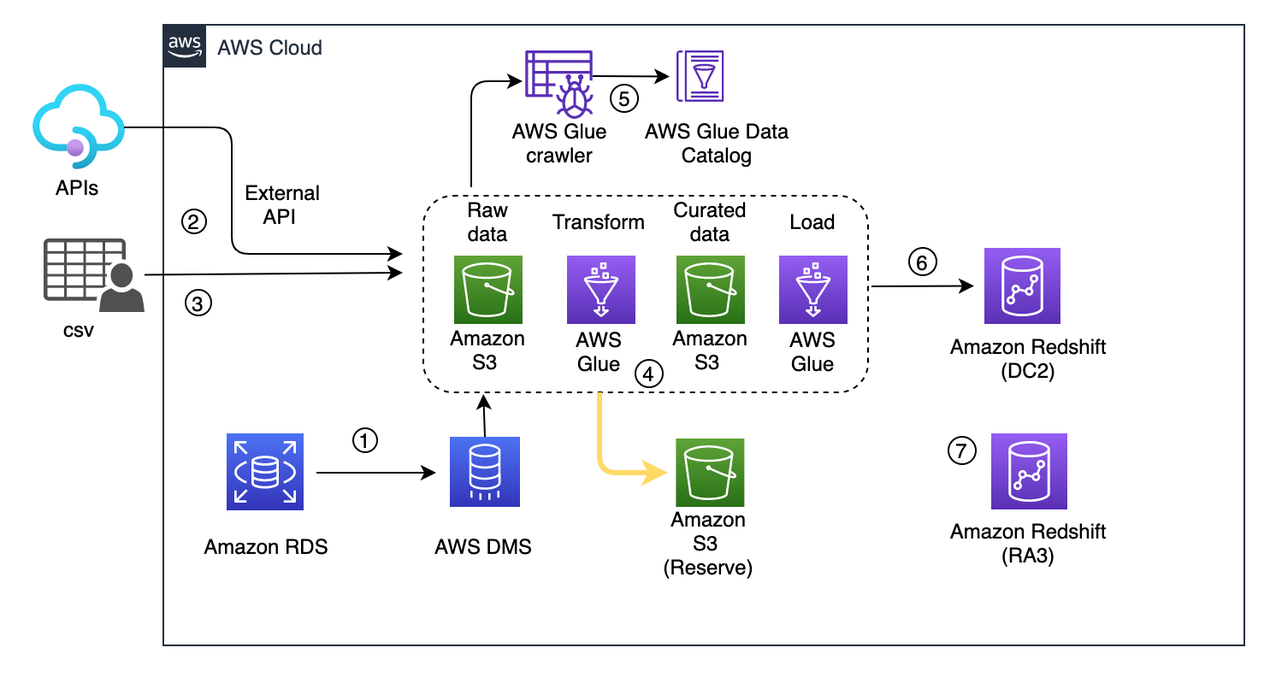
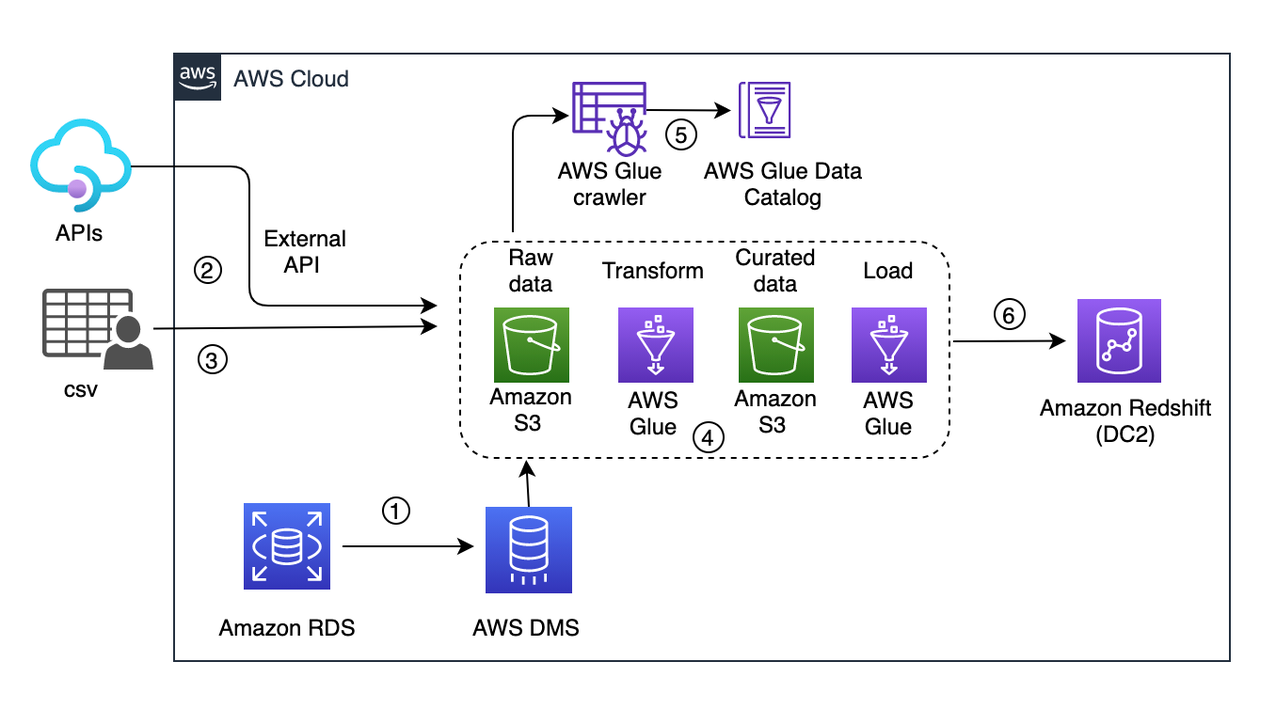
Following is the current architecture depicting a live workload.

In this solution, data comes from three source systems and are written into a raw S3 bucket:

  • Change data capture (CDC) from an RDS instance via AWS DMS (1 in the preceding diagram)
  • Events captured via an external API (2)
  • CSV files from an external source copied to the raw bucket (3)

These sources don’t have a pattern or an interval of pushing new data.

Every few minutes, the ingested data is picked up by an S3 event trigger to run an AWS Glue workflow (4 in the preceding diagram). It provides an orchestration layer to manage and run jobs and crawlers. This workflow includes a crawler (5) that updates the metadata schema and partitions of the dataset to the AWS Glue Data Catalog. Then the crawler triggers an AWS Glue job that writes the curated data to the S3 curated bucket. From there, another AWS Glue job uploads data into Amazon Redshift (6).

In this scenario, if your workload is critical and you can’t afford a long downtime, then you need to plan your migration accordingly.

Dual write and transient data curation pipeline

As a first step of the migration, you need a parallel data process pipeline as the AWS Glue job, which writes the data into the curated S3 bucket. Create another S3 bucket and name it migrated-curated-bucket and modify the AWS Glue transform job. You can also replicate another transform job to write data to a new reserve S3 bucket in parallel.

In this scenario, live data ingestion occurs every 30 minutes. When an iteration of the extract, transform, and load (ETL) job is complete, this triggers a manual snapshot of the Amazon Redshift cluster. After the snapshot is captured, a new Amazon Redshift cluster is created using that snapshot. Cluster creation time can vary depending on the snapshot volume.

If snapshot creation takes more than 30 minutes, then the ETL job should be stopped, and resume after the snapshot creation is complete. For example, if the ETL job is triggered at 8:00 AM and finishes at 8:10 AM, then snapshot creation starts at 8:10 AM. If it finishes by 8:30 AM (the next ETL job will run at 8:30 AM as per the half-hour interval), then the ETL process continues according to the schedule. Otherwise, the job stops, and resumes after the snapshot completion.

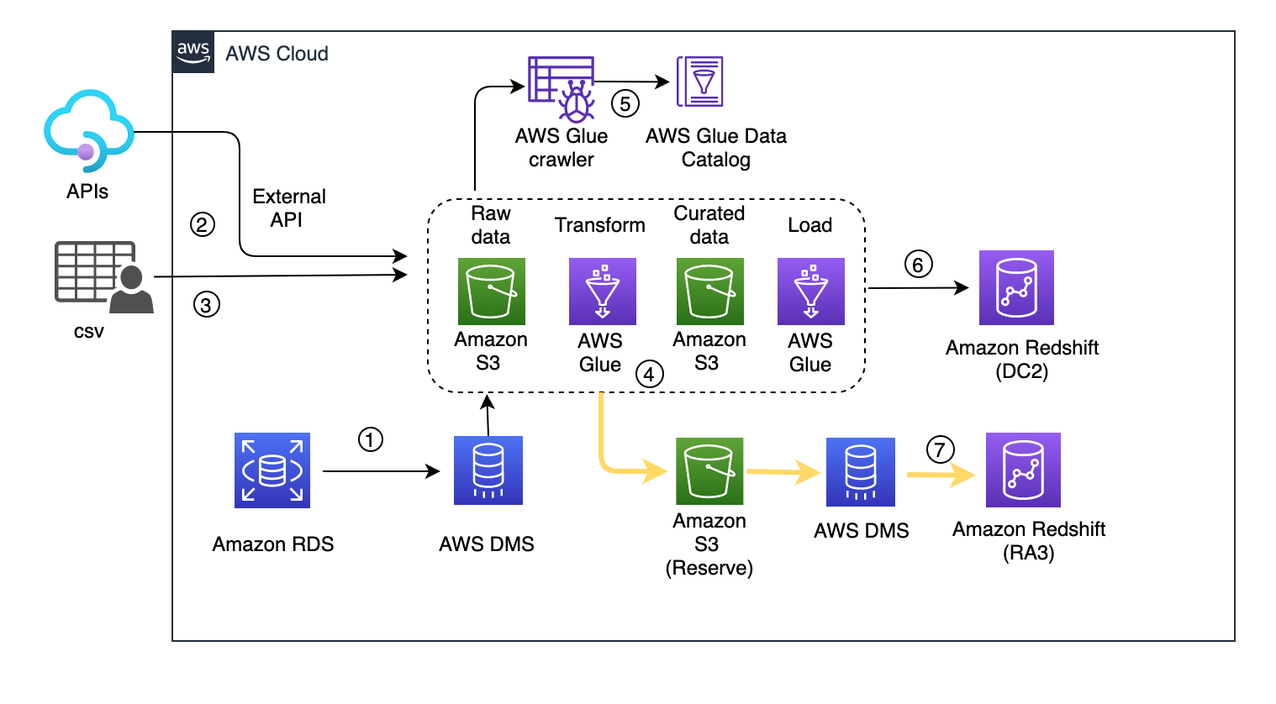
Now we use the snapshot to launch a new RA3 redshift cluster. The process doesn’t pause the existing ETL pipeline, rather it starts writing curated data in parallel to the reserve S3 bucket. The following diagram illustrates this updated workflow.

At this point, the existing cluster is still live and continues to process the live workload. Even if creation of the Amazon Redshift cluster takes time (owing to the huge volume of data), you should still be covered. The curated data in the S3 bucket acts as a staging reserve, and this data should be loaded into the RA3 cluster after its cluster is launched.

Backfill the new RA3 cluster with missing data

After the RA3 cluster has been launched, you need to playback the captured live data from the reserve S3 bucket to the newly created cluster. Playback is only for the duration of the snapshot capture to the current timestamp. With this process, you’re trying to bring the RA3 cluster in sync with the existing live DC2 cluster.

You need to configure an AWS DMS migration task with the reserve S3 bucket as the source endpoint and the newly created RA3 cluster as the target endpoint.

AWS DMS captures ongoing changes to the target data store. This process is called ongoing replication or change data capture (CDC). AWS DMS uses this process when replicating ongoing changes from a source data store. This process works by collecting changes to the database logs using the database engine’s native API. The following diagram illustrates this workflow.

Reconciliation and cutover

Data reconciliation is the process of verification of data between source and target. In this process, target data is compared with source data to ensure that the data is transferred completely without any alterations. To ensure reliability in the pipeline and the data processed, you should create an end-to-end reconciliation report. This report verifies the percentage of matching tables, columns, and data records. It also identifies missing records, missing values, incorrect values, badly formatted values, and duplicated records.

You can define the reconciliation process to check whether both clusters are running in sync. For that you can create simple Python scripts or shell scripts to query the source and target clusters, fetch the results, and compare.

Cutover is the final step of migration, and involves switching the existing cluster with the newly launched cluster. At this point, the clusters are running in parallel. Next, you validate that the downstream data consumption flows are up to date. Verify the reconciliation metrics from the DC2 and RA3 clusters such that table updates are in sync.

You can keep dual write while you switch from the migration data pipeline. If you discover any issues after cutting over, you can switch back to the old data pipeline, which is the source of truth until cutover. In this case, cutover involves updating the DC2 cluster endpoint to the new RA3 cluster endpoint in the application. Make sure to identify a relatively quiet window during  the day to update the endpoint. To keep the same endpoint for your applications and users, you can rename the new RA3 cluster with the same name as the original DC2 cluster. To rename the cluster, modify the cluster in the Amazon Redshift console or ModifyCluster API operation. For more information, see Renaming clusters or ModifyCluster API operation in the Amazon Redshift API Reference.

Up to this point, AWS DMS is continuing to update RA3. After you cut over to RA3, the DC2 cluster is no longer live and you can stop the AWS DMS replication job to RA3. Pause the last snapshot. Delete the reserve S3 bucket and AWS DMS resources used for RA3 load.

Conclusion

In this post, we presented an approach to migrate an existing Amazon Redshift cluster with minimal to no data loss, which also allows the cluster to serve both read and write operations during the resize window. Elastic resize is a quick way to resize your cluster to maintain the same number of slices in the target cluster. Slice mapping reduces the time required to resize a cluster. If you choose a resize configuration that isn’t available on elastic resize, you can choose classic resize or perform a snapshot, restore, and resize.

To learn more about what’s new with RA3 instances, refer to Amazon Redshift RA3 instances with managed storage. Amazon Redshift delivers better price performance and at the same time helps you keep your costs predictable. Amazon Redshift Serverless automatically provisions and scales the data warehouse capacity to deliver high performance for demanding and unpredictable workloads, and you pay only for the resources you use. This provides greater flexibility to choose either or both based on custom requirements. After you’ve made your choice, try the hands-on labs on Amazon Redshift.


About the Authors

Soujanya Konka is a Solutions Architect and Analytics specialist at AWS, focused on helping customers build their ideas on cloud. Expertise in design and implementation of business information systems and Data warehousing solutions. Before joining AWS, Soujanya has had stints with companies such as HSBC, Cognizant.

Dipayan Sarkar is a Specialist Solutions Architect for Analytics at AWS, where he helps customers to modernise their data platform using AWS Analytics services. He works with customer to design and build analytics solutions enabling business to make data-driven decisions.

The 2022 Backup Survey: 54% Report Data Loss With Only 10% Backing Up Daily

Post Syndicated from original https://www.backblaze.com/blog/the-2022-backup-survey-54-report-data-loss-with-only-10-backing-up-daily/

Every June, for Backup Awareness Month, we work with The Harris Poll to gauge the state of backups in the U.S. This is the 14th year of that survey, where we ask simply: “How often do you back up all the data on your computer?”

On occasion, we’ll throw some additional questions into the mix as well, and this year we focused on the confusion we often see between sync and backup services, along with respondents’ history of data loss. The backup frequency results of this year’s survey show that trends are holding pretty steady, but the rest of the results…very interesting!

First Things First: Are YOU Backing Up?

If you’re not backing up, start now and increase the stats for 2023.
 
➔ Sign Up Today

How Backup Frequency Is Trending in 2022

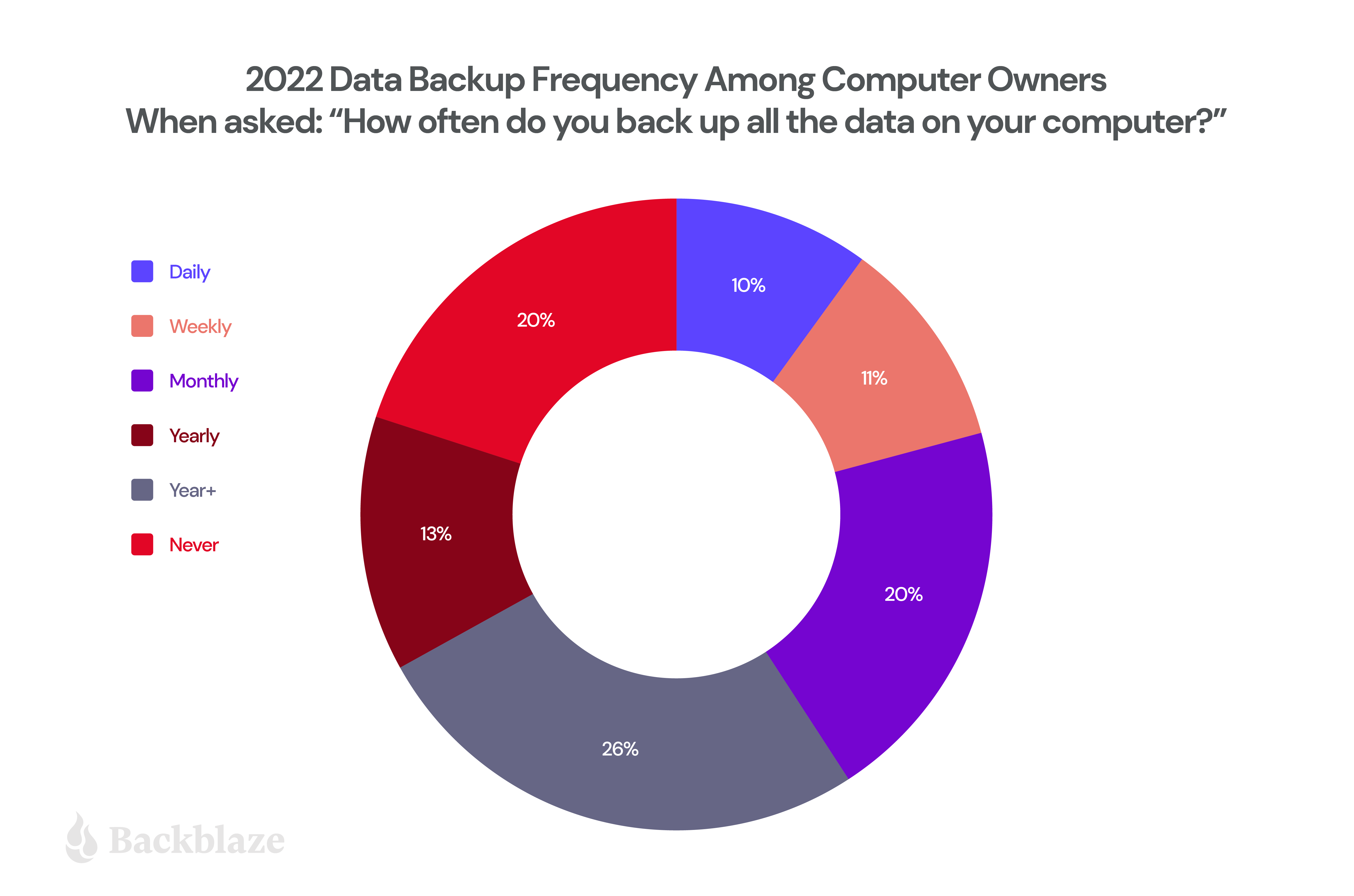
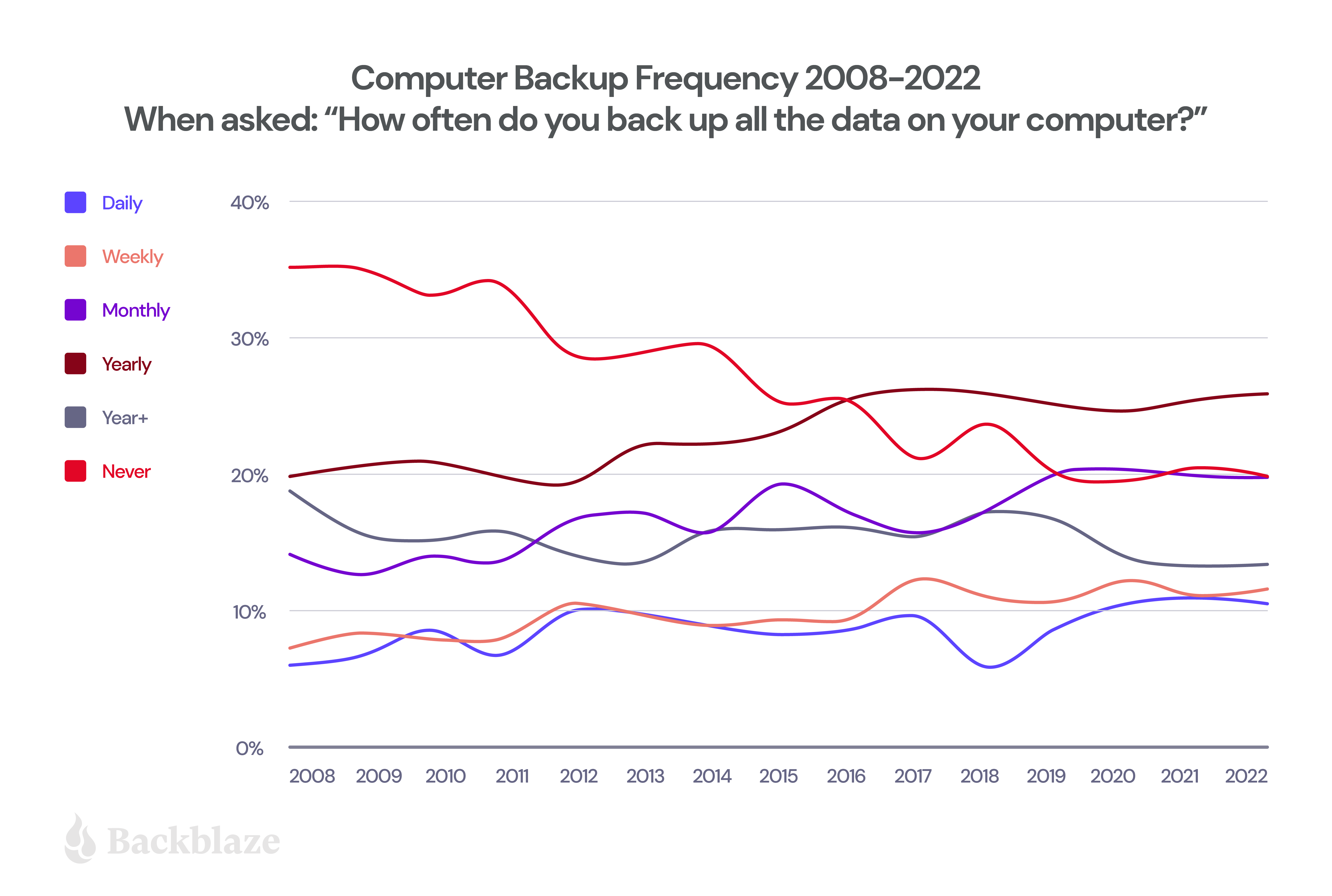
When looking solely at backup frequency, the results are mostly neutral this year when compared to 2021. We see a slight 1% increase in computer owners that are backing up on a yearly basis, but that same 1% decrease in those that are backing up daily. The rest of the results were pretty consistent from year to year.

The main issue we’re seeing here is that the number of computer owners who have never backed up their computer appears to have stopped decreasing, meaning that about 20% of people are still at risk of losing all of their data in the event of a computer crash or loss.

Results are among computer owners.

Some people aren’t into reading charts, so we also have this handy table:

Results are among computer owners.

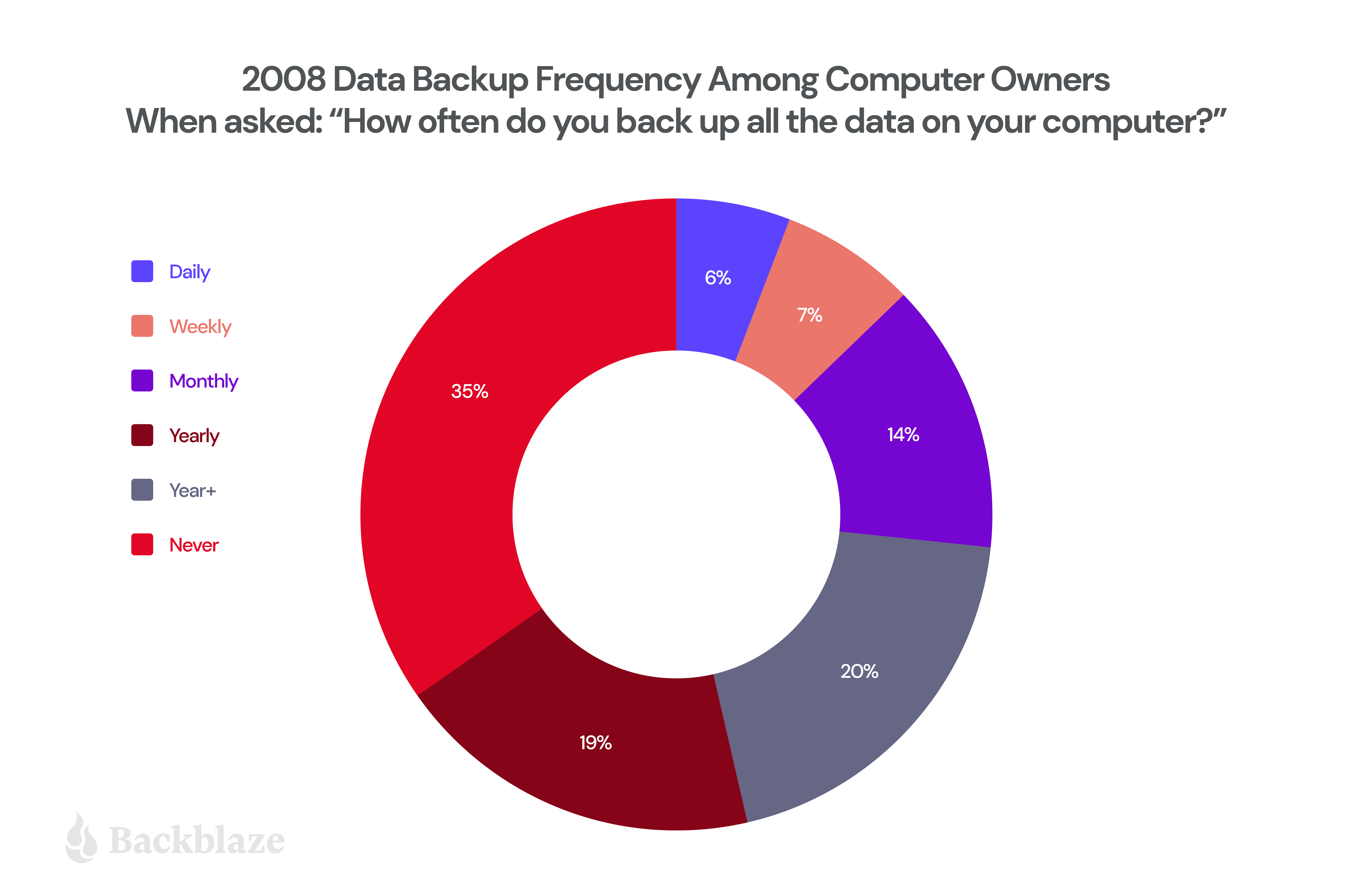
If you’re not a fan of tables, but do like pie, here’s a comparison of the 2022 data compared to when we first started in 2008:


It’s nice to see the mix changing so much over time, especially with the “never” category fading. While the number of daily backups is still not anywhere close to where we’d like it, the data indicates that:

Overall, computer owners are backing up more frequently than a decade ago. However, as our astute readers know, the longer you go without creating a backup, the more data you are prone to losing should disaster strike.

Who’s “Best” at Backing Up?

Last year, we pored through the data to try and build a “profile” of the person who was most likely to be a “backer upper,” which we had defined as a person who owns a computer and backs it up at least once a day. What we found is that we were looking for:

  • A woman between 35-44 years of age (21% likely to back up versus 9% of those 18-34 and 6% of those 55-64)…
  • Who lives in the Western United States (17% more likely to back up vs. the South and Midwest at 9% and 7%, respectively)…
  • With a household income of over $100K (13% likely to back up their data versus those households of $50K-$74.9K which are at 6%).

Has that changed over the last year? Well, in 2022, the data suggest no statistically significant deviations that we can pull out, so maybe that’s good news across the spectrum?

Is Confusion a Cause for Concern?

While the number of people backing up at least once is good, we think there might still be some confusion in the world about how exactly they are backing up their data and what is getting backed up. We wanted to dive a bit deeper. When looking at the Americans who own a computer:

  • 80% backed up all the data on that computer at least once.
    • 41% of those folks fully back it up once a month or more often.
  • 57% who have ever backed up use a “cloud-based” system as their primary backup.
  • 12% of computer owners use a cloud backup service like Backblaze as their primary backup, and among those who do:
    • 52% say their service automatically backs up all the data on their computer.
    • 25% say it backs up only the data they select with no limitations.
    • 9% say it backs up only the data they select but with some limits.
    • 3% marked “other” and more concerningly…
    • 10% are not sure at all.

    With 57% of computer owners using “the cloud” to back up their data, but only 12% of those using a cloud backup service, we’re left to wonder, what are the others using? In many cases, it’s a cloud drive or cloud sync service which may not actually be performing basic automated backup tasks.

    Refresher: Backup vs. Sync

    We’ve often discussed the differences between sync and backup—how both of them are useful tools, but very different. While sync services are great for collaborating on and sharing data, they are not true backup services in that they’re typically not automated, and don’t provide the same level of protection as dedicated backup services can. And, be careful about only having data in one location—44% lost access to their data when a shared or synced drive was deleted. For more information, read our cloud backup vs. cloud sync blog post!

    Even of those using a proper cloud backup solution, 48% may not be backing up all their data, and 10% of folks aren’t sure at all what their cloud backup service is doing. Yikes.

    We then asked those who use one of the listed backups (i.e., “the cloud,” external hard drive, or NAS) about their confidence level that the service they use is set up to protect all the data on their computer, and 61% of people were not very confident. The numbers are broken down below:

    • 39% were very confident.
    • 48% were somewhat confident.
    • 13% were not at all or not very confident.

    That’s not a ton of confidence, and maybe now is a good time to remind folks to check their backups and to test a restore!

    Why Is Backing Up Important?

    This year’s survey results continue to show us that having a good backup strategy in place, whether for a business or an individual, is a great way to mitigate against different data disasters. Especially when you consider that of Americans who own a computer:

    • 67% report accidentally deleting something.
    • 54% report having lost data.
    • 53% were affected by a security incident.
    • 48% had an external hard drive crash.
      • 21% of those crashes have happened in the last year.
    • 44% lost access to their data when a shared drive or synced drive was deleted.

    External hard drives are a great local backup method, and we recommend them when we discuss having a 3-2-1 backup strategy, but as our own Hard Drive Stats indicate, even in our professional environment, they do fail. And with 48% of computer owners reporting that they experienced a similar failure on their home device, it underscores the importance of having an off-site backup like Backblaze, just in case.

    With over half of computer owners reporting a security incident as well and ransomware on the rise, there’s never been a more appropriate time to start backing up your computer. At Backblaze, we’re on a mission to make storing and using your data astonishingly easy, and we invite you to give our services a try!

    Survey Method:
    This year’s survey was conducted online within the United States by The Harris Poll on behalf of Backblaze from May 19-23, 2022, among 2,068 adults ages 18+, among whom 1,861 own a computer. The sampling precision of Harris online polls is measured by using a Bayesian credible interval. For this study, the sample data is accurate to within +2.8 percentage points using a 95% confidence level.

    Prior year’s surveys were conducted online by The Harris Poll on behalf of Backblaze among U.S. adults ages 18+ who own a computer in May 12-14, 2021 (n=1,870); June 1-3, 2020 (n=1,913); June 6-10, 2019 (n=1,858); June 5-7, 2018 (n=1,871); May 19-23, 2017 (n=1,954); May 13-17, 2016 (n=1,920); May 15-19, 2015 (n=2,009); June 2-4, 2014 (n=1,991); June 13–17, 2013 (n=1,952); May 31–June 4, 2012 (n=2,176); June 28–30, 2011 (n=2,209); June 3–7, 2010 (n=2,051); May 13–14, 2009 (n=2,154); and May 27–29, 2008 (n=2,723).

    For complete survey methodologies, including weighting variables and subgroup sample sizes, please contact Backblaze.

    The post The 2022 Backup Survey: 54% Report Data Loss With Only 10% Backing Up Daily appeared first on Backblaze Blog | Cloud Storage & Cloud Backup.

    [$] Fedora, FFmpeg, Firefox, Flatpak, and Fusion

    Post Syndicated from original https://lwn.net/Articles/897793/

    Fedora’s objective to become the desktop Linux distribution of choice has
    long been hampered by Red Hat’s risk-averse legal department, which
    strictly limits the type of software that Fedora can ship. Specifically,
    anything that might be encumbered by patents is off-limits, with the result
    that much of the media that users might find on the net is unplayable. This
    situation has improved over the years as the result of a lot of work within
    the Fedora project, but it still puts Fedora at a disadvantage relative to
    some other distributions. A recent
    discussion on video support, though, shines a light on how some surprising
    legal reasoning may be providing a way out of this problem; that way
    may not be pleasing to all involved, however.

    New Report Shows What Data Is Most at Risk to (and Prized by) Ransomware Attackers

    Post Syndicated from Rapid7 original https://blog.rapid7.com/2022/06/16/new-report-shows-what-data-is-most-at-risk-to-and-prized-by-ransomware-attackers/

    New Report Shows What Data Is Most at Risk to (and Prized by) Ransomware Attackers

    Ransomware is one of the most pressing and diabolical threats faced by cybersecurity teams today. Gaining access to a network and holding that data for ransom has caused billions in losses across nearly every industry and around the world. It has stopped critical infrastructure like healthcare services in its tracks, putting the lives and livelihoods of many at risk.

    In recent years, threat actors have upped the ante by using “double extortion” as a way to inflict maximum pain on an organization. Through this method, not only are threat actors holding data hostage for money – they also threaten to release that data (either publicly or for sale on dark web outlets) to extract even more money from companies.

    At Rapid7, we often say that when it comes to ransomware, we may all be targets, but we don’t all have to be victims. We have means and tools to mitigate the impact of ransomware — and one of the most important assets we have on our side is data about ransomware attackers themselves.

    Reports about trends in ransomware are pretty common these days. But what isn’t common is information about what kinds of data threat actors prefer to collect and release.

    A new report from Rapid7’s Paul Prudhomme uses proprietary data collection tools to analyze the disclosure layer of double-extortion ransomware attacks. He identified the types of data attackers initially disclose to coerce victims into paying ransom, determining trends across industry, and released it in a first-of-its-kind analysis.

    “Pain Points: Ransomware Data Disclosure Trends” reveals a story of how ransomware attackers think, what they value, and how they approach applying the most pressure on victims to get them to pay.

    The report looks at all ransomware data disclosure incidents reported to customers through our Threat Command threat intelligence platform (TIP). It also incorporates threat intelligence coverage and Rapid7’s institutional knowledge of ransomware threat actors.

    From this, we were able to determine:

    • The most common types of data attackers disclosed in some of the most highly affected industries, and how they differ
    • How leaked data differs by threat actor group and target industry
    • The current state of the ransomware market share among threat actors, and how that has changed over time

    Finance, pharma, and healthcare

    Overall, trends in ransomware data disclosures pertaining to double extortion varied slightly, except in a few key verticals: pharmaceuticals, financial services, and healthcare. In general, financial data was leaked most often (63%), followed by customer/patient data (48%).

    However, in the financial services sector, customer data was leaked most of all, rather than financial data from the firms themselves. Some 82% of disclosures linked to the financial services sector were of customer data. Internal company financial data, which was the most exposed data in the overall sample, made up just 50% of data disclosures in the financial services sector. Employees’ personally identifiable information (PII) and HR data were more prevalent, at 59%.

    In the healthcare and pharmaceutical sectors, internal financial data was leaked some 71% of the time, more than any other industry — even the financial services sector itself. Customer/patient data also appeared with high frequency, having been released in 58% of disclosures from the combined sectors.

    One thing that stood out about the pharmaceutical industry was the prevalence of threat actors to release intellectual property (IP) files. In the overall sample, just 12% of disclosures included IP files, but in the pharma industry, 43% of all disclosures included IP. This is likely due to the high value placed on research and development within this industry.

    The state of ransomware actors

    One of the more interesting results of the analysis was a clearer understanding of the state of ransomware threat actors. It’s always critical to know your enemy, and with this analysis, we can pinpoint the evolution of ransomware groups, what data the individual groups value for initial disclosures, and their prevalence in the “market.”

    For instance, between April and December 2020, the now-defunct Maze Ransomware group was responsible for 30%. This “market share” was only slightly lower than that of the next two most prevalent groups combined (REvil/Sodinokibi at 19% and Conti at 14%). However, the demise of Maze in November of 2020 saw many smaller actors stepping in to take its place. Conti and REvil/Sodinokibi swapped places respectively (19% and 15%), barely making up for the shortfall left by Maze. The top five groups in 2021 made up just 56% of all attacks with a variety of smaller, lesser-known groups being responsible for the rest.

    Recommendations for security operations

    While there is no silver bullet to the ransomware problem, there are silver linings in the form of best practices that can help to protect against ransomware threat actors and minimize the damage, should they strike. This report offers several that are aimed around double extortion, including:

    • Going beyond backing up data and including strong encryption and network segmentation
    • Prioritizing certain types of data for extra protection, particularly for those in fields where threat actors seek out that data in particular to put the hammer to those organizations the hardest
    • Understanding that certain industries are going to be targets of certain types of leaks and ensuring that customers, partners, and employees understand the heightened risk of disclosures of those types of data and to be prepared for them

    To get more insights and view some (well redacted) real-world examples of data breaches, check out the full paper.

    Additional reading:

    NEVER MISS A BLOG

    Get the latest stories, expertise, and news about security today.

    Security updates for Thursday

    Post Syndicated from original https://lwn.net/Articles/898121/

    Security updates have been issued by Fedora (containerd, golang-github-containerd-cni, golang-github-containernetworking-cni, golang-x-sys, kernel, and qt5-qtbase), Oracle (kernel, kernel-container, microcode_ctl, subversion:1.14, and xz), Red Hat (.NET 6.0, .NET Core 3.1, cups, and xz), Scientific Linux (xz), SUSE (caddy, chromium, librecad, libredwg, varnish, and webkit2gtk3), and Ubuntu (bluez).

    Attacking the Performance of Machine Learning Systems

    Post Syndicated from Bruce Schneier original https://www.schneier.com/blog/archives/2022/06/attacking-the-performance-of-machine-learning-systems.html

    Interesting research: “Sponge Examples: Energy-Latency Attacks on Neural Networks“:

    Abstract: The high energy costs of neural network training and inference led to the use of acceleration hardware such as GPUs and TPUs. While such devices enable us to train large-scale neural networks in datacenters and deploy them on edge devices, their designers’ focus so far is on average-case performance. In this work, we introduce a novel threat vector against neural networks whose energy consumption or decision latency are critical. We show how adversaries can exploit carefully-crafted sponge examples, which are inputs designed to maximise energy consumption and latency, to drive machine learning (ML) systems towards their worst-case performance. Sponge examples are, to our knowledge, the first denial-of-service attack against the ML components of such systems. We mount two variants of our sponge attack on a wide range of state-of-the-art neural network models, and find that language models are surprisingly vulnerable. Sponge examples frequently increase both latency and energy consumption of these models by a factor of 30×. Extensive experiments show that our new attack is effective across different hardware platforms (CPU, GPU and an ASIC simulator) on a wide range of different language tasks. On vision tasks, we show that sponge examples can be produced and a latency degradation observed, but the effect is less pronounced. To demonstrate the effectiveness of sponge examples in the real world, we mount an attack against Microsoft Azure’s translator and show an increase of response time from 1ms to 6s (6000×). We conclude by proposing a defense strategy: shifting the analysis of energy consumption in hardware from an average-case to a worst-case perspective.

    Attackers were able to degrade the performance so much, and force the system to waste so many cycles, that some hardware would shut down due to overheating. Definitely a “novel threat vector.”

    Adding approval notifications to EC2 Image Builder before sharing AMIs

    Post Syndicated from Sheila Busser original https://aws.amazon.com/blogs/compute/adding-approval-notifications-to-ec2-image-builder-before-sharing-amis/

    This blog post was written by, Glenn Chia Jin Wee, Associate Cloud Architect at AWS and Randall Han, Associate Professional Services Consultant at AWS.

    In some situations, you may be required to manually validate the Amazon Machine Image (AMI) built from an Amazon Elastic Compute Cloud (Amazon EC2) Image Builder pipeline before sharing this AMI to other AWS accounts or to an AWS Organization. Currently, Image Builder provides an end-to-end pipeline that automatically shares AMIs after they’ve been built.

    In this post, we will walk through the steps to enable approval notifications before AMIs are shared with other AWS accounts. Having a manual approval step could be useful if you would like to verify the AMI configurations before it is shared to other AWS accounts or an AWS Organization. This reduces the possibility of incorrectly configured AMIs being shared to other teams which in turn could lead to downstream issues if applications are installed using this AMI. This solution uses serverless resources to send an email with a link that automatically shares the AMI with the specified AWS accounts. Users select this link after they’ve verified that the AMI is built according to specifications.

    Overview

    Architecture Diagram

    1. In this solution, an Image Builder Pipeline is run that builds a Golden AMI in Account A. After the AMI is built, Image Builder publishes data about the AMI to an Amazon Simple Notification Service (Amazon SNS) topic.
    2. This SNS Topic passes the data to an AWS Lambda function that subscribes to it.
    3. The Lambda function that subscribes to this topic retrieves the data, formats it, and sends a customized email to another SNS Topic.
    4. The second SNS Topic has an email subscription with the Approver’s email. The approver will receive the customized email with a URL that interacts with the next set of Serverless resources.
    5. Selecting the URL makes a GET request to Amazon API Gateway, thereby passing the AMI ID in the query string.
    6. API Gateway then triggers another Lambda function and passes the AMI ID to it.
    7. The Lambda function obtains the AMI ID from the query string parameter of the API Gateway request, and then shares it with the provided target account.

    Prerequisites

    For this walkthrough, you will need the following:

    Walkthrough

    In this section, we will guide you through the steps required to deploy the Image Builder solution that utilizes Serverless resources. The solution is deployed with AWS SAM.

    In this scenario, we deploy the solution within the approver’s account. The approval email will be sent to a predefined email address for manual approval, before the newly created AMI is shared to target accounts.

    Once the approver selects the approval link, an email notification will be sent to the predefined target account email address, notifying that the AMI has been successfully shared.

    The high-level steps we will follow are:

    1. In Account A, deploy the provided AWS SAM template. This includes an example Image Builder Pipeline, Amazon SNS topics, API Gateway, and Lambda functions.
    2. Approve the SNS subscription from your supplied email address.
    3. Run the pipeline from the Amazon EC2 Image Builder Console.
    4. [Optional] After the pipeline runs, launch an Amazon EC2 instance from the built AMI to conduct manual tests
    5. An Amazon SNS email will be sent to you with an API Gateway URL. When clicked, an AWS Lambda function shares the AMI to the Account B.
    6. Log in to Account B and verify that the AMI has been shared.

    Step 1: Launch the AWS SAM template

    1. Clone the SAM templates from this GitHub repository.
    2. Run the following command to deploy the templates via SAM. Replace <approver email> with the Approver’s email and <AWS Account B ID> with the AWS Account ID of your second AWS Account.

    sam deploy \

    –template-file template.yaml \

    –stack-name ec2-image-builder-approver-notifications \

    –capabilities CAPABILITY_IAM \

    –resolve-s3 \

    –parameter-overrides \

    ApproverEmail=<approver email> \

    TargetAccountEmail=<target account email> \

    TargetAccountlds=<AWS Account B ID>

    Step 2: Verify your email address

    1. After running the deployment, you will receive an email prompting you to confirm the Subscription at the approver email address. Choose Confirm subscription.

    Email to confirm SNS topic subscription

    1. This leads to the following screen, which shows that your subscription is confirmed.

    SNS topic subscription confirmation

    1. Repeat the previous 2 steps for the target email address.

    Step 3: Run the pipeline from the Image Builder console

    1. In the Image Builder console, under Image pipelines, select the checkbox next to the Pipeline created, choose Actions, and select Run pipeline.

    Run the Image Builder Pipeline

    Note that the pipeline takes approximately 20 to 30 minutes to complete.

    Step 4: [Optional] Launch an Amazon EC2 instance from the built AMI

    There could be a requirement to manually validate the AMI before sharing it to other AWS accounts or to the AWS organization. With this requirement, approvers will launch an Amazon EC2 instance from the built AMI and conduct manual tests on the EC2 instance to make sure that it is functional.

    1. In the Amazon EC2 console, under Images, choose AMIs. Validate that the AMI is created.

    Validate the AMI has been built

    1. Follow AWS docs: Launching an EC2 instances from a custom AMI for steps on how to launch an Amazon EC2 instance from the AMI.

    Step 5: Select the approval URL in the email sent

    1. When the pipeline is run successfully, you will receive another email with a URL to share the AMI.

    Approval link to share the AMI to Account B

    2. Selecting this URL results in the following screen which shows that the AMI share is successful.

    Result showing the AMI was successfully shared after selecting the approval link

    Step 6: Verify that the AMI is shared to Account B

    1. Log in to Account B.
    2. In the Amazon EC2 console, under Images, choose AMIs. Then, in the dropdown, choose Private images. Validate that the AMI is shared.

    AMI is shared when Private images are selected from the dropdown

    3. Verify that a success email notification was sent to the target account email address provided.

    Successful AMI share email notification sent to Target Account Email Address

    Clean up

    This section provides the necessary information for deleting various resources created as part of this post.

    1. Deregister the AMIs created and shared.

    a. Log in to Account A and follow the steps at AWS documentation: Deregister your Linux AMI.

    2. Delete the SAM stack with the following command. Replace <region> with the Region of choice.

    sam delete –stack-name ec2-image-builder-approver-notifications –no-prompts –region <region>

    3. Delete the CloudWatch log groups for the Lambda functions. You’ll identify it with the name `/aws/lambda/ec2-image-builder-approve*`.

    4. Consider deleting the Amazon S3 bucket used to store the packaged Lambda artifact.

    Conclusion

    In this post, we explained how to use Serverless resources to enable approval notifications for an Image Builder pipeline before AMIs are shared to other accounts. This solution can be extended to share to more than one AWS account or even to an AWS organization. With this solution, you will be notified when new golden images are created, allowing you to verify the correctness of their configuration before sharing them to for wider use. This reduces the possibility of sharing AMIs with misconfigurations that the written tests may not have identified.

    We invite you to experiment with different AMIs created using Image Builder, and with different Image Builder components. Check out this GitHub repository for various examples that use Image Builder. Also check out this blog on Image builder integrations with EC2 Auto Scaling Instance Refresh. Let us know your questions and findings in the comments, and have fun!

    Implement a CDC-based UPSERT in a data lake using Apache Iceberg and AWS Glue

    Post Syndicated from Sakti Mishra original https://aws.amazon.com/blogs/big-data/implement-a-cdc-based-upsert-in-a-data-lake-using-apache-iceberg-and-aws-glue/

    As the implementation of data lakes and modern data architecture increases, customers’ expectations around its features also increase, which include ACID transaction, UPSERT, time travel, schema evolution, auto compaction, and many more. By default, Amazon Simple Storage Service (Amazon S3) objects are immutable, which means you can’t update records in your data lake because it supports append-only transactions. But there are use cases where you might be receiving incremental updates with change data capture (CDC) from your source systems, and you might need to update existing data in Amazon S3 to have a golden copy. Previously, you had to overwrite the complete S3 object or folders, but with the evolution of frameworks such as Apache Hudi, Apache Iceberg, Delta Lake, and governed tables in AWS Lake Formation, you can get database-like UPSERT features in Amazon S3.

    Apache Hudi integration is already supported with AWS analytics services, and recently AWS Glue, Amazon EMR, and Amazon Athena announced support for Apache Iceberg. Apache Iceberg is an open table format originally developed at Netflix, which got open-sourced as an Apache project in 2018 and graduated from incubator mid-2020. It’s designed to support ACID transactions and UPSERT on petabyte-scale data lakes, and is getting popular because of its flexible SQL syntax for CDC-based MERGE, full schema evolution, and hidden partitioning features.

    In this post, we walk you through a solution to implement CDC-based UPSERT or MERGE in an S3 data lake using Apache Iceberg and AWS Glue.

    Configure Apache Iceberg with AWS Glue

    You can integrate Apache Iceberg JARs into AWS Glue through its AWS Marketplace connector. The connector supports AWS Glue versions 1.0, 2.0, and 3.0, and is free to use. Configuring this connector is as easy as clicking few buttons on the user interface.

    The following steps guide you through the setup process:

    1. Navigate to the AWS Marketplace connector page.
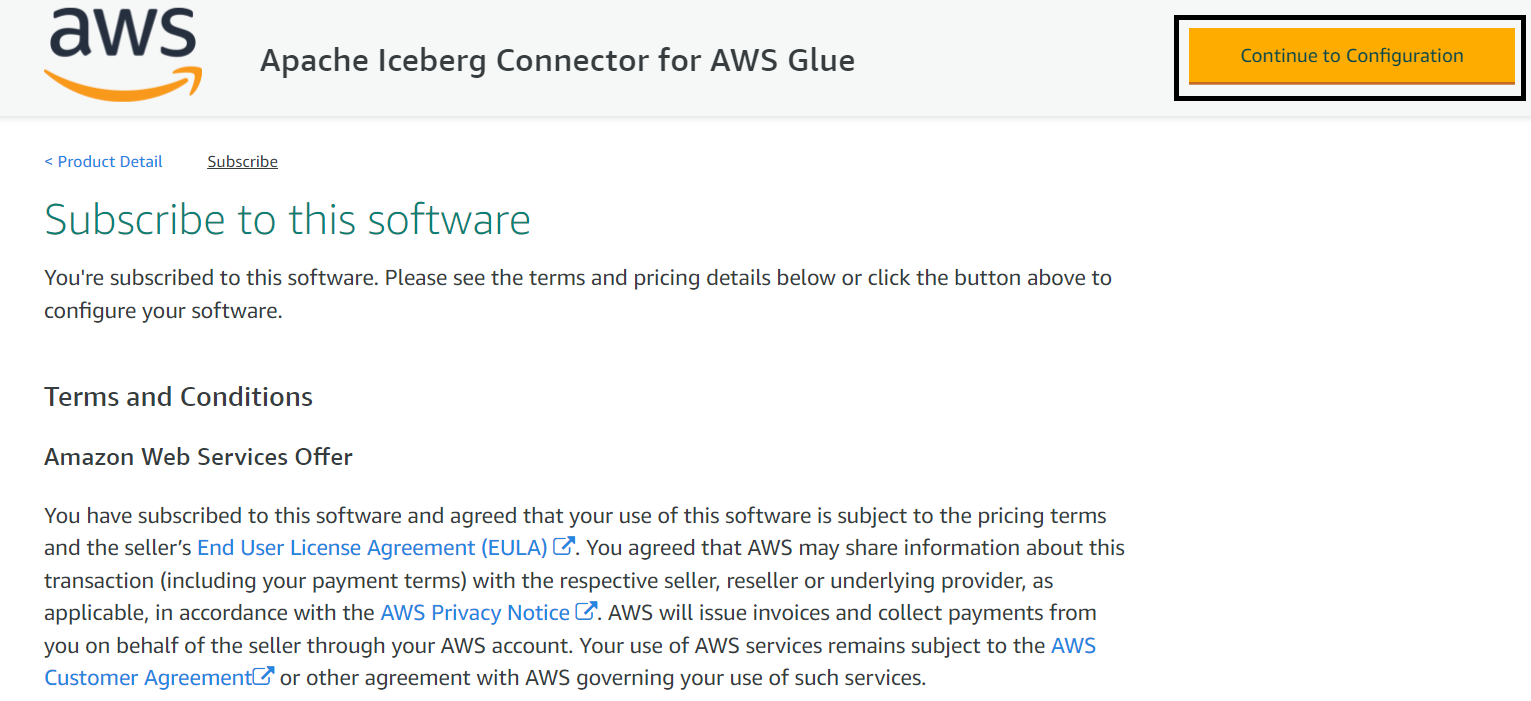
    2. Choose Continue to Subscribe and then Accept Terms.
    3. Choose Continue to Configuration.
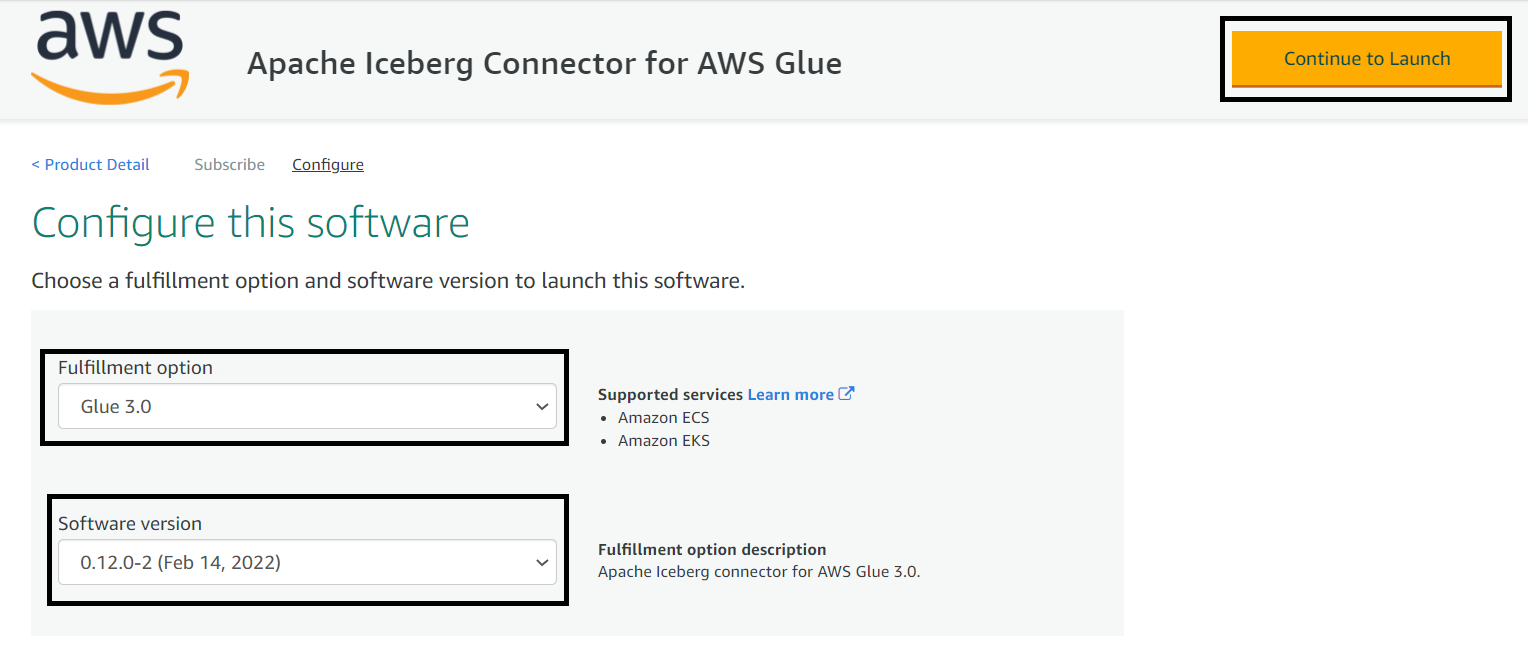
    4. Choose the AWS Glue version and software version.
    5. Choose Continue to Launch.
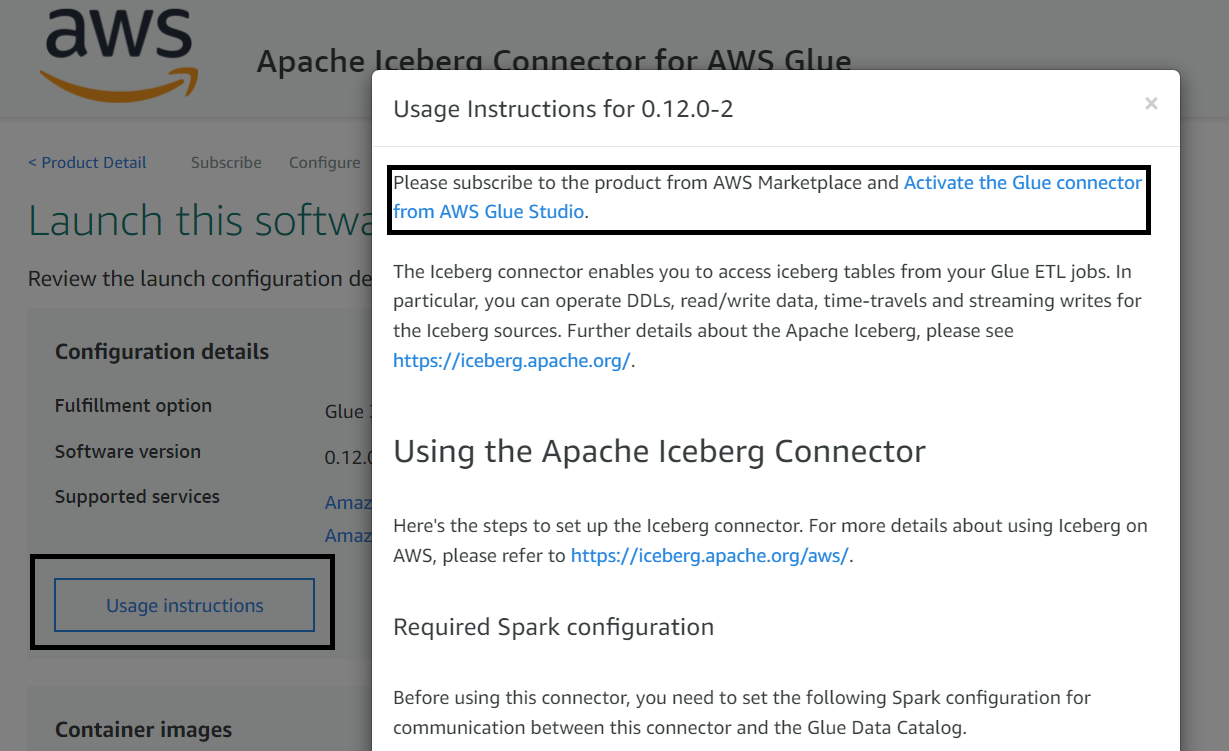
    6. Choose Usage Instruction, which opens a page that has a link to activate the connector.
    7. Create a connection by providing a name and choosing Create connection and activate connector.

    You can confirm your new connection on the AWS Glue Studio Connectors page.

    To use this connector, when you create an AWS Glue job, make sure you add this connector to your job. Later in the implementation steps, when you create an AWS Glue job, we show how to use the connector you just configured.

    Solution overview

    Let’s assume you have a relational database that has product inventory data, and you want to move it into an S3 data lake on a continuous basis, so that your downstream applications or consumers can use it for analytics. After your initial data movement to Amazon S3, you’re supposed to receive incremental updates from the source database as CSV files using AWS DMS or equivalent tools, where each record has an additional column to represent an insert, update, or delete operation. While processing the incremental CDC data, one of the primary requirements you have is merging the CDC data in the data lake and providing the capability to query previous versions of the data.

    To solve this use case, we present the following simple architecture that integrates Amazon S3 for the data lake, AWS Glue with the Apache Iceberg connector for ETL (extract, transform, and load), and Athena for querying the data using standard SQL. Athena helps in querying the latest product inventory data from the Iceberg table’s latest snapshot, and Iceberg’s time travel feature helps in identifying a product’s price at any previous date.

    The following diagram illustrates the solution architecture.

    The solution workflow consists of the following steps:

    • Data ingestion:
      • Steps 1.1 and 1.2 use AWS Database Migration Service (AWS DMS), which connects to the source database and moves incremental data (CDC) to Amazon S3 in CSV format.
      • Steps 1.3 and 1.4 consist of the AWS Glue PySpark job, which reads incremental data from the S3 input bucket, performs deduplication of the records, and then invokes Apache Iceberg’s MERGE statements to merge the data with the target UPSERT S3 bucket.
    • Data access:
      • Steps 2.1 and 2.2 represent Athena integration to query data from the Iceberg table using standard SQL and validate the time travel feature of Iceberg.
    • Data Catalog:
      • The AWS Glue Data Catalog is treated as a centralized catalog, which is used by AWS Glue and Athena. An AWS Glue crawler is integrated on top of S3 buckets to automatically detect the schema.

    We have referenced AWS DMS as part of the architecture, but while showcasing the solution steps, we assume that the AWS DMS output is already available in Amazon S3, and focus on processing the data using AWS Glue and Apache Iceberg.

    To demo the implementation steps, we use sample product inventory data that has the following attributes:

    • op – Represents the operation on the source record. This shows values I to represent insert operations, U to represent updates, and D to represent deletes. You need to make sure this attribute is included in your CDC incremental data before it gets written to Amazon S3. AWS DMS enables you to include this attribute, but if you’re using other mechanisms to move data, make sure you capture this attribute, so that your ETL logic can take appropriate action while merging it.
    • product_id – This is the primary key column in the source database’s products table.
    • category – This column represents the product’s category, such as Electronics or Cosmetics.
    • product_name – This is the name of the product.
    • quantity_available – This is the quantity available in the inventory for a product. When we showcase the incremental data for UPSERT or MERGE, we reduce the quantity available for the product to showcase the functionality.
    • last_update_time – This is the time when the product record was updated at the source database.

    If you’re using AWS DMS to move data from your relational database to Amazon S3, then by default AWS DMS includes the op attribute for incremental CDC data, but it’s not included by default for the initial load. If you’re using CSV as your target file format, you can include IncludeOpForFullLoad as true in your S3 target endpoint setting of AWS DMS to have the op attribute included in your initial full load file. To learn more about the Amazon S3 settings in AWS DMS, refer to S3Settings.

    To implement the solution, we create AWS resources such as an S3 bucket and an AWS Glue job, and integrate the Iceberg code for processing. Before we run the AWS Glue job, we have to upload the sample CSV files to the input bucket and process it with AWS Glue PySpark code for the output.

    Prerequisites

    Before getting started on the implementation, make sure you have the required permissions to perform the following in your AWS account:

    • Create AWS Identity and Access Management (IAM) roles as needed
    • Read or write to an S3 bucket
    • Create and run AWS Glue crawlers and jobs
    • Manage a database, table, and workgroups, and run queries in Athena

    For this post, we use the us-east-1 Region, but you can integrate it in your preferred Region if the AWS services included in the architecture are available in that Region.

    Now let’s dive into the implementation steps.

    Create an S3 bucket for input and output

    To create an S3 bucket, complete the following steps:

    1. On the Amazon S3 console, choose Buckets in the navigation pane.
    2. Choose Create bucket.
    3. Specify the bucket name as glue-iceberg-demo, and leave the remaining fields as default.
      S3 bucket names are globally unique. While implementing the solution, you may get an error saying the bucket name already exists. Make sure to provide a unique name and use the same name while implementing the rest of the implementation steps. Formatting the bucket name as <Bucket-Name>-${AWS_ACCOUNT_ID}-${AWS_REGION_CODE} might help you get a unique name.
    4. Choose Create bucket.
    5. On the bucket details page, choose Create folder.
    6. Create two subfolders: raw-csv-input and iceberg-output.
    7. Upload the LOAD00000001.csv file into the raw-csv-input folder of the bucket.

    The following screenshot provides a sample of the input dataset.

    Create input and output tables using Athena

    To create input and output Iceberg tables in the AWS Glue Data Catalog, open the Athena console and run the following queries in sequence:

    -- Create database for the demo
    CREATE DATABASE iceberg_demo;
    -- Create external table in input CSV files. Replace the S3 path with your bucket name
    CREATE EXTERNAL TABLE iceberg_demo.raw_csv_input(
      op string, 
      product_id bigint, 
      category string, 
      product_name string, 
      quantity_available bigint, 
      last_update_time string)
    ROW FORMAT DELIMITED FIELDS TERMINATED BY ',' 
    STORED AS INPUTFORMAT 'org.apache.hadoop.mapred.TextInputFormat' 
    OUTPUTFORMAT 'org.apache.hadoop.hive.ql.io.HiveIgnoreKeyTextOutputFormat'
    LOCATION 's3://glue-iceberg-demo/raw-csv-input/'
    TBLPROPERTIES (
      'areColumnsQuoted'='false', 
      'classification'='csv', 
      'columnsOrdered'='true', 
      'compressionType'='none', 
      'delimiter'=',', 
      'typeOfData'='file');
    -- Create output Iceberg table with partitioning. Replace the S3 bucket name with your bucket name
    CREATE TABLE iceberg_demo.iceberg_output (
      product_id bigint,
      category string,
      product_name string,
      quantity_available bigint,
      last_update_time timestamp) 
    PARTITIONED BY (category, bucket(16,product_id)) 
    LOCATION 's3://glue-iceberg-demo/iceberg-output/' 
    TBLPROPERTIES (
      'table_type'='ICEBERG',
      'format'='parquet',
      'write_target_data_file_size_bytes'='536870912' 
    )
    -- Validate the input data
    SELECT * FROM iceberg_demo.raw_csv_input;
    

    Alternatively, you can integrate an AWS Glue crawler on top of the input to create the table. Next, let’s create the AWS Glue PySpark job to process the input data.

    Create the AWS Glue job

    Complete the following steps to create an AWS Glue job:

    1. On the AWS Glue console, choose Jobs in the navigation pane.
    2. Choose Create job.
    3. Select Spark script editor.
    4. For Options, select Create a new script with boilerplate code.
    5. Choose Create.
    6. Replace the script with the following script:
      import sys
      from awsglue.transforms import *
      from awsglue.utils import getResolvedOptions
      from pyspark.context import SparkContext
      from awsglue.context import GlueContext
      from awsglue.job import Job
      
      from pyspark.sql.functions import *
      from awsglue.dynamicframe import DynamicFrame
      
      from pyspark.sql.window import Window
      from pyspark.sql.functions import rank, max
      
      from pyspark.conf import SparkConf
      
      args = getResolvedOptions(sys.argv, ['JOB_NAME', 'iceberg_job_catalog_warehouse'])
      conf = SparkConf()
      
      ## Please make sure to pass runtime argument --iceberg_job_catalog_warehouse with value as the S3 path 
      conf.set("spark.sql.catalog.job_catalog.warehouse", args['iceberg_job_catalog_warehouse'])
      conf.set("spark.sql.catalog.job_catalog", "org.apache.iceberg.spark.SparkCatalog")
      conf.set("spark.sql.catalog.job_catalog.catalog-impl", "org.apache.iceberg.aws.glue.GlueCatalog")
      conf.set("spark.sql.catalog.job_catalog.io-impl", "org.apache.iceberg.aws.s3.S3FileIO")
      conf.set("spark.sql.extensions", "org.apache.iceberg.spark.extensions.IcebergSparkSessionExtensions")
      conf.set("spark.sql.sources.partitionOverwriteMode", "dynamic")
      conf.set("spark.sql.iceberg.handle-timestamp-without-timezone","true")
      
      sc = SparkContext(conf=conf)
      glueContext = GlueContext(sc)
      spark = glueContext.spark_session
      job = Job(glueContext)
      job.init(args["JOB_NAME"], args)
      
      ## Read Input Table
      IncrementalInputDyF = glueContext.create_dynamic_frame.from_catalog(database = "iceberg_demo", table_name = "raw_csv_input", transformation_ctx = "IncrementalInputDyF")
      IncrementalInputDF = IncrementalInputDyF.toDF()
      
      if not IncrementalInputDF.rdd.isEmpty():
          ## Apply De-duplication logic on input data, to pickup latest record based on timestamp and operation 
          IDWindowDF = Window.partitionBy(IncrementalInputDF.product_id).orderBy(IncrementalInputDF.last_update_time).rangeBetween(-sys.maxsize, sys.maxsize)
                        
          # Add new columns to capture first and last OP value and what is the latest timestamp
          inputDFWithTS= IncrementalInputDF.withColumn("max_op_date",max(IncrementalInputDF.last_update_time).over(IDWindowDF))
          
          # Filter out new records that are inserted, then select latest record from existing records and merge both to get deduplicated output 
          NewInsertsDF = inputDFWithTS.filter("last_update_time=max_op_date").filter("op='I'")
          UpdateDeleteDf = inputDFWithTS.filter("last_update_time=max_op_date").filter("op IN ('U','D')")
          finalInputDF = NewInsertsDF.unionAll(UpdateDeleteDf)
      
          # Register the deduplicated input as temporary table to use in Iceberg Spark SQL statements
          finalInputDF.createOrReplaceTempView("incremental_input_data")
          finalInputDF.show()
          
          ## Perform merge operation on incremental input data with MERGE INTO. This section of the code uses Spark SQL to showcase the expressive SQL approach of Iceberg to perform a Merge operation
          IcebergMergeOutputDF = spark.sql("""
          MERGE INTO job_catalog.iceberg_demo.iceberg_output t
          USING (SELECT op, product_id, category, product_name, quantity_available, to_timestamp(last_update_time) as last_update_time FROM incremental_input_data) s
          ON t.product_id = s.product_id
          WHEN MATCHED AND s.op = 'D' THEN DELETE
          WHEN MATCHED THEN UPDATE SET t.quantity_available = s.quantity_available, t.last_update_time = s.last_update_time 
          WHEN NOT MATCHED THEN INSERT (product_id, category, product_name, quantity_available, last_update_time) VALUES (s.product_id, s.category, s.product_name, s.quantity_available, s.last_update_time)
          """)
      
          job.commit()

    7. On the Job details tab, specify the job name.
    8. For IAM Role, assign an IAM role that has the required permissions to run an AWS Glue job and read and write to the S3 bucket.
    9. For Glue version, choose Glue 3.0.
    10. For Language, choose Python 3.
    11. Make sure Job bookmark has default value of Enable.
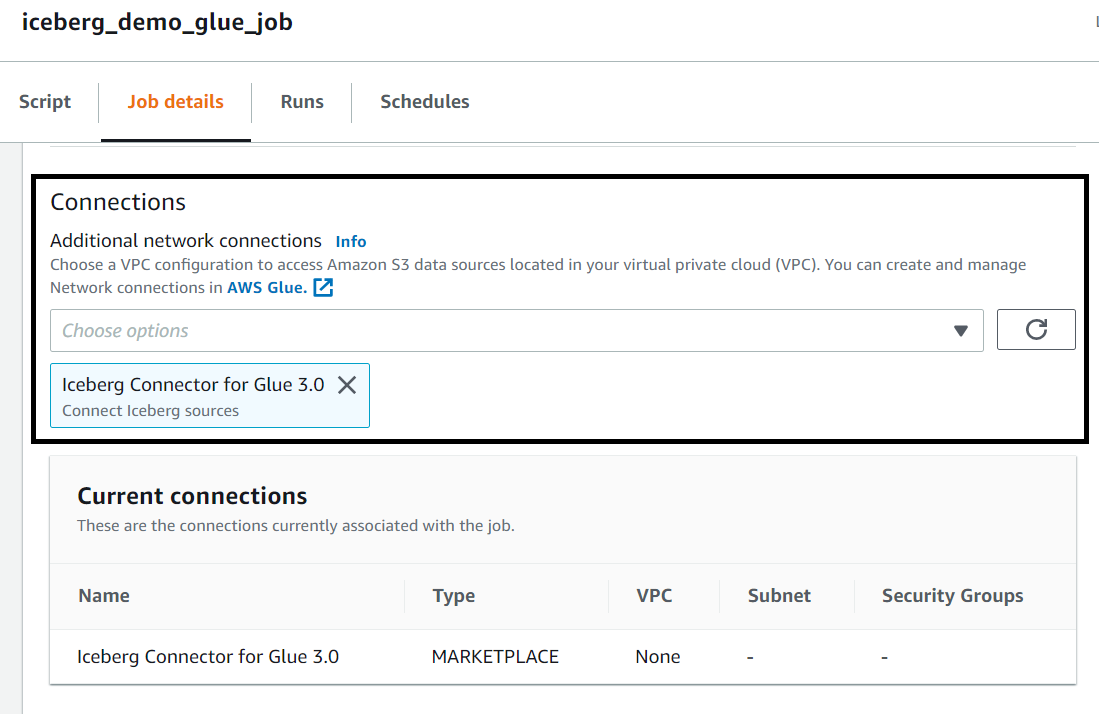
    12. Under Connections, choose the Iceberg connector.
    13. Under Job parameters, specify Key as --iceberg_job_catalog_warehouse and Value as your S3 path (e.g. s3://<bucket-name>/<iceberg-warehouse-path>).
    14. Choose Save and then Run, which should write the input data to the Iceberg table with a MERGE statement.

    Because the target table is empty in the first run, the Iceberg MERGE statement runs an INSERT statement for all records.

    Query the Iceberg table using Athena

    After you have successfully run the AWS Glue job, you can validate the output in Athena with the following SQL query:

    SELECT * FROM iceberg_demo.iceberg_output limit 10;

    The output of the query should match the input, with one difference: The Iceberg output table doesn’t have the op column.

    Upload incremental (CDC) data for further processing

    After we process the initial full load file, let’s upload the following two incremental files, which include insert, update, and delete records for a few products.

    The following is a snapshot of first incremental file (20220302-1134010000.csv).

    The following is a snapshot of the second incremental file (20220302-1135010000.csv), which shows that record 102 has another update transaction before the next ETL job processing.

    After you upload both incremental files, you should see them in the S3 bucket.

    Run the AWS Glue job again to process incremental files

    Because we enabled bookmarks on the AWS Glue job, the next job picks up only the two new incremental files and performs a merge operation on the Iceberg table.

    To run the job again, complete the following steps:

    • On the AWS Glue console, choose Jobs in the navigation pane.
    • Select the job and choose Run.

    As explained earlier, the PySpark script is expected to deduplicate the input data before merging to the target Iceberg table, which means it only picks up the latest record of the 102 product.

    For this post, we run the job manually, but you can configure your AWS Glue jobs to run as part of an AWS Glue workflow or via AWS Step Functions (for more information, see Manage AWS Glue Jobs with Step Functions).

    Query the Iceberg table using Athena, after incremental data processing

    After incremental data processing is complete, you can run the same SELECT statement again and validate that the quantity value is updated for record 102 and product record 103 is deleted.

    The following screenshot shows the output.

    Query the previous version of data with Iceberg’s time travel feature

    You can run the following SQL query in Athena that uses the AS OF TIME statement of Iceberg to query the previous version of the data:

    -SELECT * FROM iceberg_demo.iceberg_output FOR SYSTEM_TIME AS OF TIMESTAMP '2022-03-23 18:56:00'

    The following screenshot shows the output. As you can see, the quantity value of product ID 102 is 30, which was available during the initial load.

    Note that you have to change the AS OF TIMESTAMP value based on your runtime.

    This concludes the implementation steps.

    Considerations

    The following are a few considerations you should keep in mind while integrating Apache Iceberg with AWS Glue:

    • Athena support for Iceberg became generally available recently, so make sure you review the considerations and limitations of using this feature.
    • AWS Glue provides DynamicFrame APIs to read from different source systems and write to different targets. For this post, we integrated Spark DataFrame instead of AWS Glue DynamicFrame because Iceberg’s MERGE statements aren’t supported with AWS Glue DynamicFrame APIs.
      To learn more about AWS integration, refer to Iceberg AWS Integrations.

    Conclusion

    This post explains how you can use the Apache Iceberg framework with AWS Glue to implement UPSERT on an S3 data lake. It provides an overview of Apache Iceberg, its features and integration approaches, and explains how you can implement it through a step-by-step guide.

    I hope this gives you a great starting point for using Apache Iceberg with AWS analytics services and that you can build on top of it to implement your solution.

    Appendix: AWS Glue DynamicFrame sample code to interact with Iceberg tables

    • The following code sample demonstrates how you can integrate the DynamicFrame method to read from an Iceberg table:
    IcebergDyF = (
        glueContext.create_dynamic_frame.from_options(
            connection_type="marketplace.spark",
            connection_options={
                "path": "job_catalog.iceberg_demo.iceberg_output",
                "connectionName": "Iceberg Connector for Glue 3.0",
            },
            transformation_ctx="IcebergDyF",
        )
    )
    
    ## Optionally, convert to Spark DataFrame if you plan to leverage Iceberg’s SQL based MERGE statements
    InputIcebergDF = IcebergDyF.toDF()
    • The following sample code shows how you can integrate the DynamicFrame method to write to an Iceberg table for append-only mode:
    ## Use the following 2 lines to convert Spark DataFrame to DynamicFrame, if you plan to leverage DynamicFrame API to write to final target
    from awsglue.dynamicframe import DynamicFrame 
    finalDyF = DynamicFrame.fromDF(InputIcebergDF,glueContext,"finalDyF")
    
    WriteIceberg = glueContext.write_dynamic_frame.from_options(
        frame= finalDyF,
        connection_type="marketplace.spark",
        connection_options={
            "path": "job_catalog.iceberg_demo.iceberg_output",
            "connectionName": "Iceberg Connector for Glue 3.0",
        },
        format="parquet",
        transformation_ctx="WriteIcebergDyF",
    )

    About the Author

    Sakti Mishra is a Principal Data Lab Solution Architect at AWS, where he helps customers modernize their data architecture and help define end to end data strategy including data security, accessibility, governance, and more. He is also the author of the book Simplify Big Data Analytics with Amazon EMR. Outside of work, Sakti enjoys learning new technologies, watching movies, and visiting places with family.

    How GE Proficy Manufacturing Data Cloud replatformed to improve TCO, data SLA, and performance

    Post Syndicated from Jyothin Madari original https://aws.amazon.com/blogs/big-data/how-ge-proficy-manufacturing-data-cloud-replatformed-to-improve-tco-data-sla-and-performance/

    This is post is co-authored by Jyothin Madari, Madhusudhan Muppagowni and Ayush Srivastava from GE.

    GE Proficy Manufacturing Data Cloud (MDC), part of the GE Digital’s Manufacturing Execution Systems (MES) suite of solutions, allows GED’s customers to increase the derived value easily and quickly from the MES by reliably bringing enterprise-wide manufacturing data into the cloud and transforming it into a structured dataset for advanced analytics and deeper insights into the manufacturing processes.

    In this post, we share how MDC modernized the hybrid cloud strategy by replatforming. This solution improved scalability, their data availability Service Level Agreement (SLA), and performance.

    Challenge

    MDC v1 was built on Predix services using industrial use case-optimized Predix services such as Predix Columnar Store (Cassandra) and Predix Insights (Amazon EMR). MDC evolved in both features and the underlying platform over the past year with a goal to improve TCO, data SLA, and performance. MDC’s customer base grew and the number of sites from customers grew to over 100 in the past couple of years. The increased number of sites needed more compute and storage capacity. This increased infrastructure and operational cost significantly, while introducing increased data latency and lowering the data freshness interval from the cloud.

    How we started

    MDC evaluated several vendors for their storage and compute capabilities using various measurements: security, performance, scalability, ease of management and operation, reduction of overall cost and increase in ROI, partnership, and migration help (technology assistance). The MDC team saw opportunities to improve the product by using native AWS services such as Amazon Redshift, AWS Glue, and Amazon Managed Workflows for Apache Airflow (Amazon MWAA), which made the product more performant and scalable while reducing operation costs and making it future-ready for advanced analytics and new customer use cases.

    The GE Digital team, comprised of domain experts, developers, and QA, worked shoulder to shoulder with the AWS ProServe team, comprised of Solution Architects, Data Architects, and Big Data Experts, in determining the key architectural changes required and solutions to implementation challenges.

    Overview of solution

    The following diagram illustrates the high-level architecture of the solution.

    This is a broad overview, and the specifics of networking and security between components are out of scope for this post.

    The solution includes the following main steps and components:

    1. CDC and log collector – Compressed CSV data is collected from over 100 Manufacturing Data Sources Proficy Plant Applications and sinked into an Amazon Simple Storage Service (Amazon S3) bucket.
    2. S3 raw bucket – Our data lands in Amazon S3 without any transformation, but appropriately partitioned (tenant, site, date, and so on) for the ease of future processing.
    3. AWS Lambda – When the file lands in the S3 raw bucket, it triggers an S3 event notification, which invokes AWS Lambda. Lambda extracts metadata (bucket name, key name, date, and so on) from the event and saves it in Amazon DynamoDB.
    4. AWS Glue – Our goal is now to take CSV files, with varying schemas, and convert them into Apache Parquet format. An AWS Glue extract, transform, and load (ETL) job reads a list of files to be processed from the DynamoDB table and fetches them from the S3 raw bucket. We have preconfigured unified AVRO schemas in the AWS Glue Schema Registry for schema conversion. Converted data lands in the S3 raw Parquet bucket.
    5. S3 raw Parquet bucket – Data in this bucket is still raw and unmodified; only the format was changed. This intermediary storage is required due to schema and column order mismatch in CSV files.
    6. Amazon Redshift – The majority of transformations and data enrichment happens in this step. Amazon Redshift Spectrum consumes data from the S3 raw Parquet bucket and external PostgreSQL dimension tables (through a federated query). Transformations are performed via stored procedures, where we encapsulate logic for data transformation, data validation, and business-specific logic. The Amazon Redshift cluster is configured with concurrency scaling, auto workload management (WLM) with caching, and the latest RA3 instance types.
    7. MDC API – These custom-built, web-based, REST API microservices talk on the backend with Amazon Redshift and expose data to external users, business intelligence (BI) tools, and partners.
    8. Amazon Redshift data export and archival – On a scheduled basis, Amazon Redshift exports (UNLOAD command) contextualized and business-defined aggregated data. Exports are landed in the S3 bucket as Apache Parquet files.
    9. S3 Parquet export bucket – This bucket stores the exported data (hundreds of TBs) used by external users who need to run extensive, heavy analytics and AI or machine learning (ML) with various tools (such as Amazon EMR, Amazon Athena, Apache Spark, and Dremio).
    10. End-users – External users consume data from the API. The main use case here is reporting and visual analytics.
    11. Amazon MWAA – The orchestrator of the solution, Amazon MWAA is used for scheduling Amazon Redshift stored procedures, AWS Glue ETL jobs, and Amazon Redshift exports at regular intervals with error handling and retries built in.

    Bringing it all together

    MDC replaced both Predix Columnar Store (Cassandra) and Predix Insights (Amazon EMR) with Amazon Redshift for both storage of the MDC data models and compute (ELT). Amazon MWAA is used to schedule the workloads that do the bulk of the ELT. Lambda, AWS Glue, and DynamoDB are used to normalize the schema differences between sites. It was important not to disrupt MDC customers while replatforming. To achieve this, MDC used a phased approach to migrate the data models to Amazon Redshift. They used federated queries to query existing PostgreSQL for dimensional data, which facilitated having some of the data models in Amazon Redshift, while the others were in Cassandra with no interruption to MDC customers. Redshift Spectrum facilitated querying the raw data in Amazon S3 directly both for ETL and data validation.

    75% of the MDC team along with the AWS ProServe team and AWS Solution Architects collaborated with the GE Digital Security Team and Platform Team to implement the architecture with AWS native services. It took approximately 9 months to implement, secure, and performance tune the architecture and migrate data models in three phases. Each phase has gone through a GE Digital internal security review. Amazon Redshift Auto WLM, short query acceleration, and tuning the sort keys to optimize querying patterns improved the Proficy MDC API performance. Because the unload of the data from Amazon Redshift was fast, Proficy MDC is now able to export the data much more frequently to our end customers.

    Conclusion

    With replatforming, Proficy MDC was able to improve ETL performance by approximately 75%. Data latency and freshness improved by approximately 87%. The solution reduced TCO of the platform by approximately 50%. Proficy MDC was also able reduce the infrastructure and operational cost. Improved performance and reduced latency has allowed us to speed up the next steps in our journey to modernize the enterprise data architecture and hybrid cloud data platform.


    About the Authors

    Jyothin Madari leads the Manufacturing Data Cloud (MDC) engineering team; part of the manufacturing suite of products at GE Digital. He has 18 years of experience, 4 of which is with GE Digital. Most recently he has been working on data migration projects with an aim to reduce costs and improve performance. He is an AWS Certified Cloud Practitioner, a keen learner and loves solving interesting problems. Connect with him on LinkedIn.

    Madhusudhan (Madhu) Muppagowni is a Technical Architect and Principal Software Developer based in Silicon Valley, Bay Area, California.  He is passionate about Software Development and Architecture. He thrives on producing Well-Architected and Secure SaaS Products, Data Pipelines that can make a real impact.  He loves outdoors and an avid hiker and backpacker. Connect with him on LinkedIn.

    Ayush Srivastava is a Senior Staff Engineer and Technical Anchor based in Hyderabad, India. He is passionate about Software Development and Architecture. He has Demonstrated track record of successfully technical anchoring small to large Secure SaaS Products, Data Pipelines from start to finish. He loves exploring different places and he says “I’m in love with cities I have never been to and people I have never met.” Connect with him on LinkedIn.

    Karen Grygoryan is Data Architect with AWS ProServe. Connect with him on LinkedIn.

    Gnanasekaran Kailasam is a Data Architect at AWS. He has worked with building data warehouses and big data solutions for over 16 years. He loves to learn new technologies and solving, automating, and simplifying customer problems with easy-to-use cloud data solutions on AWS. Connect with him on LinkedIn.

    [$] Remote participation at LSFMM

    Post Syndicated from original https://lwn.net/Articles/897915/

    As with many conferences these days, the
    2022 Linux Storage,
    Filesystem, Memory-management and BPF Summit
    (LSFMM) had a virtual
    component. The main rooms were equipped with a camera trained on the
    podium, thus the session leader, so that
    remote participants could watch; this camera connected into a Zoom
    conference that allowed participation from afar. In a session near the
    end of the conference, led by conference organizer Josef Bacik, remote
    participants were invited to share their
    experiences—on camera—with those who were there in person. It was an
    opportunity to discuss what went right—and wrong—with an eye toward
    improving the experience for future events.

    Let’s Architect! Architecting for front end

    Post Syndicated from Luca Mezzalira original https://aws.amazon.com/blogs/architecture/lets-architect-architecting-for-front-end/

    Many workloads in the cloud need a front-end interface for interacting with APIs, either for populating content or for consuming it. This edition of Let’s Architect! shows you how to scale your front-end applications and serve data across multiple devices.

    Micro-frontend Architectures on AWS

    Micro-frontends are the technical representation of a business subdomain, they allow independent implementations with the same or different technology.

    They help minimize the code shared with other subdomains and are owned by a single team. This blog post shows you how to apply client-side rendering micro-frontends in AWS.

    Microservices backend with the micro-frontends

    Microservices backend with the micro-frontends

    Building serverless micro frontends at the edge

    Microservices architectures use techniques like canary releases or blue-green deployments to reduce the blastradius of issues deployed in production. In this video, you’ll learn how Ryanair scaled their front-end practice across their website and how to implement these techniques using Lambda@Edge and Amazon CloudFront.

    A serverless architecture designed using AWS Step Functions for SEO integration of micro-frontends

    A serverless architecture designed using AWS Step Functions for SEO integration of micro-frontends

    Introduction to GraphQL

    Many companies build APIs with GraphQL because it gives front-end developers the ability to query multiple databases, microservices, and APIs with a single GraphQL endpoint.

    This video introduces asynchronous APIs, GraphQL, and the most common architectural patterns to work with. It also provides a starting point to understand the differences between REST and GraphQL as well as  mental models to identify the right tool for each job.

    Some recommended practices to consider while getting a GraphQL API into production

    Some recommended practices to consider while getting a GraphQL API into production

    Mocking and Testing Serverless APIs with AWS Amplify

    This video covers how to write successful tests against an API backend using AWS Amplify. Amplify speeds up the development of your front-end and serverless backend applications.

    Thanks to its low-code approach, you can focus on writing the business logic of your applications without the need to create the plumbing between services. If you need to add more configurations using Amplify, review its custom resources.

    The Amplify Command Line Interface (CLI) is a unified toolchain to create, integrate, and manage cloud services for your application

    The Amplify Command Line Interface (CLI) is a unified toolchain to create, integrate, and manage cloud services for your application

    See you next time!

    Thanks for reading! See you in a couple of weeks when we discuss technological lock-in.

    Other posts in this series

    Looking for more architecture content?

    AWS Architecture Center provides reference architecture diagrams, vetted architecture solutions, Well-Architected best practices, patterns, icons, and more!

    Capturing GPU Telemetry on the Amazon EC2 Accelerated Computing Instances

    Post Syndicated from Sheila Busser original https://aws.amazon.com/blogs/compute/capturing-gpu-telemetry-on-the-amazon-ec2-accelerated-computing-instances/

    This post is written by Amr Ragab, Principal Solutions Architect EC2.

    AWS is excited to announce the native integration of monitoring GPU metrics through the CloudWatch Agent. Customers can now easily monitor GPU utilization and its memory to scale their workloads more effectively without custom scripts. In this post, we’ll describe how to allow GPU monitoring and integrate it into your Amazon Machine Images (AMI). Furthermore, we’ll extend this to include the monitoring of GPU hardware events utilizing CloudWatch Log Streams. By combining this telemetry into the Amazon CloudWatch Console, customers can have a complete picture of GPU activity across their fleets.

    Capturing GPU metrics

    There is an extensive list of NVIDIA accelerator metrics that can be captured. Depending on the workload type, it may be unnecessary to capture all of the metrics at all times. The following table breaks down the suggested metrics to collect by workload type. This considers a balance of cost and impactful metrics at scale.

    Compute (Machine Learning (ML), High Performance Computing (HPC)) Graphics/Gaming
    utilization_gpu
    power_draw
    utilization_memory
    memory_total
    memory_used
    memory_free
    pcie_link_gen_current
    pcie_link_width_current
    clocks_current_smclocks_current_memory
    utilization_gpu
    utilization_memory
    memory_total
    memory_usedmemory_free
    pcie_link_gen_current
    pcie_link_width_current
    encoder_stats_session_count
    encoder_stats_average_fps
    encoder_stats_average_latency
    clocks_current_graphics
    clocks_current_memory
    clocks_current_video

    Moreover, this is supported through custom AMIs that are deployed with managed service offerings, including Amazon Elastic Kubernetes Service (Amazon EKS), Amazon Elastic Container Services (Amazon ECS), and AWS ParallelCluster w/ SLURM for HPC clusters.

    The following is an example screenshot from the CloudWatch Console showcasing the telemetry captured for a P4d instance. You can see that we captured the preceding metrics on a per-GPU index. Each Amazon Elastic Compute Cloud (Amazon EC2) P4d instance has 8x A100 GPUs.

    Cloudwatch Console

    Capturing GPU Xid events

    Xid events are a reporting mechanism from GPU hardware vendors that emit notable events from the device to the OS in this case we are capturing the events through the NVRM kernel module. Current GPU architecture requires that the full GPU with protections are passed into the running instance. Thus, most errors that manifest inside of the customer instance aren’t directly visible to the Amazon EC2 virtualization stack. Although some of these errors are benign, others indicate problems with the customer application, the NVIDIA driver, and under rare circumstances a defect in the GPU hardware.

    For NVIDIA-based Amazon EC2 instances, these errors will be logged in the system journal with an “NVRM:” regular expression.

    These events can be collected and pushed to Amazon CloudWatch Logs as a stream. When an Xid event occurs on the GPU, it will parse the event and push it the log stream for that instance ID in the Region in which the instance is running. The following steps are required to get started capturing those events.

    Deployment

    We’ll cover the deployment in two different use-cases: 1. You have an existing instance running and you want to start to capture metrics and XID events. 2. You want to build and an AMI and use it within Amazon EC2 or additional services.

    I. On a running Amazon EC2 instance

    Step 1. Attach an IAM Role to the EC2 instance that has permission to CloudWatch Metrics/Logs. The following is an IAM policy that you can attach to your IAM Role.

    {
        "Version": "2012-10-17",
        "Statement": [
            {
                "Sid": "1",
                "Effect": "Allow",
                "Action": [
                    "cloudwatch:PutMetricStream",
                    "logs:CreateLogDelivery",
                    "logs:CreateLogStream",
                    "cloudwatch:PutMetricData",
                    "logs:UpdateLogDelivery",
                    "logs:CreateLogGroup",
                    "logs:PutLogEvents",
                    "cloudwatch:ListMetrics"
                ],
                "Resource": "*"
            }
        ]
    }
    

    Step 2. Connect to a shell on the EC2 instance (through SSM or SSH). Install the CloudWatch Agent following the instructions here. There is support across architectures and distributions.

    Step 3. Next, we can create our CloudWatch Agent JSON configuration file. The following JSON snippet will capture the logs from gpuerrors.log and push to CloudWatch Logs. Save the contents of the following JSON snippet to a file on the instance at /opt/aws/amazon-cloudwatch-agent/etc/amazon-cloudwatch-agent.json.

    {
         "agent": {
             "run_as_user": "root"
         },
         "metrics": {
             "append_dimensions": {
                 "AutoScalingGroupName": "${aws:AutoScalingGroupName}",
                 "ImageId": "${aws:ImageId}",
                 "InstanceId": "${aws:InstanceId}",
                 "InstanceType": "${aws:InstanceType}"
             },
             "aggregation_dimensions": [["InstanceId"]],
             "metrics_collected": {
                "nvidia_gpu": {
                    "measurement": [
                        "utilization_gpu",
                        "utilization_memory",
                        "memory_total",
                        "memory_used",
                        "memory_free",
                        "clocks_current_graphics",
                        "clocks_current_sm",
                        "clocks_current_memory"
                    ]
                }
             }
         },
         "logs": {
             "logs_collected": {
                 "files": {
                     "collect_list": [
                         {
                             "file_path": "/var/log/gpuevent.log",
                             "log_group_name": "/ec2/accelerated/accel-event-log",
                             "log_stream_name": "{instance_id}"
                         }
                     ]
                 }
             }
         }
     }

    Step 4. To start capturing the logs, restart the aws cloudwatch systemd service.

    sudo systemctl restart amazon-cloudwatch-agent.service

    At this point, if you navigate to the CloudWatch Console in the Region that the instance is running, – All metrics – CWAgent, you should see a table of metrics similar to the following screenshot.

    Cloudwatch Agent Metrics

    Step 5. To capture the XID events it’s possible to use the same CloudWatch Log directive used in the preceding image were set the GPU metrics to capture. The JSON following snippet defines that we will stream the log in /var/log/gpuevent.log to CloudWatch.

    "logs": {
             "logs_collected": {
                 "files": {
                     "collect_list": [
                         {
                             "file_path": "/var/log/gpuevent.log",
                             "log_group_name": "/ec2/accelerated/accel-event-log",
                             "log_stream_name": "{instance_id}"
                         }
                     ]
                 }
             }
         }
    

    The GitHub project is an open source reference design for capturing these errors in the CloudWatch agent.

    https://github.com/aws-samples/aws-efa-nccl-baseami-pipeline

    Step 6. Save the following file as /opt/aws/aws-hwaccel-event-parser.py|.go with the following contents, which will write the Xid errors parsed to /var/log/gpuevent.log:

    The code is available in either Python3 or Go (> 1.16).

    Golang code of the hwaccel-event-parser: https://github.com/aws-samples/aws-efa-nccl-baseami-pipeline/blob/master/nvidia-efa-ami_base/cloudwatch/nvidia/aws-hwaccel-event-parser.go

    Python3 code: https://github.com/aws-samples/aws-efa-nccl-baseami-pipeline/blob/master/nvidia-efa-ami_base/cloudwatch/nvidia/aws-hwaccel-event-parser.py

    As you can see from the code, this is a blocking thread, and it will be running during the lifetime of the instance or container.

    Step 7. For ease of deployment, you can also create a systemd service (aws-hw-monitor.service), which will run at startup before the CloudWatch agent.

    [Unit]
    Description=HW Error Monitor
    Before=amazon-cloudwatch-agent.service
    After=syslog.target network-online.target
    
    [Service]
    Type=simple
    ExecStart=/opt/aws/cloudwatch/aws-cloudwatch-wrapper.sh
    RemainAfterExit=1
    TimeoutStartSec=0
    
    [Install]
    WantedBy=multi-user.target

    Where /opt/aws/cloudwatch/aws-cloudwatch-wrapper.sh is a script which contains:

    #!/bin/bash
    python3 /opt/aws/aws-hwaccel-event-parser.py &

    Finally, enable and start the hw monitor service

    sudo systemctl enable aws-hw-monitor.service –now

    II. Building an AMI

    For convenience, the following repo has what is needed to build the AMI for Amazon EC2, Amazon EKS, Amazon ECS, Amazon Linux 2, and Ubuntu 18.04/20.04 distributions. You must have Packer installed on your machine, and it must be authenticated to make API calls on your behalf to AWS. Generally you need to modify the variables:{} json and execute the packer build.

    "variables": {
        "region": "us-east-1",
        "flag": "<flag>",
        "subnet_id": "<subnetid>",
        "security_groupids": "<security_group_id,security_group_id",
        "build_ami": "<buildami>",
        "efa_pkg": "aws-efa-installer-latest.tar.gz",
        "intel_mkl_version": "intel-mkl-2020.0-088",
        "nvidia_version": "510.47.03",
        "cuda_version": "cuda-toolkit-11-6 nvidia-gds-11-6",
        "cudnn_version": "libcudnn8",
        "nccl_version": "v2.12.7-1"
      },

    After filling in the variables, check that the packer script is validated.

    packer validate nvidia-efa-ml-al2.yml
    packer build nvidia-efa-ml-al2.yml

    The log group namespace is /ec2/accelerated/accel-event-log. However, you may change this to the namespace of your preference in the CloudWatch Agent config file created earlier.

    Navigate to the CloudWatch Console – Logs – Log groups – /ec2/accelerated/accel-event-log. It’s sorted by instance ID, where the instance ID of the latest stream is on top.

    CloudWatch Log-events

    We can see in the preceding screenshot that an example workload ran on instance i-03a7b66de3198977e, which was a p4d.24xlarge triggered a Xid 63 event. Capturing these events is the first step. Next, we must interpret what these events mean. With each Xid error, there is a number associated with each event. As previously mentioned, these can be hardware errors, driver, and/or application errors. If you’re running on an Amazon EC2 accelerated instance, and after code execution run into one of these errors, contact AWS Support with the instance ID and Xid error. The following is a list of the more common Xid errors that you may encounter.

    Xid Error Name Description Action
    48 Double Bit ECC error Hardware memory error Contact AWS Support with Xid error and instance ID
    74 GPU NVLink error Further SXid errors should also be populated which will inform on the error seen with the NVLink fabric Get information on which links are causing the issue by running nvidia-smi nvlink -e
    63 GPU Row Remapping Event Specific to Ampere architecture –- a row bank is pending a memory remap Stop all CUDA processes, and reset the GPU (nvidia-smi -r), and make sure thatensure the remap is cleared in nvidia-smi -q
    13 Graphics Engine Exception User application fault , illegal instruction or register Rerun the application with CUDA_LAUNCH_BLOCKING=1 enabled which should determine if it’s a NVIDIA driver or hardware issue
    31 GPU memory page fault Illegal memory address access error Rerun the application with CUDA_LAUNCH_BLOCKING=1 enabled which should determine if it’s a NVIDIA driver or hardware issue

    A quick way to check for row remapping failures is to run the below command on the instance.

    nvidia-smi --query-remapped-
    rows=gpu_name,gpu_bus_id,remapped_rows.failure,remapped_rows.pending,remapped_rows.correctable,remapped_rows.uncorrectable --format=csv
    gpu_name, gpu_bus_id, remapped_rows.failure, remapped_rows.pending, remapped_rows.correctable, remapped_rows.uncorrectable
    NVIDIA A100-SXM4-40GB, 00000000:10:1C.0, 0, 0, 0, 0
    NVIDIA A100-SXM4-40GB, 00000000:10:1D.0, 0, 0, 0, 0
    NVIDIA A100-SXM4-40GB, 00000000:20:1C.0, 0, 0, 0, 0
    NVIDIA A100-SXM4-40GB, 00000000:20:1D.0, 0, 0, 0, 0
    NVIDIA A100-SXM4-40GB, 00000000:90:1C.0, 0, 0, 0, 0
    NVIDIA A100-SXM4-40GB, 00000000:90:1D.0, 0, 0, 0, 0
    NVIDIA A100-SXM4-40GB, 00000000:A0:1C.0, 0, 0, 0, 0
    NVIDIA A100-SXM4-40GB, 00000000:A0:1D.0, 0, 0, 0, 0
    

    This isn’t an exhaustive list of Xid events, but it provides some of the more common ones that you may come across as you develop your accelerated workload. You can find a more complete table of events here. Furthermore, if you have questions, you can reach out to AWS Support with the output of the tar ball created by executing the nvidia-bug-report.sh script included with the NVIDIA driver.

    Conclusion

    Get started with integrating this monitoring into your AMIs if you use custom AMIs specifically for key services, such as Amazon EKS, Amazon ECS, or Amazon EC2 with AWS ParallelCluster. This will help you discover utilization metrics for your accelerated computing workloads. If you have any questions about this post, then reach out to your account team.

    Prebuilding codespaces is generally available

    Post Syndicated from Tanmayee Kamath original https://github.blog/2022-06-15-prebuilding-codespaces-is-generally-available/

    Prebuilding codespaces is generally available 🎉

    We’re excited to announce that the ability to prebuild codespaces is now generally available. As a quick recap, a prebuilt codespace serves as a “ready-to-go” template where your source code, editor extensions, project dependencies, commands, and configurations have already been downloaded, installed, and applied, so that you don’t have to wait for these tasks to finish each time you create a new codespace. This helps significantly speed up codespace creations–especially for complex or large codebases.

    Codespaces prebuilds entered public beta earlier this year, and we received a ton of feedback around experiences you loved, as well as areas we could improve on. We’re excited to share those with you today.

    How Vanta doubled its engineering team with Codespaces

    With Codespaces prebuilds, Vanta was able to significantly reduce the time it takes for a developer to onboard. This was important, because Vanta’s Engineering Team doubled in size in the last few months. When a new developer joined the company, they would need to manually set up their dev environment; and once it was stable, it would diverge within weeks, often making testing difficult.

    “Before Codespaces, the onboarding process was tedious. Instead of taking two days, now it only takes a minute for a developer to access a pristine, steady-state environment, thanks to prebuilds,” said Robbie Ostrow, Software Engineering Manager at Vanta. “Now, our dev environments are ephemeral, always updated and ready to go.”

    Scheduled prebuilds to manage GitHub Actions usage

    Repository admins can now decide how and when they want to update prebuild configurations based on their team’s needs. While creating or updating prebuilds for a given repository and branch, admins can choose from three available triggers to initiate a prebuild refresh:

    • Every push (default): Prebuild configurations are updated on every push made to the given branch. This ensures that new Codespaces always contain the latest configuration, including any recently added or updated dependencies.
    • On configuration change: Prebuild configurations are updated every time configuration files change. This ensures that the latest configuration changes appear in new Codespaces. The Actions workflow that generates the prebuild template will run less often, so this option will use fewer Actions minutes.
    • Scheduled: With this setting, you can have your prebuild configurations update on a custom schedule. This can help further reduce the consumption of Actions minutes.

    With increased control, repository admins can make more nuanced trade-offs between “environment freshness” and Actions usage. For example, an admin working in a large organization may decide to update their prebuild configuration every hour rather than on every push to get the most economy and efficiency out of their Actions usage.

    Failure notifications for efficient monitoring

    Many of you shared with us the need to be notified when a prebuild workflow fails, primarily to be able to watch and fix issues if and when they arise. We heard you loud and clear and have added support for failure notifications within prebuilds. With this, repository admins can specify a set of individuals or teams to be informed via email in case a workflow associated with that prebuild configuration fails. This will enable team leads or developers in charge of managing prebuilds for their repository to stay up to date on any failures without having to manually monitor them. This will also enable them to make fixes faster, thus ensuring developers working on the project continue getting prebuilt codespaces.

    To help with investigating failures, we’ve also added the ability to disable a prebuild configuration in the instance repository admins would like to temporarily pause the update of a prebuild template while fixing an underlying issue.

    Improved ‘prebuild readiness’ indicators

    Lastly, to help you identify prebuild-enabled machine types to avail fast creations, we have introduced a ‘prebuild in progress’ label in addition to the ‘prebuild ready’ label in cases where a prebuild template creation for a given branch is in progress.

    Billing for prebuilds

    With general availability, organizations will be billed for Actions minutes required to run prebuild associated workflows and storage of templates associated with each prebuild configuration for a given repository and region. As an admin, you can download the usage report for your organization to get a detailed view of prebuild-associated Actions and storage costs for your organization-owned repositories to help you manage usage.

    Alongside enabling billing, we’ve also added a functionality to help manage prebuild-associated storage costs based on the valuable feedback that you shared with us.

    Template retention to manage storage costs

    Repository administrators can now specify the number of prebuild template versions to be retained with a default template retention setting of two. A default of two means that the codespace service will retain the latest and one previous prebuild template version by default, thus helping you save on storage for older versions.
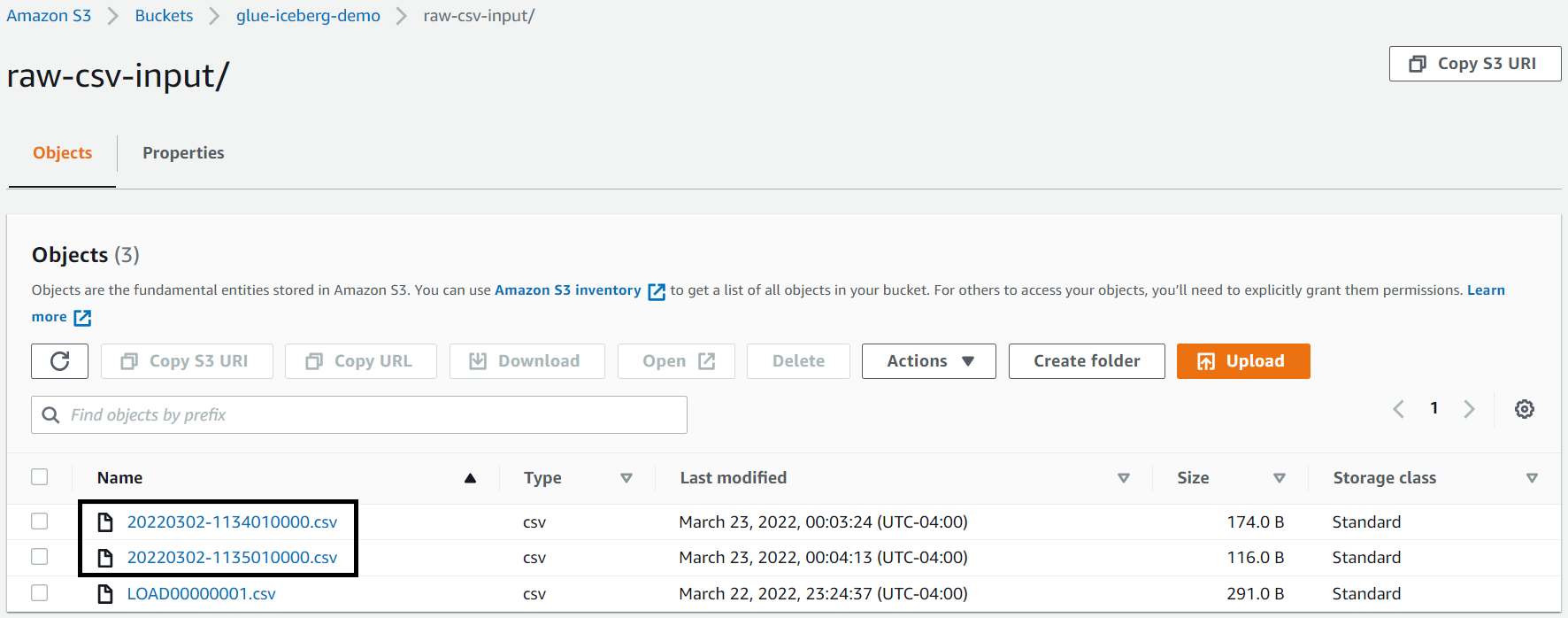
    How to get started

    Prebuilds are generally available for the GitHub Enterprise Cloud and GitHub Team plans as of today.

    As an organization or repository admin, you can head over to your repository’s settings page and create prebuild configurations under the “Codespaces” tab. As a developer, you can create a prebuilt codespace by heading over to a prebuild-enabled branch in your repository and selecting a machine type that has the “prebuild ready” label on it.

    Here’s a link to the prebuilds documentation to help you get started!

    Post general availability, we’ll continue working on functionalities to enable prebuilds on monorepos and multi-repository scenarios based on your feedback. If you have any feedback to help improve this experience, be sure to post it on our GitHub Discussions forum.

    How Netflix Content Engineering makes a federated graph searchable (Part 2)

    Post Syndicated from Netflix Technology Blog original https://netflixtechblog.com/how-netflix-content-engineering-makes-a-federated-graph-searchable-part-2-49348511c06c

    By Alex Hutter, Falguni Jhaveri, and Senthil Sayeebaba

    In a previous post, we described the indexing architecture of Studio Search and how we scaled the architecture by building a config-driven self-service platform that allowed teams in Content Engineering to spin up search indices easily.

    This post will discuss how Studio Search supports querying the data available in these indices.

    Data consumption from Studio Search DGS

    Introduction

    When we say Content Engineering teams are interested in searching against the federated graph, the use-case is mainly focused on known-item search (a user has an item or items in mind they are trying to view or navigate to but need to use an external information system to locate them) and data retrieval (typically the data is structured and there is no ambiguity as to whether a particular record matches the given search criteria except in the case of textual fields where there is limited ambiguity) within a vertical search experience (focus on enabling search for a specific sub-graph within the big federated graph)

    Query Language

    Given the above scope of the search (vertical search experience with a focus on known-item search and data retrieval), one of the first things we had to design was a language that users can use to easily express their search criteria. With a goal of abstracting users away from the complexity of interacting with Elasticsearch directly, we landed on a custom Studio Search DSL reminiscent of SQL.

    The DSL supports specifying the search criteria as comparison expressions or inclusion/exclusion filters. The filter expressions can be combined together through logical operators (AND, OR, NOT) and grouped together through parentheses.

    Sample Syntax

    For example, to find all comedies from France or Spain, the query would be:

    (genre == ‘comedy’) AND (country ANY [‘FR’, ‘SP’])

    We used ANTLR to build the grammar for the Query DSL. From the grammar, ANTLR generates a parser that can walk the parse tree. By extending the ANTLR generated parse tree visitor, we were able to implement an Elasticsearch Query Builder component with the logic to generate the Elasticsearch query corresponding to the custom search query.

    If you are familiar with Elasticsearch, then you might be familiar with how complicated it can be to build up the correct Elasticsearch query for complex queries, especially if the index includes nested JSON documents which add an additional layer of complexity with respect to building nested queries (Incorrectly constructed nested queries can lead to Elasticsearch quietly returning wrong results). By exposing just a generic query language to the users and isolating the complexity to just our Elasticsearch Query Builder, we have been able to empower users to write search queries without requiring familiarity with Elasticsearch. This also leaves the possibility of swapping Elasticsearch with a different search engine in the future.

    One other challenge for the users when writing the search queries is to understand the fields that are available in the index and the associated types. Since we index the data as-is from the federated graph, the indexing query itself acts as self-documentation. For example, given the indexing query –

    Sample GraphQL query

    To find movies based on the actors’ roles, the query filter is simply

    `actors.role == ‘actor’`

    Text Search

    While the search DSL provides a powerful way to help narrow the scope of the search queries, users can also find documents in the index through free form text — either with just the input text or in combination with a filter expression in the search DSL. Behind the scenes during the indexing process, we have configured the Elasticsearch index with the appropriate analyzers to ensure that the most relevant matches for the input text are returned in the results.

    Hydration through Federation

    Given the wide adoption of the federated gateway within Content Engineering, we decided to implement the Studio Search service as a DGS (Domain Graph Service) that integrated with the federated gateway. The search APIs (besides search, we have other APIs to support faceted search, typeahead suggestions, etc) are exposed as GraphQL queries within the federated graph.

    This integration with the federation gateway allows the search DGS to just return the matching entity keys from the search index instead of the whole matching document(s). Through the power of federation, users are then able to hydrate the search results with any data available in the federated graph. This allows the search indices to be lean by indexing only the fields necessary for the search experience and at the same time provides complete flexibility for the users to fetch any data available in the federated graph instead of being restricted to just the data available in the search index.

    Example

    Sample Search query

    In the above example, users are able to fetch the production schedule as part of the search results even though the search index doesn’t hold that data.

    Authorization

    With the API to query the data in the search indices in place, the next thing we needed to tackle was figuring out how to secure access to the data in the indices. With several of the indices including sensitive data, and the source teams already having restrictive access policies in place to secure the data they own, the search indices which hosted a secondary copy of the source data needed to be secured as well.

    We chose to apply “late binding” (or “query time”) security — on every incoming search query, we make an API call to the centralized access policy server with context including the identity of the caller making the request and the search index they are trying to access. The policy server evaluates the access policies defined by the source teams and returns a set of constraints. Ex. The caller has access to Movies where the type is ‘licensed’ (The caller does not have access to Netflix-produced content, but just the licensed content). The constraints are then translated to a set of filter expressions in the search query DSL format (Ex. movie.type == ‘licensed’) and combined with the user-specified search filter with a logical AND operator to form a new search query that then gets executed against the index.

    By adding on the access constraints as additional filters before executing the query, we ensure that the user gets back only the data they have access to from the underlying search index. This also allows source teams to evolve their access policies independently knowing that the correct constraints will be applied at query time.

    Customizing Search

    With the decision to build Studio Search as a GraphQL service using the DGS framework and relying on federation for hydrating results, onboarding new search indices required updating various portions of the GraphQL schema (the enum of available indices, the union of all federated result types, etc.) manually and registering the updated schema with the federated gateway schema registry before the new index was available for querying through the GraphQL API.

    Additionally, there are additional configurations that users can provide while onboarding a new index to customize the search behavior for their applications — including scripts to tune the relevance scoring algorithm, configuring fields for faceted search, and configuration to control the behavior of typeahead suggestions, etc. These configurations were initially stored in our source control repository which meant any changes to the configuration of any index required a deployment for the changes to take effect.

    Recently, we automated this process as well by moving all the configurations to a persistence store and leveraging the power of dynamic schemas in the DGS framework. Users can now use an API to create/update search index configuration and we are able to validate the provided configuration, generate the updated DGS schema dynamically and register the updated schema with the federated gateway schema registry immediately. All configuration changes are reflected immediately in subsequent search queries.

    Example configuration:

    Sample Search configuration

    UI Components

    While the primary goal of Studio Search was to build an easy-to-use self-service platform to enable searching against the federated graph, another important goal was to help the Content Engineering teams deliver a visually consistent search experience to the users of their tools and workflows. To that end, we partnered with our UI/UX teams to build a robust set of opinionated presentational components. Studio Search’s offering of drop-in UI components based on our Hawkins design system for typeahead suggestion, faceted search, and extensive filtering ensure visual and behavioral consistency across the suite of applications within Content Engineering. Below are a couple of examples.

    Typeahead Search Component

    Faceted Search Component

    What’s Next?

    As a config-driven, self-serve platform, Studio Search has already been able to empower Content Engineering teams to quickly enable the functionality to search against the Content federated graph within their suite of applications. But, we are not quite done yet! There are several upcoming features that are in various stages of development including

    • Leveraging the percolate query functionality in Elasticsearch to support a notifications feature (users save their search criteria and are notified when documents are updated in the index that matches their search criteria)
    • Add support for metrics aggregation in our APIs
    • Leverage the managed delivery functionality in Spinnaker to move to a declarative model for onboarding the search indices
    • And, plenty more

    If this sounds interesting to you, connect with us on LinkedIn.

    Credits

    Thanks to Anoop Panicker, Bo Lei, Charles Zhao, Chris Dhanaraj, Hemamalini Kannan, Jim Isaacs, Johnny Chang, Kasturi Chatterjee, Kishore Banala, Kevin Zhu, Tom Lee, Tongliang Liu, Utkarsh Shrivastava, Vince Bello, Vinod Viswanathan, Yucheng Zeng


    How Netflix Content Engineering makes a federated graph searchable (Part 2) was originally published in Netflix TechBlog on Medium, where people are continuing the conversation by highlighting and responding to this story.

    The collective thoughts of the interwebz