What’s the Diff: Hot and Cold Data Storage

Post Syndicated from Molly Clancy original https://www.backblaze.com/blog/whats-the-diff-hot-and-cold-data-storage/

A decorative image showing two thermometers overlaying pictures of servers. The one on the left says "cold" and the one on the right says "hot".

This post was originally published in 2017 and updated in 2019 and 2023 to share the latest information on cloud storage tiering.

Temperature, specifically a range from cold to hot, is a common way to describe different levels of data storage. It’s possible these terms originated based on where data was historically stored. Hot data was stored close to the heat of the spinning drives and CPUs. Cold data was stored on drives or tape away from the warmer data center, likely tucked away on a shelf somewhere. 

Today, they’re used to describe how easily you can access your data. Hot storage is for data you need fast or access frequently. Cold storage is typically used for data you rarely need. The terms are used by most data storage providers to describe their tiered storage plans. However, there are no industry standard definitions for what hot and cold mean, which makes comparing services across different storage providers challenging. 

It’s a common misconception that hot storage means expensive storage and that cold storage means slower, less expensive storage. Today, we’ll explain why these terms may no longer be serving you when it comes to anticipating storage cost and performance.

Defining Hot Storage

Hot storage serves as the go-to destination for frequently accessed and mission-critical data that demands swift retrieval. Think of it as the fast lane of data storage, tailored for scenarios where time is of the essence. Industries relying on real-time data processing and rapid response times, such as video editing, web content, and application development, find hot storage to be indispensable.

To achieve the necessary rapid data access, hot storage is often housed in hybrid or tiered storage environments. The hotter the service, the more it embraces cutting-edge technologies, including the latest drives, fastest transport protocols, and geographical proximity to clients or multiple regions. However, the resource-intensive nature of hot storage warrants a premium, and leading cloud data storage providers like Microsoft’s Azure Hot Blobs and AWS S3 reflect this reality.

Data stored in the hottest tier might use solid-state drives (SSDs), which are optimized for lower latency and higher transactional rates compared to traditional hard drives. In other cases, hard disk drives are more suitable for environments where the drives are heavily accessed due to their higher durability standing up to intensive read/write cycles.

Regardless of the storage medium, hot data workloads necessitate fast and consistent response times, making them ideal for tasks like capturing telemetry data, messaging, and data transformation.

Defining Cold Storage

On the opposite end of the data storage spectrum lies cold storage, catering to information accessed infrequently and without the urgency of hot data. Cold storage houses data that might remain dormant for extended periods, months, years, decades, or maybe forever. Practical examples might include old projects or records mandated for financial, legal, HR, or other business record-keeping requirements.

Cold cloud storage systems prioritize durability and cost-effectiveness over real-time data manipulation capabilities. Services like Amazon Glacier and Google Coldline take this approach, offering slower retrieval and response times than their hot storage counterparts. Lower performing and less expensive storage environments, both on-premises and in the cloud, commonly host cold data. 

Linear Tape Open (LTO or Tape) has historically been a popular storage medium for cold data, though manual retrieval from storage racks renders it relatively slow. To access data from LTO, the tapes must be physically retrieved from storage racks and mounted in a tape reading machine, making it one of the slowest, therefore coldest, methods of storing data.

While cold cloud storage systems generally boast lower overall costs than warm or hot storage, they may incur higher per-operation expenses. Accessing data from cold storage demands patience and thoughtful planning, as the response times are intentionally sluggish.

With the landscape of data storage continually evolving, the definition of cold storage has also expanded. In modern contexts, cold storage might describe completely offline data storage, wherein information resides outside the cloud and remains disconnected from any network. This isolation, also described as air gapped, is crucial for safeguarding sensitive data. However, today, data can be virtually air-gapped using technology like Object Lock.

Traditional Views of Cold and Hot Data Storage

Cold Hot
Access Speed Slow Fast
Access Frequency Seldom or Never Frequent
Data Volume Low High
Storage Media Slower drives, LTO, offline Faster drives, durable drives, SSDs
Cost Lower Higher

What Is Hot Cloud Storage?

Today there are new players in data storage, who, through innovation and efficiency, are able to offer cloud storage at the cost of cold storage, but with the performance and availability of hot storage.

The concept of organizing data by temperature has long been employed by diversified cloud providers like Amazon, Microsoft, and Google to describe their tiered storage services and set pricing accordingly. But, today, in a cloud landscape defined by the open, multi-cloud internet, customers have come to realize the value and benefits they can get from moving away from those diversified providers. 

A wave of independent cloud providers are disrupting the traditional notions of cloud storage temperatures, offering cloud storage that’s as cost-effective as cold storage, yet delivering the speed and availability associated with hot storage. If you’re familiar with Backblaze B2 Cloud Storage, you know where we’re going with this. 

Backblaze B2 falls into this category. We can compete on price with LTO and other traditionally cold storage services, but can be used for applications that are usually reserved for hot storage, such as media management, workflow collaboration, websites, and data retrieval.

The newfound efficiency of this model has prompted customers to rethink their storage strategies, opting to migrate entirely from cumbersome cold storage and archival systems.

What Temperature Is Your Cloud Storage?

When it comes to choosing the right storage temperature for your cloud data, organizations must carefully consider their unique needs. Ensuring that storage costs align with actual requirements is key to maintaining a healthy bottom line. The ongoing evolution of cloud storage services, driven by efficiency, technology, and innovation, further amplifies the need for tailored storage solutions.

Still have questions that aren’t answered here? Join the discussion in the comments.

The post What’s the Diff: Hot and Cold Data Storage appeared first on Backblaze Blog | Cloud Storage & Cloud Backup.

The Open Enterprise Linux Association

Post Syndicated from corbet original https://lwn.net/Articles/941091/

The Open Enterprise Linux Association
has announced its
existence
. It is a collaboration between CIQ (Rocky Linux), Oracle,
and SUSE to provide an RHEL-compatible distribution.

Starting later this year, OpenELA will provide sources necessary
for downstreams compatible with RHEL to exist, with initial focus
on RHEL versions EL8, EL9 and possibly EL7. The project is
committed to ensuring the continued availability of OpenELA sources
to the community indefinitely.

OpenELA’s core tenets, reflecting the spirit of the project,
include full compliance with this existing standard, swift updates
and secure fixes, transparency, community, and ensuring the
resource remains free and redistributable for all.

Perform Amazon Kinesis load testing with Locust

Post Syndicated from Luis Morales original https://aws.amazon.com/blogs/big-data/perform-amazon-kinesis-load-testing-with-locust/

Building a streaming data solution requires thorough testing at the scale it will operate in a production environment. Streaming applications operating at scale often handle large volumes of up to GBs per second, and it’s challenging for developers to simulate high-traffic Amazon Kinesis-based applications to generate such load easily.

Amazon Kinesis Data Streams and Amazon Kinesis Data Firehose are capable of capturing and storing terabytes of data per hour from numerous sources. Creating Kinesis data streams or Firehose delivery streams is straightforward through the AWS Management Console, AWS Command Line Interface (AWS CLI), or Kinesis API. However, generating a continuous stream of test data requires a custom process or script to run continuously. Although the Amazon Kinesis Data Generator (KDG) provides a user-friendly UI for this purpose, it has some limitations, such as bandwidth constraints and increased round trip latency. (For more information on the KDG, refer to Test Your Streaming Data Solution with the New Amazon Kinesis Data Generator.)

To overcome these limitations, this post describes how to use Locust, a modern load testing framework, to conduct large-scale load testing for a more comprehensive evaluation of the streaming data solution.

Overview

This project emits temperature sensor readings via Locust to Kinesis. We set up the Amazon Elastic Compute Cloud (Amazon EC2) Locust instance via the AWS Cloud Development Kit (AWS CDK) to load test Kinesis-based applications. You can access the Locust dashboard to perform and observe the load test and connect via Session Manager, a capability of AWS Systems Manager, for configuration changes. The following diagram illustrates this architecture.

Architecture overview

In our testing with the largest recommended instance (c7g.16xlarge), the setup was capable of emitting over 1 million events per second to Kinesis data streams in on-demand capacity mode, with a batch size (simulated users per Locust user) of 500. You can find more details on what this means and how to configure the load test later in this post.

Locust overview

Locust is an open-source, scriptable, and scalable performance testing tool that allows you to define user behavior using Python code. It offers an easy-to-use interface, making it developer-friendly and highly expandable. With its distributed and scalable design, Locust can simulate millions of simultaneous users to mimic real user behavior during a performance test.

Each Locust user represents a scenario or a specific set of actions that a real user might perform on your system. When you run a performance test with Locust, you can specify the number of concurrent Locust users you want to simulate, and Locust will create an instance for each user, allowing you to assess the performance and behavior of your system under different user loads.

For more information on Locust, refer to the Locust documentation.

Prerequisites

To get started, clone or download the code from the GitHub repository.

Test locally

To test Locust out locally first before deploying it to the cloud, you have to install the necessary Python dependencies. If you’re new to Python, refer the README for more information on getting started.

Navigate to the load-test directory and run the following code:

pip install -r requirements.txt

To send events to a Kinesis data stream from your local machine, you will need to have AWS credentials. For more information, refer to Configuration and credential file settings.

To perform the test locally, stay in the load-test directory and run the following code:

locust -f locust-load-test.py

You can now access the Locust dashboard via http://0.0.0.0:8089/. Enter the number of Locust users, the spawn rate (users added per second), and the target Amazon Kinesis data stream name for Host. By default, it deploys the Kinesis data stream DemoStream that you can use for testing.

Locust Dashboard - Enter details

To see the generated events logged, run the following command, which filters only Locust and root logs (for example, no Botocore logs):

locust -f locust-load-test.py --loglevel DEBUG 2>&1 | grep -E "(locust|root)"

Set up resources with the AWS CDK

The GitHub repository contains the AWS CDK code to create all the necessary resources for the load test. This removes opportunities for manual error, increases efficiency, and ensures consistent configurations over time. To deploy the resources, complete the following steps:

  1. If not already downloaded, clone the GitHub repository to your local computer using the following command:
git clone https://github.com/aws-samples/amazon-kinesis-load-testing-with-locust
  1. Download and install the latest Node.js.
  2. Navigate to the root folder of the project and run the following command to install the latest version of AWS CDK:
npm install -g aws-cdk
  1. Install the necessary dependencies:
npm install
  1. Run cdk bootstrap to initialize the AWS CDK environment in your AWS account. Replace your AWS account ID and Region before running the following command:
cdk bootstrap

To learn more about the bootstrapping process, refer to Bootstrapping.

  1. After the dependencies are installed, you can run the following command to deploy the stack of the AWS CDK template, which sets up the infrastructure within 5 minutes:
cdk deploy

The template sets up the Locust EC2 test instance, which is by default a c7g.xlarge instance, which at the time of publishing costs approximately $0.145 per hour in us-east-1. To find the most accurate pricing information, see Amazon EC2 On-Demand Pricing. You can find more details on how to change your instance size according to your scale of load testing later in this post.

It’s crucial to consider that the expenses incurred during load testing are not solely attributed to EC2 instance costs, but also heavily influenced by data transfer costs.

Accessing the Locust dashboard

You can access the dashboard by using the AWS CDK output KinesisLocustLoadTestingStack.locustdashboardurl to open the dashboard, for example http://1.2.3.4:8089.

The Locust dashboard is password protected. By default, it’s set to user name locust-user and password locust-dashboard-pwd.

With the default configuration, you can achieve up to 15,000 emitted events per second. Enter the number of Locust users (times the batch size), the spawn rate (users added per second), and the target Kinesis data stream name for Host.

Locust Dashboard - Enter details

After you have started the load test, you can look at the load test on the Charts tab.

Locust Dashboard - Charts

You can also monitor the load test on the Kinesis Data Streams console by navigating to the stream that you are load testing. If you used the default settings, navigate to DemoStream. On the detail page, choose the Monitoring tab to see the ingested load.

Kinesis Data Streams - Monitoring

Adapt workloads

By default, this project generates random temperature sensor readings for every sensor with the following format:

{
    "sensorId": "bfbae19c-2f0f-41c2-952b-5d5bc6e001f1_1",
    "temperature": 147.24,
    "status": "OK",
    "timestamp": 1675686126310
}

The project comes packaged with Faker, which you can use to adapt the payload to your needs. You just have to update the generate_sensor_reading function in the locust-load-test.py file:

class SensorAPIUser(KinesisBotoUser):
    # ...

    def generate_sensor_reading(self, sensor_id, sensor_reading):
        current_temperature = round(10 + random.random() * 170, 2)

        if current_temperature > 160:
            status = "ERROR"
        elif current_temperature > 140 or random.randrange(1, 100) > 80:
            status = random.choice(["WARNING", "ERROR"])
        else:
            status = "OK"

        return {
            'sensorId': f"{sensor_id}_{sensor_reading}",
            'temperature': current_temperature,
            'status': status,
            'timestamp': round(time.time()*1000)
        }

    # ...

Change configurations

After the initial deployment of the load testing tool, you can change configuration in two ways:

  1. Connect to the EC2 instance, make any configuration and code changes, and restart the Locust process
  2. Change the configuration and load testing code locally and redeploy it via cdk deploy

The first option helps you iterate more quickly on the remote instance without a need to redeploy. The latter uses the infrastructure as code (IaC) approach and makes sure that your configuration changes can be committed to your source control system. For a fast development cycle, it’s recommended to test your load test configuration locally first, connect to your instance to apply the changes, and after successful implementation, codify it as part of your IaC repository and then redeploy.

Locust is created on the EC2 instance as a systemd service and can therefore be controlled with systemctl. If you want to change the configuration of Locust as needed without redeploying the stack, you can connect to the instance via Systems Manager, navigate to the project directory on /usr/local/load-test, change the locust.env file, and restart the service by running sudo systemctl restart locust.

Large-scale load testing

This setup is capable of emitting over 1 million events per second to Kinesis data stream, with a batch size of 500 and 64 secondaries on a c7g.16xlarge.

To achieve peak performance with Locust and Kinesis, keep the following in mind:

  • Instance size – Your performance is bound by the underlying EC2 instance, so refer to EC2 instance type for more information about scaling. To set the correct instance size, you can configure the instance size in the file kinesis-locust-load-testing.ts.
  • Number of secondaries – Locust benefits from a distributed setup. Therefore, the setup spins up a primary, which does the coordination, and multiple secondaries, which do the actual work. To fully take advantage of the cores, you should specify one secondary per core. You can configure the number in the locust.env file.
  • Batch size – The amount of Kinesis data stream events you can send per Locust user is limited due to the resource overhead of switching Locust users and threads. To overcome this, you can configure a batch size to define how much users are simulated per Locust user. These are sent as a Kinesis data stream put_records call. You can configure the number in the locust.env file.

This setup is capable of emitting over 1 million events per second to the Kinesis data stream, with a batch size of 500 and 64 secondaries on a c7g.16xlarge instance.

Locust Dashboard - Large Scale Load Test Charts

You can observe this on the Monitoring tab for the Kinesis data stream as well.

Kinesis Data Stream - Large Scale Load Test Monitoring

Clean up

In order to not incur any unnecessary costs, delete the stack by running the following code:

cdk destroy

Summary

Kinesis is already popular for its ease of use among users building streaming applications. With this load testing capability using Locust, you can now test your workloads in a more straightforward and faster way. Visit the GitHub repo to embark on your testing journey.

The project is licensed under the Apache 2.0 license, providing the freedom to clone and modify it according to your needs. Furthermore, you can contribute to the project by submitting issues or pull requests via GitHub, fostering collaboration and improvement in the testing ecosystem.


About the author

Luis Morales works as Senior Solutions Architect with digital native businesses to support them in constantly reinventing themselves in the cloud. He is passionate about software engineering, cloud-native distributed systems, test-driven development, and all things code and security

[$] An ioctl() call to detect memory writes

Post Syndicated from corbet original https://lwn.net/Articles/940704/

It is the kernel’s business to know when a process’s memory has been
written to; among other things, this knowledge is needed to determine which
pages can
be immediately reclaimed or to properly write dirty pages to backing store.
Sometimes, though, user space also needs access to this information in a
reliable and fast manner. This
patch series
from Muhammad Usama Anjum adds a new ioctl() call
for this purpose; using it requires repurposing an existing system call in
an unusual way, though.

Cryptographic Flaw in Libbitcoin Explorer Cryptocurrency Wallet

Post Syndicated from Bruce Schneier original https://www.schneier.com/blog/archives/2023/08/cryptographic-flaw-in-libbitcoin-explorer-cryptocurrency-wallet.html

Cryptographic flaws still matter. Here’s a flaw in the random-number generator used to create private keys. The seed has only 32 bits of entropy.

Seems like this flaw is being exploited in the wild.

EDITED TO ADD (8/14): A good explainer.

[$] CPython without a global interpreter lock

Post Syndicated from jake original https://lwn.net/Articles/940780/

The global interpreter lock (GIL) has been a part of CPython since the
beginning—nearly—but
that seems likely to change over the next five or so
years. As we described last week, the
Python steering council has announced
its intention to start moving toward a no-GIL
CPython
, potentially as soon as Python 3.13 in October 2024
for the preliminaries. The no-GIL version of CPython comes from Sam
Gross, who introduced
it as a proof-of-concept nearly two years
ago; now, the idea has been formalized in a Python Enhancement Proposal
(PEP) that describes no-GIL mode and how it interacts with the rest of the
Python ecosystem.

GitHub Availability Report: July 2023

Post Syndicated from Jakub Oleksy original https://github.blog/2023-08-09-github-availability-report-july-2023/

In July, we experienced one incident that resulted in degraded performance across GitHub services.

July 21 13:07 UTC (lasting 59 minutes)

On July 21 at 13:07 UTC, GitHub experienced a partial power outage in one of our redundant data centers, which resulted in a loss of compute capacity. GitHub updated the status of six services to yellow at 13:12 UTC. The vast majority of customer impact occurred in the first 10 minutes up to 13:17 UTC as requests were internally rerouted to other nodes in the data center, but we elected to keep status at yellow until full capacity was restored out of an abundance of caution. As a result of this incident, we are conducting reviews of all power feeds with each of our datacenter partners. We have also identified improvements to reduce recovery time after power was restored and are evaluating ways to reduce the time to fail over all traffic.


Please follow our status page for real-time updates on status changes. To learn more about what we’re working on, check out the GitHub Engineering Blog.

The post GitHub Availability Report: July 2023 appeared first on The GitHub Blog.

New — File Release for Amazon FSx for Lustre

Post Syndicated from Veliswa Boya original https://aws.amazon.com/blogs/aws/new-file-release-for-amazon-fsx-for-lustre/

Amazon FSx for Lustre provides fully managed shared storage with the scalability and high performance of the open-source Lustre file systems to support your Linux-based workloads. FSx for Lustre is for workloads where storage speed and throughput matter. This is because FSx for Lustre helps you avoid storage bottlenecks, increase utilization of compute resources, and decrease time to value for workloads that include artificial intelligence (AI) and machine learning (ML), high performance computing (HPC), financial modeling, and media processing. FSx for Lustre integrates natively with Amazon Simple Storage Service (Amazon S3), synchronizing changes in both directions with automatic import and export, so that you can access your Amazon S3 data lakes through a high-performance POSIX-compliant file system on demand.

Today, I’m excited to announce file release for FSx for Lustre. This feature helps you manage your data lifecycle by releasing file data that has been synchronized with Amazon S3. File release frees up storage space so that you can continue writing new data to the file system while retaining on-demand access to released files through the FSx for Lustre lazy loading from Amazon S3. You specify a directory to release from, and optionally a minimum amount of time since last access, so that only data from the specified directory, and the minimum amount of time since last access (if specified), is released. File release helps you with data lifecycle management by moving colder file data to S3 enabling you to take advantage of S3 tiering.

File release tasks are initiated using the AWS Management Console, or by making an API call using the AWS CLI, AWS SDK, or Amazon EventBridge Scheduler to schedule release tasks at regular intervals. You can choose to receive completion reports at the end of your release task if so desired.

Initiating a Release Task
As an example, let’s look at how to use the console to initiate a release task. To specify criteria for files to release (for example, directories or time since last access), we define release data repository tasks (DRTs). DRTs release all files that are synchronized with Amazon S3 and that meet the specified criteria. It’s worth noting that release DRTs are processed in sequence. This means that if you submit a release DRT while another DRT (for example, import or export) is in progress, the release DRT will be queued but not processed until after the import or export DRT has completed.

Note: For the data repository association to work, automatic backups for the file system must be disabled (use the Backups tab to do this). Secondly, ensure that the file system and the associated S3 bucket are in the same AWS Region.

I already have an FSx for Lustre file system my-fsx-test.

I create a data repository association, which is a link between a directory on the file system and an S3 bucket or prefix.

I specify the name of the S3 bucket or an S3 prefix to be associated with the file system.

After the data repository association has been created, I select Create release task.

The release task will release directories or files that you want to release based on your specific criteria (again, important to remember that these files or directories must be synchronized with an S3 bucket in order for the release to work). If you specified the minimum last access for release (in addition to the directory), files that have not been accessed more recently than that will be released.

In my example, I chose to Disable completion reports. However, if you choose to Enable completion reports, the release task will produce a report at the end of the release task.

Files that have been released can still be accessed using existing FSx for Lustre functionality to automatically retrieve data from Amazon S3 back to the file system on demand. This is because, although released, their metadata stays on the file system.

File release won’t automatically prevent your file system from becoming full. It remains important to ensure that you don’t write more data than the available storage capacity before you run the next release task.

Now Available
File release on FSx for Lustre is available today in all AWS Regions where FSx for Lustre is supported, on all new or existing S3-linked file systems running Lustre version 2.12 or later. With file release on FSx for Lustre, there is no additional cost. However, if you release files that you later access again from the file system, you will incur normal Amazon S3 request and data retrieval costs where applicable when those files are read back into the file system.

To learn more, visit the Amazon FSx for Lustre Page, and please send feedback to AWS re:Post for Amazon FSx for Lustre or through your usual AWS support contacts.

Veliswa

Monitor data pipelines in a serverless data lake

Post Syndicated from Virendhar Sivaraman original https://aws.amazon.com/blogs/big-data/monitor-data-pipelines-in-a-serverless-data-lake/

AWS serverless services, including but not limited to AWS Lambda, AWS Glue, AWS Fargate, Amazon EventBridge, Amazon Athena, Amazon Simple Notification Service (Amazon SNS), Amazon Simple Queue Service (Amazon SQS), and Amazon Simple Storage Service (Amazon S3), have become the building blocks for any serverless data lake, providing key mechanisms to ingest and transform data without fixed provisioning and the persistent need to patch the underlying servers. The combination of a data lake in a serverless paradigm brings significant cost and performance benefits. The advent of rapid adoption of serverless data lake architectures—with ever-growing datasets that need to be ingested from a variety of sources, followed by complex data transformation and machine learning (ML) pipelines—can present a challenge. Similarly, in a serverless paradigm, application logs in Amazon CloudWatch are sourced from a variety of participating services, and traversing the lineage across logs can also present challenges. To successfully manage a serverless data lake, you require mechanisms to perform the following actions:

  • Reinforce data accuracy with every data ingestion
  • Holistically measure and analyze ETL (extract, transform, and load) performance at the individual processing component level
  • Proactively capture log messages and notify failures as they occur in near-real time

In this post, we will walk you through a solution to efficiently track and analyze ETL jobs in a serverless data lake environment. By monitoring application logs, you can gain insights into job execution, troubleshoot issues promptly to ensure the overall health and reliability of data pipelines.

Overview of solution

The serverless monitoring solution focuses on achieving the following goals:

  • Capture state changes across all steps and tasks in the data lake
  • Measure service reliability across a data lake
  • Quickly notify operations of failures as they happen

To illustrate the solution, we create a serverless data lake with a monitoring solution. For simplicity, we create a serverless data lake with the following components:

  • Storage layer – Amazon S3 is the natural choice, in this case with the following buckets:
    • Landing – Where raw data is stored
    • Processed – Where transformed data is stored
  • Ingestion layer – For this post, we use Lambda and AWS Glue for data ingestion, with the following resources:
    • Lambda functions – Two Lambda functions that run to simulate a success state and failure state, respectively
    • AWS Glue crawlers – Two AWS Glue crawlers that run to simulate a success state and failure state, respectively
    • AWS Glue jobs – Two AWS Glue jobs that run to simulate a success state and failure state, respectively
  • Reporting layer – An Athena database to persist the tables created via the AWS Glue crawlers and AWS Glue jobs
  • Alerting layer – Slack is used to notify stakeholders

The serverless monitoring solution is devised to be loosely coupled as plug-and-play components that complement an existing data lake. The Lambda-based ETL tasks state changes are tracked using AWS Lambda Destinations. We have used an SNS topic for routing both success and failure states for the Lambda-based tasks. In the case of AWS Glue-based tasks, we have configured EventBridge rules to capture state changes. These event changes are also routed to the same SNS topic. For demonstration purposes, this post only provides state monitoring for Lambda and AWS Glue, but you can extend the solution to other AWS services.

The following figure illustrates the architecture of the solution.

The architecture contains the following components:

  • EventBridge rules – EventBridge rules that capture the state change for the ETL tasks—in this case AWS Glue tasks. This can be extended to other supported services as the data lake grows.
  • SNS topic – An SNS topic that serves to catch all state events from the data lake.
  • Lambda function – The Lambda function is the subscriber to the SNS topic. It’s responsible for analyzing the state of the task run to do the following:
    • Persist the status of the task run.
    • Notify any failures to a Slack channel.
  • Athena database – The database where the monitoring metrics are persisted for analysis.

Deploy the solution

The source code to implement this solution uses AWS Cloud Development Kit (AWS CDK) and is available on the GitHub repo monitor-serverless-datalake. This AWS CDK stack provisions required network components and the following:

  • Three S3 buckets (the bucket names are prefixed with the AWS account name and Regions, for example, the landing bucket is <aws-account-number>-<aws-region>-landing):
    • Landing
    • Processed
    • Monitor
  • Three Lambda functions:
    • datalake-monitoring-lambda
    • lambda-success
    • lambda-fail
  • Two AWS Glue crawlers:
    • glue-crawler-success
    • glue-crawler-fail
  • Two AWS Glue jobs:
    • glue-job-success
    • glue-job-fail
  • An SNS topic named datalake-monitor-sns
  • Three EventBridge rules:
    • glue-monitor-rule
    • event-rule-lambda-fail
    • event-rule-lambda-success
  • An AWS Secrets Manager secret named datalake-monitoring
  • Athena artifacts:
    • monitor database
    • monitor-table table

You can also follow the instructions in the GitHub repo to deploy the serverless monitoring solution. It takes about 10 minutes to deploy this solution.

Connect to a Slack channel

We still need a Slack channel to which the alerts are delivered. Complete the following steps:

  1. Set up a workflow automation to route messages to the Slack channel using webhooks.
  2. Note the webhook URL.

The following screenshot shows the field names to use.

The following is a sample message for the preceding template.

  1. On the Secrets Manager console, navigate to the datalake-monitoring secret.
  2. Add the webhook URL to the slack_webhook secret.

Load sample data

The next step is to load some sample data. Copy the sample data files to the landing bucket using the following command:

aws s3 cp --recursive s3://awsglue-datasets/examples/us-legislators s3://<AWS_ACCCOUNT>-<AWS_REGION>-landing/legislators

In the next sections, we show how Lambda functions, AWS Glue crawlers, and AWS Glue jobs work for data ingestion.

Test the Lambda functions

On the EventBridge console, enable the rules that trigger the lambda-success and lambda-fail functions every 5 minutes:

  • event-rule-lambda-fail
  • event-rule-lambda-success

After a few minutes, the failure events are relayed to the Slack channel. The following screenshot shows an example message.

Disable the rules after testing to avoid repeated messages.

Test the AWS Glue crawlers

On the AWS Glue console, navigate to the Crawlers page. Here you can start the following crawlers:

  • glue-crawler-success
  • glue-crawler-fail

In a minute, the glue-crawler-fail crawler’s status changes to Failed, which triggers a notification in Slack in near-real time.

Test the AWS Glue jobs

On the AWS Glue console, navigate to the Jobs page, where you can start the following jobs:

  • glue-job-success
  • glue-job-fail

In a few minutes, the glue-job-fail job status changes to Failed, which triggers a notification in Slack in near-real time.

Analyze the monitoring data

The monitoring metrics are persisted in Amazon S3 for analysis and can be used of historical analysis.

On the Athena console, navigate to the monitor database and run the following query to find the service that failed the most often:

SELECT service_type, count(*) as "fail_count"
FROM "monitor"."monitor"
WHERE event_type = 'failed'
group by service_type
order by fail_count desc;

Over time with rich observability data – time series based monitoring data analysis will yield interesting findings.

Clean up

The overall cost of the solution is less than one dollar but to avoid future costs, make sure to clean up the resources created as part of this post.

Summary

The post provided an overview of a serverless data lake monitoring solution that you can configure and deploy to integrate with enterprise serverless data lakes in just a few hours. With this solution, you can monitor a serverless data lake, send alerts in near-real time, and analyze performance metrics for all ETL tasks operating in the data lake. The design was intentionally kept simple to demonstrate the idea; you can further extend this solution with Athena and Amazon QuickSight to generate custom visuals and reporting. Check out the GitHub repo for a sample solution and further customize it for your monitoring needs.


About the Authors

Virendhar (Viru) Sivaraman is a strategic Senior Big Data & Analytics Architect with Amazon Web Services. He is passionate about building scalable big data and analytics solutions in the cloud. Besides work, he enjoys spending time with family, hiking & mountain biking.

Vivek Shrivastava is a Principal Data Architect, Data Lake in AWS Professional Services. He is a Bigdata enthusiast and holds 14 AWS Certifications. He is passionate about helping customers build scalable and high-performance data analytics solutions in the cloud. In his spare time, he loves reading and finds areas for home automation.

Welcome to AWS Storage Day 2023

Post Syndicated from Veliswa Boya original https://aws.amazon.com/blogs/aws/welcome-to-aws-storage-day-2023/

Welcome to the fifth annual AWS Storage Day! This virtual event is happening today starting at 9:00 AM Pacific Time (12:00 PM Eastern Time) and is available for you to watch on the AWS On Air Twitch channel. The first AWS Storage Day was hosted in 2019, and this event has grown into an innovation day that we look forward to delivering to you every year. In last year’s Storage Day post, I wrote about the constant innovations in AWS Storage aimed at helping you put your data to work while keeping it secure and protected. This year, Storage Day is focused on storage for AI/ML, data protection and resiliency, and the benefits of moving to the cloud.

AWS Storage Day Key Themes
When it comes to storage for AI/ML, data volumes are increasing at an unprecedented rate, exploding from terabytes to petabytes and even to exabytes. With a modern data architecture on AWS, you can rapidly build scalable data lakes, use a broad and deep collection of purpose-built data services, scale your systems at a low cost without compromising performance, share data across organizational boundaries, and manage compliance, security, and governance, allowing you to make decisions with speed and agility at scale.
To train machine learning models and build Generative AI applications, you must have the right data strategy in place. So, I’m happy to see that, among the list of sessions to look forward to at the live event, the Optimize generative AI and ML with AWS Infrastructure session will discuss how you can transform your data into meaningful insights.

Whether you’re just getting started with the cloud, planning to migrate applications to AWS, or already building applications on AWS, we have resources to help you protect your data and meet your business continuity objectives. Our data protection and resiliency features and solutions can help you meet your business continuity goals and deliver disaster recovery during data loss events, across recovery point and time objectives (RPO and RTO). With the unprecedented data growth happening in the world today, determining where your data is stored, how it’s secured, and who has access to it is a higher priority than ever. Be sure to join the Protect data in AWS amid a rapidly evolving cyber landscape session to learn more.

When moving data to the cloud, you need to understand where you’re moving it for different use cases, the types of data you’re moving, and the network resources available, among other considerations. There are many reasons to move to the cloud, recently, Enterprise Strategy Group (ESG) validated that organizations reduced compute, networking, and storage costs by up to 66 percent by migrating on-premises workloads to AWS Cloud infrastructure. ESG confirmed that migrating on-premises workloads to AWS provides organizations with reduced costs, increased performance, improved operational efficiency, faster time to value, and improved business agility.
We have a number of sessions that discuss how to move to the cloud, based on your use case. I’m most looking forward to the Hybrid cloud storage and edge compute: AWS, where you need it session, which will discuss considerations for workloads that can’t fully move to the cloud.

Tune in to learn from experts about new announcements, leadership insights, and educational content related to the broad portfolio of AWS Storage services and features that address all these themes and more. Today, we have announcements related to Amazon Simple Storage Service (Amazon S3), Amazon FSx for Windows File Server, Amazon Elastic File System (Amazon EFS), Amazon FSx for OpenZFS, and more.

Let’s get into it.

15 Years of Amazon EBS
Not long ago, I was reading Jeff Barr’s post titled 15 Years of AWS Blogging! In this post, Jeff mentioned a few posts he wrote for the earliest AWS services and features. Amazon Elastic Block Store (Amazon EBS) is on this list as a service that simplifies the use of Amazon EC2.

Well, it’s been 15 years since the launch of Amazon EBS was announced, and today we celebrate 15 years of this service. If you were one of the original users who put Amazon EBS to good use and provided us with the very helpful feedback that helped us invent and simplify, iterate and improve, I’m sure you can’t believe how time flies. Today, Amazon EBS handles more than 100 trillion I/O operations daily, and over 390 million EBS volumes are created every day.

If you’re new to Amazon EBS, join us for a fireside chat with Matt Garman, Senior Vice President, Sales, Marketing, and Global Services at AWS, and learn the strategy and customer challenges behind the launch of the service in 2008. You’ll also hear from long-term EBS customer, Stripe, about its growth with EBS since Stripe was launched 12 years ago.

Amazon EBS has continuously improved its scalability and performance to support more customer workloads as the direct storage attachment for Amazon EC2 instances. With the launch of Amazon EC2 M7i instances, powered by custom 4th Generation Intel Xeon Scalable processors, on August 2, you can attach up to 128 Amazon EBS volumes, an increase from 28 on a previous generation M6i instance. The higher number of volume attachments means you can increase storage density per instance and improve resource utilization, reducing total compute cost.

You can host up to 127 containers per instance for larger database applications and scale them more cost effectively before needing to provision more instances and only pay for resources you need. With a higher number of volume attachments, you can fully utilize the memory and vCPU available on these powerful M7i instances as your database storage footprint grows. EBS is also increasing the number of multi-volume snapshots you can create, for up to 128 EBS volumes attached to an instance, enabling you to create crash-consistent backups of all volumes attached to an instance.

Join the 15 years of innovations with Amazon EBS session for a discussion about how the original vision for Amazon EBS has evolved to meet your growing demands for cloud infrastructure.

Mountpoint for Amazon S3
Now generally available, Mountpoint for Amazon S3 is a new open source file client that delivers high throughput access, lowering compute costs for data lakes on Amazon S3. Mountpoint for Amazon S3 is a file client that translates local file system API calls to S3 object API calls. Using Mountpoint for Amazon S3, you can mount an Amazon S3 bucket as a local file system on your compute instance, to access your objects through a file interface with the elastic storage and throughput of Amazon S3. Mountpoint for Amazon S3 supports sequential and random read operations on existing files, and sequential write operations for creating new files.

The Deep dive and demo of Mountpoint for Amazon S3 session demonstrates how to use the file client to access objects in Amazon S3 using file APIs, making it easier to store data at scale and maximize the value of your data with analytics and machine learning workloads. Read this blog post to learn more about Mountpoint for Amazon S3 and how to get started, including a demo.

Put Cold Storage to Work Faster with Amazon S3 Glacier Flexible Retrieval
Amazon S3 Glacier Flexible Retrieval improves data restore time by up to 85 percent, at no additional cost. Faster data restores automatically apply to the Standard retrieval tier when using Amazon S3 Batch Operations. These restores begin to return objects within minutes, so you can process restored data faster. Processing restored data in parallel with ongoing restores helps you accelerate data workflows and quickly respond to business needs. Now, whether you’re transcoding media, restoring operational backups, training machine learning models, or analyzing historical data, you can speed up your data restores from archive.

Coupled with the S3 Glacier improvements to restore throughput by up to 10 times for millions of objects announced in 2022, S3 Glacier data restores of all sizes now benefit from both faster starts and shorter completion times.

Join the Maximize the value of cold data with Amazon S3 Glacier session to learn how Amazon S3 Glacier is helping organizations of all sizes and from all industries transform their data archiving to unlock business value, increase agility, and save on storage costs. Read this blog post to learn more about the Amazon S3 Glacier Flexible Retrieval performance improvements and follow step-by-step guidance on how to get started with faster standard retrievals from S3 Glacier Flexible Retrieval.

Supporting a Broad Spectrum of File Workloads
To serve a broad spectrum of use cases that rely on file systems, we offer a portfolio of file system services, each targeting a different set of needs. Amazon EFS is a serverless file system built to deliver an elastic experience for sharing data across compute resources. Amazon FSx makes it easier and cost-effective for you to launch, run, and scale feature-rich, high-performance file systems in the cloud, enabling you to move to the cloud with no changes to your code, processes, or how you manage your data.

Power ML research and big data analytics with Amazon EFS
Amazon EFS offers serverless and fully scalable file storage, designed for high scalability in both storage capacity and throughput performance. Just last week, we announced enhanced support for faster read and write IOPS, making it easier to power more demanding workloads. We’ve improved the performance capabilities of Amazon EFS by adding support for up to 55,000 read IOPS and up to 25,000 write IOPS per file system. These performance enhancements help you to run more demanding workflows, such as machine learning (ML) research with KubeFlow, financial simulations with IBM Symphony, and big data processing with Domino Data Lab, Hadoop, and Spark.

Join the Build and run analytics and SaaS applications at scale session to hear how recent Amazon EFS performance improvements can help power more workloads.

Multi-AZ file systems on Amazon FSx for OpenZFS
You can now use a multi-AZ deployment option when creating file systems on Amazon FSx for OpenZFS, making it easier to deploy file storage that spans multiple AWS Availability Zones to provide multi-AZ resilience for business-critical workloads. With this launch, you can take advantage of the power, agility, and simplicity of Amazon FSx for OpenZFS for a broader set of workloads, including business-critical workloads like database, line-of-business, and web-serving applications that require highly available shared storage that spans multiple AZs.

The new multi-AZ file systems are designed to deliver high levels of performance to serve a broad variety of workloads, including performance-intensive workloads such as financial services analytics, media and entertainment workflows, semiconductor chip design, and game development and streaming, up to 21 GB per second of throughput and over 1 million IOPS for frequently accessed cached data, and up to 10 GB per second and 350,000 IOPS for data accessed from persistent disk storage.

Join the Migrate NAS to AWS to reduce TCO and gain agility session to learn more about multi-AZs with Amazon FSx for OpenZFS.

New, Higher Throughput Capacity Levels on Amazon FSx for Windows File Server
Performance improvements for Amazon FSx for Windows File Server help you accelerate time-to-results for performance-intensive workloads such as SQL Server databases, media processing, cloud video editing, and virtual desktop infrastructure (VDI).

We’re adding four new, higher throughput capacity levels to increase the maximum I/O available up to 12 GB per second from the previous I/O of 2 GB per second. These throughput improvements come with correspondingly higher levels of disk IOPS, designed to deliver an increase up to 350,000 IOPS.

In addition, by using FSx for Windows File Server, you can provision IOPS higher than the default 3 IOPS per GiB for your SSD file system. This allows you to scale SSD IOPS independently from storage capacity, allowing you to optimize costs for performance-sensitive workloads.

Join the Migrate NAS to AWS to reduce TCO and gain agility session to learn more about the performance improvements for Amazon FSx for Windows File Server.

Logically Air-Gapped Vault for AWS Backup
AWS Backup is a fully managed, policy-based data protection solution that enables customers to centralize and automate backup restores across 19 AWS services (spanning compute, storage, and databases) and third-party applications such as VMware Cloud on AWS and on-premises, as well as SAP HANA on Amazon EC2.

Today, we’re announcing the preview of logically air-gapped vault as a new type of AWS Backup Vault that acts as an additional layer of protection to mitigate against malware events. With logically air-gapped vault, customers can recover their application data through a different trusted account.

Join the Deep dive on data recovery for ransomware events session to learn more about logically air-gapped vault for AWS Backup.

Copy Data to and from Other Clouds with AWS DataSync
AWS DataSync is an online data movement and discovery service that simplifies data migration and helps you quickly, easily, and securely transfer your file or object data to, from, and between AWS storage services. In addition to support of data migration to and from AWS storage services, DataSync supports copying to and from other clouds such as Google Cloud Storage, Azure Files, and Azure Blob Storage. Using DataSync, you can move your object data at scale between Amazon S3 compatible storage on other clouds and AWS storage services such as Amazon S3. We’re now expanding the support of DataSync for copying data to and from other clouds to include DigitalOcean Spaces, Wasabi Cloud Storage, Backblaze B2 Cloud Storage, Cloudflare R2 Storage, and Oracle Cloud Storage.

Join the Identify and accelerate data migrations at scale session to learn more about this expanded support for DataSync.

Join Us Online
Join us today for the AWS Storage Day virtual event on the AWS On Air channel on Twitch. The event will be live starting at 9:00 AM Pacific Time (12:00 PM Eastern Time) on August 9. All sessions will be available on demand approximately two days after Storage Day.

We look forward to seeing you on Twitch!

– Veliswa 

Mountpoint for Amazon S3 – Generally Available and Ready for Production Workloads

Post Syndicated from Jeff Barr original https://aws.amazon.com/blogs/aws/mountpoint-for-amazon-s3-generally-available-and-ready-for-production-workloads/

Mountpoint for Amazon S3 is an open source file client that makes it easy for your file-aware Linux applications to connect directly to Amazon Simple Storage Service (Amazon S3) buckets. Announced earlier this year as an alpha release, it is now generally available and ready for production use on your large-scale read-heavy applications: data lakes, machine learning training, image rendering, autonomous vehicle simulation, ETL, and more. It supports file-based workloads that perform sequential and random reads, sequential (append only) writes, and that don’t need full POSIX semantics.

Why Files?
Many AWS customers use the S3 APIs and the AWS SDKs to build applications that can list, access, and process the contents of an S3 bucket. However, many customers have existing applications, commands, tools, and workflows that know how to access files in UNIX style: reading directories, opening & reading existing files, and creating & writing new ones. These customers have asked us for an official, enterprise-ready client that supports performant access to S3 at scale. After speaking with these customers and asking lots of questions, we learned that performance and stability were their primary concerns, and that POSIX compliance was not a necessity.

When I first wrote about Amazon S3 back in 2006 I was very clear that it was intended to be used as an object store, not as a file system. While you would not want use the Mountpoint / S3 combo to store your Git repositories or the like, using it in conjunction with tools that can read and write files, while taking advantage of S3’s scale and durability, makes sense in many situations.

All About Mountpoint
Mountpoint is conceptually very simple. You create a mount point and mount an Amazon S3 bucket (or a path within a bucket) at the mount point, and then access the bucket using shell commands (ls, cat, dd, find, and so forth), library functions (open, close, read, write, creat, opendir, and so forth) or equivalent commands and functions as supported in the tools and languages that you already use.

Under the covers, the Linux Virtual Filesystem (VFS) translates these operations into calls to Mountpoint, which in turns translates them into calls to S3: LIST, GET, PUT, and so forth. Mountpoint strives to make good use of network bandwidth, increasing throughput and allowing you to reduce your compute costs by getting more work done in less time.

Mountpoint can be used from an Amazon Elastic Compute Cloud (Amazon EC2) instance, or within an Amazon Elastic Container Service (Amazon ECS) or Amazon Elastic Kubernetes Service (EKS) container. It can also be installed on your existing on-premises systems, with access to S3 either directly or over an AWS Direct Connect connection via AWS PrivateLink for Amazon S3.

Installing and Using Mountpoint for Amazon S3
Mountpoint is available in RPM format and can easily be installed on an EC2 instance running Amazon Linux. I simply fetch the RPM and install it using yum:

$ wget https://s3.amazonaws.com/mountpoint-s3-release/latest/x86_64/mount-s3.rpm
$ sudo yum install ./mount-s3.rpm

For the last couple of years I have been regularly fetching images from several of the Washington State Ferry webcams and storing them in my wsdot-ferry bucket:

I collect these images in order to track the comings and goings of the ferries, with a goal of analyzing them at some point to find the best times to ride. My goal today is to create a movie that combines an entire day’s worth of images into a nice time lapse. I start by creating a mount point and mounting the bucket:

$ mkdir wsdot-ferry
$  mount-s3 wsdot-ferry wsdot-ferry

I can traverse the mount point and inspect the bucket:

$ cd wsdot-ferry
$ ls -l | head -10
total 0
drwxr-xr-x 2 jeff jeff 0 Aug  7 23:07 2020_12_30
drwxr-xr-x 2 jeff jeff 0 Aug  7 23:07 2020_12_31
drwxr-xr-x 2 jeff jeff 0 Aug  7 23:07 2021_01_01
drwxr-xr-x 2 jeff jeff 0 Aug  7 23:07 2021_01_02
drwxr-xr-x 2 jeff jeff 0 Aug  7 23:07 2021_01_03
drwxr-xr-x 2 jeff jeff 0 Aug  7 23:07 2021_01_04
drwxr-xr-x 2 jeff jeff 0 Aug  7 23:07 2021_01_05
drwxr-xr-x 2 jeff jeff 0 Aug  7 23:07 2021_01_06
drwxr-xr-x 2 jeff jeff 0 Aug  7 23:07 2021_01_07
$
$  cd 2020_12_30
$ ls -l
total 0
drwxr-xr-x 2 jeff jeff 0 Aug  7 23:07 fauntleroy_holding
drwxr-xr-x 2 jeff jeff 0 Aug  7 23:07 fauntleroy_way
drwxr-xr-x 2 jeff jeff 0 Aug  7 23:07 lincoln
drwxr-xr-x 2 jeff jeff 0 Aug  7 23:07 trenton
drwxr-xr-x 2 jeff jeff 0 Aug  7 23:07 vashon_112_north
drwxr-xr-x 2 jeff jeff 0 Aug  7 23:07 vashon_112_south
drwxr-xr-x 2 jeff jeff 0 Aug  7 23:07 vashon_bunker_north
drwxr-xr-x 2 jeff jeff 0 Aug  7 23:07 vashon_bunker_south
drwxr-xr-x 2 jeff jeff 0 Aug  7 23:07 vashon_holding
$
$ cd fauntleroy_holding
$  ls -l | head -10
total 2680
-rw-r--r-- 1 jeff jeff  19337 Feb 10  2021 17-12-01.jpg
-rw-r--r-- 1 jeff jeff  19380 Feb 10  2021 17-15-01.jpg
-rw-r--r-- 1 jeff jeff  19080 Feb 10  2021 17-18-01.jpg
-rw-r--r-- 1 jeff jeff  17700 Feb 10  2021 17-21-01.jpg
-rw-r--r-- 1 jeff jeff  17016 Feb 10  2021 17-24-01.jpg
-rw-r--r-- 1 jeff jeff  16638 Feb 10  2021 17-27-01.jpg
-rw-r--r-- 1 jeff jeff  16713 Feb 10  2021 17-30-01.jpg
-rw-r--r-- 1 jeff jeff  16647 Feb 10  2021 17-33-02.jpg
-rw-r--r-- 1 jeff jeff  16750 Feb 10  2021 17-36-01.jpg
$

I can create my animation with a single command:

$ ffmpeg -framerate 10 -pattern_type glob -i "*.jpg" ferry.gif

And here’s what I get:

As you can see, I used Mountpoint to access the existing image files and to write the newly created animation back to S3. While this is a fairly simple demo, it does show how you can use your existing tools and skills to process objects in an S3 bucket. Given that I have collected several million images over the years, being able to process them without explicitly syncing them to my local file system is a big win.

Mountpoint for Amazon S3 Facts
Here are a couple of things to keep in mind when using Mountpoint:

Pricing – There are no new charges for the use of Mountpoint; you pay only for the underlying S3 operations. You can also use Mountpoint to access requester-pays buckets.

PerformanceMountpoint is able to take advantage of the elastic throughput offered by S3, including data transfer at up to 100 Gb/second between each EC2 instance and S3.

CredentialsMountpoint accesses your S3 buckets using the AWS credentials that are in effect when you mount the bucket. See the CONFIGURATION doc for more information on credentials, bucket configuration, use of requester pays, some tips for the use of S3 Object Lambda, and more.

Operations & SemanticsMountpoint supports basic file operations, and can read files up to 5 TB in size. It can list and read existing files, and it can create new ones. It cannot modify existing files or delete directories, and it does not support symbolic links or file locking (if you need POSIX semantics, take a look at Amazon FSx for Lustre). For more information about the supported operations and their interpretation, read the SEMANTICS document.

Storage Classes – You can use Mountpoint to access S3 objects in all storage classes except S3 Glacier Flexible Retrieval, S3 Glacier Deep Archive, S3 Intelligent-Tiering Archive Access Tier, and S3 Intelligent-Tiering Deep Archive Access Tier.

Open SourceMountpoint is open source and has a public roadmap. Your contributions are welcome; be sure to read our Contributing Guidelines and our Code of Conduct first.

Hop On
As you can see, Mountpoint is really cool and I am guessing that you are going to find some awesome ways to put it to use in your applications. Check it out and let me know what you think!

Jeff;

Building a high-performance Windows workstation on AWS for graphics intensive applications

Post Syndicated from Macey Neff original https://aws.amazon.com/blogs/compute/building-a-high-performance-windows-workstation-on-aws-for-graphics-intensive-applications/

This blog post is written by Mike Lim, Senior Public Sector SA.

Video editing, professional visualization, and video games can be resource demanding applications that require high performance Windows workstations with GPUs. When developing these resource demanding applications, a high-performance remote display protocol is desirable in order to access the instances’ graphical desktops from the internet. Using NICE DCV provides a bandwidth-adaptive streaming protocol that provides near real-time responsiveness without compromising image quality. Customers using NICE DCV can leverage Amazon EC2 G4 and Amazon EC2 G5 GPU instances which support graphic-intensive applications in the cloud using a pay-as-you-go pricing model. By using Amazon Elastic Compute Cloud (Amazon EC2) with NICE DCV, customers can run graphically intensive applications remotely and stream their user interface to simpler client machines, eliminating the need for expensive dedicated workstations.

This post shows how you can provision and manage an Amazon EC2 GPU Windows instance and access it via the high-performance NICE DCV remote display protocol.

Solution overview

The solution is illustrated in the following figure.

Solution overview

Figure 1: Solution overview

We used the AWS CloudFormation Infrastructure-as-Code (IaC) service to provision our solution. Our CloudFormation template provides the following functionality:

1.       Using AWS CloudFormation, you can specify your choice of EC2 instance type, the Amazon Virtual Private Cloud (Amazon VPC), and subnet in which to provision. You also have the option to assign a static IPv4 address. NICE DCV server is installed to provide remote access, and you can specify the choice of graphics driver to install.

2.       A security group is created and associated with the EC2 instance, and it acts as a firewall.

3.       An AWS Identity and Access Management (IAM) role is created and associated with the EC2 instance using an instance profile. It lets your instance access Amazon Simple Storage Service (Amazon S3) buckets for NICE DCV server license validation, and download and install the latest graphics drivers.

4.       The IAM role also makes sure that your EC2 instance can be managed by AWS Systems Manager. This service provides in-browser command line and graphical access to your Windows instance via Session Manager and Fleet Manager from the AWS Management Console.

Walkthrough

The following sections walk through the steps to setup and maintain your graphics workstation. To begin, you need an AWS account. For this walkthrough, we provision a g5.xlarge instance for cloud gaming.

Check instance type availability

For best performance and lowest latency, you will want to provision EC2 in the AWS Region nearest to you. Before proceeding, verify that the g5.xlarge instance type is available in your desired AWS Region, and the Availability Zones (AZs) in which it is available.

Log in to your Amazon EC2 console and select your AWS Region. From the navigation pane, choose Instance Types to view the instance types available. In the search bar, filter instances types to the specific instance type you want, in this case g5.xlarge. Toggle the display preferences (gear) icon to display Availability zones column.

In the following screenshot, the g5.xlarge instance is available in two of the three AZs in eu-west-2 Europe London Region.

Amazon EC2 console instance types

Figure 2: Amazon EC2 console instance types

Check Amazon EC2 running on-demand G instances quota

Your AWS account has a limit on the number and type of EC2 instances types you can run, and you need to make sure you have enough quota to run the g5.xlarge instance.

Go to the Service Quotas console for your AWS Region. Under AWS services in the navigation pane, select Amazon Elastic Compute Cloud (Amazon EC2) and search for Running On-Demand G and VT instances. Verify that the Applied quota value number is equal or more than the number of vCPUs for the instance size you need. In the following screenshot, the applied quota value is 64. It lets us launch instance sizes from 4 vCPUs xlarge up to 64 vCPUs 16xlarge instance size.

Service Quotas console

Figure 3: Service Quotas console

You can request a higher quota value by selecting Request quota increase.

Using CloudFormation template

Download the CloudFormation template file from aws-samples GitHub repository. Go to the CloudFormation console for your AWS Region to create a stack, and upload your downloaded file.

The CloudFormation parameters page is divided into the following sections:

  1. AMI and instance type
  2. EC2 configuration
  3. Allowed inbound source IP prefixes to NICE DCV port 8443
  4. EBS volume configuration

We go through the configuration settings for each section in detail.

AMI and instance type

In this section, we select the Windows Amazon Machine Image (AMI) to use, EC2 instance type to provision, and graphics driver to install. The default AMI is Microsoft Windows Server 2022.

Replace the instanceType value with g5.xlarge.

CloudFormation parameters: AMI and instance type

Figure 4: CloudFormation parameters: AMI and instance type

Select driverType based on your instance type and the following use case:

  1. AMD: select this for instance types with AMD GPU (G4ad instance).
  2. NVIDIA-Gaming: select this to install the NVIDIA gaming driver, which is optimized for gaming (G5 and G4dn instances).
  3. NVIDIA-GRID: select this to install the GRID driver, which is optimized for professional visualization applications that render content such as 3D models or high-resolution videos (G5, G4dn, and G3 instances).
  4. none: select this option for accelerated computing instances, such as P2 and P3 instances where you download and install public NVIDIA drivers manually.
  5. NICE-DCV: this installs the NICE DCV Virtual Display driver and is suitable for all other instance types.

Note that GRID and NVIDIA gaming drivers’ downloads are available to AWS customers only. Upon installation of the software, you are bound by the terms of the NVIDIA GRID Cloud End User License Agreement.

For our walkthrough, select NVIDIA-Gaming for driverType.

Amazon EC2 configuration

In this section, we specify the VPC and subnet in which to provision our EC2 instance. You can select default VPC from the vpcID dropdown. Make sure that the subnetID value you select is in your selected VPC and resides in an AZ that has your instance type offering. You can also change the EC2 instance name.

Select Yes for the assignStaticIP option if you want to associate a static Internet IPv4 address. Note that there is a small hourly charge when the instance is not running.

CloudFormation parameters: Amazon EC2 configuration

Figure 5: CloudFormation parameters: Amazon EC2 configuration

Allowed inbound source IP prefixes to NICE DCV port 8443

Here, we specify the source prefixes allowed to access our instance. The default values allow access from all addresses. To secure access to your instance, you may want to limit the source prefix to your IP address.

To get your IPv4 address, go to https://checkip.amazonaws.com and append /32 to the value for ingressIPv4. The default VPC and subnet is IPv4 only. Therefore, you can enter ::1/128 to explicitly block all IPv6 access for ingressIPv6.

CloudFormation parameters: Allowed inbound source IP prefixes

Figure 6: CloudFormation parameters: Allowed inbound source IP prefixes

Amazon EBS volume configuration

The default Amazon Elastic Block Store (Amazon EBS) volume size is 30 GiB. You can specify a larger size by changing the volumeSize value.

CloudFormation parameters: Amazon EBS volume configuration

Figure 7: CloudFormation parameters: Amazon EBS volume configuration

Continue to provision your stack.

NICE DCV client

NICE DCV provides an HTML5 client for web browser access. For performance and additional features, such as QUIC UDP transport protocol support and USB remotization support, install the native client from the NICE DCV download page. NICE DCV offers native clients for Windows, MacOS for both Intel and Apple M1 processors, and modern Linux distributions including RHEL, SUSE Linux, and Ubuntu.

Cloudformation Outputs

Once provisioning is complete, go to the Outputs section.

CloudFormation Outputs

Figure 8: CloudFormation Outputs

The following URLs are available.

  1. DCVwebConsole
  2. EC2instance
  3. RdpConnect
  4. SSMsessionManager

We go through the purpose of each URL in the following sections.

SSMsessionManager: Change administrator password

To log in, you must specify an administrator password. Open the SSMsessionManager value URL in a new browser tab and run the command net user administrator <YOUR-PASSWORD> where <YOUR-PASSWORD> is the password on which you decided.

Systems Manager session manager

Figure 9: Systems Manager session manager

DCVwebConsole: Connecting to the EC2 instance

Copy DCVWebConsole value, open the NICE DCV client from your local machine and either use the copied value or the IP address to connect. Log in as administrator with the password that you have configured. Alternatively, enter the URL in the format dcv://<EC2-IP-Address> in a browser URL bar to automatically launch and connect a locally installed NICE DCV client to your EC2 instance.

NICE DCV client

Figure 10: NICE DCV client

EC2instance: manage EC2 instance

Use this link to manage your EC2 instance in the Amazon EC2 console. If you did not select the static IP address option, then use this page to get the assigned IP address whenever you stop and start your instance.

RdpConnect: Fleet Manager console access

The RdpConnect link provides in-browser Remote Desktop Protocol (RDP) console access to your Windows instance. Choose User credentials for Authentication Type. Enter administrator for username and the password that you have configured.

Fleet Manager Remote Desktop

Figure 11: Fleet Manager Remote Desktop

Updating NICE DCV server

To update NICE DCV server, log in via Fleet Manager Remote Desktop and run c:\users\administrator\update-DCV.cmd script. In the following screenshot, we successfully upgraded NICE DCV server from version 2022.2-14521 to 2023.0-15065.

Updating NICE DCV server

Figure 12: Updating NICE DCV server

Updating graphics drivers

You can use the download-<DRIVER_TYPE>-driver.cmd batch file to download the latest graphics driver for your instance type GPU. Downloaded files are located in the Downloads\Drivers folder.

Graphics driver download scripts

Figure 13: Graphics driver download scripts

AWS Command Line interface (AWS CLI v2) is installed in the instance. You can use it to view the different versions available on the driver S3 bucket. For example, the command aws s3 ls –recursive s3://nvidia-gaming/windows/ | sort /R lists NVIDIA gaming drivers available for download. NVIDIA GRID and AMD drivers are in the s3://ec2-windows-nvidia-drivers and s3://ec2-amd-windows-drivers S3 buckets respectively.

Listing graphics drivers on S3 bucket

Figure 14: Listing graphics drivers on S3 bucket

Use the command aws s3 cp s3://<S3_BUCKET_PATH>/<FILE-NAME>. to copy a specific driver from the S3 bucket to your local directory.

You can refer to Install NVIDIA drivers on Windows instances and Install AMD drivers on Windows instances for NVIDIA and AMD drivers installation instructions respectively.

Customizing your EC2 instance environment

You may want to customize the instance to your needs. For NVIDIA GPU instances, you can optimize GPU settings to achieve the best performance.

If you are doing video editing, then you can enable high color accuracy, configure multi-channel audio, and enable accurate audio/video sync. For gaming, you may enable gamepad support to use a DualShock 4 or Xbox 360 controller. NICE DCV session storage is enabled. This lets you transfer files using NICE DCV client. More configuration options are available from the NICE DCV User Guide and Administrator Guide.

Terminating your EC2 instance

When you have finished using your EC2 instance, you can release all provisioned resources by going to CloudFormation console to delete your stack.

Conclusion

The Amazon G4 and G5 GPU instance types are suitable for graphics-intensive applications, and NICE DCV provides a responsive and high image quality display protocol for remote access. Using the CloudFormation template from amazon-ec2-nice-dcv-samples GitHub site, you can build and maintain your own high performance Windows graphics workstation in the AWS cloud

New – Improve Amazon S3 Glacier Flexible Restore Time By Up To 85% Using Standard Retrieval Tier and S3 Batch Operations

Post Syndicated from Channy Yun original https://aws.amazon.com/blogs/aws/new-improve-amazon-s3-glacier-flexible-restore-time-by-up-to-85-using-standard-retrieval-tier-and-s3-batch-operations/

Last year, Amazon S3 Glacier celebrated its tenth anniversary. Amazon S3 Glacier is the leader in cloud cold storage, and I wrote about its innovations over the last decade.

The Amazon S3 Glacier storage classes provide you with long-term, secure, and durable storage options to optimally archive your data at the lowest cost. The Amazon S3 Glacier storage classes (Amazon S3 Glacier Instant Retrieval, Amazon S3 Glacier Flexible Retrieval, and Amazon S3 Glacier Deep Archive) are purpose-built for colder data, providing you with retrieval flexibility from milliseconds to days, in addition to the ability to store archive data for as low as $1 per terabyte per month.

Many customers tell us that they are keeping their data for longer periods of time because they recognize its future value potential, and that they are already monetizing subsets of their archival data, or plan to use large sets of their archive data in the future. Modern data archiving is not only about optimizing storage costs for cold data; it’s also about setting up mechanisms so that when you need to put that data to work for your business, you can access it as quickly as your business requirements demand.

In 2022, AWS customers restored over 32 billion objects from Amazon S3 Glacier. Customers need to retrieve archived objects quickly when transcoding media, restoring operational backups, training machine learning (ML) models, or analyzing historical data. While customers using S3 Glacier Instant Retrieval can access their data in just milliseconds, S3 Glacier Flexible Retrieval is lower cost and provides three retrieval options: expedited retrievals in 1–5 minutes, standard retrievals in 3–5 hours, and free bulk retrievals in 5–12 hours. S3 Glacier Deep Archive is our lowest cost storage class and provides data retrieval within 12 hours using the standard retrieval option or 48 hours using the bulk retrieval option.

In November 2022, Amazon S3 Glacier improved restore throughput by up to 10 times at no additional cost when retrieving large volumes of archived data in S3 Glacier Flexible Retrieval and S3 Glacier Deep Archive. With Amazon S3 Batch Operations, you can automatically initiate requests at a faster rate, allowing you to restore billions of objects containing petabytes of data.

To continue the decade-long trend of cold storage innovation, we are announcing today the general availability of faster Standard retrievals from S3 Glacier Flexible Retrieval by up to 85 percent, at no additional cost. Faster data restores automatically apply to the Standard retrieval tier when using S3 Batch Operations.

Using S3 Batch Operations, you can restore archived data at scale by providing a manifest of objects to be retrieved and specifying a retrieval tier. With S3 Batch Operations, restores in the Standard retrieval tier now typically begin to return objects to you within minutes, down from 3–5 hours, so you can easily speed up your data restores from archive.

Additionally, S3 Batch Operations improves overall restore throughput by applying new performance optimizations to your jobs. As a result, you can restore your data faster and process restored objects sooner. Processing restored data in parallel with ongoing restores helps you accelerate data workflows and quickly respond to business needs.

Getting Started with Faster Standard Retrievals from S3 Glacier Flexible Retrieval
To restore archived data with this performance improvement, you can use S3 Batch Operations to perform both large- and small-scale batch operations on S3 objects. S3 Batch Operations can perform a single operation on lists of S3 objects that you specify. You can use S3 Batch Operations through the AWS Management Console, AWS Command Line Interface (AWS CLI), SDKs, or REST API.

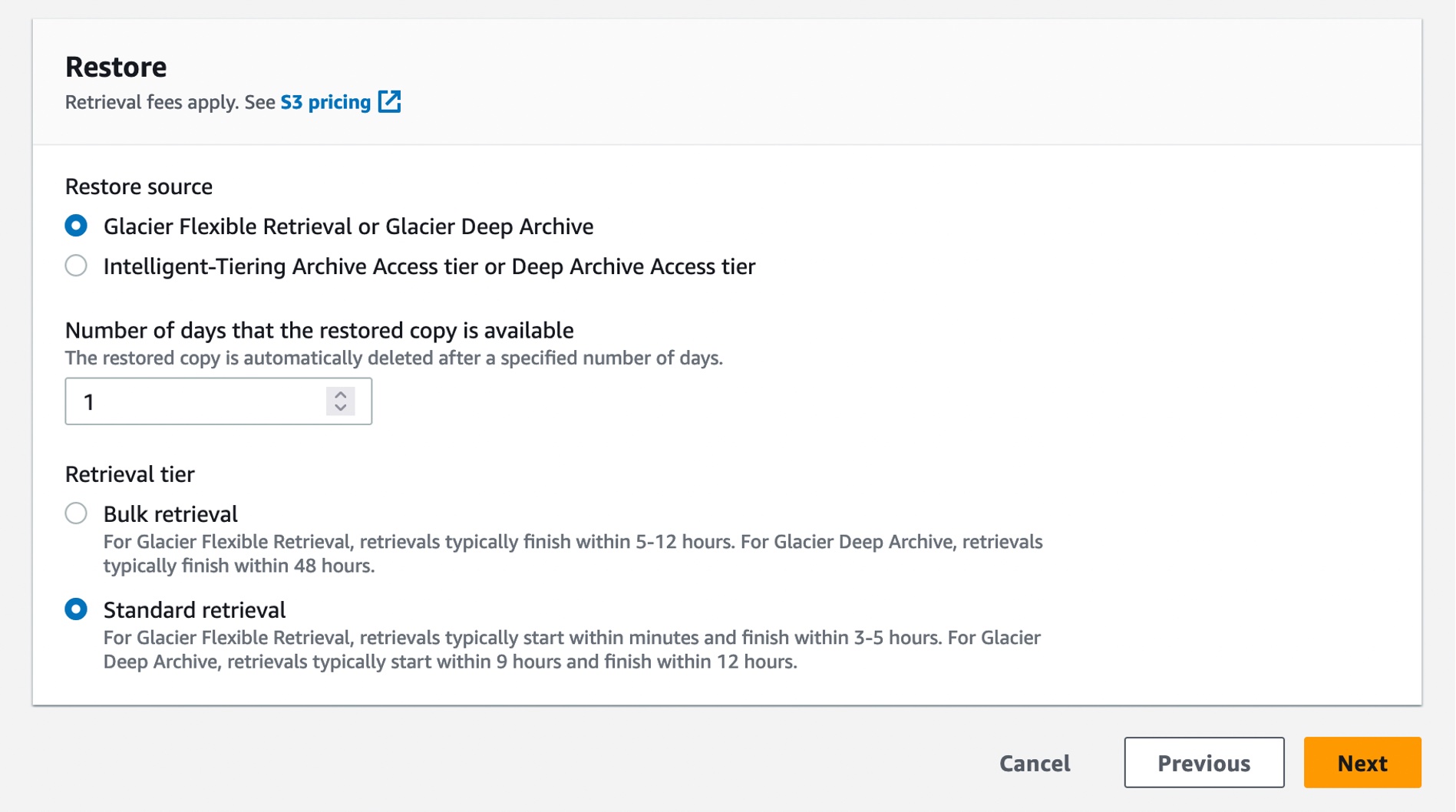
To create a batch job, choose Batch Operations on the left navigation pane of the Amazon S3 console and choose Create job. You can select one of the manifest formats, a list of S3 objects that contains object keys that you want to retrieve. If your manifest format is a CSV file, each row in the file must include the bucket name, object key, and, optionally, the object version.

In the next step, choose the operation that you want to perform on all objects listed in the manifest. The Restore operation initiates restore requests for archived objects on a list of S3 objects that you specify. Using a restore operation results in a restore request for every object that is specified in the manifest.

When you restore with the Standard retrieval tier from the S3 Glacier Flexible Retrieval storage class, you automatically get faster retrievals.

You can also create a restore job with S3InitiateRestoreObject job using the AWS CLI:

$aws s3control create-job \
     --region us-east-1 \
     --account-id 123456789012 \
     --operation '{"S3InitiateRestoreObject": { "ExpirationInDays": 1, "GlacierJobTier":"STANDARD"} }' \
     --report '{"Bucket":"arn:aws:s3:::reports-bucket ","Prefix":"batch-op-restore-job", "Format":" S3BatchOperations_CSV_20180820","Enabled":true,"ReportScope":"FailedTasksOnly"}' \
     --manifest '{"Spec":{"Format":"S3BatchOperations_CSV_20180820", "Fields":["Bucket","Key"]},"Location":{"ObjectArn":"arn:aws:s3:::inventory-bucket/inventory_for_restore.csv", "ETag":"<ETag>"}}' \
     --role-arn arn:aws:iam::123456789012:role/s3batch-role

You can then check the status of the job submission of the requests by running the following CLI command:

$ aws s3control describe-job \
     --region us-east-1 \
     --account-id 123456789012 \
     --job-id <JobID> \
     --query 'Job'.'ProgressSummary'

You can view and update the job status, add notifications and logging, track job failures, and generate completion reports. S3 Batch Operations job activity is recorded as events in AWS CloudTrail. For tracking job events, you can create a custom rule in Amazon EventBridge and send these events to the target notification resource of your choice, such as Amazon Simple Notification Service (Amazon SNS).

When you create an S3 Batch Operations job, you can also request a completion report for all tasks or just for failed tasks. The completion report contains additional information for each task, including the object key name and version, status, error codes, and descriptions of any errors.

For more information, see Tracking job status and completion reports in the Amazon S3 User Guide.

Here is the result of a sample retrieval job with 250 objects, each sized 100 MB. As you can see from the Previous restore performance line (blue line at the right), these restores would typically finish in 3–5 hours using Standard retrievals. Now, when you use Standard retrievals with S3 Batch Operations, your job typically starts within minutes, as shown in the Improved restore performance line (orange line at the left), improving data restore time by up to 85 percent.

To learn more, see Restoring archived objects at scale from the Amazon S3 Glacier storage classes on the AWS Storage Blog and Restoring an archived object in the Amazon S3 User Guide.

Now Available
Faster standard retrievals for Amazon S3 Glacier Flexible Retrieval are now available in all AWS Regions, including the AWS GovCloud (US) Regions and China Regions. This performance improvement is available to you at no additional cost. You are charged for S3 Batch Operations and data retrievals. For more information, see the S3 pricing page.

Lastly, we published a new ebook titled “Maximize the value of cold storage with Amazon S3 Glacier“. Read this ebook to learn how Amazon S3 Glacier is helping organizations of all sizes and from all industries transform their data archiving to unlock business value, increase agility, and save on storage costs.

To learn more, visit the S3 Glacier storage classes page and getting started guide, and send feedback to AWS re:Post for S3 Glacier or through your usual AWS Support contacts.

I’m really excited for you to start using this new feature, and I look forward to hearing about even more ways you are reinventing your business with archive data.

Channy

Security updates for Wednesday

Post Syndicated from corbet original https://lwn.net/Articles/940912/

Security updates have been issued by Debian (cjose, hdf5, and orthanc), Fedora (java-17-openjdk and seamonkey), Red Hat (curl, dbus, iperf3, kernel, kpatch-patch, libcap, libxml2, nodejs:16, nodejs:18, postgresql:10, postgresql:12, postgresql:13, and python-requests), SUSE (bluez, cjose, gstreamer-plugins-bad, gstreamer-plugins-base, gstreamer-plugins-good, gstreamer-plugins-ugly, keylime, openssl-1_1, openssl-3, pipewire, poppler, qemu, rubygem-actionpack-4_2, rubygem-actionpack-5_1, rust1.71, tomcat, webkit2gtk3, and wireshark), and Ubuntu (binutils, dotnet6, dotnet7, openssh, php-dompdf, and unixodbc).

The collective thoughts of the interwebz