Journey to adopt Cloud-Native DevOps platform Series #1: OfferUp modernized DevOps platform with Amazon EKS and Flagger to accelerate time to market

Post Syndicated from Purna Sanyal original https://aws.amazon.com/blogs/devops/journey-to-adopt-cloud-native-devops-platform-series-1-offerup-modernized-devops-platform-with-amazon-eks-and-flagger-to-accelerate-time-to-market/

In this two part series, we discuss the challenges faced by OfferUp, a Digital Native customer, to meet business growth and time-to-market. Their journey involved modernizing their existing DevOps platform, from the traditional monolith virtual machine (VM) based architecture to modern containerized architecture and running cloud-native applications for secured progressive delivery to accelerate time to market. This series will provide strategies, architecture patterns, and technical steps you can adopt to become more agile and innovative like OfferUp has.

OfferUp engineers were using the homegrown DevOps platform to build and release new services on the marketplace platform. In this first post, we discuss the key challenges encountered by OfferUp engineers with the existing DevOps platform, as well as how OfferUp modernized its DevOps platform with Amazon Elastic Kubernetes Service (Amazon EKS) and Flagger, automating production releases with progressive delivery techniques for faster time-to-market with new products and services. Amazon EKS is a managed container service to run and scale Kubernetes applications in the cloud or on-premises.

Previous DevOps architecture

OfferUp is a leading online and mobile customer to customer (C2C) marketplace where users can both buy and sell goods on the platform. Users can browse and purchase products from a broad range of categories, including furniture, clothing, sports equipment, toys, and many more. As a mobile-first company, OfferUp puts a great deal of emphasis on in-person communication between buyers and sellers.

OfferUp built a home grown, self-managed DevOps platform. This platform used a set of manual processes and third-party applications that allows both developers and operations engineers to build and deploy code to a production environment. The DevOps pipeline included topic areas such as source code control, continuous integration/continuous delivery (CI/CD), microservices, as well as development and test Methodologies. The following diagram depicts the previous architecture of OfferUp’s DevOps platform, which was self-managed on Amazon Elastic Compute Cloud (Amazon EC2).

Figure 1: Previous DevOps architecture of OfferUp

OfferUp used GitHub for code repositories. Once the source code was committed in the code repository, Jenkins pulled the source code from code repositories on a scheduled or on-demand basis and built Amazon Machine Images (AMI). The built image was deployed in production by a  custom built deployment tool, Vanaheim, which supports one-box canary deployment and full roll-out deployment strategies. The DevOps engineers used to manually create a deployment job in the Vanaheim portal and then manually monitor the test success rate and service metrics to detect any impact from the deployment. Once the success rate was reached, a full production roll out was performed from the Vanaheim portal.

Key challenges with previous DevOps pipeline

In 2020, OfferUp experienced significant transaction volume growth on its Marketplace platform with the increase of its user base. With OfferUp’s acquisition of LetGo in 2020, there was a need to build a scalable DevOps platform to support future integration and organic growth. The previous DevOps platform, designed and deployed over seven years ago, had reached the limits of its scalability, and could no longer keep up with the platform’s growth. The previous architecture was expensive to run and had a complex infrastructure that made it difficult to upgrade and add new features.

The following key factors drove the push for modernization:

  • Manual verification was required to check if the code was correctly deployed in one of the servers in production, and if the deployment was right in one server, then it was rolled out to other production servers. Full Rollout to production wasn’t automated due to frequent failures requiring manual rollbacks.
  • The previous platform required a longer deployment time (1–2 hours) due to the authoritative batch process, which sometimes caused delays in releasing and testing of new features.
  • The self-managed nature of the Jenkins and Vanaheim clusters was consuming far too much engineering time. Most of the institutional knowledge of this legacy platform was lost over the years and it didn’t align with OfferUp’s philosophy of small DevOps engineering teams. Innovation had stalled partly due to the difficulty of simultaneously upgrading the DevOps platform and releasing new features.

DevOps platform automation with Flagger and Gloo Ingress Controller on Amazon EKS

A key requirement for the next-generation system was that the new architecture would reduce the operational burden on engineering teams, deployment lifecycle, and total cost of ownership. OfferUp evaluated multiple managed container orchestration platforms for its DevOps Platform. It finally selected Amazon EKS for high availability, reducing the average time to deploy a change to the stack from hours to just a few minutes and reducing the complexity in managing and upgrading the Kubernetes cluster. On the Amazon EKS platform, OfferUp uses Flagger, a progressive delivery tool that automates the release process for applications running on Kubernetes. Flagger implements several deployment strategies (Canary releases, A/B testing, and Blue/Green mirroring) using the Gloo Edge ingress controller for traffic routing. Datadog is used as an observability service for monitoring the health of the deployments and effectively managing the canary to progressive delivery. For release analysis, Flagger runs a query on Datadog logs and uses Slack for alerting and notifications. The cloud native technology components of the architecture are described as follows:

Kubernetes and Amazon EKS – Kubernetes is an open-source system for automating the deployment, scaling, and management of containerized applications. Kubernetes is a graduate project in the CNCF. Amazon EKS is a fully-managed, certified Kubernetes conformant service that simplifies the process of building, securing, operating, and maintaining Kubernetes clusters on AWS. Amazon EKS integrates with core AWS services, such as Amazon CloudWatch, Auto Scaling Groups, and AWS Identity and Access Management (IAM) to provide a seamless experience for monitoring, scaling, and load balancing your containerized applications.

Helm – Helm manage Kubernetes applications. Helm Charts define, install, and upgrade even the most complex Kubernetes application. Charts are easy to create, version, share, and publish. If Kubernetes were an operating system, then Helm would be the package manager. Helm is a graduate project in the CNCF and is maintained by the Helm community.

Flagger – Flagger is a progressive delivery tool that automates the release process for applications running on Kubernetes. Flagger implements a control loop that gradually shifts traffic to the canary while measuring key performance indicators such as HTTP requests success rate, requests average duration, and pods health. Based on the set thresholds, a canary is either promoted or aborted and its analysis is pushed to a Slack channel. Flagger became a CNCF project – part of the Flux family of GitOps tools.

Gloo EdgeGloo Edge is a feature-rich, Kubernetes-native ingress controller. Gloo Edge is exceptional in its function-level routing; its support for legacy apps, microservices, and serverless; its discovery capabilities; and its tight integration with leading open-source projects. Gloo Edge is uniquely designed to support hybrid applications, in which multiple technologies, architectures, protocols, and clouds can coexist.

Observability platformDatadog’s integrations with Kubernetes, Docker, and AWS will let you track the full range of Amazon EKS metrics, as well as logs and performance data from your cluster and applications. Datadog gives you comprehensive coverage of your dynamic infrastructure and applications with features like auto discovery to track services across containers, sophisticated graphing, and alerting options.

Modernized DevOps architecture

In the new architecture, OfferUp uses Github as a version control tool and Github actions as their CI/CD tool. On every Pull request, tests are run, artifacts are built and stored in the JFrog Artifactory, and docker Images are stored in the Amazon Elastic Container Registry (Amazon ECR). Separate deployment pipelines are triggered based on the environment (dev, staging, and production) of choice. Flagger detects any changes in the version of the application and gradually shifts production traffic to the canary. It measures the requests success rate and average response duration metrics from Datadog to decide full rollout in production. For an application deployment, a canary promotion can be defined using Flagger’s custom resource. Flagger rolls back the deployment when the success rate falls below the defined desired success rate metrics.

Figure 2: Modernized DevOps architecture of OfferUp

With the modernized DevOps platform, OfferUp moved from monolithic to microservice architecture where  front-end applications and GraphQL runs on the Amazon EKS cluster. The production cluster runs 110 services and 650+ pods on 60 nodes. The cluster scales up to 100 nodes with Amazon Auto Scaling group based on the traffic pattern. On the networking front, the cluster has a private endpoint and uses both VPC CNI plugin, and the CoreDNS add-on. There are four Amazon EKS clusters, one each for the production, test, utility, and the staging environments. OfferUp has a plan to explore Karpenter open-source autoscaling project, and it will move new applications to the Amazon EKS cluster, allowing the total node counts to scale up to 200.

Benefits of modernized architecture

The new architecture helped OfferUp make  automated decisions to deploy new releases and improve the time to market while reducing unplanned production downtime

  • Faster deployments and Quicker rollbacks – The new architecture reduces the Service Deployment time from one hour down to five minutes, and automates rollback time to five minutes from the manual rollback time of one hour.
  • Automate deployment of new releases – The lack of canary deployment processes in the previous architecture required OfferUp engineers to manually intervene to validate the deployment status, which led to administrative overhead and production outages. The canary deployments take care of the traffic shifting by automatically measuring the requests’ success rate and latency metrics from Datadog and subsequently release the service to production. Deployments are automatically rolled back when the success rate falls below the defined success rate metric thresholds.
  • Simplified Configuration – Configuration has been simplified drastically and integrated within the CI/CD pipeline in the new architecture, thereby reducing configuration complexity, eliminating manual processes, and saving Developers time.
  • More time to Focus on Innovation – With fully automated progressive delivery, the developers no longer need to spend time testing and releasing source code in production. Similarly, migrating from a Self-managed DevOps platform to the Managed Amazon EKS services lowered the DevOps platform’s infrastructure management burden on the engineering team. This helps developers spend more time focusing on building and testing new features and innovations.
  • Cost reduction – Moving from self-managed Amazon EC2-based architecture to the Amazon EKS cluster reduced the cost of operations through shared nodes and improved pod density. The previous architecture was using 200 nodes of Amazon EC2 instances. The same workload was moved to a 50 nodes Amazon EKS cluster. Furthermore, custom applications (Vanaheim and Jenkins) were retired, further reducing the costs.

Conclusion

In this post, you see how OfferUp embarked on the journey to modernize its DevOps platform to support its growth and developers’ velocity. The key factors that drove the modernization decisions were the ability to scale the platform to support the automated testing of features in production, the faster release of new features, cost reduction, and to facilitate future innovation. The modernized DevOps platform on Amazon EKS also decreased the ongoing operational support burden for engineers, and the scalability of the design opens up a lot of headroom for growth.

We encourage you to look into modernizing your existing CI/CD pipeline on Amazon EKS with the Flagger progressive delivery mechanism. Amazon EKS removes the undifferentiated heavy lifting of managing and updating the Kubernetes cluster. Managed node groups automate the provisioning and lifecycle management of worker nodes in an Amazon EKS cluster, which greatly simplifies operational activities, such as new Kubernetes version deployments.

In the next part of the series, you’ll discover how to implement Flagger and Gloo Edge Ingress Controller on Amazon EKS to automate the release process for applications running on Kubernetes.

Further Reading

Journey to adopt Cloud-Native DevOps platform Series #2: Progressive delivery on Amazon EKS with Flagger and Gloo Edge Ingress Controller

About the authors:

Purna Sanyal

Purna Sanyal is a technology enthusiast and an architect at AWS, helping digital native customers solve their business problems with successful adoption of cloud native architecture. He provides technical thought leadership, architecture guidance, and conducts PoCs to enable customers’ digital transformation. He is also passionate about building innovative solutions around Kubernetes, database, analytics, and machine learning.

Alan Liu

Alan Liu is Sr Director of Engineering at OfferUp. He is a technology enthusiast and he worked across a wide variety of industry. He is highly effective, adaptable, scalable, experienced leader with a proven record.

Centrally manage access and permissions for Amazon Redshift data sharing with AWS Lake Formation

Post Syndicated from Srividya Parthasarathy original https://aws.amazon.com/blogs/big-data/centrally-manage-access-and-permissions-for-amazon-redshift-data-sharing-with-aws-lake-formation/

Today’s global, data-driven organizations treat data as an asset and use it across different lines of business (LOBs) to drive timely insights and better business decisions. Amazon Redshift data sharing allows you to securely share live, transactionally consistent data in one Amazon Redshift data warehouse with another Amazon Redshift data warehouse within the same AWS account, across accounts, and across Regions, without needing to copy or move data from one cluster to another.

Some customers share their data with 50–100 data warehouses in different accounts and do a lot of cross-sharing, making it difficult to track who is accessing what data. They have to navigate to an individual account’s Amazon Redshift console to retrieve the access information. Also, many customers have their data lake on Amazon Simple Storage Service (Amazon S3), which is shared within and across various business units. As the organization grows and democratizes the data, administrators want the ability to manage the datashare centrally for governance and auditing, and to enforce fine-grained access control.

Working backward from customer ask, we are announcing the preview of the following new feature: Amazon Redshift data sharing integration with AWS Lake Formation, which enables Amazon Redshift customers to centrally manage access to their Amazon Redshift datashares using Lake Formation.

Lake Formation has been a popular choice for centrally governing data lakes backed by Amazon S3. Now, with Lake Formation support for Amazon Redshift data sharing, it opens up new design patterns, and broadens governance and security posture across data warehouses. With this integration, you can use Lake Formation to define fine-grained access control on tables and views being shared with Amazon Redshift data sharing for federated AWS Identity and Access Management (IAM) users and IAM roles.

Customers are using the data mesh approach, which provides a mechanism to share data across business units. Customers are also using a modern data architecture to share data from data lake stores and Amazon Redshift purpose-built data stores across business units. Lake Formation provides the ability to enforce data governance within and across business units, which enables secure data access and sharing, easy data discovery, and centralized audit for data access.

United Airlines is in the business of connecting people and uniting the world.

“As a data-driven enterprise, United is trying to create a unified data and analytics experience for our analytics community that will innovate and build modern data-driven applications. We believe we can achieve this by building a purpose-built data mesh architecture using a variety of AWS services like Athena, Aurora, Amazon Redshift, and Lake Formation to simplify management and governance around granular data access and collaboration.”

-Ashok Srinivas, Director of ML Engineering and Sarang Bapat, Director of Data Engineering.

In this post, we show how to centrally manage access and permissions for Amazon Redshift data sharing with Lake Formation.

Solution overview

In this solution, we demonstrate how integration of Amazon Redshift data sharing with Lake Formation for data governance can help you build data domains, and how you can use the data mesh approach to bring data domains together to enable data sharing and federation across business units. The following diagram illustrates our solution architecture.

solution architecture

The data mesh is a decentralized, domain-oriented architecture that emphasizes separating data producers from data consumers via a centralized, federated Data Catalog. Typically, the producers and consumers run within their own account. The details of these data mesh characteristics are as follows:

  • Data producers – Data producers own their data products and are responsible for building their data, maintaining its accuracy, and keeping their data product up to date. They determine what datasets can be published for consumption and share their datasets by registering them with the centralized data catalog in a central governance account. You might have a producer steward or administrator persona for managing the data products with the central governance steward or administrators team.
  • Central governance account – Lake Formation enables fine-grained access management on the shared dataset. The centralized Data Catalog offers consumers the ability to quickly find shared datasets, allows administrators to centrally manage access permissions on shared datasets, and provides security teams the ability to audit and track data product usage across business units.
  • Data consumers – The data consumer obtains access to shared resources from the central governance account. These resources are available inside the consumer’s AWS Glue Data Catalog, allowing fine-grained access on the database and table that can be managed by the consumer’s data stewards and administrators.

The following steps provide an overview of how Amazon Redshift data sharing can be governed and managed by Lake Formation in the central governance pattern of a data mesh architecture:

  1. In the producer account, data objects are created and maintained in the Amazon Redshift producer cluster. A data warehouse admin creates the Amazon Redshift datashare and adds datasets (tables, views) to the share.
  2. The data warehouse admin grants and authorizes access on the datashare to the central governance account’s Data Catalog.
  3. In the central governance account, the data lake admin accepts the datashare and creates the AWS Glue database that points to the Amazon Redshift datashare so that Lake Formation can manage it.
  4. The data lake admin shares the AWS Glue database and tables to the consumer account using Lake Formation cross-account sharing.
  5. In the consumer account, the data lake admin accepts the resource share invitation via AWS Resource Access Manager (AWS RAM) and can view the database listed in the account.
  6. The data lake admin defines the fine-grained access control and grants permissions on databases and tables to IAM users (for this post, consumer1 and consumer2) in the account.
  7. In the Amazon Redshift cluster, the data warehouse admin creates an Amazon Redshift database that points to the Glue database and authorizes usage on the created Amazon Redshift database to the IAM users.
  8. The data analyst as an IAM user can now use their preferred tools like the Amazon Redshift query editor to access the dataset based on the Lake Formation fine-grained permissions.

We use the following account setup for our example in this post:

  • Producer account – 123456789012
  • Central account – 112233445566
  • Consumer account – 665544332211

Prerequisites

Create the Amazon Redshift data share and add datasets

In the data producer account, create an Amazon Redshift cluster using the RA3 node type with encryption enabled. Complete the following steps:

  1. On the Amazon Redshift console, create a cluster subnet group.

For more information, refer to Managing cluster subnet groups using the console.

  1. Choose Create cluster.
  2. For Cluster identifier, provide the cluster name of your choice.
  3. For Preview track, choose preview_2022.

  1. For Node type, choose one of the RA3 node types.

This feature is only supported on the RA3 node type.

  1. For Number of nodes, enter the number of nodes that you need for your cluster.
  2. Under Database configurations, choose the admin user name and admin user password.
  3. Under Cluster permissions, you can select the IAM role and set it as the default.

For more information about the default IAM role, refer to Creating an IAM role as default for Amazon Redshift.

cluster permissions

  1. Turn on the Use defaults option next to Additional configurations to modify the default settings.
  2. Under Network and security, specify the following:
    1. For Virtual private cloud (VPC), choose the VPC you would like to deploy the cluster in.
    2. For VPC security groups, either leave as default or add the security groups of your choice.
    3. For Cluster subnet group, choose the cluster subnet group you created.

additional configurations

  1. Under Database configuration, in the Encryption section, select Use AWS Key Management Service (AWS KMS) or Use a hardware security module (HSM).

Encryption is disabled by default.

  1. For Choose an AWS KMS key, you can either choose an existing AWS Key Management Service (AWS KMS) key, or choose Create an AWS KMS key to create a new key.

For more information, refer to Creating keys.

database configurations

  1. Choose Create cluster.
  2. For this post, create tables and load data into the producer Amazon Redshift cluster using the following script.

Authorize the datashare

Install or update the latest AWS Command Line Interface (AWS CLI) version to run the AWS CLI to authorize the datashare. For instructions, refer to Installing or updating the latest version of the AWS CLI.

Set up Lake Formation permissions

To use the AWS Glue Data Catalog in Lake Formation, complete the following steps in the central governance account to update the Data Catalog settings to use Lake Formation permissions to control catalog resources instead of IAM-based access control:

  1. Sign in to the Lake Formation console as admin.
  2. In the navigation pane, under Data catalog, choose Settings.
  3. Deselect Use only IAM access control for new databases.
  4. Deselect Use only IAM access control for new tables in new databases.
  5. Choose Version 2 for Cross account version settings.
  6. Choose Save.

data catalog settings

Set up an IAM user as a data lake administrator

If you’re using an existing data lake administrator user or role add the following managed policies, if not attached and skip the below setup steps:

AWSGlueServiceRole
AmazonRedshiftFullAccess

Otherwise, to set up an IAM user as a data lake administrator, complete the following steps:

  1. On the IAM console, choose Users in the navigation pane.
  2. Select the IAM user who you want to designate as the data lake administrator.
  3. Choose Add an inline policy on the Permissions tab.
  4. Replace <AccountID> with your own account ID and add the following policy:
{
    "Version": "2012-10-17",
    "Statement": [ {
        "Condition": {"StringEquals": {
            "iam:AWSServiceName":"lakeformation.amazonaws.com"}},
            "Action":"iam:CreateServiceLinkedRole",
            "Resource": "*",
            "Effect": "Allow"},
            {"Action": ["iam:PutRolePolicy"],
            "Resource": "arn:aws:iam::<AccountID>:role/aws-service role/lakeformation.amazonaws.com/AWSServiceRoleForLakeFormationDataAccess",
            "Effect": "Allow"
     },{
                  "Effect": "Allow",
                  "Action": [
                    "ram:AcceptResourceShareInvitation",
                    "ram:RejectResourceShareInvitation",
                    "ec2:DescribeAvailabilityZones",
                    "ram:EnableSharingWithAwsOrganization"
                  ],
                  "Resource": "*"
                }]
}
  1. Provide a policy name.
  2. Review and save your settings.
  3. Choose Add permissions, and choose Attach existing policies directly.
  4. Add the following policies:
    1. AWSLakeFormationCrossAccountManager
    2. AWSGlueConsoleFullAccess
    3. AWSGlueServiceRole
    4. AWSLakeFormationDataAdmin
    5. AWSCloudShellFullAccess
    6. AmazonRedshiftFullAccess
  5. Choose Next: Review and add permissions.

Data consumer account setup

In the consumer account, follow the steps mentioned previously in the central governance account to set up Lake Formation and a data lake administrator.

  1. In the data consumer account, create an Amazon Redshift cluster using the RA3 node type with encryption (refer to the steps demonstrated to create an Amazon Redshift cluster in the producer account).
  2. Choose Launch stack to deploy an AWS CloudFormation template to create two IAM users with policies.

launch stack

The stack creates the following users under the data analyst persona:

  • consumer1
  • consumer2
  1. After the CloudFormation stack is created, navigate to the Outputs tab of the stack.
  2. Capture the ConsoleIAMLoginURL and LFUsersCredentials values.

createiamusers

  1. Choose the LFUsersCredentials value to navigate to the AWS Secrets Manager console.
  2. In the Secret value section, choose Retrieve secret value.

secret value

  1. Capture the secret value for the password.

Both consumer1 and consumer2 need to use this same password to log in to the AWS Management Console.

secret value

Configure an Amazon Redshift datashare using Lake Formation

Producer account

Create a datashare using the console

Complete the following steps to create an Amazon Redshift datashare in the data producer account and share it with Lake Formation in the central account:

  1. On the Amazon Redshift console, choose the cluster to create the datashare.
  2. On the cluster details page, navigate to the Datashares tab.
  3. Under Datashares created in my namespace, choose Connect to database.

connect to database

  1. Choose Create datashare.

create datashare

  1. For Datashare type, choose Datashare.
  2. For Datashare name, enter the name (for this post, demotahoeds).
  3. For Database name, choose the database from where to add datashare objects (for this post, dev).
  4. For Publicly accessible, choose Turn off (or choose Turn on to share the datashare with clusters that are publicly accessible).

datashare information

  1. Under DataShare objects, choose Add to add the schema to the datashare (in this post, the public schema).
  2. Under Tables and views, choose Add to add the tables and views to the datashare (for this post, we add the table customer and view customer_view).

datashare objects

  1. Under Data consumers, choose Publish to AWS Data Catalog.
  2. For Publish to the following accounts, choose Other AWS accounts.
  3. Provide the AWS account ID of the consumer account. For this post, we provide the AWS account ID of the Lake Formation central governance account.
  4. To share within the same account, choose Local account.
  5. Choose Create datashare.

data consumers

  1. After the datashare is created, you can verify by going back to the Datashares tab and entering the datashare name in the search bar under Datashares created in my namespace.
  2. Choose the datashare name to view its details.
  3. Under Data consumers, you will see the consumer status of the consumer data catalog account as Pending Authorization.

data consumers

  1. Choose the checkbox against the consumer data catalog which will enable the Authorize option.

authorize

  1. Click Authorize to authorize the datashare access to the consumer account data catalog, consumer status will change to Authorized.

authorized

Create a datashare using a SQL command

Complete the following steps to create a datashare in data producer account 1 and share it with Lake Formation in the central account:

  1. On the Amazon Redshift console, in the navigation pane, choose Editor, then Query editor V2.
  2. Choose (right-click) the cluster name and choose Edit connection or Create Connection.
  3. For Authentication, choose Temporary credentials.

Refer to Connecting to an Amazon Redshift database to learn more about the various authentication methods.

  1. For Database, enter a database name (for this post, dev).
  2. For Database user, enter the user authorized to access the database (for this post, awsuser).
  3. Choose Save to connect to the database.

Connecting to an Amazon Redshift database

  1. Run the following SQL commands to create the datashare and add the data objects to be shared:
create datashare demotahoeds;
ALTER DATASHARE demotahoeds ADD SCHEMA PUBLIC;
ALTER DATASHARE demotahoeds ADD TABLE customer;
ALTER DATASHARE demotahoeds ADD TABLE customer_view;
  1. Run the following SQL command to share the producer datashare to the central governance account:
GRANT USAGE ON DATASHARE demotahoeds TO ACCOUNT '<central-aws-account-id>' via DATA CATALOG

Run the following SQL command

  1. You can verify the datashare created and objects shared by running the following SQL command:
DESC DATASHARE demotahoeds

DESC DATASHARE demotahoeds

  1. Run the following command using the AWS CLI to authorize the datashare to the central data catalog so that Lake Formation can manage them:
aws redshift authorize-data-share \
--data-share-arn 'arn:aws:redshift:<producer-region>:<producer-aws-account-id>:datashare:<producer-cluster-namespace>/demotahoeds' \
--consumer-identifier DataCatalog/<central-aws-account-id>

The following is an example output:

 {
    "DataShareArn": "arn:aws:redshift:us-east-1:XXXXXXXXXX:datashare:cd8d91b5-0c17-4567-a52a-59f1bdda71cd/demotahoeds",
    "ProducerArn": "arn:aws:redshift:us-east-1:XXXXXXXXXX:namespace:cd8d91b5-0c17-4567-a52a-59f1bdda71cd",
    "AllowPubliclyAccessibleConsumers": false,
    "DataShareAssociations": [{
        "ConsumerIdentifier": "DataCatalog/XXXXXXXXXXXX",
        "Status": "AUTHORIZED",
        "CreatedDate": "2022-11-09T21:10:30.507000+00:00",
        "StatusChangeDate": "2022-11-09T21:10:50.932000+00:00"
    }]
}

You can verify the datashare status on the console by following the steps outlined in the previous section.

Central catalog account

The data lake admin accepts and registers the datashare with Lake Formation in the central governance account and creates a database for the same. Complete the following steps:

  1. Sign in to the console as the data lake administrator IAM user or role.
  2. If this is your first time logging in to the Lake Formation console, select Add myself and choose Get started.
  3. Under Data catalog in the navigation pane, choose Data sharing and view the Amazon Redshift datashare invitations on the Configuration tab.
  4. Select the datashare and choose Review Invitation.

AWS Lake Formation data sharing

A window pops up with the details of the invitation.

  1. Choose Accept to register the Amazon Redshift datashare to the AWS Glue Data Catalog.

accept reject invitation

  1. Provide a name for the AWS Glue database and choose Skip to Review and create.

Skip to Review and create

  1. Review the content and choose Create database.

create database

After the AWS Glue database is created on the Amazon Redshift datashare, you can view them under Shared Databases.

Shared Databases.

You can also use the AWS CLI to register the datashare and create the database. Use the following commands:

  1. Describe the Amazon Redshift datashare that is shared with the central account:
aws redshift describe-data-shares
  1. Accept and associate the Amazon Redshift datashare to Data Catalog:
aws redshift associate-data-share-consumer \
--data-share-arn 'arn:aws:redshift:<producer-region>:<producer-aws-account-id>:datashare:<producer-cluster-namespace>/demotahoeds' \
--consumer-arn arn:aws:glue:us-east-1:<central-aws-account-id>:catalog

The following is an example output:

 {
    "DataShareArn": "arn:aws:redshift:us-east-1:123456789012:datashare:cd8d91b5-0c17-4567-a52a-59f1bdda71cd/demotahoeds",
    "ProducerArn": "arn:aws:redshift:us-east-1:123456789012:namespace:cd8d91b5-0c17-4567-a52a-59f1bdda71cd",
    "AllowPubliclyAccessibleConsumers": false,
    "DataShareAssociations": [
        {
            "ConsumerIdentifier": "arn:aws:glue:us-east-1:112233445566:catalog",
            "Status": "ACTIVE",
            "ConsumerRegion": "us-east-1",
            "CreatedDate": "2022-11-09T23:25:22.378000+00:00",
            "StatusChangeDate": "2022-11-09T23:25:22.378000+00:00"
        }
    ]
}
  1. Register the Amazon Redshift datashare in Lake Formation:
aws lakeformation register-resource \
--resource-arn arn:aws:redshift:<producer-region>:<producer-aws-account-id>:datashare:<producer-cluster-namespace>/demotahoeds
  1. Create the AWS Glue database that points to the accepted Amazon Redshift datashare:
aws glue create-database --region <central-catalog-region> --cli-input-json '{
    "CatalogId": "<central-aws-account-id>",
    "DatabaseInput": {
        "Name": "demotahoedb",
        "FederatedDatabase": {
            "Identifier": "arn:aws:redshift:<producer-region>:<producer-aws-account-id>:datashare:<producer-cluster-namespace>/demotahoeds",
            "ConnectionName": "aws:redshift"
        }
    }
}'

Now the data lake administrator of the central governance account can view and share access on both the database and tables to the data consumer account using the Lake Formation cross-account sharing feature.

Grant datashare access to the data consumer

To grant the data consumer account permissions on the shared AWS Glue database, complete the following steps:

  1. On the Lake Formation console, under Permissions in the navigation pane, choose Data Lake permissions.
  2. Choose Grant.
  3. Under Principals, select External accounts.
  4. Provide the data consumer account ID (for this post, 665544332211).
  5. Under LF_Tags or catalog resources, select Named data catalog resources.
  6. For Databases, choose the database demotahoedb.
  7. Select Describe for both Database permissions and Grantable permissions.
  8. Choose Grant to apply the permissions.

grant data permissions

To grant the data consumer account permissions on tables, complete the following steps:

  1. On the Lake Formation console, under Permissions in the navigation pane, choose Data Lake permissions.
  2. Choose Grant.
  3. Under Principals, select External accounts.
  4. Provide the consumer account (for this post, we use 665544332211).
  5. Under LF-Tags or catalog resources, select Named data catalog resources.
  6. For Databases, choose the database demotahoedb.
  7. For Tables, choose All tables.
  8. Select Describe and Select for both Table permissions and Grantable permissions.
  9. Choose Grant to apply the changes.

grant the data consumer account permissions on tables

Consumer account

The consumer admin will receive the shared resources from the central governance account and delegate access to other users in the consumer account as shown in the following table.

IAM User Object Access Object Type Access Level
consumer1 public.customer Table All
consumer2 public.customer_view View specific columns: c_customer_id, c_birth_country, cd_gender, cd_marital_status, cd_education_status

In the data consumer account, follow these steps to accept the resources shared with the account:

  1. Sign in to the console as the data lake administrator IAM user or role.
  2. If this is your first time logging in to the Lake Formation console, select Add myself and choose Get started.
  3. Sign in to the AWS RAM console.
  4. In the navigation pane, under Shared with me, choose Resource shares to view the pending invitations. You will receive 2 invitations.

Resource shares to view the pending invitations

  1. Choose the pending invitations and accept the resource share.

Choose the pending invitation and accept the resource share

  1. On the Lake formation console, under Data catalog in the navigation pane, choose Databases to view the cross-account shared database.

choose Databases to view the cross-account shared database

Grant access to the data analyst and IAM users using Lake Formation

Now the data lake admin in the data consumer account can delegate permissions on the shared database and tables to users in the consumer account.

Grant database permissions to consumer1 and consumer2

To grant the IAM users consumer1 and consumer2 database permissions, follow these steps:

  1. On the Lake Formation console, under Data catalog in the navigation pane, choose Databases.
  2. Select the database demotahoedb and on the Actions menu, choose Grant.

choose Grant database

  1. Under Principals, select IAM users and roles.
  2. Choose the IAM users consumer1 and consumer2.
  3. Under LF-Tags or catalog resources, demotahoedb is already selected for Databases.
  4. Select Describe for Database permissions.
  5. Choose Grant to apply the permissions.

Choose Grant to apply the permissions

Grant table permissions to consumer1

To grant the IAM user consumer1 permissions on table public.customer, follow these steps:

  1. Under Data catalog in the navigation pane, choose Databases.
  2. Select the database demotahoedb and on the Actions menu, choose Grant.
  3. Under Principals, select IAM users and roles.
  4. Choose IAM user consumer1.
  5. Under LF-Tags or catalog resources, demotahoedb is already selected for Databases.
  6. For Tables, choose public.customer.
  7. Select Describe and Select for Table permissions.
  8. Choose Grant to apply the permissions.

Grant table permissions to consumer1

Grant column permissions to consumer2

To grant the IAM user consumer2 permissions on non-sensitive columns in public.customer_view, follow these steps:

  1. Under Data catalog in the navigation pane, choose Databases.
  2. Select the database demotahoedb and on the Actions menu, choose Grant.
  3. Under Principals, select IAM users and roles.
  4. Choose the IAM user consumer2.
  5. Under LF-Tags or catalog resources, demotahoedb is already selected for Databases.
  6. For Tables, choose public.customer_view.

Grant column permissions to consumer2

  1. Select Select for Table permissions.
  2. Under Data Permissions, select Column-based access.
  3. Select Include columns and choose the non-sensitive columns (c_customer_id, c_birth_country, cd_gender, cd_marital_status, and cd_education_status).
  4. Choose Grant to apply the permissions.

table permissions

Consume the datashare from the data consumer account in the Amazon Redshift cluster

In the Amazon Redshift consumer data warehouse, log in as the admin user using Query Editor V2 and complete the following steps:

  1. Create the Amazon Redshift database from the shared catalog database using the following SQL command:
CREATE DATABASE demotahoedb FROM ARN 'arn:aws:glue:<producer-region>:<producer-aws-account-id>:database/demotahoedb' WITH DATA CATALOG SCHEMA demotahoedb ;
  1. Run the following SQL commands to create and grant usage on the Amazon Redshift database to the IAM users consumer1 and consumer2:
CREATE USER IAM:consumer1 password disable;
CREATE USER IAM:consumer2  password disable;
GRANT USAGE ON DATABASE demotahoedb TO IAM:consumer1;
GRANT USAGE ON DATABASE demotahoedb TO IAM:consumer2;

In order to use a federated identity to enforce Lake Formation permissions, follow the next steps to configure Query Editor v2.

  1. Choose the settings icon in the bottom left corner of the Query Editor v2, then choose Account settings.

identity to enforce Lake Formation permissions

  1. Under Connection settings, select Authenticate with IAM credentials.
  2. Choose Save.

Authenticate with IAM credentials

Query the shared datasets as a consumer user

To validate that the IAM user consumer1 has datashare access from Amazon Redshift, perform the following steps:

  1. Sign in to the console as IAM user consumer1.
  2. On the Amazon Redshift console, choose Query Editor V2 in the navigation pane.
  3. To connect to the consumer cluster, choose the consumer cluster in the tree-view pane.
  4. When prompted, for Authentication, select Temporary credentials using your IAM identity.
  5. For Database, enter the database name (for this post, dev).
  6. The user name will be mapped to your current IAM identity (for this post, consumer1).
  7. Choose Save.

edit connection for redshift

  1. Once you’re connected to the database, you can validate the current logged-in user with the following SQL command:
select current_user;

  1. To find the federated databases created on the consumer account, run the following SQL command:
SHOW DATABASES FROM DATA CATALOG [ACCOUNT '<id1>', '<id2>'] [LIKE 'expression'];

federated databases created on the consumer account

  1. To validate permissions for consumer1, run the following SQL command:
select * from demotahoedb.public.customer limit 10;

As shown in the following screenshot, consumer1 is able to successfully access the datashare customer object.

Now let’s validate that consumer2 doesn’t have access to the datashare tables “public.customer” on the same consumer cluster.

  1. Log out of the console and sign in as IAM user consumer2.
  2. Follow the same steps to connect to the database using the query editor.
  3. Once connected, run the same query:
select * from demotahoedb.public.customer limit 10;

The user consumer2 should get a permission denied error, as in the following screenshot.

should get a permission denied error

Let’s validate the column-level access permissions of consumer2 on public.customer_view view.

  1. Connect to Query Editor v2 as consumer2 and run the following SQL command:
select c_customer_id,c_birth_country,cd_gender,cd_marital_status from demotahoedb.public.customer_view limit 10;

In the following screenshot, you can see consumer2 is only able to access columns as granted by Lake Formation.

access columns as granted by Lake Formation

Conclusion

A data mesh approach provides a method by which organizations can share data across business units. Each domain is responsible for the ingestion, processing, and serving of their data. They are data owners and domain experts, and are responsible for data quality and accuracy. Using Amazon Redshift data sharing with Lake Formation for data governance helps build the data mesh architecture, enabling data sharing and federation across business units with fine-grained access control.

Special thanks to everyone who contributed to launch Amazon Redshift data sharing with AWS Lake Formation:

Debu Panda, Michael Chess, Vlad Ponomarenko, Ting Yan, Erol Murtezaoglu, Sharda Khubchandani, Rui Bi

References


About the Authors

Srividya Parthasarathy is a Senior Big Data Architect on the AWS Lake Formation team. She enjoys building data mesh solutions and sharing them with the community.

Harshida Patel is a Analytics Specialist Principal Solutions Architect, with AWS.

Ranjan Burman is a Analytics Specialist Solutions Architect, with AWS.

Vikram Sahadevan is a Senior Resident Architect on the AWS Data Lab team. He enjoys efforts that focus around providing prescriptive architectural guidance, sharing best practices, and removing technical roadblocks with joint engineering engagements between customers and AWS technical resources that accelerate data, analytics, artificial intelligence, and machine learning initiatives.

Steve Mitchell is a Senior Solution Architect with a passion for analytics and data mesh. He enjoys working closely with customers as they transition to a modern data architecture.

Data: The genesis for modern invention

Post Syndicated from Swami Sivasubramanian original https://aws.amazon.com/blogs/big-data/data-the-genesis-for-modern-invention/

It only takes one groundbreaking invention—one iconic idea that solves a widespread pain point for customers—to create or transform an industry forever. From the invention of the telegraph, to the discovery of GPS, to the earliest cloud computing services, history is filled with examples of these “eureka” moments that continue to have long-lasting impacts on the way we do business today.

Cognitive scientists John Kounios and Mark Beeman demonstrated that great inventors don’t simply stumble upon their epiphanies; in reality, an idea is preceded by a collection of life experiences, educational knowledge, or even past failures the human brain processes and assimilates over time. Their ideas are preceded by a collection of data points.

When we apply this concept to organizations, and the vast amount of data being produced on a daily basis, we realize there’s an incredible opportunity to ingest, store, process, analyze, and visualize data to create the next big thing.

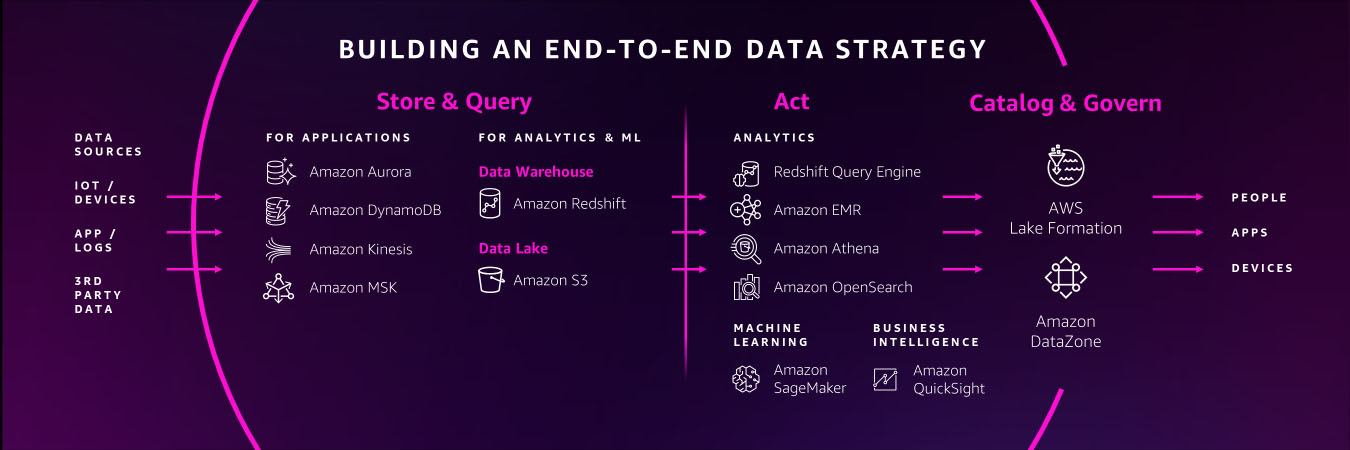
Today—more than ever before—data is the genesis for modern invention. But to produce new ideas with our data, we need to build dynamic, end-to-end data strategies that lead to new customer experiences as the final output. Some of the biggest brands in the world like Formula 1, Toyota, and Georgia-Pacific are already leveraging AWS to do just that.

This week at AWS re:Invent 2022, I shared several key learnings we’ve collected after working with these brands and more than 1.5 million customers who are using AWS to build their data strategies.

I also revealed several new services and innovations for our customers. Here are a few highlights.

You need a comprehensive set of services to get the job done

Creating a data lake to perform analytics and machine learning (ML) is not an end-to-end data strategy. Your needs will inevitably grow and change over time, which is why we believe every customer should have access to a wide variety of tools based on data types, personas, and their specific use cases.

And our data supports this, with 94% of the top 1,000 AWS customers using more than 10 of our databases and analytics services. A one-size-fits-all approach just doesn’t work in the long run.

You need a comprehensive set of services that enable you to store and query data in your databases, data lakes, and data warehouses; services that help you act on your data with analytics, business intelligence, and machine learning; and services that help you catalog and govern your data across your organization.

You should also have access to services that support a variety of data types for your future use cases, whether you’re working with financial data, clinical data, or retail data. Many of our customers are also using their data to create machine learning models, but some data types are still too cumbersome to work with and prepare for ML.

For example, geospatial data, which supports use cases like self-driving cars, urban planning, or even crop yield in agricultural farms, can be incredibly difficult to access, prepare, and visualize for ML. That’s why this week we announced new capabilities for Amazon SageMaker that make it easier for data scientists to work with geospatial data.

Performance and security are paramount

Performance and security continue to be critical components of our customers’ data strategies.

You’ll need to perform at scale across your data warehouses, databases, and data lakes, or when you want to quickly analyze and visualize your data. We’ve built our business on high-performing services like Amazon Aurora, Amazon DynamoDB, and Amazon Redshift, and this week, we announced several new capabilities to continue building on our performance innovations to date.

For our serverless, interactive query service, Amazon Athena, we announced a new integration with Apache Spark that enables you to spin up Spark workloads up to 75 times faster than other serverless Spark offerings. We also introduced a new feature called Elastic Clusters within our fully managed document database, Amazon DocumentDB, that enables customers to easily scale out or shard their data across multiple database instances.

To help our customers protect their data from potential compromises, we announced Amazon GuardDuty RDS Protection to intelligently detect potential threats for their data stored in Aurora, as well as a new open-source project that allows developers to safely use PostgreSQL extensions in their core databases without worrying about unintended security impacts.

Connecting data is critical for deeper insights

To get the most of your data, you need to combine data silos for deeper insights. However, connecting data across siloes typically requires complex extract, transform, and load (ETL) pipelines, which means creating a manual integration every time you want to ask a different question of your data or build a different ML model. This isn’t fast enough to keep up with the speed that businesses need to move today.

Zero ETL is the future. And we’ve been making strides in this zero-ETL future for several years by deepening integrations between our services. But this week, we’re getting closer to a zero-ETL future by announcing Aurora now supports zero-ETL integration with Amazon Redshift to bring transactional data in Aurora and the analytical capabilities in Amazon Redshift together.

We also announced a new auto-copy feature from Amazon Simple Storage Service (Amazon S3) to Amazon Redshift that removes the need for you to build and manage ETL pipelines whenever you want to use your data for analytics. And we’re not stopping here. With AWS, you can now connect to hundreds of data sources, from software as a service (SaaS) applications to on-premises data stores.

We’ll continue to build no zero-ETL capabilities into our services to help our customers easily analyze all their data, no matter where it resides.

Data governance unleashes innovation

Governance was historically used as a defensive measure, which meant locking down data in silos. But in reality, the right governance strategy helps you move and innovate faster with guardrails that give the right people access to your data, when and where they need it.

In addition to fine-grained access controls within AWS Lake Formation, this week we’re making it easier for customers to govern access and privileges within more of our data services with new capabilities announced in Amazon Redshift and Amazon SageMaker.

Our customers also told us they want an end-to-end strategy that enables them to govern their data across the entire data journey. That’s why this week we announced Amazon DataZone, a new data management service that helps you catalog, discover, analyze, share, and govern data across the organization.

When you properly manage secure access to your data, it can flow to the right places and connect the dots across siloed teams and departments.

Build with AWS

With the introduction of these new services and features this week, as well as our comprehensive set of data services, it’s important to remember that support is available as you build your end-to-end data strategy. In fact, we have an entire team at AWS, as well as an extensive network of partners to help our customers build data foundations that will meet their needs now—and well into the future.

For more information about re:Invent 2022, please visit our event page.


About the Author

Swami Sivasubramanian is the Vice President of AWS Data and Machine Learning.

Log analytics the easy way with Amazon OpenSearch Serverless

Post Syndicated from Prashant Agrawal original https://aws.amazon.com/blogs/big-data/log-analytics-the-easy-way-with-amazon-opensearch-serverless/

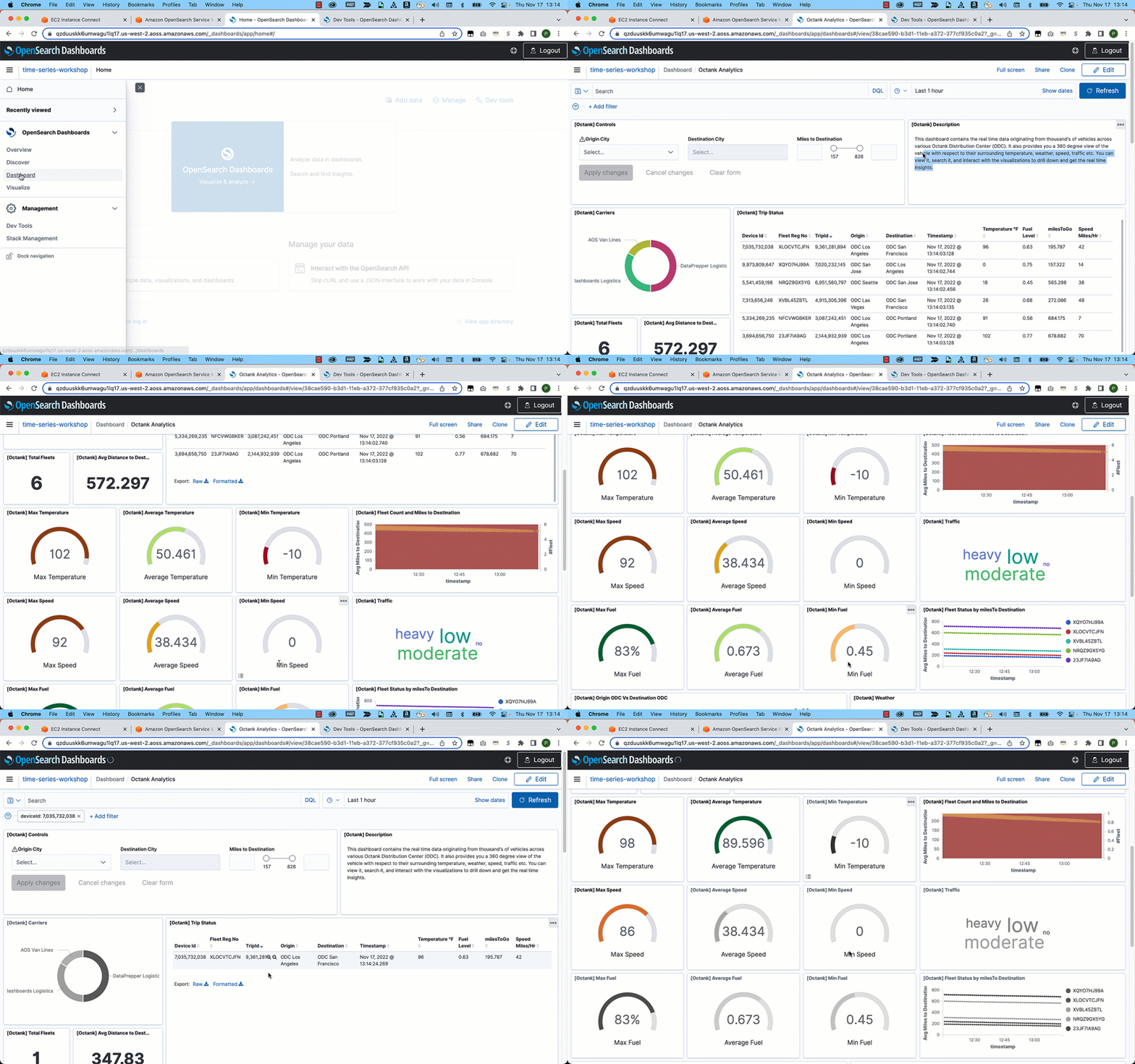
We recently announced the preview release of Amazon OpenSearch Serverless, a new serverless option for Amazon OpenSearch Service, which makes it easy for you to run large-scale search and analytics workloads without having to configure, manage, or scale OpenSearch clusters. It automatically provisions and scales the underlying resources to deliver fast data ingestion and query responses for even the most demanding and unpredictable workloads.

OpenSearch Serverless supports two primary use cases:

  • Log analytics that focuses on analyzing large volumes of semi-structured, machine-generated time series data for operational, security, and user behavior insights
  • Full-text search that powers customer applications in their internal networks (content management systems, legal documents) and internet-facing applications such as ecommerce website catalog search and content search

This post focuses on building a simple log analytics pipeline with OpenSearch Serverless.

Solution overview

In the following sections, we walk through the steps to create and access a collection in OpenSearch Serverless, and demonstrate how to configure two different data ingestion pipelines to index data into the collection.

Create a collection

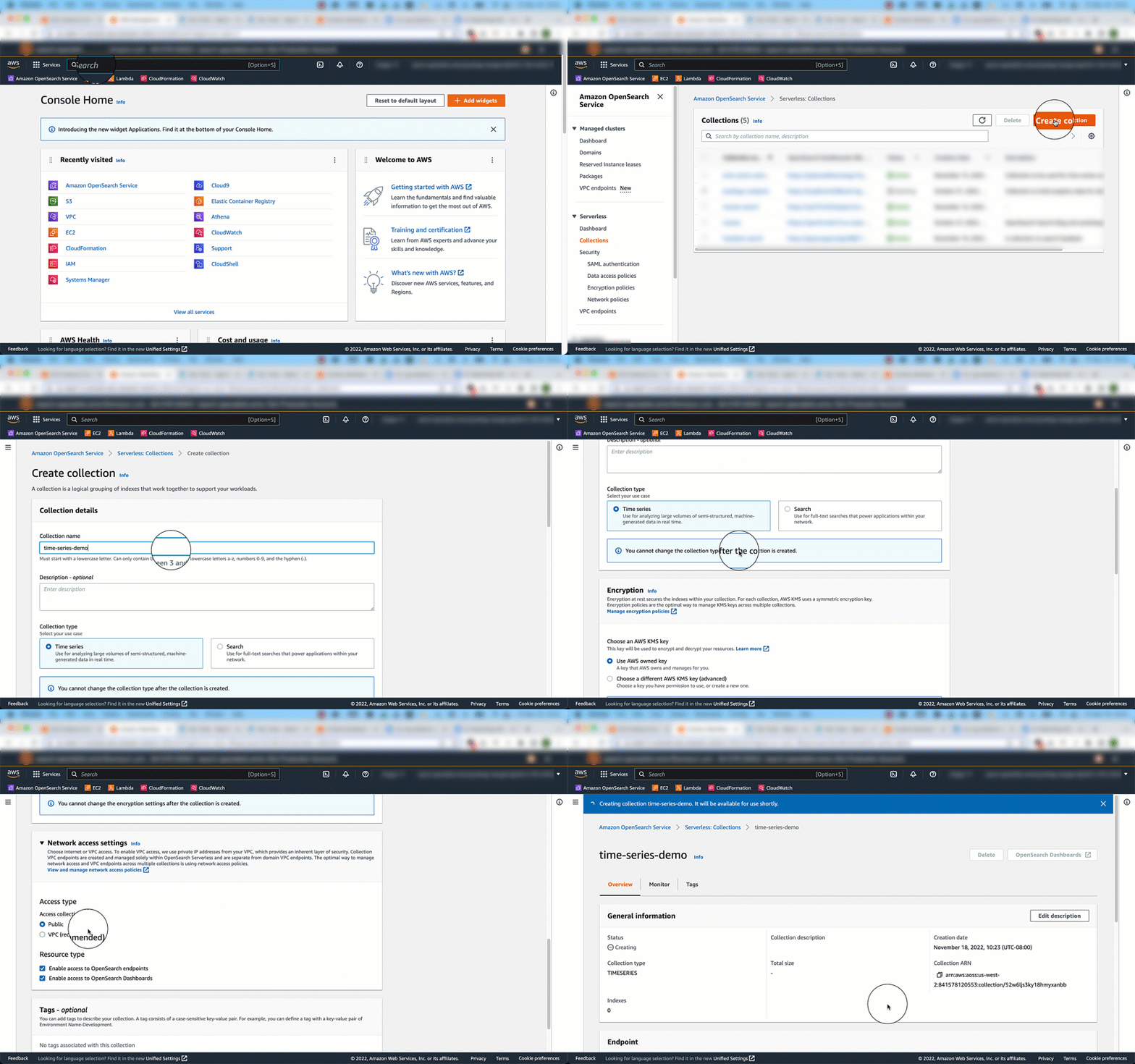
To get started with OpenSearch Serverless, you first create a collection. A collection in OpenSearch Serverless is a logical grouping of one or more indexes that represent an analytics workload.

The following graphic gives a quick navigation for creating a collection. Alternatively, refer to this blog post to learn more about how to create and configure a collection in OpenSearch Serverless.

Access the collection

You can use the AWS Identity and Access Management (IAM) credentials with a secret key and access key ID for your IAM users and roles to access your collection programmatically. Alternatively, you can set up SAML authentication for accessing the OpenSearch Dashboards. Note that SAML authentication is only available to access OpenSearch Dashboards; you require IAM credentials to perform any operations using the AWS Command Line Interface (AWS CLI), API, and OpenSearch clients for indexing and searching data. In this post, we use IAM credentials to access the collections.

Create a data ingestion pipeline

OpenSearch Serverless supports the same ingestion pipelines as the open-source OpenSearch and managed clusters. These clients include applications like Logstash and Amazon Kinesis Data Firehose, and language clients like Java Script, Python, Go, Java, and more. For more details on all the ingestion pipelines and supported clients, refer to ingesting data into OpenSearch Serverless collections.

Using Logstash

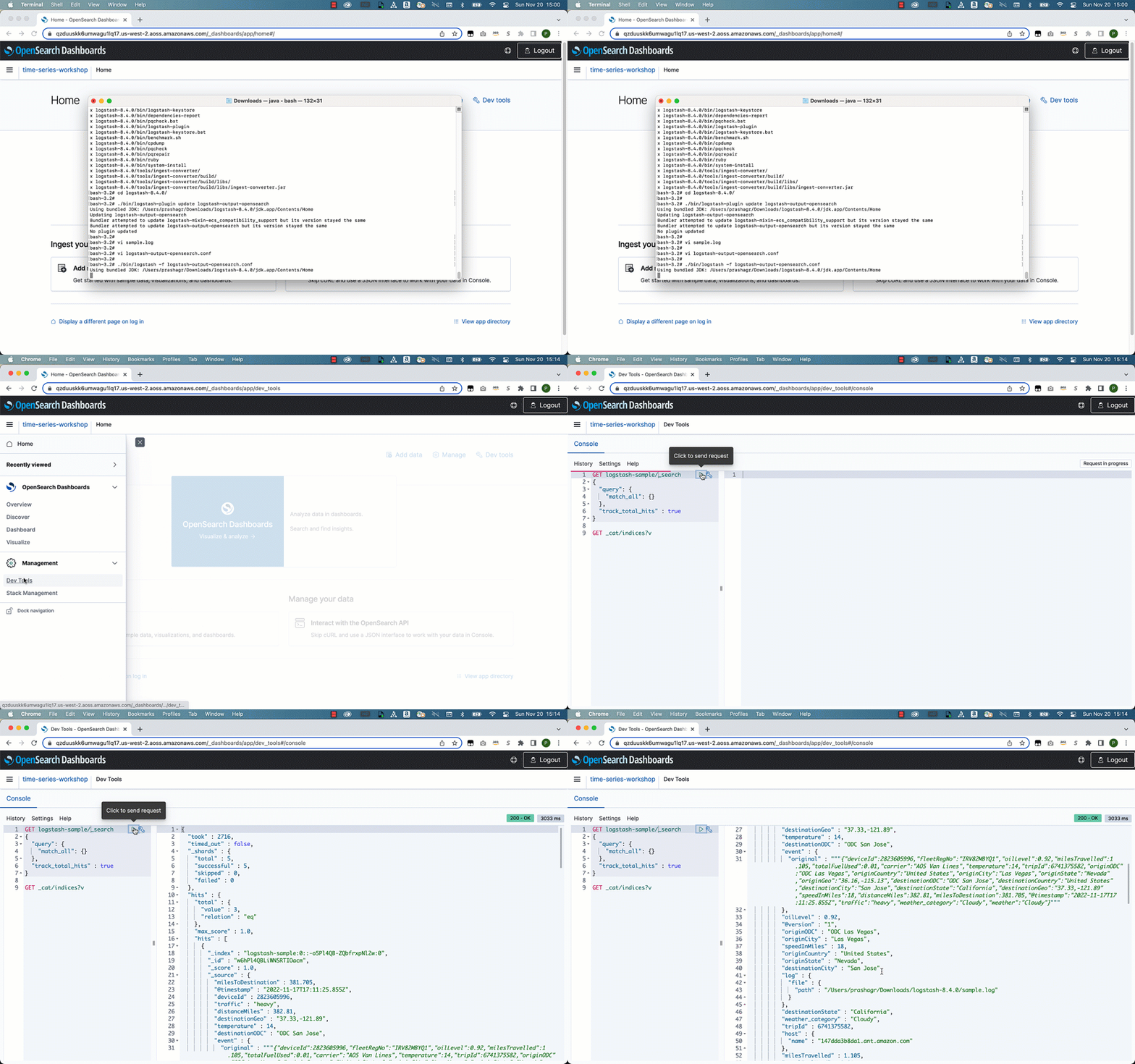
The open-source version of Logstash (Logstash OSS) provides a convenient way to use the bulk API to upload data into your collections. OpenSearch Serverless supports the logstash-output-opensearch output plugin, which supports IAM credentials for data access control. In this post, we show how to use the file input plugin to send data from your command line console to an OpenSearch Serverless collection. Complete the following steps:

  1. Download the logstash-oss-with-opensearch-output-plugin file (this example uses the distro for macos-x64; for other distros, refer to the artifacts):
    wget https://artifacts.opensearch.org/logstash/logstash-oss-with-opensearch-output-plugin-8.4.0-macos-x64.tar.gz

  2. Extract the downloaded tarball:
    tar -zxvf logstash-oss-with-opensearch-output-plugin-8.4.0-macos-x64.tar.gz
    cd logstash-8.4.0/

  3. Update the logstash-output-opensearch plugin to the latest version:
    ./bin/logstash-plugin update logstash-output-opensearch

    The OpenSearch output plugin for OpenSearch Serverless uses IAM credentials to authenticate. In this example, we show how to use the file input plugin to read data from a file and ingest into an OpenSearch Serverless collection.

  4. Create a log file with the following sample data and name it sample.log:
    {"deviceId":2823605996,"fleetRegNo":"IRV82MBYQ1","oilLevel":0.92,"milesTravelled":1.105,"totalFuelUsed":0.01,"carrier":"AOS Van Lines","temperature":14,"tripId":6741375582,"originODC":"ODC Las Vegas","originCountry":"United States","originCity":"Las Vegas","originState":"Nevada","originGeo":"36.16,-115.13","destinationODC":"ODC San Jose","destinationCountry":"United States","destinationCity":"San Jose","destinationState":"California","destinationGeo":"37.33,-121.89","speedInMiles":18,"distanceMiles":382.81,"milesToDestination":381.705,"@timestamp":"2022-11-17T17:11:25.855Z","traffic":"heavy","weather_category":"Cloudy","weather":"Cloudy"}
    {"deviceId":2823605996,"fleetRegNo":"IRV82MBYQ1","oilLevel":0.92,"milesTravelled":1.105,"totalFuelUsed":0.01,"carrier":"AOS Van Lines","temperature":14,"tripId":6741375582,"originODC":"ODC Las Vegas","originCountry":"United States","originCity":"Las Vegas","originState":"Nevada","originGeo":"36.16,-115.13","destinationODC":"ODC San Jose","destinationCountry":"United States","destinationCity":"San Jose","destinationState":"California","destinationGeo":"37.33,-121.89","speedInMiles":18,"distanceMiles":382.81,"milesToDestination":381.705,"@timestamp":"2022-11-17T17:11:26.155Z","traffic":"heavy","weather_category":"Cloudy","weather":"Heavy Fog"}
    {"deviceId":2823605996,"fleetRegNo":"IRV82MBYQ1","oilLevel":0.92,"milesTravelled":1.105,"totalFuelUsed":0.01,"carrier":"AOS Van Lines","temperature":14,"tripId":6741375582,"originODC":"ODC Las Vegas","originCountry":"United States","originCity":"Las Vegas","originState":"Nevada","originGeo":"36.16,-115.13","destinationODC":"ODC San Jose","destinationCountry":"United States","destinationCity":"San Jose","destinationState":"California","destinationGeo":"37.33,-121.89","speedInMiles":18,"distanceMiles":382.81,"milesToDestination":381.705,"@timestamp":"2022-11-17T17:11:26.255Z","traffic":"heavy","weather_category":"Cloudy","weather":"Cloudy"}
    {"deviceId":2823605996,"fleetRegNo":"IRV82MBYQ1","oilLevel":0.92,"milesTravelled":1.105,"totalFuelUsed":0.01,"carrier":"AOS Van Lines","temperature":14,"tripId":6741375582,"originODC":"ODC Las Vegas","originCountry":"United States","originCity":"Las Vegas","originState":"Nevada","originGeo":"36.16,-115.13","destinationODC":"ODC San Jose","destinationCountry":"United States","destinationCity":"San Jose","destinationState":"California","destinationGeo":"37.33,-121.89","speedInMiles":18,"distanceMiles":382.81,"milesToDestination":381.705,"@timestamp":"2022-11-17T17:11:26.556Z","traffic":"heavy","weather_category":"Cloudy","weather":"Heavy Fog"}
    {"deviceId":2823605996,"fleetRegNo":"IRV82MBYQ1","oilLevel":0.92,"milesTravelled":1.105,"totalFuelUsed":0.01,"carrier":"AOS Van Lines","temperature":14,"tripId":6741375582,"originODC":"ODC Las Vegas","originCountry":"United States","originCity":"Las Vegas","originState":"Nevada","originGeo":"36.16,-115.13","destinationODC":"ODC San Jose","destinationCountry":"United States","destinationCity":"San Jose","destinationState":"California","destinationGeo":"37.33,-121.89","speedInMiles":18,"distanceMiles":382.81,"milesToDestination":381.705,"@timestamp":"2022-11-17T17:11:26.756Z","traffic":"heavy","weather_category":"Cloudy","weather":"Cloudy"}

  5. Create a new file and add the following content, and save the file as logstash-output-opensearch.conf after providing the information about your file path, host, Region, access key, and secret access key:
    input {
       file {
         path => "<path/to/your/sample.log>"
         start_position => "beginning"
       }
    }
    output {
        opensearch {
            ecs_compatibility => disabled
            index => "logstash-sample"
            hosts => "<HOST>:443"
            auth_type => {
                type => 'aws_iam'
                aws_access_key_id => '<AWS_ACCESS_KEY_ID>'
                aws_secret_access_key => '<AWS_SECRET_ACCESS_KEY>'
                region => '<REGION>'
                service_name => 'aoss'
                }
            legacy_template => false
            default_server_major_version => 2
        }
    }

  6. Use the following command to start Logstash with the config file created in the previous step. This creates an index called logstash-sample and ingests the document added under the sample.log file:
    ./bin/logstash -f <path/to/your/config/file>

  7. Search using OpenSearch Dashboards by running the following query:
    GET logstash-sample/_search
    {
      "query": {
        "match_all": {}
      },
      "track_total_hits" : true
    }

In this step, you used a file input plugin from Logstash to send data to OpenSearch Serverless. You can replace the input plugin with any other plugin supported by Logstash, such as Amazon Simple Storage Service (Amazon S3), stdin, tcp, or others, to send data to the OpenSearch Serverless collection.

Using a Python client

OpenSearch provides high-level clients for several popular programming languages, which you can use to integrate with your application. With OpenSearch Serverless, you can continue to use your existing OpenSearch client to load and query your data in collections.

In this section, we show how to use the opensearch-py client for Python to establish a secure connection with your OpenSearch Serverless collection, create an index, send sample logs, and analyze those log data using OpenSearch Dashboards. In this example, we use a sample event generated from fleets carrying goods and packages. This data contains pertinent fields such as source, destination, weather, speed, and traffic. The following is a sample record:

"_source" : {
    "deviceId" : 2823605996,
    "fleetRegNo" : "IRV82MBYQ1",
    "carrier" : "AOS Van Lines",
    "temperature" : 14,
    "tripId" : 6741375582,
    "originODC" : "ODC Las Vegas",
    "originCountry" : "United States",
    "originCity" : "Las Vegas",
    "destinationCity" : "San Jose",
    "@timestamp" : "2022-11-17T17:11:25.855Z",
    "traffic" : "heavy",
    "weather" : "Cloudy"
    ...
    ...
}

To set up the Python client for OpenSearch, you must have the following prerequisites:

  • Python3 installed on your local machine or the server from where you are running this code
  • Package Installer for Python (PIP) installed
  • The AWS CLI configured; we use it to store the secret key and access key for credentials

Complete the following steps to set up the Python client:

  1. Add the OpenSearch Python client to your project and use Python’s virtual environment to set up the required packages:
    mkdir python-sample
    cd python-sample
    python3 -m venv .env
    source .env/bin/activate
    .env/bin/python3 -m pip install opensearch-py
    .env/bin/python3 -m pip install requests_aws4auth
    .env/bin/python3 -m pip install boto3
    .env/bin/python3 -m pip install geopy

  2. Save your frequently used configuration settings and credentials in files that are maintained by the AWS CLI (see Quick configuration with aws configure) by using the following commands and providing your access key, secret key, and Region:
    aws configure

  3. The following sample code uses the opensearch-py client for Python to establish a secure connection to the specified OpenSearch Serverless collection and index a sample document to index time series. You must provide values for region and host. Note that you must use aoss as the service name for OpenSearch Service. Copy the code and save in a file as sample_python.py:
    from opensearchpy import OpenSearch, RequestsHttpConnection
    from requests_aws4auth import AWS4Auth
    import boto3
    
    host = '<host>' # OpenSearch Serverless collection endpoint
    region = '<region>' # e.g. us-west-2
    
    service = 'aoss'
    credentials = boto3.Session().get_credentials()
    awsauth = AWS4Auth(credentials.access_key, credentials.secret_key, region, service,
    session_token=credentials.token)
    
    # Create an OpenSearch client
    client = OpenSearch(
        hosts = [{'host': host, 'port': 443}],
        http_auth = awsauth,
        use_ssl = True,
        verify_certs = True,
        connection_class = RequestsHttpConnection
    )
    # Specify index name
    index_name = 'octank-iot-logs-2022-11-19'
    
    # Prepare a document to index 
    document = {
        "deviceId" : 2823605996,
        "fleetRegNo" : "IRV82MBYQ1",
        "carrier" : "AOS Van Lines",
        "temperature" : 14,
        "tripId" : 6741375582,
        "originODC" : "ODC Las Vegas",
        "originCountry" : "United States",
        "originCity" : "Las Vegas",
        "destinationCity" : "San Jose",
        "@timestamp" : "2022-11-19T17:11:25.855Z",
        "traffic" : "heavy",
        "weather" : "Cloudy"
    }
    
    # Index Documents
    response = client.index(
        index = index_name,
        body = document
    )
    
    print('\n Document indexed with response:')
    print(response)
    
    
    # Search for the Documents
    q = 'heavy'
    query = {
        'size': 5,
            'query': {
            'multi_match': {
            'query': q,
            'fields': ['traffic']
            }
        }
    }
    
    response = client.search(
    body = query,
    index = index_name
    )
    print('\nSearch results:')
    print(response)

  4. Run the sample code:
    python3 sample_python.py

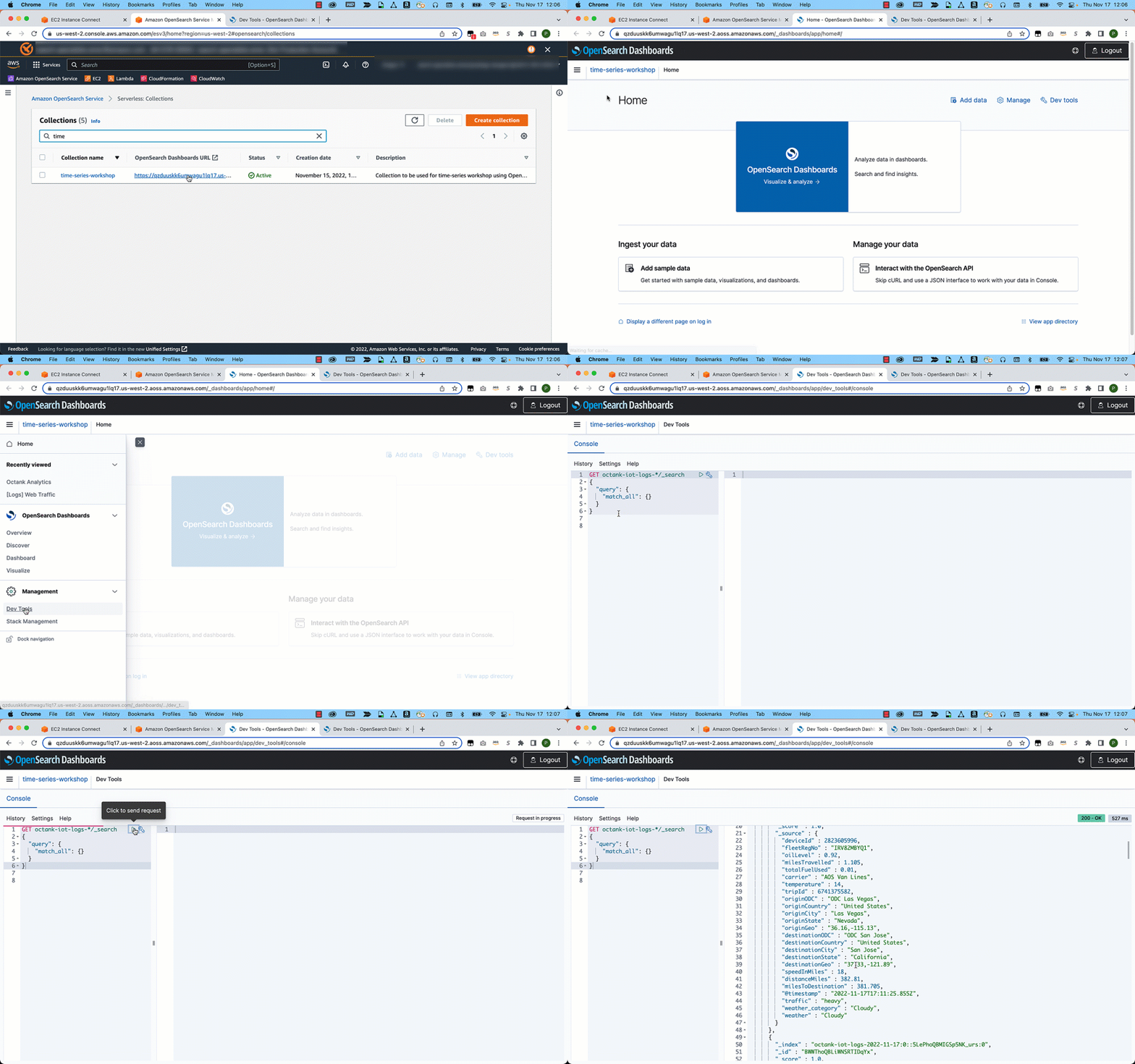
  5. On the OpenSearch Service console, select your collection.
  6. On OpenSearch Dashboards, choose Dev Tools.
  7. Run the following search query to retrieve documents:
    GET octank-iot-logs-*/_search
    {
      "query": {
        "match_all": {}
      }
    }

After you have ingested the data, you can use OpenSearch Dashboards to visualize your data. In the following example, we analyze data visually to gain insights on various dimensions such as average fuel consumed by a specific fleet, traffic conditions, distance traveled, and average mileage by the fleet.

Conclusion

In this post, you created a log analytics pipeline using OpenSearch Serverless, a new serverless option for OpenSearch Service. With OpenSearch Serverless, you can focus on building your application without having to worry about provisioning, tuning, and scaling the underlying infrastructure. OpenSearch Serverless supports the same ingestion pipelines and high-level clients as the open-source OpenSearch project. You can easily get started using the familiar OpenSearch indexing and query APIs to load and search your data and use OpenSearch Dashboards to visualize that data.

Stay tuned for a series of posts focusing on the various options available for you to build effective log analytics and search applications. Get hands-on with OpenSearch Serverless by taking the Getting Started with Amazon OpenSearch Serverless workshop and build a similar log analytics pipeline that was discussed in this post.


About the authors

Prashant Agrawal is a Sr. Search Specialist Solutions Architect with Amazon OpenSearch Service. He works closely with customers to help them migrate their workloads to the cloud and helps existing customers fine-tune their clusters to achieve better performance and save on cost. Before joining AWS, he helped various customers use OpenSearch and Elasticsearch for their search and log analytics use cases. When not working, you can find him traveling and exploring new places. In short, he likes doing Eat → Travel → Repeat.

Pavani Baddepudi is a senior product manager working in search services at AWS. Her interests include distributed systems, networking, and security.

New for Amazon SageMaker – Perform Shadow Tests to Compare Inference Performance Between ML Model Variants

Post Syndicated from Antje Barth original https://aws.amazon.com/blogs/aws/new-for-amazon-sagemaker-perform-shadow-tests-to-compare-inference-performance-between-ml-model-variants/

As you move your machine learning (ML) workloads into production, you need to continuously monitor your deployed models and iterate when you observe a deviation in your model performance. When you build a new model, you typically start validating the model offline using historical inference request data. But this data sometimes fails to account for current, real-world conditions. For example, new products might become trending that your product recommendation model hasn’t seen yet. Or, you experience a sudden spike in the volume of inference requests in production that you never exposed your model to before.

Today, I’m excited to announce Amazon SageMaker support for shadow testing!

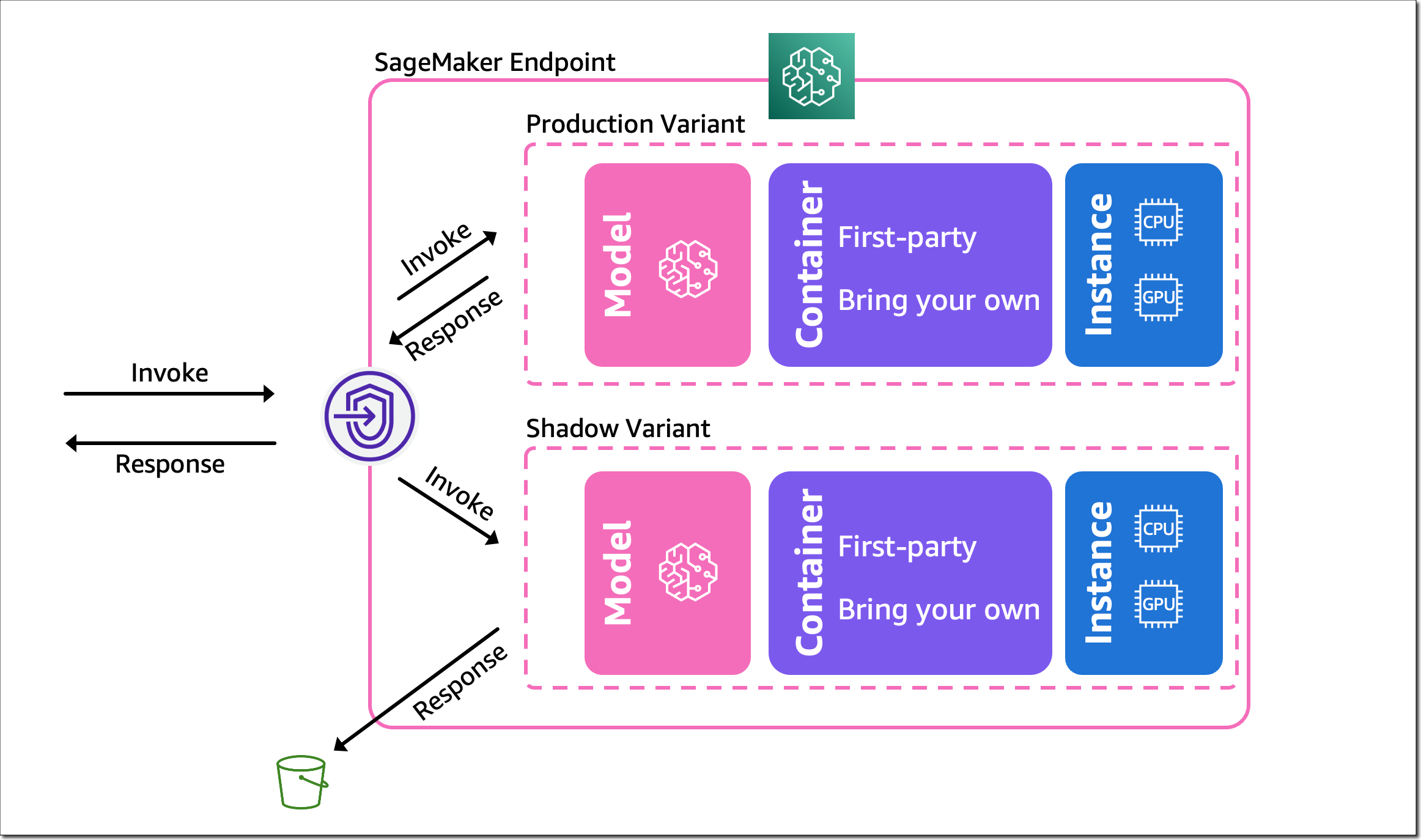
Deploying a model in shadow mode lets you conduct a more holistic test by routing a copy of the live inference requests for a production model to the new (shadow) model. Yet, only the responses from the production model are returned to the calling application. Shadow testing helps you build further confidence in your model and catch potential configuration errors and performance issues before they impact end users. Once you complete a shadow test, you can use the deployment guardrails for SageMaker inference endpoints to safely update your model in production.

Get Started with Amazon SageMaker Shadow Testing
You can create shadow tests using the new SageMaker Inference Console and APIs. Shadow testing gives you a fully managed experience for setup, monitoring, viewing, and acting on the results of shadow tests. If you have existing workflows built around SageMaker endpoints, you can also deploy a model in shadow mode using the existing SageMaker Inference APIs.

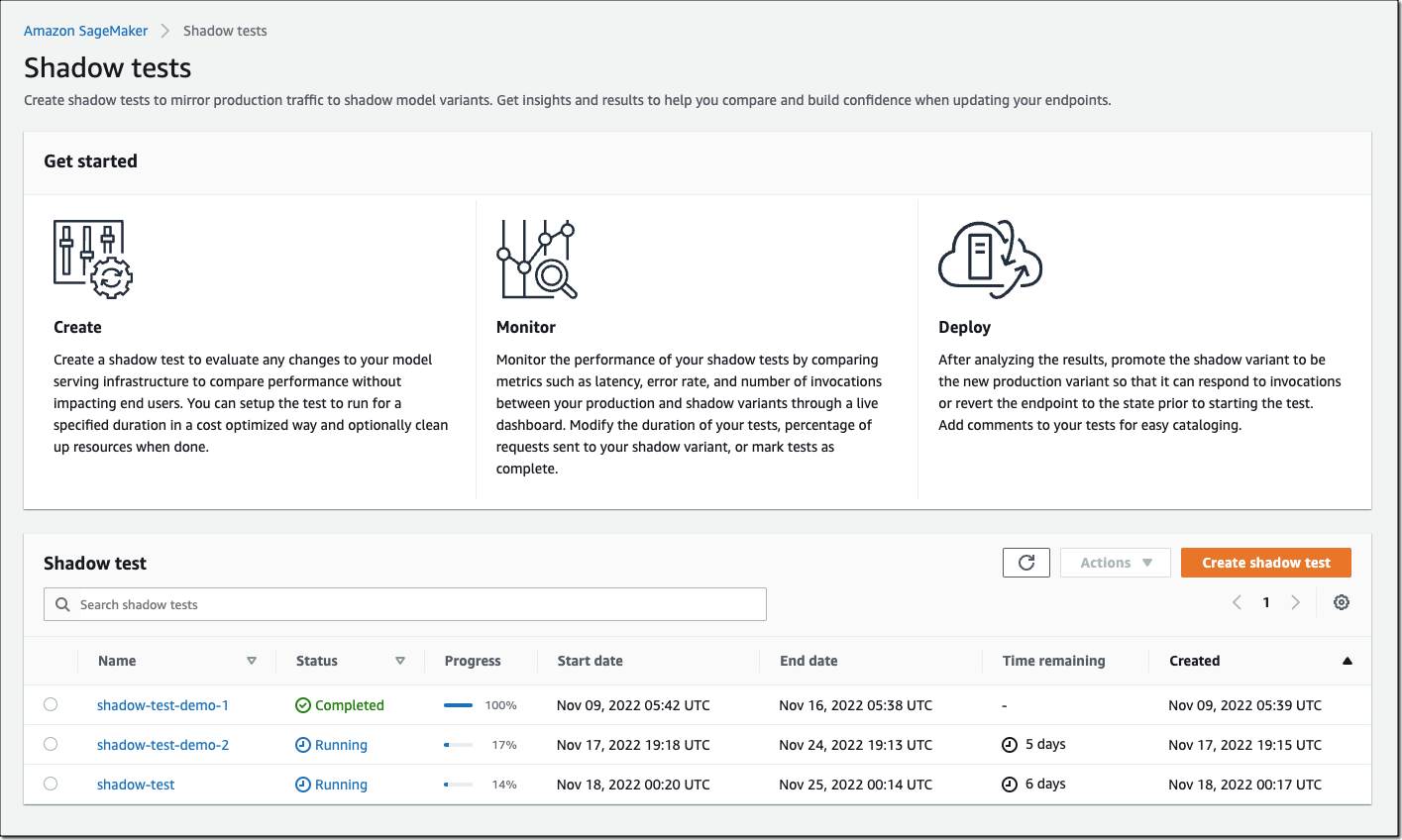
On the SageMaker console, select Inference and Shadow tests to create, monitor, and deploy shadow tests.

Amazon SageMaker Shadow Tests

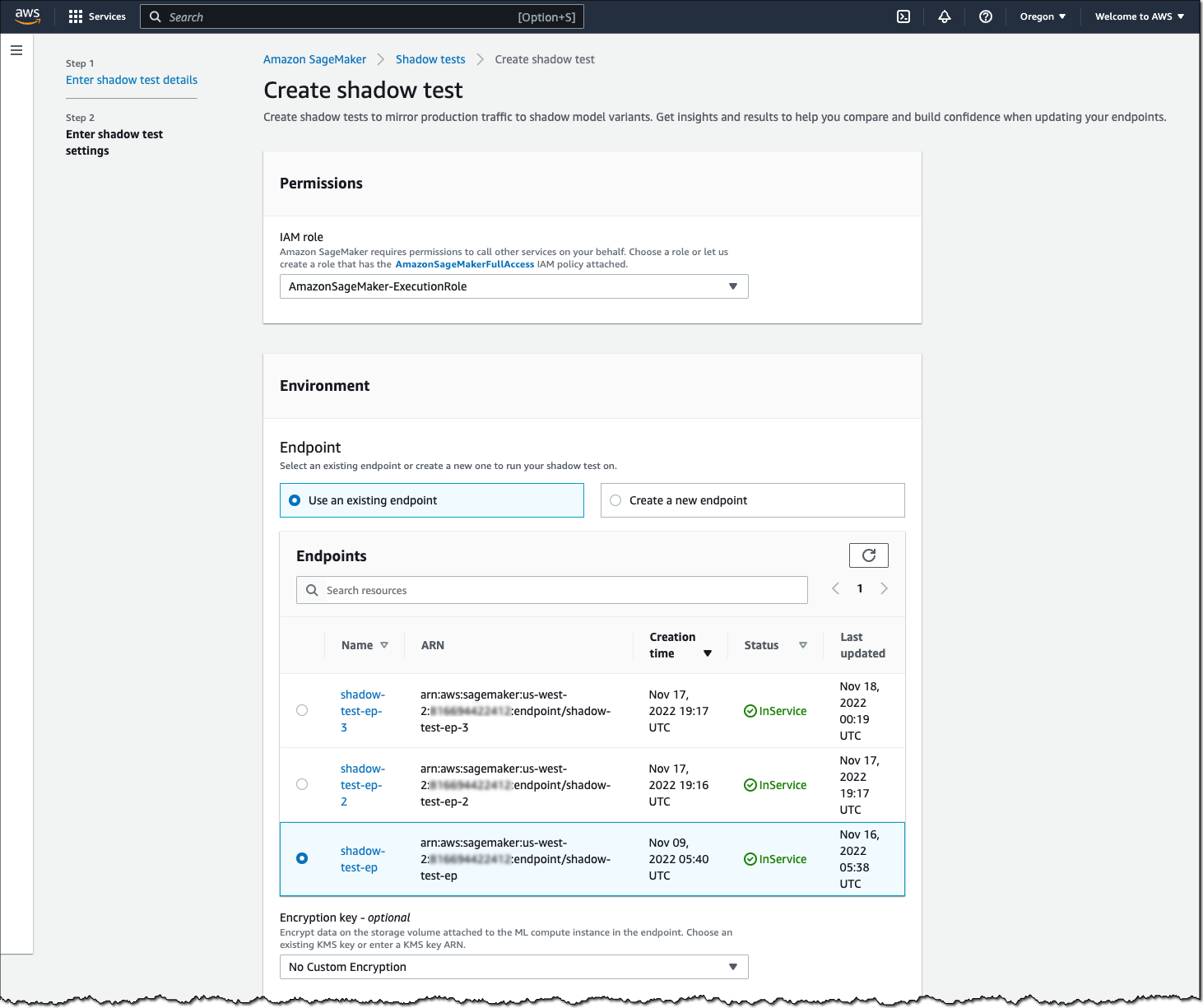
To create a shadow test, select an existing (or create a new) SageMaker endpoint and production variant you want to test against.

Amazon SageMaker - Create Shadow Test

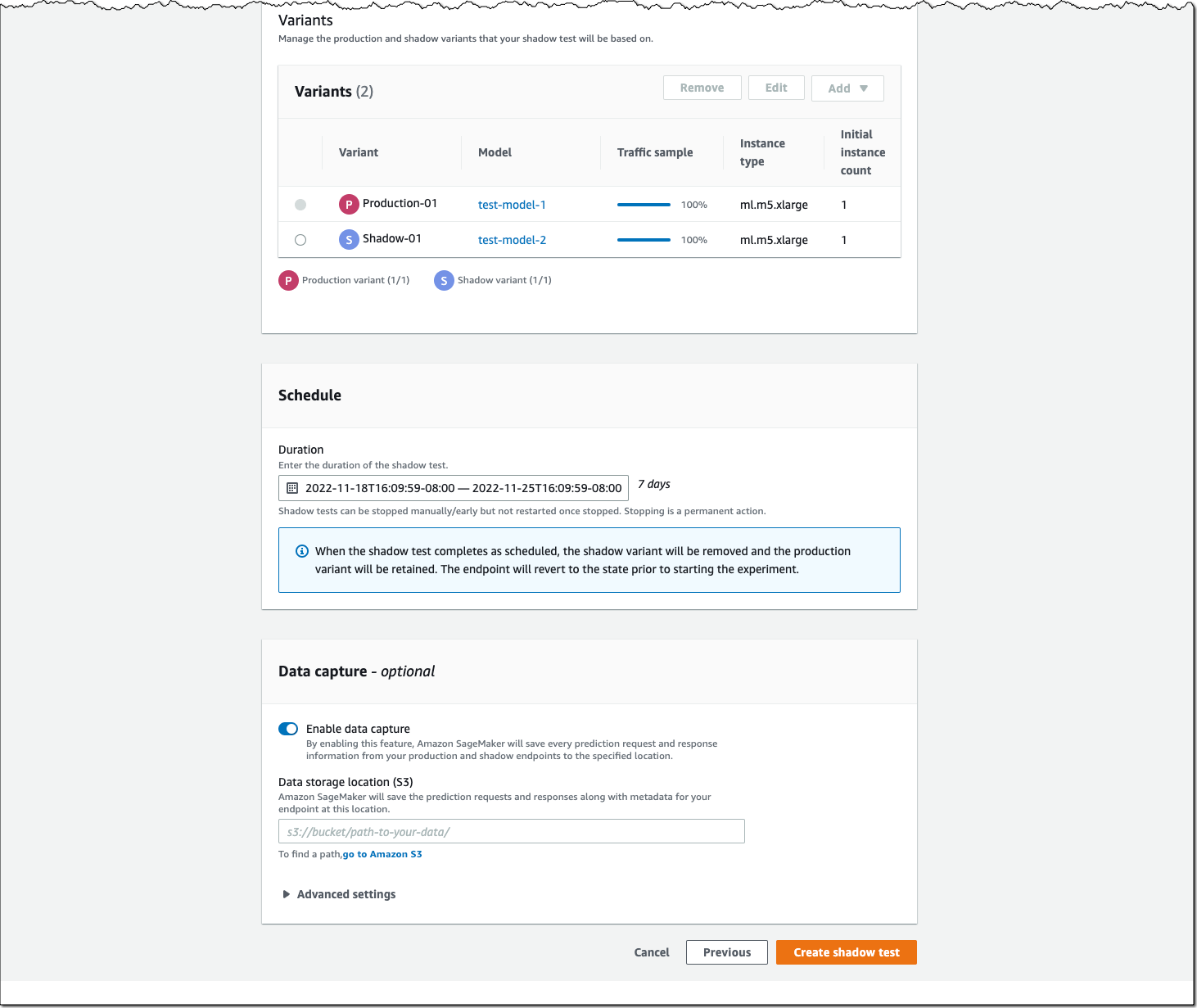
Next, configure the proportion of traffic to send to the shadow variant, the comparison metrics you want to evaluate, and the duration of the test. You can also enable data capture for your production and shadow variant.

Amazon SagMaker - Create Shadow Test

That’s it. SageMaker now automatically deploys the new variant in shadow mode and routes a copy of the inference requests to it in real time, all within the same endpoint. The following diagram illustrates this workflow.

Amazon SageMaker - Shadow Testing

Note that only the responses of the production variant are returned to the calling application. You can choose to either discard or log the responses of the shadow variant for offline comparison.

You can also use shadow testing to validate changes you made to any component in your production variant, including the serving container or ML instance. This can be useful when you’re upgrading to a new framework version of your serving container, applying patches, or if you want to make sure that there is no impact to latency or error rate due to this change. Similarly, if you consider moving to another ML instance type, for example, Amazon EC2 C7g instances based on AWS Graviton processors, or EC2 G5 instances powered by NVIDIA A10G Tensor Core GPUs, you can use shadow testing to evaluate the performance on production traffic prior to rollout.

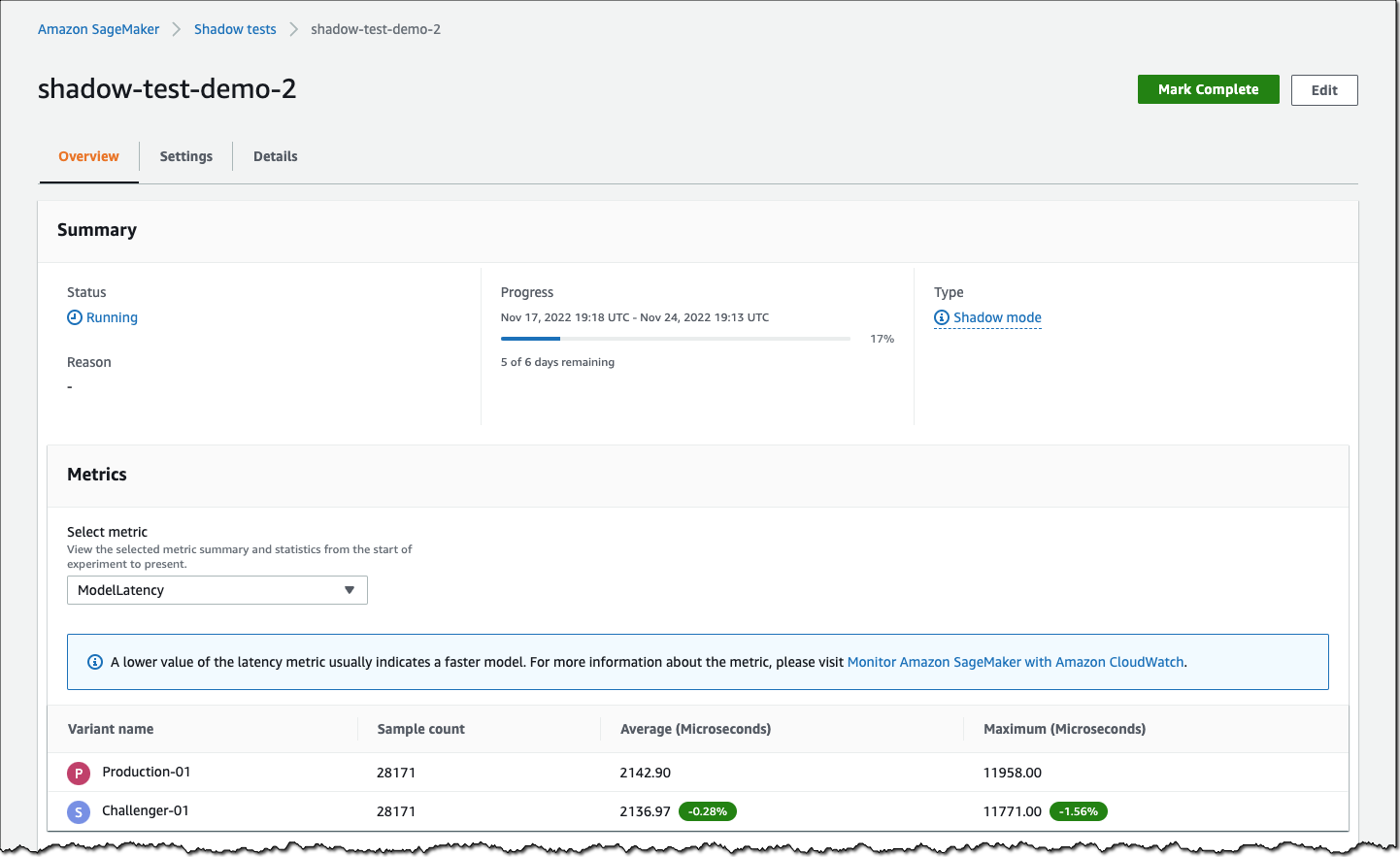
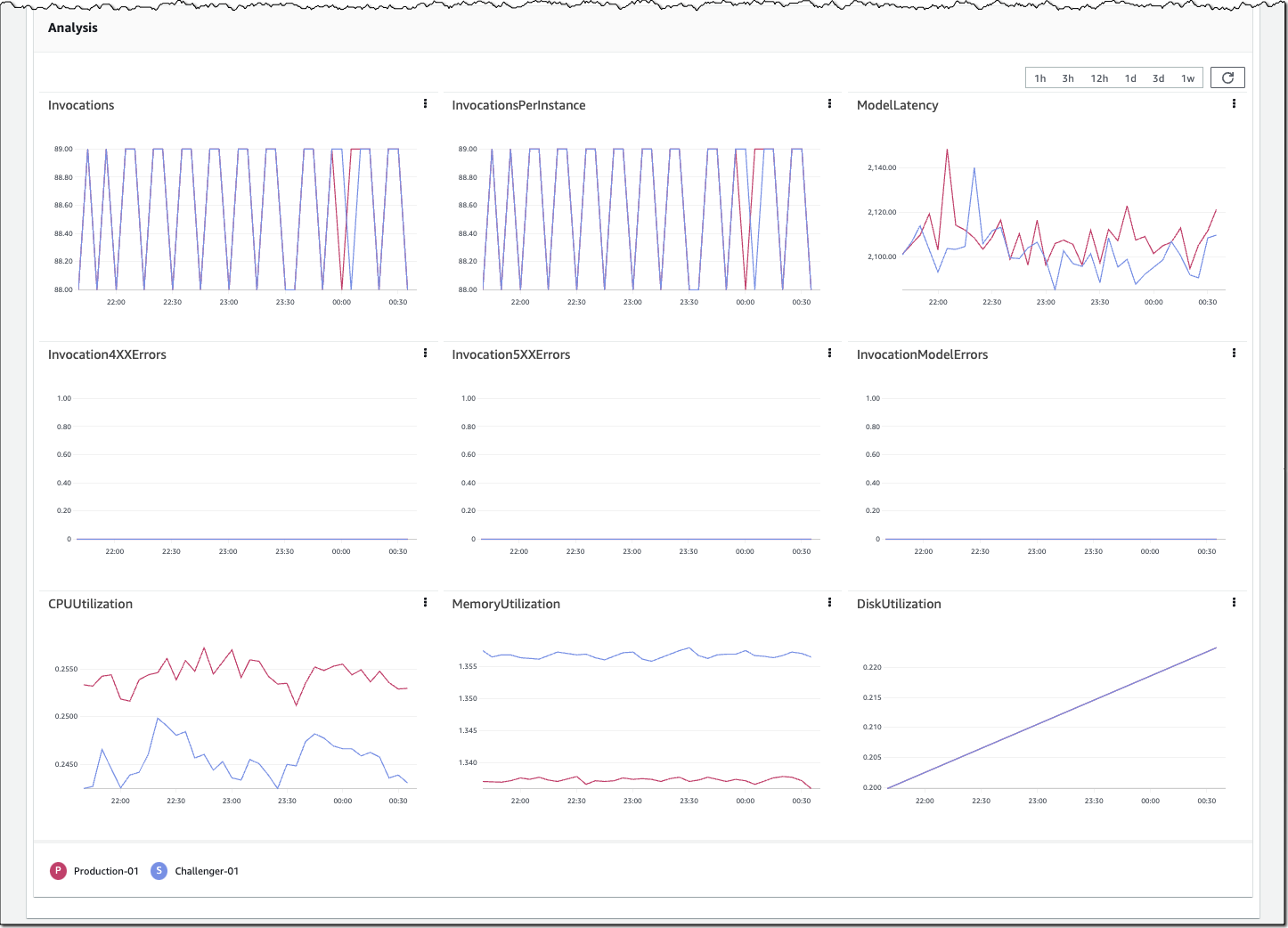
You can monitor the progress of the shadow test and performance metrics such as latency and error rate through a live dashboard. On the SageMaker console, select Inference and Shadow tests, then select the shadow test you want to monitor.

Amazon SageMaker - Monitor Shadow Test

Amazon SageMaker - Monitor Shadow Test

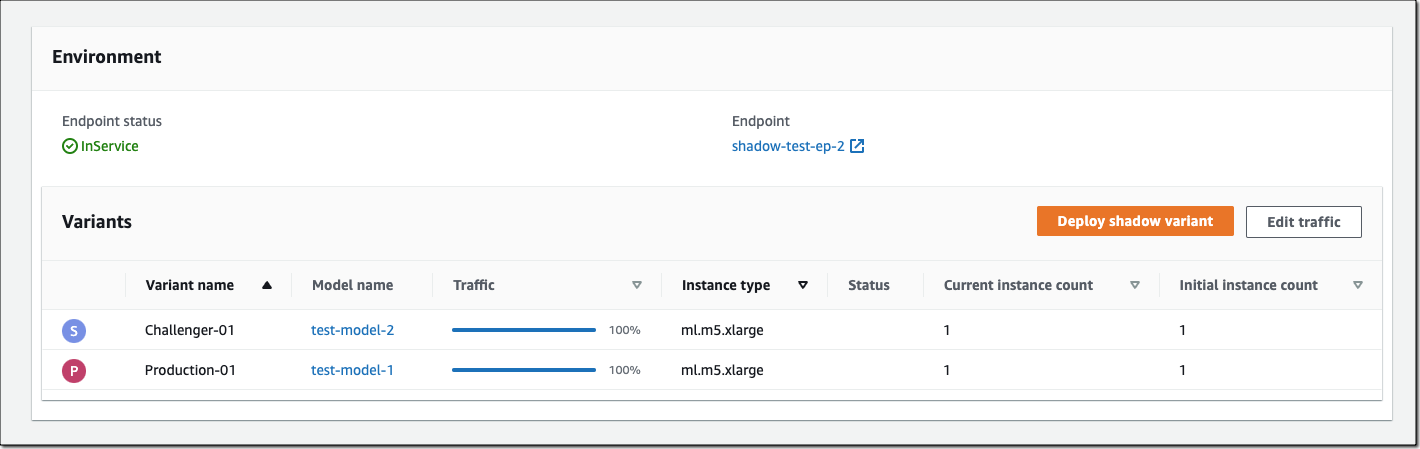
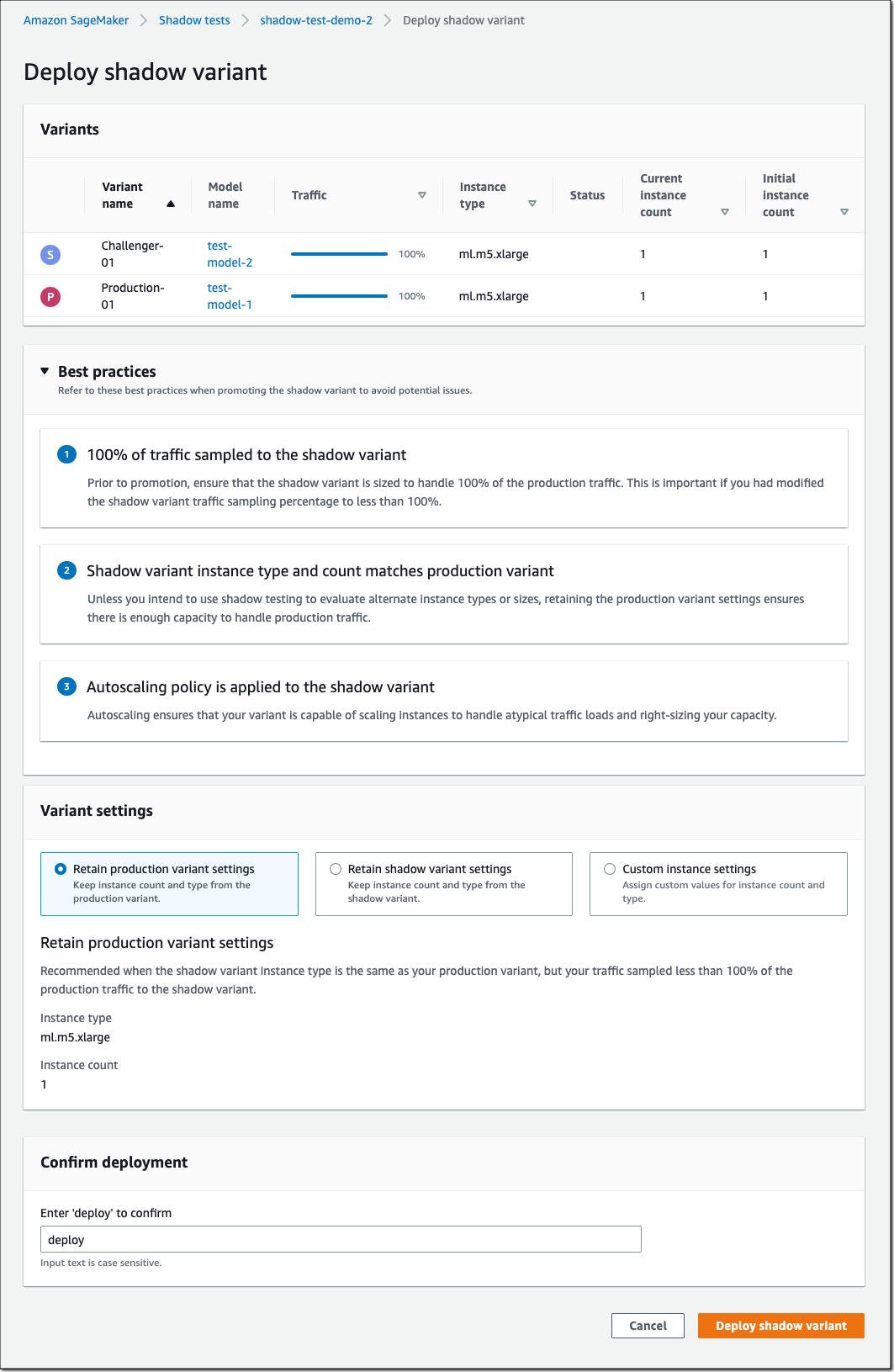
If you decide to promote the shadow model to production, select Deploy shadow variant and define the infrastructure configuration to deploy the shadow variant.

Amazon SageMaker - Deploy Shadow Variant

Amazon SageMaker - Deploy Shadow Variant

You can also use the SageMaker deployment guardrails if you want to add linear or canary traffic shifting modes and auto rollbacks to your update.

Availability and Pricing
SageMaker support for shadow testing is available today in all AWS Regions where SageMaker hosting is available except for the AWS GovCloud (US) Regions and AWS China Regions.

There is no additional charge for SageMaker shadow testing other than usage charges for the ML instances and ML storage provisioned to host the shadow variant. The pricing for ML instances and ML storage dimensions is the same as the real-time inference option. There is no additional charge for data processed in and out of shadow deployments. The SageMaker pricing page has all the details.

To learn more, visit Amazon SageMaker shadow testing.

Start validating your new ML models with SageMaker shadow tests today!

— Antje

Next Generation SageMaker Notebooks – Now with Built-in Data Preparation, Real-Time Collaboration, and Notebook Automation

Post Syndicated from Antje Barth original https://aws.amazon.com/blogs/aws/next-generation-sagemaker-notebooks-now-with-built-in-data-preparation-real-time-collaboration-and-notebook-automation/

In 2019, we introduced Amazon SageMaker Studio, the first fully integrated development environment (IDE) for data science and machine learning (ML). SageMaker Studio gives you access to fully managed Jupyter Notebooks that integrate with purpose-built tools to perform all ML steps, from preparing data to training and debugging models, tracking experiments, deploying and monitoring models, and managing pipelines.

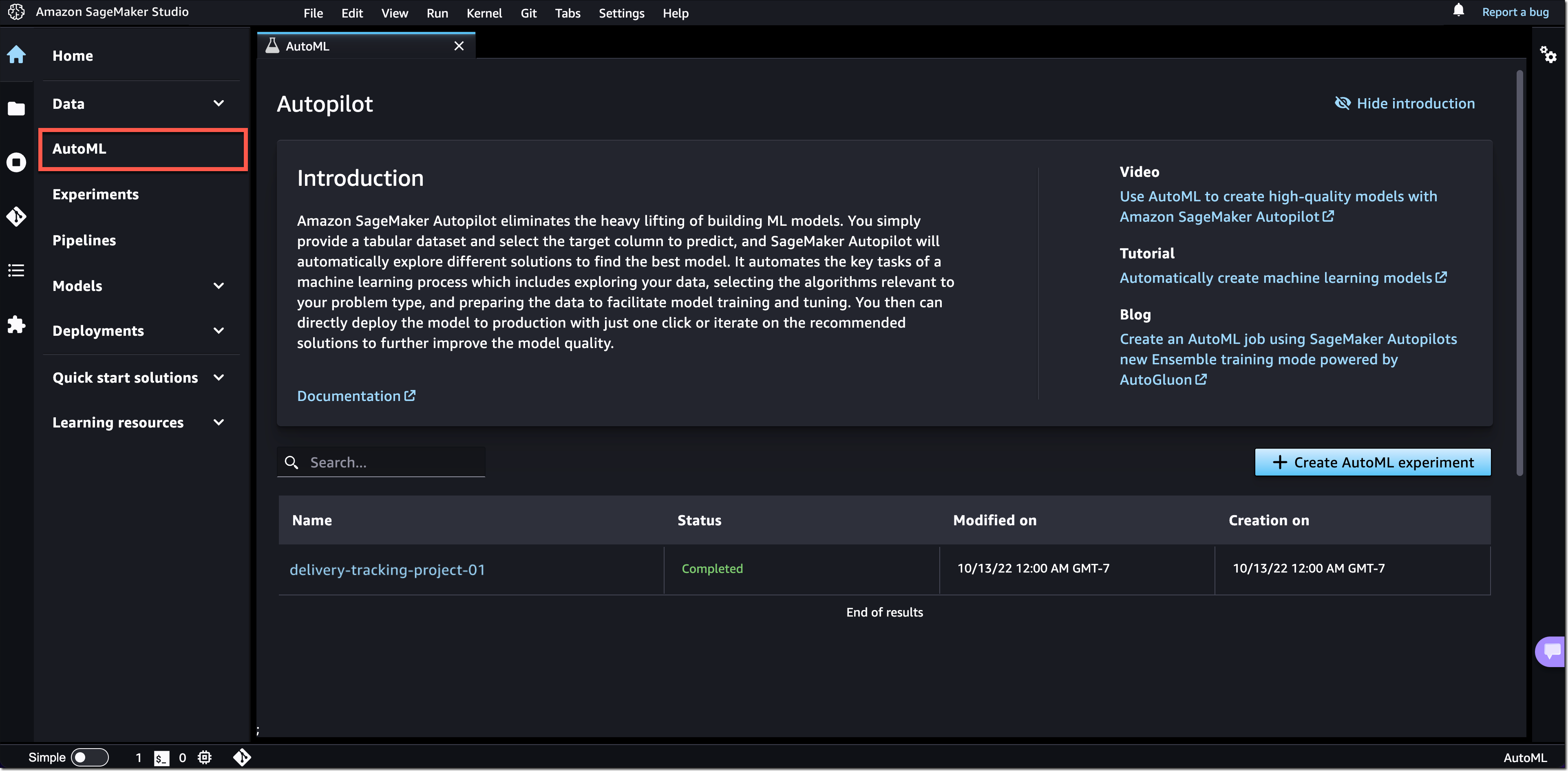
Today, I’m excited to announce the next generation of Amazon SageMaker Notebooks to increase efficiency across the ML development workflow. You can now improve data quality in minutes with the built-in data preparation capability, edit the same notebooks with your teams in real time, and automatically convert notebook code to production-ready jobs.

Let me show you what’s new!

New Notebook Capability for Simplified Data Preparation
The new built-in data preparation capability is powered by Amazon SageMaker Data Wrangler and is available in SageMaker Studio notebooks.  SageMaker Studio notebooks automatically generate key visualizations on top of Pandas data frames to help you understand data distribution and identify data quality issues, like missing values, invalid data, and outliers. You can also select the target column for ML models and generate ML-specific insights such as imbalanced class or high correlation columns. You then receive recommendations for data transformations to resolve the issues. You can apply the data transformations right in the UI, and SageMaker Studio notebooks automatically generate the corresponding transformation code in the notebook cells that you can use to replay your data preparation pipeline.

Using the Built-in Data Preparation Capability
To get started, pip install and import sagemaker_datawrangler along with the pandas Python package. Then, download the dataset you want to analyze to the notebook working directory, and read the dataset with pandas.

import pandas as pd 
import sagemaker_datawrangler 

!aws s3 cp s3://<YOUR_S3_BUCKET>/data.csv . 

df = pd.read_csv("data.csv")

Now, when you display the data frame, it automatically shows key data visualizations at the top of each column, surfaces data insights, detects data quality issues, and suggests solutions to improve data quality. When you select a column as the target column for ML predictions, you get target-specific insights and warnings, such as mixed data types in target (for regression use cases) or too few instances per class (for classification use cases).

In this example, I’m using the Women’s E-Commerce Clothing Reviews dataset that contains customer reviews and ratings for women’s clothing. This dataset was obtained from Kaggle and has been modified by Amazon to add synthetic data quality issues.

Amazon SageMaker Studio notebooks with built-in data preparation

You can review the suggested data transformations to improve the data quality and apply them right in the UI. For a list of all supported data transformations, have a look at the documentation. Once you apply a data transformation, SageMaker Studio notebooks automatically generate the code to reproduce those data preparation steps in another notebook cell.

For my example, I select Rating as my target column. Target column insights tells me in a high-priority warning that this column has too few instances per class and with a medium-priority warning that classes are too imbalanced. Let’s follow the suggestions and drop rare target values and drop missing values. I will also follow the suggestions for some of the feature columns and drop missing values in the Review Text column and drop the Division Name column.

Once I apply the transformations, the notebook generates this code for me:

# Pandas code generated by sagemaker_datawrangler
output_df = df.copy(deep=True)


# Code to Drop rare target values for column: Rating to resolve warning: Too few instances per class 
rare_target_labels_to_drop = ['-100', '100']
output_df = output_df[~output_df['Rating'].isin(rare_target_labels_to_drop)]


# Code to Drop missing for column: Rating to resolve warning: Missing values 
output_df = output_df[output_df['Rating'].notnull()]


# Code to Drop missing for column: Review Text to resolve warning: Missing values 
output_df = output_df[output_df['Review Text'].notnull()]


# Code to Drop column for column: Division Name to resolve warning: Missing values 
output_df=output_df.drop(columns=['Division Name'])

I can now review and modify the code if needed or start integrating the data transformations as part of my ML development workflow.

Introducing Shared Spaces for Team-Based Sharing and Real-Time Collaboration
SageMaker Studio now offers shared spaces that give data science and ML teams a workspace where they can read, edit, and run notebooks together in real time to streamline collaboration and communication during the development process. Shared spaces provide a shared Amazon EFS directory that you can utilize to share files within a shared space. All taggable SageMaker resources that you create in a shared space are automatically tagged to help you organize and have a filtered view of your ML resources, such as training jobs, experiments, and models, that are relevant to the business problem you work on in the space. This also helps you monitor costs and plan budgets using tools such as AWS Budgets and AWS Cost Explorer.

And that’s not all. You can now also create multiple SageMaker domains within the same AWS account to scope access and isolate resources to different teams or business units in your organization. Now, let me show you how to create a shared space for users within a SageMaker domain.

Using Shared Spaces
You can use the SageMaker console or the AWS CLI to create shared spaces for a SageMaker domain. To get started in the SageMaker console, go to Domains, select or create a new domain, and select Space management on the Domain details page. Then, select Create and give the shared space a name.

Amazon SageMaker Spaces - Create Space

Users in this SageMaker domain can now launch and join the shared space through their SageMaker domain user profiles.

Amazon SageMaker Spaces - Launch Spaces

In a shared space, select the new Collaborators icon in the left navigation menu. You can now see who else is currently active in this space. The following screenshot shows user tom on the left, editing a notebook file. On the right, user antje sees the edits in real time, together with an annotation of the user name that currently edits that notebook cell.

Amazon SageMaker Spaces

New Notebook Capability to Automatically Convert Notebook Code to Production-Ready Jobs
You can now select a notebook and automate it as a job that can run in a production environment without the need to manage the underlying infrastructure. When you create a SageMaker Notebook Job, SageMaker Studio takes a snapshot of the entire notebook, packages its dependencies in a container, builds the infrastructure, runs the notebook as an automated job on a schedule you define, and deprovisions the infrastructure upon job completion. This notebook capability is now also available in SageMaker Studio Lab, our free ML development environment that provides the compute, storage, and security to learn and experiment with ML.

Using the Notebook Capability to Automate Notebooks
To get started, open a notebook file in SageMaker Studio. Then, right-click your notebook file and select Create Notebook Job or select the Create Notebook Job icon, as highlighted in the following screenshot.

Amazon SageMaker Studio - Automate your notebooks

Define a name for the Notebook Job, review the input file location, specify the compute type to use, and whether to run the job immediately or on a schedule. Then, select Create.

Amazon SageMaker Studio - Create Notebook Job

The Notebook Job has been created, and you can review all Notebook Job Definitions in the UI.

Amazon SageMaker Studio - Notebook Job Definitions

Now Available
The new Amazon SageMaker Studio notebook capabilities are now available in all AWS Regions where Amazon SageMaker Studio is available except for the AWS China Regions.

At launch, the built-in data preparation capability powered by SageMaker Data Wrangler is supported for SageMaker Studio notebooks and the following notebook kernel images:

  • Python 3 (Data Science) with Python 3.7
  • Python 3 (Data Science 2.0) with Python 3.8
  • Python 3 (Data Science 3.0) with Python 3.10
  • Spark Analytics 1.0 and 2.0

For more information, visit Amazon SageMaker Notebooks.

Start building your ML projects with the next generation of Amazon SageMaker Notebooks today!

— Antje

New – Share ML Models and Notebooks More Easily Within Your Organization with Amazon SageMaker JumpStart

Post Syndicated from Antje Barth original https://aws.amazon.com/blogs/aws/new-share-ml-models-and-notebooks-more-easily-within-your-organization-with-amazon-sagemaker-jumpstart/

Amazon SageMaker JumpStart is a machine learning (ML) hub that can help you accelerate your ML journey. SageMaker JumpStart gives you access to built-in algorithms with pre-trained models from popular model hubs, pre-trained foundation models to help you perform tasks such as article summarization and image generation, and end-to-end solutions to solve common use cases.

Today, I’m happy to announce that you can now share ML artifacts, such as models and notebooks, more easily with other users that share your AWS account using SageMaker JumpStart.

Using SageMaker JumpStart to Share ML Artifacts
Machine learning is a team sport. You might want to share your models and notebooks with other data scientists in your team to collaborate and increase productivity. Or, you might want to share your models with operations teams to put your models into production. Let me show you how to share ML artifacts using SageMaker JumpStart.

In SageMaker Studio, select Models in the left navigation menu. Then, select Shared models and Shared by my organization. You can now discover and search ML artifacts that other users shared within your AWS account. Note that you can add and share ML artifacts developed with SageMaker as well as those developed outside of SageMaker.

To share a model or notebook, select Add. For models, provide basic information, such as title, description, data type, ML task, framework, and any additional metadata. This information helps other users to find the right models for their use cases. You can also enable training and deployment for your model. This allows users to fine-tune your shared model and deploy the model in just a few clicks through SageMaker JumpStart.

Amazon SageMaker Jumpstart - Add model to private ML hub

To enable model training, you can select an existing SageMaker training job that will autopopulate all relevant information. This information includes the container framework, training script location, model artifact location, instance type, default training and validation datasets, and target column. You can also provide custom model training information by selecting a prebuilt SageMaker Deep Learning Container or selecting a custom Docker container in Amazon ECR. You can also specify default hyperparameters and metrics for model training.

To enable model deployment, you also need to define the container image to use, the inference script and model artifact location, and the default instance type. Have a look at the SageMaker Developer Guide to learn more about model training and model deployment options.

Sharing a notebook works similarly. You need to provide basic information about your notebook and the Amazon S3 location of the notebook file.

Amazon SageMaker JumpStart - Add a notebook to private ML hub

Users that share your AWS account can now browse and select shared models to fine-tune, deploy endpoints, or run notebooks directly in SageMaker JumpStart.

In SageMaker Studio, select Quick start solutions in the left navigation menu, then select Solutions, models, example notebooks to access all shared ML artifacts, together with pre-trained models from popular model hubs and end-to-end solutions.

Amazon SageMaker JumpStart

Now Available
The new ML artifact-sharing capability within Amazon SageMaker JumpStart is available today in all AWS Regions where Amazon SageMaker JumpStart is available. To learn more, visit Amazon SageMaker JumpStart and the SageMaker JumpStart documentation.

Start sharing your models and notebooks with Amazon SageMaker JumpStart today!

— Antje

AWS Machine Learning University New Educator Enablement Program to Build Diverse Talent for ML/AI Jobs

Post Syndicated from Marcia Villalba original https://aws.amazon.com/blogs/aws/aws-machine-learning-university-new-educator-enablement-program-to-build-diverse-talent-for-ml-ai-jobs/

AWS Machine Learning University is now providing a free educator enablement program. This program provides faculty at community colleges, minority-serving institutions (MSIs), and historically Black colleges and universities (HBCUs) with the skills and resources to teach data analytics, artificial intelligence (AI), and machine learning (ML) concepts to build a diverse pipeline for in-demand jobs of today and tomorrow.

According to the National Science Foundation, Black and Hispanic or Latino students earn bachelor’s degrees in Computer Science—the dominant pathway to AI/ML—at a much lower rate than their white peers, earning less than 11 percent of computer science degrees awarded. However, research shows that having diverse perspectives among skilled practitioners and across the AI/ML lifecycle contributes to the development of AI/ML systems that are safe, trustworthy, and have less bias. 

In 2018, we announced the Machine Learning University (MLU) to share with all developers the same courses that we used to train engineers at Amazon and AWS. This platform offers self-service, self-paced, AI/ML digital courses.

Machine Learning University home page

And today, we add this new program to our AI/ML training offering. Although anyone could access the MLU self-paced learning, it places the burden on the learner to source prerequisite work and solutions. This educator enablement program takes the concepts and lessons developed by MLU and makes them more accessible to educators. It offers a year-round educator enablement program with lesson planning, course playbooks, and access to free compute resources.

Program Details
Educators are onboarded in small-group cohorts into bootcamps where they will learn the material and deep dive into how to teach it via instructor-led lectures and hands-on projects. Educators who complete the bootcamp can take part in different year-round development opportunities, such as a dedicated Slack channel to share teaching best practices, education topic series and virtual study sessions moderated by MLU instructors, and regional events for continued professional development. Also, they will receive continuing education credits and AWS-provided stipends.

Faculty and students get access to instructional material through Amazon SageMaker Studio Lab. SageMaker Studio Lab was announced last year and is AWS’s free (no credit card required) ML development environment. It provides computing and storage for anybody that wants to learn and experiment with ML. Institutions can unlock additional resources to support their ML programs by registering for AWS Academy. AWS Academy unlocks all the AWS services for a complete AI/ML program.

Community colleges and universities can integrate this educator enablement program into their computer science, information technology, and business curricula to create an AI/ML course, certificate, or degree. We have worked with educators and education boards such as Houston Community College to create content that is vetted for credit-worthy and degree-earning curricula.

In August 2022, we launched our first educator bootcamp in partnership with The Coding School. The bootcamp was delivered over two weeks, offering lectures, case studies, and hands-on projects. 25 educators completed the Educator Machine Learning Bootcamp, representing 22 US community colleges and universities.

Learn More and Join The Program
During 2023, AWS Machine Learning University will run six educator-enablement cohorts starting in January. The program will give priority consideration to educators at community colleges, MSIs, and HBCUs, in alignment with this program mission to increase access to AI/ML technology to historically underserved and underrepresented students.

If you are a computer science educator or part of a board of educators interested in fostering more depth in your computer science coursework, you should sign up for the educator enablement program.

Marcia

New for Amazon Redshift – Simplify Data Ingestion and Make Your Data Warehouse More Secure and Reliable

Post Syndicated from Danilo Poccia original https://aws.amazon.com/blogs/aws/new-for-amazon-redshift-simplify-data-ingestion-and-make-your-data-warehouse-more-secure-and-reliable/

When we talk with customers, we hear that they want to be able to harness insights from data in order to make timely, impactful, and actionable business decisions. A common pattern with data-driven organizations is that they have many different data sources they need to ingest into their analytics systems. This requires them to build manual data pipelines spanning across their operational databases, data lakes, streaming data, and data within their warehouse. As a consequence of this complex setup, it can take data engineers weeks or even months to build data ingestion pipelines. These data pipelines are costly, and the delays can lead to missed business opportunities. Additionally, data warehouses are increasingly becoming mission critical systems that require high availability, reliability, and security.

Amazon Redshift is a fully managed petabyte-scale data warehouse used by tens of thousands of customers to easily, quickly, securely, and cost-effectively analyze all their data at any scale. This year at re:Invent, Amazon Redshift has announced a number of features to help you simplify data ingestion and get to insights easily and quickly, within a secure, reliable environment.

In this blog, I introduce some of these new features that fit into two main categories:

  • Simplify data ingestion
    • Amazon Redshift now supports auto-copy from Amazon S3 (available in preview). With this new capability, Amazon Redshift automatically loads the files that arrive in an Amazon Simple Storage Service (Amazon S3) location that you specify into your data warehouse. The files can use any of the formats supported by the Amazon Redshift copy command, such as CSV, JSON, Parquet, and Avro. In this way, you don’t need to manually or repeatedly run copy procedures. Amazon Redshift automates file ingestion and takes care of data-loading steps under the hood.
    • With Amazon Aurora zero-ETL integration with Amazon Redshift, you can use Amazon Redshift for near real-time analytics and machine learning on petabytes of transactional data stored on Amazon Aurora MySQL databases (available in limited preview). With this capability, you can choose the Amazon Aurora databases containing the data you want to analyze with Amazon Redshift. Data is then replicated into your data warehouse within seconds after transactional data is written into Amazon Aurora, eliminating the need to build and maintain complex data pipelines. You can replicate data from multiple Amazon Aurora databases into the same Amazon Redshift instance to run analytics across multiple applications. With near real-time access to transactional data, you can leverage Amazon Redshift’s analytics and capabilities, such as built-in machine learning (ML), materialized views, data sharing, and federated access to multiple data stores and data lakes, to derive insights from transactional and other data.
    • With the general availability of Amazon Redshift Streaming Ingestion, you can now natively ingest hundreds of megabytes of data per second from Amazon Kinesis Data Streams and Amazon MSK into an Amazon Redshift materialized view and query it in seconds. Learn more in this post.
  • Make your data warehouse more secure and reliable
    • You can now improve the availability of your data warehouse by choosing multiple Availability Zone (AZ) deployments. Multi-AZ deployments for your Amazon Redshift clusters are available in preview and reduce recovery times to seconds through automatic recovery. In this way, you can build solutions that are more compliant with the recommendations of the Reliability Pillar of the AWS Well-Architected Framework.
    • With dynamic data masking (available in preview), you can protect sensitive information stored in your data warehouse and ensure that only the relevant data is accessible by users based on their roles. You can limit how much identifiable data is visible to users using multiple levels of policies so different users and groups can have different levels of data access without having to create multiple copies of data. Dynamic data masking complements other granular access control capabilities in Amazon Redshift including row-level and column-level security and role-based access controls. In this way, Dynamic Data Masking helps you meet requirements for GDPR, CCPA, and other privacy regulations.
    • Amazon Redshift now supports central access controls for data sharing with AWS Lake Formation (available in public preview). You can now use Lake Formation to simplify governance of data shared from Amazon Redshift and centrally manage granular access across all data-sharing consumers.

There have been other interesting news for Amazon Redshift at re:Invent you might have already heard about:

  • The general availability of Amazon Redshift integration for Apache Spark makes it easy to build and run Spark applications on Amazon Redshift and Redshift Serverless, opening up the data warehouse for a broader set of AWS analytics and machine learning solutions.
  • AWS Backup now supports Amazon Redshift. AWS Backup allows you to define a central backup policy to manage data protection of your applications and can also protect your Amazon Redshift clusters. In this way, you have a consistent experience when managing data protection across all supported services.

Availability and Pricing
Multi-AZ deployments, central access control for data sharing with AWS Lake Formation, auto-copy from Amazon S3, and dynamic data masking are available in preview in US East (Ohio), US East (N. Virginia), US West (Oregon), Asia Pacific (Tokyo), Europe (Ireland), and Europe (Stockholm).

There is no additional cost for using auto-copy from Amazon S3 and near real-time analytics on transactional data. There is no extra charge for dynamic data masking and central access control for data sharing. For more information, see Amazon Redshift pricing.

These new capabilities take you one step further in analyzing all your data across data sources with simple data ingestion capabilities, while improving the security and reliability of your data warehouse.

Danilo

New — Introducing Support for Real-Time and Batch Inference in Amazon SageMaker Data Wrangler

Post Syndicated from Donnie Prakoso original https://aws.amazon.com/blogs/aws/new-introducing-support-for-real-time-and-batch-inference-in-amazon-sagemaker-data-wrangler/

To build machine learning models, machine learning engineers need to develop a data transformation pipeline to prepare the data. The process of designing this pipeline is time-consuming and requires a cross-team collaboration between machine learning engineers, data engineers, and data scientists to implement the data preparation pipeline into a production environment.

The main objective of Amazon SageMaker Data Wrangler is to make it easy to do data preparation and data processing workloads. With SageMaker Data Wrangler, customers can simplify the process of data preparation and all of the necessary steps of data preparation workflow on a single visual interface. SageMaker Data Wrangler reduces the time to rapidly prototype and deploy data processing workloads to production, so customers can easily integrate with MLOps production environments.

However, the transformations applied to the customer data for model training need to be applied to new data during real-time inference. Without support for SageMaker Data Wrangler in a real-time inference endpoint, customers need to write code to replicate the transformations from their flow in a preprocessing script.

Introducing Support for Real-Time and Batch Inference in Amazon SageMaker Data Wrangler
I’m pleased to share that you can now deploy data preparation flows from SageMaker Data Wrangler for real-time and batch inference. This feature allows you to reuse the data transformation flow which you created in SageMaker Data Wrangler as a step in Amazon SageMaker inference pipelines.

SageMaker Data Wrangler support for real-time and batch inference speeds up your production deployment because there is no need to repeat the implementation of the data transformation flow. You can now integrate SageMaker Data Wrangler with SageMaker inference. The same data transformation flows created with the easy-to-use, point-and-click interface of SageMaker Data Wrangler, containing operations such as Principal Component Analysis and one-hot encoding, will be used to process your data during inference. This means that you don’t have to rebuild the data pipeline for a real-time and batch inference application, and you can get to production faster.

Get Started with Real-Time and Batch Inference
Let’s see how to use the deployment supports of SageMaker Data Wrangler. In this scenario, I have a flow inside SageMaker Data Wrangler. What I need to do is to integrate this flow into real-time and batch inference using the SageMaker inference pipeline.

First, I will apply some transformations to the dataset to prepare it for training.

I add one-hot encoding on the categorical columns to create new features.

Then, I drop any remaining string columns that cannot be used during training.

My resulting flow now has these two transform steps in it.

After I’m satisfied with the steps I have added, I can expand the Export to menu, and I have the option to export to SageMaker Inference Pipeline (via Jupyter Notebook).

I select Export to SageMaker Inference Pipeline, and SageMaker Data Wrangler will prepare a fully customized Jupyter notebook to integrate the SageMaker Data Wrangler flow with inference. This generated Jupyter notebook performs a few important actions. First, define data processing and model training steps in a SageMaker pipeline. The next step is to run the pipeline to process my data with Data Wrangler and use the processed data to train a model that will be used to generate real-time predictions. Then, deploy my Data Wrangler flow and trained model to a real-time endpoint as an inference pipeline. Last, invoke my endpoint to make a prediction.

This feature uses Amazon SageMaker Autopilot, which makes it easy for me to build ML models. I just need to provide the transformed dataset which is the output of the SageMaker Data Wrangler step and select the target column to predict. The rest will be handled by Amazon SageMaker Autopilot to explore various solutions to find the best model.

Using AutoML as a training step from SageMaker Autopilot is enabled by default in the notebook with the use_automl_step variable. When using the AutoML step, I need to define the value of target_attribute_name, which is the column of my data I want to predict during inference. Alternatively, I can set use_automl_step to False if I want to use the XGBoost algorithm to train a model instead.

On the other hand, if I would like to instead use a model I trained outside of this notebook, then I can skip directly to the Create SageMaker Inference Pipeline section of the notebook. Here, I would need to set the value of the byo_model variable to True. I also need to provide the value of algo_model_uri, which is the Amazon Simple Storage Service (Amazon S3) URI where my model is located. When training a model with the notebook, these values will be auto-populated.

In addition, this feature also saves a tarball inside the data_wrangler_inference_flows folder on my SageMaker Studio instance. This file is a modified version of the SageMaker Data Wrangler flow, containing the data transformation steps to be applied at the time of inference. It will be uploaded to S3 from the notebook so that it can be used to create a SageMaker Data Wrangler preprocessing step in the inference pipeline.

The next step is that this notebook will create two SageMaker model objects. The first object model is the SageMaker Data Wrangler model object with the variable data_wrangler_model, and the second is the model object for the algorithm, with the variable algo_model. Object data_wrangler_model will be used to provide input in the form of data that has been processed into algo_model for prediction.

The final step inside this notebook is to create a SageMaker inference pipeline model, and deploy it to an endpoint.

Once the deployment is complete, I will get an inference endpoint that I can use for prediction. With this feature, the inference pipeline uses the SageMaker Data Wrangler flow to transform the data from your inference request into a format that the trained model can use.

In the next section, I can run individual notebook cells in Make a Sample Inference Request. This is helpful if I need to do a quick check to see if the endpoint is working by invoking the endpoint with a single data point from my unprocessed data. Data Wrangler automatically places this data point into the notebook, so I don’t have to provide one manually.

Things to Know
Enhanced Apache Spark configuration — In this release of SageMaker Data Wrangler, you can now easily configure how Apache Spark partitions the output of your SageMaker Data Wrangler jobs when saving data to Amazon S3. When adding a destination node, you can set the number of partitions, corresponding to the number of files that will be written to Amazon S3, and you can specify column names to partition by, to write records with different values of those columns to different subdirectories in Amazon S3. Moreover, you can also define the configuration in the provided notebook.

You can also define memory configurations for SageMaker Data Wrangler processing jobs as part of the Create job workflow. You will find similar configuration as part of your notebook.

Availability — SageMaker Data Wrangler supports for real-time and batch inference as well as enhanced Apache Spark configuration for data processing workloads are generally available in all AWS Regions that Data Wrangler currently supports.

To get started with Amazon SageMaker Data Wrangler supports for real-time and batch inference deployment, visit AWS documentation.

Happy building
— Donnie

New — Amazon SageMaker Data Wrangler Supports SaaS Applications as Data Sources

Post Syndicated from Donnie Prakoso original https://aws.amazon.com/blogs/aws/new-amazon-sagemaker-data-wrangler-supports-saas-applications-as-data-sources/

Data fuels machine learning. In machine learning, data preparation is the process of transforming raw data into a format that is suitable for further processing and analysis. The common process for data preparation starts with collecting data, then cleaning it, labeling it, and finally validating and visualizing it. Getting the data right with high quality can often be a complex and time-consuming process.

This is why customers who build machine learning (ML) workloads on AWS appreciate the ability of Amazon SageMaker Data Wrangler. With SageMaker Data Wrangler, customers can simplify the process of data preparation and complete the required processes of the data preparation workflow on a single visual interface. Amazon SageMaker Data Wrangler helps to reduce the time it takes to aggregate and prepare data for ML.

However, due to the proliferation of data, customers generally have data spread out into multiple systems, including external software-as-a-service (SaaS) applications like SAP OData for manufacturing data, Salesforce for customer pipeline, and Google Analytics for web application data. To solve business problems using ML, customers have to bring all of these data sources together. They currently have to build their own solution or use third-party solutions to ingest data into Amazon S3 or Amazon Redshift. These solutions can be complex to set up and not cost-effective.

Introducing Amazon SageMaker Data Wrangler Supports SaaS Applications as Data Sources
I’m happy to share that starting today, you can aggregate external SaaS application data for ML in Amazon SageMaker Data Wrangler to prepare data for ML. With this feature, you can use more than 40 SaaS applications as data sources via Amazon AppFlow and have these data available on Amazon SageMaker Data Wrangler. Once the data sources are registered in AWS Glue Data Catalog by AppFlow, you can browse tables and schemas from these data sources using Data Wrangler SQL explorer. This feature provides seamless data integration between SaaS applications and SageMaker Data Wrangler using Amazon AppFlow.

Here is a quick preview of this new feature:

This new feature of Amazon SageMaker Data Wrangler works by using integration with Amazon AppFlow, a fully managed integration service that enables you to securely exchange data between SaaS applications and AWS services. With Amazon AppFlow, you can establish bidirectional data integration between SaaS applications, such as Salesforce, SAP, and Amplitude and all supported services, into your Amazon S3 or Amazon Redshift.

Then, with Amazon AppFlow, you can catalog the data in AWS Glue Data Catalog. This is a new feature where with Amazon AppFlow, you can create an integration with AWS Glue Data Catalog for Amazon S3 destination connector. With this new integration, customers can catalog SaaS data applications into AWS Glue Data Catalog with a few clicks, directly from the Amazon AppFlow Flow configuration, without the need to run any crawlers.

Once you’ve established a flow and inserted it into the AWS Glue Data Catalog, you can use this data inside the Amazon SageMaker Data Wrangler. Then, you can do the data preparation as you usually do. You can write Amazon Athena queries to preview data, join data from multiple sources, or import data to prepare for ML model training.

With this feature, you need to do a few simple steps to perform seamless data integration between SaaS applications into Amazon SageMaker Data Wrangler via Amazon AppFlow. This integration supports more than 40 SaaS applications, and for a complete list of supported applications, please check the Supported source and destination applications documentation.

Get Started with Amazon SageMaker Data Wrangler Support for Amazon AppFlow
Let’s see how this feature works in detail. In my scenario, I need to get data from Salesforce, and do the data preparation using Amazon SageMaker Data Wrangler.

To start using this feature, the first thing I need to do is to create a flow in Amazon AppFlow that registers the data source into the AWS Glue Data Catalog. I already have an existing connection with my Salesforce account, and all I need now is to create a flow.

One important thing to note is that to make SaaS application data available in Amazon SageMaker Data Wrangler, I need to create a flow with Amazon S3 as the destination. Then, I need to enable Create a Data Catalog table in the AWS Glue Data Catalog settings. This option will automatically catalog my Salesforce data into AWS Glue Data Catalog.

On this page, I need to select a user role with the required AWS Glue Data Catalog permissions and define the database name and the table name prefix. In addition, in this section, I can define the data format preference, be it in JSON, CSV, or Apache Parquet formats, and filename preference if I want to add a timestamp into the file name section.

To learn more about how to register SaaS data in Amazon AppFlow and AWS Glue Data Catalog, you can read Cataloging the data output from an Amazon AppFlow flow documentation page.

Once I’ve finished registering SaaS data, I need to make sure the IAM role can view the data sources in Data Wrangler from AppFlow. Here is an example of a policy in the IAM role:

{
    "Version": "2012-10-17",
    "Statement": [
        {
            "Effect": "Allow",
            "Action": "glue:SearchTables",
            "Resource": [
                "arn:aws:glue:*:*:table/*/*",
                "arn:aws:glue:*:*:database/*",
                "arn:aws:glue:*:*:catalog"
            ]
        }
    ]
} 

By enabling data cataloging with AWS Glue Data Catalog, from this point on, Amazon SageMaker Data Wrangler will be able to automatically discover this new data source and I can browse tables and schema using the Data Wrangler SQL Explorer.

Now it’s time to switch to the Amazon SageMaker Data Wrangler dashboard then select Connect to data sources.

On the following page, I need to Create connection and select the data source I want to import. In this section, I can see all the available connections for me to use. Here I see the Salesforce connection is already available for me to use.

If I would like to add additional data sources, I can see a list of external SaaS applications that I can integrate into the Set up new data sources section. To learn how to recognize external SaaS applications as data sources, I can learn more with the select How to enable access.

Now I will import datasets and select the Salesforce connection.

On the next page, I can define connection settings and import data from Salesforce. When I’m done with this configuration, I select Connect.

On the following page, I see my Salesforce data that I already configured with Amazon AppFlow and AWS Glue Data Catalog called appflowdatasourcedb. I can also see a table preview and schema for me to review if this is the data I need.

Then, I start building my dataset using this data by performing SQL queries inside the SageMaker Data Wrangler SQL Explorer. Then, I select Import query.

Then, I define a name for my dataset.

At this point, I can start doing the data preparation process. I can navigate to the Analysis tab to run the data insight report. The analysis will provide me with a report on the data quality issues and what transform I need to use next to fix the issues based on the ML problem I want to predict. To learn more about how to use the data analysis feature, see Accelerate data preparation with data quality and insights in the Amazon SageMaker Data Wrangler blog post.

In my case, there are several columns I don’t need, and I need to drop these columns. I select Add step.

One feature I like is that Amazon SageMaker Data Wrangler provides numerous ML data transforms. It helps me to streamline the process of cleaning, transforming and feature engineering my data in one dashboard. For more about what SageMaker Data Wrangler provides for transformation data, please read this Transform Data documentation page.

In this list, I select Manage columns.

Then, in the Transform section, I select the Drop column option. Then, I select a few columns that I don’t need.

Once I’m done, the columns I don’t need are removed and the Drop column data preparation step I just created is listed in the Add step section.

I can also see the visual of my data flow inside the Amazon SageMaker Data Wrangler. In this example, my data flow is quite basic. But when my data preparation process becomes complex, this visual view makes it easy for me to see all the data preparation steps.

From this point on, I can do what I require with my Salesforce data. For example, I can export data directly to Amazon S3 by selecting Export to and choosing Amazon S3 from the Add destination menu. In my case, I specify Data Wrangler to store the data in Amazon S3 after it has processed it by selecting Add destination and then Amazon S3.

Amazon SageMaker Data Wrangler provides me flexibility to automate the same data preparation flow using scheduled jobs. I can also automate feature engineering with SageMaker Pipelines (via Jupyter Notebook) and SageMaker Feature Store (via Jupyter Notebook), and deploy to Inference end point with SageMaker Inference Pipeline (via Jupyter Notebook).

Things to Know
Related news – This feature will make it easy for you to do data aggregation and preparation with Amazon SageMaker Data Wrangler. As this feature is an integration with Amazon AppFlow and also AWS Glue Data Catalog, you might want to learn more on Amazon AppFlow now supports AWS Glue Data Catalog integration and provides enhanced data preparation page.

Availability – Amazon SageMaker Data Wrangler supports SaaS applications as data sources available in all the Regions currently supported by Amazon AppFlow.

Pricing – There is no additional cost to use SaaS applications supports in Amazon SageMaker Data Wrangler, but there is a cost to running Amazon AppFlow to get the data in Amazon SageMaker Data Wrangler.

Visit Import Data From Software as a Service (SaaS) Platforms documentation page to learn more about this feature, and follow the getting started guide to start data aggregating and preparing SaaS applications data with Amazon SageMaker Data Wrangler.

Happy building!
Donnie

Announcing Additional Data Connectors for Amazon AppFlow

Post Syndicated from Steve Roberts original https://aws.amazon.com/blogs/aws/announcing-additional-data-connectors-for-amazon-appflow/

Gathering insights from data is a more effective process if that data isn’t fragmented across multiple systems and data stores, whether on premises or in the cloud. Amazon AppFlow provides bidirectional data integration between on-premises systems and applications, SaaS applications, and AWS services. It helps customers break down data silos using a low- or no-code, cost-effective solution that’s easy to reconfigure in minutes as business needs change.

Today, we’re pleased to announce the addition of 22 new data connectors for Amazon AppFlow, including:

  • Marketing connectors (e.g., Facebook Ads, Google Ads, Instagram Ads, LinkedIn Ads).
  • Connectors for customer service and engagement (e.g., MailChimp, Sendgrid, Zendesk Sell or Chat, and more).
  • Business operations (Stripe, QuickBooks Online, and GitHub).

In total, Amazon AppFlow now supports over 50 integrations with various different SaaS applications and AWS services. This growing set of connectors can be combined to enable you to achieve 360 visibility across the data your organization generates. For instance, you could combine CRM (Salesforce), e-commerce (Stripe), and customer service (ServiceNow, Zendesk) data to build integrated analytics and predictive modeling that can guide your next best offer decisions and more. Using web (Google Analytics v4) and social surfaces (Facebook Ads, Instagram Ads) allows you to build comprehensive reporting for your marketing investments, helping you understand how customers are engaging with your brand. Or, sync ERP data (SAP S/4HANA) with custom order management applications running on AWS. For more information on the current range of connectors and integrations, visit the Amazon AppFlow integrations page.

Datasource connectors for Amazon AppFlow

Amazon AppFlow and AWS Glue Data Catalog
Amazon AppFlow has also recently announced integration with the AWS Glue Data Catalog to automate the preparation and registration of your SaaS data into the AWS Glue Data Catalog. Previously, customers using Amazon AppFlow to store data from supported SaaS applications into Amazon Simple Storage Service (Amazon S3) had to manually create and run AWS Glue Crawlers to make their data available to other AWS services such as Amazon Athena, Amazon SageMaker, or Amazon QuickSight. With this new integration, you can populate AWS Glue Data Catalog with a few clicks directly from the Amazon AppFlow configuration without the need to run any crawlers.

To simplify data preparation and improve query performance when using analytics engines such as Amazon Athena, Amazon AppFlow also now enables you to organize your data into partitioned folders in Amazon S3. Amazon AppFlow also automates the aggregation of records into files that are optimized to the size you specify. This increases performance by reducing processing overhead and improving parallelism.

You can find more information on the AWS Glue Data Catalog integration in the recent What’s New post.

Getting Started with Amazon AppFlow
Visit the Amazon AppFlow product page to learn more about the service and view all the available integrations. To help you get started, there’s also a variety of videos and demos available and some sample integrations available on GitHub. And finally, should you need a custom integration, try the Amazon AppFlow Connector SDK, detailed in the Amazon AppFlow documentation. The SDK enables you to build your own connectors to securely transfer data between your custom endpoint, application, or other cloud service to and from Amazon AppFlow‘s library of managed SaaS and AWS connectors.

— Steve

New ML Governance Tools for Amazon SageMaker – Simplify Access Control and Enhance Transparency Over Your ML Projects

Post Syndicated from Antje Barth original https://aws.amazon.com/blogs/aws/new-ml-governance-tools-for-amazon-sagemaker-simplify-access-control-and-enhance-transparency-over-your-ml-projects/

As companies increasingly adopt machine learning (ML) for their business applications, they are looking for ways to improve governance of their ML projects with simplified access control and enhanced visibility across the ML lifecycle. A common challenge in that effort is managing the right set of user permissions across different groups and ML activities. For example, a data scientist in your team that builds and trains models usually requires different permissions than an MLOps engineer that manages ML pipelines. Another challenge is improving visibility over ML projects. For example, model information, such as intended use, out-of-scope use cases, risk rating, and evaluation results, is often captured and shared via emails or documents. In addition, there is often no simple mechanism to monitor and report on your deployed model behavior.

That’s why I’m excited to announce a new set of ML governance tools for Amazon SageMaker.

As an ML system or platform administrator, you can now use Amazon SageMaker Role Manager to define custom permissions for SageMaker users in minutes, so you can onboard users faster. As an ML practitioner, business owner, or model risk and compliance officer, you can now use Amazon SageMaker Model Cards to document model information from conception to deployment and Amazon SageMaker Model Dashboard to monitor all your deployed models through a unified dashboard.

Let’s dive deeper into each tool, and I’ll show you how to get started.

Introducing Amazon SageMaker Role Manager
SageMaker Role Manager lets you define custom permissions for SageMaker users in minutes. It comes with a set of predefined policy templates for different personas and ML activities. Personas represent the different types of users that need permissions to perform ML activities in SageMaker, such as data scientists or MLOps engineers. ML activities are a set of permissions to accomplish a common ML task, such as running SageMaker Studio applications or managing experiments, models, or pipelines. You can also define additional personas, add ML activities, and your managed policies to match your specific needs. Once you have selected the persona type and the set of ML activities, SageMaker Role Manager automatically creates the required AWS Identity and Access Management (IAM) role and policies that you can assign to SageMaker users.

A Primer on SageMaker and IAM Roles
A role is an IAM identity that has permissions to perform actions with AWS services. Besides user roles that are assumed by a user via federation from an Identity Provider (IdP) or the AWS Console, Amazon SageMaker requires service roles (also known as execution roles) to perform actions on behalf of the user. SageMaker Role Manager helps you create these service roles:

  • SageMaker Compute Role – Gives SageMaker compute resources the ability to perform tasks such as training and inference, typically used via PassRole. You can select the SageMaker Compute Role persona in SageMaker Role Manager to create this role. Depending on the ML activities you select in your SageMaker service roles, you will need to create this compute role first.
  • SageMaker Service Role – Some AWS services, including SageMaker, require a service role to perform actions on your behalf. You can select the Data Scientist, MLOps, or Custom persona in SageMaker Role Manager to start creating service roles with custom permissions for your ML practitioners.

Now, let me show you how this works in practice.

There are two ways to get to SageMaker Role Manager, either through Getting started in the SageMaker console or when you select Add user in the SageMaker Studio Domain control panel.

I start in the SageMaker console. Under Configure role, select Create a role. This opens a workflow that guides you through all required steps.

Amazon SageMaker Admin Hub - Getting Started

Let’s assume I want to create a SageMaker service role with a specific set of permissions for my team of data scientists. In Step 1, I select the predefined policy template for the Data Scientist persona.

Amazon SageMaker Role Manager - Select persona

I can also define the network and encryption settings in this step by selecting Amazon Virtual Private Cloud (Amazon VPC) subnets, security groups, and encryption keys.

In Step 2, I select what ML activities data scientists in my team need to perform.

Amazon SageMaker Admin Hub - Configure ML activities

Some of the selected ML activities might require you to specify the Amazon Resource Name (ARN) of the SageMaker Compute Role so SageMaker compute resources have the ability to perform the tasks.

In Step 3, you can attach additional IAM policies and add tags to the role if needed. Tags help you identify and organize your AWS resources. You can use tags to add attributes such as project name, cost center, or location information to a role. After a final review of the settings in Step 4, select Submit, and the role is created.

In just a few minutes, I set up a SageMaker service role, and I’m now ready to onboard data scientists in SageMaker with custom permissions in place.

Introducing Amazon SageMaker Model Cards
SageMaker Model Cards helps you streamline model documentation throughout the ML lifecycle by creating a single source of truth for model information. For models trained on SageMaker, SageMaker Model Cards discovers and autopopulates details such as training jobs, training datasets, model artifacts, and inference environment. You can also record model details such as the model’s intended use, risk rating, and evaluation results. For compliance documentation and model evidence reporting, you can export your model cards to a PDF file and easily share them with your customers or regulators.

To start creating SageMaker Model Cards, go to the SageMaker console, select Governance in the left navigation menu, and select Model cards.

Amazon SageMaker Model Cards

Select Create model card to document your model information.

Amazon SageMaker Model Card

Amazon SageMaker Model Cards

Introducing Amazon SageMaker Model Dashboard
SageMaker Model Dashboard lets you monitor all your models in one place. With this bird’s-eye view, you can now see which models are used in production, view model cards, visualize model lineage, track resources, and monitor model behavior through an integration with SageMaker Model Monitor and SageMaker Clarify. The dashboard automatically alerts you when models are not being monitored or deviate from expected behavior. You can also drill deeper into individual models to troubleshoot issues.

To access SageMaker Model Dashboard, go to the SageMaker console, select Governance in the left navigation menu, and select Model dashboard.

Amazon SageMaker Model Dashboard

Note: The risk rating shown above is for illustrative purposes only and may vary based on input provided by you.

Now Available
Amazon SageMaker Role Manager, SageMaker Model Cards, and SageMaker Model Dashboard are available today at no additional charge in all the AWS Regions where Amazon SageMaker is available except for the AWS GovCloud and AWS China Regions.

To learn more, visit ML governance with Amazon SageMaker and check the developer guide.

Start building your ML projects with our new governance tools for Amazon SageMaker today

— Antje

Join the Preview – AWS Glue Data Quality

Post Syndicated from Jeff Barr original https://aws.amazon.com/blogs/aws/join-the-preview-aws-glue-data-quality/

Back in 1980, at my second professional programming job, I was working on a project that analyzed driver’s license data from a bunch of US states. At that time data of that type was generally stored in fixed-length records, with values carefully (or not) encoded into each field. Although we were given schemas for the data, we would invariably find that the developers had to resort to tricks in order to represent values that were not anticipated up front. For example, coding for someone with heterochromia, eyes of different colors. We ended up doing a full scan of the data ahead of our actual time-consuming and expensive analytics run in order to make sure that we were dealing with known data. This was my introduction to data quality, or the lack thereof.

AWS makes it easier for you to build data lakes and data warehouses at any scale. We want to make it easier than ever before for you to measure and maintain the desired quality level of the data that you ingest, process, and share.

Introducing AWS Glue Data Quality
Today I would like to tell you about AWS Glue Data Quality, a new set of features for AWS Glue that we are launching in preview form. It can analyze your tables and recommend a set of rules automatically based on what it finds. You can fine-tune those rules if necessary and you can also write your own rules. In this blog post I will show you a few highlights, and will save the details for a full post when these features progress from preview to generally available.

Each data quality rule references a Glue table or selected columns in a Glue table and checks for specific types of properties: timeliness, accuracy, integrity, and so forth. For example, a rule can indicate that a table must have the expected number of columns, that the column names match a desired pattern, and that a specific column is usable as a primary key.

Getting Started
I can open the new Data quality tab on one of my Glue tables to get started. From there I can create a ruleset manually, or I can click Recommend ruleset to get started:

Then I enter a name for my Ruleset (RS1), choose an IAM Role that has permission to access it, and click Recommend ruleset:

My click initiates a Glue Recommendation task (a specialized type of Glue job) that scans the data and makes recommendations. Once the task has run to completion I can examine the recommendations:

I click Evaluate ruleset to check on the quality of my data.

The data quality task runs and I can examine the results:

In addition to creating Rulesets that are attached to tables, I can use them as part of a Glue job. I create my job as usual and then add an Evaluate Data Quality node:

Then I use the Data Quality Definition Language (DDQL) builder to create my rules. I can choose between 20 different rule types:

For this blog post, I made these rules more strict than necessary so that I could show you what happens when the data quality evaluation fails.

I can set the job options, and choose the original data or the data quality results as the output of the transform. I can also write the data quality results to an S3 bucket:

After I have created my Ruleset, I set any other desired options for the job, save it, and then run it. After the job completes I can find the results in the Data quality tab. Because I made some overly strict rules, the evaluation correctly flagged my data with a 0% score:

There’s a lot more, but I will save that for the next blog post!

Things to Know
Preview Regions – This is an open preview and you can access it today the US East (Ohio, N. Virginia), US West (Oregon), Asia Pacific (Tokyo), and Europe (Ireland) AWS Regions.

Pricing – Evaluating data quality consumes Glue Data Processing Units (DPU) in the same manner and at the same per-DPU pricing as any other Glue job.

Jeff;

New – Trusted Language Extensions for PostgreSQL on Amazon Aurora and Amazon RDS

Post Syndicated from Channy Yun original https://aws.amazon.com/blogs/aws/new-trusted-language-extensions-for-postgresql-on-amazon-aurora-and-amazon-rds/

PostgreSQL has become the preferred open-source relational database for many enterprises and start-ups with its extensible design for developers. One of the reasons developers use PostgreSQL is it allows them to add database functionality by building extensions with their preferred programming languages.

You can already install and use PostgreSQL extensions in Amazon Aurora PostgreSQL-Compatible Edition and Amazon Relational Database Service for PostgreSQL. We support more than 85 PostgreSQL extensions in Amazon Aurora and Amazon RDS, such as the pgAudit extension for logging your database activity. While many workloads use these extensions, we heard our customers asking for flexibility to build and run the extensions of their choosing for their PostgreSQL database instances.

Today, we are announcing the general availability of Trusted Language Extensions for PostgreSQL (pg_tle), a new open-source development kit for building PostgreSQL extensions. With Trusted Language Extensions for PostgreSQL, developers can build high-performance extensions that run safely on PostgreSQL.

Trusted Language Extensions for PostgreSQL provides database administrators control over who can install extensions and a permissions model for running them, letting application developers deliver new functionality as soon as they determine an extension meets their needs.

To start building with Trusted Language Extensions, you can use trusted languages such as JavaScript, Perl, and PL/pgSQL. These trusted languages have safety attributes, including restricting direct access to the file system and preventing unwanted privilege escalations. You can easily install extensions written in a trusted language on Amazon Aurora PostgreSQL-Compatible Edition 14.5 and Amazon RDS for PostgreSQL 14.5 or a newer version.

Trusted Language Extensions for PostgreSQL is an open-source project licensed under Apache License 2.0 on GitHub. You can comment or suggest items on the Trusted Language Extensions for PostgreSQL roadmap and help us support this project across multiple programming languages, and more. Doing this as a community will help us make it easier for developers to use the best parts of PostgreSQL to build extensions.

Let’s explore how we can use Trusted Language Extensions for PostgreSQL to build a new PostgreSQL extension for Amazon Aurora and Amazon RDS.

Setting up Trusted Language Extensions for PostgreSQL
To use pg_tle with Amazon Aurora or Amazon RDS for PostgreSQL, you need to set up a parameter group that loads pg_tle in the PostgreSQL shared_preload_libraries setting. Choose Parameter groups in the left navigation pane in the Amazon RDS console and Create parameter group to make a new parameter group.

Choose Create after you select postgres14 with Amazon RDS for PostgreSQL in the Parameter group family and pg_tle in the Group Name. You can select aurora-postgresql14 for an Amazon Aurora PostgreSQL-Compatible cluster.

Choose a created pgtle parameter group and Edit in the Parameter group actions dropbox menu. You can search shared_preload_library in the search box and choose Edit parameter. You can add your preferred values, including pg_tle, and choose Save changes.

You can also do the same job in the AWS Command Line Interface (AWS CLI).

$ aws rds create-db-parameter-group \
  --region us-east-1 \
  --db-parameter-group-name pgtle \
  --db-parameter-group-family aurora-postgresql14 \
  --description "pgtle group"

$ aws rds modify-db-parameter-group \
  --region us-east-1 \
  --db-parameter-group-name pgtle \
  --parameters "ParameterName=shared_preload_libraries,ParameterValue=pg_tle,ApplyMethod=pending-reboot"

Now, you can add the pgtle parameter group to your Amazon Aurora or Amazon RDS for PostgreSQL database. If you have a database instance called testing-pgtle, you can add the pgtle parameter group to the database instance using the command below. Please note that this will cause an active instance to reboot.

$ aws rds modify-db-instance \
  --region us-east-1 \
  --db-instance-identifier testing-pgtle \
  --db-parameter-group-name pgtle-pg \
  --apply-immediately

Verify that the pg_tle library is available on your Amazon Aurora or Amazon RDS for PostgreSQL instance. Run the following command on your PostgreSQL instance:

SHOW shared_preload_libraries;

pg_tle should appear in the output.

Now, we need to create the pg_tle extension in your current database to run the command:

 CREATE EXTENSION pg_tle;

You can now create and install Trusted Language Extensions for PostgreSQL in your current database. If you create a new extension, you should grant the pgtle_admin role to your primary user (e.g., postgres) with the following command:

GRANT pgtle_admin TO postgres;

Let’s now see how to create our first pg_tle extension!

Building a Trusted Language Extension for PostgreSQL
For this example, we are going to build a pg_tle extension to validate that a user is not setting a password that’s found in a common password dictionary. Many teams have rules around the complexity of passwords, particularly for database users. PostgreSQL allows developers to help enforce password complexity using the check_password_hook.

In this example, you will build a password check hook using PL/pgSQL. In the hook, you can check to see if the user-supplied password is in a dictionary of 10 of the most common password values:

SELECT pgtle.install_extension (
  'my_password_check_rules',
  '1.0',
  'Do not let users use the 10 most commonly used passwords',
$_pgtle_$
  CREATE SCHEMA password_check;
  REVOKE ALL ON SCHEMA password_check FROM PUBLIC;
  GRANT USAGE ON SCHEMA password_check TO PUBLIC;

  CREATE TABLE password_check.bad_passwords (plaintext) AS
  VALUES
    ('123456'),
    ('password'),
    ('12345678'),
    ('qwerty'),
    ('123456789'),
    ('12345'),
    ('1234'),
    ('111111'),
    ('1234567'),
    ('dragon');
  CREATE UNIQUE INDEX ON password_check.bad_passwords (plaintext);

  CREATE FUNCTION password_check.passcheck_hook(username text, password text, password_type pgtle.password_types, valid_until timestamptz, valid_null boolean)
  RETURNS void AS $$
    DECLARE
      invalid bool := false;
    BEGIN
      IF password_type = 'PASSWORD_TYPE_MD5' THEN
        SELECT EXISTS(
          SELECT 1
          FROM password_check.bad_passwords bp
          WHERE ('md5' || md5(bp.plaintext || username)) = password
        ) INTO invalid;
        IF invalid THEN
          RAISE EXCEPTION 'password must not be found on a common password dictionary';
        END IF;
      ELSIF password_type = 'PASSWORD_TYPE_PLAINTEXT' THEN
        SELECT EXISTS(
          SELECT 1
          FROM password_check.bad_passwords bp
          WHERE bp.plaintext = password
        ) INTO invalid;
        IF invalid THEN
          RAISE EXCEPTION 'password must not be found on a common password dictionary';
        END IF;
      END IF;
    END
  $$ LANGUAGE plpgsql SECURITY DEFINER;

  GRANT EXECUTE ON FUNCTION password_check.passcheck_hook TO PUBLIC;

  SELECT pgtle.register_feature('password_check.passcheck_hook', 'passcheck');
$_pgtle_$
);

You need to enable the hook through the pgtle.enable_password_check configuration parameter. On Amazon Aurora and Amazon RDS for PostgreSQL, you can do so with the following command:

$ aws rds modify-db-parameter-group \
    --region us-east-1 \
    --db-parameter-group-name pgtle \
    --parameters "ParameterName=pgtle.enable_password_check,ParameterValue=on,ApplyMethod=immediate"

It may take several minutes for these changes to propagate. You can check that the value is set using the SHOW command:

SHOW pgtle.enable_password_check;

If the value is on, you will see the following output:

 pgtle.enable_password_check
-----------------------------
 on

Now you can create this extension in your current database and try setting your password to one of the dictionary passwords and observe how the hook rejects it:

CREATE EXTENSION my_password_check_rules;

CREATE ROLE test_role PASSWORD '123456';
ERROR:  password must not be found on a common password dictionary

CREATE ROLE test_role;
SET SESSION AUTHORIZATION test_role;
SET password_encryption TO 'md5';
\password
-- set to "password"
ERROR:  password must not be found on a common password dictionary

To disable the hook, set the value of pgtle.enable_password_check to off:

$ aws rds modify-db-parameter-group \
    --region us-east-1 \
    --db-parameter-group-name pgtle \
    --parameters "ParameterName=pgtle.enable_password_check,ParameterValue=off,ApplyMethod=immediate"

You can uninstall this pg_tle extension from your database and prevent anyone else from running CREATE EXTENSION on my_password_check_rules with the following command:

DROP EXTENSION my_password_check_rules;
SELECT pgtle.uninstall_extension('my_password_check_rules');

You can find more sample extensions and give them a try. To build and test your Trusted Language Extensions in your local PostgreSQL database, you can build from our source code after cloning the repository.

Join Our Community!
The Trusted Language Extensions for PostgreSQL community is open to everyone. Give it a try, and give us feedback on what you would like to see in future releases. We welcome any contributions, such as new features, example extensions, additional documentation, or any bug reports in GitHub.

To learn more about using Trusted Language Extensions for PostgreSQL in the AWS Cloud, see the Amazon Aurora PostgreSQL-Compatible Edition and Amazon RDS for PostgreSQL documentation.

Give it a try, and please send feedback to AWS re:Post for PostgreSQL or through your usual AWS support contacts.

Channy

Preview: Use Amazon SageMaker to Build, Train, and Deploy ML Models Using Geospatial Data

Post Syndicated from Channy Yun original https://aws.amazon.com/blogs/aws/preview-use-amazon-sagemaker-to-build-train-and-deploy-ml-models-using-geospatial-data/

You use map apps every day to find your favorite restaurant or travel the fastest route using geospatial data. There are two types of geospatial data: vector data that uses two-dimensional geometries such as a building location (points), roads (lines), or land boundary (polygons), and raster data such as satellite and aerial images.

Last year, we introduced Amazon Location Service, which makes it easy for developers to add location functionality to their applications. With Amazon Location Service, you can visualize a map, search points of interest, optimize delivery routes, track assets, and use geofencing to detect entry and exit events in your defined geographical boundary.

However, if you want to make predictions from geospatial data using machine learning (ML), there are lots of challenges. When I studied geographic information systems (GIS) in graduate school, I was limited to a small data set that covered only a narrow area and had to contend with limited storage and only the computing power of my laptop at the time.

These challenges include 1) acquiring and accessing high-quality geospatial datasets is complex as it requires working with multiple data sources and vendors, 2) preparing massive geospatial data for training and inference can be time-consuming and expensive, and 3) specialized tools are needed to visualize geospatial data and integrate with ML operation infrastructure

Today I’m excited to announce the preview release of Amazon SageMaker‘s new geospatial capabilities that make it easy to build, train, and deploy ML models using geospatial data. This collection of features offers pre-trained deep neural network (DNN) models and geospatial operators that make it easy to access and prepare large geospatial datasets. All generated predictions can be visualized and explored on the map.

Also, you can use the new geospatial image to transform and visualize data inside geospatial notebooks using open-source libraries such as NumPy, GDAL, GeoPandas, and Rasterio, as well as SageMaker-specific libraries.

With a few clicks in the SageMaker Studio console, a fully integrated development environment (IDE) for ML, you can run an Earth Observation job, such as a land cover segmentation or launch notebooks. You can bring various geospatial data, for example, your own Planet Labs satellite data from Amazon S3, or US Geological Survey LANDSAT and Sentinel-2 images from Open Data on AWS, Amazon Location Service, or bring your own data, such as location data generated from GPS devices, connected vehicles or internet of things (IoT) sensors, retail store foot traffic, geo-marketing and census data.

The Amazon SageMaker geospatial capabilities support use cases across any industry. For example, insurance companies can use satellite images to analyze the damage impact from natural disasters on local economies, and agriculture companies can track the health of crops, predict harvest yield, and forecast regional demand for agricultural produce. Retailers can combine location and map data with competitive intelligence to optimize new store locations worldwide. These are just a few of the example use cases. You can turn your own ideas into reality!

Introducing Amazon SageMaker Geospatial Capabilities
In the preview, you can use SageMaker Studio initialized in the US West (Oregon) Region. Make sure to set the default Jupyter Lab 3 as the version when you create a new user in the Studio. To learn more about setting up SageMaker Studio, see Onboard to Amazon SageMaker Domain Using Quick setup in the AWS documentation.

Now you can find the Geospatial section by navigating to the homepage and scrolling down in SageMaker Studio’s new Launcher tab.

Here is an overview of three key Amazon SageMaker geospatial capabilities:

  • Earth Observation jobs – Acquire, transform, and visualize satellite imagery data to make predictions and get useful insights.
  • Vector Enrichment jobs – Enrich your data with operations, such as converting geographical coordinates to readable addresses from CSV files.
  • Map Visualization – Visualize satellite images or map data uploaded from a CSV, JSON, or GeoJSON file.

Let’s dive deep into each component!

Get Started with an Earth Observation Job
To get started with Earth Observation jobs, select Create Earth Observation job on the front page.

You can select one of the geospatial operations or ML models based on your use case.

  • Spectral Index – Obtain a combination of spectral bands that indicate the abundance of features of interest.
  • Cloud Masking – Identify cloud and cloud-free pixels to get clear and accurate satellite imagery.
  • Land Cover Segmentation – Identify land cover types such as vegetation and water in satellite imagery.

The SageMaker provides a combination of geospatial functionalities that include built-in operations for data transformations along with pretrained ML models. You can use these models to understand the impact of environmental changes and human activities over time, identify cloud and cloud-free pixels, and perform semantic segmentation.

Define a Job name, choose a model to be used, and click the bottom-right Next button to move to the second configuration step.

Next, you can define an area of interest (AOI), the satellite image data set you want to use, and filters for your job. The left screen shows the Area of Interest map to visualize for your Earth Observation Job selection, and the right screen contains satellite images and filter options for your AOI.

You can choose the satellite image collection, either USGS LANDSAT or Sentinel-2 images, the date span for your Earth Observation job, and filters on properties of your images in the filter section.

I uploaded GeoJSON format to define my AOI as the Mountain Halla area in Jeju island, South Korea. I select all job properties and options and choose Create.

Once the Earth Observation job is successfully created, a flashbar will appear where I can view my job details by pressing the View job details button.

Once the job is finished, I can Visualize job output.

This image is a job output on rendering process to detect land usage from input satellite images. You can see either input images, output images, or the AOI from data layers in the left pane.

It shows automatic mapping results of land cover for natural resource management. For example, the yellow area is the sea, green is cloud, dark orange is forest, and orange is land.

You can also execute the same job with SageMaker notebook using the geospatial image with geospatial SDKs.

From the File and New, choose Notebook and select the Image dropdown menu in the Setup notebook environment and choose Geospatial 1.0. Let the other settings be set to the default values.

Let’s look at Python sample code! First, set up SageMaker geospatial libraries.

import boto3
import botocore
import sagemaker
import sagemaker_geospatial_map

region = boto3.Session().region_name
session = botocore.session.get_session()
execution_role = sagemaker.get_execution_role()

sg_client= session.create_client(
    service_name='sagemaker-geospatial',
    region_name=region
)

Start an Earth Observation Job to identify the land cover types in the area of Jeju island.

# Perform land cover segmentation on images returned from the sentinel dataset.
eoj_input_config = {
    "RasterDataCollectionQuery": {
        "RasterDataCollectionArn": <ArnDataCollection,
        "AreaOfInterest": {
            "AreaOfInterestGeometry": {
                "PolygonGeometry": {
                    "Coordinates": [
                        [[126.647226, 33.47014], [126.406116, 33.47014], [126.406116, 33.307529], [126.647226, 33.307529], [126.647226, 33.47014]]
                    ]
                }
            }
        },
        "TimeRangeFilter": {
            "StartTime": "2022-11-01T00:00:00Z",
            "EndTime": "2022-11-22T23:59:59Z"
        },
        "PropertyFilters": {
            "Properties": [
                {
                    "Property": {
                        "EoCloudCover": {
                            "LowerBound": 0,
                            "UpperBound": 20
                        }
                    }
                }
            ],
            "LogicalOperator": "AND"
        }
    }
}
eoj_config = {"LandCoverSegmentationConfig": {}}

response = sg_client.start_earth_observation_job(
    Name =  "jeju-island-landcover", 
    InputConfig = eoj_input_config,
    JobConfig = eoj_config, 
    ExecutionRoleArn = execution_role
)
# Monitor the EOJ status
sg_client.get_earth_observation_job(Arn = response['Arn'])

After your EOJ is created, the Arn is returned to you. You use the Arn to identify a job and perform further operations. After finishing the job, visualize Earth Observation inputs and outputs in the visualization tool.

# Creates an instance of the map to add EOJ input/ouput layer
map = sagemaker_geospatial_map.create_map({
    'is_raster': True
})
map.set_sagemaker_geospatial_client(sg_client)
# render the map
map.render()

# Visualize input, you can see EOJ is not be completed.
time_range_filter={
    "start_date": "2022-11-01T00:00:00Z",
    "end_date": "2022-11-22T23:59:59Z"
}
arn_to_visualize = response['Arn']
config = {
    'label': 'Jeju island'
}
input_layer=map.visualize_eoj_input(Arn=arn_to_visualize, config=config , time_range_filter=time_range_filter)

# Visualize output, EOJ needs to be in completed status
time_range_filter={
    "start_date": "2022-11-01T00:00:00Z",
    "snd_date": "2022-11-22T23:59:59Z"
}

config = {
   'preset': 'singleBand',
   'band_name': 'mask'
}
output_layer = map.visualize_eoj_output(Arn=arn_to_visualize, config=config, time_range_filter=time_range_filter)

You can also execute the StartEarthObservationJob API using the AWS Command Line Interface (AWS CLI).

When you create an Earth Observation Job in notebooks, you can use additional geospatial functionalities. Here is a list of some of the other geospatial operations that are supported by Amazon SageMaker:

  • Band Stacking – Combine multiple spectral properties to create a single image.
  • Cloud Removal – Remove pixels containing parts of a cloud from satellite imagery.
  • Geomosaic – Combine multiple images for greater fidelity.
  • Resampling – Scale images to different resolutions.
  • Temporal Statistics – Calculate statistics through time for multiple GeoTIFFs in the same area.
  • Zonal Statistics – Calculate statistics on user-defined regions.

To learn more, see Amazon SageMaker geospatial notebook SDK and Amazon SageMaker geospatial capability Service APIs in the AWS documentation and geospatial sample codes in the GitHub repository.

Perform a Vector Enrichment Job and Map Visualization
A Vector Enrichment Job (VEJ) performs operations on your vector data, such as reverse geocoding or map matching.

  • Reverse Geocoding – Convert map coordinates to human-readable addresses powered by Amazon Location Service.
  • Map Matching – Match GPS coordinates to road segments.

While you need to use an Amazon SageMaker Studio notebook to execute a VEJ, you can view all the jobs you create.

With the StartVectorEnrichmentJob API, you can create a VEJ for the supplied two job types.

{
  "Name":"vej-reverse", 
  "InputConfig":{
       "DocumentType":"csv", //
       "DataSourceConfig":{
       "S3Data":{
            "S3Uri":"s3://channy-geospatial/sample/vej.csv",
        } 
   }
  }, 
  "JobConfig": {
      "MapMatchingConfig": { 
          "YAttributeName":"string", // Latitude 
          "XAttributeName":"string", // Longitude 
          "TimestampAttributeName":"string", 
          "IdAttributeName":"string"
       }
   },
   "ExecutionRoleArn":"string" 
}

You can visualize the output of VEJ in the notebook or use the Map Visualization feature after you export VEJ jobs output to your S3 bucket. With the map visualization feature, you can easily show your geospatial data on the map.

This sample visualization includes Seattle City Council districts and public-school locations in GeoJSON format. Select Add data to upload data files or select S3 bucket.

{
  "type": "FeatureCollection",
  "crs": { "type": "name", "properties": { 
            "name":   "urn:ogc:def:crs:OGC:1.3:CRS84" } },
                                                                                
  "features": [
            { "type": "Feature", "id": 1, "properties": { "PROPERTY_L": "Jane Addams", "Status": "MS" }, "geometry": { "type": "Point", "coordinates": [ -122.293009024934037, 47.709944862769468 ] } },
            { "type": "Feature", "id": 2, "properties": { "PROPERTY_L": "Rainier View", "Status": "ELEM" }, "geometry": { "type": "Point", "coordinates": [ -122.263172064204767, 47.498863322205558 ] } },
            { "type": "Feature", "id": 3, "properties": { "PROPERTY_L": "Emerson", "Status": "ELEM" }, "geometry": { "type": "Point", "coordinates": [ -122.258636146463658, 47.514820466363943 ] } }
            ]
}

That’s all! For more information about each component, see Amazon SageMaker geospatial Developer Guide.

Join the Preview
The preview release of Amazon SageMaker geospatial capability is now available in the US West (Oregon) Region.

We want to hear more feedback during the preview. Give it a try, and please send feedback to AWS re:Post for Amazon SageMaker or through your usual AWS support contacts.

Channy

New – Redesigned UI for Amazon SageMaker Studio

Post Syndicated from Antje Barth original https://aws.amazon.com/blogs/aws/new-redesigned-ui-for-amazon-sagemaker-studio/

Today, I’m excited to announce a new, redesigned user interface (UI) for Amazon SageMaker Studio.

SageMaker Studio provides a single, web-based visual interface where you can perform all machine learning (ML) development steps with a comprehensive set of ML tools. For example, you can prepare data using SageMaker Data Wrangler, build ML models with fully managed Jupyter notebooks, and deploy models using SageMaker’s multi-model endpoints.

Introducing the Redesigned UI for Amazon SageMaker Studio
The redesigned UI makes it easier for you to discover and get started with the ML tools in SageMaker Studio. One highlight of the new UI includes a redesigned navigation menu with links to SageMaker capabilities that follow the typical ML development workflow from preparing data to building, training, and deploying ML models.

We also added new dynamic landing pages for each of the navigation menu items. These landing pages will refresh automatically to show the ML resources relevant for the tool, such as clusters, feature groups, experiments, and model endpoints, as you create or update them. On each of these pages, you can also find links to videos, tutorials, blogs, or additional documentation, to help you get started with the corresponding ML tool in SageMaker Studio.

The new SageMaker Studio Home page gives you one-click access to common tasks and workflows. From here, you can also open the redesigned Launcher with quick links to some of the most frequent tasks, such as creating a new notebook, opening a code console, or opening an image terminal.

Let me give you a whirlwind tour of the redesigned UI.

New Navigation Menu
The new left navigation menu in SageMaker Studio now helps you discover and navigate to the right tools for each step in your ML development workflow. The menu offers clear entry points to key ML tasks, such as data preparation, experimentation, model building, and deployments. The menu also provides shortcuts to quick start solutions and helpful content to accelerate your work in SageMaker Studio.

Amazon SageMaker Studio - New Navigation Menu

New Landing Pages for SageMaker Features and Capabilities
The new left navigation menu groups relevant tools together. For example, if you click on Data, you can now see the relevant SageMaker capabilities for your data preparation tasks. From here, you can prepare your data with SageMaker Data Wrangler, create and store ML features with SageMaker Feature Store, or manage Amazon EMR clusters for large-scale data processing.

If you click on Data Wrangler, the new landing page opens. These landing pages are designed to help you get started more easily. You can find a brief introduction to the tool and links to additional resources, such as videos, tutorials, or blogs.

Amazon SageMaker Studio - New Feature Landing Pages

Similar landing pages exist for the other navigation menu items. For example, with one click on AutoML, you can now see your existing SageMaker Autopilot experiments or get started by creating a new one.

Amazon SageMaker Studio - New AutoML Landing Page

New SageMaker Studio Home Page
We also added a new SageMaker Studio Home page with tooltips on key controls in the UI.

The Home page includes a list of Quick actions for common tasks, such as Open Launcher to create notebooks and other resources. Import & prepare data visually takes you to SageMaker Data Wrangler and helps you get started with your data preparation tasks. You can open the new Getting Started notebook or find additional resources, such as documentation and tutorials.

The Prebuilt and automated solutions help you get started quickly with prebuilt solutions, pretrained open-source models, and AutoML.

In Workflows and tasks, you find a list of relevant tasks for each step in your ML development workflow that take you to the right tool for the job. For example, Store, manage, and retrieve features takes you to SageMaker Feature Store and opens the feature catalog. Similarly, View all experiments takes you to SageMaker Experiments and opens the experiments list view.

In Quick start solutions, you can find pretrained vision, text, and tabular models, notebooks, and end-to-end solutions for common use cases.

Amazon SageMaker Studio - New Home Page

New Getting Started Notebook
SageMaker Studio now includes a new Getting Started notebook that walks you through the basics of how to use SageMaker Studio. If you are a first-time user of SageMaker Studio, this is the perfect starting place. The notebook covers everything from the fundamentals of JupyterLab to a practical walkthrough of training an ML model. The notebook also provides detailed insight into SageMaker-specific functionality, resources, and tools.

New SageMaker Studio Launcher
The Launcher is designed to help you invoke JupyterLab actions and has been optimized to give you quick access to the most frequent tasks, such as creating a notebook, opening a code console, or opening an image terminal. In the same step, you can also choose the image, kernel, instance type, or startup script as needed. 

Amazon SageMaker Studio - New Launcher

Now Available
The redesigned Amazon SageMaker Studio UI is now available in all AWS Regions where SageMaker Studio is available. The redesigned UI is supported by SageMaker Studio domains running on JupyterLab 3. For instructions on how to update the JupyterLab version, see View and update the JupyterLab version of an app from the console.

Give the new user experience a try, and let us know what you think through the purple Feedback widget in SageMaker Studio, or through your usual AWS support contacts.

Start building your ML projects with Amazon SageMaker Studio today!

— Antje

Announcing Amazon DocumentDB Elastic Clusters

Post Syndicated from Veliswa Boya original https://aws.amazon.com/blogs/aws/announcing-amazon-documentdb-elastic-clusters/

Amazon DocumentDB (with MongoDB compatibility) is a scalable, highly durable, and fully managed database service for operating mission-critical JSON workloads. It is one of AWS fast-growing services with customers including BBC, Dow Jones, and Samsung relying on Amazon DocumentDB to run their JSON workloads at scale.

Today I am excited to announce the general availability of Amazon DocumentDB Elastic Clusters. Elastic Clusters enables you to elastically scale your document database to handle virtually any number of writes and reads, with petabytes of storage capacity. Elastic Clusters simplifies how customers interact with Amazon DocumentDB by automatically managing the underlying infrastructure and removing the need to create, remove, upgrade, or scale instances.

A Few Concepts about Elastic Clusters
Sharding – A popular database concept also known as partitioning, sharding splits large data sets into smaller data sets across multiple nodes enabling customers to scale out their database beyond vertical scaling limits. Elastic Clusters uses sharding to partition data across Amazon DocumentDB’s distributed storage system. 

Elastic Clusters – Elastic Clusters is Amazon DocumentDB clusters that allow you to scale your workload’s throughput to millions of writes/reads per second and storage to petabytes. Elastic Clusters comprises one or more shards each of which has its own compute and storage volume. It is highly available across three Availability Zones (AZs) by default, with six copies of your data replicated across these three AZs. You can create Elastic Clusters using the Amazon DocumentDB API, AWS SDK, AWS CLI, AWS CloudFormation, or the AWS console.

Scale Workloads with Little to No Impact – With Elastic Clusters, your database can scale to millions of operations with little to no downtime or performance impact.

Integration with Other AWS Services – Elastic Clusters integrates with other AWS services in the same way Amazon DocumentDB does today. First, you can monitor the health and performance of your Elastic Clusters using Amazon CloudWatch. Second, you can set up authentication and authorization for resources such as clusters through AWS Identity and Access Management (IAM) users and roles and use Amazon Virtual Private Cloud (Amazon VPC) for secure VPC-only connections. Last, you can use AWS Glue to import and export data from and to other AWS services such as Amazon Simple Storage Service (Amazon S3), Amazon Redshift, and Amazon OpenSearch Service.

Getting Started with Elastic Clusters
Previously, I mentioned that you can use either the AWS console, AWS CLI, or AWS SDK to create Elastic Clusters. In the examples below, we will look at how you can create a cluster, scale up or out, and scale in or down using the AWS CLI:

Create a Cluster
When creating a cluster, you will specify the vCPUs that you want for your Elastic Clusters at provisioning. With the size of vCPUs that you provision, you will also get a proportionate amount of memory, expressed in vCPUs. Elastic Clusters automatically provisions the necessary infrastructure (shards and instances) on your behalf.
aws docdb-elastic create-cluster
--cluster-name foo
--shard-capacity 2
--shard-count 4
--auth-type PLAIN_TEXT
--admin-user-name docdbelasticadmin
--admin-user-password password

Scale Up or Out
If you need more compute and storage to handle an increase in traffic, modify the shard-count parameter. Elastic Clusters scales the underlying infrastructure up or out to give you additional compute and storage capacity.
aws docdb-elastic update-cluster
--cluster-arn foo-arn
--shard-count 8

Scale In or Down
If you no longer need the compute and storage that you currently have provisioned, either due to a decline in database traffic or the fact that you originally over-provisioned, modify the shard-count parameter. Elastic Clusters scales the underlying infrastructure in or down.
aws docdb-elastic update-cluster
--cluster-arn foo-arn
--shard-count 4

General Availability of Elastic Clusters for Amazon DocumentDB
Amazon DocumentDB Elastic Clusters is now available in all AWS Regions where Amazon DocumentDB is available, except China and AWS GovCloud. To learn more, visit the Amazon DocumentDB page.

Veliswa x

New — Amazon Athena for Apache Spark

Post Syndicated from Donnie Prakoso original https://aws.amazon.com/blogs/aws/new-amazon-athena-for-apache-spark/

When Jeff Barr first announced Amazon Athena in 2016, it changed my perspective on interacting with data. With Amazon Athena, I can interact with my data in just a few steps—starting from creating a table in Athena, loading data using connectors, and querying using the ANSI SQL standard.

Over time, various industries, such as financial services, healthcare, and retail, have needed to run more complex analyses for a variety of formats and sizes of data. To facilitate complex data analysis, organizations adopted Apache Spark. Apache Spark is a popular, open-source, distributed processing system designed to run fast analytics workloads for data of any size.

However, building the infrastructure to run Apache Spark for interactive applications is not easy. Customers need to provision, configure, and maintain the infrastructure on top of the applications. Not to mention performing optimal tuning resources to avoid slow application starts and suffering from idle costs.

Introducing Amazon Athena for Apache Spark
Today, I’m pleased to announce Amazon Athena for Apache Spark. With this feature, we can run Apache Spark workloads, use Jupyter Notebook as the interface to perform data processing on Athena, and programmatically interact with Spark applications using Athena APIs. We can start Apache Spark in under a second without having to manually provision the infrastructure.

Here’s a quick preview:

Quick preview of Amazon Athena for Apache Spark

How It Works
Since Amazon Athena for Apache Spark runs serverless, this benefits customers in performing interactive data exploration to gain insights without the need to provision and maintain resources to run Apache Spark. With this feature, customers can now build Apache Spark applications using the notebook experience directly from the Athena console or programmatically using APIs.

The following figure explains how this feature works:

How Amazon Athena for Apache Spark works

On the Athena console, you can now run notebooks and run Spark applications with Python using Jupyter notebooks. In this Jupyter notebook, customers can query data from various sources and perform multiple calculations and data visualizations using Spark applications without context switching.

Amazon Athena integrates with AWS Glue Data Catalog, which helps customers to work with any data source in AWS Glue Data Catalog, including data in Amazon S3. This opens possibilities for customers in building applications to analyze and visualize data to explore data to prepare data sets for machine learning pipelines.

As I demonstrated in the demo preview section, the initialization for the workgroup running the Apache Spark engine takes under a second to run resources for interactive workloads. To make this possible, Amazon Athena for Apache Spark uses Firecracker, a lightweight micro-virtual machine, which allows for instant startup time and eliminates the need to maintain warm pools of resources. This benefits customers who want to perform interactive data exploration to get insights without having to prepare resources to run Apache Spark.

Get Started with Amazon Athena for Apache Spark
Let’s see how we can use Amazon Athena for Apache Spark. In this post, I will explain step-by-step how to get started with this feature.

The first step is to create a workgroup. In the context of Athena, a workgroup helps us to separate workloads between users and applications.

To create a workgroup, from the Athena dashboard, select Create Workgroup.

Select Create Workgroup

On the next page, I give the name and description for this workgroup.

Creating a workgroup

On the same page, I can choose Apache Spark as the engine for Athena. In addition, I also need to specify a service role with appropriate permissions to be used inside a Jupyter notebook. Then, I check Turn on example notebook, which makes it easy for me to get started with Apache Spark inside Athena. I also have the option to encrypt Jupyter notebooks managed by Athena or use the key I have configured in AWS Key Management Service (AWS KMS).

After that, I need to define an Amazon Simple Storage Service (Amazon S3) bucket to store calculation results from the Jupyter notebook. Once I’m sure of all the configurations for this workgroup, I just have to select Create workgroup.

Configure Calculation Results Settings

Now, I can see the workgroup already created in Athena.

Select newly created workgroup

To see the details of this workgroup, I can select the link from the workgroup. Since I also checked the Turn on example notebook when creating this workgroup, I have a Jupyter notebook to help me get started. Amazon Athena also provides flexibility for me to import existing notebooks that I can upload from my laptop with Import file or create new notebooks from scratch by selecting Create notebook.

Example notebook is available in the workgroup

When I select the Jupyter notebook example, I can start building my Apache Spark application.

When I run a Jupyter notebook, it automatically creates a session in the workgroup. Subsequently, each time I run a calculation inside the Jupyter notebook, all results will be recorded in the session. This way, Athena provides me with full information to review each calculation by selecting Calculation ID, which took me to the Calculation details page. Here, I can review the Code and also Results for the calculation.

Review code and results of a calculation

In the session, I can adjust the Coordinator size and Executor size, with 1 data processing unit (DPU) by default. A DPU consists of 4 vCPU and 16 GB of RAM. Changing to a larger DPU allows me to process tasks faster if I have complex calculations.
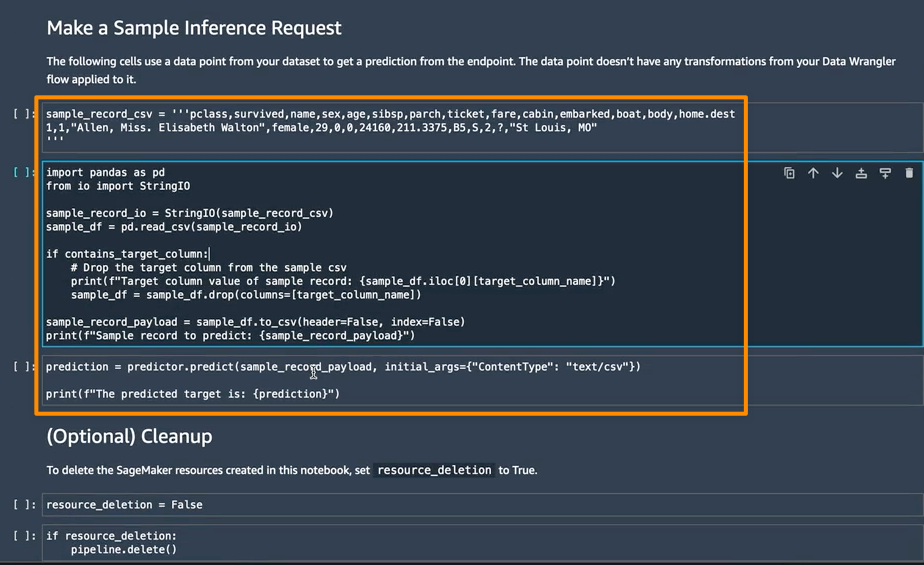
Configuring session parameters

Programmatic API Access
In addition to using the Athena console, I can also use programmatic access to interact with the Spark application inside Athena. For example, I can create a workgroup with the create-work-group command, start a notebook with create-notebook, and run a notebook session with start-session.

Using programmatic access is useful when I need to execute commands such as building reports or computing data without having to open the Jupyter notebook.

With my Jupyter notebook that I’ve created before, I can start a session by running the following command with the AWS CLI:

$> aws athena start-session \
    --work-group <WORKGROUP_NAME>\
    --engine-configuration '{"CoordinatorDpuSize": 1, "MaxConcurrentDpus":20, "DefaultExecutorDpuSize": 1, "AdditionalConfigs":{"NotebookId":"<NOTEBOOK_ID>"}}'
    --notebook-version "Jupyter 1"
    --description "Starting session from CLI"

{
    "SessionId":"<SESSION_ID>",
    "State":"CREATED"
}

Then, I can run a calculation using the start-calculation-execution API.

$ aws athena start-calculation-execution \
    --session-id "<SESSION_ID>"
    --description "Demo"
    --code-block "print(5+6)"

{
    "CalculationExecutionId":"<CALCULATION_EXECUTION_ID>",
    "State":"CREATING"
}

In addition to using code inline, with the --code-block flag, I can also pass input from a Python file using the following command:

$ aws athena start-calculation-execution \
    --session-id "<SESSION_ID>"
    --description "Demo"
    --code-block file://<PYTHON FILE>

{
    "CalculationExecutionId":"<CALCULATION_EXECUTION_ID>",
    "State":"CREATING"
}

Pricing and Availability
Amazon Athena for Apache Spark is available today in the following AWS Regions: US East (Ohio), US East (N. Virginia), US West (Oregon), Asia Pacific (Tokyo), and Europe (Ireland). To use this feature, you are charged based on the amount of compute usage defined by the data processing unit or DPU per hour. For more information see our pricing page here.

To get started with this feature, see Amazon Athena for Apache Spark to learn more from the documentation, understand the pricing, and follow the step-by-step walkthrough.

Happy building,

Donnie

The collective thoughts of the interwebz