HeliumOS 10 released

Post Syndicated from jzb original https://lwn.net/Articles/1031836/

The HeliumOS project has announced
the release of HeliumOS 10. It is relatively new image-based (“atomic”)
desktop distribution based on packages from CentOS Stream and
AlmaLinux, with a goal of providing 10 years of
support. HeliumOS 10 uses the KDE Plasma Desktop, Zsh as its
default shell, and Btrfs as its default filesystem.

AT&T email-to-text service migration: AWS solution implementation

Post Syndicated from Vinay Ujjini original https://aws.amazon.com/blogs/messaging-and-targeting/att-email-to-text-service-migration-aws-solution-implementation/

Email-to-text services allow businesses to send short message service (SMS) messages through email, critical for automatic notifications, customer service, and operational workflows. These services process over 1.2 billion messages annually across U.S. carriers, with AT&T supporting 34% of this volume through 2024. AT&T’s deprecation of email-to-text and text-to-email services impacts businesses that rely on these communication channels. This blog post outlines an Amazon Web Services (AWS) solution to maintain service continuity for customers.

AT&T discontinued their email-to-text and text-to-email services in Q2 2025, which will impact about 23,000 business customers. Organizations rely on these communication channels for critical workflows and need a quick solution to maintain business continuity. By the numbers:

  • Average message volume: 50,000 texts per customer monthly
  • Critical use cases: Appointment reminders, security alerts, and system notifications
  • Regulatory requirements mandate message retention and delivery confirmation

Solution architecture

The following diagram shows the architecture for the solution:

Email-to-SMS architecture flow:

  1. An email is sent to [phone-number]@[your-domain.com]
  2. Amazon Simple Email Service (Amazon SES) routes emails to the Mail Manager ingress endpoint
  3. The email is written to an Amazon Simple Storage Service (Amazon S3) bucket
  4. An Amazon S3 event notification triggers an AWS Lambda function
  5. Lambda extracts the email content, formats the phone number, and sends an SMS message using AWS End User Messaging
  6. Message details are stored in DynamoDB for tracking

System components in this solution:

  • Processing: Mail Manager applies rules to incoming emails
  • Storage: Amazon S3 stores emails securely
  • Computation: Lambda processes stored emails
  • Identification: Amazon DynamoDB lookup matches the sender email to phone number
  • Delivery: AWS End User Messaging User Messaging sends an SMS message to the recipient

This architecture, which uses simple notification service (SNS), is suitable for SMS-to-email. While this post and the AWS CloudFormation template primarily focus on email-to-SMS implementation, the SMS-to-email flow works as follows:

SMS-to-email flow:

  1. A user replies to an SMS message
  2. AWS End User Messaging SMS service captures the message and publishes it to an SNS topic
  3. SNS triggers a Lambda function
  4. Lambda formats the message and sends an email through Amazon SES
  5. The email is delivered to the original sender

The solution

The solution was to build an email-to-text service using AWS core services. The architecture routes emails through an Amazon SES Mail Manager ingress endpoint. After receiving an email, Mail Manager processes it using defined business rules and stores it in Amazon S3. This triggers a Lambda function to fetch the phone number associated with the email address and send an SMS to that phone number. When successful, it stores data such as the email address, phone number, and message ID from the sent text message in DynamoDB.

Estimated setup time: 15–20 minutes

Prerequisites

To deploy the solution described in this post, you must have the following in place:

Step 1: Set up Amazon SES Verified Identity

Start by setting up an Amazon SES verified identity.

  1. Sign in to the AWS Management Console.
  2. Navigate to Amazon SES service.
  3. In the navigation pane, go to Configuration and choose Identities (skip this step if you have a verified identity).
  4. If you do not have a verified identity, choose e.
  5. Review this post to learn how to verify an identity. Best practice is to verify a domain identity. This will authenticate your domain and improve deliverability. An email address identity, while simpler, won’t be authenticated through DomainKeys Identified Mail (DKIM), which might decrease deliverability.

Reference: Creating and verifying identities in Amazon SES

  1. Confirm that the status of your domain identity is Verified before proceeding to the next step.

Step 2: Deploy the email-to-SMS CloudFormation template

Use the following steps to create a CloudFormation stack that deploys all the required components for email-to-SMS functionality:

  1. Sign in to your AWS account.
  2. Download the email-to-sms.yaml CloudFormation template file.
  3. Navigate to the CloudFormation console.
  4. Choose Create stack and select With new resources (standard).
  5. Prerequisite: Prepare template is selected as Choose an existing template.
  6. Under Specify template, choose Upload a template file and  upload the email-to-sms.yaml file you downloaded earlier. Choose Next.
  7. For Stack name, enter Email-To-SMS-Stack.
  8. Configure the following parameters:
    • e: Enter the SES verified domain name or a verified email address.
    • OriginationPhoneNumberId: Enter the AWS End User Messaging SMS phone number ID that you plan to use to send SMS messages.
      • Go to AWS End User Messaging, under Phone Numbers, select your number and find Phone number ID.
    • DestinationPhoneNumber: Enter the destination phone number to receive SMS messages.
  9. Choose Next.
  10. (Optional) Add tags to help identify and organize your AWS resources.
  11. Select Acknowledge All checkbox and choose Next.
  12. Review the configuration and choose Submit.
  13. Wait for the stack creation to complete. You can monitor the progress in the CloudFormation console

Step 3: Verify deployed stack services

After successful CloudFormation template deployment, verify the following resources and configurations:

  1. A DynamoDB table is created with the name <stackname>-email-to-sms-db
  2. A Lambda function is created with the name <stackname>-<accountnumber>-<awsregion>-process-email-to-sms
  3. The Lambda function has the following AWS Identity and Access Management (IAM)role policies attached:
    1. s3:GetObject
    2. dynamodb:PutItem
    3. sms-voice:SendTextMessage
    4. kms:Decrypt for Lambda encryption keys.
    5. IAM permissions for dead letter queue (if configured).
  4. S3 buckets are created:
    1. Main bucket: <stackname>-<accountnumber>-<awsregion>-emailtosms-storage
    2. Logging bucket: <stackname>-<accountnumber>-<awsregion>-emailtosms-logging
  5. In Amazon SES:
    1. A receipt rule set is created named <stackname>-EmailToSms-Rule-Set
    2. The receipt rule is configured to:
      1. Write messages in the S3 bucket.
      2. Invoke the Lambda function.
    3. Traffic policy is created named <stackname>-EmailToSms-Traffic-Policy
    4. The Rule set and traffic policy are configured in the ingress point <stackname>-EmailToSms-Ingress-Point
      • CAUTION: Testing this solution requires access to modify mail exchange (MX) DNS records for your domain.
      • Potential impact: Changes to MX records can interrupt email delivery to your primary domain.
      • Best practice: We strongly recommend creating a dedicated subdomain (such as testing.example.com) rather than using your primary domain (example.com) for testing purposes. This approach prevents disruption to your organization’s regular email service

Additional verifications:

  • Verify that the S3 bucket policies are correctly set
  • Verify that S3 bucket logging is on and working
  • Check the Lambda function’s environment variables
  • Monitor Amazon CloudWatch logs for any errors

Step 4: Test the email-to-SMS flow

  1. Send an email to mobile-number@verified-domain
  2. You will receive an SMS from the source number (AWS End User Messaging phone number) containing:
    • Subject: <EmailSubject>
    • Content: First 160 characters of your email body
  3. SMS character Limitations:
    1. AWS End User Messaging’s SMS messaging has character limits based on content type
    2. By default, the solution uses first 160 characters
    3. You can modify this limit by updating the Lambda function code
  4. Troubleshooting:
    1. If SMS or email responses aren’t received
    2. Check Lambda function logs in CloudWatch
    3. Review any error messages or execution issues
    4. Verify all permissions and configurations are correct

Make sure that your domain and phone numbers are properly verified before testing. If you don’t receive the email or SMS, check the Lambda CloudWatch logs for troubleshooting

Clean up

To avoid ongoing charges and remove all deployed resources, perform the following cleanup steps:

  1. Remove the CloudFormation stack:
    1. Navigate to the CloudFormation console
    2. Delete the Email-To-SMS stack
    3. Wait for complete stack deletion confirmation
  2. Amazon SES cleanup:
    1. Navigate to the Amazon SES console
    2. Remove any verified domains
    3. Delete verified email addresses
    4. Confirm all SES resources are removed
  3. AWS End User Messaging:
    1. Navigate to the AWS End User Messaging console
    2. Release all provisioned phone numbers
    3. Verify that no active phone numbers remain
  4. Additional verification:
    1. Confirm that S3 buckets are deleted
    2. Verify that Lambda functions are removed
    3. Check that DynamoDB tables are deleted
    4. Make sure that all associated IAM roles and policies are removed

Verify complete resource removal to prevent unexpected charges.

Additional recommendations

  • Security best practices:
    • Set up S3 bucket logging to track access and changes
    • Make sure that S3 buckets have:
      • No public read/write access
      • Enable Encryption at rest
      • Apply appropriate bucket policies
    • Implement least privilege access for IAM roles
    • Use KMS encryption for sensitive data
    • Add CloudWatch logging for monitoring
    • Protect against SMS pumping:
      • Enable AWS End User Messaging protect configuration: Enable filter mode to automatically block suspicious messages
      • Block countries that you don’t do business in to prevent unnecessary exposure
      • Add CAPTCHA to web forms that trigger SMS to prevent bot attacks
      • Set up SMS volume alerts to quickly detect unusual activity
      • Create separate configurations for different message types (password resets compared to marketing)
  • Cost and operational considerations:

Results

This implementation delivers three key improvements:

  1. This achieves 99.99% uptime through AWS managed services.
  2. The pay-per-use model reduces operating costs by 45% compared to maintaining dedicated infrastructure. Customers save an average of $2.30 per thousand messages.
  3. End-to-end encryption and AWS security protocols maintain GDPR and CCPA compliance while protecting customer data.

Conclusion

This AWS-based solution addresses the immediate need and provides a foundation for future enhancements in cross-platform messaging. Whether you’re migrating from AT&T’s email-to-text service or building a new notification system, this AWS-based solution provides a scalable foundation for your messaging needs.


About the author

[$] A proxy-execution baby step

Post Syndicated from corbet original https://lwn.net/Articles/1030842/

Priority inversion comes about when a low-priority task holds a resource
that is also needed by a high-priority task, preventing the latter from
running. This problem is made much worse if the low-priority task is
unable to gain access to the CPU and, as a result, cannot complete its work
and free the resources it holds. Proxy execution is a potential solution
to this problem, but it is a complex solution that has been under
development for several years; LWN first looked
at it
in 2020. The 6.17 kernel is likely to contain an important step
forward for this long-running project.

Micron 9650 PCIe Gen6 SSD Announced with Micron 6600 ION 122TB and 7650 SSDs

Post Syndicated from Eric Smith original https://www.servethehome.com/micron-9650-pcie-gen6-ssd-announced-with-micron-6600-ion-122tb-and-7650-ssds/

The Micron 9650 PCIe Gen6 SSD is capable of 28GB/s sequential reads, 5.5M random 4K read IOPS and is just one of three models being announced

The post Micron 9650 PCIe Gen6 SSD Announced with Micron 6600 ION 122TB and 7650 SSDs appeared first on ServeTheHome.

Security updates for Tuesday

Post Syndicated from corbet original https://lwn.net/Articles/1031812/

Security updates have been issued by AlmaLinux (freerdp, git-lfs, golang-github-openprinting-ipp-usb, grafana, grafana-pcp, icu, ipa, iputils, krb5, libvpx, nodejs:22, osbuild-composer, perl, python-tornado, qt6-qtbase, sqlite, unbound, valkey, wireshark, and yggdrasil), Debian (libfastjson and php8.2), Fedora (glibc), Oracle (firefox, icu, perl, and unbound), Red Hat (389-ds-base, glib2, icu, libtpms, redis:6, redis:7, and yelp), SUSE (boost, forgejo-longterm, java-11-openj9, java-17-openj9, java-1_8_0-openj9, kernel, nginx, and salt), and Ubuntu (linux-xilinx-zynqmp, openjdk-8, openjdk-lts, poppler, and sqlite3).

Leveling Up Security: New Enterprise Features in Backblaze B2 Platform Update

Post Syndicated from Kari Rivas original https://www.backblaze.com/blog/leveling-up-security-new-enterprise-features-in-backblaze-b2-platform-update/

A decorative header showing a laptop with several icons, including files, a warning signal, and others.

Security teams are under constant pressure to stay ahead of increasingly sophisticated threats while enabling fast, reliable access to data across the business. Whether you’re protecting media assets, safeguarding backups, or supporting a global development workflow, your cloud storage needs to do more than store data—it needs to actively support your security posture.

To make that easier, we’ve launched a new set of enterprise-grade security features for Backblaze B2 Cloud Storage. These updates are designed to help organizations detect unusual activity faster, manage access more precisely, and strengthen visibility across their storage environments—all without added complexity or hidden costs.

These new tools build on the security foundations you already count on: Object Lock for ransomware protection, SOC-2 compliance, encryption, 3x free egress for disaster recovery, and more.

Here’s a look at what’s new and how it helps.

Smarter protection with Anomaly Alerts (Now in private preview)

Anomaly Alerts are your new AI-powered watchdog. This feature analyzes usage patterns in your B2 Cloud Storage buckets to detect potential red flags—like spikes in downloads or uploads beyond the baseline—that could signal a breach or exfiltration attempt.

If your team wants early access to this feature, drop us a line at [email protected] to join the private preview.

New enterprise web console & role-based access controls (Now in private preview)

Managing cloud storage across large teams just got a whole lot easier. We introduced a brand-new enterprise web console built for scalability and control. Combined with robust role-based access controls (RBAC), IT and security teams can now better align with zero-trust policies by enforcing the principle of least privilege across their organizations.

This console simplifies storage administration at scale—whether you’re managing terabytes or petabytes. 

Get an expert introduction to the enterprise web console.

If you’re a Backblaze customer with a committed contract, reach out to your Customer Success Manager (CSM) to see if you’re eligible to participate. Not sure who your CSM is? Email [email protected] for help.

Full visibility with Bucket Access Logs (Now generally available)

Need to know who touched what and when? Bucket Access Logs are now generally available, providing a detailed audit trail of every action in your B2 buckets—uploads, downloads, deletions, and more.

Learn more about querying Bucket Access Logs in this webinar.

They’re fully S3-compatible and configurable through both the Backblaze B2 web UI and API, supporting:

  • Security audits
  • Usage tracking
  • Forensics and threat investigation

Real-time Event Notifications

Time matters when it comes to spotting and stopping threats. With Event Notifications, you can get real-time alerts on changes to your bucket contents—think object creations, deletions, or modifications—so your team can jump into action immediately.

This is especially valuable for compliance teams, incident response workflows, or any operations team who wants tighter control over their cloud perimeter.

Watch our hands-on Event Notifications demo to learn more about how to streamline cloud storage management.

Multi-Bucket and Scalable Application Keys

Security and scalability should go hand in hand. With Multi-Bucket Application Keys, you can now create access keys that cover specific groups of buckets, giving you more flexibility without going full wildcard. This enhancement provides more granular control over bucket access, contributing to a reduced attack surface.

And, with Scalable Application Keys, you can generate up to 10,000 short-lived keys per minute. This capability enhances security by limiting the exposure window of individual keys, thus reducing the attack surface for endpoint-generated content and high-volume data operations.

Custom Upload Timestamps

Custom Upload Timestamps allow you to specify when an object was originally created or uploaded. This is a critical feature for:

  • Regulatory compliance
  • Accurate version tracking
  • Legal and audit requirements

Built for a Secure, Open Cloud

Security isn’t a one-time add-on, it’s an ongoing promise. As enterprises scale and integrate cloud storage into more parts of their workflow—from backup and archiving to AI pipelines—they need solutions that support open cloud strategies without compromising their data.

This update is another step forward in our mission to provide developers, IT teams, and enterprises with cloud storage that’s secure by design, simple to use, and affordable at scale. Ready to get started with Backblaze B2? Contact our Sales team today. 

The post Leveling Up Security: New Enterprise Features in Backblaze B2 Platform Update appeared first on Backblaze Blog | Cloud Storage & Cloud Backup

How to rapidly design and adapt quality learning experiences for your students

Post Syndicated from Sean Sayers original https://www.raspberrypi.org/blog/how-to-rapidly-design-and-adapt-quality-learning-experiences-for-your-students/

At this time of year, many educators are considering ways to update their content ahead of the new school term. Whether you’re a teaching assistant or head of department, it’s important to ensure that the content you’re updating — or even designing anew — is relevant and high quality, and meet learners’ needs. In today’s blog we’re highlighting ‘ABC learning design’, and how it can be used to rapidly design and improve learning experiences.

Educators in the classroom

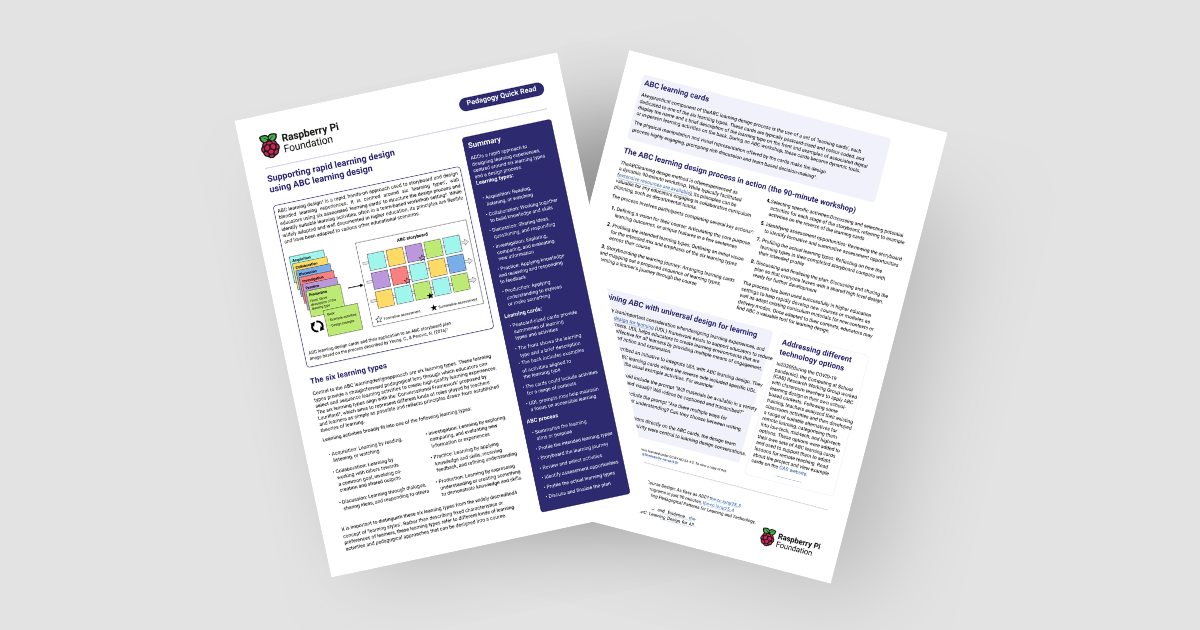
We also share our new ABC-focused Pedagogy Quick Read, which you can download for free to: 

  • Find practical tips on how to use the ABC process and related approaches with your learners
  • Read a summary of the research behind the framework

What is ABC learning design?

ABC learning design is a rapid, hands-on approach to design and develop blended learning experiences. The framework has traditionally been used at undergrad level, and had a lot of success when used in response to the global pandemic in 2020, when learning experiences had to quickly transition from being delivered in-person to being accessible remotely. 

The model is centred around six learning types:

  • Acquisition: Learning by reading, listening, or watching
  • Collaboration: Learning by working with others towards a common goal, involving co-creation and shared outputs
  • Discussion: Learning through dialogue, sharing ideas, and responding to others
  • Investigation: Learning by exploring, comparing, and evaluating new information or experiences
  • Practice: Learning by applying knowledge and skills, receiving feedback, and refining understanding
  • Production: Learning by expressing understanding or creating something to demonstrate knowledge and skills

Before continuing, it’s important to distinguish between ‘learning types’ and the widely discredited concept of ‘learning styles’. Whilst learning styles refer to fixed characteristics or preferences of learners, learning types refer to different kinds of learning activities and pedagogical approaches that can be designed into a course.

Copy of the ABC learning design Pedagogy Quick Read

These learning types are representative simplifications of pre-existing learning theories. For each learning type, educators can use different activities to deliver that type of learning. The activities will depend on your context and what’s right and applicable for your students.

How can I apply ABC learning design?

ABC learning design is often done in a team-based workshop setting (you can do it by yourself as well). Firstly, you analyse your existing content. Consider the goal of your current learning sequence, and assess how your learners are going to reach that goal with the different learning types.

Educators in the classroom

By analysing existing content and activities, you can then identify what’s missing from your sequence. This allows you to build on existing gaps and consider different types of activities you could implement. You then create a set of learning cards, which help you to storyboard and plan your new learning sequence.

Learning cards are typically postcard-sized and colour-coded to one of the six learning types. Colour coding helps you to tell the cards apart, and to easily see which learning types are or aren’t included in your sequence. 

Each card has the name and a short description of the learning type on the front, with examples of associated digital or in-person learning activities on the back. The learning cards:

  • Make the design process more engaging
  • Help with decision making
  • Support discussions if you’re working in a team
ABC Learning design cards and their application to an ABC storyboard plan

Adapting ABC learning design for your context

ABC design can be contextualised to your classroom, practices, and school, and to the technologies you have available. For example, on the back of each learning card you could include a set of activities that have been tried and tested in, or approved by, your school. Alternatively, you could link to other frameworks or teaching approaches that work for you and your students. 

Learning cards can also be used to collect other insights about teaching and learning within your context, and used as reminders of pedagogies to implement, as well as practical concerns. They can also help you to consider if there are opportunities for cross-curricular links within your learning sequence.

A shared toolkit you can reuse

In a computing department, ABC learning cards can become a shared resource that give fellow educators an understanding of what’s possible. The cards can be used again and again to help plan future learning experiences. 

Educators sharing ideas on a whiteboard

By running an ABC workshop and creating these learning cards, you and your team will put together a contextualised learning sequence toolkit specific to your school and learners.

Integration with universal design for learning to improve accessibility

In our blog How to build young people’s agency through accessible learning, we explored the universal design for learning (UDL) framework. UDL aims to support educators to reduce barriers for learners. It helps educators to create learning environments that are accessible and effective for all learners by providing multiple means of engagement, representation, and action and expression.

Gormley et al. (2022) described an initiative to integrate UDL within ABC learning design. They developed adapted ABC learning cards where the reverse side included specific UDL prompts, in addition to the usual example activities. For example:

  • An acquisition card could include the prompt “Will materials be available in a variety of formats (text, audio, and visual)? Will videos be captioned and transcribed?”
  • A production card could include the prompt “Are there multiple ways for learners to demonstrate their understanding? Can they choose between writing, presenting, or creating?”

By including these UDL considerations directly on the ABC cards, the design team ensured that accessibility and inclusivity were central to learning design conversations.

Adding UDL prompts to your learning cards is a fantastic way to help you design accessible learning sequences.

Applying ABC learning design: Some ideas for computing educators

In 2020, during the pandemic, the Computing at School (CAS) Research Working Group worked with classroom teachers to apply ABC learning design in their own contexts. 

Following some training, teachers analysed their existing classroom activities and then developed a range of suitable alternatives for remote learning, categorising them into low-tech, mid-tech, and high-tech options. 
The different activity options were then added to their own sets of ABC learning cards and used to help adapt lessons for remote teaching. You can read more about the project and view example cards on the CAS website.

The benefits of using ABC learning design

Potential benefits for educators:

  • Enables more rapid creation and delivery of high-quality content
  • Allows you to audit your current learning sequence and identify gaps that can be improved upon
  • Provides a shared, contextualised toolkit for curriculum design

Potential benefits for students:

  • Tailored, engaging, high-quality learning experiences

Want to hear more about ABC learning design?

If you’d like to find out more about ABC learning design, you can download our Quick Read for free.

You can also listen to a thought-provoking discussion on the topic between James Robinson, Carrie Anne Philbin, Jane Waite, and Matthew Wimpenny-Smith in season 1, episode 6 of the Hello World podcast: Could curriculum design be as simple as ABC?

The post How to rapidly design and adapt quality learning experiences for your students appeared first on Raspberry Pi Foundation.

Understanding HTTP Template Authorization in AWS

Post Syndicated from evgenii.gordymov original https://blog.zabbix.com/understanding-http-template-authorization-in-aws/30856/

Authorization in Amazon Web Services (AWS) determines what actions a user, service, or system can perform on resources. It answers the question: “Does this identity have permission to do this action on that resource?”

In AWS, authorization is primarily handled through:

  • IAM (Identity and Access Management) policies
  • Resource-based policies (like S3 bucket policies)
  • Session-based permissions (like STS AssumeRole)

What authorization types are available in Zabbix AWS templates?

  • Access key authorization
  • Role-based authorization
  • Assume role authorization

Let’s look briefly at each of them.

Before using the template, you need to create an IAM policy that grants the necessary permissions for the AWS services the template will interact with.

This policy defines what actions are allowedon which resources, and optionally, under which conditions. Once created, the policy should be attached to the IAM role or user that will run the template.

IAM policy for Zabbix

Add the following required permissions to your Zabbix IAM policy in order to collect metrics. The policy can change when new metrics and services are added in Zabbix templates.

{
    "Version": "2012-10-17",
    "Statement": [
        {
            "Action": [
                "cloudwatch:DescribeAlarms",
                "cloudwatch:GetMetricData",
                "ec2:DescribeInstances",
                "ec2:DescribeVolumes",
                "ec2:DescribeRegions",
                "rds:DescribeEvents",
                "rds:DescribeDBInstances",
                "ecs:DescribeClusters",
                "ecs:ListServices",
                "ecs:ListTasks",
                "ecs:ListClusters",
                "s3:ListAllMyBuckets",
                "s3:GetBucketLocation",
                "s3:GetMetricsConfiguration",
                "elasticloadbalancing:DescribeLoadBalancers",
                "elasticloadbalancing:DescribeTargetGroups",
                "ec2:DescribeSecurityGroups",
                "lambda:ListFunctions"
            ],
            "Effect": "Allow",
            "Resource": "*"
        }
    ]
}

To create and attach the policy:

  • Go to IAM → Policies → Create policy
  • Choose JSON and paste your policy
  • Review and create the policy

Access key authorization

1. Attach the required policy to the IAM user

  • Go to IAM → Users → Select a user → Permissions tab
  • Click Attach policies
  • Select the policy you created before (IAM Policy for Zabbix)
  • Click Attach policy

2. Get your access key and secret access key

In the AWS console:

  • Go to IAM → Users → Select a user → Security credentials tab

  • Click Create access key

  • Copy:

    • Access key ID
    • Secret access key

⚠ Never expose your keys publicly!

3. Configure AWS CLI

Open your terminal and run:

configure aws cli

aws configure --profile zabbix_user

You’ll be prompted to enter:

AWS Access Key ID [None]: AKIAXXXXXXXXXXXEXAMPLE
AWS Secret Access Key [None]: asdkjhUSADWDskhjdasd/EXAMPLEKEY
Default region name [None]: eu-central-1
Default output format [None]: json

4. Test it

List all S3 buckets:

aws s3 ls --profile zabbix_user

Get EC2 tags:

Use region where you create instance

aws ec2 describe-instances --region eu-central-1 --query 'Reservations[*].Instances[*].Tags' --profile zabbix_user

If you get this error…

An error occurred (AccessDenied) when calling the DescribeInstances operation: User: arn:aws:iam::123456789010:user/zabbix_user is not authorized to perform: ec2:DescribeInstances on resource: arn:aws:ec2:eu-central-1:123456789010:instance/*

…you need to check the following permission to the role you are using (IAM Policy for Zabbix).

5. Set the following macros in Zabbix:

  • {$AWS.AUTH_TYPE} – set to access_key
  • {$AWS.ACCESS.KEY.ID} – set to your access key ID
  • {$AWS.SECRET.ACCESS.KEY} – set to your secret access key

Security tips

  • Never hardcode access keys in scripts or code.
  • Store them in ~/.aws/credentials, which is protected by file system permissions.
  • Apply least privilege with IAM policies.

Role-based authorization

1. Add the appropriate permission to the role you are using:

{
    "Version": "2012-10-17",
    "Statement": [
        {
            "Effect": "Allow",
            "Action": "iam:PassRole",
            "Resource": "arn:aws:iam::{Account}:role/{RoleNameWithPath}"
        },
        {
            "Effect": "Allow",
            "Action": [
                "theSameAsIAMPolicyForZabbix",
            ],
            "Resource": "*"
        }
    ]
}

2. Add a principal to the trust relationships of the role you are using:

  • Go to IAM → Roles → Select a role → Trust relationships tab
  • Click Edit trust relationship
  • Add a principal to the trust relationships of the role you are using:
{
    "Version": "2012-10-17",
    "Statement": [
        {
            "Effect": "Allow",
            "Principal": {
                "Service": [
                    "ec2.amazonaws.com"
                ]
            },
            "Action": [
                "sts:AssumeRole"
            ]
        }
    ]
}

⚠ Using role-based authorization is only possible when you use a Zabbix server or proxy inside AWS.

3. Attach the role to the instance

  • Go to EC2 → Instances → Select an instance → Actions → Security → Modify IAM role
  • Select the role you created before which has the policy attached (IAM Policy for Zabbix)
  • Click Apply

4. Test it

Connect to ES2 ssh terminal in instance and run:

  • Go to EC2 → Instances → Select an instance → Connect → SSH client

Example:

ssh -i "zabbix_user.pem" [email protected]

Get caller identity:

aws sts get-caller-identity

Get token for metadata service:

export TOKEN=$(curl -X PUT "http://169.254.169.254/latest/api/token" -H "X-aws-ec2-metadata-token-ttl-seconds: 21600")

Get IAM role from metadata service:

curl -H "X-aws-ec2-metadata-token: $TOKEN" http://169.254.169.254/latest/meta-data/iam/security-credentials

Get IAM role credentials from metadata service using role name from instance metadata service (see Get IAM role from metadata service):

curl -H "X-aws-ec2-metadata-token: $TOKEN" http://169.254.169.254/latest/meta-data/iam/security-credentials/<<--role_name-->>

6. Set the following macros in Zabbix:

  • {$AWS.AUTH_TYPE} – set to role_base
  • {$AWS.ASSUME.ROLE.ARN} – set to your role ARN

Assume role authorization

This method has two options:

  • Using access key authorization for getting creds for assume role
  • Using role-based authorization for getting creds for assume role

Lets look first at using access key authorization for getting creds for assume role.

Using access key authorization for getting creds for assume role

1. Create access key for user (see Access Key Authorization)

2. Add the appropriate permission in role you are using:

{
    "Version": "2012-10-17",
    "Statement": [
        {
            "Effect": "Allow",
            "Action": "sts:AssumeRole",
            "Resource": "arn:aws:iam::{Account}:user/{UserName}"
        },
        {
            "Effect": "Allow",
            "Action": [
                "theSameAsIAMPolicyForZabbix",
            ],
            "Resource": "*"
        }
    ]
}

3. Add principal to the trust relationships of the role you are using:

{
  "Version": "2012-10-17",
  "Statement": [
    {
      "Effect": "Allow",
      "Principal": {
        "AWS": "arn:aws:iam::{Account}:user/{UserName}"
      },
      "Action": "sts:AssumeRole"
    }
  ]
}


4. Test It

Get assume role credentials using access key authorization

aws sts assume-role --role-arn arn:aws:iam::123456789010:role/Zabbix_Role --role-session-name test-session --profile zabbix_user

An example of response:

{
    "Credentials": {
        "AccessKeyId": "ASDFGHJKLEXAMPLE",
        "SecretAccessKey": "QowihdwoieuoinflksnliooEXAMPLE",
        "Expiration": "2029-09-09T22:22:22+00:00"
    },
    "AssumedRoleUser": {
        "AssumedRoleId": "ASDFGHJKLEXAMPLE:test-session",
        "Arn": "arn:aws:sts::123456789010:assumed-role/Zabbix_Role/test-session"
    }
}

5. Set the following macros in Zabbix:

  • {$AWS.AUTH_TYPE} – set to assume_role
  • {$AWS.ACCESS.KEY.ID} – set to your access key ID
  • {$AWS.SECRET.ACCESS.KEY} – set to your secret access key
  • {$AWS.ASSUME.ROLE.ARN} – set to your role ARN
  • {$AWS.ASSUME.ROLE.AUTH.METADATA} – set to false

Getting credentials for assume role using cross-account role (best practice)

1. Create role (see Role-Based Authorization)

2. Add the appropriate permission to the role you are using:

{
    "Version": "2012-10-17",
    "Statement": [
        {
            "Effect": "Allow",
            "Action": "sts:AssumeRole",
            "Resource": "arn:aws:iam::{Account}:role/{RoleNameWithPath}"
        },
        {
            "Effect": "Allow",
            "Action": [
                "theSameAsIAMPolicyForZabbix",
            ],
            "Resource": "*"
        }
    ]
}

3. Add the principal to the trust relationships of the role you are using:

{
  "Version": "2012-10-17",
  "Statement": [
    {
      "Effect": "Allow",
      "Principal": {
        "AWS": "arn:aws:iam::{Account}:role/{RoleNameWithPath}"
      },
      "Action": "sts:AssumeRole"
    }
  ]
}

⚠ Using assume role with role-based authorization is only possible when you use a Zabbix server or proxy inside AWS.

4. Test it

Connect to ES2 ssh terminal in the instance and run:

  • Go to EC2 → Instances → Select an instance → Connect → SSH client

Get assume role credentials using role name from instance metadata service:

aws sts assume-role --role-arn arn:aws:iam::123456789010:role/NewRole --role-session-name test-session

An example of response:

{
    "Credentials": {
        "AccessKeyId": "ACCESS_KEY_ID",
        "SecretAccessKey": "SECRET_ACCESS_KEY",
        "SessionToken": "SESSION_TOKEN",
        "Expiration": "EXPIRATION_DATE"
    },
    "AssumedRoleUser": {
        "AssumedRoleId": "ASSUMED_ROLE_ID",
        "Arn": "arn:aws:sts::ACCOUNT_ID:assumed-role/ROLE_NAME/SESSION_NAME"
    }
}

5. Set the following macros in Zabbix:

  • {$AWS.AUTH_TYPE} – set to assume_role
  • {$AWS.ASSUME.ROLE.ARN} – set to your role ARN
  • {$AWS.ASSUME.ROLE.AUTH.METADATA} – set to true

Well done! You have successfully configured AWS authorization in Zabbix AWS templates.

Now you can use the template to collect metrics from AWS.

The post Understanding HTTP Template Authorization in AWS appeared first on Zabbix Blog.

NVIDIA Starts to Tackle GPU Power Smoothing with the NVIDIA GB300 NVL72

Post Syndicated from Patrick Kennedy original https://www.servethehome.com/nvidia-starts-to-tackle-gpu-power-smoothing-with-the-nvidia-gb300-nvl72/

NVIDIA showed GPU burn and its plan to help the NVIDIA GB300 NVL72 clusters handle huge spikes in power during AI training

The post NVIDIA Starts to Tackle GPU Power Smoothing with the NVIDIA GB300 NVL72 appeared first on ServeTheHome.

Help for OpenPrinting needed

Post Syndicated from jzb original https://lwn.net/Articles/1031701/

Till Kamppeter, co-founder and lead of the OpenPrinting project, has
put out a call for sponsors after being laid off by Canonical:

I want to continue doing OpenPrinting for a living, and need a way to
do so. I am currently working with the Linux Foundation to make
OpenPrinting an [organization] which can receive sponsor funding. So now
I am looking for sponsors.

Even greater would be, if independent of this somebody could hire
me to continue OpenPrinting…

Accelerate your data quality journey for lakehouse architecture with Amazon SageMaker, Apache Iceberg on AWS, Amazon S3 tables, and AWS Glue Data Quality

Post Syndicated from Brody Pearman original https://aws.amazon.com/blogs/big-data/accelerate-your-data-quality-journey-for-lakehouse-architecture-with-amazon-sagemaker-apache-iceberg-on-aws-amazon-s3-tables-and-aws-glue-data-quality/

In an era where data drives innovation and decision-making, organizations are increasingly focused on not only accumulating data but on maintaining its quality and reliability. High-quality data is essential for building trust in analytics, enhancing the performance of machine learning (ML) models, and supporting strategic business initiatives.

By using AWS Glue Data Quality, you can measure and monitor the quality of your data. It analyzes your data, recommends data quality rules, evaluates data quality, and provides you with a score that quantifies the quality of your data. With this, you can make confident business decisions. With this launch, AWS Glue Data Quality is now integrated with the lakehouse architecture of Amazon SageMaker, Apache Iceberg on general purpose Amazon Simple Storage Service (Amazon S3) buckets, and Amazon S3 Tables. This integration brings together serverless data integration, quality management, and advanced ML capabilities in a unified environment.

This post explores how you can use AWS Glue Data Quality to maintain data quality of S3 Tables and Apache Iceberg tables on general purpose S3 buckets. We’ll discuss strategies for verifying the quality of published data and how these integrated technologies can be used to implement effective data quality workflows.

Solution overview

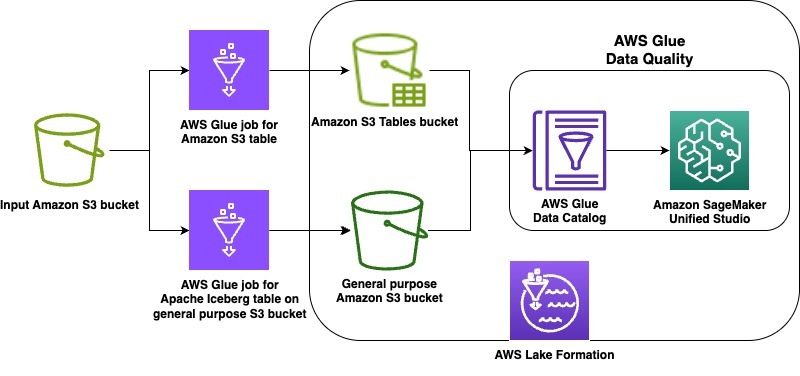
In this launch, we’re supporting the lakehouse architecture of Amazon SageMaker, Apache Iceberg on general purpose S3 buckets, and Amazon S3 Tables. As example use cases, we demonstrate data quality on an Apache Iceberg table stored in a general purpose S3 bucket as well as on Amazon S3 Tables. The steps will cover the following:

  1. Create an Apache Iceberg table on a general purpose Amazon S3 bucket and an Amazon S3 table in a table bucket using two AWS Glue extract, transform, and load (ETL) jobs
  2. Grant appropriate AWS Lake Formation permissions on each table
  3. Run data quality recommendations at rest on the Apache Iceberg table on general purpose S3 bucket
  4. Run the data quality rules and visualize the results in Amazon SageMaker Unified Studio
  5. Run data quality recommendations at rest on the S3 table
  6. Run the data quality rules and visualize the results in SageMaker Unified Studio

The following diagram is the solution architecture.

Prerequisites

To implement the instructions, you must have the following prerequisites:

Create S3 tables and Apache Iceberg on general purpose S3 bucket

First, complete the following steps to upload data and scripts:

  1. Upload the attached AWS Glue job scripts to your designated script bucket in S3
    1. create_iceberg_table_on_s3.py
    2. create_s3_table_on_s3_bucket.py
  2. To download the New York City Taxi – Yellow Trip Data dataset for January 2025 (Parquet file), navigate to NYC TLC Trip Record Data, expand 2025, and choose Yellow Taxi Trip records under January section. A file called yellow_tripdata_2025-01.parquet will be downloaded to your computer.
  3. On the Amazon S3 console, open an input bucket of your choice and create a folder called nyc_yellow_trip_data. The stack will create a GlueJobRole with permissions to this bucket.
  4. Upload the yellow_tripdata_2025-01.parquet file to the folder.
  5. Download the CloudFormation stack file. Navigate to the CloudFormation console. Choose Create stack. Choose Upload a template file and select the CloudFormation template you downloaded. Choose Next.
  6. Enter a unique name for Stack name.
  7. Configure the stack parameters. Default values are provided in the following table:
Parameter Default value Description
ScriptBucketName N/A – user-supplied Name of the referenced Amazon S3 general purpose bucket containing the AWS Glue job scripts
DatabaseName iceberg_dq_demo Name of the AWS Glue Database to be created for the Apache Iceberg table on general purpose Amazon S3 bucket
GlueIcebergJobName create_iceberg_table_on_s3 The name of the created AWS Glue job that creates the Apache Iceberg table on general purpose Amazon S3 bucket
GlueS3TableJobName create_s3_table_on_s3_bucket The name of the created AWS Glue job that creates the Amazon S3 table
S3TableBucketName dataquality-demo-bucket Name of the Amazon S3 table bucket to be created.
S3TableNamespaceName s3_table_dq_demo Name of the Amazon S3 table bucket namespace to be created
S3TableTableName ny_taxi Name of the Amazon S3 table to be created by the AWS Glue job
IcebergTableName ny_taxi Name of the Apache Iceberg table on general purpose Amazon S3 to be created by the AWS Glue job
IcebergScriptPath scripts/create_iceberg_table_on_s3.py The referenced Amazon S3 path to the AWS Glue script file for the Apache Iceberg table creation job. Verify the file name matches the corresponding GlueIcebergJobName
S3TableScriptPath scripts/create_s3_table_on_s3_bucket.py The referenced Amazon S3 path to the AWS Glue script file for the Amazon S3 table creation job. Verify the file name matches the corresponding GlueS3TableJobName
InputS3Bucket N/A – user-supplied bucket Name of the referenced Amazon S3 bucket with which the NY Taxi data was uploaded
InputS3Path nyc_yellow_trip_data The referenced Amazon S3 path with which the NY Taxi data was uploaded
OutputBucketName N/A – user-supplied Name of the created Amazon S3 general purpose bucket for the AWS Glue job for Apache Iceberg table data

Complete the following steps to configure AWS Identity and Access Management (IAM) and Lake Formation permissions:

  1. If you haven’t previously worked with S3 Tables and analytics services, navigate to Amazon S3.
  2. Choose Table buckets.
  3. Choose Enable integration to enable analytics service integrations with your S3 table buckets.
  4. Navigate to the Resources tab for your AWS CloudFormation stack. Note the IAM role with the logical ID GlueJobRole and the database name with the logical ID GlueDatabase. Additionally, note the name of the S3 table bucket with the logical ID S3TableBucket as well as the namespace name with the logical ID S3TableBucketNamespace. The S3 table bucket name is the portion of the Amazon Resource Name (ARN) which follows: arn:aws:s3tables:<region>:<accountID>:bucket/{S3 Table bucket Name}. The namespace name is the portion of the namespace ARN which follows: arn:aws:s3tables:<region>:<accountID>:bucket/{S3 Table bucket Name}|{namespace name}.
  5. Navigate to the Lake Formation console with a Lake Formation data lake administrator.
  6. Navigate to the Databases tab and select your GlueDatabase. Note the selected default catalog should match your AWS account ID.
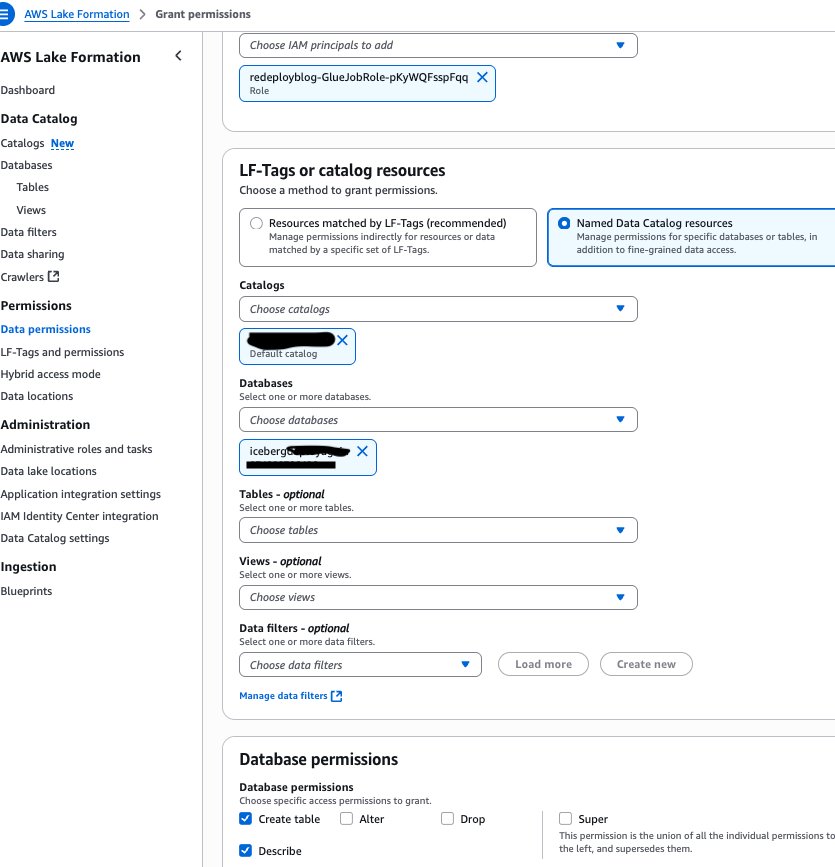
  7. Select the Actions dropdown menu and under Permissions, choose Grant.
  8. Grant your GlueJobRole from step 4 the necessary permissions. Under Database permissions, select Create table and Describe, as shown in the following screenshot.

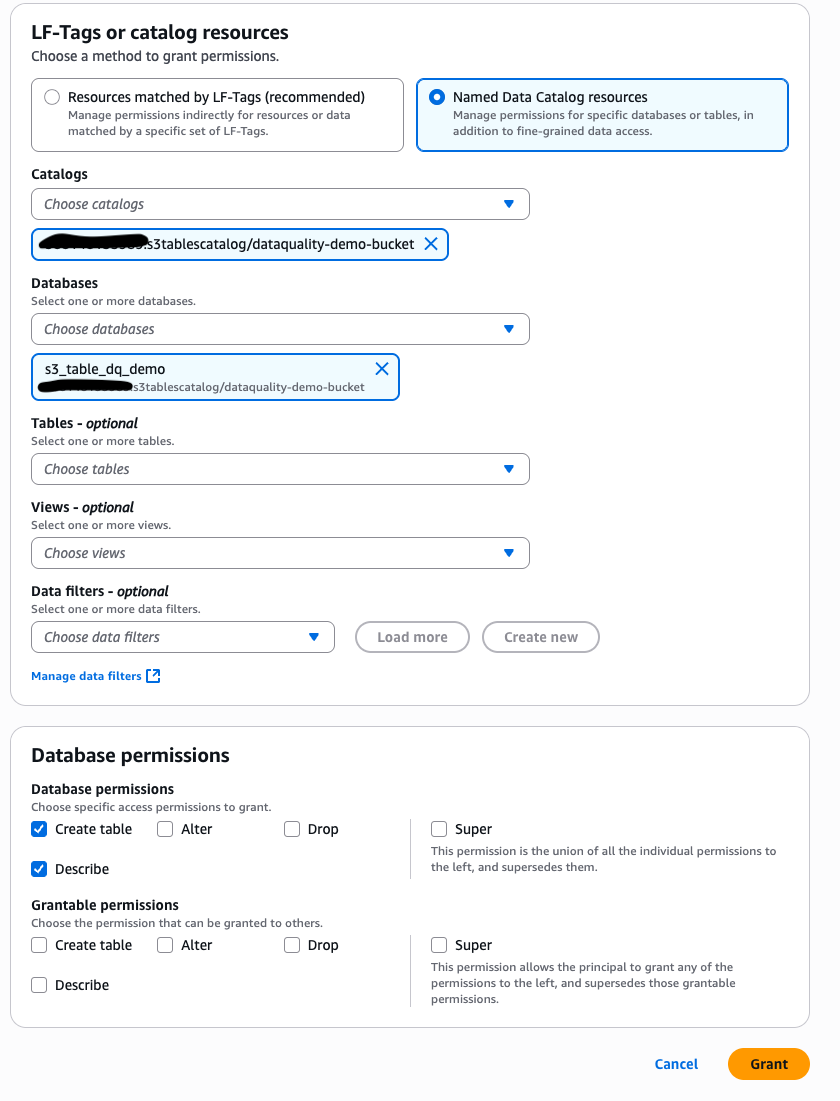
Navigate back to the Databases tab in Lake Formation and select the catalog that matches with the value of S3TableBucket you noted in step 4 in the format: <AWS account ID>:s3tablescatalog/<S3 Table Bucket name>

  1. Select your namespace name. From the Actions dropdown menu, under Permissions, choose Grant.
  2. Grant your GlueJobRole from step 4 the necessary permissions Under Database permissions, select Create table and Describe, as shown in the following screenshot.

To run the jobs created in the CloudFormation stack to create the sample tables and configure Lake Formation permissions for the DataQualityRole, complete the following steps:

  1. In the Resources tab of your CloudFormation stack, note the AWS Glue job names for the logical resource IDs: GlueS3TableJob and GlueIcebergJob.
  2. Navigate to the AWS Glue console and select ETL jobs. Select your GlueIcebergJob from step 11 and choose Run job. Select your GlueS3TableJob and choose Run job.
  3. To verify the successful creation of your Apache Iceberg table on general purpose S3 bucket in the database, navigate to Lake Formation with your Lake Formation data lake administrator permissions. Under Databases, select your GlueDatabase. The selected default catalog should match your AWS account ID.
  4. On the dropdown menu, choose View and then Tables. You should see a new tab with the table name you specified for IcebergTableName. You have verified the table creation.
  5. Select this table and grant your DataQualityRole (<stack_name>-DataQualityRole-<xxxxxx>) the necessary Lake Formation permissions by choosing the Grant link in the Actions tab. Choose Select, Describe from Table permissions for the new Apache Iceberg table.
  6. To verify the S3 table in the S3 table bucket, navigate to Databases in the Lake Formation console with your Lake Formation data lake administrator permissions. Make sure the selected catalog is your S3 table bucket catalog: <AWS account ID>:s3tablescatalog/<S3 Table Bucket name>
  7. Select your S3 table namespace and choose the dropdown menu View.
  8. Choose Tables and you should see a new tab with the table name you specified for S3TableTableName. You have verified the table creation.
  9. Choose the link for the table and under Actions, choose Grant. Grant your DataQualityRole the necessary Lake Formation permissions. Choose Select, Describe from Table permissions for the S3 table.
  10. In the Lake Formation console with your Lake Formation data lake administrator permissions, on the Administration tab, choose Data lake locations .
  11. Choose Register location. Input your OutputBucketName as the Amazon S3 path. Input the LakeFormationRole from the stack resources as the IAM role. Under Permission mode, choose Lake Formation.
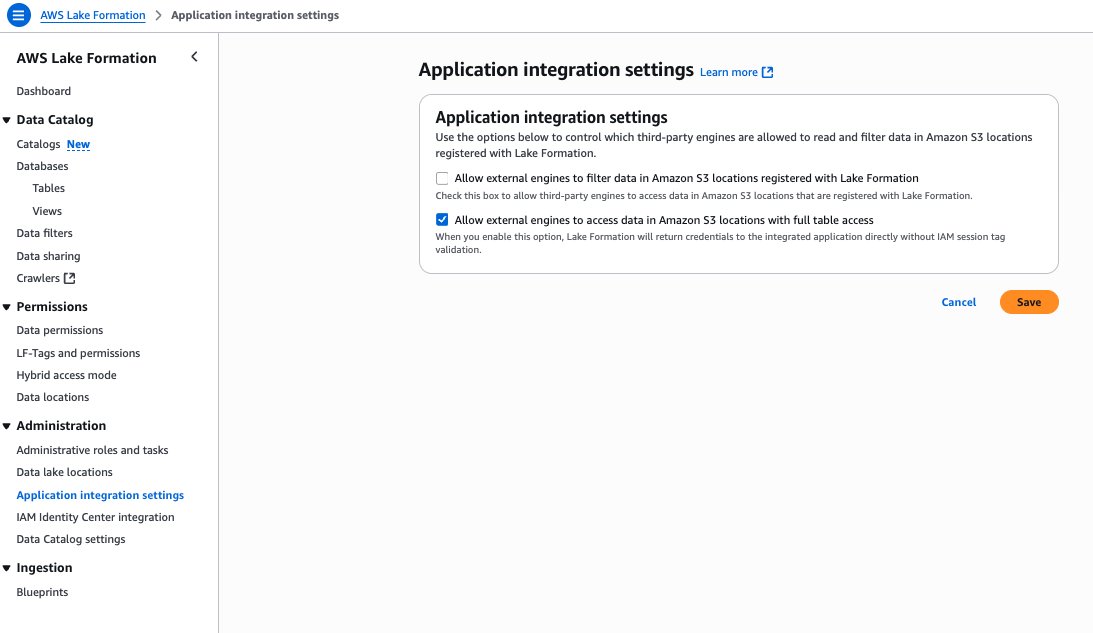
  12. On the Lake Formation console under Application integration settings, select Allow external engines to access data in Amazon S3 locations with full table access, as shown in the following screenshot.

Generate recommendations for Apache Iceberg table on general purpose S3 bucket managed by Lake Formation

In this section, we show how to generate data quality rules using the data quality rule recommendations feature of AWS Glue Data Quality for your Apache Iceberg table on a general purpose S3 bucket. Follow these steps:

  1. Navigate to the AWS Glue console. Under Data Catalog, choose Databases. Choose the GlueDatabase.
  2. Under Tables, select your IcebergTableName. On the Data quality tab, choose Run history.
  3. Under Recommendation runs, choose Recommend rules.
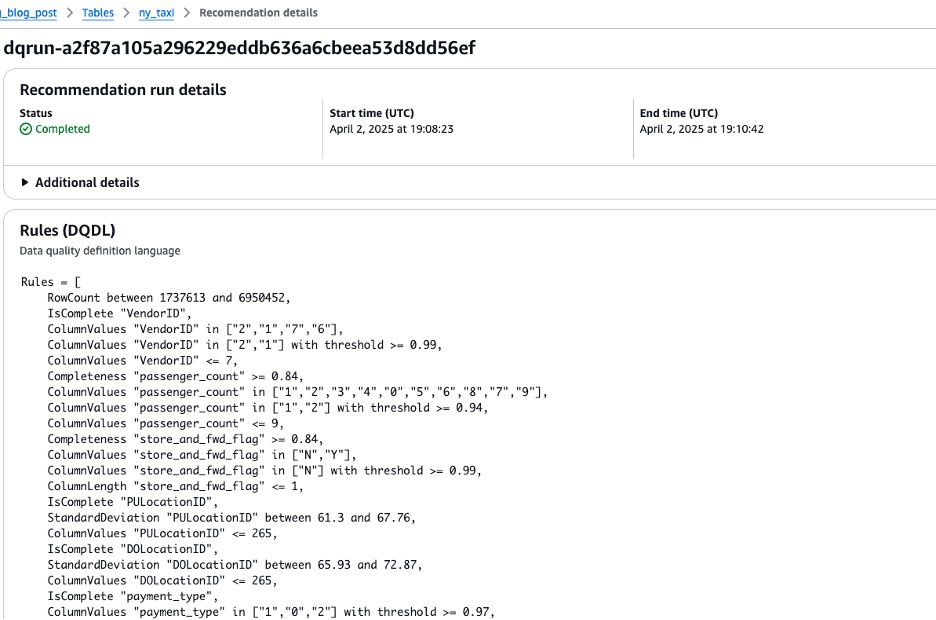
  4. Use the DataQualityRole (<stack_name>-DataQualityRole-<xxxxxx>) to generate data quality rule recommendations, leaving the other settings as default. The results are shown in the following screenshot.

Run data quality rules for Apache Iceberg table on general purpose S3 bucket managed by Lake Formation

In this section, we show how to create a data quality ruleset with the recommended rules. After creating the ruleset, we run the data quality rules. Follow these steps:

  1. Copy the resulting rules from your recommendation run by selecting the dq-run ID and choosing Copy.
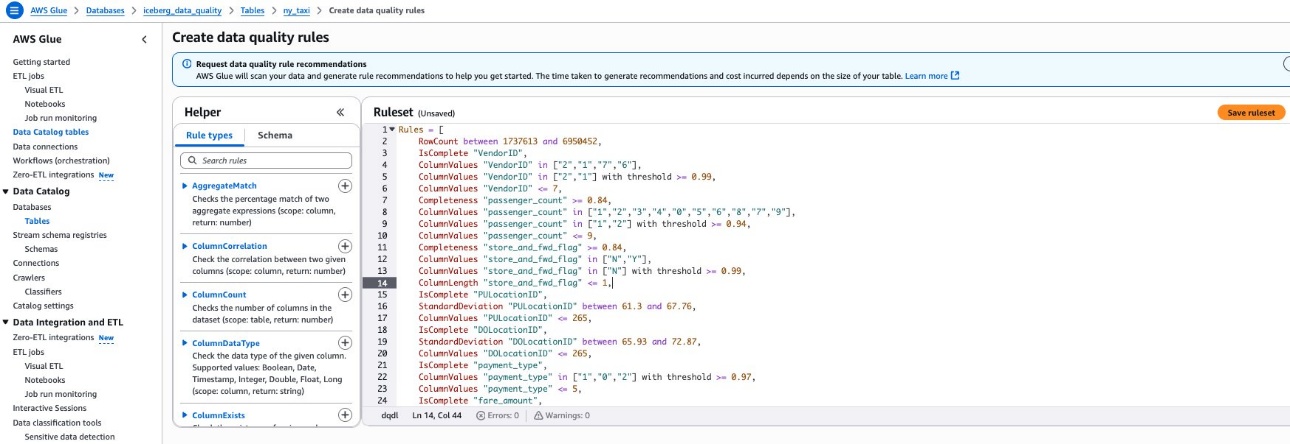
  2. Navigate back to the table under the Data quality tab and choose Create data quality rules. Paste the ruleset from step 1 here. Choose Save ruleset, as shown in the following screenshot.

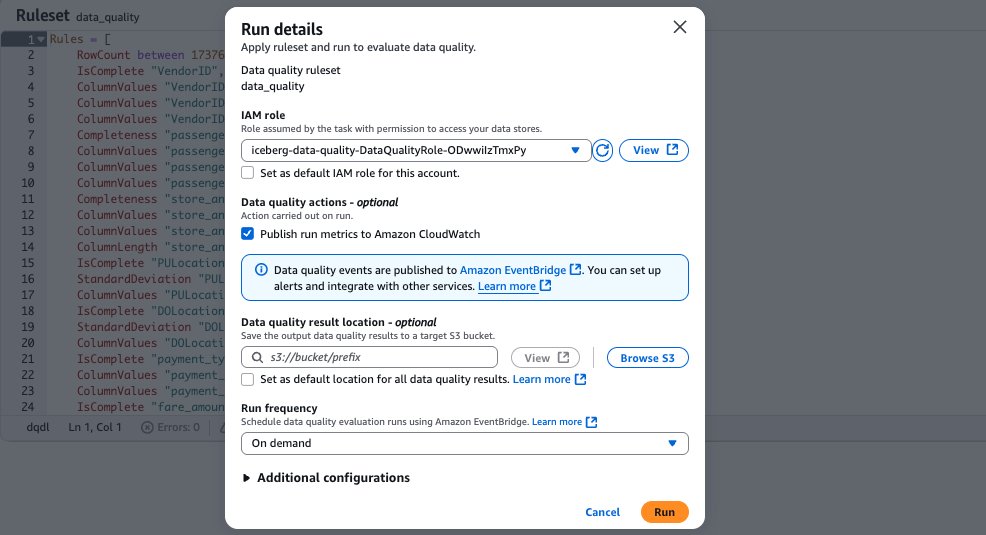
  1. After saving your ruleset, navigate back to the Data Quality tab for your Apache Iceberg table on the general purpose S3 bucket. Select the ruleset you created. To run the data quality evaluation run on the ruleset using your data quality role, choose Run, as shown in the following screenshot.

Generate recommendations for the S3 table on the S3 table bucket

In this section, we show how to use the AWS Command Line Interface (AWS CLI) to generate recommendations for your S3 table on the S3 table bucket. This will also create a data quality ruleset for the S3 table. Follow these steps:

  1. Fill in your S3 table namespace name, S3 table table name, Catalog ID, and Data Quality role ARN in the following JSON file and save it locally:
{
    "DataSource": {
        "GlueTable": {
            "DatabaseName": "<namespace name>",
            "TableName": "<table name>",
            "CatalogId": "<account ID>:s3tablescatalog/<s3 table bucket name>"
        }
    },
    "Role": "<Data Quality role ARN>",
    "NumberOfWorkers": 5,
    "Timeout": 120,
    "CreatedRulesetName": "data_quality_s3_table_demo_ruleset"
}
  1. Enter the following AWS CLI command replacing local file name and region with your own information:
aws glue start-data-quality-rule-recommendation-run --cli-input-json file://<file name> --region <region>
  1. Run the following AWS CLI command to confirm the recommendation run succeeds:
aws glue get-data-quality-rule-recommendation-run --run-id <input run ID from step 2> --region <region>

Run data quality rules for the S3 table on the S3 table bucket

In this section, we show how to use the AWS CLI to evaluate the data quality ruleset on the S3 tables bucket that we just created. Follow these steps:

  1. Replace S3 table namespace name, S3 tables table name, Catalog ID, and Data Quality role ARN with your own information in the following JSON file and save it locally:
{
    "DataSource": {
         "GlueTable": {
            "DatabaseName": "<namespace name>",
            "TableName": "<table name>",
            "CatalogId": "<account ID>:s3tablescatalog/<s3 table bucket name>"
        }
    },
    "Role": "<>",
    "NumberOfWorkers": 2,
    "Timeout": 120,
    "AdditionalRunOptions": {
        "CloudWatchMetricsEnabled": true,
        "CompositeRuleEvaluationMethod": "COLUMN"
    },
    "RulesetNames": ["data_quality_s3_table_demo_ruleset"]
}
  1. Run the following AWS CLI command replacing local file name and region with your information:
aws glue start-data-quality-ruleset-evaluation-run --cli-input-json file://<file name> --region <region>
  1. Run the following AWS CLI command replacing region and data quality run ID with your information:
aws glue get-data-quality-ruleset-evaluation-run --run-id <input run ID from step 2> --region <region>

View results in SageMaker Unified Studio

Complete the following steps to view results from your data quality evaluation runs in SageMaker Unified Studio:

  1. Log in to the SageMaker Unified Studio portal using your single sign-on (SSO).
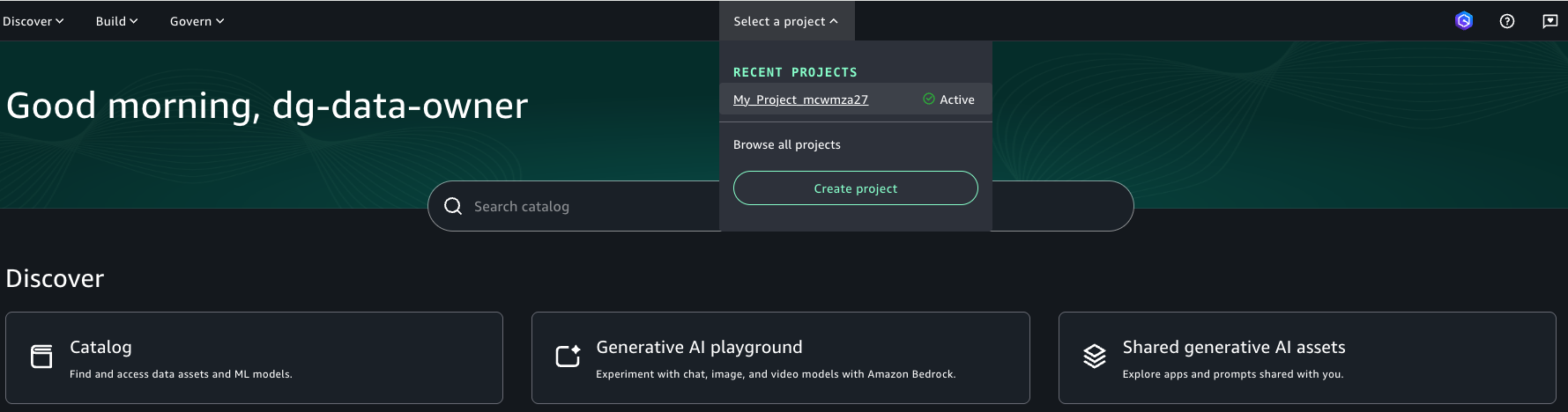
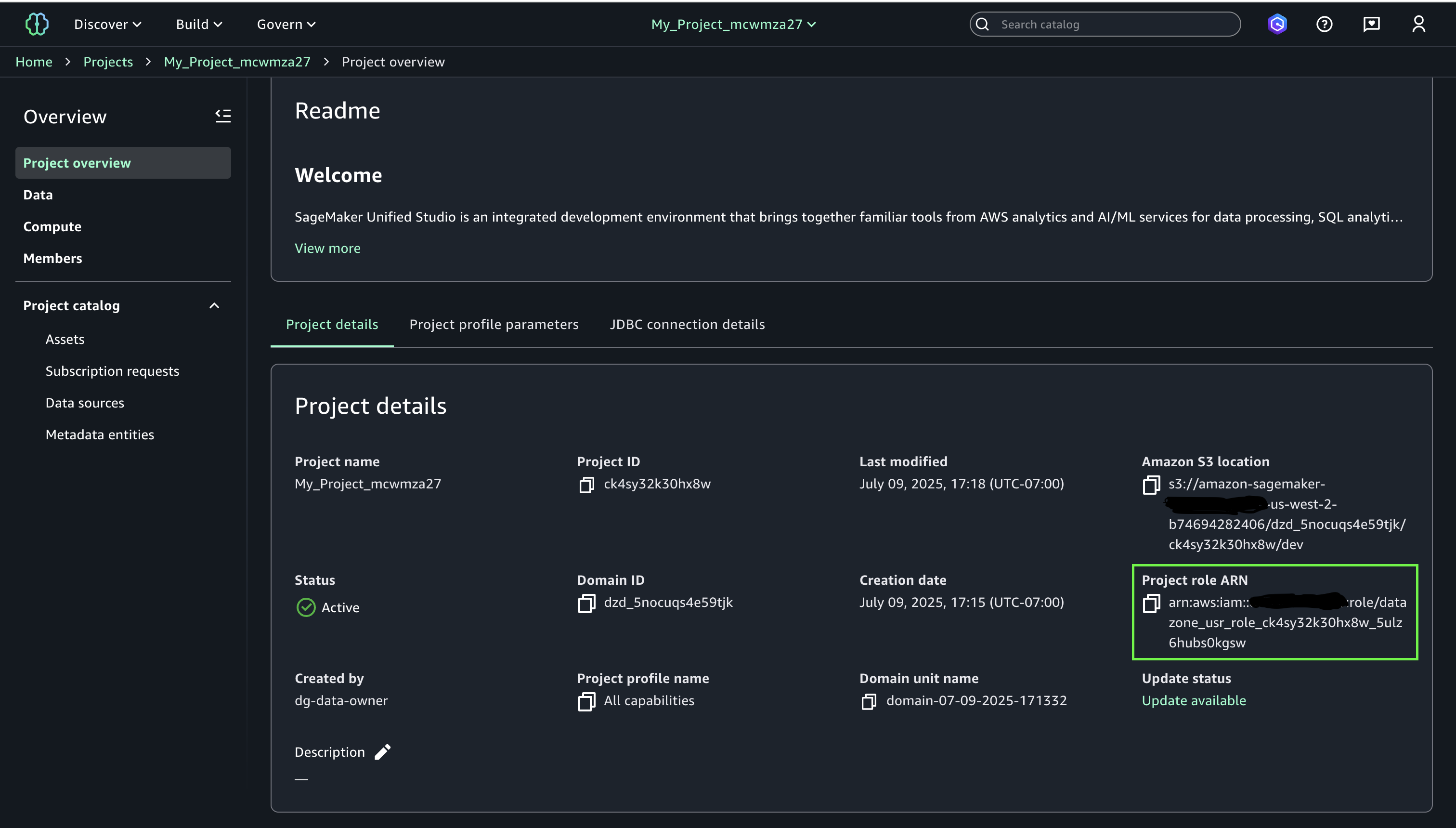
  2. Navigate to your project and note the project role ARN
  3. Navigate to the Lake Formation console with your Lake Formation data lake administrator permissions. Select your Apache Iceberg table that you created on general purpose S3 bucket and choose Grant from the Actions dropdown menu. Grant the following Lake Formation permissions to your SageMaker Unified Studio project role from step 2:
    1. Describe for Table permissions and Grantable permissions
  4. Next, select your S3 Table from the S3 Table bucket catalog in Lake Formation and choose Grant from the Actions drop-down. Grant the below Lake Formation permissions to your SageMaker Unified Studio project role from step 2:
    1. Describe for Table permissions and Grantable permissions
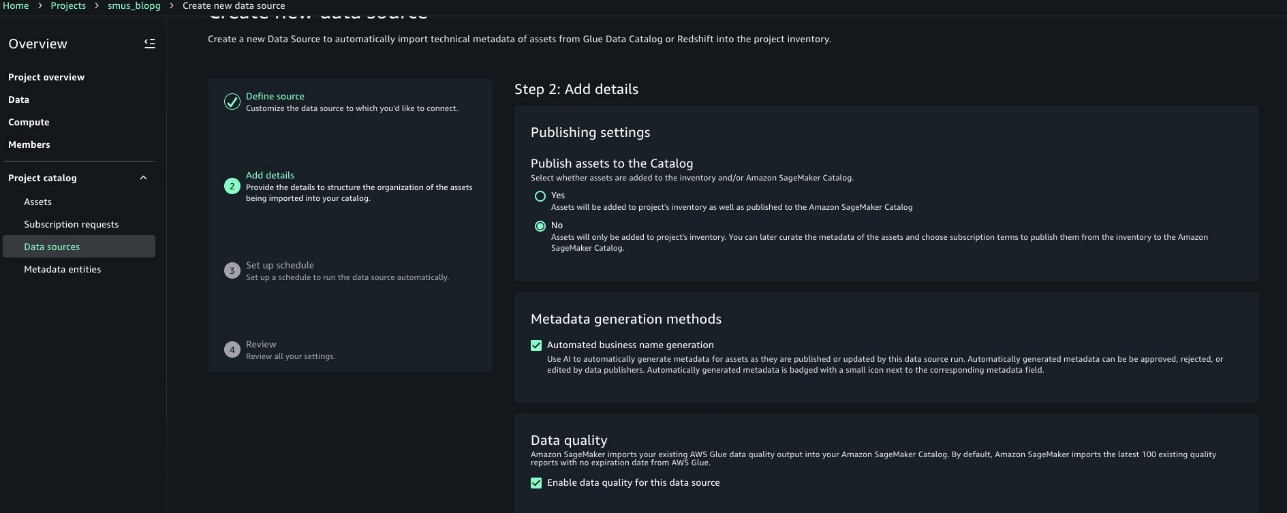
  5. Follow the steps at Create an Amazon SageMaker Unified Studio data source for AWS Glue in the project catalog to configure your data source for your GlueDatabase and your S3 tables namespace.
    1. Choose a name and optionally enter a description for your data source details.
    2. Choose AWS Glue (Lakehouse) for your Data source type. Leave connection and data lineage as the default values.
    3. Choose Use the AwsDataCatalog for the Apache Iceberg table on general purpose S3 bucket AWS Glue database.
    4. Choose the Database name corresponding to the GlueDatabase.Choose Next.
    5. Under Data quality, select Enable data quality for this data source. Leave the rest of the defaults.
    6. Configure the next data source with a name for your S3 table namespace. Optionally, enter a description for your data source details.
    7. Choose AWS Glue (Lakehouse) for your Data source type. Leave connection and data lineage as the default values.
    8. Choose to enter the catalog name: s3tablescatalog/<S3TableBucketName>
    9. Choose the Database name corresponding to the S3 table namespace. Choose Next.
    10. Select Enable data quality for this data source. Leave the rest of the defaults.
  6. Run each dataset.
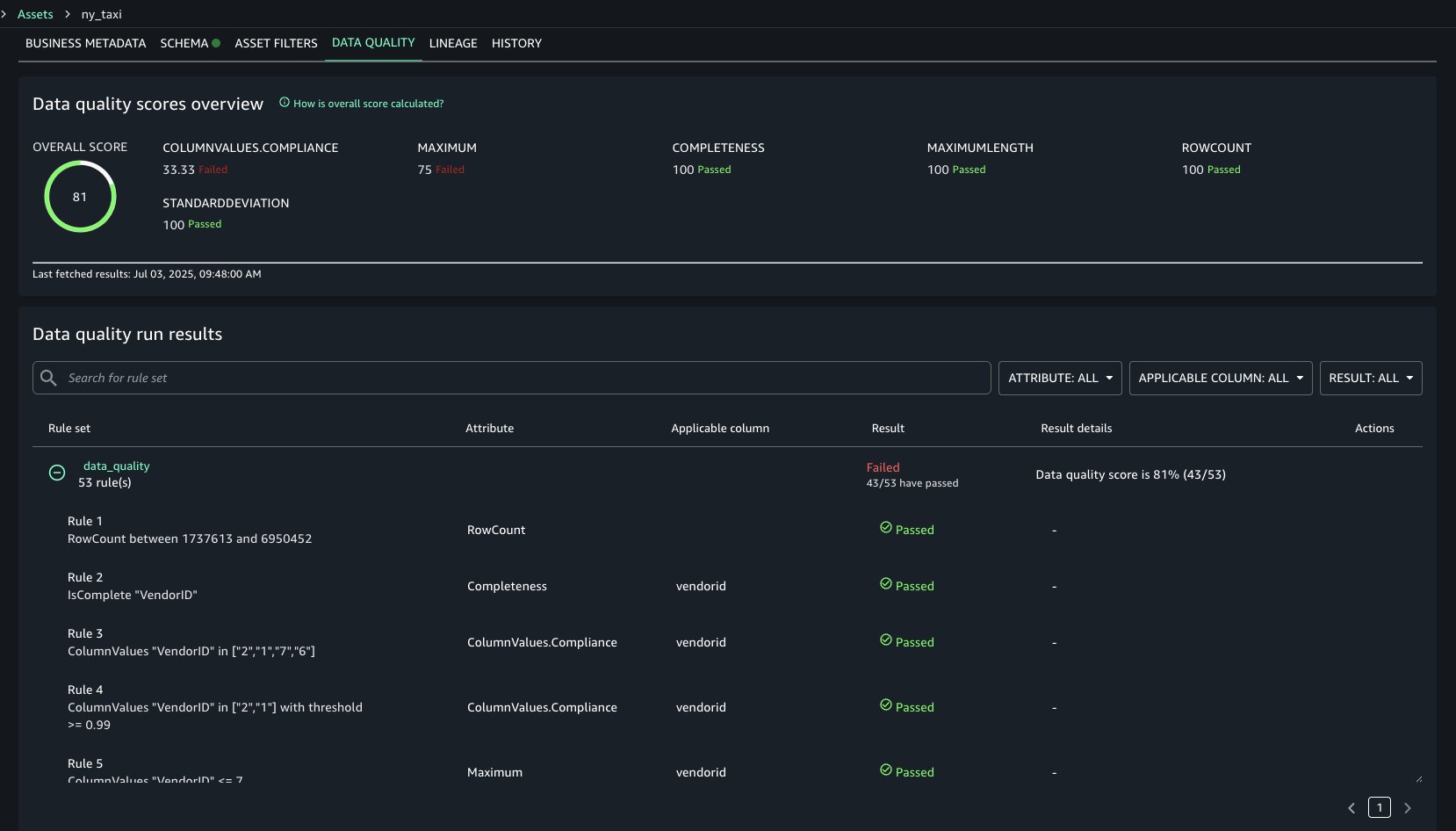
  7. Navigate to your project’s Assets and select the related asset that you created for Apache Iceberg table on general purpose S3 bucket. Navigate to the Data Quality tab to view your data quality results. You should be able to see the data quality results for the S3 table asset similarly.

The data quality results in the following screenshot show each rule evaluated in the selected data quality evaluation run and its result. The data quality score calculates the percentage of rules that passed, and the overview shows how certain rule types faired across the evaluation. For example, Completeness rule types all passed, but ColumnValues rule types passed only three out of nine times.

Cleanup

To avoid incurring future charges, clean up the resources you created during this walkthrough:

  1. Navigate to the blog post output bucket and delete its contents.
  2. Un-register the data lake location for your output bucket in Lake Formation
  3. Revoke the Lake Formation permissions for your SageMaker project role, for your data quality role, and for your AWS Glue job role.
  4. Delete the input data file and the job scripts from your bucket.
  5. Delete the S3 table.
  6. Delete the CloudFormation stack.
  7. [Optional] Delete your SageMaker Unified Studio domain and the associated CloudFormation stacks it created on your behalf.

Conclusion

In this post, we demonstrated how you can now generate data quality recommendation for your lakehouse architecture using Apache Iceberg tables on general purpose Amazon S3 buckets and Amazon S3 Tables. Then we showed how to integrate and view these data quality results in Amazon SageMaker Unified Studio. Try this out for your own use case and share your feedback and questions in the comments.


About the Authors

Brody Pearman is a Senior Cloud Support Engineer at Amazon Web Services (AWS). He’s passionate about helping customers use AWS Glue ETL to transform and create their data lakes on AWS while maintaining high data quality. In his free time, he enjoys watching football with his friends and walking his dog.

Shiv Narayanan is a Technical Product Manager for AWS Glue’s data management capabilities like data quality, sensitive data detection and streaming capabilities. Shiv has over 20 years of data management experience in consulting, business development and product management.

Shriya Vanvari is a Software Developer Engineer in AWS Glue. She is passionate about learning how to build efficient and scalable systems to provide better experience for customers. Outside of work, she enjoys reading and chasing sunsets.

Narayani Ambashta is an Analytics Specialist Solutions Architect at AWS, focusing on the automotive and manufacturing sector, where she guides strategic customers in developing modern data and AI strategies. With over 15 years of cross-industry experience, she specializes in big data architecture, real-time analytics, and AI/ML technologies, helping organizations implement modern data architectures. Her expertise spans across lakehouse architecture, generative AI, and IoT platforms, enabling customers to drive digital transformation initiatives. When not architecting modern solutions, she enjoys staying active through sports and yoga.

AWS Weekly Roundup: SQS fair queues, CloudWatch generative AI observability, and more (July 28, 2025)

Post Syndicated from Micah Walter original https://aws.amazon.com/blogs/aws/aws-weekly-roundup-sqs-fair-queues-cloudwatch-generative-ai-observability-and-more-july-28-2025/

To be honest, I’m still recovering from the AWS Summit in New York, doing my best to level up on launches like Amazon Bedrock AgentCore (Preview) and Amazon Simple Storage Service (S3) Vectors. There’s a lot of new stuff to learn!

Meanwhile, it’s been an exciting week for AWS builders focused on reliability and observability. The standout announcement has to be Amazon SQS fair queues, which tackles one of the most persistent challenges in multi-tenant architectures: the “noisy neighbor” problem. If you’ve ever dealt with one tenant’s message processing overwhelming shared infrastructure and affecting other tenants, you’ll appreciate how this feature enables more balanced message distribution across your applications.

On the AI front, we’re also seeing AWS continue to enhance our observability capabilities with the preview launch of Amazon CloudWatch generative AI observability. This brings AI-powered insights directly into your monitoring workflows, helping you understand infrastructure and application performance patterns in new ways. And for those managing Amazon Connect environments, the addition of AWS CloudFormation for message template attachments makes it easier to programmatically deploy and manage email campaign assets across different environments.

Last week’s launches

  • Amazon SQS Fair Queues — AWS launched Amazon SQS fair queues to help mitigate the “noisy neighbor” problem in multi-tenant systems, enabling more balanced message processing and improved application resilience across shared infrastructure.
  • Amazon CloudWatch Generative AI Observability (Preview) — AWS launched a preview of Amazon CloudWatch generative AI observability, enabling users to gain AI-powered insights into their cloud infrastructure and application performance through advanced monitoring and analysis capabilities.
  • Amazon Connect CloudFormation Support for Message Template Attachments —AWS has expanded the capabilities of Amazon Connect by introducing support for AWS CloudFormation for Outbound Campaign message template attachments, enabling customers to programmatically manage and deploy email campaign attachments across different environments.
  • Amazon Connect Forecast Editing — Amazon Connect introduces a new forecast editing UI that allows contact center planners to quickly adjust forecasts by percentage or exact values across specific date ranges, queues, and channels for more responsive workforce planning.
  • Bloom Filters for Amazon ElastiCache — Amazon ElastiCache now supports Bloom filters in version 8.1 for Valkey, offering a space-efficient way to quickly check if an item is in a set with over 98% memory efficiency compared to traditional sets.
  • Amazon EC2 Skip OS Shutdown Option — AWS has introduced a new option for Amazon EC2 that allows customers to skip the graceful operating system shutdown when stopping or terminating instances, enabling faster application recovery and instance state transitions.
  • AWS HealthOmics Git Repository Integration — AWS HealthOmics now supports direct Git repository integration for workflow creation, allowing researchers to seamlessly pull workflow definitions from GitHub, GitLab, and Bitbucket repositories while enabling version control and reproducibility.
  • AWS Organizations Tag Policies Wildcard Support — AWS Organizations now supports a wildcard statement (ALL_SUPPORTED) in Tag Policies, allowing users to apply tagging rules to all supported resource types for a given AWS service in a single line, simplifying policy creation and reducing complexity.

Blogs of note

Beyond IAM Access Keys: Modern Authentication Approaches — AWS recommends moving beyond traditional IAM access keys to more secure authentication methods, reducing risks of credential exposure and unauthorized access by leveraging modern, more robust approaches to identity management.

Upcoming AWS events

AWS re:Invent 2025 (December 1-5, 2025, Las Vegas) — AWS’s flagship annual conference offering collaborative innovation through peer-to-peer learning, expert-led discussions, and invaluable networking opportunities.

AWS Summits — Join free online and in-person events that bring the cloud computing community together to connect, collaborate, and learn about AWS. Register in your nearest city: Mexico City (August 6) and Jakarta (August 7).

AWS Community Days — Join community-led conferences that feature technical discussions, workshops, and hands-on labs led by expert AWS users and industry leaders from around the world: Singapore (August 2), Australia (August 15), Adria (September 5), Baltic (September 10), and Aotearoa (September 18).

[$] Smaller Fedora quality team proposes cuts

Post Syndicated from jzb original https://lwn.net/Articles/1031066/

Fedora’s quality
team
is looking to reduce the scope of test coverage and change
the project’s release criteria to drop some features from the list of
release blockers. This is, in part, an exercise in getting rid of
criteria, such as booting from optical media, that are less relevant.
It is also a necessity, since the Red Hat team focusing on Fedora
quality assurance (QA) is only half the size it was a year ago.

How to automatically disable users in AWS Managed Microsoft AD based on GuardDuty findings

Post Syndicated from Tim Kingdon original https://aws.amazon.com/blogs/security/how-to-automatically-disable-users-in-aws-managed-microsoft-ad-based-on-guardduty-findings/

Organizations are facing an increasing number of security threats, especially in the form of compromised user accounts. Manually monitoring and acting on suspicious activities is not only time-consuming but also prone to human error. The lack of automated responses to security incidents can lead to disastrous consequences, such as data breaches and financial loss.

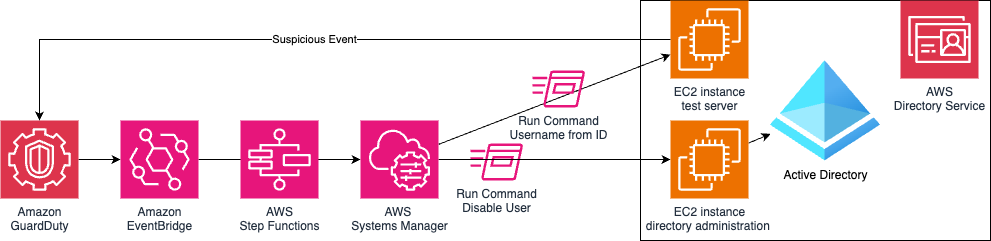
In this blog post, I show you how to detect suspicious events using Amazon GuardDuty and create an automation from those findings to disable user accounts in AWS Directory Service for Microsoft Active Directory.

This post addresses scenarios where, for example, you have a web server that uses a Microsoft Active Directory user account (service account) to access an application or database resources on other servers, and you want to automate disabling the user account if suspicious activity is detected.

I walk you through how to deploy Microsoft Active Directory in AWS Directory Services, set up GuardDuty to monitor Amazon Elastic Compute Cloud (Amazon EC2) instances, and configure Amazon EventBridge with AWS Step Functions to trigger AWS Systems Manager Run Command to obtain the username and disable the user in Active Directory.

Solution overview

In this example, shown in Figure 1, you deploy a test EC2 instance and enable GuardDuty runtime monitoring. Findings will trigger an EventBridge rule that executes a Step Functions state machine, which runs two Systems Manager Run Command documents that discover the username and disable that user using the directory administration EC2 instance.

Figure 1: Solution architecture

Figure 1: Solution architecture

GuardDuty

GuardDuty is an automated threat detection service that continuously monitors for suspicious activity and unauthorized behavior to protect your AWS accounts, workloads, and data stored in Amazon Simple Storage Service (Amazon S3).

To activate GuardDuty:

  1. Go to GuardDuty on the AWS Management Console.
    1. If you’re activating GuardDuty for the first time, under Try threat detection with GuardDuty, select All Features and then choose Get Started.
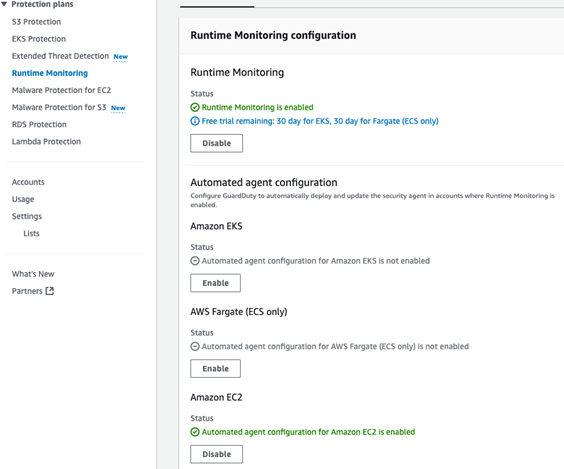
    2. If you’ve used GuardDuty before, select Runtime Monitoring and then choose Enable under Runtime Monitoring.
    Figure 2: GuardDuty Runtime Monitoring enabled with EC2 monitoring

    Figure 2: GuardDuty Runtime Monitoring enabled with EC2 monitoring

AWS Managed Microsoft AD

AWS Managed Microsoft AD provides a fully managed service for Microsoft Active Directory (AD) in the AWS Cloud. When you create your directory, AWS deploys two domain controllers in separate Availability Zones that are exclusively yours for high availability. For use cases that require even higher resilience and performance in a specific AWS Region or during specific hours, you can scale AWS Managed Microsoft AD by deploying additional domain controllers to meet your needs. These domain controllers can help load balance, increase overall performance, or provide additional nodes to protect against temporary availability issues. Using AWS Managed Microsoft AD, you can define the correct number of domain controllers for your directory based on your use case.

To deploy a new AWS Managed Microsoft AD:

  1. Go to the Directory Service console.
  2. Choose Set up directory and select AWS Managed Microsoft AD.
  3. Select Standard Edition and enter a Directory DNS name and password.
  4. Select a virtual private cloud (VPC), for this example use the Default VPC.
  5. Choose Create directory.

Directory administration EC2 instance

This directory administration EC2 instance will be used to control the Microsoft Active Directory using AWS Systems Manager.

To deploy the directory administration EC2 instance:

  1. If you have deployed a new directory, you might need to wait 20–45 minutes until the directory status is Active.
  2. Select the Directory ID.
  3. Choose Actions and select Launch directory Administration EC2 Instance, using the default options.

Alternatively, you can build your own Windows EC2 instances with a role that has the AmazonSSMManagedInstanceCore policy, join it to the Active Directory domain, and install Active Directory management tools.

To remotely connect to the directory administration EC2 instance:

  1. Go to the Systems Manager console.
  2. Open Fleet Manager from the navigation pane.
  3. Select the Node ID for the instance with the name ending managementInstance.
  4. Choose Node Actions (top right), select Connect, and then choose Connect with Remote Desktop.
  5. Enter the username admin and the directory password that you set earlier.

Create a test Active Directory user

You will use this test user account to sign in to an EC2 instance and initiate a command that simulates suspicious activity that results in this account being disabled.

To use the directory administration EC2 instance to create a test user on the Active Directory:

  1. From the management EC2 instance, open the start menu, select Windows Administrative Tools and then open Active Directory Users and Computers.
  2. Browse to your Domain, the Domain OU, and then the Users OU, right-click and choose New and then select User.
  3. Create a TestUser user, making sure that you don’t select Account is disabled.

Create a privileged domain service account

You will create this domain user account with delegated permissions to be used by Systems Manager Windows Service.

To use the directory administration EC2 instance to create a service account in AD:

  1. From the management EC2 instance, open the start menu, select Windows Administrative Tools, and then open Active Directory Users and Computers.
  2. Browse to your Domain, the Domain OU, and then the Users OU. Right-click and select New, and then select User
  3. Create an SSMService user, making sure that you don’t select Account is disabled.

To delegate permission to the service account in AD:

  1. Right-click on the Users OU and select Delegate Control.
  2. Choose Next on the Delegation of Control Wizard.
  3. Add the new service user you created earlier and choose Next.
  4. Select Create a custom task to delegate and choose Next.
  5. Select Only the following objects in the folder and select User Objects, then choose Next.
  6. Select General and Property-specific to show the permissions, select Read userAccountControl and Write userAccountControl (near the end of the list), then choose Next and Finish.

To add a service account to the local administrators group:

  1. From the management EC2 instance, open the start menu, select Windows Administrative Tools, and then open Computer Management.
  2. Browse to Local Users and Groups, then to Groups.
  3. Right-click on Administrators and select Properties.
  4. Choose Add to add the new service user you created earlier and choose OK.

Configure Systems Manager

Configure Systems Manager on the directory administration EC2 instance with permission to manage the Active Directory.

To configure Systems Manager:

  1. From the management EC2 instance from the Start Menu, select Windows Administrative Tools, and then open Services.
  2. Locate the Amazon SSM Agent, right-click, and select Properties.
  3. Select the Log On tab and select This account.
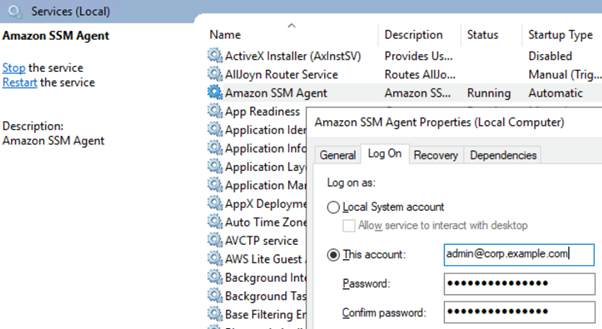
  4. Within This account enter the privileged domain username you created earlier followed by @ and then the domain name, for example [email protected]. Enter your password and choose OK.
    Figure 3: Microsoft Windows Services showing Systems Manager Agent settings

    Figure 3: Microsoft Windows Services showing Systems Manager Agent settings

  5. Choose OK on the This account has been granted Log On As A Service right and The new logon name will not take effect until you stop and restart the service popups.
  6. Right-click Amazon SSM Agent and select Restart.

Systems Manager Run Command

Run Command is a feature of Systems Manager that can remotely and securely manage the configuration of your managed nodes. You can use Run Command to automate common administrative tasks and perform one-time configuration changes at scale. You can use Run Command from the console, the AWS Command Line Interface (AWS CLI), AWS Tools for PowerShell, or the AWS SDKs. Run Command is offered at no additional cost.

To create a Run Command document with a PowerShell command to disable domain user accounts:

  1. Go to the AWS Systems Manager console.
  2. Select Documents under Change Management Tools.
  3. Choose Create document and select Command or Session.
  4. Enter a name, for example DisableADUser.
  5. Select document type Command.
  6. Select YAML and then enter the following code:
    ---
    schemaVersion: "2.2"
    description: "Disable AD Users"
    parameters:
      UserName:
        type: String
        description: "(Required) The username to disable."
    mainSteps:
    - action: "aws:runPowerShellScript"
      name: "DisableUser"
      inputs:
        runCommand:
        - "import-module activedirectory"
        - "$disableuser = get-aduser {{ UserName }} | select-object -ExpandProperty DistinguishedName"
        - "dsmod user $disableuser -disabled yes"
    

  7. Choose Create document.

To create a Run Command document with a bash command to find a username from a UserID:

  1. Follow steps 1–3 from the previous procedure.
  2. Enter a name, for example GetUsernameFromID.
  3. Select document type Command.
  4. Select YAML and then enter the following code:
    ---
    description: "Get Username from Linux"
    schemaVersion: "2.2"
    parameters:
      UserId:
        type: String
        description: "(Required) The User ID to find."
        default: "1000"
    mainSteps:
    - action: aws:runShellScript
      name: GetLinuxUsername
      precondition:
        StringEquals:
        - platformType
        - Linux
      inputs:
        timeoutSeconds: 7200
        runCommand:
          - "#!/bin/bash"
          - "#"
          - "UserName=$(id -nu {{ UserId }})"
          - "if [[ $UserName == *'@'* ]]; then"
          - "echo ${UserName%@*} "
          - "else if [[ $UserName == *'\\'* ]]; then"
          - "echo $UserName | sed 's/.*\\\\//g'"
          - "fi"
          - "fi"
      outputs:
        - Name: output
          Selector: $.Payload.output
          Type: String
    

  5. Choose Create document.

Step Functions

Step Functions is a serverless orchestration service that you can use to coordinate multiple AWS services, microservices, and third-party integrations into business-critical applications. Step Functions is widely used for orchestrating complex workflows, such as loan processing, fraud detection, risk management, and compliance processes. By breaking down these processes into a series of steps, Step Functions provides a clear overview and control of the entire workflow. This helps make sure that it executes each stage correctly and in the right order. One of the critical aspects of using Step Functions in regulated industries is the importance of security and data protection.

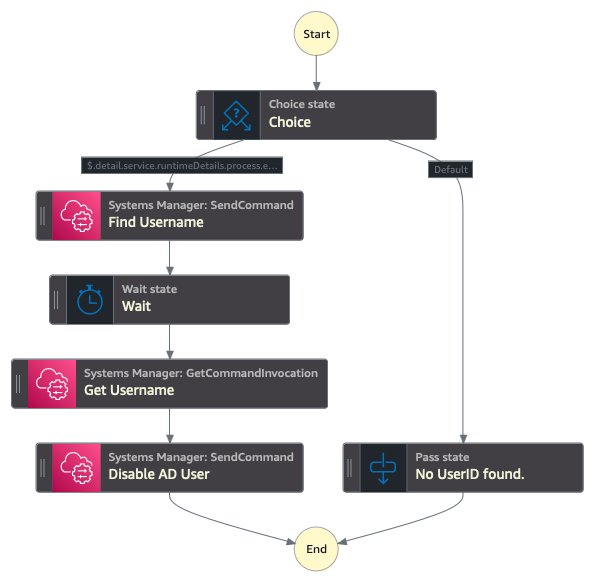
By the end of this section, your state machine should have a sequential flow that starts with a choice that defaults to No UserID found and with the UserID present, includes the steps Find Username, Wait, Get Username, and Disable AD User. If it doesn’t, you can drag the actions into the correct order or change the next state associated with each action. Alternatively, copy this state machine definition JSON and import it directly into Step Functions.

To create a Step Functions state machine to execute the Systems Manager Run Commands:

  1. Go to the Step Functions console.
  2. Choose Get Started.
  3. Choose Create your own.
  4. Enter a name for the state machine, select Standard, and choose Continue.
  5. Select JSONPath as the state machine query language.
  6. From the navigation pane, search for and add the Pass action by dragging the action to the center window.
  7. Add the Systems Manager: SendCommand Action for Finding the Username using Run Command.
  8. Select the SendCommand, change the state name to Find Username, and then enter the following code into API Parameters on the right side of the screen.
    {
      "DocumentName": "GetUsernameFromID",
      "Parameters": {
        "UserId.$": "States.Array(States.JsonToString($.detail.service.runtimeDetails.process.euid))"
      },
      "Targets": [
        {
          "Key": "InstanceIds",
          "Values.$": "States.Array($.detail.resource.instanceDetails.instanceId)"
        }
      ]
    }
    

  9. With SendCommand selected, select the Input/Output tab, select Add original input to output using ResultPath, select Combine original input with result, and enter the following:
    $.RunCommand.State
    

  10. Add a Wait Action and set the number of seconds to wait before resuming the execution to 5 seconds.
  11. Add a Systems Manager: GetCommandInvocation action, which will get the Username value from Run Command and change the state name to Get Username, then enter the following API Parameters.
    {
      "CommandId.$": "$.RunCommand.State.Command.CommandId",
      "InstanceId.$": "$.detail.resource.instanceDetails.instanceId"
    }
    

  12. On the Input/Output tab, select Transform result with ResultSelector and enter the following:
    {
      "StandardOutputContent.$": "States.StringSplit($.StandardOutputContent,'\n')"
    }
    

  13. Add a Systems Manager: SendCommand action which will disable the Active Directory user using Run Command. Change the state name to Disable AD User then enter the following API Parameters, changing the InstanceIds value to the ID of your Active Directory Management server.
    {
      "DocumentName": "DisableADUser",
      "Parameters": {
        "UserName.$": "$.StandardOutputContent"
      },
      "Targets": [
        {
          "Key": "InstanceIds",
          "Values": [
            "i-0b22a22eec53b9321"
          ]
        }
      ]
    }
    

  14. Add a Choice action, choose the pencil icon next to Rule #1, choose Edit conditions, enter the variable $.detail.service.runtimeDetails.process.euid, select operator is present, value true, leave Not as blank, and choose Save Conditions.
  15. Re-arrange the state machine layout to the same structure as displayed in Figure 4, with a sequential flow that starts with a choice that defaults to No UserID found and with the UserID present includes the steps Find Username, Wait, Get Username, and Disable AD User.
    Figure 4: Step Functions state machine structure

    Figure 4: Step Functions state machine structure

  16. Choose Create (top right) and then Confirm to create the step function state machine.

To add permissions to enable the State Machine to run System Manager commands:

  1. Within the newly created state machine, choose Config (top center).
  2. Choose View in IAM, under Permissions, Execution role.
  3. Choose Add permissions, Attach Polices (center right).
  4. Search for and select AmazonSSMAutomationRole and choose Add permission.

EventBridge

EventBridge helps developers build event-driven architectures (EDA) by connecting loosely coupled publishers and consumers using event routing, filtering, and transformation. To create an EventBridge rule that triggers the Systems Manger Run Command document you created earlier:

  1. Go to the Amazon EventBridge console and select Create rule with EventBridge Rule.
  2. Enter a name, for example GuardDutyDisableADuser.
  3. Select Rule with an event pattern and choose Next.
  4. Under the Event pattern JSON window, choose Edit pattern and enter the following:
    {
      "source": ["aws.guardduty"],
      "detail-type": ["GuardDuty Finding"]
    }
    

  5. Choose Next.
  6. Select AWS Service.
  7. Select Step Functions state machine as the target.
  8. Select the state machine you created earlier, for example MyStateMachine-A123456789.
  9. Choose Next twice and choose Create rule

Create a test EC2 instance

To generate alerts on GuardDuty, you create a domain joined Linux EC2 instance. For this example, you’ll use two separate EC2 instances so you can monitor for activity from each instance within GuardDuty and use EventBridge to create automations.

To create an AWS Identity and Access Management (IAM) role to permit the EC2 instance to join the AD:

  1. Go to the IAM console.
  2. Select Policies from the navigation pane.
  3. Choose Create policy (top right).
  4. Select Policy editor JSON, enter the following code and choose Next.
    {
    "Version": "2012-10-17",
    "Statement": [
    	{
    		"Effect": "Allow",
    		"Action": [
    			"secretsmanager:GetSecretValue",
    			"secretsmanager:DescribeSecret"
    			],
    		"Resource": "*"
    	}
    	]
    }
    

  5. Enter the Policy name, for example SecretsManagerGetSecrets, and choose Create policy.
  6. Select Roles from navigation pane.
  7. Choose Create role (top right).
  8. Select AWS service and choose EC2 from the service or use case selection, then choose Next.
  9. Search for and select the following policies and choose Next
    • AmazonSSMDirectoryServiceAccess
    • AmazonSSMManagedInstanceCore
    • SecretsManagerGetSecrets (created earlier)
  10. Enter the role name, for example EC2DomainJoin, and choose Create role.

To create a secret that will be used to store privileged credentials used to join EC2 instances to the domain:

  1. Go to the Secrets Manager console.
  2. Select Store a new secret.
  3. Select Other type of secret.
  4. Add the following keys with the corresponding value of a domain username and password that have permissions to join computers to the domain:
    1. awsSeamlessDomainUsername
    2. awsSeamlessDomainPassword
  5. Choose Next.
  6. Enter the following secret name, replacing <d-1234567890> with your directory ID.
    aws/directory-services/<d-1234567890>/seamless-domain-join
    

  7. Choose Next twice, then Store.

For more information more, see Seamlessly joining an Amazon EC2 Linux instance to your AWS Managed Microsoft AD Active Directory.

To create a domain joined EC2 instance for testing this GuardDuty automation:

  1. Go to the Amazon EC2 console.
  2. Select Instances from navigation pane.
  3. Choose Launch Instances.
  4. Select Amazon Linux AMI.
  5. Select an existing Key Pair or create a new key pair.
  6. Scroll to the bottom and select Advanced details.
  7. Within Domain join directory, select the domain
  8. Within IAM instance profile, select the EC2DomainJoin role that you created earlier.
  9. Choose Launch Instance.

Testing

To simulate a threat, use a GuardDuty test domain that GuardDuty will recognize as a command and control server.

  1. Go to the Amazon EC2 console.
  2. Choose Instances from the navigation pane.
  3. Select the test EC2 instance that you created earlier.
  4. Choose Connect, select the Session Manager tab, and choose Connect
  5. Authenticate with your test user by entering su followed by the test user with the domain name that you created earlier. For example su [email protected], then enter the password.
  6. Enter the command curl guarddutyc2activityb.com.
    • You will receive an error because the page won’t resolve, but GuardDuty will have detected suspicious events.
  7. Go to the GuardDuty console and select Findings from the navigation pane.
  8. Within 3–5 minutes, you should see a high severity finding for Backdoor:EC2/C&CActivity.B!DNS.

Note: You must archive the GuardDuty finding before re-running this test, because the EventBridge rule only runs once against a GuardDuty finding with the same details. To archive the finding, select the check box next to the Backdoor:EC2/C&CActivity.B!DNS finding, choose Actions (top right), and select Archive.

Figure 5: GuardDuty simulated findings

Figure 5: GuardDuty simulated findings

If you go back to Active Directory Users and Computers on the Directory Administration EC2 instance, you should see that the Test User is now disabled. You can enable the user by right-clicking on the user and selecting Enable Account.

Figure 6: Active Directory Users and Computers showing the disabled test use

Figure 6: Active Directory Users and Computers showing the disabled test use

Conclusion

In this post, you learned how to deploy AWS Managed AD, Systems Manager Run Command, EventBridge, Step Functions, and GuardDuty to monitor for suspicious events and disable the associated Active Directory user account.

You can expand this scenario by creating Run Command documents that reset Active Directory passwords, disable computer accounts, or Active Directory tasks supported by Microsoft PowerShell. Additionally, you can add steps within the Step Functions state machine to notify administrators through Amazon Simple Notification Service (Amazon SNS) or add additional checks with AWS Lambda.

Although this post uses AWS Managed Microsoft AD, the same functionality can be achieved with a manual deployment of Active Directory on Amazon EC2 or on-premises, either by using an EC2 instance joined to the Active Directory domain with the Active Directory administration tools installed or by installing Systems Manager agent onto a management server on-premises.

If you have feedback about this post, submit comments in the Comments section below. If you have questions about this post, start a new thread on AWS re:Post GuardDuty or contact AWS Support.
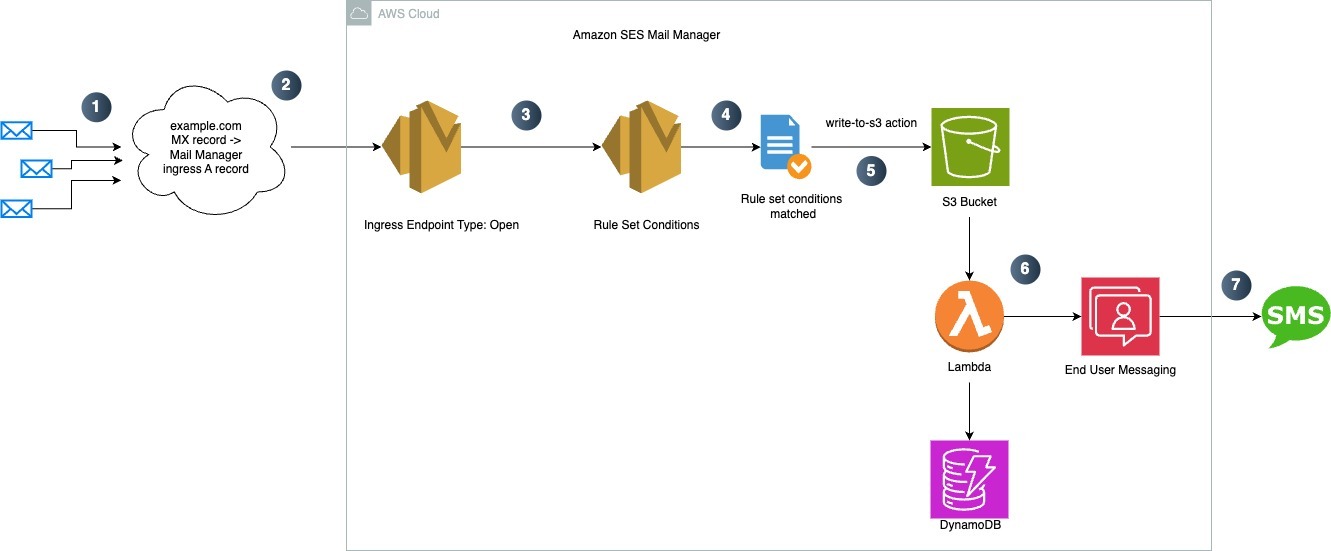
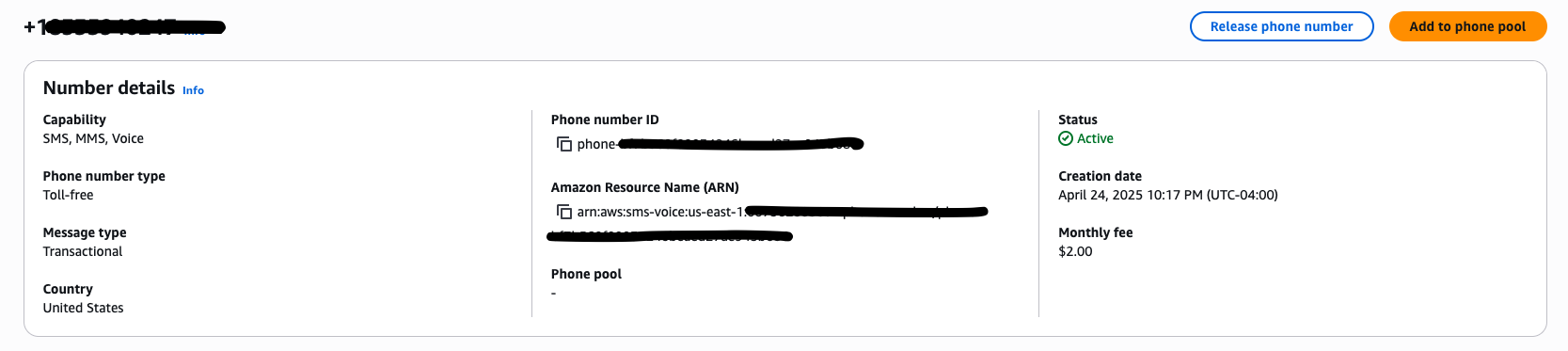
Tim Kingdon

Tim Kingdon

Tim is a Senior Partner Solutions Architect at AWS and has more than 25 years of experience in healthcare, financial, government, and defence industries. In his role, he provides strategic technical guidance to partners and helps drive their success through technical enablement initiatives.

The collective thoughts of the interwebz