Implementing idempotent AWS Lambda functions with Powertools for AWS Lambda (TypeScript)

Post Syndicated from Pascal Vogel original https://aws.amazon.com/blogs/compute/implementing-idempotent-aws-lambda-functions-with-powertools-for-aws-lambda-typescript/

This post is written by Alexander Schüren, Sr Specialist SA, Powertools.

One of the design principles of AWS Lambda is to “develop for retries and failures”. If your function fails, the Lambda service will retry and invoke your function again with the same event payload. Therefore, when your function performs tasks such as processing orders or making reservations, it is necessary for your Lambda function to handle requests idempotently to avoid duplicate payment or order processing, which can result in a poor customer experience.

This article explains what idempotency is and how to make your Lambda functions idempotent using the idempotency utility for Powertools for AWS Lambda (TypeScript). The Powertools idempotency utility for TypeScript was co-developed with Vanguard and is now generally available.

Understanding idempotency

Idempotency is the property of an operation that can be applied multiple times without changing the result beyond the initial execution. You can safely run an idempotent operation multiple times without side effects, such as duplicate records or data inconsistencies. This is especially relevant for payment and order processing or third-party API integrations.

There are key concepts to consider when implementing idempotency in AWS Lambda. For each invocation, you specify which subset of the event payload you want to use to identify an idempotent request. This is called the idempotency key. This key can be a single field such as transactionId, a combination of multiple fields such as customerId and requestId, or the entire event payload.

Because timestamps, dates, and other generated values within the payload affect the idempotency key, we recommend that you define specific fields rather than using the entire event payload.

By evaluating the idempotency key, you can then decide if the function needs to run again or send an existing response to the client. To do this, you need to store the following information for each request in a persistence layer (i.e., Amazon DynamoDB):

  • Status: IN_PROGRESS, EXPIRED, COMPLETE
  • Response data: the response to send back to the client instead of executing the function again
  • Expiration timestamp: when the idempotency record becomes invalid for reuse

The following diagram shows a successful request flow for this idempotency scenario:

Request flow for idempotent Lambda function

When you invoke a Lambda function with a particular event for the first time, it stores a record with a unique idempotency key tied to an event payload in the persistence layer.

The function then executes its code and updates the record in the persistence layer with the function response. For subsequent invocations with the same payload, you must check if the idempotency key exists in the persistence layer. If it exists, the function returns the same response to the client. This prevents multiple invocations of the function, making it idempotent.

There are more edge cases to be mindful of, such as when the idempotency record has expired, or handling of failures between the client, the Lambda function, and the persistence layer. The Powertools for AWS Lambda (TypeScript) documentation covers all request flows in detail.

Idempotency with Powertools for AWS Lambda (TypeScript)

Powertools for AWS Lambda, available in PythonJava, .NET, and TypeScript, provides utilities for Lambda functions to ease the adoption of best practices and to reduce the amount of code needed to perform recurring tasks. In particular, it provides a module to handle idempotency.

This post shows examples using the TypeScript version of Powertools. To get started with the Powertools idempotency module, you must install the library and configure it within your build process. For more details, follow the Powertools for AWS Lambda documentation.

Getting started

Powertools for AWS Lambda (TypeScript) is modular, meaning you can install the idempotency utility independently from the Logger, Tracing, Metrics, or other packages. Install the idempotency utility library and the AWS SDK v3 client for DynamoDB in your project using npm:

npm i @aws-lambda-powertools/idempotency @aws-sdk/client-dynamodb @aws-sdk/lib-dynamodb

Before getting started, you need to create a persistent storage layer where the idempotency utility can store its state. Your Lambda function AWS Identity and Access Management (IAM) role must have dynamodb:GetItem, dynamodb:PutItem, dynamodb:UpdateItem and dynamodb:DeleteItem permissions.

Currently, DynamoDB is the only supported persistent storage layer, so you’ll need to create a table first. Use the AWS Cloud Development Kit (CDK), AWS CloudFormation, AWS Serverless Application Model (SAM) or any Infrastructure as Code tool of your choice that supports DynamoDB resources.

The following sections illustrate how to instrument your Lambda function code to make it idempotent using a wrapper function or using middy middleware.

Using the function wrapper

Assuming you have created a DynamoDB table with the name IdempotencyTable, create a persistence layer in your Lambda function code:

import { makeIdempotent } from "@aws-lambda-powertools/idempotency";
import { DynamoDBPersistenceLayer } from "@aws-lambda-powertools/idempotency/dynamodb";

const persistenceStore = new DynamoDBPersistenceLayer({
  tableName: "IdempotencyTable",
});

Now, apply the makeIdempotent function wrapper to your Lambda function handler to make it idempotent and use the previously configured persistence store.

import { makeIdempotent } from '@aws-lambda-powertools/idempotency';
import { DynamoDBPersistenceLayer } from '@aws-lambda-powertools/idempotency/dynamodb';
import type { Context } from 'aws-lambda';
import type { Request, Response, SubscriptionResult } from './types';

export const handler = makeIdempotent(
  async (event: Request, _context: Context): Promise<Response> => {
    try {
      const payment = … // create payment
	  
      return {
        paymentId: payment.id,
        message: 'success',
        statusCode: 200,
      };

    } catch (error) {
      throw new Error('Error creating payment');
    }
  },
  {
    persistenceStore,
  }
);

The function processes the incoming event to create a payment and return the paymentId, message, and status back to the client. Making the Lambda function handler idempotent ensures that payments are only processed once, despite multiple Lambda invocations with the same event payload. You can also apply the makeIdempotent function wrapper to any other function outside of your handler.

Use the following type definitions for this example by adding a types.ts file to your source folder:

type Request = {
  user: string;
  productId: string;
};

type Response = {
  [key: string]: unknown;
};

type SubscriptionResult = {
  id: string;
  productId: string;
};

Using middy middleware

If you are using middy middleware, Powertools provides makeHandlerIdempotent middleware to make your Lambda function handler idempotent:

import { makeHandlerIdempotent } from '@aws-lambda-powertools/idempotency/middleware';
import { DynamoDBPersistenceLayer } from '@aws-lambda-powertools/idempotency/dynamodb';
import middy from '@middy/core';
import type { Context } from 'aws-lambda';
import type { Request, Response, SubscriptionResult } from './types';

const persistenceStore = new DynamoDBPersistenceLayer({
  tableName: 'IdempotencyTable',
});

export const handler = middy(
  async (event: Request, _context: Context): Promise<Response> => {
    try {
      const payment = … // create payment object
	  
      return {
        paymentId: payment.id,
        message: 'success',
        statusCode: 200,
      };
    } catch (error) {
      throw new Error('Error creating payment');
    }
  }
).use(
    makeHandlerIdempotent({
      persistenceStore,
  })
);

Configuration options

The Powertools idempotency utility comes with several configuration options to change the idempotency behavior that will fit your use case scenario. This section highlights the most common configurations. You can find all available customization options in the AWS Powertools for Lambda (TypeScript) documentation.

Persistence layer options

When you create a DynamoDBPersistenceLayer object, only the tableName attribute is required. Powertools will expect the table with a partition key id and will create other attributes with default values.

You can change these default values if needed by passing the options parameter:

import { DynamoDBPersistenceLayer } from '@aws-lambda-powertools/idempotency/dynamodb';

const persistenceStore = new DynamoDBPersistenceLayer({
  tableName: 'idempotencyTableName',
  keyAttr: 'idempotencyKey', // default: id
  expiryAttr: 'expiresAt', // default: expiration
  inProgressExpiryAttr: 'inProgressExpiresAt', // default: in_progress_expiration
  statusAttr: 'currentStatus', // default: status
  dataAttr: 'resultData', // default: data
  validationKeyAttr: 'validationKey', .// default validation
});

Using a subset of the event payload

When you configure idempotency for your Lambda function handler, Powertools will use the entire event payload for idempotency handling by hashing the object.

However, events from AWS services such as Amazon API Gateway or Amazon Simple Queue Service (Amazon SQS) often have generated fields, such as timestamp or requestId. This results in Powertools treating each event payload as unique.

To prevent that, create an IdempotencyConfig and configure which part of the payload should be hashed for the idempotency logic.

Create the IdempotencyConfig and set eventKeyJmespath to a key within your event payload:

import { IdempotencyConfig } from '@aws-lambda-powertools/idempotency';

// Extract the idempotency key from the request headers
const config = new IdempotencyConfig({
  eventKeyJmesPath: 'headers."X-Idempotency-Key"',
});

Use the X-Idempotency-Key header for your idempotency key. Subsequent invocations with the same header value will be idempotent.

You can then add the configuration to the makeIdempotent function wrapper from the previous example:

export const handler = makeIdempotent(
  async (event: Request, _context: Context): Promise<Response> => {
    try {
      const payment = … // create payment
      
	  return {
        paymentId: payment.id,
        message: 'success',
        statusCode: 200,
      };
    } catch (error) {
      throw new Error('Error creating payment');
    }
  },
  {
    persistenceStore,
    config
  }
);

The event payload should contain X-Idempotency-Key in the headers, so Powertools can use this field to handle idempotency:

{
  "version": "2.0",
  "routeKey": "ANY /createpayment",
  "rawPath": "/createpayment",
  "rawQueryString": "",
  "headers": {
    "Header1": "value1",
    "X-Idempotency-Key": "abcdefg"
  },
  "requestContext": {
    "accountId": "123456789012",
    "apiId": "api-id",
    "domainName": "id.execute-api.us-east-1.amazonaws.com",
    "domainPrefix": "id",
    "http": {
      "method": "POST",
      "path": "/createpayment",
      "protocol": "HTTP/1.1",
      "sourceIp": "ip",
      "userAgent": "agent"
    },
    "requestId": "id",
    "routeKey": "ANY /createpayment",
    "stage": "$default",
    "time": "10/Feb/2021:13:40:43 +0000",
    "timeEpoch": 1612964443723
  },
  "body": "{\"user\":\"xyz\",\"productId\":\"123456789\"}",
  "isBase64Encoded": false
}

There are other configuration options you can apply, such as payload validation, expiration duration, local caching, and others. See the Powertools for AWS Lambda (TypeScript) documentation for more information.

Customizing the AWS SDK configuration

The DynamoDBPersistenceLayer is built-in and allows you to store the idempotency data for all your requests. Under the hood, Powertools uses the AWS SDK for JavaScript v3. Change the SDK configuration by passing a clientConfig object.

The following sample sets the region to eu-west-1:

import { DynamoDBPersistenceLayer } from '@aws-lambda-powertools/idempotency/dynamodb';

const persistenceStore = new DynamoDBPersistenceLayer({
  tableName: 'IdempotencyTable',
  clientConfig: {
    region: 'eu-west-1',
  },
});

If you are using your own client, you can pass it the persistence layer:

import { DynamoDBPersistenceLayer } from '@aws-lambda-powertools/idempotency/dynamodb';
import { DynamoDBClient } from '@aws-sdk/client-dynamodb';

const ddbClient = new DynamoDBClient({ region: 'eu-west-1' });

const dynamoDBPersistenceLayer = new DynamoDBPersistenceLayer({
  tableName: 'IdempotencyTable',
  awsSdkV3Client: ddbClient,
});

Conclusion

Making your Lambda functions idempotent can be a challenge and, if not done correctly, can lead to duplicate data, inconsistencies, and a bad customer experience. This post shows how to use Powertools for AWS Lambda (TypeScript) to process your critical transactions only once when using AWS Lambda.

For more details on the Powertools idempotency feature and its configuration options, see the full documentation.

For more serverless learning resources, visit Serverless Land.

Manage roles and entitlements with PBAC using Amazon Verified Permissions

Post Syndicated from Abhishek Panday original https://aws.amazon.com/blogs/devops/manage-roles-and-entitlements-with-pbac-using-amazon-verified-permissions/

Traditionally, customers have used role-based access control (RBAC) to manage entitlements within their applications. The application controls what users can do, based on the roles they are assigned. But, the drive for least privilege has led to an exponential growth in the number of roles. Customers can address this role explosion by moving authorization logic out of the application code, and implementing a policy-based access control (PBAC) model that augments RBAC with attribute-based access control (ABAC).

In this blog post, we cover roles and entitlements, how they are applicable in apps authorization decisions, how customers implement roles and authorization in their app today, and how to shift to a centralized PBAC model by using Amazon Verified Permissions.

Describing roles and entitlements, approaches and challenges of current implementations

In RBAC models, a user’s entitlements are assigned based on job role. This role could be that of a developer, which might grant permissions to affect code in the pipeline of an app. Entitlements represent the features, functions, and resources a user has permissions to access. For example, a customer might be able to place orders or view pets in a pet store application, or a store owner might be entitled to review orders made from their store.

The combination of roles assigned to a user and entitlements granted to these roles determines what a human user can do within your application. Traditionally, application access has all been handled in code by hard coding roles that users can be assigned and mapping those roles directly to a set of actions on resources. However, as the need to apply more granular access control grows (as with least privilege), so do the number of required hard-coded roles that are assigned to users to obtain this level of granularity. This problem is frequently called role explosion, where role definitions grow exponentially which requires additional overhead from your teams to manage and audit roles effectively. For example, the code to authorize request to get details of an order has multiple if/else statements, as shown in the following sample.


boolean userAuthorizedForOrder (Order order, User user){
    if (user.storeId == user.storeID) {
        if (user.roles.contains("store-owner-roles") {            // store owners can only access orders for their own stores  
            return true; 
        } else if (user.roles.contains("store-employee")) {
            if (isStoreOpen(current_time)) {                      // Only allow access for the order to store-employees when
                return true                                       // store is open 
            }
        }
    } else {
        if (user.roles("customer-service-associate") &amp;&amp;           // Only allow customer service associates to orders for cases 
                user.assignedShift(current_time)) &amp;&amp;              // they are assinged and only during their assigned shift
                user.currentCase.order.orderId == order.orderId
         return true;
    }
    return false; 
}

This problem introduces several challenges. First, figuring out why a permission was granted or denied requires a closer look at the code. Second, adding a permission requires code changes. Third, audits can be difficult because you either have to run a battery of tests or explore code across multiple files to demonstrate access controls to auditors. Though there might be additional considerations, these three challenges have led many app owners to begin looking at PBAC methods to address the granularity problem. You can read more about the foundations of PBAC models in Policy-based access control in application development with Amazon Verified Permissions. By shifting to a PBAC model, you can reduce role growth to meet your fine-grained permissions needs. You can also externalize authorization logic from code, develop granular permissions based on roles and attributes, and reduce the time that you spend refactoring code for changes to authorization decisions or reading through the code to audit authorization logic.

In this blog, we demonstrate implementing permissions in a PBAC model through a demo application. The demo application uses Cognito groups to manage role assignment, Verified Permissions to implement entitlements for the roles. The approach restricts the resources that a role can access using attribute-based conditions. This approach works well in usecases when you already have a system in place to manage role assignment and you can define resources that a user may access by matching attributes of the user with attributes of the resource.

Demo app

Let’s look at a sample pet store app. The app is used by 2 types of users – end users and store owners. The app enables end users to search and order pets. The app allows store owners to list orders for the store. This sample app is available for download and local testing on the aws-samples/avp-petstore-sample Github repository. The app is a web app built by using AWS Amplify, Amazon API-Gateway, Amazon Cognito, and Amazon Verified Permissions. The following diagram is a high-level illustration of the app’s architecture.

Architectural Diagram

Steps

  1. The user logs in to the application, and is re-directed to Amazon Cognito to sign-in and obtain a JWT token.
  2. When user take an action (eg. ListOrders) in the application, the application calls Amazon API-Gateway to process the request.
  3. Amazon API-Gateway forwards the request to a lambda function, that call Amazon Verified Permissions to authorize the action. If the authorization results in deny, the lambda returns Unauthorized back to the application.
  4. If the authorization succeed, the application continues to execute the action.

RBAC policies in action

In this section, we focus on building RBAC permissions for the sample pet store app. We will guide you through building RBAC by using Verified Permissions and by focusing on a role for store owners, who are allowed to view all orders for a store. We use Verified Permissions to manage the permissions granted to this role and Amazon Cognito to manage role assignments.

We model the store owner role in Amazon Cognito as a user group called Store-Owner-Role. When a user is assigned the store owner role, the user is added to the “Store-Owner-Role” user group. You can create the users and users groups required to follow along with the sample application by visiting managing users and groups in Amazon Cognito.

After users are assigned to the store owner role, you can enforce that they can list all orders in the store by using the following RBAC policy. The policy provides access to any user in the Store-Owner-Role to perform the ListOrders and GetStoreInventory actions on any resource.

permit (
         principal in MyApplication::Group::"Store-Owner-Role",
         action in [
              MyApplication::Action::"GetStoreInventory",
              MyApplication::Action::"ListOrders"
         ],
         resource
);

Based on the policy we reviewed – the store owner will receive a Success! when they attempt to list existing orders.

Eve is permitted to list orders

This example further demonstrates the division of responsibility between the identity provider (Amazon Cognito) and Verified Permissions. The identity provider (IdP) is responsible for managing roles and memberships in roles. Verified Permissions is responsible for managing policies that describe what those roles are permitted to do. As demonstrated above, you can use this process to add roles without needing to change code.

Using PBAC to help reduce role explosion

Up until the point of role explosion, RBAC has worked well as the sole authorization model. Unfortunately, we have heard from customers that this model does not scale well because of the challenge of role explosion. Role explosion happens when you have hundreds or thousands of roles, and managing and auditing those roles becomes challenging. In extreme cases, you might have more roles than the number of users in your organization. This happens primarily because organizations keep creating more roles, with each role granting access to a smaller set of resources in an effort to follow the principle of least privilege.

Let’s understand the problem of role explosion through our sample pet store app. The pet store app is now being sold as a SaaS product to pet stores in other locations. As a result, the app needs additional access controls to ensure that each store owner can view only the orders from their own store. The most intuitive way to implement these access controls was to create an additional role for each location, which would restrict the scope of access for a store owner to their respective store’s orders. For example, a role named petstore-austin would allow access only to resources in the Austin, Texas store. RBAC models allow developers to predefine sets of permissions that can be used in an application, and ABAC models allow developers to adapt those permissions to the context of the request (such as the client, the resource, and the method used). The adoption of both RBAC and ABAC models leads to an explosion of either roles or attribute-based rules as the number of store locations increases.

To solve this problem, you can combine RBAC and ABAC policies into a PBAC model. RBAC policies determines the actions the user can take. Augmenting these policies with ABAC policies allows you to control the resouces they can take those actions on. For example, you can scope down the resources a user can access based on identity attributes, such as department or business unit, region, and management level. This approach mitigates role explosion because you need to have only a small number of predefined roles, and access is controlled based on attributes. You can use Verified Permissions to combine RBAC and ABAC models in the form of Cedar policies to build this PBAC solution.

We can demonstrate this solution in the sample pet store app by modifying the policy we created earlier and adding ABAC conditions. The conditions specify that users can only ListOrders of the store they own. The store a store owner owns is represented in Amazon Cognito by employmentStoreCode. This policy now expands on the granularity of access of the original RBAC policy without leading to numerous RBAC policies.

permit (
         principal in MyApplication::Group::"Store-Owner-Role",
         action in [
              MyApplication::Action::"GetStoreInventory",
              MyApplication::Action::"ListOrders"
          ],
          resource
) when { 
          principal.employmentStoreCode == resource.storeId 
};

We demonstrate that our policy restricts access for store owners to the store they own, by creating a user – eve – who is assigned the Store-Owner-Role and owns petstore-london. When Eve lists orders for the petstore-london store, she gets a success response, indicating she has permissions to list orders.
Eve is permitted to list orders for petstore-london

Next, when even tries to list orders for the petstore-seattle store, she gets a Not Authorized response. She is denied access as she does not own petstore-seattle.

Eve is not permitted to list orders for petstore-seattle

Step-by-step walkthrough of trying the Demo App

If you want to go through the demo of our sample pet store app, we recommend forking it from aws-samples/avp-petstore-sample Github repo and going through this process in README.md to ensure hands-on familiarity.

We will first walk through setting up permissions using only RBAC for the sample pet store application. Next, we will see how you can use PBAC to implement least priveledge as the application scales.

Implement RBAC based Permissions

We describe setting up policies to implement entitlements for the store owner role in Verified Permissions.

    1. Navigate to the AWS Management Console, search for Verified Permissions, and select the service to go to the service page.
    2. Create new policy store to create a container for your policies. You can create an Empty Policy Store for the purpose of the walk-through.
    3. Navigate to Policies in the navigation pane and choose Create static policy.
    4. Select Next and paste in the following Cedar policy and select Save.
permit (
        principal in MyApplication::Group::"Store-Owner-Role",
        action in [
               MyApplication::Action::"GetStoreInventory",
               MyApplication::Action::"ListOrders"
         ],
         resource
);
  1. You need to get users and assign the Store-Owner-Role to them. In this case, you will use Amazon Cognito as the IdP and the role can be assigned there. You can create users and groups in Cognito by following the below steps.
    1. Navigate to Amazon Cognito from the AWS Management Console, and select the user group created for the pet store app.
    2. Creating a user by clicking create user and create a user with user name eve
    3. Navigate to the Groups section and create a group called Store-Owner-Role .
    4. Add eve to the Store-Owner-Role group by clicking Add user to Group, selecting eve and clicking the Add.
  2. Now that you have assigned the Store-Owner-Role to the user, and Verified Permissions has a permit policy granting entitlements based on role membership, you can log in to the application as the user – eve – to test functionality. When choosing List All Orders, you can see the approval result in the app’s output.

Implement PBAC based Permissions

As the company grows, you want to be able to limit GetOrders access to a specific store location so that you can follow least privilege. You can update your policy to PBAC by adding an ABAC condition to the existing permit policy. You can add a condition in the policy that restricts listing orders to only those stores the user owns.

Below is the walk-though of updating the application

    1. Navigate to the Verified Permissions console and update the policy to the below.
permit (
         principal in MyApplication::Group::"Store-Owner-Role",
         action in [
              MyApplication::Action::"GetStoreInventory",
              MyApplication::Action::"ListOrders"
          ],
          resource
) when { 
          principal.employmentStoreCode == resource.storeId 
};
  1. Navigate to the Amazon Cognito console, select the user eve and click “Edit” in the user attributes section to update the “custom:employmentStoreCode”. Set the attribute value to “petstore-london” as eve owns the petstore-london location
  2. You can demonstrate that eve can only list orders of “petstore-london” by following the below steps
    1. We want to make sure that latest changes to the user attributed are passed to the application in the identity token. We will refresh the identity token, by logging out of the app and logging in again as Eve. Navigate back to the application and logout as eve.
    2. In the application, we set the Pet Store Identifier as petstore-london and click the List All Orders. The result is success!, as Eve is authorized to list orders of the store she owns.
    3. Next, we change the Pet Store Identifier to petstore-seattle and and click the List All Orders. The result is Not Authorized, as Eve is authorized to list orders of stores she does not owns.

Clean Up section

You can cleanup the resources that were created in this blog by following these steps.

Conclusion

In this post, we reviewed what roles and entitlements are as well as how they are used to manage user authorization in your app. We’ve also covered RBAC and ABAC policy examples with respect to the demo application, avp-petstore-sample, that is available to you via AWS Samples for hands-on testing. The walk-through also covered our example architecture using Amazon Cognito as the IdP and Verified Permissions as the centralized policy store that assessed authorization results based on the policies set for the app. By leveraging Verified Permissions, we could use PBAC model to define fine-grained access while preventing role explosion. For more information about Verified Permissions, see the Amazon Verified Permissions product details page and Resources page.

Abhishek Panday

Abhishek is a product manager in the Amazon Verified Permissions team. He has been working with the AWS for more than two years, and has been at Amazon for more than five years. Abhishek enjoys working with customers to understand the customer’s challenges and building products to solve those challenges. Abhishek currently lives in Seattle and enjoys playing soccer, hiking, and cooking Indian cuisines.

Jeremy Ware

Jeremy is a Security Specialist Solutions Architect focused on Identity and Access Management. Jeremy and his team enable AWS customers to implement sophisticated, scalable, and secure IAM architecture and Authentication workflows to solve business challenges. With a background in Security Engineering, Jeremy has spent many years working to raise the Security Maturity gap at numerous global enterprises. Outside of work, Jeremy loves to explore the mountainous outdoors participate in sports such as Snowboarding, Wakeboarding, and Dirt bike riding.

AWS Weekly Roundup: C7i Instances, Knowledge Base for Amazon Bedrock, and More (Sept. 18, 2023)

Post Syndicated from Danilo Poccia original https://aws.amazon.com/blogs/aws/aws-weekly-roundup-c7i-instances-knowledge-base-for-amazon-bedrock-and-more-sept-18-2023/

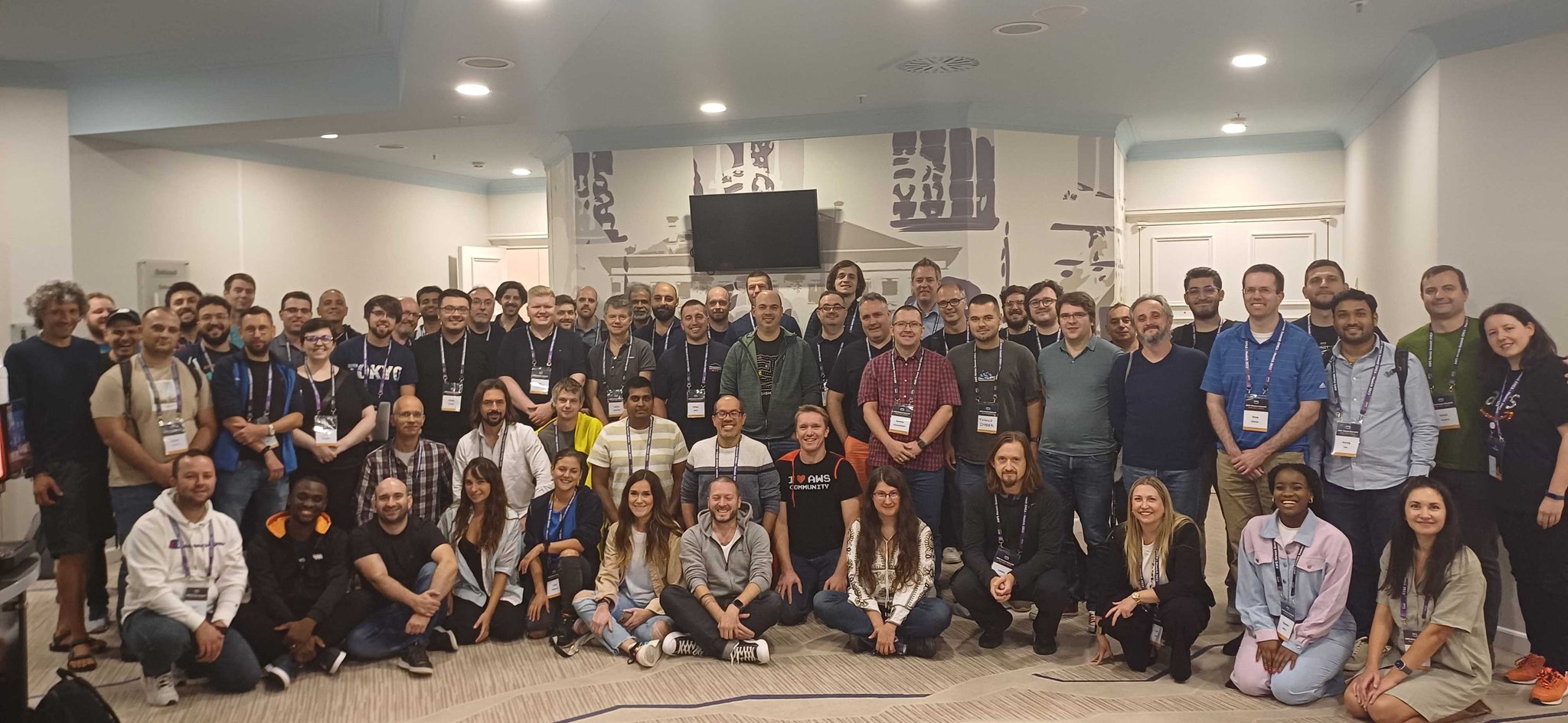
While daylight is getting shorter in the Northern hemisphere, we’ve got two new EC2 instance types optimized for compute and memory and many new capabilities for other services. Last week there was also the EMEA AWS Heroes Summit in Munich, an amazing day full of insights and passion. Here’s a nice picture of the participants!

AWS Heroes Summit EMEA 2023 in Munich

Last Week’s Launches
Here are some of the launches that caught my attention last week:

C7i Instances – Powered by custom 4th Generation Intel Xeon Scalable processors (code-named Sapphire Rapids) and available only on AWS, these compute-optimized instances offer up to 15 percent better performance over comparable x86-based Intel processors used by other cloud providers. A great choice for all compute-intensive workloads, such as batch processing, distributed analytics, high performance computing (HPC), ad serving, highly scalable multiplayer gaming, and video encoding, C7i instances deliver up to 15 percent better price performance versus C6i instances.

vCPUs
Memory (GiB)
Network Bandwidth
EBS Bandwidth
c7i.large 2 4 Up to 12.5 Gbps Up to 10 Gbps
c7i.xlarge 4 8 Up to 12.5 Gbps Up to 10 Gbps
c7i.2xlarge 8 16 Up to 12.5 Gbps Up to 10 Gbps
c7i.4xlarge 16 32 Up to 12.5 Gbps Up to 10 Gbps
c7i.8xlarge 32 64 12.5 Gbps 10 Gbps
c7i.12xlarge 48 96 18.75 Gbps 15 Gbps
c7i.16xlarge 64 128 25 Gbps 20 Gbps
c7i.24xlarge 96 192 37.5 Gbps 30 Gbps
c7i.48xlarge 192 384 50 Gbps 40 Gbps
c7i.metal-24xl* 96 192 37.5 Gbps 30 Gbps
c7i.metal-48xl* 192 384 50 Gbps 40 Gbps

*Bare metal instances are coming soon.

To facilitate efficient offload and acceleration of data operations and optimize performance for workloads, C7i instances support built-in Intel accelerators such as Data Streaming Accelerator (DSA), In-Memory Analytics Accelerator (IAA), QuickAssist Technology (QAT), and the new Intel Advanced Matrix Extensions (AMX) that accelerate matrix multiplication operations for applications such as CPU-based ML.

EC2 R7a Instances – Powered by 4th Gen AMD EPYC processors (code-named Genoa) with a maximum frequency of 3.7 GHz, these memory optimized instances deliver up to 50 percent higher performance compared to R6a instances and are ideal for high performance, memory-intensive workloads such as SQL and NoSQL databases, distributed web scale in-memory caches, in-memory databases, real-time big data analytics, and Electronic Design Automation (EDA) applications. Read more in Channy’s blog post.

Knowledge Base for Amazon Bedrock (Preview) – To deliver more relevant and contextual responses, Bedrock can now manage both the ingestion workflow and runtime orchestration to connect your organization’s private data sources to foundation models (FMs) and enable retrieval augmented generation (RAG) for your generative AI applications. To store data, you can choose from a range of vector databases including the vector engine for Amazon OpenSearch Serverless, Pinecone, and Redis Enterprise Cloud. Read more in Antje’s blog post.

High Query Rates with Amazon OpenSearch Serverless Extends Auto-Scaling – You can now rely on OpenSearch Serverless to help manage unpredictable surges in your search and query traffic and efficiently handle tens of thousands of query transactions per minute.

Amazon EMR on EKS – You can now improve resource utilization and simplify infrastructure management by using EMR to run Apache Flink (Public Preview) on the same Amazon EKS cluster as your other applications. Also, to provide a secure, stable, high-performance environment with the latest enhancements such as kernel, toolchain, glibc, and openssl, you can now use Amazon Linux 2023 as the operating system together with Java 17 as Java runtime to run your workloads with Amazon EMR on EKS.

Amazon Connect – Amazon Connect Cases now supports uploading attachments to a case, enabling agents to have the information they need at their fingertips in order to resolve cases, and displaying the author name for comments that are written on cases, to more easily track who contributed to the resolution of the case and collaborate more effectively. To receive near real-time stream of contact (voice calls, chat, and task) events (for example, call is queued) in a contact center, you can now subscribe to the new Contact Data Updated event.

Custom Notifications for AWS Chatbot – This lets you include additional information, such as number of orders or current throttling limits, when monitoring the health and performance of your AWS applications in Microsoft Teams and Slack channels.

AWS IAM Identity Center Session Duration Increased Up to 90 Days – You now have more flexibility based on your security context and desired end-user experience. Previously, the maximum duration was 7 days. The default session duration continues to be 8 hours and existing customer-configured session limits will remain unchanged.

Full Support of GraphQL APIs in Amplify Studio – You can now generate forms connected to your API, manage records in your API with Data Manager, and create data-bound Figma to React components for GraphQL APIs created with Amplify Studio or Amplify CLI. Previously, these data-powered features were only available when using Amplify DataStore.

Nested Filtering for AWS AppSync WebSockets-Based Subscriptions – You now have additional control over how data should be published out to connected clients by using filtering rules that allow you to target specific sub-items within the published data. Read more in this blog post.

API Gateway Console Refresh – There are usability improvements to REST and WebSocket API workflows (now visually aligned with the console experience of HTTP APIs) and dark mode support. Accessibility enhancements also help to better integrate with assistive technology.

Override Retention Capability for AWS Supply Chain – Manual forecast adjustments made by a demand planner are now automatically saved and reapplied from one planning cycle to the next.

Other AWS News

Serverless Development on AWS – Book CoverServerless Development on AWSAWS Hero Sheen Brisals and his colleague Luke Hedger revealed that they are sharing their expertise with a book that helps build enterprise-scale serverless solutions on AWS. The book outlines the adoption requirements in terms of people, mindset, and workloads, and details architectural patterns, security, and data best practices for building serverless applications.

More posts from AWS blogs – Here are a few posts from some of the other AWS and cloud blogs that I follow:

Upcoming AWS Events
Check your calendars and sign up for these AWS events:

AWS On Tour, Sept. 18-Oct. 6 – The AWS Developer Relations team is boarding a bus and traveling across European cities (London, Paris, Brussels, Amsterdam, Frankfurt, Zurich, Milan, Lyon, and Barcelona) to share their experiences and help you improve productivity.

AWS Global Summits, Sept. 26 – The last in-person AWS Summit of the year will be held in Johannesburg on Sept. 26.

CDK Day, Sept. 29Learn more at the website about this community-led fully virtual event with tracks in English and Spanish about CDK and related projects.

AWS re:Invent, Nov. 27-Dec. 1 – Browsing the session catalog is a nice way to start planning your re:Invent. Join us to hear the latest from AWS, learn from experts, and connect with the global cloud community.

AWS Community Days – Join a community-led conference run by AWS user group leaders in your region: Netherlands (Sept. 20), Spain (Sept. 23), Zimbabwe (Sept. 30), Peru (Sept. 30), Chile (Sept. 30), and Bulgaria (Oct. 7). Visit the landing page to check out all the upcoming AWS Community Days.

You can browse all upcoming AWS-led in-person and virtual events, and developer-focused events such as AWS DevDay.

Danilo

This post is part of our Weekly Roundup series. Check back each week for a quick roundup of interesting news and announcements from AWS!

Building resilient serverless applications using chaos engineering

Post Syndicated from Marcia Villalba original https://aws.amazon.com/blogs/compute/building-resilient-serverless-applications-using-chaos-engineering/

This post is written by Suranjan Choudhury (Head of TME and ITeS SA) and Anil Sharma (Sr PSA, Migration) 

Chaos engineering is the process of stressing an application in testing or production environments by creating disruptive events, such as outages, observing how the system responds, and implementing improvements. Chaos engineering helps you create the real-world conditions needed to uncover hidden issues and performance bottlenecks that are challenging to find in distributed applications.

You can build resilient distributed serverless applications using AWS Lambda and test Lambda functions in real world operating conditions using chaos engineering.  This blog shows an approach to inject chaos in Lambda functions, making no change to the Lambda function code. This blog uses the AWS Fault Injection Simulator (FIS) service to create experiments that inject disruptions for Lambda based serverless applications.

AWS FIS is a managed service that performs fault injection experiments on your AWS workloads. AWS FIS is used to set up and run fault experiments that simulate real-world conditions to discover application issues that are difficult to find otherwise. You can improve application resilience and performance using results from FIS experiments.

The sample code in this blog introduces random faults to existing Lambda functions, like an increase in response times (latency) or random failures. You can observe application behavior under introduced chaos and make improvements to the application.

Approaches to inject chaos in Lambda functions

AWS FIS currently does not support injecting faults in Lambda functions. However, there are two main approaches to inject chaos in Lambda functions: using external libraries or using Lambda layers.

Developers have created libraries to introduce failure conditions to Lambda functions, such as chaos_lambda and failure-Lambda. These libraries allow developers to inject elements of chaos into Python and Node.js Lambda functions. To inject chaos using these libraries, developers must decorate the existing Lambda function’s code. Decorator functions wrap the existing Lambda function, adding chaos at runtime. This approach requires developers to change the existing Lambda functions.

You can also use Lambda layers to inject chaos, requiring no change to the function code, as the fault injection is separated. Since the Lambda layer is deployed separately, you can independently change the element of chaos, like latency in response or failure of the Lambda function. This blog post discusses this approach.

Injecting chaos in Lambda functions using Lambda layers

A Lambda layer is a .zip file archive that contains supplementary code or data. Layers usually contain library dependencies, a custom runtime, or configuration files. This blog creates an FIS experiment that uses Lambda layers to inject disruptions in existing Lambda functions for Java, Node.js, and Python runtimes.

The Lambda layer contains the fault injection code. It is invoked prior to invocation of the Lambda function and injects random latency or errors. Injecting random latency simulates real world unpredictable conditions. The Java, Node.js, and Python chaos injection layers provided are generic and reusable. You can use them to inject chaos in your Lambda functions.

The Chaos Injection Lambda Layers

Java Lambda Layer for Chaos Injection

Java Lambda Layer for Chaos Injection

The chaos injection layer for Java Lambda functions uses the JAVA_TOOL_OPTIONS environment variable. This environment variable allows specifying the initialization of tools, specifically the launching of native or Java programming language agents. The JAVA_TOOL_OPTIONS has a javaagent parameter that points to the chaos injection layer. This layer uses Java’s premain method and the Byte Buddy library for modifying the Lambda function’s Java class during runtime.

When the Lambda function is invoked, the JVM uses the class specified with the javaagent parameter and invokes its premain method before the Lambda function’s handler invocation. The Java premain method injects chaos before Lambda runs.

The FIS experiment adds the layer association and the JAVA_TOOL_OPTIONS environment variable to the Lambda function.

Python and Node.js Lambda Layer for Chaos Injection

Python and Node.js Lambda Layer for Chaos Injection

When injecting chaos in Python and Node.js functions, the Lambda function’s handler is replaced with a function in the respective layers by the FIS aws:ssm:start-automation-execution action. The automation, which is an SSM document, saves the original Lambda function’s handler to in AWS Systems Manager Parameter Store, so that the changes can be rolled back once the experiment is finished.

The layer function contains the logic to inject chaos. At runtime, the layer function is invoked, injecting chaos in the Lambda function. The layer function in turn invokes the Lambda function’s original handler, so that the functionality is fulfilled.

The result in all runtimes (Java, Python, or Node.js), is invocation of the original Lambda function with latency or failure injected. The observed changes are random latency or failure injected by the layer.

Once the experiment is completed, an SSM document is provided. This rolls back the layer’s association to the Lambda function and removes the environment variable, in the case of the Java runtime.

Sample FIS experiments using SSM and Lambda layers

In the sample code provided, Lambda layers are provided for Python, Node.js and Java runtimes along with sample Lambda functions for each runtime.

The sample deploys the Lambda layers and the Lambda functions, FIS experiment template, AWS Identity and Access Management (IAM) roles needed to run the experiment, and the AWS Systems Manger (SSM) Documents. AWS CloudFormation template is provided for deployment.

Step 1: Complete the prerequisites

  • To deploy the sample code, clone the repository locally:
    git clone https://github.com/aws-samples/chaosinjection-lambda-samples.git
  • Complete the prerequisites documented here.

Step 2: Deploy using AWS CloudFormation

The CloudFormation template provided along with this blog deploys sample code. Execute runCfn.sh.

When this is complete, it returns the StackId that CloudFormation created:

Step 3: Run the chaos injection experiment

By default, the experiment is configured to inject chaos in the Java sample Lambda function. To change it to Python or Node.js Lambda functions, edit the experiment template and configure it to inject chaos using steps from here.

Step 4: Start the experiment

From the FIS Console, choose Start experiment.

 Start experiment

Wait until the experiment state changes to “Completed”.

Step 5: Run your test

At this stage, you can inject chaos into your Lambda function. Run the Lambda functions and observe their behavior.

1. Invoke the Lambda function using the command below:

aws lambda invoke --function-name NodeChaosInjectionExampleFn out --log-type Tail --query 'LogResult' --output text | base64 -d

2. The CLI commands output displays the logs created by the Lambda layers showing latency introduced in this invocation.

In this example, the output shows that the Lambda layer injected 1799ms of random latency to the function.

The experiment injects random latency or failure in the Lambda function. Running the Lambda function again results in a different latency or failure. At this stage, you can test the application, and observe its behavior under conditions that may occur in the real world, like an increase in latency or Lambda function’s failure.

Step 6: Roll back the experiment

To roll back the experiment, run the SSM document for rollback. This rolls back the Lambda function to the state before chaos injection. Run this command:

aws ssm start-automation-execution \
--document-name “InjectLambdaChaos-Rollback” \
--document-version “\$DEFAULT” \
--parameters \
‘{“FunctionName”:[“FunctionName”],”LayerArn”:[“LayerArn”],”assumeRole”:[“RoleARN
”]}’ \
--region eu-west-2

Cleaning up

To avoid incurring future charges, clean up the resources created by the CloudFormation template by running the following CLI command. Update the stack name to the one you provided when creating the stack.

aws cloudformation delete-stack --stack-name myChaosStack

Using FIS Experiments results

You can use FIS experiment results to validate expected system behavior. An example of expected behavior is: “If application latency increases by 10%, there is less than a 1% increase in sign in failures.” After the experiment is completed, evaluate whether the application resiliency aligns with your business and technical expectations.

Conclusion

This blog explains an approach for testing reliability and resilience in Lambda functions using chaos engineering. This approach allows you to inject chaos in Lambda functions without changing the Lambda function code, with clear segregation of chaos injection and business logic. It provides a way for developers to focus on building business functionality using Lambda functions.

The Lambda layers that inject chaos can be developed and managed separately. This approach uses AWS FIS to run experiments that inject chaos using Lambda layers and test serverless application’s performance and resiliency. Using the insights from the FIS experiment, you can find, fix, or document risks that surface in the application while testing.

For more serverless learning resources, visit Serverless Land.

Explore real-world use cases for Amazon CodeWhisperer powered by AWS Glue Studio notebooks

Post Syndicated from Ishan Gaur original https://aws.amazon.com/blogs/big-data/explore-real-world-use-cases-for-amazon-codewhisperer-powered-by-aws-glue-studio-notebooks/

Many customers are interested in boosting productivity in their software development lifecycle by using generative AI. Recently, AWS announced the general availability of Amazon CodeWhisperer, an AI coding companion that uses foundational models under the hood to improve software developer productivity. With Amazon CodeWhisperer, you can quickly accept the top suggestion, view more suggestions, or continue writing your own code. This integration reduces the overall time spent in writing data integration and extract, transform, and load (ETL) logic. It also helps beginner-level programmers write their first lines of code. AWS Glue Studio notebooks allows you to author data integration jobs with a web-based serverless notebook interface.

In this post, we discuss real-world use cases for CodeWhisperer powered by AWS Glue Studio notebooks.

Solution overview

For this post, you use the CSV eSports Earnings dataset, available to download via Kaggle. The data is scraped from eSportsEarnings.com, which provides information on earnings of eSports players and teams. The objective is to perform transformations using an AWS Glue Studio notebook with CodeWhisperer recommendations and then write the data back to Amazon Simple Storage Service (Amazon S3) in Parquet file format as well as to Amazon Redshift.

Prerequisites

Our solution has the following prerequisites:

  1. Set up AWS Glue Studio.
  2. Configure an AWS Identity and Access Management (IAM) role to interact with CodeWhisperer. Attach the following policy to your IAM role that is attached to the AWS Glue Studio notebook:
    {
        "Version": "2012-10-17",
        "Statement": [{
            "Sid": "CodeWhispererPermissions",
            "Effect": "Allow",
            "Action": [
                "codewhisperer:GenerateRecommendations"
            ],
            "Resource": "*"
        }]
    }

  3. Download the CSV eSports Earnings dataset and upload the CSV file highest_earning_players.csv to the S3 folder you will be using in this use case.

Create an AWS Glue Studio notebook

Let’s get started. Create a new AWS Glue Studio notebook job by completing the following steps:

  1. On the AWS Glue console, choose Notebooks under ETL jobs in the navigation pane.
  2. Select Jupyter Notebook and choose Create.
  3. For Job name, enter CodeWhisperer-s3toJDBC.

A new notebook will be created with the sample cells as shown in the following screenshot.

We use the second cell for now, so you can remove all the other cells.

  1. In the second cell, update the interactive session configuration by setting the following:
    1. Worker type to G.1X
    2. Number of workers to 3
    3. AWS Glue version to 4.0
  2. Moreover, import the DynamicFrame module and current_timestamp function as follows:
    from pyspark.sql.functions import current_timestamp
    from awsglue.dynamicframe import DynamicFrame

After you make these changes, the notebook should be looking like the following screenshot.

Now, let’s ensure CodeWhisperer is working as intended. At the bottom right, you will find the CodeWhisperer option beside the Glue PySpark status, as shown in the following screenshot.

You can choose CodeWhisperer to view the options to use Auto-Suggestions.

Develop your code using CodeWhisperer in an AWS Glue Studio notebook

In this section, we show how to develop an AWS Glue notebook job for Amazon S3 as a data source and JDBC data sources as a target. For our use case, we need to ensure Auto-Suggestions are enabled. Write your recommendation using CodeWhisperer using the following steps:

  1. Write a comment in natural language (in English) to read Parquet files from your S3 bucket:
    # Read CSV files from S3

After you enter the preceding comment and press Enter, the CodeWhisperer button at the end of the page will show that it is running to write the recommendation. The output of the CodeWhisperer recommendation will appear in the next line and the code is chosen after you press Tab. You can learn more in User actions.

After you enter the preceding comment, CodeWhisperer will generate a code snippet that is similar to the following:

df = (spark.read.format("csv")
      .option("header", "true")
      .option("inferSchema", "true")
      .load("s3://<bucket>/<path>/highest_earning_players.csv"))

Note that you need to update the paths to match the S3 bucket you’re using instead of the CodeWhisperer-generated bucket.

From the preceding code snippet, CodeWhisperer used Spark DataFrames to read the CSV files.

  1. You can now try some rephrasing to get a suggestion with DynamicFrame functions:
# Read CSV file from S3 with the header format option using DynamicFrame"

Now CodeWhisperer will generate a code snippet that is close to the following:

dyF = glueContext.create_dynamic_frame.from_options(
    connection_type="s3",
    connection_options={
        "paths": ["s3://<bucket>/<path>/highest_earning_players.csv"],
        "recurse": True,
    },
    format="csv",
    format_options={
        "withHeader": True,
    },
    transformation_ctx="dyF")

Rephrasing the sentences written now has proved that after some modifications to the comments we wrote, we got the correct recommendation from CodeWhisperer.

  1. Next, use CodeWhisperer to print the schema of the preceding AWS Glue DynamicFrame by using the following comment:
    # Print the schema of the above DynamicFrame

CodeWhisperer will generate a code snippet that is close to the following:

dyF.printSchema()

We get the following output.

Now we use CodeWhisperer to create some transformation functions that can manipulate the AWS Glue DynamicFrame read earlier. We start by entering code in a new cell.

  1. First, test if CodeWhisperer can use the correct AWS Glue context functions like ResolveChoice:
    # Convert the "PlayerId" type from string to integer

CodeWhisperer has recommended a code snippet similar to the following:

dyF = dyF.resolveChoice(specs=[('PlayerId', 'cast:long')])
dyF.printSchema()

The preceding code snippet doesn’t accurately represent the comment that we entered.

  1. You can apply sentence paraphrasing and simplifying by providing the following three comments. Each one has different ask and we use the withColumn Spark Frame method, which is used in casting columns types:
    # Convert the DynamicFrame to spark data frame
    # Cast the 'PlayerId' column from string to Integer using WithColumn function
     # Convert the spark frame back to DynamicFrame and print the schema

CodeWhisperer will pick up the preceding commands and recommend the following code snippet in sequence:

df = dyF.toDF()
df = df.withColumn("PlayerId", df["PlayerId"].cast("integer"))
dyF = DynamicFrame.fromDF(df, glueContext, "dyF")
dyF.printSchema()

The following output confirms the PlayerId column is changed from string to integer.

  1. Apply the same process to the resultant AWS Glue DynamicFrame for the TotalUSDPrize column by casting it from string to long using the withColumn Spark Frame functions by entering the following comments:
    # Convert the dynamicFrame to Spark Frame
    # Cast the "TotalUSDPrize" column from String to long
    # Convert the spark frame back to dynamic frame and print the schema

The recommended code snippet is similar to the following:

df = dyF.toDF()
df = df.withColumn("TotalUSDPrize", df["TotalUSDPrize"].cast("long"))
dyF = DynamicFrame.fromDF(df, glueContext, "dyF")
dyF.printSchema()

The output schema of the preceding code snippet is as follows.

Now we will try to recommend a code snippet that reflects the average prize for each player according to their country code.

  1. To do so, start by getting the count of the player per each country:
    # Get the count of each country code

The recommended code snippet is similar to the following:

country_code_count = df.groupBy("CountryCode").count()
country_code_count.show()

We get the following output.

  1. Join the main DataFrame with the country code count DataFrame and then add a new column calculating the average highest prize for each player according to their country code:
    # Convert the DynamicFrame (dyF) to dataframe (df)
    # Join the dataframe (df) with country_code_count dataframe with respect to CountryCode column
    # Convert the spark frame back to DynamicFrame and print the schema

The recommended code snippet is similar to the following:

df = dyF.toDF()
df = df.join(country_code_count, "CountryCode")
dyF = DynamicFrame.fromDF(df, glueContext, "dyF")
dyF.printSchema()

The output of the schema now confirms the both DataFrames where correctly joined and the Count column is added to the main DataFrame.

  1. Get the code recommendation on the code snippet to calculate the average TotalUSDPrize for each country code and add it to a new column:
    # Get the sum of all the TotalUSDPrize column per countrycode
    # Rename the sum column to be "SumPrizePerCountry" in the newly generated dataframe

The recommended code snippet is similar to the following:

country_code_sum = df.groupBy("CountryCode").sum("TotalUSDPrize")
country_code_sum = country_code_sum.withColumnRenamed("sum(TotalUSDPrize)", "SumPrizePerCountry")
country_code_sum.show()

The output of the preceding code should look like the following.

  1. Join the country_code_sum DataFrame with the main DataFrame from earlier and get the average of the prizes per player per country:
    # Join the above dataframe with the main dataframe with respect to CountryCode
    # Get the average Total prize in USD per player per country and add it to a new column called "AveragePrizePerPlayerPerCountry"

The recommended code snippet is similar to the following:

df = df.join(country_code_sum, "CountryCode")
df = df.withColumn("AveragePrizePerPlayerPerCountry", df["SumPrizePerCountry"] / df["count"])
  1. The last part in the transformation phase is to sort the data by the highest average prize per player per country:
    # sort the above dataframe descendingly according to the highest Average Prize per player country
    # Show the top 5 rows

The recommended code snippet is similar to the following:

df = df.sort(df["AveragePrizePerPlayerPerCountry"].desc())
df.show(5)

The first five rows will be similar to the following.

For the last step, we write the DynamicFrame to Amazon S3 and to Amazon Redshift.

  1. Write the DynamicFrame to Amazon S3 with the following code:
    # Convert the data frame to DynamicFrame
    # Write the DynamicFrame to S3 in glueparquet format

The CodeWhisperer recommendation is similar to the following code snippet:

dyF = DynamicFrame.fromDF(df, glueContext, "dyF")

glueContext.write_dynamic_frame.from_options(
frame=dyF,
connection_type="s3",
connection_options={
"path": "s3://<enter your own>/",
"partitionKeys": [],
},
format = "glueparquet",
)

We need to correct the code snippet generated after the recommendation because it doesn’t contain partition keys. As we pointed out, partitionkeys is empty, so we can have another code block suggestion to set partitionkey and then write it to the target Amazon S3 location. Also, according to the newest updates related to writing DynamicFrames to Amazon S3 using glueparquet, format = "glueparquet" is no longer used. Instead, you need to use the parquet type with useGlueParquetWriter enabled.

After the updates, our code looks similar to the following:

dyF = DynamicFrame.fromDF(df, glueContext, "dyF")

glueContext.write_dynamic_frame.from_options(
frame=dyF,
connection_type="s3",
connection_options={
"path": "s3://<enter your own>/",
},
format = "parquet",
 format_options={
 "useGlueParquetWriter": True,
    },
)

Another option here would be to write the files to Amazon Redshift using a JDBC connection.

  1. First, enter the following command to check whether CodeWhisperer will understand the comment in one sentence and use the correct functions or not:
    # Write the DynamicFrame to Redshift
    # Select only the following 3 columns in the DynamicFrame to write to redshift: CountryCode, TotalUSDPrize, NameFirst, NameLast, AveragePrizePerPlayerPerCountr

The output of the comment is similar to the following code snippet:

dyF = dyF.select_fields(["CountryCode", "TotalUSDPrize", "NameFirst","NameLast","AveragePrizePerPlayerPerCountry"])
glueContext.write_dynamic_frame.from_options(
    frame=dyF,
    connection_type="redshift",
    connection_options={
        "url": "jdbc:redshift://omarglueblog.cjzxbkzmhwqm.us-east-1.redshift.amazonaws.com:5439/omarglueblog",
        "user": "omarglueblog",
        "password": "omarglueblog",
        "dbtable": "highest_earning_players_redshift",
        "driver": "com.amazon.redshift.jdbc42.Driver",
        "preactions": "truncate table highest_earning_players_redshift",
        "redshiftTmpDir": "s3://awsgluetest/tmp/",
        "aws_iam_role": "0000000000000000000000000:role/glue-role",
    },
     format = "redshift",
     transformation_ctx="dyF"
    
)

As we can see, CodeWhisperer correctly interpreted the comment by selecting only the specified columns to write to Amazon Redshift.

  1. Now, use CodeWhisperer to write the DynamicFrame to Amazon Redshift. We use the Preaction parameter to run a SQL query to select only certain columns to be written to Amazon Redshift:
    # Write the resultant DynamicFrame to Redshift 
    # using preaction that selects only the following columns: CountryCode, TotalUSDPrize, NameFirst, NameLast, AveragePrizePerPlayerPerCountry

The CodeWhisperer recommendation is similar to the following code snippet:

glueContext.write_dynamic_frame.from_options(
    frame = dyf,
    connection_type = "redshift",
    connection_options = {
        "url": "jdbc:redshift://awsgluetest.cjw8y5zdqmhz.us-east-1.redshift.amazonaws.com:5439/dev",
        "user": "awsuser",
        "password": "awsuser",
        "dbtable": "players",
        "preactions": "SELECT CountryCode, TotalUSDPrize, NameFirst, NameLast, AveragePrizePerPlayerPerCountry FROM highest_earning_player",
        "redshiftTmpDir": "s3://awsgluetest/tmp/"
        },
    format = "glueparquet",
    transformation_ctx = "write_dynamic_frame")

After checking the preceding code snippet, you can observe that there is a misplaced format, which you can remove. You can also add the iam_role as an input in connection_options. You can also notice that CodeWhisperer has automatically assumed the Redshift URL to have the same name as the S3 folder that we used. Therefore, you need to change the URL and the S3 temp directory bucket to reflect your own parameters and remove the password parameter. The final code snippet should be similar to the following:

glueContext.write_dynamic_frame.from_options(
frame=dyF,
connection_type="redshift",
connection_options={
"url": "jdbc:redshift://<enter your own>.cjwjn5pzxbhx.us-east-1.redshift.amazonaws.com:5439/<enter your own>",
"user": "<enter your own>",
"dbtable": "<enter your own>",
"driver": "com.amazon.redshift.jdbc42.Driver",
"preactions": "SELECT CountryCode, TotalUSDPrize, NameFirst, NameLast, AveragePrizePerPlayerPerCountry FROM <enter your table>",
"redshiftTmpDir": "<enter your own>",
"aws_iam_role": "<enter your own>",
}
)

The following is the whole code and comment snippets:

%idle_timeout 2880
%glue_version 4.0
%worker_type G.1X
%number_of_workers 3

import sys
from awsglue.transforms import *
from awsglue.utils import getResolvedOptions
from pyspark.context import SparkContext
from awsglue.context import GlueContext
from awsglue.job import Job
from pyspark.sql.functions import current_timestamp
from awsglue.DynamicFrame import DynamicFrame


sc = SparkContext.getOrCreate()
glueContext = GlueContext(sc)
spark = glueContext.spark_session
job = Job(glueContext)


# Read CSV files from S3
dyF = glueContext.create_dynamic_frame.from_options(
    connection_type="s3",
    connection_options={
        "paths": ["s3://<bucket>/<path>/highest_earning_players.csv"],
        "recurse": True,
    },
    format="csv",
    format_options={
        "withHeader": True,
    },
    transformation_ctx="dyF")
    
# Print the schema of the above DynamicFrame
dyF.printSchema()


# Convert the DynamicFrame to spark data frame
# Cast the 'PlayerId' column from string to Integer using WithColumn function
# Convert the spark frame back to DynamicFrame and print the schema
df = dyF.toDF()
df = df.withColumn("PlayerId", df["PlayerId"].cast("integer"))
dyF = DynamicFrame.fromDF(df, glueContext, "dyF")
dyF.printSchema()


# Convert the dynamicFrame to Spark Frame
# Cast the "TotalUSDPrize" column from String to long
# Convert the spark frame back to dynamic frame and print the schema
df = dyF.toDF()
df = df.withColumn("TotalUSDPrize", df["TotalUSDPrize"].cast("long"))
dyF = DynamicFrame.fromDF(df, glueContext, "dyF")
dyF.printSchema()

# Get the count of each country code
country_code_count = df.groupBy("CountryCode").count()
country_code_count.show()

# Convert the DynamicFrame (dyF) to dataframe (df)
# Join the dataframe (df) with country_code_count dataframe with respect to CountryCode column
# Convert the spark frame back to DynamicFrame and print the schema
df = dyF.toDF()
df = df.join(country_code_count, "CountryCode")
df.printSchema()

# Get the sum of all the TotalUSDPrize column per countrycode
# Rename the sum column to be "SumPrizePerCountry"
country_code_sum = df.groupBy("CountryCode").sum("TotalUSDPrize")
country_code_sum = country_code_sum.withColumnRenamed("sum(TotalUSDPrize)", "SumPrizePerCountry")
country_code_sum.show()

# Join the above dataframe with the main dataframe with respect to CountryCode
# Get the average Total prize in USD per player per country and add it to a new column called "AveragePrizePerPlayerPerCountry"
df.join(country_code_sum, "CountryCode")
df = df.withColumn("AveragePrizePerPlayerPerCountry", df["SumPrizePerCountry"] / df["count"])

# sort the above dataframe descendingly according to the highest Average Prize per player country
# Show the top 5 rows
df = df.sort(df["AveragePrizePerPlayerPerCountry"].desc())
df.show(5)

# Convert the data frame to DynamicFrame
# Write the DynamicFrame to S3 in glueparquet format
dyF = DynamicFrame.fromDF(df, glueContext, "dyF")

glueContext.write_dynamic_frame.from_options(
frame=dyF,
connection_type="s3",
connection_options={
"path": "s3://<enter your own>/",
},
format = "parquet",
 format_options={
 "useGlueParquetWriter": True,
    },
)

# Write the resultant DynamicFrame to Redshift 
# using preaction that selects only the following columns: CountryCode, TotalUSDPrize, NameFirst, NameLast, AveragePrizePerPlayerPerCountry
glueContext.write_dynamic_frame.from_options(
frame=dyF,
connection_type="redshift",
connection_options={
"url": "jdbc:redshift://<enter your own>.cjwjn5pzxbhx.us-east-1.redshift.amazonaws.com:5439/<enter your own>",
"user": "<enter your own>",
"dbtable": "<enter your own>",
"driver": "com.amazon.redshift.jdbc42.Driver",
"preactions": "SELECT CountryCode, TotalUSDPrize, NameFirst, NameLast, AveragePrizePerPlayerPerCountry FROM <enter your table>",
"redshiftTmpDir": "<enter your own>",
"aws_iam_role": "<enter your own>",
}
)

Conclusion

In this post, we demonstrated a real-world use case on how AWS Glue Studio notebook integration with CodeWhisperer helps you build data integration jobs faster. You can start using the AWS Glue Studio notebook with CodeWhisperer to accelerate building your data integration jobs.

To learn more about using AWS Glue Studio notebooks and CodeWhisperer, check out the following video.


About the authors

Ishan Gaur works as Sr. Big Data Cloud Engineer ( ETL ) specialized in AWS Glue. He’s passionate about helping customers building out scalable distributed ETL workloads and analytics pipelines on AWS.

Omar Elkharbotly is a Glue SME who works as Big Data Cloud Support Engineer 2 (DIST). He is dedicated to assisting customers in resolving issues related to their ETL workloads and creating scalable data processing and analytics pipelines on AWS.


[$] Moving physical pages from user space

Post Syndicated from corbet original https://lwn.net/Articles/944115/

Processes in a Linux system run within their own virtual address spaces.
Their virtual addresses map to physical pages provided by the hardware, but
the kernel takes pains to hide the physical addresses of those pages;
processes normally have no way of knowing (and no need to know) where their
memory is located in physical memory. As a result, the system calls for
memory management also deal in virtual addresses. Gregory Price is
currently trying to create an exception to this rule with a
proposal
for a new system call that would operate on memory using physical
addresses.

Best Practices for Writing Step Functions Terraform Projects

Post Syndicated from Patrick Guha original https://aws.amazon.com/blogs/devops/best-practices-for-writing-step-functions-terraform-projects/

Terraform by HashiCorp is one of the most popular infrastructure-as-code (IaC) platforms. AWS Step Functions is a visual workflow service that helps developers use AWS services to build distributed applications, automate processes, orchestrate microservices, and create data and machine learning (ML) pipelines. In this blog, we showcase best practices for users leveraging Terraform to deploy workflows, also known as Step Functions state machines. We will create a state machine using Workflow Studio for AWS Step Functions, deploy the state machine with Terraform, and introduce best operating practices on topics such as project structure, modules, parameter substitution, and remote state.

We recommend that you have a working understanding of both Terraform and Step Functions before going through this blog. If you are brand new to Step Functions and/or Terraform, please visit the Introduction to Terraform on AWS Workshop and the Terraform option in the Managing State Machines with Infrastructure as Code section of The AWS Step Functions Workshop to learn more.

Step Functions and Terraform Project Structure

One of the most important parts of any software project is its structure. It must be clear and well-organized for yourself or any member of your team to pick up and start coding efficiently. A Step Functions project using Terraform can potentially have many moving parts and components, so it is especially important to modularize and label wherever possible. Let’s take a look at a project structure that will allow for modularization, re-usability, and extensibility:

mkdir sfn-tf-example
cd sfn-tf-example
mkdir -p -- statemachine modules functions/first-function/src
touch main.tf outputs.tf variables.tf .gitignore functions/first-function/src/lambda.py
tree

Before moving forward, let’s analyze the directory, subdirectories, and files created above:

  • /statemachine will hold our Amazon States Language (ASL) JSON code describing the Step Functions state machine definition. This is where the orchestration logic will reside, so it is prudent to keep it separated from the infrastructure code. If you are deploying multiple state machines in your project, each definition will have its own JSON file. If you prefer, you can specify separate folders for each state machine to further modularize and isolate the logic.
  • /functions subdirectory includes the actual code for AWS Lambda functions used in our state machine. Keeping this code here will be much easier to read than writing it inline in our main.tf file.
  • The last subdirectory we have is /modules. Terraform modules are higher level abstracts explaining new concepts in your architecture. However, do not fall into the trap of making a custom module for everything. Doing so will make your code harder to maintain, and AWS provider resources will often suffice. There are also very popular modules that you can use from the Terraform Registry, such as Terraform AWS modules. Whenever possible, one should re-use modules to avoid code duplication in your project.
  • The remaining files in the root of the project are common to all Terraform projects. There are going to be hidden files created by your Terraform project after running terraform init, so we will include a .gitignore. What you include in .gitignore is largely dependent on your codebase and what your tools silently create in the background. In a later section, we will explicitly call out *.tfstate files in our .gitignore, and go over best practices for managing Terraform state securely and remotely.

Initial Code and Project Setup

We are going to create a simple Step Functions state machine that will only execute a single Lambda function. However, we will need to create the Lambda function that the state machine will reference. We first need to create our Lambda function code and save it in the following the directory structure and file mentioned above: functions/first-function/src/lambda.py.

import boto3

def lambda_handler(event, context):
# Minimal function for demo purposes
	return True

In Terraform, the main configuration file is named main.tf. This is the file that the Terraform CLI will look for in the local directory. Although you can break down your template into multiple .tf files, main.tf must be one of them. In this file, we will define the required providers and their minimum version, along with the resource definition of our template. In the example below, we define the minimum resources needed for a simple state machine that only executes a Lambda function. We define the two AWS Identity and Access Management (IAM) roles that our Lambda function and state machine will use, respectively. We define a data resource that zips the Lambda function code, which is then used in the Lambda function definition. Also notice that we use the aws_iam_policy_document data source throughout. Using the official IAM policy document means both your integrated development environment (IDE) and Terraform can see if your policy is malformed before running terraform apply. Finally, we define an Amazon CloudWatch Log group that will be used by the Lambda function to store its execution logs.

Terraform {
  required_providers {
    aws = {
      source  = "hashicorp/aws"
      version = "~>4.0"
    }
  }
}

provider "aws" {}

provider "random" {}

data "aws_caller_identity" "current_account" {}

data "aws_region" "current_region" {}

resource "random_string" "random" {
  length  = 4
  special = false
}

data "aws_iam_policy_document" "lambda_assume_role_policy" {
  statement {
    effect = "Allow"

    principals {
      type        = "Service"
      identifiers = ["lambda.amazonaws.com"]
    }

    actions = [
      "sts:AssumeRole",
    ]
  }
}

resource "aws_iam_role" "function_role" {
  assume_role_policy  = data.aws_iam_policy_document.lambda_assume_role_policy.json
  managed_policy_arns = ["arn:aws:iam::aws:policy/service-role/AWSLambdaBasicExecutionRole"]
}

# Create the function
data "archive_file" "lambda" {
  type        = "zip"
  source_file = "functions/first-function/src/lambda.py"
  output_path = "functions/first-function/src/lambda.zip"
}

resource "aws_kms_key" "log_group_key" {}

resource "aws_kms_key_policy" "log_group_key_policy" {
  key_id = aws_kms_key.log_group_key.id
  policy = jsonencode({
    Id = "log_group_key_policy"
    Statement = [
      {
        Action = "kms:*"
        Effect = "Allow"
        Principal = {
          AWS = "arn:aws:iam::${data.aws_caller_identity.current_account.account_id}:root"
        }

        Resource = "*"
        Sid      = "Enable IAM User Permissions"
      },
      {
        Effect = "Allow",
        Principal = {
          Service : "logs.${data.aws_region.current_region.name}.amazonaws.com"
        },
        Action = [
          "kms:Encrypt*",
          "kms:Decrypt*",
          "kms:ReEncrypt*",
          "kms:GenerateDataKey*",
          "kms:Describe*"
        ],
        Resource = "*"
      }
    ]
    Version = "2012-10-17"
  })
}

resource "aws_lambda_function" "test_lambda" {
  function_name    = "HelloFunction-${random_string.random.id}"
  role             = aws_iam_role.function_role.arn
  handler          = "lambda.lambda_handler"
  runtime          = "python3.9"
  filename         = "functions/first-function/src/lambda.zip"
  source_code_hash = data.archive_file.lambda.output_base64sha256
}

# Explicitly create the function’s log group to set retention and allow auto-cleanup
resource "aws_cloudwatch_log_group" "lambda_function_log" {
  retention_in_days = 1
  name              = "/aws/lambda/${aws_lambda_function.test_lambda.function_name}"
  kms_key_id        = aws_kms_key.log_group_key.arn
}

# Create an IAM role for the Step Functions state machine
data "aws_iam_policy_document" "state_machine_assume_role_policy" {
  statement {
    effect = "Allow"

    principals {
      type        = "Service"
      identifiers = ["states.amazonaws.com"]
    }

    actions = [
      "sts:AssumeRole",
    ]
  }
}

resource "aws_iam_role" "StateMachineRole" {
  name               = "StepFunctions-Terraform-Role-${random_string.random.id}"
  assume_role_policy = data.aws_iam_policy_document.state_machine_assume_role_policy.json
}

data "aws_iam_policy_document" "state_machine_role_policy" {
  statement {
    effect = "Allow"

    actions = [
      "logs:CreateLogStream",
      "logs:PutLogEvents",
      "logs:DescribeLogGroups"
    ]

    resources = ["${aws_cloudwatch_log_group.MySFNLogGroup.arn}:*"]
  }

  statement {
    effect = "Allow"
    actions = [
      "cloudwatch:PutMetricData",
      "logs:CreateLogDelivery",
      "logs:GetLogDelivery",
      "logs:UpdateLogDelivery",
      "logs:DeleteLogDelivery",
      "logs:ListLogDeliveries",
      "logs:PutResourcePolicy",
      "logs:DescribeResourcePolicies",
    ]
    resources = ["*"]
  }

  statement {
    effect = "Allow"

    actions = [
      "lambda:InvokeFunction"
    ]

    resources = ["${aws_lambda_function.test_lambda.arn}"]
  }

}

# Create an IAM policy for the Step Functions state machine
resource "aws_iam_role_policy" "StateMachinePolicy" {
  role   = aws_iam_role.StateMachineRole.id
  policy = data.aws_iam_policy_document.state_machine_role_policy.json
}

# Create a Log group for the state machine
resource "aws_cloudwatch_log_group" "MySFNLogGroup" {
  name_prefix       = "/aws/vendedlogs/states/MyStateMachine-"
  retention_in_days = 1
  kms_key_id        = aws_kms_key.log_group_key.arn
}

Workflow Studio and Terraform Integration

It is important to understand the recommended steps given the different tools we have available for creating Step Functions state machines. You should use a combination of Workflow Studio and local development with Terraform. This workflow assumes you will define all resources for your application within the same Terraform project, and that you will be leveraging Terraform for managing your AWS resources.

Workflow for creating Step Functions state machine via Terraform

Figure 1 – Workflow for creating Step Functions state machine via Terraform

  1. You will write the Terraform definition for any resources you intend to call with your state machine, such as Lambda functions, Amazon Simple Storage Service (Amazon S3) buckets, or Amazon DynamoDB tables, and deploy them using the terraform apply command. Doing this prior to using Workflow Studio will be useful in designing the first version of the state machine. You can define additional resources after importing the state machine into your local Terraform project.
  2. You can use Workflow Studio to visually design the first version of the state machine. Given that you should have created the necessary resources already, you can drag and drop all of the actions and states, link them, and see how they look. Finally, you can execute the state machine for testing purposes.
  3. Once your initial design is ready, you will export the ASL file and save it in your Terraform project. You can use the Terraform resource type aws_sfn_state_machine and reference the saved ASL file in the definition field.
  4. You will then need to parametrize the ASL file given that Terraform will dynamically name the resources, and the Amazon Resource Name (ARN) may eventually change. You do not want to hardcode an ARN in your ASL file, as this will make updating and refactoring your code more difficult.
  5. Finally, you deploy the state machine via Terraform by running terraform apply.

Simple changes should be made directly in the parametrized ASL file in your Terraform project instead of going back to Workflow Studio. Having the ASL file versioned as part of your project ensures that no manual changes break the state machine. Even if there is a breaking change, you can easily roll back to a previous version. One caveat to this is if you are making major changes to the state machine. In this case, taking advantage of Workflow Studio in the console is preferable.

However, you will most likely want to continue seeing a visual representation of the state machine while developing locally. The good news is that you have another option directly integrated into Visual Studio Code (VS Code) that visually renders the state machine, similar to Workflow Studio. This functionality is part of the AWS Toolkit for VS Code. You can learn more about the state machine integration with the AWS Toolkit for VS Code here. Below is an example of a parametrized ASL file and its rendered visualization in VS Code.

Step Functions state machine displayed visually in VS Code

Figure 2 – Step Functions state machine displayed visually in VS Code

Parameter Substitution

In the Terraform template, when you define the Step Functions state machine, you can either include the definition in the template or in an external file. Leaving the definition in the template can cause the template to be less readable and difficult to manage. As a best practice, it is recommended to keep the definition of the state machine in a separate file. This raises the question of how to pass parameters to the state machine. In order to do this, you can use the templatefile function of Terraform. The templatefile function reads a file and renders its content with the supplied set of variables. As shown in the code snippet below, we will use the templatefile function to render the state machine definition file with the Lambda function ARN and any other parameters to pass to the state machine.

resource "aws_sfn_state_machine" "sfn_state_machine" {
  name     = "MyStateMachine-${random_string.random.id}"
  role_arn = aws_iam_role.StateMachineRole.arn
  definition = templatefile("${path.module}/statemachine/statemachine.asl.json", {
    ProcessingLambda = aws_lambda_function.test_lambda.arn
    }
  )
  logging_configuration {
    log_destination        = "${aws_cloudwatch_log_group.MySFNLogGroup.arn}:*"
    include_execution_data = true
    level                  = "ALL"
  }
}

Inside the state machine definition, you have to specify a string template using the interpolation sequences delimited with ${}. Similar to the code snippet below, you will define the state machine with the variable name that will be passed by the templatefile function.

"Lambda Invoke": {
    "Type": "Task",
    "Resource": "arn:aws:states:::lambda:invoke",
    "Parameters": {
        "Payload.$": "$",
        "FunctionName": "${ProcessingLambda}"
    },
    "End": true
}

After the templatefile function runs, it will replace the variable ${ProcessingLambda} with the actual Lambda function ARN generated when the template is deployed.

Remote Terraform State Management

Every time you run Terraform, it stores information about the managed infrastructure and configuration in a state file. By default, Terraform creates the state file called terraform.tfstate in the local directory. As mentioned earlier, you will want to include any .tfstate files in your .gitignore file. This will ensure you do not commit it to source control, which could potentially expose secrets and would most likely lead to errors in state. If you accidentally delete this local file, Terraform cannot track the infrastructure that was previously created. In that case, if you run terraform apply on an updated configuration, Terraform will create it from scratch, which will lead to conflicts. It is recommended that you store the Terraform state remotely in secure storage to enable versioning, encryption, and sharing. Terraform supports storing state in S3 buckets by using the backend configuration block. In order to configure Terraform to write the state file to an S3 bucket, you need to specify the bucket name, the region, and the key name.

It is also recommended that you enable versioning in the S3 bucket and MFA delete to protect the state file from accidental deletion. In addition, you need to make sure that Terraform has the right IAM permissions on the target S3 bucket. In case you have multiple developers working with the same infrastructure simultaneously, Terraform can also use state locking to prevent concurrent runs against the same state. You can use a DynamoDB table to control locking. The DynamoDB table you use must have a partition key named LockID with type String, and Terraform must have the right IAM permissions on the table.

terraform {
    backend "s3" {
        bucket         = "mybucket"
        key            = "path/to/state/file"
        region         = "us-east-1"
        attach_deny_insecure_transport_policy = true # only allow HTTPS connections 
        encrypt        = true
        dynamodb_table = "Table-Name"
    }
}

With this remote state configuration, you will maintain the state securely stored in S3. With every change you apply to your infrastructure, Terraform will automatically pull the latest state from the S3 bucket, lock it using the DynamoDB table, apply the changes, push the latest state again to the S3 bucket and then release the lock.

Cleanup

If you were following along and deployed resources such as the Lambda function, the Step Functions state machine, the S3 bucket for backend state storage, or any of the other associated resources by running terraform apply, to avoid incurring charges on your AWS account, please run terraform destroy to tear these resources down and clean up your environment.

Conclusion

In conclusion, this blog provides a comprehensive guide to leveraging Terraform for deploying AWS Step Functions state machines. We discussed the importance of a well-structured project, initial code setup, integration between Workflow Studio and Terraform, parameter substitution, and remote state management. By following these best practices, developers can create and manage their state machines more effectively while maintaining clean, modular, and reusable code. Embracing infrastructure-as-code and using the right tools, such as Workflow Studio, VS Code, and Terraform, will enable you to build scalable and maintainable distributed applications, automate processes, orchestrate microservices, and create data and ML pipelines with AWS Step Functions.

If you would like to learn more about using Step Functions with Terraform, please check out the following patterns and workflows on Serverless Land and view the Step Functions Developer Guide.

About the authors

Ahmad Aboushady

Ahmad Aboushady is a Senior Technical Account Manager at AWS based in UAE. He works with Enterprise Support customers across the region to help them optimize their workloads on AWS and make the best out of their cloud journey.

Patrick Guha

Patrick Guha is a Solutions Architect at AWS based in Austin, TX. He supports non-profit, research customers focused on genomics, healthcare, and high-performance compute workloads in the cloud. Patrick has a BS in Electrical and Computer Engineering, and is currently working towards an MS in Engineering Management.

Aryam Gutierrez

Aryam Gutierrez is a Senior Partner Solutions Architect at AWS based in Madrid. He supports strategic partners to either build highly-scalable solutions or navigate through the various partner programs to differentiate their business, with the ultimate goal of growing business with AWS.

Next-Gen Intel Packaging with Glass Substrates Transition Outlined

Post Syndicated from Patrick Kennedy original https://www.servethehome.com/next-gen-intel-packaging-with-glass-substrates-transition-outlined/

Intel showed its next-gen packaging with glass substrates and started to talk about the benefits it sees for large data center and AI chips

The post Next-Gen Intel Packaging with Glass Substrates Transition Outlined appeared first on ServeTheHome.

Using Hacked LastPass Keys to Steal Cryptocurrency

Post Syndicated from Bruce Schneier original https://www.schneier.com/blog/archives/2023/09/using-hacked-lastpass-keys-to-steal-cryptocurrency.html

Remember last November, when hackers broke into the network for LastPass—a password database—and stole password vaults with both encrypted and plaintext data for over 25 million users?

Well, they’re now using that data break into crypto wallets and drain them: $35 million and counting, all going into a single wallet.

That’s a really profitable hack. (It’s also bad opsec. The hackers need to move and launder all that money quickly.)

Look, I know that online password databases are more convenient. But they’re also risky. This is why my Password Safe is local only. (I know this sounds like a commercial, but Password Safe is not a commercial product.)

Leveraging Telegram as a User Interface for Zabbix with Sven Putteneers

Post Syndicated from Michael Kammer original https://blog.zabbix.com/leveraging-telegram-as-a-user-interface-for-zabbix-with-sven-putteneers/26604/

One of the highlights of any Zabbix Summit is the diverse set of fascinating speakers who show up each year. With that in mind, we’re continuing our series of interviews with Summit 2023 speakers by sitting down with 7 to 7 CEO Sven Putteneers, who has been gracious enough to fill us in on his work, his Zabbix experience, and the details of integrating Zabbix with the popular messaging app Telegram.

Please tell us a bit about yourself and your work.

I’m a 43-year-old computer geek with a strong interest in Open Source software and programming. I work for a big telco, where I help to build and maintain a cloud telephony platform. Apart from that, I administer our Zabbix installation, which we have set up as a multi-tenant platform and which we use to provide a “monitoring as a service” offering to our customers. Aside from my day job, I founded a company (7 to 7), where Zabbix consultancy is part of the services I offer.

How long have you been using Zabbix? What kind of daily Zabbix tasks are you involved in at your company?

I have been using Zabbix daily for the last 7+ years. My daily tasks are configuring new customers and hosts, maintaining our Zabbix deployment, programming integrations with external systems, and thinking about how we can improve our Zabbix installation in any way.

For my side job, I give Zabbix-related advice, help customers solve tough Zabbix problems (e.g. “how to monitor this exotic device”) and roll out Zabbix installations from scratch to a fully functional monitoring platform. I also offer monitoring in an MSP-like fashion for customers who want their infrastructure monitored but don’t want to deploy their own Zabbix.

Can you give us a sneak peek at what we can expect to hear during your Zabbix Summit speech?

I’ll describe how a Telegram bot that is connected to your Zabbix deployment can turn your Telegram app into a small but powerful user interface for your Zabbix. This means not just using Telegram as a one-directional notification mechanism (like email), but allowing you to query your Zabbix, perform actions (like acknowledging alarms), fetch graphs, etc.

Why did you decide to write a bot for Telegram as opposed to other popular messaging systems? Was it simply a matter of preference or were technical considerations taken into account?

Preference was only a factor after we made a first selection based purely on technical criteria. Some of the criteria we had were that it had to be multi-platform (our Zabbix users are on Android as well as on iOS and use Mac, Windows, and Linux on their computers), it preferably had built-in platform support for bots, and the option of sending more than just plain text.

Telegram ticked all the boxes and has some nice extra features that were not hard requirements (like in-place updating of already sent messages instead of just being able to send new messages), so we decided to go with that.

Have you written any other custom integrations for Zabbix?

Yes, but most of these are for internal systems (like our in-house CRM) and are not really interesting outside the company.

I have written some integrations for monitoring (i.e. UserParameter scripts and external scripts -scripts + the accompanying templates) to monitor systems that have an API that is difficult to query with vanilla Zabbix. An example would be TLS certificate monitoring that is a bit more in-depth than what Agent2 currently offers.

I have also fixed some bugs in a script called mib2zabbix, which as the name suggests takes an MIB file as input and outputs a template file that can be imported in Zabbix.
There are a few features I still want to add to the script (like generating the new walk items for efficient SNMP value gathering), but the script as it is has saved us a tremendous amount of time already.

One fun (and useful!) thing I wrote is a script that uses zabbix_sender to feed data to a “fake host” representing all the things we monitor (think of it as an item per monitored host). Because our Zabbix is multi-tenant, we have some naming conventions and rules around mandatory hostgroup membership to control where alarms for a specific host (or trigger) get sent and when.

I did a talk about how we use hostgroups to control action logic at the Zabbix Benelux Conference 2020 (and the same talk again at the Online Meetup in September 2020. The “fake host” alerts us when a host doesn’t conform to our conventions or is misconfigured, so alarm notifications would be prevented from being sent, for example.

The cool thing is that since this is all based on discovery rules and a script that pulls everything from Zabbix through the API and then feeds data about potential problems back through zabbix_sender, new hosts are picked up automatically and are checked for compliance with our conventions within minutes after they’ve been added.


The post Leveraging Telegram as a User Interface for Zabbix with Sven Putteneers appeared first on Zabbix Blog.

Launch kids’ code into space with the European Astro Pi Challenge 2023/24

Post Syndicated from Fergus Kirkpatrick original https://www.raspberrypi.org/blog/european-astro-pi-challenge-mission-zero-2023-24/

Throughout this year, space agencies have been embarking on new missions to explore our solar system, and young people can get involved too through the European Astro Pi Challenge 2023/24, which we’re launching today.

Logo of the European Astro Pi Challenge.

Kids’ code in space with the Astro Pi Challenge

In the past few months India’s Chandrayaan-3 mission landed near the Moon’s south pole, NASA’s Parker Solar Probe flew by Venus on its way to the sun, and the SpaceX Crew-7 launched to the International Space Station (ISS), led by ESA astronaut Andreas Mogensen. We’re especially excited about Andreas’ mission because he’s the astronaut who will help to run young people’s Astro Pi programs on board the ISS this year.

ESA astronaut Andreas Mogensen on board the ISS.
ESA astronaut Andreas Mogensen will help run kids’ Astro Pi code on board the ISS. Can you spot an Astro Pi computer in the photo?

As you may know, the European Astro Pi Challenge gives young people the amazing opportunity to conduct scientific experiments in space by writing computer programs for the Astro Pis, special Raspberry Pi computers on board the ISS.

Two Astro Pis on board the International Space Station.

The Astro Pi Challenge is free and offers two missions for young people: Mission Zero is an inspiring activity for introducing kids to text-based programming with Python. Mission Space Lab gives teams of young people the chance to take on a more challenging programming task and stretch their coding and science skills.

A young person with her coding project at a laptop.

Participation in Astro Pi is open to young people up to age 19 in ESA Member States (see the Astro Pi website for eligibility details).

Astro Pi Mission Zero opens today

In Astro Pi Mission Zero, young people write a simple Python program to take a reading using a sensor on one of the ISS Astro Pi computers and display a personalised pixel art image for the astronauts on board the ISS. They can take part by themselves or as coding teams.

Logo of Mission Zero, part of the European Astro Pi Challenge.

The theme for Mission Zero 2023/24 is ‘fauna and flora’: young people are invited to program pixel art images or animations of animals, plants, or fungi to display on the Astro Pi computers’ LED pixel screen and remind the astronauts aboard the ISS of Earth’s natural wonders.

A collection of 8 by 8 pixel images of animals.
A selection of Mission Zero pixel art images of animals.

By following the guide we provide, kids can complete the Mission Zero coding activity in around one hour, for example during a school lesson or coding club session. No coding experience is needed to take part. Kids can write their code in any web browser on any computer connected to the internet, without special equipment or software.

A map of Earth.
Mission Zero participants get a certificate showing the exact time and place where their code was run in space.

All young people that meet the eligibility criteria and follow the official Mission Zero guidelines will have their program run in space for up to 30 seconds. They will receive a unique and personalised certificate to show their coding achievement. The certificate will display the exact start and end time of their program’s run, and where the ISS was above Earth in this time period.

Mission Zero 2023/24 opens today and is open until Monday 25 March 2024. It’s very easy to support young people to get involved — find out more on the Astro Pi website:

Astro Pi Mission Space Lab will open soon

In this year’s Astro Pi Mission Space Lab, ESA astronauts are inviting teams of young people to solve a scientific task by writing a Python program.

Astro Pi Mission Space Lab logo.

The Mission Space Lab task is to gather data with the Astro Pi computers to calculate the speed at which the ISS is travelling. This new format of the mission will allow many more young people to run their programs in space and get a taste of space science.

The Strait of Gibraltar photographed by an Astro Pi on board the ISS.
The Strait of Gibraltar photographed by an Astro Pi on board the ISS during a previous Mission Space Lab.

Mission Space Lab will open on 6 November. We will share more information about how young people and mentors can participate very soon.

Sign up for Astro Pi news

The European Astro Pi Challenge is an ESA Education project run in collaboration with us here at the Raspberry Pi Foundation.

You can keep up with all Astro Pi news by following the Astro Pi X account (formerly Twitter) or signing up to the newsletter at astro-pi.org.

The post Launch kids’ code into space with the European Astro Pi Challenge 2023/24 appeared first on Raspberry Pi Foundation.

Security updates for Monday

Post Syndicated from jake original https://lwn.net/Articles/944744/

Security updates have been issued by Debian (firefox-esr, libwebp, and thunderbird), Fedora (chromium, curl, flac, libtommath, libwebp, matrix-synapse, python-matrix-common, redis, and rust-pythonize), Gentoo (binwalk, ghostscript, python-requests, rar, samba, and wireshark), Oracle (.NET 6.0, kernel, and kernel-container), Slackware (python3), and SUSE (firefox).

Kernel prepatch 6.6-rc2

Post Syndicated from corbet original https://lwn.net/Articles/944705/

The 6.6-rc2 kernel prepatch is out for
testing.

I think the most notable thing about 6.6-rc2 is simply that it’s
exactly 32 years to the day since the 0.01 release. And that’s a round
number if you are a computer person.

Because other than the random date, I don’t see anything that really
stands out here.

XConn XC50256 CXL 2.0 Switch Chip Linked and Running at FMS 2023

Post Syndicated from Patrick Kennedy original https://www.servethehome.com/xconn-xc50256-cxl-2-0-switch-chip-linked-and-running-at-fms-2023/

XConn showed its CXL 2.0 switch with even more devices, AMD EPYC and Intel Xeon support, and running pooled memory with Samsung and MemVerge

The post XConn XC50256 CXL 2.0 Switch Chip Linked and Running at FMS 2023 appeared first on ServeTheHome.

The collective thoughts of the interwebz