Tag Archives: AWS re:Invent

Amazon SageMaker Simplifies Training Deep Learning Models With Billions of Parameters

Post Syndicated from Julien Simon original https://aws.amazon.com/blogs/aws/amazon-sagemaker-simplifies-training-deep-learning-models-with-billions-of-parameters/

Today, I’m extremely happy to announce that Amazon SageMaker simplifies the training of very large deep learning models that were previously difficult to train due to hardware limitations.

In the last 10 years, a subset of machine learning named deep learning (DL) has taken the world by storm. Based on neural networks, DL algorithms have an extraordinary ability to extract information patterns hidden in vast amounts of unstructured data, such as images, videos, speech, or text. Indeed, DL has quickly achieved impressive results on a variety of complex human-like tasks, especially on computer vision and natural language processing. In fact, innovation has never been faster, as DL keeps improving its results on reference tasks like the ImageNet Large Scale Visual Recognition Challenge (ILSVRC), the General Language Understanding Evaluation (GLUE), or the Stanford Question Answering Dataset (SQUAD).

In order to tackle ever more complex tasks, DL researchers are designing increasingly sophisticated models, adding more neuron layers and more connections to improve pattern extraction and prediction accuracy, with a direct impact on model size. For example, you would get very good results on image classification with a 100-megabyte ResNet-50 model. For more difficult tasks such as object detection or instance segmentation, you would have to use larger models such as Mask R-CNN or YOLO v4, weighing in at about 250 megabytes.

As you can guess, model growth also impacts the amount of time and hardware resources required for model training, which is why Graphical Processing Units (GPU) have long been the preferred option to train and fine-tune large DL models. Thanks to their massively parallel architecture and their large on-board memory, they make it possible to use a technique called mini-batch training. By sending several data samples at once to the GPU, instead of sending them one by one, communication overhead is reduced, and training jobs are greatly accelerated. For example, the NVIDIA A100 available on the Amazon Elastic Compute Cloud (EC2) p4 family has over 7,000 compute cores and 40 gigabytes of fast onboard memory. Surely, that should be enough to train large batches of data on very large models, shouldn’t it?

Well, it’s not. Natural language processing behemoths such as OpenAI GPT-2 (1.5 billion parameters), T5-3B (3 billion parameters) and GPT-3 (175 billion parameters) consume tens or even hundreds of gigabytes of GPU memory. Likewise, state-of-the-art models working on high-resolution 3D images can be too large to fit in GPU memory, even with a batch size of 1…

Trying to square the circle, DL researchers use a combination of techniques, such as the following:

  • Buy more powerful GPUs, although we just saw that this is simply not an option for some models.
  • Work with less powerful models, and sacrifice accuracy.
  • Implement gradient checkpointing, a technique that relies on saving intermediate training results to disk instead of keeping everything in memory, at the expense of a 20-30% training slowdown.
  • Implement model parallelism, that is to say split the model manually, and train its (smaller) pieces on different GPUs. Needless to say, this is an extremely difficult, time-consuming, and uncertain task, even for expert practitioners.

Customers have told us that none of the above was a satisfactory solution to working with very large models. They asked us for a simpler and more cost-effective solution, and we got to work.

Introducing Model Parallelism in Amazon SageMaker
Model parallelism in SageMaker automatically and efficiently partitions models across several GPUs, eliminating the need for accuracy compromises or for complex manual work. In addition, thanks to this scale-out approach to model training, not only can you work with very large models without any memory bottleneck, you can also leverage a large number of smaller and more cost-effective GPUs.

At launch, this is supported for TensorFlow and PyTorch, and it only requires minimal changes in your code. When you launch a training job, you can specify whether your model should be optimized for speed or for memory usage. Then, Amazon SageMaker runs an initial profiling job on your behalf in order to analyze the compute and memory requirements of your model. This information is then fed to a partitioning algorithm which decides how to split the model and how to map model partitions to GPUs, while minimizing communication. The outcome of the partitioning decision is saved to a file, which is passed as input to the actual training job.

As you can see, SageMaker takes care of everything. If you’d like, you could also manually profile and partition the model, then train on SageMaker.

Before we look at the code, I’d like to give you a quick overview of the internals.

Training with Model Partitions and Microbatches
As model partitions running on different GPUs expect forward pass inputs from each other (activation values), processing training mini-batches across a sequence of partitions would only keep one partition busy at all times, while stalling the other ones.

To avoid this inefficient behavior, mini-batches are split into microbatches that are processed in parallel on the different GPUs. For example, GPU #1 could be forward propagating microbatch n, while GPU #2 could do the same for microbatch n+1. Activation values can be stored, and passed to the next partition whenever it’s ready to accept them.

For back propagation, partitions also expect input values from each other (gradients). As a partition can’t simultaneously run forward and backward propagation, we could wait for all GPUs to complete the forward pass on their own microbatch, before letting them run the corresponding backward pass. This simple mode is available in Amazon SageMaker.

There’s an even more efficient option, called interleaved mode. Here, SageMaker replicates partitions according to the number of microbatches. For example, working with 2 microbatches, each GPU would run two copies of the partition it has received. Each copy would collaborate with partitions running on other GPUs, either for forward or backpropagation.

Here’s how things could look like, with 4 different microbatches being processed by 2 duplicated partitions.

Illustration

To sum things up, interleaving the forward and backward passes of different microbatches is how SageMaker maximimes GPU utilization.

Now, let’s see how we can put this to work with TensorFlow.

Implementing Model Parallelism in Amazon SageMaker
Thanks to the SageMaker Model Parallelism (SMP) library, you can easily implement model parallelism in your own TensorFlow code (the process is similar for PyTorch). Here’s what you need to do:

  • Define and initialize the partitioning configuration.
  • Make your model a subclass of the DistributedModel class, using standard Keras subclassing.
  • Write and decorate with @smp.step a training function that represents a forward and backward step for the model. This function will be pipelined according to the architecture described in the previous section.
  • Optionally, do the same for an evaluation function that will also be pipelined.

Let’s apply this to a simple convolution network training on the MNIST dataset, using an ml.p3.8xlarge instance equipped with 4 NVIDIA V100 GPUs.

First, I initialize the SMP API.

import smdistributed.modelparallel.tensorflow as smp
smp.init()

Then, I subclass DistributedModel and build my model.

class MyModel(smp.DistributedModel):
    def __init__(self):
        super(MyModel, self).__init__()
        self.conv = Conv2D(32, 3, activation="relu")
        self.flatten = Flatten()
        self.dense1 = Dense(128)
        self.dense2 = Dense(10)
. . .

This is what the training function looks like.

@smp.step
def forward_backward(images, labels):
    predictions = model(images, training=True)
    loss = loss_obj(labels, predictions)
    grads = optimizer.get_gradients(loss, model.trainable_variables)
    return grads, loss

Then, I can train as usual with the TensorFlow estimator available in the SageMaker SDK. I only need to add the model parallelism configuration: 2 partitions (hence training on 2 GPUs), and 2 microbatches (hence 2 copies of each partition) with interleaving.

smd_mp_estimator = TensorFlow(
    entry_point="tf2.py",
    role=role,
    framework_version='2.3.1',
    pv_version='py3',
    instance_count=1,
    instance_type='ml.p3.16xlarge',
    distribution={
        "smdistributed": {
            "modelparallel": {
                "enabled":True,
                "parameters": {
                    "microbatches": 2,
                    "partitions": 2,
                    "pipeline": "interleaved",
                    "optimize": "memory",
                    "horovod": True, 
                }
             }
         },
        "mpi": {
            "enabled": True,
            "processes_per_host": 2, # Pick your processes_per_host
            "custom_mpi_options": mpioptions
        },
    }
)

Getting Started
As you can see, model parallelism makes it easier to train very large state-of-the-art deep learning models. It’s available today in all regions where Amazon SageMaker is available, at no additional cost.

Examples are available to get you started right away. Give them a try, and let us know what you think. We’re always looking forward to your feedback, either through your usual AWS support contacts, or on the AWS Forum for SageMaker.

– Julien


In the Works – AWS Region in Melbourne, Australia

Post Syndicated from Jeff Barr original https://aws.amazon.com/blogs/aws/in-the-works-aws-region-in-melbourne-australia/

We launched new AWS Regions in Italy and South Africa in 2020, and are working on regions in Indonesia, Japan, Spain, India, and Switzerland.

Melbourne, Australia in 2020
Today I am happy to announce that the Asia Pacific (Melbourne) region is in the works, and will open in the second half of 2022 with three Availability Zones. In addition to the Asia Pacific (Sydney) Region, there are already seven Amazon CloudFront Edge locations in Australia, backed by a Regional Edge cache in Sydney.

This will be our second region in Australia, and our ninth in Asia Pacific, joining the existing region in Australia along with those in China, India, Japan, Korea, and Singapore. There are 77 Availability Zones within 24 AWS Regions in operation today, with 18 more Availability Zones and six more Regions (including this one) underway.

As part of our commitment to the Climate Pledge, Amazon is on a path to powering our operations with 100% renewable energy by 2025 as part of our goal to reach net zero carbon by 2040. To this end, we have invested in two renewable energy projects in Australia with a combined 165 MW capacity and the ability to generate 392,000 MWh annually.

The new region will give you (and hundreds of thousand of other active AWS customers in Australia) additional architectural options including the ability to store backup data in geographically separated locations within Australia.

AWS in Australia
I have made several trips to Australia on behalf of AWS over the last 4 or 5 years and I always enjoy meeting our customers while I am there.

Our Australian customers use AWS to accelerate innovation, increase agility, and to drive cost savings. Here are a few examples:

Commonwealth Bank of Australia (CBA) – As Australia’s leading provider of personal, business, and institutional banking services, CBA counts on AWS to provide infrastructure that is safe, resilient, and secure. They are long-time advocates of cloud computing and have been using AWS since 2012.

Swinburne University – The university focuses on innovation, industry engagement, and social inclusion. They started using AWS in 2016 and have collaborated on innovations that support communities in Victoria. The Swinburne Data for Social Good Cloud Innovation Centre uses cloud technologies and intelligent data analytics to solve real-world problems.

XY Sense – Based in Melbourne, this startup is using smart sensors and ML-powered analytics to create technology-enabled workplaces. Their sensor platform takes advantage of multiple AWS services including IoT and serverless, and processes over 7 billion anonymous data points each month.

AWS Partner Network (APN) Partners in Australia are also doing some amazing work with AWS. Again, a few examples:

Versent – Also based in Melbourne, this partner comprises a group of specialist consultants and a product company by the name of Stax. Versent recently helped Land Services South Australia to modernize their full tech stack as part of a shift to AWS (ready the case study to learn more).

Deloitte Australia – As an AWS Strategic Global Premier Partner since 2015, Deloitte Australia works with business and public sector agencies, with a focus on delivery of advanced products and services. As part of their work, over 4,000 employees across Deloitte have participated in the Deloitte Cloud Guild and have strengthened their cloud computing skills as a result.

Investing in Developers
Several AWS programs are designed to help to create and upskill the next generation of developers and students so that they are ready to become part of the next generation of IT leadership. AWS re/Start prepares unemployed, underemployed, and transitioning individuals for a career in cloud computing. AWS Academy provides higher education institutions with a free, ready-to-teach cloud computing curriculum. AWS Educate gives students access to AWS services and content that are designed to help them build knowledge and skills in cloud computing.

Stay Tuned
As I noted earlier, the Asia Pacific (Melbourne) Region is scheduled to open in the second half of 2022. As always, we’ll announce the opening in a post on this blog, so stay tuned!

Jeff;

re:Invent 2020 Liveblog: Machine Learning Keynote

Post Syndicated from AWS News Blog Team original https://aws.amazon.com/blogs/aws/reinvent-2020-liveblog-machine-learning-keynote/

Swami Sivasubramanian speaks on stage at AWS re:InventFollow along as AWS Chief Evangelist Jeff Barr and Developer Advocates Martin Beeby and Steve Roberts liveblog the first-ever Machine Learning Keynote. Swami Sivasubramanian, VP of Amazon ML/AI will share the latest developments and launches in AWS machine learning, as well as demos of new technology, and insights from customers.

Join us here from 7:45-10 AM (PST), Tuesday, Dec. 8, 2020! 


Raising code quality for Python applications using Amazon CodeGuru

Post Syndicated from Ran Fu original https://aws.amazon.com/blogs/devops/raising-code-quality-for-python-applications-using-amazon-codeguru/

We are pleased to announce the launch of Python support for Amazon CodeGuru, a service for automated code reviews and application performance recommendations. CodeGuru is powered by program analysis and machine learning, and trained on best practices and hard-learned lessons across millions of code reviews and thousands of applications profiled on open-source projects and internally at Amazon.

Amazon CodeGuru has two services:

  • Amazon CodeGuru Reviewer – Helps you improve source code quality by detecting hard-to-find defects during application development and recommending how to remediate them.
  • Amazon CodeGuru Profiler – Helps you find the most expensive lines of code, helps reduce your infrastructure cost, and fine-tunes your application performance.

The launch of Python support extends CodeGuru beyond its original Java support. Python is a widely used language for various use cases, including web app development and DevOps. Python’s growth in data analysis and machine learning areas is driven by its rich frameworks and libraries. In this post, we discuss how to use CodeGuru Reviewer and Profiler to improve your code quality for Python applications.

CodeGuru Reviewer for Python

CodeGuru Reviewer now allows you to analyze your Python code through pull requests and full repository analysis. For more information, see Automating code reviews and application profiling with Amazon CodeGuru. We analyzed large code corpuses and Python documentation to source hard-to-find coding issues and trained our detectors to provide best practice recommendations. We expect such recommendations to benefit beginners as well as expert Python programmers.

CodeGuru Reviewer generates recommendations in the following categories:

  • AWS SDK APIs best practices
  • Data structures and control flow, including exception handling
  • Resource leaks
  • Secure coding practices to protect from potential shell injections

In the following sections, we provide real-world examples of bugs that can be detected in each of the categories:

AWS SDK API best practices

AWS has hundreds of services and thousands of APIs. Developers can now benefit from CodeGuru Reviewer recommendations related to AWS APIs. AWS recommendations in CodeGuru Reviewer cover a wide range of scenarios such as detecting outdated or deprecated APIs, warning about API misuse, authentication and exception scenarios, and efficient API alternatives.

Consider the pagination trait, implemented by over 1,000 APIs from more than 150 AWS services. The trait is commonly used when the response object is too large to return in a single response. To get the complete set of results, iterated calls to the API are required, until the last page is reached. If developers were not aware of this, they would write the code as the following (this example is patterned after actual code):

def sync_ddb_table(source_ddb, destination_ddb):
    response = source_ddb.scan(TableName=“table1”)
    for item in response['Items']:
        ...
        destination_ddb.put_item(TableName=“table2”, Item=item)
    …   

Here the scan API is used to read items from one Amazon DynamoDB table and the put_item API to save them to another DynamoDB table. The scan API implements the Pagination trait. However, the developer missed iterating on the results beyond the first scan, leading to only partial copying of data.

The following screenshot shows what CodeGuru Reviewer recommends:

The following screenshot shows CodeGuru Reviewer recommends on the need for pagination

The developer fixed the code based on this recommendation and added complete handling of paginated results by checking the LastEvaluatedKey value in the response object of the paginated API scan as follows:

def sync_ddb_table(source_ddb, destination_ddb):
    response = source_ddb.scan(TableName==“table1”)
    for item in response['Items']:
        ...
        destination_ddb.put_item(TableName=“table2”, Item=item)
    # Keeps scanning util LastEvaluatedKey is null
    while "LastEvaluatedKey" in response:
        response = source_ddb.scan(
            TableName="table1",
            ExclusiveStartKey=response["LastEvaluatedKey"]
        )
        for item in response['Items']:
            destination_ddb.put_item(TableName=“table2”, Item=item)
    …   

CodeGuru Reviewer recommendation is rich and offers multiple options for implementing Paginated scan. We can also initialize the ExclusiveStartKey value to None and iteratively update it based on the LastEvaluatedKey value obtained from the scan response object in a loop. This fix below conforms to the usage mentioned in the official documentation.

def sync_ddb_table(source_ddb, destination_ddb):
    table = source_ddb.Table(“table1”)
    scan_kwargs = {
                  …
    }
    done = False
    start_key = None
    while not done:
        if start_key:
            scan_kwargs['ExclusiveStartKey'] = start_key
        response = table.scan(**scan_kwargs)
        for item in response['Items']:
            destination_ddb.put_item(TableName=“table2”, Item=item)
        start_key = response.get('LastEvaluatedKey', None)
        done = start_key is None

Data structures and control flow

Python’s coding style is different from other languages. For code that does not conform to Python idioms, CodeGuru Reviewer provides a variety of suggestions for efficient and correct handling of data structures and control flow in the Python 3 standard library:

  • Using DefaultDict for compact handling of missing dictionary keys over using the setDefault() API or dealing with KeyError exception
  • Using a subprocess module over outdated APIs for subprocess handling
  • Detecting improper exception handling such as catching and passing generic exceptions that can hide latent issues.
  • Detecting simultaneous iteration and modification to loops that might lead to unexpected bugs because the iterator expression is only evaluated one time and does not account for subsequent index changes.

The following code is a specific example that can confuse novice developers.

def list_sns(region, creds, sns_topics=[]):
    sns = boto_session('sns', creds, region)
    response = sns.list_topics()
    for topic_arn in response["Topics"]:
        sns_topics.append(topic_arn["TopicArn"])
    return sns_topics
  
def process():
    ...
    for region, creds in jobs["auth_config"]:
        arns = list_sns(region, creds)
        ... 

The process() method iterates over different AWS Regions and collects Regional ARNs by calling the list_sns() method. The developer might expect that each call to list_sns() with a Region parameter returns only the corresponding Regional ARNs. However, the preceding code actually leaks the ARNs from prior calls to subsequent Regions. This happens due to an idiosyncrasy of Python relating to the use of mutable objects as default argument values. Python default value are created exactly one time, and if that object is mutated, subsequent references to the object refer to the mutated value instead of re-initialization.

The following screenshot shows what CodeGuru Reviewer recommends:

The following screenshot shows CodeGuru Reviewer recommends about initializing a value for mutable objects

The developer accepted the recommendation and issued the below fix.

def list_sns(region, creds, sns_topics=None):
    sns = boto_session('sns', creds, region)
    response = sns.list_topics()
    if sns_topics is None: 
        sns_topics = [] 
    for topic_arn in response["Topics"]:
        sns_topics.append(topic_arn["TopicArn"])
    return sns_topics

Resource leaks

A Pythonic practice for resource handling is using Context Managers. Our analysis shows that resource leaks are rampant in Python code where a developer may open external files or windows and forget to close them eventually. A resource leak can slow down or crash your system. Even if a resource is closed, using Context Managers is Pythonic. For example, CodeGuru Reviewer detects resource leaks in the following code:

def read_lines(file):
    lines = []
    f = open(file, ‘r’)
    for line in f:
        lines.append(line.strip(‘\n’).strip(‘\r\n’))
    return lines

The following screenshot shows that CodeGuru Reviewer recommends that the developer either use the ContextLib with statement or use a try-finally block to explicitly close a resource.

The following screenshot shows CodeGuru Reviewer recommend about fixing the potential resource leak

The developer accepted the recommendation and fixed the code as shown below.

def read_lines(file):
    lines = []
    with open(file, ‘r’) as f: 
        for line in f:
            lines.append(line.strip(‘\n’).strip(‘\r\n’))
    return lines

Secure coding practices

Python is often used for scripting. An integral part of such scripts is the use of subprocesses. As of this writing, CodeGuru Reviewer makes a limited, but important set of recommendations to make sure that your use of eval functions or subprocesses is secure from potential shell injections. It issues a warning if it detects that the command used in eval or subprocess scenarios might be influenced by external factors. For example, see the following code:

def execute(cmd):
    try:
        retcode = subprocess.call(cmd, shell=True)
        ...
    except OSError as e:
        ...

The following screenshot shows the CodeGuru Reviewer recommendation:

The following screenshot shows CodeGuru Reviewer recommends about potential shell injection vulnerability

The developer accepted this recommendation and made the following fix.

def execute(cmd):
    try:
        retcode = subprocess.call(shlex.quote(cmd), shell=True)
        ...
    except OSError as e:
        ...

As shown in the preceding recommendations, not only are the code issues detected, but a detailed recommendation is also provided on how to fix the issues, along with a link to the Python official documentation. You can provide feedback on recommendations in the CodeGuru Reviewer console or by commenting on the code in a pull request. This feedback helps improve the performance of Reviewer so that the recommendations you see get better over time.

Now let’s take a look at CodeGuru Profiler.

CodeGuru Profiler for Python

Amazon CodeGuru Profiler analyzes your application’s performance characteristics and provides interactive visualizations to show you where your application spends its time. These visualizations a. k. a. flame graphs are a powerful tool to help you troubleshoot which code methods have high latency or are over utilizing your CPU.

Thanks to the new Python agent, you can now use CodeGuru Profiler on your Python applications to investigate performance issues.

The following list summarizes the supported versions as of this writing.

  • AWS Lambda functions: Python3.8, Python3.7, Python3.6
  • Other environments: Python3.9, Python3.8, Python3.7, Python3.6

Onboarding your Python application

For this post, let’s assume you have a Python application running on Amazon Elastic Compute Cloud (Amazon EC2) hosts that you want to profile. To onboard your Python application, complete the following steps:

1. Create a new profiling group in CodeGuru Profiler console called ProfilingGroupForMyApplication. Give access to your Amazon EC2 execution role to submit to this profiling group. See the documentation for details about how to create a Profiling Group.

2. Install the codeguru_profiler_agent module:

pip3 install codeguru_profiler_agent

3. Start the profiler in your application.

An easy way to profile your application is to start your script through the codeguru_profiler_agent module. If you have an app.py script, use the following code:

python -m codeguru_profiler_agent -p ProfilingGroupForMyApplication app.py

Alternatively, you can start the agent manually inside the code. This must be done only one time, preferably in your startup code:

from codeguru_profiler_agent import Profiler

if __name__ == "__main__":
     Profiler(profiling_group_name='ProfilingGroupForMyApplication')
     start_application()    # your code in there....

Onboarding your Python Lambda function

Onboarding for an AWS Lambda function is quite similar.

  1. Create a profiling group called ProfilingGroupForMyLambdaFunction, this time we select “Lambda” for the compute platform. Give access to your Lambda function role to submit to this profiling group. See the documentation for details about how to create a Profiling Group.
  2. Include the codeguru_profiler_agent module in your Lambda function code.
  3. Add the with_lambda_profiler decorator to your handler function:
from codeguru_profiler_agent import with_lambda_profiler

@with_lambda_profiler(profiling_group_name='ProfilingGroupForMyLambdaFunction')
def handler_function(event, context):
      # Your code here

Alternatively, you can profile an existing Lambda function without updating the source code by adding a layer and changing the configuration. For more information, see Profiling your applications that run on AWS Lambda.

Profiling a Lambda function helps you see what is slowing down your code so you can reduce the duration, which reduces the cost and improves latency. You need to have continuous traffic on your function in order to produce a usable profile.

Viewing your profile

After running your profile for some time, you can view it on the CodeGuru console.

Screenshot of Flame graph visualization by CodeGuru Profiler

Each frame in the flame graph shows how much that function contributes to latency. In this example, an outbound call that crosses the network is taking most of the duration in the Lambda function, caching its result would improve the latency.

For more information, see Investigating performance issues with Amazon CodeGuru Profiler.

Supportability for CodeGuru Profiler is documented here.

If you don’t have an application to try CodeGuru Profiler on, you can use the demo application in the following GitHub repo.

Conclusion

This post introduced how to leverage CodeGuru Reviewer to identify hard-to-find code defects in various issue categories and how to onboard your Python applications or Lambda function in CodeGuru Profiler for CPU profiling. Combining both services can help you improve code quality for Python applications. CodeGuru is now available for you to try. For more pricing information, please see Amazon CodeGuru pricing.


About the Authors

Neela Sawant is a Senior Applied Scientist in the Amazon CodeGuru team. Her background is building AI-powered solutions to customer problems in a variety of domains such as software, multimedia, and retail. When she isn’t working, you’ll find her exploring the world anew with her toddler and hacking away at AI for social good.


Pierre Marieu is a Software Development Engineer in the Amazon CodeGuru Profiler team in London. He loves building tools that help the day-to-day life of other software engineers. Previously, he worked at Amadeus IT, building software for the travel industry.


Ran Fu is a Senior Product Manager in the Amazon CodeGuru team. He has a deep customer empathy, and love exploring who are the customers, what are their needs, and why those needs matter. Besides work, you may find him snowboarding in Keystone or Vail, Colorado.


Using Amazon CloudWatch Lambda Insights to Improve Operational Visibility

Post Syndicated from Steve Roberts original https://aws.amazon.com/blogs/aws/using-amazon-cloudwatch-lambda-insights-to-improve-operational-visibility/

To balance costs, while at the same time ensuring the service levels needed to meet business requirements are met, some customers elect to continuously monitor and optimize their AWS Lambda functions. They collect and analyze metrics and logs to monitor performance, and to isolate errors for troubleshooting purposes. Additionally, they also seek to right-size function configurations by measuring function duration, CPU usage, and memory allocation. Using various tools and sources of data to do this can be time-consuming, and some even go so far as to build their own customized dashboards to surface and analyze this data.

We announced Amazon CloudWatch Lambda Insights as a public preview this past October for customers looking to gain deeper operational oversight and visibility into the behavior of their Lambda functions. Today, I’m pleased to announce that CloudWatch Lambda Insights is now generally available. CloudWatch Lambda Insights provides clearer and simpler operational visibility of your functions by automatically collating and summarizing Lambda performance metrics, errors, and logs in prebuilt dashboards, saving you from time-consuming, manual work.

Once enabled on your functions, CloudWatch Lambda Insights automatically starts collecting and summarizing performance metrics and logs, and, from a convenient dashboard, provides you with a one-click drill-down into metrics and errors for Lambda function requests, simplifying analysis and troubleshooting.

Exploring CloudWatch Lambda Insights
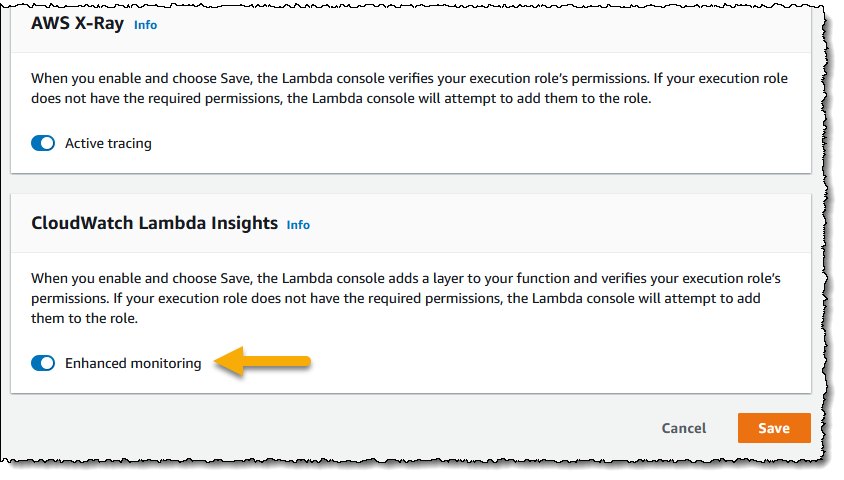
To get started, I need to enable Lambda Insights on my functions. In the Lambda console, I navigate to my list of functions, and then select the function I want to enable for Lambda Insights by clicking on its name. From the function’s configuration view I then scroll to the Monitoring tools panel, click Edit, enable Enhanced monitoring, and click Save. If you want to enable enhanced monitoring for many functions, you may find it more convenient to use AWS Command Line Interface (CLI), AWS Tools for PowerShell, or AWS CloudFormation approaches instead. Note that once enhanced monitoring has been enabled, it can take a few minutes before data begins to surface in CloudWatch.

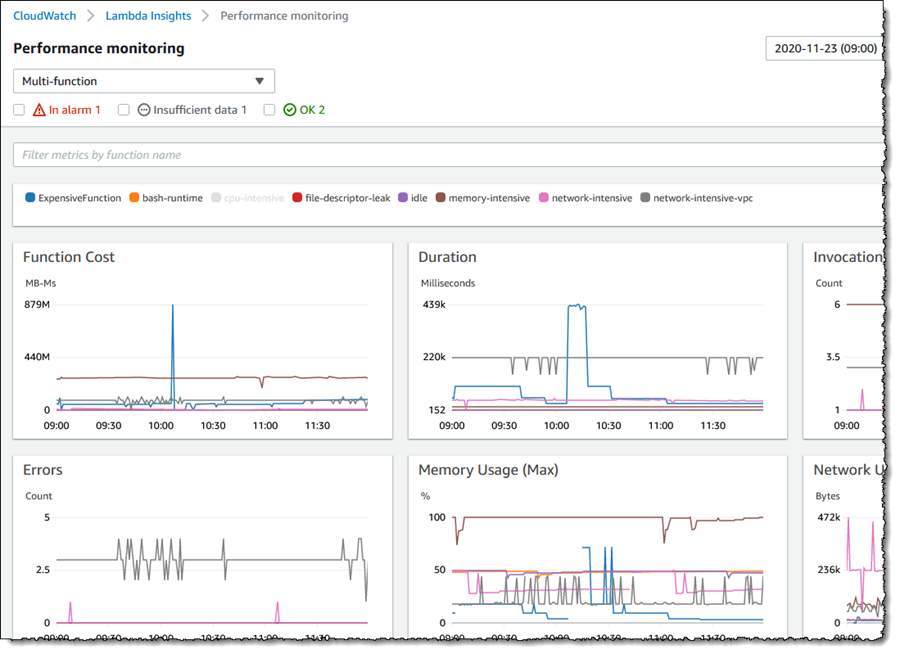
Screenshot showing enabling of <span title="">Lambda Insights</span> In the Amazon CloudWatch Console, I start by selecting Performance monitoring beneath Lambda Insights in the navigation panel. This takes me to the Multi-function view. Metrics for all functions on which I have enabled Lambda Insights are graphed in the view. At the foot of the page there’s also a table listing the functions, summarizing some data in the graphs and adding Cold starts. The table gives me the ability to sort the data based on the metric I’m interested in.

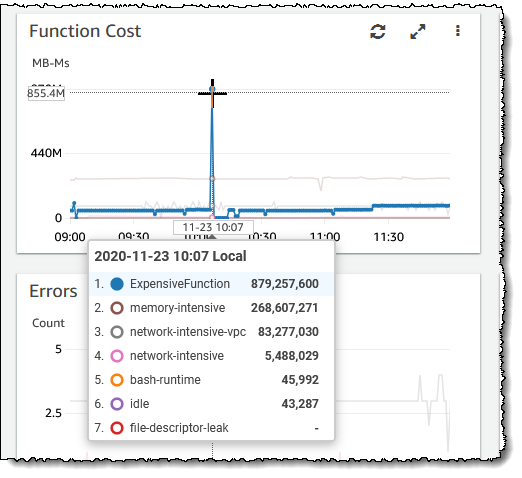
Screenshot of metric graphs on the <span title="">Lambda Insights</span> Multi-function viewScreenshot of the <span title="">Lambda Insights</span> Multi-function view summary listAn interesting graph on this page, especially if you are trying to balance cost with performance, is Function Cost. This graph shows the direct cost of your functions in terms of megabyte milliseconds (MB-MS), which is how Lambda computes the financial charge of a function’s invocation. Hovering over the graph at a particular point in time shows more details.

Screenshot of function cost graphLet’s examine my ExpensiveFunction further. Moving to the summary list at the bottom of the page I click on the function name which takes me to the Single function view (from here I can switch to my other functions using the controls at the top of the page, without needing to return to the multiple function view). The graphs show me metrics for invocations and errors, duration, any throttling, and memory, CPU, and network usage on the selected function and to add to the detail available, the most recent 1000 invocations are also listed in a table which I can sort as needed.

Clicking View in the Trace column of a request in the invocations list takes me to the Service Lens trace view, showing where my function spent its time on that particular invocation request. I could use this to determine if changes to the business logic of the function might improve performance by reducing function duration, which will have a direct effect on cost. If I’m troubleshooting, I can view the Application or Performance logs for the function using the View logs button. Application logs are those that existed before Lambda Insights was enabled on the function, whereas Performance logs are those that Lambda Insights has collated across all my enabled functions. The log views enable me to run queries and in the case of the Performance logs I can run queries across all enabled functions in my account, for example to perform a top-N analysis to determine my most expensive functions, or see how one function compares to another.

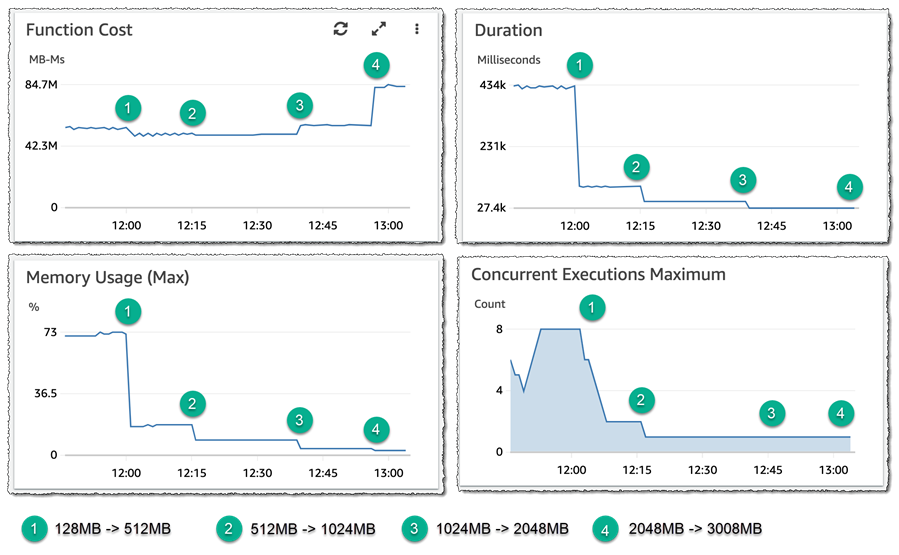
Here’s how I can make use of Lambda Insights to check if I’m ‘moving the needle’ in the correct direction when attempting to right-size a function, by examining the effect of changes to memory allocation on function cost. The starting point for my ExpensiveFunction is 128MB. By moving from 128MB to 512MB, the data shows me that function cost, duration, and concurrency are all reduced – this is shown at (1) in the graphs. Moving from 512MB to 1024MB, (2), has no impact on function cost, but it further reduces duration by 50% and also affected the maximum concurrency. I ran two further experiments, first moving from 1024MB to 2048MB, (3), which resulted in a further reduction in duration but the function cost started to increase so the needle is starting to swing in the wrong direction. Finally, moving from 2048MB to 3008MB, (4), significantly increased the cost but had no effect on duration. With the aid of Lambda Insights I can infer that the sweet spot for this function (assuming latency is not a consideration) lies between 1024MB and 2048MB. All these experiments are shown in the graphs below (the concurrency graph lags slightly, as earlier invocations are finishing up as configuration changes are made).

Screenshot of function cost experiments

CloudWatch Lambda Insights gives simple and convenient operational oversight and visibility into the behavior of my AWS Lambda functions, and is available today in all regions where AWS Lambda is present.

Learn more about Amazon CloudWatch Lambda Insights in the documentation and get started today.

— Steve

New – Fully Serverless Batch Computing with AWS Batch Support for AWS Fargate

Post Syndicated from Harunobu Kameda original https://aws.amazon.com/blogs/aws/new-fully-serverless-batch-computing-with-aws-batch-support-for-aws-fargate/

We launched AWS Batch on December 2016 as a fully managed batch computing service that enables developers, scientists and engineers to easily and efficiently run hundreds of thousands of batch computing jobs on AWS. With AWS Batch, you no longer need to install and manage batch computing software or server clusters to run your jobs. AWS Batch is designed to remove the heavy lifting of batch workload management by creating compute environments, managing queues, and launching the appropriate compute resources to run your jobs quickly and efficiently.

Today, we are happy to introduce the ability to specify AWS Fargate as a computing resource for AWS Batch jobs. AWS Fargate is a serverless computing engine for containers that eliminates the need to provision and manage your own servers. With this enhancement, customers will now have a way to run their jobs on serverless computing resources: Simply submit your analysis, ML inference, map reduce analysis, and other batch workloads, and let Batch and Fargate handle the rest.

Basic Concept
Customers running batch workloads in the cloud have a variety of orchestration needs: for example, workloads need to be queued, submitted to a compute resource, given priorities, dependencies and retries need to be handled, compute needs to be scalable and available, and users need to account for utilization and resource management. While AWS Batch simplifies all the queuing, scheduling, and lifecycle management for customers, and even provisions and manages compute in the customer account, customers are looking for even more simplicity where they can get up and running in minutes. Time spent on image maintenance, right-sizing of compute, and monitoring is time not spent on applications. These customer needs have led us to develop Fargate integration, which we are pleased to announce today.

How It Works
Simply specify Fargate or Fargate Spot as the resource type in Batch and submit a Fargate job definition, and customers can now take advantage of the benefits of serverless computing without the need for image patching, isolation of VM boundaries, and calculation of the correct size.

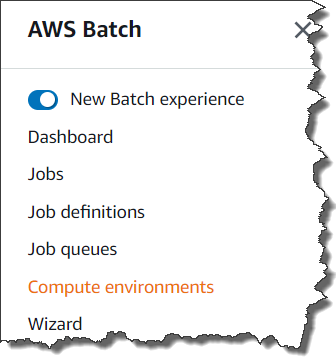
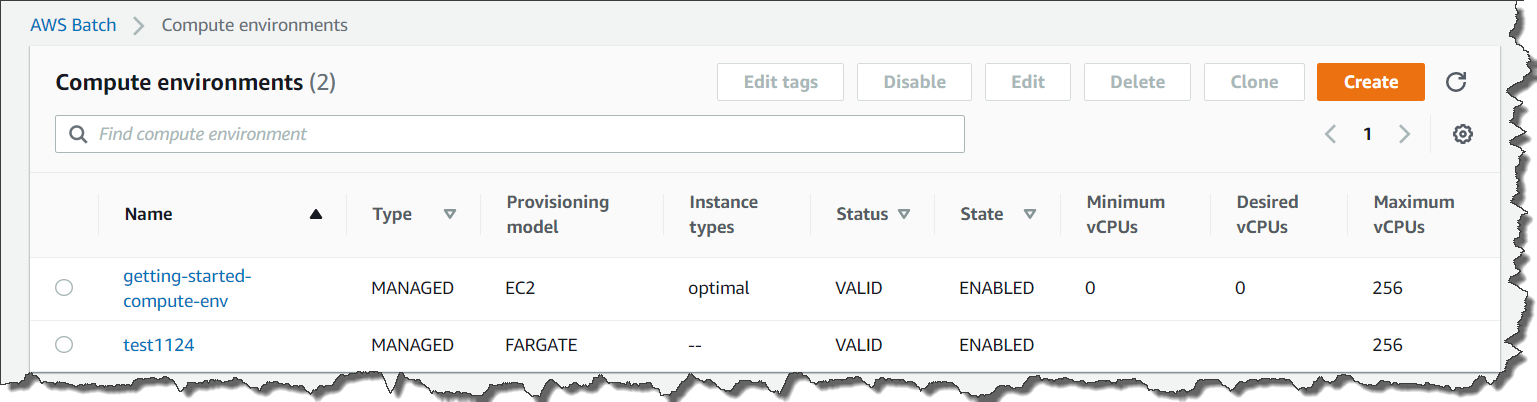
To start, access the AWS Management Console of AWS Batch. Select Compute environments and Create.Getting startWe now have 2 new options for Provisioning model: Fargate and Fargate Spot.

Selecting FargateWith Fargate or Fargate Spot, you don’t need to worry about Amazon EC2 instances or Amazon Machine Images. Just set Fargate or Fargate Spot, your subnets, and the maximum total vCPU of the jobs running in the compute environment, and you have a ready-to-go Fargate computing environment. With Fargate Spot, you can take advantage of up to 70% discount for your fault-tolerant, time-flexible jobs.

vCPU fro FargateSelect Create compute environment. Then, Batch will create your Fargate-based compute environment.

Created Computing environment

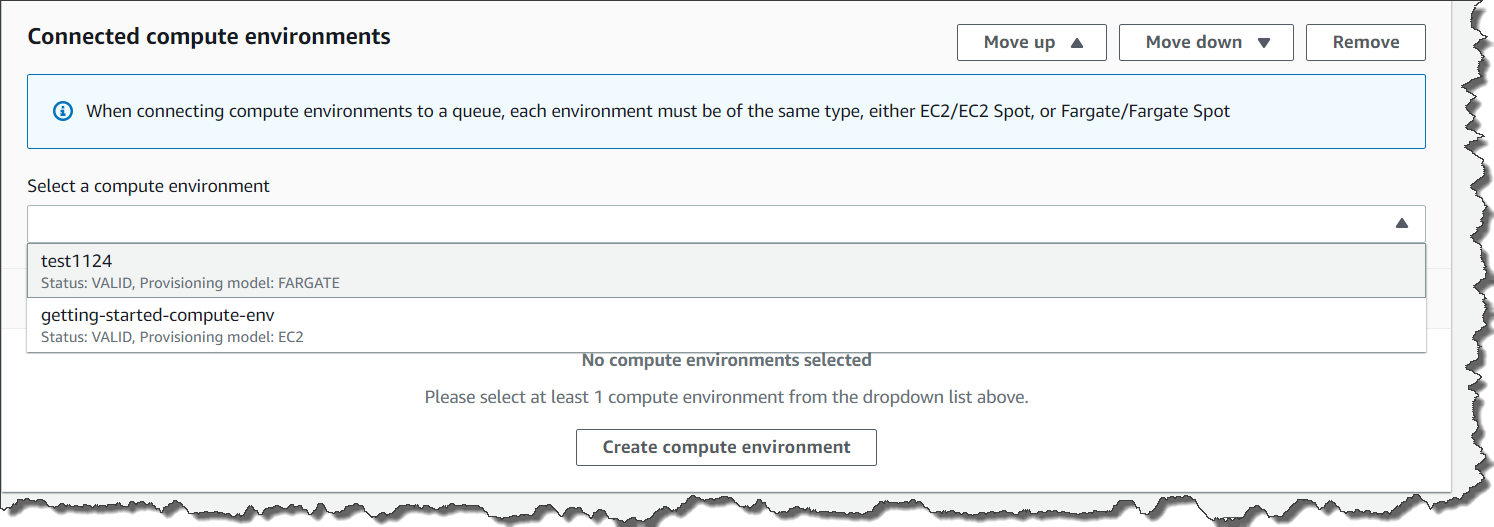
Next step is to create the Job Queue, which is where your jobs live when waiting to be run. Then, Connect that to your Fargate compute environment.

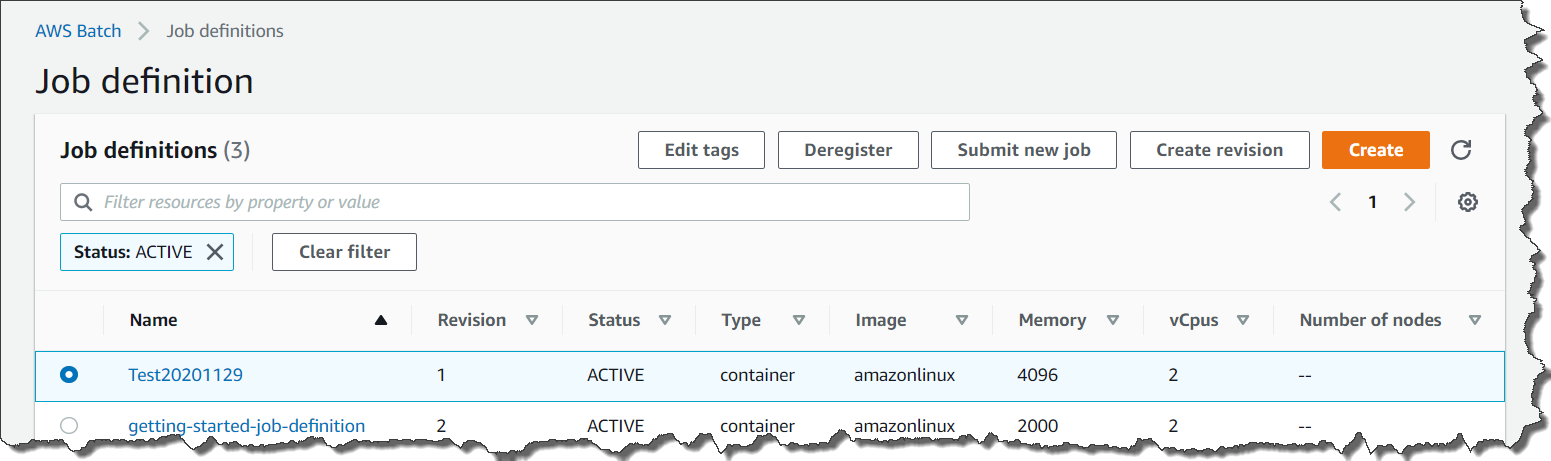
After you finished setting up the job queue, next step is to create Job definitions for your Fargate jobs. Select Job definitions from the left pane, and click the Create button.

Setting up job definitionOnce you’ve selected Fargate for the job definition, you are now ready to submit your job. Batch will handle queueing, submission, and job lifecycle for you! You can access Job definitions by clicking Job definitions in the left pane. After selecting Job Definition, click Submit new job.

Submitting JobYou need to select the Job queue previously set up for your Fargate compute environment.

Submitting new job

You can now submit your new job by pressing the Submit button at the bottom.

Follow the steps below to set up your Fargate-based compute environment using the AWS CLI.

1. Creating Compute Environment

aws batch create-compute-environment --cli-input-json file://below_sample.json

{
    "computeEnvironmentName": "FargateComputeEnvironment",
    "type": "MANAGED",
    "state": "ENABLED",
    "computeResources": {
        "type": "FARGATE", # or FARGATE_SPOT
        "maxvCpus": 40,
        "subnets": [
             "subnet-xxxxxxxx","subnet-xxxxxxxx","subnet-xxxxxxxx"
        ],
        "securityGroupIds": ["sg-xxxxxxxxxxxxxxxx"],
        "tags": {
            "KeyName": "fargate"
        }
    },
"serviceRole": "arn:aws:iam::xxxxxxxxxxxx:role/service-role/AWSBatchServiceRole"
}

2.Creating Job Queue

aws batch create-job-queue --cli-input-json file://below_job_queue.json

{
  "jobQueueName": "FargateJobQueue",
  "state": "ENABLED",
  "priority": 1,
  "computeEnvironmentOrder": [
    {
      "order": 1,
      "computeEnvironment": "FargateComputeEnvironment"
    }
  ]
}

3.Creating and Registering Job Definitions
aws batch-fargate register-job-definition --cli-input-json file://below_job_definition.json

{
    "jobDefinitionName": "FargateJobDefinition",
    "type": "container",
    "propagateTags": true,
     "containerProperties": {
        "image": "xxxxxxxxxxxx.dkr.ecr.us-east-1.amazonaws.com/test:latest",
        "networkConfiguration": {
            "assignPublicIp": "ENABLED"
        },
        "fargatePlatformConfiguration": {
            "platformVersion": "LATEST"
        },
        "resourceRequirements": [
            {
                "value": "0.25",
                "type": "VCPU"
            },
            {
                "value": "512",
                "type": "MEMORY"
            }
        ],
        "jobRoleArn": "arn:aws:iam::xxxxxxxxxxxx:role/ecsTaskExecutionRole",
        "executionRoleArn":"arn:aws:iam::xxxxxxxxxxxx:role/ecsTaskExecutionRole",
        "logConfiguration": {
            "logDriver": "awslogs",
            "options": {
            "awslogs-group": "/ecs/sleepenv",
            "awslogs-region": "us-east-1",
            "awslogs-stream-prefix": "ecs"
            }
        }
     },
   "platformCapabilities": [
        "FARGATE"
    ],
    "tags": {
    "Service": "Batch",
    "Name": "JobDefinitionTag",
    "Expected": "MergeTag"
    }

You can also use other container image registries like Docker Hub in addition to Amazon Elastic Container Registry.

4.Submitting Job
aws batch submit-job --job-name faragteJob --job-queue FargateJobQueue --job-definition FargateJobDefinition

Generally Available Today
AWS Batch support for AWS Fargate is generally available today for all AWS Regions where AWS Batch and AWS Fargate are available. Please visit the AWS Batch page and technical documentation for more details.

– Kame

New – SaaS Lens in AWS Well-Architected Tool

Post Syndicated from Danilo Poccia original https://aws.amazon.com/blogs/aws/new-saas-lens-in-aws-well-architected-tool/

To help you build secure, high-performing, resilient, and efficient solutions on AWS, in 2015 we publicly launched the AWS Well-Architected Framework. It started as a single whitepaper but has expanded to include domain-specific lenses, hands-on labs, and the AWS Well-Architected Tool (available at no cost in the AWS Management Console) that provides a mechanism for regularly evaluating your workloads, identifying high risk issues, and recording your improvements.

To offer more workload-specific advice, in 2017 we extended the framework with the concept of “lens” to go beyond a general perspective and enter specific technology domains. Now, to help accelerate building Software-as-a-Service (SaaS) solutions, the AWS SaaS Factory team has led an effort to build a new AWS Well-Architected SaaS Lens.

SaaS is a licensing and delivery model by which software is centrally managed and hosted by a provider and available to customers on a subscription basis. In this way, software providers can innovate rapidly, optimize their costs, and gain operational efficiencies. At the same time, customers benefit from simplified IT management, speed, and a pay-for-what-you-use business model.

The Well-Architected SaaS Lens adds questions to the tool that are tailored to SaaS workloads and intended to drive critical thinking for developing and operating SaaS workloads. Each question has a list of best practices, and each best practice has a list of improvement plans to help guide you in implementing them. AWS Solution Architects from the AWS SaaS Factory Program, having worked with thousands of software developers and AWS Partners, view these well-architected patterns as a key component of building and operating a SaaS architecture on AWS.

Using the SaaS Lens in the Well-Architected Tool
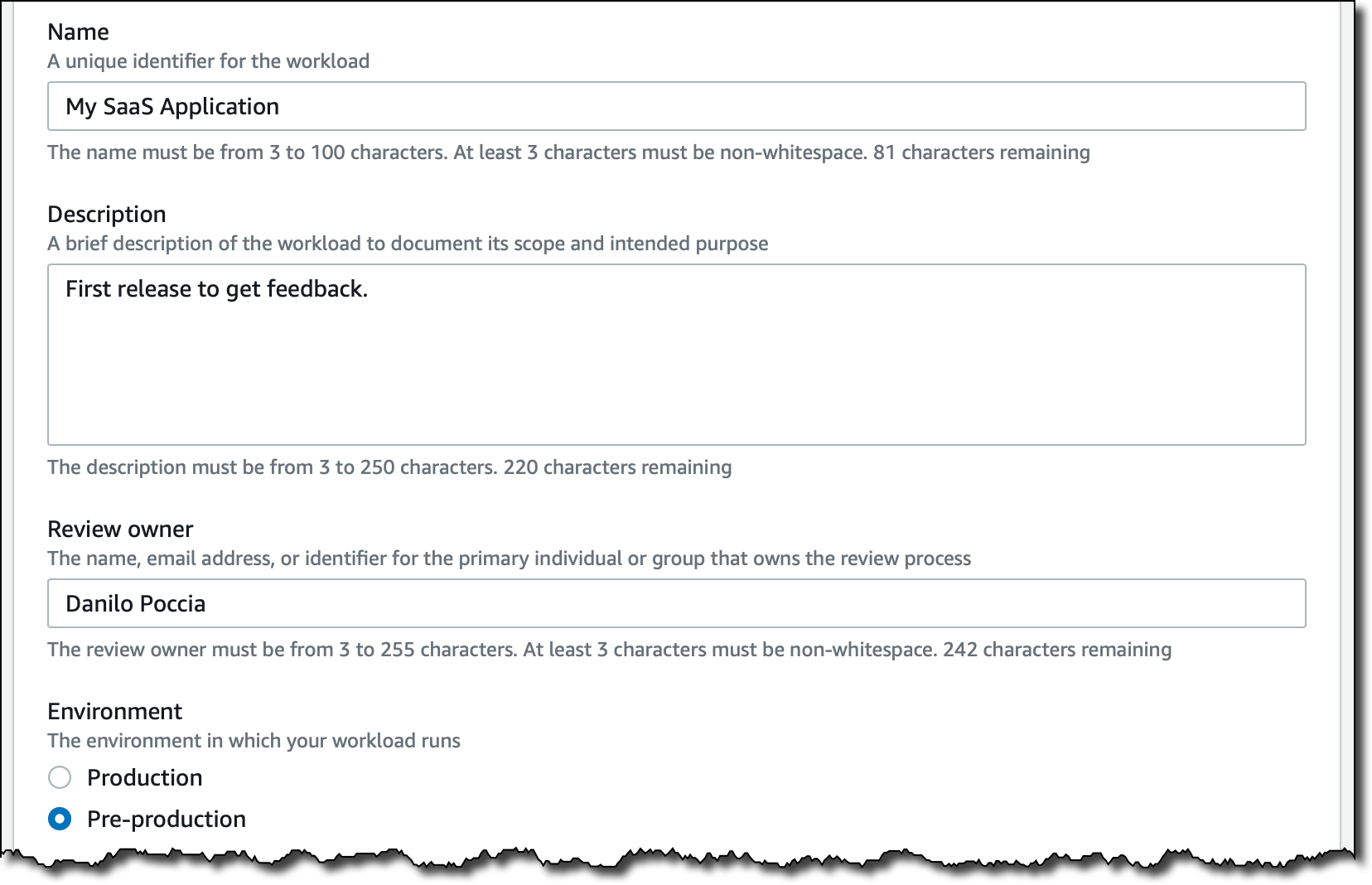
In the Well-Architected Tool console, I start by defining my workload. Today, I’m reviewing a pre-production environment of a SaaS application. It’s just a minimum viable product (MVP) version of what I want to build, with just enough features to be usable and get a first feedback.

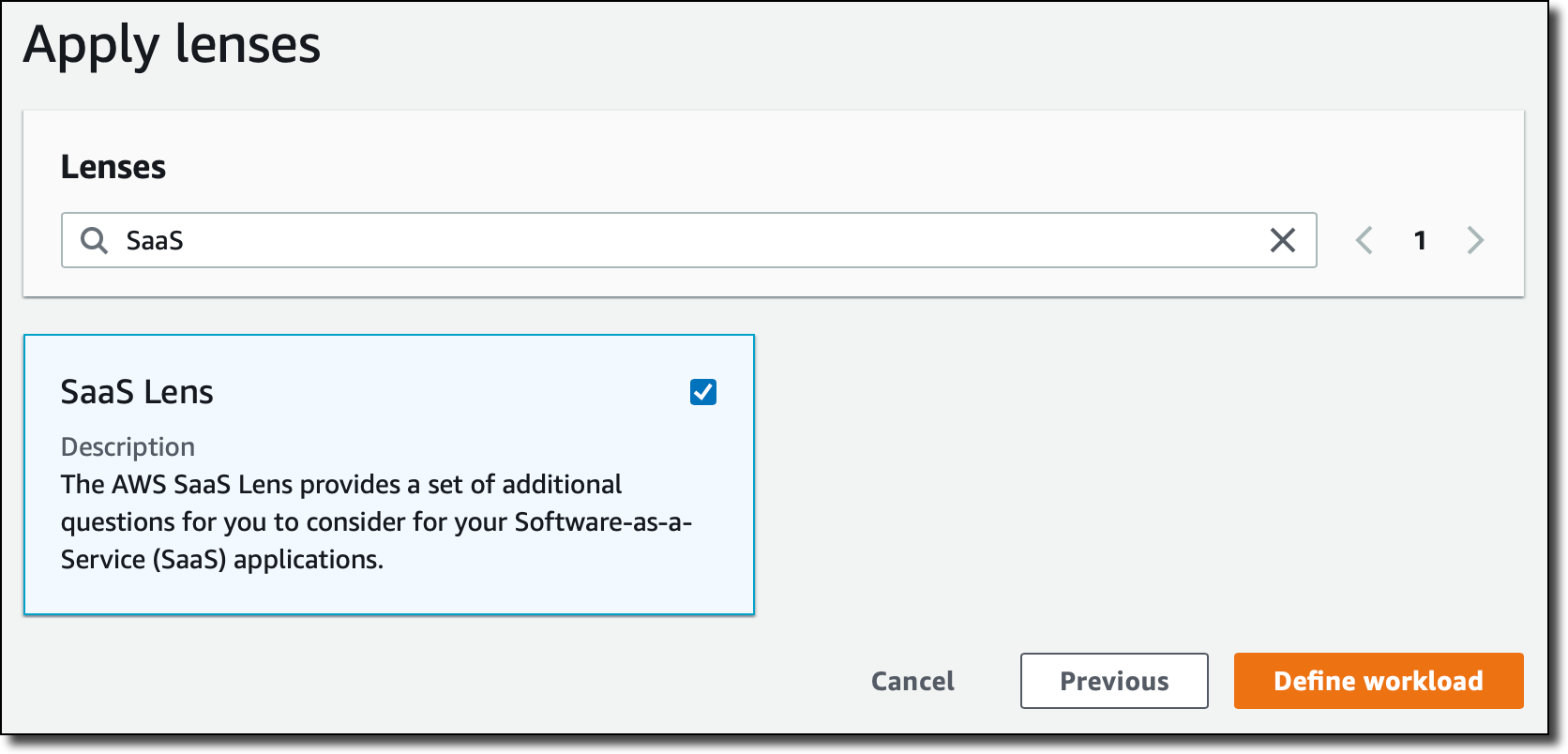
Now, I can choose which lenses to apply. The AWS Well-Architected Framework is there by default. I select the SaaS Lens. This is adding a set of additional questions that help me understand how to design, deploy, and architect my SaaS workload following the framework best practices. Other lenses are available in the tool, for example the Serverless Lens described here.

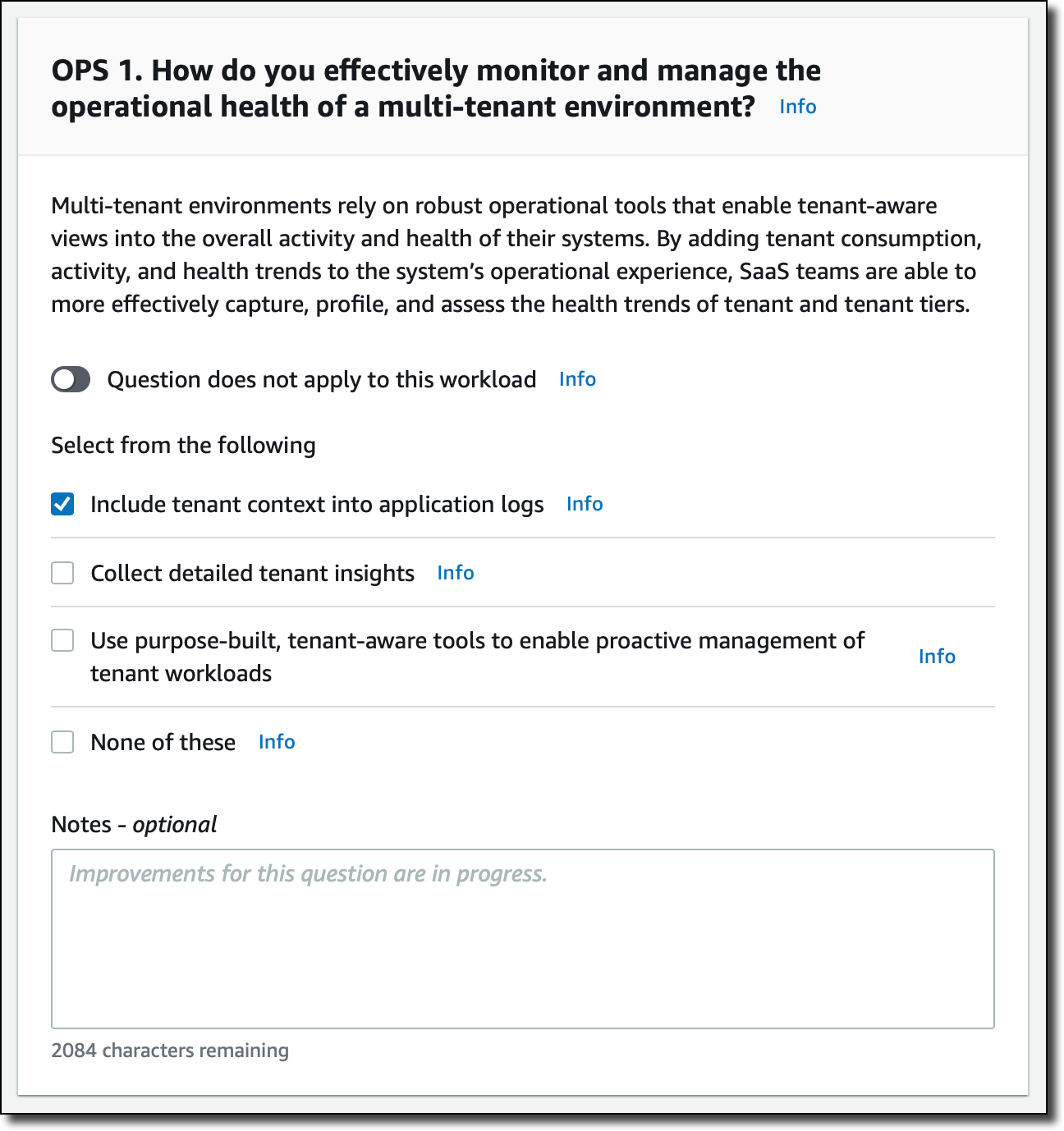
Now, I start my review. Many questions in the SaaS Lens are focused on how you are managing a multi-tenant application. This is the first question for the Operational Excellence pillar. I can also add some notes to explain my answer better or take note of what I want to improve.

I don’t need to answer all questions to start improving my SaaS application. For example, this is the improvement plan based on my answer to the previous question. For each point here, I can click and get more information on how to implement that on AWS.

Moving to the Reliability pillar, I feel more confident because of the techniques I used to separate individual tenants of my SaaS application in their own “sandbox” environment.

As I expect, no risks are detected this time!

When I finish reviewing the SaaS Lens for my workload, I get an overview of the detected risks. Here, I can also save a milestone that I can use later to compare my status and estimate my improvements.

Just below that, I get a suggestion on what to focus on next. Again, I can click and get in-depth suggestion on how to mitigate the risk.

As often happens in IT services, this is an iterative process. The AWS Well-Architected Tool helps quantify the risks and gives me a path to follow to continuously improve my SaaS application.

Available Now
The SaaS Lens is available today in all regions where the AWS Well-Architected Tool is offered, as described in the AWS Regional Services List. It can be applied to existing workloads, or used for new workloads you define in the tool.

There are no costs in using the AWS Well-Architected Tool; you can use it to improve the application you are working on, or to get visibility into multiple workloads used by the department or area you are working with.

Learn more about the new SaaS Lens and get started today with the AWS Well-Architected Tool!

Danilo

AWS Marketplace Now Offers Professional Services

Post Syndicated from Marcia Villalba original https://aws.amazon.com/blogs/aws/aws-marketplace-now-offers-professional-services/

Now with AWS Marketplace, customers can not only find and buy third-party software but also the professional services needed to support the full lifecycle of those products, including planning, deployment and support. This simplifies the software supply chain including tasks like managing provider relationships and procurement processes and also consolidates billing and invoices in one place.

Until today, customers have used AWS Marketplace for buying software and then used a separate process for contracting professional services. Many customers need extra professional services when they purchase third-party software, like premium support, implementation, or training. The additional effort to support different procurement processes impacts customers’ project timelines and adds a lot complexity to the customer’s organization.

Last year we announced AWS IQ, a service that helps you engage with AWS Certified third-party experts for AWS project work. This year we want to go one step further and help you find professional services for all those third-party software solutions you currently buy from AWS Marketplace.

For the Buyers
Buyers can now discover professional services using AWS Marketplace from multiple trusted sellers, manage the invoices and payments from software and services together and reduce procurement time, accelerating the process from months to days.

This new feature allow buyers to choose from a selection of professional services such as assessments, implementation, premium support, and managed services and training from consulting partners, managed service providers and independent software vendors.

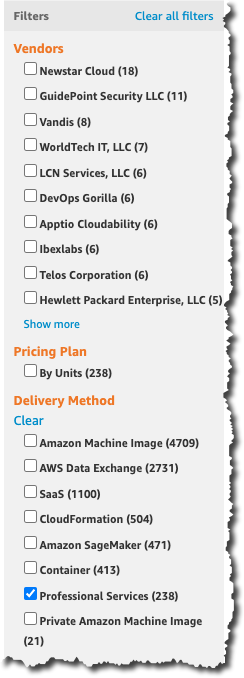
To get started finding and buying professional services, first you need to find the right service for you. If you are looking for a professional service associated with a particular piece of software, using the search tool in AWS Marketplace, you can search for the software and the related professional services will appear in the search results. Use the delivery method to filter the results to just include professional services.

Screenshot of searching for professional services

After you find the service you are looking for, you can visit the service details page and learn more information about the listing. If you want to buy the service, just click continue.

Screenshot of service page

That will open the request service form where you can connect to the seller and request the service. The seller will receive a notification and then they can contact you to agree on the scope of the work including deliverables, milestones, pricing, payment schedules, and service terms.

Screenshot of request service form

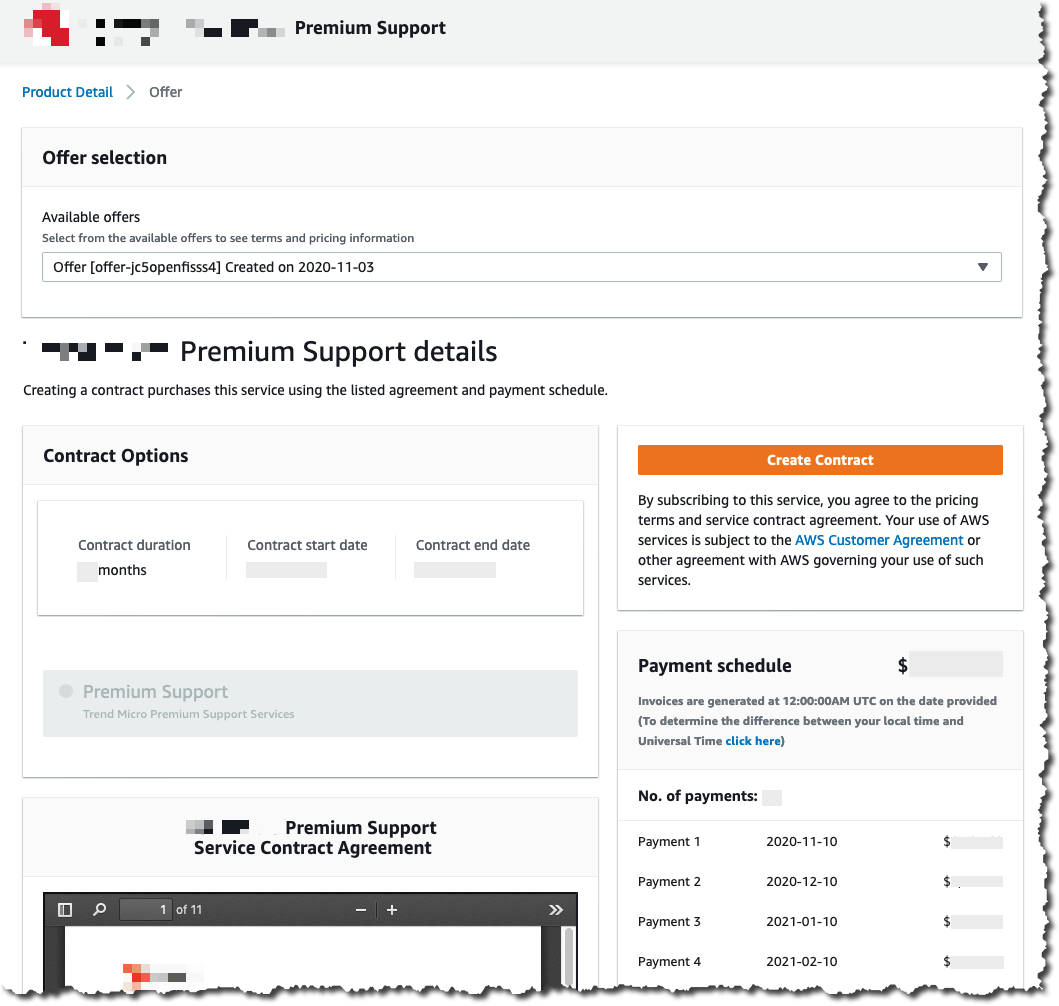
Once you agree with the seller on all the specific details of the contract, the seller sends you a private offer. Now the offer page will show the private offer details instead of a request for service form. You can review the pricing, payment schedule, and contract terms and create the contract.

Screenshot of private offer

The service subscription starts after you review and accept the private offer on AWS Marketplace. Also, you will receive an invoice from AWS Marketplace and you can track your subscriptions in the buyers management console. The purchases of the services are itemized on your AWS invoice, simplifying payments and cost management.

For the Sellers
This new feature of AWS Marketplace enables you, the seller, to grow your business and reach new customers by listing your professional service offerings. You can list professional services offerings as individual products or alongside existing software products in AWS Marketplace using pricing, payment schedule, and service terms that are independent from the software.

In AWS Marketplace you will create your seller page, where all your information as a seller will be displayed to the potential buyers.

Public professional service listings are discoverable by search and visible in your seller profile. You will receive customer requests for each of the services listed. Agree with the customer on the details of the service contract and then send a private offer to them.

Screenshot for creating a professional service

AWS Marketplace will invoice and collect the payments from the customers and distribute the funds to your bank account after the customers pay. AWS Marketplace also offers you seller reports that are updated daily to understand how your business is doing.

Availability
To learn more about buying and selling professional services in AWS Marketplace, visit the AWS Marketplace service page

Marcia

Managed Entitlements in AWS License Manager Streamlines License Tracking and Distribution for Customers and ISVs

Post Syndicated from Harunobu Kameda original https://aws.amazon.com/blogs/aws/managed-entitlements-for-aws-license-manager-streamlines-license-management-for-customers-and-isvs/

AWS License Manager is a service that helps you easily manage software licenses from vendors such as Microsoft, SAP, Oracle, and IBM across your Amazon Web Services (AWS) and on-premises environments. You can define rules based on your licensing agreements to prevent license violations, such as using more licenses than are available. You can set the rules to help prevent licensing violations or notify you of breaches. AWS License Manager also offers automated discovery of bring your own licenses (BYOL) usage that keeps you informed of all software installations and uninstallations across your environment and alerts you of licensing violations.

License Manager can manage licenses purchased in AWS Marketplace, a curated digital catalog where you can easily find, purchase, deploy, and manage third-party software, data, and services to build solutions and run your business. Marketplace lists thousands of software listings from independent software vendors (ISVs) in popular categories such as security, networking, storage, machine learning, business intelligence, database, and DevOps.

Managed entitlements for AWS License Manager
Starting today, you can use managed entitlements, a new feature of AWS License Manager that lets you distribute licenses across your AWS Organizations, automate software deployments quickly and track licenses – all from a single, central account. Previously, each of your users would have to independently accept licensing terms and subscribe through their own individual AWS accounts. As your business grows and scales, this becomes increasingly inefficient.

Customers can use managed entitlements to manage more than 8,000 listings available for purchase from more than 1600 vendors in the AWS Marketplace. Today, AWS License Manager automates license entitlement distribution for Amazon Machine Image, Containers and Machine Learning products purchased in the Marketplace with a variety of solutions.

How It Works
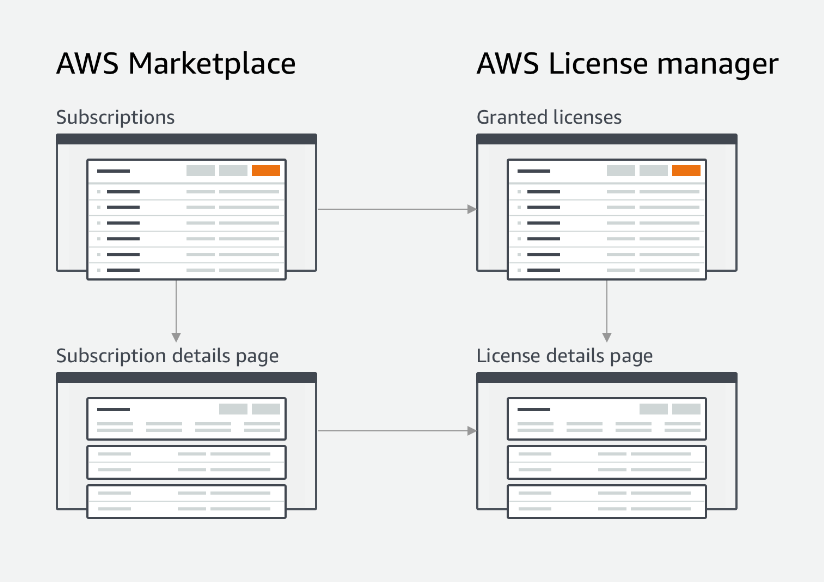
Managed entitlements provides built-in controls that allow only authorized users and workloads to consume a license within vendor-defined limits. This new license management mechanism also eliminates the need for ISVs to maintain their own licensing systems and conduct costly audits.

overview

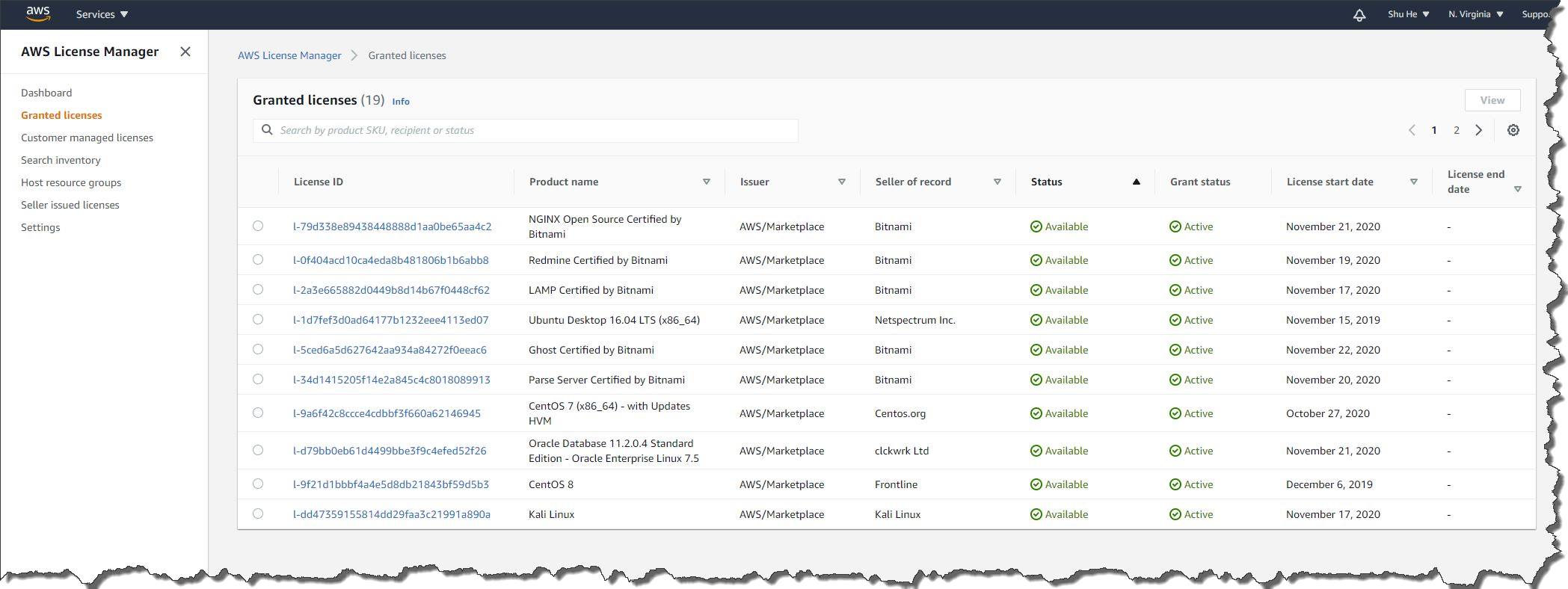
Each time a customer purchases licenses from AWS Marketplace or a supported ISV, the license is activated based on AWS IAM credentials, and the details are registered to License Manager.

list of granted license

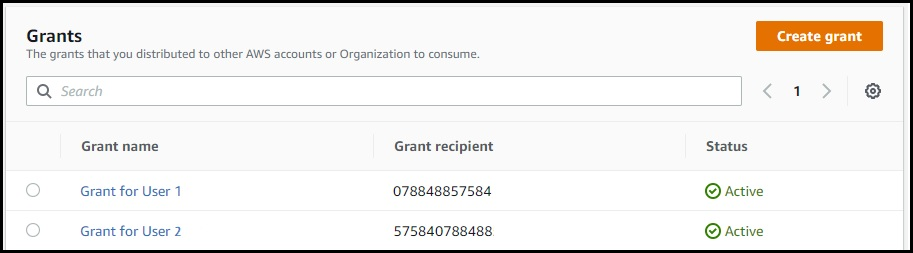
Administrators distribute licenses to AWS accounts. They can manage a list of grants for each license.

list of grants

Benefits for ISVs
AWS License Manager managed entitlements provides several benefits to ISVs to simplify the automatic license creation and distribution process as part of their transactional workflow. License entitlements can be distributed to end users with and without AWS accounts. Managed entitlements streamlines upgrades and renewals by removing expensive license audits and provides customers with a self-service tracking tool with built-in license tracking capabilities. There are no fees for this feature.

Managed entitlements provides the ability to distribute licenses to end users who do not have AWS accounts. In conjunction with the AWS License Manager, ISVs create a unique long-term token to identify the customer. The token is generated and shared with the customer. When the software is launched, the customer enters the token to activate the license. The software exchanges the long-term customer token for a short-term token that is passed to the API and the setting of the license is completed. For on-premises workloads that are not connected to the Internet, ISVs can generate a host-specific license file that customers can use to run the software on that host.

Now Available
This new enhancement to AWS License Manager is available today for US East (N. Virginia), US West (Oregon), and Europe (Ireland) with other AWS Regions coming soon.

Licenses purchased on AWS Marketplace are automatically created in AWS License Manager and no special steps are required to use managed entitlements. For more details about the new feature, see the managed entitlement pages on AWS Marketplace, and the documentation. For ISVs to use this new feature, please visit our getting started guide.

Get started with AWS License Manager and the new managed entitlements feature today.

– Kame

re:Invent 2020 Liveblog: Partner Keynote

Post Syndicated from AWS News Blog Team original https://aws.amazon.com/blogs/aws/reinvent-2020-liveblog-partner-keynote/

Join us Thursday, Dec. 3, from 7:45-9:30 a.m., for the AWS Partner Keynote with Doug Yeum, head of Worldwide Channels and Alliances; Sandy Carter, vice president, Global Public Sector Partners and Programs; and Dave McCann, vice president, AWS Migration, Marketplace, and Control Services. Developer Advocates Steve Roberts and Martin Beeby will be liveblogging all the announcements and discussion.

See you at 7:45 a.m. (PST) Thursday!

— Steve & — Martin


New – Amazon S3 Replication Adds Support for Multiple Destination Buckets

Post Syndicated from Marcia Villalba original https://aws.amazon.com/blogs/aws/new-amazon-s3-replication-adds-support-for-multiple-destination-buckets/

Amazon Simple Storage Service (S3) supports many types of replication, including S3 Same-Region Replication (SRR), which launched in 2019 and S3 Cross-Region Replication (CRR), which has been around since 2015. Today, we are happy to announce S3 Replication support for multiple destination buckets. S3 Replication now gives you the ability to replicate data from one source bucket to multiple destination buckets. With S3 Replication (multi-destination) you can replicate data in the same AWS Regions using S3 SRR or across different AWS Regions by using S3 CRR, or a combination of both.

Before this launch, if you needed to have multiple copies of your data in different S3 buckets, you had to build your own S3 replication service by monitoring S3 events, identifying created objects, and using AWS Lambda functions to copy objects to each destination bucket.

This launch removes the need for you to develop your own solutions to replicate the data across multiple destinations. You can use the flexibility of S3 Replication (multi-destination) to store multiple copies of your data in different storage classes, with different encryption types, or across different accounts depending on its intended use. Additionally, when replicating to multiple destinations, you can use CloudWatch metrics to track replication progress for each region pair.

S3 Replication (multi-destination) is an extension to S3 Replication, and it supports all existing S3 Replication features like Replication Time Control (RTC) and delete marker replication. If you need a predictable replication time backed by a Service Level Agreement, you can use RTC to replicate objects in less than 15 minutes.

How to Get Started With S3 Replication (multi-destination)
In order to get S3 Replication working, all the buckets involved in the replication (source and destinations) must have bucket versioning enabled.

To setup S3 Replication (multi-destination), you need to define replication rules. You can create a new rule in the bucket Management page, under Replication Rules.

Screenshot of adding a rule

When creating a new replication rule, one very important step is to set up permissions for replication, as S3 will need to replicate objects on your behalf. To do that, you can follow the instructions available in the S3 documentation page.

To create the replication rule, just follow the steps in the console. You can specify to which objects of the bucket this rule applies, the destination bucket, if you want to change the storage class of the replicated objects and many other preferences for your replicated objects.

Screenshot configuring the replication rule

One thing to have in mind when activating a rule is that the replication will start for all new objects added to the bucket from that moment. Objects uploaded to the bucket before the rule was created need to be copied using one time operations like S3 batch operations or S3 copy.

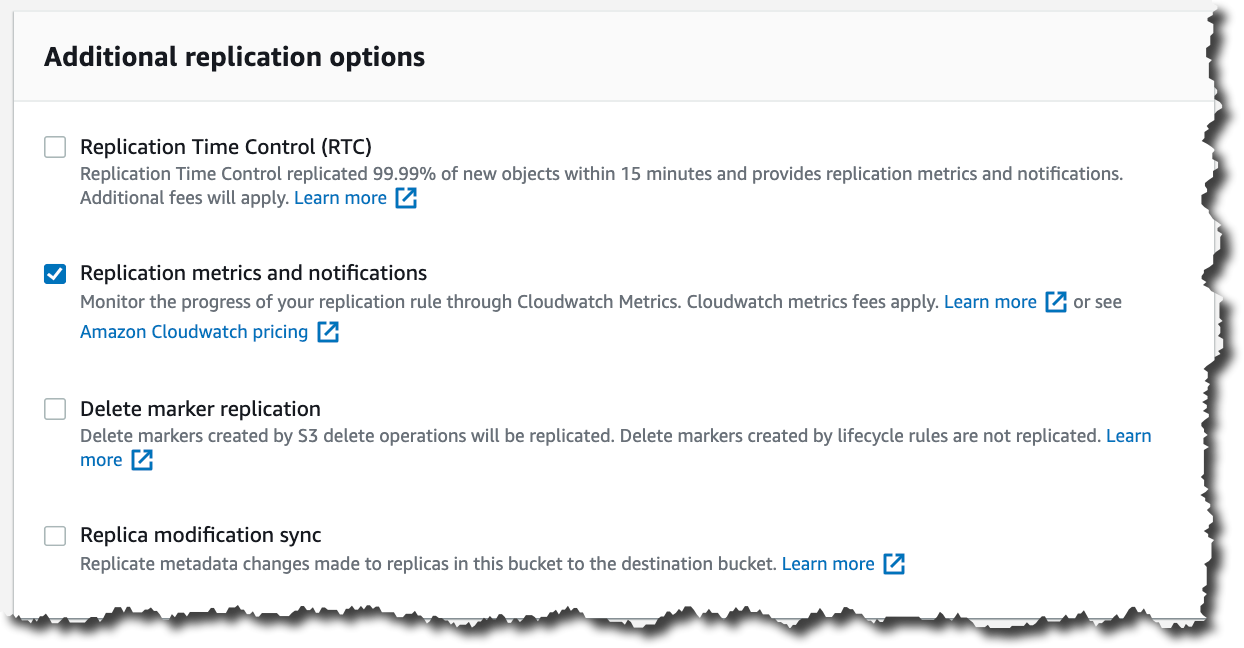
If you want to monitor the progress of your replication using CloudWatch metrics, don’t forget to click the Replication metrics and notifications checkbox.

Screenshot of configuring replication rules metrics

Now that we support multiple destinations for replication, rule priorities are used when there are two or more rules with the same destination. When that happens, the rule with the highest priority will be applied. For the same destination bucket, a lower priority rule will not be applied when the replication configuration has two or more rules with overlapping scope. If there are two or more rules with the same scope and different destinations, both rules will be applied.

You can see a summary of all your rules in the Replication rules listing under the bucket Management page.

Screenshot of replication rules listing

Monitoring Replication
When you have all the rules configured, you can start uploading objects to the source bucket and monitor how they get replicated in all the different destinations.

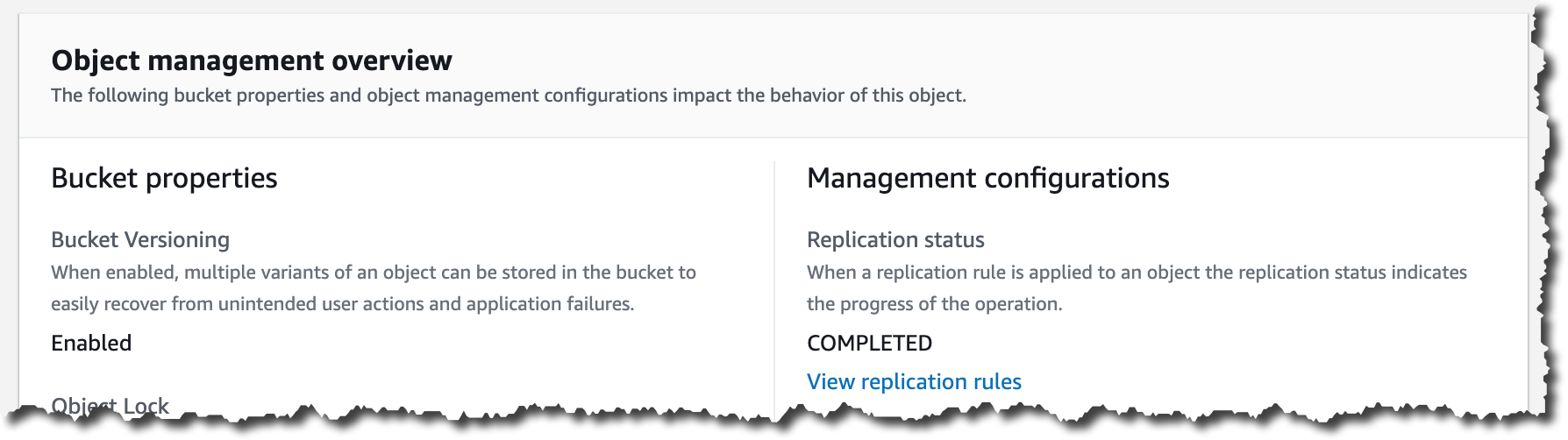
To know the replication status of an object in the source bucket, you can see the Replication status in the object Details. The status types are:

  • COMPLETED: The replication was successful in all the destinations.
  • PENDING: The replication is still in progress.
  • FAILED: The replication failed to replicate in at least one of the destinations. When there is a failure in replication, the only way to fix it is by uploading the object again.

screenshot of object metadata

For replicated objects, you will see the REPLICA status under the Replication status.

You can also use CloudWatch metrics to monitor the replication. First, you need to enable metrics for each of the rules. And then in the bucket Metrics, you can choose which rules you want to see the metrics of and see the charts for each of them; the metrics are also available in the CloudWatch console.

Screenshot of replication metrics

Availability
S3 Replication (multi-destination) is available today in all AWS Regions. To get started, you can use the AWS Management Console, SDKs, S3 API, or AWS CloudFormation to create replication rules from one source bucket to multiple destination buckets.

Pricing for S3 Replication (multi-destination) applies for each rule. For pricing information, please visit the Amazon S3 pricing page.

For more information about this new feature visit the S3 Replication page.

Marcia


New AWS Amplify Admin UI Helps You Develop App Backends, No Cloud Experience Required

Post Syndicated from Marcia Villalba original https://aws.amazon.com/blogs/aws/aws-amplify-admin-ui-helps-you-develop-app-backends-no-cloud-experience-required/

Today AWS Amplify announces new Admin UI to configure an application backend, and manage app users and content outside the AWS console. This new feature makes it easier to use AWS services and accelerates the development and management of full-stack web and mobile apps.

We launched AWS Amplify in November 2018, and since then it has been helping front-end web and mobile developers to quickly develop and deploy cloud-connected web and mobile applications. In order to stay ahead of the curve and deliver innovation to customers, businesses need to ship features fast. However, developers and non-developers who are unfamiliar with AWS fundamentals require training, which slows the entire process down.

AWS Amplify today launches a new Admin UI that enables team members to interface with AWS without requiring an AWS account (only the first deployment requires an AWS account).

The Admin UI provides simple yet powerful tools to model database tables, add authentication and authorization, and manage app content, users, and groups. It also offers the ability to manage the application users and content. The AWS Amplify Admin UI focuses on data types rather than backend infrastructure. All the backend resources generate infrastructure as code (IaC) templates that can be committed in the team repository and integrated with AWS Amplify continuous deployment workflow to manage the different environments.

Let’s Look at an Example Using the New AWS Amplify Admin UI
Imagine that you are a front-end web developer creating a website for a local restaurant. The restaurant owner wants to have a website where they can show their daily menu, and wants a simple way to update the content of the page every day.

There are many ways to solve this problem. You can spin up a server and install a CMS for the restaurant owner to manage the menu. For this particular use case, having a server exclusively to do this is just over-provisioning resources. Or, you can create the CMS yourself using serverless tools; however, this adds a lot of complexity and extra time to the development cycle.

Another option is to use the new AWS Amplify Admin UI that allows you to take advantage of many AWS managed services to create the backend quickly and also provides the ability to manage the application users and content.

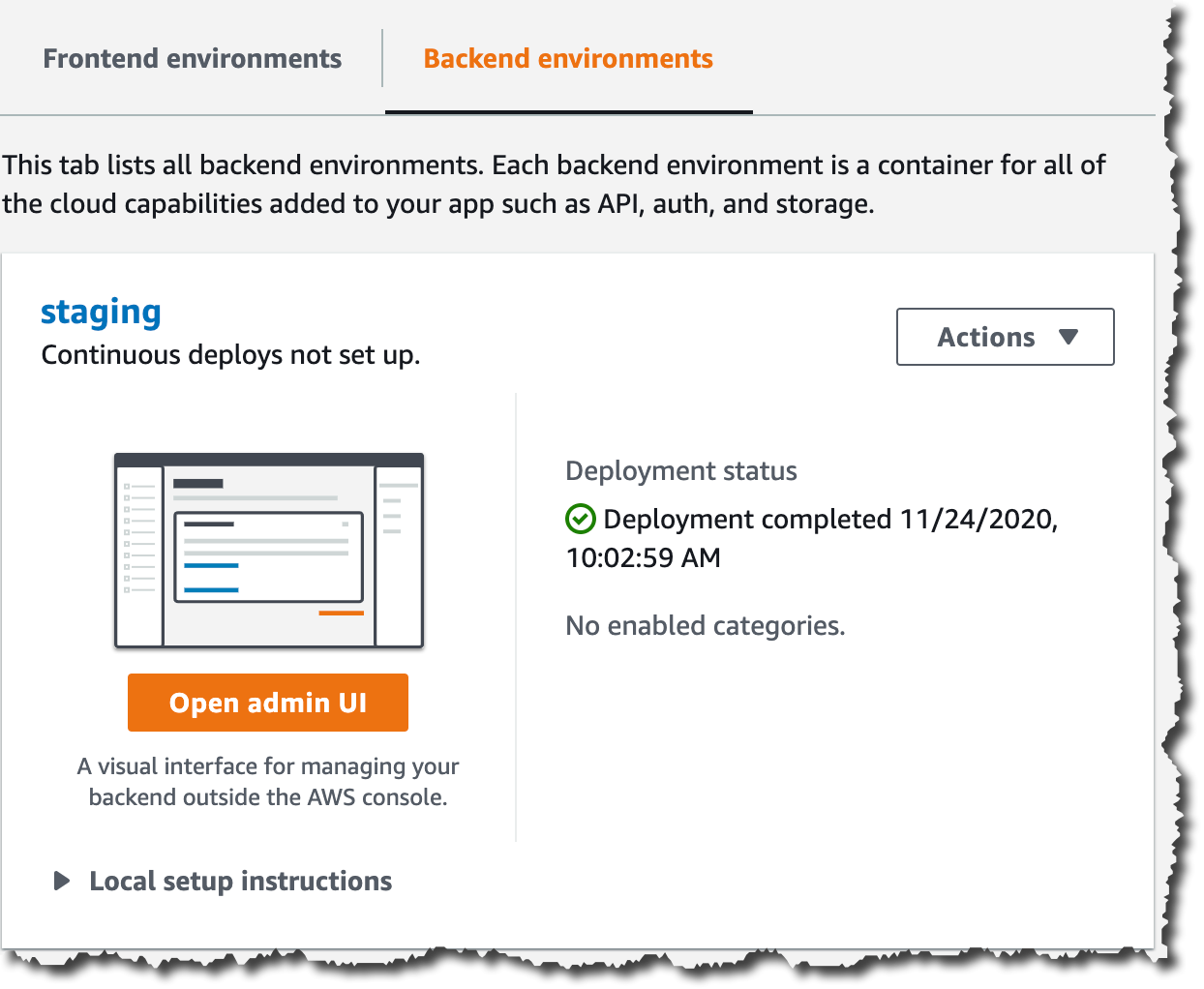
The first thing you need to do is to create a new AWS Amplify app backend in the AWS Console. AWS Amplify will create a backend environment called staging. When, your app backend is ready, open the new Admin UI. If you would like to get another developer working on this application who doesn’t have experience with AWS, nor access to the AWS account, now you can grant access to them so they can continue the work on the UI. But for now, let’s imagine that you are going to do all the development.

Screenshot of opening the admin ui

The Admin UI contains all the tools that application developers need to configure the application backend and that content managers need to update the application content.

In the sidebar of the Admin UI (as shown in the following illustration), you can find all the different options for setting up your application.

To get started with the restaurant website, you need a menu data model. For that, first go to Data (1), then create a new data model call Menu (2), add the necessary fields and Save and deploy (3) the model. Saving and deploying the model will create all the needed AWS resources in the backend, like an AWS AppSync API and a Amazon DynamoDB table to host the menu items. Deploying takes a few minutes.

Screenshot for data modeling

After your model is deployed, you can start working on your website. For this example I will be using React, one of the web frameworks supported by AWS Amplify, but you can do the same example with any of the supported frameworks.

First, you need to install the AWS Amplify CLI:

npm install -g @aws-amplify/cli

Then create a new React application:

npx create-react-app react-amplified
cd react-amplified

When your application is created, you can configure it with the AWS Amplify application we just created. For that, go back to the Admin UI and select Local setup instructions (1), and execute the amplify command (2) in the directory where the web application is stored in your computer.

Screenshot of pulling amplify configuration

When you execute that command, a browser window will open that asks you if you are sure that you want to log in to the AWS Amplify Admin UI. Selecting yes will grant the AWS Amplify CLI access to deploy updates to the backend directly from your local desktop. The CLI will prompt you with a few questions about your local environment, and finally will ask if you plan to modify this backend locally. Choose yes.

When that process ends, you will notice some changes in your web application directory: a couple of new directories were created (amplify and src/models) and also a new file (aws-exports.js). These files and directories hold all the configuration for your AWS Amplify application.

Now it’s time to develop your application. To access the menu data model you created in the first steps, you will use the DataStore library from AWS Amplify. DataStore allows you to connect to your deployed database and perform CRUD, sort and filter operations from your UI to manipulate backend data. In the Admin UI, you can see some examples on how to create, update, delete and query the model.

Screenshot of using the data model

When the website is ready, it’s time to add some content. The restaurant owner is the one adding the menu items. In order for them to be able to add items, they need to have permissions to access the Admin UI for this application.

To do this, you need to create a new Admin UI account for the restaurant owner with the correct permissions. Go to the AWS Amplify console for your application and then to the Admin UI management and invite users.

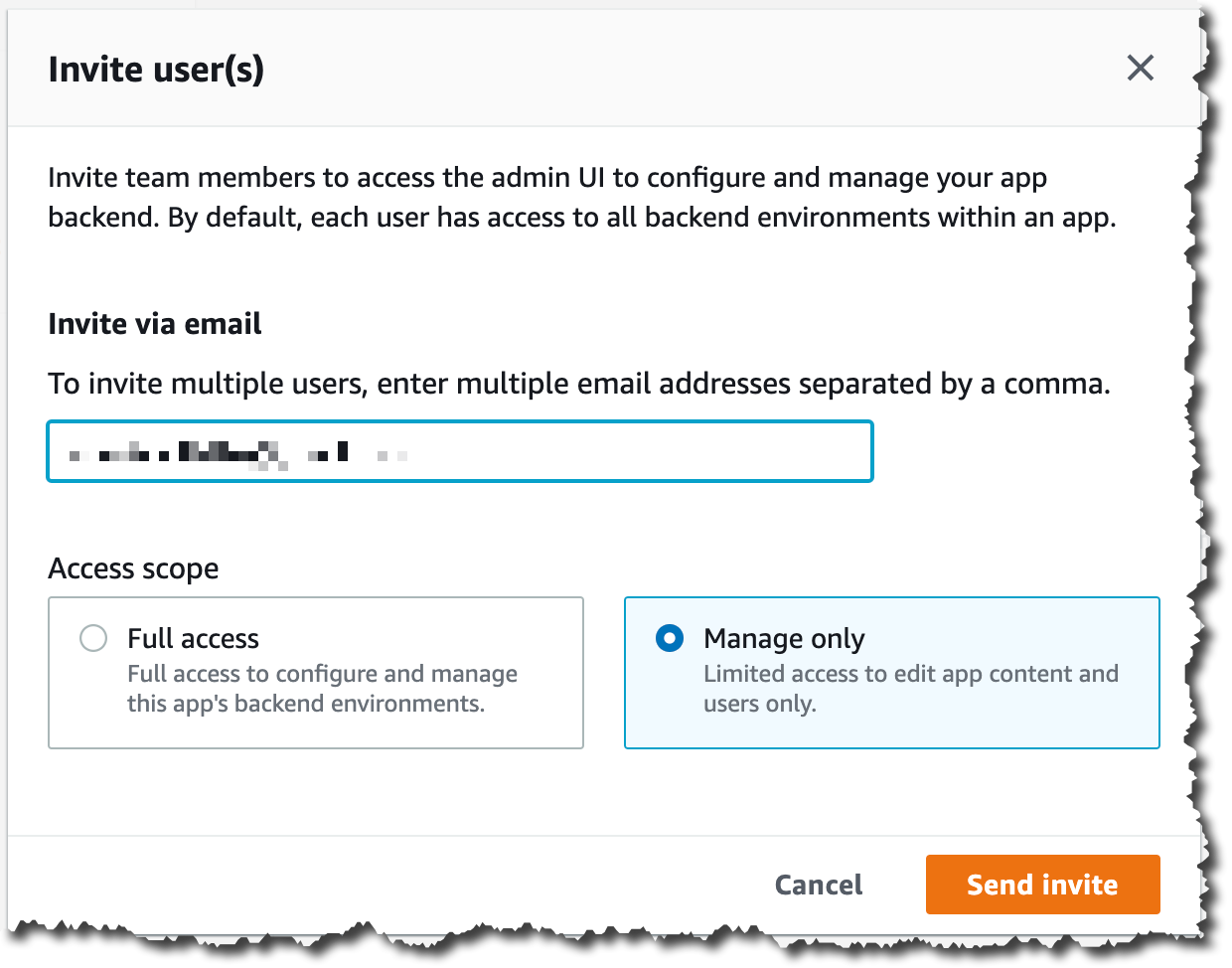
When adding new users to the Admin UI you can define their permission scope. If you want to grant them full access, they will be able to configure and manage the application backend environment, and if you want them just to be able to edit the content, you can give them the manage only access scope. For the restaurant owner grant manage only permissions.

Screenshot for inviting new users to the AdminUI

After sending the invite, the restaurant owner will receive an email with a link to access the Admin UI and a username and password to log in. When they log in, they can go to the Content tab (1) and start adding items in their menu (2) and they can see the items available in the table in the screen (3).

Screenshot adding new content

From this screen, the restaurant owner can add, delete and edit items in their menu whenever they want to. These changes are reflected in the website immediately after they save.

The use cases for Admin UI are endless, such as blogs, e-commerce sites, planning apps, etc. Developers can build complex and feature-rich apps by focusing on their domain-specific data model instead of spending hours deploying and stitching together cloud infrastructure. AWS Amplify gives front-end developers the fastest and easiest way to develop mobile and web apps. And all accessible to developers that are not familiar with the cloud and without the need to give AWS access to everybody in the team.

Availability
AWS Amplify Admin UI is available at launch in: US East (N. Virginia), US East (Ohio), US West (Oregon), Asia Pacific (Mumbai), Asia Pacific (Seoul), Asia Pacific (Singapore), Asia Pacific (Sydney), Asia Pacific (Tokyo), Canada (Central), Europe (Frankfurt), Europe (Ireland), and Europe (London).

For more information, visit the Amplify service page. Get started building a data model without an AWS account in the sandbox experience.

Marcia

Amazon EKS Distro: The Kubernetes Distribution Used by Amazon EKS

Post Syndicated from Martin Beeby original https://aws.amazon.com/blogs/aws/amazon-eks-distro-the-kubernetes-distribution-used-by-amazon-eks/

Our customers have told us that they want to focus on building innovative solutions for their customers, and focus less on the heavy lifting of managing Kubernetes infrastructure. That is why Amazon Elastic Kubernetes Service (EKS) has been so popular; we remove the burden of managing Kubernetes while our customers glean the benefits.

However, not all customers choose to use Amazon EKS. For example, they may have existing infrastructure investments, data residency requirements or compliance obligations that lead them to operate Kubernetes on-premises. Customers in these situations tell us that they spend a lot of effort to track updates, figure out compatible versions of Kubernetes and the complicated matrix of underlying components, test them for compatibility, and keep pace with the Kubernetes release cadence, which can be as frequent as every three to four months. If customers are not able to maintain pace for testing and qualifying new versions, they risk breaking changes, version compatibility issues, and running unsupported versions of Kubernetes lacking critical security patches.

We have learned a lot while providing Amazon EKS at AWS and have developed a deep understanding of how to deliver Kubernetes with operational security, stability, and reliability. Today we are sharing Amazon EKS Distro, which we built using that knowledge.

EKS Distro is a distribution of the same version of Kubernetes deployed by Amazon EKS, which you can use to manually create your own Kubernetes clusters anywhere you choose. EKS Distro provides the installable builds and code of open source Kubernetes used by Amazon EKS, including the dependencies and AWS-maintained patches. Using a choice of cluster creation and management tooling, you can create EKS Distro clusters in AWS on Amazon Elastic Compute Cloud (EC2), in other clouds, and on your on-premises hardware.

EKS Distro includes upstream open source Kubernetes components and third-party tools including configuration database, network, and storage components necessary for cluster creation. They include Kubernetes control plane components (kube-controller-manager, etcd, and CoreDNS) and Kubernetes worker node components (kubelet, CNI plugins, CSI Sidecar images, Metrics Server and AWS-IAM-authenticator).

Building a Cluster
The EKS Distro repository has everything you need to build and create Kubernetes clusters. The repository contains the raw documentation for EKS Distro, and it has been built and published at https://distro.eks.amazonaws.com.

To create a new cluster, I follow this section of the documentation. The guide explains how I can build all of the parts and ultimately deploy a cluster to some EC2 instances on AWS using the open source tool kOps. EKS Distro works with many other tools besides kOps. You can find the details in the partner section of the documentation, and many partners have released blogs today that explain how you can deploy using their tooling.

The guide explains that before I can build my cluster, I need to get several container images. I can get them from the EKS Distro Container repository, download them as a tarball, or build them from scratch. I opt to build my containers from scratch and follow the Build Guide. An hour later, I have managed to create twenty containers and have pushed them into Amazon Elastic Container Registry.
The instructions detail several prerequisites that are required by both the build and deploy stages. I follow the guide and install all of the tools suggested.

Next, as per the guide, I locate the kops.sh script in the development folder of the EKS Distro repository. After running the script, it prompts me to enter a Fully Qualified Domain Name (FQDN). I provide newsblog.thebeebs.net.

This script does several things, including creating an S3 bucket in my account to store artifacts required by kOps. Also, it creates a file called newsblog.thebeebs.net.yaml. I edit this file and replace the container Image URLs with ones that point to my images in Elastic Container Registry.

I continue to follow the guide, which now instructs me to run some kOps commands to create my cluster. These commands use the newsblog.thebeebs.net.yaml file, which was an output of the previous step.

CLUSTER_NAME=newsblog.thebeebs.net
kops create -f ./$CLUSTER_NAME.yaml
kops create secret --name $CLUSTER_NAME sshpublickey admin -i ~/.ssh/id_rsa.pub
kops update cluster $CLUSTER_NAME --yes
kops validate cluster --wait 10m
cat << EOF > aws-iam-authenticator.yaml
apiVersion: v1
kind: ConfigMap
metadata:
  name: aws-iam-authenticator
  namespace: kube-system
  labels:
    k8s-app: aws-iam-authenticator
data:
  config.yaml: |
    clusterID: $CLUSTER_NAME
EOF

One of these commands creates a file called aws-iam-authenticator.yaml. I will apply this file to my kubernetes cluster so that it works correctly with the aws-iam-authenticator.

kubectl apply -f aws-iam-authenticator.yaml

I can now verify that my Kubernetes cluster is using the EKS Distro images by using kubectl to list all of the namespaces.

kubectl get po --all-namespaces -o json | jq -r .items[].spec.containers[].image | sort

Lastly, I delete my cluster by using kOps and issuing a delete command.

kops delete -f ./newsblog.thebeebs.net.yaml --yes

Updates
New versions of EKS Distro will be released soon after we make releases to Amazon EKS. The source code, open source tools, and settings are provided for reproducible builds so you can be assured EKS Distro matches what is deployed by Amazon EKS.

Things to Know
EKS Distro supports the same versions of Kubernetes and point releases that Amazon EKS uses. EKS Distro provides the same upstream versions of Kubernetes and dependencies that operating system vendors have tested and confirmed work with Kubernetes. This means that EKS Distro already works with common operating systems, such as CentOS, Canonical Ubuntu, Red Hat Enterprise Linux, Suse, and more.

Pricing and Support
EKS Distro is an open source project and will be distributed for free. Please collaborate with us on GitHub to make it even better. For example, if you find any issues, please submit them or create a pull request and we will fix them on a best effort basis. Partners will receive support through the Amazon Partner Network program and customers that adopt EKS Distro through partners will receive support from those providers.

What is Coming Next?
In 2021 we will be launching EKS Anywhere, which will provide an installable software package for creating and operating Kubernetes clusters on-premises and automation tooling for cluster lifecycle support, it will enable you to centrally backup, recover, patch, and upgrade your production clusters with minimal disruption. EKS Anywhere creates clusters based on EKS Distro, and so you will have version consistency with Amazon EKS. This version and tooling consistency will reduce support costs, and eliminate the redundant effort of using multiple tools for managing your on-premises and Amazon EKS clusters.

Available Now
EKS Distro is available today for download and you can get the source and builds from GitHub. To help you get started, check out the documentation.

Happy Deploying!

— Martin

re:Invent 2020 – Preannouncements for Tuesday, December 1

Post Syndicated from Jeff Barr original https://aws.amazon.com/blogs/aws/reinvent-2020-preannouncements-for-tuesday-december-1/

Andy Jassy just gave you a hint about some upcoming AWS launches, and I’ll have more to say about them when they are ready. To tide you over until then, here’s a summary of what he pre-announced:

Smaller AWS Outpost Form Factors – We are introducing two new sizes of AWS Outposts, suitable for locations such as branch offices, factories, retail stores, health clinics, hospitals, and cell sites that are space-constrained and need access to low-latency compute capacity. The 1U (rack unit) Outposts server will be equipped with AWS Graviton 2 processors; the 2U Outposts server will be equipped with Intel® processors. Both sizes will be able to run EC2, ECS, and EKS workloads locally, all provisioned and managed by AWS (including automated patching and updates).

Amazon ECS Anywhere – You will soon be able to run Amazon Elastic Container Service (ECS) in your own data center, giving you the power to select and standardize on a single container orchestrator that runs both on-premises and in the cloud. You will have access to the same ECS APIs, and you will be able to manage all of your ECS resources with the same cluster management, workload scheduling, and monitoring tools and utilities. Amazon ECS Anywhere will also make it easy for you to containerize your existing on-premises workloads, run them locally, and then connect them to the AWS Cloud.

Amazon EKS Anywhere – You will also soon be able to run Amazon Elastic Kubernetes Service (EKS) in your own data center, making it easy for you to set up, upgrade, and operate Kubernetes clusters. The default configuration for each new cluster will include logging, monitoring, networking, and storage, all optimized for the environment that will host the cluster. You will be able to spin up clusters on demand, and you will be able to backup, recover, patch, and upgrade production clusters with minimal disruption.

Again, I’ll have more to say about these when they are ready, so stay tuned, and enjoy the rest of AWS re:Invent!

Jeff;

AWS Panorama Appliance: Bringing Computer Vision Applications to the Edge

Post Syndicated from Martin Beeby original https://aws.amazon.com/blogs/aws/using-computer-vision-applications-at-the-edge/

At AWS re:Invent today, we gave a preview of the AWS Panorama Appliance. Also, we announced the AWS Panorama SDK is coming soon. These allow organizations to bring computer vision to their on-premises cameras and make automated predictions with high accuracy and low latency.

Over the past couple of decades, computer vision has gone from a topic discussed by academics to a tool used by businesses worldwide. Cloud has been critical in enabling this growth, and we have had an explosion of services and infrastructure capabilities that have made the previously impossible possible.

Customers face challenges with their physical systems, whether it be inspecting parts on a manufacturing line, ensuring workers wear hard hats in hazardous areas or analyzing customer traffic in retail stores. Customers often solve these problems by manually monitoring live video feeds or reviewing recorded footage after an issue or incident has occurred. These solutions are manual, error-prone, and difficult to scale.

Computer Vision is increasingly being used to perform these inspection tasks using models running in the cloud. Still, there are circumstances when relying exclusively on the cloud is not optimal due to latency requirements or intermittent connectivity that make a round trip to the cloud unfeasible.

What Was Announced Today
You can now develop a computer vision model using Amazon SageMaker and then deploy it to a Panorama Appliance that can then run the model on video feeds from multiple network and IP cameras. The Panorama Appliance and its associated console are now in preview.

Coming soon, we have the Panorama SDK, which is a Software Development Kit (SDK) that can be used by third-party device manufacturers to build Panorama-enabled devices. The Panorama SDK is flexible, with a small footprint, making it easy for hardware vendors to build new devices in various form factors and sensors to satisfy use cases across different industries and environments, including industrial sites, low light scenarios, and the outdoors.

Unboxing the Appliance
Jeff was sent a Panorama Appliance a few weeks before AWS re:Invent so that we could write this blog; here is a picture of the device set up in Jeff’s office.

To set up the Panorama Appliance, I head over to the console and click on Get Started.

The console presents me with a three-step guide to getting a computer vision model running on the Panorama Appliance. In this blog, I will only look at Step 1, which helps me set up the Panorama Appliance.

I plugged the Panorama Appliance into the local network with an ethernet cable, and so in the configure step, I choose the Ethernet option.

The console creates a configuration archive, based on my input, that can set up the device. I download the file and transfer it to a USB key, which I will then plug into the Panorama Appliance.

I power on the Panorama Appliance and plug in the USB key; lights begin to flash as the Panorama Appliance connects to AWS. A green message appears on the console after a little while, saying that the Panorama Appliance is connected and online.

The guide then asks me to Add camera streams.

There are two ways to Add cameras: Automatic and Manual. I select Automatic, which will search the subnet for available cameras.

Some of the network cameras are password-protected. I add the Username and Password so that the Panorama Appliance can connect.

The Panorama Appliance is now connected to the network cameras, and my Panorama Appliance is ready to use.

The next step is to create an application and then deploy it to the Panorama Appliance. Over the next few weeks, I will produce a demo application, and when the service becomes Generally Available, I look forward to talking about it on this blog and sharing with you what I have created.

Get Started
To get started with the AWS Panorama Appliance, visit the product page. To get started with the AWS Panorama SDK, check out the documentation. We are excited to see what our customers will develop with the Panorama Appliance, and the sort of products third-party device manufacturers will build with the Panorama SDK.

Happy Automating!

— Martin


Amazon Lookout for Vision – New ML Service Simplifies Defect Detection for Manufacturing

Post Syndicated from Marcia Villalba original https://aws.amazon.com/blogs/aws/amazon-lookout-for-vision-new-machine-learning-service-that-simplifies-defect-detection-for-manufacturing/

Today, I’m excited to announce Amazon Lookout for Vision, a new machine learning (ML) service that helps customers in industrial environments to detect visual defects on production units and equipment in an easy and cost-effective way.

Can you spot the circuit board with the defect in these images?

Image of 3 circuit boards - one is faulty

Maybe you can if you are familiar with circuit boards, but I have to say that it took me a while to discover the error. Humans, when properly trained and are well rested, are great at finding anomalies in a set of objects. However, when they are tired or not properly trained – like me in this example – they can be slow, prone to errors and inconsistent.

That’s why many companies use machine vision technologies to detect anomalies. However, these technologies need to be calibrated with controlled lighting and camera viewpoints. In addition, you need to specify hard-coded rules that define what is a defect and what is not, making the technologies very specialized and complex to build.

Lookout for Vision is a new machine learning service that helps increase industrial product quality and reduce operational costs by automating visual inspection of product defects across production processes. Lookout for Vision uses deep learning models to replace hard-coded rules and handles the differences in camera angle, lighting and other challenges that arise from the operational environment. With Lookout for Vision, you can reduce the need for carefully controlled environments.

Using Lookout for Vision, you can detect damages to manufactured parts, identify missing components or parts, and uncover underlying process-related issues in your manufacturing lines.

How to Get Started With Lookout for Vision
The first thing I want to mention is that to use Lookout for Vision, you don’t need to be a machine learning expert. Lookout for Vision is a fully managed service and comes with anomaly detection models that can be optimized for your use case and your data.

There are several steps for using Lookout for Vision. The first is preparing the dataset, which includes creating a dataset of images and adding labels to the images. Then, Lookout for Vision uses this dataset to automatically train the ML model that learns to detect anomalies in your product. The final part is using the model in production. You can keep evaluating the performance of your trained model and improve it at any time using tools that Lookout for Vision provides.

Service console tutorial for getting started

Preparing the Data
To get started with the model, you first need a set of images of your product. For better results, include images with normal (no defects) and anomalous content (includes defects). To get started with training, you will need at least 20 normal images and 10 anomalous images.

There are many ways of importing images into Lookout for Vision from the AWS Management Console: You can provide manifests for annotated images using the Amazon SageMaker Ground Truth service, provide images from an S3 bucket or upload directly from your computer.

Different ways to import your images.

After you upload the images, you need to add labels to classify the images in your dataset as normal or anomalous. Labeling is a very important step, as this is the key information that Lookout for Vision uses to train the model for your use case.

For this demo, I import the images from an S3 bucket. If you’ve organized the images in your S3 bucket by folder name (/anomaly/01.jpeg), Lookout for Vision will automatically import the folder structure into corresponding labels.

Training the Model
When our dataset is ready, we need to train our model with it. The training button is enabled once you have the minimum number of labeled images: 20 normal and 10 anomalous.

Depending on the size of the dataset, training may take a while to complete: for me, it took around an hour to train the model with 100 images. Note that you will begin incurring costs when Lookout for Vision starts to actually train the model. After training is complete, your model is ready to detect anomalies in new images.

Screenshot of a model in training.

Evaluating the Model
There are a couple of ways to evaluate whether your model is ready to be deployed to production. The first is to review the performance metrics of the model and the second is to run some productionlike tests that will help you to verify if the model is ready to be deployed.

There are three main performance metrics: precision, recall and the F1 score. Precision measures the percentage of times the model prediction is correct and recall measures the percentage of true defects the model identified. F1 score is used to determine the model performance metric.

Screenshot of model performance metrics

If you want to run some production-like tests to verify if your model is ready, use the run trial detection feature. This will enable you to run your Lookout for Vision model and predict anomalies on new images. You can further improve the model by manually verifying the results and adding new training images.

Create a new job to predict anomalies.

I used the three images that appear at the beginning of this post for my trial detection. The trial detection job ran for 15-20 minutes, and after that Lookout for Vision used the trained model to classify the images into “Normal” and “Anomaly.” When Lookout for Vision finalizes the trial detection job, you can verify the results as correct or incorrect, and add this images to the dataset.

Screenshot verifying the results of the trial

Using the Model in Production
To use Lookout for Vision, you need to integrate the AWS SDKs or CLI in the systems that are processing the images of the products in the manufacturing line, and internet connectivity is required for this to work. The first thing you need to do is to start the model. When using Lookout for Vision, you are billed for the time your model is running and making inferences. For example, if you start your model at 8 a.m. and stop it at 5 p.m., you will be billed for 9 hours.

# Example CLI
aws lookoutvision start-model 
--project-name circuitBoard 
--model-version 1
--additional-output-config "Bucket=<OUTPUT_BUCKET>,Prefix=<PREFIX_KEY>" 
--min-anomaly-detection-units 10 

# Example response
{ "status" : "STARTING_HOSTING" }

When your model is ready, you can call the detect-anomalies API from Lookout for Vision.

# Example CLI
aws lookoutvision detect-anomalies 
--project-name circuitBoard 
--model-version 1 

And this API will return a JSON response that shows if the image is an anomaly or not, along with the confidence level of that prediction.

{
    "DetectAnomalyResult": {
        "Source": {
            "Type": "direct"
        },
        "IsAnomalous": true,
        "Confidence": 0.97
    }
}

When you are done with detecting anomalies for the day, use the stop-model API. In the Lookout for Vision service console you can find code snippets on how to use these APIs.

When you are using Lookout for Vision in production, you’ll find a dashboard that helps you to sort and track the production lines by most defective line, line with the most recent defects, and the line with the highest anomaly ratio.

Available Today
Lookout for Vision is available in all AWS Regions.

To get started with Amazon Lookout for Vision, visit the service page today.

Marcia

New – Amazon Lookout for Equipment Analyzes Sensor Data to Help Detect Equipment Failure

Post Syndicated from Harunobu Kameda original https://aws.amazon.com/blogs/aws/new-amazon-lookout-for-equipment-analyzes-sensor-data-to-help-detect-equipment-failure/

Companies that operate industrial equipment are constantly working to improve operational efficiency and avoid unplanned downtime due to component failure. They invest heavily and repeatedly in physical sensors (tags), data connectivity, data storage, and building dashboards over the years to monitor the condition of their equipment and get real-time alerts. The primary data analysis methods are single-variable threshold and physics-based modeling approaches, and while these methods are effective in detecting specific failure types and operating conditions, they can often miss important information detected by deriving multivariate relationships for each piece of equipment.

With machine learning, more powerful technologies have become available that can provide data-driven models that learn from an equipment’s historical data. However, implementing such machine learning solutions is time-consuming and expensive owing to capital investment and training of engineers.

Today, we are happy to announce Amazon Lookout for Equipment, an API-based machine learning (ML) service that detects abnormal equipment behavior. With Lookout for Equipment, customers can bring in historical time series data and past maintenance events generated from industrial equipment that can have up to 300 data tags from components such as sensors and actuators per model. Lookout for Equipment automatically tests the possible combinations and builds an optimal machine learning model to learn the normal behavior of the equipment. Engineers don’t need machine learning expertise and can easily deploy models for real-time processing in the cloud.

Customers can then easily perform ML inference to detect abnormal behavior of the equipment. The results can be integrated into existing monitoring software or AWS IoT SiteWise Monitor to visualize the real-time output or to receive alerts if an asset tends toward anomalous conditions.

How Lookout for Equipment Works
Lookout for Equipment reads directly from Amazon S3 buckets. Customers can publish their industrial data in S3 and leverage Lookout for Equipment for model development. A user determines the value or time period to be used for training and assigns an appropriate label. Given this information, Lookout for Equipment launches a task to learn and creates the best ML model for each customer.

Because Lookout for Equipment is an automated machine learning tool, it gets smarter over time as users use Lookout for Equipment to retrain their models with new data. This is useful for model re-creation when new invisible failures occur, or when the model drifts over time. Once the model is complete and can be inferred, Lookout for Equipment provides real-time analysis.

With the equipment data being published to S3, the user can scheduled inference that ranges from 5 minutes to one hour. When the user data arrives in S3, Lookout for Equipment fetches the new data on the desired schedule, performs data inference, and stores the results in another S3 bucket.

Set up Lookout for Equipment with these simply steps:

  1. Upload data to S3 buckets
  2. Create datasets
  3. Ingest data
  4. Create a model
  5. Schedule inference (if you need real-time analysis)

1. Upload data
You need to upload tag data from equipment to any S3 bucket.

2. Create Datasets

Select Create dataset, and set Dataset name, and set Data Schema. Data schema is like a data design document that defines the data to be fed in later. Then select Create.

creating datasets console

3. Ingest data
After a dataset is created, the next step is to ingest data. If you are familiar with Amazon Personalize or Amazon Forecast, doesn’t this screen feel familiar? Yes, Lookout for Equipment is as easy to use as those are.

Select Ingest data.

Ingesting data consoleSpecify the S3 bucket location where you uploaded your data, and an IAM role. The IAM role has to have a trust relationship to “lookoutequipment.amazonaws.com” You can use the following policy file for the test.

{
  "Version": "2012-10-17",
  "Statement": [
    {
      "Effect": "Allow",
      "Principal": {
        "Service": "lookoutequipment.amazonaws.com"
      },
      "Action": "sts:AssumeRole"
    }
  ]
}

The data format in the S3 bucket has to match the Data Schema you set up in step 2. Please check our technical documents for more detail. Ingesting data takes a few minutes to tens of minutes depending on your data volume.

4. Create a model
After data ingest is completed, you can train your own ML model now. Select Create new model. Fields show us a list of fields in the ingested data. By default, no field is selected. You can select fields you want Lookout for Equipment to learn. Lookout for Equipment automatically finds and trains correlations from multiple specified fields and creates a model.

Image illustrates setting up fields.

If you are sure that your data has some unusual data included, you can optionally set the windows to exclude that data.

setting up maintenance windowOptionally, you can divide ingested data for training and then for evaluation. The data specified during the evaluation period is checked compared to the trained model.

setting up evaluation window

Once you select Create, Lookout for Equipment starts to train your model. This process takes minutes to hours depending on your data volume. After training is finished, you can evaluate your model with the evaluation period data.

model performance console

5. Schedule Inference
Now it is time to analyze your real time data. Select Schedule Inference, and set up your S3 buckets for input.

setting up input S3 bucket

You can also set Data upload frequency, which is actually the same as inferencing frequency, and Offset delay time. Then, you need to set up Output data as Lookout for Equipment outputs the result of inference.

setting up inferenced output S3 bucket

Amazon Lookout for Equipment is In Preview Today
Amazon Lookout for Equipment is in preview today at US East (N. Virginia), Asia Pacific (Seoul), and Europe (Ireland) and you can see the documentation here.

– Kame

Amazon Monitron, a Simple and Cost-Effective Service Enabling Predictive Maintenance

Post Syndicated from Julien Simon original https://aws.amazon.com/blogs/aws/amazon-monitron-a-simple-cost-effective-service-enabling-predictive-maintenance/

Today, I’m extremely happy to announce Amazon Monitron, a condition monitoring service that detects potential failures and allows user to track developing faults enabling you to implement predictive maintenance and reduce unplanned downtime.

True story: A few months ago, I bought a new washing machine. As the delivery man was installing it in my basement, we were chatting about how unreliable these things seemed to be nowadays; never lasting more than a few years. As the gentleman made his way out, I pointed to my aging and poorly maintained water heater, telling him that I had decided to replace it in the coming weeks and that he’d be back soon to install a new one. Believe it or not, it broke down the next day. You can laugh at me, it’s OK. I deserve it for not planning ahead.

As annoying as this minor domestic episode was, it’s absolutely nothing compared to the tremendous loss of time and money caused by the unexpected failure of machines located in industrial environments, such as manufacturing production lines and warehouses. Any proverbial grain of sand can cause unplanned outages, and Murphy’s Law has taught us that they’re likely to happen in the worst possible configuration and at the worst possible time, resulting in severe business impacts.

To avoid breakdowns, reliability managers and maintenance technicians often combine three strategies:

  1. Run to failure: where equipment is operated without maintenance until it no longer operates reliably. When the repair is completed, equipment is returned to service; however, the condition of the equipment is unknown and failure is uncontrolled.
  2. Planned maintenance: where predefined maintenance activities are performed on a periodic or meter basis, regardless of condition. The effectiveness of planned maintenance activities is dependent on the quality of the maintenance instructions and planned cycle. It risks equipment being both over- and under-maintained, incurring unnecessary cost or still experiencing breakdowns.
  3. Condition-based maintenance: where maintenance is completed when the condition of a monitored component breaches a defined threshold. Monitoring physical characteristics such as tolerance, vibration or temperature is a more optimal strategy, requiring less maintenance and reducing maintenance costs.
  4. Predictive maintenance: where the condition of components is monitored, potential failures detected and developing faults tracked. Maintenance is planned at a time in the future prior to expected failure and when the total cost of maintenance is most cost-effective.

Condition-based maintenance and predictive maintenance require sensors to be installed on critical equipment. These sensors measure and capture physical quantities such as temperature and vibration, whose change is a leading indicator of a potential failure or a deteriorating condition.

As you can guess, building and deploying such maintenance systems can be a long, complex, and costly project involving bespoke hardware, software, infrastructure, and processes. Our customers asked us for help, and we got to work.

Introducing Amazon Monitron
Amazon Monitron is an easy and cost-effective condition monitoring service that allows you to monitor the condition of equipment in your facilities, enabling the implementation of a predictive maintenance program.

Illustration

Setting up Amazon Monitron is extremely simple. You first install Monitron sensors that capture vibration and temperature data from rotating machines, such as bearings, gearboxes, motors, pumps, compressors, and fans. Sensors send vibration and temperature measurements hourly to a nearby Monitron gateway, using Bluetooth Low Energy (BLE) technology allowing the sensors to run for at least three years. The Monitron gateway is itself connected to your WiFi network, and sends sensor data to AWS, where it is stored and analyzed using machine learning and ISO 20816 vibration standards.

As communication is infrequent, up to 20 sensors can be connected to a single gateway, which can be located up to 30 meters away (depending on potential interference). Thanks to the scalability and cost efficiency of Amazon Monitron, you can deploy as many sensors as you need, including on pieces of equipment that until now weren’t deemed critical enough to justify the cost of traditional sensors. As with any data-driven application, security is our No. 1 priority. The Monitron service authenticates the gateway and the sensors to make sure that they’re legitimate. Data is also encrypted end-to-end, without any decryption taking place on the gateway.

Setting up your gateways and sensors only requires installing the Monitron mobile application on an Android mobile device with Bluetooth support for gateway setup, and NFC support for sensor setup. This is an extremely simple process, and you’ll be monitoring in minutes. Technicians will also use the mobile application to receive alerts indicating abnormal machine conditions. They can acknowledge these alerts and provide feedback to improve their accuracy (say, to minimize false alerts and missed anomalies).

Customers are already using Amazon Monitron today, and here are a couple of examples.

Fender Musical Instruments Corporation is an iconic brand and a leading manufacturer of stringed instruments and amplifiers. Here’s what Bill Holmes, Global Director of Facilities at Fender, told us: “Over the past year we have partnered with AWS to help develop a critical but sometimes overlooked part of running a successful manufacturing business which is knowing the condition of your equipment. For manufacturers worldwide, uptime of equipment is the only way we can remain competitive with a global market. Ensuring equipment is up and running and not being surprised by sudden breakdowns helps get the most out of our equipment. Unplanned downtime is costly both in loss of production and labor due to the firefighting nature of the breakdown. The Amazon Monitron condition monitoring system has the potential of giving both large industry as well as small ‘mom and pop shops’ the ability to predict failures of their equipment before a catastrophic breakdown shuts them down. This will allow for a scheduled repair of failing equipment before it breaks down.

GE Gas Power is a leading provider of power generation equipment, solutions and services. It operates many manufacturing sites around the world, in which much of the manufacturing equipment is not connected nor monitored for health. Magnus Akesson, CIO at GE Gas Power Manufacturing says: “Naturally, we can reduce both maintenance costs and downtime, if we can easily and cheaply connect and monitor these assets at scale. Additionally, we want to take advantage of advanced algorithms to look forward, to know not just the current state but also predict future health and to detect abnormal behaviors. This will allow us to transition from time-based to predictive and prescriptive maintenance practices. Using Amazon Monitron, we are now able to quickly retrofit our assets with sensors and connecting them to real- time analytics in the AWS cloud. We can do this without having to require deep technical skills or having to configure our own IT and OT networks. From our initial work on vibration-prone tumblers, we are seeing this vision come to life at an amazing speed: the ease-of-use for the operators and maintenance team, the simplicity, and the ability to implement at scale is extremely attractive to GE. During our pilot, we were also delighted to see one-click capabilities for updating the sensors via remote Over the Air (OTA) firmware upgrades, without having to physically touch the sensors. As we grow in scale, this is a critical capability in order to be able to support and maintain the fleet of sensors.

Now, let me show you how to get started with Amazon Monitron.

Setting up Amazon Monitron
First, I open the Monitron console. In just a few clicks, I create a project, and an administrative user allowed to manage it. Using a link provided in the console, I download and install the Monitron mobile application on my Android phone. Opening the app, I log in using my administrative credentials.

The first step is to create a site describing assets, sensors, and gateways. I name it “my-thor-project.”

Application screenshot

Let’s add a gateway. Enabling BlueTooth on my phone, I press the pairing button on the gateway.

Application screenshot

The name of the gateway appears immediately.

Application screenshot

I select the gateway, and I configure it with my WiFi credentials to let it connect to AWS. A few seconds later, the gateway is online.

Application screenshot

My next step is to create an asset that I’d like to monitor, say a process water pump set, with a motor and a pump that I would like to monitor. I first create the asset itself, simply defining its name, and the appropriate ISO 20816 class (a standard for measurement and evaluation of machine vibration).

Application screenshot

Then, I add a sensor for the motor.

Application screenshot

I start by physically attaching the sensor to the motor using the suggested adhesive. Next, I specify a sensor position, enable the NFC on my smartphone, and tap the Monitron sensor that I attached to the motor with my phone. Within seconds, the sensor is commissioned.

Application screenshot

I repeat the same operation for the pump. Looking at my asset, I see that both sensors are operational.

Application screenshot

They are now capturing temperature and vibration information. Although there isn’t much to see for the moment, graphs are available in the mobile app.

Application screenshot

Over time, the gateway will keep sending this data securely to AWS, where it will be analyzed for early signs of failure. Should either of my assets exhibit these, I would receive an alert in the mobile application, where I could visualize historical data, and decide what the best course of action would be.

Getting Started
As you can see, Monitron makes it easy to deploy sensors enabling predictive maintenance applications. The service is available today in the US East (N. Virginia) region, and using it costs $50 per sensor per year.

If you’d like to evaluate the service, the Monitron Starter Kit includes everything you need (a gateway with a mounting kit, five sensors, and a power supply), and it’s available for $715. Then, you can scale your deployment with additional sensors, which you can buy in 5-packs for $575.

Starter kit picture

Give Amazon Monitron a try, and let us know what you think. We’re always looking forward to your feedback, either through your usual AWS support contacts, or on the AWS Forum for Monitron.

– Julien

Special thanks to my colleague Dave Manley for taking the time to educate me on industrial maintenance operations.

Amazon Connect – Now Smarter and More Integrated With Third-Party Tools

Post Syndicated from Sébastien Stormacq original https://aws.amazon.com/blogs/aws/amazon-connect-smarter-and-more-integrated/

We launched Amazon Connect in 2017 and, since then, thousands of customers have created their own contact centers in the cloud. Amazon Connect makes it easy for non-technical customers to design interaction flows, manage agents, and track performance metrics.

For example, when I book a Best Western hotel room in Europe by phone, the call is managed by Amazon Connect. In the UK, the Post Office went from ideation to production rollout in just three weeks. In France, WebHelp, a global leader in Business Process Outsourcing, activated thousands of workstations and remote agents in just 72 hours.

Since I last blogged about Amazon Connect, the team has been continuously listening for your feedback and, today, I am happy to announce a new set of capabilities to make Amazon Connect smarter and more integrated with third-party tools.

We are using Machine Learning (ML) to make Amazon Connect smarter at analyzing conversations in real time, finding relevant information needed by contact center agents, and authenticating customers by the sound of their voice. The second set of capabilities makes Amazon Connect easier to integrate with third party tools or services to present unified customer profile information to contact center agents, and to make it easier to manage their tasks.

Let’s go into the details, one by one.

Contact Lens Real Time
Contact Lens for Amazon Connect is a set of machine learning (ML) capabilities allowing contact center supervisors to better understand the sentiment, trends, and compliance of customer conversations. It was first announced during re:Invent 2019 and available since July 2020. It allows to effectively train agents, replicate successful interactions, and to identify crucial company and product feedback.

Starting today, you can get real-time insights into customer experience during the live calls, such as a customer expressing dissatisfaction. Customer experience analytics and alerts for live calls are delivered in Amazon Connect’s real-time metrics dashboard. It makes it easy for supervisors to identify when to listen-in on a critical call, and to provide guidance to the agent via chat, or have the agent transfer the call to them for assistance.

You, as the contact center manager, can define rules using specific terms such as “not happy,” “poor quality product,” and “cancel my subscription.” Contact Lens uses natural language processing (NLP) to perform intelligent matching to automatically detect variations of the spoken words even when the example phrases are limited.

Create Rules for real time analytics

Contact Lens analyzes in-progress calls in real time to detect when the rule criteria for a customer experience issue is met, and immediately creates an alert next to the live call in the Amazon Connect dashboard to notify supervisors of the situation.

Real Time alert based on rules

With this launch, we are adding 13 language variants to post-call analytics, in addition to the 5 already supported :English (United States), English (Great Britain), English (Australia), English (India), and Spanish (United States).

The new language variants for post-call analytics are: English (Ireland), English (Scotland), English (Wales), Spanish (Spain), French (Canada), French (France), Portuguese (Portugal), Portuguese (Brazil), German (Germany), German (Switzerland), Italian (Italy), Arabic (Gulf), and Hindi (India).

Contact Lens for Amazon Connect real-time is available in 4 language variants: English (United States), English (Great Britain), English (Australia), and Spanish (United States). More language variants will be added at later stage.

For more details visit this launch page.

Amazon Connect Wisdom (Preview)
Wisdom provides built-in agent assistance capabilities in Amazon Connect, including machine learning (ML) powered search and real-time recommendations, to quickly enable agents with relevant information for resolving customer issues.

As an agent, I can type questions or phrases in the Wisdom search box, without guessing what keyword I should use. Wisdom understands what information I am searching for. It surfaces results in the agent’s preferred Amazon Connect application, the web-based one we do provide, or the ones you built.

Amazon Connect Wisdom search results

Wisdom comes with pre-built connectors to third-party knowledge repositories to provide most relevant results to agents. Wisdom includes connectors for Salesforce and ServiceNow during the preview, with more to come at launch.

Wisdom may use Contact Lens Real Time analytics to analyse the conversation in real-time. It detects the customer issue, finds related content in the connected repositories, and provides proactive recommendations to help the agent resolve it. For example, Wisdom can detect that a customer is talking about a problem with the handbag they bought last week, recommend an article that describes similar products defect, and provide instructions with a link to the order management application needed to initiate an exchange.

Wisdom is available in preview, you can signup today or visit the launch page.

Amazon Connect Voice ID (Preview)
Amazon Connect Voice ID provides real-time caller authentication which makes voice interactions in contact centers more secure and efficient.

To effectively recognise me as “Sébastien”, Voice ID must learn how I am talking. This is the enrolment phase. Then it compares the sound of my voice with the one enrolled earlier. This is the verification phase.

To meet with personal data protection laws, contact center agents capture my consent to use Voice ID.

During the enrolment phase, Voice ID listens to the call until it has captured 30 seconds of my voice. Then it creates my voiceprint, which uniquely authenticates me. A voiceprint is a mathematical representation that captures unique aspects of an individual’s voice such as speech rhythm, pitch, intonation, and loudness. I do not need to say or repeat any specific phrases to let Voice ID create my voiceprint. Voice ID provides an API that can be used to opt-out a customer.

When I call back in, Voice ID just needs 10 seconds of my voice to authenticate me. My voice can be captured as part of a typical interaction with the Interactive Voice Response (IVR) happening at the start of the call, or when I first start to talk with the agent. For example when I am answering questions, such as “what’s your first and last name?” and “what are you calling about?”, Voice ID uses this audio to generate my voiceprint again. It compares it with the one enrolled earlier. Voice ID then generates an authentication score depending on the confidence of the match. Contact center managers can use this score to create policies in Amazon Connect to let agents see a real-time result (“authenticated” or “not authenticated”) in their web-based application. Agents can then decide to proceed with the call or ask for additional authentication credentials.

Amazon Connect Voice ID is available in preview. You can signup today or visit this launch page.

Amazon Connect Customer Profiles
Customer Profiles is a unified profile for Amazon Connect that brings together customer information from disparate sources without having to build integrations or wrangle data.

Providing agents (or automatic IVR systems) with accurate and unified customer profile information at the right moment helps them to deliver better service to customers, and to resolve calls faster. Using Customer Profiles, agents must not navigate out of Amazon Connect, or switch between different applications to get the customer insights they need.

With just a few clicks, System Administrators can integrate customer profile data from applications like Salesforce, ServiceNow, Zendesk, and Marketo to build your own homegrown integration. Setting up connectors for Customer Profiles requires no programming or data integration expertise.

Once enabled, Customer Profiles automatically detects customer records from the applications. It matches and deduplicates them. This results in accurate and up-to-date profiles displayed to agents within their Connect web-based experience.

Amazon Connect Customer Profile

Learn more about Amazon Connect Customer Profile by visiting the launch page.

Amazon Connect Tasks
Amazon Connect Tasks makes it easy to automate, track, and manage contact center agent tasks. It provides a single place for contact center managers to prioritize, assign, and track customer service tasks across the disparate applications used by agents, so that they are focused on the highest priority work of any type.

Tasks can be sourced from third-party applications, such as a CRM solution, or to update a business-specific system. For example, you can programmatically create tasks for agents to follow-up on a customer case in a third party application like Salesforce, or complete an action item in a business-specific application, such as processing a claim in an insurance system. You can also automate tasks that dont require agent interaction, to ensure your agents spend more time focused on customers.

Using Amazon Connect tasks, agents no longer need to switch between applications to know what work should be completed, and with what priority. Agents can see all their assigned tasks right from the Amazon Connect contact control panel, the same web-based application they use to interact with customers over calls and chat. When a task is assigned, the agent receives a notification with the description of the task, and when required, links to any external applications needed to complete the action. Agents can also create tasks so that follow-up work is not forgotten, for example calling a customer back to provide a status update.

Amazon Connect Accept Tasks Amazon Connect View Task Create a task uisng Amazon Connect Tasks
Incoming Tasks Task Details Create a new Task

Amazon Connect Tasks provides pre-built connectors fo Salesforce and Zendesk. With just a few clicks, you can easily set up rules to automatically create tasks based on pre-defined conditions, as sown on the screenshot hereunder. It also provides an API to create tasks from any other application.

Amazon Connect Task Rules

Learn more about how to configure and to get started with Tasks by visiting the launch page.

Available Today
Three of these new capabilities are available today: Contact Lens Real Time, Customer Profiles, and Tasks. You must register to the preview program to test Wisdom and Voice ID.

Customer Profile and Tasks are available in all AWS Regions where Amazon Connect is available : US East (N. Virginia), US East (Ohio), US West (N. California), US West (Oregon), Asia Pacific (Sydney), Asia Pacific (Singapore), Asia Pacific (Tokyo), Europe (Frankfurt), and Europe (London). Contact Lens Real Time is available in US West (Oregon), US East (N. Virginia), and Asia Pacific (Sydney) at the moment. Wisdom is available in US East (N. Virginia) and US West (Oregon) during the preview, while Voice ID is available only in US West (Oregon) during the preview.

With Amazon Connect, you only pay for what you use. There are no required up-front payments, long-term commitments, or minimum monthly fees. The price metrics for these new capabilities are detailed on the Amazon Connect pricing page.

Should you need help adding Amazon Connect any of these capabilities to contact flows, please reach out to one of the dozens of Amazon Connect partners available worldwide.

— seb

New – Amazon QuickSight Q Answers Natural-Language Questions About Business Data

Post Syndicated from Harunobu Kameda original https://aws.amazon.com/blogs/aws/amazon-quicksight-q-to-answer-ad-hoc-business-questions/

We launched Amazon QuickSight as the first Business Intelligence (BI) service with Pay-per-Session pricing. Today, we are happy to announce the preview of Amazon QuickSight Q, a Natural Language Query (NLQ) feature powered by machine learning (ML). With Q, business users can now use QuickSight to ask questions about their data using everyday language and receive accurate answers in seconds.

For example, in response to questions such as, “What is my year-to-date year-over-year sales growth?” or “Which products grew the most year-over-year?” Q automatically parses the questions to understand the intent, retrieves the corresponding data and returns the answer in the form of a number, chart, or table in QuickSight. Q uses state-of-the art ML algorithms to understand the relationships across your data and build indexes to provide accurate answers. Also, since Q does not require BI teams to pre-build data models on specific datasets, you can ask questions across all your data.

The Need for Q
Traditionally, BI engineers and analysts create dashboards to make it easier for business users to view and monitor key metrics. When a new business question arises and no answers are found in the data displayed on an existing dashboard, the business user must submit a data request to the BI Team, which is often thinly staffed, and wait several weeks for the question to be answered and added to the dashboard.

A sales manager looking at a dashboard that outlines daily sales trends may want to know what their overall sales were for last week, in comparison to last month, the previous quarter, or the same time last year. They may want to understand how absolute sales compare to growth rates, or how growth rates are broken down by different geographies, product lines, or customer segments to identify new opportunities for growth. This may require a BI team to reconstruct the data, create new data models, and answer additional questions. This process can take from a few days to a few weeks. Such specific data requests increase the workload for BI teams that may be understaffed, increases the time spent waiting for answers, and frustrates business users and executives who need the data to make timely decisions.

How Q Works
To ask a question, you simply type your question into the QuickSight Q search bar. Once you start typing in your question, Q provides autocomplete suggestions with key phrases and business terms to speed up the process. It also automatically performs spell check, and acronym and synonym matching, so you don’t have to worry about typos or remember the exact business terms in the data. Q uses natural language understanding techniques to extract business terms (e.g., revenue, growth, allocation, etc.) and intent from your questions, retrieves the corresponding data from the source, and returns the answers in the form of numbers and graphs.

Q further learns from user interactions from within the organization to continually improve accuracy. For example, if Q doesn’t understand a phrase in a question, such as what “my product” refers to, Q prompts the user to choose from a drop-down menu of suggested options in the search bar. Q then remembers the phrase for next time, thus improving accuracy with use. If you ask a question about all your data, Q provides an answer using that data. Users are not limited to asking questions that are confined to a pre-defined dashboard and can ask any questions relevant to your business.

Let’s see a demo. We assume that there is a dashboard of sales for a company.

Dashboard of Quicksight

The business users of the dashboard can drill down and slice and dice the data simply by typing their questions on the Q search bar above.

Let’s use the Q search bar to ask a question, “Show me last year’s weekly sales in California.” Q generates numbers and a graph within seconds.

Generated dashboard

You can click “Looks good” or “Not quite right” on the answer. When clicking “Not quite right,” you can submit your feedback to your BI team to help improve Q. You can also investigate the answer further. Let’s add “versus New York” to the end of the question and hit enter. A new answer will pop up.

Generated new graph

Next, let’s investigate further in California. Type in “What are the best selling categories in California.

categories detail

With Q, you can easily change the presentation. Let’s see another diagram for the same question.

line start

Next, let’s take a look at the biggest industry, “Finance.” Type in “Show me the sales growth % week over week in the Finance sector” to Q, and specify “Line chart” to check weekly sales revenue growth.

The sales revenue shows growth, but it has peak and off-peak spikes. With these insights, you might now consider how to stabilize for a better profit structure.

Getting Started with Amazon QuickSight Q
A new “Q Topics” link will appear on the left navigation bar. Topics are a collection of one or more datasets and are meant to represent a subject area that users can ask questions about. For example, a marketing team may have Q Topics for “Ad Spending,” “Email Campaign,” “Website Analytics,” and others. Additionally, as an author, you can:

  • Add friendly names, synonyms, and descriptions to datasets and columns to improve Q’s answers.
  • Share the Topic to your users so they can ask questions about the Topic.
  • See questions your users are asking, how Q answered these questions, and improve upon the answer.

topic tool barSelect Topics, and set Topic name and its Description.

setting up topics

After clicking the Continue button, you can add datasets to a topic in two ways: You can add one or more datasets directly to your topic by selecting Add datasets, or you can import all the datasets in an existing dashboard into your topic by selecting Import dashboard.

The next step is to make your datasets natural-language friendly. Generally, names of datasets and columns are based on technical naming conventions and do not reflect how they are referred to by end users. Q relies heavily on names to match the right dataset and column with the terms used in questions. Therefore, such technical names must be converted to user-friendly names to ensure that they can be mapped correctly. Below are examples:

  • Dataset Name – D_CUST_DLY_ORD_DTL → Friendly Name: Customer Daily Order Details.
  • Column Name: pdt_cd Column → Friendly name: Product Code

Also, you can set up synonyms for each column so users can use the terms they are most comfortable with. For example, some users might input the term “client” or “segment” instead of “industry.” Q provides a feature to correct to the right name when typing the query, but BI operators can also set up synonyms for frequently used words. Click “Topics” in the left pane and choose the dashboard where you want to set synonyms.

Then, choose “datasets.

Now, we can set a Friendly Name or synonyms as Aliases, such as “client” for “Customer,” or “Segment” for “Industry.”

setting up Friendly Name

After adding synonyms, a user can save the changes and start asking questions in the Q search bar.

Amazon QuickSight Q Preview Available Today
Q is available in preview for US East (N. Virginia), US West (Oregon), US East (Ohio) and Europe (Ireland). Getting started with Q is just a few clicks away from QuickSight. You can use Q with AWS data sources such as Amazon Redshift, Amazon RDS, Amazon Aurora, Amazon Athena, and Amazon S3, or third-party commercial sources such as SQL Server, Teradata, and Snowflake. Salesforce, ServiceNow, and Adobe automatically integrate with all data sources supported by QuickSight, including business applications such as Analytics or Excel.

Learn more about Q and get started with the preview today.

– Kame