The Crowdstrike findings aren’t surprising as they confirm an ongoing trend that emerged in previous years.
For example, an Intezer report analyzing 2020 stats found that Linux malware families increased by 40% in 2020 compared to the previous year.
In the first six months of 2020, a steep rise of 500% in Golang malware was recorded, showing that malware authors were looking for ways to make their code run on multiple platforms.
This programming, and by extension, targeting trend, has already been confirmed in early 2022 cases and is likely to continue unabated.
In the part 2 of our series we learned how to process relocations in object files in order to properly wire up internal dependencies in the code. In this post we will look into what happens if the code has external dependencies — that is, it tries to call functions from external libraries. As before, we will be building upon the code from part 2. Let’s add another function to our toy object file:
In the above scenario our say_hello function now depends on the putsfunction from the C standard library. To try it out we also need to modify our loader to import the new function and execute it:
loader.c:
...

static void execute_funcs(void)
{
    /* pointers to imported functions */
    int (*add5)(int);
    int (*add10)(int);
    const char *(*get_hello)(void);
    int (*get_var)(void);
    void (*set_var)(int num);
    void (*say_hello)(void);

...

    say_hello = lookup_function("say_hello");
    if (!say_hello) {
        fputs("Failed to find say_hello function\n", stderr);
        exit(ENOENT);
    }

    puts("Executing say_hello...");
    say_hello();
}
...
Let’s run it:
$ gcc -c obj.c
$ gcc -o loader loader.c
$ ./loader
No runtime base address for section
Seems something went wrong when the loader tried to process relocations, so let’s check the relocations table:
The compiler generated a relocation for the puts invocation. The relocation type is R_X86_64_PLT32 and our loader already knows how to process these, so the problem is elsewhere. The above entry shows that the relocation references 17th entry (0x11 in hex) in the symbol table, so let’s check that:
$ readelf --symbols obj.o

Symbol table '.symtab' contains 18 entries:
   Num:    Value          Size Type    Bind   Vis      Ndx Name
     0: 0000000000000000     0 NOTYPE  LOCAL  DEFAULT  UND
     1: 0000000000000000     0 FILE    LOCAL  DEFAULT  ABS obj.c
     2: 0000000000000000     0 SECTION LOCAL  DEFAULT    1
     3: 0000000000000000     0 SECTION LOCAL  DEFAULT    3
     4: 0000000000000000     0 SECTION LOCAL  DEFAULT    4
     5: 0000000000000000     0 SECTION LOCAL  DEFAULT    5
     6: 0000000000000000     4 OBJECT  LOCAL  DEFAULT    3 var
     7: 0000000000000000     0 SECTION LOCAL  DEFAULT    7
     8: 0000000000000000     0 SECTION LOCAL  DEFAULT    8
     9: 0000000000000000     0 SECTION LOCAL  DEFAULT    6
    10: 0000000000000000    15 FUNC    GLOBAL DEFAULT    1 add5
    11: 000000000000000f    36 FUNC    GLOBAL DEFAULT    1 add10
    12: 0000000000000033    13 FUNC    GLOBAL DEFAULT    1 get_hello
    13: 0000000000000040    12 FUNC    GLOBAL DEFAULT    1 get_var
    14: 000000000000004c    19 FUNC    GLOBAL DEFAULT    1 set_var
    15: 000000000000005f    19 FUNC    GLOBAL DEFAULT    1 say_hello
    16: 0000000000000000     0 NOTYPE  GLOBAL DEFAULT  UND _GLOBAL_OFFSET_TABLE_
    17: 0000000000000000     0 NOTYPE  GLOBAL DEFAULT  UND puts
Oh! The section index for the puts function is UND (essentially 0 in the code), which makes total sense: unlike previous symbols, puts is an external dependency, and it is not implemented in our obj.o file. Therefore, it can’t be a part of any section within obj.o.
So how do we resolve this relocation? We need to somehow point the code to jump to a puts implementation. Our loader actually already has access to the C library puts function (because it is written in C and we’ve used puts in the loader code itself already), but technically it doesn’t have to be the C library puts, just some puts implementation. For completeness, let’s implement our own custom puts function in the loader, which is just a decorator around the C library puts:
loader.c:
...

/* external dependencies for obj.o */
static int my_puts(const char *s)
{
    puts("my_puts executed");
    return puts(s);
}
...
Now that we have a puts implementation (and thus its runtime address) we should just write logic in the loader to resolve the relocation by instructing the code to jump to the correct function. However, there is one complication: in part 2 of our series, when we processed relocations for constants and global variables, we learned we’re mostly dealing with 32-bit relative relocations and that the code or data we’re referencing needs to be no more than 2147483647 (0x7fffffff in hex) bytes away from the relocation itself. R_X86_64_PLT32 is also a 32-bit relative relocation, so it has the same requirements, but unfortunately we can’t reuse the trick from part 2 as our my_puts function is part of the loader itself and we don’t have control over where in the address space the operating system places the loader code.
Luckily, we don’t have to come up with any new solutions and can just borrow the approach used in shared libraries.
Exploring PLT/GOT
Real world ELF executables and shared libraries have the same problem: often executables have dependencies on shared libraries and shared libraries have dependencies on other shared libraries. And all of the different pieces of a complete runtime program may be mapped to random ranges in the process address space. When a shared library or an ELF executable is linked together, the linker enumerates all the external references and creates two or more additional sections (for a refresher on ELF sections check out the part 1 of our series) in the ELF file. The two mandatory ones are the Procedure Linkage Table (PLT) and the Global Offset Table (GOT).
We will not deep-dive into specifics of the standard PLT/GOT implementation as there are many other great resources online, but in a nutshell PLT/GOT is just a jumptable for external code. At the linking stage the linker resolves all external 32-bit relative relocations with respect to a locally generated PLT/GOT table. It can do that, because this table would become part of the final ELF file itself, so it will be "close" to the main code, when the file is mapped into memory at runtime. Later, at runtime the dynamic loader populates PLT/GOT tables for every loaded ELF file (both the executable and the shared libraries) with the runtime addresses of all the dependencies. Eventually, when the program code calls some external library function, the CPU "jumps" through the local PLT/GOT table to the final code:
Why do we need two ELF sections to implement one jumptable you may ask? Well, because real world PLT/GOT is a bit more complex than described above. Turns out resolving all external references at runtime may significantly slow down program startup time, so symbol resolution is implemented via a "lazy approach": a reference is resolved by the dynamic loader only when the code actually tries to call a particular function. If the main application code never calls a library function, that reference will never be resolved.
Implementing a simplified PLT/GOT
For learning and demonstrative purposes though we will not be reimplementing a full-blown PLT/GOT with lazy resolution, but a simple jumptable, which resolves external references when the object file is loaded and parsed. First of all we need to know the size of the table: for ELF executables and shared libraries the linker will count the external references at link stage and create appropriately sized PLT and GOT sections. Because we are dealing with raw object files we would have to do another pass over the .rela.text section and count all the relocations, which point to an entry in the symbol table with undefined section index (or 0 in code). Let’s add a function for this and store the number of external references in a global variable:
loader.c:
...

/* number of external symbols in the symbol table */
static int num_ext_symbols = 0;
...
static void count_external_symbols(void)
{
    const Elf64_Shdr *rela_text_hdr = lookup_section(".rela.text");
    if (!rela_text_hdr) {
        fputs("Failed to find .rela.text\n", stderr);
        exit(ENOEXEC);
    }

    int num_relocations = rela_text_hdr->sh_size / rela_text_hdr->sh_entsize;
    const Elf64_Rela *relocations = (Elf64_Rela *)(obj.base + rela_text_hdr->sh_offset);

    for (int i = 0; i < num_relocations; i++) {
        int symbol_idx = ELF64_R_SYM(relocations[i].r_info);

        /* if there is no section associated with a symbol, it is probably
         * an external reference */
        if (symbols[symbol_idx].st_shndx == SHN_UNDEF)
            num_ext_symbols++;
    }
}
...
This function is very similar to our do_text_relocations function. Only instead of actually performing relocations it just counts the number of external symbol references.
Next we need to decide the actual size in bytes for our jumptable. num_ext_symbols has the number of external symbol references in the object file, but how many bytes per symbol to allocate? To figure this out we need to design our jumptable format. As we established above, in its simple form our jumptable should be just a collection of unconditional CPU jump instructions — one for each external symbol. However, unfortunately modern x64 CPU architecture does not provide a jump instruction, where an address pointer can be a direct operand. Instead, the jump address needs to be stored in memory somewhere "close" — that is within 32-bit offset — and the offset is the actual operand. So, for each external symbol we need to store the jump address (64 bits or 8 bytes on a 64-bit CPU system) and the actual jump instruction with an offset operand (6 bytes for x64 architecture). We can represent an entry in our jumptable with the following C structure:
loader.c:
...

struct ext_jump {
    /* address to jump to */
    uint8_t *addr;
    /* unconditional x64 JMP instruction */
    /* should always be {0xff, 0x25, 0xf2, 0xff, 0xff, 0xff} */
    /* so it would jump to an address stored at addr above */
    uint8_t instr[6];
};

struct ext_jump *jumptable;
...
We’ve also added a global variable to store the base address of the jumptable, which will be allocated later. Notice that with the above approach the actual jump instruction will always be constant for every external symbol. Since we allocate a dedicated entry for each external symbol with this structure, the addr member would always be at the same offset from the end of the jump instruction in instr: -14 bytes or 0xfffffff2 in hex for a 32-bit operand. So instr will always be {0xff, 0x25, 0xf2, 0xff, 0xff, 0xff}: 0xff and 0x25 is the encoding of the x64 jump instruction and its modifier and 0xfffffff2 is the operand offset in little-endian format.
Now that we have defined the entry format for our jumptable, we can allocate and populate it when parsing the object file. First of all, let’s not forget to call our new count_external_symbols function from the parse_obj to populate num_ext_symbols (it has to be done before we allocate the jumptable):
loader.c:
...

static void parse_obj(void)
{
...

    count_external_symbols();

    /* allocate memory for `.text`, `.data` and `.rodata` copies rounding up each section to whole pages */
    text_runtime_base = mmap(NULL, page_align(text_hdr->sh_size)...
...
}
Next we need to allocate memory for the jumptable and store the pointer in the jumptable global variable for later use. Just a reminder that in order to resolve 32-bit relocations from the .text section to this table, it has to be "close" in memory to the main code. So we need to allocate it in the same mmap call as the rest of the object sections. Since we defined the table’s entry format in struct ext_jump and have num_ext_symbols, the size of the table would simply be sizeof(struct ext_jump) * num_ext_symbols:
loader.c:
...

static void parse_obj(void)
{
...

    count_external_symbols();

    /* allocate memory for `.text`, `.data` and `.rodata` copies and the jumptable for external symbols, rounding up each section to whole pages */
    text_runtime_base = mmap(NULL, page_align(text_hdr->sh_size) + \
                                   page_align(data_hdr->sh_size) + \
                                   page_align(rodata_hdr->sh_size) + \
                                   page_align(sizeof(struct ext_jump) * num_ext_symbols),
                                   PROT_READ | PROT_WRITE, MAP_PRIVATE | MAP_ANONYMOUS, -1, 0);
    if (text_runtime_base == MAP_FAILED) {
        perror("Failed to allocate memory");
        exit(errno);
    }

...
    rodata_runtime_base = data_runtime_base + page_align(data_hdr->sh_size);
    /* jumptable will come after .rodata */
    jumptable = (struct ext_jump *)(rodata_runtime_base + page_align(rodata_hdr->sh_size));

...
}
...
Finally, because the CPU will actually be executing the jump instructions from our instr fields from the jumptable, we need to mark this memory readonly and executable (after do_text_relocations earlier in this function has completed):
loader.c:
...

static void parse_obj(void)
{
...

    do_text_relocations();

...

    /* make the jumptable readonly and executable */
    if (mprotect(jumptable, page_align(sizeof(struct ext_jump) * num_ext_symbols), PROT_READ | PROT_EXEC)) {
        perror("Failed to make the jumptable executable");
        exit(errno);
    }
}
...
At this stage we have our jumptable allocated and usable — all is left to do is to populate it properly. We’ll do this by improving the do_text_relocations implementation to handle the case of external symbols. The No runtime base address for section error from the beginning of this post is actually caused by this line in do_text_relocations:
loader.c:
...
static void do_text_relocations(void)
{
...
for (int i = 0; i < num_relocations; i++) {
...
/* symbol, with respect to which the relocation is performed */
uint8_t *symbol_address = = section_runtime_base(§ions[symbols[symbol_idx].st_shndx]) + symbols[symbol_idx].st_value;
...
}
...
Currently we try to determine the runtime symbol address for the relocation by looking up the symbol’s section runtime address and adding the symbol’s offset. But we have established above that external symbols do not have an associated section, so their handling needs to be a special case. Let’s update the implementation to reflect this:
loader.c:
...
static void do_text_relocations(void)
{
...
for (int i = 0; i < num_relocations; i++) {
...
/* symbol, with respect to which the relocation is performed */
uint8_t *symbol_address;
/* if this is an external symbol */
if (symbols[symbol_idx].st_shndx == SHN_UNDEF) {
static int curr_jmp_idx = 0;
/* get external symbol/function address by name */
jumptable[curr_jmp_idx].addr = lookup_ext_function(strtab + symbols[symbol_idx].st_name);
/* x64 unconditional JMP with address stored at -14 bytes offset */
/* will use the address stored in addr above */
jumptable[curr_jmp_idx].instr[0] = 0xff;
jumptable[curr_jmp_idx].instr[1] = 0x25;
jumptable[curr_jmp_idx].instr[2] = 0xf2;
jumptable[curr_jmp_idx].instr[3] = 0xff;
jumptable[curr_jmp_idx].instr[4] = 0xff;
jumptable[curr_jmp_idx].instr[5] = 0xff;
/* resolve the relocation with respect to this unconditional JMP */
symbol_address = (uint8_t *)(&jumptable[curr_jmp_idx].instr);
curr_jmp_idx++;
} else {
symbol_address = section_runtime_base(§ions[symbols[symbol_idx].st_shndx]) + symbols[symbol_idx].st_value;
}
...
}
...
If a relocation symbol does not have an associated section, we consider it external and call a helper function to lookup the symbol’s runtime address by its name. We store this address in the next available jumptable entry, populate the x64 jump instruction with our fixed operand and store the address of the instruction in the symbol_address variable. Later, the existing code in do_text_relocations will resolve the .text relocation with respect to the address in symbol_address in the same way it does for local symbols in part 2 of our series.
The only missing bit here now is the implementation of the newly introduced lookup_ext_function helper. Real world loaders may have complicated logic on how to find and resolve symbols in memory at runtime. But for the purposes of this article we’ll provide a simple naive implementation, which can only resolve the puts function:
loader.c:
...

static void *lookup_ext_function(const char *name)
{
    size_t name_len = strlen(name);

    if (name_len == strlen("puts") && !strcmp(name, "puts"))
        return my_puts;

    fprintf(stderr, "No address for function %s\n", name);
    exit(ENOENT);
}
...
Notice though that because we control the loader logic we are free to implement resolution as we please. In the above case we actually "divert" the object file to use our own "custom" my_puts function instead of the C library one. Let’s recompile the loader and see if it works:
Hooray! We not only fixed our loader to handle external references in object files — we have also learned how to "hook" any such external function call and divert the code to a custom implementation, which might be useful in some cases, like malware research.
As in the previous posts, the complete source code from this post is available on GitHub.
We have been working with conntrack, the connection tracking layer in the Linux kernel, for years. And yet, despite the collected know-how, questions about its inner workings occasionally come up. When they do, it is hard to resist the temptation to go digging for answers.
We already know from last time that conntrack is in charge of tracking incoming and outgoing network traffic. By running conntrack -L we can inspect existing network flows, or as conntrack calls them, connections.
So if we spin up a toy VM, connect to it over SSH, and inspect the contents of the conntrack table, we will see…
$ vagrant init fedora/33-cloud-base
$ vagrant up
…
$ vagrant ssh
Last login: Sun Jan 31 15:08:02 2021 from 192.168.122.1
[vagrant@ct-vm ~]$ sudo conntrack -L
conntrack v1.4.5 (conntrack-tools): 0 flow entries have been shown.
… nothing!
Even though the conntrack kernel module is loaded:
Hold on a minute. Why is the SSH connection to the VM not listed in conntrack entries? SSH is working. With each keystroke we are sending packets to the VM. But conntrack doesn’t register it.
Isn’t conntrack an integral part of the network stack that sees every packet passing through it? 🤔
Clearly everything we learned about conntrack last time is not the whole story.
Calling into conntrack
Our little experiment with SSH’ing into a VM begs the question — how does conntrack actually get notified about network packets passing through the stack?
We can walk the receive path step by step and we won’t find any direct calls into the conntrack code in either the IPv4 or IPv6 stack. Conntrack does not interface with the network stack directly.
Instead, it relies on the Netfilter framework, and its set of hooks baked into in the stack:
Netfilter users, like conntrack, can register callbacks with it. Netfilter will then run all registered callbacks when its hook processes a network packet.
For the INET family, that is IPv4 and IPv6, there are five Netfilter hooks to choose from:
Which ones does conntrack use? We will get to that in a moment.
First, let’s focus on the trigger. What makes conntrack register its callbacks with Netfilter?
The SSH connection doesn’t show up in the conntrack table just because the module is loaded. We already saw that. This means that conntrack doesn’t register its callbacks with Netfilter at module load time.
Or at least, it doesn’t do it by default. Since Linux v5.1 (May 2019) the conntrack module has the enable_hooks parameter, which causes conntrack to register its callbacks on load:
Nice! The conntrack table now contains an entry for our SSH session.
The Netfilter hook notified conntrack about SSH session packets passing through the stack.
Now that we know how conntrack gets called, we can go back to our question — can we observe a TCP SYN packet dropped by the firewall with conntrack?
Listing Netfilter hooks
That is easy to check:
Add a rule to drop anything coming to port tcp/25702
[vagrant@ct-vm ~]$ sudo iptables -t filter -A INPUT -p tcp --dport 2570 -j DROP
2) Connect to the VM on port tcp/2570 from the outside
host $ nc -w 1 -z 192.168.122.204 2570
3) List conntrack table entries
[vagrant@ct-vm ~]$ sudo conntrack -L
tcp      6 431999 ESTABLISHED src=192.168.122.204 dst=192.168.122.1 sport=22 dport=34858 src=192.168.122.1 dst=192.168.122.204 sport=34858 dport=22 [ASSURED] mark=0 secctx=system_u:object_r:unlabeled_t:s0 use=1
conntrack v1.4.5 (conntrack-tools): 1 flow entries have been shown.
No new entries. Conntrack didn’t record a new flow for the dropped SYN.
But did it process the SYN packet? To answer that we have to find out which callbacks conntrack registered with Netfilter.
Netfilter keeps track of callbacks registered for each hook in instances of struct nf_hook_entries. We can reach these objects through the Netfilter state (struct netns_nf), which lives inside network namespace (struct net).
struct nf_hook_entries, if you look at its definition, is a bit of an exotic construct. A glance at how the object size is calculated during its allocation gives a hint about its memory layout:
It’s an element count, followed by two arrays glued together, and some RCU-related state which we’re going to ignore. The two arrays have the same size, but hold different kinds of values.
We can walk the second array, holding pointers to struct nf_hook_ops, to discover the registered callbacks and their priority. Priority determines the invocation order.
With drgn, a programmable C debugger tailored for the Linux kernel, we can locate the Netfilter state in kernel memory, and walk its contents relatively easily. Given we know what we are looking for.
[vagrant@ct-vm ~]$ sudo drgn
drgn 0.0.8 (using Python 3.9.1, without libkdumpfile)
…
>>> pre_routing_hook = prog['init_net'].nf.hooks_ipv4[0]
>>> for i in range(0, pre_routing_hook.num_hook_entries):
...     pre_routing_hook.hooks[i].hook
...
(nf_hookfn *)ipv4_conntrack_defrag+0x0 = 0xffffffffc092c000
(nf_hookfn *)ipv4_conntrack_in+0x0 = 0xffffffffc093f290
>>>
Neat! We have a way to access Netfilter state.
Let’s take it to the next level and list all registered callbacks for each Netfilter hook (using less than 100 lines of Python):
The output from our script shows that conntrack has two callbacks registered with the PRE_ROUTING hook – ipv4_conntrack_defrag and ipv4_conntrack_in. But are they being called?
We expect that when the Netfilter PRE_ROUTING hook processes a TCP SYN packet, it will invoke ipv4_conntrack_defrag and then ipv4_conntrack_in callbacks.
To confirm it we will put to use the tracing powers of BPF 🐝. BPF programs can run on entry to functions. These kinds of programs are known as BPF kprobes. In our case we will attach BPF kprobes to conntrack callbacks.
Usually, when working with BPF, we would write the BPF program in C and use clang -target bpf to compile it. However, for tracing it will be much easier to use bpftrace. With bpftrace we can write our BPF kprobe program in a high-level language inspired by AWK:
What does this program do? It is roughly an equivalent of a tcpdump filter:
dst port 2570 and tcp[tcpflags] & tcp-syn != 0
But only for packets passing through conntrack PRE_ROUTING callbacks.
(If you haven’t used bpftrace, it comes with an excellent reference guide and gives you the ability to explore kernel data types on the fly with bpftrace -lv 'struct iphdr'.)
Let’s run the tracing program while we connect to the VM from the outside (nc -z 192.168.122.204 2570):
[vagrant@ct-vm ~]$ sudo bpftrace /vagrant/tools/trace-conntrack-prerouting.bt
Attaching 3 probes...
Tracing conntrack prerouting callbacks... Hit Ctrl-C to quit
13:22:56 192.168.122.1:33254 > 192.168.122.204:2570 tcp syn ipv4_conntrack_defrag
13:22:56 192.168.122.1:33254 > 192.168.122.204:2570 tcp syn ipv4_conntrack_in
^C

[vagrant@ct-vm ~]$
Conntrack callbacks have processed the TCP SYN packet destined to tcp/2570.
But if conntrack saw the packet, why is there no corresponding flow entry in the conntrack table?
Going down the rabbit hole
What actually happens inside the conntrack PRE_ROUTING callbacks?
To find out, we can trace the call chain that starts on entry to the conntrack callback. The function_graph tracer built into the Ftrace framework is perfect for this task.
But because all incoming traffic goes through the PRE_ROUTING hook, including our SSH connection, our trace will be polluted with events from SSH traffic. To avoid that, let’s switch from SSH access to a serial console.
When using libvirt as the Vagrant provider, you can connect to the serial console with virsh:
host $ virsh -c qemu:///session list
 Id   Name                State
-----------------------------------
 1    conntrack_default   running

host $ virsh -c qemu:///session console conntrack_default
Once connected to the console and logged into the VM, we can record the call chain using the trace-cmd wrapper for Ftrace:
[vagrant@ct-vm ~]$ sudo trace-cmd start -p function_graph -g ipv4_conntrack_defrag -g ipv4_conntrack_in
  plugin 'function_graph'
[vagrant@ct-vm ~]$ # … connect from the host with `nc -z 192.168.122.204 2570` …
[vagrant@ct-vm ~]$ sudo trace-cmd stop
[vagrant@ct-vm ~]$ sudo cat /sys/kernel/debug/tracing/trace
# tracer: function_graph
#
# CPU  DURATION                  FUNCTION CALLS
# |     |   |                     |   |   |   |
 1)   1.219 us    |  finish_task_switch();
 1)   3.532 us    |  ipv4_conntrack_defrag [nf_defrag_ipv4]();
 1)               |  ipv4_conntrack_in [nf_conntrack]() {
 1)               |    nf_conntrack_in [nf_conntrack]() {
 1)   0.573 us    |      get_l4proto [nf_conntrack]();
 1)               |      nf_ct_get_tuple [nf_conntrack]() {
 1)   0.487 us    |        nf_ct_get_tuple_ports [nf_conntrack]();
 1)   1.564 us    |      }
 1)   0.820 us    |      hash_conntrack_raw [nf_conntrack]();
 1)   1.255 us    |      __nf_conntrack_find_get [nf_conntrack]();
 1)               |      init_conntrack.constprop.0 [nf_conntrack]() {  ❷
 1)   0.427 us    |        nf_ct_invert_tuple [nf_conntrack]();
 1)               |        __nf_conntrack_alloc [nf_conntrack]() {      ❶
                             …
 1)   3.680 us    |        }
                           …
 1) + 15.847 us   |      }
                         …
 1) + 34.595 us   |    }
 1) + 35.742 us   |  }
 …
[vagrant@ct-vm ~]$
What catches our attention here is the allocation, __nf_conntrack_alloc() (❶), inside init_conntrack() (❷). __nf_conntrack_alloc() creates a struct nf_conn object which represents a tracked connection.
This object is not created in vain. A glance at init_conntrack()source shows that it is pushed onto a list of unconfirmed connections3.
What does it mean that a connection is unconfirmed? As conntrack(8) man page explains:
unconfirmed:
       This table shows new entries, that are not yet inserted into the
       conntrack table. These entries are attached to packets that  are
       traversing  the  stack, but did not reach the confirmation point
       at the postrouting hook.
Perhaps we have been looking for our flow in the wrong table? Does the unconfirmed table have a record for our dropped TCP SYN?
Pulling the rabbit out of the hat
I have bad news…
[vagrant@ct-vm ~]$ sudo conntrack -L unconfirmed
conntrack v1.4.5 (conntrack-tools): 0 flow entries have been shown.
[vagrant@ct-vm ~]$
The flow is not present in the unconfirmed table. We have to dig deeper.
Let’s for a moment assume that a struct nf_conn object was added to the unconfirmed list. If the list is now empty, then the object must have been removed from the list before we inspected its contents.
Has an entry been removed from the unconfirmed table? What function removes entries from the unconfirmed table?
It turns out that nf_ct_add_to_unconfirmed_list() which init_conntrack() invokes, has its opposite defined just right beneath it – nf_ct_del_from_dying_or_unconfirmed_list().
It is worth a shot to check if this function is being called, and if so, from where. For that we can again use a BPF tracing program, attached to function entry. However, this time our program will record a kernel stack trace:
Bingo. The conntrack delete function was called, and the captured stack trace shows that on local delivery path (❶), where LOCAL_IN Netfilter hook runs (❷), the packet is destroyed (❸). Conntrack must be getting called when sk_buff (the packet and its metadata) is destroyed. This causes conntrack to remove the unconfirmed flow entry (❹).
It makes sense. After all we have a DROP rule in the filter/INPUT chain. And that iptables -j DROP rule has a significant side effect. It cleans up an entry in the conntrack unconfirmed table!
This explains why we can’t observe the flow in the unconfirmed table. It lives for only a very short period of time.
Not convinced? You don’t have to take my word for it. I will prove it with a dirty trick!
Making the rabbit disappear, or actually appear
If you recall the output from list-nf-hooks that we’ve seen earlier, there is another conntrack callback there – ipv4_confirm, which I have ignored:
ipv4_confirm is “the confirmation point” mentioned in the conntrack(8) man page. When a flow gets confirmed, it is moved from the unconfirmed table to the main conntrack table.
The callback is registered with a “weird” priority – 2,147,483,647. It’s the maximum positive value of a 32-bit signed integer can hold, and at the same time, the lowest possible priority a callback can have.
This ensures that the ipv4_confirm callback runs last. We want the flows to graduate from the unconfirmed table to the main conntrack table only once we know the corresponding packet has made it through the firewall.
Luckily for us, it is possible to have more than one callback registered with the same priority. In such cases, the order of registration matters. We can put that to use. Just for educational purposes.
Good old iptables won’t be of much help here. Its Netfilter callbacks have hard-coded priorities which we can’t change. But nftables, the iptablessuccessor, is much more flexible in this regard. With nftables we can create a rule chain with arbitrary priority.
So this time, let’s use nftables to install a filter rule to drop traffic to port tcp/2570. The trick, though, is to register our chain before conntrack registers itself. This way our filter will run last.
First, delete the tcp/2570 drop rule in iptables and unregister conntrack.
vm # iptables -t filter -F
vm # rmmod nf_conntrack_netlink nf_conntrack
Then add tcp/2570 drop rule in nftables, with lowest possible priority.
vm # nft add table ip my_table
vm # nft add chain ip my_table my_input { type filter hook input priority 2147483647 \; }
vm # nft add rule ip my_table my_input tcp dport 2570 counter drop
vm # nft -a list ruleset
table ip my_table { # handle 1
        chain my_input { # handle 1
                type filter hook input priority 2147483647; policy accept;
                tcp dport 2570 counter packets 0 bytes 0 drop # handle 4
        }
}
Finally, re-register conntrack hooks.
vm # modprobe nf_conntrack enable_hooks=1
The registered callbacks for the LOCAL_IN hook now look like this:
vm # conntrack -L
tcp      6 115 SYN_SENT src=192.168.122.1 dst=192.168.122.204 sport=54868 dport=2570 [UNREPLIED] src=192.168.122.204 dst=192.168.122.1 sport=2570 dport=54868 mark=0 secctx=system_u:object_r:unlabeled_t:s0 use=1
conntrack v1.4.5 (conntrack-tools): 1 flow entries have been shown.
We have fooled conntrack 💥
Conntrack promoted the flow from the unconfirmed to the main conntrack table despite the fact that the firewall dropped the packet. We can observe it.
Outro
Conntrack processes every received packet4 and creates a flow for it. A flow entry is always created even if the packet is dropped shortly after. The flow might never be promoted to the main conntrack table and can be short lived.
However, this blog post is not really about conntrack. Its internals have been covered by magazines, papers, books, and on other blogs long before. We probably could have learned elsewhere all that has been shown here.
For us, conntrack was really just an excuse to demonstrate various ways to discover the inner workings of the Linux network stack. As good as any other.
Today we have powerful introspection tools like drgn, bpftrace, or Ftrace, and a cross referencer to plow through the source code, at our fingertips. They help us look under the hood of a live operating system and gradually deepen our understanding of its workings.
I have to warn you, though. Once you start digging into the kernel, it is hard to stop…
……….. 1Actually since Linux v5.10 (Dec 2020) there is an additional Netfilter hook for the INET family named NF_INET_INGRESS. The new hook type allows users to attach nftables chains to the Traffic Control ingress hook. 2Why did I pick this port number? Because 2570 = 0x0a0a. As we will see later, this saves us the trouble of converting between the network byte order and the host byte order. 3To be precise, there are multiple lists of unconfirmed connections. One per each CPU. This is a common pattern in the kernel. Whenever we want to prevent CPUs from contending for access to a shared state, we give each CPU a private instance of the state. 4Unless we explicitly exclude it from being tracked with iptables -j NOTRACK.
When we write software using a high-level compiled programming language, there are usually a number of steps involved in transforming our source code into the final executable binary:
First, our source files are compiled by a compiler translating the high-level programming language into machine code. The output of the compiler is a number of object files. If the project contains multiple source files, we usually get as many object files. The next step is the linker: since the code in different object files may reference each other, the linker is responsible for assembling all these object files into one big program and binding these references together. The output of the linker is usually our target executable, so only one file.
However, at this point, our executable might still be incomplete. These days, most executables on Linux are dynamically linked: the executable itself does not have all the code it needs to run a program. Instead it expects to "borrow" part of the code at runtime from shared libraries for some of its functionality:
This process is called runtime linking: when our executable is being started, the operating system will invoke the dynamic loader, which should find all the needed libraries, copy/map their code into our target process address space, and resolve all the dependencies our code has on them.
One interesting thing to note about this overall process is that we get the executable machine code directly from step 1 (compiling the source code), but if any of the later steps fail, we still can’t execute our program. So, in this series of blog posts we will investigate if it is possible to execute machine code directly from object files skipping all the later steps.
Why would we want to execute an object file?
There may be many reasons. Perhaps we’re writing an open-source replacement for a proprietary Linux driver or an application, and want to compare if the behaviour of some code is the same. Or we have a piece of a rare, obscure program and we can’t link to it, because it was compiled with a rare, obscure compiler. Maybe we have a source file, but cannot create a full featured executable, because of the missing build time or runtime dependencies. Malware analysis, code from a different operating system etc – all these scenarios may put us in a position, where either linking is not possible or the runtime environment is not suitable.
A simple toy object file
For the purposes of this article, let’s create a simple toy object file, so we can use it in our experiments:
obj.c:
int add5(int num)
{
    return num + 5;
}

int add10(int num)
{
    return num + 10;
}
Our source file contains only 2 functions, add5 and add10, which adds 5 or 10 respectively to the only input parameter. It’s a small but fully functional piece of code, and we can easily compile it into an object file:
$ gcc -c obj.c
$ ls
obj.c  obj.o
Loading an object file into the process memory
Now we will try to import the add5 and add10 functions from the object file and execute them. When we talk about executing an object file, we mean using an object file as some sort of a library. As we learned above, when we have an executable that utilises external shared libraries, the dynamic loader loads these libraries into the process address space for us. With object files, however, we have to do this manually, because ultimately we can’t execute machine code that doesn’t reside in the operating system’s RAM. So, to execute object files we still need some kind of a wrapper program:
loader.c:
#include <stdio.h>
#include <stdint.h>
#include <stdlib.h>
#include <string.h>

static void load_obj(void)
{
    /* load obj.o into memory */
}

static void parse_obj(void)
{
    /* parse an object file and find add5 and add10 functions */
}

static void execute_funcs(void)
{
    /* execute add5 and add10 with some inputs */
}

int main(void)
{
    load_obj();
    parse_obj();
    execute_funcs();

    return 0;
}
Above is a self-contained object loader program with some functions as placeholders. We will be implementing these functions (and adding more) in the course of this post.
First, as we established already, we need to load our object file into the process address space. We could just read the whole file into a buffer, but that would not be very efficient. Real-world object files might be big, but as we will see later, we don’t need all of the object’s file contents. So it is better to mmap the file instead: this way the operating system will lazily read the parts from the file we need at the time we need them. Let’s implement the load_obj function:
loader.c:
...
/* for open(2), fstat(2) */
#include <sys/types.h>
#include <sys/stat.h>
#include <fcntl.h>

/* for close(2), fstat(2) */
#include <unistd.h>

/* for mmap(2) */
#include <sys/mman.h>

/* parsing ELF files */
#include <elf.h>

/* for errno */
#include <errno.h>

typedef union {
    const Elf64_Ehdr *hdr;
    const uint8_t *base;
} objhdr;

/* obj.o memory address */
static objhdr obj;

static void load_obj(void)
{
    struct stat sb;

    int fd = open("obj.o", O_RDONLY);
    if (fd <= 0) {
        perror("Cannot open obj.o");
        exit(errno);
    }

    /* we need obj.o size for mmap(2) */
    if (fstat(fd, &sb)) {
        perror("Failed to get obj.o info");
        exit(errno);
    }

    /* mmap obj.o into memory */
    obj.base = mmap(NULL, sb.st_size, PROT_READ, MAP_PRIVATE, fd, 0);
    if (obj.base == MAP_FAILED) {
        perror("Maping obj.o failed");
        exit(errno);
    }
    close(fd);
}
...
If we don’t encounter any errors, after load_obj executes we should get the memory address, which points to the beginning of our obj.o in the obj global variable. It is worth noting we have created a special union type for the obj variable: we will be parsing obj.o later (and peeking ahead – object files are actually ELF files), so will be referring to the address both as Elf64_Ehdr (ELF header structure in C) and a byte pointer (parsing ELF files involves calculations of byte offsets from the beginning of the file).
A peek inside an object file
To use some code from an object file, we need to find it first. As I’ve leaked above, object files are actually ELF files (the same format as Linux executables and shared libraries) and luckily they’re easy to parse on Linux with the help of the standard elf.h header, which includes many useful definitions related to the ELF file structure. But we actually need to know what we’re looking for, so a high-level understanding of an ELF file is needed.
ELF segments and sections
Segments (also known as program headers) and sections are probably the main parts of an ELF file and usually a starting point of any ELF tutorial. However, there is often some confusion between the two. Different sections contain different types of ELF data: executable code (which we are most interested in in this post), constant data, global variables etc. Segments, on the other hand, do not contain any data themselves – they just describe to the operating system how to properly load sections into RAM for the executable to work correctly. Some tutorials say "a segment may include 0 or more sections", which is not entirely accurate: segments do not contain sections, rather they just indicate to the OS where in memory a particular section should be loaded and what is the access pattern for this memory (read, write or execute):
Furthermore, object files do not contain any segments at all: an object file is not meant to be directly loaded by the OS. Instead, it is assumed it will be linked with some other code, so ELF segments are usually generated by the linker, not the compiler. We can check this by using the readelf command:
$ readelf --segments obj.o

There are no program headers in this file.
Object file sections
The same readelf command can be used to get all the sections from our object file:
$ readelf --sections obj.o
There are 11 section headers, starting at offset 0x268:

Section Headers:
  [Nr] Name              Type             Address           Offset
       Size              EntSize          Flags  Link  Info  Align
  [ 0]                   NULL             0000000000000000  00000000
       0000000000000000  0000000000000000           0     0     0
  [ 1] .text             PROGBITS         0000000000000000  00000040
       000000000000001e  0000000000000000  AX       0     0     1
  [ 2] .data             PROGBITS         0000000000000000  0000005e
       0000000000000000  0000000000000000  WA       0     0     1
  [ 3] .bss              NOBITS           0000000000000000  0000005e
       0000000000000000  0000000000000000  WA       0     0     1
  [ 4] .comment          PROGBITS         0000000000000000  0000005e
       000000000000001d  0000000000000001  MS       0     0     1
  [ 5] .note.GNU-stack   PROGBITS         0000000000000000  0000007b
       0000000000000000  0000000000000000           0     0     1
  [ 6] .eh_frame         PROGBITS         0000000000000000  00000080
       0000000000000058  0000000000000000   A       0     0     8
  [ 7] .rela.eh_frame    RELA             0000000000000000  000001e0
       0000000000000030  0000000000000018   I       8     6     8
  [ 8] .symtab           SYMTAB           0000000000000000  000000d8
       00000000000000f0  0000000000000018           9     8     8
  [ 9] .strtab           STRTAB           0000000000000000  000001c8
       0000000000000012  0000000000000000           0     0     1
  [10] .shstrtab         STRTAB           0000000000000000  00000210
       0000000000000054  0000000000000000           0     0     1
Key to Flags:
  W (write), A (alloc), X (execute), M (merge), S (strings), I (info),
  L (link order), O (extra OS processing required), G (group), T (TLS),
  C (compressed), x (unknown), o (OS specific), E (exclude),
  l (large), p (processor specific)
There are different tutorials online describing the most popular ELF sections in detail. Another great reference is the Linux manpages project. It is handy because it describes both sections’ purpose as well as C structure definitions from elf.h, which makes it a one-stop shop for parsing ELF files. However, for completeness, below is a short description of the most popular sections one may encounter in an ELF file:
.text: this section contains the executable code (the actual machine code, which was created by the compiler from our source code). This section is the primary area of interest for this post as it should contain the add5 and add10 functions we want to use.
.data and .bss: these sections contain global and static local variables. The difference is: .data has variables with an initial value (defined like int foo = 5;) and .bss just reserves space for variables with no initial value (defined like int bar;).
.rodata: this section contains constant data (mostly strings or byte arrays). For example, if we use a string literal in the code (for example, for printf or some error message), it will be stored here. Note, that .rodata is missing from the output above as we didn’t use any string literals or constant byte arrays in obj.c.
.symtab: this section contains information about the symbols in the object file: functions, global variables, constants etc. It may also contain information about external symbols the object file needs, like needed functions from the external libraries.
.strtab and .shstrtab: contain packed strings for the ELF file. Note, that these are not the strings we may define in our source code (those go to the .rodata section). These are the strings describing the names of other ELF structures, like symbols from .symtab or even section names from the table above. ELF binary format aims to make its structures compact and of a fixed size, so all strings are stored in one place and the respective data structures just reference them as an offset in either .shstrtab or .strtab sections instead of storing the full string locally.
The .symtab section
At this point, we know that the code we want to import and execute is located in the obj.o‘s .text section. But we have two functions, add5 and add10, remember? At this level the .text section is just a byte blob – how do we know where each of these functions is located? This is where the .symtab (the "symbol table") comes in handy. It is so important that it has its own dedicated parameter in readelf:
$ readelf --symbols obj.o

Symbol table '.symtab' contains 10 entries:
   Num:    Value          Size Type    Bind   Vis      Ndx Name
     0: 0000000000000000     0 NOTYPE  LOCAL  DEFAULT  UND
     1: 0000000000000000     0 FILE    LOCAL  DEFAULT  ABS obj.c
     2: 0000000000000000     0 SECTION LOCAL  DEFAULT    1
     3: 0000000000000000     0 SECTION LOCAL  DEFAULT    2
     4: 0000000000000000     0 SECTION LOCAL  DEFAULT    3
     5: 0000000000000000     0 SECTION LOCAL  DEFAULT    5
     6: 0000000000000000     0 SECTION LOCAL  DEFAULT    6
     7: 0000000000000000     0 SECTION LOCAL  DEFAULT    4
     8: 0000000000000000    15 FUNC    GLOBAL DEFAULT    1 add5
     9: 000000000000000f    15 FUNC    GLOBAL DEFAULT    1 add10
Let’s ignore the other entries for now and just focus on the last two lines, because they conveniently have add5 and add10 as their symbol names. And indeed, this is the info about our functions. Apart from the names, the symbol table provides us with some additional metadata:
The Ndx column tells us the index of the section, where the symbol is located. We can cross-check it with the section table above and confirm that indeed these functions are located in .text (section with the index 1).
Type being set to FUNC confirms that these are indeed functions.
Size tells us the size of each function, but this information is not very useful in our context. The same goes for Bind and Vis.
Probably the most useful piece of information is Value. The name is misleading, because it is actually an offset from the start of the containing section in this context. That is, the add5 function starts just from the beginning of .text and add10 is located from 15th byte and onwards.
So now we have all the pieces on how to parse an ELF file and find the functions we need.
Finding and executing a function from an object file
Given what we have learned so far, let’s define a plan on how to proceed to import and execute a function from an object file:
Find the ELF sections table and .shstrtab section (we need .shstrtab later to lookup sections in the section table by name).
Find the .symtab and .strtab sections (we need .strtab to lookup symbols by name in .symtab).
Find the .text section and copy it into RAM with executable permissions.
Find add5 and add10 function offsets from the .symtab.
Execute add5 and add10 functions.
Let’s start by adding some more global variables and implementing the parse_obj function:
loader.c:
...

/* sections table */
static const Elf64_Shdr *sections;
static const char *shstrtab = NULL;

/* symbols table */
static const Elf64_Sym *symbols;
/* number of entries in the symbols table */
static int num_symbols;
static const char *strtab = NULL;

...

static void parse_obj(void)
{
    /* the sections table offset is encoded in the ELF header */
    sections = (const Elf64_Shdr *)(obj.base + obj.hdr->e_shoff);
    /* the index of `.shstrtab` in the sections table is encoded in the ELF header
     * so we can find it without actually using a name lookup
     */
    shstrtab = (const char *)(obj.base + sections[obj.hdr->e_shstrndx].sh_offset);

...
}

...
Now that we have references to both the sections table and the .shstrtab section, we can lookup other sections by their name. Let’s create a helper function for that:
loader.c:
...

static const Elf64_Shdr *lookup_section(const char *name)
{
    size_t name_len = strlen(name);

    /* number of entries in the sections table is encoded in the ELF header */
    for (Elf64_Half i = 0; i < obj.hdr->e_shnum; i++) {
        /* sections table entry does not contain the string name of the section
         * instead, the `sh_name` parameter is an offset in the `.shstrtab`
         * section, which points to a string name
         */
        const char *section_name = shstrtab + sections[i].sh_name;
        size_t section_name_len = strlen(section_name);

        if (name_len == section_name_len && !strcmp(name, section_name)) {
            /* we ignore sections with 0 size */
            if (sections[i].sh_size)
                return sections + i;
        }
    }

    return NULL;
}

...
Using our new helper function, we can now find the .symtab and .strtab sections:
loader.c:
...

static void parse_obj(void)
{
...

    /* find the `.symtab` entry in the sections table */
    const Elf64_Shdr *symtab_hdr = lookup_section(".symtab");
    if (!symtab_hdr) {
        fputs("Failed to find .symtab\n", stderr);
        exit(ENOEXEC);
    }

    /* the symbols table */
    symbols = (const Elf64_Sym *)(obj.base + symtab_hdr->sh_offset);
    /* number of entries in the symbols table = table size / entry size */
    num_symbols = symtab_hdr->sh_size / symtab_hdr->sh_entsize;

    const Elf64_Shdr *strtab_hdr = lookup_section(".strtab");
    if (!strtab_hdr) {
        fputs("Failed to find .strtab\n", stderr);
        exit(ENOEXEC);
    }

    strtab = (const char *)(obj.base + strtab_hdr->sh_offset);

...
}

...
Next, let’s focus on the .text section. We noted earlier in our plan that it is not enough to just locate the .text section in the object file, like we did with other sections. We would need to copy it over to a different location in RAM with executable permissions. There are several reasons for that, but these are the main ones:
Many CPU architectures either don’t allow execution of the machine code, which is unaligned in memory (4 kilobytes for x86 systems), or they execute it with a performance penalty. However, the .text section in an ELF file is not guaranteed to be positioned at a page aligned offset, because the on-disk version of the ELF file aims to be compact rather than convenient.
We may need to modify some bytes in the .text section to perform relocations (we don’t need to do it in this case, but will be dealing with relocations in future posts). If, for example, we forget to use the MAP_PRIVATE flag, when mapping the ELF file, our modifications may propagate to the underlying file and corrupt it.
Finally, different sections, which are needed at runtime, like .text, .data, .bss and .rodata, require different memory permission bits: the .text section memory needs to be both readable and executable, but not writable (it is considered a bad security practice to have memory both writable and executable). The .data and .bss sections need to be readable and writable to support global variables, but not executable. The .rodata section should be readonly, because its purpose is to hold constant data. To support this, each section must be allocated on a page boundary as we can only set memory permission bits on whole pages and not custom ranges. Therefore, we need to create new, page aligned memory ranges for these sections and copy the data there.
To create a page aligned copy of the .text section, first we actually need to know the page size. Many programs usually just hardcode the page size to 4096 (4 kilobytes), but we shouldn’t rely on that. While it’s accurate for most x86 systems, other CPU architectures, like arm64, might have a different page size. So hard coding a page size may make our program non-portable. Let’s find the page size and store it in another global variable:
Notice, we have also added a convenience function page_align, which will round up the passed in number to the next page aligned boundary. Next, back to the .text section. As a reminder, we need to:
Find the .text section metadata in the sections table.
Allocate a chunk of memory to hold the .text section copy.
Actually copy the .text section to the newly allocated memory.
Make the .text section executable, so we can later call functions from it.
Here is the implementation of the above steps:
loader.c:
...

/* runtime base address of the imported code */
static uint8_t *text_runtime_base;

...

static void parse_obj(void)
{
...

    /* find the `.text` entry in the sections table */
    const Elf64_Shdr *text_hdr = lookup_section(".text");
    if (!text_hdr) {
        fputs("Failed to find .text\n", stderr);
        exit(ENOEXEC);
    }

    /* allocate memory for `.text` copy rounding it up to whole pages */
    text_runtime_base = mmap(NULL, page_align(text_hdr->sh_size), PROT_READ | PROT_WRITE, MAP_PRIVATE | MAP_ANONYMOUS, -1, 0);
    if (text_runtime_base == MAP_FAILED) {
        perror("Failed to allocate memory for .text");
        exit(errno);
    }

    /* copy the contents of `.text` section from the ELF file */
    memcpy(text_runtime_base, obj.base + text_hdr->sh_offset, text_hdr->sh_size);

    /* make the `.text` copy readonly and executable */
    if (mprotect(text_runtime_base, page_align(text_hdr->sh_size), PROT_READ | PROT_EXEC)) {
        perror("Failed to make .text executable");
        exit(errno);
    }
}

...
Now we have all the pieces we need to locate the address of a function. Let’s write a helper for it:
loader.c:
...

static void *lookup_function(const char *name)
{
    size_t name_len = strlen(name);

    /* loop through all the symbols in the symbol table */
    for (int i = 0; i < num_symbols; i++) {
        /* consider only function symbols */
        if (ELF64_ST_TYPE(symbols[i].st_info) == STT_FUNC) {
            /* symbol table entry does not contain the string name of the symbol
             * instead, the `st_name` parameter is an offset in the `.strtab`
             * section, which points to a string name
             */
            const char *function_name = strtab + symbols[i].st_name;
            size_t function_name_len = strlen(function_name);

            if (name_len == function_name_len && !strcmp(name, function_name)) {
                /* st_value is an offset in bytes of the function from the
                 * beginning of the `.text` section
                 */
                return text_runtime_base + symbols[i].st_value;
            }
        }
    }

    return NULL;
}

...
And finally we can implement the execute_funcs function to import and execute code from an object file:
loader.c:
...

static void execute_funcs(void)
{
    /* pointers to imported add5 and add10 functions */
    int (*add5)(int);
    int (*add10)(int);

    add5 = lookup_function("add5");
    if (!add5) {
        fputs("Failed to find add5 function\n", stderr);
        exit(ENOENT);
    }

    puts("Executing add5...");
    printf("add5(%d) = %d\n", 42, add5(42));

    add10 = lookup_function("add10");
    if (!add10) {
        fputs("Failed to find add10 function\n", stderr);
        exit(ENOENT);
    }

    puts("Executing add10...");
    printf("add10(%d) = %d\n", 42, add10(42));
}

...
Let’s compile our loader and make sure it works as expected:
Voila! We have successfully imported code from obj.o and executed it. Of course, the example above is simplified: the code in the object file is self-contained, does not reference any global variables or constants, and does not have any external dependencies. In future posts we will look into more complex code and how to handle such cases.
Security considerations
Processing external inputs, like parsing an ELF file from the disk above, should be handled with care. The code from loader.c omits a lot of bounds checking and additional ELF integrity checks, when parsing the object file. The code is simplified for the purposes of this post, but most likely not production ready, as it can probably be exploited by specifically crafted malicious inputs. Use it only for educational purposes!
The complete source code from this post can be found here.
This report is six months old, and I don’t know anything about the organization that produced it, but it has some alarming data about router security.
Conclusion: Our analysis showed that Linux is the most used OS running on more than 90% of the devices. However, many routers are powered by very old versions of Linux. Most devices are still powered with a 2.6 Linux kernel, which is no longer maintained for many years. This leads to a high number of critical and high severity CVEs affecting these devices.
Since Linux is the most used OS, exploit mitigation techniques could be enabled very easily. Anyhow, they are used quite rarely by most vendors except the NX feature.
A published private key provides no security at all. Nonetheless, all but one vendor spread several private keys in almost all firmware images.
Mirai used hard-coded login credentials to infect thousands of embedded devices in the last years. However, hard-coded credentials can be found in many of the devices and some of them are well known or at least easy crackable.
However, we can tell for sure that the vendors prioritize security differently. AVM does better job than the other vendors regarding most aspects. ASUS and Netgear do a better job in some aspects than D-Link, Linksys, TP-Link and Zyxel.
Additionally, our evaluation showed that large scale automated security analysis of embedded devices is possible today utilizing just open source software. To sum it up, our analysis shows that there is no router without flaws and there is no vendor who does a perfect job regarding all security aspects. Much more effort is needed to make home routers as secure as current desktop of server systems.
One-third ship with Linux kernel version 2.6.36 was released in October 2010. You can walk into a store today and buy a brand new router powered by software that’s almost 10 years out of date! This outdated version of the Linux kernel has 233 known security vulnerabilities registered in the Common Vulnerability and Exposures (CVE) database. The average router contains 26 critically-rated security vulnerabilities, according to the study.
We know the reasons for this. Most routers are designed offshore, by third parties, and then private labeled and sold by the vendors you’ve heard of. Engineering teams come together, design and build the router, and then disperse. There’s often no one around to write patches, and most of the time router firmware isn’t even patchable. The way to update your home router is to throw it away and buy a new one.
And this paper demonstrates that even the new ones aren’t likely to be secure.
This post was written by Dean Suzuki, Senior Solutions Architect.
Customers who run Windows or Linux instances on AWS frequently ask, “How do I know if my disks are almost full?” or “How do I know if my application is using all the available memory and is paging to disk?” This blog helps answer these questions by walking you through how to set up monitoring to capture these internal performance metrics.
Solution overview
If you open the Amazon EC2 console, select a running Amazon EC2 instance, and select the Monitoring tab you can see Amazon CloudWatch metrics for that instance. Amazon CloudWatch is an AWS monitoring service. The Monitoring tab (shown in the following image) shows the metrics that can be measured external to the instance (for example, CPU utilization, network bytes in/out). However, to understand what percentage of the disk is being used or what percentage of the memory is being used, these metrics require an internal operating system view of the instance. AWS places an extra safeguard on gathering data inside a customer’s instance so this capability is not enabled by default.
To capture the server’s internal performance metrics, a CloudWatch agent must be installed on the instance. For Windows, the CloudWatch agent can capture any of the Windows performance monitor counters. For Linux, the CloudWatch agent can capture system-level metrics. For more details, please see Metrics Collected by the CloudWatch Agent. The agent can also capture logs from the server. The agent then sends this information to Amazon CloudWatch, where rules can be created to alert on certain conditions (for example, low free disk space) and automated responses can be set up (for example, perform backup to clear transaction logs). Also, dashboards can be created to view the health of your Windows servers.
There are four steps to implement internal monitoring:
Install the CloudWatch agent onto your servers. AWS provides a service called AWS Systems ManagerRun Command, which enables you to do this agent installation across all your servers.
Run the CloudWatch agent configuration wizard, which captures what you want to monitor. These items could be performance counters and logs on the server. This configuration is then stored in AWS System Manager Parameter Store
Configure CloudWatch agents to use agent configuration stored in Parameter Store using the Run Command.
Validate that the CloudWatch agents are sending their monitoring data to CloudWatch.
The following image shows the flow of these four steps.
In this blog, I walk through these steps so that you can follow along. Note that you are responsible for the cost of running the environment outlined in this blog. So, once you are finished with the steps in the blog, I recommend deleting the resources if you no longer need them. For the cost of running these servers, see Amazon EC2 On-Demand Pricing. For CloudWatch pricing, see Amazon CloudWatch pricing.
The first step is to deploy the Amazon CloudWatch agent. There are multiple ways to deploy the CloudWatch agent (see this documentation on Installing the CloudWatch Agent). In this blog, I walk through how to use the AWS Systems Manager Run Command to deploy the agent. AWS Systems Manager uses the Systems Manager agent, which is installed by default on each AWS instance. This AWS Systems Manager agent must be given the appropriate permissions to connect to AWS Systems Manager, and to write the configuration data to the AWS Systems Manager Parameter Store. These access rights are controlled through the use of IAM roles.
Create two IAM roles
IAM roles are identity objects that you attach IAM policies. IAM policies define what access is allowed to AWS services. You can have users, services, or applications assume the IAM roles and get the assigned rights defined in the permissions policies.
To use System Manager, you typically create two IAM roles. The first role has permissions to write the CloudWatch agent configuration information to System Manager Parameter Store. This role is called CloudWatchAgentAdminRole.
The second role only has permissions to read the CloudWatch agent configuration from the System Manager Parameter Store. This role is called CloudWatchAgentServerRole.
Once you create the roles, you attach them to your Amazon EC2 instances. By attaching the IAM roles to the EC2 instances, you provide the processes running on the EC2 instance the permissions defined in the IAM role. In this blog, you create two Amazon EC2 instances. Attach the CloudWatchAgentAdminRole to the first instance that is used to create the CloudWatch agent configuration. Attach CloudWatchAgentServerRole to the second instance and any other instances that you want to monitor. For details on how to attach or assign roles to EC2 instances, please see the documentation on How do I assign an existing IAM role to an EC2 instance?.
Install the CloudWatch agent
Now that you have setup the permissions, you can install the CloudWatch agent onto the servers that you want to monitor. For details on installing the CloudWatch agent using Systems Manager, please see the documentation on Download and Configure the CloudWatch Agent.
Create the CloudWatch agent configuration
Now that you installed the CloudWatch agent on your server, run the CloudAgent configuration wizard to create the agent configuration. For instructions on how to run the CloudWatch Agent configuration wizard, please see this documentation on Create the CloudWatch Agent Configuration File with the Wizard. To establish a command shell on the server, you can use AWS Systems Manager Session Manager to establish a session to the server and then run the CloudWatch agent configuration wizard. If you want to monitor both Linux and Windows servers, you must run the CloudWatch agent configuration on a Linux instance and on a Windows instance to create a configuration file per OS type. The configuration is unique to the OS type.
To run the Agent configuration wizard on Linux instances, run the following command:
To run the Agent configuration wizard on Windows instances, run the following commands:
cd "C:\Program Files\Amazon\AmazonCloudWatchAgent"
amazon-cloudwatch-agent-config-wizard.exe
Note for Linux instances: do not select to collect the collectd metrics in the agent configuration wizard unless you have collectd installed on your Linux servers. Otherwise, you may encounter an error.
Review the Agent configuration
The CloudWatch agent configuration generated from the wizard is stored in Systems Manager Parameter Store. You can review and modify this configuration if you need to capture extra metrics. To review the agent configuration, perform the following steps:
Click Parameter store on the left hand navigation.
You should see the parameter that was created by the CloudWatch agent configuration program. For Linux servers, the configuration is stored in: AmazonCloudWatch-linux and for Windows servers, the configuration is stored in: AmazonCloudWatch-windows.
Click on the parameter’s hyperlink (for example, AmazonCloudWatch-linux) to see all the configuration parameters that you specified in the configuration program.
In the following steps, I walk through an example of modifying the Windows configuration parameter (AmazonCloudWatch-windows) to add an additional metric (“Available Mbytes”) to monitor.
Click the AmazonCloudWatch-windows
In the parameter overview, scroll down to the “metrics” section and under “metrics_collected”, you can see the Windows performance monitor counters that will be gathered by the CloudWatch agent. If you want to add an additional perfmon counter, then you can edit and add the counter here.
Press Edit at the top right of the AmazonCloudWatch-windows Parameter Store page.
Scroll down in the Value section and look for “Memory.”
After the “% Committed Bytes In Use”, put a comma “,” and then press Enter to add a blank line. Then, put on that line “Available Mbytes” The following screenshot demonstrates what this configuration should look like.
Press Save Changes.
To modify the Linux configuration parameter (AmazonCloudWatch-linux), you perform similar steps except you click on the AmazonCloudWatch-linux parameter. Here is additional documentation on creating the CloudWatch agent configuration and modifying the configuration file.
Start the CloudWatch agent and use the configuration
In this step, start the CloudWatch agent and instruct it to use your agent configuration stored in System Manager Parameter Store.
Open another tab in your web browser and go to System Manager console.
Specify Run Command in the left hand navigation of the System Manager console.
Press Run Command
In the search bar,
Select Document name prefix
Select Equal
Specify AmazonCloudWatch (Note the field is case sensitive)
Press enter
Select AmazonCloudWatch-ManageAgent. This is the command that configures the CloudWatch agent.
In the command parameters section,
For Action, select Configure
For Mode, select ec2
For Optional Configuration Source, select ssm
For optional configuration location, specify the Parameter Store name. For Windows instances, you would specify AmazonCloudWatch-windows for Windows instances or AmazonCloudWatch-linux for Linux instances. Note the field is case sensitive. This tells the command to read the Parameter Store for the parameter specified here.
For optional restart, leave yes
For Targets, choose your target servers that you wish to monitor.
Scroll down and press Run. The Run Command may take a couple minutes to complete. Press the refresh button. The Run Command configures the CloudWatch agent by reading the Parameter Store for the configuration and configure the agent using those settings.
You should see a custom namespace for CWAgent. Click on the CWAgent Please note that this might take a couple minutes to appear. Refresh the page periodically until it appears.
Then click the ImageId, Instanceid hyperlinks to see the counters under that section.
Review the metrics captured by the CloudWatch agent. Notice the metrics that are only observable from inside the instance (for example, LogicalDisk % Free Space). These types of metrics would not be observable without installing the CloudWatch agent on the instance. From these metrics, you could create a CloudWatch Alarm to alert you if they go beyond a certain threshold. You can also add them to a CloudWatch Dashboard to review. To learn more about the metrics collected by the CloudWatch agent, see the documentation Metrics Collected by the CloudWatch Agent.
Conclusion
In this blog, you learned how to deploy and configure the CloudWatch agent to capture the metrics on either Linux or Windows instances. If you are done with this blog, we recommend deleting the System Manager Parameter Store entry, the CloudWatch data and then the EC2 instances to avoid further charges. If you would like a video tutorial of this process, please see this Monitoring Amazon EC2 Windows Instances using Unified CloudWatch Agent video.
When distributing bundled software, you have multiple options, but if we exclude fancy newcomers like Docker and Kubernetes, you’re left with the following options: an installer (for Windows), a package (rpm or deb) for the corresponding distro, tarball with a setup shell script that creates the necessary configurations, and a virtual machine (or virtual appliance).
All of these options are applicable in different scenarios, but distributing a ready-to-deploy virtual machine image is considered standard for enterprise software. Your machine has all the dependencies it needs (because it might not be permitted to connect to the interenet), and it just has to be fired up.
But typically you’d want some initial configuration or at least have the ability to show the users how to connect to your (typically web-based) application. And so creating a startup screen is what many companies choose to do. Below is a simple way to do that on CentOS, which is my distro of preference. (There are other resources on the topic, e.g. this one, but it relies on /etc/inittab which is deprecated in CentOS 8).
With the code above you are creating a startup user and auto-logging that user in before the regular login prompt. Replacing the Exec like in the [email protected] is doing exactly that.
Then the script adds the invocation of a startup bash script to the .bashrc which gets run when the user is logged in. What this script does is entirely up to you, below is a simple demo using the dialog command (that we just installed above):
#!/bin/sh
# Based on https://askubuntu.com/questions/1705/how-can-i-create-a-select-menu-in-a-shell-script

HEIGHT=15
WIDTH=70
CHOICE_HEIGHT=4
BACKTITLE="Your Company"
TITLE="Your Product setp"
BIND_IP=`ifconfig | sed -En 's/127.0.0.1//;s/.*inet (addr:)?(([0-9]*\.){3}[0-9]*).*/\2/p'`
INFO="Welcome to MyProduct.\n\n\nWeb access URL: https://$BIND_IP\n\n\n\nFor more information visit https://docs.example.com"

CHOICE=$(dialog --clear \
                --backtitle "$BACKTITLE" \
                --title "$TITLE" \
                --msgbox "$INFO" \
                $HEIGHT $WIDTH \
                2>&1 >/dev/tty)

clear
echo 'Enter password for user "root":'
su root
This dialog shows just some basic information, but you can extend it to allow users making choices and input some parameters. More importantly, it gets the current IP address and shows it to the user. That’s not something they can’t do themselves in other ways, but it’s friendlier to show it like that. And you can’t hard-code that, because in each installation it will have a different IP (even if not using DHCP, you should let the user set the static IP that they’ve assigned rather than forcing one on them). At the end of the script it switches to the root user.
Security has to be considered here – your startup user should not be allowed to do anything meaningful in the system, because it is automatically logged in without password. According to this answerexec sort-of solves that problem (e.g. when you mistype the root password, you are back to the startup.sh script rather than to the console).
I agree that’s a rare use-case but I thought I’d share this “arcane” knowledge.
My internship was under the Emerging Technologies and Incubation group on a project involving gVisor. A co-worker contacted my team about not being able to read the debug symbols of stack traces inside the sandbox. For example, when the isolated process crashed, this is what we saw in the logs:
Obviously, this wasn’t very useful. I eagerly volunteered to fix this stack unwinding code – how hard could it be?
After some debugging, we found that the logging library used in the project opened /proc/self/mem to look for ELF headers at the start of each memory-mapped region. This was necessary to calculate an offset to find the correct addresses for debug symbols.
It turns out this mechanism is rather common. The stack unwinding code is often run in weird contexts – like a SIGSEGV handler – so it would not be appropriate to dig over real memory addresses back and forth to read the ELF. This could trigger another SIGSEGV. And SIGSEGV inside a SIGSEGV handler means either termination via the default handler for a segfault or recursing into the same handler again and again (if one sets SA_NODEFER) leading to a stack overflow.
However, inside gVisor, each call of open() on /proc/self/mem resulted in ENOENT, because the entire /proc/self/mem file was missing. In order to provide a robust sandbox, gVisor has to carefully reimplement the Linux kernel interfaces. This particular /proc file was simply unimplemented in the virtual file system of Sentry, one of gVisor’s sandboxing components. Marek asked the devs on the project chat and got confirmation – they would be happy to accept a patch implementing this file.
The easy way out would have been to make a small, local patch to the unwinder behavior, yet I found myself diving into the Linux kernel trying to figure how the mem file worked in an attempt to implement it in Sentry’s VFS.
What does /proc/[pid]/mem do?
The file itself is quite powerful, because it allows raw access to the virtual address space of a process. According to manpages, the documented file operations are open(), read() and lseek(). Typical use cases are debugging tasks or dumping process memory.
Opening the file
When a process wants to open the file, the kernel does the file permissions check, looks up the associated operations for mem and invokes a method called proc_mem_open. It retrieves the associated task and calls a method named mm_access.
/*
 * Grab a reference to a task's mm, if it is not already going away
 * and ptrace_may_access with the mode parameter passed to it
 * succeeds.
 */
Seems relatively straightforward, right? The special thing about mm_access is that it verifies the permissions the current task has regarding the task to which the memory belongs. If the current task and target task do not share the same memory manager, the kernel invokes a method named __ptrace_may_access.
/*
 * May we inspect the given task?
 * This check is used both for attaching with ptrace
 * and for allowing access to sensitive information in /proc.
 *
 * ptrace_attach denies several cases that /proc allows
 * because setting up the necessary parent/child relationship
 * or halting the specified task is impossible.
 *
 */
According to the manpages, a process which would like to read from an unrelated /proc/[pid]/mem file should have access mode PTRACE_MODE_ATTACH_FSCREDS. This check does not verify that a process is attached via PTRACE_ATTACH, but rather if it has the permission to attach with the specified credentials mode.
Access checks
After skimming through the function, you will see that a process is allowed access if the current task belongs to the same thread group as the target task, or denied access (depending on whether PTRACE_MODE_FSCREDS or PTRACE_MODE_REALCREDS is set, we will use either the file-system UID / GID, which is typically the same as the effective UID/GID, or the real UID / GID) if none of the following conditions are met:
the current task’s credentials (UID, GID) match up with the credentials (real, effective and saved set-UID/GID) of the target process
the current task has CAP_SYS_PTRACE inside the user namespace of the target process
In the next check, access is denied if the current task has neither CAP_SYS_PTRACE inside the user namespace of the target task, nor the target’s dumpable attribute is set to SUID_DUMP_USER. The dumpable attribute is typically required to allow producing core dumps.
After these three checks, we also go through the commoncap Linux Security Module (and other LSMs) to verify our access mode is fine. LSMs you may know are SELinux and AppArmor. The commoncap LSM performs the checks on the basis of effective or permitted process capabilities (depending on the mode being FSCREDS or REALCREDS), allowing access if
the capabilities of the current task are a superset of the capabilities of the target task, or
the current task has CAP_SYS_PTRACE in the target task’s user namespace
In conclusion, one has access (with only commoncap LSM checks active) if:
the current task is in the same task group as the target task, or
the current task has CAP_SYS_PTRACE in the target task’s user namespace, or
the credentials of the current and target task match up in the given credentials mode, the target task is dumpable, they run in the same user namespace and the target task’s capabilities are a subset of the current task’s capabilities
I highly recommend reading through the ptrace manpages to dig deeper into the different modes, options and checks.
Reading from the file
Since all the access checks occur when opening the file, reading from it is quite straightforward. When one invokes read() on a mem file, it calls up mem_rw (which actually can do both reading and writing).
To avoid using lots of memory, mem_rw performs the copy in a loop and buffers the data in an intermediate page. mem_rw has a hidden superpower, that is, it uses FOLL_FORCE to avoid permission checks on user-owned pages (handling pages marked as non-readable/non-writable readable and writable).
mem_rw has other specialties, such as its error handling. Some interesting cases are:
if the target task has exited after opening the file descriptor, performing read() will always succeed with reading 0 bytes
if the initial copy from the target task’s memory to the intermediate page fails, it does not always return an error but only if no data has been read
You can also perform lseek on the file excluding SEEK_END.
How it works in gVisor
Luckily, gVisor already implemented ptrace_may_access as kernel.task.CanTrace, so one can avoid reimplementing all the ptrace access logic. However, the implementation in gVisor is less complicated due to the lack of support for PTRACE_MODE_FSCREDS (which is still an open issue).
When a new file descriptor is open()ed, the GetFile method of the virtual Inode is invoked, therefore this is where the access check naturally happens. After a successful access check, the method returns a fs.File. The fs.File implements all the file operations you would expect such as Read() and Write(). gVisor also provides tons of primitives for quickly building a working file structure so that one does not have to reimplement a generic lseek() for example.
In case a task invokes a Read() call onto the fs.File, the Read method retrieves the memory manager of the file’s Task. Accessing the task’s memory manager is a breeze with comfortable CopyIn and CopyOut methods, with interfaces similar to io.Writer and io.Reader.
After implementing all of this, we finally got a useful stack trace.
A comprehensive victory! The /proc/<pid>/mem file is an important mechanism that gives insight into contents of process memory. It is essential to stack unwinders to do their work in case of complicated and unforeseeable failures. Because the process memory contains highly-sensitive information, data access to the file is determined by a complex set of poorly documented rules. With a bit of effort, you can emulate /proc/[PID]/mem inside gVisor’s sandbox, where the process only has access to the subset of procfs that has been implemented by the gVisor authors and, as a result, you can have access to an easily readable stack trace in case of a crash.
Cloudflare’s globally distributed network is not just designed to protect HTTP services but any kind of TCP or UDP traffic that passes through our edge. To this end, we’ve built a number of sophisticated DDoS mitigation systems, such as Gatebot, which analyze world-wide traffic patterns. However, we’ve always employed defense-in-depth: in addition to global protection systems we also use off-the shelf mechanisms such as TCP SYN-cookies, which protect individual servers locally from the very common SYN-flood. But there’s a catch: such a mechanism does not exist for UDP. UDP is a connectionless protocol and does not have similar context around packets, especially considering that Cloudflare powers services such as Spectrum which are agnostic to the upper layer protocol (DNS, NTP, …), so my 2020 intern class project was to come up with a different approach.
Protecting UDP services
First of all, let’s discuss what it actually means to provide protection to UDP services. We want to ensure that an attacker cannot drown out legitimate traffic. To achieve this we want to identify floods and limit them while leaving legitimate traffic untouched.
The idea to mitigate such attacks is straight forward: first identify a group of packets that is related to an attack, and then apply a rate limit on this group. Such groups are determined based on the attributes available to us in the packet, such as addresses and ports.
We do not want to completely drop the flood of traffic, as legitimate traffic may still be part of it. We only want to drop as much traffic as necessary to comply with our set rate limit. Completely ignoring a set of packets just because it is slightly above the rate limit is not an option, as it may contain legitimate traffic.
This ensures both that our service stays responsive but also that legitimate packets experience as little impact as possible.
While rate limiting is a somewhat straightforward procedure, determining groups is a bit harder, for a number of reasons.
Finding needles in the haystack
The problem in determining groups in packets is that we have barely any context. We consider four things as useful attributes as attack signatures: the source address and port as well as the destination address and port. While that already is not a lot, it gets worse: the source address and port may not even be accurate. Packets can be spoofed, in which case an attacker hides their own address. That means only keeping a rate per source address may not provide much value, as it could simply be spoofed.
But there is another problem: keeping one rate per address does not scale. When bringing IPv6 into the equation and its whopping address space it becomes clear it’s not going to work.
To solve these issues we turned to the academic world and found what we were looking for, the problem of Heavy Hitters.Heavy Hitters are elements of a datastream that appear frequently, and can be expressed relative to the overall elements of the stream. We can define for example that an element is considered to be a Heavy Hitter if its frequency exceeds, say, 10% of the overall count. To do so we naively could suggest to simply maintain a counter per element, but due to the space limitations this will not scale. Instead probabilistic algorithms such as a CountMin sketch or the SpaceSaving algorithm can be used. These provide an estimated count instead of a precise one, but are capable of doing this with constant memory requirements, and in our case we will just save rates into the CountMin sketch instead of counts. So no matter how many unique elements we have to track, the memory consumption is the same.
We now have a way of finding the needle in the haystack, and it does have constant memory requirements, solving our problem. However, reality isn’t that simple. What if an attack is not just originating from a single port but many? Or what if a reflection attack is hitting our service, resulting in random source addresses but a single source port? Maybe a full /24 subnet is sending us a flood? We can not just keep a rate per combination we see, as it would ignore all these patterns.
Grouping the groups: How to organize packets
Luckily the academic world has us covered again, with the concept of Hierarchical Heavy Hitters. It extends the Heavy Hitter concept by using the underlying hierarchy in the elements of the stream. For example, an IP address can be naturally grouped into several subnets:
In this case we defined that we consider the fully-specified address, the /24 subnet and the /0 wildcard. We start at the left with the fully specified address, and each step walking towards the top we consider less information from it. We call these less-specific addresses generalisations, and measure how specific a generalisation is by assigning a level. In our example, the address 192.0.2.123 is at level 0, while 192.0.2.0/24 is at level 1, etc.
If we want to create a structure which can hold this information for every packet, it could look like this:
We maintain a CountMin-sketch per subnet and then apply Heavy Hitters. When a new packet arrives and we need to determine if it is allowed to pass we simply check the rates of the corresponding elements in every node. If no rate exceeds the rate limit that we set, e.g. 25 packets per second (pps), it is allowed to pass.
The structure could now keep track of a single attribute, but we would waste a lot of context around packets! So instead of letting it go to waste, we use the two-dimensional approach for addresses proposed in the paper Hierarchical Heavy Hitters with SpaceSaving algorithm, and extend it further to also incorporate ports into our structure. Ports do not have a natural hierarchy such as addresses, so they can only be in two states: either specified (e.g. 8080) or wildcard.
Now our structure looks like this:
Now let’s talk about the algorithm we use to traverse the structure and determine if a packet should be allowed to pass. The paper Hierarchical Heavy Hitters with SpaceSaving algorithm provides two methods that can be used on the data structure: one that updates elements and increases their counters, and one that provides all elements that currently are Heavy Hitters. This is actually not necessary for our use-case, as we are only interested if the element, or packet, we are looking at right now would be a Heavy Hitter to decide if it can pass or not.
Secondly, our goal is to prevent any Heavy Hitters from passing, thus leaving the structure with no Heavy Hitters whatsoever. This is a great property, as it allows us to simplify the algorithm substantially, and it looks like this:
As you may notice, we update every node of a level and maintain the maximum rate we see. After each level we calculate a probability that determines if a packet should be passed to the next level, based on the maximum rate we saw on that level and a set rate limit. Each node essentially filters the traffic for the following, less specific level.
I actually left out a small detail: a packet is not dropped if any rate exceeds the limit, but instead is kept with the probability rate limit/maximum rate seen. The reason is that if we just drop all packets if the rates exceed the limit, we would drop the whole traffic, not just a subset to make it comply with our set rate limit.
Since we now still update more specific nodes even if a node reaches a rate limit, the rate limit will converge towards the underlying pattern of the attack as much as possible. That means other traffic will be impacted as minimally as possible, and that with no manual intervention whatsoever!
BPF to the rescue: building a Go library
As we want to use this algorithm to mitigate floods, we need to spend as little computation and overhead as possible before we decide if a packet should be dropped or not. As so often, we looked into the BPF toolbox and found what we need: Socketfilters. As our colleague Marek put it: “It seems, no matter the question – BPF is the answer.”.
Socketfilters are pieces of code that can be attached to a single socket and get executed before a packet will be passed from kernel to userspace. This is ideal for a number of reasons. First, when the kernel runs the socket filter code, it gives it all the information from the packet we need, and other mitigations such as firewalls have been executed. Second the code is executed per socket, so every application can activate it as needed, and also set appropriate rate limits. It may even use different rate limits for different sockets. The third reason is privileges: we do not need to be root to attach the code to a socket. We can execute code in the kernel as a normal user!
BPF also has a number of limitations which have been already covered on this blog in the past, so we will focus on one that’s specific to our project: floating-point numbers.
To calculate rates we need floating-point numbers to provide an accurate estimate. BPF, and the whole kernel for that matter, does not support these. Instead we implemented a fixed-point representation, which uses a part of the available bits for the fractional part of a rational number and the remaining bits for the integer part. This allows us to represent floats within a certain range, but there is a catch when doing arithmetic: while subtraction and addition of two fixed-points work well, multiplication and division requires double the number of bits to ensure there will not be any loss in precision. As we use 64 bits for our fixed-point values, there is no larger data type available to ensure this does not happen. Instead of calculating the result with exact precision, we convert one of the arguments into an integer. That results in the loss of the fractional part, but as we deal with large rates that does not pose any issue, and helps us to work around the bit limitation as intermediate results fit into the available 64 bits. Whenever fixed-point arithmetic is necessary the precision of intermediate results has to be carefully considered.
There are many more details to the implementation, but instead of covering every single detail in this blog post lets just look at the code.
We open sourced rakelimit over on Github at cloudflare/rakelimit! It is a full-blown Go library that can be enabled on any UDP socket, and is easy to configure.
The development is still in early stages and this is a first prototype, but we are excited to continue and push the development with the community! And if you still can’t get enough, look at our talk from this year’s Linux Plumbers Conference.
NODE has long been working to create open-source resources to help more people harness the decentralised internet, and their easily 3D-printed designs are perfect to optimise your Raspberry Pi.
NODE wanted to take advantage of the faster processor and up to 8GB RAM on Raspberry Pi 4 when it came out last year. Now that our tiny computer is more than capable of being used as as a general Linux desktop system, the NODE Mini Server version 3 has been born.
As for previous versions of NODE’s Mini Server, one of their main goals for this new iteration was to package Raspberry Pi in a way which makes it a little easier to use as a regular mini server or computer. In other words, it’s put inside a neat little box with all the ports accessible on one side.
Black is incredibly slimming
Slimmer and simpler
The latest design is simplified compared to previous versions. Everything lives in a 92mm × 92mm enclosure that isn’t much thicker than Raspberry Pi itself.
The slimmed-down new case comprises a single 3D-printed piece and a top cover made from a custom-designed printed circuit board (PCB) that has four brass-threaded inserts soldered into the corners, giving you a simple way to screw everything together.
The custom PCB cover
What are the new features?
Another goal for version 3 NODE’s Mini Server was to include as much modularity as possible. That’s why this new mini server requires no modifications to the Raspberry Pi itself, thanks to a range of custom-designed adapter boards. How to take advantage of all these new features is explained at this point in NODE’s YouTube video.
Ooh, shiny and new and new and shiny
Just like for previous versions, all the files and a list of the components you need to create your own Mini Server are available for free on the NODE website.
Leave comments on NODE’s YouTube video if you’d like to create and sell your own Mini Server kits or pre-made servers. NODE is totally open to showcasing any add-ons or extras you come up with yourself.
Looking ahead, making the Mini Server stackable and improving fan circulation is next on NODE’s agenda.
In this post, we walk you through migrating Subversion (SVN) repositories to AWS CodeCommit. But before diving into the migration, we do a brief review of SVN and Git based systems such as CodeCommit.
About SVN
SVN is an open-source version control system. Founded in 2000 by CollabNet, Inc., it was originally designed to be a better Concurrent Versions System (CVS), and is being developed as a project of the Apache Software Foundation. SVN is the third implementation of a revision control system: Revision Control System (RCS), then CVS, and finally SVN.
SVN is the leader in centralized version control. Systems such as CVS and SVN have a single remote server of versioned data with individual users operating locally against copies of that data’s version history. Developers commit their changes directly to that central server repository.
All the files and commit history information are stored in a central server, but working on a single central server means more chances of having a single point of failure. SVN offers few offline access features; a developer has to connect to the SVN server to make a commit that makes commits slower. The single point of failure, security, maintenance, and scaling SVN infrastructure are the major concerns for any organization.
About DVCS
Distributed Version Control Systems (DVCSs) address the concerns and challenges of SVN. In a DVCS (such as Git or Mercurial), you don’t just check out the latest snapshot of the files; rather, you fully mirror the repository, including its full history. If any server dies, and these systems are collaborating via that server, you can copy any of the client repositories back up to the server to restore it. Every clone is a full backup of all the data.
DVCs such as Git are built with speed, non-linear development, simplicity, and efficiency in mind. It works very efficiently with large projects, which is one of the biggest factors why customers find it popular.
A significant reason to migrate to Git is branching and merging. Creating a branch is very lightweight, which allows you to work faster and merge easily.
About CodeCommit
CodeCommit is a version control system that is fully managed by AWS. CodeCommit can host secure and highly scalable private Git repositories, which eliminates the need to operate your source control system and scale its infrastructure. You can use it to securely store anything, from source code to binaries. CodeCommit features like collaboration, encryption, and easy access control make it a great choice. It works seamlessly with most existing Git tools and provides free private repositories.
Understanding the repository structure of SVN and Git
SVNs have a tree model with one branch where the revisions are stored, whereas Git uses a graph structure and each commit is a node that knows its parent. When comparing the two, consider the following features:
Trunk – An SVN trunk is like a primary branch in a Git repository, and contains tested and stable code.
Branches – For SVN, branches are treated as separate entities with its own history. You can merge revisions between branches, but they’re different entities. Because of its centralized nature, all branches are remote. In Git, branches are very cheap; it’s a pointer for a particular commit on the tree. It can be local or be pushed to a remote repository for collaboration.
Tags – A tag is just another folder in the main repository in SVN and remains static. In Git, a tag is a static pointer to a specific commit.
Commits – To commit in SVN, you need access to the main repository and it creates a new revision in the remote repository. On Git, the commit happens locally, so you don’t need to have access to the remote. You can commit the work locally and then push all the commits at one time.
So far, we have covered how SVN is different from Git-based version control systems and illustrated the layout of SVN repositories. Now it’s time to look at how to migrate SVN repositories to CodeCommit.
Planning for migration
Planning is always a good thing. Before starting your migration, consider the following:
Identify SVN branches to migrate.
Come up with a branching strategy for CodeCommit and document how you can map SVN branches.
Prepare build, test scripts, and test cases for system testing.
If the size of the SVN repository is big enough, consider running all migration commands on the SVN server. This saves time because it eliminates network bottlenecks.
Migrating the SVN repository to CodeCommit
When you’re done with the planning aspects, it’s time to start migrating your code.
Prerequisites
You must have the AWS Command Line Interface (AWS CLI) with an active account and Git installed on the machine that you’re planning to use for migration.
Listing all SVN users for an SVN repository SVN uses a user name for each commit, whereas Git stores the real name and email address. In this step, we map SVN users to their corresponding Git names and email.
To list all the SVN users, run the following PowerShell command from the root of your local SVN checkout:
The next step in the migration from SVN to Git is to import the contents of the SVN repository into a new Git repository. We do this with the git svn utility, which is included with most Git distributions. The conversion process can take a significant amount of time for larger repositories.
The git svn clone command transforms the trunk, branches, and tags in your SVN repository into a new Git repository. The command depends on the structure of the SVN.
git svn clone may not be available in all installations; you might consider using an AWS Cloud9 environment or using a temporary Amazon Elastic Compute Cloud (Amazon EC2) instance.
If your SVN layout is standard, use the following command:
for b in $(git for-each-ref --format='%(refname:short)' refs/remotes); do git branch $b refs/remotes/$b && git branch -D -r $b; done
As a final touch-up, enter the following code:
cd <git-project-dir\local-bare.git> git branch -m trunk master
Creating a CodeCommit repository
You can now create a CodeCommit repository with the following code (make sure that the AWS CLI is configured with your preferred Region and credentials):
To push your code to the new CodeCommit repository, enter the following code:
cd <git-project-dir\local-bare.git> git remote add origin https://git-codecommit.us-east-2.amazonaws.com/v1/repos/MySVNRepo git add *
git push origin --all git push origin --tags (Optional if tags are mapped)
Troubleshooting
When migrating SVN repositories, you might encounter a few SVN errors, which are displayed as code on the console. For more information, see Subversion client errors caused by inappropriate repository URL.
For more information about the git-svn utility, see the git-svn documentation.
Conclusion
In this post, we described the straightforward process of using the git-svn utility to migrate SVN repositories to Git or Git-based systems like CodeCommit. After you migrate an SVN repository to CodeCommit, you can use any Git-based client and start using CodeCommit as your primary version control system without worrying about securing and scaling its infrastructure.
The collective thoughts of the interwebz
Manage Consent
To provide the best experiences, we use technologies like cookies to store and/or access device information. Consenting to these technologies will allow us to process data such as browsing behavior or unique IDs on this site. Not consenting or withdrawing consent, may adversely affect certain features and functions.
Functional
Always active
The technical storage or access is strictly necessary for the legitimate purpose of enabling the use of a specific service explicitly requested by the subscriber or user, or for the sole purpose of carrying out the transmission of a communication over an electronic communications network.
Preferences
The technical storage or access is necessary for the legitimate purpose of storing preferences that are not requested by the subscriber or user.
Statistics
The technical storage or access that is used exclusively for statistical purposes.The technical storage or access that is used exclusively for anonymous statistical purposes. Without a subpoena, voluntary compliance on the part of your Internet Service Provider, or additional records from a third party, information stored or retrieved for this purpose alone cannot usually be used to identify you.
Marketing
The technical storage or access is required to create user profiles to send advertising, or to track the user on a website or across several websites for similar marketing purposes.
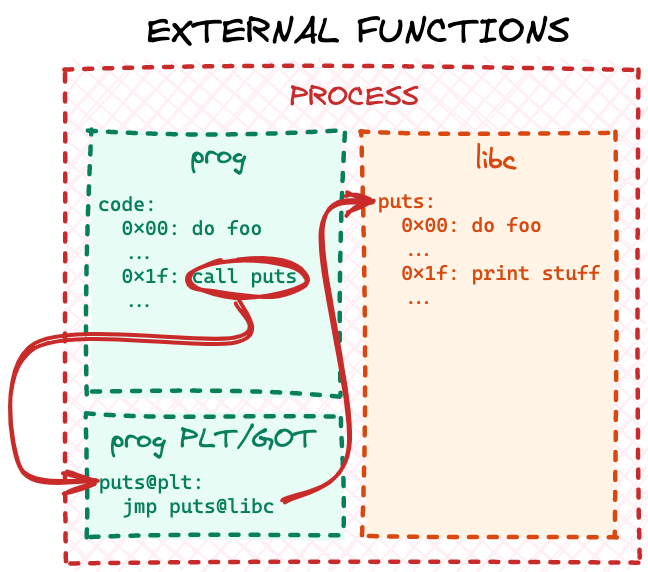


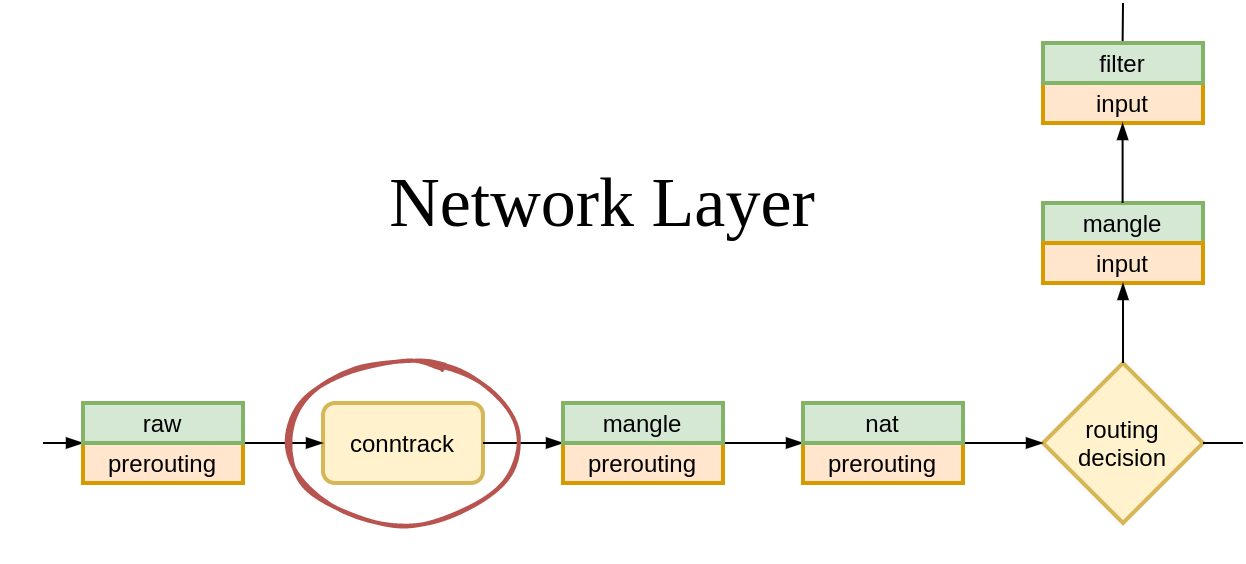
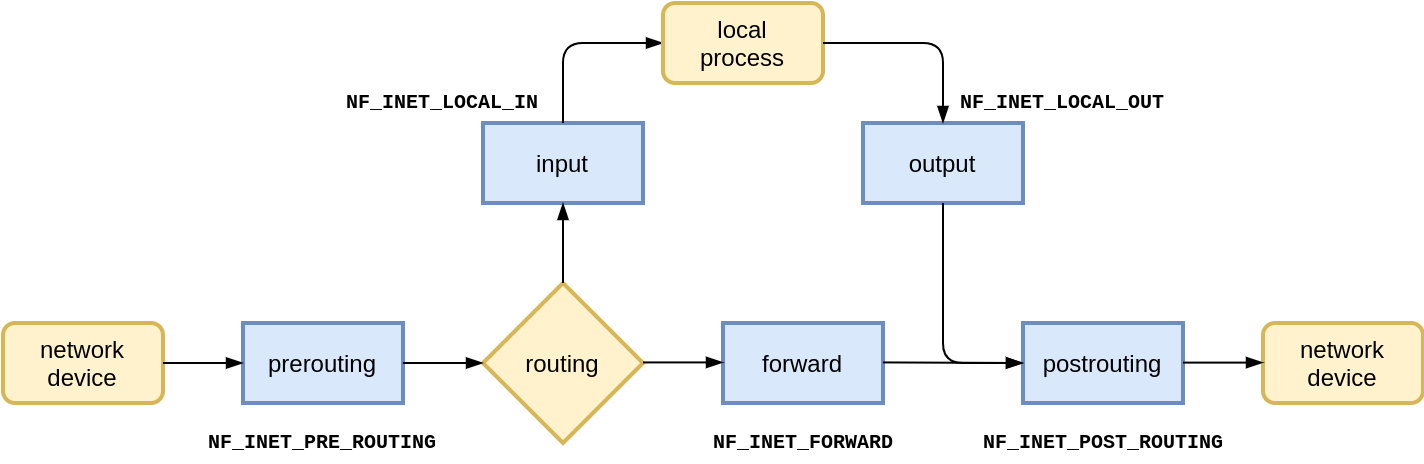
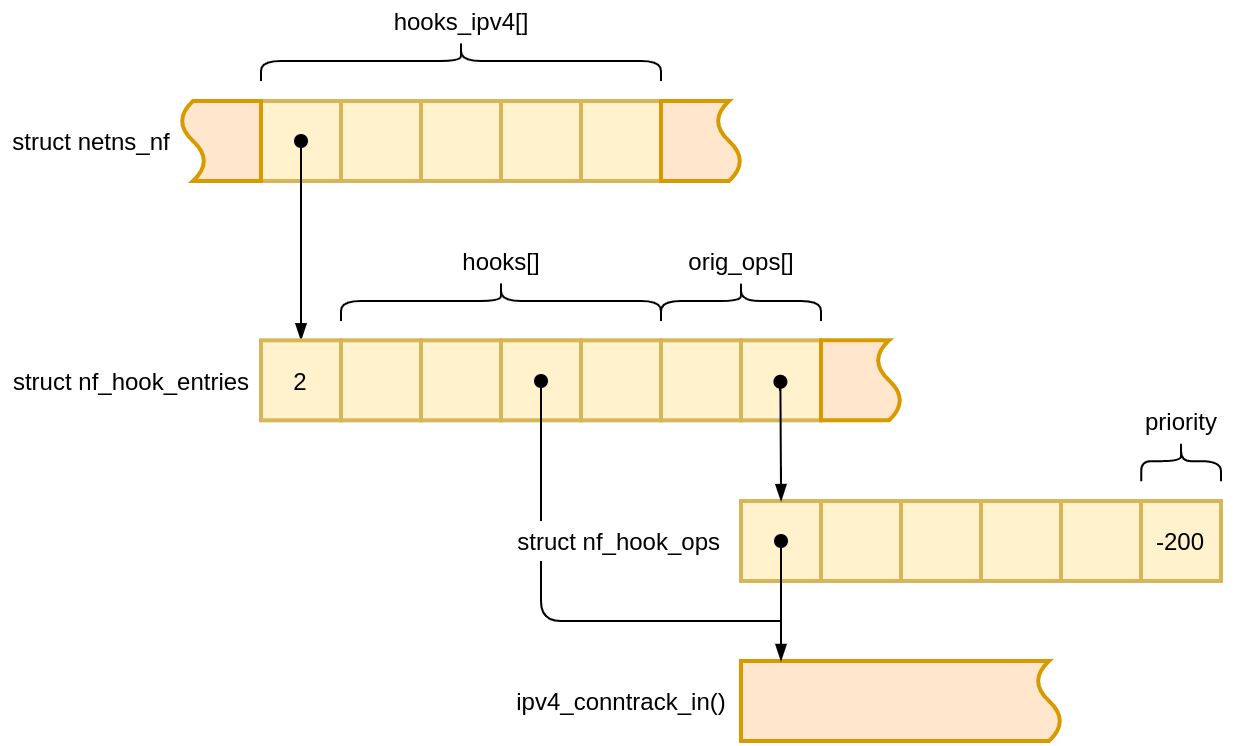

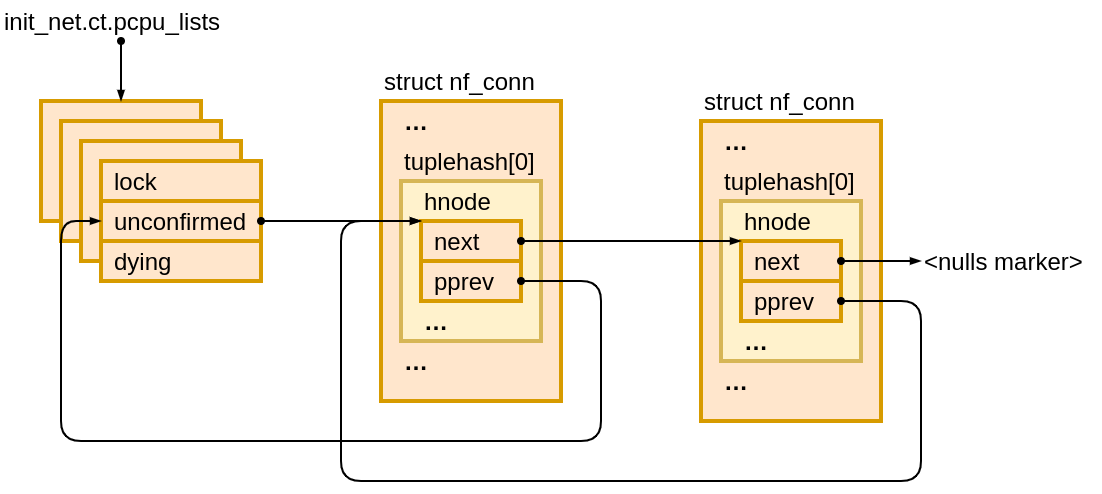
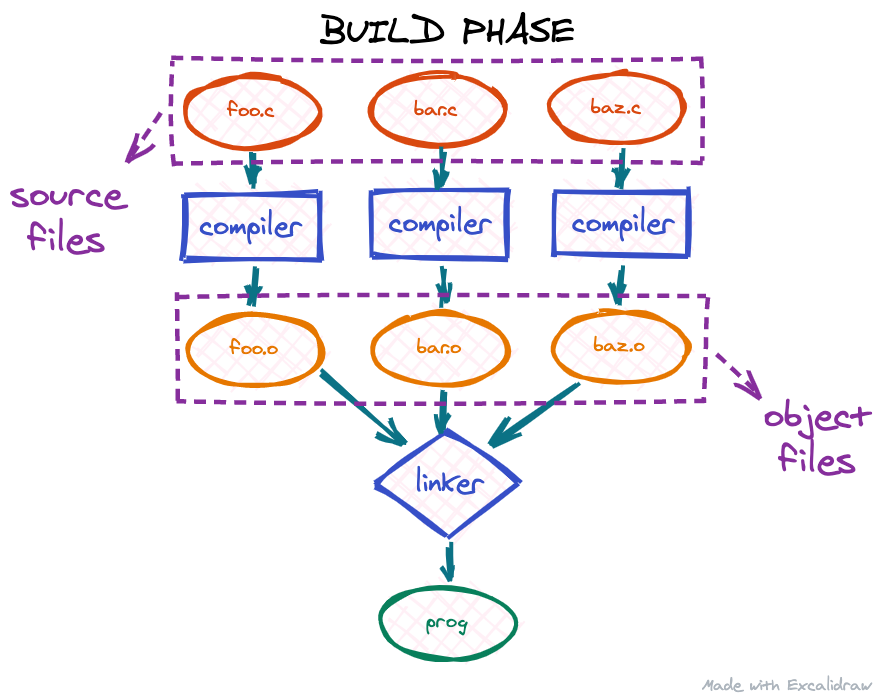
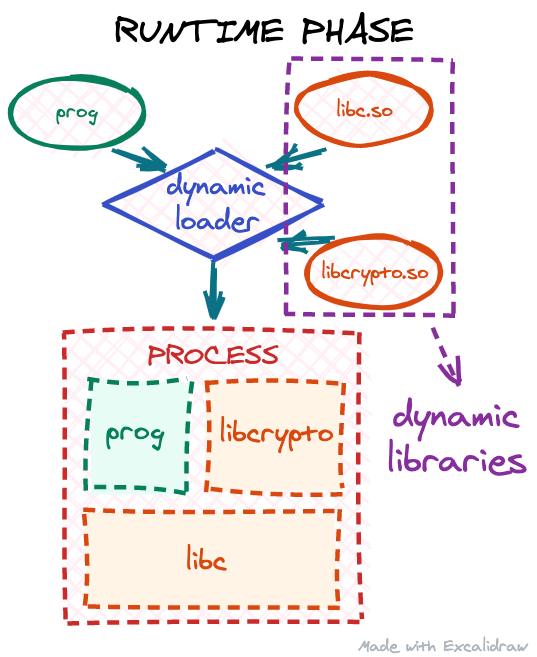
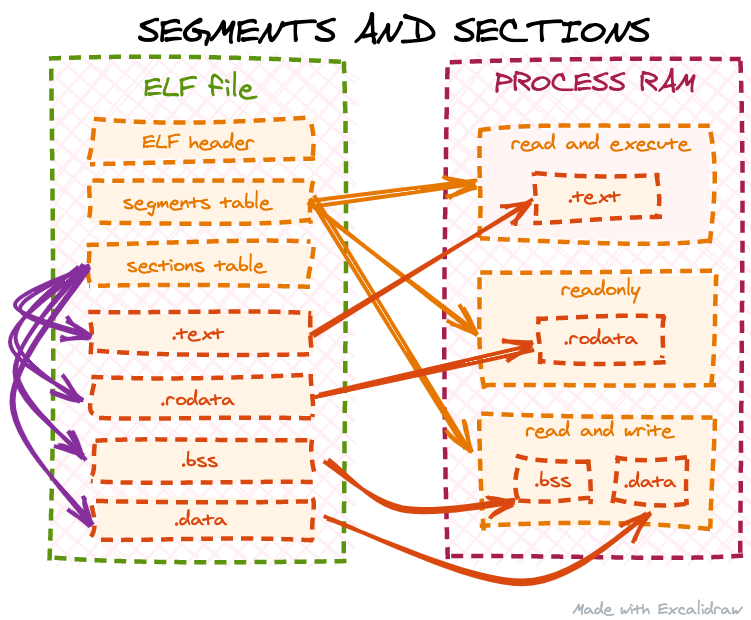


![Diving into /proc/[pid]/mem](https://blog.cloudflare.com/content/images/2020/10/image3-25.png)
![Diving into /proc/[pid]/mem](https://blog.cloudflare.com/content/images/2020/10/image2-27.png)
![Diving into /proc/[pid]/mem](https://blog.cloudflare.com/content/images/2020/10/image1-39.png)