Tag Archives: Amazon EC2

AWS Weekly Roundup – re:Post Selections, SNS and SQS FIFO improvements, multi-VPC ENI attachments, and more – October 30, 2023

Post Syndicated from Danilo Poccia original https://aws.amazon.com/blogs/aws/aws-weekly-roundup-repost-selections-sns-and-sqs-fifo-improvements-multi-vpc-eni-attachments-and-more-october-30-2023/

It’s less than a month to AWS re:Invent, but interesting news doesn’t slow down in the meantime. This week is my turn to help keep you up to date!

Last week’s launches
Here are some of the launches that caught my attention last week:

AWS re:Post – With re:Post, you have access to a community of experts that helps you become even more successful on AWS. With Selections, community members can organize knowledge in an aggregated view to create learning paths or curated content sets.

Amazon SNS – First-in-First-out (FIFO) topics now support the option to store and replay messages without needing to provision a separate archival resource. This improves the durability of your event-driven applications and can help you recover from downstream failure scenarios. Find out more in this AWS Comput Blog post – Archiving and replaying messages with Amazon SNS FIFO. Also, you can now use custom data identifiers to protect not only common sensitive data (such as names, addresses, and credit card numbers) but also domain-specific sensitive data, such as your company’s employee IDs. You can find additional info on this feature in this AWS Security blog post – Mask and redact sensitive data published to Amazon SNS using managed and custom data identifiers.

Amazon SQS – With the increased throughput quota for FIFO high throughput mode, you can process up to 18,000 transactions per second, per API action. Note the throughput quota depends on the AWS Region.

Amazon OpenSearch Service – OpenSearch Serverless now supports automated time-based data deletion with new index lifecycle policies. To determine the best strategy to deliver accurate and low latency vector search queries, OpenSearch can now intelligently evaluate optimal filtering strategies, like pre-filtering with approximate nearest neighbor (ANN) or filtering with exact k-nearest neighbor (k-NN). Also, OpenSearch Service now supports Internet Protocol Version 6 (IPv6).

Amazon EC2 – With multi-VPC ENI attachments, you can launch an instance with a primary elastic network interface (ENI) in one virtual private cloud (VPC) and attach a secondary ENI from another VPC. This helps maintain network-level segregation, but still allows specific workloads (like centralized appliances and databases) to communicate between them.

AWS CodePipeline – With parameterized pipelines, you can dynamically pass input parameters to a pipeline execution. You can now start a pipeline execution when a specific git tag is applied to a commit in the source repository.

Amazon MemoryDB – Now supports Graviton3-based R7g nodes that deliver up to 28 percent increased throughput compared to R6g. These nodes also deliver higher networking bandwidth.

Other AWS news
Here are a few posts from some of the other AWS and cloud blogs that I follow:

Networking & Content Delivery Blog – Some of the technical management and hardware decisions we make when building AWS network infrastructure: A Continuous Improvement Model for Interconnects within AWS Data Centers

Interconnect monitoring service infrastructure diagram

DevOps Blog – To help enterprise customers understand how many of developers use CodeWhisperer, how often they use it, and how often they accept suggestions: Introducing Amazon CodeWhisperer Dashboard and CloudWatch Metrics

Front-End Web & Mobile Blog – How to restrict access to your GraphQL APIs to consumers within a private network: Architecture Patterns for AWS AppSync Private APIs

Architecture Blog – Another post in this super interesting series: Let’s Architect! Designing systems for stream data processing

A serverless streaming data pipeline using Amazon Kinesis and AWS Glue

From Community.AWS: Load Testing WordPress Amazon Lightsail Instances and Future-proof Your .NET Apps With Foundation Model Choice and Amazon Bedrock.

Don’t miss the latest AWS open source newsletter by my colleague Ricardo.

Upcoming AWS events
Check your calendars and sign up for these AWS events

AWS Community Days – Join a community-led conference run by AWS user group leaders in your region: Jaipur (November 4), Vadodara (November 4), Brasil (November 4), Central Asia (Kazakhstan, Uzbekistan, Kyrgyzstan, and Mongolia on November 17-18), and Guatemala (November 18).

AWS re:Invent (November 27 – December 1) – Join us to hear the latest from AWS, learn from experts, and connect with the global cloud community. Browse the session catalog and attendee guides and check out the highlights for generative AI.

Here you can browse all upcoming AWS-led in-person and virtual events and developer-focused events.

And that’s all from me for this week. On to the next one!

— Danilo

This post is part of our Weekly Roundup series. Check back each week for a quick roundup of interesting news and announcements from AWS!

AWS Weekly Roundup – CodeWhisperer, CodeCatalyst, RDS, Route53, and more – October 24, 2023

Post Syndicated from Sébastien Stormacq original https://aws.amazon.com/blogs/aws/aws-weekly-roundup-codewhisperer-codecatalyst-rds-route53-and-more-october-23-2023/

The entire AWS News Blog team is fully focused on writing posts to announce the new services and features during our annual customer conference in Las Vegas, AWS re:Invent! And while we prepare content for you to read, our services teams continue to innovate. Here is my summary of last week’s launches.

Last week’s launches
Here are some of the launches that captured my attention:

Amazon CodeCatalyst – You can now add a cron expression to trigger a CI/CD workflow, providing a way to start workflows at set times. CodeCatalyst is a unified development service that integrates a project’s collaboration tools, CI/CD pipelines, and development and deployment environments.

Amazon Route53 – You can now route your customer’s traffic to their closest AWS Local Zones to improve application performance for latency-sensitive workloads. Learn more about geoproximity routing in the Route53 documentation.

Amazon RDS – The root certificates we use to sign your databases’ TLS certificates will expire in 2024. You must generate new certificates for your databases before the expiration date. This blog post details the procedure step by step. The new root certificates we generated are valid for the next 40 years for RSA2048 and 100 years for the RSA4098 and ECC384. It is likely this is the last time in your professional career that you are obliged to renew your database certificates for AWS.

Amazon MSK – Replicating Kafka clusters at scale is difficult and often involves managing the infrastructure and the replication solution by yourself. We launched Amazon MSK Replicator, a fully managed replication solution for your Kafka clusters, in the same or across multiple AWS Regions.

Amazon CodeWhisperer – We launched a preview for an upcoming capability of Amazon CodeWhisperer Professional. You can now train CodeWhisperer on your private code base. It allows you to give your organization’s developers more relevant suggestions to better assist them in their day-to-day coding against your organization’s private libraries and frameworks.

Amazon EC2 – The seventh generation of memory-optimized EC2 instances is available (R7i). These instances use the 4th Generation Intel Xeon Scalable Processors (Sapphire Rapids). This family of instances provides up to 192 vCPU and 1,536 GB of memory. They are well-suited for memory-intensive applications such as in-memory databases or caches.

X in Y – We launched existing services and instance types in additional Regions:

Other AWS news
Here are some other blog posts and news items that you might like:

The Community.AWS blog has new posts to teach you how to integrate Amazon Bedrock inside your Java and Go applications, and my colleague Brooke wrote a survival guide for re:Invent first-timers.

The Official AWS Podcast – Listen each week for updates on the latest AWS news and deep dives into exciting use cases. There are also official AWS podcasts in several languages. Check out the ones in French, German, Italian, and Spanish.

Some other great sources of AWS news include:

Upcoming AWS events
Check your calendars and sign up for these AWS events:

AWS Community DayAWS Community Days – Join a community-led conference run by AWS user group leaders in your region: Jaipur (November 4), Vadodara (November 4), and Brasil (November 4).

AWS Innovate: Every Application Edition – Join our free online conference to explore cutting-edge ways to enhance security and reliability, optimize performance on a budget, speed up application development, and revolutionize your applications with generative AI. Register for AWS Innovate Online Asia Pacific & Japan on October 26.

AWS re:Invent 2023AWS re:Invent (November 27 – December 1) – Join us to hear the latest from AWS, learn from experts, and connect with the global cloud community. Browse the session catalog and attendee guides and check out the re:Invent highlights for generative AI.

You can browse all upcoming in-person and virtual events.

And that’s all for me today. I’ll go back writing my re:Invent blog posts.

Check back next Monday for another Weekly Roundup!

— seb

This post is part of our Weekly Roundup series. Check back each week for a quick roundup of interesting news and announcements from AWS!

Maintaining a local copy of your data in AWS Local Zones

Post Syndicated from Macey Neff original https://aws.amazon.com/blogs/compute/maintaining-a-local-copy-of-your-data-in-aws-local-zones/

This post is written by Leonardo Solano, Senior Hybrid Cloud SA and Obed Gutierrez, Solutions Architect, Enterprise.

This post covers data replication strategies to back up your data into AWS Local Zones. These strategies include database replication, file based and object storage replication, and partner solutions for Amazon Elastic Compute Cloud (Amazon EC2).

Customers running workloads in AWS Regions are likely to require a copy of their data in their operational location for either their backup strategy or data residency requirements. To help with these requirements, you can use Local Zones.

Local Zones is an AWS infrastructure deployment that places compute, storage, database, and other select AWS services close to large population and industry centers. With Local Zones, customers can build and deploy workloads to comply with state and local data residency requirements in sectors such as healthcare, financial services, gaming, and government.

Solution overview

This post assumes the database source is Amazon Relational Database Service (Amazon RDS). To backup an Amazon RDS database to Local Zones, there are three options:

  1. AWS Database Migration Service (AWS DMS)
  2. AWS DataSync
  3. Backup to Amazon Simple Storage Service (Amazon S3)

. Amazon RDS replication to Local Zones with AWS DMS

Figure 1. Amazon RDS replication to Local Zones with AWS DMS

To replicate data, AWS DMS needs a source and a target database. The source database should be your existing Amazon RDS database. The target database is placed in an EC2 instance in the Local Zone. A replication job is created in AWS DMS, which maintains the source and target databases in sync. The replicated database in the Local Zone can be accessed through a VPN. Your database administrator can directly connect to the database engine with your preferred tool.

With this architecture, you can maintain a locally accessible copy of your databases, allowing you to comply with regulatory requirements.

Prerequisites

The following prerequisites are required before continuing:

  • An AWS Account with Administrator permissions;
  • Installation of the latest version of AWS Command Line Interface (AWS CLI v2);
  • An Amazon RDS database.

Walkthrough

1. Enabling Local Zones

First, you must enable Local Zones. Make sure that the intended Local Zone is parented to the AWS Region where the environment is running. Edit the commands to match your parameters, group-name makes reference to your local zone group and region to the region identifier to use.

aws ec2 modify-availability-zone-group \
  --region us-east-1 \
  --group-name us-east-1-qro-1\
  --opt-in-status opted-in

If you have an error when calling the ModifyAvailabilityZoneGroup operation, you must sign up for the Local Zone.

After enabling the Local Zone, you must extend the VPC to the Local Zone by creating a subnet in the Local Zone:

aws ec2 create-subnet \
  --region us-east-1 \
  --availability-zone us-east-1-qro-1a \
  --vpc-id vpc-02a3eb6585example \
  --cidr-block my-subnet-cidr

If you need a step-by-step guide, refer to Getting started with AWS Local Zones. Enabling Local Zones is free of charge. Only deployed services in the Local Zone incur billing.

2. Set up your target database

Now that you have the Local Zone enabled with a subnet, set up your target database instance in the Local Zone subnet that you just created.

You can use AWS CLI to launch it as an EC2 instance:

aws ec2 run-instances \
  --region us-east-1 \
  --subnet-id subnet-08fc749671example \
  --instance-type t3.medium \
  --image-id ami-0abcdef123example \
  --security-group-ids sg-0b0384b66dexample \
  --key-name my-key-pair

You can verify that your EC2 instance is running with the following command:

aws ec2 describe-instances --filters "Name=availability-zone,Values=us-east-1-qro-1a" --query "Reservations[].Instances[].InstanceId"

Output:

 $ ["i-0cda255374example"]

Note that not all instance types are available in Local Zones. You can verify it with the following AWS CLI command:

aws ec2 describe-instance-type-offerings --location-type "availability-zone" \
--filters Name=location,Values=us-east-1-qro-1a --region us-east-1

Once you have your instance running in the Local Zone, you can install the database engine matching your source database. Here is an example of how to install MariaDB:

  1. Updates all packages to the latest OS versionsudo yum update -y
  2. Install MySQL server on your instance, this also creates a systemd servicesudo yum install -y mariadb-server
  3. Enable the service created in previous stepsudo systemctl enable mariadb
  4. Start the MySQL server service on your Amazon Linux instancesudo systemctl start mariadb
  5. Set root user password and improve your DB securitysudo mysql_secure_installation

You can confirm successful installation with these commands:

mysql -h localhost -u root -p
SHOW DATABASES;

3. Configure databases for replication

In order for AWS DMS to replicate ongoing changes, you must use change data capture (CDC), as well as set up your source and target database accordingly before replication:

Source database:

  • Make sure that the binary logs are available to AWS DMS:

 call mysql.rds_set_configuration('binlog retention hours', 24);

  • Set the binlog_format parameter to “ROW“.
  • Set the binlog_row_image parameter to “Full“.
  • If you are using Read replica as source, then set the log_slave_updates parameter to TRUE.

For detailed information, refer to Using a MySQL-compatible database as a source for AWS DMS, or sources for your migration if your database engine is different.

Target database:

  • Create a user for AWS DMS that has read/write privileges to the MySQL-compatible database. To create the necessary privileges, run the following commands.
CREATE USER ''@'%' IDENTIFIED BY '';
GRANT ALTER, CREATE, DROP, INDEX, INSERT, UPDATE, DELETE, SELECT ON .* TO 
''@'%';
GRANT ALL PRIVILEGES ON awsdms_control.* TO ''@'%';
  • Disable foreign keys on target tables, by adding the next command in the Extra connection attributes section of the AWS DMS console for your target endpoint.

Initstmt=SET FOREIGN_KEY_CHECKS=0;

  • Set the database parameter local_infile = 1 to enable AWS DMS to load data into the target database.

4. Set up AWS DMS

Now that you have our Local Zone enabled with the target database ready and the source database configured, you can set up AWS DMS Replication instance.

Go to AWS DMS in the AWS Management Console, and under Migrate data select Replication Instances, then select the Create Replication button:

This shows the Create replication Instance, where you should fill up the parameters required:

Note that High Availability is set to Single-AZ, as this is a test workload, while Multi-AZ is recommended for Production workloads.

Refer to the AWS DMS replication instance documentation for details about how to size your replication instance.

Important note

To allow replication, make sure that you set up the replication instance in the VPC that your environment is running, and configure security groups from and to the source and target database.

Now you can create the DMS Source and Target endpoints:

5. Set up endpoints

Source endpoint:

In the AWS DMS console, select Endpoints, select the Create endpoint button, and select Source endpoint option. Then, fill the details required:

Make sure you select your RDS instance as Source by selecting the check box as show in the preceding figure. Moreover, include access to endpoint database details, such as user and password.

You can test your endpoint connectivity before creating it, as shown in the following figure:

If your test is successful, then you can select the Create endpoint button.

Target endpoint:

In the same way as the Source in the console, select Endpoints, select the Create endpoint button, and select Target endpoint option, then enter the details required, as shown in the following figure:

In the Access to endpoint database section, select Provide access information manually option, next add your Local Zone target database connection details as shown below. Notice that Server name value, should be the IP address of your target database.

Make sure you go to the bottom of the page and configure Extra connection attributes in the Endpoint settings, as described in the Configure databases for replication section of this post:

Like the source endpoint, you can test your endpoint connection before creating it.

6. Create the replication task

Once the endpoints are ready, you can create the migration task to start the replication. Under the Migrate Data section, select Database migration tasks, hit the Create task button, and configure your task:

Select Migrate existing data and replicate ongoing changes in the Migration type parameter.

Enable Task logs under Task Settings. This is recommended as it can help you with troubleshooting purposes.

In Table mappings, include the schema you want to replicate to the Local Zone database:

Once you have defined Task Configuration, Task Settings, and Table Mappings, you can proceed to create your database migration task.

This will trigger your migration task. Now wait until the migration task completes successfully.

7. Validate replicated database

After the replication job completes the Full Load, proceed to validate at your target database. Connect to your target database and run the following commands:

USE example;
SHOW TABLES;

As a result you should see the same tables as the source database.

MySQL [example]> SHOW TABLES;
+----------------------------+
| Tables_in_example          |
+----------------------------+
| actor                      |
| address                    |
| category                   |
| city                       |
| country                    |
| customer                   |
| customer_list              |
| film                       |
| film_actor                 |
| film_category              |
| film_list                  |
| film_text                  |
| inventory                  |
| language                   |
| nicer_but_slower_film_list |
| payment                    |
| rental                     |
| sales_by_film_category     |
| sales_by_store             |
| staff                      |
| staff_list                 |
| store                      |
+----------------------------+
22 rows in set (0.06 sec)

If you get the same tables from your source database, then congratulations, you’re set! Now you can maintain and navigate a live copy of database in the Local Zone for data residency purposes.

Clean up

When you have finished this tutorial, you can delete all the resources that have been deployed. You can do this in the Console or by running the following commands in the AWS CLI:

  1. Delete target DB:
    aws ec2 terminate-instances --instance-ids i-abcd1234
  2. Decommision AWS DMS
    • Replication Task:
      aws dms delete-replication-task --replication-task-arn arn:aws:dms:us-east-1:111111111111:task:K55IUCGBASJS5VHZJIIEXAMPLE
    • Endpoints:
      aws dms delete-endpoint --endpoint-arn arn:aws:dms:us-east-1:111111111111:endpoint:OUJJVXO4XZ4CYTSEG5XEXAMPLE
    • Replication instance:
      aws dms delete-replication-instance --replication-instance-arn us-east-1:111111111111:rep:T3OM7OUB5NM2LCVZF7JEXAMPLE
  3. Delete Local Zone subnet
    aws ec2 delete-subnet --subnet-id subnet-9example

Conclusion

Local Zones is a useful tool for running applications with low latency requirements or data residency regulations. In this post, you have learned how to use AWS DMS to seamlessly replicate your data to Local Zones. With this architecture you can efficiently maintain a local copy of your data in Local Zones and access it securly.

If you are interested on how to automate your workloads deployments in Local Zones, make sure you check this workshop.

Enabling highly available connectivity from on premises to AWS Local Zones

Post Syndicated from Macey Neff original https://aws.amazon.com/blogs/compute/enabling-highly-available-connectivity-from-on-premises-to-aws-local-zones/

This post is written by Leonardo Solano, Senior Hybrid Cloud SA and Robert Belson SA Developer Advocate.

Planning your network topology is a foundational requirement of the reliability pillar of the AWS Well-Architected Framework. REL02-BP02 defines how to provide redundant connectivity between private networks in the cloud and on-premises environments using AWS Direct Connect for resilient, redundant connections using AWS Site-to-Site VPN, or AWS Direct Connect failing over to AWS Site-to-Site VPN. As more customers use a combination of on-premises environments, Local Zones, and AWS Regions, they have asked for guidance on how to extend this pillar of the AWS Well-Architected Framework to include Local Zones. As an example, if you are on an application modernization journey, you may have existing Amazon EKS clusters that have dependencies on persistent on-premises data.

AWS Local Zones enables single-digit millisecond latency to power applications such as real-time gaming, live streaming, augmented and virtual reality (AR/VR), virtual workstations, and more. Local Zones can also help you meet data sovereignty requirements in regulated industries  such as healthcare, financial services, and the public sector. Additionally, enterprises can leverage a hybrid architecture and seamlessly extend their on-premises environment to the cloud using Local Zones. In the example above, you could extend Amazon EKS clusters to include node groups in a Local Zone (or multiple Local Zones) or on premises using AWS Outpost rack.

To provide connectivity between private networks in Local Zones and on-premises environments, customers typically consider Direct Connect or software VPNs available in the AWS Marketplace. This post provides a reference implementation to eliminate single points of failure in connectivity while offering automatic network impairment detection and intelligent failover using both Direct Connect and software VPNs in AWS Market place. Moreover, this solution minimizes latency by ensuring traffic does not hairpin through the parent AWS Region to the Local Zone.

Solution overview

In Local Zones, all architectural patterns based on AWS Direct Connect follow the same architecture as in AWS Regions and can be deployed using the AWS Direct Connect Resiliency Toolkit. As of the date of publication, Local Zones do not support AWS managed Site-to-Site VPN (view latest Local Zones features). Thus, for customers that have access to only a single Direct Connect location or require resiliency beyond a single connection, this post will demonstrate a solution using an AWS Direct Connect failover strategy with a software VPN appliance. You can find a range of third-party software VPN appliances as well as the throughput per VPN tunnel that each offering provides in the AWS Marketplace.

Prerequisites:

To get started, make sure that your account is opt-in for Local Zones and configure the following:

  1. Extend a Virtual Private Cloud (VPC) from the Region to the Local Zone, with at least 3 subnets. Use Getting Started with AWS Local Zones as a reference.
    1. Public subnet in Local Zone (public-subnet-1)
    2. Private subnets in Local Zone (private-subnet-1 and private-subnet-2)
    3. Private subnet in the Region (private-subnet-3)
    4. Modify DNS attributes in your VPC, including both “enableDnsSupport” and “enableDnsHostnames”;
  2. Attach an Internet Gateway (IGW) to the VPC;
  3. Attach a Virtual Private Gateway (VGW) to the VPC;
  4. Create an ec2 vpc-endpoint attached to the private-subnet-3;
  5. Define the following routing tables (RTB):
    1. Private-subnet-1 RTB: enabling propagation for VGW;
    2. Private-subnet-2 RTB: enabling propagation for VGW;
    3. Public-subnet-1 RTB: with a default route with IGW-ID as the next hop;
  6. Configure a Direct Connect Private Virtual Interface (VIF) from your on-premises environment to Local Zones Virtual Gateway’s VPC. For more details see this post: AWS Direct Connect and AWS Local Zones interoperability patterns;
  7. Launch any software VPN appliance from AWS Marketplace on Public-subnet-1. In this blog post on simulating Site-to-Site VPN customer gateways using strongSwan, you can find an example that provides the steps to deploy a third-party software VPN in AWS Region;
  8. Capture the following parameters from your environment:
    1. Software VPN Elastic Network Interface (ENI) ID
    2. Private-subnet-1 RTB ID
    3. Probe IP, which must be an on-premises resource that can respond to Internet Control Message Protocol (ICMP) requests.

High level architecture

This architecture requires a utility Amazon Elastic Compute Cloud (Amazon EC2) instance in a private subnet (private-subnet-2), sending ICMP probes over the Direct Connect connection. Once the utility instance detects lost packets to on-premises network from the Local Zone it initiates a failover by adding a static route with the on-premises CIDR range as the destination and the VPN Appliance ENI-ID as the next hop in the production private subnet (private-subnet-1), taking priority over the Direct Connect propagated route. Once healthy, this utility will revert back to the default route to the original Direct Connect connection.

On-premises considerations

To add redundancy in the on-premises environment, you can use two routers using any First Hop Redundancy Protocol (FHRP) as Hot Standby Router Protocol (HSRP) or Virtual Router Redundancy Protocol (VRRP). The router connected to the Direct Connect link has the highest priority, taking the Primary role in the FHRP process while the VPN router remain the Secondary router. The failover mechanism in the FHRP relies on interface or protocol state as BGP, which triggers the failover mechanism.

High level HA architecture for Software VPN

Figure 1. High level HA architecture for Software VPN

Failover by modifying the production subnet RTB

Figure 2. Failover by modifying the production subnet RTB

Step-by-step deployment

Create IAM role with permissions to create and delete routes in your private-subnet-1 route table:

  1. Create ec2-role-trust-policy.json file on your local machine:
cat > ec2-role-trust-policy.json <<EOF
{
    "Version": "2012-10-17",
    "Statement": [
        {
            "Effect": "Allow",
            "Principal": {
                "Service": "ec2.amazonaws.com"
            },
            "Action": "sts:AssumeRole"
        }
    ]
}
EOF
  1. Create your EC2 IAM role, such as my_ec2_role:
aws iam create-role --role-name my_ec2_role --assume-role-policy-document file://ec2-role-trust-policy.json
  1. Create a file with the necessary permissions to attach to the EC2 IAM role. Name it ec2-role-iam-policy.json.
aws iam create-policy --policy-name my-ec2-policy --policy-document file://ec2-role-iam-policy.json
  1. Create the IAM policy and attach the policy to the IAM role my_ec2_role that you previously created:
aws iam create-policy --policy-name my-ec2-policy --policy-document file://ec2-role-iam-policy.json

aws iam attach-role-policy --policy-arn arn:aws:iam::<account_id>:policy/my-ec2-policy --role-name my_ec2_role
  1. Create an instance profile and attach the IAM role to it:
aws iam create-instance-profile –instance-profile-name my_ec2_instance_profile
aws iam add-role-to-instance-profile –instance-profile-name my_ec2_instance_profile –role-name my_ec2_role   

Launch and configure your utility instance

  1. Capture the Amazon Linux 2 AMI ID through CLI:
aws ec2 describe-images --filters "Name=name,Values=amzn2-ami-kernel-5.10-hvm-2.0.20230404.1-x86_64-gp2" | grep ImageId 

Sample output:

            "ImageId": "ami-069aabeee6f53e7bf",

  1. Create an EC2 key for the utility instance:
aws ec2 create-key-pair --key-name MyKeyPair --query 'KeyMaterial' --output text > MyKeyPair.pem
  1. Launch the utility instance in the Local Zone (replace the variables with your account and environment parameters):
aws ec2 run-instances --image-id ami-069aabeee6f53e7bf --key-name MyKeyPair --count 1 --instance-type t3.medium  --subnet-id <private-subnet-2-id> --iam-instance-profile Name=my_ec2_instance_profile_linux

Deploy failover automation shell script on the utility instance

  1. Create the following shell script in your utility instance (replace the health check variables with your environment values):
cat > vpn_monitoring.sh <<EOF
// Copyright Amazon.com, Inc. or its affiliates. All Rights Reserved.
// SPDX-License-Identifier: MIT-0
# Health Check variables
Wait_Between_Pings=2
RTB_ID=<private-subnet-1-rtb-id>
PROBE_IP=<probe-ip>
remote_cidr=<remote-cidr>
GW_ENI_ID=<software-vpn-eni_id>
Active_path=DX

echo `date` "-- Starting VPN monitor"

while [ . ]; do
  # Check health of main VPN Appliance path to remote probe ip
  pingresult=`ping -c 3 -W 1 $PROBE_IP | grep time= | wc -l`
  # Check to see if any of the health checks succeeded
  if ["$pingresult" == "0"]; then
    if ["$Active_path" == "DX"]; then
      echo `date` "-- Direct Connect failed. Failing over vpn"
      aws ec2 create-route --route-table-id $RTB_ID --destination-cidr-block $remote_cidr --network-interface-id $GW_ENI_ID --region us-east-1
      Active_path=VPN
      DX_tries=10
      echo "probe_ip: unreachable – active_path: vpn"
    else
      echo "probe_ip: unreachable – active_path: vpn"
    fi
  else     
    if ["$Active_path" == "VPN"]; then
      let DX_tries=DX_tries-1
      if ["$DX_tries" == "0"]; then
        echo `date` "-- failing back to Direct Connect"
        aws ec2 delete-route --route-table-id $RTB_ID --destination-cidr-block $remote_cidr --region us-east-1
        Active_path=DX
        echo "probe_ip: reachable – active_path: Direct Connect"
      else
        echo "probe_ip: reachable – active_path: vpn"
      fi
    else
      echo "probe:ip: reachable – active_path: Direct Connect"	    
    fi
  fi    
done EOF
  1. Modify permissions to your shell script file:
chmod +x vpn_monitoring.sh
  1. Start the shell script:
./vpn_monitoring.sh

Test the environment

Failover process between Direct Connect and software VPN

Figure 3. Failover process between Direct Connect and software VPN

Simulate failure of the Direct Connect link, breaking the available path from the Local Zone to the on-premises environment. You can simulate the failure using the failure test feature in Direct Connect console.

Bringing BGP session down

Figure 4. Bringing BGP session down

Setting the failure time

Figure 5. Setting the failure time

In the utility instance you will see the following logs:

Thu Sep 21 14:39:34 UTC 2023 -- Direct Connect failed. Failing over vpn

The shell script in action will detect packet loss by ICMP probes against a probe IP destination on premises, triggering the failover process. As a result, it will make an API call (aws ec2 create-route) to AWS using the EC2 interface endpoint.

The script will create a static route in the private-subnet-1-RTB toward on-premises CIDR with the VPN Elastic-Network ID as the next hop.

private-subnet-1-RTB during the test

Figure 6. private-subnet-1-RTB during the test

The FHRP mechanisms detect the failure in the Direct Connect Link and then reduce the FHRP priority on this path, which triggers the failover to the secondary link through the VPN path.

Once you cancel the test or the test finishes, the failback procedure will revert the private-subnet-1 route table to its initial state, resulting in the following logs to be emitted by the utility instance:

Thu Sep 21 14:42:34 UTC 2023 -- failing back to Direct Connect

private-subnet-1 route table initial state

Figure 7. private-subnet-1 route table initial state

Cleaning up

To clean up your AWS based resources, run following AWS CLI commands:

aws ec2 terminate-instances --instance-ids <your-utility-instance-id>
aws iam delete-instance-profile --instance-profile-name my_ec2_instance_profile
aws iam delete-role my_ec2_role

Conclusion

This post demonstrates how to create a failover strategy for Local Zones using the same resilience mechanisms already established in the AWS Regions. By leveraging Direct Connect and software VPNs, you can achieve high availability in scenarios where you are constrained to a single Direct Connect location due to geographical limitations. In the architectural pattern illustrated in this post, the failover strategy relies on a utility instance with least-privileged permissions. The utility instance identifies network impairment and dynamically modify your production route tables to keep the connectivity established from a Local Zone to your on-premises location. This same mechanism provides capabilities to automatically failback from the software VPN to Direct Connect once the utility instance validates that the Direct Connect Path is sufficiently reliable to avoid network flapping. To learn more about Local Zones, you can visit the AWS Local Zones user guide.

Training machine learning models on premises for data residency with AWS Outposts rack

Post Syndicated from Macey Neff original https://aws.amazon.com/blogs/compute/training-machine-learning-models-on-premises-for-data-residency-with-aws-outposts-rack/

This post is written by Sumit Menaria, Senior Hybrid Solutions Architect, and Boris Alexandrov, Senior Product Manager-Tech. 

In this post, you will learn how to train machine learning (ML) models on premises using AWS Outposts rack and datasets stored locally in Amazon S3 on Outposts. With the rise in data sovereignty and privacy regulations, organizations are seeking flexible solutions that balance compliance with the agility of cloud services. Healthcare and financial sectors, for instance, harness machine learning for enhanced patient care and transaction safety, all while upholding strict confidentiality. Outposts rack provide a seamless hybrid solution by extending AWS capabilities to any on-premises or edge location, providing you the flexibility to store and process data wherever you choose. Data sovereignty regulations are highly nuanced and vary by country. This blog post addresses data sovereignty scenarios where training datasets need to be stored and processed in a geographic location without an AWS Region.

Amazon S3 on Outposts

As you prepare datasets for ML model training, a key component to consider is the storage and retrieval of your data, especially when adhering to data residency and regulatory requirements.

You can store training datasets as object data in local buckets with Amazon S3 on Outposts. In order to access S3 on Outposts buckets for data operations, you need to create access points and route the requests via an S3 on Outposts endpoint associated with your VPC. These endpoints are accessible both from within the VPC as well as on premises via the local gateway.

S3 on Outposts connectivity options

Solution overview

Using this sample architecture, you are going to train a YOLOv5 model on a subset of categories of the Common Objects in Context (COCO) dataset. The COCO dataset is a popular choice for object detection tasks offering a wide variety of image categories with rich annotations. It is also available under the AWS Open Data Sponsorship Program via fast.ai datasets.

Architecture for ML training on Outposts rack

This example is based on an architecture using an Amazon Elastic Compute Cloud (Amazon EC2) g4dn.8xlarge instance for model training on the Outposts rack. Depending on your Outposts rack compute configuration, you can use different instance sizes or types and make adjustments to training parameters, such as learning rate, augmentation, or model architecture accordingly. You will be using the AWS Deep Learning AMI to launch your EC2 instance, which comes with frameworks, dependencies, and tools to accelerate deep learning in the cloud.

For the training dataset storage, you are going to use an S3 on Outposts bucket and connect to it from your on-premises location via the Outposts local gateway. The local gateway routing mode can be direct VPC routing or Customer-owned IP (CoIP) depending on your workload’s requirements. Your local gateway routing mode will determine the S3 on Outposts endpoint configuration that you need to use.

1. Download and populate training dataset

You can download the training dataset to your local client machine using the following AWS CLI command:

aws s3 sync s3://fast-ai-coco/ .

After downloading, unzip annotations_trainval2017.zip, val2017.zip and train2017.zip files.

$ unzip annotations_trainval2017.zip
$ unzip val2017.zip
$ unzip train2017.zip

In the annotations folder, the files which you need to use are instances_train2017.json and instances_val2017.json, which contain the annotations corresponding to the images in the training and validation folders.

2. Filtering and preparing training dataset

You are going to use the training, validation, and annotation files from the COCO dataset. The dataset contains over 100K images across 80 categories, but to keep the training simple, you can focus on 10 specific categories of popular food items in supermarket shelves: banana, apple, sandwich, orange, broccoli, carrot, hot dog, pizza, donut, and cake. (Because who doesn’t like a bite after a model training.) Applications for training such models could be self-stock monitoring, automatic checkouts, or product placement optimization using computer vision in retail stores. Since YOLOv5 uses a specific annotations (labels) format, you need to convert the COCO dataset annotation to the target annotation.

3. Load training dataset to S3 on Outposts bucket

In order to load the training data on S3 on Outposts you need to first create a new bucket using the AWS Console or CLI, as well as an access point and endpoint for the VPC. You can use a bucket style access point alias to load the data, using the following CLI command:

$ cd /your/local/target/upload/path/
$ aws s3 sync . s3://trainingdata-o0a2b3c4d5e6d7f8g9h10f--op-s3

Replace the alias in the above CLI command with corresponding bucket alias name for your environment. The s3 sync command syncs the folders in the same structure containing the images and labels for the training and validation data, which you will be using later for loading it to the EC2 instance for model training.

4. Launch the EC2 instance

You can launch the EC2 instance with the Deep Learning AMI based on this getting started tutorial. For this exercise, the Deep Learning AMI GPU PyTorch 2.0.1 (Ubuntu 20.04) has been used.

5. Download YOLOv5 and install dependencies

Once you ssh into the EC2 instance, activate the pre-configured PyTorch environment and clone the YOLOv5 repository.

$ ssh -i /path/key-pair-name.pem ubuntu@instance-ip-address
$ conda activate pytorch
$ git clone https://github.com/ultralytics/yolov5.git
$ cd yolov5

Then, and install its necessary dependencies.

$ pip install -U -r requirements.txt

To ensure the compatibility between various packages, you may need to modify existing packages on your instance running the AWS Deep Learning AMI.

6. Load the training dataset from S3 on Outposts to the EC2 instance

For copying the training dataset to the EC2 instance, use the s3 sync CLI command and point it to your local workspace.

aws s3 sync s3://trainingdata-o0a2b3c4d5e6d7f8g9h10f--op-s3 .

7. Prepare the configuration files

Create the data configuration files to reflect your dataset’s structure, categories, and other parameters.
data.yml

train: /your/ec2/path/to/data/images/train 
val: /your/ec2/path/to/data/images/val 
nc: 10 # Number of classes in your dataset 
names: ['banana', 'apple', 'sandwich', 'orange', 'broccoli', 'carrot', 'hot dog', 'pizza', 'donut', 'cake']

Create the model training parameter file using the sample configuration file from the YOLOv5 repository. You will need to update the number of classes to 10, but you can also change other parameters as you fine tune the model for performance.

parameters.yml:

# Parameters
nc: 10 # number of classes in your dataset
depth_multiple: 0.33 # model depth multiple
width_multiple: 0.50 # layer channel multiple
anchors:
- [10,13, 16,30, 33,23] # P3/8
- [30,61, 62,45, 59,119] # P4/16
- [116,90, 156,198, 373,326] # P5/32

# Backbone
backbone:
[[-1, 1, Conv, [64, 6, 2, 2]], # 0-P1/2
[-1, 1, Conv, [128, 3, 2]], # 1-P2/4
[-1, 3, C3, [128]],
[-1, 1, Conv, [256, 3, 2]], # 3-P3/8
[-1, 6, C3, [256]],
[-1, 1, Conv, [512, 3, 2]], # 5-P4/16
[-1, 9, C3, [512]],
[-1, 1, Conv, [1024, 3, 2]], # 7-P5/32
[-1, 3, C3, [1024]],
[-1, 1, SPPF, [1024, 5]], # 9
]

# Head
head:
[[-1, 1, Conv, [512, 1, 1]],
[-1, 1, nn.Upsample, [None, 2, 'nearest']],
[[-1, 6], 1, Concat, [1]], # cat backbone P4
[-1, 3, C3, [512, False]], # 13

[-1, 1, Conv, [256, 1, 1]],
[-1, 1, nn.Upsample, [None, 2, 'nearest']],
[[-1, 4], 1, Concat, [1]], # cat backbone P3
[-1, 3, C3, [256, False]], # 17 (P3/8-small)

[-1, 1, Conv, [256, 3, 2]],
[[-1, 14], 1, Concat, [1]], # cat head P4
[-1, 3, C3, [512, False]], # 20 (P4/16-medium)

[-1, 1, Conv, [512, 3, 2]],
[[-1, 10], 1, Concat, [1]], # cat head P5
[-1, 3, C3, [1024, False]], # 23 (P5/32-large)

[[17, 20, 23], 1, Detect, [nc, anchors]], # Detect(P3, P4, P5)

At this stage, the directory structure should look like below:

Directory tree showing training dataset and model configuration structure]

8. Train the model

You can run the following command to train the model. The batch-size and epochs can vary depending on your vCPU and GPU configuration and you can further modify these values or add weights as you try with additional rounds of training.

$ python3 train.py —img-size 640 —batch-size 32 —epochs 50 —data /your/path/to/configuation_files/dataconfig.yaml —cfg /your/path/to/configuation_files/parameters.yaml

You can monitor the model performance as it iterates through each epoch

Starting training for 50 epochs...

Epoch GPU_mem box_loss obj_loss cls_loss Instances Size
0/49 6.7G 0.08403 0.05 0.04359 129 640: 100%|██████████| 455/455 [06:14<00:00,
Class Images Instances P R mAP50 mAP50-95: 100%|██████████| 9/9 [00:05<0
all 575 2114 0.216 0.155 0.0995 0.0338

Epoch GPU_mem box_loss obj_loss cls_loss Instances Size
1/49 8.95G 0.07131 0.05091 0.02365 179 640: 100%|██████████| 455/455 [06:00<00:00,
Class Images Instances P R mAP50 mAP50-95: 100%|██████████| 9/9 [00:04<00:00, 1.97it/s]
all 575 2114 0.242 0.144 0.11 0.04

Epoch GPU_mem box_loss obj_loss cls_loss Instances Size
2/49 8.96G 0.07068 0.05331 0.02712 154 640: 100%|██████████| 455/455 [06:01<00:00, 1.26it/s]
Class Images Instances P R mAP50 mAP50-95: 100%|██████████| 9/9 [00:04<00:00, 2.23it/s]
all 575 2114 0.185 0.124 0.0732 0.0273

Once the model training finishes, you can see the validation results against the batch of validation dataset and evaluate the model’s performance using standard metrics.

Validating runs/train/exp/weights/best.pt...
Fusing layers... 
YOLOv5 summary: 157 layers, 7037095 parameters, 0 gradients, 15.8 GFLOPs
                 Class     Images  Instances          P          R      mAP50   mAP50-95: 100%|██████████| 9/9 [00:06<00:00,  1.48it/s]
                   all        575       2114      0.282      0.222       0.16     0.0653
                banana        575        280      0.189      0.143     0.0759      0.024
                 apple        575        186      0.206      0.085     0.0418     0.0151
              sandwich        575        146      0.368      0.404      0.343      0.146
                orange        575        188      0.265      0.149     0.0863     0.0362
              broccoli        575        226      0.239      0.226      0.138     0.0417
                carrot        575        310      0.182      0.203     0.0971     0.0267
               hot dog        575        108      0.242      0.111     0.0929     0.0311
                 pizza        575        208      0.405      0.418      0.333       0.15
                 donut        575        228      0.352      0.241       0.19     0.0973
                  cake        575        234      0.369      0.235      0.203     0.0853
Results saved to runs/train/exp

Use the model for inference

In order to test the model performance, you can test it by passing a new image which is from a shelf in a supermarket with some of the objects that you trained the model on.

Sample inference image with 1 cake, 6 oranges, and 4 apples

(pytorch) ubuntu@ip-172-31-48-165:~/workspace/source/yolov5$ python3 detect.py --weights /home/ubuntu/workspace/source/yolov5/runs/train/exp/weights/best.pt —source /home/ubuntu/workspace/inference/Inference-image.jpg
<<omitted output>>
Fusing layers...
YOLOv5 summary: 157 layers, 7037095 parameters, 0 gradients, 15.8 GFLOPs
image 1/1 /home/ubuntu/workspace/inference/Inference-image.jpg: 640x640 4 apples, 6 oranges, 1 cake, 5.3ms
Speed: 0.6ms pre-process, 5.3ms inference, 1.1ms NMS per image at shape (1, 3, 640, 640)
Results saved to runs/detect/exp7

The response from the preceding model inference indicates that it predicted 4 apples, 6 oranges, and 1 cake in the image. The prediction may differ based on the image type used, and while a single sample image can give you a sense of the model’s performance, it will not provide a comprehensive understanding. For a more complete evaluation, it’s always recommended to test the model on a larger and more diverse set of validation images. Additional training and tuning of your parameters or datasets may be required to achieve better prediction.

Clean Up

You can terminate the following resources used in this tutorial after you have successfully trained and tested the model:

Conclusion

The seamless integration of compute on AWS Outposts with S3 on Outposts, coupled with on-premises ML model training capabilities, offers organizations a robust solution to tackle data residency requirements. By setting up this environment, you can ensure that your datasets remain within desired geographies while still utilizing advanced machine learning models and cloud infrastructure. In addition to this, it remains essential to diligently review and fine-tune your implementation strategies and guard rails in place to ensure your data remains within the boundaries of your regulatory requirements. You can read more about architecting for data residency in this blog post.

Reference

New – Seventh Generation Memory-optimized Amazon EC2 Instances (R7i)

Post Syndicated from Irshad Buchh original https://aws.amazon.com/blogs/aws/new-seventh-generation-memory-optimized-amazon-ec2-instances-r7i/

Earlier, we introduced a duo of Amazon Elastic Compute Cloud (Amazon EC2) instances to our lineup: the general-purpose Amazon EC2 M7i instances and the compute-optimized Amazon EC2 C7i instances.

Today, I’m happy to share that we’re expanding these seventh-generation x86-based offerings to include memory-optimized Amazon EC2 R7i instances. These instances are powered by custom 4th Generation Intel Xeon Scalable Processors (Sapphire Rapids) exclusive to AWS and will offer the highest compute performance among the comparable fourth-generation Intel processors in the cloud. The R7i instances are available in eleven sizes including two bare metal sizes (coming soon), and offer 15 percent improvement in price-performance compared to Amazon EC2 R6i instances.

Amazon EC2 R7i instances are SAP Certified and are an ideal fit for memory-intensive workloads such as high-performance databases (SQL and NoSQL databases), distributed web scale in-memory caches (Memcached and Redis), in-memory databases (SAP HANA), real-time big data analytics (Apache Hadoop and Spark clusters) and other enterprise applications. Amazon EC2 R7i offers larger instance sizes (48xlarge) with up to 192 vCPUs and 1,536 GiB of memory, including both virtual and bare metal instances, enabling you to consolidate your workloads and scale-up applications.

You can attach up to 128 EBS volumes to each R7i instance; by way of comparison, the R6i instances allow you to attach up to 28 volumes.

Here are the specs for the R7i instances:

Instance Name vCPUs
Memory (GiB)
Network Bandwidth
EBS Bandwidth
r7i.large 2 16 GiB Up to 12.5 Gbps Up to 10 Gbps
r7i.xlarge 4 32 GiB Up to 12.5 Gbps Up to 10 Gbps
r7i.2xlarge 8 64 GiB Up to 12.5 Gbps Up to 10 Gbps
r7i.4xlarge 16 128 GiB Up to 12.5 Gbps Up to 10 Gbps
r7i.8xlarge 32 256 GiB 12.5 Gbps 10 Gbps
r7i.12xlarge 48 384 GiB 18.75 Gbps 15 Gbps
r7i.16xlarge 64 512 GiB 25 Gbps 20 Gbps
r7i.24xlarge 96 768 GiB 37.5 Gbps 30 Gbps
r7i.48xlarge 192 1,536 GiB 50 Gbps 40 Gbps

We’re also getting ready to launch two sizes of bare metal R7i instances soon:

Instance Name vCPUs
Memory (GiB)
Network Bandwidth
EBS Bandwidth
r7i.metal-24xl 96 768 GiB Up to 37.5 Gbps Up to 30 Gbps
r7i.metal-48xl 192 1,536 GiB Up to 50.0 Gbps Up to 40 Gbps

Built-in Accelerators
The Sapphire Rapids processors include four built-in accelerators, each providing hardware acceleration for a specific workload:

  • Advanced Matrix Extensions (AMX) – The AMX extensions are designed to accelerate machine learning and other compute-intensive workloads that involve matrix operations. It improves the efficiency of these operations by providing specialized hardware instructions and registers tailored for matrix computations. Matrix operations, such as multiplication and convolution, are fundamental building blocks in various computational tasks, especially in machine learning algorithms.
  • Intel Data Streaming Accelerator (DSA) – DSA enhances data processing and analytics capabilities for a wide range of applications and enables developers to harness the full potential of their data-driven workloads. With DSA, you gain access to optimized hardware acceleration that delivers exceptional performance for data-intensive tasks.
  • Intel In-Memory Analytics Accelerator (IAA) – This accelerator runs database and analytic workloads faster, with the potential for greater power efficiency. In-memory compression, decompression, encryption at very high throughput, and a suite of analytics primitives support in-memory databases, open-source databases, and data stores like RocksDB and ClickHouse.
  • Intel QuickAssist Technology (QAT) – This accelerator offloads encryption, decryption, and compression, freeing up processor cores and reducing power consumption. It also supports merged compression and encryption in a single data flow. To learn more start at the Intel QuickAssist Technology (Intel QAT) Overview.

Advanced Matrix Extensions are available on all sizes of R7i instances. The Intel QAT, Intel IAA, and Intel DSA accelerators will be available on the r7i.metal-24xl and r7i.metal-48xl instances.

Now Available
The new instances are available in the US East (Ohio, N. Virginia), US West (Oregon), Europe (Spain), Europe (Stockholm), and Europe (Ireland) AWS Regions.

Purchasing Options
R7i instances are available in On-Demand, Reserved, Savings Plan, and Spot Instance form. R7i instances are also available in Dedicated Host and Dedicated Instance form.

— Irshad

Quickly Restore Amazon EC2 Mac Instances using Replace Root Volume capability

Post Syndicated from Macey Neff original https://aws.amazon.com/blogs/compute/new-reset-amazon-ec2-mac-instances-to-a-known-state-using-replace-root-volume-capability/

This post is written by Sebastien Stormacq, Principal Developer Advocate.

Amazon Elastic Compute Cloud (Amazon EC2) now supports replacing the root volume on a running EC2 Mac instance, enabling you to restore the root volume of an EC2 Mac instance to its initial launch state, to a specific snapshot, or to a new Amazon Machine Image (AMI).

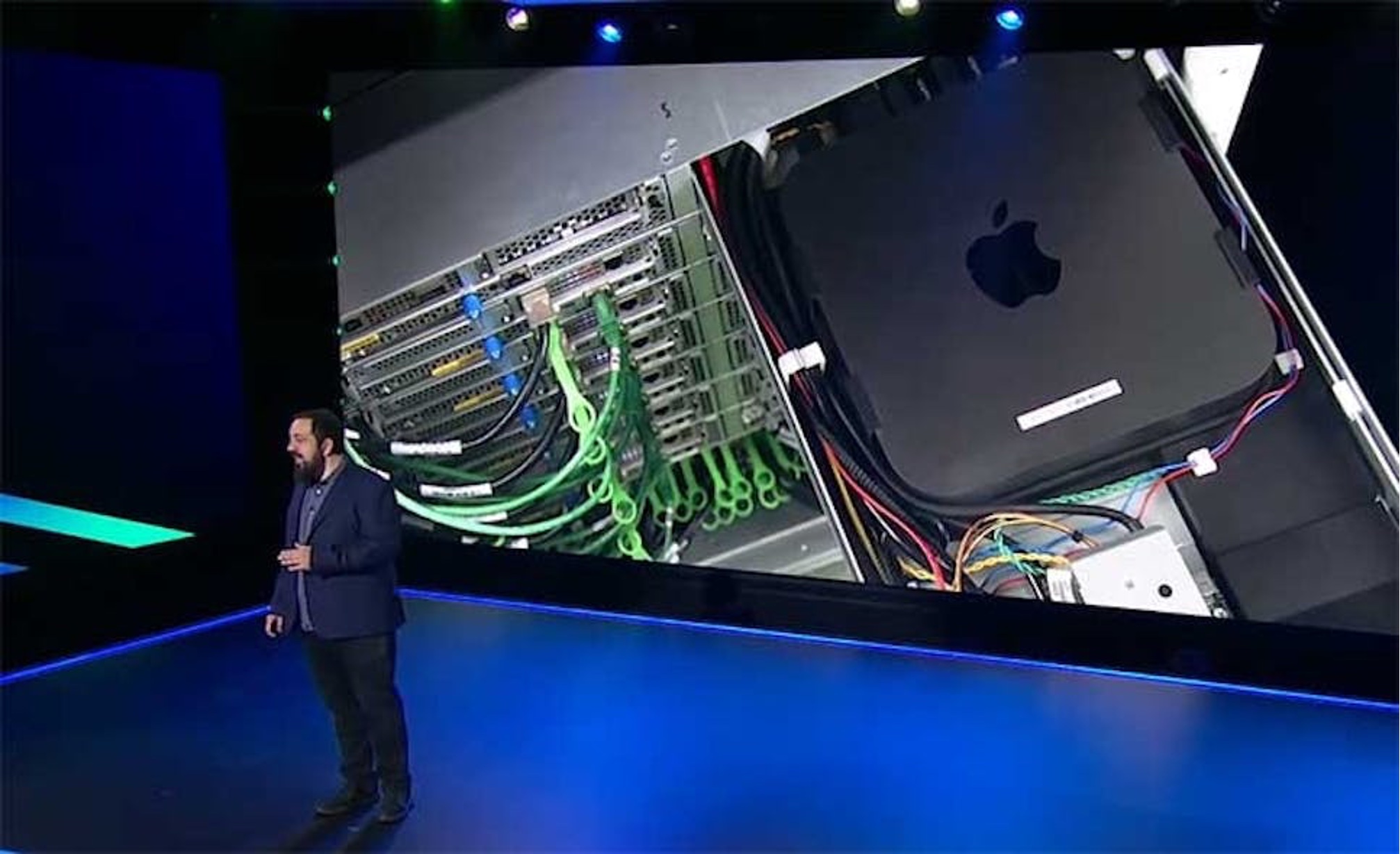
Since 2021, we have offered on-demand and pay-as-you-go access to Amazon EC2 Mac instances, in the same manner as our Intel, AMD and Graviton-based instances. Amazon EC2 Mac instances integrate all the capabilities you know and love from macOS with dozens of AWS services such as Amazon Virtual Private Cloud (VPC) for network security, Amazon Elastic Block Store (EBS) for expandable storage, Elastic Load Balancing (ELB) for distributing build queues, Amazon FSx for scalable file storage, and AWS Systems Manager Agent (SSM Agent) for configuring, managing, and patching macOS environments.

Just like for every EC2 instance type, AWS is responsible for protecting the infrastructure that runs all of the services offered in the AWS cloud. To ensure that EC2 Mac instances provide the same security and data privacy as other Nitro-based EC2 instances, Amazon EC2 performs a scrubbing workflow on the underlying Dedicated Host as soon as you stop or terminate an instance. This scrubbing process erases the internal SSD, clears the persistent NVRAM variables, and updates the device firmware to the latest version enabling you to run the latest macOS AMIs. The documentation has more details about this process.

The scrubbing process ensures a sanitized dedicated host for each EC2 Mac instance launch and takes some time to complete. Our customers have shared two use cases where they may need to set back their instance to a previous state in a shorter time period or without the need to initiate the scrubbing workflow. The first use case is when patching an existing disk image to bring OS-level or applications-level updates to your fleet, without manually patching individual instances in-place. The second use case is during continuous integration and continuous deployment (CI/CD) when you need to restore an Amazon EC2 Mac instance to a defined well-known state at the end of a build.

To restart your EC2 Mac instance in its initial state without stopping or terminating them, we created the ability to replace the root volume of an Amazon EC2 Mac instance with another EBS volume. This new EBS volume is created either from a new AMI, an Amazon EBS Snapshot, or from the initial volume state during boot.

You just swap the root volume with a new one and initiate a reboot at OS-level. Local data, additional attached EBS volumes, networking configurations, and IAM profiles are all preserved. Additional EBS volumes attached to the instance are also preserved, as well as the instance IP addresses, IAM policies, and security groups.

Let’s see how Replace Root Volume works

To prepare and initiate an Amazon EBS root volume replacement, you can use the AWS Management Console, the AWS Command Line Interface (AWS CLI), or one of our AWS SDKs. For this demo, I used the AWS CLI to show how you can automate the entire process.

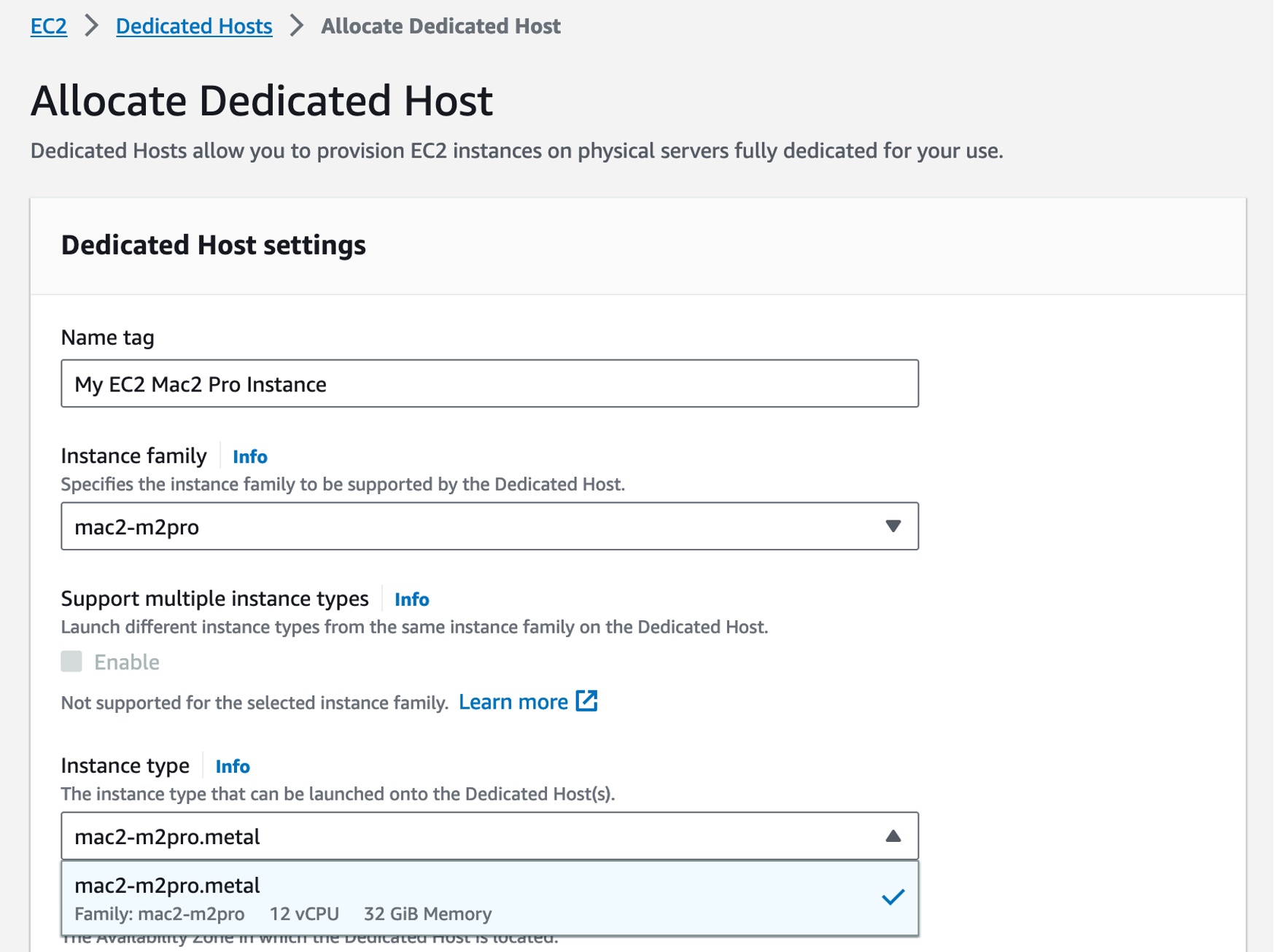
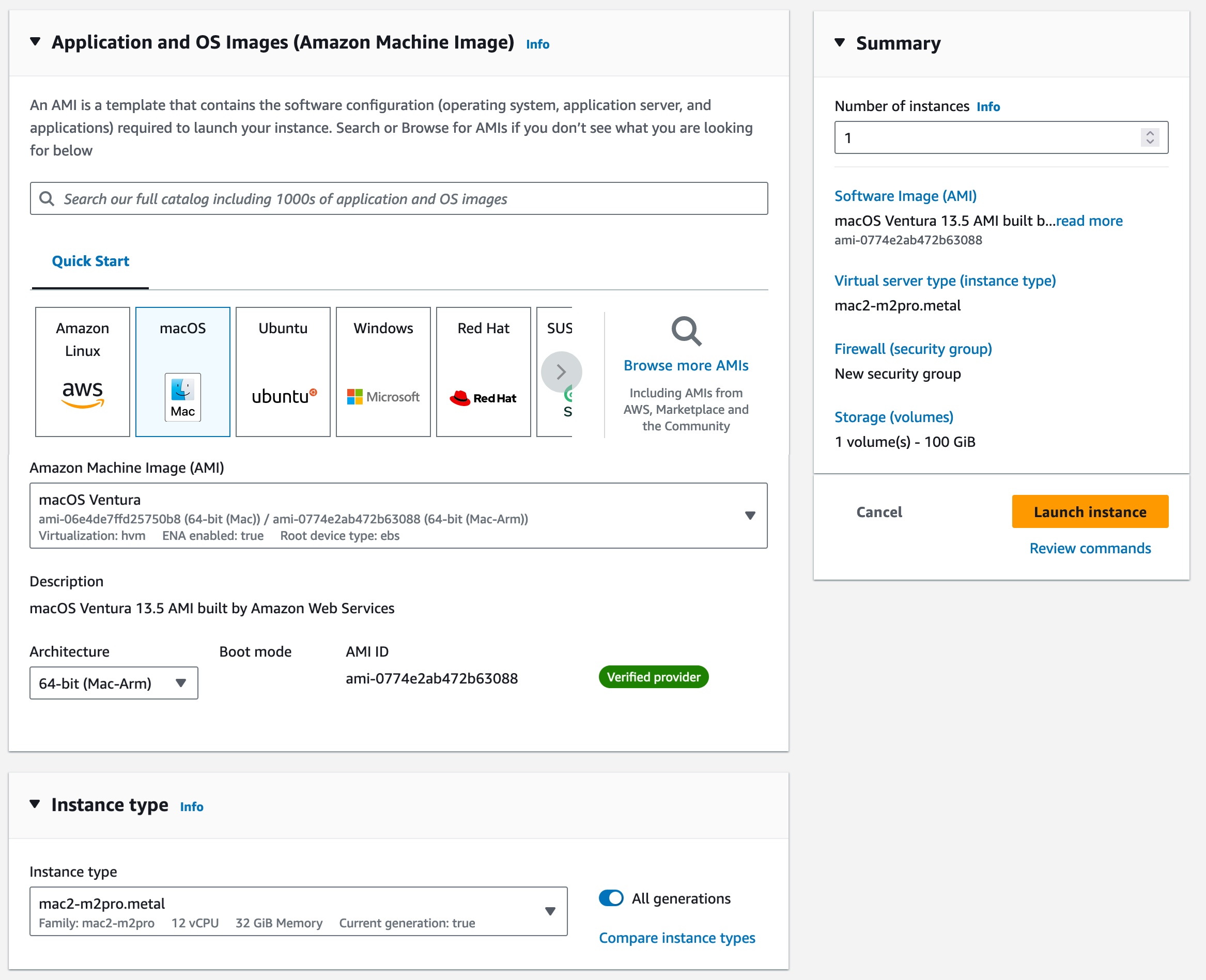
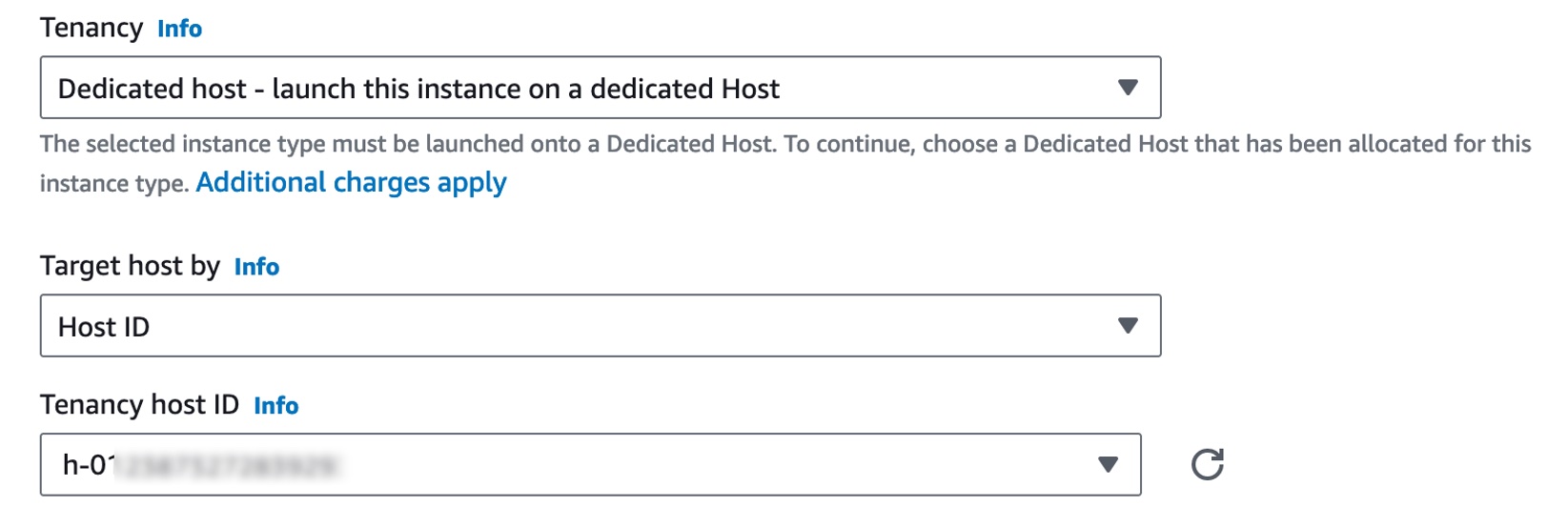
To start the demo, I first allocate a Dedicated Host and then start an EC2 Mac instance, SSH-connect to it, and install the latest version of Xcode. I use the open-source xcodeinstall CLI tool to download and install Xcode. Typically, you also download, install, and configure a build agent and additional build tools or libraries as required by your build pipelines.

Once the instance is ready, I create an Amazon Machine Image (AMI). AMIs are disk images you can reuse to launch additional and identical EC2 Mac instances. This can be done from any machine that has the credentials to make API calls on your AWS account. In the following, you can see the commands I issued from my laptop’s Terminal application.

#
# Find the instance’s ID based on the instance name tag
#
~ aws ec2 describe-instances \
--filters "Name=tag:Name,Values=RRV-Demo" \
--query "Reservations[].Instances[].InstanceId" \
--output text 

i-0fb8ffd5dbfdd5384

#
# Create an AMI based on this instance
#
~ aws ec2 create-image \
--instance-id i-0fb8ffd5dbfdd5384 \
--name "macOS_13.3_Gold_AMI"	\
--description "macOS 13.2 with Xcode 13.4.1"

{
 
"ImageId": "ami-0012e59ed047168e4"
}

It takes a few minutes to complete the AMI creation process.

After I created this AMI, I can use my instance as usual. I can use it to build, test, and distribute my application, or make any other changes on the root volume.

When I want to reset the instance to the state of my AMI, I initiate the replace root volume operation:

~ aws ec2 create-replace-root-volume-task	\
--instance-id i-0fb8ffd5dbfdd5384 \
--image-id ami-0012e59ed047168e4
{
"ReplaceRootVolumeTask": {
"ReplaceRootVolumeTaskId": "replacevol-07634c2a6cf2a1c61", "InstanceId": "i-0fb8ffd5dbfdd5384",
"TaskState": "pending", "StartTime": "2023-05-26T12:44:35Z", "Tags": [],
"ImageId": "ami-0012e59ed047168e4", "SnapshotId": "snap-02be6b9c02d654c83", "DeleteReplacedRootVolume": false
}
}

The root Amazon EBS volume is replaced with a fresh one created from the AMI, and the system triggers an OS-level reboot.

I can observe the progress with the DescribeReplaceRootVolumeTasks API

~ aws ec2 describe-replace-root-volume-tasks \
--replace-root-volume-task-ids replacevol-07634c2a6cf2a1c61

{
"ReplaceRootVolumeTasks": [
{
"ReplaceRootVolumeTaskId": "replacevol-07634c2a6cf2a1c61", "InstanceId": "i-0fb8ffd5dbfdd5384",
"TaskState": "succeeded", "StartTime": "2023-05-26T12:44:35Z",
"CompleteTime": "2023-05-26T12:44:43Z", "Tags": [],
"ImageId": "ami-0012e59ed047168e4", "DeleteReplacedRootVolume": false
}
]
}

After a short time, the instance becomes available again, and I can connect over ssh.

~ ssh [email protected]
Warning: Permanently added '3.0.0.86' (ED25519) to the list of known hosts.
Last login: Wed May 24 18:13:42 2023 from 81.0.0.0

┌───┬──┐	 |  |_ )
│ ╷╭╯╷ │	_| (	/
│ └╮	│   |\  |  |
│ ╰─┼╯ │ Amazon EC2
└───┴──┘ macOS Ventura 13.2.1
 
ec2-user@ip-172-31-58-100 ~ %

Additional thoughts

There are a couple of additional points to know before using this new capability:

  • By default, the old root volume is preserved. You can pass the –-delete-replaced-root-volume option to delete it automatically. Do not forget to delete old volumes and their corresponding Amazon EBS Snapshots when you don’t need them anymore to avoid being charged for them.
  • During the replacement, the instance will be unable to respond to health checks and hence might be marked as unhealthy if placed inside an Auto Scaled Group. You can write a custom health check to change that behavior.
  • When replacing the root volume with an AMI, the AMI must have the same product code, billing information, architecture type, and virtualization type as that of the instance.
  • When replacing the root volume with a snapshot, you must use snapshots from the same lineage as the instance’s current root volume.
  • The size of the new volume is the largest of the AMI’s block device mapping and the size of the old Amazon EBS root volume.
  • Any non-root Amazon EBS volume stays attached to the instance.
  • Finally, the content of the instance store (the internal SSD drive) is untouched, and all other meta-data of the instance are unmodified (the IP addresses, ENI, IAM policies etc.).

Pricing and availability

Replace Root Volume for EC2 Mac is available in all AWS Regions where Amazon EC2 Mac instances are available. There is no additional cost to use this capability. You are charged for the storage consumed by the Amazon EBS Snapshots and AMIs.

Check other options available on the API or AWS CLI and go configure your first root volume replacement task today!

New – Amazon EC2 C7a Instances Powered By 4th Gen AMD EPYC Processors for Compute Optimized Workloads

Post Syndicated from Channy Yun original https://aws.amazon.com/blogs/aws/new-amazon-ec2-c7a-instances-powered-by-4th-gen-amd-epyc-processors-for-compute-optimized-workloads/

We launched the compute optimized Amazon EC2 C6a instances in February 2022 powered by 3rd Gen AMD EPYC (Milan) processors, running at frequencies up to 3.6 GHz.

Today, we’re announcing the general availability of new, compute optimized Amazon EC2 C7a instances, powered by the 4th Gen AMD EPYC (Genoa) processors with a maximum frequency of 3.7 GHz, which offer up to 50 percent higher performance compared to C6a instances. You can use this increased performance to process data faster, consolidate workloads, and lower the cost of ownership.

C7a instances offer up to 50 percent higher performance compared to C6a instances. These instances are ideal for running compute-intensive workloads such as high-performance web servers, batch processing, ad serving, machine learning, multiplayer gaming, video encoding, high performance computing (HPC) such as scientific modeling, and machine learning.

C7a instances support AVX-512, Vector Neural Network Instructions (VNNI), and brain floating point (bfloat16). These instances feature Double Data Rate 5 (DDR5) memory, which enables high-speed access to data in-memory, and deliver 2.25 times more memory bandwidth compared to the previous generation instances for lower latency.

C7a instances feature sizes of up to 192 vCPUs with 384 GiB RAM, which you have a new medium instance size, which enables you to right-size your workloads more accurately, offering 1 vCPU, 2 GiB. Here are the detailed specs:

Name vCPUs Memory (GiB) Network Bandwidth (Gbps) EBS Bandwidth (Gbps)
c7a.medium 1 2 Up to 12.5 Up to 10
c7a.large 2 4 Up to 12.5 Up to 10
c7a.xlarge 4 8 Up to 12.5 Up to 10
c7a.2xlarge 8 16 Up to 12.5 Up to 10
c7a.4xlarge 16 32 Up to 12.5 Up to 10
c7a.8xlarge 32 64 12.5 10
c7a.12xlarge 48 96 18.75 15
c7a.16xlarge 64 128 25 20
c7a.24xlarge 96 192 37.5 30
c7a.32xlarge 128 256 50 40
c7a.48xlarge 192 384 50 40
c7a.metal-48xl 192 384 50 40

C7a instances have up to 50 Gbps enhanced networking and 40 Gbps EBS bandwidth, and you can attach up to 128 EBS volumes to an instance, compared to up to 28 EBS volume attachments with the previous generation instances.

C7a instances support always-on memory encryption with AMD secure memory encryption (SME) and new AVX-512 instructions for accelerating encryption and decryption algorithms, convolutional neural network (CNN) based algorithms, financial analytics, and video encoding workloads. C7a instances also support AES-256 compared to AES-128 in C6a instances for enhanced security.

These instances are built on the AWS Nitro System and support Elastic Fabric Adapter (EFA) for workloads that benefit from lower network latency and highly scalable inter-node communication, such as high-performance computing and video processing.

Now Available
Amazon EC2 C7a instances are now available in the following AWS Regions: US East (Ohio), US East (N. Virginia), US West (Oregon), and EU (Ireland). As usual with Amazon EC2, you only pay for what you use. For more information, see the Amazon EC2 pricing page.

To learn more, visit the EC2 C7a instances page and AWS/AMD partner page. You can send feedback to [email protected], AWS re:Post for EC2, or through your usual AWS Support contacts.

— Channy

Get the full benefits of IMDSv2 and disable IMDSv1 across your AWS infrastructure

Post Syndicated from Saju Sivaji original https://aws.amazon.com/blogs/security/get-the-full-benefits-of-imdsv2-and-disable-imdsv1-across-your-aws-infrastructure/

The Amazon Elastic Compute Cloud (Amazon EC2) Instance Metadata Service (IMDS) helps customers build secure and scalable applications. IMDS solves a security challenge for cloud users by providing access to temporary and frequently-rotated credentials, and by removing the need to hardcode or distribute sensitive credentials to instances manually or programmatically. The Instance Metadata Service Version 2 (IMDSv2) adds protections; specifically, IMDSv2 uses session-oriented authentication with the following enhancements:

  • IMDSv2 requires the creation of a secret token in a simple HTTP PUT request to start the session, which must be used to retrieve information in IMDSv2 calls.
  • The IMDSv2 session token must be used as a header in subsequent IMDSv2 requests to retrieve information from IMDS. Unlike a static token or fixed header, a session and its token are destroyed when the process using the token terminates. IMDSv2 sessions can last up to six hours.
  • A session token can only be used directly from the EC2 instance where that session began.
  • You can reuse a token or create a new token with every request.
  • Session token PUT requests are blocked if they contain an X-forwarded-for header.

In a previous blog post, we explained how these new protections add defense-in-depth for third-party and external application vulnerabilities that could be used to try to access the IMDS.

You won’t be able to get the full benefits of IMDSv2 until you disable IMDSv1. While IMDS is provided by the instance itself, the calls to IMDS are from your software. This means your software must support IMDSv2 before you can disable IMDSv1. In addition to AWS SDKs, CLIs, and tools like the SSM agents supporting IMDSv2, you can also use the IMDS Packet Analyzer to pinpoint exactly what you need to update to get your instances ready to use only IMDSv2. These tools make it simpler to transition to IMDSv2 as well as launch new infrastructure with IMDSv1 disabled. All instances launched with AL2023 set the instance to provide only IMDSv2 (IMDSv1 is disabled) by default, with AL2023 also not making IMDSv1 calls.

AWS customers who want to get the benefits of IMDSv2 have told us they want to use IMDSv2 across both new and existing, long-running AWS infrastructure. This blog post shows you scalable solutions to identify existing infrastructure that is providing IMDSv1, how to transition to IMDSv2 on your infrastructure, and how to completely disable IMDSv1. After reviewing this blog, you will be able to set new Amazon EC2 launches to IMDSv2. You will also learn how to identify existing software making IMDSv1 calls, so you can take action to update your software and then require IMDSv2 on existing EC2 infrastructure.

Identifying IMDSv1-enabled EC2 instances

The first step in transitioning to IMDSv2 is to identify all existing IMDSv1-enabled EC2 instances. You can do this in various ways.

Using the console

You can identify IMDSv1-enabled instances using the IMDSv2 attribute column in the Amazon EC2 page in the AWS Management Console.

To view the IMDSv2 attribute column:

  1. Open the Amazon EC2 console and go to Instances.
  2. Choose the settings icon in the top right.
  3. Scroll down to IMDSv2, turn on the slider.
  4. Choose Confirm.

This gives you the IMDS status of your instances. A status of optional means that IMDSv1 is enabled on the instance and required means that IMDSv1 is disabled.

Figure 1: Example of IMDS versions for EC2 instances in the console

Figure 1: Example of IMDS versions for EC2 instances in the console

Using the AWS CLI

You can identify IMDSv1-enabled instances using the AWS Command Line Interface (AWS CLI) by running the aws ec2 describe-instances command and checking the value of HttpTokens. The HttpTokens value determines what version of IMDS is enabled, with optional enabling IMDSv1 and IMDSv2 and required means IMDSv2 is required. Similar to using the console, the optional status indicates that IMDSv1 is enabled on the instance and required indicates that IMDSv1 is disabled.

"MetadataOptions": {
                        "State": "applied", 
                        "HttpEndpoint": "enabled", 
                        "HttpTokens": "optional", 
                        "HttpPutResponseHopLimit": 1
                    },

[ec2-user@ip-172-31-24-101 ~]$ aws ec2 describe-instances | grep '"HttpTokens": "optional"' | wc -l
4

Using AWS Config

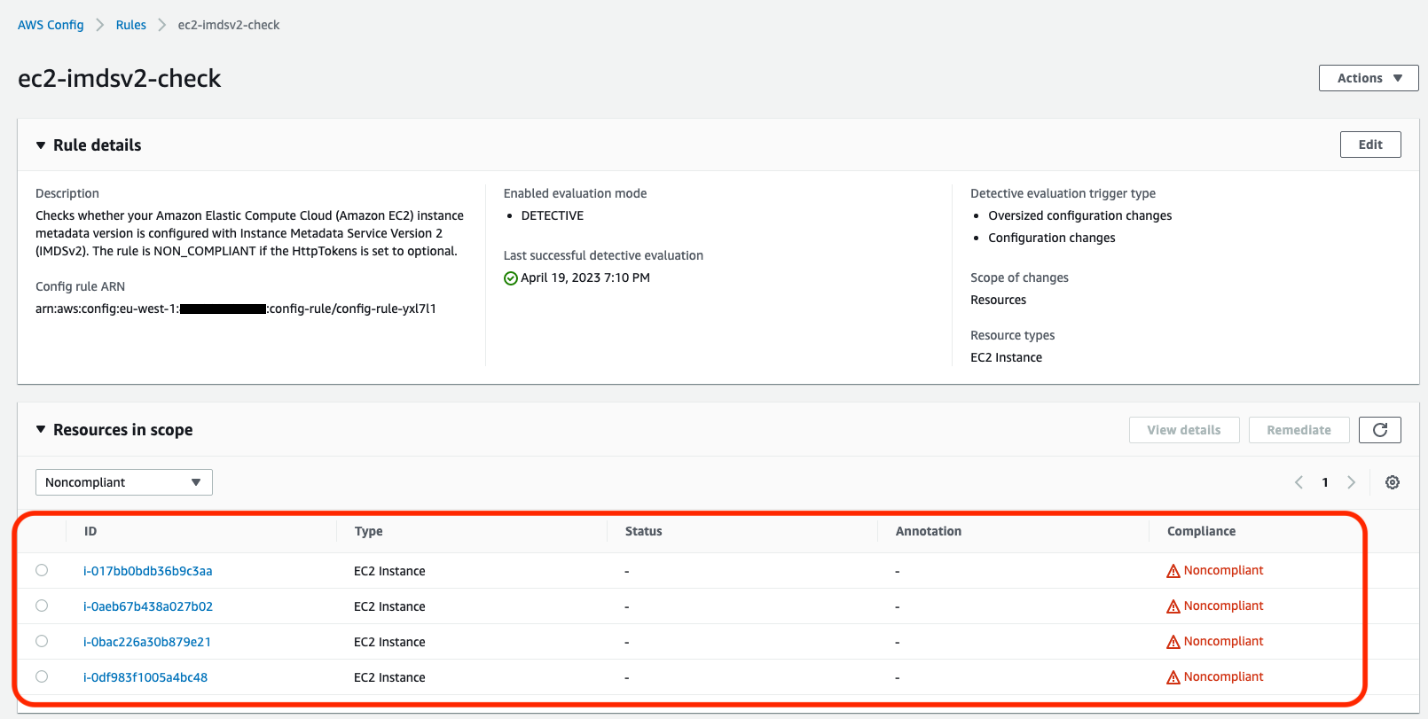
AWS Config continually assesses, audits, and evaluates the configurations and relationships of your resources on AWS, on premises, and on other clouds. The AWS Config rule ec2-imdsv2-check checks whether your Amazon EC2 instance metadata version is configured with IMDSv2. The rule is NON_COMPLIANT if the HttpTokens is set to optional, which means the EC2 instance has IMDSv1 enabled.

Figure 2: Example of noncompliant EC2 instances in the AWS Config console

Figure 2: Example of noncompliant EC2 instances in the AWS Config console

After this AWS Config rule is enabled, you can set up AWS Config notifications through Amazon Simple notification Service (Amazon SNS).

Using Security Hub

AWS Security Hub provides detection and alerting capability at the account and organization levels. You can configure cross-Region aggregation in Security Hub to gain insight on findings across Regions. If using AWS Organizations, you can configure a Security Hub designated account to aggregate findings across accounts in your organization.

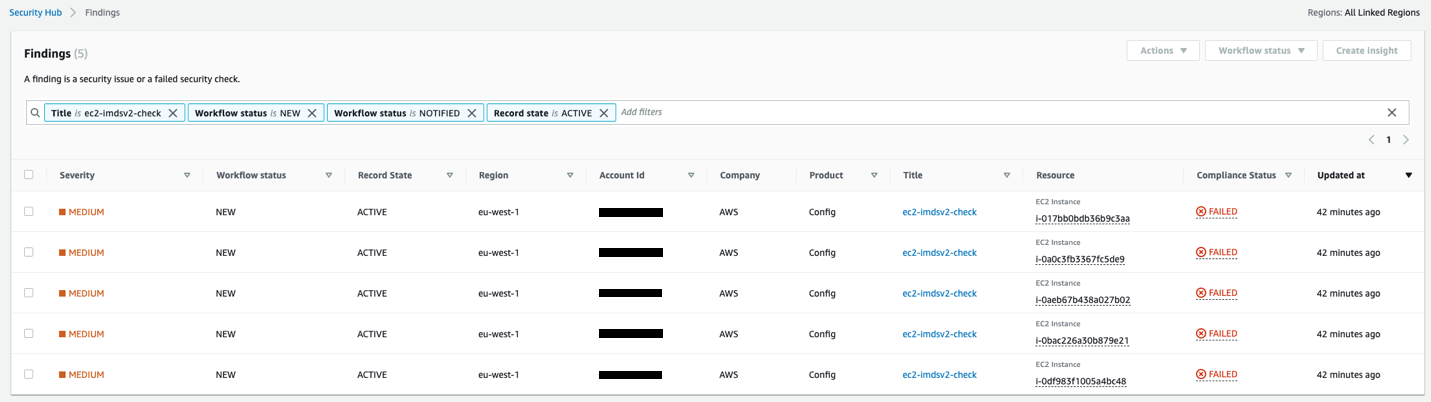
Security Hub has an Amazon EC2 control ([EC2.8] Amazon EC2 instances should use Instance Metadata Service Version 2 (IMDSv2)) that uses the AWS Config rule ec2-imdsv2-check to check if the instance metadata version is configured with IMDSv2. The rule is NON_COMPLIANT if the HttpTokens is set to optional, which means EC2 instance has IMDSv1 enabled.

Figure 3: Example of AWS Security Hub showing noncompliant EC2 instances

Figure 3: Example of AWS Security Hub showing noncompliant EC2 instances

Using Amazon Event Bridge, you can also set up alerting for the Security Hub findings when the EC2 instances are noncompliant for IMDSv2.

{
  "source": ["aws.securityhub"],
  "detail-type": ["Security Hub Findings - Imported"],
  "detail": {
    "findings": {
      "ProductArn": ["arn:aws:securityhub:us-west-2::product/aws/config"],
      "Title": ["ec2-imdsv2-check"]
    }
  }
}

Identifying if EC2 instances are making IMDSv1 calls

Not all of your software will be making IMDSv1 calls; your dependent libraries and tools might already be compatible with IMDSv2. However, to mitigate against compatibility issues in requiring IMDSv2 and disabling IMDSv1 entirely, you must check for remaining IMDSv1 calls from your software. After you’ve identified that there are instances with IMDSv1 enabled, investigate if your software is making IMDSv1 calls. Most applications make IMDSv1 calls at instance launch and shutdown. For long running instances, we recommend monitoring IMDSv1 calls during a launch or a stop and restart cycle.

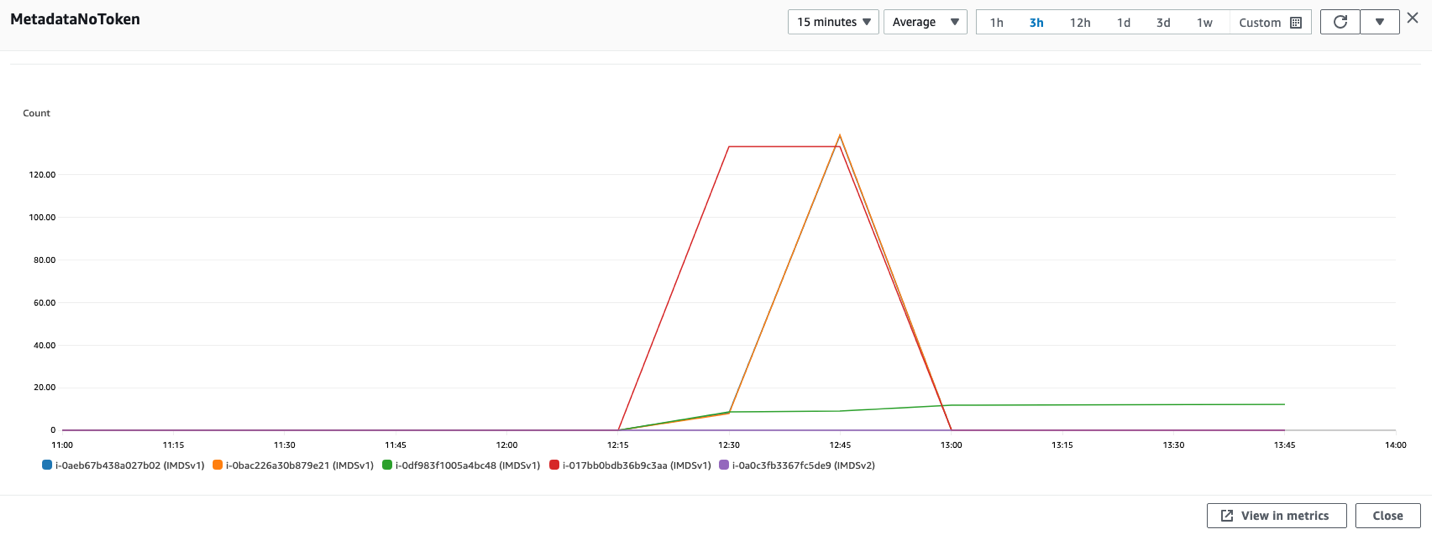
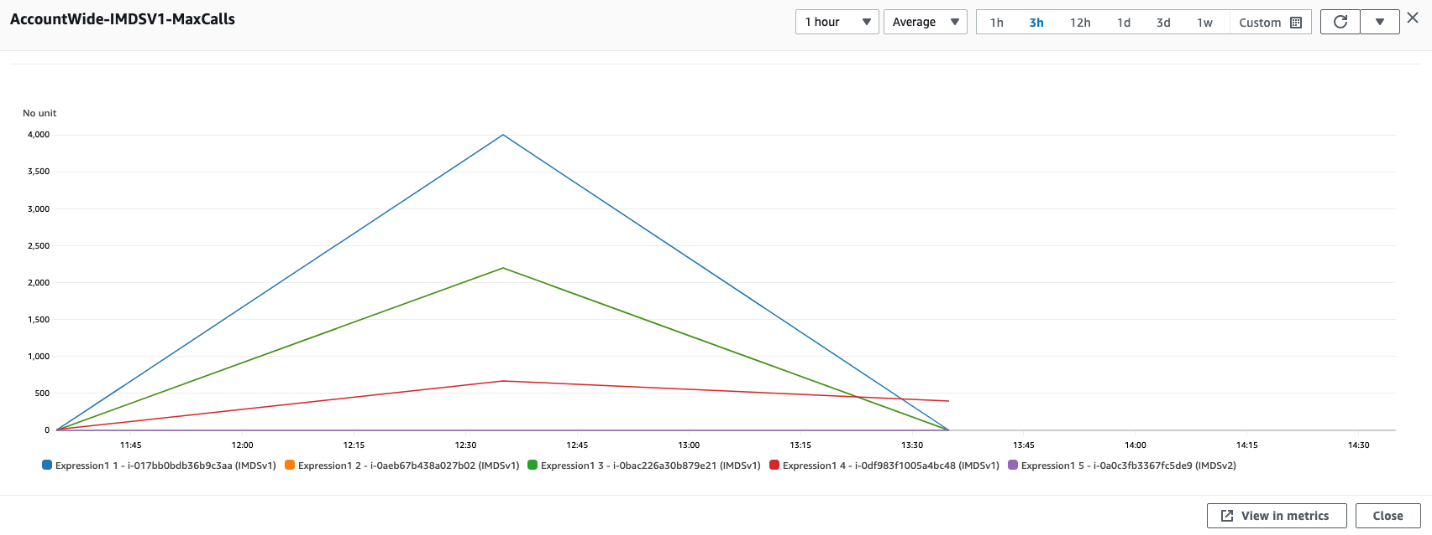
You can check whether your software is making IMDSv1 calls by checking the MetadataNoToken metric in Amazon CloudWatch. You can further identify the source of IMDSv1 calls by using the IMDS Packet Analyzer tool.

Steps to check IMDSv1 usage with CloudWatch

  1. Open the CloudWatch console.
  2. Go to Metrics and then All Metrics.
  3. Select EC2 and then choose Per-Instance Metrics.
  4. Search and add the Metric MetadataNoToken for the instances you’re interested in.
Figure 4: CloudWatch dashboard for MetadataNoToken per-instance metric

Figure 4: CloudWatch dashboard for MetadataNoToken per-instance metric

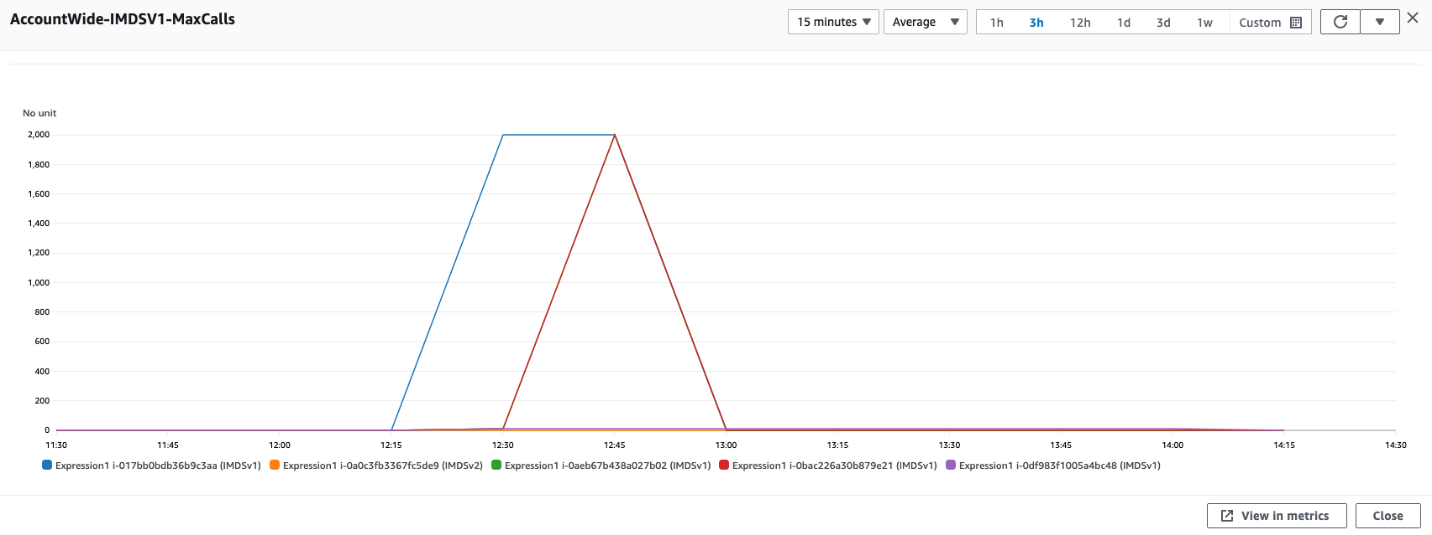
You can use expressions in CloudWatch to view account wide metrics.

SEARCH('{AWS/EC2,InstanceId} MetricName="MetadataNoToken"', 'Maximum')
Figure 5: Using CloudWatch expressions to view account wide metrics for MetadataNoToken

Figure 5: Using CloudWatch expressions to view account wide metrics for MetadataNoToken

You can combine SEARCH and SORT expressions in CloudWatch to help identify the instances using IMDSv1.

SORT(SEARCH('{AWS/EC2,InstanceId} MetricName="MetadataNoToken"', 'Sum', 300), SUM, DESC, 10)
Figure 6: Another example of using CloudWatch expressions to view account wide metrics

Figure 6: Another example of using CloudWatch expressions to view account wide metrics

If you have multiple AWS accounts or use AWS Organizations, you can set up a centralized monitoring account using CloudWatch cross account observability.

IMDS Packet Analyzer

The IMDS Packet Analyzer is an open source tool that identifies and logs IMDSv1 calls from your software, including software start-up on your instance. This tool can assist in identifying the software making IMDSv1 calls on EC2 instances, allowing you to pinpoint exactly what you need to update to get your software ready to use IMDSv2. You can run the IMDS Packet Analyzer from a command line or install it as a service. For more information, see IMDS Packet Analyzer on GitHub.

Disabling IMDSv1 and maintaining only IMDSv2 instances

After you’ve monitored and verified that the software on your EC2 instances isn’t making IMDSv1 calls, you can disable IMDSv1 on those instances. For all compatible workloads, we recommend using Amazon Linux 2023, which offers several improvements (see launch announcement), including requiring IMDSv2 (disabling IMDSv1) by default.

You can also create and modify AMIs and EC2 instances to disable IMDSv1. Configure the AMI provides guidance on how to register a new AMI or change an existing AMI by setting the imds-support parameter to v2.0. If you’re using container services (such as ECS or EKS), you might need a bigger hop limit to help avoid falling back to IMDSv1. You can use the modify-instance-metadata-options launch parameter to make the change. We recommend testing with a hop limit of three in container environments.

To create a new instance

For new instances, you can disable IMDSv1 and enable IMDSv2 by specifying the metadata-options parameter using the run-instance CLI command.

aws ec2 run-instances
    --image-id <ami-0123456789example>
    --instance-type c3.large
    --metadata-options “HttpEndpoint=enabled,HttpTokens=required”

To modify the running instance

aws ec2 modify-instance-metadata-options \
--instance-id <instance-0123456789example> \
--http-tokens required \
--http-endpoint enabled

To configure a new AMI

aws ec2 register-image \
    --name <my-image> \
    --root-device-name /dev/xvda \
    --block-device-mappings DeviceName=/dev/xvda,Ebs={SnapshotId=<snap-0123456789example>} \
    --imds-support v2.0

To modify an existing AMI

aws ec2 modify-image-attribute \
    --image-id <ami-0123456789example> \
    --imds-support v2.0

Using the console

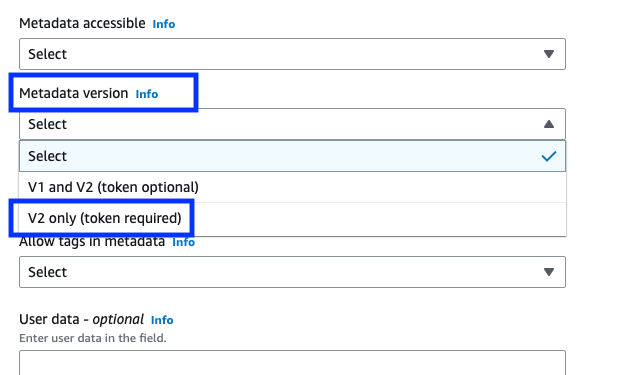
If you’re using the console to launch instances, after selecting Launch Instance from AWS Console, choose the Advanced details tab, scroll down to Metadata version and select V2 only (token required).

Figure 7: Modifying IMDS version using the console

Figure 7: Modifying IMDS version using the console

Using EC2 launch templates

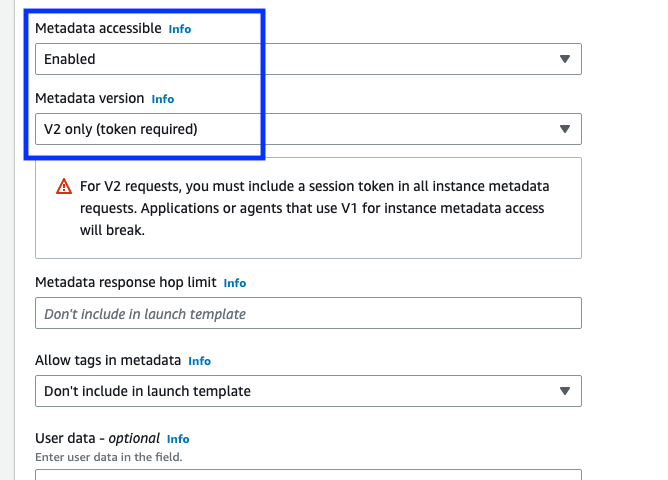
You can use an EC2 launch template as an instance configuration template that an Amazon Auto Scaling group can use to launch EC2 instances. When creating the launch template using the console, you can specify the Metadata version and select V2 only (token required).

Figure 8: Modifying the IMDS version in the EC2 launch templates

Figure 8: Modifying the IMDS version in the EC2 launch templates

Using CloudFormation with EC2 launch templates

When creating an EC2 launch template using AWS CloudFormation, you must specify the MetadataOptions property to use only IMDSv2 by setting HttpTokens as required.

In this state, retrieving the AWS Identity and Access Management (IAM) role credentials always returns IMDSv2 credentials; IMDSv1 credentials are not available.

{
"HttpEndpoint" : <String>,
"HttpProtocolIpv6" : <String>,
"HttpPutResponseHopLimit" : <Integer>,
"HttpTokens" : required,
"InstanceMetadataTags" : <String>
}

Using Systems Manager automation runbook

You can run the EnforceEC2InstanceIMDSv2 automation document available in AWS Systems Manager, which will enforce IMDSv2 on the EC2 instance using the ModifyInstanceMetadataOptions API.

  1. Open the Systems Manager console, and then select Automation from the navigation pane.
  2. Choose Execute automation.
  3. On the Owned by Amazon tab, for Automation document, enter EnforceEC2InstanceIMDSv2, and then press Enter.
  4. Choose EnforceEC2InstanceIMDSv2 document, and then choose Next.
  5. For Execute automation document, choose Simple execution.

    Note: If you need to run the automation on multiple targets, then choose Rate Control.

  6. For Input parameters, enter the ID of EC2 instance under InstanceId
  7. For AutomationAssumeRole, select a role.

    Note: To change the target EC2 instance, the AutomationAssumeRole must have ec2:ModifyInstanceMetadataOptions and ec2:DescribeInstances permissions. For more information about creating the assume role for Systems Manager Automation, see Create a service role for Automation.

  8. Choose Execute.

Using the AWS CDK

If you use the AWS Cloud Development Kit (AWS CDK) to launch instances, you can use it to set the requireImdsv2 property to disable IMDSv1 and enable IMDSv2.

new ec2.Instance(this, 'Instance', {
        // <... other parameters>
        requireImdsv2: true,
})

Using AWS SDK

The new clients for AWS SDK for Java 2.x use IMDSv2, and you can use the new clients to retrieve instance metadata for your EC2 instances. See Introducing a new client in the AWS SDK for Java 2.x for retrieving EC2 Instance Metadata for instructions.

Maintain only IMDSv2 EC2 instances

To maintain only IMDSv2 instances, you can implement service control policies and IAM policies that verify that users and software on your EC2 instances can only use instance metadata using IMDSv2. This policy specifies that RunInstance API calls require the EC2 instance use only IMDSv2. We recommend implementing this policy after all of the instances in associated accounts are free of IMDSv1 calls and you have migrated all of the instances to use only IMDSv2.

{
    "Version": "2012-10-17",
    "Statement": [
               {
            "Sid": "RequireImdsV2",
            "Effect": "Deny",
            "Action": "ec2:RunInstances",
            "Resource": "arn:aws:ec2:*:*:instance/*",
            "Condition": {
                "StringNotEquals": {
                    "ec2:MetadataHttpTokens": "required"
                }
            }
        }
    ]
} 

You can find more details on applicable service control policies (SCPs) and IAM policies in the EC2 User Guide.

Restricting credential usage using condition keys

As an additional layer of defence, you can restrict the use of your Amazon EC2 role credentials to work only when used in the EC2 instance to which they are issued. This control is complementary to IMDSv2 since both can work together. The AWS global condition context keys for EC2 credential control properties (aws:EC2InstanceSourceVPC and aws:EC2InstanceSourcePrivateIPv4) restrict the VPC endpoints and private IPs that can use your EC2 instance credentials, and you can use these keys in service control policies (SCPs) or IAM policies. Examples of these policies are in this blog post.

Conclusion

You won’t be able to get the full benefits of IMDSv2 until you disable IMDSv1. In this blog post, we showed you how to identify IMDSv1-enabled EC2 instances and how to determine if and when your software is making IMDSv1 calls. We also showed you how to disable IMDSv1 on new and existing EC2 infrastructure after your software is no longer making IMDSv1 calls. You can use these tools to transition your existing EC2 instances, and set your new EC2 launches, to use only IMDSv2.

If you have feedback about this post, submit comments in the Comments section below. If you have questions about this post, start a new thread on the AWS Compute re:Post or contact AWS Support.

Want more AWS Security news? Follow us on Twitter.

Saju Sivaji

Saju Sivaji

Saju is Senior Technical Program Manager with the AWS Security organization. When Saju isn’t managing security expectation programs to help raise the security bar for both internal and external customers, he enjoys travelling, racket sports, and bicycling.

Joshua Levinson

Joshua Levinson

Joshua is a Principal Product Manager at AWS on the Amazon EC2 team. He is passionate about helping customers with highly scalable features on EC2 and across AWS and enjoys the challenge of building simplified solutions to complex problems. Outside of work, he enjoys cooking, reading with his kids, and Olympic weightlifting.

Integrating AWS WAF with your Amazon Lightsail instance

Post Syndicated from Macey Neff original https://aws.amazon.com/blogs/compute/integrating-aws-waf-with-your-amazon-lightsail-instance/

This blog post is written by Riaz Panjwani, Solutions Architect, Canada CSC and Dylan Souvage, Solutions Architect, Canada CSC.

Security is the top priority at AWS. This post shows how you can level up your application security posture on your Amazon Lightsail instances with an AWS Web Application Firewall (AWS WAF) integration. Amazon Lightsail offers easy-to-use virtual private server (VPS) instances and more at a cost-effective monthly price.

Lightsail provides security functionality built-in with every instance through the Lightsail Firewall. Lightsail Firewall is a network-level firewall that enables you to define rules for incoming traffic based on IP addresses, ports, and protocols. Developers looking to help protect against attacks such as SQL injection, cross-site scripting (XSS), and distributed denial of service (DDoS) can leverage AWS WAF on top of the Lightsail Firewall.

As of this post’s publishing, AWS WAF can only be deployed on Amazon CloudFront, Application Load Balancer (ALB), Amazon API Gateway, and AWS AppSync. However, Lightsail can’t directly act as a target for these services because Lightsail instances run within an AWS managed Amazon Virtual Private Cloud (Amazon VPC). By leveraging VPC peering, you can deploy the aforementioned services in front of your Lightsail instance, allowing you to integrate AWS WAF with your Lightsail instance.

Solution Overview

This post shows you two solutions to integrate AWS WAF with your Lightsail instance(s). The first uses AWS WAF attached to an Internet-facing ALB. The second uses AWS WAF attached to CloudFront. By following one of these two solutions, you can utilize rule sets provided in AWS WAF to secure your application running on Lightsail.

Solution 1: ALB and AWS WAF

This first solution uses VPC peering and ALB to allow you to use AWS WAF to secure your Lightsail instances. This section guides you through the steps of creating a Lightsail instance, configuring VPC peering, creating a security group, setting up a target group for your load balancer, and integrating AWS WAF with your load balancer.

AWS architecture diagram showing Amazon Lightsail integration with WAF using VPC peering across two separate VPCs. The Lightsail application is in a private subnet inside the managed VPC(vpc-b), with peering connection to your VPC(vpc-a) which has an ALB in a public subnet with WAF attached to it.

Creating the Lightsail Instance

For this walkthrough, you can utilize an AWS Free Tier Linux-based WordPress blueprint.

1. Navigate to the Lightsail console and create the instance.

2. Verify that your Lightsail instance is online and obtain its private IP, which you will need when configuring the Target Group later.

Screenshot of Lightsail console with a WordPress application set up showcasing the networking tab.

Attaching an ALB to your Lightsail instance

You must enable VPC peering as you will be utilizing an ALB in a separate VPC.

1. To enable VPC peering, navigate to your account in the top-right corner, select the Account dropdown, select Account, then select Advanced, and select Enable VPC Peering. Note the AWS Region being selected, as it is necessary later. For this example, select “us-east-2”. Screenshot of Lightsail console in the settings menu under the advanced section showcasing VPC peering.2. In the AWS Management Console, navigate to the VPC service in the search bar, select VPC Peering Connections and verify the created peering connection.

Screenshot of the AWS Console showing the VPC Peering Connections menu with an active peering connection.

3. In the left navigation pane, select Security groups, and create a Security group that allows HTTP traffic (port 80). This is used later to allow public HTTP traffic to the ALB.

4. Navigate to the Amazon Elastic Compute Cloud (Amazon EC2) service, and in the left pane under Load Balancing select Target Groups. Proceed to create a Target Group, choosing IP addresses as the target type.Screenshot of the AWS console setting up target groups with the IP address target type selected.

5. Proceed to the Register targets section, and select Other private IP address. Add the private IP address of the Lightsail instance that you created before. Select Include as Pending below and then Create target group (note that if your Lightsail instance is re-launched the target group must be updated as the private IP address may change).

6. In the left pane, select Load Balancers, select Create load balancers and choose Application Load Balancer. Ensure that you select the “Internet-facing” scheme, otherwise, you will not be able to connect to your instance over the internet.Screenshot of the AWS console setting up target groups with the IP address target type selected.

7. Select the VPC in which you want your ALB to reside. In this example, select the default VPC and all the Availability Zones (AZs) to make sure of the high availability of the load balancer.

8. Select the Security Group created in Step 3 to make sure that public Internet traffic can pass through the load balancer.

9. Select the target group under Listeners and routing to the target group you created earlier (in Step 5). Proceed to Create load balancer.Screenshot of the AWS console creating an ALB with the target group created earlier in the blog, selected as the listener.

10. Retrieve the DNS name from your load balancer again by navigating to the Load Balancers menu under the EC2 service.Screenshot of the AWS console with load balancer created.

11. Verify that you can access your Lightsail instance using the Load Balancer’s DNS by copying the DNS name into your browser.

Screenshot of basic WordPress app launched accessed via a web browser.

Integrating AWS WAF with your ALB

Now that you have ALB successfully routing to the Lightsail instance, you can restrict the instance to only accept traffic from the load balancer, and then create an AWS WAF web Access Control List (ACL).

1. Navigate back to the Lightsail service, select the Lightsail instance previously created, and select Networking. Delete all firewall rules that allow public access, and under IPv4 Firewall add a rule that restricts traffic to the IP CIDR range of the VPC of the previously created ALB.

Screenshot of the Lightsail console showing the IPv4 firewall.

2. Now you can integrate the AWS WAF to the ALB. In the Console, navigate to the AWS WAF console, or simply navigate to your load balancer’s integrations section, and select Create web ACL.

Screenshot of the AWS console showing the WAF configuration in the integrations tab of the ALB.

3. Choose Create a web ACL, and then select Add AWS resources to add the previously created ALB.Screenshot of creating and assigning a web ACL to the ALB.

4. Add any rules you want to your ACL, these rules will govern the traffic allowed or denied to your resources. In this example, you can add the WordPress application managed rules.Screenshot of adding the AWS WAF managed rule for WordPress applications.

5. Leave all other configurations as default and create the AWS WAF.

6. You can verify your firewall is attached to the ALB in the load balancer Integrations section.Screenshot of the AWS console showing the WAF integration detected in the integrations tab of the ALB.

Solution 2: CloudFront and AWS WAF

Now that you have set up ALB and VPC peering to your Lightsail instance, you can optionally choose to add CloudFront to the solution. This can be done by setting up a custom HTTP header rule in the Listener of your ALB, setting up the CloudFront distribution to use the ALB as an origin, and setting up an AWS WAF web ACL for your new CloudFront distribution. This configuration makes traffic limited to only accessing your application through CloudFront, and is still protected by WAF.AWS architecture diagram showing Amazon Lightsail integration with WAF using VPC peering across two separate VPCs. The Lightsail application is in a public subnet inside VPC-B, with peering connection to VPC-A which has an ALB in a private subnet fronted with CloudFront that has WAF attached.

1. Navigate to the CloudFront service, and click Create distribution.

2. Under Origin domain, select the load balancer that you had created previously.Screenshot of creating a distribution in CloudFront.

3. Scroll down to the Add custom header field, and click Add header.

4. Create your header name and value. Note the header name and value as you will need it later in the walkthrough.Screenshot of adding the custom header to your CloudFront distribution.

5. Scroll down to the Cache key and origin requests section. Under Cache policy, choose CachingDisabled.Screenshot of selecting the CachingDisabled cache policy inside the creation of the CloudFront distribution.

6. Scroll to the Web Application Firewall (WAF) section, and select Enable security protections.Screenshot of selecting “Enable security protections” inside the creation of the CloudFront distribution.

7. Leave all other configurations as default, and click Create distribution.

8. Wait until your CloudFront distribution has been deployed, and verify that you can access your Lightsail application using the DNS under Domain name.

Screenshot of the CloudFront distribution created with the status as enabled and the deployment finished.

9. Navigate to the EC2 service, and in the left pane under Load Balancing, select Load Balancers.

10. Select the load balancer you created previously, and under the Listeners tab, select the Listener you had created previously. Select Actions in the top right and then select Manage rules.Screenshot of the Listener section of the ALB with the Manage rules being selected.

11. Select the edit icon at the top, and then select the edit icon beside the Default rule.

Screenshot of the edit section inside managed rules.

12. Select the delete icon to delete the Default Action.

Screenshot of highlighting the delete button inside the edit rules section.

13. Choose Add action and then select Return fixed response.

Screenshot of adding a new rule “Return fixed response…”.

14. For Response code, enter 403, this will restrict access to CloudFront.

15. For Response body, enter “Access Denied”.

16. Select Update in the top right corner to update the Default rule.

Screenshot of the rule being successfully updated.

17. Select the insert icon at the top, then select Insert Rule.

Screenshot of inserting a new rule to the Listener.

18. Choose Add Condition, then select Http header. For Header type, enter the Header name, and then for Value enter the Header Value chosen previously.

19. Choose Add Action, then select Forward to and select the target group you had created in the previous section.

20. Choose Save at the top right corner to create the rule.

Screenshot of adding a new rule to the Listener, with the Http header selected as the custom-header and custom-value from the previous creation of the CloudFront distribution, with the Load Balancer selected as the target group.

21. Retrieve the DNS name from your load balancer again by navigating to the Load Balancers menu under the EC2 service.

22. Verify that you can no longer access your Lightsail application using the Load Balancer’s DNS.

Screenshot of the Lightsail application being accessed through the Load Balancer via a web browser with Access Denied being shown..

23. Navigate back to the CloudFront service and select the Distribution you had created. Under the General tab, select the Web ACL link under the AWS WAF section. Modify the Web ACL to leverage any managed or custom rule sets.

Screenshot of the CloudFront distribution focusing on the AWS WAF integration under the General tab Settings.

You have successfully integrated AWS WAF to your Lightsail instance! You can access your Lightsail instance via your CloudFront distribution domain name!

Clean Up Lightsail console resources

To start, you will delete your Lightsail instance.

  1. Sign in to the Lightsail console.
  2. For the instance you want to delete, choose the actions menu icon (⋮), then choose Delete.
  3. Choose Yes to confirm the deletion.

Next you will delete your provisioned static IP.

  1. Sign in to the Lightsail console.
  2. On the Lightsail home page, choose the Networking tab.
  3. On the Networking page choose the vertical ellipsis icon next to the static IP address that you want to delete, and then choose Delete.

Finally you will disable VPC peering.

  1. In the Lightsail console, choose Account on the navigation bar.
  2. Choose Advanced.
  3. In the VPC peering section, clear Enable VPC peering for all AWS Regions.

Clean Up AWS console resources

To start, you will delete your Load balancer.

  1. Navigate to the EC2 console, choose Load balancers on the navigation bar.
  2. Select the load balancer you created previously.
  3. Under Actions, select Delete load balancer.

Next, you will delete your target group.

  1. Navigate to the EC2 console, choose Target Groups on the navigation bar.
  2. Select the target group you created previously.
  3. Under Actions, select Delete.

Now you will delete your CloudFront distribution.

  1. Navigate to the CloudFront console, choose Distributions on the navigation bar.
  2. Select the distribution you created earlier and select Disable.
  3. Wait for the distribution to finish deploying.
  4. Select the same distribution after it is finished deploying and select Delete.

Finally, you will delete your WAF ACL.

  1. Navigate to the WAF console, and select Web ACLS on the navigation bar.
  2. Select the web ACL you created previously, and select Delete.

Conclusion

Adding AWS WAF to your Lightsail instance enhances the security of your application by providing a robust layer of protection against common web exploits and vulnerabilities. In this post, you learned how to add AWS WAF to your Lightsail instance through two methods: Using AWS WAF attached to an Internet-facing ALB and using AWS WAF attached to CloudFront.

Security is top priority at AWS and security is an ongoing effort. AWS strives to help you build and operate architectures that protect information, systems, and assets while delivering business value. To learn more about Lightsail security, check out the AWS documentation for Security in Amazon Lightsail.

Automating multi-AZ high availability for WebLogic administration server

Post Syndicated from Jack Zhou original https://aws.amazon.com/blogs/architecture/automating-multi-az-high-availability-for-weblogic-administration-server/

Oracle WebLogic Server is used by enterprises to power production workloads, including Oracle E-Business Suite (EBS) and Oracle Fusion Middleware applications.

Customer applications are deployed to WebLogic Server instances (managed servers) and managed using an administration server (admin server) within a logical organization unit, called a domain. Clusters of managed servers provide application availability and horizontal scalability, while the single-instance admin server does not host applications.

There are various architectures detailing WebLogic-managed server high availability (HA). In this post, we demonstrate using Availability Zones (AZ) and a floating IP address to achieve a “stretch cluster” (Oracle’s terminology).

Overview of a WebLogic domain

Figure 1. Overview of a WebLogic domain

Overview of problem

The WebLogic admin server is important for domain configuration, management, and monitoring both application performance and system health. Historically, WebLogic was configured using IP addresses, with managed servers caching the admin server IP to reconnect if the connection was lost.

This can cause issues in a dynamic Cloud setup, as replacing the admin server from a template changes its IP address, causing two connectivity issues:

  1. Communication­ within the domain: the admin and managed servers communicate via the T3 protocol, which is based on Java RMI.
  2. Remote access to admin server console: allowing internet admin access and what additional security controls may be required is beyond the scope of this post.

Here, we will explore how to minimize downtime and achieve HA for your admin server.

Solution overview

For this solution, there are three approaches customers tend to follow:

  1. Use a floating virtual IP to keep the address static. This solution is familiar to WebLogic administrators as it replicates historical on-premise HA implementations. The remainder of this post dives into this practical implementation.
  2. Use DNS to resolve the admin server IP address. This is also a supported configuration.
  3. Run in a “headless configuration” and not (normally) run the admin server.
    • Use WebLogic Scripting Tool to issues commands
    • Collect and observe metrics through other toolsRunning “headless” requires a high level of operational maturity. It may not be compatible for certain vendor packaged applications deployed to WebLogic.

Using a floating IP address for WebLogic admin server

Here, we discuss the reference WebLogic deployment architecture on AWS, as depicted in Figure 2.

Reference WebLogic deployment with multi-AZ admin HA capability

Figure 2. Reference WebLogic deployment with multi-AZ admin HA capability

In this example, a WebLogic domain resides in a virtual private cloud’s (VPC) private subnet. The admin server is on its own Amazon Elastic Compute Cloud (Amazon EC2) instance. It’s bound to the private IP 10.0.11.8 that floats across AZs within the VPC. There are two ways to achieve this:

  1. Create a “dummy” subnet in the VPC (in any AZ), with the smallest allowed subnet size of /28. Excluding the first “4” and the last IP of the subnet because they’re reserved, choose an address. For a 10.0.11.0/28 subnet, we will use 10.0.11.8 and configure WebLogic admin server to bind to that.
  2. Use an IP outside of the VPC. We discuss this second way and compare both processes in the later section “Alternate solution for multi-AZ floating IP”.

This example Amazon Web Services stretch architecture with one WebLogic domain and one admin server:

  • Create a VPC across two or more AZs, with one private subnet in each AZ for managed servers and an additional “dummy” subnet.
  • Create two EC2 instances, one for each of the WebLogic Managed Servers (distributed across the private subnets).
  • Use an Auto Scaling group to ensure a single admin server running.
    • Create an Amazon EC2 launch template for the admin server.
    • Associate the launch template and an Auto Scaling group with minimum, maximum, and desired capacity of 1. The Auto Scaling Group (ASG) detects EC2 and/or AZ degradation and launches a new instance in a different AZ if the current fails.
    • Create an AWS Lambda function (example to follow) to be called by the Auto Scale group lifecycle hook to update the route tables.
    • Update the user data commands (example to follow) of the launch template to:
      • Add the floating IP address to the network interface
      • Start the admin server using the floating IP

To route traffic to the floating IP, we update route tables for both public and private subnets.

We create a Lambda function launched by the Auto Scale group lifecycle hook pending:InService when a new admin instance is created. This Lambda code updates routing rules in both route tables mapping the dummy subnet CIDR (10.0.11.0/28) of the “floating” IP to the admin Amazon EC2. This updates routes in both the public and private subnets for the dynamically launched admin server, enabling managed servers to connect.

Enabling internet access to the admin server

If enabling internet access to the admin server, create an internet-facing Application Load Balancer (ALB) attached to the public subnets. With the route to the admin server, the ALB can forward traffic to it.

  • Create an IP-based target group that points to the floating IP.
  • Add a forwarding rule in the ALB to route WebLogic admin traffic to the admin server.

User data commands in the launch template to make admin server accessible upon ASG scale out

In the admin server EC2 launch template, add user data code to monitor the ASG lifecycle state. When it reaches InService state, a Lambda function is invoked to update route tables. Then, the script starts the WebLogic admin server Java process (and associated NodeManager, if used).

The admin server instance’s SourceDestCheck attribute needs to be set to false, enabling it to bind to the logical IP. This change can also be done in the Lambda function.

When a user accesses the admin server from the internet:

  1. Traffic flows to the elastic IP address associated to the internet-facing ALB.
  2. The ALB forwards to the configured target group.
  3. The ALB uses the updated routes to reach 10.0.11.8 (admin server).

When managed servers communicate with the admin server, they use the updated route table to reach 10.0.11.8 (admin server).

The Lambda function

Here, we present a Lambda function example that sets the EC2 instance SourceDeskCheck attribute to false and updates the route rules for the dummy subnet CIDR (the “floating” IP on the admin server EC2) in both public and private route tables.

import { AutoScalingClient, CompleteLifecycleActionCommand } from "@aws-sdk/client-auto-scaling";
import { EC2Client, DeleteRouteCommand, CreateRouteCommand, ModifyInstanceAttributeCommand } from "@aws-sdk/client-ec2";
export const handler = async (event, context, callback) => {
console.log('LogAutoScalingEvent');
console.log('Received event:', JSON.stringify(event, null, 2));

// IMPORTANT: replace with your dummy subnet CIDR that the floating IP resides in
const destCIDR = "10.0.11.0/28";
// IMPORTANT: replace with your route table IDs
const rtTables = ["rtb-**************ff0", "rtb-**************af5"];

const asClient = new AutoScalingClient({region: event.region});
const eventDetail = event.detail;

const ec2client = new EC2Client({region: event.region});

const inputModifyAttr = {
"SourceDestCheck": {
"Value": false
},
"InstanceId": eventDetail['EC2InstanceId'],
};

const commandModifyAttr = new ModifyInstanceAttributeCommand(inputModifyAttr);
await ec2client.send(commandModifyAttr);

// modify route in two route tables
for (const rt of rtTables) {
const inputDelRoute = { // DeleteRouteRequest
DestinationCidrBlock: destCIDR,
DryRun: false,
RouteTableId: rt, // required
};
const cmdDelRoute = new DeleteRouteCommand(inputDelRoute);
try {
const response = await ec2client.send(cmdDelRoute);
console.log(response);
} catch (error) {
console.log(error);
}

const inputCreateRoute = { // addRouteRequest
DestinationCidrBlock: destCIDR,
DryRun: false,
InstanceId: eventDetail['EC2InstanceId'],
RouteTableId: rt, // required
};

const cmdCreateRoute = new CreateRouteCommand(inputCreateRoute);
await ec2client.send(cmdCreateRoute);
}

// continue on ASG lifecycle
const params = {
AutoScalingGroupName: eventDetail['AutoScalingGroupName'], /* required */
LifecycleActionResult: 'CONTINUE', /* required */
LifecycleHookName: eventDetail['LifecycleHookName'], /* required */
InstanceId: eventDetail['EC2InstanceId'],
LifecycleActionToken: eventDetail['LifecycleActionToken']
};
const cmdCompleteLifecycle = new CompleteLifecycleActionCommand(params);
const response = await asClient.send(cmdCompleteLifecycle);
console.log(response);
return response;
};

Amazon EC2 user data

The following code in Amazon EC2 user data shows how to add logical secondary IP address to the Amazon EC2 primary ENI, keep polling the ASG lifecycle state, and start the admin server Java process upon Amazon EC2 entering the InService state.

Content-Type: text/x-shellscript; charset="us-ascii"
MIME-Version: 1.0
Content-Transfer-Encoding: 7bit
Content-Disposition: attachment; filename="userdata.txt"
#!/bin/bash

ip addr add 10.0.11.8/28 br 10.0.11.255 dev eth0
TOKEN=$(curl -X PUT "http://169.254.169.254/latest/api/token" -H "X-aws-ec2-metadata-token-ttl-seconds: 21600")
for x in {1..30}
do 
  target_state=$(curl -H "X-aws-ec2-metadata-token: $TOKEN" -v http://169.254.169.254/latest/meta-data/autoscaling/target-lifecycle-state)
  if [ \"$target_state\" = \"InService\" ]; then
    su -c 'nohup /mnt/efs/wls/fmw/install/Oracle/Middleware/Oracle_Home/user_projects/domains/domain1/bin/startWebLogic.sh &' ec2-user 
    break
  fi
  sleep 10
done

Alternate solution for multi-AZ floating IP

An alternative solution for the floating IP is to use an IP external to the VPC. The configurations for ASG, Amazon EC2 launch template, and ASG lifecycle hook Lambda function remain the same. However, the ALB cannot access the WebLogic admin console webapp from the internet due to its requirement for a VPC-internal subnet. To access the webapp in this scenario, stand up a bastion host in a public subnet.

While this approach “saves” 16 VPC IP addresses by avoiding a dummy subnet, there are disadvantages:

  • Bastion hosts are not AZ-failure resilient.
  • Missing true multi-AZ resilience like the first solution.
  • Requires additional cost and complexity in managing multiple bastion hosts across AZs or a VPN.

Conclusion

AWS has a track record of efficiently running Oracle applications, Oracle EBS, PeopleSoft, and mission critical JEE workloads. In this post, we delved into a HA solution using a multi-AZ floating IP for the WebLogic admin server, and using ASG to ensure a singular admin server. We showed how to use ASG lifecycle hooks and Lambda to automate route updates for the floating IP and configuring an ALB to allow Internet access for the admin server. This solution achieves multi-AZ resilience for WebLogic admin server with automated recovery, transforming a traditional WebLogic admin server from a pet to cattle.

New – Amazon EC2 M2 Pro Mac Instances Built on Apple Silicon M2 Pro Mac Mini Computers

Post Syndicated from Channy Yun original https://aws.amazon.com/blogs/aws/new-amazon-ec2-m2-pro-mac-instances-built-on-apple-silicon-m2-pro-mac-mini-computers/

Today, we are announcing the general availability of Amazon EC2 M2 Pro Mac instances. These instances deliver up to 35 percent faster performance over the existing M1 Mac instances when building and testing applications for Apple platforms.

New EC2 M2 Pro Mac instances are powered by Apple M2 Pro Mac Mini computers featuring 12 core CPU, 19 core GPU, 32 GiB of memory, and 16 core Apple Neural Engine and uniquely enabled by the AWS Nitro System through high-speed Thunderbolt connections, offering these Mac mini computers as fully integrated and managed compute instances with up to 10 Gbps of Amazon VPC network bandwidth and up to 8 Gbps of Amazon EBS storage bandwidth. EC2 M2 Pro Mac instances support macOS Ventura (version 13.2 or later) as AMIs.

A Story of EC2 Mac Instances
When Jeff Barr first introduced Amazon EC2 Mac Instances in 2020, customers were surprised to be able to run macOS on Amazon EC2 to build, test, package, and sign applications developed with Xcode applications for the Apple platform, including macOS, iOS, iPadOS, tvOS, and watchOS.

In his keynote in AWS re:Invent 2020, Peter DeSantis revealed the secret to build EC2 Mac instances powered by the AWS Nitro System, which makes it possible to offer Apple Mac mini computers as fully integrated and managed compute instances with Amazon VPC networking and Amazon EBS storage, just like any other EC2 instances.

“We did not need to make any changes to the Mac hardware. We simply connected a Nitro controller via the Mac’s Thunderbolt connection. When you launch a Mac instance, your Mac-compatible Amazon Machine Image (AMI) runs directly on the Mac Mini, with no hypervisor. The Nitro controller sets up the instance and provides secure access to the network and any storage attached. And that Mac Mini can now natively use any AWS service.”

In July 2022, we introduced Amazon EC2 M1 Mac Instances built around the Apple-designed M1 System on Chip (SoC). Developers building for iPhone, iPad, Apple Watch, and Apple TV applications can choose either x86-based EC2 Mac instances or Arm-based EC2 M1 instances. If you want to re-architect your apps to natively support Macs with Apple Silicon using EC2 M1 instances, you can build and test your apps to deliver up to 60 percent better price performance over the EC2 Mac instances for iPhone and Mac app build workloads with all the benefits of AWS.

Many customers take advantage of EC2 Mac instances to deliver a complete end-to-end build pipeline on macOS on AWS. With EC2 Mac instances, they can scale their iOS build fleet; easily use custom macOS environments with AMIs; and debug any build or test failures with fully reproducible macOS environments.

Customers have reported up to 4x reduction in build times, up to 3x increase in parallel builds, up to 80 percent reduction in machine-related build failures, and up to 50 percent reduction in fleet size. They can continue to prioritize their time on innovating products and features while reducing the tedious effort required to manage on-premises macOS infrastructure.

To accelerate this innovation, EC2 Mac instances recently began to support replacing root volumes on a running EC2 Mac instance, enabling you to restore the root volume of an EC2 Mac instance to its initial launch state or to a specific snapshot, without requiring you to stop or terminate the instance.

You can also use in-place operating system updates from within the guest environment on EC2 M1 Mac instances to a specific or latest macOS version, including the beta version, by registering your instances with the Apple Developer Program. Developers can now integrate the latest macOS features into their applications and test existing applications for compatibility before public macOS releases.

Getting Started with EC2 M2 Pro Instances
As with other EC2 Mac instances, EC2 M2 Pro Mac instances also support Dedicated Host tenancy with a minimum host allocation duration of 24 hours to align with macOS licensing.

To get started, you should allocate a Mac-dedicated host, a physical server fully dedicated for your own use in your AWS account. After the host is allocated, you can launch, stop, and start your own macOS environment as one instance on that host for one dedicated host.

After the host is allocated, you can start an EC2 Mac instance on it. The procedure is no different from starting any EC2 instance type. Choose your macOS AMI version and select the mac2-m2pro.metal instance type in the Application and OS Images section.

In the Advanced details section, select Dedicated host in Tenancy and a dedicated host you just created in Tenancy host ID.

When you use EC2 Mac instances for the first time, you can use SSH to connect to the newly launched instance as usual or enable Apple Remote Desktop and start a VNC session to the EC2 instance. To learn more, see Sebastien’s series of articles to launch and connect your Mac instance.

When you no longer need the Mac dedicated host, you can terminate your running Mac instance and release the underlying host. Note again that after being allocated, a Mac dedicated host can only be released after 24 hours to align with Apple’s macOS licensing.

Now Available
Amazon EC2 M2 Pro Mac instances are available in the US West (Oregon) and US East (Ohio) AWS Regions, with additional regions coming soon.

To learn more or get started, see Amazon EC2 Mac Instances or visit the EC2 Mac documentation.  You can send feedback to AWS re:Post for EC2 or through your usual AWS Support contacts.

— Channy

New – Amazon EC2 R7a Instances Powered By 4th Gen AMD EPYC Processors for Memory Optimized Workloads

Post Syndicated from Channy Yun original https://aws.amazon.com/blogs/aws/new-amazon-ec2-r7a-instances-powered-by-4th-gen-amd-epyc-processors-for-memory-optimized-workloads/

We launched the memory optimized Amazon EC2 R6a instances in July 2022 powered by 3rd Gen AMD EPYC (Milan) processors, running at frequencies up to 3.6 GHz. Many customers who run workloads that are dependent on x86 instructions, such as SAP, are looking for ways to optimize their cloud utilization. They’re taking advantage of the compute choice that EC2 offers.

Today, we’re announcing the general availability of new memory optimized Amazon EC2 R7a instances powered by 4th Gen AMD EPYC (Genoa) processors with a maximum frequency of 3.7 GHz, which offer up to 50 percent higher performance compared to the previous generation instances. You can use this increased performance to process data faster, consolidate workloads, and lower the cost of ownership.

R7a instances also support AVX-512, Vector Neural Network Instructions (VNNI), and brain floating point (bfloat16). These instances feature Double Data Rate 5 (DDR5) memory, which enables high-speed access to data in-memory, and deliver 2.25 times more memory bandwidth compared to R6a instances for lower latency. Moreover, these instances support always-on memory encryption using AMD secure memory encryption (SME).

These instances are SAP-certified and ideal for high performance, memory-intensive workloads, such as SQL and NoSQL databases, distributed web scale in-memory caches, in-memory databases, real-time big data analytics, and Electronic Design Automation (EDA) applications.

R7a instances feature sizes of up to 192 vCPUs with 1536 GiB RAM. Here are the detailed specs:

Name vCPUs Memory (GiB) Network Bandwidth (Gbps) EBS Bandwidth (Gbps)
r7a.medium 1 8 Up to 12.5 Up to 10
r7a.large 2 16 Up to 12.5 Up to 10
r7a.xlarge 4 32 Up to 12.5 Up to 10
r7a.2xlarge 8 64 Up to 12.5 Up to 10
r7a.4xlarge 16 128 Up to 12.5 Up to 10
r7a.8xlarge 32 256 12.5 10
r7a.12xlarge 48 384 18.75 15
r7a.16xlarge 64 512 25 20
r7a.24xlarge 96 768 37.5 30
r7a.32xlarge 128 1024 50 40
r7a.48xlarge 192 1536 50 40

R7a instances have up to 50 Gbps enhanced networking and 40 Gbps EBS bandwidth, which is similar to R6a instances. You have a new medium instance size, which you can use to right-size your workloads more accurately, offering 1 vCPUs, 8 GiB. Additionally, with R7a instances you can attach up to 128 EBS volumes to an instance compared to up to 28 EBS volume attachments with R6a instances. R7a instances support AES-256 compared to AES-128 in R6a instances for enhanced security.

R7a instances are built on the AWS Nitro System and support Elastic Fabric Adapter (EFA) for workloads that benefit from lower network latency and highly scalable inter-node communication, such as high-performance computing and video processing.

Now Available
Amazon EC2 R7a instances are now available in AWS Regions: US East (Ohio), US East (N. Virginia), US West (Oregon), and EU (Ireland). As usual with Amazon EC2, you only pay for what you use. For more information, see the Amazon EC2 pricing page.

To learn more, visit the EC2 R7a instances page, and AWS/AMD partner page. You can send feedback to [email protected], AWS re:Post for EC2, or through your usual AWS Support contacts.

— Channy

New – Amazon EC2 R7iz Instances Memory-Optimized for High CPU Performance, Memory-Intensive Workloads

Post Syndicated from Veliswa Boya original https://aws.amazon.com/blogs/aws/new-amazon-ec2-r7iz-instances-memory-optimized-for-high-cpu-performance-memory-intensive-workloads/

Today we’re announcing general availability of the Amazon EC2 R7iz instances. R7iz instances are the fastest 4th Generation Intel Xeon Scalable-based (Sapphire Rapids) instances in the cloud with 3.9 GHz sustained all-core turbo frequency. R7iz instances are suitable for workloads where there’s a requirement for more memory to process additional data, larger sizes of instances to scale up, higher compute and memory performance to reduce completion times, and higher networking and Amazon Elastic Block Store (Amazon EBS) performance to improve latency. The high compute performance of the R7iz instances, combined with a large amount of memory, results in increased overall performance for applications that include front-end electronic design automation (EDA), relational database workloads with high per core licensing fees, and financial, actuarial, and data analytics simulation workloads. This can help you speed time to market for product development while reducing licensing costs.

R7iz Instances

The specs for the R7iz instances are as follows.

vCPUs
Memory (GiB)
Network Bandwidth
EBS Bandwidth
r7iz.large 2 16 Up to 12.5 Gbps Up to 10 Gbps
r7iz.xlarge 4 32 Up to 12.5 Gbps Up to 10 Gbps
r7iz.2xlarge 8 64 Up to 12.5 Gbps Up to 10 Gbps
r7iz.4xlarge 16 128 Up to 12.5 Gbps Up to 10 Gbps
r7iz.8xlarge 32 256 12.5 Gbps 10 Gbps
r7iz.12xlarge 48 384 25 Gbps 19 Gbps
r7iz.16xlarge 64 512 25 Gbps 20 Gbps
r7iz.32xlarge 128 1024 50 Gbps 40 Gbps

You can attach up to 88 EBS volumes to each R7iz instance; by way of comparison, the z1d instances allow you to attach up to 28 volumes.

We are also getting ready to launch two sizes of bare metal R7iz instances:

vCPUs
Memory (GiB)
Network Bandwidth
EBS Bandwidth
r7iz.metal-16xl 64 512 25 Gbps 20 Gbps
r7iz.metal-32xl 128 1024 50 Gbps 40 Gbps

 Built-in Accelerators
R7iz instances also include four built-in accelerators: Advanced Matrix Extensions (AMX), Intel Data Streaming accelerator (DSA), Intel In-Memory Analytics Accelerator (IAA), and Intel QuickAssist Technology( QAT). Some of these accelerators require the use of specific kernel versions, drivers, and/or compilers. The Advanced Matrix Extensions are available on all sizes of R7iz instances while the Intel QAT, Intel IAA, and Intel DSA accelerators will be available on the r7iz.metal-16xl and r7iz.metal-32xl instances (coming soon).

Available Now
R7iz instances are generally available today in the US East (N. Virginia), and US West (Oregon) AWS Regions. As usual with Amazon EC2, you pay only for what you use. For more information, see Amazon EC2 pricing.

To learn more, visit our Amazon EC2 R7iz instances page, and please send feedback to AWS re:Post for EC2 or through your usual AWS Support contacts.

– Veliswa

AWS Weekly Roundup: Farewell EC2-Classic, EBS at 15 Years, and More (Sept. 4, 2023)

Post Syndicated from Channy Yun original https://aws.amazon.com/blogs/aws/aws-weekly-roundup-farewell-ec2-classic-ebs-at-15-years-and-more-sept-4-2023/

Last week, there was some great reading about Amazon Elastic Compute Cloud (Amazon EC2) and Amazon Elastic Block Store (Amazon EBS) written by AWS tech leaders.

Dr. Werner Vogels wrote Farewell EC2-Classic, it’s been swell, celebrating the 17 years of loyal duty of the original version that started what we now know as cloud computing. You can read how it made the process of acquiring compute resources simple, even though the stack running behind the scenes was incredibly complex.

We have come a long way since 2006, and we’re not done innovating for our customers. As celebrated in this year’s AWS Storage Day, Amazon EBS was launched 15 years ago this month. James Hamilton, SVP and distinguished engineer at Amazon, wrote Amazon EBS at 15 Years, about how the service has evolved to handle over 100 trillion I/O operations a day, and transfers over 13 exabytes of data daily.

As Dr. Werner said in his piece, “it’s a reminder that building evolvable systems is a strategy, and revisiting your architectures with an open mind is a must.” Our innovation efforts driven by customer feedback continue today, and this week is no different.

Last Week’s Launches
Here are some launches that got my attention:

Renaming Amazon Kinesis Data Analytics to Amazon Managed Service for Apache Flink – You can now use Amazon Managed Service for Apache Flink, a fully managed and serverless service for you to build and run real-time streaming applications using Apache Flink. All your existing running applications in Kinesis Data Analytics will work as-is, without any changes. To learn more, see my blog post.

Extended Support for Amazon Aurora and Amazon RDS – You can now get more time for support, up to three years, for Amazon Aurora and Amazon RDS database instances running MySQL 5.7, PostgreSQL 11, and higher major versions. This e will allow you time to upgrade to a new major version to help you meet your business requirements even after the community ends support for these versions.

Enhanced Starter Template for AWS Step Functions Workflow Studio – You can now use starter templates to streamline the process of creating and prototyping workflows swiftly, plus a new code mode, which enables builders to move easily between design and code authoring views. With the improved authoring experience in Workflow Studio, you can seamlessly alternate between a drag-and-drop visual builder experience or the new code editor so that you can pick your preferred tool to accelerate development.

To learn more, see Enhancing Workflow Studio with new features for streamlined authoring in the AWS Compute Blog.

Email Delivery History for Every Email in Amazon SES – You can now troubleshoot individual email delivery problems, confirm delivery of critical messages, and identify engaged recipients on a granular, single email basis. Email senders can investigate trends in delivery performance and see delivery and engagement status for each email sent using Amazon SES Virtual Deliverability Manager.

Response Streaming through Amazon SageMaker Real-time Inference – You can now continuously stream inference responses back to the client to help you build interactive experiences for various generative AI applications such as chatbots, virtual assistants, and music generators.

For more details on how to use response streaming along with examples, see Invoke to Stream an Inference Response and How containers should respond in the AWS documentation, and Elevating the generative AI experience: Introducing streaming support in Amazon SageMaker hosting in the AWS Machine Learning Blog.

For a full list of AWS announcements, be sure to keep an eye on the What’s New at AWS page.

Other AWS News
Some other updates and news that you might have missed:

AI & Sports: How AWS & the NFL are Changing the Game – Over the last 5 years, AWS has partnered with the National Football League (NFL), helping fans better understand the game, helping broadcasters tell better stories, and helping teams use data to improve operations and player safety. Watch AWS CEO, Adam Selipsky, former NFL All-Pro Larry Fitzgerald, and the NFL Network’s Cynthia Frelund during their earlier livestream discussing the intersection of artificial intelligence and machine learning in sports.

Amazon Bedrock Story from Amazon Science – This is a good article explaining the benefits of using Amazon Bedrock to build and scale generative AI applications with leading foundation models, including Amazon’s Titan FMs, which focus on responsible AI to avoid toxic content.

Amazon EC2 Flexibility Score – This is an open source tool developed by AWS to assess any configuration used to launch instances through an Auto Scaling Group (ASG) against the recommended EC2 best practices. It converts the best practice adoption into a “flexibility score” that can be used to identify, improve, and monitor the configurations.

To learn more open-source news and updates, see this newsletter curated by my colleague Ricardo to bring you the latest open source projects, posts, events, and more.

Upcoming AWS Events
Check your calendars and sign up for these AWS events:

AWS re:Invent – AWS re:Invent 2023Ready to start planning your re:Invent? Browse the session catalog now. Join us to hear the latest from AWS, learn from experts, and connect with the global cloud community.

AWS Global SummitsAWS Summits – The last in-person AWS Summit will be held in Johannesburg on Sept. 26.

AWS Community Days AWS Community Day– Join a community-led conference run by AWS user group leaders in your region: Aotearoa (Sept. 6), Lebanon (Sept. 9), Munich (Sept. 14), Argentina (Sept. 16), Spain (Sept. 23), and Chile (Sept. 30). Visit the landing page to check out all the upcoming AWS Community Days.

CDK Day – A community-led fully virtual event on Sept. 29 with tracks in English and Spanish about CDK and related projects. Learn more at the website.

You can browse all upcoming AWS-led in-person and virtual events, and developer-focused events such as AWS DevDay.

— Channy

This post is part of our Weekly Roundup series. Check back each week for a quick roundup of interesting news and announcements from AWS!

Using and Managing Security Groups on AWS Snowball Edge devices

Post Syndicated from Macey Neff original https://aws.amazon.com/blogs/compute/using-and-managing-security-groups-on-aws-snowball-edge-devices/

This blog post is written by Jared Novotny & Tareq Rajabi, Specialist Hybrid Edge Solution Architects. 

The AWS Snow family of products are purpose-built devices that allow petabyte-scale movement of data from on-premises locations to AWS Regions. Snow devices also enable customers to run Amazon Elastic Compute Cloud (Amazon EC2) instances with Amazon Elastic Block Storage (Amazon EBS), and Amazon Simple Storage Service (Amazon S3) in edge locations.

Security groups are used to protect EC2 instances by controlling ingress and egress traffic. Once a security group is created and associated with an instance, customers can add ingress and egress rules to control data flow. Just like the default VPC in a region, there is a default security group on Snow devices. A default security group is applied when an instance is launched and no other security group is specified.  This default security group in a region allows all inbound traffic from network interfaces and instances that are assigned to the same security group, and allows and all outbound traffic. On Snowball Edge, the default security group allows all inbound and outbound traffic.

In this post, we will review the tools and commands required to create, manage and use security groups on the Snowball Edge device.

Some things to keep in mind:

  1. AWS Snowball Edge is limited to 50 security groups.
  2. An instance will only have one security group, but each group can have a total of 120 rules. This is comprised of 60 inbound and 60 outbound rules.
  3. Security groups can only have allow statements to allow network traffic.
  4. Deny statements aren’t allowed.
  5. Some commands in the Snowball Edge client (AWS CLI) don’t provide an output.
  6. AWS CLI commands can use the name or the security group ID.

Prerequisites and tools

Customers must place an order for Snowball Edge from their AWS Console to be able to run the following AWS CLI commands and configure security groups to protect their EC2 instances.

The AWS Snowball Edge client is a standalone terminal application that customers can run on their local servers and workstations to manage and operate their Snowball Edge devices. It supports Windows, Mac, and Linux systems.

AWS OpsHub is a graphical user interface that you can use to manage your AWS Snowball devices. Furthermore, it’s the easiest tool to use to unlock Snowball Edge devices. It can also be used to configure the device, launch instances, manage storage, and provide monitoring.

Customers can download and install the Snowball Edge client and AWS OpsHub from AWS Snowball resources.

Getting Started

To get started, when a Snow device arrives at a customer site, the customer must unlock the device and launch an EC2 instance. This can be done via AWS OpsHub or the AWS Snowball Edge Client. AWS Snow Family of devices support both Virtual Network Interfaces (VNI) and Direct Network interfaces (DNI), customers should review the types of interfaces before deciding which one is best for their use case. Note that security groups are only supported with VNIs, so that is what was used in this post. A post explaining how to use these interfaces should be reviewed before proceeding.

Viewing security group information

Once the AWS Snowball Edge is unlocked, configured, and has an EC2 instance running, we can dig deeper into using security groups to act as a virtual firewall and control incoming and outgoing traffic.

Although the AWS OpsHub tool provides various functionalities for compute and storage operations, it can only be used to view the name of the security group associated to an instance in a Snowball Edge device:

view the name of the security group associated to an instance in a Snowball Edge device

Every other interaction with security groups must be through the AWS CLI.

The following command shows how to easily read the outputs describing the protocols, sources, and destinations. This particular command will show information about the default security group, which allows all inbound and outbound traffic on EC2 instances running on the Snowball Edge.

In the following sections we review the most common commands with examples and outputs.

View (all) existing security groups:

aws ec2 describe-security-groups --endpoint Http://MySnowIPAddress:8008 --profile SnowballEdge
{
    "SecurityGroups": [
        {
            "Description": "default security group",
            "GroupName": "default",
            "IpPermissions": [
                {
                    "IpProtocol": "-1",
                    "IpRanges": [
                        {
                            "CidrIp": "0.0.0.0/0"
                        }
                    ]
                }
            ],
            "GroupId": "s.sg-8ec664a23666db719",
            "IpPermissionsEgress": [
                {
                    "IpProtocol": "-1",
                    "IpRanges": [
                        {
                            "CidrIp": "0.0.0.0/0"
                        }
                    ]
                }
            ]
        }
    ]
}

Create new security group:

aws ec2 create-security-group --group-name allow-ssh--description "allow only ssh inbound" --endpoint Http://MySnowIPAddress:8008 --profile SnowballEdge

The output returns a GroupId:

{  "GroupId": "s.sg-8f25ee27cee870b4a" }

Add port 22 ingress to security group:

aws ec2 authorize-security-group-ingress --group-ids.sg-8f25ee27cee870b4a --protocol tcp --port 22 --cidr 10.100.10.0/24 --endpoint Http://MySnowIPAddress:8008 --profile SnowballEdge

{    "Return": true }

Note that if you’re using the default security group, then the outbound rule is still to allow all traffic.

Revoke port 22 ingress rule from security group

aws ec2 revoke-security-group-ingress --group-ids.sg-8f25ee27cee870b4a --ip-permissions IpProtocol=tcp,FromPort=22,ToPort=22, IpRanges=[{CidrIp=10.100.10.0/24}] --endpoint Http://MySnowIPAddress:8008 --profile SnowballEdge

{ "Return": true }

Revoke default egress rule:

aws ec2 revoke-security-group-egress --group-ids.sg-8f25ee27cee870b4a  --ip-permissions IpProtocol="-1",IpRanges=[{CidrIp=0.0.0.0/0}] --endpoint Http://MySnowIPAddress:8008 --profile SnowballEdge

{ "Return": true }

Note that this rule will remove all outbound ephemeral ports.

Add default outbound rule (revoked above):

aws ec2 authorize-security-group-egress --group-id s.sg-8f25ee27cee870b4a --ip-permissions IpProtocol="-1", IpRanges=[{CidrIp=0.0.0.0/0}] --endpoint Http://MySnowIPAddress:8008 --profile SnowballEdge

{  "Return": true }

Changing an instance’s existing security group:

aws ec2 modify-instance-attribute --instance-id s.i-852971d05144e1d63 --groups s.sg-8f25ee27cee870b4a --endpoint Http://MySnowIPAddress:8008 --profile SnowballEdge

Note that this command produces no output. We can verify that it worked with the “aws ec2 describe-instances” command. See the example as follows (command output simplified):

aws ec2 describe-instances --instance-id s.i-852971d05144e1d63 --endpoint Http://MySnowIPAddress:8008 --profile SnowballEdge


    "Reservations": [{
            "Instances": [{
                    "InstanceId": "s.i-852971d05144e1d63",
                    "InstanceType": "sbe-c.2xlarge",
                    "LaunchTime": "2022-06-27T14:58:30.167000+00:00",
                    "PrivateIpAddress": "34.223.14.193",
                    "PublicIpAddress": "10.100.10.60",
                    "SecurityGroups": [
                        {
                            "GroupName": "allow-ssh",
                            "GroupId": "s.sg-8f25ee27cee870b4a"
                        }      ], }  ] }

Changing and instance’s security group back to default:

aws ec2 modify-instance-attribute --instance-ids.i-852971d05144e1d63 --groups s.sg-8ec664a23666db719 --endpoint Http://MySnowIPAddress:8008 --profile SnowballEdge

Note that this command produces no output. You can verify that it worked with the “aws ec2 describe-instances” command. See the example as follows:

aws ec2 describe-instances –instance-ids.i-852971d05144e1d63 –endpoint Https://MySnowIPAddress:8008 –profile SnowballEdge

{
    "Reservations": [
        {  "Instances": [ {
                    "AmiLaunchIndex": 0,
                    "ImageId": "s.ami-8b0223704ca8f08b2",
                    "InstanceId": "s.i-852971d05144e1d63",
                    "InstanceType": "sbe-c.2xlarge",
                    "LaunchTime": "2022-06-27T14:58:30.167000+00:00",
                    "PrivateIpAddress": "34.223.14.193",
                    "PublicIpAddress": "10.100.10.60",
                             "SecurityGroups": [
                        {
                            "GroupName": "default",
                            "GroupId": "s.sg-8ec664a23666db719" ] }

Delete security group:

aws ec2 delete-security-group --group-ids.sg-8f25ee27cee870b4a --endpoint Http://MySnowIPAddress:8008 --profile SnowballEdge

Sample walkthrough to add a SSH Security Group

As an example, assume a single EC2 instance “A” running on a Snowball Edge device. By default, all traffic is allowed to EC2 instance “A”. As per the following diagram, we want to tighten security and allow only the management PC to SSH to the instance.

1. Create an SSH security group:

aws ec2 create-security-group --group-name MySshGroup--description “ssh access” --endpoint Http://MySnowIPAddress:8008 --profile SnowballEdge

2. This will return a “GroupId” as an output:

{   "GroupId": "s.sg-8a420242d86dbbb89" }

3. After the creation of the security group, we must allow port 22 ingress from the management PC’s IP:

aws ec2 authorize-security-group-ingress --group-name MySshGroup -- protocol tcp --port 22 -- cidr 192.168.26.193/32 --endpoint Http://MySnowIPAddress:8008 --profile SnowballEdge

4. Verify that the security group has been created:

aws ec2 describe-security-groups ––group-name MySshGroup –endpoint Http://MySnowIPAddress:8008 --profile SnowballEdge

{
	“SecurityGroups”:   [
		{
			“Description”: “SG for web servers”,
			“GroupName”: :MySshGroup”,
			“IpPermissinos”:  [
				{ “FromPort”: 22,
			 “IpProtocol”: “tcp”,
			 “IpRanges”: [
			{
				“CidrIp”: “192.168.26.193.32/32”
						} ],
					“ToPort”:  22 }],}

5. After the security group has been created, we must associate it with the instance:

aws ec2 modify-instance-attribute –-instance-id s.i-8f7ab16867ffe23d4 –-groups s.sg-8a420242d86dbbb89 --endpoint Http://MySnowIPAddress:8008 --profile SnowballEdge

6. Optionally, we can delete the Security Group after it is no longer required:

aws ec2 delete-security-group --group-id s.sg-8a420242d86dbbb89 --endpoint Http://MySnowIPAddress:8008 --profile SnowballEdge

Note that for the above association, the instance ID is an output of the “aws ec2 describe-instances” command, while the security group ID is an output of the “describe-security-groups” command (or the “GroupId” returned by the console in Step 2 above).

Conclusion

This post addressed the most common commands used to create and manage security groups with the AWS Snowball Edge device. We explored the prerequisites, tools, and commands used to view, create, and modify security groups to ensure the EC2 instances deployed on AWS Snowball Edge are restricted to authorized users. We concluded with a simple walkthrough of how to restrict access to an EC2 instance over SSH from a single IP address. If you would like to learn more about the Snowball Edge product, there are several resources available on the AWS Snow Family site.

AWS Weekly Roundup – AWS AppSync, AWS CodePipeline, Events and More – August 21, 2023

Post Syndicated from Marcia Villalba original https://aws.amazon.com/blogs/aws/aws-weekly-roundup-aws-appsync-aws-codepipeline-events-and-more-august-21-2023/

In a few days, I will board a plane towards the south. My tour around Latin America starts. But I won’t be alone in this adventure, you can find some other News Blog authors, like Jeff or Seb, speaking at AWS Community Days and local events in Peru, Argentina, Chile, and Uruguay. If you see us, come and say hi. We would love to meet you.

Latam Community in reInvent 2022

Last Week’s Launches
Here are some launches that got my attention during the previous week.

AWS AppSync now supports JavaScript for all resolvers in GraphQL APIs – Last year, we announced that AppSync now supports JavaScript pipeline resolvers. And starting last week, developers can use JavaScript to write unit resolvers, pipeline resolvers, and AppSync functions that are run on the AppSync Javascript runtime.

AWS CodePipeline now supports GitLab – Now you can use your GitLab.com source repository to build, test, and deploy code changes using AWS CodePipeline, in addition to other providers like AWS CodeCommit, Bitbucket, GitHub.com, and GitHub Enterprise Server.

Amazon CloudWatch Agent adds support for OpenTelemetry traces and AWS X-Ray – With the new version of the agent you are now able to collect metrics, logs, and traces with a single agent, not only for CloudWatch but also for OpenTelemetry and AWS X-Ray. Simplifying the installation, configuration, and management of telemetry collection.

New instance types: Amazon EC2 M7a and Amazon EC2 Hpc7a – The new Amazon EC2 M7a is a general purpose instance type powered by 4th Gen AMD EPYC processor. In the announcement blog, you can find all the specifics for this instance type. The new Amazon EC2 Hpc7a instances are also powered by 4th Gen AMD EPYC processors. These instance types are optimized for high performance computing and Channy Yun wrote a blog post describing the different characteristics of the Amazon EC2 Hpc7a instance type.

AWS DeepRacer Educator Playbooks – Last week we introduced the AWS DeepRacer educator playblooks, these are a tool for educators to integrate foundational machine learning (ML) curriculum and labs into their classrooms. Educators can use these playbooks to easily upskill students in the basics of ML with autonomous vehicles.

For a full list of AWS announcements, be sure to keep an eye on the What’s New at AWS page.

Other AWS News
Some other updates and news that you might have missed:

Guide for using AWS Lambda to process Apache Kafka Streams – Julian Wood just published the most complete guide you can find on how to use Lambda with Apache Kafka. If you are an Amazon Kinesis user, don’t worry. We’ve got you covered with this video series where you will find similar topics.

Using AWS Lambda with Kafka guide

The Official AWS Podcast – Listen each week for updates on the latest AWS news and deep dives into exciting use cases. There are also official AWS podcasts in several languages. Check out the ones in French, German, Italian, and Spanish.

AWS Open-Source News and Updates – This is a newsletter curated by my colleague Ricardo to bring you the latest open source projects, posts, events, and more.

Upcoming AWS Events
Check your calendars and sign up for these AWS events:

Join AWS Hybrid Cloud & Edge Day to learn how to deploy your applications in the everywhere cloud

AWS Global SummitsAWS Summits – The 2023 AWS Summits season is almost ending with the last two in-person events in Mexico City (August 30) and Johannesburg (September 26).

AWS re:Invent reInvent(November 27–December 1) – But don’t worry because re:Invent season is coming closer. Join us to hear the latest from AWS, learn from experts, and connect with the global cloud community. Registration is now open.
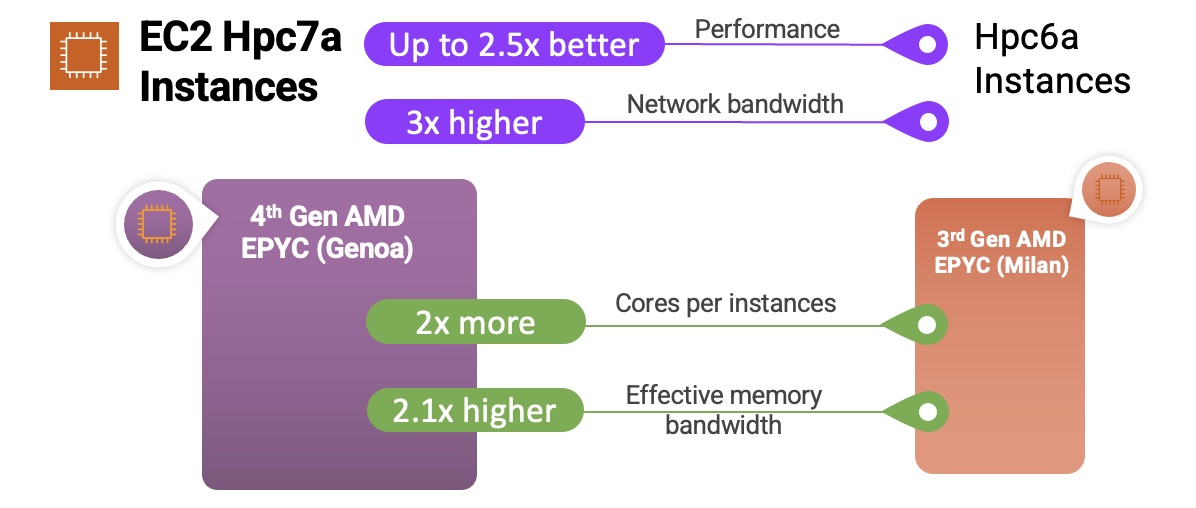
AWS Community Days AWS Community Day– Join a community-led conference run by AWS user group leaders in your region:Taiwan (August 26), Aotearoa (September 6), Lebanon (September 9), Munich (September 14), Argentina (September 16), Spain (September 23), and Chile (September 30). Check all the upcoming AWS Community Days here.

CDK Day (September 29) – A community-led fully virtual event with tracks in English and in Spanish about CDK and related projects. Learn more in the website.

That’s all for this week. Check back next Monday for another Week in Review!

This post is part of our Week in Review series. Check back each week for a quick roundup of interesting news and announcements from AWS!

— Marcia

New – Amazon EC2 Hpc7a Instances Powered by 4th Gen AMD EPYC Processors Optimized for High Performance Computing

Post Syndicated from Channy Yun original https://aws.amazon.com/blogs/aws/new-amazon-ec2-hpc7a-instances-powered-by-4th-gen-amd-epyc-processors-optimized-for-high-performance-computing/

In January 2022, we launched Amazon EC2 Hpc6a instances for customers to efficiently run their compute-bound high performance computing (HPC) workloads on AWS with up to 65 percent better price performance over comparable x86-based compute-optimized instances.

As their jobs grow more complex, customers have asked for more cores with more compute performance and more memory and network performance to reduce the time to complete jobs. Additionally, as customers look to bring more of their HPC workloads to EC2, they have asked how we can make it easier to distribute processes to make the best use of memory and network bandwidth, to align with their workload requirements.

Today, we are announcing the general availability of Amazon EC2 Hpc7a instances, the next generation of instance types that are purpose-built for tightly coupled HPC workloads. Hpc7a instances powered by the 4th Gen AMD EPYC processors (Genoa) deliver up to 2.5 times better performance compared to Hpc6a instances. These instances offer 300 Gbps Elastic Fabric Adapter (EFA) bandwidth powered by the AWS Nitro System, for fast and low-latency internode communications.

Hpc7a instances feature Double Data Rate 5 (DDR5) memory, which provides 50 percent higher memory bandwidth compared to DDR4 memory to enable high-speed access to data in memory. These instances are ideal for compute-intensive, latency-sensitive workloads such as computational fluid dynamics (CFD) and numerical weather prediction (NWP).

If you are running on Hpc6a, you can use Hpc7a instances and take advantage of the 2 times higher core density, 2.1 times higher effective memory bandwidth, and 3 times higher network bandwidth to lower the time needed to complete jobs compared to Hpc6a instances.

Here’s a quick infographic that shows you how the Hpc7a instances and the 4th Gen AMD EPYC processor (Genoa) compare to the previous instances and processor:

Hpc7a instances feature sizes of up to 192 cores of the AMD EPYC processors CPUs with 768 GiB RAM. Here are the detailed specs:

Instance Name CPUs RAM (Gib)
EFA Network Bandwidth (Gbps)
Attached Storage
Hpc7a.12xlarge 24 768 Up to 300 EBS Only
Hpc7a.24xlarge 48 768 Up to 300 EBS Only
Hpc7a.48xlarge 96 768 Up to 300 EBS Only
Hpc7a.96xlarge 192 768 Up to 300 EBS Only

These instances provide higher compute, memory, and network performance to run the most compute-intensive workloads, such as CFD, weather forecasting, molecular dynamics, and computational chemistry on AWS.

Similar to EC2 Hpc7g instances released a month earlier, we are offering smaller instance sizes that makes it easier for customers to pick a smaller number of CPU cores to activate while keeping all other resources constant based on their workload requirements. For HPC workloads, common scenarios include providing more memory bandwidth per core for CFD workloads, allocating fewer cores in license-bound scenarios, and supporting more memory per core. To learn more, see Instance sizes in the Amazon EC2 Hpc7 family – a different experience in the AWS HPC Blog.

As with Hpc6a instances, you can use the Hpc7a instance to run your largest and most complex HPC simulations on EC2 and optimize for cost and performance. You can also use the new Hpc7a instances with AWS Batch and AWS ParallelCluster to simplify workload submission and cluster creation. You can also use Amazon FSx for Lustre for submillisecond latencies and up to hundreds of gigabytes per second of throughput for storage.

To achieve the best performance for HPC workloads, these instances have Simultaneous Multithreading (SMT) disabled, they’re available in a single Availability Zone, and they have limited external network and EBS bandwidth.

Now Available
Amazon EC2 Hpc7a instances are available today in three AWS Regions: US East (Ohio), EU (Ireland), and US GovCloud for purchase in On-Demand, Reserved Instances, and Savings Plans. For more information, see the Amazon EC2 pricing page.

To learn more, visit our Hpc7a instances page and get in touch with our HPC team, AWS re:Post for EC2, or through your usual AWS Support contacts.

— Channy

New – Amazon EC2 M7a General Purpose Instances Powered by 4th Gen AMD EPYC Processors

Post Syndicated from Channy Yun original https://aws.amazon.com/blogs/aws/new-amazon-ec2-m7a-general-purpose-instances-powered-by-4th-gen-amd-epyc-processors/

In November 2021, we launched Amazon EC2 M6a instances, powered by 3rd Gen AMD EPYC (Milan) processors, running at frequencies up to 3.6 GHz, which offer you up to 35 percent improvement in price performance compared to M5a instances. Many customers who run workloads that are dependent on x86 instructions, such as SAP, are looking for ways to optimize their cloud utilization. They’re taking advantage of the compute choice that EC2 offers.

Today, we’re announcing the general availability of new, general purpose Amazon EC2 M7a instances, powered by the 4th Gen AMD EPYC (Genoa) processors with a maximum frequency of 3.7 GHz, which offer up to 50 percent higher performance compared to M6a instances. This increased performance gives you the ability to process data faster, consolidate workloads, and lower the cost of ownership.

M7a instances support AVX-512, Vector Neural Network Instructions (VNNI) and brain floating point (bfloat16). These instances feature Double Data Rate 5 (DDR5) memory, which enable high-speed access to data in-memory, and deliver 2.25 times more memory bandwidth compared to M6a instances for lower latency.

M7a instances are SAP-certified and ideal for applications that benefit from high performance and high throughput, such as financial applications, application servers, simulation modeling, gaming, mid-size data stores, application development environments, and caching fleets.

M7a instances feature sizes of up to 192 vCPUs with 768 GiB RAM. Here are the detailed specs:

Name vCPUs Memory (GiB) Network Bandwidth (Gbps) EBS Bandwidth (Gbps)
m7a.medium 1 4 Up to 12.5 Up to 10
m7a.large 2 8 Up to 12.5 Up to 10
m7a.xlarge 4 16 Up to 12.5 Up to 10
m7a.2xlarge 8 32 Up to 12.5 Up to 10
m7a.4xlarge 16 64 Up to 12.5 Up to 10
m7a.8xlarge 32 128 12.5 10
m7a.12xlarge 48 192 18.75 15
m7a.16xlarge 64 256 25 20
m7a.24xlarge 96 384 37.5 30
m7a.32xlarge 128 512 50 40
m7a.48xlarge 192 768 50 40
m7a.metal-48xl 192 768 50 40

M7a instances have up to 50 Gbps enhanced networking and 40 Gbps EBS bandwidth, which is similar to M6a instances. But you have a new medium instance size, which enables you to right-size your workloads more accurately, offering 1 vCPUs, 4 GiB, and the largest size offering 192 vCPUs, 768 GiB.

The new instances are built on the AWS Nitro System, a collection of building blocks that offloads many of the traditional virtualization functions to dedicated hardware for high performance, high availability, and highly secure cloud instances.

Now Available
Amazon EC2 M7a instances are now available today in AWS Regions: US East (Ohio), US East (N. Virginia), US West (Oregon), and EU (Ireland). As usual with Amazon EC2, you only pay for what you use. For more information, see the Amazon EC2 pricing page.

To learn more, visit the EC2 M7a instance and AWS/AMD partner page. You can send feedback to [email protected], AWS re:Post for EC2, or through your usual AWS Support contacts.

— Channy

Create, Use, and Troubleshoot Launch Scripts on Amazon Lightsail

Post Syndicated from Macey Neff original https://aws.amazon.com/blogs/compute/create-use-and-troubleshoot-launch-scripts-on-amazon-lightsail/

This blog post is written by Brian Graf, Senior Developer Advocate, Amazon Lightsail and Sophia Parafina, Senior Developer Advocate. 

Amazon Lightsail is a virtual private server (VPS) for deploying both operating systems (OS) and pre-packaged applications, such as WordPress, Plesk, cPanel, PrestaShop, and more. When deploying these instances, you can run launch scripts with additional commands such as installation of applications, configuration of system files, or installing pre-requisites for your application.

Where do I add a launch script?

If you’re deploying an instance with the Lightsail console, launch scripts can be added to an instance at deployment. They are added in the ‘deploy instance’ page:

Image of Amazon Lightsail deploy an instance page

The launch script must be added before the instance is deployed, because launch scripts can’t retroactively run after deployment.

Anatomy of a Windows Launch Script

When deploying a Lightsail Windows instance, you can use a batch script or a PowerShell script in the ‘launch script’ textbox.  Of the two options, PowerShell is more extensible and provides greater flexibility for configuration and control.

If you choose to write your launch script as a batch file, you must add <script> </script> tags at the beginning and end of your code respectively. Alternatively, a launch script in PowerShell, must use the <powershell></powershell> tags in a similar fashion.

After the closing </script> or </powershell> tag, you must add a <persist></persist> tag on the following line. The persist tag is used to determine if this is a run-once command or if it should run every time your instance is rebooted or changed from the ‘Stop’ to ‘Start’ state. If you want your script to run every time the instance is rebooted or started, then you must set the persist tag to ‘true’. If you want your launch script to just run once, then you would set your persist tag to ‘false’.

Anatomy of a Linux Launch Script

Like a Windows launch script, a Linux launch script requires specific code on the first row of the textbox to successfully execute during deployment. You must place ‘#!/bin/bash’ as the first line of code to set the shell that executes the rest of the script. After first line of code, you can continue adding additional commands to achieve the results you want.

How do I know if my Launch Script ran successfully?

Although running launch scripts is convenient to create a baseline instance, it’s possible that your instance doesn’t achieve the desired end-state because of an error in your script or permissions issues. You must troubleshoot to see why the launch script didn’t complete successfully. To find if the launch script ran successfully, refer to the instance logs to determine whether your launch script was successful or not.

For Windows, the launch log can be found in: C:\ProgramData\Amazon\EC2-Windows\launch\Log\UserdataExecution.log. Note that ProgramData is a hidden folder, and unless you access the file from PowerShell or Command Prompt, you must use Windows File Explorer (`View > Show > Hidden items`) folders to see it.

For Linux, the launch log can be found in: /var/log/cloud-init-output.log and can be monitored after your instance launches by tailing the log by typing the following in the terminal:

tail -f /var/log/cloud-init-output.log

If you want to see the entire log file including commands that have already run before you opened the log file, then you can type the following in the terminal:

less +F /var/log/cloud-init-output.log

On a Windows instance, an easy way to monitor the UserdataExecution.log is to add the following code in your launch script, which creates a shortcut to tail or watch the log as commands are executing:

# Create a log-monitoring script to monitor the progress of the launch script execution

$monitorlogs = @"
get-content C:\ProgramData\Amazon\EC2-Windows\launch\Log\UserdataExecution.log -wait
"@

# Save the log-monitoring script to the desktop for the user

$monitorlogs | out-file -FilePath C:\Users\Administrator\Desktop\MonitorLogs.ps1 -Encoding utf8 -Force

</powershell>
<persist>false</persist>

If the script was executed, then the last line of the log should say ‘{Timestamp}: User data script completed’.

However, if you want more detail, you can build the logging into your launch script. For example, you can append a text or log file with each command so that you can read the output in an easy-to-access location:

<powershell>
# Set the location for the log file. In this case,
# it will appear on the desktop of your Lightsail instance
$loc = "c:\Users\Administrator\Desktop\mylog.txt"

# Write text to the log file
Write-Output "Starting Script" >> $loc

# Download and install Chocolatey to do unattended installations of the rest of the apps.
iex ((New-Object System.Net.WebClient).DownloadString('https://chocolatey.org/install.ps1'))

# You could run commands like this to output the progress to the log file:

# Install vscode and all dependencies
choco install -y vscode --force --force-dependencies --verbose >> $loc

# Install git and all dependencies
choco install -y git --force --force-dependencies --verbose >> $loc

# Completed
Write-Output "Completed" >> $loc
</powershell>
<persist>false</persist>

This code creates a log file, outputs data, and appends it along the way. If there is an issue, then you can see where the logs stopped or errors appeared.

For Ubuntu and Amazon Linux 2

If the cloud-init-output.log isn’t comprehensive enough, then you can re-direct the output from your commands to a log file of your choice. In this example, we create a log file in the /tmp/ directory and push all output from our commands to this file.

# Create the log file
touch /tmp/launchscript.log

# Add text to the log file if you so choose
echo 'Starting' >> /tmp/launchscript.log

# Update package index
sudo apt update >> /tmp/launchscript.log

# Install software to manage independent software vendor sources
sudo apt -y install software-properties-common >> /tmp/launchscript.log

# Add the repository for all PHP versions
sudo add-apt-repository -y ppa:ondrej/php >> /tmp/launchscript.log

# Install Web server, mySQL client, PHP (and packages), unzip, and curl
sudo apt -y install apache2 mysql-client-core-8.0 php8.0 libapache2-mod-php8.0 php8.0-common php8.0-imap php8.0-mbstring php8.0-xmlrpc php8.0-soap php8.0-gd php8.0-xml php8.0-intl php8.0-mysql php8.0-cli php8.0-bcmath php8.0-ldap php8.0-zip php8.0-curl unzip curl >> /tmp/launchscript.log

# Any final text you want to include
echo 'Completed' >> /tmp/launchscript.log

It’s possible to check the logs before the launch script has finished executing. One way to follow along is to ‘tail’ the log file. This lets you stream all updates as they occur. You can monitor the log using:

‘tail -f /tmp/launchscript.log’. </code>

Using Launch Scripts from AWS Command Line Interface (AWS CLI)

You can deploy their Lightsail instances from the AWS Command Line Interface (AWS CLI) instead of the Lightsail console. You can add launch scripts to the AWS CLI command as a parameter by creating a variable with the script and referencing the variable, or by saving the launch script as a file and referencing the local file location on your computer.

The launch script is still written the same way as the previous examples. For a Windows instance with a PowerShell launch script, you can deploy a Lightsail instance with a launch script with the following code:

# PowerShell script saved in the Downloads folder:

$loc = "c:\Users\Administrator\Desktop\mylog.txt"

# Write text to the log file

Write-Output "Starting Script" >> $loc

# Download and install Chocolatey to do unattended installations of the rest of the apps.

iex ((New-Object System.Net.WebClient).DownloadString('https://chocolatey.org/install.ps1'))

# You could run commands like this to output the progress to the log file:

# Install vscode and all dependencies

choco install -y vscode --force --force-dependencies --verbose >> $loc

# Install git and all dependencies

choco install -y git --force --force-dependencies --verbose >> $loc

# Completed

Write-Output "Completed" >> $loc

AWS CLI code to deploy a Windows Server 2019 medium instance in the us-west-2a Availability Zone:

aws lightsail create-instances \

--instance-names "my-windows-instance-1" \

--availability-zone us-west-2a \

--blueprint-id windows_server_2019 \

--bundle-id medium_win_2_0 \

--region us-west-2 \

--user-data file://~/Downloads/powershell_script.ps1

Clean up

Remember to delete resources when you are finished using them to avoid incurring future costs.

Conclusion

You now have the understanding and examples of how to create and troubleshoot Lightsail launch scripts both through the Lightsail console and AWS CLI. As demonstrated in this blog, using launch scripts, you can increase your productivity and decrease the deployment time and configuration of your applications. For more examples of using launch scripts, check out the aws-samples GitHub repository. You now have all the foundational building blocks you need to successfully script automated instance configuration. To learn more about Lightsail, visit the Lightsail service page.