Tag Archives: Amazon Managed Streaming for Apache Kafka (Amazon MSK)

How SOCAR built a streaming data pipeline to process IoT data for real-time analytics and control

Post Syndicated from DoYeun Kim original https://aws.amazon.com/blogs/big-data/how-socar-built-a-streaming-data-pipeline-to-process-iot-data-for-real-time-analytics-and-control/

SOCAR is the leading Korean mobility company with strong competitiveness in car-sharing. SOCAR has become a comprehensive mobility platform in collaboration with Nine2One, an e-bike sharing service, and Modu Company, an online parking platform. Backed by advanced technology and data, SOCAR solves mobility-related social problems, such as parking difficulties and traffic congestion, and changes the car ownership-oriented mobility habits in Korea.

SOCAR is building a new fleet management system to manage the many actions and processes that must occur in order for fleet vehicles to run on time, within budget, and at maximum efficiency. To achieve this, SOCAR is looking to build a highly scalable data platform using AWS services to collect, process, store, and analyze internet of things (IoT) streaming data from various vehicle devices and historical operational data.

This in-car device data, combined with operational data such as car details and reservation details, will provide a foundation for analytics use cases. For example, SOCAR will be able to notify customers if they have forgotten to turn their headlights off or to schedule a service if a battery is running low. Unfortunately, the previous architecture didn’t enable the enrichment of IoT data with operational data and couldn’t support streaming analytics use cases.

AWS Data Lab offers accelerated, joint-engineering engagements between customers and AWS technical resources to create tangible deliverables that accelerate data and analytics modernization initiatives. The Build Lab is a 2–5-day intensive build with a technical customer team.

In this post, we share how SOCAR engaged the Data Lab program to assist them in building a prototype solution to overcome these challenges, and to build the basis for accelerating their data project.

Use case 1: Streaming data analytics and real-time control

SOCAR wanted to utilize IoT data for a new business initiative. A fleet management system, where data comes from IoT devices in the vehicles, is a key input to drive business decisions and derive insights. This data is captured by AWS IoT and sent to Amazon Managed Streaming for Apache Kafka (Amazon MSK). By joining the IoT data to other operational datasets, including reservations, car information, device information, and others, the solution can support a number of functions across SOCAR’s business.

An example of real-time monitoring is when a customer turns off the car engine and closes the car door, but the headlights are still on. By using IoT data related to the car light, door, and engine, a notification is sent to the customer to inform them that the car headlights should be turned off.

Although this real-time control is important, they also want to collect historical data—both raw and curated data—in Amazon Simple Storage Service (Amazon S3) to support historical analytics and visualizations by using Amazon QuickSight.

Use case 2: Detect table schema change

The first challenge SOCAR faced was existing batch ingestion pipelines that were prone to breaking when schema changes occurred in the source systems. Additionally, these pipelines didn’t deliver data in a way that was easy for business analysts to consume. In order to meet the future data volumes and business requirements, they needed a pattern for the automated monitoring of batch pipelines with notification of schema changes and the ability to continue processing.

The second challenge was related to the complexity of the JSON files being ingested. The existing batch pipelines weren’t flattening the five-level nested structure, which made it difficult for business users and analysts to gain business insights without any effort on their end.

Overview of solution

In this solution, we followed the serverless data architecture to establish a data platform for SOCAR. This serverless architecture allowed SOCAR to run data pipelines continuously and scale automatically with no setup cost and without managing servers.

AWS Glue is used for both the streaming and batch data pipelines. Amazon Kinesis Data Analytics is used to deliver streaming data with subsecond latencies. In terms of storage, data is stored in Amazon S3 for historical data analysis, auditing, and backup. However, when frequent reading of the latest snapshot data is required by multiple users and applications concurrently, the data is stored and read from Amazon DynamoDB tables. DynamoDB is a key-value and document database that can support tables of virtually any size with horizontal scaling.

Let’s discuss the components of the solution in detail before walking through the steps of the entire data flow.

Component 1: Processing IoT streaming data with business data

The first data pipeline (see the following diagram) processes IoT streaming data with business data from an Amazon Aurora MySQL-Compatible Edition database.

Whenever a transaction occurs in two tables in the Aurora MySQL database, this transaction is captured as data and then loaded into two MSK topics via AWS Database Management (AWS DMS) tasks. One topic conveys the car information table, and the other topic is for the device information table. This data is loaded into a single DynamoDB table that contains all the attributes (or columns) that exist in the two tables in the Aurora MySQL database, along with a primary key. This single DynamoDB table contains the latest snapshot data from the two DB tables, and is important because it contains the latest information of all the cars and devices for the lookup against the streaming IoT data. If the lookup were done on the database directly with the streaming data, it would impact the production database performance.

When the snapshot is available in DynamoDB, an AWS Glue streaming job runs continuously to collect the IoT data and join it with the latest snapshot data in the DynamoDB table to produce the up-to-date output, which is written into another DynamoDB table.

The up-to-date data in DynamoDB is used for real-time monitoring and control that SOCAR’s Data Analytics team performs for safety maintenance and fleet management. This data is ultimately consumed by a number of apps to perform various business activities, including route optimization, real-time monitoring for oil consumption and temperature, and to identify a driver’s driving pattern, tire wear and defect detection, and real-time car crash notifications.

Component 2: Processing IoT data and visualizing the data in dashboards

The second data pipeline (see the following diagram) batch processes the IoT data and visualizes it in QuickSight dashboards.

There are two data sources. The first is the Aurora MySQL database. The two database tables are exported into Amazon S3 from the Aurora MySQL cluster and registered in the AWS Glue Data Catalog as tables. The second data source is Amazon MSK, which receives streaming data from AWS IoT Core. This requires you to create a secure AWS Glue connection for an Apache Kafka data stream. SOCAR’s MSK cluster requires SASL_SSL as a security protocol (for more information, refer to Authentication and authorization for Apache Kafka APIs). To create an MSK connection in AWS Glue and set up connectivity, we use the following CLI command:

aws glue create-connection —connection-input
'{"Name":"kafka-connection","Description":"kafka connection example",
"ConnectionType":"KAFKA",
"ConnectionProperties":{
"KAFKA_BOOTSTRAP_SERVERS":"<server-ip-addresses>",
"KAFKA_SSL_ENABLED":"true",
// "KAFKA_CUSTOM_CERT": "s3://bucket/prefix/cert.pem",
"KAFKA_SECURITY_PROTOCOL" : "SASL_SSL",
"KAFKA_SKIP_CUSTOM_CERT_VALIDATION":"false",
"KAFKA_SASL_MECHANISM": "SCRAM-SHA-512",
"KAFKA_SASL_SCRAM_USERNAME": "<username>",
"KAFKA_SASL_SCRAM_PASSWORD: "<password>"
},
"PhysicalConnectionRequirements":
{"SubnetId":"subnet-xxx","SecurityGroupIdList":["sg-xxx"],"AvailabilityZone":"us-east-1a"}}'

Component 3: Real-time control

The third data pipeline processes the streaming IoT data in millisecond latency from Amazon MSK to produce the output in DynamoDB, and sends a notification in real time if any records are identified as an outlier based on business rules.

AWS IoT Core provides integrations with Amazon MSK to set up real-time streaming data pipelines. To do so, complete the following steps:

  1. On the AWS IoT Core console, choose Act in the navigation pane.
  2. Choose Rules, and create a new rule.
  3. For Actions, choose Add action and choose Kafka.
  4. Choose the VPC destination if required.
  5. Specify the Kafka topic.
  6. Specify the TLS bootstrap servers of your Amazon MSK cluster.

You can view the bootstrap server URLs in the client information of your MSK cluster details. The AWS IoT rule was created with the Kafka topic as an action to provide data from AWS IoT Core to Kafka topics.

SOCAR used Amazon Kinesis Data Analytics Studio to analyze streaming data in real time and build stream-processing applications using standard SQL and Python. We created one table from the Kafka topic using the following code:

CREATE TABLE table_name (
column_name1 VARCHAR,
column_name2 VARCHAR(100),
column_name3 VARCHAR,
column_name4 as TO_TIMESTAMP (`time_column`, 'EEE MMM dd HH:mm:ss z yyyy'),
 WATERMARK FOR column AS column -INTERVAL '5' SECOND
)
PARTITIONED BY (column_name5)
WITH (
'connector'= 'kafka',
'topic' = 'topic_name',
'properties.bootstrap.servers' = '<bootstrap servers shown in the MSK client info dialog>',
'format' = 'json',
'properties.group.id' = 'testGroup1',
'scan.startup.mode'= 'earliest-offset'
);

Then we applied a query with business logic to identify a particular set of records that need to be alerted. When this data is loaded back into another Kafka topic, AWS Lambda functions trigger the downstream action: either load the data into a DynamoDB table or send an email notification.

Component 4: Flattening the nested structure JSON and monitoring schema changes

The final data pipeline (see the following diagram) processes complex, semi-structured, and nested JSON files.

This step uses an AWS Glue DynamicFrame to flatten the nested structure and then land the output in Amazon S3. After the data is loaded, it’s scanned by an AWS Glue crawler to update the Data Catalog table and detect any changes in the schema.

Data flow: Putting it all together

The following diagram illustrates our complete data flow with each component.

Let’s walk through the steps of each pipeline.

The first data pipeline (in red) processes the IoT streaming data with the Aurora MySQL business data:

  1. AWS DMS is used for ongoing replication to continuously apply source changes to the target with minimal latency. The source includes two tables in the Aurora MySQL database tables (carinfo and deviceinfo), and each is linked to two MSK topics via AWS DMS tasks.
  2. Amazon MSK triggers a Lambda function, so whenever a topic receives data, a Lambda function runs to load data into DynamoDB table.
  3. There is a single DynamoDB table with columns that exist from the carinfo table and the deviceinfo table of the Aurora MySQL database. This table consists of all the data from two tables and stores the latest data by performing an upsert operation.
  4. An AWS Glue job continuously receives the IoT data and joins it with data in the DynamoDB table to produce the output into another DynamoDB target table.
  5. This target table contains the final data, which includes all the device and car status information from the IoT devices as well as metadata from the Aurora MySQL table.

The second data pipeline (in green) batch processes IoT data to use in dashboards and for visualization:

  1. The car and reservation data (in two DB tables) is exported via a SQL command from the Aurora MySQL database with the output data available in an S3 bucket. The folders that contain data are registered as an S3 location for the AWS Glue crawler and become available via the AWS Glue Data Catalog.
  2. The MSK input topic continuously receives data from AWS IoT. Each car has a number of IoT devices, and each device captures data and sends it to an MSK input topic. The Amazon MSK S3 sink connector is configured to export data from Kafka topics to Amazon S3 in JSON formats. In addition, the S3 connector exports data by guaranteeing exactly-once delivery semantics to consumers of the S3 objects it produces.
  3. The AWS Glue job runs in a daily batch to load the historical IoT data into Amazon S3 and into two tables (refer to step 1) to produce the output data in an Enriched folder in Amazon S3.
  4. Amazon Athena is used to query data from Amazon S3 and make it available as a dataset in QuickSight for visualizing historical data.

The third data pipeline (in blue) processes streaming IoT data from Amazon MSK with millisecond latency to produce the output in DynamoDB and send a notification:

  1. An Amazon Kinesis Data Analytics Studio notebook powered by Apache Zeppelin and Apache Flink is used to build and deploy its output as a Kinesis Data Analytics application. This application loads data from Amazon MSK in real time, and users can apply business logic to select particular events coming from the IoT real-time data, for example, the car engine is off and the doors are closed, but the headlights are still on. The particular event that users want to capture can be sent to another MSK topic (Outlier) via the Kinesis Data Analytics application.
  2. Amazon MSK triggers a Lambda function, so whenever a topic receives data, a Lambda function runs to send an email notification to users that are subscribed to an Amazon Simple Notification Service (Amazon SNS) topic. An email is published using an SNS notification.
  3. The Kinesis Data Analytics application loads data from AWS IoT, applies business logic, and then loads it into another MSK topic (output). Amazon MSK triggers a Lambda function when data is received, which loads data into a DynamoDB Append table.
  4. Amazon Kinesis Data Analytics Studio is used to run SQL commands for ad hoc interactive analysis on streaming data.

The final data pipeline (in yellow) processes complex, semi-structured, and nested JSON files, and sends a notification when a schema evolves.

  1. An AWS Glue job runs and reads the JSON data from Amazon S3 (as a source), applies logic to flatten the nested schema using a DynamicFrame, and pivots out array columns from the flattened frame.
  2. The output is stored in Amazon S3 and is automatically registered to the AWS Glue Data Catalog table.
  3. Whenever there is a new attribute or change in the JSON input data at any level in the nested structure, the new attribute and change are captured in Amazon EventBridge as an event from the AWS Glue Data Catalog. An email notification is published using Amazon SNS.

Conclusion

As a result of the four-day Build Lab, the SOCAR team left with a working prototype that is custom fit to their needs, gaining a clear path to production. The Data Lab allowed the SOCAR team to build a new streaming data pipeline, enrich IoT data with operational data, and enhance the existing data pipeline to process complex nested JSON data. This establishes a baseline architecture to support the new fleet management system beyond the car-sharing business.


About the Authors

DoYeun Kim is the Head of Data Engineering at SOCAR. He is a passionate software engineering professional with 19+ years experience. He leads a team of 10+ engineers who are responsible for the data platform, data warehouse and MLOps engineering, as well as building in-house data products.

SangSu Park is a Lead Data Architect in SOCAR’s cloud DB team. His passion is to keep learning, embrace challenges, and strive for mutual growth through communication. He loves to travel in search of new cities and places.

YoungMin Park is a Lead Architect in SOCAR’s cloud infrastructure team. His philosophy in life is-whatever it may be-to challenge, fail, learn, and share such experiences to build a better tomorrow for the world. He enjoys building expertise in various fields and basketball.

Younggu Yun is a Senior Data Lab Architect at AWS. He works with customers around the APAC region to help them achieve business goals and solve technical problems by providing prescriptive architectural guidance, sharing best practices, and building innovative solutions together. In his free time, his son and he are obsessed with Lego blocks to build creative models.

Vicky Falconer leads the AWS Data Lab program across APAC, offering accelerated joint engineering engagements between teams of customer builders and AWS technical resources to create tangible deliverables that accelerate data analytics modernization and machine learning initiatives.

Retain more for less with tiered storage for Amazon MSK

Post Syndicated from Masudur Rahaman Sayem original https://aws.amazon.com/blogs/big-data/retain-more-for-less-with-tiered-storage-for-amazon-msk/

Organizations are adopting Apache Kafka and Amazon Managed Streaming for Apache Kafka (Amazon MSK) to capture and analyze data in real-time. Amazon MSK allows you to build and run production applications on Apache Kafka without needing Kafka infrastructure management expertise or having to deal with the complex overheads associated with running Apache Kafka on your own. With increasing maturity, customers seek to build sophisticated use cases that combine aspects of real time and batch processing. For instance, you may want to train machine learning (ML) models based on historic data and then use these models to do real time inferencing. Or you may want to be able to recompute previous results when the application logic changed, e.g., when a new KPI is added to a streaming analytics application or when a bug was fixed that caused incorrect output. These use cases often require storing data for several weeks, months, or even years.

Apache Kafka is well positioned to support these kind of use cases. Data is retained in the Kafka cluster as long as required by configuring the retention policy. In this way, the most recent data can be processed in real time for low-latency use cases while historic data remains accessible in the cluster and can be processed in a batch fashion.

However, retaining data in a Kafka cluster can become expensive because storage and compute are tightly coupled in a cluster. To scale storage, you need to add more brokers. But adding more brokers with the sole purpose of increasing the storage squanders the rest of the compute resources like CPU and memory. Also, a large cluster with more nodes adds operational complexity with a longer time to recover and rebalance when a broker fails. To avoid that operational complexity and higher cost, you can move your data to Amazon Simple Storage Service (Amazon S3) for long-term access and with cost-effective storage classes in Amazon S3 you can optimize your overall storage cost. This solves cost challenges, but now you have to build and maintain that part of the architecture for data movement to a different data store. You also need to build different data processing logic using different APIs for consuming data (Kafka API for streaming, Amazon S3 API for historic reads).

Today, we’re announcing Amazon MSK tiered storage, which brings a virtually unlimited and low-cost storage tier for Amazon MSK, making it simpler and cost-effective for developers to build streaming data applications. Since the launch of Amazon MSK in 2019, we have enabled capabilities such as vertical scaling and automatic scaling of broker storage so you can operate your Kafka workloads in a cost-effective way. Earlier this year, we launched provisioned throughput which enables seamlessly scaling I/O without having to provision additional brokers. Tiered storage makes it even more cost-effective for you to run Kafka workloads. You can now store data in Apache Kafka without worrying about limits. You can effectively balance your performance and costs by using the performance-optimized primary storage for real-time data and the new low-cost tier for the historical data. With a few clicks, you can move streaming data into a lower-cost tier to store data and only pay for what you use.

Tiered storage frees you from making hard trade-offs between supporting the data retention needs of your application teams and the operational complexity that comes with it. This enables you to use the same code to process both real-time and historical data to minimize redundant workflows and simplify architectures. With Amazon MSK tiered storage, you can implement a Kappa architecture – a streaming-first software architecture deployment pattern – to use the same data processing pipeline for correctness and completeness of data over a much longer time horizon for business analysis.

How Amazon MSK tiered storage works

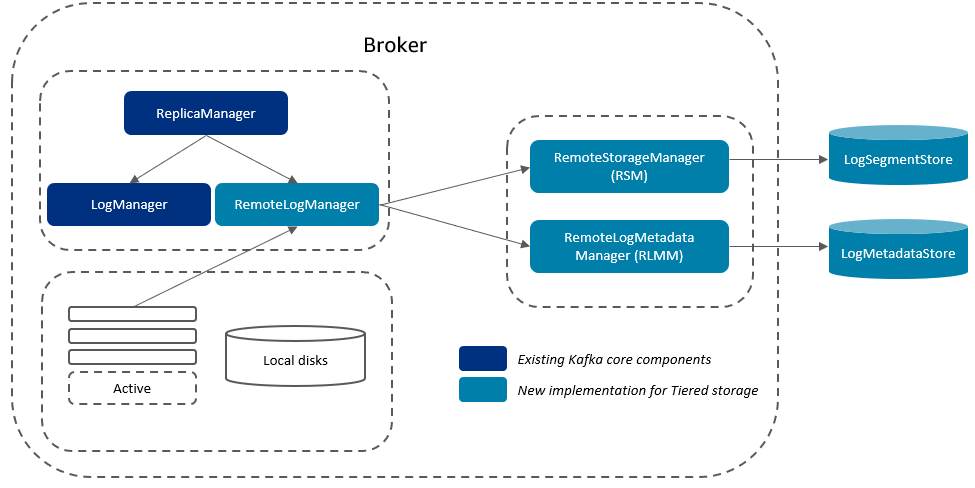
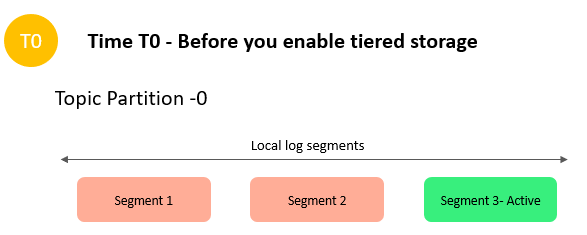
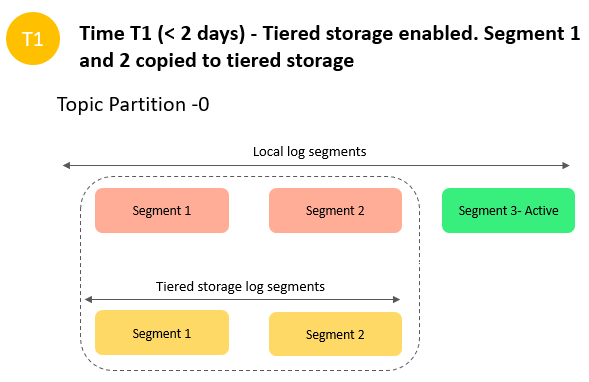
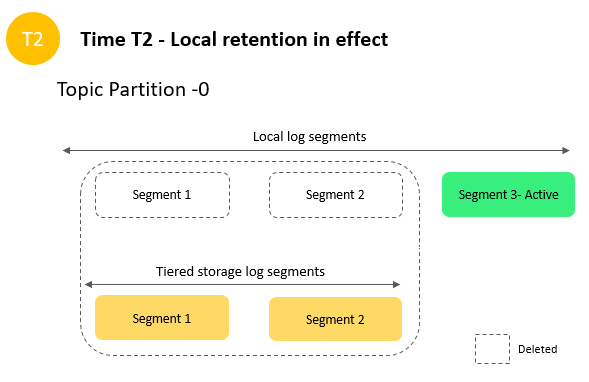
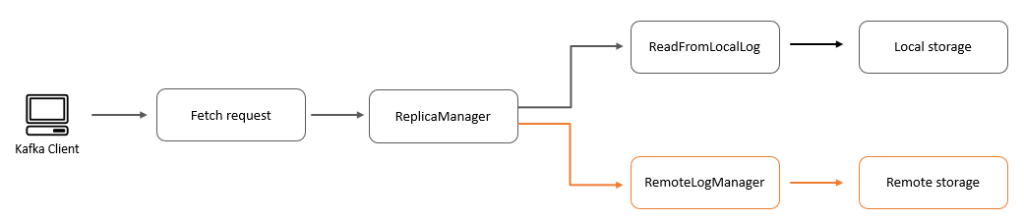
Let’s look at how tiered storage works for Amazon MSK. Apache Kafka stores data in files called log segments. As each segment completes, based on the segment size configured at cluster or topic level, it’s copied to the low-cost storage tier. Data is held in performance-optimized storage for a specified retention time, or up to a specified size, and then deleted. There is a separate time and size limit setting for the low-cost storage, which must be longer than the performance-optimized storage tier. If clients request data from segments stored in the low-cost tier, the broker reads the data from it and serves the data in the same way as if it were being served from the performance-optimized storage. The APIs and existing clients work with minimal changes. When your application starts reading data from the low-cost tier, you can expect an increase in read latency for the first few bytes. As you start reading the remaining data sequentially from the low-cost tier, you can expect latencies that are similar to the primary storage tier. With tiered storage, you pay for the amount of data you store and the amount of data you retrieve.

For a pricing example, let’s consider a workload where your ingestion rate is 15 MB/s, with a replication factor of 3, and you want to retain data in your Kafka cluster for 7 days. For such a workload, it requires 6x m5.large brokers, with 32.4 TB EBS storage, which costs $4,755. But if you use tiered storage for the same workload with local retention of 4 hours and overall data retention of 7 days, it requires 3x m5.large brokers, with 0.8 TB EBS storage and 9 TB of tiered storage, which costs $1,584. If you want to read all the historic data at once, it costs $13 ($0.0015 per GB retrieval cost). In this example with tiered storage, you save around 66% of your overall cost.

Get started using Amazon MSK tiered storage

To enable tiered storage on your existing cluster, upgrade your MSK cluster to Kafka version 2.8.2.tiered and then choose Tiered storage and EBS storage as your cluster storage mode on the Amazon MSK console.

After tiered storage is enabled on the cluster level, run the following command to enable tiered storage on an existing topic. In this example, you’re enabling tiered storage on a topic called msk-ts-topic with 7 days’ retention (local.retention.ms=604800000) for a local high-performance storage tier, setting 180 days’ retention (retention.ms=15550000000) to retain the data in the low-cost storage tier, and updating the log segment size to 48 MB:

bin/kafka-configs.sh --bootstrap-server $bsrv --alter --entity-type topics --entity-name msk-ts-topic --add-config 'remote.storage.enable=true, local.retention.ms=604800000, retention.ms=15550000000, segment.bytes=50331648'

Availability and pricing

Amazon MSK tiered storage is available in all AWS regions where Amazon MSK is available excluding the AWS China, AWS GovCloud regions. This low-cost storage tier scales to virtually unlimited storage and requires no upfront provisioning. You pay only for the volume of data retained and retrieved in the low-cost tier.

For more information about this feature and its pricing, see the Amazon MSK developer guide and Amazon MSK pricing page. For finding the right sizing for your cluster, see the best practices page.

Summary

With Amazon MSK tiered storage you don’t need to provision storage for the low-cost tier or manage the infrastructure. Tiered storage enables you to scale to virtually unlimited storage. You can access data in the low-cost tier using the same clients you currently use to read data from the high-performance primary storage tier. Apache Kafka’s consumer API, streams API, and connectors consume data from both tiers without changes. You can modify the retention limits on the low-cost storage tier similarly as to how you can modify the retention limits on the high-performance storage.

Enable tiered storage on your MSK clusters today to retain data longer at a lower cost.


About the Author

Masudur Rahaman Sayem is a Streaming Architect at AWS. He works with AWS customers globally to design and build data streaming architecture to solve real-world business problems. He is passionate about distributed systems. He also likes to read, especially classic comic books.

Use MSK Connect for managed MirrorMaker 2 deployment with IAM authentication

Post Syndicated from Tanner Pratt original https://aws.amazon.com/blogs/big-data/use-msk-connect-for-managed-mirrormaker-2-deployment-with-iam-authentication/

In this post, we show how to use MSK Connect for MirrorMaker 2 deployment with AWS Identity and Access Management (IAM) authentication. We create an MSK Connect custom plugin and IAM role, and then replicate the data between two existing Amazon Managed Streaming for Apache Kafka (Amazon MSK) clusters. The goal is to have replication successfully running between two MSK clusters that are using IAM as an authentication mechanism. It’s important to note that although we’re using IAM authentication in this solution, this can be accomplished using no authentication for the MSK authentication mechanism.

Solution overview

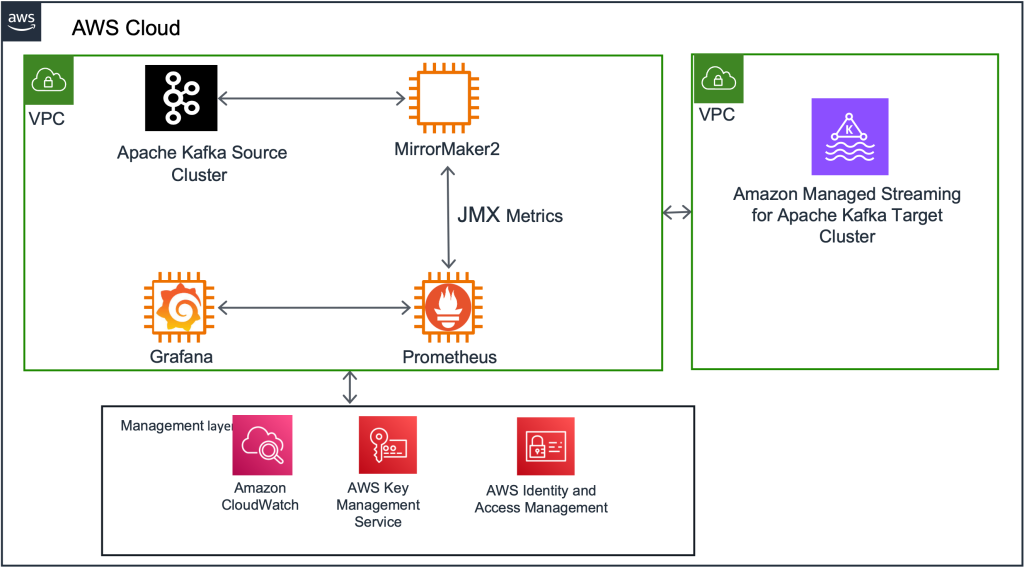
This solution can help Amazon MSK users run MirrorMaker 2 on MSK Connect, which eases the administrative and operational burden because the service handles the underlying resources, enabling you to focus on the connectors and data to ensure correctness. The following diagram illustrates the solution architecture.

Apache Kafka is an open-source platform for streaming data. You can use it to build building various workloads like IoT connectivity, data analytic pipelines, or event-based architectures.

Kafka Connect is a component of Apache Kafka that provides a framework to stream data between systems like databases, object stores, and even other Kafka clusters, into and out of Kafka. Connectors are the executable applications that you can deploy on top of the Kafka Connect framework to stream data into or out of Kafka.

MirrorMaker is the cross-cluster data mirroring mechanism that Apache Kafka provides to replicate data between two clusters. You can deploy this mirroring process as a connector in the Kafka Connect framework to improve the scalability, monitoring, and availability of the mirroring application. Replication between two clusters is a common scenario when needing to improve data availability, migrate to a new cluster, aggregate data from edge clusters into a central cluster, copy data between Regions, and more. In KIP-382, MirrorMaker 2 (MM2) is documented with all the available configurations, design patterns, and deployment options available to users. It’s worthwhile to familiarize yourself with the configurations because there are many options that can impact your unique needs.

MSK Connect is a managed Kafka Connect service that allows you to deploy Kafka connectors into your environment with seamless integrations with AWS services like IAM, Amazon MSK, and Amazon CloudWatch.

In the following sections, we walk you through the steps to configure this solution:

  1. Create an IAM policy and role.
  2. Upload your data.
  3. Create a custom plugin.
  4. Create and deploy connectors.

Create an IAM policy and role for authentication

IAM helps users securely control access to AWS resources. In this step, we create an IAM policy and role that has two critical permissions:

A common mistake made when creating an IAM role and policy needed for common Kafka tasks (publishing to a topic, listing topics) is to assume that the AWS managed policy AmazonMSKFullAccess (arn:aws:iam::aws:policy/AmazonMSKFullAccess) will suffice for permissions.

The following is an example of a policy with both full Kafka and Amazon MSK access:

{
    "Version": "2012-10-17",
    "Statement": [
        {
            "Effect": "Allow",
            "Action": [
                "kafka-cluster:*",
                "kafka:*",
            ],
            "Resource": [
                "*"
            ]
        }
    ]
}

This policy supports the creation of the cluster within the AWS account infrastructure and grants access to the components that make up the cluster anatomy like Amazon Elastic Compute Cloud (Amazon EC2), Amazon Virtual Private Cloud (Amazon VPC), logs, and kafka:*. There is no managed policy for a Kafka administrator to have full access on the cluster itself.

After you create the KafkaAdminFullAccess policy, create a role and attach the policy to it. You need two entries on the role’s Trust relationships tab:

  • The first statement allows Kafka Connect to assume this role and connect to the cluster.
  • The second statement follows the pattern arn:aws:sts::(YOUR ACCOUNT NUMBER):assumed-role/(YOUR ROLE NAME)/(YOUR ACCOUNT NUMBER). Your account number should be the same account number where MSK Connect and the role are being created in. This role is the role you’re editing the trust entity on. In the following example code, I’m editing a role called MSKConnectExample in my account. This is so that when MSK Connect assumes the role, the assumed user can assume the role again to publish and consume records on the target cluster.

In the following example trust policy, provide your own account number and role name:

{
	"Version": "2012-10-17",
	"Statement": [
		{
			"Effect": "Allow",
			"Principal": {
				"Service": "kafkaconnect.amazonaws.com"
			},
			"Action": "sts:AssumeRole"
		},
		{
			"Effect": "Allow",
			"Principal": {
				"AWS": "arn:aws:sts::123456789101:assumed-role/MSKConnectExampleRole/123456789101"
			},
			"Action": "sts:AssumeRole"
		}
	]
}

Now we’re ready to deploy MirrorMaker 2.

Upload data

MSK Connect custom plugins accept a file or folder with a .jar or .zip ending. For this step, create a dummy folder or file and compress it. Then upload the .zip object to your Amazon Simple Storage Service (Amazon S3) bucket:

mkdir mm2 
zip mm2.zip mm2 
aws s3 cp mm2.zip s3://mytestbucket/

Because Kafka and subsequently Kafka Connect have MirrorMaker libraries built in, you don’t need to add additional JAR files for this functionality. MSK Connect has a prerequisite that a custom plugin needs to be present at connector creation, so we have to create an empty one just for reference. It doesn’t matter what the contents of the file are or what the folder contains, as long as there is an object in Amazon S3 that is accessible to MSK Connect, so MSK Connect has access to MM2 classes.

Create a custom plugin

On the Amazon MSK console, follow the steps to create a custom plugin from the .zip file. Enter the object’s Amazon S3 URI and for this post, and name the plugin Mirror-Maker-2.

custom plugin console

Create and deploy connectors

You need to deploy three connectors for a successful mirroring operation:

  • MirrorSourceConnector
  • MirrorHeartbeatConnector
  • MirrorCheckpointConnector

Complete the following steps for each connector:

  1. On the Amazon MSK console, choose Create connector.
  2. For Connector name, enter the name of your first connector.
    connector properties name
  3. Select the target MSK cluster that the data is mirrored to as a destination.
  4. Choose IAM as the authentication mechanism.
    select cluster
  5. Pass the config into the connector.
    connector config

Connector config files are JSON-formatted config maps for the Kafka Connect framework to use in passing configurations to the executable JAR. When using the MSK Connect console, we must convert the config file from a JSON config file to single-lined key=value (with no spaces) file.

You need to change some values within the configs for deployment, namely bootstrap.server, sasl.jaas.config and tasks.max. Note the placeholders in the following code for all three configs.

The following code is for MirrorHeartBeatConnector:

connector.class=org.apache.kafka.connect.mirror.MirrorHeartbeatConnector
source.cluster.alias=source
target.cluster.alias=target
clusters=source,target
source.cluster.bootstrap.servers=(SOURCE BOOTSTRAP SERVERS)
target.cluster.security.protocol=SASL_SSL
target.cluster.producer.security.protocol=SASL_SSL
target.cluster.consumer.security.protocol=SASL_SSL
target.cluster.sasl.mechanism=AWS_MSK_IAM
target.cluster.producer.sasl.mechanism=AWS_MSK_IAM
target.cluster.consumer.sasl.mechanism=AWS_MSK_IAM
target.cluster.sasl.jaas.config=software.amazon.msk.auth.iam.IAMLoginModule required awsRoleArn="arn:aws:iam::(Your Account Number):role/(Your IAM role):role/mck-role" awsDebugCreds=true;
target.cluster.producer.sasl.jaas.config=software.amazon.msk.auth.iam.IAMLoginModule required awsRoleArn="arn:aws:iam::(Your Account Number):role/(Your IAM role)" awsDebugCreds=true;
target.cluster.consumer.sasl.jaas.config=software.amazon.msk.auth.iam.IAMLoginModule required awsRoleArn="arn:aws:iam::(Your Account Number):role/(Your IAM role)" awsDebugCreds=true;
target.cluster.sasl.client.callback.handler.class=software.amazon.msk.auth.iam.IAMClientCallbackHandler
target.cluster.producer.sasl.client.callback.handler.class=software.amazon.msk.auth.iam.IAMClientCallbackHandler
target.cluster.consumer.sasl.client.callback.handler.class=software.amazon.msk.auth.iam.IAMClientCallbackHandler
source.cluster.security.protocol=SASL_SSL
source.cluster.producer.security.protocol=SASL_SSL
source.cluster.consumer.security.protocol=SASL_SSL
source.cluster.sasl.mechanism=AWS_MSK_IAM
source.cluster.producer.sasl.mechanism=AWS_MSK_IAM
source.cluster.consumer.sasl.mechanism=AWS_MSK_IAM
source.cluster.sasl.jaas.config=software.amazon.msk.auth.iam.IAMLoginModule required awsRoleArn="arn:aws:iam::(Your Account Number):role/(Your IAM role)" awsDebugCreds=true;
source.cluster.producer.sasl.jaas.config=software.amazon.msk.auth.iam.IAMLoginModule required awsRoleArn="arn:aws:iam::(Your Account Number):role/(Your IAM role)" awsDebugCreds=true;
source.cluster.consumer.sasl.jaas.config=software.amazon.msk.auth.iam.IAMLoginModule required awsRoleArn="arn:aws:iam::(Your Account Number):role/(Your IAM role)" awsDebugCreds=true;
source.cluster.sasl.client.callback.handler.class=software.amazon.msk.auth.iam.IAMClientCallbackHandler
source.cluster.producer.sasl.client.callback.handler.class=software.amazon.msk.auth.iam.IAMClientCallbackHandler
source.cluster.consumer.sasl.client.callback.handler.class=software.amazon.msk.auth.iam.IAMClientCallbackHandler
topics=.*
topics.exclude=.*[-.]internal, .*.replica, __.*, .*-config, .*-status, .*-offset
groups.exclude=console-consumer-.*, connect-.*, __.*
refresh.groups.enabled=true
refresh.groups.interval.seconds=60
emit.checkpoints.enabled=true
consumer.auto.offset.reset=earliest
producer.linger.ms=500
producer.retry.backoff.ms=1000
producer.max.block.ms=10000
replication.factor=3
tasks.max=1
key.converter=org.apache.kafka.connect.converters.ByteArrayConverter
value.converter=org.apache.kafka.connect.converters.ByteArrayConverter

The following code is for MirrorCheckpointConnector:

connector.class=org.apache.kafka.connect.mirror.MirrorCheckpointConnector
source.cluster.alias=source
target.cluster.alias=target
clusters=source,target
source.cluster.bootstrap.servers=(Source Bootstrap Servers)
target.cluster.bootstrap.servers=(Target Bootstrap Servers)
target.cluster.security.protocol=SASL_SSL
target.cluster.producer.security.protocol=SASL_SSL
target.cluster.consumer.security.protocol=SASL_SSL
target.cluster.sasl.mechanism=AWS_MSK_IAM
target.cluster.producer.sasl.mechanism=AWS_MSK_IAM
target.cluster.consumer.sasl.mechanism=AWS_MSK_IAM
target.cluster.sasl.jaas.config=software.amazon.msk.auth.iam.IAMLoginModule required awsRoleArn="arn:aws:iam::(Your Account Number):role/(Your IAM role)" awsDebugCreds=true;
target.cluster.producer.sasl.jaas.config=software.amazon.msk.auth.iam.IAMLoginModule required awsRoleArn="arn:aws:iam::(Your Account Number):role/(Your IAM role)" awsDebugCreds=true;
target.cluster.consumer.sasl.jaas.config=software.amazon.msk.auth.iam.IAMLoginModule required awsRoleArn="arn:aws:iam::(Your Account Number):role/(Your IAM role)" awsDebugCreds=true;
target.cluster.sasl.client.callback.handler.class=software.amazon.msk.auth.iam.IAMClientCallbackHandler
target.cluster.producer.sasl.client.callback.handler.class=software.amazon.msk.auth.iam.IAMClientCallbackHandler
target.cluster.consumer.sasl.client.callback.handler.class=software.amazon.msk.auth.iam.IAMClientCallbackHandler
source.cluster.security.protocol=SASL_SSL
source.cluster.producer.security.protocol=SASL_SSL
source.cluster.consumer.security.protocol=SASL_SSL
source.cluster.sasl.mechanism=AWS_MSK_IAM
source.cluster.producer.sasl.mechanism=AWS_MSK_IAM
source.cluster.consumer.sasl.mechanism=AWS_MSK_IAM
source.cluster.sasl.jaas.config=software.amazon.msk.auth.iam.IAMLoginModule required awsRoleArn="arn:aws:iam::(Your Account Number):role/(Your IAM role)" awsDebugCreds=true;
source.cluster.producer.sasl.jaas.config=software.amazon.msk.auth.iam.IAMLoginModule required awsRoleArn="arn:aws:iam::(Your Account Number):role/(Your IAM role)" awsDebugCreds=true;
source.cluster.consumer.sasl.jaas.config=software.amazon.msk.auth.iam.IAMLoginModule required awsRoleArn="arn:aws:iam::(Your Account Number):role/(Your IAM role)" awsDebugCreds=true;
source.cluster.sasl.client.callback.handler.class=software.amazon.msk.auth.iam.IAMClientCallbackHandler
source.cluster.producer.sasl.client.callback.handler.class=software.amazon.msk.auth.iam.IAMClientCallbackHandler
source.cluster.consumer.sasl.client.callback.handler.class=software.amazon.msk.auth.iam.IAMClientCallbackHandler
topics=.*
topics.exclude=.*[-.]internal, .*.replica, __.*, .*-config, .*-status, .*-offset
groups.exclude=console-consumer-.*, connect-.*, __.*
refresh.groups.enabled=true
refresh.groups.interval.seconds=60
emit.checkpoints.enabled=true
consumer.auto.offset.reset=earliest
producer.linger.ms=500
producer.retry.backoff.ms=1000
producer.max.block.ms=10000
replication.factor=3
tasks.max=1
key.converter=org.apache.kafka.connect.converters.ByteArrayConverter
value.converter=org.apache.kafka.connect.converters.ByteArrayConverter
sync.group.offsets.interval.seconds=5

The following code is for MirrorSourceConnector:

connector.class=org.apache.kafka.connect.mirror.MirrorSourceConnector
# See note below about the recommendations
tasks.max=(NUMBER OF TASKS)
clusters=source,target
source.cluster.alias=source
target.cluster.alias=target
source.cluster.bootstrap.servers=(SOURCE BOOTSTRAP-SERVER)
source.cluster.producer.sasl.client.callback.handler.class=software.amazon.msk.auth.iam.IAMClientCallbackHandler
source.cluster.producer.security.protocol=SASL_SSL
source.cluster.producer.sasl.mechanism=AWS_MSK_IAM
source.cluster.producer.sasl.jaas.config=software.amazon.msk.auth.iam.IAMLoginModule required awsRoleArn="arn:aws:iam:: (Your Account Number):role/(Your IAM role)" awsDebugCreds=true;
source.cluster.consumer.sasl.client.callback.handler.class=software.amazon.msk.auth.iam.IAMClientCallbackHandler
source.cluster.consumer.sasl.jaas.config=software.amazon.msk.auth.iam.IAMLoginModule required awsRoleArn="arn:aws:iam:: (Your Account Number):role/(Your IAM role)" awsDebugCreds=true;
source.cluster.consumer.security.protocol=SASL_SSL
source.cluster.consumer.sasl.mechanism=AWS_MSK_IAM
source.cluster.sasl.jaas.config=software.amazon.msk.auth.iam.IAMLoginModule required awsRoleArn="arn:aws:iam:: (Your Account Number):role/(Your IAM role)" awsDebugCreds=true;
source.cluster.sasl.mechanism=AWS_MSK_IAM
source.cluster.security.protocol=SASL_SSL
source.cluster.sasl.client.callback.handler.class=software.amazon.msk.auth.iam.IAMClientCallbackHandler
target.cluster.bootstrap.servers=(TARGET BOOTSTRAP-SERVER)
target.cluster.security.protocol=SASL_SSL
target.cluster.sasl.jaas.config=software.amazon.msk.auth.iam.IAMLoginModule required awsRoleArn="arn:aws:iam:: (Your Account Number):role/(Your IAM role)" awsDebugCreds=true;
target.cluster.producer.sasl.mechanism=AWS_MSK_IAM
target.cluster.producer.security.protocol=SASL_SSL
target.cluster.producer.sasl.jaas.config=software.amazon.msk.auth.iam.IAMLoginModule required awsRoleArn="arn:aws:iam:: (Your Account Number):role/(Your IAM role)" awsDebugCreds=true;
target.cluster.producer.sasl.client.callback.handler.class=software.amazon.msk.auth.iam.IAMClientCallbackHandler
target.cluster.consumer.security.protocol=SASL_SSL
target.cluster.consumer.sasl.mechanism=AWS_MSK_IAM
target.cluster.consumer.sasl.client.callback.handler.class=software.amazon.msk.auth.iam.IAMClientCallbackHandler
target.cluster.consumer.sasl.jaas.config=software.amazon.msk.auth.iam.IAMLoginModule required awsRoleArn="arn:aws:iam:: (Your Account Number):role/(Your IAM role)" awsDebugCreds=true;
target.cluster.sasl.mechanism=AWS_MSK_IAM
target.cluster.sasl.client.callback.handler.class=software.amazon.msk.auth.iam.IAMClientCallbackHandler
refresh.groups.enabled=true
refresh.groups.interval.seconds=60
refresh.topics.interval.seconds=60
topics.exclude=.*[-.]internal,.*.replica,__.*,.*-config,.*-status,.*-offset
emit.checkpoints.enabled=true
topics=.*
value.converter=org.apache.kafka.connect.converters.ByteArrayConverter
key.converter=org.apache.kafka.connect.converters.ByteArrayConverter
producer.max.block.ms=10000
producer.linger.ms=500
producer.retry.backoff.ms=1000
sync.topic.configs.enabled=true
sync.topic.configs.interval.seconds=60
refresh.topics.enabled=true
groups.exclude=console-consumer-.*,connect-.*,__.*
consumer.auto.offset.reset=earliest
replication.factor=3

A general guideline for the number of tasks for a MirrorSourceConnector is one task per up to 10 partitions to be mirrored. For example, if a Kafka cluster has 15 topics with 12 partitions each for a total partition count of 180 partitions, we deploy at least 18 tasks for mirroring the workload.

Exceeding the recommended number of tasks for the source connector may lead to offsets that aren’t translated (negative consumer group offsets). For more information about this issue and its workarounds, refer to MM2 may not sync partition offsets correctly.

  1. For the heartbeat and checkpoint connectors, use provisioned scale with one worker, because there is only one task running for each of them.
  2. For the source connector, we set the maximum number of workers to the value decided for the tasks.max property.
    Note that we use the defaults of the auto scaling threshold settings for now.
    worker properties
  3. Although it’s possible to pass custom worker configurations, let’s leave the default option selected.
    worker config
  4. In the Access permissions section, we use the IAM role that we created earlier that has a trust relationship with kafkaconnect.amazonaws.com and kafka-cluster:* permissions. Warning signs display above and below the drop-down menu. These are to remind you that IAM roles and attached policies is a common reason why connectors fail. If you never get any log output upon connector creation, that is a good indicator of an improperly configured IAM role or policy permission problem.
    connect iam role
    On the bottom of this page is a warning box telling us not to use the aptly named AWSServiceRoleForKafkaConnect role. This is an AWS managed service role that MSK Connect needs to perform critical, behind-the-scenes functions upon connector creation. For more information, refer to Using Service-Linked Roles for MSK Connect.
  5. Choose Next.
    Depending on the authorization mechanism chosen when aligning the connector with a specific cluster (we chose IAM), the options in the Security section are preset and unchangeable. If no authentication was chosen and your cluster allows plaintext communication, that option is available under Encryption – in transit.
  6. Choose Next to move to the next page.
    access and encryption
  7. Choose your preferred logging destination for MSK Connect logs. For this post, I select Deliver to Amazon CloudWatch Logs and choose the log group ARN for my MSK Connect logs.
  8. Choose Next.
    logs properties
  9. Review your connector settings and choose Create connector.

A message appears indicating either a successful start to the creation process or immediate failure. You can now navigate to the Log groups page on the CloudWatch console and wait for the log stream to appear.

The CloudWatch logs indicate when connectors are successful or have failed faster than on the Amazon MSK console. You can see a log stream in your chosen log group get created within a few minutes after you create your connector. If your log stream never appears, this is an indicator that there was a misconfiguration in your connector config or IAM role and it won’t work.

cloudwatch

Verify that the connector launched successfully

In this section, we walk through two confirmation steps to determine a successful launch.

Check the log stream

Open the log stream that your connector is writing to. In the log, you can check if the connector has successfully launched and is publishing data to the cluster. In the following screenshot, we can confirm data is being published.

cloudwatch logs

Mirror data

The second step is to create a producer to send data to the source cluster. We use the console producer and consumer that Kafka ships with. You can follow Step 1 from the Apache Kafka quickstart.

  1. On a client machine that can access Amazon MSK, download Kafka from https://kafka.apache.org/downloads and extract it:
    tar -xzf kafka_2.13-3.1.0.tgz
    cd kafka_2.13-3.1.0

  2. Download the latest stable JAR for IAM authentication from the repository. As of this writing, it is 1.1.3:
    cd libs/
    wget https://github.com/aws/aws-msk-iam-auth/releases/download/v1.1.3/aws-msk-iam-auth-1.1.3-all.jar

  3. Next, we need to create our client.properties file that defines our connection properties for the clients. For instructions, refer to Configure clients for IAM access control. Copy the following example of the client.properties file:
    security.protocol=SASL_SSL
    sasl.mechanism=AWS_MSK_IAM
    sasl.jaas.config=software.amazon.msk.auth.iam.IAMLoginModule required;
    sasl.client.callback.handler.class=software.amazon.msk.auth.iam.IAMClientCallbackHandler

    You can place this properties file anywhere on your machine. For ease of use and simple referencing, I place mine inside kafka_2.13-3.1.0/bin.
    After we create the client.properties file and place the JAR in the libs directory, we’re ready to create the topic for our replication test.

  4. From the bin folder, run the kafka-topics.sh script:
    ./kafka-topics.sh --bootstrap-server $bss --create --topic MirrorMakerTest --replication-factor 2 --partitions 1 --command-config client.properties

    The details of the command are as follows:
    –bootstrap-server – Your bootstrap server of the source cluster.
    –topic – The topic name you want to create.
    –create – The action for the script to perform.
    –replication-factor – The replication factor for the topic.
    –partitions – Total number of partitions to create for the topic.
    –command-config – Additional configurations needed for successful running. Here is where we pass in the client.properties file we created in the previous step.

  5. We can list all the topics to see that it was successfully created:
    ./kafka-topics.sh --bootstrap-server $bss --list --command-config client.properties

    When defining bootstrap servers, it’s recommended to use one broker from each Availability Zone. For example:

    export bss=broker1:9098,broker2:9098,broker3:9098

    Similar to the create topic command, the preceding step simply calls list to show all topics available on the cluster. We can run this same command on our target cluster to see if MirrorMaker has replicated the topic.
    With our topic created, let’s start the consumer. This consumer is consuming from the target cluster. When the topic is mirrored with the default replication policy, it will have a source. prefixed to it.

  6. For our topic, we consume from source.MirrorMakerTest as shown in the following code:
    ./kafka-console-consumer.sh --bootstrap-server $targetcluster --topic source.MirrorMakerTest --consumer.config client.properties

    The details of the code are as follows:
    –bootstrap-server – Your target MSK bootstrap servers
    –topic – The mirrored topic
    –consumer.config – Where we pass in our client.properties file again to instruct the client how to authenticate to the MSK cluster
    After this step is successful, it leaves a consumer running all the time on the console until we either close the client connection or close our terminal session. You won’t see any messages flowing yet because we haven’t started producing to the source topic on the source cluster.

  7. Open a new terminal window, leaving the consumer open, and start the producer:
    ./kafka-console-producer.sh --bootstrap-server $bss --topic MirrorMakerTest --producer.config client.properties

    The details of the code are as follows:
    –bootstrap-server – The source MSK bootstrap servers
    –topic – The topic we’re producing to
    –producer.config – The client.properties file indicating which IAM authentication properties to use

    After this is successful, the console returns >, which indicates that it’s ready to produce what we type. Let’s produce some messages, as shown in the following screenshot. After each message, press Enter to have the client produce to the topic.

    producer input

    Switching back to the consumer’s terminal window, you should see the same messages being replicated and now showing on your console’s output.

    consumer output

Clean up

We can close the client connections now by pressing Ctrl+C to close the connections or by simply closing the terminal windows.

We can delete the topics on both clusters by running the following code:

./kafka-topics.sh --bootstrap-server $bss --delete --topic MirrorMakerTest --command-config client.properties

Delete the source cluster topic first, then the target cluster topic.

Finally, we can delete the three connectors via the Amazon MSK console by selecting them from the list of connectors and choosing Delete.

Conclusion

In this post, we showed how to use MSK Connect for MM2 deployment with IAM authentication. We successfully deployed the Amazon MSK custom plugin, and created the MM2 connector along with the accompanying IAM role. Then we deployed the MM2 connector onto our MSK Connect instances and watched as data was replicated successfully between two MSK clusters.

Using MSK Connect to deploy MM2 eases the administrative and operational burden of Kafka Connect and MM2, because the service handles the underlying resources, enabling you to focus on the connectors and data. The solution removes the need to have a dedicated infrastructure of a Kafka Connect cluster hosted on Amazon services like Amazon Elastic Compute Cloud (Amazon EC2), AWS Fargate, or Amazon EKS. The solution also automatically scales the resources for you (if configured to do so), which eliminates the need for the administers to check if the resources are scaling to meet demand. Additionally, using the Amazon managed service MSK Connect allows for easier compliance and security adherence for Kafka teams.

If you have any feedback or questions, please leave a comment.


About the Authors

tannerTanner Pratt is a Practice Manager at Amazon Web Services. Tanner is leading a team of consultants focusing on Amazon streaming services like Managed Streaming for Apache Kafka, Kinesis Data Streams/Firehose and Kinesis Data Analytics.

edberezEd Berezitsky is a Senior Data Architect at Amazon Web Services.Ed helps customers design and implement solutions using streaming technologies, and specializes on Amazon MSK and Apache Kafka.

Split your monolithic Apache Kafka clusters using Amazon MSK Serverless

Post Syndicated from Ali Alemi original https://aws.amazon.com/blogs/big-data/split-your-monolithic-apache-kafka-clusters-using-amazon-msk-serverless/

Today, many companies are building real-time applications to improve their customer experience and get immediate insights from their data before it loses its value. As the result, companies have been facing increasing demand to provide data streaming services such as Apache Kafka for developers. To meet this demand, companies typically start with a small- or medium-sized, centralized Apache Kafka cluster to build a global streaming service. Over time, they scale the capacity of the cluster to match the demand for streaming. They choose to keep a monolithic cluster to simplify staffing and training by bringing all technical expertise in a single place. This approach also has cost benefits because it reduces the technical debt, overall operational costs, and complexity. In a monolithic cluster, the extra capacity is shared among all applications, therefore it usually reduces the overall streaming infrastructure cost.

In this post, I explain a few challenges with a centralized approach, and introduce two strategies for implementing a decentralized approach, using Amazon MSK Serverless. A decentralized strategy enables you to provision multiple Apache Kafka clusters instead of a monolithic one. I discuss how this strategy helps you optimize clusters per your application’s security, storage, and performance needs. I also discuss the benefits of a decentralized model and how to migrate from a monolithic cluster to a multi-cluster deployment model.

MSK Serverless can reduce the overhead and cost of managing Apache Kafka clusters. It automatically provisions and scales compute and storage resources for Apache Kafka clusters and automatically manages cluster capacity. It monitors how the partitions are distributed across the backend nodes and reassigns the partitions automatically when necessary. It integrates with other AWS services such as Amazon CloudWatch, where you can monitor the health of the cluster. The choice of MSK Serverless in this post is deliberate, even though the concepts can be applied to the Amazon MSK provisioned offering as well.

Overview of solution

Apache Kafka is an open-source, high-performance, fault-tolerant, and scalable platform for building real-time streaming data pipelines and applications. Apache Kafka simplifies producing and consuming streaming data by decoupling producers from the consumers. Producers simply interact with a single data store (Apache Kafka) to send their data. Consumers read the continuously flowing data, independent from the architecture or the programming language of the producers.

Apache Kafka is a popular choice for many use cases, such as:

  • Real-time web and log analytics
  • Transaction and event sourcing
  • Messaging
  • Decoupling microservices
  • Streaming ETL (extract, transform, and load)
  • Metrics and log aggregation

Challenges with a monolithic Apache Kafka cluster

Monolithic Apache Kafka saves companies from having to install and maintain multiple clusters in their data centers. However, this approach comes with common disadvantages:

  • The entire streaming capacity is consolidated in one place, making capacity planning difficult and complicated. You typically need more time to plan and reconfigure the cluster. For example, when preparing for sales or large campaign events, it’s hard to predict and calculate an aggregation of needed capacity across all applications. This can also inhibit the growth of your company because reconfiguring a large cluster for a new workload often takes longer than a small cluster.
  • Organizational conflicts may occur regarding the ownership and maintenance of the Apache Kafka cluster, because a monolithic cluster is a shared resource.
  • The Apache Kafka cluster becomes a single point of failure. Any downtime means the outage of all related applications.
  • If you choose to increase Apache Kafka’s resiliency with a multi-datacenter deployment, then you typically must have a cluster with the same size (as large) in the other data center, which is expensive.
  • Maintenance and operation activities, such as version upgrades or installing OS patches, take significantly longer for larger clusters due to the distributed nature of Apache Kafka architecture.
  • A faulty application can impact the reliability of the whole cluster and other applications.
  • Version upgrades have to wait until all applications are tested with the new Apache Kafka version. This limits any application from experimenting with Apache Kafka features quickly.
  • This model makes it difficult to attribute the cost of running the cluster to the applications for chargeback purposes.

The following diagram shows a monolithic Apache Kafka architecture.

diagram shows a monolithic Apache Kafka architecture.

Decentralized model

A decentralized Apache Kafka deployment model involves provisioning, configuring, and maintaining multiple clusters. This strategy generally isn’t preferred because managing multiple clusters requires heavy investments in operational excellence, advanced monitoring, infrastructure as code, security, and hardware procurement in on-premises environments.

However, provisioning decentralized Apache Kafka clusters using MSK Serverless doesn’t require those investments. It can scale the capacity and storage up and down instantly based on the application requirement, adding new workloads or scaling operations without the need for complex capacity planning. It also provides a throughput-based pricing model, and you pay for the storage and throughput that your applications use. Moreover, with MSK Serverless, you no longer need to perform standard maintenance tasks such as Apache Kafka version upgrade, partition reassignments, or OS patching.

With MSK Serverless, you benefit from a decentralized deployment without the operational burden that usually comes with a self-managed Apache Kafka deployment. In this strategy, the DevOps managers don’t have to spend time provisioning, configuring, monitoring, and operating multiple clusters. Instead, they invest more in building more operational tools to onboard more real-time applications.

In the remainder of this post, I discuss different strategies for implementing a decentralized model. Furthermore, I highlight the benefits and challenges of each strategy so you can decide what works best for your organization.

Write clusters and read clusters

In this strategy, write clusters are responsible for ingesting data from the producers. You can add new workloads by creating new topics or creating new MSK Serverless clusters. If you need to scale the size of current workloads, you simply increase the number of partitions of your topics if the ordering isn’t important. MSK Serverless manages the capacity instantly as per the new configuration.

Each MSK Serverless cluster provides up to 200 MBps of write throughput and 400 MBps of read throughput. It also allocates up to 5 MBps of write throughput and 10 MBps of read throughput per partition.

Data consumers within any organization can usually be divided to two main categories:

  • Time-sensitive workloads, which need data with very low latency (such as millisecond or subsecond) and can only tolerate a very short Recovery Time Objective (RTO)
  • Time-insensitive workloads, which can tolerate higher latency (sub-10 seconds to minute-level latency) and longer RTO

Each of these categories also can be further divided into subcategories based on certain conditions, such as data classification, regulatory compliance, or service level agreements (SLAs). Read clusters can be set up according to your business or technical requirements, or even organizational boundaries, which can be used by the specific group of consumers. Finally, the consumers are configured to run against the associated read cluster.

To connect the write clusters to read clusters, a data replication pipeline is necessary. You can build a data replication pipeline many ways. Because MSK Serverless supports the standard Apache Kafka APIs, you can use the standard Apache Kafka tools such as MirrorMaker 2 to set up replications between Apache Kafka clusters.

The following diagram shows the architecture for this strategy.

diagram shows the architecture for this strategy.

This approach has the following benefits:

  • Producers are isolated from the consumers; therefore, your write throughput can scale independently from your read throughput. For example, if you have reached your max read throughput with existing clusters and need to add a new consumer group, you can simply provision a new MSK Serverless cluster and set up replication between the write cluster and the new read cluster.
  • It helps enforce security and regulatory compliance. You can build streaming jobs that can mask or remove the sensitive fields of data events, such as personally identifiable information (PII), while replicating the data.
  • Different clusters can be configured differently in terms of retention. For example, read clusters can be configured with different maximum retention periods, to save on storage cost depending on their requirements.
  • You can prioritize your response time for outages for certain clusters over the others.
  • For implementing increased resiliency, you can have fewer clusters in the backup Region by only replicating the data from the write clusters. Other clusters such as read clusters can be provisioned when the workload failover is invoked. In this model, with the MSK Serverless pricing model, you pay additionally for what you use (lighter replica) in the backup Region.

There are a few important notes to keep in mind when choosing this strategy:

  • It requires setting up multiple replications between clusters, which comes with additional operational and maintenance complexity.
  • Replication tools such as MirrorMaker 2 only support at-least-once processing semantics. This means that during failures and restarts, data events can be duplicated. If you have consumers that can’t tolerate data duplication, I suggest building data pipelines that support the exactly-once processing semantic for replicating the data, such as Apache Flink, instead of using MirrorMaker 2.
  • Because consumers don’t consume data directly from the write clusters, the latency is increased between the writers and the readers.
  • In this strategy, even though there are multiple Apache Kafka clusters, ownership and control still reside with one team, and the resources are in a single AWS account.

Segregating clusters

For some companies, providing access to Apache Kafka through a central data platform can create scaling, ownership, and accountability challenges. Infrastructure teams may not understand the specific business needs of an application, such as data freshness or latency requirements, security, data schemas, or a specific method needed for data ingestion.

You can often reduce these challenges by giving ownership and autonomy to the team who owns the application. You allow them to build and manage their application and needed infrastructure, rather than only being able to use a common central platform. For instance, development teams are responsible for provisioning, configuring, maintaining, and operating their own Apache Kafka clusters. They’re the domain experts of their application requirements, and they can manage their cluster according to their application needs. This reduces overall friction and puts application teams accountable to their advertised SLAs.

As mentioned before, MSK Serverless minimizes the operation and maintenance work associated with Apache Kafka clusters. This enables the autonomous application teams to manage their clusters according to industry best practices, without needing to be an expert in running highly available Apache Kafka clusters on AWS. If the MSK Serverless cluster is provisioned within their AWS account, they also own all the costs associated with operating their applications and the data streaming services.

The following diagram shows the architecture for this strategy.

diagram shows the architecture for this strategy.

This approach has the following benefits:

  • MSK Serverless clusters are managed by different teams; therefore, the overall management work is minimized.
  • Applications are isolated from each other. A faulty application or downtime of a cluster doesn’t impact other applications.
  • Consumers read data directly with low latency from the same cluster where the data is written.
  • Each MSK Serverless cluster scales differently per its write and read throughput.
  • Simple cost attribution means that application teams own their infrastructure and its cost.
  • Total ownership of the streaming infrastructure allows developers to adopt streaming faster and deliver more functionalities. It may also help shorten their response time to failures and outages.

Compared to the previous strategy, this approach has the following disadvantages:

  • It’s difficult to enforce a unified security or regulatory compliance across many teams.
  • Duplicate copies of the same data may be ingested in multiple clusters. This increases the overall cost.
  • To increase resiliency, each team individually needs to set up replications between MSK Serverless clusters.

Moving from a centralized to decentralized strategy

MSK Serverless provides AWS Command Line Interface (AWS CLI) tools and support for AWS CloudFormation templates for provisioning clusters in minutes. You can implement any of the strategies that I mentioned earlier via the methods AWS provides, and migrate your producers and consumers when the new clusters are ready.

The following steps provide further guidance on implementation of these strategies:

  1. Begin by focusing on the current issues with the monolithic Apache Kafka. Next, compare the challenges with the benefits and disadvantages, as listed under each strategy. This helps you decide which strategy serves your company the best.
  2. Identify and document each application’s performance, resiliency, SLA, and ownership requirements separately.
  3. Attempt grouping applications that have similar requirements. For example, you may find a few applications that run batch analytics; therefore, they’re not sensitive to data freshness and also don’t need access to sensitive (or PII) data. If you decide segregating clusters is the right strategy for your company, you may choose to group applications by the team who owns them.
  4. Compare each group of applications’ storage and streaming throughput requirements against the MSK Serverless quotas. This helps you determine whether one MSK Serverless cluster can provide the needed aggregated streaming capacity. Otherwise, further divide larger groups to smaller ones.
  5. Create MSK Serverless clusters per each group you identified earlier via the AWS Management Console, AWS CLI, or CloudFormation templates.
  6. Identify the topics that correspond to each new MSK Serverless cluster.
  7. Choose the best migration pattern to Amazon MSK according to the replication requirements. For example, when you don’t need data transformation, and duplicate data events can be tolerated by applications, you can use Apache Kafka migration tools such as MirrorMaker 2.0.
  8. After you have verified the data is replicating correctly to the new clusters, first restart the consumers against the new cluster. This ensures no data will be lost as the result of the migration.
  9. After the consumers resume processing data, restart the producers against the new cluster, and shut down the replication pipeline you created earlier.

As of this writing, MSK Serverless only supports AWS Identity and Access Management (IAM) for authentication and access control. For more information, refer to Securing Apache Kafka is easy and familiar with IAM Access Control for Amazon MSK. If your applications use other methods supported by Apache Kafka, you need to modify your application code to use IAM Access Control instead or use the Amazon MSK provisioned offering.

Summary

MSK Serverless eliminates operational overhead, including the provisioning, configuration, and maintenance of highly available Apache Kafka. In this post, I showed how splitting Apache Kafka clusters helps improve the security, performance, scalability, and reliability of your overall data streaming services and applications. I also described two main strategies for splitting a monolithic Apache Kafka cluster using MSK Serverless. If you’re using Amazon MSK provisioned offering, these strategies are still relevant when considering moving from a centralized to a decentralized model. You can decide the right strategy depending on your company’s specific needs.

For further reading on Amazon MSK, visit the official product page.


About the Author

About the author Ali AlemiAli Alemi is a Streaming Specialist Solutions Architect at AWS. Ali advises AWS customers with architectural best practices and helps them design real-time analytics data systems that are reliable, secure, efficient, and cost-effective. He works backward from customers’ use cases and designs data solutions to solve their business problems. Prior to joining AWS, Ali supported several public sector customers and AWS consulting partners in their application modernization journey and migration to the cloud.

Reduce network traffic costs of your Amazon MSK consumers with rack awareness

Post Syndicated from Todd McGrath original https://aws.amazon.com/blogs/big-data/reduce-network-traffic-costs-of-your-amazon-msk-consumers-with-rack-awareness/

Amazon Managed Streaming for Apache Kafka (Amazon MSK) runs Apache Kafka clusters for you in the cloud. Although using cloud services means you don’t have to manage racks of servers any more, we take advantage of rack aware features in Apache Kafka to spread risk across AWS Availability Zones and increase availability of Amazon MSK services. Apache Kafka brokers have been rack aware since version 0.10. As the name implies, rack awareness provides a mechanism by which brokers can be configured to be aware of where they are physically located. We can use the broker.rack configuration variable to assign each broker a rack ID.

Why would a broker want to know where it’s physically located? Let’s explore two primary reasons. The first original reason revolves around designing for high availability (HA) and resiliency in Apache Kafka. The next reason, starting in Apache Kafka 2.4, can be utilized for cutting costs of your cross-Availability Zone traffic from consumer applications.

In this post, we review the HA and resiliency reason in Apache Kafka and Amazon MSK, then we dive deeper into how to reduce the costs of cross-Availability Zone traffic with rack aware consumers.

Rack awareness overview

The design decision for implementing rack awareness is actually quite simple, so let’s start with the key concepts. Because Apache Kafka is a distributed system, resiliency is a foundational construct that must be addressed. In other words, in a distributed system, one or more broker nodes going offline is a given and must be accounted for when running in production.

In Apache Kafka, one way to plan for this inevitability is through data replication. You can configure Apache Kafka with the topic replication factor. This setting indicates how many copies of the topic’s partition data should be maintained across brokers. A replication factor of 3 indicates the topic’s partitions should be stored on at least three brokers, as illustrated in the following diagram.

For more information on replication in Apache Kafka, including relevant terminology such as leader, replica, and followers, see Replication.

Now let’s take this a step further.

With rack awareness, Apache Kafka can choose to balance the replication of partitions on brokers across different racks according to the replication factor value. For example, in a cluster with six brokers configured with three racks (two brokers in each rack), and a topic replication factor of 3, replication is attempted across all three racks—a leader partition is on a broker in one rack, with replication to the other two brokers in each of the other two racks.

This feature becomes especially interesting when disaster planning for an Availability Zone going offline. How do we plan for HA in this case? Again, the answer is found in rack awareness. If we configure our broker’s broker.rack config setting based on the Availability Zone (or data center location) in which it resides for example, we can be resilient to Availability Zone failures. How does this work? We can build upon the previous example—in a six-node Kafka cluster deployed across three Availability Zones, two nodes are in each Availability Zone and configured with a broker.rack according to their respective Availability Zone. Therefore, a replication factor of 3 is attempted to store a copy of partition data in each Availability Zone. This means a copy of your topic’s data resides in each Availability Zone, as illustrated in the following diagram.

One of the many benefits of choosing to run your Apache Kafka workloads in Amazon MSK is the broker.rack variable on each broker is set automatically according to the Availability Zone in which it is deployed. For example, when you deploy a three-node MSK cluster across three Availability Zones, each node has a different broker.rack setting. Or, when you deploy a six-node MSK cluster across three Availability Zones, you have a total of three unique broker.rack values.

Additionally, a noteworthy benefit of choosing Amazon MSK is that replication traffic across Availability Zones is included with service. You’re not charged for broker replication traffic that crosses Availability Zone boundaries!

In this section, we covered the first reason for being Availability Zone aware: data produced is spread across all the Availability Zones for the cluster, improving durability and availability when there are issues at the Availability Zone level.

Next, let’s explore a second use of rack awareness—how to use it to cut network traffic costs of Kafka consumers.

Starting in Apache Kafka 2.4, KIP-392 was implemented to allow consumers to fetch from the closest replica.

Before closest replica fetching was allowed, all consumer traffic went to the leader of a partition, which could be in a different rack, or Availability Zone, than the client consuming data. But with capability from KIP-392 starting in Apache Kafka 2.4, we can configure our Kafka consumers to read from the closest replica brokers rather than the partition leader. This opens up the potential to avoid cross-Availability Zone traffic costs if a replica follower resides in the same Availability Zone as the consuming application. How does this happen? It’s built on the previously described rack awareness functionality in Apache Kafka brokers and extended to consumers.

Let’s cover a specific example of how to implement this in Amazon MSK and Kafka consumers.

Implement fetch from closest replica in Amazon MSK

In addition to needing to deploy Apache Kafka 2.4 or above (Amazon MSK 2.4.1.1 or above), we need to set two configurations.

In this example, I’ve deployed a three-broker MSK cluster across three Availability Zones, which means one broker resides in each Availability Zone. In addition, I’ve deployed an Amazon Elastic Compute Cloud (Amazon EC2) instance in one of these Availability Zones. On this EC2 instance, I’ve downloaded and extracted Apache Kafka, so I can use the command line tools available such as kafka-configs.sh and kafka-topics.sh in the bin/ directory. It’s important to keep this in mind as we progress through the following sections of configuring Amazon MSK, and configuring and verifying the Kafka consumer.

For your convenience, I’ve provided an AWS CloudFormation template for this setup in the Resources section at the end of this post.

Amazon MSK configuration

There is one broker configuration and one consumer configuration that we need to modify in order to allow consumers to fetch from the closest replica. These are broker.rack on the consumers and replica.selector.class on the brokers.

As previously mentioned, Amazon MSK automatically sets a broker’s broker.rack setting according to Availability Zone. Because we’re using Amazon MSK in this example, this means the broker.rack configuration on each broker is already configured for us, but let’s verify that.

We can confirm the broker.rack setting in a few different ways. As one example, we can use the kafka-configs.sh script from my previously mentioned EC2 instance:

bin/kafka-configs.sh —broker 1 —all —describe —bootstrap-server $BOOTSTRAP | grep rack

Depending on our environment, we should receive something similar to the following result:

broker.rack=use1-az4 sensitive=false synonyms={STATIC_BROKER_CONFIG:broker.rack=use1-az4}

Note that BOOTSTRAP is just an environment variable set to my cluster’s bootstrap server connection string. I set it previously with export BOOTSTRAP=<cluster specific>;

For example: export BOOTSTRAP=b-1.myTestCluster.123z8u.c2.kafka.us-east-1.amazonaws.com:9092,b-2.myTestCluster.123z8u.c2.kafka.us-east-1.amazonaws.com:9092

For more information on bootstrap servers, refer to Getting the bootstrap brokers for an Amazon MSK cluster.

From the command results, we can see broker.rack is set to use1-az4 for broker 1. The value use1-az4 is determined from Availability Zone to Availability Zone ID mapping. You can view this mapping on the Amazon Virtual Private Cloud (Amazon VPC) console on the Subnets page, as shown in the following screenshot.

In the preceding screenshot, we can see the Availability Zone ID use1-az4. We note this value for later use in our consumer configuration changes.

The broker setting we need to set is replica.selector.class. In this case, the default value for the configuration in Amazon MSK is null. See the following code:

bin/kafka-configs.sh —broker 1 —all —describe —bootstrap-server $BOOTSTRAP | grep replica.selector

This results in the following:

replica.selector.class=null sensitive=false synonyms={}

That’s ok, because Amazon MSK allows replica.selector.class to be overridden. For more information, refer to Custom MSK configurations.

To override this setting, we need to associate a cluster configuration with this key set to org.apache.kafka.common.replica.RackAwareReplicaSelector. For example, I’ve updated and applied the configuration of the MSK cluster used in this post with the following:

auto.create.topics.enable = true
delete.topic.enable = true
log.retention.hours = 8
replica.selector.class = org.apache.kafka.common.replica.RackAwareReplicaSelector

The following screenshot shows the configuration.

To learn more about applying cluster configurations, see Amazon MSK configuration.

After updating the cluster’s configuration with this configuration, we can verify it’s active in the brokers with the following code:

bin/kafka-configs.sh —broker 1 —all —describe —bootstrap-server $BOOTSTRAP | grep replica.selector

We get the following results:

replica.selector.class=org.apache.kafka.common.replica.RackAwareReplicaSelector sensitive=false synonyms={STATIC_BROKER_CONFIG:replica.selector.class=org.apache.kafka.common.replica.RackAwareReplicaSelector}

With these two broker settings in place, we’re ready to move on to the consumer configuration.

Kafka consumer configuration and verification

In this section, we cover an example of running a consumer that is rack aware vs. one that is not. We verify by examining log files in order to compare the results of different configuration settings.

To perform this comparison, let’s create a topic with six partitions and replication factor of 3:

bin/kafka-topics.sh —create —topic order —partitions 6 —replication-factor 3 —bootstrap-server $BOOTSTRAP

A replication factor of 3 means the leader partition is in one Availability Zone, while the two replicas are distributed across each remaining Availability Zone. This provides a convenient setup to test and verify our consumer because the consumer is deployed in one of these Availability Zones. This allows us to test and confirm that the consumer never crosses Availability Zone boundaries to fetch because either the leader partition or replica copy is always available from the broker in the same Availability Zone as the consumer.

Let’s load sample data into the order topic using the MSK Data Generator with the following configuration:

{
"name": "msk-data-generator",
    "config": {
    "connector.class": "com.amazonaws.mskdatagen.GeneratorSourceConnector",
    "genkp.order.with": "#{Internet.uuid}",
    "genv.order.product_id.with": "#{number.number_between '101','200'}",
    "genv.order.quantity.with": "#{number.number_between '1','5'}",
    "genv.order.customer_id.with": "#{number.number_between '1','5000'}"
    }
}

How to use the MSK Data Generator is beyond the scope of this post, but we generate sample data to the order topic with a random key (Internet.uuid) and key pair values of product_id, quantity, and customer_id. For our purposes, it’s important the generated key is random enough to ensure the data is evenly distributed across partitions.

To verify our consumer is reading from the closest replica, we need to turn up the logging. Because we’re using the bin/kafka-console-consumer.sh script included with Apache Kafka distribution, we can update the config/tools-log4j.properties file to influence the logging of scripts run in the bin/ directory, including kafka-console-consumer.sh. We just need to add one line:

log4j.logger.org.apache.kafka.clients.consumer.internals.Fetcher=DEBUG

The following code is the relevant portion from my config/tools-log4j.properties file:

log4j.rootLogger=WARN, stderr
log4j.logger.org.apache.kafka.clients.consumer.internals.Fetcher=DEBUG

log4j.appender.stderr=org.apache.log4j.ConsoleAppender
log4j.appender.stderr.layout=org.apache.log4j.PatternLayout
log4j.appender.stderr.layout.ConversionPattern=[%d] %p %m (%c)%n
log4j.appender.stderr.Target=System.err

Now we’re ready to test and verify from a consumer.

Let’s consume without rack awareness first:

bin/kafka-console-consumer.sh —topic order —bootstrap-server $BOOTSTRAP

We get results such as the following:

[2022-04-27 17:58:23,232] DEBUG [Consumer clientId=consumer-console-consumer-51138-1, groupId=console-consumer-51138] Handling ListOffsetResponse response for order-0. Fetched offset 30, timestamp -1 (org.apache.kafka.clients.consumer.internals.Fetcher)
[2022-04-27 17:58:23,215] DEBUG [Consumer clientId=consumer-console-consumer-51138-1, groupId=console-consumer-51138] Sending ListOffsetRequest (type=ListOffsetRequest, replicaId=-1, partitionTimestamps={order-3={timestamp: -1, maxNumOffsets: 1, currentLeaderEpoch: Optional[0]}, order-0={timestamp: -1, maxNumOffsets: 1, currentLeaderEpoch: Optional[0]}}, isolationLevel=READ_UNCOMMITTED) to broker b-1.mskcluster-msk.jcojml.c23.kafka.us-east-1.amazonaws.com:9092 (id: 1 rack: use1-az2) (org.apache.kafka.clients.consumer.internals.Fetcher)
[2022-04-27 17:58:23,216] DEBUG [Consumer clientId=consumer-console-consumer-51138-1, groupId=console-consumer-51138] Sending ListOffsetRequest (type=ListOffsetRequest, replicaId=-1, partitionTimestamps={order-4={timestamp: -1, maxNumOffsets: 1, currentLeaderEpoch: Optional[0]}, order-1={timestamp: -1, maxNumOffsets: 1, currentLeaderEpoch: Optional[0]}}, isolationLevel=READ_UNCOMMITTED) to broker b-2.mskcluster-msk.jcojml.c23.kafka.us-east-1.amazonaws.com:9092 (id: 2 rack: use1-az4) (org.apache.kafka.clients.consumer.internals.Fetcher)
[2022-04-27 17:58:23,216] DEBUG [Consumer clientId=consumer-console-consumer-51138-1, groupId=console-consumer-51138] Sending ListOffsetRequest (type=ListOffsetRequest, replicaId=-1, partitionTimestamps={order-5={timestamp: -1, maxNumOffsets: 1, currentLeaderEpoch: Optional[0]}, order-2={timestamp: -1, maxNumOffsets: 1, currentLeaderEpoch: Optional[0]}}, isolationLevel=READ_UNCOMMITTED) to broker b-3.mskcluster-msk.jcojml.c23.kafka.us-east-1.amazonaws.com:9092 (id: 3 rack: use1-az1) (org.apache.kafka.clients.consumer.internals.Fetcher)
[2022-04-27 17:58:23,230] DEBUG [Consumer clientId=consumer-console-consumer-51138-1, groupId=console-consumer-51138] Handling ListOffsetResponse response for order-5. Fetched offset 31, timestamp -1 (org.apache.kafka.clients.consumer.internals.Fetcher)
[2022-04-27 17:58:23,231] DEBUG [Consumer clientId=consumer-console-consumer-51138-1, groupId=console-consumer-51138] Handling ListOffsetResponse response for order-2. Fetched offset 20, timestamp -1 (org.apache.kafka.clients.consumer.internals.Fetcher)
[2022-04-27 17:58:23,232] DEBUG [Consumer clientId=consumer-console-consumer-51138-1, groupId=console-consumer-51138] Handling ListOffsetResponse response for order-3. Fetched offset 18, timestamp -1 (org.apache.kafka.clients.consumer.internals.Fetcher)

We get rack: values as use1-az2, use1-az4, and use1-az1. This will vary for each cluster.

This is expected because we’re generating data evenly across the order topic partitions and haven’t configured kafka-console-consumer.sh to fetch from followers yet.

Let’s stop this consumer and rerun it to fetch from the closest replica this time. The EC2 instance in this example is located in Availability Zone us-east-1, which means the Availability Zone ID is use1-az1, as previously discussed. To set this in our consumer, we need to set the client.rack configuration property as shown when running the following command:

bin/kafka-console-consumer.sh --topic order --bootstrap-server $BOOTSTRAP --consumer-property client.rack=use1-az1

Now, the log results show a difference:

[2022-04-27 18:04:18,200] DEBUG [Consumer clientId=consumer-console-consumer-99846-1, groupId=console-consumer-99846] Added READ_UNCOMMITTED fetch request for partition order-2 at position FetchPosition{offset=30, offsetEpoch=Optional[0], currentLeader=LeaderAndEpoch{leader=Optional[b-3.mskcluster-msk.jcojml.c23.kafka.us-east-1.amazonaws.com:9092 (id: 3 rack: use1-az1)], epoch=0}} to node b-3.mskcluster-msk.jcojml.c23.kafka.us-east-1.amazonaws.com:9092 (id: 3 rack: use1-az1) (org.apache.kafka.clients.consumer.internals.Fetcher)
[2022-04-27 18:04:18,200] DEBUG [Consumer clientId=consumer-console-consumer-99846-1, groupId=console-consumer-99846] Added READ_UNCOMMITTED fetch request for partition order-1 at position FetchPosition{offset=19, offsetEpoch=Optional.empty, currentLeader=LeaderAndEpoch{leader=Optional[b-2.mskcluster-msk.jcojml.c23.kafka.us-east-1.amazonaws.com:9092 (id: 2 rack: use1-az4)], epoch=0}} to node b-3.mskcluster-msk.jcojml.c23.kafka.us-east-1.amazonaws.com:9092 (id: 3 rack: use1-az1) (org.apache.kafka.clients.consumer.internals.Fetcher)
[2022-04-27 18:04:18,200] DEBUG [Consumer clientId=consumer-console-consumer-99846-1, groupId=console-consumer-99846] Added READ_UNCOMMITTED fetch request for partition order-0 at position FetchPosition{offset=39, offsetEpoch=Optional[0], currentLeader=LeaderAndEpoch{leader=Optional[b-1.mskcluster-msk.jcojml.c23.kafka.us-east-1.amazonaws.com:9092 (id: 1 rack: use1-az2)], epoch=0}} to node b-3.mskcluster-msk.jcojml.c23.kafka.us-east-1.amazonaws.com:9092 (id: 3 rack: use1-az1) (org.apache.kafka.clients.consumer.internals.Fetcher)

For each log line, we now have two rack: values. The first rack: value shows the current leader, the second rack: shows the rack that is being used to fetch messages.

For a specific example, consider the following line from the preceding example code:

[2022-04-27 18:04:18,200] DEBUG [Consumer clientId=consumer-console-consumer-99846-1, groupId=console-consumer-99846] Added READ_UNCOMMITTED fetch request for partition order-0 at position FetchPosition{offset=39, offsetEpoch=Optional[0], currentLeader=LeaderAndEpoch{leader=Optional[b-1.mskcluster-msk.jcojml.c23.kafka.us-east-1.amazonaws.com:9092 (id: 1 rack: use1-az2)], epoch=0}} to node b-3.mskcluster-msk.jcojml.c23.kafka.us-east-1.amazonaws.com:9092 (id: 3 rack: use1-az1) (org.apache.kafka.clients.consumer.internals.Fetcher)

The leader is identified as rack: use1-az2, but the fetch request is sent to use1-az1 as indicated by to node b-3.mskcluster-msk.jcojml.c23.kafka.us-east-1.amazonaws.com:9092 (id: 3 rack: use1-az1) (org.apache.kafka.clients.consumer.internals.Fetcher).

You’ll see something similar in all other log lines. The fetch is always to the broker in use1-az1.

And there we have it! We’re consuming from the closest replica.

Conclusion

With closest replica fetch, you can save as much as two-thirds of your cross-Availability Zone traffic charges when consuming from Kafka topics, because your consumers can read from replicas in the same Availability Zone instead of having to cross Availability Zone boundaries to read from the leader. In this post, we provided a background on Apache Kafka rack awareness and how Amazon MSK automatically sets brokers to be rack aware according to Availability Zone deployment. Then we demonstrated how to configure your MSK cluster and consumer clients to take advantage of rack awareness and avoid cross-Availability Zone network charges.

Resources

You can use the following CloudFormation template to create the example MSK cluster and EC2 instance with Apache Kafka downloaded and extracted. Note that this template requires the described WorkshopMSKConfig custom MSK configuration to be pre-created before running the template.


About the author

Todd McGrath is a data streaming specialist at Amazon Web Services where he advises customers on their streaming strategies, integration, architecture, and solutions. On the personal side, he enjoys watching and supporting his 3 teenagers in their preferred activities as well as following his own pursuits such as fishing, pickleball, ice hockey, and happy hour with friends and family on pontoon boats. Connect with him on LinkedIn.

AWS Week in Review – August 22, 2022

Post Syndicated from Marcia Villalba original https://aws.amazon.com/blogs/aws/aws-week-in-review-august-22-2022/

This post is part of our Week in Review series. Check back each week for a quick roundup of interesting news and announcements from AWS!

I’m back from my summer holidays and ready to get up to date with the latest AWS news from last week!

Last Week’s Launches
Here are some launches that got my attention during the previous week.

Amazon CloudFront now supports HTTP/3 requests over QUIC. The main benefits of HTTP/3 are faster connection times and fewer round trips in the handshake process. HTTP/3 is available in all 410+ CloudFront edge locations worldwide, and there is no additional charge for using this feature. Read Channy’s blog post about this launch to learn more about it and how to enable it in your applications.

Using QUIC in HTTP3 vs HTTP2

Amazon Chime has announced a couple of really cool features for their SDK. Now you can compose video by concatenating video with multiple attendees, including audio, content and transcriptions. Also, Amazon Chime SDK launched the live connector pipelines that send real-time video from your applications to streaming platforms such as Amazon Interactive Video Service (IVS) or AWS Elemental MediaLive. Now building real-time streaming applications becomes easier.

AWS Cost Anomaly Detection has launched a simplified interface for anomaly exploration. Now it is easier to monitor spending patterns to detect and alert anomalous spend.

Amazon DynamoDB now supports bulk imports from Amazon S3 to a new table. This new launch makes it easier to migrate and load data into a new DynamoDB table. This is a great use for migrations, to load test data into your applications, thereby simplifying disaster recovery, among other things.

Amazon MSK Serverless, a new capability from Amazon MSK launched in the spring of this year, now has support for AWS CloudFormation and Terraform. This allows you to describe and provision Amazon MSK Serverless clusters using code.

For a full list of AWS announcements, be sure to keep an eye on the What’s New at AWS page.

Other AWS News
Some other updates and news that you may have missed:

This week there were a couple of stories that caught my eye. The first one is about Grillo, a social impact enterprise focused on seismology, and how they used AWS to build a low-cost earthquake early warning system. The second one is from the AWS Localization team about how they use Amazon Translate to scale their localization in order to remove language barriers and make AWS content more accessible.

Podcast Charlas Técnicas de AWS – If you understand Spanish, this podcast is for you. Podcast Charlas Técnicas is one of the official AWS podcasts in Spanish, and every other week there is a new episode. The podcast is meant for builders, and it shares stories about how customers implemented and learned to use AWS services, how to architect applications, and how to use new services. You can listen to all the episodes directly from your favorite podcast app or at AWS Podcast en español.

Upcoming AWS Events
Check your calendars and sign up for these AWS events:

AWS Summits – Registration is open for upcoming in-person AWS Summits. Find the one closest to you: Chicago (August 28), Canberra (August 31), Ottawa (September 8), New Delhi (September 9), Mexico City (September 21–22), Bogota (October 4), and Singapore (October 6).

GOTO EDA Day 2022 – Registration is open for the in-person event about Event Driven Architectures (EDA) hosted in London on September 1. There will be a great line of speakers talking about the best practices for building EDA with serverless services.

AWS Virtual Workshop – Registration is open for the free virtual workshop about Amazon DocumentDB: Getting Started and Business Continuity Planning on August 24.

AWS .NET Enterprise Developer Days 2022Registration for this free event is now open. This is a 2-day, in-person event on September 7-8 at the Palmer Events Center in Austin, Texas, and a 2-day virtual event on September 13-14.

That’s all for this week. Check back next Monday for another Week in Review!

— Marcia

Using custom consumer group ID support for the AWS Lambda event sources for MSK and self-managed Kafka

Post Syndicated from James Beswick original https://aws.amazon.com/blogs/compute/using-custom-consumer-group-id-support-for-the-aws-lambda-event-sources-for-msk-and-self-managed-kafka/

This post is written by Adam Wagner, Principal Serverless Specialist SA.

AWS Lambda already supports Amazon Managed Streaming for Apache Kafka (MSK) and self-managed Apache Kafka clusters as event sources. Today, AWS adds support for specifying a custom consumer group ID for the Lambda event source mappings (ESMs) for MSK and self-managed Kafka event sources.

With this feature, you can create a Lambda ESM that uses a consumer group that has already been created. This enables you to use Lambda as a Kafka consumer for topics that are replicated with MirrorMaker v2 or with consumer groups you create to start consuming at a particular offset or timestamp.

Overview

This blog post shows how to use this feature to enable Lambda to consume a Kafka topic starting at a specific timestamp. This can be useful if you must reprocess some data but don’t want to reprocess all of the data in the topic.

In this example application, a client application writes to a topic on the MSK cluster. It creates a consumer group that points to a specific timestamp within that topic as the starting point for consuming messages. A Lambda ESM is created using that existing consumer group that triggers a Lambda function. This processes and writes the messages to an Amazon DynamoDB table.

Reference architecture

  1. A Kafka client writes messages to a topic in the MSK cluster.
  2. A Kafka consumer group is created with a starting point of a specific timestamp
  3. The Lambda ESM polls the MSK topic using the existing consumer group and triggers the Lambda function with batches of messages.
  4. The Lambda function writes the messages to DynamoDB

Step-by-step instructions

To get started, create an MSK cluster and a client Amazon EC2 instance from which to create topics and publish messages. If you don’t already have an MSK cluster, follow this blog on setting up an MSK cluster and using it as an event source for Lambda.

  1. On the client instance, set an environment variable to the MSK cluster bootstrap servers to make it easier to reference them in future commands:
    export MSKBOOTSTRAP='b-1.mskcluster.oy1hqd.c23.kafka.us-east-1.amazonaws.com:9094,b-2.mskcluster.oy1hqd.c23.kafka.us-east-1.amazonaws.com:9094,b-3.mskcluster.oy1hqd.c23.kafka.us-east-1.amazonaws.com:9094'
  2. Create the topic. This example has a three-node MSK cluster so the replication factor is also set to three. The partition count is set to three in this example. In your applications, set this according to throughput and parallelization needs.
    ./bin/kafka-topics.sh --create --bootstrap-server $MSKBOOT --replication-factor 3 --partitions 3 --topic demoTopic01
  3. Write messages to the topic using this Python script:
    #!/usr/bin/env python3
    import json
    import time
    from random import randint
    from uuid import uuid4
    from kafka import KafkaProducer
    
    BROKERS = ['b-1.mskcluster.oy1hqd.c23.kafka.us-east-1.amazonaws.com:9094', 
            'b-2.mskcluster.oy1hqd.c23.kafka.us-east-1.amazonaws.com:9094',
            'b-3.mskcluster.oy1hqd.c23.kafka.us-east-1.amazonaws.com:9094']
    TOPIC = 'demoTopic01'
    
    producer = KafkaProducer(bootstrap_servers=BROKERS, security_protocol='SSL',
            value_serializer=lambda x: json.dumps(x).encode('utf-8'))
    
    def create_record(sequence_num):
        number = randint(1000000,10000000)
        record = {"id": sequence_num, "record_timestamp": int(time.time()), "random_number": number, "producer_id": str(uuid4()) }
        print(record)
        return record
    
    def publish_rec(seq):
        data = create_record(seq)
        producer.send(TOPIC, value=data).add_callback(on_send_success).add_errback(on_send_error)
        producer.flush()
    
    def on_send_success(record_metadata):
        print(record_metadata.topic, record_metadata.partition, record_metadata.offset)
    
    def on_send_error(excp):
        print('error writing to kafka', exc_info=excp)
    
    for num in range(1,10000000):
        publish_rec(num)
        time.sleep(0.5) 
    
  4. Copy the script into a file on the client instance named producer.py. The script uses the kafka-python library, so first create a virtual environment and install the library.
    python3 -m venv venv
    source venv/bin/activate
    pip3 install kafka-python
    
  5. Start the script. Leave it running for a few minutes to accumulate some messages in the topic.
    Output
  6. Previously, a Lambda function would choose between consuming messages starting at the beginning of the topic or starting with the latest messages. In this example, it starts consuming messages from a few hours ago at 14:30 UTC. To do this, first create a new consumer group on the client instance:
    ./bin/kafka-consumer-groups.sh --command-config client.properties --bootstrap-server $MSKBOOTSTRAP --topic demoTopic01 --group specificTimeCG --to-datetime 2022-08-10T16:00:00.000 --reset-offsets --execute
  7. In this case, specificTimeCG is the consumer group ID used when creating the Lambda ESM. Listing the consumer groups on the cluster shows the new group:
    ./bin/kafka-consumer-groups.sh --list --command-config client.properties --bootstrap-server $MSKBOOTSTRAP

    Output

  8. With the consumer group created, create the Lambda function along with the Event Source Mapping that uses this new consumer group. In this case, the Lambda function and DynamoDB table are already created. Create the ESM with the following AWS CLI Command:
    aws lambda create-event-source-mapping --region us-east-1 --event-source-arn arn:aws:kafka:us-east-1:0123456789:cluster/demo-us-east-1/78a8d1c1-fa31-4f59-9de3-aacdd77b79bb-23 --function-name msk-consumer-demo-ProcessMSKfunction-IrUhEoDY6X9N --batch-size 3 --amazon-managed-kafka-event-source-config '{"ConsumerGroupId":"specificTimeCG"}' --topics demoTopic01

    The event source in the Lambda console or CLI shows the starting position set to TRIM_HORIZON. However, if you specify a custom consumer group ID that already has existing offsets, those offsets take precedent.

  9. With the event source created, navigate to the DynamoDB console. Locate the DynamoDB table to see the records written by the Lambda function.
    DynamoDB table

Converting the record timestamp of the earliest record in DynamoDB, 1660147212, to a human-readable date shows that the first record was created on 2022-08-10T16:00:12.

In this example, the consumer group is created before the Lambda ESM so that you can specify the timestamp to start from.

If you create an ESM and specify a custom consumer group ID that does not exist, it is created. This is a convenient way to create a new consumer group for an ESM with an ID of your choosing.

Deleting an ESM does not delete the consumer group, regardless of whether it is created before, or during, the ESM creation.

Using the AWS Serverless Application Model (AWS SAM)

To create the event source mapping with a custom consumer group using an AWS Serverless Application Model (AWS SAM) template, use the following snippet:

Events:
  MyMskEvent:
    Type: MSK
    Properties:
      Stream: !Sub arn:aws:kafka:${AWS::Region}:012345678901:cluster/ demo-us-east-1/78a8d1c1-fa31-4f59-9de3-aacdd77b79bb-23
      Topics:
        - "demoTopic01"
      ConsumerGroupId: specificTimeCG

Other types of Kafka clusters

This example uses the custom consumer group ID feature when consuming a Kafka topic from an MSK cluster. In addition to MSK clusters, this feature also supports self-managed Kafka clusters. These could be clusters running on EC2 instances or managed Kafka clusters from a partner such as Confluent.

Conclusion

This post shows how to use the new custom consumer group ID feature of the Lambda event source mapping for Amazon MSK and self-managed Kafka. This feature can be used to consume messages with Lambda starting at a specific timestamp or offset within a Kafka topic. It can also be used to consume messages from a consumer group that is replicated from another Kafka cluster using MirrorMaker v2.

For more serverless learning resources, visit Serverless Land.

Best practices to optimize cost and performance for AWS Glue streaming ETL jobs

Post Syndicated from Gonzalo Herreros original https://aws.amazon.com/blogs/big-data/best-practices-to-optimize-cost-and-performance-for-aws-glue-streaming-etl-jobs/

AWS Glue streaming extract, transform, and load (ETL) jobs allow you to process and enrich vast amounts of incoming data from systems such as Amazon Kinesis Data Streams, Amazon Managed Streaming for Apache Kafka (Amazon MSK), or any other Apache Kafka cluster. It uses the Spark Structured Streaming framework to perform data processing in near-real time.

This post covers use cases where data needs to be efficiently processed, delivered, and possibly actioned in a limited amount of time. This can cover a wide range of cases, such as log processing and alarming, continuous data ingestion and enrichment, data validation, internet of things, machine learning (ML), and more.

We discuss the following topics:

  • Development tools that help you code faster using our newly launched AWS Glue Studio notebooks
  • How to monitor and tune your streaming jobs
  • Best practices for sizing and scaling your AWS Glue cluster, using our newly launched features like auto scaling and the small worker type G 0.25X

Development tools

AWS Glue Studio notebooks can speed up the development of your streaming job by allowing data engineers to work using an interactive notebook and test code changes to get quick feedback—from business logic coding to testing configuration changes—as part of tuning.

Before you run any code in the notebook (which would start the session), you need to set some important configurations.

The magic %streaming creates the session cluster using the same runtime as AWS Glue streaming jobs. This way, you interactively develop and test your code using the same runtime that you use later in the production job.

Additionally, configure Spark UI logs, which will be very useful for monitoring and tuning the job.

See the following configuration:

%streaming
%%configure
{
"--enable-spark-ui": "true",
"--spark-event-logs-path": "s3://your_bucket/sparkui/"
}

For additional configuration options such as version or number of workers, refer to Configuring AWS Glue interactive sessions for Jupyter and AWS Glue Studio notebooks.

To visualize the Spark UI logs, you need a Spark history server. If you don’t have one already, refer to Launching the Spark History Server for deployment instructions.

Structured Streaming is based on streaming DataFrames, which represent micro-batches of messages.
The following code is an example of creating a stream DataFrame using Amazon Kinesis as the source:

kinesis_options = {
  "streamARN": "arn:aws:kinesis:us-east-2:777788889999:stream/fromOptionsStream",
  "startingPosition": "TRIM_HORIZON",
  "inferSchema": "true",
  "classification": "json"
}
kinesisDF = glueContext.create_data_frame_from_options(
   connection_type="kinesis",
   connection_options=kinesis_options
)

The AWS Glue API helps you create the DataFrame by doing schema detection and auto decompression, depending on the format. You can also build it yourself using the Spark API directly:

kinesisDF = spark.readStream.format("kinesis").options(**kinesis_options).load()

After your run any code cell, it triggers the startup of the session, and the application soon appears in the history server as an incomplete app (at the bottom of the page there is a link to display incomplete apps) named GlueReplApp, because it’s a session cluster. For a regular job, it’s listed with the job name given when it was created.

History server home page

From the notebook, you can take a sample of the streaming data. This can help development and give an indication of the type and size of the streaming messages, which might impact performance.

Monitor the cluster with Structured Streaming

The best way to monitor and tune your AWS Glue streaming job is using the Spark UI; it gives you the overall streaming job trends on the Structured Streaming tab and the details of each individual micro-batch processing job.

Overall view of the streaming job

On the Structured Streaming tab, you can see a summary of the streams running in the cluster, as in the following example.

Normally there is just one streaming query, representing a streaming ETL. If you start multiple in parallel, it’s good if you give it a recognizable name, calling queryName() if you use the writeStream API directly on the DataFrame.

After a good number of batches are complete (such as 10), enough for the averages to stabilize, you can use Avg Input/sec column to monitor how many events or messages the job is processing. This can be confusing because the column to the right, Avg Process/sec, is similar but often has a higher number. The difference is that this process time tells us how efficient our code is, whereas the average input tells us how many messages the cluster is reading and processing.

The important thing to note is that if the two values are similar, it means the job is working at maximum capacity. It’s making the best use of the hardware but it likely won’t be able to cope with an increase in volume without causing delays.

In the last column is the latest batch number. Because they’re numbered incrementally from zero, this tells us how many batches the query has processed so far.

When you choose the link in the “Run ID” column of a streaming query, you can review the details with graphs and histograms, as in the following example.

The first two rows correspond to the data that is used to calculate the averages shown on the summary page.

For Input Rate, each data point is calculated by dividing the number of events read for the batch by the time passed between the current batch start and the previous batch start. In a healthy system that is able to keep up, this is equal to the configured trigger interval (in the GlueContext.forEachBatch() API, this is set using the option windowSize).

Because it uses the current batch rows with the previous batch latency, this graph is often unstable in the first batches until the Batch Duration (the last line graph) stabilizes.

In this example, when it stabilizes, it gets completely flat. This means that either the influx of messages is constant or the job is hitting the limit per batch set (we discuss how to do this later in the post).

Be careful if you set a limit per batch that is constantly hit, you could be silently building a backlog, but everything could look good in the job metrics. To monitor this, have a metric of latency measuring the difference between the message timestamp when it gets created and the time it’s processed.

Process Rate is calculated by dividing the number of messages in a batch by the time it took to process that batch. For instance, if the batch contains 1,000 messages, and the trigger interval is 10 seconds but the batch only needed 5 seconds to process it, the process rate would be 1000/5 = 200 msg/sec. while the input rate for that batch (assuming the previous batch also ran within the interval) is 1000/10 = 100 msg/sec.

This metric is useful to measure how efficient our code processing the batch is, and therefore it can get higher than the input rate (this doesn’t mean it’s processing more messages, just using less time). As mentioned earlier, if both metrics get close, it means the batch duration is close to the interval and therefore additional traffic is likely to start causing batch trigger delays (because the previous batch is still running) and increase latency.

Later in this post, we show how auto scaling can help prevent this situation.

Input Rows shows the number of messages read for each batch, like input rate, but using volume instead of rate.

It’s important to note that if the batch processes the data multiple times (for example, writing to multiple destinations), the messages are counted multiple times. If the rates are greater than the expected, this could be the reason. In general, to avoid reading messages multiple times, you should cache the batch while processing it, which is the default when you use the GlueContext.forEachBatch() API.

The last two rows tell us how long it takes to process each batch and how is that time spent. It’s normal to see the first batches take much longer until the system warms up and stabilizes.
The important thing to look for is that the durations are roughly stable and well under the configured trigger interval. If that’s not the case, the next batch gets delayed and could start a compounding delay by building a backlog or increasing batch size (if the limit allows taking the extra messages pending).

In Operation Duration, the majority of time should be spent on addBatch (the mustard color), which is the actual work. The rest are fixed overhead, therefore the smaller the batch process, the more percentage of time that will take. This represents the trade-off between small batches with lower latency or bigger batches but more computing efficient.

Also, it’s normal for the first batch to spend significant time in the latestOffset (the brown bar), locating the point at which it needs to start processing when there is no checkpoint.

The following query statistics show another example.

In this case, the input has some variation (meaning it’s not hitting the batch limit). Also, the process rate is roughly the same as the input rate. This tells us the system is at max capacity and struggling to keep up. By comparing the input rows and input rate, we can guess that the interval configured is just 3 seconds and the batch duration is barely able to meet that latency.

Finally, in Operation Duration, you can observe that because the batches are so frequent, a significant amount of time (proportionally speaking) is spent saving the checkpoint (the dark green bar).

With this information, we can probably improve the stability of the job by increasing the trigger interval to 5 seconds or more. This way, it checkpoints less often and has more time to process data, which might be enough to get batch duration consistently under the interval. The trade-off is that the latency between when a message is published and when it’s processed is longer.

Monitor individual batch processing

On the Jobs tab, you can see how long each batch is taking and dig into the different steps the processing involves to understand how the time is spent. You can also check if there are tasks that succeed after retry. If this happens continuously, it can silently hurt performance.

For instance, the following screenshot shows the batches on the Jobs tab of the Spark UI of our streaming job.

Each batch is considered a job by Spark (don’t confuse the job ID with the batch number; they only match if there is no other action). The job group is the streaming query ID (this is important only when running multiple queries).

The streaming job in this example has a single stage with 100 partitions. Both batches processed them successfully, so the stage is marked as succeeded and all the tasks completed (100/100 in the progress bar).

However, there is a difference in the first batch: there were 20 task failures. You know all the failed tasks succeeded in the retries, otherwise the stage would have been marked as failed. For the stage to fail, the same task would have to fail four times (or as configured by spark.task.maxFailures).

If the stage fails, the batch fails as well and possibly the whole job; if the job was started by using GlueContext.forEachBatch(), it has a number of retries as per the batchMaxRetries parameter (three by default).

These failures are important because they have two effects:

  • They can silently cause delays in the batch processing, depending on how long it took to fail and retry.
  • They can cause records to be sent multiple times if the failure is in the last stage of the batch, depending on the type of output. If the output is files, in general it won’t cause duplicates. However, if the destination is Amazon DynamoDB, JDBC, Amazon OpenSearch Service, or another output that uses batching, it’s possible that some part of the output has already been sent. If you can’t tolerate any duplicates, the destination system should handle this (for example, being idempotent).

Choosing the description link takes you to the Stages tab for that job. Here you can dig into the failure: What is the exception? Is it always in the same executor? Does it succeed on the first retry or took multiple?

Ideally, you want to identify these failures and solve them. For example, maybe the destination system is throttling us because doesn’t have enough provisioned capacity, or a larger timeout is needed. Otherwise, you should at least monitor it and decide if it is systemic or sporadic.

Sizing and scaling

Defining how to split the data is a key element in any distributed system to run and scale efficiently. The design decisions on the messaging system will have a strong influence on how the streaming job will perform and scale, and thereby affect the job parallelism.

In the case of AWS Glue Streaming, this division of work is based on Apache Spark partitions, which define how to split the work so it can be processed in parallel. Each time the job reads a batch from the source, it divides the incoming data into Spark partitions.

For Apache Kafka, each topic partition becomes a Spark partition; similarly, for Kinesis, each stream shard becomes a Spark partition. To simplify, I’ll refer to this parallelism level as number of partitions, meaning Spark partitions that will be determined by the input Kafka partitions or Kinesis shards on a one-to-one basis.

The goal is to have enough parallelism and capacity to process each batch of data in less time than the configured batch interval and therefore be able to keep up. For instance, with a batch interval of 60 seconds, the job lets 60 seconds of data build up and then processes that data. If that work takes more than 60 seconds, the next batch waits until the previous batch is complete before starting a new batch with the data that has built up since the previous batch started.

It’s a good practice to limit the amount of data to process in a single batch, instead of just taking everything that has been added since the last one. This helps make the job more stable and predictable during peak times. It allows you to test that the job can handle volume of data without issues (for example, memory or throttling).

To do so, specify a limit when defining the source stream DataFrame:

  • For Kinesis, specify the limit using kinesis.executor.maxFetchRecordsPerShard, and revise this number if the number of shards changes substantially. You might need to increase kinesis.executor.maxFetchTimeInMs as well, in order to allow more time to read the batch and make sure it’s not truncated.
  • For Kafka, set maxOffsetsPerTrigger, which divides that allowance equally between the number of partitions.

The following is an example of setting this config for Kafka (for Kinesis, it’s equivalent but using Kinesis properties):

kafka_properties= {
  "kafka.bootstrap.servers": "bootstrapserver1:9092",
  "subscribe": "mytopic",
  "startingOffsets": "latest",
  "maxOffsetsPerTrigger": "5000000"
}
# Pass the properties as options when creating the DataFrame
spark.spark.readStream.format("kafka").options(**kafka_properties).load()

Initial benchmark

If the events can be processed individually (no interdependency such as grouping), you can get a rough estimation of how many messages a single Spark core can handle by running with a single partition source (one Kafka partition or one Kinesis shard stream) with data preloaded into it and run batches with a limit and the minimum interval (1 second). This simulates a stress test with no downtime between batches.

For these repeated tests, clear the checkpoint directory, use a different one (for example, make it dynamic using the timestamp in the path), or just disable the checkpointing (if using the Spark API directly), so you can reuse the same data.
Leave a few batches to run (at least 10) to give time for the system and the metrics to stabilize.

Start with a small limit (using the limit configuration properties explained in the previous section) and do multiple reruns, increasing the value. Record the batch duration for that limit and the throughput input rate (because it’s a stress test, the process rate should be similar).

In general, larger batches tend to be more efficient up to a point. This is because the fixed overhead taken for each to checkpoint, plan, and coordinate the nodes is more significant if the batches are smaller and therefore more frequent.

Then pick your reference initial settings based on the requirements:

  • If a goal SLA is required, use the largest batch size whose batch duration is less than half the latency SLA. This is because in the worst case, a message that is stored just after a batch is triggered has to wait at least the interval and then the processing time (which should be less than the interval). When the system is keeping up, the latency in this worst case would be close to twice the interval, so aim for the batch duration to be less than half the target latency.
  • In the case where the throughput is the priority over latency, just pick the batch size that provides a higher average process rate and define an interval that allows some buffer over the observed batch duration.

Now you have an idea of the number of messages per core our ETL can handle and the latency. These numbers are idealistic because the system won’t scale perfectly linearly when you add more partitions and nodes. You can use the messages per core obtained to divide the total number of messages per second to process and get the minimum number of Spark partitions needed (each core handles one partition in parallel).

With this number of estimated Spark cores, calculate the number of nodes needed depending on the type and version, as summarized in the following table.

AWS Glue Version Worker Type vCores Spark Cores per Worker
2 G 1X 4 8
2 G 2X 8 16
3 G 0.25X 2 2
3 G 1X 4 4
3 G 2X 8 8

Using the newer version 3 is preferable because it includes more optimizations and features like auto scaling (which we discuss later). Regarding size, unless the job has some operation that is heavy on memory, it’s preferable to use the smaller instances so there aren’t so many cores competing for memory, disk, and network shared resources.

Spark cores are equivalent to threads; therefore, you can have more (or less) than the actual cores available in the instance. This doesn’t mean that having more Spark cores is going to necessarily be faster if they’re not backed by physical cores, it just means you have more parallelism competing for the same CPU.

Sizing the cluster when you control the input message system

This is the ideal case because you can optimize the performance and the efficiency as needed.

With the benchmark information you just gathered, you can define your initial AWS Glue cluster size and configure Kafka or Kinesis with the number of partitions or topics estimated, plus some buffer. Test this baseline setup and adjust as needed until the job can comfortably meet the total volume and required latency.

For instance, if we have determined that we need 32 cores to be well within the latency requirement for the volume of data to process, then we can create an AWS Glue 3.0 cluster with 9 G.1X nodes (a driver and 8 workers with 4 cores = 32) which reads from a Kinesis data stream with 32 shards.

Imagine that the volume of data in that stream doubles and we want to keep the latency requirements. To do so, we double the number of workers (16 + 1 driver = 17) and the number of shards on the stream (now 64). Remember this is just a reference and needs to be validated; in practice you might need more or less nodes depending on the cluster size, if the destination system can keep up, complexity of transformations, or other parameters.

Sizing the cluster when you don’t control the message system configuration

In this case, your options for tuning are much more limited.

Check if a cluster with the same number of Spark cores as existing partitions (determined by the message system) is able to keep up with the expected volume of data and latency, plus some allowance for peak times.

If that’s not the case, adding more nodes alone won’t help. You need to repartition the incoming data inside AWS Glue. This operation adds an overhead to redistribute the data internally, but it’s the only way the job can scale out in this scenario.

Let’s illustrate with an example. Imagine we have a Kinesis data stream with one shard that we don’t control, and there isn’t enough volume to justify asking the owner to increase the shards. In the cluster, significant computing for each message is needed; for each message, it runs heuristics and other ML techniques to take action depending on the calculations. After running some benchmarks, the calculations can be done promptly for the expected volume of messages using 8 cores working in parallel. By default, because there is only one shard, only one core will process all the messages sequentially.

To solve this scenario, we can provision an AWS Glue 3.0 cluster with 3 G 1X nodes to have 8 worker cores available. In the code repartition, the batch distributes the messages randomly (as evenly as possible) between them:

def batch_function(data_frame, batch_id):
    # Repartition so the udf is called in parallel for each partition
    data_frame.repartition(8).foreach(process_event_udf)

glueContext.forEachBatch(frame=streaming_df, batch_function=batch_function)

If the messaging system resizes the number of partitions or shards, the job picks up this change on the next batch. You might need to adjust the cluster capacity accordingly with the new data volume.

The streaming job is able to process more partitions than Spark cores are available, but might cause inefficiencies because the additional partitions will be queued and won’t start being processed until others finish. This might result in many nodes being idle while the remaining partitions finish and the next batch can be triggered.

When the messages have processing interdependencies

If the messages to be processed depend on other messages (either in the same or previous batches), that’s likely to be a limiting factor on the scalability. In that case, it might help to analyze a batch (job in Spark UI) to see where the time is spent and if there are imbalances by checking the task duration percentiles on the Stages tab (you can also reach this page by choosing a stage on the Jobs tab).

Auto scaling

Up to now, you have seen sizing methods to handle a stable stream of data with the occasional peak.
However, for variable incoming volumes of data, this isn’t cost-effective because you need to size for the worst-case scenario or accept higher latency at peak times.

This is where AWS Glue Streaming 3.0 auto scaling comes in. You can enable it for the job and define the maximum number of workers you want to allow (for example, using the number you have determined needed for the peak times).

The runtime monitors the trend of time spent on batch processing and compares it with the configured interval. Based on that, it makes a decision to increase or decrease the number of workers as needed, being more aggressive as the batch times get near or go over the allowed interval time.

The following screenshot is an example of a streaming job with auto scaling enabled.

Splitting workloads

You have seen how to scale a single job by adding nodes and partitioning the data as needed, which is enough on most cases. As the cluster grows, there is still a single driver and the nodes have to wait for the others to complete the batch before they can take additional work. If it reaches a point that increasing the cluster size is no longer effective, you might want to consider splitting the workload between separate jobs.

In the case of Kinesis, you need to divide the data into multiple streams, but for Apache Kafka, you can divide a topic into multiple jobs by assigning partitions to each one. To do so, instead of the usual subscribe or subscribePattern where the topics are listed, use the property assign to assign using JSON a subset of the topic partitions that the job will handle (for example, {"topic1": [0,1,2]}). At the time of this writing, it’s not possible to specify a range, so you need to list all the partitions, for instance building that list dynamically in the code.

Sizing down

For low volumes of traffic, AWS Glue Streaming has a special type of small node: G 0.25X, which provides two cores and 4 GB RAM for a quarter of the cost of a DPU, so it’s very cost-effective. However, even with that frugal capacity, if you have many small streams, having a small cluster for each one is still not practical.

For such situations, there are currently a few options:

  • Configure the stream DataFrame to feed from multiple Kafka topics or Kinesis streams. Then in the DataFrame, use the columns topic and streamName, for Kafka and Kinesis sources respectively, to determine how to handle the data (for example, different transformations or destinations). Make sure the DataFrame is cached, so you don’t read the data multiple times.
  • If you have a mix of Kafka and Kinesis sources, you can define a DataFrame for each, join them, and process as needed using the columns mentioned in the previous point.
  • The preceding two cases require all the sources to have the same batch interval and links their processing (for example, a busier stream can delay a slower one). To have independent stream processing inside the same cluster, you can trigger the processing of separate stream’s DataFrames using separate threads. Each stream is monitored separately in the Spark UI, but you’re responsible for starting and managing those threads and handle errors.

Settings

In this post, we showed some config settings that impact performance. The following table summarizes the ones we discussed and other important config properties to use when creating the input stream DataFrame.

Property Applies to Remarks
maxOffsetsPerTrigger Kafka Limit of messages per batch. Divides the limit evenly among partitions.
kinesis.executor.maxFetchRecordsPerShard Kinesis Limit per each shard, therefore should be revised if the number of shards changes.
kinesis.executor.maxFetchTimeInMs Kinesis When increasing the batch size (either by increasing the batch interval or the previous property), the executor might need more time, allotted by this property.
startingOffsets Kafka Normally you want to read all the data available and therefore use earliest. However, if there is a big backlog, the system might take a long time to catch up and instead use latest to skip the history.
startingposition Kinesis Similar to startingOffsets, in this case the values to use are TRIM_HORIZON to backload and LATEST to start processing from now on.
includeHeaders Kafka Enable this flag if you need to merge and split multiple topics in the same job (see the previous section for details).
kinesis.executor.maxconnections Kinesis When writing to Kinesis, by default it uses a single connection. Increasing this might improve performance.
kinesis.client.avoidEmptyBatches Kinesis It’s best to set it to true to avoid wasting resources (for example, generating empty files) when there is no data (like the Kafka connector does). GlueContext.forEachBatch prevents empty batches by default.

Further optimizations

In general, it’s worth doing some compression on the messages to save on transfer time (at the expense of some CPU, depending on the compression type used).

If the producer compresses the messages individually, AWS Glue can detect it and decompress automatically in most cases, depending on the format and type. For more information, refer to Adding Streaming ETL Jobs in AWS Glue.

If using Kafka, you have the option to compress the topic. This way, the compression is more effective because it’s done in batches, end-to-end, and it’s transparent to the producer and consumer.

By default, the GlueContext.forEachBatch function caches the incoming data. This is helpful if the data needs to be sent to multiple sinks (for example, as Amazon S3 files and also to update a DynamoDB table) because otherwise the job would read the data multiple times from the source. But it can be detrimental to performance if the volume of data is big and there is only one output.

To disable this option, set persistDataFrame as false:

glueContext.forEachBatch(
    frame=myStreamDataFrame,
    batch_function=processBatch,
    options={
        "windowSize": "30 seconds",
        "checkpointLocation": myCheckpointPath,
        "persistDataFrame":  "false"
    }
)

In streaming jobs, it’s common to have to join streaming data with another DataFrame to do enrichment (for example, lookups). In that case, you want to avoid any shuffle if possible, because it splits stages and causes data to be moved between nodes.

When the DataFrame you’re joining to is relatively small to fit in memory, consider using a broadcast join. However, bear in mind it will be distributed to the nodes on every batch, so it might not be worth it if the batches are too small.

If you need to shuffle, consider enabling the Kryo serializer (if using custom serializable classes you need to register them first to use it).

As in any AWS Glue jobs, avoid using custom udf() if you can do the same with the provided API like Spark SQL. User-defined functions (UDFs) prevent the runtime engine from performing many optimizations (the UDF code is a black box for the engine) and in the case of Python, it forces the movement of data between processes.

Avoid generating too many small files (especially columnar like Parquet or ORC, which have overhead per file). To do so, it might be a good idea to coalesce the micro-batch DataFrame before writing the output. If you’re writing partitioned data to Amazon S3, repartition based on columns can significantly reduce the number of output files created.

Conclusion

In this post, you saw how to approach sizing and tuning an AWS Glue streaming job in different scenarios, including planning considerations, configuration, monitoring, tips, and pitfalls.

You can now use these techniques to monitor and improve your existing streaming jobs or use them when designing and building new ones.


About the author

Gonzalo Herreros is a Senior Big Data Architect on the AWS Glue team.

How Epos Now modernized their data platform by building an end-to-end data lake with the AWS Data Lab

Post Syndicated from Debadatta Mohapatra original https://aws.amazon.com/blogs/big-data/how-epos-now-modernized-their-data-platform-by-building-an-end-to-end-data-lake-with-the-aws-data-lab/

Epos Now provides point of sale and payment solutions to over 40,000 hospitality and retailers across 71 countries. Their mission is to help businesses of all sizes reach their full potential through the power of cloud technology, with solutions that are affordable, efficient, and accessible. Their solutions allow businesses to leverage actionable insights, manage their business from anywhere, and reach customers both in-store and online.

Epos Now currently provides real-time and near-real-time reports and dashboards to their merchants on top of their operational database (Microsoft SQL Server). With a growing customer base and new data needs, the team started to see some issues in the current platform.

First, they observed performance degradation for serving the reporting requirements from the same OLTP database with the current data model. A few metrics that needed to be delivered in real time (seconds after a transaction was complete) and a few metrics that needed to be reflected in the dashboard in near-real-time (minutes) took several attempts to load in the dashboard.

This started to cause operational issues for their merchants. The end consumers of reports couldn’t access the dashboard in a timely manner.

Cost and scalability also became a major problem because one single database instance was trying to serve many different use cases.

Epos Now needed a strategic solution to address these issues. Additionally, they didn’t have a dedicated data platform for doing machine learning and advanced analytics use cases, so they decided on two parallel strategies to resolve their data problems and better serve merchants:

  • The first was to rearchitect the near-real-time reporting feature by moving it to a dedicated Amazon Aurora PostgreSQL-Compatible Edition database, with a specific reporting data model to serve to end consumers. This will improve performance, uptime, and cost.
  • The second was to build out a new data platform for reporting, dashboards, and advanced analytics. This will enable use cases for internal data analysts and data scientists to experiment and create multiple data products, ultimately exposing these insights to end customers.

In this post, we discuss how Epos Now designed the overall solution with support from the AWS Data Lab. Having developed a strong strategic relationship with AWS over the last 3 years, Epos Now opted to take advantage of the AWS Data lab program to speed up the process of building a reliable, performant, and cost-effective data platform. The AWS Data Lab program offers accelerated, joint-engineering engagements between customers and AWS technical resources to create tangible deliverables that accelerate data and analytics modernization initiatives.

Working with an AWS Data Lab Architect, Epos Now commenced weekly cadence calls to come up with a high-level architecture. After the objective, success criteria, and stretch goals were clearly defined, the final step was to draft a detailed task list for the upcoming 3-day build phase.

Overview of solution

As part of the 3-day build exercise, Epos Now built the following solution with the ongoing support of their AWS Data Lab Architect.

Epos Now Arch Image

The platform consists of an end-to-end data pipeline with three main components:

  • Data lake – As a central source of truth
  • Data warehouse – For analytics and reporting needs
  • Fast access layer – To serve near-real-time reports to merchants

We chose three different storage solutions:

  • Amazon Simple Storage Service (Amazon S3) for raw data landing and a curated data layer to build the foundation of the data lake
  • Amazon Redshift to create a federated data warehouse with conformed dimensions and star schemas for consumption by Microsoft Power BI, running on AWS
  • Aurora PostgreSQL to store all the data for near-real-time reporting as a fast access layer

In the following sections, we go into each component and supporting services in more detail.

Data lake

The first component of the data pipeline involved ingesting the data from an Amazon Managed Streaming for Apache Kafka (Amazon MSK) topic using Amazon MSK Connect to land the data into an S3 bucket (landing zone). The Epos Now team used the Confluent Amazon S3 sink connector to sink the data to Amazon S3. To make the sink process more resilient, Epos Now added the required configuration for dead-letter queues to redirect the bad messages to another topic. The following code is a sample configuration for a dead-letter queue in Amazon MSK Connect:

Because Epos Now was ingesting from multiple data sources, they used Airbyte to transfer the data to a landing zone in batches. A subsequent AWS Glue job reads the data from the landing bucket , performs data transformation, and moves the data to a curated zone of Amazon S3 in optimal format and layout. This curated layer then became the source of truth for all other use cases. Then Epos Now used an AWS Glue crawler to update the AWS Glue Data Catalog. This was augmented by the use of Amazon Athena for doing data analysis. To optimize for cost, Epos Now defined an optimal data retention policy on different layers of the data lake to save money as well as keep the dataset relevant.

Data warehouse

After the data lake foundation was established, Epos Now used a subsequent AWS Glue job to load the data from the S3 curated layer to Amazon Redshift. We used Amazon Redshift to make the data queryable in both Amazon Redshift (internal tables) and Amazon Redshift Spectrum. The team then used dbt as an extract, load, and transform (ELT) engine to create the target data model and store it in target tables and views for internal business intelligence reporting. The Epos Now team wanted to use their SQL knowledge to do all ELT operations in Amazon Redshift, so they chose dbt to perform all the joins, aggregations, and other transformations after the data was loaded into the staging tables in Amazon Redshift. Epos Now is currently using Power BI for reporting, which was migrated to the AWS Cloud and connected to Amazon Redshift clusters running inside Epos Now’s VPC.

Fast access layer

To build the fast access layer to deliver the metrics to Epos Now’s retail and hospitality merchants in near-real time, we decided to create a separate pipeline. This required developing a microservice running a Kafka consumer job to subscribe to the same Kafka topic in an Amazon Elastic Kubernetes Service (Amazon EKS) cluster. The microservice received the messages, conducted the transformations, and wrote the data to a target data model hosted on Aurora PostgreSQL. This data was delivered to the UI layer through an API also hosted on Amazon EKS, exposed through Amazon API Gateway.

Outcome

The Epos Now team is currently building both the fast access layer and a centralized lakehouse architecture-based data platform on Amazon S3 and Amazon Redshift for advanced analytics use cases. The new data platform is best positioned to address scalability issues and support new use cases. The Epos Now team has also started offloading some of the real-time reporting requirements to the new target data model hosted in Aurora. The team has a clear strategy around the choice of different storage solutions for the right access patterns: Amazon S3 stores all the raw data, and Aurora hosts all the metrics to serve real-time and near-real-time reporting requirements. The Epos Now team will also enhance the overall solution by applying data retention policies in different layers of the data platform. This will address the platform cost without losing any historical datasets. The data model and structure (data partitioning, columnar file format) we designed greatly improved query performance and overall platform stability.

Conclusion

Epos Now revolutionized their data analytics capabilities, taking advantage of the breadth and depth of the AWS Cloud. They’re now able to serve insights to internal business users, and scale their data platform in a reliable, performant, and cost-effective manner.

The AWS Data Lab engagement enabled Epos Now to move from idea to proof of concept in 3 days using several previously unfamiliar AWS analytics services, including AWS Glue, Amazon MSK, Amazon Redshift, and Amazon API Gateway.

Epos Now is currently in the process of implementing the full data lake architecture, with a rollout to customers planned for late 2022. Once live, they will deliver on their strategic goal to provide real-time transactional data and put insights directly in the hands of their merchants.


About the Authors

Jason Downing is VP of Data and Insights at Epos Now. He is responsible for the Epos Now data platform and product direction. He specializes in product management across a range of industries, including POS systems, mobile money, payments, and eWallets.

Debadatta Mohapatra is an AWS Data Lab Architect. He has extensive experience across big data, data science, and IoT, across consulting and industrials. He is an advocate of cloud-native data platforms and the value they can drive for customers across industries.

Creating a serverless Apache Kafka publisher using AWS Lambda

Post Syndicated from James Beswick original https://aws.amazon.com/blogs/compute/creating-a-serverless-apache-kafka-publisher-using-aws-lambda/

This post is written by Philipp Klose, Global Solution Architect, and Daniel Wessendorf, Global Solution Architect.

Streaming data and event-driven architectures are becoming more popular for many modern systems. The range of use cases includes web tracking and other logs, industrial IoT, in-game player activity, and the ingestion of data for modern analytics architecture.

One of the most popular technologies in this spaece is Apache Kafka. This is an open-source distributed event streaming platform used by many customers for high-performance data pipelines, streaming analytics, data integration, and mission-critical applications.

Kafka is based on a simple but powerful pattern. The Kafka cluster itself is a highly available broker that receives messages from various producers. The received messages are stored in topics, which are the primary storage abstraction.

Various consumers can subscribe to a Kafka topic and consume messages. In contrast to classic queuing systems, the consumers do not remove the message from the topic but store the individual reading position on the topic. This allows for multiple different patterns for consumption (for example, fan-out or consumer-groups).

Producer and consumer

Producer and consumer libraries for Kafka are available in various programming languages and technologies. This blog post focuses on using serverless and cloud-native technologies for the producer side.

Overview

This example walks you through how to build a serverless real-time stream producer application using Amazon API Gateway and AWS Lambda.

For testing, this blog includes a sample AWS Cloud Development Kit (CDK) application. This creates a demo environment, including an Amazon Managed Streaming for Apache Kafka (MSK) cluster and a bastion host for observing the produced messages on the cluster.

The following diagram shows the architecture of an application that pushes API requests to a Kafka topic in real time, which you build in this blog post:

Architecture overview

  1. An external application calls an Amazon API Gateway endpoint
  2. Amazon API Gateway forwards the request to a Lambda function
  3. AWS Lambda function behaves as a Kafka producer and pushes the message to a Kafka topic
  4. A Kafka “console consumer” on the bastion host then reads the message

The demo shows how to use Lambda Powertools for Java to streamline logging and tracing, and an IAM authenticator to simplify the cluster authentication process. The following sections take you through the steps to deploy, test, and observe the example application.

Prerequisites

The example has the following prerequisites:

Example walkthrough

  1. Clone the project GitHub repository. Change directory to subfolder serverless-kafka-iac:
    git clone https://github.com/aws-samples/serverless-kafka-producer
    cd serverless-kafka-iac
    
  2. Configure environment variables:
    export CDK_DEFAULT_ACCOUNT=$(aws sts get-caller-identity --query 'Account' --output text)
    export CDK_DEFAULT_REGION=$(aws configure get region)
    
  3. Prepare the virtual Python environment:
    python3 -m venv .venv
    source .venv/bin/activate
    pip3 install -r requirements.txt
    
  4. Bootstrap your account for CDK usage:
    cdk bootstrap aws://$CDK_DEFAULT_ACCOUNT/$CDK_DEFAULT_REGION
  5. Run ‘cdk synth’ to build the code and test the requirements:
    cdk synth
  6. Run ‘cdk deploy’ to deploy the code to your AWS account:
    cdk deploy --all

Testing the example

To test the example, log into the bastion host and start a consumer console to observe the messages being added to the topic. You generate messages for the Kafka topics by sending calls via API Gateway from your development machine or AWS Cloud9 environment.

  1. Use AWS System Manager to log into the bastion host. Use the KafkaDemoBackendStack.bastionhostbastion Output-Parameter to connect or via the system manager console.
    aws ssm start-session --target <Bastion Host Instance Id> 
    sudo su ec2-user
    cd /home/ec2-user/kafka_2.13-2.6.3/bin/
    
  2. Create a topic named messages on the MSK cluster:
    ./kafka-topics.sh --bootstrap-server $ZK --command-config client.properties --create --replication-factor 3 --partitions 3 --topic messages
  3. Open a Kafka consumer console on the bastion host to observe incoming messages:
    ./kafka-console-consumer.sh --bootstrap-server $ZK --topic messages --consumer.config client.properties
    
  4. Open another terminal on your development machine to create test requests using the “ServerlessKafkaProducerStack.kafkaproxyapiEndpoint” output parameter of the CDK stack. Append “/event” for the final URL. Use curl to send the API request:
    curl -X POST -d "Hello World" <ServerlessKafkaProducerStack.messagesapiendpointEndpoint>
  5. For load testing the application, it is important to calibrate the parameters. You can use a tool like Artillery to simulate workloads. You can find a sample artillery script in the /load-testing folder from step 1.
  6. Observe the incoming request in the bastion host terminal.

All components in this example integrate with AWS X-Ray. With AWS X-Ray, you can trace the entire application, which is useful to identify bottlenecks when load testing. You can also trace method execution at the Java method level.

Lambda Powertools for java allows you to accelerate this process by adding the @Trace annotation to see traces on method level in X-Ray.

To trace a request end to end:

  1. Navigate to the CloudWatch console.
  2. Open the Service map.
  3. Select a component to investigate (for example, the Lambda function where you deployed the Kafka producer). Choose View traces.
    X-Ray console
  4. Select a single Lambda method invocation and investigate further at the Java method level.
    X-Ray detail

Cleaning up

In the subdirectory “serverless-kafka-iac”, delete the test infrastructure:

cdk destroy –all

Implementation of a Kafka producer in Lambda

Kafka natively supports Java. To stay open, cloud native, and without third-party dependencies, the producer is written in that language. Currently, the IAM authenticator is only available to Java. In this example, the Lambda handler receives a message from an Amazon API Gateway source and pushes this message to an MSK topic called “messages”.

Typically, Kafka producers are long-living and pushing a message to a Kafka topic is an asynchronous process. As Lambda is ephemeral, you must enforce a full flush of a submitted message until the Lambda function ends, by calling producer.flush().

    @Override
    @Tracing
    @Logging(logEvent = true)
    public APIGatewayProxyResponseEvent 
    handleRequest(APIGatewayProxyRequestEvent input, Context context) {
        APIGatewayProxyResponseEvent response = createEmptyResponse();
        try {

            String message = getMessageBody(input);

            KafkaProducer<String, String> producer = createProducer();

            ProducerRecord<String, String> record = new ProducerRecord<String, String>(TOPIC_NAME, context.getAwsRequestId(), message);

            Future<RecordMetadata> send = producer.send(record);
            producer.flush();

            RecordMetadata metadata = send.get();
            log.info(String.format(“Send message was send to partition %s”, metadata.partition()));

            log.info(String.format(“Message was send to partition %s”, metadata.partition()));

            return response.withStatusCode(200).withBody(“Message successfully pushed to kafka”);
        } catch (Exception e) {
            log.error(e.getMessage(), e);
            return response.withBody(e.getMessage()).withStatusCode(500);
        }
    }

    @Tracing
    private KafkaProducer<String, String> createProducer() {
        if (producer == null) {
            log.info(“Connecting to kafka cluster”);
            producer = new KafkaProducer<String, String>(kafkaProducerProperties.getProducerProperties());
        }
        return producer;
    }

Connect to Amazon MSK using IAM Auth

This example uses IAM authentication to connect to the respective Kafka cluster. See the documentation here, which shows how to configure the producer for connectivity.

Since you configure the cluster via IAM, grant “Connect” and “WriteData” permissions to the producer, so that it can push messages to Kafka.

{
    “Version”: “2012-10-17”,
    “Statement”: [
        {            
            “Effect”: “Allow”,
            “Action”: [
                “kafka-cluster:Connect”
            ],
            “Resource”: “arn:aws:kafka:region:account-id:cluster/cluster-name/cluster-uuid “
        }
    ]
}


{
    “Version”: “2012-10-17”,
    “Statement”: [
        {            
            “Effect”: “Allow”,
            “Action”: [
                “kafka-cluster:Connect”,
                “kafka-cluster: DescribeTopic”,
            ],
            “Resource”: “arn:aws:kafka:region:account-id:topic/cluster-name/cluster-uuid/topic-name“
        }
    ]
}

This shows the Kafka excerpt of the IAM policy, which must be applied to the Kafka producer.

When using IAM authentication, be aware of the current limits of IAM Kafka authentication, which affect the number of concurrent connections and IAM requests for a producer. Read https://docs.aws.amazon.com/msk/latest/developerguide/limits.html and follow the recommendation for authentication backoff in the producer client:

        Map<String, String> configuration = Map.of(
                “key.serializer”, “org.apache.kafka.common.serialization.StringSerializer”,
                “value.serializer”, “org.apache.kafka.common.serialization.StringSerializer”,
                “bootstrap.servers”, getBootstrapServer(),
                “security.protocol”, “SASL_SSL”,
                “sasl.mechanism”, “AWS_MSK_IAM”,
                “sasl.jaas.config”, “software.amazon.msk.auth.iam.IAMLoginModule required;”,
                “sasl.client.callback.handler.class”, “software.amazon.msk.auth.iam.IAMClientCallbackHandler”,
                “connections.max.idle.ms”, “60”,
                “reconnect.backoff.ms”, “1000”
        );

Elaboration on implementation

Each Kafka broker node can handle a maximum of 20 IAM authentication requests per second. The demo setup has three brokers, which result in 60 requests per second. Therefore, the broker setup limits the number of concurrent Lambda functions to 60.

To reduce IAM authentication requests from the Kafka producer, place it outside of the handler. For frequent calls, there is a chance that Lambda reuses the previously created class instance and only re-executes the handler.

For bursting workloads with a high number of concurrent API Gateway requests, this can lead to dropped messages. While for some workloads, this might be tolerable, for others this might not be the case.

In these cases, you can extend the architecture with a buffering technology like Amazon SQS or Amazon Kinesis Data Streams between API Gateway and Lambda.

To reduce latency, you can reduce cold start times for Java by changing the tiered compilation level to “1” as described in this blog post. Provisioned Concurrency ensures that polling Lambda functions are ready before requests arrive.

Conclusion

In this post, you learn how to create a serverless integration Lambda function between API Gateway and Apache Managed Streaming for Apache Kafka (MSK). We show how to deploy such an integration with the CDK.

The general pattern is suitable for many use cases that need an integration between API Gateway and Apache Kafka. It may have cost benefits over containerized implementations in use cases with sparse, low-volume input streams, and unpredictable or spiky workloads.

For more serverless learning resources, visit Serverless Land.

AWS Week in Review – May 2, 2022

Post Syndicated from Steve Roberts original https://aws.amazon.com/blogs/aws/aws-week-in-review-may-2-2022/

This post is part of our Week in Review series. Check back each week for a quick roundup of interesting news and announcements from AWS!

Wow, May already! Here in the Pacific Northwest, spring is in full bloom and nature has emerged completely from her winter slumbers. It feels that way here at AWS, too, with a burst of new releases and updates and our in-person summits and other events now in full flow. Two weeks ago, we had the San Francisco summit; last week, we held the London summit and also our .NET Enterprise Developer Day virtual event in EMEA. This week we have the Madrid summit, with more summits and events to come in the weeks ahead. Be sure to check the events section at the end of this post for a summary and registration links.

Last week’s launches
Here are some of the launches and updates last week that caught my eye:

If you’re looking to reduce or eliminate the operational overhead of managing your Apache Kafka clusters, then the general availability of Amazon Managed Streaming for Apache Kafka (MSK) Serverless will be of interest. Starting with the original release of Amazon MSK in 2019, the work needed to set up, scale, and manage Apache Kafka has been reduced, requiring just minutes to create a cluster. With Amazon MSK Serverless, the provisioning, scaling, and management of the required resources is automated, eliminating the undifferentiated heavy-lift. As my colleague Marcia notes in her blog post, Amazon MSK Serverless is a perfect solution when getting started with a new Apache Kafka workload where you don’t know how much capacity you will need or your applications produce unpredictable or highly variable throughput and you don’t want to pay for idle capacity.

Another week, another set of Amazon Elastic Compute Cloud (Amazon EC2) instances! This time around, it’s new storage-optimized I4i instances based on the latest generation Intel Xeon Scalable (Ice Lake) Processors. These new instances are ideal for workloads that need minimal latency, and fast access to data held on local storage. Examples of these workloads include transactional databases such as MySQL, Oracle DB, and Microsoft SQL Server, as well as NoSQL databases including MongoDB, Couchbase, Aerospike, and Redis. Additionally, workloads that benefit from very high compute performance per TB of storage (for example, data analytics and search engines) are also an ideal target for these instance types, which offer up to 30 TB of AWS Nitro SSD storage.

Deploying AWS compute and storage services within telecommunications providers’ data centers, at the edge of the 5G networks, opens up interesting new possibilities for applications requiring end-to-end low latency (for example, delivery of high-resolution and high-fidelity live video streaming, and improved augmented/virtual reality (AR/VR) experiences). The first AWS Wavelength deployments started in the US in 2020, and have expanded to additional countries since. This week we announced the opening of the first Canadian AWS Wavelength zone, in Toronto.

Other AWS News
Some other launches and news items you may have missed:

Amazon Relational Database Service (RDS) had a busy week. I don’t have room to list them all, so below is just a subset of updates!

  • The addition of IPv6 support enables customers to simplify their networking stack. The increase in address space offered by IPv6 removes the need to manage overlapping address spaces in your Amazon Virtual Private Cloud (VPC)s. IPv6 addressing can be enabled on both new and existing RDS instances.
  • Customers in the Asia Pacific (Sydney) and Asia Pacific (Singapore) Regions now have the option to use Multi-AZ deployments to provide enhanced availability and durability for Amazon RDS DB instances, offering one primary and two readable standby database instances spanning three Availability Zones (AZs). These deployments benefit from up to 2x faster transaction commit latency, and automated fail overs, typically under 35 seconds.
  • Amazon RDS PostgreSQL users can now choose from General-Purpose M6i and Memory-Optimized R6i instance types. Both of these sixth-generation instance types are AWS Nitro System-based, delivering practically all of the compute and memory resources of the host hardware to your instances.
  • Applications using RDS Data API can now elect to receive SQL results as a simplified JSON string, making it easier to deserialize results to an object. Previously, the API returned a JSON string as an array of data type and value pairs, which required developers to write custom code to parse the response and extract the values, so as to translate the JSON string into an object. Applications that use the API to receive the previous JSON format are still supported and will continue to work unchanged.

Applications using Amazon Interactive Video Service (IVS), offering low-latency interactive video experiences, can now add a livestream chat feature, complete with built-in moderation, to help foster community participation in livestreams using Q&A discussions. The new chat support provides chat room resource management and a messaging API for sending, receiving, and moderating chat messages.

Amazon Polly now offers a new Neural Text-to-Speech (TTS) voice, Vitória, for Brazilian Portuguese. The original Vitória voice, dating back to 2016, used standard technology. The new voice offers a more natural-sounding rhythm, intonation, and sound articulation. In addition to Vitória, Polly also offers a second Brazilian Portuguese neural voice, Camila.

Finally, if you’re a .NET developer who’s modernizing .NET Framework applications to run in the cloud, then the announcement that the open-source CoreWCF project has reached its 1.0 release milestone may be of interest. AWS is a major contributor to the project, a port of Windows Communication Foundation (WCF), to run on modern cross-platform .NET versions (.NET Core 3.1, or .NET 5 or higher). This project benefits all .NET developers working on WCF applications, not just those on AWS. You can read more about the project in my blog post from last year, where I spoke with one of the contributing AWS developers. Congratulations to all concerned on reaching the 1.0 milestone!

For a full list of AWS announcements, be sure to keep an eye on the What’s New at AWS page.

Upcoming AWS Events
As I mentioned earlier, the AWS Summits are in full flow, with some some virtual and in-person events in the very near future you may want to check out:

I’m also happy to share that I’ll be joining the AWS on Air crew at AWS Summit Washington, DC. This in-person event is coming up May 23–25. Be sure to tune in to the livestream for all the latest news from the event, and if you’re there in person feel free to come say hi!

Registration is also now open for re:MARS, our conference for topics related to machine learning, automation, robotics, and space. The conference will be in-person in Las Vegas, June 21–24.

That’s all the news I have room for this week — check back next Monday for another week in review!

— Steve

Amazon MSK Serverless Now Generally Available–No More Capacity Planning for Your Managed Kafka Clusters

Post Syndicated from Marcia Villalba original https://aws.amazon.com/blogs/aws/amazon-msk-serverless-now-generally-available-no-more-capacity-planning-for-your-managed-kafka-clusters/

Today we are making Amazon MSK Serverless generally available to help you reduce even more the operational overhead of managing an Apache Kafka cluster by offloading the capacity planning and scaling to AWS.

In May 2019, we launched Amazon Managed Streaming for Apache Kafka to help our customers stream data using Apache Kafka. Apache Kafka is an open-source platform that enables customers to capture streaming data like clickstream events, transactions, and IoT events. Apache Kafka is a common solution for decoupling applications that produce streaming data (producers) from those consuming the data (consumers). Amazon MSK makes it easy to ingest and process streaming data in real time with fully managed Apache Kafka clusters.

Amazon MSK reduces the work needed to set up, scale, and manage Apache Kafka in production. With Amazon MSK, you can create a cluster in minutes and start sending data. Apache Kafka runs as a cluster on one or more brokers. Brokers are instances with a given compute and storage capacity distributed in multiple AWS Availability Zones to create high availability. Apache Kafka stores records on topics for a user-defined period of time, partitions those topics, and then replicates these partitions across multiple brokers. Data producers write records to topics, and consumers read records from them.

When creating a new Amazon MSK cluster, you need to decide the number of brokers, the size of the instances, and the storage that each broker has available. The performance of an MSK cluster depends on these parameters. These settings can be easy to provide if you already know the workload. But how will you configure an Amazon MSK cluster for a new workload? Or for an application that has variable or unpredictable data traffic?

Amazon MSK Serverless
Amazon MSK Serverless automatically provisions and manages the required resources to provide on-demand streaming capacity and storage for your applications. It is the perfect solution to get started with a new Apache Kafka workload where you don’t know how much capacity you will need or if your applications produce unpredictable or highly variable throughput and you don’t want to pay for idle capacity. Also, it is great if you want to avoid provisioning, scaling, and managing resource utilization of your clusters.

Amazon MSK Serverless comes with a lot of secure features out of the box, such as private connectivity. This means that the traffic doesn’t leave the AWS backbone, AWS Identity and Access Management (IAM) access control, and encryption of your data at rest and in transit, which keeps it secure.

An Amazon MSK Serverless cluster scales capacity up and down instantly based on the application requirements. When Apache Kafka clusters are scaled horizontally (that is, more brokers are added), you also need to move partitions to these new brokers to make use of the added capacity. With Amazon MSK Serverless, you don’t need to scale brokers or do partition movement.

Each Amazon MSK Serverless cluster provides up to 200 MBps of write-throughput and 400 MBps of read-throughput. It also allocates up to 5 MBps of write-throughput and 10 MBps of read-throughput per partition.

Amazon MSK Serverless pricing is based on throughput. You can learn more on the MSK’s pricing page.

Let’s see it in action
Imagine that you are the architect of a mobile game studio, and you are about to launch a new game. You invested in the game’s marketing, and you expect it will have a lot of new players. Your games send clickstream data to your backend application. The data is analyzed in real time to produce predictions on your players’ behaviors. With these predictions, your games make real-time offers that suit the current player’s behavior, encouraging them to stay in the game longer.

Your games send clickstream data to an Apache Kafka cluster. As you are using an Amazon MSK Serverless cluster, you don’t need to worry about scaling the cluster when the new game launches, as it will adjust its capacity to the throughput.

In the following image, you can see a graph of the day of the launch of the new game. It shows in orange the metric MessagesInPerSec that the cluster is consuming. And you can see that the number of messages per second is increasing first from 100, which is our base number before the launch. Then it increases to 300, 600, and 1,000 messages per second, as our game is getting downloaded and played by more and more players. You can feel confident that the volume of records can keep increasing. Amazon MSK Serverless is capable of ingesting all the records as long as your application throughput stays within the service limits.

Graph of messages in per second to the cluser

How to get started with Amazon MSK Serverless
Creating an Amazon MSK Serverless cluster is very simple, as you don’t need to provide any capacity configuration to the service. You can create a new cluster on the Amazon MSK console page.

Choose the Quick create cluster creation method. This method will provide you with the best-practice settings to create a starter cluster and input a name for your cluster.

Create a cluster

Then, in the General cluster properties, choose the cluster type. Choose the Serverless option to create an Amazon MSK Serverless cluster.

General cluster properties

Finally, it shows all the cluster settings that it will configure by default. You cannot change most of these settings after the cluster is created. If you need different values for these settings, you might need to create the cluster using the Custom create method. If the default settings work for you, then create the cluster.

Cluster settings page

Creating the cluster will take you a few minutes, and after that, you see the Active status on the Cluster summary page.

Cluster information page

Now that you have the cluster, you can start sending and receiving records using an Amazon Elastic Compute Cloud (Amazon EC2) instance. For doing that, the first step is to create a new IAM policy and IAM role. The instances need to authenticate using IAM in order to access the cluster from the instances.

Amazon MSK Serverless integrates with IAM to provide fine-grained access control to your Apache Kafka workloads. You can use IAM policies to grant least privileged access to your Apache Kafka clients.

Create the IAM policy
Create a new IAM policy with the following JSON. This policy will give permissions to connect to the cluster, create a topic, send data, and consume data from the topic.

{
    "Version": "2012-10-17",
    "Statement": [
        {
            "Effect": "Allow",
            "Action": [
                "kafka-cluster:Connect"
            ],
            "Resource": "arn:aws:kafka:<REGION>:<ACCOUNTID>:cluster/msk-serverless-tutorial/cfeffa15-431c-4af4-8725-42636fab9937-s3"
        },
        {
            "Effect": "Allow",
            "Action": [
                "kafka-cluster:DescribeTopic",
                "kafka-cluster:CreateTopic",
                "kafka-cluster:WriteData",
                "kafka-cluster:ReadData"
            ],
            "Resource": "arn:aws:kafka:<REGION>:<ACCOUNTID>:topic/msk-serverless-tutorial/cfeffa15-431c-4af4-8725-42636fab9937-s3/msk-serverless-tutorial"
        },
        {
            "Effect": "Allow",
            "Action": [
                "kafka-cluster:AlterGroup",
                "kafka-cluster:DescribeGroup"
            ],
            "Resource": "arn:aws:kafka:<REGION>:<ACCOUNTID>:group/msk-serverless-tutorial/cfeffa15-431c-4af4-8725-42636fab9937-s3/*"
        }
    ]
}

Make sure that you replace the Region and account ID with your own. Also, you need to replace the cluster, topic, and group ARN. To get these ARNs, you can go to the cluster summary page and get the cluster ARN. The topic ARN and the group ARN are based on the cluster ARN. Here, the cluster and the topic are named msk-serverless-tutorial.

"arn:aws:kafka:<REGION>:<ACCOUNTID>:cluster/msk-serverless-tutorial/cfeffa15-431c-4af4-8725-42636fab9937-s3"
"arn:aws:kafka:<REGION>:<ACCOUNTID>:topic/msk-serverless-tutorial/cfeffa15-431c-4af4-8725-42636fab9937-s3/msk-serverless-tutorial"
"arn:aws:kafka:<REGION>:<ACCOUNTID>:group/msk-serverless-tutorial/cfeffa15-431c-4af4-8725-42636fab9937-s3/*"

Then create a new role with the use case EC2 and attach this policy to the role.

Create a new role

Create a new EC2 instance
Now that you have the cluster and the role, create a new Amazon EC2 instance. Add the instance to the same VPC, subnet, and security group as the cluster. You can find that information on your cluster properties page in the networking settings. Also, when configuring the instance, attach the role that you just created in the previous step.

Cluster networking configuration

When you are ready, launch the instance. You are going to use the same instance to produce and consume messages. To do that, you need to set up Apache Kafka client tools in the instance. You can follow the Amazon MSK developer guide to get your instance ready.

Producing and consuming records
Now that you have everything configured, you can start sending and receiving records using Amazon MSK Serverless. The first thing you need to do is to create a topic. From your EC2 instance, go to the directory where you installed the Apache Kafka tools and export the bootstrap server endpoint.

cd kafka_2.13-3.1.0/bin/
export BS=boot-abc1234.c3.kafka-serverless.us-east-2.amazonaws.com:9098

As you are using Amazon MSK Serverless, there is only one address for this server, and you can find it in the client information on your cluster page.

Viewing client information

Run the following command to create a topic with the name msk-serverless-tutorial.

./kafka-topics.sh --bootstrap-server $BS \
--command-config client.properties \
--create --topic msk-serverless-tutorial --partitions 6

Now you can start sending records. If you want to see the service work under a high throughput, you can use the Apache Kafka producer performance test tool. This tool allows you to send many messages at the same time to the MSK cluster with a defined throughput and specific size. Experiment with this performance test tool, change the number of messages per second and the record size and see how the cluster behaves and adapts its capacity.

./kafka-topics.sh --bootstrap-server $BS \
--command-config client.properties \
--create --topic msk-serverless-tutorial --partitions 6

Finally, if you want to receive the messages, open a new terminal, connect to the same EC2 instance, and use the Apache Kafka consumer tool to receive the messages.

cd kafka_2.13-3.1.0/bin/
export BS=boot-abc1234.c3.kafka-serverless.us-east-2.amazonaws.com:9098
./kafka-console-consumer.sh \
--bootstrap-server $BS \
--consumer.config client.properties \
--topic msk-serverless-tutorial --from-beginning

You can see how the cluster is doing on the monitoring page of the Amazon MSK Serverless cluster.

Cluster metrics page

Availability
Amazon MSK Serverless is available in US East (Ohio), US East (N. Virginia), US West (Oregon), Europe (Frankfurt), Europe (Ireland), Europe (Stockholm), Asia Pacific (Singapore), Asia Pacific (Sydney), and Asia Pacific (Tokyo).
Learn more about this service and its pricing on the Amazon MSK Serverless feature page.

Marcia

Introducing Protocol buffers (protobuf) schema support in Amazon Glue Schema Registry

Post Syndicated from Vikas Bajaj original https://aws.amazon.com/blogs/big-data/introducing-protocol-buffers-protobuf-schema-support-in-amazon-glue-schema-registry/

AWS Glue Schema Registry now supports Protocol buffers (protobuf) schemas in addition to JSON and Avro schemas. This allows application teams to use protobuf schemas to govern the evolution of streaming data and centrally control data quality from data streams to data lake. AWS Glue Schema Registry provides an open-source library that includes Apache-licensed serializers and deserializers for protobuf that integrate with Java applications developed for Apache Kafka, Amazon Managed Streaming for Apache Kafka (Amazon MSK), Amazon Kinesis Data Streams, and Kafka Streams. Similar to Avro and JSON schemas, Protocol buffers schemas also support compatibility modes, schema sourcing via metadata, auto-registration of schemas, and AWS Identity and Access Management (IAM) compatibility.

In this post, we focus on Protocol buffers schema support in AWS Glue Schema Registry and how to use Protocol buffers schemas in stream processing Java applications that integrate with Apache Kafka, Amazon Managed Streaming for Apache Kafka and Amazon Kinesis Data Streams

Introduction to Protocol buffers

Protocol buffers is a language and platform-neutral, extensible mechanism for serializing and deserializing structured data for use in communications protocols and data storage. A protobuf message format is defined in the .proto file. Protobuf is recommended over other data formats when you need language interoperability, faster serialization and deserialization, type safety, schema adherence between data producer and consumer applications, and reduced coding effort. With protobuf, you can use generated code from the schema using the protobuf compiler (protoc) to easily write and read your data to and from data streams using a variety of languages. You can also use build tools plugins such as Maven and Gradle to generate code from protobuf schemas as part of your CI/CD pipelines. ​We use the following schema for code examples in this post, which defines an employee with a gRPC service definition to find an employee by ID:

Employee.proto

syntax = "proto2";
package gsr.proto.post;

import "google/protobuf/wrappers.proto";
import "google/protobuf/duration.proto";
import "google/protobuf/timestamp.proto";
import "google/type/money.proto";

service EmployeeSearch {
    rpc FindEmployee(EmployeeSearchParams) returns (Employee);
}
message EmployeeSearchParams {
    required int32 id = 1;
}
message Employee {
    required int32 id = 1;
    required string name = 2;
    required string address = 3;
    required google.protobuf.Int32Value employee_age = 4;
    required google.protobuf.Timestamp start_date = 5;
    required google.protobuf.Duration total_time_span_in_company = 6;
    required google.protobuf.BoolValue is_certified = 7;
    required Team team = 8;
    required Project project = 9;
    required Role role = 10;
    required google.type.Money total_award_value = 11;
}
message Team {
    required string name = 1;
    required string location = 2;
}
message Project {
    required string name = 1;
    required string state = 2;
}
enum Role {
    MANAGER = 0;
    DEVELOPER = 1;
    ARCHITECT = 2;
}

AWS Glue Schema Registry supports both proto2 and proto3 syntax. The preceding protobuf schema using version 2 contains three message types: Employee, Team, and Project using scalar, composite, and enumeration data types. Each field in the message definitions has a unique number, which is used to identify fields in the message binary format, and should not be changed once your message type is in use. In a proto2 message, a field can be required, optional, or repeated; in proto3, the options are repeated and optional. The package declaration makes sure generated code is namespaced to avoid any collisions. In addition to scalar, composite, and enumeration types, AWS Glue Schema Registry also supports protobuf schemas with common types such as Money, PhoneNumber,Timestamp, Duration, and nullable types such as BoolValue and Int32Value. It also supports protobuf schemas with gRPC service definitions with compatibility rules, such as EmployeeSearch, in the preceding schema. To learn more about the Protocol buffers, refer to its documentation.

Supported Protocol buffers specification and features

AWS Glue Schema Registry supports all the features of Protocol buffers for versions 2 and 3 except for groups, extensions, and importing definitions. AWS Glue Schema Registry APIs and its open-source library supports the latest protobuf runtime version. The protobuf schema operations in AWS Glue Schema Registry are supported via the AWS Management Console, AWS Command Line Interface (AWS CLI), AWS Glue Schema Registry API, AWS SDK, and AWS CloudFormation.

How AWS Glue Schema Registry works

The following diagram illustrates a high-level view of how AWS Glue Schema Registry works. AWS Glue Schema Registry allows you to register and evolve JSON, Apache Avro, and Protocol buffers schemas with compatibility modes. You can register multiple versions of each schema as the business needs or stream processing application’s requirements evolve. The AWS Glue Schema Registry open-source library provides JSON, Avro, and protobuf serializers and deserializers that you configure in producer and consumer stream processing applications, as shown in the following diagram. The open-source library also supports optional compression and caching configuration to save on data transfers.

To accommodate various business use cases, AWS Glue Schema Registry supports multiple compatibility modes. For example, if a consumer application is updated to a new schema version but is still able to consume and process messages based on the previous version of the same schema, then the schema is backward-compatible. However, if a schema version has bumped up in the producer application and the consumer application is not updated yet but can still consume and process the old and new message, then the schema is configured as forward-compatible. For more information, refer to How the Schema Registry Works.

Create a Protocol buffers schema in AWS Glue Schema Registry

In this section, we create a protobuf schema in AWS Glue Schema Registry via the console and AWS CLI.

Create a schema via the console

Make sure you have the required AWS Glue Schema Registry IAM permissions.

  1. On the AWS Glue console, choose Schema registries in the navigation pane.
  2. Click Add registry.
  3. For Registry name, enter employee-schema-registry.
  4. Click Add Registry.
  5. After the registry is created, click Add schema to register a new schema.
  6. For Schema name, enter Employee.proto.

The schema must be either Employee.proto or Employee if the protobuf schema doesn’t have the options option java_multiple_files = true; and option java_outer_classname = "<Outer class name>"; and if you decide to use protobuf schema generated code (POJOs) in your stream processing applications. We cover this with an example in a subsequent section of this post.­ For more information on protobuf options, refer to Options.

  1. For Registry, choose the registry employee-schema-registry.
  2. For Data format, choose Protocol buffers.
  3. For Compatibility mode, choose Backward.

You can choose other compatibility modes as per your use case.

  1. For First schema version, enter the preceding protobuf schema, then click Create schema and version.

After the schema is registered successfully, its status will be Available, as shown in the following screenshot.

Create a schema via the AWS CLI

Make sure you have IAM credentials with AWS Glue Schema Registry permissions.

  1. Run the following AWS CLI command to create a schema registry employee-schema-registry (for this post, we use the Region us-east-2):
    aws glue create-registry \
    --registry-name employee-schema-registry \
    --region us-east-2

The AWS CLI command returns the newly created schema registry ARN in response.

  1. Copy the RegistryArn value from the response to use in the following AWS CLI command.
  2. In the following command, use the preceding protobuf schema and schema name Employee.proto:
    aws glue create-schema --schema-name Employee.proto \
    --registry-id RegistryArn=<Schema Registry ARN that you copied from response of create registry CLI command> \
    --compatibility BACKWARD \
    --data-format PROTOBUF \
    --schema-definition file:///<project-directory>/Employee.proto \
    --region us-east-2

You can also use AWS CloudFormation to create schemas in AWS Glue Schema Registry.

Using a Protocol buffers schema with Amazon MSK and Kinesis Data Streams

Like Apache Avro’s SpecificRecord and GenericRecord, protobuf also supports working with POJOs to ensure type safety and DynamicMessage to create generic data producer and consumer applications. The following examples showcase the use of a protobuf schema registered in AWS Glue Schema Registry with Kafka and Kinesis Data Streams producer and consumer applications.

Use a protobuf schema with Amazon MSK

Create an Amazon MSK or Apache Kafka cluster with a topic called protobuf-demo-topic. If creating an Amazon MSK cluster, you can use the console. For instructions, refer to Getting Started Using Amazon MSK.

Use protobuf schema-generated POJOs

To use protobuf schema-generated POJOs, complete the following steps:

  1. Install the protobuf compiler (protoc) on your local machine from GitHub and add it in the PATH variable.
  2. Add the following plugin configuration to your application’s pom.xml file. We use the xolstice protobuf Maven plugin for this post to generate code from the protobuf schema.
    <plugin>
       <!-- https://www.xolstice.org/protobuf-maven-plugin/usage.html -->
       <groupId>org.xolstice.maven.plugins</groupId>
       <artifactId>protobuf-maven-plugin</artifactId>
       <version>0.6.1</version>
       <configuration>
           <protoSourceRoot>${basedir}/src/main/resources/proto</protoSourceRoot>
           <outputDirectory>${basedir}/src/main/java</outputDirectory>
           <clearOutputDirectory>false</clearOutputDirectory>
       </configuration>
       <executions>
           <execution>
               <goals>
                   <goal>compile</goal>
               </goals>
           </execution>
       </executions>
    </plugin>

  3. Add the following dependencies to your application’s pom.xml file:
    <!-- https://mvnrepository.com/artifact/com.google.protobuf/protobuf-java -->
    <dependency>
       <groupId>com.google.protobuf</groupId>
       <artifactId>protobuf-java</artifactId>
       <version>3.19.4</version>
    </dependency>
    
    <!-- https://mvnrepository.com/artifact/software.amazon.glue/schema-registry-serde -->
    <dependency>
       <groupId>software.amazon.glue</groupId>
       <artifactId>schema-registry-serde</artifactId>
       <version>1.1.9</version>
    </dependency>	

  4. Create a schema registry employee-schema-registry in AWS Glue Schema Registry and register the Employee.proto protobuf schema with it. Name your schema Employee.proto (or Employee).
  5. Run the following command to generate the code from Employee.proto. Make sure you have the schema file in the ${basedir}/src/main/resources/proto directory or change it as per your application directory structure in the application’s pom.xml <protoSourceRoot> tag value:
    mvn clean compile

Next, we configure the Kafka producer publishing protobuf messages to the Kafka topic on Amazon MSK.

  1. Configure the Kafka producer properties:
private Properties getProducerConfig() {
    Properties props = new Properties();
    props.put(ProducerConfig.BOOTSTRAP_SERVERS_CONFIG, this.bootstrapServers);
    props.put(ProducerConfig.KEY_SERIALIZER_CLASS_CONFIG, StringSerializer.class.getName());
    props.put(ProducerConfig.VALUE_SERIALIZER_CLASS_CONFIG, GlueSchemaRegistryKafkaSerializer.class.getName());
    props.put(AWSSchemaRegistryConstants.DATA_FORMAT, DataFormat.PROTOBUF.name());
    props.put(AWSSchemaRegistryConstants.AWS_REGION,"us-east-2");
    props.put(AWSSchemaRegistryConstants.REGISTRY_NAME, "employee-schema-registry");
    props.put(AWSSchemaRegistryConstants.SCHEMA_NAME, "Employee.proto");
    props.put(AWSSchemaRegistryConstants.PROTOBUF_MESSAGE_TYPE, ProtobufMessageType.POJO.getName());
    return props;
}

The VALUE_SERIALIZER_CLASS_CONFIG configuration specifies the AWS Glue Schema Registry serializer, which serializes the protobuf message.

  1. Use the schema-generated code (POJOs) to create a protobuf message:
    public EmployeeOuterClass.Employee createEmployeeRecord(int employeeId){
        EmployeeOuterClass.Employee employee =
                EmployeeOuterClass.Employee.newBuilder()
                        .setId(employeeId)
                        .setName("Dummy")
                        .setAddress("Melbourne, Australia")
                        .setEmployeeAge(Int32Value.newBuilder().setValue(32).build())
                        .setStartDate(Timestamp.newBuilder().setSeconds(235234532434L).build())
                        .setTotalTimeSpanInCompany(Duration.newBuilder().setSeconds(3453245345L).build())
                        .setIsCertified(BoolValue.newBuilder().setValue(true).build())
                        .setRole(EmployeeOuterClass.Role.ARCHITECT)
                        .setProject(EmployeeOuterClass.Project.newBuilder()
                                .setName("Protobuf Schema Demo")
                                .setState("GA").build())
                        .setTotalAwardValue(Money.newBuilder()
                                            .setCurrencyCode("USD")
                                            .setUnits(5)
                                            .setNanos(50000).build())
                        .setTeam(EmployeeOuterClass.Team.newBuilder()
                                .setName("Solutions Architects")
                                .setLocation("Australia").build()).build();
        return employee;
    }

  2. Publish the protobuf messages to the protobuf-demo-topic topic on Amazon MSK:
    public void startProducer() throws InterruptedException {
        String topic = "protobuf-demo-topic";
        KafkaProducer<String, EmployeeOuterClass.Employee> producer = new KafkaProducer<String, EmployeeOuterClass.Employee>(getProducerConfig());
        logger.info("Starting to send records...");
        int employeeId = 0;
        while(employeeId < 100)
        {
            EmployeeOuterClass.Employee person = createEmployeeRecord(employeeId);
            String key = "key-" + employeeId;
            ProducerRecord<String,  EmployeeOuterClass.Employee> record = new ProducerRecord<String,  EmployeeOuterClass.Employee>(topic, key, person);
            producer.send(record, new ProducerCallback());
            employeeId++;
        }
    }
    private class ProducerCallback implements Callback {
        @Override
        public void onCompletion(RecordMetadata recordMetaData, Exception e){
            if (e == null) {
                logger.info("Received new metadata. \n" +
                        "Topic:" + recordMetaData.topic() + "\n" +
                        "Partition: " + recordMetaData.partition() + "\n" +
                        "Offset: " + recordMetaData.offset() + "\n" +
                        "Timestamp: " + recordMetaData.timestamp());
            }
            else {
                logger.info("There's been an error from the Producer side");
                e.printStackTrace();
            }
        }
    }

  3. Start the Kafka producer:
    public static void main(String args[]) throws InterruptedException {
        ProducerProtobuf producer = new ProducerProtobuf();
        producer.startProducer();
    }

  4. In the Kafka consumer application’s pom.xml, add the same plugin and dependencies as the Kafka producer’s pom.xml.

Next, we configure the Kafka consumer consuming protobuf messages from the Kafka topic on Amazon MSK.

  1. Configure the Kafka consumer properties:
    private Properties getConsumerConfig() {
        Properties props = new Properties();
        props.put(ProducerConfig.BOOTSTRAP_SERVERS_CONFIG, this.bootstrapServers);
        props.put(ConsumerConfig.GROUP_ID_CONFIG, "protobuf-consumer");
        props.put(ConsumerConfig.AUTO_OFFSET_RESET_CONFIG,"earliest");
        props.put(ConsumerConfig.KEY_DESERIALIZER_CLASS_CONFIG, StringDeserializer.class.getName());
        props.put(ConsumerConfig.VALUE_DESERIALIZER_CLASS_CONFIG, GlueSchemaRegistryKafkaDeserializer.class.getName());
        props.put(AWSSchemaRegistryConstants.AWS_REGION,"us-east-2");
        props.put(AWSSchemaRegistryConstants.PROTOBUF_MESSAGE_TYPE, ProtobufMessageType.POJO.getName());
        return props;
    }

The VALUE_DESERIALIZER_CLASS_CONFIG config specifies the AWS Glue Schema Registry deserializer that deserializes the protobuf messages.

  1. Consume the protobuf message (as a POJO) from the protobuf-demo-topic topic on Amazon MSK:
    public void startConsumer() {
        logger.info("starting consumer...");
        String topic = "protobuf-demo-topic";
        KafkaConsumer<String, EmployeeOuterClass.Employee> consumer = new KafkaConsumer<String, EmployeeOuterClass.Employee>(getConsumerConfig());
        consumer.subscribe(Collections.singletonList(topic));
        while (true) {
            final ConsumerRecords<String, EmployeeOuterClass.Employee> records = consumer.poll(Duration.ofMillis(1000));
            for (final ConsumerRecord<String, EmployeeOuterClass.Employee> record : records) {
                final EmployeeOuterClass.Employee employee = record.value();
                logger.info("Employee Id: " + employee.getId() + " | Name: " + employee.getName() + " | Address: " + employee.getAddress() +
                        " | Age: " + employee.getEmployeeAge().getValue() + " | Startdate: " + employee.getStartDate().getSeconds() +
                        " | TotalTimeSpanInCompany: " + employee.getTotalTimeSpanInCompany() +
                        " | IsCertified: " + employee.getIsCertified().getValue() + " | Team: " + employee.getTeam().getName() +
                        " | Role: " + employee.getRole().name() + " | Project State: " + employee.getProject().getState() +
                        " | Project Name: " + employee.getProject().getName() + "| Award currency code: " + employee.getTotalAwardValue().getCurrencyCode() +
                        " | Award units : " + employee.getTotalAwardValue().getUnits() + " | Award nanos " + employee.getTotalAwardValue().getNanos());
            }
        }
    }

  2. Start the Kafka consumer:
    public static void main(String args[]){
        ConsumerProtobuf consumer = new ConsumerProtobuf();
        consumer.startConsumer();
    }

Use protobuf’s DynamicMessage

You can use DynamicMessage to create generic producer and consumer applications without generating the code from the protobuf schema. To use DynamicMessage, you first need to create a protobuf schema file descriptor.

  1. Generate a file descriptor from the protobuf schema using the following command:
    protoc --include_imports --proto_path=proto --descriptor_set_out=proto/Employeeproto.desc proto/Employee.proto

The option --descritor_set_out has the descriptor file name that this command generates. The protobuf schema Employee.proto is in the proto directory.

  1. Make sure you have created a schema registry and registered the preceding protobuf schema with it.

Now we configure the Kafka producer publishing DynamicMessage to the Kafka topic on Amazon MSK.

  1. Create the Kafka producer configuration. The PROTOBUF_MESSAGE_TYPE configuration is DYNAMIC_MESSAGE instead of POJO.
    private Properties getProducerConfig() {
       Properties props = new Properties();
       props.put(ProducerConfig.BOOTSTRAP_SERVERS_CONFIG, this.bootstrapServers);
       props.put(ProducerConfig.ACKS_CONFIG, "-1");
       props.put(ProducerConfig.CLIENT_ID_CONFIG,"protobuf-dynamicmessage-record-producer");
       props.put(ProducerConfig.KEY_SERIALIZER_CLASS_CONFIG, StringSerializer.class.getName());
       props.put(ProducerConfig.VALUE_SERIALIZER_CLASS_CONFIG,GlueSchemaRegistryKafkaSerializer.class.getName());
       props.put(AWSSchemaRegistryConstants.DATA_FORMAT, DataFormat.PROTOBUF.name());
       props.put(AWSSchemaRegistryConstants.AWS_REGION,"us-east-2");
       props.put(AWSSchemaRegistryConstants.REGISTRY_NAME, "employee-schema-registry");
       props.put(AWSSchemaRegistryConstants.SCHEMA_NAME, "Employee.proto");
       props.put(AWSSchemaRegistryConstants.PROTOBUF_MESSAGE_TYPE, ProtobufMessageType.DYNAMIC_MESSAGE.getName());
       return props;
        }

  2. Create protobuf dynamic messages and publish them to the Kafka topic on Amazon MSK:
    public void startProducer() throws Exception {
        Descriptor desc = getDescriptor();
        String topic = "protobuf-demo-topic";
        KafkaProducer<String, DynamicMessage> producer = new KafkaProducer<String, DynamicMessage>(getProducerConfig());
        logger.info("Starting to send records...");
        int i = 0;
        while (i < 100) {
            DynamicMessage dynMessage = DynamicMessage.newBuilder(desc)
                    .setField(desc.findFieldByName("id"), 1234)
                    .setField(desc.findFieldByName("name"), "Dummy Name")
                    .setField(desc.findFieldByName("address"), "Melbourne, Australia")
                    .setField(desc.findFieldByName("employee_age"), Int32Value.newBuilder().setValue(32).build())
                    .setField(desc.findFieldByName("start_date"), Timestamp.newBuilder().setSeconds(235234532434L).build())
                    .setField(desc.findFieldByName("total_time_span_in_company"), Duration.newBuilder().setSeconds(3453245345L).build())
                    .setField(desc.findFieldByName("is_certified"), BoolValue.newBuilder().setValue(true).build())
    		.setField(desc.findFieldByName("total_award_value"), Money.newBuilder().setCurrencyCode("USD")
    						.setUnits(1).setNanos(50000).build())
                    .setField(desc.findFieldByName("team"), createTeam(desc.findFieldByName("team").getMessageType()))
                    .setField(desc.findFieldByName("project"), createProject(desc.findFieldByName("project").getMessageType()))
                    .setField(desc.findFieldByName("role"), desc.findFieldByName("role").getEnumType().findValueByName("ARCHITECT"))
                    .build();
            String key = "key-" + i;
            ProducerRecord<String, DynamicMessage> record = new ProducerRecord<String, DynamicMessage>(topic, key, dynMessage);
            producer.send(record, new ProtobufProducer.ProducerCallback());
            Thread.sleep(1000);
            i++;
        }
    }
    private static DynamicMessage createTeam(Descriptor desc) {
        DynamicMessage dynMessage = DynamicMessage.newBuilder(desc)
                .setField(desc.findFieldByName("name"), "Solutions Architects")
                .setField(desc.findFieldByName("location"), "Australia")
                .build();
        return dynMessage;
    }
    
    private static DynamicMessage createProject(Descriptor desc) {
        DynamicMessage dynMessage = DynamicMessage.newBuilder(desc)
                .setField(desc.findFieldByName("name"), "Protobuf Schema Demo")
                .setField(desc.findFieldByName("state"), "GA")
                .build();
        return dynMessage;
    }
    
    private class ProducerCallback implements Callback {
        @Override
        public void onCompletion(RecordMetadata recordMetaData, Exception e) {
            if (e == null) {
                logger.info("Received new metadata. \n" +
                        "Topic:" + recordMetaData.topic() + "\n" +
                        "Partition: " + recordMetaData.partition() + "\n" +
                        "Offset: " + recordMetaData.offset() + "\n" +
                        "Timestamp: " + recordMetaData.timestamp());
            } else {
                logger.info("There's been an error from the Producer side");
                e.printStackTrace();
            }
        }
    }

  3. Create a descriptor using the Employeeproto.desc file that we generated from the Employee.proto schema file in the previous steps:
    private Descriptor getDescriptor() throws Exception {
        InputStream inStream = ProtobufProducer.class.getClassLoader().getResourceAsStream("proto/Employeeproto.desc");
        DescriptorProtos.FileDescriptorSet fileDescSet = DescriptorProtos.FileDescriptorSet.parseFrom(inStream);
        Map<String, DescriptorProtos.FileDescriptorProto> fileDescProtosMap = new HashMap<String, DescriptorProtos.FileDescriptorProto>();
        List<DescriptorProtos.FileDescriptorProto> fileDescProtos = fileDescSet.getFileList();
        for (DescriptorProtos.FileDescriptorProto fileDescProto : fileDescProtos) {
            fileDescProtosMap.put(fileDescProto.getName(), fileDescProto);
        }
        DescriptorProtos.FileDescriptorProto fileDescProto = fileDescProtosMap.get("Employee.proto");
        FileDescriptor[] dependencies = getProtoDependencies(fileDescProtosMap, fileDescProto);
        FileDescriptor fileDesc = FileDescriptor.buildFrom(fileDescProto, dependencies);
        Descriptor desc = fileDesc.findMessageTypeByName("Employee");
        return desc;
    }
    
    public static FileDescriptor[] getProtoDependencies(Map<String, FileDescriptorProto> fileDescProtos, 
    				  FileDescriptorProto fileDescProto) throws Exception {
    
        if (fileDescProto.getDependencyCount() == 0)
            return new FileDescriptor[0];
    
        ProtocolStringList dependencyList = fileDescProto.getDependencyList();
        String[] dependencyArray = dependencyList.toArray(new String[0]);
        int noOfDependencies = dependencyList.size();
    
        FileDescriptor[] dependencies = new FileDescriptor[noOfDependencies];
        for (int i = 0; i < noOfDependencies; i++) {
            FileDescriptorProto dependencyFileDescProto = fileDescProtos.get(dependencyArray[i]);
            FileDescriptor dependencyFileDesc = FileDescriptor.buildFrom(dependencyFileDescProto, 
    					     getProtoDependencies(fileDescProtos, dependencyFileDescProto));
            dependencies[i] = dependencyFileDesc;
        }
        return dependencies;
    }

  4. Start the Kafka producer:
    public static void main(String args[]) throws InterruptedException {
    	 ProducerProtobuf producer = new ProducerProtobuf();
             producer.startProducer();
    }

Now we configure the Kafka consumer consuming dynamic messages from the Kaka topic on Amazon MSK.

  1. Enter the following Kafka consumer configuration:
    private Properties getConsumerConfig() {
        Properties props = new Properties();
        props.put(ProducerConfig.BOOTSTRAP_SERVERS_CONFIG, this.bootstrapServers);
        props.put(ConsumerConfig.GROUP_ID_CONFIG, "protobuf-record-consumer");
        props.put(ConsumerConfig.AUTO_OFFSET_RESET_CONFIG,"earliest");
        props.put(ConsumerConfig.KEY_DESERIALIZER_CLASS_CONFIG, StringDeserializer.class.getName());
        props.put(ConsumerConfig.VALUE_DESERIALIZER_CLASS_CONFIG, GlueSchemaRegistryKafkaDeserializer.class.getName());
        props.put(AWSSchemaRegistryConstants.AWS_REGION,"us-east-2");
        props.put(AWSSchemaRegistryConstants.PROTOBUF_MESSAGE_TYPE, ProtobufMessageType.DYNAMIC_MESSAGE.getName());
        return props;
    }

  2. Consume protobuf dynamic messages from the Kafka topic protobuf-demo-topic. Because we’re using DYNAMIC_MESSAGE, the retrieved objects are of type DynamicMessage.
    public void startConsumer() {
        logger.info("starting consumer...");
        String topic = "protobuf-demo-topic";
        KafkaConsumer<String, DynamicMessage> consumer = new KafkaConsumer<String, DynamicMessage>(getConsumerConfig());
        consumer.subscribe(Collections.singletonList(topic));
        while (true) {
            final ConsumerRecords<String, DynamicMessage> records = consumer.poll(Duration.ofMillis(1000));
            for (final ConsumerRecord<String, DynamicMessage> record : records) {
                for (Descriptors.FieldDescriptor field : record.value().getAllFields().keySet()) {
                    logger.info(field.getName() + ": " + record.value().getField(field));
                }
            }
        }
    }

  3. Start the Kafka consumer:
    public static void main(String args[]){
            ConsumerProtobuf consumer = new ConsumerProtobuf();
            consumer.startConsumer();
         }

Use a protobuf schema with Kinesis Data Streams

You can use the protobuf schema-generated POJOs with the Kinesis Producer Library (KPL) and Kinesis Client Library (KCL).

  1. Install the protobuf compiler (protoc) on your local machine from GitHub and add it in the PATH variable.
  2. Add the following plugin configuration to your application’s pom.xml file. We’re using the xolstice protobuf Maven plugin for this post to generate code from the protobuf schema.
    <plugin>
       <!-- https://www.xolstice.org/protobuf-maven-plugin/usage.html -->
       <groupId>org.xolstice.maven.plugins</groupId>
       <artifactId>protobuf-maven-plugin</artifactId>
       <version>0.6.1</version>
       <configuration>
           <protoSourceRoot>${basedir}/src/main/resources/proto</protoSourceRoot>
           <outputDirectory>${basedir}/src/main/java</outputDirectory>
           <clearOutputDirectory>false</clearOutputDirectory>
       </configuration>
       <executions>
           <execution>
               <goals>
                   <goal>compile</goal>
               </goals>
           </execution>
       </executions>
    </plugin>

  3. Because the KPL and KCL latest versions have the AWS Glue Schema Registry open-source library (schema-registry-serde) and protobuf runtime (protobuf-java) included, you only need to add the following dependencies to your application’s pom.xml:
    <!-- https://mvnrepository.com/artifact/com.amazonaws/amazon-kinesis-producer -->
    <dependency>
        <groupId>com.amazonaws</groupId>
        <artifactId>amazon-kinesis-producer</artifactId>
        <version>0.14.11</version>
    	</dependency>
    	<!-- https://mvnrepository.com/artifact/software.amazon.kinesis/amazon-kinesis-client -->
    <dependency>
        <groupId>software.amazon.kinesis</groupId>
        <artifactId>amazon-kinesis-client</artifactId>
        <version>2.4.0version>
    </dependency>

  4. Create a schema registry employee-schema-registry and register the Employee.proto protobuf schema with it. Name your schema Employee.proto (or Employee).
  5. Run the following command to generate the code from Employee.proto. Make sure you have the schema file in the ${basedir}/src/main/resources/proto directory or change it as per your application directory structure in the application’s pom.xml <protoSourceRoot> tag value.
    mvn clean compile

The following Kinesis producer code with the KPL uses the Schema Registry open-source library to publish protobuf messages to Kinesis Data Streams.

  1. Start the Kinesis Data Streams producer:
    private static final String PROTO_SCHEMA_FILE = "proto/Employee.proto";
    private static final String SCHEMA_NAME = "Employee.proto";
    private static String REGION_NAME = "us-east-2";
    private static String REGISTRY_NAME = "employee-schema-registry";
    private static String STREAM_NAME = "employee_data_stream";
    private static int NUM_OF_RECORDS = 100;
    private static String REGISTRY_ENDPOINT = "https://glue.us-east-2.amazonaws.com";
    
    public static void main(String[] args) throws Exception {
         ProtobufKPLProducer producer = new ProtobufKPLProducer();
         producer.startProducer();
     }
    }

  2. Configure the Kinesis producer:
public void startProducer() throws Exception {
    logger.info("Starting KPL client with Glue Schema Registry Integration...");
    GlueSchemaRegistryConfiguration schemaRegistryConfig = new GlueSchemaRegistryConfiguration(REGION_NAME);
    schemaRegistryConfig.setCompressionType(AWSSchemaRegistryConstants.COMPRESSION.ZLIB);
    schemaRegistryConfig.setSchemaAutoRegistrationEnabled(false);
    schemaRegistryConfig.setCompatibilitySetting(Compatibility.BACKWARD);
    schemaRegistryConfig.setEndPoint(REGISTRY_ENDPOINT);
    schemaRegistryConfig.setProtobufMessageType(ProtobufMessageType.POJO);
    schemaRegistryConfig.setRegistryName(REGISTRY_NAME);
	
    //Setting Glue Schema Registry configuration in Kinesis Producer Configuration along with other configs
    KinesisProducerConfiguration config = new KinesisProducerConfiguration()
                                        .setRecordMaxBufferedTime(3000)
                                        .setMaxConnections(1)
                                        .setRequestTimeout(60000)
                                        .setRegion(REGION_NAME)
                                        .setRecordTtl(60000)
                                        .setGlueSchemaRegistryConfiguration(schemaRegistryConfig);

    FutureCallback<UserRecordResult> myCallback = new FutureCallback<UserRecordResult>() {
        @Override public void onFailure(Throwable t) {
              t.printStackTrace();
        };
        @Override public void onSuccess(UserRecordResult result) {
            logger.info("record sent successfully. Sequence Number: " + result.getSequenceNumber() + " | Shard Id : " + result.getShardId());
        };
    };
    
	//Creating schema definition object from the Employee.proto schema file.
    Schema gsrSchema = getSchemaDefinition();
    final KinesisProducer producer = new KinesisProducer(config);
    int employeeCount = 1;
    while(true) {
        //Creating and serializing schema generated POJO object (protobuf message)

        EmployeeOuterClass.Employee employee = createEmployeeRecord(employeeCount);
        byte[] serializedBytes = employee.toByteArray();
        ByteBuffer data = ByteBuffer.wrap(serializedBytes);
        Instant timestamp = Instant.now();

        //Publishing protobuf message to the Kinesis Data Stream
        ListenableFuture<UserRecordResult> f =
                    producer.addUserRecord(STREAM_NAME,
                                        Long.toString(timestamp.toEpochMilli()),
                                        new BigInteger(128, new Random()).toString(10),
                                        data,
                                        gsrSchema);
        Futures.addCallback(f, myCallback, MoreExecutors.directExecutor());
        employeeCount++;
        if(employeeCount > NUM_OF_RECORDS)
            break;
    }
    List<Future<UserRecordResult>> putFutures = new LinkedList<>();
    for (Future<UserRecordResult> future : putFutures) {
        UserRecordResult userRecordResult = future.get();
        logger.info(userRecordResult.getShardId() + userRecordResult.getSequenceNumber());
    }
}
  1. Create a protobuf message using schema-generated code (POJOs):
    public EmployeeOuterClass.Employee createEmployeeRecord(int count){
        EmployeeOuterClass.Employee employee =
                EmployeeOuterClass.Employee.newBuilder()
                .setId(count)
                .setName("Dummy")
                .setAddress("Melbourne, Australia")
                .setEmployeeAge(Int32Value.newBuilder().setValue(32).build())
                .setStartDate(Timestamp.newBuilder().setSeconds(235234532434L).build())
                .setTotalTimeSpanInCompany(Duration.newBuilder().setSeconds(3453245345L).build())
                .setIsCertified(BoolValue.newBuilder().setValue(true).build())
                .setRole(EmployeeOuterClass.Role.ARCHITECT)
                .setProject(EmployeeOuterClass.Project.newBuilder()
                            .setName("Protobuf Schema Demo")
                            .setState("GA").build())
                .setTotalAwardValue(Money.newBuilder()
                            .setCurrencyCode("USD")
                            .setUnits(5)
                            .setNanos(50000).build())
                .setTeam(EmployeeOuterClass.Team.newBuilder()
                            .setName("Solutions Architects")
                            .setLocation("Australia").build()).build();
        return employee;
    }

  2. Create the schema definition from Employee.proto:
    private Schema getSchemaDefinition() throws IOException {
        InputStream inputStream = ProtobufKPLProducer.class.getClassLoader().getResourceAsStream(PROTO_SCHEMA_FILE);
        StringBuilder resultStringBuilder = new StringBuilder();
        try (BufferedReader br = new BufferedReader(new InputStreamReader(inputStream))) {
            String line;
            while ((line = br.readLine()) != null) {
                resultStringBuilder.append(line).append("\n");
            }
        }
        String schemaDefinition = resultStringBuilder.toString();
        logger.info("Schema Definition " + schemaDefinition);
        Schema gsrSchema =
                new Schema(schemaDefinition, DataFormat.PROTOBUF.toString(), SCHEMA_NAME);
        return gsrSchema;
    }

The following is the Kinesis consumer code with the KCL using the Schema Registry open-source library to consume protobuf messages from the Kinesis Data Streams.

  1. Initialize the application:
    public void run(){
        logger.info("Starting KCL client with Glue Schema Registry Integration...");
        Region region = Region.of(ObjectUtils.firstNonNull(REGION_NAME, "us-east-2"));
        KinesisAsyncClient kinesisClient = KinesisClientUtil.createKinesisAsyncClient(KinesisAsyncClient.builder().region(region));
        DynamoDbAsyncClient dynamoClient = DynamoDbAsyncClient.builder().region(region).build();
        CloudWatchAsyncClient cloudWatchClient = CloudWatchAsyncClient.builder().region(region).build();
    
        EmployeeRecordProcessorFactory employeeRecordProcessorFactory = new EmployeeRecordProcessorFactory();
        ConfigsBuilder configsBuilder =
                new ConfigsBuilder(STREAM_NAME,
                        APPLICATION_NAME,
                        kinesisClient,
                        dynamoClient,
                        cloudWatchClient,
                        APPLICATION_NAME,
                        employeeRecordProcessorFactory);
    
        //Creating Glue Schema Registry configuration and Glue Schema Registry Deserializer object.
        GlueSchemaRegistryConfiguration gsrConfig = new GlueSchemaRegistryConfiguration(region.toString());
        gsrConfig.setEndPoint(REGISTRY_ENDPOINT);
        gsrConfig.setProtobufMessageType(ProtobufMessageType.POJO);
        GlueSchemaRegistryDeserializer glueSchemaRegistryDeserializer =
                new GlueSchemaRegistryDeserializerImpl(DefaultCredentialsProvider.builder().build(), gsrConfig);
        /*
         Setting Glue Schema Registry deserializer in the Retrieval Config for
         Kinesis Client Library to use it while deserializing the protobuf messages.
         */
        RetrievalConfig retrievalConfig = configsBuilder.retrievalConfig().retrievalSpecificConfig(new PollingConfig(STREAM_NAME, kinesisClient));
        retrievalConfig.glueSchemaRegistryDeserializer(glueSchemaRegistryDeserializer);
    
        Scheduler scheduler = new Scheduler(
                		configsBuilder.checkpointConfig(),
                		configsBuilder.coordinatorConfig(),
               		configsBuilder.leaseManagementConfig(),
                		configsBuilder.lifecycleConfig(),
                		configsBuilder.metricsConfig(),
                		configsBuilder.processorConfig(),
                		retrievalConfig);
    
        Thread schedulerThread = new Thread(scheduler);
        schedulerThread.setDaemon(true);
        schedulerThread.start();
    
        logger.info("Press enter to shutdown");
        BufferedReader reader = new BufferedReader(new InputStreamReader(System.in));
        try {
            reader.readLine();
            Future<Boolean> gracefulShutdownFuture = scheduler.startGracefulShutdown();
            logger.info("Waiting up to 20 seconds for shutdown to complete.");
            gracefulShutdownFuture.get(20, TimeUnit.SECONDS);
        } catch (Exception e) {
            logger.info("Interrupted while waiting for graceful shutdown. Continuing.");
        }
        logger.info("Completed, shutting down now.");
    }

  2. Consume protobuf messages from Kinesis Data Streams:
    public static class EmployeeRecordProcessorFactory implements ShardRecordProcessorFactory {
        @Override
        public ShardRecordProcessor shardRecordProcessor() {
            return new EmployeeRecordProcessor();
        }
    }
    public static class EmployeeRecordProcessor implements ShardRecordProcessor {
        private static final Logger logger = Logger.getLogger(EmployeeRecordProcessor.class.getSimpleName());
        public void initialize(InitializationInput initializationInput) {}
        public void processRecords(ProcessRecordsInput processRecordsInput) {
            try {
                logger.info("Processing " + processRecordsInput.records().size() + " record(s)");
                for (KinesisClientRecord r : processRecordsInput.records()) {
    			
                    //Deserializing protobuf message into schema generated POJO
                    EmployeeOuterClass.Employee employee = EmployeeOuterClass.Employee.parseFrom(r.data().array());
                    
                   logger.info("Processed record: " + employee);
                    logger.info("Employee Id: " + employee.getId() + " | Name: "  + employee.getName() + " | Address: " + employee.getAddress() +
                            " | Age: " + employee.getEmployeeAge().getValue() + " | Startdate: " + employee.getStartDate().getSeconds() +
                            " | TotalTimeSpanInCompany: " + employee.getTotalTimeSpanInCompany() +
                            " | IsCertified: " + employee.getIsCertified().getValue() + " | Team: " + employee.getTeam().getName() +
                            " | Role: " + employee.getRole().name() + " | Project State: " + employee.getProject().getState() +
                            " | Project Name: " + employee.getProject().getName() + " | Award currency code: " +    
                           employee.getTotalAwardValue().getCurrencyCode() + " | Award units : " + employee.getTotalAwardValue().getUnits() + 
    		      " | Award nanos " + employee.getTotalAwardValue().getNanos());
                }
            } catch (Exception e) {
                logger.info("Failed while processing records. Aborting" + e);
                Runtime.getRuntime().halt(1);
            }
        }
        public void leaseLost(LeaseLostInput leaseLostInput) {. . .}
        public void shardEnded(ShardEndedInput shardEndedInput) {. . .}
        public void shutdownRequested(ShutdownRequestedInput shutdownRequestedInput) {. . .}
    }

  3. Start the Kinesis Data Streams consumer:
    private static final Logger logger = Logger.getLogger(ProtobufKCLConsumer.class.getSimpleName());
    private static String REGION_NAME = "us-east-2";
    private static String STREAM_NAME = "employee_data_stream";
    private static final String APPLICATION_NAME =  "protobuf-demo-kinesis-kpl-consumer";
    private static String REGISTRY_ENDPOINT = "https://glue.us-east-2.amazonaws.com";
    
    public static void main(String[] args) throws ParseException {
        new ProtobufKCLConsumer().run();
    }
    

Enhance your protobuf schema

We covered examples of data producer and consumer applications integrating with Amazon MSK, Apache Kafka, and Kinesis Data Streams, and using a Protocol buffers schema registered with AWS Glue Schema Registry. You can further enhance these examples with schema evolution using the following rules, which are supported by AWS Glue Schema Registry. For example, the following protobuf schema shown is a backward-compatible updated version of Employee.proto. We have added another gRPC service definition CreateEmployee under EmployeeSearch and added an Optional field in the Employee message type. If you upgrade the consumer application with this version of the protobuf schema, the consumer application can still consume old and new protobuf messages.

Employee.proto (version-2)

syntax = "proto2";
package gsr.proto.post;

import "google/protobuf/wrappers.proto";
import "google/protobuf/duration.proto";
import "google/protobuf/timestamp.proto";
import "google/protobuf/empty.proto";
import "google/type/money.proto";

service EmployeeSearch {
    rpc FindEmployee(EmployeeSearchParams) returns (Employee);
    rpc CreateEmployee(EmployeeSearchParams) returns (google.protobuf.Empty);
}
message EmployeeSearchParams {
    required int32 id = 1;
}
message Employee {
    required int32 id = 1;
    required string name = 2;
    required string address = 3;
    required google.protobuf.Int32Value employee_age = 4;
    required google.protobuf.Timestamp start_date = 5;
    required google.protobuf.Duration total_time_span_in_company = 6;
    required google.protobuf.BoolValue is_certified = 7;
    required Team team = 8;
    required Project project = 9;
    required Role role = 10;
    required google.type.Money total_award_value = 11;
    optional string title = 12;
}
message Team {
    required string name = 1;
    required string location = 2;
}
message Project {
    required string name = 1;
    required string state = 2;
}
enum Role {
    MANAGER = 0;
    DEVELOPER = 1;
    ARCHITECT = 2;
}

Conclusion

In this post, we introduced Protocol buffers schema support in AWS Glue Schema Registry. AWS Glue Schema Registry now supports Apache Avro, JSON, and Protocol buffers schemas with different compatible modes. The examples in this post demonstrated how to use Protocol buffers schemas registered with AWS Glue Schema Registry in stream processing applications integrated with Apache Kafka, Amazon MSK, and Kinesis Data Streams. We used the schema-generated POJOs for type safety and protobuf’s DynamicMessage to create generic producer and consumer applications. The examples in this post contain the basic components of the stream processing pattern; you can adapt these examples to your use case needs.

To learn more, refer to the following resources:


About the Author

Vikas Bajaj is a Principal Solutions Architect at AWS. Vikas works with digital native customers and advises them on technology architecture and solutions to meet strategic business objectives.

Back up and restore Kafka topic data using Amazon MSK Connect

Post Syndicated from Rakshith Rao original https://aws.amazon.com/blogs/big-data/back-up-and-restore-kafka-topic-data-using-amazon-msk-connect/

You can use Apache Kafka to run your streaming workloads. Kafka provides resiliency to failures and protects your data out of the box by replicating data across the brokers of the cluster. This makes sure that the data in the cluster is durable. You can achieve your durability SLAs by changing the replication factor of the topic. However, streaming data stored in Kafka topics tends to be transient and typically has a retention time of days or weeks. You may want to back up the data stored in your Kafka topic long after its retention time expires for several reasons. For example, you might have compliance requirements that require you to store the data for several years. Or you may have curated synthetic data that needs to be repeatedly hydrated into Kafka topics before starting your workload’s integration tests. Or an upstream system that you don’t have control over produces bad data and you need to restore your topic to a previously well state.

Storing data indefinitely in Kafka topics is an option, but sometimes the use case calls for a separate copy. Tools such as MirrorMaker let you back up your data into another Kafka cluster. However, this requires another active Kafka cluster to be running as a backup, which increases compute costs and storage costs. A cost-effective and durable way of backing up the data of your Kafka cluster is to use an object storage service like Amazon Simple Storage Service (Amazon S3).

In this post, we walk through a solution that lets you back up your data for cold storage using Amazon MSK Connect. We restore the backed-up data to another Kafka topic and reset the consumer offsets based on your use case.

Overview of solution

Kafka Connect is a component of Apache Kafka that simplifies streaming data between Kafka topics and external systems like object stores, databases, and file systems. It uses sink connectors to stream data from Kafka topics to external systems, and source connectors to stream data from external systems to Kafka topics. You can use off-the-shelf connectors written by third parties or write your own connectors to meet your specific requirements.

MSK Connect is a feature of Amazon Managed Streaming for Apache Kafka (Amazon MSK) that lets you run fully managed Kafka Connect workloads. It works with MSK clusters and with compatible self-managed Kafka clusters. In this post, we use the Lenses AWS S3 Connector to back up the data stored in a topic in an Amazon MSK cluster to Amazon S3 and restore this data back to another topic. The following diagram shows our solution architecture.

To implement this solution, we complete the following steps:

  1. Back up the data using an MSK Connect sink connector to an S3 bucket.
  2. Restore the data using an MSK Connect source connector to a new Kafka topic.
  3. Reset consumer offsets based on different scenarios.

Prerequisites

Make sure to complete the following steps as prerequisites:

  1. Set up the required resources for Amazon MSK, Amazon S3, and AWS Identity and Access Management (IAM).
  2. Create two Kafka topics in the MSK cluster: source_topic and target_topic.
  3. Create an MSK Connect plugin using the Lenses AWS S3 Connector.
  4. Install the Kafka CLI by following Step 1 of Apache Kafka Quickstart.
  5. Install the kcat utility to send test messages to the Kafka topic.

Back up your topics

Depending on the use case, you may want to back up all the topics in your Kafka cluster or back up some specific topics. In this post, we cover how to back up a single topic, but you can extend the solution to back up multiple topics.

The format in which the data is stored in Amazon S3 is important. You may want to inspect the data that is stored in Amazon S3 to debug issues like the introduction of bad data. You can examine data stored as JSON or plain text by using text editors and looking in the time frames that are of interest to you. You can also examine large amounts of data stored in Amazon S3 as JSON or Parquet using AWS services like Amazon Athena. The Lenses AWS S3 Connector supports storing objects as JSON, Avro, Parquet, plaintext, or binary.

In this post, we send JSON data to the Kafka topic and store it in Amazon S3. Depending on the data type that meets your requirements, update the connect.s3.kcql statement and *.converter configuration. You can refer to the Lenses sink connector documentation for details of the formats supported and the related configurations. If the existing connectors don’t work for your use case, you can also write your own connector or extend existing connectors. You can partition the data stored in Amazon S3 based on fields of primitive types in the message header or payload. We use the date fields stored in the header to partition the data on Amazon S3.

Follow these steps to back up your topic:

  1. Create a new Amazon MSK sink connector by running the following command:
    aws kafkaconnect create-connector \
    --capacity "autoScaling={maxWorkerCount=2,mcuCount=1,minWorkerCount=1,scaleInPolicy={cpuUtilizationPercentage=10},scaleOutPolicy={cpuUtilizationPercentage=80}}" \
    --connector-configuration \
    "connector.class=io.lenses.streamreactor.connect.aws.s3.sink.S3SinkConnector, \
    key.converter.schemas.enable=false, \
    connect.s3.kcql=INSERT INTO <<S3 Bucket Name>>:my_workload SELECT * FROM source_topic PARTITIONBY _header.year\,_header.month\,_header.day\,_header.hour STOREAS \`JSON\` WITHPARTITIONER=KeysAndValues WITH_FLUSH_COUNT = 5, \
    aws.region=us-east-1, \
    tasks.max=2, \
    topics=source_topic, \
    schema.enable=false, \
    errors.log.enable=true, \
    value.converter=org.apache.kafka.connect.storage.StringConverter, \
    key.converter=org.apache.kafka.connect.storage.StringConverter " \
    --connector-name "backup-msk-to-s3-v1" \
    --kafka-cluster '{"apacheKafkaCluster": {"bootstrapServers": "<<MSK broker list>>","vpc": {"securityGroups": [ <<Security Group>> ],"subnets": [ <<Subnet List>> ]}}}' \
    --kafka-cluster-client-authentication "authenticationType=NONE" \
    --kafka-cluster-encryption-in-transit "encryptionType=PLAINTEXT" \
    --kafka-connect-version "2.7.1" \
    --plugins "customPlugin={customPluginArn=<< ARN of the MSK Connect Plugin >>,revision=1}" \
    --service-execution-role-arn " <<ARN of the IAM Role>> "

  2. Send data to the topic using kcat:
    ./kcat -b <<broker list>> -t source_topic -H "year=$(date +"%Y")" -H "month=$(date +"%m")" -H "day=$(date +"%d")" -H "hour=$(date +"%H")" -P
    {"message":"interesset eros vel elit salutatus"}
    {"message":"impetus deterruisset per aliquam luctus"}
    {"message":"ridens vocibus feugait vitae cras"}
    {"message":"interesset eros vel elit salutatus"}
    {"message":"impetus deterruisset per aliquam luctus"}
    {"message":"ridens vocibus feugait vitae cras"}

  3. Check the S3 bucket to make sure the data is being written.

MSK Connect publishes metrics to Amazon CloudWatch that you can use to monitor your backup process. Important metrics are SinkRecordReadRate and SinkRecordSendRate, which measure the average number of records read from Kafka and written to Amazon S3, respectively.

Also, make sure that the backup connector is keeping up with the rate at which the Kafka topic is receiving messages by monitoring the offset lag of the connector. If you’re using Amazon MSK, you can do this by turning on partition-level metrics on Amazon MSK and monitoring the OffsetLag metric of all the partitions for the backup connector’s consumer group. You should keep this as close to 0 as possible by adjusting the maximum number of MSK Connect worker instances. The command that we used in the previous step sets MSK Connect to automatically scale up to two workers. Adjust the --capacity setting to increase or decrease the maximum worker count of MSK Connect workers based on the OffsetLag metric.

Restore data to your topics

You can restore your backed-up data to a new topic with the same name in the same Kafka cluster, a different topic in the same Kafka cluster, or a different topic in a different Kafka cluster altogether. In this post, we walk through the scenario of restoring data that was backed up in Amazon S3 to a different topic, target_topic, in the same Kafka cluster. You can extend this to other scenarios by changing the topic and broker details in the connector configuration.

Follow these steps to restore the data:

  1. Create an Amazon MSK source connector by running the following command:
    aws kafkaconnect create-connector \
    --capacity "autoScaling={maxWorkerCount=2,mcuCount=1,minWorkerCount=1,scaleInPolicy={cpuUtilizationPercentage=10},scaleOutPolicy={cpuUtilizationPercentage=80}}"   \
    --connector-configuration \
        "connector.class=io.lenses.streamreactor.connect.aws.s3.source.S3SourceConnector, \
         key.converter.schemas.enable=false, \
         connect.s3.kcql=INSERT INTO target_topic SELECT * FROM <<S3 Bucket Name>>:my_workload PARTITIONBY _header.year\,_header.month\,_header.day\,_header.hour STOREAS \`JSON\` WITHPARTITIONER=KeysAndValues WITH_FLUSH_COUNT = 5 , \
         aws.region=us-east-1, \
         tasks.max=2, \
         topics=target_topic, \
         schema.enable=false, \
         errors.log.enable=true, \
         value.converter=org.apache.kafka.connect.storage.StringConverter, \
         key.converter=org.apache.kafka.connect.storage.StringConverter " \
    --connector-name "restore-s3-to-msk-v1" \
    --kafka-cluster '{"apacheKafkaCluster": {"bootstrapServers": "<<MSK broker list>>","vpc": {"securityGroups": [<<Security Group>>],"subnets": [ <<Subnet List>> ]}}}' \
    --kafka-cluster-client-authentication "authenticationType=NONE" \
    --kafka-cluster-encryption-in-transit "encryptionType=PLAINTEXT" \
    --kafka-connect-version "2.7.1" \
    --plugins "customPlugin={customPluginArn=<< ARN of the MSK Connect Plugin >>,revision=1}" \
    --service-execution-role-arn " <<ARN of the IAM Role>> "

The connector reads the data from the S3 bucket and replays it back to target_topic.

  1. Verify if the data is being written to the Kafka topic by running the following command:
    ./kafka-console-consumer.sh --bootstrap-server <<MSK broker list>> --topic target_topic --from-beginning

MSK Connect connectors run indefinitely, waiting for new data to be written to the source. However, while restoring, you have to stop the connector after all the data is copied to the topic. MSK Connect publishes the SourceRecordPollRate and SourceRecordWriteRate metrics to CloudWatch, which measure the average number of records polled from Amazon S3 and number of records written to the Kafka cluster, respectively. You can monitor these metrics to track the status of the restore process. When these metrics reach 0, the data from Amazon S3 is restored to the target_topic. You can get notified of the completion by setting up a CloudWatch alarm on these metrics. You can extend the automation to invoke an AWS Lambda function that deletes the connector when the restore is complete.

As with the backup process, you can speed up the restore process by scaling out the number of MSK Connect workers. Change the --capacity parameter to adjust the maximum and minimum workers to a number that meets the restore SLAs of your workload.

Reset consumer offsets

Depending on the requirements of restoring the data to a new Kafka topic, you may also need to reset the offsets of the consumer group before consuming or producing to them. Identifying the actual offset that you want to reset to depends on your specific business use case and involves manual work to identify this. You can use tools like Amazon S3 Select, Athena, or other custom tools to inspect the objects. The following screenshot demonstrates reading the records ending at offset 14 of partition 2 of topic source_topic using S3 Select.

After you identify the new start offsets for your consumer groups, you have to reset them on your Kafka cluster. You can do this using the CLI tools that come bundled with Kafka.

Existing consumer groups

If you want to use the same consumer group name after restoring the topic, you can do this by running the following command for each partition of the restored topic:

 ./kafka-consumer-groups.sh --bootstrap-server <<broker list>> --group <<consumer group>> --topic target_topic:<<partition>> --to-offset <<desired offset>> --reset-offsets --execute

Verify this by running the --describe option of the command:

./kafka-consumer-groups.sh --bootstrap-server <<broker list>> --group <<consumer group>>  --describe
TOPIC           PARTITION  CURRENT-OFFSET  LOG-END-OFFSET  LAG        ...
source_topic  0          211006          188417765       188206759  ...
source_topic  1          212847          192997707       192784860  ...
source_topic  2          211147          196410627       196199480  ...
target_topic  0          211006          188417765       188206759  ...
target_topic  1          212847          192997707       192784860  ...
target_topic  2          211147          196410627       196199480  ...

New consumer group

If you want your workload to create a new consumer group and seek to custom offsets, you can do this by invoking the seek method in your Kafka consumer for each partition. Alternatively, you can create the new consumer group by running the following code:

./kafka-console-consumer.sh --bootstrap-server <<broker list>> --topic target_topic --group <<consumer group>> --from-beginning --max-messages 1

Reset the offset to the desired offsets for each partition by running the following command:

./kafka-consumer-groups.sh --bootstrap-server <<broker list>> --group <<New consumer group>> --topic target_topic:<<partition>> --to-offset <<desired offset>> --reset-offsets --execute

Clean up

To avoid incurring ongoing charges, complete the following cleanup steps:

  1. Delete the MSK Connect connectors and plugin.
  2. Delete the MSK cluster.
  3. Delete the S3 buckets.
  4. Delete any CloudWatch resources you created.

Conclusion

In this post, we showed you how to back up and restore Kafka topic data using MSK Connect. You can extend this solution to multiple topics and other data formats based on your workload. Be sure to test various scenarios that your workloads may face and document the runbook for each of those scenarios.

For more information, see the following resources:


About the Author

Rakshith Rao is a Senior Solutions Architect at AWS. He works with AWS’s strategic customers to build and operate their key workloads on AWS.

Best practices for right-sizing your Apache Kafka clusters to optimize performance and cost

Post Syndicated from Steffen Hausmann original https://aws.amazon.com/blogs/big-data/best-practices-for-right-sizing-your-apache-kafka-clusters-to-optimize-performance-and-cost/

Apache Kafka is well known for its performance and tunability to optimize for various use cases. But sometimes it can be challenging to find the right infrastructure configuration that meets your specific performance requirements while minimizing the infrastructure cost.

This post explains how the underlying infrastructure affects Apache Kafka performance. We discuss strategies on how to size your clusters to meet your throughput, availability, and latency requirements. Along the way, we answer questions like “when does it make sense to scale up vs. scale out?” We end with guidance on how to continuously verify the size of your production clusters.

We use performance tests to illustrate and explain the effect and trade-off of different strategies to size your cluster. But as usual, it’s important to not just blindly trust benchmarks you happen to find on the internet. We therefore not only show how to reproduce the results, but also explain how to use a performance testing framework to run your own tests for your specific workload characteristics.

Sizing Apache Kafka clusters

The most common resource bottlenecks for clusters from an infrastructure perspective are network throughput, storage throughput, and network throughput between brokers and the storage backend for brokers using network attached storage such as Amazon Elastic Block Store (Amazon EBS).

The remainder of the post explains how the sustained throughput limit of a cluster not only depends on the storage and network throughput limits of the brokers, but also on the number of brokers and consumer groups as well as the replication factor r. We derive the following formula (referred to as Equation 1 throughout this post) for the theoretical sustained throughput limit tcluster given the infrastructure characteristics of a specific cluster:

max(tcluster) <= min{
  max(tstorage) * #brokers/r,
  max(tEBSnetwork) * #brokers/r,
  max(tEC2network) * #brokers/(#consumer groups + r-1)
}

For production clusters, it’s a best practice to target the actual throughput at 80% of its theoretical sustained throughput limit. Consider, for instance, a three-node cluster with m5.12xlarge brokers, a replication factor of 3, EBS volumes with a baseline throughput of 1000 MB/sec, and two consumer groups consuming from the tip of the topic. Taking all these parameters into account, the sustained throughput absorbed by the cluster should target 800 MB/sec.

However, this throughput calculation is merely providing an upper bound for workloads that are optimized for high throughput scenarios. Regardless of how you configure your topics and the clients reading from and writing into these topics, the cluster can’t absorb more throughput. For workloads with different characteristics, like latency-sensitive or compute-intensive workloads, the actual throughput that can be absorbed by a cluster while meeting these additional requirements is often smaller.

To find the right configuration for your workload, you need to work backward from your use case and determine the appropriate throughput, availability, durability, and latency requirements. Then, use Equation 1 to obtain the initial sizing of your cluster based on your throughput, durability, and storage requirements. Verify this initial cluster sizing by running performance tests and then fine-tune the cluster size, cluster configuration, and client configuration to meet your other requirements. Lastly, add additional capacity for production clusters so they can still ingest the expected throughput even if the cluster is running at reduced capacity, for instance, during maintenance, scaling, or loss of a broker. Depending on your workload, you may even consider adding enough spare capacity to withstanding an event affecting all brokers of an entire Availability Zone.

The remainder of the post dives deeper into the aspects of cluster sizing. The most important aspects are as follows:

  • There is often a choice between either scaling out or scaling up to increase the throughput and performance of a cluster. Small brokers give you smaller capacity increments and have a smaller blast radius in case they become unavailable. But having many small brokers increases the time it takes for operations that require a rolling update to brokers to complete, and increases the likelihood for failure.
  • All traffic that producers are sending into a cluster is persisted to disk. Therefore, the underlying throughput of the storage volume can become the bottleneck of the cluster. In this case, it makes sense to either increase the volume throughput if possible or to add more volumes to the cluster.
  • All data persisted on EBS volumes traverses the network. Amazon EBS-optimized instances come with dedicated capacity for Amazon EBS I/O, but the dedicated Amazon EBS network can still become the bottleneck of the cluster. In this case, it makes sense to scale up brokers, because larger brokers have higher Amazon EBS network throughput.
  • The more consumer groups that are reading from the cluster, the more data that egresses over the Amazon Elastic Compute Cloud (Amazon EC2) network of the brokers. Depending on the broker type and size, the Amazon EC2 network can become the bottleneck of the cluster. In that case, it makes sense to scale up brokers, because larger brokers have higher Amazon EC2 network throughput.
  • For p99 put latencies, there is a substantial performance impact of enabling in-cluster encryption. Scaling up the brokers of a cluster can substantially reduce the p99 put latency compared to smaller brokers.
  • When consumers fall behind or need to reprocess historic data, the requested data may no longer reside in memory, and brokers need to fetch data from the storage volume. This causes non-sequential I/O reads. When using EBS volumes, it also causes additional network traffic to the volume. Using larger brokers with more memory or enabling compression can mitigate this effect.
  • Using the burst capabilities of your cluster is a very powerful way to absorb sudden throughput spikes without scaling your cluster, which takes time to complete. Burst capacity also helps in response to operational events. For instance, when brokers are undergoing maintenance or partitions need to be rebalanced within the cluster, they can use the burst performance to complete the operation faster.
  • Monitor or alarm on important infrastructure-related cluster metrics such as BytesInPerSec, ReplicationBytesInPerSec, BytesOutPerSec, and ReplicationBytesOutPerSec to receive notification when the current cluster size is no longer optimal for the current cluster size.

The remainder of the post provides additional context and explains the reasoning behind these recommendations.

Understanding Apache Kafka performance bottlenecks

Before we start talking about performance bottlenecks from an infrastructure perspective, let’s revisit how data flows within a cluster.

For this post, we assume that producers and consumers are behaving well and according to best practices, unless explicitly stated differently. For example, we assume the producers are evenly balancing the load between brokers, brokers host the same number of partitions, there are enough partitions to ingest the throughput, consumers consume directly from the tip of the stream, and so on. The brokers are receiving the same load and are doing the same work. We therefore just focus on Broker 1 in the following diagram of a data flow within a cluster.

Data flow within a Kafka cluster

The producers send an aggregate throughput of tcluster into the cluster. As the traffic evenly spreads across brokers, Broker 1 receives an incoming throughput of tcluster/3. With a replication factor of 3, Broker 1 replicates the traffic it directly receives to the two other brokers (the blue lines). Likewise, Broker 1 receives replication traffic from two brokers (the red lines). Each consumer group consumes the traffic that is directly produced into Broker 1 (the green lines). All traffic that arrives in Broker 1 from producers and replication traffic from other brokers is eventually persisted to storage volumes attached to the broker.

Accordingly, the throughput of the storage volume and the broker network are both tightly coupled with the overall cluster throughput and warrant a closer look.

Storage backend throughput characteristics

Apache Kafka has been designed to utilize large sequential I/O operations when writing data to disk. Producers are only ever appending data to the tip of the log, causing sequential writes. Moreover, Apache Kafka is not synchronously flushing to disk. Instead, Apache Kafka is writing to the page cache, leaving it up to the operating system to flush pages to disk. This results in large sequential I/O operations, which optimizes disk throughput.

For many practical purposes, the broker can drive the full throughput of the volume and is not limited by IOPS. We assume that consumers are reading from the tip of the topic. This implies that performance of EBS volumes is throughput bound and not I/O bound, and reads are served from the page cache.

The ingress throughput of the storage backend depends on the data that producers are sending directly to the broker plus the replication traffic the broker is receiving from its peers. For an aggregated throughput produced into the cluster of tcluster and a replication factor of r, the throughput received by the broker storage is as follows:

tstorage = tcluster/#brokers + tcluster/#brokers * (r-1)
        = tcluster/#brokers * r

Therefore, the sustained throughput limit of the entire cluster is bound by the following:

max(tcluster) <= max(tstorage) * #brokers/r

AWS offers different options for block storage: instance storage and Amazon EBS. Instance storage is located on disks that are physically attached to the host computer, whereas Amazon EBS is network attached storage.

Instance families that come with instance storage achieve high IOPS and disk throughput. For instance, Amazon EC2 I3 instances include NVMe SSD-based instance storage optimized for low latency, very high random I/O performance, and high sequential read throughput. However, the volumes are tied to brokers. Their characteristics, in particular their size, only depend on the instance family, and the volume size can’t be adapted. Moreover, when a broker fails and needs to be replaced, the storage volume is lost. The replacement broker then needs to replicate the data from other brokers. This replication causes additional load on the cluster in addition to the reduced capacity from the broker loss.

In contrast, the characteristics of EBS volumes can be adapted while they’re in use. You can use these capabilities to automatically scale broker storage over time rather than provisioning storage for peak or adding additional brokers. Some EBS volume types, such as gp3, io2, and st1, also allow you to adapt the throughput and IOPS characteristics of existing volumes. Moreover, the lifecycle of EBS volumes is independent of the broker—if a broker fails and needs to be replaced, the EBS volume can be reattached to the replacement broker. This avoids most of the otherwise required replication traffic.

Using EBS volumes is therefore often a good choice for many common Apache Kafka workloads. They provide more flexibility and enable faster scaling and recovery operations.

Amazon EBS throughput characteristics

When using Amazon EBS as the storage backend, there are several volume types to choose from. The throughput characteristics of the different volume types range between 128 MB/sec and 4000 MB/sec (for more information, refer to Amazon EBS volume types). You can even choose to attach multiple volumes to a broker to increase the throughput beyond what can be delivered by a single volume.

However, Amazon EBS is network attached storage. All data a broker is writing to an EBS volume needs to traverse the network to the Amazon EBS backend. Newer generation instance families, like the M5 family, are Amazon EBS-optimized instances with dedicated capacity for Amazon EBS I/O. But there are limits on the throughput and the IOPS that depend on the size of the instance and not only on the volume size. The dedicated capacity for Amazon EBS provides a higher baseline throughput and IOPS for larger instances. The capacity ranges between 81 MB/sec and 2375 MB/sec. For more information, refer to Supported instance types.

When using Amazon EBS for storage, we can adapt the formula for the cluster sustained throughput limit to obtain a tighter upper bound:

max(tcluster) <= min{
  max(tstorage) * #brokers/r,
  max(tEBSnetwork) * #brokers/r
}

Amazon EC2 network throughput

So far, we have only considered network traffic to the EBS volume. But replication and the consumer groups also cause Amazon EC2 network traffic out of the broker. The traffic that producers are sending into a broker is replicated to r-1 brokers. Moreover, every consumer group reads the traffic that a broker ingests. Therefore, the overall outgoing network traffic is as follows:

tEC2network = tcluster/#brokers * #consumer groups + tcluster/#brokers * (r–1)
          = tcluster/#brokers * (#consumer groups + r-1)

Taking this traffic into account finally gives us a reasonable upper bound for the sustained throughput limit of the cluster, which we have already seen in Equation 1:

max(tcluster) <= min{
  max(tstorage) * #brokers/r,
  max(tEBSnetwork) * #brokers/r,
  max(tEC2network) * #brokers/(#consumer groups + r-1)
}

For production workloads, we recommend keeping the actual throughput of your workload below 80% of the theoretical sustained throughput limit as it’s determined by this formula. Furthermore, we assume that all data producers sent into the cluster are eventually read by at least one consumer group. When the number of consumers is larger or equal than 1, the Amazon EC2 network traffic out of a broker is always higher than the traffic into the broker. We can therefore ignore data traffic into brokers as a potential bottleneck.

With Equation 1, we can verify if a cluster with a given infrastructure can absorb the throughput required for our workload under ideal conditions. For more information about the Amazon EC2 network bandwidth of m5.8xlarge and larger instances, refer to Amazon EC2 Instance Types. You can also find the Amazon EBS bandwidth of m5.4xlarge instances on the same page. Smaller instances use credit-based systems for Amazon EC2 network bandwidth and the Amazon EBS bandwidth. For the Amazon EC2 network baseline bandwidth, refer to Network performance. For the Amazon EBS baseline bandwidth, refer to Supported instance types.

Right-size your cluster to optimize for performance and cost

So, what do we take from this? Most importantly, keep in mind that that these results only indicate the sustained throughput limit of a cluster under ideal conditions. These results can give you a general number for the expected sustained throughput limit of your clusters. But you must run your own experiments to verify these results for your specific workload and configuration.

However, we can draw a few conclusions from this throughput estimation: adding brokers increases the sustained cluster throughput. Similarly, decreasing the replication factor increases the sustained cluster throughput. Adding more than one consumer group may reduce the sustained cluster throughput if the Amazon EC2 network becomes the bottleneck.

Let’s run a couple of experiments to get empirical data on practical sustained cluster throughput that also accounts for producer put latencies. For these tests, we keep the throughput within the recommended 80% of the sustained throughput limit of clusters. When running your own tests, you may notice that clusters can even deliver higher throughput than what we show.

Measure Amazon MSK cluster throughput and put latencies

To create the infrastructure for the experiments, we use Amazon Managed Streaming for Apache Kafka (Amazon MSK). Amazon MSK provisions and manages highly available Apache Kafka clusters that are backed by Amazon EBS storage. The following discussion therefore also applies to clusters that have not been provisioned through Amazon MSK, if backed by EBS volumes.

The experiments are based on the kafka-producer-perf-test.sh and kafka-consumer-perf-test.sh tools that are included in the Apache Kafka distribution. The tests use six producers and two consumer groups with six consumers each that are concurrently reading and writing from the cluster. As mentioned before, we make sure that clients and brokers are behaving well and according to best practices: producers are evenly balancing the load between brokers, brokers host the same number of partitions, consumers consume directly from the tip of the stream, producers and consumers are over-provisioned so that they don’t become a bottleneck in the measurements, and so on.

We use clusters that have their brokers deployed to three Availability Zones. Moreover, replication is set to 3 and acks is set to all to achieve a high durability of the data that is persisted in the cluster. We also configured a batch.size of 256 kB or 512 kB and set linger.ms to 5 milliseconds, which reduces the overhead of ingesting small batches of records and therefore optimizes throughput. The number of partitions is adjusted to the broker size and cluster throughput.

The configuration for brokers larger than m5.2xlarge has been adapted according to the guidance of the Amazon MSK Developer Guide. In particular when using provisioned throughput, it’s essential to optimize the cluster configuration accordingly.

The following figure compares put latencies for three clusters with different broker sizes. For each cluster, the producers are running roughly a dozen individual performance tests with different throughput configurations. Initially, the producers produce a combined throughput of 16 MB/sec into the cluster and gradually increase the throughput with every individual test. Each individual test runs for 1 hour. For instances with burstable performance characteristics, credits are depleted before starting the actual performance measurement.

Comparing throughput and put latencies of different broker sizes

For brokers with more than 334 GB of storage, we can assume the EBS volume has a baseline throughput of 250 MB/sec. The Amazon EBS network baseline throughput is 81.25, 143.75, 287.5, and 593.75 MB/sec for the different broker sizes (for more information, see Supported instance types). The Amazon EC2 network baseline throughput is 96, 160, 320, and 640 MB/sec (for more information, see Network performance). Note that this only considers the sustained throughput; we discuss burst performance in a later section.

For a three-node cluster with replication 3 and two consumer groups, the recommended ingress throughput limits as per Equation 1 is as follows.

Broker size Recommended sustained throughput limit
m5.large 58 MB/sec
m5.xlarge 96 MB/sec
m5.2xlarge 192 MB/sec
m5.4xlarge 200 MB/sec

Even though the m5.4xlarge brokers have twice the number of vCPUs and memory compared to m5.2xlarge brokers, the cluster sustained throughput limit barely increases when scaling the brokers from m5.2xlarge to m5.4xlarge. That’s because with this configuration, the EBS volume used by brokers becomes a bottleneck. Remember that we’ve assumed a baseline throughput of 250 MB/sec for these volumes. For a three-node cluster and replication factor of 3, each broker needs to write the same traffic to the EBS volume as is sent to the cluster itself. And because the 80% of the baseline throughput of the EBS volume is 200 MB/sec, the recommended sustained throughput limit of the cluster with m5.4xlarge brokers is 200 MB/sec.

The next section describes how you can use provisioned throughput to increase the baseline throughput of EBS volumes and therefore increase the sustained throughput limit of the entire cluster.

Increase broker throughput with provisioned throughput

From the previous results, you can see that from a pure throughput perspective there is little benefit to increasing the broker size from m5.2xlarge to m5.4xlarge with the default cluster configuration. The baseline throughput of the EBS volume used by brokers limits their throughput. However, Amazon MSK recently launched the ability to provision storage throughput up to 1000 MB/sec. For self-managed clusters you can use gp3, io2, or st1 volume types to achieve a similar effect. Depending on the broker size, this can substantially increase the overall cluster throughput.

The following figure compares the cluster throughput and put latencies of different broker sizes and different provisioned throughput configurations.

Comparing max sustained throughput of different brokers with and without provisioned throughput

For a three-node cluster with replication 3 and two consumer groups, the recommended ingress throughput limits as per Equation 1 are as follows.

Broker size Provisioned throughput configuration Recommended sustained throughput limit
m5.4xlarge 200 MB/sec
m5.4xlarge 480 MB/sec 384 MB/sec
m5.8xlarge 850 MB/sec 680 MB/sec
m5.12xlarge 1000 MB/sec 800 MB/sec
m5.16xlarge 1000 MB/sec 800 MB/sec

The provisioned throughput configuration was carefully chosen for the given workload. With two consumer groups consuming from the cluster, it doesn’t make sense to increase the provisioned throughput of m4.4xlarge brokers beyond the 480 MB/sec. The Amazon EC2 network, not the EBS volume throughput, restricts the recommended sustained throughput limit of the cluster to 384 MB/sec. But for workloads with a different number of consumers, it can make sense to further increase or decrease the provisioned throughput configuration to match the baseline throughput of the Amazon EC2 network.

Scale out to increase cluster write throughput

Scaling out the cluster naturally increases the cluster throughput. But how does this affect performance and cost? Let’s compare the throughput of two different clusters: a three-node m5.4xlarge and a six-node m5.2xlarge cluster, as shown in the following figure. The storage size for the m5.4xlarge cluster has been adapted so that both clusters have the same total storage capacity and therefore the cost for these clusters is identical.

Comparing throughput of different cluster configurations

The six-node cluster has almost double the throughput of the three-node cluster and substantially lower p99 put latencies. Just looking at ingress throughput of the cluster, it can make sense to scale out rather than to scale up, if you need more that 200 MB/sec of throughput. The following table summarizes these recommendations.

Number of brokers Recommended sustained throughput limit
m5.large m5.2xlarge m5.4xlarge
3 58 MB/sec 192 MB/sec 200 MB/sec
6 115 MB/sec 384 MB/sec 400 MB/sec
9 173 MB/sec 576 MB/sec 600 MB/sec

In this case, we could have also used provisioned throughput to increase the throughput of the cluster. Compare, for instance, the sustained throughput limit of the six-node m5.2xlarge cluster in the preceding figure with that of the three-node m5.4xlarge cluster with provisioned throughput from the earlier example. The sustained throughput limit of both clusters is identical, which is caused by the same Amazon EC2 network bandwidth limit that usually grows proportional with the broker size.

Scale up to increase cluster read throughput

The more consumer groups are reading from the cluster, the more data egresses over the Amazon EC2 network of the brokers. Larger brokers have a higher network baseline throughput (up to 25 Gb/sec) and can therefore support more consumer groups reading from the cluster.

The following figure compares how latency and throughput changes for the different number of consumer groups for a three-node m5.2xlarge cluster.

Comparing the max sustained throughput of a cluster for different number of consumer groups

As demonstrated in this figure, increasing the number of consumer groups reading from a cluster decreases its sustained throughput limit. The more consumers that consumer groups are reading from the cluster, the more data that needs to egress from the brokers over the Amazon EC2 network. The following table summarizes these recommendations.

Consumer groups Recommended sustained throughput limit
m5.large m5.2xlarge m5.4xlarge
0 65 MB/sec 200 MB/sec 200 MB/sec
2 58 MB/sec 192 MB/sec 200 MB/sec
4 38 MB/sec 128 MB/sec 200 MB/sec
6 29 MB/sec 96 MB/sec 192 MB/sec

The broker size determines the Amazon EC2 network throughput, and there is no way to increase it other than scaling up. Accordingly, to scale the read throughput of the cluster, you either need to scale up brokers or increase the number of brokers.

Balance broker size and number of brokers

When sizing a cluster, you often have the choice to either scale out or scale up to increase the throughput and performance of a cluster. Assuming storage size is adjusted accordingly, the cost of those two options is often identical. So when should you scale out or scale up?

Using smaller brokers allows you to scale the capacity in smaller increments. Amazon MSK enforces that brokers are evenly balanced across all configured Availability Zones. You can therefore only add a number of brokers that are a multiple of the number of Availability Zones. For instance, if you add three brokers to a three-node m5.4xlarge cluster with provisioned throughput, you increase the recommended sustained cluster throughput limit by 100%, from 384 MB/sec to 768 MB/sec. However, if you add three brokers to a six-node m5.2xlarge cluster, you increase the recommended cluster throughput limit by 50%, from 384 MB/sec to 576 MB/sec.

Having too few very large brokers also increases the blast radius in case a single broker is down for maintenance or because of failure of the underlying infrastructure. For instance, for a three-node cluster, a single broker corresponds to 33% of the cluster capacity, whereas it’s only 17% for a six-node cluster. When provisioning clusters to best practices, you have added enough spare capacity to not impact your workload during these operations. But for larger brokers, you may need to add more spare capacity than required because of the larger capacity increments.

However, the more brokers are part of the cluster, the longer it takes for maintenance and update operations to complete. The service applies these changes sequentially to one broker at a time to minimize impact to the availability of the cluster. When provisioning clusters to best practices, you have added enough spare capacity to not impact your workload during these operations. But the time it takes to complete the operation is still something to consider because you need to wait for one operation to complete before you can run another one.

You need to find a balance that works for your workload. Small brokers are more flexible because they give you smaller capacity increments. But having too many small brokers increases the time it takes for maintenance operations to complete and increase the likelihood for failure. Clusters with fewer larger brokers complete update operations faster. But they come with larger capacity increments and a higher blast radius in case of broker failure.

Scale up for CPU intensive workloads

So far, we have we have focused on the network throughput of brokers. But there are other factors that determine the throughput and latency of the cluster. One of them is encryption. Apache Kafka has several layers where encryption can protect data in transit and at rest: encryption of the data stored on the storage volumes, encryption of traffic between brokers, and encryption of traffic between clients and brokers.

Amazon MSK always encrypts your data at rest. You can specify the AWS Key Management Service (AWS KMS) customer master key (CMK) that you want Amazon MSK to use to encrypt your data at rest. If you don’t specify a CMK, Amazon MSK creates an AWS managed CMK for you and uses it on your behalf. For data that is in-flight, you can choose to enable encryption of data between producers and brokers (in-transit encryption), between brokers (in-cluster encryption), or both.

Turning on in-cluster encryption forces the brokers to encrypt and decrypt individual messages. Therefore, sending messages over the network can no longer take advantage of the efficient zero copy operation. This results in additional CPU and memory bandwidth overhead.

The following figure shows the performance impact for these options for three-node clusters with m5.large and m5.2xlarge brokers.

Comparing put latencies for different encryption settings and broker sizes

For p99 put latencies, there is a substantial performance impact of enabling in-cluster encryption. As shown in the preceding graphs, scaling up brokers can mitigate the effect. The p99 put latency at 52 MB/sec throughput of an m5.large cluster with in-transit and in-cluster encryption is above 200 milliseconds (red and green dashed line in the left graph). Scaling the cluster to m5.2xlarge brokers brings down the p99 put latency at the same throughput to below 15 milliseconds (red and green dashed line in the right graph).

There are other factors that can increase CPU requirements. Compression as well as log compaction can also impact the load on clusters.

Scale up for a consumer not reading from the tip of the stream

We have designed the performance tests such that consumers are always reading from the tip of the topic. This effectively means that brokers can serve the reads from consumers directly from memory, not causing any read I/O to Amazon EBS. In contrast to all other sections of the post, we drop this assumption to understand how consumers that have fallen behind can impact cluster performance. The following diagram illustrates this design.

Illustration of cunsomers reading from page cache and storage

When a consumer falls behind or needs to recover from failure it reprocesses older messages. In that case, the pages holding the data may no longer reside in the page cache, and brokers need to fetch the data from the EBS volume. That causes additional network traffic to the volume and non-sequential I/O reads. This can substantially impact the throughput of the EBS volume.

In an extreme case, a backfill operation can reprocess the complete history of events. In that case, the operation not only causes additional I/O to the EBS volume, it also loads a lot of pages holding historic data into the page cache, effectively evicting pages that are holding more recent data. Consequently, consumers that are slightly behind the tip of the topic and would usually read directly from the page cache may now cause additional I/O to the EBS volume because the backfill operation has evicted the page they need to read from memory.

One option to mitigate these scenarios is to enable compression. By compressing the raw data, brokers can keep more data in the page cache before it’s evicted from memory. However, keep in mind that compression requires more CPU resources. If you can’t enable compression or if enabling compression can’t mitigate this scenario, you can also increase the size of the page cache by increasing the memory available to brokers by scaling up.

Use burst performance to accommodate traffic spikes

So far, we’ve been looking at the sustained throughput limit of clusters. That’s the throughput the cluster can sustain indefinitely. For streaming workloads, it’s important to understand baseline the throughput requirements and size accordingly. However, the Amazon EC2 network, Amazon EBS network, and Amazon EBS storage system are based on a credit system; they provide a certain baseline throughput and can burst to a higher throughput for a certain period based on the instance size. This directly translates to the throughput of MSK clusters. MSK clusters have a sustained throughput limit and can burst to a higher throughput for short periods.

The blue line in the following graph shows the aggregate throughput of a three-node m5.large cluster with two consumer groups. During the entire experiment, producers are trying to send data as quickly as possible into the cluster. So, although 80% of the sustained throughput limit of the cluster is around 58 MB/sec, the cluster can burst to a throughput well above 200 MB/sec for almost half an hour.

Throughput of a fully saturated cluster over time

Think of it this way: When configuring the underlying infrastructure of a cluster, you’re basically provisioning a cluster with a certain sustained throughput limit. Given the burst capabilities, the cluster can then instantaneously absorb much higher throughput for some time. For instance, if the average throughput of your workload is usually around 50 MB/sec, the three-node m5.large cluster in the preceding graph can ingress more than four times its usual throughput for roughly half an hour. And that’s without any changes required. This burst to a higher throughput is completely transparent and doesn’t require any scaling operation.

This is a very powerful way to absorb sudden throughput spikes without scaling your cluster, which takes time to complete. Moreover, the additional capacity also helps in response to operational events. For instance, when brokers are undergoing maintenance or partitions need to be rebalanced within the cluster, they can use burst performance to get brokers online and back in sync more quickly. The burst capacity is also very valuable to quickly recover from operational events that affect an entire Availability Zone and cause a lot of replication traffic in response to the event.

Monitoring and continuous optimization

So far, we have focused on the initial sizing of your cluster. But after you determine the correct initial cluster size, the sizing efforts shouldn’t stop. It’s important to keep reviewing your workload after it’s running in production to know if the broker size is still appropriate. Your initial assumptions may no longer hold in practice, or your design goals might have changed. After all, one of the great benefits of cloud computing is that you can adapt the underlying infrastructure through an API call.

As we have mentioned before, the throughput of your production clusters should target 80% of their sustained throughput limit. When the underlying infrastructure is starting to experience throttling because it has exceeded the throughput limit for too long, you need to scale up the cluster. Ideally, you would even scale the cluster before it reaches this point. By default, Amazon MSK exposes three metrics that indicate when this throttling is applied to the underlying infrastructure:

  • BurstBalance – Indicates the remaining balance of I/O burst credits for EBS volumes. If this metric starts to drop, consider increasing the size of the EBS volume to increase the volume baseline performance. If Amazon CloudWatch isn’t reporting this metric for your cluster, your volumes are larger than 5.3 TB and no longer subject to burst credits.
  • CPUCreditBalance – Only relevant for brokers of the T3 family and indicates the amount of available CPU credits. When this metric starts to drop, brokers are consuming CPU credits to burst beyond their CPU baseline performance. Consider changing the broker type to the M5 family.
  • TrafficShaping – A high-level metric indicating the number of packets dropped due to exceeding network allocations. Finer detail is available when the PER_BROKER monitoring level is configured for the cluster. Scale up brokers if this metric is elevated during your typical workloads.

In the previous example, we saw the cluster throughput drop substantially after network credits were depleted and traffic shaping was applied. Even if we didn’t know the maximum sustained throughput limit of the cluster, the TrafficShaping metric in the following graph clearly indicates that we need to scale up the brokers to avoid further throttling on the Amazon EC2 network layer.

Throttling of the broker network correlates with the cluster throughput drop

Amazon MSK exposes additional metrics that help you understand whether your cluster is over- or under-provisioned. As part of the sizing exercise, you have determined the sustained throughput limit of your cluster. You can monitor or even create alarms on the BytesInPerSec, ReplicationBytesInPerSec, BytesOutPerSec, and ReplicationBytesInPerSec metrics of the cluster to receive notification when the current cluster size is no longer optimal for the current workload characteristics. Likewise, you can monitor the CPUIdle metric and alarm when your cluster is under- or over-provisioned in terms of CPU utilization.

Those are only the most relevant metrics to monitor the size of your cluster from an infrastructure perspective. You should also monitor the health of the cluster and the entire workload. For further guidance on monitoring clusters, refer to Best Practices.

A framework for testing Apache Kafka performance

As mentioned before, you must run your own tests to verify if the performance of a cluster matches your specific workload characteristics. We have published a performance testing framework on GitHub that helps automate the scheduling and visualization of many tests. We have been using the same framework to generate the graphs that we have been discussing in this post.

The framework is based on the kafka-producer-perf-test.sh and kafka-consumer-perf-test.sh tools that are part of the Apache Kafka distribution. It builds automation and visualization around these tools.

For smaller brokers that are subject to bust capabilities, you can also configure the framework to first generate excess load over an extended period to deplete networking, storage, or storage network credits. After the credit depletion completes, the framework runs the actual performance test. This is important to measure the performance of clusters that can be sustained indefinitely rather than measuring peak performance, which can only be sustained for some time.

To run your own test, refer to the GitHub repository, where you can find the AWS Cloud Development Kit (AWS CDK) template and additional documentation on how to configure, run, and visualize the results of performance test.

Conclusion

We’ve discussed various factors that contribute to the performance of Apache Kafka from an infrastructure perspective. Although we’ve focused on Apache Kafka, we also learned about Amazon EC2 networking and Amazon EBS performance characteristics.

To find the right size for your clusters, work backward from your use case to determine the throughput, availability, durability, and latency requirements.

Start with an initial sizing of your cluster based on your throughput, storage, and durability requirements. Scale out or use provisioned throughput to increase the write throughput of the cluster. Scale up to increase the number of consumers that can consume from the cluster. Scale up to facilitate in-transit or in-cluster encryption and consumers that aren’t reading form the tip of the stream.

Verify this initial cluster sizing by running performance tests and then fine-tune the cluster size and configuration to match other requirements, such as latency. Add additional capacity for production clusters so that they can withstand the maintenance or loss of a broker. Depending on your workload, you may even consider withstanding an event affecting an entire Availability Zone. Finally, keep monitoring your cluster metrics and resize the cluster in case your initial assumptions no longer hold.


About the Author

Steffen Hausmann is a Principal Streaming Architect at AWS. He works with customers around the globe to design and build streaming architectures so that they can get value from analyzing their streaming data. He holds a doctorate degree in computer science from the University of Munich and in his free time, he tries to lure his daughters into tech with cute stickers he collects at conferences.

Mainframe offloading and modernization: Using mainframe data to build cloud native services with AWS

Post Syndicated from Malathi Pinnamaneni original https://aws.amazon.com/blogs/architecture/mainframe-offloading-and-modernization-using-mainframe-data-to-build-cloud-native-services-with-aws/

Many companies in the financial services and insurance industries rely on mainframes for their most business-critical applications and data. But mainframe workloads typically lack agility. This is one reason that organizations struggle to innovate, iterate, and pivot quickly to develop new applications or release new capabilities. Unlocking this mainframe data can be the first step in your modernization journey.

In this blog post, we will discuss some typical offloading patterns. Whether your goal is developing new applications using mainframe data or modernizing with the Strangler Fig Application pattern, you might want some guidance on how to begin.

Refactoring mainframe applications to the cloud

Refactoring mainframe applications to cloud-native services on AWS is a common industry pattern and a long-term goal for many companies to remain competitive. But this takes an investment of time, money, and organizational change management to realize the full benefits. We see customers start their modernization journey by offloading data from the mainframe to AWS to reduce risks and create new capabilities.

The mainframe data offloading patterns that we will discuss in this post use software services that facilitate data replication to Amazon Web Services (AWS):

  • File-based data synchronization
  • Change data capture
  • Event-sourced replication

Once data is liberated from the mainframe, you can develop new agile applications for deeper insights using analytics and machine learning (ML). You could create a microservices-based, or voice-based mobile application. For example, if a bank could access their historical mainframe data to analyze customer behavior, they could develop a new solution based on profiles to use for loan recommendations.

The patterns we illustrate can be used as a reference to begin your modernization efforts with reduced risk. The long-term goal is to rewrite the mainframe applications and modernize them workload by workload.

Solution overview: Mainframe offloading and modernization

This figure shows the flow of data being replicated from mainframe using integration services and consumed in AWS

Figure 1. Mainframe offloading and modernization conceptual flow

Mainframe modernization: Architecture reference patterns

File-based batch integration

Modernization scenarios often require replicating files to AWS, or synchronizing between on-premises and AWS. Use cases include:

  • Analyzing current and historical data to enhance business analytics
  • Providing data for further processing on downstream or upstream dependent systems. This is necessary for exchanging data between applications running on the mainframe and applications running on AWS
This diagram shows a file-based integration pattern on how data can be replicated to AWS for interactive data analytics

Figure 2. File-based batch ingestion pattern for interactive data analytics

File-based batch integration – Batch ingestion for interactive data analytics (Figure 2)

  1. Data ingestion. In this example, we show how data can be ingested to Amazon S3 using AWS Transfer Family Services or AWS DataSync. Mainframe data is typically encoded in extended binary-coded decimal interchange code (EBCDIC) format. Prescriptive guidance exists to convert EBCDIC to ASCII format.
  2. Data transformation. Before moving data to AWS data stores, transformation of the data may be necessary to use it for analytics. AWS analytics services like AWS Glue and AWS Lambda can be used to transform the data. For large volume processing, use Apache Spark on AWS Elastic Map Reduce (Amazon EMR), or a custom Spring Boot application running on Amazon EC2 to perform these transformations. This process can be orchestrated using AWS Step Functions or AWS Data Pipeline.
  3. Data store. Data is transformed into a consumable format that can be stored in Amazon S3.
  4. Data consumption. You can use AWS analytics services like Amazon Athena for interactive ad-hoc query access, Amazon QuickSight for analytics, and Amazon Redshift for complex reporting and aggregations.
This diagram shows a file-based integration pattern on how data can be replicated to AWS for further processing by downstream systems

Figure 3. File upload to operational data stores for further processing

File-based batch integration – File upload to operational data stores for further processing (Figure 3)

  1. Using AWS File Transfer Services, upload CSV files to Amazon S3.
  2. Once the files are uploaded, S3’s event notification can invoke AWS Lambda function to load to Amazon Aurora. For low latency data access requirements, you can use a scalable serverless import pattern with AWS Lambda and Amazon SQS to load into Amazon DynamoDB.
  3. Once the data is in data stores, it can be consumed for further processing.

Transactional replication-based integration (Figure 4)

Several modernization scenarios require continuous near-real-time replication of relational data to keep a copy of the data in the cloud. Change Data Capture (CDC) for near-real-time transactional replication works by capturing change log activity to drive changes in the target dataset. Use cases include:

  • Command Query Responsibility Segregation (CQRS) architectures that use AWS to service all read-only and retrieve functions
  • On-premises systems with tightly coupled applications that require a phased modernization
  • Real-time operational analytics
This diagram shows a transaction-based replication (CDC) integration pattern on how data can be replicated to AWS for building reporting and read-only functions

Figure 4. Transactional replication (CDC) pattern

  1. Partner CDC tools in the AWS Marketplace can be used to manage real-time data movement between the mainframe and AWS.
  2. You can use a fan-out pattern to read once from the mainframe to reduce processing requirements and replicate data to multiple data stores based on your requirements:
    • For low latency requirements, replicate to Amazon Kinesis Data Streams and use AWS Lambda to store in Amazon DynamoDB.
    • For critical business functionality with complex logic, use Amazon Aurora or Amazon Relational Database Service (RDS) as targets.
    • To build data lake or use as an intermediary for ETL processing, customers can replicate to S3 as target.
  3. Once the data is in AWS, customers can build agile microservices for read-only functions.

Message-oriented middleware (event sourcing) integration (Figure 5)

With message-oriented middleware (MOM) systems like IBM MQ on mainframe, several modernization scenarios require integrating with cloud-based streaming and messaging services. These act as a buffer to keep your data in sync. Use cases include:

  • Consume data from AWS data stores to enable new communication channels. Examples of new channels can be mobile or voice-based applications and can be innovations based on ML
  • Migrate the producer (senders) and consumer (receivers) applications communicating with on-premises MOM platforms to AWS with an end goal to retire on-premises MOM platform
This diagram shows an event-sourcing integration reference pattern for customers using middleware systems like IBM MQ on-premises with AWS services

Figure 5. Event-sourcing integration pattern

  1. Mainframe transactions from IBM MQ can be read using a connector or a bridge solution. They can then be published to Amazon MQ queues or Amazon Managed Streaming for Apache Kakfa (MSK) topics.
  2. Once the data is published to the queue or topic, consumers encoded in AWS Lambda functions or Amazon compute services can process, map, transform, or filter the messages. They can store the data in Amazon RDS, Amazon ElastiCache, S3, or DynamoDB.
  3. Now that the data resides in AWS, you can build new cloud-native applications and do the following:

Conclusion

Mainframe offloading and modernization using AWS services enables you to reduce cost, modernize your architectures, and integrate your mainframe and cloud-native technologies. You’ll be able to inform your business decisions with improved analytics, and create new opportunities for innovation and the development of modern applications.

More posts for Women’s History Month!

Other ways to participate

Create a low-latency source-to-data lake pipeline using Amazon MSK Connect, Apache Flink, and Apache Hudi

Post Syndicated from Ali Alemi original https://aws.amazon.com/blogs/big-data/create-a-low-latency-source-to-data-lake-pipeline-using-amazon-msk-connect-apache-flink-and-apache-hudi/

During the recent years, there has been a shift from monolithic to the microservices architecture. The microservices architecture makes applications easier to scale and quicker to develop, enabling innovation and accelerating time to market for new features. However, this approach causes data to live in different silos, which makes it difficult to perform analytics. To gain deeper and richer insights, you should bring all your data from different silos into one place.

AWS offers replication tools such as AWS Database Migration Service (AWS DMS) to replicate data changes from a variety of source databases to various destinations including Amazon Simple Storage Service (Amazon S3). But customers who need to sync the data in a data lake with updates and deletes on the source systems still face a few challenges:

  • It’s difficult to apply record-level updates or deletes when records are stored in open data format files (such as JSON, ORC, or Parquet) on Amazon S3.
  • In streaming use cases, where jobs need to write data with low latency, row-based formats such as JSON and Avro are best suited. However, scanning many small files with these formats degrades the read query performance.
  • In use cases where the schema of the source data changes frequently, maintaining the schema of the target datasets via custom code is difficult and error-prone.

Apache Hudi provides a good way to solve these challenges. Hudi builds indexes when it writes the records for the first time. Hudi uses these indexes to locate the files to which an update (or delete) belongs. This enables Hudi to perform fast upsert (or delete) operations by avoiding the need to scan the whole dataset. Hudi provides two table types, each optimized for certain scenarios:

  • Copy-On-Write (COW) – These tables are common for batch processing. In this type, data is stored in a columnar format (Parquet), and each update (or delete) creates a new version of files during the write.
  • Merge-On-Read (MOR) – Stores Data using a combination of columnar (for example Parquet) and row-based (for example Avro) file formats and is intended to expose near-real time data.

Hudi datasets stored in Amazon S3 provide native integration with other AWS services. For example, you can write Apache Hudi tables using AWS Glue (see Writing to Apache Hudi tables using AWS Glue Custom Connector) or Amazon EMR (see New features from Apache Hudi available in Amazon EMR). Those approaches require having a deep understanding of Hudi’s Spark APIs and programming skills to build and maintain data pipelines.

In this post, I show you a different way of working with streaming data with minimum coding. The steps in this post demonstrate how to build fully scalable pipelines using SQL language without prior knowledge of Flink or Hudi. You can query and explore your data in multiple data streams by writing familiar SELECT queries. You can join the data from multiple streams and materialize the result to a Hudi dataset on Amazon S3.

Solution overview

The following diagram provides an overall architecture of the solution described in this post. I describe the components and steps fully in the sections that follow.

You use an Amazon Aurora MySQL database as the source and a Debezium MySQL connector with the setup described in the MSK Connect lab as the change data capture (CDC) replicator. This lab walks you through the steps to set up the stack for replicating an Aurora database salesdb to an Amazon Managed Streaming for Apache Kafka (Amazon MSK) cluster, using Amazon MSK Connect with a MySql Debezium source Kafka connector.

In September 2021, AWS announced MSK Connect for running fully managed Kafka Connect clusters. With a few clicks, MSK Connect allows you to easily deploy, monitor, and scale connectors that move data in and out of Apache Kafka and MSK clusters from external systems such as databases, file systems, and search indexes. You can now use MSK Connect for building a full CDC pipeline from many database sources to your MSK cluster.

Amazon MSK is a fully managed service that makes it easy to build and run applications that use Apache Kafka to process streaming data. When you use Apache Kafka, you capture real-time data from sources such as database change events or website clickstreams. Then you build pipelines (using stream processing frameworks such as Apache Flink) to deliver them to destinations such as a persistent storage or Amazon S3.

Apache Flink is a popular framework for building stateful streaming and batch pipelines. Flink comes with different levels of abstractions to cover a broad range of use cases. See Flink Concepts for more information.

Flink also offers different deployment modes depending on which resource provider you choose (Hadoop YARN, Kubernetes, or standalone). See Deployment for more information.

In this post, you use the SQL Client tool as an interactive way of authoring Flink jobs in SQL syntax. sql-client.sh compiles and submits jobs to a long-running Flink cluster (session mode) on Amazon EMR. Depending on the script, sql-client.sh either shows the tabular formatted output of the job in real time, or returns a job ID for long-running jobs.

You implement the solution with the following high-level steps:

  1. Create an EMR cluster.
  2. Configure Flink with Kafka and Hudi table connectors.
  3. Develop your real-time extract, transform, and load (ETL) job.
  4. Deploy your pipeline to production.

Prerequisites

This post assumes you have a running MSK Connect stack in your environment with the following components:

  • Aurora MySQL hosting a database. In this post, you use the example database salesdb.
  • The Debezium MySQL connector running on MSK Connect, ending in Amazon MSK in your Amazon Virtual Private Cloud (Amazon VPC).
  • An MSK cluster running within in a VPC.

If you don’t have an MSK Connect stack, follow the instructions in the MSK Connect lab setup and verify that your source connector replicates data changes to the MSK topics.

You also need the ability to connect directly to the EMR leader node. Session Manager is a feature of AWS Systems Manager that provides you with an interactive one-click browser-based shell window. Session Manager also allows you to comply with corporate policies that require controlled access to managed nodes. See Setting up Session Manager to learn how to connect to your managed nodes in your account via this method.

If Session Manager is not an option, you can also use Amazon Elastic Compute Cloud (Amazon EC2) private key pairs, but you’ll need to launch the cluster in a public subnet and provide inbound SSH access. See Connect to the master node using SSH for more information.

Create an EMR cluster

The latest released version of Apache Hudi is 0.10.0, at the time of writing. Hudi release version 0.10.0 is compatible with Flink release version 1.13. You need Amazon EMR release version emr-6.4.0 and later, which comes with Flink release version 1.13. To launch a cluster with Flink installed using the AWS Command Line Interface (AWS CLI), complete the following steps:

  1. Create a file, configurations.json, with the following content:
    [
        {
          "Classification": "flink-conf",
          "Properties": {
            "taskmanager.numberOfTaskSlots":"4"
          }
        }
    ]

  2. Create an EMR cluster in a private subnet (recommended) or in a public subnet of the same VPC as where you host your MSK cluster. Enter a name for your cluster with the --name option, and specify the name of your EC2 key pair as well as the subnet ID with the --ec2-attributes option. See the following code:
    aws emr create-cluster --release-label emr-6.4.0 \
    --applications Name=Flink \
    --name FlinkHudiCluster \
    --configurations file://./configurations.json \
    --region us-east-1 \
    --log-uri s3://yourLogUri \
    --instance-type m5.xlarge \
    --instance-count 2 \
    --service-role EMR_DefaultRole \ 
    --ec2-attributes KeyName=YourKeyName,InstanceProfile=EMR_EC2_DefaultRole, SubnetId=A SubnetID of Amazon MSK VPC 

  3. Wait until the cluster state changes to Running.
  4. Retrieve the DNS name of the leader node using either the Amazon EMR console or the AWS CLI.
  5. Connect to the leader node via Session Manager or using SSH and an EC2 private key on Linux, Unix, and Mac OS X.
  6. When connecting using SSH, port 22 must be allowed by the leader node’s security group.
  7. Make sure the MSK cluster’s security group has an inbound rules that accepts traffic from the EMR cluster’s security groups.

Configure Flink with Kafka and Hudi table connectors

Flink table connectors allow you to connect to external systems when programming your stream operations using Table APIs. Source connectors provide access to streaming services including Kinesis or Apache Kafka as a data source. Sink connectors allow Flink to emit stream processing results to external systems or storage services like Amazon S3.

On your Amazon EMR leader node, download the following connectors and save them in the /lib/flink/lib directory:

  • Source connector – Download flink-connector-kafka_2.11-1.13.1.jar from the Apache repository. The Apache Kafka SQL connector allows Flink to read data from Kafka topics.
  • Sink connector – Amazon EMR release version emr-6.4.0 comes with Hudi release version 0.8.0. However, in this post you need Hudi Flink bundle connector release version 0.10.0, which is compatible with Flink release version 1.13. Download hudi-flink-bundle_2.11-0.10.0.jar from the Apache repository. It also contains multiple file system clients, including S3A for integrating with Amazon S3.

Develop your real-time ETL job

In this post, you use the Debezium source Kafka connector to stream data changes of a sample database, salesdb, to your MSK cluster. Your connector produces data changes in JSON. See Debezium Event Deserialization for more details. The Flink Kafka connector can deserialize events in JSON format by setting value.format with debezium-json in the table options. This configuration provides the full support for data updates and deletes, in addition to inserts.

You build a new job using Flink SQL APIs. These APIs allow you to work with the streaming data, similar to tables in relational databases. SQL queries specified in this method run continuously over the data events in the source stream. Because the Flink application consumes unbounded data from a stream, the output constantly changes. To send the output to another system, Flink emits update or delete events to the downstream sink operators. Therefore, when you work with CDC data or write SQL queries where the output rows need to update or delete, you must provide a sink connector that supports these actions. Otherwise, the Flink job ends with an error with the following message:

Target Table doesn't support consuming update or delete changes which is produced by {your query statement} …

Launch the Flink SQL client

Start a Flink YARN application on your EMR cluster with the configurations you previously specified in the configurations.json file:

cd /lib/flink && ./bin/yarn-session.sh --detached

After the command runs successfully, you’re ready to write your first job. Run the following command to launch sql-client:

./bin/sql-client.sh

Your terminal window looks like the following screenshot.

Set the job parameters

Run the following command to set the checkpointing interval for this session:

SET execution.checkpointing.interval = 1min;

Define your source tables

Conceptually, processing streams using SQL queries requires interpreting the events as logical records in a table. Therefore, the first step before reading or writing the data with SQL APIs is to create source and target tables. The table definition includes the connection settings and configuration along with a schema that defines the structure and the serialization format of the objects in the stream.

In this post, you create three source tables. Each corresponds to a topic in Amazon MSK. You also create a single target table that writes the output data records to a Hudi dataset stored on Amazon S3.

Replace BOOTSTRAP SERVERS ADDRESSES with your own Amazon MSK cluster information in the 'properties.bootstrap.servers' option and run the following commands in your sql-client terminal:

CREATE TABLE CustomerKafka (
      `event_time` TIMESTAMP(3) METADATA FROM 'value.source.timestamp' VIRTUAL,  -- from Debezium format
      `origin_table` STRING METADATA FROM 'value.source.table' VIRTUAL, -- from Debezium format
      `record_time` TIMESTAMP(3) METADATA FROM 'value.ingestion-timestamp' VIRTUAL,
      `CUST_ID` BIGINT,
      `NAME` STRING,
      `MKTSEGMENT` STRING,
       WATERMARK FOR event_time AS event_time
    ) WITH (
      'connector' = 'kafka',
      'topic' = 'salesdb.salesdb.CUSTOMER', -- created by debezium connector, corresponds to CUSTOMER table in Amazon Aurora database. 
      'properties.bootstrap.servers' = '<PLAINTEXT BOOTSTRAP SERVERS ADDRESSES>',
      'properties.group.id' = 'ConsumerGroup1',
      'scan.startup.mode' = 'earliest-offset',
      'value.format' = 'debezium-json'
    );

CREATE TABLE CustomerSiteKafka (
      `event_time` TIMESTAMP(3) METADATA FROM 'value.source.timestamp' VIRTUAL,  -- from Debezium format
      `origin_table` STRING METADATA FROM 'value.source.table' VIRTUAL, -- from Debezium format
      `record_time` TIMESTAMP(3) METADATA FROM 'value.ingestion-timestamp' VIRTUAL,
      `CUST_ID` BIGINT,
      `SITE_ID` BIGINT,
      `STATE` STRING,
      `CITY` STRING,
       WATERMARK FOR event_time AS event_time
    ) WITH (
      'connector' = 'kafka',
      'topic' = 'salesdb.salesdb.CUSTOMER_SITE',
      'properties.bootstrap.servers' = '< PLAINTEXT BOOTSTRAP SERVERS ADDRESSES>',
      'properties.group.id' = 'ConsumerGroup2',
      'scan.startup.mode' = 'earliest-offset',
      'value.format' = 'debezium-json'
    );

CREATE TABLE SalesOrderAllKafka (
      `event_time` TIMESTAMP(3) METADATA FROM 'value.source.timestamp' VIRTUAL,  -- from Debezium format
      `origin_table` STRING METADATA FROM 'value.source.table' VIRTUAL, -- from Debezium format
      `record_time` TIMESTAMP(3) METADATA FROM 'value.ingestion-timestamp' VIRTUAL,
      `ORDER_ID` BIGINT,
      `SITE_ID` BIGINT,
      `ORDER_DATE` BIGINT,
      `SHIP_MODE` STRING,
       WATERMARK FOR event_time AS event_time
    ) WITH (
      'connector' = 'kafka',
      'topic' = 'salesdb.salesdb.SALES_ORDER_ALL',
      'properties.bootstrap.servers' = '< PLAINTEXT BOOTSTRAP SERVERS ADDRESSES>',
      'properties.group.id' = 'ConsumerGroup3',
      'scan.startup.mode' = 'earliest-offset',
      'value.format' = 'debezium-json'
    );

By default, sql-client stores these tables in memory. They only live for the duration of the active session. Anytime your sql-client session expires, or you exit, you need to recreate your tables.

Define the sink table

The following command creates the target table. You specify 'hudi' as the connector in this table. The rest of the Hudi configurations are set in the with(…) section of the CREATE TABLE statement. See the full list of Flink SQL configs to learn more. Replace S3URI OF HUDI DATASET LOCATION with your Hudi dataset location in Amazon S3 and run the following code:

CREATE TABLE CustomerHudi (
      `order_count` BIGINT,
      `customer_id` BIGINT,
      `name` STRING,
      `mktsegment` STRING,
      `ts` TIMESTAMP(3),
      PRIMARY KEY (`customer_id`) NOT Enforced
    )
    PARTITIONED BY (`mktsegment`)
    WITH (
      'connector' = 'hudi',
      'write.tasks' = '4',
      'path' = '<S3URI OF HUDI DATASET LOCATION>',
      'table.type' = 'MERGE_ON_READ' --  MERGE_ON_READ table or, by default is COPY_ON_WRITE
    );

Verify the Flink job’s results from multiple topics

For select queries, sql-client submits the job to a Flink cluster, then displays the results on the screen in real time. Run the following select query to view your Amazon MSK data:

SELECT Count(O.order_id) AS order_count,
       C.cust_id,
       C.NAME,
       C.mktsegment
FROM   customerkafka C
       JOIN customersitekafka CS
         ON C.cust_id = CS.cust_id
       JOIN salesorderallkafka O
         ON O.site_id = CS.site_id
GROUP  BY C.cust_id,
          C.NAME,
          C.mktsegment; 

This query joins three streams and aggregates the count of customer orders, grouped by each customer record. After a few seconds, you should see the result in your terminal. Note how the terminal output changes as the Flink job consumes more events from the source streams.

Sink the result to a Hudi dataset

To have a complete pipeline, you need to send the result to a Hudi dataset on Amazon S3. To do that, add an insert into CustomerHudi statement in front of the select query:

INSERT INTO customerhudi
SELECT Count(O.order_id),
       C.cust_id,
       C.NAME,
       C.mktsegment,
       Proctime()
FROM   customerkafka C
       JOIN customersitekafka CS
         ON C.cust_id = CS.cust_id
       JOIN salesorderallkafka O
         ON O.site_id = CS.site_id
GROUP  BY C.cust_id,
          C.NAME,
          C.mktsegment;

This time, the sql-client disconnects from the cluster after submitting the job. The client terminal doesn’t have to wait for the results of the job as it sinks its results to a Hudi dataset. The job continues to run on your Flink cluster even after you stop the sql-client session.

Wait a few minutes until the job generates Hudi commit log files to Amazon S3. Then navigate to the location in Amazon S3 you specified for your CustomerHudi table, which contains a Hudi dataset partitioned by MKTSEGMENT column. Within each partition you also find Hudi commit log files. This is because you defined the table type as MERGE_ON_READ. In this mode with the default configurations, Hudi merges commit logs to larger Parquet files after five delta commit logs occur. Refer to Table & Query Types for more information. You can change this setup by changing the table type to COPY_ON_WRITE or specifying your custom compaction configurations.

Query the Hudi dataset

You may also use a Hudi Flink connector as a source connector to read from a Hudi dataset stored on Amazon S3. You do that by running a select statement against the CustomerHudi table, or create a new table with hudi specified for connector. The path must point to an existing Hudi dataset’s location on Amazon S3. Replace S3URI OF HUDI DATASET LOCATION with your location and run the following command to create a new table:

CREATE TABLE `CustomerHudiReadonly` (
      `_hoodie_commit_time` string,
      `_hoodie_commit_seqno` string,
      `_hoodie_record_key` string,
      `order_count` BIGINT,
      `customer_id` BIGINT,
      `name` STRING,
      `mktsegment` STRING,
      `ts` TIMESTAMP(3),
      PRIMARY KEY (`customer_id`) NOT Enforced
    )
    PARTITIONED BY (`mktsegment`)
    WITH (
      'connector' = 'hudi',
      'hoodie.datasource.query.type' = 'snapshot',
      'path' = '<S3URI OF HUDI DATASET LOCATION>',
     'table.type' = 'MERGE_ON_READ' --  MERGE_ON_READ table or, by default is COPY_ON_WRITE
    );

Note the additional column names prefixed with _hoodie_. These columns are added by Hudi during the write to maintain the metadata of each record. Also note the extra 'hoodie.datasource.query.type'  read configuration passed in the WITH portion of the table definition. This makes sure you read from the real-time view of your Hudi dataset. Run the following command:

Select * from CustomerHudiReadonly where customer_id <= 5;

The terminal displays the result within 30 seconds. Navigate to the Flink web interface, where you can observe a new Flink job started by the select query (See below for how to find the Flink web interface). It scans the committed files in the Hudi dataset and returns the result to the Flink SQL client.

Use a mysql CLI or your preferred IDE to connect to your salesdb database, which is hosted on Aurora MySQL. Run a few insert statements against the SALES_ORDER_ALL table:

insert into SALES_ORDER_ALL values (29001, 2, now(), 'STANDARD');
insert into SALES_ORDER_ALL values (29002, 2, now(), 'TWO-DAY');
insert into SALES_ORDER_ALL values (29003, 2, now(), 'STANDARD');
insert into SALES_ORDER_ALL values (29004, 2, now(), 'TWO-DAY');
insert into SALES_ORDER_ALL values (29005, 2, now(), 'STANDARD');

After a few seconds, a new commit log file appears in your Hudi dataset on Amazon S3. The Debezium for MySQL Kafka connector captures the changes and produces events to the MSK topic. The Flink application consumes the new events from the topic and updates the customer_count column accordingly. It then sends the changed records to the Hudi connector for merging with the Hudi dataset.

Hudi supports different write operation types. The default operation is upsert, where it initially inserts the records in the dataset. When a record with an existing key arrives in a process, it’s treated as an update. This operation is useful here where you expect to sync your dataset with the source database, and duplicate records are not expected.

Find the Flink web interface

The Flink web interface helps you view a Flink job’s configuration, graph, status, exception errors, resource utilization, and more. To access it, first you need to set up an SSH tunnel and activate a proxy in your browser, to connect to the YARN Resource Manager. After you connect to the Resource Manager, you choose the YARN application that’s hosting your Flink session. Choose the link under the Tracking UI column to navigate to the Flink web interface. For more information, see Finding the Flink web interface.

Deploy your pipeline to production

I recommend using Flink sql-client for quickly building data pipelines in an interactive way. It’s a good choice for experiments, development, or testing your data pipelines. For production environments, however, I recommend embedding your SQL scripts in a Flink Java application and running it on Amazon Kinesis Data Analytics. Kinesis Data Analytics is a fully managed service for running Flink applications; it has built-in auto scaling and fault tolerance features to provide your production applications the availability and scalability they need. A Flink Hudi application with the scripts from this this post is available on GitHub. I encourage you to visit this repo, and compare the differences between running in sql-client and Kinesis Data Analytics.

Clean up

To avoid incurring ongoing charges, complete the following cleanup steps:

  1. Stop the EMR cluster.
  2. Delete the AWS CloudFormation stack you created using the MSK Connect Lab setup.

Conclusion

Building a data lake is the first step to break down data silos and running analytics to gain insights from all your data. Syncing the data between the transactional databases and data files on a data lake isn’t trivial and involves significant effort. Before Hudi added support for Flink SQL APIs, Hudi customers had to have the necessary skills for writing Apache Spark code and running it on AWS Glue or Amazon EMR. In this post, I showed you a new way in which you can interactively explore your data in streaming services using SQL queries, and accelerate the development process for your data pipelines.

To learn more, visit Hudi on Amazon EMR documentation.


About the Author

Ali Alemi is a Streaming Specialist Solutions Architect at AWS. Ali advises AWS customers with architectural best practices and helps them design real-time analytics data systems which are reliable, secure, efficient, and cost-effective. He works backward from customer’s use cases and designs data solutions to solve their business problems. Prior to joining AWS, Ali supported several public sector customers and AWS consulting partners in their application modernization journey and migration to the Cloud.

Scaling DLT to 1M TPS on AWS: Optimizing a Regulated Liabilities Network

Post Syndicated from Erica Salinas original https://aws.amazon.com/blogs/architecture/scaling-dlt-to-1m-tps-on-aws-optimizing-a-regulated-liabilities-network/

SETL is an open source, distributed ledger technology (DLT) company that enables tokenisation, digital custody, and DLT for securities markets and payments. In mid-2021, they developed a blueprint for a Regulated Liabilities Network (RLN) that enables holding and managing a variety of tokenized value irrespective of its form. In a December 2021 collaboration with Amazon Web Services (AWS), SETL demonstrated that their RLN platform could support one million transactions per second. These findings were published in their whitepaper, The Regulated Liability Network: Whitepaper on scalability and performance.

This AWS-hosted architecture scaled each processing component and the complete transaction flow. It was built using Amazon Elastic Kubernetes Service (EKS), Amazon Elastic Cloud Compute (EC2), and Amazon Managed Streaming for Apache Kafka (MSK).

This post discusses the technical implementation of the simulated network. We show how scaling characteristics were achieved, while maintaining the business requirements of atomicity and finality. We also discuss how each RLN component was optimized for high performance.

Background: What is an RLN?

In The Regulated Internet of Value, Tony McLaughlin of Citi proposed a single network to record ownership of multiple token types, each which represents a liability of a regulated entity. The RLN would give commercial banks, e-money providers, and central banks, the ability to issue liabilities and immutably record all balances and owners. Because it is designed to maintain a globally sequenced set of state changes, an unambiguous ledger of token balances can be computed and updated. Transactions, which result in two or more ledger updates, are proposed to the network. They are authorized by all impacted network participants, ordered for distribution to participant ledgers, and then persisted by multiple participant ledgers. This process is completed with five processing components.

Figure 1. Core components and queues of RLN

Figure 1. Core components and queues of RLN

Given the existing performance limitations faced by many DLT platforms, a main concern with the network design was its ability to meet throughput requirements. SETL collaborated with AWS to define an architecture that integrated decoupled processing components, as shown in Figure 2. The target throughput was 1,000,000 TPS for each component through the simulated network.

Figure 2. Simulated RLN architecture in the AWS Cloud

Figure 2. Simulated RLN architecture in the AWS Cloud

A queue – process – queue architectural model

The basic architectural model applied was “queue – process – queue.” Each component consumed transactions from one or more Kafka topics, performed its requisite activities, and produced output to a second Kafka topic. Components of the message flow used Amazon EKS, Amazon EC2, and Amazon MSK.

Specific techniques were applied to achieve the scaling characteristics of components in the main message flow.

  • A distinct EKS-managed node group was used for each RLN component. Each node within the group had its own EC2 instance that housed at most two Kubernetes Pods. This technique decreased potential network throttling and enabled the monitoring of pod resource utilization using Amazon CloudWatch at the EC2 level. This aided in identifying bottlenecks, which can be challenging if large EC2 nodes house many Kubernetes Pods.
  • Each RLN queue component had its own dedicated Kafka cluster. By isolating the Kafka topics to their own cluster, we were able to scale and monitor the cluster individually. This decreased potential chokepoints.
  • A combination of eksctl, kubectl, and EC2 Auto Scaling groups was used to deploy and horizontally scale each RLN component. The tooling enabled rapid results by controlling pod configuration, automating deployments, and supporting multiple performance testing iterations.

Fine tuning RLN system components

The key metric tested was message throughput in transactions per second (TPS) consumed, processed, and produced for each component. An end-to-end test was performed, which measured throughput of the complete simulated network. Each RLN component was tuned to meet this metric as follows.

The Transaction Generator acted as the customer entering transactions into the system (see Figure 3.) The Kafka producer property buffer.memory was changed to 536870912 to simulate an increase in producer TPS for each component.

Figure 3. Simulated RLN Transaction Generator

Figure 3. Simulated RLN Transaction Generator

The Scheduler’s scaling technique was a dedicated Compute (one Pod/EC2 node) that listened to one Kafka partition in the Transaction Queue as seen in Figure 4. Additionally, turning on gzip compression (compression.type) on the producer resolved a network bottleneck for the downstream Kafka cluster.

Figure 4. Simulated RLN Scheduler

Figure 4. Simulated RLN Scheduler

The Approver’s scaling technique was like the Scheduler, however, the Proposal Queue had 10 topics as opposed to one. The approver is stateless, so it randomly selects a Kafka topic and partition to listen to. When scaling to 100 Kubernetes Pods, there would be roughly one Kafka partition per pod. As shown in Figure 5, each pod has its own EC2 instance. The Assembler’s scaling techniques were the same as for the Scheduler and Approver components.

Figure 5. Simulated RLN Approver

Figure 5. Simulated RLN Approver

The Sequencer, as designed, cannot scale horizontally due to the nature of the sequencing algorithm. However, without any special tuning of the Kafka consumer configuration or any significant increase in EC2 sizing, it was able to achieve one million TPS. Its architecture is shown in Figure 6.

Figure 6. Simulated RLN Sequencer

Figure 6. Simulated RLN Sequencer

The State Updater scaled with each Kubernetes Pod listening to an assigned Approved Proposal topic (one-to-one mapping) and receiving all sequenced hashes from the Hash Queue. Achieving 1 million TPS throughput required 10 nodes configured with c5.4xlarge, as seen in Figure 7.

Figure 7. Simulated RLN State Updater

Figure 7. Simulated RLN State Updater

Successful throughput testing

Test results demonstrate that each component can sustain over 1 million TPS. While horizontal scaling was applied, even a single instance achieved over 10,000 TPS. Individual component performance test results can be seen in Table 1.

Component Single Instance (TPS) # of Instances Multiple Instances (TPS)
Generator ~ 629,219 2 1,258,438
Scheduler ~11,019 100 1,101,928
Approver ~10,348 100 1,034,868
Assembler ~10,691 100 1,069,100
Sequencer ~1,052,845 1 N/A
State Updater ~100,256 10 1,002,569

Table 1. Test results per individual component

Network tests were performed with all components integrated to create a simulated RLN network. The tests were executed with transaction generation of ~1,000,000 TPS. Throughput was measured at the output of the final component’s (State Updater) instances (see Figure 8). It was also measured in aggregate at over 1.2 million TPS (see Figure 9).

Figure 8. Individual TPS for State Update component nodes

Figure 8. Individual TPS for State Update component nodes

Figure 9. Aggregate TPS for State Update component nodes

Figure 9. Aggregate TPS for State Update component nodes

While this study was designed to demonstrate capacity and throughput, the tests did replicate Kafka partitions across three Availability Zones in the selected AWS Region. Thus, testing demonstrated that the proposed architecture supports geographic resilience while meeting the throughput benchmark. Resiliency and security are areas of focus for testing in the next phases of architecting a production-ready version of RLN.

Looking forward

During the month of joint work between the SETL and AWS technical teams, we stood up and tuned basic RLN functionality. We successfully demonstrated the scalability of the environment to at least 1M TPS. By using Kafka queues and the horizontal and vertical scalability of AWS services, we addressed the primary concern of reaching production-level throughput.

The industry group collaborating on the RLN concept now has a solid technical foundation on which to build a production-ready RLN architecture. Future experimentation will include integration with financial institutions and technology partners that will provide the capabilities needed to build a successful RLN ecosystem.

Further explorations include enabling digital signing, verification at scale, and expanding the network to include financial institution environments integrated with their own RLN partitions.

Validate streaming data over Amazon MSK using schemas in cross-account AWS Glue Schema Registry

Post Syndicated from Vikas Bajaj original https://aws.amazon.com/blogs/big-data/validate-streaming-data-over-amazon-msk-using-schemas-in-cross-account-aws-glue-schema-registry/

Today’s businesses face an unprecedented growth in the volume of data. A growing portion of the data is generated in real time by IoT devices, websites, business applications, and various other sources. Businesses need to process and analyze this data as soon as it arrives to make business decisions in real time. Amazon Managed Streaming for Apache Kafka (Amazon MSK) is a fully managed service that enables building and running stream processing applications that use Apache Kafka to collect and process data in real time.

Stream processing applications using Apache Kafka don’t communicate with each other directly; they communicate via sending and receiving messages over Kafka topics. For stream processing applications to communicate efficiently and confidently, a message payload structure must be defined in terms of attributes and data types. This structure describes the schema applications use when sending and receiving messages. However, with a large number of producer and consumer applications, even a small change in schema (removing a field, adding a new field, or change in data type) may cause issues for downstream applications that are difficult to debug and fix.

Traditionally, teams have relied on change management processes (such as approvals and maintenance windows) or other informal mechanisms (documentation, emails, collaboration tools, and so on) to inform one another of data schema changes. However, these mechanisms don’t scale and are prone to mistakes. The AWS Glue Schema Registry allows you to centrally publish, discover, control, validate, and evolve schemas for stream processing applications. With the AWS Glue Schema Registry, you can manage and enforce schemas on data streaming applications using Apache Kafka, Amazon MSK, Amazon Kinesis Data Streams, Amazon Kinesis Data Analytics for Apache Flink, and AWS Lambda.

This post demonstrates how Apache Kafka stream processing applications validate messages using an Apache Avro schema stored in the AWS Glue Schema registry residing in a central AWS account. We use the AWS Glue Schema Registry SerDe library and Avro SpecificRecord to validate messages in stream processing applications while sending and receiving messages from a Kafka topic on an Amazon MSK cluster. Although we use an Avro schema for this post, the same approach and concept applies to JSON schemas as well.

Use case

Let’s assume a fictitious rideshare company that offers unicorn rides. To draw actionable insights, they need to process a stream of unicorn ride request messages. They expect rides to be very popular and want to make sure their solution can scale. They’re also building a central data lake where all their streaming and operation data is stored for analysis. They’re customer obsessed, so they expect to add new fun features to future rides, like choosing the hair color of your unicorn, and will need to reflect these attributes in the ride request messages. To avoid issues in downstream applications due to future schema changes, they need a mechanism to validate messages with a schema hosted in a central schema registry. Having schemas in a central schema registry makes it easier for the application teams to publish, validate, evolve, and maintain schemas in a single place.

Solution overview

The company uses Amazon MSK to capture and distribute the unicorn ride request messages at scale. They define an Avro schema for unicorn ride requests because it provides rich data structures, supports direct mapping to JSON, as well as a compact, fast, and binary data format. Because the schema was agreed in advance, they decided to use Avro SpecificRecord.SpecificRecord is an interface from the Avro library that allows the use of an Avro record as a POJO. This is done by generating a Java class (or classes) from the schema, by using avro-maven-plugin. They use AWS Identity and Access Management (IAM) cross-account roles to allow producer and consumer applications from the other AWS account to safely and securely access schemas in the central Schema Registry account.

The AWS Glue Schema Registry is in Account B, whereas the MSK cluster and Kafka producer and consumer applications are in Account A. We use the following two IAM roles to enable cross-account access to the AWS Glue Schema Registry. Apache Kafka clients in Account A assume a role in Account B using an identity-based policy because the AWS Glue Schema Registry doesn’t support resource-based policies.

  • Account A IAM role – Allows producer and consumer applications to assume an IAM role in Account B.
  • Account B IAM role – Trusts all IAM principals from Account A and allows them to perform read actions on the AWS Glue Schema Registry in Account B. In a real use case scenario, IAM principals that can assume cross-account roles should be scoped more specifically.

The following architecture diagram illustrates the solution:

The solution works as follows:

  1. A Kafka producer running in Account A assumes the cross-account Schema Registry IAM role in Account B by calling the AWS Security Token Service (AWS STS) assumeRole API.
  2. The Kafka producer retrieves the unicorn ride request Avro schema version ID from the AWS Glue Schema Registry for the schema that’s embedded in the unicorn ride request POJO. Fetching the schema version ID is internally managed by the AWS Glue Schema Registry SerDe’s serializer. The serializer has to be configured as part of the Kafka producer configuration.
  3. If the schema exists in the AWS Glue Schema Registry, the serializer decorates the data record with the schema version ID and then serializes it before delivering it to the Kafka topic on the MSK cluster.
  4. The Kafka consumer running in Account A assumes the cross-account Schema Registry IAM role in Account B by calling the AWS STS assumeRole API.
  5. The Kafka consumer starts polling the Kafka topic on the MSK cluster for data records.
  6. The Kafka consumer retrieves the unicorn ride request Avro schema from the AWS Glue Schema Registry, matching the schema version ID that’s encoded in the unicorn ride request data record. Fetching the schema is internally managed by the AWS Glue Schema Registry SerDe’s deserializer. The deserializer has to be configured as part of the Kafka consumer configuration. If the schema exists in the AWS Glue Schema Registry, the deserializer deserializes the data record into the unicorn ride request POJO for the consumer to process it.

The AWS Glue Schema Registry SerDe library also supports optional compression configuration to save on data transfers. For more information about the Schema Registry, see How the Schema Registry works.

Unicorn ride request Avro schema

The following schema (UnicornRideRequest.avsc) defines a record representing a unicorn ride request, which contains ride request attributes along with the customer attributes and system-recommended unicorn attributes:

{
    "type": "record",
    "name": "UnicornRideRequest",
    "namespace": "demo.glue.schema.registry.avro",
    "fields": [
      {"name": "request_id", "type": "int", "doc": "customer request id"},
      {"name": "pickup_address","type": "string","doc": "customer pickup address"},
      {"name": "destination_address","type": "string","doc": "customer destination address"},
      {"name": "ride_fare","type": "float","doc": "ride fare amount (USD)"},
      {"name": "ride_duration","type": "int","doc": "ride duration in minutes"},
      {"name": "preferred_unicorn_color","type": {"type": "enum","name": "UnicornPreferredColor","symbols": ["WHITE","BLACK","RED","BLUE","GREY"]}, "default": "WHITE"},
      {
        "name": "recommended_unicorn",
        "type": {
          "type": "record",
          "name": "RecommendedUnicorn",
          "fields": [
            {"name": "unicorn_id","type": "int", "doc": "recommended unicorn id"},
            {"name": "color","type": {"type": "enum","name": "unicorn_color","symbols": ["WHITE","RED","BLUE"]}},
            {"name": "stars_rating", "type": ["null", "int"], "default": null, "doc": "unicorn star ratings based on customers feedback"}
          ]
        }
      },
      {
        "name": "customer",
        "type": {
          "type": "record",
          "name": "Customer",
          "fields": [
            {"name": "customer_account_no","type": "int", "doc": "customer account number"},
            {"name": "first_name","type": "string"},
            {"name": "middle_name","type": ["null","string"], "default": null},
            {"name": "last_name","type": "string"},
            {"name": "email_addresses","type": ["null", {"type":"array", "items":"string"}]},
            {"name": "customer_address","type": "string","doc": "customer address"},
            {"name": "mode_of_payment","type": {"type": "enum","name": "ModeOfPayment","symbols": ["CARD","CASH"]}, "default": "CARD"},
            {"name": "customer_rating", "type": ["null", "int"], "default": null}
          ]
        }
      }
    ]
  }

Prerequisites

To use this solution, you must have two AWS accounts:

  • Account A – For the MSK cluster, Kafka producer and consumer Amazon Elastic Compute Cloud (Amazon EC2) instances, and AWS Cloud9 environment
  • Account B – For the Schema Registry and schema

For this solution, we use Region us-east-1, but you can change this as per your requirements.

Next, we create the resources in each account using AWS CloudFormation templates.

Create resources in Account B

We create the following resources in Account B:

  • A schema registry
  • An Avro schema
  • An IAM role with the AWSGlueSchemaRegistryReadonlyAccess managed policy and an instance profile, which allows all Account A IAM principals to assume it
  • The UnicornRideRequest.avsc Avro schema shown earlier, which is used as a schema definition in the CloudFormation template

Make sure you have the appropriate permissions to create these resources.

  1. Log in to Account B.
  2. Launch the following CloudFormation stack.
  3. For Stack name, enter SchemaRegistryStack.
  4. For Schema Registry name, enter unicorn-ride-request-registry.
  5. For Avro Schema name, enter unicorn-ride-request-schema-avro.
  6. For the Kafka client’s AWS account ID, enter your Account A ID.
  7. For ExternalId, enter a unique random ID (for example, demo10A), which should be provided by the Kafka clients in Account A while assuming the IAM role in this account.

For more information about cross-account security, see The confused deputy problem.

  1. When the stack is complete, on the Outputs tab of the stack, copy the value for CrossAccountGlueSchemaRegistryRoleArn.

The Kafka producer and consumer applications created in Account A assume this role to access the Schema Registry and schema in Account B.

  1. To verify the resources were created, on the AWS Glue console, choose Schema registries in the navigation bar, and locate unicorn-ride-request-registry.
  2. Choose the registry unicorn-ride-request-registry and verify that it contains unicorn-ride-request-schema-avro in the Schemas section.
  3. Choose the schema to see its content.

The IAM role created by the SchemaRegistryStack stack allows all Account A IAM principals to assume it and perform read actions on the AWS Glue Schema Registry. Let’s look at the trust relationships of the IAM role.

  1. On the SchemaRegistryStack stack Outputs tab, copy the value for CrossAccountGlueSchemaRegistryRoleName.
  2. On the IAM console, search for this role.
  3. Choose Trust relationships and look at its trusted entities to confirm that Account A is listed.
  4. In the Conditions section, confirm that sts:ExternalId has the same unique random ID provided during stack creation.

Create resources in Account A

We create the following resources in Account A:

  • A VPC
  • EC2 instances for the Kafka producer and consumer
  • An AWS Cloud9 environment
  • An MSK cluster

As a prerequisite, create an EC2 keypair and download it on your machine to be able to SSH into EC2 instances. Also create an MSK cluster configuration with default values. You need to have permissions to create the CloudFormation stack, EC2 instances, AWS Cloud9 environment, MSK cluster, MSK cluster configuration, and IAM role.

  1. Log in to Account A.
  2. Launch the following CloudFormation stack to launch the VPC, EC2 instances, and AWS Cloud9 environment.
  3. For Stack name, enter MSKClientStack.
  4. Provide the VPC and subnet CIDR ranges.
  5. For EC2 Keypair, choose an existing EC2 keypair.
  6. For the latest EC2 AMI ID, select the default option.
  7. For the cross-account IAM role ARN, use the value for CrossAccountGlueSchemaRegistryRoleArn (available on the Outputs tab of SchemaRegistryStack).
  8. Wait for the stack to create successfully.
  9. Launch the following CloudFormation stack to create the MSK cluster.
  10. For Stack name, enter MSKClusterStack.
  11. Use Amazon MSK version 2.7.1.
  12. For the MSK cluster configuration ARN, enter the MSK cluster configuration ARN. One that you created as part of the prerequisite.
  13. For the MSK cluster configuration revision number, enter 1 or change it according to your version.
  14. For the client CloudFormation stack name, enter MSKClientStack (the stack name that you created prior to this stack).

Configure the Kafka producer

To configure the Kafka producer accessing the Schema Registry in the central AWS account, complete the following steps:

  1. Log in to Account A.
  2. On the AWS Cloud9 console, choose the Cloud9EC2Bastion environment created by the MSKClientStack stack.
  3. On the File menu, choose Upload Local Files.
  4. Upload the EC2 keypair file that you used earlier while creating the stack.
  5. Open a new terminal and change the EC2 keypair permissions:
    chmod 0400 <keypair PEM file>

  6. SSH into the KafkaProducerInstance EC2 instance and set the Region as per your requirement:
    ssh -i <keypair PEM file> ec2-user@<KafkaProducerInstance Private IP address>
    aws configure set region <region>

  7. Set the environment variable MSK_CLUSTER_ARN pointing to the MSK cluster’s ARN:
    export MSK_CLUSTER_ARN=$(aws kafka list-clusters |  jq '.ClusterInfoList[] | select (.ClusterName == "MSKClusterStack") | {ClusterArn} | join (" ")' | tr -d \")

Change the .ClusterName value in the code if you used a different name for the MSK cluster CloudFormation stack. The cluster name is the same as the stack name.

  1. Set the environment variable BOOTSTRAP_BROKERS pointing to the bootstrap brokers:
    export BOOTSTRAP_BROKERS=$(aws kafka get-bootstrap-brokers --cluster-arn $MSK_CLUSTER_ARN | jq -r .BootstrapBrokerString)

  2. Verify the environment variables:
    echo $MSK_CLUSTER_ARN
    echo $BOOTSTRAP_BROKERS

  3. Create a Kafka topic called unicorn-ride-request-topic in your MSK cluster, which is used by the Kafka producer and consumer applications later:
    cd ~/kafka
    
    ./bin/kafka-topics.sh --bootstrap-server $BOOTSTRAP_BROKERS \
    --topic unicorn-ride-request-topic \
    --create --partitions 3 --replication-factor 2
    
    ./bin/kafka-topics.sh --bootstrap-server $BOOTSTRAP_BROKERS --list

The MSKClientStack stack copied the Kafka producer client JAR file called kafka-cross-account-gsr-producer.jar to the KafkaProducerInstance instance. It contains the Kafka producer client that sends messages to the Kafka topic unicorn-ride-request-topic on the MSK cluster and accesses the unicorn-ride-request-schema-avro Avro schema from the unicorn-ride-request-registry schema registry in Account B. The Kafka producer code, which we cover later in this post, is available on GitHub.

  1. Run the following commands and verify kafka-cross-account-gsr-producer.jar exists:
    cd ~
    ls -ls

  2. Run the following command to run the Kafka producer in the KafkaProducerInstance terminal:
    java -jar kafka-cross-account-gsr-producer.jar -bs $BOOTSTRAP_BROKERS \
    -rn <Account B IAM role arn that Kafka producer application needs to assume> \
    -topic unicorn-ride-request-topic \
    -reg us-east-1 \
    -nm 500 \
    -externalid <Account B IAM role external Id that you used while creating a CF stack in Account B>

The code has the following parameters:

  • -bs$BOOTSTRAP_BROKERS (the MSK cluster bootstrap brokers)
  • -rn – The CrossAccountGlueSchemaRegistryRoleArn value from the SchemaRegistryStack stack outputs in Account B
  • -topic – the Kafka topic unicorn-ride-request-topic
  • -regus-east-1 (change it according to your Region, it’s used for the AWS STS endpoint and Schema Registry)
  • -nm: 500 (the number of messages the producer application sends to the Kafka topic)
  • -externalId – The same external ID (for example, demo10A) that you used while creating the CloudFormation stack in Account B

The following screenshot shows the Kafka producer logs showing Schema Version Id received..., which means it has retrieved the Avro schema unicorn-ride-request-schema-avro from Account B and messages were sent to the Kafka topic on the MSK cluster in Account A.

Kafka producer code

The complete Kafka producer implementation is available on GitHub. In this section, we break down the code.

  • getProducerConfig() initializes the producer properties, as shown in the following code:
    • VALUE_SERIALIZER_CLASS_CONFIG – The GlueSchemaRegistryKafkaSerializer.class.getName() AWS serializer implementation that serializes data records (the implementation is available on GitHub)
    • REGISTRY_NAME – The Schema Registry from Account B
    • SCHEMA_NAME – The schema name from Account B
    • AVRO_RECORD_TYPEAvroRecordType.SPECIFIC_RECORD
private Properties getProducerConfig() {
        Properties props = new Properties();
        props.put(ProducerConfig.BOOTSTRAP_SERVERS_CONFIG, this.bootstrapServers);
        props.put(ProducerConfig.ACKS_CONFIG, "-1");
        props.put(ProducerConfig.CLIENT_ID_CONFIG,"msk-cross-account-gsr-producer");
        props.put(ProducerConfig.KEY_SERIALIZER_CLASS_CONFIG, StringSerializer.class.getName());
        props.put(ProducerConfig.VALUE_SERIALIZER_CLASS_CONFIG, GlueSchemaRegistryKafkaSerializer.class.getName());
        props.put(AWSSchemaRegistryConstants.DATA_FORMAT, DataFormat.AVRO.name());
        props.put(AWSSchemaRegistryConstants.AWS_REGION,regionName);
        props.put(AWSSchemaRegistryConstants.REGISTRY_NAME, "unicorn-ride-request-registry");
        props.put(AWSSchemaRegistryConstants.SCHEMA_NAME, "unicorn-ride-request-schema-avro");
        props.put(AWSSchemaRegistryConstants.AVRO_RECORD_TYPE, AvroRecordType.SPECIFIC_RECORD.getName());
        return props;
}
  • startProducer() assumes the role in Account B to be able to connect with the Schema Registry in Account B and sends messages to the Kafka topic on the MSK cluster:
public void startProducer() {
        assumeGlueSchemaRegistryRole();
        KafkaProducer<String, UnicornRideRequest> producer = 
		new KafkaProducer<String,UnicornRideRequest>(getProducerConfig());
        int numberOfMessages = Integer.valueOf(str_numOfMessages);
        logger.info("Starting to send records...");
        for(int i = 0;i < numberOfMessages;i ++)
        {
            UnicornRideRequest rideRequest = getRecord(i);
            String key = "key-" + i;
            ProducerRecord<String, UnicornRideRequest> record = 
		new ProducerRecord<String, UnicornRideRequest>(topic, key, rideRequest);
            producer.send(record, new ProducerCallback());
        }
 }
  • assumeGlueSchemaRegistryRole() as shown in the following code uses AWS STS to assume the cross-account Schema Registry IAM role in Account B. (For more information, see Temporary security credentials in IAM.) The response from stsClient.assumeRole(roleRequest) contains the temporary credentials, which include accessKeyId, secretAccessKey, and a sessionToken. It then sets the temporary credentials in the system properties. The AWS SDK for Java uses these credentials while accessing the Schema Registry (through the Schema Registry serializer). For more information, see Using Credentials.
    public void assumeGlueSchemaRegistryRole() {
            try {
    	   Region region = Region.of(regionName);
                if(!Region.regions().contains(region))
                     throw new RuntimeException("Region : " + regionName + " is invalid.");
                StsClient stsClient = StsClient.builder().region(region).build();
                AssumeRoleRequest roleRequest = AssumeRoleRequest.builder()
                        .roleArn(this.assumeRoleARN)
                        .roleSessionName("kafka-producer-cross-account-glue-schemaregistry-demo")
    	           .externalId(this.externalId)	
                        .build();
                AssumeRoleResponse roleResponse = stsClient.assumeRole(roleRequest);
                Credentials myCreds = roleResponse.credentials();
                System.setProperty("aws.accessKeyId", myCreds.accessKeyId());
                System.setProperty("aws.secretAccessKey", myCreds.secretAccessKey());
                System.setProperty("aws.sessionToken", myCreds.sessionToken());
                stsClient.close();
            } catch (StsException e) {
                logger.error(e.getMessage());
                System.exit(1);
            }
        }

  • createUnicornRideRequest() uses the Avro schema (unicorn ride request schema) generated classes to create a SpecificRecord. For this post, the unicorn ride request attributes values are hard-coded in this method. See the following code:
    public UnicornRideRequest getRecord(int requestId){
                /*
                 Initialise UnicornRideRequest object of
                 class that is generated from AVRO Schema
                 */
               UnicornRideRequest rideRequest = UnicornRideRequest.newBuilder()
                .setRequestId(requestId)
                .setPickupAddress("Melbourne, Victoria, Australia")
                .setDestinationAddress("Sydney, NSW, Aus")
                .setRideFare(1200.50F)
                .setRideDuration(120)
                .setPreferredUnicornColor(UnicornPreferredColor.WHITE)
                .setRecommendedUnicorn(RecommendedUnicorn.newBuilder()
                        .setUnicornId(requestId*2)
                        .setColor(unicorn_color.WHITE)
                        .setStarsRating(5).build())
                .setCustomer(Customer.newBuilder()
                        .setCustomerAccountNo(1001)
                        .setFirstName("Dummy")
                        .setLastName("User")
                        .setEmailAddresses(Arrays.asList("[email protected]"))
                        .setCustomerAddress("Flinders Street Station")
                        .setModeOfPayment(ModeOfPayment.CARD)
                        .setCustomerRating(5).build()).build();
                logger.info(rideRequest.toString());
                return rideRequest;
        }

Configure the Kafka consumer

The MSKClientStack stack created the KafkaConsumerInstance instance for the Kafka consumer application. You can view all the instances created by the stack on the Amazon EC2 console.

To configure the Kafka consumer accessing the Schema Registry in the central AWS account, complete the following steps:

  1. Open a new terminal in the Cloud9EC2Bastion AWS Cloud9 environment.
  2. SSH into the KafkaConsumerInstance EC2 instance and set the Region as per your requirement:
    ssh -i <keypair PEM file> ec2-user@<KafkaConsumerInstance Private IP address>
    aws configure set region <region>

  3. Set the environment variable MSK_CLUSTER_ARN pointing to the MSK cluster’s ARN:
    export MSK_CLUSTER_ARN=$(aws kafka list-clusters |  jq '.ClusterInfoList[] | select (.ClusterName == "MSKClusterStack") | {ClusterArn} | join (" ")' | tr -d \")

Change the .ClusterName value if you used a different name for the MSK cluster CloudFormation stack. The cluster name is the same as the stack name.

  1. Set the environment variable BOOTSTRAP_BROKERS pointing to the bootstrap brokers:
    export BOOTSTRAP_BROKERS=$(aws kafka get-bootstrap-brokers --cluster-arn $MSK_CLUSTER_ARN | jq -r .BootstrapBrokerString)

  2. Verify the environment variables:
    echo $MSK_CLUSTER_ARN
    echo $BOOTSTRAP_BROKERS

The MSKClientStack stack copied the Kafka consumer client JAR file called kafka-cross-account-gsr-consumer.jar to the KafkaConsumerInstance instance. It contains the Kafka consumer client that reads messages from the Kafka topic unicorn-ride-request-topic on the MSK cluster and accesses the unicorn-ride-request-schema-avro Avro schema from the unicorn-ride-request-registry registry in Account B. The Kafka consumer code, which we cover later in this post, is available on GitHub.

  1. Run the following commands and verify kafka-cross-account-gsr-consumer.jar exists:
    cd ~
    ls -ls

  2. Run the following command to run the Kafka consumer in the KafkaConsumerInstance terminal:
    java -jar kafka-cross-account-gsr-consumer.jar -bs $BOOTSTRAP_BROKERS \
    -rn <Account B IAM role arn that Kafka consumer application needs to assume> \
    -topic unicorn-ride-request-topic \
    -reg us-east-1 \
    -externalid <Account B IAM role external Id that you used while creating a CF stack in Account B>

The code has the following parameters:

  • -bs$BOOTSTRAP_BROKERS (the MSK cluster bootstrap brokers)
  • -rn – The CrossAccountGlueSchemaRegistryRoleArn value from the SchemaRegistryStack stack outputs in Account B
  • -topic – The Kafka topic unicorn-ride-request-topic
  • -regus-east-1 (change it according to your Region, it’s used for the AWS STS endpoint and Schema Registry)
  • -externalId – The same external ID (for example, demo10A) that you used while creating the CloudFormation stack in Account B

The following screenshot shows the Kafka consumer logs successfully reading messages from the Kafka topic on the MSK cluster in Account A and accessing the Avro schema unicorn-ride-request-schema-avro from the unicorn-ride-request-registry schema registry in Account B.

If you see the similar logs, it means both the Kafka consumer applications have been able to connect successfully with the centralized Schema Registry in Account B and are able to validate messages while sending and consuming messages from the MSK cluster in Account A.

Kafka consumer code

The complete Kafka consumer implementation is available on GitHub. In this section, we break down the code.

  • getConsumerConfig() initializes consumer properties, as shown in the following code:
    • VALUE_DESERIALIZER_CLASS_CONFIG – The GlueSchemaRegistryKafkaDeserializer.class.getName() AWS deserializer implementation that deserializes the SpecificRecord as per the encoded schema ID from the Schema Registry (the implementation is available on GitHub).
    • AVRO_RECORD_TYPEAvroRecordType.SPECIFIC_RECORD
private Properties getConsumerConfig() {
        Properties props = new Properties();
        props.put(ConsumerConfig.BOOTSTRAP_SERVERS_CONFIG, this.bootstrapServers);
        props.put(ConsumerConfig.GROUP_ID_CONFIG, "unicorn.riderequest.consumer");
        props.put(ConsumerConfig.AUTO_OFFSET_RESET_CONFIG,"earliest");
        props.put(ConsumerConfig.KEY_DESERIALIZER_CLASS_CONFIG, StringDeserializer.class.getName());
        props.put(ConsumerConfig.VALUE_DESERIALIZER_CLASS_CONFIG, GlueSchemaRegistryKafkaDeserializer.class.getName());
        props.put(AWSSchemaRegistryConstants.AWS_REGION, regionName);
        props.put(AWSSchemaRegistryConstants.AVRO_RECORD_TYPE, AvroRecordType.SPECIFIC_RECORD.getName());
        return props;
}
  • startConsumer() assumes the role in Account B to be able to connect with the Schema Registry in Account B and reads messages from the Kafka topic on the MSK cluster:
public void startConsumer() {
  logger.info("starting consumer...");
  assumeGlueSchemaRegistryRole();
  KafkaConsumer<String, UnicornRideRequest> consumer = new KafkaConsumer<String, UnicornRideRequest>(getConsumerConfig());
  consumer.subscribe(Collections.singletonList(topic));
  int count = 0;
  while (true) {
            final ConsumerRecords<String, UnicornRideRequest> records = consumer.poll(Duration.ofMillis(1000));
            for (final ConsumerRecord<String, UnicornRideRequest> record : records) {
                final UnicornRideRequest rideRequest = record.value();
                logger.info(String.valueOf(rideRequest.getRequestId()));
                logger.info(rideRequest.toString());
            }
        }
}
  • assumeGlueSchemaRegistryRole() as shown in the following code uses AWS STS to assume the cross-account Schema Registry IAM role in Account B. The response from stsClient.assumeRole(roleRequest) contains the temporary credentials, which include accessKeyId, secretAccessKey, and a sessionToken. It then sets the temporary credentials in the system properties. The SDK for Java uses these credentials while accessing the Schema Registry (through the Schema Registry serializer). For more information, see Using Credentials.
public void assumeGlueSchemaRegistryRole() {
        try {
	Region region = Region.of(regionName);
            if(!Region.regions().contains(region))
                 throw new RuntimeException("Region : " + regionName + " is invalid.");
            StsClient stsClient = StsClient.builder().region(region).build();
            AssumeRoleRequest roleRequest = AssumeRoleRequest.builder()
                    .roleArn(this.assumeRoleARN)
                    .roleSessionName("kafka-consumer-cross-account-glue-schemaregistry-demo")
                    .externalId(this.externalId)
                    .build();
            AssumeRoleResponse roleResponse = stsClient.assumeRole(roleRequest);
            Credentials myCreds = roleResponse.credentials();
            System.setProperty("aws.accessKeyId", myCreds.accessKeyId());
            System.setProperty("aws.secretAccessKey", myCreds.secretAccessKey());
            System.setProperty("aws.sessionToken", myCreds.sessionToken());
            stsClient.close();
        } catch (StsException e) {
            logger.error(e.getMessage());
            System.exit(1);
        }
    }

Compile and generate Avro schema classes

Like any other part of building and deploying your application, schema compilation and the process of generating Avro schema classes should be included in your CI/CD pipeline. There are multiple ways to generate Avro schema classes; we use avro-maven-plugin for this post. The CI/CD process can also use avro-tools to compile Avro schema to generate classes. The following code is an example of how you can use avro-tools:

java -jar /path/to/avro-tools-1.10.2.jar compile schema <schema file> <destination>

//compiling unicorn_ride_request.avsc
java -jar avro-tools-1.10.2.jar compile schema unicorn_ride_request.avsc .

Implementation overview

To recap, we start with defining and registering an Avro schema for the unicorn ride request message in the AWS Glue Schema Registry in Account B, the central data lake account. In Account A, we create an MSK cluster and Kafka producer and consumer EC2 instances with their respective application code (kafka-cross-account-gsr-consumer.jar and kafka-cross-account-gsr-producer.jar) and deployed in them using the CloudFormation stack.

When we run the producer application in Account A, the serializer (GlueSchemaRegistryKafkaSerializer) from the AWS Glue Schema Registry SerDe library provided as the configuration gets the unicorn ride request schema (UnicornRideRequest.avsc) from the central Schema Registry residing in Account B to serialize the unicorn ride request message. It uses the IAM role (temporary credentials) in Account B and Region, schema registry name (unicorn-ride-request-registry), and schema name (unicorn-ride-request-schema-avro) provided as the configuration to connect to the central Schema Registry. After the message is successfully serialized, the producer application sends it to the Kafka topic (unicorn-ride-request-topic) on the MSK cluster.

When we run the consumer application in Account A, the deserializer (GlueSchemaRegistryKafkaDeserializer) from the Schema Registry SerDe library provided as the configuration extracts the encoded schema ID from the message read from the Kafka topic (unicorn-ride-request-topic) and gets the schema for the same ID from the central Schema Registry in Account B. It then deserializes the message. It uses the IAM role (temporary credentials) in Account B and the Region provided as the configuration to connect to the central Schema Registry. The consumer application also configures Avro’s SPECIFIC_RECORD to inform the deserializer that the message is of a specific type (unicorn ride request). After the message is successfully deserialized, the consumer application processes it as per the requirements.

Clean up

The final step is to clean up. To avoid unnecessary charges, you should remove all the resources created by the CloudFormation stacks used for this post. The simplest way to do so is to delete the stacks. First delete the MSKClusterStack followed by MSKClientStack from Account A. Then delete the SchemaRegistryStack from Account B.

Conclusion

In this post, we demonstrated how to use AWS Glue Schema Registry with Amazon MSK and stream processing applications to validate messages using an Avro schema. We created a distributed architecture where the Schema Registry resides in a central AWS account (data lake account) and Kafka producer and consumer applications reside in a separate AWS account. We created an Avro schema in the schema registry in the central account to make it efficient for the application teams to maintain schemas in a single place. Because AWS Glue Schema Registry supports identity-based access policies, we used the cross-account IAM role to allow the Kafka producer and consumer applications running in a separate account to securely access the schema from the central account to validate messages. Because the Avro schema was agreed in advance, we used Avro SpecificRecord to ensure type safety at compile time and avoid runtime schema validation issues at the client side. The code used for this post is available on GitHub for reference.

To learn more about the services and resources in this solution, refer to AWS Glue Schema Registry, the Amazon MSK Developer Guide, the AWS Glue Schema Registry SerDe library, and IAM tutorial: Delegate access across AWS accounts using IAM roles.


About the Author

Vikas Bajaj is a Principal Solutions Architect at Amazon Web Service. Vikas works with digital native customers and advises them on technology architecture and modeling, and options and solutions to meet strategic business objectives. He makes sure designs and solutions are efficient, sustainable, and fit-for-purpose for current and future business needs. Apart from architecture and technology discussions, he enjoys watching and playing cricket.

Evolve JSON Schemas in Amazon MSK and Amazon Kinesis Data Streams with the AWS Glue Schema Registry

Post Syndicated from Aditya Challa original https://aws.amazon.com/blogs/big-data/evolve-json-schemas-in-amazon-msk-and-amazon-kinesis-data-streams-with-the-aws-glue-schema-registry/

Data is being produced, streamed, and consumed at an immense rate, and that rate is projected to grow exponentially in the future. In particular, JSON is the most widely used data format across streaming technologies and workloads. As applications, websites, and machines increasingly adopt data streaming technologies such as Apache Kafka and Amazon Kinesis Data Streams, which serve as a highly available transport layer that decouples the data producers from data consumers, it can become progressively more challenging for teams to coordinate and evolve JSON Schemas. Adding or removing a field or changing the data type on one or more existing fields could introduce data quality issues and downstream application failures without careful data handling. Teams rely on custom tools, complex code, tedious processes, or unreliable documentation to protect against these schema changes. This puts heavy dependency on human oversight, which can make the change management processes error-prone. A common solution is a schema registry that enables data producers and consumers to perform validation of schema changes in a coordinated fashion. This allows for risk-free evolution as business demands change over time.

The AWS Glue Schema Registry, a serverless feature of AWS Glue, now enables you to validate and reliably evolve streaming data against JSON Schemas. The Schema Registry is a free feature that can significantly improve data quality and developer productivity. With it, you can eliminate defensive coding and cross-team coordination, reduce downstream application failures, and use a registry that is integrated across multiple AWS services. Each schema can be versioned within the guardrails of a compatibility mode, providing developers the flexibility to reliably evolve JSON Schemas. Additionally, the Schema Registry can serialize data into a compressed format, which helps you save on data transfer and storage costs.

This post shows you how to use the Schema Registry for JSON Schemas and provides examples of how to use it with both Kinesis Data Streams and Apache Kafka or Amazon Managed Streaming for Apache Kafka (Amazon MSK).

Overview of the solution

In this post, we walk you through a solution to store, validate, and evolve a JSON Schema in the AWS Glue Schema Registry. The schema is used by Apache Kafka and Kinesis Data Streams applications while producing and consuming JSON objects. We also show you what happens when a new version of the schema is created with a new field.

The following diagram illustrates our solution workflow:

The steps to implement this solution are as follows:

  1. Create a new registry and register a schema using an AWS CloudFormation template.
  2. Create a new version of the schema using the AWS Glue console that is backward-compatible with the previous version.
  3. Build a producer application to do the following:
    1. Generate JSON objects that adhere to one of the schema versions.
    2. Serialize the JSON objects into an array of bytes.
    3. Obtain the corresponding schema version ID from the Schema Registry and encode the byte array with the same.
    4. Send the encoded byte array through a Kinesis data stream or Apache Kafka topic.
  4. Build a consumer application to do the following:
    1. Receive the encoded byte array through a Kinesis data stream or Apache Kafka topic.
    2. Decode the schema version ID and obtain the corresponding schema from the Schema Registry.
    3. Deserialize the array of bytes into the original JSON object.
    4. Consume the JSON object as needed.

Description of the schema used

For this post, we start with the following schema. The schema is of a weather report object that contains three main pieces of data: location, temperature, and timestamp. All three are required fields, but the schema does allow additional fields (indicated by the additionalProperties flag) such as windSpeed or precipitation if the producer wants to include them. The location field is an object with two string fields: city and state. Both are required fields and the schema doesn’t allow any additional fields within this object.

{
    "$id": "https://example.com/weather-report.schema.json",
    "$schema": "http://json-schema.org/draft-07/schema#",
    "title": "WeatherReport",
    "type": "object",
    "properties": {
        "location": {
            "type": "object",
            "properties": {
                "city": {
                    "type": "string",
                    "description": "Name of the city where the weather is being reported."
                },
                "state": {
                    "type": "string",
                    "description": "Name of the state where the weather is being reported."
                }
            },
            "additionalProperties": false,
            "required": [
                "city",
                "state"
            ]
        },
        "temperature": {
            "type": "integer",
            "description": "Temperature in Farenheit."
        },
        "timestamp": {
            "description": "Timestamp in epoch format at which the weather was noted.",
            "type": "integer"
        }
    },
    "additionalProperties": true,
    "required": [
        "location",
        "temperature",
        "timestamp"
    ]
}

Using the above schema, a valid JSON object would look like this:

{
    "location": {
        "city": "Phoenix",
        "state": "Arizona"
    },
    "temperature": 115,
    "windSpeed": 50,
    "timestamp": 1627335205
}

Deploy with AWS CloudFormation

For a quick start, you can deploy the provided CloudFormation stack. The CloudFormation template generates the following resources in your account:

  • Registry – A registry is a container of schemas. Registries allow you to organize your schemas, as well as manage access control for your applications. A registry has an Amazon Resource Name (ARN) to allow you to organize and set different access permissions to schema operations within the registry.
  • Schema – A schema defines the structure and format of a data record. A schema is a versioned specification for reliable data publication, consumption, or storage. Each schema can have multiple versions. Versioning is governed by a compatibility rule that is applied on a schema. Requests to register new schema versions are checked against this rule by the Schema Registry before they can succeed.

To manually create these resources without using AWS CloudFormation, refer to Creating a Registry and Creating a Schema.

Prerequisites

Make sure to complete the following steps as prerequisites:

  1. Create an AWS account. For this post, you configure the required AWS resources in the us-east-1 or us-west-2 Region. If you haven’t signed up, complete the following tasks:
    1. Create an account. For instructions, see Sign Up for AWS.
    2. Create an AWS Identity and Access Management (IAM) user. For instructions, see Creating an IAM User in your AWS account.
  2. Choose Launch Stack to launch the CloudFormation stack:

Review the newly registered schema

Let’s review the registry and the schema on the AWS Glue console.

  1. Sign in to the AWS Glue console and choose the appropriate Region.
  2. Under Data Catalog, choose Schema registries.
  3. Choose the GsrBlogRegistry schema registry.
  4. Choose the GsrBlogSchema schema.
  5. Choose Version 1.

We can see the JSON Schema version details and its definition. Note that the compatibility mode chosen is Backward compatibility. We see the purpose of that in the next section.

Evolve the schema by creating a new backward-compatible version

In this section, we take what is created so far and add a new schema version to demonstrate how we can evolve our schema while keeping the integrity intact.

To add a new schema version, complete the following steps, continuing from the previous section:

  1. On the Schema version details page, choose Register new version.
  2. Inside the properties object within the location object (after the state field), add a new country field as follows:
    "country": {
              "type": "string",
              "description": "Name of the country where the weather is being reported."
            }

Because the compatibility mode chosen for the schema is backward compatibility, it’s important that we don’t make this new field a required field. If we do that, the Schema Registry fail this new version.

  1. Choose Register version.

We now have a new version of the schema that allows the producers to include an optional country field within the location object if they choose to.

Use the AWS Glue Schema Registry

In this section, we walk through the steps to use the Schema Registry with Kinesis Data Streams or Apache Kafka.

Prerequisites

Make sure to complete the following steps as prerequisites:

  1. Configure your AWS credentials in your local machine.
  2. Install Maven on the local machine.
  3. Download the application code from the GitHub repo.
  4. Build the package:
    mvn clean package

Use the Schema Registry with Kinesis Data Streams

Run the Kinesis producer code to produce JSON messages that are associated with a schema ID assigned by the Schema Registry:

mvn exec:java -Dexec.mainClass="com.amazonaws.services.gsr.samples.json.kinesis.RunKinesisProducer" -Dexec.args="<<KINESIS_DATA_STREAM_NAME>>"

This command returns the following output:

Putting 1 record into <<KINESIS_DATA_STREAM_NAME>>
Sent message 0
Putting 1 record into <<KINESIS_DATA_STREAM_NAME>>
Sent message 1
Putting 1 record into <<KINESIS_DATA_STREAM_NAME>>
Sent message 2
Successfully produced 3 messages to a stream called <<KINESIS_DATA_STREAM_NAME>>

Run the Kinesis consumer code to receive JSON messages with the schema ID, obtain the schema from the Schema Registry, and validate:

mvn exec:java -Dexec.mainClass="com.amazonaws.services.gsr.samples.json.kinesis.RunKinesisConsumer" -Dexec.args="<<KINESIS_DATA_STREAM_NAME>>"

This command returns the following output with the JSON records received and decoded:

Number of Records received: 1
[JsonDataWithSchema(schema={"$schema":"http://json-schema.org/draft-07/schema#","additionalProperties":true,"title":"WeatherReport","type":"object","properties":{"temperature":{"description":"Temperature in Farenheit.","type":"integer"},"location":{"additionalProperties":false,"type":"object","properties":{"city":{"description":"Name of the city where the weather is being reported.","type":"string"},"state":{"description":"Name of the state where the weather is being reported.","type":"string"}},"required":["city","state"]},"timestamp":{"description":"Timestamp in epoch format at which the weather was noted.","type":"integer"}},"required":["location","temperature","timestamp"],"$id":"https://example.com/weather-report.schema.json"}, payload={"temperature":89,"location":{"city":"Orlando","state":"Florida"},"timestamp":1627335205})]

Use the Schema Registry with Apache Kafka

In the root of the downloaded GitHub repo folder, create a config file with the connection parameters for the Kafka cluster:

# Kafka
bootstrap.servers=localhost:9092

Run the Kafka producer code to produce JSON messages that are associated with a schema ID assigned by the Schema Registry:

mvn exec:java -Dexec.mainClass="com.amazonaws.services.gsr.samples.json.kafka.RunKafkaProducer" -Dexec.args="<<CONFIG_FILE_NAME>><< TOPIC_NAME>>"

This command returns the following output:

Sent message 0
Sent message 1
Sent message 2
Successfully produced 3 messages to a topic called <<TOPIC_NAME>>

Run the Kafka consumer code to consume JSON messages with the schema ID, obtain the schema from the Schema Registry, and validate:

mvn exec:java -Dexec.mainClass="com.amazonaws.services.gsr.samples.json.kafka.RunKafkaConsumer" -Dexec.args="<<CONFIG_FILE_NAME>> <<TOPIC_NAME>>"

This command returns the following output with the JSON records received and decoded:

Received message: key = message-0, value = JsonDataWithSchema(schema={"$schema":"http://json-schema.org/draft-07/schema#","additionalProperties":true,"title":"WeatherReport","type":"object","properties":{"temperature":{"description":"Temperature in Farenheit.","type":"integer"},"location":{"additionalProperties":false,"type":"object","properties":{"city":{"description":"Name of the city where the weather is being reported.","type":"string"},"state":{"description":"Name of the state where the weather is being reported.","type":"string"}},"required":["city","state"]},"timestamp":{"description":"Timestamp in epoch format at which the weather was noted.","type":"integer"}},"required":["location","temperature","timestamp"],"$id":"https://example.com/weather-report.schema.json"}, payload={"temperature":115,"location":{"city":"Phoenix","state":"Arizona"},"windSpeed":50,"timestamp":1627335205})

Clean up

Now to the final step, cleaning up the resources. Delete the CloudFormation stack to remove any resources you created as part of this walkthrough.

Schema Registry features

Let’s discuss the features the Schema Registry has to offer:

  • Schema discovery – When a producer registers a schema change, metadata can be applied as a key-value pair to provide searchable information for administrators or developers. This metadata can indicate the original source of the data (source=MSK_west), the team’s name to contact (owner=DataEngineering), or AWS tags (environment=Production). You could potentially encrypt a field in your data on the producing client and use metadata to specify to potential consumer clients which public key fingerprint to use for decryption.
  • Schema compatibility – The versioning of each schema is governed by a compatibility mode. If a new version of a schema is requested to be registered that breaks the specified compatibility mode, the request fails, and an exception is thrown. Compatibility checks enable developers building downstream applications to have a bounded set of scenarios to build applications against, which helps prepare for the changes without issue. Commonly used modes are FORWARD, BACKWARD, and FULL. For more information about mode definitions, see Schema Versioning and Compatibility.
  • Schema validation – Schema Registry serializers work to validate that the data produced is compatible with the assigned schema. If it isn’t, the data producer receives an exception from the serializer. This ensures that potentially breaking changes are found earlier in development cycles and can also help prevent unintentional schema changes due to human error.
  • Auto-registration of schemas – If configured to do so, the data producer can auto-register schema changes as they flow in the data stream. This is especially helpful for use cases where the source of the data is generated by a change data capture process (CDC) from the database.
  • IAM support – Due to integrated IAM support, only authorized producers can change certain schemas. Furthermore, only those consumers authorized to read the schema can do so. Schema changes are typically performed deliberately and with care, so it’s important to use IAM to control who performs these changes. Additionally, access control to schemas is important in situations where you might have sensitive information included in the schema definition itself. In the previous examples, IAM roles are inferred via the AWS SDK for Java, so they are inherited from the Amazon Elastic Compute Cloud (Amazon EC2) instance’s role that the application runs on, if using Amazon EC2. You can also apply IAM roles to any other AWS service that could contain this code, such as containers or AWS Lambda functions.
  • Secondary deserializer – If you have already registered schemas in another schema registry, there’s an option for specifying a secondary deserializer when performing schema lookups. This allows for migrations from other schema registries without having to start all over again. Any schema ID that is unknown to the Schema Registry is looked up in the registry tied to the secondary deserializer.
  • Compression – Using a schema registry can reduce data payload by no longer needing to send and receive schemas with each message. Schema Registry libraries also provide an option for zlib compression, which can reduce data requirements even further by compressing the payload of the message. This varies by use case, but compression can reduce the size of the message significantly.
  • Multiple data formats – The Schema Registry currently supports AVRO (v1.10.2) data format, JSON data format with JSON Schema format for the schema (specifications Draft-04, Draft-06, and Draft-07), and Java language support, with other data formats and languages to come.

Conclusion

In this post, we discussed the benefits of using the AWS Glue Schema Registry to register, validate, and evolve JSON Schemas for data streams as business needs change. We also provided examples of how to use the Schema Registry.

Learn more about Integrating with AWS Glue Schema Registry.


About the Author

Aditya Challa is a Senior Solutions Architect at Amazon Web Services. Aditya loves helping customers through their AWS journeys because he knows that journeys are always better when there’s company. He’s a big fan of travel, history, engineering marvels, and learning something new every day.