Tag Archives: Amazon Simple Email Service (SES)

Amazon SES – Set up notifications for bounces and complaints

Post Syndicated from Vinay Ujjini original https://aws.amazon.com/blogs/messaging-and-targeting/amazon-ses-set-up-notifications-for-bounces-and-complaints/

Why is it important to monitor bounces and complaints when using Amazon Simple Email Service?

Amazon Simple Email Service (Amazon SES) is a scalable cloud email service provider that is cost-effective and flexible. Amazon SES allows businesses and individuals to send bulk emails to their customers and subscribers. However, as with any email service, there is always a risk of emails bouncing or being marked as spam by recipients. These bounces and complaints can have serious consequences for your email deliverability and can even lead to your email account being suspended or blocked. That’s why it’s important to monitor bounces and complaints when using Amazon SES for email sending. By using Simple Notification Services (Amazon SNS) notifications, you can set up notifications and proactively address any issues and ensure that your emails are delivered successfully to your intended recipients. In this blog, we’ll show how to set up notifications for bounces and complaints in Amazon SES, so you can stay on top of your email deliverability and maintain a positive sender reputation.

Understanding bounces and complaints:

Understanding bounces and complaints is crucial when it comes to email marketing. In simple terms, a bounce occurs when an email is undeliverable and is returned to the sender. There are two types of bounces: soft bounces and hard bounces. A soft bounce is a temporary issue, such as a full inbox or a server error, and the email may be delivered successfully on a subsequent attempt. A hard bounce, on the other hand, is a permanent issue, such as an invalid email address, and the email will never be delivered. On the other hand, a complaint occurs when a recipient marks an email as spam or unwanted. Complaints can be particularly damaging to your email deliverability and can lead to your emails being blocked or sent to the recipient’s spam folder. By monitoring bounces and complaints and taking appropriate action, you can maintain a positive sender reputation and ensure that your emails are delivered successfully to your intended recipients.

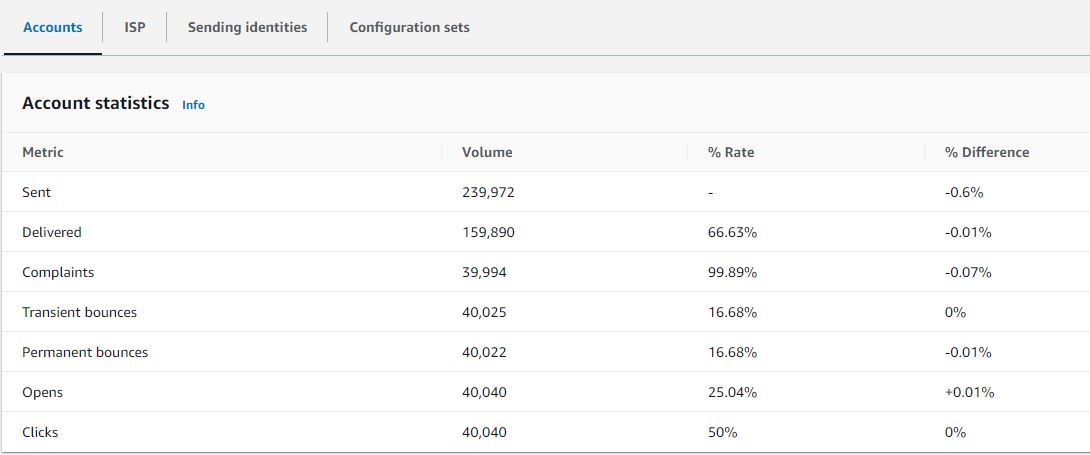
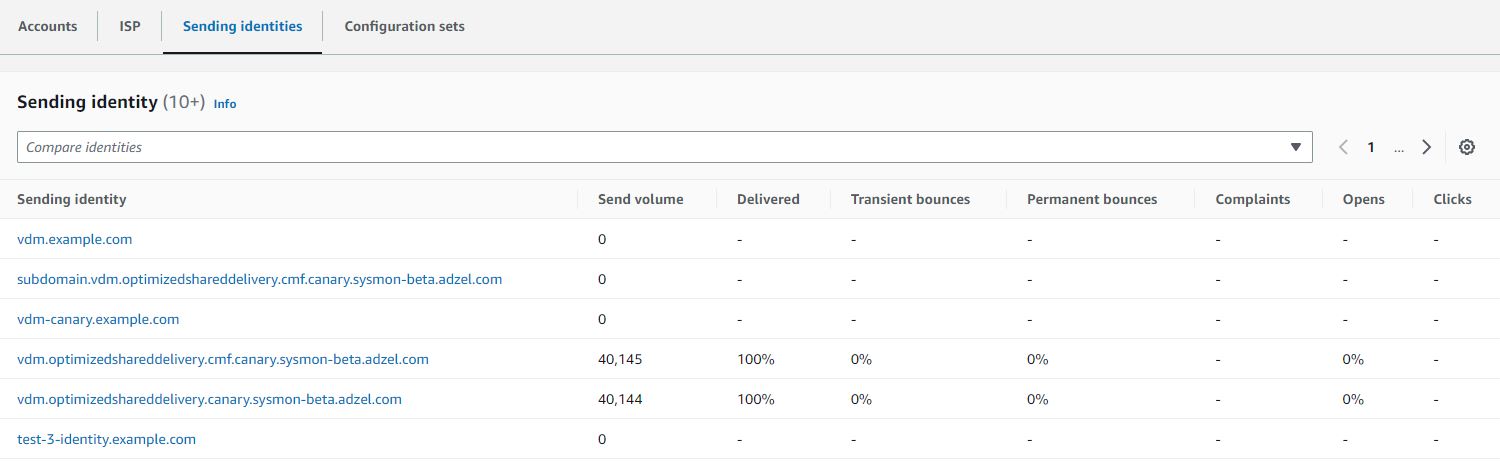
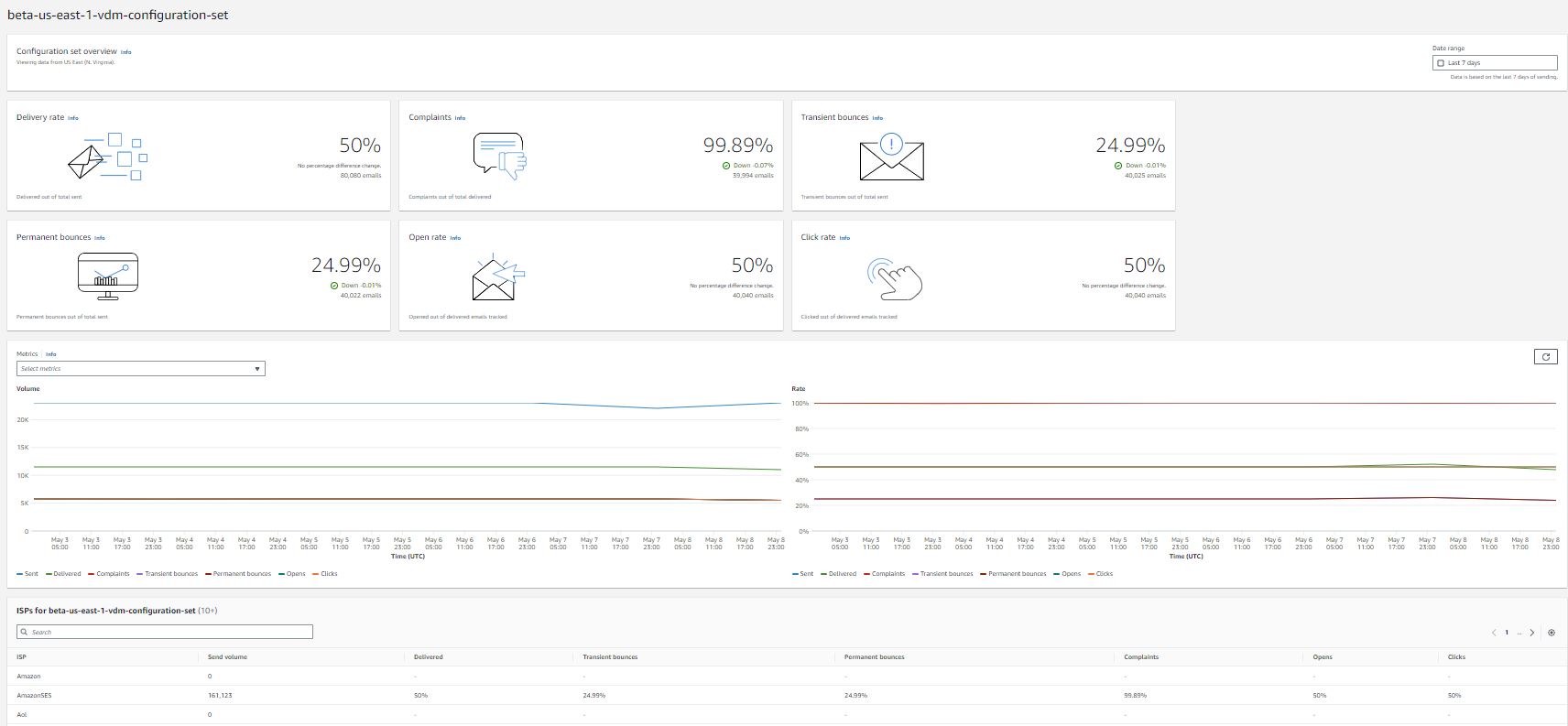
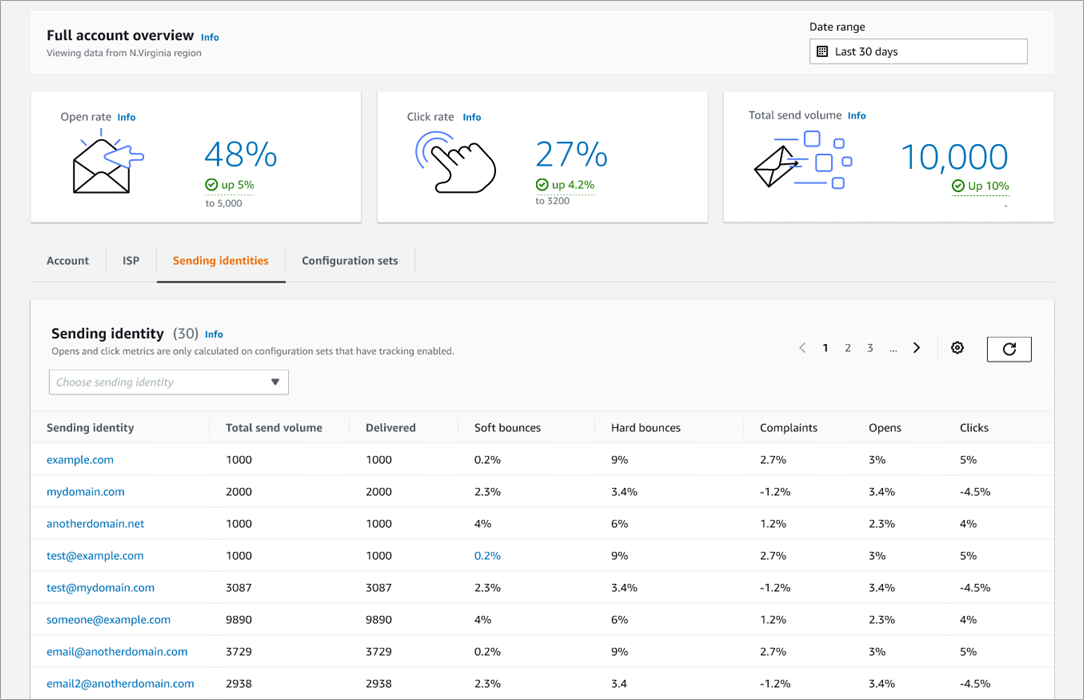
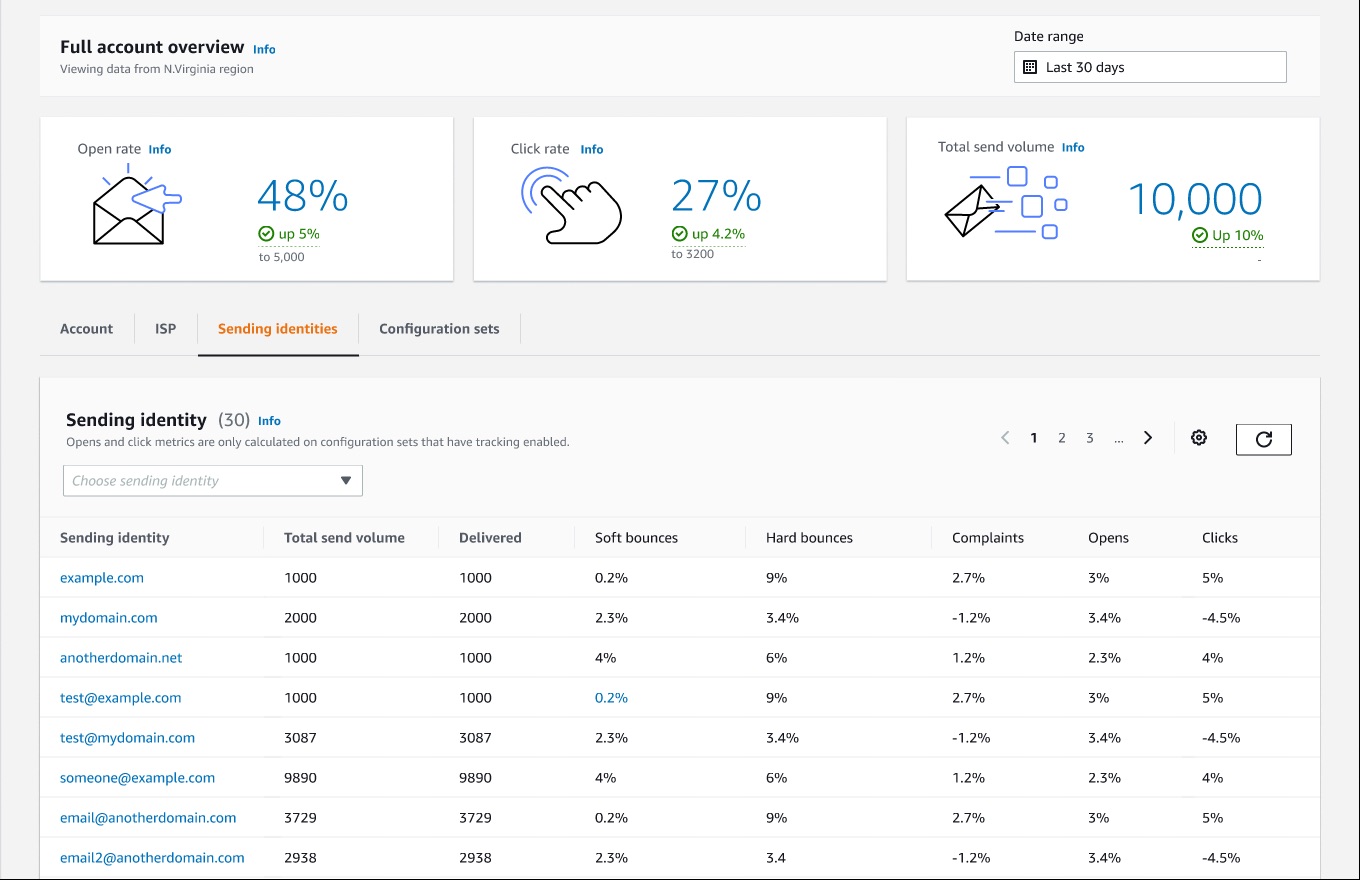
Amazon SES provides tools like Virtual Deliverability Manager (VDM) to manage the deliverability at the ISP, sub-domain or configuration set level. You can see the details in this blog.

Solution walkthrough:

This post gives detailed instructions on how to use Amazon Simple Notification Service SNS to monitor and receive notifications on bounces and complaints in Amazon SES. This blog also has FAQs and troubleshooting tips if you are not receiving notifications following the setup: (below are the steps with detailed instructions and screenshots)

Prerequisites:

For this walkthrough, you should have the following prerequisites:

  1. An active AWS account.
  2. A verified identity (Email address or Domain) in Amazon SES.
  3. Administrative Access to Amazon SES Console and Amazon SNS Console.

Step 1: Create an Amazon SNS topic and subscription:

      1. Sign in to the Amazon SNS console.
      2. Under Amazon SNS homepage provide a Topic name and click on Next steps:
      3. SNS topic image
      4. For Type, choose a topic type Standard.
        Note: Standard topics are better suited for use cases that require higher message publish and delivery throughput rates which fits the SES bounces and complaints monitoring.
      5. SNS standard queue
      6. (Optional) Expand the Encryption section if you would like to encrypt the SNS topic.
        • Choose Enable encryption.
        • Specify the AWS KMS key. For more information, see Key terms.
        • For each KMS type, the Description, Account, and KMS ARN are displayed.
      7. Encryption image
      8. Scroll to the end of the form and choose Create topic. The topic is created and the console opens the new topic’s Details page.
      9. To create the subscription on the Subscriptions page, choose Create subscription.
      10. SNS Subscription page
      11. On the Create subscription page, choose the Topic ARN that you created in the previous step.
      12. For Protocol, choose Email. There are multiple protocols available to use and it depends on where you would like to receive the SNS notifications for bounces and complaints. Please refer to list of available protocols.
      13. For Endpoint, enter an email address that can receive notifications.
        Note: this should be existing email address with accessible mailbox.
      14. SNS Subscription details
      15. Scroll to the bottom and click Create subscription. The console opens the new subscription’s Details page.
      16. After your subscription is created, you need to confirm it through the email address provided above.
      17. Check your email inbox you provided in the endpoint in previous step and and choose Confirm subscription in the email from AWS Notifications. The sender ID is usually “[email protected]“.
      18. AWS Notification email
      19. Amazon SNS opens your web browser and displays a subscription confirmation with your subscription ID.
      20. Subscription confirmation email
      21. After subscription is confirmed, refresh the subscription’s Details page and the subscription status will move from Pending to Confirmed.
      22. Subscription details
  • Step 2: Configure Amazon SES to send bounces and complaints to the Amazon SNS topic created:

In this step, I am presenting two methods to monitor your bounces and complaints. Follow Demo 1, if you are looking for a simple way to monitor bounces and complaints events for a specific email identity. Follow Demo 2, if you have many email identities and you want to monitor bounces and complaints along with other events using configuration sets “groups of rules that you can apply to all your verified identities”.

Demo 1: Configure Amazon SES to monitor bounces and complaints for specific email identity (Email, Domain):

The domain/sub-domain/email identity must have a Verified status. If the identity is not in verified status, refer to steps to verify identity with Amazon SES before continuing further.

Prior to starting this demo, it is important to know if you have a verified domain, subdomain, or an email address that shares the root domain. The identity settings (such as SNS and feedback notifications) apply at the most granular level you have set up the verification. Hierarchy is as below:

  • Verified email address identity settings override verified domain identity settings.
  • Verified subdomain identity settings override verified domain identity settings. (lower-level subdomain settings override higher-level subdomain settings).

Hence, if you want to monitor bounces and complaints for all email addresses under one domain, it is recommended to verify the domain identity with SES and apply this setting at the domain identity level. If you want to monitor bounces and complaints for specific email address under a verified domain identity, verify this email address explicitly with SES and apply this settings into the email identity level.

  1. Sign in to the Amazon SES console.
  2. In the navigation pane, under Configuration, choose Verified identities.
  3. Verified email identities
  4. Select the verified identity in which you want to monitor for bounces and complaints notifications.
  5. In the details screen of the verified identity you selected, choose the Notifications tab and select Edit in the Feedback notifications container.
  6. Notifications
  7. Expand the SNS topic list box of bounce and complaint feedback type and select the SNS topic you created in Step 1.
    (Optional) If you want your topic notification to include the headers from the original email, check the Include original email headers box directly underneath the SNS topic name of each feedback type then click on save changes.
  8. SNS topics
  9. After configured SNS topic for bounces and complaints, you can disable Email Feedback Forwarding notifications to avoid receive double notifications through Email Feedback Forwarding and SNS notifications.
  10. To Disable it, under the Notifications tab on the details screen of the verified identity, in the Email Feedback Forwarding container, choose Edit, uncheck the Enabled box, and choose Save changes.
  11. Feedback forwarding disabled

Demo 2: Configure Amazon SES to monitor bounces and complaints for emails sent with a configuration set using Amazon SES event publishing.

Configuration sets in SES are groups of rules, that you can apply to your verified identities. When you apply a configuration set to an email, all of the rules in that configuration set are applied to the email. You can use different type of rules with a configuration set. This demo will use event destination, which will allow you to publish bounces and complaints to the SNS topic.

Note: You must pass the name of the configuration set when sending an email. This can be done by either specifying the configuration set name in the headers of emails, or specifying it as a default configuration set. This can be done at the time of identity creation, or later while editing a verified identity.

  1. Sign in to the Amazon SES console.
  2. In the navigation pane, under Configuration, choose Configuration sets. Choose Create set.
  3. Configuration set image
  4. Enter Configuration set name, leave the rest of fields to default, scroll to the send and click on Create set.
  5. Create configuration set
  6. After Configuration set is created, you now need to create Amazon SES event destinations as shown below. Amazon SES sends all bounce and complaint notifications to event destination. In this blog the event destination is Amazon SNS topic.
  7. Navigate to the configuration set you created in step 3. Under configuration set home page click on Event destinations and select Add destination.
  8. Event destinations
  9. Under Select event types, check hard bounces and complaints boxes and click Next.
  10. Event types selection
  11. Specify destination for receiving bounce and complaints notifications, there’s couple of destinations types to choose from. in this demo, we will use Amazon SNS.
  12. Name – enter the name of the destination for this configuration set. The name can include letters, numbers, dashes, and hyphens.
  13. Event publishing – to turn on event publishing for this destination, select the Enabled check box.
  14. Under Amazon Simple Notification Service (SNS) topic , Expand the SNS topic list box and select the SNS topic you created in Step 1 and click Next.
  15. Use SES as destination
  16. Review, When you are satisfied that your entries are correct, choose Add destination to add your event destination.
  17. Once you choose Add destination , the summary of event destination will show a “Successfully validated SNS topic for Amazon SES event publishing” email.
  18. Successful notification

Step 3: Using Amazon SES Mailbox Simulator to test send and receive a bounce notification via SNS topic:

Test 1: Send a test email to test Demo 1 “Configure Amazon SES to monitor bounces and complaints for specific email identity (Email, Domain) ” in previous step

In this test, I will send a test message from my verified identity which configured to send any bounce and complaint notifications it receives to SNS topic and email address subscribed to the topic. I will use SES mailbox simulator to simulate a bounce message to test this setup.

  1. Sign in to the Amazon SES console.
  2. In the navigation pane, under Configuration, choose Verified identities.
  3. Select the verified identity you configured SNS notifications for bounces and complaints in Demo 1. In this test, I selected a verified domain identity.
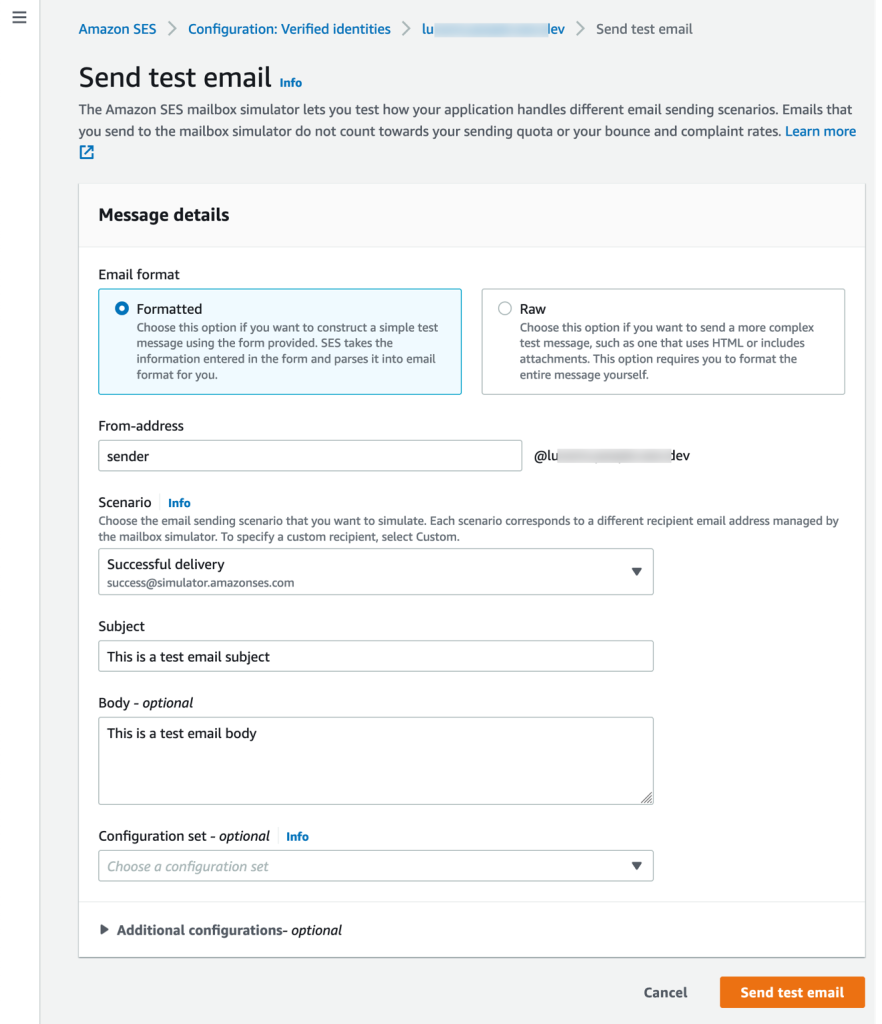
  4. Click on Send test email from the upper right corner.
  5. Sending test email
  6. Under send message details, in From-address enter the first part of email address under this verified domain (from-address could be pre-populated).
  7. For Scenario, Expand the simulated scenarios and select Bounce scenario to test send a bounce message.
  8. For Subject, enter the desired email subject. For Body, type an optional body text then leave the rest of options as a default. Click on Send test email to send the email.
  9. Message details
  10. You should have an email from AWS notifications with bounce notification and details on the bounce.
  11. Content of bounce message includes the notificationType “Bounce/Complaint”, bouncedRecipients, diagnosticCode “reason the message bounced”, remoteMtaIp “IP of the recipient MTA rejected the message”, SourceIp “IP of the sender application”, callerIdentity “IAM user sending this message”. These details can help in identifying the reason behind why email is not delivered and bounced and will help you avoid such bounces in the future. Refer this document for additional content on bounce events.
  12. AWS notification message

Test 2: Send a test email to test Demo 2 “Configure Amazon SES to monitor bounces and complaints for emails sent with a configuration set using Amazon SES event publishing” in previous step

In this test, you can send a test message from any verified identity and by using the configuration set created in Step 2 which is configured to send any bounce and complaint notifications to SNS topic and email address subscribed to the topic. You can use SES mailbox simulator to simulate a bounce message to test this setup.

  1. Sign in to the Amazon SES console.
  2. In the navigation pane, under Configuration, choose Verified identities.
  3. Select any verified identity you want to send emails from. In this test, I selected a verified domain identity.
  4. Click on Send test email from the upper right corner.
  5. Under send message details From-address enter the first part of email address under this verified domain.
  6. For Scenario, Expand the simulated scenarios and select Bounce scenario to test send a bounce message.
  7. For Subject, enter the desired email subject. For Body, type an optional body text.
  8. For Configuration set, Expand the drop-down list and choose the configuration set you created in Demo 2.
  9. Click on Send test email to send the email.
  10. Message details
  11. You will find an email from AWS notifications with bounce notification and all details of the bounce.
  12. Content of bounce message includes the EventType “Bounce/Complaint”, bouncedRecipients, diagnosticCode “reason the message bounced” , remoteMTA “IP of the recipient MTA rejected the message”, SourceIp “IP of the sender application”, callerIdentity “IAM user sending this message”, ses:configuration-set “name of the configuration set you use when sending the email” all of this details can help you to identify the reason behind why email is not delivered and bounced and will help you to avoid such bounces in the future. Refer this document for more details on contents of bounce events.
  13. SES notification email

FAQ on this set up:

I configured SNS topic with KMS encryption and I am not receiving bounce or complain notifications for emails:
If your Amazon SNS topic uses AWS Key Management Service (AWS KMS) for server-side encryption, you have to add permissions to the AWS KMS key policy to allow SES service access the KMS key, an example policy can be found here.

I followed Demo 2. However, when I try to send emails from any verified identity, I don’t receive bounce or complain notifications for emails:
When sending the email, make sure to select the configuration set you configured for bounce and complaints notification. If you followed demo 2 and you sent the email without explicitly using the configuration set in email headers, you will lose tracking for bounce and complaints events.

I am testing the setup. After I sent an email to the bounce simulator, I am not receiving don’t receive any bounce notification emails:
Check the SNS topic subscription if its in pending status and make sure you confirm the topic subscription via subscription email sent to you. If the topic subscription is confirmed, make sure you have access to the inbox of subscription email address and you are not applying any email filters.

Cleaning up:

You should have now successfully setup SNS notifications to monitor bounce and complaints for you Amazon SES emails. To avoid incurring any extra charges, remember to delete any resources created manually if you no longer need them for monitoring.

Resources to delete from SES console:

  1. In the navigation pane, under Configuration, choose the verified identity you configured for SNS notifications.
  2. In the details screen of the verified identity you selected, choose the Notifications tab and select Edit in the Feedback notifications container.
  3. Choose No SNS topic from bounce and complaint feedback dropdown menu and click Save changes.
  4. Under the same Notifications tab on the details screen of the verified identity, in the Email Feedback Forwarding container, choose Edit, check the Enabled box, and choose Save changes.
  5. In the navigation pane, under Configuration, choose Configuration sets.
  6. Check the box beside Configuration set you created and select Delete.

Resources to delete from SNS console:

  1. In the navigation pane, from the left side menu, choose Topics.
  2. Check the radio button beside the SNS topic you created and select Delete.
  3. Confirm the topic deletion by writing “delete me”.

Conclusion:

Monitoring bounces and complaints is an essential part of maintaining a successful email sending system, using Amazon SES. By setting up SNS notifications for bounces and complaints, you can quickly identify any issues and take appropriate action to ensure that your emails are delivered successfully to your subscribers. By proactively managing your email deliverability, you can maintain a positive sender reputation and avoid any negative impact on your email marketing efforts.

About the authors:

 Alaa Hammad

Alaa Hammad is a Senior Cloud Support Engineer at AWS and subject matter expert in Amazon Simple Email Service and AWS Backup service. She has a 10 years of diverse experience in supporting enterprise customers across different industries. She enjoys cooking and try new recipes from different cuisines.

 Vinay Ujjini 

Vinay Ujjini is an Amazon Pinpoint and Amazon Simple Email Service Worldwide Principal Specialist Solutions Architect at AWS. He has been solving customer’s omni-channel challenges for over 15 years. He is an avid sports enthusiast and in his spare time, enjoys playing tennis & cricket.

A Guide to Maintaining a Healthy Email Database

Post Syndicated from nnatri original https://aws.amazon.com/blogs/messaging-and-targeting/guide-to-maintaining-healthy-email-database/

Introduction

In the digital age, email remains a powerful tool for businesses to communicate with their customers. Whether it’s for marketing campaigns, customer service updates, or important announcements, a well-maintained email database is crucial for ensuring that your messages reach their intended recipients. However, managing an email database is not just about storing email addresses. It involves keeping the database healthy, which means it’s up-to-date, accurate, and filled with engaged subscribers.

Amazon Simple Email Service (SES) offers robust features that help businesses manage their email environments effectively. Trusted by customers such as Amazon.com, Netflix, Duolingo and Reddit, SES helps customers deliver high-volume email campaigns of hundreds of billions of emails per year. Introduced in 2020, the list and subscription management feature of Amazon SES has added a new dimension to email database management, thereby reducing effort and time-to-value of managing a subscription list by allowing you to manage your list of contacts via its REST API, SDK or AWS CLI.

In this blog post, we will delve into the world of email database management in Amazon SES. You will explore two ways to manage your email database: building out your own email database functionality and using the built-in list and subscription management service. You will also learn the pros and cons of each approach and provide examples of customer use cases that would benefit from each approach. Regardless of the approach you ultimately decide to take, the blog will also share updated strategies for email database management to help with improving deliverability and customer engagement.

This guide is designed to help you navigate the complexities of email database management and make informed decisions that best suit your business needs. So, whether you’re new to Amazon SES or looking to optimize your existing email database management practices, this guide is for you. Let’s get started!

Email Database Management in Amazon SES

Amazon Simple Email Service (SES) offers two primary ways to manage your email database: building out your own email database functionality and using the built-in list and subscription management service. Each approach has its own set of advantages and potential drawbacks, and the best choice depends on your specific use case and business needs.

Building Out Your Email Database Functionality

When you choose to build out your own email database functionality, you have the flexibility to customize the database to suit your specific needs and leverage SES’ scalability as an email channel to send email at high volumes to your customer. Depending on the business requirement, the customizations could involve creating custom fields for subscriber data, implementing complex logic for categorizing and segmenting users, or integrating with other systems in your tech stack.

Using the Built-in List and Subscription Management Service

Alternatively, you can look at Amazon SES’s built-in list and subscription management service, which offers a ready-made solution for managing your email database. It handles tasks such as managing subscriptions to different topics and maintaining your customer email database through contact lists. Additionally, you can insert up to two links per email to the subscription preference page, which allow users to manage their topic preferences within Amazon SES.

SubscriptionPage

The non-configurable subscription page will automatically populate the customer’s current subscribed topic and allow setting of granular topic’s preferences. More information on how to configure that can be found here.

The following table should serve as a guideline to help you with deciding your approach for Email Database Management.
Building Your Own Email Database Functionality Using Built-in List and Subscription Management Service
Pros

Customization: Full control over the database structure and functionality, allowing for tailoring to specific needs. This includes creating custom fields for subscriber data, implementing own algorithms for handling bounces and complaints, and integrating with other systems in the tech stack.

Integration: Flexible flow of data across the business due to the ability to integrate the email database with other systems in the tech stack. You’ve already built your own email database or have one in mind which supports querying, building that database external to Amazon SES would make for a more customizable implementation.

Data Ownership: When you manage your own database, you have full ownership and control over your data. This can be important for businesses with strict data governance or regulatory requirements.

Ease of Use: The built-in service provides readily-available API to create, update and delete contacts. These operations are also available via REST API, AWS CLI and SDK. Once you’ve set up the subscription topics and contact lists, you can leverage the preference center to allow your customers to easily sub/unsubscribe from different topics.

Cost-Effective: More cost-effective than building own functionality as it requires less time and resources. The built-in service is also available free of charge unlike building out own infrastructure which would require ongoing infrastructure service costs.

Cons

Time and Resources: Building your own email database functionality requires a significant investment of time and resources. This includes the initial setup of the database, designing the schema, setting up the servers, and configuring the database software. Additionally, you’ll need to develop the functionality for managing subscriptions, and database cleanup in upon receiving bounces and complaints. Databases require ongoing maintenance to ensure they remain operational and efficient. This includes tasks like updating the database software, managing backups, optimizing queries, and scaling the database as your subscriber base grows.

Complexity: As your subscriber base grows, managing your own email database can become increasingly complex. You’ll need to handle more data, which can slow down queries and make the database more difficult to manage. You’ll also need to deal with more complex issues like data integrity, redundancy, and normalization. Additionally, as you add more features to your email database functionality, the codebase can become more complex, making it harder to maintain and debug.

Security: When you manage your own email database, you’re responsible for its security. This includes protecting the data from unauthorized access, ensuring the confidentiality of your subscribers’ information, and complying with data protection regulations. You’ll need to implement security measures like encryption, access controls, and regular security audits. If your database is compromised, it could lead to data loss or a breach of your subscribers’ privacy, which could damage your reputation and potentially lead to legal consequences.

Limited Customization: The built-in service may not offer the same level of customization as building own functionality. It may not meet all needs if there are specific requirements. For example, the preference center management page cannot be customized.

Dependence: Using the built-in service means you’re reliant on Amazon SES for your email database management. If the service experiences downtime or issues, it could impact your ability to manage your email database. This could potentially disrupt your email campaigns and affect your relationship with your subscribers. Furthermore, if you decide to switch to a different email service provider in the future, migrating your email database from the built-in service could be a complex and time-consuming process. Additionally, if your email database needs to be accessed or manipulated by other systems in your tech stack, this dependency on Amazon SES could complicate the integration process and limit your flexibility.

Customer Use Cases Best suited for businesses with specific needs that aren’t met by standard list management services, or those who wish to integrate their email database with other systems. For example, a large e-commerce company might choose to build out their own email database functionality to integrate with their customer relationship management (CRM) and inventory systems. Ideal for small to medium-sized businesses that need a straightforward, cost-effective solution for managing their email database. It’s also a good fit for businesses without the resources or technical expertise to build their own email database functionality.

Strategies for Email Database Management with Amazon Simple Email Service

Once you’ve made the decision on whether to manage your email database within Amazon SES or build your own, that’s only half of the equation. It’s important to recognize that your email databases will only work best to serve the business needs when you have processes in place to maintain them. In this section, let’s go through some of the best practices on how to do so.

  • Maintaining email list hygiene:
    • Both Amazon SES and a custom-built email database require maintaining a healthy email list. This involves regularly cleaning your list to remove invalid email addresses, hard bounces, and unengaged subscribers. With Amazon SES, the process to handle hard bounces and complaints is automated.
    • With a custom-built email database, you have more control over how and when this cleaning occurs. Rather than focusing on only email addresses that either hard bounces or complained, you can remove unengaged users. Every business will have their own definition of an un-engaged users based on business needs. Regardless, you will need to store the engagement attribute (e.g. days since last interaction). This will be simpler to architect in an external database which supports querying and bulk modification.
  • Managing Subscriptions:
    • With Amazon SES, you can easily manage subscriptions using the built-in functionality. This includes adding new subscribers, removing unsubscribed users, and updating user topic preferences. However, you will not be able to customize the look-and-feel of your subscription preference pages.
    • If you build your own email database, you’ll need to create your own system for managing subscriptions, which could require significant time and resources. The trade-off is that you can fully customize your subscription management system to showcase your branding on the subscription preference page and also handle custom logic for subscription/unsubscription.
  • Encouraging Engagement: Low engagement rates can indicate that your recipients are not interested in your content. To stimulate action, you can include a survey in the email, ask for feedback, or run a giveaway. You can then filter out inactive subscribers who still aren’t interacting with your emails. For engaged subscribers, you can segment these audiences into sub-groups by preference and send tailored email marketing campaigns. Before removing less active subscribers, consider what other kinds of content you could provide that might be more appealing. Unengaged subscribers can sometimes be re-engaged with the right offer, such as a free gift, a special perk, or exclusive content.
  • Renewing Opt-In: For your disengaged subscribers, send a re-optin campaign and remove them if they don’t re-subscribe. Be transparent! Notify inactive subscribers that you’ve noticed their lack of engagement and let them know that you don’t want to clutter their inbox if they’re not interested. Ask them if they want to continue to receive emails with a clear call-to-action button that will re-sign them up for future emails.
  • Making It Easy to Unsubscribe: Including an easy-to-find unsubscribe button and a one-step opt-out process won’t encourage subscribers to leave if you’re giving them a reason to stay. If recipients feel like they can’t leave, they’ll just mark your emails as spam, which counts as a big strike against your sender reputation.

Remember, effective email database management is a continuous process that requires regular attention and maintenance. By following these best practices, you can maximize the effectiveness of your email marketing efforts and build strong relationships with your subscribers.

Conclusion

In conclusion, maintaining a healthy email database is a critical aspect of successful email marketing. Whether you choose to build out your own email database functionality or use Amazon SES’s built-in list and subscription management service, it’s important to understand the pros and cons of each approach and align your decision with your business needs.

Building your own email database functionality offers the advantage of customization and integration with other systems in your tech stack. However, it requires significant time, resources, and technical expertise. On the other hand, Amazon SES’s built-in service is easy to use, cost-effective, and handles many complexities of email database management, but it may not offer the same level of customization.

Regardless of the approach you choose, following best practices for email database management is essential. This includes handling bounces and complaints, managing subscriptions, encouraging engagement, sending re-engagement email campaigns, renewing opt-ins, and making it easy to unsubscribe.

These practices will help you maintain a healthy email list, improve engagement rates, and ultimately, enhance the effectiveness of your email marketing efforts.It’s important to stay updated with the latest trends and strategies in email database management. So, keep exploring, learning, and implementing the best practices that suit your business needs.

For more information on Amazon SES and its features, visit the Amazon SES Documentation. Here, you’ll find comprehensive guides, tutorials, and API references to help you make the most of Amazon SES.

How to implement multi tenancy with Amazon SES

Post Syndicated from satyaso original https://aws.amazon.com/blogs/messaging-and-targeting/how-to-manage-email-sending-for-multiple-end-customers-using-amazon-ses/

In this blog post, you will learn how to design multi-tenancy with Amazon SES, as well as the fundamental best practices for implementing a multi-tenant architecture that can effectively handle bulk the email sending needs of your downstream customers.

Amazon Simple Email Service (SES) is utilized by customers across various industries to send emails to their recipients. Often, they need to send emails on behalf of their downstream customers or for other business divisions. Organizations commonly refer to these use cases as “multi-tenant email sending practices. To implement email sending multi-tenancy practices (i.e. to send bulk emails on behalf of end customers), Amazon SES customers need to adopt an architecture that enables them to effectively meet the email sending needs of thousands of downstream customers while also ensuring that the email sending reputation of each customer or the tenant is isolated.

Use cases

  1. Onboard multiple brands from different Business units (BUs) with different domains.
  2. Separate marketing and transaction tenants.
  3. ISV Customer’s requirement to segregate email sending reputation of their end customers.
  4. Domain management via configuration sets.
  5. Track individual customer’s email sending repurataion and control their email sending process.

Prerequisites

For this post, you should be familiar with the following:

Solution Overview

In the email ecosystem, domain and IP reputation are critical in getting emails delivered to the inbox. Tenants in a multi-tenant scenario might be unique businesses or an internal team (eg marketing team, customer service team and so on). Because the maturity of each tenant varies greatly, implementing a multi-tenant environment may be increasingly complicated and difficult. While one tenant may have a well-validated and highly-engaged recipient list, another tenant may have an untrusted email recipient list, and sending emails to such email addresses may result in bounces or spam, lowering the IP and domain reputation. So, organizations have to build safe guards to prevent an unsophisticated sender or a bad actor from impacting the other tenants.

To better understand multi-tenancy, let us first look at how Amazon SES sends emails. Any emails sent via Amazon SES to end users are sent using IP addresses that have been mapped within Amazon SES. Amazon SES offers two types of IP addresses: shared IP addresses and dedicated IP addresses. (Currently Amazon SES offers two kinds of dedicated IPs, which are 1/ Standard dedicated IPs, 2/ Managed dedicated IPs). Shared IPs are shared across many SES customers, and all your emails are sent using shared IP addresses by default unless you have requested for dedicated IPs. Dedicated IP addresses/addresses are designated for a single customer or tenant, where the tenant might be a business unit within the customer’s own eco system or a downstream customer of an ISV.

If a customer is using shared IPs to send email via SES and trying to achieve multi tenancy, then they can do so to segregate the business functions of multiple tenants such as tenant tagging, SES event destination routing, cost allocation for each tenant, and so on; but it won’t help to manage or isolate email sending reputation from one tenant to another. This is because; these shared IPs are mapped to an AWS region and incase one rogue tenant is trying to send spam emails then it will impact other customers in the same region who are using same set of shared IPs.

If you are an Amazon SES user and wish to separate the reputation of one end-customer from another then dedicated IPs are the ideal solution. Dedicated IP or Dedicated IPs (also known as dedicated IP pool) can be assigned to a tenant, and the email sending reputation for that tenant can be readily isolated from that of another tenant. If tenant one is a problematic sender and internet service providers (ISPs) such as Gmail, Hotmail, Yahoo and, so on, flags the respective domain or IPs, the reputation of the other tenants’ domains and IPs are unaffected since they are mutually exclusive.

Amazon SES supports multi-tenancy primarily through two constructs: 1/configuration sets, 2/Dedicate IP pools. Configuration sets are setup rules that are applicable to your verified identities, whereas  dedicated IP pool is to group dedicated IPs into a pool, which can then be mapped to a configuration set, such that the respective Identity/Identities may only utilize the same IP Pool without affecting other tenants. Let’s now witness a simplified architecture view.

Amazon SES multi tenancy using a single AWS account

Multi tenancy using a single AWS account

In this architecture, if you notice tenant 1, tenant 2 and tenant 3 are using the distinct configurations with respective dedicated IPs while tenant 4 is using shared IPs. i.e. the tenants can chose which configuration sets needs to be used for their domain. This provides customers capability to achieve multi tenancy.

Amazon SES multi tenancy – best practices

Always proactively reach out to your account team or raise a support case under “service limit increase” category informing that you will be sending on behalf of tens of thousands of customers. This will help AWS in rightly setup limits within your account and be cognizant of your sending patterns.

While the architecture described above will most of the time help Amazon SES users manage multiple end customers effectively, in rare cases; Amazon SES users may receive a notification from AWS support stating that their Amazon SES account is being reviewed. This indicates that your Amazon SES account is being used to send problematic email to end recipients, or that the account has been paused (if you haven’t reacted proactively upon controlling the faulty senders within the review timeframe), which means you can’t send email from your SES account because your spam or complaint rate has exceeded a certain threshold. These type of situations occurs because, Amazon SES sanitization process is implemented at the AWS account level by default. So, even if any of the tenants using a dedicated IP or a dedicated IP pool and their spam or complaint rates exceed the approved SES limit, Amazon SES sends a notification to the account admin, flagging the concern in their account. In such cases, it is recommended to implement a process known as “automatically pausing email sending for a configuration set“. You can configure Amazon SES to export reputation metrics that are specific to emails that are sent using a specific configuration set to Amazon CloudWatch. You can then use these metrics to create CloudWatch alarms that are specific to those configuration sets. When these alarms exceed certain thresholds, you can automatically pause the sending of emails that use the specified configuration sets, without impacting the overall email sending capabilities of your Amazon SES account.

If you are an Enterprise ISV customer and you have tens of thousands of downstream customers then there is a possibility that you will hit Amazon SES provided maximum quota. In those scenarios you have two options; 1/ Ask for an exception for your AWS SES account – In this approach, you need to request AWS to increase your quota applicable for the existing account to a higher threshold and depending upon your previous usage and reputation AWS shall increase your account limit to accommodate more customers/tenants. To do this you need to raise an AWS support case under “service limit increase” and present your requirement on why you want to increase your Amazon SES account quota to a higher limit. There is no guaranty that the exception will always be granted. If your exception request is denied, you must proceed to the second option, which is to 2/ segment your customers across multiple AWS accounts. In this approach, you must calculate your customer base ahead of time and distribute your downstream customers across multiple accounts within the same AWS region in order to set up their email sending mechanism using SES. To better understand option 2, refer to the architecture diagram below.

Amazon SES multi tenancy using multiple AWS account

Multi tenancy using multiple AWS account

In the above architecture various tenants are connecting to Amazon SES in different AWS accounts to implement multi tenancy. Email event responses can be taken back to a central data lake located in the same AWS region or in different region. Furthermore, as shown in the diagram above, all AWS accounts mapped to different tenants are under a Parent AWS account; this hierarchical structure is known as AWS Organizations. it is recommended to use AWS Organizations which enables you to consolidate multiple AWS accounts into an organization that you create and centrally manage. It helps in security and compliance guide lines, managing consolidated billing for all the child accounts.

Conclusion

Appropriate multi-tenancy implementation within Amazon SES not only helps you manage end-customer reputation but also aids in tracking usage of each user independently from one another. In this post, we have showcased how Amazon SES users can utilize Amazon SES to manage large number of end customer, what are the design best practices to implement multi-tenant architecture with Amazon SES.


Satyasovan Tripathy works at Amazon Web Services as a Senior Specialist Solution Architect. He is based in Bengaluru, India, and specialises on the AWS customer developer service product portfolio. He likes reading and travelling outside of work.


How to use managed dedicated IPs for email sending

Post Syndicated from Tyler Holmes original https://aws.amazon.com/blogs/messaging-and-targeting/how-to-use-managed-dedicated-ips-for-email-sending/

Starting to use dedicated IPs has always been a long, complicated process driven by factors such as the large effort to monitor and maintain the IPs and the costs, both in infrastructure and management of IP and Domain reputation. The Dedicated IP (Managed) feature in Amazon SES eliminates much of the complexity of sending email via dedicated IPs and allows you to start sending through dedicated IPs much faster and with less management overhead.

What’s the Difference Between standard dedicated IPs and managed dedicated IPs?

You can use SES for dedicated IP addresses in two ways: standard and managed. Both allow you to lease dedicated IP addresses for an additional fee, but differ in how they’re configured and managed. While there are shared commonalities they each have unique advantages dependent on your use case, see here for a comparison.

Standard dedicated IPs are manually set up and managed in SES. They allow you full control over your sending reputation but require you to fully manage your dedicated IPs, including warming them up, scaling them out, and managing your pools.

Managed dedicated IPs are a quick, and easy, way to start using dedicated IP addresses. These dedicated IP addresses leverage machine learning to remove the need to manage the IP warm-up process. The feature also handles the scaling of your IPs up or down as your volume increases (or decreases) to provide a quick, easy, and cost-efficient way to start using dedicated IP addresses that are managed by SES.

How Does the Managed Dedicated IP Feature Automate IP Warming?

Great deliverability through your dedicated IP address requires that you have a good reputation with the receiving ISPs, also known as a mailbox provider. Mailbox providers will only accept a small volume of email from an IP that they don’t recognize. When you’re first allocated an IP, it’s new and won’t be recognized by the receiving mailbox provider because it doesn’t have any reputation associated with it. In order for an IP’s reputation to be established, it must gradually build trust with receiving mailbox providers—this gradual trust building process is referred to as warming-up. Adding to the complexity is that each mailbox provider has their own concept of warming, accepting varying volumes of email as you work through the warm up process.

The concept of IP warming has always been a misnomer, with customers thinking that once their IP is “warm” that it stays that way when in reality the process is an ongoing one, fluctuating as your recipient domain mix changes and your volume changes. Ensuring that you have the best deliverability when sending via dedicated IPs requires monitoring more than just recipient engagement rates (opens, clicks, bounces, complaints, opt-ins, etc.), you also need to manage volume per mailbox provider. Understanding the volumes that recipient mailbox providers will accept is very difficult if not impossible for senders using standard Dedicated IPs. Managing this aspect of the warm up creates risk for sending too little, meaning warm-up takes longer, or too much, which means receiving mailbox providers may throttle, reduce IP reputation, or even filter out email being sent by an IP that is not properly warming up.

This process is a costly, risky, and time consuming one that can be eliminated using the managed feature. Managed dedicated IPs will automatically apportion the right amount of traffic per mailbox provider to your dedicated IPs and any leftover email volume is sent over the shared network of IPs, allowing you to send as you normally would. As time goes on, the proportion of email traffic being sent over your dedicated IPs increases until they are warm, at which point all of your emails will be sent through your dedicated IPs. In later stages, any sending that is in excess of your normal patterns is proactively queued to ensure the best deliverability to each mailbox provider.

As an example, if you’ve been sending all your traffic to Gmail, the IP addresses are considered warmed up only for Gmail and cold for other mailbox providers. If your customer domain mix changes and includes a large proportion of email sends to Hotmail, SES ramps up traffic slowly for Hotmail as the IP addresses are not warmed up yet while continuing to deliver all the traffic to Gmail via your dedicated IPs. The warmup adjustment is adaptive and is based on your actual sending patterns.

The managed feature is great for those that prioritize and want to be in complete control of their reputation while not wanting to spend the time and effort to manage the warm-up process or the scaling of IPs as your volume grows. A full breakdown of the use cases that are a good fit for the managed feature can be found here

How to Configure Managed Pools and Configuration Sets

Enabling managed dedicated IPs can be configured in just a few steps and can be done either from the console or programmatically. The first step is to create a managed IP pool, then the managed dedicated IPs feature will determine how many dedicated IPs you require based on your sending patterns, provision them for you, and then manage how they scale based on your sending requirements. Note that this process is not instantaneous, dependent on your sending patterns it may take more or less time for the dedicated IPs to be provisioned, you need to have consistent email volume coming from your account in order for the feature to provision the correct number of IPs.

Once enabled, you can utilize managed dedicated IPs in your email sending by associating the managed IP pool with a configuration set, and then specifying that configuration set when sending email. The configuration set can also be applied to a sending identity by using a default configuration set, which can simplify your sending, as anytime the associated sending identity is used to send email your managed dedicated IPs will be used.

Instructions

Configure Via The Console

To enable Dedicated IPs (Managed) via the Amazon SES console:

  • Sign in to the AWS Management Console and open the Amazon SES console at https://console.aws.amazon.com/ses/.
  • In the left navigation pane, choose Dedicated IPs.
  • Do one of the following (Note: You will begin to incur charges after creating a Dedicated IPs (Managed) pool below)
    • If you don’t have existing dedicated IPs in your account:
      • The Dedicated IPs onboarding page is displayed. In the Dedicated IPs (Managed) overview panel, choose Enable dedicated IPs. The Create IP Pool page opens.
    • If you have existing dedicated IPs in your account:
      • Select the Managed IP pools tab on the Dedicated IPs page.
      • In the All Dedicated IP (managed) pools panel, choose Create Managed IP pool. The Create IP Pool page opens.
  • In the Pool details panel,
    • Choose Managed (auto managed) in the Scaling mode field.
    • Enter a name for your managed pool in the IP pool name field.
    • Note
      • The IP pool name must be unique. It can’t be a duplicate of a standard dedicated IP pool name in your account.
      • You can have a mix of up to 50 pools split between both Standard and Dedicated IPs (Managed) per AWS Region in your account.
  • (Optional) You can associate this managed IP pool with a configuration set by choosing one from the dropdown list in the Configuration sets field.
    • Note
      • If you choose a configuration set that’s already associated with an IP pool, it will become associated with this managed pool, and no longer be associated with the previous pool.
      • To add or remove associated configuration sets after this managed pool is created, edit the configuration set’s Sending IP pool parameter in the General details panel.
      • If you haven’t created any configuration sets yet, see Using configuration sets in Amazon SES.
  • (Optional) You can add one or more Tags to your IP pool by including a tag key and an optional value for the key.
    • Choose Add new tag and enter the Key. You can also add an optional Value for the tag. You can add up to 50 tags, if you make a mistake, choose Remove.
    • To add the tags, choose Save changes. After you create the pool, you can add, remove, or edit tags by selecting the managed pool and choosing Edit.
  • Select Create pool.
    • Note
      • After you create a managed IP pool, it can’t be converted to a standard IP pool.
      • When using Dedicated IPs (Managed), you can’t have more than 10,000 sending identities (domains and email addresses, in any combination) per AWS Region in your account.
  • After you create your managed IP pool, a link will automatically be generated in the CloudWatch metrics column in the All Dedicated IPs (Managed) pools table in the SES console, that when selected, will open the Amazon CloudWatch console and display your sending reputation at an effective daily rate with specific mailbox providers for the managed pool using the following metrics:


Metric Description
1 Available24HourSend Indicates how  much volume the managed pool has available to send towards a specific mailbox provider.
2 SentLast24Hours Indicates how  much volume of email has been sent through the managed pool by dedicated IPs  towards a specific mailbox provider.

You can also track the managed pool’s sending performance by using event publishing.

Configure VIA The API

You can configure your Managed Dedicated IP Pool through the API as well. A dedicated pool can be specified to be managed by setting the scaling-mode to “MANAGED” when creating the dedicated pool.

Configure Via The CLI

You can configure your SES resources through the CLI. A dedicated pool can be specified to be managed by setting the —scaling-mode MANAGED parameter when creating the dedicated pool.

  • # Specify which AWS region to use
    • export AWS_DEFAULT_REGION=’us-east-1′
  • # Create a managed dedicated pool
    • aws sesv2 create-dedicated-ip-pool —pool-name dedicated1 —scaling-mode MANAGED
  • # Create a configuration set that that will send through the dedicated pool
    • aws sesv2 create-configuration-set —configuration-set-name cs_dedicated1 —delivery-options SendingPoolName=dedicated1
  • # Configure the configuration set as the default for your sending identity
    • aws sesv2 put-email-identity-configuration-set-attributes —email-identity {{YOUR-SENDING-IDENTITY-HERE}} —configuration-set-name cs_dedicated1
  • # Send SES email through the API or SMTP without requiring any code changes. Emails will # be sent out through the dedicated pool.
    • aws sesv2 send-email –from-email-address “{YOUR-SENDING-IDENTITY-HERE}}” –destination “[email protected]” —content ‘{“Simple”: {“Subject”: {“Data”: “Sent from a Dedicated IP Managed pool”},”Body”: {“Text”: {“Data”: “Hello”}}}}’

Monitoring

We recommend customers onboard to event destinations and delivery delay events to more accurately track the sending performance of their dedicated sending.

Conclusion

In this blog post we explained the benefits of sending via a Dedicated IPs (Managed) feature as well as how to configure and begin sending through a Managed Dedicated IP. Dedicated IPs (Managed) pricing can be reviewed at the pricing page for SES here.

Amazon SES – How to set up EasyDKIM for a new domain

Post Syndicated from Vinay Ujjini original https://aws.amazon.com/blogs/messaging-and-targeting/amazon-ses-how-to-set-up-easydkim-for-a-new-domain/

What is email authentication and why is it important?

Amazon Simple Email Service (SES) lets you reach customers confidently without an on-premises Simple Mail Transfer Protocol (SMTP) system. Amazon SES provides built-in support for email authentication protocols, including DKIM, SPF, and DMARC, which help improve the deliverability and authenticity of outgoing emails.

Email authentication is the process of verifying the authenticity of an email message to ensure that it is sent from a legitimate source and has not been tampered with during transmission. Email authentication methods use cryptographic techniques to add digital signatures or authentication headers to outgoing emails, which can be verified by email receivers to confirm the legitimacy of the email.

Email authentication helps establish a sender’s reputation as a trusted sender. Additionally, when email receivers can verify that emails are legitimately sent from a sender’s domain using authentication methods, it also helps establish the sender’s reputation as a trusted sender. Email authentication involves one or more technical processes used by mail systems (sending and receiving) that make certain key information in an email message verifiable. Email authentication generates signals about the email, which can be utilized in decision-making processes related to spam filtering and other email handling tasks.

There are currently two widely used email authentication mechanisms – SPF (Sender Policy Framework) and DKIM (DomainKeys Identified Mail). They provide information that the receiving domain can use to verify that the sending of the message was authorized in some way by the sending domain. DKIM can also help determine that the content was not altered in transit. And the DMARC (Domain-based Message Authentication, Reporting and Conformance) protocol allows sending domains to publish verifiable policies that can help receiving domains decide how best to handle messages that fail authentication by SPF and DKIM.

Email authentication protocols:

  1. SPF (Sender Policy Framework): SPF is an email authentication protocol that checks which IP addresses are authorized to send mail on behalf of the originating domain. Domain owners use SPF to tell email providers which servers are allowed to send email from their domains. This is an email validation standard that’s designed to prevent email spoofing.
  2. DKIM (DomainKeys Identified Mail): DKIM is an email authentication protocol that allows a domain to attach its identifier to a message. This asserts some level of responsibility or involvement with the message. A sequence of messages signed with the same domain name is assumed to provide a reliable base of information about mail associated with the domain name’s owner, which may feed into an evaluation of the domain’s “reputation”. It uses public-key cryptography to sign an email with a private key. Recipient servers can then use a public key published to a domain’s DNS to verify that parts of the emails have not been modified during the transit.
  3. DMARC (Domain-based Message Authentication, Reporting and Conformance): is an email authentication protocol that uses Sender Policy Framework (SPF) and DomainKeys Identified Mail (DKIM) to detect email spoofing. In order to comply with DMARC, messages must be authenticated through either SPF or DKIM, or both.

Let us dive deep into DKIM in this blog. Amazon SES provides three options for signing your messages using a DKIM signature:

  1. Easy DKIM: To set up a sending identity so that Amazon SES generates a public-private key pair and automatically adds a DKIM signature to every message that you send from that identity.
  2. BYODKIM (Bring Your Own DKIM): To provide your own public-private key pair for so SES adds a DKIM signature to every message that you send from that identity, see Provide your own DKIM authentication token (BYODKIM) in Amazon SES.
  3. Manually add DKIM signature: To add your own DKIM signature to email that you send using the SendRawEmail API, see Manual DKIM signing in Amazon SES.

The purpose of EasyDKIM is to simplify the process of generating DKIM keys, adding DKIM signatures to outgoing emails, and managing DKIM settings, making it easier for users to implement DKIM authentication for their email messages. Using EasyDKIM, Amazon SES aims to improve email deliverability, prevent email fraud and phishing attacks, establish sender reputation, enhance brand reputation, and comply with industry regulations or legal requirements. EasyDKIM doubles as domain verification (simplification) and it eliminates the need for customers to worry about DKIM key rotation (managed automation). By automating and simplifying the DKIM process, EasyDKIM helps users ensure the integrity and authenticity of their email communications, while reducing the risk of fraudulent activities and improving the chances of emails being delivered to recipients’ inboxes.

Setting up Easy DKIM in Amazon SES:

When you set up Easy DKIM for a domain identity, Amazon SES automatically adds a 2048-bit DKIM signature to every email that you send from that identity. You can configure EasyDKIM by using the Amazon SES console, or by using the API.

The procedure in this section is streamlined to just show the steps necessary to configure Easy DKIM on a domain identity that you’ve already created. If you haven’t yet created a domain identity or you want to see all available options for customizing a domain identity, such as using a default configuration set, custom MAIL FROM domain, and tags, see Creating a domain identity. Part of creating an Easy DKIM domain identity is configuring its DKIM-based verification where you will have the choice to either accept the Amazon SES default of 2048 bits, or to override the default by selecting 1024 bits. Steps to set up easyDKIM for a verified identity:

  1. Sign in to the AWS Management Console and open the Amazon SES console at https://console.aws.amazon.com/ses/
  2. In the navigation pane, under Configuration, choose Verified identities.
  3. List of verified identities in SES console

    Verified identities

  4. In the list of identities, choose an identity where the Identity type is Domain.
  5. Under the Authentication tab, in the DomainKeys Identified Mail (DKIM) container, choose Edit.
  6. In the Advanced DKIM settings container, choose the Easy DKIM button in the Identity type field.
  7. Choose EasyDKIM as identity type; RSA_2048_BITT in DKIM signing key length; Check Enabled checkbox under DKIM signatures.

    DKIM settings

  8. In the DKIM signing key length field, choose either RSA_2048_BIT or RSA_1024_BIT.
  9. In the DKIM signatures field, check the Enabled box.
  10. Choose Save changes.
  11. After configuring your domain identity with Easy DKIM, you must complete the verification process with your DNS provider – proceed to Verifying a DKIM domain identity with your DNS provider and follow the DNS authentication procedures for Easy DKIM.

Conclusion:

Email authentication, especially DKIM, is crucial in securing your emails, establishing sender reputation, and improving email deliverability. EasyDKIM provides a simplified and automated way to implement DKIM authentication. It removes the hassles of generating DKIM keys and managing settings, while additionally reducing risks and and enhancing sender authenticity. By following the steps outlined in this blog post, you can easily set up easyDKIM in Amazon SES and start using DKIM authentication for your email campaigns.

About the Author

Vinay Ujjini is an Amazon Pinpoint and Amazon Simple Email Service Worldwide Principal Specialist Solutions Architect at AWS. He has been solving customer’s omni-channel challenges for over 15 years. He is an avid sports enthusiast and in his spare time, enjoys playing tennis & cricket.

What is BIMI and how to use it with Amazon SES

Post Syndicated from Matt Strzelecki original https://aws.amazon.com/blogs/messaging-and-targeting/what-is-bimi-and-how-to-use-it-with-amazon-ses/

Introduction

In this blog post I’d like to walk you through how to implement BIMI while using Amazon SES. For your information BIMI can be best described by the following excerpt from bimigroup.org:

Brand Indicators for Message Identification or BIMI (pronounced: Bih-mee) is an emerging email specification that enables the use of brand-controlled logos within supporting email clients. BIMI leverages the work an organization has put into deploying DMARC protection, by bringing brand logos to the customer’s inbox. For the brand’s logo to be displayed, the email must pass DMARC authentication checks, ensuring that the organization’s domain has not been impersonated.

Brands continually need to protect themselves from spoofing and phishing from bad actors who can damage the trust that customers and recipients have in those brands. Brand Indicators for Message Identification (BIMI) is an email specification that enables email inboxes to display a brand’s logo next to the brand’s authenticated email messages within supporting email clients. BIMI is an email specification that’s directly connected to authentication, but it’s not a standalone email authentication protocol as it requires all your email to comply with DMARC authentication. Recipients are more likely to engage with email that displays the logo of the brand associated with the message author. Higher engagement helps deliverability and inbox placement because it indicates that the recipients trust your brand. BIMI is a great brand protector in email and provides a better user experience for the end recipients and customers.

BIMI requires that you authenticate all of your organization’s email with SPF, DKIM and DMARC. In this how-to we will be utilizing Amazon SES to authenticate the emails, Amazon S3 to host the SVG image, and Amazon Route53 to add DNS records. We will be walking through how to accomplish each step until completion.

Note: While we’re using AWS products in this how-to, it is not a requirement to use all AWS products to implement BIMI. Any hosting provider for content or domain can be used however the steps may differ based on the provider you use.

BIMI Implementation

The following are the steps needed to prepare your SES account and domain for BIMI:

Step 1

Note: If you already have SPF, DKIM, and DMARC enabled for your domain (with 100% as the rate for DMARC) you can move on to Step 2.

Enable Easy DKIM for your domain

  1. Sign in to the AWS Management Console and open the Amazon SES console at https://console.aws.amazon.com/ses/.
  2. In the navigation pane, under Configuration, choose Verified identities.
  3. In the list of identities, choose an identity where the Identity type is Domain.

Note: If you need to create or verify a domain, see Creating a domain identity.

  1. Under the Authentication tab, in the DomainKeys Identified Mail (DKIM) container, choose Edit.
  2. In the Advanced DKIM settings container, choose the Easy DKIM button in the Identity type field.
  3. In the DKIM signing key length field, choose either RSA_2048_BIT or RSA_1024_BIT.
  4. In the DKIM signatures field, check the Enabled box.
  5. Choose Save changes.
  6. Now that you’ve configured your domain identity with Easy DKIM, you must complete the verification process with your DNS provider – proceed to Verifying a DKIM domain identity with your DNS provider and follow the DNS authentication procedures for Easy DKIM.

Create a DMARC record for your domain

  1. Sign in to the AWS Management Console and open the Route 53 console at https://console.aws.amazon.com/route53/
  2. In the navigation pane, choose Hosted zones.
  3. On the Hosted zones page, choose the name of the hosted zone that you want to create records in.
  4. Choose and define the applicable routing policy and the following values:
Name Record Type Value
_dmarc.example.com TXT v=DMARC1;p=quarantine;pct=100;rua=mailto:[email protected]
  1. Choose Create records.

Note: The DMARC policy must enforce at 100% and include either a quarantine or reject policy. (i.e. p=reject or p=quarantine) to meet the DMARC authentication requirement. This may mean you will need to update your existing policy and DMARC record.

Configure a Custom Mail From for your sending domain

  1. Open the Amazon SES console at https://console.aws.amazon.com/ses/.
  2. In the left navigation pane, under Configuration, choose Verified identities.
  3. In the list of identities, choose the identity you want to configure where the Identity type is Domain and Status is Verified.

a. If the Status is Unverified, complete the procedures at Verifying a DKIM domain identity with your DNS provider to verify the email address’s domain.

  1. At the bottom of the screen in the in the Custom MAIL FROM domain pane, choose Edit .
  2. In the General details pane, do the following:

a. Select the Use a custom MAIL FROM domain checkbox.

b. For MAIL FROM domain, enter the subdomain that you want to use as the MAIL FROM domain.

c. For Behavior on MX failure, choose one of the following options:

    • Use default MAIL FROM domain – If the custom MAIL FROM domain’s MX record is not set up correctly, Amazon SES uses a subdomain of amazonses.com. The subdomain varies based on the AWS Region that you use Amazon SES in.
    • Reject message – If the custom MAIL FROM domain’s MX record is not set up correctly, Amazon SES returns a MailFromDomainNotVerified error. Emails that you attempt to send from this domain are automatically rejected. If you want to ensure that 100% of your email is BIMI compatible, then you should choose the reject message option.

d. Choose Save changes – you’ll be returned to the previous screen.

  1. Publish the MX and SPF (type TXT) records to the DNS server of the custom MAIL FROM domain:

Note: In the Custom MAIL FROM domain pane, the Publish DNS records table now displays the MX and SPF (type TXT) records in that you have to publish (add) to your domain’s DNS configuration. These records use the formats shown in the following table.

Name Record Type Value
subdomain.example.com MX 10 feedback-smtp.region.amazonses.com
subdomain.example.com TXT v=spf1 include:amazonses.com ~all

Step 2

Produce an SVG Tiny PS version of your official logo

In order to display your logo in the email it must conform to the specifications of the BIMI requirements. To meet these requirements the logo must be a Scalable Vector Graphics (SVG) image and must meet the Tiny PS Specification. Once your image meets this requirement you can move on to the next step.

Note: bimigroup.org outlines this process and includes references to software to assist with this process.

Step 3

Upload your image to an S3 bucket

  1. Sign in to the AWS Management Console and open the Amazon S3 console at https://console.aws.amazon.com/s3/
  2. In the Buckets list, choose the name of the bucket that you want to upload your folders or files to.
  3. Choose Upload.
  4. In the Upload window, do one of the following:
    • Drag and drop files and folders to the Upload window.
    • Choose Add file choose your SVG image to upload, and choose Open.

To configure additional object properties

  1. To change access control list permissions, choose Permissions.
  2. Under Access control list (ACL), edit the permissions.
    • You need to grant read access to your objects to the public (everyone in the world) for the SVG image you are uploading. However, we recommend not changing the default setting for your bucket to public read access.
  1. To configure other additional properties, choose Properties.
  2. To upload your objects, choose Upload.

Note: Amazon S3 uploads your object. When the upload completes, you can see a success message on the Upload: status page.

  1. Choose Exit.

Step 4

Publish a BIMI record for your domain

  1. Sign in to the AWS Management Console and open the Route 53 console at https://console.aws.amazon.com/route53/
  2. In the navigation pane, choose Hosted zones.
  3. On the Hosted zones page, choose the name of the hosted zone that you want to create records in.
  4. Choose and define the applicable routing policy and the following values with the understanding the URLs must be HTTPS:
Name Record Type Value
default._bimi.example.com TXT v=BIMI1; l=[SVG URL]; a=[PEM URL]
  1. Choose Create records.

Note: the a= tag is currently optional and will not be used in this example.

You can validate your BIMI record with a tool like the BIMI Inspector.

Conclusion

All of the steps to set up your SES account and your domain are now complete. The final component in this process is to have regular sending patterns to the mailbox providers that support BIMI logo placement. Your domain should have a regular delivery cadence and needs to have a good reputation with the mailbox providers you are sending mail. BIMI logo placement may take time to populate to mailbox providers where you don’t have an established reputation or sending cadence. The time spent implementing BIMI is well worth it as it will strengthen your sender reputation and create a better and more trusted customer experience for your end recipients.

You can find more information about the BIMI specification here.

Email delta cost usage report in a multi-account organization using AWS Lambda

Post Syndicated from Ashutosh Dubey original https://aws.amazon.com/blogs/architecture/email-delta-cost-usage-report-in-a-multi-account-organization-using-aws-lambda/

Overview of solution

AWS Organizations gives customers the ability to consolidate their billing across accounts. This reduces billing complexity and centralizes cost reporting to a single account. These reports and cost information are available only to users with billing access to the primary AWS account.

In many cases, there are members of senior leadership or finance decision makers who don’t have access to AWS accounts, and therefore depend on individuals or additional custom processes to share billing information. This task becomes specifically complicated when there is a complex account organization structure in place.

In such cases, you can email cost reports periodically and automatically to these groups or individuals using AWS Lambda. In this blog post, you’ll learn how to send automated emails for AWS billing usage and consumption drifts from previous days.

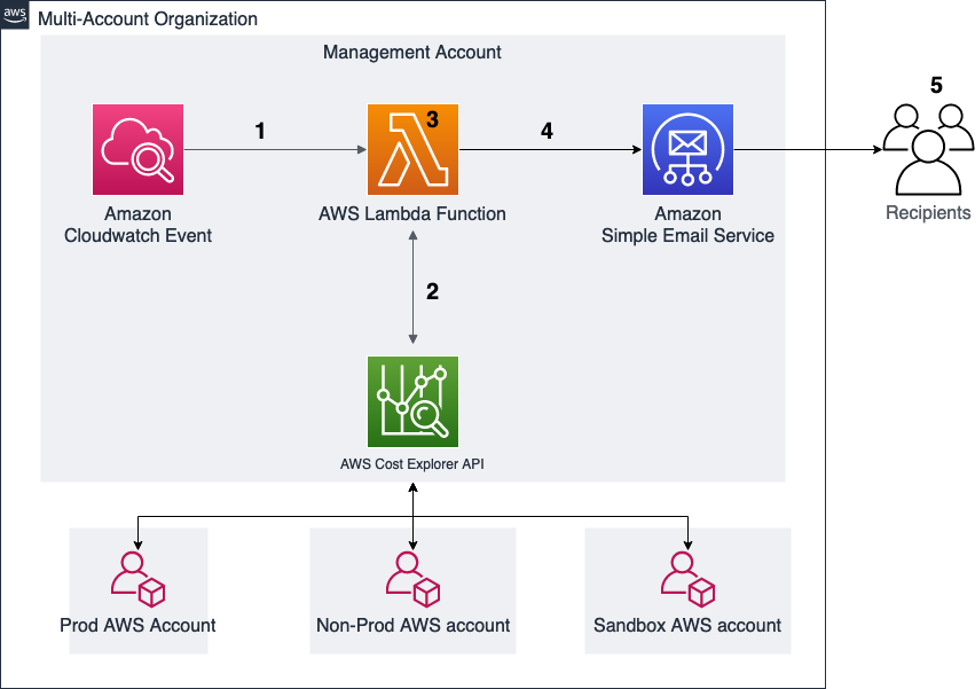
Solution architecture

Account structure and architecture diagram

Figure 1. Account structure and architecture diagram

AWS provides the Cost Explorer API to enable you to programmatically query data for cost and usage of AWS services. This solution uses a Lambda function to query aggregated data from the API, format that data and send it to a defined list of recipients.

  1. Amazon EventBridge (Amazon CloudWatch Events) is configured to cue the Lambda function at a specific time.
  2. The function uses the AWS Cost Explorer API to fetch the cost details for each account.
  3. The Lambda function calculates the change in cost over time and formats the information to be sent in an email.
  4. The formatted information is passed to Amazon Simple Email Service (Amazon SES).
  5. The report is emailed to the recipients configured in the environment variables of the function.

Prerequisites

For this walkthrough, you should have the following prerequisites:

Walkthrough

  • Download the AWS CloudFormation template from this link: AWS CloudFormation template
  • Once downloaded, open the template in your favorite text editor
  • Update account-specific variables in the template. You need to update the tuple, dictionary, display list, and display list monthly sections of the script for all the accounts which you want to appear in the daily report email. Refer to Figure 2 for an example of some dummy account IDs and email IDs.
A screenshot showing account IDs in AWS Lambda

Figure 2. Account IDs in AWS Lambda

  • Optionally, locate “def send_report_email” in the template. The subject variable controls the subject line of the email. This can be modified to something meaningful to the recipients.

After these changes are made according to your requirements, you can deploy the CloudFormation template:

  1. Log in to the Cloud Formation console.
  2. Choose Create Stack. From the dropdown, choose With new resources (standard).
  3. On the next screen under Specify Template, choose Upload a template file.
  4. Click Choose file. Choose the local template you modified earlier, then choose Next.
  5. Fill out the parameter fields with valid email address. For SchduleExpression, use a valid Cron expression for when you would like the report sent. Choose Next.
    Here is an example for a cron schedule:  18 11 * * ? *
    (This example cron expression sets the schedule to send every day at 11:18 UTC time.)
    This creates the Lambda function and needed AWS Identity and Access Management (AWS IAM) roles.

You will now need to make a few modifications to the created resources.

  1. Log in to the IAM console.
  2. Choose Roles.
  3. Locate the role created by the CloudFormation template called “daily-services-usage-lambdarole”
  4. Under the Permissions tab, choose Add Permissions. From the dropdown., choose Attach Policy.
  5. In the search bar, search for “Billing”.
  6. Select the check box next to the AWS Managed Billing Policy and then choose Attach Policy.
  7. Log in to the AWS Lambda console.
  8. Choose the DailyServicesUsage function.
  9. Choose the Configuration tab.
  10. In the options that appear, choose General Configuration.
  11. Choose the Edit button.
  12. Change the timeout option to 10 seconds, because the default of three seconds may not be enough time to run the function to retrieve the cost details from multiple accounts.
  13. Choose Save.
  14. Still under the General Configuration tab, choose the Permissions option and validate the execution role.
    The edited IAM execution role should display the Resource details for which the access has been gained. Figure 3 shows that the allow actions to aws-portal for Billing, Usage, PaymentMethods, and ViewBilling are enabled. If the Resource summary does not show these permissions, the IAM role is likely not correct. Go back to the IAM console and confirm that you updated the correct role with billing access.
A screenshot of the AWS Lambda console showing Lambda role permissions

Figure 3. Lambda role permissions

  • Optionally, in the left navigation pane, choose Environment variables. Here you will see the email recipients you configured in the Cloud Formation template. If changes are needed to the list in the future, you can add or remove recipients by editing the environment variables. You can skip this step if you’re satisfied with the parameters you specified earlier.

Next, you will create a few Amazon SES identities for the email addresses that were provided as environment variables for the sender and recipients:

  1. Log in to the SES console.
  2. Under Configuration, choose Verified Identities.
  3. Choose Create Identity.
  4. Choose the identity type Email Address, fill out the Email address field with the sender email, and choose Create Identify.
  5. Repeat this step for all receiver emails.

The email IDs included will receive an email for the confirmation. Once confirmed, the status shows as verified in the Verified Identities tab of the SES console. The verified email IDs will start receiving the email with the cost reports.

Amazon EventBridge (CloudWatch) event configuration

To configure events:

    1. Go to the Amazon EventBridge console.
    2. Choose Create rule.
    3. Fill out the rule details with meaningful descriptions.
    4. Under Rule Type, choose Schedule.
    5. Schedule the cron pattern from when you would like the report to run.

Figure 4 shows that the highlighted rule is configured to run the Lambda function every 24 hours.

A screenshot of the Amazon EventBridge console showing an EventBridge rule

Figure 4. EventBridge rule

An example AWS Daily Cost Report email

From: [email protected] (the email ID mentioned as “sender”)
Sent: Tuesday, April 12, 2022 1:43 PM
To: [email protected] (the email ID mentioned as “receiver”)
Subject: AWS Daily Cost Report for Selected Accounts (the subject of email as set in the Lambda function)

Figure 5 shows the first part of the cost report. It provides the cost summary and delta of the cost variance percentage compare to the previous day. You can also see the trend based on the last seven days from the same table. This helps in understanding a pattern around cost and usage.

This summary is broken down per account, and then totaled, in order to help you understand the accounts contributing to the cost changes. The daily change percentages are also color coded to highlight significant variations.

AWS Daily Cost Report email body part 1

Figure 5. AWS Daily Cost Report email body part 1

The second part of the report in the email provides the service-related cost breakup for each account configured in the Account dictionary section of the function. This is a further drilldown report; you will get these for all configured accounts.

AWS Daily Cost Report email body part 2

Figure 6. AWS Daily Cost Report email body part 2

Cleanup

  • Delete the Amazon CloudFormation stack.
  • Delete the identities on Amazon SES.
  • Delete the Amazon EventBridge (CloudWatch) event rule.

Conclusion

The blog demonstrates how you can automatically and seamlessly share your AWS accounts’ billing and change information with your leadership and finance teams daily (or on any schedule you choose). While the solution was designed for accounts that are part of an organization in the service AWS organizations, it could also be deployed in a standalone account without making any changes. This allows information sharing without the need to provide account access to the recipients, and avoids any dependency on other manual processes. As a next step, you can also store these reports in Amazon Simple Storage Service (Amazon S3), generate a historical trend summary for consumption, and continue making informed decisions.

Additional reading

Optimize your sending reputation and deliverability with SES dedicated IPs

Post Syndicated from Lauren Cudney original https://aws.amazon.com/blogs/messaging-and-targeting/optimize-your-sending-reputation-and-deliverability-with-ses-dedicated-ips/

Optimize your sending reputation and deliverability with SES dedicated IPs

Email remains the best medium for communicating with customers, with a ROI of 4200%, higher than social media or blogs. Organizations that fail to adequately manage their email sending and reputation risk having their emails marked as spam, not reaching their customers’ inboxes, reducing trust with their customers and ultimately, losing revenue. Studies showed that 16% of all marketing emails have either gone completely missing or have been caught by popular spam filters. In this blog post we will explain the benefits of sending email over a dedicated IP, and how dedicated IPs (managed) makes it easy to do so.

Improve your sender reputation and deliverability with dedicated IPs
When customers sign up to SES, their sending is automatically sent from shared IPs. Shared IPs offer a cost-effective and safe method of sending email. A limitation of sending over a shared IP is that customers do not control their own sending reputations. The reputation of the IP that you send from is determined by the quality of content and engagement levels of all the emails sent from that IP. This means that good senders, that send highly engaged content or important transactional emails, cannot improve their sending reputation on shared IPs. By improving their sending reputation, senders can improve their deliverability rates and make sure that more of their emails get to to the recipient’s inbox rather than their junk folder. Today, this is avoided by customers sending via a dedicated IP. Dedicated IPs are exclusive to a single sender so other bad actors cannot affect their sending reputation and good senders can improve their sending reputation.

A common method organizations use to increase delivery rate is to lease dedicated IPs where they are the sole exclusive sender and do not share their IP with other senders. This helps grow and maintain sending reputation and build high levels of trust with ISPs and mailbox vendors, ensuring high delivery rates. Today however, there are a number of issues with sending email via dedicated IPs. Customers experience difficulties in estimating how many dedicated IPs they need to handle their sending volume. This means that customers often lease too many IPs and pay for bandwidth that they don’t need. Dedicated IPs must also be “warmed-up” by sending a gradually increasing amount of email each day via the IP so that the recipient ISPs and mailboxes do not see a sudden large burst of emails coming from it, which is a signal of spam and can result in a blocking. Customers must manually configure the amount of mail to increase by, often not reaching the required volume, on average, after 45 days, hampering their time-to-market agility. This burden of provisioning, configuring and managing dedicated IPs inhibits many email senders from adopting them, meaning that their sending reputation is not optimized.

Dedicated IPs (managed)
SES customers can now send their email via dedicated IPs (managed) and will have the entire process of provisioning, leasing, warming up and managing the IP fully automated. Dedicated IPs (managed) is a feature of SES that simplifies how SES customers setup and maintain email sending through a dedicated IP space. It builds on learnings and feedback gathered from customers using the current standard Dedicated IP offering.

Dedicated IPs (managed) provides the following key benefits:

  • Easy Onboarding – Customers can create a managed dedicated pool through the API/CLI/Console and start with dedicated sending, without having to open AWS support cases to lease/release individual IPs.
  • Auto-Scaling per ISP – No more manual monitoring or scaling of dedicated pools. The pool scales out and in automatically based on usage. This auto-scaling also takes into consideration ISPs specific policies. For example, if SES detects that an ISP supports a low daily send quota, the pool will scale-out to better distribute traffic to that ISP across more IPs. In the current offering, customers are responsible for right sizing the number of IPs in their sending pools.
  • Warmup per ISP – SES will track the warmup level for each IP in the pool toward each ISP individually. SES will also track domain reputation at the individual ISP level. If a customer has been sending all their traffic to Gmail, the IP is considered warmed up only for Gmail and cold for other ISPs. If the traffic pattern changes and customer ramps up their traffic to Hotmail, SES will ramp up traffic slowly for Hotmail as the IPs are not warmed up yet. In the current manual dedicated offering, warmup % is tracked at the aggregate IP level and therefore can’t track the individual ISP level of granularity.
  • Adaptive warmup – The warmup % calculation is adaptive and takes into account actual sending patterns at an ISP level. When the sending to an ISP drops, the warmup % also drops for the given ISP. Today, when warming up the IP, customers must specify a warm up schedule and choose their volumes. Rather than having to specify a schedule and guess the optimal volume to send, Dedicated IPs (managed) will adapt the sending volume based on each individual ISP’s capacity, optimizing the warm-up schedule
  • Spill-over into shared & defer – Messages will be accepted through the API/SMTP and the system will be deferring and retrying excess sending from a customer when it is above what the pool can safely support for a particular ISP. In the early phases of the pool, the system will still leverage spill-over into shared as is done in the current offering.

Onboarding

If you use several dedicated IP addresses with Amazon SES, you can create groups of those addresses. These groups are called dedicated IP pools. A common scenario is to create one pool of dedicated IP addresses for sending marketing communications, and another for sending transactional emails. Your sender reputation for transactional emails is then isolated from that of your marketing emails. In this scenario, if a marketing campaign generates a large number of complaints, the delivery of your transactional emails is not impacted.

Configuration sets are groups of rules that you can apply to your verified identities. A verified identity is a domain, subdomain, or email address you use to send email through Amazon SES. When you apply a configuration set to an email, all of the rules in that configuration set are applied to the email. For example, you can associate these dedicated IP pools with configuration sets and use one for sending marketing communications, and another for sending transactional emails.

Onboarding to a managed dedicated pool for the most part is very similar to onboarding to regular dedicated IP sending. It involves creating a dedicated on demand pool, associating the pool with a configuration set, and specifying the configuration set to use when sending email. The configuration set can be also applied implicitly to a sending identity by using the default configuration set feature.

Below are the instructions of how to get set up on dedicated IPs (managed)

Instructions

Console

Customer accounts allow-listed for the feature preview will be able to configure and view the relevant SES resources through the SES Console UI as well.

1. Go to the SES AWS console and click on Dedicated IPs
2. On the Dedicated IPs Screen, select the Dedicated IPs (managed) tab
3. Clink on the “Create dedicated on demand IP Pool” button
4. Enter the details of your new dedicated on demand pool. Specify Scaling Mode to be “OnDemand”. Do not associate it with a Configuration Set at this point. Click create.
5. Going back to the dedicated IP on demand pool view, you should see your newly created dedicated IPs (managed) pool in the “IP pools” table. If you have any existing standard dedicated pools, you can view them and their individual IPs under the “Standard dedicated IPs” tab.
6. View your current configuration sets.
7. Click on the “Create set” button.
8. Enter the details of your new configuration set. For Sending IP pool select your newly created dedicated on demand IP pool and click create.
9. View your verified sending identities and click on the identity you wish to onboard to dedicated sending.
10. Select the configuration tab. Under default configuration set, click on the Edit button.
11. Click on the “Assign a default configuration set” checkbox and select your newly created configuration set. Click save.
12. At this point all sending from that verified identity will automatically be sent using the dedicated on demandpool.

CLI

The dedicated on demand pool feature is currently in preview and not yet available through the public CLI. If you wish to configure or view your SES resources through the CLI, you can download and add an internal preview sesv2 model that contains the relevant API changes. A dedicated pool can be specified to be managed by setting the –scaling-mode MANAGED parameter when creating the dedicated pool.

wget https://tiny.amazon.com/qjdb5ewf/seses3amazemaidedijson -O "email-2019-09-27.dedicated-pool-managed.json"

aws configure add-model —service-model file://email-2019-09-27.dedicated-pool-managed.json —service-name sesv2-dedicated-managed

export AWS_DEFAULT_REGION=eu-central-1

# Create a managed dedicated pool
aws sesv2-dedicated-managed create-dedicated-ip-pool --pool-name dedicated1 --scaling-mode MANAGED

# Create a configuration set that that will send through the dedicated pool
aws sesv2-dedicated-managed create-configuration-set --configuration-set-name cs_dedicated1 --delivery-options SendingPoolName=dedicated1

# Configure the configuration set as the default for your sending identity
aws sesv2 put-email-identity-configuration-set-attributes --email-identity {{YOUR-SENDING-IDENTITY-HERE}} --configuration-set-name cs_dedicated1

# Send SES email through the API or SMTP without requiring any code changes. Emails will # be sent out through the dedicated pool.
aws ses send-email --destination ToAddresses={{DESTINATION-GOES-HERE}} --from {{YOUR-SENDING-IDENTITY-HERE}} --message "Subject={Data='Sending via managed ',Charset=UTF-8},Body={Text={Data=thebody,Charset=UTF-8}}"

Monitoring

We recommend customers onboard to event destinations [6] and delivery delay events [7] to more accurately track the sending performance of their dedicated sending.

Conclusion

In this blog post we explained the benefits of sending via a dedicated IP and the ease at which you can now do this using the new dedicated IPs (managed) feature.

For more information, please visit the below links:

https://docs.aws.amazon.com/ses/latest/dg/dedicated-ip.html 
https://docs.aws.amazon.com/ses/latest/dg/dedicated-ip-pools.html 
https://docs.aws.amazon.com/ses/latest/dg/managing-ip-pools.html
https://docs.aws.amazon.com/ses/latest/dg/using-configuration-sets-in-email.html
https://docs.aws.amazon.com/ses/latest/dg/managing-configuration-sets.html#default-config-sets
https://docs.aws.amazon.com/ses/latest/dg/monitor-using-event-publishing.html
https://aws.amazon.com/about-aws/whats-new/2020/06/amazon-ses-can-now-send-notifications-when-the-delivery-of-an-email-is-delayed/
https://docs.aws.amazon.com/ses/latest/dg/dedicated-ip-warming.html
https://docs.aws.amazon.com/ses/latest/dg/dedicated-ip-warming.html#dedicated-ip-auto-warm-up
https://docs.aws.amazon.com/ses/latest/dg/using-configuration-sets.html

https://dma.org.uk/uploads/misc/marketers-email-tracker-2019.pdf
https://www.emailtooltester.com/en/email-deliverability-test/

Amazon Simple Email Service (SES) helps improve inbox deliverability with new features

Post Syndicated from Lauren Cudney original https://aws.amazon.com/blogs/messaging-and-targeting/amazon-simple-email-service-ses-helps-improve-inbox-deliverability-with-new-features/

Email remains the core of any company’s communication stack, but emails cannot deliver maximum ROI unless they land in recipients’ inboxes. Email deliverability, or ensuring emails land in the inbox instead of spam, challenges senders because deliverability can be impacted by a number of variables, like sending identity, campaign setup, or email configuration. Today, email senders rely on dashboard metrics or deliverability consultants to optimize the inbox placement of their messages. However, the deliverability dashboards available today do not provide specific recommendations to improve deliverability. Consultants provide bespoke solutions, but can cost hundreds of dollars per hour and are not scalable.


That’s why, today, we’re proud to announce virtual deliverability manager, a suite of new deliverability features in Amazon Simple Email Service (SES) that improve deliverability insights and recommendations. A new deliverability dashboard gives email senders more insights through a detailed dashboard of metrics on email deliverability. The “advisor” feature provides configuration recommendations to help improve inbox placement. SES’ “Guardian” can implement changes to email sending to help increase the percent of messages that land in the inbox. Deliverability metrics and recommendations are generated in real-time through Amazon SES, without the need for a human consultant or agency.

AWS Simple Email Service deliverability insights dashboard

The new SES feature reports email insights at-a-glance with metrics like open and click rate, but can also give deeper insights into individual ISP and configuration performance. SES will deliver specific configuration recommendations to improve deliverability based on a specific campaign’s setup, like DMARC (Domain-based Message Authentication Reporting and Conformance) or DKIM (DomainKeys Identified Mail) for a specific domain. Senders can turn on automatic implementation, which allows SES to intelligently adjust email sending configuration to maximize inbox placement.

AWS Simple Email Service deliverability recommendations to improve email sendingApplying new deliverability features is simple in the AWS console. Senders can log into their SES account dashboard to enable the virtual deliverability manager features. The features are billed as monthly subscription and can be turned on or off at any time. Once the features are activated, SES provides deliverability insights and recommendations in real time, allowing senders to improve performance of future sending batches or campaigns. Senders using Simple Email Service (SES) get reliable, scalable email at the lowest industry prices. SES is backed by AWS’ data security, and email through SES supports  compliance with HIPAA-eligible, FedRAMP-, GDPR-, and ISO-certified options.

To learn more about virtual deliverability manager, visit https://aws.amazon.com/ses

Amazon Prime Day 2022 – AWS for the Win!

Post Syndicated from Jeff Barr original https://aws.amazon.com/blogs/aws/amazon-prime-day-2022-aws-for-the-win/

As part of my annual tradition to tell you about how AWS makes Prime Day possible, I am happy to be able to share some chart-topping metrics (check out my 2016, 2017, 2019, 2020, and 2021 posts for a look back).

My purchases this year included a first aid kit, some wood brown filament for my 3D printer, and a non-stick frying pan! According to our official news release, Prime members worldwide purchased more than 100,000 items per minute during Prime Day, with best-selling categories including Amazon Devices, Consumer Electronics, and Home.

Powered by AWS
As always, AWS played a critical role in making Prime Day a success. A multitude of two-pizza teams worked together to make sure that every part of our infrastructure was scaled, tested, and ready to serve our customers. Here are a few examples:

Amazon Aurora – On Prime Day, 5,326 database instances running the PostgreSQL-compatible and MySQL-compatible editions of Amazon Aurora processed 288 billion transactions, stored 1,849 terabytes of data, and transferred 749 terabytes of data.

Amazon EC2 – For Prime Day 2022, Amazon increased the total number of normalized instances (an internal measure of compute power) on Amazon Elastic Compute Cloud (Amazon EC2) by 12%. This resulted in an overall server equivalent footprint that was only 7% larger than that of Cyber Monday 2021 due to the increased adoption of AWS Graviton2 processors.

Amazon EBS – For Prime Day, the Amazon team added 152 petabytes of EBS storage. The resulting fleet handled 11.4 trillion requests per day and transferred 532 petabytes of data per day. Interestingly enough, due to increased efficiency of some of the internal Amazon services used to run Prime Day, Amazon actually used about 4% less EBS storage and transferred 13% less data than it did during Prime Day last year. Here’s a graph that shows the increase in data transfer during Prime Day:

Amazon SES – In order to keep Prime Day shoppers aware of the deals and to deliver order confirmations, Amazon Simple Email Service (SES) peaked at 33,000 Prime Day email messages per second.

Amazon SQS – During Prime Day, Amazon Simple Queue Service (SQS) set a new traffic record by processing 70.5 million messages per second at peak:

Amazon DynamoDB – DynamoDB powers multiple high-traffic Amazon properties and systems including Alexa, the Amazon.com sites, and all Amazon fulfillment centers. Over the course of Prime Day, these sources made trillions of calls to the DynamoDB API. DynamoDB maintained high availability while delivering single-digit millisecond responses and peaking at 105.2 million requests per second.

Amazon SageMaker – The Amazon Robotics Pick Time Estimator, which uses Amazon SageMaker to train a machine learning model to predict the amount of time future pick operations will take, processed more than 100 million transactions during Prime Day 2022.

Package Planning – In North America, and on the highest traffic Prime 2022 day, package-planning systems performed 60 million AWS Lambda invocations, processed 17 terabytes of compressed data in Amazon Simple Storage Service (Amazon S3), stored 64 million items across Amazon DynamoDB and Amazon ElastiCache, served 200 million events over Amazon Kinesis, and handled 50 million Amazon Simple Queue Service events.

Prepare to Scale
Every year I reiterate the same message: rigorous preparation is key to the success of Prime Day and our other large-scale events. If you are preparing for a similar chart-topping event of your own, I strongly recommend that you take advantage of AWS Infrastructure Event Management (IEM). As part of an IEM engagement, my colleagues will provide you with architectural and operational guidance that will help you to execute your event with confidence!

— Jeff;

Analyzing Amazon SES event data with AWS Analytics Services

Post Syndicated from Oscar Mendoza original https://aws.amazon.com/blogs/messaging-and-targeting/analyzing-amazon-ses-event-data-with-aws-analytics-services/

In this post, we will walk through using AWS Services, such as, Amazon Kinesis Firehose, Amazon Athena and Amazon QuickSight to monitor Amazon SES email sending events with the granularity and level of detail required to get insights from your customers engage with the emails you send.

Nowadays, email Marketers rely on internal applications to create their campaigns or any communications requirements, such us newsletters or promotional content. From those activities, they need to collect as much information as possible to analyze and improve their pipeline to get better interaction with the customers. Data such us bounces, rejections, success reception, delivery delays, complaints or open rate can be a powerful tool to understand the customers. Usually applications work with high-level data points without detailed logging or granular information that could help improve even better the effectiveness of their campaigns.

Amazon Simple Email Service (SES) is a smart tool for companies that wants a cost-effective, flexible, and scalable email service solution to easily integrate with their own products. Amazon SES provides methods to control your sending activity with built-in integration with Amazon CloudWatch Metrics and also provides a mechanism to collect the email sending events data.

In this post, we propose an architecture and step-by-step guide to track your email sending activities at a granular level, where you can configure several types of email sending events, including sends, deliveries, opens, clicks, bounces, complaints, rejections, rendering failures, and delivery delays. We will use the configuration set feature of Amazon SES to send detailed logging to our analytics services to store, query and create dashboards for a detailed view.

Overview of solution

This architecture uses Amazon SES built-in features and AWS analytics services to provide a quick and cost-effective solution to address your mail tracking requirements. The following services will be implemented or configured:

The following diagram shows the architecture of the solution:

Serverless Architecture to Analyze Amazon SES events

Figure 1. Serverless Architecture to Analyze Amazon SES events

The flow of the events starts when a customer uses Amazon SES to send an email. Each of those send events will be capture by the configuration set feature and forward the events to a Kinesis Firehose delivery stream to buffer and store those events on an Amazon S3 bucket.

After storing the events, it will be required to create a database and table schema and store it on AWS Glue Data Catalog in order for Amazon Athena to be able to properly query those events on S3. Finally, we will use Amazon QuickSight to create interactive dashboard to search and visualize all your sending activity with an email level of detailed.

Prerequisites

For this walkthrough, you should have the following prerequisites:

Walkthrough

Step 1: Use AWS CloudFormation to deploy some additional prerequisites

You can get started with our sample AWS CloudFormation template that includes some prerequisites. This template creates an Amazon S3 Bucket, an IAM role needed to access from Amazon SES to Amazon Kinesis Data Firehose.

To download the CloudFormation template, run one of the following commands, depending on your operating system:

In Windows:

curl https://raw.githubusercontent.com/aws-samples/amazon-ses-analytics-blog/main/SES-Blog-PreRequisites.yml -o SES-Blog-PreRequisites.yml

In MacOS

wget https://raw.githubusercontent.com/aws-samples/amazon-ses-analytics-blog/main/SES-Blog-PreRequisites.yml

To deploy the template, use the following AWS CLI command:

aws cloudformation deploy --template-file ./SES-Blog-PreRequisites.yml --stack-name ses-dashboard-prerequisites --capabilities CAPABILITY_NAMED_IAM

After the template finishes creating resources, you see the IAM Service role and the Delivery Stream on the stack Outputs tab. You are going to use these resources in the following steps.

IAM Service role and Delivery Stream created by CloudFormation template

Figure 2. CloudFormation template outputs

Step 2: Creating a configuration set in SES and setting the default configuration set for a verified identity

SES can track the number of send, delivery, open, click, bounce, and complaint events for each email you send. You can use event publishing to send information about these events to other AWS service. In this case we are going to send the events to Kinesis Firehose. To do this, a configuration set is required.

To create a configuration set, complete the following steps:

  1. On the AWS Console, choose the Amazon Simple Email Service.
  2. Choose Configuration sets.
  3. Click on Create set.

    Create a configuration set in Amazon SES

    Figure 3. Amazon SES Create Configuration Set

  4. Set a Configuration set name.
  5. Leave the other configurations by default.

    Write a name for your configuration set

    Figure 4. Configuration Set Name

  6. Once the configuration set is created, select Event destinations

    Configuration set created successfully

    Figure 5. Configuration set created successfully

  7. Click on Add destination
  8. Select the event types you would like to analyze and then click on next.

    Sending Events to analyze

    Figure 6. Sending Events to analyze

  9. Select Amazon Kinesis Data Firehose as the destination, choose the delivery stream and the IAM role created previously, click on next and in the review page, click on Add destination.

    Destination for Amazon SES sending events

    Figure 7. Destination for Amazon SES sending events

  10. Once you have created the configuration set and added the event destination, you can define the Default configuration set for the verified identity (domain or email address). In the SES console, choose Verified identities.

    Amazon SES Verified Identity

    Figure 8 Amazon SES Verified Identity

  11. Choose the verified identity from which you want to collect events and select Configuration set. Click on Edit.

    Edit Configuration Set for Verified Identity

    Figure 9. Edit Configuration Set for Verified Identity

  12. Click on the checkbox Assign a default configuration set and choose the configuration set created previously.

    Assign default configuration set

    Figure 10. Assign default configuration set

  13. Once you have completed the previous steps, your events will be sent to Amazon S3. Due to the buffer’s configuration on the Kinesis Delivery Stream, the data will be loaded every 5 minutes or every 5 MiB to Amazon S3. You can check the structure created on the bucket and see json logs with SES events data.

    Amazon S3 bucket structure

    Figure 11. Amazon S3 bucket structure

Step 3: Using Amazon Athena to query the SES event logs

Amazon SES publishes email sending event records to Amazon Kinesis Data Firehose in JSON format. The top-level JSON object contains an eventType string, a mail object, and either a Bounce, Complaint, Delivery, Send, Reject, Open, Click, Rendering Failure, or DeliveryDelay object, depending on the type of event.

  1. In order to simplify the analysis of email sending events, create the sesmaster table by running the following script in Amazon Athena. Don’t forget to change the location in the following script with your own bucket containing the data of email sending events.
    CREATE EXTERNAL TABLE sesmaster (
    eventType string,
    complaint struct < arrivaldate: string,
    complainedrecipients: array < struct < emailaddress: string >>,
    complaintfeedbacktype: string,
    feedbackid: string,
    `timestamp`: string,
    useragent: string >,
    bounce struct < bouncedrecipients: array < struct < action: string,
    diagnosticcode: string,
    emailaddress: string,
    status: string >>,
    bouncesubtype: string,
    bouncetype: string,
    feedbackid: string,
    reportingmta: string,
    `timestamp`: string >,
    mail struct < timestamp: string,
    source: string,
    sourcearn: string,
    sendingaccountid: string,
    messageid: string,
    destination: string,
    headerstruncated: boolean,
    headers: array < struct < name: string,
    value: string >>,
    commonheaders: struct < `from`: array < string >,
    to: array < string >,
    messageid: string,
    subject: string >,
    tags: struct < ses_source_tls_version: string,
    ses_operation: string,
    ses_configurationset: string,
    ses_source_ip: string,
    ses_outgoing_ip: string,
    ses_from_domain: string,
    ses_caller_identity: string >>,
    send string,
    delivery struct < processingtimemillis: int,
    recipients: array < string >,
    reportingmta: string,
    smtpresponse: string,
    `timestamp`: string >,
    open struct < ipaddress: string,
    `timestamp`: string,
    userAgent: string >,
    reject struct < reason: string >,
    click struct < ipAddress: string,
    `timestamp`: string,
    userAgent: string,
    link: string >
    )
    ROW FORMAT SERDE 'org.openx.data.jsonserde.JsonSerDe'
    WITH SERDEPROPERTIES (
    "mapping.ses_caller_identity" = "ses:caller-identity",
    "mapping.ses_configurationset" = "ses:configuration-set",
    "mapping.ses_from_domain" = "ses:from-domain",
    "mapping.ses_operation" = "ses:opeation",
    "mapping.ses_outgoing_ip" = "ses:outgoing-ip",
    "mapping.ses_source_ip" = "ses:source-ip",
    "mapping.ses_source_tls_version" = "ses:source-tls-version"
    )
    LOCATION 's3://aws-s3-ses-analytics-<aws-account-number>/'
    

    The sesmaster table uses the org.openx.data.jsonserde.JsonSerDe SerDe library to deserialize the JSON data.

    We have leveraged the support for JSON arrays and maps and the support for nested data structures. Those features ease the process of preparation and visualization of data.

    In the sesmaster table, the following mappings were applied to avoid errors due to name of JSON fields containing colons.

    • “mapping.ses_configurationset”=”ses:configuration-set”
    • “mapping.ses_source_ip”=”ses:source-ip”
    • “mapping.ses_from_domain”=”ses:from-domain”
    • “mapping.ses_caller_identity”=”ses:caller-identity” “mapping.ses_outgoing_ip”=”ses:outgoing-ip”
  2. Once the sesmaster table is ready, it is a good strategy to create curated views of its data. The first view called vwSESMaster contains all the records of email sending events and all the fields which are unique on each event. Create the vwSESMaster view by running the following script in Amazon Athena.
    CREATE OR REPLACE VIEW vwSESMaster AS
    SELECT
    eventtype as eventtype
    , mail.messageId as mailmessageid
    , mail.timestamp as mailtimestamp
    , mail.source as mailsource
    , mail.sendingAccountId as mailsendingAccountId
    , mail.commonHeaders.subject as mailsubject
    , mail.tags.ses_configurationset as mailses_configurationset
    , mail.tags.ses_source_ip as mailses_source_ip
    , mail.tags.ses_from_domain as mailses_from_domain
    , mail.tags.ses_outgoing_ip as mailses_outgoing_ip
    , delivery.processingtimemillis as deliveryprocessingtimemillis
    , delivery.reportingmta as deliveryreportingmta
    , delivery.smtpresponse as deliverysmtpresponse
    , delivery.timestamp as deliverytimestamp
    , delivery.recipients[1] as deliveryrecipient
    , open.ipaddress as openipaddress
    , open.timestamp as opentimestamp
    , open.userAgent as openuseragent
    , bounce.bounceType as bouncebounceType
    , bounce.bouncesubtype as bouncebouncesubtype
    , bounce.feedbackid as bouncefeedbackid
    , bounce.timestamp as bouncetimestamp
    , bounce.reportingMTA as bouncereportingmta
    , click.ipAddress as clickipaddress
    , click.timestamp as clicktimestamp
    , click.userAgent as clickuseragent
    , click.link as clicklink
    , complaint.timestamp as complainttimestamp
    , complaint.userAgent as complaintuseragent
    , complaint.complaintFeedbackType as complaintcomplaintfeedbacktype
    , complaint.arrivalDate as complaintarrivaldate
    , reject.reason as rejectreason
    FROM
    sesmaster

    The sesmaster table contains some fields which are represented by nested arrays, so it is necessary to flatten them into multiples rows. Following you can see the event types and the fields which need to be flatten.

    • Event type SEND: field mail.commonHeaders
    • Event type BOUNCE: field bounce.bouncedrecipients
    • Event type COMPLAINT: field complaint.complainedrecipients

    To flatten those arrays into multiple rows, we used the CROSS JOIN in conjunction with the UNNEST operator using the following strategy for all the three events:

    • Create a temporal view with the mail.messageID and the field to be flattened.
    • Create another temporal view with the array flattened into multiple rows.
    • Create the final view joining the sesmaster table with the second temporal view by event type and mail.messageID.

    To create those views, follow the next steps.

  3. Run the following scripts in Amazon Athena to flat the mail.commonHeaders array in the SEND event type
    CREATE OR REPLACE VIEW vwSendMailTmpSendTo AS 
    SELECT
    mail.messageId as messageid
    , mail.commonHeaders.to as recipients
    FROM
    sesmaster
    WHERE 
    eventtype='Send'
    
    CREATE OR REPLACE VIEW vwsendmailrecipients AS 
    SELECT
    messageid
    , recipient
    FROM
    ("vwSendMailTmpSendTo"
    CROSS JOIN UNNEST(recipients) t (recipient))
    
    CREATE OR REPLACE VIEW vwSentMails AS
    SELECT 
    eventtype as eventtype
    , mail.messageId as mailmessageid
    , mail.timestamp as mailtimestamp
    , mail.source as mailsource
    , mail.sendingAccountId as mailsendingAccountId
    , mail.commonHeaders.subject as mailsubject
    , mail.tags.ses_configurationset as mailses_configurationset
    , mail.tags.ses_source_ip as mailses_source_ip
    , mail.tags.ses_from_domain as mailses_from_domain
    , mail.tags.ses_outgoing_ip as mailses_outgoing_ip
    , dest.recipient as mailto
    FROM
    sesmaster as sm
    ,vwsendmailrecipients as dest
    WHERE
    sm.eventtype = 'Send'
    and sm.mail.messageid = dest.messageid
  4. Run the following scripts in Amazon Athena to flat the bounce.bouncedrecipients array in the BOUNCE event type
    CREATE OR REPLACE VIEW vwbouncemailtmprecipients AS 
    SELECT
    mail.messageId as messageid
    , bounce.bouncedrecipients
    FROM
    sesmaster
    WHERE (eventtype = 'Bounce')
    
    CREATE OR REPLACE VIEW vwbouncemailrecipients AS 
    SELECT
    messageid
    , recipient.action
    , recipient.diagnosticcode
    , recipient.emailaddress
    FROM
    (vwbouncemailtmprecipients
    CROSS JOIN UNNEST(bouncedrecipients) t (recipient))
    
    CREATE OR REPLACE VIEW vwBouncedMails AS
    SELECT
    eventtype as eventtype
    , mail.messageId as mailmessageid
    , mail.timestamp as mailtimestamp
    , mail.source as mailsource
    , mail.sendingAccountId as mailsendingAccountId
    , mail.commonHeaders.subject as mailsubject
    , mail.tags.ses_configurationset as mailses_configurationset
    , mail.tags.ses_source_ip as mailses_source_ip
    , mail.tags.ses_from_domain as mailses_from_domain
    , mail.tags.ses_outgoing_ip as mailses_outgoing_ip
    , bounce.bounceType as bouncebounceType
    , bounce.bouncesubtype as bouncebouncesubtype
    , bounce.feedbackid as bouncefeedbackid
    , bounce.timestamp as bouncetimestamp
    , bounce.reportingMTA as bouncereportingmta
    , bd.action as bounceaction
    , bd.diagnosticcode as bouncediagnosticcode
    , bd.emailaddress as bounceemailaddress
    FROM
    sesmaster as sm
    ,vwbouncemailrecipients as bd
    WHERE
    sm.eventtype = 'Bounce'
    and sm.mail.messageid = bd.messageid
    
  5. Run the following scripts in Amazon Athena to flat the complaint.complainedrecipients array in the COMPLAINT event type
    CREATE OR REPLACE VIEW vwcomplainttmprecipients AS 
    SELECT
    mail.messageId as messageid
    , complaint.complainedrecipients
    FROM
    sesmaster
    WHERE (eventtype = 'Complaint')
    
    CREATE OR REPLACE VIEW vwcomplainedrecipients AS 
    SELECT
    messageid
    , recipient.emailaddress
    FROM
    (vwcomplainttmprecipients 
    CROSS JOIN UNNEST(complainedrecipients) t (recipient))
    

    At the end we have one table and four views which can be used in Amazon QuickSight to analyze email sending events:

    • Table sesmaster
    • View vwSESMaster
    • View vwSentMails
    • View vwBouncedMails
    • View vwComplainedemails

Step 4: Analyze and visualize data with Amazon QuickSight

 In this blog post, we use Amazon QuickSight to analyze and to visualize email sending events from the sesmaster and the four curated views created previously. Amazon QuickSight can directly access data through Athena. Its pay-per-session pricing enables you to put analytical insights into the hands of everyone in your organization.

Let’s set this up together. We first need to select our table and our views to create new data sources in Athena and then we use these data sources to populate the visualization. We are creating just an example of visualization. Feel free to create your own visualization based on your information needs.

Before we can use the data in Amazon QuickSight, we need to first grant access to the underlying S3 bucket. If you haven’t done so already for other analyses, see our documentation on how to do so.

  1. On the Amazon QuickSight home page, choose Datasets from the menu on the left side, then choose New dataset from the upper-right corner, set and pick Athena as data source. In the following dialog box, give the data source a descriptive name and choose Create data source.

    Create New Athena Data Source

    Figure 12. Create New Athena Data Source

  2. In the following dialog box, select the Catalog and the Database containing your sesmaster and curated views. Let’s select the sesmaster table in order to create some basic Key Performance Indicators. Select the table sesmaster and click on the Select

    Select Sesmaster Table

    Figure 13. Select Sesmaster Table

  3. Our sesmaster table now is a data source for Amazon QuickSight and we can turn to visualizing the data.

    QuickSight Visualize Data

    Figure 14. QuickSight Visualize Data

  4. You can see the list fields on the left. The canvas on the right is still empty. Before we populate it with data, let’s select Key Performance Indicator from the available visual types.

    QuickSight Visual Types

    Figure 15. QuickSight Visual Types

  5. To populate the graph, drag and drop the fields from the field list on the left onto their respective destinations. In our case, we put the field send onto the value well and use count as aggregation.

    Add Send field to visualization

    Figure 16. Add Send field to visualization

  6. Add another visual from the left-upper side and select Key Performance Indicator as visual type.
    Add a new visual

    Figure 17. Add a new visual

    Key Performance Indicator Visual Type

    Figure 18. Key Performance Indicator Visual Type

  7. Put the field Delivery onto the value well and use count as aggregation.

    Add Delivery Field to visualization

    Figure 19. Add Delivery Field to visualization

  8. Repeat the same procedure, (steps 1 to 4) to count the number of Open, Click, Bounce, Complaint and Reject Events. At the end, you should see something similar to the following visualization. After resizing and rearranging the visuals, you should get an analysis like the shown in the image below.

    Preview of Key Performance Indicators

    Figure 20. Preview of Key Performance Indicators

  9. Let´s add another dataset by clicking the pencil on the right of the current Dataset.

    Add a New Dataset

    Figure 21. Add a New Dataset

  10. On the following dialog box, select Add Dataset.

    Add a New Dataset

    Figure 22. Add a New Dataset

  11. Select the view called vwsesmaster and click Select.
    Add vwsesmaster dataset

    Figure 23. Add vwsesmaster dataset

    Now you can see all the available fields of the vwsesmaster view.

    New fields from vwsesmaster dataset

    Figure 24. New fields from vwsesmaster dataset

  12. Let’s create a new visual and select the Table visual type.

    QuickSight Visual Types

    Figure 25. QuickSight Visual Types

  13. Drag and drop the fields from the field list on the left onto their respective destinations. In our case, we put the fields eventtype, mailmessageid, and mailsubject onto the Group By well, but you can add as many fields as you need.

    Add eventtype, mailmessageid and mailsubject fields

    Figure 26. Add eventtype, mailmessageid and mailsubject fields

  14. Now let’s create a filter for this visual in order to filter by type of event. Be sure you select the table and then click on Filter on the left menu.

    Add a Filter

    Figure 27. Add a Filter

  15. Click on Create One and select the field eventtype on the popup window. Now select the eventtype filter to see the following options.

    Create eventtype filter

    Figure 28. Create eventtype filter

  16. Click on the dots on the right of the eventtype filter and select Add to Sheet.

    Add filter to sheet

    Figure 29. Add filter to sheet

  17. Leave all the default values, scroll down and select Apply

    Apply filters with default values

    Figure 30. Apply filters with default values

  18. Now you can filter the vwsesmaster view by eventtype.

    Filter vwsesmasterview by eventtype

    Figure 31. Filter vwsesmasterview by eventtype

  19. You can continue customizing your visualization with all the available data in the sesmaster table, the vwsesmaster view and even add more datasets to include data from the vwSentMails, vwBouncedMails, and vwComplainedemails views. Below, you can see some other visualizations created from those views.
    Final visualization 1

    Figure 32. Final visualization 1

    Final visualization 2

    Figure 33. Final visualization 2

    Final visualization 3

    Figure 34. Final visualization 3

Clean up

To avoid ongoing charges, clean up the resources you created as part of this post:

  1. Delete the visualizations created in Amazon Quicksight.
  2. Unsubscribe from Amazon QuickSight if you are not using it for other projects.
  3. Delete the views and tables created in Amazon Athena.
  4. Delete the Amazon SES configuration set.
  5. Delete the Amazon SES events stored in S3.
  6. Delete the CloudFormation stack in order to delete the Amazon Kinesis Delivery Stream.

Conclusion

In this blog we showed how you can use AWS native services and features to quickly create an email tracking solution based on Amazon SES events to have a more detailed view on your sending activities. This solution uses a full serverless architecture without having to manage the underlying infrastructure and giving you the flexibility to use the solution for small, medium or intense Amazon SES usage, without having to take care of any servers.

We showed you some samples of dashboards and analysis that can be built for most of customers requirements, but of course you can evolve this solution and customize it according to your needs, adding or removing charts, filters or events to the dashboard. Please refer to the following documentation for the available Amazon SES Events, their structure and also how to create analysis and dashboards on Amazon QuickSight:

From a performance and cost efficiency perspective there are still several configurations that can be done to improve the solution, for example using a columnar file formant like parquet, compressing with snappy or setting your S3 partition strategy according to your email sending usage. Another improvement could be importing data into SPICE to read data in Amazon Quicksight. Using SPICE results in the data being loaded from Athena only once, until it is either manually refreshed or automatically refreshed using a schedule.

You can use this walkthrough to configure your first SES dashboard and start visualizing events detail. You can adjust the services described in this blog according to your company requirements.

About the authors

Oscar Mendoza AWS Solutions Architect Oscar Mendoza is a Solutions Architect at AWS based in Bogotá, Colombia. Oscar works with our customers to provide guidance in architectural best practices and to build Well Architected solutions on the AWS platform. He enjoys spending time with his family and his dog and playing music.
Luis Eduardo Torres AWS Solutions Architect Luis Eduardo Torres is a Solutions Architect at AWS based in Bogotá, Colombia. He helps companies to build their business using the AWS cloud platform. He has a great interest in Analytics and has been leading the Analytics track of AWS Podcast in Spanish.
Santiago Benavidez AWS Solutions Architect Santiago Benavídez is a Solutions Architect at AWS based in Buenos Aires, Argentina, with more than 13 years of experience in IT, currently helping DNB/ISV customers to achieve their business goals using the breadth and depth of AWS services, designing highly available, resilient and cost-effective architectures.

Analyze Amazon SES events at scale using Amazon Redshift

Post Syndicated from Manash Deb original https://aws.amazon.com/blogs/big-data/analyze-amazon-ses-events-at-scale-using-amazon-redshift/

Email is one of the most important methods for business communication across many organizations. It’s also one of the primary methods for many businesses to communicate with their customers. With the ever-increasing necessity to send emails at scale, monitoring and analysis has become a major challenge.

Amazon Simple Email Service (Amazon SES) is a cost-effective, flexible, and scalable email service that enables you to send and receive emails from your applications. You can use Amazon SES for several use cases, such as transactional, marketing, or mass email communications.

An important benefit of Amazon SES is its native integration with other AWS services, such as Amazon CloudWatch and Amazon Redshift, which allows you to monitor and analyze your emails sending at scale seamlessly. You can store your email events in Amazon Redshift, which is a widely used, fast, and fully managed cloud data warehouse. You can then analyze these events using SQL to gain business insights such as marketing campaign success, email bounces, complaints, and so on.

In this post, you will learn how to implement an end-to-end solution to automate this email analysis and monitoring process.

Solution overview

The following architecture diagram highlights the end-to-end solution, which you can provision automatically with an AWS CloudFormation template.

In this solution, you publish Amazon SES email events to an Amazon Kinesis Data Firehose delivery stream that publishes data to Amazon Redshift. You then connect to the Amazon Redshift database and use a SQL query tool to analyze Amazon SES email events that meet the given criteria. We use the Amazon Redshift SUPER data type to store the event (JSON data) in Amazon Redshift. The SUPER data type handles semi-structured data, which can have varying table attributes and types.

The alarm system uses Amazon CloudWatch logs that Kinesis Data Firehose generates when a data load to Amazon Redshift fails. We have set up a metric filter that pattern matches the CloudWatch log events to determine the error condition and triggers a CloudWatch alarm. This in turn sends out email notifications using Amazon Simple Notification Service (Amazon SNS).

Prerequisites

As a prerequisite for deploying the solution in this post, you need to set up Amazon SES in your account. For more information, see Getting Started with Amazon Simple Email Service.

Solution resources and features

The architecture built by AWS CloudFormation supports AWS best practices for high availability and security. The CloudFormation template takes care of the following key resources and features:

  • Amazon Redshift cluster – An Amazon Redshift cluster with encryption at rest enabled using an AWS Key Management Service (AWS KMS) customer managed key (CMK). This cluster acts as the destination for Kinesis Data Firehose and stores all the Amazon SES email sending events in the table ses, as shown in the following screenshot.
  • Kinesis Data Firehose configuration – A Kinesis Data Firehose delivery stream that acts as the event destination for all Amazon SES email sending metrics. The delivery stream is set up with Amazon Redshift as the destination. Server-side encryption is enabled using an AWS KMS CMK, and destination error logging has been enabled as per best practices.
  • Amazon SES configuration – A configuration set in Amazon SES that is used to map Kinesis Data Firehose as the event destination to publish email metrics.

To use the configuration set when sending emails, you can specify a default configuration set for your verified identity, or include a reference to the configuration set in the headers of the email.

  • Exploring and analyzing the data – We use Amazon Redshift query editor v2 for exploring and analyzing the data.
  • Alarms and notifications for ingestion failures – A data load error notification system using CloudWatch and Amazon SNS generates email-based notifications in the event of a failure during data load from Kinesis Data Firehose to Amazon Redshift. The setup creates a CloudWatch log metric filter, as shown in the following screenshot.

A CloudWatch alarm based on the metric filter triggers an SNS notification when in alarm state. For more information, see Using Amazon CloudWatch alarms.

Deploy the CloudFormation template

The provided CloudFormation template automatically creates all the required resources for this solution in your AWS account. For more information, see Getting started with AWS CloudFormation.

  1. Sign in to the AWS Management Console.
  2. Choose Launch Stack to launch AWS CloudFormation in your AWS account:
  3. For Stack name, enter a meaningful name for the stack, for example, ses_events.
  4. Provide the following values for the stack parameters:
    1. ClusterName – The name of the Amazon Redshift cluster.
    2. DatabaseName – The name of the first database to be created when the Amazon Redshift cluster is created.
    3. DeliveryStreamName – The name of the Firehose delivery stream.
    4. MasterUsername – The user name that is associated with the primary user account for the Amazon Redshift cluster.
    5. NodeType – The type of node to be provisioned. (Default dc2.large)
    6. NotificationEmailId – The email notification list that is used to configure an SNS topic for sending CloudWatch alarm and event notifications.
    7. NumberofNodes – The number of compute nodes in the Amazon Redshift cluster. For multi-node clusters, the NumberofNodes parameter must be greater than 1.
    8. OnPremisesCIDR – IP range (CIDR notation) for your existing infrastructure to access the target and replica Amazon Redshift clusters.
    9. SESConfigSetName – Name of the Amazon SES configuration set.
    10. SubnetId – Subnet ID where source Amazon Redshift cluster is created.
    11. Vpc – VPC in which Amazon Redshift cluster is launched.
  5. Choose Next.
  6. Review all the information and select I acknowledge that AWS CloudFormation might create IAM resources.
  7. Choose Create stack.

You can track the progress of the stack creation on the Events tab. Wait for the stack to complete and show the status CREATE_COMPLETE.

Test the solution

To send a test email, we use the Amazon SES mailbox simulator. Set the configuration-set header to the one created by the CloudFormation template.

We use the Amazon Redshift query editor V2 to query the Amazon Redshift table (created by the CloudFormation template) and see if the events have shown up.

If the data load of the event stream fails from Kinesis Data Firehose to Amazon Redshift, the failure notification system is triggered, and you receive an email notification via Amazon SNS.

Clean up

Some of the AWS resources deployed by the CloudFormation stacks in this post incur a cost as long as you continue to use them.

You can delete the CloudFormation stack to delete all AWS resources created by the stack. To clean up all your stacks, use the AWS CloudFormation console to remove the stacks that you created in reverse order.

  1. On the Stacks page on the AWS CloudFormation console, choose the stack to delete.
  2. In the stack details pane, choose Delete.
  3. Choose Delete stack when prompted.

After stack deletion begins, you can’t stop it. The stack proceeds to the DELETE_IN_PROGRESS state. When the stack deletion is complete, the stack changes to the DELETE_COMPLETE state. The AWS CloudFormation console doesn’t display stacks in the DELETE_COMPLETE state by default. To display deleted stacks, you must change the stack view filter. For more information, see Viewing deleted stacks on the AWS CloudFormation console.

If the delete fails, the stack enters the DELETE_FAILED state. For solutions, see Delete stack fails.

Conclusion

In this post, we walked through the process of setting up Amazon SES and Amazon Redshift to deploy an email reporting service that can scale to support millions of events. We used Amazon Redshift to store semi-structured messages using the SUPER data type in database tables to support varying message sizes and formats. With this solution, you can easily run analytics at scale and analyze your email event data for deliverability-related issues such as bounces or complaints.

Use the CloudFormation template provided to speed up provisioning of the cloud resources required for the solution (Amazon SES, Kinesis Data Firehose, and Amazon Redshift) in your account while following security best practices. Then you can analyze Amazon SES events at scale using Amazon Redshift.


About the Authors

Manash Deb is a Software Development Engineer in the AWS Directory Service team. He has worked on building end-to-end applications in different database and technologies for over 15 years. He loves to learn new technologies and solving, automating, and simplifying customer problems on AWS.

Arnab Ghosh is a Solutions Architect for AWS in North America helping enterprise customers build resilient and cost-efficient architectures. He has over 13 years of experience in architecting, designing, and developing enterprise applications solving complex business problems.

Sanjoy Thanneer is a Sr. Technical Account Manager with AWS based out of New York. He has over 20 years of experience working in Database and Analytics Domains.  He is passionate about helping enterprise customers build scalable , resilient and cost efficient Applications.

Justin Morris is a Email Deliverability Manager for the Simple Email Service team. With over 10 years of experience in the IT industry, he has developed a natural talent for diagnosing and resolving customer issues and continuously looks for growth opportunities to learn new technologies and services.

How to set up Amazon Quicksight dashboard for Amazon Pinpoint and Amazon SES engagement events

Post Syndicated from satyaso original https://aws.amazon.com/blogs/messaging-and-targeting/how-to-set-up-amazon-quicksight-dashboard-for-amazon-pinpoint-and-amazon-ses-events/

In this post, we will walk through using Amazon Pinpoint and Amazon Quicksight to create customizable messaging campaign reports. Amazon Pinpoint is a flexible and scalable outbound and inbound marketing communications service that allows customers to connect with users over channels like email, SMS, push, or voice. Amazon QuickSight is a scalable, serverless, embeddable, machine learning-powered business intelligence (BI) service built for the cloud. This solution allows event and user data from Amazon Pinpoint to flow into Amazon Quicksight. Once in Quicksight, customers can build their own reports that shows campaign performance on a more granular level.

Engagement Event Dashboard

Customers want to view the results of their messaging campaigns in ever increasing levels of granularity and ensure their users see value from the email, SMS or push notifications they receive. Customers also want to analyze how different user segments respond to different messages, and how to optimize subsequent user communication. Previously, customers could only view this data in Amazon Pinpoint analytics, which offers robust reporting on: events, funnels, and campaigns. However, does not allow analysis across these different parameters and the building of custom reports. For example, show campaign revenue across different user segments, or show what events were generated after a user viewed a campaign in a funnel analysis. Customers would need to extract this data themselves and do the analysis in excel.

Prerequisites

  • Digital user engagement event database solution must be setup at 1st.
  • Customers should be prepared to purchase Amazon Quicksight because it has its own set of costs which is not covered within Amazon Pinpoint cost.

Solution Overview

This Solution uses the Athena tables created by Digital user engagement events database solution. The AWS CloudFormation template given in this post automatically sets up the different architecture components, to capture detailed notifications about Amazon Pinpoint engagement events and log those in Amazon Athena in the form of Athena views. You still need to manually configure Amazon Quicksight dashboards to link to these newly generated Athena views. Please follow the steps below in order for further information.

Use case(s)

Event dashboard solutions have following use cases: –

  • Deep dive into engagement insights. (eg: SMS events, Email events, Campaign events, Journey events)
  • The ability to view engagement events at the individual user level.
  • Data/process mining turn raw event data into useful marking insights.
  • User engagement benchmarking and end user event funneling.
  • Compute campaign conversions (post campaign user analysis to show campaign effectiveness)
  • Build funnels that shows user progression.

Getting started with solution deployment

Prerequisite tasks to be completed before deploying the logging solution

Step 1 – Create AWS account, Pinpoint Project, Implement Event-Database-Solution.
As part of this step customers need to implement DUE Event database solution as the current solution (DUE event dashboard) is an extension of DUE event database solution. The basic assumption here is that the customer has already configured Amazon Pinpoint project or Amazon SES within the required AWS region before implementing this step.

The steps required to implement an event dashboard solution are as follows.

a/Follow the steps mentioned in Event database solution to implement the complete stack. Prior installing the complete stack copy and save the name Athena events database name as shown in the diagram. For my case it is due_eventdb. Database name is required as an input parameter for the current Event Dashboard solution.

b/Once the solution is deployed, navigate to the output page of the cloud formation stack, and copy, and save the following information, which will be required as input parameters in step 2 of the current Event Dashboard solution.

Step 2 – Deploy Cloud formation template for Event dashboard solution
This step generates a number of new Amazon Athena views that will serve as a data source for Amazon Quicksight. Continue with the following actions.

  • Download the cloud formation template(“Event-dashboard.yaml”) from AWS samples.
  • Navigate to Cloud formation page in AWS console, click up right on “Create stack” and select the option “With new resources (standard)”
  • Leave the “Prerequisite – Prepare template” to “Template is ready” and for the “Specify template” option, select “Upload a template file”. On the same page, click on “Choose file”, browse to find the file “Event-dashboard.yaml” file and select it. Once the file is uploaded, click “Next” and deploy the stack.

  • Enter following information under the section “Specify stack details”:
    • EventAthenaDatabaseName – As mentioned in Step 1-a.
    • S3DataLogBucket- As mentioned in Step 1-b
    • This solution will create additional 5 Athena views which are
      • All_email_events
      • All_SMS_events
      • All_custom_events (Custom events can be Mobile app/WebApp/Push Events)
      • All_campaign_events
      • All_journey_events

Step 3 – Create Amazon Quicksight engagement Dashboard
This step walks you through the process of creating an Amazon Quicksight dashboard for Amazon Pinpoint engagement events using the Athena views you created in step-2

  1. To Setup Amazon Quicksight for the 1st time please follow this link (this process is not needed if you have already setup Amazon Quicksight). Please make sure you are an Amazon Quicksight Administrator.
  2. Go/search Amazon Quicksight on AWS console.
  3. Create New Analysis and then select “New dataset”
  4. Select Athena as data source
  5. As a next step, you need to select what all analysis you need for respective events. This solution provides option to create 5 different set of analysis as mentioned in Step 2. They are a/All email events, b/All SMS Events, c/All Custom Events (Mobile/Web App, web push etc), d/ All Campaign events, e/All Journey events. Dashboard can be created from Quicksight analysis and same can be shared among the organization stake holders. Following are the steps to create analysis and dashboards for different type of events.
  6. Email Events –
    • For all email events, name the analysis “All-emails-events” (this can be any kind of customer preferred nomenclature), select Athena workgroup as primary, and then create a data source.
    • Once you create the data source Quicksight lists all the views and tables available under the specified database (in our case it is:-  due_eventdb). Select the email_all_events view as data source.
    • Select the event data location for analysis. There are mainly two options available which are a/ Import to Spice quicker analysis b/ Directly query your data. Please select the preferred options and then click on “visualize the data”.
    • Import to Spice quicker analysis – SPICE is the Amazon QuickSight Super-fast, Parallel, In-memory Calculation Engine. It’s engineered to rapidly perform advanced calculations and serve data. In Enterprise edition, data stored in SPICE is encrypted at rest. (1 GB of storage is available for free for extra storage customer need to pay extra, please refer cost section in this document )
    • Directly query your data – This process enables Quicksight to query directly to the Athena or source database (In the current case it is Athena) and Quicksight will not store any data.
    • Now that you have selected a data source, you will be taken to a blank quick sight canvas (Blank analysis page) as shown in the following Image, please drag and drop what visualization type you need to visualize onto the auto-graph pane. Please note that Amazon QuickSight is a Busines intelligence platform, so customers are free to choose the desired visualization types to observe the individual engagement events.
    • As part of this blog, we have displayed how to create some simple analysis graphs to visualize the engagement events.
    • As an initial step please Select tabular Visualization as shown in the Image.
    • Select all the event dimensions that you want to put it as part of the Table in X axis. Amazon Quicksight table can be extended to show as many as tables columns, this completely depends upon the business requirement how much data marketers want to visualize.
    • Further filtering on the table can be done using Quicksight filters, you can apply the filter on specific granular values to enable further filtering. For Eg – If you want to apply filtering on the destination email Id then 1/Select the filter from left hand menu 2/Add destination field as the filtering criterion 3/ Tick on the destination field you are trying to filter or search for the Destination email ID that 4/ All the result in the table gets further filtered as per the filter criterion
    • As a next step please add another visual from top left corner “Add -> Add Visual”, then select the Donut Chart from Visual types pane. Donut charts are always used for displaying aggregation.
    • Then select the “event_type” as the Group to visualize the aggregated events, this helps marketers/business users to figure out how many email events occurred and what are the aggregated success ratio, click ratio, complain ratio or bounce ratio etc for the emails/Campaign that’s sent to end users.
    • To create a Quicksight dashboards from the Quicksight analysis click Share menu option at the top right corner then select publish dashboard”. Provide required dashboard name while publishing the dashboard”. Same dashboard can be shared with multiple audiences in the Organization.
    • Following is the final version of the dashboard. As mentioned above Quicksight dashboards can be shared with other stakeholders and also complete dashboard can be exported as excel sheet.
  7. SMS Events-
    • As shown above SMS events can be analyzed using Quicksight and dash boards can be created out of the analysis. Please repeat all of the sub-steps listed in step 6. Following is a sample SMS dashboard.
  8. Custom Events-
    • After you integrate your application (app) with Amazon Pinpoint, Amazon Pinpoint can stream event data about user activity, different type custom events, and message deliveries for the app. Eg :- Session.start, Product_page_view, _session.stop etc. Do repeat all of the sub-steps listed in step 6 create a custom event dashboards.
  9. Campaign events
    • As shown before campaign also can be included in the same dashboard or you can create new dashboard only for campaign events.

Cost for Event dashboard solution
You are responsible for the cost of the AWS services used while running this solution. As of the date of publication, the cost for running this solution with default settings in the US West (Oregon) Region is approximately $65 a month. The cost estimate includes the cost of AWS Lambda, Amazon Athena, Amazon Quicksight. The estimate assumes querying 1TB of data in a month, and two authors managing Amazon Quicksight every month, four Amazon Quicksight readers witnessing the events dashboard unlimited times in a month, and a Quicksight spice capacity is 50 GB per month. Prices are subject to change. For full details, see the pricing webpage for each AWS service you will be using in this solution.

Clean up

When you’re done with this exercise, complete the following steps to delete your resources and stop incurring costs:

  1. On the CloudFormation console, select your stack and choose Delete. This cleans up all the resources created by the stack,
  2. Delete the Amazon Quicksight Dashboards and data sets that you have created.

Conclusion

In this blog post, I have demonstrated how marketers, business users, and business analysts can utilize Amazon Quicksight dashboards to evaluate and exploit user engagement data from Amazon SES and Pinpoint event streams. Customers can also utilize this solution to understand how Amazon Pinpoint campaigns lead to business conversions, in addition to analyzing multi-channel communication metrics at the individual user level.

Next steps

The personas for this blog are both the tech team and the marketing analyst team, as it involves a code deployment to create very simple Athena views, as well as the steps to create an Amazon Quicksight dashboard to analyse Amazon SES and Amazon Pinpoint engagement events at the individual user level. Customers may then create their own Amazon Quicksight dashboards to illustrate the conversion ratio and propensity trends in real time by integrating campaign events with app-level events such as purchase conversions, order placement, and so on.

Extending the solution

You can download the AWS Cloudformation templates, code for this solution from our public GitHub repository and modify it to fit your needs.


About the Author


Satyasovan Tripathy works at Amazon Web Services as a Senior Specialist Solution Architect. He is based in Bengaluru, India, and specialises on the AWS Digital User Engagement product portfolio. He likes reading and travelling outside of work.

Amazon Simple Email Service Celebrates 50 Years of Email

Post Syndicated from Matt Strzelecki original https://aws.amazon.com/blogs/messaging-and-targeting/amazon-simple-email-service-celebrates-50-years-of-email/

Email as we know it turns 50 years old this month (October 2021). The first email sent over a network — the beginning of email as we use it today — was sent in October 1971, by MIT graduate Ray Tomlinson (April 23, 1941–March 5, 2016). Tomlinson was the first to use the @ symbol to identify a message recipient on a remote computer system. Using this address format, he became the first person to send an email between two computers. That first email traveled 10 feet between two computers in Cambridge, Massachusetts. Tomlinson stated when interviewed that the first email was “something like QWERTYUIOP”.

Tomlinson leveraged existing software at the time, including SNDMSG and CPYNET, which allowed people to send messages to others who used the same computer, to send the first email over a network – back then multiple users would share computers, rather than having their own dedicated computers. His work enabled the exchange of messages between computers for the first time. Creating email was a side project at work for Tomlinson, and when he showed his work to another employee for the first time, he reportedly said: “Don’t tell anyone! This isn’t what we’re supposed to be working on.”

Ray Tomlinson was inducted into the Internet Hall of Fame in 2012, and his work is ranked fourth in Boston Globe’s top 150 MIT-related “Ideas, Inventions, and Innovators”.

According to the Guinness Book of Records, the first unsolicited email was sent in May 1978 to 397 recipients advertising an upcoming a product demonstration of computers. That’s right—spam is almost as old as email itself! In 1991, the first email was sent from space by astronauts on the NASA shuttle Atlantis. That message began with “Hello Earth!” and was delivered to Mission Control at the Johnson Space Center in Houston, Texas.

Over the past 50 years, there’s been a lot of firsts in email. For us at Amazon Simple Email Service (Amazon SES), our email first was when we launched our service back in January 2011. We initially started as a service that delivered email for Amazon.com, and grew over time into launching as a public service in Amazon Web Services (AWS).

Customers told us that building large-scale email solutions to send marketing and transactional messages was often a complex and costly challenge for businesses. Amazon SES eliminates these challenges and enables businesses to benefit from the years of experience and sophisticated email infrastructure Amazon.com has built to serve its own large-scale customer base. With Amazon.com being our first customer, from day one – scalability, reliability, and deliverability have been our highest priorities. This same service has also powered the email sending capabilities of Amazon Pinpoint since 2017, as well as email-related features in several other AWS services.

Today, Amazon SES is a cost-effective, flexible, and scalable email service that enables developers to send mail from within any application – supporting multiple email use cases, including transactional, marketing, or mass email communications, as well as inbound email.

We encourage our readers to share their own stories of their email firsts, or any other interesting email anecdotes. #QWERTYUIOP #50yrsofemail

Replace traditional email mailbox polling with real-time reads using Amazon SES and Lambda

Post Syndicated from agardezi original https://aws.amazon.com/blogs/messaging-and-targeting/replace-traditional-email-mailbox-polling-with-real-time-reads-using-amazon-ses-and-lambda/

Integrating emails into an automated workflow for automated processing can be challenging. Traditionally, applications have had to use the POP protocol to connect to mail servers and poll for emails to arrive in a mailbox and then process the messages inline and perform actions on the message. This can be an inefficient mechanism and prone to errors that result in the workflow missing messages. Since this method requires polling it’s not great if you need real-time processing of messages and introduces inefficiencies in the design. Amazon Simple Email Service (Amazon SES) is a cost effective, scalable and flexible email service with support for different workflows including the ability to perform spam checks and virus scans. In this blog you will see how to use Amazon SES with AWS Lambda and Amazon S3 in order to automate the processing of emails in real time and integrate with an application without the need for polling.

The use case explored in this blog focuses on automation for CRM or order processing platforms and processing of email related to customer contact or direct email requests. An example of this use case is copying a client engagement email to Salesforce (or any other database) where it is recorded and can later be categorized or attached to the appropriate client account or opportunity. When designing an application that needs to read emails from a mailbox, a developer would traditionally have to use a mail library (like JavaMail if using Java) to make a call to the mailbox, authenticate and then pull messages into an application object. This would mean polling the mailbox every 10 – 15 minutes to check for new messages, handle errors when the mailbox is unavailable and maintaining a fully functioning mailbox. This solution can help you implement automated processing of emails arriving in a mailbox without the need to poll the mailbox. The entire solution will be implemented in a serverless fashion.

Solution

This blog post shows how to use SES to perform automated processing of email in an application workflow. I will use the option in SES to save received emails in S3 and trigger a Lambda function to process the message without having to poll a mailbox. This sample application demo is using email to receive simple orders which get automatically processed and the details stored in DynamoDB. The following diagram shows the high-level architecture:

Step 1: Create an S3 Bucket for Email Storage

Start by creating an S3 bucket where received emails will be stored in order for the full email to be processed by the lambda. The bucket must have a policy attached so SES can put objects in the bucket on your behalf:

{
  "Version":"2012-10-17",
  "Statement":[
    {
      "Sid":"AllowSESPuts",
      "Effect":"Allow",
      "Principal":{
        "Service":"ses.amazonaws.com"
      },
      "Action":"s3:PutObject",
      "Resource":"arn:aws:s3:::myBucket/*",
      "Condition":{
        "StringEquals":{
          "aws:Referer":"111122223333"
        }
      }
    }
  ]
}

Make the following changes to the preceding policy example:

  1. Replace myBucket with the name of the Amazon S3 bucket that you want to write to.
  2. Replace 111122223333 with your AWS account ID.

You can find out more about the policy here.

Step 2: Create DynamoDB Table to Simulate Application

Next, add a DynamoDB table. The DynamoDB table will store the incoming order info. For this sample we will keep it simple and have a table with email as a partition key. Here is the data model:

{   
    "email_order_received": {
        "email": "string",
        "itemname": "string",
        "quantity": "number"
    }   
}

Step 3: Create Lambda Function triggered by SES to Process Email

Now the DynamoDB table is ready, create the Lambda function to process the email and send data to the DynamoDB table. The lambda function needs an execution role that has permissions to access the S3 bucket, the DynamoDB table and create the CloudWatch log group. It also needs a Resource-based Policy so SES can invoke the Lambda function. In the final step when we configure SES to call the lambda, SES automatically adds the necessary permissions to the function as detailed here.  This is a sample policy statement:

{
  "Version": "2012-10-17",
  "Id": "default",
  "Statement": [
    {
      "Sid": "allowSesInvoke",
      "Effect": "Allow",
      "Principal": {
        "Service": "ses.amazonaws.com"
      },
      "Action": "lambda:InvokeFunction",
      "Resource": "arn:aws:lambda:eu-west-1:111122223333:function:email-event-ses",
      "Condition": {
        "StringEquals": {
          "AWS:SourceAccount": "111122223333"
        }
      }
    }
  ]
}

Sample Lambda code in python:

import boto3
import email


def lambda_handler(event, context):
    s3 = boto3.client("s3")
    dynamodb = boto3.resource("dynamodb")
    table = dynamodb.Table('email_order_received')
    
    print("Spam filter")
    # Check the SES spam and virus filter settings
    if (
        event["Records"][0]["ses"]["receipt"]["spfVerdict"]["status"] == "FAIL" or
        event["Records"][0]["ses"]["receipt"]["dkimVerdict"]["status"] == "FAIL" or
        event["Records"][0]["ses"]["receipt"]["spamVerdict"]["status"] == "FAIL" or
        event["Records"][0]["ses"]["receipt"]["virusVerdict"]["status"] == "FAIL"
       ):
        print("Dropping Spam")
    else:
        print("Not Spam")
        email_bucket = "email-handling-test"
        bucketkey = "monitor/" + event["Records"][0]["ses"]["mail"]["messageId"]
    
        fileObj = s3.get_object(Bucket = email_bucket, Key=bucketkey)
    
        msg = email.message_from_bytes(fileObj['Body'].read())
        From = msg['From']
        itemname = msg['Subject']
        body = ""
        if msg.is_multipart():
            for part in msg.walk():
                type = part.get_content_type()
                disp = str(part.get('Content-Disposition'))
                # look for plain text parts, but skip attachments
                if type == 'text/plain' and 'attachment' not in disp:
                    charset = part.get_content_charset()
                    # decode the base64 unicode bytestring into plain text
                    body = part.get_payload(decode=True).decode(encoding=charset, errors="ignore")
                    # if we've found the plain/text part, stop looping thru the parts
                    break
        else:
            # not multipart - i.e. plain text, no attachments
            charset = msg.get_content_charset()
            body = msg.get_payload(decode=True).decode(encoding=charset, errors="ignore")
            
        table.put_item(
            Item={
                'email': From,
                'itemname': itemname,
                'quantity': body
            }
        )
        print("inserted data into dynamodb")

When you add a Lambda action to a receipt rule, Amazon SES sends an event record to Lambda every time it receives an incoming message. This event contains information about the email headers for the incoming message, as well as the results of tests (spam filtering and virus scanning) that Amazon SES performs on incoming messages, however it omits the body of the incoming email. This is why the lambda has to process the body form the email stored in S3. You can see details of the event here. In this demo app we assume the item name is in the subject and the body of the email has the quantity of the items and this data is written to the DynamoDB table.

Step 4: Configure SES to Send Emails to S3 and Trigger Lambda Function

The final step is to configure Amazon SES. Start by verifying a domain so SES can use it to send and receive emails. Domain verification helps ensure you are the owner of the domain and are thus authorised to manage the sending and receiving of the emails from addresses in the domain. To verify your domain:

  1. In the SES console in the navigation pane under Identity Management, choose Domains.
  2. Choose Verify new Domain
  3. In the Verify new Domain dialog enter your domain name
  4. Choose Verify This Domain
  5. In the dialogue box you will see a Domain verification record set. You need to add this record to your domain DNS server. You will also have to add the email receiving record (MX Record) to you domain DNS server.
  6. If your DNS server is Route53 and it is registered under the same account then SES also gives you the option to update your DNS server from within the SES console.

Once the domain is verified its status goes from “pending verification” to “verified” and now it can used it to send and receive emails.

Next, create a recipient rule set. The Rule Set lets you specify what SES does with emails it receives on domains you own. You can create rules for individual addresses or any address under the domain. To create the Rule Set:

  1. In the left navigation pane, under Email Receiving, choose Rule Sets.
  2. Choose Create Rule.
  3. Enter the recipient email address you want to configure the rule for. You can add up to a maximum of 100 recipient addresses or just set it up for any address in the domain using just the domain name as a wildcard.
  4. Once the addresses have been added, add the actions for the rule. Add two actions:
    1. First one is of type S3, this is to save a copy of the email to the S3 bucket created in step 1. Select the bucket name created in step 1 from the drop-down list. You can add a prefix to the filename as well to categorise the output of different rules.
    2. Second is of type Lambda to trigger the lambda for processing the email. Select the lambda created in step 3 from the drop-down list.

Once the SES Rule is configured, we have the full workflow in place. Now any email sent to the [email protected] address will be processed by the Lambda. In this way you can configure email processing to be part of your application workflow without having to perform polling.

Clean-up

To clean up the resources used in your account:

  1. Navigate to Amazon S3 and delete the contents of the bucket you created where your emails are stored.
  2. Once the bucket is empty, delete the bucket.
  3. Navigate to the DynamoDB console and delete the table you created above. Make sure you select the option to “Delete all CloudWatch alarms for this table”
  4. Remove the domain from Amazon SES. To do this, navigate to the Amazon SES Console and choose Domains from the left navigation. Select the domain you want to remove and choose Remove button to remove it from Amazon SES.
  5. From the Amazon SES Console, navigate to the Rule Sets from the left navigation. On the Active Rule Set section, choose View Active Rule Set button and delete all the rules you have created, by selecting the rule and choosing Action, Delete.
  6. On the Rule Sets page choose Disable Active Rule Set button to disable listening for incoming email messages.
  7. On the Rule Sets page, Inactive Rule Sets section, delete the only rule set, by selecting the rule set and choosing Action, Delete.
  8. Navigate to the Lambda console and delete the Lambda you created earlier. Select the Lambda and choose Delete from the Actions menu.
  9. Navigate to CloudWatch console and from the left navigation choose Logs, Log groups. Find the log group that belongs to the resources and delete it by selecting it and choosing Actions, Delete log group(s).

Conclusion

In this post, we have shown you how to integrate email processing into an application workflow without having to resort to polling a mail box.

By using SES to receive emails you can create a modular serverless architecture that allows emails to be processed and checked for spam plus viruses and the output can then be sent to any downstream system or stored in a database for application use.


About the Author

Syed Ali Abbas Gardezi is a Sr. Solution Architect for AWS based in London, United Kingdom. He works with AWS GSI Partners architecting, designing and implementing various large-scale IT solution. Before joining AWS he worked in several Architecture roles in a tier 1 financial organisation in London.