When it comes to controlling incoming (ingress) and outgoing (egress) network traffic, organizations typically focus heavily on inbound traffic controls—carefully restricting what traffic can enter their network perimeter. However, this approach addresses only inbound security challenges. Modern applications rely heavily on third-party code through operating systems, libraries, and packages. This dependency can create potential security vulnerabilities. If these components are compromised, affected workloads might attempt to connect to unauthorized command and control servers or send sensitive data to unauthorized destinations on the internet.
This is why implementing strong outbound traffic controls—particularly through domain-based allowlisting—has become a critical security best practice. Rather than allowing unrestricted outbound access or maintaining an ever-growing denylist of low-reputation domains, many organizations are shifting to domain-based allowlisting. This approach restricts outbound communications to explicitly trusted domains, reduces potential risk surfaces, and helps to protect against both known and unknown threats. However, manually identifying and maintaining these allowlists has traditionally been a complex and time-consuming process.
AWS Network Firewall automated domain lists improve visibility into network traffic patterns and simplify outbound traffic control management. This feature provides analytics for HTTP and HTTPS network traffic, helping organizations understand domain usage patterns. It also automates firewall log analysis to create rules based on your network traffic. By combining increased visibility with automation, this feature enhances your security awareness and helps to improve the effectiveness of your firewall rules.
In this blog post, we’ll guide you through the implementation of the AWS Network Firewall automated domain list feature, providing a detailed overview, step-by-step instructions, and best practices to optimize your network security.
Overview of automated domain lists and traffic insights
Domain-based security allows you to control network traffic based on the domain names that your applications and users are trying to access. This approach offers a more intuitive and flexible way to create firewall rules, focusing on the destinations your network is trying to reach rather than just IP addresses. However, effectively configuring and managing firewall rules remains challenging for some customers, especially in large environments where connected devices, applications, and traffic patterns are continuously growing and changing. Organizations might struggle to keep up with these changes, leading to outdated or ineffective firewall rules and policies that are either too permissive, exposing the network to risks, or too restrictive, blocking legitimate traffic.
Let’s explore how automated domain lists address these challenges through various use cases and benefits:
Preventive and detective security controls
Domain control through allowlisting – Establishing domain allowlists aligns with the security principle of least privilege for network traffic. A least-privilege model adjusts the scope of what a workload can do across the network, from infinite and undefined to scoped-down and well-defined, enabling better insight into potentially risky behaviors. By limiting outbound connections to only approved domains, organizations can more effectively control and monitor workload communications.
Rule audit and compliance – Domain allowlisting makes it clear which domains are allowed, supporting alignment with standards like the Payment Card Industry Data Security Standard (PCI DSS), Health Insurance Portability and Accountability Act (HIPAA), Cybersecurity Maturity Model Certification (CMMC), and General Data Protection Regulation (GDPR).
Preventive controls enable detection – Preventive controls also act as detective controls, establishing a baseline for normal domain access patterns. With a domain allowlist in place, security teams can better detect workloads that show signs of unauthorized activity.
Incident response support – Domain reporting provides the latest list of workload domains accessed, enabling quick identification of potentially malicious domains during security incidents. This information helps teams prioritize which workloads may need immediate attention.
Operational value
Initial firewall setup and management – Automated allowlisting involves analyzing existing traffic patterns and recommending domain-based rules, which simplifies the process of establishing baseline firewall rules. This helps organizations quickly deploy effective security policies, potentially reducing the time and expertise needed for initial firewall configuration and ongoing management.
Application modernization – Allowlisting supports adjusting firewall rules to accommodate rapidly changing traffic patterns in microservices and containerized environments, helping security to keep pace with evolving architectures.
Cross-environment consistency – Allowlisting enables consistent firewall rule creation and management across multi-cloud and hybrid environments, regardless of where applications or data reside.
How the automated domain list feature works
Automated domain lists work by analyzing your HTTP and HTTPS traffic, generating reports on frequently accessed domains, and providing a convenient way to create rules based on actual network traffic patterns. To begin using automated domain lists in AWS Network Firewall, sign in to the AWS Management Console, access the Network Firewall service, and either work with an existing firewall or create a new one. Then follow the rest of the steps in this post.
Step 1: Enable traffic analysis mode to capture HTTP and HTTPS traffic domain logs
After you’ve selected a firewall, in the left navigation pane, choose Configure advanced settings. Select the Enable traffic analysis mode checkbox to enable it, as shown in Figure 1. Network Firewall uses this logging mode to collect data on observed domains for HTTP and HTTPS traffic to create domain reports.
Figure 1: Enabling traffic analysis mode for a firewall
To stop collecting data on frequently accessed domains in your network traffic, clear the checkbox to disable traffic analysis mode, as shown in Figure 2. Note that if you disable traffic analysis mode, you won’t be able to generate domain reports.
Figure 2: Disabling traffic analysis mode
Once traffic analysis mode is enabled, you’re ready to generate a domain report based on observed network traffic. Next, you can go to the Monitoring and observability tab and choose Create report.
Figure 3: Traffic analysis mode enabled: Now you’re ready to generate domain-based reports
Step 2: Create a domain report
The domain report summarizes the HTTP and HTTPS traffic observed by your firewall for up to 30 days (or for the duration since firewall activation if less than 30 days). Select the checkbox next to each traffic analysis type you want to include in the report—HTTP, HTTPS, or both.
Important: Use your monthly domain report to examine 30 days of traffic behavior. Each report type (HTTP, HTTPS) is available once every 30 days at no additional cost.
Figure 4: Create a domain report that includes traffic analysis types HTTP, HTTPS, or both
To see the status of your domain report, go to the Reports section in the console for your specific firewall. When the report is ready, you can review the report directly in the console or download it, as shown in Figure 5.
Figure 5: The list of domain reports in the Reports section of the console for your specific firewall
Step 3: Review the report details
The report details include the traffic type (HTTP or HTTPS) and the observation period (start and end dates). By default, the report covers the last 30 days, or the entire period since traffic analysis was enabled if that is less than 30 days. The report also shows these details:
The Domain list shows domains that are a fully qualified domain name (FQDN) observed in the network traffic, such as aws.com or subdomain.aws.com.
The Access attempt count refers to the overall count of connection requests to the domain, including both successful and failed attempts.
The Unique sources field shows the number of distinct source IP addresses connected to the domain, indicating its popularity. For example, if one workload connects to aws.com, then count = 1; if 1000 workloads connect to aws.com, then count = 1,000.
The First accessed field shows when the domain was first seen in your traffic, while Last accessed shows when it was most recently seen. This includes both successful and failed attempts to access the domain.
The Protocol field indicates how the domain was observed—through either HTTP or HTTPS traffic (in other words, HTTP headers or a TLS handshake).
An example report is shown in Figure 6.
Figure 6: Example domain report details: 30-day analysis
Step 4: (Optional) Create a domain list rule group
You can copy the list of observed domains from the report to a stateful domain list rule group and update your firewall policy. To do so, in the Report details section, choose Create domain list group to use the firewall policy wizard to create or update your firewall rules. The selected domains are automatically copied to a domain list rule group, as shown in Figure 7. For detailed instructions, see the AWS Network Firewall documentation.
Figure 7: Option to copy over the observed domain lists and create a domain list rule group using the firewall policy wizard
Best practices for implementing domain allowlists
When you implement domain allowlisting, consider the following guidelines for operational success. We recommend that you also consult your own internal compliance and security policies.
Start with a strategy of generous allowlisting:
Begin with broader and more generous allowlist rules rather than a more refined list, initially, to reduce the risk of accidently blocking legitimate domains.
Focus on getting to a Default Deny policy so that you can benefit from its risk surface reduction.
Create flexible rules for trusted domains, including second-level domains and top-level domains, such as allowing access to subdomains under your registered second-level domain. Or allow access to second-level domains under top-level domains that your organization trusts—for example, .mil, .gov, or .edu.
Remember that even a broad allowlist provides better security than having no allowlist at all.
Make iterative improvements:
After you establish an initial generous allowlist and Default Deny rules, evaluate the rules to determine which areas you might want to start narrowing down further. Use alert rules before pass rules in order to log the specific domains a pass rule might be allowing access to.
Adjust logging levels based on domain trust levels and monitoring requirements.
Review and update rules based on operational insights and changing requirements.
Take a pragmatic and iterative approach to rule refinement rather than attempting to make the ruleset very strict.
Consider setting up proactive alerts for denied domains accessed by critical workloads.
Monitor logs to identify potential allowlist additions or changes.
Additional considerations:
After you enable traffic analysis mode, the automated domain lists feature provides visibility into your network traffic, reporting on observed connections. Although it doesn’t distinguish between allowed and blocked traffic, the domain list report can help you identify the most critical domains to include in your firewall rules.
The domain traffic data used to generate the list of domain recommendations is available for up to the last 30 days after traffic analysis has been enabled. This allows you to focus on the most relevant and recent network activity when optimizing your firewall policies.
Data collection for automated domain lists is opt-in and performed independently of the firewall policy and logging configuration. Enabling the feature doesn’t impact the performance of the firewall itself.
Conclusion
With AWS Network Firewall automated domain lists, you can simplify your firewall management process, create more effective rules based on actual traffic patterns, and maintain a strong security posture with less manual effort. This feature helps you address common challenges such as keeping up with rapidly changing application landscapes, managing security across complex environments, and adhering to compliance requirements. To learn more about Network Firewall and its features, see the product page and service documentation.
AWS Network Firewall is a managed, stateful network firewall and intrusion protection service that you can use to implement firewall rules for fine grained control over your network traffic. With Network Firewall, you can filter traffic at the perimeter of your virtual private cloud (VPC); including filtering traffic going to and coming from an internet gateway, NAT gateway, over VPN or AWS Direct Connect. In this post, we show you how AWS Network Firewall uses session state replication to help maintain high availability for your application traffic.
Network Firewall session state replication
The stateful engine used by Network Firewall applies network security policies according to customer-defined rules. When inspecting stateful flows, Network Firewall maintains a reconstructed state—stored in a flow table—for each connection. Network Firewall is a distributed service, spreading traffic and the connection state over many backend firewall hosts using Gateway Load Balancer endpoints.
There are several operational reasons why backend hosts might be brought in and out of service, such as autoscaling events to adjust for changing traffic levels or installing software for security and other service updates. During these operations, if the traffic contains long-lived traffic flows, Network Firewall allows these flows to drain for several minutes before replacing the hosts and re-balancing them to the newer hosts.
When an existing flow is rebalanced onto a new host that doesn’t contain its connection state, the connection is handled according to the firewall policy’s configured stream exception policy. Network Firewall will either drop or reject these connections, or Network Firewall can be configured to continue applying the firewall policy’s rules without the context from earlier in the connection. Both choices have implications: using the drop or reject action maintains security by forcing connections to be restarted and re-inspected but at the cost of some broken connections, while the continue action requires writing firewall rules that can accept connections that are broken midstream.
In December 2024, AWS introduced the ability for Network Firewall to replicate the session state between backend hosts, reducing the number of cases where the stream exception policy needs to be applied to broken connections. Now, the majority of these failed-over flows go to a new host that already contains the correct flow state, allowing those connections to continue without interruption. This feature is automatically enabled by default on all firewalls and no action is required by you. The stream exception policy will continue to be applied in rare cases where the state cannot automatically be replicated or when connections are broken for other reasons such as routing changes in the network.
Figure 1: Session state replication flow
Figure 1 shows the sequence of events to maintain persistent connection during operations to replace a backend firewall host:
A network flow arrives at the Network Firewall endpoint and is forwarded to a firewall backend host (firewall host 1) by Gateway Load Balancer.
Firewall host 1 is de-registered from the Gateway Load Balancer target group, which causes Gateway Load Balancer to stop assigning new flows to the host but maintains existing ones.
The service exports the remaining session state table from backend firewall host 1.
The service replicates the session table data to other healthy backend hosts.
A flow flush operation causes Gateway Load Balancer to reassign the remaining flows on host 1 to other in-service hosts, where the ongoing flows will continue being inspected by the stateful inspection rules configured on the firewall.
Some of the key considerations for your own workloads:
This new feature only applies to the firewall stateful engine.
Both IPv4 and IPv6 connection states are supported.
The configured stream exception policy will continue to be applied in rare cases where state cannot be replicated and when connections are broken for other reasons. The StreamExceptionPolicyPackets Amazon CloudWatch metric continues to reflect the number of times that the exception policy is applied to arriving packets. For more information, see Stream exception policy options in your AWS Network Firewall firewall policy .
Conclusion
In this post, we outlined how AWS Network Firewall uses its ability to replicate connection state across multiple backend firewall hosts to maintain high availability for your application traffic. This feature is enabled by default for existing and new customers and there are no additional costs or configuration changes required to use this feature.
To learn more about AWS Network Firewall, see the AWS Network Firewall product page and the service documentation. To see which AWS Regions AWS Network Firewall is available in, see AWS Services by Region.
If you have feedback about this post, submit comments in the Comments section below. If you have questions about this post, contact AWS Support.
Amazon CloudWatch dashboards are customizable pages in the CloudWatch console that you can use to monitor your resources in a single view. This post focuses on deploying a CloudWatch dashboard that you can use to create a customizable monitoring solution for your AWS Network Firewall firewall. It’s designed to provide deeper insights into your firewall’s performance and security events simplifying security monitoring.
Network Firewall is a managed service that you can use to deploy essential network protections to Amazon Virtual Private Clouds (Amazon VPCs). Network Firewall provides comprehensive logs and metrics through CloudWatch, and we’re expanding its capabilities with this CloudWatch dashboard. This enhancement makes it easier to visualize, analyze, and act on the wealth of data generated by your firewall.
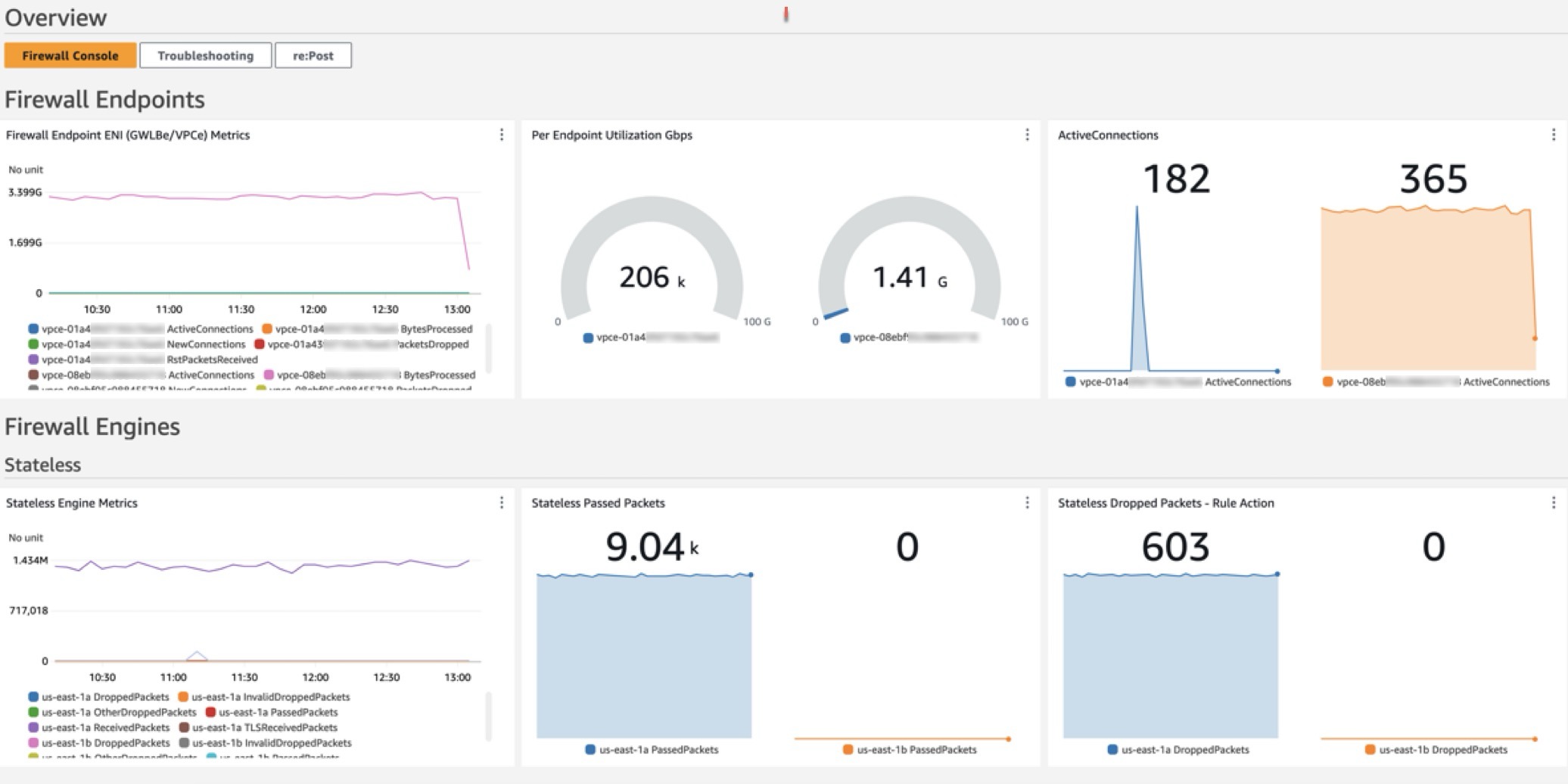
This open source solution streamlines network security monitoring with a user-friendly AWS CloudFormation template that quickly deploys a dedicated monitoring dashboard. This solution incorporates a suite of CloudWatch features—basic monitoring metrics, vended logs, Logs Insights queries, Contributor Insights rules, and the dashboard itself—into a centralized view. Preconfigured widgets provide instant insights into critical areas such as top talkers, protocol distributions, and alert log trends, in addition to HTTP and TLS flow analysis. A consolidated view of key metrics and logs enables faster identification of potential security threats or performance issues. With all of this relevant network firewall data in one place, your team can respond more quickly to emerging security events.
In this blog post, we provide an overview of the dashboard and a step-by-step guide to deploy it in your environment.
Solution overview
The CloudWatch dashboard can be deployed in all AWS Regions where Network Firewall is available today, including the AWS GovCloud (US) Regions and China Regions. While the dashboard comes pre-configured, you can quickly adjust queries, time ranges, and refresh intervals to help meet your specific needs. By default, the dashboard queries firewall flow and alert log events over a 3-hour period, impacting the number of log events scanned. Logs Insights and Contributor Insights widgets showcase the top 10 data points by default, but you can enhance results by modifying queries or adjusting the Top Contributors value, though this might lead to increased costs. You can configure the auto-refresh interval of the widgets to get real-time visibility and optimize costs. See the Amazon CloudWatch Pricing guide for up-to-date free and paid tier pricing considerations.
The dashboard, shown in Figure 1, can be deployed using CloudFormation and includes data and analytics from the following sources:
Native CloudWatch metrics from the AWS/NetworkFirewall and AWS/PrivateLinkEndpoints namespaces
CloudWatch Logs Insights queries that analyze Network Firewall flow and alert logs
CloudWatch Contributor Insights rules that aggregate data from Network Firewall flow and alert logs.
Figure 1: CloudWatch dashboard
Walkthrough
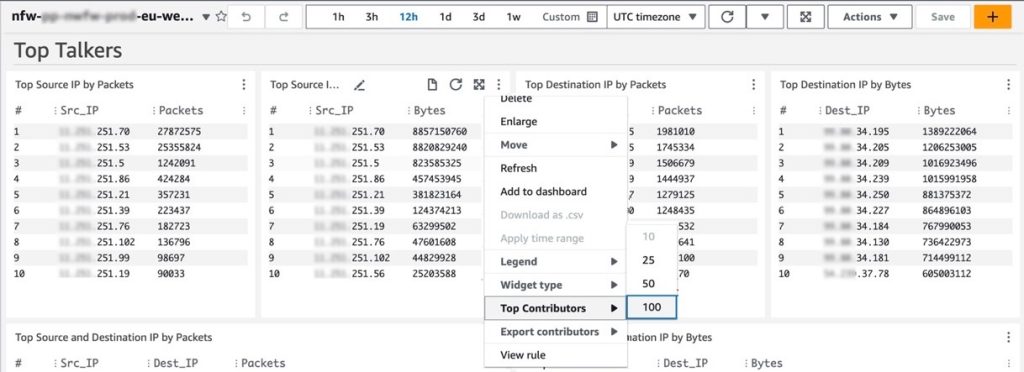
In the dashboard, the Logs Insights and Contributor Insights widgets display the top 10 data points by default. You can edit the Insights queries or change the Top Contributors to a larger value to display more results, as shown in Figure 2.
Figure 2: Top Talkers dashboard showing a change to the Top Contributors value
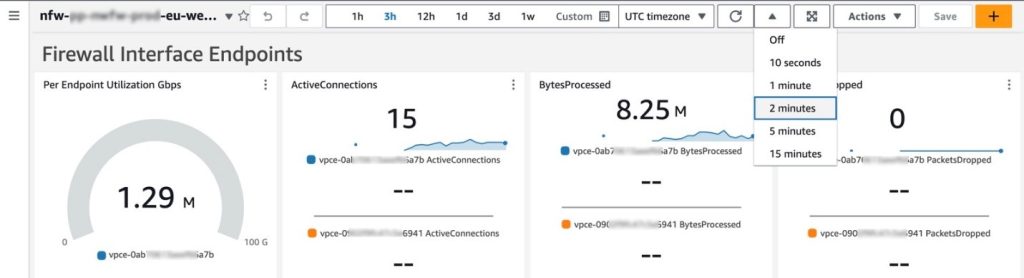
You can also manually refresh the data within a single or multiple widgets, or you can configure the entire dashboard to automatically refresh at a configured time interval as shown in Figure 3. The dashboard won’t automatically refresh the widget data by default.
Figure 3: Configuring the dashboard to automatically refresh
Prerequisites
Deploying the Network Firewall CloudWatch Dashboard is straightforward. You will need the following:
A Network Firewall in your VPC.
Your Network Firewall must be configured to publish firewall flow and alert logs to two different CloudWatch log groups. For example, firewall flow logs are published to /my-firewall-flow-logs and alert logs are published to /my-firewall-alert-logs.
If you haven’t deployed Network Firewall in your VPC, you can use one of the available AWS Network Firewall Deployment Architecture templates to create a firewall. After creating a firewall, configure CloudWatch log groups for the firewall flow and alert logs and configure stateful logging as described previously. Fine-tune your firewall policy and rule configuration and make sure that you’re routing traffic symmetrically through the firewall. With the firewall now in the routed path and publishing metrics and log events, you can proceed with this Network Firewall CloudWatch dashboard template.
Deployment
The Network Firewall dashboard CloudFormation template creates a monitoring dashboard for a single Network Firewall firewall. Make sure that you launch this CloudFormation stack in the same AWS Region and account as the firewall, regardless of whether the firewall is set up centrally or in a distributed manner.
To deploy the dashboard:
Choose Launch Stack for the relevant AWS Region. Make sure that you’re signed in to the appropriate AWS account and Region.
Region: China
Region: Gov Cloud
Region: All other regions supported by AWS Network Firewall
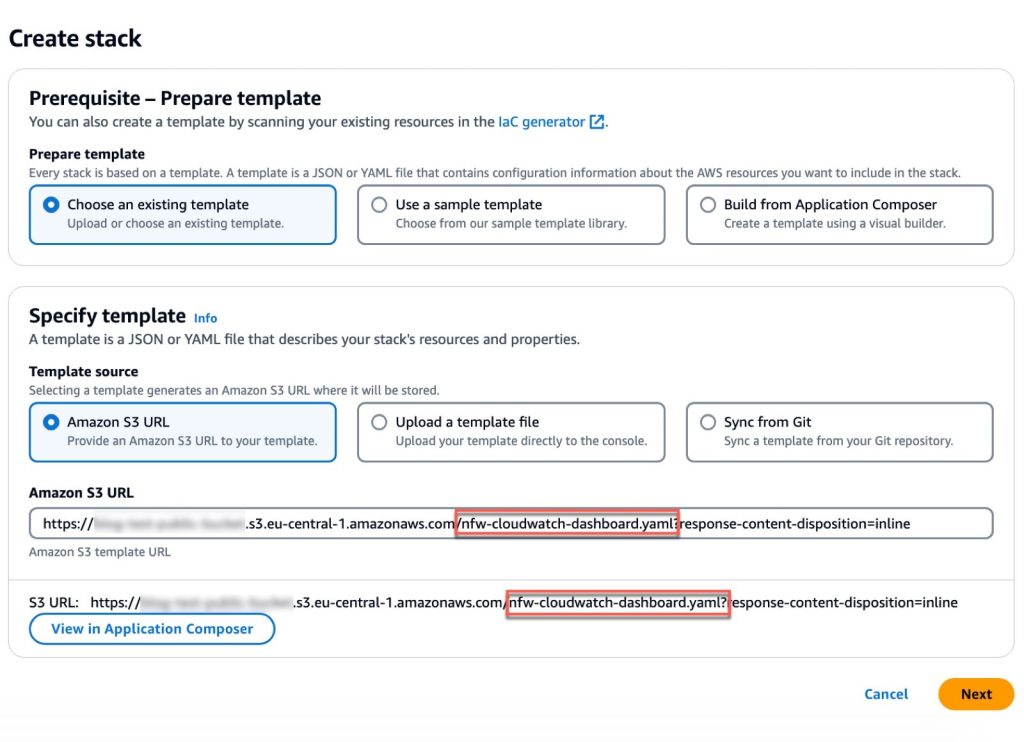
You will be redirected to the Create stack page in the AWS Management Console for CloudFormation. Make sure that you’re in the correct Region and using the correct template. Choose Next. The following are the Regions and their template names:
Figure 4: Make sure that you’re using the correct template
When launching the stack, you will need to enter the following parameters:
Stack name: A descriptive name for this CloudFormation stack. For example, my-firewall-dashboard.
Firewall name: The firewall name as seen in the Amazon VPC console. In the Amazon VPC console, choose Network Firewall in the navigation pane, then choose Firewalls.
Firewall subnets: The firewall subnet IDs to which your firewall endpoints are attached. The firewall subnets can be found on the Firewall details tab of your firewall in the Amazon VPC
Flow log group name: The name of the CloudWatch log group where your firewall flow logs are stored.
Alert log group name: The name of the CloudWatch log group where your firewall alert logs are stored.
Contributor Insights rule state: Enable or disable the Contributor Insights rules (the template defaults to enabled). Disabling will stop the rules from scanning log data and displaying results in the Contributor Insights widgets. After the rules are created, you can change the state of one or more Contributor Insights rules from CloudWatch console by choosing Insights from the navigation pane, and then choosing Contributor Insights.
After the stack reaches CREATE_COMPLETE status, go to the Outputs tab and choose the FirewallDashboardURI link to open the new dashboard in the CloudWatch Dashboards console. It might take a few minutes for the Logs Insights and Contributor Insights widgets to start displaying data. For more details about each widget, see the README. If you don’t have log events matching the query parameters in the widgets, some widgets might not show data points.
Troubleshooting
If you encounter issues during or after deployment, review the following:
Both firewall flow and alert logging are enabled, not just one.
Log group names are entered correctly; incorrect names will cause widgets to point to invalid data.
Correct subnets are selected. Incorrect choices can impact the PrivateLink metrics widgets.
Firewall name is entered correctly. An incorrect name can disrupt metrics widgets, dashboard, and Contributor Insights widget names and break the firewall link.
Cleaning up
You can delete the Network Firewall CloudWatch dashboard and all of the associated resources with a few clicks. Deleting the dashboard will not impact the routing and network traffic inspection performed by the firewall.
Sign in to the CloudFormation console in the Region where you launched the stack and choose Stacks from the navigation pane.
Select the Stack name you chose when launching the stack. For example, my-firewall-dashboard.
Choose Delete.
Conclusion
We encourage you to see for yourself how this new dashboard can enhance your network security management. To get started with the AWS Network Firewall CloudWatch Dashboard, visit our GitHub repository for detailed instructions and the CloudFormation template. For a visual overview of the dashboard and its capabilities, check out our YouTube video.
If you have feedback about this post, submit comments in the Comments section below. If you have questions about this post, contact AWS Support.
AWS Network Firewall is a managed service that provides a convenient way to deploy essential network protections for your virtual private clouds (VPCs). In this blog post, we discuss Geographic IP Filtering, a new feature of Network Firewall that you can use to filter traffic based on geographic location and meet compliance requirements.
Customers with internet-facing applications are constantly in need of advanced security features to protect their applications from threat actors. This includes restricting traffic to and from their workloads in Amazon Web Services (AWS) to certain geographies because of security risk. Customers operating in highly regulated industries—such as banking, public sector, or insurance—might have specific security requirements that can be addressed by Geographic IP Filtering.
Previously, customers had to rely on third-party tools for retrieving an IP address list of specific countries and updating their firewall rules on a regular basis to meet applicable requirements. Now, with Geographic IP Filtering on Network Firewall, you can protect your application workloads based on the geolocation of the IP address. As new IP addresses are assigned by the Internet Assigned Numbers Authority (IANA), the Geographic IP database underneath Network Firewall is automatically updated so that the service can consistently filter inbound and outbound traffic from specific countries based on country codes. It supports IPv4 and IPv6 traffic.
Geographic IP Filtering is supported in all AWS Regions where Network Firewall is available today, including the AWS GovCloud (US) Regions.
Set up Geographic IP Filtering in Network Firewall
You can use Network Firewall to inspect network traffic and protect your VPCs using layer 3–7 rules (network layer to application layer of the OSI model). When traffic reaches Network Firewall, it will identify the location of the source and destination IP address from the Geographic IP database and block traffic if you have a firewall rule to block that location. You can choose to pass, drop, reject, or create an alert for traffic coming from or going to specific countries.
Before setting up Geographic IP Filtering rules, you need to deploy Network Firewall and attach a firewall policy. You can learn more about these steps in the Network Firewall Getting Started guide. You can configure Network Firewall Geographic IP Filtering in minutes using the AWS Management Console, AWS Command Line Interface (AWS CLI), AWS SDK, or the Network Firewall API.
To configure Geographic IP Filtering rules using the console:
For Capacity, enter the maximum capacity you want to allow for the stateful rule group.
Under Standard stateful rules, for Geographic IP Filtering, select whether you want to Disable Geographic IP filtering, Match only selected countries, or Match all but selected countries.
If you opt for Geographic IP Filtering, then select the Geographic IP traffic direction and Country codes that you want to filter the traffic for.
Enter the appropriate values for Protocol, Source, Source port, Destination, and Destination port.
For Action, select the action that you want Network Firewall to take when a packet matches the rule settings.
Figure 1: Standard stateful rule
Click Add rule and then review the rule to create the rule group.
Figure 2: Geographic IP Filtering rules
Suricata compatibility
You can also use Geographic IP filtering with Suricata-compatible rule strings using the geoip keyword.
For Capacity, enter the maximum capacity you want to allow for the stateful rule group.
Under Suricata compatible rule string, enter an appropriate string based on your source and destination along with the country code to filter traffic for. To use a Geographic IP filter, provide the geoip keyword, the filter type, and the country codes for the countries that you want to filter for.
Suricata supports filtering for source and destination IPs. You can filter on either of these types by itself, by specifying dst or src. You can filter on the two types together with AND or OR logic, by specifying both or any.
For example, the following sample Suricata rule string drops traffic originating from Japan:
drop ip any any -> any any (msg:"Geographic IP from JP,Japan"; geoip:src,JP; sid:55555555; rev:1;)
Note that Suricata determines the location of requests using MaxMind GeoIP databases. MaxMind reports very high accuracy of their data at the country level, although accuracy varies according to factors such as country and type of IP. For more information about MaxMind, see MaxMind IP Geolocation.
If you think any of the Geographic IP data is incorrect, you can submit a correction request to MaxMind at MaxMind Correct GeoIP Data.
Logging Geographic IP Filtering
You can configure Network Firewall logging for your firewall’s stateful engine to get detailed information about the packet and any stateful rule action taken against the packet. There are no changes to the logging and monitoring mechanism with the introduction of the Geographic IP Filtering feature. However, by explicitly specifying the msg and metadata keywords, you can see additional geographic information in the alert logs that can help with troubleshooting. If these keywords aren’t specified in the Suricata rule string, the log event will not show any geographic information.
Suricata rule examples
In this section, you will find examples of Suricata rule strings to pass, block, reject, and alert on traffic to or from a specific country.
Example 1: To pass ingress traffic from a specific country
The following example passes ingress traffic from India.
Note: The rule evaluation order should be set to Strict for alert logs to be generated in this example. If the rule evaluation order is set to Action, then although the traffic will pass, alert logs will not be generated.
alert ip $EXTERNAL_NET any -> $HOME_NET any (msg:"Ingress traffic from IN allowed"; flow:to_server; geoip:src,IN; metadata:geo IN; sid:202409301;)
pass ip $EXTERNAL_NET any -> $HOME_NET any (msg:"Ingress traffic from IN allowed"; flow:to_server; geoip:src,IN; metadata:geo IN; sid:202409302;)
The following are the alert and flow logs for Example 1.
Example 2: To block ingress traffic from a specific country
The following example blocks ingress traffic from Japan.
drop ip $EXTERNAL_NET any -> $HOME_NET any (msg:"Ingress traffic from JP blocked"; flow:to_server; geoip:any,JP; metadata:geo JP; sid:202409303;)
Example 3: To block ingress SSH traffic from a specific country
The following example blocks ingress SSH traffic from Russia.
drop ssh $EXTERNAL_NET any -> $HOME_NET any (msg:"Ingress SSH traffic from RU blocked"; flow:to_server; geoip:src,RU; metadata:geo RU; sid:202409304;)
Example 4: To reject egress TCP traffic to a specific country:
The following example rejects egress TCP traffic to Iran.
reject tcp $HOME_NET any -> $EXTERNAL_NET any (msg:"Egress traffic to IR rejected"; flow:to_server; geoip:dst,IR; metadata:geo IR; sid:202409305;)
Example 5: To alert on traffic originating from or destined to specific country
The following example alerts on traffic that originates from Venezuela.
alert ip any any -> any any (msg:"Geographic IP is from VE, Venezuela"; geoip:any,VE; sid: 202409306;)
Conclusion
You can use the new Geographic IP Filtering feature in AWS Network Firewall to enhance your security posture by controlling traffic based on geographic locations. In this post, you learned about the key concepts, configuration steps, and examples for implementing the Geographic IP Filtering feature in Network Firewall. By using this feature, businesses can protect their networks from potentially harmful traffic and control which geographic locations can interact with their infrastructure. As cyber threats continue to evolve, the Geographic IP Filtering feature serves as a vital tool for strengthening network security.
If you have feedback about this post, submit comments in the Comments section below. If you have questions about this post, contact AWS Support.
AWS Network Firewall is a managed firewall service that makes it simple to deploy essential network protections for your virtual private clouds (VPCs) on AWS. Network Firewall automatically scales with your traffic, and you can define firewall rules that provide fine-grained control over network traffic.
When you work with security products in a production environment, you need to maintain a consistent effort to keep the security rules synchronized as you make modifications to your environment. To stay aligned with your organization’s best practices, you should diligently review and update security rules, but this can increase your team’s operational overhead.
Since the launch of Network Firewall, we have added new capabilities that simplify your efforts by using managed rules and automated methods to help keep your firewall rules current. This approach can streamline operations for your team and help enhance security by reducing the risk of failures stemming from manual intervention or customer automation processes. You can apply regularly updated security rules with just a few clicks, enabling a wide range of comprehensive protection measures.
In this blog post, I discuss three features—managed rule groups, prefix lists, and tag-based resource groups—offering an in-depth look at how Network Firewall operates to assist you in keeping your rule sets current and effective.
Prerequisites
If this is your first time using Network Firewall, make sure to complete the following prerequisites. However, if you already created rule groups, a firewall policy, and a firewall, then you can skip this section.
AWS managed rule groups are collections of predefined, ready-to-use rules that AWS maintains on your behalf. You can use them to address common security use cases and help protect your environment from various types of threats. This can help you stay current with the evolving threat landscape and security best practices.
AWS managed rule groups are available for no additional cost to customers who use Network Firewall. When you work with a stateful rule group—a rule group that uses Suricata-compatible intrusion prevention system (IPS) specifications—you can integrate managed rules that help provide protection from botnet, malware, and phishing attempts.
AWS offers two types of managed rule groups: domain and IP rule groups and threat signature rule groups. AWS regularly maintains and updates these rule groups, so you can use them to help protect against constantly evolving security threats.
When you use Network Firewall, one of the use cases is to protect your outbound traffic from compromised hosts, malware, and botnets. To help meet this requirement, you can use the domain and IP rule group. You can select domain and IP rules based on several factors, such as the following:
Domains that are generally legitimate but now are compromised and hosting malware
Domains that are known for hosting malware
Domains that are generally legitimate but now are compromised and hosting botnets
Domains that are known for hosting botnets
The threat signature rule group offers additional protection by supporting several categories of threat signatures to help protect against various types of malware and exploits, denial of service attempts, botnets, web attacks, credential phishing, scanning tools, and mail or messaging attacks.
Figure 1 illustrates the use of AWS managed rules. It shows both the domain and IP rule group and the threat signature rule group, and it includes one specific rule or category from each as a demonstration.
Figure 1: Network Firewall deployed with AWS managed rules
As shown in Figure 1, the process for using AWS managed rules has the following steps:
The Network Firewall policy contains managed rules from the domain and IP rule groups and threat signature rule groups.
If the traffic from a protected subnet passes the checks of the firewall policy as it goes to the Network Firewall endpoint, then it proceeds to the NAT gateway and the internet gateway (depicted with the dashed line in the figure).
If traffic from a protected subnet fails the checks of the firewall policy, the traffic is dropped at the Network Firewall endpoint (depicted with the dotted line).
Inner workings of AWS managed rules
Let’s go deeper into the underlying mechanisms and processes that AWS uses for managed rules. After you configure your firewall with these managed rules, you gain the benefits of the up-to-date rules that AWS manages. AWS pulls updated rule content from the managed rules provider on a fixed cadence for domain-based rules and other managed rule groups.
The Network Firewall team operates a serverless processing pipeline powered by AWS Lambda. This processes the rules from the vendor source, first fetching them so that they can be manipulated and transformed into the managed rule groups. Then the rules are mapped to the appropriate category based on their metadata. The final rules are uploaded to Amazon Simple Storage Service (Amazon S3) to prepare for propagation in each AWS Region.
Finally, Network Firewall processes the rule group content Region by Region, updating the managed rule group object associated with your firewall with the new content from the vendor. For threat signature rule groups, subscribers receive an SNS notification, letting them know that the rules have been updated.
AWS handles the tasks associated with this process so you can deploy and secure your workloads while addressing evolving security threats.
Network Firewall and prefix lists
Network Firewall supports Amazon Virtual Private Cloud (Amazon VPC) prefix lists to simplify management of your firewall rules and policies across your VPCs. With this capability, you can define a prefix list one time and reference it in your rules later. For example, with prefix lists, you can group multiple CIDR blocks into a single object instead of managing them at an individual IP level by creating a prefix list for their specific use case.
AWS offers two types of prefix lists: AWS-managed prefix lists and customer-managed prefix lists. In this post, we focus on customer-managed prefix lists. With customer-managed prefix lists, you can define and maintain your own sets of IP address ranges to meet your specific needs. Although you operate these prefix lists and can add and remove IP addresses, AWS controls and maintains the integration of these prefix lists with Network Firewall.
Figure 2 illustrates Network Firewall deployed with a prefix list.
Figure 2: Network Firewall deployed with prefix list
As shown in Figure 2, we use the same design as in our previous example:
We use a prefix list that is referenced in our rule group.
The traffic from the protected subnet goes through the Network Firewall endpoint and NAT gateway and then to the internet gateway. As it passes through the Network Firewall endpoint, the firewall policy that contains the rule group determines if the traffic is allowed or not according to the policy.
Inner workings of prefix lists
After you configure a rule group that references a prefix list, Network Firewall automatically keeps the associated rules up to date. Network Firewall creates an IP set object that corresponds to this prefix list. This IP set object is how Network Firewall internally tracks the state of the prefix list reference, and it contains both resolved IP addresses from the source and additional metadata that’s associated with the IP set, such as which rule groups reference it. AWS manages these references and uses them to track which firewalls need to be updated when the content of these IP sets change.
The Network Firewall orchestration engine is integrated with prefix lists, and it works in conjunction with Amazon VPC to keep the resolved IPs up to date. The orchestration engine automatically refreshes IPs associated with a prefix list, whether that prefix list is AWS-managed or customer-managed.
When you use a prefix list with Network Firewall, AWS handles a significant portion of the work on your behalf. This managed approach simplifies the process while providing the flexibility that you need to customize the allow or deny list of IP addresses according to your specific security requirements.
Network Firewall and tag-based resource groups
With Network Firewall, you can now use tag-based resource groups to simplify managing your firewall rules. A resource group is a collection of AWS resources that are in the same Region, and that match the criteria specified in the group’s query. A tag-based resource group bases its membership on a query that specifies a list of resource types and tags. Tags are key value pairs that help identify and sort your resources within your organization.
In your stateful firewall rules, you can reference a resource group that you have created for a specific set of Amazon Elastic Compute Cloud (Amazon EC2) instances or elastic network interfaces (ENIs). When these resources change, you don’t have to update your rule group every time. Instead, you can use a tagging policy for the resources that are in your tag-based resource group.
As your AWS environment changes, it’s important to make sure that new resources are using the same egress rules as the current resources. However, managing the changing EC2 instances due to workload changes creates an operational overhead. By using tag-based resource groups in your rules, you can eliminate the need to manually manage the changing resources in your AWS environment.
To use Network Firewall resource groups with a stateful rule group
Create Network Firewall resource groups – Create a resource group for each of two applications. For the example in this blog post, enter the name rg-app-1 for application 1, and rg-app-2 for application 2.
Update your existing rule group that you created as a part of the Prerequisites for this post or create a new rule group. In the IP set references section, select Edit; and in the Resource ID section, choose the resource groups that you created in the previous step (rg-app-1 and rg-app-2).
Now as your EC2 instance or ENIs scale, those resources stay in sync automatically.
Figure 3 illustrates resource groups with a stateful rule group.
Figure 3: Network Firewall deployed with resource groups
As shown in Figure 3, we tagged the EC2 instances as app-1 or app-2. In your stateful rule group, restrict access to a website for app-2, but allow it for app-1:
We use the resource group that is referenced in our rule group.
The traffic from the protected subnet goes through the Network Firewall endpoint and the NAT gateway and then to the internet gateway. As it passes through the Network Firewall endpoint, the firewall policy that contains the rule group referencing the specific resource group determines how to handle the traffic. In the figure, the dashed line shows that the traffic is allowed while the dotted line shows it’s denied based on this rule.
Inner workings of resource groups
For tag-based resource groups, Network Firewall works with resource groups to automatically refresh the contents of the Network Firewall resource groups. Network Firewall first resolves the resources that are associated with the resource group, which are EC2 instances or ENIs that match the tag-based query specified. Then it resolves the IP addresses associated with these resources by calling the relevant Amazon EC2 API.
After the IP addresses are resolved, through either a prefix list or Network Firewall resource group, the IP set is ready for propagation. Network Firewall uploads the refreshed content of the IP set object to Amazon S3, and the data plane capacity (the hardware responsible for packet processing) fetches this new configuration. The stateful firewall engine accepts and applies these updates, which allows your rules to apply to the new IP set content.
By using tag-based resource groups within your workloads, you can delegate a substantial amount of your firewall management tasks to AWS, enhancing efficiency and reducing manual efforts on your part.
Considerations
When you use a managed rule group in your firewall policy, you can edit the following setting: Set rule actions to alert. This will override all rule actions in the rule group to alert which is useful for testing a rule group before using it control your traffic.
When working with prefix lists and resource groups, make sure that you understand the Limits for IP set references.
Conclusion
In this blog post, you learned how to use Network Firewall managed rule groups, prefix lists, and tag-based resource groups to harness the automation and user-friendly capabilities of Network Firewall. You also learned more detail about how AWS operates these features on your behalf, to help you deploy a simple-to-use and secure solution. Enhance your current or new Network Firewall deployments by integrating these features today.
If you have feedback about this post, submit comments in the Comments section below. If you have questions about this post, contact AWS Support.
It’s been an interesting week full of AWS news as usual, but also full of vibrant faces filling up the rooms in a variety of events happening this month.
Let’s start by covering some of the releases that have caught my attention this week.
Oracle Database@AWS has been announced as part of a strategic partnership between Amazon Web Services (AWS) and Oracle. This offering allows customers to access Oracle Autonomous Database and Oracle Exadata Database Service directly within AWS simplifying cloud migration for enterprise workloads. Key features include zero-ETL integration between Oracle and AWS services for real-time data analysis, enhanced security, and optimized performance for hybrid cloud environments. This collaboration addresses the growing demand for multi-cloud flexibility and efficiency. It will be available in preview later in the year with broader availability in 2025 as it expands to new Regions.
Amazon OpenSearch Service now supports version 2.15, featuring improvements in search performance, query optimization, and AI-powered application capabilities. Key updates include radial search for vector space queries, optimizations for neural sparse and hybrid search, and the ability to enable vector and hybrid search on existing indexes. Additionally, it also introduces new features like a toxicity detection guardrail and an ML inference processor for enriching ingest pipelines. Read this guide to see how you can upgrade your Amazon OpenSearch Service domain.
So simple yet so good These releases are simple in nature, but have a big impact.
AWS Resource Access Manager (RAM) now supports AWS PrivateLink – With this release, you can now securely share resources across AWS accounts with private connectivity, without exposing traffic to the public internet. This integration allows for more secure and streamlined access to shared services via VPC endpoints, improving network security and simplifying resource sharing across organizations.
AWS Network Firewall now supports AWS PrivateLink – another security quick-win, you can now securely access and manage Network Firewall resources without exposing traffic to the public internet.
AWS IAM Identity Center now enables users to customize their experience – You can set the language and visual mode preferences, including dark mode for improved readability and reduced eye strain. This update supports 12 different languages and enables users to adjust their settings for a more personalized experience when accessing AWS resources through the portal.
Others Amazon EventBridge Pipes now supports customer managed KMS keys – Amazon EventBridge Pipes now supports customer-managed keys for server-side encryption. This update allows customers to use their own AWS Key Management Service (KMS) keys to encrypt data when transferring between sources and targets, offering more control and security over sensitive event data. The feature enhances security for point-to-point integrations without the need for custom integration code. See instructions on how to configure this in the updated documentation.
Amazon SageMaker introduces sticky session routing for inference – This allows requests from the same client to be directed to the same model instance for the duration of a session improving consistency and reducing latency, particularly in real-time inference scenarios like chatbots or recommendation systems, where session-based interactions are crucial. Read about how to configure it in this documentation guide.
Events The AWS GenAI Lofts continue to pop up around the world! This week, developers in San Francisco had the opportunity to attend two very exciting events at the AWS Gen AI Loft in San Francisco including the “Generative AI on AWS” meetup last Tuesday, featuring discussions about extended reality, future AI tools, and more. Then things got playful on Thursday with the demonstration of an Amazon Bedrock-powered MineCraft bot and AI video game battles! If you’re around San Francisco before October 19th make sure to check out the schedule to see the list of events that you can join.
Make sure to check out the AWS GenAI Loft in Sao Paulo, Brazil, which opened recently, and the AWS GenAI Loft in London, which opens September 30th. You can already start registering for events before they fill up including one called “The future of development” that offers a whole day of targeted learning for developers to help them accelerate their skills.
Our AWS communities have also been very busy throwing incredible events! I was privileged to be a speaker at AWS Community Day Belfast where I got to finally meet all of the organizers of this amazing thriving community in Northern Ireland. If you haven’t been to a community day, I really recommend you check them out! You are sure to leave energized by the dedication and passion from communities leaders like Matt Coulter, Kristi Perreault, Matthew Wilson, Chloe McAteer, and their community members – not to mention the smiles all around. 🙂
Certifications If you’ve been postponing taking an AWS certification exam, now is the perfect time! Register free for the AWS Certified: Associate Challenge before December 12, 2024 and get a 50% discount voucher to take any of the following exams: AWS Certified Solutions Architect – Associate, AWS Certified Developer – Associate, AWS Certified SysOps Administrator – Associate, or AWS Certified Data Engineer – Associate. My colleague Jenna Seybold has posted a collection of study material for each exam; check it out if you’re interested.
Also, don’t forget that the brand new AWS Certified AI Practitioner exam is now available. It is in beta stage, but you can already take it. If you pass it before February 15, 2025, you get an Early Adopter badge to add to your collection.
In the evolving landscape of network security, safeguarding data as it exits your virtual environment is as crucial as protecting incoming traffic. In a previous post, we highlighted the significance of ingress TLS inspection in enhancing security within Amazon Web Services (AWS) environments. Building on that foundation, I focus on egress TLS inspection in this post.
Egress TLS decryption, a pivotal feature of AWS Network Firewall, offers a robust mechanism to decrypt, inspect the payload, and re-encrypt outbound SSL/TLS traffic. This process helps ensure that your sensitive data remains secure and aligned with your organizational policies as it traverses to external destinations. Whether you’re a seasoned AWS user or new to cloud security, understanding and implementing egress TLS inspection can bolster your security posture by helping you identify threats within encrypted communications.
In this post, we explore the setup of egress TLS inspection within Network Firewall. The discussion covers the key steps for configuration, highlights essential best practices, and delves into important considerations for maintaining both performance and security. By the end of this post, you will understand the role and implementation of egress TLS inspection, and be able to integrate this feature into your network security strategy.
Overview of egress TLS inspection
Egress TLS inspection is a critical component of network security because it helps you identify and mitigate risks that are hidden in encrypted traffic, such as data exfiltration or outbound communication with malicious sites (for example command and control servers). It involves the careful examination of outbound encrypted traffic to help ensure that data leaving your network aligns with security policies and doesn’t contain potential threats or sensitive information.
This process helps ensure that the confidentiality and integrity of your data are maintained while providing the visibility that you need for security analysis.
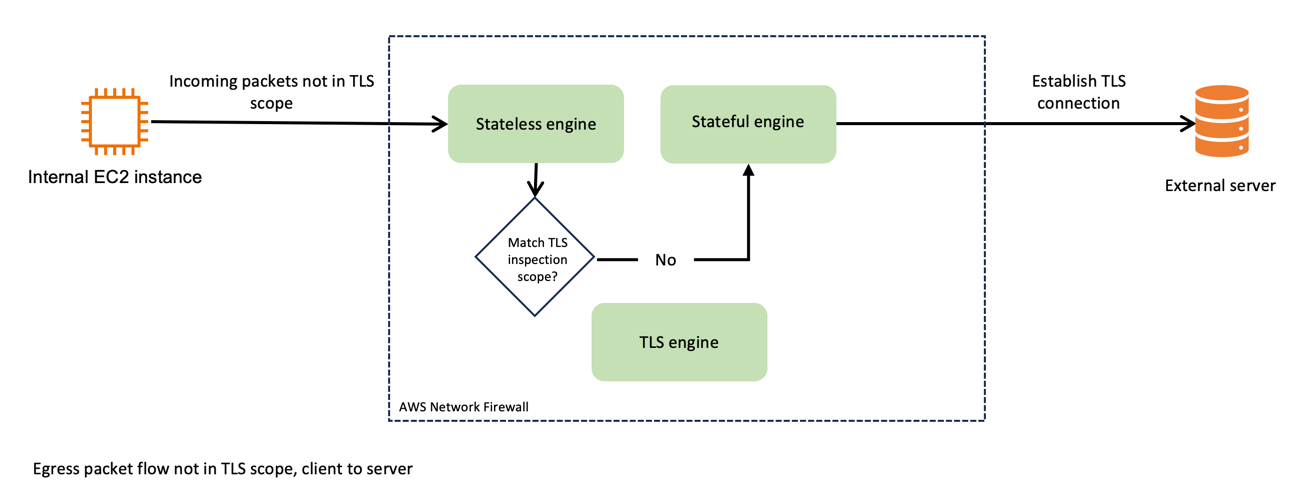
Figure 1 depicts the traffic flow of egress packets that don’t match the TLS inspection scope. Incoming packets that aren’t in scope of the TLS inspection pass through the stateless engine, and then the stateful engine, before being forwarded to the destination server. Because it isn’t within the scope for TLS inspection, the packet isn’t sent to the TLS engine.
Figure 1: Network Firewall packet handling, not in TLS scope
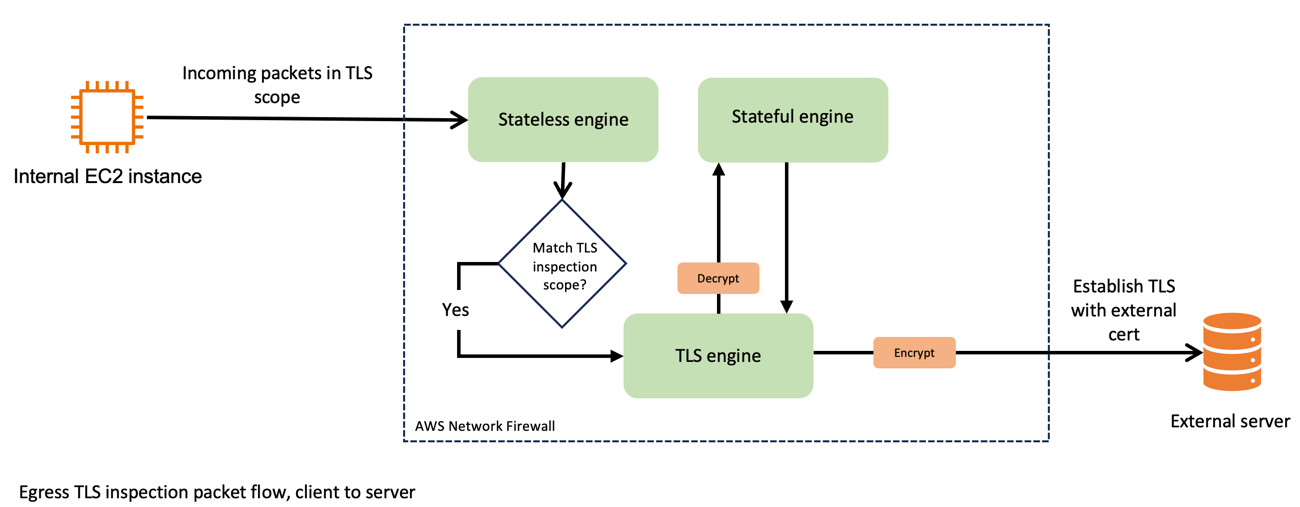
Now, compare that to Figure 2, which shows the traffic flow when egress TLS inspection is enabled. After passing through the stateless engine, traffic matches the TLS inspection scope. Network Firewall forwards the packet to the TLS engine, where it’s decrypted. Network Firewall passes the decrypted traffic to the stateful engine, where it’s inspected and passed back to the TLS engine for re-encryption. Network Firewall then forwards the packet to its destination.
Figure 2: Network Firewall packet handling, in TLS scope
Now consider the use of certificates for these connections. As shown in Figure 3, the egress TLS connections use a firewall-generated certificate on the client side and the target servers’ certificate on the server side. Network Firewall decrypts the packets that are internal to the firewall process and processes them in clear text through the stateful engine.
Figure 3: Egress TLS certificate usage
By implementing egress TLS inspection, you gain a more comprehensive view of your network traffic, so you can monitor and manage data flows more effectively. This enhanced visibility is crucial in detecting and responding to potential security threats that might otherwise remain hidden in encrypted traffic.
In the following sections, I guide you through the configuration of egress TLS inspection, discuss best practices, and highlight key considerations to help achieve a balance between robust security and optimal network performance.
Additional consideration: the challenge of SNI spoofing
Server Name Indication (SNI) spoofing can affect how well your TLS inspection works. SNI is a component of the TLS protocol that allows a client to specify which server it’s trying to connect to at the start of the handshake process.
SNI spoofing occurs when an entity manipulates the SNI field to disguise the true destination of the traffic. This is similar to requesting access to one site while intending to connect to a different, less secure site. SNI spoofing can pose significant challenges to network security measures, particularly those that rely on SNI information for traffic filtering and inspection.
In the context of egress TLS inspection, a threat actor can use SNI spoofing to circumvent security tools because these tools often use the SNI field to determine the legitimacy and safety of outbound connections. If the threat actor spoofs the SNI field successfully, unauthorized traffic could pass through the network, circumventing detection.
To effectively counteract SNI spoofing, use TLS inspection on Network Firewall. When you use TLS inspection on Network Firewall, spoofed SNIs on traffic within the scope of what TLS inspection looks at are dropped. The spoofed SNI traffic is dropped because Network Firewall validates the TLS server certificate to check the associated domains in it against the SNI.
Set up egress TLS inspection in Network Firewall
In this section, I guide you through the essential steps to set up egress TLS inspection in Network Firewall.
Prerequisites
The example used in this post uses a prebuilt environment. To learn more about the prebuilt environment and how to build a similar configuration in your own AWS environment, see Creating a TLS inspection configuration in Network Firewall. To follow along with this post, you will need a working topology with Network Firewall deployed and an Amazon Elastic Compute Cloud (Amazon EC2) instance deployed in a private subnet.
Additionally, you need to have a certificate generated that you will present to your clients when they make outbound TLS requests that match your inspection configuration. After you generate your certificate, note the certificate body, private key, and certificate chain because you will import these into ACM.
Obtain a certificate authority (CA) signed certificate, private key, and certificate chain.
Open the ACM console, and in the left navigation pane, choose Certificates.
Choose Import certificates.
In the Certificate details section, paste your certificate’s information, including the certificate body, certificate private key, and certificate chain, into the relevant fields.
Choose Next.
On the Add Tags page, add a tag to your certificate:
Note: It might take a few minutes for ACM to process the import request and show the certificate in the list. If the certificate doesn’t immediately appear, choose the refresh icon. Additionally, the Certificate Authority used to create the certificate you import to ACM can be public or private.
Review the imported certificate and do the following:
Note the Certificate ID. You will need this ID later when you assign the certificate to the TLS configuration.
Make sure that the status shows Issued. After ACM issues the certificate, you can use it in the TLS configuration.
Figure 4: Verify the certificate was issued in ACM
Create a TLS inspection configuration
The next step is to create a TLS inspection configuration. You will do this in two parts. First, you will create a rule group to define the stateful inspection criteria. Then you will create the TLS inspection configuration where you define what traffic you should decrypt for inspection and how you should handle revoked and expired certificates.
To create a rule group
Navigate to VPC > Network Firewall rule groups.
Choose Create rule group.
On the Choose rule group type page, do the following:
For Rule group type, select Stateful rule group. In this example, the stateless rule group that has already been created is being used.
For Rule group format, select Suricata compatible rule string.
Leave the other values as default and choose Next.
On the Describe rule group page, enter a name, description, and capacity for your rule group, and then choose Next.
Note: The capacity is the number of rules that you expect to have in this rule group. In our example, I set the value to 10, which is appropriate for a demo environment. Production environments require additional thought to the capacity before you create the rule group.
On the Configure rules page, in the Suricata compatible rule string section, enter your Suricata compatible rules line-by-line, and then choose Next.
On the Configure advanced settings – optional page, choose Next. You won’t use these settings in this walkthrough.
Add relevant tags by providing a key and a value for your tag, and then choose Next.
On the Review and create page, review your rule group and then choose Create rule group.
To create the TLS inspection configuration
Navigate to VPC > Network Firewall > TLS inspection configurations.
Choose Create TLS inspection configuration.
In the CA certificate for outbound SSL/TLS inspection – new section, from the dropdown menu, choose the certificate that you imported from ACM previously, and then choose Next.
Figure 5: Select the certificate for use with outbound SSL/TLS inspection
On the Describe TLS inspection configuration page, enter a name and description for the configuration, and then choose Next.
Define the scope—the traffic to include in decryption. For this walkthrough, you decrypt traffic that is on port 443. On the Define scope page, do the following:
For the Destination port range, in the dropdown, select Custom and then in the box, enter your port (in this example, 443). This is shown in Figure 6.
Figure 6: Specify a custom destination port in the TLS scope configuration
Choose Add scope configuration to add the scope configuration. This allows you to add multiple scopes. In this example, you have defined a scope indicating that the following traffic should be decrypted:
Source IP
Source Port
Destination IP
Destination Port
Any
Any
Any
443
In the Scope configuration section, verify that the scope is listed, as seen in Figure 7, and then choose Next.
Figure 7: Add the scope configuration to the SSL/TLS inspection policy
On the Advanced settings page, do the following to determine how to handle certificate revocation:
For Check certificate revocation status, select Enable.
In the Revoked – Action dropdown, select an action for revoked certificates. Your options are to Drop, Reject, or Pass. A drop occurs silently. A reject causes a TCP reset to be sent, indicating that the connection was dropped. Selecting pass allows the connection to establish.
In the Unknown status – Action section, select an action for certificates that have an unknown status. The same three options that are available for revoked certificates are also available for certificates with an unknown status.
Choose Next.
Note: The recommended best practice is to set the action to Reject for both revoked and unknown status. Later in this walkthrough, you will set these values to Drop and Allow to illustrate the behavior during testing. After testing, you should set both values to Reject.
Add relevant tags by providing a key and value for your tag, and then choose Next.
Review the configuration, and then choose Create TLS inspection configuration.
Add the configuration to a Network Firewall policy
The next step is to add your TLS inspection configuration to your firewall policy. This policy dictates how Network Firewall handles and applies the rules for your outbound traffic. As part of this configuration, your TLS inspection configuration defines what traffic is decrypted prior to inspection.
To add the configuration to a Network Firewall policy
Navigate to VPC > Network Firewall > Firewall policies.
Choose Create firewall policy.
In the Firewall policy details section, seen in Figure 8, enter a name and description, select a stream exception option for the policy, and then choose Next.
Figure 8: Define the firewall policy details
To attach a stateless rule group to the policy, choose Add stateless rule groups.
Select an existing policy, seen in Figure 9, and then choose Add rule groups.
Figure 9: Select a stateless policy from an existing rule group
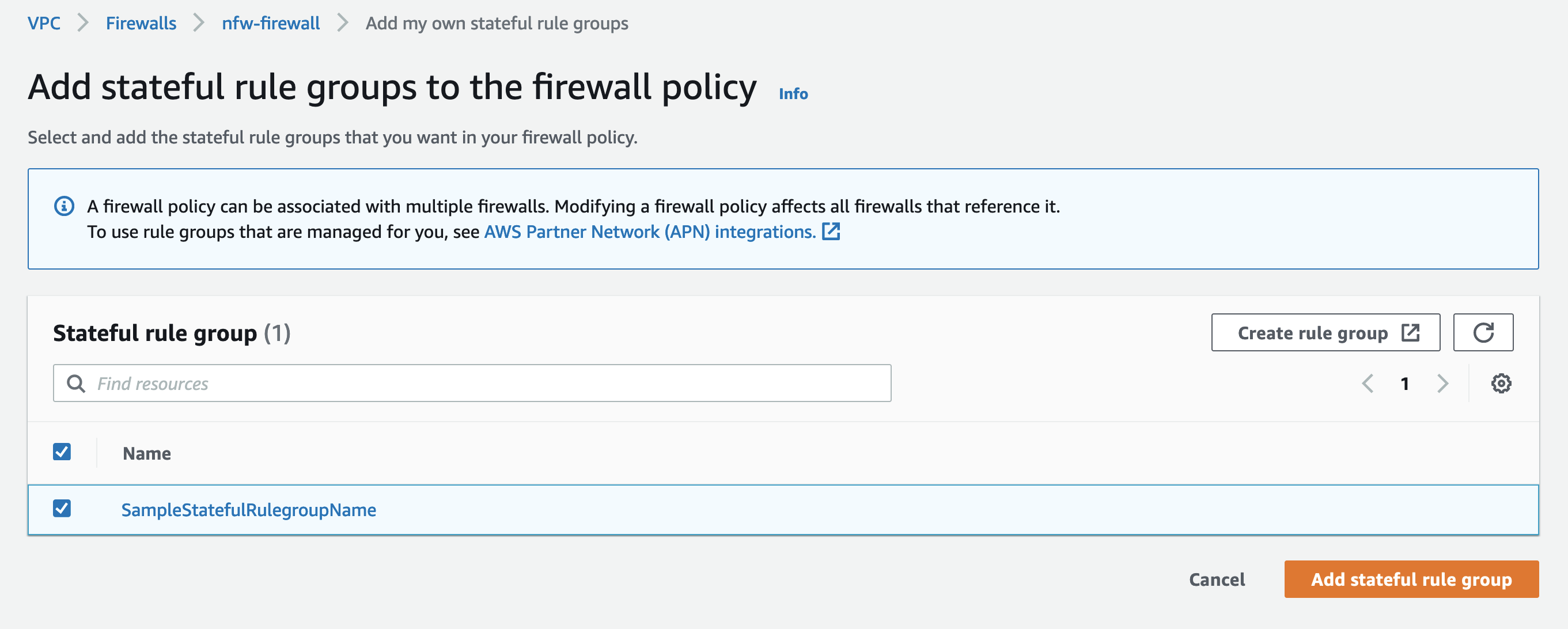
In the Stateful rule group section, choose Add stateful rule groups.
Select the newly created TLS inspection rule group, and then choose Add rule group.
On the Add rule groups page, choose Next.
On the Configure advanced settings – optional page, choose Next. For this walkthrough, you will leave these settings at their default values.
On the Add TLS inspection configuration – optional section, seen in Figure 10, do the following:
Choose Add TLS inspection configuration.
From the dropdown, select your TLS inspection configuration.
Choose Next.
Figure 10: Add the TLS configuration to the firewall policy
Add relevant tags by providing a key and a value, and then choose Next.
Review the policy configuration, and choose Create firewall policy.
Associate the policy with your firewall
The final step is to associate this firewall policy, which includes your TLS inspection configuration, with your firewall. This association activates the egress TLS inspection, enforcing your defined rules and criteria on outbound traffic. When the policy is associated, packets from the existing stateful connections that match the TLS scope definition are immediately routed to the decryption engine where they are dropped. This occurs because decryption and encryption can only work for a connection when Network Firewall receives TCP and TLS handshake packets from the start.
Currently, you have an existing policy applied. Let’s briefly review the policy that exists and see how TLS traffic looks prior to applying your configuration. Then you will apply the TLS configuration and look at the difference.
To review the existing policy that doesn’t have TLS configuration
Navigate to VPC > Network Firewall > Firewalls
Choose the existing firewall, as seen in Figure 11.
Figure 11: Select the firewall to edit the policy
In the Firewall Policy section, make sure that your firewall policy is displayed. As shown in the example in Figure 12, the firewall policy DemoFirewallPolicy is applied—this policy doesn’t perform TLS inspection.
Figure 12: Identify the existing firewall policy associated with the firewall
From a test EC2 instance, navigate to an external site that requires TLS encryption. In this example, I use the site example.com. Examine the certificate that was issued. In this example, an external organization issued the certificate (it’s not the certificate that I imported into ACM). You can see this in Figure 13.
Figure 13: View of the certificate before TLS inspection is applied
Returning to the firewall configuration, change the policy to the one that you created with TLS inspection.
To change to the policy with TLS inspection
In the Firewall Policy section, choose Edit.
In the Edit firewall policy section, select the TLS Inspection policy, and then choose Save changes.
Note: It might take a moment for Network Firewall to update the firewall configuration.
Figure 14: Modify the policy applied to the firewall
Return to the test EC2 instance and test the site again. Notice that your customer certificate authority (CA) has issued the certificate. This indicates that the configuration is working as expected and you can see this in Figure 15.
Note: The test EC2 instance must trust the certificate that Network Firewall presents. The method to install the CA certificate on your host devices will vary based on the operating system. For this walkthrough, I installed the CA certificate before testing.
Figure 15: Verify the new certificate used by Network Firewall TLS inspection is seen
Another test that you can do is revoked certificate handling. Example.com provides URLs to sites with revoked or expired certificates that you can use to test.
To test revoked certificate handling
From the command line interface (CLI) of the EC2 instance, do a curl on this page.
Note: The curl -ikv command combines three options:
-i includes the HTTP response headers in the output
-k allows connections to SSL sites without certificates being validated
-v enables verbose mode, which displays detailed information about the request and response, including the full HTTP conversation. This is useful for debugging HTTPS connections.
The output should show that an error 104, Connection reset by peer, was sent.
*   Trying 203.0.113.10:443...
* Connected to revoked-rsa-dv.example.com (203.0.113.10) port 443
* ALPN: curl offers h2,http/1.1
* Cipher selection: ALL:!EXPORT:!EXPORT40:!EXPORT56:!aNULL:!LOW:!RC4:@STRENGTH
* TLSv1.2 (OUT), TLS handshake, Client hello (1):
* TLSv1.2 (IN), TLS handshake, Server hello (2):
* TLSv1.2 (IN), TLS handshake, Certificate (11):
* TLSv1.2 (IN), TLS handshake, Server key exchange (12):
* TLSv1.2 (IN), TLS handshake, Server finished (14):
* TLSv1.2 (OUT), TLS handshake, Client key exchange (16):
* TLSv1.2 (OUT), TLS change cipher, Change cipher spec (1):
* TLSv1.2 (OUT), TLS handshake, Finished (20):
* TLSv1.2 (IN), TLS change cipher, Change cipher spec (1):
* TLSv1.2 (IN), TLS handshake, Finished (20):
* SSL connection using TLSv1.2 / ECDHE-RSA-AES256-GCM-SHA384
* ALPN: server did not agree on a protocol. Uses default.
* Server certificate:
*  subject: CN=revoked-rsa-dv.example.com
*  start date: Feb 20 21:17:23 2024 GMT
*  expire date: Feb 19 21:17:23 2025 GMT
*  issuer: C=US; ST=VA; O=Custom Org; OU=Custom Unit; CN=Custom Intermediate CA; [email protected]
*  SSL certificate verify result: unable to get local issuer certificate (20), continuing anyway.
* using HTTP/1.x
> GET /?_gl=1*guvyqo*_gcl_au*MTczMzQyNzU3OC4xNzA4NTQ5OTgw HTTP/1.1
> Host: revoked-rsa-dv.example.com
> User-Agent: curl/8.3.0
> Accept: */*
>
* Recv failure: Connection reset by peer
* OpenSSL SSL_read: Connection reset by peer, errno 104
* Closing connection
* Send failure: Broken pipe
curl: (56) Recv failure: Connection reset by peer
sh-4.2$
As you configure egress TLS inspection, consider the specific types of traffic and the security requirements of your organization. By tailoring your configuration to these needs, you can help make your network’s security more robust, without adversely affecting performance.
Performance and security considerations for egress TLS inspection
Implementing egress TLS inspection in Network Firewall is an important step in securing your network, but it’s equally important to understand its impact on performance and security. Here are some key considerations:
Balance security and performance – Egress TLS inspection provides enhanced security by allowing you to monitor and control outbound encrypted traffic, but it can introduce additional processing overhead. It’s essential to balance the depth of inspection with the performance requirements of your network. Efficient rule configuration can help minimize performance impacts while still achieving the desired level of security.
Optimize rule sets – The effectiveness of egress TLS inspection largely depends on the rule sets that you configure. It’s important to optimize these rules to target specific security concerns relevant to your outbound traffic. Overly broad or complex rules can lead to unnecessary processing, which might affect network throughput.
Use monitoring and logging – Regular monitoring and logging are vital for maintaining the effectiveness of egress TLS inspection. They help in identifying potential security threats and also provide insights into the impact of TLS inspection on network performance. AWS provides tools and services that you can use to monitor the performance and security of your network firewall.
Considering these factors will help ensure that your use of egress TLS inspection strengthens your network’s security posture and aligns with your organization’s performance needs.
Best practices and recommendations for egress TLS inspection
Implementing egress TLS inspection requires a thoughtful approach. Here are some best practices and recommendations to help you make the most of this feature in Network Firewall:
Prioritize traffic for inspection – You might not need the same level of scrutiny for all your outbound traffic. Prioritize traffic based on sensitivity and risk. For example, traffic to known, trusted destinations might not need as stringent inspection as traffic to unknown or less secure sites.
Use managed rule groups wisely – AWS provides managed rule groups and regularly updates them to address emerging threats. You can use AWS managed rules with TLS decryption; however, the TLS keywords will no longer invoke for traffic that has been decrypted by the firewall, within the stateful inspection engine. You can still benefit from the non-TLS rules within managed rule groups, and gain increased visibility into those rules because the decrypted traffic is visible to the inspection engine. You can also create your own custom rules against the inner protocols that are now available for inspection—for example, matching against an HTTP header within the decrypted HTTPS stream. You can use managed rules to complement your custom rules, contributing to a robust and up-to-date security posture.
Regularly update custom rules – Keep your custom rule sets aligned with the evolving security landscape. Regularly review and update these rules to make sure that they address new threats and do not inadvertently block legitimate traffic.
Test configuration changes – Before you apply new rules or configurations in a production environment, test them in a controlled setting. This practice can help you identify potential issues that could impact network performance or security.
Monitor and analyze traffic patterns – Regular monitoring of outbound traffic patterns can provide valuable insights. Use AWS tools to analyze traffic logs, which can help you fine-tune your TLS inspection settings and rules for optimal performance and security.
Plan for scalability – As your network grows, make sure that your TLS inspection setup can scale accordingly. Consider the impact of increased traffic on performance and adjust your configurations to maintain efficiency.
Train your team – Make sure that your network and security teams are well informed about the TLS inspection process, including its benefits and implications. A well-informed team can better manage and respond to security events.
By following these best practices, you can implement egress TLS inspection in your AWS environment, helping to enhance your network’s security while maintaining performance.
Conclusion
Egress TLS inspection is a critical capability for securing your network by providing increased visibility and control over encrypted outbound traffic. In this post, you learned about the key concepts, configuration steps, performance considerations, and best practices for implementing egress TLS inspection with Network Firewall. By decrypting, inspecting, and re-encrypting selected outbound traffic, you can identify hidden threats and enforce security policies without compromising network efficiency.
Network Firewall offers three deployment models: Distributed, centralized, and combined. Many customers opt for a centralized model to reduce costs. In this model, customers allocate the responsibility for managing the rulesets to the owners of the VPC infrastructure (spoke accounts) being protected, thereby shifting accountability and providing flexibility to the spoke accounts. Managing rulesets in a shared firewall policy generated from distributed input configurations of protected VPCs (spoke accounts) is challenging without proper input validation, state-management, and request throttling controls.
In this post, we show you how to automate firewall rule management within the central firewall using distributed firewall configurations spread across multiple AWS accounts. The anfw-automate solution provides input-validation, state-management, and throttling controls, reducing the update time for firewall rule changes from minutes to seconds. Additionally, the solution reduces operational costs, including rule management overhead while integrating seamlessly with the existing continuous integration and continuous delivery (CI/CD) processes.
Prerequisites
For this walkthrough, the following prerequisites must be met:
Basic knowledge of networking concepts such as routing and Classless Inter-Domain Routing (CIDR) range allocations.
Basic knowledge of YAML and JSON configuration formats, definitions, and schema.
The firewall VPC in the central account must be reachable from a spoke account (see centralized deployment model). For this solution, you need two AWS accounts from the centralized deployment model:
The spoke account is the consumer account the defines firewall rules for the account and uses central firewall endpoints for traffic filtering. At least one spoke account is required to simulate the user workflow in validation phase.
The central account is an account that contains the firewall endpoints. This account is used by application and the Network Firewall.
StackSets deployment with service-managed permissions must be enabled in AWS Organizations (Activate trusted access with AWS Organizations). A delegated administrator account is required to deploy AWS CloudFormation stacks in any account in an organization. The CloudFormation StackSets in this account deploy the necessary CloudFormation stacks in the spoke accounts. If you don’t have a delegated administrator account, you must manually deploy the resources in the spoke account. Manual deployment isn’t recommended in production environments.
A resource account is the CI/CD account used to deploy necessary AWS CodePipeline stacks. The pipelines deploy relevant cross-account cross-AWS Region stacks to the preceding AWS accounts.
IAM permissions to deploy CDK stacks in the resource account.
Solution description
In Network Firewall, each firewall endpoint connects to one firewall policy, which defines network traffic monitoring and filtering behavior. The details of the behavior are defined in rule groups — a reusable set of rules — for inspecting and handling network traffic. The rules in the rule groups provide the details for packet inspection and specify the actions to take when a packet matches the inspection criteria. Network Firewall uses a Suricata rules engine to process all stateful rules. Currently, you can create Suricata compatible or basic rules (such as domain list) in Network Firewall. We use Suricata compatible rule strings within this post to maintain maximum compatibility with most use cases.
Figure 1 describes how the anfw-automate solution uses the distributed firewall rule configurations to simplify rule management for multiple teams. The rules are validated, transformed, and stored in the central AWS Network Firewall policy. This solution isolates the rule generation to the spoke AWS accounts, but still uses a shared firewall policy and a central ANFW for traffic filtering. This approach grants the AWS spoke account owners the flexibility to manage their own firewall rules while maintaining the accountability for their rules in the firewall policy. The solution enables the central security team to validate and override user defined firewall rules before pushing them to the production firewall policy. The security team operating the central firewall can also define additional rules that are applied to all spoke accounts, thereby enforcing organization-wide security policies. The firewall rules are then compiled and applied to Network Firewall in seconds, providing near real-time response in scenarios involving critical security incidents.
Figure 1: Workflow launched by uploading a configuration file to the configuration (config) bucket
The Network Firewall firewall endpoints and anfw-automate solution are both deployed in the central account. The spoke accounts use the application for rule automation and the Network Firewall for traffic inspection.
As shown in Figure 1, each spoke account contains the following:
An Amazon Simple Storage Service (Amazon S3) bucket to store multiple configuration files, one per Region. The rules defined in the configuration files are applicable to the VPC traffic in the spoke account. The configuration files must comply with the defined naming convention ($Region-config.yaml) and be validated to make sure that only one configuration file exists per Region per account. The S3 bucket has event notifications enabled that publish all changes to configuration files to a local default bus in Amazon EventBridge.
EventBridge rules to monitor the default bus and forward relevant events to the custom event bus in the central account. The EventBridge rules specifically monitor VPCDelete events published by Amazon CloudTrail and S3 event notifications. When a VPC is deleted from the spoke account, the VPCDelete events lead to the removal of corresponding rules from the firewall policy. Additionally, all create, update, and delete events from Amazon S3 event notifications invoke corresponding actions on the firewall policy.
Two AWS Identity and Access Manager (IAM) roles with keywords xaccount.lmb.rc and xaccount.lmb.re are assumed by RuleCollect and RuleExecute functions in the central account, respectively.
A CloudWatch Logs log group to store event processing logs published by the central AWS Lambda application.
In the central account:
EventBridge rules monitor the custom event bus and invoke a Lambda function called RuleCollect. A dead-letter queue is attached to the EventBridge rules to store events that failed to invoke the Lambda function.
The RuleCollect function retrieves the config file from the spoke account by assuming a cross-account role. This role is deployed by the same stack that created the other spoke account resources. The Lambda function validates the request, transforms the request to the Suricata rule syntax, and publishes the rules to an Amazon Simple Queue Service (Amazon SQS) first-in-first-out (FIFO) queue. Input validation controls are paramount to make sure that users don’t abuse the functionality of the solution and bypass central governance controls. The Lambda function has input validation controls to verify the following:
The VPC ID in the configuration file exists in the configured Region and the same AWS account as the S3 bucket.
The Amazon S3 object version ID received in the event matches the latest version ID to mitigate race conditions.
Users don’t have only top-level domains (for example, .com, .de) in the rules.
The custom Suricata rules don’t have any as the destination IP address or domain.
The VPC identifier matches the required format, that is, a+(AWS Account ID)+(VPC ID without vpc- prefix) in custom rules. This is important to have unique rule variables in rule groups.
The rules don’t use security sensitive keywords such as sid, priority, or metadata. These keywords are reserved for firewall administrators and the Lambda application.
CIDR ranges for a VPC are mapped appropriately using IP set variables.
The input validations make sure that rules defined by one spoke account don’t impact the rules from other spoke accounts. The validations applied to the firewall rules can be updated and managed as needed based on your requirements. The rules created must follow a strict format, and deviation from the preceding rules will lead to the rejection of the request.
The Amazon SQS FIFO queue preserves the order of create, update, and delete operations run in the configuration bucket of the spoke account. These state-management controls maintain consistency between the firewall rules in the configuration file within the S3 bucket and the rules in the firewall policy. If the sequence of updates provided by the distributed configurations isn’t honored, the rules in a firewall policy might not match the expected ruleset.
Rules not processed beyond the maxReceiveCount threshold are moved to a dead-letter SQS queue for troubleshooting.
The Amazon SQS messages are subsequently consumed by another Lambda function called RuleExecute. Multiple changes to one configuration are batched together in one message. The RuleExecute function parses the messages and generates the required rule groups, IP set variables, and rules within the Network Firewall. Additionally, the Lambda function establishes a reserved rule group, which can be administered by the solution’s administrators and used to define global rules. The global rules, applicable to participating AWS accounts, can be managed in the data/defaultdeny.yaml file by the central security team.
The RuleExecute function also implements throttling controls to make sure that rules are applied to the firewall policy without reaching the ThrottlingException from Network Firewall (see common errors). The function also implements back-off logic to handle this exception. This throttling effect can happen if there are too many requests issued to the Network Firewall API.
The function makes cross-Region calls to Network Firewall based on the Region provided in the user configuration. There is no need to deploy the RuleExecute and RuleCollect Lambda functions in multiple Regions unless a use case warrants it.
Walkthrough
The following section guides you through the deployment of the rules management engine.
Deployment: Outlines the steps to deploy the solution into the target AWS accounts.
Validation: Describes the steps to validate the deployment and ensure the functionality of the solution.
Cleaning up: Provides instructions for cleaning up the deployment.
Deployment
In this phase, you deploy the application pipeline in the resource account. The pipeline is responsible for deploying multi-Region cross-account CDK stacks in both the central account and the delegated administrator account.
If you don’t have a functioning Network Firewall firewall using the centralized deployment model in the central account, see the README for instructions on deploying Amazon VPC and Network Firewall stacks before proceeding. You need to deploy the Network Firewall in centralized deployment in each Region and Availability Zone used by spoke account VPC infrastructure.
The application pipeline stack deploys three stacks in all configured Regions: LambdaStack and ServerlessStack in the central account and StacksetStack in the delegated administrator account. It’s recommended to deploy these stacks solely in the primary Region, given that the solution can effectively manage firewall policies across all supported Regions.
LambdaStack deploys the RuleCollect and RuleExecute Lambda functions, Amazon SQS FIFO queue, and SQS FIFO dead-letter queue.
ServerlessStack deploys EventBridge bus, EventBridge rules, and EventBridge Dead-letter queue.
StacksetStack deploys a service-managed stack set in the delegated administrator account. The stack set includes the deployment of IAM roles, EventBridge rules, an S3 Bucket, and a CloudWatch log group in the spoke account. If you’re manually deploying the CloudFormation template (templates/spoke-serverless-stack.yaml) in the spoke account, you have the option to disable this stack in the application configuration.
Figure 2: CloudFormation stacks deployed by the application pipeline
Follow the README and cdk bootstrapping guide to bootstrap the resource account. Then, bootstrap the central account and delegated administrator account (optional if StacksetStack is deployed manually in the spoke account) to trust the resource account. The spoke accounts don’t need to be bootstrapped.
Create a folder to be referred to as <STAGE>, where STAGE is the name of your deployment stage — for example, local, dev, int, and so on — in the conf folder of the cloned repository. The deployment stage is set as the STAGE parameter later and used in the AWS resource names.
Create global.json in the <STAGE> folder. Follow the README to update the parameter values. A sample JSON file is provided in conf/sample folder.
Run the following commands to configure the local environment:
Create a file named app.json in the <STAGE> folder and populate the parameters in accordance with the README section and defined schema.
If you choose to manage the deployment of spoke account stacks using the delegated administrator account and have set the deploy_stacksets parameter to true, create a file named stackset.json in the <STAGE> folder. Follow the README section to align with the requirements of the defined schema.
You can also deploy the spoke account stack manually for testing using the AWS CloudFormation template in templates/spoke-serverless-stack.yaml. This will create and configure the needed spoke account resources.
Run the following commands to deploy the application pipeline stack:
export STACKNAME=app && make deploy
Figure 3: Example output of application pipeline deployment
After deploying the solution, each spoke account is required to configure stateful rules for every VPC in the configuration file and upload it to the S3 bucket. Each spoke account owner must verify the VPC’s connection to the firewall using the centralized deployment model. The configuration, presented in the YAML configuration language, might encompass multiple rule definitions. Each account must furnish one configuration file per VPC to establish accountability and non-repudiation.
Validation
Now that you’ve deployed the solution, follow the next steps to verify that it’s completed as expected, and then test the application.
To validate deployment
Sign in to the AWS Management Console using the resource account and go to CodePipeline.
Verify the existence of a pipeline named cpp-app-<aws_ organization_scope>-<project_name>-<module_name>-<STAGE> in the configured Region.
Verify that stages exist in each pipeline for all configured Regions.
Confirm that all pipeline stages exist. The LambdaStack and ServerlessStack stages must exist in the cpp-app-<aws_organization_scope>-<project_name>-<module_name>-<STAGE> stack. The StacksetStack stage must exist if you set the deploy_stacksets parameter to true in global.json.
To validate the application
Sign in and open the Amazon S3 console using the spoke account.
Follow the schema defined in app/RuleCollect/schema.json and create a file with naming convention ${Region}-config.yaml. Note that the Region in the config file is the destination Region for the firewall rules. Verify that the file has valid VPC data and rules.
Figure 4: Example configuration file for eu-west-1 Region
Upload the newly created config file to the S3 bucket named anfw-allowlist-<AWS_REGION for application stack>-<Spoke Account ID>-<STAGE>.
If the data in the config file is invalid, you will see ERROR and WARN logs in the CloudWatch log group named cw-<aws_organization_scope>-<project_name>-<module_name>-CustomerLog-<STAGE>.
If all the data in the config file is valid, you will see INFO logs in the same CloudWatch log group.
Figure 5: Example of logs generated by the anfw-automate in a spoke account
After the successful processing of the rules, sign in to the Network Firewall console using the central account.
Navigate to the Network Firewall rule groups and search for a rule group with a randomly assigned numeric name. This rule group will contain your Suricata rules after the transformation process.
Figure 6: Rules created in Network Firewall rule group based on the configuration file in Figure 4
Access the Network Firewall rule group identified by the suffix reserved. This rule group is designated for administrators and global rules. Confirm that the rules specified in app/data/defaultdeny.yaml have been transformed into Suricata rules and are correctly placed within this rule group.
Instantiate an EC2 instance in the VPC specified in the configuration file and try to access both the destinations allowed in the file and any destination not listed. Note that requests to destinations not defined in the configuration file are blocked.
Cleaning up
To avoid incurring future charges, remove all stacks and instances used in this walkthrough.
Sign in to both the central account and the delegated admin account. Manually delete the stacks in the Regions configured for the app parameter in global.json. Ensure that the stacks are deleted for all Regions specified for the app parameter. You can filter the stack names using the keyword <aws_organization_scope>-<project_name>-<module_name> as defined in global.json.
After deleting the stacks, remove the pipeline stacks using the same command as during deployment, replacing cdk deploy with cdk destroy.
Terminate or stop the EC2 instance used to test the application.
Conclusion
This solution simplifies network security by combining distributed ANFW firewall configurations in a centralized policy. Automated rule management can help reduce operational overhead, reduces firewall change request completion times from minutes to seconds, offloads security and operational mechanisms such as input validation, state-management, and request throttling, and enables central security teams to enforce global firewall rules without compromising on the flexibility of user-defined rulesets.
In addition to using this application through S3 bucket configuration management, you can integrate this tool with GitHub Actions into your CI/CD pipeline to upload the firewall rule configuration to an S3 bucket. By combining GitHub actions, you can automate configuration file updates with automated release pipeline checks, such as schema validation and manual approvals. This enables your team to maintain and change firewall rule definitions within your existing CI/CD processes and tools. You can go further by allowing access to the S3 bucket only through the CI/CD pipeline.
Finally, you can ingest the AWS Network Firewall logs into one of our partner solutions for security information and event management (SIEM), security monitoring, threat intelligence, and managed detection and response (MDR). You can launch automatic rule updates based on security events detected by these solutions, which can help reduce the response time for security events.
If you have feedback about this post, submit comments in the Comments section below. If you have questions about this post, contact AWS Support.
This blog post is written by Riaz Panjwani, Solutions Architect, Canada CSC and Dylan Souvage, Solutions Architect, Canada CSC.
Security is the top priority at AWS. This post shows how you can level up your application security posture on your Amazon Lightsail instances with an AWS Web Application Firewall (AWS WAF) integration. Amazon Lightsail offers easy-to-use virtual private server (VPS) instances and more at a cost-effective monthly price.
Lightsail provides security functionality built-in with every instance through the Lightsail Firewall. Lightsail Firewall is a network-level firewall that enables you to define rules for incoming traffic based on IP addresses, ports, and protocols. Developers looking to help protect against attacks such as SQL injection, cross-site scripting (XSS), and distributed denial of service (DDoS) can leverage AWS WAF on top of the Lightsail Firewall.
As of this post’s publishing, AWS WAF can only be deployed on Amazon CloudFront, Application Load Balancer (ALB), Amazon API Gateway, and AWS AppSync. However, Lightsail can’t directly act as a target for these services because Lightsail instances run within an AWS managed Amazon Virtual Private Cloud (Amazon VPC). By leveraging VPC peering, you can deploy the aforementioned services in front of your Lightsail instance, allowing you to integrate AWS WAF with your Lightsail instance.
Solution Overview
This post shows you two solutions to integrate AWS WAF with your Lightsail instance(s). The first uses AWS WAF attached to an Internet-facing ALB. The second uses AWS WAF attached to CloudFront. By following one of these two solutions, you can utilize rule sets provided in AWS WAF to secure your application running on Lightsail.
Solution 1: ALB and AWS WAF
This first solution uses VPC peering and ALB to allow you to use AWS WAF to secure your Lightsail instances. This section guides you through the steps of creating a Lightsail instance, configuring VPC peering, creating a security group, setting up a target group for your load balancer, and integrating AWS WAF with your load balancer.
Creating the Lightsail Instance
For this walkthrough, you can utilize an AWS Free Tier Linux-based WordPress blueprint.
2. Verify that your Lightsail instance is online and obtain its private IP, which you will need when configuring the Target Group later.
Attaching an ALB to your Lightsail instance
You must enable VPC peering as you will be utilizing an ALB in a separate VPC.
1. To enable VPC peering, navigate to your account in the top-right corner, select the Account dropdown, select Account, then select Advanced, and select Enable VPC Peering. Note the AWS Region being selected, as it is necessary later. For this example, select “us-east-2”. 2. In the AWS Management Console, navigate to the VPC service in the search bar, select VPC Peering Connections and verify the created peering connection.
3. In the left navigation pane, select Security groups, and create a Security group that allows HTTP traffic (port 80). This is used later to allow public HTTP traffic to the ALB.
4. Navigate to the Amazon Elastic Compute Cloud (Amazon EC2)service, and in the left pane under Load Balancing select Target Groups. Proceed to create a Target Group, choosing IP addresses as the target type.
5. Proceed to the Register targets section, and select Other private IP address. Add the private IP address of the Lightsail instance that you created before. Select Include as Pending below and then Create target group (note that if your Lightsail instance is re-launched the target group must be updated as the private IP address may change).
6. In the left pane, select Load Balancers, select Create load balancers and choose Application Load Balancer. Ensure that you select the “Internet-facing” scheme, otherwise, you will not be able to connect to your instance over the internet.
7. Select the VPC in which you want your ALB to reside. In this example, select the default VPC and all the Availability Zones (AZs) to make sure of the high availability of the load balancer.
8. Select the Security Group created in Step 3 to make sure that public Internet traffic can pass through the load balancer.
9. Select the target group under Listeners and routing to the target group you created earlier (in Step 5). Proceed to Create load balancer.
10. Retrieve the DNS name from your load balancer again by navigating to the Load Balancers menu under the EC2 service.
11. Verify that you can access your Lightsail instance using the Load Balancer’s DNS by copying the DNS name into your browser.
Integrating AWS WAF with your ALB
Now that you have ALB successfully routing to the Lightsail instance, you can restrict the instance to only accept traffic from the load balancer, and then create an AWS WAF web Access Control List (ACL).
1. Navigate back to the Lightsail service, select the Lightsail instance previously created, and select Networking. Delete all firewall rules that allow public access, and under IPv4 Firewall add a rule that restricts traffic to the IP CIDR range of the VPC of the previously created ALB.
2. Now you can integrate the AWS WAF to the ALB. In the Console, navigate to the AWS WAF console, or simply navigate to your load balancer’s integrations section, and select Create web ACL.
3. Choose Create a web ACL, and then select Add AWS resources to add the previously created ALB.
4. Add any rules you want to your ACL, these rules will govern the traffic allowed or denied to your resources. In this example, you can add the WordPress application managed rules.
5. Leave all other configurations as default and create the AWS WAF.
6. You can verify your firewall is attached to the ALB in the load balancer Integrations section.
Solution 2: CloudFront and AWS WAF
Now that you have set up ALB and VPC peering to your Lightsail instance, you can optionally choose to add CloudFront to the solution. This can be done by setting up a custom HTTP header rule in the Listener of your ALB, setting up the CloudFront distribution to use the ALB as an origin, and setting up an AWS WAF web ACL for your new CloudFront distribution. This configuration makes traffic limited to only accessing your application through CloudFront, and is still protected by WAF.
1. Navigate to the CloudFront service, and click Create distribution.
2. Under Origin domain, select the load balancer that you had created previously.
3. Scroll down to the Add custom header field, and click Add header.
4. Create your header name and value. Note the header name and value as you will need it later in the walkthrough.
5. Scroll down to the Cache key and origin requests section. Under Cache policy, choose CachingDisabled.
6. Scroll to the WebApplication Firewall (WAF) section, and select Enable security protections.
7. Leave all other configurations as default, and click Create distribution.
8. Wait until your CloudFront distribution has been deployed, and verify that you can access your Lightsail application using the DNS under Domain name.
9. Navigate to the EC2 service, and in the left pane under Load Balancing, select Load Balancers.
10. Select the load balancer you created previously, and under the Listeners tab, select the Listener you had created previously. Select Actions in the top right and then select Manage rules.
11. Select the edit icon at the top, and then select the edit icon beside the Default rule.
12. Select the delete icon to delete the Default Action.
13. Choose Add action and then select Return fixed response.
14. For Response code, enter 403, this will restrict access to CloudFront.
15. For Response body, enter “Access Denied”.
16. Select Update in the top right corner to update the Default rule.
17. Select the insert icon at the top, then select Insert Rule.
18. Choose Add Condition, then select Http header. For Header type, enter the Header name, and then for Value enter the Header Value chosen previously.
19. Choose Add Action, then select Forward to and select the target group you had created in the previous section.
20. Choose Save at the top right corner to create the rule.
21. Retrieve the DNS name from your load balancer again by navigating to the Load Balancers menu under the EC2 service.
22. Verify that you can no longer access your Lightsail application using the Load Balancer’s DNS.
23. Navigate back to the CloudFront service and select the Distribution you had created. Under the General tab, select the Web ACL link under the AWS WAF section. Modify the Web ACL to leverage any managed or custom rule sets.
You have successfully integrated AWS WAF to your Lightsail instance! You can access your Lightsail instance via your CloudFront distribution domain name!
Clean Up Lightsail console resources
To start, you will delete your Lightsail instance.
In the VPC peering section, clear Enable VPC peering for all AWS Regions.
Clean Up AWS console resources
To start, you will delete your Load balancer.
Navigate to the EC2 console, choose Load balancers on the navigation bar.
Select the load balancer you created previously.
Under Actions, select Delete load balancer.
Next, you will delete your target group.
Navigate to the EC2 console, choose Target Groups on the navigation bar.
Select the target group you created previously.
Under Actions, select Delete.
Now you will delete your CloudFront distribution.
Navigate to the CloudFront console, choose Distributions on the navigation bar.
Select the distribution you created earlier and select Disable.
Wait for the distribution to finish deploying.
Select the same distribution after it is finished deploying and select Delete.
Finally, you will delete your WAF ACL.
Navigate to the WAF console, and select Web ACLS on the navigation bar.
Select the web ACL you created previously, and select Delete.
Conclusion
Adding AWS WAF to your Lightsail instance enhances the security of your application by providing a robust layer of protection against common web exploits and vulnerabilities. In this post, you learned how to add AWS WAF to your Lightsail instance through two methods: Using AWS WAF attached to an Internet-facing ALB and using AWS WAF attached to CloudFront.
Security is top priority at AWS and security is an ongoing effort. AWS strives to help you build and operate architectures that protect information, systems, and assets while delivering business value. To learn more about Lightsail security, check out the AWS documentation for Security in Amazon Lightsail.
When you’re designing a security strategy for your organization, firewalls provide the first line of defense against threats. Amazon Web Services (AWS) offers AWS Network Firewall, a stateful, managed network firewall that includes intrusion detection and prevention (IDP) for your Amazon Virtual Private Cloud (VPC).
Logging plays a vital role in any firewall policy, as emphasized by the National Institute of Standards and Technology (NIST) Guidelines on Firewalls and Firewall Policy. Logging enables organizations to take proactive measures to help prevent and recover from failures, maintain proper firewall security configurations, and gather insights for effectively responding to security incidents.
Determining the optimal logging approach for your organization should be approached on a case-by-case basis. It involves striking a balance between your security and compliance requirements and the costs associated with implementing solutions to meet those requirements.
This blog post walks you through logging configuration best practices, discusses three common architectural patterns for Network Firewall logging, and provides guidelines for optimizing the cost of your logging solution. This information will help you make a more informed choice for your organization’s use case.
Stateless and stateful rules engines logging
When discussing Network Firewall best practices, it’s essential to understand the distinction between stateful and stateless rules. Note that stateless rules don’t support firewall logging, which can make them difficult to work with in use cases that depend on logs.
To verify that traffic is forwarded to the stateful inspection engine that generates logs, you can add a custom-defined stateless rule group that covers the traffic you need to monitor, or you can set a default action for stateless traffic to be forwarded to stateful rule groups in the firewall policy, as shown in the following figure.
Figure 1: Set up stateless default actions to forward to stateful rule groups
Alert logs and flow logs
Network Firewall provides two types of logs:
Alert — Sends logs for traffic that matches a stateful rule whose action is set to Alert or Drop.
Flow — Sends logs for network traffic that the stateless engine forwards to the stateful rules engine.
To grasp the use cases of alert and flow logs, let’s begin by understanding what a flow is from the view of the firewall. For the network firewall, network flow is a one-way series of packets that share essential IP header information. It’s important to note that the Network Firewall flow log differs from the VPC flow log, as it captures the network flow from the firewall’s perspective and it is summarized in JSON format.
For example, the following sequence shows how an HTTP request passes through the Network Firewall.
Figure 2: HTTP request passes through Network Firewall
When you’re using a stateful rule to block egress HTTP traffic, the TCP connection will be established initially. When an HTTP request comes in, it will be evaluated by the stateful rule. Depending on the rule’s action, the firewall may send a TCP reset to the sender when a Reject action is configured, or it may drop the packets to block them if a Drop action is configured. In the case of a Drop action, shown in Figure 3, the Network Firewall decides not to forward the packets at the HTTP layer, and the closure of the connection is determined by the TCP timers on both the client and server sides.
Figure 3: HTTP request blocked by Network Firewall
In the given example, the Network Firewall generates a flow log that provides information like IP addresses, port numbers, protocols, timestamps, number of packets, and bytes of the traffic. However, it doesn’t include details about the stateful inspection, such as whether the traffic was blocked or allowed.
Figure 4 shows the inbound flow log.
Figure 4: Inbound flow log
Figure 5 shows the outbound flow log.
Figure 5: Outbound flow log
The alert log entry complements the flow log by containing stateful inspection details. The entry includes information about whether the traffic was allowed or blocked and also provides the hostname associated with the traffic. This additional information enhances the understanding of network activities and security events, as shown in Figure 6.
Figure 6: Alert log
In summary, flow logs provide stateless information and are valuable for identifying trends, like monitoring IP addresses that transmit the most data over time in your network. On the other hand, alert logs contain stateful inspection details, making them helpful for troubleshooting and threat hunting purposes.
Keep in mind that flow logs can become excessive. When you’re forwarding traffic to a stateful inspection engine, flow logs capture the network flows crossing your Network Firewall endpoints. Because log volume affects overall costs, it’s essential to choose the log type that suits your use case and security needs. If you don’t need flow logs for traffic flow trends, consider only enabling alert logs to help reduce expenses.
Effective logging with alert rules
When you write stateful rules using the Suricata format, set the alert rule to be evaluated before the pass rule to log allowed traffic. Be aware that:
You must enable strict rule evaluation order to allow the alert rule to be evaluated before the pass rule. Otherwise the order of evaluation by default is pass rules first, then drop, then alert. The engine stops processing rules when it finds a match.
When you use pass rules, it’s recommended to add a message to remind anyone looking at the policy that these rules do not generate messages. This will help when developing and troubleshooting your rules.
For example, the rules below will allow traffic to a target with a specific Server Name Indication (SNI) and log the traffic that was allowed. As you can see in the pass rule, it includes a message to remind the firewall policy maker that pass rules don’t alert. The alert rule evaluated before the pass rule logs a message to tell the log viewer which rule allows the traffic. This way you can see allowed domains in the logs.
 alert tls $HOME_NET any -> $EXTERNAL_NET any (tls.sni; content:"www.example.com"; nocase; startswith; endswith; msg:"Traffic allowed by rule 72912"; flow:to_server, established; sid:82912;)
 pass tls $HOME_NET any -> $EXTERNAL_NET any (tls.sni; content:"www.example.com"; nocase; startswith; endswith; msg:"Pass rules don't alert"; flow:to_server, established; sid:72912;)
This way you can see allowed domains in the alert logs.
Figure 7: Allowed domain in the alert log
Log destination considerations
Network Firewall supports the following log destinations:
You can select the destination that best fits your organization’s processes. In the next sections, we review the most common pattern for each log destination and walk you through the cost considerations, assuming a scenario in which you generate 15 TB Network Firewall logs in us-east-1 Region per month.
Amazon S3
Network Firewall is configured to inspect traffic and send logs to an S3 bucket in JSON format using Amazon CloudWatch vended logs, which are logs published by AWS services on behalf of the customer. Optionally, logs in the S3 bucket can then be queried using Amazon Athena for monitoring and analysis purposes. You can also create Amazon QuickSight dashboards with an Athena-based dataset to provide additional insight into traffic patterns and trends, as shown in Figure 8.
Note that Network Firewall logging charges for the pattern above are the combined charges for CloudWatch Logs vended log delivery to the S3 buckets and for using Amazon S3.
CloudWatch vended log pricing can influence overall costs significantly in this pattern, depending on the amount of logs generated by Network Firewall, so it’s recommended that your team be aware of the charges described in Amazon CloudWatch Pricing – Amazon Web Services (AWS). From the CloudWatch pricing page, navigate to Paid Tier, choose the Logs tab, select your Region and then under Vended Logs, see the information for Delivery to S3.
For Amazon S3, go to Amazon S3 Simple Storage Service Pricing – Amazon Web Services, choose the Storage & requests tab, and view the information for your Region in the Requests & data retrievals section. Costs will be dependent on storage tiers and usage patterns and the number of PUT requests to S3.
In our example, 15 TB is converted and compressed to approximately 380 GB in the S3 bucket. The total monthly cost in the us-east-1 Region is approximately $3800.
Long-term storage
There are additional features in Amazon S3 to help you save on storage costs:
If after implementing Network Firewall logging, you determine that your log files are larger than 128 KB, you can take advantage of S3 Intelligent-Tiering, which provides automatic cost savings for files with unknown access patterns. There is additional cost savings potential in the S3 Intelligent-Tiering optional Archive Access and Deep Archive Access tiers, depending on your usage patterns.
S3 Lifecycle management can help automatically move log files into cost-saving infrequent access storage tiers after a user-defined amount of time after creation.
Athena and QuickSight can be used for analytics and reporting:
Athena can perform SQL queries directly against data in the S3 bucket where Network Firewall logs are stored. In the Athena query editor, a single query can be run to set up the table that points to the Network Firewall logging bucket.
After data is available in Athena, you can use Athena as a data source for QuickSight dashboards. You can use QuickSight to visualize data from your Network Firewall logs, taking advantage of AWS serverless services.
Please note that using Athena to scan firewall data in S3 might increase costs, as can the number of authors, users, reports, alerts, and SPICE data used in QuickSight.
Amazon CloudWatch Logs
In this pattern, shown in Figure 9, Network Firewall is configured to send logs to Amazon CloudWatch as a destination. Once the logs are available in CloudWatch, CloudWatch Log Insights can be used to search, analyze, and visualize your logs to generate alerts, notifications, and alarms based on specific log query patterns.
Figure 9: Architecture diagram using CloudWatch for Network Firewall Logs
Cost considerations
Configuring Network Firewall to send logs to CloudWatch incurs charges based on the number of metrics configured, metrics collection frequency, the number of API requests, and the log size. See Amazon CloudWatch Pricing for additional details.
In our example of 15 TB logs, this pattern in the us-east-1 Region results in approximately $6900.
CloudWatch dashboards offers a mechanism to create customized views of the metrics and alarms for your Network Firewall logs. These dashboards incur an additional charge of $3 per month for each dashboard.
Contributor Insights and CloudWatch alarms are additional ways that you can monitor logs for a pre-defined query pattern and take necessary corrective actions if needed. Contributor Insights are charged per Contributor Insights rule. To learn more, go to the Amazon CloudWatch Pricing page, and under Paid Tier, choose the Contributor Insights tab. CloudWatch alarms are charged based on the number of metric alarms configured and the number of CloudWatch Insights queries analyzed. To learn more, navigate to the CloudWatch pricing page and navigate to the Metrics Insights tab.
Long-term storage
CloudWatch offers the flexibility to retain logs from 1 day up to 10 years. The default behavior is never expire, but you should consider your use case and costs before deciding on the optimal log retention period. For cost optimization, the recommendation is to move logs that need to be preserved long-term or for compliance from CloudWatch to Amazon S3. Additional cost optimization can be achieved through S3 tiering. To learn more, see Managing your storage lifecycle in the S3 User Guide.
AWS Lambda with Amazon EventBridge, as shown in the following sample code, can be used to create an export task to send logs from CloudWatch to Amazon S3 based on an event rule, pattern matching rule, or scheduled time intervals for long-term storage and other use cases.
Figure 10 shows how EventBridge is configured to trigger the Lambda function periodically.
Figure 10: EventBridge scheduler for daily export of CloudWatch logs
Analytics and reporting
CloudWatch Insights offers a rich query language that you can use to perform complex searches and aggregations on your Network Firewall log data stored in log groups as shown in Figure 11.
The query results can be exported to CloudWatch dashboard for visualization and operational decision making. This will help you quickly identify patterns, anomalies, and trends in the log data to create the alarms for proactive monitoring and corrective actions.
Figure 11: Network Firewall logs ingested into CloudWatch and analyzed through CloudWatch Logs Insights
Amazon Kinesis Data Firehose
For this destination option, Network Firewall sends logs to Amazon Kinesis Data Firehose. From there, you can choose the destination for your logs, including Amazon S3, Amazon Redshift, Amazon OpenSearch Service, and an HTTP endpoint that’s owned by you or your third-party service providers. The most common approach for this option is to deliver logs to OpenSearch, where you can index log data, visualize, and analyze using dashboards as shown in Figure 12.
The charge when using Kinesis Data Firehose as a log destination is for CloudWatch Logs vended log delivery. Ingestion pricing is tiered and billed per GB ingested in 5 KB increments. See Amazon Kinesis Data Firehose Pricing under Vended Logs as source. There are no additional Kinesis Data Firehose charges for delivery unless optional features are used.
For 15 TB of log data, the cost of CloudWatch delivery and Kinesis Data Firehose ingestion is approximately $5400 monthly in the us-east-1 Region.
For instance, allocating approximately 15 TB of UltraWarm storage in the us-east-1 Region will result in a monthly cost of $4700. Keep in mind that in addition to storage costs, you should also account for compute instances and hot storage.
In short, the estimated total cost for log ingestion and storage in the us-east-1 Region for this pattern is at least $10,100.
Leveraging OpenSearch will enable you to promptly investigate, detect, analyze, and respond to security threats.
Summary
The following table shows a summary of the expenses and advantages of each solution. Since storing logs is a fundamental aspect of log management, we use the monthly cost of using Amazon S3 as the log delivery destination as our baseline when making these comparisons.
Pattern
Log delivery and storage cost as a multiple of the baseline cost
Functionalities
Dependencies
Amazon S3, Athena, QuickSight
1
The most economical option for log analysis.
The solution requires security engineers to have a good analytics skillset. Familiarity with Athena query and query running time will impact the incident response time and the cost.
Amazon CloudWatch
1.8
Log analysis, dashboards, and reporting can be implemented from the CloudWatch console. No additional service is needed.
The solution requires security engineers to be comfortable with CloudWatch Logs Insights query syntax. The CloudWatch Logs Insights query will impact the incident response time and the cost.
Amazon Kinesis Data Firehose, OpenSearch
2.7+
Investigate, detect, analyze, and respond to security threats quickly with OpenSearch.
The solution requires you to invest in managing the OpenSearch cluster.
You have the flexibility to select distinct solutions for flow logs and alert logs based on your requirements. For flow logs, opting for Amazon S3 as the destination offers a cost-effective approach. On the other hand, for alert logs, using the Kinesis Data Firehose and OpenSearch solution allows for quick incident response. Minimizing the time required to address ongoing security challenges can translate to reduced business risk at different costs.
Conclusion
This blog post has explored various patterns for Network Firewall log management, highlighting the cost considerations associated with each approach. While cost is a crucial factor in designing an efficient log management solution, it’s important to consider other factors such as real-time requirements, solution complexity, and ownership. Ultimately, the key is to adopt a log management pattern that aligns with your operational needs and budgetary constraints. Network security is an iterative practice, and by optimizing your log management strategy, you can enhance your overall security posture while effectively managing costs.
AWS Network Firewall is a managed service that provides a convenient way to deploy essential network protections for your virtual private clouds (VPCs). In this blog, we are going to cover how to leverage the TLS inspection configuration with AWS Network Firewall and perform Deep Packet Inspection for encrypted traffic. We shall also discuss key considerations and possible architectures.
Today, the majority of internet traffic is SSL/TLS encrypted to maintain privacy and secure communications between applications. Deep packet inspection (DPI) refers to the method of examining the full content of data packets as they traverse a network perimeter firewall. However, the lack of visibility into encrypted traffic presents a challenge to organizations that do not have the resources to decrypt and inspect network traffic. TLS encryption can hide malware, conceal data theft, or mask data leakage of sensitive information such as credit card numbers or passwords. Additionally, TLS decryption is compute-intensive and cryptographic standards are constantly evolving. Organizations that want to decrypt and inspect network traffic typically use a combination of hardware and software solutions from multiple vendors, which adds operational complexity and implementation challenges around capacity planning, scaling issues, and latency concerns. This forces some organizations to make adverse decisions to reduce the complexity of inspecting their network traffic such as blocking access to popular websites to mitigate performance problems.
There are multiple options you can use to perform DPI for encrypted traffic in your AWS environment, based on the use case. These include using AWS WAF or implementing third-party security appliances (next generation firewalls). The addition of new services like Gateway Load Balancer gives you more flexibility in designing your firewall architectures and the ability to perform DPI on AWS.
With this release, Network Firewall also becomes an option to support Deep Packet Inspection on encrypted payloads.
Considerations for deep packet inspection
The following are some key factors to consider when you enable TLS decryption functionality on Network Firewall.
DPI and performance. DPI is processor-intensive, because it not only looks into individual packets, but it also looks into traffic flows (a flow is a collection of related packets). This is combined with the fact that inspection needs to be done in real time with minimal impact to latency. Also, because many firewalls perform other advanced functions (for example, stateful packet inspection, NAT, virtual private network (VPN), and malware threat prevention), adding DPI increases the complexity of the entire system and impacts performance. However, because Network Firewall is an AWS managed service, the bandwidth performance of 100 gigabits per second (Gbps) per firewall endpoint is not impacted, even after you enable TLS inspection configuration. Single digit millisecond latency is expected at initial connection due to the TCP and TLS handshake before data can flow to the firewall. We recommend that you conduct your own testing for the rule sets to verify that the service meets your performance expectations.
DPI and encryption. Encryption has particularly been a challenge to DPI. Effective decisions can’t be made if the contents of the packets aren’t known. As more applications and websites use encryption, it is important that you implement the right TLS decryption technique. With Network Firewall, you can chose which traffic to decrypt by using your available certificates in AWS Certificate Manager (ACM). You can then apply the TLS configurations across the stateful rule groups, thereby authorizing Network Firewall to act as a go-between. For more information on how AWS Network Firewall handles privacy, please read the Network Firewall documentation.
AWS Network Firewall deployment architectures
There are three main architecture patterns for Network Firewall deployments. You can refer to the Deployment models for AWS Network Firewall blog post, which provides details on these, as well as key considerations. The three main models are as follows:
Distributed deployment model — Network Firewall is deployed into each individual VPC.
Centralized deployment model — Network Firewall is deployed into a centralized VPC for East-West (VPC-to-VPC) or North-South (inbound and outbound from internet, on-premises) traffic. We refer to this VPC as the inspection VPC throughout this blog post.
Combined deployment model — Network Firewall is deployed into a centralized inspection VPC for East-West (VPC-to-VPC) and a subset of North-South (on-premises, egress) traffic. Internet ingress is distributed to VPCs that require dedicated inbound access from the internet, and Network Firewall is deployed accordingly.
Each of these architectures is still valid for TLS inspection functionality. Today, AWS Network Firewall supports TLS inspection only for the ingress (inbound) traffic coming into the VPC.
In this section, we will highlight a deployment architecture with AWS Network Firewall and the process for deep packet inspection.
AWS Network Firewall – prior to TLS inspection configuration
Below figure 1 shows how Network Firewall performs inspection when the TLS inspection feature isn’t enabled. The workflow is as follows:
The ingress traffic enters the VPC. Ingress routing enables the internet traffic to be inspected by AWS Network Firewall.
The traffic from the firewall endpoint to the Network Firewall:
Network Firewall inspects the packet first through a stateless engine. Network Firewall makes a drop/pass decision by applying the rules that are present in the stateless engine.
If there is no match on the set of stateless rules present, the traffic is then forwarded to the stateful engine. Again, a drop/pass decision is made by applying the set of stateful rules.
If the decision is to pass traffic, then the firewall endpoint present in the firewall subnet sends the traffic to the customer subnet through the routes present in the VPC subnet route table.
AWS Network Firewall — after TLS inspection configuration
After you enable the TLS inspection capability in Network Firewall, the traffic flow changes slightly, as shown in Figure 2. Because the ingress data you want to inspect is encrypted, it first needs to be decrypted before it is sent to the firewall stateful engine.
In Figure 2, you can see the ingress traffic flow, which has the following steps:
The ingress traffic enters the VPC. Ingress routing enables the internet traffic to be inspected by AWS Network Firewall.
The traffic from the firewall endpoint to the Network Firewall:
Network Firewall inspects the packet first through a stateless engine. Network Firewall makes a drop/pass decision by applying the rules present in the stateless engine.
If there is no match on the set of stateless rules present, the traffic is then forwarded to the stateful engine. However, before the traffic passes to the stateful engine, if there is no match and the traffic is in the scope of the TLS encryption configuration, the traffic is forwarded for the decrypt operation.
After decryption, the traffic is then forwarded to the firewall stateful engine for inspection. Again, Network Firewall makes a drop/pass decision by applying the set of stateful rules.
If the decision is to pass traffic, then the firewall endpoint present in the firewall subnet sends the traffic to the customer subnet through the routes present in the VPC subnet route table.
Note: Customers must trust this certificate for the TLS inspection configuration to function properly.
Let’s look at how to implement TLS inspection when you create a new network firewall in AWS Network Firewall. A TLS inspection configuration contains one or more references to a valid AWS Certificate Manager (ACM) SSL/TLS certificate that Network Firewall uses to decrypt ingress (inbound) traffic. Network Firewall supports a variety of certificate types supported in addition to wildcard certificates. You can optionally define a scope (5-tuple based) to decrypt traffic by source and destination IP or port. To follow this procedure, you must have at least one valid certificate type supported by Network Firewall in ACM that’s accessible by your AWS account.
To create a TLS inspection configuration (console)
In the navigation pane, under Network Firewall, choose TLS inspection configurations.
Choose Create TLS inspection configuration.
Figure 3: TLS inspection configuration for AWS Network Firewall
On the Associate SSL/TLS certificates page, in the search box, select the ACM certificate to use in the TLS inspection configuration, and then choose Add certificate. You can use as many as 10 certificates for a single configuration.
Figure 4: SSL/TLS certificate as part of Network Firewall inspection configuration
Choose Next to go to the TLS inspection configuration’s Describe TLS inspection configuration page.
For Name, enter a name to identify this TLS inspection configuration, and optionally enter a description for the TLS inspection configuration.
Choose Next to go to the TLS inspection configuration’s Define scope page.
Figure 5: Description for Network Firewall inspection configuration
Note that you can’t change the name after you create the TLS inspection configuration.
In the Scope configuration pane, you can optionally define one or more 5-tuple scopes for the domains that you want Network Firewall to decrypt. Network Firewall uses the corresponding SSL/TLS certificates in your TLS inspection configuration to decrypt the SSL/TLS traffic that matches the scope criteria.
Figure 6: Define scope for Network Firewall to decrypt
For Protocol, choose the protocol to decrypt and inspect for. Network Firewall currently supports only TCP.
For Source, choose the source IP addresses and ranges to decrypt and inspect for. You can inspect for either Custom IP addresses or Any IPv4 address. (IPv6 is currently not supported.)
For Source port, choose the source ports and source port ranges to decrypt and inspect for. You can inspect for either Custom port ranges or Any port.
For Destination, choose the destination IP addresses and ranges to decrypt and inspect for. You can inspect for either Custom IP addresses or Any IPv4 address.
For Destination port, choose the destination ports and destination port ranges to decrypt and inspect for. You can inspect for either Custom port ranges or Any port.
After you’ve set the scope criteria, choose Add scope configuration, and then choose Next.
On the next page, Select encryption options, determine whether you want to use the AWS managed key or customize encryption settings (advanced). Here we use the default key that AWS owns and manages on your behalf, choose Next.
Figure 7: Select the encryption options
On the Add tags page, choose Next. Tags are optional but are recommended as a best practice. Tags help you organize and manage your AWS resources. For more information about tagging your resources, see Tagging AWS Network Firewall resources.
On the Review and confirm page, check the TLS inspection configuration settings. Choose Create TLS inspection configuration. Your TLS inspection configuration is now ready for use.
Figure 8: Validate the TLS inspection configuration
Update an existing network firewall with TLS inspection configuration
There are two methods that you can use modify an existing firewall configuration for TLS inspection, depending on your scenario.
Scenario 1: Add TLS inspection to an existing network firewall. In this scenario, you only need to consider the scope that TLS inspection applies to. After you have followed steps 1 through 12 outlined in the procedure in this post, and created the TLS inspection configuration, ingress (inbound) traffic will be decrypted and then sent to the stateful engine for inspection that uses your existing firewall policies.
Scenario 2: Modify an existing firewall with TLS inspection configured. In this scenario, where TLS configuration has already been added and you just need to modify the configuration, you can use the following steps. Note that you can’t change the name of a TLS inspection configuration after creation, but you can change other details.
AWS Network Firewall lets you inspect traffic at scale in a variety of use cases. In this blog post, we looked into the recently launched TLS inspection configuration for ingress inspection architectures and discussed considerations for enabling this feature. We showed how you can enable and update the TLS inspection feature on Network Firewall. To learn more about the TLS inspection feature, check out the AWS Network Firewall Developer Guide. We hope this post is helpful and look forward to hearing about how you use the latest feature.
If you have feedback about this post, submit comments in the Comments section below. If you have questions about this post, contact AWS Support.
Want more AWS Security news? Follow us on Twitter.
Security and network administrators can control outbound access from a virtual private cloud (VPC) to specific destinations by using a service like AWS Network Firewall. You can use stateful rule groups to control outbound access to domains for HTTP and HTTPS by default in Network Firewall. In this post, we’ll walk you through how to accomplish this access control for non-HTTP and non-HTTPS traffic, such as SSH (Secure Shell). This solution is extensible to other protocols with static port assignments.
In the example scenario in this post, the network administrator needs to permit outbound SSH access on port 22/tcp to a third-party domain, example.org, from a group of Amazon Elastic Compute Cloud (Amazon EC2) instances that sits inside of a protected VPC that restricts outbound SSH traffic with Network Firewall. Non-HTTP traffic can’t currently be controlled with a domain rule in Network Firewall.
This solution allows administrators to control outbound access to a given domain in a granular way, by resolving the domain name inside of an AWS Lambda function, and updating a Network Firewall rule variable with the results of the DNS query. This solution further restricts specific non-HTTP and non-HTTPS traffic to those allowed domains to only what is explicitly specified by the administrator.
Solution overview
Figure 1 provides an overview of the solution and the resulting traffic flow.
Figure 1: Overview of the solution and the resulting traffic flow
The solution workflow is as follows:
An Amazon EventBridge rule invokes the Lambda function every 10 minutes. You can modify this frequency to meet your needs. You should consider the time-to-live (TTL) record of the DNS record that you are configuring when choosing this interval.
The Lambda function performs the DNS lookup for the provided domain, and updates a variable in an existing Network Firewall rule group. The rule group changes take a few seconds to fully apply to the nodes in your Network Firewall deployment.
The newly created Network Firewall rule group is associated with the Network Firewall policy to control traffic.
Traffic from the instances in your VPC flows through the Network Firewall endpoint, and if allowed, is routed through an internet gateway to the target server.
A DNS domain that you provide, which allows traffic for the protocol and port (or ports) that you plan to allow traffic to. This DNS domain needs to resolve to an IPv4 address or set of addresses; IPv6 is not supported, at this point.
Deploy the solution
We’ve provided a CloudFormation template to deploy this solution, which is located in the GitHub repository that accompanies this blog post.
Choose Stacks > Create Stack > With new resources (standard).
In the Specify template section, choose Upload a template file.
Choose Choose file, navigate to where you saved the CloudFormation template, and upload it. Then choose Next.
Specify a stack name for your CloudFormation stack.
In the Parameters section, for the Domain parameter, specify the name of the domain to which you will control access. The default value is set to example.org; however, note that the actual example.org doesn’t allow SSH traffic.
The remaining parameters have defaults to allow outbound SSH traffic to the specified domain. Adjust the LambdaJobFrequency variable so that it corresponds with the TTL of the DNS record that it will resolve. This allows the Lambda function to keep the IP address of the DNS record up to date, in the event that it changes. After you’ve configured the parameters, choose Next.
Figure 2: CloudFormation stack parameters
On the Configure stack options page, specify any further options needed or keep the default options, and then choose Next.
On the Review page, review the stack and parameters and select the check box to acknowledge that this template will create IAM resources. Choose Create Stack.
Check the stack creation status. Upon successful completion, the status shows CREATE_COMPLETE.
Figure 3: The successful creation of the CloudFormation stack
Test the solution
Before you test the newly created rule, make sure that the Lambda function has been invoked at least once from the EventBridge rule.
To verify the Lambda function results
In the AWS Management Console, navigate to the Lambda function Network-Firewall-Resolver-Function, and on the Monitor tab, choose View logs in CloudWatch.
Figure 4: Navigating to view logs in CloudWatch
Select the most recent log stream.
Verify that that a log line contains the entry StatefulRuleGroup updated successfully.
Figure 5: Examining the CloudWatch logs to verify that the Lambda function ran successfully
Associate the stateful rule group that was created by the stack, Lambda-Managed-Stateful-Rule with the existing Network Firewall policy that is attached to your VPC. To do this:
Navigate to VPC > Network Firewall > Firewall Policies and select your existing firewall policy.
In the Stateful rule groups section, for Actions, choose Add unmanaged stateful rule groups.
Select the check box for Lambda-Managed-Stateful-Rule, and then choose Add stateful rule group.
When the newly provisioned Lambda function runs successfully, it will resolve the IPv4 address for the domain (example.org) and associate the address with the stateful rule variable IP_NET. To validate that this has happened, do the following:
Choose the Lambda-Managed-Stateful-Rule rule group.
Navigate to the rule variable section, and choose IP_NET. If the Lambda function successfully resolved the provided domain name, the variable will contain the IPv4 addresses for the domain you provided, as shown in Figure 6.
Figure 6: Validating the rule variable details
Test the rule by attempting to connect to the domain that you specified in the CloudFormation template. Use an EC2 instance within the VPC that the network firewall rule is associated with, and attempt to establish an SSH connection to the domain that you specified. As shown by the SSH key negotiation in Figure 7, traffic is allowed through the network firewall, as intended.
Figure 7: SSH connectivity to the domain was successful
You can also configure the rule to drop the SSH connection, rather than permit it. To do this:
Choose the Lambda-Managed-Stateful-Rule rule group. In the Rules section, choose Edit Rules.
Modify the rule to take the Drop action, and save the rule group.
As shown by the lack of response from the host in Figure 8, the SSH connection cannot be established anymore.
Figure 8: An SSH connection cannot be established, due to the connection timing out
Cleanup
Follow the steps in this section to remove the resources created by this solution.
To remove the resources
Sign in to your AWS account where you deployed the CloudFormation stack and navigate to the Network Firewall console.
In the Stateful rule groups section, select the check box for Lambda-Managed-Stateful-Rule. For Actions, choose Disassociate from policy.
Figure 9: Disassociating the stateful rule from the existing policy
Navigate to the CloudFormation console, select the stack that you created, and then choose Delete. Upon successful deletion, the resources created by the stack will be deleted.
Conclusion
In this post, we’ve demonstrated how security and network administrators have the ability to permit or restrict non-HTTP and non-HTTPS traffic to a given domain by using Network Firewall. With this solution, administrators can enforce granular port- and protocol-level control to third-party domains. To learn more about rule group configuration in AWS Network Firewall, see Managing your own rule groups in the Developer Guide.
If you have feedback about this post, submit comments in the Comments section below. If you have questions about this post, contact AWS Support. You can also start a new thread on AWS Network Firewall re:Post to get answers from the community.
Want more AWS Security news? Follow us on Twitter.
This blog post shows how to set up an Amazon Elastic Kubernetes Service (Amazon EKS) cluster such that the applications hosted on the cluster can have their outbound internet access restricted to a set of hostnames provided by the Server Name Indication (SNI) in the allow list in the AWS Network Firewall rules. For encrypted web traffic, SNI can be used for blocking access to specific sites in the network firewall. SNI is an extension to TLS that remains unencrypted in the traffic flow and indicates the destination hostname a client is attempting to access over HTTPS.
This post also shows you how to use Network Firewall to collect hostnames of the specific sites that are being accessed by your application. Securing outbound traffic to specific hostnames is called egress filtering. In computer networking, egress filtering is the practice of monitoring and potentially restricting the flow of information outbound from one network to another. Securing outbound traffic is usually done by means of a firewall that blocks packets that fail to meet certain security requirements. One such firewall is AWS Network Firewall, a managed service that you can use to deploy essential network protections for all of your VPCs that you create with Amazon Virtual Private Cloud (Amazon VPC).
Example scenario
You have the option to scan your application traffic by the identifier of the requested SSL certificate, which makes you independent from the relationship of the IP address to the certificate. The certificate could be served from any IP address. Traditional stateful packet filters are not able to follow the changing IP address of the endpoints. Therefore, the host name information that you get from the SNI becomes important in making security decisions. Amazon EKS has gained popularity for running containerized workloads in the AWS Cloud, and you can restrict outbound traffic to only the known hostnames provided by SNI. This post will walk you through the process of setting up the EKS cluster in two different subnets so that your software can use the additional traffic routing in the VPC and traffic filtering through Network Firewall.
Solution architecture
The architecture illustrated in Figure 1 shows a VPC with three subnets in Availability Zone A, and three subnets in Availability Zone B. There are two public subnets where Network Firewall endpoints are deployed, two private subnets where the worker nodes for the EKS cluster are deployed, and two protected subnets where NAT gateways are deployed.
Figure 1: Outbound internet access through Network Firewall from Amazon EKS worker nodes
The workflow in the architecture for outbound access to a third-party service is as follows:
The outbound request originates from the application running in the private subnet (for example, to https://aws.amazon.com) and is passed to the NAT gateway in the protected subnet.
The HTTPS traffic received in the protected subnet is routed to the AWS Network Firewall endpoint in the public subnet.
The network firewall computes the rules, and either accepts or declines the request to pass to the internet gateway.
If the request is passed, the application-requested URL (provided by SNI in the non-encrypted HTTPS header) is allowed in the network firewall, and successfully reaches the third-party server for access.
The VPC settings for this blog post follow the recommendation for using public and private subnets described in Creating a VPC for your Amazon EKS cluster in the Amazon EKS User Guide, but with additional subnets called protected subnets. Instead of placing the NAT gateway in a public subnet, it will be placed in the protected subnet, and the Network Firewall endpoints in the public subnet will filter the egress traffic that flows through the NAT gateway. This design pattern adds further checks and could be a recommendation for your VPC setup.
As suggested in Creating a VPC for your Amazon EKS cluster, using the Public and private subnets option allows you to deploy your worker nodes to private subnets, and allows Kubernetes to deploy load balancers to the public subnets. This arrangement can load-balance traffic to pods that are running on nodes in the private subnets. As shown in Figure 1, the solution uses an additional subnet named the protected subnet, apart from the public and private subnets. The protected subnet is a VPC subnet deployed between the public subnet and private subnet. The outbound internet traffic that is routed through the protected subnet is rerouted to the Network Firewall endpoint hosted within the public subnet. You can use the same strategy mentioned in Creating a VPC for your Amazon EKS cluster to place different AWS resources within private subnets and public subnets. The main difference in this solution is that you place the NAT gateway in a separate protected subnet, between private subnets, and place Network Firewall endpoints in the public subnets to filter traffic in the network firewall. The NAT gateway’s IP address is still preserved, and could still be used for adding to the allow list of third-party entities that need connectivity for the applications running on the EKS worker nodes.
To see a practical example of how the outbound traffic is filtered based on the hosted names provided by SNI, follow the steps in the following Deploy a sample section. You will deploy an AWS CloudFormation template that deploys the solution architecture, consisting of the VPC components, EKS cluster components, and the Network Firewall components. When that’s complete, you can deploy a sample app running on Amazon EKS to test egress traffic filtering through AWS Network Firewall.
Deploy a sample to test the network firewall
Follow the steps in this section to perform a sample app deployment to test the use case of securing outbound traffic through AWS Network Firewall.
Prerequisites
The prerequisite actions required for the sample deployment are as follows:
Make sure you have the AWS CLI installed, and configure access to your AWS account.
Copy the necessary CloudFormation templates and the sample eksctl config files from the blog’s Amazon S3 bucket to your local file system. You can do this by using the following AWS CLI S3 cp command. aws s3 cp s3://awsiammedia/public/sample/803-network-firewall-to-filter-outbound-traffic/config.yaml . aws s3 cp s3://awsiammedia/public/sample/803-network-firewall-to-filter-outbound-traffic/lambda_function.py . aws s3 cp s3://awsiammedia/public/sample/803-network-firewall-to-filter-outbound-traffic/network-firewall-eks-collect-all.yaml . aws s3 cp s3://awsiammedia/public/sample/803-network-firewall-to-filter-outbound-traffic/network-firewall-eks.yaml .
Important: This command will download the S3 bucket contents to the current directory on your terminal, so the “.” (dot) in the command is very important.
Once this is complete, you should be able to see the list of files shown in Figure 2. (The list includes config.yaml, lambda_function.py, network-firewall-eks-collect-all.yaml, and network-firewall-eks.yaml.)
Figure 2: Files downloaded from the S3 bucket
Deploy the VPC architecture with AWS Network Firewall
In this procedure, you’ll deploy the VPC architecture by using a CloudFormation template.
To deploy the VPC architecture (AWS CLI)
Deploy the CloudFormation templatenetwork-firewall-eks.yaml, which you previously downloaded to your local file system from the Amazon S3 bucket.
You can do this through the AWS CLI by using the create-stack command, as follows.
Note: The initially allowed hostnames for egress filtering are passed to the network firewall by using the parameter key NetworkFirewallAllowedWebsites in the CloudFormation stack. In this example, the allowed hostnames are .amazonaws.com, .docker.io, and docker.com.
Make a note of the subnet IDs from the stack outputs of the CloudFormation stack after the status goes to Create_Complete.
Note: For simplicity, the CloudFormation stack name is AWS-Network-Firewall-Multi-AZ, but you can change this name to according to your needs and follow the same naming throughout this post.
To deploy the VPC architecture (console)
In your account, launch the AWS CloudFormation template by choosing the following Launch Stack button. It will take approximately 10 minutes for the CloudFormation stack to complete.
Note: The stack will launch in the N. Virginia (us-east-1) Region. To deploy this solution into other AWS Regions, download the solution’s CloudFormation template, modify it, and deploy it to the selected Region.
Deploy and set up access to the EKS cluster
In this step, you’ll use the eksctl CLI tool to create an EKS cluster.
There are two methods for creating an EKS cluster. Method A uses the eksctl create cluster command without a configuration (config) file. Method B uses a config file.
Note: Before you start, make sure you have the VPC subnet details available from the previous procedure.
Method A: No config file
You can create an EKS cluster without a config file by using the eksctl create cluster command.
From the CLI, enter the following commands. eksctl create cluster \ --vpc-private-subnets=<private-subnet-A>,<private-subnet-B> \ --vpc-public-subnets=<public-subnet-A>,<public-subnet-B>
Make sure that the subnets passed to the --vpc-public-subnets parameter are protected subnets taken from the VPC architecture CloudFormation stack output. You can verify the subnet IDs by looking at step 2 in the To deploy the VPC architecture section.
Method B: With config file
Another way to create an EKS cluster is by using the following config file, with more options with the name (cluster.yaml in this example).
Create a file named cluster.yaml by adding the following contents to it.
Run the following command to create an EKS cluster using the eksctl tool and the cluster.yaml config file. eksctl create cluster -f cluster.yaml
To set up access to the EKS cluster
Before you deploy a sample Kubernetes Pod, make sure you have the kubeconfig file set up for the EKS cluster that you created in step 2 of To deploy an EKS cluster by using the eksctl tool. For more information, see Create a kubeconfig for Amazon EKS. You can use eksctl to do this, as follows.
Now you can test access to a non-allowed website in the AWS Network Firewall stateful rules, using these steps.
First, install the cURL tool on the sample Pod you created previously. cURL is a command-line tool for getting or sending data, including files, using URL syntax. Because cURL uses the libcurl library, it supports every protocol libcurl supports. On the Pod where you have obtained a shell to a running container, run the following command to install cURL. apk install curl
Access a website using cURL. curl -I https://aws.amazon.com
This gives a timeout error similar to the following.
curl -I https://aws.amazon.com
 curl: (28) Operation timed out after 300476 milliseconds with 0 out of 0 bytes received
Navigate to the AWS CloudWatch console and check the alert logs for Network Firewall. You will see a log entry like the following sample, indicating that the access to https://aws.amazon.com was blocked.
The error shown here occurred because the hostname www.amazon.com was not added to the Network Firewall stateful rules allow list.
When you deployed the network firewall in step 1 of the To deploy the VPC architecture procedure, the values provided for the CloudFormation parameter NetworkFirewallAllowedWebsites were just .amazonaws.com, .docker.io, .docker.com and not aws.amazon.com.
Update the Network Firewall stateful rules
In this procedure, you’ll update the Network Firewall stateful rules to allow the aws.amazon.com domain name.
To update the Network Firewall stateful rules (console)
In the AWS CloudFormation console, locate the stack you used to create the network firewall earlier in the To deploy the VPC architecture procedure.
Select the stack you want to update, and choose Update. In the Parameters section, update the stack by adding the hostname aws.amazon.com to the parameter NetworkFirewallAllowedWebsites as a comma-separated value. See Updating stacks directly in the AWS CloudFormation User Guide for more information on stack updates.
To test the outbound access to the aws.amazon.com hostname
Get a shell to a running container in the sample Pod that you deployed earlier, by using the following command. kubectl attach amazon-linux -c alpine -i -t
On the terminal where you got a shell to a running container in the sample Pod, run the following cURL command. curl -I https://aws.amazon.com
The response should be a success HTTP 200 OK message similar to this one. curl -Ik https://aws.amazon.com HTTP/2 200 content-type: text/html;charset=UTF-8 server: Server
If the VPC subnets are organized according to the architecture suggested in this solution, outbound traffic from the EKS cluster can be sent to the network firewall and then filtered based on hostnames provided by SNI.
Collecting hostnames provided by the SNI
In this step, you’ll see how to configure the network firewall to collect all the hostnames provided by SNI that are accessed by an already running application—without blocking any access—by making use of CloudWatch and alert logs.
Select the stack to update, and then choose Update.
Choose Replace current template and upload the template network-firewall-eks-collect-all.yaml. (This template should be available from the files that you downloaded earlier from the S3 bucket in the Prerequisites section.) Choose Next. See Updating stacks directly for more information.
To configure the network firewall (AWS CLI)
Update the CloudFormation stack by using the network-firewall-eks-collect-all.yaml template file that you previously downloaded from the S3 bucket in the Prerequisites section, using the update-stack command as follows. aws cloudformation update-stack --stack-name AWS-Network-Firewall-Multi-AZ \ --template-body file://network-firewall-eks-collect-all.yaml \ --capabilities CAPABILITY_NAMED_IAM
To check the rules in the AWS Management Console
In the AWS Management Console, navigate to the Amazon VPC console and locate the AWS Network Firewall tab.
Select the network firewall that you created earlier, and then select the stateful rule with the name log-all-tls.
The rule group should appear as shown in Figure 4, indicating that the logs are captured and sent to the Alert logs.
Figure 4: Network Firewall rule groups
To test based on stateful rule
On the terminal, get the shell for the running container in the Pod you created earlier. If this Pod is not available, follow the instructions in the To deploy a sample Pod on the EKS clusterprocedure to create a new sample Pod.
Run the cURL command to aws.amazon.com. It should return HTTP 200 OK, as follows. curl -Ik https://aws.amazon.com/ HTTP/2 200 content-type: text/html;charset=UTF-8 server: Server date: ------ ---------- --------------
Navigate to the AWS CloudWatch Logs console and look up the Alert logs log group with the name /AWS-Network-Firewall-Multi-AZ/anfw/alert.
You can see the hostnames provided by SNI within the TLS protocol passing through the network firewall. The CloudWatch Alert logs for allowed hostnames in the SNI looks like the following example.
Figure 5: Architecture to collect and capture hostnames by using Network Firewall
Sample Lambda code
The sample Lambda code from Figure 5 is shown following, and is written in Python 3. The sample collects the hostnames that are provided by SNI and captured in Network Firewall. Network Firewall logs the hostnames provided by SNI in the CloudWatch Alert logs. Then, by creating a CloudWatch logs subscription filter, you can send logs to the Lambda function for further processing, for example to invoke SNS notifications.
import json
import gzip
import base64
import boto3
import sys
import traceback
sns_client = boto3.client('sns')
def lambda_handler(event, context):
    try:
        decoded_event = json.loads(gzip.decompress(base64.b64decode(event['awslogs']['data'])))
        body = '''
        {filtermatch}
        '''.format(
            loggroup=decoded_event['logGroup'],
            logstream=decoded_event['logStream'],
            filtermatch=decoded_event['logEvents'][0]['message'],
        )
        # print(body)# uncomment this for debugging
        filterMatch = json.loads(body)
        data = []
        if 'http' in filterMatch['event']:
            data.append(filterMatch['event']['http']['hostname'])
        elif 'tls' in filterMatch['event']:
            data.append(filterMatch['event']['tls']['sni'])
        result = 'Trying to reach ' + 1*' ' + (data[0]) + 1*' ' 'via Network Firewall' + 1*' '  + (filterMatch['firewall_name'])
        # print(result)# uncomment this for debugging
        message = {'HostName': result}
        send_to_sns = sns_client.publish(
            TargetArn='<SNS-topic-ARN>', #Replace with the SNS topic ARN
            Message=json.dumps({'default': json.dumps(message),
                            'sms': json.dumps(message),
                            'email': json.dumps(message)}),
            Subject='Trying to reach the hostname through the Network Firewall',
            MessageStructure='json')
    except Exception as e:
        print('Function failed due to exception.')
        e = sys.exc_info()[0]
        print(e)
        traceback.print_exc()
        Status="Failure"
        Message=("Error occured while executing this. The error is %s" %e)
Clean up
In this step, you’ll clean up the infrastructure that was created as part of this solution.
To delete the Kubernetes workloads
On the terminal, using the kubectl CLI tool, run the following command to delete the sample Pod that you created earlier. kubectl delete pods amazon-linux
Note: Clean up all the Kubernetes workloads running on the EKS cluster. For example, if the Kubernetes service of type LoadBalancer is deployed, and if the EKS cluster where it exists is deleted, the LoadBalancer will not be deleted. The best practice is to clean up all the deployed workloads.
On the terminal, using the eksctl CLI tool, delete the created EKS cluster by using the following command. eksctl delete cluster --name filter-egress-traffic-test
To delete the CloudFormation stack and AWS Network Firewall
Navigate to the AWS CloudFormation console and choose the stack with the name AWS-Network-Firewall-Multi-AZ.
By following the VPC architecture explained in this blog post, you can protect the applications running on an Amazon EKS cluster by filtering the outbound traffic based on the approved hostnames that are provided by SNI in the Network Firewall Allow list.
Additionally, with a simple Lambda function, CloudWatch Logs, and an SNS topic, you can get readable hostnames provided by the SNI. Using these hostnames, you can learn about the traffic pattern for the applications that are running within the EKS cluster, and later create a strict list to allow only the required outbound traffic. To learn more about Network Firewall stateful rules, see Working with stateful rule groups in AWS Network Firewall in the AWS Network Firewall Developer Guide.
If you have feedback about this post, submit comments in the Comments section below. If you have questions about this post, contact AWS Support.
Want more AWS Security news? Follow us on Twitter.
AWS Network Firewall helps make it easier for you to secure virtual networks at scale inside Amazon Web Services (AWS). Without having to worry about availability, scalability, or network performance, you can now deploy Network Firewall with the AWS Firewall Manager service. Firewall Manager allows administrators in your organization to apply network firewalls across accounts. This post will take you through different deployment models and demonstrate with step-by-step instructions how this can be achieved.
Here’s a quick overview of the services used in this blog post:
Amazon Virtual Private Cloud (Amazon VPC) is a logically isolated virtual network. It has inbuilt network security controls and routing between VPC subnets by design. An internet gateway is a horizontally scaled, redundant, and highly available VPC component that allows communication between your VPC and the internet.
AWS Transit Gateway is a service that connects your VPCs to each other, to on-premises networks, to virtual private networks (VPNs), and to the internet through a central hub.
AWS Network Firewall is a service that secures network traffic at the organization and account levels. AWS Network Firewall policies govern the monitoring and protection behavior of these firewalls. The specifics of these policies are defined in rule groups. A rule group consists of rules that define reusable criteria for inspecting and processing network traffic. Network Firewall can support thousands of rules that can be based on a domain, port, protocol, IP address, or pattern matching.
AWS Firewall Manager is a security management service that acts as a central place for you to configure and deploy firewall rules across AWS Regions, accounts, and resources in AWS Organizations. Firewall Manager helps you to ensure that all firewall rules are consistently enforced, even as new accounts and resources are created. Firewall Manager integrates with AWS Network Firewall, Amazon Route 53 Resolver DNS Firewall, AWS WAF, AWS Shield Advanced, and Amazon VPC security groups.
Deployment models overview
When it comes to securing multiple AWS accounts, security teams categorize firewall deployment into centralized or distributed deployment models. Firewall Manager supports Network Firewall deployment in both modes. There are multiple additional deployment models available with Network Firewall. For more information about these models, see the blog post Deployment models for AWS Network Firewall.
Centralized deployment model
Network Firewall can be centrally deployed as an Amazon VPC attachment to a transit gateway that you set up with AWS Transit Gateway. Transit Gateway acts as a network hub and simplifies the connectivity between VPCs as well as on-premises networks. Transit Gateway also provides inter-Region peering capabilities to other transit gateways to establish a global network by using the AWS backbone. In a centralized transit gateway model, Firewall Manager can create one or more firewall endpoints for each Availability Zone within an inspection VPC. Network Firewall deployed in a centralized model covers the following use cases:
Filtering and inspecting traffic within a VPC or in transit between VPCs, also known as east-west traffic.
Filtering and inspecting ingress and egress traffic to and from the internet or on-premises networks, also known as north-south traffic.
Distributed deployment model
With the distributed deployment model, Firewall Manager creates endpoints into each VPC that requires protection. Each VPC is protected individually and VPC traffic isolation is retained. You can either customize the endpoint location by specifying which Availability Zones to create firewall endpoints in, or Firewall Manager can automatically create endpoints in those Availability Zones that have public subnets. Each VPC does not require connectivity to any other VPC or transit gateway. Network Firewall configured in a distributed model addresses the following use cases:
Protect traffic between a workload in a public subnet (for example, an EC2 instance) and the internet. Note that the only recommended workloads that should have a network interface in a public subnet are third-party firewalls, load balancers, and so on.
Protect and filter traffic between an AWS resource (for example Application Load Balancers or Network Load Balancers) in a public subnet and the internet.
Deploying Network Firewall in a centralized model with Firewall Manager
The following steps provide a high-level overview of how to configure Network Firewall with Firewall Manager in a centralized model, as shown in Figure 1.
Create an Inspection VPC in each Firewall Manager member account. Firewall Manager will use these VPCs to create firewalls. Follow the steps to create a VPC.
Create the stateless and stateful rule groups that you want to centrally deploy as an administrator. For more information, see Rule groups in AWS Network Firewall.
Build and deploy Firewall Manager policies for Network Firewall, based on the rule groups you defined previously. Firewall Manager will now create firewalls across these accounts.
Finish deployment by updating the related VPC route tables in the member account, so that traffic gets routed through the firewall for inspection.
Figure 1: Network Firewall centralized deployment model
The following steps provide a detailed description of how to configure Network Firewall with Firewall Manager in a centralized model.
To deploy network firewall policy centrally with Firewall Manager (console)
Sign in to your Firewall Manager delegated administrator account and open the Firewall Manager console under AWS WAF and Shield services.
In the navigation pane, under AWS Firewall Manager, choose Security policies.
On the Filter menu, select the AWS Region where your application is hosted, and choose Create policy. In this example, we choose US East (N. Virginia).
As shown in Figure 2, under Policy details, choose the following:
For AWS services, choose AWS Network Firewall.
For Deployment model, choose Centralized.
Figure 2: Network Firewall Manager policy type and Region for centralized deployment
Choose Next.
Enter a policy name.
In the AWS Network Firewall policy configuration pane, you can choose to configure both stateless and stateful rule groups along with their logging configurations. In this example, we are not creating any rule groups and keep the default configurations, as shown in Figure 3. If you would like to add a rule group, you can create rule groups here and add them to the policy.
For Inspection VPC configuration, select the account and add the VPC ID of the inspection VPC in each of the member accounts that you previously created, as shown in Figure 4. In the centralized model, you can only select one VPC under a specific account as the inspection VPC.
Figure 4: Inspection VPC configuration
For Availability Zones, select the Availability Zones in which you want to create the Network Firewall endpoint(s), as shown in Figure 5. You can select by Availability Zone name or Availability Zone ID. Optionally, if you want to specify the CIDR for each Availability Zone, or specify the subnets for firewall subnets, then you can add the CIDR blocks. If you don’t provide CIDR blocks, Firewall Manager queries your VPCs for available IP addresses to use. If you provide a list of CIDR blocks, Firewall Manager searches for new subnets only in the CIDR blocks that you provide.
Figure 5: Network Firewall endpoint Availability Zones configuration
Choose Next.
For Policy scope, choose VPC, as shown in Figure 6.
For Resource cleanup, choose Automatically remove protections from resources that leave the policy scope. When you select this option, Firewall Manager will automatically remove Firewall Manager managed protections from your resources when a member account or a resource leaves the policy scope. Choose Next.
For Policy tags, you don’t need to add any tags. Choose Next.
Review the security policy, and then choose Create policy.
To route traffic for inspection, you manually update the route configuration in the member accounts. Exactly how you do this depends on your architecture and the traffic that you want to filter. For more information, see Route table configurations for AWS Network Firewall.
Note: In current versions of Firewall Manager, centralized policy only supports one inspection VPC per account. If you want to have multiple inspection VPCs in an account to inspect multiple firewalls, you cannot deploy all of them through Firewall Manager centralized policy. You have to manually deploy to the network firewalls in each inspection VPC.
Deploying Network Firewall in a distributed model with Firewall Manager
The following steps provide a high-level overview of how to configure Network Firewall with Firewall Manager in a distributed model, as shown in Figure 7.
Create a new VPC with a desired tag in each Firewall Manager member account. Firewall Manager uses these VPC tags to create network firewalls in tagged VPCs. Follow these steps to create a VPC.
Create the stateless and stateful rule groups that you want to centrally deploy as an administrator. For more information, see Rule groups in AWS Network Firewall.
Build and deploy Firewall Manager policy for network firewalls into tagged VPCs based on the rule groups that you defined in the previous step.
Finish deployment by updating the related VPC route tables in the member accounts to begin routing traffic through the firewall for inspection.
Figure 7: Network Firewall distributed deployment model
The following steps provide a detailed description how to configure Network Firewall with Firewall Manager in a distributed model.
To deploy Network Firewall policy distributed with Firewall Manager (console)
Create new VPCs in member accounts and tag them. In this example, you launch VPCs in the US East (N. Virginia) Region. Create a new VPC in a member account by using the VPC wizard, as follows.
Choose VPC with a Single Public Subnet. For this example, select a subnet in the us-east-1a Availability Zone.
Add a desired tag to this VPC. For this example, use the key Network Firewall and the value yes. Make note of this tag key and value, because you will need this tag to configure the policy in the Policy scope step.
Sign in to your Firewall Manager delegated administrator account and open the Firewall Manager console under AWS WAF and Shield services.
In the navigation pane, under AWS Firewall Manager, choose Security policies.
On the Filter menu, select the AWS Region where you created VPCs previously and choose Create policy. In this example, you choose US East (N. Virginia).
For AWS services, choose AWS Network Firewall.
For Deployment model, choose Distributed, and then choose Next.
Figure 8: Network Firewall Manager policy type and Region for distributed deployment
Enter a policy name.
On the AWS Network Firewall policy configuration page, you can configure both stateless and stateful rule groups, along with their logging configurations. In this example you are not creating any rule groups, so you choose the default configurations, as shown in Figure 9. If you would like to add a rule group, you can create rule groups here and add them to the policy.
Figure 9: Network Firewall policy configuration
Choose Next.
In the Configure AWS Network Firewall Endpoint section, as shown in Figure 10, you can choose Custom endpoint configuration or Automatic endpoint configuration. In this example, you choose Custom endpoint configuration and select the us-east-1a Availability Zone. Optionally, if you want to specify the CIDR for each Availability Zone or specify the subnets for firewall subnets, then you can add the CIDR blocks. If you don’t provide CIDR blocks, Firewall Manager queries your VPCs for available IP addresses to use. If you provide a list of CIDR blocks, Firewall Manager searches for new subnets only in the CIDR blocks that you provide.
Figure 10: Network Firewall endpoint Availability Zones configuration
Choose Next.
For AWS Network Firewall route configuration, choose the following options, as shown in Figure 11. This will monitor the route configuration using the administrator account, to help ensure that traffic is routed as expected through the network firewalls.
For Route management, choose Monitor.
Under Traffic type, for Internet gateway, choose Add to firewall policy.
Select the checkbox for Allow required cross-AZ traffic, and then choose Next.
Important: Be careful when defining the policy scope. Each policy creates Network Firewall endpoints in all the VPCs and their Availability Zones that are within the policy scope. If you select an inappropriate scope, it could result in the creation of a large number of network firewalls and incur significant charges for AWS Network Firewall.
For Resource cleanup, select the Automatically remove protections from resources that leave the policy scope check box, and then choose Next.
For Policy tags, you don’t need to add any tags. Choose Next.
Review the security policy, and then choose Create policy.
To route traffic for inspection, you need to manually update the route configuration in the member accounts. Exactly how you do this depends on your architecture and the traffic that you want to filter. For more information, see Route table configurations for AWS Network Firewall.
Clean up
To avoid incurring future charges, delete the resources you created for this solution.
To delete Firewall Manager policy (console)
Sign in to your Firewall Manager delegated administrator account and open the Firewall Manager console under AWS WAF and Shield services
In the navigation pane, choose Security policies.
Choose the option next to the policy that you want to delete.
Choose Delete all policy resources, and then choose Delete. If you do not select Delete all policy resources, then only the firewall policy on the administrator account will be deleted, not network firewalls deployed in the other accounts in AWS Organizations.
In this blog post, you learned how you can use either a centralized or a distributed deployment model for Network Firewall, so developers in your organization can build firewall rules, create security policies, and enforce them in a consistent, hierarchical manner across your entire infrastructure. As new applications are created, Firewall Manager makes it easier to bring new applications and resources into a consistent state by enforcing a common set of security rules.
If you have feedback about this post, submit comments in the Comments section below. If you have questions about this post, start a new thread on the AWS Firewall Manager re:Post or contact AWS Support.
Want more AWS Security news? Follow us on Twitter.
In Part 1 of this two-part series, we shared an overview of some of the most important 2021 Amazon Web Services (AWS) Security service and feature launches. In this follow-up, we’ll dive deep into additional launches that are important for security professionals to be aware of and understand across all AWS services. There have already been plenty in the first half of 2022, so we’ll highlight those soon, as well.
AWS Identity
You can use AWS Identity Services to build Zero Trust architectures, help secure your environments with a robust data perimeter, and work toward the security best practice of granting least privilege. In 2021, AWS expanded the identity source options, AWS Region availability, and support for AWS services. There is also added visibility and power in the permission management system. New features offer new integrations, additional policy checks, and secure resource sharing across AWS accounts.
AWS Single Sign-On
For identity management, AWS Single Sign-On (AWS SSO) is where you create, or connect, your workforce identities in AWS once and manage access centrally across your AWS accounts in AWS Organizations. In 2021, AWS SSO announced new integrations for JumpCloud and CyberArk users. This adds to the list of providers that you can use to connect your users and groups, which also includes Microsoft Active Directory Domain Services, Okta Universal Directory, Azure AD, OneLogin, and Ping Identity.
For access management, there have been a range of feature launches with AWS Identity and Access Management (IAM) that have added up to more power and visibility in the permissions management system. Here are some key examples.
IAM made it simpler to relate a user’s IAM role activity to their corporate identity. By setting the new source identity attribute, which persists through role assumption chains and gets logged in AWS CloudTrail, you can find out who is responsible for actions that IAM roles performed.
IAM added support for policy conditions, to help manage permissions for AWS services that access your resources. This important feature launch of service principal conditions helps you to distinguish between API calls being made on your behalf by a service principal, and those being made by a principal inside your account. You can choose to allow or deny the calls depending on your needs. As a security professional, you might find this especially useful in conjunction with the aws:CalledVia condition key, which allows you to scope permissions down to specify that this account principal can only call this API if they are calling it using a particular AWS service that’s acting on their behalf. For example, your account principal can’t generally access a particular Amazon Simple Storage Service (Amazon S3) bucket, but if they are accessing it by using Amazon Athena, they can do so. These conditions can also be used in service control policies (SCPs) to give account principals broader scope across an account, organizational unit, or organization; they need not be added to individual principal policies or resource policies.
Another very handy new IAM feature launch is additional information about the reason for an access denied error message. With this additional information, you can now see which of the relevant access control policies (for example, IAM, resource, SCP, or VPC endpoint) was the cause of the denial. As of now, this new IAM feature is supported by more than 50% of all AWS services in the AWS SDK and AWS Command Line Interface, and a fast-growing number in the AWS Management Console. We will continue to add support for this capability across services, as well as add more features that are designed to make the journey to least privilege simpler.
IAM Access Analyzer also launched the ability to generate fine-grained policies based on analyzing past AWS CloudTrail activity. This feature provides a great new capability for DevOps teams or central security teams to scope down policies to just the permissions needed, making it simpler to implement least privilege permissions. IAM Access Analyzer launched further enhancements to expand policy checks, and the ability to generate a sample least-privilege policy from past activity was expanded beyond the account level to include an analysis of principal behavior within the entire organization by analyzing log activity stored in AWS CloudTrail.
AWS Resource Access Manager
AWS Resource Access Manager (AWS RAM) helps you securely share your resources across unrelated AWS accounts within your organization or organizational units (OUs) in AWS Organizations. Now you can also share your resources with IAM roles and IAM users for supported resource types. This update enables more granular access using managed permissions that you can use to define access to shared resources. In addition to the default managed permission defined for each shareable resource type, you now have more flexibility to choose which permissions to grant to whom for resource types that support additional managed permissions. Additionally, AWS RAM added support for global resource types, enabling you to provision a global resource once, and share that resource across your accounts. A global resource is one that can be used in multiple AWS Regions; the first example of a global resource is found in AWS Cloud WAN, currently in preview as of this publication. AWS RAM helps you more securely share an AWS Cloud WAN core network, which is a managed network containing AWS and on-premises networks. With AWS RAM global resource sharing, you can use the Cloud WAN core network to centrally operate a unified global network across Regions and accounts.
AWS Directory Service
AWS Directory Service for Microsoft Active Directory, also known as AWS Managed Microsoft Active Directory (AD), was updated to automatically provide domain controller and directory utilization metrics in Amazon CloudWatch for new and existing directories. Analyzing these utilization metrics helps you quantify your average and peak load times to identify the need for additional domain controllers. With this, you can define the number of domain controllers to meet your performance, resilience, and cost requirements.
Amazon Cognito
Amazon Cognitoidentity pools (federated identities) was updated to enable you to use attributes from social and corporate identity providers to make access control decisions and simplify permissions management in AWS resources. In Amazon Cognito, you can choose predefined attribute-tag mappings, or you can create custom mappings using the attributes from social and corporate providers’ access and ID tokens, or SAML assertions. You can then reference the tags in an IAM permissions policy to implement attribute-based access control (ABAC) and manage access to your AWS resources. Amazon Cognito also launched a new console experience for user pools and now supports targeted sign out through refresh token revocation.
Governance, control, and logging services
There were a number of important releases in 2021 in the areas of governance, control, and logging services.
This approach provides a powerful new middle ground between the older security models of prevention (which provide developers only an access denied message, and often can’t distinguish between an acceptable and an unacceptable use of the same API) and a detect and react model (when undesired states have already gone live). The Cfn-Guard 2.0 model gives builders the freedom to build with IaC, while allowing central teams to have the ability to reject infrastructure configurations or changes that don’t conform to central policies—and to do so with completely custom error messages that invite dialog between the builder team and the central team, in case the rule is unnuanced and needs to be refined, or if a specific exception needs to be created.
For example, a builder team might be allowed to provision and attach an internet gateway to a VPC, but the team can do this only if the routes to the internet gateway are limited to a certain pre-defined set of CIDR ranges, such as the public addresses of the organization’s branch offices. It’s not possible to write an IAM policy that takes into account the CIDR values of a VPC route table update, but you can write a Cfn-Guard 2.0 rule that allows the creation and use of an internet gateway, but only with a defined and limited set of IP addresses.
AWS Systems Manager Incident Manager
An important launch that security professionals should know about is AWS Systems Manager Incident Manager. Incident Manager provides a number of powerful capabilities for managing incidents of any kind, including operational and availability issues but also security issues. With Incident Manager, you can automatically take action when a critical issue is detected by an Amazon CloudWatch alarm or Amazon EventBridge event. Incident Manager runs pre-configured response plans to engage responders by using SMS and phone calls, can enable chat commands and notifications using AWS Chatbot, and runs automation workflows with AWS Systems Manager Automation runbooks. The Incident Manager console integrates with AWS Systems Manager OpsCenter to help you track incidents and post-incident action items from a central place that also synchronizes with third-party management tools such as Jira Service Desk and ServiceNow. Incident Manager enables cross-account sharing of incidents using AWS RAM, and provides cross-Region replication of incidents to achieve higher availability.
Amazon Simple Storage Service (Amazon S3) is one of the most important services at AWS, and its steady addition of security-related enhancements is always big news. Here are the 2021 highlights.
Access Points aliases
Amazon S3 introduced a new feature, Amazon S3 Access Points aliases. With Amazon S3 Access Points aliases, you can make the access points backwards-compatible with a large amount of existing code that is programmed to interact with S3 buckets rather than access points.
To understand the importance of this launch, we have to go back to 2019 to the launch of Amazon S3 Access Points. Access points are a powerful mechanism for managing S3 bucket access. They provide a great simplification for managing and controlling access to shared datasets in S3 buckets. You can create up to 1,000 access points per Region within each of your AWS accounts. Although bucket access policies remain fully enforced, you can delegate access control from the bucket to its access points, allowing for distributed and granular control. Each access point enforces a customizable policy that can be managed by a particular workgroup, while also avoiding the problem of bucket policies needing to grow beyond their maximum size. Finally, you can also bind an access point to a particular VPC for its lifetime, to prevent access directly from the internet.
With the 2021 launch of Access Points aliases, Amazon S3 now generates a unique DNS name, or alias, for each access point. The Access Points aliases look and acts just like an S3 bucket to existing code. This means that you don’t need to make changes to older code to use Amazon S3 Access Points; just substitute an Access Points aliases wherever you previously used a bucket name. As a security team, it’s important to know that this flexible and powerful administrative feature is backwards-compatible and can be treated as a drop-in replacement in your various code bases that use Amazon S3 but haven’t been updated to use access point APIs. In addition, using Access Points aliases adds a number of powerful security-related controls, such as permanent binding of S3 access to a particular VPC.
S3 Bucket Keys were launched at the end of 2020, another great launch that security professionals should know about, so here is an overview in case you missed it. S3 Bucket Keys are data keys generated by AWS KMS to provide another layer of envelope encryption in which the outer layer (the S3 Bucket Key) is cached by S3 for a short period of time. This extra key layer increases performance and reduces the cost of requests to AWS KMS. It achieves this by decreasing the request traffic from Amazon S3 to AWS KMS from a one-to-one model—one request to AWS KMS for each object written to or read from Amazon S3—to a one-to-many model using the cached S3 Bucket Key. The S3 Bucket Key is never stored persistently in an unencrypted state outside AWS KMS, and so Amazon S3 ultimately must always return to AWS KMS to encrypt and decrypt the S3 Bucket Key, and thus, the data. As a result, you still retain control of the key hierarchy and resulting encrypted data through AWS KMS, and are still able to audit Amazon S3 returning periodically to AWS KMS to refresh the S3 Bucket Keys, as logged in CloudTrail.
Returning to our review of 2021, S3 Bucket Keys gained the ability to use Amazon S3 Inventory and Amazon S3 Batch Operations automatically to migrate objects from the higher cost, slightly lower-performance SSE-KMS model to the lower-cost, higher-performance S3 Bucket Keys model.
To understand this launch, we need to go in time to the origins of Amazon S3, which is one of the oldest services in AWS, created even before IAM was launched in 2011. In those pre-IAM days, a storage system like Amazon S3 needed to have some kind of access control model, so Amazon S3 invented its own: Amazon S3 access control lists (ACLs). Using ACLs, you could add access permissions down to the object level, but only with regard to access by other AWS account principals (the only kind of identity that was available at the time), or public access (read-only or read-write) to an object. And in this model, objects were always owned by the creator of the object, not the bucket owner.
After IAM was introduced, Amazon S3 added the bucket policy feature, a type of resource policy that provides the rich features of IAM, including full support for all IAM principals (users and roles), time-of-day conditions, source IP conditions, ability to require encryption, and more. For many years, Amazon S3 access decisions have been made by combining IAM policy permissions and ACL permissions, which has served customers well. But the object-writer-is-owner issue has often caused friction. The good news for security professionals has been that a deny by either type of access control type overrides an allow by the other, so there were no security issues with this bi-modal approach. The challenge was that it could be administratively difficult to manage both resource policies—which exist at the bucket and access point level—and ownership and ACLs—which exist at the object level. Ownership and ACLs might potentially impact the behavior of only a handful of objects, in a bucket full of millions or billions of objects.
With the features released in 2021, Amazon S3 has removed these points of friction, and now provides the features needed to reduce ownership issues and to make IAM-based policies the only access control system for a specified bucket. The first step came in 2020 with the ability to make object ownership track bucket ownership, regardless of writer. But that feature applied only to newly-written objects. The final step is the 2021 launch we’re highlighting here: the ability to disable at the bucket level the evaluation of all existing ACLs—including ownership and permissions—effectively nullifying all object ACLs. From this point forward, you have the mechanisms you need to govern Amazon S3 access with a combination of S3 bucket policies, S3 access point policies, and (within the same account) IAM principal policies, without worrying about legacy models of ACLs and per-object ownership.
Additional database and storage service features
AWS Backup Vault Lock
AWS Backup added an important new additional layer for backup protection with the availability of AWS Backup Vault Lock. A vault lock feature in AWS is the ability to configure a storage policy such that even the most powerful AWS principals (such as an account or Org root principal) can only delete data if the deletion conforms to the preset data retention policy. Even if the credentials of a powerful administrator are compromised, the data stored in the vault remains safe. Vault lock features are extremely valuable in guarding against a wide range of security and resiliency risks (including accidental deletion), notably in an era when ransomware represents a rising threat to data.
ACM Private CA achieved FedRAMP authorization for six additional AWS Regions in the US.
Additional certificate customization now allows administrators to tailor the contents of certificates for new use cases, such as identity and smart card certificates; or to securely add information to certificates instead of relying only on the information present in the certificate request.
Additional capabilities were added for sharing CAs across accounts by using AWS RAM to help administrators issue fully-customized certificates, or revoke them, from a shared CA.
Integration with Kubernetes provides a more secure certificate authority solution for Kubernetes containers.
Online Certificate Status Protocol (OCSP) provides a fully-managed solution for notifying endpoints that certificates have been revoked, without the need for you to manage or operate infrastructure yourself.
Network and application protection
We saw a lot of enhancements in network and application protection in 2021 that will help you to enforce fine-grained security policies at important network control points across your organization. The services and new capabilities offer flexible solutions for inspecting and filtering traffic to help prevent unauthorized resource access.
AWS WAF
AWS WAF launched AWS WAF Bot Control, which gives you visibility and control over common and pervasive bots that consume excess resources, skew metrics, cause downtime, or perform other undesired activities. The Bot Control managed rule group helps you monitor, block, or rate-limit pervasive bots, such as scrapers, scanners, and crawlers. You can also allow common bots that you consider acceptable, such as status monitors and search engines. AWS WAF also added support for custom responses, managed rule group versioning, in-line regular expressions, and Captcha. The Captcha feature has been popular with customers, removing another small example of “undifferentiated work” for customers.
AWS Shield Advanced
AWS Shield Advanced now automatically protects web applications by blocking application layer (L7) DDoS events with no manual intervention needed by you or the AWS Shield Response Team (SRT). When you protect your resources with AWS Shield Advanced and enable automatic application layer DDoS mitigation, Shield Advanced identifies patterns associated with L7 DDoS events and isolates this anomalous traffic by automatically creating AWS WAF rules in your web access control lists (ACLs).
Amazon CloudFront
In other edge networking news, Amazon CloudFront added support for response headers policies. This means that you can now add cross-origin resource sharing (CORS), security, and custom headers to HTTP responses returned by your CloudFront distributions. You no longer need to configure your origins or use custom Lambda@Edge or CloudFront Functions to insert these headers.
Following Route 53 Resolver’s much-anticipated launch of DNS logging in 2020, the big news for 2021 was the launch of its DNS Firewall capability. Route 53 Resolver DNS Firewall lets you create “blocklists” for domains you don’t want your VPC resources to communicate with, or you can take a stricter, “walled-garden” approach by creating “allowlists” that permit outbound DNS queries only to domains that you specify. You can also create alerts for when outbound DNS queries match certain firewall rules, allowing you to test your rules before deploying for production traffic. Route 53 Resolver DNS Firewall launched with two managed domain lists—malware domains and botnet command and control domains—enabling you to get started quickly with managed protections against common threats. It also integrated with Firewall Manager (see the following section) for easier centralized administration.
AWS Network Firewall and Firewall Manager
Speaking of AWS Network Firewall and Firewall Manager, 2021 was a big year for both. Network Firewall added support for AWS Managed Rules, which are groups of rules based on threat intelligence data, to enable you to stay up to date on the latest security threats without writing and maintaining your own rules. AWS Network Firewall features a flexible rules engine enabling you to define firewall rules that give you fine-grained control over network traffic. As of the launch in late 2021, you can enable managed domain list rules to block HTTP and HTTPS traffic to domains identified as low-reputation, or that are known or suspected to be associated with malware or botnets. Prior to that, another important launch was new configuration options for rule ordering and default drop, making it simpler to write and process rules to monitor your VPC traffic. Also in 2021, Network Firewall announced a major regional expansion following its initial launch in 2020, and a range of compliance achievements and eligibility including HIPAA, PCI DSS, SOC, and ISO.
Elastic Load Balancing now supports forwarding traffic directly from Network Load Balancer (NLB) to Application Load Balancer (ALB). With this important new integration, you can take advantage of many critical NLB features such as support for AWS PrivateLink and exposing static IP addresses for applications that still require ALB.
The AWS Networking team also made Amazon VPC private NAT gateways available in both AWS GovCloud (US) Regions. The expansion into the AWS GovCloud (US) Regions enables US government agencies and contractors to move more sensitive workloads into the cloud by helping them to address certain regulatory and compliance requirements.
Compute
Security professionals should also be aware of some interesting enhancements in AWS compute services that can help improve their organization’s experience in building and operating a secure environment.
Amazon Elastic Compute Cloud (Amazon EC2) launched the Global View on the console to provide visibility to all your resources across Regions. Global View helps you monitor resource counts, notice abnormalities sooner, and find stray resources. A few days into 2022, another simple but extremely useful EC2 launch was the new ability to obtain instance tags from the Instance Metadata Service (IMDS). Many customers run code on Amazon EC2 that needs to introspect about the EC2 tags associated with the instance and then change its behavior depending on the content of the tags. Prior to this launch, you had to associate an EC2 role and call the EC2 API to get this information. That required access to API endpoints, either through a NAT gateway or a VPC endpoint for Amazon EC2. Now, that information can be obtained directly from the IMDS, greatly simplifying a common use case.
Amazon EC2 launched sharing of Amazon Machine Images (AMIs) with AWS Organizations and Organizational Units (OUs). Previously, you could share AMIs only with specific AWS account IDs. To share AMIs within AWS Organizations, you had to explicitly manage sharing of AMIs on an account-by-account basis, as they were added to or removed from AWS Organizations. With this new feature, you no longer have to update your AMI permissions because of organizational changes. AMI sharing is automatically synchronized when organizational changes occur. This feature greatly helps both security professionals and governance teams to centrally manage and govern AMIs as you grow and scale your AWS accounts. As previously noted, this feature was also added to EC2 Image Builder. Finally, Amazon Data Lifecycle Manager, the tool that manages all your EBS volumes and AMIs in a policy-driven way, now supports automatic deprecation of AMIs. As a security professional, you will find this helpful as you can set a timeline on your AMIs so that, if the AMIs haven’t been updated for a specified period of time, they will no longer be considered valid or usable by development teams.
Looking ahead
In 2022, AWS continues to deliver experiences that meet administrators where they govern, developers where they code, and applications where they run. We will continue to summarize important launches in future blog posts. If you’re interested in learning more about AWS services, join us for AWS re:Inforce, the AWS conference focused on cloud security, identity, privacy, and compliance. AWS re:Inforce 2022 will take place July 26–27 in Boston, MA. Registration is now open. Register now with discount code SALxUsxEFCw to get $150 off your full conference pass to AWS re:Inforce. For a limited time only and while supplies last. We look forward to seeing you there!
To stay up to date on the latest product and feature launches and security use cases, be sure to read the What’s New with AWS announcements (or subscribe to the RSS feed) and the AWS Security Blog.
If you have feedback about this post, submit comments in the Comments section below. If you have questions about this post, contact AWS Support.
Want more AWS Security news? Follow us on Twitter.
Protecting your network and computers from security events requires multi-level strategies, and you can use network level traffic filtration as one level of defense. Users need access to the internet for business reasons, but they can inadvertently download malware, which can impact network and data security. This post describes how to use custom Suricata Rules with AWS Network Firewall to add protections that prevent users from downloading malware. You can use your own internal list, or a list from commercial or open-source threat intelligence feeds.
Network Firewall is a managed service that makes it easy to deploy essential network protection for all of your Amazon Virtual Private Cloud (Amazon VPC) Infrastructure. Network Firewall’s flexible rules engine lets you define firewall rules, giving you fine-grained control over network traffic, such as blocking outbound requests to prevent the spread of potential malware.
Features of Network Firewall
This section describes features of Network Firewall that help improve the overall security of your network.
Network Firewall:
Is a managed Amazon Web Services (AWS) service, so you don’t have to build and maintain the infrastructure to host the network firewall.
Integrates with AWS Firewall Manager, which allows you to centrally manage security policies and automatically enforce mandatory security policies across existing and newly created accounts and virtual private clouds (VPCs).
Protects application availability by filtering inbound internet traffic using tools such as access control list (ACL) rules, stateful inspection, protocol detection, and intrusion prevention.
Provides URL, IP address, and domain-based outbound traffic filtering to help you meet compliance requirements, stop potential data leaks, and block communication with known malware hosts.
Gives you control and visibility of VPC-to-VPC traffic to logically separate networks that host sensitive applications or line-of-business resources.
Complements existing network and application security services on AWS by providing control and visibility to layer 3 through 7 network traffic for your entire VPC.
Automating deployment of Network Firewall and management of Network Firewall rules support management at-scale and help in timely response, as Network Firewall is designed to block access to insecure sites before they impact your resources. For the solution in this blog post, you’ll use an AWS CloudFormationtemplate to deploy the network architecture with Network Firewall.
Solution architecture
Figure 1 shows a sample architecture to demonstrate how users are able to download malware files, and how you can prevent this using network firewall rules.
Network Firewall is deployed in a single VPC architecture, where it is placed in line with the traffic to and from the internet.
Figure 1. Network architecture diagram
The network architecture shown in Figure 1 includes three subnets:
A network firewall subnet Hosts the Network Firewall endpoint interface. All outbound traffic from this network goes through the internet gateway.
A public subnet Hosts a NAT gateway. The next hop from the public subnet is the Network Firewall endpoint, where all traffic can be inspected before being forwarded to the internet.
A private network subnet Used to host the client instances. All outbound traffic from this network goes to the NAT gateway endpoint.
In the network architecture shown in Figure 1, only one AZ is shown for simplicity, but best practices recommend deploying infrastructure across multiple AZs
To run the CloudFormation deployment template
To set up the architecture shown in Figure 1, launch the provided CloudFormation deployment template using the Launch stack button in step 2 below. This CloudFormation template:
Sets up VPCs and appropriate subnets as required by the network architecture.
Creates a route table with appropriate routes and attaches it to the appropriate subnet (i.e. private subnet, firewall subnet, public subnet).
Creates a test instance with appropriate security groups.
Deploys Network Firewall with firewall policy.
Creates a Rule Group SampleStatefulRulegroupName with Suricata rules, which is not attached to a firewall policy
To launch the stack, click the Launch Stack button below.
Name the newly created stack (for example, nfw-stack).
The template will also install two sample rules that will be used to protect against accessing two sample malware site URLs, but it will not automatically attach them to a firewall policy
You can see that Network Firewall with firewall policy was deployed as part of the basic CloudFormation deployment. It also created Suricata rules in rule groups, but is not yet attached to the firewall policy.
Note: Unless you attach the rule to the Network Firewall, it will not provide the required protection.
Example: confirming vulnerability
We have identified two sample URLs that contain malware to use for demonstration.
In the example screen shot below, we tested vulnerability by logging into test instance using AWS Session Manager. and at the shell prompt, used wget to access and download a malware file.
Figure 2 that follows is a screenshot of how a user could access and download two different malware files.
Note: Since these URLs contain malware files, we do not recommend users perform this test, but are providing a screenshot as a demonstration. If you wish to actually test ability to download files, use URLs you know are safe for testing.
Figure 2. Insecure URL access
Network Firewall policies
Before the template creates the Network Firewall rule group, it creates a Network Firewall policy and attaches it to the Network Firewall. An AWS Network Firewall firewall policy defines the monitoring and protection behavior for a firewall. The details of the behavior are defined in the rule groups that you add to your policy.
Network Firewall rules
A Network Firewall rule group is a reusable set of criteria for inspecting and handling network traffic. You can add one or more rule groups to a firewall policy as part of policy configuration. The included template does this for you.
Network Firewall rule groups are either stateless or stateful. Stateless rule groups evaluate packets in isolation, while stateful rule groups evaluate them in the context of their traffic flow. Network Firewall uses a Suricata rules engine to process all stateful rules.
Suricata rules can be used to create a Network Firewall stateful rule to prevent insecure URL access. Figure 3 shows the Suricata rules that the template adds and attaches to the Network Firewall policy in order to block access to the sample malware URLs used in the previous example.
Figure 3. Suricata rules in a Network Firewall rule group
Attach the rule group to the Network Firewall policy
When you launched the CloudFormation template, it automatically created these rules in the rule group. You will now be attaching this rule group to the firewall policy in order to enable the protection. You will need similar rules to block the test URLs that are used for your testing.
Figure 3 shows two Suricata rules that have been configured to block the insecure malware URLs.
To add Suricata rules to Network Firewall
To improve site security and protect against downloading malware, you can add Suricata rules to Network Firewall to secure your site. You’ll do this by:
Creating and attaching a firewall policy to the Network Firewall.
Creating rules as part of rule groups, which are attached to the firewall policy
Testing to verify that access to malware URLs from the instance is blocked.
Let’s review Suricata Rules that are created, which can be attached to Network Firewall.
$HOME_NET anywhere $HOME_NET is a Suricata variable. By default it is set to the CIDR range of the VPC where Network Firewall is deployed and any refers to any source port
$EXTERNAL_NET 80 where $EXTERNAL_NET 80 is a Suricata standard variable that refers to traffic destination, and 80 refers to the destination port
-> is the direction that tells in which direction the signature has to match
Options
msg“MALWARE custom solution” – gives textual information about the signature and the possible alert
flowto_server,established – it is used to match on the direction of the flow and established refers to match on established connections
classtypetrojan-activity – gives information about the classification of rules and alerts
sid:xxxxx gives every signature its own id
content “xxxx” – This keyword is very important and it identifies the pattern that your signature should match.
http_uri is a content modifier that helps you match specifically and only on the request URI
rev:xxx this goes along with sid keyword. It represents the version of the signature
The signatures in the Suricate rule shown in Figure 3 will block traffic that matches the http_uri contents /data/js_crypto_miner.html and /data/java_jre17_exec.html when the traffic is initiated from the VPC to the public network.
To attach a rule group to an existing Network Firewall
In Figure 4, the Network Firewall has a policy attached. but it does not have a rule group
Figure 4. A policy is attached, but not a rule group
As shown in Figure 5, choose Add rule group to start adding your Suricata rule to the Network Firewall.
Choose Add from existing stateful rule groups to attach an already created Suricata rule group.
Figure 5. Choose Add rule group
Figure 6 shows the Suriacata rule groups that are already created. SampleStatefulRulegroupName is the rule group created by the CloudFormation template.
Select the rule group and choose Add stateful rule group to finish adding the rule group to Network Firewall.
Figure 6. Review the rule groups that are already created
Figure 7 shows that the rule group SampleStatefulRulegroupName is now part of the Stateful rule group section of Network Firewall screen, which completes adding Suricata rules to Network Firewall.
Figure 7. Shows the new rule group is now added
Example: validating the solution
Your Network Firewall is now configured to block malware URLs that are defined in the rulegroup SampleStatefulRulegroupName.
As in the example above where we confirmed vulnerability, Figure 8 shows how to validate that the solution is now protecting your users from accessing malware sites.
Figure 8 shows a user trying to access the same insecure URLs we tested earlier and shows that the URLs are now blocked and the attempted connection times out.
Note: Since these URLs contain malware files, we do not recommend users perform this test, but are providing a screenshot as a demonstration. If you wish to actually test ability to download files, use URLs you know are safe for testing.
Figure 8. Insecure URL access blocked
Validating blocking access helps your security team ensure that users or applications on your network cannot download malware. You can add similar rules for any URLs you identify as insecure. SOC operators are typically not familiar with updating CloudFormation templates, but you can use a deployment pipeline where the data required for the rule is stored in Amazon DynamoDB and use AWS Lambda functions to automate updating rules.
Now that you have an example running, you should implement a complete rule set that meets your requirement from a publicly available malware list such as CISSECURITY MALWARE LIST.
Cleanup
AWS resources created for testing can result in additional costs. Since this environment used a CloudFormation template, you can remove all AWS resources associated with the solution by deleting the CloudFormation stack you named previously (for example, nfw-stack).
Conclusion
This blog describes an approach for preventing users from downloading malware. The solution presented uses AWS Network Firewall to secure your environment by blocking access to the specified malware URLs. The supplied CloudFormation template can be used to automate this protection, and to easily set up a test environment to simulate the scenario.
January 7, 2022: The blog post has been updated to include using Network ACL rules to block potential log4j-related outbound traffic.
January 4, 2022: The blog post has been updated to suggest using WAF rules when correct HTTP Host Header FQDN value is not provided in the request.
December 31, 2021: We made a minor update to the second paragraph in the Amazon Route 53 Resolver DNS Firewall section.
December 29, 2021: A paragraph under the Detect section has been added to provide guidance on validating if log4j exists in an environment.
December 23, 2021: The GuardDuty section has been updated to describe new threat labels added to specific finding to give log4j context.
December 21, 2021: The post includes more info about Route 53 Resolver DNS query logging.
December 20, 2021: The post has been updated to include Amazon Route 53 Resolver DNS Firewall info.
December 17, 2021: The post has been updated to include using Athena to query VPC flow logs.
December 16, 2021: The Respond section of the post has been updated to include IMDSv2 and container mitigation info.
This blog post was first published on December 15, 2021.
Overview
In this post we will provide guidance to help customers who are responding to the recently disclosed log4j vulnerability. This covers what you can do to limit the risk of the vulnerability, how you can try to identify if you are susceptible to the issue, and then what you can do to update your infrastructure with the appropriate patches.
The log4j vulnerability (CVE-2021-44228, CVE-2021-45046) is a critical vulnerability (CVSS 3.1 base score of 10.0) in the ubiquitous logging platform Apache Log4j. This vulnerability allows an attacker to perform a remote code execution on the vulnerable platform. Version 2 of log4j, between versions 2.0-beta-9 and 2.15.0, is affected.
The vulnerability uses the Java Naming and Directory Interface (JNDI) which is used by a Java program to find data, typically through a directory, commonly a LDAP directory in the case of this vulnerability.
Figure 1, below, highlights the log4j JNDI attack flow.
Figure 1. Log4j attack progression. Source: GovCERT.ch, the Computer Emergency Response Team (GovCERT) of the Swiss government
You can use multiple AWS services to help limit your risk/exposure from the log4j vulnerability. You can build a layered control approach, and/or pick and choose the controls identified below to help limit your exposure.
AWSManagedRulesKnownBadInputsRuleSet esp. the Log4JRCE rule which helps inspects the request for the presence of the Log4j vulnerability. Example patterns include ${jndi:ldap://example.com/}.
AWSManagedRulesAnonymousIpList esp. the AnonymousIPList rule which helps inspect IP addresses of sources known to anonymize client information.
AWSManagedRulesCommonRuleSet, esp. the SizeRestrictions_BODY rule to verify that the request body size is at most 8 KB (8,192 bytes).
You should also consider implementing WAF rules that deny access, if the correct HTTP Host Header FQDN value is not provided in the request. This can help reduce the likelihood of scanners that are scanning the internet IP address space from reaching your resources protected by WAF via a request with an incorrect Host Header, like an IP address instead of an FQDN. It’s also possible to use custom Application Load Balancer listener rules to achieve this.
If you’re using AWS WAF Classic, you will need to migrate to AWS WAF or create custom regex match conditions.
You can use Route 53 Resolver DNS Firewall, following AWS Managed Domain Lists, to help proactively protect resources with outbound public DNS resolution. We recommend associating Route 53 Resolver DNS Firewall with a rule configured to block domains on the AWSManagedDomainsMalwareDomainList, which has been updated in all supported AWS regions with domains identified as hosting malware used in conjunction with the log4j vulnerability. AWS will continue to deliver domain updates for Route 53 Resolver DNS Firewall through this list.
Also, you should consider blocking outbound port 53 to prevent the use of external untrusted DNS servers. This helps force all DNS queries through DNS Firewall and ensures DNS traffic is visible for GuardDuty inspection. Using DNS Firewall to block DNS resolution of certain country code top-level domains (ccTLD) that your VPC resources have no legitimate reason to connect out to, may also help. Examples of ccTLDs you may want to block may be included in the known log4j callback domains IOCs.
We also recommend that you enable DNS query logging, which allows you to identify and audit potentially impacted resources within your VPC, by inspecting the DNS logs for the presence of blocked outbound queries due to the log4j vulnerability, or to other known malicious destinations. DNS query logging is also useful in helping identify EC2 instances vulnerable to log4j that are responding to active log4j scans, which may be originating from malicious actors or from legitimate security researchers. In either case, instances responding to these scans potentially have the log4j vulnerability and should be addressed. GreyNoise is monitoring for log4j scans and sharing the callback domains here. Some notable domains customers may want to examine log activity for, but not necessarily block, are: *interact.sh, *leakix.net, *canarytokens.com, *dnslog.cn, *.dnsbin.net, and *cyberwar.nl. It is very likely that instances resolving these domains are vulnerable to log4j.
AWS Network Firewall
Customers can use Suricata-compatible IDS/IPS rules in AWS Network Firewall to deploy network-based detection and protection. While Suricata doesn’t have a protocol detector for LDAP, it is possible to detect these LDAP calls with Suricata. Open-source Suricata rules addressing Log4j are available from corelight, NCC Group, from ET Labs, and from CrowdStrike. These rules can help identify scanning, as well as post exploitation of the log4j vulnerability. Because there is a large amount of benign scanning happening now, we recommend customers focus their time first on potential post-exploitation activities, such as outbound LDAP traffic from their VPC to untrusted internet destinations.
We also recommend customers consider implementing outbound port/protocol enforcement rules that monitor or prevent instances of protocols like LDAP from using non-standard LDAP ports such as 53, 80, 123, and 443. Monitoring or preventing usage of port 1389 outbound may be particularly helpful in identifying systems that have been triggered by internet scanners to make command and control calls outbound. We also recommend that systems without a legitimate business need to initiate network calls out to the internet not be given that ability by default. Outbound network traffic filtering and monitoring is not only very helpful with log4j, but with identifying other classes of vulnerabilities too.
Network Access Control Lists
Customers may be able to use Network Access Control List rules (NACLs) to block some of the known log4j-related outbound ports to help limit further compromise of successfully exploited systems. We recommend customers consider blocking ports 1389, 1388, 1234, 12344, 9999, 8085, 1343 outbound. As NACLs block traffic at the subnet level, careful consideration should be given to ensure any new rules do not block legitimate communications using these outbound ports across internal subnets. Blocking ports 389 and 88 outbound can also be helpful in mitigating log4j, but those ports are commonly used for legitimate applications, especially in a Windows Active Directory environment. See the VPC flow logs section below to get details on how you can validate any ports being considered.
Use IMDSv2
Through the early days of the log4j vulnerability researchers have noted that, once a host has been compromised with the initial JDNI vulnerability, attackers sometimes try to harvest credentials from the host and send those out via some mechanism such as LDAP, HTTP, or DNS lookups. We recommend customers use IAM roles instead of long-term access keys, and not store sensitive information such as credentials in environment variables. Customers can also leverage AWS Secrets Manager to store and automatically rotate database credentials instead of storing long-term database credentials in a host’s environment variables. See prescriptive guidance here and here on how to implement Secrets Manager in your environment.
To help guard against such attacks in AWS when EC2 Roles may be in use — and to help keep all IMDS data private for that matter — customers should consider requiring the use of Instance MetaData Service version 2 (IMDSv2). Since IMDSv2 is enabled by default, you can require its use by disabling IMDSv1 (which is also enabled by default). With IMDSv2, requests are protected by an initial interaction in which the calling process must first obtain a session token with an HTTP PUT, and subsequent requests must contain the token in an HTTP header. This makes it much more difficult for attackers to harvest credentials or any other data from the IMDS. For more information about using IMDSv2, please refer to this blog and documentation. While all recent AWS SDKs and tools support IMDSv2, as with any potentially non-backwards compatible change, test this change on representative systems before deploying it broadly.
Detect
This post has covered how to potentially limit the ability to exploit this vulnerability. Next, we’ll shift our focus to which AWS services can help to detect whether this vulnerability exists in your environment.
Figure 2. Log4j finding in the Inspector console
Amazon Inspector
As shown in Figure 2, the Amazon Inspector team has created coverage for identifying the existence of this vulnerability in your Amazon EC2 instances and Amazon Elastic Container Registry Images (Amazon ECR). With the new Amazon Inspector, scanning is automated and continual. Continual scanning is driven by events such as new software packages, new instances, and new common vulnerability and exposure (CVEs) being published.
For example, once the Inspector team added support for the log4j vulnerability (CVE-2021-44228 & CVE-2021-45046), Inspector immediately began looking for this vulnerability for all supported AWS Systems Manager managed instances where Log4j was installed via OS package managers and where this package was present in Maven-compatible Amazon ECR container images. If this vulnerability is present, findings will begin appearing without any manual action. If you are using Inspector Classic, you will need to ensure you are running an assessment against all of your Amazon EC2 instances. You can follow this documentation to ensure you are creating an assessment target for all of your Amazon EC2 instances. Here are further details on container scanning updates in Amazon ECR private registries.
GuardDuty
In addition to finding the presence of this vulnerability through Inspector, the Amazon GuardDuty team has also begun adding indicators of compromise associated with exploiting the Log4j vulnerability, and will continue to do so. GuardDuty will monitor for attempts to reach known-bad IP addresses or DNS entries, and can also find post-exploit activity through anomaly-based behavioral findings. For example, if an Amazon EC2 instance starts communicating on unusual ports, GuardDuty would detect this activity and create the finding Behavior:EC2/NetworkPortUnusual. This activity is not limited to the NetworkPortUnusual finding, though. GuardDuty has a number of different findings associated with post exploit activity, such as credential compromise, that might be seen in response to a compromised AWS resource. For a list of GuardDuty findings, please refer to this GuardDuty documentation.
To further help you identify and prioritize issues related to CVE-2021-44228 and CVE-2021-45046, the GuardDuty team has added threat labels to the finding detail for the following finding types:
Backdoor:EC2/C&CActivity.B If the IP queried is Log4j-related, then fields of the associated finding will include the following values:
service.additionalInfo.threatListName = Amazon
service.additionalInfo.threatName = Log4j Related
Backdoor:EC2/C&CActivity.B!DNS If the domain name queried is Log4j-related, then the fields of the associated finding will include the following values:
service.additionalInfo.threatListName = Amazon
service.additionalInfo.threatName = Log4j Related
Behavior:EC2/NetworkPortUnusual If the EC2 instance communicated on port 389 or port 1389, then the associated finding severity will be modified to High, and the finding fields will include the following value:
service.additionalInfo.context = Possible Log4j callback
Figure 3. GuardDuty finding with log4j threat labels
Security Hub
Many customers today also use AWS Security Hub with Inspector and GuardDuty to aggregate alerts and enable automatic remediation and response. In the short term, we recommend that you use Security Hub to set up alerting through AWS Chatbot, Amazon Simple Notification Service, or a ticketing system for visibility when Inspector finds this vulnerability in your environment. In the long term, we recommend you use Security Hub to enable automatic remediation and response for security alerts when appropriate. Here are ideas on how to setup automatic remediation and response with Security Hub.
VPC flow logs
Customers can use Athena or CloudWatch Logs Insights queries against their VPC flow logs to help identify VPC resources associated with log4j post exploitation outbound network activity. Version 5 of VPC flow logs is particularly useful, because it includes the “flow-direction” field. We recommend customers start by paying special attention to outbound network calls using destination port 1389 since outbound usage of that port is less common in legitimate applications. Customers should also investigate outbound network calls using destination ports 1388, 1234, 12344, 9999, 8085, 1343, 389, and 88 to untrusted internet destination IP addresses. Free-tier IP reputation services, such as VirusTotal, GreyNoise, NOC.org, and ipinfo.io, can provide helpful insights related to public IP addresses found in the logged activity.
Note: If you have a Microsoft Active Directory environment in the captured VPC flow logs being queried, you might see false positives due to its use of port 389.
Validation with open-source tools
With the evolving nature of the different log4j vulnerabilities, it’s important to validate that upgrades, patches, and mitigations in your environment are indeed working to mitigate potential exploitation of the log4j vulnerability. You can use open-source tools, such as aws_public_ips, to get a list of all your current public IP addresses for an AWS Account, and then actively scan those IPs with log4j-scanusing a DNS Canary Token to get notification of which systems still have the log4j vulnerability and can be exploited. We recommend that you run this scan periodically over the next few weeks to validate that any mitigations are still in place, and no new systems are vulnerable to the log4j issue.
Respond
The first two sections have discussed ways to help prevent potential exploitation attempts, and how to detect the presence of the vulnerability and potential exploitation attempts. In this section, we will focus on steps that you can take to mitigate this vulnerability. As we noted in the overview, the immediate response recommended is to follow this blog and use the tool designed to hotpatch a running JVM using any log4j 2.0+. Steve Schmidt, Chief Information Security Officer for AWS, also discussed this hotpatch.
If you use AWS Systems Manager Patch Manager, and you have critical patches set to install immediately in your patch baseline, your EC2 instances will already have the patch. It is important to note that you’re not done at this point. Next, you will need to update the class path wherever the library is used in your application code, to ensure you are using the most up-to-date version. You can use AWS Patch Manager to patch managed nodes in a hybrid environment. See here for further implementation details.
Container mitigation
To install the hotpatch noted in the overview onto EKS cluster worker nodes AWS has developed an RPM that performs a JVM-level hotpatch which disables JNDI lookups from the log4j2 library. The Apache Log4j2 node agent is an open-source project built by the Kubernetes team at AWS. To learn more about how to install this node agent, please visit the this Github page.
Once identified, ECR container images will need to be updated to use the patched log4j version. Downstream, you will need to ensure that any containers built with a vulnerable ECR container image are updated to use the new image as soon as possible. This can vary depending on the service you are using to deploy these images. For example, if you are using Amazon Elastic Container Service (Amazon ECS), you might want to update the service to force a new deployment, which will pull down the image using the new log4j version. Check the documentation that supports the method you use to deploy containers.
We recommend you vend new application credentials and revoke existing credentials immediately after patching.
Mitigation strategies if you can’t upgrade
In case you either can’t upgrade to a patched version, which disables access to JDNI by default, or if you are still determining your strategy for how you are going to patch your environment, you can mitigate this vulnerability by changing your log4j configuration. To implement this mitigation in releases >=2.10, you will need to remove the JndiLookup class from the classpath: zip -q -d log4j-core-*.jar org/apache/logging/log4j/core/lookup/JndiLookup.class.
For a more comprehensive list about mitigation steps for specific versions, refer to the Apache website.
Conclusion
In this blog post, we outlined key AWS security services that enable you to adopt a layered approach to help protect against, detect, and respond to your risk from the log4j vulnerability. We urge you to continue to monitor our security bulletins; we will continue updating our bulletins with our remediation efforts for our side of the shared-responsibility model.
Given the criticality of this vulnerability, we urge you to pay close attention to the vulnerability, and appropriately prioritize implementing the controls highlighted in this blog.
If you have feedback about this post, submit comments in the Comments section below.
Want more AWS Security news? Follow us on Twitter.
This blog post is Part 2 of Hands-on walkthrough of the AWS Network Firewall flexible rules engine – Part 1. To recap, AWS Network Firewall is a managed service that offers a flexible rules engine that gives you the ability to write firewall rules for granular policy enforcement. In Part 1, we shared how to write a rule and how the rule engine processes rules differently depending on whether you are performing stateless or stateful inspection using the action order method.
In this blog, we focus on how stateful rules are evaluated using a recently added feature—the strict rule order method. This feature gives you the ability to set one or more default actions. We demonstrate how you can use this feature to create or update your rule groups and share scenarios where this feature can be useful.
In addition, after reading this post, you’ll be able to deploy an automated serverless solution that retrieves the latest Suricata-specific rules from the community, such as from Proofpoint’s Emerging Threats OPEN ruleset. By deploying such solutions into your Amazon Web Services (AWS) environment, you can seamlessly enhance your overall security posture as the solutions fetch the latest set of intrusion detection system (IDS) rules from Proofpoint (formerly Emerging Threats) and optionally using them as intrusion prevention system (IPS) thereby keeping the rule groups updated on your Network Firewall. You can select the refresh interval to update these rulesets—the default refresh interval is 6 hours. You can also convert the set of rule groups to intrusion prevention system (IPS) mode. Finally, you have granular visibility of the various categories of rules for your Network Firewall on the AWS Management Console.
How does Network Firewall evaluate your stateful rule group?
There are two ways that Network Firewall can evaluate your stateful rule groups: the action ordering method or the strict ordering method. The settings of your rule groups must match the settings of the firewall policy that they belong to.
With the action order evaluation method for stateless inspection, all individual packets in a flow are evaluated against each rule in the policy. The rules are processed in order based on the priority assigned to them with lowest numbered rules evaluated first. For stateful inspection using the action order evaluation method, the rule engine evaluates based on the order of their action setting with pass rules processed first, then drop, then alert. The engine stops processing rules when it finds a match. The firewall also takes into consideration the order that the rules appear in the rule group, and the priority assigned to the rule, if any. Part 1 provides more details on action order evaluation.
If your firewall policy is set up to use strict ordering, Network Firewall now allows you the option to manually set a strict rule group order for stateful rule groups. Using this optional setting, the rule groups are evaluated in order of priority, starting from the lowest numbered rule, and the rules in each rule group are processed in the order in which they’re defined. You can also select which of the default actions—drop all, drop established, alert all, or alert established—Network Firewall will take when following strict rule ordering.
A customer scenario where strict rule order is beneficial
Configuring rule groups by action order is appropriate for IDS use cases, but can be an obstacle for use cases where you deploy firewalls that follow security best practice, which is to allow only what’s required and deny everything else (default deny). You can’t achieve this best practice by using the default action order behavior. However, with strict order functionality, you can create a firewall policy that allows prioritization of stateful rules, or that can run 5-tuple and Suricata rules simultaneously. Strict rule order allows you to have a block of fine-grain rules with specific actions at the beginning followed by a coarse set of rules with specific actions and finally a default drop action. An example is shown in Figure 1 that follows.
Figure 1: An example snippet of a Network Firewall firewall policy with strict rule order
Figure 1 shows that there are two different default drop actions that you can choose: drop established and drop all. If you choose drop established, Network Firewall drops only the packets that are in established connections. This allows the layer 3 and 4 connection establishment packets that are needed for the upper-layer connections to be established, while dropping the packets for connections that are already established. This allows application-layer pass rules to be written in a default-deny setup without the need to write additional rules to allow the lower-layer handshaking parts of the underlying protocols.
The drop all action drops all packets. In this scenario, you need additional rules to explicitly allow lower-level handshakes for protocols to succeed. Evaluation order for stateful rule groups provides details of how Network Firewall evaluates the different actions. In order to set the additional environment variables that are shown in the snippet, follow the instructions outlined in Examples of stateful rules for Network Firewall and the Suricata rule variables.
An example walkthrough to set up a Network Firewall policy with a stateful rule group with strict rule order and default drop action
In this section, you’ll start by creating a firewall policy with strict rule order. From there, you’ll build on it by adding a stateful rule group with strict rule order and modifying the priority order of the rules within a stateful rule group.
Step 1: Create a firewall policy with strict rule order
You can configure the default actions on policies using strict rule order, which is a property that can only be set at creation time as described below.
Log in to the console and select the AWS Region where you have Network Firewall.
Select VPC service on the search bar.
On the left pane, under the Network Firewall section, select Firewall policies.
Choose Create Firewall policy. In Describe firewall policy, enter an appropriate name and (optional) description. Choose Next.
In the Add rule groups section.
Select the Stateless default actions:
Under Choose how to treat fragmented packets choose one of the options.
Choose one of the actions for stateless default actions.
Under Stateful rule order and default action
Under Rule order choose Strict.
Under Default actions choose the default actions for strict rule order. You can select one drop action and one or both of the alert actions from the list.
Next, add an optional tag (for example, for Key enter Name, and for Value enter Firewall-Policy-Non-Production). Review and choose Create to create the firewall policy.
Step 2: Create a stateful rule group with strict rule order
Log in to the console and select the AWS Region where you have Network Firewall.
Select VPC service on the search bar.
On the left pane, under the Network Firewall section, select Network Firewall rule groups.
In the center pane, select Create Network Firewall rule group on the top right.
In the rule group type, select Stateful rule group.
Enter a name, description, and capacity.
In the stateful rule group options select either 5-tuple or Suricata compatible IPS rules. These allow rule order to be strict.
In the Stateful rule order, choose Strict.
In the Add rule section, add the stateful rules that you require. Detailed instructions on creating a rule can be found at Creating a stateful rule group.
Finally, Select Create stateful rule group.
Step 3: Add the stateful rule group with strict rule order to a Network Firewall policy
Log in to the console and select the AWS Region where you have Network Firewall.
Select VPC service on the search bar.
On the left pane, under the Network Firewall section, select Firewall policies.
Chose the network firewall policy you created in step 1.
In the center pane, in the Stateful rule groups section, select Add rule group.
Select the stateful rule group you created in step 2. Next, choose Add stateful rule group. This is explained in detail in Updating a firewall policy.
Step 4: Modify the priority of existing rules in a stateful rule group
Log in to the console and select the AWS Region where you have Network Firewall.
Select VPC service on the search bar.
On the left pane, under the Network Firewall section, choose Network Firewall rule groups.
Select the rule group that you want to edit the priority of the rules.
Select the Edit rules tab. Select the rule you want to change the priority of and select the Move up and Move down buttons to reorder the rule. This is shown in Figure 2.
Figure 2: Modify the order of the rules within a stateful rule groups
Note:
Rule order can be set to strict order only when network firewall policies or rule groups are created. The rule order can’t be changed to strict order evaluation on existing objects.
You can only associate strict-order rule groups with strict-order policies, and default-order rule groups with default-order policies. If you try to associate an incompatible rule group, you will get a validation exception.
Today, creating domain list-type rule groups using strict order isn’t supported. So, you won’t be able to associate domain lists with strict order policies. However, 5-tuple and Suricata compatible rules are supported.
Automated serverless solution to retrieve Suricata rules
To help simplify and maintain your more advanced Network Firewall rules, let’s look at an automated serverless solution. This solution uses an Amazon CloudWatch Events rule that’s run on a schedule. The rule invokes an AWS Lambda function that fetches the latest Suricata rules from Proofpoint’s Emerging Threats OPEN ruleset and extracts them to an Amazon Simple Storage Service (Amazon S3) bucket. Once the files lands in the S3 bucket another Lambda function is invoked that parses the Suricata rules and creates rule groups that are compatible with Network Firewall. This is shown in Figure 3 that follows. This solution was developed as an AWS Serverless Application Model (AWS SAM) package to make it less complicated to deploy. AWS SAM is an open-source framework that you can use to build serverless applications on AWS. The deployment instructions for this solution can be found in this code repository on GitHub.
Multiple rule groups are created based on the Suricata IDS categories. This solution enables you to selectively change certain rule groups to IPS mode as required by your use case. It achieves this by modifying the default action from alert to drop in the ruleset. The modified stateful rule group can be associated to the active Network Firewall firewall policy. The quota for rule groups might need to be increased to incorporate all categories from Proofpoint’s Emerging Threats OPEN ruleset to meet your security requirements. An example screenshot of various IPS categories of rule groups created by the solution is shown in Figure 4. Setting up rule groups by categories is the preferred way to define an IPS rule, because the underlying signatures have already been grouped and maintained by Proofpoint.
Figure 4: Rule groups created by the solution based on Suricata IPS categories
The solution provides a way to use logs in CloudWatch to troubleshoot the Suricata rulesets that weren’t successfully transformed into Network Firewall rule groups. The final rulesets and discarded rules are stored in an S3 bucket for further analysis. This is shown in Figure 5.
Figure 5: Amazon S3 folder structure for storing final applied and discarded rulesets
Conclusion
AWS Network Firewall lets you inspect traffic at scale in a variety of use cases. AWS handles the heavy lifting of deploying the resources, patch management, and ensuring performance at scale so that your security teams can focus less on operational burdens and more on strategic initiatives. In this post, we covered a sample Network Firewall configuration with strict rule order and default drop. We showed you how the rule engine evaluates stateful rule groups with strict rule order and default drop. We then provided an automated serverless solution from Proofpoint’s Emerging Threats OPEN ruleset that can aid you in establishing a baseline for your rule groups. We hope this post is helpful and we look forward to hearing about how you use these latest features that are being added to Network Firewall.
More of our customers are adopting flexible work-from-home and remote work strategies that use virtual desktop solutions, such as Amazon WorkSpaces and Amazon AppStream 2.0, to deliver their user applications. Securing these workloads benefits from a layered approach, and this post focuses on protecting your users at the network level. Customers can now apply these security measures by using Route 53 Resolver DNS Firewall and AWS Network Firewall, two managed services that provide layered protection for the customer’s virtual private cloud (VPC). This blog post provides recommendations for how you can build network protection for your remote workforce by using DNS Firewall and Network Firewall.
Overview
DNS Firewall helps you block DNS queries that are made for known malicious domains, while allowing DNS queries to trusted domains. DNS Firewall has a simple deployment model that makes it straightforward for you to start protecting your VPCs by using managed domain lists, as well as custom domain lists. With DNS Firewall, you can filter and regulate outbound DNS requests. The service inspects DNS requests that are handled by Route 53 Resolver and applies actions that you define to allow or block requests.
DNS Firewall consists of domain lists and rule groups. Domain lists include custom domain lists that you create and AWS managed domain lists. Rule groups are associated with VPCs and control the response for domain lists that you choose. You can configure rule groups at scale by using AWS Firewall Manager. Rule groups process in priority order and stop processing after a rule is matched.
Network Firewall helps customers protect their VPCs by protecting the workload at the network layer. Network Firewall is an automatically scaling, highly available service that simplifies deployment and management for network administrators. With Network Firewall, you can perform inspection for inbound traffic, outbound traffic, traffic between VPCs, and traffic between VPCs and AWS Direct Connect or AWS VPN traffic. You can deploy stateless rules to allow or deny traffic based on the protocol, source and destination ports, and source and destination IP addresses. Additionally, you can deploy stateful rules that allow or block traffic based on domain lists, standard rule groups, or Suricata compatible intrusion prevention system (IPS) rules.
To configure Network Firewall, you need to create Network Firewall rule groups, a Network Firewall policy, and finally, a network firewall. Rule groups consist of stateless and stateful rule groups. For both types of rule groups, you need to estimate the capacity when you create the rule group. See the Network Firewall Developer Guide to learn how to estimate the capacity that is needed for the stateless and stateful rule engines.
This post shows you how to configure DNS Firewall and Network Firewall to protect your workload. You will learn how to create rules that prevent DNS queries to unapproved DNS servers, and that block resources by protocol, domain, and IP address. For the purposes of this post, we’ll show you how to protect a workload consisting of two Microsoft Active Directory domain controllers, an application server running QuickBooks, and Amazon WorkSpaces to deliver the QuickBooks application to end users, as shown in Figure 1.
Figure 1: An example architecture that includes domain controllers and QuickBooks hosted on EC2 and Amazon WorkSpaces for user virtual desktops
Configure DNS Firewall
DNS Firewall domain lists currently include two managed lists to block malware and botnet command-and-control networks, and you can also bring your own list. Your list can include any domain names that you have found to be malicious and any domains that you don’t want your workloads connecting to.
In the navigation pane, under DNS Firewall, choose Domain lists.
Choose Add domain list to configure a customer-owned domain list.
In the domain list builder dialog box, do the following.
Under Domain list name, enter a name.
In the second dialog box, enter the list of domains you want to allow or block.
Choose Add domain list.
When you create a domain list, you can enter a list of domains you want to block or allow. You also have the option to upload your domains by using a bulk upload. You can use wildcards when you add domains for DNS Firewall. Figure 2 shows an example of a custom domain list that matches the root domain and any subdomain of box.com, dropbox.com, and sharefile.com, to prevent users from using these file sharing platforms.
Figure 2: Domains added to a customer-owned domain list
In the navigation pane, under DNS Firewall, choose Rule group.
Choose Create rule group to apply actions to domain lists.
Enter a rule group name and optional description.
Choose Add rule to add a managed or customer-owned domain list, and do the following.
Enter a rule name and optional description.
Choose Add my own domain list or Add AWS managed domain list.
Select the desired domain list.
Choose an action, and then choose Next.
(Optional) Change the rule priority.
(Optional) Add tags.
Choose Create rule group.
When you create your rule group, you attach rules and set an action and priority for the rule. You can set rule actions to Allow, Block, or Alert. When you set the action to Block, you can return the following responses:
NODATA – Returns no response.
NXDOMAIN – Returns an unknown domain response.
OVERRIDE – Returns a custom CNAME response.
Figure 3 shows rules attached to the DNS firewall.
In the navigation pane, under DNS Firewall, choose Rule group.
Select the desired rule group.
Choose Associated VPCs, and then choose Associate VPC.
Select one or more VPCs, and then choose Associate.
The rule group will filter your DNS requests to Route 53 Resolver. Set your DNS servers forwarders to use your Route 53 Resolver.
To configure logging for your firewall’s activity, navigate to the Route 53 console and select your VPC under the Resolver section. You can configure multiple logging options, if required. You can choose to log to Amazon CloudWatch, Amazon Simple Storage Service (Amazon S3), or Amazon Kinesis Data Firehose. Select the VPC that you want to log queries for and add any tags that you require.
Configure Network Firewall
In this section, you’ll learn how to create Network Firewall rule groups, a firewall policy, and a network firewall.
Configure rule groups
Stateless rule groups are straightforward evaluations of a source and destination IP address, protocol, and port. It’s important to note that stateless rules don’t perform any deep inspection of network traffic.
Stateless rules have three options:
Pass – Pass the packet without further inspection.
Drop – Drop the packet.
Forward – Forward the packet to stateful rule groups.
Stateless rules inspect each packet in isolation in the order of priority and stop processing when a rule has been matched. This example doesn’t use a stateless rule, and simply uses the default firewall action to forward all traffic to stateful rule groups.
Stateful rule groups support deep packet inspection, traffic logging, and more complex rules. Stateful rule groups evaluate traffic based on standard rules, domain rules or Suricata rules. Depending on the type of rule that you use, you can pass, drop, or create alerts on the traffic that is inspected.
In the navigation pane, under AWS Network Firewall, choose Network Firewall rule groups.
Choose Create Network Firewall rule group.
Choose Stateful rule group or Stateless rule group.
Enter the desired settings.
Choose Create stateful rule group.
The example in Figure 4 uses standard rules to block outbound and inbound Server Message Block (SMB), Secure Shell (SSH), Network Time Protocol (NTP), DNS, and Kerberos traffic, which are common protocols used in our example workload. Network Firewall doesn’t inspect traffic between subnets within the same VPC or over VPC peering, so these rules won’t block local traffic. You can add rules with the Pass action to allow traffic to and from trusted networks.
Figure 4: Standard rules created to block unauthorized SMB, SSH, NTP, DNS, and Kerberos traffic
Blocking outbound DNS requests is a common strategy to verify that DNS traffic resolves only from local resolvers, such as your DNS server or the Route 53 Resolver. You can also use these rules to prevent inbound traffic to your VPC-hosted resources, as an additional layer of security beyond security groups. If a security group erroneously allows SMB access to a file server from external sources, Network Firewall will drop this traffic based on these rules.
Even though the DNS Firewall policy described in this blog post will block DNS queries for unauthorized sharing platforms, some users might attempt to bypass this block by modifying the HOSTS file on their Amazon WorkSpace. To counter this risk, you can add a domain rule to your firewall policy to block the box.com, dropbox.com, and sharefile.com domains, as shown in Figure 5.
Figure 5: A domain list rule to block box.com, dropbox.com, and sharefile.com
Configure firewall policy
You can use firewall policies to attach stateless and stateful rule groups to a single policy that is used by one or more network firewalls. Attach your rule groups to this policy and set your preferred default stateless actions. The default stateless actions will apply to any packets that don’t match a stateless rule group within the policy. You can choose separate actions for full packets and fragmented packets, depending on your needs, as shown in Figure 6.
Figure 6: Stateful rule groups attached to a firewall policy
You can choose to forward the traffic to be processed by any stateful rule groups that you have attached to your firewall policy. To bypass any stateful rule groups, you can select the Pass option.
In the navigation pane, under AWS Network Firewall, choose Firewalls.
Choose Create firewall.
Under Firewall details, do the following:
Enter a name for the firewall.
Select the VPC.
Select one or more Availability Zones and subnets, as needed.
Under Associated firewall policy, do the following:
Choose Associate an existing firewall policy.
Select the firewall policy.
(Optional) Add tags.
Choose Create firewall.
Two subnets in separate Availability Zones are used for the network firewall example shown in Figure 7, to provide high availability.
Figure 7: A network firewall configuration that includes multiple subnets
After the firewall is in the ready state, you’ll be able to see the endpoint IDs of the firewall endpoints, as shown in Figure 8. The endpoint IDs are needed when you update VPC route tables.
Figure 8: Firewall endpoint IDs
You can configure alert logs, flow logs, or both to be sent to Amazon S3, CloudWatch log groups, or Kinesis Data Firehose. Administrators configure alert logging to build proactive alerting and flow logging to use in troubleshooting and analysis.
Finalize the setup
After the firewall is created and ready, the last step to complete setup is to update the VPC route tables. Update your routing in the VPC to route traffic through the new network firewall endpoints. Update the public subnets route table to direct traffic to the firewall endpoint in the same Availability Zone. Update the internet gateway route to direct traffic to the firewall endpoints in the matching Availability Zone for public subnets. These routes are shown in Figure 9.
Figure 9: Network diagram of the firewall solution
In this example architecture, Amazon WorkSpaces users are able to connect directly between private subnet 1 and private subnet 2 to access local resources. Security groups and Windows authentication control access from WorkSpaces to EC2-hosted workloads such as Active Directory, file servers, and SQL applications. For example, Microsoft Active Directory domain controllers are added to a security group that allows inbound ports 53, 389, and 445, as shown in Figure 10.
Figure 10: Domain controller security group inbound rules
Traffic from WorkSpaces will first resolve DNS requests by using the Active Directory domain controller. The domain controller uses the local Route 53 Resolver as a DNS forwarder, which DNS Firewall protects. Network traffic then flows from the private subnet to the NAT gateway, through the network firewall to the internet gateway. Response traffic flows back from the internet gateway to the network firewall, then to the NAT gateway, and finally to the user WorkSpace. This workflow is shown in Figure 11.
Figure 11: Traffic flow for allowed traffic
If a user attempts to connect to blocked internet resources, such as box.com, a botnet, or a malware domain, this will result in a NXDOMAIN response from DNS Firewall, and the connection will not proceed any further. This blocked traffic flow is shown in Figure 12.
Figure 12: Traffic flow when blocked by DNS Firewall
If a user attempts to initiate a DNS request to a public DNS server or attempts to access a public file server, this will result in a dropped connection by Network Firewall. The traffic will flow as expected from the user WorkSpace to the NAT gateway and from the NAT gateway to the network firewall, which inspects the traffic. The network firewall then drops the traffic when it matches a rule with the drop or block action, as shown in Figure 13. This configuration helps to ensure that your private resources only use approved DNS servers and internet resources. Network Firewall will block unapproved domains and restricted protocols that use standard rules.
Figure 13: Traffic flow when blocked by Network Firewall
Take extra care to associate a route table with your internet gateway to route private subnet traffic to your firewall endpoints; otherwise, response traffic won’t make it back to your private subnets. Traffic will route from the private subnet up through the NAT gateway in its Availability Zone. The NAT gateway will pass the traffic to the network firewall endpoint in the same Availability Zone, which will process the rules and send allowed traffic to the internet gateway for the VPC. By using this method, you can block outbound network traffic with criteria that are more advanced than what is allowed by network ACLs.
Conclusion
Amazon Route 53 Resolver DNS Firewall and AWS Network Firewall help you protect your VPC workloads by inspecting network traffic and applying deep packet inspection rules to block unwanted traffic. This post focused on implementing Network Firewall in a virtual desktop workload that spans multiple Availability Zones. You’ve seen how to deploy a network firewall and update your VPC route tables. This solution can help increase the security of your workloads in AWS. If you have multiple VPCs to protect, consider enforcing your policies at scale by using AWS Firewall Manager, as outlined in this blog post.
If you have feedback about this post, submit comments in the Comments section below. If you have questions about this post, start a new thread on the AWS Network Firewall forum or contact AWS Support.
Want more AWS Security how-to content, news, and feature announcements? Follow us on Twitter.
You may have requirements to leverage on-premises firewall technology in AWS by using your existing firewall implementation. As you move these workloads to AWS or launch new ones, you may replicate your existing on-premises firewall architecture. In this case, you can run partner appliances such as Palo Alto and Fortinet firewall appliances on Amazon EC2 instances.
Ensure that the firewall and intrusion prevention system (IPS) rules that protect your on-premises data center will also protect your Amazon Virtual Private Cloud (VPC). These rules must be frequently updated to ensure protection against the latest security threats. Many enterprises do not want to manage multiple rulesets across their entire hybrid architecture.
AWS Network Firewall takes the responsibility of this undifferentiated heavy lifting by providing a managed service that runs a fleet of firewall appliances, from patching to security updates. It uses the free and open-source intrusion prevention system (IPS), Suricata, for stateful inspection. Suricata is a network threat detection engine capable of real-time intrusion detection (IDS). It also provides inline intrusion prevention (IPS), network security monitoring (NSM), and offline packet capture processing. Customers can now import their existing IPS rules from their firewall provider software that adheres to the open source Suricata standard. This enables a network security model for your hybrid architecture that minimizes operational overhead while achieving consistent protection.
Overview of AWS services used
The following are AWS services that are used in our solution. These are the fundamental building blocks of a hybrid architecture on AWS.
AWS Network Firewall (ANFW): a stateful, managed, network firewall and intrusion detection and prevention service. You can filter network traffic at your VPC using AWS Network Firewall. AWS Network Firewall pricing is based on the number of firewalls deployed and the amount of traffic inspected. There are no upfront commitments, and you pay only for what you use.
AWS Transit Gateway (TGW): a network transit hub that you use to interconnect your virtual private clouds (VPCs) and on-premises networks. Transit Gateway enables customers to connect thousands of VPCs. You can attach all your hybrid connectivity (VPN and Direct Connect connections) to a single Transit Gateway. This enables you to consolidate and control your organization’s entire AWS routing configuration in one place.
Hybrid architecture with centralized network inspection
The example architecture in Figure 1 depicts the deployment model of a centralized network security architecture. It shows all inbound and outbound traffic flowing through a single VPC for inspection. The centralized inspection architecture incorporates the use of AWS Network Firewall deployed in an inspection VPC. All traffic is routed from other VPCs through AWS Transit Gateway (TGW). The threat intelligence rulesets are managed by a partner integration solution and can be automatically imported into AWS Network Firewall. This will allow you to use the same ruleset that is deployed on-premises. It will reduce inconsistent and manual processes to maintain and update the rules.
Figure 1. Centralized inspection architecture with AWS Network Firewall and imported rules
The partner integration with AWS Network Firewall (ANFW) will work for both a centralized and distributed inspection architecture. The AWS Network Firewall service will house the rulesets, and you only need to deploy a Firewall endpoint in the Availability Zone of your VPC. In the centralized architecture deployment, all traffic originating from the attached VPCs is routed to the TGW. On the TGW route table, all traffic is routed to the inspection VPC attachment ID. The route table associated to the subnet where the TGW ENI is created in the inspection VPC will have a default route via the ANFW endpoint and return traffic from the ANFW endpoint is routed back to the TGW. If your VPC Firewall endpoint is being deployed across multiple Availability Zones (AZ), use the TGW appliance mode to allow traffic flow symmetry. This will ensure that return traffic is processed by the same AZ. For further details on how to set up your network routing, reference the Deployment models for AWS Network Firewall blog post.
If you are already a user of Trend Micro for your threat intelligence, you can leverage this deployment model to standardize your hybrid cloud security. Trend Micro enables you to deploy your AWS managed network infrastructure and pair it with a partner-supported threat intelligence. This focuses on detecting and disrupting malware in your environments. You just need to enable the Sharing capability on Trend Micro Cloud One. For further information, see these detailed instructions.
For existing users of Fortinet that are using their managed IPS rulesets, you can automatically deploy updated IPS rule sets to AWS Network Firewall. This will ensure consistent protection across your applications landscape. For more details on this integration, visit the partner page.
Getting started with AWS Firewall
You can get started with this pattern through the following high-level steps with link to detailed instructions along the way.
Determine your current networking architecture and cross reference it with the different deployment models supported by AWS Network Firewall. You can learn more about your different options in the blog Deployment models for AWS Network Firewall. The deployment model will determine how you set up your route tables and where you will deploy your AWS Network Firewall endpoint.
Visit the AWS Network Firewall Partners page to confirm your provider’s integration with ANFW and follow the integration instructions from the partner’s documentation.
Get started with AWS Network Firewall by visiting the Amazon VPC Console to create or import your firewall rules. You can group them into policies and apply them to the VPCs you want to protect per the developer guide.
You may need to operate a hybrid architecture using the same firewall and IPS rules for both your on-premises and cloud networks. For implementing these rules in the cloud, you can run partner firewall appliances on EC2 instances. This model of operation requires some heavy lifting.
Instead, you can set up AWS Network Firewall quickly, and not worry about deploying and managing any infrastructure. AWS Network Firewall automatically scales with your organizations’ network traffic. AWS provides a flexible rules engine that enables you to define firewall rules to control this traffic. To simplify how organizations determine what rules to define, Fortinet and Trend Micro have made managed rulesets available through AWS Marketplace offerings. These can be deployed to your environment with a few clicks. These partners remove complexity for security teams so they can easily create and maintain rules to take full advantage of the AWS Network Firewall.
The collective thoughts of the interwebz
Manage Consent
To provide the best experiences, we use technologies like cookies to store and/or access device information. Consenting to these technologies will allow us to process data such as browsing behavior or unique IDs on this site. Not consenting or withdrawing consent, may adversely affect certain features and functions.
Functional
Always active
The technical storage or access is strictly necessary for the legitimate purpose of enabling the use of a specific service explicitly requested by the subscriber or user, or for the sole purpose of carrying out the transmission of a communication over an electronic communications network.
Preferences
The technical storage or access is necessary for the legitimate purpose of storing preferences that are not requested by the subscriber or user.
Statistics
The technical storage or access that is used exclusively for statistical purposes.The technical storage or access that is used exclusively for anonymous statistical purposes. Without a subpoena, voluntary compliance on the part of your Internet Service Provider, or additional records from a third party, information stored or retrieved for this purpose alone cannot usually be used to identify you.
Marketing
The technical storage or access is required to create user profiles to send advertising, or to track the user on a website or across several websites for similar marketing purposes.