In this post, we explore the performance benefits of using the Amazon EMR runtime for Apache Spark and Apache Iceberg compared to running the same workloads with open source Spark 3.5.1 on Iceberg tables. Iceberg is a popular open source high-performance format for large analytic tables. Our benchmarks demonstrate that Amazon EMR can run TPC-DS 3 TB workloads 2.7 times faster, reducing the runtime from 1.548 hours to 0.564 hours. Additionally, the cost efficiency improves by 2.2 times, with the total cost decreasing from $16.09 to $7.23 when using Amazon Elastic Compute Cloud (Amazon EC2) On-Demand r5d.4xlarge instances, providing observable gains for data processing tasks.
The Amazon EMR runtime for Apache Spark offers a high-performance runtime environment while maintaining 100% API compatibility with open source Spark and Iceberg table format. In Run Apache Spark 3.5.1 workloads 4.5 times faster with Amazon EMR runtime for Apache Spark, we detailed some of the optimizations, showing a runtime improvement of 4.5 times faster and 2.8 times better price-performance compared to open source Spark 3.5.1 on the TPC-DS 3 TB benchmark. However, many of the optimizations are geared towards DataSource V1, whereas Iceberg uses Spark DataSource V2. Recognizing this, we have focused on migrating some of the existing optimizations in the EMR runtime for Spark to DataSource V2 and introducing Iceberg-specific enhancements. These improvements are built on top of the Spark runtime enhancements on query planning, physical plan operator improvements, and optimizations with Amazon Simple Storage Service (Amazon S3) and the Java runtime. We have added eight new optimizations incrementally since the Amazon EMR 6.15 release in 2023, which are present in Amazon EMR 7.1 and turned on by default. Some of the improvements include the following:
Benchmark results for Amazon EMR 7.1 vs. open source Spark 3.5.1 and Iceberg 1.5.2
To assess the Spark engine’s performance with the Iceberg table format, we performed benchmark tests using the 3 TB TPC-DS dataset, version 2.13 (our results derived from the TPC-DS dataset are not directly comparable to the official TPC-DS results due to setup differences). Benchmark tests for the EMR runtime for Spark and Iceberg were conducted on Amazon EMR 7.1 clusters with Spark 3.5.0 and Iceberg 1.4.3-amzn-0 versions, and open source Spark 3.5.1 and Iceberg 1.5.2 was deployed on EC2 clusters designated for open source runs.
The setup instructions and technical details are available in our GitHub repository. To minimize the influence of external catalogs like AWS Glue and Hive, we used the Hadoop catalog for the Iceberg tables. This uses the underlying file system, specifically Amazon S3, as the catalog. We can define this setup by configuring the property spark.sql.catalog.<catalog_name>.type. The fact tables used the default partitioning by the date column, which have a number of partitions varying from 200–2,100. No precalculated statistics were used for these tables.
We ran a total of 104 SparkSQL queries in three sequential rounds, and the average runtime of each query across these rounds was taken for comparison. The average runtime for the three rounds on Amazon EMR 7.1 with Iceberg enabled was 0.56 hours, demonstrating a 2.7-fold speed increase compared to open source Spark 3.5.1 and Iceberg 1.5.2. The following figure presents the total runtimes in seconds.
The following table summarizes the metrics.
Metric
Amazon EMR 7.1 on EC2
Open Source Spark 3.5.1 and Iceberg 1.5.2
Average runtime in seconds
2033.17
5575.19
Geometric mean over queries in seconds
10.13153
20.34651
Cost*
$7.23
$16.09
*Detailed cost estimates are discussed later in this post.
The following chart demonstrates the per-query performance improvement of Amazon EMR 7.1 relative to open source Spark 3.5.1 and Iceberg 1.5.2. The extent of the speedup varies from one query to another, ranging from 9.6 times faster for q93 to 1.04 times faster for q34, with Amazon EMR outperforming the open source Spark with Iceberg tables. The horizontal axis arranges the TPC-DS 3 TB benchmark queries in descending order based on the performance improvement seen with Amazon EMR, and the vertical axis depicts the magnitude of this speedup in seconds.
Cost comparison
Our benchmark provides the total runtime and geometric mean data to assess the performance of Spark and Iceberg in a complex, real-world decision support scenario. For additional insights, we also examine the cost aspect. We calculate cost estimates using formulas that account for EC2 On-Demand instances, Amazon Elastic Block Store (Amazon EBS), and Amazon EMR expenses.
Amazon EC2 cost (includes SSD cost) = number of instances * r5d.4xlarge hourly rate * job runtime in hours
4xlarge hourly rate = $1.152 per hour
Root Amazon EBS cost = number of instances * Amazon EBS per GB-hourly rate * root EBS volume size * job runtime in hours
Amazon EMR cost = number of instances * r5d.4xlarge Amazon EMR cost * job runtime in hours
The calculations reveal that the Amazon EMR 7.1 benchmark yields a 2.2-fold cost efficiency improvement over open source Spark 3.5.1 and Iceberg 1.5.2 in running the benchmark job.
Metric
Amazon EMR 7.1
Open Source Spark 3.5.1 and Iceberg 1.5.2
Runtime in hours
0.564
1.548
Number of EC2 instances
9
9
Amazon EBS Size
20gb
20gb
Amazon EC2 cost
$5.85
$16.05
Amazon EBS cost
$0.01
$0.04
Amazon EMR cost
$1.37
$0
Total cost
$7.23
$16.09
Cost savings
Amazon EMR 7.1 is 2.2 times better
Baseline
In addition to the time-based metrics discussed so far, data from Spark event logs shows that Amazon EMR 7.1 scanned approximately 3.4 times less data from Amazon S3 and 4.1 times fewer records than the open source version in the TPC-DS 3 TB benchmark. This reduction in Amazon S3 data scanning contributes directly to cost savings for Amazon EMR workloads.
Run open source Spark benchmarks on Iceberg tables
We used separate EC2 clusters, each equipped with nine r5d.4xlarge instances, for testing both open source Spark 3.5.1 and Iceberg 1.5.2 and Amazon EMR 7.1. The primary node was equipped with 16 vCPU and 128 GB of memory, and the eight worker nodes together had 128 vCPU and 1024 GB of memory. We conducted tests using the Amazon EMR default settings to showcase the typical user experience and minimally adjusted the settings of Spark and Iceberg to maintain a balanced comparison.
The following table summarizes the Amazon EC2 configurations for the primary node and eight worker nodes of type r5d.4xlarge.
Create Iceberg tables from the TPC-DS source data. Follow the instructions on GitHub to create Iceberg tables using the Hadoop catalog. For example, the following code uses an EMR 7.1 cluster with Iceberg enabled to create the tables:
Note the Hadoop catalog warehouse location and database name from the preceding step. We use the same tables to run benchmarks with Amazon EMR 7.1 and open source Spark and Iceberg.
This benchmark application is built from the branch tpcds-v2.13_iceberg. If you’re building a new benchmark application, switch to the correct branch after downloading the source code from the GitHub repo.
Create and configure a YARN cluster on Amazon EC2
To compare Iceberg performance between Amazon EMR on Amazon EC2 and open source Spark on Amazon EC2, follow the instructions in the emr-spark-benchmark GitHub repo to create an open source Spark cluster on Amazon EC2 using Flintrock with eight worker nodes.
Based on the cluster selection for this test, the following configurations are used:
After the Spark job finishes, retrieve the test result file from the output S3 bucket at s3://<YOUR_S3_BUCKET>/benchmark_run/timestamp=xxxx/summary.csv/xxx.csv. This can be done either through the Amazon S3 console by navigating to the specified bucket location or by using the Amazon Command Line Interface (AWS CLI). The Spark benchmark application organizes the data by creating a timestamp folder and placing a summary file within a folder labeled summary.csv. The output CSV files contain four columns without headers:
Query name
Median time
Minimum time
Maximum time
With the data from three separate test runs with one iteration each time, we can calculate the average and geometric mean of the benchmark runtimes.
Run the TPC-DS benchmark with the EMR runtime for Spark
Run aws configure to configure the AWS CLI shell to point to the benchmarking AWS account. Refer to Configure the AWS CLI for instructions.
Upload the benchmark application JAR file to Amazon S3.
Deploy the EMR cluster and run the benchmark job
Complete the following steps to run the benchmark job:
Use the AWS CLI command as shown in Deploy EMR on EC2 Cluster and run benchmark job to spin up an EMR on EC2 cluster. Make sure to enable Iceberg. See Create an Iceberg cluster for more details. Choose the correct Amazon EMR version, root volume size, and same resource configuration as the open source Flintrock setup. Refer to create-cluster for a detailed description of the AWS CLI options.
Store the cluster ID from the response. We need this for the next step.
Submit the benchmark job in Amazon EMR using add-steps from the AWS CLI:
Replace <cluster ID> with the cluster ID from Step 2.
The benchmark application is at s3://<your-bucket>/spark-benchmark-assembly-3.5.1.jar.
Choose the correct Iceberg catalog warehouse location and database that has the created Iceberg tables. This should be the same as the one used for the open source TPC-DS benchmark run.
The results will be in s3://<your-bucket>/benchmark_run.
After the step is complete, you can see the summarized benchmark result at s3://<YOUR_S3_BUCKET>/benchmark_run/timestamp=xxxx/summary.csv/xxx.csv in the same way as the previous run and compute the average and geometric mean of the query runtimes.
Amazon EMR is consistently enhancing the EMR runtime for Spark when used with Iceberg tables, achieving a performance that is 2.7 times faster than open source Spark 3.5.1 and Iceberg 1.5.2 on TPC-DS 3 TB, v2.13. We encourage you to keep up to date with the latest Amazon EMR releases to fully benefit from ongoing performance improvements.
To stay informed, subscribe to the AWS Big Data Blog’s RSS feed, where you can find updates on the EMR runtime for Spark and Iceberg, as well as tips on configuration best practices and tuning recommendations.
About the authors
Hari Kishore Chaparala is a software development engineer for Amazon EMR at Amazon Web Services.
Udit Mehrotra is an Engineering Manager for EMR at Amazon Web Services.
To transfer resources from a target EMR cluster, the traditional Hadoop DistCp must be run on the source cluster to move data from one cluster to another, which invokes a MapReduce job on the source cluster and can consume a lot of cluster resources (depending on the data volume). To avoid this problem and minimize the load on the source cluster, you can use S3DistCp with Direct Connect to migrate terabytes of data from an on-premises Hadoop environment to Amazon S3. This process runs the job on the target EMR cluster, minimizing the burden on the source cluster.
This post provides instructions for using S3DistCp for migrating data to the AWS Cloud. Apache DistCp is an open source tool that you can use to copy large amounts of data. S3DistCp is similar to DistCp, but optimized to work with AWS, particularly Amazon S3. When compared to Hadoop DistCp, S3DistCp is more scalable, with higher throughput and efficient for parallel copying of large numbers of objects across s3 buckets and across AWS accounts.
Solution overview
The architecture for this solution includes the following components:
Source technology stack:
A Hadoop cluster with connectivity to the target EMR cluster over Direct Connect
The following architecture diagram shows how you can use the S3DistCp from the target EMR cluster to migrate huge volumes of data from an on-premises Hadoop environment through a private network connection, such as Direct Connect to Amazon S3.
This migration approach uses the following tools to perform the migration:
S3DistCp – S3DistCp is similar to DistCp, but optimized to work with AWS, particularly Amazon S3. The command for S3DistCp in Amazon EMR version 4.0 and later is s3-dist-cp, which you add as a step in a cluster or at the command line. With S3DistCp, you can efficiently copy large amounts of data from Amazon S3 into Hadoop Distributed Filed System (HDFS), where it can be processed by subsequent steps in your EMR cluster. You can also use S3DistCp to copy data between S3 buckets or from HDFS to Amazon S3. S3DistCp is more scalable and efficient for parallel copying of large numbers of objects across buckets and across AWS accounts.
Amazon S3 – Amazon S3 is an object storage service. You can use Amazon S3 to store and retrieve any amount of data at any time, from anywhere on the web.
Amazon VPC – Amazon VPC provisions a logically isolated section of the AWS Cloud where you can launch AWS resources in a virtual network that you’ve defined. This virtual network closely resembles a traditional network that you would operate in your own data center, with the benefits of using the scalable infrastructure of AWS.
AWS Identity and Access Management (IAM) – IAM is a web service for securely controlling access to AWS services. With IAM, you can centrally manage users, security credentials such as access keys, and permissions that control which AWS resources users and applications can access.
Direct Connect – Direct Connect links your internal network to a Direct Connect location over a standard ethernet fiber-optic cable. One end of the cable is connected to your router, the other to a Direct Connect router. With this connection, you can create virtual interfaces directly to public AWS services (for example, to Amazon S3) or to Amazon VPC, bypassing internet service providers in your network path. A Direct Connect location provides access to AWS in the AWS Region with which it’s associated. You can use a single connection in a public Region or in AWS GovCloud (US) to access public AWS services in all other public Regions.
In the following sections, we discuss the steps to perform the data migration using S3DistCp.
Prerequisites
Before you begin, you should have the following prerequisites:
On older versions of Hadoop, run the following method on bash to get the active NameNode on the cluster:
[hadoop@hadoopcluster01 ~]$ getActiveNameNode(){
    nameservice=$(hdfs getconf -confKey dfs.nameservices);
    ns=$(hdfs getconf -confKey dfs.ha.namenodes.${nameservice});
    IFS=',' read -ra ADDR <<< "$ns"
    activeNode=''
    for n in "${ADDR[@]}"; do
        state=$(hdfs haadmin -getServiceState $n)
        if [ $state = "active" ]; then
            echo "$state ==>$n"
            activeNode=$n
        fi
    done
    activeNodeFQDN=$(hdfs getconf -confKey dfs.namenode.rpc-address.${nameservice}.${activeNode})
    echo $activeNodeFQDN;
}

[hadoop@hadoopcluster01 ~]$ getActiveNameNode
active ==>namenode863
hadoopcluster01.test.amazon.local:8020
Validate connectivity from the EMR cluster to the source Hadoop cluster
As mentioned in the prerequisites, you should have an EMR cluster and attach a custom IAM role for Amazon EMR. Run the following command to validate the connectivity from the target EMR cluster to the source Hadoop cluster:
[hadoop@emrcluster01 ~]$ telnet hadoopcluster01.test.amazon.local 8020
Trying 192.168.0.1...
Connected to hadoopcluster01.test.amazon.local.
Escape character is '^]'.
^]
Alternatively, you can run the following command:
[hadoop@emrcluster01 ~]$ curl -v telnet://hadoopcluster01.test.amazon.local:8020
*   Trying 192.168.0.1:8020...
* Connected to hadoopcluster01.test.amazon.local (192.168.0.1) port 8020 (#0)
Validate if the source HDFS path exists
Check if the source HDFS path is valid. If the following command returns 0, indicating that it’s valid, you can proceed to the next step:
This will invoke a MapReduce job on the target EMR cluster. Depending on the volume of the data and the bandwidth speed, the job can take a few minutes up to a few hours to complete.
To get the list of running yarn applications on the cluster, run the following command:
yarn application -list
Validate the migrated data
After the preceding MapReduce job completes successfully, use the following steps to validate the data copied over:
If the source and target size aren’t equal, perform the cleanup step in the next section and repeat the preceding S3DistCp step.
Clean up partially copied or errored out partitions and files
S3DistCp doesn’t clean up partially copied files and partitions if it fails while copying. Clean up partially copied or errored out partitions and files before you reinitiate the S3DistCp process. To clean up objects on Amazon S3, use the following AWS CLI command to perform the delete operation:
To avoid copy errors when using S3DistCP to copy a single file (instead of a directory) from Amazon S3 to HDFS, use Amazon EMR 5.33.0 or later, or Amazon EMR 6.3.0 or later.
Limitations
The following are limitations of this approach:
If S3DistCp is unable to copy some or all of the specified files, the cluster step fails and returns a non-zero error code. If this occurs, S3DistCp doesn’t clean up partially copied files.
VPC limitations apply to Direct Connect for Amazon S3. For more information, see AWS Direct Connect quotas.
Conclusion
In this post, we demonstrated the power of S3DistCp to migrate huge volumes of data from a source Hadoop cluster to a target S3 bucket or HDFS on an EMR cluster. With S3DistCp, you can migrate terabytes of data without affecting the compute resources on the source cluster as compared to Hadoop DistCp.
For more information about using S3DistCp, see the following resources:
Vicky Wilson Jacob is a Senior Data Architect with AWS Professional Services Analytics Practice. Vicky specializes in Big Data, Data Engineering, Machine Learning, Data Science and Generative AI. He is passionate about technology and solving customer challenges. At AWS, he works with companies helping customers implement big data, machine learning, analytics, and generative AI solutions on cloud. Outside of work, he enjoys spending time with family, singing, and playing guitar.
The Amazon EMR runtime for Apache Spark is a performance-optimized runtime that is 100% API compatible with open source Apache Spark. It offers faster out-of-the-box performance than Apache Spark through improved query plans, faster queries, and tuned defaults. Amazon EMR on EC2, Amazon EMR Serverless, Amazon EMR on Amazon EKS, and Amazon EMR on AWS Outposts all use this optimized runtime, which is 4.5 times faster than Apache Spark 3.5.1 and has 2.8 times better price-performance based on an industry standard benchmark derived from TPC-DS at 3 TB scale (note that our TPC-DS derived benchmark results are not directly comparable with official TPC-DS benchmark results).
We added 35 optimizations since the EOY 2022 release, EMR 6.9, that are included in both EMR 7.0 and EMR 7.1. These improvements are turned on by default and are 100% API compatible with Apache Spark. Some of the improvements since our previous post, Amazon EMR on EKS widens the performance gap, include:
Spark physical plan operator improvements – We continue to improve Spark runtime performance by changing the operator algorithms:
Optimized data structures used in hash joins for performance and memory requirements, allowing the use of more performant join algorithm for more cases
Optimized sorting for partial window
Optimized rollup operations
Improved sort algorithm for shuffle partitioning
Optimized hash aggregate operator
More efficient decimal arithmetic operations
Aggregates based on Parquet statistics
Spark query planning improvements – We introduced new rules in the Spark’s Catalyst optimizer to improve efficiency:
Adaptively minimize redundant joins
Adaptively identify and disable unhelpful optimizations at runtime
Infer more advanced Bloom filters and dynamic partition pruning filters from complex query plans to reduce amount of data shuffled and read from Amazon Simple Storage Service (Amazon S3)
Fewer requests to Amazon S3 – We reduced requests sent to Amazon S3 when reading Parquet files by minimizing unnecessary requests and introducing a cache for Parquet footers.
Java 17 as default Java runtime used in Amazon EMR 7.0 – Java 17 was extensively tested and tuned for optimal performance, allowing us to make it the default Java runtime for Amazon EMR 7.0.
In this post, we share the testing methodology and benchmark results comparing the latest Amazon EMR versions (7.0 and 7.1) with the EOY 2022 release (version 6.9) and Apache Spark 3.5.1 to demonstrate the latest cost improvements Amazon EMR has achieved.
Benchmark results for Amazon EMR 7.1 vs. Apache Spark 3.5.1
To evaluate the Spark engine performance, we ran benchmark tests with the 3 TB TPC-DS dataset. We used EMR Spark clusters for benchmark tests on Amazon EMR and installed Apache Spark 3.5.1 on Amazon Elastic Compute Cloud (Amazon EC2) clusters designated for open source Spark (OSS) benchmark runs. We ran tests on separate EC2 clusters comprised of nine r5d.4xlarge instances for each of Apache Spark 3.5.1, Amazon EMR 6.9.0, and Amazon EMR 7.1. The primary node has 16 vCPU and 128 GB memory and eight worker nodes have a total of 128 vCPU and 1024 GB memory. We tested with Amazon EMR defaults to highlight the out-of-the-box experience and tuned Apache Spark with the minimal settings needed to provide a fair comparison.
For the source data, we chose the 3 TB scale factor, which contains 17.7 billion records, approximately 924 GB of compressed data in Parquet file format. The setup instructions and technical details can be found in the GitHub repository. We used Spark’s in-memory data catalog to store metadata for TPC-DS databases and tables. spark.sql.catalogImplementation is set to the default value in-memory. The fact tables are partitioned by the date column, which consists of partitions ranging from 200–2,100. No statistics were pre-calculated for these tables.
A total of 104 SparkSQL queries were run in three iterations sequentially and an average of each query’s runtime in these three iterations was used for comparison. The average of the three iterations’ runtime on Amazon EMR 7.1 was 0.51 hours, which is 1.9 times faster than Amazon EMR 6.9 and 4.5 times faster than Apache Spark 3.5.1. The following figure illustrates the total runtimes in seconds.
The per-query speedup on Amazon EMR 7.1 when compared to Apache Spark 3.5.1 is illustrated in the following chart. Although Amazon EMR is faster than Apache Spark on all TPC-DS queries, the speedup is much greater on some queries than on others. The horizontal axis represents queries in the TPC-DS 3 TB benchmark ordered by the Amazon EMR speedup descending and the vertical axis shows the speedup of queries due to the Amazon EMR runtime.
Cost comparison
Our benchmark outputs the total runtime and geometric mean figures to measure the Spark runtime performance by simulating a real-world complex decision support use case. The cost metric can provide us with additional insights. Cost estimates are computed using the following formulas. They factor in Amazon EC2, Amazon Elastic Block Store (Amazon EBS), and Amazon EMR costs, but don’t include Amazon S3 GET and PUT costs.
Amazon EC2 cost (include SSD cost) = number of instances * r5d.4xlarge hourly rate * job runtime in hours
4xlarge hourly rate = $1.152 per hour
Root Amazon EBS cost = number of instances * Amazon EBS per GB-hourly rate * root EBS volume size * job runtime in hours
Amazon EMR cost = number of instances * r5d.4xlarge Amazon EMR cost * job runtime in hours
Based on the calculation, the Amazon EMR 7.1 benchmark result demonstrates a 2.8 times improvement in job cost compared to Apache Spark 3.5.1 and a 1.7 times improvement when compared to Amazon EMR 6.9.
Metric
Amazon EMR 7.1
Amazon EMR 6.9
Apache Spark 3.5.1
Runtime in hours
0.51
0.87
1.76
Number of EC2 instances
9
9
9
Amazon EBS Size
20gb
20gb
20gb
Amazon EC2 cost
$5.29
$9.02
$18.25
Amazon EBS cost
$0.01
$0.02
$0.04
Amazon EMR cost
$1.24
$2.11
$0.00
Total cost
$6.54
$11.15
$18.29
Cost Savings
Baseline
Amazon EMR 7.1 is 1.7 times better
Amazon EMR 7.1 is 2.8 times better
Run OSS Spark benchmarking
For running Apache Spark 3.5.1, we used the following configurations to set up an EC2 cluster. We used one primary node and eight worker nodes of type r5d.4xlarge.
This benchmark application is built from branch tpcds-v2.13. If you’re building a new benchmark application, switch to the correct branch after downloading the source code from the GitHub repo.
Create and configure a YARN cluster on Amazon EC2
Follow the instructions in the emr-spark-benchmark GitHub repo to create an OSS Spark cluster on Amazon EC2 using Flintrock.
Based on the cluster selection for this test, the following are the configurations used:
When the Spark job is complete, download the test result file from the output S3 bucket s3a://<YOUR_S3_BUCKET>/benchmark_run/timestamp=xxxx/summary.csv/xxx.csv. You can use the Amazon S3 console and navigate to the output bucket location or use the Amazon Command Line Interface (AWS CLI).
The Spark benchmark application creates a timestamp folder and writes a summary file inside a summary.csv prefix. Your timestamp and file name will be different from the one shown in the preceding example.
The output CSV files have four columns without header names:
Query name
Median time
Minimum time
Maximum time
Because we have three runs, we can then compute the average and geometric mean of the runtimes.
Run aws configure to configure your AWS CLI shell to point to the benchmarking account. Refer to Configure the AWS CLI for instructions.
Upload the benchmark application to Amazon S3.
Deploy the EMR cluster and run the benchmark job
Complete the following steps to run the benchmark job:
Use the AWS CLI command as shown in Deploy EMR Cluster and run benchmark job to spin up an EMR on EC2 cluster. Update the provided script with the correct Amazon EMR version and root volume size, and provide the values required. Refer to create-cluster for a detailed description of the AWS CLI options.
Store the cluster ID from the response. You need this in the next step.
Submit the benchmark job in Amazon EMR using add-steps in the AWS CLI:
Replace <cluster ID> with the cluster ID from the create cluster response.
The benchmark application is at s3://<YOUR_S3_BUCKET>/spark-benchmark-assembly-3.5.1.jar.
The TPC-DS source data is at s3://<YOUR_S3_BUCKET>/BLOG_TPCDS-TEST-3T-partitioned.
The results are created in s3://<YOUR_S3_BUCKET>/benchmark_run.
After the job is complete, retrieve the summary results from s3://<YOUR_S3_BUCKET>/benchmark_run in the same way as the OSS benchmark runs and compute the average and geomean for Amazon EMR runs.
Amazon EMR continues to improve the EMR runtime for Apache Spark, leading to a performance improvement of 1.9x year-over-year and 4.5x faster performance than OSS Spark 3.5.1. We recommend that you stay up to date with the latest Amazon EMR release to take advantage of the latest performance benefits.
To keep up to date, subscribe to the Big Data Blog’s RSS feed to learn more about the EMR runtime for Apache Spark, configuration best practices, and tuning advice.
About the author
Ashok Chintalapati is a software development engineer for Amazon EMR at Amazon Web Services.
Steve Koonce is an Engineering Manager for EMR at Amazon Web Services.
This post is co-written with Amit Gilad, Alex Dickman and Itay Takersman from Cloudinary.
Enterprises and organizations across the globe want to harness the power of data to make better decisions by putting data at the center of every decision-making process. Data-driven decisions lead to more effective responses to unexpected events, increase innovation and allow organizations to create better experiences for their customers. However, throughout history, data services have held dominion over their customers’ data. Despite the potential separation of storage and compute in terms of architecture, they are often effectively fused together. This amalgamation empowers vendors with authority over a diverse range of workloads by virtue of owning the data. This authority extends across realms such as business intelligence, data engineering, and machine learning thus limiting the tools and capabilities that can be used.
The landscape of data technology is swiftly advancing, driven frequently by projects led by the open source community in general and the Apache foundation specifically. This evolving open source landscape allows customers complete control over data storage, processing engines and permissions expanding the array of available options significantly. This approach also encourages vendors to compete based on the value they provide to businesses, rather than relying on potential fusing of storage and compute. This fosters a competitive environment that prioritizes customer acquisition and prompts vendors to differentiate themselves through unique features and offerings that cater directly to the specific needs and preferences of their clientele.
A modern data strategy redefines and enables sharing data across the enterprise and allows for both reading and writing of a singular instance of the data using an open table format. The open table format accelerates companies’ adoption of a modern data strategy because it allows them to use various tools on top of a single copy of the data.
Cloudinary is a cloud-based media management platform that provides a comprehensive set of tools and services for managing, optimizing, and delivering images, videos, and other media assets on websites and mobile applications. It’s widely used by developers, content creators, and businesses to streamline their media workflows, enhance user experiences, and optimize content delivery.
Cloudinary infrastructure handles over 20 billion requests daily with every request generating event logs. Various data pipelines process these logs, storing petabytes (PBs) of data per month, which after processing data stored on Amazon S3, are then stored in Snowflake Data Cloud. These datasets serve as a critical resource for Cloudinary internal teams and data science groups to allow detailed analytics and advanced use cases.
Until recently, this data was mostly prepared by automated processes and aggregated into results tables, used by only a few internal teams. Cloudinary struggled to use this data for additional teams who had more online, real time, lower-granularity, dynamic usage requirements. Making petabytes of data accessible for ad-hoc reports became a challenge as query time increased and costs skyrocketed along with growing compute resource requirements. Cloudinary data retention for the specific analytical data discussed in this post was defined as 30 days. However, new use cases drove the need for increased retention, which would have led to significantly higher cost.
The data is flowing from Cloudinary log providers into files written into Amazon S3 and notified through events pushed to Amazon Simple Queue Service (Amazon SQS). Those SQS events are ingested by a Spark application running in Amazon EMR Spark, which parses and enriches the data. The processed logs are written in Apache Parquet format back to Amazon S3 and then automatically loaded to a Snowflake table using Snowpipe.
Why Cloudinary chose Apache Iceberg
Apache Iceberg is a high-performance table format for huge analytic workloads. Apache Iceberg brings the reliability and simplicity of SQL tables to big data, while making it possible for processing engines such as Apache Spark, Trino, Apache Flink, Presto, Apache Hive, and Impala to safely work with the same tables at the same time.
A solution based on Apache Iceberg encompasses complete data management, featuring simple built-in table optimization capabilities within an existing storage solution. These capabilities, along with the ability to use multiple engines on top of a singular instance of data, helps avoid the need for data movement between various solutions.
While exploring the various controls and options in configuring Apache Iceberg, Cloudinary had to adapt its data to use AWS Glue Data Catalog, as well as move a significant volume of data to Apache Iceberg on Amazon S3. At this point it became clear that costs would be significantly reduced, and while it had been a key factor since the planning phase, it was now possible to get concrete numbers. One example is that Cloudinary was now able to store 6 months of data for the same storage price that was previously paid for storing 1 month of data. This cost saving was achieved by using Amazon S3 storage tiers as well as improved compression (Zstandard), further enhanced by the fact that Parquet files were sorted.
Since Apache Iceberg is well supported by AWS data services and Cloudinary was already using Spark on Amazon EMR, they could integrate writing to Data Catalog and start an additional Spark cluster to handle data maintenance and compaction. As exploration continued with Apache Iceberg, some interesting performance metrics were found. For example, for certain queries, Athena runtime was 2x–4x faster than Snowflake.
Integration of Apache Iceberg
The integration of Apache Iceberg was done before loading data to Snowflake. The data is written to an Iceberg table using Apache Parquet data format and AWS Glue as the data catalog. In addition, a Spark application on Amazon EMR runs in the background handling compaction of the Parquet files to optimal size for querying through various tools such as Athena, Trino running on top of EMR, and Snowflake.
Challenges faced
Cloudinary faced several challenges while building its petabyte-scale data lake, including:
Determining optimal table partitioning
Optimizing ingestion
Solving the small files problem to improve query performance
In this section, we describe each of these challenges and the solutions implemented to address them. Many of the tests to check performance and volumes of data scanned have used Athena because it provides a simple to use, fully serverless, cost effective, interface without the need to setup infrastructure.
Determining optimal table partitioning
Apache Iceberg makes partitioning easier for the user by implementing hidden partitioning. Rather than forcing the user to supply a separate partition filter at query time, Iceberg tables can be configured to map regular columns to the partition keys. Users don’t need to maintain partition columns or even understand the physical table layout to get fast and accurate query results.
Iceberg has several partitioning options. One example is when partitioning timestamps, which can be done by year, month, day, and hour. Iceberg keeps track of the relationship between a column value and its partition without requiring additional columns. Iceberg can also partition categorical column values by identity, hash buckets, or truncation. In addition, Iceberg partitioning is user-friendly because it also allows partition layouts to evolve over time without breaking pre-written queries. For example, when using daily partitions and the query pattern changes over time to be based on hours, it’s possible to evolve the partitions to hourly ones, thus making queries more efficient. When evolving such a partition definition, the data in the table prior to the change is unaffected, as is its metadata. Only data that is written to the table after the evolution is partitioned with the new definition, and the metadata for this new set of data is kept separately. When querying, each partition layout’s respective metadata is used to identify the files that need to be accessed; this is called split-planning. Split-planning is one of many Iceberg features that are made possible due to the table metadata, which creates a separation between the physical and the logical storage. This concept makes Iceberg extremely versatile.
Determining the correct partitioning is key when working with large data sets because it affects query performance and the amount of data being scanned. Because this migration was from existing tables from Snowflake native storage to Iceberg, it was crucial to test and provide a solution with the same or better performance for the existing workload and types of queries.
These tests were possible due to Apache Iceberg’s:
Hidden partitions
Partition transformations
Partition evolution
These allowed altering table partitions and testing which strategy works best without data rewrite.
Here are a few partitioning strategies that were tested:
PARTITIONED BY (days(day), customer_id)
PARTITIONED BY (days(day), hour(timestamp))
PARTITIONED BY (days(day), bucket(N, customer_id))
PARTITIONED BY (days(day))
Each partitioning strategy that was reviewed generated significantly different results both during writing as well as during query time. After careful results analysis, Cloudinary decided to partition the data by day and combine it with sorting, which allows them to sort data within partitions as would be elaborated in the compaction section.
Optimizing ingestion
Cloudinary receives billions of events in files from its providers in various formats and sizes and stores those on Amazon S3, resulting in terabytes of data processed and stored every day.
Because the data doesn’t come in a consistent manner and it’s not possible to predict the incoming rate and file size of the data, it was necessary to find a way of keeping cost down while maintaining high throughput.
This was achieved by using EventBridge to push each file received into Amazon SQS, where it was processed using Spark running on Amazon EMR in batches. This allowed processing the incoming data at high throughput and scale clusters according to queue size while keeping costs down.
Example of fetching 100 messages (files) from Amazon SQS with Spark:
var client = AmazonSQSClientBuilder.standard().withRegion("us-east-1").build()
var getMessageBatch: Iterable[Message] = DistributedSQSReceiver.client.receiveMessage(new ReceiveMessageRequest().withQueueUrl(queueUrl).withMaxNumberOfMessages(10)).getMessages.asScala
sparkSession.sparkContext.parallelize(10) .map(_ => getMessageBatch) .collect().flatMap(_.toList) .toList
When dealing with a high data ingestion rate for a specific partition prefix, Amazon S3 might potentially throttle requests and return a 503 status code (service unavailable). To address this scenario, Cloudinary used an Iceberg table property called write.object-storage.enabled, which incorporates a hash prefix into the stored Amazon S3 object path. This approach was deemed efficient and effectively mitigated Amazon S3 throttling problems.
Solving the small file problem and improving query performance
In modern data architectures, stream processing engines such as Amazon EMR are often used to ingest continuous streams of data into data lakes using Apache Iceberg. Streaming ingestion to Iceberg tables can suffer from two problems:
It generates many small files that lead to longer query planning, which in turn can impact read performance.
Poor data clustering, which can make file pruning less effective. This typically occurs in the streaming process when there is insufficient new data to generate optimal file sizes for reading, such as 512 MB.
Because partition is a key factor in the number of files produced and Cloudinary’s data is time based and most queries use a time filter, it was decided to address the optimization of our data lake in multiple ways.
First, Cloudinary set all the necessary configurations that helped reduce the number of files while appending data in the table by setting write.target-file-size-bytes, which allows defining the default target file size. Setting spark.sql.shuffle.partitions in Spark can reduce the number of output files by controlling the number of partitions used during shuffle operations, which affects how data is distributed across tasks, consequently minimizing the number of output files generated after transformations or aggregations.
Because the above approach only addressed the small file problem but didn’t eliminate it entirely, Cloudinary used another capability of Apache Iceberg that can compact data files in parallel using Spark with the rewriteDataFiles action. This action combines small files into larger files to reduce metadata overhead and minimize the amount of Amazon S3 GetObject API operation usage.
Here is where it can get complicated. When running compaction, Cloudinary needed to choose which strategy to apply out of the three that Apache Iceberg offers; each one having its own advantages and disadvantages:
Binpack – simply rewrites smaller files to a target size
Sort – data sorting based on different columns
Z-order – a technique to colocate related data in the same set of files
At first, the Binpack compaction strategy was evaluated. This strategy works fastest and combines small files together to reach the target file size defined and after running it a significant improvement in query performance was observed.
As mentioned previously, data was partitioned by day and most queries ran on a specific time range. Because data comes from external vendors and sometimes arrives late, it was noticed that when running queries on compacted days, a lot of data was being scanned, because the specific time range could reside across many files. The query engine (Athena, Snowflake, and Trino with Amazon EMR) needed to scan the entire partition to fetch only the relevant rows.
To increase query performance even further, Cloudinary decided to change the compaction process to use sort, so now data is partitioned by day and sorted by requested_at (timestamp when the action occurred) and customer ID.
This strategy is costlier for compaction because it needs to shuffle the data in order to sort it. However, after adopting this sort strategy, two things were noticeable: the same queries that ran before now scanned around 50 percent less data, and query run time was improved by 30 percent to 50 percent.
Maintaining Apache Iceberg tables is crucial for optimizing performance, reducing storage costs, and ensuring data integrity. Iceberg provides several maintenance operations to keep your tables in good shape. By incorporating these operations Cloudinary were able to cost-effectively manage their Iceberg tables.
Expire snapshots
Each write to an Iceberg table creates a new snapshot, or version, of a table. Snapshots can be used for time-travel queries, or the table can be rolled back to any valid snapshot.
Regularly expiring snapshots is recommended to delete data files that are no longer needed and to keep the size of table metadata small. Cloudinary decided to retain snapshots for up to 7 days to allow easier troubleshooting and handling of corrupted data which sometimes arrives from external sources and aren’t identified upon arrival. SparkActions.get().expireSnapshots(iceTable).expireOlderThan(TimeUnit.DAYS.toMillis(7)).execute()
Remove old metadata files
Iceberg keeps track of table metadata using JSON files. Each change to a table produces a new metadata file to provide atomicity.
Old metadata files are kept for history by default. Tables with frequent commits, like those written by streaming jobs, might need to regularly clean metadata files.
Configuring the following properties will make sure that only the latest ten metadata files are kept and anything older is deleted.
In Spark and other distributed processing engines, when tasks or jobs fail, they might leave behind files that aren’t accounted for in the table metadata. Moreover, in certain instances, the standard snapshot expiration process might fail to identify files that are no longer necessary and not delete them.
Apache Iceberg offers a deleteOrphanFiles action that will take care of unreferenced files. This action might take a long time to complete if there are a large number of files in the data and metadata directories. A metadata or data file is considered orphan if it isn’t reachable by any valid snapshot. The set of actual files is built by listing the underlying storage using the Amazon S3 ListObjects operation, which makes this operation expensive. It’s recommended to run this operation periodically to avoid increased storage usage; however, too frequent runs can potentially offset this cost benefit.
A good example of how critical it is to run this procedure is to look at the following diagram, which shows how this procedure removed 112 TB of storage.
Rewriting manifest files
Apache Iceberg uses metadata in its manifest list and manifest files to speed up query planning and to prune unnecessary data files. Manifests in the metadata tree are automatically compacted in the order that they’re added, which makes queries faster when the write pattern aligns with read filters.
If a table’s write pattern doesn’t align with the query read filter pattern, metadata can be rewritten to re-group data files into manifests using rewriteManifests.
While Cloudinary already had a compaction process that optimized data files, they noticed that manifest files also required optimization. It turned out that in certain cases, Cloudinary reached over 300 manifest files—which were small, often under 8Mb in size—and due to late arriving data, manifest files were pointing to data in different partitions. This caused query planning to run for 12 seconds for each query.
Cloudinary initiated a separate scheduled process of rewriteManifests, and after it ran, the number of manifest files was reduced to approximately 170 files and as a result of more alignment between manifests and query filters (based on partitions), query planning was improved by three times to approximately 4 seconds.
Choosing the right query engine
As part of Cloudinary exploration aimed at testing various query engines, they initially outlined several key performance indicators (KPIs) to guide their search, including support for Apache Iceberg alongside integration with existing data sources such as MySQL and Snowflake, the availability of a web interface for effortless one-time queries, and cost optimization. In line with these criteria, they opted to evaluate various solutions including Trino on Amazon EMR, Athena, and Snowflake with Apache Iceberg support (at that time it was available as a Private Preview). This approach allowed for the assessment of each solution against defined KPIs, facilitating a comprehensive understanding of their capabilities and suitability for Cloudinary’s requirements.
Two of the more quantifiable KPIs that Cloudinary was planning to evaluate were cost and performance. Cloudinary realized early in the process that different queries and usage types can potentially benefit from different runtime engines. They decided to focus on four runtime engines.
Engine
Details
Snowflake native
XL data warehouse on top of data stored within Snowflake
Snowflake with Apache Iceberg support
XL data warehouse on top of data stored in S3 in Apache Iceberg tables
Athena
On-demand mode
Amazon EMR Trino
Opensource Trino on top of eight nodes (m6g.12xl) cluster
The test included four types of queries that represent different production workloads that Cloudinary is running. They’re ordered by size and complexity from the simplest one to the most heavy and complex.
Query
Description
Data scanned
Returned results set
Q1
Multi-day aggregation on a single tenant
Single digit GBs
<10 rows
Q2
Single-day aggregation by tenant across multiple tenant
Dozens of GBs
100 thousand rows
Q3
Multi-day aggregation across multiple tenants
Hundreds of GBs
<10 rows
Q4
Heavy series of aggregations and transformations on a multi-tenant dataset to derive access metrics
Single digit TBs
>1 billion rows
The following graphs show the cost and performance of the four engines across the different queries. To avoid chart scaling issues, all costs and query durations were normalized based on Trino running on Amazon EMR. Cloudinary considered Query 4 to be less suitable for Athena because it involved processing and transforming extremely large volumes of complex data.
Some important aspects to consider are:
Cost for EMR running Trino was derived based on query duration only, without considering cluster set up, which on average launches in just under 5 minutes.
Cost for Snowflake (both options) was derived based on query duration only, without considering cold start (more than 10 seconds on average) and a Snowflake warehouse minimum charge of 1 minute.
Cost for Athena was based on the amount of data scanned; Athena doesn’t require cluster set up and the query queue time is less than 1 second.
All costs are based on list on-demand (OD) prices.
Snowflake prices are based on Standard edition.
The above chart shows that, from a cost perspective, Amazon EMR running Trino on top of Apache Iceberg tables was superior to other engines, in certain cases up to ten times less expensive. However, Amazon EMR setup requires additional expertise and skills compared to the no-code, no infrastructure management offered by Snowflake and Athena.
In terms of query duration, it’s noticeable that there’s no clear engine of choice for all types of queries. In fact, Amazon EMR, which was the most cost-effective option, was only fastest in two out of the four query types. Another interesting point is that Snowflake’s performance on top of Apache Iceberg is almost on-par with data stored within Snowflake, which adds another great option for querying their Apache Iceberg data-lake. The following table shows the cost and time for each query and product.
.
Amazon EMR Trino
Snowflake (XL)
Snowflake (XL) Iceberg
Athena
Query1
$0.01 5 seconds
$0.08 8 seconds
$0.07 8 seconds
$0.02 11 seconds
Query2
$0.12 107 seconds
$0.25 28 seconds
$0.35 39 seconds
$0.18 94 seconds
Query3
$0.17 147 seconds
$1.07 120 seconds
$1.88 211 seconds
$1.22 26 seconds
Query4
$6.43 1,237 seconds
$11.73 1,324 seconds
$12.71 1,430 seconds
N/A
Benchmarking conclusions
While every solution presents its own set of advantages and drawbacks—whether in terms of pricing, scalability, optimizing for Apache Iceberg, or the contrast between open source versus closed source—the beauty lies in not being constrained to a single choice. Embracing Apache Iceberg frees you from relying solely on a single solution. In certain scenarios where queries must be run frequently while scanning up to hundreds of gigabytes of data with an aim to evade warm-up periods and keep costs down, Athena emerged as the best choice. Conversely, when tackling hefty aggregations that demanded significant memory allocation while being mindful of cost, the preference leaned towards using Trino on Amazon EMR. Amazon EMR was significantly more cost efficient when running longer queries, because boot time cost could be discarded. Snowflake stood out as a great option when queries could be joined with other tables already residing within Snowflake. This flexibility allowed harnessing the strengths of each service, strategically applying them to suit the specific needs of various tasks without being confined to a singular solution.
In essence, the true power lies in the ability to tailor solutions to diverse requirements, using the strengths of different environments to optimize performance, cost, and efficiency.
Conclusion
Data lakes built on Amazon S3 and analytics services such as Amazon EMR and Amazon Athena, along with the open source Apache Iceberg framework, provide a scalable, cost-effective foundation for modern data architectures. It enables organizations to quickly construct robust, high-performance data lakes that support ACID transactions and analytics workloads. This combination is the most refined way to have an enterprise-grade open data environment. The availability of managed services and open source software helps companies to implement data lakes that meet their needs.
Since building a data lake solution on top of Apache Iceberg, Cloudinary has seen major enhancements. The data lake infrastructure enables Cloudinary to extend their data retention by six times while lowering the cost of storage by over 25 percent. Furthermore, query costs dropped by more than 25–40 percent thanks to the efficient querying capabilities of Apache Iceberg and the query optimizations provided in the Athena version 3, which is now based on Trino as its engine. The ability to retain data for longer as well as providing it to various stakeholders while reducing cost is a key component in allowing Cloudinary to be more data driven in their operation and decision-making processes.
Using a transactional data lake architecture that uses Amazon S3, Apache Iceberg, and AWS Analytics services can greatly enhance an organization’s data infrastructure. This allows for sophisticated analytics and machine learning, fueling innovation while keeping costs down and allowing the use of a plethora of tools and services without limits.
About the Authors
Yonatan Dolan is a Principal Analytics Specialist at Amazon Web Services. He is located in Israel and helps customers harness AWS analytical services to leverage data, gain insights, and derive value. Yonatan is an Apache Iceberg evangelist.
Amit Gilad is a Senior Data Engineer on the Data Infrastructure team at Cloudinar. He is currently leading the strategic transition from traditional data warehouses to a modern data lakehouse architecture, utilizing Apache Iceberg to enhance scalability and flexibility.
Alex Dickman is a Staff Data Engineer on the Data Infrastructure team at Cloudinary. He focuses on engaging with various internal teams to consolidate the team’s data infrastructure and create new opportunities for data applications, ensuring robust and scalable data solutions for Cloudinary’s diverse requirements.
Itay Takersman is a Senior Data Engineer at Cloudinary data infrastructure team. Focused on building resilient data flows and aggregation pipelines to support Cloudinary’s data requirements.
In this post, we delve into the key aspects of using Amazon EMR for modern data management, covering topics such as data governance, data mesh deployment, and streamlined data discovery.
One of the key challenges in modern big data management is facilitating efficient data sharing and access control across multiple EMR clusters. Organizations have multiple Hive data warehouses across EMR clusters, where the metadata gets generated. To address this challenge, organizations can deploy a data mesh using AWS Lake Formation that connects the multiple EMR clusters. With the AWS Glue Data Catalog federation to external Hive metastore feature, you can now now apply data governance to the metadata residing across those EMR clusters and analyze them using AWS analytics services such as Amazon Athena, Amazon Redshift Spectrum, AWS Glue ETL (extract, transform, and load) jobs, EMR notebooks, EMR Serverless using Lake Formation for fine-grained access control, and Amazon SageMaker Studio. For detailed information on managing your Apache Hive metastore using Lake Formation permissions, refer to Query your Apache Hive metastore with AWS Lake Formation permissions.
In this post, we present a methodology for deploying a data mesh consisting of multiple Hive data warehouses across EMR clusters. This approach enables organizations to take advantage of the scalability and flexibility of EMR clusters while maintaining control and integrity of their data assets across the data mesh.
Use cases for Hive metastore federation for Amazon EMR
Hive metastore federation for Amazon EMR is applicable to the following use cases:
Governance of Amazon EMR-based data lakes – Producers generate data within their AWS accounts using an Amazon EMR-based data lake supported by EMRFS on Amazon Simple Storage Service (Amazon S3)and HBase. These data lakes require governance for access without the necessity of moving data to consumer accounts. The data resides on Amazon S3, which reduces the storage costs significantly.
Centralized catalog for published data – Multiple producers release data currently governed by their respective entities. For consumer access, a centralized catalog is necessary where producers can publish their data assets.
Consumer personas – Consumers include data analysts who run queries on the data lake, data scientists who prepare data for machine learning (ML) models and conduct exploratory analysis, as well as downstream systems that run batch jobs on the data within the data lake.
Cross-producer data access – Consumers may need to access data from multiple producers within the same catalog environment.
Data access entitlements – Data access entitlements involve implementing restrictions at the database, table, and column levels to provide appropriate data access control.
Solution overview
The following diagram shows how data from producers with their own Hive metastores (left) can be made available to consumers (right) using Lake Formation permissions enforced in a central governance account.
Producer and consumer are logical concepts used to indicate the production and consumption of data through a catalog. An entity can act both as a producer of data assets and as a consumer of data assets. The onboarding of producers is facilitated by sharing metadata, whereas the onboarding of consumers is based on granting permission to access this metadata.
The solution consists of multiple steps in the producer, catalog, and consumer accounts:
Deploy the AWS CloudFormation templates and set up the producer, central governance and catalog, and consumer accounts.
Test access to the producer cataloged Amazon S3 data using EMR Serverless in the consumer account.
Test access using Athena queries in the consumer account.
Test access using SageMaker Studio in the consumer account.
Producer
Producers create data within their AWS accounts using an Amazon EMR-based data lake and Amazon S3. Multiple producers then publish this data into a central catalog (data lake technology) account. Each producer account, along with the central catalog account, has either VPC peering or AWS Transit Gateway enabled to facilitate AWS Glue Data Catalog federation with the Hive metastore.
For each producer, an AWS Glue Hive metastore connector AWS Lambda function is deployed in the catalog account. This enables the Data Catalog to access Hive metastore information at runtime from the producer. The data lake locations (the S3 bucket location of the producers) are registered in the catalog account.
Central catalog
A catalog offers governed and secure data access to consumers. Federated databases are established within the catalog account’s Data Catalog using the Hive connection, managed by the catalog Lake Formation admin (LF-Admin). These federated databases in the catalog account are then shared by the data lake LF-Admin with the consumer LF-Admin of the external consumer account.
Data access entitlements are managed by applying access controls as needed at various levels, such as the database or table.
Consumer
The consumer LF-Admin grants the necessary permissions or restricted permissions to roles such as data analysts, data scientists, and downstream batch processing engine AWS Identity and Access Management (IAM) roles within its account.
Data access entitlements are managed by applying access control based on requirements at various levels, such as databases and tables.
Prerequisites
You need three AWS accounts with admin access to implement this solution. It is recommended to use test accounts. The producer account will host the EMR cluster and S3 buckets. The catalog account will host Lake Formation and AWS Glue. The consumer account will host EMR Serverless, Athena, and SageMaker notebooks.
Set up the producer account
Before you launch the CloudFormation stack, gather the following information from the catalog account:
Catalog AWS account ID (12-digit account ID)
Catalog VPC ID (for example, vpc-xxxxxxxx)
VPC CIDR (catalog account VPC CIDR; it should not overlap 10.0.0.0/16)
The VPC CIDR of the producer and catalog can’t overlap due to VPC peering and Transit Gateway requirements. The VPC CIDR should be a VPC from the catalog account where the AWS Glue metastore connector Lambda function will be eventually deployed.
The CloudFormation stack for the producer creates the following resources:
S3 bucket to host data for the Hive metastore of the EMR cluster.
VPC with the CIDR 10.0.0.0/16. Make sure there is no existing VPC with this CIDR in use.
VPC peering connection between the producer and catalog account.
A database and external tables, pointing to the downloaded sample data, in its Hive metastore.
Complete the following steps:
Launch the template PRODUCER.yml. It’s recommended to use an IAM role that has administrator privileges.
Gather the values for the following on the CloudFormation stack’s Outputs tab:
VpcPeeringConnectionId (for example, pcx-xxxxxxxxx)
DestinationCidrBlock (10.0.0.0/16)
S3ProducerDataLakeBucketName
Set up the catalog account
The CloudFormation stack for the catalog account creates the Lambda function for federation. Before you launch the template, on the Lake Formation console, add the IAM role and user deploying the stack as the data lake admin.
For the RouteTableId parameter, use the catalog account VPC RouteTableId. This is the VPC where the AWS Glue Hive metastore connector Lambda function will be deployed.
On the stack’s Outputs tab, copy the value for LFRegisterLocationServiceRole (arn:aws:iam::account-id: role/role-name).
Confirm if the Data Catalog setting has the IAM access control options un-checked and the current cross-account version is set to 4.
Log in to the producer account and add the following bucket policy to the producer S3 bucket that was created during the producer account setup. Add the ARN of LFRegisterLocationServiceRole to the Principal section and provide the S3 bucket name under the Resource section.
In the producer account, on the Amazon EMR console, navigate to the primary node EC2 instance to get the value for Private IP DNS name (IPv4 only) (for example, ip-xx-x-x-xx.us-west-1.compute.internal).
The default Region is set to us-east-1. Change it to your desired Region before deploying the function.
Use the VPC that was used as the CloudFormation input for the VPC CIDR. You can use the VPC’s default security group ID. If using another security group, make sure the outbound allows traffic to 0.0.0.0/0.
Next, you create a federated database in Lake Formation.
On the Lake Formation console, choose Data sharing in the navigation pane.
Choose Create database.
Provide the following information:
For Connection name, choose your connection.
For Database name, enter a name for your database.
For Database identifier, enter emrhms_salesdb (this is the database created on the EMR Hive metastore).
Choose Create database.
On the Databases page, select the database and on the Actions menu, choose Grant to grant describe permissions to the consumer account.
Under Principals, select External accounts and choose your account ARN.
Under LF-Tags or catalog resources, select Named Data Catalog resources and choose your database and table.
Under Table permissions, provide the following information:
For Table permissions¸ select Select and Describe.
For Grantable permissions¸ select Select and Describe.
Under Data permissions, select All data access.
Choose Grant.
On the Tables page, select your table and on the Actions menu, choose Grant to grant select and describe permissions.
Under Principals, select External accounts and choose your account ARN.
Under LF-Tags or catalog resources, select Named Data Catalog resources and choose your database.
Under Database permissions¸ provide the following information:
For Database permissions¸ select Create table and Describe.
For Grantable permissions¸ select Create table and Describe.
Choose Grant.
Set up the consumer account
Consumers include data analysts who run queries on the data lake, data scientists who prepare data for ML models and conduct exploratory analysis, as well as downstream systems that run batch jobs on the data within the data lake.
The consumer account setup in this section shows how you can query the shared Hive metastore data using Athena for the data analyst persona, EMR Serverless to run batch scripts, and SageMaker Studio for the data scientist to further use data in the downstream model building process.
For EMR Serverless and SageMaker Studio, if you’re using the default IAM service role, add the required Data Catalog and Lake Formation IAM permissions to the role and use Lake Formation to grant table permission access to the role’s ARN.
Data analyst use case
In this section, we demonstrate how a data analyst can query the Hive metastore data using Athena. Before you get started, on the Lake Formation console, add the IAM role or user deploying the CloudFormation stack as the data lake admin.
If the catalog and consumer accounts are not part of the organization in AWS Organizations, navigate to the AWS Resource Access Manager (AWS RAM) console and manually accept the resources shared from the catalog account.
On the Lake Formation console, on the Databases page, select your database and on the Actions menu, choose Create resource link.
Under Database resource link details, provide the following information:
For Resource link name, enter a name.
For Shared database’s region, choose a Region.
For Shared database, choose your database.
For Shared database’s owner ID, enter the account ID.
Choose Create.
Now you can use Athena to query the table on the consumer side, as shown in the following screenshot.
Batch job use case
Complete the following steps to set up EMR Serverless to run a sample Spark job to query the existing table:
On the Amazon EMR console, choose EMR Serverless in the navigation pane.
Choose Get started.
Choose Create and launch EMR Studio.
Under Application settings, provide the following information:
For Name, enter a name.
For Type, choose Spark.
For Release version, choose the current version.
For Architecture, select x86_64.
Under Application setup options, select Use custom settings.
Under Additional configurations, for Metastore configuration, select Use AWS Glue Data Catalog as metastore, then select Use Lake Formation for fine-grained access control.
Choose Create and start application.
On the application details page, on the Job runs tab, choose Submit job run.
Under Job details, provide the following information:
For Name, enter a name.
For Runtime role¸ choose Create new role.
Note the IAM role that gets created.
For Script location, enter the S3 bucket location created by the CloudFormation template (the script is emr-serverless-query-script.py).
Choose Submit job run.
Add the following AWS Glue access policy to the IAM role created in the previous step (provide your Region and the account ID of your catalog account):
On the Databases page, select the database and on the Actions menu, choose Grant to grant Lake Formation access to the EMR Serverless runtime role.
Under Principals, select IAM users and roles and choose your role.
Under LF-Tags or catalog resources, select Named Data Catalog resources and choose your database.
Under Resource link permissions, for Resource link permissions, select Describe.
Choose Grant.
On the Databases page, select the database and on the Actions menu, choose Grant on target.
Provide the following information:
Under Principals, select IAM users and roles and choose your role.
Under LF-Tags or catalog resources, select Named Data Catalog resources and choose your database and table
Under Table permissions, for Table permissions, select Select.
Under Data permissions, select All data access.
Choose Grant.
Submit the job again by cloning it.
When the job is complete, choose View logs.
The output should look like the following screenshot.
Data scientist use case
For this use case, a data scientist queries the data through SageMaker Studio. Complete the following steps:
Set up SageMaker Studio.
Confirm that the domain user role has been granted permission by Lake Formation to SELECT data from the table.
Follow steps similar to the batch run use case to grant access.
The following screenshot shows an example notebook.
Clean up
We recommend deleting the CloudFormation stack after use, because the deployed resources will incur costs. There are no prerequisites to delete the producer, catalog, and consumer CloudFormation stacks. To delete the Hive metastore connector stack on the catalog account (serverlessrepo-GlueDataCatalogFederation-HiveMetastore), first delete the federated database you created.
Conclusion
In this post, we explained how to create a federated Hive metastore for deploying a data mesh architecture with multiple Hive data warehouses across EMR clusters.
By using Data Catalog metadata federation, organizations can construct a sophisticated data architecture. This approach not only seamlessly extends your Hive data warehouse but also consolidates access control and fosters integration with various AWS analytics services. Through effective data governance and meticulous orchestration of the data mesh architecture, organizations can provide data integrity, regulatory compliance, and enhanced data sharing across EMR clusters.
We encourage you to check out the features of the AWS Glue Hive metastore federation connector and explore how to implement a data mesh architecture across multiple EMR clusters. To learn more and get started, refer to the following resources:
Sudipta Mitra is a Senior Data Architect for AWS, and passionate about helping customers to build modern data analytics applications by making innovative use of latest AWS services and their constantly evolving features. A pragmatic architect who works backwards from customer needs, making them comfortable with the proposed solution, helping achieve tangible business outcomes. His main areas of work are Data Mesh, Data Lake, Knowledge Graph, Data Security and Data Governance.
Deepak Sharma is a Senior Data Architect with the AWS Professional Services team, specializing in big data and analytics solutions. With extensive experience in designing and implementing scalable data architectures, he collaborates closely with enterprise customers to build robust data lakes and advanced analytical applications on the AWS platform.
Nanda Chinnappa is a Cloud Infrastructure Architect with AWS Professional Services at Amazon Web Services. Nanda specializes in Infrastructure Automation, Cloud Migration, Disaster Recovery and Databases which includes Amazon RDS and Amazon Aurora. He helps AWS Customer’s adopt AWS Cloud and realize their business outcome by executing cloud computing initiatives.
AWS recently announced that Apache Flink is generally available for Amazon EMR on Amazon Elastic Kubernetes Service (EKS). Apache Flink is a scalable, reliable, and efficient data processing framework that handles real-time streaming and batch workloads (but is most commonly used for real-time streaming). Amazon EMR on EKS is a deployment option for Amazon EMR that allows you to run open source big data frameworks such as Apache Spark and Flink on Amazon Elastic Kubernetes Service (Amazon EKS) clusters with the EMR runtime. With the addition of Flink support in EMR on EKS, you can now run your Flink applications on Amazon EKS using the EMR runtime and benefit from both services to deploy, scale, and operate Flink applications more efficiently and securely.
In this post, we introduce the features of EMR on EKS with Apache Flink, discuss their benefits, and highlight how to get started.
EMR on EKS for data workloads
AWS customers deploying large-scale data workloads are adopting the EMR runtime with Amazon EKS as the underlying orchestrator to benefit from complimenting features. This also enables multi-tenancy and allows data engineers and data scientists to focus on building the data applications, and the platform engineering and the site reliability engineering (SRE) team can manage the infrastructure. Some key benefits of Amazon EKS for these customers are:
The AWS-managed control plane, which improves resiliency and removes undifferentiated heavy lifting
Features like multi-tenancy and resource-based access policies (RBAC), which allow you to build cost-efficient platforms and enforce organization-wide governance policies
The extensibility of Kubernetes, which allows you to install open source add-ons (observability, security, notebooks) to meet your specific needs
The EMR runtime offers the following benefits:
Takes care of the undifferentiated heavy lifting of managing installations, configuration, patching, and backups
Simplifies scaling
Optimizes performance and cost
Implements security and compliance by integrating with other AWS services and tools
Benefits of EMR on EKS with Apache Flink
The flexibility to choose instance types, price, and AWS Region and Availability Zone according to the workload specification is often the main driver of reliability, availability, and cost-optimization. Amazon EMR on EKS natively integrates tools and functionalities to enable these—and more.
Integration with existing tools and processes, such as continuous integration and continuous development (CI/CD), observability, and governance policies, helps unify the tools used and decreases the time to launch new services. Many customers already have these tools and processes for their Amazon EKS infrastructure, which you can now easily extend to your Flink applications running on EMR on EKS. If you’re interested in building your Kubernetes and Amazon EKS capabilities, we recommend using EKS Blueprints, which provides a starting place to compose complete EKS clusters that are bootstrapped with the operational software that is needed to deploy and operate workloads.
Another benefit of running Flink applications with Amazon EMR on EKS is improving your applications’ scalability. The volume and complexity of data processed by Flink apps can vary significantly based on factors like the time of the day, day of the week, seasonality, or being tied to a specific marketing campaign or other activity. This volatility makes customers trade off between over-provisioning, which leads to inefficient resource usage and higher costs, or under-provisioning, where you risk missing latency and throughput SLAs or even service outages. When running Flink applications with Amazon EMR on EKS, the Flink auto scaler will increase the applications’ parallelism based on the data being ingested, and Amazon EKS auto scaling with Karpenter or Cluster Autoscaler will scale the underlying capacity required to meet those demands. In addition to scaling up, Amazon EKS can also scale your applications down when the resources aren’t needed so your Flink apps are more cost-efficient.
Running EMR on EKS with Flink allows you to run multiple versions of Flink on the same cluster. With traditional Amazon Elastic Compute Cloud (Amazon EC2) instances, each version of Flink needs to run on its own virtual machine to avoid challenges with resource management or conflicting dependencies and environment variables. However, containerizing Flink applications allows you to isolate versions and avoid conflicting dependencies, and running them on Amazon EKS allows you to use Kubernetes as the unified resource manager. This means that you have the flexibility to choose which version of Flink is best suited for each job, and also improves your agility to upgrade a single job to the next version of Flink rather than having to upgrade an entire cluster, or spin up a dedicated EC2 instance for a different Flink version, which would increase your costs.
Key EMR on EKS differentiations
In this section, we discuss the key EMR on EKS differentiations.
Faster restart of the Flink job during scaling or failure recovery
This is enabled by task local recovery via Amazon Elastic Block Store (Amazon EBS) volumes and fine-grained recovery support in Adaptive Scheduler.
Task local recovery via EBS volumes for TaskManager pods is available with Amazon EMR 6.15.0 and higher. The default overlay mount comes with 10 GB, which is sufficient for jobs with a lower state. Jobs with large states can enable the automatic EBS volume mount option. The TaskManager pods are automatically created and mounted during pod creation and removed during pod deletion.
Fine-grained recovery support in the adaptive scheduler is available with Amazon EMR 6.15.0 and higher. When a task fails during its run, fine-grained recovery restarts only the pipeline-connected component of the failed task, instead of resetting the entire graph, and triggers a complete rerun from the last completed checkpoint, which is more expensive than just rerunning the failed tasks. To enable fine-grained recovery, set the following configurations in your Flink configuration:
jobmanager.execution.failover-strategy: region
restart-strategy: exponential-delay or fixed-delay
Logging and monitoring support with customer managed keys
Monitoring and observability are key constructs of the AWS Well-Architected framework because they help you learn, measure, and adapt to operational changes. You can enable monitoring of launched Flink jobs while using EMR on EKS with Apache Flink. Amazon Managed Service for Prometheus is deployed automatically, if enabled while installing the Flink operator, and it helps analyze Prometheus metrics emitted for the Flink operator, job, and TaskManager.
You can use the Flink UI to monitor health and performance of Flink jobs through a browser using port-forwarding. We have also enabled collection and archival of operator and application logs to Amazon Simple Storage Service (Amazon S3) or Amazon CloudWatch using a FluentD sidecar. This can be enabled through a monitoringConfiguration block in the deployment customer resource definition (CRD):
monitoringConfiguration:
    s3MonitoringConfiguration:
      logUri: S3 BUCKET
      encryptionKeyArn: CMK ARN FOR S3 BUCKET ENCRYPTION
    cloudWatchMonitoringConfiguration:
      logGroupName: LOG GROUP NAME
      logStreamNamePrefix: LOG GROUP STREAM PREFIX
    sideCarResources:
      limits:
        cpuLimit: 500m
        memoryLimit: 250Mi
    containerLogRotationConfiguration:
        rotationSize: 2Gb
        maxFilesToKeep: 10
Cost-optimization using Amazon EC2 Spot Instances
Amazon EC2 Spot Instances are an Amazon EC2 pricing option that provides steep discounts of up to 90% over On-Demand prices. It’s the preferred choice to run big data workloads because it helps improve throughput and optimize Amazon EC2 spend. Spot Instances are spare EC2 capacity and can be interrupted with notification if Amazon EC2 needs the capacity for On-Demand requests. Flink streaming jobs running on EMR on EKS can now respond to Spot Instance interruption, perform a just-in-time (JIT) checkpoint of the running jobs, and prevent scheduling further tasks on these Spot Instances. When restarting the job, not only will the job restart from the checkpoint, but a combined restart mechanism will provide a best-effort service to restart the job either after reaching target resource parallelism or the end of the current configured window. This can also prevent consecutive job restarts caused by Spot Instances stopping in a short interval and help reduce cost and improve performance.
To minimize the impact of Spot Instance interruptions, you should adopt Spot Instance best practices. The combined restart mechanism and JIT checkpoint is offered only in Adaptive Scheduler.
Integration with the AWS Glue Data Catalog as a metadata store for Flink applications
The AWS Glue Data Catalog is a centralized metadata repository for data assets across various data sources, and provides a unified interface to store and query information about data formats, schemas, and sources. Amazon EMR on EKS with Apache Flink releases 6.15.0 and higher support using the Data Catalog as a metadata store for streaming and batch SQL workflows. This further enables data understanding and makes sure that it is transformed correctly.
Integration with Amazon S3, enabling resiliency and operational efficiency
Amazon S3 is the preferred cloud object store for AWS customers to store not only data but also application JARs and scripts. EMR on EKS with Apache Flink can fetch application JARs and scripts (PyFlink) through deployment specification, which eliminates the need to build custom images in Flink’s Application Mode. When checkpointing on Amazon S3 is enabled, a managed state is persisted to provide consistent recovery in case of failures. Retrieval and storage of files using Amazon S3 is enabled by two different Flink connectors. We recommend using Presto S3 (s3p) for checkpointing and s3 or s3a for reading and writing files including JARs and scripts. See the following code:
...
spec:
  flinkConfiguration:
    taskmanager.numberOfTaskSlots: "2"
    state.checkpoints.dir: s3p://<BUCKET-NAME>/flink-checkpoint/
...
job:
jarURI: "s3://<S3-BUCKET>/scripts/pyflink.py" # Note, this will trigger the artifact download process
entryClass: "org.apache.flink.client.python.PythonDriver"
...
Role-based access control using IRSA
IAM Roles for Service Accounts (IRSA) is the recommended way to implement role-based access control (RBAC) for deploying and running applications on Amazon EKS. EMR on EKS with Apache Flink creates two roles (IRSA) by default for Flink operator and Flink jobs. The operator role is used for JobManager and Flink services, and the job role is used for TaskManagers and ConfigMaps. This helps limit the scope of AWS Identity and Access Management (IAM) permission to a service account, helps with credential isolation, and improves auditability.
Get started with EMR on EKS with Apache Flink
If you want to run a Flink application on recently launched EMR on EKS with Apache Flink, refer to Running Flink jobs with Amazon EMR on EKS, which provides step-by-step guidance to deploy, run, and monitor Flink jobs.
We have also created an IaC (Infrastructure as Code) template for EMR on EKS with Flink Streaming as part of Data on EKS (DoEKS), an open-source project aimed at streamlining and accelerating the process of building, deploying, and scaling data and ML workloads on Amazon Elastic Kubernetes Service (Amazon EKS). This template will help you to provision a EMR on EKS with Flink cluster and evaluate the features as mentioned in this blog. This template comes with the best practices built in, so you can use this IaC template as a foundation for deploying EMR on EKS with Flink in your own environment if you decide to use it as part of your application.
Conclusion
In this post, we explored the features of recently launched EMR on EKS with Flink to help you understand how you might run Flink workloads on a managed, scalable, resilient, and cost-optimized EMR on EKS cluster. If you are planning to run/explore Flink workloads on Kubernetes consider running them on EMR on EKS with Apache Flink. Please do contact your AWS Solution Architects, who can be of assistance alongside your innovation journey.
About the Authors
Kinnar Kumar Sen is a Sr. Solutions Architect at Amazon Web Services (AWS) focusing on Flexible Compute. As a part of the EC2 Flexible Compute team, he works with customers to guide them to the most elastic and efficient compute options that are suitable for their workload running on AWS. Kinnar has more than 15 years of industry experience working in research, consultancy, engineering, and architecture.
Alex Lines is a Principal Containers Specialist at AWS helping customers modernize their Data and ML applications on Amazon EKS.
Mengfei Wang is a Software Development Engineer specializing in building large-scale, robust software infrastructure to support big data demands on containers and Kubernetes within the EMR on EKS team. Beyond work, Mengfei is an enthusiastic snowboarder and a passionate home cook.
Jerry Zhang is a Software Development Manager in AWS EMR on EKS. His team focuses on helping AWS customers to solve their business problems using cutting-edge data analytics technology on AWS infrastructure.
We’re excited to announce the launch of the Apache Iceberg on AWS technical guide. Whether you are new to Apache Iceberg on AWS or already running production workloads on AWS, this comprehensive technical guide offers detailed guidance on foundational concepts to advanced optimizations to build your transactional data lake with Apache Iceberg on AWS.
Apache Iceberg is an open source table format that simplifies data processing on large datasets stored in data lakes. It does so by bringing the familiarity of SQL tables to big data and capabilities such as ACID transactions, row-level operations (merge, update, delete), partition evolution, data versioning, incremental processing, and advanced query scanning. Apache Iceberg seamlessly integrates with popular open source big data processing frameworks like Apache Spark, Apache Hive, Apache Flink, Presto, and Trino. It is natively supported by AWS analytics services such as AWS Glue, Amazon EMR, Amazon Athena, and Amazon Redshift.
The following diagram illustrates a reference architecture of a transactional data lake with Apache Iceberg on AWS.
AWS customers and data engineers use the Apache Iceberg table format for its many benefits, as well as for its high performance and reliability at scale to build transactional data lakes and write-optimized solutions with Amazon EMR, AWS Glue, Athena, and Amazon Redshift on Amazon Simple Storage Service (Amazon S3).
We believe Apache Iceberg adoption on AWS will continue to grow rapidly, and you can benefit from this technical guide that delivers productive guidance on working with Apache Iceberg on supported AWS services, best practices on cost-optimization and performance, and effective monitoring and maintenance policies.
Carlos Rodrigues is a Big Data Specialist Solutions Architect at AWS. He helps customers worldwide build transactional data lakes on AWS using open table formats like Apache Iceberg and Apache Hudi. He can be reached via LinkedIn.
Imtiaz (Taz) Sayed is the WW Tech Leader for Analytics at AWS. He is an expert on data engineering and enjoys engaging with the community on all things data and analytics. He can be reached via LinkedIn.
Shana Schipers is an Analytics Specialist Solutions Architect at AWS, focusing on big data. She supports customers worldwide in building transactional data lakes using open table formats like Apache Hudi, Apache Iceberg, and Delta Lake on AWS.
Agents for Amazon Bedrock now supports Provisioned Throughput pricing model – As agentic applications scale, they require higher input and output model throughput compared to on-demand limits. The Provisioned Throughput pricing model makes it possible to purchase model units for the specific base model.
Amazon EC2 Inf2 instances are now available in new regions – These instances are optimized for generative AI workloads and are generally available in the Asia Pacific (Sydney), Europe (London), Europe (Paris), Europe (Stockholm), and South America (Sao Paulo) Regions.
AWS Amplify Gen 2 is now generally available – AWS Amplify offers a code-first developer experience for building full-stack apps using TypeScript and enables developers to express app requirements like the data models, business logic, and authorization rules in TypeScript. AWS Amplify Gen 2 has added a number of features since the preview, including a new Amplify console with features such as custom domains, data management, and pull request (PR) previews.
Amazon Elastic Container Registry (ECR) adds pull through cache support for GitLab Container Registry – ECR customers can create a pull through cache rule that maps an upstream registry to a namespace in their private ECR registry. Once rule is configured, images can be pulled through ECR from GitLab Container Registry. ECR automatically creates new repositories for cached images and keeps them in-sync with the upstream registry.
Getting started with Amazon Q in VS Code – Check out this excellent step-by-step guide by Rohini Gaonkar that covers installing the extension for features like code completion chat, and productivity-boosting capabilities powered by generative AI.
AWS open source news and updates – My colleague Ricardo writes about open source projects, tools, and events from the AWS Community. Check out Ricardo’s page for the latest updates.
Upcoming AWS events Check your calendars and sign up for upcoming AWS events:
AWS Summits – Join free online and in-person events that bring the cloud computing community together to connect, collaborate, and learn about AWS. Register in your nearest city: Bengaluru (May 15–16), Seoul (May 16–17), Hong Kong (May 22), Milan (May 23), Stockholm (June 4), and Madrid (June 5).
AWS re:Inforce – Explore 2.5 days of immersive cloud security learning in the age of generative AI at AWS re:Inforce, June 10–12 in Pennsylvania.
AWS Community Days – Join community-led conferences that feature technical discussions, workshops, and hands-on labs led by expert AWS users and industry leaders from around the world: Turkey (May 18), Midwest | Columbus (June 13), Sri Lanka (June 27), Cameroon (July 13), Nigeria (August 24), and New York (August 28).
To enable your workforce users for analytics with fine-grained data access controls and audit data access, you might have to create multiple AWS Identity and Access Management (IAM) roles with different data permissions and map the workforce users to one of those roles. Multiple users are often mapped to the same role where they need similar privileges to enable data access controls at the corporate user or group level and audit data access.
AWS IAM Identity Center enables centralized management of workforce user access to AWS accounts and applications using a local identity store or by connecting corporate directories via identity providers (IdPs). IAM Identity Center now supports trusted identity propagation, a streamlined experience for users who require access to data with AWS analytics services.
Amazon EMR Studio is an integrated development environment (IDE) that makes it straightforward for data scientists and data engineers to build data engineering and data science applications. With trusted identity propagation, data access management can be based on a user’s corporate identity and can be propagated seamlessly as they access data with single sign-on to build analytics applications with Amazon EMR (EMR Studio and Amazon EMR on EC2).
AWS Lake Formation allows data administrators to centrally govern, secure, and share data for analytics and machine learning (ML). With trusted identity propagation, data administrators can directly provide granular access to corporate users using their identity attributes and simplify the traceability of end-to-end data access across AWS services. Because access is managed based on a user’s corporate identity, they don’t need to use database local user credentials or assume an IAM role to access data.
In this post, we show how to bring your workforce identity to EMR Studio for analytics use cases, directly manage fine-grained permissions for the corporate users and groups using Lake Formation, and audit their data access.
Solution overview
For our use case, we want to enable a data analyst user named analyst1 to use their own enterprise credentials to query data they have been granted permissions to and audit their data access. We use Okta as the IdP for this demonstration. The following diagram illustrates the solution architecture.
This architecture is based on the following components:
Okta is responsible for maintaining the corporate user identities, related groups, and user authentication.
IAM Identity Center connects Okta users and centrally manages their access across AWS accounts and applications.
Lake Formation provides fine-grained access controls on data directly to corporate users using trusted identity propagation.
EMR Studio is an IDE for users to build and run applications. It allows users to log in directly with their corporate credentials without signing in to the AWS Management Console.
For this setup, we have created two users, analyst1 and engineer1, and assigned them to the corresponding Okta application. You can validate the integration is working by navigating to the Users page on the IAM Identity Center console, as shown in the following screenshot. Both enterprise users from Okta are provisioned in IAM Identity Center.
The following exact users will not be listed in your account. You can either create similar users or use an existing user.
Each provisioned user in IAM Identity Center has a unique user ID. This ID does not originate from Okta; it’s created in IAM Identity Center to uniquely identify this user. With trusted identity propagation, this user ID will be propagated across services and also used for traceability purposes in CloudTrail. The following screenshot shows the IAM Identity Center user matching the provisioned Okta user analyst1.
Choose the link under AWS access portal URL and log in with the analyst1 Okta user credentials that are already assigned to this application.
If you are able to log in and see the landing page, then all your configurations up to this step are set correctly. You will not see any applications on this page yet.
Set up EMR Studio
In this step, we demonstrate the actions needed from the data lake administrator to set up EMR Studio enabled for trusted identity propagation and with IAM Identity Center integration. This allows users to directly access EMR Studio with their enterprise credentials.
Note: All Amazon S3 buckets (created after January 5, 2023) have encryption configured by default (Amazon S3 managed keys (SSE-S3)), and all new objects that are uploaded to an S3 bucket are automatically encrypted at rest. To use a different type of encryption, to meet your security needs, please update the default encryption configuration for the bucket. See Protecting data for server-side encryption for further details.
On the Amazon EMR console, choose Studios in the navigation pane under EMR Studio.
Choose Create Studio.
For Setup options¸ select Custom.
For Studio name, enter a name (for this post, emr-studio-with-tip).
For S3 location for Workspace storage, select Select existing location and enter an existing S3 bucket (if you have one). Otherwise, select Create new bucket.
For Service role to let Studio access your AWS resources, choose View permissions details to get the trust and IAM policy information that is needed and create a role with those specific policies in IAM. In this case, we create a new role called emr_tip_role.
For Service role to let Studio access your AWS resources, choose the IAM role you created.
For Workspace name, enter a name (for this post, studio-workspace-with-tip).
For Authentication, select IAM Identity Center.
For User role¸ you can create a new role or choose an existing role. For this post, we choose the role we created (emr_tip_role).
To use the same role, add the following statement to the trust policy of the service role:
Select Enable trusted identity propagation to allow you to control and log user access across connected applications.
For Choose who can access your application, select All users and groups.
Later, we restrict access to resources using Lake Formation. However, there is an option here to restrict access to only assigned users and groups.
In the Networking and security section, you can provide optional details for your VPC, subnets, and security group settings.
Choose Create Studio.
On the Studios page of the Amazon EMR console, locate your Studio enabled with IAM Identity Center.
Copy the link for Studio Access URL.
Enter the URL into a web browser and log in using Okta credentials.
You should be able to successfully sign in to the EMR Studio console.
Create an AWS Identity Center enabled security configuration for EMR clusters
EMR security configurations allow you to configure data encryption, Kerberos authentication, and Amazon S3 authorization for the EMR File System (EMRFS) on the clusters. The security configuration is available to use and reuse when you create clusters.
To integrate Amazon EMR with IAM Identity Center, you need to first create an IAM role that authenticates with IAM Identity Center from the EMR cluster. Amazon EMR uses IAM credentials to relay the IAM Identity Center identity to downstream services such as Lake Formation. The IAM role should also have the respective permissions to invoke the downstream services.
Create a role (for this post, called emr-idc-application) with the following trust and permission policy. The role referenced in the trust policy is the InstanceProfile role for EMR clusters. This allows the EC2 instance profile to assume this role and act as an identity broker on behalf of the federated users.
Upload my-certs.zip to an S3 location that will be used to create the security configuration.
The EMR service role should have access to the S3 location. The key allows access to the issuer’s EMR cluster instances in the us-west-2 Region as specified by the *.us-west-2.compute.internal domain name as the common name. You can change this to the Region your cluster is in.
You can view the security configuration on the Amazon EMR console.
Create a Service Catalog product template to create EMR clusters
EMR Studio with trusted identity propagation enabled can only work with clusters created from a template. Complete the following steps to create a product template in Service Catalog:
On the Service Catalog console, choose Portfolios under Administration in the navigation pane.
Choose Create portfolio.
Enter a name for your portfolio (for this post, EMR Clusters Template) and an optional description.
Choose Create.
On the Portfolios page, choose the portfolio you just created to view its details.
On the Products tab, choose Create product.
For Product type, select CloudFormation.
For Product name, enter a name (for this post, EMR-7.0.0).
Use the security configuration IdentityCenterConfiguration-with-lf-tip you created in previous steps with the appropriate Amazon EMR service roles.
Choose Create product.
The following is an example CloudFormation template. Update the account-specific values for SecurityConfiguration, JobFlowRole, ServiceRole, LogUri, Ec2KeyName, and Ec2SubnetId. We provide a sample Amazon EMR service role and trust policy in Appendix A at the end of this post.
Trusted identity propagation is supported from Amazon EMR 6.15 onwards. For Amazon EMR 6.15, add the following bootstrap action to the CloudFormation script:
The portfolio now should have the EMR cluster creation product added.
Grant the EMR Studio role emr_tip_role access to the portfolio.
Grant Lake Formation permissions to users to access data
In this step, we enable Lake Formation integration with IAM Identity Center and grant permissions to the Identity Center user analyst1. If Lake Formation is not already enabled, refer to Getting started with Lake Formation.
To use Lake Formation with Amazon EMR, create a custom role to register S3 locations. You need to create a new custom role with Amazon S3 access and not use the default role AWSServiceRoleForLakeFormationDataAccess. Additionally, enable external data filtering in Lake Formation. For more details, refer to Enable Lake Formation with Amazon EMR.
Complete the following steps to manage access permissions in Lake Formation:
On the Lake Formation console, choose IAM Identity Center integration under Administration in the navigation pane.
Lake Formation will automatically specify the correct IAM Identity Center instance.
Choose Create.
You can now view the IAM Identity Center integration details.
For this post, we have a Marketing database and a customer table on which we grant access to our enterprise user analyst1. You can use an existing database and table in your account or create a new one. For more examples, refer to Tutorials.
The following screenshot shows the details of our customer table.
On the Lake Formation console, choose Data lake permissions under Permissions in the navigation pane.
Choose Grant.
Select Named Data Catalog resources.
For Databases, choose your database (marketing).
For Tables, choose your table (customer).
For Table permissions, select Select and Describe.
For Data permissions, select All data access.
Choose Grant.
The following screenshot shows a summary of permissions that user analyst1 has. They have Select access on the table and Describe permissions on the databases.
Test the solution
To test the solution, we log in to EMR Studio as enterprise user analyst1, create a new Workspace, create an EMR cluster using a template, and use that cluster to perform an analysis. You could also use the Workspace that was created during the Studio setup. In this demonstration, we create a new Workspace.
You need additional permissions in the EMR Studio role to create and list Workspaces, use a template, and create EMR clusters. For more details, refer to Configure EMR Studio user permissions for Amazon EC2 or Amazon EKS. Appendix B at the end of this post contains a sample policy.
When the cluster is available, we attach the cluster to the Workspace and run queries on the customer table, which the user has access to.
User analyst1 is now able to run queries for business use cases using their corporate identity. To open a PySpark notebook, we choose PySpark under Notebook.
When the notebook is open, we run a Spark SQL query to list the databases:
%%sql
show databases
In this case, we query the customer table in the marketing database. We should be able to access the data.
%%sql
select * from marketing.customer
Audit data access
Lake Formation API actions are logged by CloudTrail. The GetDataAccess action is logged whenever a principal or integrated AWS service requests temporary credentials to access data in a data lake location that is registered with Lake Formation. With trusted identity propagation, CloudTrail also logs the IAM Identity Center user ID of the corporate identity who requested access to the data.
The following screenshot shows the details for the analyst1 user.
Choose View event to view the event logs.
The following is an example of the GetDataAccess event log. We can trace that user analyst1, Identity Center user ID c8c11390-00a1-706e-0c7a-bbcc5a1c9a7f, has accessed the customer table.
In this post, we demonstrated how to set up and use trusted identity propagation using IAM Identity Center, EMR Studio, and Lake Formation for analytics. With trusted identity propagation, a user’s corporate identity is seamlessly propagated as they access data using single sign-on across AWS analytics services to build analytics applications. Data administrators can provide fine-grained data access directly to corporate users and groups and audit usage. To learn more, see Integrate Amazon EMR with AWS IAM Identity Center.
About the Authors
Pradeep Misra is a Principal Analytics Solutions Architect at AWS. He works across Amazon to architect and design modern distributed analytics and AI/ML platform solutions. He is passionate about solving customer challenges using data, analytics, and AI/ML. Outside of work, Pradeep likes exploring new places, trying new cuisines, and playing board games with his family. He also likes doing science experiments with his daughters.
Deepmala Agarwal works as an AWS Data Specialist Solutions Architect. She is passionate about helping customers build out scalable, distributed, and data-driven solutions on AWS. When not at work, Deepmala likes spending time with family, walking, listening to music, watching movies, and cooking!
Abhilash Nagilla is a Senior Specialist Solutions Architect at Amazon Web Services (AWS), helping public sector customers on their cloud journey with a focus on AWS analytics services. Outside of work, Abhilash enjoys learning new technologies, watching movies, and visiting new places.
Appendix A
Sample Amazon EMR service role and trust policy:
Note: This is a sample service role. Fine grained access control is done using Lake Formation. Modify the permissions as per your enterprise guidance and to comply with your security team.
Note: This is a sample service role. Fine grained access control is done using Lake Formation. Modify the permissions as per your enterprise guidance and to comply with your security team.
Starting from release 6.14, Amazon EMR Studio supports interactive analytics on Amazon EMR Serverless. You can now use EMR Serverless applications as the compute, in addition to Amazon EMR on EC2 clusters and Amazon EMR on EKS virtual clusters, to run JupyterLab notebooks from EMR Studio Workspaces.
EMR Studio is an integrated development environment (IDE) that makes it straightforward for data scientists and data engineers to develop, visualize, and debug analytics applications written in PySpark, Python, and Scala. EMR Serverless is a serverless option for Amazon EMR that makes it straightforward to run open source big data analytics frameworks such as Apache Spark without configuring, managing, and scaling clusters or servers.
In the post, we demonstrate how to do the following:
Create an EMR Serverless endpoint for interactive applications
Attach the endpoint to an existing EMR Studio environment
Create a notebook and run an interactive application
Seamlessly diagnose interactive applications from within EMR Studio
Prerequisites
In a typical organization, an AWS account administrator will set up AWS resources such as AWS Identity and Access management (IAM) roles, Amazon Simple Storage Service (Amazon S3) buckets, and Amazon Virtual Private Cloud (Amazon VPC) resources for internet access and access to other resources in the VPC. They assign EMR Studio administrators who manage setting up EMR Studios and assigning users to a specific EMR Studio. Once they’re assigned, EMR Studio developers can use EMR Studio to develop and monitor workloads.
Make sure you set up resources like your S3 bucket, VPC subnets, and EMR Studio in the same AWS Region.
Complete the following steps to deploy these prerequisites:
Enter values for AdminPassword and DevPassword and make a note of the passwords you create.
Choose Next.
Keep the settings as default and choose Next again.
Select I acknowledge that AWS CloudFormation might create IAM resources with custom names.
Choose Submit.
We have also provided instructions to deploy these resources manually with sample IAM policies in the GitHub repo.
Set up EMR Studio and a serverless interactive application
After the AWS account administrator completes the prerequisites, the EMR Studio administrator can log in to the AWS Management Console to create an EMR Studio, Workspace, and EMR Serverless application.
Create an EMR Studio and Workspace
The EMR Studio administrator should log in to the console using the emrs-interactive-app-admin-user user credentials. If you deployed the prerequisite resources using the provided CloudFormation template, use the password that you provided as an input parameter.
On the Amazon EMR console, choose EMR Serverless in the navigation pane.
Choose Get started.
Select Create and launch EMR Studio.
This creates a Studio with the default name studio_1 and a Workspace with the default name My_First_Workspace. A new browser tab will open for the Studio_1 user interface.
Create an EMR Serverless application
Complete the following steps to create an EMR Serverless application:
On the EMR Studio console, choose Applications in the navigation pane.
Create a new application.
For Name, enter a name (for example, my-serverless-interactive-application).
For Application setup options, select Use custom settings for interactive workloads.
For interactive applications, as a best practice, we recommend keeping the driver and workers pre-initialized by configuring the pre-initialized capacity at the time of application creation. This effectively creates a warm pool of workers for an application and keeps the resources ready to be consumed, enabling the application to respond in seconds. For further best practices for creating EMR Serverless applications, see Define per-team resource limits for big data workloads using Amazon EMR Serverless.
In the Interactive endpoint section, select Enable Interactive endpoint.
In the Network connections section, choose the VPC, private subnets, and security group you created previously.
If you deployed the CloudFormation stack provided in this post, choose emr-serverless-sg as the security group.
A VPC is needed for the workload to be able to access the internet from within the EMR Serverless application in order to download external Python packages. The VPC also allows you to access resources such as Amazon Relational Database Service (Amazon RDS) and Amazon Redshift that are in the VPC from this application. Attaching a serverless application to a VPC can lead to IP exhaustion in the subnet, so make sure there are sufficient IP addresses in your subnet.
Choose Create and start application.
On the applications page, you can verify that the status of your serverless application changes to Started.
Select your application and choose How it works.
Choose View and launch workspaces.
Choose Configure studio.
For Service role¸ provide the EMR Studio service role you created as a prerequisite (emr-studio-service-role).
For Workspace storage, enter the path of the S3 bucket you created as a prerequisite (emrserverless-interactive-blog-<account-id>-<region-name>).
Choose Save changes.
14. Navigate to the Studios console by choosing Studios in the left navigation menu in the EMR Studio section. Note the Studio access URL from the Studios console and provide it to your developers to run their Spark applications.
Run your first Spark application
After the EMR Studio administrator has created the Studio, Workspace, and serverless application, the Studio user can use the Workspace and application to develop and monitor Spark workloads.
Launch the Workspace and attach the serverless application
Complete the following steps:
Using the Studio URL provided by the EMR Studio administrator, log in using the emrs-interactive-app-dev-user user credentials shared by the AWS account admin.
If you deployed the prerequisite resources using the provided CloudFormation template, use the password that you provided as an input parameter.
On the Workspaces page, you can check the status of your Workspace. When the Workspace is launched, you will see the status change to Ready.
Launch the workspace by choosing the workspace name (My_First_Workspace).
This will open a new tab. Make sure your browser allows pop-ups.
In the Workspace, choose Compute (cluster icon) in the navigation pane.
For EMR Serverless application, choose your application (my-serverless-interactive-application).
For Interactive runtime role, choose an interactive runtime role (for this post, we use emr-serverless-runtime-role).
Choose Attach to attach the serverless application as the compute type for all the notebooks in this Workspace.
Run your Spark application interactively
Complete the following steps:
Choose the Notebook samples (three dots icon) in the navigation pane and open Getting-started-with-emr-serverless notebook.
Choose Save to Workspace.
There are three choices of kernels for our notebook: Python 3, PySpark, and Spark (for Scala).
When prompted, choose PySpark as the kernel.
Choose Select.
Now you can run your Spark application. To do so, use the %%configureSparkmagic command, which configures the session creation parameters. Interactive applications support Python virtual environments. We use a custom environment in the worker nodes by specifying a path for a different Python runtime for the executor environment using spark.executorEnv.PYSPARK_PYTHON. See the following code:
Now that you have an independent virtual environment for the workers, EMR Studio notebooks allow you to install external packages from within the serverless application by using the Spark install_pypi_package function through the Spark context. Using this function makes the package available for all the EMR Serverless workers.
First, install matplotlib, a Python package, from PyPi:
sc.install_pypi_package("matplotlib")
If the preceding step doesn’t respond, check your VPC setup and make sure it is configured correctly for internet access.
Now you can use a dataset and visualize your data.
Create visualizations
To create visualizations, we use a public dataset on NYC yellow taxis:
In the preceding code block, you read the Parquet file from a public bucket in Amazon S3. The file has headers, and we want Spark to infer the schema. You then use a Spark dataframe to group and count specific columns from taxi_df:
Use %%display magic to view the result in table format:
%%display
taxi1_df
You can also quickly visualize your data with five types of charts. You can choose the display type and the chart will change accordingly. In the following screenshot, we use a bar chart to visualize our data.
Interact with EMR Serverless using Spark SQL
You can interact with tables in the AWS Glue Data Catalog using Spark SQL on EMR Serverless. In the sample notebook, we show how you can transform data using a Spark dataframe.
First, create a new temporary view called taxis. This allows you to use Spark SQL to select data from this view. Then create a taxi dataframe for further processing:
taxi_df.createOrReplaceTempView("taxis")
sqlDF = spark.sql(
    "SELECT DOLocationID, sum(total_amount) as sum_total_amount \
     FROM taxis where DOLocationID < 25 Group by DOLocationID ORDER BY DOLocationID"
)
sqlDF.show(5)
In each cell in your EMR Studio notebook, you can expand Spark Job Progress to view the various stages of the job submitted to EMR Serverless while running this specific cell. You can see the time taken to complete each stage. In the following example, stage 14 of the job has 12 completed tasks. In addition, if there is any failure, you can see the logs, making troubleshooting a seamless experience. We discuss this more in the next section.
Use the following code to visualize the processed dataframe using the matplotlib package. You use the maptplotlib library to plot the dropoff location and the total amount as a bar chart.
import matplotlib.pyplot as plt
import numpy as np
import pandas as pd
plt.clf()
df = sqlDF.toPandas()
plt.bar(df.DOLocationID, df.sum_total_amount)
%matplot plt
Diagnose interactive applications
You can get the session information for your Livy endpoint using the %%info Sparkmagic. This gives you links to access the Spark UI as well as the driver log right in your notebook.
The following screenshot is a driver log snippet for our application, which we opened via the link in our notebook.
Similarly, you can choose the link below Spark UI to open the UI. The following screenshot shows the Executors tab, which provides access to the driver and executor logs.
The following screenshot shows stage 14, which corresponds to the Spark SQL step we saw earlier in which we calculated the location wise sum of total taxi collections, which had been broken down into 12 tasks. Through the Spark UI, the interactive application provides fine-grained task-level status, I/O, and shuffle details, as well as links to corresponding logs for each task for this stage right from your notebook, enabling a seamless troubleshooting experience.
Clean up
If you no longer want to keep the resources created in this post, complete the following cleanup steps:
To delete rest of the resources, navigate to CloudFormation console, select the stack, and choose Delete.
All of the resources will be deleted except the S3 bucket, which has its deletion policy set to retain.
Conclusion
The post showed how to run interactive PySpark workloads in EMR Studio using EMR Serverless as the compute. You can also build and monitor Spark applications in an interactive JupyterLab Workspace.
In an upcoming post, we’ll discuss additional capabilities of EMR Serverless Interactive applications, such as:
Working with resources such as Amazon RDS and Amazon Redshift in your VPC (for example, for JDBC/ODBC connectivity)
Running transactional workloads using serverless endpoints
Sekar Srinivasan is a Principal Specialist Solutions Architect at AWS focused on Data Analytics and AI. Sekar has over 20 years of experience working with data. He is passionate about helping customers build scalable solutions modernizing their architecture and generating insights from their data. In his spare time he likes to work on non-profit projects, focused on underprivileged Children’s education.
Disha Umarwani is a Sr. Data Architect with Amazon Professional Services within Global Health Care and LifeSciences. She has worked with customers to design, architect and implement Data Strategy at scale. She specializes in architecting Data Mesh architectures for Enterprise platforms.
Many enterprises are migrating their on-premises data stores to the AWS Cloud. During data migration, a key requirement is to validate all the data that has been moved from source to target. This data validation is a critical step, and if not done correctly, may result in the failure of the entire project. However, developing custom solutions to determine migration accuracy by comparing the data between the source and target can often be time-consuming.
In this post, we walk through a step-by-step process to validate large datasets after migration using a configuration-based tool using Amazon EMR and the Apache Griffin open source library. Griffin is an open source data quality solution for big data, which supports both batch and streaming mode.
In today’s data-driven landscape, where organizations deal with petabytes of data, the need for automated data validation frameworks has become increasingly critical. Manual validation processes are not only time-consuming but also prone to errors, especially when dealing with vast volumes of data. Automated data validation frameworks offer a streamlined solution by efficiently comparing large datasets, identifying discrepancies, and ensuring data accuracy at scale. With such frameworks, organizations can save valuable time and resources while maintaining confidence in the integrity of their data, thereby enabling informed decision-making and enhancing overall operational efficiency.
The following are standout features for this framework:
Utilizes a configuration-driven framework
Offers plug-and-play functionality for seamless integration
Conducts count comparison to identify any disparities
Implements robust data validation procedures
Ensures data quality through systematic checks
Provides access to a file containing mismatched records for in-depth analysis
Generates comprehensive reports for insights and tracking purposes
Amazon EMR to run the PySpark script. We use a Python wrapper on top of Griffin to validate data between Hadoop tables created over HDFS or Amazon S3.
AWS Glue to catalog the technical table, which stores the results of the Griffin job.
Amazon Athena to query the output table to verify the results.
We use tables that store the count for each source and target table and also create files that show the difference of records between source and target.
The following diagram illustrates the solution architecture.
In the depicted architecture and our typical data lake use case, our data either resides n Amazon S3 or is migrated from on premises to Amazon S3 using replication tools such as AWS DataSync or AWS Database Migration Service (AWS DMS). Although this solution is designed to seamlessly interact with both Hive Metastore and the AWS Glue Data Catalog, we use the Data Catalog as our example in this post.
This framework operates within Amazon EMR, automatically running scheduled tasks on a daily basis, as per the defined frequency. It generates and publishes reports in Amazon S3, which are then accessible via Athena. A notable feature of this framework is its capability to detect count mismatches and data discrepancies, in addition to generating a file in Amazon S3 containing full records that didn’t match, facilitating further analysis.
In this example, we use three tables in an on-premises database to validate between source and target : balance_sheet, covid, and survery_financial_report.
Prerequisites
Before getting started, make sure you have the following prerequisites:
To make it straightforward for you to get started, we have created a CloudFormation template that automatically configures and deploys the solution for you. Complete the following steps:
Create an S3 bucket in your AWS account called bdb-3070-griffin-datavalidation-blog-${AWS::AccountId}-${AWS::Region} (provide your AWS account ID and AWS Region).
After unzipping the file to your local system, change <bucket name> to the one you created in your account (bdb-3070-griffin-datavalidation-blog-${AWS::AccountId}-${AWS::Region}) in the following files:
bootstrap-bdb-3070-datavalidation.sh
Validation_Metrics_Athena_tables.hql
datavalidation/totalcount/totalcount_input.txt
datavalidation/accuracy/accuracy_input.txt
Upload all the folders and files in your local folder to your S3 bucket:
The CloudFormation template creates a database called griffin_datavalidation_blog and an AWS Glue crawler called griffin_data_validation_blog on top of the data folder in the .zip file.
Choose Next.
Choose Next again.
On the Review page, select I acknowledge that AWS CloudFormation might create IAM resources with custom names.
It takes approximately 5 minutes for the deployment to complete. When the stack is complete, you should see the EMRCluster resource launched and available in your account.
When the EMR cluster is launched, it runs the following steps as part of the post-cluster launch:
Bootstrap action – It installs the Griffin JAR file and directories for this framework. It also downloads sample data files to use in the next step.
Athena_Table_Creation – It creates tables in Athena to read the result reports.
Count_Validation – It runs the job to compare the data count between source and target data from the Data Catalog table and stores the results in an S3 bucket, which will be read via an Athena table.
Accuracy – It runs the job to compare the data rows between the source and target data from the Data Catalog table and store the results in an S3 bucket, which will be read via the Athena table.
When the EMR steps are complete, your table comparison is done and ready to view in Athena automatically. No manual intervention is needed for validation.
Validate data with Python Griffin
When your EMR cluster is ready and all the jobs are complete, it means the count validation and data validation are complete. The results have been stored in Amazon S3 and the Athena table is already created on top of that. You can query the Athena tables to view the results, as shown in the following screenshot.
The following screenshot shows the count results for all tables.
The following screenshot shows the data accuracy results for all tables.
The following screenshot shows the files created for each table with mismatched records. Individual folders are generated for each table directly from the job.
Every table folder contains a directory for each day the job is run.
Within that specific date, a file named __missRecords contains records that do not match.
The following screenshot shows the contents of the __missRecords file.
Clean up
To avoid incurring additional charges, complete the following steps to clean up your resources when you’re done with the solution:
Delete the AWS Glue database griffin_datavalidation_blog and drop the database griffin_datavalidation_blog cascade.
Delete the prefixes and objects you created from the bucket bdb-3070-griffin-datavalidation-blog-${AWS::AccountId}-${AWS::Region}.
Delete the CloudFormation stack, which removes your additional resources.
Conclusion
This post showed how you can use Python Griffin to accelerate the post-migration data validation process. Python Griffin helps you calculate count and row- and column-level validation, identifying mismatched records without writing any code.
Dipal Mahajan serves as a Lead Consultant at Amazon Web Services, providing expert guidance to global clients in developing highly secure, scalable, reliable, and cost-efficient cloud applications. With a wealth of experience in software development, architecture, and analytics across diverse sectors such as finance, telecom, retail, and healthcare, he brings invaluable insights to his role. Beyond the professional sphere, Dipal enjoys exploring new destinations, having already visited 14 out of 30 countries on his wish list.
Akhil is a Lead Consultant at AWS Professional Services. He helps customers design & build scalable data analytics solutions and migrate data pipelines and data warehouses to AWS. In his spare time, he loves travelling, playing games and watching movies.
Ramesh Raghupathy is a Senior Data Architect with WWCO ProServe at AWS. He works with AWS customers to architect, deploy, and migrate to data warehouses and data lakes on the AWS Cloud. While not at work, Ramesh enjoys traveling, spending time with family, and yoga.
Account reconciliation is an important step to ensure the completeness and accuracy of financial statements. Specifically, companies must reconcile balance sheet accounts that could contain significant or material misstatements. Accountants go through each account in the general ledger of accounts and verify that the balance listed is complete and accurate. When discrepancies are found, accountants investigate and take appropriate corrective action.
As part of Amazon’s FinTech organization, we offer a software platform that empowers the internal accounting teams at Amazon to conduct account reconciliations. To optimize the reconciliation process, these users require high performance transformation with the ability to scale on demand, as well as the ability to process variable file sizes ranging from as low as a few MBs to more than 100 GB. It’s not always possible to fit data onto a single machine or process it with one single program in a reasonable time frame. This computation has to be done fast enough to provide practical services where programming logic and underlying details (data distribution, fault tolerance, and scheduling) can be separated.
We can achieve these simultaneous computations on multiple machines or threads of the same function across groups of elements of a dataset by using distributed data processing solutions. This encouraged us to reinvent our reconciliation service powered by AWS services, including Amazon EMR and the Apache Spark distributed processing framework, which uses PySpark. This service enables users to process files over 100 GB containing up to 100 million transactions in less than 30 minutes. The reconciliation service has become a powerhouse for data processing, and now users can seamlessly perform a variety of operations, such as Pivot, JOIN (like an Excel VLOOKUP operation), arithmetic operations, and more, providing a versatile and efficient solution for reconciling vast datasets. This enhancement is a testament to the scalability and speed achieved through the adoption of distributed data processing solutions.
In this post, we explain how we integrated Amazon EMR to build a highly available and scalable system that enabled us to run a high-volume financial reconciliation process.
Architecture before migration
The following diagram illustrates our previous architecture.
Our legacy service was built with Amazon Elastic Container Service (Amazon ECS) on AWS Fargate. We processed the data sequentially using Python. However, due to its lack of parallel processing capability, we frequently had to increase the cluster size vertically to support larger datasets. For context, 5 GB of data with 50 operations took around 3 hours to process. This service was configured to scale horizontally to five ECS instances that polled messages from Amazon Simple Queue Service (Amazon SQS), which fed the transformation requests. Each instance was configured with 4 vCPUs and 30 GB of memory to allow horizontal scaling. However, we couldn’t expand its capacity on performance because the process happened sequentially, picking chunks of data from Amazon Simple Storage Service (Amazon S3) for processing. For example, a VLOOKUP operation where two files are to be joined required both files to be read in memory chunk by chunk to obtain the output. This became an obstacle for users because they had to wait for long periods of time to process their datasets.
As part of our re-architecture and modernization, we wanted to achieve the following:
High availability – The data processing clusters should be highly available, providing three 9s of availability (99.9%)
Throughput – The service should handle 1,500 runs per day
Latency – It should be able to process 100 GB of data within 30 minutes
Heterogeneity – The cluster should be able to support a wide variety of workloads, with files ranging from a few MBs to hundreds of GBs
Query concurrency – The implementation demands the ability to support a minimum of 10 degrees of concurrency
Reliability of jobs and data consistency – Jobs need to run reliably and consistently to avoid breaking Service Level Agreements (SLAs)
Cost-effective and scalable – It must be scalable based on the workload, making it cost-effective
Security and compliance – Given the sensitivity of data, it must support fine-grained access control and appropriate security implementations
Monitoring – The solution must offer end-to-end monitoring of the clusters and jobs
Why Amazon EMR
Amazon EMR is the industry-leading cloud big data solution for petabyte-scale data processing, interactive analytics, and machine learning (ML) using open source frameworks such as Apache Spark, Apache Hive, and Presto. With these frameworks and related open-source projects, you can process data for analytics purposes and BI workloads. Amazon EMR lets you transform and move large amounts of data in and out of other AWS data stores and databases, such as Amazon S3 and Amazon DynamoDB.
A notable advantage of Amazon EMR lies in its effective use of parallel processing with PySpark, marking a significant improvement over traditional sequential Python code. This innovative approach streamlines the deployment and scaling of Apache Spark clusters, allowing for efficient parallelization on large datasets. The distributed computing infrastructure not only enhances performance, but also enables the processing of vast amounts of data at unprecedented speeds. Equipped with libraries, PySpark facilitates Excel-like operations on DataFrames, and the higher-level abstraction of DataFrames simplifies intricate data manipulations, reducing code complexity. Combined with automatic cluster provisioning, dynamic resource allocation, and integration with other AWS services, Amazon EMR proves to be a versatile solution suitable for diverse workloads, ranging from batch processing to ML. The inherent fault tolerance in PySpark and Amazon EMR promotes robustness, even in the event of node failures, making it a scalable, cost-effective, and high-performance choice for parallel data processing on AWS.
Amazon EMR extends its capabilities beyond the basics, offering a variety of deployment options to cater to diverse needs. Whether it’s Amazon EMR on EC2, Amazon EMR on EKS, Amazon EMR Serverless, or Amazon EMR on AWS Outposts, you can tailor your approach to specific requirements. For those seeking a serverless environment for Spark jobs, integrating AWS Glue is also a viable option. In addition to supporting various open-source frameworks, including Spark, Amazon EMR provides flexibility in choosing deployment modes, Amazon Elastic Compute Cloud (Amazon EC2) instance types, scaling mechanisms, and numerous cost-saving optimization techniques.
Amazon EMR stands as a dynamic force in the cloud, delivering unmatched capabilities for organizations seeking robust big data solutions. Its seamless integration, powerful features, and adaptability make it an indispensable tool for navigating the complexities of data analytics and ML on AWS.
Redesigned architecture
The following diagram illustrates our redesigned architecture.
The solution operates under an API contract, where clients can submit transformation configurations, defining the set of operations alongside the S3 dataset location for processing. The request is queued through Amazon SQS, then directed to Amazon EMR via a Lambda function. This process initiates the creation of an Amazon EMR step for Spark framework implementation on a dedicated EMR cluster. Although Amazon EMR accommodates an unlimited number of steps over a long-running cluster’s lifetime, only 256 steps can be running or pending simultaneously. For optimal parallelization, the step concurrency is set at 10, allowing 10 steps to run concurrently. In case of request failures, the Amazon SQS dead-letter queue (DLQ) retains the event. Spark processes the request, translating Excel-like operations into PySpark code for an efficient query plan. Resilient DataFrames store input, output, and intermediate data in-memory, optimizing processing speed, reducing disk I/O cost, enhancing workload performance, and delivering the final output to the specified Amazon S3 location.
We define our SLA in two dimensions: latency and throughput. Latency is defined as the amount of time taken to perform one job against a deterministic dataset size and the number of operations performed on the dataset. Throughput is defined as the maximum number of simultaneous jobs the service can perform without breaching the latency SLA of one job. The overall scalability SLA of the service depends on the balance of horizontal scaling of elastic compute resources and vertical scaling of individual servers.
Because we had to run 1,500 processes per day with minimal latency and high performance, we choose to integrate Amazon EMR on EC2 deployment mode with managed scaling enabled to support processing variable file sizes.
The EMR cluster configuration provides many different selections:
The following code provides a snapshot of our cluster configuration:
Concurrent steps:10

EMR Managed Scaling:
minimumCapacityUnits: 64
maximumCapacityUnits: 512
maximumOnDemandCapacityUnits: 512
maximumCoreCapacityUnits: 512

Master Instance Fleet:
r6g.xlarge
- 4 vCore, 30.5 GiB memory, EBS only storage
- EBS Storage:250 GiB
- Maximum Spot price: 100 % of On-demand price
- Each instance counts as 1 units
r6g.2xlarge
- 8 vCore, 61 GiB memory, EBS only storage
- EBS Storage:250 GiB
- Maximum Spot price: 100 % of On-demand price
- Each instance counts as 1 units

Core Instance Fleet:
r6g.2xlarge
- 8 vCore, 61 GiB memory, EBS only storage
- EBS Storage:100 GiB
- Maximum Spot price: 100 % of On-demand price
- Each instance counts as 8 units
r6g.4xlarge
- 16 vCore, 122 GiB memory, EBS only storage
- EBS Storage:100 GiB
- Maximum Spot price: 100 % of On-demand price
- Each instance counts as 16 units

Task Instances:
r6g.2xlarge
- 8 vCore, 61 GiB memory, EBS only storage
- EBS Storage:100 GiB
- Maximum Spot price: 100 % of On-demand price
- Each instance counts as 8 units
r6g.4xlarge
- 16 vCore, 122 GiB memory, EBS only storage
- EBS Storage:100 GiB
- Maximum Spot price: 100 % of On-demand price
- Each instance counts as 16 units
Performance
With our migration to Amazon EMR, we were able to achieve a system performance capable of handling a variety of datasets, ranging from as low as 273 B to as high as 88.5 GB with a p99 of 491 seconds (approximately 8 minutes).
The following figure illustrates the variety of file sizes processed.
The following figure shows our latency.
To compare against sequential processing, we took two datasets containing 53 million records and ran a VLOOKUP operation against each other, along with 49 other Excel-like operations. This took 26 minutes to process in the new service, compared to 5 days to process in the legacy service. This improvement is almost 300 times greater over the previous architecture in terms of performance.
Considerations
Keep in mind the following when considering this solution:
Right-sizing clusters – Although Amazon EMR is resizable, it’s important to right-size the clusters. Right-sizing mitigates a slow cluster, if undersized, or higher costs, if the cluster is oversized. To anticipate these issues, you can calculate the number and type of nodes that will be needed for the workloads.
Parallel steps – Running steps in parallel allows you to run more advanced workloads, increase cluster resource utilization, and reduce the amount of time taken to complete your workload. The number of steps allowed to run at one time is configurable and can be set when a cluster is launched and any time after the cluster has started. You need to consider and optimize the CPU/memory usage per job when multiple jobs are running in a single shared cluster.
Job-based transient EMR clusters – If applicable, it is recommended to use a job-based transient EMR cluster, which delivers superior isolation, verifying that each task operates within its dedicated environment. This approach optimizes resource utilization, helps prevent interference between jobs, and enhances overall performance and reliability. The transient nature enables efficient scaling, providing a robust and isolated solution for diverse data processing needs.
EMR Serverless – EMR Serverless is the ideal choice if you prefer not to handle the management and operation of clusters. It allows you to effortlessly run applications using open-source frameworks available within EMR Serverless, offering a straightforward and hassle-free experience.
AmazonEMR on EKS – Amazon EMR on EKS offers distinct advantages, such as faster startup times and improved scalability resolving compute capacity challenges—which is particularly beneficial for Graviton and Spot Instance users. The inclusion of a broader range of compute types enhances cost-efficiency, allowing tailored resource allocation. Furthermore, Multi-AZ support provides increased availability. These compelling features provide a robust solution for managing big data workloads with improved performance, cost optimization, and reliability across various computing scenarios.
Conclusion
In this post, we explained how Amazon optimized its high-volume financial reconciliation process with Amazon EMR for higher scalability and performance. If you have a monolithic application that’s dependent on vertical scaling to process additional requests or datasets, then migrating it to a distributed processing framework such as Apache Spark and choosing a managed service such as Amazon EMR for compute may help reduce the runtime to lower your delivery SLA, and also may help reduce the Total Cost of Ownership (TCO).
As we embrace Amazon EMR for this particular use case, we encourage you to explore further possibilities in your data innovation journey. Consider evaluating AWS Glue, along with other dynamic Amazon EMR deployment options such as EMR Serverless or Amazon EMR on EKS, to discover the best AWS service tailored to your unique use case. The future of the data innovation journey holds exciting possibilities and advancements to be explored further.
About the Authors
Jeeshan Khetrapal is a Sr. Software Development Engineer at Amazon, where he develops fintech products based on cloud computing serverless architectures that are responsible for companies’ IT general controls, financial reporting, and controllership for governance, risk, and compliance.
Sakti Mishra is a Principal Solutions Architect at AWS, where he helps customers modernize their data architecture and define their end-to-end data strategy, including data security, accessibility, governance, and more. He is also the author of the book Simplify Big Data Analytics with Amazon EMR. Outside of work, Sakti enjoys learning new technologies, watching movies, and visiting places with family.
Trino is an open source distributed SQL query engine designed for interactive analytic workloads. On AWS, you can run Trino on Amazon EMR, where you have the flexibility to run your preferred version of open source Trino on Amazon Elastic Compute Cloud (Amazon EC2) instances that you manage, or on Amazon Athena for a serverless experience. When you use Trino on Amazon EMR or Athena, you get the latest open source community innovations along with proprietary, AWS developed optimizations.
Starting from Amazon EMR 6.8.0 and Athena engine version 2, AWS has been developing query plan and engine behavior optimizations that improve query performance on Trino. In this post, we compare Amazon EMR 6.15.0 with open source Trino 426 and show that TPC-DS queries ran up to 2.7 times faster on Amazon EMR 6.15.0 Trino 426 compared to open source Trino 426. Later, we explain a few of the AWS-developed performance optimizations that contribute to these results.
Benchmark setup
In our testing, we used the 3 TB dataset stored in Amazon S3 in compressed Parquet format and metadata for databases and tables is stored in the AWS Glue Data Catalog. This benchmark uses unmodified TPC-DS data schema and table relationships. Fact tables are partitioned on the date column and contained 200-2100 partitions. Table and column statistics were not present for any of the tables. We used TPC-DS queries from the open source Trino Github repository without modification. Benchmark queries were run sequentially on two different Amazon EMR 6.15.0 clusters: one with Amazon EMR Trino 426 and the other with open source Trino 426. Both clusters used 1 r5.4xlarge coordinator and 20 r5.4xlarge worker instances.
Results observed
Our benchmarks show consistently better performance with Trino on Amazon EMR 6.15.0 compared to open source Trino. The total query runtime of Trino on Amazon EMR was 2.7 times faster compared to open source. The following graph shows performance improvements measured by the total query runtime (in seconds) for the benchmark queries.
Many of the TPC-DS queries demonstrated performance gains over five times faster compared to open source Trino. Some queries showed even greater performance, like query 72 which improved by 160 times. The following graph shows the top 10 TPC-DS queries with the largest improvement in runtime. For succinct representation and to avoid skewness of performance improvements in the graph, we’ve excluded q72.
Performance enhancements
Now that we understand the performance gains with Trino on Amazon EMR, let’s delve deeper into some of the key innovations developed by AWS engineering that contribute to these improvements.
Choosing a better join order and join type is critical to better query performance because it can affect how much data is read from a particular table, how much data is transferred to the intermediate stages through the network, and how much memory is needed to build up a hash table to facilitate a join. Join order and join algorithm decisions are typically a function performed by cost-based optimizers, which uses statistics to improve query plans by deciding how tables and subqueries are joined.
However, table statistics are often not available, out of date, or too expensive to collect on large tables. When statistics aren’t available, Amazon EMR and Athena use S3 file metadata to optimize query plans. S3 file metadata is used to infer small subqueries and tables in the query while determining the join order or join type. For example, consider the following query:
SELECT ss_promo_sk FROM store_sales ss, store_returns sr, call_center cc WHERE
ss.ss_cdemo_sk = sr.sr_cdemo_sk AND ss.ss_customer_sk = cc.cc_call_center_sk
AND cc_sq_ft > 0
The syntactical join order is store_sales joins store_returns joins call_center. With the Amazon EMR join type and order selection optimization rules, optimal join order is determined even if these tables don’t have statistics. For the preceding query if call_center is considered a small table after estimating the approximate size through S3 file metadata, EMR’s join optimization rules will join store_sales with call_center first and convert the join to a broadcast join, speeding-up the query and reducing memory consumption. Join reordering minimizes the intermediate result size, which helps to further reduce the overall query runtime.
With Amazon EMR 6.10.0 and later, S3 file metadata-based join optimizations are turned on by default. If you are using Amazon EMR 6.8.0 or 6.9.0, you can turn on these optimizations by setting the session properties from Trino clients or adding the following properties to the trino-config classification when creating your cluster. Refer to Configure applications for details on how to override the default configurations for an application.
With Amazon EMR 6.8.0 and later, you can run queries on Trino significantly faster than open source Trino. As shown in this blog post, our TPC-DS benchmark showed a 2.7 times improvement in total query runtime with Trino on Amazon EMR 6.15.0. The optimizations discussed in this post, and many others, are also available when running Trino queries on Athena where similar performance improvements are observed. To learn more, refer to the Run queries 3x faster with up to 70% cost savings on the latest Amazon Athena engine.
In our mission to innovate on behalf of customers, Amazon EMR and Athena frequently release performance and reliability enhancements on their latest versions. Check the Amazon EMR and Amazon Athena release pages to learn about new features and enhancements.
About the Authors
Bhargavi Sagi is a Software Development Engineer on Amazon Athena. She joined AWS in 2020 and has been working on different areas of Amazon EMR and Athena engine V3, including engine upgrade, engine reliability, and engine performance.
Sushil Kumar Shivashankar is the Engineering Manager for EMR Trino and Athena Query Engine team. He has been focusing in the big data analytics space since 2014.
This is a guest post co-written with Brandon Abear, Dinesh Sharma, John Bush, and Ozcan IIikhan from GoDaddy.
GoDaddy empowers everyday entrepreneurs by providing all the help and tools to succeed online. With more than 20 million customers worldwide, GoDaddy is the place people come to name their ideas, build a professional website, attract customers, and manage their work.
At GoDaddy, we take pride in being a data-driven company. Our relentless pursuit of valuable insights from data fuels our business decisions and ensures customer satisfaction. Our commitment to efficiency is unwavering, and we’ve undertaken an exciting initiative to optimize our batch processing jobs. In this journey, we have identified a structured approach that we refer to as the seven layers of improvement opportunities. This methodology has become our guide in the pursuit of efficiency.
In this post, we discuss how we enhanced operational efficiency with Amazon EMR Serverless. We share our benchmarking results and methodology, and insights into the cost-effectiveness of EMR Serverless vs. fixed capacity Amazon EMR on EC2 transient clusters on our data workflows orchestrated using Amazon Managed Workflows for Apache Airflow (Amazon MWAA). We share our strategy for the adoption of EMR Serverless in areas where it excels. Our findings reveal significant benefits, including over 60% cost reduction, 50% faster Spark workloads, a remarkable five-times improvement in development and testing speed, and a significant reduction in our carbon footprint.
Background
In late 2020, GoDaddy’s data platform initiated its AWS Cloud journey, migrating an 800-node Hadoop cluster with 2.5 PB of data from its data center to EMR on EC2. This lift-and-shift approach facilitated a direct comparison between on-premises and cloud environments, ensuring a smooth transition to AWS pipelines, minimizing data validation issues and migration delays.
By early 2022, we successfully migrated our big data workloads to EMR on EC2. Using best practices learned from the AWS FinHack program, we fine-tuned resource-intensive jobs, converted Pig and Hive jobs to Spark, and reduced our batch workload spend by 22.75% in 2022. However, scalability challenges emerged due to the multitude of jobs. This prompted GoDaddy to embark on a systematic optimization journey, establishing a foundation for more sustainable and efficient big data processing.
Seven layers of improvement opportunities
In our quest for operational efficiency, we have identified seven distinct layers of opportunities for optimization within our batch processing jobs, as shown in the following figure. These layers range from precise code-level enhancements to more comprehensive platform improvements. This multi-layered approach has become our strategic blueprint in the ongoing pursuit of better performance and higher efficiency.
The layers are as follows:
Code optimization – Focuses on refining the code logic and how it can be optimized for better performance. This involves performance enhancements through selective caching, partition and projection pruning, join optimizations, and other job-specific tuning. Using AI coding solutions is also an integral part of this process.
Software updates – Updating to the latest versions of open source software (OSS) to capitalize on new features and improvements. For example, Adaptive Query Execution in Spark 3 brings significant performance and cost improvements.
Custom Spark configurations– Tuning of custom Spark configurations to maximize resource utilization, memory, and parallelism. We can achieve significant improvements by right-sizing tasks, such as through spark.sql.shuffle.partitions, spark.sql.files.maxPartitionBytes, spark.executor.cores, and spark.executor.memory. However, these custom configurations might be counterproductive if they are not compatible with the specific Spark version.
Resource provisioning time– The time it takes to launch resources like ephemeral EMR clusters on Amazon Elastic Compute Cloud (Amazon EC2). Although some factors influencing this time are outside of an engineer’s control, identifying and addressing the factors that can be optimized can help reduce overall provisioning time.
Fine-grained scaling at task level– Dynamically adjusting resources such as CPU, memory, disk, and network bandwidth based on each stage’s needs within a task. The aim here is to avoid fixed cluster sizes that could result in resource waste.
Fine-grained scaling across multiple tasks in a workflow– Given that each task has unique resource requirements, maintaining a fixed resource size may result in under- or over-provisioning for certain tasks within the same workflow. Traditionally, the size of the largest task determines the cluster size for a multi-task workflow. However, dynamically adjusting resources across multiple tasks and steps within a workflow result in a more cost-effective implementation.
Platform-level enhancements – Enhancements at preceding layers can only optimize a given job or a workflow. Platform improvement aims to attain efficiency at the company level. We can achieve this through various means, such as updating or upgrading the core infrastructure, introducing new frameworks, allocating appropriate resources for each job profile, balancing service usage, optimizing the use of Savings Plans and Spot Instances, or implementing other comprehensive changes to boost efficiency across all tasks and workflows.
Layers 1–3: Previous cost reductions
After we migrated from on premises to AWS Cloud, we primarily focused our cost-optimization efforts on the first three layers shown in the diagram. By transitioning our most costly legacy Pig and Hive pipelines to Spark and optimizing Spark configurations for Amazon EMR, we achieved significant cost savings.
For example, a legacy Pig job took 10 hours to complete and ranked among the top 10 most expensive EMR jobs. Upon reviewing TEZ logs and cluster metrics, we discovered that the cluster was vastly over-provisioned for the data volume being processed and remained under-utilized for most of the runtime. Transitioning from Pig to Spark was more efficient. Although no automated tools were available for the conversion, manual optimizations were made, including:
Reduced unnecessary disk writes, saving serialization and deserialization time (Layer 1)
Replaced Airflow task parallelization with Spark, simplifying the Airflow DAG (Layer 1)
Upgraded from Spark 2 to 3, using Adaptive Query Execution (Layer 2)
Addressed skewed joins and optimized smaller dimension tables (Layer 3)
As a result, job cost decreased by 95%, and job completion time was reduced to 1 hour. However, this approach was labor-intensive and not scalable for numerous jobs.
Layers 4–6: Find and adopt the right compute solution
In late 2022, following our significant accomplishments in optimization at the previous levels, our attention moved towards enhancing the remaining layers.
Understanding the state of our batch processing
We use Amazon MWAA to orchestrate our data workflows in the cloud at scale. Apache Airflow is an open source tool used to programmatically author, schedule, and monitor sequences of processes and tasks referred to as workflows. In this post, the terms workflow and job are used interchangeably, referring to the Directed Acyclic Graphs (DAGs) consisting of tasks orchestrated by Amazon MWAA. For each workflow, we have sequential or parallel tasks, and even a combination of both in the DAG between create_emr and terminate_emr tasks running on a transient EMR cluster with fixed compute capacity throughout the workflow run. Even after optimizing a portion of our workload, we still had numerous non-optimized workflows that were under-utilized due to over-provisioning of compute resources based on the most resource-intensive task in the workflow, as shown in the following figure.
This highlighted the impracticality of static resource allocation and led us to recognize the necessity of a dynamic resource allocation (DRA) system. Before proposing a solution, we gathered extensive data to thoroughly understand our batch processing. Analyzing the cluster step time, excluding provisioning and idle time, revealed significant insights: a right-skewed distribution with over half of the workflows completing in 20 minutes or less and only 10% taking more than 60 minutes. This distribution guided our choice of a fast-provisioning compute solution, dramatically reducing workflow runtimes. The following diagram illustrates step times (excluding provisioning and idle time) of EMR on EC2 transient clusters in one of our batch processing accounts.
Furthermore, based on the step time (excluding provisioning and idle time) distribution of the workflows, we categorized our workflows into three groups:
Quick run – Lasting 20 minutes or less
Medium run – Lasting between 20–60 minutes
Long run – Exceeding 60 minutes, often spanning several hours or more
Another factor we needed to consider was the extensive use of transient clusters for reasons such as security, job and cost isolation, and purpose-built clusters. Additionally, there was a significant variation in resource needs between peak hours and periods of low utilization.
Instead of fixed-size clusters, we could potentially use managed scaling on EMR on EC2 to achieve some cost benefits. However, migrating to EMR Serverless appears to be a more strategic direction for our data platform. In addition to potential cost benefits, EMR Serverless offers additional advantages such as a one-click upgrade to the newest Amazon EMR versions, a simplified operational and debugging experience, and automatic upgrades to the latest generations upon rollout. These features collectively simplify the process of operating a platform on a larger scale.
Evaluating EMR Serverless: A case study at GoDaddy
EMR Serverless is a serverless option in Amazon EMR that eliminates the complexities of configuring, managing, and scaling clusters when running big data frameworks like Apache Spark and Apache Hive. With EMR Serverless, businesses can enjoy numerous benefits, including cost-effectiveness, faster provisioning, simplified developer experience, and improved resilience to Availability Zone failures.
Recognizing the potential of EMR Serverless, we conducted an in-depth benchmark study using real production workflows. The study aimed to assess EMR Serverless performance and efficiency while also creating an adoption plan for large-scale implementation. The findings were highly encouraging, showing EMR Serverless can effectively handle our workloads.
Benchmarking methodology
We split our data workflows into three categories based on total step time (excluding provisioning and idle time): quick run (0–20 minutes), medium run (20–60 minutes), and long run (over 60 minutes). We analyzed the impact of the EMR deployment type (Amazon EC2 vs. EMR Serverless) on two key metrics: cost-efficiency and total runtime speedup, which served as our overall evaluation criteria. Although we did not formally measure ease of use and resiliency, these factors were considered throughout the evaluation process.
The high-level steps to assess the environment are as follows:
Prepare the data and environment:
Choose three to five random production jobs from each job category.
Implement required adjustments to prevent interference with production.
Run tests:
Run scripts over several days or through multiple iterations to gather precise and consistent data points.
Perform tests using EMR on EC2 and EMR Serverless.
Validate data and test runs:
Validate input and output datasets, partitions, and row counts to ensure identical data processing.
Gather metrics and analyze results:
Gather relevant metrics from the tests.
Analyze results to draw insights and conclusions.
Benchmark results
Our benchmark results showed significant enhancements across all three job categories for both runtime speedup and cost-efficiency. The improvements were most pronounced for quick jobs, directly resulting from faster startup times. For instance, a 20-minute (including cluster provisioning and shut down) data workflow running on an EMR on EC2 transient cluster of fixed compute capacity finishes in 10 minutes on EMR Serverless, providing a shorter runtime with cost benefits. Overall, the shift to EMR Serverless delivered substantial performance improvements and cost reductions at scale across job brackets, as seen in the following figure.
Historically, we devoted more time to tuning our long-run workflows. Interestingly, we discovered that the existing custom Spark configurations for these jobs did not always translate well to EMR Serverless. In cases where the results were insignificant, a common approach was to discard previous Spark configurations related to executor cores. By allowing EMR Serverless to autonomously manage these Spark configurations, we often observed improved outcomes. The following graph shows the average runtime and cost improvement per job when comparing EMR Serverless to EMR on EC2.
The following table shows a sample comparison of results for the same workflow running on different deployment options of Amazon EMR (EMR on EC2 and EMR Serverless).
Metric
EMR on EC2 (Average)
EMR Serverless (Average)
EMR on EC2 vs EMR Serverless
Total Run Cost ($)
$ 5.82
$ 2.60
55%
Total Run Time (Minutes)
53.40
39.40
26%
Provisioning Time (Minutes)
10.20
0.05
.
Provisioning Cost ($)
$ 1.19
.
.
Steps Time (Minutes)
38.20
39.16
-3%
Steps Cost ($)
$ 4.30
.
.
Idle Time (Minutes)
4.80
.
.
EMR Release Label
emr-6.9.0
.
Hadoop Distribution
Amazon 3.3.3
.
Spark Version
Spark 3.3.0
.
Hive/HCatalog Version
Hive 3.1.3, HCatalog 3.1.3
.
Job Type
Spark
.
AWS Graviton2 on EMR Serverless performance evaluation
After seeing compelling results with EMR Serverless for our workloads, we decided to further analyze the performance of the AWS Graviton2 (arm64) architecture within EMR Serverless. AWS had benchmarked Spark workloads on Graviton2 EMR Serverless using the TPC-DS 3TB scale, showing a 27% overall price-performance improvement.
We strategically implemented a phased rollout of EMR Serverless via deployment rings, enabling systematic integration. This gradual approach let us validate improvements and halt further adoption of EMR Serverless, if needed. It served both as a safety net to catch issues early and a means to refine our infrastructure. The process mitigated change impact through smooth operations while building team expertise of our Data Engineering and DevOps teams. Additionally, it fostered tight feedback loops, allowing prompt adjustments and ensuring efficient EMR Serverless integration.
We divided our workflows into three main adoption groups, as shown in the following image:
Canaries– This group aids in detecting and resolving any potential problems early in the deployment stage.
Early adopters– This is the second batch of workflows that adopt the new compute solution after initial issues have been identified and rectified by the canaries group.
Broad deployment rings– The largest group of rings, this group represents the wide-scale deployment of the solution. These are deployed after successful testing and implementation in the previous two groups.
We further broke down these workflows into granular deployment rings to adopt EMR Serverless, as shown in the following table.
Ring #
Name
Details
Ring 0
Canary
Low adoption risk jobs that are expected to yield some cost saving benefits.
Ring 1
Early Adopters
Low risk Quick-run Spark jobs that expect to yield high gains.
Ring 2
Quick-run
Rest of the Quick-run (step_time <= 20 min) Spark jobs
Ring 3
LargerJobs_EZ
High potential gain, easy move, medium-run and long-run Spark jobs
Ring 4
LargerJobs
Rest of the medium-run and long-run Spark jobs with potential gains
Ring 5
Hive
Hive jobs with potentially higher cost savings
Ring 6
Redshift_EZ
Easy migration Redshift jobs that suit EMR Serverless
Ring 7
Glue_EZ
Easy migration Glue jobs that suit EMR Serverless
Production adoption results summary
The encouraging benchmarking and canary adoption results generated considerable interest in wider EMR Serverless adoption at GoDaddy. To date, the EMR Serverless rollout remains underway. Thus far, it has reduced costs by 62.5% and accelerated total batch workflow completion by 50.4%.
Based on preliminary benchmarks, our team expected substantial gains for quick jobs. To our surprise, actual production deployments surpassed projections, averaging 64.4% faster vs. 42% projected, and 71.8% cheaper vs. 40% predicted.
Remarkably, long-running jobs also saw significant performance improvements due to the rapid provisioning of EMR Serverless and aggressive scaling enabled by dynamic resource allocation. We observed substantial parallelization during high-resource segments, resulting in a 40.5% faster total runtime compared to traditional approaches. The following chart illustrates the average enhancements per job category.
Additionally, we observed the highest degree of dispersion for speed improvements within the long-run job category, as shown in the following box-and-whisker plot.
Sample workflows adopted EMR Serverless
For a large workflow migrated to EMR Serverless, comparing 3-week averages pre- and post-migration revealed impressive cost savings—a 75.30% decrease based on retail pricing with 10% improvement in total runtime, boosting operational efficiency. The following graph illustrates the cost trend.
Although quick-run jobs realized minimal per-dollar cost reductions, they delivered the most significant percentage cost savings. With thousands of these workflows running daily, the accumulated savings are substantial. The following graph shows the cost trend for a small workload migrated from EMR on EC2 to EMR Serverless. Comparing 3-week pre- and post-migration averages revealed a remarkable 92.43% cost savings on the retail on-demand pricing, alongside an 80.6% acceleration in total runtime.
Layer 7: Platform-wide improvements
We aim to revolutionize compute operations at GoDaddy, providing simplified yet powerful solutions for all users with our Intelligent Compute Platform. With AWS compute solutions like EMR Serverless and EMR on EC2, it provided optimized runs of data processing and machine learning (ML) workloads. An ML-powered job broker intelligently determines when and how to run jobs based on various parameters, while still allowing power users to customize. Additionally, an ML-powered compute resource manager pre-provisions resources based on load and historical data, providing efficient, fast provisioning at optimum cost. Intelligent compute empowers users with out-of-the-box optimization, catering to diverse personas without compromising power users.
The following diagram shows a high-level illustration of the intelligent compute architecture.
Insights and recommended best-practices
The following section discusses the insights we’ve gathered and the recommended best practices we’ve developed during our preliminary and wider adoption stages.
Infrastructure preparation
Although EMR Serverless is a deployment method within EMR, it requires some infrastructure preparedness to optimize its potential. Consider the following requirements and practical guidance on implementation:
Use large subnets across multiple Availability Zones – When running EMR Serverless workloads within your VPC, make sure the subnets span across multiple Availability Zones and are not constrained by IP addresses. Refer to Configuring VPC access and Best practices for subnet planning for details.
Modify maximum concurrent vCPU quota– For extensive compute requirements, it is recommended to increase your max concurrent vCPUs per account service quota.
Amazon MWAA version compatibility– When adopting EMR Serverless, GoDaddy’s decentralized Amazon MWAA ecosystem for data pipeline orchestration created compatibility issues from disparate AWS Providers versions. Directly upgrading Amazon MWAA was more efficient than updating numerous DAGs. We facilitated adoption by upgrading Amazon MWAA instances ourselves, documenting issues, and sharing findings and effort estimates for accurate upgrade planning.
GoDaddy EMR operator– To streamline migrating numerous Airflow DAGs from EMR on EC2 to EMR Serverless, we developed custom operators adapting existing interfaces. This allowed seamless transitions while retaining familiar tuning options. Data engineers could easily migrate pipelines with simple find-replace imports and immediately use EMR Serverless.
Unexpected behavior mitigation
The following are unexpected behaviors we ran into and what we did to mitigate them:
Spark DRA aggressive scaling– For some jobs (8.33% of initial benchmarks, 13.6% of production), cost increased after migrating to EMR Serverless. This was due to Spark DRA excessively assigning new workers briefly, prioritizing performance over cost. To counteract this, we set maximum executor thresholds by adjusting spark.dynamicAllocation.maxExecutor, effectively limiting EMR Serverless scaling aggression. When migrating from EMR on EC2, we suggest observing the max core count in the Spark History UI to replicate similar compute limits in EMR Serverless, such as --conf spark.executor.cores and --conf spark.dynamicAllocation.maxExecutors.
Managing disk space for large-scale jobs– When transitioning jobs that process large data volumes with substantial shuffles and significant disk requirements to EMR Serverless, we recommend configuring spark.emr-serverless.executor.disk by referring to existing Spark job metrics. Furthermore, configurations like spark.executor.cores combined with spark.emr-serverless.executor.disk and spark.dynamicAllocation.maxExecutors allow control over the underlying worker size and total attached storage when advantageous. For example, a shuffle-heavy job with relatively low disk usage may benefit from using a larger worker to increase the likelihood of local shuffle fetches.
Conclusion
As discussed in this post, our experiences with adopting EMR Serverless on arm64 have been overwhelmingly positive. The impressive results we’ve achieved, including a 60% reduction in cost, 50% faster runs of batch Spark workloads, and an astounding five-times improvement in development and testing speed, speak volumes about the potential of this technology. Furthermore, our current results suggest that by widely adopting Graviton2 on EMR Serverless, we could potentially reduce the carbon footprint by up to 60% for our batch processing.
However, it’s crucial to understand that these results are not a one-size-fits-all scenario. The enhancements you can expect are subject to factors including, but not limited to, the specific nature of your workflows, cluster configurations, resource utilization levels, and fluctuations in computational capacity. Therefore, we strongly advocate for a data-driven, ring-based deployment strategy when considering the integration of EMR Serverless, which can help optimize its benefits to the fullest.
Brandon Abear is a Principal Data Engineer in the Data & Analytics (DnA) organization at GoDaddy. He enjoys all things big data. In his spare time, he enjoys traveling, watching movies, and playing rhythm games.
Dinesh Sharma is a Principal Data Engineer in the Data & Analytics (DnA) organization at GoDaddy. He is passionate about user experience and developer productivity, always looking for ways to optimize engineering processes and saving cost. In his spare time, he loves reading and is an avid manga fan.
John Bush is a Principal Software Engineer in the Data & Analytics (DnA) organization at GoDaddy. He is passionate about making it easier for organizations to manage data and use it to drive their businesses forward. In his spare time, he loves hiking, camping, and riding his ebike.
Ozcan Ilikhan is the Director of Engineering for the Data and ML Platform at GoDaddy. He has over two decades of multidisciplinary leadership experience, spanning startups to global enterprises. He has a passion for leveraging data and AI in creating solutions that delight customers, empower them to achieve more, and boost operational efficiency. Outside of his professional life, he enjoys reading, hiking, gardening, volunteering, and embarking on DIY projects.
Harsh Vardhan is an AWS Solutions Architect, specializing in big data and analytics. He has over 8 years of experience working in the field of big data and data science. He is passionate about helping customers adopt best practices and discover insights from their data.
Part 1 of this two-part series described how to build a pseudonymization service that converts plain text data attributes into a pseudonym or vice versa. A centralized pseudonymization service provides a unique and universally recognized architecture for generating pseudonyms. Consequently, an organization can achieve a standard process to handle sensitive data across all platforms. Additionally, this takes away any complexity and expertise needed to understand and implement various compliance requirements from development teams and analytical users, allowing them to focus on their business outcomes.
Following a decoupled service-based approach means that, as an organization, you are unbiased towards the use of any specific technologies to solve your business problems. No matter which technology is preferred by individual teams, they are able to call the pseudonymization service to pseudonymize sensitive data.
In this post, we focus on common extract, transform, and load (ETL) consumption patterns that can use the pseudonymization service. We discuss how to use the pseudonymization service in your ETL jobs on Amazon EMR (using Amazon EMR on EC2) for streaming and batch use cases. Additionally, you can find an Amazon Athena and AWS Glue based consumption pattern in the GitHub repo of the solution.
Solution overview
The following diagram describes the solution architecture.
The account on the right hosts the pseudonymization service, which you can deploy using the instructions provided in the Part 1 of this series.
The account on the left is the one that you set up as part of this post, representing the ETL platform based on Amazon EMR using the pseudonymization service.
You can deploy the pseudonymization service and the ETL platform on the same account.
Amazon EMR empowers you to create, operate, and scale big data frameworks such as Apache Spark quickly and cost-effectively.
Both applications use a common utility function that makes HTTP POST calls against the API Gateway that is linked to the pseudonymization AWS Lambda function. The REST API calls are made per Spark partition using the Spark RDD mapPartitions function. The POST request body contains the list of unique values for a given input column. The POST request response contains the corresponding pseudonymized values. The code swaps the sensitive values with the pseudonymized ones for a given dataset. The result is saved to Amazon S3 and the AWS Glue Data Catalog, using Apache Iceberg table format.
Iceberg is an open table format that supports ACID transactions, schema evolution, and time travel queries. You can use these features to implement the right to be forgotten (or data erasure) solutions using SQL statements or programming interfaces. Iceberg is supported by Amazon EMR starting with version 6.5.0, AWS Glue, and Athena. Batch and streaming patterns use Iceberg as their target format. For an overview of how to build an ACID compliant data lake using Iceberg, refer to Build a high-performance, ACID compliant, evolving data lake using Apache Iceberg on Amazon EMR.
A bash terminal to run bash scripts that deploy CloudFormation stacks.
An additional S3 bucket containing the input dataset in Parquet files (only for batch applications). Copy the sample dataset to the S3 bucket.
A copy of the latest code repository in the local machine using git clone or the download option.
Open a new bash terminal and navigate to the root folder of the cloned repository.
The source code for the proposed patterns can be found in the cloned repository. It uses the following parameters:
ARTEFACT_S3_BUCKET – The S3 bucket where the infrastructure code will be stored. The bucket must be created in the same account and Region where the solution lives.
AWS_REGION – The Region where the solution will be deployed.
AWS_PROFILE – The named profile that will be applied to the AWS CLI command. This should contain credentials for an IAM principal with privileges to deploy the CloudFormation stack of related resources.
SUBNET_ID – The subnet ID where the EMR cluster will be spun up. The subnet is pre-existing and for demonstration purposes, we use the default subnet ID of the default VPC.
EP_URL – The endpoint URL of the pseudonymization service. Retrieve this from the solution deployed as Part 1 of this series.
S3_INPUT_PATH – The S3 URI pointing to the folder containing the input dataset as Parquet files.
KINESIS_DATA_STREAM_NAME – The Kinesis data stream name deployed with the CloudFormation stack.
BATCH_SIZE – The number of records to be pushed to the data stream per batch.
THREADS_NUM – The number of parallel threads used in the local machine to upload data to the data stream. More threads correspond to a higher message volume.
EMR_CLUSTER_ID – The EMR cluster ID where the code will be run (the EMR cluster was created by the CloudFormation stack).
STACK_NAME – The name of the CloudFormation stack, which is assigned in the deployment script.
Batch deployment steps
As described in the prerequisites, before you deploy the solution, upload the Parquet files of the test dataset to Amazon S3. Then provide the S3 path of the folder containing the files as the parameter <S3_INPUT_PATH>.
We create the solution resources via AWS CloudFormation. You can deploy the solution by running the deploy_1.sh script, which is inside the deployment_scripts folder.
After the deployment prerequisites have been satisfied, enter the following command to deploy the solution:
The output should look like the following screenshot.
The required parameters for the cleanup command are printed out at the end of the run of the deploy_1.sh script. Make sure to note down these values.
Test the batch solution
In the CloudFormation template deployed using the deploy_1.sh script, the EMR step containing the Spark batch application is added at the end of the EMR cluster setup.
To verify the results, check the S3 bucket identified in the CloudFormation stack outputs with the variable SparkOutputLocation.
You can also use Athena to query the tablepseudo_table in the database blog_batch_db.
Clean up batch resources
To destroy the resources created as part of this exercise,
in a bash terminal, navigate to the root folder of the cloned repository. Enter the cleanup command shown as the output of the previously run deploy_1.sh script:
sh ./deployment_scripts/cleanup_1.sh \
-a <ARTEFACT_S3_BUCKET> \
-s <STACK_NAME> \
-r <AWS_REGION> \
-e <EMR_CLUSTER_ID>
The output should look like the following screenshot.
Streaming deployment steps
We create the solution resources via AWS CloudFormation. You can deploy the solution by running the deploy_2.sh script, which is inside the deployment_scripts folder. The CloudFormation stack template for this pattern is available in the GitHub repo.
After the deployment prerequisites have been satisfied, enter the following command to deploy the solution:
sh deployment_scripts/deploy_2.sh \
-a <ARTEFACT_S3_BUCKET> \
-r <AWS_REGION> \
-p <AWS_PROFILE> \
-s <SUBNET_ID> \
-e <EP_URL> \
-x <API_SECRET>
The output should look like the following screenshot.
The required parameters for the cleanup command are printed out at the end of the output of the deploy_2.sh script. Make sure to save these values to use later.
Test the streaming solution
In the CloudFormation template deployed using the deploy_2.sh script, the EMR step containing the Spark streaming application is added at the end of the EMR cluster setup. To test the end-to-end pipeline, you need to push records to the deployed Kinesis data stream. With the following commands in a bash terminal, you can activate a Kinesis producer that will continuously put records in the stream, until the process is manually stopped. You can control the producer’s message volume by modifying the BATCH_SIZE and the THREADS_NUM variables.
To verify the results, check the S3 bucket identified in the CloudFormation stack outputs with the variable SparkOutputLocation.
In the Athena query editor, check the results by querying the table pseudo_table in the database blog_stream_db.
Clean up streaming resources
To destroy the resources created as part of this exercise, complete the following steps:
Stop the Python Kinesis producer that was launched in a bash terminal in the previous section.
Enter the following command:
sh ./deployment_scripts/cleanup_2.sh \
-a <ARTEFACT_S3_BUCKET> \
-s <STACK_NAME> \
-r <AWS_REGION> \
-e <EMR_CLUSTER_ID>
The output should look like the following screenshot.
Performance details
Use cases might differ in requirements with respect to data size, compute capacity, and cost. We have provided some benchmarking and factors that may influence performance; however, we strongly advise you to validate the solution in lower environments to see if it meets your particular requirements.
You can influence the performance of the proposed solution (which aims to pseudonymize a dataset using Amazon EMR) by the maximum number of parallel calls to the pseudonymization service and the payload size for each call. In terms of parallel calls, factors to consider are the GetSecretValue calls limit from Secrets Manager (10.000 per second, hard limit) and the Lambda default concurrency parallelism (1,000 by default; can be increased by quota request). You can control the maximum parallelism adjusting the number of executors, the number of partitions composing the dataset, and the cluster configuration (number and type of nodes). In terms of payload size for each call, factors to consider are the API Gateway maximum payload size (6 MB) and the Lambda function maximum runtime (15 minutes). You can control the payload size and the Lambda function runtime by adjusting the batch size value, which is a parameter of the PySpark script that determines the number of items to be pseudonymized per each API call. To capture the influence of all these factors and assess the performance of the consumption patterns using Amazon EMR, we have designed and monitored the following scenarios.
Batch consumption pattern performance
To assess the performance for the batch consumption pattern, we ran the pseudonymization application with three input datasets composed of 1, 10, and 100 Parquet files of 97.7 MB each. We generated the input files using the dataset_generator.py script.
The cluster capacity nodes were 1 primary (m5.4xlarge) and 15 core (m5d.8xlarge). This cluster configuration remained the same for all three scenarios, and it allowed the Spark application to use up to 100 executors. The batch_size, which was also the same for the three scenarios, was set to 900 VINs per API call, and the maximum VIN size was 5 bytes.
The following table captures the information of the three scenarios.
Execution ID
Repartition
Dataset Size
Number of Executors
Cores per Executor
Executor Memory
Runtime
A
800
9.53 GB
100
4
4 GiB
11 minutes, 10 seconds
B
80
0.95 GB
10
4
4 GiB
8 minutes, 36 seconds
C
8
0.09 GB
1
4
4 GiB
7 minutes, 56 seconds
As we can see, properly parallelizing the calls to our pseudonymization service enables us to control the overall runtime.
In the following examples, we analyze three important Lambda metrics for the pseudonymization service: Invocations, ConcurrentExecutions, and Duration.
The following graph depicts the Invocations metric, with the statistic SUM in orange and RUNNING SUM in blue.
By calculating the difference between the starting and ending point of the cumulative invocations, we can extract how many invocations were made during each run.
Run ID
Dataset Size
Total Invocations
A
9.53 GB
1.467.000 – 0 = 1.467.000
B
0.95 GB
1.467.000 – 1.616.500 = 149.500
C
0.09 GB
1.616.500 – 1.631.000 = 14.500
As expected, the number of invocations increases proportionally by 10 with the dataset size.
The following graph depicts the total ConcurrentExecutions metric, with the statistic MAX in blue.
The application is designed such that the maximum number of concurrent Lambda function runs is given by the amount of Spark tasks (Spark dataset partitions), which can be processed in parallel. This number can be calculated as MIN (executors x executor_cores, Spark dataset partitions).
In the test, run A processed 800 partitions, using 100 executors with four cores each. This makes 400 tasks processed in parallel so the Lambda function concurrent runs can’t be above 400. The same logic was applied for runs B and C. We can see this reflected in the preceding graph, where the amount of concurrent runs never surpasses the 400, 40, and 4 values.
To avoid throttling, make sure that the amount of Spark tasks that can be processed in parallel is not above the Lambda function concurrency limit. If that is the case, you should either increase the Lambda function concurrency limit (if you want to keep up the performance) or reduce either the amount of partitions or the number of available executors (impacting the application performance).
The following graph depicts the Lambda Duration metric, with the statistic AVG in orange and MAX in green.
As expected, the size of the dataset doesn’t affect the duration of the pseudonymization function run, which, apart from some initial invocations facing cold starts, remains constant to an average of 3 milliseconds throughout the three scenarios. This because the maximum number of records included in each pseudonymization call is constant (batch_size value).
Lambda is billed based on the number of invocations and the time it takes for your code to run (duration). You can use the average duration and invocations metrics to estimate the cost of the pseudonymization service.
Streaming consumption pattern performance
To assess the performance for the streaming consumption pattern, we ran the producer.py script, which defines a Kinesis data producer that pushes records in batches to the Kinesis data stream.
The streaming application was left running for 15 minutes and it was configured with a batch_interval of 1 minute, which is the time interval at which streaming data will be divided into batches. The following table summarizes the relevant factors.
Repartition
Cluster Capacity Nodes
Number of Executors
Executor’s Memory
Batch Window
Batch Size
VIN Size
17
1 Primary (m5.xlarge),
3 Core (m5.2xlarge)
6
9 GiB
60 seconds
900 VINs/API call.
5 Bytes / VIN
The following graphs depict the Kinesis Data Streams metrics PutRecords (in blue) and GetRecords (in orange) aggregated with 1-minute period and using the statistic SUM. The first graph shows the metric in bytes, which peaks 6.8 MB per minute. The second graph shows the metric in record count peaking at 85,000 records per minute.
We can see that the metrics GetRecords and PutRecords have overlapping values for almost the entire application’s run. This means that the streaming application was able to keep up with the load of the stream.
Next, we analyze the relevant Lambda metrics for the pseudonymization service: Invocations,ConcurrentExecutions, and Duration.
The following graph depicts the Invocations metric, with the statistic SUM (in orange) and RUNNING SUM in blue.
By calculating the difference between the starting and ending point of the cumulative invocations, we can extract how many invocations were made during the run. In specific, in 15 minutes, the streaming application invoked the pseudonymization API 977 times, which is around 65 calls per minute.
The following graph depicts the total ConcurrentExecutions metric, with the statistic MAX in blue.
The repartition and the cluster configuration allow the application to process all Spark RDD partitions in parallel. As a result, the concurrent runs of the Lambda function are always equal to or below the repartition number, which is 17.
To avoid throttling, make sure that the amount of Spark tasks that can be processed in parallel is not above the Lambda function concurrency limit. For this aspect, the same suggestions as for the batch use case are valid.
The following graph depicts the Lambda Duration metric, with the statistic AVG in blue and MAX in orange.
As expected, aside the Lambda function’s cold start, the average duration of the pseudonymization function was more or less constant throughout the run. This because the batch_size value, which defines the number of VINs to pseudonymize per call, was set to and remained constant at 900.
The ingestion rate of the Kinesis data stream and the consumption rate of our streaming application are factors that influence the number of API calls made against the pseudonymization service and therefore the related cost.
The following graph depicts the Lambda Invocations metric, with the statistic SUM in orange, and the Kinesis Data Streams GetRecords.Records metric, with the statistic SUM in blue. We can see that there is correlation between the amount of records retrieved from the stream per minute and the amount of Lambda function invocations, thereby impacting the cost of the streaming run.
Navigating through the rules and regulations of data privacy laws can be difficult. Pseudonymization of PII attributes is one of many points to consider while handling sensitive data.
In this two-part series, we explored how you can build and consume a pseudonymization service using various AWS services with features to assist you in building a robust data platform. In Part 1, we built the foundation by showing how to build a pseudonymization service. In this post, we showcased the various patterns to consume the pseudonymization service in a cost-efficient and performant manner. Check out the GitHub repository for additional consumption patterns.
About the Authors
Edvin Hallvaxhiu is a Senior Global Security Architect with AWS Professional Services and is passionate about cybersecurity and automation. He helps customers build secure and compliant solutions in the cloud. Outside work, he likes traveling and sports.
Rahul Shaurya is a Principal Big Data Architect with AWS Professional Services. He helps and works closely with customers building data platforms and analytical applications on AWS. Outside of work, Rahul loves taking long walks with his dog Barney.
Andrea Montanari is a Senior Big Data Architect with AWS Professional Services. He actively supports customers and partners in building analytics solutions at scale on AWS.
María Guerra is a Big Data Architect with AWS Professional Services. Maria has a background in data analytics and mechanical engineering. She helps customers architecting and developing data related workloads in the cloud.
Pushpraj Singh is a Senior Data Architect with AWS Professional Services. He is passionate about Data and DevOps engineering. He helps customers build data driven applications at scale.
Customers today may struggle to implement proper access controls and auditing at the user level when multiple applications are involved in data access workflows. The key challenge is to implement proper least-privilege access controls based on user identity when one application accesses data on behalf of the user in another application. It forces you to either give all users broad access through the application with no auditing, or try to implement complex bespoke solutions to map roles to users.
Using AWS IAM Identity Center, you can now propagate user identity to a set of AWS services and minimize the need to build and maintain complex custom systems to vend roles between applications. IAM Identity Center also provides a consolidated view of users and groups in one place that the interconnected applications can use for authorization and auditing.
IAM Identity Center enables centralized management of user access to AWS accounts and applications using identity providers (IDPs) like Okta. This allows users to log in one time with their existing corporate credentials and seamlessly access downstream AWS services supporting identity propagation. With IAM Identity Center, Okta user identities and groups can be automatically synced using SCIM 2.0 for accurate user information in AWS.
Amazon EMR Studio is a unified data analysis environment where you can develop data engineering and data science applications. You can now develop and run interactive queries on Amazon Athena from EMR Studio (for more details, refer to Amazon EMR Studio adds interactive query editor powered by Amazon Athena ). Athena users can access EMR Studio without logging in to the AWS Management Console by enabling federated access from your IdP via IAM Identity Center. This removes the complexity of maintaining different identities and mapping user roles across your IdP, EMR Studio, and Athena.
You can govern Athena workgroups based on user attributes from Okta to control query access and costs. AWS Lake Formation can also use Okta identities to enforce fine-grained access controls through granting and revoking permissions.
IAM Identity Center and Okta single sign-on (SSO) integration streamlines access to EMR Studio and Athena with centralized authentication. Users can have a familiar sign-in experience with their workforce credentials to securely run queries in Athena. Access policies on Athena workgroups and Lake Formation permissions provide governance based on Okta user profiles.
This blog post explains how to enable single sign-on to EMR Studio using IAM Identity Center integration with Okta. It shows how to propagate Okta identities to Athena and Lake Formation to provide granular access controls on queries and data. The solution streamlines access to analytics tools with centralized authentication using workforce credentials. It leverages AWS IAM Identity Center, Amazon EMR Studio, Amazon Athena, and AWS Lake Formation.
Solution overview
IAM Identity Center allows users to connect to EMR Studio without needing administrators to manually configure AWS Identity and Access Management (IAM) roles and permissions. It enables mapping of IAM Identity Center groups to existing corporate identity roles and groups. Admins can then assign privileges to roles and groups and assign users to them, enabling granular control over user access. IAM Identity Center provides a central repository of all users in AWS. You can create users and groups directly in IAM Identity Center or connect existing users and groups from providers like Okta, Ping Identity, or Azure AD. It handles authentication through your chosen identity source and maintains a user and group directory for EMR Studio access. Known user identities and logged data access facilitates compliance through auditing user access in AWS CloudTrail.
The following diagram illustrates the solution architecture.
The EMR Studio workflow consists of the following high-level steps:
The end-user launches EMR Studio using the AWS access portal URL. This URL is provided by an IAM Identity Center administrator via the IAM Identity Center dashboard.
The URL redirects the end-user to the workforce IdP Okta, where the user enters workforce identity credentials.
After successful authentication, the user will be logged in to the AWS console as a federated user.
The user opens EMR Studio and navigates to the Athena query editor using the link available on EMR Studio.
The user selects the correct workgroup as per the user role to run Athena queries.
To implement the solution, we complete the following steps:
Integrate Okta with IAM Identity Center to sync users and groups.
Integrate IAM Identity Center with EMR Studio.
Assign users or groups from IAM Identity Center to EMR Studio.
Set up Lake Formation with IAM Identity Center.
Configure granular role-based entitlements using Lake Formation on propagated corporate identities.
Set up workgroups in Athena for governing access.
Set up Amazon S3 access grants for fine-grained access to Amazon S3 resources like buckets, prefixes, or objects.
Access EMR Studio through the AWS access portal using IAM Identity Center.
Run queries on the Athena SQL editor in EMR Studio.
Review the end-to-end audit trail of workforce identity.
Prerequisites
To follow along this post, you should have the following:
An AWS account – If you don’t have one, you can sign up here.
An Okta account that has an active subscription – You need an administrator role to set up the application on Okta. If you’re new to Okta, you can sign up for a free trial or a developer account.
Integrate Okta with IAM Identity Center to sync users and groups
After you have successfully synced users or groups from Okta to IAM Identity Center, you can see them on the IAM Identity Center console, as shown in the following screenshot. For this post, we created and synced two user groups:
Data Engineer
Data Scientists
Next, create a trusted token issuer in IAM Identity Center:
On the IAM Identity Center console, choose Settings in the navigation pane.
Choose Create trusted token issuer.
For Issuer URL, enter the URL of the trusted token issuer.
For Trusted token issuer name, enter Okta.
For Map attributes¸ map the IdP attribute Email to the IAM Identity Center attribute Email.
Choose Create trusted token issuer.
The following screenshot shows your new trusted token issuer on the IAM Identity Center console.
Integrate IAM Identity Center with EMR Studio
We start with creating a trusted identity propagation enabled in EMR Studio.
An EMR Studio administrator must perform the steps to configure EMR Studio as an IAM Identity Center-enabled application. This enables EMR Studio to discover and connect to IAM Identity Center automatically to receive sign-in and user directory services.
The point of enabling EMR Studio as an IAM Identity Center-managed application is so you can control user and group permissions from within IAM Identity Center or from a source third-party IdP that’s integrated with it (Okta in this case). When your users sign in to EMR Studio, for example data-engineer or data-scientist, it checks their groups in IAM Identity Center, and these are mapped to roles and entitlements in Lake Formation. In this manner, a group can map to a Lake Formation database role that allows read access to a set of tables or columns.
The following steps show how to create EMR Studio as an AWS-managed application with IAM Identity Center, then we see how the downstream applications like Lake Formation and Athena propagate these roles and entitlements using existing corporate credentials.
On the Amazon EMR console, navigate to EMR Studio.
Choose Create a Studio.
For Setup options, select Custom.
For Studio name, enter a name.
For S3 location for Workspace storage, select Select existing location and enter the Amazon S3 location.
6. Configure permission details for the EMR Studio.
Note that when you choose View permission details under Service role, a new pop-up window will open. You need to create an IAM role with the same policies as shown in the pop-up window. You can use the same for your service role and IAM role.
On the Create a Studio page, for Authentication, select AWS IAM Identity Center.
For User role, choose your user role.
Under Trusted identity propagation, select Enable trusted identity propagation.
Under Application access, select Only assigned users and groups.
For VPC, enter your VPC.
For Subnets, enter your subnet.
For Security and access, select Default security group.
Choose Create Studio.
You should now see an IAM Identity Center-enabled EMR Studio on the Amazon EMR console.
After the EMR Studio administrator finishes creating the trusted identity propagation-enabled EMR Studio and saves the configuration, the instance of the EMR Studio appears as an IAM Identity Center-enabled application on the IAM Identity Center console.
Assign users or groups from IAM Identity Center to EMR Studio
You can assign users and groups from your IAM Identity Center directory to the EMR Studio application after syncing with IAM. The EMR Studio administrator decides which IAM Identity Center users or groups to include in the app. For example, if you have 10 total groups in IAM Identity Center but don’t want all of them accessing this instance of EMR Studio, you can select which groups to include in the EMR Studio-enabled IAM app.
The following steps assign groups to EMR Studio-enabled IAM Identity Center application:
On the EMR Studio console, navigate to the new EMR Studio instance.
On the Assigned groups tab, choose Assign groups.
Choose which IAM Identity Center groups you want to include in the application. For example, you may choose the Data-Scientist and Data-Engineer groups.
Choose Done.
This allows the EMR Studio administrator to choose specific IAM Identity Center groups to be assigned access to this specific instance integrated with IAM Identity Center. Only the selected groups will be synced and given access, not all groups from the IAM Identity Center directory.
Set up Lake Formation with IAM Identity Center
To set up Lake Formation with IAM Identity Center, make sure that you have configured Okta as the IdP for IAM Identity Center, and confirm that the users and groups form Okta are now available in IAM Identity Center. Then complete the following steps:
On the Lake Formation console, choose IAM Identity Center Integration under Administration in the navigation pane.
You will see the message “IAM Identity Center enabled” along with the ARN for the IAM Identity Center application.
Choose Create.
In a few minutes, you will see a message indicating that Lake Formation has been successfully integrated with your centralized IAM identities from Okta Identity Center. Specifically, the message will state “Successfully created identity center integration with application ARN,” signifying the integration is now in place between Lake Formation and the identities managed in Okta.
Configure granular role-based entitlements using Lake Formation on propagated corporate identities
We will now set up granular entitlements for our data access in Lake Formation. For this post, we summarize the steps needed to use the existing corporate identities on the Lake Formation console to provide relevant controls and governance on the data, which we will later query through the Athena query editor. To learn about setting up databases and tables in Lake Formation, refer to Getting started with AWS Lake Formation
This post will not go into the full details about Lake Formation. Instead, we will focus on a new capability that has been introduced in Lake Formation—the ability to set up permissions based on your existing corporate identities that are synchronized with IAM Identity Center.
This integration allows Lake Formation to use your organization’s IdP and access management policies to control permissions to data lakes. Rather than defining permissions from scratch specifically for Lake Formation, you can now rely on your existing users, groups, and access controls to determine who can access data catalogs and underlying data sources. Overall, this new integration with IAM Identity Center makes it straightforward to manage permissions for your data lake workloads using your corporate identities. It reduces the administrative overhead of keeping permissions aligned across separate systems. As AWS continues enhancing Lake Formation, features like this will further improve its viability as a full-featured data lake management environment.
In this post, we created a database called zipcode-db-tip and granted full access to the user group Data-Engineer to query on the underlying table in the database. Complete the following steps:
On the Lake Formation console, choose Grant data lake permissions.
For Principals, select IAM Identity Center.
For Users and groups, select Data-Engineer.
For LF-Tags or catalog resources, select Named Data Catalog resources.
For Databases, choose zipcode-db-tip.
For Tables, choose tip-zipcode.
Similarly, we need to provide the relevant access on the underlying tables to the users and groups for them to be able to query on the data.
Repeat the preceding steps to provide access to the Data-Engineer group to be able to query on the data.
For Table permissions, select Select, Describe, and Super.
For Data permissions, select All data access.
You can grant selective access on rows and comments as per your specific requirements.
Set up workgroups in Athena
Athena workgroups are an AWS feature that allows you to isolate data and queries within an AWS account. It provides a way to segregate data and control access so that each group can only access the data that is relevant to them. Athena workgroups are useful for organizations that want to restrict access to sensitive datasets or help prevent queries from impacting each other. When you create a workgroup, you can assign users and roles to it. Queries launched within a workgroup will run with the access controls and settings configured for that workgroup. They enable governance, security, and resource controls at a granular level. Athena workgroups are an important feature for managing and optimizing Athena usage across large organizations.
In this post, we create a workgroup specifically for members of our Data Engineering team. Later, when logged in under Data Engineer user profiles, we run queries from within this workgroup to demonstrate how access to Athena workgroups can be restricted based on the user profile. This allows governance policies to be enforced, making sure users can only access permitted datasets and queries based on their role.
On the Athena console, choose Workgroups under Administration in the navigation pane.
Choose Create workgroup.
For Authentication, select AWS Identity Center.
For Service role to authorize Athena, select Create and use a new service role.
For Service role name, enter a name for your role.
For Location of query result, enter an Amazon S3 location for saving your Athena query results.
This is a mandatory field when you specify IAM Identity Center for authentication.
After you create the workgroup, you need to assign users and groups to it. For this post, we create a workgroup named data-engineer and assign the group Data-Engineer (propagated through the trusted identity propagation from IAM Identity Center).
On the Groups tab on the data-engineer details page, select the user group to assign and choose Assign groups.
Set up Amazon S3 access grants to separate the query results for each workforce identity
Initiate login through AWS federated access using the IAM Identity Center access portal
Now we’re ready to connect to EMR Studio and federated login using IAM Identity Center authentication:
On the IAM Identity Center console, navigate to the dashboard and choose the AWS access portal URL.
A browser pop-up directs you to the Okta login page, where you enter your Okta credentials.
After successful authentication, you’ll be logged in to the AWS console as a federated user.
Choose the EMR Studio application.
After you federate to EMR Studio, choose Query Editor in the navigation pane to open a new tab with the Athena query editor.
The following video shows a federated user using the AWS access portal URL to access EMR Studio using IAM Identity Center authentication.
Run queries with granular access on the editor
On EMR Studio, the user can open the Athena query editor and then specify the correct workgroup in the query editor to run the queries.
The data engineer can query only the tables on which the user has access. The query results will appear under the S3 prefix, which is separate for each workforce identity.
Review the end-to-end audit trail of workforce identity
The IAM Identity Center administrator can look into the downstream apps that are trusted for identity propagation, as shown in the following screenshot of the IAM Identity Center console.
On the CloudTrail console, the event history displays the event name and resource accessed by the specific workforce identity.
When you choose an event in CloudTrail, the auditors can see the unique user ID that accessed the underlying AWS Analytics services.
Clean up
Complete the following steps to clean up your resources:
Delete the Okta applications that you created to integrate with IAM Identity Center.
Delete IAM Identity Center configuration.
Delete the EMR Studio that you created for testing.
Delete the IAM role that you created for IAM Identity Center and EMR Studio integration.
Conclusion
In this post, we showed you a detailed walkthrough to bring your workforce identity to EMR Studio and propagate the identity to connected AWS applications like Athena and Lake Formation. This solution provides your workforce with a familiar sign-in experience, without the need to remember additional credentials or maintain complex role mapping across different analytics systems. In addition, it provides auditors with end-to-end visibility into workforce identities and their access to analytics services.
Manjit Chakraborty is a Senior Solutions Architect at AWS. He is a Seasoned & Result driven professional with extensive experience in Financial domain having worked with customers on advising, designing, leading, and implementing core-business enterprise solutions across the globe. In his spare time, Manjit enjoys fishing, practicing martial arts and playing with his daughter.
Neeraj Roy is a Principal Solutions Architect at AWS based out of London. He works with Global Financial Services customers to accelerate their AWS journey. In his spare time, he enjoys reading and spending time with his family.
This setup has been a key enabler to make corporate users and groups available inside EMR clusters and define access control policies to control their data access (for example, through the Amazon EMR native Apache Ranger integration).
Although this option is still available, Amazon EMR has released support for native LDAP authentication, a new security feature that simplifies the integration with OpenLDAP and Active Directory.
This feature enables the following:
automatic configuration of security for the supported applications (HiveServer2, Trino, Presto and Livy) to use the Kerberos protocol under the hood and LDAP as external authentication. This allows a more straightforward integration from external tools that, to connect with cluster endpoints, do not have anymore to setup kerberos authentication but, instead, can simply be configured to provide an LDAP username and password
fine-grained access control (FGAC) over who can access your EMR clusters through SSH
fine-grained authorization policies on top of Hive Metastore database and tables if used in combination with the native Amazon EMR Apache Ranger integration.
In this post, we dive deep into the Amazon EMR LDAP authentication, showing how the authentication flow works, how to retrieve and test the needed LDAP configurations, and how to confirm an EMR cluster is properly LDAP integrated.
Using the information on this blog:
Teams managing EMR clusters can enhance coordination with their LDAP IdP administrators in order to request the proper information and properly perform pre-configuration tests
EMR cluster end-users can understand how straightforward it is to connect from external tools to LDAP-enabled EMR clusters compared to the previous Kerberos-based authentication
How Amazon EMR LDAP integration works
When talking about authentication in the context of EMR frameworks, we can distinguish between two levels:
External authentication – Used by users and external components to interact with the installed frameworks
Internal authentication – Used within the frameworks to authenticate the communications of internal components
With this new feature, internal framework authentication is still managed through Kerberos, but this is transparent to the end-users or external services that, on the other side, use a user name and password to authenticate.
The supported EMR installed frameworks implement an LDAP-based authentication method that, given a set of user name and password credentials, validates them against the LDAP endpoint and, in the case of success, enables the use of the framework.
The following diagram summarizes how the authentication flow works.
The workflow includes the following steps:
A user connects with one of the supported endpoints (such as HiveServer2, Trino/Presto Coordinator, or Hue WebUI) and provides their corporate credentials (user name and password).
The contacted framework uses a custom authenticator that performs the authentication using the EMR Secret Agent service running inside the cluster instances.
The EMR Secret Agent service validates the provided credentials against the LDAP endpoint.
In the case of success, the following occurs:
A Kerberos principal is created for the specific user on the cluster MIT key distribution center (MIT KDC) running inside the primary node.
The Kerberos principal keytab is created inside the home directory of the user on the primary node.
After the authentication is complete, the user can start using the framework.
Inside all the cluster instances, the SSSD service is configured to retrieve users and groups from the LDAP endpoint and make them available as system users.
The authentication flow when connecting with SSH is a bit different, and is summarized in the following diagram.
The workflow includes the following steps:
A user connects with SSH to the EMR primary instance, providing the corporate credentials (user name and password).
The contacted SSHD service uses the SSSD service to validate the provided credentials.
The SSSD service validates the provided credentials against the LDAP endpoint. In the case of success, the user lands on the related home directory. At this point, the user can use the different CLIs (beeline, trino-cli, presto-cli, curl) to access Hive, Trino/Presto, or Livy.
To use the Spark CLIs (spark-submit, pyspark, spark-shell), the user has to invoke the ldap-kinit script and provide the requested user name and password.
The authentication is performed using the EMR Secret Agent service running inside the cluster instances.
The EMR Secret Agent service validates the provided credentials against the LDAP endpoint.
In the case of success, the following occurs:
A Kerberos principal is created for the specific user on the cluster MIT KDC running inside the primary node.
The Kerberos principal keytab is created inside the home directory of the user on the primary node.
A kerberos ticket is obtained and stored on the user Kerberos ticket cache on the primary node.
After the ldap-kinit script completes, the user can start using the Spark CLIs.
In the following sections, we show how to retrieve the required LDAP setting values and investigate how to launch a cluster with EMR LDAP authentication and test it.
Find the proper LDAP parameters
To configure LDAP authentication for Amazon EMR, the first step is to retrieve the LDAP properties to be used to set up your cluster. You need the following information:
The LDAP server DNS name
A certificate in PEM format to be used to interact over Secure LDAP (LDAPS) with the LDAP endpoint
The LDAP user search base, which is a path (or branch) on the LDAP tree from where to search users (only users belonging to this branch will be retrieved)
The LDAP groups search base, which is a path (or branch) on the LDAP tree from where to search groups (only groups belonging to this branch will be retrieved)
The LDAP server bind user credentials, which are the user name and password for a service user (usually called a bind user) to be used to trigger LDAP queries and retrieve user information such as user name and group membership.
With Active Directory, an AD admin can retrieve this information directly from the Active Directory Users and Computers tool. When you choose a user in this tool, you can see the related attributes (for example, distinguishedName). The following screenshot shows an example.
From the screenshot, we can see that the distinguishedName for the user john is CN=john,OU=users,OU=italy,OU=emr,DC=awsemr,DC=com, which means that john belongs to the following search bases, ordered from the most narrow to the most wide:
OU=users,OU=italy,OU=emr,DC=awsemr,DC=com
OU=italy,OU=emr,DC=awsemr,DC=com
OU=emr,DC=awsemr,DC=com
DC=awsemr,DC=com
Depending on the amount of entries inside a company LDAP directory, using a wide search base may lead to long retrieval times and timeouts. It’s a good practice to configure the search base to be as narrow as possible in order to include all the needed users. In the preceding example, OU=users,OU=italy,OU=emr,DC=awsemr,DC=com may be a good search base if all the users you want to provide access to the EMR cluster are part of that Organizational Unit.
Another way to retrieve user attributes is by using the ldapsearch tool. You can use this method for Active Directory as well as OpenLDAP, and it’s extremely useful to test the connectivity with the LDAP endpoint.
The following is an example with Active Directory (OpenLDAP is similar).
The LDAP endpoint should be resolvable and reachable by Amazon Elastic Compute Cloud (Amazon EC2) EMR cluster instances via TCP on port 636. It’s suggested to run the test from an Amazon Linux 2 EC2 instance belonging to the same subnet as the EMR cluster and having the same EMR security group associated as the EMR cluster instances.
After you launch an EC2 instance, install the nc tool and test the DNS resolution and connectivity. Assuming that DC1.awsemr.com is the DNS name for the LDAP endpoint, run the following commands:
sudo yum install nc
nc -vz DC1.awsemr.com 636
If the DNS resolution isn’t working properly, you should receive an error like the following:
Ncat: Version 7.50 ( https://nmap.org/ncat )
Ncat: Could not resolve hostname "DC1.awsemr.com": Name or service not known. QUITTING.
If the endpoint is not reachable, you should receive an error like the following:
Ncat: Version 7.50 ( https://nmap.org/ncat )
Ncat: Connection timed out.
In either of these cases, the networking and DNS team should be involved in order to troubleshot and solve the issues.
In case of success, the output should look like the following:
Ncat: Version 7.50 ( https://nmap.org/ncat )
Ncat: Connected to 10.0.1.235:636.
Ncat: 0 bytes sent, 0 bytes received in 0.01 seconds.
If everything works, proceed with the testing and install the openldap clients as follows:
sudo yum install openldap-clients
Then run ldapsearch commands to retrieve information about users and groups from the LDAP endpoint. The following are sample ldapsearch commands:
-D – This indicates the user to perform the search.
-w – This indicates the user password.
-H – This indicates the URL of the LDAP server.
-b – This is the base search.
LDAPTLS_CACERT – This indicates the LDAPS endpoint SSL PEM public certificate or the LDAPS endpoint root certificate authority SSL PEM public certificate. This can be obtained from an AD or OpenLDAP admin user.
The following is a sample output of the preceding command:
filter: (sAMAccountName=john)
requesting: *
dn: CN=john,OU=users,OU=italy,OU=emr,DC=awsemr,DC=com
objectClass: top
objectClass: person
objectClass: organizationalPerson
objectClass: user
cn: john
givenName: john
distinguishedName: CN=john,OU=users,OU=italy,OU=emr,DC=awsemr,DC=com
instanceType: 4
whenCreated: 20230804094021.0Z
whenChanged: 20230804094021.0Z
displayName: john
uSNCreated: 262459
memberOf: CN=data-engineers,OU=groups,OU=italy,OU=emr,DC=awsemr,DC=com
uSNChanged: 262466
name: john
objectGUID:: gTxn8qYvy0SVL+mYAAbb8Q==
userAccountControl: 66048
badPwdCount: 0
codePage: 0
countryCode: 0
badPasswordTime: 0
lastLogoff: 0
lastLogon: 0
pwdLastSet: 133356156212864439
primaryGroupID: 513
objectSid:: AQUAAAAAAAUVAAAAIKyNe7Dn3azp7Sh+rgQAAA==
accountExpires: 9223372036854775807
logonCount: 0
sAMAccountName: john
sAMAccountType: 805306368
userPrincipalName: [email protected]
objectCategory: CN=Person,CN=Schema,CN=Configuration,DC=awsemr,DC=com
dSCorePropagationData: 20230804094021.0Z
dSCorePropagationData: 16010101000000.0Z
As we can see from the sample output, the user john is identified by the distinguished name CN=john,OU=users,OU=italy,OU=emr,DC=awsemr,DC=com, and the data-engineers group to which the user belongs (memberOf value) is identified by the distinguished name CN=data-engineers,OU=groups,OU=italy,OU=emr,DC=awsemr,DC=com.
We can run our ldapsearch queries to retrieve the user and group information using a narrowed search base:
You can also apply other filters while searching. For more information about how to create LDAP filters, refer to LDAP Filters.
By running ldapsearch commands, you can test the LDAP connectivity and LDAP properties, and determine the needed setup.
Test the solution
After you have verified that the connectivity to the LDAP endpoint is open and the LDAP configurations are correct, proceed with setting up the environment to launch an EMR LDAP-enabled cluster.
Create AWS Secret Manager secrets
Before you create the EMR security configuration, you need to create two AWS Secret Manager secrets. You use these credentials to interact with the LDAP endpoint and retrieve user details such as user name and group membership.
On the Secrets Manager console, choose Secrets in the navigation pane.
Choose Store a new secret.
For Secret type, select Other type of secret.
Create a new secret specifying the binduser distinguished name as the key and the binduser password as the value.
Create a second secret specifying in plaintext the LDAPS endpoint SSL public certificate or the LDAPS root certificate authority public certificate. This certificate is trusted, allowing a secure communication between the EMR cluster and the LDAPS endpoint.
Create the EMR security configuration
Complete the following steps to create the EMR security configuration:
On the Amazon EMR console, choose Security configurations under EMR on EC2 in the navigation pane.
Choose Create.
For Security configuration name, enter a name.
For Security configuration setup options, select Choose custom settings.
For Encryption, select Turn on in-transit encryption.
For LDAP server location, enter the LDAPS endpoint (ldaps://<ldap_endpoint_DNS_name>).
For LDAP SSL certificate, enter the second secret you created in Secrets Manager.
For LDAP access filter, enter an LDAP filter that is applied in order to restrict access to a subset of users retrieved from the LDAP user search base. If the field is left empty, no filters are applied and all users belonging to the LDAP user search base can access the EMR LDAP-protected endpoints with their corporate credentials. The following are example filters and their functions:
(objectClass=person) – Filter users with the attribute objectClass set as person
(memberOf=CN=admins,OU=groups,OU=italy,OU=emr,DC=awsemr,DC=com) – Filter users belonging to the admins group
(|(memberof=CN=data-engineers,OU=groups,OU=italy,OU=emr,DC=awsemr,DC=com)(memberof=CN=admins,OU=groups,OU=italy,OU=emr,DC=awsemr,DC=com)) – Filter users belonging either to the data-engineers or the admins group (which we use for this post)
Enter values for LDAP user search base and LDAP group search base. Note that the two search bases do not support inline filters (for example, the following is not supported: OU=users,OU=italy,OU=emr,DC=awsemr,DC=com?subtree?(|(memberof=CN=data-engineers,OU=groups,OU=italy,OU=emr,DC=awsemr,DC=com)(memberof=CN=admins,OU=groups,OU=italy,OU=emr,DC=awsemr,DC=com))).
Select Turn on SSH login. This is needed only if you want your LDAP users to be able to SSH inside cluster instances with their corporate credentials. If SSH login is enabled, the LDAP access filter is needed—otherwise, SSH authentication will fail.
For LDAP server bind credentials, enter the first secret you created in Secrets Manager.
In the Authorization section, keep the defaults selected:
For IAM role for applications, select Instance profile.
For Fine-grained access control method, select None.
Choose Next.
Review the configuration summary and choose Create.
When you’re creating the EMR on EC2 cluster, be sure to specify the following configurations:
EMR version – Use Amazon EMR 6.12.0 or above.
Applications – Select Hadoop, Spark, Hive, Hue, Livy and Presto/Trino.
Security configuration – Specify the security configuration you created in the previous step.
EC2 key pair – Use an existing key pair.
Network and security groups – Use a configuration that allows the EMR EC2 instances to interact with the LDAPS endpoint. In the Find the proper LDAP parameters section, you should have confirmed a valid setup.
Confirm the LDAP authentication is working
When the cluster is up and running, you can check the LDAP authentication is working properly.
If SSH login was enabled as part of LDAP authentication inside the EMR SecurityConfiguration, you can SSH into your cluster by specifying an LDAP user, prompting the related password when requested:
ssh myldapuser@<emr_primary_node>
If SSH login was disabled, you can SSH inside the cluster by using the EC2 key pair specified during cluster creation:
When you’re inside the primary instance, you can test that the LDAP users and groups are properly retrieved by using the id command. The following is a sample command to check if the user john is properly retrieved with the related groups:
[ec2-user@ip-10-0-2-237 ~]# id john
uid=941601122(john) gid=941600513(users-group) groups=941600513(users-group),941601123(data-engineers)
You can then test authentication on the different installed frameworks.
First, let’s retrieve the frameworks’ public certificate and store it inside a truststore. All the frameworks share the same public certificate (the one we used to set up in-transit encryption), so you can use any of the SSL protected endpoints (Hive port 10000, Presto/Trino port 8446, Livy port 8998) to retrieve it. Take the certificate from the HiveServer2 endpoint (port 10000):
#Export Hive Server 2 public SSL certificate to a PEM file
openssl s_client -showcerts -connect $(hostname -f):10000 </dev/null 2>/dev/null|openssl x509 -outform PEM > certificate.pem

#Import the PEM certificate inside a truststore
echo "yes" | keytool -import -alias hive_cert -file certificate.pem -storetype JKS -keystore truststore.jks -storepass myStrongPassword
Then use this truststore to securely communicate with the different frameworks.
Use the following code to test HiveServer2 authentication with beeline:
#Use the truststore to connect to the Hive Server 2
beeline -u "jdbc:hive2://$(hostname -f):10000/default;ssl=true;sslTrustStore=truststore.jks;trustStorePassword=myStrongPassword" -n john -p johnPassword
If using Presto, test Presto authentication with the presto CLI (provide the user password when requested):
#Use the truststore to connect to the Presto coordinator
presto-cli \
--user john \
--password \
--catalog hive \
--server https://$(hostname -f):8446 \
--truststore-path truststore.jks \
--truststore-password myStrongPassword
If using Trino, test Trino authentication with the trino CLI (provide the user password when requested):
#Use the truststore to connect to the Trino coordinator
trino-cli \
--user john \
--password \
--catalog hive \
--server https://$(hostname -f):8446 \
--truststore-path truststore.jks \
--truststore-password myStrongPassword
Test Livy authentication with curl:
#Trust the PEM certificte to connect to the Livy server

#Start session
curl --cacert certificate.pem -X POST \
-u "john:johnPassword" \
--data '{"kind": "spark"}' \
-H "Content-Type: application/json" \
https://$(hostname -f):8998/sessions \
-c cookies.txt

#Example of output
#{"id":0,"name":null,"appId":null,"owner":"john","proxyUser":"john","state":"starting","kind":"spark","appInfo":{"driverLogUrl":null,"sparkUiUrl":null},"log":["stdout: ","\nstderr: ","\nYARN Diagnostics: "]}
Test Spark commands with pyspark:
#SSH inside the primary instance with the specific user
ssh john@<emr-primary-node>
#Or impersonate the user
sudo su - john

#Create a keytab and obtain a kerberos ticket running the ldap-kinit tool
$ ldap-kinit
Username: john
Password:

#Output
{"message":"ok","contents":{"username":"john","expirationTime":"2023-09-14T15:24:06.303Z[UTC]"}}

#Check the kerberos ticket has been created
$ klist

# Test spark CLIs
$ pyspark

>>> spark.sql("show databases").show()
>>> quit()
Note that here we tested the authentication from within the cluster, but we can interact with Trino, Hive, Presto and Livy even from outside the cluster as far as connectivity and DNS resolution are properly configured. Spark CLIs are the only ones which can be used only from inside the cluster.
To test Hue authentication, complete the following steps:
Navigate to the Hue web UI hosted on http://<emr_primary_node>:8888/ and provide an LDAP user name and password.
Test SQL queries inside the Hive and Trino/Presto editors.
To test with an external SQL tool (such as DBeaver connecting to Trino), complete the following steps. Be sure to configure the EMR primary node security group so that it allows TCP traffic from the DBeaver IP to the desired framework endpoint port (for example, 10000 for HiveServer2, 8446 for Trino/Presto) and to properly configure DNS resolution on the DBeaver client machine to properly resolve the EMR primary node hostname.
From your EMR cluster primary instance, copy to an S3 bucket the files truststore.jks (previously created) and /usr/lib/trino/trino-jdbc/trino-jdbc-XXX-amzn-0.jar (change the version XXX depending on the EMR version).
Download on your DBeaver client machine the truststore.jks and trino-jdbc-XXX-amzn-0.jar files.
Open DBeaver and choose Database, then choose Driver Manager.
Choose New to create a new driver.
On the Settings tab, provide the following information:
For Driver Name, enter EMR Trino.
For Class Name, enter io.trino.jdbc.TrinoDriver.
For URL Template, enter jdbc:trino://{host}:{port}.
On the Libraries tab, complete the following steps:
Choose Add File.
Choose the Trino JDBC driver JAR file from the local file system (trino-jdbc-XXX-amzn-0.jar).
Choose OK to create the driver.
Choose Database and New Database Connection.
On the Main tab, specify the following:
For Connect by, select Host.
For Host, enter the EMR primary node.
For Port, enter the Trino port (8446 by default).
On the Driver properties tab, add the following properties:
Add SSL with True as the value.
Add SSLTrustStorePath with the truststore.jks file location as the value.
Add SSLTrustStorePassword with the truststore.jks password that you used to create it as the value.
Choose Finish.
Choose the created connection and choose the Connect icon.
Enter your LDAP user name and password, then choose OK.
If everything is working, you should be able to browse the Trino catalogs, databases, and tables in the navigation pane. To run queries, choose SQL Editor, then choose Open SQL Editor.
From the SQL Editor, you can query your tables.
Next steps
The new Amazon EMR LDAP authentication feature simplifies the way users can gain access to EMR installed frameworks. When users are using a framework, you may want to govern the data they can access. For this specific topic, you can use LDAP authentication in combination with the native EMR Apache Ranger integration. For more information, refer to Integrate Amazon EMR with Apache Ranger.
Clean up
Complete the following cleanup actions to remove the resources you created following this post and avoid incurring additional costs. For this post, we clean up using the AWS CLI. You can also clean up using similar actions via the console.
If you launched an EC2 instance to check the LDAP connectivity and don’t need it anymore, delete it with the following command (specify your instance ID):
Note that if the EMR cluster has Termination Protection enabled, before you run the preceding terminate-clusters command, you have to disable it. You can do so with the following command (specify your EMR cluster ID):
In this post, we discussed how you can configure and test LDAP authentication on EMR on EC2 clusters. We discussed how to retrieve the needed LDAP settings, test connectivity with the LDAP endpoint, configure your EMR security configuration, and test that the LDAP authentication is properly working. This post also highlighted how the authentication flow is simplified compared to the standard Active Directory cross-realm trust configuration. To learn more about this feature, refer to Use Active Directory or LDAP servers for authentication with Amazon EMR.
About the Authors
Stefano Sandona is a Senior Big Data Solution Architect at AWS. He loves data, distributed systems and security. He helps customers around the world architecting secure, scalable and reliable big data platforms.
Adnan Hemani is a Software Development Engineer at AWS working with the EMR team. He focuses on the security posture of applications running on EMR clusters. He is interested in modern Big Data applications and how customers interact with them.
Large language models (LLMs) are becoming increasing popular, with new use cases constantly being explored. In general, you can build applications powered by LLMs by incorporating prompt engineering into your code. However, there are cases where prompting an existing LLM falls short. This is where model fine-tuning can help. Prompt engineering is about guiding the model’s output by crafting input prompts, whereas fine-tuning is about training the model on custom datasets to make it better suited for specific tasks or domains.
Before you can fine-tune a model, you need to find a task-specific dataset. One dataset that is commonly used is the Common Crawl dataset. The Common Crawl corpus contains petabytes of data, regularly collected since 2008, and contains raw webpage data, metadata extracts, and text extracts. In addition to determining which dataset should be used, cleansing and processing the data to the fine-tuning’s specific need is required.
We recently worked with a customer who wanted to preprocess a subset of the latest Common Crawl dataset and then fine-tune their LLM with cleaned data. The customer was looking for how they could achieve this in the most cost-effective way on AWS. After discussing the requirements, we recommended using Amazon EMR Serverless as their platform for data preprocessing. EMR Serverless is well suited for large-scale data processing and eliminates the need for infrastructure maintenance. In terms of cost, it only charges based on the resources and duration used for each job. The customer was able to preprocess hundreds of TBs of data within a week using EMR Serverless. After they preprocessed the data, they used Amazon SageMaker to fine-tune the LLM.
In this post, we walk you through the customer’s use case and architecture used.
Solution overview
In the following sections, we first introduce the Common Crawl dataset and how to explore and filter the data we need. Amazon Athena only charges for the data size it scans and is used to explore and filter the data quickly, while being cost-effective. EMR Serverless provides a cost-efficient and no-maintenance option for Spark data processing, and is used to process the filtered data. Next, we use Amazon SageMaker JumpStart to fine-tune the Llama 2 model with the preprocessed dataset. SageMaker JumpStart provides a set of solutions for the most common use cases that can be deployed with just a few clicks. You don’t need to write any code to fine-tune an LLM such as Llama 2. Finally, we deploy the fine-tuned model using Amazon SageMaker and compare the differences in text output for the same question between the original and fine-tuned Llama 2 models.
The following diagram illustrates the architecture of this solution.
Prerequisites
Before you dive deep into the solution details, complete the following prerequisite steps:
Common Crawl is an open corpus dataset obtained by crawling over 50 billion webpages. It includes massive amounts of unstructured data in multiple languages, starting from 2008 and reaching the petabyte level. It is continuously updated.
In the training of GPT-3, the Common Crawl dataset accounts for 60% of its training data, as shown in the following diagram (source: Language Models are Few-Shot Learners).
Another important dataset worth mentioning is the C4 dataset. C4, short for Colossal Clean Crawled Corpus, is a dataset derived from postprocessing the Common Crawl dataset. In Meta’s LLaMA paper, they outlined the datasets used, with Common Crawl accounting for 67% (utilizing 3.3 TB of data) and C4 for 15% (utilizing 783 GB of data). The paper emphasizes the significance of incorporating differently preprocessed data for enhancing model performance. Despite the original C4 data being part of Common Crawl, Meta opted for the reprocessed version of this data.
In this section, we cover common ways to interact, filter, and process the Common Crawl dataset.
Common Crawl data
The Common Crawl raw dataset includes three types of data files: raw webpage data (WARC), metadata (WAT), and text extraction (WET).
Data collected after 2013 is stored in WARC format and includes corresponding metadata (WAT) and text extraction data (WET). The dataset is located in Amazon S3, updated on a monthly basis, and can be accessed directly through AWS Marketplace.
For example, the following snippet is data from June of 2023:
The Common Crawl dataset also provides an index table for filtering data, which is called cc-index-table.
The cc-index-table is an index of the existing data, providing a table-based index of WARC files. It allows for easy lookup of information, such as which WARC file corresponds to a specific URL.
The preceding SQL statements demonstrate how to create an Athena table, add partitions, and run a query.
Filter data from the Common Crawl dataset
As you can see from the create table SQL statement, there are several fields that can help filter the data. For example, if you want to get the count of Chinese documents during a specific period, then the SQL statement could be as follows:
SELECT
  url,
  warc_filename,
  content_languages
FROM  ccindex
WHERE  (crawl = 'CC-MAIN-2023-14'
  OR crawl = 'CC-MAIN-2023-23')
  AND subset = 'warc'
  AND content_languages ='zho'
LIMIT  10000
If you want to do further processing, you can save the results to another S3 bucket.
Let’s look at an example of running server_count.py (example script provided by the Common Crawl GitHub repo) on the data located in s3://commoncrawl/crawl-data/CC-MAIN-2023-23/segments/1685224643388.45/warc/.
First, you need a Spark environment, such as EMR Spark. For example, you can launch an Amazon EMR on EC2 cluster in us-east-1 (because the dataset is in us-east-1). Using an EMR on EC2 cluster can help you carry out tests before submitting jobs to the production environment.
After launching an EMR on EC2 cluster, you need to do an SSH login to the primary node of the cluster. Then, package the Python environment and submit the script (refer to the Conda documentation to install Miniconda):
#  create conda environment
conda  create -y -n example -c dmnapolitano python=3.7 botocore boto3 ujson requests  conda-pack warcio

#  package the conda env
conda  activate example
conda  pack -o environment.tar.gz

#  get script from common crawl github
git  clone https://github.com/commoncrawl/cc-pyspark.git

#  copy target file path to local
aws  s3 cp s3://commoncrawl/crawl-data/CC-MAIN-2023-23/warc.paths.gz .
gzip  -d warc.paths.gz

#  put warc list to hdfs
hdfs  dfs -put warc.paths

#  submit job
spark-submit  --conf spark.yarn.appMasterEnv.PYSPARK_PYTHON=./environment/bin/python \
--conf spark.sql.warehouse.dir=s3://xxxx-common-crawl/output/  \
--master yarn \
--deploy-mode cluster \
--archives environment.tar.gz#environment \
--py-files cc-pyspark/sparkcc.py  cc-pyspark/server_count.py --input_base_url  s3://commoncrawl/ ./warc.paths count_demo
It can take time to process all references in the warc.path. For demo purposes, you can improve the processing time with the following strategies:
Download the file s3://commoncrawl/crawl-data/CC-MAIN-2023-23/warc.paths.gz to your local machine, unzip it, and then upload it to HDFS or Amazon S3. This is because the .gzip file is not splitable. You need to unzip it to process this file in parallel.
Modify the warc.path file, delete most of its lines, and only keep two lines to make the job run much faster.
After the job is complete, you can see the result in s3://xxxx-common-crawl/output/, in Parquet format.
Implement customized possessing logic
The Common Crawl GitHub repo provides a common approach to process WARC files. Generally, you can extend the CCSparkJob to override a single method (process_record), which is sufficient for many cases.
Let’s look at an example to get the IMDB reviews of recent movies. First, you need to filter out files on the IMDB site:
SELECT
  url,
  warc_filename,
  url_host_name
FROM  ccindex
WHERE  (crawl = 'CC-MAIN-2023-06'
  OR crawl = 'CC-MAIN-2023-40')
  AND subset = 'warc'
  AND url like  'https://www.imdb.com/title/%/reviews'
LIMIT  1000
Then you can get WARC file lists that contain IMDB review data, and save the WARC file names as a list in a text file.
Alternatively, you can use EMR Spark get the WARC file list and store it in Amazon S3. For example:
sql  = """SELECT
  warc_filename
FROM  ccindex
WHERE  (crawl = 'CC-MAIN-2023-06'
  OR crawl = 'CC-MAIN-2023-40')
  AND subset = 'warc'
  AND url like  'https://www.imdb.com/title/%/reviews'
"""

warc_list  = spark.sql(sql)

#  write result list to s3
warc_list.coalesce(1).write.mode("overwrite").text("s3://xxxx-common-crawl/warclist/imdb_warclist")
The output file should look similar to s3://xxxx-common-crawl/warclist/imdb_warclist/part-00000-6af12797-0cdc-4ef2-a438-cf2b935f2ffd-c000.txt.
The next step is to extract user reviews from these WARC files. You can extend the CCSparkJob to override the process_record() method:
from  sparkcc import CCSparkJob
from  bs4 import BeautifulSoup
from  urllib.parse import urlsplit

class  IMDB_Extract_Job(CCSparkJob):
    name = "IMDB_Reviews"

    def process_record(self, record):
        if self.is_response_record(record):
            # WARC response record
            domain =  urlsplit(record.rec_headers['WARC-Target-URI']).hostname
            if domain == 'www.imdb.com':
                # get web contents
                contents = (
                    record.content_stream()
                        .read()
                        .decode("utf-8", "replace")
                )

                # parse with beautiful soup
                soup =  BeautifulSoup(contents, "html.parser")

                # get reviews
                review_divs =  soup.find_all(class_="text show-more__control")
                for div in review_divs:
                    yield div.text,1


if  __name__ == "__main__":
    job = IMDB_Extract_Job()
    job.run()
You can save the preceding script as imdb_extractor.py, which you’ll use in the following steps. After you have prepared the data and scripts, you can use EMR Serverless to process the filtered data.
EMR Serverless
EMR Serverless is a serverless deployment option to run big data analytics applications using open source frameworks like Apache Spark and Hive without configuring, managing, and scaling clusters or servers.
With EMR Serverless, you can run analytics workloads at any scale with automatic scaling that resizes resources in seconds to meet changing data volumes and processing requirements. EMR Serverless automatically scales resources up and down to provide the right amount of capacity for your application, and you only pay for what you use.
Processing the Common Crawl dataset is generally a one-time processing task, making it suitable for EMR Serverless workloads.
Create an EMR Serverless application
You can create an EMR Serverless application on the EMR Studio console. Complete the following steps:
On the EMR Studio console, choose Applications under Serverless in the navigation pane.
Choose Create application.
Provide a name for the application and choose an Amazon EMR version.
If access to VPC resources is required, add a customized network setting.
Choose Create application.
Your Spark serverless environment will then be ready.
After your EMR Spark Serverless application is ready, complete the following steps to process the data:
Prepare a Conda environment and upload it to Amazon S3, which will be used as the environment in EMR Spark Serverless.
Upload the scripts to be run to an S3 bucket. In the following example, there are two scripts:
imbd_extractor.py – Customized logic to extract contents from the dataset. The contents can be found earlier in this post.
cc-pyspark/sparkcc.py – The example PySpark framework from the Common Crawl GitHub repo, which is necessary to be included.
Submit the PySpark job to EMR Serverless Spark. Define the following parameters to run this example in your environment:
application-id – The application ID of your EMR Serverless application.
execution-role-arn – Your EMR Serverless execution role. To create it, refer to Create a job runtime role.
WARC file location – The location of your WARC files. s3://xxxx-common-crawl/warclist/imdb_warclist/part-00000-6af12797-0cdc-4ef2-a438-cf2b935f2ffd-c000.txt contains the filtered WARC file list, which you obtained earlier in this post.
spark.sql.warehouse.dir – The default warehouse location (use your S3 directory).
spark.archives – The S3 location of the prepared Conda environment.
spark.submit.pyFiles – The prepared PySpark script sparkcc.py.
After the job is complete, the extracted reviews are stored in Amazon S3. To check the contents, you can use Amazon S3 Select, as shown in the following screenshot.
Considerations
The following are the points to consider when dealing with massive amounts of data with customized code:
Some third-party Python libraries may not be available in Conda. In such cases, you can switch to a Python virtual environment to build the PySpark runtime environment.
If there is a massive amount of data to be processed, try to create and use multiple EMR Serverless Spark applications to parallelize it. Each application deals with a subset of file lists.
You may encounter a slowdown issue with Amazon S3 when filtering or processing the Common Crawl data. This is because the S3 bucket storing the data is publicly accessible, and other users may access the data at the same time. To mitigate this issue, you can add a retry mechanism or sync specific data from the Common Crawl S3 bucket to your own bucket.
In this scenario, you carry out a domain adaption fine-tuning. With this dataset, input consists of a CSV, JSON, or TXT file. You need to put all review data in a TXT file. To do so, you can submit a straightforward Spark job to EMR Spark Serverless. See the following sample code snippet:
After you prepare the training data, enter the data location for Training data set, then choose Train.
You can track the training job status.
Evaluate the fine-tuned model
After training is complete, choose Deploy in SageMaker JumpStart to deploy your fine-tuned model.
After the model is successfully deployed, choose Open Notebook, which redirects you to a prepared Jupyter notebook where you can run your Python code.
You can use the image Data Science 2.0 and the Python 3 kernel for the notebook.
Then, you can evaluate the fine-tuned model and the original model in this notebook.
endpoint_name_original = "jumpstart-dft-meta-textgeneration-llama-2-7b-origin"
endpoint_name_fine_tuned = "jumpstart-ftc-meta-textgeneration-llama-2-7b"

payload = {
    "inputs": "The review of movie 'A Woman of Paris: A Drama of Fate' is ",
    "parameters": {
        "max_new_tokens": 256,
        "top_p": 0.9,
        "temperature": 0.6,
        "return_full_text": True,
    },
        }

def query_endpoint(payload, endpoint_name):
    client = boto3.client("sagemaker-runtime")
    response = client.invoke_endpoint(
        EndpointName=endpoint_name,
        ContentType="application/json",
        Body=json.dumps(payload),
        CustomAttributes="accept_eula=true",
    )
    response = response["Body"].read().decode("utf8")
    response = json.loads(response)
    print(endpoint_name + ": \n" + response[0]['generation'])


query_endpoint(payload, endpoint_name_original)
print("\n-----#################-----\n")
query_endpoint(payload, endpoint_name_fine_tuned)
The following are two responses returned by the original model and fine-tuned model for the same question.
We provided both models with the same sentence: “The review of movie ‘A Woman of Paris: A Drama of Fate’ is” and let them complete the sentence.
The original model outputs meaningless sentences:
"The review of movie 'A woman of Paris: A Drama of Fate' is 3.0/5.
A Woman of Paris: A Drama of Fate(1923)
A Woman of Paris: A Drama of Fate movie released on 17 October, 1992. The movie is directed by. A Woman of Paris: A Drama of Fate featured Jeanne Eagles, William Haines, Burr McIntosh and Jack Rollens in lead rols.
..."
In contrast, the fine-tuned model’s outputs are more like a movie review:
" The review of movie 'A Woman of Paris: A Drama of Fate' is 6.3/10. I liked the story, the plot, the character, the background. The performances are amazing. Rory (Judy Davis) is an Australian photographer who travels to Africa to photograph the people, wildlife, and scenery. She meets Peter (Donald Sutherland), a zoologist, and they begin a relationship..."
Obviously, the fine-tuned model performs better in this specific scenario.
Clean up
After you finish this exercise, complete the following steps to clean up your resources:
The application you created should stop automatically after 15 minutes of inactivity by default.
Generally, you don’t need to clean up the Athena environment because there are no charges when you’re not using it.
Conclusion
In this post, we introduced the Common Crawl dataset and how to use EMR Serverless to process the data for LLM fine-tuning. Then we demonstrated how to use SageMaker JumpStart to fine-tune the LLM and deploy it without any code. For more use cases of EMR Serverless, refer to Amazon EMR Serverless. For more information about hosting and fine-tuning models on Amazon SageMaker JumpStart, refer to the Sagemaker JumpStart documentation.
About the Authors
Shijian Tang is a Analytics Specialist Solution Architect at Amazon Web Services.
Matthew Liem is a Senior Solution Architecture Manager at Amazon Web Services.
Dalei Xu is a Analytics Specialist Solution Architect at Amazon Web Services.
Yuanjun Xiao is a Senior Solution Architect at Amazon Web Services.
As usual, a lot has happened in the Amazon Web Services (AWS) universe this past week. I’m also excited about all the AWS Community events and initiatives that are happening around the world. Let’s take a look together!
Last week’s launches Here are some launches that got my attention:
Amazon Elastic Container Service (Amazon ECS) now supports managed instance draining – Managed instance draining allows you to gracefully shutdown workloads deployed on Amazon Elastic Compute Cloud (Amazon EC2) instances by safely stopping and rescheduling them to other, non-terminating instances. This new capability streamlines infrastructure maintenance, such as deploying a new AMI version, eliminating the need for custom solutions to shutdown instances without disrupting their workloads. To learn more, check out Nathan’s post on the AWS Containers Blog.
Amazon Relational Database Service (Amazon RDS) for MySQL now supports multi-source replication – Using multi-source replication, you can configure multiple RDS for MySQL database instances as sources for a single target database instance. This feature facilitates tasks such as merging shards into a single target, consolidating data for analytics, or creating long-term backups within a single RDS for MySQL instance. The Amazon RDS for MySQL User Guide has all the details.
Amazon EMR Studio now comes with simplified create experience and improved start times – With the simplified console experience for creating EMR Studio, you can launch interactive and batch workloads with default settings more easily. The improved start times let you launch EMR Studio Workspaces for performing interactive analysis in notebooks in seconds. Have a look at the Amazon EMR User Guide to learn more.
Other AWS news Here are some additional projects, programs, and news items that you might find interesting:
Summarize news using Amazon Bedrock – My colleague Danilo built this application to summarize the most recent news from an RSS or Atom feed using Amazon Bedrock. The application is deployed as an AWS Lambda function. The function downloads the most recent entries from an RSS or Atom feed, downloads the linked content, extracts text, and makes a summary.
AWS Community Builders program – Interested in joining our AWS Community Builders program? The 2024 application is open until January 28. The AWS Community Builders program offers technical resources, education, and networking opportunities to AWS technical enthusiasts who are passionate about sharing knowledge and connecting with the technical community.
AWS User Groups – The AWS User Group Yaounde Cameroon embarked on a 12-week workshop challenge. Over 12 weeks, participants explored various aspects of AWS and cloud computing, including architecture, security, storage, and more, to develop skills and share knowledge. You can read more about this amazing initiative in this LinkedIn post.
AWS open-source news and updates – My colleague Ricardo writes this weekly open source newsletter in which he highlights new open source projects, tools, and demos from the AWS Community.
Upcoming AWS events Check your calendars and sign up for these AWS events:
AWS Innovate: AI/ML and Data Edition – Register now for the Asia Pacific & Japan AWS Innovate online conference on February 22, 2024, to explore, discover, and learn how to innovate with artificial intelligence (AI) and machine learning (ML). Choose from over 50 sessions in three languages and get hands-on with technical demos aimed at generative AI builders.
AWS Community re:Invent re:Caps – Join a Community re:Cap event organized by volunteers from AWS User Groups and AWS Cloud Clubs around the world to learn about the latest announcements from AWS re:Invent.
With Amazon EMR 6.15, we launched AWS Lake Formation based fine-grained access controls (FGAC) on Open Table Formats (OTFs), including Apache Hudi, Apache Iceberg, and Delta lake. This allows you to simplify security and governance over transactional data lakes by providing access controls at table-, column-, and row-level permissions with your Apache Spark jobs. Many large enterprise companies seek to use their transactional data lake to gain insights and improve decision-making. You can build a lake house architecture using Amazon EMR integrated with Lake Formation for FGAC. This combination of services allows you to conduct data analysis on your transactional data lake while ensuring secure and controlled access.
The Amazon EMR record server component supports table-, column-, row-, cell-, and nested attribute-level data filtering functionality. It extends support to Hive, Apache Hudi, Apache Iceberg, and Delta lake formats for both reading (including time travel and incremental query) and write operations (on DML statements such as INSERT). Additionally, with version 6.15, Amazon EMR introduces access control protection for its application web interface such as on-cluster Spark History Server, Yarn Timeline Server, and Yarn Resource Manager UI.
In this post, we demonstrate how to implement FGAC on Apache Hudi tables using Amazon EMR integrated with Lake Formation.
Transaction data lake use case
Amazon EMR customers often use Open Table Formats to support their ACID transaction and time travel needs in a data lake. By preserving historical versions, data lake time travel provides benefits such as auditing and compliance, data recovery and rollback, reproducible analysis, and data exploration at different points in time.
Another popular transaction data lake use case is incremental query. Incremental query refers to a query strategy that focuses on processing and analyzing only the new or updated data within a data lake since the last query. The key idea behind incremental queries is to use metadata or change tracking mechanisms to identify the new or modified data since the last query. By identifying these changes, the query engine can optimize the query to process only the relevant data, significantly reducing the processing time and resource requirements.
Solution overview
In this post, we demonstrate how to implement FGAC on Apache Hudi tables using Amazon EMR on Amazon Elastic Compute Cloud (Amazon EC2) integrated with Lake Formation. Apache Hudi is an open source transactional data lake framework that greatly simplifies incremental data processing and the development of data pipelines. This new FGAC feature supports all OTF. Besides demonstrating with Hudi here, we will follow up with other OTF tables with other blogs. We use notebooks in Amazon SageMaker Studio to read and write Hudi data via different user access permissions through an EMR cluster. This reflects real-world data access scenarios—for example, if an engineering user needs full data access to troubleshoot on a data platform, whereas data analysts may only need to access a subset of that data that doesn’t contain personally identifiable information (PII). Integrating with Lake Formation via the Amazon EMR runtime role further enables you to improve your data security posture and simplifies data control management for Amazon EMR workloads. This solution ensures a secure and controlled environment for data access, meeting the diverse needs and security requirements of different users and roles in an organization.
The following diagram illustrates the solution architecture.
We conduct a data ingestion process to upsert (update and insert) a Hudi dataset to an Amazon Simple Storage Service (Amazon S3) bucket, and persist or update the table schema in the AWS Glue Data Catalog. With zero data movement, we can query the Hudi table governed by Lake Formation via various AWS services, such as Amazon Athena, Amazon EMR, and Amazon SageMaker.
When users submit a Spark job through any EMR cluster endpoints (EMR Steps, Livy, EMR Studio, and SageMaker), Lake Formation validates their privileges and instructs the EMR cluster to filter out sensitive data such as PII data.
This solution has three different types of users with different levels of permissions to access the Hudi data:
hudi-db-creator-role – This is used by the data lake administrator who has privileges to carry out DDL operations such as creating, modifying, and deleting database objects. They can define data filtering rules on Lake Formation for row-level and column-level data access control. These FGAC rules ensure that data lake is secured and fulfills the data privacy regulations required.
hudi-table-pii-role – This is used by engineering users. The engineering users are capable of carrying out time travel and incremental queries on both Copy-on-Write (CoW) and Merge-on-Read (MoR). They also have privilege to access PII data based on any timestamps.
hudi-table-non-pii-role – This is used by data analysts. Data analysts’ data access rights are governed by FGAC authorized rules controlled by data lake administrators. They do not have visibility on columns containing PII data like names and addresses. Additionally, they can’t access rows of data that don’t fulfill certain conditions. For example, the users only can access data rows that belong to their country.
Prerequisites
You can download the three notebooks used in this post from the GitHub repo.
Before you deploy the solution, make sure you have the following:
Sign in to the Lake Formation console as the administrator user.
Choose Data Catalog settings under Administration in the navigation pane.
Under Default permissions for newly created databases and tables, deselect Use only IAM access control for new databases and Use only IAM access control for new tables in new databases.
Choose Save.
Alternatively, you need to revoke IAMAllowedPrincipals on resources (databases and tables) created if you started Lake Formation with the default option.
Finally, we create a key pair for Amazon EMR.
On the Amazon EC2 console, choose Key pairs in the navigation pane.
Choose Create key pair.
For Name, enter a name (for exampleemr-fgac-hudi-keypair).
Choose Create key pair.
The generated key pair (for this post, emr-fgac-hudi-keypair.pem) will save to your local computer.
Next, we create an AWS Cloud9 interactive development environment (IDE).
On the AWS Cloud9 console, choose Environments in the navigation pane.
Choose Create environment.
For Name¸ enter a name (for example,emr-fgac-hudi-env).
Keep the other settings as default.
Choose Create.
When the IDE is ready, choose Open to open it.
In the AWS Cloud9 IDE, on the File menu, choose Upload Local Files.
Upload the key pair file (emr-fgac-hudi-keypair.pem).
Choose the plus sign and choose New Terminal.
In the terminal, input the following command lines:
cp certificateChain.pem trustedCertificates.pem

# Zip certificates
zip -r -X my-certs.zip certificateChain.pem privateKey.pem trustedCertificates.pem

# Upload the certificates zip file to S3 bucket
# Replace <ACCOUNT ID> with your AWS account ID
aws s3 cp ./my-certs.zip s3://emr-fgac-hudi-us-east-1-<ACCOUNT ID>/my-certs.zip
For Stack name, enter a stack name (for example,rsv2-emr-hudi-blog).
For Ec2KeyPair, enter the name of your key pair.
For IdleTimeout, enter an idle timeout for the EMR cluster to avoid paying for the cluster when it’s not being used.
For InitS3Bucket, enter the S3 bucket name you created to save the Amazon EMR encryption certificate .zip file.
For S3CertsZip, enter the S3 URI of the Amazon EMR encryption certificate .zip file.
Select I acknowledge that AWS CloudFormation might create IAM resources with custom names.
Choose Create stack.
The CloudFormation stack deployment takes around 10 minutes.
Set up Lake Formation for Amazon EMR integration
Complete the following steps to set up Lake Formation:
On the Lake Formation console, choose Application integration settings under Administration in the navigation pane.
Select Allow external engines to filter data in Amazon S3 locations registered with Lake Formation.
Choose Amazon EMR for Session tag values.
Enter your AWS account ID for AWS account IDs.
Choose Save.
Choose Databases under Data Catalog in the navigation pane.
Choose Create database.
For Name, enter default.
Choose Create database.
Choose Data lake permissions under Permissions in the navigation pane.
Choose Grant.
Select IAM users and roles.
Choose your IAM roles.
For Databases, choose default.
For Database permissions, select Describe.
Choose Grant.
Copy Hudi JAR file to Amazon EMR HDFS
To use Hudi with Jupyter notebooks, you need to complete the following steps for the EMR cluster, which includes copying a Hudi JAR file from the Amazon EMR local directory to its HDFS storage, so that you can configure a Spark session to use Hudi:
Create the Hudi database and tables in Lake Formation
Now we’re ready to create the Hudi database and tables with FGAC enabled by the EMR runtime role. The EMR runtime role is an IAM role that you can specify when you submit a job or query to an EMR cluster.
Grant database creator permission
First, let’s grant the Lake Formation database creator permission to<STACK-NAME>-hudi-db-creator-role:
Log in to your AWS account as an administrator.
On the Lake Formation console, choose Administrative roles and tasks under Administration in the navigation pane.
Confirm that your AWS login user has been added as a data lake administrator.
In the Database creator section, choose Grant.
For IAM users and roles, choose<STACK-NAME>-hudi-db-creator-role.
For Catalog permissions, select Create database.
Choose Grant.
Register the data lake location
Next, let’s register the S3 data lake location in Lake Formation:
On the Lake Formation console, choose Data lake locations under Administration in the navigation pane.
Choose Register location.
For Amazon S3 path, Choose Browse and choose the data lake S3 bucket. (<STACK_NAME>s3bucket-XXXXXXX) created from the CloudFormation stack.
For IAM role, choose<STACK-NAME>-hudi-db-creator-role.
For Permission mode, select Lake Formation.
Choose Register location.
Grant data location permission
Next, we need to grant<STACK-NAME>-hudi-db-creator-rolethe data location permission:
On the Lake Formation console, choose Data locations under Permissions in the navigation pane.
Choose Grant.
For IAM users and roles, choose<STACK-NAME>-hudi-db-creator-role.
For Storage locations, enter the S3 bucket (<STACK_NAME>-s3bucket-XXXXXXX).
Choose Grant.
Connect to the EMR cluster
Now, let’s use a Jupyter notebook in SageMaker Studio to connect to the EMR cluster with the database creator EMR runtime role:
On the SageMaker console, choose Domains in the navigation pane.
Choose the domain<STACK-NAME>-Studio-EMR-LF-Hudi.
On the Launch menu next to the user profile<STACK-NAME>-hudi-db-creator, choose Studio.
Choose the downloaded Jupyter notebook and choose Open.
Open the uploaded notebook.
For Image, choose SparkMagic.
For Kernel, choose PySpark.
Leave the other configurations as default and choose Select.
Choose Cluster to connect to the EMR cluster.
Choose the EMR on EC2 cluster (<STACK-NAME>-EMR-Cluster) created with the CloudFormation stack.
Choose Connect.
For EMR execution role, choose<STACK-NAME>-hudi-db-creator-role.
Choose Connect.
Create database and tables
Now you can follow the steps in the notebook to create the Hudi database and tables. The major steps are as follows:
When you start the notebook, configure“spark.sql.catalog.spark_catalog.lf.managed":"true"to inform Spark that spark_catalog is protected by Lake Formation.
Create Hudi tables using the following Spark SQL.
%%sql
CREATE TABLE IF NOT EXISTS ${hudi_catalog}.${hudi_db}.${cow_table_name_sql}(
    c_customer_id string,
    c_birth_country string,
    c_customer_sk integer,
    c_email_address string,
    c_first_name string,
    c_last_name string,
    ts bigint
) USING hudi
LOCATION '${cow_table_location_sql}'
OPTIONS (
  type = 'cow',
  primaryKey = '${hudi_primary_key}',
  preCombineField = '${hudi_pre_combined_field}'
 )
PARTITIONED BY (${hudi_partitioin_field});
Insert data from the source table to the Hudi tables.
%%sql
INSERT OVERWRITE ${hudi_catalog}.${hudi_db}.${cow_table_name_sql}
SELECT
    c_customer_id ,
    c_customer_sk,
    c_email_address,
    c_first_name,
    c_last_name,
    unix_timestamp(current_timestamp()) AS ts,
    c_birth_country
FROM ${src_df_view}
WHERE c_birth_country = 'HONG KONG' OR c_birth_country = 'CHINA'
LIMIT 1000
Insert data again into the Hudi tables.
%%sql
INSERT INTO ${hudi_catalog}.${hudi_db}.${cow_table_name_sql}
SELECT
    c_customer_id ,
    c_customer_sk,
    c_email_address,
    c_first_name,
    c_last_name,
    unix_timestamp(current_timestamp()) AS ts,
    c_birth_country
FROM ${insert_into_view}
Query the Hudi tables via Lake Formation with FGAC
After you create the Hudi database and tables, you’re ready to query the tables using fine-grained access control with Lake Formation. We have created two types of Hudi tables: Copy-On-Write (COW) and Merge-On-Read (MOR). The COW table stores data in a columnar format (Parquet), and each update creates a new version of files during a write. This means that for every update, Hudi rewrites the entire file, which can be more resource-intensive but provides faster read performance. MOR, on the other hand, is introduced for cases where COW may not be optimal, particularly for write- or change-heavy workloads. In a MOR table, each time there is an update, Hudi writes only the row for the changed record, which reduces cost and enables low-latency writes. However, the read performance might be slower compared to COW tables.
Grant table access permission
We use the IAM role<STACK-NAME>-hudi-table-pii-roleto query Hudi COW and MOR containing PII columns. We first grant the table access permission via Lake Formation:
On the Lake Formation console, choose Data lake permissions under Permissions in the navigation pane.
Choose Grant.
Choose<STACK-NAME>-hudi-table-pii-rolefor IAM users and roles.
Choose thersv2_blog_hudi_db_1database for Databases.
For Tables, choose the four Hudi tables you created in the Jupyter notebook.
For Table permissions, select Select.
Choose Grant.
Query PII columns
Now you’re ready to run the notebook to query the Hudi tables. Let’s follow similar steps to the previous section to run the notebook in SageMaker Studio:
On the SageMaker console, navigate to the<STACK-NAME>-Studio-EMR-LF-Hudidomain.
On the Launch menu next to the<STACK-NAME>-hudi-table-readeruser profile, choose Studio.
Repeat the notebook setup steps and connect to the same EMR cluster, but use the role<STACK-NAME>-hudi-table-pii-role.
In the current stage, FGAC-enabled EMR cluster needs to query Hudi’s commit time column for performing incremental queries and time travel. It does not support Spark’s “timestamp as of” syntax and Spark.read(). We are actively working on incorporating support for both actions in future Amazon EMR releases with FGAC enabled.
You can now follow the steps in the notebook. The following are some highlighted steps:
Run a snapshot query.
%%sql
SELECT c_birth_country, count(*) FROM ${hudi_catalog}.${hudi_db}.${cow_table_name_sql} GROUP BY c_birth_country;
Run an incremental query.
incremental_df = spark.sql(f"""
SELECT * FROM {HUDI_CATALOG}.{HUDI_DATABASE}.{COW_TABLE_NAME_SQL} WHERE _hoodie_commit_time >= {commit_ts[-1]}
""")

incremental_df.createOrReplaceTempView("incremental_view")
%%sql
SELECT
    c_birth_country,
    count(*)
FROM incremental_view
GROUP BY c_birth_country;
Run a time travel query.
%%sql
SELECT
    c_birth_country, COUNT(*) as count
FROM ${hudi_catalog}.${hudi_db}.${cow_table_name_sql}
WHERE _hoodie_commit_time IN
(
    SELECT DISTINCT _hoodie_commit_time FROM ${hudi_catalog}.${hudi_db}.${cow_table_name_sql} ORDER BY _hoodie_commit_time LIMIT 1
)
GROUP BY c_birth_country
Run MOR read-optimized and real-time table queries.
%%sql
SELECT
    a.email_label,
    count(*)
FROM (
    SELECT
        CASE
            WHEN c_email_address = 'UNKNOWN' THEN 'UNKNOWN'
            ELSE 'NOT_UNKNOWN'
        END AS email_label
    FROM ${hudi_catalog}.${hudi_db}.${mor_table_name_sql}_ro
    WHERE c_birth_country = 'HONG KONG'
) a
GROUP BY a.email_label;
%%sql
SELECT *
FROM ${hudi_catalog}.${hudi_db}.${mor_table_name_sql}_ro
WHERE
    c_birth_country = 'INDIA' OR c_first_name = 'MASKED'
Query the Hudi tables with column-level and row-level data filters
We use the IAM role<STACK-NAME>-hudi-table-non-pii-roleto query Hudi tables. This role is not allowed to query any columns containing PII. We use the Lake Formation column-level and row-level data filters to implement fine-grained access control:
On the Lake Formation console, choose Data filters under Data Catalog in the navigation pane.
Repeat the notebook setup steps and connect to the same EMR cluster, but select the role<STACK-NAME>-hudi-table-non-pii-role.
You can now follow the steps in the notebook. From the query results, you can see that FGAC via the Lake Formation data filter has been applied. The role can’t see the PII columnsc_customer_id,c_last_name, andc_email_address. Also, the rows fromHONG KONGhave been filtered.
Clean up
After you’re done experimenting with the solution, we recommend cleaning up resources with the following steps to avoid unexpected costs:
On the AWS CloudFormation console, delete the stack.
Conclusion
In this post, we used Apachi Hudi, one type of OTF tables, to demonstrate this new feature to enforce fine-grained access control on Amazon EMR. You can define granular permissions in Lake Formation for OTF tables and apply them via Spark SQL queries on EMR clusters. You also can use transactional data lake features such as running snapshot queries, incremental queries, time travel, and DML query. Please note that this new feature covers all OTF tables.
This feature is launched starting from Amazon EMR release 6.15 in all Regions where Amazon EMR is available. With the Amazon EMR integration with Lake Formation, you can confidently manage and process big data, unlocking insights and facilitating informed decision-making while upholding data security and governance.
To learn more, refer to Enable Lake Formation with Amazon EMR and feel free to contact your AWS Solutions Architects, who can be of assistance alongside your data journey.
About the Author
Raymond Lai is a Senior Solutions Architect who specializes in catering to the needs of large enterprise customers. His expertise lies in assisting customers with migrating intricate enterprise systems and databases to AWS, constructing enterprise data warehousing and data lake platforms. Raymond excels in identifying and designing solutions for AI/ML use cases, and he has a particular focus on AWS Serverless solutions and Event Driven Architecture design.
Bin Wang, PhD, is a Senior Analytic Specialist Solutions Architect at AWS, boasting over 12 years of experience in the ML industry, with a particular focus on advertising. He possesses expertise in natural language processing (NLP), recommender systems, diverse ML algorithms, and ML operations. He is deeply passionate about applying ML/DL and big data techniques to solve real-world problems.
Aditya Shah is a Software Development Engineer at AWS. He is interested in Databases and Data warehouse engines and has worked on performance optimisations, security compliance and ACID compliance for engines like Apache Hive and Apache Spark.
Melody Yang is a Senior Big Data Solution Architect for Amazon EMR at AWS. She is an experienced analytics leader working with AWS customers to provide best practice guidance and technical advice in order to assist their success in data transformation. Her areas of interests are open-source frameworks and automation, data engineering and DataOps.
The collective thoughts of the interwebz
Manage Consent
To provide the best experiences, we use technologies like cookies to store and/or access device information. Consenting to these technologies will allow us to process data such as browsing behavior or unique IDs on this site. Not consenting or withdrawing consent, may adversely affect certain features and functions.
Functional
Always active
The technical storage or access is strictly necessary for the legitimate purpose of enabling the use of a specific service explicitly requested by the subscriber or user, or for the sole purpose of carrying out the transmission of a communication over an electronic communications network.
Preferences
The technical storage or access is necessary for the legitimate purpose of storing preferences that are not requested by the subscriber or user.
Statistics
The technical storage or access that is used exclusively for statistical purposes.The technical storage or access that is used exclusively for anonymous statistical purposes. Without a subpoena, voluntary compliance on the part of your Internet Service Provider, or additional records from a third party, information stored or retrieved for this purpose alone cannot usually be used to identify you.
Marketing
The technical storage or access is required to create user profiles to send advertising, or to track the user on a website or across several websites for similar marketing purposes.
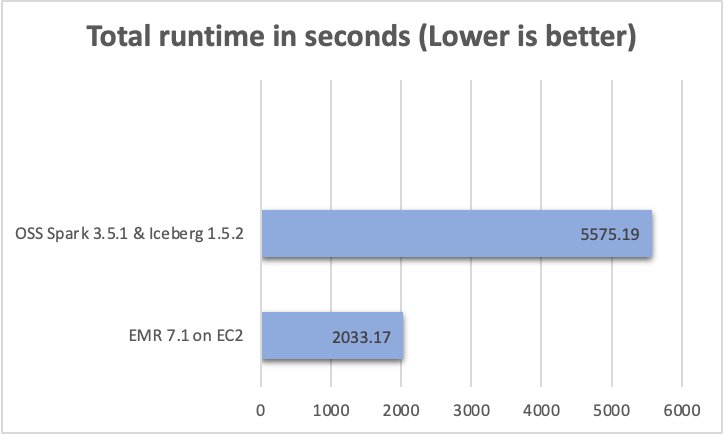
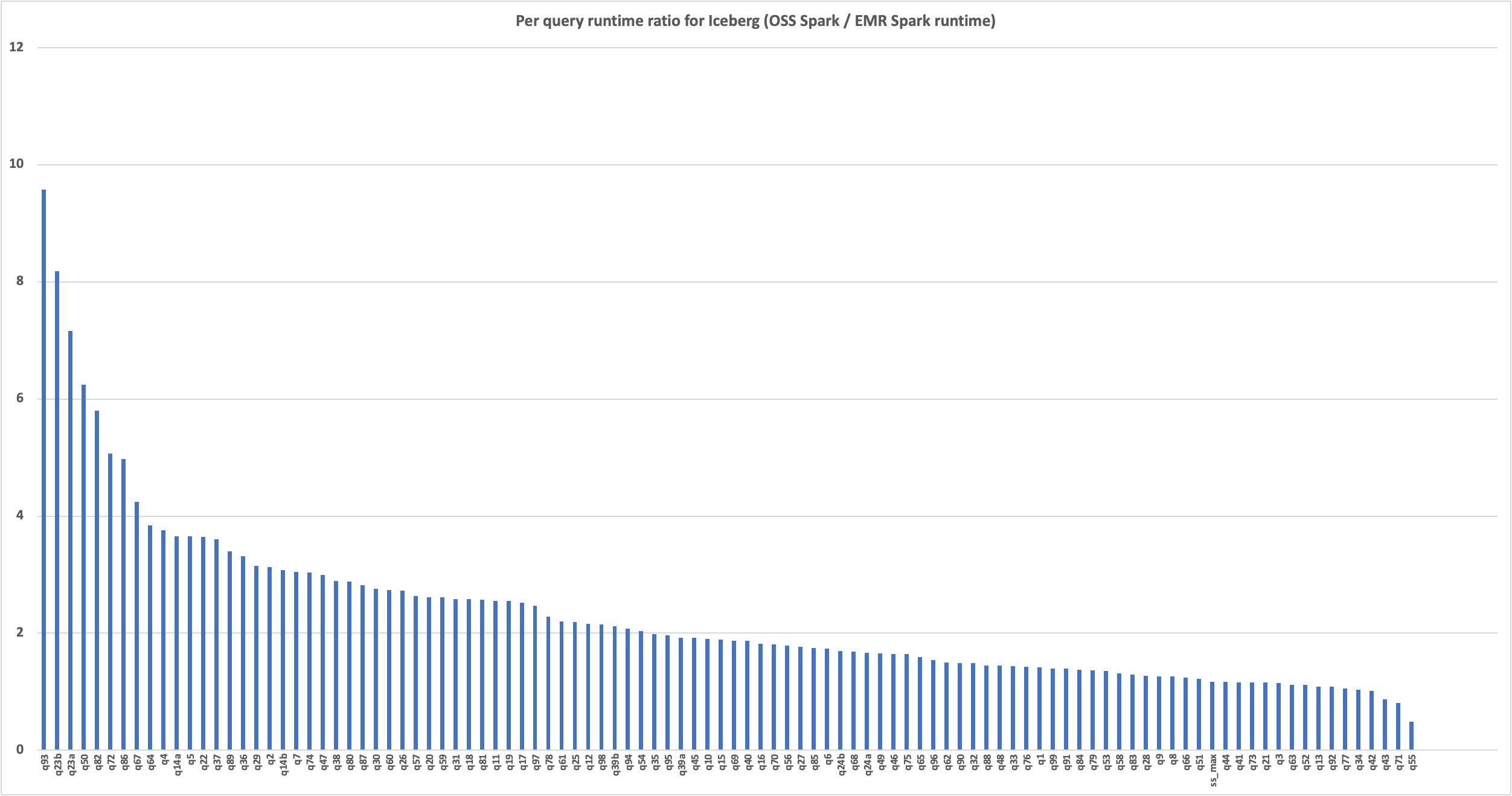
 Hari Kishore Chaparala is a software development engineer for Amazon EMR at Amazon Web Services.
 Udit Mehrotra is an Engineering Manager for EMR at Amazon Web Services.
 This migration approach uses the following tools to perform the migration:


 Ashok Chintalapati is a software development engineer for Amazon EMR at Amazon Web Services.
 Steve Koonce is an Engineering Manager for EMR at Amazon Web Services.


 Yonatan Dolan is a Principal Analytics Specialist at Amazon Web Services. He is located in Israel and helps customers harness AWS analytical services to leverage data, gain insights, and derive value. Yonatan is an Apache Iceberg evangelist.
 Amit Gilad is a Senior Data Engineer on the Data Infrastructure team at Cloudinar. He is currently leading the strategic transition from traditional data warehouses to a modern data lakehouse architecture, utilizing Apache Iceberg to enhance scalability and flexibility.
 Alex Dickman is a Staff Data Engineer on the Data Infrastructure team at Cloudinary. He focuses on engaging with various internal teams to consolidate the team’s data infrastructure and create new opportunities for data applications, ensuring robust and scalable data solutions for Cloudinary’s diverse requirements.
 Itay Takersman is a Senior Data Engineer at Cloudinary data infrastructure team. Focused on building resilient data flows and aggregation pipelines to support Cloudinary’s data requirements.


 Sudipta Mitra is a Senior Data Architect for AWS, and passionate about helping customers to build modern data analytics applications by making innovative use of latest AWS services and their constantly evolving features. A pragmatic architect who works backwards from customer needs, making them comfortable with the proposed solution, helping achieve tangible business outcomes. His main areas of work are Data Mesh, Data Lake, Knowledge Graph, Data Security and Data Governance.
 Deepak Sharma is a Senior Data Architect with the AWS Professional Services team, specializing in big data and analytics solutions. With extensive experience in designing and implementing scalable data architectures, he collaborates closely with enterprise customers to build robust data lakes and advanced analytical applications on the AWS platform.
 Nanda Chinnappa is a Cloud Infrastructure Architect with AWS Professional Services at Amazon Web Services. Nanda specializes in Infrastructure Automation, Cloud Migration, Disaster Recovery and Databases which includes Amazon RDS and Amazon Aurora. He helps AWS Customer’s adopt AWS Cloud and realize their business outcome by executing cloud computing initiatives.
 Kinnar Kumar Sen is a Sr. Solutions Architect at Amazon Web Services (AWS) focusing on Flexible Compute. As a part of the EC2 Flexible Compute team, he works with customers to guide them to the most elastic and efficient compute options that are suitable for their workload running on AWS. Kinnar has more than 15 years of industry experience working in research, consultancy, engineering, and architecture.
 Alex Lines is a Principal Containers Specialist at AWS helping customers modernize their Data and ML applications on Amazon EKS.
 Mengfei Wang is a Software Development Engineer specializing in building large-scale, robust software infrastructure to support big data demands on containers and Kubernetes within the EMR on EKS team. Beyond work, Mengfei is an enthusiastic snowboarder and a passionate home cook.
 Jerry Zhang is a Software Development Manager in AWS EMR on EKS. His team focuses on helping AWS customers to solve their business problems using cutting-edge data analytics technology on AWS infrastructure.
 Carlos Rodrigues is a Big Data Specialist Solutions Architect at AWS. He helps customers worldwide build transactional data lakes on AWS using open table formats like Apache Iceberg and Apache Hudi. He can be reached via
  Imtiaz (Taz) Sayed is the WW Tech Leader for Analytics at AWS. He is an expert on data engineering and enjoys engaging with the community on all things data and analytics. He can be reached via
  Shana Schipers is an Analytics Specialist Solutions Architect at AWS, focusing on big data. She supports customers worldwide in building transactional data lakes using open table formats like Apache Hudi, Apache Iceberg, and Delta Lake on AWS.


 Pradeep Misra is a Principal Analytics Solutions Architect at AWS. He works across Amazon to architect and design modern distributed analytics and AI/ML platform solutions. He is passionate about solving customer challenges using data, analytics, and AI/ML. Outside of work, Pradeep likes exploring new places, trying new cuisines, and playing board games with his family. He also likes doing science experiments with his daughters.
 Deepmala Agarwal works as an AWS Data Specialist Solutions Architect. She is passionate about helping customers build out scalable, distributed, and data-driven solutions on AWS. When not at work, Deepmala likes spending time with family, walking, listening to music, watching movies, and cooking!
 Abhilash Nagilla is a Senior Specialist Solutions Architect at Amazon Web Services (AWS), helping public sector customers on their cloud journey with a focus on AWS analytics services. Outside of work, Abhilash enjoys learning new technologies, watching movies, and visiting new places.


![Job[14]: showString at NativeMethodAccessorImpl.java:0 and Job[15]: showString at NativeMethodAccessorImpl.java:0](https://d2908q01vomqb2.cloudfront.net/b6692ea5df920cad691c20319a6fffd7a4a766b8/2024/04/05/BDB-3979-image025.png)


 Sekar Srinivasan is a Principal Specialist Solutions Architect at AWS focused on Data Analytics and AI. Sekar has over 20 years of experience working with data. He is passionate about helping customers build scalable solutions modernizing their architecture and generating insights from their data. In his spare time he likes to work on non-profit projects, focused on underprivileged Children’s education.
 Disha Umarwani is a Sr. Data Architect with Amazon Professional Services within Global Health Care and LifeSciences. She has worked with customers to design, architect and implement Data Strategy at scale. She specializes in architecting Data Mesh architectures for Enterprise platforms.


 Jeeshan Khetrapal is a Sr. Software Development Engineer at Amazon, where he develops fintech products based on cloud computing serverless architectures that are responsible for companies’ IT general controls, financial reporting, and controllership for governance, risk, and compliance.
 Sakti Mishra is a Principal Solutions Architect at AWS, where he helps customers modernize their data architecture and define their end-to-end data strategy, including data security, accessibility, governance, and more. He is also the author of the book


 Brandon Abear is a Principal Data Engineer in the Data & Analytics (DnA) organization at GoDaddy. He enjoys all things big data. In his spare time, he enjoys traveling, watching movies, and playing rhythm games.
 Dinesh Sharma is a Principal Data Engineer in the Data & Analytics (DnA) organization at GoDaddy. He is passionate about user experience and developer productivity, always looking for ways to optimize engineering processes and saving cost. In his spare time, he loves reading and is an avid manga fan.
 John Bush is a Principal Software Engineer in the Data & Analytics (DnA) organization at GoDaddy. He is passionate about making it easier for organizations to manage data and use it to drive their businesses forward. In his spare time, he loves hiking, camping, and riding his ebike.
 Ozcan Ilikhan is the Director of Engineering for the Data and ML Platform at GoDaddy. He has over two decades of multidisciplinary leadership experience, spanning startups to global enterprises. He has a passion for leveraging data and AI in creating solutions that delight customers, empower them to achieve more, and boost operational efficiency. Outside of his professional life, he enjoys reading, hiking, gardening, volunteering, and embarking on DIY projects.
 Harsh Vardhan is an AWS Solutions Architect, specializing in big data and analytics. He has over 8 years of experience working in the field of big data and data science. He is passionate about helping customers adopt best practices and discover insights from their data.


 Edvin Hallvaxhiu is a Senior Global Security Architect with AWS Professional Services and is passionate about cybersecurity and automation. He helps customers build secure and compliant solutions in the cloud. Outside work, he likes traveling and sports.
 Rahul Shaurya is a Principal Big Data Architect with AWS Professional Services. He helps and works closely with customers building data platforms and analytical applications on AWS. Outside of work, Rahul loves taking long walks with his dog Barney.
 Andrea Montanari is a Senior Big Data Architect with AWS Professional Services. He actively supports customers and partners in building analytics solutions at scale on AWS.
 María Guerra is a Big Data Architect with AWS Professional Services. Maria has a background in data analytics and mechanical engineering. She helps customers architecting and developing data related workloads in the cloud.
 Pushpraj Singh is a Senior Data Architect with AWS Professional Services. He is passionate about Data and DevOps engineering. He helps customers build data driven applications at scale.


 Manjit Chakraborty is a Senior Solutions Architect at AWS. He is a Seasoned & Result driven professional with extensive experience in Financial domain having worked with customers on advising, designing, leading, and implementing core-business enterprise solutions across the globe. In his spare time, Manjit enjoys fishing, practicing martial arts and playing with his daughter.
 Neeraj Roy is a Principal Solutions Architect at AWS based out of London. He works with Global Financial Services customers to accelerate their AWS journey. In his spare time, he enjoys reading and spending time with his family.


 Stefano Sandona is a Senior Big Data Solution Architect at AWS. He loves data, distributed systems and security. He helps customers around the world architecting secure, scalable and reliable big data platforms.
 Adnan Hemani is a Software Development Engineer at AWS working with the EMR team. He focuses on the security posture of applications running on EMR clusters. He is interested in modern Big Data applications and how customers interact with them.


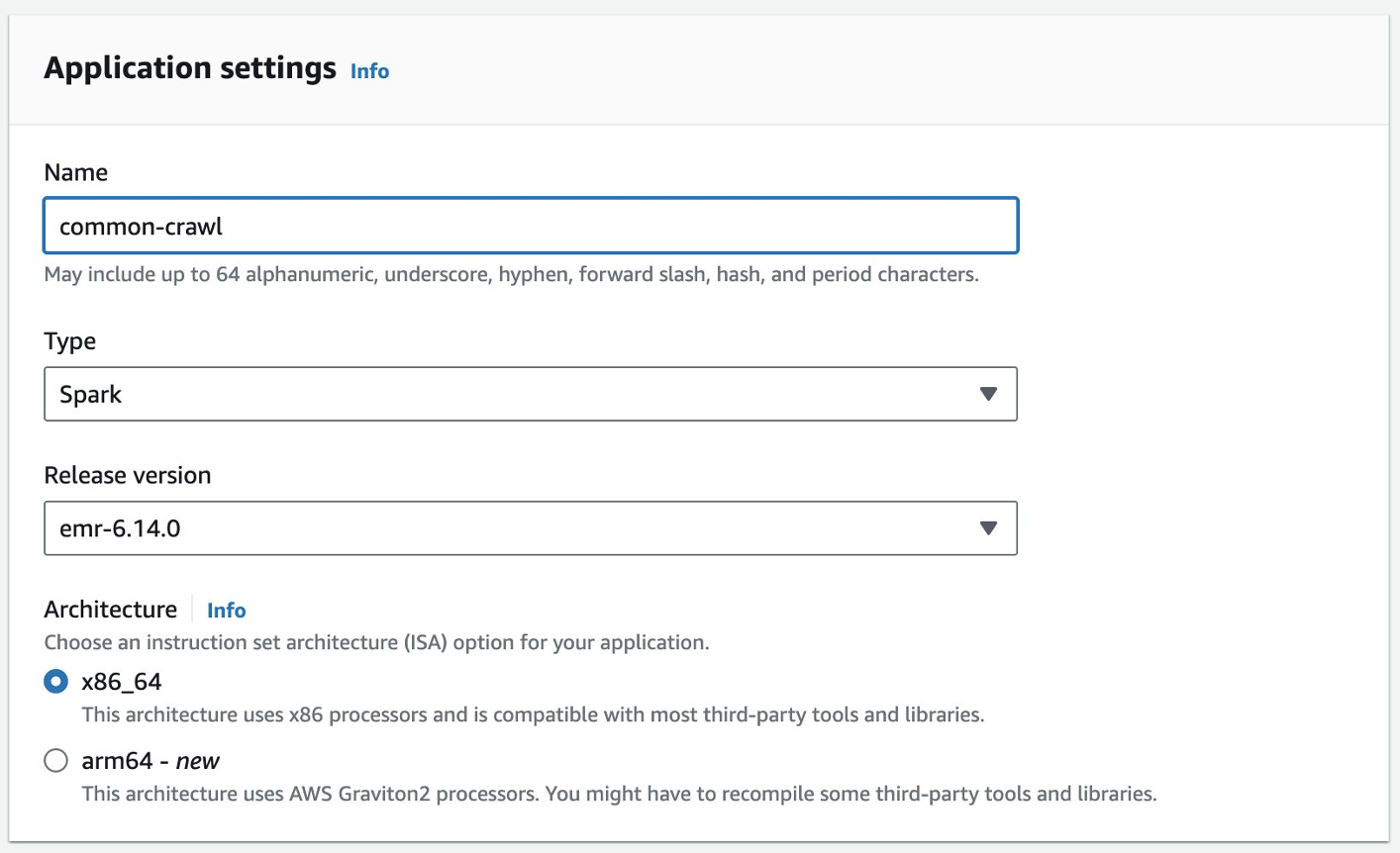
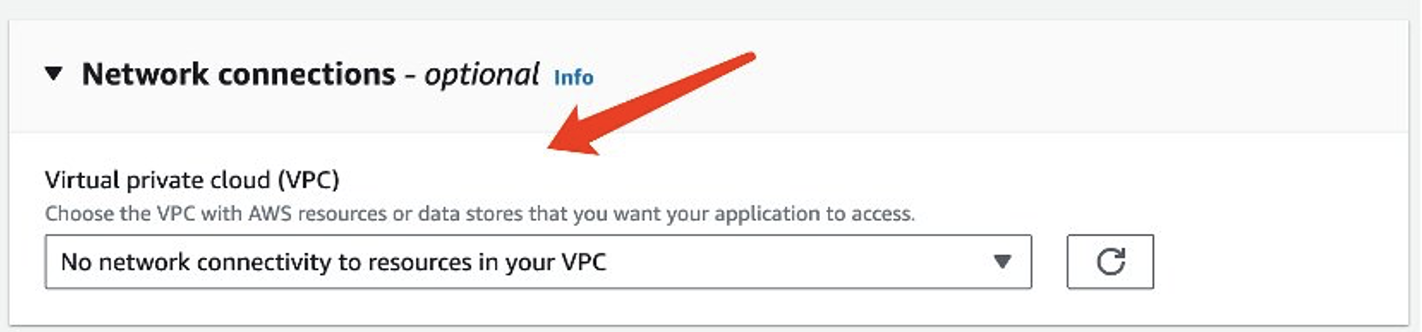

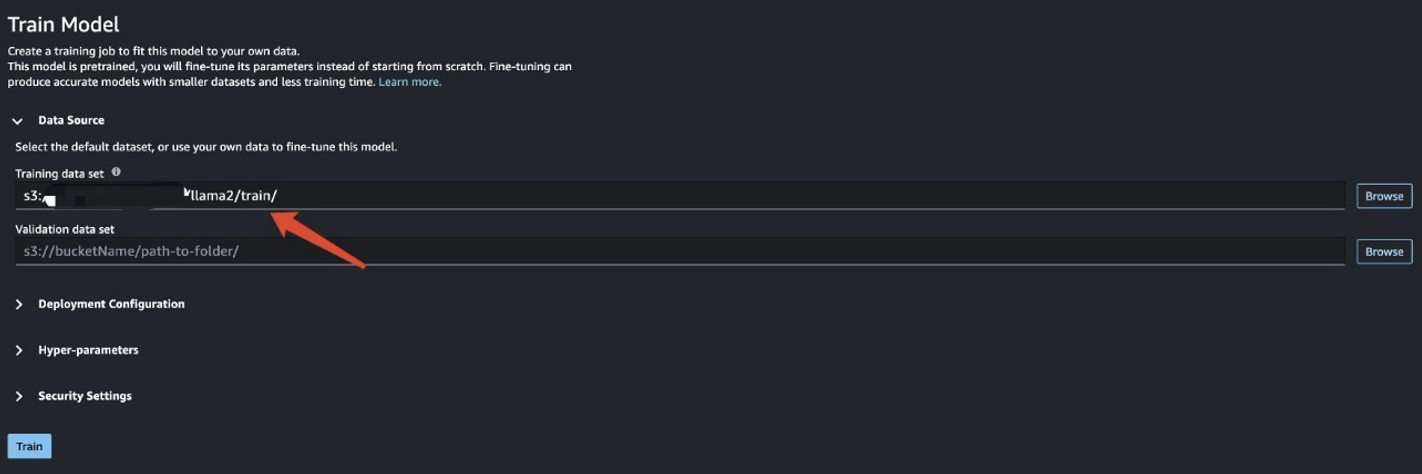
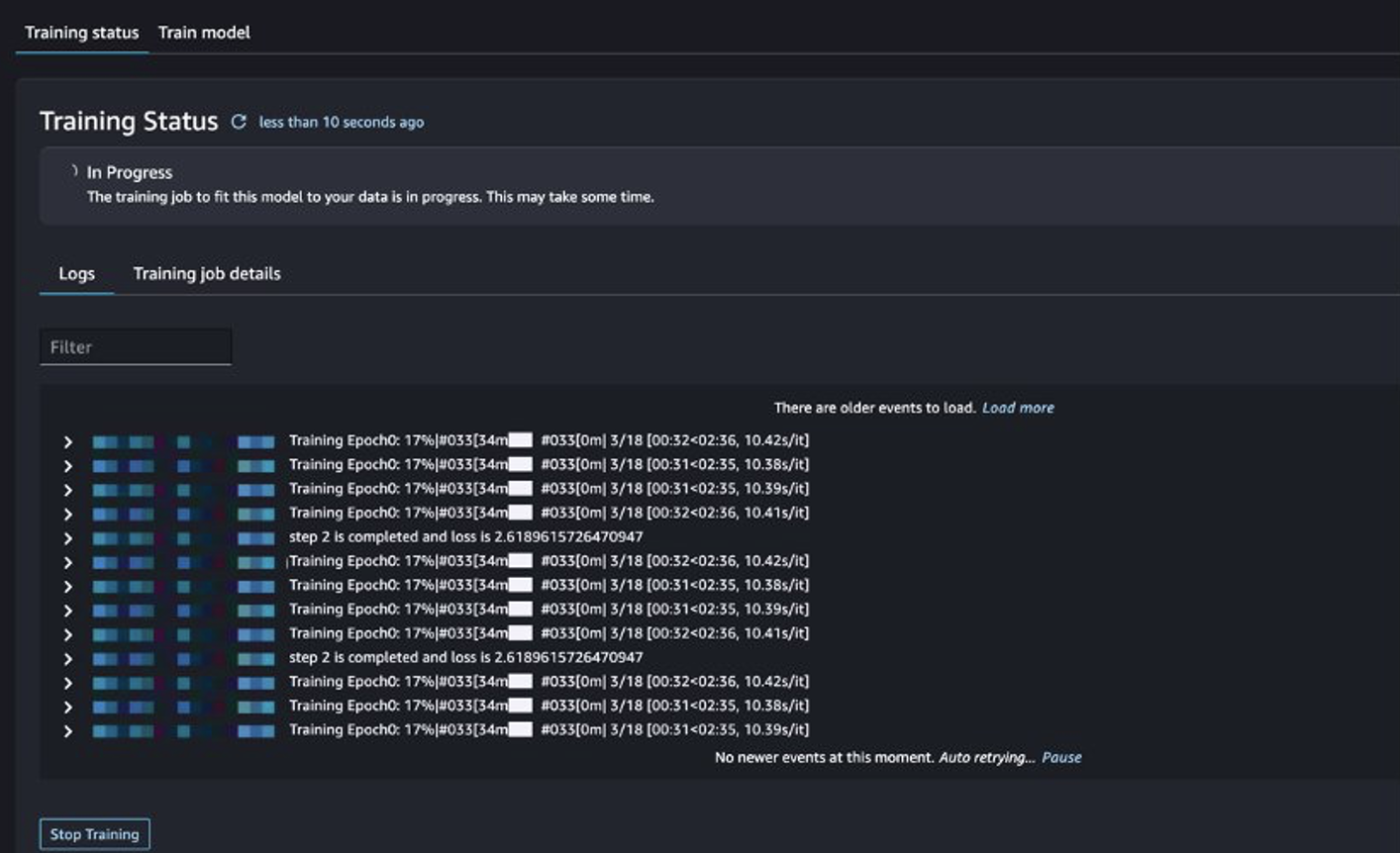
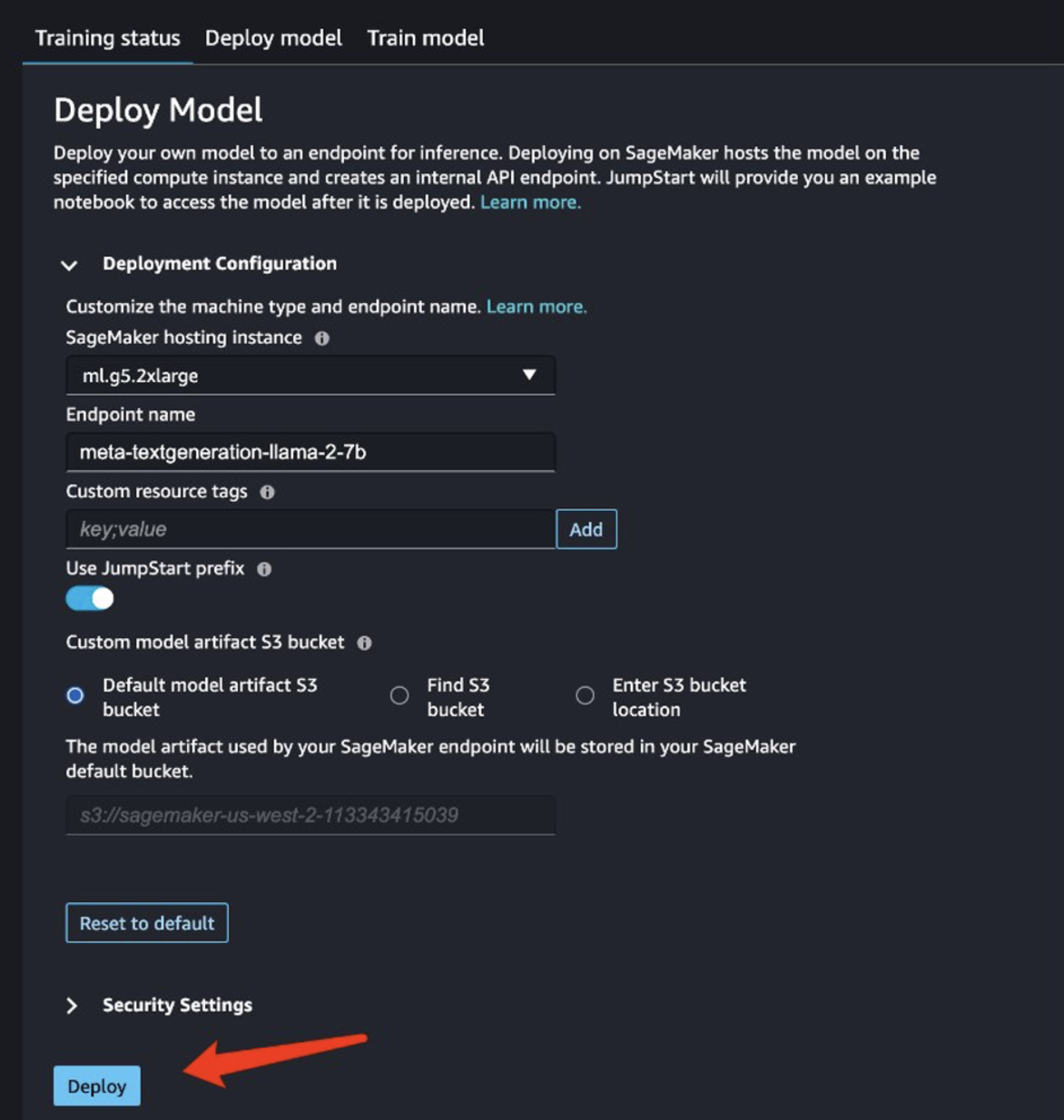

 Shijian Tang is a Analytics Specialist Solution Architect at Amazon Web Services.
 Matthew Liem is a Senior Solution Architecture Manager at Amazon Web Services.
 Dalei Xu is a Analytics Specialist Solution Architect at Amazon Web Services.
 Yuanjun Xiao is a Senior Solution Architect at Amazon Web Services.


 Raymond Lai is a Senior Solutions Architect who specializes in catering to the needs of large enterprise customers. His expertise lies in assisting customers with migrating intricate enterprise systems and databases to AWS, constructing enterprise data warehousing and data lake platforms. Raymond excels in identifying and designing solutions for AI/ML use cases, and he has a particular focus on AWS Serverless solutions and Event Driven Architecture design.
 Bin Wang, PhD, is a Senior Analytic Specialist Solutions Architect at AWS, boasting over 12 years of experience in the ML industry, with a particular focus on advertising. He possesses expertise in natural language processing (NLP), recommender systems, diverse ML algorithms, and ML operations. He is deeply passionate about applying ML/DL and big data techniques to solve real-world problems.
 Aditya Shah is a Software Development Engineer at AWS. He is interested in Databases and Data warehouse engines and has worked on performance optimisations, security compliance and ACID compliance for engines like Apache Hive and Apache Spark.
 Melody Yang is a Senior Big Data Solution Architect for Amazon EMR at AWS. She is an experienced analytics leader working with AWS customers to provide best practice guidance and technical advice in order to assist their success in data transformation. Her areas of interests are open-source frameworks and automation, data engineering and DataOps.