Tag Archives: Amazon Redshift

Build a secure data visualization application using the Amazon Redshift Data API with AWS IAM Identity Center

Post Syndicated from Songzhi Liu original https://aws.amazon.com/blogs/big-data/build-a-secure-data-visualization-application-using-the-amazon-redshift-data-api-with-aws-iam-identity-center/

In today’s data-driven world, securely accessing, visualizing, and analyzing data is essential for making informed business decisions. Tens of thousands of customers use Amazon Redshift for modern data analytics at scale, delivering up to three times better price-performance and seven times better throughput than other cloud data warehouses.

The Amazon Redshift Data API simplifies access to your Amazon Redshift data warehouse by removing the need to manage database drivers, connections, network configurations, data buffering, and more.

With the newly released feature of Amazon Redshift Data API support for single sign-on and trusted identity propagation, you can build data visualization applications that integrate single sign-on (SSO) and role-based access control (RBAC), simplifying user management while enforcing appropriate access to sensitive information.

For instance, a global sports gear company selling products across multiple regions needs to visualize its sales data, which includes country-level details. To maintain the right level of access, the company wants to restrict data visibility based on the user’s role and region. Regional sales managers should only see sales data for their specific region, such as North America or Europe. Conversely, the global sales executives require full access to the entire dataset, covering all countries.

In this post, we dive into the newly released feature of Amazon Redshift Data API support for SSO, Amazon Redshift RBAC for row-level security (RLS) and column-level security (CLS), and trusted identity propagation with AWS IAM Identity Center to let corporate identities connect to AWS services securely. We demonstrate how to integrate these services to create a data visualization application using Streamlit, providing secure, role-based access that simplifies user management while making sure that your organization can make data-driven decisions with enhanced security and ease.

Solution overview

We use multiple AWS services and open source tools to build a simple data visualization application with SSO to access data in Amazon Redshift with RBAC. The key components that power the solution are as follows:

  • IAM Identity Center and trusted identity propagation – IAM Identity Center can simplify user management by enabling SSO across AWS services. This allows users to authenticate with their corporate credentials managed in their corporate identity provider (IdP) like Okta, providing seamless access to the application. We explore how trusted identity propagation enables managing application-level access control at scale and activity logging across AWS services, like Amazon Redshift, by propagating and maintaining identity context throughout the workflow.
  • External IdP – We use Okta as an external IdP to manage user authentication. Okta connects to IAM Identity Center, allowing users to authenticate from external systems while maintaining centralized identity management within AWS. This makes sure that user access and roles are consistently maintained across both AWS services and external tools.
  • Amazon Redshift Serverless workgroup, Amazon Redshift Data API, and Amazon Redshift RBAC – Amazon Redshift is a fully managed data warehouse service that allows for fast querying and analysis of large datasets. In this solution, we use the Redshift Data API, which offers a simple and secure HTTP-based connection to Amazon Redshift, eliminating the need for JDBC or ODBC driver-based connections. The Redshift Data API is the recommended method to connect with Amazon Redshift for web applications. We also use RBAC in Amazon Redshift to demonstrate access restrictions on sales data based on the region column, making sure that regional sales managers only see data for their assigned regions, while global sales managers have full access.
  • Streamlit application – Streamlit is a widely used open source tool that enables the creation of interactive data applications with minimal code. In this solution, we use Streamlit to build a user-friendly interface where sales managers can view and analyze sales data in a visual, accessible format. The application will integrate with Amazon Redshift, providing users with access to the data based on their roles and permissions.

The following diagram illustrates the solution architecture for SSO with the Redshift Data API using IAM Identity Center.

The user workflow for the data visualization application consists of the following steps:

  1. The user (whether a regional sales manager or global sales manager) accesses the Streamlit application, which is integrated with SSO to provide a seamless authentication experience.
  2. The application redirects the user to authenticate through Okta, the external IdP. Okta verifies the user’s credentials and returns an ID token to the application.
  3. The application uses the token issued by Okta to assume a role and temporary AWS Identity and Access Management (IAM) session credentials to call the IAM Identity Center AssumeRoleWithWebIdentity API and IAM AssumeRole API in later steps.
  4. The application exchanges the Okta ID token for a token issued by IAM Identity Center by calling the IAM Identity Center CreateTokenWithIAM API using the temporary IAM credentials from the previous step. This token makes sure that the user is authenticated with AWS services and is tied to the IAM Identity Center user profile.
  5. The application requests an identity-enhanced IAM role session using the IAM Identity Center token by calling the AssumeRole
  6. The application uses the identity-enhanced IAM role session credentials to securely query Amazon Redshift for sales data. The credentials make sure that only authorized users can interact with the Redshift data.
  7. As the query is processed, Amazon Redshift checks the identity context provided by IAM Identity Center. It verifies the user’s role and group membership, such as being a part of the North American region or the global sales manager group.
  8. Based on the user’s identity and group membership, and using Amazon Redshift RBAC and row-level security, Amazon Redshift makes an authorization decision. The groups for the illustration can be broadly classified into the following categories:
    1. Regional sales managers will be granted access to view sales data only for the specific country or region they manage. For instance, the AMER North American Sales Manager will only see sales data related to North America. Similarly, the access control based on EMEA and APAC regions will provide row-level security for the respective regions.
    2. The global sales managers will be granted full access to all regions, enabling them to view the entire global dataset.

The setup consists of two main steps:

  1. Provision the resources for IAM Identity Center, Amazon Redshift and Okta:
    1. Enable IAM Identity Center and configure Okta as the IdP to manage user authentication and group provisioning.
    2. Create an Okta application to authenticate users accessing the Streamlit application.
    3. Set up an Amazon Redshift IAM Identity Center connection application to enable trusted identity propagation for secure authentication.
    4. Provision an Amazon Redshift Serverless
    5. Create the tables and configure RBAC within the Redshift workgroup to enforce row-level security for different IAM Identity Center federated roles, mapped to IAM Identity Center groups.
  2. Download, configure, and run the Streamlit application:
    1. Create a customer managed application in IAM Identity Center for the Redshift Data API client (Streamlit application) to enable secure API-based queries and create the required IAM roles
    2. Configure the Streamlit application.
    3. Run the Streamlit application.

Prerequisites

You should have the following prerequisites:

Provision the resources for IAM Identity Center, Amazon Redshift, and Okta

In this section, we walk through the steps to provision the resources for IAM Identity Center, Amazon Redshift, and Okta.

Enable IAM Identity Center and configure Okta as the IdP

Complete the following steps to enable IAM Identity Center and configure Okta as the IdP to manage user authentication and group provisioning:

  1. Create the following users and groups in Okta:
    1. Ethan Global with email [email protected], in group exec-global
    2. Frank Amer with email [email protected], in group amer-sales
    3. Alex Emea with email [email protected], in group emea-sales
    4. Ming Apac with email [email protected], in group apac-sales

  1. Create an IAM Identity Center instance in the AWS Region where Amazon Redshift is going to be deployed. An organization instance type is recommended.
  2. Configure Okta as the identity source and enable automatic user and group provisioning. The users and groups will be pushed to IAM Identity Center using SCIM protocol.

The following screenshot shows the users synced in IAM Identity Center using SCIM protocol.

Create an Okta application

Complete the following steps to create an Okta application to authenticate users accessing the Streamlit application:

  1. Create an OIDC application in Okta.
    1. Copy and save the client ID and client secret needed later for the Streamlit application and the IAM Identity Center application to connect using the Redshift Data API.
    2. Generate the client secret and set sign-in redirect URL and sign-out URL to http://localhost:8501 (we will host the Streamlit application locally on port 8501).
    3. Under Assignments, Controlled access, grant access to everyone.
  2. Create an OIDC IdP on IAM the console. The following screenshot shows an IdP created on the IAM console.

Set up an Amazon Redshift IAM Identity Center connection application

Complete the following steps to create an Amazon Redshift IAM Identity Center connection application to enable trusted identity propagation for secure authentication:

  1. On the Amazon Redshift console, choose IAM Identity Center connection in the navigation pane.
  2. Choose Create application.
  3. Name the application redshift-data-api-okta-app.
  4. Note down the IdP namespace. The default value AWSIDC is used for this post.
  5. In the IAM role for IAM Identity Center access section, you need to provide an IAM role. You can go to the IAM console and create an IAM role called RedshiftOktaRole with the following policy and trust relationship. RedshiftOktaRole is used by the Amazon Redshift IAM Identity Center connection application to manage and interact with IAM Identity Center.
    1. The policy attached to the role needs the following permissions:
      {
        "Version": "2012-10-17",
        "Statement": [
          {
            "Effect": "Allow",
            "Action": [
              "sso:DescribeApplication",
              "sso:DescribeInstance"
            ],
            "Resource": [
              "arn:aws:sso:::instance/<IAM Identity Center Instance ID>",
              "arn:aws:sso::<AWS Account ID>:application/<IAM Identity Center Instance ID>/*"
            ]
          }
        ]
      }

    2. The role uses the following trust relationship:
      {
        "Version": "2012-10-17",
        "Statement": [
          {
            "Effect": "Allow",
            "Principal": {
              "Service": [
                "redshift.amazonaws.com",
                "redshift-serverless.amazonaws.com"
              ]
            },
            "Action": [
              "sts:AssumeRole",
              "sts:SetContext"
            ]
          }
        ]
      }

  1. Leave Trusted Identity propagation section unchanged, then choose Next. You have the option to choose AWS Lake Formation or Amazon S3 Access Grants for use cases like using Amazon Redshift Spectrum to query external tables in Lake Formation. In our use case, we only use Amazon Redshift native tables so we don’t choose either.
  2. In the Configure client connections that use third-party IdPs section, choose No.
  3. Review and choose Create application.
  4. When the application is created, navigate to your IAM Identity Center connection redshift-data-api-okta-app and choose Assign to add the groups that were synced in IAM Identity Center using SCIM protocol from Okta.

We will enable trusted identity propagation and third-party IdP (Okta) on the customer managed application for the Redshift Data API in a later step instead of configuring it in the Amazon Redshift connection application.

The following screenshot shows the IAM Identity Center connection application created on the Amazon Redshift console.

The following screenshot shows groups assigned to the Amazon Redshift IAM Identity Center connection for the managed application.

Provision a Redshift Serverless workgroup

Complete the following steps to create a Redshift Serverless workgroup. For more details, refer to Creating a workgroup with a namespace.

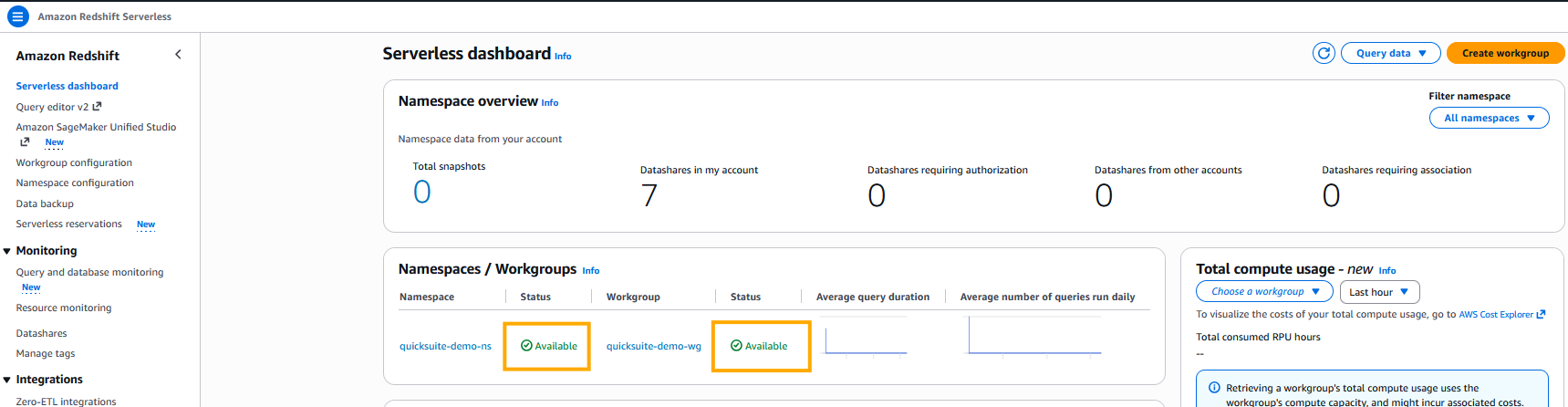
  1. On the Amazon Redshift console, navigate to the Redshift Serverless dashboard.
  2. Choose Create workgroup.
  3. Enter a name for your workgroup (for example, redshift-tip-enabled).
  4. Change the Base capacity to 8 RPU in the Performance and cost control
  5. You can configure network and security based on your virtual private cloud (VPC) and subnet you want to create the workgroup.
  6. In the Namespace section, create a new namespace for your workgroup. (For example, redshift-tip-enabled-namespace).
  7. In the Database name and password section, select Customize admin user credentials and set the admin user name and create a password. Note them down to use in a later step to configure RBAC in Amazon Redshift.
  8. In the Identity Center connections section, choose Enable for the cluster option and select the Amazon Redshift IAM Identity Center application created in the previous step (redshift-data-api-okta-app).
  9. Associate an IAM role with the workgroup that has the following policies attached. Make it the default role to use.
    1. AmazonS3ReadOnlyAccess
    2. AmazonRedshiftDataFullAccess
    3. AmazonRedshiftQueryEditorV2ReadSharing
  10. Leave other settings as default and choose Next.
  11. Review the settings and create the workgroup.

Wait until the workgroup is available before continuing to the next steps.

Create the tables and configure RBAC within the Redshift Serverless workgroup

Next, you use the Amazon Redshift Query Editor V2 on the Amazon Redshift console to connect to the workgroup you just created. You create the tables and configure the Amazon Redshift roles corresponding to Okta groups for the groups in IAM Identity Center and use the RBAC policy to grant users privileges to view data only for their regions. Complete the following steps:

  1. On the Amazon Redshift console, open the Query Editor V2.
  2. Choose the options menu (three dots) next to the Redshift workgroup name and choose Edit connection.
  3. Select Other ways to connect and use the database user name and password to connect.
  4. In the query editor, run the following code to create the sales table and load the data from Amazon Simple Storage Service (Amazon S3):
    # Create the table
    CREATE TABLE IF NOT EXISTS public.sales_data (
        SKU VARCHAR(50),
        Product_Name VARCHAR(255),
        Category VARCHAR(100),
        Quantity INT,
        Sales_Price DECIMAL(10,2),
        Timestamp TIMESTAMP,
        City VARCHAR(100),
        Region_Code VARCHAR(10),
        Country VARCHAR(10),
        Latitude DECIMAL(10,6),
        Longitude DECIMAL(10,6),
        Population INT,
        Elevation INT,
        Timezone VARCHAR(50)
    );
    
    # Load data from S3 to table
    COPY public.sales_data
    FROM 's3://redshift-blogs/redshift-data-api-idc/sales_data.csv'
    IAM_ROLE default
    CSV
    IGNOREHEADER 1
    DELIMITER ','
    TIMEFORMAT 'auto';
    
    # Create Redshift roles for the groups in IDC, the role format is Namespace:IDCGroupName
    CREATE ROLE "AWSIDC:amer-sales";
    CREATE ROLE "AWSIDC:emea-sales";
    CREATE ROLE "AWSIDC:apac-sales";
    CREATE ROLE "AWSIDC:exec-global";
    
    --Create RLS policy
    CREATE RLS POLICY eu_region_filter
    WITH (timezone VARCHAR(50))
    USING (timezone LIKE 'Europe%');
    
    CREATE RLS POLICY apac_region_filter
    WITH (timezone VARCHAR(50))
    USING (timezone LIKE 'Asia%');
    
    CREATE RLS POLICY amer_region_filter
    WITH (timezone VARCHAR(50))
    USING (timezone LIKE 'America%');
    
    --Attach policy
    ATTACH RLS POLICY eu_region_filter ON sales_data TO ROLE "AWSIDC:emea-sales";
    ATTACH RLS POLICY apac_region_filter ON sales_data TO ROLE "AWSIDC:apac-sales";
    ATTACH RLS POLICY amer_region_filter ON sales_data TO ROLE "AWSIDC:amer-sales";
    
    --Turn on RLS on table
    ALTER TABLE public.sales_data ROW LEVEL SECURITY ON;
    GRANT IGNORE RLS TO ROLE "AWSIDC:exec-global";

IAM Identity Center will map the groups into the Redshift roles in the format of Namespace:IDCGroupName. Therefore, create the role name as AWSIDC:emea-sales and so on to match them with Okta group names synced in IAM Identity Center. The users will be created automatically within the groups as they log in using SSO into Amazon Redshift.

Download, configure, and run the Streamlit application

In this section, we walk through the steps to download, configure, and run the Streamlit application.

Create a customer managed application in IAM Identity Center for the Redshift Data API client

In order to start a trusted identity propagation workflow and allow Amazon Redshift to make authorization decisions based on the users and groups from IAM Identity Center (provisioned from the external IdP), you need an identity-enhanced IAM role session.

This requires a couple of IAM roles and a customer managed application in IAM Identity Center to handle the trust relationship between the external IdP and IAM Identity Center and control access for the Redshift Data API client, in this case, the Streamlit application.

First, you create two IAM roles, then you create a customer managed application for the Streamlit application. Complete the following steps:

  1. Create a temporary IAM role (we named it IDCBridgeRole) to exchange the token with IAM Identity Center (assuming you don’t have an existing IAM identity to use). This role will be assumed by the Streamlit application with AssumeRoleWithWebIdentity to get a temporary set of role credentials to call the CreateTokenWithIAM and AssumeRole APIs to get the identity-enhanced role session.
    1. Attach the following policy the role:
      {
          "Version": "2012-10-17",
          "Statement": [
              {
                  "Effect": "Allow",
                  "Action": "sso-oauth:CreateTokenWithIAM",
                  "Resource": "*"
              },
              {
                  "Effect": "Allow",
                  "Action": "sts:SetContext",
                  "Resource": "*"
              },
              {
                  "Effect": "Allow",
                  "Action": "sts:AssumeRole",
                  "Resource": "*"
              }
          ]
      }

    2. In the trust relationship, provide your AWS account ID and IdP’s URL. The trusted principal to use is the Amazon Resource Name (ARN) of oidc-provider you created earlier.
      {
          "Version": "2012-10-17",
          "Statement": [
              {
                  "Effect": "Allow",
                  "Principal": {
                      "Federated": "arn:aws:iam::<accountid>:oidc-provider/<your-idp-domain>"
                  },
                  "Action": "sts:AssumeRoleWithWebIdentity"
              }
          ]
      }

  1. Create an IAM role with permissions to access the Redshift Data API (we named it RedshiftDataAPIClientRole). This role will be assumed by the Streamlit application with the enhanced identities from IAM Identity Center and then used to authenticate requests to the Redshift Data API.
    1. Attach the AmazonRedshiftDataFullAccess AWS managed policy. AWS recommends using the principle of least privilege in your IAM policy.
    2. Restrict the trust relationship to the IDCBridgeRole ARN created in the previous step), and provide your AWS account ID:
      {
          "Version": "2012-10-17",
          "Statement": [
              {
                  "Sid": "Statement1",
                  "Effect": "Allow",
                  "Principal": {
                      "AWS": "arn:aws:iam::<accountid>:role/IDCBridgeRole"
                  },
                  "Action": [
                      "sts:AssumeRole",
                      "sts:SetContext"
                  ]
              }
          ]
      }

Now you can create the customer managed application.

  1. On the IAM Identity Center console, choose Applications in the navigation pane.
  2. Choose Add application.
  3. Choose I have an application I want to setup, select the OAuth 2.0 application type, and choose Next.
  4. Enter a name for the application, for example, RedshiftStreamlitDemo.
  5. In User and group assignment method, choose Do not require assignment. This means all the users provisioned in IAM Identity Center from Okta can use their Okta credentials to sign in to the Streamlit application. You can alternatively select the Require assignments option and pick the users and groups you want to allow access to the application.
  6. In the AWS access portal section, choose Not visible, then choose Next.
  7. In the Authentication with trusted token issuer section, select Create trusted token issuer, then enter the Okta issuer URL and enter a name for the trusted token issuer.
  8. In the map attribute, use the default email to email mapping between the external IdP attribute and IAM Identity Center attribute, then create the trusted token issuer.
  9. Select the trusted token issuer you just created.
  10. In the Aud claim section, use the client ID of the Okta application you noted earlier, then choose Next.
  11. In the Specify application credentials section, choose Edit the application policy and use the following policy:
    {
      "Version": "2012-10-17",
      "Statement": [
        {
          "Effect": "Allow",
          "Principal": {
            "Service": "redshift-data.amazonaws.com"
          },
          "Action": "sso-oauth:*",
          "Resource": "*"
        }
      ]
    }

  12. Choose Submit.

After the application is created, you can view it in on the IAM Identity Center.

  1. Choose Applications in the navigation pane, and locate the Customer managed applications tab.

  1. Choose the application to navigate to the application details page.
  2. In the Trusted applications for identity propagation section, choose Specify trusted applications and select the setup type as Individual applications and specify access, then choose Next.
  3. Choose Amazon Redshift as the service, then choose Next.
  4. In the Application that can receive requests section, choose the Amazon Redshift IAM Identity Center application you created, then choose Next.
  5. In the Access Scopes to apply section, check the redshift:connect
  6. Review and then choose Trust application.

Configure and run the Streamlit application

Now that you have the roles and the customer managed application in IAM Identity Center, you can create an identity-enhanced IAM role session, which is the most critical step to enable trusted identity propagation. Following steps provide an overview of Streamlit application code to create the identity-enhanced IAM role session.

  1. Authenticate with and retrieve the id_token from the external IdP (Okta).
  2. Call CreateTokenWithIAM using the external IdP issued id_token to obtain an IAM Identity Center issued id_token.
  3. Use AssumeRoleWithWebIdentity to obtain temporary IAM credentials (by assuming IDCBridgeRole, explained later).
  4. Extract the sts:identity_context from the IAM Identity Center issued id_token.
  5. Assume the role RedshiftDataAPIClientRole with the AssumeRole API and insert the sts:identity_context to obtain the identity-enhanced IAM role session credentials.

Now you can use these credentials to make requests to the Redshift Data API, and Amazon Redshift will be able to use the identity context for authorization decisions.

At this point, you should have all the required resources for creating the Streamlit application. Complete the following steps to test the Streamlit application:

  1. Download the Streamlit application code and modify the configuration section of the code based on the resources provisioned earlier:
# TIP Token exchange configuration
AWS_REGION = "<YOUR AWS REGION>" # us-east-1
TOKEN_EXCHANGE_APP_ARN = "<YOUR IDC CUSTOM APP ARN>" # The ARN of the IDC customer-managed-App created earlier
TOKEN_GRANT_TYPE = "urn:ietf:params:oauth:grant-type:jwt-bearer" # fixed value, please don't change
TEMP_ROLE_ARN = "<TEMP ROLE ARN>" # The role created in this step for users to assume with AssumeRoleWithWebIdentity(IDCBridgeRole)
ENHANCED_ROLE_ARN = "<ENHANCED ROLE ARN>" # The role created in this step for users to assume for the Identity-enhanced role session with IAM Identity Center(RedshiftDataAPIClientRole)
IDENHANCED_ROLE_SESSION_NAME = "rs-idc-tip-session" # Use any name for the session 
ROLE_DURATION_SECS = 3600  # 1 hour

# Okta OAuth configuration, replace with your own Okta Domain
OKTA_DOMAIN = "<YOUR OKTA DOMAIN>"
AUTHORIZE_URL = f"https://{OKTA_DOMAIN}/oauth2/v1/authorize"
TOKEN_URL = f"https://{OKTA_DOMAIN}/oauth2/v1/token"
REFRESH_TOKEN_URL = f"https://{OKTA_DOMAIN}/oauth2/v1/token"
REVOKE_TOKEN_URL = f"https://{OKTA_DOMAIN}/oauth2/v1/revoke"
LOGOUT_URL = f"https://{OKTA_DOMAIN}/oauth2/v1/logout"
CLIENT_ID = "<OKTA CLIENT ID>" # The client id of the Okta app created for the Streamlit app in 2.
CLIENT_SECRET = "<OKTA CLIENT SECRET>" # The client id of the Okta app created for the Streamlit app in 2.
REDIRECT_URI = "http://localhost:8501" # This is for dev/test purpose only
SCOPE = "openid profile email" # Please do not change
WORKGROUP_NAME = "<your-redshift-workgroup-we-used:redshift-tip-enabled>" #The name of the created Redshift Workgroup
DATABASE = "dev" # The database set for the Workgroup

We recommend hosting this application on an Amazon Elastic Compute Cloud (Amazon EC2) instance for production use cases, and using AWS Secrets Manager for sensitive information like the CLIENT_ID and CLIENT_SECRET provided as configuration parameters in the code for simplicity.

For this example, we use the Okta organization URL (/oauth2/v1/). You can use the customer authorization servers as well, for example, the default authorization server, but make sure all URLs are using the same authorization server. Refer to Authorization servers for more information about authorization servers in Okta.

After you modify the script for the Streamlit application, you can run it using a Python virtual environment.

  1. Create a Python virtual environment. The application has been tested successfully with versions v3.12.8 and v3.12.2.

You need to install the following packages, which are required libraries for the Streamlit application code you downloaded in your virtual environment:

  • streamlit
  • streamlit_oauth
  • boto3
  • pyjwt
  • pydeck
  • pandas
  1. You can install these libraries directly using the following command with the requirements file:
    pip install -r https://redshift-blogs.s3.us-east-1.amazonaws.com/redshift-data-api-idc/requirements.txt

  2. Test the Streamlit application in the Python virtual environment with the following command:
    streamlit run /path/to/st_app.py

  3. Log in with the user [email protected] from the apac-sales group.

The identity-enhanced role session credentials will display on the top of the page after successful authentication with Okta.

For the APAC region manager, you should only see the data from the countries in the Asia-Pacific region based on the row-level security filter you configured earlier.

  1. Log out and log back in with the global executive user, [email protected] from the exec-global

You should see the data in all regions.

You can try other regional users’ logins and you should see only the data in the region they belong to.

Trusted identity propagation deep dive

In this section, you walk through the Python code of the Streamlit application and explain how trusted identity propagation works. The following is an explanation of key parts of the application code.

main()

The main() function of the Streamlit application implements the preceding steps to get the identity-enhanced IAM role session using the get_id_enhanded_session() function, which wraps the login to get the identity-enhanced role session credentials:

def main():
    # Create OAuth2Component instance
    oauth2 = OAuth2Component(
        CLIENT_ID, 
        CLIENT_SECRET, 
        AUTHORIZE_URL, 
        TOKEN_URL, 
        REFRESH_TOKEN_URL, 
        REVOKE_TOKEN_URL)
    
    # Other setup code omitted
    
    # Handle OAuth authentication with Okta
    if not st.session_state.is_authenticated or is_token_expired():
        # Show the login button if not authenticated
        st.title("Login to the Demo app")
        result = oauth2.authorize_button("Login with Okta", REDIRECT_URI, SCOPE)
        if result and "token" in result:
            # Save the token in session state and mark the user as authenticated
            st.session_state.token = result.get("token")
            st.session_state.user_email = get_user_email_from_token(st.session_state.token.get("id_token"))
            st.session_state.aws_creds = get_id_enhanced_session(st.session_state.token.get("id_token"))
            st.session_state.is_authenticated = True
            st.rerun()
    else:
        
        st.json(st.session_state.aws_creds)
        st.title("Total Sales by City")
    
        if not is_token_expired():
            # Use the enhanced credentials to create the Redshift client
            redshift_client = boto3.client("redshift-data", region_name=AWS_REGION,
                                        aws_access_key_id=st.session_state.aws_creds['AccessKeyId'],
                                        aws_secret_access_key=st.session_state.aws_creds['SecretAccessKey'],
                                        aws_session_token=st.session_state.aws_creds['SessionToken'])
        else:
            st.error("Session expired. Please re-authenticate.")
            logout()
            
    # more code for query execution and data visualizetion omitted

We use the Streamlit st.session_state provided by Streamlit to store important session states, including the authentication status as well as additional information like user information and the AWS identity-enhanced role session credentials.

get_id_enhanced_session()

The get_id_enhanced_session() function code has three steps:

  1. We use the id_token (variable name: jwt_token) from Okta in JWT format to call the AssumeRoleWithWebIdentity API to assume the role IDCBridgeRole. This is because the user doesn’t have any AWS credentials to interact with the IAM Identity Center API. If you plan to host this application in an AWS environment with an IAM role available, for example, on an EC2 instance, you can use the role associated with Amazon EC2 to make the call to the IAM Identity Center APIs without creating IDCBridgeRole, but make sure the EC2 role has the required permissions we specified for IDCBridgeRole.
  2. After we have the credentials of the temporary role, we use them to make a call to the CreateTokenWithIAM API of IAM Identity Center. This API handles the exchange of tokens by taking in the id_token from Okta and returning an IAM Identity Center issued token, which will be used later to get the identity-enhanced role session. For more information, refer to the CreateTokenWithIAM API reference.
  3. Lastly, we extract the sts:identity_context from the IAM Identity Center issued id_token and pass it to the AWS Security Token Service (AWS STS) AssumeRole This is done by including the sts:identity_context in the ContextAssertion parameter within ProvidedContexts, along with ProviderArn set to arn:aws:iam::aws:contextProvider/IdentityCenter.
def get_id_enhanced_session(jwt_token):
    """
    Obtains an identity-enhanced session by assuming a temporary IAM role,
    creating a token with IAM, and assuming an enhanced role session.
    
    Args:
        jwt_token (str): The JWT id token from the identity provider.
    
    Returns:
        dict or None: The enhanced session credentials if successful, otherwise None.
    """
    logging.info("Starting identity-enhanced session process.")

    # Step 1: Assume a temporary IAM role with the provided JWT token
    temp_credentials = assume_role_with_web_identity(jwt_token)
    if not temp_credentials:
        logging.error("Failed to assume role with web identity.")
        return None

    # Step 2: Use the temporary credentials to create a token with IAM
    id_token = create_token_with_iam(jwt_token, temp_credentials)
    if not id_token:
        logging.error("Failed to create ID token with IAM.")
        return None

    # Step 3: Use the ID token to assume an enhanced role session
    enhanced_creds = assume_enhanced_role_session(id_token, temp_credentials)
    if not enhanced_creds:
        logging.error("Failed to assume enhanced role session.")
        return None

    logging.info("Successfully obtained identity-enhanced session credentials.")
    return enhanced_creds

assume_role_with_web_identity()

The assume_role_with_web_identity() function code is as follows. We initialize the STS client, decode the JWT token, and then assume the role with the web identity.

def assume_role_with_web_identity(jwt_token):
    """
    Assumes an IAM role using a web identity token and returns the temporary credentials.

    Args:
        jwt_token (str): The JWT token for authentication, typically issued by an external identity provider.

    Returns:
        dict: Temporary IAM credentials (Access Key, Secret Key, Session Token) or None if an error occurs.
    """
    try:
        # Initialize the STS client
        sts_client = boto3.client('sts', region_name=AWS_REGION)
        
        # Decode the JWT token without verifying signature (for debugging purposes)
        decoded_jwt = jwt.decode(jwt_token, options={"verify_signature": False})
        logging.debug(f"Decoded JWT Token: {decoded_jwt}")

        # Prepare the request for AssumeRoleWithWebIdentity
        assume_role_request = {
            'RoleArn': TEMP_ROLE_ARN,
            'RoleSessionName': 'WebIdentitySession',
            'WebIdentityToken': jwt_token,
            'DurationSeconds': DURATION_SECS  # 1 hour
        }

        # Call the AssumeRoleWithWebIdentity API
        assume_role_response = sts_client.assume_role_with_web_identity(**assume_role_request)
        
        # Extract the temporary credentials from the response
        temp_credentials = assume_role_response['Credentials']
        logging.info("Temporary credentials successfully obtained.")
        
        # Return the temporary credentials
        return temp_credentials

    except ClientError as e:
        logging.error(f"Error calling AssumeRoleWithWebIdentity: {e}")
        return None
    except jwt.ExpiredSignatureError:
        logging.error("JWT token has expired.")
        return None
    except jwt.DecodeError:
        logging.error("Error decoding JWT token.")
        return None
    except Exception as e:
        logging.error(f"Unexpected error: {e}")
        return None

create_token_with_iam()

The create_token_with_iam() function code is called to get the id_token from IAM Identity Center. The jwt_token is the id_token in JWT format issued by Okta; the id_token is the IAM Identity Center issued id_token.

def create_token_with_iam(jwt_token, temp_credentials):
    """
    Creates an IAM token using the provided JWT token and temporary credentials.

    Args:
        jwt_token (str): The JWT token to exchange for an IAM token.
        temp_credentials (dict): Temporary AWS credentials for assuming the role.
    
    Returns:
        str or None: The IAM token if successful, otherwise None.
    """
    logging.info("Starting token creation process with IAM.")
    
    # Initialize the SSO OIDC client with temporary credentials
    try:
        sso_oidc_client = boto3.client(
            'sso-oidc', 
            region_name=AWS_REGION, 
            aws_access_key_id=temp_credentials['AccessKeyId'],
            aws_secret_access_key=temp_credentials['SecretAccessKey'],
            aws_session_token=temp_credentials['SessionToken']
        )
    except Exception as e:
        logging.error(f"Error initializing SSO OIDC client: {e}")
        return None

    # Prepare the request for CreateTokenWithIAM
    token_request = {
        'clientId': TOKEN_EXCHANGE_APP_ARN,
        'grantType': TOKEN_GRANT_TYPE,
        'assertion': jwt_token
    }

    # Call the CreateTokenWithIAM API
    try:
        token_result = sso_oidc_client.create_token_with_iam(**token_request)
        id_token = token_result['idToken']
        logging.info(f"Successfully obtained ID Token: {id_token}")
        return id_token
    except ClientError as e:
        logging.error(f"Error calling CreateTokenWithIAM API: {e}")
        return None
    except KeyError as e:
        logging.error(f"Missing expected field in response: {e}")
        return None

In the CreateTokenWithIAM call, we pass the following parameters:

  • clientId – The ARN of the IAM Identity Center application for the Redshift Data API client
  • grantTypeurn:ietf:params:oauth:grant-type:jwt-bearer
  • assertion – The id_token (jwt_token) issued by Okta

The idToken issued by IAM Identity Center is returned.

assume_enhanced_role_session()

The assume_enhanced_role_session() function uses the ID token to assume an identity-enhanced role session:

def assume_enhanced_role_session(id_token, temp_credentials):
    """
    Assumes an identity-enhanced IAM role session using the provided ID token and temporary credentials.

    Args:
        id_token (str): The ID token containing the identity context.
        temp_credentials (dict): Temporary AWS credentials for assuming the role.

    Returns:
        dict or None: The credentials for the identity-enhanced IAM role session, or None on failure.
    """
    logging.info("Extracting identity context from ID token.")
    identity_context = extract_identity_context_from_id_token(id_token)

    if not identity_context:
        logging.error("Failed to extract identity context from ID token.")
        return None

    try:
        # Initialize STS client with temporary credentials
        sts_client = boto3.client(
            'sts',
            region_name=AWS_REGION,
            aws_access_key_id=temp_credentials['AccessKeyId'],
            aws_secret_access_key=temp_credentials['SecretAccessKey'],
            aws_session_token=temp_credentials['SessionToken']
        )

        # Prepare AssumeRole request with identity context
        assume_role_request = {
            'RoleArn': ENHANCED_ROLE_ARN,
            'RoleSessionName': IDENHANCED_ROLE_SESSION_NAME,
            'DurationSeconds': ROLE_DURATION_SECS,
            'ProvidedContexts': [{
                'ContextAssertion': identity_context,
                'ProviderArn': "arn:aws:iam::aws:contextProvider/IdentityCenter"
            }]
        }

        # Call the AssumeRole API
        logging.info("Calling STS AssumeRole for identity-enhanced session.")
        assume_role_response = sts_client.assume_role(**assume_role_request)

        enhanced_role_credentials = assume_role_response['Credentials']
        logging.info("Successfully assumed enhanced role.")
        
        return enhanced_role_credentials

    except ClientError as e:
        logging.error(f"Error calling AssumeRole: {e}")
        return None

extract_identity_context_from_id_token()

The extract_identity_context_from_id_token() function extracts the sts:identity_context:

def extract_identity_context_from_id_token(id_token):
    """
    Extracts the identity context from a decoded JWT token.

    Args:
        id_token (str): The JWT token containing identity context.

    Returns:
        dict or None: The extracted identity context if available, otherwise None.
    """
    logging.info("Decoding ID token to extract identity context.")

    try:
        # Decode the JWT token (without signature verification)
        decoded_jwt = jwt.decode(id_token, options={"verify_signature": False})

        logging.debug(f"Decoded JWT Claims: {decoded_jwt}")

        # Extract the identity context from the token
        for key in ('sts:identity_context', 'sts:audit_context'):
            if key in decoded_jwt:
                return decoded_jwt[key]

        logging.warning("No valid identity context found in the token.")
        return None

    except Exception as e:
        logging.error(f"Error decoding JWT: {e}")
        return None

Now you have the identity-enhanced role session credentials to call the Amazon Redshift Data API.

execute_statement() and fetch_results()

The execute_statement() and fetch_results() functions demonstrate how to run Redshift queries and retrieve query results with trusted identity propagation for visualization:

def execute_statement(sql, redshift_client):
    """
    Executes a SQL statement on Amazon Redshift using the provided Redshift Data API client.

    Args:
        sql (str): The SQL query to execute.
        redshift_client (boto3.client): The Redshift Data API client.

    Returns:
        str: The execution ID of the statement.

    Raises:
        ClientError: If an error occurs during execution.
    """
    try:
        response = redshift_client.execute_statement(
            WorkgroupName=WORKGROUP_NAME,
            Database=DATABASE,
            Sql=sql 
        )
        return response["Id"]
    
    except ClientError as e:
        error_code = e.response.get('Error', {}).get('Code', '')
        
        if error_code == 'ExpiredTokenException':
            logging.error("Session expired. Logging out...")
            logout()
        else:
            logging.error(f"Error executing statement: {e}")
            raise
            
def fetch_results(statement_id, redshift_client):
    """
    Fetches query results from the Redshift Data API.

    Args:
        statement_id (str): The execution ID of the statement.
        redshift_client (boto3.client): The Redshift Data API client.

    Returns:
        list: A list of records from the query result.
    """
    try:
        response = redshift_client.get_statement_result(Id=statement_id)
        return response.get("Records", [])
    
    except ClientError as e:
        logging.error(f"Error fetching query results: {e}")
        raise

Conclusion

In this post, we showed how to create a third-party application backed by analytics insights arriving from Amazon Redshift securely using OIDC. With Redshift Data API support of IAM Identity Center integration, you can connect to Amazon Redshift using SSO from the IdP of your choice. You can extend this method to authenticate other AWS services that support trusted identity propagation, such as Amazon Athena and Amazon QuickSight, enabling fine-grained access control for IAM Identity Center users and groups across your AWS ecosystem. We encourage you to set up your application using IAM Identity Center integration and unify your access control directly from your IdP across all IAM Identity Center supported AWS services.

For more information on AWS services and applications that support trusted identity propagation, refer to Trusted identity propagation overview.


About the Authors

Songzhi Liu is a Principal Big Data Architect with the AWS Identity Solutions team. In this role, he collaborates closely with AWS customers and cross-functional teams to design and implement scalable data architectures, focusing on integrating big data and machine learning solutions to enhance identity awareness within the AWS ecosystem.

Rohit Vashishtha is a Senior Analytics Specialist Solutions Architect at AWS based in Dallas, Texas. He has over 19 years of experience architecting, building, leading, and maintaining big data platforms. Rohit helps customers modernize their analytic workloads using the breadth of AWS services and ensures that customers get the best price/performance with utmost security and data governance.

Fei Peng is a Senior Software Development Engineer working in the Amazon Redshift team, where he leads the development of Redshift Data API, enabling seamless and scalable access to cloud data warehouses.

Yanzhu Ji is a Product Manager in the Amazon Redshift team. She has experience in product vision and strategy in industry-leading data products and platforms. She has outstanding skill in building substantial software products using web development, system design, database, and distributed programming techniques. In her personal life, Yanzhu likes painting, photography, and playing tennis.

Cross-account data collaboration with Amazon DataZone and AWS analytical tools

Post Syndicated from Arun Pradeep Selvaraj original https://aws.amazon.com/blogs/big-data/cross-account-data-collaboration-with-amazon-datazone-and-aws-analytical-tools/

Data sharing has become a crucial aspect of driving innovation, contributing to growth, and fostering collaboration across industries. According to this Gartner study, organizations promoting data sharing outperform their peers on most business value metrics. A straightforward data access and sharing mechanism is crucial for enabling effective data sharing across an organization. There are challenges such as complexity in managing cross-account permissions and difficulty in discovering the right data across accounts that organizations face when trying to share data products across AWS accounts. Amazon DataZone is a fully managed data management service that customers can use to catalog, discover, share, and govern data stored across Amazon Web Services (AWS).

In this post, we will cover how you can use Amazon DataZone to facilitate data collaboration between AWS accounts.

Solution overview

This solution provides a streamlined way to enable cross-account data collaboration using Amazon DataZone domain association while maintaining security and governance. This post describes the process of using the business data catalog resource of Amazon DataZone to publish data assets so they’re discoverable by other accounts. After they’ve been published, you can query the published assets from another AWS account using analytical tools such as Amazon Athena and the Amazon Redshift query editor, as shown in the following figure.

In this solution (as shown in the preceding figure), the AWS account that contains the data assets is referred to as the producer account. The AWS account that needs to access or use the data from the producer account is referred to as the consumer account. The Amazon DataZone domain is created and managed within the producer account and then the consumer account is associated with that domain.

As part of Amazon DataZone domain association, Amazon DataZone uses AWS Resource Access Manager (AWS RAM) to share the resource. When the producer and consumer AWS accounts are in the same organization within AWS Organizations, the domain association happens automatically. If the producer and consumer AWS accounts are in different organizations, AWS RAM sends an invitation to the consumer AWS account to accept or reject the resource grant.

This solution presents three Amazon DataZone user personas as:

  • Data administrators: Account owners in both producer and consumer AWS accounts. The data administrators are responsible for creating Amazon DataZone domains, configuring domain associations, and accepting domain associations within the Amazon DataZone domain.
  • Data publishers: Users in producer AWS accounts. The data publishers are responsible for creating Amazon DataZone publish projects and environments, producing and publishing data assets, and accepting subscription requests.
  • Data subscribers: Users in consumer AWS accounts. The data subscribers are responsible for creating Amazon DataZone subscribe projects and environments, searching for and subscribing to data assets, and querying the data and deriving insights.

Prerequisites

To follow along with the instructions, you will need:

  • Two AWS accounts, one serving as producer and other account serving as consumer. Create new AWS accounts if necessary.
  • An Amazon Redshift provisioned cluster or Amazon Redshift Serverless workgroup in the producer and consumer AWS accounts provisioned by a data administrator.
  • A secret in AWS Secrets Manager storing the master user credentials for the Amazon Redshift cluster or workgroup in the producer and consumer AWS accounts.
    • The data administrators are responsible for creating secrets.
    • The data producers and consumers can obtain the Amazon Resource Name (ARN) of the secrets from the data administrators during the environment or environment profile creation steps.

Amazon DataZone uses Amazon Redshift Datashares to share data across clusters and accounts. There are specific requirements and limitations for using Amazon Redshift datashares.

  • For cross-account data sharing, both the producer and consumer clusters must be encrypted. See Cluster encryption section of datashare-considerations for more information about the encryption process.
  • Data sharing is supported only for provisioned ra3 cluster types (ra3.16xlarge, ra3.4xlarge, and ra3.xlplus) and Amazon Redshift Serverless.

Walkthrough:

The following are the high level steps to configure cross-account access. We’ve provided step-by-step instructions in the following sections.

  1. Create an Amazon DataZone domain in the producer account. The data administrator creates an Amazon DataZone domain.
  2. Request Amazon DataZone domain association from the producer account to the consumer account.
  3. Accept the domain association request in the consumer account. The data administrator accepts the domain association.
  4. Add data users to the Amazon DataZone domain.
  5. Create the necessary publish project for AWS Glue and Amazon Redshift in the producer account.
  6. Create AWS Glue and Amazon Redshift environments to publish the data assets in the producer account.
  7. Create and run a data source for AWS Glue and Amazon Redshift to publish assets into the business catalog.
  8. Create subscribe projects for AWS Glue and Amazon Redshift.
  9. Create AWS Glue and Amazon Redshift environment profiles and environments in the subscribe project
  10. Subscribe to AWS Glue and Amazon Redshift tables. Consume the data using Athena and Amazon redshift editors. This step is performed by the data subscriber.

Create the Amazon DataZone domain in the producer account

Amazon DataZone domains serve as high-level organizational units for assets, users, and projects, facilitating cross-team and cross-account collaboration. This step focusses on creating the Amazon DataZone domain in the producer account.

  1. Sign in to the producer account AWS Management Console for Amazon DataZone using the data administrator credentials.
  2. Create an Amazon DataZone domain titled Demo_cross_account_domain using the instructions at create domains.
  3. On the Create domain screen, select Quick setup checkbox to automate several configuration steps, saving time and reducing the potential for setup errors. Quick setup enables two default blueprints and creates the default environment profiles for the data lake and data warehouse default blueprints.


Request Amazon DataZone domain association from the producer account to the consumer account

To associate the Amazon DataZone domain with the consumer account, the producer account requests a domain association. This involves providing necessary information about the consumer account and granting appropriate permissions for data access and management.

  1. Sign in to the Amazon DataZone console of the producer account using the data administrator credentials.
  2. Navigate to the domain detail page, and then scroll down and select the Associated Accounts tab.
  3. Enter the consumer account IDs that you want to request association. Choose Add another account if you want to add more than one account. When you’re satisfied with the list of account IDs, choose Request association.
    • Use the latest (AWS RAM DataZonePortalReadWrite policy when requesting the account association. This policy allows users in the consumer account to execute Amazon DataZone APIs and to use the data portal interface.

Accept an account association request from an Amazon DataZone domain

This step focuses on accepting the account association request from the Amazon DataZone domain in the consumer account. This allows the consumer account to be linked with the Amazon DataZone domain to enable data sharing and collaboration between the producer and consumer accounts.

  1. Sign in to the consumer account and go to the Amazon DataZone console  in the same AWS Region as the domain. On the Amazon DataZone home page, choose View requests.
  2. Select the name of the inviting Amazon DataZone domain and choose Review request.
  3. Choose Accept association, you should see the Demo_cross_account_domain state as associated in the Associated domains screen

  1. Choose the domain for which you want to enable an environment blueprint.
  2. From the Blueprints list, choose either the DefaultDataLake blueprint
  3. On the Permissions and resources page, for enabling the DefaultDataLake blueprint, for Glue Manage Access role, specify a new role that grants Amazon DataZone authorization to ingest and manage access to tables in AWS Glue and AWS Lake Formation.

  1. Repeat steps 4 to 6 to enable the DefaultDataWarehouse blueprint by choosing DefaultDataWarehouse instead of DefaultDataLake

Add data users to the Amazon DataZone domain

To grant access to the Amazon DataZone data portal from the console for data publisher and data Subscriber IAM users, use the following steps to add them in the User Management section of the Amazon DataZone domain. See Manage users in the Amazon DataZone console for additional details.

  1. Sign in to the Amazon DataZone console as a data administrator using the producer account.
  2. Select the Amazon DataZone domain and, in the User management section, choose Add and select Add IAM users.
  3. On the Add users page, choose Current account and add the user ARN of the data producer and choose Add users.
  4. Next choose Associated account, and enter the data subscriber user’s ARN and add the user by choosing Add users.

Create the publish project for AWS Glue and Amazon Redshift

This step focuses on creating the publish project for AWS Glue and Amazon Redshift in the producer account. The project will be used to publish data from your data sources to the appropriate AWS services.

  1. Using the producer account, sign in to the Amazon DataZone console as a data publisher.
  2. Select View domains and select the demo_cross_account_domain.
  3. Choose the Open data portal link and sign in to the data portal.
  4. Choose Create New Project and create a project named Glue_Publish_Project for publishing AWS Glue data assets and create the project under demo_cross_account_domain.
  5. Create another project named Redshift_Publish_Project for publishing Amazon Redshift data assets, also under the demo_cross_account_domain.

Create AWS Glue and Amazon Redshift environments to publish the data assets

In this step, you set up AWS Glue and Amazon Redshift environments in the producer account to share data assets. The required infrastructure, such as the AWS Glue Data Catalog and Redshift cluster for storing data, should already be in place. After setup, this will allow the consumer account to access and use the shared data assets. See Create a new environment for detailed instructions on creating a new environment.

Create the AWS Glue environment and a new AWS Glue table

  1. In the same Amazon DataZone domain demo_cross_account_domain, choose Browse Project and select the Glue_Publish_Project and create Glue_Publish_Environment using the default DataLakeProfile.
  2. Leave the producer_glue_db_name, consumer_glue_db_name and Workgroup_name blank.
  3. Choose Create Environment and wait for the process to complete.
  4. After the environment is created, browse the list of available projects and choose Glue_publish_project.
  5. Next, navigate to the Glue_Publish_Environment, and under Analytics tools, choose Amazon Athena to open the Athena query editor
  6. Choose Open Athena and make sure that Glue_Publish_Environment is selected in the Amazon DataZone environment dropdown at the upper right and that in Data on the left, glue_publish_environment_pub_db is selected as the Database.
  7. Create a new AWS Glue table for publishing to Amazon DataZone. Paste the following create table as select (CTAS) query script in the Query window and run it to create a new table named mkt_sls_table. The script creates a table with sample marketing and sales data.
    CREATE TABLE mkt_sls_table AS
    SELECT 146776932 AS ord_num, 23 AS sales_qty_sld, 23.4 AS wholesale_cost, 45.0 as lst_pr, 43.0 as sell_pr, 2.0 as disnt, 12 as ship_mode,13 as warehouse_id, 23 as item_id, 34 as ctlg_page, 232 as ship_cust_id, 4556 as bill_cust_id
    UNION ALL SELECT 46776931, 24, 24.4, 46, 44, 1, 14, 15, 24, 35, 222, 4551
    UNION ALL SELECT 46777394, 42, 43.4, 60, 50, 10, 30, 20, 27, 43, 241, 4565
    UNION ALL SELECT 46777831, 33, 40.4, 51, 46, 15, 16, 26, 33, 40, 234, 4563
    UNION ALL SELECT 46779160, 29, 26.4, 50, 61, 8, 31, 15, 36, 40, 242, 4562
    UNION ALL SELECT 46778595, 43, 28.4, 49, 47, 7, 28, 22, 27, 43, 224, 4555
    UNION ALL SELECT 46779482, 34, 33.4, 64, 44, 10, 17, 27, 43, 52, 222, 4556
    UNION ALL SELECT 46779650, 39, 37.4, 51, 62, 13, 31, 25, 31, 52, 224, 4551
    UNION ALL SELECT 46780524, 33, 40.4, 60, 53, 18, 32, 31, 31, 39, 232, 4563
    UNION ALL SELECT 46780634, 39, 35.4, 46, 44, 16, 33, 19, 31, 52, 242, 4557
    UNION ALL SELECT 46781887, 24, 30.4, 54, 62, 13, 18, 29, 24, 52, 223, 4561

  8. Go to the Tables and Views section and verify that the mkt_sls_table table was successfully created.

Create the Amazon Redshift publish environment and a new Redshift table

  1. Staying in the same Amazon DataZone domain demo_cross_account_domain, choose Browse Project, to create an Amazon Redshift publish environment, select the Redshift_Publish_Project and create Redshift_Publish_Environment using the default data warehouse profile.
  2.  To configure environment parameters, enter the name of your Amazon Redshift cluster or workgroup, specify the database name and enter the AWS Secrets Manager secret ARN for the Redshift cluster or workgroup. You need to make sure that the secret in Secrets Manager includes the following tags. These tags help Amazon DataZone implement proper access control so that only authorized users within the correct Amazon DataZone project and domain can access the Amazon Redshift resource:
    1. For Amazon Redshift cluster: DataZone.rs.cluster: <cluster_name:database name>
    2. For Amazon Redshift Serverless workgroup: DataZone.rs.workgroup:  <workgroup_name:database_name>
    3. AmazonDataZoneProject: <projectID>
    4. AmazonDataZoneDomain: <domainID>For more information for creating redshift database user secret in secret manager, see Storing database credentials in AWS Secrets Manager.

For more information for creating redshift database user secret in secret manager, see Storing database credentials in AWS Secrets Manager.

  1. Note that the database user you provide in Secrets Manager must have superuser permissions. Data publishers should work with the data administrator to get the details of the Redshift cluster or workgroup, database name, and secret ARN.
  2. The schema is optional.
  3. Choose Create Environment and wait for the process to complete.
  4. Verify that the environment is created successfully without errors.
  5. Browse the list of available projects and select Redshift_publish_project. Navigate to Redshift_publish_environment.
  6. Under Analytics tools, choose Amazon Redshift to open the Amazon Redshift query editor.
  7. Select the Redshift cluster that you want to connect, choose Save and then choose Create Connection using temporary credentials with your IAM identity.
  8. Create a new Redshift table. You can use the CTAS query to create a new table named rs_sls_tbl. Use the provided CTAS script, which creates a table with sample sales data in the datazone_env_redshift_publish_environment schema.
    CREATE TABLE "datazone_env_redshift_publish_environment"."rs_sls_tbl" AS
    SELECT 146776932 AS ord_num, 23 AS sales_qty_sld, 23.4 AS wholesale_cost, 45.0 as lst_pr, 43.0 as sell_pr, 2.0 as disnt, 12 as ship_mode,13 as warehouse_id, 23 as item_id, 34 as ctlg_page, 232 as ship_cust_id, 4556 as bill_cust_id
    UNION ALL SELECT 46776931, 24, 24.4, 46, 44, 1, 14, 15, 24, 35, 222, 4551
    UNION ALL SELECT 46777394, 42, 43.4, 60, 50, 10, 30, 20, 27, 43, 241, 4565
    UNION ALL SELECT 46777831, 33, 40.4, 51, 46, 15, 16, 26, 33, 40, 234, 4563
    UNION ALL SELECT 46779160, 29, 26.4, 50, 61, 8, 31, 15, 36, 40, 242, 4562
    UNION ALL SELECT 46778595, 43, 28.4, 49, 47, 7, 28, 22, 27, 43, 224, 4555
    UNION ALL SELECT 46779482, 34, 33.4, 64, 44, 10, 17, 27, 43, 52, 222, 4556
    UNION ALL SELECT 46779650, 39, 37.4, 51, 62, 13, 31, 25, 31, 52, 224, 4551
    UNION ALL SELECT 46780524, 33, 40.4, 60, 53, 18, 32, 31, 31, 39, 232, 4563
    UNION ALL SELECT 46780634, 39, 35.4, 46, 44, 16, 33, 19, 31, 52, 242, 4557
    UNION ALL SELECT 46781887, 24, 30.4, 54, 62, 13, 18, 29, 24, 52, 223, 4561

  9.  Make sure that the rs_sls_tbl table is successfully created.

Publish assets into the common business catalog

In this step, you create and run the Amazon DataZone data sources for AWS Glue and Amazon Redshift. You will then publish the data assets from these data sources.

The Amazon DataZone data sources allow you to connect to various data sources, including databases, data warehouses, and data lakes, and ingest metadata into Amazon DataZone. By creating and running these data sources, you can make your data available for analysis, transformation, and sharing within your organization.

After the data sources are set up, you can publish the data assets from these sources to make them accessible to other users and applications. This process involves mapping the data assets to the appropriate business terms and metadata, making sure that the data is properly described and categorized.

Add an AWS Glue data source to publish the new AWS Glue table.

  1. Stay signed in the producer account and Amazon DataZone console as a data publisher.
  2. Choose Select project from the top navigation pane and select the Glue_Publish_Project that you want to add the data source to.
  3. Select the Glue_Publish_Environment.
  4. Choose Create data source. Enter glue-publish-datasource as the name.
  5. Under Data source type, choose AWS Glue.
  6. Under Select an environment, select Glue_Publish_Environment.
  7. Under Data selection, select the AWS Glue database glue_publish_environment_pub_db, enter your table selection criteria as “*“, and then and choose Next.
  8. Leave all other setting as default and choose Next.
  9. For Run Preference, select Run on demand to ingest metadata from the specified AWS Glue tables into Amazon DataZone.
  10. Review and choose Create.
  11. After the data source has been created choose Run. The mkt_sls_table will be listed in the inventory and available to publish.
  12. Select the mkt_sls_table table and review the metadata that was generated. Choose Accept All if you’re satisfied with the metadata.
  13. Choose Publish Asset and the mkt_sls_table table will be published to the business data catalog, making it discoverable and understandable across your organization.

Add an Amazon Redshift data source to publish the new Amazon Redshift table.

  1. Stay signed in the producer account and Amazon DataZone console as a data publisher.
  2. Choose Select project from the top navigation pane and select the Redshift_Publish_Project that you want to add the data source to.
  3. Choose the Redshift_Publish_Environment.
  4. Choose Create data source. Enter rs-publish-datasource as the name.
  5. Under Data source type, select Amazon Redshift.
  6. Under Select an environment, select Redshift_Publish_Environment.
  7. Under Redshift Credentials, enter the Redshift cluster and secret details provided by the data administrator.
  8. Under Data Selection, select the database dev and schema datazone_env_redshift_publish_environment.
  9. Keep other setting as default and choose Next.
  10. For Run Preference, select Run on Demand.
  11. Choose Save. After the data source is created, choose Run. The data source runs and the rs_sls_tbl will be listed in the inventory and available to publish.
  12. Select the rs_sls_tbl table and review the metadata that was generated. Choose Accept All if you are satisfied with the metadata.
  13. Choose Publish Asset and the rs_sls_table table will be published to the business data catalog.

Create subscribe projects for AWS Glue and Amazon Redshift

In this step, you create the projects for subscribing to AWS Glue and Amazon Redshift data assets within your Amazon DataZone domain.

  1. Sign in to the Amazon DataZone console as a data subscriber IAM user using the consumer account.
  2. Choose Associated domains and select the demo_cross_account_domain.
  3. Select the Open data portal link and sign in to the data portal.
  4. Choose Create New Project and create a project named Glue_Subscribe_Project for subscribing to the AWS Glue data assets.
  5. Create another project named Redshift_Subscribe_Project for subscribing to the Redshift data assets.

Create AWS Glue and Amazon Redshift environment profiles

In this step, you will set up the environment profiles and environments for AWS Glue and Amazon Redshift in your Amazon DataZone projects. This will allow you to connect and interact with resources across AWS accounts.

The purpose of environment profiles in Amazon DataZone is to streamline the process of environment creation. By using environment profiles, you can preconfigure essential placement information such as AWS account and AWS Region. In this solution, you will configure environment profiles with placement information pointing to your consumer account.

You will also create an Amazon DataZone environment from the profiles you are about to create. This will provision the necessary resources in the consumer account and establish the connections between the Amazon DataZone domain and the consumer account. After the environments are created, you can work with AWS Glue and Amazon Redshift assets seamlessly across different AWS accounts within your Amazon DataZone ecosystem.

Create an AWS Glue profile and environment

  1. Stay signed in the consumer account’s Amazon DataZone console as a data subscriber IAM, select the Environments tab and then choose Create environment profile.
  2. Configure the fields as follows:
    1. Name: Enter glue_subscribe-env-profile.
    2. Owner: The project where the profile is being created is selected by default in this field. Verify that it’s Glue_Subscribe_Project.
    3. Blueprint: Select Default Data Lake.
    4. AWS account parameters: Enter the consumer AWS account number and select the Region.
    5. Authorized projects: Select All projects.
    6. Publishing: Select Publish from any database.
    7. Choose Create Environment Profile.
  3. On the Create environment page, enter the following:
    1. Name: Enter glue_subscribe_environment.
    2. Verify that the Environment profile is set to glue_subscribe-env-profile.
  4. (Optional) Parameters: Enter the Producer glue db name, Consumer glue db name, and Workgroup name.
  5. Choose Create environment.
  6. It takes a few minutes for the environment to be created. Verify that the environment creation is successful without any errors.

Create a Redshift environment profile and environment

  1. Staying in the consumer account’s Amazon DataZone management console as a data subscriber IAM user, navigate to the Redshift_Subscribe_Project you created previously.
  2. Select the Environments tab and then choose Create environment profile.
  3. Configure the fields as follows:
    1. Name: Enter redshift_subscribe-env-profile.
    2. Owner: Verify that Project is set to Redshift_Subscribe_Project.
    3. Blueprint: Select Default Data Warehouse.
    4. Parameter set: Select Enter my own.
    5. AWS account parameters: Enter the consumer AWS account number and select the Region.
    6. Parameters: Select either Amazon Redshift Cluster or Amazon Redshift Serverless in the consumer account.
      • AWS Secret ARN: Enter the AWS Secrets Manager secret ARN for the Redshift cluster or workgroup. You need to make sure that the secret in Secrets Manager includes the following tags. These tags help Amazon DataZone implement proper access control so that only authorized users within the correct Amazon DataZone project and domain can access the Amazon Redshift resource.
        1. AmazonDataZoneDomain: [Domain_ID]
        2. AmazonDataZoneProject:  [Project_ID]

      For more information for creating redshift database user secret in secret manager, see Storing database credentials in AWS Secrets Manager.

      Note that the database user you provide in AWS Secrets Manager must have superuser permissions. Data publishers should work with the data administrator to get the details of the Redshift cluster or workgroup, database name, and secret ARN.

      • Redshift cluster name: Enter the name of the Amazon Redshift cluster or Amazon Redshift Serverless workgroup.
      • Database name: Enter the name of the database within the selected Amazon Redshift cluster or Amazon Redshift Serverless workgroup
    7. Authorized projects: Select All projects.
    8. Publishing: Select Publish any schema.
  4. Choose Create environment profile.
  5. Create an environment from this profile: Create an environment from this profile:
    1. Name: Enter redshift_subscribe_environment.
    2. Verify that the Environment profile is set to redshift_subscribe-env-profile.
  6. Choose Create Environment.

It takes a few minutes for the environment to be created. Verify that the environment creation is successful without any errors.

Subscribe to the AWS Glue and Redshift tables

In this step, you will subscribe AWS Glue and Amazon redshift tables published by the data producer.

Subscribe to the AWS Glue table

  1. Sign in to the Amazon DataZone console of the consumer account using the data subscriber credentials and navigate to the Glue_Subscribe_project you created previously.
  2. Search for the Market Sales Table in the Search bar.
  3. Select the Market Sales Table and choose Subscribe.
  4. In the Subscribe pop-up window, provide the following information:
    • Project: Enter the name of the project that you want to subscribe to the asset. By default this will be Glue_Subscribe_Project.
    • Enter a justification for your subscription request.
  5. Choose Subscribe.
  6. Switch to the data publisher role to approve the subscription request, then back to data subscriber after choosing Approve.
  7. Select the Glue_subscribe_project and choose Subscribed Assets. Verify that the Market Sales Table is added to your environment.
  8. Navigate to the Amazon Athena query editor using the link in the project’s home page.
  9. Choose OPEN AMAZON ATHENA.
  10. You will now be automatically routed to the Athena console, make sure that the Amazon DataZone Environment is set to glue_subscribe_environment.
  11. For Database, select glue_subscribe_environment_sub_db.
  12. You should see the mkt_sls_table in the Tables list. Preview the table by choosing the three-dot menu next to the table name and selecting Preview Table
  13. Review the table preview results. You will be able to see all the sales related data from the mkt_sls_table

Subscribe to the Redshift table

  1. Stay signed in to the Amazon DataZone management console as the data subscriber, Choose Select project from the top navigation pane and select the Redshift_Subscribe_project.
  2. Search for Sales Table in the search bar, and select the Sales Table.
  3. In the Subscribe pop-up window, provide the following information:
    • Project: Enter the name of the project that you want to subscribe to the asset. By default this will be Redshift_Subscribe_Project.
    • Enter a justification for your subscription request.
  4. Choose Subscribe.
  5. Switch back to the data publisher who is the producer of the Market Sales Table choose Approve.
  6. After the subscription request is approved, switch back to data subscriber.
  7. Select the Redshift_subscribe_project and choose Subscribed Assets. After the Sales Table is added to your environment, you can query the data in the table.
  8. Select the Amazon Redshift link in the right side panel of the project home page and navigate to the Amazon Redshift query editor.
  9. Select Open Amazon Redshift and the Redshift query editor v2 will open in a new tab.
  10. In the query editor, right-click your Amazon DataZone environment’s Amazon Redshift cluster and select Create a connection.
  11. Select Temporary credentials using your IAM identity for authentication.
    • If that authentication method isn’t available, open Account settings by choosing the gear icon in the bottom left corner, choose Authenticate with IAM credentials and choose Save.
  12. Enter the name of the Amazon DataZone environment’s database to create the connection.
  13. Choose Create connection.
  14. You can now view the Redshift table rs_sls_tbl in the datazone_env_redshift_subscribe_environment.
  15. Execute the following query to make sure the data is accessible
SELECT * FROM "dev"."datazone_env_redshift_subscribe_environment"."rs_sls_tbl";

You will be able to preview the rs_sls_tbl which will show the sale data from the table.

Clean up

To avoid unnecessary future charges, follow these steps:

Summary

Organizations often face significant challenges when trying to share data products across multiple AWS accounts. These challenges stem from the complexity of configuring proper cross-account access permissions and roles while maintaining robust data governance and security controls.

You can use the solution described in the post to publish and consume data across AWS accounts and make sure that reliable access and consistent data governance is in place. By combining the power of AWS Glue and Amazon Redshift, you can unlock valuable insights and accelerate your data-driven decision-making processes.

In this post, you followed a step-by-step guide to set up cross-account data sharing using Amazon DataZone domain association. You learned how to publish data assets from a producer account. You also learned how to subscribe to and query the published assets from a consumer account. You can optionally use AWS Lake Formation access monitoring to view permissions and data access activities. AWS Lake Formation uses AWS CloudTrail for historical analysis and CloudTrail retains logs for 90 days by default.

Now that you’re familiar with the elements involved in cross-account data sharing using Amazon DataZone and your choice of analytical tool, you’re ready to try it with multiple accounts.


About the Authors

Arun Pradeep Selvaraj is a Senior Solutions Architect at AWS. Arun is passionate about working with his customers and stakeholders on digital transformations and innovation in the cloud while continuing to learn, build and reinvent. He is creative, fast-paced, deeply customer-obsessed, and uses the working backwards process to build modern architectures to help customers solve their unique challenges. Connect with him on LinkedIn.

Piyush Mattoo is a Senior Solution Architect for the Financial Services Data Provider segment at Amazon Web Services. He’s a software technology leader with over a decade of experience building scalable and distributed software systems to enable business value through the use of technology. He has an educational background in Computer Science with a master’s degree in computer and information science from University of Massachusetts. He is based out of Southern California and current interests include camping and nature walks.

Mani Yamaraja is a Senior Customer Solutions Manager for Financial Services Data Provider segment at Amazon Web Services. He has over a decade long experience working with financial services customers enabling their digital transformation journey. Mani adopts a customer centric approach and provides technology solutions working backwards from customer’s business goals. He is passionate about the financial services industry and helps the customers accelerate their cloud based transformation using the proven mechanisms of AWS.

Amazon Redshift announces history mode for zero-ETL integrations to simplify historical data tracking and analysis

Post Syndicated from Raks Khare original https://aws.amazon.com/blogs/big-data/amazon-redshift-announces-history-mode-for-zero-etl-integrations-to-simplify-historical-data-tracking-and-analysis/

In the ever-evolving landscape of cloud computing and data management, AWS has consistently been at the forefront of innovation. One of the groundbreaking developments in recent years is zero-ETL integration, a set of fully managed integrations by AWS that minimizes the need to build extract, transform, and load (ETL) data pipelines. This post will explore brief history of zero-ETL, its importance for customers, and introduce an exciting new feature: history mode for Amazon Aurora PostgreSQL-Compatible Edition, Amazon Aurora MySQL-Compatible Edition, Amazon Relational Database Service (Amazon RDS) for MySQL, and Amazon DynamoDB zero-ETL integration with Amazon Redshift.

A brief history of zero-ETL integrations

The concept of zero-ETL integrations emerged as a response to the growing complexities and inefficiencies in traditional ETL processes. Traditional ETL processes are time-consuming and complex to develop, maintain, and scale. Although not all use cases can be replaced with zero-ETL, it simplifies the replication and allows you to apply transformation post-replication. This eliminates the need for additional ETL technology between the source database and Amazon Redshift. We at AWS recognized the need for a more streamlined approach to data integration, particularly between operational databases and the cloud data warehouses. The journey of zero-ETL began in late 2022 when we introduced the feature for Aurora MySQL with Amazon Redshift. This feature marked a pivotal moment in streamlining complex data workflows, enabling near real-time data replication and analysis while eliminating the need for ETL processes.

Building on the success of our first zero-ETL integration, we’ve made continuous strides in this space by working backward from our customers’ needs and launching features like data filtering, auto and incremental refresh of materialized views, refresh interval, and more. Furthermore, we increased the breadth of sources to include Aurora PostgreSQL, DynamoDB, and Amazon RDS for MySQL to Amazon Redshift integrations, solidifying our commitment to making it seamless for you to run analytics on your data. The introduction of zero-ETL was not just a technological advancement; it represented a paradigm shift in how organizations could approach their data strategies. By removing the need for intermediate data processing steps, we opened up new possibilities for near real-time analytics and decision-making.

Introducing history mode: A new frontier in data analysis

Zero-ETL has already simplified the data integration, and we’re excited to further enhance the capabilities by announcing a new feature that takes it a step further: history mode with Amazon Redshift. Using history mode with zero-ETL integrations, you can streamline your historical data analysis by maintaining full change data capture (CDC) from the source in Amazon Redshift. History mode enables you to unlock the full potential of your data by seamlessly capturing and retaining historical versions of records across your zero-ETL data sources. You can perform advanced historical analysis, build look back reports, perform trend analysis, and create slowly changing dimensions (SCD) Type 2 tables on Amazon Redshift. This allows you to consolidate your core analytical assets and derive insights across multiple applications, gaining cost savings and operational efficiencies. History mode enables organizations to comply with regulatory requirements for maintaining historical records, facilitating comprehensive data governance and informed decision-making.

Zero-ETL integrations provide a current view of records in near real time, meaning only the latest changes from source databases are retained on Amazon Redshift. With history mode, Amazon Redshift introduces a revolutionary approach to historical data analysis. You can now configure your zero-ETL integrations to track every version of your records in source tables directly in Amazon Redshift, along with the source timestamp with every record version indicating when each record was inserted, modified, or deleted. Because data changes are tracked and retained by Amazon Redshift, this can help you meet your compliance requirements without having to maintain duplicate copies in data sources. In addition, you don’t have to maintain and manage partitioned tables to keep older data intact as separate partitions to version records, and maintain historical data in source databases.

In a data warehouse, the most common dimensional modeling techniques is a star schema, where there is a fact table at the center surrounded by a number of associated dimension tables. A dimension is a structure that categorizes facts and measures in order to enable users to answer business questions. To illustrate an example, in a typical sales domain, customer, time, or product are dimensions and sales transactions is a fact. An SCD is a data warehousing concept that contains relatively static data that can change slowly over a period of time. There are three major types of SCDs maintained in data warehousing: Type 1 (no history), Type 2 (full history), and Type 3 (limited history). CDC is a characteristic of a database that provides an ability to identify the data that changed between two database loads, so that an action can be performed on the changed data.

In this post, we demonstrate how to enable history mode for tables in a zero-ETL integration and capture the full historical data changes as SCD2.

Solution overview

In this use case, we explore how a fictional nationwide retail chain, AnyCompany, uses AWS services to gain valuable insights into their customer base. With multiple locations across the country, AnyCompany aims to enhance their understanding of customer behavior and improve their marketing strategies through two key initiatives:

  • Customer migration analysis – AnyCompany seeks to track and analyze customer relocation patterns, focusing on how geographical moves impact purchasing behavior. By monitoring these changes, the company can adapt its inventory, services, and local marketing efforts to better serve customers in their new locations.
  • Marketing campaign effectiveness – The retailer wants to evaluate the impact of targeted marketing campaigns based on customer demographics at the time of campaign execution. This analysis can help AnyCompany refine its marketing strategies, optimize resource allocation, and improve overall campaign performance.

By closely tracking changes in customer profiles for both geographic movement and marketing responsiveness, AnyCompany is positioning itself to make more informed, data-driven decisions.

In this demonstration, we begin by loading a sample dataset into the source table, customer, in Aurora PostgreSQL-Compatible. To maintain historical records, we enable history mode on the customer table, which automatically tracks changes in Amazon Redshift.

When history mode is turned on, the following columns are automatically added to the target table, customer, in Amazon Redshift to keep track of changes in the source.

Column name Data type Description
_record_is_active Boolean Indicates if a record in the target is currently active in the source. True indicates the record is active.
_record_create_time Timestamp Starting time (UTC) when the source record is active.
_record_delete_time Timestamp Ending time (UTC) when the source record is updated or deleted.

Next, we create a dimension table, customer_dim, in Amazon Redshift with an additional surrogate key column to show an example of creating an SCD table. To optimize query performance for different queries, some of which might be analyzing active or inactive records only while other queries might be analyzing data as of a certain date, we defined the sort key consisting of _record_is_active, _record_create_time, and _record_delete_time attributes in the customer_dim table.

The following figure provides the schema of the source table in Aurora PostgreSQL-Compatible, and the target table and target customer dimension table in Amazon Redshift.
schema

To streamline the data population process, we developed a stored procedure named SP_Customer_Type2_SCD(). This procedure is designed to populate incremental data into the customer_dim table from the replicated customer table. It handles various data changes, including updates, inserts, and deletes in the source table and implementing an SCD2 approach.

Prerequisites

Before you get started, complete the following steps:

  1. Configure your Aurora DB cluster and your Redshift data warehouse with the required parameters and permissions. For instructions, refer to Getting started with Aurora zero-ETL integrations with Amazon Redshift.
  2. Create an Aurora zero-ETL integration with Amazon Redshift.
  3. From an Amazon Elastic Compute Cloud (Amazon EC2) terminal or using AWS CloudShell, SSH into the Aurora PostgreSQL cluster and run the following commands to install psql:
sudo dnf install postgresql15
psql --version
  1. Load the sample source data:
    • Download the TPC-DS sample dataset for the customer table onto the machine running psql.
    • From the EC2 terminal, run the following command to connect to the Aurora PostgreSQL DB using the default super user postgres:
      psql -h <RDS Write Instance Endpoint> -p 5432 -U postgres

    • Run the following SQL command to create the database zetl:
      create database zetl template template1;

    • Change the connection to the newly created database:
      \c zetl

    • Create the customer table (the following example creates it in the public schema):
      CREATE TABLE customer(
          c_customer_id char(16) NOT NULL PRIMARY KEY,
          c_salutation char(10),
          c_first_name char(20),
          c_last_name char(30),
          c_preferred_cust_flag char(1),
          c_birth_day int4,
          c_birth_month int4,
          c_birth_year int4,
          c_birth_country varchar(20),
          c_login char(13),
          c_email_address char(50),
          ca_street_number char(10),
          ca_street_name varchar(60),
          ca_street_type char(15),
          ca_suite_number char(10),
          ca_city varchar(60),
          ca_county varchar(30),
          ca_state char(2),
          ca_zip char(10),
          ca_country varchar(20),
          ca_gmt_offset numeric(5, 2),
          ca_location_type char(20)
      );

    • Run the following command to load customer data from the downloaded dataset after changing the highlighted location of the dataset to your directory path:
      \copy customer from '/home/ec2-user/customer_sample_data.dat' WITH DELIMITER '|' CSV;

    • Run the following query to validate the successful creation of the table and loading of sample data:
      SELECT table_catalog, table_schema, table_name, n_live_tup AS row_count
      FROM information_schema.tables JOIN g_stat_user_tables ON table_name = relname
      WHERE table_type = 'BASE TABLE'
      ORDER BY row_count DESC;

The SQL output should be as follows:

table_catalog | table_schema | table_name | row_count
---------------+--------------+------------+-----------
zetl          | public       | customer   |   1200585
(1 row)

Create a target database in Amazon Redshift

To replicate data from your source into Amazon Redshift, you must create a target database from your integration in Amazon Redshift. For this post, we have already created a source database called zetl in Aurora PostgreSQL-Compatible as part of the prerequisites. Complete the following steps to create the target database:

  1. On the Amazon Redshift console, choose Query editor v2 in the navigation pane.
  2. Run the following commands to create a database called postgres in Amazon Redshift using the zero-ETL integration_id with history mode turned on.
-- Amazon Redshift SQL commands to create database
SELECT integration_id FROM svv_integration; -- copy this result, use in the next sql
CREATE DATABASE "postgres" FROM INTEGRATION '<result from above>' DATABASE "zetl" SET HISTORY_MODE = TRUE;

History mode turned on at the time of target database creation on Amazon Redshift will enable history mode for existing and new tables created in the future.

  1. Run the following query to validate the successful replication of the initial data from the source into Amazon Redshift:
select is_history_mode, table_name, table_state, * from svv_integration_table_state;

The table customer should show table_state as Synced with is_history_mode as true.
histmode-true

Enable history mode for existing zero-ETL integrations

History mode can be enabled for your existing zero-ETL integrations using either the Amazon Redshift console or SQL commands. Based on your use case, you can turn on history mode at the database, schema, or table level. To use the Amazon Redshift console, complete the following steps:

  1. On the Amazon Redshift console, choose Zero-ETL integrations in the navigation pane.
  2. Choose your desired integration.
  3. Choose Manage history mode.
    zelt-integratin

On this page, you can either enable or disable history mode for all tables or a subset of tables.

  1. Select Manage history mode for individual tables and select Turn on for the history mode for the customer
  2. Choose Save changes.
    table-hist-mode
  3. To confirm changes, choose Table statistics and make sure History mode is On for the customer.
    table-stats
  4. Optionally, you can run the following SQL command in Amazon Redshift to enable history mode for the customer table:
ALTER DATABASE "postgres" INTEGRATION SET HISTORY_MODE = TRUE FOR TABLE public.customer;
  1. Optionally, you can enable history mode for all current and tables created in the future in the database:
ALTER DATABASE "postgres" INTEGRATION SET HISTORY_MODE = TRUE FOR ALL TABLES;
  1. Optionally, you can enable history mode for all current and tables created in the future in one or more schemas. The following query enables history mode for all current and tables created in the future for the public schema:
ALTER DATABASE "postgres" INTEGRATION SET HISTORY_MODE = TRUE FOR ALL TABLES IN SCHEMA public;
  1. Run the following query to validate if the customer table has been successfully changed to history mode with the is_history_mode column as true so that it can begin tracking every version (including updates and deletes) of all records changed in the source:
select is_history_mode, table_name, table_state, * from svv_integration_table_state;

Initially, the table will be in ResyncInitiated state before changing to Synced.
table-synced

  1. Run the following query in the zetl database of Aurora PostgreSQL-Compatible to modify a source record and observe the behavior of history mode in the Amazon Redshift target:
UPDATE customer
SET
    ca_suite_number = 'Suite 100',
    ca_street_number = '500',
    ca_street_name = 'Main',
    ca_street_type = 'St.',
    ca_city = 'New York',
    ca_county = 'Manhattan',
    ca_state = 'NY',
    ca_zip = '10001'
WHERE c_customer_id = 'AAAAAAAAAAAKNAAA';
  1. Now run the following query in the postgres database of Amazon Redshift to see all versions of the same record:
SELECT   
    c_customer_id,
    ca_street_number,
    ca_street_name,
    ca_suite_number,
    ca_city,
    ca_county,
    ca_state,
    ca_zip,
    _record_is_active,
    _record_create_time,
    _record_delete_time
FROM postgres.public.customer
WHERE c_customer_id = 'AAAAAAAAAAAKNAAA';

Zero-ETL integrations with history mode has inactivated the old record with the _record_is_active column value to false and created a new record with _record_is_active as true. You can also see how it maintains the _record_create_time and _record_delete_time column values for both records. The inactive record has a delete timestamp that matches the active record’s create timestamp.
table-history

Load incremental data in an SCD2 table

Complete the following steps to create an SCD2 table and implement an incremental data load process in a regular database of Amazon Redshift, in this case dev:

  1. Create an empty customer SDC2 table called customer_dim with SCD fields. The table also has DISTSTYLE AUTO and SORTKEY columns _record_is_active, _record_create_time, and _record_delete_time. When you define a sort key on a table, Amazon Redshift can skip reading entire blocks of data for that column. It can do so because it tracks the minimum and maximum column values stored on each block and can skip blocks that don’t apply to the predicate range.
CREATE TABLE dev.public.customer_dim (
    c_customer_sk bigint NOT NULL DEFAULT 0 ENCODE raw distkey,
    c_customer_id character varying(19) DEFAULT '' :: character varying ENCODE lzo,
    c_salutation character varying(12) ENCODE bytedict,
    c_first_name character varying(24) ENCODE lzo,
    c_last_name character varying(36) ENCODE lzo,
    c_preferred_cust_flag character varying(1) ENCODE lzo,
    c_birth_day integer ENCODE az64,
    c_birth_month integer ENCODE az64,
    c_birth_year integer ENCODE az64,
    c_birth_country character varying(24) ENCODE bytedict,
    c_login character varying(15) ENCODE lzo,
    c_email_address character varying(60) ENCODE lzo,
    ca_street_number character varying(12) ENCODE lzo,
    ca_street_name character varying(72) ENCODE lzo,
    ca_street_type character varying(18) ENCODE bytedict,
    ca_suite_number character varying(12) ENCODE bytedict,
    ca_city character varying(72) ENCODE lzo,
    ca_county character varying(36) ENCODE lzo,
    ca_state character varying(2) ENCODE lzo,
    ca_zip character varying(12) ENCODE lzo,
    ca_country character varying(24) ENCODE lzo,
    ca_gmt_offset numeric(5, 2) ENCODE az64,
    ca_location_type character varying(24) ENCODE bytedict,
    _record_is_active boolean ENCODE raw,
    _record_create_time timestamp without time zone ENCODE az64,
    _record_delete_time timestamp without time zone ENCODE az64,
    PRIMARY KEY (c_customer_sk)
) SORTKEY (
    _record_is_active,
    _record_create_time,
    _record_delete_time
);

Next, you create a stored procedure called SP_Customer_Type2_SCD() to populate incremental data in the customer_dim SCD2 table created in the preceding step. The stored procedure contains the following components:

    • First, it fetches the max _record_create_time and max _record_delete_time for each customer_id.
    • Then, it compares the output of the preceding step with the ongoing zero-ETL integration replicated table for records created after the max creation time in the dimension table or the record in the replicated table with _record_delete_time after the max _record_delete_time in the dimension table for each customer_id.
    • The output of the preceding step captures the changed data between the replicated customer table and target customer_dim dimension table. The interim data is staged to a customer_stg table, which is ready to be merged with the target table.
    • During the merge process, records that need to be deleted are marked with _record_delete_time and _record_is_active is set to false, whereas newly created records are inserted into the target table customer_dim with _record_is_active as true.
  1. Create the stored procedure with the following code:
CREATE OR REPLACE PROCEDURE public.sp_customer_type2_scd()
LANGUAGE plpgsql
AS $$
    BEGIN

    DROP TABLE IF EXISTS cust_latest;

    -- Create temp table with latest record timestamps
         CREATE TEMP TABLE cust_latest DISTKEY (c_customer_id) 
    AS
        SELECT
            c_customer_id,
            max(_record_create_time) AS _record_create_time,
            max(_record_delete_time) AS _record_delete_time
        FROM customer_dim 
        GROUP BY c_customer_id;
    
    DROP TABLE IF EXISTS customer_stg;

    -- Identify and stage changed records
    CREATE TEMP TABLE customer_stg 
    AS           
    SELECT
            ABS(fnv_hash(cust.c_customer_id)) as customer_sk,
            cust.*
            FROM
                postgres.public.customer cust
LEFT OUTER JOIN cust_latest ON cust.c_customer_id = cust_latest.c_customer_id
WHERE (cust._record_create_time > NVL(cust_latest._record_create_time, '1099-01-01 01:01:01') AND cust._record_is_active is true)
OR (cust._record_delete_time > NVL(cust_latest._record_delete_time, '1099-01-01 01:01:01') AND cust._record_is_active is false);

    -- Merge changes to customer dimension table
    MERGE INTO public.customer_dim 
    USING customer_stg stg 
    ON customer_dim.c_customer_id = stg.c_customer_id
        AND customer_dim._record_is_active = TRUE
        AND stg._record_is_active = false
    WHEN MATCHED THEN
        UPDATE
        SET
            _record_is_active = stg._record_is_active,
            _record_create_time = stg._record_create_time,
            _record_delete_time = stg._record_delete_time
    WHEN NOT MATCHED THEN
        INSERT
        VALUES
            (
                stg.customer_sk,
                stg.c_customer_id,
                stg.c_salutation,
                stg.c_first_name,
                stg.c_last_name,
                stg.c_preferred_cust_flag,
                stg.c_birth_day,
                 	     stg.c_birth_month,
                stg.c_birth_year,
                stg.c_birth_country,
                stg.c_login,
                stg.c_email_address,
                stg.ca_street_number,
                stg.ca_street_name,
                stg.ca_street_type,
                stg.ca_suite_number,
                stg.ca_city,
                stg.ca_county,
                stg.ca_state,
                stg.ca_zip,
                stg.ca_country,
                stg.ca_gmt_offset,
                stg.ca_location_type,
                stg._record_is_active,
                stg._record_create_time,
                stg._record_delete_time
            );

    END;
    $$
  1. Run and schedule the stored procedure to load the initial and ongoing incremental data into the customer_dim SCD2 table:
CALL SP_Customer_Type2_SCD();
  1. Validate the data in the customer_dim table for the same customer with a changed address:
SELECT
    c_customer_id,
    ca_street_number,
    ca_street_name,
    ca_suite_number,
    ca_city,
    ca_county,
    ca_state,
    ca_zip,
    _record_is_active,
    _record_create_time,
    _record_delete_time
FROM customer_dim
WHERE c_customer_id = 'AAAAAAAAAAAKNAAA';

dim-history

You have successfully implemented an incremental load strategy for the customer SCD2 table. Going forward, all changes to customer will be tracked and maintained in this customer dimension table by running the stored procedure. This enables you to analyze customer data at a desired point in time for varying use cases, for example, performing customer migration analysis and seeing how geographical moves impact purchasing behavior, or marketing campaign effectiveness to analyze the impact of targeted marketing campaigns on customer demographics at the time of campaign execution.

Industry use cases for history mode

The following are other industry use cases enabled by history mode between operational data stores and Amazon Redshift:

  • Financial auditing or regulatory compliance – Track changes in financial records over time to support compliance and audit requirements. History mode allows auditors to reconstruct the state of financial data at any point in time, which is crucial for investigations and regulatory reporting.
  • Customer journey analysis – Understand how customer data evolves to gain insights into behavior patterns and preferences. Marketers can analyze how customer profiles change over time, informing personalization strategies and lifetime value calculations.
  • Supply chain optimization – Analyze historical inventory and order data to identify trends and optimize stock levels. Supply chain managers can review how demand patterns have shifted over time, improving forecasting accuracy.
  • HR analytics – Track employee data changes over time for better workforce planning and performance analysis. HR professionals can analyze career progression, salary changes, and skill development trends across the organization.
  • Machine learning model auditing – Data scientists can use historical data to train models, compare predictions vs. actuals to improve accuracy, and help explain model behavior and identify potential biases over time.
  • Hospitality and airline industry use cases – For example:
    • Customer service – Access historical reservation data to swiftly address customer queries, enhancing service quality and customer satisfaction.
    • Crew scheduling – Track crew schedule changes to help comply with union contracts, maintaining positive labor relations and optimizing workforce management.
    • Data science applications – Use historical data to train models on multiple scenarios from different time periods. Compare predictions against actuals to improve model accuracy for key operations such as airport gate management, flight prioritization, and crew scheduling optimization.

Best practices

If your requirement is to separate active and inactive records, you can use _record_is_active as the first sort key. For other patterns where you want to analyze data as of a specific date in the past, irrespective of whether data is active or inactive, _record_create_time and _record_delete_time can be added as sort keys.

History mode retains record versions, which will increase the table size in Amazon Redshift and could impact query performance. Therefore, periodically perform DML deletes for outdated record versions (delete data beyond a certain timeframe if not needed for analysis). When executing these deletions, maintain data integrity by deleting across all related tables. Vacuuming also becomes necessary when you perform DML deletes on records whose versioning is no longer required. To improve auto vacuum delete efficiency, Amazon Redshift auto vacuum delete is more efficient when operating on bulk deletes. You can monitor vacuum progression using the SYS_VACUUM_HISTORY table.

Clean up

Complete the following steps to clean up your resources:

  1. Delete the Aurora PostgreSQL cluster.
  2. Delete the Redshift cluster.
  3. Delete the EC2 instance.

Conclusion

Zero-ETL integrations have already made significant strides in simplifying data integration and enabling near real-time analytics. With the addition of history mode, AWS continues to innovate, providing you with even more powerful tools to derive value from your data.

As businesses increasingly rely on data-driven decision-making, zero-ETL with history mode will be crucial in maintaining a competitive edge in the digital economy. These advancements not only streamline data processes but also open up new avenues for analysis and insight generation.

To learn more about zero-ETL integration with history mode, refer to Zero-ETL integrations and Limitations. Get started with zero-ETL on AWS by creating a free account today!


About the Authors

Raks KhareRaks Khare is a Senior Analytics Specialist Solutions Architect at AWS based out of Pennsylvania. He helps customers across varying industries and regions architect data analytics solutions at scale on the AWS platform. Outside of work, he likes exploring new travel and food destinations and spending quality time with his family.

Jyoti Aggarwal is a Product Management Lead for AWS zero-ETL. She leads the product and business strategy, including driving initiatives around performance, customer experience, and security. She brings along an expertise in cloud compute, data pipelines, analytics, artificial intelligence (AI), and data services including databases, data warehouses and data lakes.

Gopal Paliwal is a Principal Engineer for Amazon Redshift, leading the software development of ZeroETL initiatives for Amazon Redshift.

Harman Nagra is a Principal Solutions Architect at AWS, based in San Francisco. He works with global financial services organizations to design, develop, and optimize their workloads on AWS.

Sumanth Punyamurthula is a Senior Data and Analytics Architect at Amazon Web Services with more than 20 years of experience in leading large analytical initiatives, including analytics, data warehouse, data lakes, data governance, security, and cloud infrastructure across travel, hospitality, financial, and healthcare industries.

Amazon Redshift Serverless adds higher base capacity of up to 1024 RPUs

Post Syndicated from Ricardo Serafim original https://aws.amazon.com/blogs/big-data/amazon-redshift-serverless-adds-higher-base-capacity-of-up-to-1024-rpus/

In the rapidly evolving world of data and analytics, organizations are constantly seeking new ways to optimize their data infrastructure and unlock valuable insights. Amazon Redshift is changing the game for thousands of businesses every day by making analytics straightforward and more impactful. Fully managed, AI powered, and using parallel processing, Amazon Redshift helps companies uncover insights faster than ever. Whether you’re a small startup or a big player, Amazon Redshift helps you make smart decisions quickly and with the best price-performance at scale. Amazon Redshift Serverless is a pay-per-use serverless data warehousing service that eliminates the need for manual cluster provisioning and management. This approach is a game changer for organizations of all sizes with predictable or unpredictable workloads.

The key innovation of Redshift Serverless is its ability to automatically scale compute up or down based on your workload demands, maintaining optimal performance and cost-efficiency without manual intervention. Redshift Serverless allows you to specify the base data warehouse capacity the service uses to handle your queries for a steady level of performance on a well-known workload or use a price-performance target (AI-driven scaling and optimization), better suited in scenarios with fluctuating demands, optimizing costs while maintaining performance. The base capacity is measured in Redshift Processing Units (RPUs), where one RPU provides 16 GB of memory. Redshift Serverless defaults to a robust 128 RPUs, capable of analyzing petabytes of data, allowing you to scale up for more power or down for cost optimization, making sure that your data warehouse is optimally sized for your unique needs. By setting a higher base capacity, you can improve the overall performance of your queries, especially for data processing jobs that tend to consume a lot of compute resources. The more RPUs you allocate as the base capacity, the more memory and processing power Redshift Serverless will have available to tackle your most demanding workloads. This setting gives you the flexibility to optimize Redshift Serverless for your specific needs. If you have a lot of complex, resource-intensive queries, increasing the base capacity can help make sure those queries are executed efficiently, with little to no bottlenecks or delays.

In this post, we explore the new higher base capacity of 1024 RPUs in Redshift Serverless, which doubles the previous maximum of 512 RPUs. This enhancement empowers you to get high performance for your workload containing highly complex queries and write-intensive workloads, with concurrent data ingestion and transformation tasks that require high throughput and low latency with Redshift Serverless. Redshift Serverless also offers scale up to 10 times the base capacity. The focus is on helping you find the right balance between performance and cost to meet your organization’s unique data warehousing needs. By adjusting the base capacity, you can fine-tune Redshift Serverless to deliver the perfect combination of speed and efficiency for your workloads.

The need for 1024 RPUs

Data warehousing workloads are increasingly demanding high-performance computing resources to meet the challenges of modern data processing requirements. The need for 1024 RPUs is driven by several key factors. First, many data warehousing use cases involve processing petabyte-sized historical datasets, whether for initial data loading or periodic reprocessing and querying. This is particularly prevalent in industries like healthcare, financial services, manufacturing, retail, and engineering, where third-party data sources can deliver petabytes of information that must be ingested in a timely manner. Additionally, the seasonal nature of many business processes, such as month-end or quarter-end reporting, creates periodic spikes in computational needs that require substantial scalable resources.

The complexity of the queries and analytics run against data warehouses has also grown exponentially, with many workloads now scanning and processing multi-petabyte datasets. This level of complex data processing requires substantial memory and parallel processing capabilities that can be effectively provided by a 1024 RPU configuration. Furthermore, the increasing integration of data warehouses with data lakes and other distributed data sources adds to the overall computational burden, necessitating high-performing, scalable solutions.

Also, many data warehousing environments are characterized by heavy write-intensive workloads, with concurrent data ingestion and transformation tasks that require a high-throughput, low-latency processing architecture. For workloads requiring access to extremely large volumes of data with complex joins, aggregations, and numerous columns that necessitate substantial memory usage, the 1024 RPU configuration can deliver the necessary performance to help meet demanding service level agreements (SLAs) and provide timely data availability for downstream business intelligence and decision-making processes. And for the control of costs, we can set the maximum capacity (on the Limits tab at the workgroup configuration) to cap the usage of resources to a maximum. The following screenshot shows an example.

MaxCapacity

During the tests discussed later in this post, we compare using maximum capacity of 1024 RPUs vs. 512 RPUs.

When to consider using 1024 RPUs

Consider using 1024 RPUs in the following scenarios:

  • Complex and long-running queries – Large warehouses provide the compute power needed to process complex queries that involve multiple joins, aggregations, and calculations. For workloads analyzing terabytes or petabytes of data, the 1024 RPU capacity can significantly improve query completion times.
  • Data lake queries scanning large datasets – Queries that scan extensive data in external data lakes benefit from the additional compute resources. This provides faster processing and reduced latency, even for large-scale analytics.
  • High-memory queries – Queries requiring substantial memory—such as those with many columns, large intermediate results, or temporary tables—perform better with the increased capacity of a larger warehouse.
  • Accelerated data loading – Large capacity warehouses improve the performance of data ingestion tasks, such as loading massive datasets into the data warehouse. This is particularly beneficial for workloads involving frequent or high-volume data loads.
  • Performance-critical use cases – For applications or systems that demand low latency and high responsiveness, a 1024 RPU warehouse provides smooth operation by allocating sufficient compute resources to handle peak loads efficiently.

Balancing performance and cost

Choosing the right warehouse size requires evaluating your workload’s complexity and performance requirements. A larger warehouse size, such as 1024 RPUs, excels at handling computationally intensive tasks but should be balanced against cost-effectiveness. Consider testing your workload on different base capacities or using the Redshift Serverless price-performance slider to find the optimal setting.

When to avoid larger base capacity

Although larger warehouses offer powerful performance benefits, they might not always be the most cost-effective solution. Consider the following scenarios where a smaller base capacity might be more suitable:

  • Basic or small queries – Simple queries that process small datasets or involve minimal computation don’t require the high capacity of a 1024 RPU warehouse. In such cases, smaller warehouses can handle the workload effectively, avoiding unnecessary costs.
  • Cost-sensitive workloads – For workloads with predictable and moderate complexity, a smaller warehouse can deliver sufficient performance while keeping costs under control. Selecting a larger capacity might lead to overspending without proportional performance gains.

Comparison and cost-effectiveness

The previous maximum of 512 RPUs should suffice for most use cases, but there can be situations that need more. At 512 RPUs, you get 8 TB of memory on your workgroup; with 1024 RPU, it’s doubled to 16 TB. Consider a scenario where you are ingesting large volumes of data with the COPY command and there are healthcare datasets that go into the 30 TB (or more) range.

To illustrate, we ingested the TPC-H 30TB datasets available at AWS Labs Github repository amazon-redshift-utils on the 512 RPU workgroup and the 1024 RPU workgroup.

The following graph provides detailed runtimes. We see an overall 44% performance improvement on 1024 RPUs vs. 512 RPUs. You will notice that the larger ingestion workloads show a greater performance improvement.

Ingestion

The cost for running 6,809 seconds at 512 RPUs in the US East (Ohio) AWS Region at $0.36 per RPU-hour is calculated as 6809 * 512 * 0.36 / 60 / 60 = $348.62.

The cost for running 3,811 seconds at 1024 RPUs in the US East (Ohio) Region at $0.36 per RPU-hour is calculated as 3811 * 1024 * 0.36 / 60 / 60 = $390.25.

1024 RPUs is able to ingest the 30 TB of data 44% faster at a 12% higher cost compared to 512 RPUs.

Next, we ran the 22 TPC-H queries available at AWS Samples Github repository redshift-benchmarks on the same two workgroups to compare query performance.

The following graph provides detailed runtimes for each of the 22 TPC-H queries. We see an overall 17% performance improvement on 1024 RPUs vs. 512 RPUs for a single session sequential query execution, even though performance improved for some and deteriorated for others.

Queries

When running 20 sessions concurrently, we see 62% performance improvement, from 6,903 seconds on 512 RPUs down to 2,592 seconds on 1024 RPUs, with each concurrent session running the 22 TPC-H queries in a different order.

Notice the stark difference in performance improvement seen for concurrent execution (62%) vs. serial execution (17%). The concurrent executions represent a typical production system where multiple concurrent sessions are running queries against the database. It’s important to base your proof of concept decisions on production-like scenarios with concurrent executions, and not only on sequential executions, which typically come from a single user running the proof of concept. The following table compares both tests.

512 RPU 1024 RPU
Sequential (seconds) 1276 1065
Concurrent executions (seconds) 6903 2592
Total (seconds) 8179 3657
Total ($) $418.76 $374.48

The total ($) is calculated by seconds * RPUs * 0.36 / 60 / 60.

1024 RPUs are able to run the TPC-H queries against 30 TB benchmark data 55% faster, and at 11% lower cost compared to 512 RPUs.

Amazon Redshift offers system metadata views and system views, which are useful for tracking resource utilization. We analyzed additional metrics from the sys_query_history and sys_query_detail tables to identify which specific parts of query execution experienced performance improvements or declines. Notice that 1024 RPUs with 16 TB of memory is able to hold a larger number of data blocks in-memory, thereby needing to fetch 35% fewer SSD blocks compared to 512 RPUs with 8 TB of memory. It is able to run the larger workloads better by needing to fetch remote Amazon S3 blocks 71% less compared to 512 RPUs. Finally, local disk spill to SSD (when a query can’t be allocated more memory) was reduced by 63% and remote disk spill to S3 (when the SSD cache is fully occupied) was completely eliminated on 1024 RPUs compared to 512 RPUs.

Metric Improvement (percentage)
Elapsed time 60%
Queue time 23%
Runtime 59%
Compile time -8%
Planning time 64%
Lockwait time -31%
Local SSD blocks read 35%
Remote S3 blocks read 71%
Local disk spill to SSD 63%
Remote disk spill to S3 100%

The following are some run characteristic graphs captured from the Amazon Redshift console. To find these, choose Query and database monitoring and Resource monitoring under Monitoring in the navigation pane.

Thanks to the performance enhancement, queries completed sooner with 1024 RPUs than with 512 RPUs, resulting on connections ending faster.

The following graph illustrates the database connection with 512 RPUs.

Database Connections - 512 RPUs

The following graph illustrates the database connection with 1024 RPUs.

Database Connections - 1024 RPUs

Regarding query classification, there are three categories: short queries (less than 10 seconds), medium queries (10 seconds to 10 minutes), and long queries (more than 10 minutes). We observed that due to performance improvements, the 1024 RPU configuration resulted in fewer long queries compared to the 512 RPU configuration.

The following graph illustrates the queries duration with 512 RPUs.Duration of Queries (512 RPUs)

The following graph illustrates the queries duration with 1024 RPUs.

Duration of Queries (1024 RPUs)

Due to the better performance, we noticed that the number of queries handled per second is higher on 1024 RPUs.

The following graph illustrates the queries completed per second with 512 RPUs.

Queries Per Second (512 RPUs)

The following graph illustrates the queries completed per second with 1024 RPUs.

Queries Per Second (1024 RPUs)

In the following graphs, we see that although the number of queries running looks similar, the 1024 RPU endpoint ends the queries faster, which means a smaller window to run the same number of queries.

The following graph illustrates the queries running with 512 RPUs.

Queries running (512 RPUs)

The following graph illustrates the queries running with 1024 RPUs.

Queries running (1024 RPUs)

There was no queuing when we compared both tests.

The following graph illustrates the queries queued with 512 RPUs.

Queries queued (512 RPUs)

The following graph illustrates the queries queued with 1024 RPUs.

Queries queued (1024 RPUs)

The following graph illustrates the query runtime breakdown with 512 RPUs.

Query Breakdown (512 RPUs)

The following graph illustrates the query runtime breakdown with 1024 RPUs.

Query Breakdown (1024 RPUs)

Queuing was largely avoided due to the automatic scaling feature offered by Redshift Serverless. By dynamically adding more resources, we can keep queries running and match the expected performance levels, even during usage peaks. You are able to set a maximum capacity to help prevent automatic scaling from exceeding your desired resource limits.

The following graph illustrates workgroup scaling with 512 RPUs. Redshift Serverless automatically scaled to 2x/1024 RPUs and peaked at 2.5x/1280 RPUs.

Workgroup Scaling With 512 RPUs

The following graph illustrates workgroup scaling with 1024 RPUs. Redshift Serverless automatically scaled to 2x/2048 RPUs and peaked at 3x/3072 RPUs.

Workgroup Scaling With 1024 RPUs

The following graph illustrates compute consumed with 512 RPUs.

Compute Consumed - 512 RPUs

The following graph illustrates compute consumed with 1024 RPUs.

Compute Consumed - 1024 RPUs

Conclusion

The introduction of the 1024 RPUs capacity for Redshift Serverless marks a significant advancement in data warehousing capabilities, offering substantial benefits for organizations handling large-scale, complex data processing tasks. Redshift Serverless ingestion scan scales up the ingestion performance with higher capacity. As evidenced by the benchmark tests in this post using the TPC-H dataset, this higher base capacity not only accelerates processing times, but can also prove more cost-effective for workloads as described in this post, demonstrating improvements such as 44% faster data ingestion, 62% better performance in concurrent query execution, and overall cost savings of 11% for combined workloads.

Given these impressive results, it’s crucial for organizations to evaluate their current data warehousing needs and consider running a proof of concept with the 1024 RPU configuration. Analyze your workload patterns using the Amazon Redshift monitoring tools, optimize your configurations accordingly, and don’t hesitate to engage with AWS experts for personalized advice. If your company is covered by an account team, ask them for a meeting. If not, post your analysis and question to the Re:Post forum.

By taking these steps and staying informed about future developments, you can make sure that your organization fully takes advantage of Redshift Serverless, potentially unlocking new levels of performance and cost-efficiency in your data warehousing operations.


About the authors

Ricardo Serafim is a Senior Analytics Specialist Solutions Architect at AWS.

Harshida Patel is a Analytics Specialist Principal Solutions Architect, with AWS.

Milind Oke is a Data Warehouse Specialist Solutions Architect based out of New York. He has been building data warehouse solutions for over 15 years and specializes in Amazon Redshift.

Amazon Redshift enhances security by changing default behavior in 2025

Post Syndicated from Yanzhu Ji original https://aws.amazon.com/blogs/security/amazon-redshift-enhances-security-by-changing-default-behavior-in-2025/

Today, I’m thrilled to announce that Amazon Redshift, a widely used, fully managed, petabyte-scale data warehouse, is taking a significant step forward in strengthening the default security posture of our customers’ data warehouses. Some default security settings for newly created provisioned clusters, Amazon Redshift Serverless workgroups, and clusters restored from snapshots have changed. These changes include disabling public accessibility, enabling database encryption, and enforcing secure connections.

Amazon Redshift already supports encryption in transit and at rest. Database encryption is crucial because it helps safeguard sensitive data from unauthorized access. Furthermore, restricting public access can be advantageous because it limits the threat surface and helps prevent unauthorized access to the database. By confining the Amazon Redshift cluster within the customer’s virtual private cloud (VPC), the cluster is isolated from the public internet, which significantly reduces the possibility of unauthorized parties discovering and accessing the data warehouse.

Enforcing secure connections is another essential security measure. This enforces encryption of communication between the applications and the database, reducing the risk of eavesdropping and man-in-the-middle exploits, which helps protect the confidentiality and integrity of the data being transmitted.

By implementing additional security defaults for newly created provisioned clusters, Serverless workgroups, and clusters restored from snapshots, Amazon Redshift helps customers adhere to best practices in data security without requiring additional setup, reducing the risk of potential misconfigurations.

These new security enhancements include three key changes:

  1. Disabling public access by defaultPublic accessibility will be disabled by default for newly created or restored provisioned clusters. This means that the newly created clusters will be accessible only within your VPC and not accessible from the public internet. With this change, if you create a provisioned cluster from the AWS Management Console, then the cluster is created with public access disabled by default. Specifically, the PubliclyAccessible parameter will be set to false by default. This change will also be reflected in the CreateCluster and RestoreFromClusterSnapshot API operations and the corresponding console, AWS CLI, and AWS CloudFormation By default, connections to clusters will only be permitted from client applications within the same VPC. To access your data warehouse from applications in another VPC, you have to configure cross-VPC access.

    If you still need public access, you must explicitly override the default and set the PubliclyAccessible parameter to true when you run the CreateCluster or RestoreFromClusterSnapshot API operations. With a publicly accessible cluster, we recommend that you always use security groups or network access control lists (network ACLs) to restrict access.

  2. Enabling encryption by default – With this change, the ability to create unencrypted clusters will no longer be available in the Amazon Redshift console. When you use the console, CLI, API, or CloudFormation to create a provisioned cluster without specifying an AWS Key Management Service (AWS KMS) key, the cluster will automatically be encrypted with an AWS-owned key. The AWS-owned key is managed by AWS.

    This update might impact you if you are creating unencrypted clusters by using automated scripts or using data sharing with unencrypted clusters. If you regularly create new unencrypted consumer clusters and use them for data sharing, review your configurations to verify that the producer and consumer clusters are both encrypted to reduce the chance that you will experience disruptions in your data-sharing workloads.

  3. Enforcing secure connections by default – With this change, a new default parameter group named default.redshift-2.0 will be introduced for newly created or restored clusters, with the require_ssl parameter set to true by default. New clusters created without a specified parameter group will automatically use the default.redshift-2.0 parameter group. When you create a cluster through the console, the new default.redshift-2.0 parameter group will be automatically selected. This change will also be reflected in the CreateCluster and RestoreFromClusterSnapshot API operations, as well as in the corresponding console, AWS CLI, and AWS CloudFormation operations.

    For customers who are using existing or custom parameter groups, the service will continue to honor the require_ssl value specified in your parameter group. However, we recommend that you update the require_ssl parameter to true in order to enhance the security of your connections. You continue to have the option to change the require_ssl value in your custom parameter groups as needed. You can follow the procedure in this topic in the Amazon Redshift Management Guide to configure security options for connections.

We recommend that all Amazon Redshift customers review their current configurations for this service and consider implementing the new security measures across their applications. These security enhancements could impact existing workflows that rely on public access, unencrypted clusters, or non-SSL connections. We recommend that you review and update your configurations, scripts, and tools to align with these new defaults.

If you have feedback about this post, submit comments in the Comments section below. If you have questions about this post, contact AWS Support.
 

Yanzhu Ji
Yanzhu Ji

Yanzhu Ji is a Senior Product Manager on the Amazon Redshift team. She has extensive experience in database security and developing product vision and strategy for industry-leading data products and platforms. She excels at building robust software products using web development, system design, database, and distributed programming techniques.

How Open Universities Australia modernized their data platform and significantly reduced their ETL costs with AWS Cloud Development Kit and AWS Step Functions

Post Syndicated from Michael Davies original https://aws.amazon.com/blogs/big-data/how-open-universities-australia-modernized-their-data-platform-and-significantly-reduced-their-etl-costs-with-aws-cloud-development-kit-and-aws-step-functions/

This is a guest post co-authored by Michael Davies from Open Universities Australia.

At Open Universities Australia (OUA), we empower students to explore a vast array of degrees from renowned Australian universities, all delivered through online learning. We offer students alternative pathways to achieve their educational aspirations, providing them with the flexibility and accessibility to reach their academic goals. Since our founding in 1993, we have supported over 500,000 students to achieve their goals by providing pathways to over 2,600 subjects at 25 universities across Australia.

As a not-for-profit organization, cost is a crucial consideration for OUA. While reviewing our contract for the third-party tool we had been using for our extract, transform, and load (ETL) pipelines, we realized that we could replicate much of the same functionality using Amazon Web Services (AWS) services such as AWS Glue, Amazon AppFlow, and AWS Step Functions. We also recognized that we could consolidate our source code (much of which was stored in the ETL tool itself) into a code repository that could be deployed using the AWS Cloud Development Kit (AWS CDK). By doing so, we had an opportunity to not only reduce costs but also to enhance the visibility and maintainability of our data pipelines.

In this post, we show you how we used AWS services to replace our existing third-party ETL tool, improving the team’s productivity and producing a significant reduction in our ETL operational costs.

Our approach

The migration initiative consisted of two main parts: building the new architecture and migrating data pipelines from the existing tool to the new architecture. Often, we would work on both in parallel, testing one component of the architecture while developing another at the same time.

From early in our migration journey, we began to define a few guiding principles that we would apply throughout the development process. These were:

  • Simple and modular – Use simple, reusable design patterns with as few moving parts as possible. Structure the code base to prioritize ease of use for developers.
  • Cost-effective – Use resources in an efficient, cost-effective way. Aim to minimize situations where resources are running idly while waiting for other processes to be completed.
  • Business continuity – As much as possible, make use of existing code rather than reinventing the wheel. Roll out updates in stages to minimize potential disruption to existing business processes.

Architecture overview

The following Diagram 1 is the high-level architecture for the solution.

Diagram 1: Overall architecture of the solution, using AWS Step Functions, Amazon Redshift and Amazon S3

The following AWS services were used to shape our new ETL architecture:

  • Amazon Redshift – A fully managed, petabyte-scale data warehouse service in the cloud. Amazon Redshift served as our central data repository, where we would store data, apply transformations, and make data available for use in analytics and business intelligence (BI). Note: The provisioned cluster itself was deployed separately from the ETL architecture and remained unchanged throughout the migration process.
  • AWS Cloud Development Kit (AWS CDK) – The AWS Cloud Development Kit (AWS CDK) is an open-source software development framework for defining cloud infrastructure in code and provisioning it through AWS CloudFormation. Our infrastructure was defined as code using the AWS CDK. As a result, we simplified the way we defined the resources we wanted to deploy while using our preferred coding language for development.
  • AWS Step Functions – With AWS Step Functions, you can create workflows, also called State machines, to build distributed applications, automate processes, orchestrate microservices, and create data and machine learning pipelines. AWS Step Functions can call over 200 AWS services including AWS Glue, AWS Lambda, and Amazon Redshift. We used the AWS Step Function state machines to define, orchestrate, and execute our data pipelines.
  • Amazon EventBridge – We used Amazon EventBridge, the serverless event bus service, to define the event-based rules and schedules that would trigger our AWS Step Functions state machines.
  • AWS Glue – A data integration service, AWS Glue consolidates major data integration capabilities into a single service. These include data discovery, modern ETL, cleansing, transforming, and centralized cataloging. It’s also serverless, which means there’s no infrastructure to manage. includes the ability to run Python scripts. We used it for executing long-running scripts, such as for ingesting data from an external API.
  • AWS Lambda – AWS Lambda is a highly scalable, serverless compute service. We used it for executing simple scripts, such as for parsing a single text file.
  • Amazon AppFlow – Amazon AppFlow enables simple integration with software as a service (SaaS) applications. We used it to define flows that would periodically load data from selected operational systems into our data warehouse.
  • Amazon Simple Storage Service (Amazon S3) – An object storage service offering industry-leading scalability, data availability, security, and performance. Amazon S3 served as our staging area, where we would store raw data prior to loading it into other services such as Amazon Redshift. We also used it as a repository for storing code that could be retrieved and used by other services.

Where practical, we made use of the file structure of our code base for defining resources. We set up our AWS CDK to refer to the contents of a specific directory and define a resource (for example, an AWS Step Functions state machine or an AWS Glue job) for each file it found in that directory. We also made use of configuration files so we could customize the attributes of specific resources as required.

Details on specific patterns

In the above architecture Diagram 1, we showed multiple flows by which data could be ingested or unloaded from our Amazon Redshift data warehouse. In this section, we highlight four specific patterns in more detail which were utilized in the final solution.

Pattern 1: Data transformation, load, and unload

Several of our data pipelines included significant data transformation steps, which were primarily performed through SQL statements executed by Amazon Redshift. Others required ingestion or unloading of data from the data warehouse, which could be performed efficiently using COPY or UNLOAD statements executed by Amazon Redshift.

In keeping with our aim of using resources efficiently, we sought to avoid running these statements from within the context of an AWS Glue job or AWS Lambda function because these processes would remain idle while waiting for the SQL statement to be completed. Instead, we opted for an approach where SQL execution tasks would be orchestrated by an AWS Step Functions state machine, which would send the statements to Amazon Redshift and periodically check their progress before marking them as either successful or failed. The following Diagram 2 shows this workflow.

Data transformation, load, and unload

Diagram 2: Data transformation, load, and unload pattern using Amazon Lambda and Amazon Redshift within an AWS Step Function

Pattern 2: Data replication using AWS Glue

In cases where we needed to replicate data from a third-party source, we used AWS Glue to run a script that would query the relevant API, parse the response, and store the relevant data in Amazon S3. From here, we used Amazon Redshift to ingest the data using a COPY statement. The following Diagram 3 shows this workflow.

Image 3: Copying from external API to Redshift with AWS Glue

Diagram 3: Copying from external API to Redshift with AWS Glue

Note: Another option for this step would be to use Amazon Redshift auto-copy, but this wasn’t available at time of development.

Pattern 3: Data replication using Amazon AppFlow

For certain applications, we were able to use Amazon AppFlow flows in place of AWS Glue jobs. As a result, we could abstract some of the complexity of querying external APIs directly. We configured our Amazon AppFlow flows to store the output data in Amazon S3, then used an EventBridge rule based on an End Flow Run Report event (which is an event which is published when a flow run is complete) to trigger a load into Amazon Redshift using a COPY statement. The following Diagram 4 shows this workflow.

By using Amazon S3 as an intermediate data store, we gave ourselves greater control over how the data was processed when it was loaded into Amazon Redshift, when compared with loading the data directly to the data warehouse using Amazon AppFlow.

Image 4: Using Amazon AppFlow to integrate external data

Diagram 4: Using Amazon AppFlow to integrate external data to Amazon S3 and copy to Amazon Redshift

Pattern 4: Reverse ETL

Although most of our workflows involve data being brought into the data warehouse from external sources, in some cases we needed the data to be exported to external systems instead. This way, we could run SQL queries with complex logic drawing on multiple data sources and use this logic to support operational requirements, such as identifying which groups of students should receive specific communications.

In this flow, shown in the following Diagram 5, we start by running an UNLOAD statement in Amazon Redshift to unload the relevant data to files in Amazon S3. From here, each file is processed by an AWS Lambda function, which performs any necessary transformations and sends the data to the external application through one or more API calls.

Image 5: Reverse ETL workflow, sending data back out to external data sources

Diagram 5: Reverse ETL workflow, sending data back out to external data sources

Outcomes

The re-architecture and migration process took 5 months to complete, from the initial concept to the successful decommissioning of the previous third-party tool. Most of the architectural effort was completed by a single full-time employee, with others on the team primarily assisting with the migration of pipelines to the new architecture.

We achieved significant cost reductions, with final expenses on AWS native services representing only a small percentage of projected costs compared to continuing with the third-party ETL tool. Moving to a code-based approach also gave us greater visibility of our pipelines and made the process of maintaining them quicker and easier. Overall, the transition was seamless for our end users, who were able to view the same data and dashboards both during and after the migration, with minimal disruption along the way.

Conclusion

By using the scalability and cost-effectiveness of AWS services, we were able to optimize our data pipelines, reduce our operational costs, and improve our agility.

Pete Allen, an analytics engineer from Open Universities Australia, says, “Modernizing our data architecture with AWS has been transformative. Transitioning from an external platform to an in-house, code-based analytics stack has vastly improved our scalability, flexibility, and performance. With AWS, we can now process and analyze data with much faster turnaround, lower costs, and higher availability, enabling rapid development and deployment of data solutions, leading to deeper insights and better business decisions.”

Additional resources


About the Authors

Michael Davies is a Data Engineer at OUA. He has extensive experience within the education industry, with a particular focus on building robust and efficient data architecture and pipelines.

Emma Arrigo is a Solutions Architect at AWS, focusing on education customers across Australia. She specializes in leveraging cloud technology and machine learning to address complex business challenges in the education sector. Emma’s passion for data extends beyond her professional life, as evidenced by her dog named Data.

How MuleSoft achieved cloud excellence through an event-driven Amazon Redshift lakehouse architecture

Post Syndicated from Sean Zou original https://aws.amazon.com/blogs/big-data/how-mulesoft-achieved-cloud-excellence-through-an-event-driven-amazon-redshift-lakehouse-architecture/

This post is cowritten with Sean Zou, Terry Quan and Audrey Yuan from MuleSoft.

In our previous thought leadership blog post Why a Cloud Operating Model we defined a COE Framework and showed why MuleSoft implemented it and the benefits they received from it. In this post, we’ll dive into the technical implementation describing how MuleSoft used Amazon EventBridge, Amazon Redshift, Amazon Redshift Spectrum, Amazon S3, & AWS Glue to implement it.

Solution overview

MuleSoft’s solution was to build a lakehouse built on top of AWS services, illustrated in the following diagram, supporting a portal. To provide near real-time analytics we used an event-driven strategy that which would trigger AWS Glue jobs an refresh materialized views.  We also implemented a layered approach that included collection, preparation, and enrichment making it straightforward to identify areas that affect data accuracy.

For MuleSoft’s lakehouse end-to-end solution, the following phases are key:

  • Preparation phase
  • Enrichment phase
  • Action phase

In the following sections, we discuss these phases in more detail.

Preparation phase

Using the COE Framework, we engaged with the stakeholders in the preparation phase to determine the business goals and identify the data sources to ingest. Examples of data sources were cloud assets inventory, AWS Cost and Usage Reports, and AWS Trusted Advisor data. The ingested data is processed in the lakehouse to implement the Well-Architected pillars, utilization, security, and compliance status checks and measures.

How you configure the CUR data and the Trusted Advisor data to land into S3?

The configuration process involves multiple components for both CUR and Trusted Advisor data storage. For CUR setup, customers need to configure an S3 bucket where the CUR report will be delivered, either by selecting an existing bucket or creating a new one. The S3 bucket requires a policy to be applied and customers must specify an S3 path prefix which creates a subfolder for CUR file delivery .
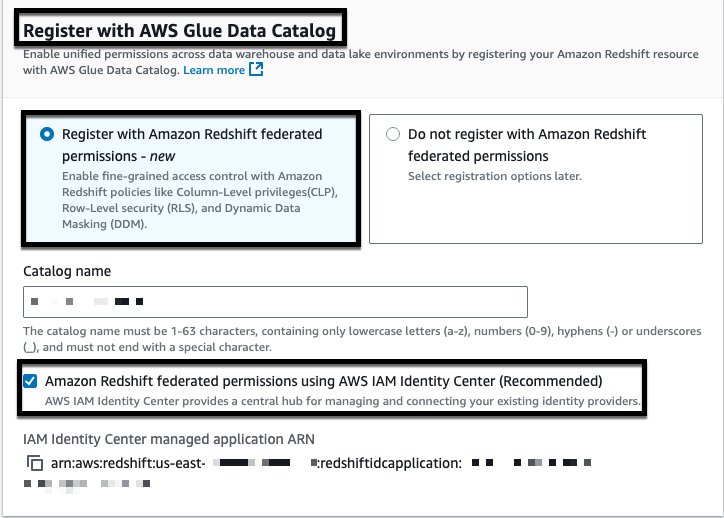
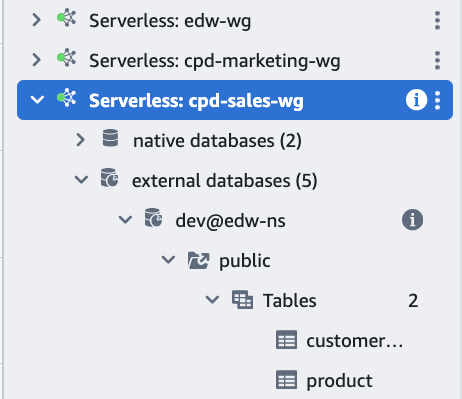
Trusted Advisor data is configured to use Kinesis Firehose to deliver customer summary data to the Support Data lake S3 bucket .The data ingestion process uses firehose buffer parameters (1MB buffer size and 60-second buffer time) to manage data flow to the S3 bucket .
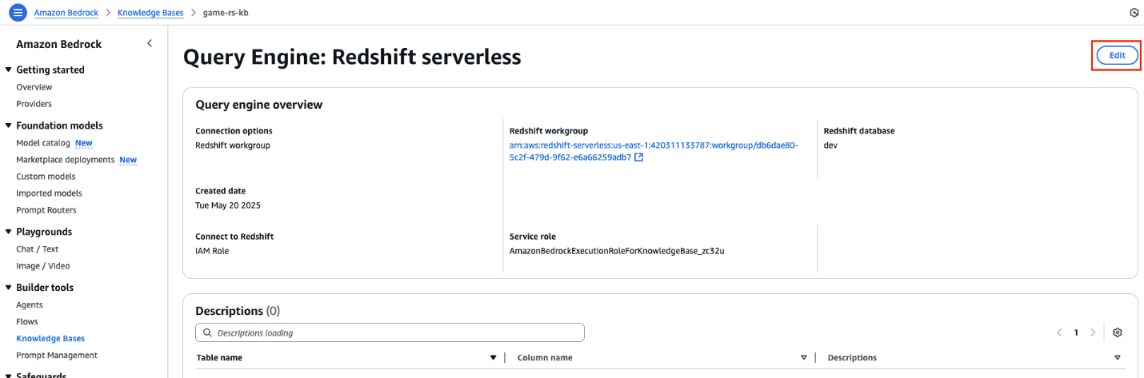
The Trusted Advisor data is stored in JSON and GZIP format, following a specific folder structure with hourly partitions using the “YYYY-MM-DD-HH” format .

The S3 partition structure for Trusted Advisor customer summary data includes separate paths for success and error data, and the data is encrypted using a KMS key specific to Trusted Advisor data .

MuleSoft used AWS managed services and data ingestion tools to pull from multiple data sources and that can support customizations. Cloudquery is used tool to gather cloud infrastructure information, which can connect many infrastructure data sources out of the box and land it into an Amazon S3 bucket. The MuleSoft Anypoint Platform provides an integration layer to integrate infrastructure tools, accommodating many data sources like on-premise, SaaS, and commercial off-the-shelf (COTS) software. Cloud Custodian  was used for its capability of managing cloud resources and auto-remediation with customizations.

Enrichment phase

The enrichment phase includes ingesting raw data aligning with our business goals into the lakehouse through our pipelines, and consolidating the data to create a single pane of glass.

The pipelines adopt the event-driven architecture consisting of EventBridge, Amazon Simple Queue Service (Amazon SQS), and Amazon S3 Event Notifications to provide near real-time data for analysis. When new data arrives in the source bucket, new object creation is captured by the EventBridge rule, which invokes the AWS Glue workflow, consisting of an AWS Glue crawler and AWS Glue extract, transform, and load (ETL) jobs. We also configured S3 Event Notifications to send messages to the SQS queue to make sure the pipeline will only process the new data.

The AWS Glue ETL job cleanses and standardizes the data, so that it’s ready to be analyzed using Amazon Redshift. To tackle data with complex structures, additional processing is performed to flatten the nested data formats into a relational model. The flattening step also extracts the tags of AWS assets out of the nested JSON objects and pivots them into individual columns, enabling tagging enforcement controls and ownership attribution.  The ownership attribution of the infrastructure data provides accountability and holds teams responsible for the costs, utilization, security, compliance, and remediation of their cloud assets.  One important tag is asset ownership which is from the tags extracted from the flattening step, this data can be attributed to the corresponding owners by SQL scripts.

When the workflow is complete, the raw data from different sources and with various structures is now  centralized in the data warehouse.  From there, disjointed data with different purposes is ready to be consolidated and translated into actionable intelligence in the Well-Architected Pillars by coding out the business logic.

 Solutions for the enrichment phase

In the enrichment phase, we faced a number of storage, efficiency, and scalability challenges given the sheer volume of data. We used three techniques (file partitioning, Redshift Spectrum, and materialized views) to address these issues and scale without compromising performance.

File partitioning

MuleSoft’s infrastructure data is stored in folder structure: year, month, day, hour, account, and Region in an S3 bucket, so AWS Glue crawlers are able to automatically identify and add partitions to the tables in the AWS Glue Data Catalog. Partitioning helps improve query performance significantly because it optimizes parallel processing for queries. The amount of data scanned by each query is restricted based on the partition keys, helping reduce overall data transfers, processing time, and computation costs. Although partitioning is an optimization technique that helps improve query efficiency, it’s important to keep in mind two key points while using this technique:

  • The Data Catalog has a maximum cap of 10 million partitions per table
  • Query performance gets compromised as partitions grow rapidly

Therefore, balancing the number of partitions in the Data Catalog tables and query efficiency is essential. We decided on a data retention policy of 3 months and configured a lifecycle rule to expire any data older than that.

Our event-driven architecture–AWS Eventbridge event is invoked when objects are put into or removed from an S3 bucket, event messages are published to the SQS queue using S3 Event Notifications, which invokes an AWS Glue crawler to either add new partitions or removes old partitions from the Data Catalog based on the messages handling the partition cleanup.

Amazon Redshift and concurrency scaling

MuleSoft uses Amazon Redshift to query the data in S3 because it provides large scale compute and minimized data redundancy. MuleSoft also used Amazon Redshift concurrency scaling to run concurrent queries with consistently fast query performance. Amazon Redshift automatically added query processing power in seconds to process a high number of concurrent queries without any delays.

Materialized views

Another technique we used is Amazon Redshift materialized views. Materialized views store preset query results that future similar queries can use, so many computation steps can be skipped. Therefore, relevant data can be accessed efficiently, which leads to query optimization. Additionally, materialized views can be automatically and incrementally refreshed. Therefore, we can achieve a single pane of glass in our cloud infrastructure with the most up-to-date projections, trends, and actionable insights to our organization with improved query performance.

Amazon Redshift Materialized Views (MVs) are used extensively for reporting in MuleSoft’s Cloud Central portal, but if users needed to drill down into a granular view they could reference external tables.

Mulesoft is currently manually refreshing the materialized views through the event-driven architecture, but is evaluating a switch to automatic refresh.

Action phase

Using materialized views in Amazon Redshift, we developed a self-serve Cloud Central portal in Tableau to provide a display portal for each team, engineer, and manager offering guidance and recommendations to help them operate in a way that aligns with the organization’s requirements, standards, and budget. Managers are empowered with monitoring and decision-making information for their teams. Engineers are able to identify and tag assets with missing mandatory tagging information, as well as remediate non-compliant resources. A key feature of the portal is personalization, meaning that the portal is enabled to populate visualizations and analysis based on the relevant data associated with a manager’s or engineer’s login information.

Cloud Central also helps engineering teams improve their cloud maturity in the six Well-Architecture pillars: operational excellence, security, reliability, performance efficiency, cost optimization, and sustainability. The team proved out the “art of possible” by poc’ing Amazon Q to assist with 100 and 200 Well-Architected pillar inquiries and how to’s. The following screenshot illustrates the MuleSoft implementation of the portal, Cloud Central. Other companies will design portals that are more bespoke to their own use cases and requirements.

Conclusion

The technical and business impact of MuleSoft’s COE Framework enables an optimization strategy and a cloud usage show back approach which helps MuleSoft continue to grow with a scalable and sustainable cloud infrastructure. The framework also drives continual maturity and benefits in cloud infrastructure centered around the six Well-Architecture pillars shown in the following figure.

The framework helps organizations with expanded public cloud infrastructure achieve their business goals guided by the Well-Architected benefits powered by an event-driven architecture.

The event-driven Amazon Redshift lakehouse architecture solution offers near real-time actionable insights on decision-making, control, and accountability. The event-driven architecutre can be distilled into modules which can be added or deleted depending on your technical/business goals.

The team is exploring new ways to lower the total cost of ownership. They are evaluating Amazon Redshift Serverless for transient database workloads as well as exploring Amazon DataZone to aggregate and correlate data sources into a data catalog to share among teams, applications, and lines of businesses in a democratized way. We can increase visibility, productivity, and scalability with a well-thought-out lakehouse solution.

We invite organizations and enterprises to take a holistic approach to understand their cloud resources, infrastructure, and applications. You can enable and educate your teams through a single pane of glass, while running on a data modernization lakehouse applying Well-Architected concepts, best practices, and cloud-centric principles. This solution can ultimately enable near real-time streaming, leveling up a COE Framework well into the future.


About the Authors

Sean Zou is a Cloud Operations leader with MuleSoft at Salesforce. Sean has been involved in many aspects of MuleSoft’s Cloud Operations, and helped drive MuleSoft’s cloud infrastructure to scale more than tenfold in 7 years. He built the Oversight Engineering function at MuleSoft from scratch.

Terry Quan focuses on FinOps issues. He works on MuleSoft Engineering on cloud computing budgets and forecasting, cost reduction efforts, costs-to-serve, and coordinates with Salesforce Finance. Terry is a FinOps Practitioner and Professional Certified.

Audrey Yuan is a Software Engineer with MuleSoft at Salesforce. Audrey works on data lakehouse solutions to help drive cloud maturity across the six pillars of the Well-Architected Framework.

Rueben Jimenez is a Senior Solutions Architect at AWS, designing and implementing complex data analytics, AI/ML, and cloud infrastructure solutions.

Avijit Goswami is a Principal Solutions Architect at AWS specialized in data and analytics. He supports AWS strategic customers in building high-performing, secure, and scalable data lake solutions on AWS using AWS managed services and open source solutions. Outside of his work, Avijit likes to travel, hike, watch sports, and listen to music.

How EUROGATE established a data mesh architecture using Amazon DataZone

Post Syndicated from Dr. Leonard Heilig original https://aws.amazon.com/blogs/big-data/how-eurogate-established-a-data-mesh-architecture-using-amazon-datazone/

This post is co-written by Dr. Leonard Heilig and Meliena Zlotos from EUROGATE.

For container terminal operators, data-driven decision-making and efficient data sharing are vital to optimizing operations and boosting supply chain efficiency. Internally, making data accessible and fostering cross-departmental processing through advanced analytics and data science enhances information use and decision-making, leading to better resource allocation, reduced bottlenecks, and improved operational performance. Externally, sharing real-time data with partners such as shipping lines, trucking companies, and customs agencies fosters better coordination, visibility, and faster decision-making across the logistics chain. Together, these capabilities enable terminal operators to enhance efficiency and competitiveness in an industry that is increasingly data driven.

EUROGATE is a leading independent container terminal operator in Europe, known for its reliable and professional container handling services. Every day, EUROGATE handles thousands of freight containers moving in and out of ports as part of global supply chains. Their terminal operations rely heavily on seamless data flows and the management of vast volumes of data. Recently, EUROGATE has developed a digital twin for its container terminal Hamburg (CTH), generating millions of data points every second from Internet of Things (IoT)devices attached to its container handling equipment (CHE).

In this post, we show you how EUROGATE uses AWS services, including Amazon DataZone, to make data discoverable by data consumers across different business units so that they can innovate faster. Two use cases illustrate how this can be applied for business intelligence (BI) and data science applications, using AWS services such as Amazon Redshift and Amazon SageMaker. We encourage you to read Amazon DataZone concepts and terminology to become familiar with the terms used in this post.

Data landscape in EUROGATE and current challenges faced in data governance

The EUROGATE Group is a conglomerate of container terminals and service providers, providing container handling, intermodal transports, maintenance and repair, and seaworthy packaging services. In recent years, EUROGATE has made significant investments in modern cloud applications to enhance its operations and services along the logistics chains. With the addition of these technologies alongside existing systems like terminal operating systems (TOS) and SAP, the number of data producers has grown substantially. However, much of this data remains siloed and making it accessible for different purposes and other departments remains complex. Thus, managing data at scale and establishing data-driven decision support across different companies and departments within the EUROGATE Group remains a challenge.

Need for a data mesh architecture

Because entities in the EUROGATE group generate vast amounts of data from various sources—across departments, locations, and technologies—the traditional centralized data architecture struggles to keep up with the demands for real-time insights, agility, and scalability. The following requirements were essential to decide for adopting a modern data mesh architecture:

  • Domain-oriented ownership and data-as-a-product: EUROGATE aims to:
    • Enable scalable and straightforward data sharing across organizational boundaries.
    • Enhance agility by localizing changes within business domains and clear data contracts.
    • Improve accuracy and resiliency of analytics and machine learning by fostering data standards and high-quality data products.
    • Eliminate centralized bottlenecks and complex data pipelines.
  • Self-service and data governance: EUROGATE wants to ensure that the discovery, access, and use of data by consumers is as direct as possible through a data portal where information about shared data sets can be published, while data governance is streamlined through automated policy enforcement, ensuring compliance during key stages such as data discovery, access, and deployment.
  • Plug-and-play integration: A seamless, plug-and-play integration between data producers and consumers should facilitate rapid use of new data sets and enable quick proof of concepts, such as in the data science teams.

How Amazon DataZone helped EUROGATE address those challenges

In the first phase of establishing a data mesh, EUROGATE focused on standardized processes to allow data producers to share data in Amazon DataZone and to allow data consumers to discover and access data. The vision, as shown in the following figure, is that data from digital services, such as from the terminal operating system (TOS) and TwinSim (a project to create a digital twin of real-world operations), can be shared with Amazon DataZone and used by BI dashboards and data science teams, among others, while those digital services and other domain users can also consume subscribed data from Amazon DataZone.

EUROGATE_pic1

In the following section, two use cases demonstrate how the data mesh is established with Amazon DataZone to better facilitate machine learning for an IoT-based digital twin and BI dashboards and reporting using Tableau.

Use case 1: Machine learning for IoT-based digital twin

Through the TwinSim project, EUROGATE has developed a digital twin using AWS services that gathers real-time data (for example, positions, machinery, and pick/deck events) from CHE (including straddle carriers and quay cranes), integrates it with planning data from the TOS, and enhances it with additional sources such as weather information. In addition to real-time analytics and visualization, the data needs to be shared for long-term data analytics and machine learning applications. EUROGATE’s data science team aims to create machine learning models that integrate key data sources from various AWS accounts, allowing for training and deployment across different container terminals. To achieve this, EUROGATE designed an architecture that uses Amazon DataZone to publish specific digital twin data sets, enabling access to them with SageMaker in a separate AWS account.

As part of the required data, CHE data is shared using Amazon DataZone. The data originates in Amazon Kinesis Data Streams, from which it is copied to a dedicated Amazon Simple Storage Service (Amazon S3) bucket by using Amazon Data Firehose in combination with an AWS Lambda function for data filtering. An extract, transform, and load (ETL) process using AWS Glue is triggered once a day to extract the required data and transform it into the required format and quality, following the data product principle of data mesh architectures. From here, the metadata is published to Amazon DataZone by using AWS Glue Data Catalog. This process is shown in the following figure.

EUROGATE_2

To work with the shared data, the data science and AI teams subscribe to the data and query it using Amazon Athena by using Amazon SageMaker Data Wrangler. The following is an example query.

import awswrangler as wr
wr.athena.read_sql_query('SELECT * FROM "sagemakedatalakeenvironment_sub_db"."cycle_end"', "sagemakedatalakeenvironment_sub_db", ctas_approach=False)

A similar approach is used to connect to shared data from Amazon Redshift, which is also shared using Amazon DataZone.

import awswrangler as wr
con = wr.redshift.connect(secret_id="ai-dev-redshift-credentials",is_serverless=True,serverless_work_group="ai-dev-workgroup")
with con.cursor() as cursor:
cursor.execute('SELECT * FROM 
"datazone_datashare_db_269e5790f589258657fcc48d8cfd65ea3f3cd7f7"."datazone_env_twinsimsilverdata"."cycle_end";')
con.close()

With this, as the data lands in the curated data lake (Amazon S3 in parquet format) in the producer account, the data science and AI teams gain instant access to the source data eliminating traditional delays in the data availability. The data science and AI teams are able to explore and use new data sources as they become available through Amazon DataZone. Because Amazon DataZone integrates the data quality results, by subscribing to the data from Amazon DataZone, the teams can make sure that the data product meets consistent quality standards.

After experimentation, the data science teams can share their assets and publish their models to an Amazon DataZone business catalog using the integration between Amazon SageMaker and Amazon DataZone. This will be the future use case of EUROGATE where the ability to publish trained machine learning (ML) models back to an Amazon DataZone catalog promotes reusability, allowing models to be discovered by other teams and projects. This approach fosters knowledge sharing across the ML lifecycle.

Use case 2: BI for cloud applications

In recent years, EUROGATE has developed several cloud applications for supporting key container logistics processes and services, such as special container terminal and container depot applications or digital platforms for organizing container transports using rail and truck. The applications are hosted in dedicated AWS accounts and require a BI dashboard and reporting services based on Tableau. In the past, one-to-one connections were established between Tableau and respective applications. This led to a complex and slow computations. In this use case, EUROGATE implemented a hybrid data mesh architecture using Amazon Redshift as a centralized data platform. This approach transformed their fragmented Tableau connections into a scalable, efficient analytics ecosystem.

By centralizing container and logistics application data through Amazon Redshift and establishing a governance framework with Amazon DataZone, EUROGATE achieved both performance optimization and cost efficiency. The hybrid data mesh enables batch processing at scale while maintaining the data access controls, security, and governance; effectively balancing the distributed ownership with centralized analytics capabilities.

The data is shared from on-premises to an Amazon Relational Database Service (Amazon RDS) database in the AWS Cloud. AWS Database Migration Service (AWS DMS) is used to securely transfer the relevant data to a central Amazon Redshift cluster. AWS DMS tasks are orchestrated using AWS Step Functions. A Step Functions state machine is run on a daily using Amazon EventBridge scheduler. The data in the central data warehouse in Amazon Redshift is then processed for analytical needs and the metadata is shared to the consumers through Amazon DataZone. The consumer subscribes to the data product from Amazon DataZone and consumes the data with their own Amazon Redshift instance. This is further integrated into Tableau dashboards. The architecture is depicted in the following figure.

EUROGATE_3

Implementation benefits

As we continue to scale, efficient and seamless data sharing across services and applications becomes increasingly important. By using Amazon DataZone and other AWS services including Amazon Redshift and Amazon SageMaker, we can achieve a secure, streamlined, and scalable solution for data and ML model management, fostering effective collaboration and generating valuable insights. This approach supports both the immediate needs of visualization tools such as Tableau and the long-term demands of digital twin and IoT data analytics.

  • Centralized, scalable data sharing and native integration

Amazon DataZone facilitates integration with applications such as Tableau, enabling data to flow seamlessly within the AWS ecosystem. Those integrations reduce the need for complex, manual configurations, allowing EUROGATE to share data across the organization efficiently. The architecture centralizes key data, such as CHE data, for analytics and ML, ensuring that teams across the organization have access to consistent, up-to-date information, enhancing collaboration and decision-making at all levels. Insights from ML models can be channeled through Amazon DataZone to inform internal key decision makers internally and external partners.

  • Reduced complexity, greater scalability, and cost efficiency

The Amazon DataZone architecture reduces unnecessary complexity and scales with EUROGATE’s growing needs, whether through new data sources or increased user demand. In parallel, using Amazon Data Firehose to stream data into an S3 bucket and AWS Glue for daily ETL transformations provides an automated pipeline that prepares the data for long-term analytics. This batch-oriented approach reduces computational overhead and associated costs, allowing resources to be allocated efficiently. While real-time data is processed by other applications, this setup maintains high-performance analytics without the expense of continuous processing.

  • Faster and easier data integration for Tableau and enhanced data preparation for ML

Amazon DataZone streamlines data integration for tools such as Tableau, enabling BI teams to quickly add and visualize data without building complex pipelines. This agility accelerates EUROGATE’s insight generation, keeping decision-making aligned with current data. Additionally, daily ETL transformations through AWS Glue ensure high-quality, structured data for ML, enabling efficient model training and predictive analytics. This combination of ease and depth in data management equips EUROGATE to support both rapid BI needs and robust analytical processing for IoT and digital twin projects.

  • Faster onboarding and data sharing of data assets between organizational units

Amazon DataZone helps the teams to autonomously discover data assets that are created in the organization and to onboard data assets across AWS accounts within minutes with metadata synchronization. EUROGATE has already onboarded 500 data assets from different organizational units using Amazon DataZone. The new process of onboarding data assets is 15 times faster, leading to immediate visibility of data assets while simplifying data sharing and discovery through an intuitive point-and-click interface that removes traditional barriers to data access.

Conclusion

The implementation of Amazon DataZone marks a transformative step for EUROGATE’s data management by providing a scalable, and efficient solution for data sharing, machine learning and analytics. By integrating various data producers and connecting them to data consumers such as Amazon SageMaker and Tableau, Amazon DataZone functions as a digital library to streamline data sharing and integration across EUROGATE’s operations. In the first phase of production, Amazon DataZone has already demonstrated measurable benefits, including access to data and ML and the ability to incorporate a wider range of datasets to its unified catalog repository. By centralizing metadata with Amazon DataZone, EUROGATE is setting a solid foundation for efficient operations and improved data and ML governance, because teams can now discover, govern, and analyze data with greater confidence and speed. This capability supports rapid responses to business needs, helping EUROGATE to maintain agility and stay ahead of the curve. With this, EUROGATE is better positioned to onboard new data sources, integrate additional terminals, and expand machine learning applications across our container terminals.

Amazon DataZone empowers EUROGATE by setting the stage for long-term operational excellence and scalability. With a unified catalog, enhanced analytics capabilities, and efficient data transformation processes, we’re laying the groundwork for future growth. This infrastructure enables EUROGATE to extract predictive insights, drive smarter business decisions, and scale operations efficiently, ultimately supporting our goal of sustained innovation and competitive advantage.

Future vision and next steps

As EUROGATE continues to advance its digital transformation, the integration of Amazon DataZone and EUROGATE’s architecture lays the groundwork for a more data-driven and intelligent future. In the upcoming phases, the vision is to further expand the role of Amazon DataZone as the central platform for all data management, enabling seamless integration across an even broader set of data sources and consumers. This will include additional data from more container terminals and logistics service providers, enhanced operational metrics, IoT sensor data, and advanced third-party sources such as global supply chain data and maritime analytics.

The continued focus on secure data sharing and governance will also foster better collaboration with partners, suppliers, and customers, leading to improved service levels and a more resilient supply chain. This future vision will help EUROGATE maintain its position as a leader in container terminal operations while continuously adapting to technological advancements and market dynamics.

Ultimately, EUROGATE’s investment in this architecture ensures that the organization is well-positioned to scale and innovate in a dynamic industry through a future of smarter, more connected, and highly efficient container terminal operations.

To learn more about Amazon DataZone and how to get started, see the Getting started guide. See the YouTube playlist for some of the latest demos of Amazon DataZone and short descriptions of the capabilities available.


About the Authors

Dr. Leonard Heilig is CTO at driveMybox and drives digitalization and AI initiatives at EUROGATE, bringing over 10 years of research and industry experience in cloud-based platform development, data management, and AI. Combining a deep understanding of advanced technologies with a passion for innovation, Leonard is dedicated to transforming logistics processes through digitalization and AI-driven solutions.

Meliena ZlotosMeliena Zlotos is a DevOps Engineer at EUROGATE with a background in Industrial Engineering. She has been heavily involved in the Data Sharing Project, focusing on the implementation of Amazon DataZone into EUROGATE’s IT environment. Through this project, Meliena has gained valuable experience and insights into DataZone and Data Engineering, contributing to the successful integration and optimization of data management solutions within the organization.

Lakshmi Nair is a Senior Specialist Solutions Architect for Data Analytics at AWS. She focuses on architecting solutions for organizations across their end-to-end data analytics estate, including batch and real-time streaming, data governance, big data, data warehousing, and data lake workloads. She can reached via LinkedIn.

Siamak NarimanSiamak Nariman is a Senior Product Manager at AWS. He is focused on AI/ML technology, ML model management, and ML governance to improve overall organizational efficiency and productivity. He has extensive experience automating processes and deploying various technologies.

Ingest data from Google Analytics 4 and Google Sheets to Amazon Redshift using Amazon AppFlow

Post Syndicated from Ritesh Sinha original https://aws.amazon.com/blogs/big-data/ingest-data-from-google-analytics-4-and-google-sheets-to-amazon-redshift-using-amazon-appflow/

Google Analytics 4 (GA4) provides valuable insights into user behavior across websites and apps. But what if you need to combine GA4 data with other sources or perform deeper analysis? That’s where Amazon Redshift and Amazon AppFlow come in. Amazon AppFlow bridges the gap between Google applications and Amazon Redshift, empowering organizations to unlock deeper insights and drive data-informed decisions. In this post, we show you how to establish the data ingestion pipeline between Google Analytics 4, Google Sheets, and an Amazon Redshift Serverless workgroup.

Amazon AppFlow is a fully managed integration service that you can use to securely transfer data from software as a service (SaaS) applications, such as Google BigQuery, Salesforce, SAP, HubSpot, and ServiceNow, to Amazon Web Services (AWS) services such as Amazon Simple Storage Service (Amazon S3) and Amazon Redshift, in just a few clicks. With Amazon AppFlow, you can run data flows at nearly any scale and at the frequency you choose—on a schedule, in response to a business event, or on demand. You can configure data transformation capabilities such as filtering and validation to generate rich, ready-to-use data as part of the flow itself, without additional steps. Amazon AppFlow automatically encrypts data in motion, and allows you to restrict data from flowing over the public internet for SaaS applications that are integrated with AWS PrivateLink, reducing exposure to security threats.

Amazon Redshift is a fast, scalable, and fully managed cloud data warehouse that allows you to process and run your complex SQL analytics workloads on structured and semi-structured data. It also helps you securely access your data in operational databases, data lakes, or third-party datasets with minimal movement or copying of data. Tens of thousands of customers use Amazon Redshift to process large amounts of data, modernize their data analytics workloads, and provide insights for their business users.

Prerequisites

Before starting this walkthrough, you need to have the following prerequisites in place:

  • An AWS account.
  • In your Google Cloud project, you’ve enabled the following APIs:
    • Google Analytics API
    • Google Analytics Admin API
    • Google Analytics Data API
    • Google Sheets API
    • Google Drive API

For more information, refer to Amazon AppFlow support for Google Sheets.

For the steps to enable these APIs, see Enable and disable APIs on the API Console Help for Google Cloud Platform.

Architecture overview

The following architecture shows how Amazon AppFlow can transform and move data from SaaS applications to processing and storage destinations. Three sections appear from left to right in the diagram: Source, Move, Target. These sections are described in the following section.

  • Source – The leftmost section on the diagram represents different applications acting as a source, including Google Analytics, Google Sheets, and Google BigQuery.
  • Move – The middle section is labeled Amazon AppFlow. The section contains boxes that represent Amazon AppFlow operations such as Mask Fields, Map Fields, Merge Fields, Filter Data, and others. In this post, we focus on setting up the data movement using Amazon AppFlow and filtering data based on start date. The other transformation operations such as mapping, masking, and merging fields are not covered in this post.
  • Destination – The section on the right of the diagram is labeled Destination and represents targets such as Amazon Redshift and Amazon S3. In this psot, we primarily focus on Amazon Redshift as the destination.

This post has two parts. The first part covers integrating from Google Analytics. The second part focuses on connecting with Google Sheets.

Application configuration in Google Cloud Platform

Amazon AppFlow requires OAuth 2.0 for authentication. You need to create an OAuth 2.0 client ID, which Amazon AppFlow uses when requesting an OAuth 2.0 access token. To create an OAuth 2.0 client ID in the Google Cloud Platform console, follow these steps:

  1. On the Google Cloud Platform Console, from the projects list, select a project or create a new one.
  2. If the APIs & Services page isn’t already open, choose the menu icon on the upper left and select APIs & Services.
  3. In the navigation pane, choose Credentials.
  4. Choose CREATE CREDENTIALS, then choose OAuth client ID, as shown in the following screenshot.

  1. Select the application type Web application, enter the name demo-google-aws, and provide URIs for Authorized JavaScript origins https://console.aws.amazon.com. For Authorized redirect URIs, add https://us-east-1.console.aws.amazon.com/appflow/oauth. Choose SAVE, as shown in the following screenshot.

  1. The OAuth client ID is now created. Select demo-google-aws.

  1. Under Additional information, as shown in the following screenshot, note down the Client ID and Client secret.

Data ingestion from Google Analytics 4 to Amazon Redshift

In this section, you configure Amazon AppFlow to set up a connection between Google Analytics 4 and Amazon Redshift for data migration. This procedure can be classified into the following steps:

  1. Create a connection to Google Analytics 4 in Amazon AppFlow
  2. Create an IAM role for Amazon AppFlow integration with Amazon Redshift
  3. Set up Amazon AppFlow connection for Amazon Redshift
  4. Set up table and permission in Amazon Redshift
  5. Create data flow in Amazon AppFlow

Create a connection to Google Analytics 4 in Amazon AppFlow

To create a connection to Google Analytics 4 in Amazon AppFlow, follow these steps:

  1. Sign in to the AWS Management Console and open Amazon AppFlow.
  2. In the navigation pane on the left, choose Connections.
  3. On the Manage connections page, for Connectors, choose Google Analytics 4.
  4. Choose Create connection.
  5. In the Connect to Google Analytics 4 window, enter the following information. For Client ID, enter the client ID of the OAuth 2.0 client ID in your Google Cloud project created in the previous section. For Client secret, enter the client secret of the OAuth 2.0 client ID in your Google Cloud project created in the previous section.
  6. (Optional) under Data encryption, choose Customize encryption settings (advanced) if you want to encrypt your data with a customer managed key in AWS Key Management Service (AWS KMS). By default, Amazon AppFlow encrypts your data with an AWS KMS key that AWS creates, uses, and manages for you. Choose this option if you want to encrypt your data with your own AWS KMS key instead.

The following screenshot shows the Connect to Google Analytics 4 window.

Amazon AppFlow encrypts your data during transit and at rest. For more information, see Data protection in Amazon AppFlow.

If you want to use an AWS KMS key from the current AWS account, select this key under Choose an AWS KMS key. If you want to use an AWS KMS key from a different AWS account, enter the Amazon Resource Name (ARN) for that key:

  1. For Connection name, enter a name for your connection
  2. Choose Continue
  3. In the window that appears, sign in to your Google account and grant access to Amazon AppFlow

On the Manage connections page, your new connection appears in the Connections table. When you create a flow that uses Google Analytics 4 as the data source, you can select this connection.

Create an IAM role for Amazon AppFlow integration with Amazon Redshift

You can use Amazon AppFlow to transfer data from supported sources into your Amazon Redshift databases. You need an IAM role because Amazon AppFlow needs authorization to access Amazon Redshift using an Amazon Redshift Data API.

  1. Sign in to the AWS Management Console, preferably as admin user, and in the navigation pane of the IAM dashboard, choose Policies.
  2. Choose Create policy.
  3. Select the JSON tab and paste in the following policy. Amazon AppFlow needs the following permissions to gain access and run SQL statements with the Amazon Redshift database.
{
  "Version": "2012-10-17",
  "Statement": [
    {
      "Sid": "DataAPIPermissions",
      "Effect": "Allow",
      "Action": [
        "redshift-data:ExecuteStatement",
        "redshift-data:GetStatementResult",
        "redshift-data:DescribeStatement"
      ],
      "Resource": "*"
    },
    {
      "Sid": "GetCredentialsForAPIUser",
      "Effect": "Allow",
      "Action": "redshift:GetClusterCredentials",
      "Resource": [
        "arn:aws:redshift:*:*:dbname:*/*",
        "arn:aws:redshift:*:*:dbuser:*/*"
      ]
    },
    {
      "Sid": "GetCredentialsForServerless",
      "Effect": "Allow",
      "Action": "redshift-serverless:GetCredentials",
      "Resource": "*"
    },
    {
      "Sid": "DenyCreateAPIUser",
      "Effect": "Deny",
      "Action": "redshift:CreateClusterUser",
      "Resource": [
        "arn:aws:redshift:*:*:dbuser:*/*"
      ]
    },
    {
      "Sid": "ServiceLinkedRole",
      "Effect": "Allow",
      "Action": "iam:CreateServiceLinkedRole",
      "Resource": "arn:aws:iam::*:role/aws-service-role/redshift-data.amazonaws.com/AWSServiceRoleForRedshift",
      "Condition": {
        "StringLike": {
          "iam:AWSServiceName": "redshift-data.amazonaws.com"
        }
      }
    }
  ]
}
  1. Choose Next, provide the Policy name as appflow-redshift-policy, Description as appflow redshift policy, and choose Create policy.

  1. In the navigation pane, choose Roles and Create role. Choose Custom trust policy and paste in the following. Choose Next. This trust policy grants Amazon AppFlow the ability to assume the role for Amazon AppFlow to access and process data.
{
  "Version": "2012-10-17",
  "Statement": [
    {
      "Effect": "Allow",
      "Principal": {
        "Service": "appflow.amazonaws.com"
      },
      "Action": "sts:AssumeRole"
    }
  ]
}
  1. Search for policy appflow-redshift-policy, check the box next to it, and choose Next.

  1. Provide the role name appflow-redshift-access-role and Description and choose Create role.

Set up Amazon AppFlow connection for Amazon Redshift

To set up an Amazon AppFlow connection for Amazon Redshift, follow these steps:

  1. On the Amazon AppFlow console, in the navigation pane, choose Connectors, select Amazon Redshift, and choose Create connection.

  1. Enter the connection name appflow-redshift-connection. You can either use Amazon Redshift provisioned or Amazon Redshift Serverless, but in this example we are using Amazon Redshift Serverless. Select Amazon Redshift Serverless and enter the workgroup name and database name.
  2. Choose the S3 bucket and enter the bucket prefix.

  1. For Amazon S3 access, select the IAM role attached to the Redshift cluster or namespace during the creation of the Redshift cluster. Additionally, for the Amazon Redshift Data API, choose the IAM role appflow-redshift-access-role created in the previous section and then choose

Set up a table and permission in Amazon Redshift

To set up table and permission in Amazon Redshift, follow these steps:

  1. On the Amazon Redshift console, choose Query editor v2 in Explorer.
  2. Connect to your existing Redshift cluster or Amazon Redshift Serverless workgroup.
  3. Create a table with the following Data Definition Language (DDL).
create table public.stg_ga4_daily_summary

(

event_date date,

region varchar(255),

country varchar(255),

city varchar(255),

deviceCategory varchar(255),

deviceModel varchar(255),

browser varchar(255),

active_users INTEGER,

new_users integer,

total_revenue  NUMERIC(18,2)

);

The following screenshot shows the successful creation of this table in Amazon Redshift:

The following step is only applicable to Amazon Redshift Serverless. If you are using a Redshift provisioned cluster, you can skip this step.

  1. Grant the permissions on the table to the IAM user used by Amazon AppFlow to load data into Amazon Redshift Serverless, for example, appflow-redshift-access-role.
GRANT INSERT ON TABLE public.stg_ga4_daily_summary TO "IAMR:appflow-redshift-access-role";

Create data flow in Amazon AppFlow

To create a data flow in Amazon AppFlow, follow these steps:

  1. On the Amazon AppFlow console, choose Flows and select Amazon Redshift. Choose Create flow and enter the flow name and the flow description, as shown in the following screenshot.

  1. In Source name, choose Google Analytics 4. Choose the Google Analytics 4 connection.
  2. Select the Google Analytics 4 object, then choose Amazon Redshift as the destination, selecting the public schema and stg_ga4_daily_summary table in your Redshift instance.

  1. For Flow trigger, choose Run on demand and choose Next, as shown in the following screenshot.

You can run the flow on schedule to pull either full or incremental data refresh. For more information, see Schedule-triggered flows.

  1. Select Manually map fields. From the Source field name dropdown menu, select the attribute date, and from the Destination field name, select event_date and choose Map fields, as shown in the following screenshot.

  1. Repeat the previous step (step 5) for the following attributes and then choose Next. The following screenshot shows the mapping.
Dimension:browser --> browser
Dimension:region --> region
Dimension:country --> country
Dimension:city --> city
Dimension:deviceCategory --> devicecategory
Dimension:deviceModel --> devicemodel
Metric:activeUsers --> active_users
Metric:newUsers --> new_users
Metric: totalRevenue --> total_revenue
Dimension:date --> event_date

The Google Analytics API provides various dimensions and metrics for reporting purposes. Refer to API Dimensions & Metrics for details.

  1. In Field name, enter the filter start_end_date and choose Next, as shown in the following screenshot. The Amazon AppFlow date filter supports both a start date (criteria1) and an end date (criteria2) to define the desired date range for data transfer. We are using the date range because we have sample data created for this range.

  1. Review the configurations and choose Create flow.
  2. Choose Run flow, as shown in the following screenshot, and wait for the flow execution to be completed.

  1. On the Amazon Redshift console, choose Query editor v2 in Explorer.
  2. Connect to your existing Redshift cluster or Amazon Redshift Serverless workgroup.
  3. Enter the following SQL to verify the data in Amazon Redshift.
select * from public.stg_ga4_daily_summary

The screenshot below shows the results loaded into the stg_ga4_daily_summary table.

Data ingestion from Google Sheets to Amazon Redshift

Ingesting data from Google Sheets to Amazon Redshift using Amazon AppFlow streamlines analytics, enabling seamless transfer and deeper insights. In this section, we demonstrate how business users can maintain their business glossary in Google Sheets and integrate that using Amazon AppFlow with Amazon Redshift and get meaningful insights.

For this demo, you can upload the Nation Market segment file to your Google sheet before proceeding to the next steps. These steps show how to configure Amazon AppFlow to set up a connection between Google Sheets and Amazon Redshift for data migration. This procedure can be classified into the following steps:

  1. Create Google Sheets connection in Amazon AppFlow
  2. Set up table and permission in Amazon Redshift
  3. Create data flow in Amazon AppFlow

Create Google Sheets connection in Amazon AppFlow

To create a Google Sheets connection in Amazon AppFlow, follow these steps:

  1. On the Amazon AppFlow console, choose Connectors, select Google Sheets, then choose Create connection.
  2. In the Connect to Google Sheets window, enter the following information. For Client ID, enter the client ID of the OAuth 2.0 client ID in your Google Sheets project. For Client secret, enter the client secret of the OAuth 2.0 client ID in your Google Sheets project.
  3. For Connection name, enter a name for your connection.
  4. (Optional) Under Data encryption, choose Customize encryption settings (advanced) if you want to encrypt your data with a customer managed key in AWS KMS. By default, Amazon AppFlow encrypts your data with an AWS KMS key that AWS creates, uses, and manages for you. Choose this option if you want to encrypt your data with your own AWS KMS key instead.
  5. Choose Connect.
  6. In the window that appears, sign in to your Google account and grant access to Amazon AppFlow.

Set up table and permission in Amazon Redshift

To set up a table and permission in Amazon Redshift, follow these steps:

  1. On the Amazon Redshift console, choose Query editor v2 in Explorer
  2. Connect to your existing Redshift cluster or Amazon Redshift Serverless workgroup
  3. Create a table with the following DDL
create table public.stg_nation_market_segment(
n_nationkey int4 not null,
n_name char(25) not null ,
n_regionkey int4 not null,
n_comment varchar(152) not null,
n_marketsegment varchar(255),
Primary Key(N_NATIONKEY)
) distkey(n_nationkey) sortkey(n_nationkey);

he following steps are only applicable to Amazon Redshift Serverless. If you are using a Redshift provisioned cluster, you can skip this step.

  1. Grant the permissions on the table to the IAM user used by Amazon AppFlow to load data into Amazon Redshift Serverless, for example, appflow-redshift-access-role
GRANT INSERT ON TABLE public.stg_nation_market_segment TO "IAMR:appflow-redshift-access-role";

Create data flow in Amazon AppFlow

  1. On the Amazon AppFlow console, choose Flows and select Google Sheets. Choose Create flow, enter the flow name and flow description, and choose Next.
  2. Select Google Sheets in Source name and choose the Google Sheets connection.
  3. Select the Google Sheets object nation_market_segment#Sheet1.
  4. Choose the Destination name as Amazon Redshift, then select stg_nation_market_segment as your Amazon Redshift object, as shown in the following screenshot.

  1. For Flow trigger, select On demand and choose Next.

You can run the flow on schedule to pull full or incremental data refresh. Read more at Schedule-triggered flows.

  1. Select Manually map fields. From the Source field name dropdown menu, select Map all fields directly. When a dialog box pops up, choose the respective attribute values and choose Map fields, as shown in the following screenshot. Choose Next.

The following screenshot shows the mapping.

  1. On the Add Filters page, choose Next.
  2. On the Review and create page, choose Create flow.
  3. Choose Run flow and wait for the flow execution to finish.

The screenshot below shows the execution details of the flow job.

  1. On the Amazon Redshift console, choose Query editor v2 in Explorer.
  2. Connect to your existing Redshift cluster or Amazon Redshift Serverless workgroup.
  3. Run the following SQL to verify the data in Amazon Redshift.
select * from public.stg_nation_market_segment

The screenshot below shows the results loaded into the stg_nation_market_segment table.

  1. Run the following SQL to prepare a sample dataset in Amazon Redshift.
create table public.customer (
c_custkey int8 not null ,
c_name varchar(25) not null,
c_address varchar(40) not null,
c_nationkey int4 not null,
c_phone char(15) not null,
c_acctbal numeric(12,2) not null,
c_mktsegment char(10) not null,
c_comment varchar(117) not null,
Primary Key(C_CUSTKEY)
) distkey(c_custkey) sortkey(c_custkey);

create table public.lineitem (
l_orderkey int8 not null ,
l_partkey int8 not null,
l_suppkey int4 not null,
l_linenumber int4 not null,
l_quantity numeric(12,2) not null,
l_extendedprice numeric(12,2) not null,
l_discount numeric(12,2) not null,
l_tax numeric(12,2) not null,
l_returnflag char(1) not null,
l_linestatus char(1) not null,
l_shipdate date not null ,
l_commitdate date not null,
l_receiptdate date not null,
l_shipinstruct char(25) not null,
l_shipmode char(10) not null,
l_comment varchar(44) not null,
Primary Key(L_ORDERKEY, L_LINENUMBER)
) distkey(l_orderkey) sortkey(l_shipdate,l_orderkey)  ;

create table public.orders (
o_orderkey int8 not null,
o_custkey int8 not null,
o_orderstatus char(1) not null,
o_totalprice numeric(12,2) not null,
o_orderdate date not null,
o_orderpriority char(15) not null,
o_clerk char(15) not null,
o_shippriority int4 not null,
o_comment varchar(79) not null,
Primary Key(O_ORDERKEY)
) distkey(o_orderkey) sortkey(o_orderdate, o_orderkey) ;
copy lineitem from 's3://redshift-downloads/TPC-H/2.18/10GB/lineitem.tbl' iam_role default delimiter '|' region 'us-east-1';
copy orders from 's3://redshift-downloads/TPC-H/2.18/10GB/orders.tbl' iam_role default delimiter '|' region 'us-east-1';
copy customer from 's3://redshift-downloads/TPC-H/2.18/10GB/customer.tbl' iam_role default delimiter '|' region 'us-east-1';
  1. Run the following SQL to do the data analytics using Google Sheets business data classification in the Amazon Redshift dataset.
select
n_marketsegment,
sum(l_extendedprice * (1 - l_discount)) as revenue
from
public.customer,
public.orders,
public.lineitem,
public.stg_nation_market_segment
where
c_custkey = o_custkey
and l_orderkey = o_orderkey
and c_nationkey = n_nationkey
group by
1
order by
revenue desc;

The screenshot below shows the results from the aggregated query in Amazon Redshift from data loaded using Amazon Appflow.

Clean up

To avoid incurring charges, clean up the resources in your AWS account by completing the following steps:

  1. On the Amazon AppFlow console, in the navigation pane, choose Flows.
  2. From the list of flows, select the flow name created and delete it.
  3. Enter “delete” to delete the flow.
  4. Delete the Amazon Redshift workgroup.
  5. Clean up resources in your Google account by deleting the project that contains the Google BigQuery resources. Follow the documentation to clean up the Google resources.

Conclusion

In this post, we walked you through the process of using Amazon AppFlow to integrate data from Google Ads and Google Sheets. We demonstrated how the complexities of data integration are minimized so you can focus on deriving actionable insights from your data. Whether you’re archiving historical data, performing complex analytics, or preparing data for machine learning, this connector streamlines the process, making it accessible to a broader range of data professionals.

For more information, refer to Amazon AppFlow support for Google Sheets and Google Ads.


About the authors

Ritesh Kumar Sinha is an Analytics Specialist Solutions Architect based out of San Francisco. He has helped customers build scalable data warehousing and big data solutions for over 16 years. He loves to design and build efficient end-to-end solutions on AWS. In his spare time, he loves reading, walking, and doing yoga.

Tahir Aziz is an Analytics Solution Architect at AWS. He has worked with building data warehouses and big data solutions for over 13 years. He loves to help customers design end-to-end analytics solutions on AWS. Outside of work, he enjoys traveling and cooking.

Raza Hafeez is a Senior Product Manager at Amazon Redshift. He has over 13 years of professional experience building and optimizing enterprise data warehouses and is passionate about enabling customers to realize the power of their data. He specializes in migrating enterprise data warehouses to AWS Modern Data Architecture.

Amit Ghodke is an Analytics Specialist Solutions Architect based out of Austin. He has worked with databases, data warehouses and analytical applications for the past 16 years. He loves to help customers implement analytical solutions at scale to derive maximum business value.

Recap of Amazon Redshift key product announcements in 2024

Post Syndicated from Neeraja Rentachintala original https://aws.amazon.com/blogs/big-data/recap-of-amazon-redshift-key-product-announcements-in-2024/

Amazon Redshift, launched in 2013, has undergone significant evolution since its inception, allowing customers to expand the horizons of data warehousing and SQL analytics. Today, Amazon Redshift is used by customers across all industries for a variety of use cases, including data warehouse migration and modernization, near real-time analytics, self-service analytics, data lake analytics, machine learning (ML), and data monetization.

Amazon Redshift made significant strides in 2024, rolling out over 100 features and enhancements. These improvements enhanced price-performance, enabled data lakehouse architectures by blurring the boundaries between data lakes and data warehouses, simplified ingestion and accelerated near real-time analytics, and incorporated generative AI capabilities to build natural language-based applications and boost user productivity.

2024 Redshift announcements summary

Figure1: Summary of the features and enhancements in 2024

Let’s walk through some of the recent key launches, including the new announcements at AWS re:Invent 2024.

Industry-leading price-performance

Amazon Redshift offers up to three times better price-performance than alternative cloud data warehouses. Amazon Redshift scales linearly with the number of users and volume of data, making it an ideal solution for both growing businesses and enterprises. For example, dashboarding applications are a very common use case in Redshift customer environments where there is high concurrency and queries require quick, low-latency responses. In these scenarios, Amazon Redshift offers up to seven times better throughput per dollar than alternative cloud data warehouses, demonstrating its exceptional value and predictable costs.

Performance improvements

Over the past few months, we have introduced a number of performance improvements to Redshift. First query response times for dashboard queries have significantly improved by optimizing code execution and reducing compilation overhead. We have enhanced data sharing performance with improved metadata handling, resulting in data sharing first query execution that is up to four times faster when the data sharing producer’s data is being updated. We have enhanced autonomics algorithms to generate and implement smarter and quicker optimal data layout recommendations for distribution and sort keys, further optimizing performance. We have launched new RA3.large instances, a new smaller size RA3 node type, to offer better flexibility in price-performance and provide a cost-effective migration option for customers using DC2.large instances. Additionally, we have rolled out AWS Graviton in Serverless, offering up to 30% better price-performance, and expanded concurrency scaling to support more types of write queries, enabling an even greater ability to maintain consistent performance at scale. These improvements collectively reinforce Amazon Redshift’s focus as a leading cloud data warehouse solution, offering unparalleled performance and value to customers.

General availability of multi-data warehouse writes

Amazon Redshift allows you to seamlessly scale with multi-cluster deployments. With the introduction of RA3 nodes with managed storage in 2019, customers obtained flexibility to scale and pay for compute and storage independently. Redshift data sharing, launched in 2020, enabled seamless cross-account and cross-Region data collaboration and live access without physically moving the data, while maintaining transactional consistency. This allowed customers to scale read analytics workloads and offered isolation to help maintain SLAs for business-critical applications. At re:Invent 2024, we announced the general availability of multi-data warehouse writes through data sharing for Amazon Redshift RA3 nodes and Serverless. You can now start writing to shared Redshift databases from multiple Redshift data warehouses in just a few clicks. The written data is available to all the data warehouses as soon as it’s committed. This allows your teams to flexibly scale write workloads such as extract, transform, and load (ETL) and data processing by adding compute resources of different types and sizes based on individual workloads’ price-performance requirements, as well as securely collaborate with other teams on live data for use cases such as customer 360.

General availability of AI-driven scaling and optimizations

The launch of Amazon Redshift Serverless in 2021 marked a significant shift, eliminating the need for cluster management while paying for what you use. Redshift Serverless and data sharing enabled customers to easily implement distributed multi-cluster architectures for scaling analytics workloads. In 2024, we launched Serverless in 10 more regions, improved functionality, and added support for a capacity configuration of 1024 RPUs, allowing you to bring larger workloads onto Redshift. Redshift Serverless is also now even more intelligent and dynamic with the new AI-driven scaling and optimization capabilities. As a customer, you choose whether you want to optimize your workloads for cost, performance, or keep it balanced, and that’s it. Redshift Serverless works behind the scenes to scale the compute up and down and deploys optimizations to meet and maintain the performance levels, even when workload demands change. In internal tests, AI-driven scaling and optimizations showcased up to 10 times price-performance improvements for variable workloads.

Seamless Lakehouse architectures

Lakehouse brings together flexibility and openness of data lakes with the performance and transactional capabilities of data warehouses. Lakehouse allows you to use preferred analytics engines and AI models of your choice with consistent governance across all your data. At re:Invent 2024, we unveiled the next generation of Amazon SageMaker, a unified platform for data, analytics, and AI. This launch brings together widely adopted AWS ML and analytics capabilities, providing an integrated experience for analytics and AI with a re-imagined lakehouse and built-in governance.

General availability of Amazon SageMaker Lakehouse

Amazon SageMaker Lakehouse unifies your data across Amazon S3 data lakes and Redshift data warehouses, enabling you to build powerful analytics and AI/ML applications on a single copy of data. SageMaker Lakehouse provides the flexibility to access and query your data using Apache Iceberg open standards so that you can use your preferred AWS, open source, or third-party Iceberg-compatible engines and tools. SageMaker Lakehouse offers integrated access controls and fine-grained permissions that are consistently applied across all analytics engines and AI models and tools. Existing Redshift data warehouses can be made available through SageMaker Lakehouse in just a simple publish step, opening up all your data warehouse data with Iceberg REST API. You can also create new data lake tables using Redshift Managed Storage (RMS) as a native storage option. Check out the Amazon SageMaker Lakehouse: Accelerate analytics & AI presented at re:Invent 2024.

Preview of Amazon SageMaker Unified Studio

Amazon SageMaker Unified Studio is an integrated data and AI development environment that enables collaboration and helps teams build data products faster. SageMaker Unified Studio brings together functionality and tools from a mix of standalone studios, query editors, and visual tools available today in Amazon EMR, AWS Glue, Amazon Redshift, Amazon Bedrock, and the existing Amazon SageMaker Studio, into one unified experience. With SageMaker Unified Studio, various users such as developers, analysts, data scientists, and business stakeholders can seamlessly work together, share resources, perform analytics, and build and iterate on models, fostering a streamlined and efficient analytics and AI journey.

Amazon Redshift SQL analytics on Amazon S3 Tables

At re:Invent 2024, Amazon S3 introduced Amazon S3 Tables, a new bucket type that is purpose-built to store tabular data at scale with built-in Iceberg support. With table buckets, you can quickly create tables and set up table-level permissions to manage access to your data lake. Amazon Redshift introduced support for querying Iceberg data in data lakes last year, and now this capability is extended to seamlessly querying S3 Tables. S3 Tables customers create are also available as part of the Lakehouse for consumption by other AWS and third-party engines.

Data lake query performance

Amazon Redshift offers high-performance SQL capabilities on SageMaker Lakehouse, whether the data is in other Redshift warehouses or in open formats. We enhanced support for querying Apache Iceberg data and improved the performance of querying Iceberg up to threefold year-over-year. A number of optimizations contribute to these speed-ups in performance, including integration with AWS Glue Data Catalog statistics, improved data and metadata filtering, dynamic partition elimination, faster/parallel processing of Iceberg manifest files, and scanner improvements. In addition, Amazon Redshift now supports incremental refresh support for materialized views on data lake tables to eliminate the need for recomputing the materialized view when new data arrives, simplifying how you build interactive applications on S3 data lakes.

Simplified ingestion and near real-time analytics

In this section, we share the improvements regarding simplified ingestion and near real-time analytics that enable you to get faster insights over fresher data.

Zero-ETL integration with AWS databases and third-party enterprise applications

Amazon Redshift first launched zero-ETL integration between Amazon Aurora MySQL-Compatible Edition, enabling near real-time analytics on petabytes of transactional data from Aurora. This capability has since expanded to support Amazon Aurora PostgreSQL-Compatible Edition, Amazon Relational Database Service (Amazon RDS) for MySQL, and Amazon DynamoDB, and includes additional features such as data filtering to selectively extract tables and schemas using regular expressions, support for incremental and auto-refresh materialized views on replicated data, and configurable change data capture (CDC) refresh rates.

Building on this innovation, at re:Invent 2024, we launched support for zero-ETL integration with eight enterprise applications, specifically Salesforce, Zendesk, ServiceNow, SAP, Facebook Ads, Instagram Ads, Pardot, and Zoho CRM. With this new capability, you can efficiently extract and load valuable data from your customer support, relationship management, and Enterprise Resource Planning (ERP) applications directly into your Redshift data warehouse for analysis. This seamless integration eliminates the need for complex, custom ingestion pipelines for ingesting the data, accelerating time to insights.

General availability of auto-copy

Auto-copy simplifies data ingestion from Amazon S3 into Amazon Redshift. This new feature enables you to set up continuous file ingestion from your Amazon S3 prefix and automatically load new files to tables in your Redshift data warehouse without the need for additional tools or custom solutions.

Streaming ingestion from Confluent Managed Cloud and self-managed Apache Kafka clusters

Amazon Redshift now supports streaming ingestion from Confluent Managed Cloud and self-managed Apache Kafka clusters on Amazon EC2instances, expanding its capabilities beyond Amazon Kinesis Data Streams and Amazon Managed Streaming for Apache Kafka (Amazon MSK). With this update, you can ingest data from a wider range of streaming sources directly into your Redshift data warehouses for near real-time analytics use cases such as fraud detection, logistics monitoring and clickstream analysis.

Generative AI capabilities

In this section, we share the improvements generative AI capabilities.

Amazon Q generative SQL for Amazon Redshift

We announced the general availability of Amazon Q generative SQL for Amazon Redshift feature in the Redshift Query Editor. Amazon Q generative SQL boosts productivity by allowing users to express queries in natural language and receive SQL code recommendations based on their intent, query patterns, and schema metadata. The conversational interface enables users to get insights faster without extensive knowledge of the database schema. It leverages generative AI to analyze user input, query history, and custom context like table/column descriptions and sample queries to provide more relevant and accurate SQL recommendations. This feature accelerates the query authoring process and reduces the time required to derive actionable data insights.

Amazon Redshift integration with Amazon Bedrock

We announced integration of Amazon Redshift with Amazon Bedrock, enabling you to invoke large language models (LLMs) from simple SQL commands on your data in Amazon Redshift. With this new feature, you can now effortlessly perform generative AI tasks such as language translation, text generation, summarization, customer classification, and sentiment analysis on your Redshift data using popular foundation models (FMs) like Anthropic’s Claude, Amazon Titan, Meta’s Llama 2, and Mistral AI. You can invoke these models using familiar SQL commands, making it simpler than ever to integrate generative AI capabilities into your data analytics workflows.

Amazon Redshift as a knowledge base in Amazon Bedrock

Amazon Bedrock Knowledge Bases now supports natural language querying to retrieve structured data from your Redshift data warehouses. Using advanced natural language processing, Amazon Bedrock Knowledge Bases can transform natural language queries into SQL queries, allowing users to retrieve data directly from the source without the need to move or preprocess the data. A retail analyst can now simply ask “What were my top 5 selling products last month?”, and Amazon Bedrock Knowledge Bases automatically translates that query into SQL, runs the query against Redshift, and returns the results—or even provides a summarized narrative response. To generate accurate SQL queries, Amazon Bedrock Knowledge Bases uses database schema, previous query history, and other contextual information that is provided about the data sources.

Launch summary

Following is the launch summary which provides the announcement links and reference blogs for the key announcements.

Industry-leading price-performance:

Reference Blogs:

Seamless Lakehouse architectures:

Reference Blogs:

Simplified ingestion and near real-time analytics:

Reference Blogs:

Generative AI:

Reference Blogs:

Conclusion

We continue to innovate and evolve Amazon Redshift to meet your evolving data analytics needs. We encourage you to try out the latest features and capabilities. Watch the Innovations in AWS analytics: Data warehousing and SQL analytics session from re:Invent 2024 for further details. If you need any support, reach out to us. We are happy to provide architectural and design guidance, as well as support for proof of concepts and implementation. It’s Day 1!


About the Author

Neeraja Rentachintala is Director, Product Management with AWS Analytics, leading Amazon Redshift and Amazon SageMaker Lakehouse. Neeraja is a seasoned technology leader, bringing over 25 years of experience in product vision, strategy, and leadership roles in data products and platforms. She has delivered products in analytics, databases, data integration, application integration, AI/ML, and large-scale distributed systems across on-premises and the cloud, serving Fortune 500 companies as part of ventures including MapR (acquired by HPE), Microsoft SQL Server, Oracle, Informatica, and Expedia.com

How DeNA Co., Ltd. accelerated anonymized data quality tests up to 100 times faster using Amazon Redshift Serverless and dbt

Post Syndicated from Momota Sasaki original https://aws.amazon.com/blogs/big-data/how-dena-co-ltd-accelerated-anonymized-data-quality-tests-up-to-100-times-faster-using-amazon-redshift-serverless-and-dbt/

This blog was co-authored by DeNA Co., Ltd. and Amazon Web Services Japan.

DeNA Co., Ltd. (DeNA) engages in a variety of businesses, from games and live communities to sports & the community and healthcare & medical, under our mission to delight people beyond their wildest dreams. Among these, the healthcare & medical business handles particularly sensitive data. To comply with their data policies for sensitive data, this healthcare & medical business set the following requirements for their data processing:

  • Process data in compliance with data policies – Mask or delete sensitive data as necessary to transform into anonymized data. Prevent the inclusion of invalid values in categorical data and process data without any data loss.
  • Conduct data quality tests on anonymized data in compliance with data policies – Conduct data quality tests to quickly identify and address data quality issues, maintaining high-quality data at all times.

This post introduces a case study where DeNA combined Amazon Redshift Serverless and dbt (dbt Core) to accelerate data quality tests in their business.

The challenge

Data quality tests require performing 1,300 tests on 10 TB of data monthly. Previously, DeNA ran Python-based batch jobs on Amazon Elastic Compute Cloud (Amazon EC2) to perform these data quality tests. As business and data volume grew over time, DeNA started to face the following challenges:

  • Performance – Data quality tests took days to weeks to complete because engineers hadn’t designed the batch jobs to handle big data.
  • Cost – Costs increased due to the batch job design, particularly for large datasets. The implementation required loading data into memory for processing. When handling large table data, DeNA needed to use large memory-optimized EC2 instances.
  • Maintainability – The batch job implementations varied significantly between engineers, leading to high maintenance overhead, because the required knowledge was siloed among individual engineers.

The switch to Redshift Serverless and dbt

To address these challenges, DeNA decided to adopt Redshift Serverless and dbt (an open source data transformation tool) for the following key reasons:

  • Scalable and cost-effective processing with Redshift Serverless
  • Standardized and maintainable data quality tests with dbt

This decision was made after careful comparison of alternative solutions. DeNA initially considered parallelizing the existing Python-based batch jobs but rejected this approach due to the high maintenance overhead and siloed knowledge associated with the batch jobs. Instead, DeNA decided to use dbt, which DeNA has been using in their healthcare & medical business, and connect it to an AWS service capable of large-scale distributed processing. dbt provides a SQL-first templating engine for repeatable and extensible data transformations, including a data tests feature, which allows verifying data models and tables against expected rules and conditions using SQL. By using dbt, DeNA could standardize the technical stack, implement data quality tests in maintainable SQL, and connect dbt to a managed service for scalable and cost-effective processing.

AWS offers several services that are compatible with dbt, including Amazon Redshift and AWS Glue. DeNA selected Redshift Serverless, primarily due to its serverless nature, optimal cost-performance, and the superior processing performance for structured data typical of a data warehouse service.

Solution overview

DeNA designed the following architecture using AWS serverless services.

The workflow consists of the following high-level steps and key design points:

  1. The source system stores the target data for the data quality tests in Amazon Simple Storage Service (Amazon S3). When new data files are added, Amazon EventBridge invokes an AWS Step Functions state machine (workflow). To make sure all files for target data are delivered, the source system stores a completion file in Amazon S3.
  2. dbt runs on Amazon Elastic Container Service (Amazon ECS) using AWS Fargate, an AWS serverless container service. DeNA selected Amazon ECS because it allows running dbt in a serverless, pay-per-use manner, and DeNA had prior experience developing and operating applications using Amazon ECS. To allow the containers to securely access Redshift Serverless, DeNA used the pass sensitive data to an ECS container feature to pass sensitive credentials that are stored in AWS Secrets Manager to the containers using an ECS task execution IAM role.
  3. DeNA segmented Redshift Serverless into separate workgroups for access control. Operation personnel may need to access the Redshift Serverless database using the Query Editor V2 to investigate issues with data quality tests, while maintaining strict access control. Redshift Serverless allows fine-grained access control to data by using database security features, similar to how the GRANT command is used in database products. However, in this workload, DeNA chose to use AWS Identity and Access Management (IAM) to control access to the workgroups at IAM level. This allowed DeNA to restrict access to specific Redshift Serverless workgroups based on users’ IAM roles, enabling unified management of authorization through IAM. Additionally, by separating the workgroups, DeNA could individually adjust Redshift Processing Units (RPUs) per workgroup, contributing to cost optimization.
  4. Amazon ECS sends execution logs of dbt running to Amazon CloudWatch Logs for observability. DeNA used metric filters to convert the logs into CloudWatch metrics, then created alarms based on these metrics. When triggered, these alarms invoke AWS Lambda functions using Amazon Simple Notification Service (Amazon SNS). The Lambda functions create result reports of dbt running and data quality tests and send them to an internal chat application. DeNA visualizes the results of data quality tests using the elementary CLI, a dbt-based data observability solution. This workflow enables even non-engineers to track data quality status effectively.

Outcomes

DeNA successfully addressed all the challenges they faced by designing the solution and migrating to a new platform:

  • Performance – Improved performance up to 100 times faster by reducing processing time from days or weeks to 1–2 hours. A certain data quality test that previously took 877 minutes now completes in 1 minute, thanks to the large-scale distributed processing capabilities of Redshift Serverless.
  • Cost – Reduced costs by 90% with AWS serverless services. Optimized expenses by incurring costs only for data quality tests.
  • Maintainability – Standardized the technical stack with dbt, eliminating siloed knowledge from custom programs. dbt’s data tests feature simplified the implementation of data quality tests. The elementary CLI improved the observability of data quality tests for non-engineers. AWS serverless services virtually eliminated the operational overhead for managing the workload infrastructure.

Conclusion

This post demonstrated how DeNA was able to securely and efficiently accelerate their data quality tests by combining Redshift Serverless and dbt. This combination is not only effective for DeNA’s use case but also applicable to various business use cases across different industries.

For more information on the combination of Redshift Serverless and dbt, refer to the following resources:


About the Author

Momota Sasaki is an Engineering Manager at DeSC Healthcare, a subsidiary of DeNA. He joined DeNA in 2021 and was seconded to DeSC Healthcare. Since then, he has been consistently involved in the healthcare business, leading and promoting the development and operation of the data platform.

Kaito Tawara is a Data Engineer at DeSC Healthcare, a subsidiary of DeNA, focusing on improving healthcare data platforms. After gaining experience in backend development for web systems and data science, he transitioned to data engineering. He joined DeNA in 2023 and was seconded to DeSC Healthcare. Currently, he works remotely from Nagoya-city, contributing to the enhancement of healthcare data platforms.

Shota Sato is an Analytics Specialist Solution Architect at AWS Japan, focusing on data analytics solutions powered by AWS for digital native business customers.

Building end-to-end data lineage for one-time and complex queries using Amazon Athena, Amazon Redshift, Amazon Neptune and dbt

Post Syndicated from Nancy Wu original https://aws.amazon.com/blogs/big-data/building-end-to-end-data-lineage-for-one-time-and-complex-queries-using-amazon-athena-amazon-redshift-amazon-neptune-and-dbt/

One-time and complex queries are two common scenarios in enterprise data analytics. One-time queries are flexible and suitable for instant analysis and exploratory research. Complex queries, on the other hand, refer to large-scale data processing and in-depth analysis based on petabyte-level data warehouses in massive data scenarios. These complex queries typically involve data sources from multiple business systems, requiring multilevel nested SQL or associations with numerous tables for highly sophisticated analytical tasks.

However, combining the data lineage of these two query types presents several challenges:

  1. Diversity of data sources
  2. Varying query complexity
  3. Inconsistent granularity in lineage tracking
  4. Different real-time requirements
  5. Difficulties in cross-system integration

Moreover, maintaining the accuracy and completeness of lineage information while providing system performance and scalability are crucial considerations. Addressing these challenges requires a carefully designed architecture and advanced technical solutions.

Amazon Athena offers serverless, flexible SQL analytics for one-time queries, enabling direct querying of Amazon Simple Storage Service (Amazon S3) data for rapid, cost-effective instant analysis. Amazon Redshift, optimized for complex queries, provides high-performance columnar storage and massively parallel processing (MPP) architecture, supporting large-scale data processing and advanced SQL capabilities. Amazon Neptune, as a graph database, is ideal for data lineage analysis, offering efficient relationship traversal and complex graph algorithms to handle large-scale, intricate data lineage relationships. The combination of these three services provides a powerful, comprehensive solution for end-to-end data lineage analysis.

In the context of comprehensive data governance, Amazon DataZone offers organization-wide data lineage visualization using Amazon Web Services (AWS) services, while dbt provides project-level lineage through model analysis and supports cross-project integration between data lakes and warehouses.

In this post, we use dbt for data modeling on both Amazon Athena and Amazon Redshift. dbt on Athena supports real-time queries, while dbt on Amazon Redshift handles complex queries, unifying the development language and significantly reducing the technical learning curve. Using a single dbt modeling language not only simplifies the development process but also automatically generates consistent data lineage information. This approach offers robust adaptability, easily accommodating changes in data structures.

By integrating Amazon Neptune graph database to store and analyze complex lineage relationships, combined with AWS Step Functions and AWS Lambda functions, we achieve a fully automated data lineage generation process. This combination promotes consistency and completeness of lineage data while enhancing the efficiency and scalability of the entire process. The result is a powerful and flexible solution for end-to-end data lineage analysis.

Architecture overview

The experiment’s context involves a customer already using Amazon Athena for one-time queries. To better accommodate massive data processing and complex query scenarios, they aim to adopt a unified data modeling language across different data platforms. This led to the implementation of both Athena on dbt and Amazon Redshift on dbt architectures.

AWS Glue crawler crawls data lake information from Amazon S3, generating a Data Catalog to support dbt on Amazon Athena data modeling. For complex query scenarios, AWS Glue performs extract, transform, and load (ETL) processing, loading data into the petabyte-scale data warehouse, Amazon Redshift. Here, data modeling uses dbt on Amazon Redshift.

Lineage data original files from both parts are loaded into an S3 bucket, providing data support for end-to-end data lineage analysis.

The following image is the architecture diagram for the solution.

Figure 1-Architecture diagram of DBT modeling based on Athena and Redshift

Some important considerations:

This experiment uses the following data dictionary:

Source table Tool Target table
imdb.name_basics DBT/Athena stg_imdb__name_basics
imdb.title_akas DBT/Athena stg_imdb__title_akas
imdb.title_basics DBT/Athena stg_imdb__title_basics
imdb.title_crew DBT/Athena stg_imdb__title_crews
imdb.title_episode DBT/Athena stg_imdb__title_episodes
imdb.title_principals DBT/Athena stg_imdb__title_principals
imdb.title_ratings DBT/Athena stg_imdb__title_ratings
stg_imdb__name_basics DBT/Redshift new_stg_imdb__name_basics
stg_imdb__title_akas DBT/Redshift new_stg_imdb__title_akas
stg_imdb__title_basics DBT/Redshift new_stg_imdb__title_basics
stg_imdb__title_crews DBT/Redshift new_stg_imdb__title_crews
stg_imdb__title_episodes DBT/Redshift new_stg_imdb__title_episodes
stg_imdb__title_principals DBT/Redshift new_stg_imdb__title_principals
stg_imdb__title_ratings DBT/Redshift new_stg_imdb__title_ratings
new_stg_imdb__name_basics DBT/Redshift int_primary_profession_flattened_from_name_basics
new_stg_imdb__name_basics DBT/Redshift int_known_for_titles_flattened_from_name_basics
new_stg_imdb__name_basics DBT/Redshift names
new_stg_imdb__title_akas DBT/Redshift titles
new_stg_imdb__title_basics DBT/Redshift int_genres_flattened_from_title_basics
new_stg_imdb__title_basics DBT/Redshift titles
new_stg_imdb__title_crews DBT/Redshift int_directors_flattened_from_title_crews
new_stg_imdb__title_crews DBT/Redshift int_writers_flattened_from_title_crews
new_stg_imdb__title_episodes DBT/Redshift titles
new_stg_imdb__title_principals DBT/Redshift titles
new_stg_imdb__title_ratings DBT/Redshift titles
int_known_for_titles_flattened_from_name_basics DBT/Redshift titles
int_primary_profession_flattened_from_name_basics DBT/Redshift
int_directors_flattened_from_title_crews DBT/Redshift names
int_genres_flattened_from_title_basics DBT/Redshift genre_titles
int_writers_flattened_from_title_crews DBT/Redshift names
genre_titles DBT/Redshift
names DBT/Redshift
titles DBT/Redshift

The lineage data generated by dbt on Athena includes partial lineage diagrams, as exemplified in the following images. The first image shows the lineage of name_basics in dbt on Athena. The second image shows the lineage of title_crew in dbt on Athena.

Figure 3-Lineage of name_basics in DBT on Athena

Figure 4-Lineage of title_crew in DBT on Athena

The lineage data generated by dbt on Amazon Redshift includes partial lineage diagrams, as illustrated in the following image.

Figure 5-Lineage of name_basics and title_crew in DBT on Redshift

Referring to the data dictionary and screenshots, it’s evident that the complete data lineage information is highly dispersed, spread across 29 lineage diagrams. Understanding the end-to-end comprehensive view requires significant time. In real-world environments, the situation is often more complex, with complete data lineage potentially distributed across hundreds of files. Consequently, integrating a complete end-to-end data lineage diagram becomes crucial and challenging.

This experiment will provide a detailed introduction to processing and merging data lineage files stored in Amazon S3, as illustrated in the following diagram.

Figure 6-Merging data lineage from Athena and Redshift into Neptune

Prerequisites

To perform the solution, you need to have the following prerequisites in place:

  • The Lambda function for preprocessing lineage files must have permissions to access Amazon S3 and Amazon Redshift.
  • The Lambda function for constructing the directed acyclic graph (DAG) must have permissions to access Amazon S3 and Amazon Neptune.

Solution walkthrough

To perform the solution, follow the steps in the next sections.

Preprocess raw lineage data for DAG generation using Lambda functions

Use Lambda to preprocess the raw lineage data generated by dbt, converting it into key-value pair JSON files that are easily understood by Neptune: athena_dbt_lineage_map.json and redshift_dbt_lineage_map.json.

  1. To create a new Lambda function in the Lambda console, enter a Function name, select the Runtime (Python in this example), configure the Architecture and Execution role, then click the “Create function” button.

Figure 7-Basic configuration of athena-data-lineage-process Lambda

  1. Open the created Lambda function and on the Configuration tab, in the navigation pane, select Environment variables and choose your configurations. Using Athena on dbt processing as an example, configure the environment variables as follows (the process for Amazon Redshift on dbt is similar):
    • INPUT_BUCKET: data-lineage-analysis-24-09-22 (replace with the S3 bucket path storing the original Athena on dbt lineage files)
    • INPUT_KEY: athena_manifest.json (the original Athena on dbt lineage file)
    • OUTPUT_BUCKET: data-lineage-analysis-24-09-22 (replace with the S3 bucket path for storing the preprocessed output of Athena on dbt lineage files)
    • OUTPUT_KEY: athena_dbt_lineage_map.json (the output file after preprocessing the original Athena on dbt lineage file)

Figure 8-Environment variable configuration for athena-data-lineage-process-Lambda

  1. On the Code tab, in the lambda_function.py file, enter the preprocessing code for the raw lineage data. Here’s a code reference using Athena on dbt processing as an example (the process for Amazon Redshift on dbt is similar). The preprocessing code for Athena on dbt’s original lineage file is as follows:

The athena_manifest.json, redshift_manifest.json, and other files used in this experiment can be obtained from the Data Lineage Graph Construction GitHub repository.

import json
import boto3
import os

def lambda_handler(event, context):
    # Set up S3 client
    s3 = boto3.client('s3')

    # Get input and output paths from environment variables
    input_bucket = os.environ['INPUT_BUCKET']
    input_key = os.environ['INPUT_KEY']
    output_bucket = os.environ['OUTPUT_BUCKET']
    output_key = os.environ['OUTPUT_KEY']

    # Define helper function
    def dbt_nodename_format(node_name):
        return node_name.split(".")[-1]

    # Read input JSON file from S3
    response = s3.get_object(Bucket=input_bucket, Key=input_key)
    file_content = response['Body'].read().decode('utf-8')
    data = json.loads(file_content)
    lineage_map = data["child_map"]
    node_dict = {}
    dbt_lineage_map = {}

    # Process data
    for item in lineage_map:
        lineage_map[item] = [dbt_nodename_format(child) for child in lineage_map[item]]
        node_dict[item] = dbt_nodename_format(item)

    # Update key names
    lineage_map = {node_dict[old]: value for old, value in lineage_map.items()}
    dbt_lineage_map["lineage_map"] = lineage_map

    # Convert result to JSON string
    result_json = json.dumps(dbt_lineage_map)

    # Write JSON string to S3
    s3.put_object(Body=result_json, Bucket=output_bucket, Key=output_key)
    print(f"Data written to s3://{output_bucket}/{output_key}")

    return {
        'statusCode': 200,
        'body': json.dumps('Athena data lineage processing completed successfully')
    }

Merge preprocessed lineage data and write to Neptune using Lambda functions

  1. Before processing data with the Lambda function, create a Lambda layer by uploading the required Gremlin plugin. For detailed steps on creating and configuring Lambda Layers, see the AWS Lambda Layers documentation.

Because connecting Lambda to Neptune for constructing a DAG requires the Gremlin plugin, it needs to be uploaded before using Lambda. The Gremlin package can be obtained from the Data Lineage Graph Construction GitHub repository.

Figure 9-Lambda layers

  1. Create a new Lambda function. Choose the function to configure. To the recently created layer, at the bottom of the page, choose Add a layer.

Figure 10_Add a layer

Create another Lambda layer for the requests library, similar to how you created the layer for the Gremlin plugin. This library will be used for HTTP client functionality in the Lambda function.

  1. Choose the recently created Lambda function to configure. Connect to Neptune through Lambda to merge the two datasets and construct a DAG. On the Code tab, the reference code to execute is as follows:
import json
import boto3
import os
import requests
from botocore.auth import SigV4Auth
from botocore.awsrequest import AWSRequest
from botocore.credentials import get_credentials
from botocore.session import Session
from concurrent.futures import ThreadPoolExecutor, as_completed

def read_s3_file(s3_client, bucket, key):
    try:
        response = s3_client.get_object(Bucket=bucket, Key=key)
        data = json.loads(response['Body'].read().decode('utf-8'))
        return data.get("lineage_map", {})
    except Exception as e:
        print(f"Error reading S3 file {bucket}/{key}: {str(e)}")
        raise

def merge_data(athena_data, redshift_data):
    return {**athena_data, **redshift_data}

def sign_request(request):
    credentials = get_credentials(Session())
    auth = SigV4Auth(credentials, 'neptune-db', os.environ['AWS_REGION'])
    auth.add_auth(request)
    return dict(request.headers)

def send_request(url, headers, data):
    try:
        response = requests.post(url, headers=headers, data=data, timeout=30)
        response.raise_for_status()
        return response.text
    except requests.exceptions.RequestException as e:
        print(f"Request Error: {str(e)}")
        if hasattr(e.response, 'text'):
            print(f"Response content: {e.response.text}")
        raise

def write_to_neptune(data):
    endpoint = 'https://your neptune endpoint name:8182/gremlin'
    # replace with your neptune endpoint name

    # Clear Neptune database
    clear_query = "g.V().drop()"
    request = AWSRequest(method='POST', url=endpoint, data=json.dumps({'gremlin': clear_query}))
    signed_headers = sign_request(request)
    response = send_request(endpoint, signed_headers, json.dumps({'gremlin': clear_query}))
    print(f"Clear database response: {response}")

    # Verify if the database is empty
    verify_query = "g.V().count()"
    request = AWSRequest(method='POST', url=endpoint, data=json.dumps({'gremlin': verify_query}))
    signed_headers = sign_request(request)
    response = send_request(endpoint, signed_headers, json.dumps({'gremlin': verify_query}))
    print(f"Vertex count after clearing: {response}")
    
    def process_node(node, children):
        # Add node
        query = f"g.V().has('lineage_node', 'node_name', '{node}').fold().coalesce(unfold(), addV('lineage_node').property('node_name', '{node}'))"
        request = AWSRequest(method='POST', url=endpoint, data=json.dumps({'gremlin': query}))
        signed_headers = sign_request(request)
        response = send_request(endpoint, signed_headers, json.dumps({'gremlin': query}))
        print(f"Add node response for {node}: {response}")

        for child_node in children:
            # Add child node
            query = f"g.V().has('lineage_node', 'node_name', '{child_node}').fold().coalesce(unfold(), addV('lineage_node').property('node_name', '{child_node}'))"
            request = AWSRequest(method='POST', url=endpoint, data=json.dumps({'gremlin': query}))
            signed_headers = sign_request(request)
            response = send_request(endpoint, signed_headers, json.dumps({'gremlin': query}))
            print(f"Add child node response for {child_node}: {response}")

            # Add edge
            query = f"g.V().has('lineage_node', 'node_name', '{node}').as('a').V().has('lineage_node', 'node_name', '{child_node}').coalesce(inE('lineage_edge').where(outV().as('a')), addE('lineage_edge').from('a').property('edge_name', ' '))"
            request = AWSRequest(method='POST', url=endpoint, data=json.dumps({'gremlin': query}))
            signed_headers = sign_request(request)
            response = send_request(endpoint, signed_headers, json.dumps({'gremlin': query}))
            print(f"Add edge response for {node} -> {child_node}: {response}")

    with ThreadPoolExecutor(max_workers=10) as executor:
        futures = [executor.submit(process_node, node, children) for node, children in data.items()]
        for future in as_completed(futures):
            try:
                future.result()
            except Exception as e:
                print(f"Error in processing node: {str(e)}")

def lambda_handler(event, context):
    # Initialize S3 client
    s3_client = boto3.client('s3')

    # S3 bucket and file paths
    bucket_name = 'data-lineage-analysis' # Replace with your S3 bucket name
    athena_key = 'athena_dbt_lineage_map.json' # Replace with your athena lineage key value output json name
    redshift_key = 'redshift_dbt_lineage_map.json' # Replace with your redshift lineage key value output json name

    try:
        # Read Athena lineage data
        athena_data = read_s3_file(s3_client, bucket_name, athena_key)
        print(f"Athena data size: {len(athena_data)}")

        # Read Redshift lineage data
        redshift_data = read_s3_file(s3_client, bucket_name, redshift_key)
        print(f"Redshift data size: {len(redshift_data)}")

        # Merge data
        combined_data = merge_data(athena_data, redshift_data)
        print(f"Combined data size: {len(combined_data)}")

        # Write to Neptune (including clearing the database)
        write_to_neptune(combined_data)

        return {
            'statusCode': 200,
            'body': json.dumps('Data successfully written to Neptune')
        }
    except Exception as e:
        print(f"Error in lambda_handler: {str(e)}")
        return {
            'statusCode': 500,
            'body': json.dumps(f'Error: {str(e)}')
        }

Create Step Functions workflow

  1. On the Step Functions console, choose State machines, and then choose Create state machine. On the Choose a template page, select Blank template.

Figure 11-Step Functions blank template

  1. In the Blank template, choose Code to define your state machine. Use the following example code:
{
  "Comment": "Daily Data Lineage Processing Workflow",
  "StartAt": "Parallel Processing",
  "States": {
    "Parallel Processing": {
      "Type": "Parallel",
      "Branches": [
        {
          "StartAt": "Process Athena Data",
          "States": {
            "Process Athena Data": {
              "Type": "Task",
              "Resource": "arn:aws:states:::lambda:invoke",
              "Parameters": {
                "FunctionName": "athena-data-lineange-process-Lambda", ##Replace with your Athena data lineage process Lambda function name
                "Payload": {
                  "input.$": "$"
                }
              },
              "End": true
            }
          }
        },
        {
          "StartAt": "Process Redshift Data",
          "States": {
            "Process Redshift Data": {
              "Type": "Task",
              "Resource": "arn:aws:states:::lambda:invoke",
              "Parameters": {
                "FunctionName": "redshift-data-lineange-process-Lambda", ##Replace with your Redshift data lineage process Lambda function name
                "Payload": {
                  "input.$": "$"
                }
              },
              "End": true
            }
          }
        }
      ],
      "Next": "Load Data to Neptune"
    },
    "Load Data to Neptune": {
      "Type": "Task",
      "Resource": "arn:aws:states:::lambda:invoke",
      "Parameters": {
        "FunctionName": "data-lineage-analysis-lambda" ##Replace with your Lambda function Name
      },
      "End": true
    }
  }
}
  1. After completing the configuration, choose the Design tab to view the workflow shown in the following diagram.

Figure 12-Step Functions design view

Create scheduling rules with Amazon EventBridge

Configure Amazon EventBridge to generate lineage data daily during off-peak business hours. To do this:

  1. Create a new rule in the EventBridge console with a descriptive name.
  2. Set the rule type to “Schedule” and configure it to run once daily (using either a fixed rate or the Cron expression “0 0 * * ? *”).
  3. Select the AWS Step Functions state machine as the target and specify the state machine you created earlier.

Query results in Neptune

  1. On the Neptune console, select Notebooks. Open an existing notebook or create a new one.

Figure 13-Neptune notebook

  1. In the notebook, create a new code cell to perform a query. The following code example shows the query statement and its results:
%%gremlin -d node_name -de edge_name
g.V().hasLabel('lineage_node').outE('lineage_edge').inV().hasLabel('lineage_node').path().by(elementMap())

You can now see the end-to-end data lineage graph information for both dbt on Athena and dbt on Amazon Redshift. The following image shows the merged DAG data lineage graph in Neptune.

Figure 14-Merged DAG data lineage graph in Neptune

You can query the generated data lineage graph for data related to a specific table, such as title_crew.

The sample query statement and its results are shown in the following code example:

%%gremlin -d node_name -de edge_name
g.V().has('lineage_node', 'node_name', 'title_crew')
  .repeat(
    union(
      __.inE('lineage_edge').outV(),
      __.outE('lineage_edge').inV()
    )
  )
  .until(
    __.has('node_name', within('names', 'genre_titles', 'titles'))
    .or()
    .loops().is(gt(10))
  )
  .path()
  .by(elementMap())

The following image shows the filtered results based on title_crew table in Neptune.

Figure 15-Filtered results based on title_crew table in Neptune

Clean up

To clean up your resources, complete the following steps:

  1. Delete EventBridge rules
# Stop new events from triggering while removing dependencies
aws events disable-rule --name <rule-name>
# Break connections between rule and targets (like Lambda functions)
aws events remove-targets --rule <rule-name> --ids <target-id>
# Remove the rule completely from EventBridge
aws events delete-rule --name <rule-name>
  1. Delete Step Functions state machine
# Stop all running executions
aws stepfunctions stop-execution --execution-arn <execution-arn>
# Delete the state machine
aws stepfunctions delete-state-machine --state-machine-arn <state-machine-arn>
  1. Delete Lambda functions
# Delete Lambda function
aws lambda delete-function --function-name <function-name>
# Delete Lambda layers (if used)
aws lambda delete-layer-version --layer-name <layer-name> --version-number <version>
  1. Clean up the Neptune database
# Delete all snapshots
aws neptune delete-db-cluster-snapshot --db-cluster-snapshot-identifier <snapshot-id>
# Delete database instance
aws neptune delete-db-instance --db-instance-identifier <instance-id> --skip-final-snapshot
# Delete database cluster
aws neptune delete-db-cluster --db-cluster-identifier <cluster-id> --skip-final-snapshot
  1. Follow the instructions at Deleting a single object to clean up the S3 buckets

Conclusion

In this post, we demonstrated how dbt enables unified data modeling across Amazon Athena and Amazon Redshift, integrating data lineage from both one-time and complex queries. By using Amazon Neptune, this solution provides comprehensive end-to-end lineage analysis. The architecture uses AWS serverless computing and managed services, including Step Functions, Lambda, and EventBridge, providing a highly flexible and scalable design.

This approach significantly lowers the learning curve through a unified data modeling method while enhancing development efficiency. The end-to-end data lineage graph visualization and analysis not only strengthen data governance capabilities but also offer deep insights for decision-making.

The solution’s flexible and scalable architecture effectively optimizes operational costs and improves business responsiveness. This comprehensive approach balances technical innovation, data governance, operational efficiency, and cost-effectiveness, thus supporting long-term business growth with the adaptability to meet evolving enterprise needs.

With OpenLineage-compatible data lineage now generally available in Amazon DataZone, we plan to explore integration possibilities to further enhance the system’s capability to handle complex data lineage analysis scenarios.

If you have any questions, please feel free to leave a comment in the comments section.


About the authors

nancynwu+photo

Nancy Wu is a Solutions Architect at AWS, responsible for cloud computing architecture consulting and design for multinational enterprise customers. Has many years of experience in big data, enterprise digital transformation research and development, consulting, and project management across telecommunications, entertainment, and financial industries.

Xu+Feng+PhotoXu Feng is a Senior Industry Solution Architect at AWS, responsible for designing, building, and promoting industry solutions for the Media & Entertainment and Advertising sectors, such as intelligent customer service and business intelligence. With 20 years of software industry experience, currently focused on researching and implementing generative AI and AI-powered data solutions.

Xu+Da+PhotoXu Da is a Amazon Web Services (AWS) Partner Solutions Architect based out of Shanghai, China. He has more than 25 years of experience in IT industry, software development and solution architecture. He is passionate about collaborative learning, knowledge sharing, and guiding community in their cloud technologies journey.

Accelerate Amazon Redshift secure data use with Satori – Part 2

Post Syndicated from Rohit Vashishtha original https://aws.amazon.com/blogs/big-data/accelerate-amazon-redshift-secure-data-use-with-satori-part-2/

This post is co-written by Adam Gaulding, Solution Architect at Satori.

In this post, we continue from Accelerate Amazon Redshift secure data use with Satori – Part 1, and explain how Satori, an Amazon Redshift Ready partner, simplifies both the user experience of gaining access to data and the admin practice of granting and revoking access to data in Amazon Redshift. Satori enables both just-in-time and self-service access to data.

Solution overview

Satori creates a transparent layer providing visibility and control capabilities that is deployed in front of your existing Redshift data warehouse. When adding a new data store to Satori, a new, Satori-provided URL is generated for the data store, which data consumers use instead of connecting directly.

The following diagram illustrates the solution architecture.

Data consumers don’t have to change how they work with data, such as installing different database drivers, changing their queries, or compromising on features or functionality. Satori is not a data virtualization or database federation solution that abstracts your existing data stores.

Self-service access to data is fully automated. The admin is responsible for setting up the access rules. User access privileges can be preconfigured for automated dataset access. The user can see the datasets that are available to them in their personalized data portal. The user then selects the dataset they want to use and Satori automatically applies the appropriate security, privacy, and compliance requirements.

Just-in-time access to data is also flexible but requires approval from an admin. From the user’s personalized data portal, they can see the available datasets—the only datasets they have self-service access to are already included in their My Data folder. If they see a dataset that they need but don’t have access to, they can request access to this data on-demand. The request is sent to the admin and, based on the user’s credentials, the admin can choose to approve or deny access.

The ability to facilitate and automate access to data provides the following benefits:

  • Satori improves the user experience by providing quick access to data. This increases the time-to-value of data and drives innovative decision-making.
  • Admins benefit from automating the process, significantly reducing the amount of time spent on granting and revoking access to data.

Prerequisites

Follow the steps outlined in Accelerate Amazon Redshift secure data use with Satori – Part 1 to complete the following prerequisite steps:

  1. Prepare the data.
  2. Connect to Amazon Redshift.
  3. Create a dataset and give Satori control over access to the dataset.
  4. Optionally, create security policies and revisit the concepts related to secure data access and masking policies.

After you complete the prerequisites, you’re ready to explore self-service and just-in-time access to data.

Self-service access

The following steps explain how to create self-service rules from admin and user perspectives.

Create access request and self-service rules (admin perspective)

After the admin gives Satori control over access to the dataset, they need to first preconfigure the user access rules. Complete the following steps:

  1. Navigate to the Datasets page and choose User Access Requests.
  2. In the Self-Service Access section, choose Self-Service Rule.

  1. Specify the required level of access.

The admin has several options when configuring the access rules. You can set the level of access by user or group, define when it expires, and set revocation rules.

The following screenshot shows the configuration rule for data access requests we created. In this example, the self-service user group has read-only access during the next 30 days that is set to revoke within 7 days if it’s not used.

The following figure shows an example configuration rule to add a user.

The newly created access rule and details are displayed in the list of self-service rules.

The next steps outline the data user view and steps to gain self-service access to data.

Create access request and self-service rules (user perspective)

As a user, complete the following steps:

  1. Enter the Satori personalized data portal using the Data Portal option on the options menu (three vertical dots).

The data portal will display all available datasets. Any datasets that the user already has self-service access to will appear under My Data, as shown in the following screenshot. All other datasets appear under Available Datasets.

  1. Choose the desired dataset (in this case, CustomerDataset) and request immediate access to this dataset by choosing Ask for Access to Dataset.

  1. For Access Request, choose Self Service.
  2. For Request Message, enter a reason for the request.
  3. Choose Request.

Based on the user’s identity, preconfigured access rules match the user to their respective qualifications and authorizations. In this case, the user is automatically granted access to CustomerDataset using the preconfigured self-service rules. The requested dataset appears with Status – Access Granted under My Data.

The preconfigured access rules are applied so that when this user runs their queries, certain sensitive data is redacted.

Now that access is granted, query the data using a SQL editor of your choice. In this post, we use DBeaver to connect to a Redshift cluster using the Satori hostname on the data stores tab.

When you query the data, you will see the security policies applied to the result set at runtime. In the following example, the customer table is displayed with redacted field values based on security policies.

In the following example, the credit_cards table is displayed with masking policies applied to the result values.

Just-in-time access

Just-in-time access is similar to self-service access; the only difference is that it includes an additional step of requesting access from the admin.

Create access request and self-service rules (user perspective)

The user enters the Satori personalized data portal with the same view as shown in the self-service access to data.

If the data that you need isn’t included under My Data but shows under Available Datasets, you can request access to this dataset. For this example, we consider a new user John Doe trying to access CustomerDataset from the available datasets. The process consists of the following steps:

  1. User John Doe logs in to the Satori portal and finds the Available Datasets section in their data portal.
  2. The user submits a request for CustomerDataset.

The request from user John Doe for CustomerDataset stays in Pending Approval status until approved from the admin.

  1. The admin receives the request from user John Doe through email and portal notifications for dataset requests.

The admin can approve or deny the request and might also designate the level of access and when that access expires.

The following screenshot shows an example email notification.

  1. The admin can choose View Request in the email and then approve or deny the request on the Satori portal.

  1. The admin can choose the pencil icon to edit the request before approval and modify the approval conditions.

In this example, the admin modifies a couple of criteria as shown and then approves the request.

Create access request rules (admin perspective)

Users can request access to datasets and the admin can approve or reject those requests, but the admin can also preconfigure the user access rules. Complete the following steps as the admin:

  1. On the Datasets page, choose User Access Requests.
  2. Fill out the access request rule.
  3. Choose Add.

The access request rule creation will be treated as an approval workflow when dataset requests are placed from the data portal.

Dataset requests from users will follow the course of action configured by the admin during access request rules creation. The preconfigured access rules specific to that user are applied so that when this user runs their queries, security policies and masking conditions are applied, and sensitive data is redacted or masked as applicable. The access control is maintained according to the admin settings for both just-in-time access and self-service access.

Clean up

To avoid unintended costs, clean up the resources provisioned as part of Accelerate Amazon Redshift secure data use with Satori – Part 1 or provisioned for this post. Make sure to delete the following resources:

  • Redshift cluster or serverless endpoint
  • Security group to allow inbound traffic from Satori
  • Configurations within your Satori account

Summary

In this post, we described how Satori can help automate secure data access for both data users and admins. The ability to automate this process increases the time-to-value of data for users and reduces the time and resources admins need to allocate for granting and revoking data access.

Satori is available on the AWS Marketplace. To learn more, start a free trial or request a demo meeting.

Amazon Redshift provides comprehensive security and governance features to protect your data, and continues to expand its out-of-the-box capabilities. For the latest features and updates, explore Amazon Redshift What’s New.


About the Authors

Rohit Vashishtha is a Senior Analytics Specialist Solutions Architect at AWS based in Dallas, Texas. He has over 17 years of experience architecting, building, leading, and maintaining big data platforms. Rohit helps customers modernize their analytic workloads using the breadth of AWS services and ensures that customers get the best price/performance with utmost security and data governance.

Jagadish Kumar (Jag) is a Senior Specialist Solutions Architect at AWS focused on Amazon OpenSearch Service. He is deeply passionate about Data Architecture and helps customers build analytics solutions at scale on AWS.

 Adam Gaulding is a Solution Architect at Satori. At Satori, Adam is helping customers implement data security controls on databases, data lakes and data warehouses. Adam has been in and around the data space throughout his 20+ year career. He’s worked with companies large and small and prides himself in building creative solutions for technical problems.

Federate to Amazon Redshift Query Editor v2 with Microsoft Entra ID

Post Syndicated from Koushik Konjeti original https://aws.amazon.com/blogs/big-data/federate-to-amazon-redshift-query-editor-v2-with-microsoft-entra-id/

Amazon Redshift is a fast, petabyte-scale, cloud data warehouse that tens of thousands of customers rely on to power their analytics workloads. With its massively parallel processing (MPP) architecture and columnar data storage, Amazon Redshift delivers high price-performance for complex analytical queries against large datasets.

To interact with and analyze data stored in Amazon Redshift, AWS provides the Amazon Redshift Query Editor V2, a web-based tool that allows you to explore, analyze, and share data using SQL. The Query Editor V2 offers a user-friendly interface for connecting to your Redshift clusters, executing queries, and visualizing results.

As organizations increasingly adopt cloud-based solutions and centralized identity management, the need for seamless and secure access to data warehouses like Amazon Redshift becomes crucial. Many customers have already implemented identity providers (IdPs) like Microsoft Entra ID (formerly Azure Active Directory) for single sign-on (SSO) access across their applications and services. For more information about using Microsoft Entra ID for federation to Amazon Redshift with SQL clients, see Federate Amazon Redshift access with Microsoft Azure AD single sign-on. This post focuses on setting up federation for accessing the Redshift Query Editor.

Through this federated setup, users can connect to the Redshift Query Editor using their existing Microsoft Entra ID credentials, allowing you to control permissions for database objects based on business groups defined in your Active Directory. This approach provides a seamless user experience while centralizing the governance of authentication and permissions for end-users, eliminating the need to manage separate credentials for data warehousing. Additionally, you can restrict access to specific datasets based on the user’s business group, so users only have access to the data they are authorized to view and manage.

In the following sections, we explore the process of federating into AWS using Microsoft Entra ID and AWS Identity and Access Management (IAM), and how to restrict access to datasets based on permissions linked to AD groups. Although the integration with AWS IAM Identity Center is the recommended approach, this post focuses on setups where IAM Identity Center might not be applicable due to compliance constraints, such as organizations requiring FedRAMP Moderate compliance, which IAM Identity Center doesn’t yet meet. We cover the prerequisites, guide you through the setup process, and demonstrate how to seamlessly connect to the Redshift Query Editor while making sure data access permissions are accurately enforced based on your Microsoft Entra ID groups.

Solution overview

The following diagram illustrates the authentication flow of Microsoft Entra ID with a Redshift cluster using federated IAM roles.

The configuration of federation between Microsoft Entra ID and IAM to enable seamless access to Amazon Redshift through a SQL client such as the Redshift Query Editor V2 involves the following main components:

  1. Users start by authenticating with their Microsoft Entra ID credentials by accessing the enterprise application’s user access URL.
  2. Upon successful authentication, the custom claims provider triggers the custom authentication extension’s token issuance start event listener.
  3. The custom authentication extension calls an Azure function (your REST API endpoint) with information about the event, user profile, session data, and other context.
  4. The Azure function makes a call to the Microsoft Graph API to retrieve the authenticated user’s group membership information.
  5. The Microsoft Graph API responds with the user’s group membership details.
  6. The Azure function takes the group information and transforms it into a colon-separated list, such as group1:group2:group3, and passes this colon-separated group information back to the custom authentication extension as a response payload.
  7. The custom authentication extension processes the response and augments the token with the user’s group information as SAML claims (principal tags). The token, now enriched with the group membership, is returned to the enterprise application.
  8. The enterprise application in Azure AD generates a SAML assertion with principal tags. It sends an HTTP POST to the user’s browser containing an HTML form. This form includes the SAML assertion and specifies the AWS sign-in SAML endpoint (https://signin.aws.amazon.com/saml) as the destination where the SAML assertion should be submitted.
  9. The browser automatically submits this SAML assertion, sending an HTTP POST to the AWS SAML endpoint. This endpoint validates and processes the SAML assertion. If multiple IAM roles are available, the user selects one. The AWS SAML endpoint then uses AWS Security Token Service (AWS STS) to generate temporary credentials for that specific role, creates a console sign-in URL, and redirects the user to the AWS Management Console. From there, the user can access the Redshift Query Editor V2. To learn more about this process, refer to Enabling SAML 2.0 federated users to access the AWS Management Console.
  10. Inside Redshift Query Editor V2, the user selects the option to authenticate using their IAM identity. This triggers the Redshift Query Editor V2 to call the GetClusterCredentialsWithIAM API, which checks the principal tags to determine the user’s database roles. If this is the user’s first login, the API automatically creates a database user and assigns the necessary database roles.
  11. The GetClusterCredentialsWithIAM API issues a temporary user name and password to the user. Using these credentials, the user logs in to the Redshift database. This login authorizes the user based on the Redshift database roles assigned earlier and allows them to run queries on the datasets.

Prerequisites

On the Microsoft Entra ID side, you need the following prerequisites to set up this solution:

  • A Microsoft Entra ID tenant – Required to set up and configure the Microsoft Entra ID service for managing and securing access to AWS resources through federation.
  • An Azure Subscription – Needed to access and use Azure services like Azure Functions.

Users should be members of specific Azure AD groups based on their access needs:

  • User A – Member of the "redshift_sales" group for access to sales datasets in Amazon Redshift, and the "AWS-<acctno>_dev-bdt-team" group for access to AWS services in the development environment. <acctno> is the AWS account where you have your Redshift cluster.
  • User B – Member of the "redshift_product" group for access to product datasets in Amazon Redshift, and the "AWS-<acctno>_dev-bdt-team" group for access to AWS services.
  • User C – Member of both "redshift_sales" and "redshift_product" groups for access to both datasets, and the "AWS-<acctno>_dev-bdt-team" group for access to AWS services.

The "AWS-<acctno>_dev-bdt-team" group in Azure AD is configured to allow users to assume an IAM role in AWS, providing the necessary permissions to access the AWS account. For a multi-account setup, create multiple groups for different environments or accounts and add users based on their access needs. For example, "AWS-<acctno>_prd-bdt-team" could be used for access to the production environment, where <acctno> reflects the account number for the production account.

On the Amazon Redshift side, you need the following resources:

  • Redshift cluster – A Redshift cluster should be available in the AWS account specified by <acctno> in the AWS-<acctno>_dev-bdt-team group. If not, follow the instructions to create a sample Redshift cluster.
  • Redshift database roles – Create database roles in Amazon Redshift that correspond to Microsoft Entra ID groups:
    • redshift_sales – For users with access to sales datasets.
    • redshift_product – For users with access to product datasets.
  • Redshift schemas – You need a Redshift schema named sales with the table sales_table, which can be accessed by users of the group redshift_sales. You also need a Redshift schema named product with the table product_table, which can be accessed by users of the group redshift_product in the dev database. You can use the following SQL statements on your Redshift cluster to create the groups and tables, inserting data into the created tables and granting access to the appropriate groups:
-- Create Redshift Roles
CREATE ROLE redshift_sales;
CREATE ROLE redshift_product;
-- Create sales schema and sales_table
CREATE SCHEMA sales;
CREATE TABLE sales.sales_table (
    id INT PRIMARY KEY,
    item VARCHAR(255),
    quantity INT,
    price DECIMAL(10,2)
);

-- Create product schema and product_table
CREATE SCHEMA product;
CREATE TABLE product.product_table (
    id INT PRIMARY KEY,
    name VARCHAR(255),
    category VARCHAR(255),
    price DECIMAL(10,2)
);
-- Insert data into sales_table
INSERT INTO sales.sales_table (id, item, quantity, price) VALUES
(1, 'Laptop', 10, 999.99),
(2, 'Smartphone', 20, 499.99),
(3, 'Headphones', 15, 199.99),
(4, 'Keyboard', 12, 89.99),
(5, 'Mouse', 30, 29.99);
-- Insert data into product_table
INSERT INTO product.product_table (id, name, category, price) VALUES
(1, 'Laptop', 'Electronics', 999.99),
(2, 'Smartphone', 'Electronics', 499.99),
(3, 'Blender', 'Home Appliances', 199.99),
(4, 'Mixer', 'Home Appliances', 89.99),
(5, 'Desk Lamp', 'Furniture', 29.99);
-- Grant usage on schema and select on all tables in the schema to redshift_sales
GRANT USAGE ON SCHEMA sales TO ROLE redshift_sales;
GRANT SELECT ON ALL TABLES IN SCHEMA sales TO ROLE redshift_sales;
-- Grant usage on schema and select on all tables in the schema to redshift_product
GRANT USAGE ON SCHEMA product TO ROLE redshift_product;
GRANT SELECT ON ALL TABLES IN SCHEMA product TO ROLE redshift_product;

Setup Azure Functions and custom authentication extensions

Complete the steps in this section to set up Azure Function and custom authentication extensions.

Create a new function app

Complete the following steps to create a new function app:

  • Open your web browser and navigate to the Azure Portal (portal.azure.com).
  • Log in with your Azure account credentials.
  • Choose Create a resource.
  • Choose Create under Function App.

  • Select the Consumption hosting plan and then choose Select.

  • On the Basics tab, for Subscription, provide the subscription you want to use. For this example, we use our default subscription, Azure subscription 1.
  • Choose or create a new resource group to organize your Azure resources. We name our resource group rg-redshift-federated-sso.

  • Under Instance Details, enter a globally unique name. For this post, we use the name fn-entra-id-transformer.
  • For Runtime stack, choose as Python.
  • For Version, choose 3.11.
  • For Region, choose East Us.
  • For Operating System, select Linux.
  • Choose Review + create to review the app configuration.

  • Choose Create to create the Azure Functions app.

  • Choose Go to resource in the notification message or deployment output window to navigate directly to your newly created app.

Create a function

Next, we create a HTTP trigger function in the newly created function app, called fn-entra-id-transformer.

  1. In the function app, choose Overview, then choose Create function in the Functions section.
  2. In the Create function pane, provide the following information:
    1. For Select a template, choose v2 Programming Model.
    2. For Programming Model, choose the HTTP trigger template.
    3. choose Next.
  3. In the Template details section, provide the following information:
    1. For Job type, choose Create new app.
    2. For Provide a function name, enter CustomAuthenticationFunction.
    3. Leave the Authorization level unchanged, which is set to Function by default.
    4. Choose Create.
  4. After the function is created, choose Get function URL and copy the value for default (Function key).
  5. Store the copied URL securely; you’ll need to use this URL later when setting up a custom authentication extension later in the section.

We will come back to this function later to update the code to retrieve group information.

Create a custom authentication extension

Next, we create a custom authentication extension. Complete the following steps:

  1. Navigate to Microsoft Entra ID, Enterprise applications, Custom authentication extensions.
  2. Choose Create a custom extension.
  3. In the Basics section, provide the following information:
    1. Leave Event type as TokenIssuanceStart (which is the default option).
    2. Select it and choose Next.
  4. In the Endpoint Configuration section, provide the following information:
    1. For Name, enter Retrieve_user_group_information.
    2. For Target URL, enter the function URL you stored earlier.
    3. Leave Timeout in milliseconds and Maximum Retries as the default values.
    4. Choose Next.
  5. In the Api Authentication section, provide the following information:
    1. Select Create new app registration for App registration type.
    2. For Name, enter Retrieve_user_group_information.
    3. Choose Next.
  6. In the Claims section, provide the following information:
    1. For Claim name, enter dbGroupsqueryeditor and dbGroupssqltools.
    2. Choose Next.

  7. In the Review section, review the configuration details, and if everything looks correct, choose Create.After the creation is completed, you will be redirected to the overview page of the newly created custom authentication extension.On the overview page, in the API Authentication section, you will see a message indicating that admin consent is required.
  8. Choose Grant admin consent to grant the required permissions.

After the admin consent is granted successfully, the API Authentication section will show the status as Configured.

Now you can proceed to create the enterprise application.

Set up the Azure enterprise application

Complete the steps in this section to configure the Azure enterprise application.

Create a new Azure enterprise application

Complete the following steps to create an Azure Enterprise application:

  1. Navigate to Microsoft Entra ID, Enterprise applications, New application.

  2. Under Cloud platforms, choose Amazon Web Services (AWS).
  3. For Name, enter AWS Single-Account Access.
  4. Choose Create.

When the create process is complete, you will be redirected to the newly created enterprise application.

Configure SSO

Complete the following steps to configure SSO for your application:

  1. On the enterprise application page, choose Get started under Set up single sign on.
  2. Choose SAML.

  3. In the Basic SAML Configuration section, choose Edit.
    1. For Identifier (Entity ID) and Reply URL, enter https://signin.aws.amazon.com/saml.
    2. Choose Save.
  4. In the Attributes & Claims section, choose Edit.
    1. In the Advanced settings section, choose Configure next to the custom claims provider setting.
    2. For Custom claims provider, choose Retrieve_user_group_information.
    3. Choose Save.

Configure a group claim

We use the group claim to transform the Azure AD group assignments into corresponding IAM roles. By applying a regular expression pattern, the group names are mapped to appropriate Amazon Resource Names (ARNs) for IAM roles and SAML providers. Complete the following steps to configure the group claim:

  1. On the Attributes & Claims page, delete claim name https://aws.amazon.com/SAML/Attributes/Role.
  2. Choose Add a group claim.
  3. Select Groups assigned to the application for the associated groups.
  4. For Source attribute, choose Cloud-only group display names.
  5. Under Advanced options, select Filter groups and provide the following information:
    1. For Attribute to match, choose Display name.
    2. For Match with, choose Prefix.
    3. For String, enter AWS-.
  6. Select Customize the name of group claim and provide the following information:
    1. For Name, choose Role.
    2. For Namespace, enter https://aws.amazon.com/SAML/Attributes.
    3. Select Apply regex replace to groups claim content.
    4. For Regex pattern, enter AWS-(?'accountid'[\d]{12})_(?'env'[a-z]+)-(?'app'[a-z]+)-(?'role'[a-z]+).
    5. For Regex replacement pattern, enter arn:aws:iam::{accountid}:saml-provider/AzureADDemo,arn:aws:iam::{accountid}:role/{env}-{app}-{role}
  7. Choose Save.

Add new claims

Complete the following steps to add new claims:

  1. On the Attributes & Claims page, choose Add new claim.
  2. Add claims with the following values:
    1. Choose Add a new claim, name the new claim https://aws.amazon.com/SAML/Attributes/PrincipalTag:RedshiftDbRoles, select Attribute for Source, enter customclaimsprovider.dbGroupsqueryeditor for Source attribute, and choose Save.

    2. Choose Add a new claim, name the new claim https://aws.amazon.com/SAML/Attributes/PrincipalTag:RedshiftDbUser, select Attribute for Source, enter user.userprincipalname for Source attribute, and choose Save.
    3. Choose Add a new claim, name the new claim https://redshift.amazon.com/SAML/Attributes/AutoCreate, select Attribute for Source, enter true for Source attribute, and choose Save.

The values of PrincipalTag:RedshiftDbUser and PrincipalTag:RedshiftDbGroups must be lowercase; begin with a letter; contain only alphanumeric characters, underscore (_), plus sign (+), dot (.), at (@), or hyphen (-); and be less than 128 characters.

When you complete adding all the claims, your Attributes & Claims page should look like the following screenshot.

Save the federation metadata XML file

You use the federation metadata file to configure the IAM IdP in a later step. Complete the following steps to download the file:

  1. Navigate back to your SAML-based sign-in page.
  2. In the Single sign-on section, under SAML Certificates, choose Download for Federation Metadata XML.
  3. Save this file locally.

The name of the file is often the same as the application name; for example, AWS Single-Account Access.xml.

Create a new client secret

Complete the following steps to create a new client secret:

  1. Return to the Azure directory overview and navigate to App registrations.
  2. Choose the application AWS Single-Account Access.
  3. If you don’t see your application in the list, choose the All applications tab and register it if it’s not registered.
  4. Record the values for Application (client) ID and Directory (tenant) ID.
  5. Under Certificates & secrets, choose New client secret.
  6. In the Add a client secret pane, provide the following information:
    1. For Description, enter AWSRedshiftFederationsecret.
    2. For Expires, choose select the Microsoft’s recommended value of 180 days.
    3. Choose Add.
  7. Copy the secret value and store it securely.

The secret expires after 180 days. Make sure there is a process in place to update with a new secret before the current secret expires in your environment.

Add permissions

Complete the following steps to add permissions:

  1. Navigate to API permissions for application AWS Single-Account Access.
  2. Choose Add a permission and provide the following information:
    1. For Select an API, choose Microsoft Graph.
    2. Select Delegated permissions for the type of permission your application requires.
    3. In Select permissions, choose User and then User.Read.

    4. Choose Application permissions for the type of permission your application requires.
    5. In Select permissions, choose Directory and then Directory.Read.All.

  3. Choose Add permissions.
    This allows the Redshift enterprise application to grant admin consent to read the user profile and group data associated with the user and perform the login using SSO.
  4. Under Configured permissions, choose Grant admin consent for added permissions.
  5. In the confirmation pane, choose Yes to grant consent for the requested permissions for all accounts to the enterprise application.
  6. Navigate to your enterprise applications and select AWS Single-Account Access and choose Users and groups.
  7. Choose Add user/group.
  8. Under Users and groups select the groups redshift_product, redshift_sales, and AWS-<acctno>_dev-bdt-team, which are created as part of the prerequisites, and choose Select.
  9. On the Add Assignment page, choose Assign.

Update Azure Function code

Complete the following steps to update the Azure Function code:

  1. Return to Home and navigate to fn-entra-id-transformer under Function App.
  2. Choose CustomAuthenticationFunction under Functions.
  3. On the Code + Test page, replace the sample code with the following code, which retrieves the user’s group membership, and choose Save.

In this code, replace the values of clientId, clientSecret, and tenantId with the values recorded previously. Also, in enterprise environments, use secret management service to store these secrets and use requirements file to install required packages such as requests.

import azure.functions as func
import logging
import json
import sys
import subprocess

def install(package):
    allowed_pattern = r'^[a-zA-Z0-9\-_\.]+$'
    if not re.match(allowed_pattern, package):
        raise ValueError("Invalid package name")

    subprocess.check_call([sys.executable, "-m", "pip", "install", package], shell=False)

# Ensure the requests package is installed
try:
    import requests
except ImportError:
    install("requests")
    import requests

app = func.FunctionApp(http_auth_level=func.AuthLevel.FUNCTION)

@app.route(route="custom-extension")
def custom_extension(req: func.HttpRequest) -> func.HttpResponse:
    logging.info("Azure AD Custom Extension function triggered")

    try:
        request_body = req.get_body().decode('utf-8')
        data = json.loads(request_body)
        user_id = data['data']['authenticationContext']['user']['id']

        # Fetch access token for Microsoft Graph API
        access_token = get_access_token()
        if not access_token:
            error_response = {"error": "Failed to obtain access token for Graph API"}
            return func.HttpResponse(body=json.dumps(error_response), status_code=200, headers={"Content-Type": "application/json"})

        # Fetch user groups
        user_groups = fetch_user_groups(user_id, access_token)
        if user_groups is None:
            error_response = {"error": "Failed to fetch user groups"}
            return func.HttpResponse(body=json.dumps(error_response), status_code=200, headers={"Content-Type": "application/json"})

        # Format groups as : seperated values as needed by redshift query editor
        groups_colon_separated = ":".join(user_groups)

        # Construct response as per the required JSON structure
        response_content = {
            "data": {
                "@odata.type": "microsoft.graph.onTokenIssuanceStartResponseData",
                "actions": [
                    {
                        "@odata.type": "microsoft.graph.tokenIssuanceStart.provideClaimsForToken",
                        "claims": {
                            "dbGroupsqueryeditor": groups_colon_separated,
                            "dbGroupssqltools": user_groups
                        }
                    }
                ]
            }
        }

        return func.HttpResponse(body=json.dumps(response_content), status_code=200, headers={"Content-Type": "application/json"})

    except Exception as e:
        logging.error(f"Error in function execution: {str(e)}")
        error_response = {"error": str(e)}
        return func.HttpResponse(body=json.dumps(error_response), status_code=200, headers={"Content-Type": "application/json"})

def get_access_token():
    # Hardcoded credentials for demonstration; replace with secure storage before production
    client_id = 'client_id'
    client_secret = 'client_secret' 
    tenant_id = 'tenant_id'
    token_url = f"https://login.microsoftonline.com/{tenant_id}/oauth2/v2.0/token"

    body = {
        "client_id": client_id,
        "scope": "https://graph.microsoft.com/.default",
        "client_secret": client_secret,
        "grant_type": "client_credentials"
    }

    try:
        response = requests.post(token_url, data=body, timeout=10)
        response.raise_for_status()
        return response.json()['access_token']
    except requests.RequestException as e:
        logging.error(f"Failed to retrieve access token: {str(e)}")
        return None

def fetch_user_groups(user_id, access_token):
    graph_url = f"https://graph.microsoft.com/v1.0/users/{user_id}/memberOf?$select=displayName"

    headers = {
        "Authorization": f"Bearer {access_token}"
    }

    try:
        response = requests.get(graph_url, headers=headers, timeout=10)
        response.raise_for_status()
        return [group['displayName'] for group in response.json().get('value', []) if group["@odata.type"] == "#microsoft.graph.group"]
    except requests.RequestException as e:
        logging.error(f"Failed to fetch user groups: {str(e)}")
        return None

Now you can create an IAM IdP and role.

In IAM, an IdP represents a trusted external authentication service like Microsoft Entra ID that supports SAML 2.0, allowing AWS to recognize user identities authenticated by that service. It’s crucial to name this IdP AzureADDemo to match the previously configured SAML claims for role creation.

Create your IAM SAML IdP

Complete the following steps to create your IAM SAML IdP:

  1. On the IAM console, choose Identity providers in the navigation pane.
  2. Choose Add provider.
  3. For Provider type, select SAML.
  4. For Provider name, enter a descriptive name, such as AzureADDemo.
  5. Upload the SAML metadata document, which you downloaded as Federation Metadata.xml and stored as AWS Single-Account Access.xml.
  6. Choose Add provider.

Create an IAM role

Next, you create an IAM role for SAML-based federation, which will be used to grant access to the Redshift Query Editor and Redshift cluster. Complete the following steps:

  1. On the IAM console, choose Roles in the navigation pane.
  2. Choose Create role.
  3. For Trusted identity type, select SAML 2.0 federation.
  4. For SAML 2.0-based provider, choose AzureADDemo.
  5. For Access to be allowed, select Allow programmatic and AWS Management Console access.
  6. Choose Next.
  7. Add the permissions AmazonRedshiftQueryEditorV2ReadSharing and ReadOnlyAccess, and choose Next.
  8. For Role name, enter a descriptive name, such as dev-bdt-team.
  9. Choose Create role.

Update trust policy

  1. On the IAM console, choose Roles in the navigation pane, and search for and choose the role dev-bdt-team.
  2. In the Trusted entities section, choose Edit trust policy.
  3. Add the action sts:TagSession by removing the Action line and adding the following code:"Action": [
    "sts:AssumeRoleWithSAML",
    "sts:TagSession"
    ],
  4. Choose Update policy.

Create an IAM policy

In the following steps, you create an IAM policy to allow the dev-bdt-team role to obtain temporary credentials for connecting to Amazon Redshift using IAM:

  1. On the IAM console, choose Policies in the navigation pane.
  2. Choose Create policy.
  3. On the JSON tab, enter the following policy document, replacing placeholders with appropriate values:
    {
        "Version": "2012-10-17",
        "Statement": [
                        {
                            "Sid": "VisualEditor0",
                            "Effect": "Allow",
                            "Action": "redshift:GetClusterCredentialsWithIAM",
                            "Resource": "arn:aws:redshift:<YOUR-REGION>:<AWS-ACCOUNT-NUMBER>:dbname::<YOUR-REDSHIFT-CLUSTER-NAME>/*"
                        }
                    ]
    }
    
  4. Review the policy details and provide a descriptive name for your policy, such as redshiftAccessPolicy.
  5. Review the policy summary and resolve any warnings or errors.
  6. Choose Create policy to finalize the policy creation process.
  7. On the Roles page, search for and open dev-bdt-team role.
  8. On the Add permissions menu, choose Attach policies.
  9. Attach redshiftAccessPolicy to the role.

Your permissions under the role dev-bdt-team should look like the following screenshot.

Test the SSO setup

You can now test the SSO setup. Complete the following steps:

  1. On the Azure Portal, for your AWS Single-Account Access application, choose Single sign-on.
  2. Choose Test this application.
  3. Choose Sign in as current user.

If the setup is correct, you’re redirected to the AWS Management Console (which might be in a new tab for some browsers).

Test with Redshift Query Editor

Complete the following steps:

  • Navigate to Microsoft Entra ID, Enterprise applications, AWS Single-Account Access.
  • Go to Properties and copy the user access URL.
  • Launch your preferred web browser and enter the user access URL to navigate to the Microsoft sign-in page.
  • Log in with user A credentials.
  • You will be directed to AWS console, and you will be logged in as dev-bdt-role.
  • Open the Amazon Redshift console and choose Provisioned clusters dashboard.
  • Choose the cluster examplecluster.
  • On the Query data menu, choose Query in query editor v2.
  • Select Temporary credentials using your IAM identity.
  • For Database, enter dev.
  • Choose Create connection.

After the connection is established, you should be able to see your dev database and schemas under it, as shown in the following screenshot.

Because user A is only part of group redshift_sales, they will be able to see only the sales schema.

  • Run a SQL statement to get data from sales_table.

Because user A has access to the table, you can see output like the following screenshot.

  • Log in as user C to test access for user C.

User C is able to see both the product and sales schemas because they’re part of both the redshift_product and redshift_sales groups.

  • Run a SQL statement to get data from both sales_table and product_table.

User C has access to both tables, as you can see in the following screenshot.

Clean up

To avoid incurring future charges, delete the resources you created, including the Redshift cluster, IAM role, IAM policy, Microsoft Entra ID application, and Azure Functions app.

Conclusion

In this post, we demonstrated how to use Microsoft Entra ID to federate into your AWS account and use the Redshift Query Editor V2 to connect to a Redshift cluster and access the schemas based on the AD groups associated with the user.


About the author

Koushik Konjeti is a Senior Solutions Architect at Amazon Web Services. He has a passion for aligning architectural guidance with customer goals, ensuring solutions are tailored to their unique requirements. Outside of work, he enjoys playing cricket and tennis.

How ANZ Institutional Division built a federated data platform to enable their domain teams to build data products to support business outcomes

Post Syndicated from Leo Ramsamy original https://aws.amazon.com/blogs/big-data/how-anz-institutional-division-built-a-federated-data-platform-to-enable-their-domain-teams-to-build-data-products-to-support-business-outcomes/

In today’s rapidly evolving financial landscape, data is the bedrock of innovation, enhancing customer and employee experiences and securing a competitive edge. Recognizing this paradigm shift, ANZ Institutional Division has embarked on a transformative journey to redefine its approach to data management, utilization, and extracting significant business value from data insights.

Like many large financial institutions, ANZ Institutional Division operated with siloed data practices and centralized data management teams. As time went on, the limitations of this approach became apparent due to rising data complexity, larger volumes, and the growing demand for swift, business-driven insights. Consequently, the bank encountered several challenges and needed to take the following actions:

  • Create business insights from untapped data potential, estimated to be approximately $150 million in the Institutional Division alone
  • Improve operational efficiency by removing manual data handling, the use of spreadsheets, and duplicate data entries
  • Increase agility by making data expertise more readily available, thereby improving time to market and overall customer experience
  • Address data quality
  • Standardize tooling and remove the Shadow IT culture, driving scalability, reducing risk, and minimizing overall operational inefficiencies

These challenges are not unique to ANZ Institutional Division. Globally, financial institutions have been experiencing similar issues, prompting a widespread reassessment of traditional data management approaches.

One major trend, embraced by many financial institutions, has been the adoption of the data mesh architecture and the shift towards treating data as a product. This paradigm, pioneered by thought leaders like Zhamak Dehghani, introduces a decentralized approach to data management that aligns closely with modern organizational structures and agile methodologies.

Some notable global examples of leading companies embracing and implementing this trend are JPMorgan Chase, Capital One, and Saxo Bank.

Inspired by these global trends and driven by its own unique challenges, ANZ’s Institutional Division decided to pivot from viewing data as a byproduct of projects to treating it as a valuable product in its own right.

This shift promises several business benefits:

  • Empowered domain expertise – By decentralizing data ownership to domain-based teams, ANZ can use the deep business knowledge within each unit to create more relevant and valuable data products
  • Increased agility – Domain teams can now respond more quickly to business needs, creating and iterating on data products without relying on a centralized bottleneck
  • Improved data quality – With domain experts overseeing their own data, there’s a greater likelihood of catching and correcting quality issues at the source
  • Scalability – The federated approach allows for greater scalability, enabling ANZ to handle increasing data volumes and complexity more effectively
  • Innovation catalyst – By democratizing data access and empowering teams to create data products, ANZ is fostering a culture of innovation and data-driven decision-making across the organization

This transition is not just about technology; it represents a fundamental shift in how ANZ views and values its data assets. By treating data as a product, the bank is positioned to not only overcome current challenges, but to unlock new opportunities for growth, customer service, and competitive advantage.

This post explores how the shift to a data product mindset is being implemented, the challenges faced, and the early wins that are shaping the future of data management in the Institutional Division.

ANZ’s federated data strategy

In response to the challenges, ANZ Group formulated a data strategy that focuses on empowering employees to securely use data to improve the sustainability and financial well-being of their customers. At its core are the following pillars:

  • Introducing new ways of working that focus on generating customer value first
  • New technology platforms and tooling that allow the bank to collect, share, archive, and dispose data in a secure and controlled way
  • Achieving consistency in how data is produced and consumed across the entire bank through data products and better-connected systems
  • Supporting the bank’s risk and regulatory obligations by providing a secure and resilient data platform that provides fine-grained, controlled access to quality data products

ANZ has made the strategic decision to adopt an architectural and operational model aligned with the data mesh paradigm, which revolves around four key principles: domain ownership, data as a product, a self-serve data platform, and federated computational governance.

Domain ownership recognizes that the teams generating the data have the deepest understanding of it and are therefore best suited to manage, govern, and share it effectively. This principle makes sure data accountability remains close to the source, fostering higher data quality and relevance.

Treating data as a product instils a product-centric mindset, emphasizing that data must be secure, discoverable, understandable, interoperable, reusable, and managed throughout its lifecycle. This principle makes sure data consumers, both internal and external, derive consistent value from well-designed data products.

A self-serve data platform empowers domains to create, discover, and consume data products independently. It abstracts technical complexities and provides user-friendly tools, enabling a scalable, repeatable, and automated approach to producing high-quality data products.

Under the federated mesh architecture, each divisional mesh functions as a node within the broader enterprise data mesh, maintaining a degree of autonomy in managing its data products. To effectively coordinate these autonomous nodes and facilitate seamless integration, enterprise-wide standards, such as those related to data governance, interoperability, and security, are essential to maintain alignment and consistency across all nodes and domains and teams within.

With this approach, each node in ANZ maintains its divisional alignment and adherence to data risk and governance standards and policies to manage local data products and data assets. This enables global discoverability and collaboration without centralizing ownership or operations.

As a result, governance resides with the data products themselves, making sure standards and policies, such as access control, data quality, and compliance, are enforced where the data lives. In this regard, the enterprise data product catalog acts as a federated portal, facilitating cross-domain access and interoperability while maintaining alignment with governance principles. This model balances node or domain-level autonomy with enterprise-level oversight, creating a scalable and consistent framework across ANZ.

Within the ANZ enterprise data mesh strategy, aligning data mesh nodes with the ANZ Group’s divisional structure provides optimal alignment between data mesh principles and organizational structure, as shown in the following diagram.

Central to the success of this strategy is its support for each division’s autonomy and freedom to choose their own domain structure, which is closely aligned to their business needs. Divisions decide how many domains to have within their node; some may have one, others many. These nodes can implement analytical platforms like data lake houses, data warehouses, or data marts, all united by producing data products. Nodes and domains serve business needs and are not technology mandated.

Under the federated computational governance model, the ANZ Group strategy defines guardrails that treat a node as a logical data container suitable for the following:

  • Ingestion and metadata management
  • Creating source-aligned data products complying with ANZ’s Data Product Specification (DPS)
  • Integrating source-aligned data products from other nodes
  • Producing consumer-aligned data products for specific business purposes
  • Publishing conforming data products to ANZ’s Data Product Catalog (DPC)

Following on from this strategy is organizing its domain structure to provide autonomy to various functional teams while preserving the core values of data mesh. The following diagram depicts an example of the possible structure.

For instance, Domain A will have the flexibility to create data products that can be published to the divisional catalog, while also maintaining the autonomy to develop data products that are exclusively accessible to teams within the domain. These products will not be available to others until they are deemed ready for broader enterprise use.

This strategy supports each division’s autonomy to implement their own data catalogs and decide which data products to publish to the group-level catalog. This flexibility extends to divisional domains, which can choose which data products to publish to the divisional catalog or keep visible only to domain consumers.

Institutional Data & AI Platform architecture

The Institutional Division has implemented a self-service data platform to enable the domain teams to build and manage data products autonomously. The Institutional Data & AI platform adopts a federated approach to data while centralizing the metadata to facilitate simpler discovery and sharing of data products. The following diagram illustrates the building blocks of the Institutional Data & AI Platform.

The building blocks are as follows:

  1. Foundational Data & AI Platform capabilities – A dedicated data platform team provides domain-agnostic tools, systems, and capabilities to enable autonomous data product development across domains. This self-serve infrastructure allows domain teams to manage the full data lifecycle without relying on a centralized data team. Key capabilities include data storage, data onboarding and transformation, and data utilities that facilitate data sharing with interoperability between domains. These capabilities abstract the technical complexities associated with data management infrastructure, allowing domain experts to focus on creating valuable data products rather than infrastructure management.
  2. Domain-owned data assets – The domain-oriented data ownership approach distributes responsibility for data across the business units within the Institutional Division. Domain teams are responsible for developing, deploying, and managing their own analytical data products alongside operational data services. Data contracts authored by data product owners automate data product creation and provide a standard to access data products. By treating the data as a product, the outcome is a reusable asset that outlives a project and meets the needs of the enterprise consumer. Consumer feedback and demand drives creation and maintenance of the data product.
  3. Division-level metadata management and data governance – A centrally hosted service provides domain teams with the capability to publish their data products along with relevant metadata, like business definitions and lineage. Some of the key features implemented are:
    1. Metadata management that centralizes metadata and presents it within the context of data products, such as data quality scores and data product lineage.
    2. A data portal for consumers to discover data products and access associated metadata.
    3. Subscription workflows that simplify access management to the data products.
    4. Computational governance that enforces divisional and enterprise data policies and standards, such as data classification and business data models for aligning terminology.

The following diagram is a high-level example of the technical architecture approach towards the Institutional Data & AI Platform. The solution uses a building block approach, on a cloud-centered platform comprised of AWS services, with partner solutions and open standards like OpenLineage and Apache Iceberg.

Let’s look at the key services that enable the federated platform to operate at scale:

  • Data storage and processing:
    • Apache Iceberg on Amazon Simple Storage Service (Amazon S3) offers an optimized way to store data assets and products and promotes interoperability across other services
    • Amazon Redshift allows domain teams to create and manage fit-for-purpose data marts
    • AWS Lambda and AWS Glue are used for data onboarding and processing, and data utilities created in Python and PySpark promote reusability and quality across the data processing pipelines
    • dbt simplifies data transformation rules and allows sub-domain data analysts to build modeling logic as SQL statements
    • Amazon Managed Workflows for Apache Airflow (Amazon MWAA) enables efficient management of workflows and data pipeline orchestration using out-of-the-box integrations with AWS services
  • Metadata management and data governance:
    • To maintain data reliability and accuracy, a robust data quality framework using Soda core is used that automates data quality using checks defined in a data contract
    • Amazon DataZone enables data product cataloging, discovery, metadata management, and implementing computational governance
    • OpenLineage simplifies harvesting and collection of data and process-level lineage, which are then published to Amazon DataZone
    • AWS Lake Formation, combined with AWS Glue Data Catalog, provides data governance and access management to data products that reside within sub-domains
  • Analytics:
    • Tableau offers capabilities for sub-domains with data visualization and business intelligence capabilities
  • Observability and security:
    • Observability needs of the platform are built into all the processes using monitoring, with logging functionality provided by Amazon CloudWatch and AWS CloudTrail
    • AWS Secrets Manager makes sure secrets are stored and made available for data pipelines to access services in a secure manner

The technical implementation actualizes the data product strategy at ANZ Institutional Division. Amazon DataZone plays an essential role in facilitating data product management for the domain teams. The service addresses several critical aspects of the Institutional Division’s data product strategy, including:

  • Data cataloging and metadata management – Amazon DataZone provides comprehensive data cataloging and metadata management capabilities
  • Data governance and compliance – Effective data governance is essential for scaling data products
  • Self-service capabilities – Amazon DataZone empowers domain teams with self-service capabilities, enabling them to create, manage, and deploy data products independently
  • Integration and interoperability – One of the challenges in scaling data products is providing seamless integration across various data sources and systems
  • Collaboration and sharing – Amazon DataZone provides a platform for sharing data and metadata across teams and domains

Institutional Division’s delivery model to achieve scale

The Institutional Division has successfully used the federated architecture, and key to this delivery model is the implementation of Foundational Data & AI Platform capabilities that serve all domains within the division. This model promotes self-service and accelerates the delivery of subsequent initiatives by using the capabilities built for previous use cases.

To evaluate the success of the delivery model, ANZ has implemented key metrics, such as cost transparency and domain adoption, to guide the data mesh governance team in refining the delivery approach. For instance, one enhancement involves integrating cross-functional squads to support data literacy.

The key to scaling the Institutional Division operating model are the following considerations:

  • Data as a product approach – Use techniques like event storming and domain-driven design to capture business events and their meanings.
  • Education and enablement – Conduct learning interventions to upskill teams on understanding and using the data as a product approach.
  • Iterative data platform delivery – Work backward from business initiative to iteratively deliver self-service data platform infrastructure capabilities.
  • Managing demand efficiently – Implement a feedback mechanism to manage demand on data products. Track and manage data debt using standard data contract specifications. Most importantly, adopt governance and standards to make sure data products are built and maintained with a long-term perspective, minimizing technical debt.

“The Institutional Data & Analytics Platform (IDAP) has allowed the Institutional team to establish a base foundation to allow various teams to aggregate and consume the wealth of data across the division. This self-service platform enables business leaders to both create and consume reusable data products, unlocking value across this division. It’s also an excellent proof point for our broader data mesh architecture, allowing us to connect this divisional data to broader enterprise data stores—further positioning us to put the customer at the center of everything we do.”

– Tim Hogarth, CTO ANZ

“AWS believes that democratizing data, while not compromising on security and fine-grained access, is a key component of any future-proof, scalable data platform, so we are pleased to be enabling ANZ bank’s IDAP metadata management and data governance capabilities through Amazon DataZone. This allows the diverse business functions at ANZ the autonomy to self-serve on their data needs with built-in governance.”

– Shikha Verma, Head of Product, Amazon DataZone

Conclusion

ANZ’s journey to move towards a data product approach has improved the organization’s approach to manage data and reduce data silos, and has positioned it to become a data-driven, customer-centric organization. By combining federated platform practices and adopting AWS services and open standards, ANZ Institutional Division is achieving its objectives in decentralization with a scalable data platform that enables its domain teams to make informed decisions, drive innovation, and maintain a competitive edge.

Special thanks: This implementation success is a result of close collaboration between ANZ Institutional Division, AWS ProServe, and the AWS account team. We want to thank ANZ Institutional Executives and the Leadership Team for the strong sponsorship and direction.


About the Authors

Leo Ramsamy is a Platform Architect specializing in data and analytics for ANZ’s Institutional division. He focuses on modern data practices, including Data Mesh architecture, data governance, quality management, and observability. His work aligns data strategies with business goals, improving accessibility and enabling better decision-making across ANZ.

Srinivasan Kuppusamy is a Senior Cloud Architect – Data at AWS ProServe, where he helps customers solve their business problems using the power of AWS Cloud technology. His areas of interests are data and analytics, data governance, and AI/ML.

Rada Stanic is a Chief Technologist at Amazon Web Services, where she helps ANZ customers across different segments solve their business problems using AWS Cloud technologies. Her special areas of interest are data analytics, machine learning/AI, and application modernization.

Introducing AWS Glue Data Catalog automation for table statistics collection for improved query performance on Amazon Redshift and Amazon Athena

Post Syndicated from Sotaro Hikita original https://aws.amazon.com/blogs/big-data/introducing-aws-glue-data-catalog-automation-for-table-statistics-collection-for-improved-query-performance-on-amazon-redshift-and-amazon-athena/

The AWS Glue Data Catalog now automates generating statistics for new tables. These statistics are integrated with the cost-based optimizer (CBO) from Amazon Redshift Spectrum and Amazon Athena, resulting in improved query performance and potential cost savings.

Queries on large datasets often read extensive amounts of data and perform complex join operations across multiple datasets. When a query engine like Redshift Spectrum or Athena processes the query, the CBO uses table statistics to optimize it. For example, if the CBO knows the number of distinct values in a table column, it can choose the optimal join order and strategy. These statistics must be collected beforehand and should be kept up to date to reflect the latest data state.

Previously, the Data Catalog has supported collecting table statistics used by the CBO for Redshift Spectrum and Athena for tables with Parquet, ORC, JSON, ION, CSV, and XML formats. We introduced this feature and its performance benefits in Enhance query performance using AWS Glue Data Catalog column-level statistics. Additionally, the Data Catalog also has supported Apache Iceberg tables. We’ve also covered this in detail in Accelerate query performance with Apache Iceberg statistics on the AWS Glue Data Catalog.

Previously, creating statistics for Iceberg tables in the Data Catalog required you to continuously monitor and update configurations for your tables. You had to do undifferentiated heavy lifting to do the following:

  • Discover new tables with specific data table formats (such as Parquet, JSON, CSV, XML, ORC, ION) and specific transactional data table formats such as Iceberg and their individual bucket paths
  • Determine and set up compute tasks based on scan strategy (sampling percentage and schedules)
  • Configure AWS Identity and Access Management (IAM) and AWS Lake Formation roles for specific tasks to provide specific Amazon Simple Storage Service (Amazon S3) access, Amazon CloudWatch logs, AWS Key Management Service (AWS KMS) keys for CloudWatch encryption, and trust policies
  • Set up event notification systems to understand changes in data lakes
  • Set up specific optimizer configuration-based query performance and storage improvement strategies
  • Set up a scheduler or build your own event-based compute tasks with setup and teardown

Now, the Data Catalog lets you generate statistics automatically for updated and created tables with a one-time catalog configuration. You can get started by selecting the default catalog on the Lake Formation console and enabling table statistics on the table optimization configuration tab. As new tables are created, the number of distinct values (NDVs) are collected for Iceberg tables, and additional statistics such as the number of nulls, maximum, minimum, and average length are collected for other file formats such as Parquet. Redshift Spectrum and Athena can use the updated statistics to optimize queries, using optimizations such as optimal join order or cost-based aggregation pushdown. The AWS Glue console provides you visibility into the updated statistics and statistics generation runs.

Now, data lake administrators can configure weekly statistics collection across all databases and tables in their catalog. When the automation is enabled, the Data Catalog generates and updates column statistics for all columns in the tables on a weekly basis. This job analyzes 20% of records in the tables to calculate statistics. These statistics can be used by Redshift Spectrum and Athena CBO to optimize queries.

Furthermore, this new feature provides the flexibility to configure automation settings and scheduled collection configurations at the table level. Individual data owners can override catalog-level automation settings based on specific requirements. Data owners can customize settings for individual tables, including whether to enable automation, collection frequency, target columns, and sampling percentage. This flexibility allows administrators to maintain an optimized platform overall, while enabling data owners to fine-tune individual table statistics.

In this post, we discuss how the Data Catalog automates table statistics collection and how you can use it to enhance your data platform’s efficiency.

Enable catalog-level statistics collection

The data lake administrator can enable catalog-level statistics collection on the Lake Formation console. Complete the following steps:

  1. On the Lake Formation console, choose Catalogs in the navigation pane.
  2. Select the catalog that you want to configure, and choose Edit on the Actions menu.

  1. Select Enable automatic statistics generation for the tables of the catalog and choose an IAM role. For the required permissions, see Prerequisites for generating column statistics.
  2. Choose Submit.

You can also enable catalog-level statistics collection through the AWS Command Line Interface (AWS CLI):

aws glue update-catalog --cli-input-json '{
    "name": "123456789012",
    "catalogInput": {
        "description": "Updating root catalog with role arn",
        "catalogProperties": {
            "customProperties": {
                "ColumnStatistics.RoleArn": "arn:aws:iam::123456789012:role/service-role/AWSGlueServiceRole",
                "ColumnStatistics.Enabled": "true"
            }
        }
    }
}'

The command calls the AWS Glue UpdateCatalog API, which takes in a CatalogProperties structure that expects the following key-value pairs for catalog-level statistics:

  • ColumnStatistics.RoleArn – The IAM role Amazon Resource Name (ARN) to be used for all jobs triggered for catalog-level statistics
  • ColumnStatistics.Enabled – A Boolean value indicating whether the catalog-level settings are enabled or disabled

Callers of UpdateCatalog must have UpdateCatalog IAM permissions and be granted ALTER on CATALOG permissions on the root catalog if using Lake Formation permissions. You can call the GetCatalog API to verify the properties that are set to your catalog properties. For the required permissions used by the role passed, see Prerequisites for generating column statistics.

By following these steps, catalog-level statistics collection is enabled. AWS Glue then automatically updates statistics for all columns in each table, sampling 20% of records on a weekly basis. This allows data lake administrators to effectively manage the data platform’s performance and cost-efficiency.

View automated table-level settings

When catalog-level statistics collection is enabled, when an Apache Hive table or Iceberg table is created or updated using the AWS Glue CreateTable or UpdateTable APIs through the AWS Glue console, AWS SDK, or AWS Glue crawlers, an equivalent table level setting is created for that table.

Tables with automatic statistics generation enabled must follow one of following properties:

  • HIVE table formats such as Parquet, Avro, ORC, JSON, ION, CSV, and XML
  • Apache Iceberg table format

After a table has been created or updated, you can confirm that a statistics collection setting has been set by checking the table description on the AWS Glue console. The setting should have the Schedule property set as Auto and Statistics configuration set as Inherited from catalog. Any table setting with the following settings is automatically triggered by AWS Glue internally.

The following is an image of a Hive Table where catalog-level statistics collection has been applied and statistics have been collected:

The following is an image of a Iceberg Table where catalog-level statistics collection has been applied and statistics have been collected:

Configure table-level statistics collection

Data owners can customize statistics collection at the table level to meet specific needs. For frequently updated tables, statistics can be refreshed more often than weekly. You can also specify target columns to focus on those most commonly queried.

Moreover, you can set what percentage of table records to use when calculating statistics. Therefore, you can increase this percentage for tables that need more precise statistics, or decrease it for tables where a smaller sample is sufficient to optimize costs and statistics generation performance.

These table-level settings can override the catalog-level settings previously described.

To configure table-level statistics collection on AWS Glue console, complete the following steps:

  1. On the AWS Glue console, choose Databases under Data Catalog in the navigation pane.
  2. Choose a database to view all available tables (for example, optimization_test).
  3. Choose the table to be configured (for example, catalog_returns).
  4. Go to Column statistics and choose Generate on schedule.
  5. In the Schedule section, choose the frequency from Hourly, Daily, Weekly, Monthly and Custom (cron expression). In this example, for Frequency, choose Daily.
  6. For Start time, enter 06:43 in UTC.

  1. For Column options, select All columns.
  2. For IAM role, choose an existing role, or create a new role. For the required permissions, see Prerequisites for generating column statistics.

  1. Under Advanced configuration, for Security configuration, optionally choose your security configuration to enable at-rest encryption on the logs pushed to CloudWatch.
  2. For Sample rows, enter 100 as the percentage of rows to sample.
  3. Choose Generate statistics.

In the table description on the AWS Glue console, you can confirm that a statistics collection job has been scheduled for the specified date and time.

By following these steps, you have configured table-level statistics collection. This allows data owners to manage table statistics based on their specific requirements. Combining this with catalog-level settings by data lake administrators enables securing a baseline for optimizing the entire data platform while flexibly addressing individual table requirements.

You can also create a column statistics generation schedule through the AWS CLI:

aws glue create-column-statistics-task-settings \
  --database-name 'database_name' \
  --table-name table_name \
  --role 'arn:aws:iam::123456789012:role/stats-role' \
  --schedule 'cron(8 0-5 14 * * ?)' \
  --column-name-list 'col-1' \
  --catalog-id '123456789012' \
  --sample-size '10.0' \
  --security-configuration 'test-security'

The required parameters are database-name, table-name, and role. You can also include optional parameters such as schedule, column-name-list, catalog-id, sample-size, and security-configuration. For more information, see Generating column statistics on a schedule.

Conclusion

This post introduced a new feature in the Data Catalog that enables automated statistics collection at the catalog level with flexible per-table controls. Organizations can effectively manage and maintain up-to-date column-level statistics. By incorporating these statistics, CBO in both Redshift Spectrum and Athena can optimize query processing and cost-efficiency.

Try out this feature for your own use case, and let us know your feedback in the comments.


About the Authors

Sotaro Hikita is an Analytics Solutions Architect. He supports customers across a wide range of industries in building and operating analytics platforms more effectively. He is particularly passionate about big data technologies and open source software.

Noritaka Sekiyama is a Principal Big Data Architect on the AWS Glue team. He works based in Tokyo, Japan. He is responsible for building software artifacts to help customers. In his spare time, he enjoys cycling with his road bike.

Kyle Duong is a Senior Software Development Engineer on the AWS Glue and AWS Lake Formation team. He is passionate about building big data technologies and distributed systems.

Sandeep Adwankar is a Senior Product Manager at AWS. Based in the California Bay Area, he works with customers around the globe to translate business and technical requirements into products that enable customers to improve how they manage, secure, and access data.

Amazon SageMaker Lakehouse and Amazon Redshift supports zero-ETL integrations from applications

Post Syndicated from Veliswa Boya original https://aws.amazon.com/blogs/aws/introducing-amazon-sagemaker-lakehouse-support-for-zero-etl-integrations-from-applications/

Today, we announced the general availability of Amazon SageMaker Lakehouse and Amazon Redshift support for zero-ETL integrations from applications. Amazon SageMaker Lakehouse unifies all your data across Amazon Simple Storage Service (Amazon S3) data lakes and Amazon Redshift data warehouses, helping you build powerful analytics and AI/ML applications on a single copy of data. SageMaker Lakehouse gives you the flexibility to access and query your data in-place with all Apache Iceberg compatible tools and engines. Zero-ETL is a set of fully managed integrations by AWS that minimizes the need to build ETL data pipelines for common ingestion and replication use cases. With zero-ETL integrations from applications such as Salesforce, SAP, and Zendesk, you can reduce time spent building data pipelines and focus on running unified analytics on all your data in Amazon SageMaker Lakehouse and Amazon Redshift.

As organizations rely on an increasingly diverse array of digital systems, data fragmentation has become a significant challenge. Valuable information is often scattered across multiple repositories, including databases, applications, and other platforms. To harness the full potential of their data, businesses must enable access and consolidation from these varied sources. In response to this challenge, users build data pipelines to extract and load (EL) from multiple applications into centralized data lakes and data warehouses. Using zero-ETL, you can efficiently replicate valuable data from your customer support, relationship management, and enterprise resource planning (ERP) applications for analytics and AI/ML to datalakes and data warehouses, saving you weeks of engineering effort needed to design, build, and test data pipelines.

Prerequisites

  • An Amazon SageMaker Lakehouse catalog configured through AWS Glue Data Catalog and AWS Lake Formation.
  • An AWS Glue database that is configured for Amazon S3 where the data will be stored.
  • A secret in AWS Secret Manager to use for the connection to the data source. The credentials must contain the username and password that you use to sign in to your application.
  • An AWS Identity and Access Management (IAM) role for the Amazon SageMaker Lakehouse or Amazon Redshift job to use. The role must grant access to all resources used by the job, including Amazon S3 and AWS Secrets Manager.
  • A valid AWS Glue connection to the desired application.

How it works – creating a Glue connection prerequisite
I start by creating a connection using the AWS Glue console. I opt for a Salesforce integration as the data source.

Next, I provide the location of the Salesforce instance to be used for the connection, together with the rest of the required information. Be sure to use the .salesforce.com domain instead of .force.com. Users can choose between two authentication methods, JSON Web Token (JWT), which is obtained through Salesforce access tokens, or OAuth login through the browser.

I review all the information and then choose Create connection.

After I sign into the Salesforce instance through a popup (not shown here), the connection is successfully created.

How it works – creating a zero-ETL integration
Now that I have a connection, I choose zero-ETL integrations from the left navigation panel, then choose Create zero-ETL integration.

First I choose the source type for my integration – in this case Salesforce so I can use my recently created connection.

Next, I select objects from the data source that I want to replicate to the target database in AWS Glue.

While in the process of adding objects, I can quickly preview both data and metadata to confirm that I am selecting the correct object.

By default, zero-ETL integration will synchronize data from the source to the target every 60 minutes. However, you can change this interval to reduce the cost of replication for cases that do not require frequent updates.

I review and then choose Create and launch integration.

The data in the source (Salesforce instance) has now been replicated to the target database salesforcezeroETL in my AWS account. This integration has two phases. Phase 1: initial load will ingest all the data for the selected objects and may take between 15 min to a few hours depending on the size of the data in these objects. Phase 2: incremental load will detect any changes (such as new records, updated records, or deleted records) and apply these to the target.

Each of the objects that I selected earlier has been stored in its respective table within the database. From here I can view the Table data for each of the objects that have been replicated from the data source.

Lastly, here’s a view of the data in Salesforce. As new entities are created, or existing entities are updated or changed in Salesforce, the data changes will synchronize to the target in AWS Glue automatically.

Now available
Amazon SageMaker Lakehouse and Amazon Redshift support for zero-ETL integrations from applications is now available in US East (N. Virginia), US East (Ohio), US West (Oregon), Asia Pacific (Hong Kong), Asia Pacific (Singapore), Asia Pacific (Sydney), Asia Pacific (Tokyo), Europe (Frankfurt), Europe (Ireland), and Europe (Stockholm) AWS Regions. For pricing information, visit the AWS Glue pricing page.

To learn more, visit our AWS Glue User Guide. Send feedback to AWS re:Post for AWS Glue or through your usual AWS Support contacts. Get started by creating a new zero-ETL integration today.

– Veliswa

Simplify analytics and AI/ML with new Amazon SageMaker Lakehouse

Post Syndicated from Esra Kayabali original https://aws.amazon.com/blogs/aws/simplify-analytics-and-aiml-with-new-amazon-sagemaker-lakehouse/

Today, I’m very excited to announce the general availability of Amazon SageMaker Lakehouse, a capability that unifies data across Amazon Simple Storage Service (Amazon S3) data lakes and Amazon Redshift data warehouses, helping you build powerful analytics and artificial intelligence and machine learning (AI/ML) applications on a single copy of data. SageMaker Lakehouse is a part of the next generation of Amazon SageMaker, which is a unified platform for data, analytics and AI, that brings together widely-adopted AWS machine learning and analytics capabilities and delivers an integrated experience for analytics and AI.

Customers want to do more with data. To move faster with their analytics journey, they are picking the right storage and databases to store their data. The data is spread across data lakes, data warehouses, and different applications, creating data silos that make it difficult to access and utilize. This fragmentation leads to duplicate data copies and complex data pipelines, which in turn increases costs for the organization. Furthermore, customers are constrained to use specific query engines and tools, as the way and where the data is stored limits their options. This restriction hinders their ability to work with the data as they would prefer. Lastly, the inconsistent data access makes it challenging for customers to make informed business decisions.

SageMaker Lakehouse addresses these challenges by helping you to unify data across Amazon S3 data lakes and Amazon Redshift data warehouses. It offers you the flexibility to access and query data in-place with all engines and tools compatible with Apache Iceberg. With SageMaker Lakehouse, you can define fine-grained permissions centrally and enforce them across multiple AWS services, simplifying data sharing and collaboration. Bringing data into your SageMaker Lakehouse is easy. In addition to seamlessly accessing data from your existing data lakes and data warehouses, you can use zero-ETL from operational databases such as Amazon Aurora, Amazon RDS for MySQL, Amazon DynamoDB, as well as applications such as Salesforce and SAP. SageMaker Lakehouse fits into your existing environments.

Get started with SageMaker Lakehouse
For this demonstration, I use a preconfigured environment that has multiple AWS data sources. I go to the Amazon SageMaker Unified Studio (preview) console, which provides an integrated development experience for all your data and AI. Using Unified Studio, you can seamlessly access and query data from various sources through SageMaker Lakehouse, while using familiar AWS tools for analytics and AI/ML.

This is where you can create and manage projects, which serve as shared workspaces. These projects allow team members to collaborate, work with data, and develop AI models together. Creating a project automatically sets up AWS Glue Data Catalog databases, establishes a catalog for Redshift Managed Storage (RMS) data, and provisions necessary permissions. You can get started by creating a new project or continue with an existing project.

To create a new project, I choose Create project.

I have 2 project profile options to build a lakehouse and interact with it. First one is Data analytics and AI-ML model development, where you can analyze data and build ML and generative AI models powered by Amazon EMR, AWS Glue, Amazon Athena, Amazon SageMaker AI, and SageMaker Lakehouse. Second one is SQL analytics, where you can analyze your data in SageMaker Lakehouse using SQL. For this demo, I proceed with SQL analytics.

I enter a project name in the Project name field and choose SQL analytics under Project profile. I choose Continue.

I enter the values for all the parameters under Tooling. I enter the values to create my Lakehouse databases. I enter the values to create my Redshift Serverless resources. Finally, I enter a name for my catalog under Lakehouse Catalog.

On the next step, I review the resources and choose Create project.

After the project is created, I observe the project details.

I go to Data in the navigation pane and choose the + (plus) sign to Add data. I choose Create catalog to create a new catalog and choose Add data.

After the RMS catalog is created, I choose Build from the navigation pane and then choose Query Editor under Data Analysis & Integration to create a schema under RMS catalog, create a table, and then load table with sample sales data.

After entering the SQL queries into the designated cells, I choose Select data source from the right dropdown menu to establish a database connection to Amazon Redshift data warehouse. This connection allows me to execute the queries and retrieve the desired data from the database.

Once the database connection is successfully established, I choose Run all to execute all queries and monitor the execution progress until all results are displayed.

For this demonstration, I use two additional pre-configured catalogs. A catalog is a container that organizes your lakehouse object definitions such as schema and tables. The first is an Amazon S3 data lake catalog (test-s3-catalog) that stores customer records, containing detailed transactional and demographic information. The second is a lakehouse catalog (churn_lakehouse) dedicated to storing and managing customer churn data. This integration creates a unified environment where I can analyze customer behavior alongside churn predictions.

From the navigation pane, I choose Data and locate my catalogs under the Lakehouse section. SageMaker Lakehouse offers multiple analysis options, including Query with Athena, Query with Redshift, and Open in Jupyter Lab notebook.

Note that you need to choose Data analytics and AI-ML model development profile when you create a project, if you want to use Open in Jupyter Lab notebook option. If you choose Open in Jupyter Lab notebook, you can interact with SageMaker Lakehouse using Apache Spark via EMR 7.5.0 or AWS Glue 5.0 by configuring the Iceberg REST catalog, enabling you to process data across your data lakes and data warehouses in a unified manner.

Here’s how querying using Jupyter Lab notebook looks like:

I continue by choosing Query with Athena. With this option, I can use serverless query capability of Amazon Athena to analyze the sales data directly within SageMaker Lakehouse. Upon selecting Query with Athena, the Query Editor launches automatically, providing an workspace where I can compose and execute SQL queries against the lakehouse. This integrated query environment offers a seamless experience for data exploration and analysis, complete with syntax highlighting and auto-completion features to enhance productivity.

I can also use Query with Redshift option to run SQL queries against the lakehouse.

SageMaker Lakehouse offers a comprehensive solution for modern data management and analytics. By unifying access to data across multiple sources, supporting a wide range of analytics and ML engines, and providing fine-grained access controls, SageMaker Lakehouse helps you make the most of your data assets. Whether you’re working with data lakes in Amazon S3, data warehouses in Amazon Redshift, or operational databases and applications, SageMaker Lakehouse provides the flexibility and security you need to drive innovation and make data-driven decisions. You can use hundreds of connectors to integrate data from various sources. Additionally, you can access and query data in-place with federated query capabilities across third-party data sources.

Now available
You can access SageMaker Lakehouse through the AWS Management Console, APIs, AWS Command Line Interface (AWS CLI), or AWS SDKs. You can also access through AWS Glue Data Catalog and AWS Lake Formation. SageMaker Lakehouse is available in US East (N. Virginia), US West (Oregon), US East (Ohio), Europe (Ireland), Europe (Frankfurt), Europe (Stockholm), Asia Pacific (Sydney), Asia Pacific (Hong Kong), Asia Pacific (Tokyo), and Asia Pacific (Singapore) AWS Regions.

For pricing information, visit the Amazon SageMaker Lakehouse pricing.

For more information on Amazon SageMaker Lakehouse and how it can simplify your data analytics and AI/ML workflows, visit the Amazon SageMaker Lakehouse documentation.

— Esra

New Amazon DynamoDB zero-ETL integration with Amazon SageMaker Lakehouse

Post Syndicated from Donnie Prakoso original https://aws.amazon.com/blogs/aws/new-amazon-dynamodb-zero-etl-integration-with-amazon-sagemaker-lakehouse/

Amazon DynamoDB, a serverless NoSQL database, has been a go-to solution for over one million customers to build low-latency and high-scale applications. As data grows, organizations are constantly seeking ways to extract valuable insights from operational data, which is often stored in DynamoDB. However, to make the most of this data in Amazon DynamoDB for analytics and machine learning (ML) use cases, customers often build custom data pipelines—a time-consuming infrastructure task that adds little unique value to their core business.

Starting today, you can use Amazon DynamoDB zero-ETL integration with Amazon SageMaker Lakehouse to run analytics and ML workloads in just a few clicks without consuming your DynamoDB table capacity. Amazon SageMaker Lakehouse unifies all your data across Amazon S3 data lakes and Amazon Redshift data warehouses, helping you build powerful analytics and AI/ML applications on a single copy of data.

Zero-ETL is a set of integrations that eliminates or minimizes the need to build ETL data pipelines. This zero-ETL integration reduces the complexity of engineering efforts required to build and maintain data pipelines, benefiting users running analytics and ML workloads on operational data in Amazon DynamoDB without impacting production workflows.

Let’s get started
For the following demo, I need to set up zero-ETL integration for my data in Amazon DynamoDB with an Amazon Simple Storage Service data lake managed by Amazon SageMaker Lakehouse. Before setting up the zero-ETL integration, there are prerequisites to complete. If you want to learn more on how to set up, refer to this Amazon DynamoDB documentation page.

With all the prerequisites completed, I can get started with this integration. I navigate to the AWS Glue console and select Zero-ETL integrations under Data Integration and ETL. Then, I choose Create zero-ETL integration.

Here, I have options to select my data source. I choose Amazon DynamoDB and choose Next.

Next, I need to configure the source and target details. In the Source details section, I select my Amazon DynamoDB table. In the Target details section, I specify the S3 bucket that I’ve set up in the AWS Glue Data Catalog.

To set up this integration, I need an IAM role that grants AWS Glue the necessary permissions. For guidance on configuring IAM permissions, visit the Amazon DynamoDB documentation page. Also, if I haven’t configured a resource policy for my AWS Glue Data Catalog, I can select Fix it for me to automatically add the required resource policies.

Here, I have options to configure the output. Under Data partitioning, I can either use DynamoDB table keys for partitioning or specify custom partition keys. After completing the configuration, I choose Next.

Because I select the Fix it for me checkbox, I need to review the required changes and choose Continue before I can proceed to the next step.

On the next page, I have the flexibility to configure data encryption. I can use AWS Key Management Service (AWS KMS) or a custom encryption key. Then, I assign a name to the integration and choose Next.

On the last step, I need to review the configurations. When I’m happy, I choose Next to create the zero-ETL integration.

After the initial data ingestion completes, my zero-ETL integration will be ready for use. The completion time varies depending on the size of my source DynamoDB table.

If I navigate to Tables under Data Catalog in the left navigation panel, I can observe more details including Schema. Under the hood, this zero-ETL integration uses Apache Iceberg to transform related to data format and structure in my DynamoDB data into Amazon S3.

Lastly, I can tell that all my data is available in my S3 bucket. 

This zero-ETL integration significantly reduces the complexity and operational burden of data movement, and I can therefore focus on extracting insights rather than managing pipelines.

Available now
This new zero-ETL capability is available in the following AWS Regions: US East (N. Virginia, Ohio), US West (Oregon), Asia Pacific (Hong Kong, Singapore, Sydney, Tokyo), Europe (Frankfurt, Ireland, Stockholm).

Explore how to streamline your data analytics workflows using Amazon DynamoDB zero-ETL integration with Amazon SageMaker Lakehouse. Learn more how to get started on the Amazon DynamoDB documentation page.

Happy building!
Donnie

Develop a business chargeback model within your organization using Amazon Redshift multi-warehouse writes

Post Syndicated from Raks Khare original https://aws.amazon.com/blogs/big-data/develop-a-business-chargeback-model-within-your-organization-using-amazon-redshift-multi-warehouse-writes/

Amazon Redshift is a fast, petabyte-scale, cloud data warehouse that tens of thousands of customers rely on to power their analytics workloads. Thousands of customers use Amazon Redshift data sharing to enable instant, granular, and fast data access shared across Redshift provisioned clusters and serverless workgroups. This allows you to scale your read workloads to thousands of concurrent users without having to move or copy data.

Now, we are announcing general availability (GA) of Amazon Redshift multi-data warehouse writes through data sharing. This new capability allows you to scale your write workloads and achieve better performance for extract, transform, and load (ETL) workloads by using different warehouses of different types and sizes based on your workload needs. You can make your ETL job runs more predictable by distributing them across different data warehouses with just a few clicks. Other benefits include the ability to monitor and control costs for each data warehouse, and enabling data collaboration across different teams because you can write to each other’s databases. The data is live and available across all warehouses as soon as it’s committed, even when it’s written to cross-account or cross-Region. To learn more about the reasons for using multiple warehouses to write to same databases, refer to this previous blog on multi-warehouse writes through datasharing.

As organizations continue to migrate workloads to AWS, they are also looking for mechanisms to manage costs efficiently. A good understanding of the cost of running your business workload, and the value that business workload brings to the organization, allows you to have confidence in the efficiency of your financial management strategy in AWS.

In this post, we demonstrate how you can develop a business chargeback model by adopting the multi-warehouse architecture of Amazon Redshift using data sharing. You can now attribute cost to different business units and at the same time gain more insights to drive efficient spending.

Use case

In this use case, we consider a fictional retail company (AnyCompany) that operates several Redshift provisioned clusters and serverless workgroups, each specifically tailored to a particular business unit—such as the sales, marketing, and development teams. AnyCompany is a large enterprise organization that previously migrated large volumes of enterprise workloads into Amazon Redshift, and now is in the process of breaking data silos by migrating business-owned workloads into Amazon Redshift. AnyCompany has a highly technical community of business users, who want to continue to have autonomy on the pipelines that enrich the enterprise data with their business centric data. The enterprise IT team wants to break data siloes and data duplication as a result, and despite this segregation in workloads, they mandate all business units to access a shared centralized database, which will further help in data governance by the centralized enterprise IT team. In this intended architecture, each team is responsible for data ingestion and transformation before writing to the same or different tables residing in the central database. To facilitate this, teams will use their own Redshift workgroup or cluster for computation, enabling separate chargeback to respective cost centers.

In the following sections, we walk you through how to use multi-warehouse writes to ingest data to the same databases using data sharing and develop an end-to-end business chargeback model. This chargeback model can help you attribute cost to individual business units, have higher visibility on your spending, and implement more cost control and optimizations.

Solution overview

The following diagram illustrates the solution architecture.

Architecture

The workflow includes the following steps:

  • Steps 1a, 1b, and 1c – In this section, we isolate ingestion from various sources by using separate Amazon Redshift Serverless workgroups and a Redshift provisioned cluster.
  • Steps 2a, 2b, and 2c – All producers write data to the primary ETL storage in their own respective schemas and tables. For example, the Sales workgroup writes data into the Sales schema, and the Marketing workgroup writes data into the Marketing schema, both belonging to the storage of the ETL provisioned cluster. They can also apply transformations at the schema object level depending on their business requirements.
  • Step 2d – Both the Redshift Serverless producer workgroups and the Redshift producer cluster can insert and update data into a common table, ETL_Audit, residing in the Audit schema in the primary ETL storage.
  • Steps 3a, 3b, and 3c – The same Redshift Serverless workgroups and provisioned cluster used for ingestion are also used for consumption and are maintained by different business teams and billed separately.

The high-level steps to implement this architecture are as follows:

  1. Set up the primary ETL cluster (producer)
    • Create the datashare
    • Grant permissions on schemas and objects
    • Grant permissions to the Sales and Marketing consumer namespaces
  2. Set up the Sales warehouse (consumer)
    • Create a sales database from the datashare
    • Start writing to the etl and sales datashare
  3. Set up the Marketing warehouse (consumer)
    • Create a marketing database from the datashare
    • Start writing to the etl and marketing datashare
  4. Calculate the cost for chargeback to sales and marketing business units

Prerequisites

To follow along with this post, you should have the following prerequisites:

  • Three Redshift warehouses of desired sizes, with one as the provisioned cluster and another two as serverless workgroups in the same account and AWS Region.
  • Access to a superuser in both warehouses.
  • An AWS Identity and Access Management (IAM) role that is able to ingest data from Amazon Simple Storage Service (Amazon S3) to Amazon Redshift.
  • For cross-account only, you need access to an IAM user or role that is allowed to authorize datashares. For the IAM policy, refer to Sharing datashares.

Refer to Getting started with multi-warehouse for the most up-to-date information.

Set up the primary ETL cluster (producer)

In this section, we show how to set up the primary ETL producer cluster to store your data.

Connect to the producer

Complete the following steps to connect to the producer:

  1. On the Amazon Redshift console, choose Query editor v2 in the navigation pane.
    QEv2

In the query editor v2, you can see all the warehouses you have access to in the left pane. You can expand them to see their databases.

  1. Connect to your primary ETL warehouse using a superuser.
  2. Run the following command to create the prod database:
CREATE DATABASE prod;

Create the database objects to share

Complete the following steps to create your database objects to share:

  1. After you create the prod database, switch your database connection to the prod.

You may need to refresh your page to be able to see it.

  1. Run the following commands to create the three schemas you intend to share:
CREATE SCHEMA prod.etl;
CREATE SCHEMA prod.sales;
CREATE SCHEMA prod.marketing;
  1. Create the tables in the ETL schema to share with the Sales and Marketing consumer warehouses. These are standard DDL statements coming from the AWS Labs TPCDS DDL file with modified table names.
CREATE TABLE prod.etl.etl_audit_logs (
    id bigint identity(0, 1) not null,
    job_name varchar(100),
    creation_date timestamp,
    last_execution_date timestamp
);

create table prod.etl.inventory (
    inv_date_sk int4 not null,
    inv_item_sk int4 not null,
    inv_warehouse_sk int4 not null,
    inv_quantity_on_hand int4,
    primary key (inv_date_sk, inv_item_sk, inv_warehouse_sk)
) distkey(inv_item_sk) sortkey(inv_date_sk);
  1. Create the tables in the SALES schema to share with the Sales consumer warehouse:
create table prod.sales.store_sales (
    ss_sold_date_sk int4,
    ss_sold_time_sk int4,
    ss_item_sk int4 not null,
    ss_customer_sk int4,
    ss_cdemo_sk int4,
    ss_hdemo_sk int4,
    ss_addr_sk int4,
    ss_store_sk int4,
    ss_promo_sk int4,
    ss_ticket_number int8 not null,
    ss_quantity int4,
    ss_wholesale_cost numeric(7, 2),
    ss_list_price numeric(7, 2),
    ss_sales_price numeric(7, 2),
    ss_ext_discount_amt numeric(7, 2),
    ss_ext_sales_price numeric(7, 2),
    ss_ext_wholesale_cost numeric(7, 2),
    ss_ext_list_price numeric(7, 2),
    ss_ext_tax numeric(7, 2),
    ss_coupon_amt numeric(7, 2),
    ss_net_paid numeric(7, 2),
    ss_net_paid_inc_tax numeric(7, 2),
    ss_net_profit numeric(7, 2),
    primary key (ss_item_sk, ss_ticket_number)
) distkey(ss_item_sk) sortkey(ss_sold_date_sk);

create table prod.sales.web_sales (
    ws_sold_date_sk int4,
    ws_sold_time_sk int4,
    ws_ship_date_sk int4,
    ws_item_sk int4 not null,
    ws_bill_customer_sk int4,
    ws_bill_cdemo_sk int4,
    ws_bill_hdemo_sk int4,
    ws_bill_addr_sk int4,
    ws_ship_customer_sk int4,
    ws_ship_cdemo_sk int4,
    ws_ship_hdemo_sk int4,
    ws_ship_addr_sk int4,
    ws_web_page_sk int4,
    ws_web_site_sk int4,
    ws_ship_mode_sk int4,
    ws_warehouse_sk int4,
    ws_promo_sk int4,
    ws_order_number int8 not null,
    ws_quantity int4,
    ws_wholesale_cost numeric(7, 2),
    ws_list_price numeric(7, 2),
    ws_sales_price numeric(7, 2),
    ws_ext_discount_amt numeric(7, 2),
    ws_ext_sales_price numeric(7, 2),
    ws_ext_wholesale_cost numeric(7, 2),
    ws_ext_list_price numeric(7, 2),
    ws_ext_tax numeric(7, 2),
    ws_coupon_amt numeric(7, 2),
    ws_ext_ship_cost numeric(7, 2),
    ws_net_paid numeric(7, 2),
    ws_net_paid_inc_tax numeric(7, 2),
    ws_net_paid_inc_ship numeric(7, 2),
    ws_net_paid_inc_ship_tax numeric(7, 2),
    ws_net_profit numeric(7, 2),
    primary key (ws_item_sk, ws_order_number)
) distkey(ws_order_number) sortkey(ws_sold_date_sk);
  1. Create the tables in the MARKETING schema to share with the Marketing consumer warehouse:
create table prod.marketing.customer (
    c_customer_sk int4 not null,
    c_customer_id char(16) not null,
    c_current_cdemo_sk int4,
    c_current_hdemo_sk int4,
    c_current_addr_sk int4,
    c_first_shipto_date_sk int4,
    c_first_sales_date_sk int4,
    c_salutation char(10),
    c_first_name char(20),
    c_last_name char(30),
    c_preferred_cust_flag char(1),
    c_birth_day int4,
    c_birth_month int4,
    c_birth_year int4,
    c_birth_country varchar(20),
    c_login char(13),
    c_email_address char(50),
    c_last_review_date_sk int4,
    primary key (c_customer_sk)
) distkey(c_customer_sk);

create table prod.marketing.promotion (
    p_promo_sk integer not null,
    p_promo_id char(16) not null,
    p_start_date_sk integer,
    p_end_date_sk integer,
    p_item_sk integer,
    p_cost decimal(15, 2),
    p_response_target integer,
    p_promo_name char(50),
    p_channel_dmail char(1),
    p_channel_email char(1),
    p_channel_catalog char(1),
    p_channel_tv char(1),
    p_channel_radio char(1),
    p_channel_press char(1),
    p_channel_event char(1),
    p_channel_demo char(1),
    p_channel_details varchar(100),
    p_purpose char(15),
    p_discount_active char(1),
    primary key (p_promo_sk)
) diststyle all;

Create the datashare

Create datashares for the Sales and Marketing business units with the following command:

CREATE DATASHARE sales_ds;
CREATE DATASHARE marketing_ds;

Grant permissions on schemas to the datashare

To add objects with permissions to the datashare, use the grant syntax, specifying the datashare you want to grant the permissions to.

  1. Allow the datashare consumers (Sales and Marketing business units) to use objects added to the ETL schema:
GRANT USAGE ON SCHEMA prod.etl TO DATASHARE sales_ds;
GRANT USAGE ON SCHEMA prod.etl TO DATASHARE marketing_ds;
  1. Allow the datashare consumer (Sales business unit) to use objects added to the SALES schema:
GRANT USAGE ON SCHEMA prod.sales TO DATASHARE sales_ds;
  1. Allow the datashare consumer (Marketing business unit) to use objects added to the MARKETING schema:
GRANT USAGE ON SCHEMA prod.marketing TO DATASHARE marketing_ds;

Grant permissions on tables to the datashare

Now you can grant access to tables to the datashare using the grant syntax, specifying the permissions and the datashare.

  1. Grant select and insert scoped privileges on the etl_audit_logs table to the Sales and Marketing datashares:
GRANT SELECT ON TABLE prod.etl.etl_audit_logs TO DATASHARE sales_ds;
GRANT SELECT ON TABLE prod.etl.etl_audit_logs TO DATASHARE marketing_ds;
GRANT INSERT ON TABLE prod.etl.etl_audit_logs TO DATASHARE sales_ds;
GRANT INSERT ON TABLE prod.etl.etl_audit_logs TO DATASHARE marketing_ds;
  1. Grant all privileges on all tables in the SALES schema to the Sales datashare:
GRANT ALL ON ALL TABLES IN SCHEMA prod.sales TO DATASHARE sales_ds;
  1. Grant all privileges on all tables in the MARKETING schema to the Marketing datashare:
GRANT ALL ON ALL TABLES IN SCHEMA prod.marketing TO DATASHARE marketing_ds;

You can optionally choose to include new objects to be automatically shared. The following code will automatically add new objects in the etl, sales, and marketing schemas to the two datashares:

ALTER DATASHARE sales_ds SET INCLUDENEW = TRUE FOR SCHEMA sales;
ALTER DATASHARE sales_ds SET INCLUDENEW = TRUE FOR SCHEMA etl;
ALTER DATASHARE marketing_ds SET INCLUDENEW = TRUE FOR SCHEMA marketing;
ALTER DATASHARE marketing_ds SET INCLUDENEW = TRUE FOR SCHEMA etl;

Grant permissions to the Sales and Marketing namespaces

You can grant permissions to the Sales and Marketing namespaces by specifying the namespace IDs. There are two ways to find namespace IDs:

  1. On the Redshift Serverless console, find the namespace ID on the namespace details page
  2. From the Redshift query editor v2, run select current_namespace; on both consumers

You can then grant access to the other namespace with the following command (change the consumer namespace to the namespace UID of your own Sales and Marketing warehouse):

-- Sales Redshift Serverless namespace
GRANT USAGE ON DATASHARE sales_ds TO namespace '<sales namespace>';

-- Marketing Redshift Serverless namespace
GRANT USAGE ON DATASHARE marketing_ds TO namespace '<marketing namespace>';

Set up and run an ETL job in the ETL producer

Complete the following steps to set up and run an ETL job:

  1. Create a stored procedure to perform the following steps:
    • Copy data from the S3 bucket to the inventory table in the ETL
    • Insert an audit record in the etl_audit_logs table in the ETL
CREATE OR REPLACE PROCEDURE load_inventory() 
LANGUAGE plpgsql 
AS $$ 
BEGIN 
    COPY etl.inventory
    FROM 's3://redshift-downloads/TPC-DS/2.13/1TB/inventory/inventory_1_25.dat.gz' 
    iam_role default gzip delimiter '|' EMPTYASNULL region 'us-east-1';

    INSERT INTO etl.etl_audit_logs (job_name, creation_date, last_execution_date)
    values ('etl copy job', sysdate, sysdate);

END;
$$
  1. Run the stored procedure and validate data in the ETL logging table:
CALL load_inventory();

SELECT * from etl.etl_audit_logs order by last_execution_date desc;

Set up the Sales warehouse (consumer)

At this point, you’re ready to set up your Sales consumer warehouse to start writing data to the shared objects in the ETL producer namespace.

Create a database from the datashare

Complete the following steps to create your database:

  1. In the query editor v2, switch to the Sales warehouse.
  2. Run the command show datashares; to see etl and sales datashares as well as the datashare producer’s namespace.
  3. Use that namespace to create a database from the datashare, as shown in the following code:
CREATE DATABASE sales_db WITH PERMISSIONS FROM DATASHARE sales_ds OF NAMESPACE '<<producer-namespace>>'

Specifying with permissions allows you to grant granular permissions to individual database users and roles. Without this, if you grant usage permissions on the datashare database, users and roles get all permissions on all objects within the datashare database.

Start writing to the datashare database

In this section, we show you how to write to the datashare database using the use <database_name> command and using three-part notation: <database_name>.<schem_name>.<table_name>.

Let’s try the use command method first. Run the following command:

use sales_db;

Ingest data into the datashare tables

Complete the following steps to ingest the data:

  1. Copy the TPC-DS data from the AWS Labs public S3 bucket into the tables in the producer’s sales schema:
copy sales.store_sales from 's3://redshift-downloads/TPC-DS/2.13/3TB/store_sales/store_sales_9_4293.dat.gz' iam_role default gzip delimiter '|' EMPTYASNULL region 'us-east-1';

copy sales.web_sales from 's3://redshift-downloads/TPC-DS/2.13/3TB/web_sales/web_sales_9_1630.dat.gz' iam_role default gzip delimiter '|' EMPTYASNULL region 'us-east-1';
  1. Insert an entry in the etl_audit_logs table in the producer’s etl schema. To insert the data, let’s try three-part notation this time:
INSERT INTO sales_db.etl.etl_audit_logs (job_name, creation_date, last_execution_date)
  values ('sales copy job', sysdate, sysdate);

Set up the Marketing warehouse (consumer)

Now, you’re ready to set up your Marketing consumer warehouse to start writing data to the shared objects in the ETL producer namespace. The following steps are similar to the ones previously completed while setting up the Sales warehouse consumer.

Create a database from the datashare

Complete the following steps to create your database:

  1. In the query editor v2, switch to the Marketing warehouse.
  2. Run the command show datashares; to see the etl and marketing datashares as well as the datashare producer’s namespace.
  3. Use that namespace to create a database from the datashare, as shown in the following code:
CREATE DATABASE marketing _db WITH PERMISSIONS FROM DATASHARE marketing _ds OF NAMESPACE '<<producer-namespace>>'

Start writing to the datashare database

In this section, we show you how to write to the datashare database by calling a stored procedure.

Set up and run an ETL job in the ETL producer

Complete the following steps to set up and run an ETL job:

  1. Create a stored procedure to perform the following steps:
    1. Copy data from the S3 bucket to the customer and promotion tables in the MARKETING schema of the producer’s namespace.
    2. Insert an audit record in the etl_audit_logs table in the ETL schema of the producer’s namespace.
CREATE OR REPLACE PROCEDURE load_marketing_data() 
LANGUAGE plpgsql 
AS $$ 
BEGIN 
    copy marketing_db.marketing.customer
    from 's3://redshift-downloads/TPC-DS/2.13/3TB/customer/' 
    iam_role default gzip delimiter '|' EMPTYASNULL region 'us-east-1';

    copy marketing_db.marketing.promotion
    from 's3://redshift-downloads/TPC-DS/2.13/3TB/promotion/' 
    iam_role default gzip delimiter '|' EMPTYASNULL region 'us-east-1';

    INSERT INTO marketing_db.etl.etl_audit_logs (job_name, creation_date, last_execution_date)
    values('marketing copy job', sysdate, sysdate);
END;
$$;
  1. Run the stored procedure:
CALL load_marketing_data();

At this point, you’ve completed ingesting the data to the primary ETL namespace. You can query the tables in the etl, sales, and marketing schemas from both the ETL producer warehouse and Sales and Marketing consumer warehouses and see the same data.

Calculate chargeback to business units

Because the business units’ specific workloads have been isolated to dedicated consumers, you can now attribute the cost based on compute capacity utilization. The compute capacity in Redshift Serverless is measured in Redshift Processing Units (RPUs) and metered for the workloads that you run in RPU-seconds on a per-second basis. A Redshift administrator can use the SYS_SERVERLESS_USAGE view on individual consumer workgroups to view the details of Redshift Serverless usage of resources and related cost.

For example, to get the total charges for RPU hours used for a time interval, run the following query on the Sales and Marketing business units’ respective consumer workgroups:

select
    trunc(start_time) "Day",
    (sum(charged_seconds) / 3600 :: double precision) * < Price for 1 RPU > as cost_incurred
from
    sys_serverless_usage
group by 1
order by 1;

Clean up

When you’re done, remove any resources that you no longer need to avoid ongoing charges:

  1. Delete the Redshift provisioned cluster.
  2. Delete Redshift serverless workgroups and namespaces.

Conclusion

In this post, we showed you how you can isolate business units’ specific workloads to multiple consumer warehouses writing the data to the same producer database. This solution has the following benefits:

  • Straightforward cost attribution and chargeback to business
  • Ability to use provisioned clusters and serverless workgroups of different sizes to write to the same databases
  • Ability to write across accounts and Regions
  • Data is live and available to all warehouses as soon as it’s committed
  • Writes work even if the producer warehouse (the warehouse that owns the database) is paused

You can engage an Amazon Redshift specialist to answer questions, and discuss how we can further help your organization.


About the authors

Raks KhareRaks Khare is a Senior Analytics Specialist Solutions Architect at AWS based out of Pennsylvania. He helps customers across varying industries and regions architect data analytics solutions at scale on the AWS platform. Outside of work, he likes exploring new travel and food destinations and spending quality time with his family.

Poulomi Dasgupta is a Senior Analytics Solutions Architect with AWS. She is passionate about helping customers build cloud-based analytics solutions to solve their business problems. Outside of work, she likes travelling and spending time with her family.

Saurav Das is part of the Amazon Redshift Product Management team. He has more than 16 years of experience in working with relational databases technologies and data protection. He has a deep interest in solving customer challenges centered around high availability and disaster recovery.