Tag Archives: Amazon Redshift

Unlocking near real-time analytics with petabytes of transaction data using Amazon Aurora Zero-ETL integration with Amazon Redshift and dbt Cloud

Post Syndicated from BP Yau original https://aws.amazon.com/blogs/big-data/unlocking-near-real-time-analytics-with-petabytes-of-transaction-data-using-amazon-aurora-zero-etl-integration-with-amazon-redshift-and-dbt-cloud/

While customers can perform some basic analysis within their operational or transactional databases, many still need to build custom data pipelines that use batch or streaming jobs to extract, transform, and load (ETL) data into their data warehouse for more comprehensive analysis.

Zero-ETL integration with Amazon Redshift reduces the need for custom pipelines, preserves resources for your transactional systems, and gives you access to powerful analytics. Within seconds of transactional data being written into Amazon Aurora (a fully managed modern relational database service offering performance and high availability at scale), the data is seamlessly made available in Amazon Redshift for analytics and machine learning. The data in Amazon Redshift is transactionally consistent and updates are automatically and continuously propagated.

Amazon Redshift is a fast, scalable, secure, and fully managed cloud data warehouse that makes it simple and cost-effective to analyze all your data using standard SQL and your existing ETL, business intelligence (BI), and reporting tools. Together with price-performance, Amazon Redshift offers capabilities such as serverless architecture, machine learning integration within your data warehouse and secure data sharing across the organization.

dbt helps manage data transformation by enabling teams to deploy analytics code following software engineering best practices such as modularity, continuous integration and continuous deployment (CI/CD), and embedded documentation.

dbt Cloud is a hosted service that helps data teams productionize dbt deployments. dbt Cloud offers turnkey support for job scheduling, CI/CD integrations; serving documentation, native git integrations, monitoring and alerting, and an integrated developer environment (IDE) all within a web-based UI.

In this post, we explore how to use Aurora MySQL-Compatible Edition Zero-ETL integration with Amazon Redshift and dbt Cloud to enable near real-time analytics. By using dbt Cloud for data transformation, data teams can focus on writing business rules to drive insights from their transaction data to respond effectively to critical, time sensitive events. This enables the line of business (LOB) to better understand their core business drivers so they can maximize sales, reduce costs, and further grow and optimize their business.

Solution overview

Let’s consider TICKIT, a fictional website where users buy and sell tickets online for sporting events, shows, and concerts. The transactional data from this website is loaded into an Aurora MySQL 3.05.0 (or a later version) database. The company’s business analysts want to generate metrics to identify ticket movement over time, success rates for sellers, and the best-selling events, venues, and seasons. Analysts can use this information to provide incentives to buyers and sellers who frequently use the site, to attract new users, and to drive advertising and promotions.

The Zero-ETL integration between Aurora MySQL and Amazon Redshift is set up by using a CloudFormation template to replicate raw ticket sales information to a Redshift data warehouse. After the data is in Amazon Redshift, dbt models are used to transform the raw data into key metrics such as ticket trends, seller performance, and event popularity. These insights help analysts make data-driven decisions to improve promotions and user engagement.

The following diagram illustrates the solution architecture at a high-level.

To implement this solution, complete the following steps:

  1. Set up Zero-ETL integration from the AWS Management Console for Amazon Relational Database Service (Amazon RDS).
  2. Create dbt models in dbt Cloud.
  3. Deploy dbt models to Amazon Redshift.

Prerequisites

Set up resources with CloudFormation

This post provides a CloudFormation template as a general guide. You can review and customize it to suit your needs. Some of the resources that this stack deploys incur costs when in use.

The CloudFormation template provisions the following components

  • An Aurora MySQL provisioned cluster (source)
  • An Amazon Redshift Serverless data warehouse (target)
  • Zero-ETL integration between the source (Aurora MySQL) and target (Amazon Redshift Serverless)

To create your resources:

  1. Sign in to the console.
  2. Choose the us-east-1 AWS Region in which to create the stack.
  3. Choose Launch Stack

       Launch Cloudformation Stack

  1. Choose Next.

This automatically launches CloudFormation in your AWS account with a template. It prompts you to sign in as needed. You can view the CloudFormation template from within the console.

  1. For Stack name, enter a stack name.
  2. Keep the default values for the rest of the Parameters and choose Next.
  3. On the next screen, choose Next.
  4. Review the details on the final screen and select I acknowledge that AWS CloudFormation might create IAM resources.
  5. Choose Submit.

Stack creation can take up to 30 minutes.

  1. After the stack creation is complete go to the Outputs tab of the stack and record the values of the keys for the following components, which you will use in a later step:
  • NamespaceName
  • PortNumber
  • RDSPassword
  • RDSUsername
  • RedshiftClusterSecurityGroupName
  • RedshiftPassword
  • RedshiftUsername
  • VPC
  • Workinggroupname
  • ZeroETLServicesRoleNameArn

  1. Configure your Amazon Redshift data warehouse security group settings to allow inbound traffic from dbt IP addresses.
  2. You’re now ready to sign in to both Aurora MySQL cluster and Amazon Redshift Serverless data warehouse and run some basic commands to test them.

Create a database from integration in Amazon Redshift

To create a target database using Redshift query editor V2:

  1. On the Amazon Redshift Serverless console, choose the zero-etl-destination workgroup.
  2. Choose Query data to open Query Editor v2.
  3. Connect to an Amazon Redshift Serverless data warehouse using the username and password from the CloudFormation resource creation step.
  4. Get the integration_id from the svv_integration system table.
select integration_id from svv_integration; ---- copy this result, use in the next sql
  1. Use the integration_id from the preceding step to create a new database from the integration.
CREATE DATABASE aurora_zeroetl_integration FROM INTEGRATION '<result from above>';

The integration between Aurora MYSQL and the Amazon Redshift Serverless data warehouse is now complete.

Populate source data in Aurora MySQL

You’re now ready to populate source data in Amazon Aurora MYSQL.

You can use your favorite query editor installed on either an Amazon Elastic Compute Cloud (Amazon EC2) instance or your local system to interact with Aurora MYSQL. However, you need to provide access to Aurora MYSQL from the machine where the query editor is installed. To achieve this, modify the security group inbound rules to allow the IP address of your machine and make Aurora publicly accessible.

To populate source data:

  1. Run the following script on Query Editor to create the sample database DEMO_DB and tables inside DEMO_DB.
create database demodb;

create table demodb.users(
userid integer not null primary key,
username char(8),
firstname varchar(30),
lastname varchar(30),
city varchar(30),
state char(2),
email varchar(100),
phone char(14),
likesports boolean,
liketheatre boolean,
likeconcerts boolean,
likejazz boolean,
likeclassical boolean,
likeopera boolean,
likerock boolean,
likevegas boolean,
likebroadway boolean,
likemusicals boolean);

create table demodb.venue(
venueid integer not null primary key,
venuename varchar(100),
venuecity varchar(30),
venuestate char(2),
venueseats integer);

create table demodb.category(
catid integer not null primary key,
catgroup varchar(10),
catname varchar(10),
catdesc varchar(50));

create table demodb.date (
dateid integer not null primary key,
caldate date not null,
day character(3) not null,
week smallint not null,
month character(5) not null,
qtr character(5) not null,
year smallint not null,
holiday boolean default FALSE );

create table demodb.event(
eventid integer not null primary key,
venueid integer not null,
catid integer not null,
dateid integer not null,
eventname varchar(200),
starttime timestamp);

create table demodb.listing(
listid integer not null primary key,
sellerid integer not null,
eventid integer not null,
dateid integer not null,
numtickets smallint not null,
priceperticket decimal(8,2),
totalprice decimal(8,2),
listtime timestamp);

create table demodb.sales(
salesid integer not null primary key,
listid integer not null,
sellerid integer not null,
buyerid integer not null,
eventid integer not null,
dateid integer not null,
qtysold smallint not null,
pricepaid decimal(8,2),
commission decimal(8,2),
saletime timestamp);
  1. Load data from Amazon Simple Storage Service (Amazon S3) to the corresponding table using the following commands:
LOAD DATA FROM S3 PREFIX 's3-us-east-1://aws-bigdata-blog/artifacts/BDB-3864/data/tickit/users/' 
INTO TABLE demodb.users FIELDS TERMINATED BY '|';

LOAD DATA FROM S3 PREFIX 's3-us-east-1://aws-bigdata-blog/artifacts/BDB-3864/data/tickit/venue/' 
INTO TABLE demodb.venue FIELDS TERMINATED BY '|';

LOAD DATA FROM S3 PREFIX 's3-us-east-1://aws-bigdata-blog/artifacts/BDB-3864/data/tickit/category/' 
INTO TABLE demodb.category FIELDS TERMINATED BY '|';

LOAD DATA FROM S3 PREFIX 's3-us-east-1://aws-bigdata-blog/artifacts/BDB-3864/data/tickit/date/' 
INTO TABLE demodb.date FIELDS TERMINATED BY '|';

LOAD DATA FROM S3 PREFIX 's3-us-east-1://aws-bigdata-blog/artifacts/BDB-3864/data/tickit/event/' 
INTO TABLE demodb.event FIELDS TERMINATED BY '|';

LOAD DATA FROM S3 PREFIX 's3-us-east-1://aws-bigdata-blog/artifacts/BDB-3864/data/tickit/listing/' 
INTO TABLE demodb.listing FIELDS TERMINATED BY '|';

LOAD DATA FROM S3 PREFIX 's3-us-east-1://aws-bigdata-blog/artifacts/BDB-3864/data/tickit/sales/' 
INTO TABLE demodb.sales FIELDS TERMINATED BY '|';

The following are common errors associated with load from Amazon S3:

  • For the current version of the Aurora MySQL cluster, set the aws_default_s3_role parameter in the database cluster parameter group to the role Amazon Resource Name (ARN) that has the necessary Amazon S3 access permissions.
  • If you get an error for missing credentials, such as the following, you probably haven’t associated your IAM role to the cluster. In this case, add the intended IAM role to the source Aurora MySQL cluster.

Error 63985 (HY000): S3 API returned error: Missing Credentials: Cannot instantiate S3 Client),

Validate the source data in your Amazon Redshift data warehouse

To validate the source data

  1. Navigate to the Redshift Serverless dashboard, open Query Editor v2, and select the workgroup and database created from integration from the drop-down list. Expand the database aurora_zeroetl, schema demodb and you should see 7 tables being created.
  2. Wait a few seconds and run the following SQL query to see integration in action.
select * from aurora_zeroetl_integration.demodb.category;

Transforming data with dbtCloud

Connect dbt Cloud to Amazon Redshift

  1. Create a new project in dbt Cloud. From Account settings (using the gear menu in the top right corner), choose + New Project.
  2. Enter a project name and choose Continue.

  1. For Connection, select Add new connection from the drop-down list.
  2. Select Redshift and enter the following information:
    1. Connection name: The Name of the connection.
    2. Server Hostname: Your Amazon Redshift Serverless endpoint.
    3. Port: Redshift 5439.
    4. Database name: dev.
  3. Make sure you allowlist your dbt Cloud IP address in your Redshift data warehouse security group inbound traffic.
  4. Choose Save to set up your connection.

  1. Set your development credentials. These credentials will be used by dbt Cloud to connect to your Amazon Redshift data warehouse. See the CloudFormation template output for the credentials.
  2. Schemadbt_zetl. dbt Cloud automatically generates a schema name for you. By convention, this is dbt_<first-initial><last-name>. This is the schema connected directly to your development environment, and it’s where your models will be built when running dbt within the Cloud integrated development environment (IDE).

  1. Choose Test Connection. This verifies that dbt Cloud can access your Redshift data warehouse.
  2. Choose Next if the test succeeded. If it failed, check your Amazon Redshift settings and credentials.

Set up a dbt Cloud managed repository

When you develop in dbt Cloud, you can use git to version control your code. For the purposes of this post, use a dbt Cloud-hosted managed repository.

To set up a managed repository:

  1. Under Setup a repository, select Managed.
  2. Enter a name for your repo, such as dbt-zeroetl.
  3. Choose Create. It will take a few seconds for your repository to be created and imported.

Initialize your dbt project and start developing

Now that you have a repository configured, initialize your project and start developing in dbt Cloud.

To start development in dbt Cloud:

  1. In dbt Cloud, choose Start developing in the IDE. It might take a few minutes for your project to spin up for the first time as it establishes your git connection, clones your repo, and tests the connection to the warehouse.

  1. Above the file tree to the left, choose Initialize dbt project. This builds out your folder structure with example models.

  1. Make your initial commit by choosing Commit and sync. Use the commit message initial commit and choose Commit Changes. This creates the first commit to your managed repo and allows you to open a branch where you can add new dbt code.

To build your models

  1. Under Version Control on the left, choose Create branch. Enter a name, such as add-redshift-models. You need to create a new branch because the main branch is set to read-only mode.
  2. Choose dbt_project.yml.
  3. Update the models section of dbt_project.yml at the bottom of the file. Change example to staging and make sure the materialized value is set to table.

models:

my_new_project:

# Applies to all files under models/example/

staging:

materialized: table

  1. Choose the three-dot icon () next to the models directory, then select Create Folder.
  2. Name the folder staging, then choose Create.
  3. Choose the three-dot icon () next to the models directory, then select Create Folder.
  4. Name the folder dept_finance, then choose Create.
  5. Choose the three-dot icon () next to the staging directory, then select Create File.

  1. Name the file sources.yml, then choose Create.
  2. Copy the following query into the file and choose Save.
version: 2
sources:
- name: ops
database: aurora_zeroetl_integration
schema: demodb
tables:
- name: category
- name: date
- name: event
- name: listing
- name: users
- name: venue
- name: sales

Be aware that the operation database created on your Amazon Redshift data warehouse is a special read only database and you cannot directly connect to it to create objects. You need to connect to another regular database and use three-part notation as defined in sources.yml to query data from it.

  1. Choose the three-dot icon () directory, then select Create File.
  2. Name the file staging_event.sql, then choose Create.
  3. Copy the following query into the file and choose Save.
with source as (
select * from {{ source('ops', 'event') }}
)
SELECT
eventid::integer AS eventid,
venueid::smallint AS venueid,
catid::smallint AS catid,
dateid::smallint AS dateid,
eventname::varchar(200) AS eventname,
starttime::timestamp AS starttime,
current_timestamp as etl_load_timestamp
from source
  1. Choose the three-dot icon ()  next to the staging directory, then select Create File.
  2. Name the file staging_sales.sql, then choose Create.
  3. Copy the following query into the file and choose Save.
with store_source as (
select * from {{ source('ops', 'sales') }}
)
SELECT
salesid::integer AS salesid,
'store' as salestype,
listid::integer AS listid,
sellerid::integer AS sellerid,
buyerid::integer AS buyerid,
eventid::integer AS eventid,
dateid::smallint AS dateid,
qtysold::smallint AS qtysold,
pricepaid::decimal(8,2) AS pricepaid,
commission::decimal(8,2) AS commission,
saletime::timestamp AS saletime,
current_timestamp as etl_load_timestamp
from store_source
  1. Choose the three-dot icon ()  next to the dept_finance directory, then select Create File.
  2. Name the file rpt_finance_qtr_total_sales_by_event.sql, then choose Create.
  3. Copy the following query into the file and choose Save.
select
date_part('year', a.saletime) as year,
date_part('quarter', a.saletime) as quarter,
b.eventname,
count(a.salesid) as sales_made,
sum(a.pricepaid) as sales_revenue,
sum(a.commission) as staff_commission,
staff_commission / sales_revenue as commission_pcnt
from {{ref('staging_sales')}} a
left join {{ref('staging_event')}} b on a.eventid = b.eventid
group by
year,
quarter,
b.eventname
order by
year,
quarter,
b.eventname
  1. Choose the three-dot icon () next to the dept_finance directory, then select Create File.
  2. Name the file rpt_finance_qtr_top_event_by_sales.sql, then choose Create.
  3. Copy the following query into the file and choose Save.
select *
from
(
select
*,
rank() over (partition by year, quarter order by sales_revenue desc) as row_num
from {{ref('rpt_finance_qtr_total_sales_by_event')}}
)
where row_num <= 3
  1. Choose the three-dot icon () next to the example directory, then select Delete.
  2. Enter dbt run in the command prompt at the bottom of the screen and press Enter.

  1. You should get a successful run and see the four models.

  1. Now that you have successfully run the dbt model, you should be able to find it in the Amazon Redshift data warehouse. Go to Redshift Query Editor v2, refresh the dev database, and verify that you have a new dbt_zetl schema with the staging_event and staging_sales tables and rpt_finance_qtr_top_event_by_sales and rpt_finance_qtr_total_sales_by_event views in it.

  1. Run the following SQL statement to verify that data has been loaded into your Amazon Redshift table.
    SELECT * FROM dbt_zetl.rpt_finance_qtr_total_sales_by_event;
    SELECT * FROM dbt_zetl.rpt_finance_qtr_top_event_by_sales;

Add tests to your models

Adding tests to a project helps validate that your models are working correctly.

To add tests to your project:

  1. Create a new YAML file in the models directory and name it models/schema.yml.
  2. Add the following contents to the file:
version: 2
models:
- name: rpt_finance_qtr_top_events_by_sales
columns:
- name: year
tests:
- not_null
- name: rpt_finance_qtr_total_sales_by_event
columns:
- name: year
tests:
- not_null
- name: staging_event
columns:
- name: eventid
tests:
- not_null
- name: staging_sales
columns:
- name: salesid
tests:
- not_null
  1. Run dbt test, and confirm that all your tests passed.
  2. When you run dbt test, dbt iterates through your YAML files and constructs a query for each test. Each query will return the number of records that fail the test. If this number is 0, then the test is successful.

Document your models

By adding documentation to your project, you can describe your models in detail and share that information with your team.

To add documentation:

  1. Run dbt docs generate to generate the documentation for your project. dbt inspects your project and your warehouse to generate a JSON file documenting your project.

  1. Choose the book icon in the Develop interface to launch documentation in a new tab.

Commit your changes

Now that you’ve built your models, you need to commit the changes you made to the project so that the repository has your latest code.

To commit the changes:

  1. Under Version Control on the left, choose Commit and sync and add a message. For example, Add Aurora zero-ETL integration with Redshift models.

  1. Choose Merge this branch to main to add these changes to the main branch on your repo.

Deploy dbt

Use dbt Cloud’s Scheduler to deploy your production jobs confidently and build observability into your processes. You’ll learn to create a deployment environment and run a job in the following steps.

To create a deployment environment:

  1. In the left pane, select Deploy, then choose Environments.

  1. Choose Create Environment.
  2. In the Name field, enter the name of your deployment environment. For example, Production.
  3. In the dbt Version field, select Versionless from the dropdown.
  4. In the Connection field, select the connection used earlier in development.
  5. Under Deployment Credentials, enter the credentials used to connect to your Redshift data warehouse. Choose Test Connection.

  1. Choose Save.

Create and run a job

Jobs are a set of dbt commands that you want to run on a schedule.

To create and run a job:

  1. After creating your deployment environment, you should be directed to the page for a new environment. If not, select Deploy in the left pane, then choose Jobs.
  2. Choose Create job and select Deploy job.
  3. Enter a Job name, such as,  Production run, and link to the environment you just created.
  4. Under Execution Settings, select Generate docs on run.
  5. Under Commands, add this command as part of your job if you don’t see them:
    • dbt build
  6. For this exercise, don’t set a schedule for your project to run—while your organization’s project should run regularly, there’s no need to run this example project on a schedule. Scheduling a job is sometimes referred to as deploying a project.

  1. Choose Save, then choose Run now to run your job.
  2. Choose the run and watch its progress under Run history.
  3. After the run is complete, choose View Documentation to see the docs for your project.

Clean up

When you’re finished, delete the CloudFormation stack since some of the AWS resources in this walkthrough incur a cost if you continue to use them. Complete the following steps:

  1. On the CloudFormation console, choose Stacks.
  2. Choose the stack you launched in this walkthrough. The stack must be currently running.
  3. In the stack details pane, choose Delete.
  4. Choose Delete stack.

Summary

In this post, we showed you how to set up Amazon Aurora MySQL Zero-ETL integration from Aurora MySQL to Amazon Redshift, which eliminates complex data pipelines and enables near real-time analytics on transactional and operational data. We also showed you how to build dbt models on Aurora MySQL Zero-ETL integration tables in Amazon Redshift to transform the data to get insight.

We look forward to hearing from you about your experience. If you have questions or suggestions, leave a comment.


About the authors

BP Yau is a Sr Partner Solutions Architect at AWS. His role is to help customers architect big data solutions to process data at scale. Before AWS, he helped Amazon.com Supply Chain Optimization Technologies migrate its Oracle data warehouse to Amazon Redshift and build its next generation big data analytics platform using AWS technologies.

Saman Irfan is a Senior Specialist Solutions Architect at Amazon Web Services, based in Berlin, Germany. She collaborates with customers across industries to design and implement scalable, high-performance analytics solutions using cloud technologies. Saman is passionate about helping organizations modernize their data architectures and unlock the full potential of their data to drive innovation and business transformation. Outside of work, she enjoys spending time with her family, watching TV series, and staying updated with the latest advancements in technology.

Raghu Kuppala is an Analytics Specialist Solutions Architect experienced working in the databases, data warehousing, and analytics space. Outside of work, he enjoys trying different cuisines and spending time with his family and friends.

Neela Kulkarni is a Solutions Architect with Amazon Web Services. She primarily serves independent software vendors in the Northeast US, providing architectural guidance and best practice recommendations for new and existing workloads. Outside of work, she enjoys traveling, swimming, and spending time with her family.

How SmugMug Increased Data Modeling Productivity with Amazon Q Developer

Post Syndicated from Will Matos original https://aws.amazon.com/blogs/devops/how-smugmug-increased-data-modeling-productivity-with-amazon-q-developer/

This post is co-written with Dr. Geoff Ryder, Manager, at SmugMug.

Introduction

SmugMug operates two very large online photo platforms: SmugMug and Flickr. These platforms enable more than 100 million customers to safely store, search, share, and sell tens of billions of photos every day. However, the data science and engineering team at SmugMug and Flickr often faces complex data modeling challenges that require significant time to resolve.

These challenges arise due to several factors. First, the team has to contend with diverse datasets from different sources. Additionally, the database schema and tables are highly complex, and the team needs to quickly understand application (PHP) code and database table structures in order to generate the necessary complex database queries. Specifically, SmugMug uses Amazon Redshift as its cloud data warehouse to analyze patterns in petabyte-scale data stored in Amazon S3, as well as transactional data in Amazon Aurora and Amazon DynamoDB. This allows them to generate dozens of business reports daily.

However, the complexity increases further as many database tables also need to be imported from third-party organizations into Amazon Redshift, where they are joined with SmugMug and Flickr’s internal tables. In extreme cases, properly modeling all these database tables and handling issues like granularity, cardinality, timestamps and missing data could take years – an impractical timeline for the business. We are excited to walk through SmugMug’s data modeling use cases and how SmugMug uses Amazon Q Developer to improve the data science and engineering team’s productivity.

Discovering Amazon Q Developer

SmugMug was one of the first customers to pilot Amazon Q Developer (previously Amazon CodeWhisperer), the most capable AI-powered assistant for software development that re-imagines the experience across the entire software development lifecycle, making it easier and faster to build, secure, manage, optimize, operate, and transform applications on AWS. There are multiple Amazon Q Developer use cases at SmugMug and Flickr, such as using Amazon Q Developer agent (/dev) for software development (i.e. generating implementation plans and the accompanying code), generating inline code suggestions, asking Amazon Q Developer in chat about AWS services and best practices, and analyzing AWS usage and costs for Cloud Financial Management (CFM) needs. For the data science and engineering team specifically, the key feature is chatting with Amazon Q Developer in integrated development environments (IDEs) like Intellij DataGrip. The data analysts and data scientists at SmugMug and Flickr ask questions in Amazon Q Developer chat to analyze database schemas, generate data model diagrams from DDL (Data Definition Language) statements, convert queries between languages, automatically generate complex database queries for data analysis, generate code to validate table contents, and predict trends using ML (Machine Learning).

Implementing Amazon Q Developer

To solve the data modeling challenges SmugMug faced, the team collaborated closely with their AWS Account Team, AWS Professional Services, and the Amazon Q Developer service team to create and test a data modeling assistant solution using Amazon Q Developer.

As a first step, the data modeler needs to bring the right metadata to bear. For simpler cases, the commands “show view myschema.v” or “show table myschema.t“ retrieve DDL schema information about the specified view or table from Amazon Redshift into the IDE console.

Here’s an example using simulated data for a hypothetical company. For this typical company that handles orders for products, the result of typing “show table sample.orderinfo” and “show table sample.skuinfo”might be:

Image of SQL statement generated by the show table statement. "CREATE TABLE sample.skuinfo ( sku_id bigint ENCODE raw, sku_vendor bigint ENCODE az64, sku_category character varying(18) ENCODE lzo, sku_description character varying(255) ENCODE lzo, date_sku_created timestamp without time zone ENCODE az64, date_sku_updated timestamp without time zone ENCODE az64, pipeline_inserted_at timestamp without time zone ENCODE az64 ) DISTSTYLE KEY SORTKEY ( sku_id );"

Image of SQL statement generated by the show table statement. "CREATE TABLE sample.orderinfo ( order_id bigint ENCODE raw, shipper_id bigint ENCODE az64 distkey, product_id bigint ENCODE az64, quantity_ordered integer ENCODE az64, date_order_placed timestamp without time zone ENCODE az64 ) DISTSTYLE KEY SORTKEY ( order_id );"

This DDL text is now in the open tab. By selecting the text to highlight it, that DDL text becomes part of the context that Amazon Q Developer sees. The modeler can start asking questions about them in the Amazon Q Developer chat window in the IDE.

Diagram showing what is considered part of the context included in a request including the RAG query result, related documents when using the at-workspace key word, the highlighted text in the IDE open tab,the chat history, and the prompt.

In complex scenarios, establishing the correct modeling context requires a combination of schema information, legacy SQL, application source code in various programming languages, sample values, and natural language documentation. Amazon Q Developer addresses this by creating a local index of relevant files and content. When a question is asked using @workspace, this index is consulted to identify and include pertinent sections of code and information in the request. (See this article for additional details on workspace). The prompt plays a crucial role in measuring similarity, so providing comprehensive context within it is essential. To optimize this process, the IDE settings feature a tunable workspace index function, allowing for enhanced performance in identifying and incorporating relevant context.

Image showing the Amazon Q Settings window where you enable the Workspace feature by checking the "Workspace index" box. You can also change the number of worker threads used, and the maximum workspace index size in MB.

Workspace Index Settings

By adopting Amazon Q Developer as a team, we are able to jointly develop and share proprietary prompt text to address the four steps in our modeling process, as follows.

Step 1. Define the goal for the data modeling project

From prior knowledge, sketch a high-level goal for a data model. Gather the data for it manually, or by e.g. querying a vector database and adding its documents to the project.

For this example, we choose as the goal to compute aggregated metrics from a new table or view composed of two existing tables, sample.orderinfo and sample.skuinfo. These contain simulated data about product sales that are common to many companies. The order table is in the style of a fact table that logs customer orders, and the stock keeping unit (SKU) table is a dimension table that provides additional data points of interest about each order. The order and SKU information need to be combined by a join operation before we can compute the metrics. We would like Amazon Q Developer to tell us how to write that SQL join statement.

Step 2. Conduct an exploratory analysis and generate candidates

Next, prompt Amazon Q Developer for candidate foreign keys to join the tables, and for SQL code to execute those joins. Generate an entity-relationship diagram (ERD) as a visual aid. Prompts do not have to be complicated. For example:

@workspace What columns of database tables sample.orderinfo and sample.skuinfo 
would be best to join the two tables? Provide SQL code for the join. Draw an 
entity relationship diagram that shows the joins between the two tables, and 
includes only the fields involved in the join. Add a crow's foot cardinality 
marker to indicate a 1:many relationship, and add it next to the high 
cardinality table.

Image with the first part of the response to the prompt with the following text: "Based on the table schemas, sku_id is the appropriate column to join these tables. The relationship is likely one-to-many (1:M) where one SKU can appear in multiple orders. Here's the SQL join: SELECT o.order_id, o.sku_id, s.sku_description FROM sample.orderinfo o JOIN sample.skuinfo s ON o.sku_id = s.sku_id;

Image with the second part of the response to the prompt with the ASCII relationship diagram showing the join relationship.

Each time tables are joined together, new aggregated metrics become available to drive business insights. Now, for instance, we can find the top selling SKUs in October thanks to our results:

Image shows the top 5 results from the prior query showing the top skus in October.

Sometimes we need to look at code written in languages other than SQL to complete the data model. For example, the names of some vendors this company works with happen to appear in application PHP code as human readable strings, but are saved in the application database as numbers. The analytics data staged in Redshift only contain the numbers. So, we pull a copy of the PHP text file into @workspace, and ask Amazon Q Developer to translate the relevant string-integer mappings into a SQL case statement.

Image shows the selected PHP code with a switch statement mapping Vendor Ids to Vendor Names.

PHP Switch statement showing the mapping of Vendor Ids to String Names.

I am a Redshift database administrator and I am working on a data modeling 
problem. I would like to write SQL statements to join tables sample.orderinfo 
and sample.skuinfo. Please write that SQL to join the two tables. Also, I 
would like to write a SQL case statement to recover all string values defined 
in PHP that are represented as integer values in the database table.

The output of that prompt is shown below.

Image showing the updated SQL query that maps the Vendor Id to the Vendor Name.

Amazon Q Developer automatically detected the PHP switch case statement, converted to SQL, and added it to the final query. Many other programming languages are supported, and modelers should try this technique with other kinds of source code. Note that data scientists and analysts may not know where to look in complex application code for these details, so this discovery-plus-code translation step is a net new benefit to our company that is only possible thanks to Amazon Q Developer.

Step 3. Create code to test the analysis

Now we request SQL source code for a battery of small test queries. These can return cardinality, grain, arithmetic, and null count results.

Please write a short SQL test to compute counts of the key fields that are used 
in the joins, which will verify the cardinality assignments indicated in the 
entity relationship diagram above. The SQL test should compare distinct counts 
to total counts and null counts when it verifies the cardinality.

Image of resulting SQL queries to check cardinality.

Step 4. Validate the results of the analysis

Run the test queries to see if the candidate solution from step 2 meets our goals. The “Insert at cursor” button at the bottom of the response is handy for this. The data modeler can easily spot an error in the join logic and ERD from inspecting the output of the test query. (Or, if it’s hard to interpret the results, keep making the test queries simpler.) If errors arise from the AI misinterpreting or miscalculating a result, or from a vaguely worded prompt, simply adjust the prompt in step 2 to fix the known errors, and repeat steps 2 – 4.

Image showing the query results from the cardinality query.

After a few iterations, taking from seconds to at most tens of minutes each, the modeling errors have been worked out and we arrive at a valid production query.

Key Benefits and Results

With this Amazon Q Developer powered solution and iterative approach, SmugMug has achieved highly accurate data modeling results across numerous database tables. Once the correct modeling configuration is established, various useful outputs may become available.

We already described production SQL, unit tests, and ERDs for documentation. By the end of the process, because Amazon Q Developer has a good understanding of the data it just modeled in its chat history, it will also generate useful Python machine learning programs to predict business trends. Here is a prompt for that, and a partial screenshot of the Python output:

Please write Python code to implement a linear regression that predicts the 
quantity_ordered value based on other fields in the data set. Choose predictor 
variables that are less likely to cause multi-collinearity problems.

Image showing the python code generated to predict quantity_ordered value.

This only shows the model training step, but the full response included all library imports, a Redshift query, feature engineering steps, ML performance metrics, and code for plotting the metrics. And the AI can produce other types of predictive models. For example, you can try:

Please write Python code to implement an XGBoost model that predicts the 
quantity_ordered value based on other fields in the data set.

Ultimately, the solution has improved team productivity for both existing and new team members, while maintaining legacy knowledge needed to onboard new team members more efficiently. Key benefits include:

  1. Reducing SmugMug data analyst and scientist’s time spent on data modeling tasks from days to hours, allowing them to reallocate this time to other high-priority projects.
  2. Automating the generation of BI documentation and predictive ML, also saving crucial time.
  3. Providing net new value by translating application code constant definitions into SQL. Due to organizational boundaries, we would not have achieved this without an assist from the AI.

Future Plans and Expansion

SmugMug conducted the initial data modeling use case testing with over a dozen data science team members and analysts. We are moving on to analyze more complex tables and data schemas, and generating Python code in Amazon SageMaker for ML tasks like data preparation, training, inference, and MLOps. From our experience, Amazon Q Developer has become a preferred internal tool for development that has a data modeling component, and its use continues to expand to different groups around the company.

For SmugMug’s data modeling projects, we continue to enhance the four-step process described above. In order to gather the most relevant context to solve a problem, we build vector database collections to pull from schemas, older SQL code, application source code, BI tool content, and curated documentation. The vector search operation surfaces the right content, and spares data modelers from manually searching in different code archives. We use ChromaDB to do the searches, and bring the results from ChromaDB into the workspace as additional files.

Conclusion

Using Amazon Q Developer for data modeling use cases, SmugMug has managed to increase data science and engineering team productivity by up to 100% when compared to prior workflows. To explore how Amazon Q Developer can benefit your organization, get started here. If you have questions or suggestions, please leave a comment below.

About the Authors

Image of Dr. Geoffrey Ryder

Dr. Geoffrey Ryder

Dr. Geoff Ryder serves as the Manager of Data Science and Engineering at SmugMug, where he leads Team Prophecy in managing the company’s cloud-based data warehouse and analytics platforms. With a focus on leveraging the best AI tools, his team empowers photography clients to enhance their sales of both physical and digital photographic products. Geoff brings over two decades of experience in technical and business roles across Silicon Valley companies, and holds a PhD in Computer Engineering from UC-Santa Cruz.

Will Matos

Will Matos is a Principal Specialist Solutions Architect at AWS, revolutionizing developer productivity through Generative AI, AI-powered chat interfaces, and code generation. With 25 years of tech experience, and over 9 years with AWS, he collaborates with product teams to create intelligent solutions that streamline workflows and accelerate software development cycles. A thought leader engaging early adopters, Will bridges innovation and real-world needs.

Sreenivas Adiki

Sreenivas Adiki is a Sr. Customer Delivery Architect in ProServe, with a focus on data and analytics. He ensures success in designing, building, optimizing, and transforming in the area of Big Data/Analytics. Ensuring solutions are well-designed for successful deployment, Sreenivas participates in deep architectural discussions and design exercises. He has also published several AWS assets, such as whitepapers and proof-of-concept papers.

Kevin Bell

Kevin Bell is a Sr. Solutions Architect at AWS based in Seattle. He has been building things in the cloud for about 10 years. You can find him online as @bellkev on GitHub.

Corey Keane

Corey Keane is a Media and Entertainment (M&E) Sr. Account Manager at AWS. Corey has held a number of positions at Amazon and AWS throughout his 8 years with the company across M&E—including technical business development for strategic partnerships with international game developers, in addition to his current role managing AWS customers in the Media vertical. He leans on his pan-Amazon experience from working on other teams to identify new partnerships between our customers and other Amazon businesses to bring disruptive products to market.

Accelerate your data workflows with Amazon Redshift Data API persistent sessions

Post Syndicated from Dipal Mahajan original https://aws.amazon.com/blogs/big-data/accelerate-your-data-workflows-with-amazon-redshift-data-api-persistent-sessions/

Amazon Redshift is a fast, scalable, secure, and fully managed cloud data warehouse that you can use to analyze your data at scale. Tens of thousands of customers use Amazon Redshift to process exabytes of data to power their analytical workloads.The Amazon Redshift Data API simplifies programmatic access to Amazon Redshift data warehouses by providing a secure HTTP endpoint for executing SQL queries, so that you don’t have to deal with managing drivers, database connections, network configurations, authentication flows, and other connectivity complexities.

Amazon Redshift has launched a session reuse capability for the Data API that can significantly streamline multi-step, stateful workloads such as exchange, transform, and load (ETL) pipelines, reporting processes, and other flows that involve sequential queries. This persistent session model provides the following key benefits:

  1. The ability to create temporary tables that can be referenced across the entire session lifespan.
  2. Maintaining reusable database sessions to help optimize the use of database connections, preventing the API server from exhausting the available connections and improving overall system scalability.
  3. Reusing database sessions to simplify the connection management logic in your API implementation, reducing the complexity of the code and making it more straightforward to maintain and scale.
  4. Redshift Data API provides a secure HTTP endpoint and integration with AWS SDKs. You can use the endpoint to run SQL statements without managing connections. Calls to the Data API are asynchronous. The Data API uses either credentials stored in AWS Secrets Manager or temporary database credentials

A common use case that can particularly benefit from session reuse is ETL pipelines in Amazon Redshift data warehouses. ETL processes often need to stage raw data extracts into temporary tables, run a series of transformations while referencing those interim datasets, and finally load the transformed results into production data marts. Before session reuse was available, the multi-phase nature of ETL workflows meant that data engineers had to persist the intermediate results and repeatedly re-establish database connections after each step, which resulted in continually tearing down sessions; recreating, repopulating, and truncating temporary tables; and incurring overhead from connection cycling. The engineers could also reuse the entire API call, but this could lead to a single point of failure for the entire script because it doesn’t support restarting from the point where it failed.

With Data API session reuse, you can use a single long-lived session at the start of the ETL pipeline and use that persistent context across all ETL phases. You can create temporary tables once and reference them throughout, without having to constantly refresh database connections and restart from scratch.

In this post, we’ll walk through an example ETL process that uses session reuse to efficiently create, populate, and query temporary staging tables across the full data transformation workflow—all within the same persistent Amazon Redshift database session. You’ll learn best practices for optimizing ETL orchestration code, reducing job runtimes by reducing connection overhead, and simplifying pipeline complexity. Whether you’re a data engineer, an analyst generating reports, or working on any other stateful data, understanding how to use Data API session reuse is worth exploring. Let’s dive in!

Scenario

Imagine you’re building an ETL process to maintain a product dimension table for an ecommerce business. This table needs to track changes to product details over time for analysis purposes.

The ETL will:

  1. Load data extracted from the source system into a temporary table
  2. Identify new and updated products by comparing them to the existing dimension
  3. Merge the staged changes into the product dimension using a slowly changing dimension (SCD) Type 2 approach

Prerequisites

To walk through the example in this post, you need:

  • An AWS Account
  • An Amazon Redshift Serverless workgroup or provisioned cluster

Redshift Data API Commands

This command executes a Redshift Data API query to create a temporary table called stage_stores in Redshift.

 aws redshift-data execute-statement 
       --session-keep-alive-seconds 30 
       --sql "CREATE TEMP TABLE stage_stores (LIKE stores)" 
       --database dev 
       --workgroup-name blog_test

This command performs a COUNT(*) operation on the newly created table from the previous command, using the –session-id returned in the response of the first command.

 aws redshift-data execute-statement
    --sql "select count(*) from dev.stage_stores"
    --session-id 5a254dc6-4fc2-4203-87a8-551155432ee4
    --session-keep-alive-seconds 10

Solution walkthrough

  1. You will use AWS Step Functions to call the Data API because this is one of the more straightforward ways to create a codeless ETL. The first step is to load the extracted data into a temporary table.
    • Start by creating a temporary table based on the same columns as the final table using CREATE TEMP TABLE stage_stores (LIKE stores)”.
    • When using Redshift Serverless you must use WorkgroupName. If using Redshift Provisioned cluster, you should use ClusterIdentifier.

Temporary table creation

  1. In the next step, copy data from Amazon Simple Storage Service (Amazon S3) to the temporary table. Instead of re-establishing the session, reuse it.
    • Use SessionId and Sql as parameters.
    • Database is a required parameter for Step Functions, but it doesn’t have to have a value when using the SessionId.

Copy data to Redshift

  1. Lastly, use Merge to merge the target and temporary (source) tables to insert or update data based on the new data from the files.

Merge to Redshift

As shown in the preceding figures, we used a wait component because the query was fast enough for the session not to be captured. If the session isn’t captured, you will receive a Session is not available error. If you encounter that or a similar error, try adding a 1-second wait component.

At the end, the Data API use case should be completed, as shown in the following figure.

Step Function

Other relevant use cases

The Amazon Redshift Data API isn’t a replacement for JDBC and ODBC drivers and is suitable for use cases where you don’t need a persistent connection to a cluster. It’s applicable in the following use cases:

  • Accessing Amazon Redshift from custom applications with any programming language supported by the AWS SDK. This enables you to integrate web-based applications to access data from Amazon Redshift using an API to run SQL statements. For example, you can run SQL from JavaScript.
  • Building a serverless data processing workflow.
  • Designing asynchronous web dashboards because the Data API lets you run long-running queries without having to wait for it to complete.
  • Running your query one time and retrieving the results multiple times without having to run the query again within 24 hours.
  • Building your ETL pipelines with Step Functions, AWS Lambda, and stored procedures.
  • Having simplified access to Amazon Redshift from Amazon SageMaker and Jupyter Notebooks.
  • Building event-driven applications with Amazon EventBridgeand Lambda.
  • Scheduling SQL scripts to simplify data load, unload, and refresh of materialized views.

Key considerations for using session reuse

When you make a Data API request to run a SQL statement, if the parameter SessionKeepAliveSeconds isn’t set, the session where the SQL runs is terminated when the SQL is finished. To keep the session active for a specified number of seconds you must set SessionKeepAliveSeconds in the Data API ExecuteStatement and BatchExecuteStatement. A SessionId field will be present in the response JSON containing the identity of the session, which can then be used in subsequent ExecuteStatement and BatchExecuteStatement operations. In subsequent calls you can specify another SessionKeepAliveSeconds to change the idle timeout time. If the SessionKeepAliveSeconds isn’t changed, the initial idle timeout setting remains. Consider the following when using session reuse:

  • The maximum value of SessionKeepAliveSeconds is 24 hours. After 24 hours the session is forcibly closed, and in-progress queries are terminated.
  • The maximum number of sessions per Amazon Redshift cluster or Redshift Serverless workgroup is 500. Please refer to Redshift Quotas and Limits here.
  • It’s not possible to run parallel executions of the same session. You need to wait until the query is finished to run the next query in the same session. That is, you cannot run queries in parallel in a single session.
  • The Data API can’t queue queries for a given session.

Best practices

We recommend the following best practices when using the Data API:

  • Federate your IAM credentials to the database to connect with Amazon Redshift. Amazon Redshift allows users to get temporary database credentials with GetClusterCredentials. We recommend scoping the access to a specific cluster and database user if you’re granting your users temporary credentials. For more information, see Example policy for using GetClusterCredentials.
  • Use a custom policy to provide fine-grained access to the Data API in the production environment if you don’t want your users to use temporary credentials. You can use AWS Secrets Manager to manage your credentials in such use cases.
  • The maximum record size to be retrieved is 64 KB. More than that will raise an error.
  • Don’t retrieve a large amount of data from your client and use the UNLOAD command to export the query results to Amazon S3. You’re limited to retrieving no more than 100 MB of data using the Data API.
  • Query results are stored by 24 hours and discarded after that. If you need the same result after 24 hours, you will need to rerun the script to obtain the result.
  • Remember that the session will be available for the amount of time specified by the SessionKeepAliveSeconds parameter in the Redshift Data API call. The session will terminate after the specified duration.Based on your security requirements, configure this value according to your ETL and ensure sessions are properly closed by setting SessionKeepAliveSeconds to 1 second to terminate them.
  • When invoking Redshift API commands, all activities, including the user who executed the command and those who reused the session, are logged in CloudWatch. Additionally, you can configure alerts for monitoring.
  • If a Redshift session is terminated or closed and you attempt to access it via the API, you will receive an error message stating, “Session is not available.”

Conclusion

In this post, we introduced you to the newly launched Amazon Redshift Data API session reuse functionality. We also demonstrated how to use the Data API from the Amazon Redshift console query editor and Python using the AWS SDK. We also provided best practices for using the Data API.

To learn more, see Using the Amazon Redshift Data API or visit the Data API GitHub repository for code examples. For serverless, see Use the Amazon Redshift Data API to interact with Amazon Redshift Serverless.

—————————————————————————————————————————————————–

About the Author

Dipal Mahajan is a Lead Consultant with Amazon Web Services based out of India, where he guides global customers to build highly secure, scalable, reliable, and cost-efficient applications on the cloud. He brings extensive experience on Software Development, Architecture and Analytics from industries like finance, telecom, retail and healthcare.

Anusha Challa is a Senior Analytics Specialist Solutions Architect focused on Amazon Redshift. She has helped many customers build large-scale data warehouse solutions in the cloud and on premises. She is passionate about data analytics and data science.

Debu Panda is a Senior Manager, Product Management at AWS. He is an industry leader in analytics, application platform, and database technologies, and has more than 25 years of experience in the IT world.

Ricardo Serafim is a Senior Analytics Specialist Solutions Architect at AWS.

Incremental refresh for Amazon Redshift materialized views on data lake tables

Post Syndicated from Raks Khare original https://aws.amazon.com/blogs/big-data/incremental-refresh-for-amazon-redshift-materialized-views-on-data-lake-tables/

Amazon Redshift is a fast, fully managed cloud data warehouse that makes it cost-effective to analyze your data using standard SQL and business intelligence tools. You can use Amazon Redshift to analyze structured and semi-structured data and seamlessly query data lakes and operational databases, using AWS designed hardware and automated machine learning (ML)-based tuning to deliver top-tier price performance at scale.

Amazon Redshift delivers price performance right out of the box. However, it also offers additional optimizations that you can use to further improve this performance and achieve even faster query response times from your data warehouse.

One such optimization for reducing query runtime is to precompute query results in the form of a materialized view. Materialized views in Redshift speed up running queries on large tables. This is useful for queries that involve aggregations and multi-table joins. Materialized views store a precomputed result set of these queries and also support incremental refresh capability for local tables.

Customers use data lake tables to achieve cost effective storage and interoperability with other tools. With open table formats (OTFs) such as Apache Iceberg, data is continuously being added and updated.

Amazon Redshift now provides the ability to incrementally refresh your materialized views on data lake tables including open file and table formats such as Apache Iceberg.

In this post, we will show you step-by-step what operations are supported on both open file formats and transactional data lake tables to enable incremental refresh of the materialized view.

Prerequisites

To walk through the examples in this post, you need the following prerequisites:

  1. You can test the incremental refresh of materialized views on standard data lake tables in your account using an existing Redshift data warehouse and data lake. However, if you want to test the examples using sample data, download the sample data. The sample files are ‘|’ delimited text files.
  2. An AWS Identity and Access Management (IAM) role attached to Amazon Redshift to grant the minimum permissions required to use Redshift Spectrum with Amazon Simple Storage Service (Amazon S3) and AWS Glue.
  3. Set the IAM Role as the default role in Amazon Redshift.

Incremental materialized view refresh on standard data lake tables

In this section, you learn how to can build and incrementally refresh materialized views in Amazon Redshift on standard text files in Amazon S3, maintaining data freshness with a cost-effective approach.

  1. Upload the first file, customer.tbl.1, downloaded from the Prerequisites section in your desired S3 bucket with the prefix customer.
  2. Connect to your Amazon Redshift Serverless workgroup or Redshift provisioned cluster using Query editor v2.
  3. Create an external schema.
    create external schema datalake_mv_demo
    from data catalog   
    database 'datalake-mv-demo'
    iam_role default;

  4. Create an external table named customer in the external schema datalake_mv_demo created in the preceding step.
    create external table datalake_mv_demo.customer(
            c_custkey int8,
            c_name varchar(25),
            c_address varchar(40),
            c_nationkey int4,
            c_phone char(15),
            c_acctbal numeric(12, 2),
            c_mktsegment char(10),
            c_comment varchar(117)
        ) row format delimited fields terminated by '|' stored as textfile location 's3://<your-s3-bucket-name>/customer/';

  5. Validate the sample data in the external customer.
    select * from datalake_mv_demo.customer;

  6. Create a materialized view on the external table.
    CREATE MATERIALIZED VIEW customer_mv 
    AS
    select * from datalake_mv_demo.customer;

  7. Validate the data in the materialized view.
    select * from customer_mv limit 5;

  8. Upload a new file customer.tbl.2 in the same S3 bucket and customer prefix location. This file contains one additional record.
  9. Using Query editor v2 , refresh the materialized view customer_mv.
    REFRESH MATERIALIZED VIEW customer_mv;

  10. Validate the incremental refresh of the materialized view when the new file is added.
    select mv_name, status, start_time, end_time
    from SYS_MV_REFRESH_HISTORY
    where mv_name='customer_mv'
    order by start_time DESC;

  11. Retrieve the current number of rows present in the materialized view customer_mv.
    select count(*) from customer_mv;

  12. Delete the existing file customer.tbl.1 from the same S3 bucket and prefix customer. You should only have customer.tbl.2 in the customer prefix of your S3 bucket.
  13. Using Query editor v2, refresh the materialized view customer_mv again.
    REFRESH MATERIALIZED VIEW customer_mv;

  14. Verify that the materialized view is refreshed incrementally when the existing file is deleted.
    select mv_name, status, start_time, end_time
    from SYS_MV_REFRESH_HISTORY
    where mv_name='customer_mv'
    order by start_time DESC;

  15. Retrieve the current row count in the materialized view customer_mv. It should now have one record as present in the customer.tbl.2 file.
    select count(*) from customer_mv;

  16. Modify the contents of the previously downloaded customer.tbl.2 file by altering the customer key from 999999999 to 111111111.
  17. Save the modified file and upload it again to the same S3 bucket, overwriting the existing file within the customer prefix.
  18. Using Query editor v2, refresh the materialized view customer_mv
    REFRESH MATERIALIZED VIEW customer_mv;

  19. Validate that the materialized view was incrementally refreshed after the data was modified in the file.
    select mv_name, status, start_time, end_time
    from SYS_MV_REFRESH_HISTORY
    where mv_name='customer_mv'
    order by start_time DESC;

  20. Validate that the data in the materialized view reflects your prior data changes from 999999999 to 111111111.
    select * from customer_mv;

Incremental materialized view refresh on Apache Iceberg data lake tables

Apache Iceberg is a data lake open table format that’s rapidly becoming an industry standard for managing data in data lakes. Iceberg introduces new capabilities that enable multiple applications to work together on the same data in a transactionally consistent manner.

In this section, we will explore how Amazon Redshift can seamlessly integrate with Apache Iceberg. You can use this integration to build materialized views and incrementally refresh them using a cost-effective approach, maintaining the freshness of the stored data.

  1. Sign in to the AWS Management Console, go to Amazon Athena, and execute the following SQL to create a database in an AWS Glue catalog.
    create database iceberg_mv_demo;

  2. Create a new Iceberg table
    create table iceberg_mv_demo.category (
      catid int ,
      catgroup string ,
      catname string ,
      catdesc string)
      PARTITIONED BY (catid, bucket(16,catid))
      LOCATION 's3://<your-s3-bucket-name>/iceberg/'
      TBLPROPERTIES (
      'table_type'='iceberg',
      'write_compression'='snappy',
      'format'='parquet');

  3. Add some sample data to iceberg_mv_demo.category.
    insert into iceberg_mv_demo.category values
    (1, 'Sports', 'MLB', 'Major League Basebal'),
    (2, 'Sports', 'NHL', 'National Hockey League'),
    (3, 'Sports', 'NFL', 'National Football League'),
    (4, 'Sports', 'NBA', 'National Basketball Association'),
    (5, 'Sports', 'MLS', 'Major League Soccer');

  4. Validate the sample data in iceberg_mv_demo.category.
    select * from iceberg_mv_demo.category;

  5. Connect to your Amazon Redshift Serverless workgroup or Redshift provisioned cluster using Query editor v2.
  6. Create an external schema
    CREATE external schema iceberg_schema
    from data catalog
    database 'iceberg_mv_demo'
    region 'us-east-1'
    iam_role default;

  7. Query the Iceberg table data from Amazon Redshift.
    SELECT *  FROM "dev"."iceberg_schema"."category";

  8. Create a materialized view using the external schema.
    create MATERIALIZED view mv_category as
    select  * from
    "dev"."iceberg_schema"."category";

  9. Validate the data in the materialized view.
    select  * from
    "dev"."iceberg_schema"."category";

  10. Using Amazon Athena, modify the Iceberg table iceberg_mv_demo.category and insert sample data.
    insert into category values
    (12, 'Concerts', 'Comedy', 'All stand-up comedy performances'),
    (13, 'Concerts', 'Other', 'General');

  11. Using Query editor v2, refresh the materialized view mv_category.
    Refresh  MATERIALIZED view mv_category;

  12. Validate the incremental refresh of the materialized view after the additional data was populated in the Iceberg table.
    select mv_name, status, start_time, end_time
    from SYS_MV_REFRESH_HISTORY
    where mv_name='mv_category'
    order by start_time DESC;

  13. Using Amazon Athena, modify the Iceberg table iceberg_mv_demo.category by deleting and updating records.
    delete from iceberg_mv_demo.category
    where catid = 3;
     
    update iceberg_mv_demo.category
    set catdesc= 'American National Basketball Association'
    where catid=4;

  14. Validate the sample data in iceberg_mv_demo.category to confirm that catid=4 has been updated and catid=3 has been deleted from the table.
    select * from iceberg_mv_demo.category;

  15. Using Query editor v2, Refresh the materialized view mv_category.
    Refresh  MATERIALIZED view mv_category;

  16. Validate the incremental refresh of the materialized view after one row was updated and another was deleted.
    select mv_name, status, start_time, end_time
    from SYS_MV_REFRESH_HISTORY
    where mv_name='mv_category'
    order by start_time DESC;

Performance Improvements

To understand the performance improvements of incremental refresh over full recompute, we used the industry-standard TPC-DS benchmark using 3 TB data sets for Iceberg tables configured in copy-on-write. In our benchmark, fact tables are stored on Amazon S3, while dimension tables are in Redshift. We created 34 materialized views representing different customer use cases on a Redshift provisioned cluster of size ra3.4xl with 4 nodes. We applied 1% inserts and deletes on fact tables, i.e., tables store_sales, catalog_sales and web_sales. We ran the inserts and deletes with Spark SQL on EMR serverless. We refreshed all 34 materialized views using incremental refresh and measured refresh latencies. We repeated the experiment using full recompute.

Our experiments show that incremental refresh provides substantial performance gains over full recompute. After insertions, incremental refresh was 13.5X faster on average than full recompute (maximum 43.8X, minimum 1.8X). After deletions, incremental refresh was 15X faster on average (maximum 47X, minimum 1.2X). The following graphs illustrate the latency of refresh.

Inserts

Deletes

Clean up

When you’re done, remove any resources that you no longer need to avoid ongoing charges.

  1. Run the following script to clean up the Amazon Redshift objects.
    DROP  MATERIALIZED view mv_category;
    
    DROP  MATERIALIZED view customer_mv;

  2. Run the following script to clean up the Apache Iceberg tables using Amazon Athena.
    DROP  TABLE iceberg_mv_demo.category;

Conclusion

Materialized views on Amazon Redshift can be a powerful optimization tool. With incremental refresh of materialized views on data lake tables, you can store pre-computed results of your queries over one or more base tables, providing a cost-effective approach to maintaining fresh data. We encourage you to update your data lake workloads and use the incremental materialized view feature. If you’re new to Amazon Redshift, try the Getting Started tutorial and use the free trial to create and provision your first cluster and experiment with the feature.

See Materialized views on external data lake tables in Amazon Redshift Spectrum for considerations and best practices.


About the authors

Raks KhareRaks Khare is a Senior Analytics Specialist Solutions Architect at AWS based out of Pennsylvania. He helps customers across varying industries and regions architect data analytics solutions at scale on the AWS platform. Outside of work, he likes exploring new travel and food destinations and spending quality time with his family.

Tahir Aziz is an Analytics Solution Architect at AWS. He has worked with building data warehouses and big data solutions for over 15+ years. He loves to help customers design end-to-end analytics solutions on AWS. Outside of work, he enjoys traveling and cooking.

Raza Hafeez is a Senior Product Manager at Amazon Redshift. He has over 13 years of professional experience building and optimizing enterprise data warehouses and is passionate about enabling customers to realize the power of their data. He specializes in migrating enterprise data warehouses to AWS Modern Data Architecture.

Enrico Siragusa is a Senior Software Development Engineer at Amazon Redshift. He contributed to query processing and materialized views. Enrico holds a M.Sc. in Computer Science from the University of Paris-Est and a Ph.D. in Bioinformatics from the International Max Planck Research School in Computational Biology and Scientific Computing in Berlin.

Write queries faster with Amazon Q generative SQL for Amazon Redshift

Post Syndicated from Raghu Kuppala original https://aws.amazon.com/blogs/big-data/write-queries-faster-with-amazon-q-generative-sql-for-amazon-redshift/

Amazon Redshift is a fully managed, AI-powered cloud data warehouse that delivers the best price-performance for your analytics workloads at any scale. Amazon Q generative SQL brings the capabilities of generative AI directly into the Amazon Redshift query editor. Amazon Q generative SQL for Amazon Redshift was launched in preview during AWS re:Invent 2023. With over 85,000 queries executed in preview, Amazon Redshift announced the general availability in September 2024.

Amazon Q generative SQL for Amazon Redshift uses generative AI to analyze user intent, query patterns, and schema metadata to identify common SQL query patterns directly within Amazon Redshift, accelerating the query authoring process for users and reducing the time required to derive actionable data insights. It provides a conversational interface where users can submit queries in natural language within the scope of their current data permissions. Generative SQL uses query history for better accuracy, and you can further improve accuracy through custom context, such as table descriptions, column descriptions, foreign key and primary key definitions, and sample queries. Custom context enhances the AI model’s understanding of your specific data model, business logic, and query patterns, allowing it to generate more relevant and accurate SQL recommendations. It enables you to get insights faster without extensive knowledge of your organization’s complex database schema and metadata.

Within this feature, user data is secure and private. Your data is not shared across accounts. Your queries, data and database schemas are not used to train a generative AI foundational model (FM). Your input is used as contextual prompts to the FM to answer only your queries.

In this post, we show you how to enable the Amazon Q generative SQL feature in the Redshift query editor and use the feature to get tailored SQL commands based on your natural language queries. With Amazon Q, you can spend less time worrying about the nuances of SQL syntax and optimizations, allowing you to concentrate your efforts on extracting invaluable business insights from your data.

Solution overview

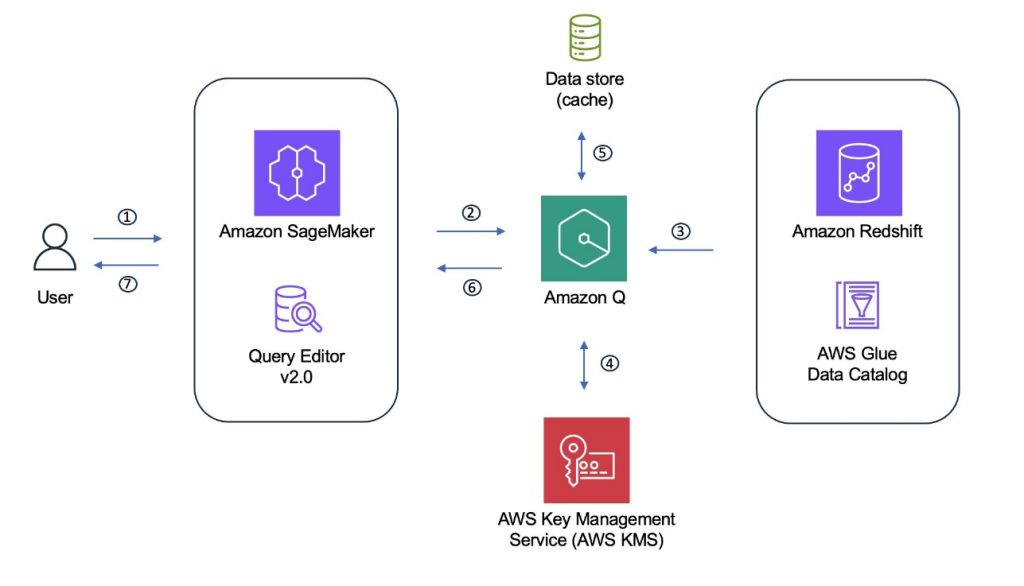
At a high level, the feature works as follows:

  1. For generating the SQL code, you can write your query request in plain English within the conversational interface in the Redshift query editor.
  2. The query editor sends the query context to the underlying Amazon Q generative SQL platform, which uses generative AI to generate SQL code recommendations based on your Redshift metadata.
  3. You receive the generated SQL code suggestions within the same chat interface.

The following diagram illustrates this workflow.

Your content processed by generative SQL is not stored or used by AWS for service improvement.

Amazon Q generative SQL uses a large language model (LLM) and Amazon Bedrock to generate the SQL query. AWS uses different techniques, such as prompt engineering and Retrieval Augmented Generation (RAG), to query the model based on your context:

  • The database you’re connected to
  • The schema you’re working on
  • Your query history
  • Optionally, the query history of other users connected to the same endpoint

Amazon Q generative SQL is conversational, and you can ask it to refine a previously generated query.

In the following sections, we demonstrate how to enable the generative SQL feature in the Redshift query editor and use it to generate SQL queries using natural language.

Prerequisites

To get started, you need an Amazon Redshift Serverless endpoint or an Amazon Redshift provisioned cluster. For this post, we use Redshift Serverless. Refer to Easy analytics and cost-optimization with Amazon Redshift Serverless to get started.

Enable the Amazon Q generative SQL feature in the Redshift query editor

If you’re using the feature for the first time, you need to enable the Amazon Q generative SQL feature in the Redshift query editor.

To enable the feature, complete the following steps:

  1. On the Amazon Redshift console, open the Redshift Serverless dashboard.
  2. Choose Query data.

You can also choose Query Editor V2 in the navigation pane of the Amazon Redshift console.

When you open the Redshift query editor, you will see the new icon for Amazon Q next to the database dropdown menu on the top of the query editor console.

If you choose the Amazon Q icon, you will see the message “Amazon Redshift query editor V2 now supports generative SQL functionality. Contact your administrator to activate this feature in Settings.” If you’re not the administrator, you need to work with the account administrator to enable this feature.

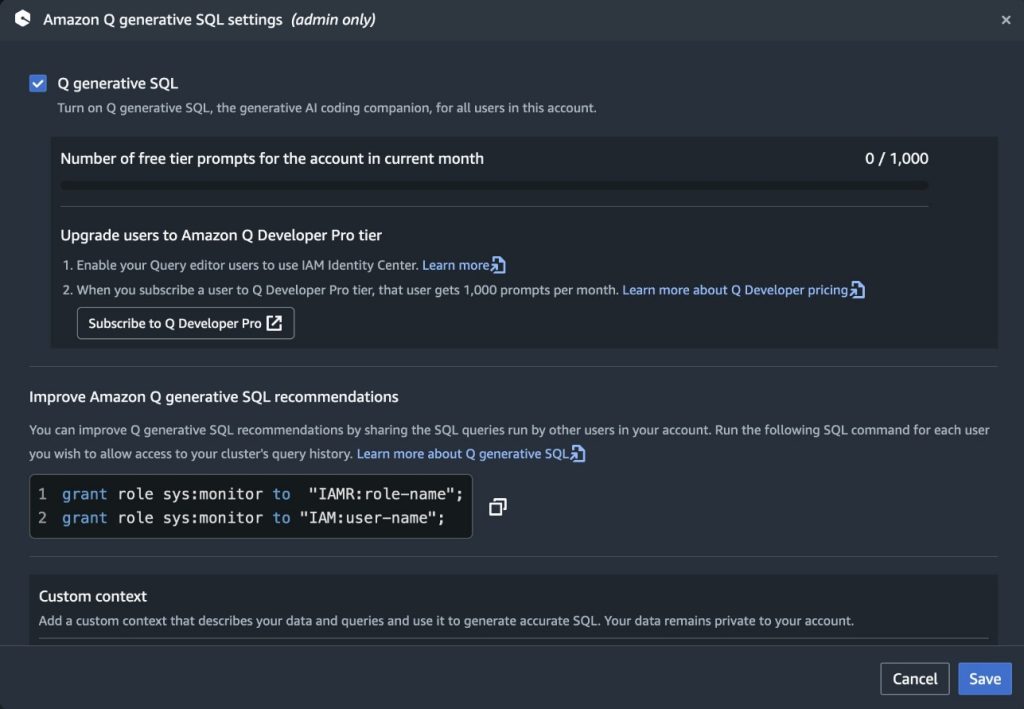
  1. If you’re the administrator, choose the hyperlink in the message, or go to the settings icon and choose Generative SQL settings.
  2. In the Generative SQL settings section, select Q generative SQL, which will turn on Amazon Q generative SQL for all users of the account.

Amazon Q generative SQL is personalized to your database and, based on the updates or conversations you have had with the feature, will apply those learnings to other user conversations who connect to the same database with their own credentials. In the generative SQL settings, you can see the instructions to grant the sys:monitor role to a user or role.

  1. Choose Save.

You will receive a confirmation that the Amazon Q generative SQL settings have been successfully updated.

Load notebooks with sample TPC-DS data

The Redshift query editor comes with sample data and SQL notebooks that you can load into a sample database and corresponding schema. For this post, we use TPC-DS for a decision support benchmark.

We start by loading the TPC-DS data into the Redshift database. When you load this data, the schema tpcds is updated with sample data. We also use the provided notebooks with the tpcds schema to run queries to build a query history.

Complete the following steps:

  1. Connect to your Redshift Serverless workgroup or Redshift provisioned cluster.
  2. Navigate to the sample_data_dev database to view the sample databases available for running the generative SQL feature.
  3. Hover over the tpcds schema and choose Open sample notebooks.
  4. In the Create sample database pop-up message, choose Create.

In a few seconds, you will see the notification that the database sample_data_dev is created successfully and tpcds sample data is loaded successfully. Two sample notebooks for the schema are also generated.

  1. Choose Run all on each notebook tab.

This will take a few minutes to run and will establish a query history for the tpcds data.

This step is not mandatory for using the feature for your organization’s data warehouse.

Use Amazon Q to generate SQL queries from natural language

Now that the Amazon Q generative SQL feature is enabled and ready for use, open a new notebook and choose the Amazon Q icon to open a chat pane in the Redshift query editor.

Amazon Q generative SQL is personalized to your schema. It uses metadata from database schemas to improve the SQL query suggestions. Optionally, administrators can allow the use of the account’s query history to further improve the generated SQL. This can be enabled by running the following GRANT commands to provide access to your query history to other roles or users:

GRANT ROLE SYS:MONITOR to "IAMR:role-name";
GRANT ROLE SYS:MONITOR to "IAM:user-name";
GRANT ROLE SYS:MONITOR to "database-username";

This optional step allows users to make query monitoring history available to other users connected to the same database.

Let’s get started with some query examples.

  1. First, make sure you’re connected to sample_data_dev
  2. Let’s ask the query “What are the top 10 stores in sales in 1998?”

This generates a SQL query. Amazon Q generative SQL is also personalized to your data domain. You will notice that it joins to the Store table to retrieve store_name.

  1. Choose Add to notebook under the query to add the generated SQL.

Our query runs successfully and shows that the store able has the most sales.

  1. Amazon Q is personalized to your conversation. Suppose you want to know what the top selling item was for store able. You can ask this question “What was the unique identifier of the top selling item for the store ‘able’?”

The results show the top selling item. However, the query didn’t filter on the year.

  1. Let’s ask Amazon Q to give us the top selling item for store able in 1998. Instead of repeating the whole question again, you can simply ask “Can you filter by the year 1998?”

Now we have the top selling item for store able for 1998.

  1. To display the item description, you can ask the query “Can you modify the query to include its name and description?”

Amazon Q added the join to the item table and the query ran successfully.

Now that we have done some basic queries, let’s do some deeper analysis.

  1. Let’s ask Amazon Q “Can you give me aggregated store sales, for each county by quarter for all years?”

The answer is correct, but let’s ask a follow-up to include the state.

  1. Ask the follow-up question: “Can you include state?”

This answer looks good; you can also add an ORDER BY clause if you want the data sorted or ask Amazon Q to add that.

So far, we have only been looking at store_sales data. The TPC-DS data contains data for other sales channels, including web_sales and catalog_sales.

  1. Let’s ask Amazon Q “Can you give me the total sales for 1998, from different sales channels, using a union of the sales data from different channels?”

Let’s dive deeper into some other capabilities of Amazon Q generative SQL.

  1. Let’s try logging in with a different user and see how Amazon Q generative SQL interacts with that user. We have created User3 and granted the sys:monitor
  2. Logged in as User3, let’s ask the original question of “What are the top 10 stores in sales in 1998?”

Amazon Q generative SQL is able to use the query history and provide SQL recommendations for User3’s prompts because they have access to the system metadata provided through the role sys:monitor.

Safety features

Amazon Q generative SQL has built-in safety features to warn if a generated SQL statement will modify data and will only run based on user permissions. To test this, let’s ask Amazon Q to “delete data from web_sales table.”

Amazon Q gives a message “I detected that this query changes your database. Only run this SQL command if that is appropriate.”

Now, still logged in as User3, choose Run to try to delete the web_sales data.

As expected, User3 gets a permission denied error, because they don’t have the necessary privileges to delete the web_sales table.

Custom context

Custom context is a feature that allows you to provide domain-specific knowledge and preferences, giving you fine-grained control over the SQL generation process.

The custom context is defined in a JSON file, which can be uploaded by the query editor administrator or can be added directly in the Custom context section in Amazon Q generative SQL settings.

This JSON file contains information that helps Amazon Q generative SQL better understand the specific requirements and constraints of your domain, enabling it to generate more targeted and relevant SQL queries.

By providing a custom context, you can influence factors such as:

  • The terminology and vocabulary used in the generated SQL
  • The level of complexity and optimization of the SQL queries
  • The formatting and structure of the SQL statements
  • The data sources and tables that should be considered

The custom context feature empowers you to take a more active role in shaping the SQL generation process, leading to SQL queries that are better suited to your data and business requirements.

In this post, we use the BIRD (BIg Bench for LaRge-scale Database Grounded Text-to-SQL Evaluation) sample dataset, consisting of three tables. BIRD represents a pioneering, cross-domain dataset that examines the impact of extensive database contents on text-to-SQL parsing.

You can load the following BIRD sample dataset into your Redshift data warehouse to experiment with using custom contexts.

For this post, we demonstrate with three custom contexts.

TablesToInclude

TablesToInclude specifies a set of tables that are considered for SQL generation. This field is crucial when you want to limit the scope of SQL queries to a defined subset of available tables. It can help optimize the generation process by reducing unnecessary table references.

Let’s ask Amazon Q “List the distinct translated title and the set code of all cards translated into Spanish.”

This SQL unnecessarily uses the public.cards table. The public.set_translations table contains the data sufficient to answer the question.

We can add the following TablesToInclude custom context JSON:

{
  "resources": [
    {
      "ResourceId":"Serverless:Serverless-workgroup-name",
      "ResourceType": "REDSHIFT_WAREHOUSE",
      "TablesToInclude": [
        "bird.public.set_translations"
      ]
    }
  ]
}

After adding the custom context, the unwanted joins are eliminated and the correct SQL is generated.

ColumnAnnotations

ColumnAnnotations allows you to provide metadata or annotations specific to individual columns in your data tables. These annotations can offer valuable insights into the definitions and characteristics of the columns, which can be beneficial in guiding the SQL generation process.

Let’s ask Amazon Q to “Show me the unconverted mana cost and name for all the cards created by Rob Alexander.”

The generated SQL points to the column convertedmanacost, which doesn’t give a value for unconverted mana cost. The manacost column gives the unconverted mana cost.

Let’s add this using ColumnAnnotations in the custom context JSON:

{
  "resources": [
    {
      "ResourceId": "Serverless: Serverless-workgroup-name",
      "ResourceType": "REDSHIFT_WAREHOUSE",
      "ColumnAnnotations":
         {"bird.public.cards": { "manaCost": "manaCost is the unconverted mana"} }
    }
  ]
}

After the custom context is added, the correct SQL gets generated.

CuratedQueries

CuratedQueries provides a set of predefined question and answer pairs. In this set, the questions are written in natural language and the corresponding answers are the SQL queries that should be generated to address those questions.

These examples serve as a valuable reference point for Amazon Q generative SQL, helping it understand the types of queries it is expected to generate. You can guide Amazon Q generative SQL with the desired format, structure, and content of the SQL queries it should produce.

Let’s ask Amazon Q “List down the name of artists for cards in Chinese Simplified.”

Although the join key multiverseid exists, it is not correct.

Let’s add the following using CuratedQueries in the custom context JSON:

{
  "resources": [
    {
      "ResourceId": "Serverless: Serverless-workgroup-name",
      "ResourceType": "REDSHIFT_WAREHOUSE",
      "CuratedQueries": [
        {
          "Question": "List down the name of artists for cards in Spanish.",
          "Answer": "SELECT artist FROM public.cards c JOIN public.foreign_data f ON c.uuid = f.uuid WHERE f.language = 'Spanish';"
        }
      ]
    }
  ]
}

After the custom context is added, the correct SQL gets generated.

Additional features

In this section, we discuss the supporting features available with Amazon Q generative SQL feature for Redshift query editor:

Provide feedback

Amazon Q generative SQL allows you to provide feedback on the SQL queries it generates, helping improve the quality and relevance of the SQL over time. This feedback mechanism is accessible through the Amazon Q generative SQL interface, where you can indicate whether the generated SQL was helpful or not.

If you find the generated SQL to not be helpful, you can categorize the feedback into the following areas:

  • Incorrect Tables/Columns – This indicates that the SQL references the wrong tables or columns, or is missing essential tables or columns
  • Incorrect Predicates/Literals/Group By – This category covers issues with the SQL’s filter conditions, literal values, or grouping logic
  • Incorrect SQL Structure – This feedback suggests that the overall structure or syntax of the generated SQL is not correct
  • Other – This option allows you to provide feedback that doesn’t fit into the preceding categories

In addition to selecting the appropriate feedback category, you can also provide free text comments to elaborate on the specific issues or inaccuracies you found in the generated SQL. This additional information can be valuable for Amazon Q to better understand the problems and make improvements.

By actively providing this feedback, you play a crucial role in refining the generation capabilities of Amazon Q generative SQL. The feedback you provide helps the service learn from its mistakes, leading to more accurate and relevant SQL queries that better meet your needs over time.

This feedback loop is an important part of Amazon Q generative SQL’s continuous improvement, because it allows the service to adapt and evolve based on your specific requirements and use cases.

Regenerate SQL

The Regenerate SQL option will prompt Amazon Q to generate a new SQL query based on the same natural language prompt, using its learning and improvement capabilities to provide a potentially better-suited response.

Refresh database

By choosing Refresh database, you can instruct Amazon Q generative SQL to re-fetch and update the metadata information about the connected database.

This metadata includes:

  • Schema definitions – The structure and organization of your database schemas
  • Table definitions – The names, columns, and other properties of the tables in your database
  • Column definitions – The data types, names, and other characteristics of the columns within your database tables

Tips and techniques

To get more accurate SQL recommendations from Amazon Q generative SQL, keep in mind the following best practices:

  • Be as specific as possible. Instead of asking for total store sales, ask for total sales across all sales channels if that is what you need.
  • Add your schema to the path. For example:
    set search_path to tpcds;

  • Iterate when you have complex requests and verify the results. For example, ask which county has the most sales in 2000 and follow up with which item had the most sales.
  • Ask follow-up questions to make queries more specific.
  • If an incomplete response is generated, instead of rephrasing the entire request, provide specific instructions to Amazon Q as a continuation to the prior question.

Clean up

To avoid incurring future charges, delete the Redshift cluster you provisioned as part of this post.

Conclusion

Amazon Q generative SQL for Amazon Redshift simplifies query authoring and increases productivity by allowing you to express queries in natural language and receive SQL code recommendations. This post demonstrated how the Amazon Q generative SQL feature can accelerate data analysis by reducing the time required to write SQL queries. By using natural language processing and seamlessly converting it into SQL, you can boost productivity without requiring an in-depth understanding of your organization’s database structures. Importantly, the robust security measures of Amazon Redshift remain fully enforced, and the quality of the generated SQL continues to improve over time by enabling query history sharing across users.

Get started on your Amazon Q generative SQL journey with Amazon Redshift today by implementing the solution in this post or by referring to Interacting with Amazon Q generative SQL. For pricing information, refer to Amazon Q generative SQL pricing. Also, please try other Redshift generative AI features such as Amazon Redshift Integration with Amazon Bedrock and Amazon Redshift Serverless AI-driven scaling and optimization.


About the authors

Raghu Kuppala is an Analytics Specialist Solutions Architect experienced working in the databases, data warehousing, and analytics space. Outside of work, he enjoys trying different cuisines and spending time with his family and friends.

Sushmita Barthakur is a Senior Data Solutions Architect at Amazon Web Services (AWS), supporting Enterprise customers architect their data workloads on AWS. With a strong background in data analytics, she has extensive experience helping customers architect and build enterprise data lakes, ETL workloads, data warehouses and data analytics solutions, both on-premises and the cloud. Sushmita is based out of Tampa, FL and enjoys traveling, reading and playing tennis.

Xiao Qin is a senior applied scientist with the Learned Systems Group (LSG) at Amazon Web Services (AWS). He studies and applies machine learning techniques to solve data management problems. He is one of the developers that build the Amazon Q generative SQL capability.

Erol MurtezaogluErol Murtezaoglu, a Technical Product Manager at AWS, is an inquisitive and enthusiastic thinker with a drive for self-improvement and learning. He has a strong and proven technical background in software development and architecture, balanced with a drive to deliver commercially successful products. Erol highly values the process of understanding customer needs and problems, in order to deliver solutions that exceed expectations.

Phil Bates was a Senior Analytics Specialist Solutions Architect at AWS, before retiring, with over 25 years of data warehouse experience.

Accelerate SQL code migration from Google BigQuery to Amazon Redshift using BladeBridge

Post Syndicated from Ritesh Sinha original https://aws.amazon.com/blogs/big-data/accelerate-sql-code-migration-from-google-bigquery-to-amazon-redshift-using-bladebridge/

Accelerating SQL code migration from Google BigQuery to Amazon Redshift can be a complex and time-consuming task. Businesses often struggle to efficiently translate their existing BigQuery code to Amazon Redshift, which can delay critical data modernization initiatives. However, with the right tools and approach, this migration process can be significantly streamlined.

This post explores how you can use BladeBridge, a leading data environment modernization solution, to simplify and accelerate the migration of SQL code from BigQuery to Amazon Redshift. BladeBridge offers a comprehensive suite of tools that automate much of the complex conversion work, allowing organizations to quickly and reliably transition their data analytics capabilities to the scalable Amazon Redshift data warehouse. BladeBridge provides a configurable framework to seamlessly convert legacy metadata and code into more modern services such as Amazon Redshift.

Amazon Redshift is a fully managed data warehouse service offered by Amazon Web Services (AWS). Tens of thousands of customers use Amazon Redshift every day to run analytics, processing exabytes of data for business insights. Whether your growing data is stored in operational data stores, data lakes, streaming data services, or third-party datasets, Amazon Redshift helps you securely access, combine, and share data with minimal movement or copying. Amazon Redshift is built for scale and delivers up to 7.9 times better price performance than other cloud data warehouses.

By using the BladeBridge Analyzer and BladeBridge Converter tools, organizations can significantly reduce the time and effort required to migrate BigQuery code to Amazon Redshift. The Analyzer provides detailed assessments of the complexity and requirements for the migration, and the Converter automates the actual code conversion process, using pattern-based customizable rules to streamline the transition.

In this post, we walk through the step-by-step process of using BladeBridge to accelerate the migration of BigQuery SQL code to Amazon Redshift.

Solution overview

The BladeBridge solution is composed of two key components: the BladeBridge Analyzer and the BladeBridge Converter.

BladeBridge Analyzer

The Analyzer is designed to thoroughly assess the complexities of the existing data environment, in this case, Google BigQuery. After assessment of the source SQL files, it generates a comprehensive report that provides valuable insights into the migration effort. The Analyzer report includes the following:

  • Summary of the total number of SQL scripts, file scripts, data definition language (DDL) statements, and other key metrics
  • Categorization of the SQL code complexity into levels such as low, medium, complex, and very complex
  • Insights that help both the organizations and systems integrators prepare more accurate project estimates and migration plans

BladeBridge Converter

The Converter is a pattern-based automation tool that streamlines the actual code conversion process from BigQuery to Amazon Redshift. The Converter uses a set of predefined conversion rules and patterns to automatically translate 70–95% of the legacy SQL code. This significantly reduces the manual effort required by developers. The Converter works by doing the following:

  • Parsing the source SQL files and analyzing the code semantically
  • Applying the appropriate translation rules and patterns to convert source database code to the target, in this case, Google BigQuery to Amazon Redshift

The out-of-the-box code handles most conversions. The Converter allows developers to customize the conversion patterns for more complex transformations.

The following is the migration procedure:

  1. Prepare SQL files
  2. Using BladeBridge Analyzer, create an analyzer report
  3. Purchase license keys for converter
  4. Using BladeBridge Converter, convert SQL files

The following diagram illustrates these steps.

Prerequisites

You need the following prerequisites to implement the solution:

  • An AWS account
  • An Amazon Redshift provisioned cluster or Amazon Redshift serverless workgroup
  • An Amazon Elastic Compute Cloud (Amazon EC2) instance, on-premises server, or desktop or laptop with the following requirements:
    • MacOS, Windows 7 or higher with 32-bit or 64-bit, Linux Redhat, Ubuntu, or similar operating system
    • A minimum of 8 GB RAM is recommended
  • Visit the BladeBridge community portal and sign up to create your account. The portal gives you access to a comprehensive suite of resources, including the BladeBridge Analyzer, Converter, and other training materials. This post contains some links that are only accessible to registered members of the BladeBridge community portal.
  • Contact BladeBridge through Request demo and obtain an Analyzer key for your organization.

Solution walkthrough

Follow these solution steps:

Prepare SQL files

For SQL data warehouses such as BigQuery, code preparation starts by exporting the SQL files out of the data warehouse solution. If your BigQuery SQL code is stored in a single file containing multiple database objects, you need to split them into individual files before using the BladeBridge tools to convert the code to Amazon Redshift. To split into multiple files, you can use the BladeBridge SQL File Splitter utility. The BladeBridge conversion process is optimized to work with each database object (for example, tables, views, and materialized views) and code object (for example, stored procedures and functions) stored in its own separate SQL file. This allows the BladeBridge Analyzer to scan each file individually, gaining a comprehensive understanding of the code patterns, complexity, and structure. To use BladeBridge SQL File Splitter utility, follow these steps:

  1. Log in to BladeBridge portal and download the SQL file splitter utility for your operating system.
  2. Create an input file directory and place your BigQuery SQL code files in the directory.
  3. Create an empty output file directory. The files generated by the splitter will be stored here.
  4. Navigate to the directory where you downloaded the bbsqlsplit executable file and run the following command in your terminal (Mac or Linux) or command prompt (Windows), replacing the input and output file directory paths:

Syntax

bbsqlsplit

######## OPTIONS ########

-d <<input file directory path>>

-o <<output file directory path>>

-E sql

Example 

bbsqlsplit

-d C:\Users\XXXXX\Desktop\BladeBridge\SplitFilesUtility\source

-o C:\Users\XXXXX\Desktop\BladeBridge\SplitFilesUtility\splitFiles

-E sql

For more options of the bbsqlsplit command, refer to the SQL file split documentation in the BladeBridge community portal.

Using BladeBridge Analyzer, create an analyzer report

The Analyzer provides a detailed assessment of the existing BigQuery code, generating a comprehensive report that outlines the complexity and requirements for the migration to Amazon Redshift.

To run the BladeBridge Analyzer, follow these steps:

  1. Log in to the BladeBridge portal and navigate to the Analyzer Download
  2. Download the Analyzer executable file for your operating system (for example, bbanalyzer.exe for Windows, bbanalyzer.gz for Linux and macOS). For macOS and Linux users, you need to deflate the downloaded gzip file.
  3. Download the configuration file (general_sql_specs.json) from the BladeBridge community portal, as shown in the following screenshot.

  1. On the BladeBridge community portal, choose Assets. This page should display the Analyzer key for your organization.

  1. From the assets page, download the Analyzer key as shown in the following screenshot.

In the directory where you downloaded the bbanalyzer executable file, run the following command in your terminal (Mac or Linux) or command prompt (Windows), replacing the necessary paths.

Syntax

bbanalyzer

######## OPTIONS ########

-c <<path to your analyzer key>>

-t SQL

-d <<path to your source code directory>>

-r <<name for the output report>>.xlsx

Example

bbanalyzer

-c C:\Users\XXXXX\Desktop\BladeBridge\analyzer_key.txt

-t SQL

-d C:\Users\XXXXX\Desktop\BladeBridge\SplitFilesUtility\splitFiles

-r analyzer_report.xlsx

After running the command successfully, the Analyzer generates a report. Review the report thoroughly, because it provides a summary and in-depth explanations of the SQL analysis. The summary sheet, shown in the following image, provides an overview of the migration, including the number of total SQL scripts, file scripts, and DDLs. Each SQL script is categorized into LOW, MEDIUM, COMPLEX, or VERY_COMPLEX complexities, which are determined by the Analyzer Complexity Determination Algorithm. The summary will also help with understanding the overall complexity and migration effort before performing the actual conversion.

If you observe an error when running BladeBridge Analyzer, review following troubleshooting tips:

  • Configure the write permission – You may need to add necessary permission to the analyzer executable file. For Mac and Linux users, run chmod 755 ./bbanalyzer to modify the permission.
  • Allow running third party software – Because BladeBridge Analyzer is a third-party software, MacOS may raise a warning or an error when running Analyzer. If you’re using Mac, follow the instructions in Open a Mac app from an unidentified developer.
  • Use local drive – In some cases, you might encounter an error if the executable is located in a network drive. We recommend that you run the executable on the local drive.
  • Don’t include whitespace in the path – Make sure the path to the executable doesn’t contain a directory with spaces in the directory name.

For more details, refer to the BladeBridge Analyzer Demo.

Purchase license keys for convertor

To use the BladeBridge Converter and automate the code translation process, you need to purchase the necessary license keys. These license keys are tied to the specific SQL files you are converting, making sure that updates to the source code require the appropriate license.

To obtain the license keys, follow these steps:

  1. Share the output of the BladeBridge Analyzer report and the provided pricing calculator Excel sheet with BladeBridge.
  2. The BladeBridge team will review the information and provide you with the required license keys to run the Converter.

The license key is tied to the file hash of the SQL files you are converting. If you make updates to the source SQL files, you need to purchase new license keys to convert the modified code. Therefore, make sure to purchase the necessary license keys and manage your files with a version control system to have smooth transitions when converting your BigQuery SQL code to Amazon Redshift.

Using BladeBridge Converter, convert SQL files

The Converter uses the predefined conversion rules that are available in the out-of-the-box configuration files to automatically translate 70–95% of the legacy code, significantly reducing manual effort for your development team. The out-of-the-box configuration file handles conversion for common code patterns from Google BigQuery to Amazon Redshift. For those custom patterns that aren’t covered by an out-of-the-box configuration file, you can create custom conversion rules by creating additional configuration files.

Follow these steps to run the BladeBridge Converter:

  1. Log in to the BladeBridge portal and on the Convertor downloads page, download the Convertor executable file for your operating system (sqlconv.exe for Windows or sqlconv.gz for Mac or Linux)

  1. From the same page, download the configuration file (general_sql_specs.json)
  2. Create an output directory where the converted files will be saved
  3. In the folder where you downloaded the Convertor executable sqlconv, run the following command

Syntax

sqlconv

-c <<converter license file name obtained from BladeBridge>>

-d <<input folder for SQL files>>

-n <<output folder for converted files>>

-u <<path for the config files/s provide at least one file>>

Example

sqlconv

-c converter_license.txt

-d C:\Users\XXXXX\Desktop\BladeBridge\SplitFilesUtility\splitFiles

-n C:\Users\XXXXX\Desktop\BladeBridge\SplitFilesUtility\cnvrtdFiles

-u bq2redshift.json
  1. Run the generated SQL files in your Amazon Redshift data warehouse. If you encounter errors, analyze them and determine if custom conversion rules, not already covered in the out-of-the-box configuration files, need to be applied.
  2. If custom conversion rules are needed, create a new configuration file following the guidelines in the Customize Configuration File section. Provide the new config file name in the -u option and rerun the Converter.
  3. Repeat these steps until all files are converted successfully or manually modified.

Customize configuration file

Customizing a configuration file is an iterative process that can help automate the conversion for occurrences in your codebase. However, manual conversion may be required if the conversion is needed for only a few files and a few occurrences.

The configuration is defined in a JSON file. There is a general configuration file with common rules and custom configuration files for each client with client-specific rules. Rules can be added to the general configuration file if they are applicable for all clients. For client-specific rules, a separate JSON file should be created and referenced. This keeps the general rules clean and organized.

The conversion rules in BladeBridge’s configuration file fall into one of three categories:

  1. Line substitution
  2. Block substitution
  3. Function substitution

Every line ending with a ; is a statement. This line ending also can be replaced with other breakers. Refer to this BladeBridge documentation to get more details on SQL and expression conversion.

The following are considerations while using the customized configuration:

  • Nested functions in BigQuery allow for complex operations within a single SQL statement, which may need to be broken down into multiple steps in Amazon Redshift
  • Array functions in BigQuery provide capabilities for manipulating and transforming array data types, which may require alternative approaches in Amazon Redshift
  • You need to carefully analyze the requirements and implement workarounds or alternative solutions when migrating from BigQuery to Amazon Redshift, especially for advanced functionality not directly supported in Amazon Redshift

Line substitution

Line substitution applies regular expressions to each line of code. This has the from clause, which has the expression to be converted. The to section has the target mapping for which it’ll be converted. Statement_categories limit the application of line substitution to specific statements such as DDL or procedure. For example:

  • The first expression in the following code example replaces the regular expression pattern ROWNUM with the SQL expression row_number() over (order by 1)
  • The second expression in the following code example replaces the regular expression pattern SYSDATE with the SQL expression CURRENT_TIMESTAMP.
line_subst” : [
{“from” : “\bROWNUM\b”, “to” : “row_number() over (order by 1)”},
{“from” : “SYSDATE”, “to” : “CURRENT_TIMESTAMP”}
]

Block substitution

Block substitution applies regular expressions across multiple lines. This applies to statements that stretch over multiple lines, which are generally more complex than the line substitutions. The following expression in the example replaces the block. In this example, the procedure is created in the target database.

BEGIN

EXECUTE IMMEDIATE(‘SQL Statement’);

EXCEPTION WHEN OTHERS

THEN

NULL

END;

To

CALL SP_DYN_SQL(‘parameters’);

“block_subst” : [
{“from”: “BEGIN(.*?)execute immediate(.*);.*exception\s*when\s*others\s*then\s*null(.*?)end;(.*)”, “to”: “CALL sp_dyn_sql($2);”}
]

Function substitution

Function substitution allows replacing one function with an equivalent function in the target data warehouse. The configuration also allows for specifying custom functions.

Function substitution points to an array of instructions responsible for altering function calls. This section is used when function translations are required or function arguments (function signature) have to be altered. The following expression converts the NVL2 function to CASE function on Amazon Redshift.

“function_subst” : [
{“from”: “NVL2”, “output_template” : “CASE WHEN $1 IS NOT NULL THEN $2 ELSE $3 END”}
]

Conclusion

In this post, we demonstrated how to use the BladeBridge Analyzer and BladeBridge Converter to streamline the migration of SQL code from Google BigQuery to Amazon Redshift. By using BladeBridge, organizations can significantly reduce the time and effort required to translate their existing BigQuery code for migration to the Amazon Redshift data warehouse. The Analyzer provides a detailed assessment of the source SQL code, and the Converter automates the actual conversion process using a set of predefined, customizable rules and patterns.

We also covered the customization capabilities of the BladeBridge solution, showcasing how you can tailor the conversion rules to handle more complex transformations. By using the line substitution, block substitution, and function substitution features, you can have a seamless migration that addresses the unique requirements of your data analytics infrastructure.

We encourage you to try out BladeBridge’s GCP BigQuery to Amazon Redshift solution and explore the various configuration options. If you encounter any challenges or have additional requirements, refer to the BladeBridge community support portal or reach out to the BladeBridge team for further assistance.


About the authors

Ritesh Kumar Sinha is an Analytics Specialist Solutions Architect based out of San Francisco. He has helped customers build scalable data warehousing and big data solutions for over 16 years. He loves to design and build efficient end-to-end solutions on AWS. In his spare time, he loves reading, walking, and doing yoga.

Anusha Challa is a Senior Analytics Specialist Solutions Architect focused on Amazon Redshift. She has helped many customers build large-scale data warehouse solutions in the cloud and on premises. She is passionate about data analytics and data science.

Yota Hamaoka is an Analytics Solution Architect at Amazon Web Services. He is focused on driving customers to accelerate their analytics journey with Amazon Redshift.

Milind Oke is a Data Warehouse Specialist Solutions Architect based out of New York. He has been building data warehouse solutions for over 15 years and specializes in Amazon Redshift.

Raza Hafeez is a Senior Product Manager at Amazon Redshift. He has over 13 years of professional experience building and optimizing enterprise data warehouses and is passionate about enabling customers to realize the power of their data. He specializes in migrating enterprise data warehouses to AWS Modern Data Architecture.

AWS Weekly Roundup: AWS Lambda, Amazon Bedrock, Amazon Redshift, Amazon CloudWatch, and more (Nov 4, 2024)

Post Syndicated from Matheus Guimaraes original https://aws.amazon.com/blogs/aws/aws-weekly-roundup-aws-lambda-amazon-bedrock-amazon-redshift-amazon-cloudwatch-and-more-nov-4-2024/

The spooky season has come and gone now. While there aren’t any Halloween-themed releases, AWS has celebrated it in big style by having a plethora of exciting releases last week! I think it’s safe to say that we have truly entered the ‘pre’ re:Invent stage as more and more interesting things are being released every week on the countdown to AWS re:Invent 2024.

There is a lot to cover, so let me put my wizard hat on, open the big bag of treats, and dive into last week’s goodies!

Something for developers
There was no shortage of treats from AWS for developers this Halloween!

AWS enhances the Lambda application building experience with VS Code IDE and AWS Toolkit — AWS has enhanced AWS Lambda development with the AWS Toolkit for Visual Studio Code, providing a guided setup for coding, testing, and deploying Lambda applications directly within the IDE. It includes sample walkthroughs and one-click deployment, simplifying the development process. Now, building apps with Lambda is as intuitive as crafting a spell in a wizard’s workshop!

AWS Amplify integration with Amazon S3 for static website hosting — AWS Amplify Hosting now integrates with Amazon S3 for seamless static website hosting, with global CDN support via Amazon CloudFront. This simplifies set up, offering secure, high-performance delivery with custom domains and SSL certificates. Hosting your site is now easier than spotting a jack-o’-lantern on Halloween night!

AWS Lambda now supports AWS Fault Injection Service (FIS) actions — AWS Lambda now supports AWS Fault Injection Simulator (FIS) actions, enabling developers to test resilience by injecting controlled faults like latency and execution errors. This helps simulate real-world failures without code changes, improving monitoring and operational readiness. Great for testing that old candy dispenser!

AWS CodeBuild now supports retrying builds automatically — AWS CodeBuild now offers automatic build retries, allowing developers to set a retry limit for failed builds. This reduces manual intervention by automatically retrying builds up to the specified limit, tackling those pesky, intermittent failures like a ghostbuster clearing a haunted pipeline!

Amazon Virtual Private Cloud launches new security group sharing features — Amazon VPC now supports sharing security groups across multiple VPCs within the same account and with participant accounts in shared VPCs. This streamlines security management and ensures consistent traffic filtering across your organization. Now, keeping your network secure is as seamless as warding off digital goblins!

Amazon DataZone expands data access with tools like Tableau, Power BI, and more — Amazon DataZone now supports the Amazon Athena JDBC Driver, allowing seamless access to data lake assets from BI tools, like Tableau and Power BI. This lets analysts connect and analyze data with ease. Now, accessing data is as effortless as a witch flying on her broomstick!

Generative AI
Amazon Q and Amazon Bedrock continue to make generative AI seem like magic. Here are some releases from last week.

Amazon Q Developer inline chat — Amazon Q Developer has introduced inline chat support, allowing developers to engage directly within their code editor for actions like optimization, commenting, and test generation. Real-time inline diffs make it simple to review changes, available in Visual Studio Code and JetBrains IDEs. It’s practically code magic – no witch’s cauldron needed!

Meta’s Llama 3.1 8B and 70B models are now available for fine-tuning in Amazon Bedrock — Amazon Bedrock now supports fine-tuning for Meta’s Llama 3.1 8B and 70B models, allowing developers to customize these AI models with their own data. With a 128K context length, Llama 3.1 processes large text volumes efficiently, making it perfect for domain-specific applications. Now, your AI won’t be scared of handling monstrous amounts of data—even on a dark, stormy night!

Fine-tuning for Anthropic’s Claude 3 Haiku in Amazon Bedrock is now generally available — Fine-tuning for the Claude 3 Haiku model in Amazon Bedrock is now generally available, enabling customization with your data for better accuracy. Make your AI as unique as your Halloween costume!

Cost Planning, Saving, and Tracking
Here are some new releases that can help you stay on top of your budget and keep an eye on the amount of candy that you buy.

AWS now accepts partial card payments — AWS now supports partial payments with credit or debit cards, letting users split monthly bills across multiple cards. This flexibility makes managing your budget as smooth as a ghost gliding through a haunted house!

Amazon Bedrock now supports cost allocation tags on inference profiles — Amazon Bedrock now supports cost allocation tags for inference profiles, allowing customers to track and manage generative AI costs by department or application. This makes financial management a treat, not a trick!

AWS Deadline Cloud now adds budget-related events — AWS Deadline Cloud, a service used for rendering and managing visual effects and animation workloads, now sends budget-related events via Amazon EventBridge, enabling real-time spending updates and automated notifications. This helps keep project costs under control without any unexpected scares!

And the busiest team of the week award goes to…Amazon Redshift!
Clearly, the Amazon Redshift team loves Halloween and decided to celebrate in big style with many releases! Here are the highlights:

Amazon Redshift integration with Amazon Bedrock for generative AI — Amazon Redshift now integrates with Amazon Bedrock for generative AI tasks using SQL, adding AI capabilities like text generation directly in your data warehouse. Now, you can conjure up rich insights without the need for complicated spells!

Announcing general availability of auto-copy for Amazon Redshift — Auto-copy for continuous data ingestion from Amazon S3 into Amazon Redshift is now generally available. This streamlines workflows, making data integration as smooth as carving a soft pumpkin!

Amazon Redshift now supports incremental refresh on Materialized Views (MVs) for data lake tables — Amazon Redshift now supports incremental refresh for materialized views on data lake tables, updating only changed data to boost efficiency. This keeps your data fresh without any haunting overhead!

Announcing Amazon Redshift Serverless with AI-driven scaling and optimization — Amazon Redshift Serverless now offers AI-driven scaling, adjusting resources automatically based on workload. This ensures smooth performance without any chilling surprises!

CSV result format support for Amazon Redshift Data API — Amazon Redshift Data API now supports CSV output for SQL query results, enhancing data processing flexibility. This makes handling data as smooth as a ghost’s whisper!

Halloween week contest runner-up…Amazon CloudWatch!
The Amazon CloudWatch team has also been busy giving out candy this Halloween! Let’s check it out.

Amazon CloudWatch now monitors EBS volumes exceeding provisioned performance — Amazon CloudWatch now provides metrics to check if Amazon EBS volumes exceed their IOPS or throughput limits. This helps quickly spot and resolve performance issues before they turn into a haunting problem!

New Amazon CloudWatch metrics for monitoring I/O latency of Amazon EBS volumes — Amazon CloudWatch now offers metrics for average read and write I/O latency of Amazon EBS volumes, aiding in identifying performance issues. These insights are available per minute at no extra cost. This should help you prevent latency from sneaking up on you like a Halloween ghost!

Amazon ElastiCache for Valkey adds new CloudWatch metrics to monitor server-side response time — Amazon ElastiCache now includes metrics for read and write request latency, helping monitor server response times. This aids in quickly spotting and resolving performance issues before they become a frightful surprise!

Conclusion
And that’s a wrap on Halloween 2024. I don’t know about you, but this is my favorite time of the year, followed by News Year’s. Both carry an element of unpredictability that I very much enjoy. With Halloween, you can get excited about what costume you’re going to wear, whereas New Year’s is all about new possibilities and conquering new horizons.

Luckily, you don’t have to wait for the new year to unlock new frontiers with AWS as we bring excitement and innovation throughout the year. And what better way to see this in action than at AWS re:Invent 2024!

I wonder what kinds of spells and surprises we’ll be conjuring up come Halloween 2025. Until next time, keep your eyes on the horizon—and your broomsticks at the ready!

Integrate Amazon Bedrock with Amazon Redshift ML for generative AI applications

Post Syndicated from Satesh Sonti original https://aws.amazon.com/blogs/big-data/integrate-amazon-bedrock-with-amazon-redshift-ml-for-generative-ai-applications/

Amazon Redshift has enhanced its Redshift ML feature to support integration of large language models (LLMs). As part of these enhancements, Redshift now enables native integration with Amazon Bedrock. This integration enables you to use LLMs from simple SQL commands alongside your data in Amazon Redshift, helping you to build generative AI applications quickly. This powerful combination enables customers to harness the transformative capabilities of LLMs and seamlessly incorporate them into their analytical workflows.

With this new integration, you can now perform generative AI tasks such as language translation, text summarization, text generation, customer classification, and sentiment analysis on your Redshift data using popular foundation models (FMs) such as Anthropic’s Claude, Amazon Titan, Meta’s Llama 2, and Mistral AI. You can use the CREATE EXTERNAL MODEL command to point to a text-based model in Amazon Bedrock, requiring no model training or provisioning. You can invoke these models using familiar SQL commands, making it more straightforward than ever to integrate generative AI capabilities into your data analytics workflows.

Solution overview

To illustrate this new Redshift machine learning (ML) feature, we will build a solution to generate personalized diet plans for patients based on their conditions and medications. The following figure shows the steps to build the solution and the steps to run it.

The steps to build and run the solution are the following:

  1. Load sample patients’ data
  2. Prepare the prompt
  3. Enable LLM access
  4. Create a model that references the LLM model on Amazon Bedrock
  5. Send the prompt and generate a personalized patient diet plan

Pre-requisites

  1. An AWS account.
  2. An Amazon Redshift Serverless workgroup or provisioned data warehouse. For setup instructions, see Creating a workgroup with a namespace or Create a sample Amazon Redshift data warehouse, respectively. The Amazon Bedrock integration feature is supported in both Amazon Redshift provisioned and serverless.
  3. Create or update an AWS Identity and Access Management (IAM role) for Amazon Redshift ML integration with Amazon Bedrock.
  4. Associate the IAM role to a Redshift instance.
  5. Users should have the required permissions to create models.

Implementation

The following are the solution implementation steps. The sample data used in the implementation is for illustration only. The same implementation approach can be adapted to your specific data sets and use cases.

You can download a SQL notebook to run the implementation steps in Redshift Query Editor V2. If you’re using another SQL editor, you can copy and paste the SQL queries either from the content of this post or from the notebook.

Load sample patients’ data:

  1. Open Amazon Redshift Query Editor V2 or another SQL editor of your choice and connect to the Redshift data warehouse.
  2. Run the following SQL to create the patientsinfo table and load sample data.
-- Create table

CREATE TABLE patientsinfo (
pid integer ENCODE az64,
pname varchar(100),
condition character varying(100) ENCODE lzo,
medication character varying(100) ENCODE lzo
);
  1. Download the sample file, upload it into your S3 bucket, and load the data into the patientsinfo table using the following COPY command.
-- Load sample data
COPY patientsinfo
FROM 's3://<<your_s3_bucket>>/sample_patientsinfo.csv'
IAM_ROLE DEFAULT
csv
DELIMITER ','
IGNOREHEADER 1;

Prepare the prompt:

  1. Run the following SQL to aggregate patient conditions and medications.
SELECT
pname,
listagg(distinct condition,',') within group (order by pid) over (partition by pid) as conditions,
listagg(distinct medication,',') within group (order by pid) over (partition by pid) as medications
FROM patientsinfo

The following is the sample output showing aggregated conditions and medications. The output includes multiple rows, which will be grouped in the next step.

  1. Build the prompt to combine patient, conditions, and medications data.
SELECT
pname || ' has ' || conditions || ' taking ' || medications as patient_prompt
FROM (
    SELECT pname, 
    listagg(distinct condition,',') within group (order by pid) over (partition by pid) as conditions,
    listagg(distinct medication,',') within group (order by pid) over (partition by pid) as medications
    FROM patientsinfo) 
GROUP BY 1

The following is the sample output showing the results of the fully built prompt concatenating the patients, conditions, and medications into single column value.

  1. Create a materialized view with the preceding SQL query as the definition. This step isn’t mandatory; you’re creating the table for readability. Note that you might see a message indicating that materialized views with column aliases won’t be incrementally refreshed. You can safely ignore this message for the purpose of this illustration.
CREATE MATERIALIZED VIEW mv_prompts AUTO REFRESH YES
AS
(
SELECT pid,
pname || ' has ' || conditions || ' taking ' || medications as patient_prompt
FROM (
SELECT pname, pid,
listagg(distinct condition,',') within group (order by pid) over (partition by pid) as conditions,
listagg(distinct medication,',') within group (order by pid) over (partition by pid) as medications
FROM patientsinfo)
GROUP BY 1,2
)
  1. Run the following SQL to review the sample output.
SELECT * FROM mv_prompts limit 5;

The following is a sample output with a materialized view.

Enable LLM model access:

Perform the following steps to enable model access in Amazon Bedrock.

  1. Navigate to the Amazon Bedrock console.
  2. In the navigation pane, choose Model Access.

  1. Choose Enable specific models.
    You must have the required IAM permissions to enable access to available Amazon Bedrock FMs.

  1. For this illustration, use Anthropic’s Claude model. Enter Claude in the search box and select Claude from the list. Choose Next to proceed.

  1. Review the selection and choose Submit.

Create a model referencing the LLM model on Amazon Bedrock:

  1. Navigate back to Amazon Redshift Query Editor V2 or, if you didn’t use Query Editor V2, to the SQL editor you used to connect with Redshift data warehouse.
  2. Run the following SQL to create an external model referencing the anthropic.claude-v2 model on Amazon Bedrock. See Amazon Bedrock model IDs for how to find the model ID.
CREATE EXTERNAL MODEL patient_recommendations
FUNCTION patient_recommendations_func
IAM_ROLE '<<provide the arn of IAM role created in pre-requisites>>'
MODEL_TYPE BEDROCK
SETTINGS (
    MODEL_ID 'anthropic.claude-v2',
    PROMPT 'Generate personalized diet plan for following patient:');

Send the prompt and generate a personalized patient diet plan:

  1. Run the following SQL to pass the prompt to the function created in the previous step.
SELECT patient_recommendations_func(patient_prompt) 
FROM mv_prompts limit 2;
  1. You will get the output with the generated diet plan. You can copy the cells and paste in a text editor or export the output to view the results in a spreadsheet if you’re using Redshift Query Editor V2.

You will need to expand the row size to see the complete text.

Additional customization options

The previous example demonstrates a straightforward integration of Amazon Redshift with Amazon Bedrock. However, you can further customize this integration to suit your specific needs and requirements.

  • Inference functions as leader-only functions: Amazon Bedrock model inference functions can run as leader node-only when the query doesn’t reference tables. This can be helpful if you want to quickly ask an LLM a question.

You can run following SQL with no FROM clause. This will run as leader-node only function because it doesn’t need data to fetch and pass to the model.

SELECT patient_recommendations_func('Generate diet plan for pre-diabetes');

This will return a generic 7-day diet plan for pre-diabetes. The following figure is an output sample generated by the preceding function call.

  • Inference with UNIFIED request type models: In this mode, you can pass additional optional parameters along with input text to customize the response. Amazon Redshift passes these parameters to the corresponding parameters for the Converse API.

In the following example, we’re setting the temperature parameter to a custom value. The parameter temperature affects the randomness and creativity of the model’s outputs. The default value is 1 (the range is 0–1.0).

SELECT patient_recommendations_func(patient_prompt,object('temperature', 0.2)) 
FROM mv_prompts
WHERE pid=101;

The following is a sample output with a temperature of 0.2. The output includes recommendations to drink fluids and avoid certain foods.

Regenerate the predictions, this time setting the temperature to 0.8 for the same patient.

SELECT patient_recommendations_func(patient_prompt,object('temperature', 0.8)) 
FROM mv_prompts
WHERE pid=101;

The following is a sample output with a temperature of 0.8. The output still includes recommendations on fluid intake and foods to avoid, but is more specific in those recommendations.

Note that the output won’t be the same every time you run a particular query. However, we want to illustrate that the model behavior is influenced by changing parameters.

  • Inference with RAW request type models: CREATE EXTERNAL MODEL supports Amazon Bedrock-hosted models, even those that aren’t supported by the Amazon Bedrock Converse API. In those cases, the request_type needs to be raw and the request needs to be constructed during inference. The request is a combination of a prompt and optional parameters.

Make sure that you enable access to the Titan Text G1 – Express model in Amazon Bedrock before running the following example. You should follow the same steps as described previously in Enable LLM model access to enable access to this model.

-- Create model with REQUEST_TYPE as RAW

CREATE EXTERNAL MODEL titan_raw
FUNCTION func_titan_raw
IAM_ROLE '<<provide the arn of IAM role created in pre-requisites>>'
MODEL_TYPE BEDROCK
SETTINGS (
MODEL_ID 'amazon.titan-text-express-v1',
REQUEST_TYPE RAW,
RESPONSE_TYPE SUPER);

-- Need to construct the request during inference.
SELECT func_titan_raw(object('inputText', 'Generate personalized diet plan for following: ' || patient_prompt, 'textGenerationConfig', object('temperature', 0.5, 'maxTokenCount', 500)))
FROM mv_prompts limit 1;

The following figure shows the sample output.

  • Fetch run metrics with RESPONSE_TYPE as SUPER: If you need more information about an input request such as total tokens, you can request the RESPONSE_TYPE to be super when you create the model.
-- Create Model specifying RESPONSE_TYPE as SUPER.

CREATE EXTERNAL MODEL patient_recommendations_v2
FUNCTION patient_recommendations_func_v2
IAM_ROLE '<<provide the arn of IAM role created in pre-requisites>>'
MODEL_TYPE BEDROCK
SETTINGS (
MODEL_ID 'anthropic.claude-v2',
PROMPT 'Generate personalized diet plan for following patient:',
RESPONSE_TYPE SUPER);

-- Run the inference function
SELECT patient_recommendations_func_v2(patient_prompt)
FROM mv_prompts limit 1;

The following figure shows the output, which includes the input tokens, output tokens, and latency metrics.

Considerations and best practices

There are a few things to keep in mind when using the methods described in this post:

  • Inference queries might generate throttling exceptions because of the limited runtime quotas for Amazon Bedrock. Amazon Redshift retries requests multiple times, but queries can still be throttled because throughput for non-provisioned models might be variable.
  • The throughput of inference queries is limited by the runtime quotas of the different models offered by Amazon Bedrock in different AWS Regions. If you find that the throughput isn’t enough for your application, you can request a quota increase for your account. For more information, see Quotas for Amazon Bedrock.
  • If you need stable and consistent throughput, consider getting provisioned throughput for the model that you need from Amazon Bedrock. For more information, see Increase model invocation capacity with Provisioned Throughput in Amazon Bedrock.
  • Using Amazon Redshift ML with Amazon Bedrock incurs additional costs. The cost is model- and Region-specific and depends on the number of input and output tokens that the model will process. For more information, see Amazon Bedrock Pricing.

Cleanup

To avoid incurring future charges, delete the Redshift Serverless instance or Redshift provisioned data warehouse created as part of the prerequisite steps.

Conclusion

In this post, you learned how to use the Amazon Redshift ML feature to invoke LLMs on Amazon Bedrock from Amazon Redshift. You were provided with step-by-step instructions on how to implement this integration, using illustrative datasets. Additionally, read about various options to further customize the integration to help meet your specific needs. We encourage you to try Redshift ML integration with Amazon Bedrock and share your feedback with us.


About the Authors

Satesh Sonti is a Sr. Analytics Specialist Solutions Architect based out of Atlanta, specialized in building enterprise data services, data warehousing, and analytics solutions. He has over 19 years of experience in building data assets and leading complex data services for banking and insurance clients across the globe.

Nikos Koulouris is a Software Development Engineer at AWS. He received his PhD from University of California, San Diego and he has been working in the areas of databases and analytics.

Modernize your legacy databases with AWS data lakes, Part 3: Build a data lake processing layer

Post Syndicated from Anoop Kumar K M original https://aws.amazon.com/blogs/big-data/modernize-your-legacy-databases-with-aws-data-lakes-part-3-build-a-data-lake-processing-layer/

This is the final part of a three-part series where we show how to build a data lake on AWS using a modern data architecture. This post shows how to process data with Amazon Redshift Spectrum and create the gold (consumption) layer. To review the first two parts of the series where we load data from SQL Server into Amazon Simple Storage Service (Amazon S3) using AWS Database Migration Service (AWS DMS) and load the data into the silver layer of the data lake, see the following:

Solution overview

Choosing the right tools and technology stack to build the data lake in order to build a scalable solution and have shorter time to market is critical. In this post, we go over the process of building a data lake, providing rationale behind the different decisions, and share best practices when building such a data solution.

The following diagram illustrates the different layers of the data lake.

The data lake is designed to serve a multitude of use cases. In the silver layer of the data lake, the data is stored as it is loaded from sources, preserving the table and schema structure. In the gold layer, we create data marts by combining, aggregating, and enriching data as required by our use cases. The gold layer is the consumption layer for the data lake. In this post, we describe how you can use Redshift Spectrum as an API to query data.

To create data marts, we use Amazon Redshift Query Editor. It provides a web-based analyst workbench to create, explore, and share SQL queries. In our use case, we use Redshift Query Editor to create data marts using SQL code. We also use Redshift Spectrum, which allows you to efficiently query and retrieve structured and semi-structured data from files stored on Amazon S3 without having to load the data into the Redshift tables. The Apache Iceberg tables, which we created and cataloged in Part 2, can be queried using Redshift Spectrum. For the latest information on Redshift Spectrum integration with Iceberg, see Using Apache Iceberg tables with Amazon Redshift.

We also show how to use RedshiftDataAPIService to run SQL commands to query the data mart using a Boto3 Python SDK. You can use the Redshift Data API to create the resulting datasets on Amazon S3, and then use the datasets in use cases such as business intelligence dashboards and machine learning (ML).

In this post, we walk through the following steps:

  1. Set up a Redshift cluster.
  2. Set up a data mart.
  3. Query the data mart.

Prerequisites

To follow the solution, you need to set up certain access rights and resources:

  • An AWS Identity and Access Management (IAM) role for the Redshift cluster with access to an external data catalog in AWS Glue and data files in Amazon S3 (these are the data files populated by the silver layer in Part 2). The role also needs Redshift cluster permissions. This policy must include permissions to do the following:
    • Run SQL commands to copy, unload, and query data with Amazon Redshift.
    • Grant permissions to run SELECT statements for related services, such as Amazon S3, Amazon CloudWatch logs, Amazon SageMaker, and AWS Glue.
    • Manage AWS Lake Formation permissions (in case the AWS Glue Data Catalog is managed by Lake Formation).
  • An IAM execution role for AWS Lambda with permissions to access Amazon Redshift and AWS

For more information about setting up IAM roles for Redshift Spectrum, see Getting started with Amazon Redshift Spectrum.

Set up a Redshift cluster

Redshift Spectrum is a feature of Amazon Redshift that queries data stored in Amazon S3 directly, without having to load it into Amazon Redshift. In our use case, we use Redshift Spectrum to query Iceberg data stored as Parquet files on Amazon S3. To use Redshift Spectrum, we first need a Redshift cluster to run the Redshift Spectrum compute jobs. Complete the following steps to provision a Redshift cluster:

  1. On the Amazon Redshift console, choose Clusters in the navigation pane.
  2. Choose Create cluster.
  3. For Cluster identifier, enter a name for your cluster.
  4. For Choose the size of the cluster, select I’ll choose.
  5. For Node type, choose xlplus.
  6. For Number of nodes, enter 1.

can

  1. For Admin password, select Manage admin credentials in AWS Secrets Manager if you want to use Secrets Manager, otherwise you can generate and store the credentials manually.

  1. For the IAM role, choose the IAM role created in the prerequisites.
  2. Choose Create cluster.

We chose the cluster Availability Zone, number of nodes, compute type, and size for this post to minimize costs. If you’re working on larger datasets, we recommend reviewing the different instance types offered by Amazon Redshift to select the one that is appropriate for your workloads.

Set up a data mart

A data mart is a collection of data organized around a specific business area or use case, providing focused and quickly accessible data for analysis or consumption by applications or users. Unlike a data warehouse, which serves the entire organization, a data mart is tailored to the specific needs of a particular department, allowing for more efficient and targeted data analysis. In our use case, we use data marts to create aggregated data from the silver layer and store it in the gold layer for consumption. For our use case, we use the schema HumanResources in the AdventureWorks sample database we loaded in Part 1 (FIX LINK). This database contains a factory’s employee shift information for different departments. We use this database to create a summary of the shift rate changes for different departments, years, and shifts to see which years had the most rate changes.

We recommend using the auto mount feature in Redshift Spectrum. This feature removes the need to create an external schema in Amazon Redshift to query tables cataloged in the Data Catalog.

Complete the following steps to create a data mart:

  1. On the Amazon Redshift console, choose Query editor v2 in the navigation pane.
  2. Choose the cluster you created and choose AWS Secrets Manager or Database username and password depending on how you chose to store the credentials.
  3. After you’re connected, open a new query editor.

You will be able to see the AdventureWorks database under awsdatacatalog. You can now start querying the Iceberg database in the query editor.

query-editor

If you encounter permission issues, choose the options menu (three dots) next to the cluster, choose Edit connection, and connect using Secrets Manager or your database user name and password. Then grant privileges for the IAM user or role with the following command, and reconnect with your IAM identity:

GRANT USAGE ON DATABASE awsdatacatalog to "IAMR:MyRole"

For more information, see Querying the AWS Glue Data Catalog.

Next, you create a local schema to store the definition and data for the view.

  1. On the Create menu, choose Schema.
  2. Provide a name and set the type as local.
  3. For the data mart, create a dataset that combines different tables in the silver layer to generate a report of the total shift rate changes by department, year, and shift. The following SQL code will return the required dataset:
SELECT dep.name AS "Department Name",
extract(year from emp_pay_hist.ratechangedate) AS "Rate Change Year",
shift.name AS "Shift",
COUNT(emp_pay_hist.rate) AS "Rate Changes"
FROM "dev"."{redshift_schema_name}"."department" dep
INNER JOIN "dev"."{redshift_schema_name}"."employeedepartmenthistory" emp_hist
ON dep.departmentid = emp_hist.departmentid
INNER JOIN "dev"."{redshift_schema_name}"."employeepayhistory" emp_pay_hist
ON emp_pay_hist.businessentityid = emp_hist.businessentityid
INNER JOIN "dev"."{redshift_schema_name}"."employee" emp
ON emp_hist.businessentityid = emp.businessentityid
INNER JOIN "dev"."{redshift_schema_name}"."shift" shift
ON emp_hist.shiftid = shift.shiftid
WHERE emp.currentflag = 'true'
GROUP BY dep.name, extract(year from emp_pay_hist.ratechangedate), shift.name;
  1. Create an internal schema where you want Amazon Redshift to store the view definition:

CREATE SCHEMA IF NOT EXISTS {internal_schema_name};

  1. Create a view in Amazon Redshift that you can query to get the dataset:
CREATE OR REPLACE VIEW {internal_schema_name}.rate_changes_by_department_year AS
SELECT dep.name AS "Department Name",
extract(year from emp_pay_hist.ratechangedate) AS "Rate Change Year",
shift.name AS "Shift",
COUNT(emp_pay_hist.rate) AS "Rate Changes"
FROM "dev"."{redshift_schema_name}"."department" dep
INNER JOIN "dev"."{redshift_schema_name}"."employeedepartmenthistory" emp_hist
ON dep.departmentid = emp_hist.departmentid
INNER JOIN "dev"."{redshift_schema_name}"."employeepayhistory" emp_pay_hist
ON emp_pay_hist.businessentityid = emp_hist.businessentityid
INNER JOIN "dev"."{redshift_schema_name}"."employee" emp
ON emp_hist.businessentityid = emp.businessentityid
INNER JOIN "dev"."{redshift_schema_name}"."shift" shift
ON emp_hist.shiftid = shift.shiftid
WHERE emp.currentflag = 'true'
GROUP BY dep.name, extract(year from emp_pay_hist.ratechangedate), shift.name
WITH NO SCHEMA BINDING;

If the SQL takes a long time to run or produces a large result set, consider using Redshift Unlike regular views, which are computed in the moment, the results from materialized views can be pre-computed and stored on Amazon S3. When the data is requested, Amazon Redshift can point to an Amazon S3 location where the results are stored. Materialized views can be refreshed on demand and on a schedule.

Query the data mart

Lastly, we query the data mart using a Lambda function to show how the data can be retrieved using an API. The Lambda function requires an IAM role to access Secrets Manager where the Redshift user credentials are stored. We use the Redshift Data API to retrieve the dataset we created in the previous step. First, we call the execute_statement() command to run the view. Next , we check the status of the run by calling the describe_statement() call. Finally , when the statement has successfully run, we use the get_statement_result() call to get the result set. The Lambda function shown in the following code implements this logic and returns the result set from querying the view rate_changes_by_department_year:

import json
import boto3
import time

def lambda_handler(event, context):
	client = boto3.client('redshift-data')

	# Use the Redshift execute statement api to query the data mart
	response = client.execute_statement(
	ClusterIdentifier='{redshift cluster name}',
	Database='dev',
	SecretArn='{redshift cluster secrets manager secret arn}',
	Sql='select * from {internal_schema_name}.rate_changes_by_department_year',
	StatementName='query data mart'
	)

	statement_id = response["Id"]
	query_status = True
	resultSet = []

	# Check the status of the sql statement, once the statement has finished executing we can retrive the resultset
	while query_status:
	if client.describe_statement(Id=statement_id)["Status"] == "FINISHED":

	print("SQL statement has finished successfully and we can get the resultset")

	response = client.get_statement_result(
	Id=statement_id
	)
	columns = response["ColumnMetadata"]
	results = response["Records"]
	while "NextToken" in response:
	response = client.get_servers(NextToken=response["NextToken"])
	results.extend(response["Records"])

	resultSet.append(str(columns[0].get("label")) + "," + str(columns[1].get("label")) + "," + str(columns[2].get("label")) + "," + str(columns[3].get("label")))

	for result in results:
	resultSet.append(str(result[0].get("stringValue")) + "," + str(result[1].get("longValue")) + "," + str(result[2].get("stringValue")) + "," + str(result[3].get("longValue")))

	query_status = False

	# In case the statement runs into errors we abort the resultset retrival
	if client.describe_statement(Id=statement_id)["Status"] == "ABORTED" or client.describe_statement(Id=statement_id)["Status"] == "FAILED":
	query_status = False
	print("SQL statement has failed or aborted")

	# To avoid spamming the API with requests on the status of the statement, we introduce a 2 second wait between calls
	else:
	print("Query Status ::" + client.describe_statement(Id=statement_id)["Status"])
	time.sleep(2)

	return {
	'statusCode': 200,
	'body': resultSet
	}

The Redshift Data API allows you to access data from many different types of traditional, cloud-based, containerized, web service-based, and event-driven applications. The API is available in many programming languages and environments supported by the AWS SDK, such as Python, Go, Java, Node.js, PHP, Ruby, and C++. For larger datasets that don’t fit into memory, such as ML training datasets, you can use the Redshift UNLOAD command to move the results of the query to an Amazon S3 location.

Clean up

In this post, you created an IAM role, Redshift cluster, and Lambda function. To clean up your resources, complete the following steps:

  1. Delete the IAM role:
    1. On the IAM console, choose Roles in the navigation pane.
    2. Select the role and choose Delete.
  2. Delete the Redshift cluster:
    1. On the Amazon Redshift console, choose Clusters in the navigation pane.
    2. Select the cluster you created and on the Actions menu, choose Delete.
  3. Delete the Lambda function:
    1. On the Lambda console, choose Functions in the navigation pane.
    2. Select the function you created and on the Actions menu, choose Delete.

Conclusion

In this post, we showed how you can use Redshift Spectrum to create data marts on top of the data in your data lake. Redshift Spectrum can query Iceberg data stored in Amazon S3 and cataloged in AWS Glue. You can create views in Amazon Redshift that compute the results from the underlying data on demand, or pre-compute results and store them (using materialized views). Lastly, the Redshift Data API is a great tool for running SQL queries on the data lake from a wide variety of sources.

For more insights into the Redshift Data API and how to use it, refer to Using the Amazon Redshift Data API to interact with Amazon Redshift clusters. To continue to learn more about building a modern data architecture, refer to Analytics on AWS.


About the Authors

Shaheer Mansoor is a Senior Machine Learning Engineer at AWS, where he specializes in developing cutting-edge machine learning platforms. His expertise lies in creating scalable infrastructure to support advanced AI solutions. His focus areas are MLOps, feature stores, data lakes, model hosting, and generative AI.

Anoop Kumar K M is a Data Architect at AWS with focus in the data and analytics area. He helps customers in building scalable data platforms and in their enterprise data strategy. His areas of interest are data platforms, data analytics, security, file systems and operating systems. Anoop loves to travel and enjoys reading books in the crime fiction and financial domains.

Sreenivas Nettem is a Lead Database Consultant at AWS Professional Services. He has experience working with Microsoft technologies with a specialization in SQL Server. He works closely with customers to help migrate and modernize their databases to AWS.

Achieve the best price-performance in Amazon Redshift with elastic histograms for selectivity estimation

Post Syndicated from Roger Kim original https://aws.amazon.com/blogs/big-data/achieve-the-best-price-performance-in-amazon-redshift-with-elastic-histograms-for-selectivity-estimation/

Amazon Redshift is a fast, scalable, and fully managed cloud data warehouse that allows you to process and run your complex SQL analytics workloads on structured and semi-structured data. It also helps you securely access your data in operational databases, data lakes, or third-party datasets with minimal movement or copying of data. Tens of thousands of customers use Amazon Redshift to process large amounts of data, modernize their data analytics workloads, and provide insights for their business users.

Amazon Redshift continues to lead in data warehouse price-performance (for examples, see Amazon Redshift continues its price-performance leadership, Amazon Redshift: Lower price, higher performance, and Get up to 3x better price performance with Amazon Redshift than other cloud data warehouses). Amazon Redshift’s advanced Query Optimizer is a crucial part of that leading performance. The Query Optimizer is responsible for finding the fastest way (or plan) to execute a query. It does this by using statistics about the data together with the query to calculate a cost of executing the query for many different plans.

Amazon Redshift has built-in autonomics to collect statistics called automatic analyze (or auto analyze). Auto analyze is a background operation that runs automatically on Redshift tables to keep statistics up-to-date. Statistics collection, however, can be computationally expensive, making it a challenge to keep statistics up-to-date particularly when data is continuously being ingested. As data is ingested into the Redshift data warehouse over time, statistics could become stale, which in turn causes inaccurate selectivity estimations, leading to sub-optimal query plans that impact query performance.

Challenges with stale statistics

Based on Redshift fleet analysis of customer workloads, we found that the staleness of statistics is an especially important factor in the selectivity estimation of predicates with temporal columns such as those with DATE and TIMESTAMP data types. This is due to the following reasons: 1) DATE and TIMESTAMP represent about 11% of predicate columns in the queries in the Amazon Redshift fleet (see Figure 1); 2) More than 40% of query scan volume in the Amazon Redshift fleet have predicates on DATE or TIMESTAMP columns; and 3) Not surprisingly, customer workloads tend to query recent (hot) data more often than historical (cold) data. One such query pattern representative of these customer workloads, derived from the industry standard TPC-H analytics benchmark, is as follows:

SELECT ...
FROM   lineitem
       JOIN orders ON l_orderkey = o_orderkey
       JOIN customer ON ...
WHERE l_shipdate >= current_date - $1
  AND ...
Figure 1: Amazon Redshift fleet metrics on temporal vs non-temporal data types

Figure 1: Amazon Redshift fleet metrics on temporal vs non-temporal data types

Solution overview

Amazon Redshift introduced a new selectivity estimation technique in Amazon Redshift patch release P183 (v1.0.75379) to address the situation — having up-to-date statistics on temporal columns improving query plans and thereby performance. The new technique captures real-time statistical metadata gathered during data ingestion without incurring additional computational overhead. For queries with range predicates on temporal columns, the query optimizer uses this additional metadata fetched at runtime to complement the existing statistics, elastically adjusting the histogram boundaries, leading to improved selectivity estimations for temporal predicates. See Figures 2 & 3 for the performance improvements that elastic histograms for selectivity estimation delivers. This query processing optimization is enabled by default requiring no configuration changes or user intervention from users to realize the benefits of automatic optimization and improved query performance.

Benchmark evaluation

We evaluated the new selectivity estimation technique on variations of TPC-H queries. In one variation, the query performs an n-way join between lineitem, orders, and other tables with multiple predicates, including on l_shipdate.

When histogram statistics were stale, the selectivity estimations of predicates on l_shipdate were incorrectly predicted. This led to a sub-optimal query plan with a join order involving large network-heavy data redistributions among the compute resources of the Amazon Redshift provisioned cluster or serverless workgroup. With the new selectivity estimation technique, the prediction became much more accurate, leading to an optimal query plan with a join order that minimized the redistribution of results between join steps, resulting in a performance improvement shown in Figure 2.

Figure 2: Relative performance of TPC-H query variant (lower is better)

Figure 2: Relative performance of TPC-H query variant (lower is better)

Figure 3: Query Plan comparison: Before enhancement (left), After enhancement (right)

Figure 3: Query Plan comparison: Before enhancement (left), After enhancement (right)

Conclusion

In this post, we covered new performance optimizations in Redshift data warehouse query processing and how elastic histogram statistics help enhance selectivity estimation and the overall quality of query plans for Amazon Redshift data warehouse queries in the absence of fresh table statistics.

In summary, Amazon Redshift now offers enhanced query performance with optimizations such as Enhanced Histograms for Selectivity Estimation in the absence of fresh statistics by relying on metadata statistics gathered during ingestion.  These optimizations are enabled by default and Amazon Redshift users will benefit with better query response times for their workloads. Amazon Redshift is on a mission to continuously improve performance and therefore overall price-performance. The new selectivity estimation enhancement has already improved the performance of hundreds of thousands of customer queries in the Amazon Redshift fleet since its introduction in the patch release P183. It’s worth noting that this is one of the many behind-the-scenes improvements we continually make to keep Redshift the industry leader in price-performance.

We invite you to try the numerous new features introduced in Amazon Redshift together with the new performance enhancements. For more information, reach out to your AWS account team to request a free consultation or a demo of Amazon Redshift. They will be happy to provide additional guidance and support on choosing the right analytics solution that meets your business needs.


About the authors

Roger Kim is a Software Development Engineer on the Amazon Redshift team focusing on query performance and optimization. He holds a BA in Computer Science and Mathematics from Cornell University.

Mohammed Alkateb is an Engineering Manager at Amazon Redshift. Prior to joining Amazon, Mohammed had 12 years of industry experience in query optimization and database internals as an Individual Contributor and Engineering Manager. Mohammed has 18 US patents, and he has publications in research and industrial tracks of premier database conferences including EDBT, ICDE, SIGMOD and VLDB. Mohammed holds a PhD in Computer Science from The University of Vermont, and MSc and BSc degrees in Information Systems from Cairo University.

Mengchu Cai is a principal engineer on the Amazon Redshift team. Mengchu currently works on query optimization and data lake query performance. He also led the development of SQL language features. Mengchu received his PhD in Computer Science and Engineering from the University of Nebraska Lincoln.

Ravi Animi is a Senior Product Leader on the Amazon Redshift team and manages several functional areas of Amazon Redshift analytics, data, and AI, including spatial analytics, streaming analytics, query performance, Spark integration, and analytics business strategy. He has experience with relational databases, multi-dimensional databases, IoT technologies, storage and compute infrastructure services, and more recently, as a startup founder in the areas of AI and deep learning. Ravi holds dual Bachelors degrees in Physics and Electrical Engineering from Washington University, St. Louis, a Masters in Engineering from Stanford, and an MBA from Chicago Booth.

How to implement access control and auditing on Amazon Redshift using Immuta

Post Syndicated from Satesh Sonti original https://aws.amazon.com/blogs/big-data/how-to-implement-access-control-and-auditing-on-amazon-redshift-using-immuta/

This post is co-written with Matt Vogt from Immuta. 

Organizations are looking for products that let them spend less time managing data and more time on core business functions. Data security is one of the key functions in managing a data warehouse. With Immuta integration with Amazon Redshift, user and data security operations are managed using an intuitive user interface. This blog post describes how to set up the integration, access control, governance, and user and data policies.

Amazon Redshift is a fully managed, petabyte-scale, massively parallel data warehouse that makes it fast and cost-effective to analyze all your data using standard SQL and your existing business intelligence (BI) tools. Today, tens of thousands of customers run business-critical workloads on Amazon Redshift. Amazon Redshift natively supports coarse-grained and fine-grained access control with features such as role-based access control, scoped permissionsrow-level security, column-level access control and dynamic data masking.

Immuta enables organizations to break down the silos that exist between data engineering teams, business users, and security by providing a centralized platform for creating and managing policy. Access and security policies are inherently technical, forcing data engineering teams to take responsibility for creating and managing these policies. Immuta empowers business users to effectively manage access to their own datasets and it enables business users to create tag and attribute-based policies. Through Immuta’s natural language policy builder, users can create and deploy data access policies without needing help from data engineers. This distribution of policies to the business enables organizations to rapidly access their data while ensuring that the right people use it for the right reasons.

Solution overview

In this blog, we describe how data in Redshift can be protected by defining the right level of access using Immuta. Let’s consider the following example datasets and user personas. These datasets, groups, and access policies are for illustration only and have been simplified to illustrate the implementation approach.

Datasets:

  • patients: Contains patients’ personal information such as name, address, date of birth (DOB), phone number, gender, and doctor ID
  • conditions: Contains the history of patients’ medical conditions
  • immunization: Contains patients’ immunization records
  • encounters: Contains patients’ medical visits and the associated payment and coverage costs

Groups:

  • Doctor: Groups users who are doctors
  • Nurse: Groups users who are nurses
  • Admin: Groups the administrative users

Following are the four permission policies to enforce.

  • Doctor should have access to all four datasets. However, each doctor should see only the data for their own patients. They should not be able to see all the patients
  • Nurse can access only the patients and immunization And can see all patients data.
  • Admin can access only the patients and encounters And can see all patients data.
  • Patients’ social security numbers and passport information should be masked for all users.

Pre-requisites

Complete the following steps before starting the solution implementation.

  1. Create Redshift data warehouse to load sample data and create users.
  2. Create users in a Redshift Use the following names for the implementation described in this post.
    • david, chris, jon, ema, jane
  3. Create user in Immuta as described in the documentation. You can also integrate your identify manager with Immuta to share user names. For the example in this post, you will use local users.
    • David Mill, Dr Chris, Dr Jon King, Ema Joseph, Jane D

Users

  1. Immuta SaaS deployment is used for this post. However, you can use either software as a service (SaaS) deployment or self-managed deployment.
  2. Download the sample datasets and upload them to your own Amazon Simple Storage Service (Amazon S3) This data is synthetic and doesn’t include real data.
  3. Download the SQL commands and replace the Amazon S3 file path in the COPY command with the file path of the uploaded files in your account.

Implementation

The following diagram describes the high-level steps in the following sections, which you will use to build the solution.

Solution Overview

1. Map users

  1. In the Immuta portal, navigate to People and choose Users. Select a user name to map to an Amazon Redshift user name.
  2. Choose Edit for the Amazon Redshift user name and enter the corresponding Redshift username.

Map Users

  1. Repeat the steps for the other users.

2. Set up native integration

To use Immuta, you must configure Immuta native integration, which requires privileged access to administer policies in your Redshift data warehouse. See the Immuta documentation for detailed requirements.

Use the following steps to create native integration between Amazon Redshift and Immuta.

  1. In Immuta, choose App Settings from the navigation pane.
  2. Click on Integrations.
  3. Click on Add Native Integration.
  4. Enter the Redshift data warehouse endpoint name, port number, and a database name where Immuta will create policies.
  5. Enter privileged user credentials to connect with administrative privileges. These credentials aren’t stored on the Immuta platform and are used for one-time setup.
  6. You should see a successful integration with a status of Enabled.

3. Create a connection

The next step is to create a connection to the Redshift data warehouse and select specific data sources to import.

  1. In Immuta, choose Data Sources and then New Data sources in the navigation pane and choose New Data Source.
  2. Select Redshift as the Data Platform.
    Create Data Source
  3. Enter the Redshift data warehouse endpoint as the Server and the credentials to connect. Ensure the Redshift security group has inbound rules created to open access from Immuta IP addresses.
    Create Data Source2
  4. Immuta will show the schemas available on the connected database.
  5. Choose Edit under Schema/Table section.
    Schemas
  6. Select pschema from the list of schemas displayed.
    pschema
  7. Leave the values for the remaining options as the default and choose Create. This will import the metadata of the datasets and run default data discovery. In 2 to 5 minutes, you should see the table imported with status as Healthy.
    Healthy Source

4. Tag the data fields

Immuta automatically tags the data members using a default framework. It’s a starter framework that contains all the built-in and custom defined identifiers. However, you might want to add custom tags to the data fields to fit your use case. In this section, you will create custom tags and attach them to data fields. Optionally, you can also integrate with an external data catalog such as Alation, or Colibra. For this post, you will use custom tags.

Create tags

  1. In Immuta, choose Governance from the navigation pane, and then choose Tags.
  2. Choose Add Tags to open the Tag Builder dialog box
    Tags
  3. Enter Sensitive as a custom tag and choose Save.

Tags

  1. Repeat steps 1–3 to create the following tags.
    • Doctor ID: Tag to mark the doctor ID field. It will be used for defining an attribute bases access policy (ABAC).
    • Doctor Datasets: Tag to mark data sources accessible to Doctors.
    • Admin Datasets: Tag to mark data sources accessible to Admins.
    • Nurse Datasets: Tag to mark data sources accessible to Nurses.

Add tags

Now add the Sensitive tag to the ssn and passport fields in the Pschema Patient data source.

  1. In Immuta, choose Data and then Data Sources in the navigation pane and select Pschema Patient as the data source.
  2. Choose the Data Dictionary tab
  3. Find ssn in the list and choose Add Tags.

Tags

  1. Search for Sensitive tag and choose Add.

Tags

  1. Repeat the same step for the passport
  2. You should see tags applied to the fields.

Tags

  1. Using the same procedure, add the Doctor ID tag to the drid (doctor ID) field in the Pschema Patients data source.

Attributes

Now tag the data sources as required by the access policy you’re building.

  1. Choose Data and then Data Sources and select Pschema Patients as the data source.
  2. Scroll down to Tags and choose Add Tags
  3. Add Doctor Datasets, Nurse Datasets, and Admin Datasets tags to the patients data source (because this data source should be accessible by the Doctors, Nurses, and Admins groups).
Data Source Tags
Patients Doctor Datasets, Nurse Datasets, Admin Datasets
Conditions Doctor Datasets
Immunizations Doctor Datasets, Nurse Datasets
Encounters Doctor Datasets, Admin Datasets

You can create more tags and tag fields as required by your organization’s data classification rules. The Immuta data source page is where stewards and governors will spend a lot of time.

5. Create groups and add users

You must create user groups before you define policies.

  1. In Immuta, choose People and then Groups from the navigation pane and then choose New Group.
  2. Provide doctor as the group name and select Save.
  3. Repeat step1 and step2 to create the following groups:
    • nurse
    • admin
  4. You should see three groups created.

Groups

Next, you need to add users to these groups.

  1. Choose People and then Groups in the navigation pane.
  2. Select the doctor
  3. Choose Settings and choose Add Members in the Members
  4. Search for Dr Jon King in the search bar and select the user from the results. Choose close to add the user and exit the screen.
  5. You should see Dr Jon King added to the doctor.

Groups

  1. Repeat to add additional users as shown in the following table.
Group Users
Doctor Dr Jon King, Dr Chris
Nurse Jane D
admin David Mill, Ema Joseph

6. Add attributes to users

One of the security requirements is that doctors can only see the data of their patients. They shouldn’t be able to see other doctors’ patient data. To implement this requirement, you must define attributes for users who are doctors.

  1. Choose People and then Users in the navigation pane, and then select Dr Chris.
  2. Choose Settings and scroll down to the Attributes
  3. Choose Add Attributes. Enter drid as the Attribute and d1001 as the Attribute value.
  4. This will assign the attribute value of d1001 to Dr Chris. In Step 8 Define data policies, you will define a policy to show data with the matching drid attribute value.

Group Attributes

  1. Repeat steps 1–4; selecting Dr Jon King and entering d1002 as the Attribute value

7. Create subscription policy

In this section, you will provide data sources access to groups as required by the permission policy.

  • Doctors can access all four datasets: Patients, Conditions, Immunizations, and Encounters.
  • Nurses can access only Patients and Immunizations.
  • Admins can access only Patients and Encounters.

In 4. Tag the data fields, you added tags to the datasets as shown in the following table. You will now use the tags to define subscription policies.

Data source Tags
Patients Doctor Datasets, Nurse Datasets, Admin Datasets
Conditions Doctor Datasets
Immunizations Doctor Datasets, Nurse Datasets
Encounters Doctor Datasets, Admin Datasets
  1. In Immuta, choose Policies and then Subscription Policies from the navigation pane, and then choose Add Subscription Policy.
  2. Enter Doctor Access as the policy name.
  3. For the Subscription level, select Allow users with specific groups/attributes.
  4. Under Allow users to subscribe when user, select doctor. This allows only users who are members of the doctor group to access data sources accessible by doctor group.

Subscription Policy

  1. Scroll down and select Share Responsibility. This will ensure users aren’t blocked from accessing datasets even if they don’t meet all the subscription policies, which isn’t required.

Shared Responsibility

  1. Scroll further down and under Where should this policy be applied, choose On data sources, tagged and Doctor Dataset as options. It selects the datasets tagged as Doctor Dataset. You can notice that this policy applies all 4 data sources as all four data sources are tagged as Doctor Datasets.

Subscription Policy

  1. Next, create the policy by choose Activate This will create the view and policies in Redshift and enforce the permission policy.
  2. Repeat the same steps to define Nurse Access and Admin Access
    • For the Nurse Access policy, select users who are a member of the Nurse group and data sources that are tagged as Nurse Datasets.
    • For the Admin Access policy, select users who are member of the Admin group and data sources that are tagged as Admin Datasets.
  3. In Subscription policies, you should see all three policies in Active Notice the Data Sources count for how many data sources the policy is applied to.

Subscription Policy

8. Define data policies

 So far, you have defined permission policies at the data sources level. Now, you will define row and column level access using data policies. The fine-grained permission policy that you should define to restrict rows and columns is:

  • Doctors can see only the data of their own patients. In other words, when a doctor queries the patients table, then they should see only patients that match their doctor ID (drid).
  • Sensitive fields, such as ssn or passport, should be masked for everyone.
  1. In Immuta, Choose Policies and then Data Policies in the navigation pane and then choose Add Data Policy.
  2. Enter Filter by Doctor ID as the Policy name.
  3. Under How should this policy protect the data?, choose options as Only show rows , where, user possesses an attribute in drid that matches the value in column tagged Doctor ID. These settings will enforce that a doctor can see only the data of patients that have a matching Doctor ID. All other users (members of the nurse and admin groups) can see all of the patients

Data Policy

  1. Scroll down and under Where should this policy be applied?, choose On data sources, with columns tagged, Doctor ID as options. It selects the data sources that have columns tagged as Doctor ID. Notice the number of data sources it selected. It applied the policy to one data source out of the four available. Remember that you added the Doctor ID tag to the drid field for the Patients data source. So, this policy identified the Patients data source as a match and applied the policy.
    Policy
  2. Choose Activate Policy to create the policy.
  3. Similarly, create another policy to mask sensitive data for everyone.
    • Provide Mask Sensitive Data as policy name.
    • Under How should this policy protect the data?, choose Mask, columns tagged, Sensitive, using hashtag, for, everyone.
    • Under Where should this policy be applied?, choose on data sources, with columns tagged, Sensitive.

Data Policy

  1. In the Data Policies screen, you should now see both data policies in Active

Data Policy

9. Query the data to validate policies

The required permission policies are now in place. Sign in to the Redshift Query Editor as different users to see the permission policies in effect.

For example,

  1. Sign in as Dr. Jon King using the Redshift user ID jon. You should see all four tables, and if you query the patients table, you should see only the patients of Dr. Jon King; that is, patients with the Doctor ID d10002.
  2. Sign in as Ema Joseph using the Redshift user ID ema. You should see only two tables, Patients and Encounters, which are Admin datasets.
  3. You will also notice that ssn and passport are masked for both users.

Audit

 Immuta’s comprehensive auditing capabilities provide organizations with detailed visibility and control over data access and usage within their environment. The platform generates rich audit logs that capture a wealth of information about user activities, including:

  • Who’s subscribing to each data source and the reasons behind their access
  • When users are accessing the data
  • The specific SQL queries and blob fetches they are executing
  • The individual files they are accessing

The following is an example screenshot.

Audit

Industry use cases

The following are example industry use cases where Immuta and Amazon Redshift integration adds value to customer business objectives. Consider enabling the following use cases on Amazon Redshift and using Immuta.

Patient records management

In the healthcare and life sciences (HCLS) industry, efficient access to quality data is mission critical. Disjointed tools can hinder the delivery of real-time insights that are critical for healthcare decisions. These delays negatively impact patient care, as well as the production and delivery of pharmaceuticals. Streamlining access in a secure and scalable manner is vital for timely and accurate decision-making.

Data from disparate sources can easily become siloed, lost, or neglected if not stored in an accessible manner. This makes data sharing and collaboration difficult, if not impossible, for teams who rely on this data to make important treatment or research decisions. Fragmentation issues lead to incomplete or inaccurate patient records, unreliable research results, and ultimately slow down operational efficiency.

Maintaining regulatory compliance

HCLS organizations are subject to a range of industry-specific regulations and standards, such as Good Practices (GxP) and HIPAA, that ensure data quality, security, and privacy. Maintaining data integrity and traceability is fundamental, and requires robust policies and continuous monitoring to secure data throughout its lifecycle. With diverse data sets and large amounts of sensitive personal health information (PHI), balancing regulatory compliance with innovation is a significant challenge.

Complex advanced health analytics

Limited machine learning and artificial intelligence capabilities—hindered by legitimate privacy and security concerns—restrict HCLS organizations from using more advanced health analytics. This constraint affects the development of next-generation, data-driven tactics, including patient care models and predictive analytics for drug research and development. Enhancing these capabilities in a secure and compliant manner is key to unlocking the potential of health data.

Conclusion

In this post, you learned how to apply security policies on Redshift datasets using Immuta with an example use case. That includes enforcing data-set level access, attribute-level access and data masking policies. We also covered implementation step by step. Consider adopting simplified Redshift access management using Immuta and let us know your feedback.


About the Authors

Satesh Sonti is a Sr. Analytics Specialist Solutions Architect based out of Atlanta, specialized in building enterprise data platforms, data warehousing, and analytics solutions. He has over 19 years of experience in building data assets and leading complex data platform programs for banking and insurance clients across the globe.

Matt Vogt is a seasoned technology professional with over two decades of diverse experience in the tech industry, currently serving as the Vice President of Global Solution Architecture at Immuta. His expertise lies in bridging business objectives with technical requirements, focusing on data privacy, governance, and data access within Data Science, AI, ML, and advanced analytics.

Navneet Srivastava is a Principal Specialist and Analytics Strategy Leader, and develops strategic plans for building an end-to-end analytical strategy for large biopharma, healthcare, and life sciences organizations. His expertise spans across data analytics, data governance, AI, ML, big data, and healthcare-related technologies.

Somdeb Bhattacharjee is a Senior Solutions Architect specializing on data and analytics. He is part of the global Healthcare and Life sciences industry at AWS, helping his customer modernize their data platform solutions to achieve their business outcomes.

Ashok Mahajan is a Senior Solutions Architect at Amazon Web Services. Based in NYC Metropolitan area, Ashok is a part of Global Startup team focusing on Security ISV and helps them design and develop secure, scalable, and innovative solutions and architecture using the breadth and depth of AWS services and their features to deliver measurable business outcomes. Ashok has over 17 years of experience in information security, is CISSP and Access Management and AWS Certified Solutions Architect, and have diverse experience across finance, health care and media domains.

Simplify your query performance diagnostics in Amazon Redshift with Query profiler

Post Syndicated from Raks Khare original https://aws.amazon.com/blogs/big-data/simplify-your-query-performance-diagnostics-in-amazon-redshift-with-query-profiler/

Amazon Redshift is a fast, scalable, secure, and fully managed cloud data warehouse that lets you analyze your data at scale. Amazon Redshift Serverless lets you access and analyze data without the usual configurations of a provisioned data warehouse. Resources are automatically provisioned and data warehouse capacity is intelligently scaled to deliver fast performance for even the most demanding and unpredictable workloads. If you prefer to manage your Amazon Redshift resources manually, you can create provisioned clusters for your data querying needs. For more information, refer to Amazon Redshift clusters.

Amazon Redshift provides performance metrics and data so you can track the health and performance of your provisioned clusters, serverless workgroups, and databases. The performance data you can use on the Amazon Redshift console falls into two categories:

  • Amazon CloudWatch metrics – Helps you monitor the physical aspects of your cluster or serverless, such as resource utilization, latency, and throughput.
  • Query and load performance data – Helps you monitor database activity, inspect and diagnose query performance problems.

Amazon Redshift has introduced a new feature called the Query profiler. The Query profiler is a graphical tool that helps users analyze the components and performance of a query. This feature is part of the Amazon Redshift console and provides a visual and graphical representation of the query’s run order, execution plan, and various statistics. The Query profiler makes it easier for users to understand and troubleshoot their queries.

In this post, we cover two common use cases for troubleshooting query performance. We show you step-by-step how to analyze and troubleshoot long-running queries using the Query profiler.

Overview

For Amazon Redshift Serverless, the Query profiler can be accessed by going to the Serverless console. Choose Query and database monitoring, select a query, and then navigate to the Query plan tab. If a query plan is available, you will observe a list of child queries. Choose a query to view it in Query profiler.

For Amazon Redshift provisioned, the Query profiler can be accessed by going to the provisioned clusters dashboard. Choose Query and loads, and choose a query. Navigate to the Query plan tab. If a query plan is available, you will observe a list of child queries. Choose a query to view it in Query profiler.

Prerequisites

  • You can use the following sample AWS Identity and Access Management (IAM) policy to configure your IAM user or role with minimum privileges to access Query profiler from the AWS console. If your IAM user or role already has access to Query and loads section of Redshift provisioned cluster dashboard or Query and database monitoring section of Redshift serverless dashboard, then no additional permissions are needed:
{
    "Version": "2012-10-17",
    "Statement": [
        {
            "Effect": "Allow",
            "Action": [
                "redshift:DescribeClusters",
                "redshift-serverless:ListNamespaces",
                "redshift-serverless:ListWorkgroups",
                "redshift-data:ExecuteStatement",
                "redshift-data:DescribeStatement",
                "redshift-data:GetStatementResult"
            ],
            "Resource": [
                "arn:aws:redshift-serverless:<your-namespace>",
                "arn:aws:redshift-serverless:<your-workgroupname>",
                "arn:aws:redshift:<your-clustername>"
            ]
        }
    ]
}
  • You can choose to use Query profiler in your account with an existing Amazon Redshift data warehouse and queries. However, if you would like to implement this demo in your existing Amazon Redshift data warehouse, download Redshift query editor v2 notebook, Redshift Query profiler demo, and refer to the Data Loading section later in this post.
  • You must connect to the cluster using database credentials and grant the sys:operator or sys:monitor role to the database user to view queries run by users.

Data loading

Amazon Redshift Query Editor v2 comes with sample data that can be loaded into a sample database and corresponding schema. To test Query profiler against the sample data, load the tpcds sample data and run queries.

  1. To load the tpcds sample data, launch Redshift query editor v2 and expand the database sample_data_dev.
  2. Choose the icon associated with the tpcds.
  3. The query editor v2 then loads the data into a schema tpcds in the database sample_data_dev.

The following screenshot shows these steps.
Load Data

  1. Verify the data by running the following sample query, as shown in the following screenshot.
select count(*) from sample_data_dev.tpcds.customer;

Verify Data

Use cases

In this post, we describe two common uses cases around query performance and how to use Query profiler to troubleshoot the performance issues:

  1. Nested loop joins – This join type is the slowest of the possible join types. Nested loop joins are the cross-joins without a join condition that result in the Cartesian product of two tables.
  2. Suboptimal data distribution – If data distribution is suboptimal, you might notice a large broadcast or redistribution of data across compute nodes when two large tables are joined together.

Use case 1: Nested loop joins

To troubleshoot performance issues with nest loop joins using Query profiler, follow these steps:

  1. Import notebook downloaded previously in prerequisites section of the blog into Redshift query editor v2.
  2. Set the context of database to sample_data_dev in Query Editor v2, as shown in the following screenshot.
    Set the database context
  3. Run cell #3 from demo notebook to diagnose a query performance issue related to nested loop joins.
    Step 3

The query takes around 12 seconds to run, as shown in the Query Editor v2 results panel in the following screenshot.

Step 4 results

  1. Run cell #5 to capture the query id from the SYS_QUERY_HISTORY system view filtering based on the query label you set in the preceding step.Cell 5
  2. On the Amazon Redshift console, in the navigation pane, select Query and loads and choose the cluster name where the query was originally executed, as shown in the following screenshot.
    Query and loads
  3. This will open the new Query profiler. Under the Query history section, choose Connect to database.After successful connection to the database, you will observe the Status showing as Connected and displaying the query history, as shown in the following screenshot.
    Connec to database
  4. You can find your queries either by Query ID or Process ID. Enter the Query ID captured in the preceding step to filter the long-running query for further analysis and choose the corresponding Query ID, as shown in the following screenshot.
    Search query
  5. Under the Query plan section, choose Child query 1, as shown in the following screenshot. If there are multiple child queries, you will have to inspect each one for performance issues.
    Child queryThis will open the query plan in a tree view along with additional metrics on the side panel. This allows you to quickly analyze the query streams, segments and steps. For more information about streams, segments, and steps, refer to Query planning and execution workflow in the Amazon Redshift Database Developer Guide.
  6. Turn on View streams and, in the Streams side panel, investigate and identify which stream has the highest execution time. In this case, Streams ID 5 is where the query spends the majority of time, as shown in the following screenshot
    Enable view stream
  7. In the Streams side panel, under ID, select 5 to focus on Stream 5 for further analysis. Stream 5 shows a step of Nestloop, as shown in the following screenshot.
    Nestloop step
  8. Choose the Nestloop step to further analyze. The side panel will change with step details and additional metrics about the nested loop join.
  9. By looking at Step details – nestloop, we can inspect the Input rows and compare that with the Output rows, as shown in the following screenshot. In this case, due to the cross-joining with the Store_returns table, 287,514 input rows explodes to 950,233,770 rows, thus causing our query to run slower.
    Nestloop step details
  10. Fix the query by introducing a join condition between the store_sales and store_returns. Run cell #7 from Query editor v2 demo notebook.The re-written query runs in just 307 milliseconds.Cell 7

Use case 2: Suboptimal data distribution

  1. To demonstrate suboptimal data distribution, change the distribution style of tables web_sales and web_returns to EVEN by running cell #10 of Query editor v2 demo notebook.Cell 10
  1. Run cell #12. The query takes 409 milliseconds to run, as shown by the elapsed time in the following screenshot of the Query editor v2.Cell 12
  2. Follow steps 3–10 from use case 1 to locate the query_id and to open the Query profiler view for the preceding query.
  3. On the Query profiler page for the preceding query, turn on View streams. In the Streams side panel, investigate and identify which stream has the highest execution time. In this case, Stream ID 6 is where the query spends a majority of the time, as shown in the following screenshot.
    View streams
  4. Under ID, select 6 from the Streams side panel for further analysis.
    Streams side panel

Stream 6 shows a step of hash join, which involves a hash join of two tables that are both redistributed. This can be inferred from Hash Right Join DS_DIST_BOTH under Explain plan node information in the following screenshot. Usually, these redistributions occur because the tables aren’t joined on their distribution keys, or they don’t have the correct distribution style. In the case of large tables, these redistributions can lead to significant performance degradation and, hence, it is important to identify and fix such steps to optimize query performance.

Hashjoin step

  1. Fix this suboptimal data distribution pattern by choosing the appropriate distribution keys on the tables involved: web_sales and web_returns. To change the distribution styles, run cell #14 of demo notebook to alter table commands.
    Cell 14
  2. After the preceding commands finish running, run cell #16 to re-execute the select query. As shown in the Query Editor in the following screenshot, now the same query finished in 244 milliseconds after updating the distribution style to key for tables web_sales and web_returns.
    Cell 16

  3. In the Query profiler view, turn on View streams and notice that Streams 5 now took the most time. It took 8 milliseconds to finish, as compared to 13 milliseconds in the preceding step.
    View streams
  4. In the Streams side panel, under ID, select 5 to drill down further, then choose the Hashjoin As the following screenshot shows, after changing the distribution style to key for both web_sales and web_return tables, none of the tables need to be redistributed at the query runtime, resulting in optimized performance.
    Hashjoin step

Considerations

Consider the following details while using Query profiler:

  1. Query profiler displays information returned by the SYS_QUERY_HISTORY, SYS_QUERY_EXPLAIN, SYS_QUERY_DETAIL, and SYS_CHILD_QUERY_TEXT views.
  2. Query profiler only displays query information for queries that have recently run on the database. If a query completes using a prepopulated resultset cache, Query profiler won’t have information about it because Amazon Redshift doesn’t generate a query plan for such queries.
  3. Queries run by Query profiler to return the query information run on the same data warehouse as the user-defined queries.

Clean Up

To avoid unexpected costs, complete the following action to delete the resources you created:

Drop all the tables in the sample_data_dev under tpcds schema.

Conclusion

In this post, we discussed how to use Amazon Redshift Query profiler to monitor and troubleshoot long-running queries. We demonstrated a step-by-step approach to analyze query performance by examining the query execution plan and statistics and identifying the root cause of query slowness. Try this feature in your environment and share your feedback with us.


About the Authors

Raks KhareRaks Khare is a Senior Analytics Specialist Solutions Architect at AWS based out of Pennsylvania. He helps customers across varying industries and regions architect data analytics solutions at scale on the AWS platform. Outside of work, he likes exploring new travel and food destinations and spending quality time with his family.

Blessing Bamiduro is part of the Amazon Redshift Product Management team. She works with customers to help explore the use of Amazon Redshift ML in their data warehouse. In her spare time, Blessing loves travels and adventures.

Ekta Ahuja is an Amazon Redshift Specialist Solutions Architect at AWS. She is passionate about helping customers build scalable and robust data and analytics solutions. Before AWS, she worked in several different data engineering and analytics roles. Outside of work, she enjoys landscape photography, traveling, and board games.

How Getir unleashed data democratization using a data mesh architecture with Amazon Redshift

Post Syndicated from Asser Moustafa original https://aws.amazon.com/blogs/big-data/how-getir-unleashed-data-democratization-using-a-data-mesh-architecture-with-amazon-redshift/

This blog post is co-written with Pinar Yasar from Getir.

Amazon Redshift is a fully managed cloud data warehouse that’s used by tens of thousands of customers for price-performance, scale, and advanced data analytics. Amazon Redshift enables data warehousing by seamlessly integrating with other data stores and services in the modern data organization through features such as Zero-ETL, data sharing, streaming ingestion, data lake integration, and Redshift ML.

In this post, we explain how ultrafast delivery pioneer, Getir, unleashed the power of data democratization on a large scale through their data mesh architecture using Amazon Redshift.

We start by introducing Getir and their vision—to seamlessly, securely, and efficiently share business data across different teams within the organization for BI, extract, transform, and load (ETL), and other use cases. We’ll then explore how Amazon Redshift data sharing powered the data mesh architecture that allowed Getir to achieve this transformative vision. We will also explain how Getir’s data mesh architecture enabled data democratization, shorter time-to-market, and cost-efficiencies. Next, we’ll provide a broader overview of modern data trends reinforced by Getir’s vision. In conclusion, we’ll offer some thoughts on how you can apply a similar approach to eliminate costly and barrier-inducing data silos using Amazon Redshift.

Who is Getir?

Getir is an ultrafast delivery pioneer that revolutionized last-mile delivery in 2015 with its 10-minute grocery delivery proposition.Getir’s story started in Istanbul, and they have launched multiple products since inception: GetirFood, GetirMore, GetirWater, GetirLocals, GetirBitaksi (taxi service), GetirDrive (car rental service), and GetirJobs (recruitment).

Getir serves dozens of cities throughout the world with more than 30,000 employees. The following figure shows the Getir app.

Figure 1: Getir app

Figure 1: Getir app

Overview of Getir’s main use case

Getir’s business is characterized by a tremendous volume of data generation and growth, in addition to ample opportunities to gain valuable insights. However, siloing this data and creating friction for teams trying to access the information they needed wasn’t a viable option. Allowing teams to duplicate data wherever required can be an anti-pattern, leading to operational complexity, cost overruns, and fragile data storage bloat.

Similarly, relying on dedicated teams to create data extracts or insights for downstream consumers introduces bottlenecks, stifles innovation, and increases the time-to-market. This approach isn’t optimal for a data-driven organization like Getir, which needs to empower its teams with seamless access to the information they require to drive the business forward. The various business lines within the organization made it abundantly clear that they wanted unfettered access to the company’s entire data ecosystem in a secure, cost-efficient, near real-time, and well-governed manner.

Furthermore, the organization was anticipating the emergence of data-as-a-serviceservice and generative AI use cases in the near future. This would necessitate the ability to securely share and potentially monetize the company’s data with external partners, such as franchises.

Overview of Getir’s use of Amazon Redshift and modern data architecture

To strike a balance that addresses these concerns and enables Getir teams to effectively use the wealth of data to generate meaningful insights and drive strategic decision-making across the organization, we chose a data mesh architecture.

Getir’s data analytics environment encompasses hundreds of terabytes of data, thousands of tables, and billions upon billions of data rows. Additionally, it processes millions of messaging events daily, all of which must be ingested, refined, and made available to analysts querying multiple Amazon Redshift warehouses. The end-to-end service level agreements (SLAs) for this data ecosystem can be extremely aggressive, with requirements that can be as stringent as single-digit minutes to single-digit seconds. This underscores the scale and complexity of Getir’s data analytics capabilities, which must operate with the utmost efficiency and responsiveness to meet the demands of the business. We were able to easily implement the envisioned data mesh architecture using Amazon Redshift’s native data sharing capabilities.

Figure 2: Data mesh architecture using Amazon Redshift data sharing

Figure 2: Data mesh architecture using Amazon Redshift data sharing

As the preceding diagram shows, at the heart of Getir’s architecture, was an ETL Redshift data warehouse that was used for various data sets from all over the organization, creating a refined 360-degree view of critical assets. It also was a producer for downstream Redshift data warehouses.

The demand was quite heavy on this main ETL cluster, so we relied on data sharing to isolate noisy workloads on a different Redshift data warehouse without having to duplicate the data on the main ETL cluster.

Using Redshift data sharing, individual business line teams could now rely solely on their dedicated Redshift cluster to provide them with their own data and analytics capabilities, but also the refined 360-degree views of data generated from all over the organization—without any data duplication or overstepping compute boundaries. BI analysts gained access to all of the data they needed to power their most complex dashboards with consistent performance free of noisy jobs. Additional warehouses were integrated into the data mesh for visualization, reporting, and machine learning.

Another benefit of Amazon Redshift data sharing and the data mesh architecture, was the relative ease with which we were able to maintain a chargeback model for ensuring costs were spread fairly across different teams.

Finally, the data sharing capability also enabled the seamless propagation of newly created tables within a schema to the subscribed consumers.

Modern data trends reinforced by Getir’s case study

Getir’s case study showcases the strategic uses of a data mesh architecture and Amazon Redshift, but more importantly provides tremendous insights into five key trends across all industries as modern data organizations move away from costly data silos that hinder collaboration, business insights, and time-to-market. As highlighted in the following diagram, those trends are 1/interconnected, purpose-built data stores that enable users to access data regardless of its physical location, 2/data democratization empowering users with self-service analytics capabilities, 3/real-time insights to drive greater value from data, 4/resilient data services ensuring business continuity, 5/leveraging generative AI to extract even deeper insights from data more expeditiously.

Figure 3: Key trends in the modern data organization reinforced by Getir's use case and solution

Figure 3: Key trends in the modern data organization reinforced by Getir’s use case and solution

As Getir showed, the modern data organization is adopting data architectures that democratize data securely and enable self-service analytics. To realize data’s true potential, the modern data organization has progressed beyond basic dashboarding and reporting on limited, point-in-time data sets, and evolved to use more sophisticated ETL processes that can ingest data from diverse sources. Near real-time analytics in addition to predictive models have become standard fare, significantly reducing the time to actionable insights.

Furthermore, the data landscape has been democratized to empower analysts in numerous ways through the rise of transactional data lakes powered by open table formats such as Apache Iceberg and the assistance of generative AI. This holistic approach has elevated data organizations’ capabilities well beyond traditional reporting, unlocking greater business value from the wealth of data available.

Using generative AI with data mesh architecture

In addition to the five key trends previously mentioned, the present-day data landscape is characterized by three key facts that are leading data organizations like Getir to increasingly harness the power of generative AI to drive the next evolution of data-informed decision-making.

Data is an organization’s most valuable asset and the ability to effectively use data is central to an organization’s success and growth. Data analytics and insights are absolutely crucial to strengthening and expanding the business. Deriving meaningful insights from data is essential for making informed, strategic decisions. Democratizing data and enabling self-service analytics can greatly expand the range of business insights, while reducing the time to market for those insights. Empowering users across the organization to access and analyze data can unlock tremendous value. Generative AI’s ability to respond to natural language prompts, explore and analyze complex data, and summarize lengthy content makes it a valuable tool for translating large amounts of data into valuable insights. However, the true potential of generative AI for organizations lies in Retrieval Augmented Generation (RAG).

Out of the box, generative AI models start with a relatively generic knowledge base, which can lead to unreliable or inaccurate information. RAG addresses this by introducing the model to additional datasets that are specific to the organization or context. This allows generative AI models to produce far more accurate, attributable, and highly contextualized outputs to support decision-making.

Data mesh architecture can play a crucial role in enabling and facilitating RAG. By facilitating access to multiple data sources within the organization, the data mesh provides the necessary fuel for the generative AI model to draw from, resulting in more reliable and insightful information. This, in turn, empowers data-driven decision-making and helps organizations harness the full potential of their data assets.

Conclusion

In this post, we examined how Getir implemented a data mesh architecture and Amazon Redshift data sharing to meet their evolving data requirements. This entailed dedicated data warehouses tailored to different business lines and needs, while maintaining robust data governance and secure data access. Additionally, we highlighted the key industry trends that Getir’s case study reinforces across the broader data landscape. For more information, contact AWS or connect with your AWS Technical Account Manager or Solutions Architect, who will be happy to provide more detailed guidance and support.


About the Authors

Asser Moustafa is a Principal Worldwide Specialist Solutions Architect at AWS, based in Dallas, Texas, USA. He partners with customers worldwide, advising them on all aspects of their data architectures, migrations, and strategic data visions to help organizations adopt cloud-based solutions, maximize the value of their data assets, modernize legacy infrastructures, and implement cutting-edge capabilities like machine learning and advanced analytics. Prior to joining AWS, Asser held various data and analytics leadership roles, completing an MBA from New York University and an MS in Computer Science from Columbia University in New York. He is passionate about empowering organizations to become truly data-driven and unlock the transformative potential of their data.

Pinar Yasar is the Data Engineering Manager at Getir. Her passion is to accelerate self-service analytics for her internal customers and build highly scalable and cost-effective solutions in the cloud.

Get started with Amazon DynamoDB zero-ETL integration with Amazon Redshift

Post Syndicated from Ekta Ahuja original https://aws.amazon.com/blogs/big-data/get-started-with-amazon-dynamodb-zero-etl-integration-with-amazon-redshift/

We’re excited to announce the general availability (GA) of Amazon DynamoDB zero-ETL integration with Amazon Redshift, which enables you to run high-performance analytics on your DynamoDB data in Amazon Redshift with little to no impact on production workloads running on DynamoDB. As data is written into a DynamoDB table, it’s seamlessly made available in Amazon Redshift, eliminating the need to build and maintain complex data pipelines.

Zero-ETL integrations facilitate point-to-point data movement without the need to create and manage data pipelines. You can create zero-ETL integration on an Amazon Redshift Serverless workgroup or Amazon Redshift provisioned cluster using RA3 instance types. You can then run enhanced analysis on this DynamoDB data with the rich capabilities of Amazon Redshift, such as high-performance SQL, built-in machine learning (ML) and Spark integrations, materialized views (MV) with automatic and incremental refresh, data sharing, and the ability to join data across multiple data stores and data lakes.

The DynamoDB zero-ETL integration with Amazon Redshift has helped our customers simplify their extract, transform, and load (ETL) pipelines. The following is a testimony from Keith McDuffee, Director of DevOps at Verisk Analytics, a customer who used zero-ETL integration with DynamoDB in place of their homegrown solution and benefitted from the seamless replication that it provided:

“We have dashboards built on top of our transactional data in Amazon Redshift. Earlier, we used our homegrown solution to move data from DynamoDB to Amazon Redshift, but those jobs would often time out and lead to a lot of operational burden and missed insights on Amazon Redshift. Using the DynamoDB zero-ETL integration with Amazon Redshift, we no longer run into such issues and the integration seamlessly and continuously replicates data to Amazon Redshift.”

In this post, we showcase how an ecommerce application can use this zero-ETL integration to analyze the distribution of customers by attributes such as location and customer signup date. You can also use the integration for retention and churn analysis by calculating retention rates by comparing the number of active profiles over different time periods.

Solution overview

The zero-ETL integration provides end-to-end fully managed process that allows data to be seamlessly moved from DynamoDB tables to Amazon Redshift without the need for manual ETL processes, ensuring efficient and incremental updates in Amazon Redshift environment. It leverages DynamoDB exports to incrementally replicate data changes from DynamoDB to Amazon Redshift every 15-30 minutes. The initial data load is a full load, which may take longer depending on the data volume. This integration also enables replicating data from multiple DynamoDB tables into a single Amazon Redshift provisioned cluster or serverless workgroup, providing a holistic view of data across various applications.

This replication is done with little to no performance or availability impact to your DynamoDB tables and without consuming DynamoDB read capacity units (RCUs). Your applications will continue to use DynamoDB while data from those tables will be seamlessly replicated to Amazon Redshift for analytics workloads such as reporting and dashboards.

The following diagram illustrates this architecture.

In the following sections, we show how to get started with DynamoDB zero-ETL integration with Amazon Redshift. This general availability release supports creating and managing the zero-ETL integrations using the AWS Command Line Interface (AWS CLI), AWS SDKs, API, and AWS Management Console. In this post, we demonstrate using the console.

Prerequisites

Complete the following prerequisite steps:

  1. Enable point-in-time recovery (PITR) on the DynamoDB table.
  2. Enable case sensitivity for the target Redshift data warehouse.
  3. Attach the resource-based policies to both DynamoDB and Amazon Redshift as mentioned in here.
  4. Make sure the AWS Identity and Access Management (IAM) user or role creating the integration has an identity-based policy that authorizes actions listed in here.

Create the DynamoDB zero-ETL integration

You can create the integration either on the DynamoDB console or Amazon Redshift console. The following steps use the Amazon Redshift console.

  1. On the Amazon Redshift console, choose Zero-ETL integrations in the navigation pane.
  2. Choose Create DynamoDB integration.

If you choose to create the integration on the DynamoDB console, choose Integrations in the navigation pane and then choose Create integration and Amazon Redshift.

  1. For Integration name, enter a name (for example, ddb-rs-customerprofiles-zetl-integration).
  2. Choose Next.
  1. Choose Browse DynamoDB tables and choose the table that will be the source for this integration.
  2. Choose Next.

You can only choose one table. If you need data from multiple tables in a single Redshift cluster, you need to create a separate integration for each table.

If you don’t have PITR enabled on the source DynamoDB table, an error will pop up while choosing the source. In this case, you can select Fix it for me for DynamoDB to enable the PITR on your source table. Review the changes and choose Continue.

  1. Choose Next.
  1. Choose your target Redshift data warehouse. If it’s in the same account, you can browse and choose the target. If the target resides in a different account, you can provide the Amazon Resource Name (ARN) of the target Redshift cluster.

If you get an error about the resource policy, select Fix it for me for Amazon Redshift to fix policies as part of this creation process. Alternatively, you can add resource policies for Amazon Redshift manually prior to creating zero-ETL integration. Review the changes and choose Reboot and continue.

  1. Choose Next and complete your integration.

The zero-ETL integration creation should show the status Creating. Wait for the status to change to Active.

Create a Redshift database from the integration

Complete the following steps to create a Redshift database:

  1. On the Amazon Redshift console, navigate to the recently created zero-ETL integration.
  2. Choose Create database from integration.

  1. For Destination database name, enter a name (for example, ddb_rs_customerprofiles_zetl_db).
  2. Choose Create database.

After you create the database, the database state should change from Creating to Active. This will start the replication of data in the source DynamoDB tables to the target Redshift tables, which will be created under the public schema of the destination database (ddb_rs_customerprofiles_zetl_db).

Now you can query your data in Amazon Redshift using the integration with DynamoDB.

Understanding your data

Data exported from DynamoDB to Amazon Redshift is stored in the Redshift database that you created from your zero-ETL integration (ddb_rs_customerprofiles_zetl_db). A single table of the same name as the DynamoDB source table is created and is under the default (public) Redshift schema. DynamoDB only enforces schemas for the primary key attributes (partition key and optionally sort key). Because of this, your DynamoDB table structure is replicated to Amazon Redshift in three columns: partition key, sort key, and a SUPER data type column named value that contains all the attributes. The data in this value column is in DynamoDB JSON format. For information about the data format, see DynamoDB table export output format.

The DynamoDB partition key is used as the Redshift table distribution key, and the combination of the DynamoDB partition and sort keys are used as the Redshift table sort keys. Amazon Redshift also allows changing the sort keys on the zero-ETL integration replicated tables using the ALTER SORT KEY command.

The DynamoDB data in Amazon Redshift is read-only data. After the data is available in the Amazon Redshift table, you can query the value column as a SUPER data type using PartiQL SQL or create and query materialized views on the table, which are incrementally refreshed automatically.

For more information about the SUPER data type, see Semistructured data in Amazon Redshift.

Query the data

To validate the ingested records, you can use the Amazon Redshift Query Editor to query the target table in Amazon Redshift using PartiQL SQL. For example, you can use the following query to select email and unnest the data in the value column to the retrieve the customer name and address:

select email, 
       value.custname."S"::text custname, 
       value.address."S"::text custaddress, 
       value 
from "ddb_rs_customerprofiles_zetl_db".public."customerprofiles"

To demonstrate the replication of incremental changes in action, we make the following updates to the source DynamoDB table:

  1. Add two new items in the DynamoDB table:
    ##Incremental changes
    ##add 2 items
    
    aws dynamodb put-item --table-name customerprofiles --item  '{ "email": { "S": "[email protected]" }, "custname": { "S": "Sarah Wilson" }, "username": { "S": "swilson789" }, "phone": { "S": "555-012-3456" }, "address": { "S": "789 Oak St, Chicago, IL 60601" }, "custcreatedt": { "S": "2023-04-01T09:00:00Z" }, "custupddt": { "S": "2023-04-01T09:00:00Z" }, "status": { "S": "active" } }'
    
    aws dynamodb put-item --table-name customerprofiles --item  '{ "email": { "S": "[email protected]" }, "custname": { "S": "Michael Taylor" }, "username": { "S": "mtaylor123" }, "phone": { "S": "555-246-8024" }, "address": { "S": "246 Maple Ave, Los Angeles, CA 90001" }, "custcreatedt": { "S": "2022-11-01T08:00:00Z" }, "custupddt": { "S": "2022-11-01T08:00:00Z" }, "status": { "S": "active" } }'

  2. Update the address for one of the items in the DynamoDB table:
    ##update an item
    aws dynamodb update-item --table-name customerprofiles --key '{"email": {"S": "[email protected]"}}' --update-expression "SET address = :a" --expression-attribute-values '{":a":{"S":"124 Main St, Somewhereville USA "}}' 

  3. Delete the item where email is [email protected]:
    # # delete an item
    
    aws dynamodb delete-item --table-name customerprofiles --key '{"email": {"S": "[email protected]"}}' 

With these changes, the DynamoDB table customerprofiles has four items (three existing, two new, and one delete), as shown in the following screenshot.

Next, you can go to the query editor to validate these changes. At this point, you can expect incremental changes to reflect in the Redshift table (four records in table).

Create materialized views on zero-ETL replicated tables

Common analytics use cases generally involve aggregating data across multiple source tables using complex queries to generate reports and dashboards for downstream applications. Customers usually create late binding views to meet such use cases, which aren’t always optimized to meet the stringent query SLAs due to the long underlying query runtimes. Another option is to create a table that stores the data across multiple source tables, which brings the challenge of incrementally updating and refreshing data based on the changes in the source table.

To serve such use cases and get around the challenges associated with traditional options, you can create materialized views on top of zero-ETL replicated tables in Amazon Redshift, which can get automatically refreshed incrementally as the underlying data changes. Materialized views are also convenient for storing frequently accessed data by unnesting and shredding data stored in the SUPER column value by the zero-ETL integration.

For example, we can use the following query to create a materialized view on the customerprofiles table to analyze customer data:

CREATE MATERIALIZED VIEW dev.public.customer_mv
AUTO REFRESH YES
AS
SELECT value."custname"."S"::varchar(30) as cust_name, value."username"."S"::varchar(100) as user_name, value."email"."S"::varchar(60) as cust_email, value."address"."S"::varchar(100) as cust_addres, value."phone"."S"::varchar(100) as cust_phone_nbr, value."status"."S"::varchar(10) as cust_status,
value."custcreatedt"."S"::varchar(10) as cust_create_dt, value."custupddt"."S"::varchar(10) as cust_update_dt FROM "ddb_rs_customerprofiles_zetl_db"."public"."customerprofiles"
group by 1,2,3,4,5,6,7,8;

This view is set to AUTO REFRESH, which means it will be automatically and incrementally refreshed when the new data arrives in the underlying source table customerprofiles.

Now let’s say you want to understand the distribution of customers across different status categories. You can query the materialized view customer_mv created from the zero-ETL DynamoDB table as follows:

-- Customer count by status
select cust_status,count(distinct user_name) cust_status_count
from dev.public.customer_mv
group by 1;

Next, let’s say you want to compare the number of active customer profiles over different time periods. You can run the following query on customer_mv to get that data:

-- Customer active count by date
select cust_create_dt,count(distinct user_name) cust_count
from dev.public.customer_mv
where cust_status ='active'
group by 1;

Let’s try to make a few incremental changes, which involves two new items and one delete on the source DynamoDB table using following AWS CLI commands.

aws dynamodb put-item --table-name customerprofiles --item  '{ "email": { "S": "[email protected]" }, "custname": { "S": "Robert Davis" }, "username": { "S": "rdavis789" }, "phone": { "S": "555-012-3456" }, "address": { "S": "789 Pine St, Seattle, WA 98101" }, "custcreatedt": { "S": "2022-07-01T14:00:00Z" }, "custupddt": { "S": "2023-04-01T11:30:00Z" }, "status": { "S": "inactive" } }'

aws dynamodb put-item --table-name customerprofiles --item '{ "email": { "S": "[email protected]" }, "custname": { "S": "William Jones" }, "username": { "S": "wjones456" }, "phone": { "S": "555-789-0123" }, "address": { "S": "456 Elm St, Atlanta, GA 30301" }, "custcreatedt": { "S": "2022-09-15T12:30:00Z" }, "custupddt": { "S": "2022-09-15T12:30:00Z" }, "status": { "S": "active" } }'

aws dynamodb delete-item --table-name customerprofiles --key '{"email": {"S": "[email protected]"}}'

Validate the incremental refresh of the materialized view

To monitor the history of materialized view refreshes, you can use the SYS_MV_REFRESH_HISTORY system view. As you can see in the following output, the materialized view customer_mv was incrementally refreshed.

Now let’s query the materialized view created from the zero-ETL table. You can see two new records. The changes were propagated into the materialized view with an incremental refresh.

Monitor the zero-ETL integration

There are several options to obtain metrics on the performance and status of the DynamoDB zero-ETL integration with Amazon Redshift.

On the Amazon Redshift console, choose Zero-ETL integrations in the navigation pane. You can choose the zero-ETL integration you want and display Amazon CloudWatch metrics related to the integration. These metrics are also directly available in CloudWatch.

For each integration, there are two tabs with information available:

  • Integration metrics – Shows metrics such as the lag (in minutes) and data transferred (in KBps)
  • Table statistics – Shows details about tables replicated from DynamoDB to Amazon Redshift such as status, last updated time, table row count, and table size

After inserting, deleting, and updating rows in the source DynamoDB table, the Table statistics section displays the details, as shown in the following screenshot.

In addition to the CloudWatch metrics, you can query the following system views, which provide information about the integrations:

Pricing

AWS does not charge an additional fee for the zero-ETL integration. You pay for existing DynamoDB and Amazon Redshift resources used to create and process the change data created as part of a zero-ETL integration. These include DynamoDB PITR, DynamoDB exports for the initial and ongoing data changes to your DynamoDB data, additional Amazon Redshift storage for storing replicated data, and Amazon Redshift compute on the target. For pricing on DynamoDB PITR and DynamoDB exports, see Amazon DynamoDB pricing. For pricing on Redshift clusters, see Amazon Redshift pricing.

Clean up

When you delete a zero-ETL integration, your data isn’t deleted from the DynamoDB table or Redshift, but data changes happening after that point of time aren’t sent to Amazon Redshift.

To delete a zero-ETL integration, complete the following steps:

  1. On the Amazon Redshift console, choose Zero-ETL integrations in the navigation pane.
  2. Select the zero-ETL integration that you want to delete and on the Actions menu, choose Delete.
  1. To confirm the deletion, enter confirm and choose Delete.

Conclusion

In this post, we explained how you can set up the zero-ETL integration from DynamoDB to Amazon Redshift to derive holistic insights across many applications, break data silos in your organization, and gain significant cost savings and operational efficiencies.

To learn more about zero-ETL integration, refer to documentation.


About the authors

Ekta Ahuja is an Amazon Redshift Specialist Solutions Architect at AWS. She is passionate about helping customers build scalable and robust data and analytics solutions. Before AWS, she worked in several different data engineering and analytics roles. Outside of work, she enjoys landscape photography, traveling, and board games.

Raghu Kuppala is an Analytics Specialist Solutions Architect experienced working in the databases, data warehousing, and analytics space. Outside of work, he enjoys trying different cuisines and spending time with his family and friends.

Veerendra Nayak is a Principal Database Solutions Architect based in the Bay Area, California. He works with customers to share best practices on database migrations, resiliency, and integrating operational data with analytics and AI services.

Amazon Aurora PostgreSQL and Amazon DynamoDB zero-ETL integrations with Amazon Redshift now generally available

Post Syndicated from Esra Kayabali original https://aws.amazon.com/blogs/aws/amazon-aurora-postgresql-and-amazon-dynamodb-zero-etl-integrations-with-amazon-redshift-now-generally-available/

Today, I am excited to announce the general availability of Amazon Aurora PostgreSQL-Compatible Edition and Amazon DynamoDB zero-ETL integrations with Amazon Redshift. Zero-ETL integration seamlessly makes transactional or operational data available in Amazon Redshift, removing the need to build and manage complex data pipelines that perform extract, transform, and load (ETL) operations. It automates the replication of source data to Amazon Redshift, simultaneously updating source data for you to use in Amazon Redshift for analytics and machine learning (ML) capabilities to derive timely insights and respond effectively to critical, time-sensitive events.

Using these new zero-ETL integrations, you can run unified analytics on your data from different applications without having to build and manage different data pipelines to write data from multiple relational and non-relational data sources into a single data warehouse. In this post, I provide two step-by-step walkthroughs on how to get started with both Amazon Aurora PostgreSQL and Amazon DynamoDB zero-ETL integrations with Amazon Redshift.

To create a zero-ETL integration, you specify a source and Amazon Redshift as the target. The integration replicates data from the source to the target data warehouse, making it available in Amazon Redshift seamlessly, and monitors the pipeline’s health.

Let’s explore how these new integrations work. In this post, you will learn how to create zero-ETL integrations to replicate data from different source databases (Aurora PostgreSQL and DynamoDB) to the same Amazon Redshift cluster. You will also learn how to select multiple tables or databases from Aurora PostgreSQL source databases to replicate data to the same Amazon Redshift cluster. You will observe how zero-ETL integrations provide flexibility without the operational burden of building and managing multiple ETL pipelines.

Getting started with Aurora PostgreSQL zero-ETL integration with Amazon Redshift
Before creating a database, I create a custom cluster parameter group because Aurora PostgreSQL zero-ETL integration with Amazon Redshift requires specific values for the Aurora DB cluster parameters. In the Amazon RDS console, I go to Parameter groups in the navigation pane. I choose Create parameter group.

I enter custom-pg-aurora-postgres-zero-etl for Parameter group name and Description. I choose Aurora PostgreSQL for Engine type and aurora-postgresql16 for Parameter group family (zero-ETL integration works with PostgreSQL 16.4 or above versions). Finally, I choose DB Cluster Parameter Group for Type and choose Create.

Next, I edit the newly created cluster parameter group by choosing it on the Parameter groups page. I choose Actions and then choose Edit. I set the following cluster parameter settings:

  • rds.logical_replication=1
  • aurora.enhanced_logical_replication=1
  • aurora.logical_replication_backup=0
  • aurora.logical_replication_globaldb=0

I choose Save Changes.

Next, I create an Aurora PostgreSQL database. When creating the database, you can set the configurations according to your needs. Remember to choose Aurora PostgreSQL (compatible with PostgreSQL 16.4 or above) from Available versions and the custom cluster parameter group (custom-pg-aurora-postgres-zero-etl in this case) for DB cluster parameter group in the Additional configuration section.

After the database becomes available, I connect to the Aurora PostgreSQL cluster, create a database named books, create a table named book_catalog in the default schema for this database and insert sample data to use with zero-ETL integration.

To get started with zero-ETL integration, I use an existing Amazon Redshift data warehouse. To create and manage Amazon Redshift resources, visit the Amazon Redshift Getting Started Guide.

In the Amazon RDS console, I go to the Zero-ETL integrations tab in the navigation pane and choose Create zero-ETL integration. I enter postgres-redshift-zero-etl for Integration identifier and Amazon Aurora zero-ETL integration with Amazon Redshift for Integration description. I choose Next.

On the next page, I choose Browse RDS databases to select the source database. For the Data filtering options, I use database.schema.table pattern. I include my table called book_catalog in Aurora PostgreSQL books database. The * in filters will replicate all book_catalog tables in all schemas within books database. I choose Include as filter type and enter books.*.book_catalog into the Filter expression field. I choose Next.

On the next page, I choose Browse Redshift data warehouses and select the existing Amazon Redshift data warehouse as the target. I must specify authorized principals and integration source on the target to enable Amazon Aurora to replicate into the data warehouse and enable case sensitivity. Amazon RDS can complete these steps for me during setup, or I can configure them manually in Amazon Redshift. For this demo, I choose Fix it for me and choose Next.

After the case sensitivity parameter and the resource policy for data warehouse are fixed, I choose Next on the next Add tags and encryption page. After I review the configuration, I choose Create zero-ETL integration.

After the integration succeeded, I choose the integration name to check the details.

Now, I need to create a database from integration to finish setting up. I go to the Amazon Redshift console, choose Zero-ETL integrations in the navigation pane and select the Aurora PostgreSQL integration I just created. I choose Create database from integration.

I choose books as Source named database and I enter zeroetl_aurorapg as the Destination database name. I choose Create database.

After the database is created, I return to the Aurora PostgreSQL integration page. On this page, I choose Query data to connect to the Amazon Redshift data warehouse to observe if the data is replicated. When I run a select query in the zeroetl_aurorapg database, I see that the data in book_catalog table is replicated to Amazon Redshift successfully.

As I said in the beginning, you can select multiple tables or databases from the Aurora PostgreSQL source database to replicate the data to the same Amazon Redshift cluster. To add another database to the same zero-ETL integration, all I have to do is to add another filter to the Data filtering options in the form of database.schema.table, replacing the database part with the database name I want to replicate. For this demo, I will select multiple tables to be replicated to the same data warehouse. I create another table named publisher in the Aurora PostgreSQL cluster and insert sample data to it.

I edit the Data filtering options to include publisher table for replication. To do this, I go to the postgres-redshift-zero-etl details page and choose Modify. I append books.*.publisher using comma in the Filter expression field. I choose Continue. I review the changes and choose Save changes. I observe that the Filtered data tables section on the integration details page has now 2 tables included for replication.

When I switch to the Amazon Redshift Query editor and refresh the tables, I can see that the new publisher table and its records are replicated to the data warehouse.

Now that I completed the Aurora PostgreSQL zero-ETL integration with Amazon Redshift, let’s create a DynamoDB zero-ETL integration with the same data warehouse.

Getting started with DynamoDB zero-ETL integration with Amazon Redshift
In this part, I proceed to create an Amazon DynamoDB zero-ETL integration using an existing Amazon DynamoDB table named Book_Catalog. The table has 2 items in it:

I go to the Amazon Redshift console and choose Zero-ETL integrations in the navigation pane. Then, I choose the arrow next to the Create zero-ETL integration and choose Create DynamoDB integration. I enter dynamodb-redshift-zero-etl for Integration name and Amazon DynamoDB zero-ETL integration with Amazon Redshift for Description. I choose Next.

On the next page, I choose Browse DynamoDB tables and select the Book_Catalog table. I must specify a resource policy with authorized principals and integration sources, and enable point-in-time recovery (PITR) on the source table before I create an integration. Amazon DynamoDB can do it for me, or I can change the configuration manually. I choose Fix it for me to automatically apply the required resource policies for the integration and enable PITR on the DynamoDB table. I choose Next.

Then, I choose my existing Amazon Redshift Serverless data warehouse as the target and choose Next.

I choose Next again in the Add tags and encryption page and choose Create DynamoDB integration in the Review and create page.

Now, I need to create a database from integration to finish setting up just like I did with Aurora PostgreSQL zero-ETL integration. In the Amazon Redshift console, I choose the DynamoDB integration and I choose Create database from integration. In the popup screen, I enter zeroetl_dynamodb as the Destination database name and choose Create database.

After the database is created, I go to the Amazon Redshift Zero-ETL integrations page and choose the DynamoDB integration I created. On this page, I choose Query data to connect to the Amazon Redshift data warehouse to observe if the data from DynamoDB Book_Catalog table is replicated. When I run a select query in the zeroetl_dynamodb database, I see that the data is replicated to Amazon Redshift successfully. Note that the data from DynamoDB is replicated in SUPER datatype column and can be accessed using PartiQL sql.

I insert another entry to the DynamoDB Book_Catalog table.

When I switch to the Amazon Redshift Query editor and refresh the select query, I can see that the new record is replicated to the data warehouse.

Zero-ETL integrations between Aurora PostgreSQL and DynamoDB with Amazon Redshift help you unify data from multiple database clusters and unlock insights in your data warehouse. Amazon Redshift allows cross-database queries and materialized views based off the multiple tables, giving you the opportunity to consolidate and simplify your analytics assets, improve operational efficiency, and optimize cost. You no longer have to worry about setting up and managing complex ETL pipelines.

Now available
Aurora PostgreSQL zero-ETL integration with Amazon Redshift is now available in US East (N. Virginia), US East (Ohio), US West (Oregon), Asia Pacific (Hong Kong), Asia Pacific (Mumbai), Asia Pacific (Singapore), Asia Pacific (Sydney), Asia Pacific (Tokyo), Europe (Frankfurt), Europe (Ireland), and Europe (Stockholm) AWS Regions.

Amazon DynamoDB zero-ETL integration with Amazon Redshift is now available in all commercial, China and GovCloud AWS Regions.

For pricing information, visit the Amazon Aurora and Amazon DynamoDB pricing pages.

To get started with this feature, visit Working with Aurora zero-ETL integrations with Amazon Redshift and Amazon Redshift Zero-ETL integrations documentation.

— Esra

AWS Weekly Roundup: What’s App, AWS Lambda, Load Balancers, AWS Console, and more (Oct 14, 2024).

Post Syndicated from Sébastien Stormacq original https://aws.amazon.com/blogs/aws/aws-weekly-roundup-whats-app-aws-lambda-load-balancers-aws-console-and-more-oct-14-2024/

Last week, AWS hosted free half-day conferences in London and Paris. My colleagues and I demonstrated how developers can use generative AI tools to speed up their design, analysis, code writing, debugging, and deployment workflows. These events were held at the GenAI Lofts. These lofts are open until October 25 (London) and November 5 (Paris). They will be packed with events, conferences, workshops, and meetups. If you’re around, be sure to check the agenda (London, Paris).

The AWS team at the NGDE day in London Veliswa live coding on stage at NGDE Day London

Our well-known AWS News blog co-author Veliswa did an amazing demo. She live-coded a Duolingo-like app from scratch, just using suggestions and reviews from Amazon Q Developer.

Now, let’s turn to other exciting news in the AWS universe from last week.

Last week’s launches
Here are some launches that got my attention:

Bring your conversations to WhatsAppAWS has added support for What’sApp to AWS End User Messaging, so developers can reach users on WhatsApp with multimedia and interactive messaging options. This feature integrates with SMS and push notifications already available. Developers can get started quickly using AWS Management Console.

Amazon Redshift data sharing with data lake tables — This offers a secure and convenient way to share live data lake tables across different Amazon Redshift warehouses. Data sharing of data lake tables in AWS Glue Data Catalog provides live access to the data, so you always see the most up-to-date and consistent information as it’s updated in the data lake.

Zonal shift and zonal autoshift for cross zoned Network Load BalancerNetwork Load Balancer (NLB) now supports the Amazon Application Recovery Controller zonal shift and zonal autoshift features on load balancers that are enabled across zones. With Zonal shift, you can quickly shift traffic away from an impaired Availability Zone and recover from events such as bad application deployment and gray failures. Zonal autoshift safely and automatically shifts your traffic away from an Availability Zone when AWS identifies a potential impact to it.

Console to Code to generate infrastructure as a service code — This is by far my favorite launch of the week. Console to Code makes it simple, fast, and cost-effective to move from prototyping in the AWS Management Console to building code for production deployments. You can generate code for their console actions in their preferred format with a single click. The generated code helps you get started and bootstrap your automation pipelines for tasks. Console to Code is powered by Amazon Q Developer.

A new getting started experience for AWS CodePipelineAWS Data Pipeline introduces a simplified and new getting started experience so you can quickly create new pipelines. When you create a new pipeline using the CodePipeline console, you can now select from a list of pipeline templates across build, automation, and deployment use cases. After selecting a pipeline template, you will be prompted to enter values for the action configuration fields in the pipeline definition, and completing the process will render a fully configured pipeline that’s ready to run.

AWS Lambda detects and stops recursive loops between Lambda and Amazon S3 — Lambda recursive loop detection can now automatically detect and stop recursive loops between AWS Lambda and Amazon Simple Storage Service (Amazon S3). Lambda recursive loop detection, which is enabled by default, is a preventative guardrail that automatically detects and stops recursive invocations between Lambda and other supported services, preventing unintended usage and billing from runaway workloads.

Amazon MemoryDB for ValkeyAmazon MemoryDB for Redis is a fully managed, Valkey– and Redis OSS-compatible database service, which provides multi-AZ durability, microsecond read and single-digit millisecond write latency, and high throughput. It is ideal for use cases such as caching, leaderboards, and session stores. With MemoryDB for Valkey, you can benefit from a fully managed experience built on open-source technology while using the security, operational excellence, and reliability that AWS provides. MemoryDB for Valkey also delivers the fastest vector search performance at the highest recall rates among popular vector databases on AWS.

Amazon Polly adds four wew English voices for the generative engine and expands to three RegionsPolly is a managed service that turns text into lifelike speech, so you can create applications that talk and to build speech-enabled products depending on your business needs. The generative engine is the most advanced Amazon Polly text-to-speech (TTS) model. With this launch, we add a variety of new synthetic generative English voices to the Amazon Polly portfolio: an Australian English voice Olivia and three US English voices Joanna, Danielle, and Stephen. These voices have more natural pronunciation and prosody. You can use this high-tier product in various industries and for different purposes such as education, publishing, or marketing.

For a full list of AWS announcements, be sure to keep an eye on the AWS What’s New Feed page.

Upcoming AWS events
Check your calendars and sign up for these AWS events:

AWS Cloud Day Prague — Join us for a free technical conferences in Prague on October 23. I will be there and share with attendees “The Art of Transforming a Foundation Model into a Domain Expert”. Be sure to register today!

Innovate Migrate, Modernize, and Build Whether you are new to the cloud or an experienced user, you will learn something new at AWS Innovate. This is a free online conference. Register for a time and region convenient to North America (October 15), or Europe, Middle East & Africa (October 24).

AWS Community Days Join community-led conferences featuring technical discussions, workshops, and hands-on labs led by expert AWS users and industry leaders from around the world. Don’t miss out on the AWS Community Days happening on October 19 in Vadodara, Spain, and Guatemala.

AWS re:Invent 2024 Registration is now open for the annual tech extravaganza, taking place December 2 – 6 in Las Vegas. Beside recording podcast episodes, I will present three sessions:

  • CMP410 | Accelerate testing cycles of CI/CD pipelines with EC2 Mac instances (with Vishal)
  • DEV301 | The art of transforming foundation models into domain experts (with Gregory)
  • DEV334 | Swift, server-side, serverless

There are just a few seats left for these three sessions, so be sure to book your seat today!

Browse more upcoming AWS led in-person and virtual events and developer-focused events.

That’s all for this week. Check back next Monday for another Weekly Roundup!

— seb

This post is part of our Weekly Roundup series. Check back each week for a quick roundup of interesting news and announcements from AWS!

Unleash deeper insights with Amazon Redshift data sharing for data lake tables

Post Syndicated from Mohammed Alkateb original https://aws.amazon.com/blogs/big-data/unleash-deeper-insights-with-amazon-redshift-data-sharing-for-data-lake-tables/

Amazon Redshift has established itself as a highly scalable, fully managed cloud data warehouse trusted by tens of thousands of customers for its superior price-performance and advanced data analytics capabilities. Driven primarily by customer feedback, the product roadmap for Amazon Redshift is designed to make sure the service continuously evolves to meet the ever-changing needs of its users.

Over the years, this customer-centric approach has led to the introduction of groundbreaking features such as zero-ETL, data sharing, streaming ingestion, data lake integration, Amazon Redshift ML, Amazon Q generative SQL, and transactional data lake capabilities. The latest innovation in Amazon Redshift data sharing capabilities further enhances the service’s flexibility and collaboration potential.

Amazon Redshift now enables the secure sharing of data lake tables—also known as external tables or Amazon Redshift Spectrum tables—that are managed in the AWS Glue Data Catalog, as well as Redshift views referencing those data lake tables. This breakthrough empowers data analytics to span the full breadth of shareable data, allowing you to seamlessly share local tables and data lake tables across warehouses, accounts, and AWS Regions—without the overhead of physical data movement or recreating security policies for data lake tables and Redshift views on each warehouse.

By using granular access controls, data sharing in Amazon Redshift helps data owners maintain tight governance over who can access the shared information. In this post, we explore powerful use cases that demonstrate how you can enhance cross-team and cross-organizational collaboration, reduce overhead, and unlock new insights by using this innovative data sharing functionality.

Overview of Amazon Redshift data sharing

Amazon Redshift data sharing allows you to securely share your data with other Redshift warehouses, without having to copy or move the data.

Data shared between warehouses doesn’t require the data to be physically copied or moved—instead, data remains in the original Redshift warehouse, and access is granted to other authorized users as part of a one-time setup. Data sharing provides granular access control, allowing you to control which specific tables or views are shared, and which users or services can access the shared data.

Since consumers access the shared data in-place, they always access the latest state of the shared data. Data sharing even allows for the automatic sharing of new tables created after that datashare was established.

You can share data across different Redshift warehouses within or across AWS accounts, and you can also do cross-region data sharing. This allows you to share data with partners, subsidiaries, or other parts of your organization, and enables the powerful workload isolation use case, as shown in the following diagram. With the seamless integration of Amazon Redshift with AWS Data Exchange, data can also be monetized and shared publicly, and public datasets such as census data can be added to a Redshift warehouse with just a few steps.

Figure 1: Amazon Redshift data sharing between producer and consumer warehouses

Figure 1: Amazon Redshift data sharing between producer and consumer warehouses

The data sharing capabilities in Amazon Redshift also enable the implementation of a data mesh architecture, as shown in the following diagram. This helps democratize data within the organization by reducing barriers to accessing and using data across different business units and teams. For datasets with multiple authors, Amazon Redshift data sharing supports both read and write use cases (write in preview at the time of writing). This enables the creation of 360-degree datasets, such as a customer dataset that receives contributions from multiple Redshift warehouses across different business units in the organization.

Figure 2: Data mesh architecture using Amazon Redshift data sharing

Figure 2: Data mesh architecture using Amazon Redshift data sharing

Overview of Redshift Spectrum and data lake tables

In the modern data organization, the data lake has emerged as a centralized repository—a single source of truth where all data within the organization ultimately resides at some point in its lifecycle. Redshift Spectrum enables seamless integration between the Redshift data warehouse and customers’ data lakes, as shown in the following diagram. With Redshift Spectrum, you can run SQL queries directly against data stored in Amazon Simple Storage Service (Amazon S3), without the need to first load that data into a Redshift warehouse. This allows you to maintain a comprehensive view of your data while optimizing for cost-efficiency.

Figure 3: Amazon Redshift bridges the data warehouse and data lake by enabling querying of data lake tables in-place

Figure 3: Amazon Redshift bridges the data warehouse and data lake by enabling querying of data lake tables in-place

Redshift Spectrum supports a variety of open file formats, including Parquet, ORC, JSON, and CSV, as well as open table formats such as Apache Iceberg, all stored in Amazon S3. It runs these queries using a dedicated fleet of high-performance servers with low-latency connections to the S3 data lake. Data lake tables can be added to a Redshift warehouse either automatically through the Data Catalog, in the Amazon Redshift Query Editor, or manually using SQL commands.

From a user experience standpoint, there is little difference between querying a local Redshift table vs. a data lake table. SQL queries can be reused verbatim to perform the same aggregations and transformations on data residing in the data lake, as shown in the following examples. Additionally, by using columnar file formats like Parquet and pushing down query predicates, you can achieve further performance enhancements.

The following SQL is for a sample query against local Redshift tables:

SELECT top 10 mylocal_schema.sales.eventid, sum(mylocal_schema.sales.pricepaid) FROM mylocal_schema.sales, event
WHERE mylocal_schema.sales.eventid = event.eventid
AND mylocal_schema.sales.pricepaid > 30
GROUP BY mylocal_schema.sales.eventid
ORDER BY 2 DESC;

The following SQL is for the same query, but against data lake tables:

SELECT top 10 myspectrum_schema.sales.eventid, sum(myspectrum_schema.sales.pricepaid) FROM myspectrum_schema.sales, event
WHERE myspectrum_schema.sales.eventid = event.eventid
AND myspectrum_schema.sales.pricepaid > 30
GROUP BY myspectrum_schema.sales.eventid
ORDER BY 2 desc;

To maintain robust data governance, Redshift Spectrum integrates with AWS Lake Formation, enabling the consistent application of security policies and access controls across both the Redshift data warehouse and S3 data lake. When Lake Formation is used, Redshift producer warehouses first share their data with Lake Formation rather than directly with other Redshift consumer warehouses, and the data lake administrator grants fine-grained permissions for Redshift consumer warehouses to access the shared data. For more information, see Centrally manage access and permissions for Amazon Redshift data sharing with AWS Lake Formation.

In the past, however, sharing data lake tables across Redshift warehouses presented challenges. It wasn’t possible to do so without having to mount the data lake tables on each individual Redshift warehouse and then recreate the related security policies.

This barrier has now been addressed with the introduction of data sharing support for data lake tables. You can now share data lake tables just like any other table, using the built-in data sharing capabilities of Amazon Redshift. By combining the power of Redshift Spectrum data lake integration with the flexibility of Amazon Redshift data sharing, organizations can unlock new levels of cross-team collaboration and insights, while maintaining robust data governance and security controls.

For more information about Redshift Spectrum, see Getting started with Amazon Redshift Spectrum.

Solution overview

In this post, we describe how to add data lake tables or views to a Redshift datashare, covering two key use cases:

  • Adding a late-binding view or materialized view to a producer datashare that references a data lake table
  • Adding a data lake table directly to a producer datashare

The first use case provides greater flexibility and convenience. Consumers can query the shared view without having to configure fine-grained permissions. The configuration, such as defining permissions on data stored in Amazon S3 with Lake Formation, is already handled on the producer side. You only need to add the view to the producer datashare one time, making it a convenient option for both the producer and the consumer.

An additional benefit of this approach is that you can add views to a datashare that join data lake tables with local Redshift tables. When these views are shared, you can relegate the trusted business logic to just the producer side.

Alternatively, you can add data lake tables directly to a datashare. In this case, consumers can query the data lake tables directly or join them with their own local tables, allowing them to add their own conditional logic as needed.

Add a view that references a data lake table to a Redshift datashare

When you create data lake tables that you intend to add to a datashare, the recommended and most common way to do this is to add a view to the datashare that references a data lake table or tables. There are three high-level steps involved:

  1. Add the Redshift view’s schema (the local schema) to the Redshift datashare.
  2. Add the Redshift view (the local view) to the Redshift datashare.
  3. Add the Redshift external schemas (for the tables referenced by the Redshift view) to the Redshift datashare.

The following diagram illustrates the full workflow.

Figure 4: Sharing data lake tables via Amazon Redshift views

Figure 4: Sharing data lake tables via Amazon Redshift views

The workflow consists of the following steps:

  1. Create a data lake table on the datashare producer. For more information on creating Redshift Spectrum objects, see External schemas for Amazon Redshift Spectrum. Data lake tables to be shared can include Lake Formation registered tables and Data Catalog tables, and if using the Redshift Query Editor, these tables are automatically mounted.
  2. Create a view on the producer that references the data lake table that you created.
  3. Create a datashare, if one doesn’t already exist, and add objects to your datashare, including the view you created that references the data lake table. For more information, see Creating datashares and adding objects (preview).
  4. Add the external schema of the base Redshift table to the datashare (this is true of both local base tables and data lake tables). You don’t have to add a data lake table itself to the datashare.
  5. On the consumer, the administrator makes the view available to consumer database users.
  6. Database consumer users can write queries to retrieve data from the shared view and join it with other tables and views on the consumer.

After these steps are complete, database consumer users with access to the datashare views can reference them in their SQL queries. The following SQL queries are examples for achieving the preceding steps.

Create a data lake table on the producer warehouse:

CREATE EXTERNAL TABLE myspectrum_db.myspectrum_schema.test (c1 INT)
stored AS parquet
location 's3://amzn-s3-demo-bucket/myfolder/';

Create a view on the producer warehouse:

CREATE VIEW mylocal_db.mylocal_schema.myspectrumview AS SELECT c1 FROM myspectrum_db.myspectrum_schema.v_test
WITH no schema binding;

Add a view to the datashare on the producer warehouse:

ALTER datashare mydatashare ADD SCHEMA mylocal_db.mylocal_schema;
ALTER datashare mydatashare ADD VIEW myspectrumview;
ALTER datashare mydatashare ADD SCHEMA myspectrum_db.myspectrum_schema;

Create a consumer datashare and grant permissions for the view in the consumer warehouse:

CREATE database myspectrum_db FROM datashare myspectrumproducer OF account '123456789012' namespace 'p1234567-8765-4321-p10987654321';
GRANT usage ON database myspectrum_db TO usernames;

Add a data lake table directly to a Redshift datashare

Adding a data lake table to a datashare is similar to adding a view. This process works well for a case where the consumers want the raw data from the data lake table and they want to write queries and join it to tables in their own data warehouse. There are two high-level steps involved:

  1. Add the Redshift external schemas (of the data lake tables to be shared) to the Redshift datashare.
  2. Add the data lake table (the Redshift external table) to the Redshift datashare.

The following diagram illustrates the full workflow.

Figure 5: Sharing data lake tables directly in an Amazon Redshift datashare

Figure 5: Sharing data lake tables directly in an Amazon Redshift datashare

The workflow consists of the following steps:

  1. Create a data lake table on the datashare producer.
  2. Add objects to your datashare, including the data lake table you created. In this case, you don’t have any abstraction over the table.
  3. On the consumer, the administrator makes the table available.
  4. Database consumer users can write queries to retrieve data from the shared table and join it with other tables and views on the consumer.

The following SQL queries are examples for achieving the preceding producer steps.

Create a data lake table on the producer warehouse:

CREATE EXTERNAL TABLE myspectrum_db.myspectrum_schema.test (c1 INT)
stored AS parquet
location 's3://amzn-s3-demo-bucket/myfolder/';

Add a data lake schema and table directly to the datashare on the producer warehouse:

ALTER datashare mydatashare ADD SCHEMA myspectrum_db.myspectrum_schema;
ALTER datashare mydatashare ADD TABLE myspectrum_db.myspectrum_schema.test;

Create a consumer datashare and grant permissions for the view in the consumer warehouse:

CREATE database myspectrum_db FROM datashare myspectrumproducer OF account '123456789012' namespace 'p1234567-8765-4321-p10987654321';
GRANT usage ON database myspectrum_db TO usernames;

Security considerations for sharing data lake tables and views

Data lake tables are stored outside of Amazon Redshift, in the data lake, and may not be owned by the Redshift warehouse, but are still referenced within Amazon Redshift. This setup requires special security considerations. Data lake tables operate under the security and governance of both Amazon Redshift and the data lake. For Lake Formation registered tables specifically, the Amazon S3 resources are secured by Lake Formation and made available to consumers using the provided credentials.

The data owner of the data in the data lake tables may want to impose restrictions on which external objects can be added to a datashare. To give data owners more control over whether warehouse users can share data lake tables, you can use session tags in AWS Identity and Access Management (IAM). These tags provide additional context about the user running the queries. For more details on tagging resources, refer to Tags for AWS Identity and Access Management resources.

Audit considerations for sharing data lake tables and views

When sharing data lake objects through a datashare, there are special logging considerations to keep in mind:

  • Access controls – You can also use CloudTrail log data in conjunction with IAM policies to control access to shared tables, including both Redshift datashare producers and consumers. The CloudTrail logs record details about who accesses shared tables. The identifiers in the log data are available in the ExternalId field under the AssumeRole CloudTrail logs. The data owner can configure additional limitations on data access in an IAM policy by means of actions. For more information about defining data access through policies, see Access to AWS accounts owned by third parties.
  • Centralized access – Amazon S3 resources such as data lake tables can be registered and centrally managed with Lake Formation. After they’re registered with Lake Formation, Amazon S3 resources are secured and governed by the associated Lake Formation policies and made available using the credentials provided by Lake Formation.

Billing considerations for sharing data lake tables and views

The billing model for Redshift Spectrum differs for Amazon Redshift provisioned and serverless warehouses. For provisioned warehouses, Redshift Spectrum queries (queries involving data lake tables) are billed based on the amount of data scanned during query execution. For serverless warehouses, data lake queries are billed the same as non-data-lake queries. Storage for data lake tables is always billed to the AWS account associated with the Amazon S3 data.

In the case of datashares involving data lake tables, costs are attributed for storing and scanning data lake objects in a datashare as follows:

  • When a consumer queries shared objects from a data lake, the cost of scanning is billed to the consumer:
    • When the consumer is a provisioned warehouse, Amazon Redshift uses Redshift Spectrum to scan the Amazon S3 data. Therefore, the Redshift Spectrum cost is billed to the consumer account.
    • When the consumer is an Amazon Redshift Serverless workgroup, there is no separate charge for data lake queries.
  • Amazon S3 costs for storage and operations, such as listing buckets, is billed to the account that owns each S3 bucket.

For detailed information on Redshift Spectrum billing, refer to Amazon Redshift pricing and Billing for storage.

Conclusion

In this post, we explored how Amazon Redshift enhanced data sharing capabilities, including support for sharing data lake tables and Redshift views that reference those data lake tables, empower organizations to unlock the full potential of their data by bringing the full breadth of data assets in scope for advanced analytics. Organizations are now able to seamlessly share local tables and data lake tables across warehouses, accounts, and Regions.

We outlined the steps to securely share data lake tables and views that reference those data lake tables across Redshift warehouses, even those in separate AWS accounts or Regions. Additionally, we covered some considerations and best practices to keep in mind when using this innovative feature.

Sharing data lake tables and views through Amazon Redshift data sharing champions the modern, data-driven organization’s goal to democratize data access in a secure, scalable, and efficient manner. By eliminating the need for physical data movement or duplication, this capability reduces overhead and enables seamless cross-team and cross-organizational collaboration. Unleashing the full potential of your data analytics to span the full breadth of your local tables and data lake tables is just a few steps away.

For more information on Amazon Redshift data sharing and how it can benefit your organization, refer to the following resources:

Please also reach out to your AWS technical account manager or AWS account Solutions Architect. They will be happy to provide additional guidance and support.


About the Authors

Mohammed Alkateb is an Engineering Manager at Amazon Redshift. Prior to joining Amazon, Mohammed had 12 years of industry experience in query optimization and database internals as an individual contributor and engineering manager. Mohammed has 18 US patents, and he has publications in research and industrial tracks of premier database conferences including EDBT, ICDE, SIGMOD and VLDB. Mohammed holds a PhD in Computer Science from The University of Vermont, and MSc and BSc degrees in Information Systems from Cairo University.

Ramchandra Anil Kulkarni is a software development engineer who has been with Amazon Redshift for over 4 years. He is driven to develop database innovations that serve AWS customers globally. Kulkarni’s long-standing tenure and dedication to the Amazon Redshift service demonstrate his deep expertise and commitment to delivering cutting-edge database solutions that empower AWS customers worldwide.

Mark Lyons is a Principal Product Manager on the Amazon Redshift team. He works on the intersection of data lakes and data warehouses. Prior to joining AWS, Mark held product leadership roles with Dremio and Vertica. He is passionate about data analytics and empowering customers to change the world with their data.

Asser Moustafa is a Principal Worldwide Specialist Solutions Architect at AWS, based in Dallas, Texas. He partners with customers worldwide, advising them on all aspects of their data architectures, migrations, and strategic data visions to help organizations adopt cloud-based solutions, maximize the value of their data assets, modernize legacy infrastructures, and implement cutting-edge capabilities like machine learning and advanced analytics. Prior to joining AWS, Asser held various data and analytics leadership roles, completing an MBA from New York University and an MS in Computer Science from Columbia University in New York. He is passionate about empowering organizations to become truly data-driven and unlock the transformative potential of their data.

Accelerate Amazon Redshift Data Lake queries with AWS Glue Data Catalog Column Statistics

Post Syndicated from Kalaiselvi Kamaraj original https://aws.amazon.com/blogs/big-data/accelerate-amazon-redshift-data-lake-queries-with-column-level-statistics/

Amazon Redshift enables you to efficiently query and retrieve structured and semi-structured data from open format files in Amazon S3 data lake without having to load the data into Amazon Redshift tables. Amazon Redshift extends SQL capabilities to your data lake, enabling you to run analytical queries. Amazon Redshift supports a wide variety of tabular data formats like CSV, JSON, Parquet, ORC and open tabular formats like Apache Hudi, Linux foundation Delta Lake and Apache Iceberg.

You create Redshift external tables by defining the structure for your files, S3 location of the files and registering them as tables in an external data catalog. The external data catalog can be AWS Glue Data Catalog, the data catalog that comes with Amazon Athena, or your own Apache Hive metastore.

Over the last year, Amazon Redshift added several performance optimizations for data lake queries across multiple areas of query engine such as rewrite, planning, scan execution and consuming AWS Glue Data Catalog column statistics. To get the best performance on data lake queries with Redshift, you can use AWS Glue Data Catalog’s column statistics feature to collect statistics on Data Lake tables. For Amazon Redshift Serverless instances, you will see improved scan performance through increased parallel processing of S3 files and this happens automatically based on RPUs used.

In this post, we highlight the performance improvements we observed using industry standard TPC-DS benchmarks. Overall execution time of TPC-DS 3 TB benchmark improved by 3x. Some of the queries in our benchmark experienced up to 12x speed up.

Performance Improvements

Several performance optimizations were done over the last year to improve performance of data lake queries including the following.

  • Consume AWS Glue Data Catalog column statistics and tuning of Redshift optimizer to improve quality of query plans
  • Utilize bloom filters for partition columns
  • Improved scan efficiency for Amazon Redshift Serverless instances through increased parallel processing of files
  • Novel query rewrite rules to merge similar scans
  • Faster retrieval of metadata from AWS Glue Data Catalog

To understand the performance gains, we tested the performance on the industry-standard TPC-DS benchmark using 3 TB data sets and queries which represents different customer use cases. Performance was tested on a Redshift serverless data warehouse with 128 RPU. In our testing, the dataset was stored in Amazon S3 in Parquet format and AWS Glue Data Catalog was used to manage external databases and tables. Fact tables were partitioned on the date column, and each fact table consisted of approximately 2,000 partitions. All of the tables had their row count table property, numRows, set as per the spectrum query performance guidelines.

We did a baseline run on Redshift patch version (patch 172) from last year. Later, we ran all TPC-DS queries on latest patch version (patch 180) that includes all performance optimizations added over last year. Then we used AWS Glue Data Catalog’s column statistics feature to compute statistics for all the tables and measured improvements with the presence of AWS Glue Data Catalog column statistics.

Our analysis revealed that the TPC-DS 3TB Parquet benchmark saw substantial performance gains with these optimizations. Specifically, partitioned Parquet with our latest optimizations achieved 2x faster runtimes compared to the previous implementation. Enabling AWS Glue Data Catalog column statistics further improved performance by 3x versus last year. The following graph illustrates these runtime improvements for the full benchmark (all TPC-DS queries) over the past year, including the additional boost from using AWS Glue Data Catalog column statistics.

Improvement in total runtime of TPC-DS 3T workload

Figure 1: Improvement in total runtime of TPC-DS 3T workload

The following graph presents the top queries from the TPC-DS benchmark with the greatest performance improvement over the last year with and without AWS Glue Data Catalog column statistics. You can see that performance improves a lot when statistics exist on AWS Glue Data Catalog (for details on how to get statistics for your Data Lake tables, please refer to optimizing query performance using AWS Glue Data Catalog column statistics). Specifically, multi-join queries will benefit the most from AWS Glue Data Catalog column statistics because the optimizer uses statistics to choose the right join order and distribution strategy.

Speed-up in TPC-DS queries

Figure 2: Speed-up in TPC-DS queries

Let’s discuss some of the optimizations that contributed to improved query performance.

Optimizing with table-level statistics

Amazon Redshift’s design enables it to handle large-scale data challenges with superior speed and cost-efficiency. Its massively parallel processing (MPP) query engine, AI-powered query optimizer, auto-scaling capabilities, and other advanced features allow Redshift to excel at searching, aggregating, and transforming petabytes of data.

However, even the most powerful systems can experience performance degradation if they encounter anti-patterns like grossly inaccurate table statistics, such as the row count metadata.

Without this crucial metadata, Redshift’s query optimizer may be limited in the number of possible optimizations, especially those related to data distribution during query execution. This can have a significant impact on overall query performance.

To illustrate this, consider the following simple query involving an inner join between a large table with billions of rows and a small table with only a few hundred thousand rows.

select small_table.sellerid, sum(large_table.qtysold)
from large_table, small_table
where large_table.salesid = small_table.listid
 and small_table.listtime > '2023-12-01'
 and large_table.saletime > '2023-12-01'
group by 1 order by 1

If executed as-is, with the large table on the right-hand side of the join, the query will lead to sub-optimal performance. This is because the large table will need to be distributed (broadcast) to all Redshift compute nodes to perform the inner join with the small table, as shown in the following diagram.

Inaccurate table statistics lead to limited optimizations and large amounts of data broadcast among compute nodes for a simple inner join

Figure 3: Inaccurate table statistics lead to limited optimizations and large amounts of data broadcast among compute nodes for a simple inner join

Now, consider a scenario where the table statistics, such as the row count, are accurate. This allows the Amazon Redshift query optimizer to make more informed decisions, such as determining the optimal join order. In this case, the optimizer would immediately rewrite the query to have the large table on the left-hand side of the inner join, so that it is the small table that is broadcast across the Redshift compute nodes, as illustrated in the following diagram.

Accurate table statistics lead to high degree of optimizations and very little data broadcast among compute nodes for a simple inner join

Figure 4: Accurate table statistics lead to high degree of optimizations and very little data broadcast among compute nodes for a simple inner join

Fortunately, Amazon Redshift automatically maintains accurate table statistics for local tables by running the ANALYZE command in the background. For external tables (data lake tables), however, AWS Glue Data Catalog column statistics are recommended for use with Amazon Redshift as we will discuss in the next section. For more general information on optimizing queries in Amazon Redshift, please refer to the documentation on factors affecting query performance, data redistribution, and Amazon Redshift best practices for designing queries.

Improvements with AWS Glue Data Catalog column statistics

AWS Glue Data Catalog has a feature to compute column level statistics for Amazon S3 backed external tables. AWS Glue Data Catalog can compute column level statistics such as NDV, Number of Nulls, Min/Max and Avg. column width for the columns without the need for additional data pipelines. Amazon Redshift cost-based optimizer utilizes these statistics to come up with better quality query plans. In addition to consuming statistics, we also made several improvements in cardinality estimations and cost tuning to get high quality query plans thereby improving query performance.

TPC-DS 3TB dataset showed 40% improvement in total query execution time when these AWS Glue Data Catalog column statistics were provided. Individual TPC-DS queries showed up to 5x improvements in query execution time. Some of the queries that had greater impact in execution time are Q85, Q64, Q75, Q78, Q94, Q16, Q04, Q24 and Q11.

We will go through an example where cost-based optimizer generated a better query plan with statistics and how it improved the execution time.

Let’s consider following simpler version of TPC-DS Q64 to showcase the query plan differences with statistics.

select i_product_name product_name
,i_item_sk item_sk
,ad1.ca_street_number b_street_number
,ad1.ca_street_name b_street_name
,ad1.ca_city b_city
,ad1.ca_zip b_zip
,d1.d_year as syear
,count(*) cnt
,sum(ss_wholesale_cost) s1
,sum(ss_list_price) s2
,sum(ss_coupon_amt) s3
FROM   tpcds_3t_alls3_pp_ext.store_sales
,tpcds_3t_alls3_pp_ext.store_returns
,tpcds_3t_alls3_pp_ext.date_dim d1
,tpcds_3t_alls3_pp_ext.customer
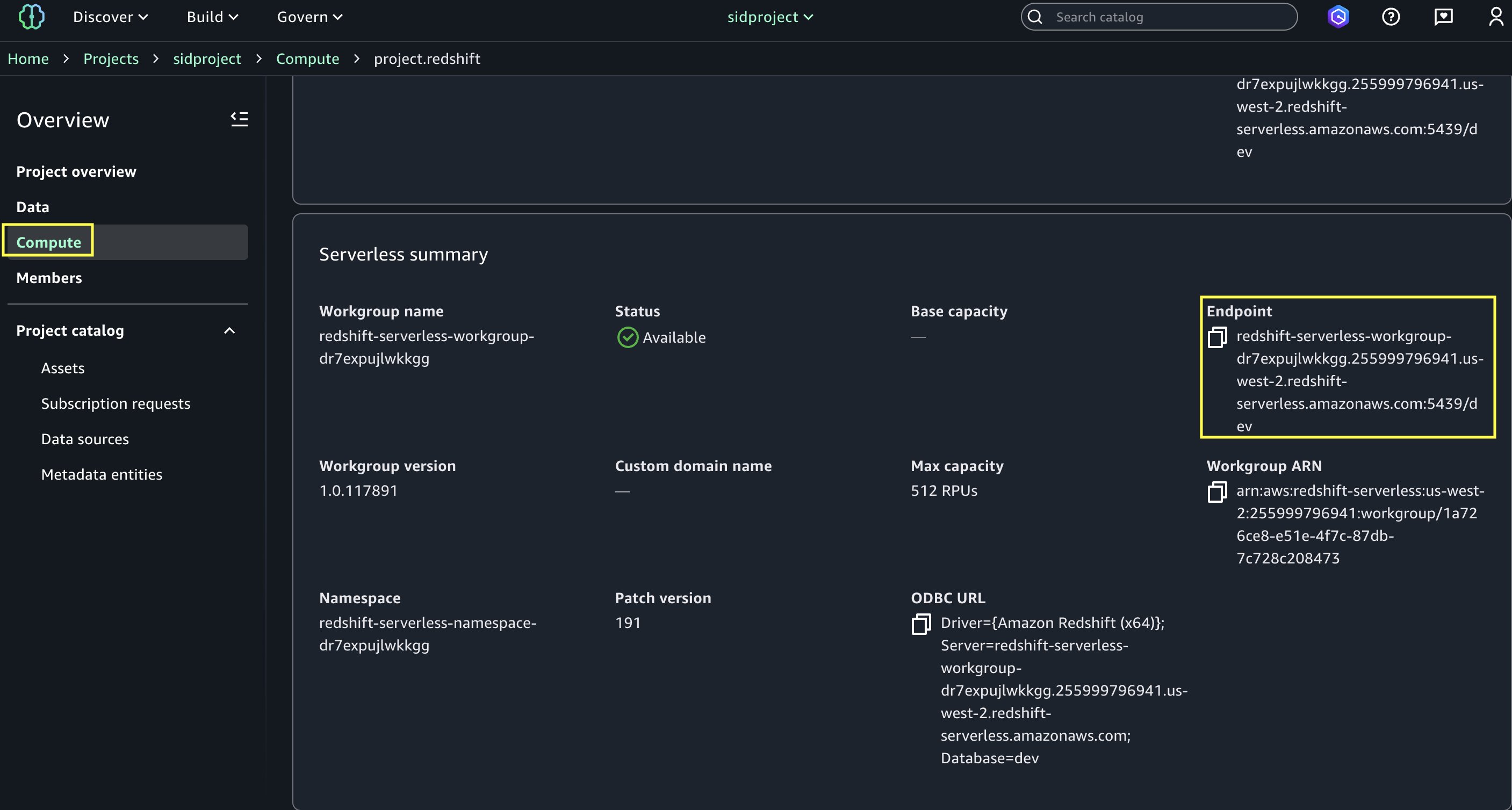
,tpcds_3t_alls3_pp_ext.customer_address ad1
,tpcds_3t_alls3_pp_ext.item
WHERE
ss_sold_date_sk = d1.d_date_sk AND
ss_customer_sk = c_customer_sk AND

ss_addr_sk = ad1.ca_address_sk and
ss_item_sk = i_item_sk and
ss_item_sk = sr_item_sk and
ss_ticket_number = sr_ticket_number and
i_color in ('firebrick','papaya','orange','cream','turquoise','deep') and
i_current_price between 42 and 42 + 10 and
i_current_price between 42 + 1 and 42 + 15
group by i_product_name
,i_item_sk
,ad1.ca_street_number
,ad1.ca_street_name
,ad1.ca_city
,ad1.ca_zip
,d1.d_year

Without Statistics

Following figure represents the logical query plan of Q64. You can observe that cardinality estimation of joins is not accurate. With inaccurate cardinalities, optimizer produces a sub-optimal query plan leading to higher execution time.

With Statistics

Following figure represents the logical query plan after consuming AWS Glue Data Catalog column statistics. Based on the highlighted changes, you can observe that the cardinality estimations of JOIN improved by many magnitudes helping the optimizer to choose a better join order and join strategy (broadcast DS_BCAST_INNER vs. distribute DS_DIST_BOTH). Switching the customer_address and customer table from inner to outer table and making join strategies as distribute has major impact because this reduces the data movement between the nodes and avoids spilling from hash table.
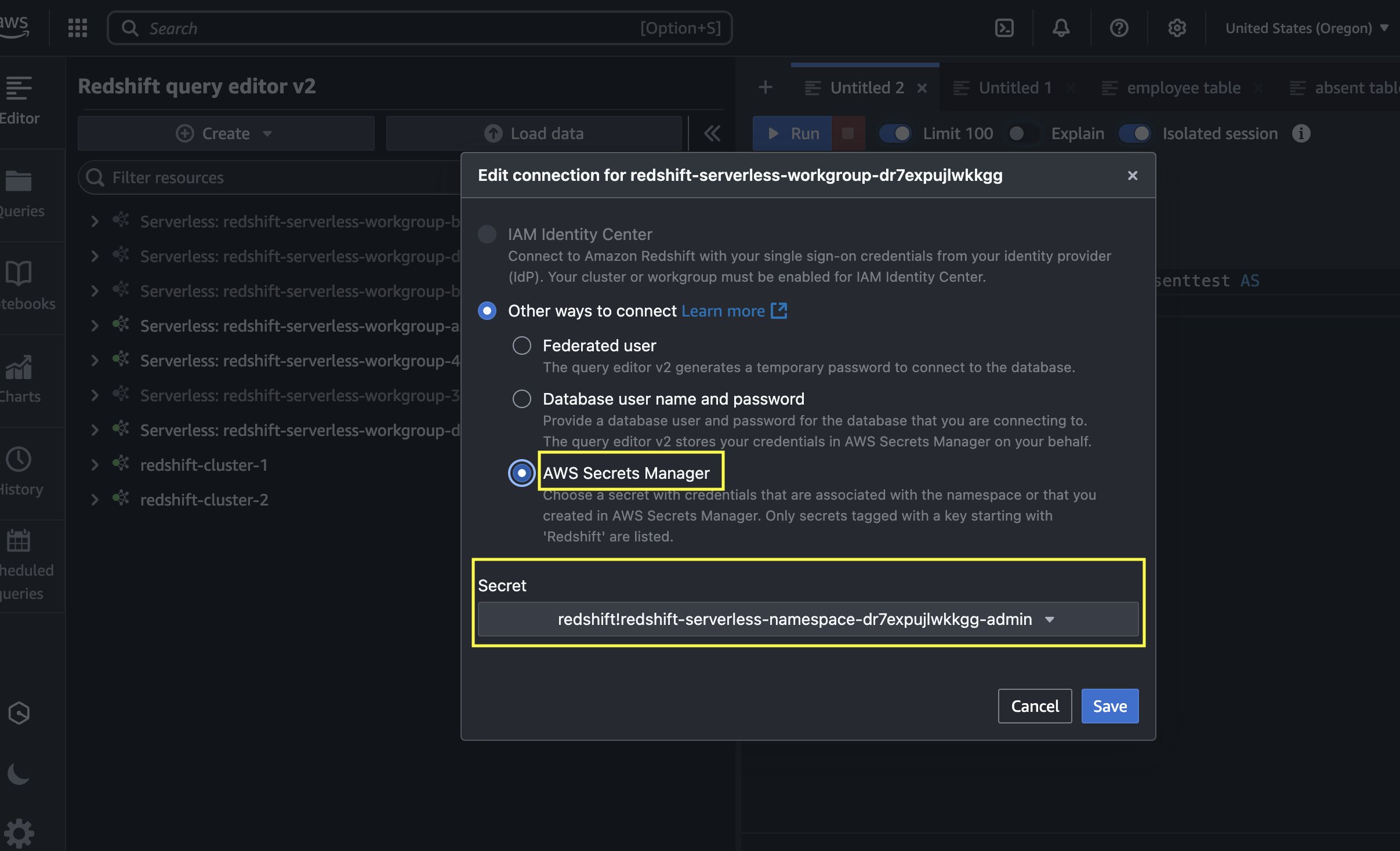
Logical query plan of Q64 without statistics

Figure 5: Logical query plan of Q64 without statistics

Logical query plan of Q64 after consuming column-level statistics

Figure 6: Logical query plan of Q64 after consuming AWS Glue Data Catalog column statistics

This change in query plan improved the query execution time of Q64 from 383s to 81s.

Given the greater benefits with AWS Glue Data Catalog column statistics for the optimizer, you should consider collecting stats for your data lake using AWS Glue. If your workload is a JOIN heavy workload, then collecting stats will show greater improvement on your workload. Refer to generating AWS Glue Data Catalog column statistics for instructions on how to collect statistics in AWS Glue Data Catalog.

Query rewrite optimization

We introduced a new query rewrite rule which combines scalar aggregates over the same common expression using slightly different predicates. This rewrite resulted in performance improvements on TPC-DS queries Q09, Q28, and Q88. Let’s focus on Q09 as a representative of these queries, given by the following fragment:

SELECT CASE
WHEN (SELECT COUNT(*)
FROM store_sales
WHERE ss_quantity BETWEEN 1 AND 20) > 48409437
THEN (SELECT AVG(ss_ext_discount_amt)
FROM store_sales
WHERE ss_quantity BETWEEN 1 AND 20)
ELSE (SELECT AVG(ss_net_profit)
FROM store_sales
WHERE ss_quantity BETWEEN 1 AND 20) END
AS bucket1,
<<4 more variations of the CASE expression above>>
FROM reason
WHERE r_reason_sk = 1

In total, there are 15 scans of the fact table store_sales, each one returning various aggregates over different subsets of data. The engine first performs subquery removal and transforms the various expressions in the CASE statements into relational subtrees connected via cross products, and then they are fused into one subquery handling all scalar aggregates. The resulting plan for Q09, described below using SQL for clarity, is given by:

SELECT CASE WHEN v1 > 48409437 THEN t1 ELSE e1 END,
<4 more variations>
FROM (SELECT COUNT(CASE WHEN b1 THEN 1 END) AS v1,
AVG(CASE WHEN b1 THEN ss_ext_discount_amt END) AS t1,
AVG(CASE WHEN b1 THEN ss_net_profit END) AS e1,
<4 more variations>
FROM reason,
(SELECT *,
ss_quantity BETWEEN 1 AND 20 AS b1,
<4 more variations>
FROM store_sales
WHERE ss_quantity BETWEEN 1 AND 20 OR
<4 more variations>))
WHERE r_reason_sk = 1)

In general, this rewrite rule results in the largest improvements both in latency (from 3x to 8x improvements) and bytes read from Amazon S3 (from 6x to 8x reduction in scanned bytes and, consequently, cost).

Bloom filter for partition columns

Amazon Redshift already uses Bloom filters on data columns of external tables in Amazon S3 to enable early and effective data filtering. Last year, we extended this support for partition columns as well. A Bloom filter is a probabilistic, memory-efficient data structure that accelerates join queries at scale by filtering rows that do not match the join relation, significantly reducing the amount of data transferred over the network. Amazon Redshift automatically determines what queries are suitable for leveraging Bloom filters at query runtime.

This optimization resulted in performance improvements on TPC-DS queries Q05, Q17 and Q54. This optimization resulted in large improvements in both latency (from 2x to 3x improvement) and bytes read from S3 (from 9x to 15x reduction in scanned bytes and, consequently cost).

Following is the subquery of Q05 which showcased improvements with runtime filter.

select s_store_id,
sum(sales_price) as sales,
sum(profit) as profit,
sum(return_amt) as returns,
sum(net_loss) as profit_loss
from
( select  ss_store_sk as store_sk,
ss_sold_date_sk  as date_sk,
ss_ext_sales_price as sales_price,
ss_net_profit as profit,
cast(0 as decimal(7,2)) as return_amt,
cast(0 as decimal(7,2)) as net_loss
from tpcds_3t_alls3_pp_ext.store_sales
union all
select sr_store_sk as store_sk,
sr_returned_date_sk as date_sk,
cast(0 as decimal(7,2)) as sales_price,
cast(0 as decimal(7,2)) as profit,
sr_return_amt as return_amt,
sr_net_loss as net_loss
from tpcds_3t_alls3_pp_ext.store_returns
) salesreturnss,
tpcds_3t_alls3_pp_ext.date_dim,
tpcds_3t_alls3_pp_ext.store
where date_sk = d_date_sk
and d_date between cast('1998-08-13' as date)
and (cast('1998-08-13' as date) +  14)
and store_sk = s_store_sk
group by s_store_id

Without bloom filter support on partition columns

Following figure is the logical query plan for sub-query of Q05. This appends two large fact tables store_sales (8B rows) and store_returns (863M rows) and then joins with very selective dimension tables date_dim and then with dimension table store. You can observe that join with date_dim table reduces the number of rows from 9B to 93M rows.

With bloom filter support on partition columns

With support of bloom filter on partition columns, we now create bloom filter for d_date_sk column of date_dim table and push down the bloom filters to store_sales and store_returns table. These bloom filters help to filter out the partitions in both store_sales and store_returns table because join happens on partition column (number of partitions processed reduces by 10x).

Logical query plan for sub-query of Q05 without bloom filter support on partition columns

Figure 7: Logical query plan for sub-query of Q05 without bloom filter support on partition columns

Logical query plan for sub-query of Q05 with bloom filter support on partition columns

Figure 8: Logical query plan for sub-query of Q05 with bloom filter support on partition columns

Overall, bloom filter on partition column will reduce the number of partitions processed resulting in reduced S3 listing calls and lesser number of data files to be read (reduction in scanned bytes). You can see that we only scan 89M rows from store_sales and 4M rows from store_returns because of the bloom filter. This reduced number of rows to process at JOIN level and helped in improving the overall query performance by 2x and scanned bytes by 9x.

Conclusion

In this post, we covered new performance optimizations in Amazon Redshift data lake query processing and how AWS Glue Data Catalog statistics helps to enhance quality of query plans for data lake queries in Amazon Redshift. These optimizations together improved TPC-DS 3 TB benchmark by 3x. Some of the queries in our benchmark benefited up to 12x speed up.

In summary, Amazon Redshift now offers enhanced query performance with optimizations such as AWS Glue Data Catalog column statistics, bloom filters on partition columns, new query rewrite rules and faster retrieval of metadata. These optimizations are enabled by default and Amazon Redshift users will benefit with better query response times for their workloads. For more information, please reach out to your AWS technical account manager or AWS account solutions architect. They will be happy to provide additional guidance and support.


About the authors

Kalaiselvi Kamaraj is a Sr. Software Development Engineer with Amazon. She has worked on several projects within Redshift Query processing team and currently focusing on performance related projects for Redshift Data Lake.

Mark Lyons is a Principal Product Manager on the Amazon Redshift team. He works on the intersection of data lakes and data warehouses. Prior to joining AWS, Mark held product leadership roles with Dremio and Vertica. He is passionate about data analytics and empowering customers to change the world with their data.

Asser Moustafa is a Principal Worldwide Specialist Solutions Architect at AWS, based in Dallas, Texas, USA. He partners with customers worldwide, advising them on all aspects of their data architectures, migrations, and strategic data visions to help organizations adopt cloud-based solutions, maximize the value of their data assets, modernize legacy infrastructures, and implement cutting-edge capabilities like machine learning and advanced analytics. Prior to joining AWS, Asser held various data and analytics leadership roles, completing an MBA from New York University and an MS in Computer Science from Columbia University in New York. He is passionate about empowering organizations to become truly data-driven and unlock the transformative potential of their data.

AWS Weekly Roundup: Amazon EC2 X8g Instances, Amazon Q generative SQL for Amazon Redshift, AWS SDK for Swift, and more (Sep 23, 2024)

Post Syndicated from Abhishek Gupta original https://aws.amazon.com/blogs/aws/aws-weekly-roundup-amazon-ec2-x8g-instances-amazon-q-generative-sql-for-amazon-redshift-aws-sdk-for-swift-and-more-sep-23-2024/

AWS Community Days have been in full swing around the world. I am going to put the spotlight on AWS Community Day Argentina where Jeff Barr delivered the keynote, talks and shared his nuggets of wisdom with the community, including a fun story of how he once followed Bill Gates to a McDonald’s!

I encourage you to read about his experience.

Last week’s launches
Here are the launches that got my attention, starting off with the GA releases.

Amazon EC2 X8g Instances are now generally availableX8g instances are powered by AWS Graviton4 processors and deliver up to 60% better performance than AWS Graviton2-based Amazon EC2 X2gd instances. These instances offer larger sizes with up to 3x more vCPU (up to 48xlarge) and memory (up to 3TiB) than Graviton2-based X2gd instances.

Amazon Q generative SQL for Amazon Redshift is now generally available – Amazon Q generative SQL in Amazon Redshift Query Editor is an out-of-the-box web-based SQL editor for Amazon Redshift. It uses generative AI to analyze user intent, query patterns, and schema metadata to identify common SQL query patterns directly within Amazon Redshift, accelerating the query authoring process for users and reducing the time required to derive actionable data insights.

AWS SDK for Swift is now generally availableAWS SDK for Swift provides a modern, user-friendly, and native Swift interface for accessing Amazon Web Services from Apple platforms, AWS Lambda, and Linux-based Swift on Server applications. Now that it’s GA, customers can use AWS SDK for Swift for production workloads. Learn more in the AWS SDK for Swift Developer Guide.

AWS Amplify now supports long-running tasks with asynchronous server-side function calls – Developers can use AWS Amplify to invoke Lambda function asynchronously for operations like generative AI model inferences, batch processing jobs, or message queuing without blocking the GraphQL API response. This improves responsiveness and scalability, especially for scenarios where immediate responses are not required or where long-running tasks need to be offloaded.

Amazon Keyspaces (for Apache Cassandra) now supports add-column for multi-Region tables – With this launch, you can modify the schema of your existing multi-Region tables in Amazon Keyspaces (for Apache Cassandra) to add new columns. You only have to modify the schema in one of its replica Regions and Keyspaces will replicate the new schema to the other Regions where the table exists.

Amazon Corretto 23 is now generally availableAmazon Corretto is a no-cost, multi-platform, production-ready distribution of OpenJDK. Corretto 23 is an OpenJDK 23 Feature Release that includes an updated Vector API, expanded pattern matching and switch expression, and more. It will be supported through April, 2025.

Use OR1 instances for existing Amazon OpenSearch Service domains – With OpenSearch 2.15, you can leverage OR1 instances for your existing Amazon OpenSearch Service domains by simply updating your existing domain configuration, and choosing OR1 instances for data nodes. This will seamlessly move domains running OpenSearch 2.15 to OR1 instances using a blue/green deployment.

Amazon S3 Express One Zone now supports AWS KMS with customer managed keys – By default, S3 Express One Zone encrypts all objects with server-side encryption using S3 managed keys (SSE-S3). With S3 Express One Zone support for customer managed keys, you have more options to encrypt and manage the security of your data. S3 Bucket Keys are always enabled when you use SSE-KMS with S3 Express One Zone, at no additional cost.
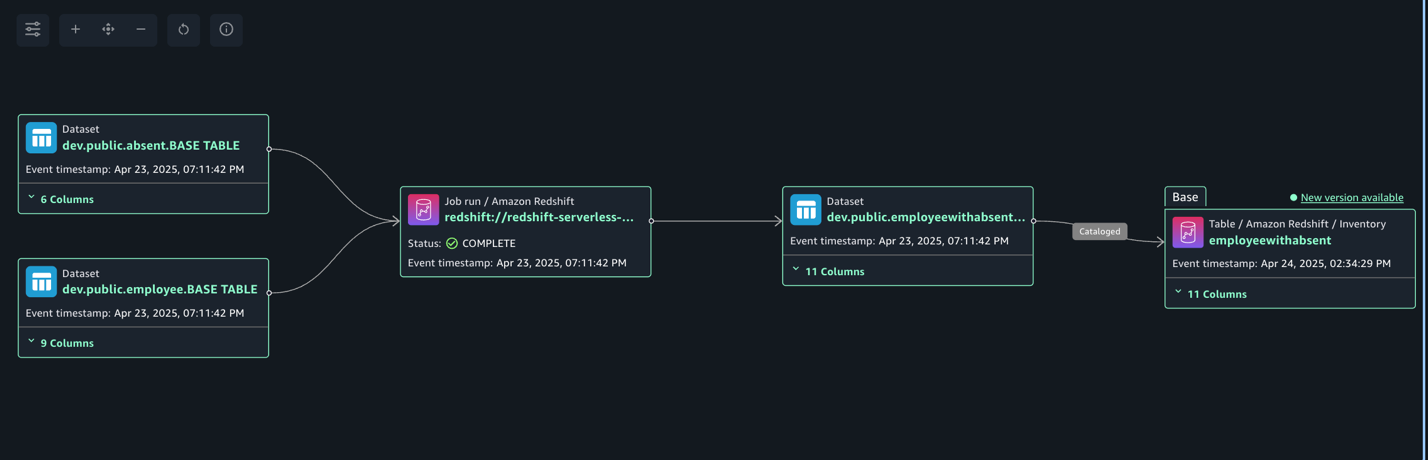
Use AWS Chatbot to interact with Amazon Bedrock agents from Microsoft Teams and Slack – Before, customers had to develop custom chat applications in Microsoft Teams or Slack and integrate it with Amazon Bedrock agents. Now they can invoke their Amazon Bedrock agents from chat channels by connecting the agent alias with an AWS Chatbot channel configuration.

AWS CodeBuild support for managed GitLab runners – Customers can configure their AWS CodeBuild projects to receive GitLab CI/CD job events and run them on ephemeral hosts. This feature allows GitLab jobs to integrate natively with AWS, providing security and convenience through features such as IAM, AWS Secrets Manager, AWS CloudTrail, and Amazon VPC.

We launched existing services in additional Regions:

Other AWS news
Here are some additional projects, blog posts, and news items that you might find interesting:

Secure Cross-Cluster Communication in EKS – It demonstrates how you can use Amazon VPC Lattice and Pod Identity to secure cross-EKS-cluster application communication, along with an example that you can use as a reference to adapt to your own microservices applications.

Improve RAG performance using Cohere Rerank – This post focuses on improving search efficiency and accuracy in RAG systems using Cohere Rerank.

AWS open source news and updates – My colleague Ricardo Sueiras writes about open source projects, tools, and events from the AWS Community; check out Ricardo’s page for the latest updates.

Upcoming AWS events
Check your calendars and sign up for upcoming AWS events:

AWS Community Days – Join community-led conferences that feature technical discussions, workshops, and hands-on labs led by expert AWS users and industry leaders from around the world. Upcoming AWS Community Days are in Italy (Sep. 27), Taiwan (Sep. 28), Saudi Arabia (Sep. 28)), Netherlands (Oct. 3), and Romania (Oct. 5).

Browse all upcoming AWS led in-person and virtual events and developer-focused events.

That’s all for this week. Check back next Monday for another Weekly Roundup!

— Abhishek

This post is part of our Weekly Roundup series. Check back each week for a quick roundup of interesting news and announcements from AWS!

Amazon RDS for MySQL zero-ETL integration with Amazon Redshift, now generally available, enables near real-time analytics

Post Syndicated from Matheus Guimaraes original https://aws.amazon.com/blogs/aws/amazon-rds-for-mysql-zero-etl-integration-with-amazon-redshift-now-generally-available-enables-near-real-time-analytics/

Zero-ETL integrations help unify your data across applications and data sources for holistic insights and breaking data silos. They provide a fully managed, no-code, near real-time solution for making petabytes of transactional data available in Amazon Redshift within seconds of data being written into Amazon Relational Database Service (Amazon RDS) for MySQL. This eliminates the need to create your own ETL jobs simplifying data ingestion, reducing your operational overhead and potentially lowering your overall data processing costs. Last year, we announced the general availability of zero-ETL integration with Amazon Redshift for Amazon Aurora MySQL-Compatible Edition as well as the availability in preview of Aurora PostgreSQL-Compatible Edition, Amazon DynamoDB, and RDS for MySQL.

I am happy to announce that Amazon RDS for MySQL zero-ETL with Amazon Redshift is now generally available. This release also includes new features such as data filtering, support for multiple integrations, and the ability to configure zero-ETL integrations in your AWS CloudFormation template.

In this post, I’ll show how you can get started with data filtering and consolidating your data across multiple databases and data warehouses. For a step-by-step walkthrough on how to set up zero-ETL integrations, see this blog post for a description of how to set one up for Aurora MySQL-Compatible, which offers a very similar experience.

Data filtering
Most companies, no matter the size, can benefit from adding filtering to their ETL jobs. A typical use case is to reduce data processing and storage costs by selecting only the subset of data needed to replicate from their production databases. Another is to exclude personally identifiable information (PII) from a report’s dataset. For example, a business in healthcare might want to exclude sensitive patient information when replicating data to build aggregate reports analyzing recent patient cases. Similarly, an e-commerce store may want to make customer spending patterns available to their marketing department, but exclude any identifying information. Conversely, there are certain cases when you might not want to use filtering, such as when making data available to fraud detection teams that need all the data in near real time to make inferences. These are just a few examples, so I encourage you to experiment and discover different use cases that might apply to your organization.
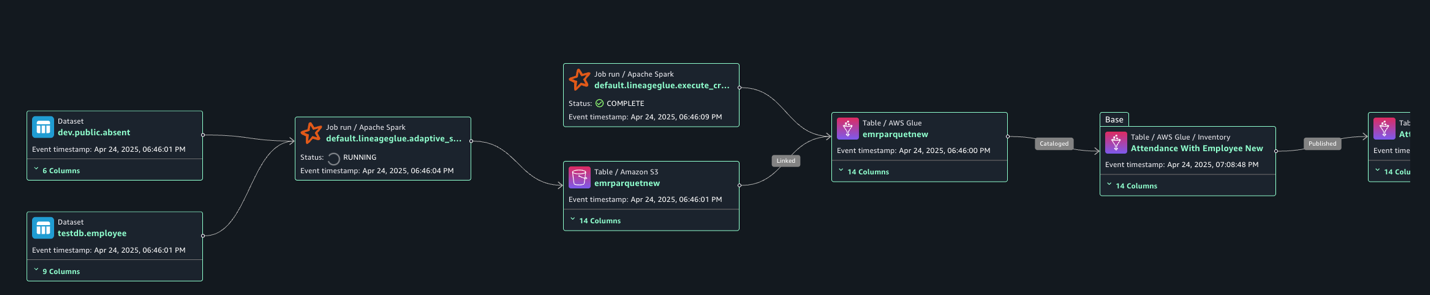
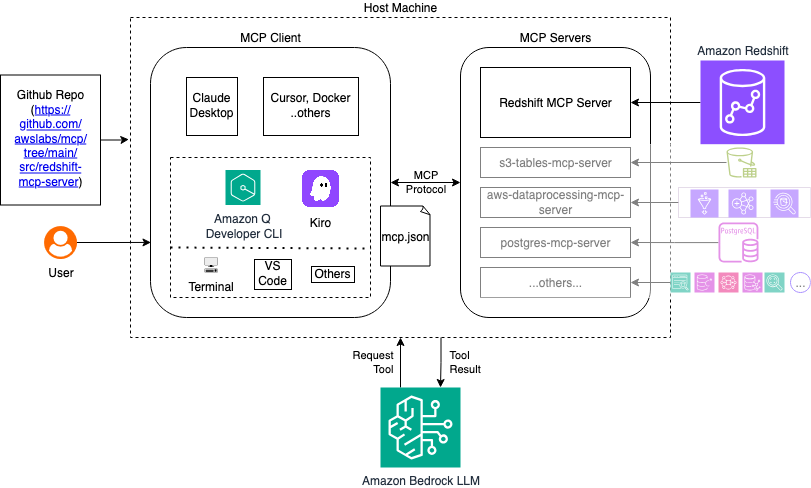
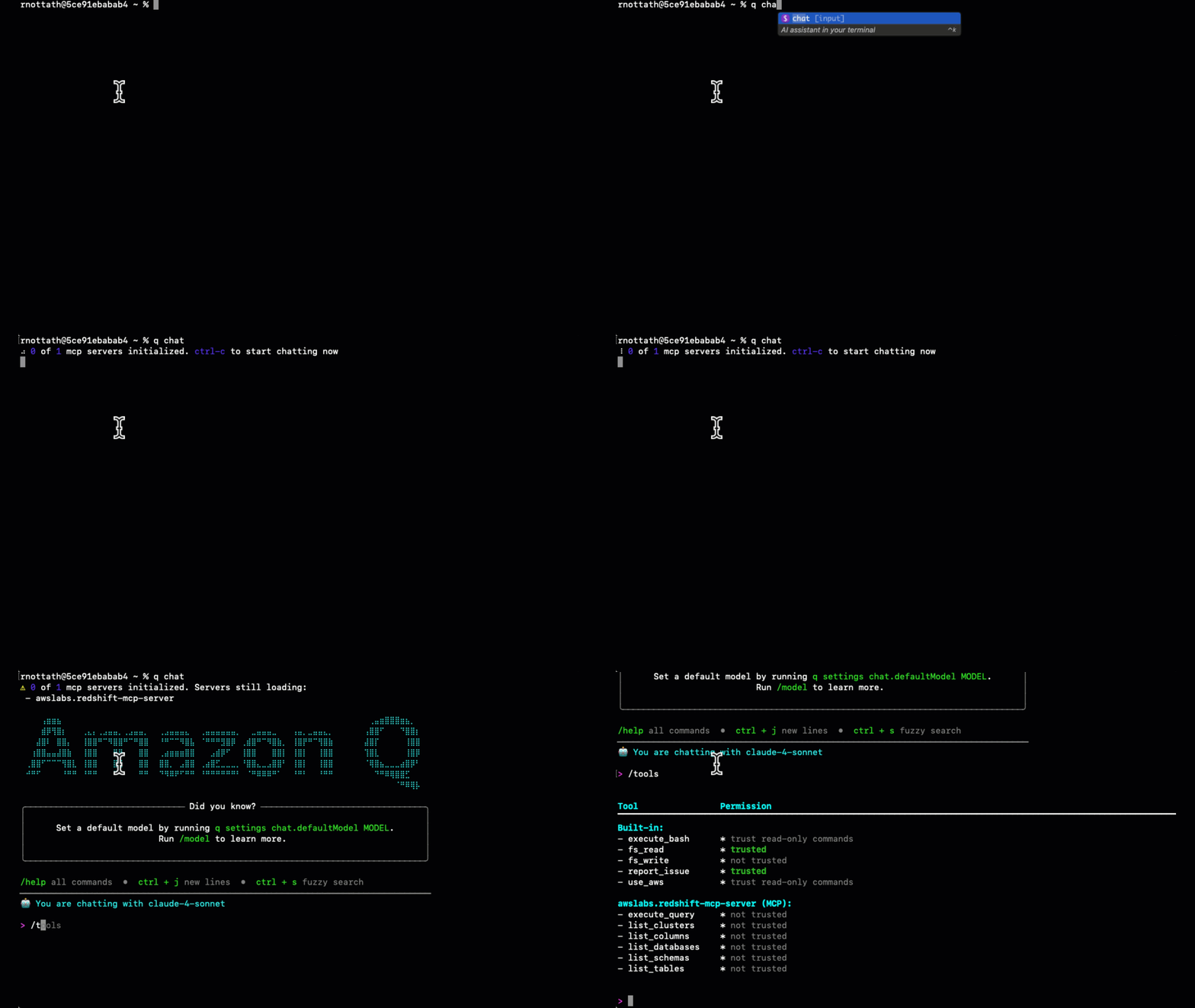
There are two ways to enable filtering in your zero-ETL integrations: when you first create the integration or by modifying an existing integration. Either way, you will find this option on the “Source” step of the zero-ETL creation wizard.

Interface for adding data filtering expressions to include or exclude databases or tables.

You apply filters by entering filter expressions that can be used to either include or exclude databases or tables from the dataset in the format of database*.table*. You can add multiple expressions and they will be evaluated in order from left to right.

If you’re modifying an existing integration, the new filtering rules will apply from that point in time on after you confirm your changes and Amazon Redshift will drop tables that are no longer part of the filter.

If you want to dive deeper, I recommend you read this blog post, which goes in depth into how you can set up data filters for Amazon Aurora zero-ETL integrations since the steps and concepts are very similar.

Create multiple zero-ETL integrations from a single database
You are now also able to configure up integrations from a single RDS for MySQL database to up to 5 Amazon Redshift data warehouses. The only requirement is that you must wait for the first integration to finish setting up successfully before adding others.

This allows you to share transactional data with different teams while providing them ownership over their own data warehouses for their specific use cases. For example, you can also use this in conjunction with data filtering to fan out different sets of data to development, staging, and production Amazon Redshift clusters from the same Amazon RDS production database.

Another interesting scenario where this could be really useful is consolidation of Amazon Redshift clusters by using zero-ETL to replicate to different warehouses. You could also use Amazon Redshift materialized views to explore your data, power your Amazon Quicksight dashboards, share data, train jobs in Amazon SageMaker, and more.

Conclusion
RDS for MySQL zero-ETL integrations with Amazon Redshift allows you to replicate data for near real-time analytics without needing to build and manage complex data pipelines. It is generally available today with the ability to add filter expressions to include or exclude databases and tables from the replicated data sets. You can now also set up multiple integrations from the same source RDS for MySQL database to different Amazon Redshift warehouses or create integrations from different sources to consolidate data into one data warehouse.

This zero-ETL integration is available for RDS for MySQL versions 8.0.32 and later, Amazon Redshift Serverless, and Amazon Redshift RA3 instance types in supported AWS Regions.

In addition to using the AWS Management Console, you can also set up a zero-ETL integration via the AWS Command Line Interface (AWS CLI) and by using an AWS SDK such as boto3, the official AWS SDK for Python.

See the documentation to learn more about working with zero-ETL integrations.

Matheus Guimaraes