Tag Archives: AWS Summit New York

AWS AI League: Learn, innovate, and compete in our new ultimate AI showdown

Post Syndicated from Elizabeth Fuentes original https://aws.amazon.com/blogs/aws/aws-ai-league-learn-innovate-and-compete-in-our-new-ultimate-ai-showdown/

Since 2018, AWS DeepRacer has engaged over 560,000 builders worldwide, demonstrating that developers learn and grow through competitive experiences. Today, we’re excited to expand into the generative AI era with AWS Artificial Intelligence (AI) League.

This is a unique competitive experience – your chance to dive deep into generative AI regardless of your skill level, compete with peers, and build solutions that solve actual business problems through an engaging, competitive experience.

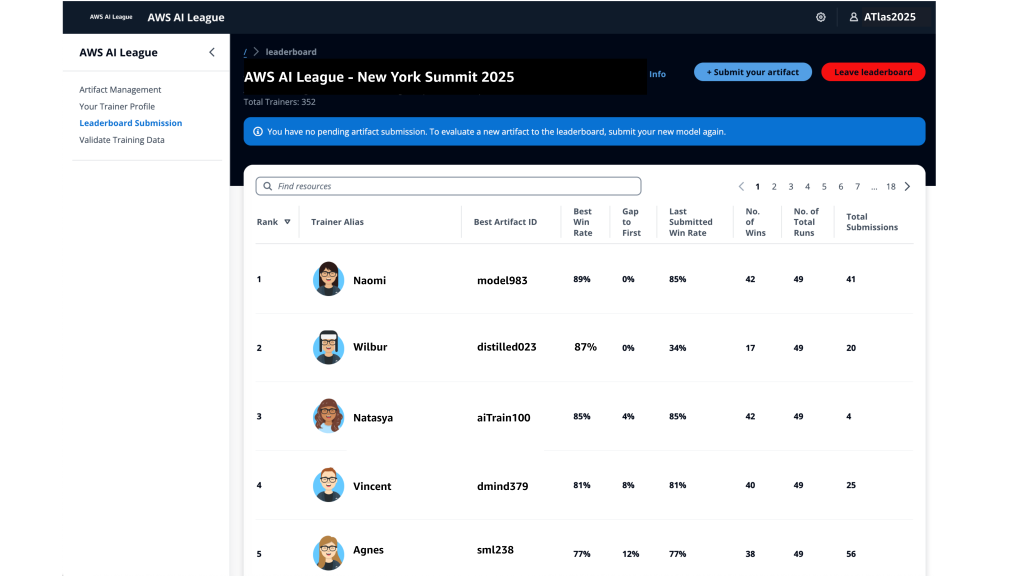
With AWS AI League, your organization hosts private tournaments where teams collaborate and compete to solve real-world business use cases using practical AI skills. Participants craft effective prompts and fine-tune models while building powerful generative AI solutions relevant for their business. Throughout the competition, participants’ solutions are evaluated against reference standards on a real-time leaderboard that tracks performance based on accuracy and latency.

The AWS AI League experience starts with a 2-hour hands-on workshop led by AWS experts. This is followed by self-paced experimentation, culminating in a gameshow-style grand finale where participants showcase their generative AI creations addressing business challenges. Organizations can set up their own AWS AI League within half a day. The scalable design supports 500 to 5,000 employees while maintaining the same efficient timeline.

Supported by up to $2 million in AWS credits and a $25,000 championship prize pool at AWS re:Invent 2025, the program provides a unique opportunity to solve real business challenges.

AWS AI League transforms how organizations develop generative AI capabilities
AWS AI League transforms how organizations develop generative AI capabilities by combining hands-on skills development, domain expertise, and gamification. This approach makes AI learning accessible and engaging for all skill levels. Teams collaborate through industry-specific challenges that mirror real organizational needs, with each challenge providing reference datasets and evaluation standards that reflect actual business requirements.

  • Customizable industry-specific challenges – Tailor competitions to your specific business context. Healthcare teams work on patient discharge summaries, financial services focus on fraud detection, and media companies develop content creation solutions.
  • Integrated AWS AI stack experience – Participants gain hands-on experience with AWS AI and ML tools, including Amazon SageMaker AI, Amazon Bedrock, and Amazon Nova, accessible from Amazon SageMaker Unified Studio. Teams work through a secure, cost-controlled environment within their organization’s AWS account.
  • Real-time performance tracking – The leaderboard evaluates submissions against established benchmarks and reference standards throughout the competition, providing immediate feedback on accuracy and speed so teams can iterate and improve their solutions. During the final round, this scoring includes expert evaluation where domain experts and a live audience participate in real-time voting to determine which AI solutions best solve real business challenges.

  • AWS AI League offers two foundational competition tracks:
    • Prompt Sage – The Ultimate Prompt Battle – Race to craft the perfect AI prompts that unlock breakthrough solutions. whether you detect financial fraud or streamlining healthcare workflows, every word counts as they climb the leaderboard using zero-shot learning and chain-of-thought reasoning.
    • Tune Whiz – The Model Mastery Showdown – Generic AI models meet their match as you sculpt them into industry-specific powerhouses. Armed with your domain expertise and specialized questions, competitors fine-tune models that speak your business language fluently. Victory goes to who achieve the perfect balance of blazing performance, lightning efficiency, and cost optimization.

As Generative AI continues to evolve, AWS AI League will regularly introduce new challenges and formats in addition to these tracks.

Get started today
Ready to get started? Organizations can host private competitions by applying through the AWS AI League page. Individual developers can join public competitions at AWS Summits and AWS re:Invent.

PS: Writing a blog post at AWS is always a team effort, even when you see only one name under the post title. In this case, I want to thank Natasya Idries, for her generous help with technical guidance, and expertise, which made this overview possible and comprehensive.

— Eli

Accelerate safe software releases with new built-in blue/green deployments in Amazon ECS

Post Syndicated from Donnie Prakoso original https://aws.amazon.com/blogs/aws/accelerate-safe-software-releases-with-new-built-in-blue-green-deployments-in-amazon-ecs/

While containers have revolutionized how development teams package and deploy applications, these teams have had to carefully monitor releases and build custom tooling to mitigate deployment risks, which slows down shipping velocity. At scale, development teams spend valuable cycles building and maintaining undifferentiated deployment tools instead of innovating for their business.

Starting today, you can use the built-in blue/green deployment capability in Amazon Elastic Container Service (Amazon ECS) to make your application deployments safer and more consistent. This new capability eliminates the need to build custom deployment tooling while giving you the confidence to ship software updates more frequently with rollback capability.

Here’s how you can enable the built-in blue/green deployment capability in the Amazon ECS console.

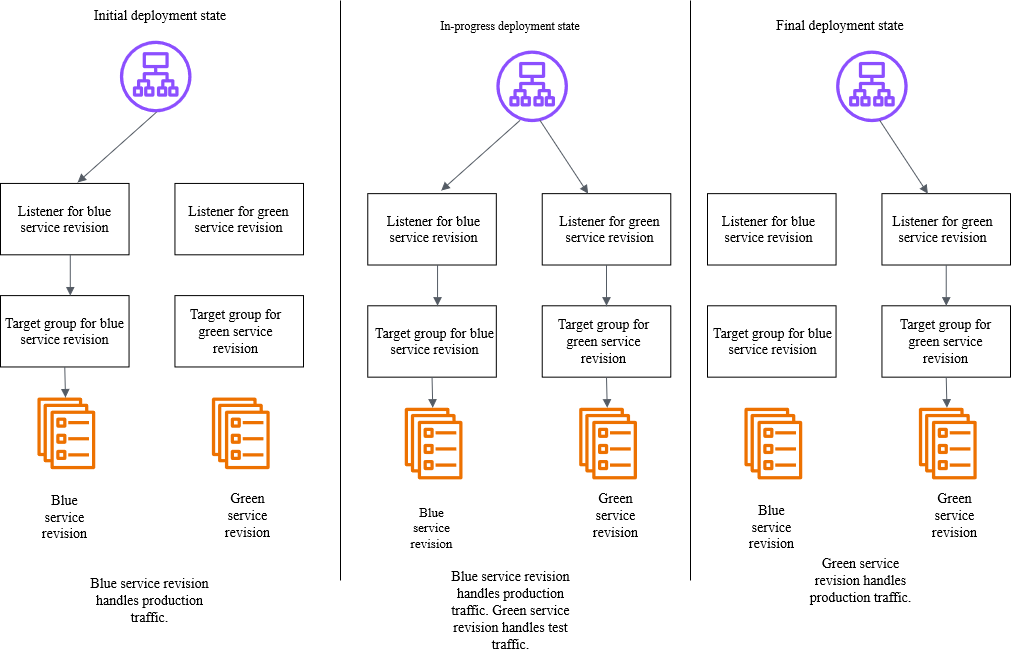
You create a new “green” application environment while your existing “blue” environment continues to serve live traffic. After monitoring and testing the green environment thoroughly, you route the live traffic from blue to green. With this capability, Amazon ECS now provides built-in functionality that makes containerized application deployments safer and more reliable.

Below is a diagram illustrating how blue/green deployment works by shifting application traffic from the blue environment to the green environment. You can learn more at the Amazon ECS blue/green service deployments workflow page.

Amazon ECS orchestrates this entire workflow while providing event hooks to validate new versions using synthetic traffic before routing production traffic. You can validate new software versions in production environments before exposing them to end users and roll back near-instantaneously if issues arise. Because this functionality is built directly into Amazon ECS, you can add these safeguards by simply updating your configuration without building any custom tooling.

Getting started
Let me walk you through a demonstration that showcases how to configure and use blue/green deployments for an ECS service. Before that, there are a few setup steps that I need to complete, including configuring AWS Identity and Access Management (IAM) roles, which you can find on the Required resources for Amazon ECS blue/green deployments Documentation page.

For this demonstration, I want to deploy a new version of my application using the blue/green strategy to minimize risk. First, I need to configure my ECS service to use blue/green deployments. I can do this through the ECS console, AWS Command Line Interface (AWS CLI), or using infrastructure as code.

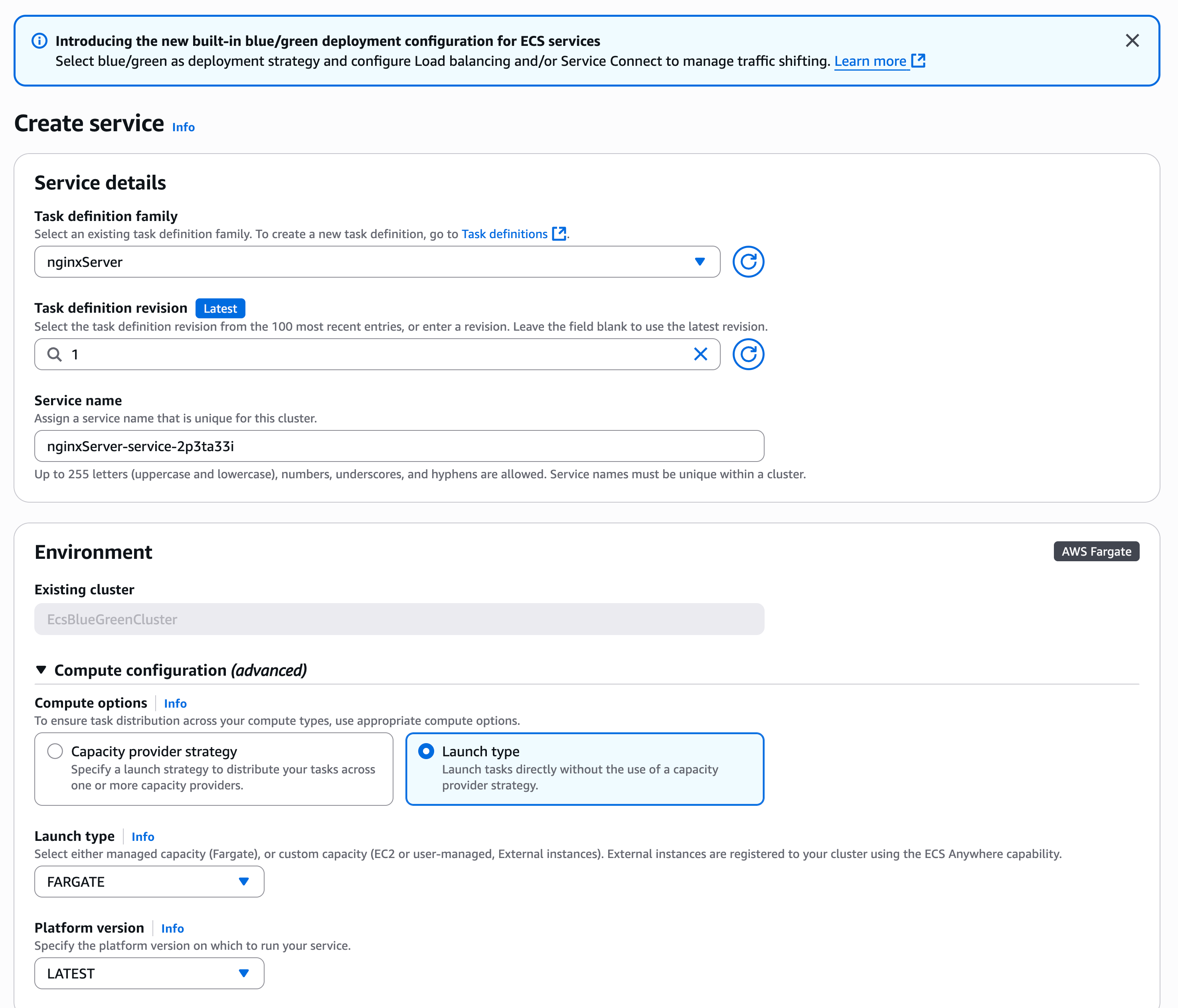
Using the Amazon ECS console, I create a new service and configure it as usual:

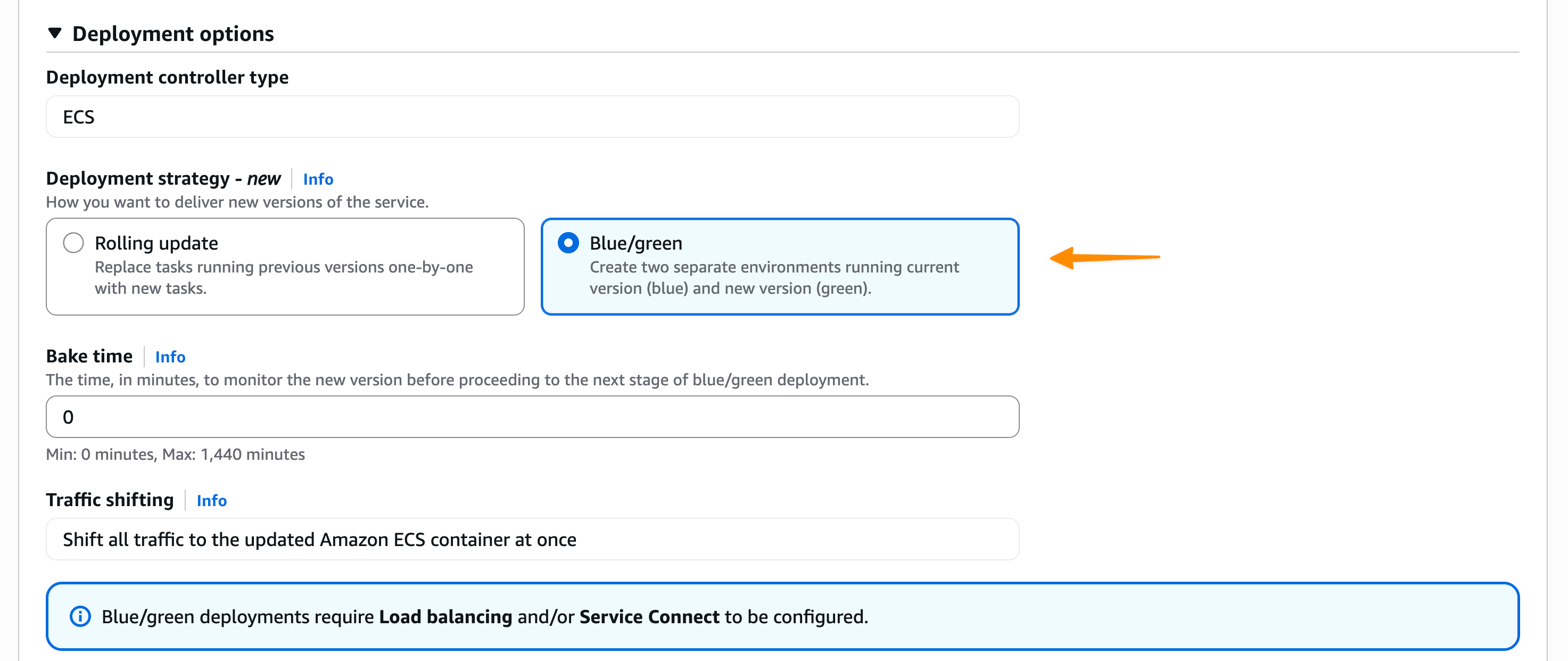
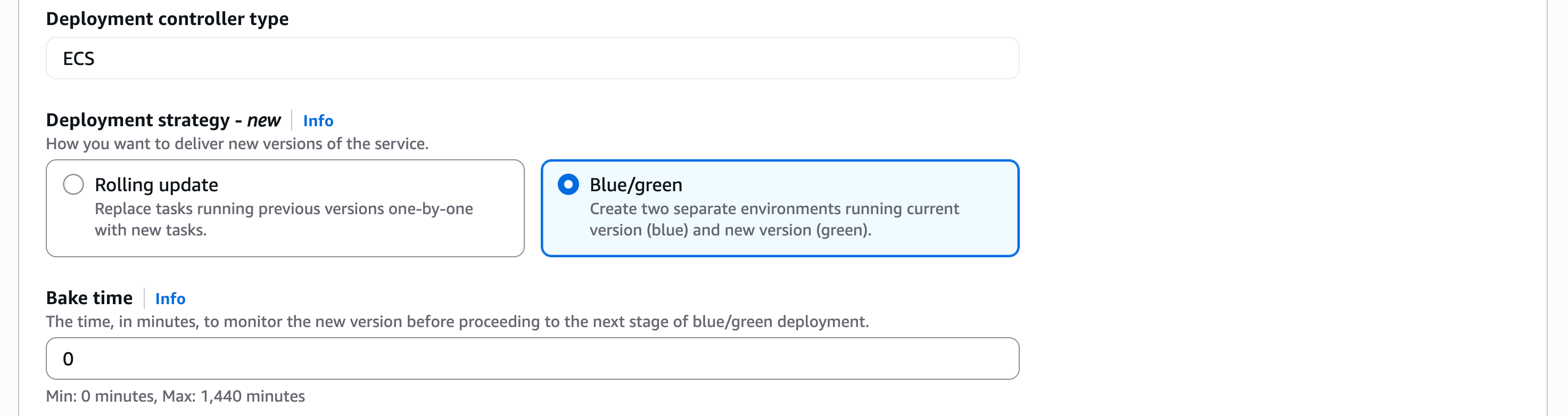
In the Deployment Options section, I choose ECS as the Deployment controller type, then Blue/green as the Deployment strategy. Bake time is the time after the production traffic has shifted to green, when instant rollback to blue is available. When the bake time expires, blue tasks are removed.

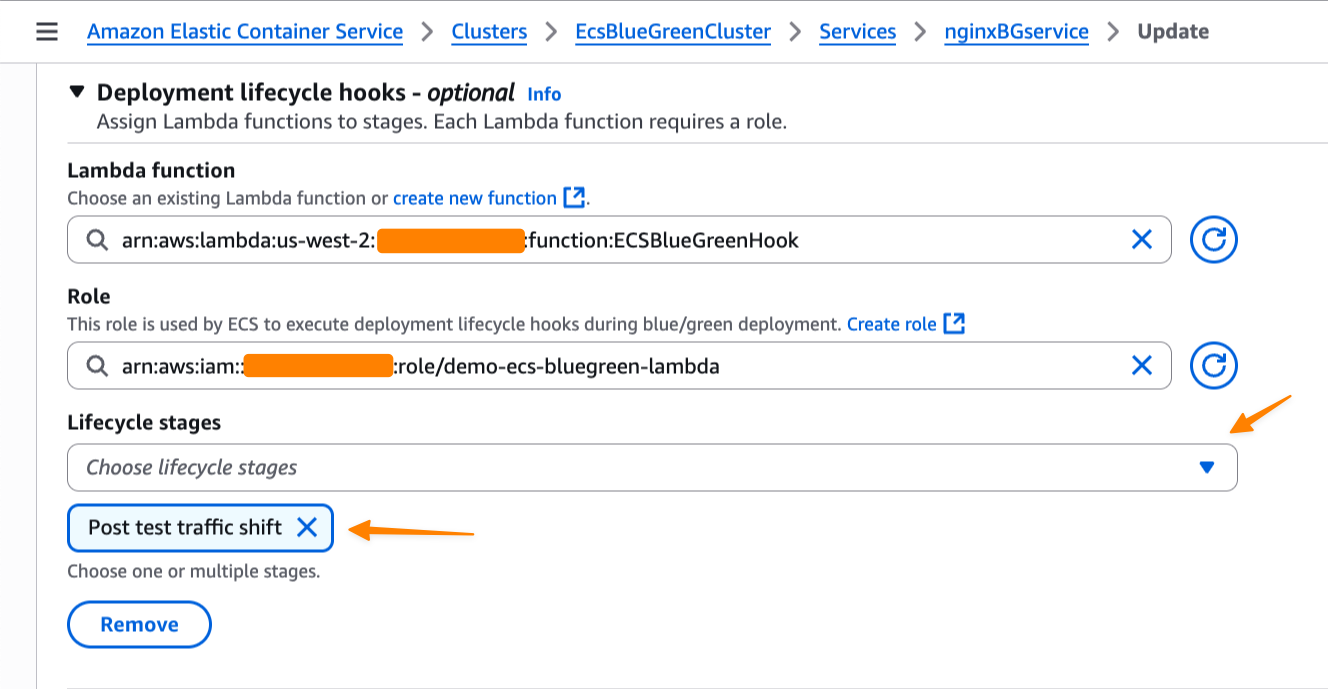
We’re also introducing deployment lifecycle hooks. These are event-driven mechanisms you can use to augment the deployment workflow. I can select which AWS Lambda function I’d like to use as a deployment lifecycle hook. The Lambda function can perform the required business logic, but it must return a hook status.

Amazon ECS supports the following lifecycle hooks during blue/green deployments. You can learn more about each stage on the Deployment lifecycle stages page.

  • Pre scale up
  • Post scale up
  • Production traffic shift
  • Test traffic shift
  • Post production traffic shift
  • Post test traffic shift

For my application, I want to test when the test traffic shift is complete and the green service handles all of the test traffic. Since there’s no end-user traffic, a rollback at this stage will have no impact on users. This makes Post test traffic shift suitable for my use case as I can test it first with my Lambda function.

Switching context for a moment, let’s focus on the Lambda function that I use to validate the deployment before allowing it to proceed. In my Lambda function as a deployment lifecycle hook, I can perform any business logic, such as synthetic testing, calling another API, or querying metrics.

Within the Lambda function, I must return a hookStatus. A hookStatus can be SUCCESSFUL, which will move the process to the next step. If the status is FAILED, it rolls back to the blue deployment. If it’s IN_PROGRESS, then Amazon ECS retries the Lambda function in 30 seconds.

In the following example, I set up my validation with a Lambda function that performs file upload as part of a test suite for my application.

import json
import urllib3
import logging
import base64
import os

# Configure logging
logger = logging.getLogger()
logger.setLevel(logging.DEBUG)

# Initialize HTTP client
http = urllib3.PoolManager()

def lambda_handler(event, context):
    """
    Validation hook that tests the green environment with file upload
    """
    logger.info(f"Event: {json.dumps(event)}")
    logger.info(f"Context: {context}")
    
    try:
        # In a real scenario, you would construct the test endpoint URL
        test_endpoint = os.getenv("APP_URL")
        
        # Create a test file for upload
        test_file_content = "This is a test file for deployment validation"
        test_file_data = test_file_content.encode('utf-8')
        
        # Prepare multipart form data for file upload
        fields = {
            'file': ('test.txt', test_file_data, 'text/plain'),
            'description': 'Deployment validation test file'
        }
        
        # Send POST request with file upload to /process endpoint
        response = http.request(
            'POST', 
            test_endpoint,
            fields=fields,
            timeout=30
        )
        
        logger.info(f"POST /process response status: {response.status}")
        
        # Check if response has OK status code (200-299 range)
        if 200 <= response.status < 300:
            logger.info("File upload test passed - received OK status code")
            return {
                "hookStatus": "SUCCEEDED"
            }
        else:
            logger.error(f"File upload test failed - status code: {response.status}")
            return {
                "hookStatus": "FAILED"
            }
            
    except Exception as error:
        logger.error(f"File upload test failed: {str(error)}")
        return {
            "hookStatus": "FAILED"
        }

When the deployment reaches the lifecycle stage that is associated with the hook, Amazon ECS automatically invokes my Lambda function with deployment context. My validation function can run comprehensive tests against the green revision—checking application health, running integration tests, or validating performance metrics. The function then signals back to ECS whether to proceed or abort the deployment.

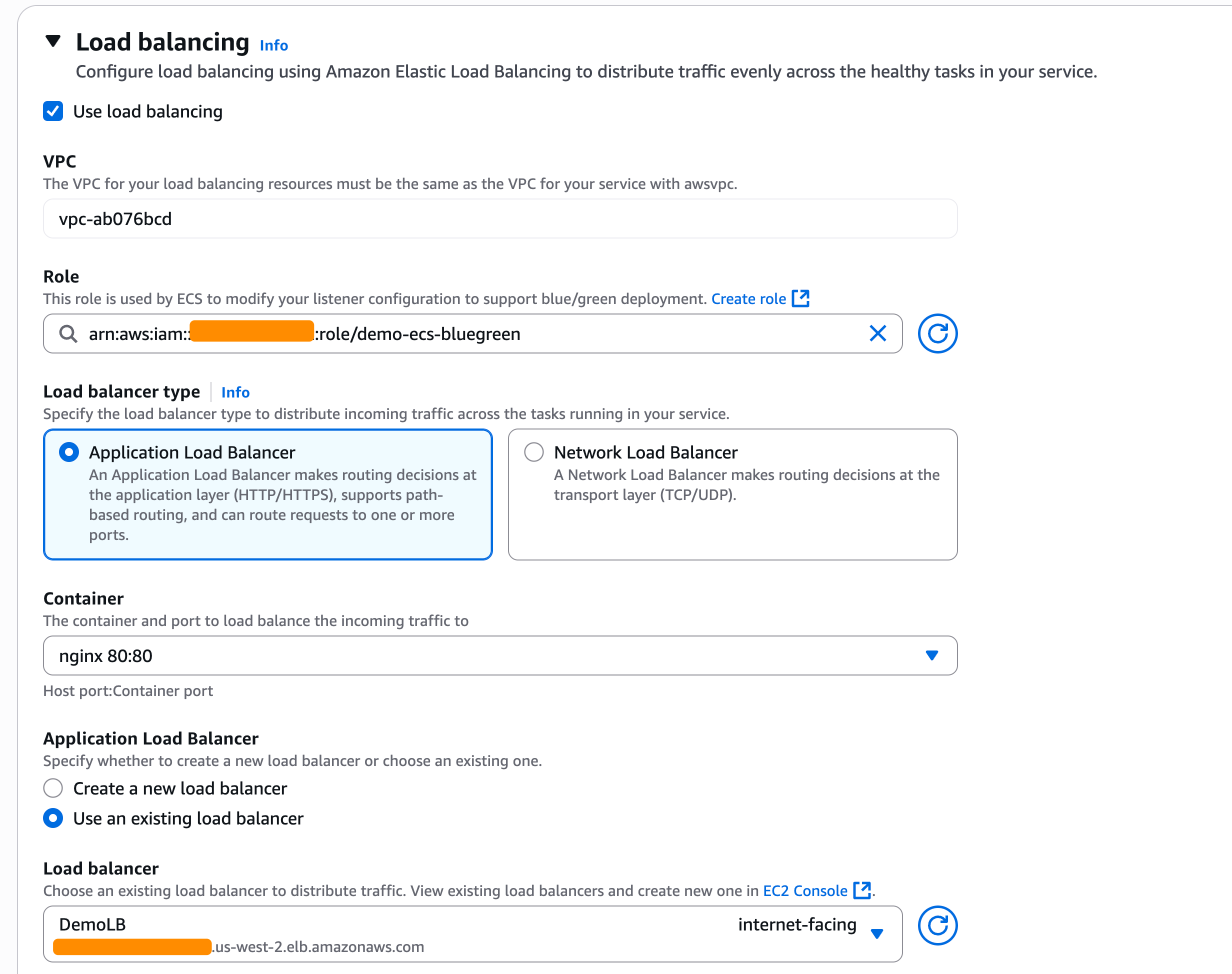
As I chose the blue/green deployment strategy, I also need to configure the load balancers and/or Amazon ECS Service Connect. In the Load balancing section, I select my Application Load Balancer.

In the Listener section, I use an existing listener on port 80 and select two Target groups.

Happy with this configuration, I create the service and wait for ECS to provision my new service.

Testing blue/green deployments
Now, it’s time to test my blue/green deployments. For this test, Amazon ECS will trigger my Lambda function after the test traffic shift is completed. My Lambda function will return FAILED in this case as it performs file upload to my application, but my application doesn’t have this capability.

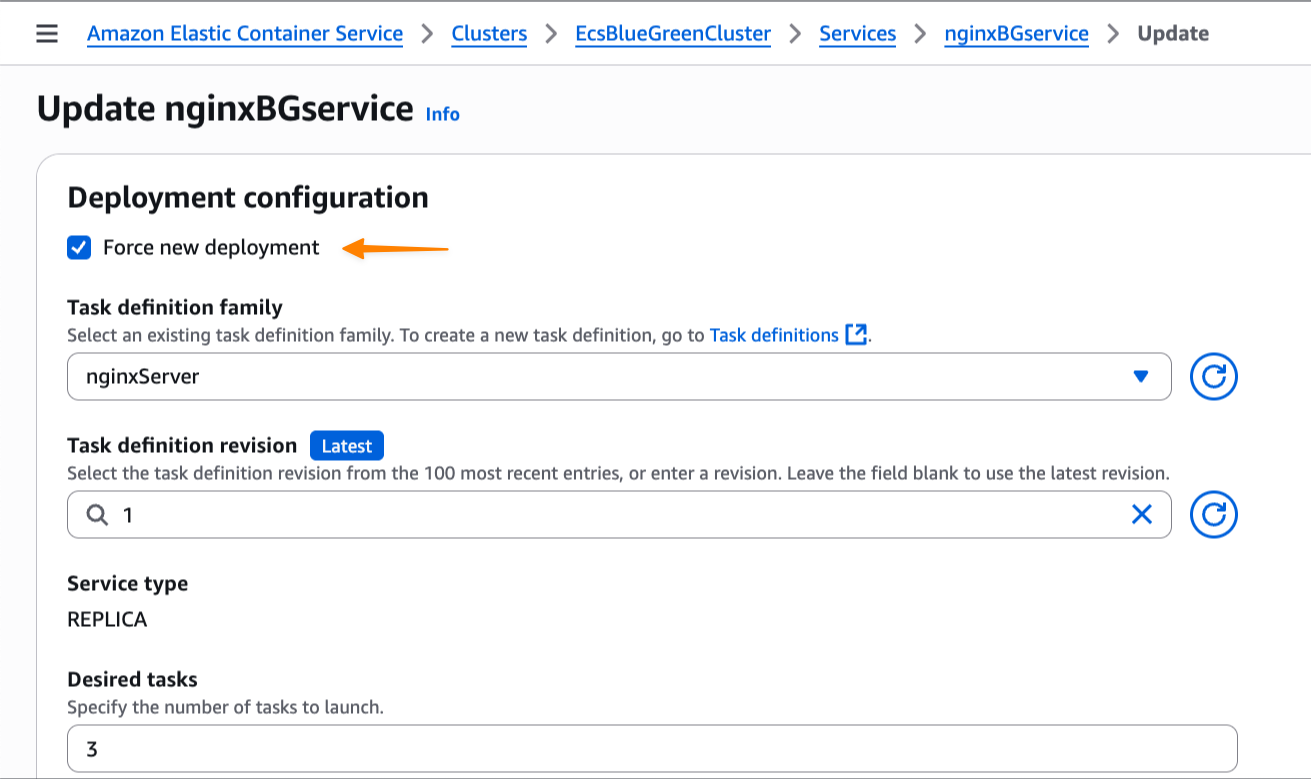
I update my service and check Force new deployment, knowing the blue/green deployment capability will roll back if it detects a failure. I select this option because I haven’t modified the task definition but still need to trigger a new deployment.

At this stage, I have both blue and green environments running, with the green revision handling all the test traffic. Meanwhile, based on Amazon CloudWatch Logs of my Lambda function, I also see that the deployment lifecycle hooks work as expected and emit the following payload:

[INFO]	2025-07-10T13:15:39.018Z	67d9b03e-12da-4fab-920d-9887d264308e	Event: 
{
    "executionDetails": {
        "testTrafficWeights": {},
        "productionTrafficWeights": {},
        "serviceArn": "arn:aws:ecs:us-west-2:123:service/EcsBlueGreenCluster/nginxBGservice",
        "targetServiceRevisionArn": "arn:aws:ecs:us-west-2:123:service-revision/EcsBlueGreenCluster/nginxBGservice/9386398427419951854"
    },
    "executionId": "a635edb5-a66b-4f44-bf3f-fcee4b3641a5",
    "lifecycleStage": "POST_TEST_TRAFFIC_SHIFT",
    "resourceArn": "arn:aws:ecs:us-west-2:123:service-deployment/EcsBlueGreenCluster/nginxBGservice/TFX5sH9q9XDboDTOv0rIt"
}

As expected, my AWS Lambda function returns FAILED as hookStatus because it failed to perform the test.

[ERROR]	2025-07-10T13:18:43.392Z	67d9b03e-12da-4fab-920d-9887d264308e	File upload test failed: HTTPConnectionPool(host='xyz.us-west-2.elb.amazonaws.com', port=80): Max retries exceeded with url: / (Caused by ConnectTimeoutError(<urllib3.connection.HTTPConnection object at 0x7f8036273a80>, 'Connection to xyz.us-west-2.elb.amazonaws.com timed out. (connect timeout=30)'))

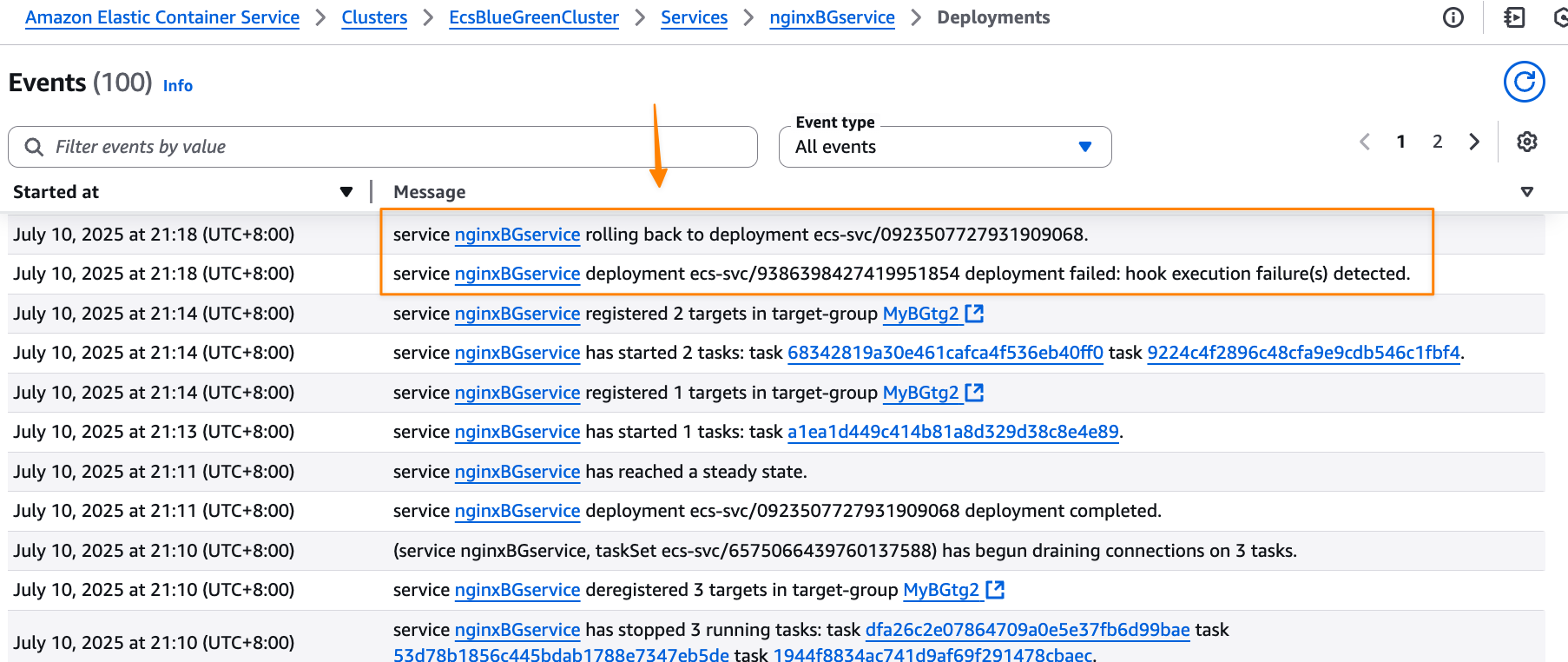
Because the validation wasn’t completed successfully, Amazon ECS tries to roll back to the blue version, which is the previous working deployment version. I can monitor this process through ECS events in the Events section, which provides detailed visibility into the deployment progress.

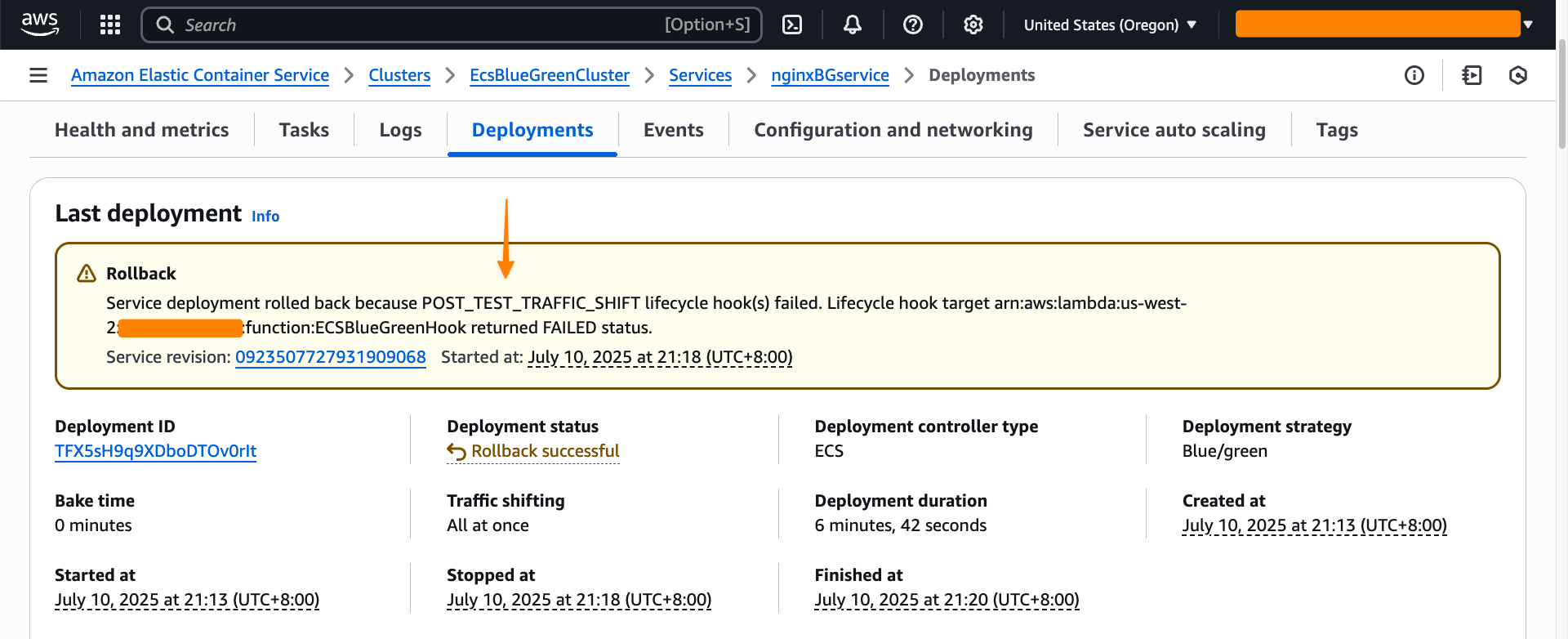
Amazon ECS successfully rolls back the deployment to the previous working version. The rollback happens near-instantaneously because the blue revision remains running and ready to receive production traffic. There is no end-user impact during this process, as production traffic never shifted to the new application version—ECS simply rolled back test traffic to the original stable version. This eliminates the typical deployment downtime associated with traditional rolling deployments.

I can also see the rollback status in the Last deployment section.

Throughout my testing, I observed that the blue/green deployment strategy provides consistent and predictable behavior. Furthermore, the deployment lifecycle hooks provide more flexibility to control the behavior of the deployment. Each service revision maintains immutable configuration including task definition, load balancer settings, and Service Connect configuration. This means that rollbacks restore exactly the same environment that was previously running.

Additional things to know
Here are a couple of things to note:

  • Pricing – The blue/green deployment capability is included with Amazon ECS at no additional charge. You pay only for the compute resources used during the deployment process.
  • Availability – This capability is available in all commercial AWS Regions.

Get started with blue/green deployments by updating your Amazon ECS service configuration in the Amazon ECS console.

Happy deploying!
Donnie

Top announcements of the AWS Summit in New York, 2025

Post Syndicated from AWS News Blog Team original https://aws.amazon.com/blogs/aws/top-announcements-of-the-aws-summit-in-new-york-2025/

Today at the AWS Summit in New York City, Swami Sivasubramanian, AWS VP of Agentic AI, provided the day’s keynote on how we’re enabling customers to deliver production-ready AI agents at scale. See below for a roundup of the biggest announcements from the event.

Introducing Amazon Bedrock AgentCore: Securely deploy and operate AI agents at any scale (preview)
Amazon Bedrock AgentCore enables rapid deployment and scaling of AI agents with enterprise-grade security. It provides memory management, identity controls, and tool integration—streamlining development while working with any open-source framework and foundation model.

Announcing Amazon Nova customization in Amazon SageMaker AI
AWS now enables extensive customization of Amazon Nova foundation models through SageMaker AI across all stages of model training. Available as ready-to-use SageMaker recipes, these capabilities allow customers to adapt Nova understanding models across pre-training and post-training, including fine-tuning and alignment recipes to better address business-specific requirements across industries.

AWS Free Tier update: New customers can get started and explore AWS with up to $200 in credits
AWS is enhancing its Free Tier program with up to $200 in credits for new users: $100 upon sign-up and an additional $100 earned by completing activities with services like Amazon EC2, Amazon Bedrock, and AWS Budgets.

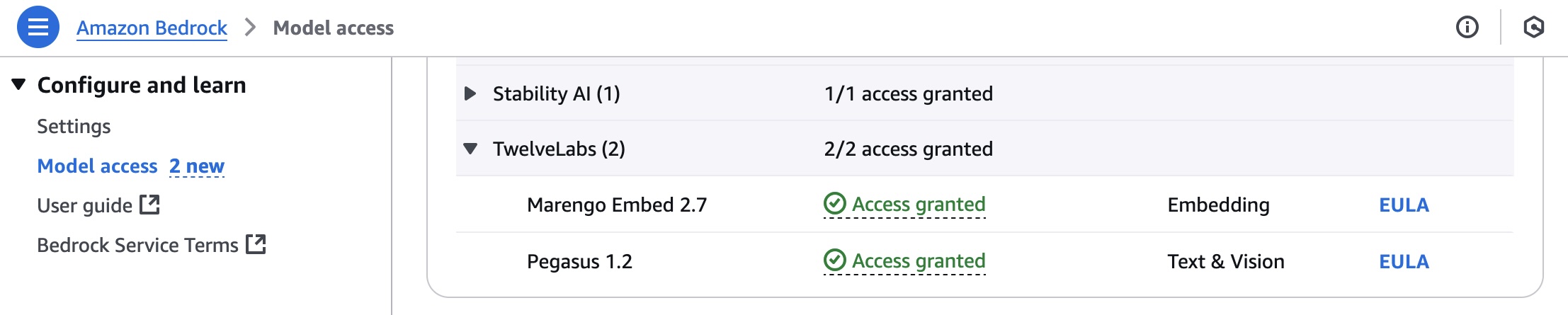
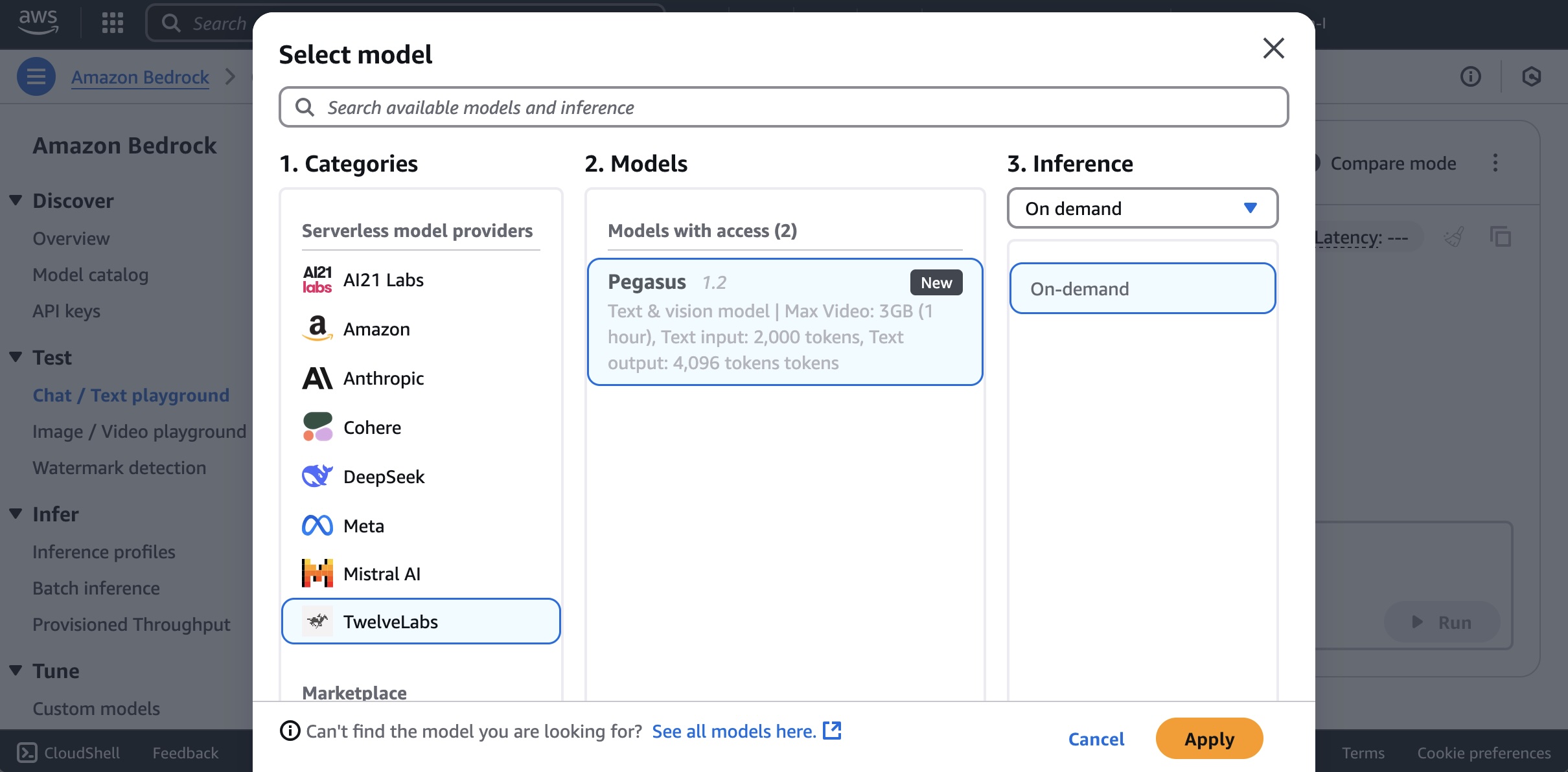
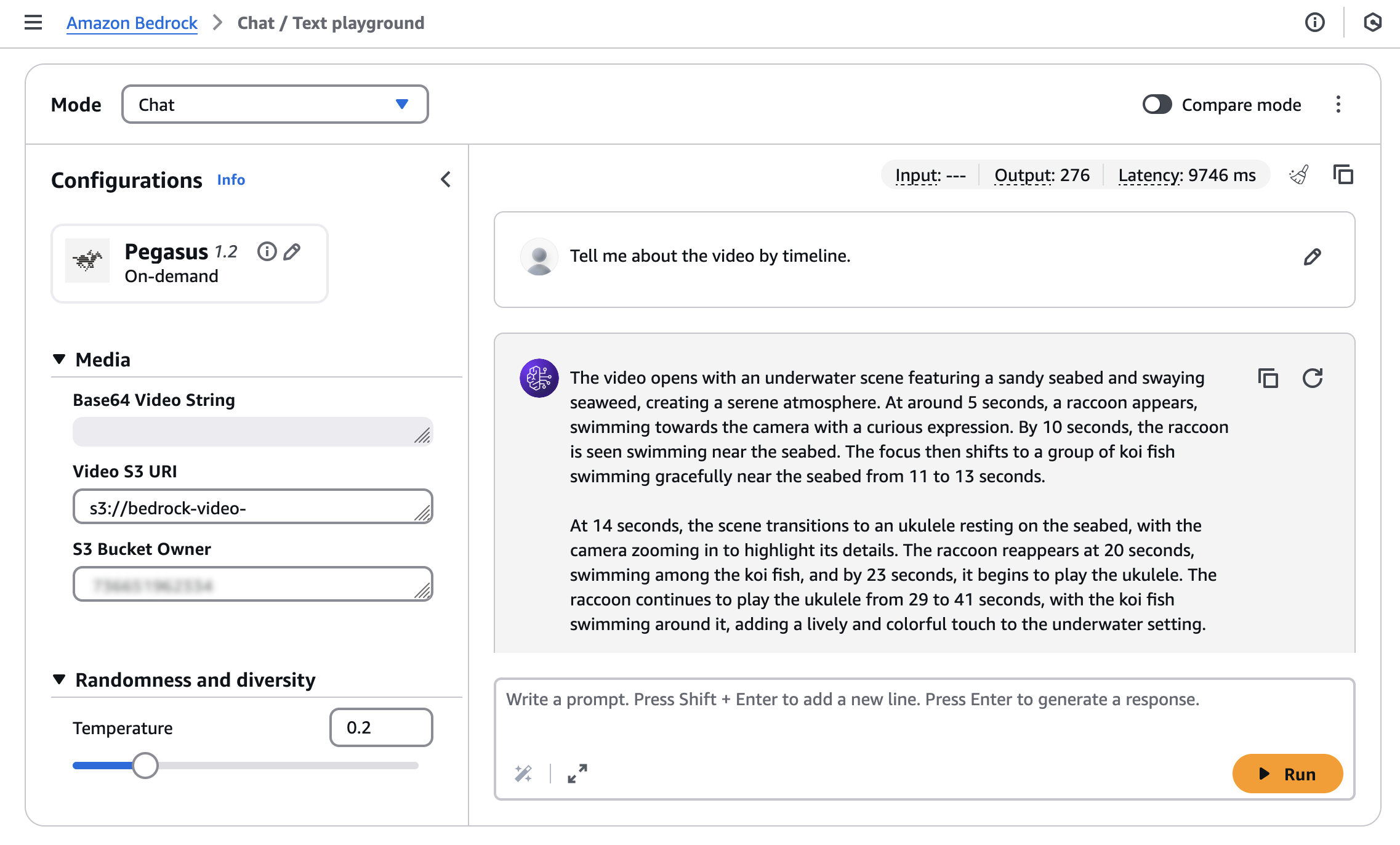
TwelveLabs video understanding models are now available in Amazon Bedrock
TwelveLabs video understanding models are now available on Amazon Bedrock and enable customers to search through videos, classify scenes, summarize content, and extract insights with precision and reliability.

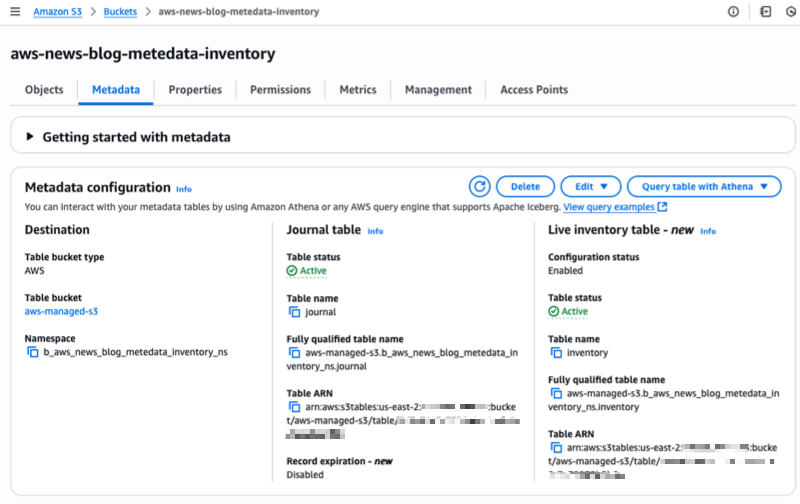
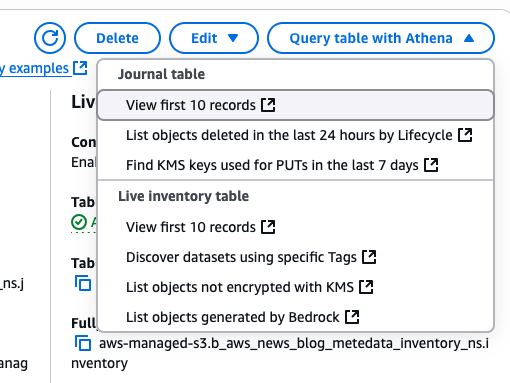
Amazon S3 Metadata now supports metadata for all your S3 objects
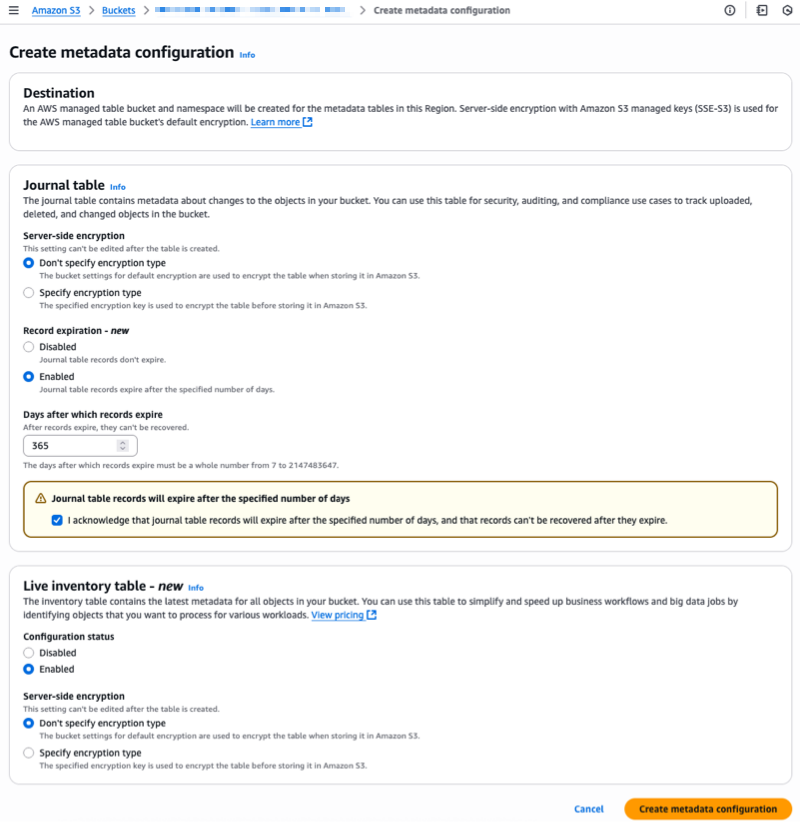
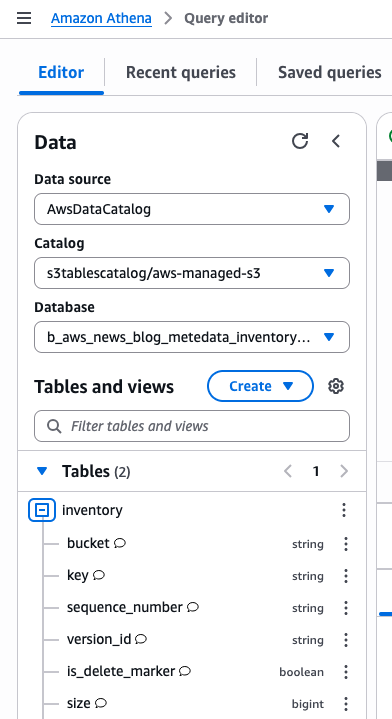
Amazon S3 Metadata now provides comprehensive visibility into all objects in S3 buckets through live inventory and journal tables, enabling SQL-based analysis of both existing and new objects with automatic updates within an hour of changes.

Introducing Amazon S3 Vectors: First cloud storage with native vector support at scale (preview)
Amazon S3 Vectors is a new cloud object store that provides native support for storing and querying vectors at massive scale, offering up to 90% cost reduction compared to conventional approaches while seamlessly integrating with Amazon Bedrock Knowledge Bases, SageMaker, and OpenSearch for AI applications.

Streamline the path from data to insights with new Amazon SageMaker capabilities
Amazon SageMaker has introduced three new capabilities—Amazon QuickSight integration for dashboard creation, governance, and sharing, Amazon S3 Unstructured Data Integration for cataloging documents and media files, and automatic data onboarding from Lakehouse—that eliminate data silos by unifying structured and unstructured data management, visualization, and governance in a single experience.

Monitor and debug event-driven applications with new Amazon EventBridge logging
Amazon EventBridge now offers enhanced logging capabilities that provide comprehensive event lifecycle tracking, helping users monitor and troubleshoot their event-driven applications with detailed logs that show when events are published, matched against rules, delivered to subscribers, or encounter failures.

Amazon EKS enables ultra scale AI/ML workloads with support for 100K nodes per cluster
Amazon EKS now scales to 100,000 nodes per cluster, enabling massive AI/ML workloads with up to 1.6M AWS Trainium accelerators or 800K NVIDIA GPUs. This allows organizations to efficiently train and run large AI models while maintaining Kubernetes compatibility and existing tooling integration.

Announcing Amazon Nova customization in Amazon SageMaker AI

Post Syndicated from Betty Zheng (郑予彬) original https://aws.amazon.com/blogs/aws/announcing-amazon-nova-customization-in-amazon-sagemaker-ai/

Today, we’re announcing a suite of customization capabilities for Amazon Nova in Amazon SageMaker AI. Customers can now customize Nova Micro, Nova Lite, and Nova Pro across the model training lifecycle, including pre-training, supervised fine-tuning, and alignment. These techniques are available as ready-to-use Amazon SageMaker recipes with seamless deployment to Amazon Bedrock, supporting both on-demand and provisioned throughput inference.

Amazon Nova foundation models power diverse generative AI use cases across industries. As customers scale deployments, they need models that reflect proprietary knowledge, workflows, and brand requirements. Prompt optimization and retrieval-augmented generation (RAG) work well for integrating general-purpose foundation models into applications, however business-critical workflows require model customization to meet specific accuracy, cost, and latency requirements.

Choosing the right customization technique
Amazon Nova models support a range of customization techniques including: 1) supervised fine-tuning, 2) alignment, 3) continued pre-training, and 4) knowledge distillation. The optimal choice depends on goals, use case complexity, and the availability of data and compute resources. You can also combine multiple techniques to achieve your desired outcomes with the preferred mix of performance, cost, and flexibility.

Supervised fine-tuning (SFT) customizes model parameters using a training dataset of input-output pairs specific to your target tasks and domains. Choose from the following two implementation approaches based on data volume and cost considerations:

  • Parameter-efficient fine-tuning (PEFT) — updates only a subset of model parameters through lightweight adapter layers such as LoRA (Low-Rank Adaptation). It offers faster training and lower compute costs compared to full fine-tuning. PEFT-adapted Nova models are imported to Amazon Bedrock and invoked using on-demand inference.
  • Full fine-tuning (FFT) — updates all the parameters of the model and is ideal for scenarios when you have extensive training datasets (tens of thousands of records). Nova models customized through FFT can also be imported to Amazon Bedrock and invoked for inference with provisioned throughput.

Alignment steers the model output towards desired preferences for product-specific needs and behavior, such as company brand and customer experience requirements. These preferences may be encoded in multiple ways, including empirical examples and policies. Nova models support two preference alignment techniques:

  • Direct preference optimization (DPO) — offers a straightforward way to tune model outputs using preferred/not preferred response pairs. DPO learns from comparative preferences to optimize outputs for subjective requirements such as tone and style. DPO offers both a parameter-efficient version and a full-model update version. The parameter-efficient version supports on-demand inference.
  • Proximal policy optimization (PPO) — uses reinforcement learning to enhance model behavior by optimizing for desired rewards such as helpfulness, safety, or engagement. A reward model guides optimization by scoring outputs, helping the model learn effective behaviors while maintaining previously learned capabilities.

Continued pre-training (CPT) expands foundational model knowledge through self-supervised learning on large quantities of unlabeled proprietary data, including internal documents, transcripts, and business-specific content. CPT followed by SFT and alignment through DPO or PPO provides a comprehensive way to customize Nova models for your applications.

Knowledge distillation transfers knowledge from a larger “teacher” model to a smaller, faster, and more cost-efficient “student” model. Distillation is useful in scenarios where customers do not have adequate reference input-output samples and can leverage a more powerful model to augment the training data. This process creates a customized model of teacher-level accuracy for specific use cases and student-level cost-effectiveness and speed.

Here is a table summarizing the available customization techniques across different modalities and deployment options. Each technique offers specific training and inference capabilities depending on your implementation requirements.

Recipe Modality Training Inference
Amazon Bedrock Amazon SageMaker Amazon Bedrock On-demand Amazon Bedrock Provisioned Throughput
Supervised fine tuning Text, image, video
Parameter-efficient fine-tuning (PEFT) ✅ ✅ ✅ ✅
Full fine-tuning ✅ ✅
Direct preference optimization (DPO)  Text, image, video
Parameter-efficient DPO ✅ ✅ ✅
Full model DPO ✅ ✅
Proximal policy optimization (PPO)  Text-only ✅ ✅
Continuous pre-training  Text-only ✅ ✅
Distillation Text-only ✅ ✅ ✅ ✅

Early access customers, including Cosine AI, Massachusetts Institute of Technology (MIT) Computer Science and Artificial Intelligence Laboratory (CSAIL), Volkswagen, Amazon Customer Service, and Amazon Catalog Systems Service, are already successfully using Amazon Nova customization capabilities.

Customizing Nova models in action
The following walks you through an example of customizing the Nova Micro model using direct preference optimization on an existing preference dataset. To do this, you can use Amazon SageMaker Studio.

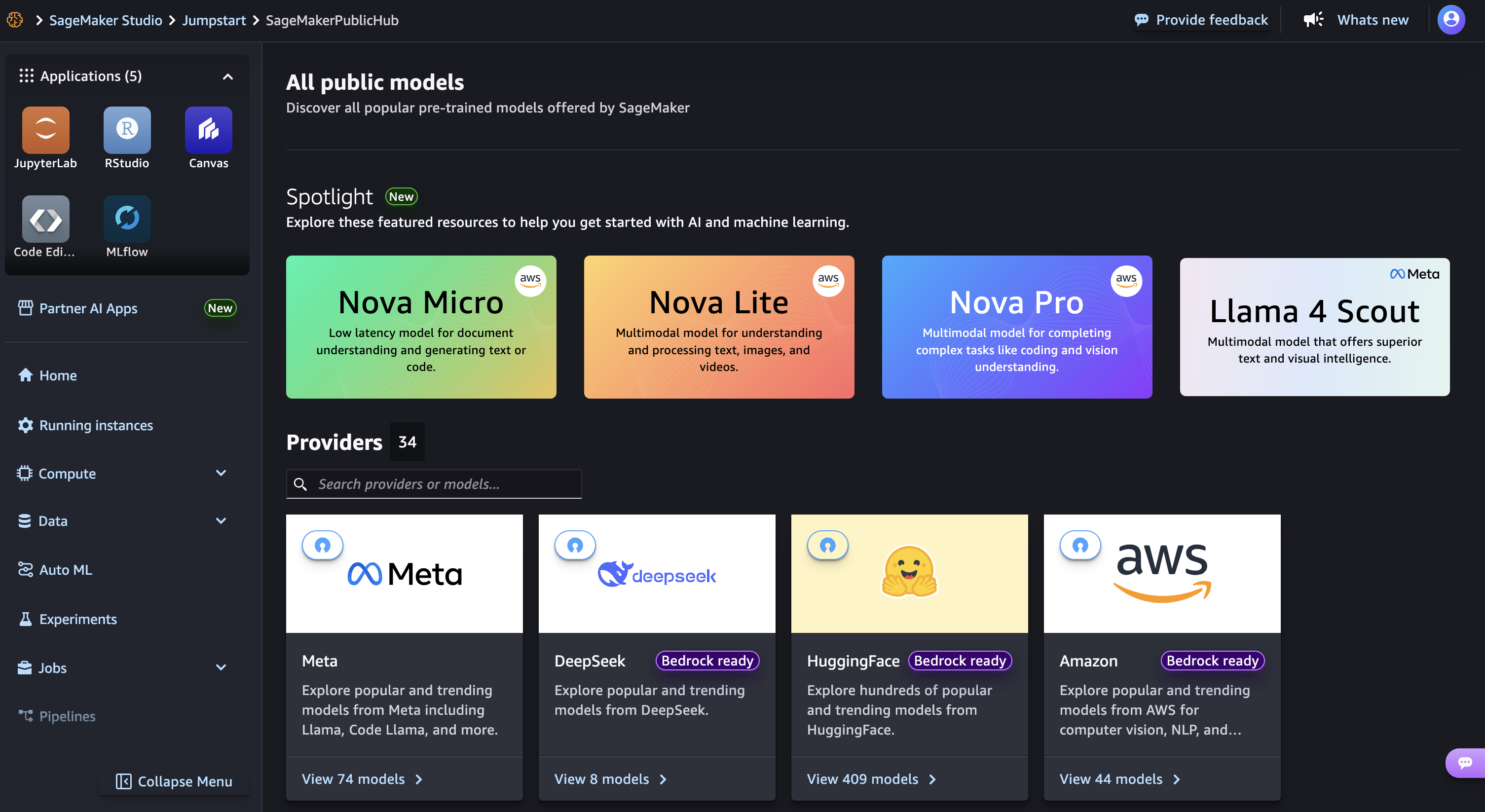
Launch your SageMaker Studio in the Amazon SageMaker AI console and choose JumpStart, a machine learning (ML) hub with foundation models, built-in algorithms, and pre-built ML solutions that you can deploy with a few clicks.

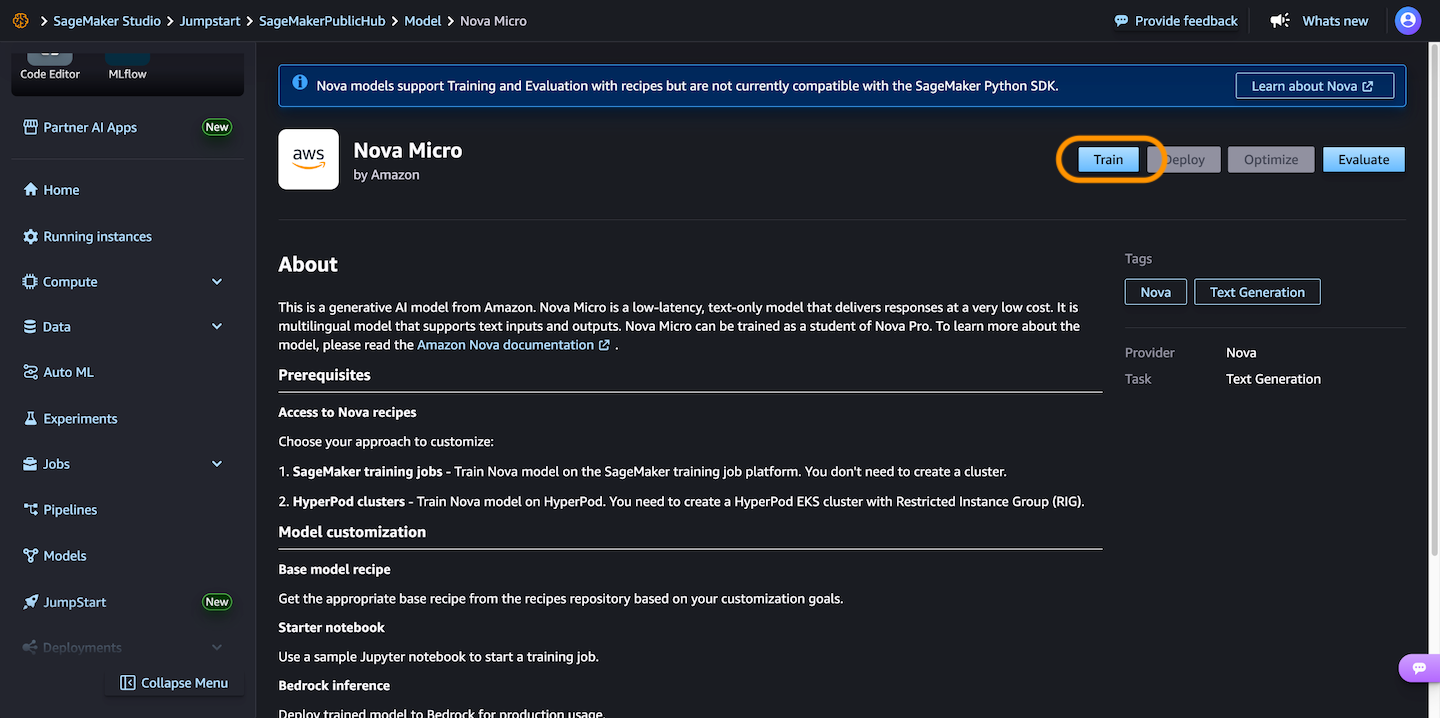
Then, choose Nova Micro, a text-only model that delivers the lowest latency responses at the lowest cost per inference among the Nova model family, and then choose Train.

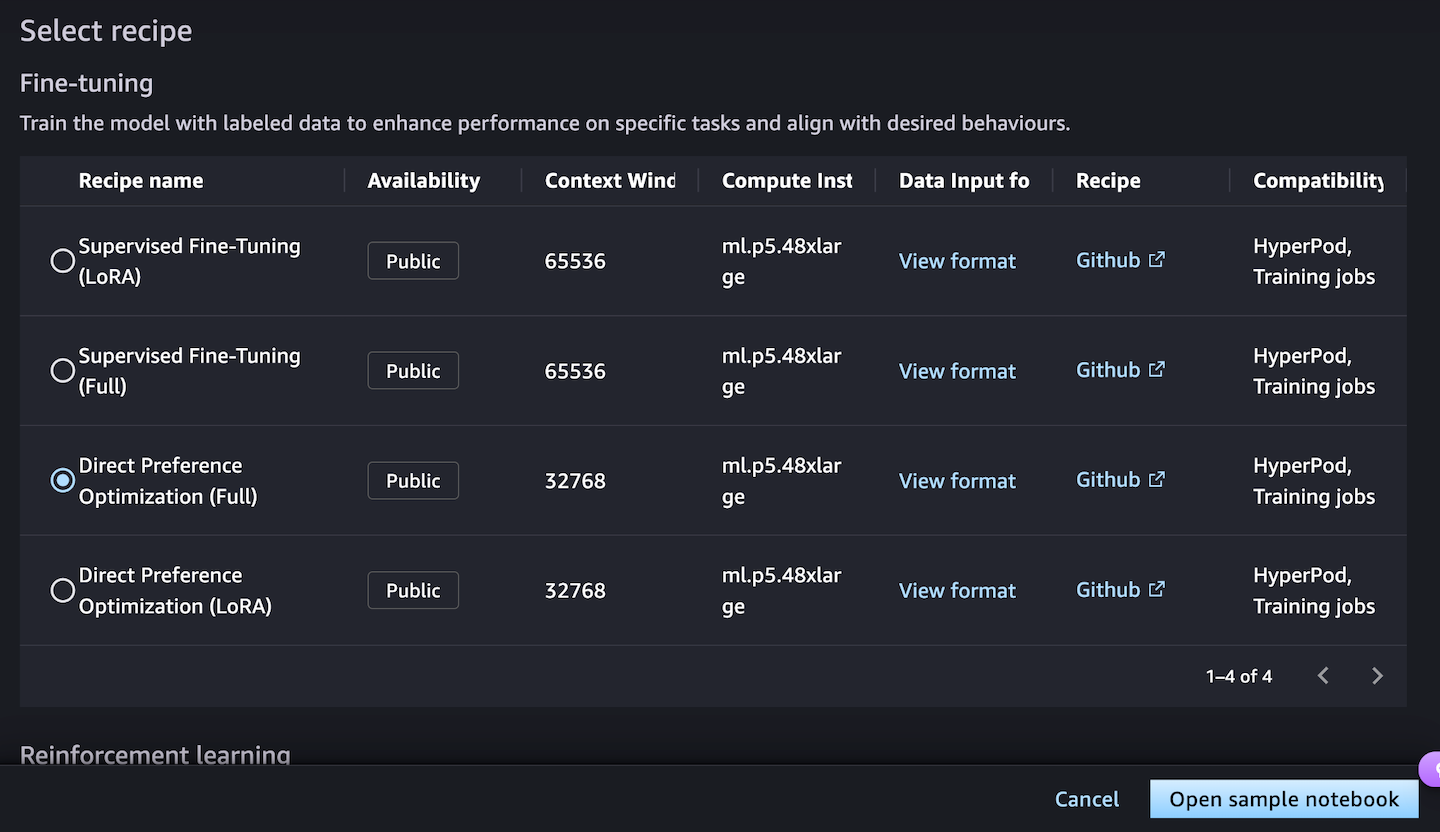
Next, you can choose a fine-tuning recipe to train the model with labeled data to enhance performance on specific tasks and align with desired behaviors. Choosing the Direct Preference Optimization offers a straightforward way to tune model outputs with your preferences.

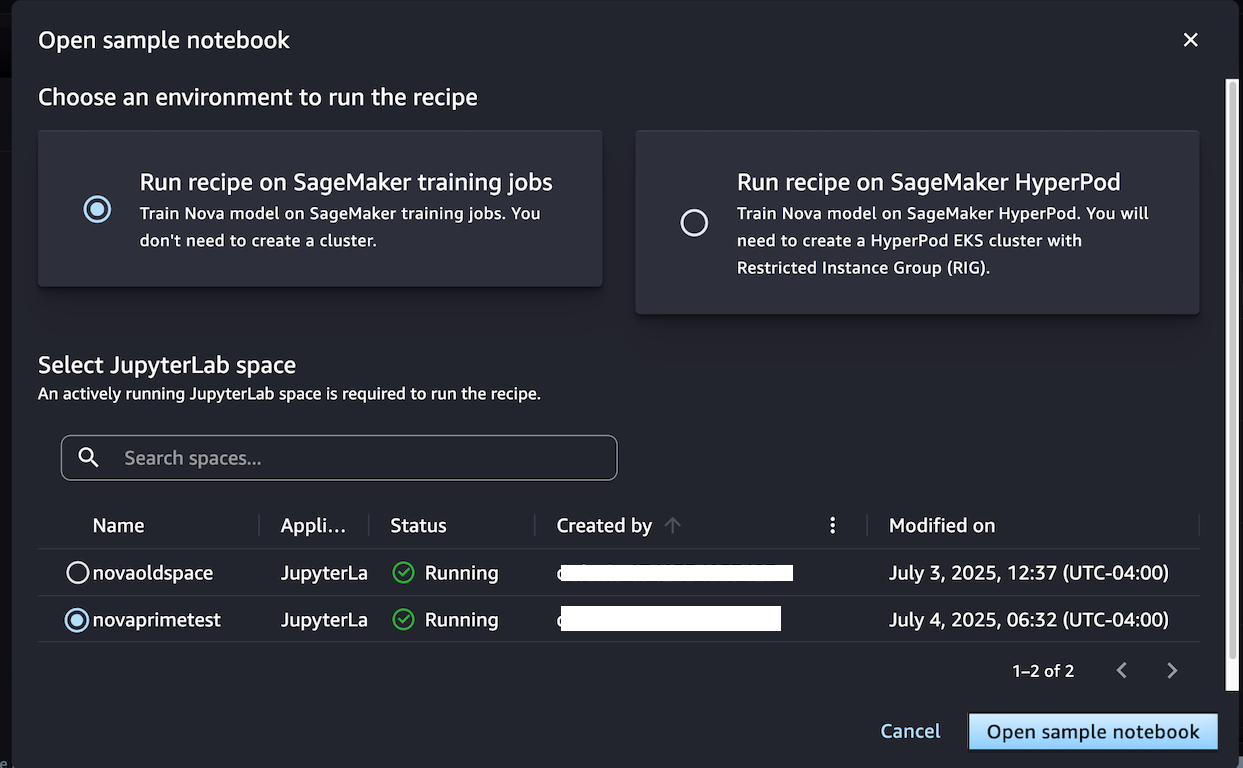
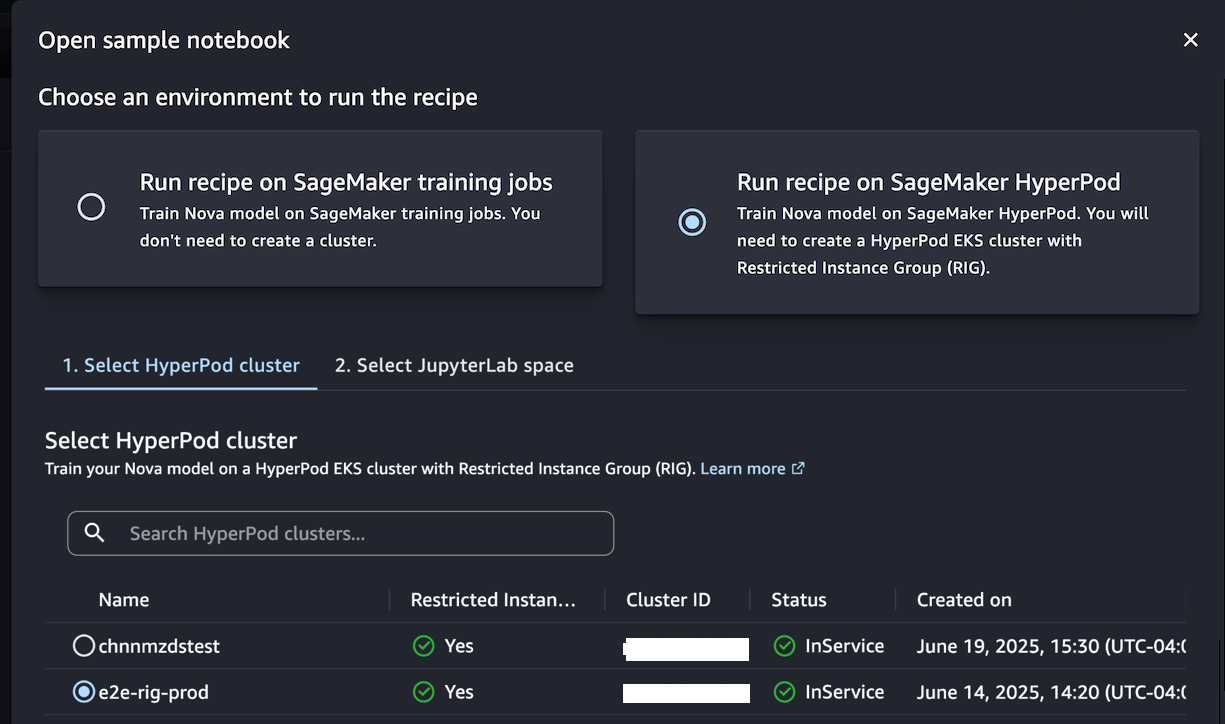
When you choose Open sample notebook, you have two environment options to run the recipe: either on the SageMaker training jobs or SageMaker Hyperpod:

Choose Run recipe on SageMaker training jobs when you don’t need to create a cluster and train the model with the sample notebook by selecting your JupyterLab space.

Alternately, if you want to have a persistent cluster environment optimized for iterative training processes, choose Run recipe on SageMaker HyperPod. You can choose a HyperPod EKS cluster with at least one restricted instance group (RIG) to provide a specialized isolated environment, which is required for such Nova model training. Then, choose your JupyterLabSpace and Open sample notebook.

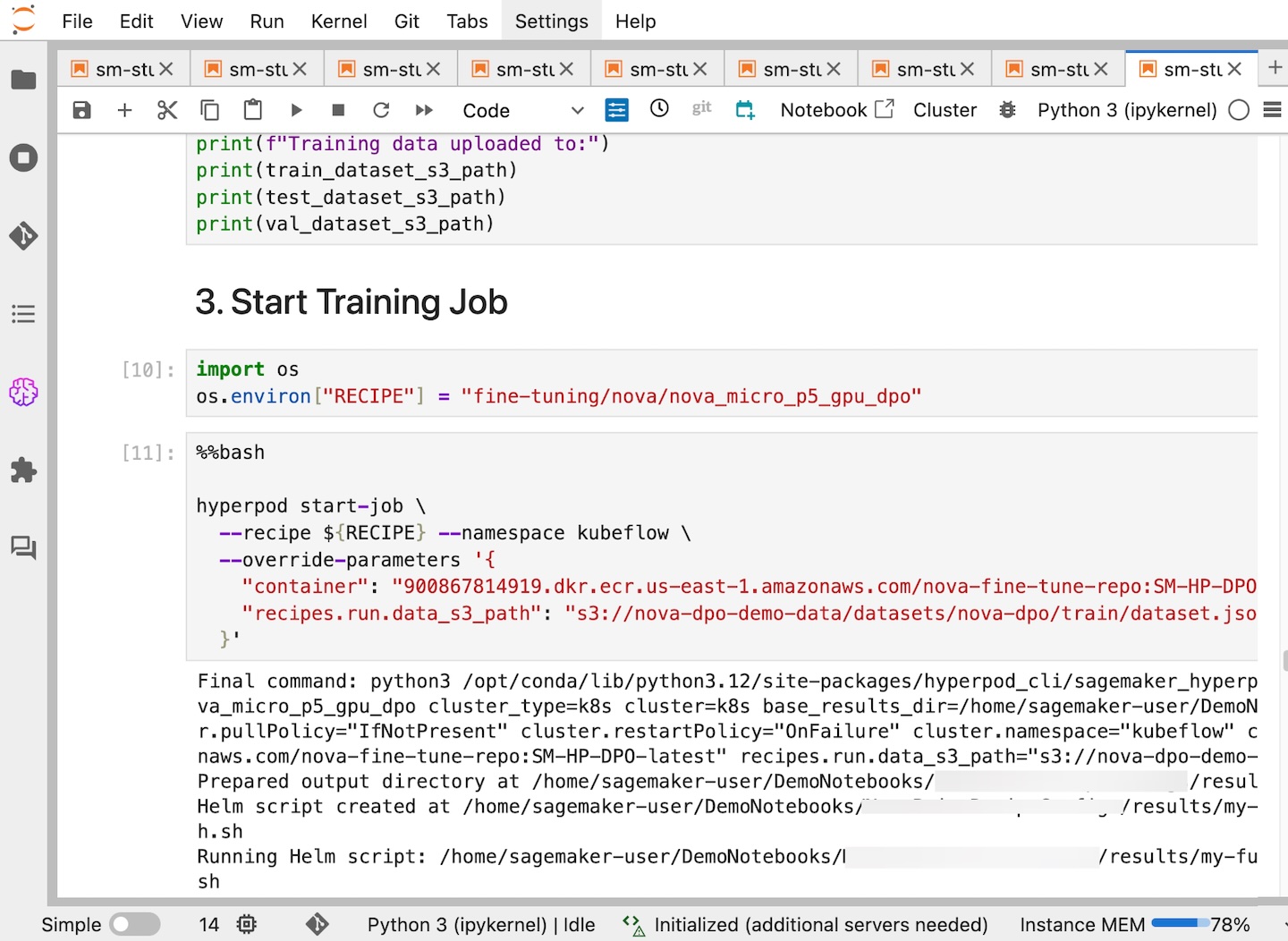
This notebook provides an end-to-end walkthrough for creating a SageMaker HyperPod job using a SageMaker Nova model with a recipe and deploying it for inference. With the help of a SageMaker HyperPod recipe, you can streamline complex configurations and seamlessly integrate datasets for optimized training jobs.

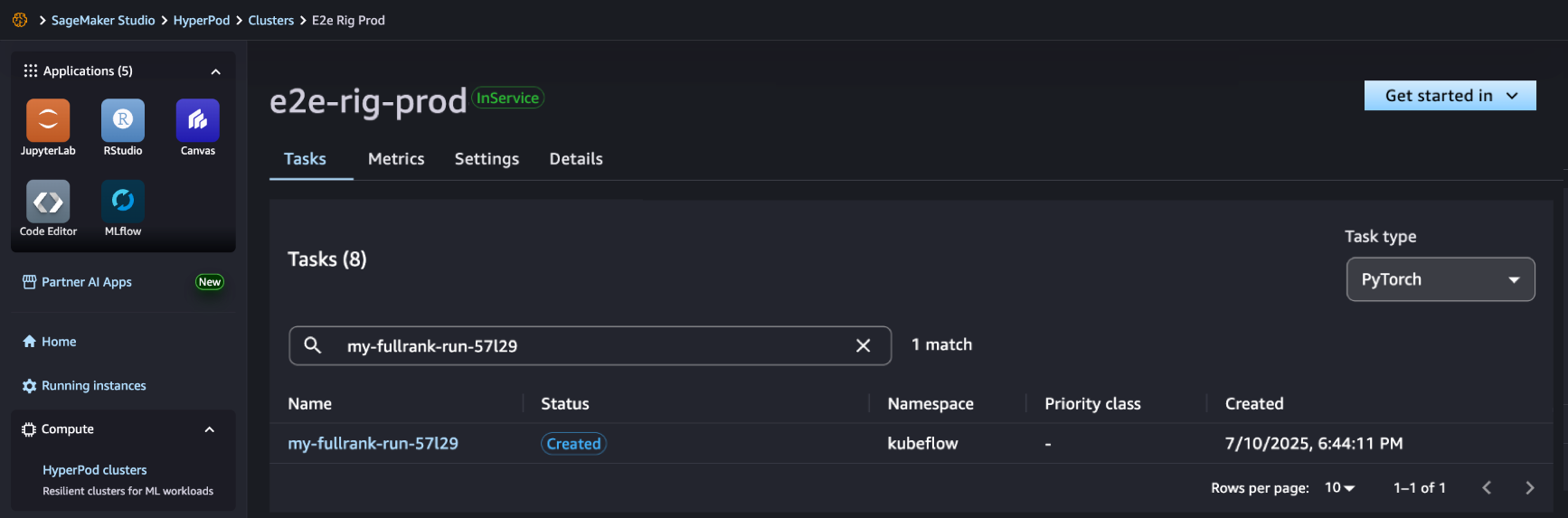
In SageMaker Studio, you can see that your SageMaker HyperPod job has been successfully created and you can monitor it for further progress.

After your job completes, you can use a benchmark recipe to evaluate if the customized model performs better on agentic tasks.

For comprehensive documentation and additional example implementations, visit the SageMaker HyperPod recipes repository on GitHub. We continue to expand the recipes based on customer feedback and emerging ML trends, ensuring you have the tools needed for successful AI model customization.

Availability and getting started
Recipes for Amazon Nova on Amazon SageMaker AI are available in US East (N. Virginia). Learn more about this feature by visiting the Amazon Nova customization webpage and Amazon Nova user guide and get started in the Amazon SageMaker AI console.

Betty

Introducing Amazon Bedrock AgentCore: Securely deploy and operate AI agents at any scale (preview)

Post Syndicated from Danilo Poccia original https://aws.amazon.com/blogs/aws/introducing-amazon-bedrock-agentcore-securely-deploy-and-operate-ai-agents-at-any-scale/
In just a few years, foundation models (FMs) have evolved from being used directly to create content in response to a user’s prompt, to now powering AI agents, a new class of software applications that use FMs to reason, plan, act, learn, and adapt in pursuit of user-defined goals with limited human oversight. This new wave of agentic AI is enabled by the emergence of standardized protocols such as Model Context Protocol (MCP) and Agent2Agent (A2A) that simplify how agents connect with other tools and systems.

In fact, building AI agents that can reliably perform complex tasks has become increasingly accessible thanks to open source frameworks like CrewAILangGraph, and Strands Agents. However, moving from a promising proof-of-concept to a production-ready agent that can scale to thousands of users presents significant challenges.

Instead of being able to focus on the core features of the agent, developers and AI engineers have to spend months building foundational infrastructure for session management, identity controls, memory systems, and observability—at the same time supporting security and compliance.

Today, we’re excited to announce the preview of Amazon Bedrock AgentCore, a comprehensive set of enterprise-grade services that help developers quickly and securely deploy and operate AI agents at scale using any framework and model, hosted on Amazon Bedrock or elsewhere.

More specifically, we are introducing today:

AgentCore Runtime – Provides sandboxed low-latency serverless environments with session isolation, supporting any agent framework including popular open source frameworks, tools, and models, and handling multimodal workloads and long-running agents.

AgentCore Memory – Manages session and long-term memory, providing relevant context to models while helping agents learn from past interactions.

AgentCore Observability – Offers step-by-step visualization of agent execution with metadata tagging, custom scoring, trajectory inspection, and troubleshooting/debugging filters.

AgentCore Identity – Enables AI agents to securely access AWS services and third-party tools and services such as GitHub, Salesforce, and Slack, either on behalf of users or by themselves with pre-authorized user consent.

AgentCore Gateway – Transforms existing APIs and AWS Lambda functions into agent-ready tools, offering unified access across protocols, including MCP, and runtime discovery.

AgentCore Browser – Provides managed web browser instances to scale your agents’ web automation workflows.

AgentCore Code Interpreter – Offers an isolated environment to run the code your agents generate.

These services can be used individually and are optimized to work together so developers don’t need to spend time piecing together components. AgentCore can work with open source or custom AI agent frameworks, giving teams the flexibility to maintain their preferred tools while gaining enterprise capabilities. To integrate these services into their existing code, developers can use the AgentCore SDK.

You can now discover, buy, and run pre-built agents and agent tools from AWS Marketplace with AgentCore Runtime. With just a few lines of code, your agents can securely connect to API-based agents and tools from AWS Marketplace with AgentCore Gateway to help you run complex workflows while maintaining compliance and control.

AgentCore eliminates tedious infrastructure work and operational complexity so development teams can bring groundbreaking agentic solutions to market faster.

Let’s see how this works in practice. I’ll share more info on the services as we use them.

Deploying a production-ready customer support assistant with Amazon Bedrock AgentCore (Preview)
When customers reach out with an email, it takes time to provide a reply. Customer support needs to check the validity of the email, find who the actual customer is in the customer relationship management (CRM) system, check their orders, and use product-specific knowledge bases to find the information required to prepare an answer.

An AI agent can simplify that by connecting to the internal systems, retrieve contextual information using a semantic data source, and draft a reply for the support team. For this use case, I built a simple prototype using Strands Agents. For simplicity and to validate the scenario, the internal tools are simulated using Python functions.

When I talk to developers, they tell me that similar prototypes, covering different use cases, are being built in many companies. When these prototypes are demonstrated to the company leadership and receive confirmation to proceed, the development team has to define how to go in production and satisfy the usual requirements for security, performance, availability, and scalability. This is where AgentCore can help.

Step 1 – Deploying to the cloud with AgentCore Runtime

AgentCore Runtime is a new service to securely deploy, run, and scale AI agents, providing isolation so that each user session runs in its own protected environment to help prevent data leakage—a critical requirement for applications handling sensitive data.

To match different security postures, agents can use different network configurations:

Sandbox – To only communicate with allowlisted AWS services.

Public – To run with managed internet access.

VPC-only (coming soon) – This option will allow to access resources hosted in a customer’s VPC or connected via AWS PrivateLink endpoints.

To deploy the agent to the cloud and get a secure, serverless endpoint with AgentCore Runtime, I add to the prototype a few lines of code using the AgentCore SDK to:

  • Import the AgentCore SDK.
  • Create the AgentCore app.
  • Specify which function is the entry point to invoke the agent.

Using a different or custom agent framework is a matter of replacing the agent invocation inside the entry point function.

Here’s the code of the prototype. The three lines I added to use AgentCore Runtime are the ones preceded by a comment.

from strands import Agent, tool
from strands_tools import calculator, current_time

# Import the AgentCore SDK
from bedrock_agentcore.runtime import BedrockAgentCoreApp

WELCOME_MESSAGE = """
Welcome to the Customer Support Assistant! How can I help you today?
"""

SYSTEM_PROMPT = """
You are an helpful customer support assistant.
When provided with a customer email, gather all necessary info and prepare the response email.
When asked about an order, look for it and tell the full description and date of the order to the customer.
Don't mention the customer ID in your reply.
"""

@tool
def get_customer_id(email_address: str):
    if email_address == "[email protected]":
        return { "customer_id": 123 }
    else:
        return { "message": "customer not found" }

@tool
def get_orders(customer_id: int):
    if customer_id == 123:
        return [{
            "order_id": 1234,
            "items": [ "smartphone", "smartphone USB-C charger", "smartphone black cover"],
            "date": "20250607"
        }]
    else:
        return { "message": "no order found" }

@tool
def get_knowledge_base_info(topic: str):
    kb_info = []
    if "smartphone" in topic:
        if "cover" in topic:
            kb_info.append("To put on the cover, insert the bottom first, then push from the back up to the top.")
            kb_info.append("To remove the cover, push the top and bottom of the cover at the same time.")
        if "charger" in topic:
            kb_info.append("Input: 100-240V AC, 50/60Hz")
            kb_info.append("Includes US/UK/EU plug adapters")
    if len(kb_info) > 0:
        return kb_info
    else:
        return { "message": "no info found" }

# Create an AgentCore app
app = BedrockAgentCoreApp()

agent = Agent(
    system_prompt=SYSTEM_PROMPT,
    tools=[calculator, current_time, get_customer_id, get_orders, get_knowledge_base_info]
)

# Specify the entrypoint function invoking the agent
@app.entrypoint
def invoke(payload, context: RequestContext):
    """Handler for agent invocation"""
    user_message = payload.get(
        "prompt", "No prompt found in input, please guide customer to create a json payload with prompt key"
    )
    result = agent(user_message)
    return {"result": result.message}

if __name__ == "__main__":
    app.run()

I install the AgentCore SDK and the starter toolkit in the Python virtual environment:

pip install bedrock-agentcore bedrock-agentcore-starter-toolkit

After I activate the virtual environment, I have access to the AgentCore command line interface (CLI) provided by the starter toolkit.

First, I use agentcore configure --entrypoint my_agent.py -er <IAM_ROLE_ARN> to configure the agent, passing the AWS Identity and Access Management (IAM) role that the agent will assume. In this case, the agent needs access to Amazon Bedrock to invoke the model. The role can give access to other AWS resources used by an agent, such as an Amazon Simple Storage Service (Amazon S3) bucket or a Amazon DynamoDB table.

I launch the agent locally with agentcore launch --local. When running locally, I can interact with the agent using agentcore invoke --local <PAYLOAD>. The payload is passed to the entry point function. Note that the JSON syntax of the invocations is defined in the entry point function. In this case, I look for prompt in the JSON payload, but can use a different syntax depending on your use case.

When I am satisfied by local testing, I use agentcore launch to deploy to the cloud.

After the deployment is succesful and an endpoint has been created, I check the status of the endpoint with agentcore status and invoke the endpoint with agentcore invoke <PAYLOAD>. For example, I pass a customer support request in the invocation:

agentcore invoke '{"prompt": "From: [email protected] – Hi, I bought a smartphone from your store. I am traveling to Europe next week, will I be able to use the charger? Also, I struggle to remove the cover. Thanks, Danilo"}'

Step 2 – Enabling memory for context

After an agent has been deployed in the AgentCore Runtime, the context needs to be persisted to be available for a new invocation. I add AgentCore Memory to maintain session context using its short-term memory capabilities.

First, I create a memory client and the memory store for the conversations:

from bedrock_agentcore.memory import MemoryClient

memory_client = MemoryClient(region_name="us-east-1")

memory = memory_client.create_memory_and_wait(
    name="CustomerSupport", 
    description="Customer support conversations"
)

I can now use create_event to stores agent interactions into short-term memory:

memory_client.create_event(
    memory_id=memory.get("id"), # Identifies the memory store
    actor_id="user-123",        # Identifies the user
    session_id="session-456",   # Identifies the session
    messages=[
        ("Hi, ...", "USER"),
        ("I'm sorry to hear that...", "ASSISTANT"),
        ("get_orders(customer_id='123')", "TOOL"),
        . . .
    ]
)

I can load the most recent turns of a conversations from short-term memory using list_events:

conversations = memory_client.list_events(
    memory_id=memory.get("id"), # Identifies the memory store
    actor_id="user-123",        # Identifies the user 
    session_id="session-456",   # Identifies the session
    max_results=5               # Number of most recent turns to retrieve
)

With this capability, the agent can maintain context during long sessions. But when a users come back with a new session, the conversation starts blank. Using long-term memory, the agent can personalize user experiences by retaining insights across multiple interactions.

To extract memories from a conversation, I can use built-in AgentCore Memory policies for user preferences, summarization, and semantic memory (to capture facts) or create custom policies for specialized needs. Data is stored encrypted using a namespace-based storage for data segmentation.

I change the previous code creating the memory store to include long-term capabilities by passing a semantic memory strategy. Note that an existing memory store can be updated to add strategies. In that case, the new strategies are applied to newer events.

memory = memory_client.create_memory_and_wait(
    name="CustomerSupport", 
    description="Customer support conversations",
    strategies=[{
        "semanticMemoryStrategy": {
            "name": "semanticFacts",
            "namespaces": ["/facts/{actorId}"]
        }
    }]
)

After long-term memory has been configured for a memory store, calling create_event will automatically apply those strategies to extract information from the conversations. I can then retrieve memories extracted from the conversation using a semantic query:

memories = memory_client.retrieve_memories(
    memory_id=memory.get("id"),
    namespace="/facts/user-123",
    query="smartphone model"
)

In this way, I can quickly improve the user experience so that the agent remembers customer preferences and facts that are outside of the scope of the CRM and use this information to improve the replies.

Step 3 – Adding identity and access controls

Without proper identity controls, access from the agent to internal tools always uses the same access level. To follow security requirements, I integrate AgentCore Identity so that the agent can use access controls scoped to the user’s or agent’s identity context.

I set up an identity client and create a workload identity, a unique identifier that represents the agent within the AgentCore Identity system:

from bedrock_agentcore.services.identity import IdentityClient

identity_client = IdentityClient("us-east-1")
workload_identity = identity_client.create_workload_identity(name="my-agent")

Then, I configure the credential providers, for example:

google_provider = identity_client.create_oauth2_credential_provider(
    {
        "name": "google-workspace",
        "credentialProviderVendor": "GoogleOauth2",
        "oauth2ProviderConfigInput": {
            "googleOauth2ProviderConfig": {
                "clientId": "your-google-client-id",
                "clientSecret": "your-google-client-secret",
            }
        },
    }
)

perplexity_provider = identity_client.create_api_key_credential_provider(
    {
        "name": "perplexity-ai",
        "apiKey": "perplexity-api-key"
    }
)

I can then add the @requires_access_token Python decorator (passing the provider name, the scope, and so on) to the functions that need an access token to perform their activities.

Using this approach, the agent can verify the identity through the company’s existing identity infrastructure, operate as a distinct, authenticated identity, act with scoped permissions and integrate across multiple identity providers (such as Amazon Cognito, Okta, or Microsoft Entra ID) and service boundaries including AWS and third-party tools and services (such as Slack, GitHub, and Salesforce).

To offer robust and secure access controls while streamlining end-user and agent builder experiences, AgentCore Identity implements a secure token vault that stores users’ tokens and allows agents to retrieve them securely.

For OAuth 2.0 compatible tools and services, when a user first grants consent for an agent to act on their behalf, AgentCore Identity collects and stores the user’s tokens issued by the tool in its vault, along with securely storing the agent’s OAuth client credentials. Agents, operating with their own distinct identity and when invoked by the user, can then access these tokens as needed, reducing the need for frequent user consent.

When the user token expires, AgentCore Identity triggers a new authorization prompt to the user for the agent to obtain updated user tokens. For tools that use API keys, AgentCore Identity also stores these keys securely and gives agents controlled access to retrieve them when needed. This secure storage streamlines the user experience while maintaining robust access controls, enabling agents to operate effectively across various tools and services.

Step 4 – Expanding agent capabilities with AgentCore Gateway

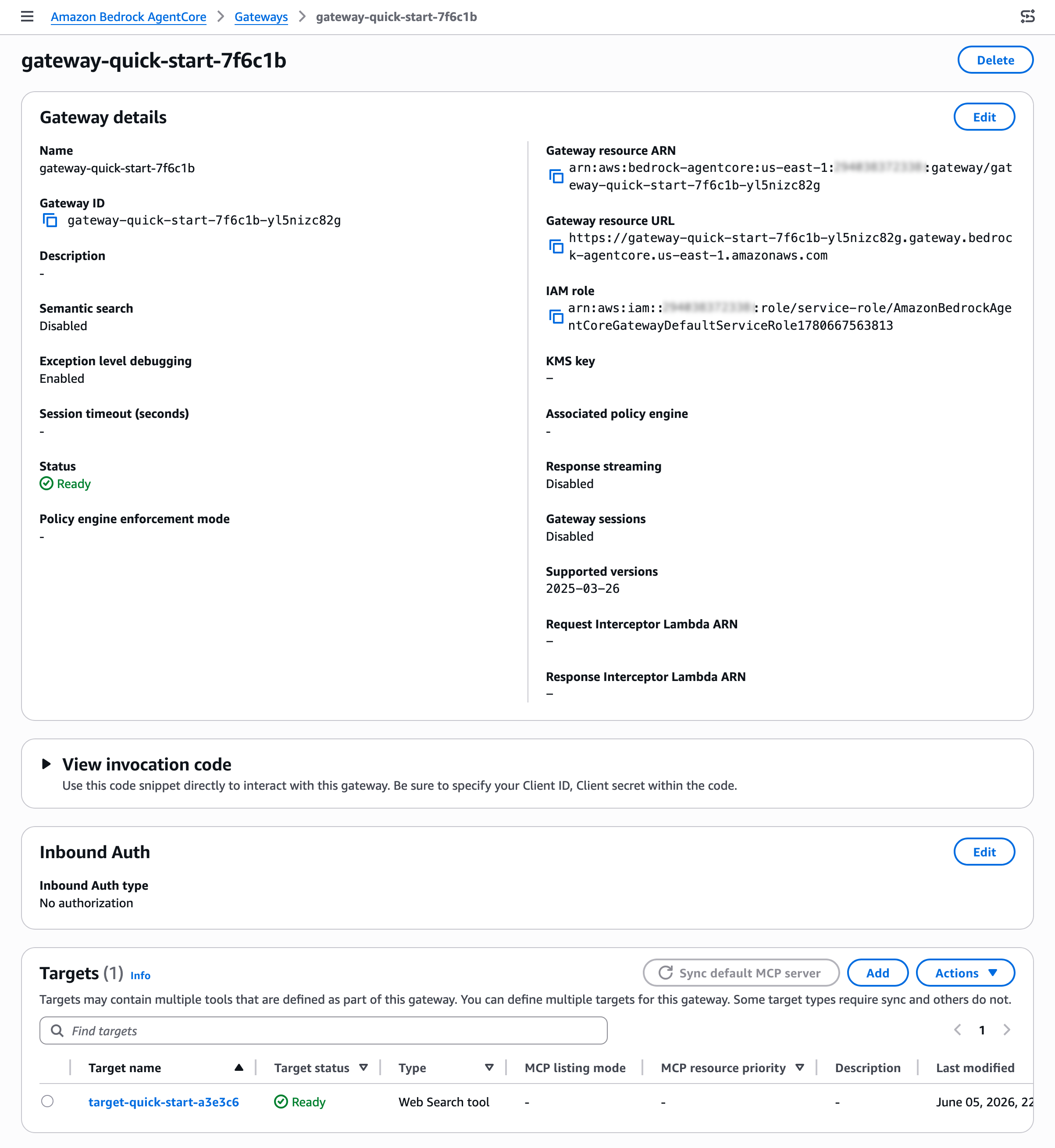
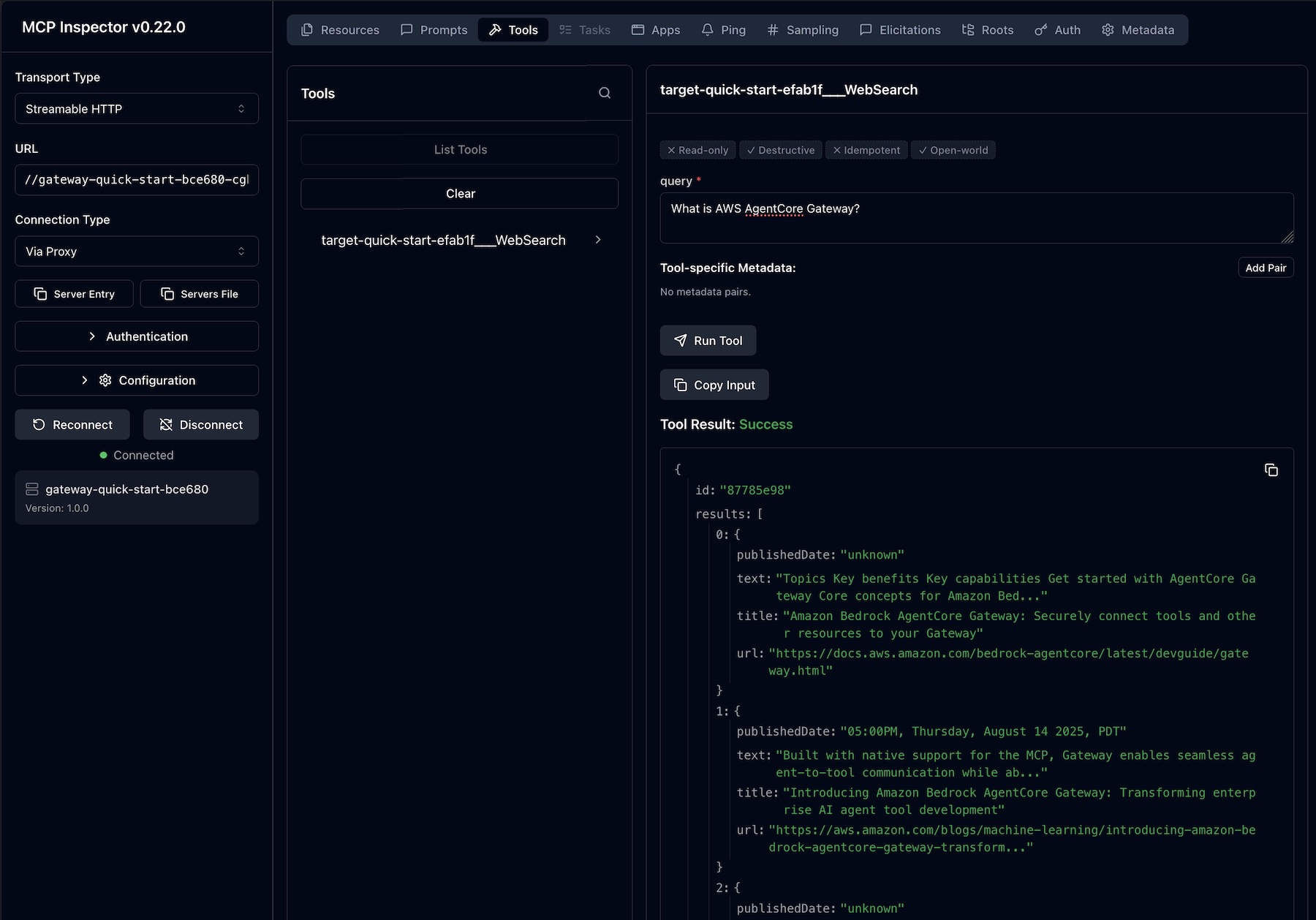
Until now, all internal tools are simulated in the code. Many agent frameworks, including Strands Agents, natively support MCP to connect to remote tools. To have access to internal systems (such as CRM and order management) via an MCP interface, I use AgentCore Gateway.

With AgentCore Gateway, the agent can access AWS services using Smithy models, Lambda functions, and internal APIs and third-party providers using OpenAPI specifications. It employs a dual authentication model to have secure access control for both incoming requests and outbound connections to target resources. Lambda functions can be used to integrate external systems, particularly applications that lack standard APIs or require multiple steps to retrieve information.

AgentCore Gateway facilitates cross-cutting features that most customers would otherwise need to build themselves, including authentication, authorization, throttling, custom request/response transformation (to match underlying API formats), multitenancy, and tool selection.

The tool selection feature helps find the most relevant tools for a specific agent’s task. AgentCore Gateway brings a uniform MCP interface across all these tools, using AgentCore Identity to provide an OAuth interface for tools that do not support OAuth out of the box like AWS services.

Step 5 – Adding capabilities with AgentCore Code Interpreter and Browser tools

To answer to customer requests, the customer support agent needs to perform calculations. To simplify that, I use the AgentCode SDK to add access to the AgentCore Code Interpreter.

Similarly, some of the integrations required by the agent don’t implement a programmatic API but need to be accessed through a web interface. I give access to the AgentCore Browser to let the agent navigate those web sites autonomously.

Step 6 – Gaining visibility with observability

Now that the agent is in production, I need visibility into its activities and performance. AgentCore provides enhanced observability to help developers effectively debug, audit, and monitor their agent performance in production. It comes with built-in dashboards to track essential operational metrics such as session count, latency, duration, token usage, error rates, and component-level latency and error breakdowns. AgentCore also gives visibility into an agent’s behavior by capturing and visualizing both the end-to-end traces, as well as “spans” that capture each step of the agent workflow including tool invocations, memory

The built-in dashboards offered by this service help reveal performance bottlenecks and identify why certain interactions might fail, enabling continuous improvement and reducing the mean time to detect (MTTD) and mean time to repair (MTTR) in case of issues.

AgentCore supports OpenTelemetry to help integrate agent telemetry data with existing observability platforms, including Amazon CloudWatch, Datadog, LangSmith, and Langfuse.

Step 7 – Conclusion

Through this journey, we transformed a local prototype into a production-ready system. Using AgentCore modular approach, we implemented enterprise requirements incrementally—from basic deployment to sophisticated memory, identity management, and tool integration—all while maintaining the existing agent code.

Things to know
Amazon Bedrock AgentCore is available in preview in US East (N. Virginia), US West (Oregon), Asia Pacific (Sydney), and Europe (Frankfurt). You can start using AgentCore services through the AWS Management Console , the AWS Command Line Interface (AWS CLI), the AWS SDKs, or via the AgentCore SDK.

You can try AgentCore services at no charge until September 16, 2025. Standard AWS pricing applies to any additional AWS Services used as part of using AgentCore (for example, CloudWatch pricing will apply for AgentCore Observability). Starting September 17, 2025, AWS will bill you for AgentCore service usage based on this page.

Whether you’re building customer support agents, workflow automation, or innovative AI-powered experiences, AgentCore provides the foundation you need to move from prototype to production with confidence.

To learn more and start deploying production-ready agents, visit the AgentCore documentation. For code examples and integration guides, check out the AgentCore samples GitHub repo.

Join the AgentCore Preview Discord server to provide feedback and discuss use cases. We’d like to hear from you!

Danilo
Streamline the path from data to insights with new Amazon SageMaker Catalog capabilities

Post Syndicated from Donnie Prakoso original https://aws.amazon.com/blogs/aws/streamline-the-path-from-data-to-insights-with-new-amazon-sagemaker-capabilities/

Modern organizations manage data across multiple disconnected systems—structured databases, unstructured files, and separate visualization tools—creating barriers that slow analytics workflows and limit insight generation. Separate visualization platforms often create barriers that prevent teams from extracting comprehensive business insights.

These disconnected workflows prevent your organizations from maximizing your data investments, creating delays in decision making and missed opportunities for comprehensive analysis that combines multiple data types.

Starting today, you can use three new capabilities in Amazon SageMaker to accelerate your path from raw data to actionable insights:

  • Amazon QuickSight integration – Launch Amazon QuickSight directly from Amazon SageMaker Unified Studio to build dashboards using your project data, then publish them to the Amazon SageMaker Catalog for broader discovery and sharing across your organization.
  • Amazon SageMaker adds support for Amazon S3 general purpose buckets and Amazon S3 Access Grants in SageMaker Catalog– Make data stored in Amazon S3 general purpose buckets easier for teams to find, access, and collaborate on all types of data including unstructured data, while maintaining fine-grained access control using Amazon S3 Access Grants.
  • Automatic data onboarding from your lakehouse – Automatic onboarding of existing AWS Glue Data Catalog (GDC) datasets from the lakehouse architecture into SageMaker Catalog, without manual setup.

These new SageMaker capabilities address the complete data lifecycle within a unified and governed experience. You get automatic onboarding of existing structured data from your lakehouse, seamless cataloging of unstructured data content in Amazon S3, and streamlined visualization through QuickSight—all with consistent governance and access controls.

Let’s take a closer look at each capability.

Amazon SageMaker and Amazon QuickSight Integration
With this integration, you can build dashboards in Amazon QuickSight using data from your Amazon SageMaker projects. When you launch QuickSight from Amazon SageMaker Unified Studio, Amazon SageMaker automatically creates the QuickSight dataset and organizes it in a secured folder accessible only to project members.

Furthermore, the dashboards you build stay within this folder and automatically appear as assets in your SageMaker project, where you can publish them to the SageMaker Catalog and share them with users or groups in your corporate directory. This keeps your dashboards organized, discoverable, and governed within SageMaker Unified Studio.

To use this integration, both your Amazon SageMaker Unified Studio domain and QuickSight account must be integrated with AWS IAM Identity Center using the same IAM Identity Center instance. Additionally, your QuickSight account must exist in the same AWS account where you want to enable the QuickSight blueprint. You can learn more about the prerequisites on Documentation page

After these prerequisites are met, you can enable the blueprint for Amazon QuickSight by navigating to the Amazon SageMaker console and choosing the Blueprints tab. Then find Amazon QuickSight and follow the instructions.

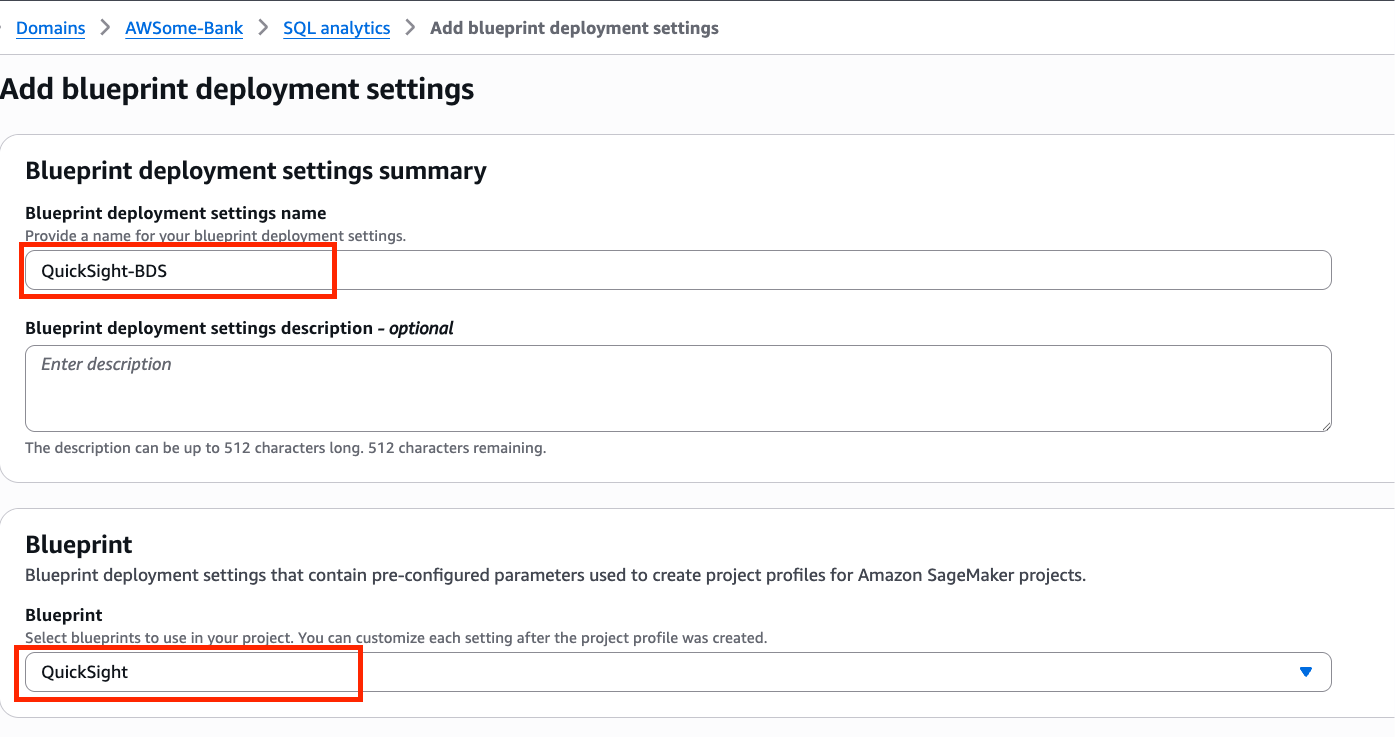
You also need to configure your SQL analytics project profile to include Amazon QuickSight in Add blueprint deployment settings.

To learn more on onboarding setup, refer to the Documentation page.

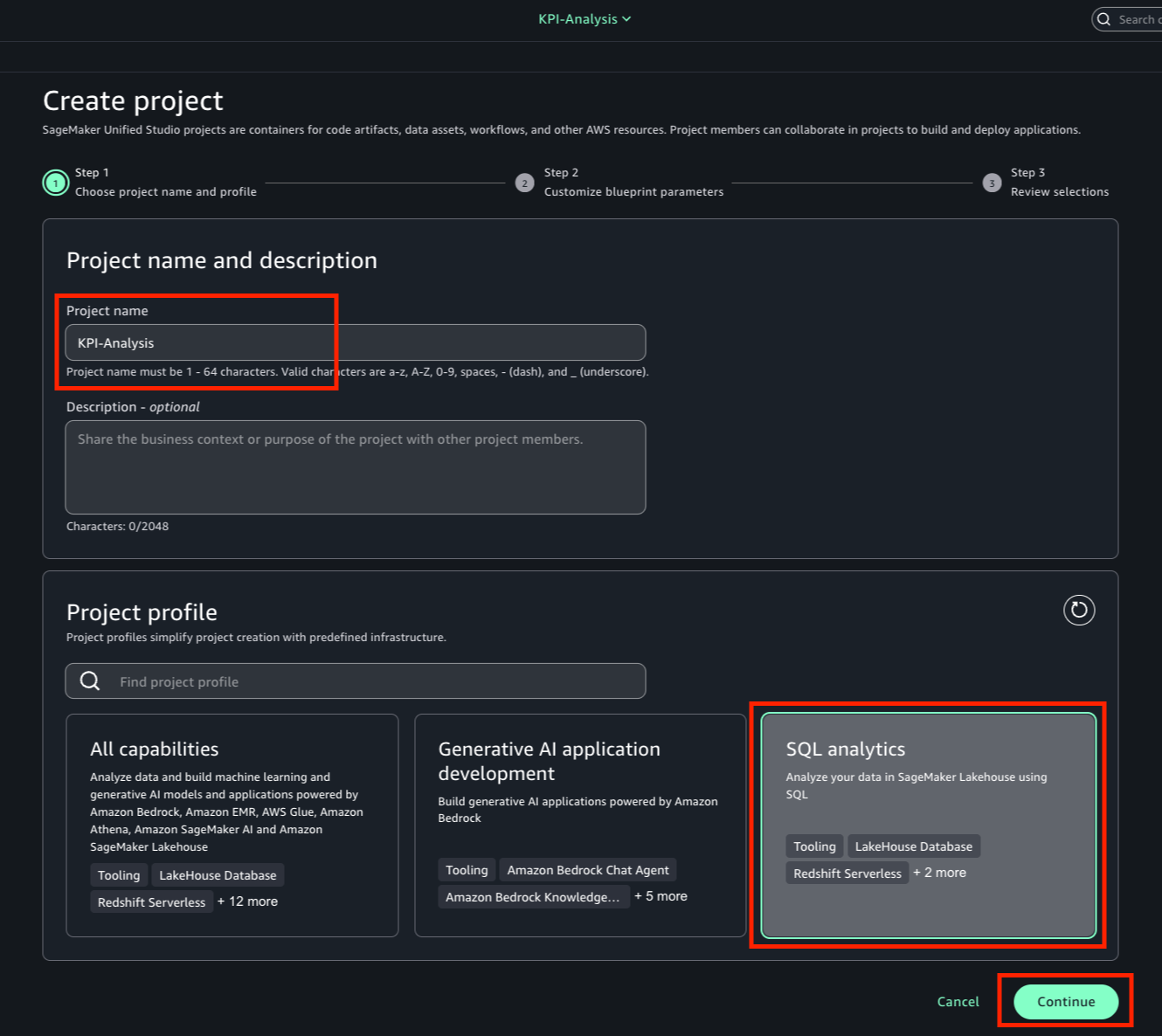
Then, when you create a new project, you need to use the SQL analytics profile.

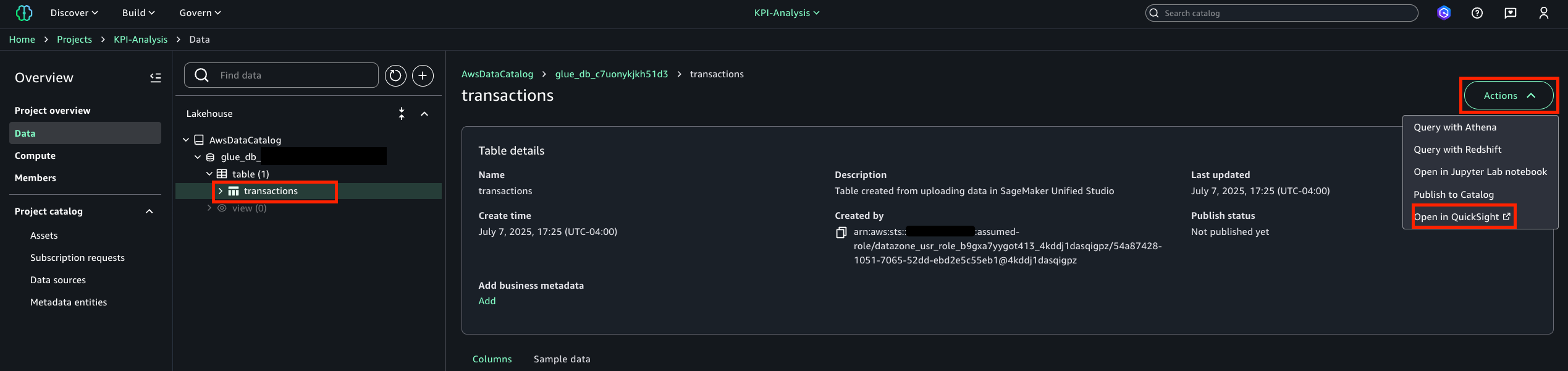
With your project created, you can start building visualizations with QuickSight. You can navigate to the Data tab, select the table or view to visualize, and choose Open in QuickSight under Actions.

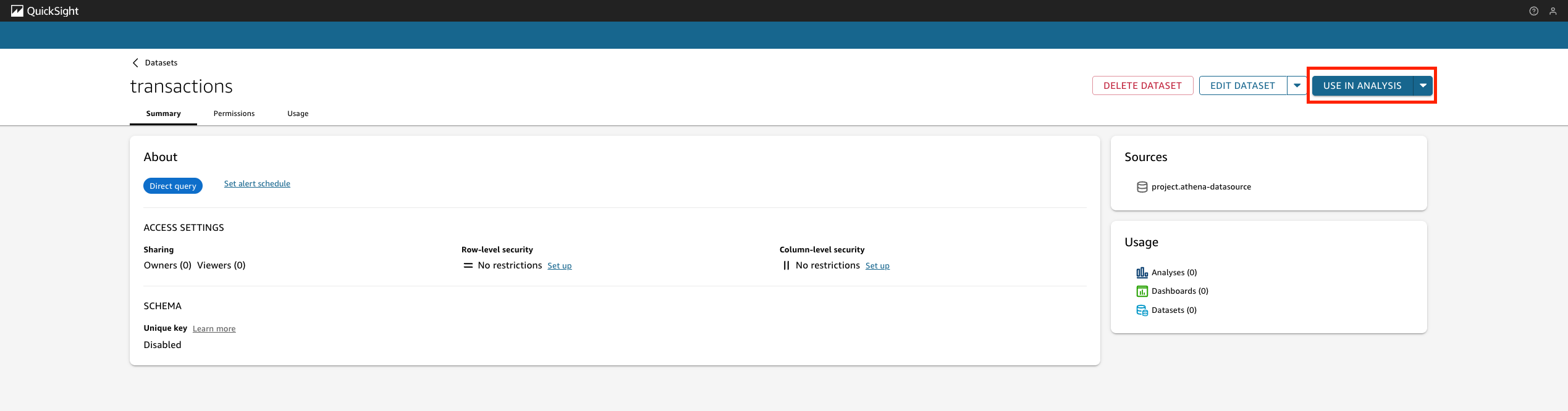
This will redirect you to the Amazon QuickSight transactions dataset page and you can choose USE IN ANALYSIS to begin exploring the data.

When you create a project with the QuickSight blueprint, SageMaker Unified Studio automatically provisions a restricted QuickSight folder per project where SageMaker scopes all new assets—analyses, datasets, and dashboards. The integration maintains real-time folder permission sync, keeping QuickSight folder access permissions aligned with project membership.

Amazon Simple Storage Service (S3) general purpose buckets integration
Starting today, SageMaker adds support for S3 general purpose buckets in SageMaker Catalog to increase discoverability and allows granular permissions through S3 Access Grants, enabling users to govern data, including sharing and managing permissions. Data consumers, such as data scientists, engineers, and business analysts, can now discover and access S3 assets through SageMaker Catalog. This expansion also enables data producers to govern security controls on any S3 data asset through a single interface.

To use this integration, you need appropriate S3 general purpose bucket permissions, and your SageMaker Unified Studio projects must have access to the S3 buckets containing your data. Learn more about prerequisites on Amazon S3 data in Amazon SageMaker Unified Studio Documentation page.

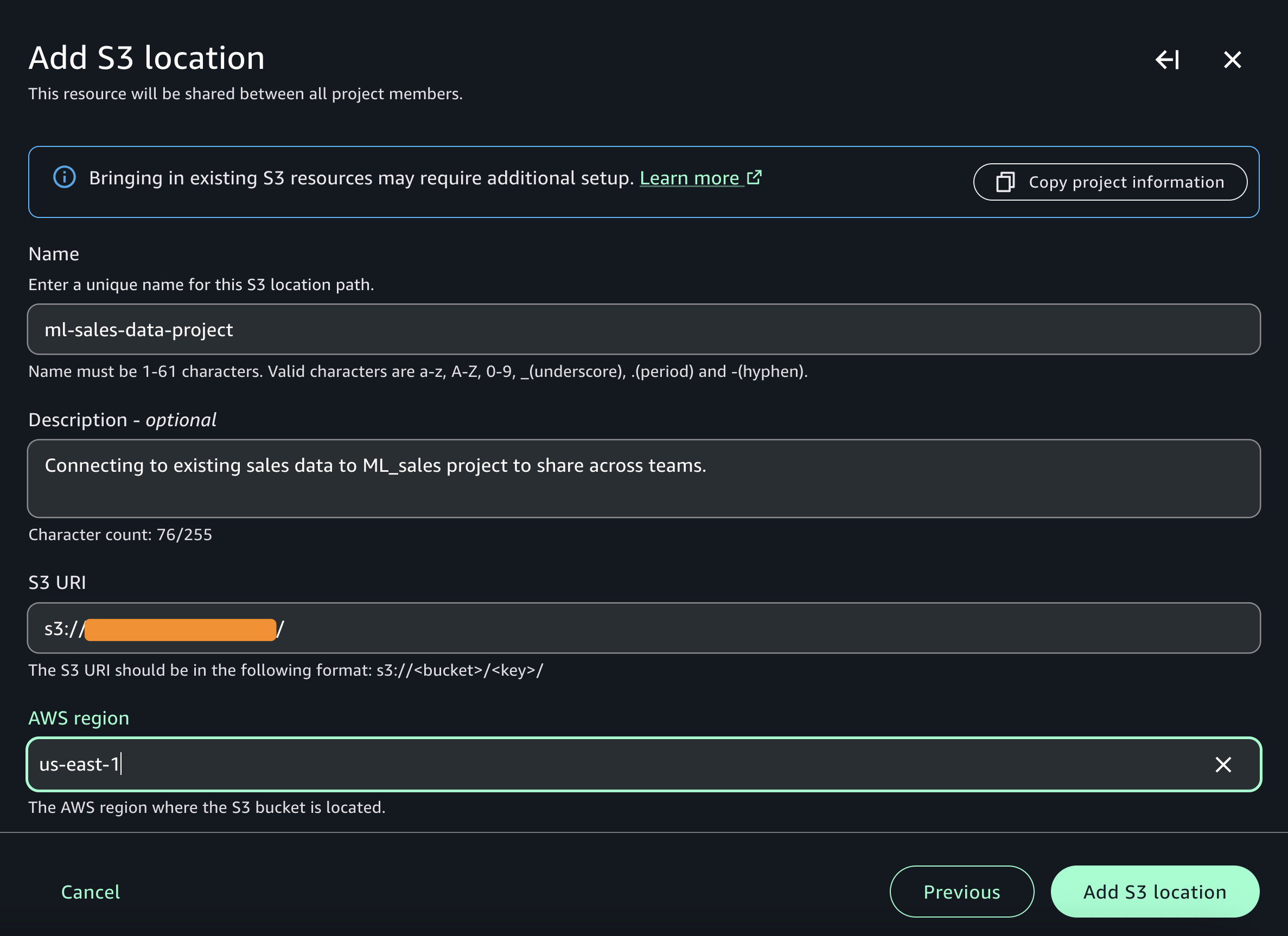
You can add a connection to an existing S3 bucket.

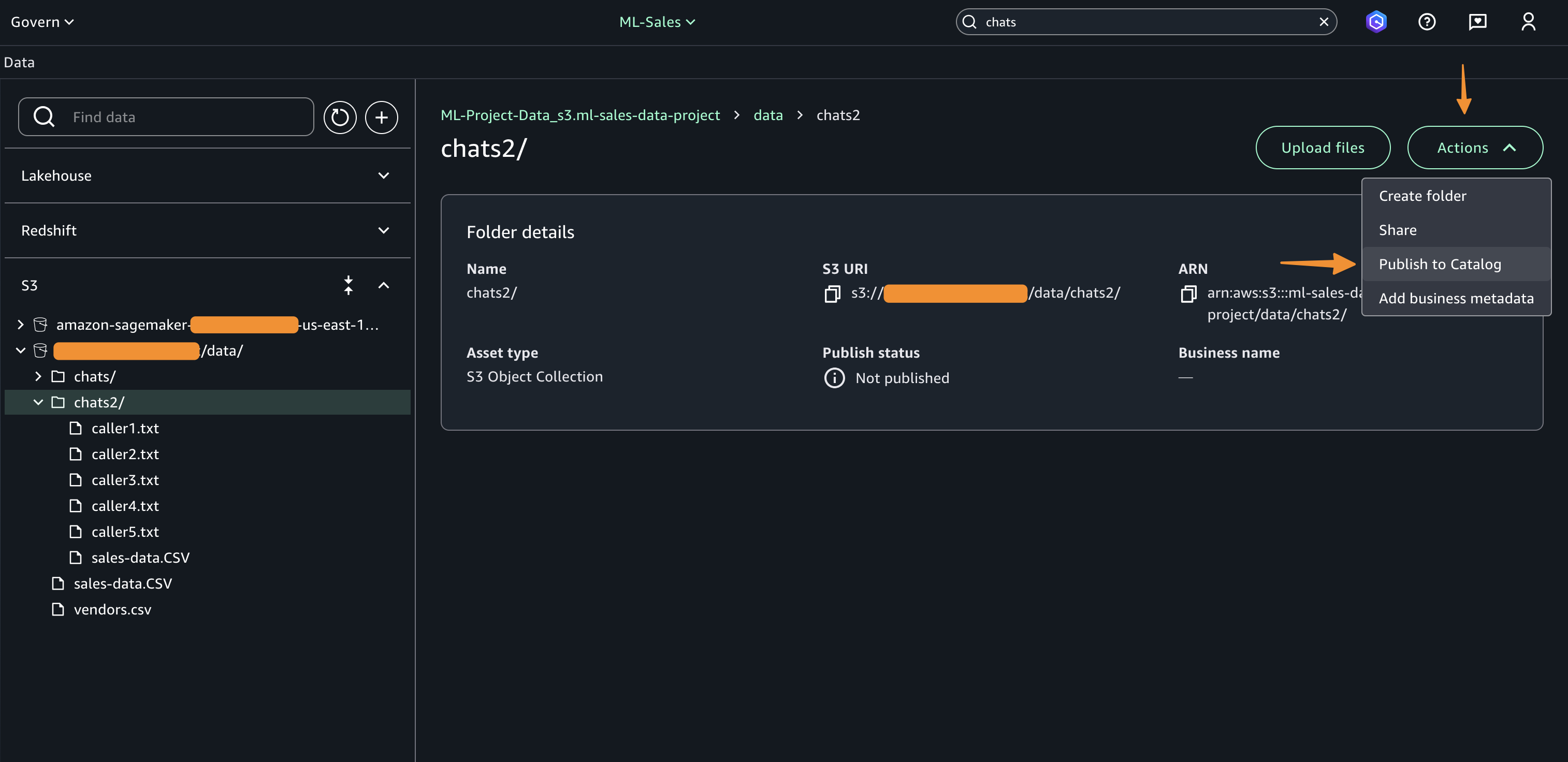
When it’s connected, you can browse accessible folders and create discoverable assets by choosing on the bucket or a folder and selecting Publish to Catalog.

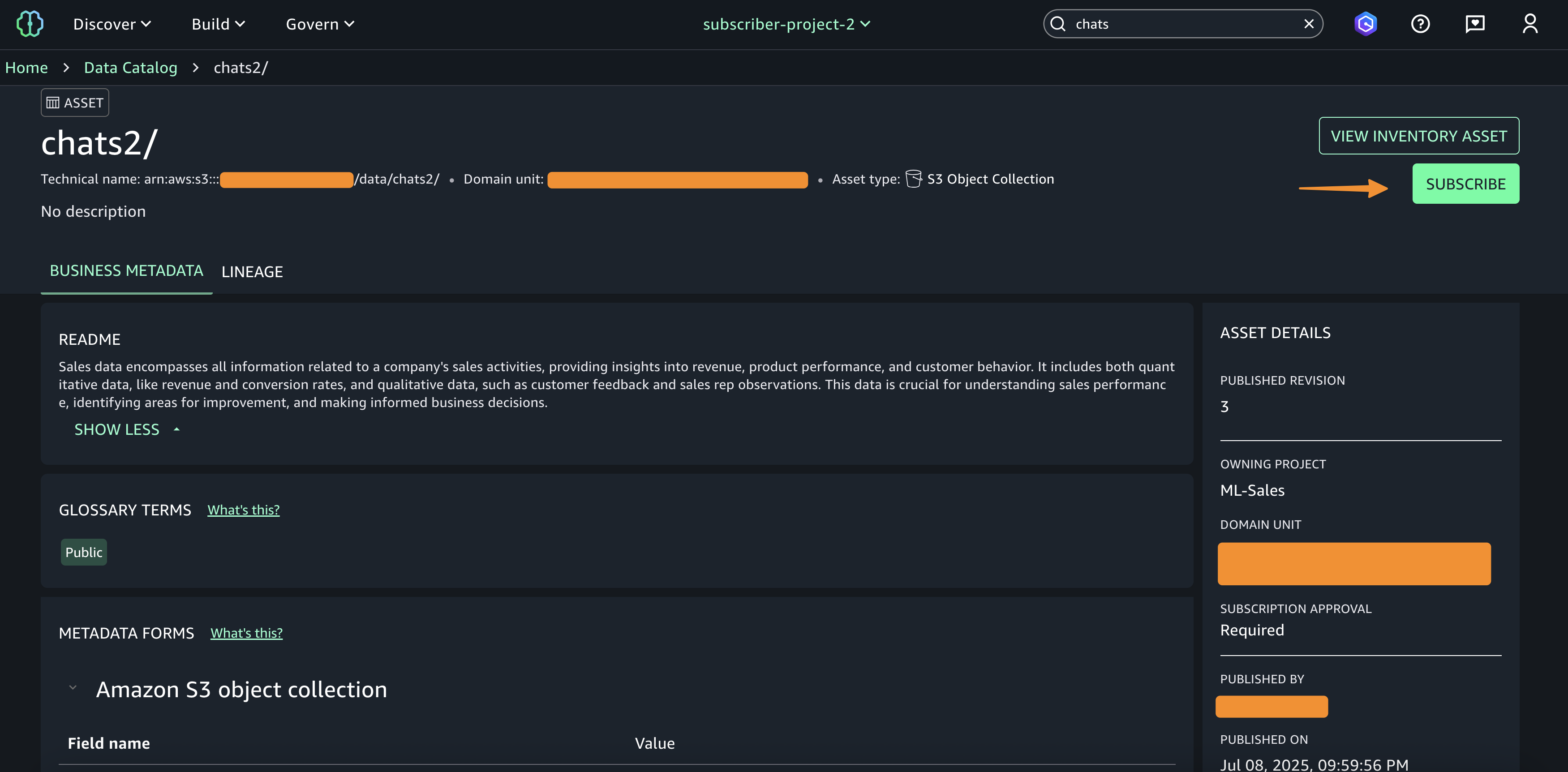
This action creates a SageMaker Catalog asset of type “S3 Object Collection” and opens an asset details page where users can augment business context to improve search and discoverability. Once published, data consumers can discover and subscribe to these cataloged assets. When data consumers subscribe to “S3 Object Collection” assets, SageMaker Catalog automatically grants access using S3 Access Grants upon approval, enabling cross-team collaboration while ensuring only the right users have the right access.

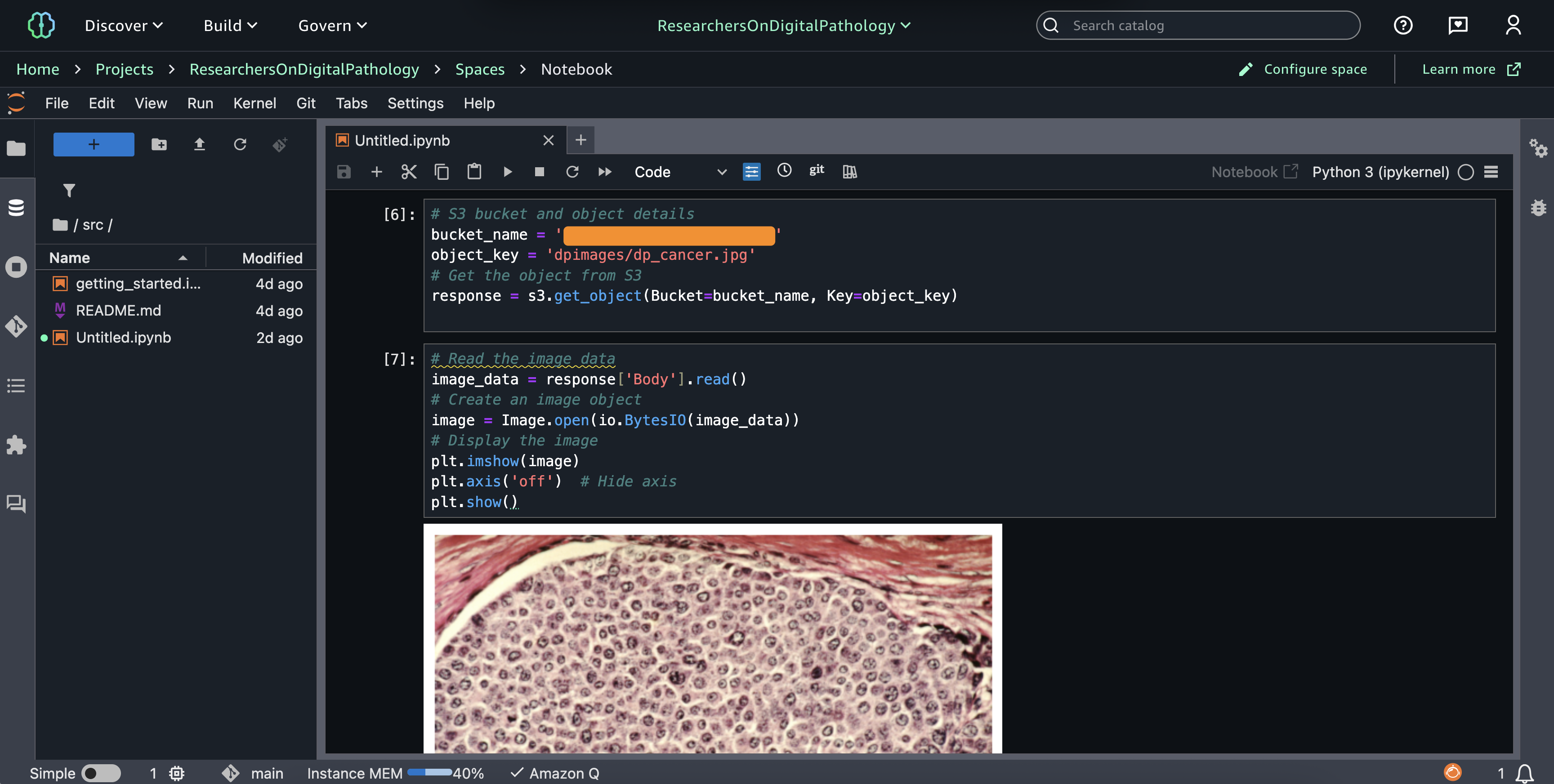
When you have access, now you can process your unstructured data in Amazon SageMaker Jupyter notebook. Following screenshot is an example to process image in medical use case.

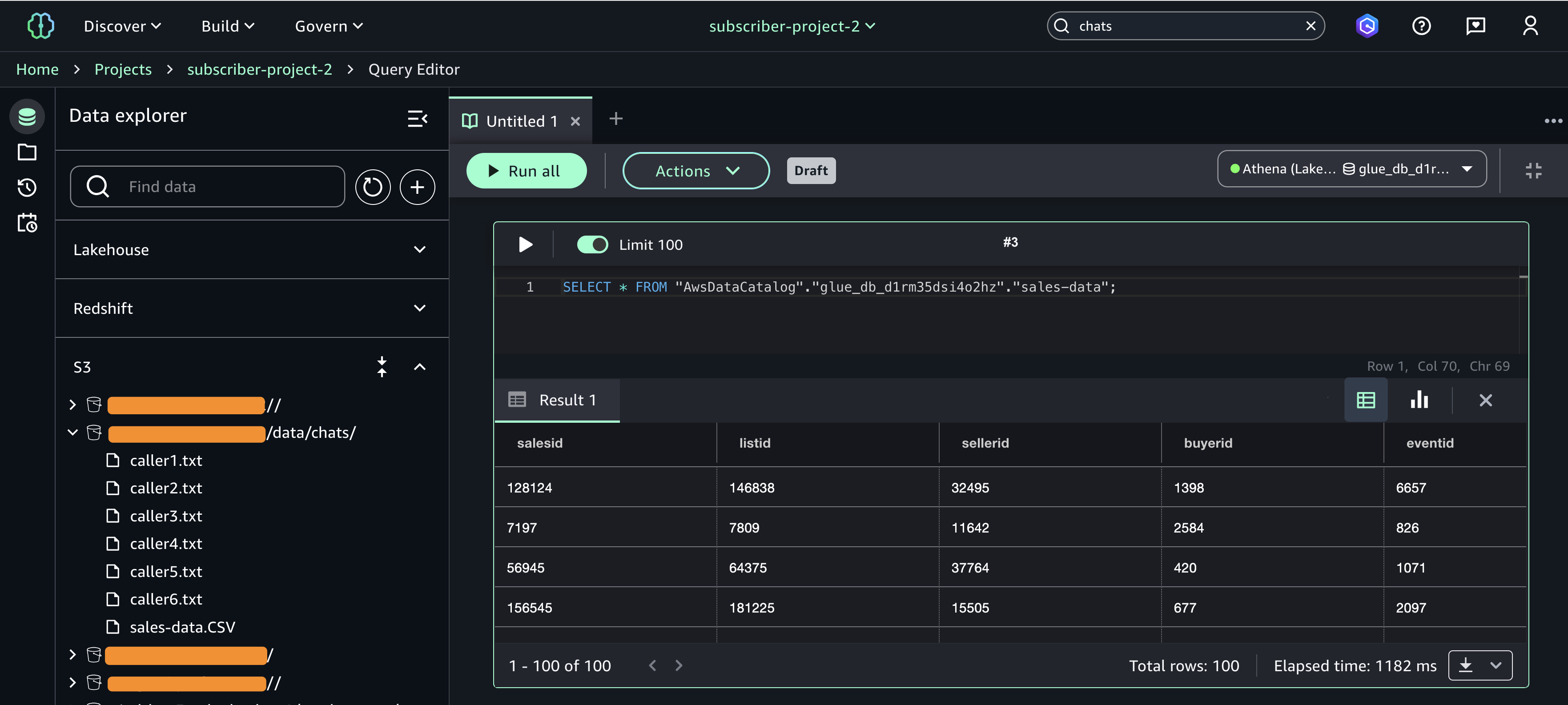
If you have structured data, you can query your data using Amazon Athena or process using Spark in notebooks.

With this access granted through S3 Access Grants, you can seamlessly incorporate S3 data into my workflows—analyzing it in notebooks, combining it with structured data in the lakehouse and Amazon Redshift for comprehensive analytics. You can access unstructured data such as documents, images in JupyterLab notebooks to train ML models, or generate queryable insights.

Automatic data onboarding from your lakehouse
This integration automatically onboards all your lakehouse datasets into SageMaker Catalog. The key benefit for you is to bring AWS Glue Data Catalog (GDC) datasets into SageMaker Catalog, eliminating manual setup for cataloging, sharing, and governing them centrally.

This integration requires an existing lakehouse setup with Data Catalog containing your structured datasets.

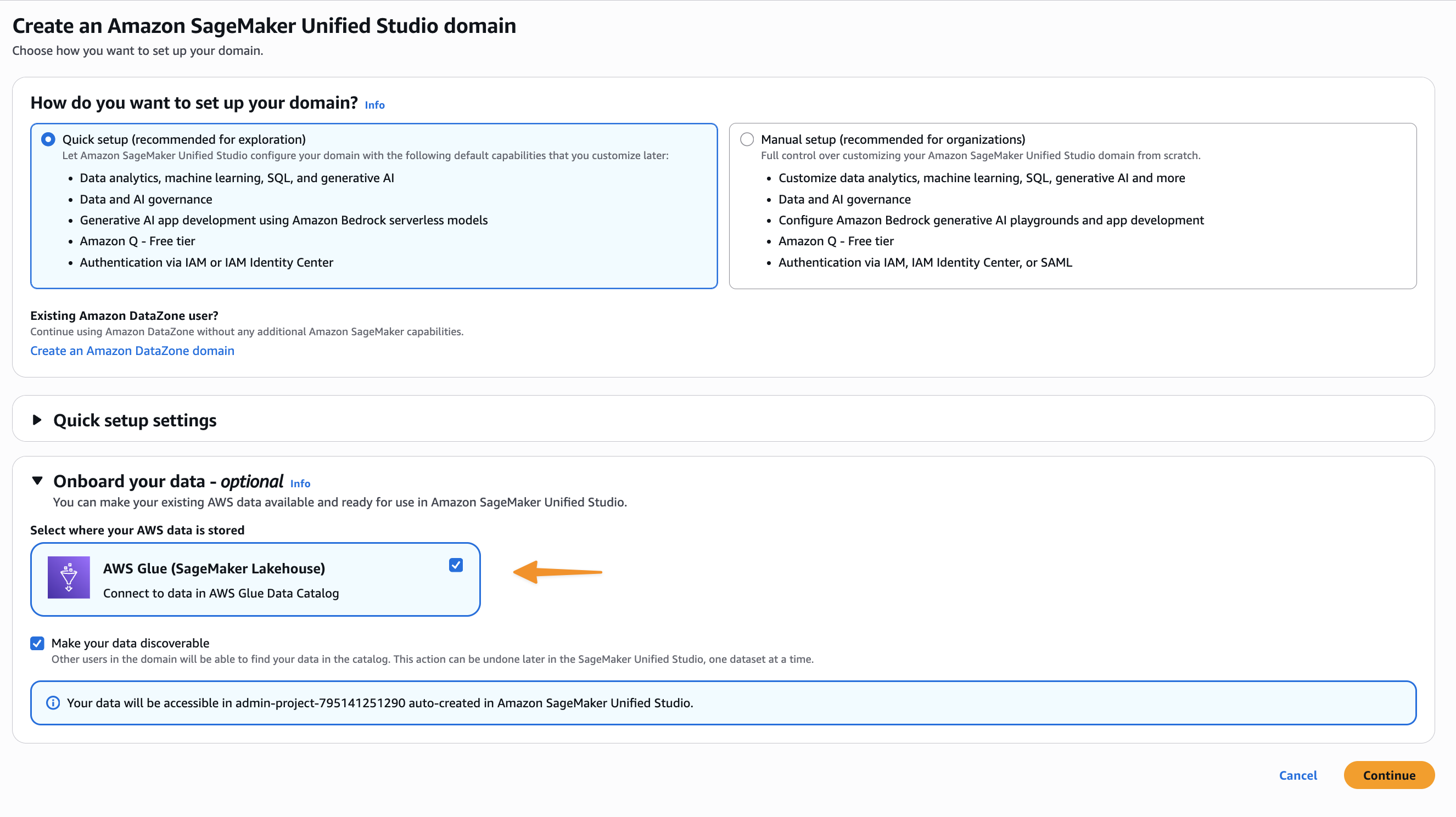
When you set up a SageMaker domain, SageMaker Catalog automatically ingests metadata from all lakehouse databases and tables. This means you can immediately explore and use these datasets from within SageMaker Unified Studio without any configuration.

The integration helps you to start managing, governing, and consuming these assets from within SageMaker Unified Studio, applying the same governance policies and access controls you can use for other data types while unifying technical and business metadata.

Additional things to know
Here are a couple of things to note:

  • Availability – These integrations are available in all commercial AWS Regions where Amazon SageMaker is supported.
  • Pricing – Standard SageMaker Unified Studio, QuickSight, and Amazon S3 pricing applies. No additional charges for the integrations themselves.
  • Documentation – You can find complete setup guides in the SageMaker Unified Studio Documentation.

Get started with these new integrations through the Amazon SageMaker Unified Studio console.

Happy building!
Donnie

AWS Free Tier update: New customers can get started and explore AWS with up to $200 in credits

Post Syndicated from Channy Yun (윤석찬) original https://aws.amazon.com/blogs/aws/aws-free-tier-update-new-customers-can-get-started-and-explore-aws-with-up-to-200-in-credits/

When you’re new to Amazon Web Services (AWS), you can get started with AWS Free Tier to learn about AWS services, gain hands-on experience, and build applications. You can explore the portfolio of services without incurring costs, making it even easier to get started with AWS.

Today, we’re announcing some enhancements to the AWS Free Tier program, offering up to $200 in AWS credits that can be used across AWS services. You’ll receive $100 in AWS credits upon sign-up and can earn an additional $100 in credits by using services such as Amazon Elastic Compute Cloud (Amazon EC2), Amazon Relational Database Service (Amazon RDS), AWS Lambda, Amazon Bedrock, and AWS Budgets.

The enhanced AWS Free Tier program offers two options during sign-up: a free account plan and a paid account plan. The free account plan ensures you won’t incur any charges until you upgrade to a paid plan. The free account plan expires after 6 months or when you exhaust your credits, whichever comes first.

While on the free account plan, you won’t be able to use some services typically used by large enterprises. You can upgrade to a paid plan at any time to continue building on AWS. When you upgrade, you can still use any unused credits for any eligible service usage for up to 12 months from your initial sign-up date.

When you choose the paid plan, AWS will automatically apply your Free Tier credits to the use of eligible services in your AWS bills. For usage that exceeds the credits, you’re charged with the on-demand pricing.

Get up to $200 credits in action
When you sign up for either a free plan or a paid plan, you’ll receive $100 credit. You can also earn an additional $20 credits for each of these five AWS service activities you complete:

  • Amazon EC2 – You’ll learn how to launch an EC2 instance and terminate it.
  • Amazon RDS – You’ll learn the basic configuration options for launching an RDS database.
  • AWS Lambda – You’ll learn to build a straightforward web application consisting of a Lambda function with a function URL.
  • Amazon Bedrock – You’ll learn how to submit a prompt to generate a response in the Amazon Bedrock text playground.
  • AWS Budgets – You’ll learn how to set a budget that alerts you when you exceed your budgeted cost amount.

You can see the credit details in the Explore AWS widget in the AWS Management Console.

These activities are designed to expose customers to important building blocks of AWS, including cost and usage that show up in the AWS Billing Console. These charges are deducted from your Free Tier credits and help teach new AWS users about selecting the appropriate instance sizes to minimize your costs.

Choose Set up a cost budget using AWS Budgets to earn your first $20 credits. It redirects to the AWS Billing and Cost Management console.

To create your first budget, choose Use a template (simplified) and Monthly cost budget to notify you if you exceed, or are forecasted to exceed, the budget amount.

When you choose the Customize (advanced) setup option, you can customize a budget to set parameters specific to your use case, scope of AWS services or AWS Regions, the time period, the start month, and specific accounts.

After you successfully create your budget, your begin receiving alerts when your spend exceeds your budgeted amount.

You can go to the Credits page in the left navigation pane in the AWS Billing and Cost Management Console to confirm your $20 in credits. Please note, it can take up to 10 minutes for your credits to appear.

You can receive an additional $80 by completing the remaining four activities. Now you can use up to $200 in credits to learn AWS services and build your first application.

Things to know
Here are some of things to know about the enhanced AWS Free Tier program:

  • Notifications – We’ll send an email alert when 50 percent, 25 percent, or 10 percent of your AWS credits remain. We’ll also send notifications to the AWS console and your email inbox when you have 15 days, 7 days, and 2 days left in your 6-month free period. After your free period ends, we’ll send you an email with instructions on how to upgrade to a paid plan. You’ll have 90 days to reopen your account by upgrading to a paid plan.
  • AWS services – The free account can access parts of AWS services including over 30 services that offer always-free tier. The paid account can access all AWS services. For more information, visit AWS Free Tier page.
  • Legacy Free Tier – If your AWS account was created before July 15, 2025, you’ll continue to be in the legacy Free Tier program, where you can access short-term trials, 12-month trials, and always free tier services. The always-free tier is available under both the new Free Tier program and the legacy Free Tier program.

Now available
The new AWS Free Tier features are generally available in all AWS Regions, except the AWS GovCloud (US) Regions and the China Regions. To learn more, visit the AWS Free Tier page and AWS Free Tier Documentation.

Give the new AWS Free Tier a try by signing up today, and send feedback to AWS re:Post for AWS Free Tier or through your usual AWS Support contacts.

Channy

Monitor and debug event-driven applications with new Amazon EventBridge logging

Post Syndicated from Donnie Prakoso original https://aws.amazon.com/blogs/aws/monitor-and-debug-event-driven-applications-with-new-amazon-eventbridge-logging/

Starting today, you can use enhanced logging capability in Amazon EventBridge to monitor and debug your event-driven applications with comprehensive logs. These new enhancements help improve how you monitor and troubleshoot event flows.

Here’s how you can find this new capability on the Amazon EventBridge console:

The new observability capabilities address microservices and event-driven architecture monitoring challenges by providing comprehensive event lifecycle tracking. EventBridge now generates detailed log entries every time a matched event against rules is published, delivered to subscribers, or encounters failures and retries.

You gain visibility into the complete event journey with detailed information about successes, failures, and status codes that make identifying and diagnosing issues straightforward. What used to take hours of trial-and-error debugging now takes minutes with detailed event lifecycle tracking and built-in query tools.

Using Amazon EventBridge enhanced observability
Let me walk you through a demonstration that showcases the logging capability in Amazon EventBridge.

I can enable logging for an existing event bus or when creating a new custom event bus. First, I navigate to the EventBridge console and choose Event buses in the left navigation pane. In Custom event bus, I choose Create event bus.

I can see this new capability in the Logs section. I have three options to configure the Log destination: Amazon CloudWatch Logs, Amazon Data Firehose Stream, and Amazon Simple Storage Service (Amazon S3). If I want to stream my logs into a data lake, I can select Amazon Kinesis Data Firehose Stream. Logs are encrypted in transit with TLS and at rest if a customer-managed key (CMK) is provided for the event bus. CloudWatch Logs supports customer-managed keys, and Data Firehose offers server-side encryption for downstream destinations.

For this demo, I select CloudWatch logs and S3 logs.

I can also choose Log level, from Error, Info, or Trace. I choose Trace and select Include execution data because I need to review the payloads. You need to be mindful as logging payload data may contain sensitive information, and this setting applies to all log destinations you select. Then, I configure two destinations, one each for CloudWatch log group and S3 logs. Then I choose Create.

After logging is enabled, I can start publishing test events to observe the logging behavior.

For the first scenario, I’ve built an AWS Lambda function and configured this Lambda function as a target.

I navigate to my event bus to send a sample event by choosing Send events.

Here’s the payload that I use:

{
  "Source": "ecommerce.orders",
  "DetailType": "Order Placed",
  "Detail": {
    "orderId": "12345",
    "customerId": "cust-789",
    "amount": 99.99,
    "items": [
      {
        "productId": "prod-456",
        "quantity": 2,
        "price": 49.99
      }
    ]
  }
}

After I sent the sample event, I can see the logs are available in my S3 bucket.

I can also see the log entries appearing in the Amazon CloudWatch logs. The logs show the event lifecycle, from EVENT_RECEIPT to SUCCESS. Learn more about the complete event lifecycle on TBD:DOC_PAGE.

Now, let’s evaluate these logs. For brevity, I only include a few logs and have redacted them for readability. Here’s the log from when I triggered the event:

{
    "resource_arn": "arn:aws:events:us-east-1:123:event-bus/demo-logging",
    "message_timestamp_ms": 1751608776896,
    "event_bus_name": "demo-logging",
// REDACTED FOR BREVITY //
    "message_type": "EVENT_RECEIPT",
    "log_level": "TRACE",
    "details": {
        "caller_account_id": "123",
        "source_time_ms": 1751608775000,
        "source": "ecommerce.orders",
        "detail_type": "Order Placed",
        "resources": [],
        "event_detail": "REDACTED FOR BREVITY"
    }
}

Here’s the log when the event was successfully invoked:

{
    "resource_arn": "arn:aws:events:us-east-1:123:event-bus/demo-logging",
    "message_timestamp_ms": 1751608777091,
    "event_bus_name": "demo-logging",
// REDACTED FOR BREVITY //
    "message_type": "INVOCATION_SUCCESS",
    "log_level": "INFO",
    "details": {
// REDACTED FOR BREVITY //
        "total_attempts": 1,
        "final_invocation_status": "SUCCESS",
        "ingestion_to_start_latency_ms": 105,
        "ingestion_to_complete_latency_ms": 183,
        "ingestion_to_success_latency_ms": 183,
        "target_duration_ms": 53,
        "target_response_body": "<REDACTED FOR BREVITY>",
        "http_status_code": 202
    }
}

The additional log entries include rich metadata that makes troubleshooting straightforward. For example, on a successful event, I can see the latency timing from starting to completing the event, duration for the target to finish processing, and HTTP status code.

Debugging failures with complete event lifecycle tracking
The benefit of EventBridge logging becomes apparent when things go wrong. To test failure scenarios, I intentionally misconfigure a Lambda function’s permissions and change the rule to point to a different Lambda function without proper permissions.

The attempt failed with a permanent failure due to missing permissions. The log shows it’s a FIRST attempt that resulted in NO_PERMISSIONS status.

{
    "message_type": "INVOCATION_ATTEMPT_PERMANENT_FAILURE",
    "log_level": "ERROR",
    "details": {
        "rule_arn": "arn:aws:events:us-east-1:123:rule/demo-logging/demo-order-placed",
        "role_arn": "arn:aws:iam::123:role/service-role/Amazon_EventBridge_Invoke_Lambda_123",
        "target_arn": "arn:aws:lambda:us-east-1:123:function:demo-evb-fail",
        "attempt_type": "FIRST",
        "attempt_count": 1,
        "invocation_status": "NO_PERMISSIONS",
        "target_duration_ms": 25,
        "target_response_body": "{\"requestId\":\"a4bdfdc9-4806-4f3e-9961-31559cb2db62\",\"errorCode\":\"AccessDeniedException\",\"errorType\":\"Client\",\"errorMessage\":\"User: arn:aws:sts::123:assumed-role/Amazon_EventBridge_Invoke_Lambda_123/db4bff0a7e8539c4b12579ae111a3b0b is not authorized to perform: lambda:InvokeFunction on resource: arn:aws:lambda:us-east-1:123:function:demo-evb-fail because no identity-based policy allows the lambda:InvokeFunction action\",\"statusCode\":403}",
        "http_status_code": 403
    }
}

The final log entry summarizes the complete failure with timing metrics and the exact error message.

{
    "message_type": "INVOCATION_FAILURE",
    "log_level": "ERROR",
    "details": {
        "rule_arn": "arn:aws:events:us-east-1:123:rule/demo-logging/demo-order-placed",
        "role_arn": "arn:aws:iam::123:role/service-role/Amazon_EventBridge_Invoke_Lambda_123",
        "target_arn": "arn:aws:lambda:us-east-1:123:function:demo-evb-fail",
        "total_attempts": 1,
        "final_invocation_status": "NO_PERMISSIONS",
        "ingestion_to_start_latency_ms": 62,
        "ingestion_to_complete_latency_ms": 114,
        "target_duration_ms": 25,
        "http_status_code": 403
    },
    "error": {
        "http_status_code": 403,
        "error_message": "User: arn:aws:sts::123:assumed-role/Amazon_EventBridge_Invoke_Lambda_123/db4bff0a7e8539c4b12579ae111a3b0b is not authorized to perform: lambda:InvokeFunction on resource: arn:aws:lambda:us-east-1:123:function:demo-evb-fail because no identity-based policy allows the lambda:InvokeFunction action",
        "aws_service": "AWSLambda",
        "request_id": "a4bdfdc9-4806-4f3e-9961-31559cb2db62"
    }
}

The logs provide detailed performance metrics that help identify bottlenecks. The ingestion_to_start_latency_ms: 62 shows the time from event ingestion to starting invocation, while ingestion_to_complete_latency_ms: 114 represents the total time from ingestion to completion. Additionally, target_duration_ms: 25 indicates how long the target service took to respond, helping distinguish between EventBridge processing time and target service performance.

The error message clearly states what failed, lambda:InvokeFunction action, why it failed, (no identity-based policy allows the action), which role was involved (Amazon_EventBridge_Invoke_Lambda_1428392416), and which specific resource was affected, which was indicated by the Lambda function Amazon Resource Name (ARN).

Debugging API Destinations with EventBridge Logging
One particular use case that I think EventBridge logging capability will be helpful is to debug issues with API destinations. EventBridge API destinations are HTTPS endpoints that you can invoke as the target of an event bus rule or pipe. HTTPS endpoints help you to route events from your event bus to external systems, software-as-a-service (SaaS) applications, or third-party APIs using HTTPS calls. They use connections to handle authentication and credentials, making it easy to integrate your event-driven architecture with any HTTPS-based service. 

API destinations are commonly used to send events to external HTTPS endpoints and debugging failures from the external endpoint can be a challenge. These problems typically stem from changes to the endpoint authentication requirements or modified credentials.

To demonstrate this debugging capability, I intentionally configured an API destination with incorrect credentials in the connection resource.

When I send an event to this misconfigured endpoint, the enhanced logging shows the root cause of this failure.

{
    "resource_arn": "arn:aws:events:us-east-1:123:event-bus/demo-logging",
    "message_timestamp_ms": 1750344097251,
    "event_bus_name": "demo-logging",
    //REDACTED FOR BREVITY//,
    "message_type": "INVOCATION_FAILURE",
    "log_level": "ERROR",
    "details": {
        //REDACTED FOR BREVITY//,
        "total_attempts": 1,
        "final_invocation_status": "SDK_CLIENT_ERROR",
        "ingestion_to_start_latency_ms": 135,
        "ingestion_to_complete_latency_ms": 549,
        "target_duration_ms": 327,
        "target_response_body": "",
        "http_status_code": 400
    },
    "error": {
        "http_status_code": 400,
        "error_message": "Unable to invoke ApiDestination endpoint: The request failed because the credentials included for the connection are not authorized for the API destination."
    }
}

The log provides immediate clarity about the failure. The target_arn shows this involves an API destination, the final_invocation_status indicates SDK_CLIENT_ERROR, and the http_status_code of 400 , which points to a client-side issue. Most importantly, the error_message explicitly states that: Unable to invoke ApiDestination endpoint: The request failed because the credentials included for the connection are not authorized for the API destination.

This complete log sequence provides useful debugging insights because I can see exactly how the event moved through EventBridge — from event receipt, to ingestion, to rule matching, to invocation attempts. This level of detail eliminates guesswork and points directly to the root cause of the issue.

Additional things to know
Here are a couple of things to note:

  • Architecture support – Logging works with all EventBridge features including custom event buses, partner event sources, and API destinations for HTTPS endpoints.
  • Performance impact – Logging operates asynchronously with no measurable impact on event processing latency or throughput.
  • Pricing – You pay standard Amazon S3, Amazon CloudWatch Logs or Amazon Data Firehose pricing for log storage and delivery. EventBridge logging itself incurs no additional charges. For details, visit the Amazon EventBridge pricing page .
  • Availability – Amazon EventBridge logging capability is available in all AWS Regions where EventBridge is supported.
  • Documentation — For more details, refer to the Amazon EventBridge monitoring and debugging Documentation.

Get started with Amazon EventBridge logging capability by visiting the EventBridge console and enabling logging on your event buses.

Happy building!
— Donnie 

Introducing Amazon S3 Vectors: First cloud storage with native vector support at scale (preview)

Post Syndicated from Channy Yun (윤석찬) original https://aws.amazon.com/blogs/aws/introducing-amazon-s3-vectors-first-cloud-storage-with-native-vector-support-at-scale/

Today, we’re announcing the preview of Amazon S3 Vectors, a purpose-built durable vector storage solution that can reduce the total cost of uploading, storing, and querying vectors by up to 90 percent. Amazon S3 Vectors is the first cloud object store with native support to store large vector datasets and provide subsecond query performance that makes it affordable for businesses to store AI-ready data at massive scale.

Vector search is an emerging technique used in generative AI applications to find similar data points to given data by comparing their vector representations using distance or similarity metrics. Vectors are numerical representation of unstructured data created from embedding models. You generate vectors using embedding models for fields inside your document and store vectors into S3 Vectors to search semantically.

S3 Vectors introduces vector buckets, a new bucket type with a dedicated set of APIs to store, access, and query vector data without provisioning any infrastructure. When you create an S3 vector bucket, you organize your vector data within vector indexes, making it simple for running similarity search queries against your dataset. Each vector bucket can have up to 10,000 vector indexes, and each vector index can hold tens of millions of vectors.

After creating a vector index, when adding vector data to the index, you can also attach metadata as key-value pairs to each vector to filter future queries based on a set of conditions, for example, dates, categories, or user preferences. As you write, update, and delete vectors over time, S3 Vectors automatically optimizes the vector data to achieve the best possible price-performance for vector storage, even as the datasets scale and evolve.

S3 Vectors is also natively integrated with Amazon Bedrock Knowledge Bases, including within Amazon SageMaker Unified Studio, for building cost-effective Retrieval-Augmented Generation (RAG) applications. Through its integration with Amazon OpenSearch Service, you can lower storage costs by keeping infrequent queried vectors in S3 Vectors and then quickly move them to OpenSearch as demands increase or to support real-time, low-latency search operations.

With S3 Vectors, you can now economically store the vector embeddings that represent massive amounts of unstructured data such as images, videos, documents, and audio files, enabling scalable generative AI applications including semantic and similarity search, RAG, and build agent memory. You can also build applications to support a wide range of industry use cases including personalized recommendations, automated content analysis, and intelligent document processing without the complexity and cost of managing vector databases.

S3 Vectors in action
To create a vector bucket, choose Vector buckets in the left navigation pane in the Amazon S3 console and then choose Create vector bucket.

Enter a vector bucket name and choose the encryption type. If you don’t specify an encryption type, Amazon S3 applies server-side encryption with Amazon S3 managed keys (SSE-S3) as the base level of encryption for new vectors. You can also choose server-side encryption with AWS Key Management Service (AWS KMS) keys (SSE-KMS). To learn more about managing your vector bucket, visit S3 Vector buckets in the Amazon S3 User Guide.

Now, you can create a vector index to store and query your vector data within your created vector bucket.

Enter a vector index name and the dimensionality of the vectors to be inserted in the index. All vectors added to this index must have exactly the same number of values.

For Distance metric, you can choose either Cosine or Euclidean. When creating vector embeddings, select your embedding model’s recommended distance metric for more accurate results.

Choose Create vector index and then you can insert, list, and query vectors.

To insert your vector embeddings to a vector index, you can use the AWS Command Line Interface (AWS CLI), AWS SDKs, or Amazon S3 REST API. To generate vector embeddings for your unstructured data, you can use embedding models offered by Amazon Bedrock.

If you’re using the latest AWS Python SDKs, you can generate vector embeddings for your text using Amazon Bedrock using following code example:

# Generate and print an embedding with Amazon Titan Text Embeddings V2.
import boto3 
import json 

# Create a Bedrock Runtime client in the AWS Region of your choice. 
bedrock= boto3.client("bedrock-runtime", region_name="us-west-2") 

The text strings to convert to embeddings.
texts = [
"Star Wars: A farm boy joins rebels to fight an evil empire in space", 
"Jurassic Park: Scientists create dinosaurs in a theme park that goes wrong",
"Finding Nemo: A father fish searches the ocean to find his lost son"]

embeddings=[]
#Generate vector embeddings for the input texts
for text in texts:
        body = json.dumps({
            "inputText": text
        })    
        # Call Bedrock's embedding API
        response = bedrock.invoke_model(
        modelId='amazon.titan-embed-text-v2:0',  # Titan embedding model 
        body=body)   
        # Parse response
        response_body = json.loads(response['body'].read())
        embedding = response_body['embedding']
        embeddings.append(embedding)

Now, you can insert vector embeddings into the vector index and query vectors in your vector index using the query embedding:

# Create S3Vectors client
s3vectors_client = boto3.client('s3vectors', region_name='us-west-2')

# Insert vector embedding
s3vectors.put_vectors( vectorBucketName="channy-vector-bucket",
  indexName="channy-vector-index", 
  vectors=[
{"key": "v1", "data": {"float32": embeddings[0]}, "metadata": {"id": "key1", "source_text": texts[0], "genre":"scifi"}},
{"key": "v2", "data": {"float32": embeddings[1]}, "metadata": {"id": "key2", "source_text": texts[1], "genre":"scifi"}},
{"key": "v3", "data": {"float32": embeddings[2]}, "metadata": {"id": "key3", "source_text":  texts[2], "genre":"family"}}
],
)

#Create an embedding for your query input text
# The text to convert to an embedding.
input_text = "List the movies about adventures in space"

# Create the JSON request for the model.
request = json.dumps({"inputText": input_text})

# Invoke the model with the request and the model ID, e.g., Titan Text Embeddings V2. 
response = bedrock.invoke_model(modelId="amazon.titan-embed-text-v2:0", body=request)

# Decode the model's native response body.
model_response = json.loads(response["body"].read())

# Extract and print the generated embedding and the input text token count.
embedding = model_response["embedding"]

# Performa a similarity query. You can also optionally use a filter in your query
query = s3vectors.query_vectors( vectorBucketName="channy-vector-bucket",
  indexName="channy-vector-index",
  queryVector={"float32":embedding},
  topK=3, 
  filter={"genre":"scifi"},
  returnDistance=True,
  returnMetadata=True
  )
results = query["vectors"]
print(results)

To learn more about inserting vectors into a vector index, or listing, querying, and deleting vectors, visit S3 vector buckets and S3 vector indexes in the Amazon S3 User Guide. Additionally, with the S3 Vectors embed command line interface (CLI), you can create vector embeddings for your data using Amazon Bedrock and store and query them in an S3 vector index using single commands. For more information, see the S3 Vectors Embed CLI GitHub repository.

Integrate S3 Vectors with other AWS services
S3 Vectors integrates with other AWS services such as Amazon Bedrock, Amazon SageMaker, and Amazon OpenSearch Service to enhance your vector processing capabilities and provide comprehensive solutions for AI workloads.

Create Amazon Bedrock Knowledge Bases with S3 Vectors
You can use S3 Vectors in Amazon Bedrock Knowledge Bases to simplify and reduce the cost of vector storage for RAG applications. When creating a knowledge base in the Amazon Bedrock console, you can choose the S3 vector bucket as your vector store option.

In Step 3, you can choose the Vector store creation method either to create an S3 vector bucket and vector index or choose the existing S3 vector bucket and vector index that you’ve previously created.

For detailed step-by-step instructions, visit Create a knowledge base by connecting to a data source in Amazon Bedrock Knowledge Bases in the Amazon Bedrock User Guide.

Using Amazon SageMaker Unified Studio
You can create and manage knowledge bases with S3 Vectors in Amazon SageMaker Unified Studio when you build your generative AI applications through Amazon Bedrock. SageMaker Unified Studio is available in the next generation of Amazon SageMaker and provides a unified development environment for data and AI, including building and texting generative AI applications that use Amazon Bedrock knowledge bases.

You can choose your knowledge bases using the S3 Vectors created through Amazon Bedrock when you build generative AI applications. To learn more, visit Add a data source to your Amazon Bedrock app in the Amazon SageMaker Unified Studio User Guide.

Export S3 vector data to Amazon OpenSearch Service
You can balance cost and performance by adopting a tiered strategy that stores long-term vector data cost-effectively in Amazon S3 while exporting high priority vectors to OpenSearch for real-time query performance.

This flexibility means your organizations can access OpenSearch’s high performance (high QPS, low latency) for critical, real-time applications, such as product recommendations or fraud detection, while keeping less time-sensitive data in S3 Vectors.

To export your vector index, choose Advanced search export, then choose Export to OpenSearch in the Amazon S3 console.

Then, you will be brought to the Amazon OpenSearch Service Integration console with a template for S3 vector index export to OpenSearch vector engine. Choose Export with pre-selected S3 vector source and a service access role.

It will start the steps to create a new OpenSearch Serverless collection and migrate data from your S3 vector index into an OpenSearch knn index.

Choose the Import history in the left navigation pane. You can see the new import job that was created to make a copy of vector data from your S3 vector index into the OpenSearch Serverless collection.

Once the status changes to Complete, you can connect to the new OpenSearch serverless collection and query your new OpenSearch knn index.

To learn more, visit Creating and managing Amazon OpenSearch Serverless collections in the Amazon OpenSearch Service Developer Guide.

Now available
Amazon S3 Vectors, and its integrations with Amazon Bedrock, Amazon OpenSearch Service, and Amazon SageMaker are now in preview in the US East (N. Virginia), US East (Ohio), US West (Oregon), Europe (Frankfurt), and Asia Pacific (Sydney) Regions.

Give S3 Vectors a try in the Amazon S3 console today and send feedback to AWS re:Post for Amazon S3 or through your usual AWS Support contacts.

Channy

Amazon S3 Metadata now supports metadata for all your S3 objects

Post Syndicated from Sébastien Stormacq original https://aws.amazon.com/blogs/aws/amazon-s3-metadata-now-supports-metadata-for-all-your-s3-objects/

Amazon S3 Metadata now provides complete visibility into all your existing objects in your Amazon Simple Storage Service (Amazon S3) buckets, expanding beyond new objects and changes. With this expanded coverage, you can analyze and query metadata for your entire S3 storage footprint.

Today, many customers rely on Amazon S3 to store unstructured data at scale. To understand what’s in a bucket, you often need to build and maintain custom systems that scan for objects, track changes, and manage metadata over time. These systems are expensive to maintain and hard to keep up to date as data grows.

Since the launch of S3 Metadata at re:Invent 2024, you’ve been able to query new and updated object metadata using metadata tables instead of relying on Amazon S3 Inventory or object-level APIs such as ListObjects, HeadObject, and GetObject—which can introduce latency and impact downstream workflows.

To make it easier for you to work with this expanded metadata, S3 Metadata introduces live inventory tables that work with familiar SQL-based tools. After your existing objects are backfilled into the system, any updates like uploads or deletions typically appear within an hour in your live inventory tables.

With S3 Metadata live inventory tables, you get a fully managed Apache Iceberg table that provides a complete and current snapshot of the objects and their metadata in your bucket, including existing objects, thanks to backfill support. These tables are refreshed automatically within an hour of changes such as uploads or deletions, so you stay up to date. You can use them to identify objects with specific properties—like unencrypted data, missing tags, or particular storage classes—and to support analytics, cost optimization, auditing, and governance.

S3 Metadata journal tables, previously known as S3 Metadata tables, are automatically enabled when you configure live inventory tables, provide a near real-time view of object-level changes in your bucket—including uploads, deletions, and metadata updates. These tables are ideal for auditing activity, tracking the lifecycle of objects, and generating event-driven insights. For example, you can use them to find out which objects were deleted in the past 24 hours, identify the requester making the most PUT operations, or monitor updates to object metadata over time.

S3 Metadata tables are created in a namespace name that is similar to your bucket name for easier discovery. The tables are stored in AWS system table buckets, grouped by account and Region. After you enable S3 Metadata for a general purpose S3 bucket, the system creates and maintains these tables for you. You don’t need to manage compaction or garbage collection processes—S3 Tables takes care of table maintenance tasks in the background.

These new tables help avoid waiting for metadata discovery before processing can begin, making them ideal for large-scale analytics and machine learning (ML) workloads. By querying metadata ahead of time, you can schedule GPU jobs more efficiently and reduce idle time in compute-intensive environments.

Let’s see how it works
To see how this works in practice, I configure S3 Metadata for a general purpose bucket using the AWS Management Console.

S3 Metadata, start from general purpose bucket

After choosing a general purpose bucket, I choose the Metadata tab, then I choose Create metadata configuration.

S3 Metadata, configure journal and inventory tableFor Journal table, I can choose the Server-side encryption option and the Record expiration period. For Live Inventory table, I choose Enabled and I can select the Server-side encryption options.

I configure Record expiration on the journal table. Journal table records expire after the specified number of days, 365 days (one year) in my example.

Then, I choose Create metadata configuration.

S3 Metadata, backfilling

S3 Metadata creates the live inventory table and journal table. In the Live Inventory table section, I can observe the Table status: the system immediately starts to backfill the table with existing object metadata. It can take between minutes to hours. The exact time depends on the quantity of objects you have in your S3 bucket.

While waiting, I also upload and delete objects to generate data in the journal table.

Then, I navigate to Amazon Athena to start querying the new tables.

S3 Metadata, query with Athena

I choose Query table with Athena to start querying the table. I can choose between a couple of default queries on the console.

S3 MetaData table structure

In Athena, I observe the structure of the tables in the AWSDataCatalog Data source and I start with a short query to check how many records are available in the journal table. I already have 6,488 entries:

SELECT count(*) FROM "b_aws_news_blog_metadata_inventory_ns"."journal";

# _col0
1 6488

Here are a couple of example queries I tried on the journal table:

# Query deleted objects in last 24 hours
# Use is_delete_marker=true for versioned buckets and record_type='DELETE' otherwise
SELECT bucket, key, version_id, last_modified_date
FROM "s3tablescatalog/aws-managed-s3"."b_aws_news_blog_metadata_inventory_ns"."journal"
WHERE last_modified_date >= (current_date - interval '1' day) AND is_delete_marker = true;

# bucket key version_id last_modified_date is_delete_marker
1 aws-news-blog-metadata-inventory .build/index-build/arm64-apple-macosx/debug/index/store/v5/records/G0/NSURLSession.h-JET61D329FG0 
2 aws-news-blog-metadata-inventory .build/index-build/arm64-apple-macosx/debug/index/store/v5/records/G5/cdefs.h-PJ21EUWKMWG5 
3 aws-news-blog-metadata-inventory .build/index-build/arm64-apple-macosx/debug/index/store/v5/records/FX/buf.h-25EDY57V6ZXFX 
4 aws-news-blog-metadata-inventory .build/index-build/arm64-apple-macosx/debug/index/store/v5/records/G6/NSMeasurementFormatter.h-3FN8J9CLVMYG6 
5 aws-news-blog-metadata-inventory .build/index-build/arm64-apple-macosx/debug/index/store/v5/records/G8/NSXMLDocument.h-1UO2NUJK0OAG8 

# Query recent PUT requests IP addresses
SELECT source_ip_address, count(source_ip_address)
FROM "s3tablescatalog/aws-managed-s3"."b_aws_news_blog_metadata_inventory_ns"."journal"
GROUP BY source_ip_address;

#	source_ip_address	_col1
1	my_laptop_IP_address	12488

# Query S3 Lifecycle expired objects in last 7 days
SELECT bucket, key, version_id, last_modified_date, record_timestamp
FROM "s3tablescatalog/aws-managed-s3"."b_aws_news_blog_metadata_inventory_ns"."journal"
WHERE requester = 's3.amazonaws.com' AND record_type = 'DELETE' AND record_timestamp > (current_date - interval '7' day);

(not applicable to my demo bucket)

The results helped me track the specific objects that were removed, including their timestamps.

Now, I look at the live inventory table:

# Distribution of object tags
SELECT object_tags, count(object_tags)
FROM "s3tablescatalog/aws-managed-s3"."b_aws_news_blog_metadata_inventory_ns"."inventory"
GROUP BY object_tags;

# object_tags    _col1
1 {Source=Swift} 1
2 {Source=swift} 1
3 {}             12486

# Query storage class and size for specific tags
SELECT storage_class, count(*) as count, sum(size) / 1024 / 1024 as usage
FROM "s3tablescatalog/aws-managed-s3"."b_aws_news_blog_metadata_inventory_ns"."inventory"
GROUP BY object_tags['pii=true'], storage_class;

# storage_class count   usage
1 STANDARD      124884  165

# Find objects with specific user defined metadata
SELECT key, last_modified_date, user_metadata
FROM "s3tablescatalog/aws-managed-s3"."b_aws_news_blog_metadata_inventory_ns"."inventory"
WHERE cardinality(user_metadata) > 0 ORDER BY last_modified_date DESC;

(not applicable to my demo bucket)

These are just a few examples of what is possible with S3 Metadata. Your preferred queries will depend on your use cases. Refer to Analyzing Amazon S3 Metadata with Amazon Athena and Amazon QuickSight in the AWS Storage Blog for more examples.

Pricing and availability
S3 Metadata live inventory and journal tables are available today in US East (Ohio, N. Virginia) and US West (N. California).

The journal tables are charged $0.30 per million updates. This is a 33 percent drop from our previous price.

For inventory tables, there’s a one-time backfill cost of $0.30 for a million objects to set up the table and generate metadata for existing objects. There are no additional costs if your bucket has less than one billion objects. For buckets with more than a billion objects, there is a monthly fee of $0.10 per million objects per month.

As usual, the Amazon S3 pricing page has all the details.

With S3 Metadata live inventory and journal tables, you can reduce the time and effort required to explore and manage large datasets. You get an up-to-date view of your storage and a record of changes, and both are available as Iceberg tables you can query on demand. You can discover data faster, power compliance workflows, and optimize your ML pipelines.

You can get started by enabling metadata inventory on your S3 bucket through the AWS console, AWS Command Line Interface (AWS CLI), or AWS SDKs. When they’re enabled, the journal and live inventory tables are automatically created and updated. To learn more, visit the S3 Metadata Documentation page.

— seb

TwelveLabs video understanding models are now available in Amazon Bedrock

Post Syndicated from Channy Yun (윤석찬) original https://aws.amazon.com/blogs/aws/twelvelabs-video-understanding-models-are-now-available-in-amazon-bedrock/

Earlier this year, we preannounced that TwelveLabs video understanding models were coming to Amazon Bedrock. Today, we’re announcing the models are now available for searching through videos, classifying scenes, summarizing, and extracting insights with precision and reliability.

TwelveLabs has introduced Marengo, a video embedding model proficient at performing tasks such as search and classification, and Pegasus, a video language model that can generate text based on video data. These models are trained on Amazon SageMaker HyperPod to deliver groundbreaking video analysis that provides text summaries, metadata generation, and creative optimization.

With the TwelveLabs models in Amazon Bedrock, you can find specific moments using natural language video search capabilities like “show me the first touchdown of the game” or “find the scene where the main characters first meet” and instantly jump to those exact moments. You can also build applications to understand video content by generating descriptive text such as titles, topics, hashtags, summaries, chapters, or highlights for discovering insights and connections without requiring predefined labels or categories.

For example, you can find recurring themes in customer feedback or spot product usage patterns that weren’t obvious before. Whether you have hundreds or thousands of hours of video content, you can now transform that entire library into a searchable knowledge resource while maintaining enterprise-grade security and performance.

Let’s take a look at the Marengo and Pegasus videos that TwelveLabs has published.

You can transform video workflows with these models across industries. Media producers and editors can instantly locate specific scenes or dialogue, which means you can focus on storytelling rather than sifting through hours of footage. Marketing teams are streamlining their advertising workflows by quickly personalizing content to resonate with various audiences, while security teams are using the technology to proactively identify potential risks by spotting patterns across multiple video feeds.

Getting started with TwelveLabs models in Amazon Bedrock
Before getting started, if you’re new to using TwelveLabs models, go to the Amazon Bedrock console and choose Model access in the bottom left navigation pane. To access the latest TwelveLabs models, request access for Marengo Embed 2.7 and Pegasus 1.2 in TwelveLabs.

To use TwelveLabs models in Amazon Bedrock, choose Chat/Text Playground under Test in the left navigation pane. Choose Select model, select TwelveLabs as the category and Pegasus as the model, and then choose Apply.

For searching or generating text from your video, you should upload your video to an Amazon Simple Storage Service (Amazon S3) bucket or input Base64-formatted video string.

I will use a sample video generated with Amazon Nova Reel with a prompt: “A cute raccoon playing guitar underwater.”

Enter the S3 URI of your uploaded video and the S3 Bucket Owner, and then run your prompt: “Tell me about the video by timeline”.

You can get following model response:

The video opens with an underwater scene featuring a sandy seabed and swaying seaweed, creating a serene atmosphere. At around 5 seconds, a raccoon appears, swimming towards the camera with a curious expression. By 10 seconds, the raccoon is seen swimming near the seabed. The focus then shifts to a group of koi fish swimming gracefully near the seabed from 11 to 13 seconds.

At 14 seconds, the scene transitions to an ukulele resting on the seabed, with the camera zooming in to highlight its details. The raccoon reappears at 20 seconds, swimming among the koi fish, and by 23 seconds, it begins to play the ukulele. The raccoon continues to play the ukulele from 29 to 41 seconds, with the koi fish swimming around it, adding a lively and colorful touch to the underwater setting.

From 42 to 49 seconds, the raccoon is shown playing the ukulele with the koi fish swimming around it. The video concludes with a screen displaying "Video generated with Amazon Novo Reel 1.1" and "Available in Amazon Bedrock" from 50 to 54 seconds, followed by the AWS logo from 55 to 57 seconds.

The TwelveLabs models can be easily integrated into your applications using the Amazon Bedrock Converse API, which provides a unified interface for conversational AI interactions.

Here’s an example of how to use the AWS SDK for Python (Boto3) with the TwelveLabs Pegasus model:

import boto3
import json
import os

AWS_REGION = "us-east-1"
MODEL_ID = "twelvelabs.pegasus-1-2-v1:0"
VIDEO_PATH = "sample.mp4"

def read_file(file_path: str) -> bytes:
    """Read a file in binary mode."""
    try:
        with open(file_path, 'rb') as file:
            return file.read()
    except Exception as e:
        raise Exception(f"Error reading file {file_path}: {str(e)}")

bedrock_runtime = boto3.client(
    service_name="bedrock-runtime",
    region_name=AWS_REGION
)

request_body = {
    "messages": [
        {
            "role": "user",
            "content": [
                {
                    "inputPrompt": "tell me about the video",
                    "mediaSource: {
                        "base64String": read_file(VIDEO_PATH)
                    }
                },
            ],
        }
    ]
}

response = bedrock_runtime.converse(
    modelId=MODEL_ID,
    messages=request_body["messages"]
)

print(response["output"]["message"]["content"][-1]["text"])

The TwelveLabs Marengo Embed 2.7 model generates vector embeddings from video, text, audio, or image inputs. These embeddings can be used for similarity search, clustering, and other machine learning (ML) tasks. The model supports asynchronous inference through the Bedrock AsyncInvokeModel API.

For video source, you can request JSON format for the TwelveLabs Marengo Embed 2.7 model using the AsyncInvokeModel API.

{
    "modelId": "twelvelabs.marengo-embed-2.7",
    "modelInput": {
        "inputType": "video",
        "mediaSource": {
            "s3Location": {
                "uri": "s3://your-video-object-s3-path",
                "bucketOwner": "your-video-object-s3-bucket-owner-account"
            }
        }
    },
    "outputDataConfig": {
        "s3OutputDataConfig": {
            "s3Uri": "s3://your-bucket-name"
        }
    }
}

You can get a response delivered to the specified S3 location.

{
    "embedding": [0.345, -0.678, 0.901, ...],
    "embeddingOption": "visual-text",
    "startSec": 0.0,
    "endSec": 5.0
}

To help you get started, check out a broad range of code examples for multiple use cases and a variety of programming languages. To learn more, visit TwelveLabs Pegasus 1.2 and TwelveLabs Marengo Embed 2.7 in the AWS Documentation.

Now available
TwelveLabs models are generally available today in Amazon Bedrock: the Marengo model in the US East (N. Virginia), Europe (Ireland), and Asia Pacific (Seoul) Region, and the Pegasus model in US West (Oregon), and Europe (Ireland) Region accessible with cross-Region inference from US and Europe Regions. Check the full Region list for future updates. To learn more, visit the TwelveLabs in Amazon Bedrock product page and the Amazon Bedrock pricing page.

Give TwelveLabs models a try on the Amazon Bedrock console today, and send feedback to AWS re:Post for Amazon Bedrock or through your usual AWS Support contacts.

Channy

Vector search for Amazon MemoryDB is now generally available

Post Syndicated from Channy Yun original https://aws.amazon.com/blogs/aws/vector-search-for-amazon-memorydb-is-now-generally-available/

Today, we are announcing the general availability of vector search for Amazon MemoryDB, a new capability that you can use to store, index, retrieve, and search vectors to develop real-time machine learning (ML) and generative artificial intelligence (generative AI) applications with in-memory performance and multi-AZ durability.

With this launch, Amazon MemoryDB delivers the fastest vector search performance at the highest recall rates among popular vector databases on Amazon Web Services (AWS). You no longer have to make trade-offs around throughput, recall, and latency, which are traditionally in tension with one another.

You can now use one MemoryDB database to store your application data and millions of vectors with single-digit millisecond query and update response times at the highest levels of recall. This simplifies your generative AI application architecture while delivering peak performance and reducing licensing cost, operational burden, and time to deliver insights on your data.

With vector search for Amazon MemoryDB, you can use the existing MemoryDB API to implement generative AI use cases such as Retrieval Augmented Generation (RAG), anomaly (fraud) detection, document retrieval, and real-time recommendation engines. You can also generate vector embeddings using artificial intelligence and machine learning (AI/ML) services like Amazon Bedrock and Amazon SageMaker and store them within MemoryDB.

Which use cases would benefit most from vector search for MemoryDB?
You can use vector search for MemoryDB for the following specific use cases:

1. Real-time semantic search for retrieval-augmented generation (RAG)
You can use vector search to retrieve relevant passages from a large corpus of data to augment a large language model (LLM). This is done by taking your document corpus, chunking them into discrete buckets of texts, and generating vector embeddings for each chunk with embedding models such as the Amazon Titan Multimodal Embeddings G1 model, then loading these vector embeddings into Amazon MemoryDB.

With RAG and MemoryDB, you can build real-time generative AI applications to find similar products or content by representing items as vectors, or you can search documents by representing text documents as dense vectors that capture semantic meaning.

2. Low latency durable semantic caching
Semantic caching is a process to reduce computational costs by storing previous results from the foundation model (FM) in-memory. You can store prior inferenced answers alongside the vector representation of the question in MemoryDB and reuse them instead of inferencing another answer from the LLM.

If a user’s query is semantically similar based on a defined similarity score to a prior question, MemoryDB will return the answer to the prior question. This use case will allow your generative AI application to respond faster with lower costs from making a new request to the FM and provide a faster user experience for your customers.

3. Real-time anomaly (fraud) detection
You can use vector search for anomaly (fraud) detection to supplement your rule-based and batch ML processes by storing transactional data represented by vectors, alongside metadata representing whether those transactions were identified as fraudulent or valid.

The machine learning processes can detect users’ fraudulent transactions when the net new transactions have a high similarity to vectors representing fraudulent transactions. With vector search for MemoryDB, you can detect fraud by modeling fraudulent transactions based on your batch ML models, then loading normal and fraudulent transactions into MemoryDB to generate their vector representations through statistical decomposition techniques such as principal component analysis (PCA).

As inbound transactions flow through your front-end application, you can run a vector search against MemoryDB by generating the transaction’s vector representation through PCA, and if the transaction is highly similar to a past detected fraudulent transaction, you can reject the transaction within single-digit milliseconds to minimize the risk of fraud.

Getting started with vector search for Amazon MemoryDB
Look at how to implement a simple semantic search application using vector search for MemoryDB.

Step 1. Create a cluster to support vector search
You can create a MemoryDB cluster to enable vector search within the MemoryDB console. Choose Enable vector search in the Cluster settings when you create or update a cluster. Vector search is available for MemoryDB version 7.1 and a single shard configuration.

Step 2. Create vector embeddings using the Amazon Titan Embeddings model
You can use Amazon Titan Text Embeddings or other embedding models to create vector embeddings, which is available in Amazon Bedrock. You can load your PDF file, split the text into chunks, and get vector data using a single API with LangChain libraries integrated with AWS services.

import redis
import numpy as np
from langchain.document_loaders import PyPDFLoader
from langchain.text_splitter import RecursiveCharacterTextSplitter
from langchain.embeddings import BedrockEmbeddings

# Load a PDF file and split document
loader = PyPDFLoader(file_path=pdf_path)
        pages = loader.load_and_split()
        text_splitter = RecursiveCharacterTextSplitter(
            separators=["\n\n", "\n", ".", " "],
            chunk_size=1000,
            chunk_overlap=200,
        )
        chunks = loader.load_and_split(text_splitter)

# Create MemoryDB vector store the chunks and embedding details
client = RedisCluster(
        host=' mycluster.memorydb.us-east-1.amazonaws.com',
        port=6379,
        ssl=True,
        ssl_cert_reqs="none",
        decode_responses=True,
    )

embedding =  BedrockEmbeddings (
           region_name="us-east-1",
 endpoint_url=" https://bedrock-runtime.us-east-1.amazonaws.com",
    )

#Save embedding and metadata using hset into your MemoryDB cluster
for id, dd in enumerate(chucks*):
     y = embeddings.embed_documents([dd])
     j = np.array(y, dtype=np.float32).tobytes()
     client.hset(f'oakDoc:{id}', mapping={'embed': j, 'text': chunks[id] } )

Once you generate the vector embeddings using the Amazon Titan Text Embeddings model, you can connect to your MemoryDB cluster and save these embeddings using the MemoryDB HSET command.

Step 3. Create a vector index
To query your vector data, create a vector index using theFT.CREATE command. Vector indexes are also constructed and maintained over a subset of the MemoryDB keyspace. Vectors can be saved in JSON or HASH data types, and any modifications to the vector data are automatically updated in a keyspace of the vector index.

from redis.commands.search.field import TextField, VectorField

index = client.ft(idx:testIndex).create_index([
        VectorField(
            "embed",
            "FLAT",
            {
                "TYPE": "FLOAT32",
                "DIM": 1536,
                "DISTANCE_METRIC": "COSINE",
            }
        ),
        TextField("text")
        ]
    )

In MemoryDB, you can use four types of fields: numbers fields, tag fields, text fields, and vector fields. Vector fields support K-nearest neighbor searching (KNN) of fixed-sized vectors using the flat search (FLAT) and hierarchical navigable small worlds (HNSW) algorithm. The feature supports various distance metrics, such as euclidean, cosine, and inner product. We will use the euclidean distance, a measure of the angle distance between two points in vector space. The smaller the euclidean distance, the closer the vectors are to each other.

Step 4. Search the vector space
You can use FT.SEARCH and FT.AGGREGATE commands to query your vector data. Each operator uses one field in the index to identify a subset of the keys in the index. You can query and find filtered results by the distance between a vector field in MemoryDB and a query vector based on some predefined threshold (RADIUS).

from redis.commands.search.query import Query

# Query vector data
query = (
    Query("@vector:[VECTOR_RANGE $radius $vec]=>{$YIELD_DISTANCE_AS: score}")
     .paging(0, 3)
     .sort_by("vector score")
     .return_fields("id", "score")     
     .dialect(2)
)

# Find all vectors within 0.8 of the query vector
query_params = {
    "radius": 0.8,
    "vec": np.random.rand(VECTOR_DIMENSIONS).astype(np.float32).tobytes()
}

results = client.ft(index).search(query, query_params).docs

For example, when using cosine similarity, the RADIUS value ranges from 0 to 1, where a value closer to 1 means finding vectors more similar to the search center.

Here is an example result to find all vectors within 0.8 of the query vector.

[Document {'id': 'doc:a', 'payload': None, 'score': '0.243115246296'},
 Document {'id': 'doc:c', 'payload': None, 'score': '0.24981123209'},
 Document {'id': 'doc:b', 'payload': None, 'score': '0.251443207264'}]

To learn more, you can look at a sample generative AI application using RAG with MemoryDB as a vector store.

What’s new at GA
At re:Invent 2023, we released vector search for MemoryDB in preview. Based on customers’ feedback, here are the new features and improvements now available:

  • VECTOR_RANGE to allow MemoryDB to operate as a low latency durable semantic cache, enabling cost optimization and performance improvements for your generative AI applications.
  • SCORE to better filter on similarity when conducting vector search.
  • Shared memory to not duplicate vectors in memory. Vectors are stored within the MemoryDB keyspace and pointers to the vectors are stored in the vector index.
  • Performance improvements at high filtering rates to power the most performance-intensive generative AI applications.

Now available
Vector search is available in all Regions that MemoryDB is currently available. Learn more about vector search for Amazon MemoryDB in the AWS documentation.

Give it a try in the MemoryDB console and send feedback to the AWS re:Post for Amazon MemoryDB or through your usual AWS Support contacts.

Channy

Build enterprise-grade applications with natural language using AWS App Studio (preview)

Post Syndicated from Donnie Prakoso original https://aws.amazon.com/blogs/aws/build-custom-business-applications-without-cloud-expertise-using-aws-app-studio-preview/

Organizations often struggle to solve their business problems in areas like claims processing, inventory tracking, and project approvals. Custom business applications could provide a solution to solve these problems and help an organization work more effectively but have historically required a professional development team to build and maintain. But often, development capacity is unavailable or too expensive, leaving businesses using inefficient tools and processes.

Today, we’re announcing a public preview of AWS App Studio. App Studio is a generative artificial intelligence (AI)-powered service that uses natural language to create enterprise-grade applications in minutes, without requiring software development skills.

Here’s a quick look at what App Studio can do. Once I’m signed in to App Studio, I select CREATE A NEW APP using the generative AI assistant. I describe that I need a project approval app. App Studio then generates an app for me, complete with a user interface, data models, and business logic. The entire app generation process is complete in minutes. 

Note: This animation above shows the flow at an accelerated speed for demonstration purposes.

While writing this post, I discovered that App Studio is useful for various technical professionals. IT project managers, data engineers, and enterprise architects can use it to create and manage secure business applications in minutes instead of days. App Studio helps organizations build end-to-end custom applications, and it has two main user roles:

  • Admin – Members in this group can manage groups and roles, create and edit connectors, and maintain visibility into other apps built within their organization. In addition to these permissions, admins can also build apps of their own. To enable and set up App Studio or to learn more about what you can do as an administrator, you can jump to the Getting started with AWS App Studio (preview) section.
  • Builder – Members of the builder group can create, build, and share applications. If you’re more interested in the journey of building applications, you can skip to the Using App Studio as a builder: Creating an application section.

Getting started with AWS App Studio
AWS App Studio integrates with AWS IAM Identity Center, making it easier for me to secure access with the flexibility to integrate with existing single sign-on (SSO) and integration with Lightweight Directory Access Protocol (LDAP). Also, App Studio manages the application deployments and operations, removing the time and effort required to operate applications. Now, I can spend more of my time adding features to an application and customizing it to user needs.

Before I can use App Studio to create my applications, I need to enable the service. Here is how an administrator would set up an App Studio instance.

First, I need to go to the App Studio management console and choose Get started.

As mentioned, App Studio integrates with IAM Identity Center and will automatically detect if you have an existing organization instance in IAM Identity Center. To learn more about the difference between an organization and an account instance on IDC, you can visit the Manage organization and account instances of IAM Identity Center page.

In this case, I don’t have any organization instance, so App Studio will guide me through creating an account instance in IAM Identity Center. Here, as an administrator, I select Create an account instance for me

In the next section, Create users and groups and add them to App Studio, I need to define both an admin and builder group. In this section, I add myself as the admin, and I’ll add users into the builder group later. 

The last part of the onboarding process is to review and check the tick box in the Acknowledgment section, then select Set up.

When the onboarding process is complete, I can see from the Account page that my App Studio is Active and ready to use. At this point, I have a unique App Studio instance URL that I can access.

This onboarding scenario illustrates how you can start without an instance preconfigured in IAM Identity Center . Learn more on the Creating and setting up an App Studio instance for the first time page to understand how to use your existing IAM Identity Center instance. 

Because App Studio created the AWS IAM Identity Center account instance for me, I received an email along with instructions to sign in to App Studio. Once I select the link, I’ll need to create a password for my account and define the multi-factor authentication (MFA) to improve the security posture of my account.

Then, I can sign in to App Studio.

Add additional users (optional)
App Studio uses AWS IAM Identity Center to manage users and groups. This means that if I need to invite additional users into my App Studio instance, I need to do that in IAM Identity Center. 

For example, here’s the list of my users. I can add more users by selecting Add user. Once I’ve finished adding users, they will receive an email with the instructions to activate their accounts.

If I need to create additional groups, I can do so by selecting Create group on the Groups page. The following screenshot shows groups I’ve defined for my account instance in IAM Identity Center.

Using AWS App Studio as an administrator
Now, I’m switching to the App Studio and signing in as an administrator. Here, I can see two main sections: Admin hub and Builder hub.

As an administrator, I can grant users access to App Studio by associating existing user groups with roles in the Roles section:

To map the group I created in my IAM Identity Center, I select Add group and select the Group identifier and Role. There are three roles I can configure: admin, builder, and app user. To understand the difference between each role, visit the Managing access and roles in App Studio page.

As an administrator, I can incorporate various data sources with App Studio using connectors. App Studio provides built-in connectors to integrate with AWS services such as Amazon Aurora, Amazon DynamoDB, and Amazon Simple Storage Service (Amazon S3). It also has a built-in connector for Salesforce and a generic API and OpenAPI connector to integrate with third-party services.

Furthermore, App Studio automatically created a managed DynamoDB connector for me to get started. I also have the flexibility to create additional connectors by selecting Create connector

On this page, I can create other connectors to AWS services. If I need other AWS services, I can select Other AWS services. To learn how to define your IAM role for your connectors, visit Connect App Studio to other services with connectors.

Using App Studio as a builder: Creating an application
As a builder, I can use the App Studio generative AI–powered low-code building environment to create secure applications. To start, I can describe the application that I need in natural language, such as “Build an application to review and process invoices.” Then, App Studio will generate the application, complete with the data models, business logic, and a multipage UI.

Here’s where the fun begins. It’s time for me to build apps in App Studio. On the Builder hub page, I select Create app.

I give it a name, and there are two options for me to build the app: Generate an app with AI or Start from scratch. I select Generate an app with AI

On the next page, I can start building the app by simply describing what I need in the text box. I also can choose sample prompts which are available on the right panel. 

Then, App Studio will prepare app requirements for me. I can improve my plan for the application by refining the prompt and reviewing the updated requirements. Once I’m happy with the results, I select Generate app, and App Studio will generate an application for me.

I found this to be a good experience for me when I started building apps with App Studio. The generative AI capability built into App Studio generated an app for me in minutes, compared to the hours or even days it would have taken me to get to the same point using other tools.

After a few minutes, my app is ready. I also see that App Studio prepares a quick tutorial for me to navigate around and understand different areas. 

There are three main areas in App Studio: PagesAutomations, and Data. I always like to start building my apps by defining the data models first, so let’s navigate to the Data section.

In the Data section, I can model my application data with the managed data store powered by DynamoDB or using the available data connectors. Because I chose to let AI generate this app, I have all the data entities defined for me. If I opted to do it manually, I would need to create entities representing the different data tables and field types for my application.

Once I’m happy with the data entities, I can build visual pages. In this area, I can create the UI for my users. I can add and arrange components like tables, forms, and buttons to create a tailored experience for my end users.

While I’m building the app, I can see the live preview by selecting Preview. This is useful for testing the layout and functionality of my application.

But the highlight for me in these three areas is the Automations. With the automations, I can define rules, workflows, and any actions that define or extend my application’s business logic. Because I chose to build this application with App Studio’s generative AI assistant, it automatically created and wired up multiple different automations needed for my application.

For example, every time a new project is submitted, it will trigger an action to create a project and send a notification email. 

I can also extend my business logic by invoking API callouts, AWS Lambda, or other AWS services. Besides creating the project, I’d also like to archive the project in a flat-file format into an S3 bucket. To do that, I also need to do some processing, and I happen to already have the functionality built in an existing Lambda function.

Here, I select Invoke Lambda, as shown in the previous screenshot. Then, I need to set the ConnectorFunction name, and the Function event payload to pass into my existing Lambda function.

Finally, after I’m happy with all the UI pages, data entities, and automations, I can publish it by selecting Publish. I have the flexibility to publish my app in a Testing or Production environment. This helps me to test my application before pushing it to production.

Join the preview
AWS App Studio is currently in preview, and you can access it in the US West (Oregon) AWS Region, but your applications can connect to your data in other AWS Regions.

Build secure, scalable, and performant custom business applications to modernize and streamline mission-critical tasks with AWS App Studio. Learn more about all the features and functionalities on the AWS App Studio documentation page, and join the conversation in the #aws-app-studio channel in the AWS Developers Slack workspace.

Happy building,

— Donnie

Amazon Q Apps, now generally available, enables users to build their own generative AI apps

Post Syndicated from Prasad Rao original https://aws.amazon.com/blogs/aws/amazon-q-apps-now-generally-available-enables-users-to-build-their-own-generative-ai-apps/

When we launched Amazon Q Business in April 2024, we also previewed Amazon Q Apps. Amazon Q Apps is a capability within Amazon Q Business for users to create generative artificial intelligence (generative AI)–powered apps based on the organization’s data. Users can build apps using natural language and securely publish them to the organization’s app library for everyone to use.

After collecting your feedback and suggestions during the preview, today we’re making Amazon Q Apps generally available. We’re also adding some new capabilities that were not available during the preview, such as API for Amazon Q Apps and the ability to specify data sources at the individual card level.

I’ll expand on the new features in a moment, but let’s first look into how to get started with Amazon Q Apps.

Transform conversations into reusable apps
Amazon Q Apps allows users to generate an app from their conversation with Amazon Q Business. Amazon Q Apps intelligently captures the context of conversation to generate an app tailored to specific needs. Let’s see it in action!

As I started writing this post, I thought of getting help from Amazon Q Business to generate a product overview of Amazon Q Apps. After all, Amazon Q Business is for boosting workforce productivity. So, I uploaded the product messaging documents to an Amazon Simple Storage Service (Amazon S3) bucket and added it as a data source using Amazon S3 connector for Amazon Q Business.

I start my conversation with the prompt:

I’m writing a launch post for Amazon Q Apps.
Here is a short description of the product: Employees can create lightweight, purpose-built Amazon Q Apps within their broader Amazon Q Business application environment.
Generate an overview of the product and list its key features.

Amazon Q Business Chat

After starting the conversation, I realize that creating a product overview given a product description would also be useful for others in the organization. I choose Create Amazon Q App to create a reusable and shareable app.

Amazon Q Business automatically generates a prompt to create an Amazon Q App and displays the prompt to me to verify and edit if need be:

Build an app that takes in a short text description of a product or service, and outputs an overview of that product/service and a list of its key features, utilizing data about the product/service known to Q.

Amazon Q Apps Creator

I choose Generate to continue the creation of the app. It creates a Product Overview Generator app with four cards—two input cards to get user inputs and two output cards that display the product overview and its key features.

Product Overview Generator App

I can adjust the layout of the app by resizing the cards and moving them around.

Also, the prompts for the individual text output cards are automatically generated so I can view and edit them. I choose the edit icon of the Product Overview card to see the prompt in the side panel.

In the side panel, I can also select the source for the text output card to generate the output using either large language model (LLM) knowledge or approved data sources. For the approved data sources, I can select one or more data sources that are configured for this Amazon Q Business application. I select the Marketing (Amazon S3) data source I had configured for creating this app.

Edit Text Output Card Prompt and select source

As you would notice, I generated a fully functional app from the conversation itself without having to make any changes to the base prompt or the individual text output card prompts.

I can now publish this app to the organization’s app library by choosing Publish. But before publishing the app, let’s look at another way to create Amazon Q apps.

Create generative AI apps using natural language
Instead of using conversation in Amazon Q Business as a starting point to create an app, I can choose Apps and use my own words to describe the app I want to create. Or I can try out the prompts from one of the preconfigured examples.

Amazon Q App

I can enter the prompt to fit the purpose and choose Generate to create the app.

Share apps with your team
Once you’re happy with both layouts and prompts, and are ready to share the app, you can publish the app to a centralized app library to give access to all users of this Amazon Q Business application environment.

Amazon Q Apps inherits the robust security and governance controls from Amazon Q Business, ensuring that data sources, user permissions, and guardrails are maintained. So, when other users run the app, they only see responses based on data they have access to in the underlying data sources.

For the Product Overview Generator app I created, I choose Publish. It displays the preview of the app and provides an option to select up to three labels. Labels help classify the apps by departments in the organization or any other categories. After selecting the labels, I choose Publish again on the preview popup.

Publish Amazon Q App

The app will instantly be available in the Amazon Q Apps library for others to use, copy, and build on top of. I choose Library to browse the Amazon Q Apps Library and find my Product Overview Generator app.

Amazon Q Apps Library

Customize apps in the app library for your specific needs
Amazon Q Apps allows users to quickly scale their individual or team productivity by customizing and tailoring shared apps to their specific needs. Instead of starting from scratch, users can review existing apps, use them as-is, or modify them and publish their own versions to the app library.

Let’s browse the app library and find an app to customize. I choose the label General to find apps in that category.

Document Editing Assistant App

I see a Document Editing Assistant app that reviews documents to correct grammatical mistakes. I would like to create a new version of the app to include a document summary too. Let’s see how we can do it.

I choose Open, and it opens the app with an option to Customize.

Open Document Editing Assistant App

I choose Customize, and it creates a copy of the app for me to modify it.

Customize App

I update the Title and Description of the app by choosing the edit icon of the app title.

I can see the original App Prompt that was used to generate this app. I can copy the prompt and use it as the starting point to create a similar app by updating it to include a description of the functionality that I would like to add and have Amazon Q Apps Creator take care of it. Or I can continue modifying this copy of the app.

There is an option to edit or delete existing cards. For example, I can edit the prompt of the Edited Document text output card by choosing the edit icon of the card.

Edit Text Output Card Prompt

To add more features, you can add more cards, such as a user input, text output, file upload, or preconfigured plugin by your administrator. The file upload card, for example, can be used to provide a file as another data source to refine or fine-tune the answers to your questions. The plugin card can be used, for example, to create a Jira ticket for any action item that needs to be performed as a follow-up.

I choose Text output to add a new card that will summarize the document. I enter the title as Document Summary and prompt as follows:

Summarize the key points in @Upload Document in a couple of sentences

Add Text Output Card

Now, I can publish this customized app as a new app and share it with everyone in the organization.

What did we add after the preview?

As I mentioned, we have used your feedback and suggestions during the preview period to add new capabilities. Here are the new features we have added:

Specify data sources at card level – As I have shown while creating the app, you can specify data sources you would like the output to be generated from. We added this feature to improve the accuracy of the responses.

Your Amazon Q business instance can have multiple data sources configured. However, to create an app, you might need only a subset of these data sources, based on the use case. So now you can choose specific data sources for each of the text output cards in your app. Or if your usecase requires, you can configure the text output cards to use LLM knowledge instead of using any data sources.

Amazon Q Apps API – You can now create and manage Amazon Q Apps programmatically with APIs for managing apps, app library and app sessions. This allows you to integrate all the functionalities of Amazon Q Apps into the tools and applications of your choice.

Things to know:

  • Regions – Amazon Q Apps is generally available today in the Regions where Amazon Q Business is available, which are the US East (N. Virginia) and US West (Oregon) Regions.
  • Pricing – Amazon Q Apps is available with the Amazon Business Pro subscription ($20 per user per month), which gives users access to all the features of Amazon Q Business.
  • Learning resources – To learn more, visit Amazon Q Apps in the Amazon Q Business User Guide.

–  Prasad

Customize Amazon Q Developer (in your IDE) with your private code base

Post Syndicated from Sébastien Stormacq original https://aws.amazon.com/blogs/aws/customize-amazon-q-developer-in-your-ide-with-your-private-code-base/

Today, we’re making the Amazon Q Developer (in your IDE) customization capability generally available for inline code completion, and we’re launching a preview of customization for the chat. You can now customize Amazon Q to generate specific code recommendations from private code repositories in the IDE code editor and in the chat.

Amazon Q Developer is an artificial intelligence (AI) coding companion. It helps software developers accelerate application development by offering code recommendations in their integrated development environments (IDE) derived from existing comments and code. Behind the scenes, Amazon Q uses large language models (LLMs) trained on billions of lines of code from Amazon and open source projects.

Amazon Q is available in your IDE, and you can download the extension for JetBrains, Visual Studio Code, and Visual Studio (preview). In the IDE text editor, it suggests code as you type or write entire functions from a comment you enter. You can also chat with Q Developer and ask it to generate code for specific tasks or explain code snippets from a code base you’re discovering.

With the new customization capability, developers can now receive even more relevant code recommendations that are based on their organization’s internal libraries, APIs, packages, classes, and methods.

For example, let’s imagine that a developer working for a financial company is tasked to write a function to compute the total portfolio value for a customer. The developer can now describe the intent in a comment or type a function name such as computePortfolioValue(customerId: String), and Amazon Q will suggest code to implement that function based on the examples it learned from your organization’s private code base.

The developer can also ask questions about their organization’s code in the chat. In the example above, let’s imagine the developer is new to the team and doesn’t know how to retrieve a customer ID. He can ask the question in the chat in plain English: how do I connect to the database to retrieve the customerId for a specific customer? Amazon Q chat could answer: I found a function to retrieve customerId based on customer first and last name which uses the database connection XYZ…

As an administrator, you create customizations built from your internal git repositories (such as GitHub, GitLab, or BitBucket) or an Amazon Simple Storage Service (Amazon S3) bucket. It helps Amazon Q understand the intent, determine which internal and public APIs are best suited to the task, and generate code recommendations.

Amazon Q customization capability meets the strong data privacy and security you expect from AWS. The code base you share with Amazon Q stays private to your organization. We don’t use it to train our foundation model. Once customizations are deployed, the inference endpoint is private for the developers in your organization. Recommendations based on your code won’t pop up in another company’s developer IDE. You decide which developers have access to each individual customization, and you can follow metrics to measure the performance of the customizations you deployed.

We built the Amazon Q customization capability based on leading technical techniques, such as Retrieval Augmented Generation (RAG). This very detailed blog post shares more details about the science behind the Amazon Q customizations capability.

CodeWhisperer RAG diagram

Since we launched the preview on October 17 last year, we’ve added two new capabilities: the ability to update a customization and the ability to customize the chat in the IDE.

Your organization’s code base is constantly evolving, and you want Amazon Q to always suggest up-to-date code snippets. Amazon Q administrator can now start an update process with one step in the AWS Management Console. Administrators can schedule regular updates based on the latest commits on code repositories to ensure developers always receive highly accurate code suggestions.

With the new chat customization (in preview), developers in your organization can select a portion of code in their IDE and send it to the chat to ask for an explanation of what the selected code does. Developers can also ask generic questions relative to their organization’s code base, like “How do I connect to the database to retrieve customerId for a specific customer?”

Let’s see how to use it
In this demo, I decided to focus on the new customization update capability that is generally available today. To quickly learn how to create a customization, activate it, and grant access to developers, read the excellent post from my colleague Donnie.

To update an existing customization, I navigate to the Customizations section of the Amazon Q console page. I select the customization I want to update. Then, I select Actions and Create new version.

Codewhisperer customization - update 1a

Similarly to what I did when I created the customization, I choose the source code repository and select Create.

Codewhisperer customization

Creating a new version of the customization might take a while because depends on the quantity of code to ingest. When ready, a new version appears under the Versions tab. You can compare the Evaluation score of the new version with the previous versions and decide to activate it to make it available to your developers. At any point, you can revert to a previous version.

Codewhisperer customization - update 3a

One of the aspects I like about active customizations is that I can monitor their effectiveness to help increase developer productivity in my organization.

On the Dashboard page, I track the User activity. I can track how many Daily active users there are, how many Lines of code have been generated, how many Security scans were performed, and so on. If, like me, you have used Amazon CodeWhisperer Professional in the past, when you use it now, you might still see the name CodeWhisperer appear on some pages. It will progressively be replaced with the new name: Amazon Q Developer.

Codewhisperer customization dashboard 1

Amazon Q generates more metrics and publishes them on Amazon CloudWatch. I can build CloudWatch dashboards to monitor the performance of the customizations I deployed. For example, here is a custom CloudWatch dashboard that monitors the code suggestions’ Block Accept Rate and Line Accept Rate, broken down per programming language.

Codewhisperer customization dashboard 2

Supported programming languages
Currently, you can customize Amazon Q recommendations on codebases written in Java, JavaScript, TypeScript, and Python. Files written in other languages supported by Amazon Q, such as C#, Go, Rust, PHP, Ruby, Kotlin, C, C++, Shell scripting, SQL, and Scala will not be used when creating the customization or when providing customized recommendations in the IDE.

Pricing and availability
Amazon Q is AWS Region agnostic and available to developers worldwide. Amazon Q is currently hosted in US East (N. Virginia). Amazon Q administrators can configure Amazon Q as an authorized cross-Region application if you have AWS IAM Identity Center in other Regions.

The Amazon Q customization capability is available at no additional charge within the Amazon Q Developer Professional subscription. You can create up to eight customizations per AWS account and keep up to two customizations active.

Now go build, and start to propose Amazon Q customizations to your organization’s developers.

— seb

Agents for Amazon Bedrock now support memory retention and code interpretation (preview)

Post Syndicated from Danilo Poccia original https://aws.amazon.com/blogs/aws/agents-for-amazon-bedrock-now-support-memory-retention-and-code-interpretation-preview/
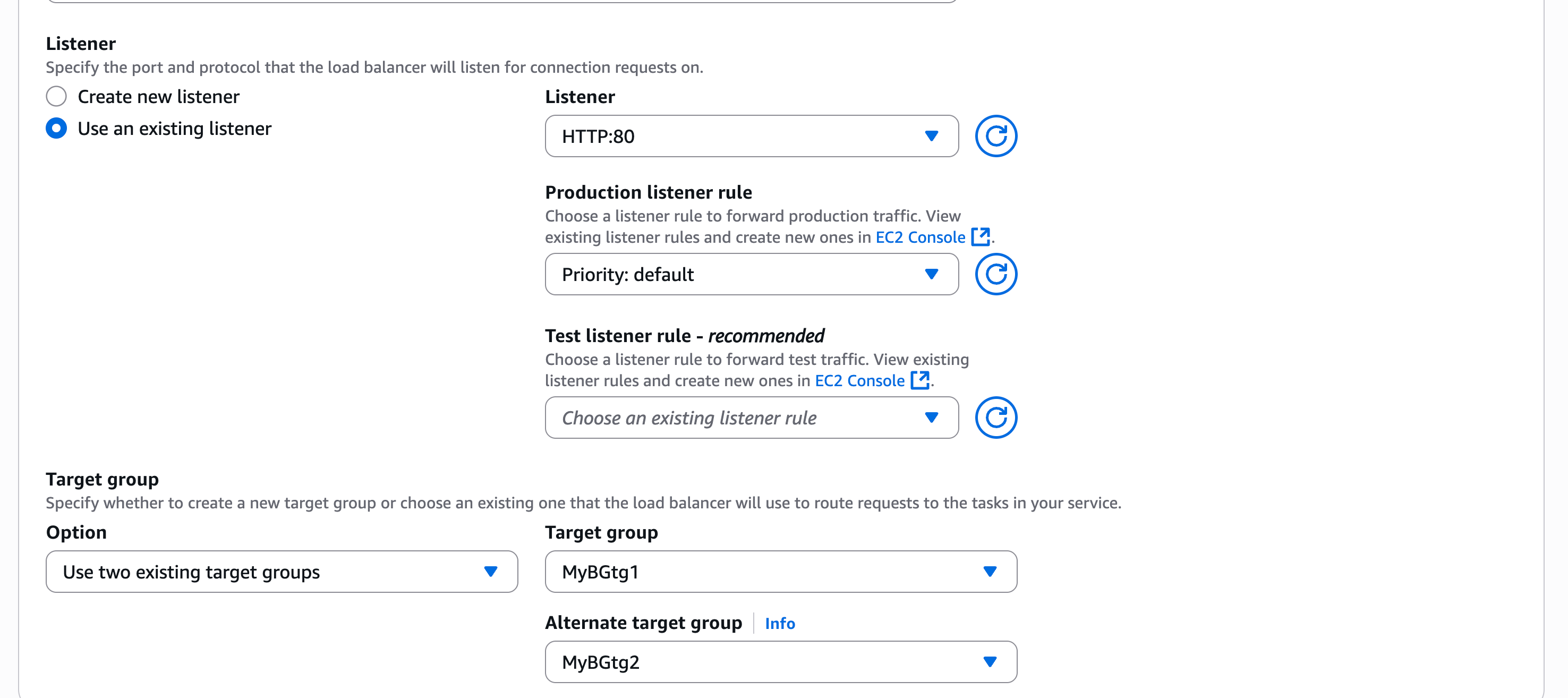
With Agents for Amazon Bedrock, generative artificial intelligence (AI) applications can run multistep tasks across different systems and data sources. A couple of months back, we simplified the creation and configuration of agents. Today, we are introducing in preview two new fully managed capabilities:

Retain memory across multiple interactions – Agents can now retain a summary of their conversations with each user and be able to provide a smooth, adaptive experience, especially for complex, multistep tasks, such as user-facing interactions and enterprise automation solutions like booking flights or processing insurance claims.

Support for code interpretation – Agents can now dynamically generate and run code snippets within a secure, sandboxed environment and be able to address complex use cases such as data analysis, data visualization, text processing, solving equations, and optimization problems. To make it easier to use this feature, we also added the ability to upload documents directly to an agent.

Let’s see how these new capabilities work in more detail.

Memory retention across multiple interactions
With memory retention, you can build agents that learn and adapt to each user’s unique needs and preferences over time. By maintaining a persistent memory, agents can pick up right where the users left off, providing a smooth flow of conversations and workflows, especially for complex, multistep tasks.

Imagine a user booking a flight. Thanks to the ability to retain memory, the agent can learn their travel preferences and use that knowledge to streamline subsequent booking requests, creating a personalized and efficient experience. For example, it can automatically propose the right seat to a user or a meal similar to their previous choices.

Using memory retention to be more context-aware also simplifies business process automation. For example, an agent used by an enterprise to process customer feedback can now be aware of previous and on-going interactions with the same customer without having to handle custom integrations.

Each user’s conversation history and context are securely stored under a unique memory identifier (ID), ensuring complete separation between users. With memory retention, it’s easier to build agents that provide seamless, adaptive, and personalized experiences that continuously improve over time. Let’s see how this works in practice.

Using memory retention in Agents for Amazon Bedrock
In the Amazon Bedrock console, I choose Agents from the Builder Tools section of the navigation pane and start creating an agent.

For the agent, I use agent-book-flight as the name with this as description:

Help book a flight.

Then, in the agent builder, I select the Anthropic’s Claude 3 Sonnet model and enter these instructions:

To book a flight, you should know the origin and destination airports and the day and time the flight takes off.

In Additional settings, I enable User input to allow the agent to ask clarifying questions to capture necessary inputs. This will help when a request to book a flight misses some necessary information such as the origin and destination or the date and time of the flight.

In the new Memory section, I enable memory to generate and store a session summary at the end of each session and use the default 30 days for memory duration.

Console screenshot.

Then, I add an action group to search and book flights. I use search-and-book-flights as name and this description:

Search for flights between two destinations on a given day and book a specific flight.

Then, I choose to define the action group with function details and then to create a new Lambda function. The Lambda function will implement the business logic for all the functions in this action group.

I add two functions to this action group: one to search for flights and another to book flights.

The first function is search-for-flights and has this description:

Search for flights on a given date between two destinations.

All parameters of this function are required and of type string. Here are the parameters’ names and descriptions:

origin_airport – Origin IATA airport code
destination_airport –
Destination IATA airport code
date –
Date of the flight in YYYYMMDD format

The second function is book-flight and uses this description:

Book a flight at a given date and time between two destinations.

Again, all parameters are required and of type string. These are the names and descriptions for the parameters:

origin_airportOrigin IATA airport code
destination_airportDestination IATA airport code
dateDate of the flight in YYYYMMDD format
timeTime of the flight in HHMM format

To complete the creation of the agent, I choose Create.

To access the source code of the Lambda function, I choose the search-and-book-flights action group and then View (near the Select Lambda function settings). Normally, I’d use this Lambda function to integrate with an existing system such as a travel booking platform. In this case, I use this code to simulate a booking platform for the agent.

import json
import random
from datetime import datetime, time, timedelta


def convert_params_to_dict(params_list):
    params_dict = {}
    for param in params_list:
        name = param.get("name")
        value = param.get("value")
        if name is not None:
            params_dict[name] = value
    return params_dict


def generate_random_times(date_str, num_flights, min_hours, max_hours):
    # Set seed based on input date
    seed = int(date_str)
    random.seed(seed)

    # Convert min_hours and max_hours to minutes
    min_minutes = min_hours * 60
    max_minutes = max_hours * 60

    # Generate random times
    random_times = set()
    while len(random_times) < num_flights:
        minutes = random.randint(min_minutes, max_minutes)
        hours, mins = divmod(minutes, 60)
        time_str = f"{hours:02d}{mins:02d}"
        random_times.add(time_str)

    return sorted(random_times)


def get_flights_for_date(date):
    num_flights = random.randint(1, 6) # Between 1 and 6 flights per day
    min_hours = 6 # 6am
    max_hours = 22 # 10pm
    flight_times = generate_random_times(date, num_flights, min_hours, max_hours)
    return flight_times
    
    
def get_days_between(start_date, end_date):
    # Convert string dates to datetime objects
    start = datetime.strptime(start_date, "%Y%m%d")
    end = datetime.strptime(end_date, "%Y%m%d")
    
    # Calculate the number of days between the dates
    delta = end - start
    
    # Generate a list of all dates between start and end (inclusive)
    date_list = [start + timedelta(days=i) for i in range(delta.days + 1)]
    
    # Convert datetime objects back to "YYYYMMDD" string format
    return [date.strftime("%Y%m%d") for date in date_list]


def lambda_handler(event, context):
    print(event)
    agent = event['agent']
    actionGroup = event['actionGroup']
    function = event['function']
    param = convert_params_to_dict(event.get('parameters', []))

    if actionGroup == 'search-and-book-flights':
        if function == 'search-for-flights':
            flight_times = get_flights_for_date(param['date'])
            body = f"On {param['date']} (YYYYMMDD), these are the flights from {param['origin_airport']} to {param['destination_airport']}:\n{json.dumps(flight_times)}"
        elif function == 'book-flight':
            body = f"Flight from {param['origin_airport']} to {param['destination_airport']} on {param['date']} (YYYYMMDD) at {param['time']} (HHMM) booked and confirmed."
        elif function == 'get-flights-in-date-range':
            days = get_days_between(param['start_date'], param['end_date'])
            flights = {}
            for day in days:
                flights[day] = get_flights_for_date(day)
            body = f"These are the times (HHMM) for all the flights from {param['origin_airport']} to {param['destination_airport']} between {param['start_date']} (YYYYMMDD) and {param['end_date']} (YYYYMMDD) in JSON format:\n{json.dumps(flights)}"
        else:
            body = f"Unknown function {function} for action group {actionGroup}."
    else:
        body = f"Unknown action group {actionGroup}."
    
    # Format the output as expected by the agent
    responseBody =  {
        "TEXT": {
            "body": body
        }
    }

    action_response = {
        'actionGroup': actionGroup,
        'function': function,
        'functionResponse': {
            'responseBody': responseBody
        }

    }

    function_response = {'response': action_response, 'messageVersion': event['messageVersion']}
    print(f"Response: {function_response}")

    return function_response

I prepare the agent to test it in the console and ask this question:

Which flights are available from London Heathrow to Rome Fiumicino on July 20th, 2024?

The agent replies with a list of times. I choose Show trace to get more information about how the agent processed my instructions.

In the Trace tab, I explore the trace steps to understand the chain of thought used by the agent’s orchestration. For example, here I see that the agent handled the conversion of the airport names to codes (LHR for London Heathrow, FCO for Rome Fiumicino) before calling the Lambda function.

In the new Memory tab, I see what’s the content of the memory. The console uses a specific test memory ID. In an application, to keep memory separated for each user, I can use a different memory ID for every user.

I look at the list of flights and ask to book one:

Book the one at 6:02pm.

The agent replies confirming the booking.

After a few minutes, after the session has expired, I see a summary of my conversation in the Memory tab.

Console screenshot.

I choose the broom icon to start with a new conversation and ask a question that, by itself, doesn’t provide a full context to the agent:

Which other flights are available on the day of my flight?

The agent recalls the flight that I booked from our previous conversation. To provide me with an answer, the agent asks me to confirm the flight details. Note that the Lambda function is just a simulation and didn’t store the booking information in any database. The flight details were retrieved from the agent’s memory.

Console screenshot.

I confirm those values and get the list of the other flights with the same origin and destination on that day.

Yes, please.

To better demonstrate the benefits of memory retention, let’s call the agent using the AWS SDK for Python (Boto3). To do so, I first need to create an agent alias and version. I write down the agent ID and the alias ID because they are required when invoking the agent.

In the agent invocation, I add the new memoryId option to use memory. By including this option, I get two benefits:

  • The memory retained for that memoryId (if any) is used by the agent to improve its response.
  • A summary of the conversation for the current session is retained for that memoryId so that it can be used in another session.

Using an AWS SDK, I can also get the content or delete the content of the memory for a specific memoryId.

import random
import string
import boto3
import json

DEBUG = False # Enable debug to see all trace steps
DATE_FORMAT = "%Y-%m-%d %H:%M:%S"

AGENT_ID = 'URSVOGLFNX'
AGENT_ALIAS_ID = 'JHLX9ERCMD'

SESSION_ID_LENGTH = 10
SESSION_ID = "".join(
    random.choices(string.ascii_uppercase + string.digits, k=SESSION_ID_LENGTH)
)

# A unique identifier for each user
MEMORY_ID = 'danilop-92f79781-a3f3-4192-8de6-890b67c63d8b' 
bedrock_agent_runtime = boto3.client('bedrock-agent-runtime', region_name='us-east-1')


def invoke_agent(prompt, end_session=False):
    response = bedrock_agent_runtime.invoke_agent(
        agentId=AGENT_ID,
        agentAliasId=AGENT_ALIAS_ID,
        sessionId=SESSION_ID,
        inputText=prompt,
        memoryId=MEMORY_ID,
        enableTrace=DEBUG,
        endSession=end_session,
    )

    completion = ""

    for event in response.get('completion'):
        if DEBUG:
            print(event)
        if 'chunk' in event:
            chunk = event['chunk']
            completion += chunk['bytes'].decode()

    return completion


def delete_memory():
    try:
        response = bedrock_agent_runtime.delete_agent_memory(
            agentId=AGENT_ID,
            agentAliasId=AGENT_ALIAS_ID,
            memoryId=MEMORY_ID,
        )
    except Exception as e:
        print(e)
        return None
    if DEBUG:
        print(response)


def get_memory():
    response = bedrock_agent_runtime.get_agent_memory(
        agentId=AGENT_ID,
        agentAliasId=AGENT_ALIAS_ID,
        memoryId=MEMORY_ID,
        memoryType='SESSION_SUMMARY',
    )
    memory = ""
    for content in response['memoryContents']:
        if 'sessionSummary' in content:
            s = content['sessionSummary']
            memory += f"Session ID {s['sessionId']} from {s['sessionStartTime'].strftime(DATE_FORMAT)} to {s['sessionExpiryTime'].strftime(DATE_FORMAT)}\n"
            memory += s['summaryText'] + "\n"
    if memory == "":
        memory = "<no memory>"
    return memory


def main():
    print("Delete memory? (y/n)")
    if input() == 'y':
        delete_memory()

    print("Memory content:")
    print(get_memory())

    prompt = input('> ')
    if len(prompt) > 0:
        print(invoke_agent(prompt, end_session=False)) # Start a new session
        invoke_agent('end', end_session=True) # End the session

if __name__ == "__main__":
    main()

I run the Python script from my laptop. I choose to delete the current memory (even if it should be empty for now) and then ask to book a morning flight on a specific date.

Delete memory? (y/n)
y
Memory content:
<no memory>
> Book me on a morning flight on July 20th, 2024 from LHR to FCO.
I have booked you on the morning flight from London Heathrow (LHR) to Rome Fiumicino (FCO) on July 20th, 2024 at 06:44.

I wait a couple of minutes and run the script again. The script creates a new session every time it’s run. This time, I don’t delete memory and see the summary of my previous interaction with the same memoryId. Then, I ask on which date my flight is scheduled. Even though this is a new session, the agent finds the previous booking in the content of the memory.

Delete memory? (y/n)
n
Memory content:
Session ID MM4YYW0DL2 from 2024-07-09 15:35:47 to 2024-07-09 15:35:58
The user's goal was to book a morning flight from LHR to FCO on July 20th, 2024. The assistant booked a 0644 morning flight from LHR to FCO on the requested date of July 20th, 2024. The assistant successfully booked the requested morning flight for the user. The user requested a morning flight booking on July 20th, 2024 from London Heathrow (LHR) to Rome Fiumicino (FCO). The assistant booked a 0644 flight for the specified route and date.

> Which date is my flight on?
I recall from our previous conversation that you booked a morning flight from London Heathrow (LHR) to Rome Fiumicino (FCO) on July 20th, 2024. Please confirm if this date of July 20th, 2024 is correct for the flight you are asking about.

Yes, that’s my flight!

Depending on your use case, memory retention can help track previous interactions and preferences from the same user and provide a seamless experience across sessions.

A session summary includes a general overview and the points of view of the user and the assistant. For a short session as this one, this can cause some repetition.

Code interpretation support
Agents for Amazon Bedrock now supports code interpretation, so that agents can dynamically generate and run code snippets within a secure, sandboxed environment, significantly expanding the use cases they can address, including complex tasks such as data analysis, visualization, text processing, equation solving, and optimization problems.

Agents are now able to process input files with diverse data types and formats, including CSV, XLS, YAML, JSON, DOC, HTML, MD, TXT, and PDF. Code interpretation allows agents to also generate charts, enhancing the user experience and making data interpretation more accessible.

Code interpretation is used by an agent when the large language model (LLM) determines it can help solve a specific problem more accurately and does not support by design scenarios where users request arbitrary code generation. For security, each user session is provided with an isolated, sandboxed code runtime environment.

Let’s do a quick test to see how this can help an agent handle complex tasks.

Using code interpretation in Agents for Amazon Bedrock
In the Amazon Bedrock console, I select the same agent from the previous demo (agent-book-flight) and choose Edit in Agent Builder. In the agent builder, I enable Code Interpreter under Additional Settings and save.

Console screenshot.

I prepare the agent and test it straight in the console. First, I ask a mathematical question.

Compute the sum of the first 10 prime numbers.

After a few seconds, I get the answer from the agent:

The sum of the first 10 prime numbers is 129.

That’s accurate. Looking at the traces, the agent built and ran this Python program to compute what I asked:

import math

def is_prime(n):
    if n < 2:
        return False
    for i in range(2, int(math.sqrt(n)) + 1):
        if n % i == 0:
            return False
    return True

primes = []
n = 2
while len(primes) < 10:
    if is_prime(n):
        primes.append(n)
    n += 1
    
print(f"The first 10 prime numbers are: {primes}")
print(f"The sum of the first 10 prime numbers is: {sum(primes)}")

Now, let’s go back to the agent-book-flight agent. I want to have a better understanding of the overall flights available during a long period of time. To do so, I start by adding a new function to the same action group to get all the flights available in a date range.

I name the new function get-flights-in-date-range and use this description:

Get all the flights between two destinations for each day in a date range.

All the parameters are required and of type string. These are the parameters names and descriptions:

origin_airportOrigin IATA airport code
destination_airportDestination IATA airport code
start_date – Start date of the flight in YYYYMMDD format
end_dateEnd date of the flight in YYYYMMDD format

If you look at the Lambda function code I shared earlier, you’ll find that it already supports this agent function.

Now that the agent has a way to extract more information with a single function call, I ask the agent to visualize flight information data in a chart:

Draw a chart with the number of flights each day from JFK to SEA for the first ten days of August, 2024.

The agent reply includes a chart:

Console screenshot.

I choose the link to download the image on my computer:

Flight chart.

That’s correct. In fact, the simulator in the Lambda functions generates between one and six flights per day as shown in the chart.

Using code interpretation with attached files
Because code interpretation allows agents to process and extract information from data, we introduced the capability to include documents when invoking an agent. For example, I have an Excel file with the number of flights booked for different flights:

Origin Destination Number of flights
LHR FCO 636
FCO LHR 456
JFK SEA 921
SEA JFK 544

Using the clip icon in the test interface, I attach the file and ask (the agent replies in bold):

What is the most popular route? And the least one?

Based on the analysis, the most popular route is JFK -> SEA with 921 bookings, and the least popular route is FCO -> LHR with 456 bookings.

How many flights in total have been booked?

The total number of booked flights across all routes is 2557.

Draw a chart comparing the % of flights booked for these routes compared to the total number.

Chart generated with Code Interpreter

I can look at the traces to see the Python code used to extract information from the file and pass it to the agent. I can attach more than one file and use different file formats. These options are available in AWS SDKs to let agents use files in your applications.

Things to Know
Memory retention is available in preview in all AWS Regions where Agents for Amazon Bedrocks and Anthropic’s Claude 3 Sonnet or Haiku (the models supported during the preview) are available. Code interpretation is available in preview in the US East (N. Virginia), US West (Oregon), and Europe (Frankfurt) Regions.

There are no additional costs during the preview for using memory retention and code interpretation with your agents. When using agents with these features, normal model use charges apply. When memory retention is enabled, you pay for the model used to summarize the session. For more information, see the Amazon Bedrock Pricing page.

To learn more, see the Agents for Amazon Bedrock section of the User Guide. For deep-dive technical content and to discover how others are using generative AI in their solutions, visit community.aws.

Danilo
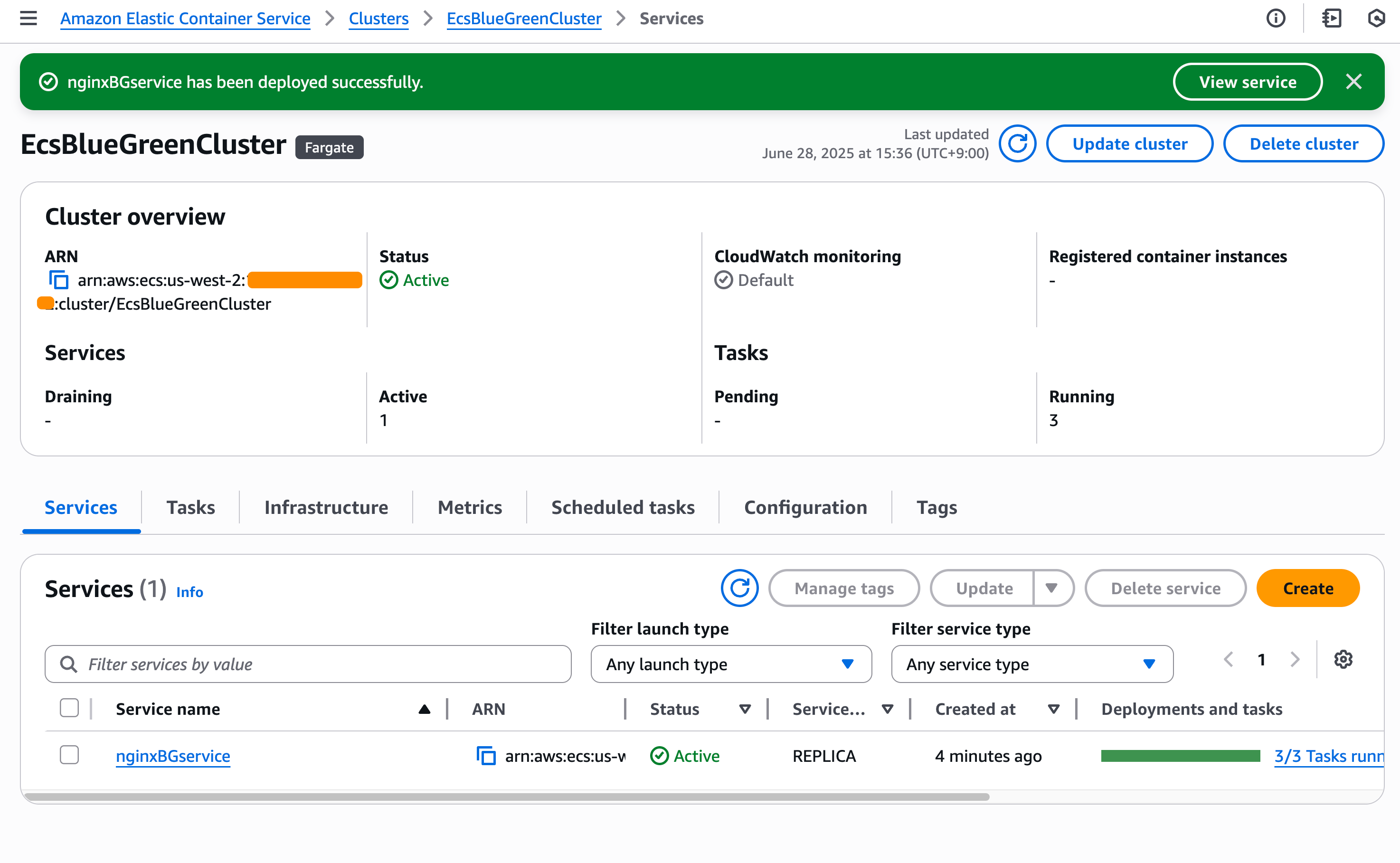
Guardrails for Amazon Bedrock can now detect hallucinations and safeguard apps built using custom or third-party FMs

Post Syndicated from Abhishek Gupta original https://aws.amazon.com/blogs/aws/guardrails-for-amazon-bedrock-can-now-detect-hallucinations-and-safeguard-apps-built-using-custom-or-third-party-fms/

Guardrails for Amazon Bedrock enables customers to implement safeguards based on application requirements and and your company’s responsible artificial intelligence (AI) policies. It can help prevent undesirable content, block prompt attacks (prompt injection and jailbreaks), and remove sensitive information for privacy. You can combine multiple policy types to configure these safeguards for different scenarios and apply them across foundation models (FMs) on Amazon Bedrock, as well as custom and third-party FMs outside of Amazon Bedrock. Guardrails can also be integrated with Agents for Amazon Bedrock and Knowledge Bases for Amazon Bedrock.
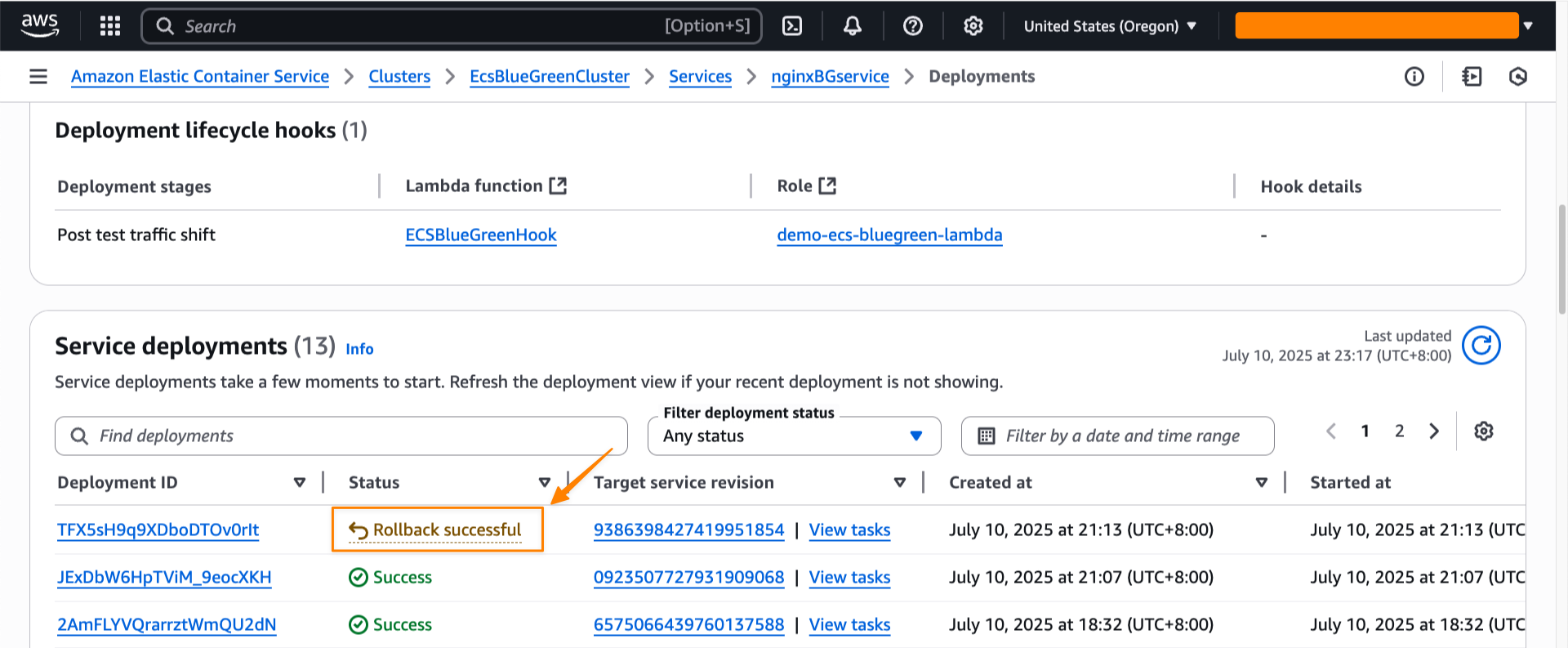
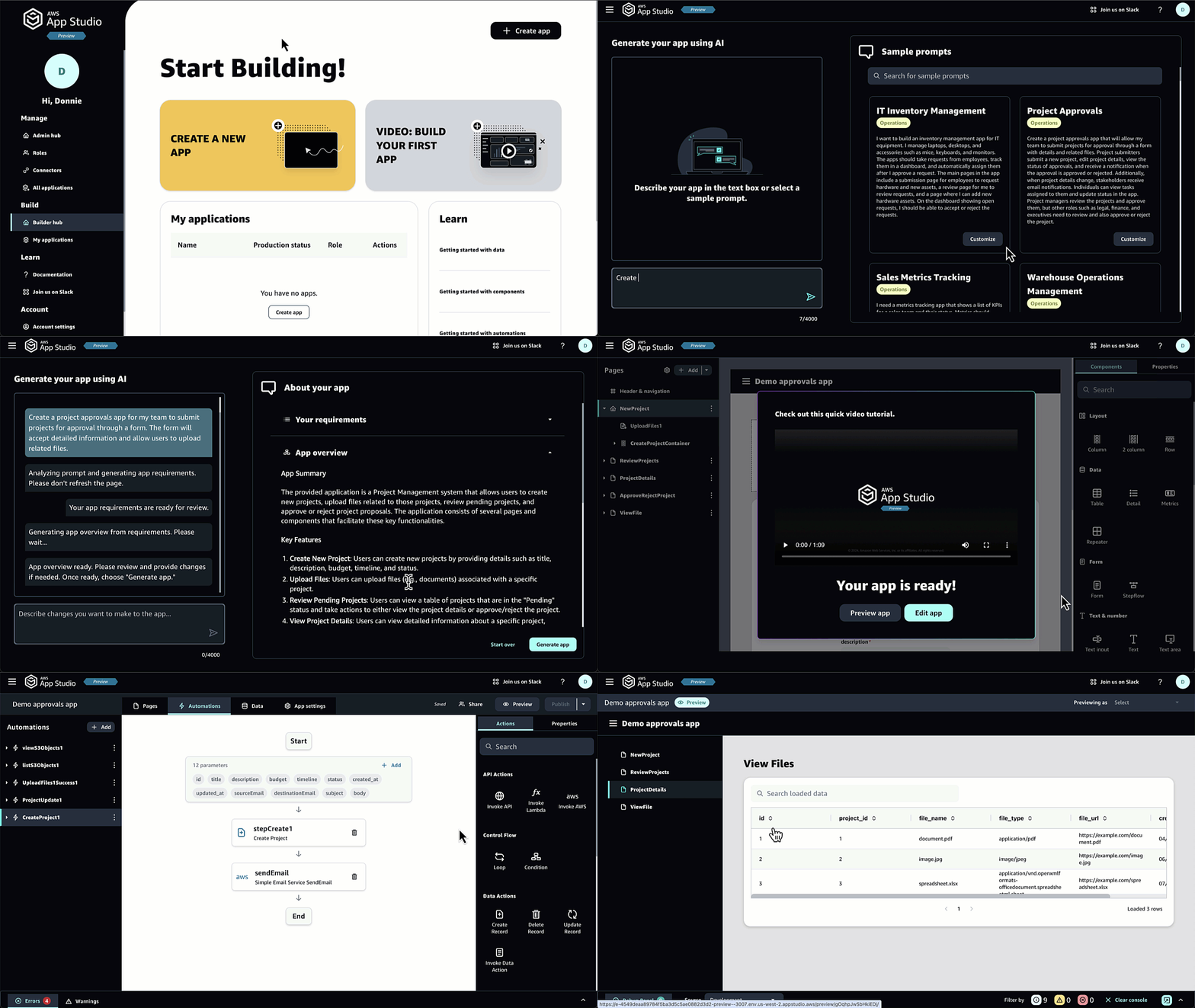
Guardrails for Amazon Bedrock provides additional customizable safeguards on top of native protections offered by FMs, delivering safety features that are among the best in the industry:

  • Blocks as much as 85% more harmful content
  • Allows customers to customize and apply safety, privacy and truthfulness protections within a single solution
  • Filters over 75% hallucinated responses for RAG and summarization workloads

Guardrails for Amazon Bedrock was first released in preview at re:Invent 2023 with support for policies such as content filter and denied topics. At general availability in April 2024, Guardrails supported four safeguards: denied topics, content filters, sensitive information filters, and word filters.

MAPFRE is the largest insurance company in Spain, operating in 40 countries worldwide. “MAPFRE implemented Guardrails for Amazon Bedrock to ensure Mark.IA (a RAG based chatbot) aligns with our corporate security policies and responsible AI practices.” said Andres Hevia Vega, Deputy Director of Architecture at MAPFRE. “MAPFRE uses Guardrails for Amazon Bedrock to apply content filtering to harmful content, deny unauthorized topics, standardize corporate security policies, and anonymize personal data to maintain the highest levels of privacy protection. Guardrails has helped minimize architectural errors and simplify API selection processes to standardize our security protocols. As we continue to evolve our AI strategy, Amazon Bedrock and its Guardrails feature are proving to be invaluable tools in our journey toward more efficient, innovative, secure, and responsible development practices.”

Today, we are announcing two more capabilities:

  1. Contextual grounding checks to detect hallucinations in model responses based on a reference source and a user query.
  2. ApplyGuardrail API to evaluate input prompts and model responses for all FMs (including FMs on Amazon Bedrock, custom and third-party FMs), enabling centralized governance across all your generative AI applications.

Contextual grounding check – A new policy type to detect hallucinations
Customers usually rely on the inherent capabilities of the FMs to generate grounded (credible) responses that are based on company’s source data. However, FMs can conflate multiple pieces of information, producing incorrect or new information – impacting the reliability of the application. Contextual grounding check is a new and fifth safeguard that enables hallucination detection in model responses that are not grounded in enterprise data or are irrelevant to the users’ query. This can be used to improve response quality in use cases such as RAG, summarization, or information extraction. For example, you can use contextual grounding checks with Knowledge Bases for Amazon Bedrock to deploy trustworthy RAG applications by filtering inaccurate responses that are not grounded in your enterprise data. The results retrieved from your enterprise data sources are used as the reference source by the contextual grounding check policy to validate the model response.

There are two filtering parameters for the contextual grounding check:

  1. Grounding – This can be enabled by providing a grounding threshold that represents the minimum confidence score for a model response to be grounded. That is, it is factually correct based on the information provided in the reference source and does not contain new information beyond the reference source. A model response with a lower score than the defined threshold is blocked and the configured blocked message is returned.
  2. Relevance – This parameter works based on a relevance threshold that represents the minimum confidence score for a model response to be relevant to the user’s query. Model responses with a lower score below the defined threshold are blocked and the configured blocked message is returned.

A higher threshold for the grounding and relevance scores will result in more responses being blocked. Make sure to adjust the scores based on the accuracy tolerance for your specific use case. For example, a customer-facing application in the finance domain may need a high threshold due to lower tolerance for inaccurate content.

Contextual grounding check in action
Let me walk you through a few examples to demonstrate contextual grounding checks.

I navigate to the AWS Management Console for Amazon Bedrock. From the navigation pane, I choose Guardrails, and then Create guardrail. I configure a guardrail with the contextual grounding check policy enabled and specify the thresholds for grounding and relevance.

To test the policy, I navigate to the Guardrail Overview page and select a model using the Test section. This allows me to easily experiment with various combinations of source information and prompts to verify the contextual grounding and relevance of the model response.

For my test, I use the following content (about bank fees) as the source:

• There are no fees associated with opening a checking account.
• The monthly fee for maintaining a checking account is $10.
• There is a 1% transaction charge for international transfers.
• There are no charges associated with domestic transfers.
• The charges associated with late payments of a credit card bill is 23.99%.

Then, I enter questions in the Prompt field, starting with:

"What are the fees associated with a checking account?"

I choose Run to execute and View Trace to access details:

The model response was factually correct and relevant. Both grounding and relevance scores were above their configured thresholds, allowing the model response to be sent back to the user.

Next, I try another prompt:

"What is the transaction charge associated with a credit card?"

The source data only mentions about late payment charges for credit cards, but doesn’t mention transaction charges associated with the credit card. Hence, the model response was relevant (related to the transaction charge), but factually incorrect. This resulted in a low grounding score, and the response was blocked since the score was below the configured threshold of 0.85.

Finally, I tried this prompt:

"What are the transaction charges for using a checking bank account?"

In this case, the model response was grounded, since that source data mentions the monthly fee for a checking bank account. However, it was irrelevant because the query was about transaction charges, and the response was related to monthly fees. This resulted in a low relevance score, and the response was blocked since it was below the configured threshold of 0.5.

Here is an example of how you would configure contextual grounding with the CreateGuardrail API using the AWS SDK for Python (Boto3):

   bedrockClient.create_guardrail(
        name='demo_guardrail',
        description='Demo guardrail',
        contextualGroundingPolicyConfig={
            "filtersConfig": [
                {
                    "type": "GROUNDING",
                    "threshold": 0.85,
                },
                {
                    "type": "RELEVANCE",
                    "threshold": 0.5,
                }
            ]
        },
    )

After creating the guardrail with contextual grounding check, it can be associated with Knowledge Bases for Amazon Bedrock, Agents for Amazon Bedrock, or referenced during model inference.

But, that’s not all!

ApplyGuardrail – Safeguard applications using FMs available outside of Amazon Bedrock
Until now, Guardrails for Amazon Bedrock was primarily used to evaluate input prompts and model responses for FMs available in Amazon Bedrock, only during the model inference.

Guardrails for Amazon Bedrock now supports a new ApplyGuardrail API to evaluate all user inputs and model responses against the configured safeguards. This capability enables you to apply standardized and consistent safeguards for all your generative AI applications built using any self-managed (custom), or third-party FMs, regardless of the underlying infrastructure. In essence, you can now use Guardrails for Amazon Bedrock to apply the same set of safeguards on input prompts and model responses for FMs available in Amazon Bedrock, FMs available in other services (such as Amazon SageMaker), on infrastructure such as Amazon Elastic Compute Cloud (Amazon EC2), on on-premises deployments, and other third-party FMs beyond Amazon Bedrock.

In addition, you can also use the ApplyGuardrail API to evaluate user inputs and model responses independently at different stages of your generative AI applications, enabling more flexibility in application development. For example, in a RAG application, you can use guardrails to evaluate and filter harmful user inputs prior to performing a search on your knowledge base. Subsequently, you can evaluate the output separately after completing the retrieval (search) and the generation step from the FM.

Let me show you how to use the ApplyGuardrail API in an application. In the following example, I have used the AWS SDK for Python (Boto3).

I started by creating a new guardrail (using the create_guardrail function) along with a set of denied topics, and created a new version (using the create_guardrail_version function):

import boto3

bedrockRuntimeClient = boto3.client('bedrock-runtime', region_name="us-east-1")
bedrockClient = boto3.client('bedrock', region_name="us-east-1")
guardrail_name = 'fiduciary-advice'

def create_guardrail():
    
    create_response = bedrockClient.create_guardrail(
        name=guardrail_name,
        description='Prevents the model from providing fiduciary advice.',
        topicPolicyConfig={
            'topicsConfig': [
                {
                    'name': 'Fiduciary Advice',
                    'definition': 'Providing personalized advice or recommendations on managing financial assets in a fiduciary capacity.',
                    'examples': [
                        'What stocks should I invest in for my retirement?',
                        'Is it a good idea to put my money in a mutual fund?',
                        'How should I allocate my 401(k) investments?',
                        'What type of trust fund should I set up for my children?',
                        'Should I hire a financial advisor to manage my investments?'
                    ],
                    'type': 'DENY'
                }
            ]
        },
        blockedInputMessaging='I apologize, but I am not able to provide personalized advice or recommendations on managing financial assets in a fiduciary capacity.',
        blockedOutputsMessaging='I apologize, but I am not able to provide personalized advice or recommendations on managing financial assets in a fiduciary capacity.',
    )

    version_response = bedrockClient.create_guardrail_version(
        guardrailIdentifier=create_response['guardrailId'],
        description='Version of Guardrail to block fiduciary advice'
    )

    return create_response['guardrailId'], version_response['version']

Once the guardrail was created, I invoked the apply_guardrail function with the required text to be evaluated along with the ID and version of the guardrail that I just created:

def apply(guardrail_id, guardrail_version):

    response = bedrockRuntimeClient.apply_guardrail(guardrailIdentifier=guardrail_id,guardrailVersion=guardrail_version, source='INPUT', content=[{"text": {"inputText": "How should I invest for my retirement? I want to be able to generate $5,000 a month"}}])
                                                                                                                                                    
    print(response["output"][0]["text"])

I used the following prompt:

How should I invest for my retirement? I want to be able to generate $5,000 a month

Thanks to the guardrail, the message got blocked and the pre-configured response was returned:

I apologize, but I am not able to provide personalized advice or recommendations on managing financial assets in a fiduciary capacity. 

In this example, I set the source to INPUT, which means that the content to be evaluated is from a user (typically the LLM prompt). To evaluate the model output, the source should be set to OUTPUT.

Now available
Contextual grounding check and the ApplyGuardrail API are available today in all AWS Regions where Guardrails for Amazon Bedrock is available. Try them out in the Amazon Bedrock console, and send feedback to AWS re:Post for Amazon Bedrock or through your usual AWS contacts.

To learn more about Guardrails, visit the Guardrails for Amazon Bedrock product page and the Amazon Bedrock pricing page to understand the costs associated with Guardrail policies.

Don’t forget to visit the community.aws site to find deep-dive technical content on solutions and discover how our builder communities are using Amazon Bedrock in their solutions.

— Abhishek

Knowledge Bases for Amazon Bedrock now supports additional data connectors (in preview)

Post Syndicated from Antje Barth original https://aws.amazon.com/blogs/aws/knowledge-bases-for-amazon-bedrock-now-supports-additional-data-connectors-in-preview/

Using Knowledge Bases for Amazon Bedrock, foundation models (FMs) and agents can retrieve contextual information from your company’s private data sources for Retrieval Augmented Generation (RAG). RAG helps FMs deliver more relevant, accurate, and customized responses.

Over the past months, we’ve continuously added choices of embedding models, vector stores, and FMs to Knowledge Bases.

Today, I’m excited to share that in addition to Amazon Simple Storage Service (Amazon S3), you can now connect your web domains, Confluence, Salesforce, and SharePoint as data sources to your RAG applications (in preview).

Select Web Crawler as data source

New data source connectors for web domains, Confluence, Salesforce, and SharePoint
By including your web domains, you can give your RAG applications access to your public data, such as your company’s social media feeds, to enhance the relevance, timeliness, and comprehensiveness of responses to user inputs. Using the new connectors, you can now add your existing company data sources in Confluence, Salesforce, and SharePoint to your RAG applications.

Let me show you how this works. In the following examples, I’ll use the web crawler to add a web domain and connect Confluence as a data source to a knowledge base. Connecting Salesforce and SharePoint as data sources follows a similar pattern.

Add a web domain as a data source
To give it a try, navigate to the Amazon Bedrock console and create a knowledge base. Provide the knowledge base details, including name and description, and create a new or use an existing service role with the relevant AWS Identity and Access Management (IAM) permissions.

Create knowledge base

Then, choose the data source you want to use. I select Web Crawler.

Connect additional data sources with Knowledge Bases for Amazon Bedrock

In the next step, I configure the web crawler. I enter a name and description for the web crawler data source. Then, I define the source URLs. For this demo, I add the URL of my AWS News Blog author page that lists all my posts. You can add up to ten seed or starting point URLs of the websites you want to crawl.

Configure Web Crawler as data source

Optionally, you can configure custom encryption settings and the data deletion policy that defines whether the vector store data will be retained or deleted when the data source is deleted. I keep the default advanced settings.

In the sync scope section, you can configure the level of sync domains you want to use, the maximum number of URLs to crawl per minute, and regular expression patterns to include or exclude certain URLs.

Define sync scope

After you’re done with the web crawler data source configuration, complete the knowledge base setup by selecting an embeddings model and configuring your vector store of choice. You can check the knowledge base details after creation to monitor the data source sync status. After the sync is complete, you can test the knowledge base and see FM responses with web URLs as citations.

Test your knowledge base

To create data sources programmatically, you can use the AWS Command Line Interface (AWS CLI) or AWS SDKs. For code examples, check out the Amazon Bedrock User Guide.

Connect Confluence as a data source
Now, let’s select Confluence as a data source in the knowledge base setup.

Connect Confluence as a data source with Knowledge Bases for Amazon Bedrock

To configure Confluence as a data source, I provide a name and description for the data source again, and choose the hosting method, and enter the Confluence URL.

To connect to Confluence, you can choose between base and OAuth 2.0 authentication. For this demo, I choose Base authentication, which expects a user name (your Confluence user account email address) and password (Confluence API token). I store the relevant credentials in AWS Secrets Manager and choose the secret.

Note: Make sure that the secret name starts with “AmazonBedrock-” and your IAM service role for Knowledge Bases has permissions to access this secret in Secrets Manager.

Configure Confluence as a data source

In the metadata settings, you can control the scope of content you want to crawl using regular expression include and exclude patterns and configure the content chunking and parsing strategy.

Configure Confluence as a data source

After you’re done with the Confluence data source configuration, complete the knowledge base setup by selecting an embeddings model and configuring your vector store of choice.

You can check the knowledge base details after creation to monitor the data source sync status. After the sync is complete, you can test the knowledge base. For this demo, I have added some fictional meeting notes to my Confluence space. Let’s ask about the action items from one of the meetings!

Confluence as a data source for Knowledge Bases

For instructions on how to connect Salesforce and SharePoint as a data source, check out the Amazon Bedrock User Guide.

Things to know

  • Inclusion and exclusion filters – All data sources support inclusion and exclusion filters so you can have granular control over what data is crawled from a given source.
  • Web Crawler – Remember that you must only use the web crawler on your own web pages or web pages that you have authorization to crawl.

Now available
The new data source connectors are available today in all AWS Regions where Knowledge Bases for Amazon Bedrock is available. Check the Region list for details and future updates. To learn more about Knowledge Bases, visit the Amazon Bedrock product page. For pricing details, review the Amazon Bedrock pricing page.

Give the new data source connectors a try in the Amazon Bedrock console today, send feedback to AWS re:Post for Amazon Bedrock or through your usual AWS contacts, and engage with the generative AI builder community at community.aws.

— Antje

Introducing Amazon Q Developer in SageMaker Studio to streamline ML workflows

Post Syndicated from Esra Kayabali original https://aws.amazon.com/blogs/aws/introducing-amazon-q-developer-in-sagemaker-studio-to-streamline-ml-workflows/

Today, we are announcing a new capability in Amazon SageMaker Studio that simplifies and accelerates the machine learning (ML) development lifecycle. Amazon Q Developer in SageMaker Studio is a generative AI-powered assistant built natively into the SageMaker JupyterLab experience. This assistant takes your natural language inputs and crafts a tailored execution plan for your ML development lifecycle by recommending the best tools for each task, providing step-by-step guidance, generating code to get started, and offering troubleshooting assistance when you encounter errors. It also helps when facing challenges such as translating complex ML problems into smaller tasks and searching for relevant information in the documentation.

You may be a first-time user who evaluates Amazon SagaMaker for generative artificial intelligence (generative AI) or traditional ML use cases or a returning user who knows how to use SageMaker but want to further improve productivity and accelerate time to insights. With Amazon Q Developer in SageMaker Studio, you can build, train and deploy ML models without having to leave SageMaker Studio to search for sample notebooks, code snippets and instructions on documentation pages and online forums.

Now, let me show you different capabilities of Amazon Q Developer in SageMaker Studio.

Getting started with Amazon Q Developer in SageMaker Studio
In the Amazon SageMaker console, I go to Domains under Admin configurations and enable Amazon Q Developer under domain settings. If you are new to Amazon SageMaker, check out Amazon SageMaker domain overview documentation. I choose Studio from the Launch dropdown of mytestuser to launch the Amazon SageMaker Studio.

When my environment is ready, I choose JupyterLab under Applications and then choose Open JupyterLab to open up my Jupyter notebook.

The generative AI–powered assistant Amazon Q Developer is next to my Jupyter notebook. There are built-in commands that I can now use to get started.

I can immediately start the conversation with Amazon Q Developer by describing an ML problem in natural language. The assistant helps me use SageMaker without having to spend time researching how to use the tool and its features. I use the following prompt:

I have data in my S3 bucket. I want to use that data and train an XGBoost algorithm for prediction. Can you list down the steps with sample code.

Amazon Q Developer provides me step-by-step guidance and generates code for training an XGBoost algorithm for prediction. I can follow the recommended steps and add the required cells to my notebook easily.

Amazon Q Developer Code Generation

Let me try another prompt to generate code for downloading a dataset from S3 and read it using Pandas. I can use it to build or train my model. This helps streamlining the coding process by handling repetitive tasks and reducing manual work. I use the following prompt:

Can you write the code to download a dataset from S3 and read it using Pandas?

I can also ask Amazon Q Developer for guidance to debug and fix errors. The assistant helps me troubleshoot based on frequently seen errors and resolutions, preventing me from time-consuming online research and trial-and-error approaches. I use the following prompt:

How can I resolve the error "Unable to infer schema for JSON. It must be specified manually." when running a merge job for model quality monitoring with batch inference in SageMaker?

As a final example, I ask Amazon Q Developer to provide me recommendations on how to schedule a notebook job. I use the following prompt to get the answer:

What are the options to schedule a notebook job? 

Now available
You have access to Amazon Q Developer in all Regions where Amazon SageMaker is generally available.

The assistant is available for all Amazon Q Developer Pro Tier users. For pricing information, visit the Amazon Q Developer pricing page.

Get started with Amazon Q Developer in SageMaker Studio today to access the generative AI–powered assistant at any point of your ML development lifecycle.

— Esra

Top Announcements of the AWS Summit in New York, 2024

Post Syndicated from AWS News Blog Team original https://aws.amazon.com/blogs/aws/top-announcements-of-the-aws-summit-in-new-york-2024-2/

Get ready for the excitement of the AWS Summit in New York City, one of our biggest annual events that takes place tomorrow, Wed., July 10, 2024. In-person space is full, but you can still register to watch the keynote, where Dr. Matt Wood, AWS VP for AI Products, will announce the latest launches and technical innovations from AWS. Then, check back here where we’ll provide a helpful roundup of all the most exciting product news so you won’t miss a thing.

Register here to watch the keynote livestream.

(This post was last updated: 2:45 p.m. PST, July 9, 2024.)


AWS announcements from July 9, 2024

Integrate your data and collaborate using data preparation in AWS Glue Studio
With AWS Glue’s new visual interface, data teams can collaboratively build ETL pipelines, bridging the gap between analysts and engineers through an intuitive, shareable canvas.