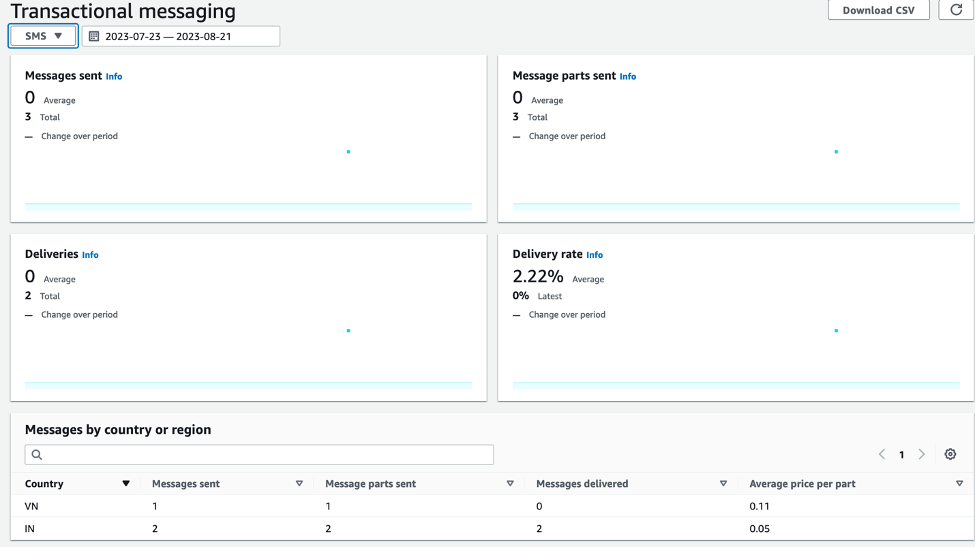
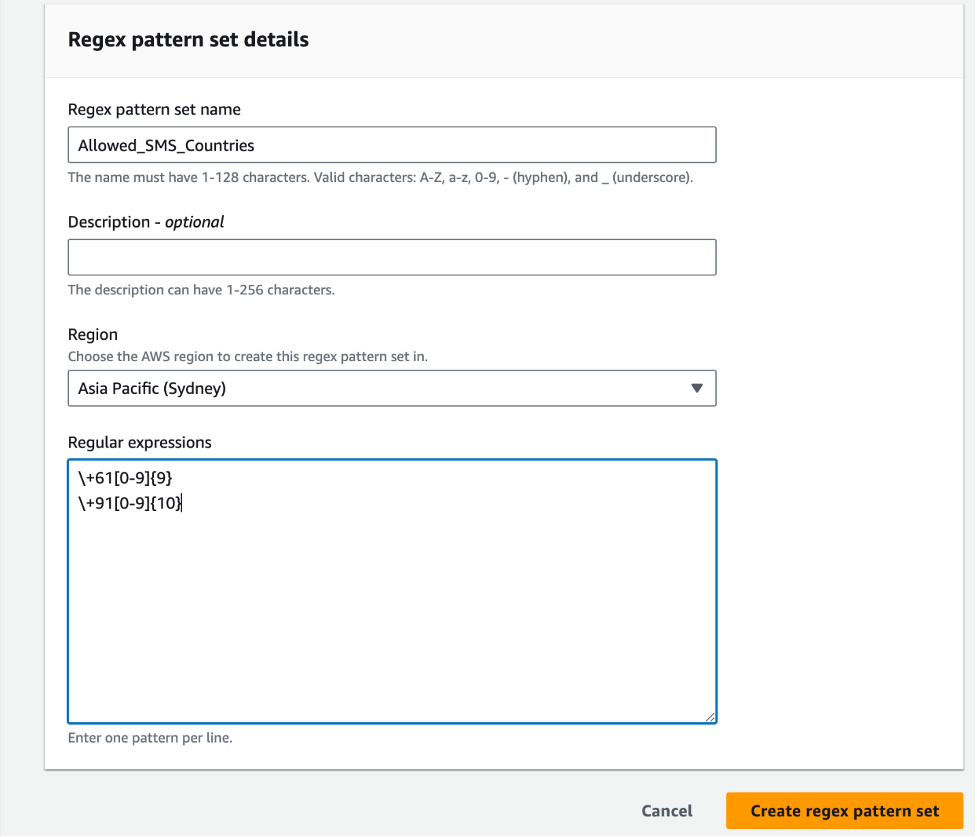
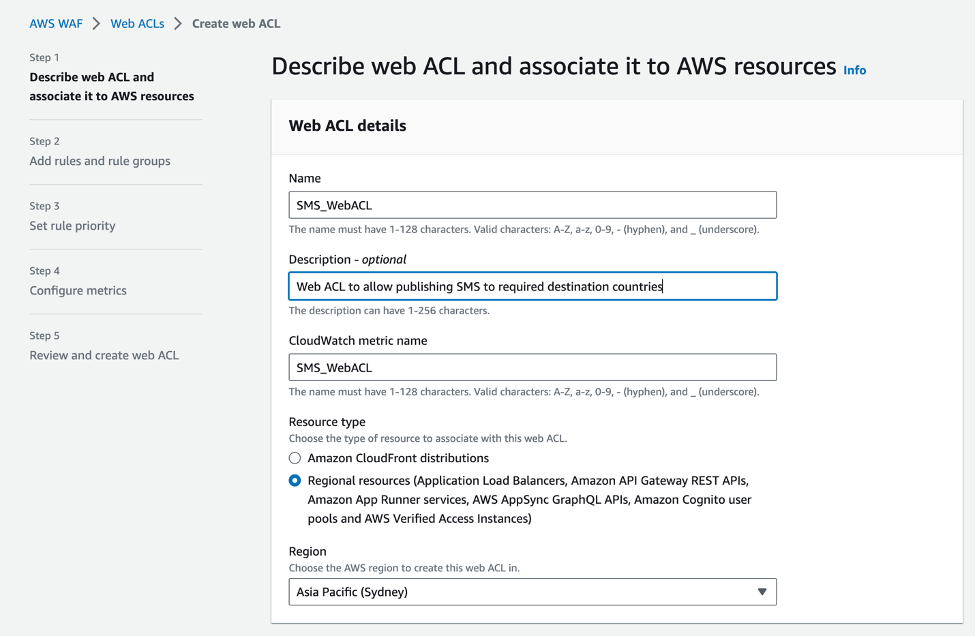
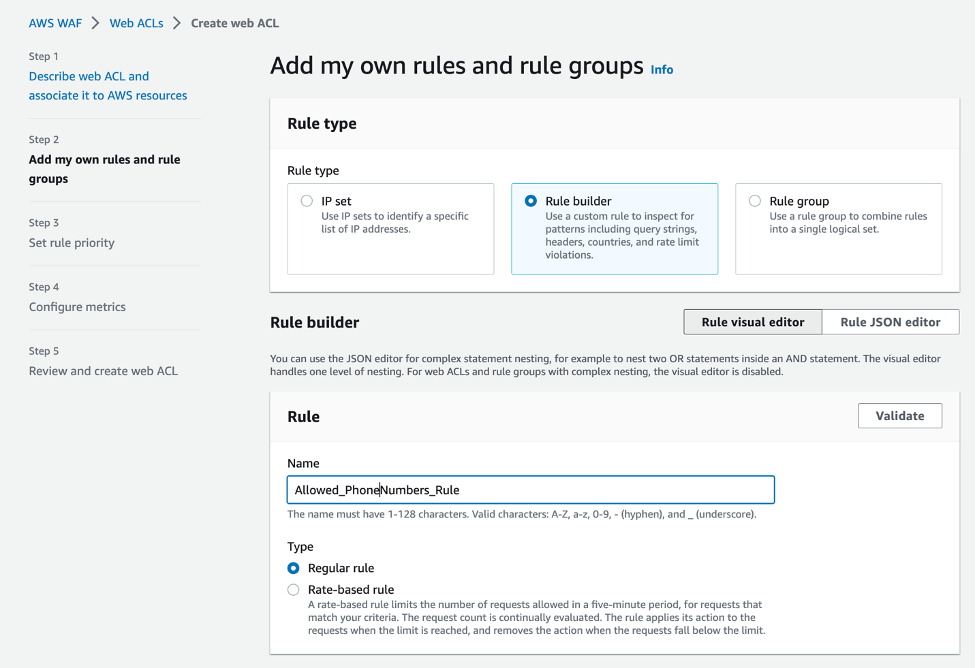
Tag Archives: AWS

How to send messages to multiple recipients with Amazon Simple Email Service (SES)

Post Syndicated from Joydeep Dutta original https://aws.amazon.com/blogs/messaging-and-targeting/how-to-send-messages-to-multiple-recipients-with-amazon-simple-email-service-ses/

Introduction

Customers frequently ask what is the best way to send messages to multiple recipients using Amazon Simple Email Service (SES) with the best deliverability and without exceeding the maximum recipient’s per message limit. In this blog, we will show you how to determine the best approach for sending a message to multiple recipients based on different use-cases. We will also discuss why in most situations sending messages to a single recipient at a time is the best approach.

Difference between message Header addresses and Envelope addresses

Before we dive into the use cases, let’s discuss how message addressing works in SES. When a client makes a request, SES constructs an email message compliant with the RFC 5322 Internet Message Format specification . An email comprises of a header, a body, and an RFC 5321 envelope, as described in the Email format in Amazon SES document.

The email addresses in the RFC 5322 To, Cc and Bcc headers are for display. These headers enable your email client interface to display to whom the message was addressed. These addresses do not control which recipients receive the messages; the envelope addresses do. The sending mail client provides the envelope recipient addresses to a mail server using the RFC 5321 RCPT TO commands. RCPT is an abbreviation for recipient.

An apt analogy (see diagram below) is how a physical letter within an envelope can address a person whose address is not the envelope. The address on the envelope is what the mail carrier to deliver the envelope. The postal worker should not need to open the envelope to know which address to deliver the mail.

Analogy to show physical mail compares to electronic mail

As an example, a school district may send letters informing residents of enrollment details for their children, but they do not know all of the names of the people who live at each address. The envelope may only list the address, and the letter may just be addressed “To Resident” if the school district doesn’t have a name to address the letter. The message is delivered to the resident’s address regardless of the accuracy of the information on the letter.

To simplify, let’s summarize the differences between To & Cc header and envelope addresses:

Header To & Cc Addresses Envelope Addresses (RCPT)
Used by email clients to display the list of recipients Used by mail servers to deliver the email message
Not used for mail delivery Used for mail delivery
Displayed to recipients Not displayed to recipients

The Bcc address is different than the To and Cc headers because it is used to send a copy of the message to an additional set of recipients that are “blind” to the other recipients. Bcc addresses are only defined by envelope addresses, not as a header address. Mail servers will commonly remove a Bcc header when handling a message, but delivery to the envelope recipient address still occurs.

When to use multiple recipients in a Destination

SES supports sending messages to multiple recipients in a single SendEmail operation. The Destination argument of the SendEmail operation represents the destination of the message. A Destination consists of To, Cc, and Bcc fields which represent both the header addresses and the envelope addresses.

When multiple recipients are defined in the Destination argument to the SendEmail operation, the defining characteristic is that every recipient receives the exact same message with the same message-id. A message-id is used for event handling (bounces, complaints, etc) among other purposes. A message-id pertains to exactly one version of a particular message.

Did you know: The use cases for recipients having a message with the same message-id are limited to situations in which the recipients are expected to interact with the message as a group. For example, recipients may reply-all to the email and have a resulting email conversation. The original message-id is used by email client applications to display a “conversation” view using the References and In-Reply-To headers. This behavior may be a good fit if the use case is a mailing list or internal announcement to employees within a company.

The recipient limit in the Destination argument is 50 because that is a reasonable break-point when the “conversational” use case runs the risk of the “reply all storm“ described in the next section. Consider using a robust mailing list solution or hosted service with capabilities similar to GNU Mailman to facilitate large group email conversations.

Why bulk mail recipients should not see other recipients

For bulk sending purposes, and most transactional sending, the recipients don’t need to know that other recipients also received the message:

  • The recipients likely gain no value from seeing the other recipient addresses, as they may be arbitrarily segmented into batches of 50 or less, and most email client interfaces have trouble displaying more than 50 addresses.
  • There is a risk of a “reply-all storm“, which is when a recipient replies to all of the To and Cc addresses from the original message, and then those people reply back asking everyone to stop replying. This scenario is fun to talk about around the water cooler, but should be avoided.
  • If recipients are defined as Bcc recipients in the Destinations argument of the SendEmail operation, it would not contain a To address, and that can look suspicious when read by the recipients.

Note: There is no authentication mechanism protecting the To or Cc headers from spoofing, so be careful about assuming any trust placed into the values of those headers. This means that it is possible for an attacker to spoof the To or Cc headers in an email message. Therefor the only meaningful address to include in the To header is the recipient’s own address, which they know isn’t spoofed because of the fact that they are reading the message.

For bulk mail it is best practice to have each recipient see only their own name and email address in the To header of the messages they receive. This makes the messages look more personable and can improve deliverability and recipient engagement.

This approach can be achieved by sending the message to each recipient individually via the SendEmail operation. You would use a single address in the “ToAddressses” field of the “Destination” argument.

Use the ToAddress field to individual message in the SendEmail API

How email event notifications are associated with recipients

If you need email event notifications to be associated to each recipient, then you will need each recipient to receive a message with a unique message-id; one recipient per Destination.

The following event types will be associated with every recipient in the Destination:

  • asynchronous bounces
  • complaints
  • opens
  • clicks

Learn more about Amazon SES events in the documentation: how email sending works in Amazon SES

For example, if one of the recipients triggers a open engagement event, and if that recipient was in a group of 50 recipients within the Destination argument to the SendEmail operation, then all 50 of those recipients will be registered as having opened the message.

Other considerations:

  • If the recipients are defined by ToAddresses and CcAddresses they will all appear in the message headers, but the To and Cc headers will be truncated in the event notifications if the headers are over 10 KB. Multi-recipient Destinations may cause you to lose observability needed to troubleshoot deliverability issues.
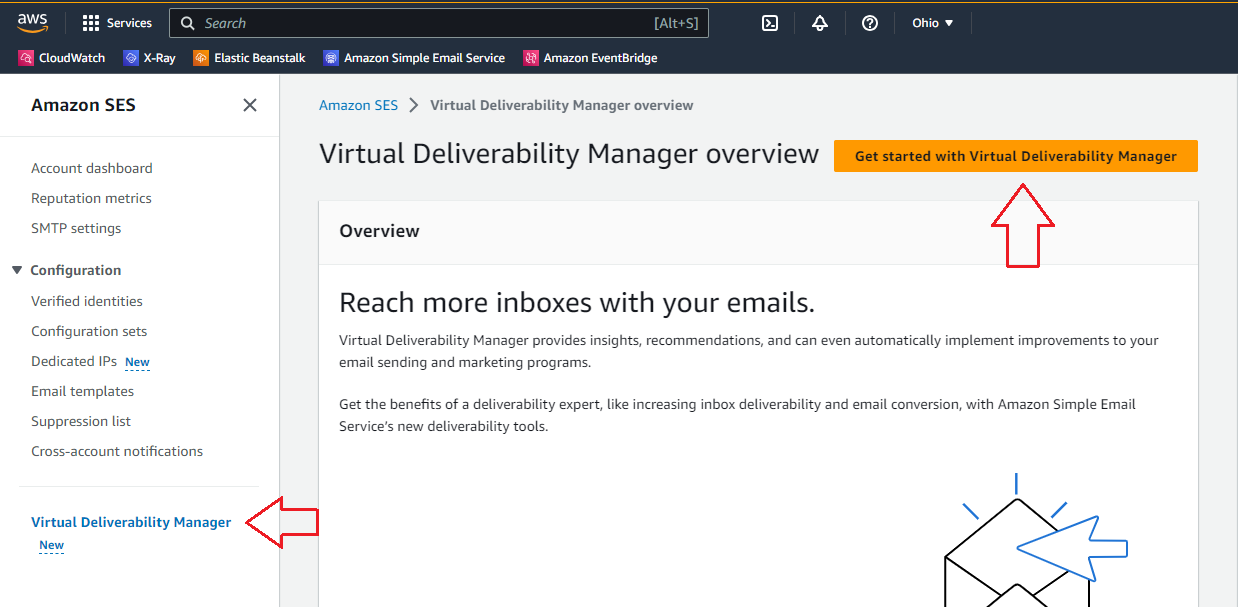
  • SES Virtual Deliverability Manager only tracks metrics from emails that have one recipient. Multi-recipient Destinations are not counted in any of the Virtual Deliverability Manager dashboard metrics.
  • SES counts the number of envelope recipients in an email toward the account’s sending quotas. Multi-recipient Destinations is not a way to achieve higher sending limits.
  • SES charges for each recipient receiving a message regardless of how many recipients are included in the Destination for each API invocation. Multi-recipient Destinations is not a way to reduce costs.

For bulk sending use cases, it is best practice to have each recipient have a copy of the message with a unique message-id to achieve the highest level of observability of your email sending program. High observability leads to high deliverability. This can be achieved by sending the message to each recipient individually.

How to send Emails to multiple recipients with SES

At this point, you should understand why it is a best practice to send a message to multiple recipients by iteratively using a single recipient in the Destination argument of the SendEmail operation.

Sending a message to a single recipient at a time is the best way to get started delivering messages to multiple recipients. Sending email in this fashion ensures that your deliverability metrics are giving you the observability needed to achieve the highest engagement with your recipients.

The following example uses the SES version 2 command line interface (CLI) to send a message to a list of recipients. If you do not want to use the CLI, use SES with an AWS SDK and adapt the commands into the syntax of the SDK of your choice.

#!/bin/bash

# Replace these variables with your own values
# sender 
# - Consider not using no-reply@, and instead use SES Inbound to receive replies
# - Consider a descriptive username@; some mobile clients will display it prominently, so it should make sense to the recipient.
# - Consider using a subdomain for bulk and transactional mail. Don't use the domain used by your users.
# - Consider using a verified domain identity. Don't use an email address identity within a domain that has a DMARC policy.
sender="[email protected]"
subject="Email subject"
body="Email body"
region="us-east-1"

# List of recipients, one per line. Defaults to SES mailbox simulator addresses (https://docs.aws.amazon.com/ses/latest/dg/send-an-email-from-console.html#send-email-simulator-how-to-use)
recipients=(
  "[email protected]"
# ... 
  "[email protected]"
)

# Send an email to each recipient
# Iterate through the list of recipients.
# Invoke the AWS SES SendEmail operation with a single recipient defined in the Destination
for recipient in "${recipients[@]}"; do
  aws sesv2 send-email \
    --from-email-address "$sender" \
    --destination "ToAddresses=$recipient" \
    --content "Simple={Subject={Data='$subject',Charset='UTF-8'},Body={Text={Data='$body',Charset='UTF-8'}}}" \
    --region "$region"
done

# The output will look similar to this, with a unique MessageID associated with each recipent.
# {
#    "MessageId": "010001874edd1765-be4ea5c2-d2b1-4ffb-bfb9-46461d18d80c-000000"
# }
# ... 51 total message-ids
# {
#    "MessageId": "010001874edd1b94-468ecee9-9198-4356-9f53-a108097777e5-000000"
# }

In this example script, the SendEmail operation is invoked multiple times using the CLI to deliver the message individually to each recipient, and each recipient only sees their own address in the To header. We called the SendEmail operation 51 times and a total of 51 Message Ids were returned in the response.

How to use SendEmail for multiple recipient advanced use cases

Consider a scenario where a memo needs to be sent to an entire team, the team is large, and only a few of the recipients need to be displayed in the headers. In this use case, it is desirable to send multiple copies of an email to many recipients who all receive the same To and Cc headers.

To customize the headers, you must use the Raw field of the Content argument instead of the Simple field.

The example below will reference another internet standard called Multipurpose Internet Mail Extensions (MIME): Format of Internet Message Bodies.

What’s in a MIME object:

  • Headers (such as From, Subject, and Reply-to)
  • Body – Plain text and HTML
  • Attachments – Files and images

MIME extends the capabilities of RFC 5322 and is used to format most email messages to this day. There are a variety of packages that can assist in creating a MIME structured messages, which you can find by searching relevant package managers.

This is an example in Python to create a MIME formatted message for the next script.

#!/usr/bin/env python
from email.mime.multipart import MIMEMultipart
from email.mime.text import MIMEText
import base64

# You must change the 'fromAddress' variable for this example to work in your environment.
#
# When choosing a From header address:
# - Consider not using no-reply@, and instead use SES Inbound to receive replies
# - Consider a descriptive username@; some mobile clients will display it prominently, so it should make sense to the recipient.
# - Consider using a subdomain for bulk and transactional mail. Don't use the domain used by your users.
# - Consider using a verified domain identity. Don't use an email address identity within a domain that has a DMARC policy.

fromAddress = "Descriptive Name <[email protected]>"

# The To and Cc addresses here are for the email header. They are what will be displayed to the recipient.
# The actual recipient, or evelope recipient, will be set later.
toAddresses = ['Founder Name <[email protected]>']
ccAddresses = ['President <[email protected]>', 'Director <[email protected]>']
subjectTxt = "Success and Scale Bring Broad Responsibility"
messageTxt = "We started in a garage, but we’re not there anymore. We are big, we impact the world, and we are far from perfect. We must be humble and thoughtful about even the secondary effects of our actions. Our local communities, planet, and future generations need us to be better every day. We must begin each day with a determination to make better, do better, and be better for our customers, our employees, our partners, and the world at large. And we must end every day knowing we can do even more tomorrow. Leaders create more than they consume and always leave things better than how they found them."
messageHtml = "<html><body><p>" + messageTxt + "</p></body></html>"
CHARSET = "utf-8"

multiPartEmail = MIMEMultipart()
multiPartEmail['From'] = fromAddress
toAddressesJoined = ",".join(toAddresses)
multiPartEmail['To'] = toAddressesJoined
ccAddressesJoined = ",".join(ccAddresses)
multiPartEmail['Cc'] = ccAddressesJoined
multiPartEmail['Subject'] = subjectTxt
msg_body = MIMEMultipart('alternative')
textpart = MIMEText(messageTxt.encode(CHARSET), 'plain', CHARSET)
htmlpart = MIMEText(messageHtml.encode(CHARSET), 'html', CHARSET)
msg_body.attach(textpart)
msg_body.attach(htmlpart)
multiPartEmail.attach(msg_body)

print("Human readable blob:")
print((multiPartEmail.as_string()))
print("Base64 Encoded Blob:")
print(base64.b64encode(multiPartEmail.as_bytes()))
Running this script will produce output similar to the following:
Human readable blob:
Content-Type: multipart/mixed; boundary="===============0865862865556646150=="
MIME-Version: 1.0
From: [email protected]
To: [email protected]
Cc: [email protected], [email protected]
Subject: Success and Scale Bring Broad Responsibility

--===============0865862865556646150==
Content-Type: text/text/plain; charset="us-ascii"
MIME-Version: 1.0
Content-Transfer-Encoding: 7bit

We started in a garage, but we’re not there anymore. We are big, we impact the world, and we are far from perfect. We must be humble and thoughtful about even the secondary effects of our actions. Our local communities, planet, and future generations need us to be better every day. We must begin each day with a determination to make better, do better, and be better for our customers, our employees, our partners, and the world at large. And we must end every day knowing we can do even more tomorrow. Leaders create more than they consume and always leave things better than how they found them.

--===============0865862865556646150==--

Base64 Encoded Blob:
b'Q29udGVudC1U...TRIMMED...'

The following script has an option to divide the list into batches of 50 or fewer for each SendEmail operation and will send a Base 64 encoded MIME object to a list of recipients. The headers of the message are always the same for every recipient because the headers are defined within the MIME object, which is obtained from running the previous script With SendEmail, the Destination argument does not define the To or Cc headers.

#!/bin/bash

# Replace these variables with your own values
region="us-east-1"

# List of recipients, one per line. Defaults to SES mailbox simulator addresses (https://docs.aws.amazon.com/ses/latest/dg/send-an-email-from-console.html#send-email-simulator-how-to-use)
# These are the actual envelope recipients who will get the above email in their inbox. The To and Cc addresses set above will be displayed, not these.
recipients=(
"[email protected]"
# ...
"[email protected]"
)

# Raw message content
# Paste the base64 encoded message blob that is returned from the python script (the string within b'')
content=''

# Maximum number of recipients per batch
# Increase batch_size up to 50 if your use case requires every recipient have the same message-it. This sacrifices observability into deliverability metrics.
batch_size=1

# Send an email to batch size of 1 to 50 recipients
recipients_count=${#recipients[@]}
echo $recipients_count
for ((i=0; i<$recipients_count; i+=batch_size)); do
to_addresses="${recipients[@]:${i}:${batch_size}}"
to_addresses="${to_addresses// /,}"
aws sesv2 send-email \
--destination "ToAddresses=$to_addresses" \
--content "Raw={Data='$content'}" \
--region "$region"
done

# The output will look similar to this, with a unique MessageID associated with each send-email.
#{
# "MessageId": "010001874ee5cdca-3fe4fb4b-4d36-4ae7-b4e4-cc7fae988a42-000000"
#}
#... 51 total message-ids
#{
# "MessageId": "010001874ee5d210-9225f471-e330-4f01-9044-63a941358477-000000"
#}

Screenshot of email client, viewing email sent by the above code. The sender of the email is “Descriptive Name”, the To recipient is Founder Name, and the President and Director are displayed as Cc addresses.

Remember: If you increase the batch size to greater than 1. Every recipient in each batch will have a message with the same message-id and will all be treated the same for event processing.

Running these scripts will have the effect of each team member receiving exactly the same looking message regardless of how many recipients were defined in each SendEmail Destination. The To and CC addresses were set in the email headers, but the actual envelope recipients were set in the API operation.

SES SendEmail and SendBulkEmail APIs

The latest version of SES API (version 2) offers SendEmail and SendBulkEmail APIs.

With SendBulkEmail, you can only use a pre-defined SES template while, with SendEmail, you can send any email format including raw, text, HTML and templates.

SendEmail operation can send a single email to one Destination (50 recipients across the To:, Cc:, and Bc: fields) while the SendBulkEmail operation can send 50 unique emails to 50 Destinations by leveraging a SES template.

Both operations have the capability to send templated emails, but the SendBulkEmail operation requires less computational resources. This is due to its ability to send emails to 50 Destinations using just a single API call.

Conclusion

In this blog post we discussed how message recipient addresses are displayed by email clients, how message delivery is defined by envelope recipients, and how email sending events are associated with the recipients. Defining multiple recipients in a message destination can lead to poor observability and therefore poor deliverability and should not be used unless your use case specifically requires it

Sending messages to one recipient at a time is a best practice and leads to the highest engagement with your recipients.

About the authors

Jesse Thompson is an Email Deliverability Manager with the Amazon Simple Email Service team. His background is in enterprise IT development and operations, with a focus on email abuse mitigation and encouragement of authenticity practices with open standard protocols. Jesse’s favorite activity outside of technology is recreational curling.
Samuel Wallan is a Software Development Engineer at AWS Simple Email Service. Within SES, Sam works on the Digital User Experience Deliverability team. In his free time, he enjoys hanging out with friends and staying fit.
Farnam Farshneshani is a Technical Account Manager at AWS. He specializes in AWS Simple Email service and helps customers with operational and architectural issues.  In his free time, he enjoys traveling and participating in various outdoor activities.
Joydeep Dutta is a Senior Solutions architect at AWS. Joydeep enjoys working with AWS customers to migrate their workloads to the AWS Cloud, optimize for cost and help with architectural best practices. He is passionate about enterprise architecture to help reduce cost and complexity in the enterprise. He lives in New Jersey and enjoys listening to music and spending time in the outdoors in his spare time.

Why is DMARC failing? How to Fix a DMARC Failure

Post Syndicated from singhzwz original https://aws.amazon.com/blogs/messaging-and-targeting/why-is-dmarc-failing-how-to-fix-a-dmarc-failure/

Why is DMARC failing? How to Fix a DMARC Failure

Introduction

For enterprises of all sizes, email is a critical piece of infrastructure that supports large volumes of communication from an organization. One of the benefits of using an email service or email platform like Amazon Simple Email Service (Amazon SES) is that these managed email services allow you to send emails to your users using popular authentication methods such as DMARC. In this blog post we’ll explore the reasons DMARC may be failing in your emails and best practices to ensure your DMARC does not fail.

What is DMARC?

Domain-based Message Authentication, Reporting and Conformance, is an email authentication protocol that uses Sender Policy Framework (SPF) and DomainKeys Identified Mail (DKIM) to detect email spoofing. Email DMARC, or Domain-based Message Authentication, Reporting, and Conformance, is a technology that helps protect against email fraud and phishing attacks.
When you send an email, it contains information about the sender, recipient, and the content. However, cybercriminals can forge or “spoof” the sender’s address, making it appear as if the email is coming from a trusted source when it’s not.
DMARC helps address this problem by allowing email recipients to check if the incoming email is legitimate or not. It works by using cryptographic techniques to verify the authenticity of the sender’s domain.

Here’s how it simplifies the process:

  • The sender’s domain owner adds a special DMARC record to its DNS (Domain Name System) settings. This record includes information about how to handle incoming emails.
  • When an email recipient’s server receives a message, it checks the sender’s domain for the DMARC record.
  • The recipient’s server then verifies the email’s alignment with the DMARC record.
  • If the DMARC compliance fails, the recipient’s server can take different actions specified in the DMARC record- it may reject or quarantine the email or allow it to pass through.

By implementing DMARC, legitimate email senders can protect their domains from being used for malicious purposes. It helps organizations and individuals combat phishing attacks, protect their reputation, and enhance email security.
Overall, DMARC acts as a security measure to ensure that the emails you receive are genuinely from the claimed sender, minimizing the risk of falling victim to email-based scams.

Solution Overview

DMARC failures may happen if the sender domain of the email is not enabled for DKIM or SPF to comply via DMARC. This blog contains information that will help you troubleshoot DMARC failures and fix them so that the emails you send comply with DMARC via both SPF and DKIM. There are two ways to achieve DMARC validation: Complying with DMARC through SPF and Complying with DMARC through DKIM.

To comply DMARC via SPF:

For an email to comply with DMARC based on SPF, both of the following conditions must be met, either of it failing with result in DMARC failure through SPF:

Condition 1: The email must pass an SPF check. Sender Policy Framework (SPF) is an email validation standard that’s designed to prevent email spoofing. Domain owners use SPF to tell email providers which servers are allowed to send email from their domains. SPF is defined in RFC 7208 in detail.

Condition 2: The domain in the From address of the email header must align with the MAIL FROM domain that the sending mail server specifies to the receiving mail server. When an email is sent, it has two addresses that indicate its source: a From address that’s displayed to the message recipient, and a MAIL FROM address that indicates where the message originated. By using a custom MAIL FROM domain, you are able to use SPF to achieve Domain-based Message Authentication, Reporting and Conformance (DMARC) validation.

To comply DMARC via DKIM:

DomainKeys Identified Mail (DKIM) is an email security standard designed to make sure that an email that claims to have come from a specific domain was indeed authorized by the owner of that domain. It uses public-key cryptography to sign an email with a private key.
For an email to comply with DMARC based on DKIM, both of the following conditions must be met. Either of below conditions failing will result in DMARC failure through DKIM:

Condition 1: The message must have a valid DKIM signature.
Condition 2: The From address in the email header must align with the domain in the DKIM signature. If the domain’s DMARC policy specifies strict alignment for DKIM, these domains must match exactly. If the domain’s DMARC policy specifies relaxed alignment for DKIM, the domain can be a subdomain of the From domain.

About configuring DMARC record :

You may refer to our document here to understand in detail about what is DMARC and how a DMARC record can be configured. It is a DNS record of type “TXT” that needs to be updated in authoritative zone file of the domain in concern. For example, DMARC record for domain “amazon.com” is set up in DNS of this domain as below:

_dmarc.amazon.com. TXT "v=DMARC1; p=quarantine; pct=100; rua=mailto:[email protected]; ruf=mailto:[email protected]"

This document has detailed explanation about syntax of a DMARC record and the associated implication of using each tag with a specific value.

A high level email flow via SES looks like this:
—–
Client Application—> SES—> Recipient ISP–> Recipient inbox
—–

SES is a mail relay service, i.e., it takes the email from the sender mail server and forwards it to the recipient domain’s MTA. SES considers an email is successfully delivered as soon as it gets an 250 OK response from the recipient ISP. After the email is delivered, Amazon SES has no control over the email and can’t guarantee inbox placement. Internet service providers (ISPs) use different mechanisms and algorithms to filter emails to place them in either the recipient’s inbox folder or spam folder.

Some of the scenarios where you may need to investigate DMARC results are:

  • Your legitimate emails are being bounced by Recipient MTA
  • Your legitimate emails are landing in spam folder

Based on how you have configured your DMARC policy any of the above scenarios may occur. This is when we need to analyze your DMARC set up and raw headers received by recipient(in case of email landing in spam).

Email header analysis:
In order to understand what was the authentication performed by recipient ISP and what was the result of it, it is required to analyse detailed headers received at recipient side. You may refer to our public blog here to understand how to gather raw email headers from inbox of recipient.

Below is a sample snippet of email headers captured from recipient inbox and captures DMARC failure:

Delivered-To: [email protected]
Received: by 2002:a54:33ca:0:0:0:0:0 with SMTP id o10csp446075ect;
Mon, 25 Apr 2022 05:56:54 -0700 (PDT)
X-Google-Smtp-Source: ABdhPJzYtjfIvCYojV/yGDa/IWKE9sTfOs95kW9sKMV9bhx4B3GIuyOsGhvS+UUvw831ygQw4Tvt
X-Received: by 2002:a05:622a:14d0:b0:2f3:4279:687c with SMTP id u16-20020a05622a14d000b002f34279687cmr11908123qtx.551.1650891414627;
Mon, 25 Apr 2022 05:56:54 -0700 (PDT)
ARC-Seal: i=1; a=rsa-sha256; t=1650891414; cv=none;
d=google.com; s=arc-20160816;
b=H3q0X5edXZe04nTYfoiyMWWiv+brEhRTc8+QuOOOa4s61q4FriokXnvMycU9M0/5Rk
/CPz46yXdNKV3hlg7021dcowSMxUFoo3gAARXytmFapJVoYGAhpYqM3lFBXkfYYr8Vw/
0CKlp/7bgtkW4Zo7QTT3nasNUIsF05/35zTBGM8H/RNPyCBhE94uLZf+b2b/SVV5KBa1
GRWh41rgvSgQYfOYkWb+5GmA0+sdkT5h8kP7vBeZhvrPmVLpyz+WAEMvDNz+htmmZAH5
A1D4E8XlEyanP174gQZSM8+xqUc7Hkdu5Fn28bN9cBICGVu//zTuL8xV9P3i2OcPJJjQ
wlnA==
ARC-Message-Signature: i=1; a=rsa-sha256; c=relaxed/relaxed; d=google.com; s=arc-20160816;
h=feedback-id:date:message-id:subject:to:from:dkim-signature;
bh=Gx2MAEm0xDXgqYf1y1e7XGf7LPovRt76Xkh1K6Z3T+w=;
b=gRZV/qE9wWxs27C/je108Cu1NCr5AdGyeMnpf5jXsuDhC7TKvjSkBqcWPMontgY9WU
Gc/WPM42zlSkJ7vNX/ey2mjc6gBdoQNHFen2Zq4JHvTe6vq4g7O/F7cPWDOsAK9QqYoP
5C6Hfd8WPVDY3WNv+2AhQfbXN6Q9H3k4XR/GsCDowYHScyTBJRb9z+sAWIOI4J2J0bda
+TYIiUHzLexL69y3M1N3luMP1GnoD8H6NFPvd08CVJaYqRM2qKOoo6K1Oq0/FNiVMPF1
kdSkJ/1p2+V5YQM3679nuWqiZrK70+CsShsRTtBSBoiWtTft4rrlYKnr7wZLEEiVCKsZ
53QA==
ARC-Authentication-Results: i=1; mx.google.com;
dkim=pass [email protected] header.s=6gbrjpgwjskckoa6a5zn6fwqkn67xbtw header.b=GUxUTLBH;
spf=pass (google.com: domain of 0100018060cbd9c7-d7da0315-7127-4369-b439-de6dd9b8d5e7-000000@amazonses.com designates 11.22.33.44 as permitted sender) smtp.mailfrom=0100018060cbd9c7-d7da0315-7127-4369-b439-de6dd9b8d5e7-000000@amazonses.com;
dmarc=fail (p=QUARANTINE sp=QUARANTINE dis=QUARANTINE) header.from=amazon.com
Return-Path: <0100018060cbd9c7-d7da0315-7127-4369-b439-de6dd9b8d5e7-000000@amazonses.com>
Received: from a8-30.smtp-out.amazonses.com (a8-30.smtp-out.amazonses.com. [11.22.33.44])
by mx.google.com with ESMTPS id i13-20020ac85c0d000000b002f367d8d6bfsi873900qti.466.2022.04.25.05.56.54
for <[email protected]>
(version=TLS1_2 cipher=ECDHE-ECDSA-AES128-GCM-SHA256 bits=128/128);
Mon, 25 Apr 2022 05:56:54 -0700 (PDT)
Received-SPF: pass (google.com: domain of 0100018060cbd9c7-d7da0315-7127-4369-b439-de6dd9b8d5e7-000000@amazonses.com designates 11.22.33.44 as permitted sender) client-ip=11.22.33.44;
Authentication-Results: mx.google.com;
dkim=pass [email protected] header.s=6gbrjpgwjskckoa6a5zn6fwqkn67xbtw header.b=GUxUTLBH;
spf=pass (google.com: domain of 0100018060cbd9c7-d7da0315-7127-4369-b439-de6dd9b8d5e7-000000@amazonses.com designates 11.22.33.44 as permitted sender) smtp.mailfrom=0100018060cbd9c7-d7da0315-7127-4369-b439-de6dd9b8d5e7-000000@amazonses.com;
dmarc=fail (p=QUARANTINE sp=QUARANTINE dis=QUARANTINE) header.from=amazon.com
DKIM-Signature: v=1; a=rsa-sha256; q=dns/txt; c=relaxed/simple; s=6gbrjpgwjskckoa6a5zn6fwqkn67xbtw; d=amazonses.com; t=1650891414; h=From:To:Subject:Content-Type:Message-ID:Date:Feedback-ID; bh=ynH00ooK6J9gmzrcdqlUOWlsQMEivO17lTfThw55L2U=; b=GUxUTLBHFWyoCG/hLKzsdvrHfgHSSRN+UyY8x3T6kLnt4/a7Os54kmrEaIiVLqsY Zw2Z8H9ML4NjljwBdAO1M66l1+nl/Z5jNISykpp0BOYwSuD32IGLchNUCXyNmNyDahO opStirAtp+MFVGH1FtCwFxDmXu03rGTJhy5qzuEM=
From: [email protected]
To: [email protected]

The email in headers above was sent from a user having domain “amazon.com” to recipient using domain “gmail.com”.
Now, DMARC compliance can pass either via SPF or DKIM. The logic basically works like below:

DMARC pass = (DKIM must pass) OR (SPF must pass)

So we will analyse DMARC compliance via DKIM and SPF one at a time:

Complying with DMARC through SPF

We shall look carefully at “Authentication-Results” header to see if SPF check passed. The sender IP is “11.22.33.44” and as per below details captured in “Authentication-Results”:

spf=pass (google.com: domain of 0100018060cbd9c7-d7da0315-7127-4369-b439-de6dd9b8d5e7-000000@amazonses.com designates 11.22.33.44 as permitted sender)

From above snippet it can be confirmed that the recipient ISP could verify that sender IP 11.22.33.44 is designated as a valid sender. This confirms that recipient ISP validation on “Condition 1” stated above successfully passed.

Now, the “condition 2” states that the domain in the From address of the email header must align with the MAIL FROM domain. Let’s look at both these headers, sharing it below:


From: [email protected]
Return-Path: <0100018060cbd9c7-d7da0315-7127-4369-b439-de6dd9b8d5e7-000000@amazonses.com>

It can be observed that there is a mismatch in sender domain and MAIL FROM domain i.e. “amazon.com” and “amazonses.com” respectively. This happened because sender has not configured custom MAIL FROM domain in SES settings, so by default a subdomain of amazonses.com was used as default MAIL FROM domain.
To resolve the issue, you should configure MAIL FROM domain which would be a subdomain of sender domain i.e. “amazon.com” in above case.

Complying with DMARC through DKIM

We shall look carefully at “Authentication-Results” header to see if DKIM check passed. Below are the details captured in “Authentication-Results”:


dkim=pass [email protected] header.s=6gbrjpgwjskckoa6a5zn6fwqkn67xbtw header.b=GUxUTLBH; d=amazonses.com

From above snippet it can be confirmed that the recipient ISP could verify DKIM signature was valid. This confirms that recipient ISP validation on “Condition 1” stated above successfully passed.

Now, the “condition 2” states that From address in the email header must align with the domain in the DKIM signature. The domain in the DKIM signature is “amazonses.com” as captured in value “d=amazonses.com” above. This value does not match with domain in header “From” i..e. amazon.com. Since the second condition failed, so overall DMARC compliance failed via DKIM as well.
To resolve this issue, identity “[email protected]” using the domain “amazon.com” must have DKIM enabled. The document here has details about how to enable DKIM for a verified identity.

Now, since DMARC compliance failed both via DKIM as well as SPF overall DMARC compliance failed the received email. This is captured in header “Authentication-Results” below:

dmarc=fail (p=QUARANTINE sp=QUARANTINE dis=QUARANTINE) header.from=amazon.com

The value “p=QUARANTINE” will direct the recipient ISP to put email failing DMARC compliance into spam folder. However, it is up to the recipient ISP to take final action after they complete authentication checks.

Conclusion:

Overall, you will need to ensure that your domain complies with DMARC at least via SPF or DKIM. If DMARC set up for a domain is not complete, it is susceptible to deliverability issues like email landing in spam, being rejected or being blocked by recipient ISP.
As a best practice, you can configure both DKIM and SPF to attain optimum deliverability while sending emails via SES. We hope the process of DMARC related analysis shared above helps you in troubleshooting DMARC compliance and configuring DMARC for your domains.

Manage Incoming Emails at Scale with Amazon SES

Post Syndicated from Bruno Giorgini original https://aws.amazon.com/blogs/messaging-and-targeting/manage-incoming-emails-with-ses/

Introduction

Are you looking for an efficient way to handle incoming emails and streamline your email processing workflows? In this blog post, we’ll guide you through setting up Amazon Simple Email Service (SES) for incoming email, focusing on the setup, monitoring, and use of receipt rules to optimize your email handling.

Amazon SES is a powerful and flexible cloud-based email service that enables you to send and receive emails at scale, while ensuring high deliverability and maintaining compliance with email best practices. By using Amazon SES for incoming email, you can customize your email processing pipeline and seamlessly integrate with other AWS services such as Amazon S3, AWS Lambda, and Amazon SNS.

We’ll start by walking you through the process of verifying your domain and setting up DomainKeys Identified Mail (DKIM) to ensure your emails are secure and authenticated. Next, we’ll explain how to create and manage receipt rule sets and add receipt rules with various actions for different processing scenarios. We’ll also cover monitoring your email processing using Amazon CloudWatch metrics.

As we progress, we’ll dive into advanced topics such as conditional receipt rules and chaining receipt rules, which can help you build complex and tailored email processing workflows, including multi-tenant scenarios. By the end of this post, you’ll have a comprehensive understanding of how to harness the power of Amazon SES for your incoming email needs.

So, let’s get started on simplifying your incoming email processing with Amazon SES!

Setting up Amazon SES for email receiving

Identifying the AWS region

For new users of the Amazon Simple Email Service (SES) inbound feature, it’s important to understand that all AWS resources used for receiving email with Amazon SES, except for Amazon S3 buckets, need to be in the same AWS Region as the Amazon SES endpoint. This means that if you are using Amazon SES in a specific region, such as US West (Oregon), any additional resources like Amazon SNS topics, AWS KMS keys, and Lambda functions also need to be created in the same US West (Oregon) Region. Additionally, to successfully receive email with Amazon SES within a particular Region, you must create an active receipt rule set specifically in that Region. By adhering to these guidelines, new users can effectively configure and utilize the inbound feature of Amazon SES, ensuring seamless email reception and efficient management of related resources. Amazon SES only supports email receiving in certain AWS Regions. For a complete list of Regions where email receiving is supported, see Amazon Simple Email Service endpoints and quotas in the AWS General Reference.

Verifying your domain

Before you can start receiving emails with Amazon SES, you must verify your domain. Domain verification is a crucial step in the setup process, as it confirms your ownership of the domain and helps prevent unauthorized use. In this section, we’ll walk you through the process of verifying your domain in the Amazon SES console.

  1. Sign in to the AWS Management Console and open the Amazon SES console.
  2. In the navigation pane, under Configuration, choose Verified identities.
  3. In the list of Identities section, choose Create identity.
  4. Under Identity details, choose Domain as the Identity type field. You must have access to the domain’s DNS settings to complete the domain verification process.
  5. Enter the name of the domain or subdomain in the Domain field.
  6. You must configure DKIM as part of the domain verification process. For Advanced DKIM settings, ensure that the Enabled box is checked in the DKIM signatures field.
  7. Choose Create identity. 
  8. This will generate a list of DNS records that you need to add to your domain’s DNS configuration. These can be found in the DomainKeys Identified Mail (DKIM) container, under Publish DNS records.

    SES DomainKeys Identified Mail (DKIM)

    Publish DNS records

  9. Add the generated DNS records to your domain’s DNS configuration. These records include a Legacy TXT record for domain verification and CNAME records for DKIM authentication. You may need to consult your domain registrar’s documentation for instructions on adding DNS records.
  10. Once the DNS records have been added, return to the Amazon SES console and wait for your domain’s verification status to change from “Verification pending” to “Verified.” This process may take up to 72 hours, depending on your domain registrar’s DNS propagation time.

Publishing an MX record for Amazon SES email receiving

To enable email receiving with Amazon SES, you need to publish an MX (Mail Exchange) record in your domain’s DNS configuration. The MX record directs incoming emails to Amazon SES for processing. Follow these steps to publish the MX record:

  1. Log in to your domain registrar or DNS management console.
  2. Locate the DNS management section for your domain.
  3. Create a new MX record by specifying the following details:
    • Host/Name/Record: Leave this field blank or enter “@” to represent the root domain.
    • Value/Points to/Target: Enter the value “10 inbound-smtp.[AWS Region].amazonaws.com“, replacing [AWS Region] with the AWS region where you are using Amazon SES for email receiving. For example, if you are using US West (Oregon) region, the value should be “10 inbound-smtp.us-west-2.amazonaws.com“.
    • TTL (Time to Live): Set a TTL value according to your preference or leave it as the default.
  4. Save the MX record.

Once the MX record is published with the correct value, incoming emails addressed to your domain will be routed to Amazon SES for processing. Remember to ensure that any other email-related resources, such as SNS topics or Lambda functions, are also created in the same AWS region as your Amazon SES endpoint.

For more detailed information on publishing MX records for Amazon SES email receiving, you can refer to the official documentation.

Creating a Receipt Rule set

A receipt rule set is a collection of rules that define how Amazon SES processes incoming emails for your domain. Each rule contains one or more actions that determine the processing flow of incoming emails. In this section, we’ll guide you through the process of creating a new receipt rule set in the Amazon SES console and activating it for your domain.

  1. Sign in to the AWS Management Console and open the Amazon SES console.
  2. In the navigation pane, under Configuration, choose Email receiving.
    • Note: if you don’t see the Email receiving option in the menu, check again that you’re in fact in a region supporting this feature.
  3. Under the Receipt rule sets tab in the Email receiving pane, choose Create rule setimage-20230523131953561.png
  4. Enter a name for your new rule set in the Rule set name field. This name should be descriptive and easy to identify, such as “MyApp-IncomingEmail.”
  5. After entering a unique name, choose Create rule setimage-20230523132526096.png
  6. To activate the newly created rule set, choose Set as active next to your rule set’s name. This action will ensure that Amazon SES uses this rule set for processing incoming emails to your domain. Your new rule set will now be listed in the Active rule set section.

For more information on creating and managing receipt rule sets, you can refer to the official documentation.

In the next section, we’ll explore adding receipt rules to your rule set, which define the specific actions to be taken for incoming emails.

Adding Receipt Rules

Receipt rules define the specific actions that Amazon SES should take when processing incoming emails for your domain. Common actions include saving the email to an Amazon S3 bucket, invoking an AWS Lambda function, or publishing a notification to an Amazon SNS topic. In this section, we’ll guide you through the process of adding receipt rules to your rule set in the Amazon SES console and provide examples of when to use each action.

  1. Sign in to the AWS Management Console and open the Amazon SES console.
  2. In the navigation pane, under Configuration, choose Email receiving.
  3. Under the Email receiving pane, in the Receipt rule sets tab, select the name of your active rule set from the All rule sets section. This will navigate to the details page for that rule set.
  4. Choose Create rule to begin creating a new receipt rule.
  5. On the Define rule settings page, under Receipt rule details, enter a unique Rule name.
    • For Status, only clear the Enabled checkbox if you don’t want to run this rule after creation.
    • (Optional) For Transport Layer Security (TLS), by selecting Required you can enforce a specific TLS policy for incoming emails that match this rule. By default, Amazon SES will use the Optional policy, which means it will attempt to use TLS but will not require it.
    • For Spam and virus scanning, only clear the Enabled checkbox if you don’t want Amazon SES to scan incoming messages for spam and viruses.
  6. After entering a unique rule name, choose Next.
  7. On the Add recipients conditions page, under Recipients conditions, use the following procedure to specify one or more recipient conditions. You can have a maximum of 100 recipient conditions per receipt rule.
    • Under Recipient condition, specify the email addresses or domains that this rule should apply to. You can use wildcards to match multiple addresses or domains. For example, you can enter example.com and .example.com to apply the rule to all email addresses within the example.com domain and within all of its subdomains.
    • Repeat this step for each recipient condition you want to add. When you finish adding recipient conditions, choose Next.
  8. On the Add actions page, open the Add new action menu and select the desired action from the list, such as Deliver to S3 bucket, Invoke AWS Lambda function, or Publish to Amazon SNS topic. Configure the selected action’s settings as required.
    • Deliver to S3 bucket: Choose this action if you’re expecting emails with large attachments, need to store emails for archival purposes, or plan to process emails using other AWS services that integrate with Amazon S3. You’ll need to specify the Amazon S3 bucket where the incoming emails should be stored.
    • Invoke AWS Lambda function: Choose this action if you want to process incoming emails using custom logic, such as filtering, parsing, or modifying the email content. You’ll need to specify the AWS Lambda function that should be invoked when an incoming email matches this rule.
    • Publish to Amazon SNS topic: Choose this action if you’re processing smaller emails or want to receive real-time notifications when an email arrives. You’ll need to specify the Amazon SNS topic where notifications should be published.
    • For more information and additional actions, see the Action options section of the Developer Guide.
  9. Once configured, choose Next to proceed to the Review page.
  10. On the Review page, review the settings and actions of the rule. If you need to make changes, choose the Edit option.
  11. When finished, choose Create rule to add the new receipt rule to your rule set. The rule will now be applied to incoming emails that match the specified recipient conditions.
image.png

You can create multiple receipt rules within a rule set, each with different actions and conditions. Amazon SES will apply the rules in the order they appear in the rule set. For more information on creating and managing receipt rules, you can refer to the official documentation.

Monitoring your incoming email

Configuring Amazon CloudWatch metrics

Once you have enabled email receiving in Amazon SES and created receipt rules for your emails, you can monitor and view the metrics using Amazon CloudWatch. Follow these steps to configure Amazon CloudWatch metrics for Amazon SES email receiving:

  1. Open the Amazon CloudWatch console.
  2. Navigate to the Metrics section and select All metrics.
  3. In the list of available metrics, locate and select SES to view SES-related metrics.
  4. Expand the Receipt Rule Set Metrics and Receipt Rule Metrics sections to access the specific metrics for your receipt rule sets and rules.
  5. Under Receipt Rule Set Metrics, you will find the following metrics:
    • “Received”: Indicates whether SES successfully received a message that has at least one rule applying. The metric value is always 1.
    • “PublishSuccess”: Indicates whether SES successfully executed all rules within a rule set.
    • “PublishFailure”: Indicates if SES encountered an error while executing rules within a rule set. The error may allow for retrying the execution.
    • “PublishExpired”: Indicates that SES will no longer retry executing the rules within a rule set after four hours.

These metrics can be filtered by the dimension RuleSetName to obtain data specific to individual rule sets.

  1. Under Receipt Rule Metrics, you will find the following metrics:
    • “Received”: Indicates whether SES successfully received a message and will try to process the applied rule. The metric value is always 1.
    • “PublishSuccess”: Indicates whether SES successfully executed a rule that applies to the received message.
    • “PublishFailure”: Indicates if SES encountered an error while executing the actions in a rule. The error may allow for retrying the execution.
    • “PublishExpired”: Indicates that SES will no longer retry executing the actions of a rule after four hours.

These metrics can be filtered by the dimension RuleName to obtain data specific to individual rules.

  1. Note that the metrics will only appear in the CloudWatch console if you have enabled email receiving, created receipt rules, and received mail that matches any of your rules.
  2. Keep in mind that changes made to fix your receipt rule set will only apply to emails received by Amazon SES after the update. Emails are always evaluated against the receipt rule set in place at the time of receipt.

Amazon SES also provides an Automatic Dashboard for SES in the CloudWatch console, which offers a preconfigured set of SES metrics and alarms to monitor your email sending and receiving activity. This dashboard provides a consolidated view of key metrics, making it easier to track the performance and health of your Amazon SES environment.

By configuring Amazon CloudWatch metrics, you can gain valuable insights into the performance and execution of your receipt rule sets and rules within Amazon SES. For more detailed information on viewing metrics for Amazon SES email receiving using Amazon CloudWatch, refer to the official documentation.

Using receipt rules effectively

Chaining Receipt Rules

Chaining receipt rules enable you to create sophisticated email processing workflows by linking multiple rules together, allowing each rule to apply specific actions based on the outcome of the previous rule. This advanced technique can help you achieve greater flexibility and precision in handling your incoming emails with Amazon SES. In this section, we’ll explain how to create chained receipt rules and provide examples of common use cases.

  1. Sign in to the AWS Management Console and open the Amazon SES console.
  2. Under the Email receiving pane, in the Receipt rule sets tab, select the name of your active rule set from the All rule sets section
  3. Review the existing rules in your rule set and ensure that they are ordered correctly. Chaining relies on the order of the rules, as each rule’s conditions and actions are evaluated sequentially. Under the Reorder tab, the rule orders can be modified by selecting the corresponding arrow associated with each.
  4. To chain additional rules, follow the steps previously outlined in the Adding Receipt Rules section and adjust the rule orders as necessary.

Chaining receipt rules can help you build complex email processing workflows with Amazon SES. Some common use cases include:

  • Executing multiple filtering criteria in an order that you specify. For example, adding a specific header value and then sending to additional AWS services such as Amazon S3, Amazon SNS, or AWS Lambda.
  • Creating multi-stage processing pipelines, where the output of one action (e.g., saving an email to Amazon S3) is used as the input for the next action (e.g., processing the email with AWS Lambda).
  • Implementing fallback actions, where the first rule in the chain attempts a specific action (e.g., saving an email to a primary S3 bucket), and if it fails, the next rule in the chain applies a different action (e.g., saving the email to a secondary S3 bucket).

The following figure shows how receipt rules, rule sets, and actions relate to each other.

SES Chaining multiple rules in a rule set

For more information on creating and managing receipt rules, you can refer to the official documentation.

Handling the 200 Receipt Rules per Rule Set limit

For each AWS account, Amazon SES imposes a limit of 200 receipt rules per receipt rule set. While this limit is sufficient for most use cases, there might be situations where you need to process a higher volume of incoming emails with more complex rule sets. These are some strategies to work around the 200 receipt rule limit using Amazon SES and other AWS services:

  • Utilize rule chaining: As mentioned earlier, chaining receipt rules allows you to link multiple rules together, effectively extending the number of actions you can perform for a single email. By chaining rules, you can create more complex processing workflows without exceeding the 200 rule limit.
  • Combine rules with actions: Instead of creating separate rules for each scenario, consider combining multiple actions within a single rule. This approach can help you reduce the total number of rules while still catering to various email processing requirements.
  • Use AWS Lambda for custom processing: Leverage AWS Lambda to perform custom processing on incoming emails. By incorporating Lambda functions in your receipt rules, you can handle more complex processing tasks without increasing the number of rules. This approach also allows you to offload some processing logic from Amazon SES to Lambda, providing additional flexibility.
  • Consolidate similar actions: If you have several rules performing similar actions, it is advisable to consolidate them into a single rule with multiple actions. This consolidation can help you reduce the total number of rules while maintaining the desired functionality.
  • Evaluate rule usage: Regularly review and evaluate your existing receipt rules to identify any rules that are no longer in use or can be optimized. Removing or consolidating unnecessary rules can help you stay within the 200 rule limit while still addressing your email processing requirements.

By implementing these strategies, you can effectively work around the 200 receipt rule limit in Amazon SES and build more complex email processing workflows to cater to your specific needs. Remember to monitor and optimize your rule sets regularly to make the most of the available resources and maintain efficient email processing.

For more information on the inbound quotas and limits in Amazon SES, you can refer to the official AWS documentation at Quotas related to email receiving.

Best Practices for multi-tenant scenarios

When dealing with multi-tenant scenarios in your application, it’s crucial to manage incoming emails efficiently to ensure smooth operation and a seamless experience for your users. In this section, we’ll provide best practices to handle incoming emails in multi-tenant environments using Amazon SES.

In a multi-tenant scenario, where multiple customers or tenants share a single AWS account, it’s important to consider the limit of 200 receipt rules per receipt rule set imposed by Amazon SES. To ensure compliance with this limit and maintain optimal email processing, the following practices are recommended:

  • Segregate tenants using email subdomains: Create unique subdomains for each tenant and route their incoming emails accordingly. This approach makes it easier to manage email processing rules and helps isolate tenants from potential issues.
  • Create separate rule sets for each tenant: By creating dedicated rule sets for each tenant, you can maintain better control over email processing rules and actions specific to their needs. This can simplify management and make it easier to update rules for individual tenants without affecting others.
  • Use tags to identify tenant-specific emails: Apply tags to incoming emails using the AddHeader action in your receipt rules. These tags can include tenant-specific identifiers, which will help you route and process emails correctly. You can later use these tags in other AWS services (e.g., AWS Lambda) to process tenant-specific emails.
  • Leverage conditional receipt rules: Utilize conditional receipt rules to apply tenant-specific processing based on email headers, recipients, or other criteria. This way, you can ensure that the right actions are taken for each tenant’s incoming emails.
  • Monitor tenant-specific metrics: Configure Amazon CloudWatch metrics and alarms for each tenant to track their email processing performance separately. This enables you to keep a close eye on individual tenants and take appropriate actions when needed.
  • Implement rate limiting: To prevent tenants from overwhelming your email processing pipeline, consider implementing rate limiting based on the number of incoming emails per tenant. This can help ensure fair resource allocation and prevent potential abuse.
  • Ensure security and privacy: Always encrypt tenant data at rest and in transit, and follow best practices for data protection and privacy. Consider using AWS Key Management Service (KMS) to manage encryption keys for each tenant.
  • Test and validate rule sets: Before deploying rule sets for tenants, thoroughly test and validate them to ensure they function as intended. This can help prevent unexpected behavior and maintain a high level of service quality.

By following these best practices for handling incoming emails in multi-tenant scenarios with Amazon SES, you can ensure a robust and efficient email processing pipeline that caters to each tenant’s unique requirements. As you continue to work with Amazon SES in multi-tenant environments, stay up to date with AWS documentation and best practices to further optimize your email processing workflows.

Conclusion

In this blog post, we’ve explored how to set up Amazon Simple Email Service (SES) for incoming email processing using receipt rules, rule sets, and various actions. We’ve covered domain verification, DKIM setup, creating and managing rule sets, adding receipt rules, and configuring Amazon CloudWatch metrics and alarms. We’ve also delved into advanced topics such as chaining receipt rules for more complex email processing workflows.

By following this guide, you can effectively leverage Amazon SES to process and manage your incoming emails, optimizing your email workflows, and maintaining high email deliverability standards. With Amazon SES, you can customize your email processing pipeline to meet your specific needs and seamlessly integrate with other AWS services such as Amazon S3, AWS Lambda, Amazon SNS, and Amazon CloudWatch.

In future blog posts, we will explore monitoring and alerting in more detail, providing you with additional insights on how to effectively monitor your email processing pipelines and set up alerts for critical events. Stay tuned for more information on this important aspect of managing your email infrastructure.

As you continue to work with Amazon SES and its email receiving capabilities, remember to review AWS best practices and documentation to stay up to date with new features and improvements. Don’t hesitate to experiment with different rule sets, actions, and conditions to find the perfect email processing solution for your use case.

Amazon SES – Set up notifications for bounces and complaints

Post Syndicated from Vinay Ujjini original https://aws.amazon.com/blogs/messaging-and-targeting/amazon-ses-set-up-notifications-for-bounces-and-complaints/

Why is it important to monitor bounces and complaints when using Amazon Simple Email Service?

Amazon Simple Email Service (Amazon SES) is a scalable cloud email service provider that is cost-effective and flexible. Amazon SES allows businesses and individuals to send bulk emails to their customers and subscribers. However, as with any email service, there is always a risk of emails bouncing or being marked as spam by recipients. These bounces and complaints can have serious consequences for your email deliverability and can even lead to your email account being suspended or blocked. That’s why it’s important to monitor bounces and complaints when using Amazon SES for email sending. By using Simple Notification Services (Amazon SNS) notifications, you can set up notifications and proactively address any issues and ensure that your emails are delivered successfully to your intended recipients. In this blog, we’ll show how to set up notifications for bounces and complaints in Amazon SES, so you can stay on top of your email deliverability and maintain a positive sender reputation.

Understanding bounces and complaints:

Understanding bounces and complaints is crucial when it comes to email marketing. In simple terms, a bounce occurs when an email is undeliverable and is returned to the sender. There are two types of bounces: soft bounces and hard bounces. A soft bounce is a temporary issue, such as a full inbox or a server error, and the email may be delivered successfully on a subsequent attempt. A hard bounce, on the other hand, is a permanent issue, such as an invalid email address, and the email will never be delivered. On the other hand, a complaint occurs when a recipient marks an email as spam or unwanted. Complaints can be particularly damaging to your email deliverability and can lead to your emails being blocked or sent to the recipient’s spam folder. By monitoring bounces and complaints and taking appropriate action, you can maintain a positive sender reputation and ensure that your emails are delivered successfully to your intended recipients.

Amazon SES provides tools like Virtual Deliverability Manager (VDM) to manage the deliverability at the ISP, sub-domain or configuration set level. You can see the details in this blog.

Solution walkthrough:

This post gives detailed instructions on how to use Amazon Simple Notification Service SNS to monitor and receive notifications on bounces and complaints in Amazon SES. This blog also has FAQs and troubleshooting tips if you are not receiving notifications following the setup: (below are the steps with detailed instructions and screenshots)

Prerequisites:

For this walkthrough, you should have the following prerequisites:

  1. An active AWS account.
  2. A verified identity (Email address or Domain) in Amazon SES.
  3. Administrative Access to Amazon SES Console and Amazon SNS Console.

Step 1: Create an Amazon SNS topic and subscription:

      1. Sign in to the Amazon SNS console.
      2. Under Amazon SNS homepage provide a Topic name and click on Next steps:
      3. SNS topic image
      4. For Type, choose a topic type Standard.
        Note: Standard topics are better suited for use cases that require higher message publish and delivery throughput rates which fits the SES bounces and complaints monitoring.
      5. SNS standard queue
      6. (Optional) Expand the Encryption section if you would like to encrypt the SNS topic.
        • Choose Enable encryption.
        • Specify the AWS KMS key. For more information, see Key terms.
        • For each KMS type, the Description, Account, and KMS ARN are displayed.
      7. Encryption image
      8. Scroll to the end of the form and choose Create topic. The topic is created and the console opens the new topic’s Details page.
      9. To create the subscription on the Subscriptions page, choose Create subscription.
      10. SNS Subscription page
      11. On the Create subscription page, choose the Topic ARN that you created in the previous step.
      12. For Protocol, choose Email. There are multiple protocols available to use and it depends on where you would like to receive the SNS notifications for bounces and complaints. Please refer to list of available protocols.
      13. For Endpoint, enter an email address that can receive notifications.
        Note: this should be existing email address with accessible mailbox.
      14. SNS Subscription details
      15. Scroll to the bottom and click Create subscription. The console opens the new subscription’s Details page.
      16. After your subscription is created, you need to confirm it through the email address provided above.
      17. Check your email inbox you provided in the endpoint in previous step and and choose Confirm subscription in the email from AWS Notifications. The sender ID is usually “[email protected]“.
      18. AWS Notification email
      19. Amazon SNS opens your web browser and displays a subscription confirmation with your subscription ID.
      20. Subscription confirmation email
      21. After subscription is confirmed, refresh the subscription’s Details page and the subscription status will move from Pending to Confirmed.
      22. Subscription details
  • Step 2: Configure Amazon SES to send bounces and complaints to the Amazon SNS topic created:

In this step, I am presenting two methods to monitor your bounces and complaints. Follow Demo 1, if you are looking for a simple way to monitor bounces and complaints events for a specific email identity. Follow Demo 2, if you have many email identities and you want to monitor bounces and complaints along with other events using configuration sets “groups of rules that you can apply to all your verified identities”.

Demo 1: Configure Amazon SES to monitor bounces and complaints for specific email identity (Email, Domain):

The domain/sub-domain/email identity must have a Verified status. If the identity is not in verified status, refer to steps to verify identity with Amazon SES before continuing further.

Prior to starting this demo, it is important to know if you have a verified domain, subdomain, or an email address that shares the root domain. The identity settings (such as SNS and feedback notifications) apply at the most granular level you have set up the verification. Hierarchy is as below:

  • Verified email address identity settings override verified domain identity settings.
  • Verified subdomain identity settings override verified domain identity settings. (lower-level subdomain settings override higher-level subdomain settings).

Hence, if you want to monitor bounces and complaints for all email addresses under one domain, it is recommended to verify the domain identity with SES and apply this setting at the domain identity level. If you want to monitor bounces and complaints for specific email address under a verified domain identity, verify this email address explicitly with SES and apply this settings into the email identity level.

  1. Sign in to the Amazon SES console.
  2. In the navigation pane, under Configuration, choose Verified identities.
  3. Verified email identities
  4. Select the verified identity in which you want to monitor for bounces and complaints notifications.
  5. In the details screen of the verified identity you selected, choose the Notifications tab and select Edit in the Feedback notifications container.
  6. Notifications
  7. Expand the SNS topic list box of bounce and complaint feedback type and select the SNS topic you created in Step 1.
    (Optional) If you want your topic notification to include the headers from the original email, check the Include original email headers box directly underneath the SNS topic name of each feedback type then click on save changes.
  8. SNS topics
  9. After configured SNS topic for bounces and complaints, you can disable Email Feedback Forwarding notifications to avoid receive double notifications through Email Feedback Forwarding and SNS notifications.
  10. To Disable it, under the Notifications tab on the details screen of the verified identity, in the Email Feedback Forwarding container, choose Edit, uncheck the Enabled box, and choose Save changes.
  11. Feedback forwarding disabled

Demo 2: Configure Amazon SES to monitor bounces and complaints for emails sent with a configuration set using Amazon SES event publishing.

Configuration sets in SES are groups of rules, that you can apply to your verified identities. When you apply a configuration set to an email, all of the rules in that configuration set are applied to the email. You can use different type of rules with a configuration set. This demo will use event destination, which will allow you to publish bounces and complaints to the SNS topic.

Note: You must pass the name of the configuration set when sending an email. This can be done by either specifying the configuration set name in the headers of emails, or specifying it as a default configuration set. This can be done at the time of identity creation, or later while editing a verified identity.

  1. Sign in to the Amazon SES console.
  2. In the navigation pane, under Configuration, choose Configuration sets. Choose Create set.
  3. Configuration set image
  4. Enter Configuration set name, leave the rest of fields to default, scroll to the send and click on Create set.
  5. Create configuration set
  6. After Configuration set is created, you now need to create Amazon SES event destinations as shown below. Amazon SES sends all bounce and complaint notifications to event destination. In this blog the event destination is Amazon SNS topic.
  7. Navigate to the configuration set you created in step 3. Under configuration set home page click on Event destinations and select Add destination.
  8. Event destinations
  9. Under Select event types, check hard bounces and complaints boxes and click Next.
  10. Event types selection
  11. Specify destination for receiving bounce and complaints notifications, there’s couple of destinations types to choose from. in this demo, we will use Amazon SNS.
  12. Name – enter the name of the destination for this configuration set. The name can include letters, numbers, dashes, and hyphens.
  13. Event publishing – to turn on event publishing for this destination, select the Enabled check box.
  14. Under Amazon Simple Notification Service (SNS) topic , Expand the SNS topic list box and select the SNS topic you created in Step 1 and click Next.
  15. Use SES as destination
  16. Review, When you are satisfied that your entries are correct, choose Add destination to add your event destination.
  17. Once you choose Add destination , the summary of event destination will show a “Successfully validated SNS topic for Amazon SES event publishing” email.
  18. Successful notification

Step 3: Using Amazon SES Mailbox Simulator to test send and receive a bounce notification via SNS topic:

Test 1: Send a test email to test Demo 1 “Configure Amazon SES to monitor bounces and complaints for specific email identity (Email, Domain) ” in previous step

In this test, I will send a test message from my verified identity which configured to send any bounce and complaint notifications it receives to SNS topic and email address subscribed to the topic. I will use SES mailbox simulator to simulate a bounce message to test this setup.

  1. Sign in to the Amazon SES console.
  2. In the navigation pane, under Configuration, choose Verified identities.
  3. Select the verified identity you configured SNS notifications for bounces and complaints in Demo 1. In this test, I selected a verified domain identity.
  4. Click on Send test email from the upper right corner.
  5. Sending test email
  6. Under send message details, in From-address enter the first part of email address under this verified domain (from-address could be pre-populated).
  7. For Scenario, Expand the simulated scenarios and select Bounce scenario to test send a bounce message.
  8. For Subject, enter the desired email subject. For Body, type an optional body text then leave the rest of options as a default. Click on Send test email to send the email.
  9. Message details
  10. You should have an email from AWS notifications with bounce notification and details on the bounce.
  11. Content of bounce message includes the notificationType “Bounce/Complaint”, bouncedRecipients, diagnosticCode “reason the message bounced”, remoteMtaIp “IP of the recipient MTA rejected the message”, SourceIp “IP of the sender application”, callerIdentity “IAM user sending this message”. These details can help in identifying the reason behind why email is not delivered and bounced and will help you avoid such bounces in the future. Refer this document for additional content on bounce events.
  12. AWS notification message

Test 2: Send a test email to test Demo 2 “Configure Amazon SES to monitor bounces and complaints for emails sent with a configuration set using Amazon SES event publishing” in previous step

In this test, you can send a test message from any verified identity and by using the configuration set created in Step 2 which is configured to send any bounce and complaint notifications to SNS topic and email address subscribed to the topic. You can use SES mailbox simulator to simulate a bounce message to test this setup.

  1. Sign in to the Amazon SES console.
  2. In the navigation pane, under Configuration, choose Verified identities.
  3. Select any verified identity you want to send emails from. In this test, I selected a verified domain identity.
  4. Click on Send test email from the upper right corner.
  5. Under send message details From-address enter the first part of email address under this verified domain.
  6. For Scenario, Expand the simulated scenarios and select Bounce scenario to test send a bounce message.
  7. For Subject, enter the desired email subject. For Body, type an optional body text.
  8. For Configuration set, Expand the drop-down list and choose the configuration set you created in Demo 2.
  9. Click on Send test email to send the email.
  10. Message details
  11. You will find an email from AWS notifications with bounce notification and all details of the bounce.
  12. Content of bounce message includes the EventType “Bounce/Complaint”, bouncedRecipients, diagnosticCode “reason the message bounced” , remoteMTA “IP of the recipient MTA rejected the message”, SourceIp “IP of the sender application”, callerIdentity “IAM user sending this message”, ses:configuration-set “name of the configuration set you use when sending the email” all of this details can help you to identify the reason behind why email is not delivered and bounced and will help you to avoid such bounces in the future. Refer this document for more details on contents of bounce events.
  13. SES notification email

FAQ on this set up:

I configured SNS topic with KMS encryption and I am not receiving bounce or complain notifications for emails:
If your Amazon SNS topic uses AWS Key Management Service (AWS KMS) for server-side encryption, you have to add permissions to the AWS KMS key policy to allow SES service access the KMS key, an example policy can be found here.

I followed Demo 2. However, when I try to send emails from any verified identity, I don’t receive bounce or complain notifications for emails:
When sending the email, make sure to select the configuration set you configured for bounce and complaints notification. If you followed demo 2 and you sent the email without explicitly using the configuration set in email headers, you will lose tracking for bounce and complaints events.

I am testing the setup. After I sent an email to the bounce simulator, I am not receiving don’t receive any bounce notification emails:
Check the SNS topic subscription if its in pending status and make sure you confirm the topic subscription via subscription email sent to you. If the topic subscription is confirmed, make sure you have access to the inbox of subscription email address and you are not applying any email filters.

Cleaning up:

You should have now successfully setup SNS notifications to monitor bounce and complaints for you Amazon SES emails. To avoid incurring any extra charges, remember to delete any resources created manually if you no longer need them for monitoring.

Resources to delete from SES console:

  1. In the navigation pane, under Configuration, choose the verified identity you configured for SNS notifications.
  2. In the details screen of the verified identity you selected, choose the Notifications tab and select Edit in the Feedback notifications container.
  3. Choose No SNS topic from bounce and complaint feedback dropdown menu and click Save changes.
  4. Under the same Notifications tab on the details screen of the verified identity, in the Email Feedback Forwarding container, choose Edit, check the Enabled box, and choose Save changes.
  5. In the navigation pane, under Configuration, choose Configuration sets.
  6. Check the box beside Configuration set you created and select Delete.

Resources to delete from SNS console:

  1. In the navigation pane, from the left side menu, choose Topics.
  2. Check the radio button beside the SNS topic you created and select Delete.
  3. Confirm the topic deletion by writing “delete me”.

Conclusion:

Monitoring bounces and complaints is an essential part of maintaining a successful email sending system, using Amazon SES. By setting up SNS notifications for bounces and complaints, you can quickly identify any issues and take appropriate action to ensure that your emails are delivered successfully to your subscribers. By proactively managing your email deliverability, you can maintain a positive sender reputation and avoid any negative impact on your email marketing efforts.

About the authors:

 Alaa Hammad

Alaa Hammad is a Senior Cloud Support Engineer at AWS and subject matter expert in Amazon Simple Email Service and AWS Backup service. She has a 10 years of diverse experience in supporting enterprise customers across different industries. She enjoys cooking and try new recipes from different cuisines.

 Vinay Ujjini 

Vinay Ujjini is an Amazon Pinpoint and Amazon Simple Email Service Worldwide Principal Specialist Solutions Architect at AWS. He has been solving customer’s omni-channel challenges for over 15 years. He is an avid sports enthusiast and in his spare time, enjoys playing tennis & cricket.

How to send geofenced marketing messages using Amazon Pinpoint

Post Syndicated from Zach Elliott original https://aws.amazon.com/blogs/messaging-and-targeting/send-geofenced-marketing-messages-using-amazon-pinpoint/

Introduction

Geofencing, which creates a virtual geographical boundary that triggers a marketing action to a mobile device when a user enters or exits that boundary, can be used in marketing messages to drive more traffic and increase conversions. Amazon Pinpoint, AWS’ multichannel communication tool, can be used to create mobile notifications using geofencing technology, so customers receive notifications about a business when they’re close by that physical location.

Ways retailers can use geofencing:

There are a number of different use cases that retail or location-based businesses can use geofencing to drive customer conversions:

  1. Target the customer with real-time offers and promotions when the customer is near the store: Detecting and establishing an interaction with the customer while in the store improves the customer experience. Using geofencing, retailers will be able to detect the presence and will be able to send coupon or promotional notifications.
  2. Improve product search in the store: As the consumer enters the geofenced store, activate the product search for the store to help the consumer to search and navigate easily within the store.
  3. Get more information about the customer in the store: Retailers will be able to collect more accurate consumer behavior inside the store by recording the interaction between the consumers and product search, and using geofencing and position to calculate the dwell time inside the store or how long the consumer is waiting in the queue.

In this blog we will talk about how you can use Amazon Location Service to trigger a notification using Amazon Pinpoint when a consumer enters a geofenced store.

Architecture Overview

Architecture Overview for Pinpoint and Geofencing Solution

Fig. 1: Geofencing and Pinpoint – Sample Architecture

Figure 1 depicts the solution architecture and resources deployed by the AWS CloudFormation Template, described in more detail in later sections. In the solution workflow:

  1.  Store Management defines a Geofence around store locations they wish to enroll using Amazon Location Service Geofencing and circular geofences.
  2. A customer who has opted into location tracking using the app will update an Amazon Location Service Tracker Resource. This tracker will be evaluated against the store geofences.
  3. If a geofence ENTER event is triggered, a message is sent to Amazon EventBridge.
  4. EventBridge will trigger an AWS Lambda function.
  5. The Lambda function looks up the Store Information in an Amazon DynamoDB table that matches the geofence ID in order to enrich the email.
  6. Event is sent to a Pinpoint Journey with information from the Geofence event as well as store info.
  7. Personalized email is sent to customer via Pinpoint

Configuring AWS Cloudformation

To deploy the Amazon Location Service resources as well as EventBridge, DynamoDB, and Lambda, we have created an AWS Cloudformation Template.

Use this link to launch the CloudFormation stack in the US-West-2 region. Selecting the button next to “I acknowledge that AWS CloudFormation might create IAM resources.” click Create stack

Fig 2. Cloudformation Console

Fig. 2: AWS CloudFormation Console showing stack options.

Once the stack is complete. We can begin configuring Pinpoint.

Configuring Pinpoint

Our project was created for us via the CloudFormation template, but we still need to configure some items in Pinpoint. First, we’ll set up our email identity to send and receive messages from; for the purposes of this blog, you’ll use the same email address for sending and receiving the email, but in a production environment, your sending identity could either be a specific email address you’ve verified for messaging, or an entire email domain you’ve verified via DNS.

Configuring email channel

Adding an email

  1. On the left-side Pinpoint menu, expand the Email option and choose Email identities
  2. Select Verify email identity
  3. Enter an email address you have access to for the confirmation step
  4. Select Verify email address
Fig. 3: Verifying email identity

Fig. 3: AWS Console showing email verification

Fig. 4: Email verification options

Fig. 4: Email verification options

Now, check your inbox for a verification email. It should look something like this:

Fig. 5: Email Verification message from Amazon Pinpoint

Fig. 5: Email Verification message from Amazon Pinpoint

Click the link to verify your email address. Now we can begin sending and receiving messages at this address.

Now that we have a verified email, we can configure the email channel.

Configuring the email channel

  1. On the left-side Pinpoint menu, navigate to All projects and select CoffeeShop
  2. Navigate to Settings and select Email
  3. Select Edit next to Identity details
  4. Select the checkbox for Enable the email channel for this project
  5. Select Use an existing email address and select the address you verified in the previous step.
  6. Select Save
Fig. 6: Configuring the email channel

Fig. 6: Configuring the email channel

Configuring email template

Next, we need to define what our email looks like that is sent to our customers when they enter a geofence. We’ve provided HTML code for a basic Coffee Shop template here

Configure email template

  1. On the left-side Pinpoint menu, navigate to Message templates, select Create template
  2. Name the template CoffeeShopGeoTarget and set the subject to “We haven’t seen you in a while”
  3. Paste the contents of the HTML template into the Message field.
  4. Select Create
Fig. 7: Configuring the email template

Fig. 7: Configuring the email template

You can see multiple attributes are used in the template. These attributes come from our segment in the case of FirstName, and DynamoDB in the case of the store name and address.

Configuring email segment

Now we need to define who we are going to send an email to. For this, we need to set up our segment within Pinpoint. We’ve provided a sample segment file here. Download this file and open it in a text editor.

Fig. 8: Configuring the email segment

Fig. 8: Configuring the email segment

Replace all the values with your own information . The email needs to be the same email we verified in an earlier step. Create a UserID for the user that can be used to uniquely identify them. Leave ChannelType as “EMAIL” to indicate we are using the email channel in Pinpoint, and leave OptOut as “NONE” which indicates the user would like to receive all communications and has not opted-out of receiving notifications. Once the information is edited, save the file.

Importing the segment

  1. On the left-side Pinpoint menu, navigate to All projects, and select your CoffeeShop Project
  2. Navigate to Segments and select Import a segment
  3. Drag the downloaded csv file into the Drop files here box.
  4. Select Create Segment
Fig. 9: Importing a segment

Fig. 9: Importing a segment

Configuring Journey

In this post, we will be setting up a very simple Journey that sends an email anytime a user enters a geofence. If we wanted to go a step farther, we could add additional activities later in the Journey such as determining if the customer purchased something based on receiving the email, and sending them targeted emails based on the drink they ordered.
Now that we’ve added the email channel, we can set up our journey.

Configuring journey entry

  1. On the left-side Pinpoint menu, navigate to the CoffeeShop Project and select Journeys
  2. Select Create journey
  3. Name the journey “CoffeeShopGeoTarget
  4. Set the entry condition to “geofence enter”
  5. Select Save
Fig. 10: Journey event configuration

Fig. 10: Journey event configuration

Configuring journey activity

  1. Select the Add activity icon
  2. Select Send an email from the dropdown
  3. Choose the email template we created earlier
  4. Enter the verified email we configured earlier
  5. Select Save
Fig. 11: Journey email destination configuration

Fig. 11: Journey email destination configuration

Reviewing Journey

  1. Select Review
  2. Select Mark as reviewed
  3. Select Publish
Fig. 12: Reviewing the Journey

Fig. 12: Reviewing the Journey

Once we publish our journey, a 5 minute timer will start, which will give us time to set up our tracking environment.

Configuring Amazon Location Resources

Now that we’ve configured Pinpoint to send geotargeted emails, we need to set up our Geofences as well as emulate a person passing nearby our coffee shops. To do that, we will use the AWS CLI and AWS Cloudshell .

To open AWS CloudShell, select it in the upper right near the region selection.

Fig. 13: Location of AWS Cloudshell in the AWS Console

Fig. 13: Location of AWS Cloudshell in the AWS Console

AWS CloudShell will now open in the bottom half of the AWS Console , note it may take up to a minute on first launch. First, we’ll create our geofences. For this, we will use Circular geofences around a point location. In this case, we will create two geofences, one for a Coffee shop at Amazon’s Doppler office, and one for a shop at Amazon’s Nitro North office. These correlate with the DynamoDB store information table.

aws location put-geofence --collection-name StoreCollection --geofence-id store_1508 --geometry 'Circle={Center=[-122.33826293063228, 47.61530011310656], Radius=100}'

Successful Geofence creation will create output similar to the below:

{
"CreateTime": "2023-04-21T19:31:57.807000+00:00",
"GeofenceId": "store_1508",
"UpdateTime": "2023-04-21T19:31:57.807000+00:00"
}

Next we create our second geofence:

aws location put-geofence --collection-name StoreCollection --geofence-id store_1509 --geometry 'Circle={Center=[-122.34051934099395, 47.61751544952795], Radius=100}'

Successful Geofence creation will create output similar to the below:

{
"CreateTime": "2023-04-21T19:32:41.980000+00:00",
"GeofenceId": "store_1509",
"UpdateTime": "2023-04-21T19:32:41.980000+00:00"
}

Now that our geofences are created, we can emulate a person walking by and triggering a geofence. We will do this using Amazon Location Service Trackers. In CloudShell, enter the following command:

aws location batch-update-device-position --tracker-name CustomerDevices --updates Accuracy={Horizontal=0},DeviceId=111,Position=-122.33811005706218,47.61541094771129,SampleTime=$(date +%s)

When this command is issued, a geofence is then evaluated which will trigger an event sent to Amazon EventBridge. This event then triggers a Lambda, which creates an event with Pinpoint. This triggers the Journey, which sends an email.

Now check your email, you should see a customized email with the store you were close to and your name . Note because we are not using domain verification, you may receive a warning on the email message. See our documentation on how to use domain verification.

Fig. 14: Email received from Amazon Pinpoint

Fig. 14: Email received from Amazon Pinpoint

Next Steps

For this blog, we used the default Journey configuration. However, we can further optimize our Journey by following Tips and best practices for journeys. You can also set up push notifications or in-app notifications to further optimize the customer experience to catch them in the moment they walk by, instead of when they may check their email next. You can read more about push notifications here.

Clean up

Deleting CloudFormation template

  1. In the AWS Console, navigate to the AWS CloudFormation console. Select the PinpointGeotarget stack
  2. Select Delete Stack

Deleting Pinpoint resources

  1. In the AWS Console, navigate to the Pinpoint Console
  2. Select Message templates
  3. Select the CoffeeShop template
  4. Select Delete then confirm you wish to delete it

Removing email identity

  1. In the AWS Console, navigate to the Pinpoint Console
  2. Navigate to Email, and select Email identities
  3. Select the radio button next to the verified email you configured
  4. Select Remove email identity
  5. Type Delete to confirm the removal

Conclusion

In this post, we explored how you can detect the presence of the customer whenever they cross near the geofenced physical store, using Amazon Location Service in which Amazon EventBridge receives the event, triggers an AWS Lambda function, and then triggers a Journey in Amazon Pinpoint to send a notification to the customer with a coupon.

Further more, integrating this solution with your customer data platform and with Amazon Personalize will help you to personalize the promotions and vouchers to fit the tastes and tendencies of customers

Zach Elliott works as a Solutions Architect focusing on Amazon Location Service at AWS. He is passionate about helping customers build geospatial solutions on AWS. He is also part of the IoT Subject Matter Expert community at AWS and loves helping customers develop unique IoT-based solutions.

Anshul Srivastava Headshot

With an illustrious track record as a technology thought-leader, Anshul joined AWS in 2016 and is the EMEA technology leader for retail. He is responsible for defining and executing the company’s retail technology strategy, which includes building retail-focused solutions with services like Amazon Forecast and Amazon Personalize, as well as experiences like Frictionless Shopping with AI/ML and IoT services from AWS. Anshul also works very closely with AWS global retail customers to help transform their businesses with cutting-edge AWS technologies.

A Guide to Maintaining a Healthy Email Database

Post Syndicated from nnatri original https://aws.amazon.com/blogs/messaging-and-targeting/guide-to-maintaining-healthy-email-database/

Introduction

In the digital age, email remains a powerful tool for businesses to communicate with their customers. Whether it’s for marketing campaigns, customer service updates, or important announcements, a well-maintained email database is crucial for ensuring that your messages reach their intended recipients. However, managing an email database is not just about storing email addresses. It involves keeping the database healthy, which means it’s up-to-date, accurate, and filled with engaged subscribers.

Amazon Simple Email Service (SES) offers robust features that help businesses manage their email environments effectively. Trusted by customers such as Amazon.com, Netflix, Duolingo and Reddit, SES helps customers deliver high-volume email campaigns of hundreds of billions of emails per year. Introduced in 2020, the list and subscription management feature of Amazon SES has added a new dimension to email database management, thereby reducing effort and time-to-value of managing a subscription list by allowing you to manage your list of contacts via its REST API, SDK or AWS CLI.

In this blog post, we will delve into the world of email database management in Amazon SES. You will explore two ways to manage your email database: building out your own email database functionality and using the built-in list and subscription management service. You will also learn the pros and cons of each approach and provide examples of customer use cases that would benefit from each approach. Regardless of the approach you ultimately decide to take, the blog will also share updated strategies for email database management to help with improving deliverability and customer engagement.

This guide is designed to help you navigate the complexities of email database management and make informed decisions that best suit your business needs. So, whether you’re new to Amazon SES or looking to optimize your existing email database management practices, this guide is for you. Let’s get started!

Email Database Management in Amazon SES

Amazon Simple Email Service (SES) offers two primary ways to manage your email database: building out your own email database functionality and using the built-in list and subscription management service. Each approach has its own set of advantages and potential drawbacks, and the best choice depends on your specific use case and business needs.

Building Out Your Email Database Functionality

When you choose to build out your own email database functionality, you have the flexibility to customize the database to suit your specific needs and leverage SES’ scalability as an email channel to send email at high volumes to your customer. Depending on the business requirement, the customizations could involve creating custom fields for subscriber data, implementing complex logic for categorizing and segmenting users, or integrating with other systems in your tech stack.

Using the Built-in List and Subscription Management Service

Alternatively, you can look at Amazon SES’s built-in list and subscription management service, which offers a ready-made solution for managing your email database. It handles tasks such as managing subscriptions to different topics and maintaining your customer email database through contact lists. Additionally, you can insert up to two links per email to the subscription preference page, which allow users to manage their topic preferences within Amazon SES.

SubscriptionPage

The non-configurable subscription page will automatically populate the customer’s current subscribed topic and allow setting of granular topic’s preferences. More information on how to configure that can be found here.

The following table should serve as a guideline to help you with deciding your approach for Email Database Management.
Building Your Own Email Database Functionality Using Built-in List and Subscription Management Service
Pros

Customization: Full control over the database structure and functionality, allowing for tailoring to specific needs. This includes creating custom fields for subscriber data, implementing own algorithms for handling bounces and complaints, and integrating with other systems in the tech stack.

Integration: Flexible flow of data across the business due to the ability to integrate the email database with other systems in the tech stack. You’ve already built your own email database or have one in mind which supports querying, building that database external to Amazon SES would make for a more customizable implementation.

Data Ownership: When you manage your own database, you have full ownership and control over your data. This can be important for businesses with strict data governance or regulatory requirements.

Ease of Use: The built-in service provides readily-available API to create, update and delete contacts. These operations are also available via REST API, AWS CLI and SDK. Once you’ve set up the subscription topics and contact lists, you can leverage the preference center to allow your customers to easily sub/unsubscribe from different topics.

Cost-Effective: More cost-effective than building own functionality as it requires less time and resources. The built-in service is also available free of charge unlike building out own infrastructure which would require ongoing infrastructure service costs.

Cons

Time and Resources: Building your own email database functionality requires a significant investment of time and resources. This includes the initial setup of the database, designing the schema, setting up the servers, and configuring the database software. Additionally, you’ll need to develop the functionality for managing subscriptions, and database cleanup in upon receiving bounces and complaints. Databases require ongoing maintenance to ensure they remain operational and efficient. This includes tasks like updating the database software, managing backups, optimizing queries, and scaling the database as your subscriber base grows.

Complexity: As your subscriber base grows, managing your own email database can become increasingly complex. You’ll need to handle more data, which can slow down queries and make the database more difficult to manage. You’ll also need to deal with more complex issues like data integrity, redundancy, and normalization. Additionally, as you add more features to your email database functionality, the codebase can become more complex, making it harder to maintain and debug.

Security: When you manage your own email database, you’re responsible for its security. This includes protecting the data from unauthorized access, ensuring the confidentiality of your subscribers’ information, and complying with data protection regulations. You’ll need to implement security measures like encryption, access controls, and regular security audits. If your database is compromised, it could lead to data loss or a breach of your subscribers’ privacy, which could damage your reputation and potentially lead to legal consequences.

Limited Customization: The built-in service may not offer the same level of customization as building own functionality. It may not meet all needs if there are specific requirements. For example, the preference center management page cannot be customized.

Dependence: Using the built-in service means you’re reliant on Amazon SES for your email database management. If the service experiences downtime or issues, it could impact your ability to manage your email database. This could potentially disrupt your email campaigns and affect your relationship with your subscribers. Furthermore, if you decide to switch to a different email service provider in the future, migrating your email database from the built-in service could be a complex and time-consuming process. Additionally, if your email database needs to be accessed or manipulated by other systems in your tech stack, this dependency on Amazon SES could complicate the integration process and limit your flexibility.

Customer Use Cases Best suited for businesses with specific needs that aren’t met by standard list management services, or those who wish to integrate their email database with other systems. For example, a large e-commerce company might choose to build out their own email database functionality to integrate with their customer relationship management (CRM) and inventory systems. Ideal for small to medium-sized businesses that need a straightforward, cost-effective solution for managing their email database. It’s also a good fit for businesses without the resources or technical expertise to build their own email database functionality.

Strategies for Email Database Management with Amazon Simple Email Service

Once you’ve made the decision on whether to manage your email database within Amazon SES or build your own, that’s only half of the equation. It’s important to recognize that your email databases will only work best to serve the business needs when you have processes in place to maintain them. In this section, let’s go through some of the best practices on how to do so.

  • Maintaining email list hygiene:
    • Both Amazon SES and a custom-built email database require maintaining a healthy email list. This involves regularly cleaning your list to remove invalid email addresses, hard bounces, and unengaged subscribers. With Amazon SES, the process to handle hard bounces and complaints is automated.
    • With a custom-built email database, you have more control over how and when this cleaning occurs. Rather than focusing on only email addresses that either hard bounces or complained, you can remove unengaged users. Every business will have their own definition of an un-engaged users based on business needs. Regardless, you will need to store the engagement attribute (e.g. days since last interaction). This will be simpler to architect in an external database which supports querying and bulk modification.
  • Managing Subscriptions:
    • With Amazon SES, you can easily manage subscriptions using the built-in functionality. This includes adding new subscribers, removing unsubscribed users, and updating user topic preferences. However, you will not be able to customize the look-and-feel of your subscription preference pages.
    • If you build your own email database, you’ll need to create your own system for managing subscriptions, which could require significant time and resources. The trade-off is that you can fully customize your subscription management system to showcase your branding on the subscription preference page and also handle custom logic for subscription/unsubscription.
  • Encouraging Engagement: Low engagement rates can indicate that your recipients are not interested in your content. To stimulate action, you can include a survey in the email, ask for feedback, or run a giveaway. You can then filter out inactive subscribers who still aren’t interacting with your emails. For engaged subscribers, you can segment these audiences into sub-groups by preference and send tailored email marketing campaigns. Before removing less active subscribers, consider what other kinds of content you could provide that might be more appealing. Unengaged subscribers can sometimes be re-engaged with the right offer, such as a free gift, a special perk, or exclusive content.
  • Renewing Opt-In: For your disengaged subscribers, send a re-optin campaign and remove them if they don’t re-subscribe. Be transparent! Notify inactive subscribers that you’ve noticed their lack of engagement and let them know that you don’t want to clutter their inbox if they’re not interested. Ask them if they want to continue to receive emails with a clear call-to-action button that will re-sign them up for future emails.
  • Making It Easy to Unsubscribe: Including an easy-to-find unsubscribe button and a one-step opt-out process won’t encourage subscribers to leave if you’re giving them a reason to stay. If recipients feel like they can’t leave, they’ll just mark your emails as spam, which counts as a big strike against your sender reputation.

Remember, effective email database management is a continuous process that requires regular attention and maintenance. By following these best practices, you can maximize the effectiveness of your email marketing efforts and build strong relationships with your subscribers.

Conclusion

In conclusion, maintaining a healthy email database is a critical aspect of successful email marketing. Whether you choose to build out your own email database functionality or use Amazon SES’s built-in list and subscription management service, it’s important to understand the pros and cons of each approach and align your decision with your business needs.

Building your own email database functionality offers the advantage of customization and integration with other systems in your tech stack. However, it requires significant time, resources, and technical expertise. On the other hand, Amazon SES’s built-in service is easy to use, cost-effective, and handles many complexities of email database management, but it may not offer the same level of customization.

Regardless of the approach you choose, following best practices for email database management is essential. This includes handling bounces and complaints, managing subscriptions, encouraging engagement, sending re-engagement email campaigns, renewing opt-ins, and making it easy to unsubscribe.

These practices will help you maintain a healthy email list, improve engagement rates, and ultimately, enhance the effectiveness of your email marketing efforts.It’s important to stay updated with the latest trends and strategies in email database management. So, keep exploring, learning, and implementing the best practices that suit your business needs.

For more information on Amazon SES and its features, visit the Amazon SES Documentation. Here, you’ll find comprehensive guides, tutorials, and API references to help you make the most of Amazon SES.

Updated whitepaper available: Architecting for PCI DSS Segmentation and Scoping on AWS

Post Syndicated from Ted Tanner original https://aws.amazon.com/blogs/security/updated-whitepaper-available-architecting-for-pci-dss-segmentation-and-scoping-on-aws/

Amazon Web Services (AWS) has re-published the whitepaper Architecting for PCI DSS Scoping and Segmentation on AWS to provide guidance on how to properly define the scope of your Payment Card Industry (PCI) Data Security Standard (DSS) workloads that are running in the AWS Cloud. The whitepaper has been refreshed to include updated AWS best practices and technologies, and updates that are applicable to the new PCI DSS v4.0 requirements. The whitepaper looks at how to define segmentation boundaries between your in-scope and out-of-scope resources by using cloud-based AWS services.

The whitepaper is intended for engineers and solution builders, but it also serves as a guide for Qualified Security Assessors (QSAs) and internal security assessors (ISAs) to better understand the different segmentation controls that are available within AWS products and services, along with associated scoping considerations.

Compared to on-premises environments, software-defined networking on AWS transforms the scoping process for applications by providing additional segmentation controls beyond network segmentation. Thoughtful design of your applications and selection of security-impacting services for implementing your required controls can reduce the number of systems and services in your cardholder data environment (CDE).

The whitepaper is based on the PCI Council’s Information Supplement: Guidance for PCI DSS Scoping and Network Segmentation.

 
If you have questions or want to learn more, contact your account representative, or leave a comment below.

Want more AWS Security how-to content, news, and feature announcements? Follow us on Twitter.

Ted Tanner

Ted Tanner

Ted is a Principal Assurance Consultant and PCI DSS Qualified Security Assessor with AWS Security Assurance Services, and has more than 25 years of IT and security experience. He uses this experience to provide AWS customers with guidance on compliance and security, and on building and optimizing their cloud compliance programs. He is co-author of the Payment Card Industry Data Security Standard (PCI DSS) v3.2.1 on AWS Compliance Guide and the soon-to-be-released v4.0 edition.

Author

Avik Mukherjee

Avik is a Senior Security Consultant with more than 15 years of experience in IT governance, security, risk, and compliance. He has background of being a QSA for PCI DSS and point-to-point encryption (P2PE) and has deep knowledge of security advisory and assessment work in various industries, including retail, financial, and technology.

Joseph Okonkwo

Joseph Okonkwo

Joseph is a Senior Security Architect and PCI DSS Professional (PCIP), and has more than a decade of experience in application security, security architecture, and as an Internal Security Assessor (ISA). He works closely with AWS clients to enable digital transformation and migration in the Professional Services team. Joseph earned an MBA from Imperial College, Business School, and a M.S. in Data Telecommunications & Networks from The University of Salford in Manchester.

How to implement multi tenancy with Amazon SES

Post Syndicated from satyaso original https://aws.amazon.com/blogs/messaging-and-targeting/how-to-manage-email-sending-for-multiple-end-customers-using-amazon-ses/

In this blog post, you will learn how to design multi-tenancy with Amazon SES, as well as the fundamental best practices for implementing a multi-tenant architecture that can effectively handle bulk the email sending needs of your downstream customers.

Amazon Simple Email Service (SES) is utilized by customers across various industries to send emails to their recipients. Often, they need to send emails on behalf of their downstream customers or for other business divisions. Organizations commonly refer to these use cases as “multi-tenant email sending practices. To implement email sending multi-tenancy practices (i.e. to send bulk emails on behalf of end customers), Amazon SES customers need to adopt an architecture that enables them to effectively meet the email sending needs of thousands of downstream customers while also ensuring that the email sending reputation of each customer or the tenant is isolated.

Use cases

  1. Onboard multiple brands from different Business units (BUs) with different domains.
  2. Separate marketing and transaction tenants.
  3. ISV Customer’s requirement to segregate email sending reputation of their end customers.
  4. Domain management via configuration sets.
  5. Track individual customer’s email sending repurataion and control their email sending process.

Prerequisites

For this post, you should be familiar with the following:

Solution Overview

In the email ecosystem, domain and IP reputation are critical in getting emails delivered to the inbox. Tenants in a multi-tenant scenario might be unique businesses or an internal team (eg marketing team, customer service team and so on). Because the maturity of each tenant varies greatly, implementing a multi-tenant environment may be increasingly complicated and difficult. While one tenant may have a well-validated and highly-engaged recipient list, another tenant may have an untrusted email recipient list, and sending emails to such email addresses may result in bounces or spam, lowering the IP and domain reputation. So, organizations have to build safe guards to prevent an unsophisticated sender or a bad actor from impacting the other tenants.

To better understand multi-tenancy, let us first look at how Amazon SES sends emails. Any emails sent via Amazon SES to end users are sent using IP addresses that have been mapped within Amazon SES. Amazon SES offers two types of IP addresses: shared IP addresses and dedicated IP addresses. (Currently Amazon SES offers two kinds of dedicated IPs, which are 1/ Standard dedicated IPs, 2/ Managed dedicated IPs). Shared IPs are shared across many SES customers, and all your emails are sent using shared IP addresses by default unless you have requested for dedicated IPs. Dedicated IP addresses/addresses are designated for a single customer or tenant, where the tenant might be a business unit within the customer’s own eco system or a downstream customer of an ISV.

If a customer is using shared IPs to send email via SES and trying to achieve multi tenancy, then they can do so to segregate the business functions of multiple tenants such as tenant tagging, SES event destination routing, cost allocation for each tenant, and so on; but it won’t help to manage or isolate email sending reputation from one tenant to another. This is because; these shared IPs are mapped to an AWS region and incase one rogue tenant is trying to send spam emails then it will impact other customers in the same region who are using same set of shared IPs.

If you are an Amazon SES user and wish to separate the reputation of one end-customer from another then dedicated IPs are the ideal solution. Dedicated IP or Dedicated IPs (also known as dedicated IP pool) can be assigned to a tenant, and the email sending reputation for that tenant can be readily isolated from that of another tenant. If tenant one is a problematic sender and internet service providers (ISPs) such as Gmail, Hotmail, Yahoo and, so on, flags the respective domain or IPs, the reputation of the other tenants’ domains and IPs are unaffected since they are mutually exclusive.

Amazon SES supports multi-tenancy primarily through two constructs: 1/configuration sets, 2/Dedicate IP pools. Configuration sets are setup rules that are applicable to your verified identities, whereas  dedicated IP pool is to group dedicated IPs into a pool, which can then be mapped to a configuration set, such that the respective Identity/Identities may only utilize the same IP Pool without affecting other tenants. Let’s now witness a simplified architecture view.

Amazon SES multi tenancy using a single AWS account

Multi tenancy using a single AWS account

In this architecture, if you notice tenant 1, tenant 2 and tenant 3 are using the distinct configurations with respective dedicated IPs while tenant 4 is using shared IPs. i.e. the tenants can chose which configuration sets needs to be used for their domain. This provides customers capability to achieve multi tenancy.

Amazon SES multi tenancy – best practices

Always proactively reach out to your account team or raise a support case under “service limit increase” category informing that you will be sending on behalf of tens of thousands of customers. This will help AWS in rightly setup limits within your account and be cognizant of your sending patterns.

While the architecture described above will most of the time help Amazon SES users manage multiple end customers effectively, in rare cases; Amazon SES users may receive a notification from AWS support stating that their Amazon SES account is being reviewed. This indicates that your Amazon SES account is being used to send problematic email to end recipients, or that the account has been paused (if you haven’t reacted proactively upon controlling the faulty senders within the review timeframe), which means you can’t send email from your SES account because your spam or complaint rate has exceeded a certain threshold. These type of situations occurs because, Amazon SES sanitization process is implemented at the AWS account level by default. So, even if any of the tenants using a dedicated IP or a dedicated IP pool and their spam or complaint rates exceed the approved SES limit, Amazon SES sends a notification to the account admin, flagging the concern in their account. In such cases, it is recommended to implement a process known as “automatically pausing email sending for a configuration set“. You can configure Amazon SES to export reputation metrics that are specific to emails that are sent using a specific configuration set to Amazon CloudWatch. You can then use these metrics to create CloudWatch alarms that are specific to those configuration sets. When these alarms exceed certain thresholds, you can automatically pause the sending of emails that use the specified configuration sets, without impacting the overall email sending capabilities of your Amazon SES account.

If you are an Enterprise ISV customer and you have tens of thousands of downstream customers then there is a possibility that you will hit Amazon SES provided maximum quota. In those scenarios you have two options; 1/ Ask for an exception for your AWS SES account – In this approach, you need to request AWS to increase your quota applicable for the existing account to a higher threshold and depending upon your previous usage and reputation AWS shall increase your account limit to accommodate more customers/tenants. To do this you need to raise an AWS support case under “service limit increase” and present your requirement on why you want to increase your Amazon SES account quota to a higher limit. There is no guaranty that the exception will always be granted. If your exception request is denied, you must proceed to the second option, which is to 2/ segment your customers across multiple AWS accounts. In this approach, you must calculate your customer base ahead of time and distribute your downstream customers across multiple accounts within the same AWS region in order to set up their email sending mechanism using SES. To better understand option 2, refer to the architecture diagram below.

Amazon SES multi tenancy using multiple AWS account

Multi tenancy using multiple AWS account

In the above architecture various tenants are connecting to Amazon SES in different AWS accounts to implement multi tenancy. Email event responses can be taken back to a central data lake located in the same AWS region or in different region. Furthermore, as shown in the diagram above, all AWS accounts mapped to different tenants are under a Parent AWS account; this hierarchical structure is known as AWS Organizations. it is recommended to use AWS Organizations which enables you to consolidate multiple AWS accounts into an organization that you create and centrally manage. It helps in security and compliance guide lines, managing consolidated billing for all the child accounts.

Conclusion

Appropriate multi-tenancy implementation within Amazon SES not only helps you manage end-customer reputation but also aids in tracking usage of each user independently from one another. In this post, we have showcased how Amazon SES users can utilize Amazon SES to manage large number of end customer, what are the design best practices to implement multi-tenant architecture with Amazon SES.


Satyasovan Tripathy works at Amazon Web Services as a Senior Specialist Solution Architect. He is based in Bengaluru, India, and specialises on the AWS customer developer service product portfolio. He likes reading and travelling outside of work.


How to use managed dedicated IPs for email sending

Post Syndicated from Tyler Holmes original https://aws.amazon.com/blogs/messaging-and-targeting/how-to-use-managed-dedicated-ips-for-email-sending/

Starting to use dedicated IPs has always been a long, complicated process driven by factors such as the large effort to monitor and maintain the IPs and the costs, both in infrastructure and management of IP and Domain reputation. The Dedicated IP (Managed) feature in Amazon SES eliminates much of the complexity of sending email via dedicated IPs and allows you to start sending through dedicated IPs much faster and with less management overhead.

What’s the Difference Between standard dedicated IPs and managed dedicated IPs?

You can use SES for dedicated IP addresses in two ways: standard and managed. Both allow you to lease dedicated IP addresses for an additional fee, but differ in how they’re configured and managed. While there are shared commonalities they each have unique advantages dependent on your use case, see here for a comparison.

Standard dedicated IPs are manually set up and managed in SES. They allow you full control over your sending reputation but require you to fully manage your dedicated IPs, including warming them up, scaling them out, and managing your pools.

Managed dedicated IPs are a quick, and easy, way to start using dedicated IP addresses. These dedicated IP addresses leverage machine learning to remove the need to manage the IP warm-up process. The feature also handles the scaling of your IPs up or down as your volume increases (or decreases) to provide a quick, easy, and cost-efficient way to start using dedicated IP addresses that are managed by SES.

How Does the Managed Dedicated IP Feature Automate IP Warming?

Great deliverability through your dedicated IP address requires that you have a good reputation with the receiving ISPs, also known as a mailbox provider. Mailbox providers will only accept a small volume of email from an IP that they don’t recognize. When you’re first allocated an IP, it’s new and won’t be recognized by the receiving mailbox provider because it doesn’t have any reputation associated with it. In order for an IP’s reputation to be established, it must gradually build trust with receiving mailbox providers—this gradual trust building process is referred to as warming-up. Adding to the complexity is that each mailbox provider has their own concept of warming, accepting varying volumes of email as you work through the warm up process.

The concept of IP warming has always been a misnomer, with customers thinking that once their IP is “warm” that it stays that way when in reality the process is an ongoing one, fluctuating as your recipient domain mix changes and your volume changes. Ensuring that you have the best deliverability when sending via dedicated IPs requires monitoring more than just recipient engagement rates (opens, clicks, bounces, complaints, opt-ins, etc.), you also need to manage volume per mailbox provider. Understanding the volumes that recipient mailbox providers will accept is very difficult if not impossible for senders using standard Dedicated IPs. Managing this aspect of the warm up creates risk for sending too little, meaning warm-up takes longer, or too much, which means receiving mailbox providers may throttle, reduce IP reputation, or even filter out email being sent by an IP that is not properly warming up.

This process is a costly, risky, and time consuming one that can be eliminated using the managed feature. Managed dedicated IPs will automatically apportion the right amount of traffic per mailbox provider to your dedicated IPs and any leftover email volume is sent over the shared network of IPs, allowing you to send as you normally would. As time goes on, the proportion of email traffic being sent over your dedicated IPs increases until they are warm, at which point all of your emails will be sent through your dedicated IPs. In later stages, any sending that is in excess of your normal patterns is proactively queued to ensure the best deliverability to each mailbox provider.

As an example, if you’ve been sending all your traffic to Gmail, the IP addresses are considered warmed up only for Gmail and cold for other mailbox providers. If your customer domain mix changes and includes a large proportion of email sends to Hotmail, SES ramps up traffic slowly for Hotmail as the IP addresses are not warmed up yet while continuing to deliver all the traffic to Gmail via your dedicated IPs. The warmup adjustment is adaptive and is based on your actual sending patterns.

The managed feature is great for those that prioritize and want to be in complete control of their reputation while not wanting to spend the time and effort to manage the warm-up process or the scaling of IPs as your volume grows. A full breakdown of the use cases that are a good fit for the managed feature can be found here

How to Configure Managed Pools and Configuration Sets

Enabling managed dedicated IPs can be configured in just a few steps and can be done either from the console or programmatically. The first step is to create a managed IP pool, then the managed dedicated IPs feature will determine how many dedicated IPs you require based on your sending patterns, provision them for you, and then manage how they scale based on your sending requirements. Note that this process is not instantaneous, dependent on your sending patterns it may take more or less time for the dedicated IPs to be provisioned, you need to have consistent email volume coming from your account in order for the feature to provision the correct number of IPs.

Once enabled, you can utilize managed dedicated IPs in your email sending by associating the managed IP pool with a configuration set, and then specifying that configuration set when sending email. The configuration set can also be applied to a sending identity by using a default configuration set, which can simplify your sending, as anytime the associated sending identity is used to send email your managed dedicated IPs will be used.

Instructions

Configure Via The Console

To enable Dedicated IPs (Managed) via the Amazon SES console:

  • Sign in to the AWS Management Console and open the Amazon SES console at https://console.aws.amazon.com/ses/.
  • In the left navigation pane, choose Dedicated IPs.
  • Do one of the following (Note: You will begin to incur charges after creating a Dedicated IPs (Managed) pool below)
    • If you don’t have existing dedicated IPs in your account:
      • The Dedicated IPs onboarding page is displayed. In the Dedicated IPs (Managed) overview panel, choose Enable dedicated IPs. The Create IP Pool page opens.
    • If you have existing dedicated IPs in your account:
      • Select the Managed IP pools tab on the Dedicated IPs page.
      • In the All Dedicated IP (managed) pools panel, choose Create Managed IP pool. The Create IP Pool page opens.
  • In the Pool details panel,
    • Choose Managed (auto managed) in the Scaling mode field.
    • Enter a name for your managed pool in the IP pool name field.
    • Note
      • The IP pool name must be unique. It can’t be a duplicate of a standard dedicated IP pool name in your account.
      • You can have a mix of up to 50 pools split between both Standard and Dedicated IPs (Managed) per AWS Region in your account.
  • (Optional) You can associate this managed IP pool with a configuration set by choosing one from the dropdown list in the Configuration sets field.
    • Note
      • If you choose a configuration set that’s already associated with an IP pool, it will become associated with this managed pool, and no longer be associated with the previous pool.
      • To add or remove associated configuration sets after this managed pool is created, edit the configuration set’s Sending IP pool parameter in the General details panel.
      • If you haven’t created any configuration sets yet, see Using configuration sets in Amazon SES.
  • (Optional) You can add one or more Tags to your IP pool by including a tag key and an optional value for the key.
    • Choose Add new tag and enter the Key. You can also add an optional Value for the tag. You can add up to 50 tags, if you make a mistake, choose Remove.
    • To add the tags, choose Save changes. After you create the pool, you can add, remove, or edit tags by selecting the managed pool and choosing Edit.
  • Select Create pool.
    • Note
      • After you create a managed IP pool, it can’t be converted to a standard IP pool.
      • When using Dedicated IPs (Managed), you can’t have more than 10,000 sending identities (domains and email addresses, in any combination) per AWS Region in your account.
  • After you create your managed IP pool, a link will automatically be generated in the CloudWatch metrics column in the All Dedicated IPs (Managed) pools table in the SES console, that when selected, will open the Amazon CloudWatch console and display your sending reputation at an effective daily rate with specific mailbox providers for the managed pool using the following metrics:


Metric Description
1 Available24HourSend Indicates how  much volume the managed pool has available to send towards a specific mailbox provider.
2 SentLast24Hours Indicates how  much volume of email has been sent through the managed pool by dedicated IPs  towards a specific mailbox provider.

You can also track the managed pool’s sending performance by using event publishing.

Configure VIA The API

You can configure your Managed Dedicated IP Pool through the API as well. A dedicated pool can be specified to be managed by setting the scaling-mode to “MANAGED” when creating the dedicated pool.

Configure Via The CLI

You can configure your SES resources through the CLI. A dedicated pool can be specified to be managed by setting the —scaling-mode MANAGED parameter when creating the dedicated pool.

  • # Specify which AWS region to use
    • export AWS_DEFAULT_REGION=’us-east-1′
  • # Create a managed dedicated pool
    • aws sesv2 create-dedicated-ip-pool —pool-name dedicated1 —scaling-mode MANAGED
  • # Create a configuration set that that will send through the dedicated pool
    • aws sesv2 create-configuration-set —configuration-set-name cs_dedicated1 —delivery-options SendingPoolName=dedicated1
  • # Configure the configuration set as the default for your sending identity
    • aws sesv2 put-email-identity-configuration-set-attributes —email-identity {{YOUR-SENDING-IDENTITY-HERE}} —configuration-set-name cs_dedicated1
  • # Send SES email through the API or SMTP without requiring any code changes. Emails will # be sent out through the dedicated pool.
    • aws sesv2 send-email –from-email-address “{YOUR-SENDING-IDENTITY-HERE}}” –destination “[email protected]” —content ‘{“Simple”: {“Subject”: {“Data”: “Sent from a Dedicated IP Managed pool”},”Body”: {“Text”: {“Data”: “Hello”}}}}’

Monitoring

We recommend customers onboard to event destinations and delivery delay events to more accurately track the sending performance of their dedicated sending.

Conclusion

In this blog post we explained the benefits of sending via a Dedicated IPs (Managed) feature as well as how to configure and begin sending through a Managed Dedicated IP. Dedicated IPs (Managed) pricing can be reviewed at the pricing page for SES here.

How to test email sending and monitoring

Post Syndicated from Dustin Taylor original https://aws.amazon.com/blogs/messaging-and-targeting/how-to-test-email-sending/

Introduction

When setting up your email sending infrastructure and connections to APIs it is necessary to ensure proper setup. It is also important to ensure that after making changes to your sending pipeline that you verify that your application is working as expected. Not only is it important to test your sending processes, but it’s also important to test your monitoring to ensure that sending event tracking is working as intended. A common pitfall for email senders is that when they attempt to test their email sending infrastructure or event monitoring they send to invalid addresses and/or test accounts that generate no, or negative, reputation as a result of these sends.

The Amazon Simple Email Service (SES) provides you with an easy-to-use mechanism to accomplish these tests. Amazon SES offers the mailbox simulator feature which enables a sender the ability to test different sending events to ensure your service is working as expected. Using the mailbox simulator you can test: delivery success, bounces, complaints, automated responses (like out of office messages), and when a recipient address is on the suppression list.

In this blog we will outline some information about the mailbox simulator and how to interact with the feature to test your email sending services.

What is the mailbox simulator?

The mailbox simulator is a feature offered to help Amazon SES senders test their sending services to verify normal operation. It provides mechanisms to test their monitoring and event notification services. This feature gives a sender the ability to test their service and email monitoring to verify that it is working as expected without the risk of negatively impacting their sending reputation. The mailbox simulator is an MTA operated by SES that is set to receive mail and to simulate different sending events based on the recipient address used.

Why use the mailbox simulator?

The mailbox simulator provides an easy-to-use mechanism to test your integration with Amazon SES. This gives senders the ability to test their sending environment without triggering actual bounces or complaints, which negatively impact their account sending reputation, as well as not counting against a sender’s email sending quotas.  It is important to test these events to ensure that event monitoring is properly setup and function. A gap in monitoring these events could lead to a decrease in sender reputation from bounces or complaint events going unnoticed. The mailbox simulator gives a sender the ability to programmatically evaluate whether their event monitoring process has been set up properly without the negative impact to their sending reputation that would occur if sending test emails to differing mailbox providers or invalid email addresses.

How do I use the mailbox simulator?

Your first step is setting up a destination for your event notifications. This can be done using Amazon Simple Notification Service (SNS) or by using event publishing depending on your use-case.  Once you have set up an event destination and configured it for your sending identity (either an email address or domain) you are ready to proceed to testing the configuration.

Using the Amazon SES mailbox simulator is simple. In practice, you will be sending an email to an Amazon SES owned mailbox. This mailbox will respond based on the event-type you want to test. Below is a map of the event types and the corresponding email addresses to test the events:

Event Type Email Destination
Delivery Success [email protected]
Bounce [email protected]
Complaint [email protected]
Suppression List [email protected]
Automatic Responses (OOTO) [email protected]

If you are using the Amazon SES console to test these events, SES has already included the addresses to simplify the testing experience and you can find these under the ‘Scenario’ dropdown.

After sending an email to one of the five destinations, you should soon receive a notification, or event, to your publishing destination. This is an example of a success event.

{
    "notificationType": "Delivery",
    "mail": {
        "timestamp": "2023-05-05T21:00:23.244Z",
        "source": "[email protected]",
        "sourceArn": "arn:aws:ses:us-west-2:012345678910:identity/example.com",
        "sourceIp": "192.168.0.1",
        "callerIdentity": "root",
        "sendingAccountId": "012345678910",
        "messageId": "01010187edb7434c-4187f4b8-3e2b-404c-a5f6-72b9b64e5d66-000000",
        "destination": ["[email protected]"]
    },
    "delivery": {
        "timestamp": "2023-05-05T21:00:24.300Z",
        "processingTimeMillis": 1056,
        "recipients": ["[email protected]"],
        "smtpResponse": "250 2.6.0 Message received",
        "remoteMtaIp": "54.165.247.113",
        "reportingMTA": "a62-102.smtp-out.us-west-2.amazonses.com"
    }
}

If you have not received confirmation of the event, it is likely there is a problem with your monitoring configuration. We recommend reviewing the documentation on SNS topic setup and/or event publishing to uncover if an error was made during initial setup.

Note: A sender may have verified an email address and a domain to use for testing. The domain may have the appropriate configuration while the email address does not. When sending an email from SES, SES will use the most specific identity (email address is used before the domain) and will use the configuration associated with that identity. This means that in this instance you can either remove the email address verification for that domain and re-test or set up the same configuration for that email address that is verified.

What next?

Now that your initial setup of event publishing is complete and you have tested your first event through the mailbox simulator, it is time to set up automated testing using the mailbox simulator. Testing email events after a successful update to your application is recommended to confirm that updates have not caused bugs in your event ingestion mechanisms.

Happy sending!

Choosing the Right Domain for Optimal Deliverability with Amazon SES

Post Syndicated from komaio original https://aws.amazon.com/blogs/messaging-and-targeting/choosing-the-right-domain-for-optimal-deliverability-with-amazon-ses/

Choosing the Right Domain for Optimal Deliverability with Amazon SES

As a sender, selecting the right domain for the visible From header of your outbound messages is crucial for optimal deliverability. In this blog post, we will guide you through the process of choosing the best domain to use with Amazon Simple Email Service (SES)

Understanding domain selection and its impact on deliverability

With SES, you can create an identity at the domain level or you can create an email address identity. Both types of verified identities permit SES to use the email address in the From header of your outbound messages. You should only use email address identities for testing purposes, and you should use a domain identity to achieve optimal deliverability.

Choosing the right email domain is important for deliverability for the following reasons:

  • The domain carries a connotation to the brand associated with the content and purpose of the message.
  • Mail receiving organizations are moving towards domain-based reputational models; away from IP-based reputation.
  • Because the email address is a common target for forgery, domain owners are increasingly publishing policies to control who can and cannot use their domains.

The key takeaway from this blog is that you must be aware of the domain owner’s preference when choosing an identity to use with SES. If you do not have a relationship with the domain owner then you should plan on using your own domain for any email you send from SES.

Let’s dive deep into the technical reasons behind these recommendations.

What is DMARC?

Domain-based Message Authentication, Reporting, and Conformance (DMARC) is a domain-based protocol for authenticating outbound email and for controlling how unauthenticated outbound email should be handled by the mail receiving organization. DMARC has been around for over a decade and has been covered by this blog in the past.

DMARC permits the owner of an email author’s domain name to enable verification of the domain’s use. Mail receiving organizations can use this information when evaluating handling choices for incoming mail. You, as a sender, authenticate your email using DKIM and SPF.

  • DKIM works by applying a cryptographic signature to outbound messages. Mail receiving organizations will use the public key associated with the signing key that was used to verify the signature. The public key is stored in the DNS.
  • SPF works by defining the IP addresses permitted to send email as the MAIL FROM domain. The record of IP addresses is stored in the DNS. The MAIL FROM domain is not the same domain as the domain in the From header of messages sent via SES. It is either domain within amazonses.com or it is a custom MAIL FROM domain that is a subdomain of the verified domain identity. Read more about SPF and Amazon SES.

A message passes the domain’s DMARC policy when the evaluation DKIM or SPF indicate that the message is authenticated with an identifier that matches (or is a subdomain of) the domain in the visible From header.

How can I look up the domain’s DMARC policy?

You must be aware of the DMARC policy of the domain in which your SES identities reside. The domain owner may be using DMARC to protect the domain from forgery by unauthenticated sources. If you are the domain owner, you can use this method to confirm your domain’s current DMARC policy.

You can look up the domain’s DMARC policy in the following ways:

  • Perform a DNS query of type TXT against the hostname called _dmarc.<domain>. For example, you can use the ‘dig’ or ‘nslookup’ command on your computer, or make the same query using a web-based public DNS resolver, such as https://dns.google/
  • Use a 3rd party tool such as:

https://tools.wordtothewise.com/dmarc/
https://mxtoolbox.com/dmarc.aspx
https://dmarcian.com/dmarc-inspector/

The “p” tag in the DMARC record indicates the domain’s policy.

How does the domain’s policy affect how I can use it with SES?

This section will cover each policy scenario and provide guidance to your usage of the domain with SES.

Policy How to Interpret You have verified the domain identity with EasyDKIM You have only email address identities with the domain
No DMARC record The domain owner has not published a DMARC policy. They may not yet be aware of DMARC There is no DMARC policy for mail receiving organizations to apply. Your messages are authenticated with DKIM, so mail receiving organization may leverage a domain-based reputational model for your email. There is no DMARC policy for mail receiving organizations to apply. Your messages are not authenticated, so reputation remains solely based on IP.
none The domain owner is evaluating the DMARC reports that the mail receiving organizations send to the domain owner, but has requested the mail receiving organizations not use DMARC policy logic to evaluate incoming email. There is no DMARC policy for mail receiving organizations to apply. Your messages are authenticated with DKIM, so mail receiving organization may leverage a domain-based reputational model for your email. There is no DMARC policy for mail receiving organizations to apply. Your messages are not authenticated, so reputation remains solely based on IP.
quarantine The domain owner has instructed mail receiving organizations to send any non-authenticated email to a quarantine or to the Junk Mail folders of the recipients. Your messages are authenticated with DKIM and will not be subjected to the domain’s DMARC policy. Mail receiving organizations may not deliver your messages to the inboxes of your intended recipients.
reject The domain owner has instructed mail receiving organizations to reject any non-authenticated email sending from the domain. Your messages are authenticated with DKIM and will not be subjected to the domain’s DMARC policy. Mail receiving organizations may reject these messages which will result in ‘bounce’ events within SES.

Other considerations

If the domain has a none or quarantine policy, you must be aware that the domain owner may have a plan to migrate to a more restrictive policy without consulting with you. This will affect your deliverability in the form of low inboxing/open rates, or high bounce rates. You should consult with the domain owner to determine if they recommend an alternative domain for your email use case.

Not all mail receiving organizations enforce DMARC policies. Some may use their own logic, such as quarantining messages that fail a reject policy. Some may use DMARC logic to build a domain-based reputational model based on your sending patterns even if you do not publish a policy. For example, here is a blueprint showing how you can set up custom filtering logic with SES Inbound.

If you have verified the domain identity with the legacy TXT record method, you must sign your email using a DKIM signature. The DKIM records in the DNS must be within the same domain as the domain in the From header of the messages you are signing.

If you have the domain identity verified with EasyDKIM and you also have email address identities verified within the same domain, then the email address identities will inherit the DKIM settings from the domain identity. Your email will be authenticated with DKIM and will not be subjected to the domain’s DMARC policy.

Can I use SPF instead of DKIM to align to the domain’s DMARC policy?

Messages can also pass a DMARC policy using SPF in addition to DKIM. This is enabled through the use of a custom MAIL FROM domain. The custom MAIL FROM domain needs to be a subdomain of the SES identity and the SES domain identity’s DMARC policy must not be set to strict domain alignment due to the way SES handles feedback forwarding. The domain owner enables a custom MAIL FROM domain by publishing records in the DNS. There is no way to authenticate email without publishing records in the DNS. Read Choosing a MAIL FROM domain to learn more.

The recommended approach is to use EasyDKIM primarily, and optionally enable a custom MAIL FROM domain as an additive form of authentication.

What should I do if I am not the domain owner?

The process of enabling DKIM and SPF authentication involves publishing DNS records within the domain. Only the domain owner may modify DNS for their domain. If you are not the domain owner, here are some alternative solutions.

Option 1: Segregate your email sending programs into subdomains.

This option is best for people within large or complex organizations, or vendors who are contracted to send email on behalf of an organization.

Ask the domain owner to delegate a subdomain for your use case (e.g. marketing.domain.example). Many domain owners are willing to delegate use of a subdomain because allowing for multiple use cases on a single domain becomes a very difficult management and governance challenge.

Through the use of subdomains they can segregate your email sending program from the email sent by normal mailbox users and other email sending programs. This also gives mail receiving organizations the ability to create a reputational model that is specific to your sending patterns, which means that you do not need to inherit any negative reputation incurred by others.

Option 2: Use a domain in which you are the domain owner.

This option is best if you have end-customers (or tenants) who have email addresses within domains which have domain owners that will not allow any form of delegation to you.

Use your own domain as the domain identity, and use subdomains within your domain to distinguish your end-customers from each other (e.g. tenant1.yourdomain.example, tenant2.yourdomain.example, tenant3.yourdomain.example, …). Amazon WorkMail uses this strategy for the awsapps.com domain.

This gives you complete control over the domain as well as your reputation. Use subdomains to segregate reputation between your end-customers if you have a multi-tenant business model.

Here are some additional suggestions to make your email more personable while remaining aligned to the domains’ DMARC policies.

  • You may format the From header of your outgoing messages so that the display name clearly reflects the name of the message author.

From: “John Doe via My App” <[email protected]>

  • Set the Reply-to header of your outbound messages so that when recipients reply, the return messages will go to the intended recipient.

Reply-to: [email protected]

What should I do if the domain is already being used for a different email sending program?

From a deliverability perspective, it is beneficial to compartmentalize your sending into different domains, or subdomains, for different email sending programs. That will limit the reputational blast radius if something were to go wrong with one campaign. Consider using different subdomains for each sending program. For example:

  • marketing.domain.example
  • receipts.domain.example

DMARC was designed for marketing and transactional email use cases, so it is good practice to publish ‘reject’ DMARC policies for those subdomains. Having a strong policy doesn’t give a free pass into recipient inboxes, but it allows the mail receiving organization to know what to do with messages that aren’t authenticated, which can lead to better trust. Building trust is the best way to gain a positive reputation.

If the domain is used by normal users for day-to-day correspondences, the domain owner should be very careful about publishing a DMARC policy because it is known to create interoperability issues with mailing lists and other email providers. Many of these email domains may never publish a ‘reject’ DMARC policy. For new email sending programs, you should strongly consider using a subdomain rather than any domain that is being used for user correspondences.

Conclusion

To ensure optimal deliverability with Amazon SES, it’s essential to be aware of the domain owner’s preferences and use a domain identity for outbound messages. Keep in mind that email address identities should only be used for testing purposes or with domains without DMARC policies. Domain owners can use subdomains to segregate email sending programs, making management and governance easier while allowing mail receiving organizations to build isolated reputational models.

By following the recommendations in this blog, you’ll be better prepared to align with the domain owner’s preferences, achieve higher deliverability rates for your authenticated outbound email, and be compatible with future DMARC developments.

Amazon SES – How to set up EasyDKIM for a new domain

Post Syndicated from Vinay Ujjini original https://aws.amazon.com/blogs/messaging-and-targeting/amazon-ses-how-to-set-up-easydkim-for-a-new-domain/

What is email authentication and why is it important?

Amazon Simple Email Service (SES) lets you reach customers confidently without an on-premises Simple Mail Transfer Protocol (SMTP) system. Amazon SES provides built-in support for email authentication protocols, including DKIM, SPF, and DMARC, which help improve the deliverability and authenticity of outgoing emails.

Email authentication is the process of verifying the authenticity of an email message to ensure that it is sent from a legitimate source and has not been tampered with during transmission. Email authentication methods use cryptographic techniques to add digital signatures or authentication headers to outgoing emails, which can be verified by email receivers to confirm the legitimacy of the email.

Email authentication helps establish a sender’s reputation as a trusted sender. Additionally, when email receivers can verify that emails are legitimately sent from a sender’s domain using authentication methods, it also helps establish the sender’s reputation as a trusted sender. Email authentication involves one or more technical processes used by mail systems (sending and receiving) that make certain key information in an email message verifiable. Email authentication generates signals about the email, which can be utilized in decision-making processes related to spam filtering and other email handling tasks.

There are currently two widely used email authentication mechanisms – SPF (Sender Policy Framework) and DKIM (DomainKeys Identified Mail). They provide information that the receiving domain can use to verify that the sending of the message was authorized in some way by the sending domain. DKIM can also help determine that the content was not altered in transit. And the DMARC (Domain-based Message Authentication, Reporting and Conformance) protocol allows sending domains to publish verifiable policies that can help receiving domains decide how best to handle messages that fail authentication by SPF and DKIM.

Email authentication protocols:

  1. SPF (Sender Policy Framework): SPF is an email authentication protocol that checks which IP addresses are authorized to send mail on behalf of the originating domain. Domain owners use SPF to tell email providers which servers are allowed to send email from their domains. This is an email validation standard that’s designed to prevent email spoofing.
  2. DKIM (DomainKeys Identified Mail): DKIM is an email authentication protocol that allows a domain to attach its identifier to a message. This asserts some level of responsibility or involvement with the message. A sequence of messages signed with the same domain name is assumed to provide a reliable base of information about mail associated with the domain name’s owner, which may feed into an evaluation of the domain’s “reputation”. It uses public-key cryptography to sign an email with a private key. Recipient servers can then use a public key published to a domain’s DNS to verify that parts of the emails have not been modified during the transit.
  3. DMARC (Domain-based Message Authentication, Reporting and Conformance): is an email authentication protocol that uses Sender Policy Framework (SPF) and DomainKeys Identified Mail (DKIM) to detect email spoofing. In order to comply with DMARC, messages must be authenticated through either SPF or DKIM, or both.

Let us dive deep into DKIM in this blog. Amazon SES provides three options for signing your messages using a DKIM signature:

  1. Easy DKIM: To set up a sending identity so that Amazon SES generates a public-private key pair and automatically adds a DKIM signature to every message that you send from that identity.
  2. BYODKIM (Bring Your Own DKIM): To provide your own public-private key pair for so SES adds a DKIM signature to every message that you send from that identity, see Provide your own DKIM authentication token (BYODKIM) in Amazon SES.
  3. Manually add DKIM signature: To add your own DKIM signature to email that you send using the SendRawEmail API, see Manual DKIM signing in Amazon SES.

The purpose of EasyDKIM is to simplify the process of generating DKIM keys, adding DKIM signatures to outgoing emails, and managing DKIM settings, making it easier for users to implement DKIM authentication for their email messages. Using EasyDKIM, Amazon SES aims to improve email deliverability, prevent email fraud and phishing attacks, establish sender reputation, enhance brand reputation, and comply with industry regulations or legal requirements. EasyDKIM doubles as domain verification (simplification) and it eliminates the need for customers to worry about DKIM key rotation (managed automation). By automating and simplifying the DKIM process, EasyDKIM helps users ensure the integrity and authenticity of their email communications, while reducing the risk of fraudulent activities and improving the chances of emails being delivered to recipients’ inboxes.

Setting up Easy DKIM in Amazon SES:

When you set up Easy DKIM for a domain identity, Amazon SES automatically adds a 2048-bit DKIM signature to every email that you send from that identity. You can configure EasyDKIM by using the Amazon SES console, or by using the API.

The procedure in this section is streamlined to just show the steps necessary to configure Easy DKIM on a domain identity that you’ve already created. If you haven’t yet created a domain identity or you want to see all available options for customizing a domain identity, such as using a default configuration set, custom MAIL FROM domain, and tags, see Creating a domain identity. Part of creating an Easy DKIM domain identity is configuring its DKIM-based verification where you will have the choice to either accept the Amazon SES default of 2048 bits, or to override the default by selecting 1024 bits. Steps to set up easyDKIM for a verified identity:

  1. Sign in to the AWS Management Console and open the Amazon SES console at https://console.aws.amazon.com/ses/
  2. In the navigation pane, under Configuration, choose Verified identities.
  3. List of verified identities in SES console

    Verified identities

  4. In the list of identities, choose an identity where the Identity type is Domain.
  5. Under the Authentication tab, in the DomainKeys Identified Mail (DKIM) container, choose Edit.
  6. In the Advanced DKIM settings container, choose the Easy DKIM button in the Identity type field.
  7. Choose EasyDKIM as identity type; RSA_2048_BITT in DKIM signing key length; Check Enabled checkbox under DKIM signatures.

    DKIM settings

  8. In the DKIM signing key length field, choose either RSA_2048_BIT or RSA_1024_BIT.
  9. In the DKIM signatures field, check the Enabled box.
  10. Choose Save changes.
  11. After configuring your domain identity with Easy DKIM, you must complete the verification process with your DNS provider – proceed to Verifying a DKIM domain identity with your DNS provider and follow the DNS authentication procedures for Easy DKIM.

Conclusion:

Email authentication, especially DKIM, is crucial in securing your emails, establishing sender reputation, and improving email deliverability. EasyDKIM provides a simplified and automated way to implement DKIM authentication. It removes the hassles of generating DKIM keys and managing settings, while additionally reducing risks and and enhancing sender authenticity. By following the steps outlined in this blog post, you can easily set up easyDKIM in Amazon SES and start using DKIM authentication for your email campaigns.

About the Author

Vinay Ujjini is an Amazon Pinpoint and Amazon Simple Email Service Worldwide Principal Specialist Solutions Architect at AWS. He has been solving customer’s omni-channel challenges for over 15 years. He is an avid sports enthusiast and in his spare time, enjoys playing tennis & cricket.

Amazon Building for Retail Stores with 2000 Cameras and 100K Sensors OCP Regional Summit 2023

Post Syndicated from Patrick Kennedy original https://www.servethehome.com/amazon-building-for-retail-stores-with-2000-cameras-and-100k-sensors-ocp-regional-summit-2023/

Amazon explained the challenge of building retail stores with over 2000 cameras as it unveiled its new Enterprise Edge Gateway OCP specs

The post Amazon Building for Retail Stores with 2000 Cameras and 100K Sensors OCP Regional Summit 2023 appeared first on ServeTheHome.

What is BIMI and how to use it with Amazon SES

Post Syndicated from Matt Strzelecki original https://aws.amazon.com/blogs/messaging-and-targeting/what-is-bimi-and-how-to-use-it-with-amazon-ses/

Introduction

In this blog post I’d like to walk you through how to implement BIMI while using Amazon SES. For your information BIMI can be best described by the following excerpt from bimigroup.org:

Brand Indicators for Message Identification or BIMI (pronounced: Bih-mee) is an emerging email specification that enables the use of brand-controlled logos within supporting email clients. BIMI leverages the work an organization has put into deploying DMARC protection, by bringing brand logos to the customer’s inbox. For the brand’s logo to be displayed, the email must pass DMARC authentication checks, ensuring that the organization’s domain has not been impersonated.

Brands continually need to protect themselves from spoofing and phishing from bad actors who can damage the trust that customers and recipients have in those brands. Brand Indicators for Message Identification (BIMI) is an email specification that enables email inboxes to display a brand’s logo next to the brand’s authenticated email messages within supporting email clients. BIMI is an email specification that’s directly connected to authentication, but it’s not a standalone email authentication protocol as it requires all your email to comply with DMARC authentication. Recipients are more likely to engage with email that displays the logo of the brand associated with the message author. Higher engagement helps deliverability and inbox placement because it indicates that the recipients trust your brand. BIMI is a great brand protector in email and provides a better user experience for the end recipients and customers.

BIMI requires that you authenticate all of your organization’s email with SPF, DKIM and DMARC. In this how-to we will be utilizing Amazon SES to authenticate the emails, Amazon S3 to host the SVG image, and Amazon Route53 to add DNS records. We will be walking through how to accomplish each step until completion.

Note: While we’re using AWS products in this how-to, it is not a requirement to use all AWS products to implement BIMI. Any hosting provider for content or domain can be used however the steps may differ based on the provider you use.

BIMI Implementation

The following are the steps needed to prepare your SES account and domain for BIMI:

Step 1

Note: If you already have SPF, DKIM, and DMARC enabled for your domain (with 100% as the rate for DMARC) you can move on to Step 2.

Enable Easy DKIM for your domain

  1. Sign in to the AWS Management Console and open the Amazon SES console at https://console.aws.amazon.com/ses/.
  2. In the navigation pane, under Configuration, choose Verified identities.
  3. In the list of identities, choose an identity where the Identity type is Domain.

Note: If you need to create or verify a domain, see Creating a domain identity.

  1. Under the Authentication tab, in the DomainKeys Identified Mail (DKIM) container, choose Edit.
  2. In the Advanced DKIM settings container, choose the Easy DKIM button in the Identity type field.
  3. In the DKIM signing key length field, choose either RSA_2048_BIT or RSA_1024_BIT.
  4. In the DKIM signatures field, check the Enabled box.
  5. Choose Save changes.
  6. Now that you’ve configured your domain identity with Easy DKIM, you must complete the verification process with your DNS provider – proceed to Verifying a DKIM domain identity with your DNS provider and follow the DNS authentication procedures for Easy DKIM.

Create a DMARC record for your domain

  1. Sign in to the AWS Management Console and open the Route 53 console at https://console.aws.amazon.com/route53/
  2. In the navigation pane, choose Hosted zones.
  3. On the Hosted zones page, choose the name of the hosted zone that you want to create records in.
  4. Choose and define the applicable routing policy and the following values:
Name Record Type Value
_dmarc.example.com TXT v=DMARC1;p=quarantine;pct=100;rua=mailto:[email protected]
  1. Choose Create records.

Note: The DMARC policy must enforce at 100% and include either a quarantine or reject policy. (i.e. p=reject or p=quarantine) to meet the DMARC authentication requirement. This may mean you will need to update your existing policy and DMARC record.

Configure a Custom Mail From for your sending domain

  1. Open the Amazon SES console at https://console.aws.amazon.com/ses/.
  2. In the left navigation pane, under Configuration, choose Verified identities.
  3. In the list of identities, choose the identity you want to configure where the Identity type is Domain and Status is Verified.

a. If the Status is Unverified, complete the procedures at Verifying a DKIM domain identity with your DNS provider to verify the email address’s domain.

  1. At the bottom of the screen in the in the Custom MAIL FROM domain pane, choose Edit .
  2. In the General details pane, do the following:

a. Select the Use a custom MAIL FROM domain checkbox.

b. For MAIL FROM domain, enter the subdomain that you want to use as the MAIL FROM domain.

c. For Behavior on MX failure, choose one of the following options:

    • Use default MAIL FROM domain – If the custom MAIL FROM domain’s MX record is not set up correctly, Amazon SES uses a subdomain of amazonses.com. The subdomain varies based on the AWS Region that you use Amazon SES in.
    • Reject message – If the custom MAIL FROM domain’s MX record is not set up correctly, Amazon SES returns a MailFromDomainNotVerified error. Emails that you attempt to send from this domain are automatically rejected. If you want to ensure that 100% of your email is BIMI compatible, then you should choose the reject message option.

d. Choose Save changes – you’ll be returned to the previous screen.

  1. Publish the MX and SPF (type TXT) records to the DNS server of the custom MAIL FROM domain:

Note: In the Custom MAIL FROM domain pane, the Publish DNS records table now displays the MX and SPF (type TXT) records in that you have to publish (add) to your domain’s DNS configuration. These records use the formats shown in the following table.

Name Record Type Value
subdomain.example.com MX 10 feedback-smtp.region.amazonses.com
subdomain.example.com TXT v=spf1 include:amazonses.com ~all

Step 2

Produce an SVG Tiny PS version of your official logo

In order to display your logo in the email it must conform to the specifications of the BIMI requirements. To meet these requirements the logo must be a Scalable Vector Graphics (SVG) image and must meet the Tiny PS Specification. Once your image meets this requirement you can move on to the next step.

Note: bimigroup.org outlines this process and includes references to software to assist with this process.

Step 3

Upload your image to an S3 bucket

  1. Sign in to the AWS Management Console and open the Amazon S3 console at https://console.aws.amazon.com/s3/
  2. In the Buckets list, choose the name of the bucket that you want to upload your folders or files to.
  3. Choose Upload.
  4. In the Upload window, do one of the following:
    • Drag and drop files and folders to the Upload window.
    • Choose Add file choose your SVG image to upload, and choose Open.

To configure additional object properties

  1. To change access control list permissions, choose Permissions.
  2. Under Access control list (ACL), edit the permissions.
    • You need to grant read access to your objects to the public (everyone in the world) for the SVG image you are uploading. However, we recommend not changing the default setting for your bucket to public read access.
  1. To configure other additional properties, choose Properties.
  2. To upload your objects, choose Upload.

Note: Amazon S3 uploads your object. When the upload completes, you can see a success message on the Upload: status page.

  1. Choose Exit.

Step 4

Publish a BIMI record for your domain

  1. Sign in to the AWS Management Console and open the Route 53 console at https://console.aws.amazon.com/route53/
  2. In the navigation pane, choose Hosted zones.
  3. On the Hosted zones page, choose the name of the hosted zone that you want to create records in.
  4. Choose and define the applicable routing policy and the following values with the understanding the URLs must be HTTPS:
Name Record Type Value
default._bimi.example.com TXT v=BIMI1; l=[SVG URL]; a=[PEM URL]
  1. Choose Create records.

Note: the a= tag is currently optional and will not be used in this example.

You can validate your BIMI record with a tool like the BIMI Inspector.

Conclusion

All of the steps to set up your SES account and your domain are now complete. The final component in this process is to have regular sending patterns to the mailbox providers that support BIMI logo placement. Your domain should have a regular delivery cadence and needs to have a good reputation with the mailbox providers you are sending mail. BIMI logo placement may take time to populate to mailbox providers where you don’t have an established reputation or sending cadence. The time spent implementing BIMI is well worth it as it will strengthen your sender reputation and create a better and more trusted customer experience for your end recipients.

You can find more information about the BIMI specification here.

Putting the Bare Metal Server in the PhoenixNAP Bare Metal Cloud

Post Syndicated from Patrick Kennedy original https://www.servethehome.com/putting-the-bare-metal-server-in-the-phoenixnap-bare-metal-cloud-intel-xeon-sapphire-rapids-supermicro/

We install a special server into the PhoenixNAP Bare Metal Cloud so we can show an instance’s lifecycle from hardware to operation

The post Putting the Bare Metal Server in the PhoenixNAP Bare Metal Cloud appeared first on ServeTheHome.

How to create a WhatsApp custom channel with Amazon Pinpoint

Post Syndicated from Sparsh Wadhwa original https://aws.amazon.com/blogs/messaging-and-targeting/whatsapp-with-amazon-pinpoint/

How to add WhatsApp as an Amazon Pinpoint Custom Channel

WhatsApp now reports over 2 billion users in 180 countries, making it a prime place for businesses to communicate with their customers. In addition to native channels like SMS, push notifications, and email, Amazon Pinpoint’s custom channels enable you to extend the capabilities of Amazon Pinpoint and send messages to customers through any API-enabled service, like WhatsApp. With these new channels, you have full control over the message delivery to the endpoints associated with each custom channel campaign.

In this post, we provide a quick overview of the features and capabilities of using a custom channel as part of campaigns. We also provide a blueprint that you can use to build your first sandbox integration with WhatsApp as a custom channel.

Note: WhatsApp is a third-party service subject to additional terms and charges. Amazon Web Services isn’t responsible for any third-party service that you use to send messages with custom channels. 

How to add WhatsApp as a custom channel:

Prerequisites

Before creating your new custom channel, you must have the integration ready and an Amazon Identity and Account Management (IAM) User created with the necessary permissions. First set up the following:

  1. Create an IAM administrator. For more information, see Creating your first IAM admin user and group in the IAM User Guide. Specify the credentials of this IAM User when you set up the AWS Command Line Interface (CLI).
  2. Configure the AWS CLI. For more information about setting up the AWS CLI, see Configuring the AWS CLI.
  3. Follow the steps at Meta documentation – https://developers.facebook.com/docs/whatsapp/cloud-api/get-started to register as a Meta Developer and getting started with WhatsApp Business Cloud API provided directly by Meta. By completing step 1 and step 2 of the above documentation, you should be able to
    1. Register as a Meta Developer,
    2. Claim a test phone for sending messages on WhatsApp,
    3. Verify a recipient phone number (since, currently you’re in Sandbox, you can send WhatsApp messages only to the verified phone numbers. You can verify upto 5 phone numbers)
    4. and finally send a test message on Whatsapp using a provided sample POST request. Remember to review the terms of use for WhatsApp.Screenshot of WhatsApp API in Meta console
  4. In the test message sent above, you have used temporary Access Token credentials which expires in 23 hours. In order to get permanent Access Token, generate a ‘System User Access Token’ by following the steps mention here – https://developers.facebook.com/docs/whatsapp/business-management-api/get-started/

Screenshot of WhatsApp test message sent from Meta Console.

Procedure:

Step 1: Create an Amazon Pinpoint project.

In this section, you create and configure a project in Amazon Pinpoint. Later, you use this data to create segments and campaigns.

To set up the Amazon Pinpoint project

  1. Sign in to the Amazon Pinpoint console at http://console.aws.amazon.com/pinpoint/.
  2. On the All projects page, choose Create a project. Enter a name for the project, and then choose Create.
  3. On the Configure features page, under SMS and Voice, choose Configure.
  4. Under General settings, select Enable the SMS channel for this project, and then choose Save changes.
  5. In the navigation pane, under Settings, choose General settings. In the Project details section, copy the value under Project ID. You need this value for later.

Step 2: Create an endpoint.

In Amazon Pinpoint, an endpoint represents a specific method of contacting a customer. This could be their email address (for email messages) or their phone number (for SMS messages) or a custom endpoint type. Endpoints can also contain custom attributes, and you can associate multiple endpoints with a single user. In this step, we create an SMS endpoint that is used to send a WhatsApp message.

To create an endpoint using AWS CLI, at the command line, enter the following command:

aws pinpoint update-endpoint –application-id <project-id> \
–endpoint-id 12456 –endpoint-request “Address='<mobile-number>’, \
ChannelType=’SMS’,Attributes={username=[‘testUser’],integrations=[‘WhatsApp’]}”

In the preceding example, replace <project-id> with the Amazon Pinpoint Project ID that you copied in step 1.

Replace <mobile-number> with your phone number with country code (for example, 12065550142). For the WhatsApp integration to work, you must use the mobile number that are registered on WhatsApp and are already verified on Meta Developer Portal (since your Meta account is currently in sandbox).

Note: WhatsApp Business Cloud message API doesn’t require ‘+’ symbol in the front of the Phone number. So in case you plan to use this segment for both SMS and Custom Channel, you may configure Phone Number in E.164 format (for example, +12065550142) and remove ‘+’ symbol in the Lambda function code that we create in the step 4.

Step 3: Storing WHATSAPP_AUTH_TOKEN, and WHATSAPP_FROM_NUMBER_ID in AWS Secrets Manager.

We can securely store the WhatsApp Auth Token and WhatsApp From Number Id which we have received in the previous steps in AWS Secrets Manager.

  1. Open the AWS Secrets Manager console at https://us-east-1.console.aws.amazon.com/secretsmanager/listsecrets?region=us-east-1 (in the required AWS region), and then click on “Store a new Secret”.
  2. Under “Secret Type”, choose Other type of secret.
  3. Under Key/value Pair, add the following Key-Value pairs:
    1. WHATSAPP_AUTH_TOKEN: <Pass the Auth Token generated previously>
    2. WHATSAPP_FROM_NUMBER_ID : <Pass the From Number Id>.
      AWS Secret Manager Console screenshot storing WHATSAPP_AUTH_TOKEN and WHATSAPP_FROM_NUMBER_ID secrets.
  4. Click Next
  5. Provide the Secret name “MetaWhatsappCreds” and provide a suitable description.
  6. Click Next twice and finally click “Store” button.

Step 4: Create an AWS Lambda.

You must create an AWS Lambda that has the code that calls Meta WhatsApp Business Cloud API and sends a message to the endpoint.

  1. Open the AWS Lambda console at http://console.aws.amazon.com/AWSLambda, and then click on Create Function.
  2. Choose Author from scratch.
  3. For Function Name, enter ‘WhatsAppTest’.
  4. For Runtime, select Python 3.9.
  5. Click Create Function.
  6. For the function code, copy the following and paste into the code editor in your AWS Lambda function:
import base64
import json
import os
import urllib
from urllib import request, parse
import boto3
from botocore.exceptions import ClientError

WhatsApp_messageAPI_URL = "https://graph.facebook.com/v15.0/" 

def get_secret():

    secret_name = "MetaWhatsappCreds"
    region_name = "us-east-1"
    # Pass the required AWS Region in which Secret is stored

    # Create a Secrets Manager client
    session = boto3.session.Session()
    client = session.client(
        service_name='secretsmanager',
        region_name=region_name
    )

    try:
        get_secret_value_response = client.get_secret_value(
            SecretId=secret_name
        )
    except ClientError as e:
        # For a list of exceptions thrown, see
        # https://docs.aws.amazon.com/secretsmanager/latest/apireference/API_GetSecretValue.html
        raise e

    # Decrypts secret using the associated KMS key.
    secret = get_secret_value_response['SecretString']
    return secret
   
def lambda_handler(event, context):
    credentials = get_secret()
    WhatsApp_AUTH_TOKEN = json.loads(credentials)["WHATSAPP_AUTH_TOKEN"]
    WhatsApp_FROM_NUMBER_ID = json.loads(credentials)["WHATSAPP_FROM_NUMBER_ID"]
    if not WhatsApp_AUTH_TOKEN:
        return "Unable to access WhatsApp Auth Token."
    elif not WhatsApp_FROM_NUMBER_ID:
        return "Unable to access WhatsApp From Number Id."
    # Lets print out the event for our logs 
    print("Received event: {}".format(event))

    populated_url = WhatsApp_messageAPI_URL + WhatsApp_FROM_NUMBER_ID + "/messages"

    for key in event['Endpoints'].keys(): 
        to_number = event['Endpoints'][key]['Address']
        # Example body and using an attribute from the endpoint
        username = event['Endpoints'][key]['Attributes']['username'][0]
        body = "Hello {}, here is your weekly 10% discount coupon: SAVE10".format(username)
        post_params = {"messaging_product":"whatsapp","to": to_number ,"recipient_type": "individual","type": "text", "text":{"preview_url": "false","body": body}}
        # encode the parameters for Python's urllib 
        print(post_params)
        data = parse.urlencode(post_params).encode('ascii') 
        req = request.Request(populated_url)
        req.add_header("Authorization", WhatsApp_AUTH_TOKEN ) 
        req.add_header("Content-Type","application/json")
        try:
            # perform HTTP POST request
            with request.urlopen(req, data) as f:
                print("WhatsApp returned {}".format(str(f.read().decode('utf-8')))) 
        except Exception as e:
            # something went wrong!
            print(e)

    return "WhatsApp messages sent successfully"
  1. Add permissions to your AWS Lambda to allow Amazon Pinpoint to invoke it using AWS CLI:

aws lambda add-permission \
–function-name WhatsAppTest \
–statement-id sid \
–action lambda:InvokeFunction \
–principal pinpoint.us-east-1.amazonaws.com \
–source-arn arn:aws:mobiletargeting:us-east-1:<account-id>:apps/<Pinpoint ProjectID>/*

Step 5: Create a segment and campaign in Amazon Pinpoint.

Now that we have an endpoint, we must add it to a segment so that we can use it within a campaign. By sending a campaign, we can verify that our Amazon Pinpoint project is configured correctly, and that we created the endpoint correctly.

To create the segment and campaign:

    1. Open the Amazon Pinpoint console at http://console.aws.amazon.com/pinpoint, and then choose the project that you created in step 1.
    2. In the navigation pane, choose Segments, and then choose Create a segment.
    3. Name the segment “WhatsAppTest.” Under Segment group 1, include all audiences in the Base Segment and add the following Criteria:
    4. For Choose an endpoint attribute, choose integrations, then for values, choose WhatsApp.Amazon Pinpoint Create Segment Console Screenshot showing the various configurations of Pinpoint Segment.
    5. Confirm that the Segment estimate section shows that there is one eligible endpoint, and then choose Create segment.
    6. In the navigation pane, choose Campaigns, and then choose Create a campaign.
    7. Name the campaign “WhatsAppTest.” Under Choose a channel for this campaign, choose Custom, and then choose Next.
    8. On the Choose a segment page, choose the “WhatsAppTest” segment that you just created, and then choose Next.
    9. In Create your message, choose the AWS Lambda function we just created, ‘WhatsAppTest.’ Select SMS in the Endpoint Options. On the Choose when to send the campaign page, keep all of the default values, and then choose Next. On the Review and launch page, choose Launch campaign.

Screenshot of Pinpoint console showing creation of message for Custom Channel.

Within a few seconds, you should receive a WhatsApp message at the phone number that you specified when you created the endpoint and verified on the Meta Developer portal.

Your Custom channel solution for WhatsApp is now ready to use. But first, review and upgrade your WhatsApp sandbox. This post is simply a walkthrough to show you how quickly you can prototype and start sending WhatsApp messages with Pinpoint and Meta. However, for production usage, you need to make sure to review all of the additional terms and charges. Start here to understand more: https://developers.facebook.com/docs/whatsapp/cloud-api/get-started

As a next steps, you can go ahead and claim a Phone number for sending WhatsApp messages in production. You can further configure a Webhook which can help you in receiving WhatsApp message delivery status and other WhatsApp supported events.

There are several ways you can make this solution your own.

  • Customize your messaging: This post used an example message to be sent to your endpoints within the AWS Lambda. You can customize that message to fit your needs. See the various ways in which you can send WhatsApp messages here.
  • Expand endpoints in your application: This post only used one endpoint for the integration. You can use your WhatsApp integration with new endpoints by importing a segment that can be used with a new campaign. Learn how to import a segment here: https://docs.aws.amazon.com/pinpoint/latest/userguide/segments-importing.html
  • Use new integrations: This post focused on integrating your custom channel with WhatsApp but there are many other integrations that are possible when using AWS Lambda.

Amazon Pinpoint is a flexible and scalable outbound and inbound marketing communications service. Learn more here: https://aws.amazon.com/pinpoint/

Send WhatsApp messages via Amazon Pinpoint

Post Syndicated from Pavlos Ioannou Katidis original https://aws.amazon.com/blogs/messaging-and-targeting/send-whatsapp-messages-via-amazon-pinpoint/

In this blog you will deploy a solution that integrates Amazon Pinpoint with WhatsApp for outbound and inbound messages.

Amazon Pinpoint is a multichannel customer engagement platform allowing you to engage with your customers across 6 different channels (push notifications, email, SMS, voice, in-app messages and custom channel). Using Amazon Pinpoint’s custom channel you can extend its capabilities via a webhook or AWS Lambda function. Among many other possibilities, you can use custom channels to send messages to your customers through any API-enabled service, for example WhatsApp.

According to statista, WhatsApp is one of the most used apps in the world and the most popular messaging app in over 100 countries. It reached 2.3 billion active users in 2022 while in January 2022, WhatsApp was the most downloaded chat and messaging app worldwide, amassing approximately 40.6 million downloads across the Apple App Store and the Google Play Store.

Note: WhatsApp is a third-party service subject to additional terms and charges. Amazon Web Services isn’t responsible for any third-party service that you use to send messages with custom channels.

Solution & Architecture

An integration between Amazon Pinpoint and WhatsApp can be achieved for both outbound and inbound messages. The next section dives deeper into the architecture for both outbound and inbound messages. The solution uses Amazon Pinpoint custom channel, AWS Lambda, Amazon API Gateway, AWS Cloudformation and AWS Secrets Manager.

Outbound messages

For outbound messages Amazon Pinpoint integrates with WhatsApp via its custom channel allowing users to send WhatsApp messages using Pinpoint campaigns and journeys. Specifically, Pinpoint invokes an AWS Lambda function and performs an API call to WhatsApp. The API call contains the WhatsApp access token, the customer’s mobile number and the WhatsApp message template name.

outbound-message

  1. Amazon Pinpoint campaign or journey using endpoint type CUSTOM invokes an AWS Lambda function. The payload along with the endpoint data should contain the WhatsApp message template name as part of the Custom Data field.
  2. The AWS Lambda obtains the WhatsApp access token from the AWS Secrets Manager and performs a POST API call to the WhatsApp API.
  3. The WhatsApp message gets delivered to the customer.

Inbound messages

For inbound messages WhatsApp requires a Callback URL. This solution utilizes Amazon API Gateway to create the Callback URL and AWS Lambda to authorize and process inbound messages.

inbound-message

  1. Customer sends a message to your WhatsApp number.
  2. WhatsApp makes a GET API call to the Amazon API Gateway endpoint for verification purposes. All subsequent calls containing the customers’ messages are POST.
  3. If the API call method is GET, the AWS Lambda checks if the verify token matches the one stored as an AWS Lambda Environment Variable. If it’s TRUE, it returns a code called HubChallenge that WhatsApp is expecting in order to verify the connection. For POST API calls, the AWS Lambda loops through the customer messages and retrieves the customer’s phone number, timestamp, message_id and message_body. For each message processed, the AWS Lambda function performs an API call to WhatsApp to mark the message as read.

Considerations

  • Message delivery/engagement events aren’t being recorded.
  • Messages sent aren’t personalized and they are currently using message templates hosted by WhatsApp.
  • It is recommended to use endpoint type CUSTOM and not SMS for the following reasons:
    • WhatsApp’s phone number format doesn’t contain + comparing to Pinpoint SMS address format. If you decide to use the endpoint type SMS you will need to process the endpoint Address by removing the +.
    • Using the endpoint type SMS forces you to send WhatsApp messages with the same throughput (messages per second) as your Pinpoint SMS channel.

Prerequisites

  1. AWS account.
  2. An Amazon Pinpoint project – How to create an Amazon Pinpoint project.
  3. An Amazon Pinpoint CUSTOM endpoint with address a mobile number which is associated to a WhatsApp account. See example CUSTOM endpoint in a CSV here.
  4. A Meta (Facebook) developer account, for more details please go to the Meta for Developers console.

Implementation

Meta for Developers console

  1. Navigate and login into the Meta for Developers console, click My Apps and select Create App (or use an existing app of type Business).
  2. Select Business as an app type, which supports WhatsApp and click Next.
  3. Provide a display name, contact email, choose whether or not to attach Business Account (optional) and select Create App.
  4. Navigate to the Dashboard and select Set Up in the WhatsApp service in the Add product to your app section.
  5. Create or select an existing Meta Business Account and select Continue.
  6. Navigate to WhatsApp/Getting Started and take a note of the Phone number ID, which will be needed in AWS CloudFormation template later on. WhatsAppPhoneNumberId
  7. On the WhatsApp/Getting Started page, add your customer phone number you are going to use for testing in the Select a recipient phone number dropdown. Follow the instructions to add and verify your phone number. Note: You must have WhatsApp registered with the number and the WhatsApp client installed on your mobile device. Verification message could appear in the Archived list in your WhatsApp client and not in the main list of messages.

Create a new user to access WhatsApp via API

  1. Open Meta’s Business Manager and select business you created or associated your app with earlier.
  2. Below Users, select System Users and choose Add to create a new system user.
  3. Give a name to the system user and set their role as Admin and click Create System User.
  4. Use the Add Assets button to associate the new user with your WhatsApp app. From the Select asset type list, select Apps, then in the Select assets, select your WhatsApp app’s name. Enable the Test app Partial access for the user, select Save Changes and Done.
  5. Click on the Generate new token button, select the WhatsApp app created earlier and choose Permanent as Token expiration.
  6. Select whatsapp_business_messaging and whatsapp_business_management from the list of Available Permissions and click Generate token at the bottom.
  7. Copy and save your access token. This will be needed in AWS CloudFormation template later on. Make sure you copied the token before clicking on OK.

For more details on creating the access token, you can navigate to WhatsApp/Configuration and click on Learn how to create a permanent token.

Solution deployment

  1. Download the AWS CloudFormation template and navigate to the AWS CloudFormation console under the AWS region you want to deploy the solution.
  2. Select Create stack and With new resources. Choose Template is ready as Prerequisite – Prepare template and Upload a template file as Specify template. Upload the template downloaded in step 1.
  3. Fill the AWS CloudFormation parameters as shown below:
    1. ApiGatewayName: This is the name of the Amazon API Gateway resource.
    2. PhoneNumberId: This is the WhatsApp phone number Id you obtained from the Meta for Developers console under WhatsApp/Getting Started.
    3. PinpointProjectId: Paste your Amazon Pinpoint’s project Id. This allows Amazon Pinpoint to invoke the AWS Lambda, which sends WhatsApp messages as part of a campaign or journey.
    4. VerifyToken: The verify token is an alphanumeric token that you provide to WhatsApp when setting up the Webhook Callback URL for inbound messages and notifications. You can decide the value of this token e.g. 123abc.
    5. WhatsAppAccessToken: The access token should start with Bearer EEAEAE… and you should have obtained it from the section of this blog Create a new user to access WhatsApp via API.
  4. Once the AWS CloudFormation stack is deployed, copy the Amazon API GateWay endpoint from the AWS CloudFormation outputs tab. Navigate to the Meta for Developers App dashboard, choose Webhooks, select Whatsapp Business Account and subscribe to messages. SubscribeToMessages
  5. Paste the Amazon API Gateway endpoint as a Callback URL. For the Verify token, provide the same value as the AWS CloudFormation template parameter VerfiyToken and select Verify and save. VerifyAndSave

Testing

  • Sending messages: To test sending a message to WhatsApp using Amazon Pinpoint:
    • Navigate to the Amazon Pinpoint Campaigns
    • Create a new Campaign with WhatsAppCampaign as the Campaign name, select Standard campaign as the Campaign type, choose Custom as Channel and select Next.
    • Select a segment that includes the CUSTOM endpoint that you will send the message to
    • Choose the AWS Lambda Function containing the name WhatsAppSendMessageLambda. Under Custom data type hello_world, for Endpoint Options choose Custom and select Next. Note that the hello_world is the WhatsApp default message template.
    • In Step 4 leave everything with the default values, scroll to the bottom of the page and select Next.
    • Choose Launch campaign.
  • Receiving messages: Text or reply to the WhatsApp number. The inbound messages are being printed in the Amazon CloudWatch logs of the AWS Lambda function containing the name WhatsAppWebHookLambda. ReceivedMessage

Next steps

There are several ways to extend this solution’s functionality, see some of them below:

  • Instead of specifying the WhatsApp message template name, provide directly the text you want to send using the Pinpoint’s custom channel Custom data field. To do this, update the AWS Lambda function code responsible for sending messages with the one below:
    import os
    import json
    import boto3
    from urllib import request, parse
    from botocore.exceptions import ClientError
    phone_number_id = os.environ['PHONE_NUMBER_ID']
    secret_name = os.environ['SECRET_NAME']
    def handler(event, context):
        print("Received event: {}".format(event))
        session = boto3.session.Session()
        client = session.client(service_name='secretsmanager')
        try:
            get_secret_value_response = client.get_secret_value(SecretId=secret_name)
        except ClientError as e:
            raise e
        else:
            secret = get_secret_value_response['SecretString']
            url = 'https://graph.facebook.com/v15.0/'+ phone_number_id + '/messages'
            message = event['Data'] # Obtaining the message from the Custom Data field
            for key in event['Endpoints'].keys(): 
                to_number = str(event['Endpoints'][key]['Address'])
                send_message(secret, to_number, url, message_template)
    def send_message(secret, to_number, url, message_template):
        headers = {
            'content-type': 'application/json',
            'Authorization': secret
        }
        # Building the request body and insted of type = template, it's replaced with type = text
        data = parse.urlencode({
            'messaging_product': 'whatsapp',
            'to': to_number,
            'type': 'text',
            'text': {
                'body': message
            }
        }).encode()
        req =  request.Request(url, data=data, headers=headers)
        resp = request.urlopen(req)
  • Use WhatsApp’s message template components to populated dynamically variables. This requires an update on the respective WhatsApp message template and API request body to WhatsApp’s API. The message template should look like this:

PersonalizedMessageTemplate

And the API request body should look like this. Note that the value for each variable should be obtained from the Pinpoint endpoint or user attributes.

{
  "from": from_number,
  "to": to_number,
  "channel": "whatsapp",
  "content": {   
    "contentType": "template",
    "template": {
        "templateId" : "first_pinpoint_message",
        "templateLanguage" : "en",
        "components" : {
            "body" : [
                    {
                        "type": "text",
                        "text": "Pavlos"
                    }
            ]           
        }
   }
  }
}

Clean-up

To delete the solution, navigate to the AWS CloudFormation console and delete the stack deployed.

About the Authors

Pavlos Ioannou Katidis

Pavlos Ioannou Katidis

Pavlos Ioannou Katidis is an Amazon Pinpoint and Amazon Simple Email Service Senior Specialist Solutions Architect at AWS. He enjoys diving deep into customers’ technical issues and help in designing communication solutions. In his spare time, he enjoys playing tennis, watching crime TV series, playing FPS PC games, and coding personal projects.