Илияна Йотова откри младежкия литературен фестивал на “Алеф”

Post Syndicated from Екип на Биволъ original https://bivol.bg/%D0%B2%D0%B8%D1%86%D0%B5%D0%BF%D1%80%D0%B5%D0%B7%D0%B8%D0%B4%D0%B5%D0%BD%D1%82%D1%8A%D1%82-%D0%B9%D0%BE%D1%82%D0%BE%D0%B2%D0%B0-%D0%BE%D1%82%D0%BA%D1%80%D0%B8-%D0%BC%D0%BB%D0%B0%D0%B4%D0%B5%D0%B6.html

вторник 20 юни 2023


Вицепрезидентът на Република България Илияна Йотова откри Международната младежка конференция на тема „Спасяването на българските евреи – възможен модел на поведение за младите хора днес”, която се провежда днес в…

Manage Incoming Emails at Scale with Amazon SES

Post Syndicated from Bruno Giorgini original https://aws.amazon.com/blogs/messaging-and-targeting/manage-incoming-emails-with-ses/

Introduction

Are you looking for an efficient way to handle incoming emails and streamline your email processing workflows? In this blog post, we’ll guide you through setting up Amazon Simple Email Service (SES) for incoming email, focusing on the setup, monitoring, and use of receipt rules to optimize your email handling.

Amazon SES is a powerful and flexible cloud-based email service that enables you to send and receive emails at scale, while ensuring high deliverability and maintaining compliance with email best practices. By using Amazon SES for incoming email, you can customize your email processing pipeline and seamlessly integrate with other AWS services such as Amazon S3, AWS Lambda, and Amazon SNS.

We’ll start by walking you through the process of verifying your domain and setting up DomainKeys Identified Mail (DKIM) to ensure your emails are secure and authenticated. Next, we’ll explain how to create and manage receipt rule sets and add receipt rules with various actions for different processing scenarios. We’ll also cover monitoring your email processing using Amazon CloudWatch metrics.

As we progress, we’ll dive into advanced topics such as conditional receipt rules and chaining receipt rules, which can help you build complex and tailored email processing workflows, including multi-tenant scenarios. By the end of this post, you’ll have a comprehensive understanding of how to harness the power of Amazon SES for your incoming email needs.

So, let’s get started on simplifying your incoming email processing with Amazon SES!

Setting up Amazon SES for email receiving

Identifying the AWS region

For new users of the Amazon Simple Email Service (SES) inbound feature, it’s important to understand that all AWS resources used for receiving email with Amazon SES, except for Amazon S3 buckets, need to be in the same AWS Region as the Amazon SES endpoint. This means that if you are using Amazon SES in a specific region, such as US West (Oregon), any additional resources like Amazon SNS topics, AWS KMS keys, and Lambda functions also need to be created in the same US West (Oregon) Region. Additionally, to successfully receive email with Amazon SES within a particular Region, you must create an active receipt rule set specifically in that Region. By adhering to these guidelines, new users can effectively configure and utilize the inbound feature of Amazon SES, ensuring seamless email reception and efficient management of related resources. Amazon SES only supports email receiving in certain AWS Regions. For a complete list of Regions where email receiving is supported, see Amazon Simple Email Service endpoints and quotas in the AWS General Reference.

Verifying your domain

Before you can start receiving emails with Amazon SES, you must verify your domain. Domain verification is a crucial step in the setup process, as it confirms your ownership of the domain and helps prevent unauthorized use. In this section, we’ll walk you through the process of verifying your domain in the Amazon SES console.

  1. Sign in to the AWS Management Console and open the Amazon SES console.
  2. In the navigation pane, under Configuration, choose Verified identities.
  3. In the list of Identities section, choose Create identity.
  4. Under Identity details, choose Domain as the Identity type field. You must have access to the domain’s DNS settings to complete the domain verification process.
  5. Enter the name of the domain or subdomain in the Domain field.
  6. You must configure DKIM as part of the domain verification process. For Advanced DKIM settings, ensure that the Enabled box is checked in the DKIM signatures field.
  7. Choose Create identity. 
  8. This will generate a list of DNS records that you need to add to your domain’s DNS configuration. These can be found in the DomainKeys Identified Mail (DKIM) container, under Publish DNS records.

    SES DomainKeys Identified Mail (DKIM)

    Publish DNS records

  9. Add the generated DNS records to your domain’s DNS configuration. These records include a Legacy TXT record for domain verification and CNAME records for DKIM authentication. You may need to consult your domain registrar’s documentation for instructions on adding DNS records.
  10. Once the DNS records have been added, return to the Amazon SES console and wait for your domain’s verification status to change from “Verification pending” to “Verified.” This process may take up to 72 hours, depending on your domain registrar’s DNS propagation time.

Publishing an MX record for Amazon SES email receiving

To enable email receiving with Amazon SES, you need to publish an MX (Mail Exchange) record in your domain’s DNS configuration. The MX record directs incoming emails to Amazon SES for processing. Follow these steps to publish the MX record:

  1. Log in to your domain registrar or DNS management console.
  2. Locate the DNS management section for your domain.
  3. Create a new MX record by specifying the following details:
    • Host/Name/Record: Leave this field blank or enter “@” to represent the root domain.
    • Value/Points to/Target: Enter the value “10 inbound-smtp.[AWS Region].amazonaws.com“, replacing [AWS Region] with the AWS region where you are using Amazon SES for email receiving. For example, if you are using US West (Oregon) region, the value should be “10 inbound-smtp.us-west-2.amazonaws.com“.
    • TTL (Time to Live): Set a TTL value according to your preference or leave it as the default.
  4. Save the MX record.

Once the MX record is published with the correct value, incoming emails addressed to your domain will be routed to Amazon SES for processing. Remember to ensure that any other email-related resources, such as SNS topics or Lambda functions, are also created in the same AWS region as your Amazon SES endpoint.

For more detailed information on publishing MX records for Amazon SES email receiving, you can refer to the official documentation.

Creating a Receipt Rule set

A receipt rule set is a collection of rules that define how Amazon SES processes incoming emails for your domain. Each rule contains one or more actions that determine the processing flow of incoming emails. In this section, we’ll guide you through the process of creating a new receipt rule set in the Amazon SES console and activating it for your domain.

  1. Sign in to the AWS Management Console and open the Amazon SES console.
  2. In the navigation pane, under Configuration, choose Email receiving.
    • Note: if you don’t see the Email receiving option in the menu, check again that you’re in fact in a region supporting this feature.
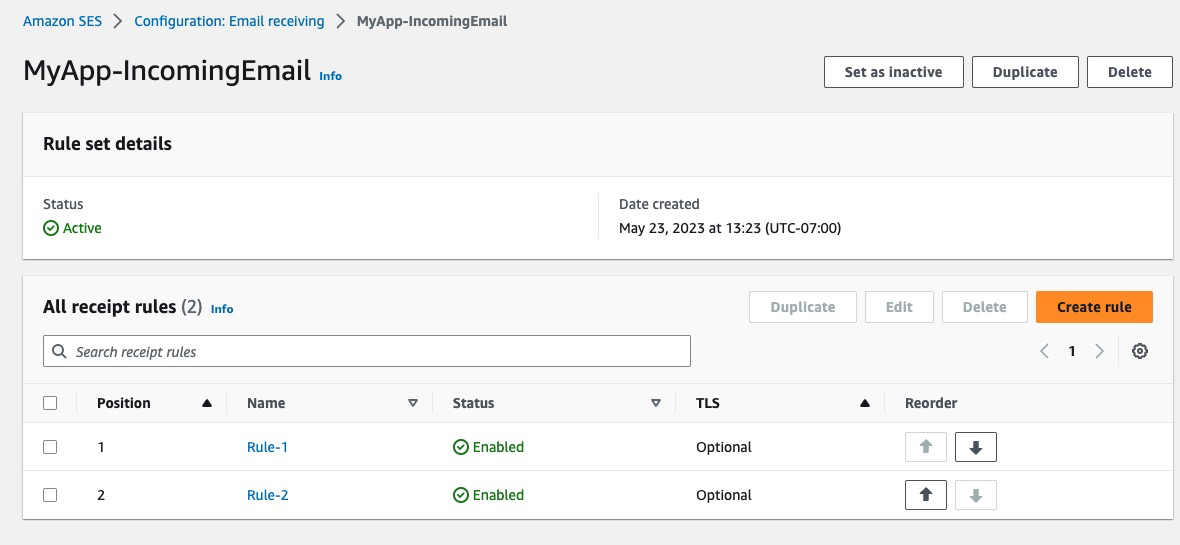
  3. Under the Receipt rule sets tab in the Email receiving pane, choose Create rule setimage-20230523131953561.png
  4. Enter a name for your new rule set in the Rule set name field. This name should be descriptive and easy to identify, such as “MyApp-IncomingEmail.”
  5. After entering a unique name, choose Create rule setimage-20230523132526096.png
  6. To activate the newly created rule set, choose Set as active next to your rule set’s name. This action will ensure that Amazon SES uses this rule set for processing incoming emails to your domain. Your new rule set will now be listed in the Active rule set section.

For more information on creating and managing receipt rule sets, you can refer to the official documentation.

In the next section, we’ll explore adding receipt rules to your rule set, which define the specific actions to be taken for incoming emails.

Adding Receipt Rules

Receipt rules define the specific actions that Amazon SES should take when processing incoming emails for your domain. Common actions include saving the email to an Amazon S3 bucket, invoking an AWS Lambda function, or publishing a notification to an Amazon SNS topic. In this section, we’ll guide you through the process of adding receipt rules to your rule set in the Amazon SES console and provide examples of when to use each action.

  1. Sign in to the AWS Management Console and open the Amazon SES console.
  2. In the navigation pane, under Configuration, choose Email receiving.
  3. Under the Email receiving pane, in the Receipt rule sets tab, select the name of your active rule set from the All rule sets section. This will navigate to the details page for that rule set.
  4. Choose Create rule to begin creating a new receipt rule.
  5. On the Define rule settings page, under Receipt rule details, enter a unique Rule name.
    • For Status, only clear the Enabled checkbox if you don’t want to run this rule after creation.
    • (Optional) For Transport Layer Security (TLS), by selecting Required you can enforce a specific TLS policy for incoming emails that match this rule. By default, Amazon SES will use the Optional policy, which means it will attempt to use TLS but will not require it.
    • For Spam and virus scanning, only clear the Enabled checkbox if you don’t want Amazon SES to scan incoming messages for spam and viruses.
  6. After entering a unique rule name, choose Next.
  7. On the Add recipients conditions page, under Recipients conditions, use the following procedure to specify one or more recipient conditions. You can have a maximum of 100 recipient conditions per receipt rule.
    • Under Recipient condition, specify the email addresses or domains that this rule should apply to. You can use wildcards to match multiple addresses or domains. For example, you can enter example.com and .example.com to apply the rule to all email addresses within the example.com domain and within all of its subdomains.
    • Repeat this step for each recipient condition you want to add. When you finish adding recipient conditions, choose Next.
  8. On the Add actions page, open the Add new action menu and select the desired action from the list, such as Deliver to S3 bucket, Invoke AWS Lambda function, or Publish to Amazon SNS topic. Configure the selected action’s settings as required.
    • Deliver to S3 bucket: Choose this action if you’re expecting emails with large attachments, need to store emails for archival purposes, or plan to process emails using other AWS services that integrate with Amazon S3. You’ll need to specify the Amazon S3 bucket where the incoming emails should be stored.
    • Invoke AWS Lambda function: Choose this action if you want to process incoming emails using custom logic, such as filtering, parsing, or modifying the email content. You’ll need to specify the AWS Lambda function that should be invoked when an incoming email matches this rule.
    • Publish to Amazon SNS topic: Choose this action if you’re processing smaller emails or want to receive real-time notifications when an email arrives. You’ll need to specify the Amazon SNS topic where notifications should be published.
    • For more information and additional actions, see the Action options section of the Developer Guide.
  9. Once configured, choose Next to proceed to the Review page.
  10. On the Review page, review the settings and actions of the rule. If you need to make changes, choose the Edit option.
  11. When finished, choose Create rule to add the new receipt rule to your rule set. The rule will now be applied to incoming emails that match the specified recipient conditions.
image.png

You can create multiple receipt rules within a rule set, each with different actions and conditions. Amazon SES will apply the rules in the order they appear in the rule set. For more information on creating and managing receipt rules, you can refer to the official documentation.

Monitoring your incoming email

Configuring Amazon CloudWatch metrics

Once you have enabled email receiving in Amazon SES and created receipt rules for your emails, you can monitor and view the metrics using Amazon CloudWatch. Follow these steps to configure Amazon CloudWatch metrics for Amazon SES email receiving:

  1. Open the Amazon CloudWatch console.
  2. Navigate to the Metrics section and select All metrics.
  3. In the list of available metrics, locate and select SES to view SES-related metrics.
  4. Expand the Receipt Rule Set Metrics and Receipt Rule Metrics sections to access the specific metrics for your receipt rule sets and rules.
  5. Under Receipt Rule Set Metrics, you will find the following metrics:
    • “Received”: Indicates whether SES successfully received a message that has at least one rule applying. The metric value is always 1.
    • “PublishSuccess”: Indicates whether SES successfully executed all rules within a rule set.
    • “PublishFailure”: Indicates if SES encountered an error while executing rules within a rule set. The error may allow for retrying the execution.
    • “PublishExpired”: Indicates that SES will no longer retry executing the rules within a rule set after four hours.

These metrics can be filtered by the dimension RuleSetName to obtain data specific to individual rule sets.

  1. Under Receipt Rule Metrics, you will find the following metrics:
    • “Received”: Indicates whether SES successfully received a message and will try to process the applied rule. The metric value is always 1.
    • “PublishSuccess”: Indicates whether SES successfully executed a rule that applies to the received message.
    • “PublishFailure”: Indicates if SES encountered an error while executing the actions in a rule. The error may allow for retrying the execution.
    • “PublishExpired”: Indicates that SES will no longer retry executing the actions of a rule after four hours.

These metrics can be filtered by the dimension RuleName to obtain data specific to individual rules.

  1. Note that the metrics will only appear in the CloudWatch console if you have enabled email receiving, created receipt rules, and received mail that matches any of your rules.
  2. Keep in mind that changes made to fix your receipt rule set will only apply to emails received by Amazon SES after the update. Emails are always evaluated against the receipt rule set in place at the time of receipt.

Amazon SES also provides an Automatic Dashboard for SES in the CloudWatch console, which offers a preconfigured set of SES metrics and alarms to monitor your email sending and receiving activity. This dashboard provides a consolidated view of key metrics, making it easier to track the performance and health of your Amazon SES environment.

By configuring Amazon CloudWatch metrics, you can gain valuable insights into the performance and execution of your receipt rule sets and rules within Amazon SES. For more detailed information on viewing metrics for Amazon SES email receiving using Amazon CloudWatch, refer to the official documentation.

Using receipt rules effectively

Chaining Receipt Rules

Chaining receipt rules enable you to create sophisticated email processing workflows by linking multiple rules together, allowing each rule to apply specific actions based on the outcome of the previous rule. This advanced technique can help you achieve greater flexibility and precision in handling your incoming emails with Amazon SES. In this section, we’ll explain how to create chained receipt rules and provide examples of common use cases.

  1. Sign in to the AWS Management Console and open the Amazon SES console.
  2. Under the Email receiving pane, in the Receipt rule sets tab, select the name of your active rule set from the All rule sets section
  3. Review the existing rules in your rule set and ensure that they are ordered correctly. Chaining relies on the order of the rules, as each rule’s conditions and actions are evaluated sequentially. Under the Reorder tab, the rule orders can be modified by selecting the corresponding arrow associated with each.
  4. To chain additional rules, follow the steps previously outlined in the Adding Receipt Rules section and adjust the rule orders as necessary.

Chaining receipt rules can help you build complex email processing workflows with Amazon SES. Some common use cases include:

  • Executing multiple filtering criteria in an order that you specify. For example, adding a specific header value and then sending to additional AWS services such as Amazon S3, Amazon SNS, or AWS Lambda.
  • Creating multi-stage processing pipelines, where the output of one action (e.g., saving an email to Amazon S3) is used as the input for the next action (e.g., processing the email with AWS Lambda).
  • Implementing fallback actions, where the first rule in the chain attempts a specific action (e.g., saving an email to a primary S3 bucket), and if it fails, the next rule in the chain applies a different action (e.g., saving the email to a secondary S3 bucket).

The following figure shows how receipt rules, rule sets, and actions relate to each other.

SES Chaining multiple rules in a rule set

For more information on creating and managing receipt rules, you can refer to the official documentation.

Handling the 200 Receipt Rules per Rule Set limit

For each AWS account, Amazon SES imposes a limit of 200 receipt rules per receipt rule set. While this limit is sufficient for most use cases, there might be situations where you need to process a higher volume of incoming emails with more complex rule sets. These are some strategies to work around the 200 receipt rule limit using Amazon SES and other AWS services:

  • Utilize rule chaining: As mentioned earlier, chaining receipt rules allows you to link multiple rules together, effectively extending the number of actions you can perform for a single email. By chaining rules, you can create more complex processing workflows without exceeding the 200 rule limit.
  • Combine rules with actions: Instead of creating separate rules for each scenario, consider combining multiple actions within a single rule. This approach can help you reduce the total number of rules while still catering to various email processing requirements.
  • Use AWS Lambda for custom processing: Leverage AWS Lambda to perform custom processing on incoming emails. By incorporating Lambda functions in your receipt rules, you can handle more complex processing tasks without increasing the number of rules. This approach also allows you to offload some processing logic from Amazon SES to Lambda, providing additional flexibility.
  • Consolidate similar actions: If you have several rules performing similar actions, it is advisable to consolidate them into a single rule with multiple actions. This consolidation can help you reduce the total number of rules while maintaining the desired functionality.
  • Evaluate rule usage: Regularly review and evaluate your existing receipt rules to identify any rules that are no longer in use or can be optimized. Removing or consolidating unnecessary rules can help you stay within the 200 rule limit while still addressing your email processing requirements.

By implementing these strategies, you can effectively work around the 200 receipt rule limit in Amazon SES and build more complex email processing workflows to cater to your specific needs. Remember to monitor and optimize your rule sets regularly to make the most of the available resources and maintain efficient email processing.

For more information on the inbound quotas and limits in Amazon SES, you can refer to the official AWS documentation at Quotas related to email receiving.

Best Practices for multi-tenant scenarios

When dealing with multi-tenant scenarios in your application, it’s crucial to manage incoming emails efficiently to ensure smooth operation and a seamless experience for your users. In this section, we’ll provide best practices to handle incoming emails in multi-tenant environments using Amazon SES.

In a multi-tenant scenario, where multiple customers or tenants share a single AWS account, it’s important to consider the limit of 200 receipt rules per receipt rule set imposed by Amazon SES. To ensure compliance with this limit and maintain optimal email processing, the following practices are recommended:

  • Segregate tenants using email subdomains: Create unique subdomains for each tenant and route their incoming emails accordingly. This approach makes it easier to manage email processing rules and helps isolate tenants from potential issues.
  • Create separate rule sets for each tenant: By creating dedicated rule sets for each tenant, you can maintain better control over email processing rules and actions specific to their needs. This can simplify management and make it easier to update rules for individual tenants without affecting others.
  • Use tags to identify tenant-specific emails: Apply tags to incoming emails using the AddHeader action in your receipt rules. These tags can include tenant-specific identifiers, which will help you route and process emails correctly. You can later use these tags in other AWS services (e.g., AWS Lambda) to process tenant-specific emails.
  • Leverage conditional receipt rules: Utilize conditional receipt rules to apply tenant-specific processing based on email headers, recipients, or other criteria. This way, you can ensure that the right actions are taken for each tenant’s incoming emails.
  • Monitor tenant-specific metrics: Configure Amazon CloudWatch metrics and alarms for each tenant to track their email processing performance separately. This enables you to keep a close eye on individual tenants and take appropriate actions when needed.
  • Implement rate limiting: To prevent tenants from overwhelming your email processing pipeline, consider implementing rate limiting based on the number of incoming emails per tenant. This can help ensure fair resource allocation and prevent potential abuse.
  • Ensure security and privacy: Always encrypt tenant data at rest and in transit, and follow best practices for data protection and privacy. Consider using AWS Key Management Service (KMS) to manage encryption keys for each tenant.
  • Test and validate rule sets: Before deploying rule sets for tenants, thoroughly test and validate them to ensure they function as intended. This can help prevent unexpected behavior and maintain a high level of service quality.

By following these best practices for handling incoming emails in multi-tenant scenarios with Amazon SES, you can ensure a robust and efficient email processing pipeline that caters to each tenant’s unique requirements. As you continue to work with Amazon SES in multi-tenant environments, stay up to date with AWS documentation and best practices to further optimize your email processing workflows.

Conclusion

In this blog post, we’ve explored how to set up Amazon Simple Email Service (SES) for incoming email processing using receipt rules, rule sets, and various actions. We’ve covered domain verification, DKIM setup, creating and managing rule sets, adding receipt rules, and configuring Amazon CloudWatch metrics and alarms. We’ve also delved into advanced topics such as chaining receipt rules for more complex email processing workflows.

By following this guide, you can effectively leverage Amazon SES to process and manage your incoming emails, optimizing your email workflows, and maintaining high email deliverability standards. With Amazon SES, you can customize your email processing pipeline to meet your specific needs and seamlessly integrate with other AWS services such as Amazon S3, AWS Lambda, Amazon SNS, and Amazon CloudWatch.

In future blog posts, we will explore monitoring and alerting in more detail, providing you with additional insights on how to effectively monitor your email processing pipelines and set up alerts for critical events. Stay tuned for more information on this important aspect of managing your email infrastructure.

As you continue to work with Amazon SES and its email receiving capabilities, remember to review AWS best practices and documentation to stay up to date with new features and improvements. Don’t hesitate to experiment with different rule sets, actions, and conditions to find the perfect email processing solution for your use case.

The Rust Leadership Council

Post Syndicated from original https://lwn.net/Articles/935354/

The Rust project has announced
the formation of the Rust Leadership Council, which will take the place of
the existing Core Team and Leadership Chat groups.

The Council will assume responsibility for top-level governance
concerns while most of the responsibilities of the Rust Project
(such as maintenance of the compiler and core tooling, evolution of
the language and standard libraries, administration of
infrastructure, etc.) remain with the nine top level teams.

The details on how this body is supposed to work can be found in RFC 3392.

Are you measuring what matters? A fresh look at Time To First Byte

Post Syndicated from Sam Marsh original http://blog.cloudflare.com/ttfb-is-not-what-it-used-to-be/

Are you measuring what matters? A fresh look at Time To First Byte

Are you measuring what matters? A fresh look at Time To First Byte

Today, we’re making the case for why Time To First Byte (TTFB) is not a good metric for evaluating how fast web pages load. There are better metrics out there that give a more accurate representation of how well a server or content delivery network performs for end users. In this blog, we’ll go over the ambiguity of measuring TTFB, touch on more meaningful metrics such as Core Web Vitals that should be used instead, and finish on scenarios where TTFB still makes sense to measure.

Many of our customers ask what the best way would be to evaluate how well a network like ours works. This is a good question! Measuring performance is difficult. It’s easy to simplify the question to “How close is Cloudflare to end users?” The predominant metric that’s been used to measure that is round trip time (RTT). This is the time it takes for one network packet to travel from an end user to Cloudflare and back. We measure this metric and mention it from time to time: Cloudflare has an average RTT of 50 milliseconds for 95% of the Internet-connected population.

Whilst RTT is a relatively good indicator of the quality of a network, it doesn’t necessarily tell you that much about how good it is at actually delivering actual websites to end users. For instance, what if the web server is really slow? A user might be very close to the data center that serves the traffic, but if it takes a long time to actually grab the asset from disk and serve it the result will still be a poor experience.

This is where TTFB comes in. It measures the time it takes between a request being sent from an end user until the very first byte of the response being received. This sounds great on paper! However it doesn’t capture how a webpage or web application loads, and what happens after the first byte is received.

In this blog we’ll cover what TTFB is a good indicator of, what it's not great for, and what you should be using instead.

What is TTFB?

TTFB is a metric which reports the duration between sending the request from the client to a server for a given file, and the receipt of the first byte of said file. For example, if you were to download the Cloudflare logo from our website the TTFB would be how long it took to receive the first byte of that image. Similarly, if you were to measure the TTFB of a request to cloudflare.com the metric would return the TTFB of how long it took from request to receiving the first byte of the first HTTP response. Not how long it took for the image to be fully visible or for the web page to be loaded in a state that allowed a user to begin using it.

The simplest answer therefore is to look at the diametrically opposite measurement, Time to Last Byte (TTLB). TTLB, as you’d expect, measures how long it takes until the last byte of data is received from the server. For the Cloudflare logo file this would make sense, as until the image is fully downloaded it's not exactly useful. But what about for a webpage? Do you really need to wait until every single file is fully downloaded, even those images at the bottom of the page you can't immediately see? TTLB is fine for measuring how long it took to download a single file from a CDN / server. However for multi-faceted traffic, like web pages, it is too conservative, as it doesn’t tell you how long it took for the web page to be usable.

As an analogy we can look at measuring how long it takes to process an incoming airplane full of passengers. What's important is to understand how long it takes for those passengers to disembark, pass through passport control, collect their baggage and leave the terminal, if no onward journeys. TTFB would measure success as how long it took to get the first passenger off of the airplane. TTLB would measure how long it took the last passenger to leave the terminal, even if this passenger remained in the terminal for hours afterwards due to passport issues or getting lost. Neither are a good measure of success for the airline.

Why TTFB doesn't make sense

TTFB is a widely-used metric because it is easy-to-understand and it is a great signal for connection setup time, server time and network latency. It can help website owners identify when performance issues originate from their server. But is TTFB a good signal for how real users experience the loading speed of a web page in a browser?

When a web page loads in a browser, the user’s perception of speed isn’t related to the moment the browser first receives bytes of data. It is related to when the user starts to see the page rendering on the screen.

The loading of a web page in a browser is a very complex process. Almost all of this process happens after TTFB is reported. After the first byte has been received, the browser still has to load the main HTML file. It also has to load fonts, stylesheets, javascript, images and other resources. Often these resources link to other resources that also must be downloaded. Often these resources entirely block the rendering of the page. Alongside all these downloads, the browser is also parsing the HTML, CSS and JavaScript. It is building data structures that represent the content of the web page as well as how it is styled. All of this is in preparation to start rendering the final page onto the screen for the user.

Are you measuring what matters? A fresh look at Time To First Byte

When the user starts seeing the web page actually rendered on the screen, TTFB has become a distant memory for the browser. For a metric that signals the loading speed as perceived by the user, TTFB falls dramatically short.

Receiving the first byte isn't sufficient to determine a good end user experience as most pages have additional render blocking resources that get loaded after the initial document request. Render-blocking resources are scripts, stylesheets, and HTML imports that prevent a web page from loading quickly. From a TTFB perspective it means the client could stop the ‘TTFB clock’ on receipt of the first byte of one of these files, but the web browser is blocked from showing anything to the user until the remaining critical assets are downloaded.

This is because browsers need instructions for what to render and what resources need to be fetched to complete “painting” a given web page. These instructions come from a server response. But the servers sending these responses often need time to compile these resources — this is known as “server think time.” While the servers are busy during this time… browsers sit idle and wait. And the TTFB counter goes up.

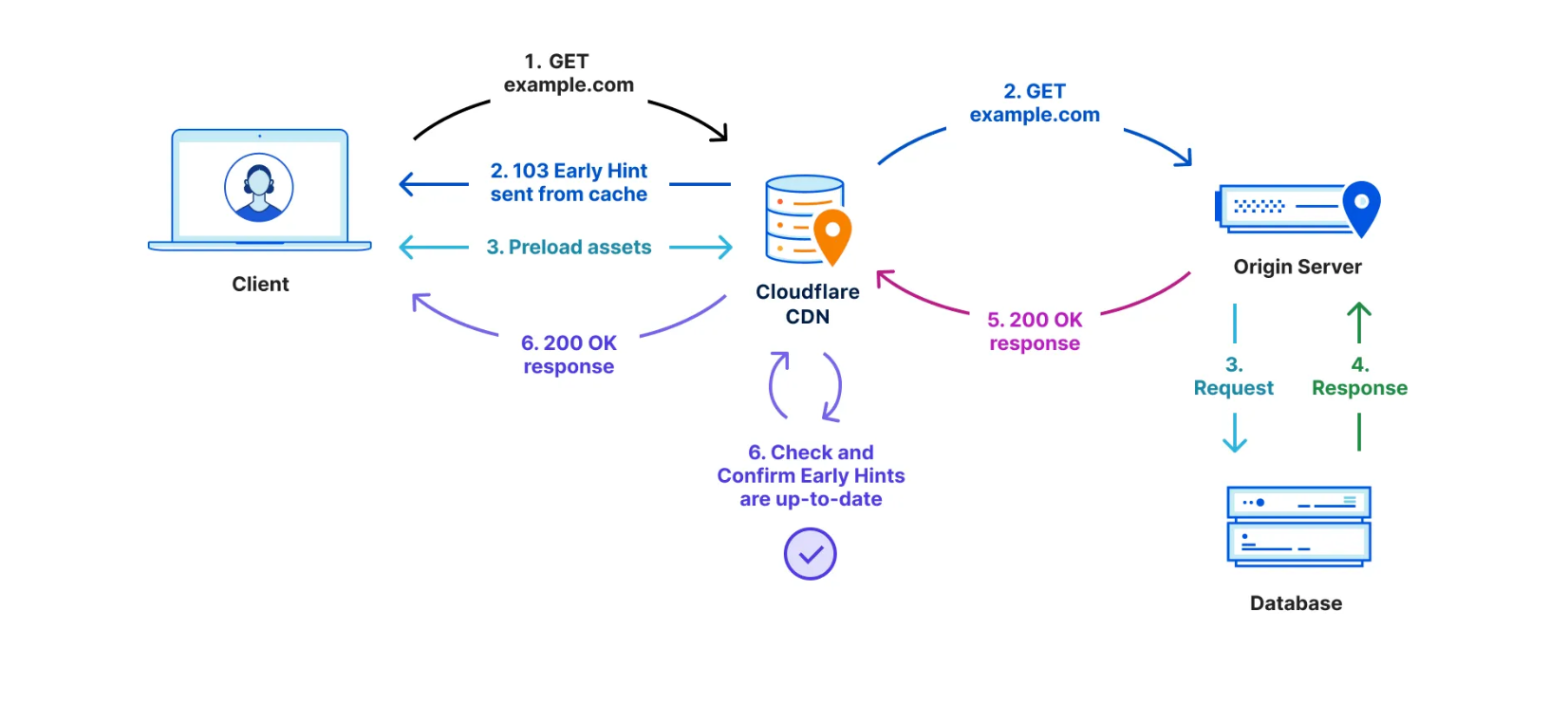
There have been a number of attempts over the years to benefit from this “think time”. First came Server Push, which was superseded last year by Early Hints. Early Hints take advantage of “server think time” to asynchronously send instructions to the browser to begin loading resources while the origin server is compiling the full response. By sending these hints to a browser before the full response is prepared, the browser can figure out what it needs to do to load the webpage faster for the end user. It also stops the TTFB clock, meaning a lower TTFB. This helps ensure the browser gets the critical files sooner to begin loading the webpage, and it also means the first byte is delivered sooner as there is no waiting on the server for the whole dataset to be prepared and ready to send. Even with Early Hints, though, TTFB doesn’t accurately define how long it took the web page to be in a usable state.

Are you measuring what matters? A fresh look at Time To First Byte

TTFB also does not take into account multiplexing benefits of HTTP/2 and HTTP/3 which allow browsers to load files in parallel. It also doesn't take into account compression on the origin, which would result in a higher TTFB but a quicker page load overall due to the time the server took to compress the assets and send them in a small format over the network.

Cloudflare offers many features that can improve the loading speed of a website, but don’t necessarily impact the TTFB score. These features include Zaraz, Rocket Loader, HTTP/2 and HTTP/3 Prioritization, Mirage, Polish, Image Resizing, Auto Minify and Cache. These features improve the loading time of a webpage, ensuring they load optimally through a series of enhancements from image optimization and compression to render blocking elimination by optimizing the sending of assets from the server to the browser in the best possible order.

More comprehensive metrics are required to illustrate the full loading process of a web page, and the benefit provided by these features. This is where Real User Monitoring helps.  At Cloudflare we are all-in on Real User Monitoring (RUM) as the future of website performance. We’re investing heavily in it: both from an observation point of view and from an optimization one also.

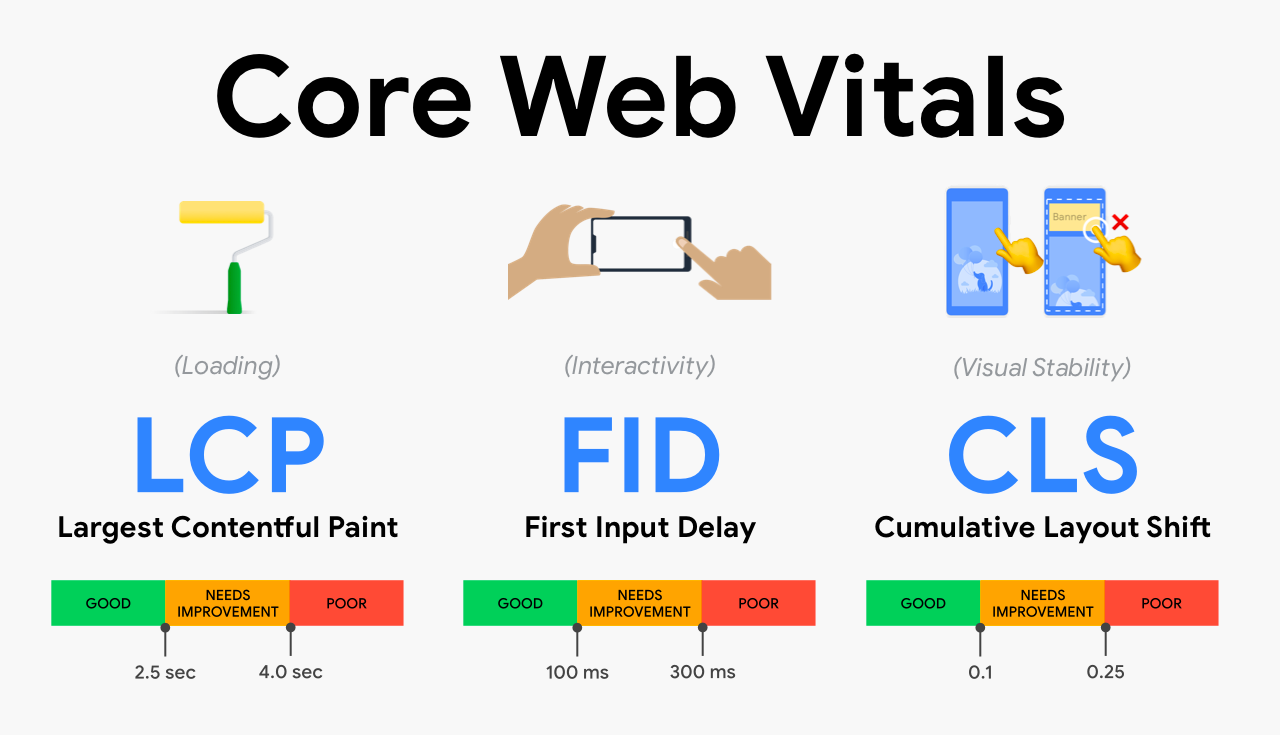
For those unfamiliar with RUM, we typically optimize websites for three main metrics – known as the “Core Web Vitals”. This is a set of key metrics which are believed to be the best and most accurate representation of a poorly performing website vs a well performing one. These key metrics are Largest Contentful Paint, First Input Delay and Cumulative Layout Shift.

Are you measuring what matters? A fresh look at Time To First Byte
Source: https://addyosmani.com/blog/web-vitals-extension/ 

LCP measures loading performance; typically how long it takes to load the largest image or text block visible in the browser. FID measures interactivity. For example, the time between when a user clicks or taps on a button to when the browser responds and starts doing something. Finally, CLS measures visual stability. A good, or bad example of CLS is when you go to a website on your mobile phone, tap on a link and the page moves at the last second meaning you tap something you didn't want to. That would be a lower CLS score as its poor user experience.

Looking at these metrics gives us a good idea of how the end user is truly experiencing your website (RUM) vs. how quickly the first byte of the file was retrieved from the nearest Cloudflare data center (TTFB).

Good TTFB, bad user experience

One of the “sub parts” that comprise LCP is TTFB. That means a poor TTFB is very likely to result in a poor LCP. If it takes you 20 seconds to retrieve the first byte of the first image, your user isn't going to have a good experience – regardless of your outlook on TTFB vs RUM.

Conversely, we found that a good TTFB does not always mean a good LCP score, or FID or CLS. We ran a query to collect RUM metrics of web pages we served which had a good TTFB score. Good is defined as a TTFB as less than 800ms. This allowed us to ask the question: TTFB says these websites are good. Does the RUM data support that?

We took four distinct samples from our RUM data in June. Each sample had a different date-range and sample-rate combination. In each sample we queried for 200,000 page views. From these 200,000 page views we filtered for only the page views that reported a 'Good' TTFB. Across the samples, of all page views that have a good TTFB, about 21% of them did not have a “good” LCP score. 46% of them did not have a “good” FID score. And 57% of them did not have a good CLS score.

This clearly shows the disparity between measuring the time it takes to receive the first byte of traffic, vs the time it takes for a webpage to become stable and interactive. In summary, LCP includes TTFB but also includes other parts of the loading experience. LCP is a more comprehensive, user-centric metric.

TTFB is not all bad

Reading this post and others from Speed Week 2023 you may conclude we really don't like TTFB and you should stop using it. That isn't the case.

There are a few situations where TTFB does matter. For starters, there are many applications that aren’t websites. File servers, APIs and all sorts of streaming protocols don’t have the same semantics as web pages and the best way to objectively measure performance is to in fact look at exactly when the first byte is returned from a server.

To help optimize TTFB for these scenarios we are announcing Timing Insights, a new analytics tool to help you understand what is contributing to "Time to First Byte" (TTFB) of Cloudflare and your origin. Timing Insights breaks down TTFB from the perspective of our servers to help you understand what is slow, so that you can begin addressing it.

Get started with RUM today

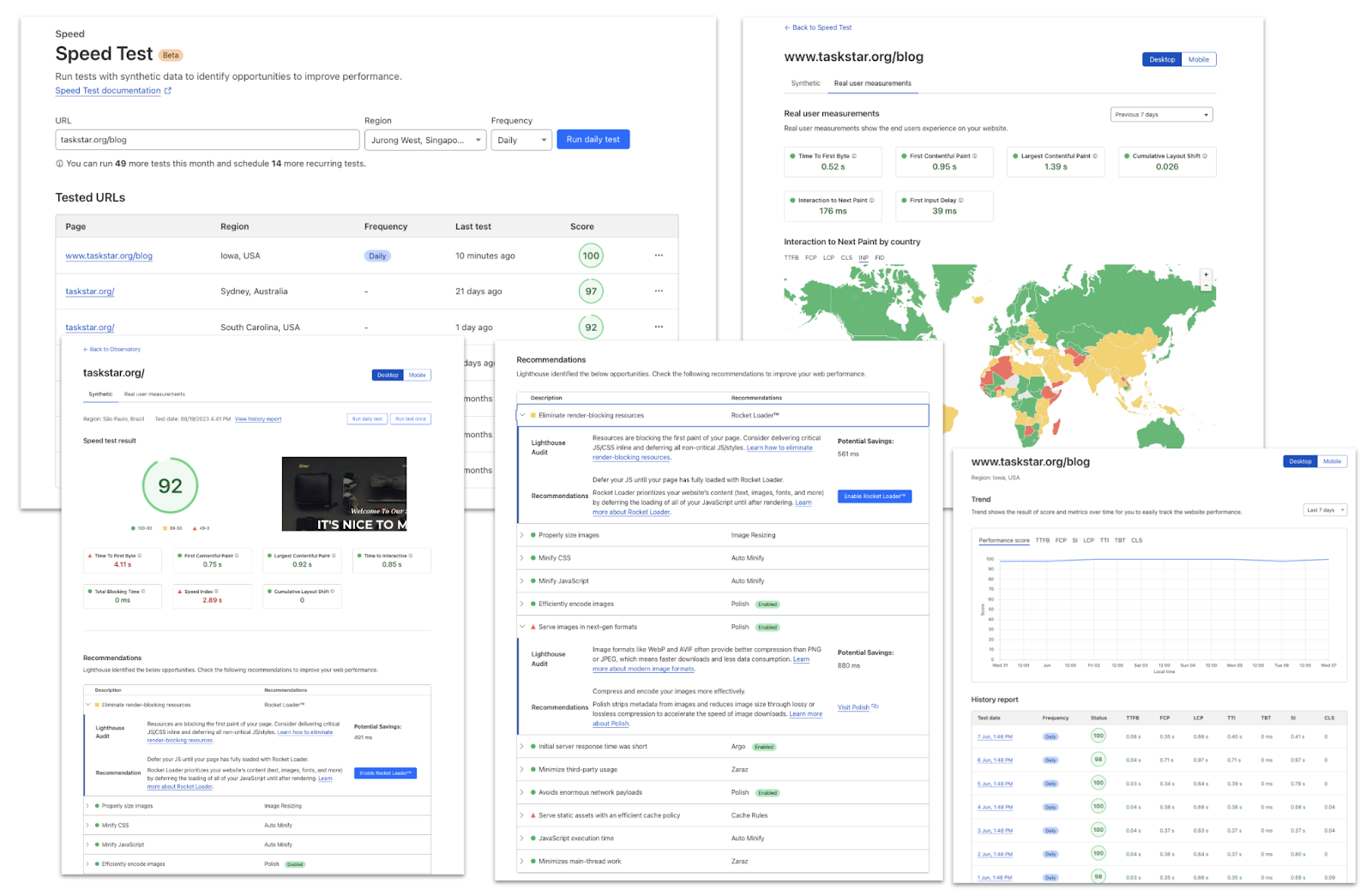
To help you understand the real user experience of your website we have today launched Cloudflare Observatory the new home of performance at Cloudflare.

Are you measuring what matters? A fresh look at Time To First Byte

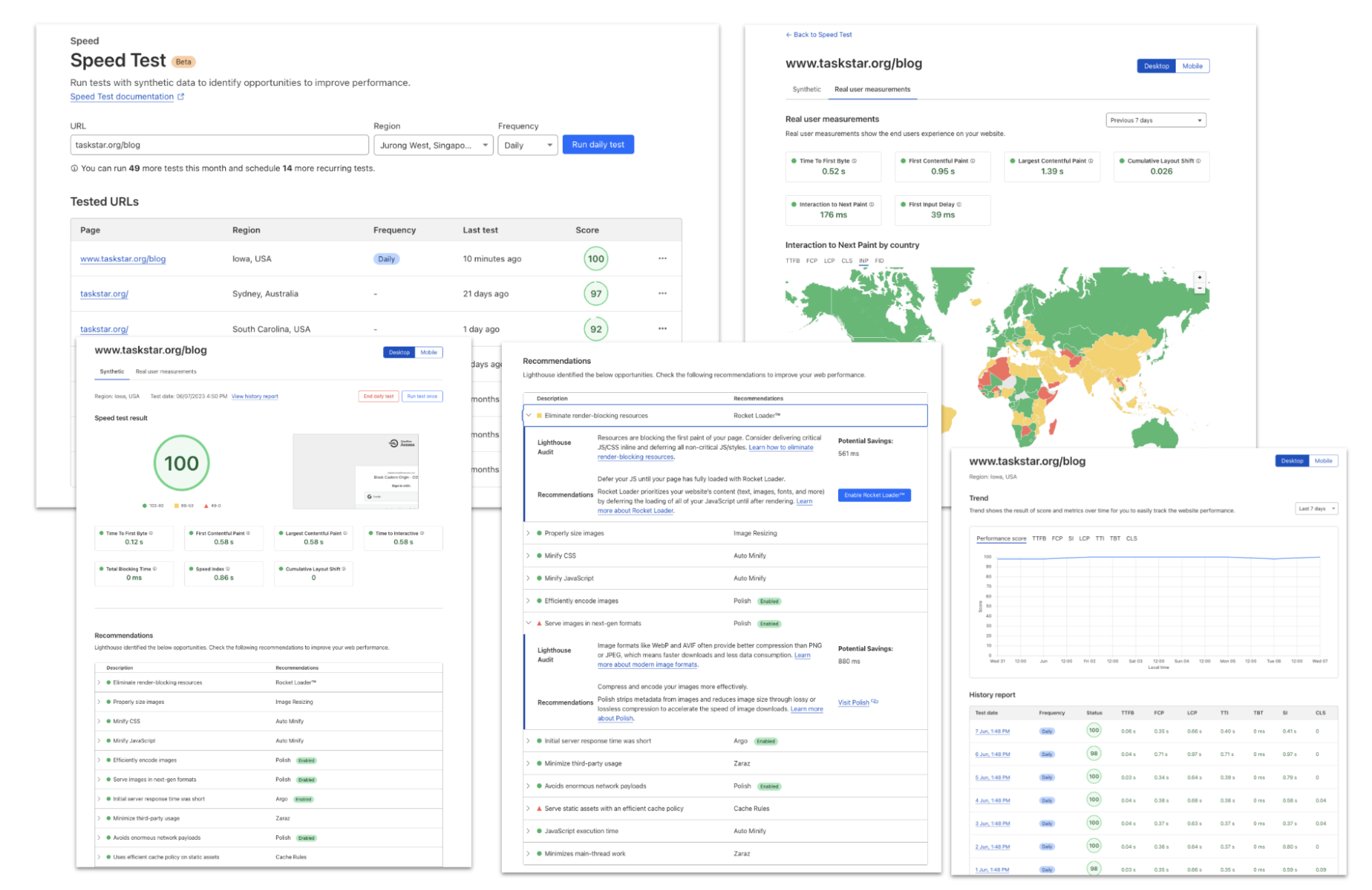
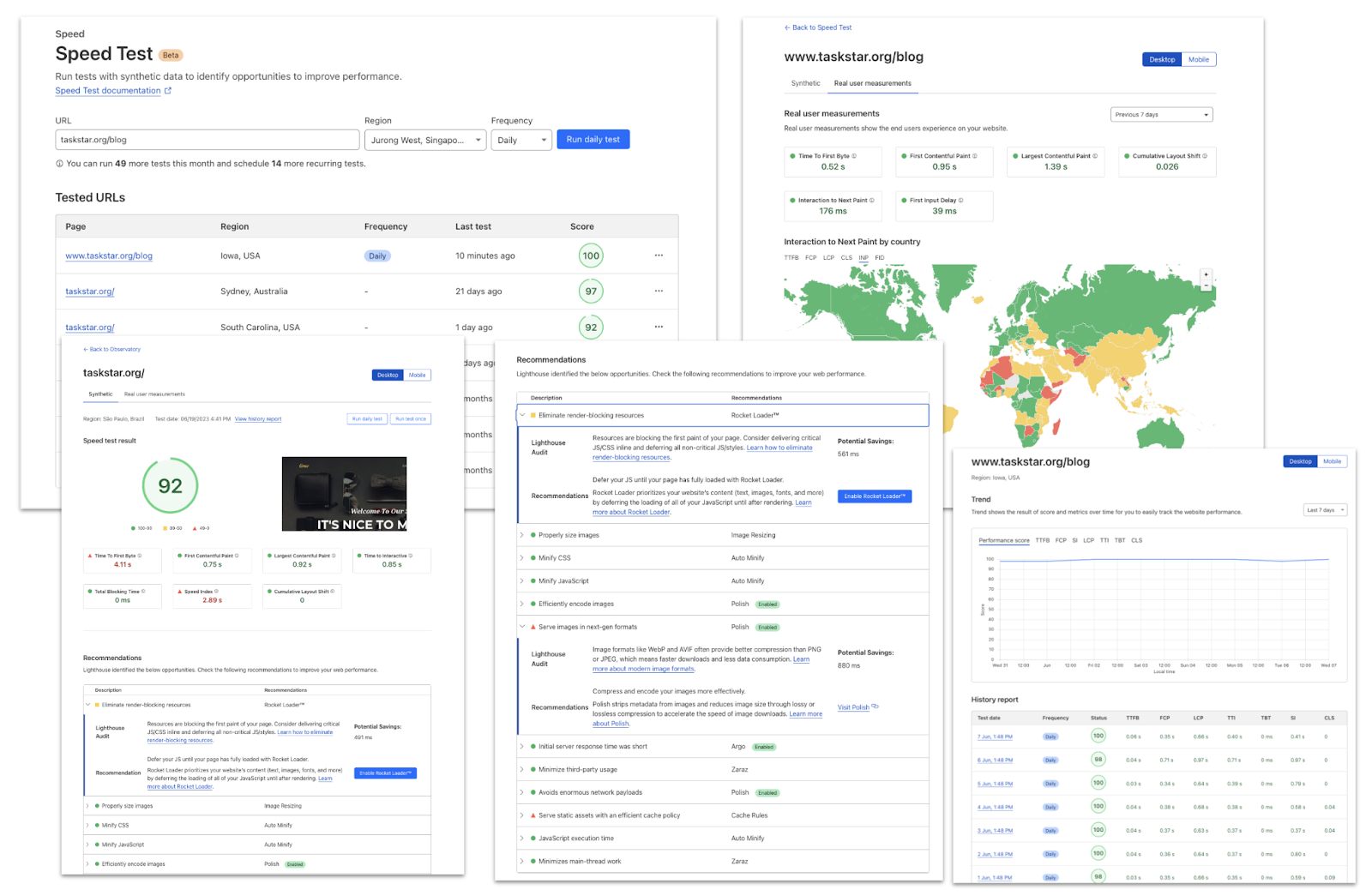
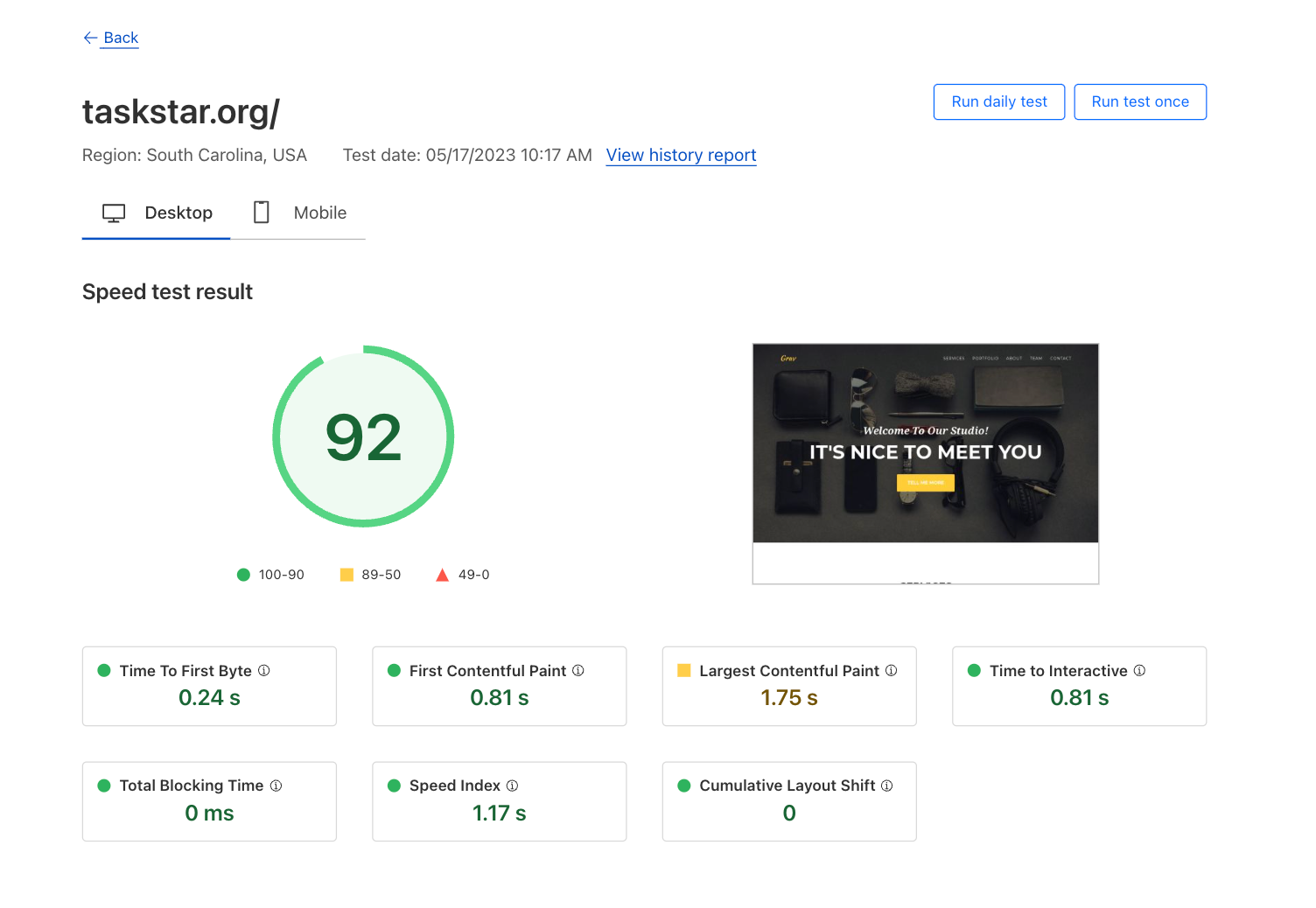
Cloudflare users can now easily monitor website performance using Real User Monitoring (RUM) data along with scheduled synthetic tests from different regions in a single dashboard. This will identify any performance issues your website may have. The best bit? Once we’ve identified any issues, Observatory will highlight customized recommendations to resolve these issues, all with a single click.

Start making your website faster today with Observatory.

Introducing Timing Insights: new performance metrics via our GraphQL API

Post Syndicated from Jon Levine original http://blog.cloudflare.com/introducing-timing-insights/

Introducing Timing Insights: new performance metrics via our GraphQL API

Introducing Timing Insights: new performance metrics via our GraphQL API

If you care about the performance of your website or APIs, it’s critical to understand why things are slow.

Today we're introducing new analytics tools to help you understand what is contributing to "Time to First Byte" (TTFB) of Cloudflare and your origin. TTFB is just a simple timer from when a client sends a request until it receives the first byte in response. Timing Insights breaks down TTFB from the perspective of our servers to help you understand what is slow, so that you can begin addressing it.

But wait – maybe you've heard that you should stop worrying about TTFB? Isn't Cloudflare moving away from TTFB as a metric? Read on to understand why there are still situations where TTFB matters.

Why you may need to care about TTFB

It's true that TTFB on its own can be a misleading metric. When measuring web applications, metrics like Web Vitals provide a more holistic view into user experience. That's why we offer Web Analytics and Lighthouse within Cloudflare Observatory.

But there are two reasons why you still may need to pay attention to TTFB:

1. Not all applications are websites
More than half of Cloudflare traffic is for APIs, and many customers with API traffic don't control the environments where those endpoints are called. In those cases, there may not be anything you can monitor or improve besides TTFB.

2. Sometimes TTFB is the problem
Even if you are measuring Web Vitals metrics like LCP, sometimes the reason your site is slow is because TTFB is slow! And when that happens, you need to know why, and what you can do about it.

When you need to know why TTFB is slow, we’re here to help.

How Timing Insights can help

We now expose performance data through our GraphQL Analytics API that will let you query TTFB performance, and start to drill into what contributes to TTFB.

Specifically, customers on our Pro, Business, and Enterprise plans can now query for the following fields in the httpRequestsAdaptiveGroups dataset:

Time to First Byte (edgeTimeToFirstByteMs)

What is the time elapsed between when Cloudflare started processing the first byte of the request received from an end user, until when we started sending a response?

Origin DNS lookup time (edgeDnsResponseTimeMs)

If Cloudflare had to resolve a CNAME to reach your origin, how long did this take?

Origin Response Time (originResponseDurationMs)

How long did it take to reach, and receive a response from your origin?

We are exposing each metric as an average, median, 95th, and 99th percentiles (i.e. P50 / P95 / P99).

The httpRequestAdaptiveGroups dataset powers the Traffic analytics page in our dashboard, and represents all of the HTTP requests that flow through our network. The upshot is that this dataset gives you the ability to filter and “group by” any aspect of the HTTP request.

An example of how to use Timing Insights

Let’s walk through an example of how you’d actually use this data to pin-point a problem.

To start with, I want to understand the lay of the land by querying TTFB at various quantiles:

query TTFBQuantiles($zoneTag: string) {
  viewer {
    zones(filter: {zoneTag: $zoneTag}) {
      httpRequestsAdaptiveGroups {
        quantiles {
          edgeTimeToFirstByteMsP50
          edgeTimeToFirstByteMsP95
          edgeTimeToFirstByteMsP99
        }
      }
    }
  }
}

Response:
{
  "data": {
    "viewer": {
      "zones": [
        {
          "httpRequestsAdaptiveGroups": [
            {
              "quantiles": {
                "edgeTimeToFirstByteMsP50": 32,
                "edgeTimeToFirstByteMsP95": 1392,
                "edgeTimeToFirstByteMsP99": 3063,
              }
            }
          ]
        }
      ]
    }
  }
}

This shows that TTFB is over 1.3 seconds at P95 – that’s fairly slow, given that best practices are for 75% of pages to finish rendering within 2.5 seconds, and TTFB is just one component of LCP.

If I want to dig into why TTFB, it would be helpful to understand which URLs are slowest. In this query I’ll filter to that slowest 5% of page loads, and now look at the aggregate time taken – this helps me understand which pages contribute most to slow loads:

query slowestURLs($zoneTag: string, $filter:filter) {
  viewer {
    zones(filter: {zoneTag: $zoneTag}) {
      httpRequestsAdaptiveGroups(limit: 3, filter: {edgeTimeToFirstByteMs_gt: 1392}, orderBy: [sum_edgeTimeToFirstByteMs_DESC]) {
        sum {
          edgeTimeToFirstByteMs
        }
        dimensions {
          clientRequestPath
        }
      }
    }
  }
}

Response:
{
  "data": {
    "viewer": {
      "zones": [
        {
          "httpRequestsAdaptiveGroups": [
            {
              "dimensions": {
                "clientRequestPath": "/api/v2"
              },
              "sum": {
                "edgeTimeToFirstByteMs": 1655952
              }
            },
            {
              "dimensions": {
                "clientRequestPath": "/blog"
              },
              "sum": {
                "edgeTimeToFirstByteMs": 167397
              }
            },
            {
              "dimensions": {
                "clientRequestPath": "/"
              },
              "sum": {
                "edgeTimeToFirstByteMs": 118542
              }
            }
          ]
        }
      ]
    }
  }
}

Based on this query, it looks like the /api/v2 path is most often responsible for these slow requests. In order to know how to fix the problem, we need to know why these pages are slow. To do this, we can query for the average (mean) DNS and origin response time for queries on these paths, where TTFB is above our P95 threshold:

query originAndDnsTiming($zoneTag: string, $filter:filter) {
  viewer {
    zones(filter: {zoneTag: $zoneTag}) {
      httpRequestsAdaptiveGroups(filter: {edgeTimeToFirstByteMs_gt: 1392, clientRequestPath_in: [$paths]}) {
        avg {
          originResponseDurationMs
          edgeDnsResponseTimeMs
        }
      }
    }
}

Response:
{
  "data": {
    "viewer": {
      "zones": [
        {
          "httpRequestsAdaptiveGroups": [
            {
              "average": {
                "originResponseDurationMs": 4955,
                "edgeDnsResponseTimeMs": 742,
              }
            }
          ]
        }
      ]
    }
  }
}

According to this, most of the long TTFB values are actually due to resolving DNS! The good news is that’s something we can fix – for example, by setting longer TTLs with my DNS provider.

Conclusion

Coming soon, we’ll be bringing this to Cloudflare Observatory in the dashboard so that you can easily explore timing data via the UI.

And we’ll be adding even more granular metrics so you can see exactly which components are contributing to high TTFB. For example, we plan to separate out the difference between origin “connection time” (how long it took to establish a TCP and/or TLS connection) vs “application response time” (how long it took an HTTP server to respond).

We’ll also be making improvements to our GraphQL API to allow more flexible querying – for example, the ability to query arbitrary percentiles, not just 50th, 95th, or 99th.

Start using the GraphQL API today to get Timing Insights, or hop on the discussion about our Analytics products in Discord.

Introducing HTTP/3 Prioritization

Post Syndicated from Lucas Pardue original http://blog.cloudflare.com/better-http-3-prioritization-for-a-faster-web/

Introducing HTTP/3 Prioritization

Introducing HTTP/3 Prioritization

Today, Cloudflare is very excited to announce full support for HTTP/3 Extensible Priorities, a new standard that speeds the loading of webpages by up to 37%. Cloudflare worked closely with standards builders to help form the specification for HTTP/3 priorities and is excited to help push the web forward. HTTP/3 Extensible Priorities is available on all plans on Cloudflare. For paid users, there is an enhanced version available that improves performance even more.

Web pages are made up of many objects that must be downloaded before they can be processed and presented to the user. Not all objects have equal importance for web performance. The role of HTTP prioritization is to load the right bytes at the most opportune time, to achieve the best results. Prioritization is most important when there are multiple objects all competing for the same constrained resource. In HTTP/3, this resource is the QUIC connection. In most cases, bandwidth is the bottleneck from server to client. Picking what objects to dedicate bandwidth to, or share bandwidth amongst, is a critical foundation to web performance. When it goes askew, the other optimizations we build on top can suffer.

Today, we're announcing support for prioritization in HTTP/3, using the full capabilities of the HTTP Extensible Priorities (RFC 9218) standard, augmented with Cloudflare's knowledge and experience of enhanced HTTP/2 prioritization. This change is compatible with all mainstream web browsers and can improve key metrics such as Largest Contentful Paint (LCP) by up to 37% in our test. Furthermore, site owners can apply server-side overrides, using Cloudflare Workers or directly from an origin, to customize behavior for their specific needs.

Looking at a real example

The ultimate question when it comes to features like HTTP/3 Priorities is: how well does this work and should I turn it on? The details are interesting and we'll explain all of those shortly but first lets see some demonstrations.

In order to evaluate prioritization for HTTP/3, we have been running many simulations and tests. Each web page is unique. Loading a web page can require many TCP or QUIC connections, each of them idiosyncratic. These all affect how prioritization works and how effective it is.

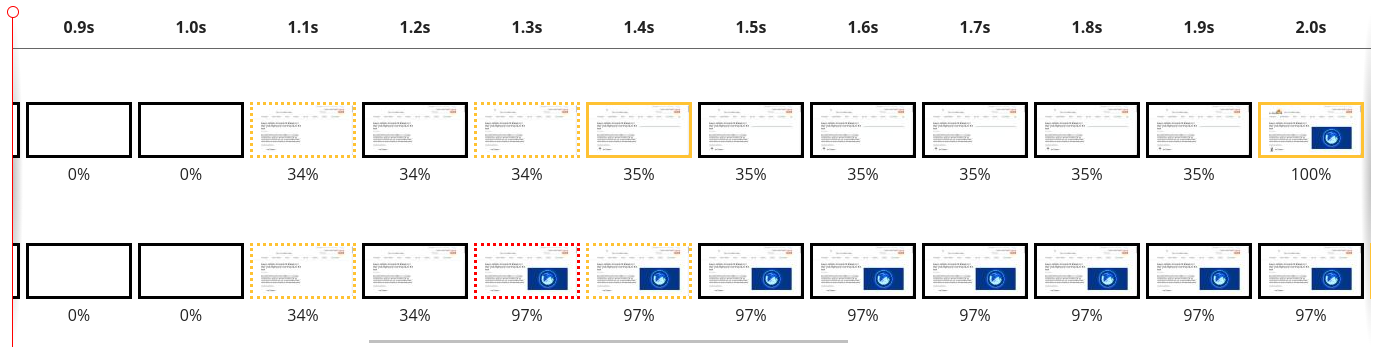
To evaluate the effectiveness of priorities, we ran a set of tests measuring Largest Contentful Paint (LCP). As an example, we benchmarked blog.cloudflare.com to see how much we could improve performance:

As a film strip, this is what it looks like:

Introducing HTTP/3 Prioritization

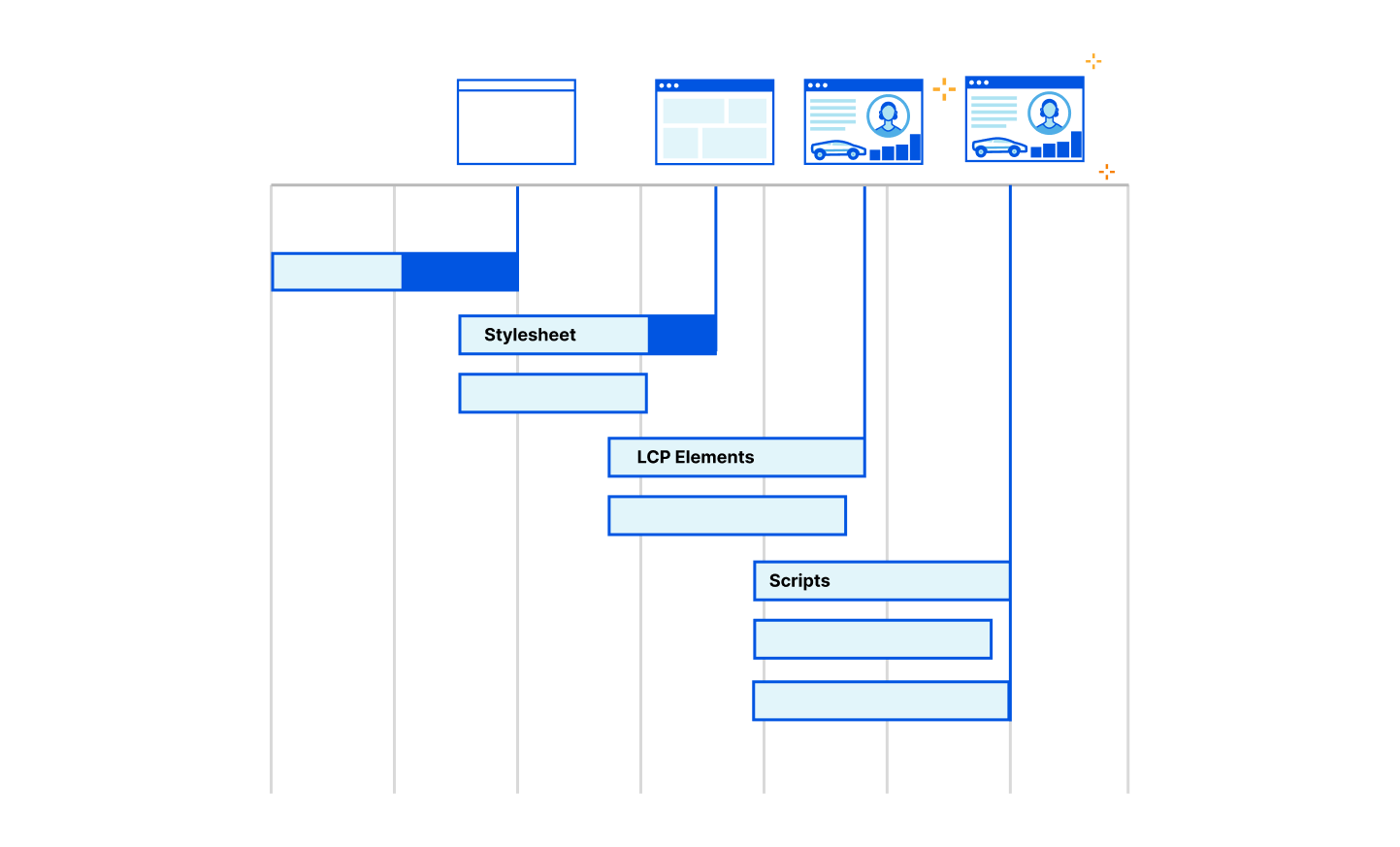
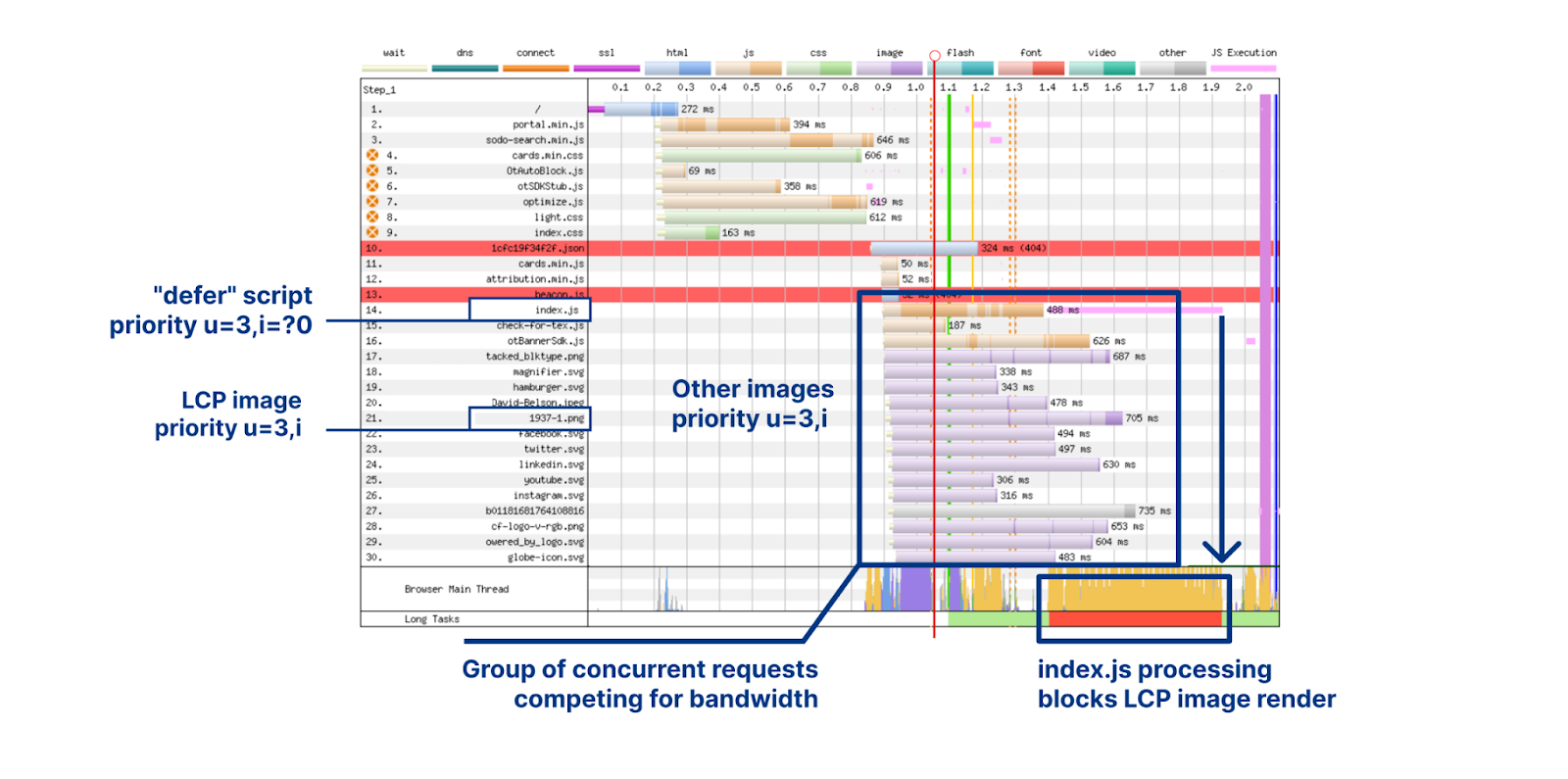
In terms of actual numbers, we see Largest Contentful Paint drop from 2.06 seconds down to 1.29 seconds. Let’s look at why that is. To analyze exactly what’s going on we have to look at a waterfall diagram of how this web page is loading. A waterfall diagram is a way of visualizing how assets are loading. Some may be loaded in parallel whilst some might be loaded sequentially. Without smart prioritization, the waterfall for loading assets for this web page looks as follows:

Introducing HTTP/3 Prioritization

There are several interesting things going on here so let's break it down. The LCP image at request 21 is for 1937-1.png, weighing 30.4 KB. Although it is the LCP image, the browser requests it as priority u=3,i, which informs the server to put it in the same round-robin bandwidth-sharing bucket with all of the other images. Ahead of the LCP image is index.js, a JavaScript file that is loaded with a "defer" attribute. This JavaScript is non-blocking and shouldn't affect key aspects of page layout.

What appears to be happening is that the browser gives index.js the priority u=3,i=?0, which places it ahead of the images group on the server-side. Therefore, the 217 KB of index.js is sent in preference to the LCP image. Far from ideal. Not only that, once the script is delivered, it needs to be processed and executed. This saturates the CPU and prevents the LCP image from being painted, for about 300 milliseconds, even though it was delivered already.

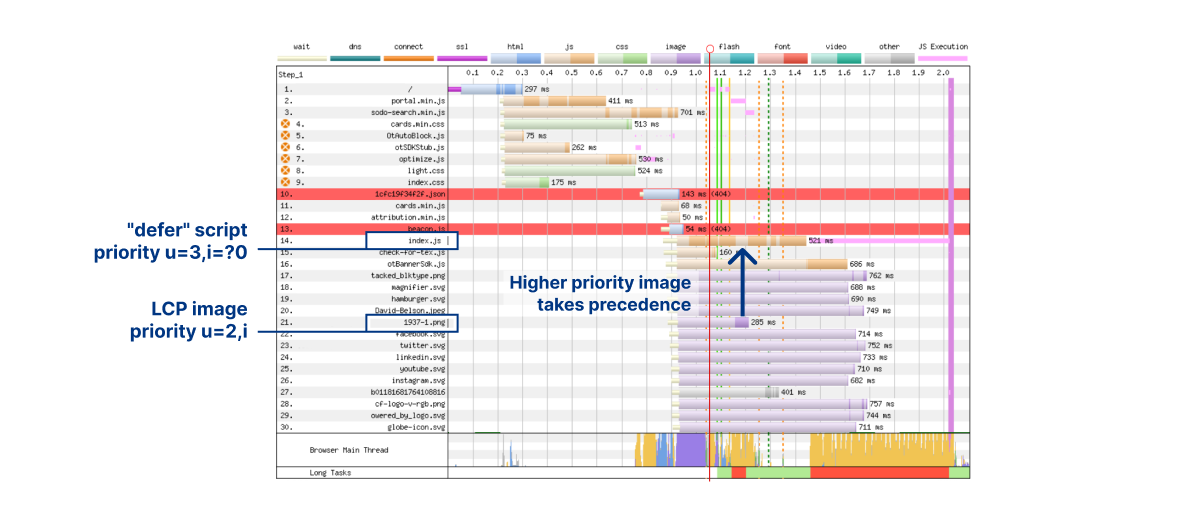
The waterfall with prioritization looks much better:

Introducing HTTP/3 Prioritization

We used a server-side override to promote the priority of the LCP image 1937-1.png from u=3,i to u=2,i. This has the effect of making it leapfrog the "defer" JavaScript. We can see at around 1.2 seconds, transmission of index.js is halted while the image is delivered in full. And because it takes another couple of hundred milliseconds to receive the remaining JavaScript, there is no CPU competition for the LCP image paint. These factors combine together to drastically improve LCP times.

How Extensible Priorities actually works

First of all, you don't need to do anything yourselves to make it work. Out of the box, browsers will send Extensible Priorities signals alongside HTTP/3 requests, which we'll feed into our priority scheduling decision making algorithms. We'll then decide the best way to send HTTP/3 response data to ensure speedy page loads.

Extensible Priorities has a similar interaction model to HTTP/2 priorities, client send priorities and servers act on them to schedule response data, we'll explain exactly how that works in a bit.

HTTP/2 priorities used a dependency tree model. While this was very powerful it turned out hard to implement and use. When the IETF came to try and port it to HTTP/3 during the standardization process, we hit major issues. If you are interested in all that background, go and read my blog post describing why we adopted a new approach to HTTP/3 prioritization.

Extensible Priorities is a far simpler scheme. HTTP/2's dependency tree with 255 weights and dependencies (that can be mutual or exclusive) is complex, hard to use as a web developer and could not work for HTTP/3. Extensible Priorities has just two parameters: urgency and incremental, and these are capable of achieving exactly the same web performance goals.

Urgency is an integer value in the range 0-7. It indicates the importance of the requested object, with 0 being most important and 7 being the least. The default is 3. Urgency is comparable to HTTP/2 weights. However, it's simpler to reason about 8 possible urgencies rather than 255 weights. This makes developer's lives easier when trying to pick a value and predicting how it will work in practice.

Incremental is a boolean value. The default is false. A true value indicates the requested object can be processed as parts of it are received and read – commonly referred to as streaming processing. A false value indicates the object must be received in whole before it can be processed.

Let's consider some example web objects to put these parameters into perspective:

  • An HTML document is the most important piece of a webpage. It can be processed as parts of it arrive. Therefore, urgency=0 and incremental=true is a good choice.
  • A CSS style is important for page rendering and could block visual completeness. It needs to be processed in whole. Therefore, urgency=1 and incremental=false is suitable, this would mean it doesn't interfere with the HTML.
  • An image file that is outside the browser viewport is not very important and it can be processed and painted as parts arrive. Therefore, urgency=3 and incremental=true is appropriate to stop it interfering with sending other objects.
  • An image file that is the "hero image" of the page, making it the Largest Contentful Pain element. An urgency of 1 or 2 will help it avoid being mixed in with other images. The choice of incremental value is a little subjective and either might be appropriate.

When making an HTTP request, clients decide the Extensible Priority value composed of the urgency and incremental parameters. These are sent either as an HTTP header field in the request (meaning inside the HTTP/3 HEADERS frame on a request stream), or separately in an HTTP/3 PRIORITY_UPDATE frame on the control stream. HTTP headers are sent once at the start of a request; a client might change its mind so the PRIORITY_UPDATE frame allows it to reprioritize at any point in time.

For both the header field and PRIORITY_UPDATE, the parameters are exchanged using the Structured Fields Dictionary format (RFC 8941) and serialization rules. In order to save bytes on the wire, the parameters are shortened – urgency to 'u', and incremental to 'i'.

Here's how the HTTP header looks alongside a GET request for important HTML, using HTTP/3 style notation:

HEADERS:
    :method = GET
    :scheme = https
    :authority = example.com
    :path = /index.html
     priority = u=0,i

The PRIORITY_UPDATE frame only carries the serialized Extensible Priority value:

PRIORITY_UPDATE:
    u=0,i

Structured Fields has some other neat tricks. If you want to indicate the use of a default value, then that can be done via omission. Recall that the urgency default is 3, and incremental default is false. A client could send "u=1" alongside our important CSS request (urgency=1, incremental=false). For our lower priority image it could send just "i=?1" (urgency=3, incremental=true). There's even another trick, where boolean true dictionary parameters are sent as just "i". You should expect all of these formats to be used in practice, so it pays to be mindful about their meaning.

Extensible Priority servers need to decide how best to use the available connection bandwidth to schedule the response data bytes. When servers receive priority client signals, they get one form of input into a decision making process. RFC 9218 provides a set of scheduling recommendations that are pretty good at meeting a board set of needs. These can be distilled down to some golden rules.

For starters, the order of requests is crucial. Clients are very careful about asking for things at the moment they want it. Serving things in request order is good. In HTTP/3, because there is no strict ordering of stream arrival, servers can use stream IDs to determine this. Assuming the order of the requests is correct, the next most important thing is urgency ordering. Serving according to urgency values is good.

Be wary of non-incremental requests, as they mean the client needs the object in full before it can be used at all. An incremental request means the client can process things as and when they arrive.

With these rules in mind, the scheduling then becomes broadly: for each urgency level, serve non-incremental requests in whole serially, then serve incremental requests in round robin fashion in parallel. What this achieves is dedicated bandwidth for very important things, and shared bandwidth for less important things that can be processed or rendered progressively.

Let's look at some examples to visualize the different ways the scheduler can work. These are generated by using quiche's qlog support and running it via the qvis analysis tool. These diagrams are similar to a waterfall chart; the y-dimension represents stream IDs (0 at the top, increasing as we move down) and the x-dimension shows reception of stream data.

Example 1: all streams have the same urgency and are non-incremental so get served in serial order of stream ID.

Introducing HTTP/3 Prioritization

Example 2: the streams have the same urgency and are incremental so get served in round-robin fashion.

Introducing HTTP/3 Prioritization

Example 3: the streams have all different urgency, with later streams being more important than earlier streams. The data is received serially but in a reverse order compared to example 1.

Introducing HTTP/3 Prioritization

Beyond the Extensible Priority signals, a server might consider other things when scheduling, such as file size, content encoding, how the application vs content origins are configured etc.. This was true for HTTP/2 priorities but Extensible Priorities introduces a new neat trick, a priority signal can also be sent as a response header to override the client signal.

This works especially well in a proxying scenario where your HTTP/3 terminating proxy is sat in front of some backend such as Workers. The proxy can pass through the request headers to the backend, it can inspect these and if it wants something different, return response headers to the proxy. This allows powerful tuning possibilities and because we operate on a semantic request basis (rather than HTTP/2 priorities dependency basis) we don't have all the complications and dangers. Proxying isn't the only use case. Often, one form of "API" to your local server is via setting response headers e.g., via configuration. Leveraging that approach means we don't have to invent new APIs.

Let's consider an example where server overrides are useful. Imagine we have a webpage with multiple images that are referenced via <img> tags near the top of the HTML. The browser will process these quite early in the page load and want to issue requests. At this point, it might not know enough about the page structure to determine if an image is in the viewport or outside the viewport. It can guess, but that might turn out to be wrong if the page is laid out a certain way. Guessing wrong means that something is misprioritized and might be taking bandwidth away from something that is more important. While it is possible to reprioritize things mid-flight using the PRIORITY_UPDATE frame, this action is "laggy" and by the time the server realizes things, it might be too late to make much difference.

Fear not, the web developer who built the page knows exactly how it is supposed to be laid out and rendered. They can overcome client uncertainty by overriding the Extensible Priority when they serve the response. For instance, if a client guesses wrong and requests the LCP image at a low priority in a shared bandwidth bucket, the image will load slower and web performance metrics will be adversely affected. Here's how it might look and how we can fix it:

Request HEADERS:
    :method = GET
    :scheme = https
    :authority = example.com
    :path = /lcp-image.jpg
     priority = u=3,i

Response HEADERS:
:status = 200
content-length: 10000
content-type: image/jpeg
priority = u=2

Priority response headers are one tool to tweak client behavior and they are complementary to other web performance techniques. Methods like efficiently ordering elements in HTML, using attributes like "async" or "defer", augmenting HTML links with Link headers, or using more descriptive link relationships like “preload” all help to improve a browser's understanding of the resources comprising a page. A website that optimizes these things provides a better chance for the browser to make the best choices for prioritizing requests.

More recently, a new attribute called “fetchpriority” has emerged that allows developers to tune some of the browser behavior, by boosting or dropping the priority of an element relative to other elements of the same type. The attribute can help the browser do two important things for Extensible priorities: first, the browser might send the request earlier or later, helping to satisfy our golden rule #1 – ordering. Second, the browser might pick a different urgency value, helping to satisfy rule #2. However, "fetchpriority" is a nudge mechanism and it doesn't allow for directly setting a desired priority value. The nudge can be a bit opaque. Sometimes the circumstances benefit greatly from just knowing plainly what the values are and what the server will do, and that's where the response header can help.

Conclusions

We’re excited about bringing this new standard into the world. Working with standards bodies has always been an amazing partnership and we’re very pleased with the results. We’ve seen great results with HTTP/3 priorities, reducing Largest Contentful Paint by up to 37% in our test. If you’re interested in turning on HTTP/3 priorities for your domain, just head on over to the Cloudflare dashboard and hit the toggle.

How to use Cloudflare Observatory for performance experiments

Post Syndicated from Matt Bullock original http://blog.cloudflare.com/performance-experiments-with-cloudflare/

How to use Cloudflare Observatory for performance experiments

How to use Cloudflare Observatory for performance experiments

Website performance is crucial to the success of online businesses. Study after study has shown that an increased load time directly affects sales. But how do you get test products that could improve your website speed without incurring an element of risk?

In today's digital landscape, it is easy to find code optimizations on the Internet including our own developers documentation to improve the performance of your website or web applications. However, implementing these changes without knowing the impact they’ll have can be daunting. It could also cause an outage, taking websites or applications offline entirely, leaving admins scrambling to remove the offending code and get the business back online.

Users need a way to see the impact of these improvements on their websites without impacting uptime. They want to understand “If I enabled this, what performance boost should I expect to get?”.

Today, we are excited to announce Performance Experiments in Cloudflare Observatory. Performance Experiments gives users a safe place to experiment and determine what the best setup is to improve their website performance before pushing it live for all visitors to benefit from. Cloudflare users will be able to simply enter the desired code, run our Observatory testing suite and view the impact it would have on their Lighthouse score. If they are satisfied with the results they can push the experiment live. With the click of a button.

Experimenting within Observatory

Cloudflare Observatory, announced today, allows users to easily  monitor website performance by integrating Real-User Monitoring (RUM) data and synthetic tests in one location.. This allows users to easily identify areas for optimization and leverage Cloudflare's features to address performance issues.

How to use Cloudflare Observatory for performance experiments

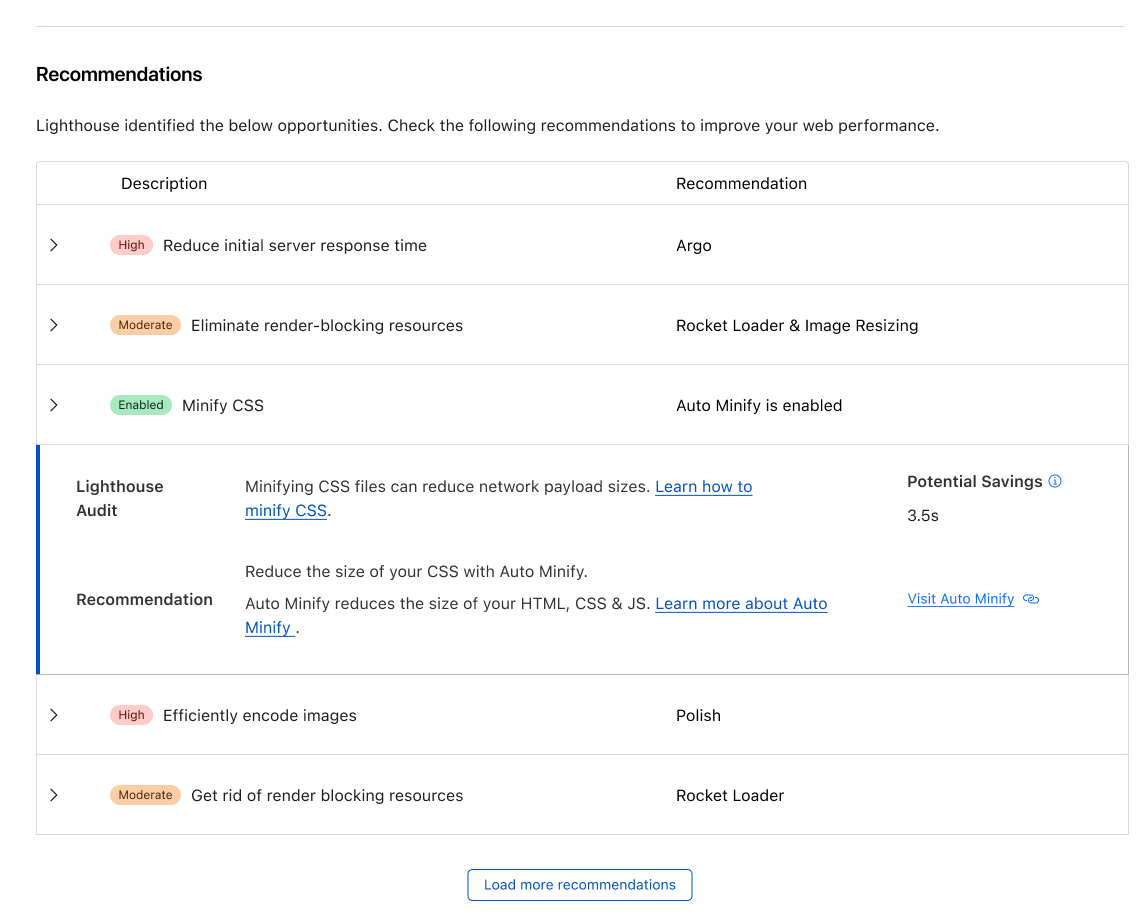
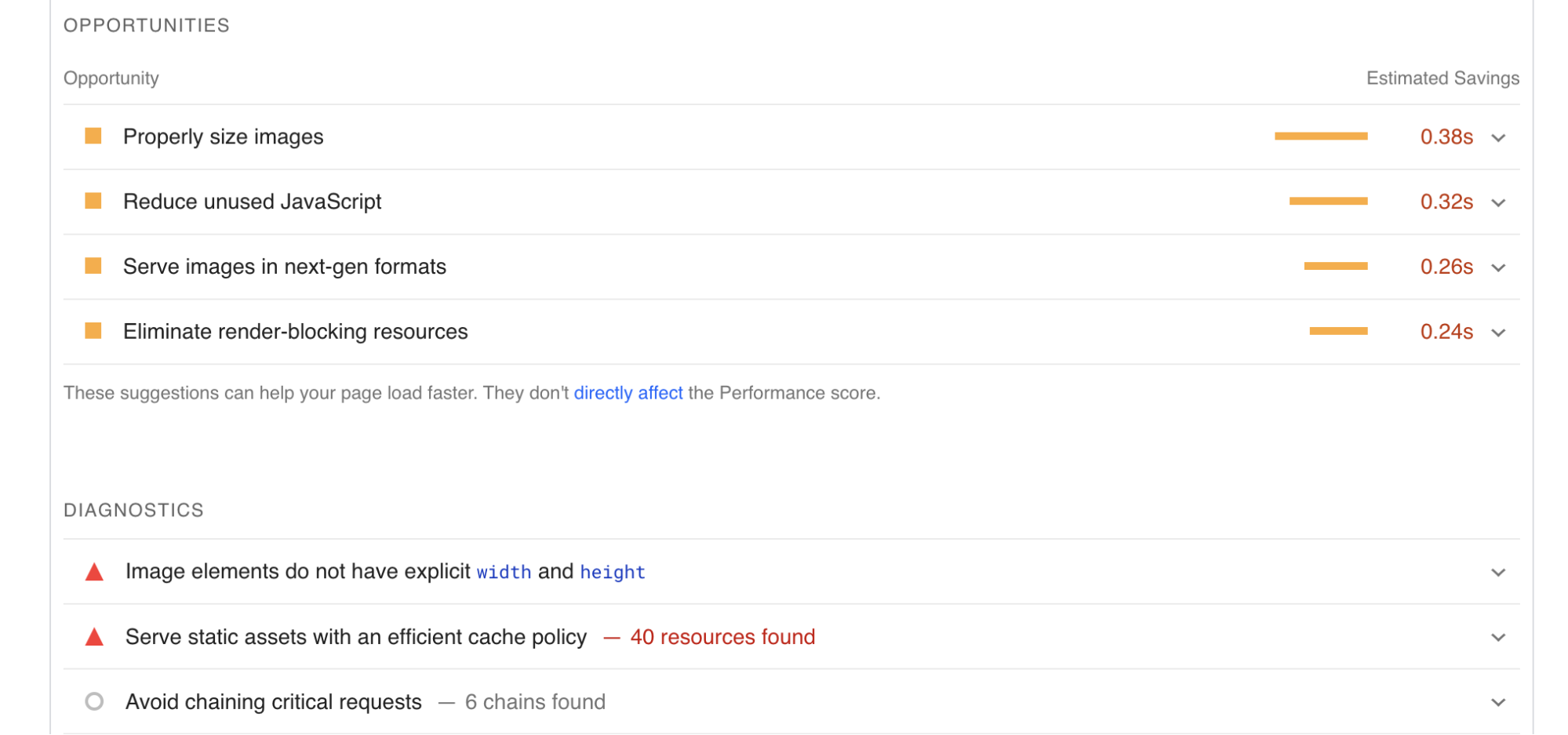
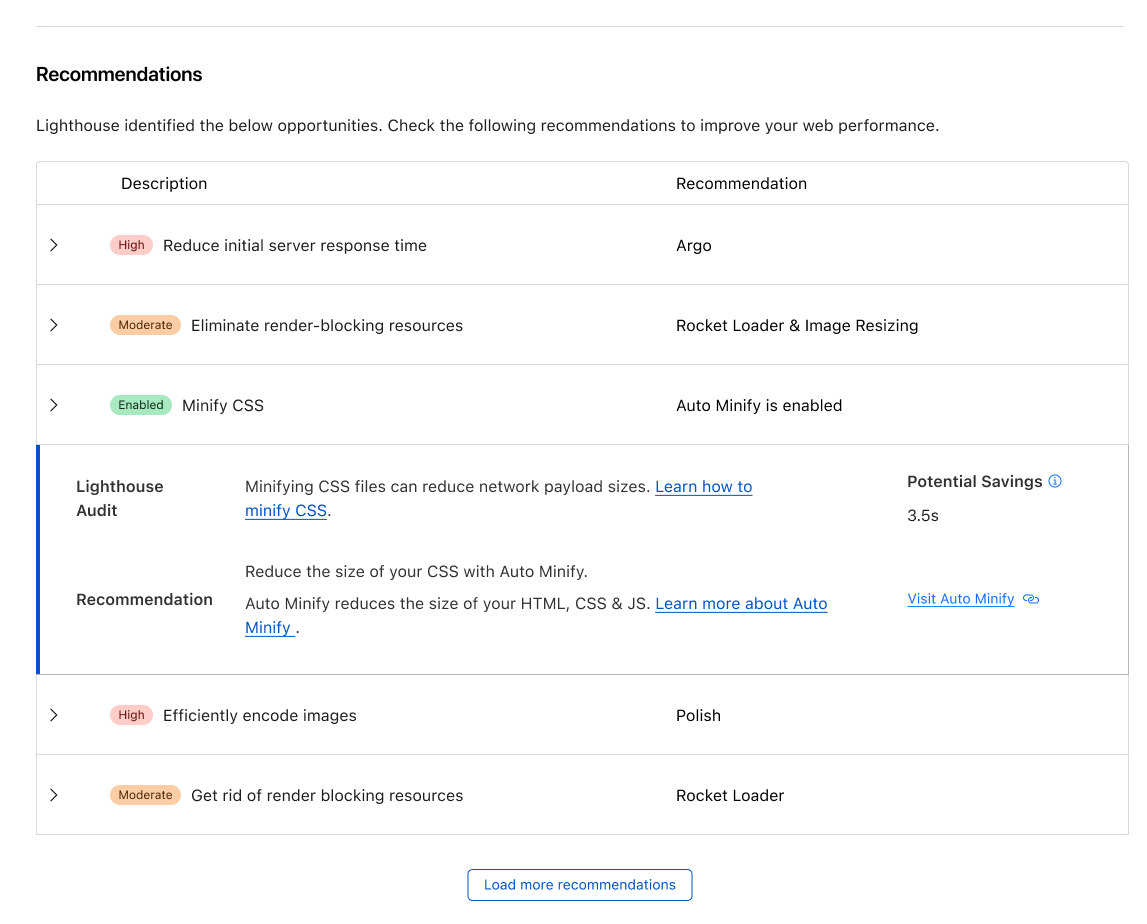
Observatory's recommendations leverage insights from these Lighthouse test and RUM data, enabling precise identification of issues and offering tailored Cloudflare settings for enhanced performance. For example, when a Lighthouse report suggests image optimization improvements, Cloudflare recommends enabling Polish or utilizing Image Resizing. These recommendations can be implemented with a single click, allowing customers to boost their performance score effortlessly.

How to use Cloudflare Observatory for performance experiments

Fine tuning with Experiments

Cloudflare’s Observatory allows customers to easily enable recommended Cloudflare settings. However,  through the medium of Cloudflare Workers web performance advocates have been able to create and share JavaScript examples of how to improve and optimize a website.

A great example of this is Fast Fonts. Google Fonts are slow due to how they are served. When using Google Fonts on your website, you include a stylesheet URL that contains the font styles you want to use. The CSS file is hosted on one domain (fonts.googleapis.com), while the font files are on another domain (fonts.gstatic.com). This separation means that each resource requires at least four round trips to the server for DNS lookup, establishing the socket connection, negotiating TLS encryption (for https), and making the request itself.

These requests cannot be done in parallel because the fonts are not known until after the CSS is downloaded and applied to the page. In the best-case scenario, this leads to eight round trips before the text can be displayed. On a slower 3G connection with a 300ms round-trip time, this delay can add up to 2.4 seconds. To fix this issue Cloudflare Workers can be used to reduce the performance penalties of serving Google Fonts directly from Google by 81%.

Another issue is resource prioritization. When all requests come from the same domain on the same HTTP/2 connection, critical resources like CSS and fonts can be prioritized and delivered before lower priority resources like images. However, since Google Fonts (and most third-party resources) are served from a different domain than the main page resources, they cannot be prioritized and end up competing with each other for download bandwidth. This competition can result in significantly longer fetch times than the best-case scenario of eight round trips.

To implement this Worker first create a Cloudflare Worker, implement the code from the GitHub repository using Wrangler and then run manual tests to see if performance has been improved and that there are no issues or problems with the website loading. Users can choose to implement the Cloudflare Worker on a test path that may not be a true reflection of production or complicate the Cloudflare Worker further by implementing an A/B test that could still have an impact on your end users. So how can users test code on their website to easily see if the code will improve the performance of their website and not have any adverse impact on end users?

Introducing Performance Experiments

Last year we announced Cloudflare Snippets. Snippets is a platform for running discrete pieces of JavaScript code on Cloudflare before your website is served to the user. They provide a convenient way to customize and enhance your website's functionality. If you are already familiar with Cloudflare Workers, our developer platform, you'll find Snippets to be a familiar and welcome addition to your toolkit. With Snippets, you can easily execute small pieces of user-created JavaScript code to modify the behavior of your website and improve performance, security, and user experience.

Combining Snippets with Observatory lets users easily run experiments and get instant feedback on the performance impact. Users will be able to find a piece of JavaScript, insert it into the Experiments window and hit test. Observatory will then automatically run multiple Lighthouse tests with the experiment disabled and then enabled. The results will show the before and after scores allowing users to determine the impact of the experiment e.g. “If I put this JavaScript on my website, my Lighthouse score would improve by 15 points”.

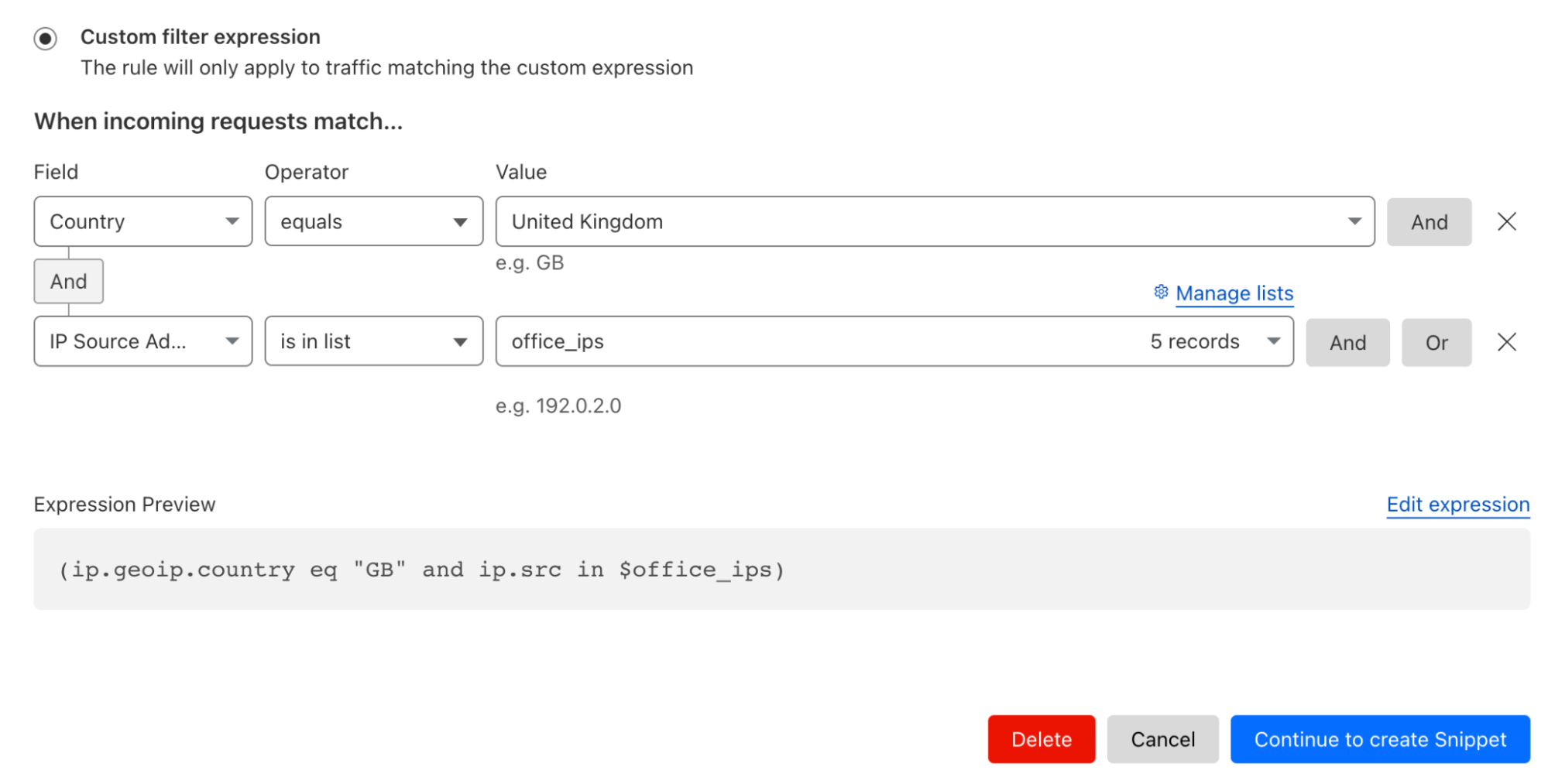
This allows users to understand if the JavaScript has had a positive performance impact on their website. Users can then deploy this JavaScript, via Snippets, against all requests or on a specific subset of traffic. For example, if I only wanted it run on traffic from the UK or my office IPs I would use the rule below:

How to use Cloudflare Observatory for performance experiments

Alternatively, if the results impact performance customers negatively users can safely discard the experiment or try another example. All without real visitors to the website being impacted or ever at risk.

Accessing Performance Experiments

Performance Experiments are currently under development — you can sign up here to join the waitlist for access.

We hope to begin admitting users later in the year, with an open beta to follow.

Argo Smart Routing for UDP: speeding up gaming, real-time communications and more

Post Syndicated from Achiel van der Mandele original http://blog.cloudflare.com/turbo-charge-gaming-and-streaming-with-argo-for-udp/

Argo Smart Routing for UDP: speeding up gaming, real-time communications and more

Argo Smart Routing for UDP: speeding up gaming, real-time communications and more

Today, Cloudflare is super excited to announce that we’re bringing traffic acceleration to customer’s UDP traffic. Now, you can improve the latency of UDP-based applications like video games, voice calls, and video meetings by up to 17%. Combining the power of Argo Smart Routing (our traffic acceleration product) with UDP gives you the ability to supercharge your UDP-based traffic.

When applications use TCP vs. UDP

Typically when people talk about the Internet, they think of websites they visit in their browsers, or apps that allow them to order food. This type of traffic is sent across the Internet via HTTP which is built on top of the Transmission Control Protocol (TCP). However, there’s a lot more to the Internet than just browsing websites and using apps. Gaming, live video, or tunneling traffic to different networks via a VPN are all common applications that don’t use HTTP or TCP. These popular applications leverage the User Datagram Protocol (or UDP for short). To understand why these applications use UDP instead of TCP, we’ll need to dig into how these different applications work.

When you load a web page, you generally want to see the entire web page; the website would be confusing if parts of it are missing. For this reason, HTTP uses TCP as a method of transferring website data. TCP ensures that if a packet ever gets lost as it crosses the Internet, that packet will be resent. Having a reliable protocol like TCP is generally a good idea when 100% of the information sent needs to be loaded. It’s worth noting that later HTTP versions like HTTP/3 actually deviated from TCP as a transmission protocol, but they still ensure packet delivery by handling packet retransmission using the QUIC protocol.

There are other applications that prioritize quickly sending real time data and are less concerned about perfectly delivering 100% of the data. Let’s explore Real-Time Communications (RTC) like video meetings as an example. If two people are streaming video live, all they care about is what is happening now. If a few packets are lost during the initial transmission, retransmission is usually too slow to render the lost packet data in the current video frame. TCP doesn’t really make sense in this scenario.

Instead, RTC protocols are built on top of UDP. TCP is like a formal back and forth conversation where every sentence matters. UDP is more like listening to your friend's stream of consciousness: you don’t care about every single bit as long as you get the gist of it. UDP transfers packet data with speed and efficiency without guaranteeing the delivery of those packets. This is perfect for applications like RTC where reducing latency is more important than occasionally losing a packet here or there. The same applies to gaming traffic; you generally want the most up-to-date information, and you don’t really care about retransmitting lost packets.

Gaming and RTC applications really care about latency. Latency is the length of time it takes a packet to be sent to a server plus the length of time to receive a response from the server (called round-trip time or RTT). In the case of video games, the higher the latency, the longer it will take for you to see other players move and the less time you’ll have to react to the game. With enough latency, games become unplayable: if the players on your screen are constantly blipping around it’s near impossible to interact with them. In RTC applications like video meetings, you’ll experience a delay between yourself and your counterpart. You may find yourselves accidentally talking over each other which isn’t a great experience.

Companies that host gaming or RTC infrastructure often try to reduce latency by spinning up servers that are geographically closer to their users. However, it’s common to have two users that are trying to have a video call between distant locations like Amsterdam and Los Angeles. No matter where you install your servers, that's still a long distance for that traffic to travel. The longer the path, the higher the chances are that you're going to run into congestion along the way. Congestion is just like a traffic jam on a highway, but for networks. Sometimes certain paths get overloaded with traffic. This causes delays and packets to get dropped. This is where Argo Smart Routing comes in.

Argo Smart Routing

Cloudflare customers that want the best cross-Internet application performance rely on Argo Smart Routing’s traffic acceleration to reduce latency. Argo Smart Routing is like the GPS of the Internet. It uses real time global network performance measurements to accelerate traffic, actively route around Internet congestion, and increase your traffic’s stability by reducing packet loss and jitter.

Argo Smart Routing was launched in May 2017, and its first iteration focused on reducing website traffic latency. Since then, we’ve improved Argo Smart Routing and also launched Argo Smart Routing for Spectrum TCP traffic which reduces latency in any TCP-based protocols. Today, we’re excited to bring the same Argo Smart Routing technology to customer’s UDP traffic which will reduce latency, packet loss, and jitter in gaming, and live audio/video applications.

Argo Smart Routing accelerates Internet traffic by sending millions of synthetic probes from every Cloudflare data center to the origin of every Cloudflare customer. These probes measure the latency of all possible routes between Cloudflare’s data centers and a customer’s origin. We then combine that with probes running between Cloudflare’s data centers to calculate possible routes. When an Internet user makes a request to an origin, Cloudflare calculates the results of our real time global latency measurements, examines Internet congestion data, and calculates the optimal route for customer’s traffic. To enable Argo Smart Routing for UDP traffic, Cloudflare extended the route computations typically used for HTTP and TCP traffic and applied them to UDP traffic.

We knew that Argo Smart Routing offered impressive benefits for HTTP traffic, reducing time to first byte by up to 30% on average for customers. But UDP can be treated differently by networks, so we were curious to see if we would see a similar reduction in round-trip-time for UDP. To validate, we ran a set of tests. We set up an origin in Iowa, USA and had a client connect to it from Tokyo, Japan. Compared to a regular Spectrum setup, we saw a decrease in round-trip-time of up to 17.3% on average. For the standard setup, Spectrum was able to proxy packets to Iowa in 173.3 milliseconds on average. Comparatively, turning on Argo Smart Routing reduced the average round-trip-time down to 143.3 milliseconds. The distance between those two cities is 6,074 miles (9,776 kilometers), meaning we've effectively moved the two closer to each other by over a thousand miles (or 1,609 km) just by turning on this feature.

We're incredibly excited about Argo Smart Routing for UDP and what our customers will use it for. If you're in gaming or real-time-communications, or even have a different use-case that you think would benefit from speeding up UDP traffic, please contact your account team today. We are currently in closed beta but are excited about accepting applications.

Faster website, more customers: Cloudflare Observatory can help your business grow

Post Syndicated from Matt Bullock original http://blog.cloudflare.com/cloudflare-observatory-generally-available/

Faster website, more customers: Cloudflare Observatory can help your business grow

This post is also available in 简体中文, 日本語 and Español.

Faster website, more customers: Cloudflare Observatory can help your business grow

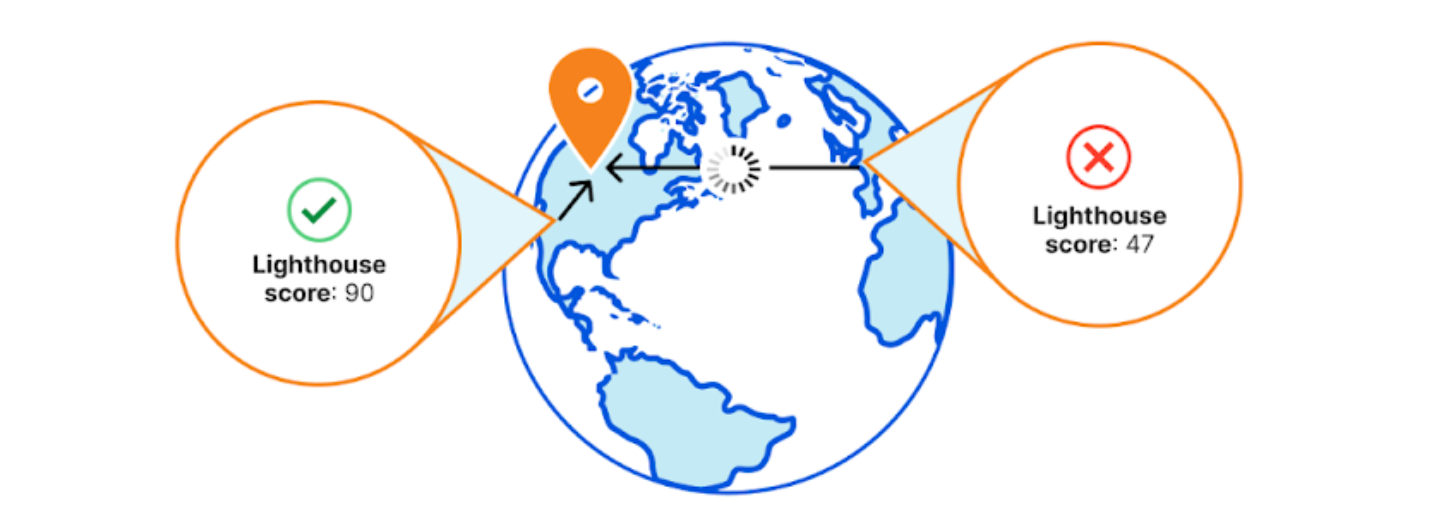
Website performance is crucial to the success of online businesses. Study after study has shown that an increased load time directly affects sales. In highly competitive markets the performance of a website is crucial for success. Just like a physical shop situated in a remote area faces challenges in attracting customers, a slow website encounters similar difficulties in attracting traffic. It is vital to measure and improve website performance to enhance user experience and maximize online engagement. Results from testing at home don’t take into account how your customers in different countries, on different devices, with different Internet connections experience your website.

Simply put, you might not know how your website is performing. And that could be costing your business money every single day.

Today we are excited to announce Cloudflare Observatory – the new home of performance at Cloudflare.

Faster website, more customers: Cloudflare Observatory can help your business grow

Cloudflare users can now easily monitor website performance using Real User Monitoring (RUM) data along with scheduled tests from different regions in a single dashboard. This will identify any performance issues your website may have. The best bit? Once we’ve identified any issues, Observatory will highlight customized recommendations to resolve these issues, all with a single click.

Making your website faster just got a lot easier.

I feel the need. The need for speed!

Having a fast website is crucial for achieving online success. According to Google, even a one-second improvement in load time can boost mobile conversions by up to 27%.

A study from Deloitte found “With a 0.1s improvement in site speed, we observed that retail consumers spent almost 10% more”. Another study, from Google, found “53% will leave a mobile site if it takes more than 3 seconds to load”. There is a very real link between website performance and business success.

In today's digital landscape, customers expect instant access to information and seamless browsing experiences. We have all encountered the frustration of waiting for a website to load, often leading us to click the back button and click on the next link. For ecommerce sites, this delay directly translates to lost revenue as users quickly navigate elsewhere.

This importance is further amplified in the world of Search Engine Optimization (SEO). In May 2021, Google announced that page speed would be incorporated into their ranking algorithm, highlighting the significance of fast-loading web pages for higher search engine rankings.

Introducing Observatory

In 2019, we launched the new Speed Tab with the mission to address two crucial questions: "How fast is my website after moving to Cloudflare?" and "How fast could it be?" This tab allowed customers to compare their website's performance before and after enabling Cloudflare features. However, it required users to delve into analytics and analyze traffic patterns and cache hit ratios to optimize their sites, which proved challenging for new Cloudflare users.

To address this, we developed Observatory, a fresh approach to performance monitoring at Cloudflare. Observatory fills the gap that previously existed in understanding website performance and simplifies the process of addressing performance issues by providing tailored recommendations.

Observatory integrates Real-User Monitoring (RUM) data, which enables users to understand their website's performance as experienced by their end users across the globe. By leveraging RUM data we can show valuable insight into the areas of the website that can be optimized and surface Cloudflare features and functionality that can address these issues.

Additionally, Observatory incorporates Google Lighthouse, the industry standard tool for evaluating web performance. We replaced WebPageTest with Lighthouse due to its versatility and widespread adoption in the performance community. With Lighthouse, users can run, schedule, and access Lighthouse performance reports directly in the Cloudflare dashboard.

Observatory also enables regional testing, recognizing the importance of understanding performance variations across different locations. By simulating website performance in different regions, users can understand if their webpage performs well in certain countries and poorly in others. This enables users to optimize their websites for a global audience, ensuring consistent and fast user experiences regardless of location.

Observatory becomes your unified place within the Cloudflare dashboard for website performance by bringing together RUM data, Lighthouse insights, and regional testing. Users can gain a comprehensive understanding of their website's performance and implement Cloudflare recommendations based on this data with just a click of a button.

Measuring performance in Cloudflare Observatory

We support the two main methods of testing website performance. These are synthetic tests and Real User Monitoring (RUM) tests.

Synthetic tests involve simulating user interactions and monitoring performance under controlled environments. These tests can provide valuable baseline measurements and help identify potential issues before deploying changes.

On the other hand, RUM tests involve collecting data directly from real users as they interact with the website, capturing their actual experiences in different environments and network conditions. RUM tests offer insights into the true end-user perspective. By combining both synthetic and RUM tests, website owners can gain a holistic view of performance, understanding how changes and optimizations affect both simulated and real user experiences.

Cloudflare Observatory combines both of these in one location. The integration of Google Lighthouse within the Observatory gives Cloudflare users a simple way to synthetically measure and understand their site's performance. Google Lighthouse measures several key performance metrics that impact user experience and search engine ranking. The generated report provides an overall performance score ranging from 1 (least performant) to 99 (most performant), making it easy for website owners to understand their site's performance.

Observatory offers a user-friendly interface that presents each Lighthouse metric in a traffic light system, indicating the result of the tested metric. One critical metric is Largest Contentful Paint (LCP), which measures a page's loading performance of the primary content. An optimal LCP score is less than 2.5 seconds, indicating satisfactory loading speed for the user. Through Observatory website owners can easily see their LCP score and other metrics. This allows them to optimize their site's performance and user experience. For example, by examining the LCP score website owners can identify opportunities for improvement and make informed decisions to enhance their site's performance.

Faster website, more customers: Cloudflare Observatory can help your business grow

New Smarter Recommendations

Recommendations from Observatory have become smarter by leveraging the insights gathered from Lighthouse and RUM testing. This enables us to precisely identify issues and offer tailored Cloudflare settings to enhance performance. For instance, when you receive a Lighthouse report it will highlight areas in which your website can be improved. In the provided report, several enhancements for image optimization are suggested. Cloudflare takes this feedback into account and provides product recommendations, such as enabling Polish or utilizing Image Resizing. This empowers our customers to enhance their performance score with just a single click.

Faster website, more customers: Cloudflare Observatory can help your business grow

Customers will have the convenience of viewing these recommendations within the Cloudflare dashboard, directly linked to the audit. The dashboard will encompass a wide range of Cloudflare features and functionalities, continually improving over time. With the addition of Cache Rules recommendations for uncached static content and a comprehensive testing suite, users will gain valuable insights into the benefits of implementing specific Cloudflare features before enabling them.

By knowing the performance impact of a product or feature before it is enabled, customers can make informed decisions and optimize their website's performance with confidence.

Faster website, more customers: Cloudflare Observatory can help your business grow

More tests, multiple regions and recurring tests

A significant piece of feedback we received from our old Speed Tab and beta testing was regarding the number and location of tests. We're thrilled to announce that we have addressed this feedback by increasing the number of tests allowed and enabling all plan types to schedule at least one recurring test, originating from a US region.

Customers on our Pro, Business, and Enterprise family of subscriptions can run tests from various regions to understand their site's performance in those areas. For instance, if a website is solely hosted in Iowa, USA, and a visitor is accessing it from Sydney, Australia, they will experience a slower page load due to the time it takes for an uncached file to be sent and rendered by the user's browser over a distance of 14,000 kilometers. By running tests from various regions, our customers can gain valuable insights into their website's performance and make informed decisions to optimize it for a better user experience – and an improved page load time.

Faster website, more customers: Cloudflare Observatory can help your business grow

The higher your plan type the more tests you are able to run and the more regions you are able to use. For example Pro customers can set up five recurring tests for their most important page from five different locations. These test runs will then be stored within the Observatory history tab allowing them to understand their Page Speed score from around the globe. Below is a table detailing the number of tests each plan type can run and the regions available to them.

Plan Ad-hoc tests Recurring tests Frequency of recurring tests Regions supported
Free 5 1 Weekly Iowa, USA
Pro 10 5 Daily Everything in Free and
South Carolina, USA
North Virginia, USA
Dallas, USA
Oregon, USA
Hamina, Finland
Madrid, Spain
St. Ghislain, Belgium
Eemshaven, Netherlands
Milan, Italy
Paris, France
Changhua County, Taiwan
Tokyo, Japan
Osaka, Japan
Tel Aviv, Israel
London, England
Jurong West, Singapore
Sydney, Australia
Frankfurt, Germany
Mumbai, India
São Paulo, Brazil
Business 20 10 Daily
Enterprise 50 15 Daily

Incorporating RUM

Cloudflare’s RUM service provides insights to a user's browser or devices, tracking metrics such as page load times, response times, and other user interactions. Cloudflare collects RUM data through its Browser Insights feature, which inserts a JavaScript "beacon" into HTML pages. This beacon sends information back to Cloudflare about the performance of a website from the perspective of real users, including metrics such as page load time, time to first byte, and other Web Vitals.

While you can always try a few page loads on your own laptop and see the results, gathering data from real users is the only way to take into account real-life device performance and network conditions.

Observatory now incorporates RUM data to match against your tested paths. This allows you to easily see how real users experience your site across the globe. This data is also dissected and located in the Observatory tab against your tested paths. Allowing you to view synthetic test data directly against Real User metrics.

Our RUM provider already incorporates the Interactive Next Paint (INP) Score. In 2022, Google announced Interaction to Next Paint (INP) as that new metric, promoting INP as the new Core Web Vital metric for responsiveness, replacing First Input Delay (FID). FID measures the delay between a user's first interaction with a web page and the browser's response to that interaction. INP measures the delay for any user interaction on a website, not just limited to the first input. This change reflects a more comprehensive approach to evaluating the responsiveness of a website.

If you don't have Web Analytics enabled on your Cloudflare zone then we will be unable to collect and display RUM data within Observatory. Enabling this feature is very simple and instructions can be found here.

Faster website, more customers: Cloudflare Observatory can help your business grow

One click optimizations

Observatory now includes an enhanced Optimization layout, which introduces a one-click recommendations center. Enabling these features on your Cloudflare zone enhances optimization for the latest HTTP protocols, including HTTP/3. Additionally, Image Delivery is improved by converting PNGs and JPEGs to the efficient WebP format. Finally, Cloudflare performance tools are also enabled, allowing users to seamlessly implement new technologies such as Early Hints. These features are designed to contribute to improved website speed and overall performance.

As we release new features that we believe are beneficial to our customers, we will continue to add them to the One Click Optimizations. We have also made changes to the overall layout of the tab, splitting our products into subcategories to allow easy navigation to the individual performance products.

Faster website, more customers: Cloudflare Observatory can help your business grow

Available now

Observatory is available now! Become the Web Performance advocate in your organization by taking advantage of the Observatory features such as Google Lighthouse integration, RUM data, and multi-region testing, all available now. You will be able to gain valuable insights into your website's performance and make informed decisions to optimize and improve your site's performance.

In the coming months, we will continue expanding the Recommendations engine, introducing more products that empower you to continually enhance your website's performance. Additionally, we will provide the capability to simulate requests for specific features, giving you a comprehensive understanding of the real-world performance benefits before implementing them on your website.

INP. Get ready for the new Core Web Vital

Post Syndicated from William Woodhead original http://blog.cloudflare.com/inp-get-ready-for-the-new-core-web-vital/

INP. Get ready for the new Core Web Vital

INP will replace FID in the Core Web Vitals

INP. Get ready for the new Core Web Vital

On May 10, 2023, Google announced that INP will replace FID in the Core Web Vitals in March 2024. The Core Web Vitals play a role in the Google Search algorithm. So website owners who care about Search Engine Optimization (SEO) should prepare for the change. Otherwise their search ranking might suffer.

This post will first explain what FID, INP and the Core Web Vitals are. Then it will show how FID and INP relate to each other across a large range of Cloudflare sites. (Spoiler alert – If a site has ‘Good’ scoring FID, it might not have ‘Good’ scoring INP). Then it will discuss how to prepare for this change and how Cloudflare can help.

A few definitions

In order to make sense of the upcoming change, here are some definitions that will set the scene.

Core Web Vitals

Measuring user-centric web performance is challenging. To face this challenge, Google developed a series of metrics called the Web Vitals. These Web Vitals are signals that measure different aspects of web performance. For example Time To First Byte (TTFB) is one of the Web Vitals: from the perspective of the browser, TTFB “measures the time between the request for a resource and when the first byte of a response begins to arrive.” – https://web.dev/ttfb/

A subset of the Web Vitals are the Core Web Vitals. The Core Web Vitals are identified as the most critical Web Vitals to pay attention to. As such, they play a role in the Google Search algorithm. Improving a webpage’s Core Web Vitals can improve success with Google Search. The Core Web Vitals currently consist of three metrics: Largest Contentful Paint (LCP), First Input Delay (FID) and Cumulative Layout Shift (CLS). Respectively they measure Loading Speed, Interactivity and Visual Stability. This will change in March 2024 when Interaction To Next Paint (INP) replaces FID as the Core Web Vital for Interactivity.

Interaction

An Interaction on a webpage starts with a user input. The browser then reacts to this input. This includes the input delay, the processing time and the presentation delay before the next paint occurs and the new frame is presented.

INP. Get ready for the new Core Web Vital
Image from https://web.dev/inp/#whats-in-an-interaction

Keeping in mind that an interaction is composed of these three serialized durations – input delay, processing time and presentation delay – will help later on to understand the difference between FID and INP.

First Input Delay (FID)

“FID measures the time from when a user first interacts with a page (that is, when they click a link, tap on a button, or use a custom, JavaScript-powered control) to the time when the browser is actually able to begin processing event handlers in response to that interaction.” – https://web.dev/fid/

FID is the current Core Web Vital that measures interactivity. FID measures the first interaction with the page. User interactions after the first interaction are not measured with FID. FID also only measures the input delay part of the first interaction. It does not measure the processing time and the presentation delay.

FID is classed as ‘Good’ if the input delay is less than 100 ms. FID is classed as ‘Needs Improvement’ between 100ms and 300ms. Delays above 300 ms are classed as ‘Poor’.

INP. Get ready for the new Core Web Vital
Image from https://web.dev/fid/

Interaction to Next Paint (INP)

“INP is a metric that assesses a page's overall responsiveness to user interactions by observing the latency of all click, tap, and keyboard interactions that occur throughout the lifespan of a user's visit to a page. The final INP value is the longest interaction observed, ignoring outliers.”  - https://web.dev/inp/

INP, like FID, is also a Web Vital that measures interactivity. INP observes all user interactions in a page view and reports the longest. It measures more than just the input delay duration of each interaction. It also measures the processing time and the presentation delay until the next paint occurs. Once you understand the mechanics of it, the name ‘Interaction to Next Paint’ is a good description of the duration it measures.

INP is classed as ‘Good’ if the final reported value is less than 200 ms. INP is classed as ‘Needs Improvement’ between 200ms and 500ms. Any measurement above 500 ms is classed as ‘Poor’.

INP. Get ready for the new Core Web Vital
Image from https://web.dev/inp/

A more comprehensive measure of interactivity

Both FID and INP measure interactivity by measuring delays after user interactions. But INP is more comprehensive than FID. As an example, let’s say a user loads a web page and interacts only once by clicking a button. In this case, FID will capture this interaction by reporting the input delay after the user input. INP will also observe this interaction but it will measure not only the input delay but also the subsequent processing time and the presentation delay. Since this is the only interaction on the web page, INP will observe this as the longest duration within the page view and so will report this duration as the final reported INP value. Already it is clear that with just a single user interaction, INP provides a more comprehensive signal of interactivity because it includes processing time and presentation delay.

But INP also goes beyond the first interaction on the page. It observes all the interactions within a page view and reports the longest interaction of the set (ignoring outliers). This means that web sites need to ensure that all interactions throughout the lifecycle of a page view are under 200ms in order to score a ‘Good’ INP. With FID, web sites only need to focus on optimizing the first interaction’s input delay under 100 ms to score ‘Good’ FID. With INP joining the Core Web Vitals, web sites will need to focus on optimizing all interactions.

Comparing FID with INP across Cloudflare

At Cloudflare, for sites that have enabled Real User Measurements (RUM) via the Web Analytics Product or the Observatory Product, we already collect INP data. This means we have a rich dataset across 850k sites with which to analyze INP against FID.

FID vs INP

Over the period of a week, across all Cloudflare RUM-enabled sites, we observed over four billion reported FIDs and INPs. 93% of the FID values classify as ‘Good’ (under 100 ms). 75% of the INP values classify as ‘Good’ (under 200 ms). Since these values are sourced from the same set of page views, it is already possible to see at a glance that INP is distributed more lightly in the ‘Good’ range than FID.

Interestingly, the P75 value for FID is just 16 ms. A 0.16 times multiple of the FID ‘Good’ threshold of 100 ms. For INP, the P75 value is 200 ms. A one times multiple of the INP ‘Good’ threshold.

INP. Get ready for the new Core Web Vital

INP across devices

Focusing on INP, when the INP data is segmented by device type, we observe that 88% of desktop INP classify as ‘Good’, but only 67% of mobile INP classify as ‘Good’. This suggests that INP is generally suffering more on mobile devices than on desktop.

INP. Get ready for the new Core Web Vital

The bottom line is that INP is more challenging than FID to ‘get into the Green’. Since INP is a more comprehensive measure of interactivity, web sites are more exposed, and less likely to score favorably.

How to prepare for the change

INP will start affecting Google Search rankings when it becomes a Core Web Vital in March 2024. To get ready, websites need to improve interactivity beyond the initial load of the site.

As always, in order to improve on a metric, a baseline must be drawn by collecting data on the metric. But with INP, this can be challenging because INP is best reported from field data. Field data means that the data comes from real users interacting with web pages on real browsers. With field data, synthetic tools like Google Lighthouse aren’t a great fit. Synthetic tools are not designed to emulate the wide range of users on the wide range of browsers and operating systems that will navigate a web page.

In order to collect real user data from real browsers, websites need to enable a RUM provider. RUM providers collect performance data from real browsers, and process the data so that it can be aggregated and analyzed. It’s worth noting that performance data is anonymous and does not include any personal identifiable information (PII).

So the first step to understanding INP on a website is to enable a RUM provider.

Once a RUM provider is enabled on a website, it is then possible to analyze INP data to understand which web pages are not optimized for interactivity. There can be many possible causes for this. Since INP is composed of input delay, processing time and presentation delay, optimizing INP can be broken down into optimizing these distinct durations.

The best advice for optimizing INP is set out by web.dev. Optimizing INP is not straight-forward – it can involve breaking up JavaScript tasks, reducing DOM interactions and layouts, avoiding use of timers, and limiting third-party code amongst a range of other measures. That’s why it’s best to get started early and learn as much as possible before the change takes place.

How Cloudflare can help

A free RUM provider

Cloudflare offers a free RUM provider which collects INP as part of its dataset. It currently powers Cloudflare Web Analytics and Cloudflare Observatory. By enabling RUM with Cloudflare, you can explore the interactivity of your site’s web pages and start to identify interactivity issues.

Just log onto the Cloudflare Dashboard, and head to your target account. Go to Web Analytics.

Reduce the impact of third-party scripts

One of the contributing causes of degraded INP is JavaScript blocking the main thread after an interaction. Often this can be caused by heavy third-party scripts attaching event listeners to DOM elements. For example, third-party analytics scripts can register listeners on interactive elements of a page to power various forms of analytics. Many sites have dozens, if not hundreds of third-party scripts running, each one potentially degrading INP.

Cloudflare offers a unique product that can entirely remove third-party scripts from the browser. This frees up the main thread, boosting interactivity. If you haven’t come across Cloudflare Zaraz before, check it out in our docs. Not only can it improve INP, but it can also dramatically improve the security posture of your site by reducing (or even entirely removing) the amount of third-party JavaScript that runs on your website.

Патриотична, с червен конец, прозападна. Каква партия строи Иван Гешев?

Post Syndicated from Емилия Милчева original https://www.toest.bg/patriotichna-s-cherven-konets-prozapadna-kakva-partiya-stroi-ivan-geshev/

Патриотична, с червен конец, прозападна. Каква партия строи Иван Гешев?

Какво ще се получи, ако миксираме „Републиканци за България“ и „Има такъв народ“? Нещо консервативно, българо-мъжкарско, евроатлантическо, антипутинско, с три думи: партия на Гешев. Пилона на Рожен с вратовръзка на слончета и червен конец против уроки. И ще се извисим като народ в целия си ръст, както обеща бившият обвинител №1 в реч в YouTube, преди да прекрачи в политиката – вместо да поеме към кабинет във Върховната касационна прокуратура в съседство с бившия главен прокурор Сотир Цацаров и настоящия и.д. главен прокурор Борислав Сарафов.

Всъщност прекрачи от политиката в политиката, защото, по собствените му признания, политиката не е излязла от прокуратурата, а той така и не успя да убеди обществото, че е ефективен магистрат и българската прокуратура е независима и гарант за спазването на законността. За свое оправдание заяви, че „никоя прокуратура не може да се пребори с корупцията и кражбите тогава, когато корупцията и кражбите са превърнати в държавна политика“.

И това от най-недосегаемия човек в държавата, какъвто беше Иван Гешев в тези близо три години и половина от мандата си като главен прокурор, преди това – ръководител на специализираната прокуратура, магистрат, който имаше подръка институция, лостове и закони, за да се бори с мафията. Над него наистина беше само Господ, обаче зад него бяха политиците кукловоди.

Имидж за политическа употреба

Най-новата история на България показва, че преди да стартират политическата си кариера, политиците обикновено имат имиджов трамплин. Катапултът за Бойко Борисов бе легендата за неустрашимия главен секретар на МВР, изградена от медийно облюбване, черно кожено манто и маниери на мутра от Прехода.

За други входът в политиката е бащиното име – Сергей Станишев влезе в БСП като син на секретаря за международните връзки на ЦК на БКП Димитър Станишев. Трети биват изтласкани на политическата сцена от исторически обстоятелства – революции, протести и стачки, в които едни губят живота си, а други печелят огряно от слава и почести място. Има и политици като лидера на „Възраждане“ Костадин Костадинов, които чиракуват в други партии, шлифоват се на избори и ето че идва и техният ред.

Репутацията на Иван Гешев не е особено убедителна нито като борец с мафията, нито като защитник на прокуратурата – „последната крепост на правовия ред и демокрацията“ (из речта му от 24 февруари 2023 г.). Няма осъдени олигарси, няма осъдени за източването и фалита на КТБ – делото, с което се занимаваше две години като спецпрокурор и от което липсва олигархът и най-силният човек в ДПС – Делян Пеевски, а другите дела като „Барселонагейт“, които пряко засягат Бойко Борисов, стояха на трупчета. Свали ги в името на разплата, че го жертва, за да спаси кожата си. Както се констатира в анализ на „Сега“, делата, с които прокуратурата обича да се хвали, или не стигат до съда, или там се провалят. Затова и смелостта, обзела бившия главен прокурор на излизане от прокуратурата, изглежда комична.

За разлика от Борисов, който обикаляше страната, шофирайки джипа си на главен секретар, за да лови престъпници (!), като главен прокурор в последните месеци Гешев пътуваше, за да утешава близки на жертви на пътнотранспортни произшествия, да раздава икони, да беседва с ученици. Най-значимата му кауза беше срещу езика на омразата, за което го подкрепиха еврейски организации. Проведе и срещи с ромски лидери с помощта – за това помогна и Яков Джераси, един от активните представители на еврейската общност в България, съратник и на Сакскобургготски.

Трудно може да се напомпа рейтинг от такива събития. Ако си беше свършил работата като магистрат, те щяха да полират образа на борбения прокурор със състрадателна душа, отзивчив към човешките болки и проблемите на сегрегираните общности. Но извън този контекст пътуванията и срещите му още тогава предизвикаха коментари, че Гешев се готви за политическа кариера.

Място на терена

На терена, на който ще се бори и Гешев, е доста разкаляно. Разделението ляво–дясно не е валидно за българската политика, превзета от либерали vs. консерватори. Консерваторите са ѝ в повече – консерватори путинофили, патриотично-консервативни, консерватори русофоби, консерватори тръмписти… Консерватори се откриват във всяка коалиция и политическа сила в парламента и това е и общото кратно: „Демократи за силна България“ са консерваторите в ПП–ДБ, консерваторите доминират в ГЕРБ, а за „Има такъв народ“ и „Възраждане“ консервативното е част от политическата им тъкан. БСП отдавна е изгубила, ако изобщо е имала каквото и да било ляво, и е надянала същата консервативна маска.

На Иван Гешев най му подхожда като българин, мъж и християнин да застъпи в редиците на социалните консерватори, подкрепящи традиционното семейство, обявявайки се за социална устойчивост и умерен национализъм (не може да се мери с Костадинов, който е историк, а не върви все да говори за Левски като в ученическо есе), с умерен евроскептицизъм (все пак щеше да арестува Путин, ако дойде в България) и поносима доза религиозна екстатичност (сдържано, за да не напомня твърде много на евангелски дискурс за политиката). Според изследване на Gallup International Association (GIA) на религиозните нагласи в 61 държави от март т.г. 53% от българите се определят като религиозни, а 58% твърдят, че вярват в Бог. Данните поставят България малко под средата в листата на държавите по декларирана религиозност, което означава, че и червен конец на китката не пречи.

Позиционирането на Иван Гешев и бъдещата му политическа сила на този терен следва и политическите тенденции в световен мащаб, които показват изместване към консервативното дясно. Изследване на Gallup, представено по CNN, показа, че социалният консерватизъм в САЩ е на най-високото си ниво от десетилетие – предвид новите държавни предложения по проблемите на транссексуалните, абортите, употребата на наркотици и преподаване за пола и сексуалността в училищата. Така че шествия като походите в защита на традиционното семейство в България ще зачестят и нищо чудно Гешев да е в челните редици.

Тепърва ще разбере колко уязвим е като политик. Докато беше (главен) прокурор, институцията го пазеше. Но вече е политик, комуто изпълняващият длъжността главен прокурор е враг.

Заглавно изображение: Скрийншот от речта на Иван Гешев, публикувана в YouTube канала му на 19 юни 2023 г.

Бавното демократично проглеждане

Post Syndicated from Светла Енчева original https://www.toest.bg/bavnoto-demokratichno-proglezhdane/

Бавното демократично проглеждане

Две неотдавнашни събития демонстрираха ужасяващите размери на антиевропейската и антидемократичната пропаганда в България. И двете са свързани с партия „Възраждане“ и станаха на метри едно от друго.

Двете капки, които стигнаха до ръба на чашата

На 10 юни привърженици на партията на Костадин Костадинов провалиха прожекция на белгийския филм „Близо“ в кино „Одеон“ пред безучастния поглед на полицията. Причината? Филмът – носител на десетки международни награди, беше включен в програмата на филмовия фестивал на „София прайд“, поради което протестиращите срещу него го обявиха за „педофилски“.

Същия ден мъже с тениски на „Възраждане“ (може би част от протестиращите пред „Одеон“) тормозиха продавачка в магазинче за крафтбира на „Граф Игнатиев“, защото в него имало знамена на различни държави. Афектирана, на следващия ден собственичката на магазинчето сложила на витрината надпис, че в него не се обслужват привърженици на „Възраждане“. Отмъщението – на 12 юни магазинът осъмна с надпис Jude и шестоъгълна звезда на витрината. Така по времето на Хитлер са маркирани търговските обекти, притежавани от евреи. Режимът на Хитлер е отговорен за смъртта на над шест милиона евреи (освен това и на много хомосексуални, роми, хора с умствени и физически увреждания и всякакви, които не отговарят на идеала за „чиста арийска раса“).

Реакциите и прецедентите

Никоя парламентарно представена партия или коалиция не излезе с официален коментар по отношение на проявата на антисемитизъм в центъра на столицата. Впрочем антисемитизмът и неонацизмът в България масово не се разпознават като проблем. Пример за това са и мудните реакции на Асоциация „Българска книга“ и прокуратурата по отношение на присъствието на щанд на неонацисткото издателство „Еделвайс“ на Панаира на книгата. Нямаше реакции и когато Татяна Дончева от „Левицата“ си позволи да сее антисемитизъм в национален ефир.

ПП и ДБ осъдиха в съвместна декларация акцията пред „Одеон“, ала без да споменават, че тя е провокирана от хомофобия. Тази година обаче за първи път не само от Зеленото движение, а и от „Да, България“ се обявиха в подкрепа на „София прайд“. В декларацията на „Да, България“ правата на ЛГБТИ+ хората се определят като човешки права, а защитата им – като проява на патриотизъм. Групата на „Демократична България“ в Столичния общински съвет пък излезе с позиция в подкрепа на прайда, представена от актьора и общински съветник Веселин Калановски. На самия прайд присъстваха няколко политици от ДБ, както и евродепутатът от БСП Петър Витанов, несъгласен с хомофобската политика на Корнелия Нинова.

Сред прецедентите се нарежда и събитие, инициирано от частно лице. На 15 юни гражданка на име Кристина Пекова организира шествие в защита на ЕС и демокрацията под надслов „Фашизмът не е патриотизъм“. Целта на шествието е да се изрази несъгласие с позициите и действията на президента Румен Радев и „Възраждане“, които имат за цел да ограничат демокрацията, да отдалечат България от ЕС и НАТО, да насаждат омраза, лъжи и дезинформация и да всяват разделение. А конкретният повод е случката пред „Одеон“.

Кое е новото?

Съществената промяна е не толкова във факта, че в ДБ все повече узряват за идеята, че защитата на правата на ЛГБТИ+ хората е важна с оглед на евроатлантическата ориентация на България. Защото ако я карат със същото темпо, до пълното им узряване може да минат още доста години и парламенти, особено ако чакаме и ПП да последват примера им.

Действително важното е, че най-сетне евроатлантическата ориентация и противопоставянето на фашизма бяха поставени на една плоскост. До неотдавна връзката между тези две неща изобщо не беше очевидна. Дори напротив.

На ежегодните протести срещу неонацисткия „Луковмарш“ освен дежурната шепа либерали присъстват анархисти, леви активисти, хора, близки до БСП, и могат да се видят плакати против НАТО. Много от идентифициращите се като десни демократи пък идеализират политическия живот в България преди 1944 г., омаловажават изпращането на над 11 300 евреи от новоприсъединените територии на България на смърт и са готови да водят до безкрай спора „Имало ли е фашизъм в България?“. А той измества същността на проблема, защото в България фашизъм като тоталитарна система може и да е нямало, но страната ни е била съюзник на Хитлерова Германия и е въвела важни елементи от нацисткото законодателство в своето.

Източноевропейски особености и техните последствия

След Втората световна война Западна Европа успява да се изгради като общо и мирно пространство върху базисното съгласие, че фашизмът/нацизмът е нещо лошо, което не трябва да се допуска никога повече. На това се основава съвременната либерална демокрация. Страните от Източния блок пък възприемат фашизма като нещо, с което системите им вече са се преборили, и го слагат в един кюп с капитализма, т.е. с начина на живот в западните страни.

Ето защо след падането на желязната завеса бившите социалистически страни имат проблем с борбата срещу фашизма. Хората в тях са склонни или да идеализират времената отпреди създаването на Източния блок, или да смятат, че само социализмът се е борил с фашизма, защото това, което наричат капитализъм, според тях си е фашизъм.

Затова поставянето на евроатлантическата интеграция и противопоставянето на неонацистките тенденции на една плоскост е повод за надежда, че в България може и да е възможна истинска евроинтеграция, а не такава, която се ограничава само в свободното движение и усвояването на фондове.

Войната на Русия срещу Украйна показа докъде може да стигне една държава, необичаща либералната демокрация, но повече от 70 години „лежаща на лаврите си“, че има водеща роля в преборването на фашизма. Тази война руши самия фундамент на Европа, опитвайки се да я върне до точката табу, до „никога повече“. Защото след Втората световна война Старият континент не е преживял нищо, което да прилича повече на агресията на Хитлер от агресията на Путин.

Затова не е за учудване, че проруският Волен Сидеров пишеше антисемитски книги, а привържениците на „Възраждане“ рисуват шестолъчки по витрините.

Рано е да се каже дали последните реакции в защита на човешките права и демокрацията, провокирани от „Възраждане“ и президента Румен Радев, са инцидентни, или част от цялостна тенденция. Важно е обаче проевропейските партии да не забравят какво стои в основата на европейската идентичност.

Смислена правосъдна реформа може да има едва тогава, когато е налице консенсус, че ценността на човека стои в основата на правото. На който и да е човек, включително ЛГБТИ+ хората, евреите, ромите, македонците, онези, чиито мнения не ни харесват, престъпниците… И дори Гешев и Пеевски.

Multi-tenancy Apache Kafka clusters in Amazon MSK with IAM access control and Kafka Quotas – Part 1

Post Syndicated from Vikas Bajaj original https://aws.amazon.com/blogs/big-data/multi-tenancy-apache-kafka-clusters-in-amazon-msk-with-iam-access-control-and-kafka-quotas-part-1/

With Amazon Managed Streaming for Apache Kafka (Amazon MSK), you can build and run applications that use Apache Kafka to process streaming data. To process streaming data, organizations either use multiple Kafka clusters based on their application groupings, usage scenarios, compliance requirements, and other factors, or a dedicated Kafka cluster for the entire organization. It doesn’t matter what pattern is used, Kafka clusters are typically multi-tenant, allowing multiple producer and consumer applications to consume and produce streaming data simultaneously.

With multi-tenant Kafka clusters, however, one of the challenges is to make sure that data consumer and producer applications don’t overuse cluster resources. There is a possibility that a few poorly behaved applications may overuse cluster resources, affecting the well-behaved applications as a result. Therefore, teams who manage multi-tenant Kafka clusters need a mechanism to prevent applications from overconsuming cluster resources in order to avoid issues. This is where Kafka quotas come into play. Kafka quotas control the amount of resources client applications can use within a Kafka cluster.

In Part 1 of this two-part series, we explain the concepts of how to enforce Kafka quotas in MSK multi-tenant Kafka clusters while using AWS Identity and Access Management (IAM) access control for authentication and authorization. In Part 2, we cover detailed implementation steps along with sample Kafka client applications.

Brief introduction to Kafka quotas

Kafka quotas control the amount of resources client applications can use within a Kafka cluster. It’s possible for the multi-tenant Kafka cluster to experience performance degradation or a complete outage due to resource constraints if one or more client applications produce or consume large volumes of data or generate requests at a very high rate for a continuous period of time, monopolizing Kafka cluster’s resources.

To prevent applications from overwhelming the cluster, Apache Kafka allows configuring quotas that determine how much traffic each client application produces and consumes per Kafka broker in a cluster. Kafka brokers throttle the client applications’ requests in accordance with their allocated quotas. Kafka quotas can be configured for specific users, or specific client IDs, or both. The client ID is a logical name defined in the application code that Kafka brokers use to identify which application sent messages. The user represents the authenticated user principal of a client application in a secure Kafka cluster with authentication enabled.

There are two types of quotas supported in Kafka:

  • Network bandwidth quotas – The byte-rate thresholds define how much data client applications can produce to and consume from each individual broker in a Kafka cluster measured in bytes per second.
  • Request rate quotas – This limits the percentage of time each individual broker spends processing client applications requests.

Depending on the business requirements, you can use either of these quota configurations. However, the use of network bandwidth quotas is common because it allows organizations to cap platform resources consumption according to the amount of data produced and consumed by applications per second.

Because this post uses an MSK cluster with IAM access control, we specifically discuss configuring network bandwidth quotas based on the applications’ client IDs and authenticated user principals.

Considerations for Kafka quotas

Keep the following in mind when working with Kafka quotas:

  • Enforcement level – Quotas are enforced at the broker level rather than at the cluster level. Suppose there are six brokers in a Kafka cluster and you specify a 12 MB/sec produce quota for a client ID and user. The producer application using the client ID and user can produce a max of 12MB/sec on each broker at the same time, for a total of max 72 MB/sec across all six brokers. However, if leadership for every partition of a topic resides on one broker, the same producer application can only produce a max of 12 MB/sec. Due to the fact that throttling occurs per broker, it’s essential to maintain an even balance of topics’ partitions leadership across all the brokers.
  • Throttling – When an application reaches its quota, it is throttled, not failed, meaning the broker doesn’t throw an exception. Clients who reach their quota on a broker will begin to have their requests throttled by the broker to prevent exceeding the quota. Instead of sending an error when a client exceeds a quota, the broker attempts to slow it down. Brokers calculate the amount of delay necessary to bring clients under quotas and delay responses accordingly. As a result of this approach, quota violations are transparent to clients, and clients don’t have to implement any special backoff or retry policies. However, when using an asynchronous producer and sending messages at a rate greater than the broker can accept due to quota, the messages will be queued in the client application memory first. The client will eventually run out of buffer space if the rate of sending messages continues to exceed the rate of accepting messages, causing the next Producer.send() call to be blocked. Producer.send() will eventually throw a TimeoutException if the timeout delay isn’t sufficient to allow the broker to catch up to the producer application.
  • Shared quotas – If more than one client application has the same client ID and user, the quota configured for the client ID and user will be shared among all those applications. Suppose you configure a produce quota of 5 MB/sec for the combination of client-id="marketing-producer-client" and user="marketing-app-user". In this case, all producer applications that have marketing-producer-client as a client ID and marketing-app-user as an authenticated user principal will share the 5 MB/sec produce quota, impacting each other’s throughput.
  • Produce throttling – The produce throttling behavior is exposed to producer clients via client metrics such as produce-throttle-time-avg and produce-throttle-time-max. If these are non-zero, it indicates that the destination brokers are slowing the producer down and the quotas configuration should be reviewed.
  • Consume throttling – The consume throttling behavior is exposed to consumer clients via client metrics such as fetch-throttle-time-avg and fetch-throttle-time-max. If these are non-zero, it indicates that the origin brokers are slowing the consumer down and the quotas configuration should be reviewed.

Note that client metrics are metrics exposed by clients connecting to Kafka clusters.

  • Quota configuration – It’s possible to configure Kafka quotas either statically through the Kafka configuration file or dynamically through kafka-config.sh or the Kafka Admin API. The dynamic configuration mechanism is much more convenient and manageable because it allows quotas for the new producer and consumer applications to be configured at any time without having to restart brokers. Even while application clients are producing or consuming data, dynamic configuration changes take effect in real time.
  • Configuration keys – With the kafka-config.sh command-line tool, you can set dynamic consume, produce, and request quotas using the following three configuration keys, respectively: consumer_byte_rate, producer_byte_rate, and request_percentage.

For more information about Kafka quotas, refer to Kafka documentation.

Enforce network bandwidth quotas with IAM access control

Following our understanding of Kafka quotas, let’s look at how to enforce them in an MSK cluster while using IAM access control for authentication and authorization. IAM access control in Amazon MSK eliminates the need for two separate mechanisms for authentication and authorization.

The following figure shows an MSK cluster that is configured to use IAM access control in the demo account. Each producer and consumer application has a quota that determines how much data they can produce or consume in bytes per second. For example, ProducerApp-1 has a produce quota of 1024 bytes/sec, and ConsumerApp-1 and ConsumerApp-2 each have a consume quota of 5120 and 1024 bytes/sec, respectively. It’s important to note that Kafka quotas are set on the Kafka cluster rather than in the client applications.

The preceding figure illustrates how Kafka client applications (ProducerApp-1, ConsumerApp-1, and ConsumerApp-2) access Topic-B in the MSK cluster by assuming write and read IAM roles. The workflow is as follows:

  • P1ProducerApp-1 (via its ProducerApp-1-Role IAM role) assumes the Topic-B-Write-Role IAM role to send messages to Topic-B in the MSK cluster.
  • P2 – With the Topic-B-Write-Role IAM role assumed, ProducerApp-1 begins sending messages to Topic-B.
  • C1ConsumerApp-1 (via its ConsumerApp-1-Role IAM role) and ConsumerApp-2 (via its ConsumerApp-2-Role IAM role) assume the Topic-B-Read-Role IAM role to read messages from Topic-B in the MSK cluster.
  • C2 – With the Topic-B-Read-Role IAM role assumed, ConsumerApp-1 and ConsumerApp-2 start consuming messages from Topic-B.

ConsumerApp-1 and ConsumerApp-2 are two separate consumer applications. They do not belong to the same consumer group.

Configuring client IDs and understanding authenticated user principal

As explained earlier, Kafka quotas can be configured for specific users, specific client IDs, or both. Let’s explore client ID and user concepts and configurations required for Kafka quota allocation.

Client ID

A client ID representing an application’s logical name can be configured within an application’s code. In Java applications, for example, you can set the producer’s and consumer’s client IDs using ProducerConfig.CLIENT_ID_CONFIG and ConsumerConfig.CLIENT_ID_CONFIG configurations, respectively. The following code snippet illustrates how ProducerApp-1 sets the client ID to this-is-me-producerapp-1 using ProducerConfig.CLIENT_ID_CONFIG:

Properties props = new Properties();
props.put(ProducerConfig.CLIENT_ID_CONFIG,"this-is-me-producerapp-1");

User

The user refers to an authenticated user principal of the client application in the Kafka cluster with authentication enabled. As shown in the solution architecture, producer and consumer applications assume the Topic-B-Write-Role and Topic-B-Read-Role IAM roles, respectively, to perform write and read operations on Topic-B. Therefore, their authenticated user principal will look like the following IAM identifier:

arn:aws:sts::<AWS Account Id>:assumed-role/<assumed Role Name>/<role session name>

For more information, refer to IAM identifiers.

The role session name is a string identifier that uniquely identifies a session when IAM principals, federated identities, or applications assume an IAM role. In our case, ProducerApp-1, ConsumerApp-1, and ConsumerApp-2 applications assume an IAM role using the AWS Security Token Service (AWS STS) SDK, and provide a role session name in the AWS STS SDK call. For example, if ProducerApp-1 assumes the Topic-B-Write-Role IAM role and uses this-is-producerapp-1-role-session as its role session name, its authenticated user principal will be as follows:

arn:aws:sts::<AWS Account Id>:assumed-role/Topic-B-Write-Role/this-is-producerapp-1-role-session

The following is an example code snippet from the ProducerApp-1 application using this-is-producerapp-1-role-session as the role session name while assuming the Topic-B-Write-Role IAM role using the AWS STS SDK:

StsClient stsClient = StsClient.builder().region(region).build();
AssumeRoleRequest roleRequest = AssumeRoleRequest.builder()
          .roleArn("<Topic-B-Write-Role ARN>")
          .roleSessionName("this-is-producerapp-1-role-session") //role-session-name string literal
          .build();

Configure network bandwidth (produce and consume) quotas

The following commands configure the produce and consume quotas dynamically for client applications based on their client ID and authenticated user principal in the MSK cluster configured with IAM access control.

The following code configures the produce quota:

kafka-configs.sh --bootstrap-server <MSK cluster bootstrap servers IAM endpoint> \
--command-config config_iam.properties \
--alter --add-config "producer_byte_rate=<number of bytes per second>" \
--entity-type clients --entity-name <ProducerApp client Id> \
--entity-type users --entity-name <ProducerApp user principal>

The producer_byes_rate refers to the number of messages, in bytes, that a producer client identified by client ID and user is allowed to produce to a single broker per second. The option --command-config points to config_iam.properties, which contains the properties required for IAM access control.

The following code configures the consume quota:

kafka-configs.sh --bootstrap-server <MSK cluster bootstrap servers IAM endpoint> \
--command-config config_iam.properties \
--alter --add-config "consumer_byte_rate=<number of bytes per second>" \
--entity-type clients --entity-name <ConsumerApp client Id> \
--entity-type users --entity-name <ConsumerApp user principal>

The consumer_bytes_rate refers to the number of messages, in bytes, that a consumer client identified by client ID and user allowed to consume from a single broker per second.

Let’s look at some example quota configuration commands for ProducerApp-1, ConsumerApp-1, and ConsumerApp-2 client applications:

  • ProducerApp-1 produce quota configuration – Let’s assume ProducerApp-1 has this-is-me-producerapp-1 configured as the client ID in the application code and uses this-is-producerapp-1-role-session as the role session name when assuming the Topic-B-Write-Role IAM role. The following command sets the produce quota for ProducerApp-1 to 1024 bytes per second:
kafka-configs.sh --bootstrap-server <MSK Cluster Bootstrap servers IAM endpoint> \
--command-config config_iam.properties \
--alter --add-config "producer_byte_rate=1024" \
--entity-type clients --entity-name this-is-me-producerapp-1 \
--entity-type users --entity-name arn:aws:sts::<AWS Account Id>:assumed-role/Topic-B-Write-Role/this-is-producerapp-1-role-session
  • ConsumerApp-1 consume quota configuration – Let’s assume ConsumerApp-1 has this-is-me-consumerapp-1 configured as the client ID in the application code and uses this-is-consumerapp-1-role-session as the role session name when assuming the Topic-B-Read-Role IAM role. The following command sets the consume quota for ConsumerApp-1 to 5120 bytes per second:
kafka-configs.sh --bootstrap-server <MSK Cluster Bootstrap servers IAM endpoint> \
--command-config config_iam.properties \
--alter --add-config "consumer_byte_rate=5120" \
--entity-type clients --entity-name this-is-me-consumerapp-1 \
--entity-type users --entity-name arn:aws:sts::<AWS Account Id>:assumed-role/Topic-B-Read-Role/this-is-consumerapp-1-role-session


ConsumerApp-2 consume quota configuration
– Let’s assume ConsumerApp-2 has this-is-me-consumerapp-2 configured as the client ID in the application code and uses this-is-consumerapp-2-role-session as the role session name when assuming the Topic-B-Read-Role IAM role. The following command sets the consume quota for ConsumerApp-2 to 1024 bytes per second per broker:

kafka-configs.sh --bootstrap-server <MSK Cluster Bootstrap servers IAM endpoint> \
--command-config config_iam.properties \
--alter --add-config "consumer_byte_rate=1024" \
--entity-type clients --entity-name this-is-me-consumerapp-2 \
--entity-type users --entity-name arn:aws:sts::<AWS Account Id>:assumed-role/Topic-B-Read-Role/this-is-consumerapp-2-role-session

As a result of the preceding commands, the ProducerApp-1, ConsumerApp-1, and ConsumerApp-2 client applications will be throttled by the MSK cluster using IAM access control if they exceed their assigned produce and consume quotas, respectively.

Implement the solution

Part 2 of this series showcases the step-by-step detailed implementation of Kafka quotas configuration with IAM access control along with the sample producer and consumer client applications.

Conclusion

Kafka quotas offer teams the ability to set limits for producer and consumer applications. With Amazon MSK, Kafka quotas serve two important purposes: eliminating guesswork and preventing issues caused by poorly designed producer or consumer applications by limiting their quota, and allocating operational costs of a central streaming data platform across different cost centers and tenants (application and product teams).

In this post, we learned how to configure network bandwidth quotas within Amazon MSK while using IAM access control. We also covered some sample commands and code snippets to clarify how the client ID and authenticated principal are used when configuring quotas. Although we only demonstrated Kafka quotas using IAM access control, you can also configure them using other Amazon MSK-supported authentication mechanisms.

In Part 2 of this series, we demonstrate how to configure network bandwidth quotas with IAM access control in Amazon MSK and provide you with example producer and consumer applications so that you can see them in action.

Check out the following resources to learn more:


About the Author

Vikas Bajaj is a Senior Manager, Solutions Architects, Financial Services at Amazon Web Services. Having worked with financial services organizations and digital native customers, he advises financial services customers in Australia on technology decisions, architectures, and product roadmaps.

Multi-tenancy Apache Kafka clusters in Amazon MSK with IAM access control and Kafka quotas – Part 2

Post Syndicated from Vikas Bajaj original https://aws.amazon.com/blogs/big-data/multi-tenancy-apache-kafka-clusters-in-amazon-msk-with-iam-access-control-and-kafka-quotas-part-2/

Kafka quotas are integral to multi-tenant Kafka clusters. They prevent Kafka cluster performance from being negatively affected by poorly behaved applications overconsuming cluster resources. Furthermore, they enable the central streaming data platform to be operated as a multi-tenant platform and used by downstream and upstream applications across multiple business lines. Kafka supports two types of quotas: network bandwidth quotas and request rate quotas. Network bandwidth quotas define byte-rate thresholds such as how much data client applications can produce to and consume from each individual broker in a Kafka cluster measured in bytes per second. Request rate quotas limit the percentage of time each individual broker spends processing client applications requests. Depending on your configuration, Kafka quotas can be set for specific users, specific client IDs, or both.

In Part 1 of this two-part series, we discussed the concepts of how to enforce Kafka quotas in Amazon Managed Streaming for Apache Kafka (Amazon MSK) clusters while using AWS Identity and Access Management (IAM) access control.

In this post, we walk you through the step-by-step implementation of setting up Kafka quotas in an MSK cluster while using IAM access control and testing them through sample client applications.

Solution overview

The following figure, which we first introduced in Part 1, illustrates how Kafka client applications (ProducerApp-1, ConsumerApp-1, and ConsumerApp-2) access Topic-B in the MSK cluster by assuming write and read IAM roles. Each producer and consumer client application has a quota that determines how much data they can produce or consume in bytes/second. The ProducerApp-1 quota allows it to produce up to 1024 bytes/second per broker. Similarly, the ConsumerApp-1 and ConsumerApp-2 quotas allow them to consume 5120 and 1024 bytes/second per broker, respectively. The following is a brief explanation of the flow shown in the architecture diagram:

  • P1ProducerApp-1 (via its ProducerApp-1-Role IAM role) assumes the Topic-B-Write-Role IAM role to send messages to Topic-B
  • P2 – With the Topic-B-Write-Role IAM role assumed, ProducerApp-1 begins sending messages to Topic-B
  • C1ConsumerApp-1 (via its ConsumerApp-1-Role IAM role) and ConsumerApp-2 (via its ConsumerApp-2-Role IAM role) assume the Topic-B-Read-Role IAM role to read messages from Topic-B
  • C2 – With the Topic-B-Read-Role IAM role assumed, ConsumerApp-1 and ConsumerApp-2 start consuming messages from Topic-B

Note that this post uses the AWS Command Line Interface (AWS CLI), AWS CloudFormation templates, and the AWS Management Console for provisioning and modifying AWS resources, and resources provisioned will be billed to your AWS account.

The high-level steps are as follows:

  1. Provision an MSK cluster with IAM access control and Amazon Elastic Compute Cloud (Amazon EC2) instances for client applications.
  2. Create Topic-B on the MSK cluster.
  3. Create IAM roles for the client applications to access Topic-B.
  4. Run the producer and consumer applications without setting quotas.
  5. Configure the produce and consume quotas for the client applications.
  6. Rerun the applications after setting the quotas.

Prerequisites

It is recommended that you read Part 1 of this series before continuing. In order to get started, you need the following:

  • An AWS account that will be referred to as the demo account in this post, assuming that its account ID is 1111 1111 1111
  • Permissions to create, delete, and modify AWS resources in the demo account

Provision an MSK cluster with IAM access control and EC2 instances

This step involves provisioning an MSK cluster with IAM access control in a VPC in the demo account. Additionally, we create four EC2 instances to make configuration changes to the MSK cluster and host producer and consumer client applications.

Deploy CloudFormation stack

  1. Clone the GitHub repository to download the CloudFormation template files and sample client applications:
git clone https://github.com/aws-samples/amazon-msk-kafka-quotas.git
  1. On the AWS CloudFormation console, choose Stacks in the navigation pane.
  2. Choose Create stack.
  3. For Prepare template, select Template is ready.
  4. For Template source, select Upload a template file.
  5. Upload the cfn-msk-stack-1.yaml file from amazon-msk-kafka-quotas/cfn-templates directory, then choose Next.
  6. For Stack name, enter MSKStack.
  7. Leave the parameters as default and choose Next.
  8. Scroll to the bottom of the Configure stack options page and choose Next to continue.
  9. Scroll to the bottom of the Review page, select the check box I acknowledge that CloudFormation may create IAM resources, and choose Submit.

It will take approximately 30 minutes for the stack to complete. After the stack has been successfully created, the following resources will be created:

  • A VPC with three private subnets and one public subnet
  • An MSK cluster with three brokers with IAM access control enabled
  • An EC2 instance called MSKAdminInstance for modifying MSK cluster settings as well as creating and modifying AWS resources
  • EC2 instances for ProducerApp-1, ConsumerApp-1, and ConsumerApp-2, one for each client application
  • A separate IAM role for each EC2 instance that hosts the client application, as shown in the architecture diagram
  1. From the stack’s Outputs tab, note the MSKClusterArn value.

Create a topic on the MSK cluster

To create Topic-B on the MSK cluster, complete the following steps:

  1. On the Amazon EC2 console, navigate to your list of running EC2 instances.
  2. Select the MSKAdminInstance EC2 instance and choose Connect.
  3. On the Session Manager tab, choose Connect.
  4. Run the following commands on the new tab that opens in your browser:
sudo su - ec2-user

# Add Kafka binaries to the path
sed -i 's|HOME/bin|HOME/bin:~/kafka/bin|' .bash_profile

# Set your AWS region
aws configure set region <AWS Region>
  1. Set the environment variable to point to the MSK Cluster brokers IAM endpoint:
MSK_CLUSTER_ARN=<Use the value of MSKClusterArn that you noted earlier>
echo "export BOOTSTRAP_BROKERS_IAM=$(aws kafka get-bootstrap-brokers --cluster-arn $MSK_CLUSTER_ARN | jq -r .BootstrapBrokerStringSaslIam)" >> .bash_profile
source .bash_profile
echo $BOOTSTRAP_BROKERS_IAM
  1. Take note of the value of BOOTSTRAP_BROKERS_IAM.
  2. Run the following Kafka CLI command to create Topic-B on the MSK cluster:
kafka-topics.sh --bootstrap-server $BOOTSTRAP_BROKERS_IAM \
--create --topic Topic-B \
--partitions 3 --replication-factor 3 \
--command-config config_iam.properties

Because the MSK cluster is provisioned with IAM access control, the option --command-config points to config_iam.properties, which contains the properties required for IAM access control, created by the MSKStack CloudFormation stack.

The following warnings may appear when you run the Kafka CLI commands, but you may ignore them:

The configuration 'sasl.jaas.config' was supplied but isn't a known config. 
The configuration 'sasl.client.callback.handler.class' was supplied but isn't a known config.
  1. To verify that Topic-B has been created, list all the topics:
kafka-topics.sh --bootstrap-server $BOOTSTRAP_BROKERS_IAM \
--command-config config_iam.properties --list

Create IAM roles for client applications to access Topic-B

This step involves creating Topic-B-Write-Role and Topic-B-Read-Role as shown in the architecture diagram. Topic-B-Write-Role enables write operations on Topic-B, and can be assumed by the ProducerApp-1 . In a similar way, the ConsumerApp-1 and ConsumerApp-2 can assume Topic-B-Read-Role to perform read operations on Topic-B. To perform read operations on Topic-B, ConsumerApp-1 and ConsumerApp-2 must also belong to the consumer groups specified during the MSKStack stack update in the subsequent step.

Create the roles with the following steps:

  1. On the AWS CloudFormation console, choose Stacks in the navigation pane.
  2. Select MSKStack and choose Update.
  3. For Prepare template, select Replace current template.
  4. For Template source, select Upload a template file.
  5. Upload the cfn-msk-stack-2.yaml file from amazon-msk-kafka-quotas/cfn-templates directory, then choose Next.
  6. Provide the following additional stack parameters:
    • For Topic B ARN, enter the Topic-B ARN.

The ARN must be formatted as arn:aws:kafka:region:account-id:topic/msk-cluster-name/msk-cluster-uuid/Topic-B. Use the cluster name and cluster UUID from the MSK cluster ARN you noted earlier and provide your AWS Region. For more information, refer to the IAM access control for Amazon MSK.

    • For ConsumerApp-1 Consumer Group name, enter ConsumerApp-1 consumer group ARN.

It must be formatted as arn:aws:kafka:region:account-id:group/msk-cluster-name/msk-cluster-uuid/consumer-group-name

    • For ConsumerApp-2 Consumer Group name, enter ConsumerApp-2 consumer group ARN.

Use a similar format as the previous ARN.

  1. Choose Next to continue.
  2. Scroll to the bottom of the Configure stack options page and choose Next to continue.
  3. Scroll to the bottom of the Review page, select the check box I acknowledge that CloudFormation may create IAM resources, and choose Update stack.

It will take approximately 3 minutes for the stack to update. After the stack has been successfully updated, the following resources will be created:

  • Topic-B-Write-Role – An IAM role with permission to perform write operations on Topic-B. Its trust policy allows the ProducerApp-1-Role IAM role to assume it.
  • Topic-B-Read-Role – An IAM role with permission to perform read operations on Topic-B. Its trust policy allows the ConsumerApp-1-Role and ConsumerApp-2-Role IAM roles to assume it. Furthermore, ConsumerApp-1 and ConsumerApp-2 must also belong to the consumer groups you specified when updating the stack to perform read operations on Topic-B.
  1. From the stack’s Outputs tab, note the TopicBReadRoleARN and TopicBWriteRoleARN values.

Run the producer and consumer applications without setting quotas

Here, we run ProducerApp-1, ConsumerApp-1, and ConsumerApp-2 without setting their quotas. From the previous steps, you will need BOOTSTRAP_BROKERS_IAM value, Topic-B-Write-Role ARN, and Topic-B-Read-Role ARN. The source code of client applications and their packaged versions are available in the GitHub repository.

Run the ConsumerApp-1 application

To run the ConsumerApp-1 application, complete the following steps:

  1. On the Amazon EC2 console, select the ConsumerApp-1 EC2 instance and choose Connect.
  2. On the Session Manager tab, choose Connect.
  3. Run the following commands on the new tab that opens in your browser:
sudo su - ec2-user

# Set your AWS region
aws configure set region <aws region>

# Set BOOTSTRAP_BROKERS_IAM variable to MSK cluster's IAM endpoint
BOOTSTRAP_BROKERS_IAM=<Use the value of BOOTSTRAP_BROKERS_IAM that you noted earlier> 

echo "export BOOTSTRAP_BROKERS_IAM=$(echo $BOOTSTRAP_BROKERS_IAM)" >> .bash_profile

# Clone GitHub repository containing source code for client applications
git clone https://github.com/aws-samples/amazon-msk-kafka-quotas.git

cd amazon-msk-kafka-quotas/uber-jars/
  1. Run the ConsumerApp-1 application to start consuming messages from Topic-B:
java -jar kafka-consumer.jar --bootstrap-servers $BOOTSTRAP_BROKERS_IAM \
--assume-role-arn <Topic-B-Read-Role-ARN> \
--topic-name <Topic-Name> \
--region <AWS Region> \
--consumer-group <ConsumerApp-1 consumer group name> \
--role-session-name <role session name for ConsumerApp-1 to use during STS assume role call> \
--client-id <ConsumerApp-1 client.id> \
--print-consumer-quota-metrics Y \
--cw-dimension-name <CloudWatch Metrics Dimension Name> \
--cw-dimension-value <CloudWatch Metrics Dimension Value> \
--cw-namespace <CloudWatch Metrics Namespace>

You can find the source code on GitHub for your reference. The command line parameter details are as follows:

  • –bootstrap-servers – MSK cluster bootstrap brokers IAM endpoint.
  • –assume-role-arnTopic-B-Read-Role IAM role ARN. Assuming this role, ConsumerApp-1 will read messages from the topic.
  • –region – Region you’re using.
  • –topic-name – Topic name from which ConsumerApp-1 will read messages. The default is Topic-B.
  • –consumer-group – Consumer group name for ConsumerApp-1, as specified during the stack update.
  • –role-session-name ConsumerApp-1 assumes the Topic-B-Read-Role using the AWS Security Token Service (AWS STS) SDK. ConsumerApp-1 will use this role session name when calling the assumeRole function.
  • –client-id – Client ID for ConsumerApp-1 .
  • –print-consumer-quota-metrics – Flag indicating whether client metrics should be printed on the terminal by ConsumerApp-1.
  • –cw-dimension-nameAmazon CloudWatch dimension name that will be used to publish client throttling metrics from ConsumerApp-1.
  • –cw-dimension-value – CloudWatch dimension value that will be used to publish client throttling metrics from ConsumerApp-1.
  • –cw-namespace – Namespace where ConsumerApp-1 will publish CloudWatch metrics in order to monitor throttling.
  1. If you’re satisfied with the rest of parameters, use the following command and change --assume-role-arn and --region as per your environment:
java -jar kafka-consumer.jar --bootstrap-servers $BOOTSTRAP_BROKERS_IAM \
--assume-role-arn arn:aws:iam::111111111111:role/MSKStack-TopicBReadRole-xxxxxxxxxxx \
--topic-name Topic-B \
--region <AWS Region> \
--consumer-group consumerapp-1-cg \
--role-session-name consumerapp-1-role-session \
--client-id consumerapp-1-client-id \
--print-consumer-quota-metrics Y \
--cw-dimension-name ConsumerApp \
--cw-dimension-value ConsumerApp-1 \
--cw-namespace ConsumerApps

The fetch-throttle-time-avg and fetch-throttle-time-max client metrics should display 0.0, indicating no throttling is occurring for ConsumerApp-1. Remember that we haven’t set the consume quota for ConsumerApp-1 yet. Let it run for a while.

Run the ConsumerApp-2 application

To run the ConsumerApp-2 application, complete the following steps:

  1. On the Amazon EC2 console, select the ConsumerApp-2 EC2 instance and choose Connect.
  2. On the Session Manager tab, choose Connect.
  3. Run the following commands on the new tab that opens in your browser:
sudo su - ec2-user

# Set your AWS region
aws configure set region <aws region>

# Set BOOTSTRAP_BROKERS_IAM variable to MSK cluster's IAM endpoint
BOOTSTRAP_BROKERS_IAM=<Use the value of BOOTSTRAP_BROKERS_IAM that you noted earlier> 

echo "export BOOTSTRAP_BROKERS_IAM=$(echo $BOOTSTRAP_BROKERS_IAM)" >> .bash_profile

# Clone GitHub repository containing source code for client applications
git clone https://github.com/aws-samples/amazon-msk-kafka-quotas.git

cd amazon-msk-kafka-quotas/uber-jars/
  1. Run the ConsumerApp-2 application to start consuming messages from Topic-B:
java -jar kafka-consumer.jar --bootstrap-servers $BOOTSTRAP_BROKERS_IAM \
--assume-role-arn <Topic-B-Read-Role-ARN> \
--topic-name <Topic-Name> \
--region <AWS Region> \
--consumer-group <ConsumerApp-2 consumer group name> \
--role-session-name <role session name for ConsumerApp-2 to use during STS assume role call> \
--client-id <ConsumerApp-2 client.id> \
--print-consumer-quota-metrics Y \
--cw-dimension-name <CloudWatch Metrics Dimension Name> \
--cw-dimension-value <CloudWatch Metrics Dimension Value> \
--cw-namespace <CloudWatch Metrics Namespace>

The code has similar command line parameters details as ConsumerApp-1 discussed previously, except for the following:

  • –consumer-group – Consumer group name for ConsumerApp-2, as specified during the stack update.
  • –role-session-name ConsumerApp-2 assumes the Topic-B-Read-Role using the AWS STS SDK. ConsumerApp-2 will use this role session name when calling the assumeRole function.
  • –client-id – Client ID for ConsumerApp-2 .
  1. If you’re satisfied with the rest of parameters, use the following command and change --assume-role-arn and --region as per your environment:
java -jar kafka-consumer.jar --bootstrap-servers $BOOTSTRAP_BROKERS_IAM \
--assume-role-arn arn:aws:iam::111111111111:role/MSKStack-TopicBReadRole-xxxxxxxxxxx \
--topic-name Topic-B \
--region <AWS Region> \
--consumer-group consumerapp-2-cg \
--role-session-name consumerapp-2-role-session \
--client-id consumerapp-2-client-id \
--print-consumer-quota-metrics Y \
--cw-dimension-name ConsumerApp \
--cw-dimension-value ConsumerApp-2 \
--cw-namespace ConsumerApps

The fetch-throttle-time-avg and fetch-throttle-time-max client metrics should display 0.0, indicating no throttling is occurring for ConsumerApp-2. Remember that we haven’t set the consume quota for ConsumerApp-2 yet. Let it run for a while.

Run the ProducerApp-1 application

To run the ProducerApp-1 application, complete the following steps:

  1. On the Amazon EC2 console, select the ProducerApp-1 EC2 instance and choose Connect.
  2. On the Session Manager tab, choose Connect.
  3. Run the following commands on the new tab that opens in your browser:
sudo su - ec2-user

# Set your AWS region
aws configure set region <aws region>

# Set BOOTSTRAP_BROKERS_IAM variable to MSK cluster's IAM endpoint
BOOTSTRAP_BROKERS_IAM=<Use the value of BOOTSTRAP_BROKERS_IAM that you noted earlier> 

echo "export BOOTSTRAP_BROKERS_IAM=$(echo $BOOTSTRAP_BROKERS_IAM)" >> .bash_profile

# Clone GitHub repository containing source code for client applications
git clone https://github.com/aws-samples/amazon-msk-kafka-quotas.git

cd amazon-msk-kafka-quotas/uber-jars/
  1. Run the ProducerApp-1 application to start sending messages to Topic-B:
java -jar kafka-producer.jar --bootstrap-servers $BOOTSTRAP_BROKERS_IAM \
--assume-role-arn <Topic-B-Write-Role-ARN> \
--topic-name <Topic-Name> \
--region <AWS Region> \
--num-messages <Number of events> \
--role-session-name <role session name for ProducerApp-1 to use during STS assume role call> \
--client-id <ProducerApp-1 client.id> \
--producer-type <Producer Type, options are sync or async> \
--print-producer-quota-metrics Y \
--cw-dimension-name <CloudWatch Metrics Dimension Name> \
--cw-dimension-value <CloudWatch Metrics Dimension Value> \
--cw-namespace <CloudWatch Metrics Namespace>

You can find the source code on GitHub for your reference. The command line parameter details are as follows:

  • –bootstrap-servers – MSK cluster bootstrap brokers IAM endpoint.
  • –assume-role-arnTopic-B-Write-Role IAM role ARN. Assuming this role, ProducerApp-1 will write messages to the topic.
  • –topic-nameProducerApp-1 will send messages to this topic. The default is Topic-B.
  • –region – AWS Region you’re using.
  • –num-messages – Number of messages the ProducerApp-1 application will send to the topic.
  • –role-session-name ProducerApp-1 assumes the Topic-B-Write-Role using the AWS STS SDK. ProducerApp-1 will use this role session name when calling the assumeRole function.
  • –client-id – Client ID of ProducerApp-1 .
  • –producer-typeProducerApp-1can be run either synchronously or asynchronously. Options are sync or async.
  • –print-producer-quota-metrics – Flag indicating whether the client metrics should be printed on the terminal by ProducerApp-1.
  • –cw-dimension-name – CloudWatch dimension name that will be used to publish client throttling metrics from ProducerApp-1.
  • –cw-dimension-value – CloudWatch dimension value that will be used to publish client throttling metrics from ProducerApp-1.
  • –cw-namespace – The namespace where ProducerApp-1 will publish CloudWatch metrics in order to monitor throttling.
  1. If you’re satisfied with the rest of parameters, use the following command and change --assume-role-arn and --region as per your environment. To run a synchronous Kafka producer, it uses the option --producer-type sync:
java -jar kafka-producer.jar --bootstrap-servers $BOOTSTRAP_BROKERS_IAM \
--assume-role-arn arn:aws:iam::111111111111:role/MSKStack-TopicBWriteRole-xxxxxxxxxxxx \
--topic-name Topic-B \
--region <AWS Region> \
--num-messages 10000000 \
--role-session-name producerapp-1-role-session \
--client-id producerapp-1-client-id \
--producer-type sync \
--print-producer-quota-metrics Y \
--cw-dimension-name ProducerApp \
--cw-dimension-value ProducerApp-1 \
--cw-namespace ProducerApps

Alternatively, use --producer-type async to run an asynchronous producer. For more details, refer to Asynchronous send.

The produce-throttle-time-avg and produce-throttle-time-max client metrics should display 0.0, indicating no throttling is occurring for ProducerApp-1. Remember that we haven’t set the produce quota for ProducerApp-1 yet. Check that ConsumerApp-1 and ConsumerApp-2 can consume messages and notice they are not throttled. Stop the consumer and producer client applications by pressing Ctrl+C in their respective browser tabs.

Set produce and consume quotas for client applications

Now that we have run the producer and consumer applications without quotas, we set their quotas and rerun them.

Open the Sessions Manager terminal for the MSKAdminInstance EC2 instance as described earlier and run the following commands to find the default configuration of one of the brokers in the MSK cluster. MSK clusters are provisioned with the default Kafka quotas configuration.

# Describe Broker-1 default configurations
kafka-configs.sh --bootstrap-server $BOOTSTRAP_BROKERS_IAM \
--command-config config_iam.properties \
--entity-type brokers \
--entity-name 1 \
--all --describe > broker1_default_configurations.txt
cat broker1_default_configurations.txt | grep quota.consumer.default
cat broker1_default_configurations.txt | grep quota.producer.default

The following screenshot shows the Broker-1 default values for quota.consumer.default and quota.producer.default.

ProducerApp-1 quota configuration

Replace placeholders in all the commands in this section with values that correspond to your account.

According to the architecture diagram discussed earlier, set the ProducerApp-1 produce quota to 1024 bytes/second. For <ProducerApp-1 Client Id> and <ProducerApp-1 Role Session>, make sure you use the same values that you used while running ProducerApp-1 earlier (producerapp-1-client-id and producerapp-1-role-session, respectively):

kafka-configs.sh --bootstrap-server $BOOTSTRAP_BROKERS_IAM \
--command-config config_iam.properties \
--alter --add-config 'producer_byte_rate=1024' \
--entity-type clients --entity-name <ProducerApp-1 Client Id> \
--entity-type users --entity-name arn:aws:sts::<AWS Account Id>:assumed-role/MSKStack-TopicBWriteRole-xxxxxxxxxxx/<ProducerApp-1 Role Session>

Verify the ProducerApp-1 produce quota using the following command:

kafka-configs.sh --bootstrap-server $BOOTSTRAP_BROKERS_IAM \
--command-config config_iam.properties \
--describe \
--entity-type clients --entity-name <ProducerApp-1 Client Id> \
--entity-type users --entity-name arn:aws:sts::<AWS Account Id>:assumed-role/MSKStack-TopicBWriteRole-xxxxxxxxxxx/<ProducerApp-1 Role Session>

You can remove the ProducerApp-1 produce quota by using the following command, but don’t run the command as we’ll test the quotas next.

kafka-configs.sh --bootstrap-server $BOOTSTRAP_BROKERS_IAM \
--command-config config_iam.properties \
--alter --delete-config producer_byte_rate \
--entity-type clients --entity-name <ProducerApp-1 Client Id> \
--entity-type users --entity-name arn:aws:sts::<AWS Account Id>:assumed-role/MSKStack-TopicBWriteRole-xxxxxxxxxxx/<ProducerApp-1 Role Session>

ConsumerApp-1 quota configuration

Replace placeholders in all the commands in this section with values that correspond to your account.

Let’s set a consume quota of 5120 bytes/second for ConsumerApp-1. For <ConsumerApp-1 Client Id> and <ConsumerApp-1 Role Session>, make sure you use the same values that you used while running ConsumerApp-1 earlier (consumerapp-1-client-id and consumerapp-1-role-session, respectively):

kafka-configs.sh --bootstrap-server $BOOTSTRAP_BROKERS_IAM \
--command-config config_iam.properties \
--alter --add-config 'consumer_byte_rate=5120' \
--entity-type clients --entity-name <ConsumerApp-1 Client Id> \
--entity-type users --entity-name arn:aws:sts::<AWS Account Id>:assumed-role/MSKStack-TopicBReadRole-xxxxxxxxxxx/<ConsumerApp-1 Role Session>

Verify the ConsumerApp-1 consume quota using the following command:

kafka-configs.sh --bootstrap-server $BOOTSTRAP_BROKERS_IAM \
--command-config config_iam.properties \
--describe \
--entity-type clients --entity-name <ConsumerApp-1 Client Id> \
--entity-type users --entity-name arn:aws:sts::<AWS Account Id>:assumed-role/MSKStack-TopicBReadRole-xxxxxxxxxxx/<ConsumerApp-1 Role Session>

You can remove the ConsumerApp-1 consume quota, by using the following command, but don’t run the command as we’ll test the quotas next.

kafka-configs.sh --bootstrap-server $BOOTSTRAP_BROKERS_IAM \
--command-config config_iam.properties \
--alter --delete-config consumer_byte_rate \
--entity-type clients --entity-name <ConsumerApp-1 Client Id> \
--entity-type users --entity-name arn:aws:sts::<AWS Account Id>:assumed-role/MSKStack-TopicBReadRole-xxxxxxxxxxx/<ConsumerApp-1 Role Session>

ConsumerApp-2 quota configuration

Replace placeholders in all the commands in this section with values that correspond to your account.

Let’s set a consume quota of 1024 bytes/second for ConsumerApp-2. For <ConsumerApp-2 Client Id> and <ConsumerApp-2 Role Session>, make sure you use the same values that you used while running ConsumerApp-2 earlier (consumerapp-2-client-id and consumerapp-2-role-session, respectively):

kafka-configs.sh --bootstrap-server $BOOTSTRAP_BROKERS_IAM \
--command-config config_iam.properties \
--alter --add-config 'consumer_byte_rate=1024' \
--entity-type clients --entity-name <ConsumerApp-2 Client Id> \
--entity-type users --entity-name arn:aws:sts::<AWS Account Id>:assumed-role/MSKStack-TopicBReadRole-xxxxxxxxxxx/<ConsumerApp-2 Role Session>

Verify the ConsumerApp-2 consume quota using the following command:

kafka-configs.sh --bootstrap-server $BOOTSTRAP_BROKERS_IAM \
--command-config config_iam.properties \
--describe \
--entity-type clients --entity-name <ConsumerApp-2 Client Id> \
--entity-type users --entity-name arn:aws:sts::<AWS Account Id>:assumed-role/MSKStack-TopicBReadRole-xxxxxxxxxxx/<ConsumerApp-2 Role Session>

As with ConsumerApp-1, you can remove the ConsumerApp-2 consume quota using the same command with ConsumerApp-2 client and user details.

Rerun the producer and consumer applications after setting quotas

Let’s rerun the applications to verify the effect of the quotas.

Rerun ProducerApp-1

Rerun ProducerApp-1 in synchronous mode with the same command that you used earlier. The following screenshot illustrates that when ProducerApp-1 reaches its quota on any of the brokers, the produce-throttle-time-avg and produce-throttle-time-max client metrics value will be above 0.0. A value above 0.0 indicates that ProducerApp-1 is throttled. Allow ProducerApp-1 to run for a few seconds and then stop it by using Ctrl+C.

You can also test the effect of the produce quota by rerunning ProducerApp-1 again in asynchronous mode (--producer-type async). Similar to a synchronous run, the following screenshot illustrates that when ProducerApp-1 reaches its quota on any of the brokers, the produce-throttle-time-avg and produce-throttle-time-max client metrics value will be above 0.0. A value above 0.0 indicates that ProducerApp-1 is throttled. Allow asynchronous ProducerApp-1 to run for a while.

You will eventually see a TimeoutException stating org.apache.kafka.common.errors.TimeoutException: Expiring xxxxx record(s) for Topic-B-2:xxxxxxx ms has passed since batch creation

When using an asynchronous producer and sending messages at a rate greater than the broker can accept due to the quota, the messages will be queued in the client application memory first. The client will eventually run out of buffer space if the rate of sending messages continues to exceed the rate of accepting messages, causing the next Producer.send() call to be blocked. Producer.send() will eventually throw a TimeoutException if the timeout delay is not sufficient to allow the broker to catch up to the producer application. Stop ProducerApp-1 by using Ctrl+C.

Rerun ConsumerApp-1

Rerun ConsumerApp-1 with the same command that you used earlier. The following screenshot illustrates that when ConsumerApp-1 reaches its quota, the fetch-throttle-time-avg and fetch-throttle-time-max client metrics value will be above 0.0. A value above 0.0 indicates that ConsumerApp-1 is throttled.

Allow ConsumerApp-1 to run for a few seconds and then stop it by using Ctrl+C.

Rerun ConsumerApp-2

Rerun ConsumerApp-2 with the same command that you used earlier. Similarly, when ConsumerApp-2 reaches its quota, the fetch-throttle-time-avg and fetch-throttle-time-max client metrics value will be above 0.0. A value above 0.0 indicates that ConsumerApp-2 is throttled. Allow ConsumerApp-2 to run for a few seconds and then stop it by pressing Ctrl+C.

Client quota metrics in Amazon CloudWatch

In Part 1, we explained that client metrics are metrics exposed by clients connecting to Kafka clusters. Let’s examine the client metrics in CloudWatch.

  1. On the CloudWatch console, choose All metrics.
  2. Under Custom Namespaces, choose the namespace you provided while running the client applications.
  3. Choose the dimension name and select produce-throttle-time-max, produce-throttle-time-avg, fetch-throttle-time-max, and fetch-throttle-time-avg metrics for all the applications.

These metrics indicate throttling behavior for ProducerApp-1, ConsumerApp-1, and ConsumerApp-2 applications tested with the quota configurations in the previous section. The following screenshots indicate the throttling of ProducerApp-1, ConsumerApp-1, and ConsumerApp-2 based on network bandwidth quotas. ProducerApp-1, ConsumerApp-1, and ConsumerApp-2 applications feed their respective client metrics to CloudWatch. You can find the source code on GitHub for your reference.

Secure client ID and role session name

We discussed how to configure Kafka quotas using an application’s client ID and authenticated user principal. When a client application assumes an IAM role to access Kafka topics on a MSK cluster with IAM authentication enabled, its authenticated user principal is represented in the following format (for more information, refer to IAM identifiers):

arn:aws:sts::111111111111:assumed-role/Topic-B-Write-Role/producerapp-1-role-session

It contains the role session name (in this case, producerapp-1-role-session) used in the client application while assuming an IAM role through the AWS STS SDK. The client application source code is available for your reference. The client ID is a logical name string (for example, producerapp-1-client-id) that is configured in the application code by the application team. Therefore, an application can impersonate another application if it obtains the client ID and role session name of the other application, and if it has permission to assume the same IAM role.

As shown in the architecture diagram, ConsumerApp-1 and ConsumerApp-2 are two separate client applications with their respective quota allocations. Because both have permission to assume the same IAM role (Topic-B-Read-Role) in the demo account, they are allowed to consume messages from Topic-B. Thus, MSK cluster brokers distinguish them based on their client IDs and users (which contain their respective role session name values). If ConsumerApp-2 somehow obtains the ConsumerApp-1 role session name and client ID, it can impersonate ConsumerApp-1 by specifying the ConsumerApp-1 role session name and client ID in the application code.

Let’s assume ConsumerApp-1 uses consumerapp-1-client-id and consumerapp-1-role-session as its client ID and role session name, respectively. Therefore, ConsumerApp-1's authenticated user principal will appear as follows when it assumes the Topic-B-Read-Role IAM role:

arn:aws:sts::<AWS Account Id>:assumed-role/Topic-B-Read-Role/consumerapp-1-role-session

Similarly, ConsumerApp-2 uses consumerapp-2-client-id and consumerapp-2-role-session as its client ID and role session name, respectively. Therefore, ConsumerApp-2's authenticated user principal will appear as follows when it assumes the Topic-B-Read-Role IAM role:

arn:aws:sts::<AWS Account Id>:assumed-role/Topic-B-Read-Role/consumerapp-2-role-session

If ConsumerApp-2 obtains ConsumerApp-1's client ID and role session name and specifies them in its application code, MSK cluster brokers will treat it as ConsumerApp-1 and view its client ID as consumerapp-1-client-id, and the authenticated user principal as follows:

arn:aws:sts::<AWS Account Id>:assumed-role/Topic-B-Read-Role/consumerapp-1-role-session

This allows ConsumerApp-2 to consume data from the MSK cluster at a maximum rate of 5120 bytes per second rather than 1024 bytes per second as per its original quota allocation. Consequently, ConsumerApp-1's throughput will be negatively impacted if ConsumerApp-2 runs concurrently.

Enhanced architecture

You can introduce AWS Secrets Manager and AWS Key Management Service (AWS KMS) in the architecture to secure applications’ client IDs and role session names. To provide stronger governance, the applications’ client ID and role session name must be stored as encrypted secrets in the Secrets Manager. The IAM resource policies associated with encrypted secrets and a KMS customer managed key (CMK) will allow applications to access and decrypt only their respective client ID and role session name. In this way, applications will not be able to access each other’s client ID and role session name and impersonate one another. The following image shows the enhanced architecture.

The updated flow has the following stages:

  • P1ProducerApp-1 retrieves its client-id and role-session-name secrets from Secrets Manager
  • P2ProducerApp-1 configures the secret client-id as CLIENT_ID_CONFIG in the application code, and assumes Topic-B-Write-Role (via its ProducerApp-1-Role IAM role) by passing the secret role-session-name to the AWS STS SDK assumeRole function call
  • P3 – With the Topic-B-Write-Role IAM role assumed, ProducerApp-1 begins sending messages to Topic-B
  • C1 ConsumerApp-1 and ConsumerApp-2 retrieve their respective client-id and role-session-name secrets from Secrets Manager
  • C2ConsumerApp-1 and ConsumerApp-2 configure their respective secret client-id as CLIENT_ID_CONFIG in their application code, and assume Topic-B-Write-Role (via ConsumerApp-1-Role and ConsumerApp-2-Role IAM roles, respectively) by passing their secret role-session-name in the AWS STS SDK assumeRole function call
  • C3 – With the Topic-B-Read-Role IAM role assumed, ConsumerApp-1 and ConsumerApp-2 start consuming messages from Topic-B

Refer to the documentation for AWS Secrets Manager and AWS KMS to get a better understanding of how they fit into the architecture.

Clean up resources

Navigate to the CloudFormation console and delete the MSKStack stack. All resources created during this post will be deleted.

Conclusion

In this post, we covered detailed steps to configure Amazon MSK quotas and demonstrated their effect through sample client applications. In addition, we discussed how you can use client metrics to determine if a client application is throttled. We also highlighted a potential issue with plaintext client IDs and role session names. We recommend implementing Kafka quotas with Amazon MSK using Secrets Manager and AWS KMS as per the revised architecture diagram to ensure a zero-trust architecture.

If you have feedback or questions about this post, including the revised architecture, we’d be happy to hear from you. We hope you enjoyed reading this post.


About the Author

Vikas Bajaj is a Senior Manager, Solutions Architects, Financial Services at Amazon Web Services. With over two decades of experience in financial services and working with digital-native businesses, he advises customers on product design, technology roadmaps, and application architectures.

Ingest, transform, and deliver events published by Amazon Security Lake to Amazon OpenSearch Service

Post Syndicated from Kevin Fallis original https://aws.amazon.com/blogs/big-data/ingest-transform-and-deliver-events-published-by-amazon-security-lake-to-amazon-opensearch-service/

With the recent introduction of Amazon Security Lake, it has never been simpler to access all your security-related data in one place. Whether it’s findings from AWS Security Hub, DNS query data from Amazon Route 53, network events such as VPC Flow Logs, or third-party integrations provided by partners such as Barracuda Email Protection, Cisco Firepower Management Center, or Okta identity logs, you now have a centralized environment in which you can correlate events and findings using a broad range of tools in the AWS and partner ecosystem.

Security Lake automatically centralizes security data from cloud, on-premises, and custom sources into a purpose-built data lake stored in your account. With Security Lake, you can get a more complete understanding of your security data across your entire organization. You can also improve the protection of your workloads, applications, and data. Security Lake has adopted the Open Cybersecurity Schema Framework (OCSF), an open standard. With OCSF support, the service can normalize and combine security data from AWS and a broad range of enterprise security data sources.
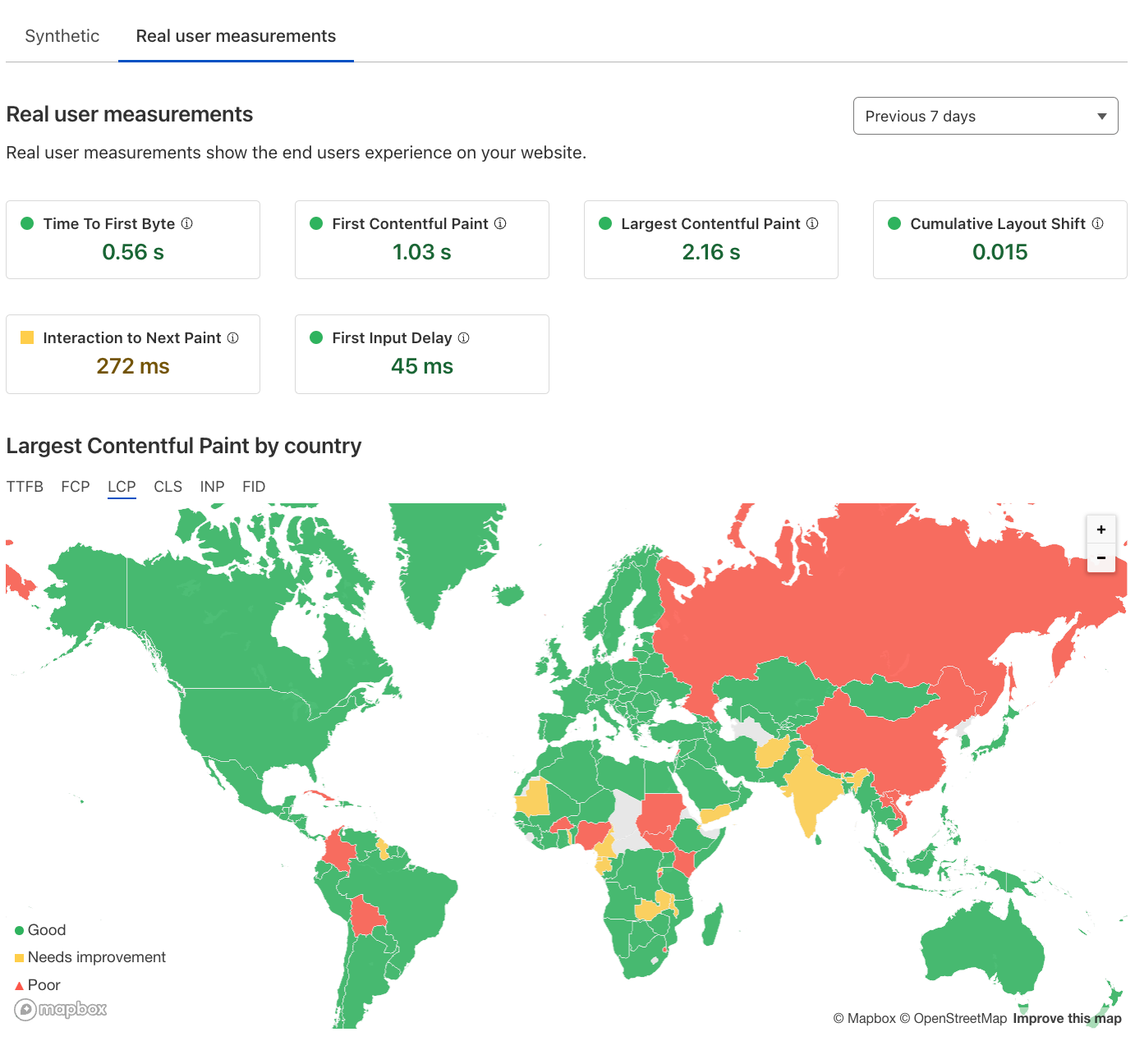
When it comes to near-real-time analysis of data as it arrives in Security Lake and responding to security events your company cares about, Amazon OpenSearch Service provides the necessary tooling to help you make sense of the data found in Security Lake.

OpenSearch Service is a fully managed and scalable log analytics framework that is used by customers to ingest, store, and visualize data. Customers use OpenSearch Service for a diverse set of data workloads, including healthcare data, financial transactions information, application performance data, observability data, and much more. Additionally, customers use the managed service for its ingest performance, scalability, low query latency, and ability to analyze large datasets.
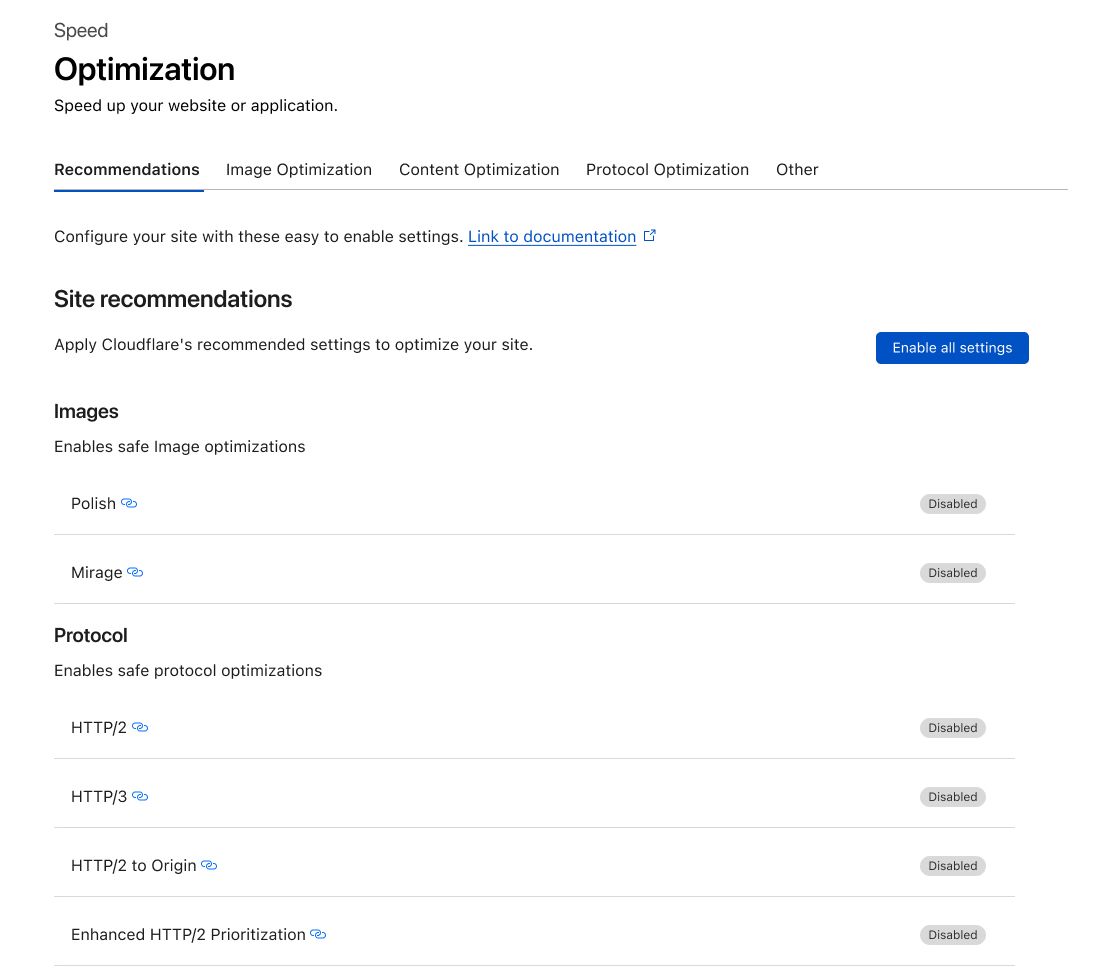
This post shows you how to ingest, transform, and deliver Security Lake data to OpenSearch Service for use by your SecOps teams. We also walk you through how to use a series of prebuilt visualizations to view events across multiple AWS data sources provided by Security Lake.

Understanding the event data found in Security Lake

Security Lake stores the normalized OCSF security events in Apache Parquet format—an optimized columnar data storage format with efficient data compression and enhanced performance to handle complex data in bulk. Parquet format is a foundational format in the Apache Hadoop ecosystem and is integrated into AWS services such as Amazon Redshift Spectrum, AWS Glue, Amazon Athena, and Amazon EMR. It’s a portable columnar format, future proofed to support additional encodings as technology develops, and it has library support across a broad set of languages like Python, Java, and Go. And the best part is that Apache Parquet is open source!

The intent of OCSF is to provide a common language for data scientists and analysts that work with threat detection and investigation. With a diverse set of sources, you can build a complete view of your security posture on AWS using Security Lake and OpenSearch Service.

Understanding the event architecture for Security Lake

Security Lake provides a subscriber framework to provide access to the data stored in Amazon S3. Services such as Amazon Athena and Amazon SageMaker use query access. The solution, in this post, uses data access to respond to events generated by Security Lake.

When you subscribe for data access, events arrive via Amazon Simple Queue Service (Amazon SQS). Each SQS event contains a notification object that has a “pointer” via data used to create a URL to the Parquet object on Amazon S3. Your subscriber processes the event, parses the data found in the object, and transforms it to whatever format makes sense for your implementation.

The solution we provide in this post uses a subscriber for data access. Let’s drill down into what the implementation looks like so that you understand how it works.

Solution overview

The high-level architecture for integrating Security Lake with OpenSearch Service is as follows.

The workflow contains the following steps:

  1. Security Lake persists Parquet formatted data into an S3 bucket as determined by the administrator of Security Lake.
  2. A notification is placed in Amazon SQS that describes the key to get access to the object.
  3. Java code in an AWS Lambda function reads the SQS notification and prepares to read the object described in the notification.
  4. Java code uses Hadoop, Parquet, and Avro libraries to retrieve the object from Amazon S3 and transform the records in the Parquet object into JSON documents for indexing in your OpenSearch Service domain.
  5. The documents are gathered and then sent to your OpenSearch Service domain, where index templates map the structure into a schema optimized for Security Lake logs in OCSF format.

Steps 1–2 are managed by Security Lake; steps 3–5 are managed by the customer. The shaded components are your responsibility. The subscriber implementation for this solution uses Lambda and OpenSearch Service, and these resources are managed by you.

If you are evaluating this as solution for your business, remember that Lambda has a 15-minute maximum execution time at the time of this writing. Security Lake can produce up to 256MB object sizes and this solution may not be effective for your company’s needs at large scale. Various levers in Lambda have impacts on the cost of the solution for log delivery. Make cost conscious decisions when evaluating sample solutions. This implementation using Lambda is suitable for smaller companies where to volume of logs for CloudTrail and VPC flow logs are more suitable for a Lambda based approach where the cost to transform and deliver logs to Amazon OpenSearch Service are more budget friendly.

Now that you have some context, let’s start building the implementation for OpenSearch Service!

Prerequisites

Creation of Security Lake for your AWS accounts is a prerequisite for building this solution. Security Lake integrates with an AWS Organizations account to enable the offering for selected accounts in the organization. For a single AWS account that doesn’t use Organizations, you can enable Security Lake without the need for Organizations. You must have administrative access to perform these operations. For multiple accounts, it’s suggested that you delegate the Security Lake activities to another account in your organization. For more information about enabling Security Lake in your accounts, review Getting started.

Additionally, you may need to take the provided template and adjust it to your specific environment. The sample solution relies on access to a public S3 bucket hosted for this blog so egress rules and permissions modifications may be required if you use S3 endpoints.

This solution assumes that you’re using a domain deployed in a VPC. Additionally, it assumes that you have fine-grained access controls enabled on the domain to prevent unauthorized access to data you store as part of the integration with Security Lake. VPC-deployed domains are privately routable and have no access to the public internet by design. If you want to access your domain in a more public setting, you need to create a NGINX proxy to broker a request between public and private settings.

The remaining sections in this post are focused on how to create the integration with OpenSearch Service.

Create the subscriber

To create your subscriber, complete the following steps:

  1. On the Security Lake console, choose Subscribers in the navigation pane.
  2. Choose Create subscriber.
  3. Under Subscriber details, enter a meaningful name and description.
  4. Under Log and event sources, specify what the subscriber is authorized to ingest. For this post, we select All log and event sources.
  5. For Data access method, select S3.
  6. Under Subscriber credentials, provide the account ID and an external ID for which AWS account you want to provide access.
  7. For Notification details, select SQS queue.
  8. Choose Create when you are finished filling in the form.

It will take a minute or so to initialize the subscriber framework, such as the SQS integration and the permission generated so that you can access the data from another AWS account. When the status changes from Creating to Created, you have access to the subscriber endpoint on Amazon SQS.

  1. Save the following values found in the subscriber Details section:
    1. AWS role ID
    2. External ID
    3. Subscription endpoint

Use AWS CloudFormation to provision Lambda integration between the two services

An AWS CloudFormation template takes care of a large portion of the setup for the integration. It creates the necessary components to read the data from Security Lake, transform it into JSON, and then index it into your OpenSearch Service domain. The template also provides the necessary AWS Identity and Access Management (IAM) roles for integration, the tooling to create an S3 bucket for the Java JAR file used in the solution by Lambda, and a small Amazon Elastic Compute Cloud (Amazon EC2) instance to facilitate the provisioning of templates in your OpenSearch Service domain.

To deploy your resources, complete the following steps:

  1. On the AWS CloudFormation console, create a new stack.
  2. For Prepare template, select Template is ready.
  3. Specify your template source as Amazon S3 URL.

You can either save the template to your local drive or copy the link for use on the AWS CloudFormation console. In this example, we use the template URL that points to a template stored on Amazon S3. You can either use the URL on Amazon S3 or install it from your device.

  1. Choose Next.
  2. Enter a name for your stack. For this post, we name the stack blog-lambda. Start populating your parameters based on the values you copied from Security Lake and OpenSearch Service. Ensure that the endpoint for the OpenSearch domain has a forward slash / at the end of the URL that you copy from OpenSearch Service.
  3. Populate the parameters with values you have saved or copied from OpenSearch Service and Security Lake, then choose Next.
  4. Select Preserve successfully provisioned resources to preserve the resources in case the stack roles back so you can debug the issues.
  5. Scroll to bottom of page and choose Next.
  6. On the summary page, select the check box that acknowledges IAM resources will be created and used in this template.
  7. Choose Submit.

The stack will take a few minutes to deploy.

  1. After the stack has deployed, navigate to the Outputs tab for the stack you created.
  2. Save the CommandProxyInstanceID for executing scripts and save the two role ARNs to use in the role mappings step.

You need to associate the IAM roles for the tooling instance and the Lambda function with OpenSearch Service security roles so that the processes can work with the cluster and the resources within.

Provision role mappings for integrations with OpenSearch Service

With the template-generated IAM roles, you need to map the roles using role mapping to the predefined all_access role in your OpenSearch Service cluster. You should evaluate your specific use of any roles and ensure they are aligned with your company’s requirements.

  1. In OpenSearch Dashboards, choose Security in the navigation pane.
  2. Choose Roles in the navigation pane and look up the all_access role.
  3. On the role details page, on the Mapped users tab, choose Manage mapping.
  4. Add the two IAM roles found in the outputs of the CloudFormation template, then choose Map.

Provision the index templates used for OCSF format in OpenSearch Service

Index templates have been provided as part of the initial setup. These templates are crucial to the format of the data so that ingestion is efficient and tuned for aggregations and visualizations. Data that comes from Security Lake is transformed into a JSON format, and this format is based directly on the OCSF standard.

For example, each OCSF category has a common Base Event class that contains multiple objects that represent details like the cloud provider in a Cloud object, enrichment data using an Enrichment object that has a common structure across events but can have different values based on the event, and even more complex structures that have inner objects, which themselves have more inner objects such as the Metadata object, still part of the Base Event class. The Base Event class is the foundation for all categories in OCSF and helps you with the effort of correlating events written into Security Lake and analyzed in OpenSearch.

OpenSearch is technically schema-less. You don’t have to define a schema up front. The OpenSearch engine will try to guess the data types and the mappings found in the data coming from Security Lake. This is known as dynamic mapping. The OpenSearch engine also provides you with the option to predefine the data you are indexing. This is known as explicit mapping. Using explicit mappings to identifying your data source types and how they are stored at time of ingestion is key to getting high volume ingest performance for time-centric data indexed at heavy load.

In summary, the mapping templates use composable templates. In this construct, the solution establishes an efficient schema for the OCSF standard and gives you the capability to correlate events and specialize on specific categories in the OCSF standard.

You load the templates using the tools proxy created by your CloudFormation template.

  1. On the stack’s Outputs tab, find the parameter CommandProxyInstanceID.

We use that value to find the instance in AWS Systems Manager.

  1. On the Systems Manager console, choose Fleet manager in the navigation pane.
  2. Locate and select your managed node.
  3. On the Node actions menu, choose Start terminal session.
  4. When you’re connected to the instance, run the following commands:
    cd;pwd
    . /usr/share/es-scripts/es-commands.sh | grep -o '{\"acknowledged\":true}' | wc -l

You should see a final result of 42 occurrences of {“acknowledged”:true}, which demonstrates the commands being sent were successful. Ignore the warnings you see for migration. The warnings don’t affect the scripts and as of this writing can’t be muted.

  1. Navigate to Dev Tools in OpenSearch Dashboards and run the following command:
    GET _cat/templates

This confirms that the scripts were successful.

Install index patterns, visualizations, and dashboards for the solution

For this solution, we prepackaged a few visualizations so that you can make sense of your data. Download the visualizations to your local desktop, then complete the following steps:

  1. In OpenSearch Dashboards, navigate to Stack Management and Saved Objects.
  2. Choose Import.
  3. Choose the file from your local device, select your import options, and choose Import.

You will see numerous objects that you imported. You can use the visualizations after you start importing data.

Enable the Lambda function to start processing events into OpenSearch Service

The final step is to go into the configuration of the Lambda function and enable the triggers so that the data can be read from the subscriber framework in Security Lake. The trigger is currently disabled; you need to enable it and save the config. You will notice the function is throttled, which is by design. You need to have templates in the OpenSearch cluster so that the data indexes in the desired format.

  1. On the Lambda console, navigate to your function.
  2. On the Configurations tab, in the Triggers section, select your SQS trigger and choose Edit.
  3. Select Activate trigger and save the setting.
  4. Choose Edit concurrency.
  5. Configure your concurrency and choose Save.

Enable the function by setting the concurrency setting to 1. You can adjust the setting as needed for your environment.

You can review the Amazon CloudWatch logs on the CloudWatch console to confirm the function is working.

You should see startup messages and other event information that indicates logs are being processed. The provided JAR file is set for information level logging and if needed, to debug any concerns, there is a verbose debug version of the JAR file you can use. Your JAR file options are:

If you choose to deploy the debug version, the verbosity of the code will show some error-level details in the Hadoop libraries. To be clear, Hadoop code will display lots of exceptions in debug mode because it tests environment settings and looks for things that aren’t provisioned in your Lambda environment, like a Hadoop metrics collector. Most of these startup errors are not fatal and can be ignored.

Visualize the data

Now that you have data flowing into OpenSearch Service from Security Lake via Lambda, it’s time to put those imported visualizations to work. In OpenSearch Dashboards, navigate to the Dashboards page.

You will see four primary dashboards aligned around the OCSF category for which they support. The four supported visualization categories are for DNS activity, security findings, network activity, and AWS CloudTrail using the Cloud API.

Security findings

The findings dashboard is a series of high-level summary information that you use for visual inspection of AWS Security Hub findings in a time window specified by you in the dashboard filters. Many of the encapsulated visualizations give “filter on click” capabilities so you can narrow your discoveries. The following screenshot shows an example.

The Finding Velocity visualization shows findings over time based on severity. The Finding Severity visualization shows which “findings” have passed or failed, and the Findings table visualization is a tabular view with actual counts. Your goal is to be near zero in all the categories except informational findings.

Network activity

The network traffic dashboard provides an overview for all your accounts in the organization that are enabled for Security Lake. The following example is monitoring 260 AWS accounts, and this dashboard summarizes the top accounts with network activities. Aggregate traffic, top accounts generating traffic and top accounts with the most activity are found in the first section of the visualizations.

Additionally, the top accounts are summarized by allow and deny actions for connections. In the visualization below, there are fields that you can drill down into other visualizations. Some of these visualizations have links to third party website that may or may not be allowed in your company. You can edit the links in the Saved objects in the Stack Management plugin.

For drill downs, you can drill down by choosing the account ID to get a summary by account. The list of egress and ingress traffic within a single AWS account is sorted by the volume of bytes transferred between any given two IP addresses.

Finally, if you choose the IP addresses, you’ll be redirected to Project Honey Pot, where you can see if the IP address is a threat or not.

DNS activity

The DNS activity dashboard shows you the requestors for DNS queries in your AWS accounts. Again, this is a summary view of all the events in a time window.

The first visualization in the dashboard shows DNS activity in aggregate across the top five active accounts. Of the 260 accounts in this example, four are active. The next visualization breaks the resolves down by the requesting service or host, and the final visualization breaks out the requestors by account, VPC ID, and instance ID for those queries run by your solutions.

API Activity

The final dashboard gives an overview of API activity via CloudTrail across all your accounts. It summarizes things like API call velocity, operations by service, top operations, and other summary information.

If we look at the first visualization in the dashboard, you get an idea of which services are receiving the most requests. You sometimes need to understand where to focus the majority of your threat discovery efforts based on which services may be consumed differently over time. Next, there are heat maps that break down API activity by region and service and you get an idea of what type of API calls are most prevalent in your accounts you are monitoring.

As you scroll down on the form, more details present themselves such as top five services with API activity and the top API operations for the organization you are monitoring.

Conclusion

Security Lake integration with OpenSearch Service is easy to achieve by following the steps outlined in this post. Security Lake data is transformed from Parquet to JSON, making it readable and simple to query. Enable your SecOps teams to identify and investigate potential security threats by analyzing Security Lake data in OpenSearch Service. The provided visualizations and dashboards can help to navigate the data, identify trends and rapidly detect any potential security issues in your organization.

As next steps, we recommend to use the above framework and associated templates that provide you with easy steps to visualize your Security Lake data using OpenSearch Service.

In a series of follow-up posts, we will review the source code and walkthrough published examples of the Lambda ingestion framework in the AWS Samples GitHub repo. The framework can be modified for use in containers to help address companies that have longer processing times for large files published in Security Lake. Additionally, we will discuss how to detect and respond to security events using example implementations that use OpenSearch plugins such as Security Analytics, Alerting, and the Anomaly Detection available in Amazon OpenSearch Service.


About the authors

Kevin Fallis (@AWSCodeWarrior) is an Principal AWS Specialist Search Solutions Architect. His passion at AWS is to help customers leverage the correct mix of AWS services to achieve success for their business goals. His after-work activities include family, DIY projects, carpentry, playing drums, and all things music.

Jimish Shah is a Senior Product Manager at AWS with 15+ years of experience bringing products to market in log analytics, cybersecurity, and IP video streaming. He’s passionate about launching products that offer delightful customer experiences, and solve complex customer problems. In his free time, he enjoys exploring cafes, hiking, and taking long walks

Ross Warren is a Senior Product SA at AWS for Amazon Security Lake based in Northern Virginia. Prior to his work at AWS, Ross’ areas of focus included cyber threat hunting and security operations. When he is not talking about AWS he likes to spend time with his family, bake bread, make sawdust and enjoy time outside.

AWS Week in Review – Amazon EC2 Instance Connect Endpoint, Detective, Amazon S3 Dual Layer Encryption, Amazon Verified Permission – June 19, 2023

Post Syndicated from Sébastien Stormacq original https://aws.amazon.com/blogs/aws/aws-week-in-review-amazon-ec2-instance-connect-endpoint-detective-amazon-s3-dual-layer-encryption-amazon-verified-permission-june-19-2023/

This week, I’ll meet you at AWS partner’s Jamf Nation Live in Amsterdam where we’re showing how to use Amazon EC2 Mac to deploy your remote developer workstations or configure your iOS CI/CD pipelines in the cloud.Mac in an instant

Last Week’s Launches
While I was traveling last week, I kept an eye on the AWS News. Here are some launches that got my attention.

Amazon EC2 Instance Connect Endpoint. Endpoint for EC2 Instance Connect allows you to securely access Amazon EC2 instances using their private IP addresses, making the use of bastion hosts obsolete. Endpoint for EC2 Instance Connect is by far my favorite launch from last week. With EC2 Instance Connect, you use AWS Identity and Access Management (IAM) policies and principals to control SSH access to your instances. This removes the need to share and manage SSH keys. We also updated the AWS Command Line Interface (AWS CLI) to allow you to easily connect or open a secured tunnel to an instance using only its instance ID. I read and contributed to a couple of threads on social media where you pointed out that AWS Systems Manager Session Manager already offered similar capabilities. You’re right. But the extra advantage of EC2 Instance Connect Endpoint is that it allows you to use your existing SSH-based tools and libraries, such as the scp command.

Amazon Inspector now supports code scanning of AWS Lambda functions. This expands the existing capability to scan Lambda functions and associated layers for software vulnerabilities in application package dependencies. Amazon Detective also extends finding groups to Amazon Inspector. Detective automatically collects findings from Amazon Inspector, GuardDuty, and other AWS security services, such as AWS Security Hub, to help increase situational awareness of related security events.

Amazon Verified Permissions is generally available. If you’re designing or developing business applications that need to enforce user-based permissions, you have a new option to centrally manage application permissions. Verified Permissions is a fine-grained permissions management and authorization service for your applications that can be used at any scale. Verified Permissions centralizes permissions in a policy store and helps developers use those permissions to authorize user actions within their applications. Similarly to the way an identity provider simplifies authentication, a policy store lets you manage authorization in a consistent and scalable way. Read Danilo’s post to discover the details.

Amazon S3 Dual-Layer Server-Side Encryption with keys stored in AWS Key Management Service (DSSE-KMS). Some heavily regulated industries require double encryption to store some type of data at rest. Amazon Simple Storage Service (Amazon S3) offers DSSE-KMS, a new free encryption option that provides two layers of data encryption, using different keys and different implementation of the 256-bit Advanced Encryption Standard with Galois Counter Mode (AES-GCM) algorithm. My colleague Irshad’s post has all the details.

AWS CloudTrail Lake Dashboards provide out-of-the-box visibility and top insights from your audit and security data directly within the CloudTrail Lake console. CloudTrail Lake features a number of AWS curated dashboards so you can get started right away – with no required detailed dashboard setup or SQL experience.

AWS IAM Identity Center now supports automated user provisioning from Google Workspace. You can now connect your Google Workspace to AWS IAM Identity Center (successor to AWS Single Sign-On) once and manage access to AWS accounts and applications centrally in IAM Identity Center.

AWS CloudShell is now available in 12 additional regions. AWS CloudShell is a browser-based shell that makes it easier to securely manage, explore, and interact with your AWS resources. The list of the 12 new Regions is detailed in the launch announcement.

For a full list of AWS announcements, be sure to keep an eye on the What’s New at AWS page.

Other AWS News
Here are some other updates and news that you might have missed:

  • AWS Extension for Stable Diffusion WebUI. WebUI is a popular open-source web interface that allows you to easily interact with Stable Diffusion generative AI. We built this extension to help you to migrate existing workloads (such as inference, train, and ckpt merge) from your local or standalone servers to the AWS Cloud.
  • GoDaddy developed a multi-Region, event-driven system. Their system handles 400 millions events per day. They plan to scale it to process 2 billion messages per day in a near future. My colleague Marcia explains the detail of their architecture in her post.
  • The Official AWS Podcast – Listen each week for updates on the latest AWS news and deep dives into exciting use cases. There are also official AWS podcasts in several languages. Check out the podcasts in FrenchGermanItalian, and Spanish.
  • AWS Open Source News and Updates – This is a newsletter curated by my colleague Ricardo to bring you the latest open source projects, posts, events, and more.

Upcoming AWS Events
Check your calendars and sign up for these AWS events:

  • AWS Silicon Innovation Day (June 21) – A one-day virtual event that will allow you to better understand AWS Silicon and how you can use the Amazon EC2 chip offerings to your benefit. My colleague Irshad shared the details in this post. Register today.
  • AWS Global Summits – There are many AWS Summits going on right now around the world: Milano (June 22), Hong Kong (July 20), New York (July 26), Taiwan (Aug 2 & 3), and Sao Paulo (Aug 3).
  • AWS Community Day – Join a community-led conference run by AWS user group leaders in your region: Manila (June 29–30), Chile (July 1), and Munich (September 14).
  • AWS User Group Perú Conf 2023 (September 2023). Some of the AWS News blog writer team will be present: Marcia, Jeff, myself, and our colleague Startup Developer Advocate Mark. Save the date and register today.
  • CDK Day CDK Day is happening again this year on September 29. The call for papers for this event is open, and this year we’re also accepting talks in Spanish. Submit your talk here.

That’s all for this week. Check back next Monday for another Week in Review!

This post is part of our Week in Review series. Check back each week for a quick roundup of interesting news and announcements from AWS!
— seb

The collective thoughts of the interwebz